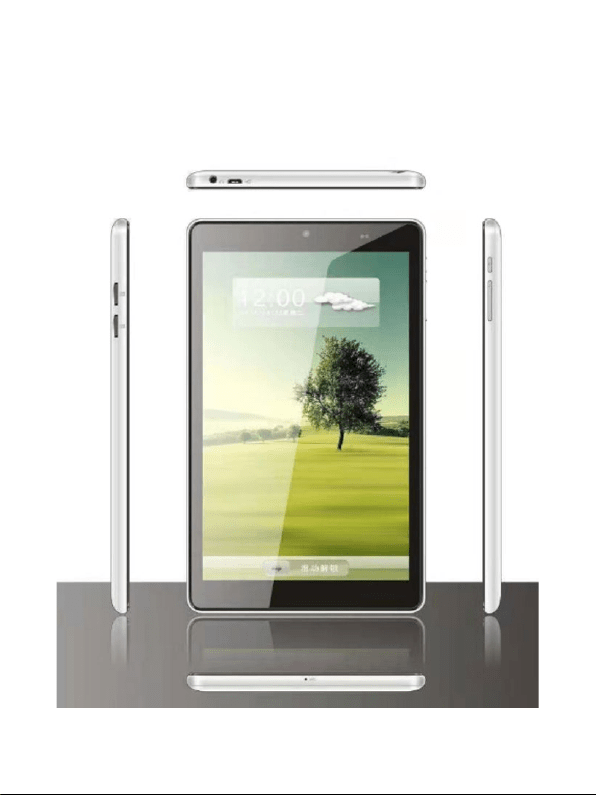
T805 Tablet PC User Manual

Safety and Warning Information
WARNING!
Main Supply: This equipment is designed to operate from a 100-240 Volt, 50/60Hz
AC power supply. The use of other power sources may damage this equipment.
Check that the voltage marked on the rating plate located at the rear of the power
adaptor states 100-240V. The manufacturer will NOT accept responsibility or damage
or injury caused by connecting to the wrong voltage.
WARNINGS!
The main plug shall be the main disconnect device and shall remain operable at all
times.
Do not push objects into holes and ventilation slots.
Do not expose this product to moisture or place any objects filled with liquids on or
near the product.
Do not place a naked flame source, such as lighted candles, on or near this product.
Do not store or operate the device in environments where the temperature is above 50
degrees celsius or below -10 degrees celsius.
Do not intentionally hit the device or place heavy or sharp objects on the device.
Only use accessories specified by the manufacturer.
Keep the device away from benzene, diluents, and other chemicals.
Do not attempt to repair this product yourself. Always use a qualified service agent to
perform adjustments or repairs.

Basic Operation
Power on
In the shutdown state, long press " " button boots
Power off
In the power on state, long press the " " key 3 seconds then pop-up device
options, select " Power off " for shut down.
Sleep
the machine under normal operating conditions, Short press the power button,
Into hibernation, Now, Screen will close. Short press the power button again, Be able
to resume normal mode. When the time being use this MID can enable this feature
when, to reduce power consumption.
Power reset
If there is shutdown to the tablet in the process of operation, you can turn off and
restart the tablet by pressing "reset" key.
Screen time out
If you do not contact the tablet within the set time, and do no operate by the
button, the contact screen will be automatically off.
In any state, short press " " button and for activation; Then skid the lock
upwards to the green of spotted which will accomplish to access to the upper
interface.
If it is necessary to deactivate the contact screen time out function, you can set
the [Screen time out] option under [display] function into "Never ".
Using the Micro SD card
After this unit is connected with the computer, you will find two moving disks.

The first one is the built-in memory disk for this unit and the other is the disk for the
Micro SD card. If no card is inserted, the second disk can not be opened. This unit
supports the extension of the Micro SD card from 4GB to 64GB.
Inserting and Pulling out the Micro SD card
Inserting:
Put the Micro SD card face up (side with words), and slightly force the card into
the socket of the card, i.e. connecting the unit. Under this state, you can play the
content in the Micro SD card.
Pulling:
Slightly push the Micro SD, and it will bounce by a section, and then you can
take it out.
Caution:
Please perform inserting and pulling operation when power is off! Otherwise, it
will lead to the loss or damage to the files within the unit! If no card is inserted, the
computer will be unable to perform read and write operation for the disk notes of the
later removable disk (Micro SD card).
Battery:
High capacity Polymer battery is used for this unit.
The duration available of the battery power depends on volume, types of playing
files and operation of batteries. The tablet can be set up by the user as "user define
power off time" or "display setup" to save batteries.
Charging:
This unit can be recharged by USB port, using standard 5V/2A charger:
Warnings for charging:
1. A new battery may be empty and not charged before you get the device.

2. If the device is not used for long time, it is better to charge it to full capacity
every 2 or 3 months during storage.
Power adapter is a key component of the portable tablet, which play a crucial
role in keeping the portable tablet’s normal work and protecting your security when
using the tablet, a long-term customer surveys and after-sales service Practice shows
that the malfunction of the portable tablet in many cases were caused by using
inappropriate accessories, in particular the power adapter.
Use the substandard power adapter will shorten the life of the portable tablet by
considerably, the voltage instability will seriously affected the normal work of the
portable tablet and bring permanent damage on the tablet’s performance and
reliability, Use the substandard power adapter will also reduce the vocal quality of the
tablets, shutdown the tablet when you using it, In addition, Use the substandard
power adapter will cause combustion and explosion which will disserve the safety of
the consumers.
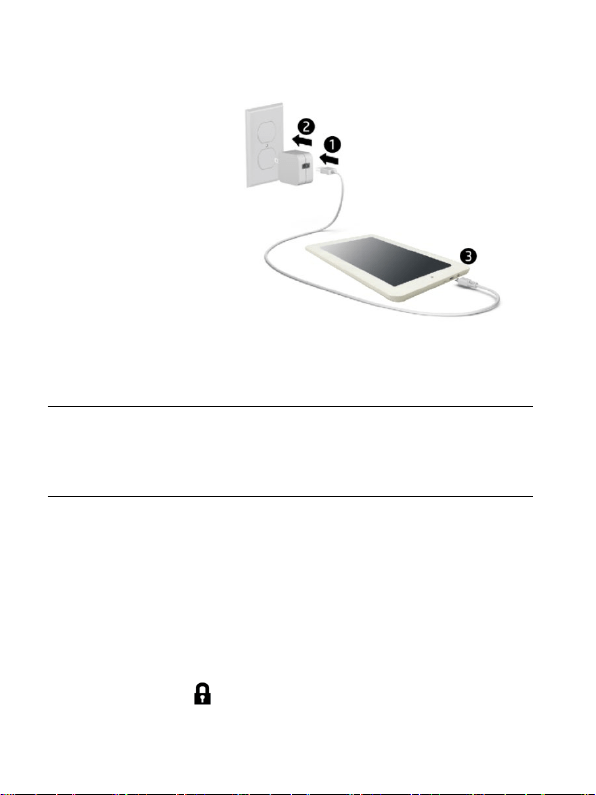
Setting up your tablet
1.
2. After charging the
battery, press and hold the power button for up to 5 seconds until the pattern is
displayed.
IMPORTANT: If the battery image is not displayed on the screen, press the power
button briefly to display the image, and then press and hold the power button until the
logo is displayed.
3.Follow the on-screen instructions to select a language and a wireless network.
Lock and unlock Turn off the tablet
Lock—Press the power button. Press and hold the power button,
Unlock—Press the power button to touch Power off, and then touch OK.
turn on the tablet, then place your If your tablet becomes unresponsive,
finger on the lock icon and slide press and hold the power button for
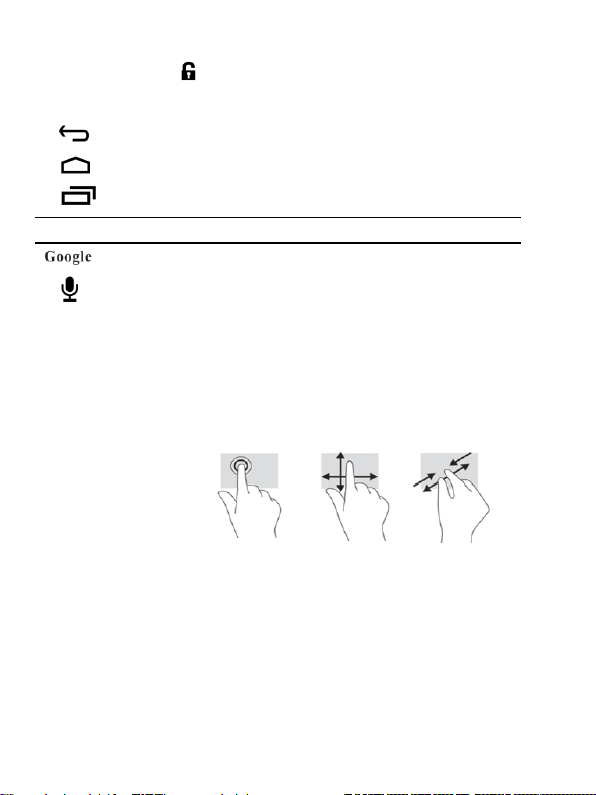
the icon to the unlock position several seconds to turn off the tablet.
All apps—Swipe up from bottom and display a list of all apps installed.
Back—Opens the previous screen.
Home—Opens or returns to the Home screen.
Recent apps—Opens a list of apps used recently.
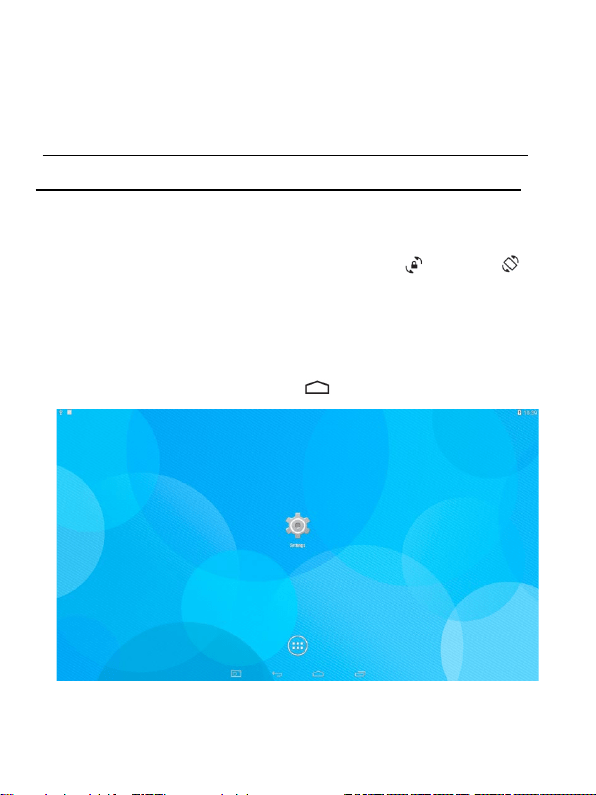
NOTE: The appearance of the Home screen may vary.
Search—Allows you to type one or more keywords to search.
Voice search—Allows you to speak one or more keywords to search with
the installed search app.
*The search feature varies by model and country.
with the installed search app.
Use gestures
The following gestures
can be used with your
tablet:
Organize the Home screen
• To add an app or a widget to the Home screen, touch the Apps tab or the Widgets
tab, and then tap and hold an app or widget until it is added to the Home screen.
• To remove an app or widget from the Home screen, drag it to the X at the top of the
screen.
Change your tablet’s view
The Auto-rotate feature allows you to change your tablet’s view. For landscape view,
hold the tablet horizontally. For portrait view, hold the tablet vertically.
NOTE: Some apps do not rotate automatically.
To change the Auto-rotate setting, swipe down from the top of the screen to display
notifications, and then touch the Screen rotation icon to lock or unlock
the screen rotation.
Return to the Home screen
To quickly return to the Homescreen, touch .
Display apps, widgets, and notification

Apps—Swipe up from bottom of home screen to see a list of all apps.
Widgets—Touch , and then touch the Widgets tab to see a list of all widgets.
Notification—Swipe down from the top of the screen to see your notifications.
Back up your data
Strongly encourages that you periodically back up your personal data and media on
your tablet to another computer, a dedicated storage device, or to the cloud using one
of several commercially available solutions.
Configuring the Android Operating System Settings
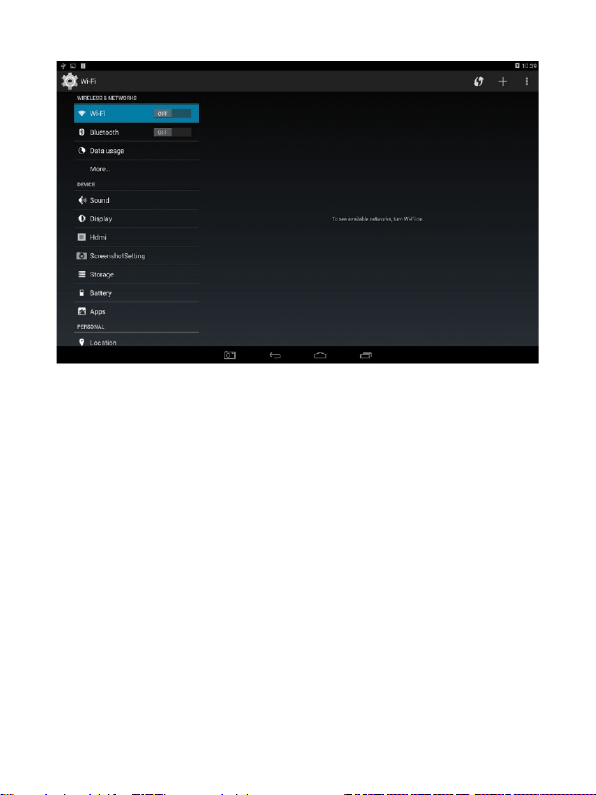
Tap on the “Settings” icon to configure the following three relevant Android system
settings:
Connecting to a Wireless Network
The preselected item on the left hand settings menu is “Wi-Fi”. To enable wireless
connections, drag the “Wi-Fi” menu item slider to the right to display “ON”. After
a few seconds available wireless networks appear on the right side of the screen.
Select a network to configure and connect to it.
Enable USB Debugging
This setting allows developers to debug their applications. Select “Developer
options”on the left hand menu and then ensure “USB debugging” on the right is
checked. Under the “Device” section on the left side menu, “USB” and then
“Connect to PC” also needs to be enabled.

This equipment has been tested and found to comply with the limits for a Class B digital device,
pursuant to part 15 of the FCC Rules. These limits are designed to provide reasonable protection
against harmful interference in a residential installation. This equipment generates, uses and can
radiate radio frequency energy and, if not installed and used in accordance with the instructions,
may cause harmful interference to radio communications. However, there is no guarantee that
interference will not occur in a particular installation. If this equipment does cause harmful
interference to radio or television reception, which can be determined by turning the equipment
off and on, the user is encouraged to try to correct the interference by one or more of the
following measures:
• Reorient or relocate the receiving antenna.
• Increase the separation between the equipment and receiver.
• Connect the equipment into an outlet on a circuit different from that to which the receiver is
connected.
• Consult the dealer or an experienced radio/TV technician for help.
Caution: Any changes or modifications to this device not explicitly approved by manufacturer
could void your authority to operate this equipment.
This device complies with part 15 of the FCC Rules. Operation is subject to the following two
conditions: (1) This device may not cause harmful interference, and (2) this device must accept
any interference received, including interference that may cause undesired operation.
RF Exposure Information
The device has been evaluated to meet general RF exposure requirement. The device can be used
in portable exposure condition without restriction.
FCC Statement