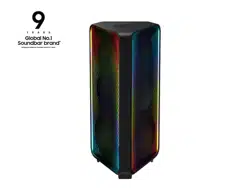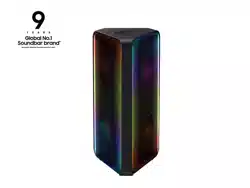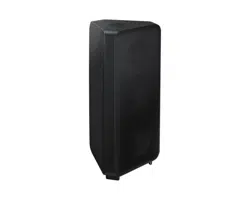

MX-ST90B
FULL MANUAL
Imagine the possibilities
Thank you for purchasing this Samsung product.
To receive more complete service, please register
your product at www.samsung.com/register
ENG - ii
SAFETY INFORMATION
SAFETY WARNINGS
TO REDUCE THE RISK OF ELECTRIC SHOCK, DO
NOT REMOVE THE COVER (OR BACK).
NO USER-SERVICEABLE PARTS ARE INSIDE.
REFER SERVICING TO QUALIFIED SERVICE
PERSONNEL.
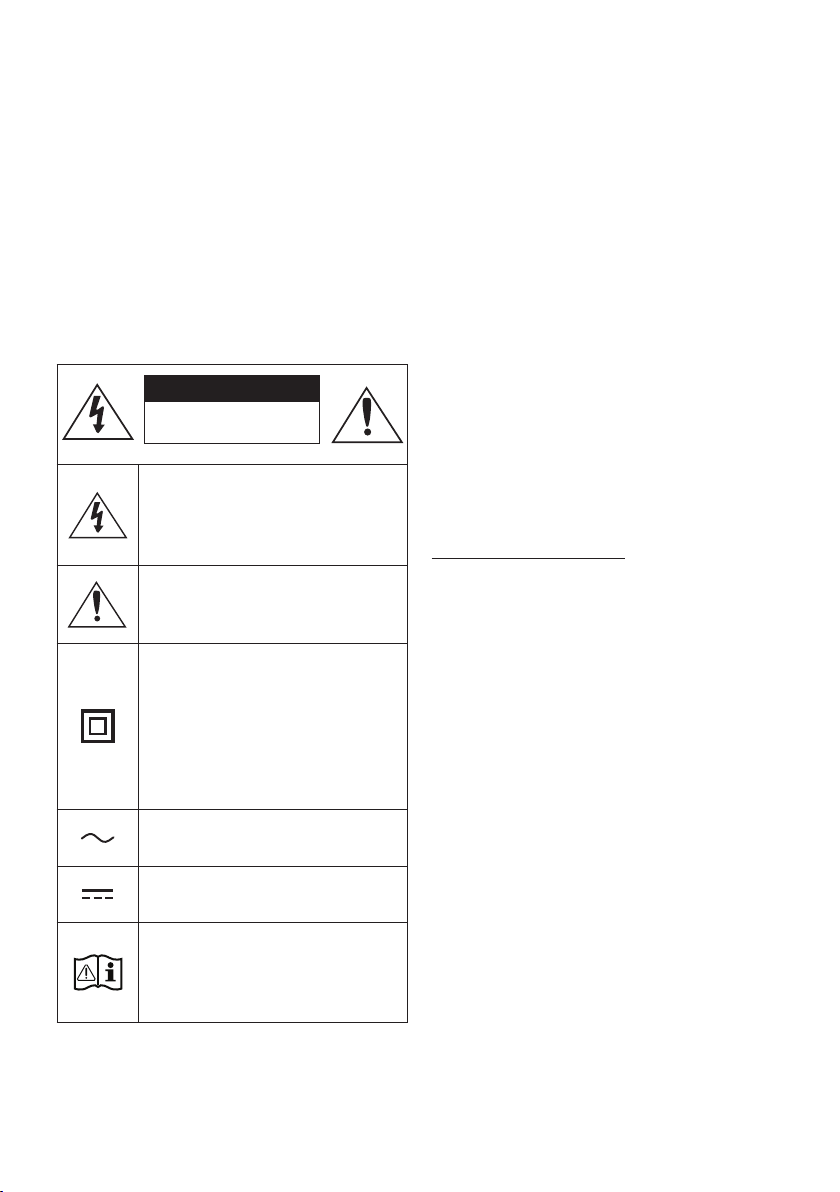
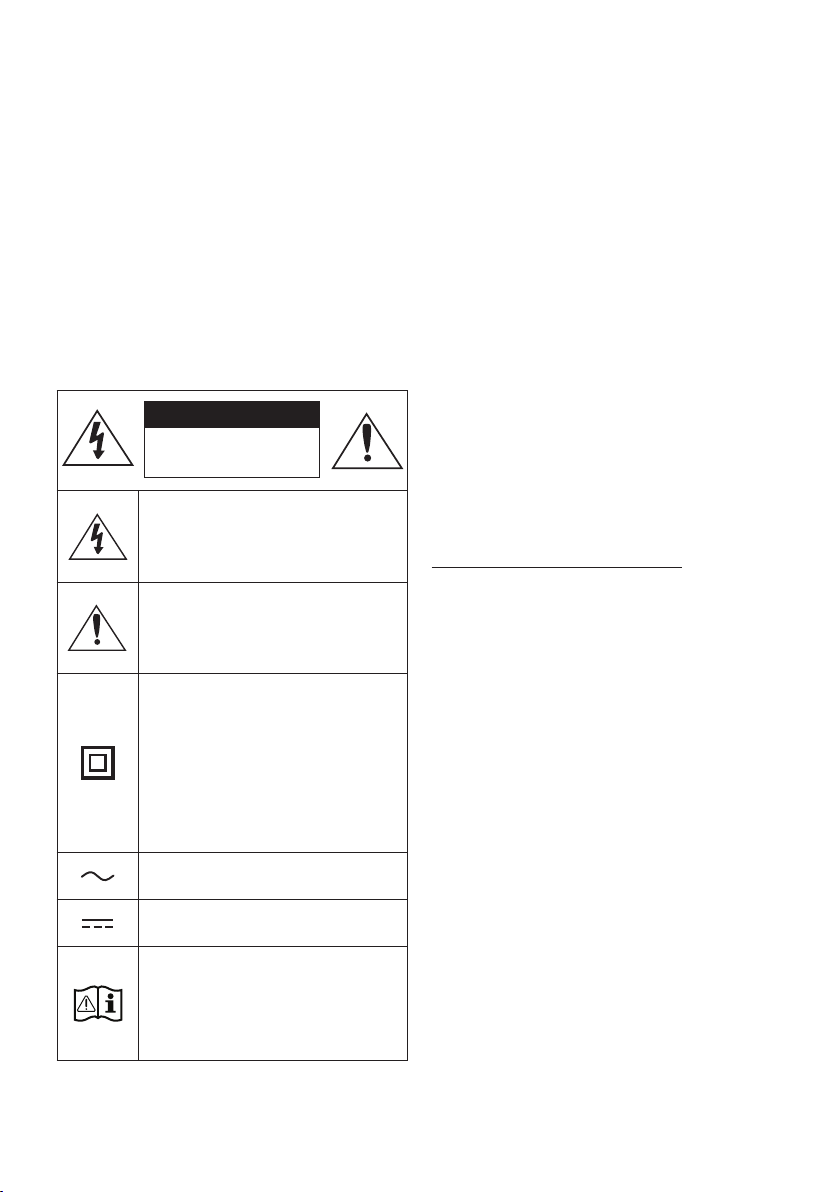
Refer to the table below for an explanation of
symbols which may be on your Samsung product.
CAUTION
RISK OF ELECTRIC SHOCK.
DO NOT OPEN.
This symbol indicates that high voltage
is present inside. It is dangerous to
make any kind of contact with any
internal part of this product.
This symbol indicates that this product
comes with important literature
concerning operation and maintenance.
Class II product : This symbol indicates
that a safety connection to electrical
earth (ground) is not required.
If this symbol is not present on a
product with a power cord, the product
MUST have a reliable connection to
protective earth (ground).
AC voltage : Rated voltage marked
with this symbol is AC voltage.
DC voltage : Rated voltage marked
with this symbol is DC voltage.
Caution. Consult Instructions for use :
This symbol instructs the user to
consult the user manual for further
safety related information.
WARNING
•
not expose this appliance to rain or moisture.
• This product contains chemicals known to the
State of California to cause cancer and birth
defects or other reproductive harm.
CAUTION
• Do not expose this apparatus to dripping or
liquids, such as vases, on the apparatus.
• To turn this apparatus off completely, you
must pull the power plug out of the wall
socket. Consequently, the power plug must
be easily and readily accessible at all times.
CAUTION (for Canada)
This device contains licence-exempt
transmitter(s)/receiver(s) that comply with
Innovation, Science and Economic Development
Canada’s licence-exempt RSS(s). Operation is
subject to the following two conditions:
(1) This device may not cause interference.
(2) This device must accept any interference,
including interference that may cause undesired
operation of the device.
This device and its antenna(s) must not be co-
located or operation in conjunction with any other
antenna or transmitter.
This device may automatically discontinue
transmission if there is no information to
transmit, or an operational failure. Note that this
is not intended to prohibit the transmission of
control or signaling information or the use of
repetitive codes where required by the
technology.

ENG - iii
This Class B digital apparatus complies with
Canadian ICES-003.
Radiation Exposure Statement
This equipment complies with IC RSS-102
radiation exposure limits set forth for an
uncontrolled environment. This equipment should
be installed and operated with minimum distance
20 cm between the radiator & your body.
Important Safety Instructions
Read these operating instructions carefully
before using the unit. Follow all the safety
instructions listed below. Keep these operating
instructions handy for future reference.
1. Read these instructions.
2. Keep these Instructions.
3. Heed all warnings.
4. Follow all instructions.
5. Clean only with dry cloth.
6. Do not block any ventilation openings.
Install in accordance with the manufacturer’s
instructions.
7. Do not install near any heat sources such as
radiators, heat registers, stoves, or other
heat.
8. Do not defeat the safety purpose of the
polarized or grounding-type plug.
A polarized plug has two blades with one
wider than the other. A grounding type plug
has two blades and a third grounding prong.
The wide blade or the third prong are
provided for your safety. If the provided plug
electrician for replacement of the obsolete
outlet.
9. Protect the power cord from being walked
on or pinched particularly at plugs,
convenience receptacles, and the point
where they exit from the apparatus.
10.
by the manufacturer.
11. Use only with the cart, stand,
tripod, bracket, or table
or sold with the apparatus.
When a cart is used, use caution
when moving the cart/apparatus
combination to avoid injury from tip-over.
12. Unplug this apparatus during lightning
storms or when unused for long periods of
time.
13.
personnel. Servicing is required when the
apparatus has been damaged in any way,
such as power-supply cord or plug is
damaged, liquid has been spilled or objects
have fallen into the apparatus, the apparatus
has been exposed to rain or moisture, does
not operate normally, or has been dropped.
ENG - iv
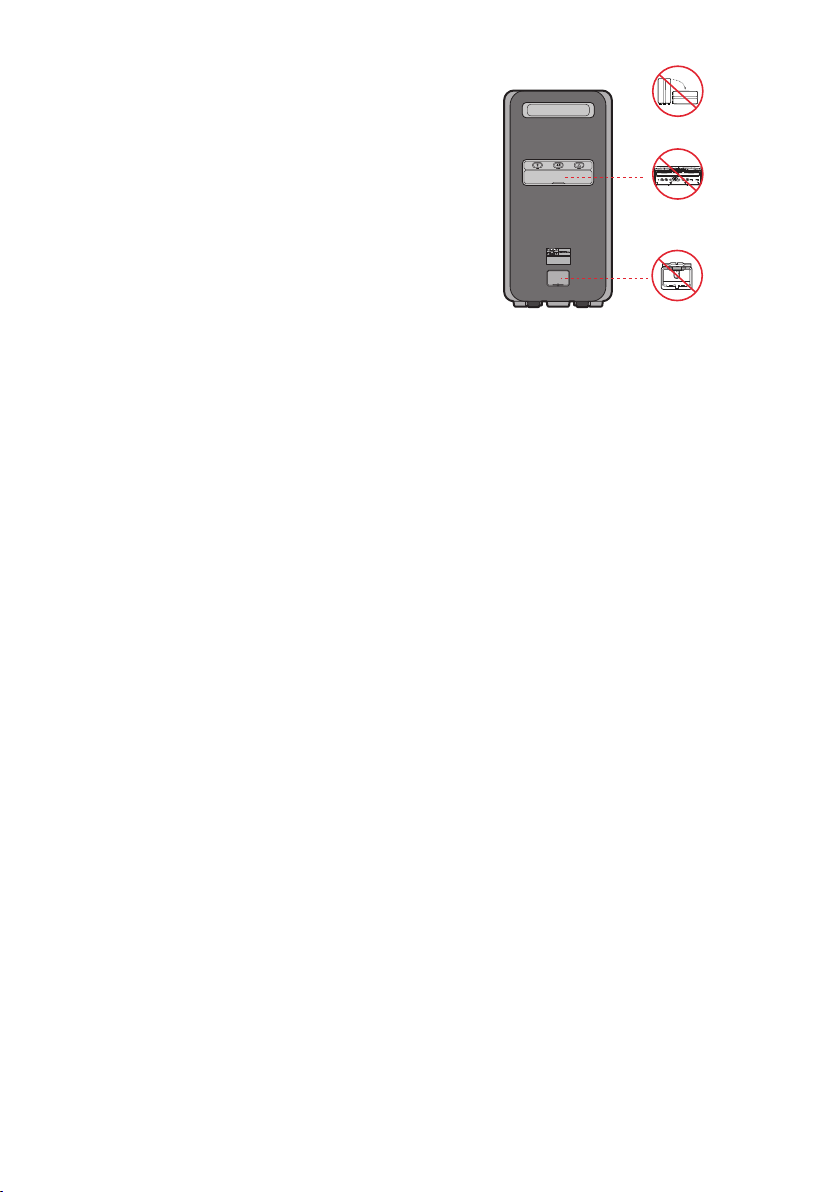
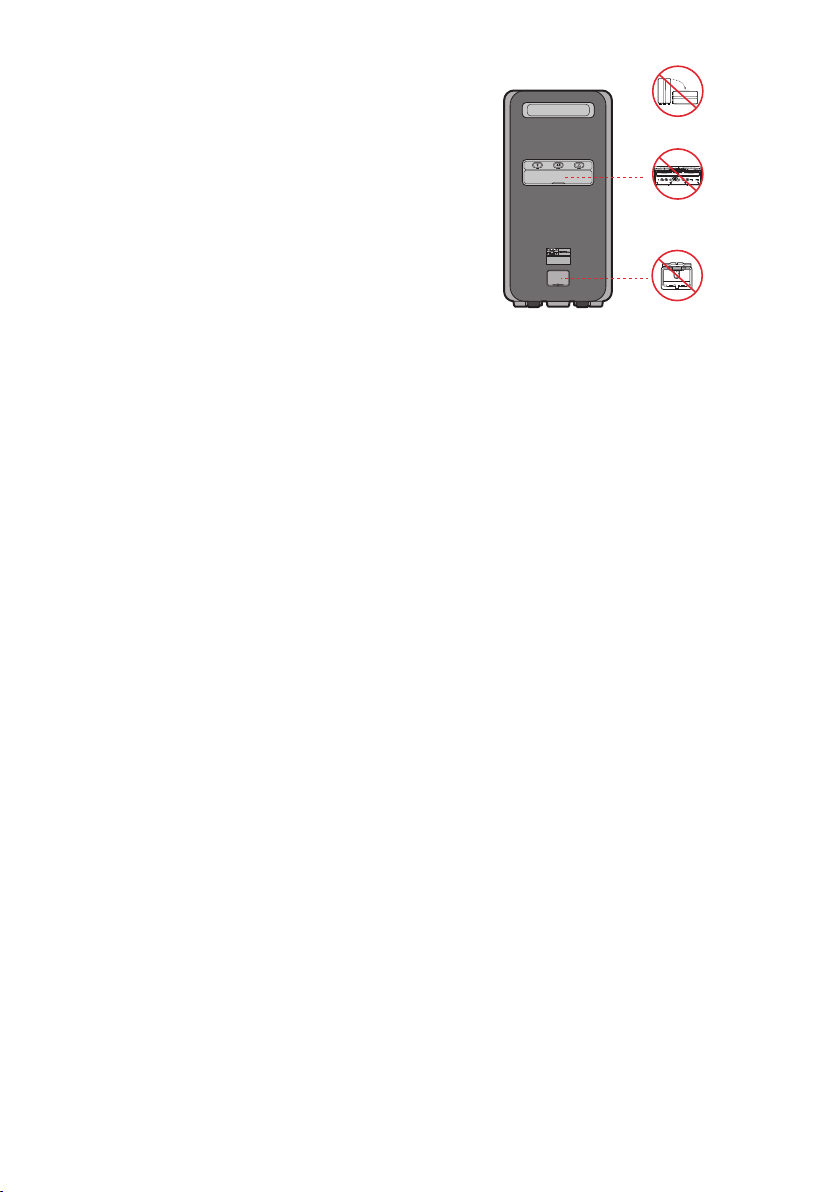
To avoid deterioration of water resistant
Check the following and use the unit correctly.
• Deformation or damage from dropping the
unit or subjecting it to mechanical shock may
cause deterioration of the water resistant.
• This unit does not have a design that is
resistant to water pressure. Use of the unit in
a location where high water pressure is
applied, such as in the shower, may cause a
malfunction.
• Do not pour high-temperature water or blow
hot air from a hair dryer or any other
applicance on the unit directly. Also never use
the unit in a place subject to high
temperatures, such as in a sauna or near a
heat source.
• Handle the cap with care. Port cover and AC
plug cover plays a very important role in
maintenance of the water resistant. When
using the unit, make sure that the cap is
closed completely. When closing the cap, be
careful not to allow foreign objects inside. If
the cap is not closed completely the water
resistant may deteriorate and may cause a
malfunction of the unit as a result of water
entering the unit.
• The product cannot be dumped to ensure it is
water resistant.
• IPX5 cannot be met when any JACK is
plugged in.
• In a state of electricity, IPX5 can be met when
the power cord passes through the cover
power slot and the cover power is completely
closed, otherwise, it does not.
POWER
ECHO 2VOL 2ECHO 1 VOL 1 MIC 2
USB1
(5V 2.1A)
USB2
(5V 0.5A)
AUX 1
MIC 1
ENG - v
PRECAUTIONS
1. Ensure that the AC power supply in your
house complies with the power
sticker located on the rear of your product.
Install your product horizontally, on a
suitable base (furniture), with enough space
around it for ventilation (3~4 inches). Make
sure the ventilation slots are not covered. Do
equipment which may become hot. This unit
is designed for continuous use.
To fully turn off the unit, disconnect the AC
plug from the wall outlet. Unplug the unit if
you intend to leave it unused for a long
period of time.
2. During thunderstorms, disconnect the AC
plug from the wall outlet. Voltage peaks due
to lightning could damage the unit.
3. Do not expose the unit to direct sunlight or
other heat sources. This could lead to
overheating and cause the unit to
malfunction.
4. Protect the product from moisture (i.e.
equipment creating strong magnetic or
the AC wall socket if the unit malfunctions.
Your product is not intended for industrial
use. It is for personal use only. Condensation
may occur if your product has been stored in
cold temperatures. If transporting the unit
during the winter, wait approximately
2 hours until the unit has reached room
temperature before using.
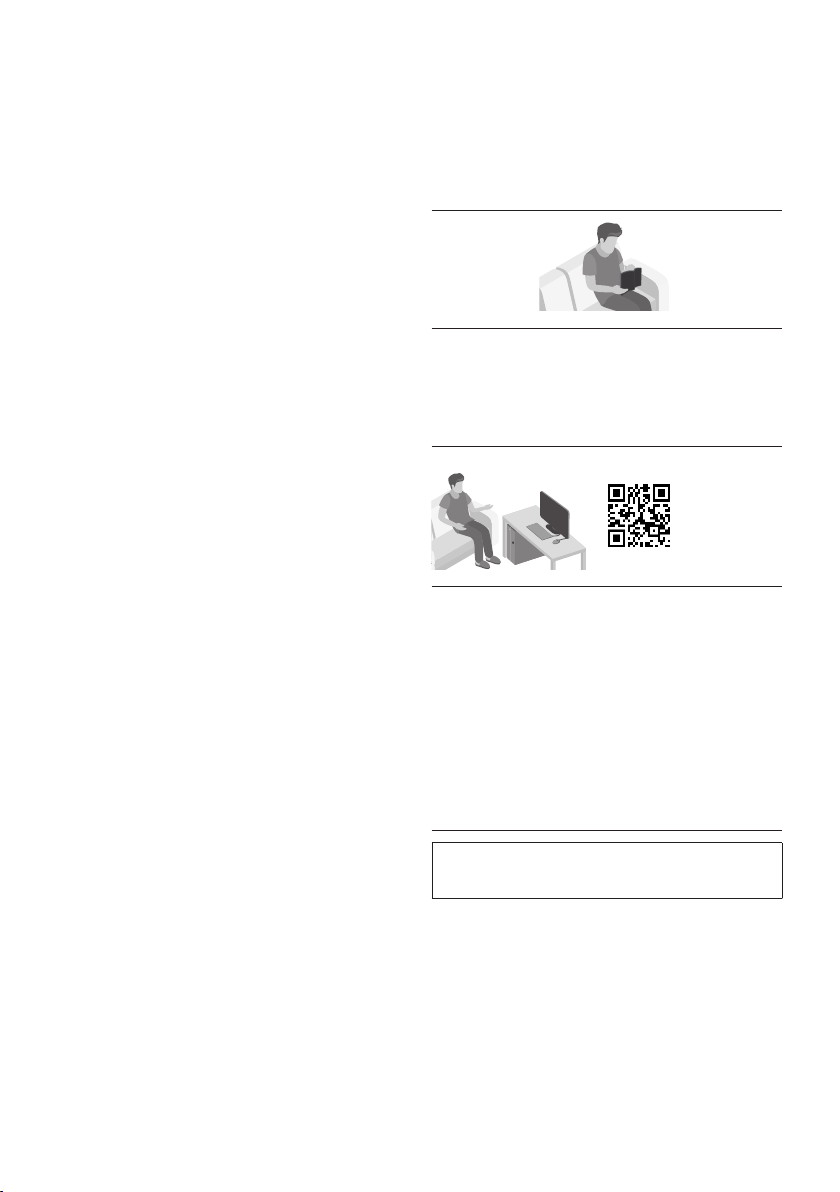
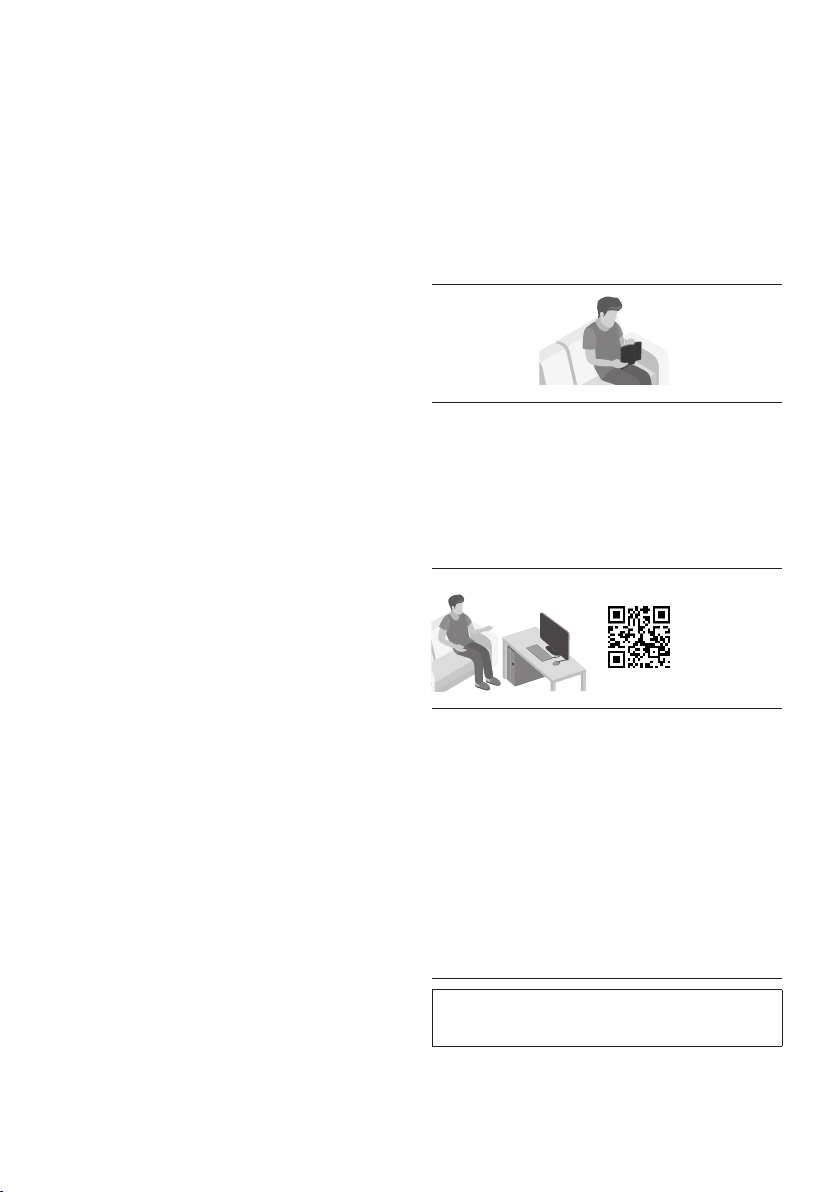
ABOUT THIS MANUAL
The user manual has two parts: this simple paper
USER MANUAL and a detailed FULL MANUAL you
can download.
USER MANUAL
See this manual for safety instructions,
product installation, components,
FULL MANUAL
You can access the FULL MANUAL on
Samsung’s on-line customer support center by
scanning the QR code on the left. To see the
manual on your PC or mobile device, download
the manual in document format from
Samsung’s website.
(https://www.samsung.com/us/support/
downloads/)
without prior notice.

ENG - vi
CONTENTS
01 Checking the Components 2
Inserting Batteries before using the Remote Control
(AAA batteries X 2)
------------------------- 4
02 Product Overview 5
Top Panel of the Sound Tower
------------------------- 5
Rear Panel of the Sound Tower
------------------------- 6
03 Connecting the Sound Tower 8
Connecting Electrical Power
-------------------------
8
Connecting Group Play Mode
-------------------------
9
04 Connecting an External Device 16
Connecting an External Device via Analog Audio Cable
-------------------------
16
Connecting a mobile device via Bluetooth
-------------------------
17
Connecting a Samsung TV via Bluetooth
-------------------------
20
05 Connecting a USB Storage Device 22
Software Update
-------------------------
23
Connecting an Optional Microphone
-------------------------
24
06 Using the Remote Control 25
How to Use the Remote Control
-------------------------
25
How to use Sound Mode
-------------------------
28
How to use DJ Effect
-------------------------
29

ENG - vii
07 Using the Samsung Sound Tower App 30
Install Samsung Sound Tower App
-------------------------
30
Using the Samsung Sound Tower App
-------------------------
30
What you can do with Samsung Sound Tower App:
-------------------------
31
08 Trouble shooting 32
09 License 35
10 Open Source License Notice 36
11 Important Notes About Service 36
12 SpecicationsandGuide 37
-------------------------
37
ENG - 2
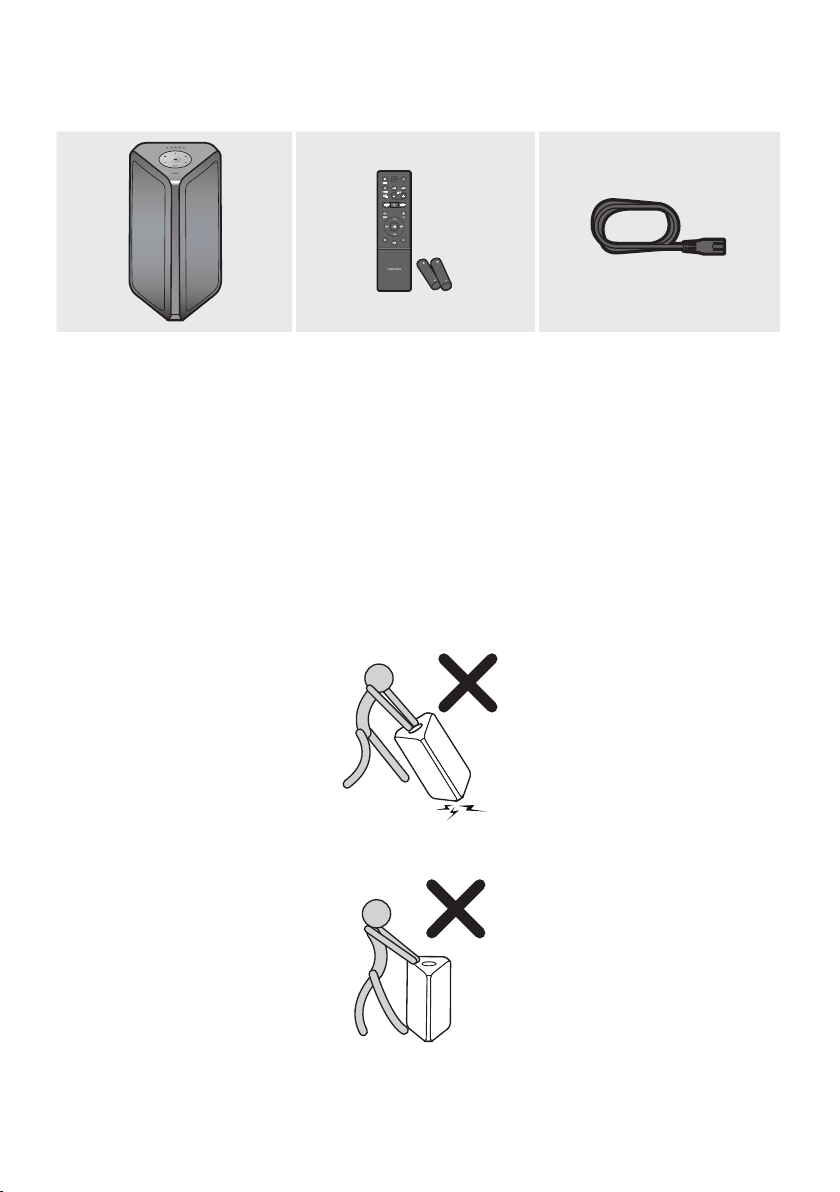
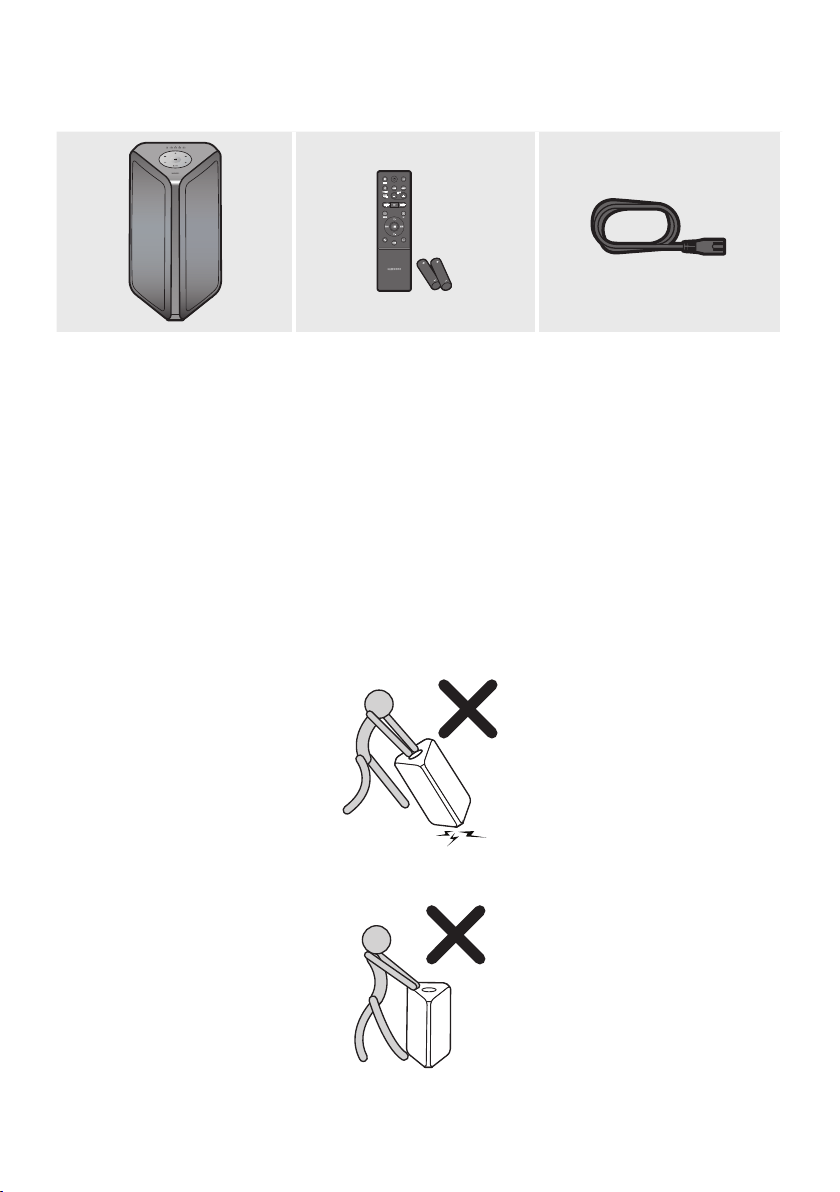
01 CHECKING THE COMPONENTS
Sound Tower Main Unit Remote Control (AH81-15581A) /
Batteries (AAA batteries x 2)
Power Cord
(AH81-15587A)
• For more information about the power supply and power consumption, refer to the label attached
to the product. (Label: Rear of the Sound Tower Main Unit)
• To purchase additional components or optional cables, contact a Samsung Service Center or
Samsung Customer Care.
Carry the system
When moving the product, in order to avoid personal injury and/ or property damage, and achieve
water resistance, please see the illustrations below.
1. When moving the product, do not drag or pull the product from the ground without the wheels
sticking out.
2. Do not lift the set to prevent the set from injuring your feet.
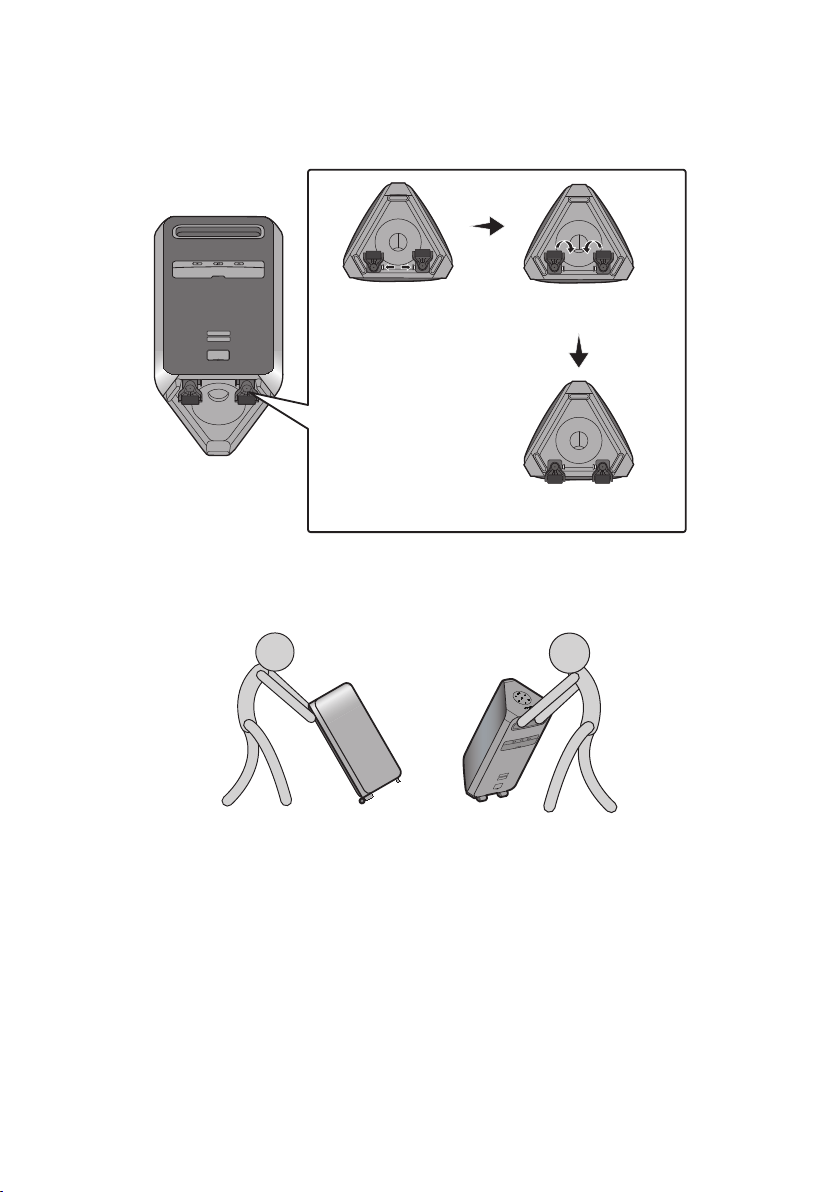
ENG - 3
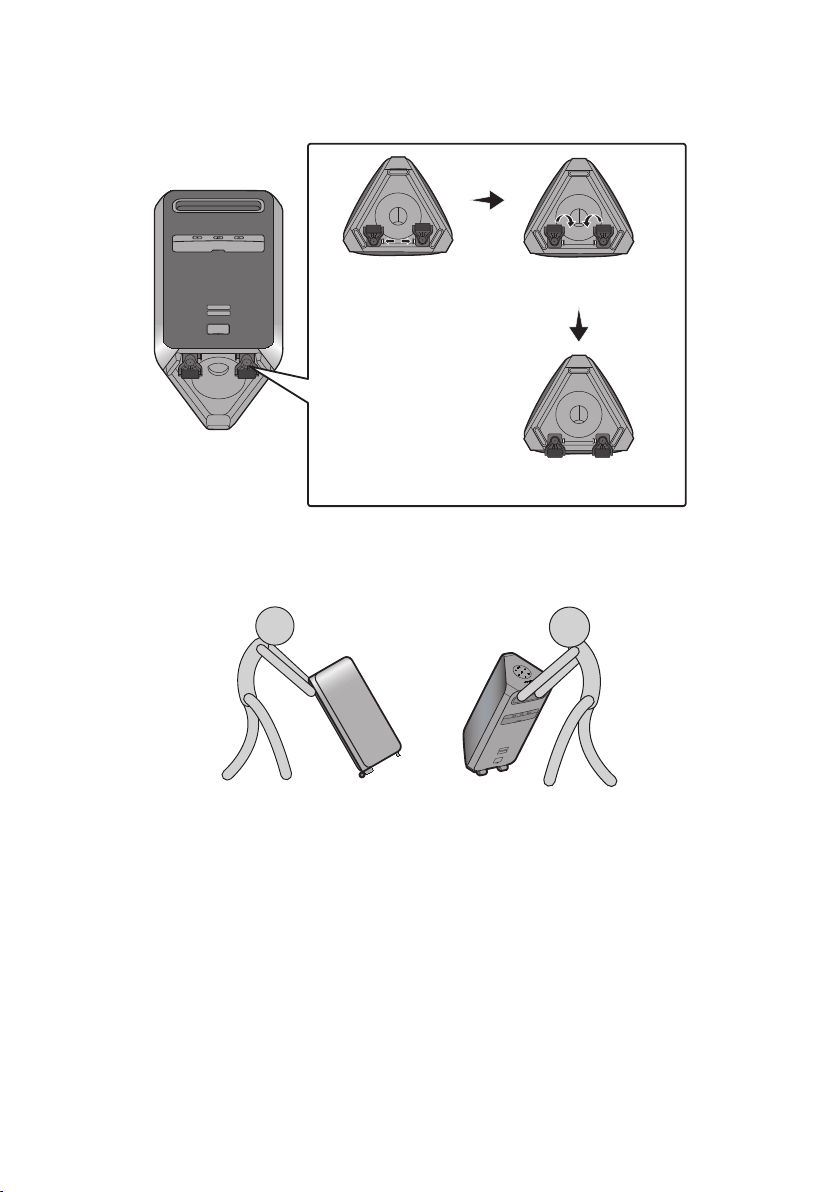
3. To move the set, perform the following steps.
• Press the self-locking switch of the wheels respectively to rotate the two wheels out of the
bottom of the set. When it clicks, it means that the wheels are adjusted in place.
POWER
Press the self-locking
switch
Rotate the wheels 180
degrees
The wheels were
adjusted to the front
• Use two hands to grab the handle on the back of the set and move it using the wheels as shown
below
Warning:
Use caution when moving the sound tower on an uneven surface to avoid injury or damage to the
unit or the surrounding environment.
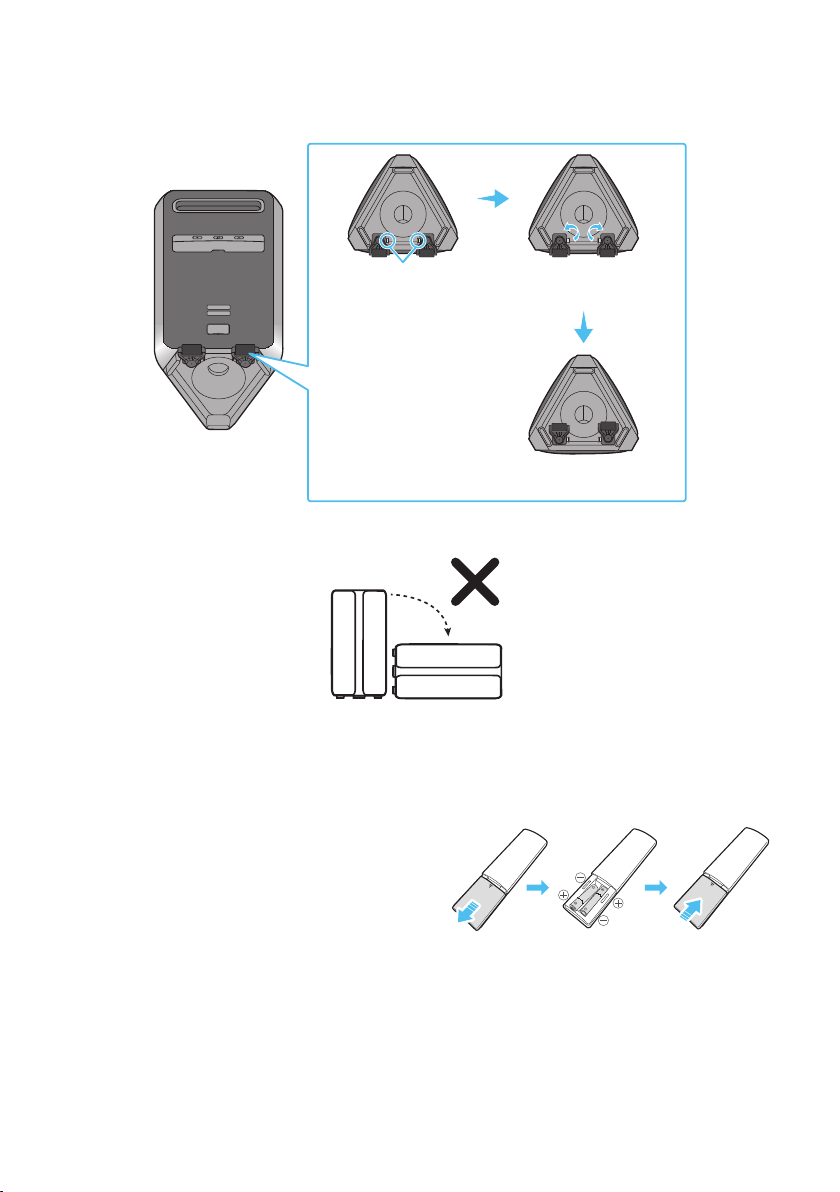
ENG - 4
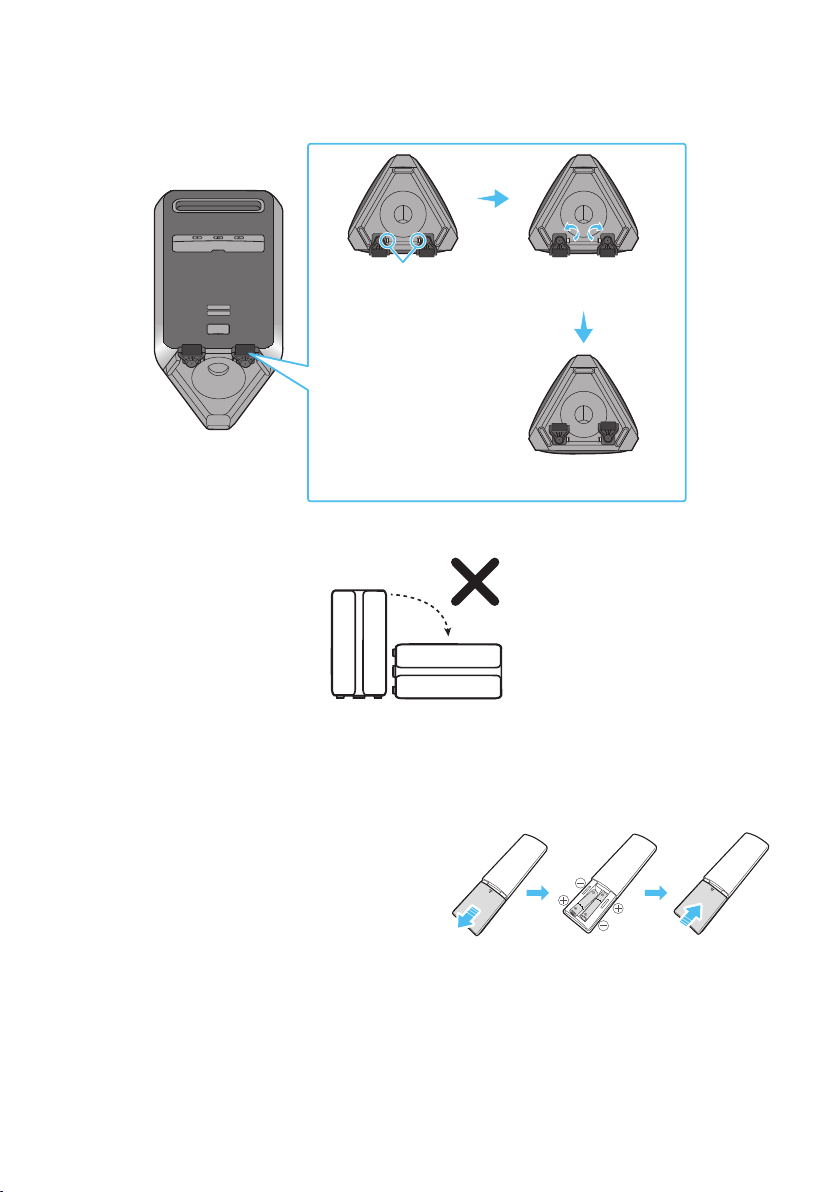
• After the set is moved, press the self-locking switch of the two wheels respectively to rotate
the wheels to the bottom of the set. When it clicks, it means that the wheels are adjusted in
place.
POWER
Press the self-locking
switch
Rotate the wheels 180
degrees
The wheel was rotated back
to the bottom of the set
4. The product should not be knocked over to ensure it keeps it’s water resistance.
Inserting Batteries before using the Remote Control
(AAA batteries X 2)
Slide the battery cover in the direction of the arrow
until it is completely removed. Insert 2 AAA
batteries (1.5V) oriented so that their polarity is
correct. Slide the battery cover back into position.
(the remote control does not support IPX5)
ENG - 5
02 PRODUCT OVERVIEW
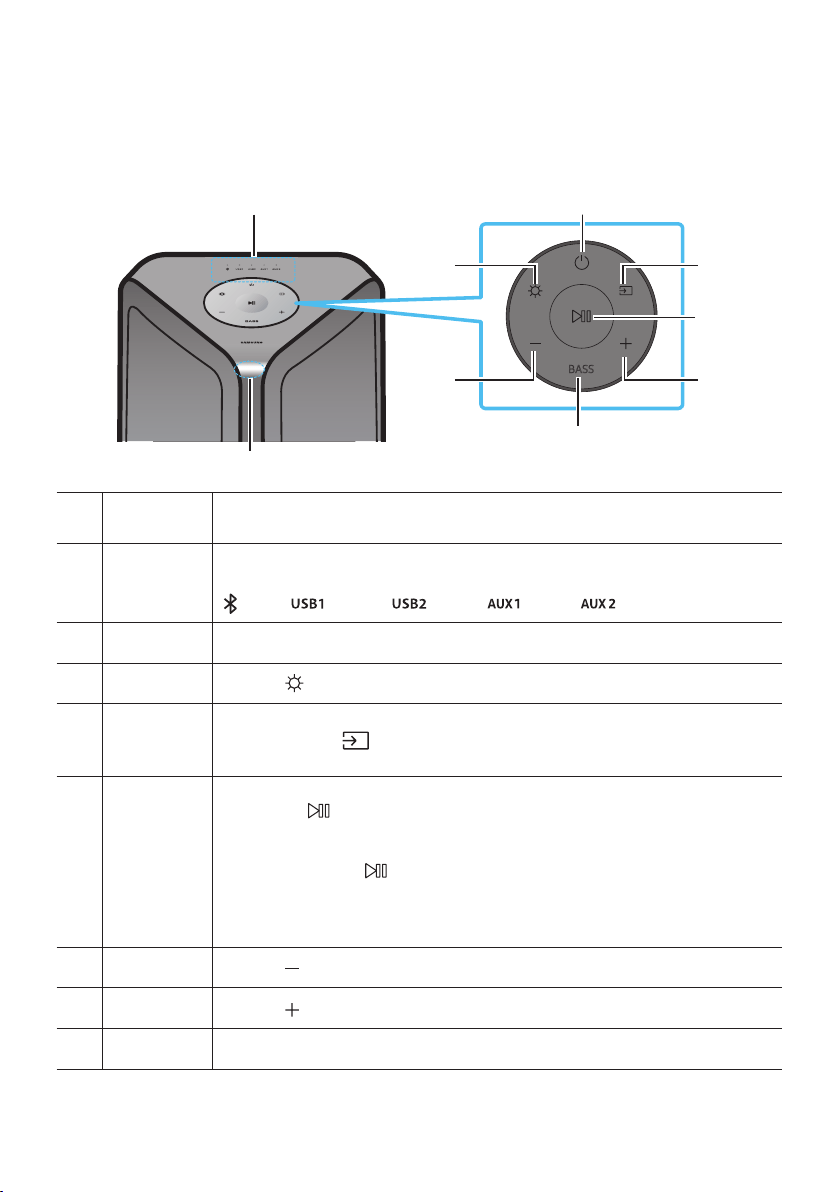
Top Panel of the Sound Tower
BASS
Remote
Sensor
When operating the Sound Tower system, please aim the front of the remote control at
the remote sensor.
LED
indicator
Displays operating messages or current status of the Sound Tower system.
The information sources represented by each LED are as follows:
(BT)
(USB1)
(USB2)
(AUX1)
(AUX2)
Power Turns the Sound Tower on and off.
Light
Press the
(Light) button to turn the Lighting Mode on.
Source
Press to select a source connected to the Sound Tower.
Press and hold the
(Source)
button for more than 5 seconds
to enter the
“SEARCHING TV” mode.
Play/Pause
• Play/Pause
Press the
• Demo play
Press and hold the
button for more than 5 seconds to start the Demo play while
the system is turned on.
90 seconds.
– Please be careful as it may play louder than the set volume.
Volume down Press the
(Volume down) button to lower the volume.
Volume up
Press the
(Volume up) button to raise the volume.
BASS Press the BASS button to use the bass boost.
ENG - 6
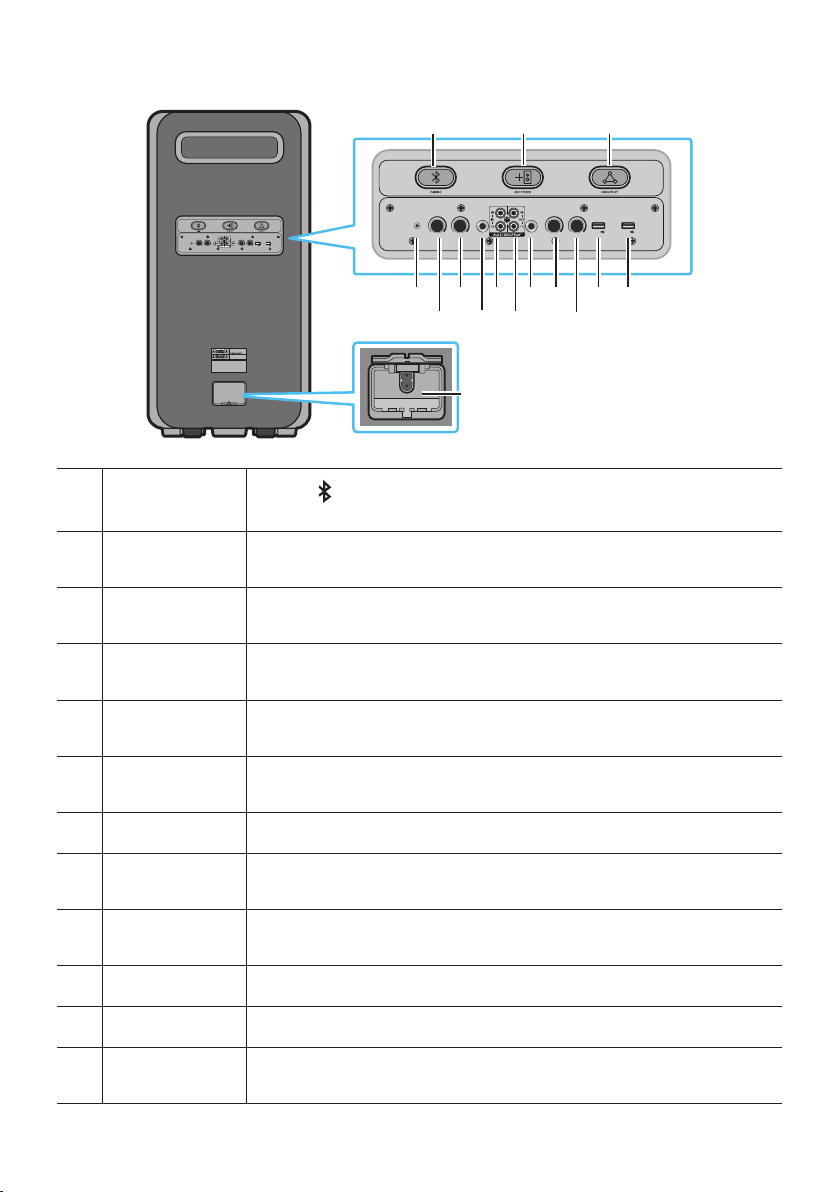
Rear Panel of the Sound Tower
ECHO 2VOL 2ECHO 1 VOL 1 MIC 2
USB1
(5V 2.1A)
USB2
(5V 0.5A)
AUX 1
MIC 1
POWER
ECHO 2VOL 2ECHO 1 VOL 1 MIC 2
USB1
(5V 2.1A)
USB2
(5V 0.5A)
AUX 1
MIC 1
Bluetooth
PAIRING
Press the
PAIRING button to enter pairing mode, "PAIRING" LED on the rear
plane will blink quickly.
ADD STEREO
Press the ADD STEREO button to connect to
another same model Sound Tower
wirelessly.
GROUP PLAY
Press the GROUP PLAY button to connect up to ten Sound Tower systems
wirelessly.
AUX1
Use an Audio (AUX) Cable (not supplied) to connect AUX1 jack on the main unit to
Audio Out on an external device.
ECH01
You can give an echo effect to the sound from a connected microphone (MIC1) by
adjusting the ECH01 knob.
VOL1
Use the VOL1 knob on the main unit to adjust the volume of a connected
microphone (MIC1).
MIC1 Connect your microphone to the MIC1 jack.
GROUP PLAY IN
Terminals
Use an Audio Cable (not supplied) to connect AUX2 (IN) terminals on the main unit
to Audio Out on an external analog output device.
GROUP PLAY OUT
Terminals
Use an Audio Cable (not supplied) to connect GROUP PLAY (OUT) terminals on the
main unit to GROUP PLAY(IN) on another Sound Tower.
MIC2 Connect your microphone to the MIC2 jack.
VOL2 Use the VOL2 knob to adjust the volume of a connected microphone (MIC2).
ECHO2
You can give an echo effect to the sound from a connected microphone (MIC2) by
adjusting the ECHO2 knob.

ENG - 7
USB1
Connect a USB device to the USB1 or USB2 ports on the main unit.
If you connect your cell phone to the USB1 port, you can charge it.
• Press the
(Source) button to select USB1 or USB2.
USB2
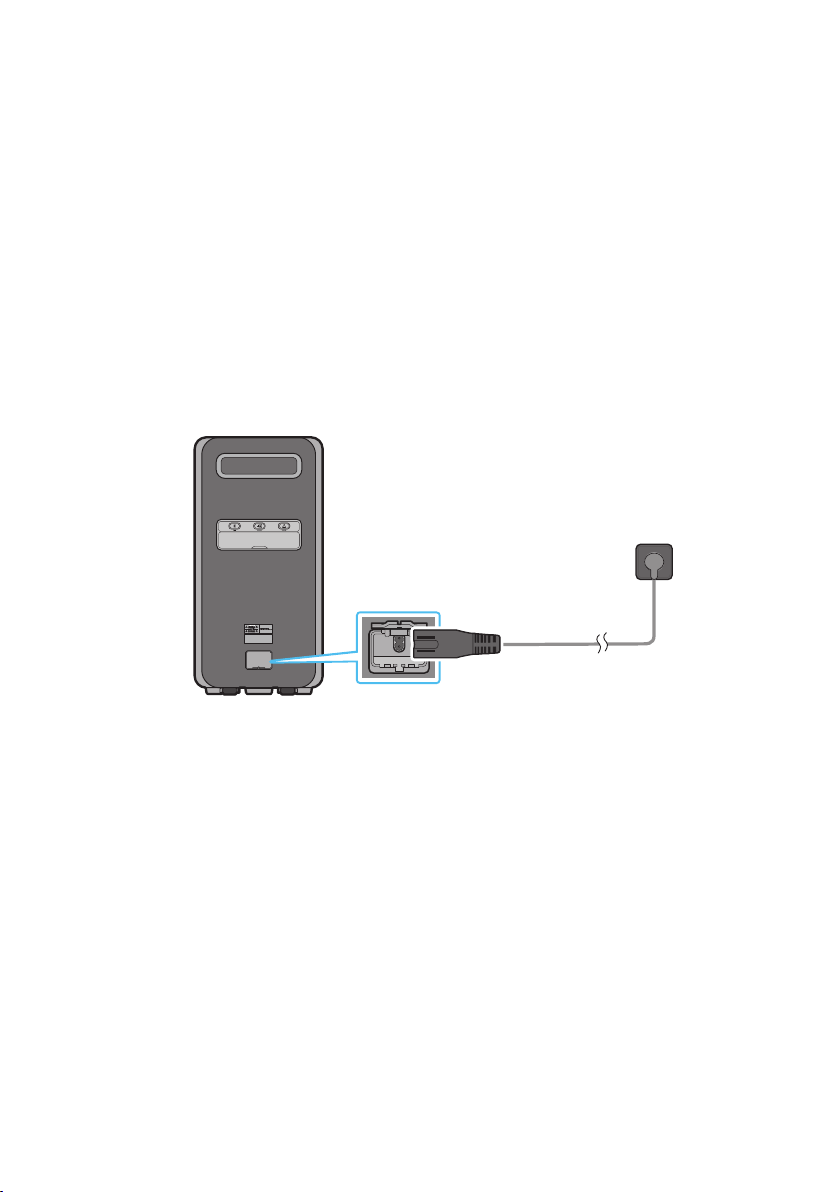
Power
Connect the power cord to the Power jack and connect the other end of the power
cord to a wall socket to supply electrical power to the Sound Tower.
ENG - 8
03 CONNECTING THE SOUND TOWER
Connecting Electrical Power
Use the power cord to connect the Sound Tower to an electrical outlet in the following order:
Connect the power cord to the Sound Tower and then to a wall socket.
See the illustrations below.
• For more information about the required electrical power and power consumption, refer to the
label attached to the product. (Label: Rear of the Sound Tower)
• Water resistance can be met when the AC power cord is plugged in, but make sure that the cap is
completely closed. Laying the Sound Tower on its side may damage internal components and keep
the unit from being water resistant.
Rear of Sound Tower
POWER
Connecting
Electrical Power
ENG - 9
Connecting Group Play Mode
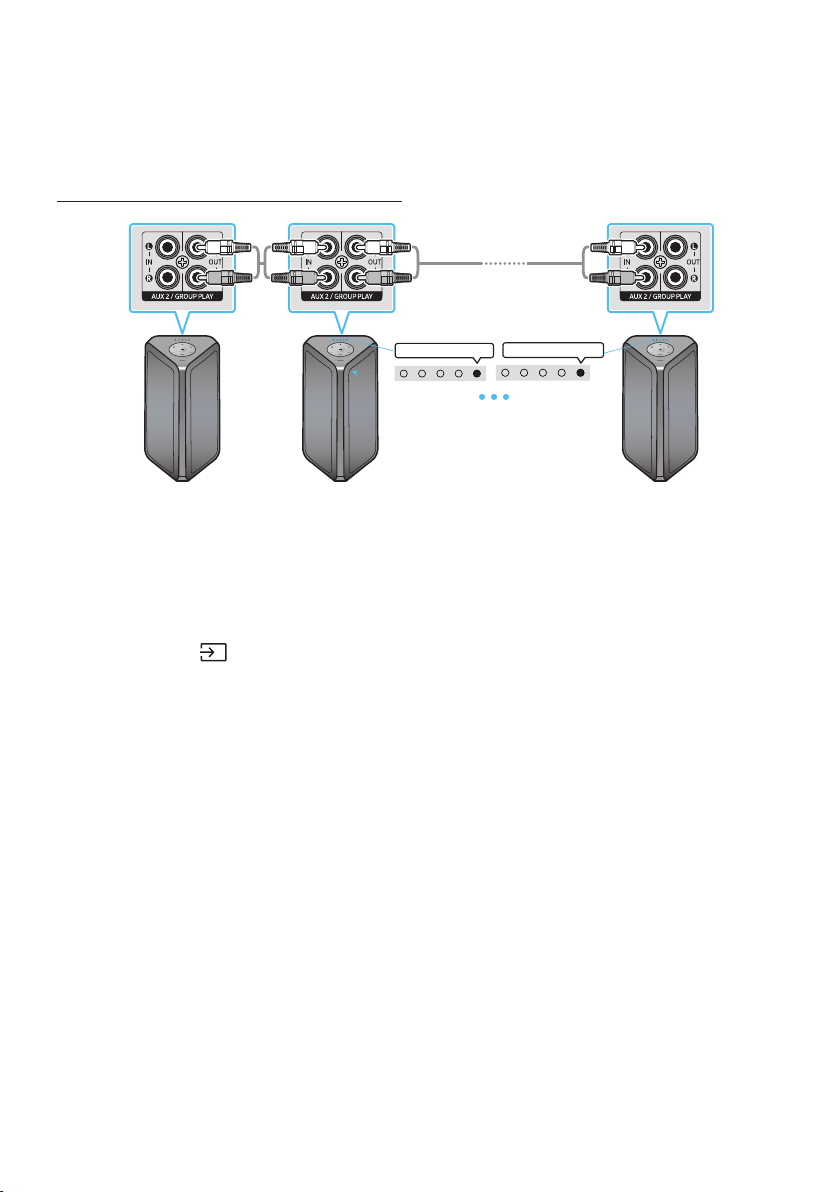
You can connect multiple audio systems in a wired group play mode to create a more interesting party
environment and to produce higher sound output.
Connecting the wired Group Play mode
1st
Sound Tower HOST
2nd
Sound Tower
Last
Sound Tower
AUX2 white LED on AUX2 white LED on
Continue these steps to
connect Sound Towers
until the last one is
connected.
RCA cable
(not supplied)
Connect the analog audio cable to the OUT(Group Play) of the HOST.
Connect the analog audio cable to the IN(AUX2) of 2nd Sound Tower and Set the source to AUX2.
Set up Group Play by connecting all the systems using analog audio cables.
Use the AUX or
(Source) button to change the source to AUX2 for every Sound Tower except
the Sound Tower HOST.
• Set one Sound Tower as the HOST and any music played on it will be shared among any other
Sound Tower in the Audio group.
NOTES
• Analog audio cables are not supplied.
• Depending on the length or characteristics of the cable, there may be a difference in operating
distance.
• Be sure to select the Audio In function on the last system.
•
• To stop Wired Group Play:
– Remove analog audio cable from the HOST
– Change to a source other than AUX2 on any Sound Tower in the group besides the HOST
– Turn off the HOST
• If the Wired Group Play function does not start:
– Check the connections.
– Ensure the audio cables are connected correctly.
ENG - 10
– Make sure that the HOST is turned on, and has a music source connected to it, and the volume
is not muted.
• Wired Group Play function does not work properly:
– Turn off the system. Then, turn it back on again to activate the function.
• When a microphone is connected to the HOST and being used, the MIC sound is output to all the
connected Sound Towers in the group.
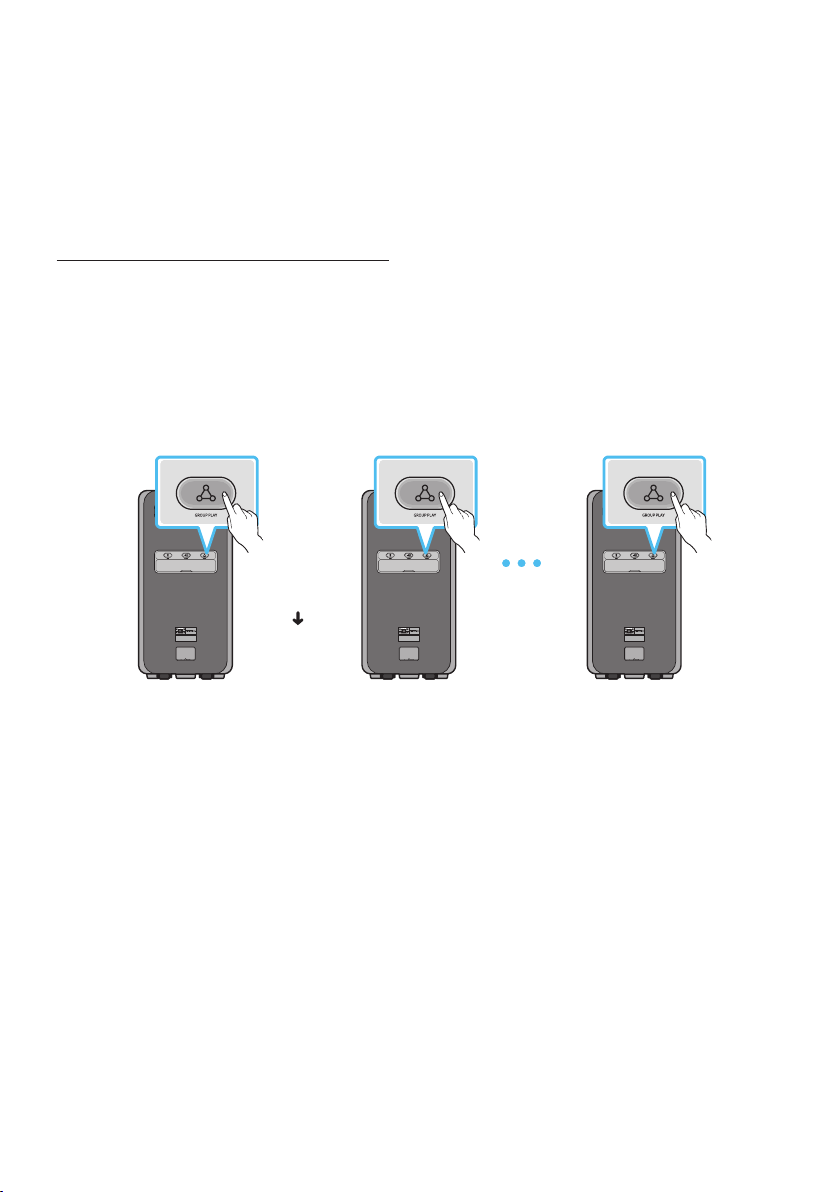
Connecting wireless Group Play mode
You can connect multiple audio systems in a wireless group play mode to create a more interesting
party environment and to produce higher sound output.
Precondition
• When connecting a Sound Tower, make sure it is within 3.28 ft (1 m) distance.
• Cannot set the mode to Group Play mode when sound tower is connected to a TV.
• Before using Group Play mode, any sound towers should be taken out of Stereo mode.
POWER POWER POWER
SUB 1
Sound Tower
Continue these
steps to
connect Sound
Towers until the
last one is
connected.
LED Blinks Slow(15s)
Waiting to enter
pairing mode
LED Blinks Fast(30s)
SUB Connection
available
HOST
Sound Tower
Last(S UB)
Sound Tower
Press the GROUP PLAY button on the HOST Sound Tower and wait until the “GROUP PLAY” LED
switches from blinking slowly to blinking quickly. This Sound Tower will become the Sound Tower
HOST.
Group Play LED will blink quickly immediately.
Press the GROUP PLAY button on the SUB Sound Tower, and it will begin searching for the HOST
while the “GROUP PLAY” LED blinks, and the LED will turn solid and the speaker will beep after
connecting to the HOST.
If less than 20 minutes have passed since Group Play button was pressed, refer to Step 2 to
connect additional SUB. If 20 minutes have passed since Group Play was pressed, repeat steps 1
and 2 to connect additional SUB.
• Play music on the HOST Sound Tower. Sound outputs from all the connected systems.

ENG - 11
NOTES
• All the Sound Tower models can connect in Group Play mode.
• When “HOST” Sound Tower connects to a Samsung TV, the Group play mode will automatically
disconnect.
• Environmental conditions or other factors with connected devices may have an effect on playback
quality.
• If the light bar blinks pink and the speaker outputs a beeping sound, an error has occurred in the
Group Play mode connection. Try Step 1 and 2 again.
• The ADD STEREO button and
PAIRING button on the SUB Sound Tower systems are not available
while in wireless Group Play mode.
• The ADD STEREO button on the HOST Sound Tower is not available while in wireless Group Play
mode.
• Bluetooth devices can search and connect with the HOST Sound Tower only, but the SUB cannot
connect to any Bluetooth device.
• If you power off or select any source other than BT on a SUB unit, the Group Play mode is
disconnected.
• This product does not support aptX audio stream with Wireless Group Play mode.
•
• If Wireless Group Play does not work properly:
– Turn off the system. Then, turn it back on again to activate the function.
• Electronic devices may cause radio interference. Devices that generate electromagnetic waves
must be kept away from the Sound Tower main unit - e.g., microwaves, wireless LAN devices, etc.
• When using the wireless Group Play mode function, sound from a connected microphone is only
output from the system to which the microphone is connected.
Disconnecting the wireless Group Play mode
1. Press and hold the GROUP PLAY button over 5 seconds (HOST or SUB).
• The speaker will beep and the Group Play LED will turn off.
2. If you select any source other than BT on the SUB units or turn off the HOST Sound Tower, the
Group Play mode is disconnected.
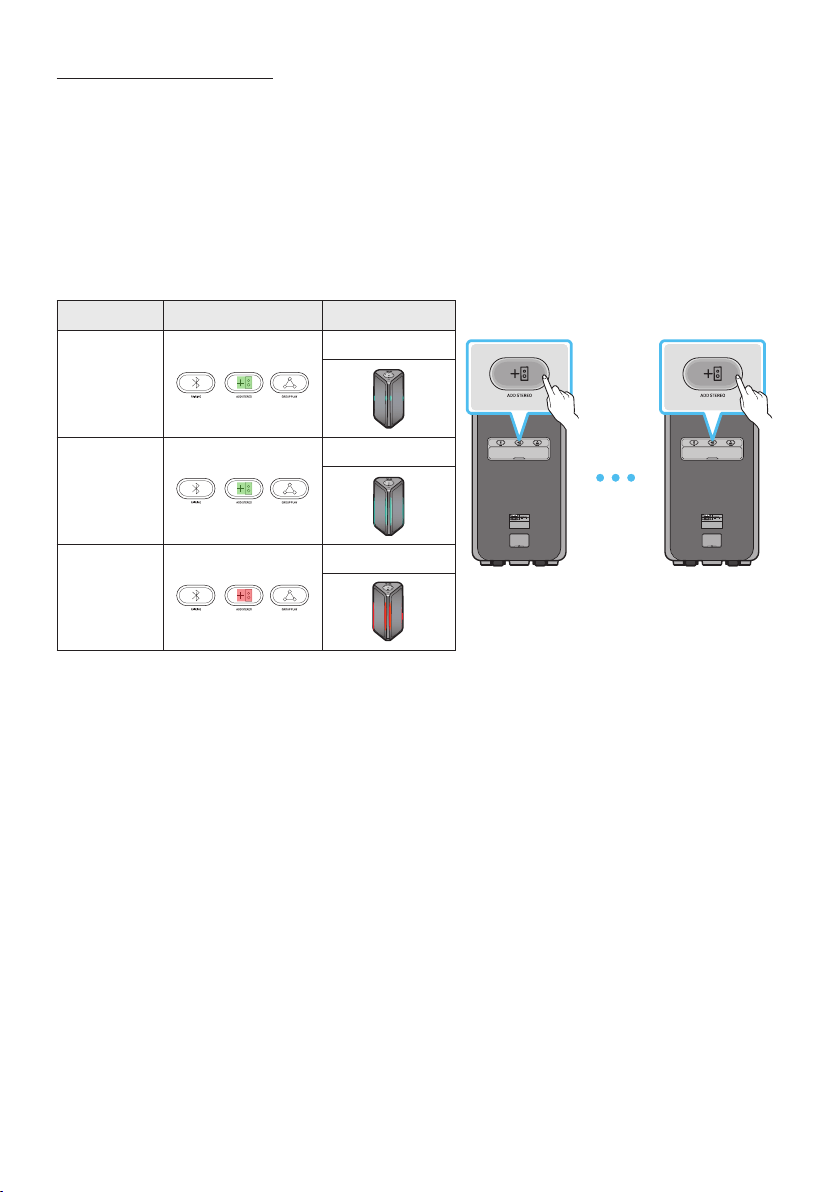
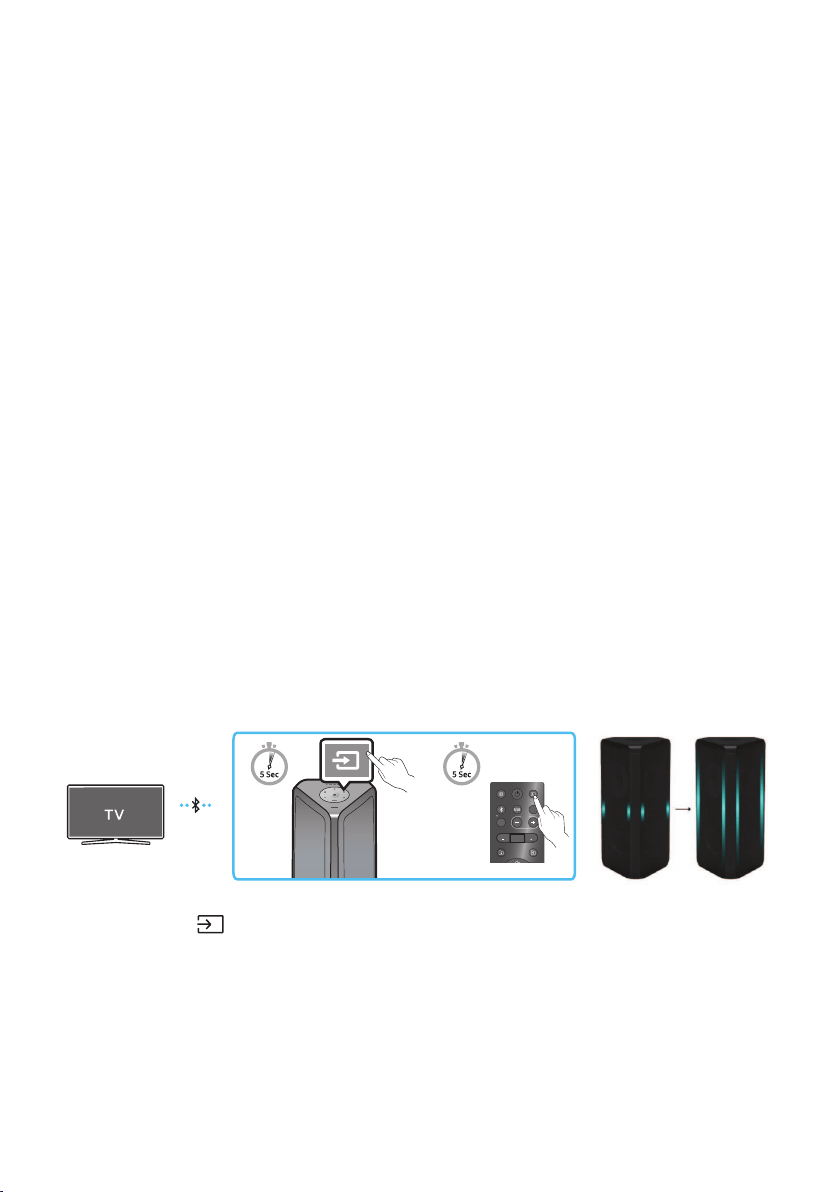
LED Indications
LED STATE Description
Green
Blink Waiting for a wireless Group Play connection.
Solid The wireless Group Play connection was successful.
Red Solid There is an error with the wireless Group Play connection.
ENG - 12
Connecting Stereo Mode
Connect two Sound Tower and use them with a mobile device to enjoy stereo mode, to make a larger
listening area or to hear greater left and right audio separation.
Precondition
• To use the Stereo mode, both Sound Tower systems must be the same model.
• When connecting a Sound Tower, make sure it is within 3.28 ft (1 m) distance.
• If the sound tower is in Group Play mode, need to exit it before using Stereo mode.
• Cannot set the mode to Stereo mode when sound tower is connected to a TV.
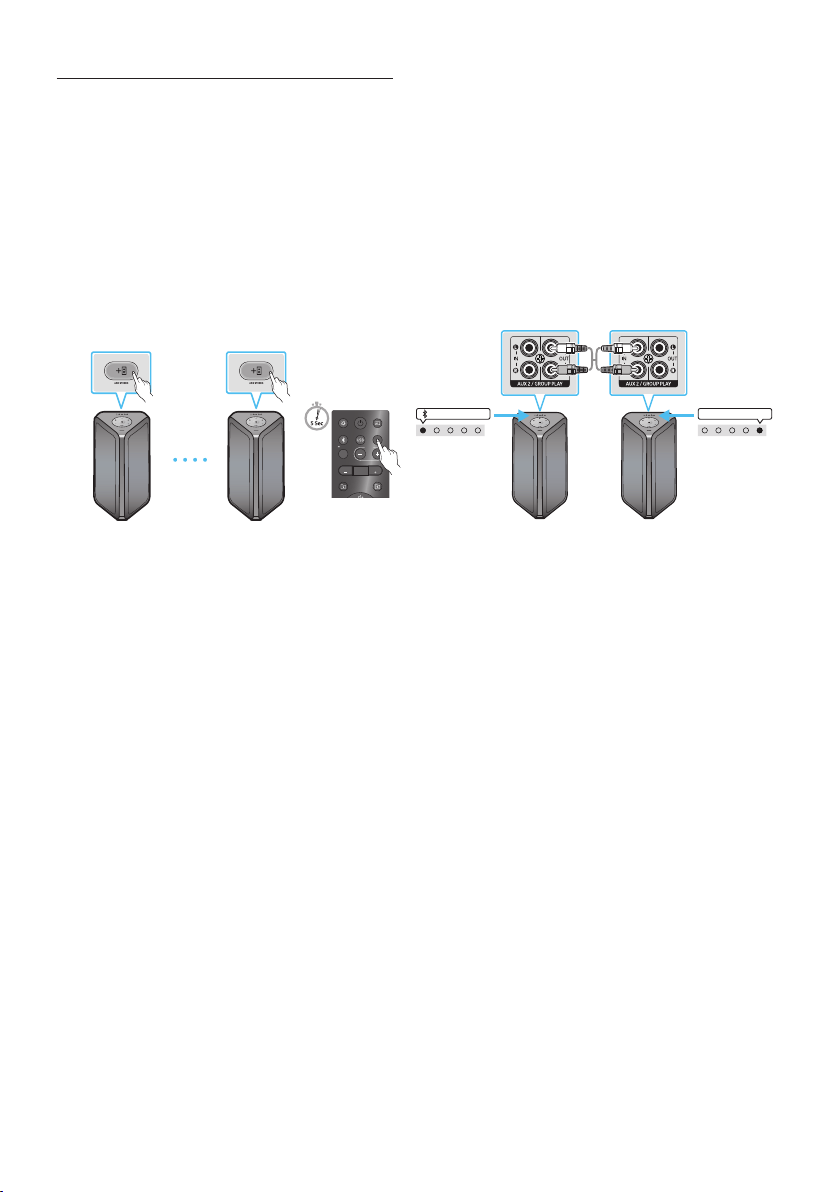
Description LED Indicator Light Bar
POWER POWER
Left Speaker
MAIN Sound Tower
Right Speaker
SUB Sound Tower
Connecting
Cyan blink
Connected
Cyan blink once
Failed
Pink blink once
The initial connection
• After the initial connection is complete, if the ADD STEREO button is pressed on the MAIN or SUB
Sound Tower, the Left and Right Speaker are swapped.
1. Press the ADD STEREO buttons of the two Sound Towers. The LED blinks on the ADD STEREO
button.
2. When the connection is complete, each speaker beeps and the ADD STEREO LED turns solid. MAIN
• The MAIN Sound Tower outputs left channel sound and the SUB Sound Tower outputs right
channel sound.
• Play music by connecting your mobile device to the MAIN Sound Tower via Bluetooth. Sound is
output from both Sound Tower.

ENG - 13
NOTES
• Environmental conditions or other factors with connected devices may have an effect on playback
quality.
• If the ADD STEREO LED is solid red an error has occurred in the Stereo Group connection. Try steps
1 and 2 again.
• Remote Controller, BT PAIRING, GROUP PLAY and Source buttons on the SUB Sound Tower are
disabled while in Stereo Group mode.
• The GROUP PLAY button on the MAIN Sound Tower is not available while in Stereo Group mode.
• In any mode other than “BT” (ex. USB, AUX mode), music is played only from the MAIN Sound Tower
and not the SUB Sound Tower.
• The lighting colors between MAIN Sound Tower and SUB Sound Tower may vary.
• This product does not support aptX audio stream with Stereo mode.
• When using the wireless Stereo mode function, sound from a connected microphone is only output
from the system to which the microphone is connected.
• Electronic devices may cause radio interference. Devices that generate electromagnetic waves
must be kept away from the Sound Tower main unit - e.g., microwaves, wireless LAN devices, etc.
Disconnecting the wireless Stereo mode
Press the ADD STEREO button (MAIN or SUB) for at least 5 seconds while the Stereo Group is
connected.
• The speaker will beep and the ADD STEREO LED will turn off.
ENG - 14
Using Stereo Mode with a Samsung TV
Connect two Sound Towers and use them with a Samsung TV to enjoy stereo mode, to cover a larger
listening area or to hear greater left and right audio separation.
Precondition
• To use the Stereo mode, both Sound Tower systems must be the same model.
• When connecting a Sound Tower or TV, make sure it is within 3.28 ft (1 m) distance.
• Cannot set to Stereo Mode with Samsung TV if the Sound Tower is already connected to a TV via
Bluetooth.
• If the sound tower is in Group Play mode, need to exit it before using Stereo mode.
LIGHT
PAIRING
TEMPO
USB
AUX
EFFECT
DOWN
UP
EFFECT
DJ
SOUND
MODE
Left Sound Tower
(MAIN)
Left Sound Tower
(MAIN)
Right Sound Tower
(SUB)
Right Sound Tower
(SUB)
White LED on
AUX2 white LED on
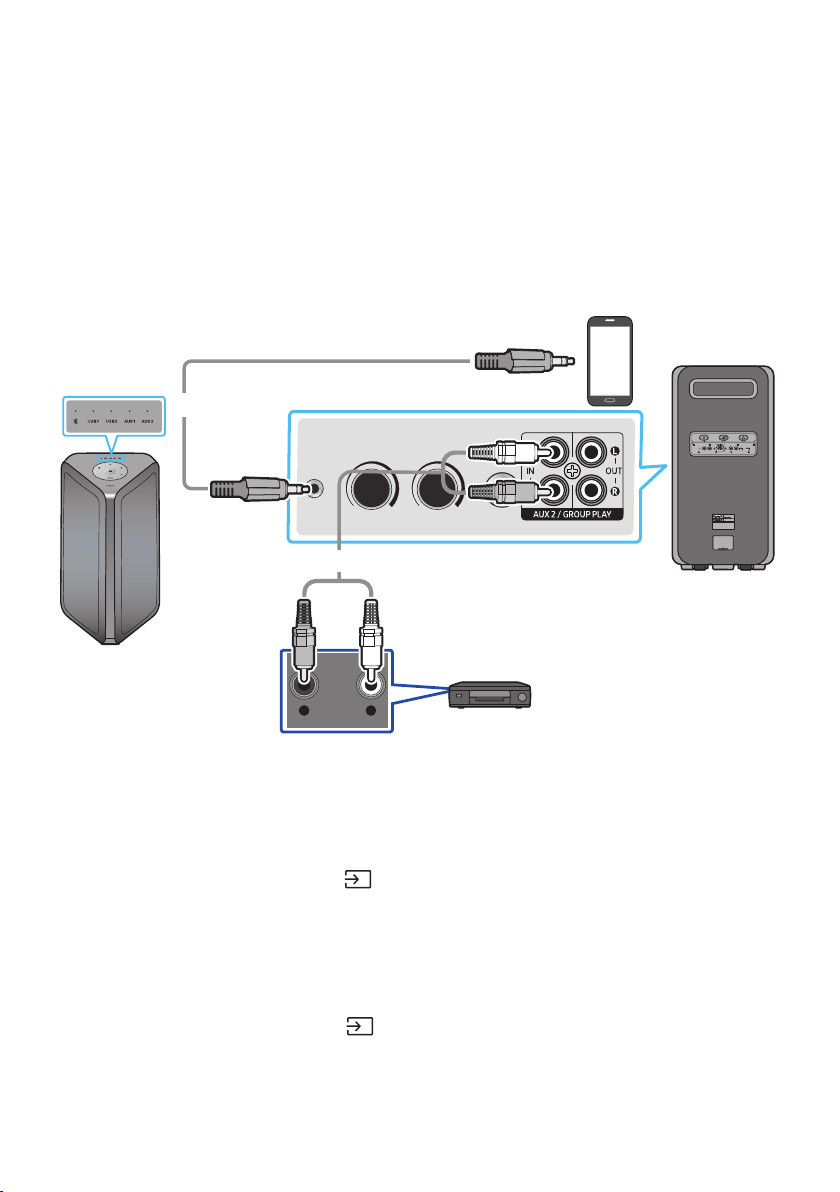
Connect two sound towers via stereo mode by pressing the ADD STEREO button on the two Sound
Towers.
In “BT” mode, press the “AUX” button on the MAIN Sound Tower remote control for at least 5
seconds. The LED blinks on the ADD STEREO button.
Connect a RCA cable to the OUT(Group Play) on the MAIN and AUX2 IN on the SUB as shown.
• When the connection is complete, the “ADD STEREO” LED will stop blinking and turn solid, the
speakers will beep, and the AUX2 LED on the SUB will turn on.
• The MAIN Sound Tower outputs the left channel sound and the SUB Sound Tower outputs the
right channel sound. Press the ADD STEREO button on the MAIN or SUB Sound Tower to swap
them between Left and Right.
• Connect a TV and MAIN Sound Tower via Bluetooth to play audio. Sound is output from both
Sound Towers.

ENG - 15
NOTES
• Analog audio cables are not supplied.
• If the light bar blinks pink and the speakers beep, an error has occurred in the Stereo mode
connection. Repeat steps 1 through 3.
• In Stereo Group mode, the remote control, BT PAIRING, GROUP PLAY, and Source buttons on the
SUB Sound Tower are disabled.
• The GROUP PLAY button on the MAIN Sound Tower is not available in Stereo Group mode.
• If the Samsung TV supports a simple connection, the connection pop-up is automatically displayed
on the TV, and if you select “Yes”, it connects to the sound tower. If there is a previous connection
history between Samsung TV and Sound Tower, they will be connected without pop-up.
• The lighting colors may vary between the MAIN Sound Tower and the SUB Sound Tower.
• When a microphone is connected to the MAIN and being used, the MIC sound is output to the SUB.
Disconnecting Stereo mode connection
• Press the ADD STEREO button (MAIN or SUB) for at least 5 seconds after the Stereo Group is
connected. Sound tower will beep and the LED on the ADD STEREO button turns off.
ENG - 16
04 CONNECTING AN EXTERNAL DEVICE
Connect to an external device via a wired or wireless network to play the external device’s sound
through the Sound Tower.
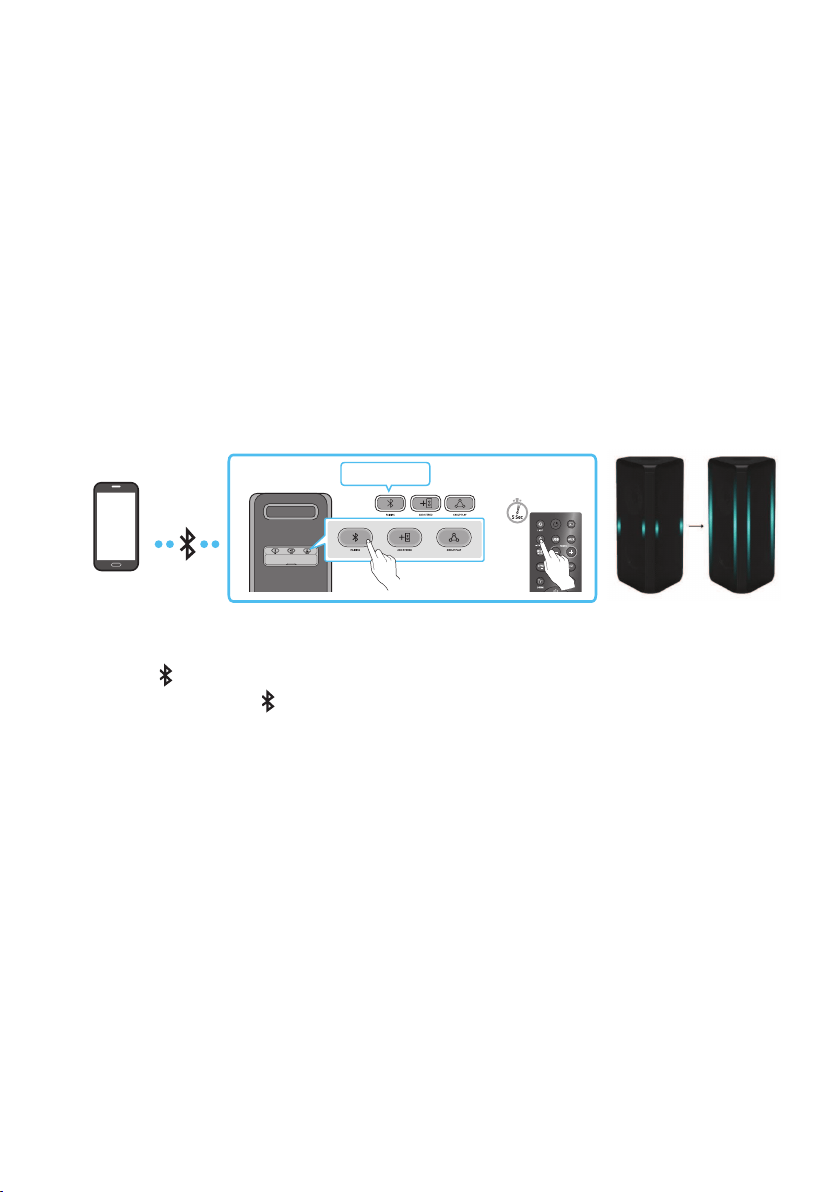
Connecting an External Device via Analog Audio Cable
A phone jack or RCA cable is a physical connection that transfers analog audio signals.
ECHO 1 VOL 1
AUX 1
MIC 1
- AUDIO -
R L
ECHO 2VOL 2ECHO 1 VOL 1 MIC 2
USB1
(5V 2.1A)
USB2
(5V 0.5A)
AUX 1
MIC 1
POWER
Mobile device / MP3 / PMP
BD / DVD player / Set-top box / Game console
Rear of the Sound Tower
Audio (AUX) Cable (not supplied)
3.5 mm stereo cable (not supplied)
3.5 mm stereo Cable (AUX1)
1. Connect AUX1 jack on the main unit to the AUDIO OUT jack of the Source Device using a
3.5 mm stereo cable.
2. Select “AUX1” mode by pressing the
(Source) button on the top panel or on the remote control.
• You can also select a source using AUX button on the remote control.
RCA Cable (AUX2)
1. Connect AUX2 (IN) terminals on the main unit to the AUDIO OUT terminals of the Source Device
using an RCA cable.
2. Select “AUX2” mode by pressing the
(Source) button on the top panel or on the remote
control.
• You can also select a source using AUX button on the remote control.
ENG - 17
NOTES
• Analog audio cables are not supplied.
• Depending on the length or characteristics of the cable, there may be a difference in operating
distance.
• AUX1 and AUX2 does not support wireless Stereo and Group Play mode.
Connecting a mobile device via Bluetooth
When a mobile device is connected using Bluetooth, you can hear stereo sound without the hassle of
cabling.
Precondition
• When connecting to a new BT device, make sure it is within 3.28 ft (1 m) distance.
• Disconnect from any Samsung TV before connecting to a mobile device.
• SUB speaker can’t connect to BT when using Group Play or Stereo mode.
Bluetooth device
Blue Blinks
Pairing
(blinks)
OR
Connected
1. Press the
PAIRING button on the rear panel of sound tower.
(OR) Press and hold the PAIRING button on the remote control for more than 5 seconds to enter
the “BT PAIRING” mode.
2. On your device, select “[AV] MX-ST9B Series” from the list that appears.
• After the device is connected. The light bar will all be lit cyan, and the Bluetooth light on the
rear panel is solid.
3.
NOTES
If the device fails to connect
• Sound tower will beep if BT is disconnected.
• If a previously connected Sound Tower listing (e.g. “[AV] MX-ST9B Series”) appears in the list, delete
it.
• Then repeat steps 1 and 2.
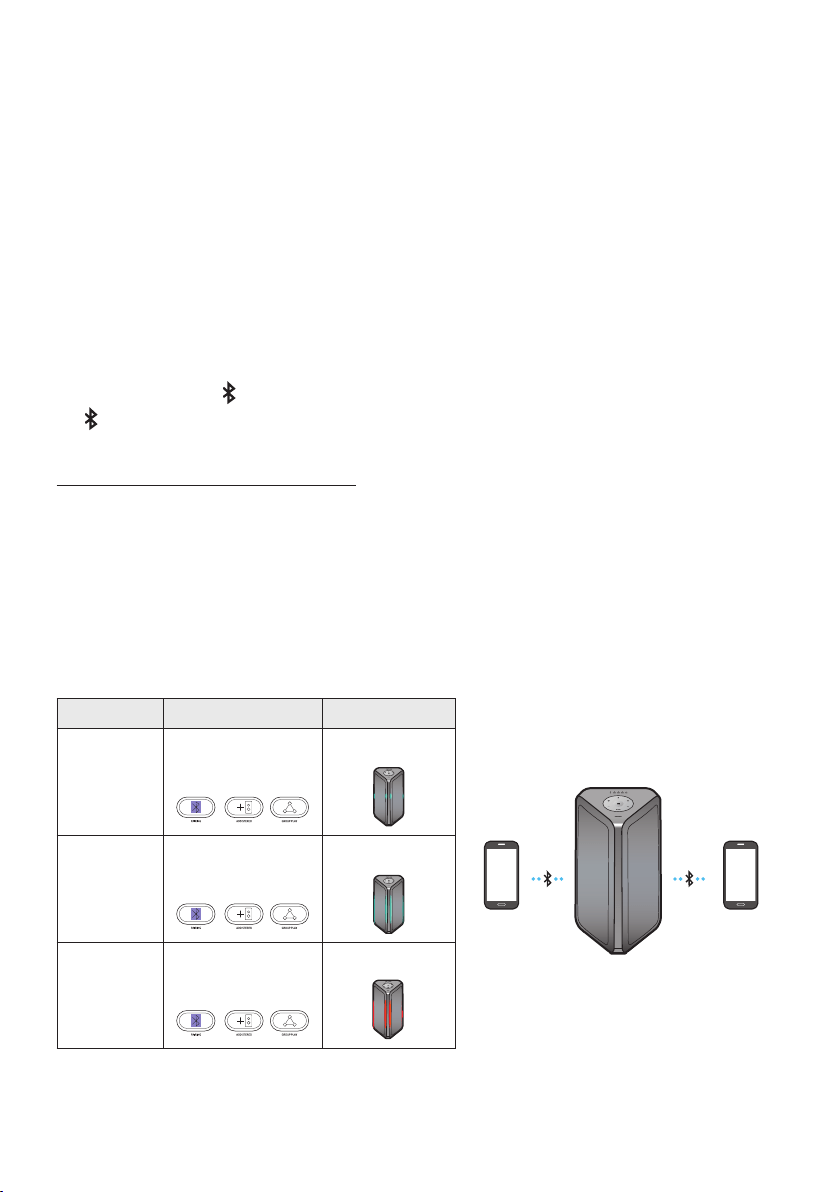
Bluetooth connection
• In Bluetooth connection mode, the Bluetooth connection will be lost if the distance between the
Sound Tower and the Bluetooth device exceeds 32.8 ft (10 meters).
ENG - 18
• The Sound Tower automatically turns off after 20 minutes in the Ready state.
• The Sound Tower may not perform Bluetooth search or connection correctly under the following
circumstances:
–
– If several Bluetooth devices are simultaneously paired with the Sound Tower.
– If the Bluetooth device is turned off, not in place, or malfunctions.
• Electronic devices may cause radio interference. Devices that generate electromagnetic waves
must be kept away from the Sound Tower main unit - e.g., microwaves, wireless LAN devices, etc.
What is the difference between BT READY and BT PAIRING?
• BT READY :
In this mode, you can use the previously connected TV or mobile device to connect to
Sound Tower.
• BT PAIRING : In this mode, you can connect a new device to the Sound Tower.
(Press and hold the PAIRING button on the remote control for more than 5 seconds or press the
PAIRING button on the rear of the Sound Tower to enter the “BT PAIRING” mode.)
Using Bluetooth Multi connection
The Sound Tower can be connected to 2 Bluetooth devices at the same time.
Precondition
• When connecting to a new BT device, make sure it is within 3.28 ft (1 m) distance.
• Disconnect from any Samsung TV before connecting to a mobile device.
• SUB speaker can’t connect to BT when in the Group Play or Stereo mode.
Bluetooth Multi Connection Indicator
Description LED Indicator Light Bar
Bluetooth
device 1
Bluetooth
device 2
Connecting
Blue fast blink
Cyan blink
Connected
Blue solid
Cyan blink once
Failed
Blue blink
Pink blink once

ENG - 19
1. Put the Sound Tower into “BT PAIRING” mode and connect each mobile device.
2. On your device, select “[AV]MX-ST9B Series” from the list that appears.
3. When the Sound Tower is connected to two mobile devices, The light bar will be fully lit in cyan,
and the Bluetooth light on the rear panel will be solid.
How to operate Bluetooth Multi Connection Function
Play music from one of the connected Bluetooth devices while two devices are connected. If music is
played from the Bluetooth device “B” while playing from device “A”, the music starts playing from device
“B” and automatically pauses on device “A”.
NOTES
• When connecting to a Samsung TV, the BT multi connection will automatically disconnect
• If you want to connect the Sound Tower to a third device, you can disconnect the Sound Tower from
one of the two currently connected devices and then connect the Sound Tower to the third device.
• With the Sound Tower and two devices currently connected, when pairing to a new Bluetooth
device, the devices currently connected may be disconnected.
• Environmental conditions or other factors with connected devices may have an effect on playback
quality.
• Electronic devices may cause radio interference. Devices that generate electromagnetic waves
must be kept away from the Sound Tower main unit - e.g., microwaves, wireless LAN devices, etc.
• Bluetooth Multi connection may not be supported depending on the connected device’s
• Removable/detachable Bluetooth devices (Ex: Dongle etc..), windows phone, laptops, TV, etc. do not
support Bluetooth Multi connection.
• After Bluetooth Multi connection pairing, there may be a slight delay before music starts playing
depending on the Bluetooth devices.
•
device, it may take a few minutes to connect other Bluetooth devices. If you turn the Sound Tower
off and back on, you can connect other Bluetooth devices without waiting.
Disconnecting the Sound tower from the Bluetooth device
Press the Source button on the top panel or on the remote control, and then change to any mode
except “BT”.
• Disconnecting takes time because the Bluetooth device must receive a response from the Sound
tower.
• When the Soundtower is disconnected from a Bluetooth device, the sound tower will beep.
ENG - 20
Using Bluetooth Power On
When the Sound Tower is turned off, you can connect your smart device via a Bluetooth connection to
turn it on.
1. Press and hold the BASS button on the remote control or on the top panel to enable the Bluetooth
Power On function. Lighting bar will blink white once.
2. When the Sound Tower is off, connect your smart device via Bluetooth. (For information on
Bluetooth connections, refer to your smart device’s manual.)
3. When the connection is complete, the Sound Tower turns itself on automatically in Bluetooth
mode.
• Select the desired music to play from your smart device.
NOTE
• Each time you press and hold the BASS button for 5 seconds, the LED lighting bar will blink white
once and the status will alternate as follows:
BLUETOOTHPOWER-ON→BLUETOOTHPOWER-OFF
Connecting a Samsung TV via Bluetooth
When a TV is connected using Bluetooth, you can hear TV sound without the hassle of cabling.
(Only one TV can be connected at a time)
Precondition
• When connecting to a new BT device, make sure it is within 3.28 ft (1 m) distance.
• While in wireless Group Play or Stereo mode, the Sound Tower cannot search for a TV via Bluetooth.
• If the Samsung TV doesn’t support “Easy Connection”, ”SEARCHING TV” mode can not connect to a
TV. Set your Sound Tower to “BT PAIRING” mode and connect the Samsung TV.
LIGHT
PAIRING
TEMPO
USB
A
UX
EFFECT EFFECT
DJ
SOUND
MODE
OR
Pairing(blinks) Connected
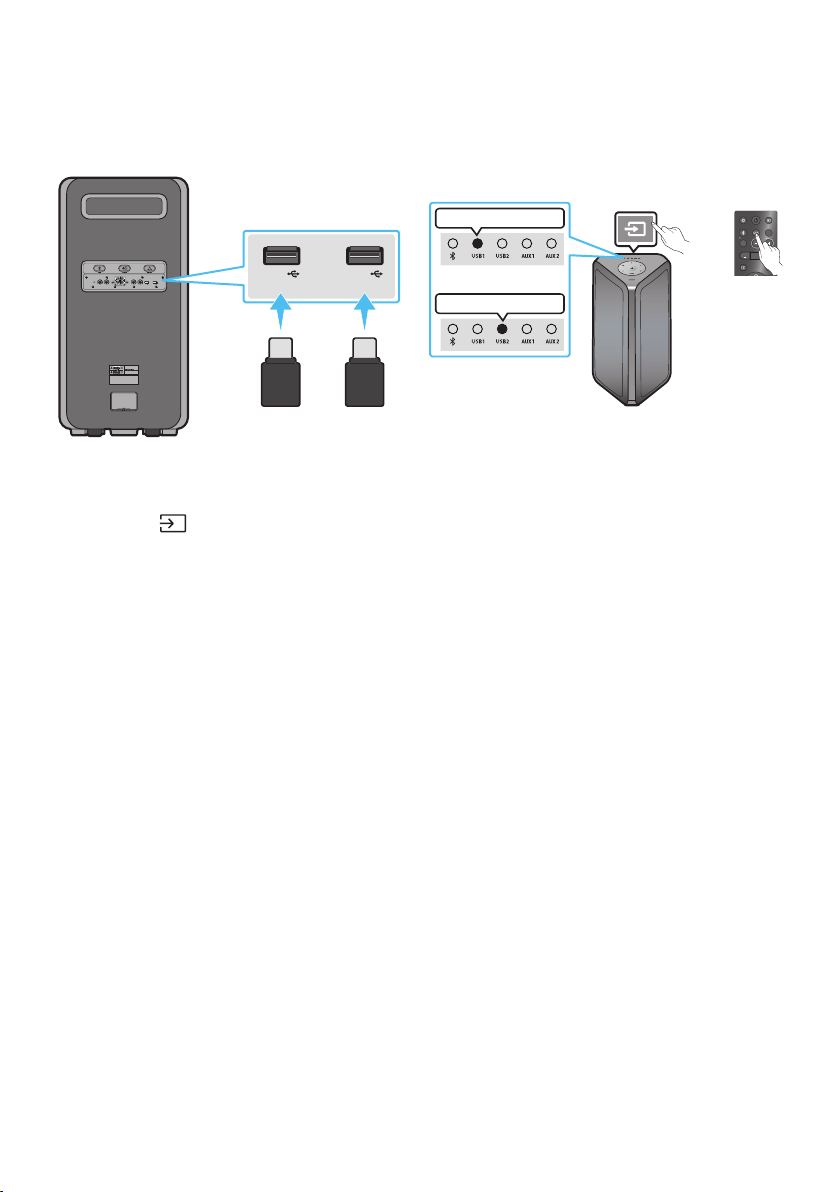
1. Press and hold (Source) for more than 5 seconds on remote control or top panel then Sound
Tower will start to search for the Samsung TV. Lighting bar will blink white once and then blink
cyan, The “PAIRING” LED will slowly blink.
(Or, when the wired Stereo Group mode connection is complete, the “SEARCHING TV” mode is
automatically activated.)
2. If Samsung TV has connected with Sound Tower before, Samsung TV will be connected without
popup.

ENG - 21
3. Sound from the TV will be heard once the Sound Tower connects via Bluetooth.
•
“SEARCHING TV” mode and turn to “BT PAIRING” mode. If any Samsung TV is found, the Sound
Tower will request connection to the TV.
NOTES
• To stop searching for a Samsung TV, turn off the Sound Tower or press the
(Source) or PAIRING
button.
• Sound Tower does not support multi connection if Samsung TV is connected.
• While Samsung TV is connected, Sound mode is PARTY and SOUND MODE button is not available.
• While Samsung TV is connected, Sound Tower APP can not connect with Sound Tower.
• Connection popup may not be displayed according to TV spec, you can try pressing the PAIRING
button on the rear panel of sound tower. On your Samsung TV, select “[AV] MX-ST9B Series” from the
list that appears.
• You can select and connect directly from the Bluetooth speaker list on your TV when the connection
pop-up does not appear on your TV.
• When the Sound Tower is connected to your TV by Bluetooth connection, the video on the TV and
audio from the Sound Tower may not be synchronized because the distance between the Sound
Tower and the TV is too far.
ENG - 22
05 CONNECTING A USB STORAGE DEVICE
LIGHT
PAIRING
TEMPO
USB
AUX
EFFECT EFFECT
DJ
SOUND
MODE
ECHO 2VOL 2ECHO 1 VOL 1 MIC 2
USB1
(5V 2.1A)
USB2
(5V 0.5A)
AUX 1
MIC 1
POWER
USB1
(5V 2.1A)
USB2
(5V 0.5A)
USB storage device
(not supplied)
USB1 white LED on
USB2 white LED on
Rear of the Sound Tower
OR
OR
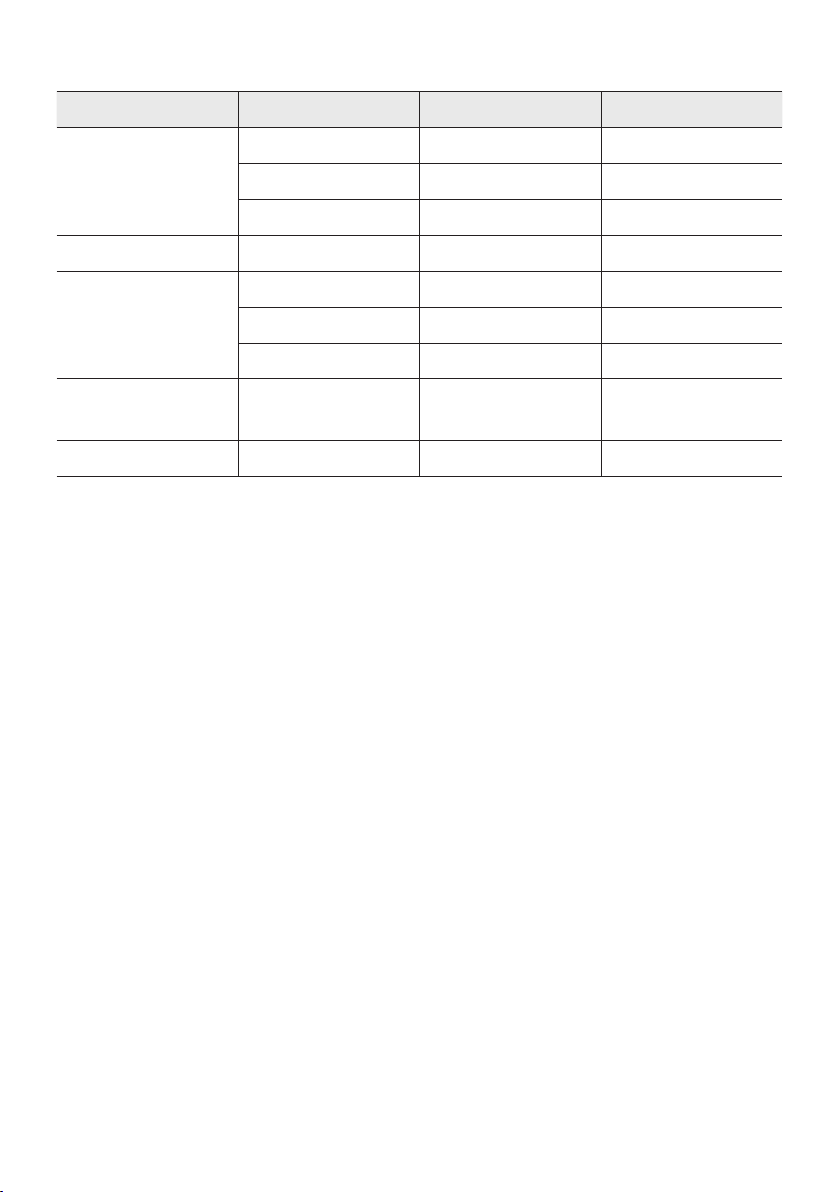
1. Connect a USB storage device to the USB jacks on your Sound Tower.
2. Press the
(Source) button on the top panel or USB button of remote control, and then select
“USB”.
3. The USB
Pause, Skip) on remote control.
CAUTION
• DO NOT connect microphone dongle to the USB port, it may damage the Sound Tower.
NOTES
•
system.
• This product does not support HDD storage or storage on mobile devices.
•
• A maximum of 256 folders can be read via USB storage device.
• The Sound Tower automatically turns off (Auto Power Down) if USB device is not connected,
playback stopped, or there is no input for more than 18 minutes
• USB source does not support wireless Stereo and Group Play mode.
ENG - 23
Supported Audio Formats
File Extension Audio Codec Sampling Rate Bit Rate
*.mp3
MPEG 1 Layer3 32 kHz ~ 48 kHz 32 kbps ~ 320 kbps
MPEG 2 Layer3 16 kHz ~ 24 kHz 8 kbps ~ 160 kbps
MPEG 2.5 Layer3 8 kHz ~ 12 kHz 8 kbps ~ 160 kbps
*.wma WMA7/8/9 8 kHz ~ 48 kHz 32 kbps ~ 320 kbps
*.aac
AAC 8 kHz ~ 96 kHz < 1728 kbps
A A C- L C 8 kHz ~ 96 kHz < 1728 kbps
HE-AAC 8 kHz ~ 96 kHz < 1728 kbps
*.wav
PCM/LPCM/
IMA_ADPCM
8 kHz ~ 192 kHz < 5 Mbps
- 8 kHz ~ 192 kHz < 5 Mbps
NOTES
• This product does not support WMA Professional codec.
• The above table shows supported sampling rates and bit rates. Files in formats that are not
supported will not play.
•
Software Update
SamsungmayofferupdatesfortheSoundTower’ssystemrmwareinthefuture.
update stored on it to the USB2 port on your Sound Tower. For more information about how to
Then, enter or select the model number of your Sound Tower, select the Software & Apps option, and
then Downloads. Note that the option names can vary.
NOTE
• If the upgrade takes more than 10 minutes, it means the upgrade process is stuck, Please unplug
the power cord Wait until the sound tower is powered off and plug it back in again. Next, make sure
the USB device is in the USB2 port. Then, wait 1 minute, and the sound tower will automatically
restart, and then wait until the upgrade is complete.
ENG - 24
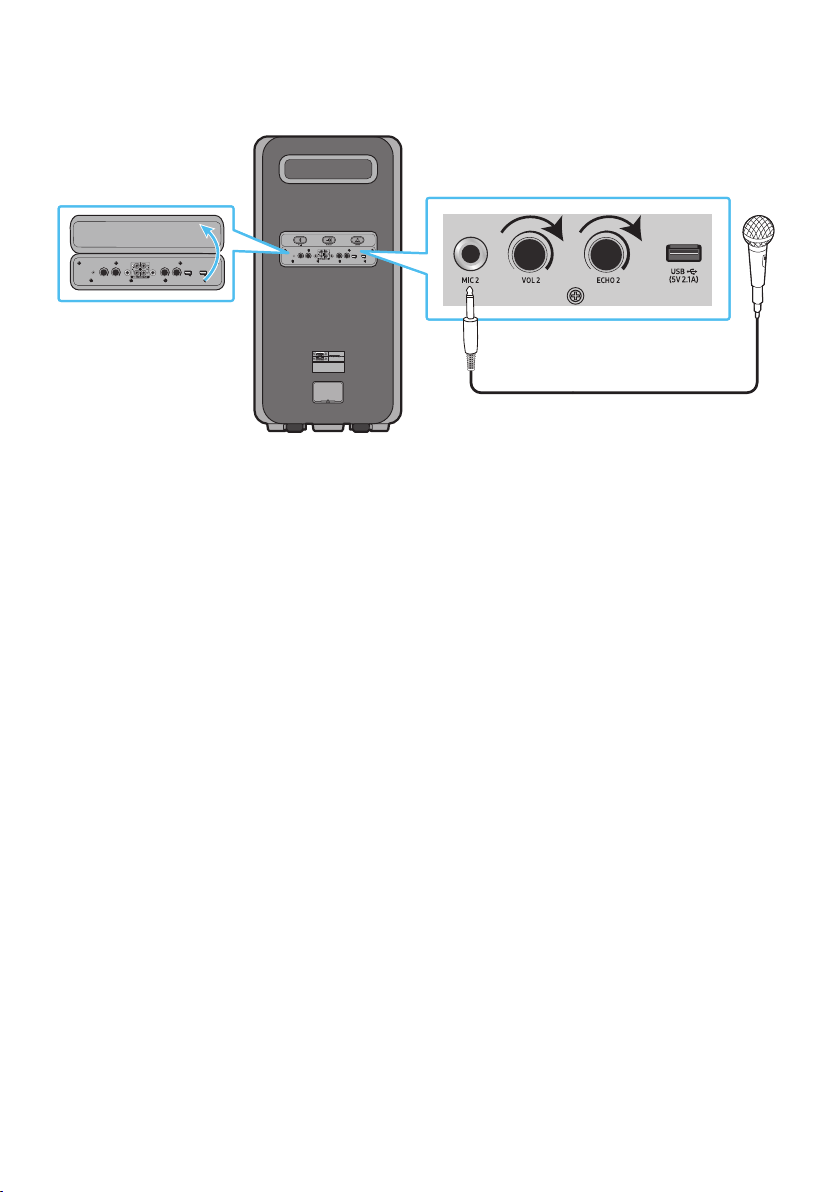
Connecting an Optional Microphone
You can output your voice from the system by connecting a dynamic microphone with a normal plug.
ECHO 2VOL 2ECHO 1 VOL 1 MIC 2
USB1
(5V 2.1A)
USB2
(5V 0.5A)
AUX 1
MIC 1
POWER
MAXMIN
MAXMIN
ECHO 2VOL 2ECHO 1 VOL 1 MIC 2
USB1
(5V 2.1A)
USB2
(5V 0.5A)
AUX 1
MIC 1
Microphone(Not supplied)
1. Open the rear panel cover.
2. Turn the MIC1/2, VOL1/2 & ECHO1/2 knob to MIN to reduce the microphone level.
3. Connect an optional microphone to the MIC jack on the unit.
4. Adjust the volume using the MIC “VOL1/2” knob.
5. Adjust the Effect of the echo using the MIC “ECHO1/2” knob.
6. Speak or sing into the connected microphone.
NOTES
• Microphone is not supplied.
• When using the wireless Group Play or stereo mode function, sound from the microphone is only
output from the system to which the microphone is connected.
• There may be distortion or noise caused by the quality of the microphone that is connected.
ENG - 25
06 USING THE REMOTE CONTROL
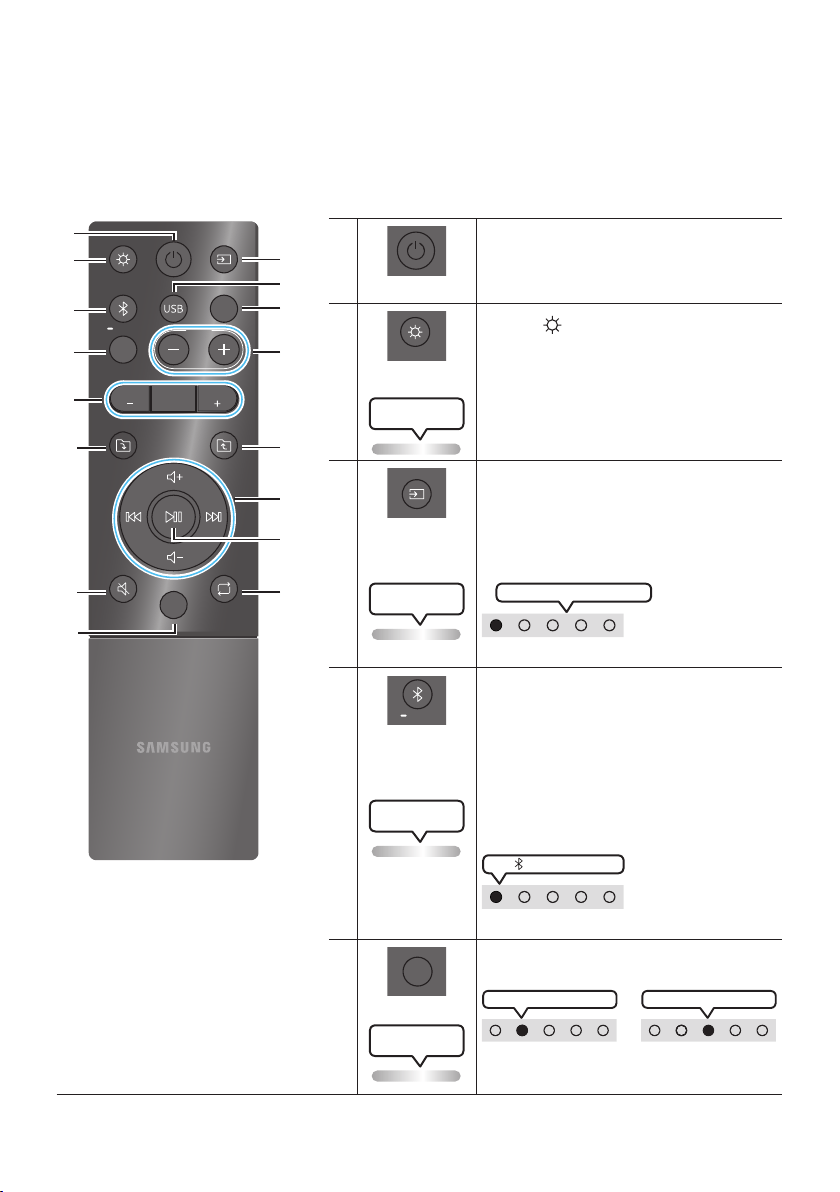
How to Use the Remote Control
LIGHT
PAIRING
TEMPO
USB
AUX
EFFECT
DOWN
UP
BASS
EFFECT
DJ
SOUND
MODE
Power
Turn the Sound Tower on and off.
LIGHT
LIGHT
Press the (LIGHT) button to turn the
Lighting Mode on.
(Only active during music playback)
Press the button repeatedly to cycle through
the available light modes: AMBIENT, PARTY,
DANCE, THUNDERBOLT, STAR or OFF.
Lighting LED
white blink x1
Source
Press to select a source connected to the
Sound Tower.
Press the button repeatedly to cycle through
the available sources: BT, USB1, USB2, AUX1 or
AUX2.
Lighting LED
white blink x1
White LED moves to right on
LED indicator on the top of the product
Bluetooth
PAIRING
PAIRING
Press to select a source connected directly to
"BT" mode.
Press and hold the button for more than
5 seconds to enter the "BT PAIRING" mode.
You can connect the Sound Tower to a new
Bluetooth device in this mode by selecting the
Sound Tower from the Bluetooth device's
search list.
Lighting LED
Cyan blinks
white LED on
LED indicator on the top of the product
USB
USB
Press to select the USB1 or USB2 source
connected to the Sound Tower.
USB1 white LED on
OR
USB2 white LED on
LED indicator on the top of the product
Lighting LED
white blink x1
ENG - 26
AUX
AUX
Press to select the AUX1 or AUX2 sources connected to the Sound Tower.
AUX2 white LED on
OR
AUX1 white LED on
LED indicator on the top of the product
Lighting LED
white blink x1
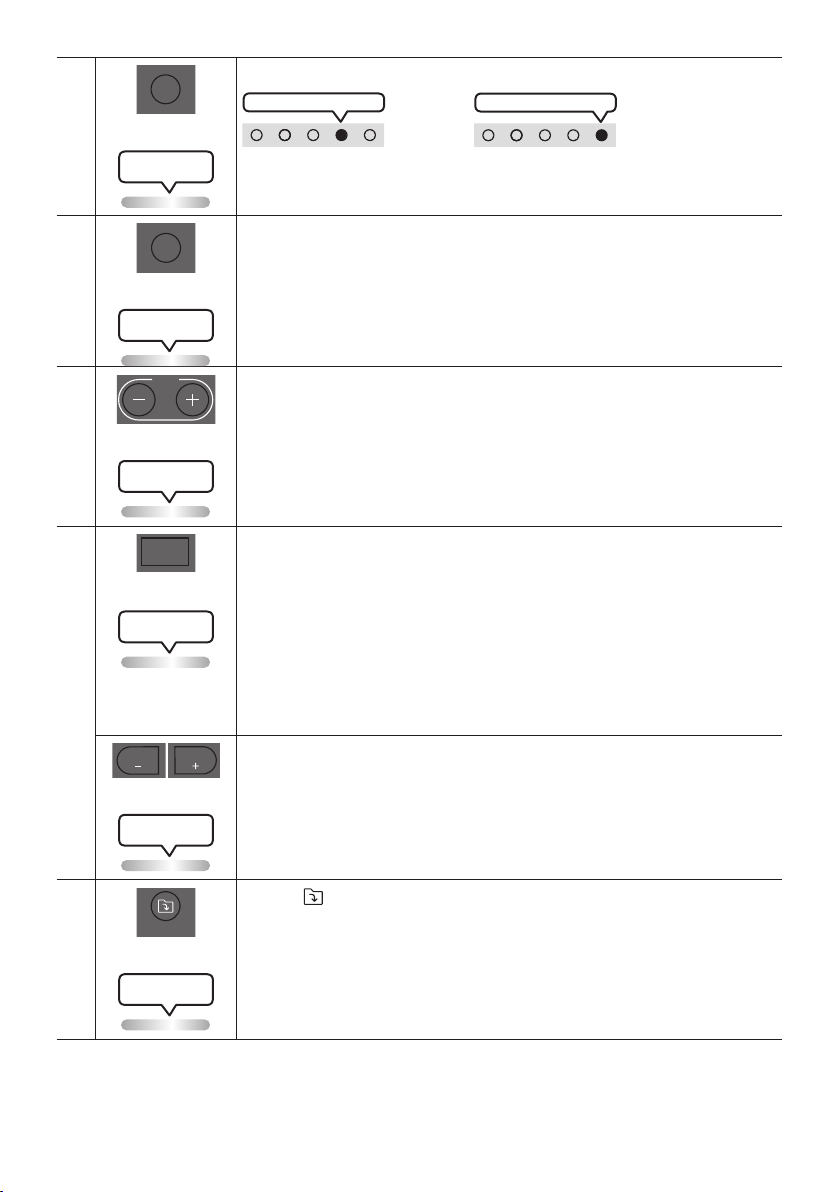
SOUND MODE
SOUND
MODE
Press the button repeatedly to cycle through the available sound effects: PARTY,
STANDARD, HIPHOP, EDM, ROCK, LATIN, HOUSE or REGGAE.
Lighting LED
white blink x1
TEMPO +, -
TEMPO
Press the TEMPO + or TEMPO - buttons to change the tempo of the music up or down.
• This function only works in the USB1 and USB2 mode.
Lighting LED
white blink x1
DJ
DJ
This function lets you turn on the DJ effect function.
Press the button repeatedly to cycle through the available DJ sound effects:
NOISE, FILTER, CRUSH, CHORUS, WAHWAH or OFF.
• NOISE: Mixing white noise into the original sound.
• FILTER: Filter out the sound of some frequencies.
• CRUSH: Make the original sound sharp.
• CHORUS: Separate the original sound into several track and delay them
separately,then mix again. Create a chorus effect.
• WAHWAH
original sound.
Lighting LED
white blink x1
EFFECT +, -
EFFECT
EFFECT
Press the EFFECT + or EFFECT - buttons to change the level of each DJ sound effect
up or down.
Lighting LED
white blink x1
Folder DOWN
DOWN
Press the (DOWN) button to move to the next folder in the USB device.
Lighting LED
white blink x1
ENG - 27
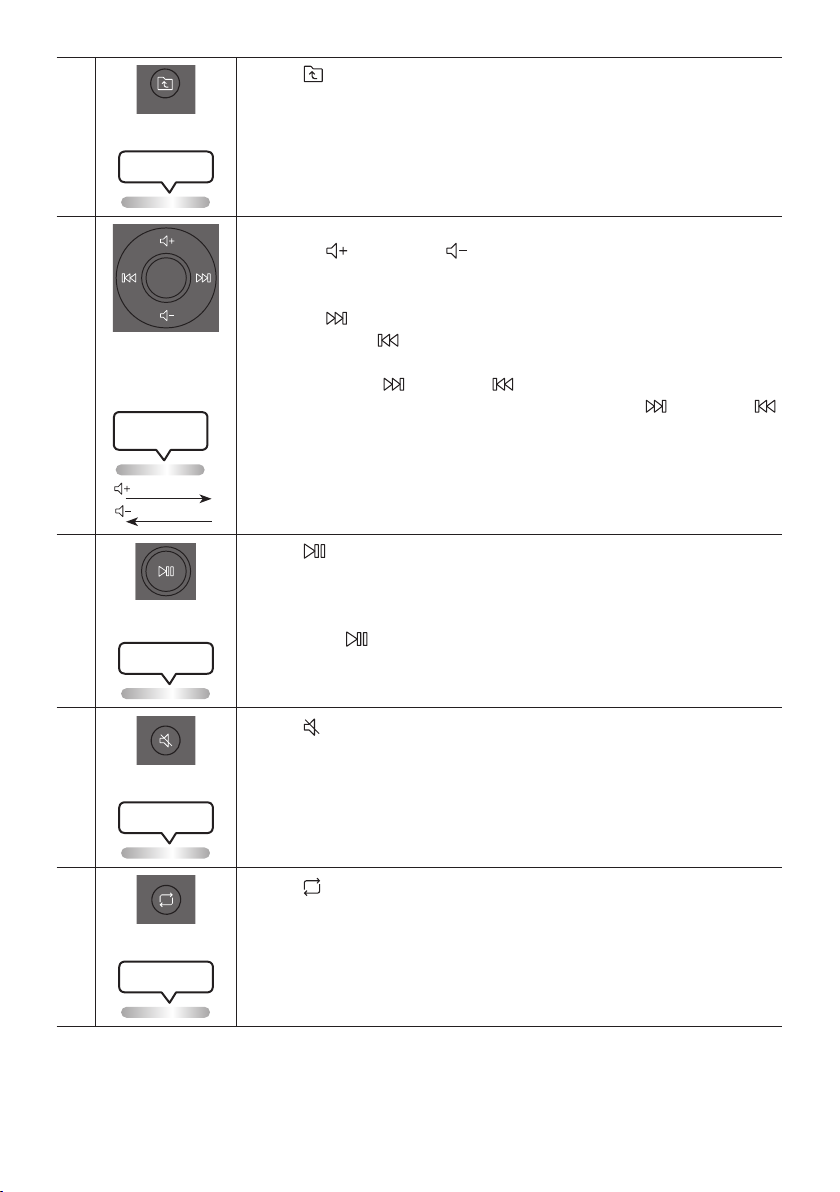
Folder UP
UP
Press the (UP) button to move to the previous folder in the USB device.
Lighting LED
white blink x1
Volume up,
Volume down /
Skip
• Volume up, Volume down
Press the (Volume up) or (Volume down) to adjust the volume level up or
down.
• Music Skip
Press the
than 3s, press the
same track over.
Press and hold the button or the button for more than 3 seconds in USB
play mode to Fast Foward or Fast reverse. Press and hold the button or the
button for more than 3 seconds again to get back to normal play.
Lighting LED
White blink x1
From down to up
From top to bottom
Play / Pause
Press the
• Auto Power Down Function
To turn off Auto Power Down function while the unit is in AUX1, AUX2 mode, press
and hold the button for more than 5 seconds. Lighting bar will blink white
once.
Lighting LED
white blink x1
Mute
Press the (Mute) button to mute the sound.
Press it again to unmute the sound.
Lighting LED
white blink x1
Repeat
Press the (Repeat) button to use the Repeat function in “USB1” and “USB2” mode.
Press the button repeatedly to cycle through the available repeat functions:
ONE, FOLDER, ALL, RANDOM or OFF.
Lighting LED
white blink x1
ENG - 28
BASS
BASS
Press the BASS button to use the bass boost.
Press it again to return to the normal sound.
Press and hold the BASS button for more than 5 seconds to turn on or off the
BLUETOOTH POWER function.
Lighting LED
white blink x1
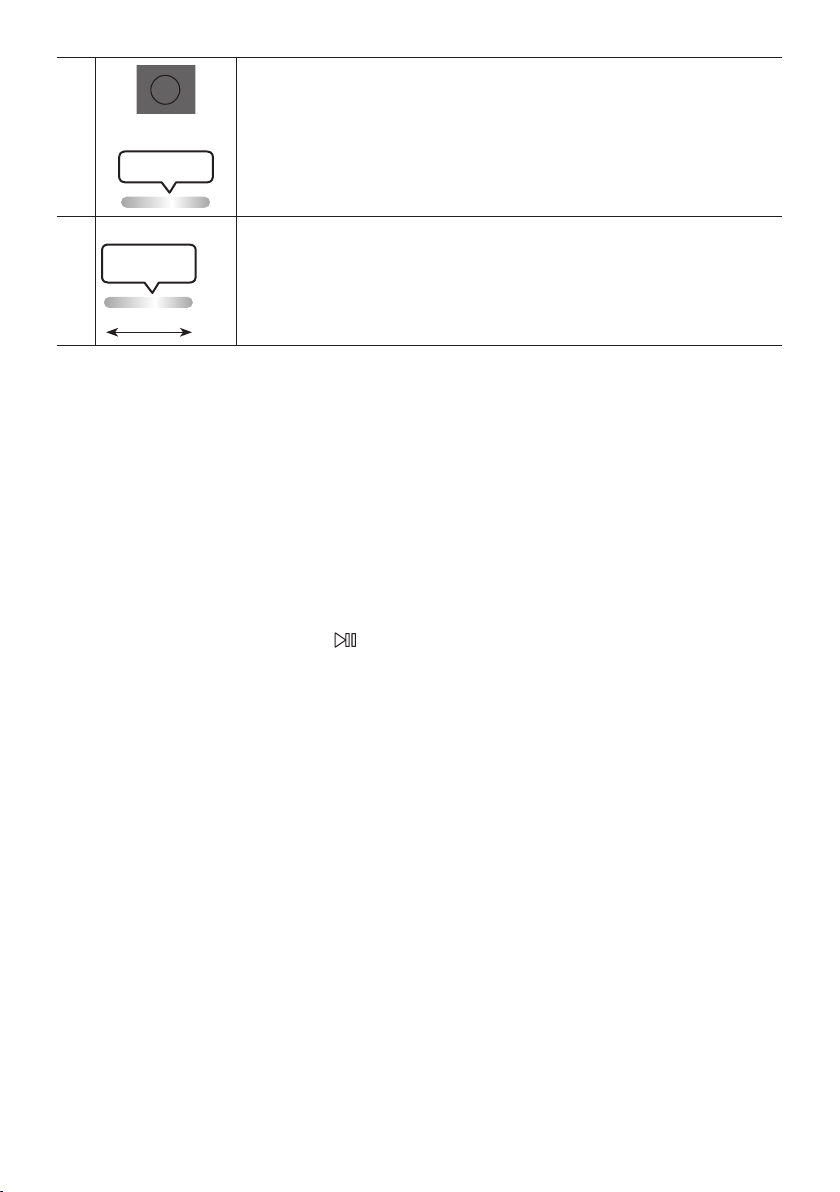
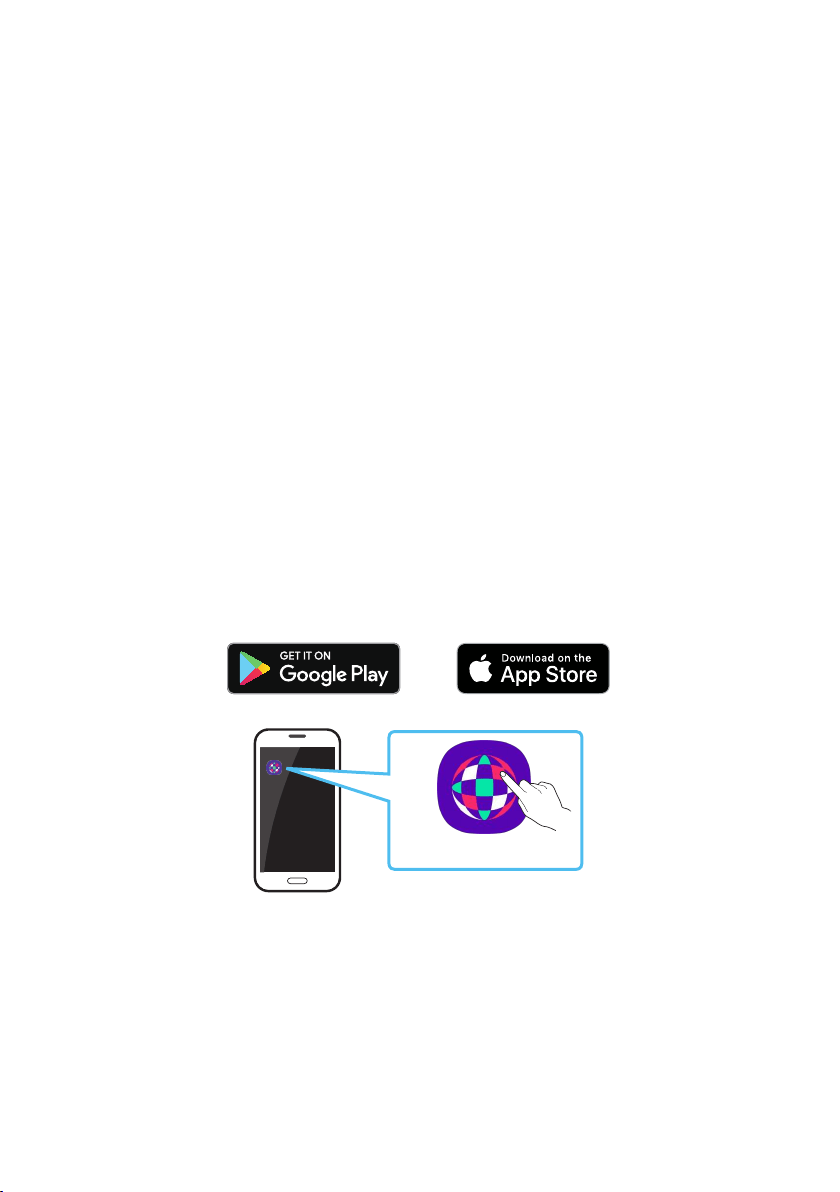
※
Not available
Lighting LED
Pink blink x1
From middle to end
The remote control button function is not available in the current source.
How to use Sound Mode
genres.
1. Press the SOUND MODE button on the Remote control.
2. Each time you press the SOUND MODE button, the Sound Tower cycles through the available
sound effects: PARTY, STANDARD, HIPHOP, EDM, ROCK, LATIN, HOUSE or REGGAE.
NOTES
• Default sound mode is PARTY.
• When turned off, press and hold the button on product or remote control for more than 5 seconds
to turn on in the default Sound Mode setting.

ENG - 29
How to use DJ Effect
The DJ Effect function lets you add DJ sound effects to your music. The level of each effect is
adjustable.
1. Press the DJ button on the Remote control.
2. Each time you press the DJ button, the Sound Tower cycles through the available DJ Effects:
• NOISE
• FILTER : Creates an effect similar to the sound of only treble or bass.
• CRUSH: Creates an effect that makes the original sound sharper.
• CHORUS : Creates an effect similar to a singing chorus.
• WAHWAH : Creates a ‘Wah~ Wah~’ effect.
• DJ EFFECT OFF : Turns off the DJ Effect.
3. Press the EFFECT + or EFFECT - buttons to raise or lower the level of each of the DJ sound effects
NOTE
• When turned off, press and hold the button on product or remote control for more than 5
seconds to turn on in the default DJ Effect setting.
ENG - 30
07 USING THE SAMSUNG SOUND TOWER
APP
Install Samsung Sound Tower App
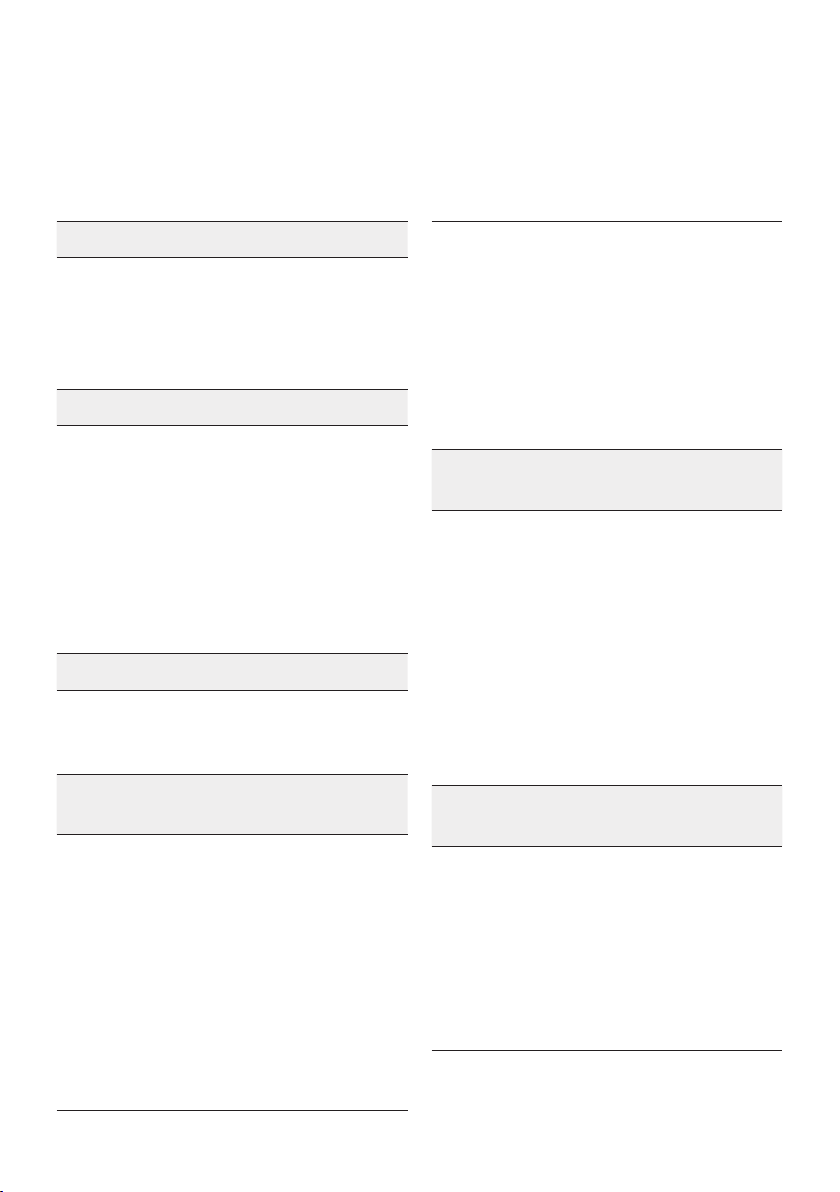
To control this product with your Smart Device and the Samsung Sound Tower app, download the
Samsung Sound Tower App from the Google Play Store or Apple App Store, and install it on your Smart
Device.
Using the Samsung Sound Tower App
Precondition
• This function may not be supported, depending on the mobile device.
• App cannot be used when connecting with Samsung TV.
• This function is compatible with Apple mobile devices running iOS 11.0 or later.
• This function is compatible with Android mobile phone devices running Android OS 8.0.
• App cannot be used when using Bluetooth multi connection.
Market search : Samsung Sound Tower
Samsung
Multiroom
Samsung Sound Tower
Samsung Sound Tower
1. Download the Samsung Sound Tower App from the Google Play Store or Apple App Store, and
install it on your Smart Device.
2. Turn on the Sound Tower app on your mobile device.
3. A connection is established between the mobile device and Sound tower via Bluetooth.
4. Play audio from the mobile device through the Sound tower

ENG - 31
What you can do with Samsung Sound Tower App:
• Balance the sound using preset EQs or custom EQs.
• Change the sound effect using DJ EFFECT.
•
• Change the light effect by preset or custom.
• Adjust the Volume.
• Switch source
NOTES
• To use this function, update the Sound tower app to the latest version. The function may not be
supported, depending on the app version.
• The Sound tower app may not work if there are devices near the Sound tower that cause radio
interference such as electric devices. Make sure devices that may cause radio interference are
• If the sound tower app doesn‘t work:
– Reboot the mobile device.
– Update the Sound Tower app to the latest version.
– Reinstall the Sound Tower app after uninstalling.
– Update the phone system version.
ENG - 32
08 TROUBLE SHOOTING
Refer to the table below if this product does not function properly. If the problem you are experiencing
is not listed below or if the instructions below do not help, turn off the product, disconnect the power
cord, and contact Samsung Electronics at 1-800-SAMSUNG (1-800-726-7864).
Sound Tower does not turn on.
; Power cannot be turned on via remote
control or mobile Sound Tower App,
Remove the power plug, after a while plug
it in again, Press the POWER button to turn
on the Sound Tower.
Sound Tower works erratically.
; Remove the power plug, after a while
plug-in it again, Press the POWER button
to turn on the Sound Tower.
; Power cycle the external device and try
again.
; If there is no signal, the Sound Tower
automatically turns off after a certain
period of time. Press the POWER button to
turn on the Sound Tower.
If the remote control does not work.
; Point the remote directly at the Sound
Tower.
; Replace the batteries with new ones.
Sound Tower does not output any sound via
Bluetooth.
; The volume of the Sound Tower is too low
or muted.
Press the volume up button to increase the
volume.
; When any external device (STB, Bluetooth
device, mobile device, etc.) is connected,
Increase the volume of the external device.
; For sound output of the TV, select Sound
; Remove the power plug, after a while plug
it in again, Press the POWER button to turn
on the Sound Tower.
; When connecting a new device, switch to
“BT PAIRING” for connection. (Press and
hold the PAIRING button on the remote
control for more than 5 seconds to enter
the “BT PAIRING” mode, or single-click the
PAIRING button on the rear panel.)
Sound Tower does not connect via
Bluetooth.
; If the Sound Tower is connected to another
switch the device.
; Enable the Bluetooth pairing function of
the Bluetooth device and Sound Tower.
; It is recommended to move the Sound
Tower closer to your Bluetooth device
within 3.3 ft (1 meter).
; Remove the power plug, after a while
plug-in it again, Press the POWER button
to turn on the Sound Tower.
Sound drops out when connected via
Bluetooth.
; Some devices can cause radio interference
if they are located too close to the sound
tower. e. g. microwaves, wireless routers,
etc.
; If your device that is connected via
Bluetooth moves too far away from the
Sound Tower. Move the device closer to the
Sound Tower.
ENG - 33
; If there are obstacles between the Sound
Tower and your Bluetooth device, remove
or avoid the obstacles.
; There may be sound drop when connected
to Samsung TV, please refer to page15
“Using Stereo Mode of Samsung TV” steps
to reconnect the Samsung TV.
; The recommended operating distance
between Sound Tower and the BT device is
less than 32.8 ft (10 meters)
There is severe hum, noise, or distorted
sound when connected via Bluetooth.
; If there are obstacles between the Sound
tower and your Bluetooth device, remove
or avoid the obstacles.
; Some devices can cause radio interference
if they are located too close to the sound
tower. e. g. microwaves, wireless routers,
etc.
The PAIRING button is not working.
; Try again after disconnecting the wireless
Group Play or Stereo mode connection.
The USB device is not recognized.
; Switch the source to USB1/USB2 by
pressing the source button, plug-in the
USB device to correct port(USB1/USB2).
; Turn off the sound tower, turn on the
sound tower, reconnect the USB device.
; You may be using an unsupported USB
device. The USB storage device must be
formatted in FAT or FAT32.
Files in USB device cannot be played back.
; Switch the source to USB1/USB2 by
pressing the source button, plug-in the
USB device to correct port(USB1/USB2).
; You may using an unsupported USB device.
The USB storage device must be formatted
in FAT or FAT32.
;
tower only supports MP3,WMA,AAC,WAV
; Turn off the sound tower ,turn on the
sound tower, reconnect the USB device.
; Files that are encrypted or protected by
passwords cannot be played back.
The connected USB device cannot be
charged.
; USB port is only for USB storage device
playback.
Sound Tower does not output any sound via
AUX.
; Make sure the external device is in AUX
output mode, and make sure sound tower
switch to AUX1 or AUX2 source.
; Make sure the AUX cable is connected to
AUX1 or AUX2 securely.
; The volume of the Sound Tower is too low
or muted. Adjust the volume.
; When any external device (STB, Bluetooth
device, mobile device, etc.) is connected,
adjust the volume of the external device.
; Remove the power plug, after a while
plug-in it again, Press the POWER button
to turn on the Sound Tower.
ENG - 34
Stereo mode connection is not working.
; The Add Stereo button does not work in
Group Play mode, disconnect the wireless
Group Play mode and try Stereo mode
connection again.
I want to switch the HOST (MAIN) system
to the other in wireless Group Play or
Stereo Group connection.
; Disconnect Group Play mode, select the
Speaker which you want make to HOST
connect the other speakers.
;
You can not change other sound towers to
MAIN.
I can’t connect a SUB to Group play.
; After 1 hour, the HOST will block any
additional SUB from being added. Press
the GROUP PLAY button on HOST, the SUB
can be reconnected.
I cannot make a “Wireless/ Wired Group/
Add Stereo/ Bluetooth” connection.
; It is recommended to make a “Wireless/
Wired Group/ Add Stereo/ Bluetooth”
pairing within 3.3 ft (1 meter) from the
system.
; Sound Tower can not connect to Samsung
TV when using Wireless add Stereo mode.
MIC is not working?
; Adjust the VOL knob of the rear panel.
; MIC only works on the connected sound
tower in the group mode, does not work on
both sound towers.
; Try disconnecting and reconnecting the
Microphone again.
BT power on not working.
; Remove the power plug, after a while
plug-in it again, Press the POWER button
to turn on the Sound Tower.
How to use the water resistant function?
; Water resistance can be met when AC
power cord is plugged-in, but make sure
that the caps are closed completely.
Product cannot knocked over to ensure it
is water resistant.
I cannot change wireless Stereo mode to
wired Stereo mode.
; Make sure the HOST(main) system is in
Bluetooth source.
I cannot change the source.
; The SUB can’t change the source in Stereo
mode.
If the sound tower app doesn‘t work.
; Reboot the mobile device.
; Update the Sound Tower app to the latest
system version.
; This function is compatible with Apple
mobile devices running iOS 11.0 or later.
; This function is compatible with Android
mobile phone devices running Android OS
8.0 or later.
ENG - 35
09 LICENSE
The Bluetooth® word mark and logos are
registered trademarks owned by the Bluetooth
SIG, Inc. and any use of such marks by Samsung
Electronics Co., Ltd. is under license. Other
trademarks and trade names are those of their
respective owners.
Qualcomm aptX is a product of Qualcomm
Technologies, Inc. and/or its subsidiaries.
Qualcomm is a trademark of Qualcomm
Incorporated, registered in the United States and
other countries. aptX is a trademark of Qualcomm
Technologies International, Ltd., registered in the
United States and other countries.
[ENERGY STAR]
ENERGYSTARqualiedmodelonly
– Your Samsung product is ENERGY STAR
Change to certain features, settings and
functionality in this product can change the
power consumption, possibly beyond the
limits required for ENERGY STAR
– Environmental Protection Agency and
Department of Energy. ENERGY STAR is a
joint program of the Government agencies,
products and practices.
Refer to www.energystar.gov for more
information of the ENERGY STAR Program.
ENERGYSTARqualiedmodelonly
(Applicable to Thin Client models only)
As an ENERGY STAR® Partner, SAMSUNG has
determined that this product meets the
ENERGY STAR® guidelines for energy
– The ENERGY STAR Program has been to
reduced greenhouse gas emissions and
save energy through voluntary labeling.
– Power management setting of this product
have been enabled by default, and have
various timing setting from 1 minutes to 5
hours.
– The product can wake with a button press
on the chassis from sleep mode.
ENERGYSTARqualiedmodelonly(Theother
models)
– As an ENERGY STAR Partner, Samsung has
determined that this product or product
models meets the ENERGY STAR guideline

ENG - 36
10 OPEN SOURCE
LICENSE NOTICE
To send inquiries and requests regarding open
sources, contact Samsung via Email
(oss.request@samsung.com).
11 IMPORTANT
NOTES ABOUT
SERVICE
Figures and illustrations in this User Manual are
provided for reference only and may differ from
actual product appearance.
ENG - 37
12 SPECIFICATIONS AND GUIDE
Specications
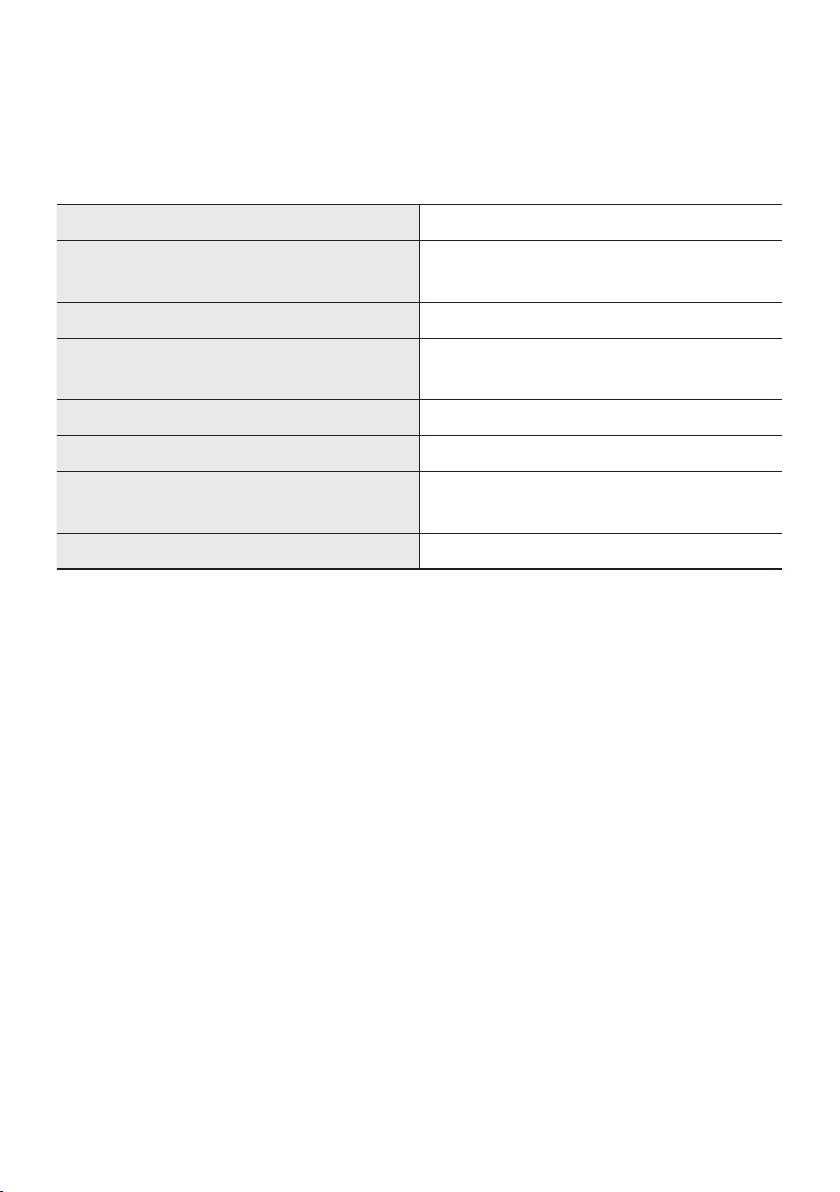
Model Name MX-ST90B
USB1/USB2
Weight 54.0lbs(24.5kg)
Dimensions (W x H x D)
16.7 x 33.9 x 15.1 inches
(424 x 861 x 383mm)
Operating Temperature Range
Operating Humidity Range 10 % ~ 75 %
AMPLIFIER
Rated Output power
1700 W
Overall Power Consumption 150W
NOTES
•
• Weight and dimensions are approximate.
LIMITED WARRANTY TO ORIGINAL PURCHASER
Samsung Electronics Canada Inc.(SECA), warrants that this product is free from
defective material and workmanship.
warranty period and the failure is due to improper workmanship or defective
materials, SECA will repair or replace the product at its option.
All warranty repairs must be performed by a SECA Authorized Service Center. (The name and
address of the location nearest you can be obtained by calling toll free: 1- 800- SAMSUNG)
LABOR
One year (Carry- in)
PARTS
One year
On carry-in models, transportation to and from the service center is the customer’s
responsibility.
The original dated sales receipt must be retained by the customer and is the only
acceptable proof of purchase. It must be presented to the authorized service center at
the time service is requested.
EXCLUSIONS (WHAT IS NOT COVERED)
God; misuse, incorrect line voltage, improper installation, improper or unauthorized
lamps, glass are not covered under this warranty. Customer adjustments which are
explained in the instruction manual are not covered under the terms of this warranty.
This warranty will automatically be voided for any unit found with a missing or altered
serial number. This warranty is valid only on products purchased and used in Canada.
Samsung Electronics Canada Inc
2050 Derry Rd West
Mississauga, On. L5N 0B9
Tel: 1-800-SAMSUNG (726-7864)
Fax: (905) 542- 1199
Website: www.samsung.com/ca
© 2022 Samsung Electronics Co., Ltd. All rights reserved.
Contact SAMSUNG WORLD WIDE
If you have any questions or comments relating to Samsung products, please contact the SAMSUNG customer
care Center.
HEADQUARTERS
Samsung Electronics Canada Inc. 2050 Derry Road West, Mississauga, Ontario L5N 0B9 Canada
TEL: 1-800-SAMSUNG (1-800-726-7864)
www.samsung.com/ca/support
Country Samsung Service Center
Web Site
`
North America
CANADA 1-800-SAMSUNG (726-7864)
www.samsung.com/ca/support (English)
www.samsung.com/ca_fr/support (French)
U.S.A 1-800-SAMSUNG (726-7864) www.samsung.com/us/support
FRA - ii
INFORMATIONS RELATIVES À LA SÉCURITÉ
AVERTISSEMENTS
POUR ÉVITER LES RISQUES DE CHOC
ÉLECTRIQUE, NE DÉMONTEZ PAS LE CAPOT.
L’APPAREIL NE CONTIENT PAS DE PIÈCES
RÉPARABLES PAR L’UTILISATEUR. S’ADRESSER À
UN SERVICE APRÈS-VENTE QUALIFIÉ.
Reportez-vous au tableau ci-dessous pour
votre produit Samsung.
MISE EN GARDE
RISQUE DE CHOC
ÉLECTRIQUE NE PAS
OUVRIR
Ce symbole indique la présence d'une
haute tension à l'intérieur. Tout contact
avec une pièce interne de l'appareil
présente un danger.
Ce symbole vous informe qu'une
documentation importante relative au
fonctionnement et à l'entretien est
fournie avec le produit.
indique qu'il ne nécessite pas une
connextion de sécurité à la terre
(masse). Si ce symbole n'est pas présent
sur un produit équipé d'un cordon
d'alimentation, le produit DOIT être
tension nominale est la tension CA.
Tension CC : Ce symbole indique que la
tension nominale est la tension CC.
Attention, consultez les instructions aux
l'utilisateur qu'il doit consulter le guide
d'utilisation pour avoir de l'information
au sujet de la sécurité.
AVERTISSEMENT
•
choc électrique, n’exposez pas cet appareil à
la pluie ou à l’humidité.
• Ce produit contient des produits chimiques
qui peuvent, selon l’État de Californie, être
cancérigènes ou causer des anomalies
congénitales ou des troubles génésiques.
MISE EN GARDE
• Veillez à éviter toute projection sur l’appareil.
Ne placez jamais de récipients contenant un
liquide (ex. : vase) dessus.
•
de déconnexion. Elle doit donc rester
disponible en permanence.
ATTENTION (Pour le Canada)
L’émetteur/récepteur exempt de licence contenu
dans le présent appareil est conforme aux CNR
d’Innovation, Sciences et Développement
économique Canada applicables aux appareils
radio exempts de licence. L’exploitation est
autorisée aux deux conditions suivantes :
1) L’appareil ne doit pas produire de brouillage;
2) L’appareil doit accepter tout brouillage
radioélectrique subi, même si le brouillage est
susceptible d’en compromettre le fonctionnement.
Cet appareil et son ou ses antennes ne doivent
pas etre installés a proximité ou etre utilisés
conjointement avec une autre antenne ou un
autre émetteur.
Le dispositif pourrait automatiquement cesser
d’émettre en cas d’absence d’informations à
transmettre, ou une défaillance opérationnelle.
Notez que ce n’est pas l’intention d’interdire la
transmission des informations de contrôle ou de
signalisation ou l’utilisation de codes répétitifs
lorsque requis par la technologie.

FRA - iii
Cet appareil numerique de la classe B est
conforme a la norme NMB-003 du Canada.
Declaration d’exposition aux radiations:
Cet equipement est conforme aux limites
d’exposition aux rayonnements IC RSS-102
etablies pour un environnement non controle.
Cet equipement doit etre installe et utilise avec
un minimum de 20 cm de distance entre la source
de rayonnement et votre corps.
Consignes de sécurité importantes
Lisez attentivement ces consignes avant d’utiliser
l’appareil. Veillez à respecter toutes les consignes
répertoriées ci-après. Conservez ces instructions à
portée de main pour vous y référer ultérieurement.
1. Lisez attentivement ces consignes.
2. Conservez-les précieusement.
3. Tenez compte de tous les avertissements
mentionnés.
4. Respectez toutes les instructions sans
exception.
5. Nettoyez-le à l’aide d’un tissu sec.
6. Ne bloquez pas les ouvertures de ventilation.
Installez l’appareil conformément aux
instructions du fabricant.
7. N’installez pas le lecteur à proximité d’une
source de chaleur de type radiateur, registre
de chaleur, cuisinière ou tout autre appareil
(y compris les récepteurs AV) générateur de
chaleur.
8. Ne désactivez pas le dispositif de sécurité de
deux lames dont l’une est plus large que
deux lames et une troisième broche de mise
à la terre. La lame la plus large et la
troisième broche sont destinées à assurer
pas dans la prise utilisée, faites appel à un
électricien pour faire remplacer celle-ci.
9. Placez le cordon d’alimentation de sorte qu’il
ne puisse être ni piétiné ni pincé,
prise de courant et du point de sortie de
l’appareil.
10.
11. Utilisez exclusivement le
meuble à roulettes, le socle, le
trépied, le support ou la table
recommandés par le fabricant
ou vendus avec l’appareil.
Si l’appareil est posé sur un meuble à
roulettes, déplacez l’ensemble avec
précaution pour éviter de faire tomber le
lecteur et de vous blesser.
12. Débranchez l’appareil en cas d’orage ou
lorsqu’il est inutilisé pendant une période
prolongée.
13.
être réparé lorsqu’il a été endommagé de
quelque manière que ce soit :
détérioration
projection de liquide sur l’appareil, chute
d’objets à l’intérieur de l’appareil, exposition
à la pluie ou à l’humidité, dysfonctionnement,
chute.
FRA - iv
Pour éviter la détérioration de l’étanchéité
doit.
• Toute déformation ou tout dommage
découlant de la chute de l’unité ou d’un choc
mécanique peut entraîner la détérioration de
l’étanchéité.
• Cette unité n’est pas conçue pour résister à la
pression de l’eau.L’utilisation de l’unité dans
un endroit soumis à une haute pression d’eau,
comme une douche, peut entraîner un
dysfonctionnement.
• Ne versez pas d’eau très chaude directement
sur l’unité et ne dirigez pas l’air chaud d’un
séchoir à cheveux ou d’un autre appareil vers
celle-ci.De plus, n’utilisez jamais l’unité dans
un endroit soumis à de hautes températures,
comme un sauna, et ne le placez pas à
proximité d’une source de chaleur.
• Manipulez le capuchon avec soin. Le
couvercle du port et le couvert CA de la prise
jouent un rôle important dans le maintien de
l’étanchéité. Lorsque vous utilisez l’unité,
assez-vous que le capuchon est refermé
complètement. Lorsque vous fermez le
capuchon, prenez garder de n’y laisser
pénétrer aucun objet étranger. Si le capuchon
n’est pas bien fermé, l’étanchéité pourrait se
détériorer et l’eau qui pénètre dans l’unité
pourrait entraîner son dysfonctionnement.
• Le produit ne peut pas être placé à
• La norme d’étanchéité IPX5 ne peut pas être
atteinte lorsqu’une PRISE est branchée.
• Dans un état d’électricité, la norme IPX5 peut
être satisfaite lorsque le cordon
d’alimentation passe à travers la fente
d’alimentation du cache et que le cache est
complètement fermé. Si ce n’est pas le cas, la
norme ne pourra pas être atteinte.
POWER
ECHO 2VOL 2ECHO 1 VOL 1 MIC 2
USB1
(5V 2.1A)
USB2
(5V 0.5A)
AUX 1
MIC 1
FRA - v
PRÉCAUTIONS
1. Assurez-vous que le bloc d’alimentation CA
chez vous est conforme aux exigences de
produit. Installez votre produit
horizontalement, sur un socle approprié
pour la ventilation sur le pourtour 3~4 po.
de ventilation. Ne posez pas l’ensemble sur
susceptible de chauffer. Cet ensemble est
conçu pour une utilisation en continu.
Pour éteindre totalement l’appareil,
Débranchez l’appareil si vous prévoyez une
longue période d’inactivité.
2.
l’appareil de la prise murale. Les surtensions
occasionnées par l’orage pourraient
endommager votre appareil.
3. N’exposez pas l’ensemble aux rayons directs
du soleil ou à toute autre source de chaleur.
causer un dysfonctionnement de l’unité.
4. Protégez le produit de l’humidité (comme les
vases) et d’une chaleur excessive (comme
une cheminée) ou de tout équipement
capable de créer des champs magnétiques
ou électriques. Débranchez le câble
d’alimentation en cas de dysfonctionnement.
Votre produit n’est pas prévu pour un usage
industriel. Ce produit ne peut être utilisé qu’à
peut se former si le produit ou un disque a
été stocké à basse température. Si vous
devez transporter l’ensemble pendant l’hiver,
attendez environ 2 heures que l’appareil ait
atteint la température de la pièce avant de
l’utiliser.
À PROPOS DE CE
MANUEL
Le manuel utilisateur se compose de deux
MANUEL D’UTILISATEUR et un MANUEL
COMPLET détaillé que vous pouvez télécharger.
MANUEL D’UTILISATEUR
Consultez ce manuel pour obtenir des
instructions relatives à la sécurité, ainsi que
des informations sur l’installation du produit,
les composants, les connexions et les
caractéristiques du produit.
MANUEL COMPLET
Vous pouvez accéder au MANUEL COMPLET
sur le centre d’assistance à la clientèle en ligne
de Samsung en scannant le code QR sur la
gauche. Pour visualiser le manuel sur votre
ordinateur ou appareil mobile, téléchargez-le
au format document depuis le site Web de
Samsung.
(https://www.samsung.com/us/support/
downloads/)

FRA - vi
SOMMAIRE
01 VÉRIFICATION DES COMPOSANTS 2
Insertion des piles avant d’utiliser la télécommande (piles AAA X 2)
------------------------- 4
02 Présentation du produit 5
Panneau supérieur du Sound Tower
------------------------- 5
Panneau arrière du Sound Tower
------------------------- 6
03 CONNEXION DU Sound Tower 8
Connexion du mode Group Play
-------------------------
9
04 Connexion d’un appareil externe 16
Connexion d’un appareil externe via le câble audio analogique
-------------------------
16
Connexion d’un appareil mobile via Bluetooth
-------------------------
17
Connexion d’un téléviseur Samsung via Bluetooth
-------------------------
20
05 Connexion d’un périphérique de stockage USB 22
Mise à jour du logiciel
-------------------------
23
Connexion d’un microphone optionnel
-------------------------
24
06 Utilisation de la télécommande 25
Comment utiliser la télécommande
-------------------------
25
Comment utiliser le mode Son
-------------------------
28
Comment utiliser l’effet DJ
-------------------------
29

FRA - vii
07 À l’aide de l’application Samsung Sound Tower 30
Installer l’application Samsung Sound Tower
-------------------------
30
Utilisation de l’application Sound Tower Samsung
-------------------------
30
Ce que vous pouvez faire avec l’application Sound Tower Samsung :
-------------------------
31
08 Résolution des problèmes 32
09 Licence 35
10 Avis de Licences Libres 36
11 REMARQUE IMPORTANTE CONCERNANT LE SERVICE 36
12 Spécicationsetguide 37
-------------------------
37
FRA - 2
01 VÉRIFICATION DES COMPOSANTS
Unité principale du Sound Tower Télécommande (AH81-15581A) /
Piles (piles AAA X 2)
Cordon d’alimentation
(AH81-15587A)
• Pour obtenir de l’information sur la source d’alimentation et la consommation électrique, veuillez
vous reporter à l’étiquette apposée sur le produit. (Étiquette : Arrière de l’unité principale du Sound
Tower)
• Pour acheter des composants supplémentaires ou des câbles en option, veuillez contacter un
centre de service Samsung ou le service clientèle Samsung.
Transport du système
maintien de l’étanchéité, veuillez vous reporter aux illustrations suivantes.
1. Lors du déplacement du produit, ne faites pas glisser et ne tirez pas le produit sur le sol sans avoir
préalablement débloquer les roues.
2. Ne soulevez pas l’ensemble pour éviter des blessures aux pieds.
FRA - 3
3. Pour déplacer l’ensemble, procédez comme suit :
• Appuyez sur l’interrupteur autobloquant des roues pour faire tourner les deux roues et les faire
place.
POWER
Appuyer sur l’interrupteur
autobloquant
Tourner les roues de 180
degrés
Les roues sont réglées
vers l’avant
• Avec les deux mains, saisissez la poignée située à l’arrière de l’ensemble et déplacez-le en
utilisant les roues comme illustré ci-après.
Avertissement:
Faites preuve de prudence lorsque vous déplacez la Sound Tower sur une surface irrégulière pour
éviter de vous blesser ou d’endommager l’unité ou l’environnement immédiat.
FRA - 4
• Après avoir déplacé l’ensemble, appuyez sur l’interrupteur autobloquant des deux roues pour
sont en place.
POWER
Appuyer sur l’interrupteur
autobloquant
Tourner les roues de 180
degrés
La roue est de nouveau
tournée au bas de l’ensemble
4. Pour s’assurer d’un bon maintien de l’étanchéité, le produit ne doit pas tomber.
Insertion des piles avant d’utiliser la télécommande (piles AAA X 2)
Faites glisser le couvercle du compartiment à piles
complètement retiré. Insérez 2 piles AAA (1,5V)
orientées de façon à ce que leur polarité soit
correcte. Remettez le couvercle du compartiment à
piles en place. (la télécommande ne prend pas en
charge IPX5)
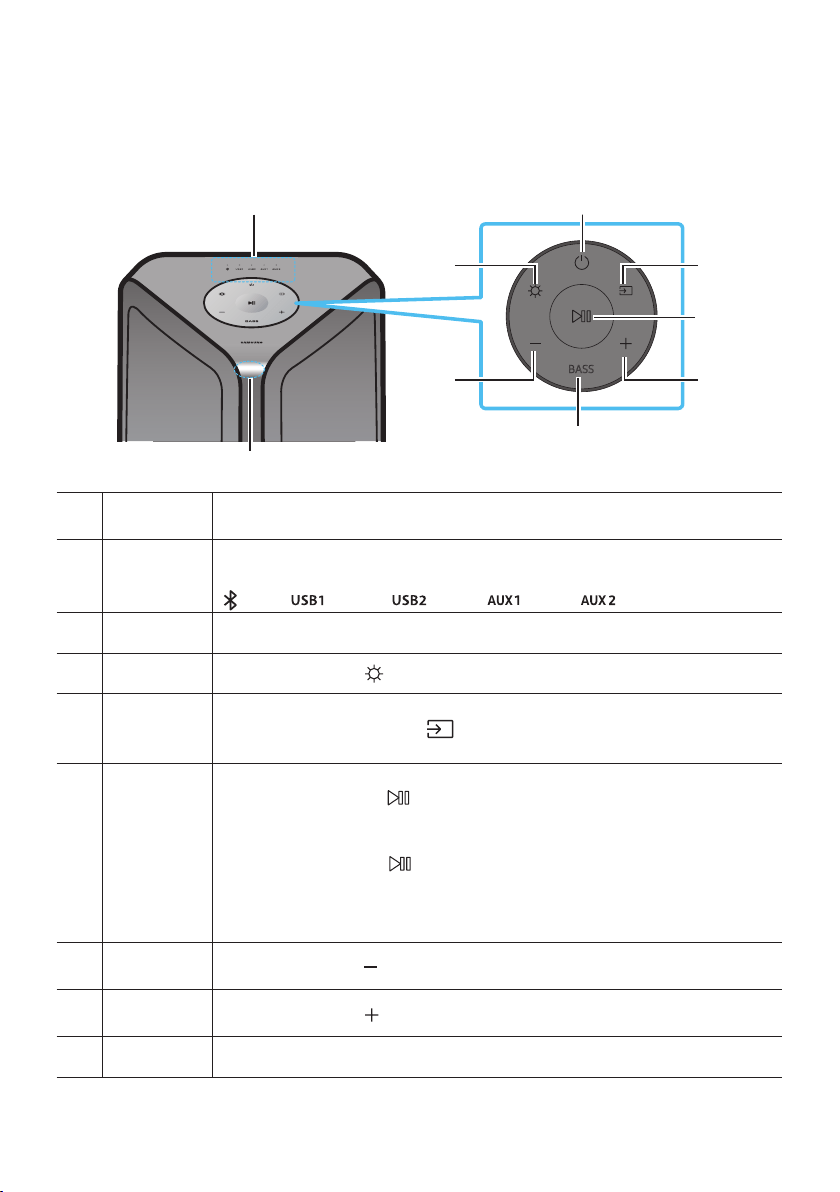
FRA - 5
02 PRÉSENTATION DU PRODUIT
Panneau supérieur du Sound Tower
BASS
Capteur à
distance
Lorsque vous utilisez le système Sound Tower, dirigez l'avant de la télécommande vers
le capteur de la télécommande.
Voyant LED
Les sources d'information représentées par chaque DEL sont les suivantes :
(BT)
(USB1)
(USB2)
(AUX1)
(AUX2)
Alimentation Active et désactive Sound Tower.
Lumière Appuyez sur la touche
(Lumière) pour activer le Mode d'éclairage.
Source
Appuyez sur ce bouton pour sélectionner une source connectée au Sound Tower.
Appuyez et maintenez la touche
(Source)
mode “SEARCHING TV”.
Lecture/
Pause
• Lecture/Pause
Appuyez sur la touche
pour interrompre temporairement un morceau.
Si vous appuyez à nouveau sur le bouton, le morceau lu.
• Lecture de la démo
Appuyez sur le bouton de la télécommande plus de 5 secondes pour lancer la
lecture Demo pendant que le système est allumé.Cinq voyants DEL clignotent
simultanément, et la musique de démonstration joue pendant 90 secondes.
–
Baisser le
volume
Appuyez sur le bouton (Baisser le volume) pour régler le niveau de volume vers le bas.
Augmenter
le volume
Appuyez sur la touche
(Augmenter le volume)
BASS Appuyez sur le bouton BASS
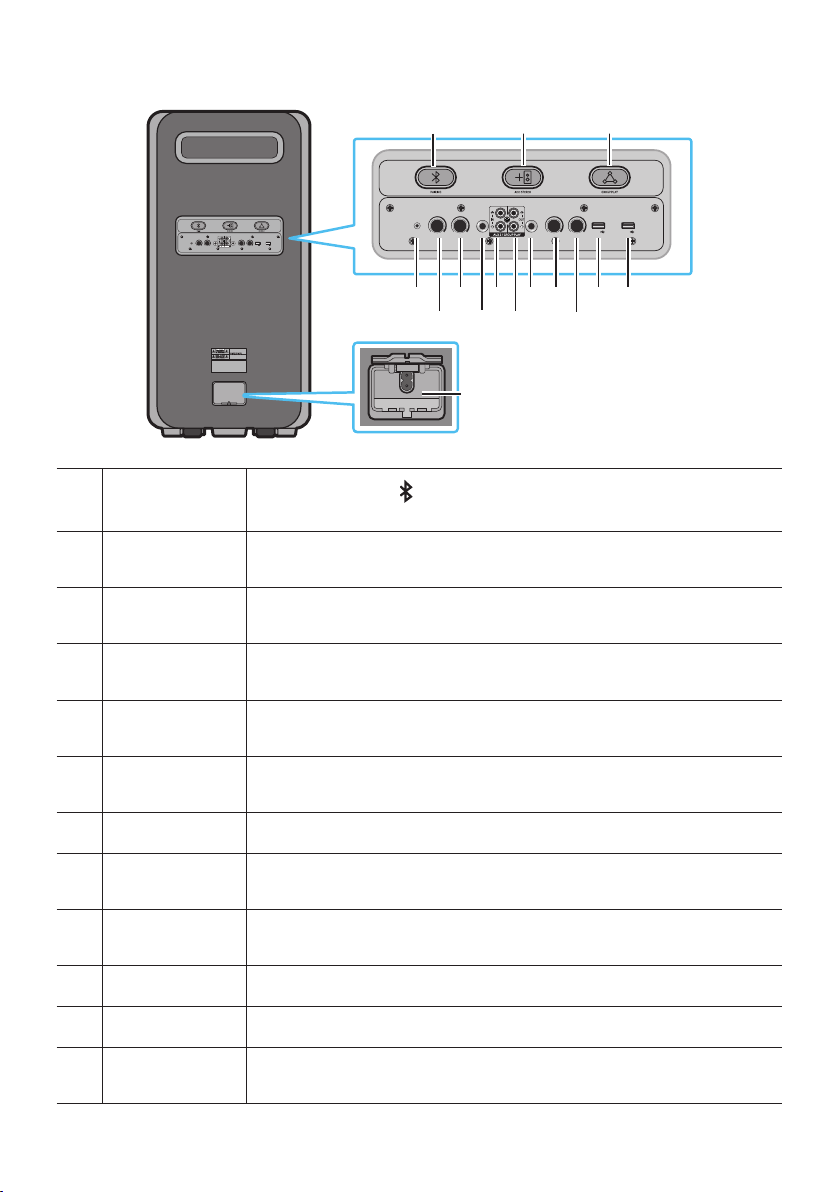
FRA - 6
Panneau arrière du Sound Tower
ECHO 2VOL 2ECHO 1 VOL 1 MIC 2
USB1
(5V 2.1A)
USB2
(5V 0.5A)
AUX 1
MIC 1
POWER
ECHO 2VOL 2ECHO 1 VOL 1 MIC 2
USB1
(5V 2.1A)
USB2
(5V 0.5A)
AUX 1
MIC 1
Bluetooth
PAIRING
Appuyez sur le bouton
PAIRING pour entrer en mode Pairing. Le voyant DEL
« PAIRING » sur le panneau arrière clignotera rapidement.
ADD STEREO
Appuyez sur le bouton ADD STEREO
de son d’un même modèle.
GROUP PLAY
Appuyez sur la touche GROUP PLAY
systèmes Sound Tower.
AUX1
Utilisez un câble audio (AUX) (non fourni) pour connecter la prise AUX1 de l'unité
principale à la sortie audio d'un appareil externe.
ECH01
Vous pouvez donner au son un effet d'écho à partir d'un microphone branché
(MIC1) en réglant le bouton ECH01.
VOL1
Utilisez le bouton VOL1 de l’unité principale pour régler le volume d’un microphone
branché (MIC1).
MIC1 Branchez votre microphone à la prise MIC1.
Terminaux GROUP
PLAY IN
Utilisez un câble audio (non fourni) pour connecter les terminaux AUX2 (IN) de
l'unité principale à la Sortie audio sur une sortie analogique externe.
Terminaux GROUP
PLAY OUT
Utilisez un câble audio (non fourni) pour raccorder les bornes GROUP PLAY (OUT)
de l’unité principale à GROUP PLAY(IN) de l’autre Sound Tower.
MIC2 Branchez votre microphone à la prise MIC2.
VOL2 Utilisez le bouton VOL2 pour régler le volume d’un microphone branché (MIC2).
ECHO2
Vous pouvez donner au son un effet d'écho à partir d'un microphone branché
(MIC2) en réglant le bouton ECH02.

FRA - 7
USB1
Connectez un périphérique USB aux ports USB1 ou USB2 de l'unité principale.
Vous pouvez charger votre téléphone cellulaire en le branchant au port USB1.
• Appuyez sur la touche
(Source) pour sélectionner USB1 ou USB2.
USB2
Alimentation
Branchez le cordon d'alimentation à la prise d’alimentation et branchez l'autre
extrémité du cordon d'alimentation à une prise murale pour alimenter le Sound
Tower en électricité.
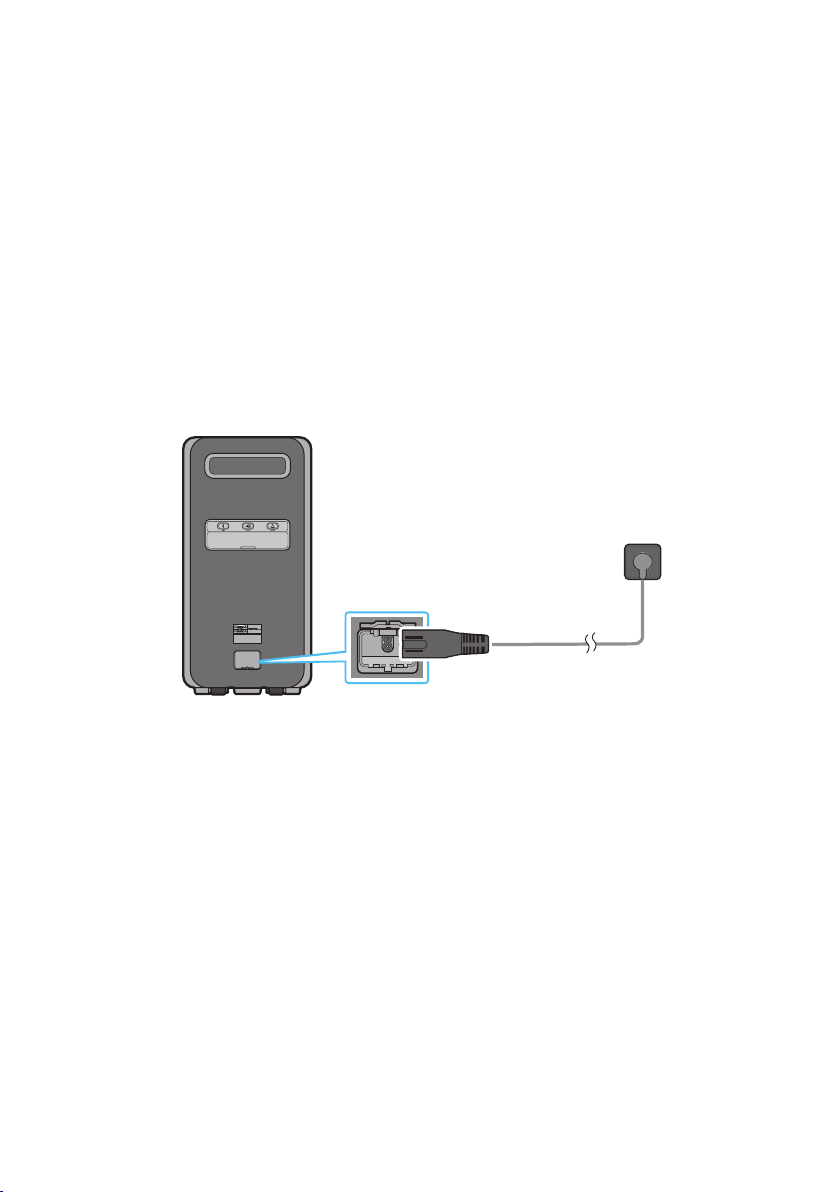
FRA - 8
03 CONNEXION DU SOUND TOWER
Branchement de l’alimentation électrique
Utilisez le cordon d’alimentation pour brancher le Sound Tower à une prise électrique dans l’ordre suivant :
Branchez le cordon d’alimentation sur le Sound Tower, puis sur une prise murale.
Voir les illustrations ci-dessous.
• Pour obtenir de l’information sur la source d’alimentation et la consommation électrique, veuillez
vous reporter à l’étiquette apposée sur le produit. (Étiquette: Arrière du Sound Tower)
• L’étanchéité peut être atteinte lorsque le cordon d’alimentation en c.a. est branché. Vous devez
toutefois vous assurer que le cache est bien fermé. Le fait de poser la Sound Tower de côté peut
endommager des composants internes et compromettre l’étanchéité de l’unité.
Arrière du Sound Tower
POWER
Branchement de
l’alimentation
électrique
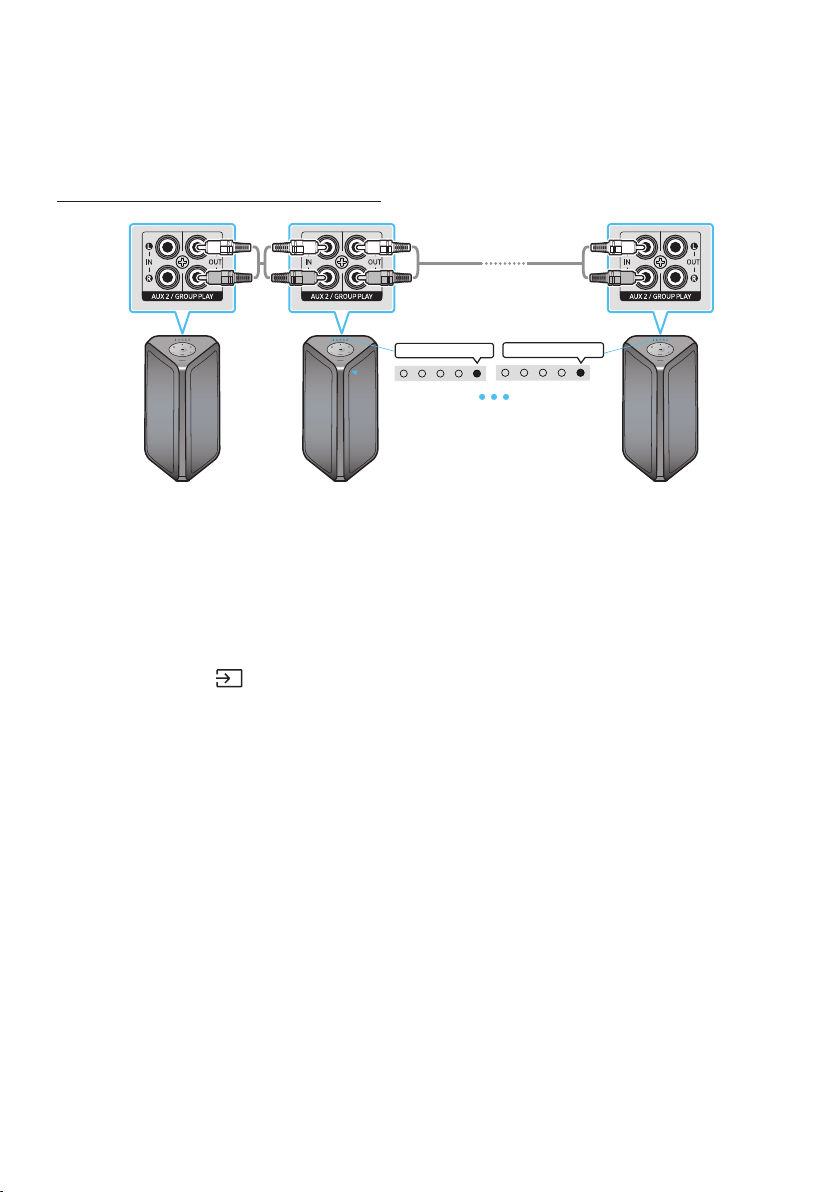
FRA - 9
Connexion du mode Group Play
environnement festif beaucoup plus intéressant et produire un meilleur son.
Connexion du mode Group Play câblé
1ère
Sound Tower HOST
2e Sound Tower
Dernier Sound
Tower
Voyant DEL AUX2 blanc allumé Voyant DEL AUX2 blanc allumé
Poursuivre ces étapes pour
brancher les Sound Tower
jusqu’à ce que la dernière
unité soit branchée.
Câble RCA (non fourni)
Branchez le câble audio analogique à la SORTIE (Group Play) de HOST.
Branchez le câble audio analogique à l’ENTRÉE(AUX2) de la deuxième Sound Tower et réglez la
source sur AUX2.
Utilisez le bouton
(Source) ou AUX pour changer la source en AUX2 sur chaque Sound Tower à
l’exception de la Sound Tower HOST.
•
l’autre Sound Tower du groupe Audio.
REMARQUES
• Les câbles audio analogiques ne sont pas fournis.
• Selon la longueur ou les caractéristiques du câble, la distance de fonctionnement pourrait varier.
• Assurez-vous de sélectionner la fonction Audio In sur le dernier système.
•
rapport aux autres.
•
– Débranchez le câble audio analogique de l’unité HOST.
– Utilisez une source autre que AUX2 sur une Sound Tower du groupe différente de l’unité HOST.
– Éteignez l’unité HOST.
•
–
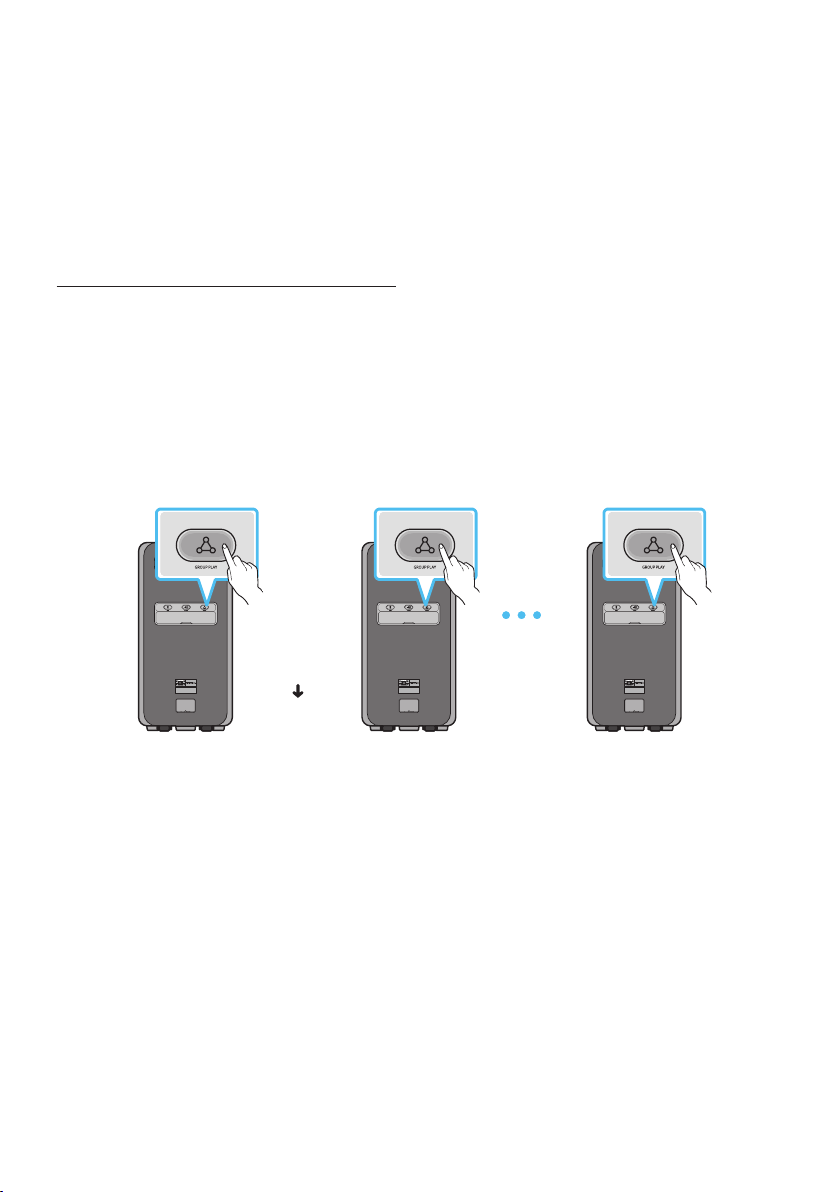
FRA - 10
– Assurez-vous que les câbles audio sont correctement branchés.
– Assurez-vous que l’unité HOST est allumée, qu’une source de musique y soit branchée et que le
volume n’est pas coupé.
•
– Éteignez le système. Rallumez-le ensuite pour activer la fonction.
• Lorsqu’un microphone est branché à l’unité HOST et qu’il est utilisé, le son du microphone est
diffusé sur toutes les Sound Tower connectées du groupe.
ConnexiondumodeGroupPlaysansl
environnement festif beaucoup plus intéressant et produire un meilleur son.
Conditions préalables
• Lors de la connexion d’une Sound Tower, assurez-vous qu’elle se trouve à moins de 1 m (3,28 pi) de
distance.
• Impossible d’activer le mode Group Play lorsque la Sound Tower est connectée à un téléviseur.
• Avant d’utiliser le mode Group Play, il faut désactiver le mode Stereo sur toutes les Sound Tower.
POWER POWER POWER
SUB 1 Sound
Tower
Poursuivre ces
étapes pour
brancher les
Sound
Tower jusqu’à ce
que la dernière
unité soit
branchée.
Le voyant DEL
clignote lentement
(15 s)
En attente
d’activation du mode
Pairing
Le voyant DEL
clignote rapidement
(30 s)
Connexion SUB
disponible
HOST Sound
Tower
Dernière(SUB)
Sound Tower
Appuyez sur le bouton GROUP PLAY de la HOST Sound Tower et attendez jusqu’à ce que le voyant
DEL « GROUP PLAY » cesse de clignoter lentement et commence à clignoter rapidement. Cette
Sound Tower deviendra la Sound Tower HOST.
du mode Group Play.
source BT est sélectionnée. Le voyant DEL Group Play clignotera immédiatement.
Appuyez sur le bouton GROUP PLAY de la SUB Sound Tower pour lancer la rechercher de l’unité
HOST lorsque le voyant DEL « GROUP PLAY » clignote. Le voyant DEL restera par la suite allumé et
le haut-parleur émettra un bip après la connexion à l’unité HOST.

FRA - 11
Si moins de 20 minutes se sont écoulées après avoir appuyé sur le bouton Group Play, reportez-
vous à l’étape 2 pour brancher une autre SUB. Si 20 minutes se sont écoulées après avoir appuyé
sur le bouton Group Play, répétez les étapes 1 et 2 pour brancher une autre SUB.
• Lisez de la musique sur l’unité HOST Sound Tower. Le son est diffusé depuis tous les systèmes
connectés.
REMARQUES
• Tous les modèles de Sound Tower peuvent se connecter en mode Group Play.
• Lorsque « HOST » Sound Tower se connecte à un téléviseur Samsung, le mode Group Play se
déconnecte automatiquement.
• Les conditions environnementales et d’autres facteurs associés aux appareils connectés peuvent
affecter la qualité de la lecture.
•
erreur est survenue au niveau de la connexion du mode Group Play. Répétez les étapes 1 et 2.
• Le bouton ADD STEREO et le bouton
PAIRING des systèmes SUB Sound Tower ne sont pas
• Le bouton ADD STEREO du système HOST Sound Tower n’est pas disponible en mode de Group
• Les appareils Bluetooth peuvent effectuer des recherches et se connecter à l’unité HOST Sound
Tower uniquement, mais la SUB ne peut se connecter à aucun appareil Bluetooth.
• Si vous coupez l’alimentation ou sélectionnez une source différente de BT sur une unité SUB, le
mode Group Play est alors déconnecté.
•
•
rapport aux autres.
•
– Éteignez le système. Rallumez-le ensuite pour activer la fonction.
• Les appareils électroniques peuvent créer des interférences radio. Les appareils produisant des
ondes électromagnétiques doivent être gardés à distance de l’unité principale de la Sound Tower,
•
diffusé uniquement à partir du système auquel le microphone est branché.
DéconnexiondumodeGroupPlaysansl
1. Appuyez sur le bouton GROUP PLAY et maintenez-le enfoncé pendant plus de 5 secondes (HOST
ou SUB).
• Le haut-parleur émettra un bip sonore et le voyant DEL Group Play s’éteindra.
2. Si vous sélectionner une source autre que BT sur les unités SUB ou si vous désactiver HOST Sound
Tower, le mode de Group Play est désactivé.
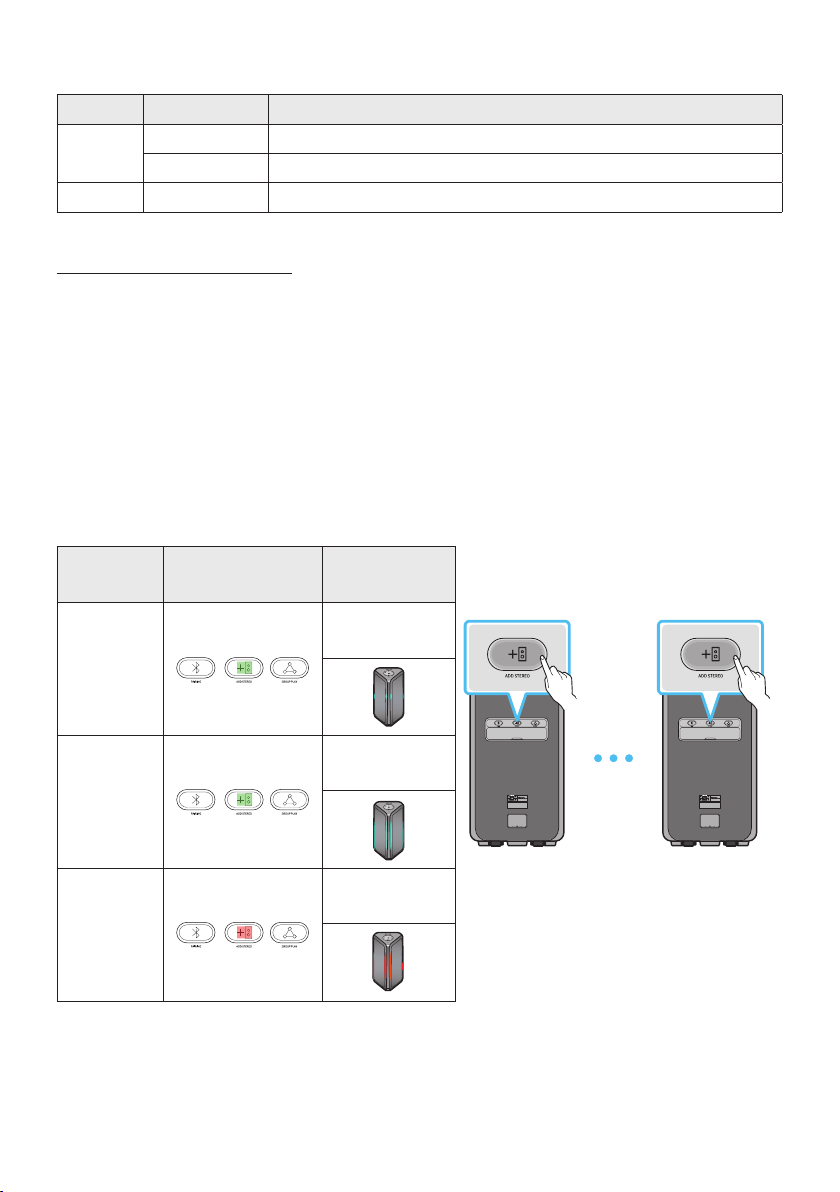
FRA - 12
Indications par LED
LED ÉTAT Description
Vert
Clignotement En attente d'une connexion Group Play.
On
Rouge On
Connexion du mode Stereo
produire une zone d’écoute plus grande et pour mieux séparer les sources audio gauche et droite.
Conditions préalables
• Pour utiliser le mode Stereo, le modèle des deux systèmes Sound Tower doit être le même.
• Lors de la connexion d’une Sound Tower, assurez-vous qu’elle se trouve à moins de 1 m (3,28 pi) de
distance.
• Si la Sound Tower est en mode Group Play, il faut désactiver ce mode avant d’utiliser le mode
Stereo.
• Impossible d’activer le mode Stereo lorsque la Sound Tower est connectée à un téléviseur.
Description Voyant DEL
Barre
lumineuse
POWER POWER
Haut-parleur
gauche
MAIN Sound Tower
Haut-parleur droit
SUB Sound Tower
Connexion
Le voyant cyan
clignote
Connecté
Le voyant cyan
clignote une fois
Échec
Le voyant rose
clignote une fois

FRA - 13
La connexion initiale
• Une fois la connexion initiale réalisée, si vous appuyez sur le bouton ADD STEREO de l’unité MAIN
ou SUB Sound Tower, les haut-parleurs droit et gauche sont permutés.
1. Appuyez sur les boutons ADD STEREO des deux Sound Tower. Le voyant DEL du bouton ADD
STEREO clignote.
2. Lorsque la connexion est établie, chaque haut-parleur émet un bip sonore et le voyant DEL ADD
STEREO
Bluetooth qui clignote.
• La MAIN Sound Tower diffuse le son du canal gauche et la SUB Sound Tower diffuse le son du
canal droit.
• Lisez de la musique en connectant votre appareil mobile à la MAIN Sound Tower par Bluetooth.
Le son est diffusé depuis les deux Sound Tower.
REMARQUES
• Les conditions environnementales et d’autres facteurs associés aux appareils connectés peuvent
affecter la qualité de la lecture.
•
la connexion Stereo Group. Répétez les étapes 1 et 2.
• Les boutons Source, BT PAIRING, GROUP PLAY et de la télécommande de l’unité SUB Sound Tower
sont désactivés en mode Stereo Group.
• Le bouton GROUP PLAY de l’unité MAIN Sound Tower n’est pas disponible en mode Stereo Group.
• Dans un mode autre que « BT » (p. ex. USB, mode AUX), la musique est lue uniquement à partir de
l’unité MAIN Sound Tower et non à partir de l’unité SUB Sound Tower.
• Les couleurs d’éclairage entre MAIN Sound Tower et SUB Sound Tower peuvent varier.
•
•
uniquement à partir du système auquel le microphone est branché.
• Les appareils électroniques peuvent créer des interférences radio. Les appareils produisant des
ondes électromagnétiques doivent être gardés à distance de l’unité principale de la Sound Tower,
DéconnexiondumodeStereosansl
Appuyez sur le bouton ADD STEREO (MAIN ou SUB) pendant au moins 5 secondes lorsque le Stereo
Group est connecté.
• Le haut-parleur émettra un bip sonore et le voyant DEL ADD STEREO s’éteindra.
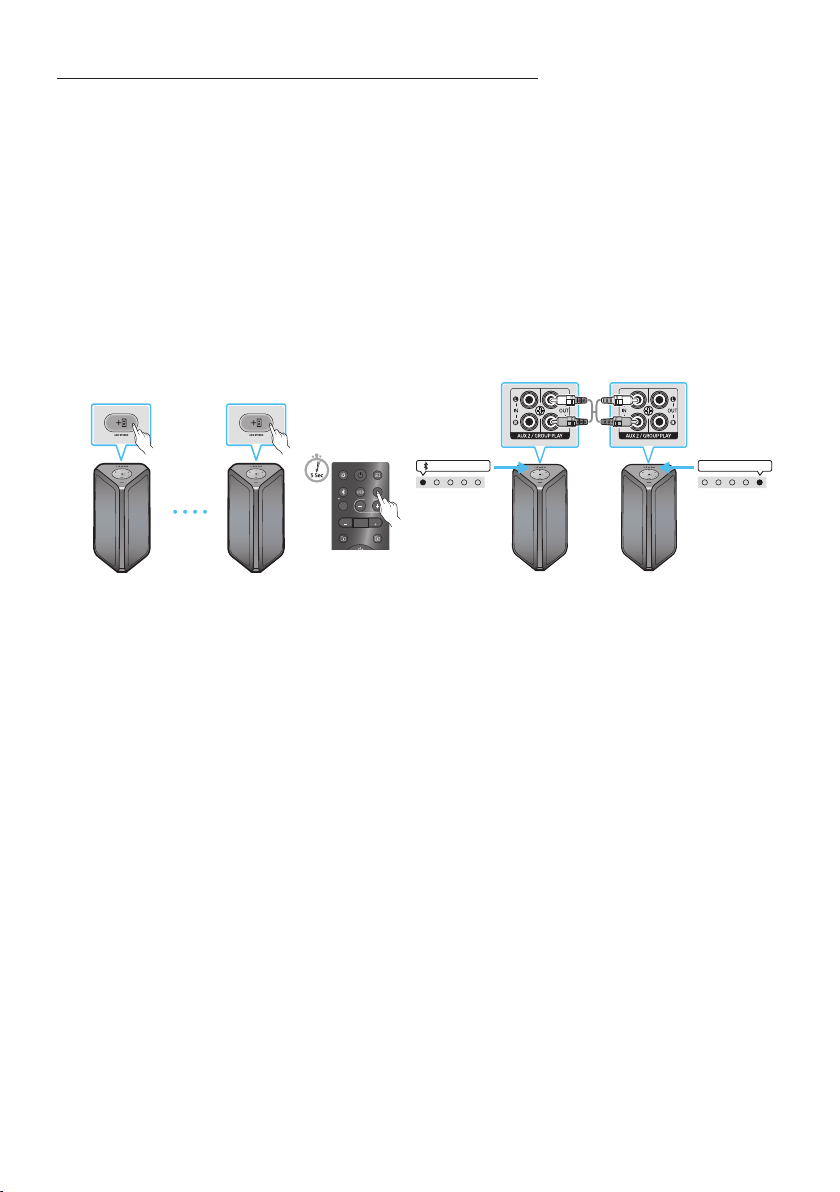
FRA - 14
Utilisation du mode Stereo avec un téléviseur Samsung
pour couvrir une zone d’écoute plus vaste et pour mieux séparer les sources audio gauche et droite.
Conditions préalables
• Pour utiliser le mode Stereo, le modèle des deux systèmes Sound Tower doit être le même.
• Lors de la connexion d’une Sound Tower ou d’un téléviseur, assurez-vous que l’appareil se trouve à
moins de 1 m (3,28 pi) de distance.
• Impossible d’activer le mode Stereo avec le téléviseur Samsung si la Sound Tower est déjà
connectée à un téléviseur par Bluetooth.
• Si la Sound Tower est en mode Group Play, il faut désactiver ce mode avant d’utiliser le mode
Stereo.
LIGHT
PAIRING
TEMPO
USB
AUX
EFFECT
DOWN
UP
EFFECT
DJ
SOUND
MODE
Sound Tower
gauche (MAIN)
Sound Tower
gauche (MAIN)
Sound Tower
droite (SUB)
Sound Tower
droite (SUB)
Voyant DEL blanc allumé
Voyant DEL AUX2 blanc allumé
Branchez deux Sound Tower via le mode Stereo en appuyant sur le bouton ADD STEREO des deux
Sound Tower.
En mode “BT”, appuyer sur le bouton “AUX” de la télécommande de MAIN Sound Tower pendant au
moins 5 secondes. Le voyant LED du bouton ADD STEREO clignote.
Branchez un câble RCA à la OUT(Group Play) sur l’unité MAIN et AUX2 IN sur l’unité SUB comme
illustré.
• Une fois la connexion réalisée, le voyant DEL « ADD STEREO » cessera de clignoter et s’allumera
en continu, les haut-parleurs émettront un bip sonore et le voyant DEL AUX2 de l’unité SUB
s’allumera.
• La MAIN Sound Tower diffuse le son du canal gauche et la SUB Sound Tower diffuse le son du
canal droit. Appuyez sur le bouton ADD STEREO de la MAIN ou SUB Sound Tower pour passer
de droite à gauche et inversement.
• Connectez un téléviseur et la MAIN Sound Tower via Bluetooth pour écouter le son. Le son est
diffusé depuis les deux Sound Tower.

FRA - 15
REMARQUES
• Les câbles audio analogiques ne sont pas fournis.
•
qu’une erreur est survenue au niveau de la connexion du mode Stereo. Répétez les étapes 1 à 3.
• En mode Stereo Group, les boutons Source, BT PAIRING, GROUP PLAY et de la télécommande de
l’unité SUB Sound Tower sont désactivés.
• Le bouton GROUP PLAY de l’unité MAIN Sound Tower n’est pas disponible en mode Stereo Group.
• Si le téléviseur Samsung prend en charge les connexions simples, alors la fenêtre contextuelle de
à la Sound Tower. Si une connexion a déjà été établie avant entre le téléviseur Samsung et la Sound
Tower, ils se connecteront automatiquement. Aucune fenêtre contextuelle n’apparaîtra.
• L’éclairage et les couleurs peuvent être différents sur la MAIN Sound Tower et la SUB Sound Tower.
• Lorsqu’un microphone est branché à l’unité MAIN et qu’il est utilisé, le son du microphone est
diffusé sur la SUB.
Déconnexion du mode Stereo
• Appuyez sur le bouton ADD STEREO (MAIN ou SUB) pendant au moins 5 seconds après la
connexion de Stereo Group. La Sound Tower émettra un bip sonore et le voyant DEL sur le bouton
ADD STEREO s’éteindra.
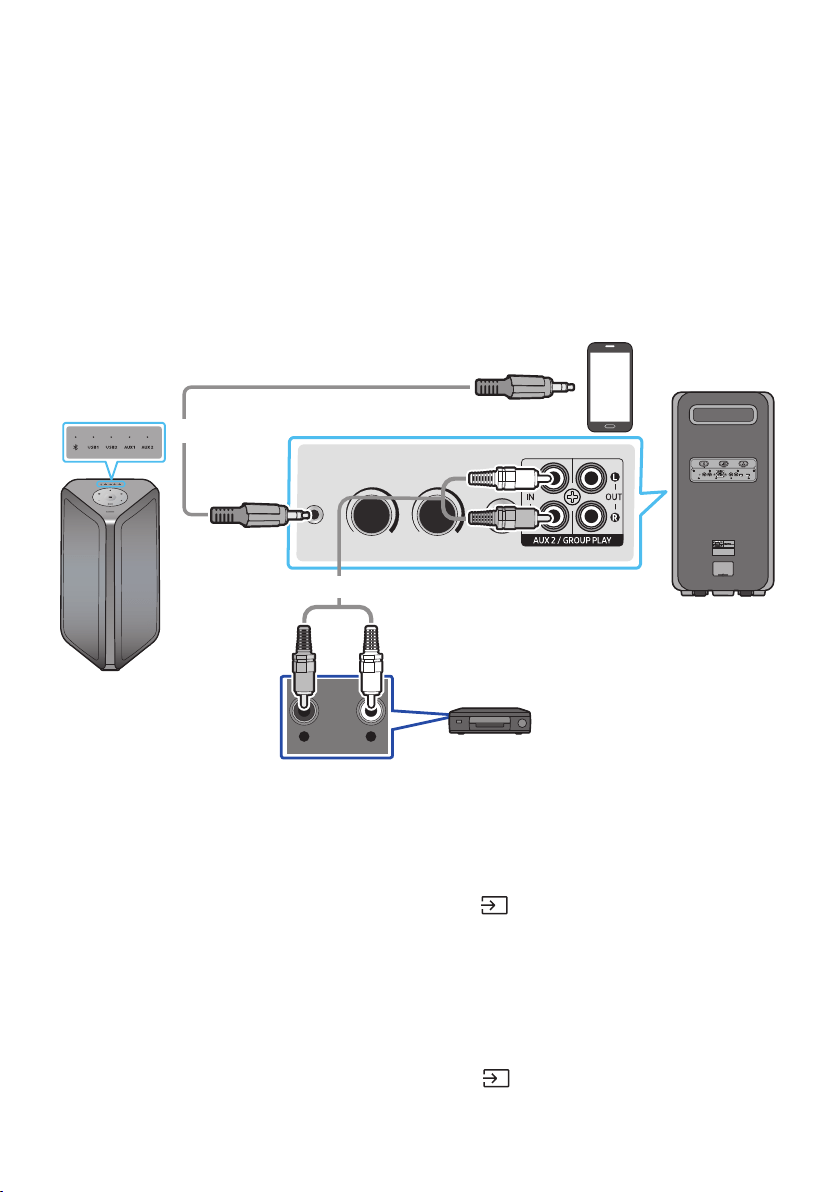
FRA - 16
04 CONNEXION D’UN APPAREIL EXTERNE
externe via le Sound Tower.
Connexion d’un appareil externe via le câble audio analogique
Une prise pour casque d’écoute ou un câble RCA est connexion physique qui transfère les signaux audio
analogiques.
ECHO 1 VOL 1
AUX 1
MIC 1
- AUDIO -
R L
ECHO 2VOL 2ECHO 1 VOL 1 MIC 2
USB1
(5V 2.1A)
USB2
(5V 0.5A)
AUX 1
MIC 1
POWER
Appareil mobile / MP3 / PMP
BD / Lecteur DVD / Box / Console de jeu
Arrière du Sound Tower
Câble audio (AUX) (non fourni)
Câble stéréo de 3,5mm
(non fourni)
Câble stéréo de 3,5mm (AUX1)
1. Connectez la prise AUX1 de l’unité principale à la prise AUDIO OUT du périphérique source à l’aide
d’un câble stéréo de 3,5mm.
2. Sélectionnez le mode “AUX1” en appuyant sur la touche
(Source) du panneau supérieur ou de
la télécommande.
• Vous pouvez également sélectionner une source à l’aide de la touche AUX de la télécommande.
Câble RCA (AUX2)
1. Connecter les bornes AUX2 (IN) de l’unité principale aux bornes AUDIO OUT du périphérique
source à l’aide d’un câble audio.
2. Sélectionnez le mode “AUX2” en appuyant sur la touche
(Source) du panneau supérieur ou de
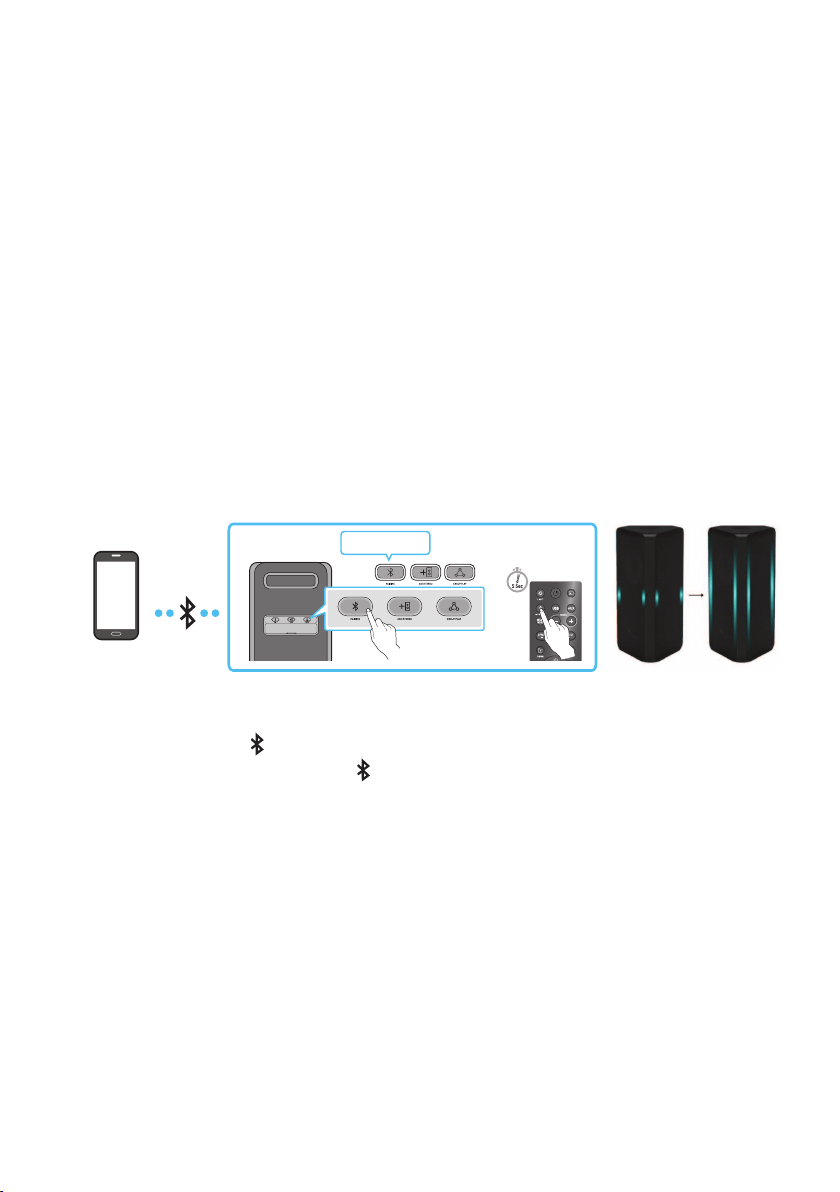
FRA - 17
la télécommande.
• Vous pouvez également sélectionner une source à l’aide de la touche AUX de la télécommande.
REMARQUES
• Les câbles audio analogiques ne sont pas fournis.
• Selon la longueur ou les caractéristiques du câble, la distance de fonctionnement pourrait varier.
•
Connexion d’un appareil mobile via Bluetooth
Lorsqu’un appareil mobile est connecté à l’aide de Bluetooth, vous pouvez entendre le son stéréo sans
les tracas du câblage.
Conditions préalables
• Lors de la connexion à un nouvel appareil BT, assurez-vous que ce dernier est à au moins 1 m (3,28
pi) de distance.
• Déconnexion de tout téléviseur Samsung avant de réaliser la connexion à un appareil mobile.
• Le haut-parleur SUB ne peut pas se connecter à la BT en mode Group Play ou Stereo.
Périphérique
Bluetooth
Le voyant clignote en bleu
Appariement
(clignote)
OU
Connecté
1. Appuyez sur le bouton
PAIRING du panneau arrière de la Sound Tower.
(OU) Appuyez et maintenez la touche PAIRING sur la télécommande pour plus de 5 secondes
BT PAIRING”.
2. Sur votre appareil, sélectionnez “[AV] MX-ST9B Series” dans la liste qui apparaît.
• Après la connexion de l’appareil. La barre lumineuse s’allumera en cyan et le voyant du
3.
Tower.
REMARQUES
Si l’appareil ne parvient pas à se connecter
• La Sound Tower émettra un bip sonore si BT est déconnecté.
• Si un listing Sound Tower précédemment connecté (par exemple “[AV] MX-ST9B Series”) apparaît
dans la liste, supprimez-le.
• Répétez ensuite les étapes 1 et 2.

FRA - 18
Connexion Bluetooth
• En mode de connexion Bluetooth, la connexion Bluetooth sera perdue si la distance entre la Sound
Tower et l’appareil Bluetooth dépasse 10 m (32,8 pi).
• La Sound Tower s’éteint automatiquement au bout de 20 minutes à l’état Prêt.
• Il est possible que la Sound Tower n’effectue aucune recherche Bluetooth ou n’établisse aucune
connexion sous certaines circonstances :
– S’il y a un fort champ électrique autour de la Sound Tower.
– Si plusieurs appareils Bluetooth sont associés simultanément à la Sound Tower.
– Si l’appareil Bluetooth est éteint, pas en place ou fonctionne mal.
• Les appareils électroniques peuvent créer des interférences radio. Les appareils produisant des
ondes électromagnétiques doivent être gardés à distance de l’unité principale de la Sound Tower,
Quelle est la différence entre BT READY et BT PAIRING ?
• BT READY : Dans ce mode, vous pouvez utiliser le téléviseur ou l’appareil mobile précédemment
connecté pour vous connecter à la tour de son.
• BT PAIRING : Dans ce mode, vous pouvez connecter un nouvel appareil au Sound Tower. (Maintenez
enfoncé le bouton
PAIRING de la télécommande pendant plus de 5 secondes ou appuyez sur le
bouton PAIRING à l’arrière de Sound Tower pour passer en mode “BT PAIRING”.)
Utilisation de la multiconnexion Bluetooth
La Sound Tower peut être connectée à deux appareils Bluetooth simultanément.
Conditions préalables
• Lors de la connexion à un nouvel appareil BT, assurez-vous que ce dernier est à au moins 1 m (3,28
pi) de distance.
• Déconnexion de tout téléviseur Samsung avant de réaliser la connexion à un appareil mobile.
• Le haut-parleur SUB ne peut pas se connecter à la BT en mode Group Play ou Stereo.
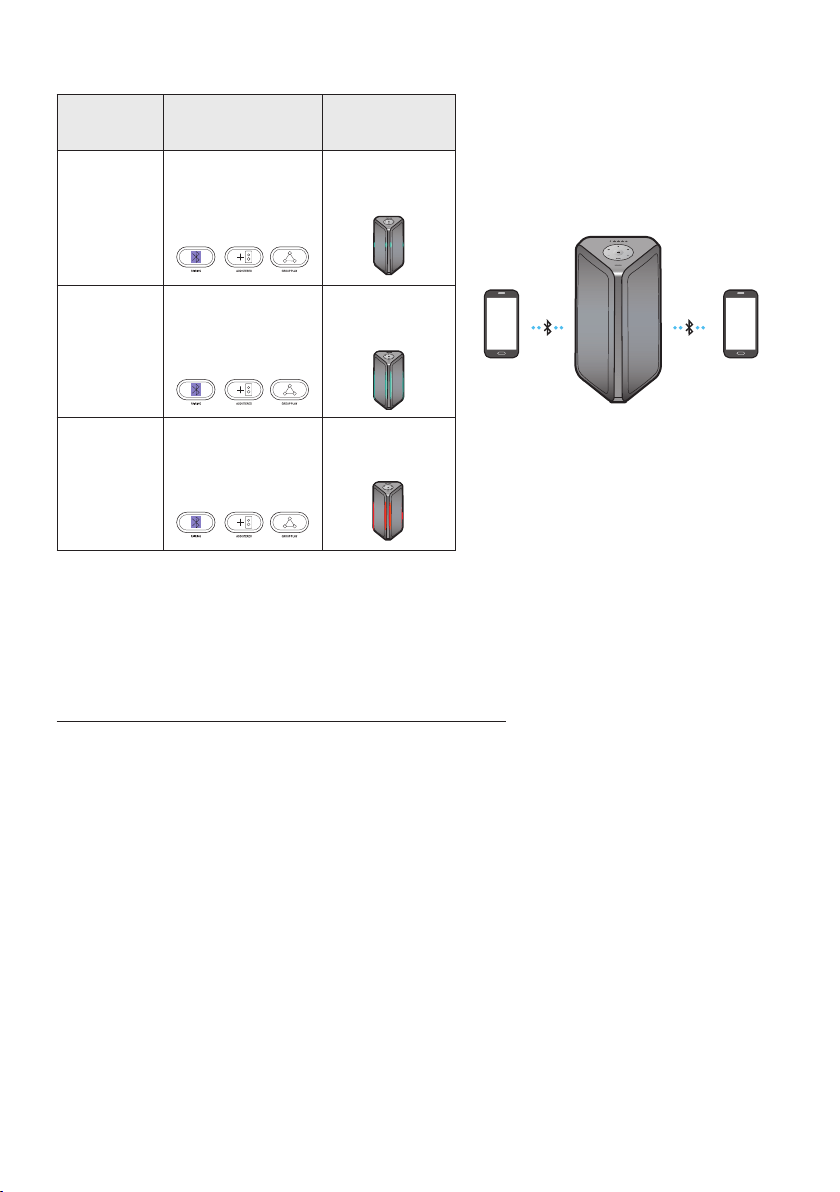
FRA - 19
Voyant de la multiconnexion Bluetooth
Description Voyant DEL
Barre
lumineuse
Appareil
Bluetooth 1
Appareil
Bluetooth 2
Connexion
Voyant bleu
clignotant
rapidement
Le voyant cyan
clignote
Connecté
Le voyant cyan
clignote une fois
Échec
Voyant bleu
clignotant
Le voyant rose
clignote une fois
1. Mettez la Sound Tower en mode « BT PAIRING » et branchez chaque appareil mobile.
2. Sur votre appareil, sélectionnez « [AV]MX-ST9B Series » dans la liste qui apparaît.
3. Lorsque la Sound Tower est connectée aux deux appareils mobiles, la barre lumineuse s’allumera
Utilisation de la fonction multiconnexion Bluetooth
Écoutez de la musique à partir de l’un des appareils Bluetooth connectés pendant que deux appareils
sont connectés. Si de la musique est lue à partir de l’appareil Bluetooth « B » pendant que la lecture est
en cours à partir de l’appareil « A », la lecture de la musique commence sur l’appareil « B » et est
automatiquement mise en pause sur l’appareil « A ».
REMARQUES
• Lors de la connexion à un téléviseur Samsung, la multiconnexion BT se déconnectera
automatiquement.
• Si vous souhaitez connecter Sound Tower à un troisième appareil, vous pouvez déconnecter Sound
Tower de l’un des deux appareils actuellement connectés, puis connecter Sound Tower au troisième
appareil.
• Si le Sound Tower et les deux appareils sont connectés, lors du couplage avec un nouvel appareil
Bluetooth, les appareils connectés peuvent être déconnectés.
• Les conditions climatiques ou autres facteurs peuvent avoir un effet sur les appareils branches et
sur la qualité de la lecture.

FRA - 20
• Les appareils électroniques peuvent causer des interférences radio. Les appareils qui génèrent des
ondes électromagnétiques doivent être tenus éloignés de l’unité principale du Sound Tower - par
• Il se peut que la connexion Bluetooth Multi ne soit pas prise en charge en fonction des
• Appareils Bluetooth amovible/détachable (ex. Dongle etc.), téléphones windows, ordinateurs, TV,
etc. ne supportent pas la connection Multi Bluetooth.
• Une fois que la connexion Multi Bluetooth est jumelée, il pourrait y avoir un léger délai avant la
lecture de la musique débute sur les appareils Bluetooth.
• Si vous vous éloignez trop du Sound Tower sans en premier déconnecter votre appareil Bluetooth, il
se peut que cela prenne quelques minutes avant qu’une connexion à un autre appareil Bluetooth
soit établie. Si vous éteignez et rallumez le Sound Tower, vous pouvez connecter d’autres appareils
Bluetooth sans attendre.
Déconnexion de la Sound Tower de l’appareil Bluetooth
Appuyez sur le bouton Source du panneau supérieur ou de la télécommande, puis choisissez n’importe
quel mode à l’exception de « BT ».
• La déconnexion prend du temps car l’appareil Bluetooth doit recevoir une réponse de la Sound
Tower.
• Lorsque la Sound Tower est débranchée d’un appareil Bluetooth, elle émettra un bip sonore.
Utilisant la mise sous tension du Bluetooth (Bluetooth Power On)
Lorsque le Sound Tower est éteint, vous pouvez connecter votre appareil intelligent au produit via une
connexion Bluetooth pour l’allumer.
1. Appuyez sur le bouton BASS du panneau supérieur ou de la télécommande et maintenez-le enfoncé
pour activer la fonction d’activation du Bluetooth. La barre lumineuse clignotera une fois en blanc.
2. Lorsque le Sound Tower est éteint, connectez votre appareil intelligent au produit via Bluetooth
(pour plus d’informations sur les connexions Bluetooth, reportez-vous au manuel de votre appareil
intelligent).
3. Une fois la connexion établie, le Sound Tower s’allume automatiquement en mode Bluetooth.
• Sélectionnez la musique que vous souhaitez écouter à partir de votre appareil intelligent.
REMARQUE
• Chaque fois que vous appuyez sur le bouton BASS et que vous le maintenez enfoncé pendant 5 secondes,
la barre lumineuse à DEL clignotera une fois en blanc et l’état alternera de la manière suivante :
BLUETOOTHPOWER-ON→BLUETOOTHPOWER-OFF
Connexion d’un téléviseur Samsung via Bluetooth
Lorsqu’un téléviseur est connecté via Bluetooth, vous pouvez entendre le son du téléviseur sans les
tracas du câblage. (Un seul téléviseur peut être connecté à la fois.)
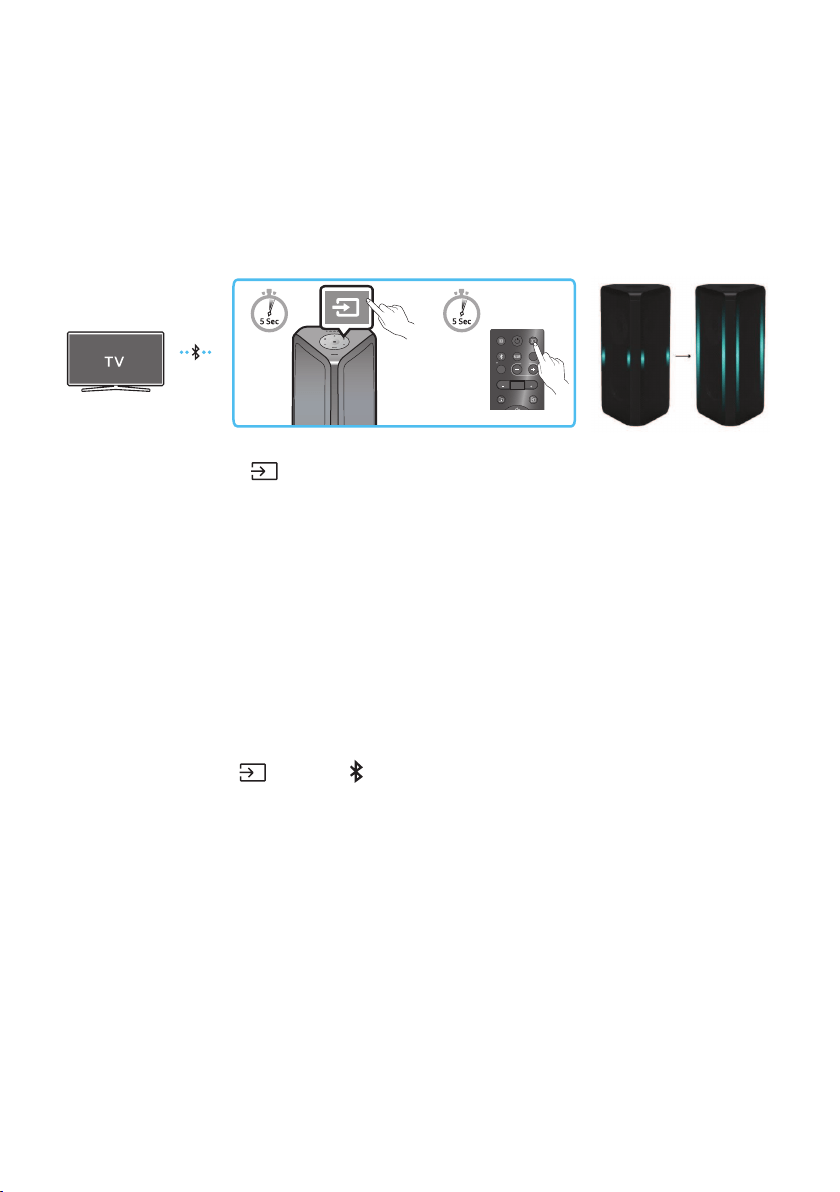
FRA - 21
Conditions préalables
• Lors de la connexion à un nouvel appareil BT, assurez-vous que ce dernier est à au moins 1 m (3,28
pi) de distance.
•
Bluetooth.
• Si le téléviseur Samsung ne prend pas en charge « Easy Connection », alors le mode « SEARCHING
TV » ne peut pas se connecter au téléviseur. Réglez votre Sound Tower sur le mode « BT PAIRING »
et connectez le téléviseur Samsung.
LIGHT
PAIRING
TEMPO
USB
A
UX
EFFECT EFFECT
DJ
SOUND
MODE
OU
Appariement (clignote)
Connecté
1. Appuyez sur le bouton (Source) et maintenez-le enfoncé pendant plus de 5 secondes sur la
télécommande ou le panneau supérieur. La Sound Tower commencera alors à chercher le
téléviseur Samsung. La barre lumineuse clignotera une fois en blanc, puis clignotera en cyan. Le
voyant DEL « PAIRING » clignotera lentement. (Ou, une fois la connexion du mode Stereo Group
SEARCHING TV » est automatiquement activé.)
2. Lorsque Samsung TV est déjà connecté à Sound Tower, il est connecté sans fenêtre contextuelle.
3. Le son du téléviseur sera audible une fois la connexion de la Sound Tower établie via Bluetooth.
• Si la Sound Tower ne trouve pas de téléviseur Samsung au bout de 5 minutes, la Sound Tower
désactivera le mode « SEARCHING TV » et repassera en mode « BT PAIRING ». Si un téléviseur
Samsung est trouvé, la Sound Tower sollicitera la connexion au téléviseur.
REMARQUES
• Pour interrompre la recherche d’un téléviseur Samsung, mettez la Sound Tower hors tension ou
appuyez sur le bouton
(Source) ou PAIRING.
• Sound Tower est incompatible avec la multi-connexion si Samsung TV est connecté.
• Tant que la Samsung TV est connectée, le mode son est PARTY et le bouton SOUND MODE n’est
pas disponible.
• Tant que Samsung TV est connecté, Sound Tower APP ne peut pas se connecter avec Sound Tower.
•
téléviseur. Essayez d’appuyer sur le bouton PAIRING du panneau arrière de la Sound Tower. Sur votre
téléviseur Samsung, sélectionnez « [AV] MX-ST9B Series » dans la liste qui apparaît.
• Il est possible de sélectionner et de se connecter automatiquement à partir de la liste des haut-
parleurs Bluetooth de votre télévision si la fenêtre contextuelle de connexion n’apparaît pas sur
votre TV.
• Lorsque la tour de son est con-nectée à votre télévi-seur par con-nex-ion Blue-tooth, la vidéo du
télévi-seur et l’au-dio prov-enant de la tour de son pour-raient ne pas être syn-chro-nisées parce que
la dis-tance entre la tour de son et le télévi-seur est trop grande.
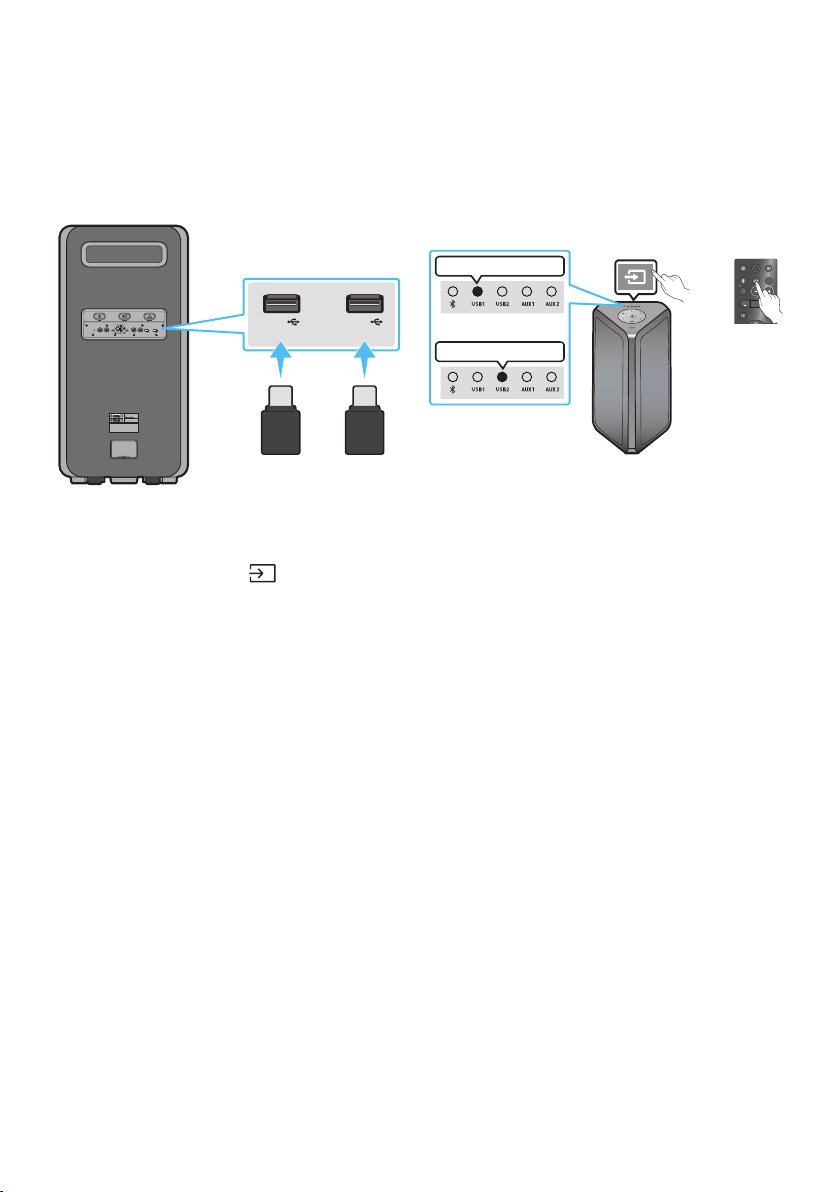
FRA - 22
05 CONNEXION D’UN PÉRIPHÉRIQUE DE
STOCKAGE USB
LIGHT
PAIRING
TEMPO
USB
AUX
EFFECT EFFECT
DJ
SOUND
MODE
ECHO 2VOL 2ECHO 1 VOL 1 MIC 2
USB1
(5V 2.1A)
USB2
(5V 0.5A)
AUX 1
MIC 1
POWER
USB1
(5V 2.1A)
USB2
(5V 0.5A)
Périphérique de stockage USB
(non fourni)
Voyant DEL USB1 blanc allumé
Voyant DEL USB2 blanc allumé
Arrière du Sound Tower
OU
OU
1. Connectez un périphérique de stockage USB à la prise USB de votre Sound Tower.
2. Appuyez sur la touche
(Source) du panneau supérieur ou de la télécommande, puis
sélectionnez “USB”.
3. Le voyant USB
automatiquement la musique.
UP/DOWN, Play/Pause, Skip) de la télécommande.
MISE EN GARDE
• NE branchez PAS de clé électronique de microphone au port USB car cela pourrait endommager la
Sound Tower.
REMARQUES
•
FAT et FAT32.
• Ce produit ne prend pas en charge le stockage HDD ou le stockage sur les appareils mobiles.
•
• Il est possible de lire jusqu’à 256 dossiers via le dispositif de stockage USB.
• La Sound Tower s’éteint automatiquement (mise hors tension automatique) si le périphérique USB
n’est pas connecté, si la lecture est interrompue ou en l’absence d’entrée pendant plus de 18 minutes.
•
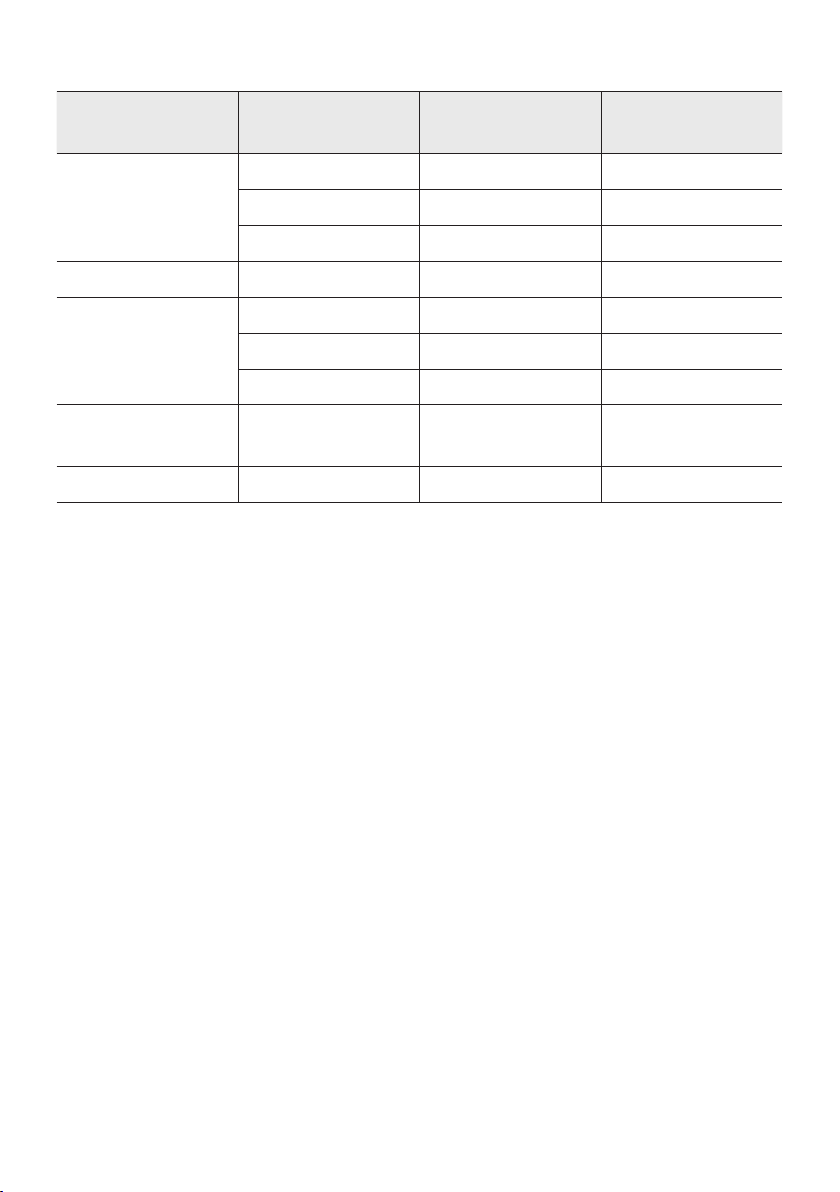
FRA - 23
Formats audio pris en charge
Extensiondechier Codec audio
Fréquence
d'échantillonnage
Débit binaire
*.mp3
MPEG 1 Layer3 32 kHz ~ 48 kHz 32 kbps ~ 320 kbps
MPEG 2 Layer3 16 kHz ~ 24 kHz 8 kbps ~ 160 kbps
MPEG 2,5 Layer3 8 kHz ~ 12 kHz 8 kbps ~ 160 kbps
*.wma WMA7/8/9 8 kHz ~ 48 kHz 32 kbps ~ 320 kbps
*.aac
AAC 8 kHz ~ 96 kHz < 1728 kbps
A A C- L C 8 kHz ~ 96 kHz < 1728 kbps
HE-AAC 8 kHz ~ 96 kHz < 1728 kbps
*.wav
PCM/LPCM/
IMA_ADPCM
8 kHz ~ 192 kHz < 5 Mbps
- 8 kHz ~ 192 kHz < 5 Mbps
REMARQUES
• Ce produit ne supporte pas le codec WMA Professional.
• Le tableau ci-dessus montre les taux d’échantillonnage et les débits binaires pris en charge. Les
•
Mise à jour du logiciel
SamsungpeutoffrirdesmisesàjourpourlermwaredusystèmeSoundToweràl’avenir.
USB2 de votre Sound Tower. Pour plus
Samsung Electronics à l’adresse www.samsung.com/us/support/.
Ensuite, entrez ou sélectionnez le numéro de modèle de votre Sound Tower, sélectionnez l’option
Logiciels et applications, puis Téléchargements. Notez que les noms des options peuvent varier.
REMARQUE
•
bloqué. Débranchez le cordon d’alimentation, attendez jusqu’à ce que la Sound Tower soit mise hors
tension et branchez de nouveau le cordon. Ensuite, assurez-vous que le dispositif USB est branché
au port USB2. Attendez ensuite 1 minute. La Sound Tower redémarrera automatiquement puis
attendez que la mise à niveau se termine.
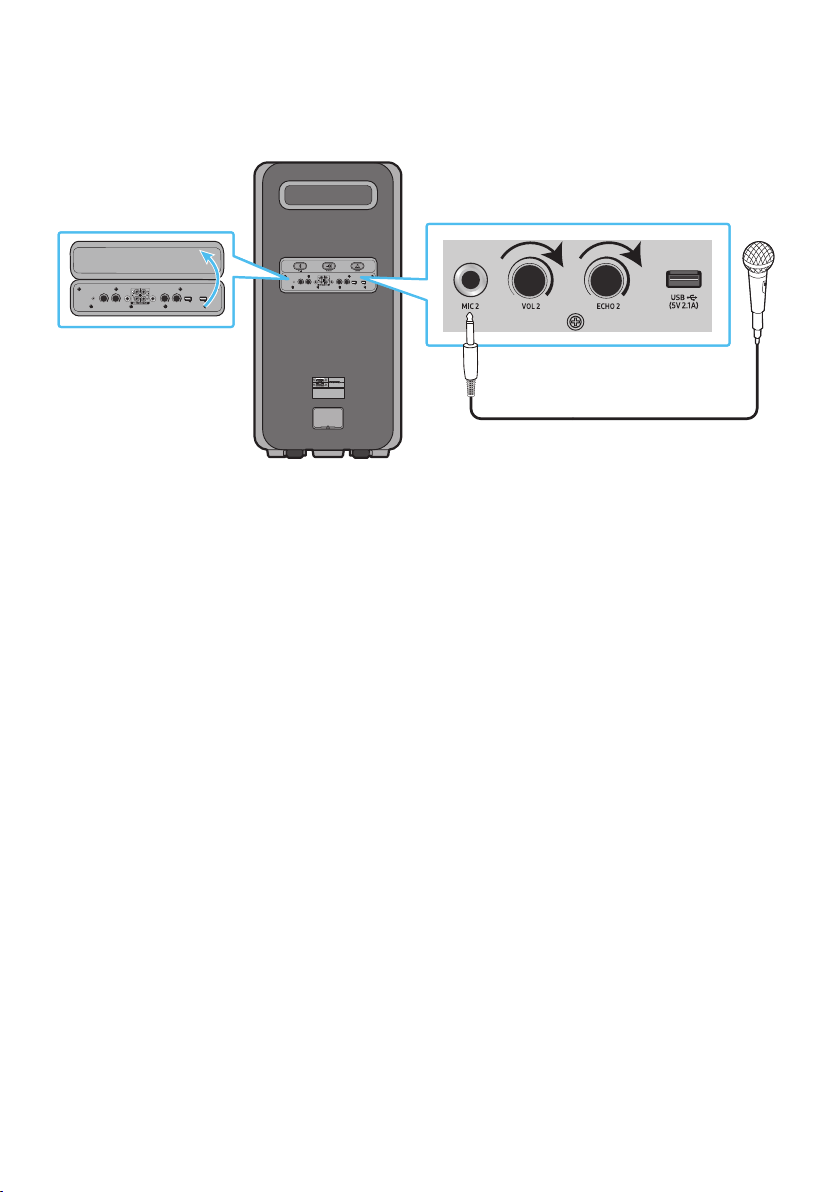
FRA - 24
Connexion d’un microphone optionnel
Vous pouvez diffuser votre voix à partir du système en branchant un microphone dynamique avec une
prise normale (non fournie).
ECHO 2VOL 2ECHO 1 VOL 1 MIC 2
USB1
(5V 2.1A)
USB2
(5V 0.5A)
AUX 1
MIC 1
POWER
MAXMIN
MAXMIN
ECHO 2VOL 2ECHO 1 VOL 1 MIC 2
USB1
(5V 2.1A)
USB2
(5V 0.5A)
AUX 1
MIC 1
Microphone (non fourni)
1. Ouvrez le cache du panneau arrière.
2. Tournez le bouton MIC1/2, VOL1/2 & ECHO1/2 vers MIN pour réduire le niveau du microphone.
3. Branchez un microphone optionnel à la prise MIC sur l’unité.
4. Réglez le volume à l’aide du bouton MIC “VOL1/2”.
5. Réglez l’effet de l’écho à l’aide du bouton MIC “ECHO1/2”.
6. Parlez ou chantez dans le microphone branché.
REMARQUES
• Le microphone n’est pas fourni.
•
est diffusé uniquement à partir du système auquel le microphone est branché.
• Il pourrait y avoir une déformation ou du bruit causé par la qualité du microphone connecté.
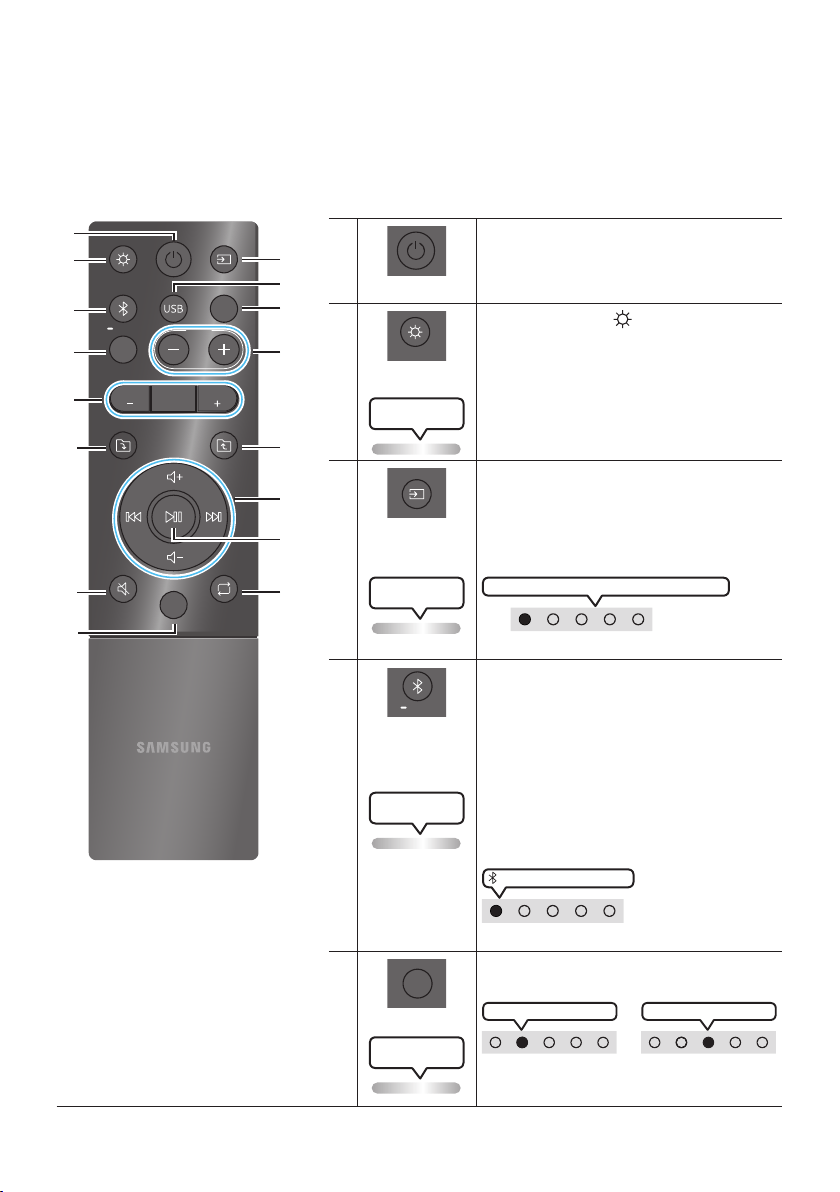
FRA - 25
06 UTILISATION DE LA TÉLÉCOMMANDE
Comment utiliser la télécommande
LIGHT
PAIRING
TEMPO
USB
AUX
EFFECT
DOWN
UP
BASS
EFFECT
DJ
SOUND
MODE
Alimentation
Active et désactive le Sound Tower.
LIGHT
LIGHT
Appuyez sur le bouton
(LIGHT) pour activer le
mode d'éclairage. (Seulement actif pendant la
lecture de musique)
A chaque pression sur la touche, le mode
d'éclairage souhaité est sélectionné en choisissant
AMBIENT, PARTY, DANCE, THUNDERBOLT,
STAR ou OFF.
Le voyant DEL blanc
Lighting clignote une fois
Source
Appuyer sur pour sélectionner une source
connectée au Sound Tower.
Chaque fois que vous appuyez sur la touche pour
sélectionner une source souhaitée en choisissant
BT, USB1, USB2, AUX1 ou AUX2
Le voyant DEL blanc
Lighting clignote une fois
Le voyant DEL blanc se déplace vers la droite
Voyant DEL en haut du produit.
Bluetooth
PAIRING
PAIRING
Appuyer sur pour sélectionner une source
BT
Maintenez appuyée la touche pendant plus de
5 secondes pour entrer dans le mode
« BT PAIRING ».
Vous pouvez connecter Sound Tower à un
nouveau périphérique Bluetooth dans ce mode
en sélectionnant le Sound Tower dans la liste
de
recherche du périphérique Bluetooth.
Le voyant DEL cyan
Lighting clignote
Voyant DEL blanc allumé
Voyant DEL en haut du produit.
USB
USB
Appuyer pour sélectionner les sources
USB1 ou
USB2
connectées au Sound Tower.
USB1 Voyant DEL blanc allumé
OU
USB2 Voyant DEL blanc allumé
Voyant DEL en haut du produit.
Le voyant DEL blanc
Lighting clignote une fois
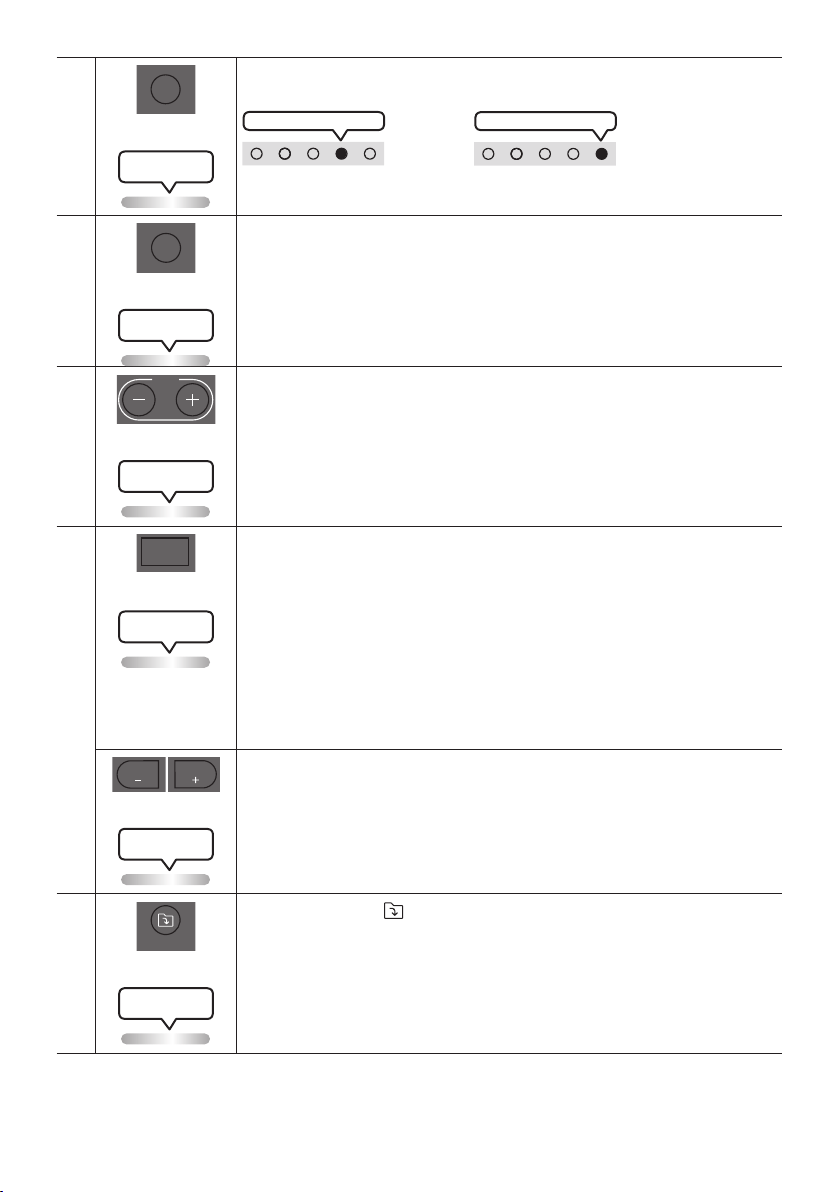
FRA - 26
AUX
AUX
Appuyer sur pour sélectionner les sources AUX1 ou AUX2 connectées au Sound
Tower.
AUX2 Voyant DEL blanc allumé
OU
AUX1 Voyant DEL blanc allumé
Voyant DEL en haut du produit.
Le voyant DEL blanc
Lighting clignote une fois
SOUND MODE
SOUND
MODE
A chaque pression sur la touche, on sélectionne l'effet sonore souhaité parmi PARTY,
STANDARD, HIPHOP, EDM, ROCK, LATIN, HOUSE ou REGGAE.
Le voyant DEL blanc
Lighting clignote une fois
TEMPO +, -
TEMPO
Appuyer sur les boutons TEMPO + ou TEMPO - pour changer le tempo de la musique
vers le haut ou le bas.
• Cette fonction ne peut être utilisée qu’en mode USB1 et USB2.
Le voyant DEL blanc
Lighting clignote une fois
DJ
DJ
Cette fonction permet d'activer la fonction d'effet DJ.
A chaque pression sur la touche, on sélectionne l'effet sonore DJ désiré en choisissant
NOISE, FILTER , CRUSH, CHORUS, WAHWAH ou OFF.
• NOISE: Mixer le bruit blanc dans le son original.
• FILTER: Filtrer le son pour le débarrasser de certaines fréquences.
• CRUSH: Rendre aigu le son d’origine.
• CHORUS: Séparer le son d’origine en plusieurs pistes et les retarder séparément,
puis les mixer à nouveau. Créer un effet de chorale.
• WAHWAH: Effet WAHWAH créé en améliorant certaines fréquences spéciques du son
d’origine.
Le voyant DEL blanc
Lighting clignote une fois
EFFECT +, -
EFFECT
EFFECT
Appuyer sur les boutons EFFECT + ou EFFECT - pour changer le niveau de chaque
effet sonore DJ vers le haut ou le bas.
Le voyant DEL blanc
Lighting clignote une fois
Dossier DOWN
DOWN
Appuyer sur le bouton
(DOWN) pour passer au dossier suivant du périphérique
USB.
Le voyant DEL blanc
Lighting clignote une fois
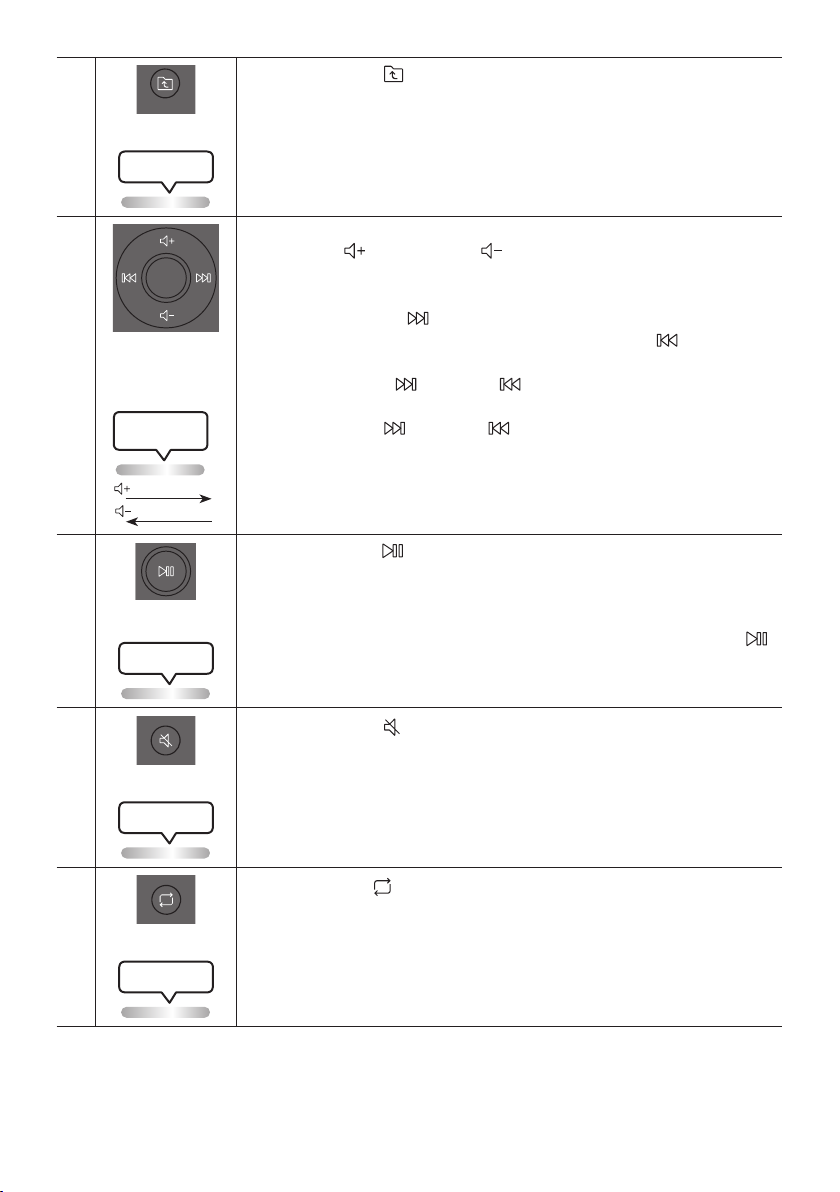
FRA - 27
Dossier UP
UP
Appuyer sur le bouton
(UP) pour passer au dossier précédent du périphérique
USB.
Le voyant DEL blanc
Lighting clignote une fois
Volume haut,
Volume bas /
Passer
• Volume haut, Volume bas
Appuyer sur
(Volume haut) ou
(Volume bas) pour régler le niveau de
volume haut ou bas.
• Passer la musique
Appuyez sur le bouton
été jouée pendant moins de 3 secondes, appuyez sur le bouton pour
Maintenez le bouton ou le bouton enfoncé pendant plus de 3 secondes en
mode lecture USB pour rechercher vers l’avant ou vers l’arrière . Maintenez à
nouveau le bouton ou le bouton enfoncé pendant plus de 3 secondes pour
revenir à la lecture normale.
Le voyant DEL blanc
Lighting clignote une fois
De bas en haut
De haut en bas
Lecture / Pause
Appuyer sur la touche
• Fonction de mise hors tension automatique
Pour désactiver la fonction Auto Power Down (arrêt de l’alimentation
automatique) lorsque l’unité est en mode AUX1, AUX2, appuyez sur le bouton
et maintenez-le enfoncé pendant plus de 5 secondes. La barre lumineuse
clignotera une fois en blanc.
Le voyant DEL blanc
Lighting clignote une fois
Muet
Appuyer sur le bouton
(Muet) pour couper le son.
Appuyer de nouveau sur cette touche pour rétablir le son.
Le voyant DEL blanc
Lighting clignote une fois
Répéter
Appuyez sur le bouton
(Répéter) pour utiliser la fonction Repeat en mode « USB1» et
«USB2 ».
A chaque pression sur la touche, il est possible de sélectionner la fonction de répétition
désirée en choisissant ONE, FOLDER, ALL, RANDOM ou OFF.
Le voyant DEL blanc
Lighting clignote une fois
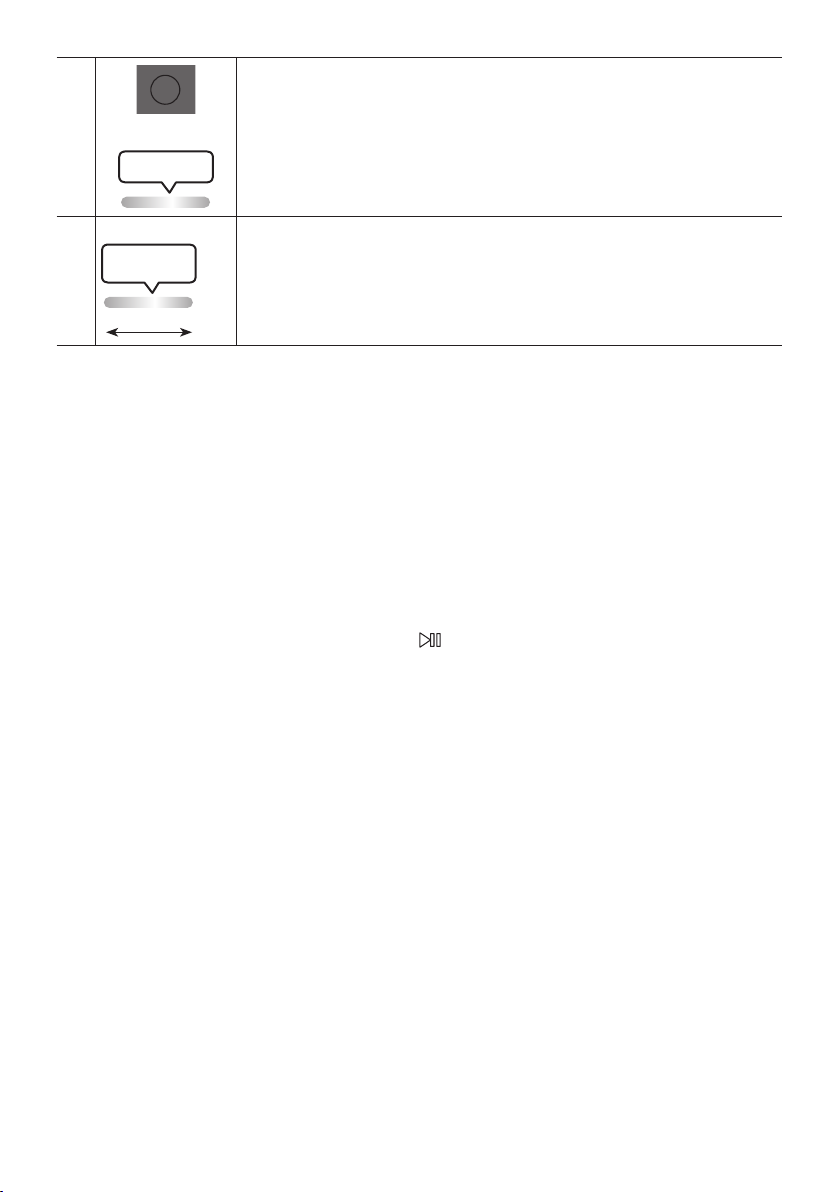
FRA - 28
BASS
BASS
Appuyez sur le bouton BASS
Appuyez de nouveau sur ce bouton pour revenir au son normal.
Maintenez le bouton BASS enfoncé pendant plus de 5 secondes pour activer ou
désactiver la fonction BLUETOOTH POWER.
Le voyant DEL blanc
Lighting clignote une fois
※
Non disponible
Le voyant DEL rose
clignote une fois
Dumilieuàlan
La fonction du bouton de télécommande n'est pas disponible dans la source actuelle.
Comment utiliser le mode Son
particulier.
1. Appuyez sur la touche SOUND MODE de la télécommande.
2. Chaque fois que vous appuyez sur la touche SOUND MODE pour sélectionner l’effet sonore
souhaité en choisissant PARTY, STANDARD, HIPHOP, EDM, ROCK, LATIN, HOUSE ou REGGAE.
REMARQUES
• La valeur par défaut du mode sonore est PARTY.
• Lorsque éteint, appuyez et maintenez la touche
sur l’appareil ou la télécommande pour plus de 5

FRA - 29
Comment utiliser l’effet DJ
La fonction d’Effet DJ vous permet d’activer l’effet sonore d’Effet DJ. Le niveau de chaque effet est
réglable.
1. Appuyez sur la touche DJ de la télécommande.
2. Chaque fois que vous appuyez sur la touche DJ, le Sound Tower cyclera parmi les Effets DJ
disponibles.
• NOISE
• FILTER : Crée un effet similaire au son des aigus ou des basses uniquement.
• CRUSH: Crée un effet qui rend le son original plus aigu.
• CHORUS : Crée un effet similaire à un chœur chantant.
• WAHWAH : Crée un effet ‘Wah~ Wah’.
• DJ EFFECT OFF : Désactive l’effet DJ.
3. Appuyez sur les touches EFFECT + ou EFFECT - pour augmenter ou diminuer le niveau des effets
REMARQUE
• Lorsqu’éteint, appuyez et maintenez la touche
par défaut Effet DJ.
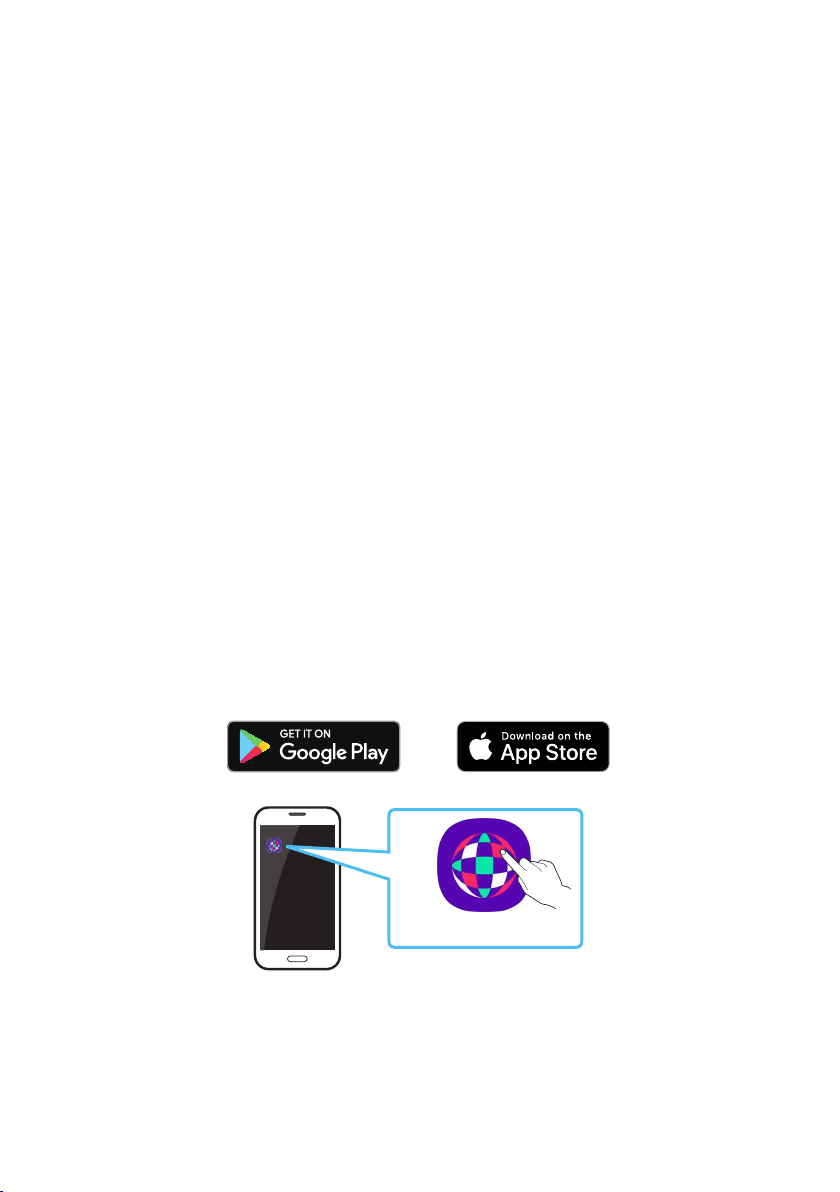
FRA - 30
07 À L’AIDE DE L’APPLICATION SAMSUNG
SOUND TOWER
Installer l’application Samsung Sound Tower
Pour contrôler ce produit avec votre appareil intelligent et l’application Samsung Sound Tower,
téléchargez l’application Samsung Sound Tower sur Google Play Store ou sur l’App Store d’Apple, puis
installez-la sur votre appareil intelligent.
Utilisation de l’application Sound Tower Samsung
Vous pouvez contrôler le système en toute souplesse et l’exploiter de manière différente grâce à
l’application.
Conditions préalables
• Cette fonction peut ne pas être prise en charge en fonction de l’appareil mobile.
• L’application n’est pas disponible lorsqu’une connexion à un téléviseur Samsung est établie.
• Cette fonction est compatible avec les appareils mobiles Apple fonctionnant sous iOS 11.0 ou une
version ultérieure.
• Cette fonction est compatible avec les téléphones cellulaires Android fonctionnant sous Android
8.0.
• L’application n’est pas disponible lors de l’utilisation de la multiconnexion Bluetooth.
Recherche de marché : Samsung Sound Tower
Samsung
Multiroom
Samsung Sound Tower
Samsung Sound Tower
1. Téléchargez l’application Sound Tower Samsung depuis Google Play Store ou l’Apple App Store et
installez-la sur votre appareil intelligent.
2. Activez l’application Sound Tower sur votre appareil mobile.
3. Une connexion est établie entre l’appareil mobile et la Sound Tower via Bluetooth.

FRA - 31
4. Lisez le son de l’appareil mobile au moyen de la Sound Tower.
Ce que vous pouvez faire avec l’application Sound Tower Samsung :
• Équilibrer le son au moyen des EQ préréglés ou des EQ personnalisés.
• Changer l’effet du son avec DJ EFFECT.
•
•
• Régler le volume.
• Changer la source
REMARQUES
• Pour utiliser cette fonction, installez la dernière version de l’application Sound Tower. Cette fonction
peut ne pas être prise en charge en fonction de la version de l’application.
• L’application Sound Tower peut ne pas fonctionner si des appareils à proximité de la Sound Tower,
par exemple des appareils électriques, provoquent des interférences radio. Assurez-vous que les
de la Sound Tower.
• Si l’application Sound Tower ne fonctionne pas :
– Redémarrez l’appareil mobile.
– Installez la dernière version de l’application Sound Tower.
– Réinstallez l’application Sound Tower après la désinstallation.
– Installez la dernière version du système du téléphone.
FRA - 32
08 RÉSOLUTION DES PROBLÈMES
Sound Tower ne s’allume pas.
; L’alimentation ne peut pas être mise via la
télécommande ou l’application Sound
d’alimentation. Après un certain temps,
rebranchez-la et appuyez sur le bouton
POWER pour allumer la Sound Tower.
La Sound Tower fonctionne par
intermittence.
;
certain temps, rebranchez-la et appuyez
sur le bouton POWER pour allumer la
Sound Tower.
; Mettez l’appareil externe sous tension et
réessayez.
; S’il n’y a pas de signal, la tour de son
s’éteint automatiquement après un certain
temps. Appuyez sur le bouton POWER
pour allumer la Sound Tower.
Si la télécommande ne fonctionne pas.
; Pointez la télécommande directement sur
la Sound Tower.
; Remplacez les piles par des piles neuves.
La Sound Tower n’émet pas de son via le
Bluetooth.
; Le volume de la Sound Tower est trop
faible ou coupé.
Appuyez sur le bouton d’augmentation du
volume pour augmenter le volume.
; Lorsqu’un appareil externe (STB, appareil
Bluetooth, appareil mobile, etc.) est
connecté, augmentez le volume de
l’appareil externe.
; Pour la sortie audio du téléviseur,
sélectionnez Sound Tower. (Téléviseur
Sélectionnez Sound Tower).
;
certain temps, rebranchez-la et appuyez
sur le bouton POWER pour allumer la
Sound Tower.
; Lors de la connexion d’un nouvel appareil,
passez à « BT PAIRING » pour la connexion.
(Maintenez enfoncé le bouton PAIRING de
la télécommande pendant plus de 5
secondes pour activer le mode « BT
PAIRING » ou cliquez une fois sur le bouton
PAIRING du panneau arrière.)
La Sound Tower ne se connecte pas par
Bluetooth.
; Si la Sound Tower est connectée à un autre
appareil, débranchez d’abord cet appareil
pour changer d’appareil.
; Activez la fonction d’appariement
Bluetooth de l’appareil Bluetooth et Sound
Tower.
; Il est recommandé de déplacer la Sound
Tower plus près de votre appareil
Bluetooth, à 1 mètre (3,3 pi).
;
certain temps, rebranchez-la et appuyez
sur le bouton POWER pour allumer la
Sound Tower.

FRA - 33
Le son se coupe lors d’une connexion par
Bluetooth.
; Certains appareils peuvent créer des
interférences radio s’ils sont trop proches
de la Sound Tower (p. ex. fours à micro-
; Si votre appareil connecté par Bluetooth
est trop éloigné de la Sound Tower.
Rapprochez l’appareil de la Sound Tower.
; En présence d’obstacles entre la Sound
Tower et votre appareil Bluetooth, retirez-
les ou évitez-les.
; Le son pourrait se couper lors de la
connexion au téléviseur Samsung.
Reportez-vous aux étapes de la page 15 «
Utilisation du mode Stereo du téléviseur
TV » pour rebrancher le téléviseur
Samsung.
; La distance de fonctionnement
recommandée entre la Sound Tower et
l’appareil BT est inférieure à 10 m (32,8 pi).
Il y a du bruit, une déformation ou un
bourdonnement intense lors de la
connexion via Bluetooth.
; En présence d’obstacles entre la Sound
Tower et votre appareil Bluetooth, retirez-
les ou évitez-les.
; Certains appareils peuvent créer des
interférences radio s’ils sont trop proches
de la Sound Tower (p. ex. fours à micro-
Le bouton PAIRING ne fonctionne pas.
; Réessayez après avoir déconnecté le mode
L’appareil USB n’est pas reconnu.
; Passez sur la source USB1/USB2 en
appuyant sur le bouton Source, branchez
l’appareil USB au port approprié (USB1/
USB2).
; Éteignez la Sound Tower, rallumez-la et
reconnectez l’appareil USB.
; Il se peut que vous utilisiez un appareil USB
non pris en charge. Le dispositif de
stockage USB doit être formaté en FAT ou
FAT32.
Leschiersdel’appareilUSBnepeuvent
pas être lus.
; Passez sur la source USB1/USB2 en
appuyant sur le bouton Source, branchez
l’appareil USB au port approprié (USB1/
USB2).
; Il se peut que vous utilisiez un appareil USB
non pris en charge. Le dispositif de
stockage USB doit être formaté en FAT ou
FAT32.
;
soit pas pris en charge. La Sound Tower ne
MP3, WMA, AAC, WAV et FLAC.
; Éteignez la Sound Tower, rallumez-la et
reconnectez l’appareil USB.
;
mots de passe ne peuvent pas être lus.
L’appareil USB connecté ne peut pas être
chargé.
; Le port USB est exclusivement réservé à la
lecture du dispositif de stockage USB.

FRA - 34
La Sound Tower n’émet pas de son via la
source AUX.
; Assurez-vous que l’appareil externe est en
mode de sortie AUX et que la Sound Tower
passe sur la source AUX1 ou AUX2.
; Assurez-vous que le câble AUX est
fermement connecté à AUX1 ou AUX2.
; Le volume de la Sound Tower est trop
faible ou coupé. Réglez le volume.
; Lorsqu’un appareil externe (STB, appareil
Bluetooth, appareil mobile, etc.) est
connecté, réglez le volume de l’appareil
externe.
;
certain temps, rebranchez-la et appuyez
sur le bouton POWER pour allumer la
Sound Tower.
La connexion au mode Stereo ne
fonctionne pas.
; Le bouton Add Stereo ne fonctionne pas en
mode Group Play, déconnectez le mode
connexion au mode Stereo.
Je souhaite faire passer le système HOST
(MAIN) sur l’autre pour une connexion en
modeGroupPlaysanslouStereoGroup.
; Déconnectez le mode Group Play,
sélectionnez le haut-parleur que vous
premier. Par la suite, utilisez le voyant DEL
Group pour connecter les autres haut-
parleurs.
;
Je ne peux pas connecter un esclave au Group
Play.
; Après 1 heure, l’hôte bloquera tous
appareils esclaves additionnels d’être
ajoutés. Appuyez sur le bouton GROUP
PLAY du HOST. Le SUB peut être connecté
de nouveau.
Ilnepeutpasétabliruneconnexion“Sansl/
Groupe câblé/Ajouter stéréo/Bluetooth”.
; Il est recommandé d’effectuer un
Ajouter stéréo/Bluetooth” à moins de 3,3
pi (1 mètre) du système.
; La Sound Tower ne peut pas se connecter
au téléviseur Samsung lors de l’utilisation
Le microphone ne fonctionne pas?
; Réglez le bouton du volume du panneau
arrière.
; Le microphone ne fonctionne que sur la
Sound Tower connectée en mode Group. Il
ne fonctionne pas sur les deux Sound
Tower.
; Essayez de débrancher et de rebrancher le
microphone.
BT ne s’allume pas.
;
certain temps, rebranchez-la et appuyez
sur le bouton POWER pour allumer la
Sound Tower.
Comment utiliser la fonction d’étanchéité
; L’étanchéité peut être atteinte lorsque le
cordon d’alimentation en c.a. est branché.
Vous devez toutefois vous assurer que les
caches sont bien fermés. Le produit ne doit
FRA - 35
Je ne peux pas changer le mode Stereo
sanslenmodeStereolaire.
; Assurez-vous que la source Bluetooth est
activée sur le système HOST (MAIN).
Je ne peux pas changer la source.
; La SUB ne peut pas changer la source en
mode Stereo.
Si l’application Sound Tower ne fonctionne
pas.
; Redémarrez l’appareil mobile.
; Installez la dernière version de l’application
Installez la dernière version du système du
téléphone.
; Cette fonction est compatible avec les
appareils mobiles Apple fonctionnant sous
iOS 11.0 ou une version ultérieure.
; Cette fonction est compatible avec les
téléphones cellulaires Android
fonctionnant sous Android 8.0 ou une
version ultérieure.
09 LICENCE
The Bluetooth® word mark and logos are
registered trademarks owned by the Bluetooth
SIG, Inc. and any use of such marks by Samsung
Electronics Co., Ltd. is under license. Other
trademarks and trade names are those of their
respective owners.
Qualcomm aptX is a product of Qualcomm
Technologies, Inc. and/or its subsidiaries.
Qualcomm is a trademark of Qualcomm
Incorporated, registered in the United States and
other countries. aptX is a trademark of Qualcomm
Technologies International, Ltd., registered in the
United States and other countries.

FRA - 36
[ENERGY STAR]
ENERGYSTARqualiedmodelonly
– Your Samsung product is ENERGY STAR
Change to certain features, settings and
functionality in this product can change the
power consumption, possibly beyond the
limits required for ENERGY STAR
– Environmental Protection Agency and
Department of Energy. ENERGY STAR is a
joint program of the Government agencies,
products and practices.
Refer to www.energystar.gov for more
information of the ENERGY STAR Program.
ENERGYSTARqualiedmodelonly
(Applicable to Thin Client models only)
As an ENERGY STAR® Partner, SAMSUNG has
determined that this product meets the
ENERGY STAR® guidelines for energy
– The ENERGY STAR Program has been to
reduced greenhouse gas emissions and
save energy through voluntary labeling.
– Power management setting of this product
have been enabled by default, and have
various timing setting from 1 minutes to 5
hours.
– The product can wake with a button press
on the chassis from sleep mode.
ENERGYSTARqualiedmodelonly(Theother
models)
– As an ENERGY STAR Partner, Samsung has
determined that this product or product
models meets the ENERGY STAR guideline
10 AVIS DE
LICENCES LIBRES
Pour envoyer des demandes et des questions
concernant les sources libres, communiquez avec
Samsung par courriel (oss.request@samsung.
com).
11 REMARQUE
IMPORTANTE
CONCERNANT LE
SERVICE
Figures and illustrations in this User Manual are
provided for reference only and may differ from
actual product appearance.
FRA - 37
12 SPÉCIFICATIONS ET GUIDE
Spécications
Nom de modèle MX-ST90B
USB1/USB2
Poids 24,5 kg (54 lb)
Dimensions (L x H x P)
424 x 861 x 383 mm
(16,7 x 33,9 x 15,1 po)
Plage de températures en fonctionnement
Plage d’humidité en fonctionnement 10 % à 75 %
AMPLIFICATEUR Puissance de sortie nominale 1 700 W
Consommation électrique globale 150 W
REMARQUES
•
• Le poids et les dimensions sont approximatifs.
LIMITED WARRANTY TO ORIGINAL PURCHASER
Samsung Electronics Canada Inc.(SECA), warrants that this product is free from
defective material and workmanship.
warranty period and the failure is due to improper workmanship or defective
materials, SECA will repair or replace the product at its option.
All warranty repairs must be performed by a SECA Authorized Service Center. (The name and
address of the location nearest you can be obtained by calling toll free: 1- 800- SAMSUNG)
LABOR
One year (Carry- in)
PARTS
One year
On carry-in models, transportation to and from the service center is the customer’s
responsibility.
The original dated sales receipt must be retained by the customer and is the only
acceptable proof of purchase. It must be presented to the authorized service center at
the time service is requested.
EXCLUSIONS (WHAT IS NOT COVERED)
God; misuse, incorrect line voltage, improper installation, improper or unauthorized
lamps, glass are not covered under this warranty. Customer adjustments which are
explained in the instruction manual are not covered under the terms of this warranty.
This warranty will automatically be voided for any unit found with a missing or altered
serial number. This warranty is valid only on products purchased and used in Canada.
Samsung Electronics Canada Inc
2050 Derry Rd West
Mississauga, On. L5N 0B9
Tel: 1-800-SAMSUNG (726-7864)
Fax: (905) 542- 1199
Website: www.samsung.com/ca
© 2022 Samsung Electronics Co., Ltd. All rights reserved.
Contact SAMSUNG WORLD WIDE
If you have any questions or comments relating to Samsung products, please contact the SAMSUNG customer
care Center.
HEADQUARTERS
Samsung Electronics Canada Inc. 2050 Derry Road West, Mississauga, Ontario L5N 0B9 Canada
TEL: 1-800-SAMSUNG (1-800-726-7864)
www.samsung.com/ca/support
Country Samsung Service Center
Web Site
`
North America
CANADA 1-800-SAMSUNG (726-7864)
www.samsung.com/ca/support (English)
www.samsung.com/ca_fr/support (French)
U.S.A 1-800-SAMSUNG (726-7864) www.samsung.com/us/support