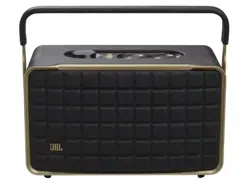
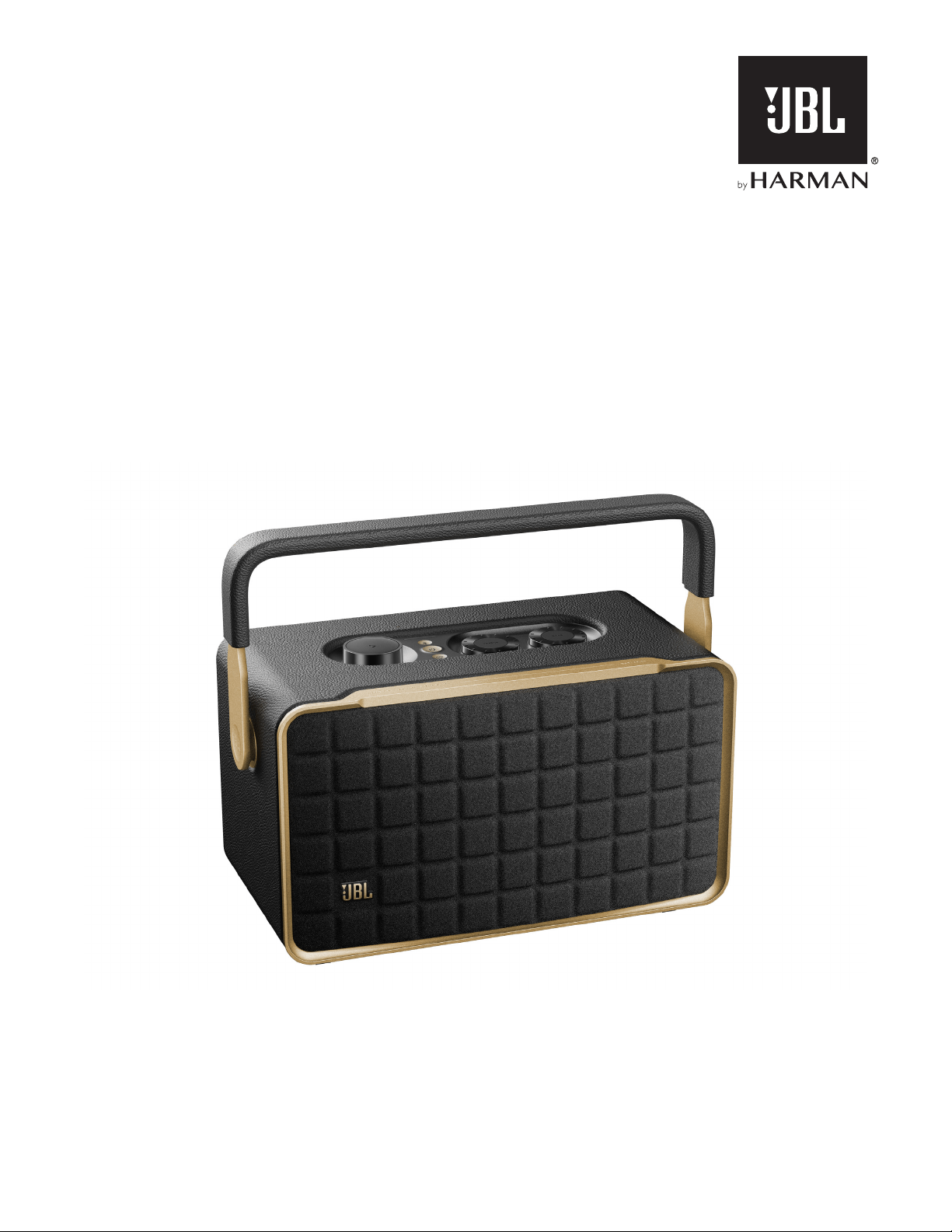
AUTHENTICS 300
OWNER’S MANUAL

22
IMPORTANT SAFETY INSTRUCTIONS
Verify Line Voltage Before Use
The JBL Authentics speaker has been designed for use with
100-240 volt, 50/60 Hz AC current. Connection to a line
voltage other than that for which your product is intended can
create a safety and re hazard and may damage the unit. If you
have any questions about the voltage requirements for your
specic model or about the line voltage in your area, contact
your retailer or customer service representative before plugging
the unit into a wall outlet.
Do Not Use Extension Cords
To avoid safety hazards, use only the power cord supplied
with your unit. We do not recommend that extension cords be
used with this product. As with all electrical devices, do not run
power cords under rugs or carpets, or place heavy objects on
them. Damaged power cords should be replaced immediately
by an authorized service center with a cord that meets factory
specications.
Handle the AC Power Cord Gently
When disconnecting the power cord from an AC outlet, always
pull the plug; never pull the cord. If you do not intend to use
this speaker for any considerable length of time, disconnect the
plug from the AC outlet.
Do Not Open the Cabinet
There are no user-serviceable components inside this product.
Opening the cabinet may present a shock hazard, and any
modication to the product will void your warranty. If water
accidentally falls inside the unit, disconnect it from the AC
power source immediately, and consult an authorized service
center.

www.jbl.com
English
33
TABLE OF CONTENTS
IMPORTANT SAFETY INSTRUCTIONS 2
1. INTRODUCTION 4
1.1 JBL One app 4
1.2 Voice Control 4
2. WHAT’S IN THE BOX 5
3. PRODUCT OVERVIEW 5
3.1 Front panel & Top panel 5
3.2 Back panel 6
4. POWER ON / OFF 7
4.1 AC-powered mode 7
4.2 Battery mode 7
5. CONNECT 8
5.1 Connect to your home network 8
5.2 Connect to your Bluetooth device 8
5.3 Connect to an external audio device 9
6. VOICE ASSISTANTS 9
6.1 Set up your voice assistants 9
6.2 Talk to your voice assistants 9
7. PLAY 10
7.1 Play over your home network 10
7.2 Play from the Bluetooth source 12
7.3 Control music playback 13
7.4 Play from the AUX source 13
8. SPEAKER GROUPING 13
9. SETTINGS 14
9.1 Sound settings 14
9.2 Software upgrade 14
9.3 Hard reset 14
9.4 Restore factory settings 14
10. PRODUCT SPECIFICATIONS 15
11. TROUBLESHOOTING 15
12. TRADEMARKS 17
13. OPEN SOURCE LICENSE NOTICE 18

44
1. INTRODUCTION
Thank you for purchasing the JBL Authentics speaker. We
encourage you to take a few minutes to read through this
manual, which describes the product and includes step-by-
step instructions for setting up and getting started.
To make the most of product features and support, you
may need to update the product software through the
Internet in the future. Refer to the software update section
in this manual to ensure that your product has the latest
software.
Designs and specications are subject to change without
notice. If you have any questions about the speaker, installation
or operation, please contact your retailer or customer service
representative, or visit our website: www.jbl.com.
1.1 JBL One app
With the JBL One app, you can
• easily connect the speaker to your Wi-Fi network;
• set up your voice assistants;
• connect *music streaming services;
• access your preset playlist and speaker settings with a single
button;
• personalize audio settings;
• manage and control devices;
• access additional features.
JBL One
For more information, see “5.1 Connect to your home network”
and “7.1 Play over your home network”.
NOTE:
– *Subscription may be needed and not provided by the JBL One app.
1.2 Voice Control
With Google Assistant and Amazon Alexa available
simultaneously, you can play your favorite music, control your
smart home devices, and more, hands-free, using just your
voice. You can access both assistants simultaneously on this
device.
For how to set up and use your voice assistants, see “6. VOICE
ASSISTANTS”.
www.jbl.com
English
55
2. WHAT’S IN THE BOX
Unpack the box carefully and ensure that the following parts
are included. If any part is damaged or missing, do not use it
and contact your retailer or customer service representative.
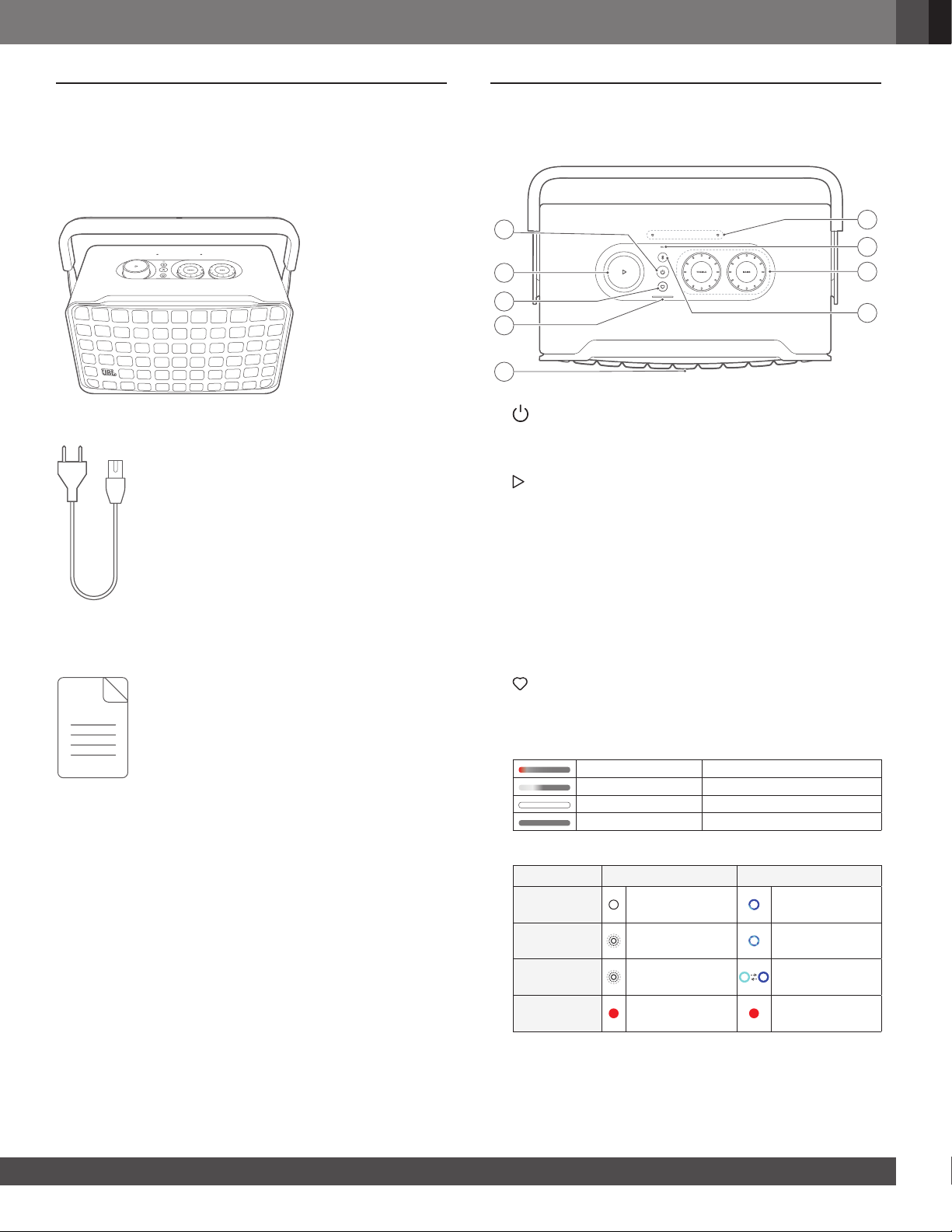
Speaker
Power cord*
*
* Power cord quantity and plug type vary by region.
Product information
3. PRODUCT OVERVIEW
3.1 Front panel & Top panel
2
3
4
1
5
9
8
7
6
1)
• Press to switch on or off.
• Hold for more than 10 seconds to reset the speaker.
2)
(playback controls while streaming music from the JBL
One app, Chromecast built-in™, AirPlay, Alexa Multi-Room
Music, Alexa Cast or Bluetooth)
• Press once to play or pause playback.
• Press twice to play the next track.
• Press three times to play the previous track.
(Rotary volume controls)
• Rotate clockwise or counter-clockwise to increase or
decrease the volume.
3) (Moment)
• Press to directly access your music playlist and speaker
settings that you have personalized in the JBL One app.
4) Battery indicator
Flashing (red) Low battery
Flashing (white) Charging in process
Solid (white) Current battery level
Off Charging complete
5) Voice assistant status LED
State Google Assistant Amazon Alexa
Activated
and Listening
Solid (white)
Solid loop
(cyan and blue)
Thinking
Fast pulsing
(white)
Fast loop
(cyan and blue)
Responding
Fast pulsing
(white)
Alternating loop
(cyan and blue)
Microphone
Off
Solid (red) Solid (red)

66
State Google Assistant Amazon Alexa
Timer
Ringing
Slowly pulsing
(white)
(
1H)
Cyan and blue for
1 hour
Turns off when
the timer is
deactivated
Alarm
Ringing
Slowly pulsing
(white)
(
1H)
Cyan and blue for
1 hour
Turns off when
the alarm is
deactivated
Reminder
Solid white for
about 10 minutes
x2
Cyan and blue
twice, followed by
voice response
Queued
Notifications
Solid white for
about 10 minutes
Yellow
Do Not
Disturb Mode
Enabled
/ N/A
Pulses once
(purple)
6) (Bluetooth)
• Press to enter Bluetooth pairing mode.
• Status indicator
Fast flashing (white) Bluetooth pairing
Solid (white) Bluetooth connected
Off Bluetooth not connected
7) Tone controls
TREBLE
• Rotate clockwise or counter-clockwise to increase or
decrease the treble level.
BASS
• Rotate clockwise or counter-clockwise to increase or
decrease the bass level.
8) Status indicator
System:
Regular pulsing (white) System startup
Fast pulsing (white) Software updating in progress
Solid (amber) Restoring factory settings
Network connection:
Slowly pulsing (white)
Entering Wi-Fi setup mode, or
network disconnected
Solid (green)
Speaker discovered by the JBL
One app
Solid (white) Network connected
Solid (yellow) Weak Wi-Fi connection
9) Microphones
• For voice control and automatic self-tuning.
3.2 Back panel
4
3
1
2
5
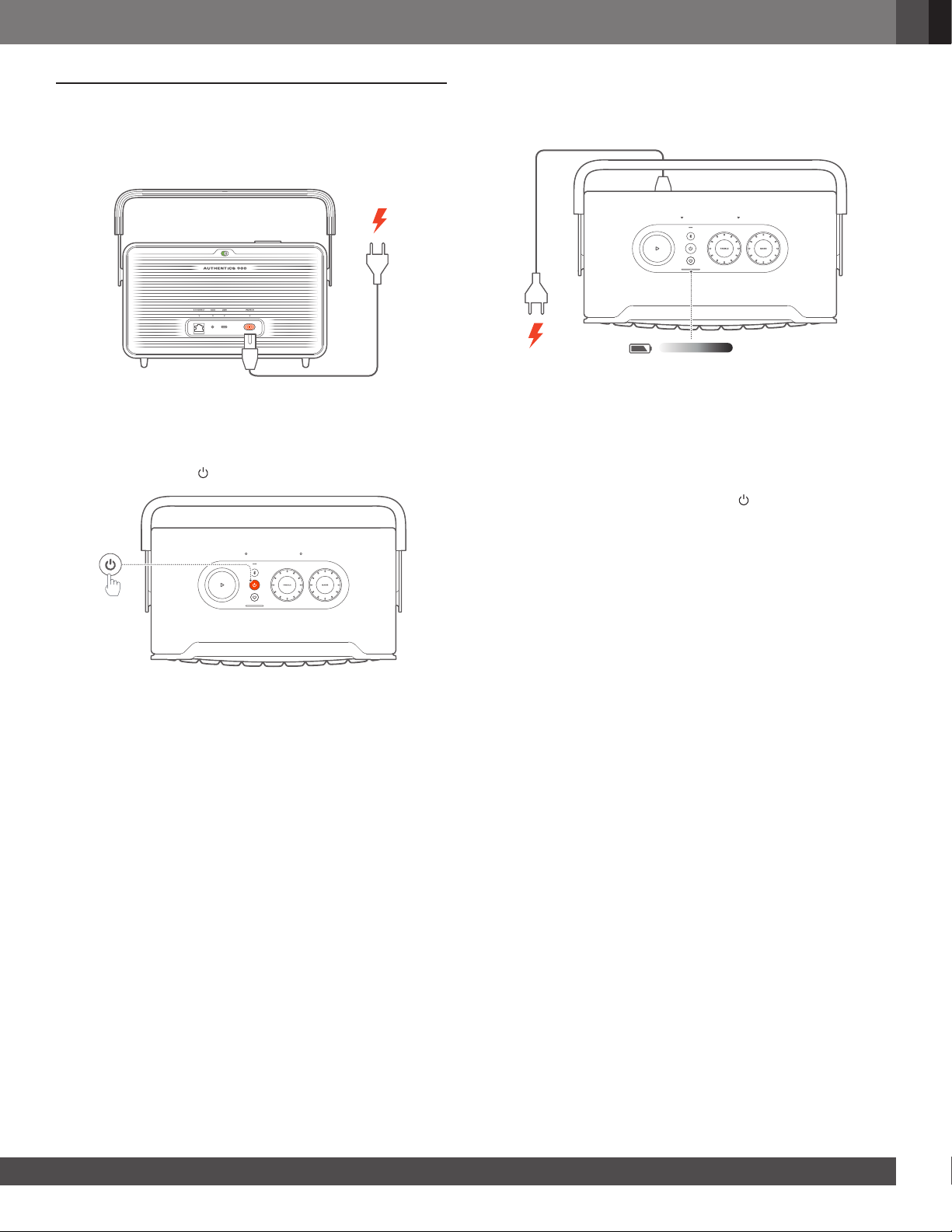
1) POWER
• Connect to power (with the supplied power cord).
2) USB
• USB connector for software update.
• Connect to a USB storage device for MP3 le playback
(for US version only).
3) AUX
• Connect to the audio output on an external device
through a 3.5 mm audio cable.
4) ETHERNET
• Connect to your home network through an Ethernet
cable.
5) (Voice assistant microphone)
• Move the slider to turn the microphone on or off.
Microphone off
Microphone on
www.jbl.com
English
77
4. POWER ON / OFF
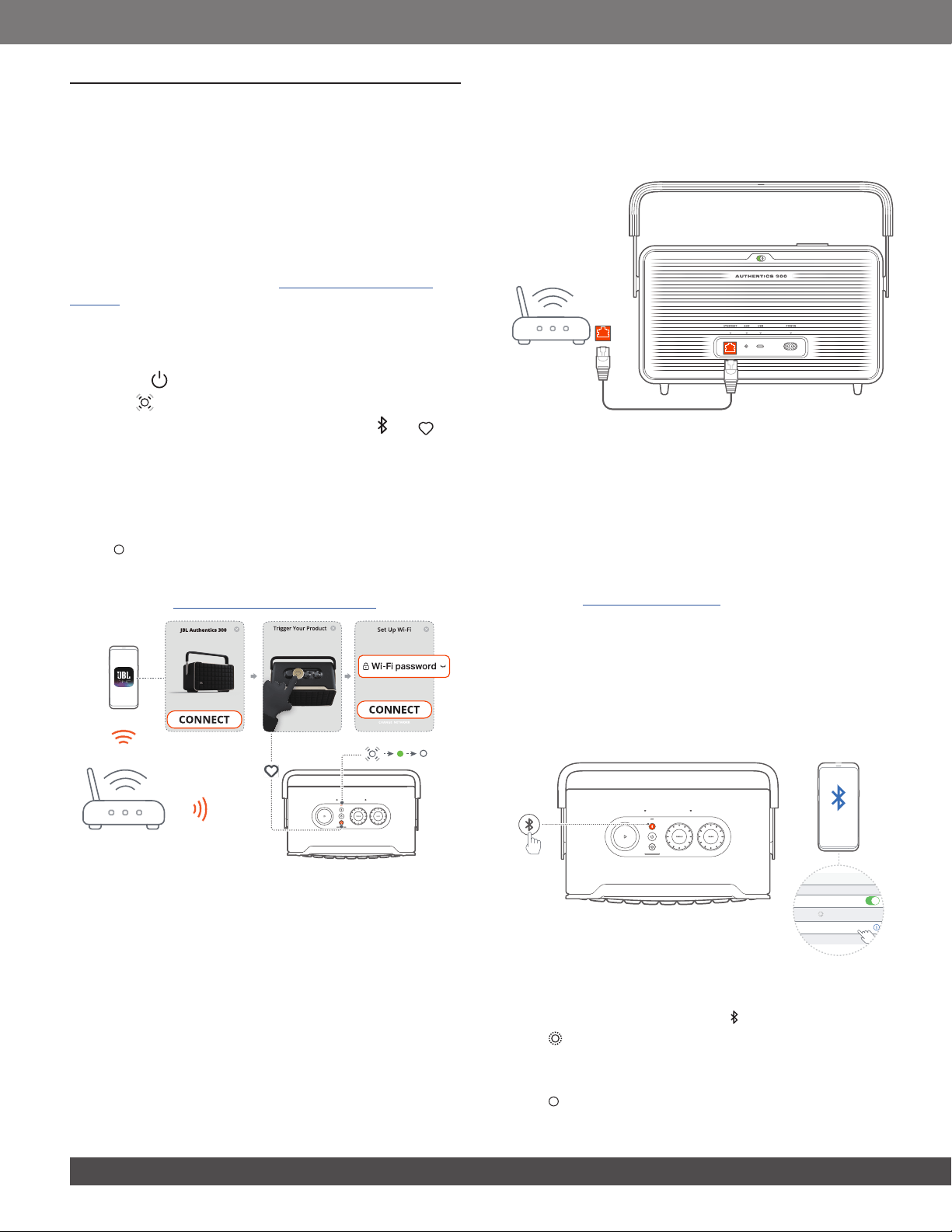
4.1 AC-powered mode
4.1.1 Connect power
• Connect the speaker to power by using the supplied power
cord.
4.1.2 Switch on
• To switch on, press .
4.1.3 Auto standby
If the speaker is inactive for more than 10 minutes, it will switch
to standby mode automatically.
4.1.4 Auto wakeup
In standby mode, the speaker will wake up automatically when
• you press any button on the speaker;
• the speaker is connected to your home network and you
control the setup and playback on the speaker through the
JBL One app;
• the speaker is connected to your home network and you
wake up the speaker through an enabled voice assistant;
• the speaker is connected to your home network and audio
is streamed to the speaker through the supported streaming
services that you have enabled in the JBL One app;
• an audio cable has been inserted into the speaker and music
playback has started from the external device connected
through the audio cable.
4.2 Battery mode
4.2.1 Charge the battery
100
%
50
%
20
%
• Connect the speaker to power by using the supplied power
cord.
→ Battery charging starts automatically.
4.2.2 Power-saving mode
In the battery mode, the speaker automatically powers off after
1 hour of inactivity to save power. Press to switch on.
NOTE:
– To avoid draining the battery, switch off the speaker if it is not going
to be used for a long time.
88
5. CONNECT
5.1 Connect to your home network
Using Wi-Fi or an Ethernet cable, connect the speaker to your
network. When you register Google Assistant and Amazon
Alexa, you can use your voice to get hands-free help or control
your smart home devices. This also enables Chromecast
built-in, Alexa Multi-Room Music, and Alexa Cast. Or, with the
JBL One app and the supported streaming services (AirPlay
and Spotify Connect), the speaker allows you to stream music
from smartphones or tablets (See 7.1 Play over your home
network).
5.1.1 Wi-Fi connection with your home network
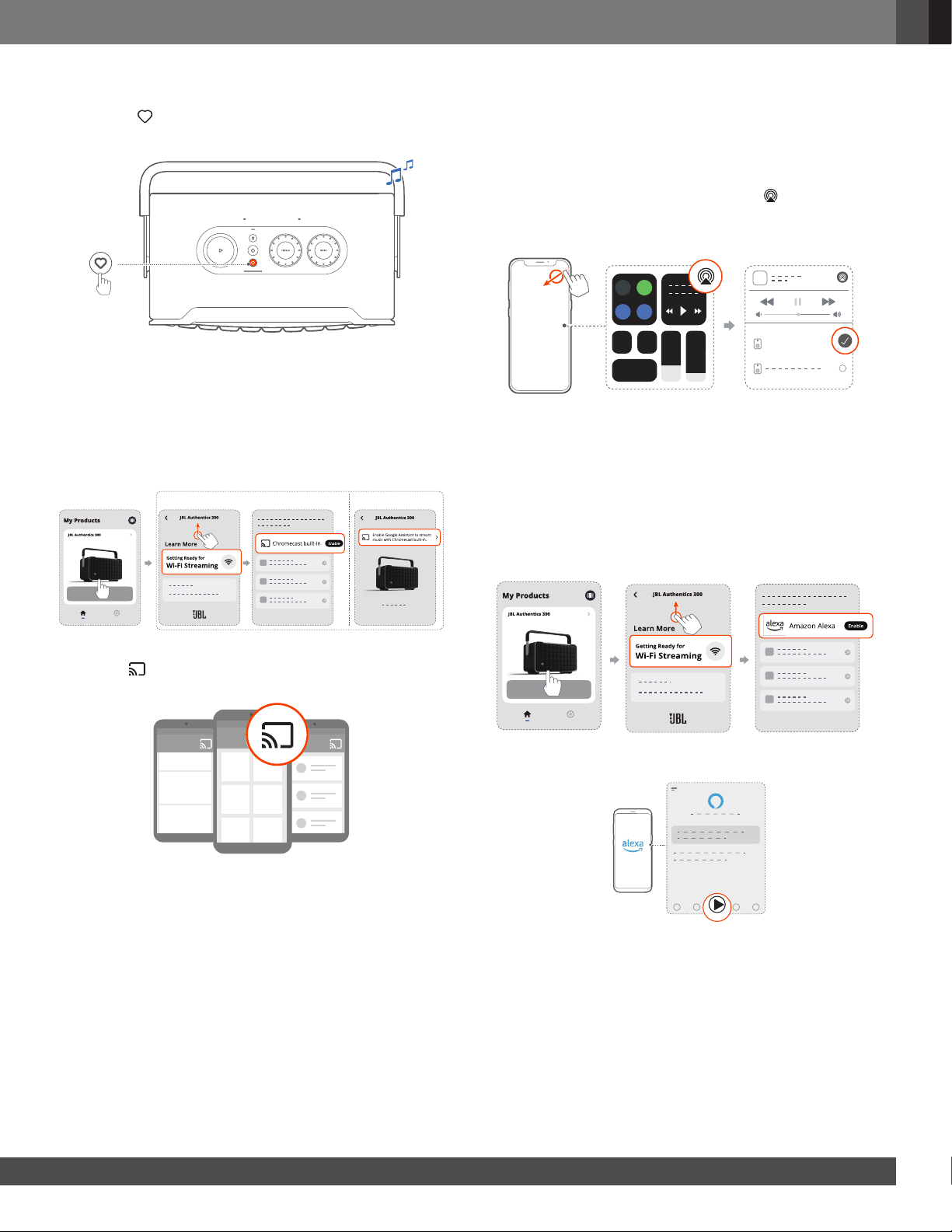
1. On the speaker, enter the Wi-Fi setup mode:
• Press to switch on.
→ : The speaker enters Wi-Fi setup mode.
→ To re-enter the Wi-Fi setup mode, hold and
together for more than 10 seconds.
2. Connect your Android™ or iOS device to your home Wi-Fi
network. Download the JBL One app.
3. Launch the JBL One app. Follow the app instructions to
complete Wi-Fi and voice assistant setup.
→ : The speaker is connected to your home network.
→ You can stream music from the JBL One app or the
streaming services you have enabled in the JBL One
app (See 7.1 Play over your home network).
NOTE:
– To access Chromecast built-in or Alexa Multi-Room Music / Alexa
Cast, register Google Assistant or Amazon Alexa respectively.
5.1.2 Wired connection with your home network
through an Ethernet cable (Optional)
1. Use an Ethernet cable (not supplied) to connect the speaker
to your home network.
2. On your Android or iOS device, download and launch the JBL
One app for music streaming and control.
NOTES:
– On your Android or iOS device, you can rename the speaker in the
JBL One app.
– On your iOS device, add the speaker to the Apple Home app and
manage it together with other AirPlay 2-compatible speakers.
– On your iOS device, if the speaker has been added to your home
network, you can start AirPlay streaming from an AirPlay-compatible
app (See “7.1.3 Play through AirPlay”).
– Availability of online music streaming services varies by country.
– Some features require subscriptions or services not available in all
countries.
5.2 Connect to your Bluetooth device
Through Bluetooth, connect the speaker with your Bluetooth
device, such as a smartphone, tablet and laptop.
ON
Settings Bluetooth
Bluetooth
DEVICES
JBL Authentics 300
Now Discoverable
Connected
5.2.1 Connect a Bluetooth device
1. To select Bluetooth source, press .
→ : Ready for Bluetooth pairing.
2. On your Bluetooth device, enable Bluetooth and search for
“JBL Authentics 300” within three minutes.
→ : Successful connection.

www.jbl.com
English
99
5.2.2 To reconnect the last paired device
Your Bluetooth device is retained as a paired device when
the speaker goes to standby mode. Next time you switch to
the Bluetooth source, the speaker reconnects the last paired
device automatically.
5.2.3 To connect to another Bluetooth device
1. In the Bluetooth source, press .
→ The speaker enters the Bluetooth pairing mode.
2. Follow the Step 2 under “5.2.1 Connect a Bluetooth device”.
NOTES:
– The Bluetooth connection will be lost if the distance between the
speaker and Bluetooth device exceeds 33 ft (10 m).
– Electronic devices may cause radio interference. Devices that
generate electromagnetic waves must be kept away from the
speaker, such as microwaves and wireless LAN devices.
– Voice commands are not supported in Bluetooth mode.
5.3 Connect to an external audio device
• Connect the speaker to an external audio device using
a 3.5mm audio cable (sold separately), with one end
connected to the AUX socket on the speaker, and the other
end to the 3.5 mm audio output connector on the audio
device.
NOTE:
– After the audio cable is connected, ensure that no music plays
through Wi-Fi or Bluetooth to start music playback through the audio
cable.
6. VOICE ASSISTANTS
6.1 Set up your voice assistants
With the JBL One app on your Android or iOS devices, set up
Google Assistant, Alexa, or both.
• Follow the prompts to set up voice assistants in the JBL One
app immediately after connecting the speaker to your home
network (See “5.1 Connect to your home network”).”
• If the speaker is already connected to your home network
but has not completed the voice assistant setup, do the
following:
NOTE:
– Make sure your Android or iOS device is connected to the same
Wi-Fi network as your speaker.
6.2 Talk to your voice assistants
With concurrent voice assistants, ask either Google Assistant
or Alexa to play music, get answers, manage everyday tasks,
and control smart home devices using just your voice.
OFF ON
Voice assistant
status LED
1. Make sure that the speaker has been properly connected to
your home network and the microphone is turned on.
2. Just say “Hey Google” or “Alexa” to get started.
Examples:
• “Hey Google, play some music”
• “Hey Google, turn up the volume”
• “Alexa, set a timer for 15 minutes”
• “Alexa, stop”

1010
3. To suspend use of your voice assistant(s), turn the microphone
off ( ). To resume interaction with your voice assistant(s),
turn the microphone on ( ).
NOTES:
– For the latest voice commands, visit assistant.google.com or
Amazon Alexa app.
– If you have set up Alexa or Google Assistant, but the microphone on
the speaker is turned off, the voice assistants won’t respond to voice
commands until you turn the microphone on again.
7. PLAY
NOTES:
– The speaker can support audio streaming, but not video streaming.
– During music streaming through Chromecast built-in, Alexa Multi-
Room Music, Alexa Cast, AirPlay, Bluetooth, or other streaming
services enabled in the JBL One app, music playback will pause on
the currently connected device when you start music playback on a
second connected device.
– When the speaker switches between your home Wi-Fi and wired
network during AirPlay, music playback will pause and resume in a
few minutes, depending on broadband bandwidth conditions. For
the connection to your home wired network, see “5.1 Connect to
your home network”).
7.1 Play over your home network
Before you start, make sure that:
• your Android or iOS device is connected to the same Wi-Fi
network as your speaker for music service streaming and
control. (See “5.1 Connect to your home network”).
7.1.1 Play through the JBL One app
Through the JBL One app, stream audio from enabled music
services to the speaker.
1. On your Android or iOS device,
• Launch the JBL One app, browse the available *music
streaming services to select music, and then start music
streaming to the connected speaker.
2. To exit from the music playback, switch to other sources.
NOTE:
– *Subscription may be needed and not provided by the JBL One app.
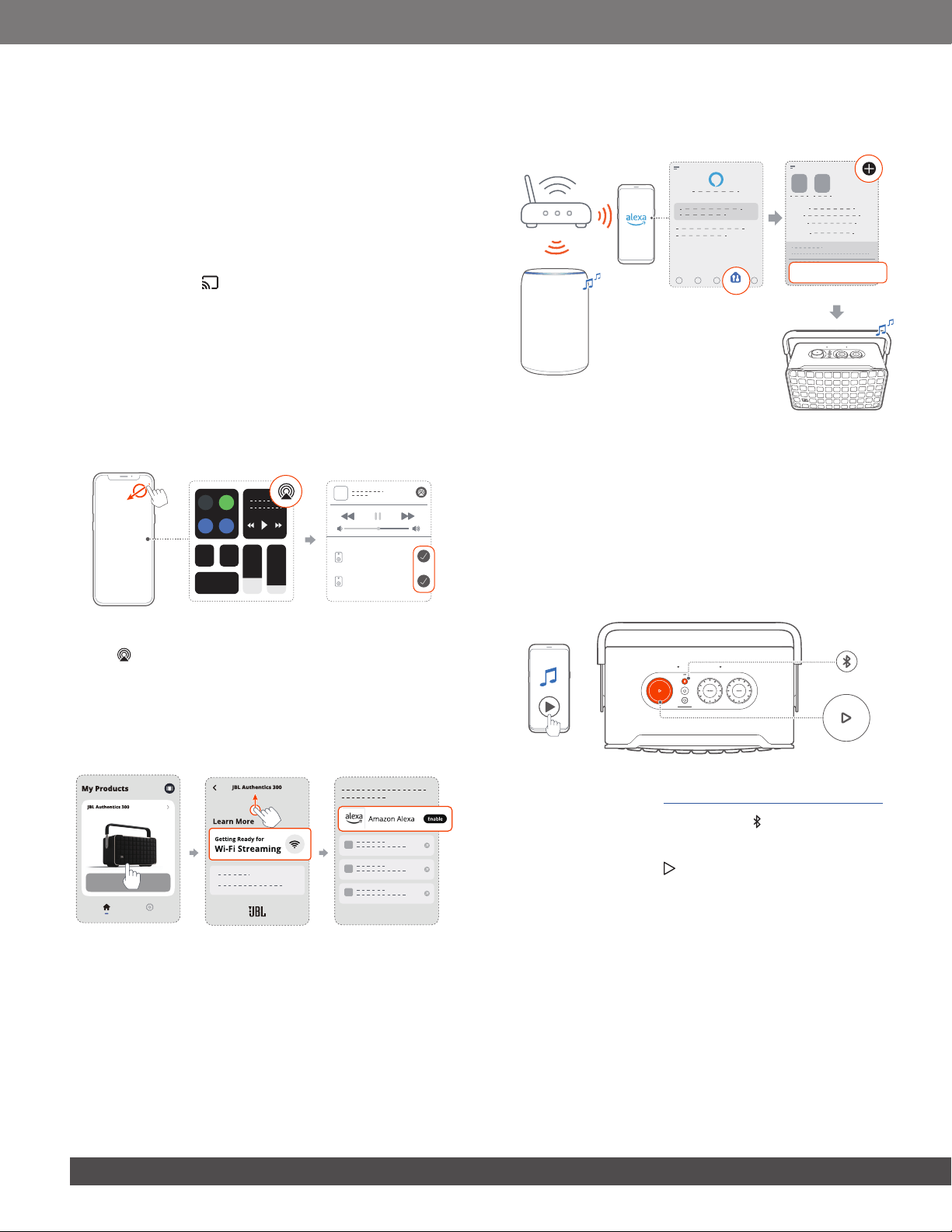
Access your presets with the (Moment) button
1. On the JBL One app,
• Personalize the (Moment) feature.
www.jbl.com
English
1111
2. On the speaker,
• Press to access the personalized playlist and speaker
settings.
7.1.2 Play with Chromecast built-in
With Chromecast built-in, stream audio on your Android or iOS
device to the speaker.
1. On your Android or iOS device,
a) Launch the JBL One app, and check that you have enabled
Chromecast built-in.
iOS Android
b) On a Chromecast-enabled app, play music, tap the cast
icon and select the connected speaker.
2. To exit from the music playback, switch to other sources.
7.1.3 Play through AirPlay
Through AirPlay, stream audio on your iOS device to the
speaker.
1. On your iOS device,
• To enter the Control Center on an iOS device, swipe
down from the upper right corner. Tap to select the
connected speaker, and then start audio streaming from
an app.
JBL Authentics 300
2. To exit from the music playback, switch to other sources.
7.1.4 Play through Alexa Cast
With the speaker connected to Alexa Cast, you can stream
music from the Amazon Music library to the speaker.
1. On your Android or iOS device,
• Launch the JBL One app, and check that you have
enabled the streaming service of Amazon Alexa.
2. Launch the Amazon Alexa app to start music playback.
Play
• Open the Amazon Music app to access the Amazon
Music library.
• Make sure that you start music playback from the same
Alexa account that you have enabled in the JBL One app.
Refer to the Amazon Alexa app for more details.
1212
7.1.5 Multi-room playback
With the multi-room playback, you can stream music on your
Android or iOS device to multiple Chromecast-enabled /
AirPlay / Alexa speakers.
Chromecast built-in
1. Through the Google Home app, connect multiple Chromecast-
enabled speakers to the same network, assign them to multiple
rooms, and create groups as needed.
2. Run a Chromecast-enabled app on your smartphone or tablet.
3. Play music. Press and select the grouped speakers.
NOTES:
– To create a multi-room speaker group in the Google Home app,
make sure that you have connected all the speakers to the same
home network and have used the same Google login account. Refer
to the Google Home app for more details.
– Depending on the bandwidth of your local network, you can stream
music to up to 6 Chromecast-enabled speakers.
AirPlay
JBL Authentics 300
JBL Authentics 200
1. On an iOS device, enter the Control Center.
2. Tap to select multiple connected speakers as needed.
3. Start music streaming from an app.
Alexa MRM: Multi-Room Music
1. Check that you have enabled Amazon Alexa on the speaker
through the JBL One app.
2. Through the Amazon Alexa app, create a multi-room music
group for the speaker. Refer to the Amazon Alexa app for more
information.
DevicesDevices
DEVICES
Combine speakers
Amazon Echo
device
NOTE:
– To create a multi-room music group in the Amazon Alexa app, make
sure that you have connected all the devices to the same home
network and have used the same Alexa login account. Refer to the
Amazon Alexa app for more details.
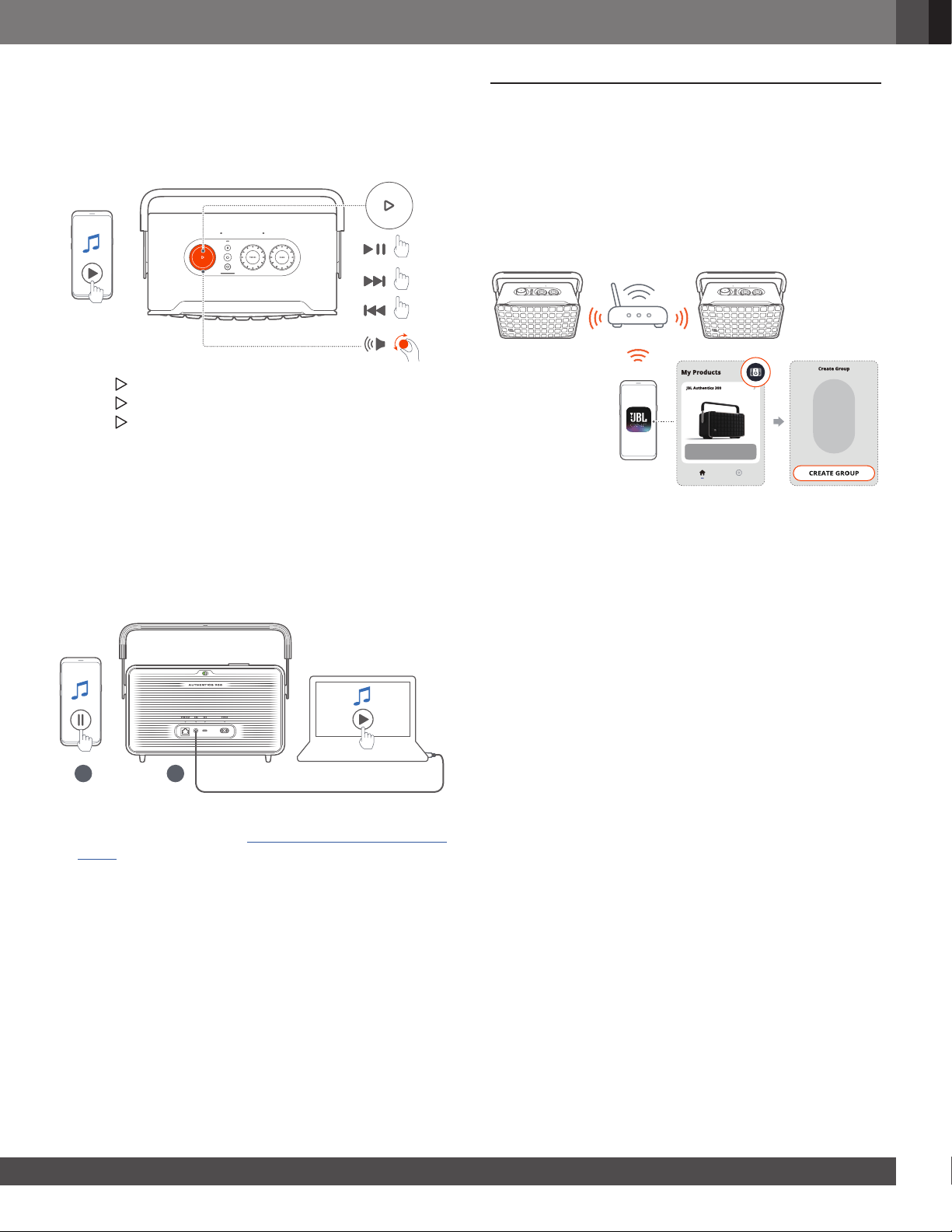
7.2 Play from the Bluetooth source
Through Bluetooth, stream audio play on your Bluetooth device
to the speaker.
1. Check that the speaker has been properly connected to your
Bluetooth device (See “5.2 Connect to your Bluetooth device”).
2. To select the Bluetooth source, press .
3. Start audio play on your Bluetooth device.
• Alternatively, press on the speaker to control playback.
NOTE:
– Music streaming through Bluetooth will pause when you start music
streaming through Wi-Fi.
www.jbl.com
English
1313
7.3 Control music playback
You can control music playback while streaming music from the
JBL One app, Chromecast built-in, Alexa Multi-Room Music,
Alexa Cast, AirPlay, or Bluetooth.
×1
×2
×3
• Press once to play or pause playback.
• Press twice to skip to the next track.
• Press three times to skip to the previous track.
• Rotate the volume knob clockwise or counterclockwise to
increase or decrease the volume.
NOTE:
– Music control is unavailable in AUX mode.
7.4 Play from the AUX source
With a 3.5 mm audio cable, listen to music playback on an
external audio device through the speaker.
21
1. Check that the speaker has been properly connected to the
external audio device (See “5.3 Connect to an external audio
device”).
2. Check that you have paused music streaming over Bluetooth
and your home network on the speaker.
3. Start audio play on the external audio device.
4. Adjust the volume on the external audio device or the speaker.
NOTE:
– If there is no audio output from the external audio device connected
with an audio cable, disconnect and reconnect the cable, and try
again.
8. SPEAKER GROUPING
Through the JBL One app, you can create a stereo pair by
connecting the speaker with another speaker of the same
model (sold separately).
To create a stereo pair through the JBL One app:
• When two Authentics speakers of the same model are
connected to the same network, follow the app instructions
to group two speakers as a stereo pair.
→ When the stereo group is created successfully, you can
control playback on the stereo group.
NOTES:
– If only one of the speakers is switched on after grouping, you can still
enjoy music on the single speaker.
– In the JBL One app, you can rename the stereo group or unpair the
two speakers.
1414
9. SETTINGS
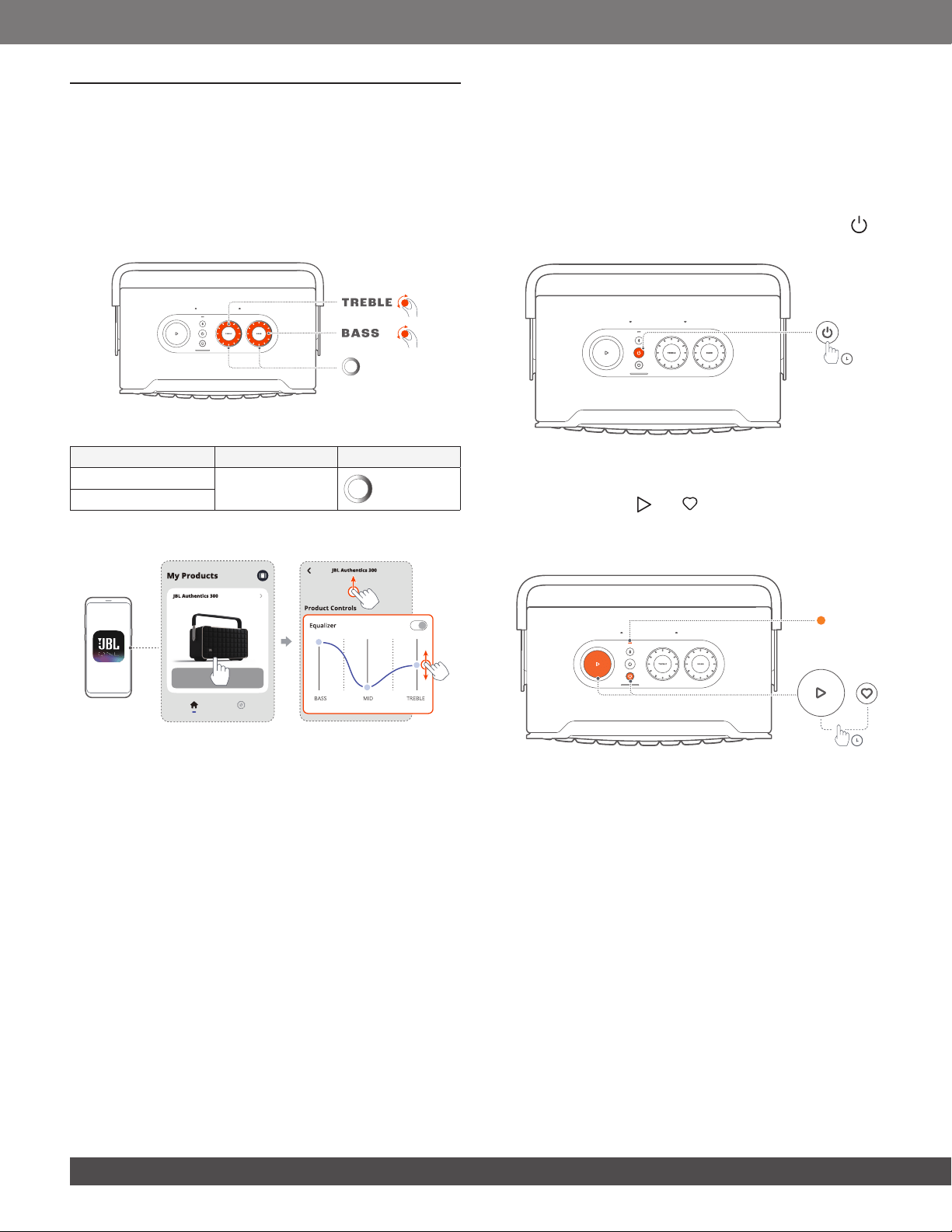
9.1 Sound settings
9.1.1 Tone controls
With the JBL One app or the knobs on the speaker, you can
adjust the bass and treble levels to tailor the sound to your
needs.
• Option 1: On the speaker:
Default EQ setting
EQ Default level LED ring
TREBLE (Treble)
6
BASS (Bass)
• Option 2: Through the app:
NOTE:
– The sound setting in the app and on the speaker will be
synchronized.
9.1.2 Self-tuning
To optimize your sound experience for your unique listening
environment, the speaker starts self-tuning automatically
each time you connect the speaker to power and start music
playback on the speaker. The self-tuning takes three minutes.
If music playback stops before self-tuning is complete, the self-
tuning will resume when you start music playback again.
NOTE:
– Automatic self-tuning will be disabled when the microphone is
switched off.
9.2 Software upgrade
When the speaker is connected to the Internet via your home
network and the battery level is more than 30%, the software of
your speaker will automatically be updated to the latest version.
9.3 Hard reset
If the speaker does not respond to button presses, hold for
more than 10 seconds to reset the speaker.
>10S
9.4 Restore factory settings
On the speaker, hold and together for more than
10 seconds to restore the default settings programmed at the
factory. When the factory reset is complete, the speaker will
automatically power off and restart.
>10S

www.jbl.com
English
1515
10. PRODUCT SPECIFICATIONS
General specication
• Model: Authentics 300
• Sound system: Stereo 2.0
• Power supply: 100 - 240V AC, ~ 50/60Hz
• Total speaker power output (Max @THD 1%): 100W
• Transducer: 2 x 25mm tweeter + 5.25" woofer
• Networked standby power: < 2.0 W
• Operating temperature: 0 °C - 45 °C
• Lithium battery: 3.6V, 4800mAh
Audio specication
• Frequency response: 45Hz - 20kHz (-6dB)
• Audio inputs: 1 Audio in, Bluetooth/Wi-Fi, Ethernet and USB
(USB playback is available in US version. For other versions,
USB is for Service only.)
USB specication
• USB port: Type C
• USB rating: 5V DC, 0.5A
• Supporting formats: mp3, WAV
• MP3 codec: MPEG 1 Layer 2/3, MPEG 2 Layer 3,
MPEG 2.5 Layer 3
• MP3 sampling rate: 16 - 48 kHz
• MP3 bitrate: 80 - 320 kpbs
Wireless specication
• Bluetooth version: 5.3
• Bluetooth prole: A2DP 1.3.2, AVRCP 1.5
• Bluetooth transmitter frequency range:
2400 MHz - 2483.5 MHz
• Bluetooth transmitter power: <13 dBm (EIRP)
• Wi-Fi network: IEEE 802.11 a/b/g/n/ac/ax (2.4GHz/5GHz)
• 2.4G Wi-Fi transmitter frequency range: 2412 - 2472 MHz
(2.4 GHz ISM Band, USA 11 Channels, Europe and others
13 Channels)
• 2.4G Wi-Fi transmitter power: <20 dBm (EIRP)
• 5G Wi-Fi transmitter frequency range: 5.15 - 5.35GHz,
5.470 - 5.725GHz, 5.725 - 5.825GHz
• 5G Wi-Fi transmitter power: 5.15 - 5.25GHz <23dBm,
5.25 - 5.35GHz & 5.470 - 5.725GHz <23dBm,
5.725 - 5.825GHz <14dBm (EIRP)
Dimensions
• Dimensions (W x H x D):
342 x 195.6 x 180.3 mm / 13.46" x 7.7" x 7.1"
• Weight: 4.9 kg / 10.8 lbs
• Packaging dimensions (W x H x D):
403 x 272 x 272 mm / 15.9" x 10.7" x 10.7"
• Packaging weight: 6.64 kg / 14.6 lbs
11. TROUBLESHOOTING
Never try to repair the product yourself. If you have problems
using this product, check the following points before you
request services.
For more troubleshooting tips, visit the support page at
www.jbl.com.
System
The unit will not turn on.
• Check if the power cord is plugged into power and the
speaker.
• Check if the battery has enough power.
The speaker has no response to button presses.
• Reset the speaker by holding for more than 10 seconds.
The speaker will switch off and then switch on again.
Bluetooth
A device cannot be connected with the speaker.
• Check if you have enabled Bluetooth on the device.
• If the speaker has been paired with another Bluetooth device,
re-enter the Bluetooth pairing mode (see “5.2.3 To connect
to another Bluetooth device”).
Poor audio quality from a connected Bluetooth device
• The Bluetooth reception is poor. Move the source device
closer to the speaker, or remove any obstacle between the
source device and the speaker.
Wi-Fi
Failed to connect to Wi-Fi.
• Make sure that Wi-Fi is turned on.
• Make sure that you have selected the right network and
entered the correct password.
• Make sure that your router or modem is turned on and within
the range.
• In your router settings, make sure that you have set the
security type to WPA2 or auto.
• Make sure that your speaker is connected to the same
wireless network as your smartphone or tablet.
• If you have difculties in setting up Wi-Fi, hold and
together on the speaker until the status indicator slowly
pulses white.
Voice assistants
No response to the voice commands
• Check that you have connected the speaker to your home
network (See “5.1 Connect to your home network”).
• Check that you have started voice control with the correct
wake word (See “6.2 Talk to your voice assistants”).

1616
• Depending on the location of your speaker, the ambient
conditions may prevent the speaker from detecting the voice
commands. Avoid placing the speaker in a noisy place or
a place that is exposed to strong winds or echoes (sound
reections).
• Make sure that the built-in microphones are not turned off or
covered.
• Speak closer to the microphones.
Playback
AirPlay cannot nd the speaker as an AirPlay speaker for
music streaming.
• On your Apple device, update the software to the latest
version: iOS 13.4 and later, macOS 10.15.4 and later, or
tvOS 14.3.
• Make sure that your Apple device has been connected to the
same network as the speaker.
• For a PC running iTunes for Windows, you can stream music
from your PC to the speaker through Bluetooth.
Music playback does not work smoothly when the sound
source switches from Bluetooth to Chromecast built-in,
AirPlay or Alexa.
• The quality of audio casting and playback are dependent on
the trafc and coverage of the network that connects the
speaker and your casting devices, such as phones, tablets
and PCs.
The speaker is in the “Ofine” status in the Amazon
Alexa app or there are problems with Alexa MRM-related
playback.
• To recover the speaker, restore the speaker to its factory
settings by holding and together for more than
10 seconds.
No music playback on the Audio In source when the sound
source switches from Bluetooth to Audio In.
• Disconnect and reconnect the 3.5mm audio cable to the
speaker.

www.jbl.com
English
1717
12. TRADEMARKS
The Bluetooth
®
word mark and logos are registered trademarks
owned by Bluetooth SIG, Inc. and any use of such marks
by HARMAN International Industries, Incorporated is under
license. Other trademarks and trade names are those of their
respective owners.
Wi-Fi CERTIFIED 6™ and the Wi-Fi CERTIFIED 6™ Logo are
trademarks of Wi-Fi Alliance
®
.
Hey Google
Google, Android, Google Play, and Chromecast built-in are
trademarks of Google LLC.
Google Assistant is not available in certain languages and
countries. Availability and performance of certain features,
services, and applications are device and network dependent
and may not be available in all areas.
Amazon, Alexa and all related marks are trademarks of Amazon.
com, Inc. or its affiliates.
Alexa is not available in all languages and countries.
Use of the Works with Apple badge means that an accessory
has been designed to work specically with the technology
identied in the badge and has been certied by the developer
to meet Apple performance standards.
Apple, and AirPlay are trademarks of Apple Inc., registered in
the U.S. and other countries.
To control this AirPlay 2–enabled speaker, iOS 13.4 or later is
required.
Use your phone, tablet or computer as a remote control for
Spotify. Go to spotify.com/connect to learn how.
The Spotify Software is subject to third party licenses found
here: https://www.spotify.com/connect/third-party-licenses.

1818
13. OPEN SOURCE LICENSE NOTICE
This product contains open source software licensed under
GPL. For your convenience, the source code and relevant build
instruction are also available at https://harman-webpages.
s3.amazonaws.com/Harman_One_OS_A_package_license_list.
htm. Please feel free to contact us at:
Harman Deutschland Gmb
HATT: Open Source, Gregor Krapf-Gunther, Parkring 3
85748 Garching bei Munchen, Germany
or [email protected] if you have additional
question regarding the open source software in the product.

HARMAN International Industries,
Incorporated 8500 Balboa Boulevard,
Northridge, CA 91329 USA
www.jbl.com
© 2023 HARMAN International Industries, Incorporated.
All rights reserved.
JBL is a trademark of HARMAN International Industries, Incorporated, registered in
the United States and/or other countries. Features, specications and appearance
are subject to change without notice.