

2
ENGLISH
www.bowerswilkins.com
Welcome to Bowers & Wilkins and Formation Bar.
Thank you for choosing Formation. When John Bowers rst established Bowers
& Wilkins he did so in the belief that imaginative design, innovative engineering
and advanced technology were keys that could unlock the enjoyment of audio
in the Bowers & Wilkins Home. That belief continues to inspire every product we
design and in Formation has found its most advanced expression yet.
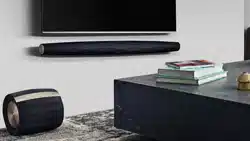
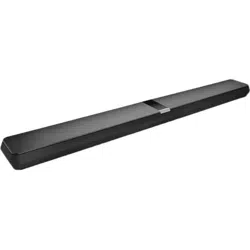
Formation Bar is a network connected, wireless active TV soundbar that provides
extremely high performance reproduction of TV audio and Formation audio
streams. Formation Bar is primarily intended to be congured and controlled
using the Bowers & Wilkins Home app. The app is available for both iOS and
Android devices. Some commonly used control functions are also available via
touch buttons on the Formation Bar top panel and it is additionally able to learn
and respond to TV remote control volume commands. It is only possible to install
and congure a Formation Bar using the Bowers & Wilkins Home app.
Formation Bar will enable you to:
• Listen to audio from your TV.
• Listen to audio from streaming services like Spotify, Apple Music, and Roon.
• Listen to network stored audio les.
• Listen to audio over Bluetooth from appropriately enabled Bluetooth source
devices.
• Listen to audio from devices such as turntables (via a phono preamp) and CD
players that are connected to a Bowers & Wilkins Formation Audio.
• Listen to audio, such as Internet Radio, from Airplay or Bluetooth compatible
services and apps.
• Listen to audio playing anywhere in your home on any Formation device
connected to your home network.
The Bowers & Wilkins Home app is required to connect your Formation Bar
to your home network and also to establish connection with other Formation
products in your home. The Bowers & Wilkins Home app and also provides some
control and conguration functions during use. Before you begin your Formation
Bar installation please download and install the Bowers & Wilkins Home app on
your iOS or Android device. The Bowers & Wilkins Home app requires iOS V11.4
or later, or Android V8.1 or later. Bluetooth, and WiFi services must be enabled
on your iOS or Android device. You will also need to know your WiFi network
password.
Note: Location Services must be enabled on Android devices during the
Formation setup process. This is because Formation products use a low power
form of Bluetooth (BT-LE) for service communication which on Android devices is
only switched on when Location Services are enabled. Bowers & Wilkins do not
use any location services data for marketing purposes.
Software version - V1.4
ENGLISH
Contents
ENGLISH 2
1. Formation Bar Carton Contents 3
2. Installing Your Formation Bar 3
3. Using Your Formation Bar 4
4. The Bowers & Wilkins Home App 5
5. Formation Music Streams and Sources
5
6. Cleaning 5
7. Support 5
3
ENGLISH
1. Formation Bar Carton Contents
Formation Bar
TOSLINK optical digital connection cable
Mains power cable set appropriate for your territory
Wall bracket
Document pack
2. Installing Your Formation Bar
Your Formation Bar requires a mains power supply
to operate so must be located within reach of a
mains socket. If your Formation Bar is to use a wired
connection to your home network it will need to
be located within reach of an appropriate network
(Ethernet) cable.
Your Formation Bar is intended to be positioned
directly below your TV screen and can be placed on
a shelf, table or furniture unit, but can also be wall-
mounted on a dedicated wall bracket.
If you decide to place your Formation Bar on a
shelf, ensure that the shelf is easily able to support
the weight. Furthermore, Formation Bar audio
performance may be diminished if mounting furniture
or shelf panels are imsy or resonant.
Note: If your Formation Bar is to be mounted on a
wall bracket, be sure to install the bracket in line
with its included instructions. If you are unsure of
the suitability of a wall, or of your ability to install
the wall bracket, you should engage specialist
help. Stud-work and plasterboard walls are
unlikely to provide adequate strength or rigidity to
support a Formation Bar and bracket.
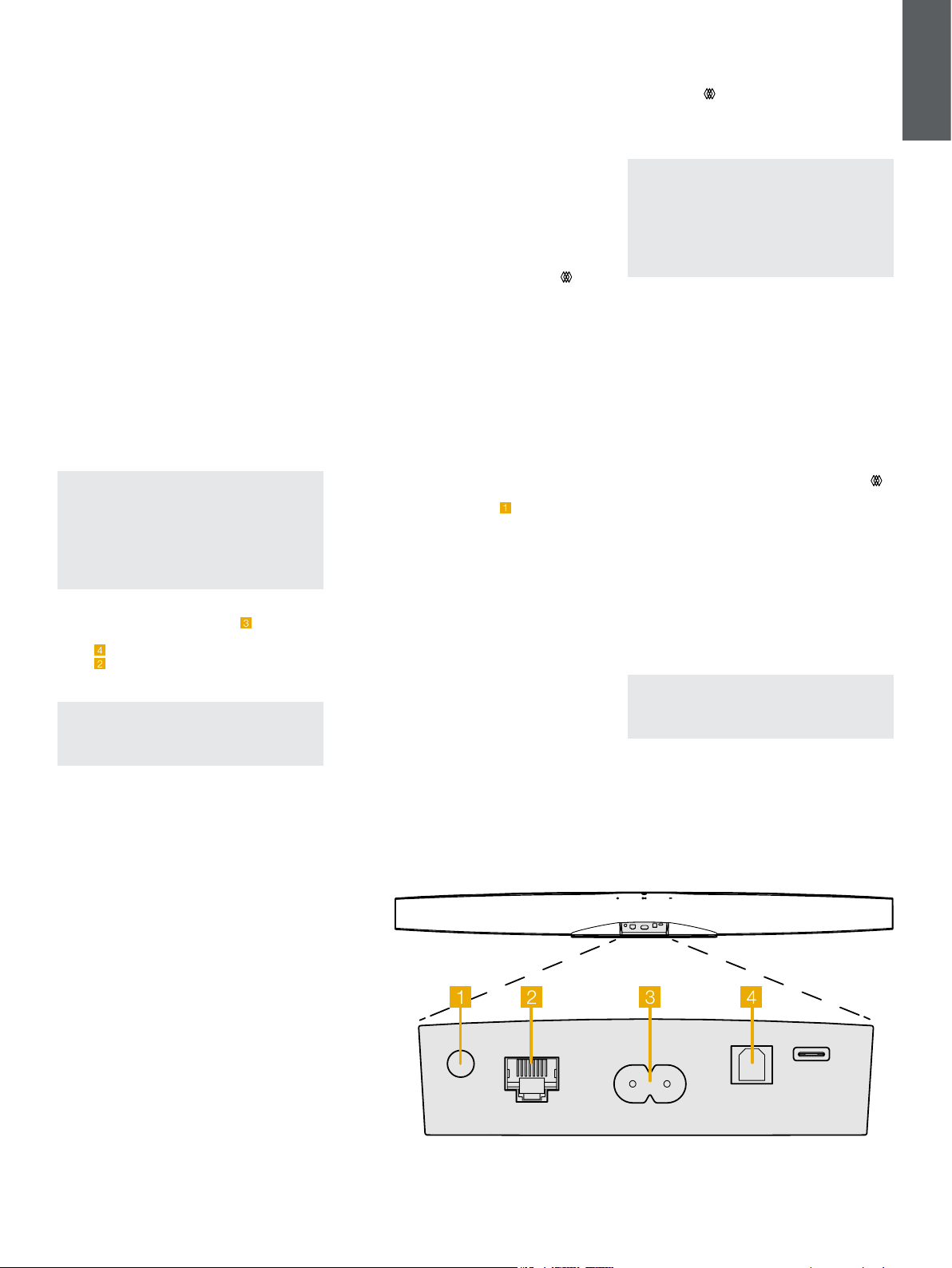
Connections
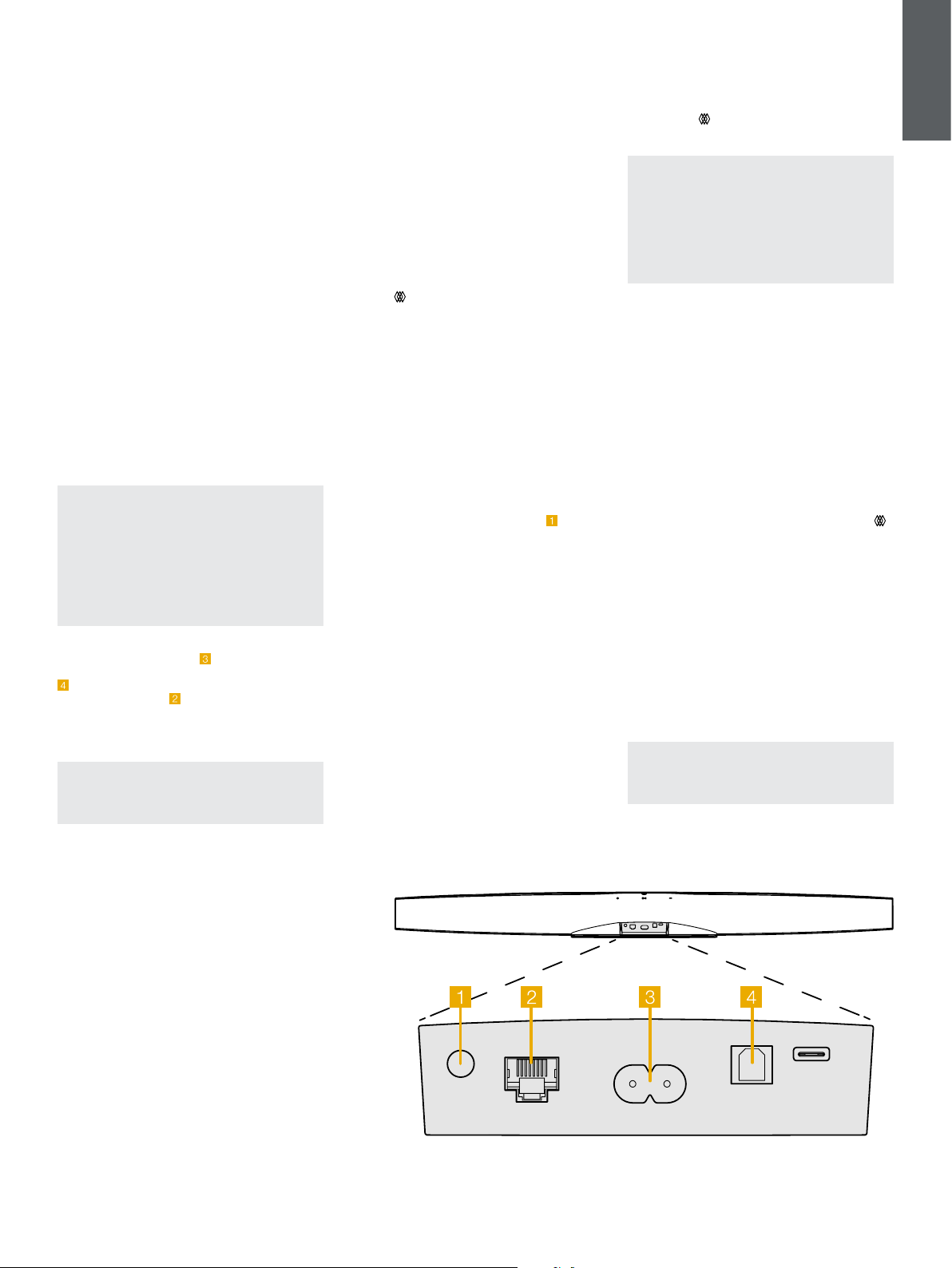
In addition to a mains power socket
your
Formation Bar carries an optical digital audio input
socket
for connection to a TV and an Ethernet
socket
for connection to a router should a wired
network connection be preferred to wireless (WiFi).
Note: The USB socket located on the Formation
Bar rear panel is intended for service and
diagnostic use only. It cannot be used for any
other purpose.
The Formation Bar optical digital audio input is
intended specically for the connection of an optical
digital TV audio output. Use the supplied TOSLINK
cable to connect your TV audio output to the
Formation Bar audio input. The Formation Bar will
automatically switch to its TV audio input when a
signal is present.
Your Formation Bar will automatically identify
and decode Dolby Surround encoded material
and create a surround sound experience. If a
Formation Bass subwoofer is connected in the same
Formation space as your Formation Bar it will switch
automatically to a low frequency effects (LFE) role
when Dolby Surround encoded material is identied.
Once your Formation Bar is set up, you should
switch off your TV internal speakers from the TV
audio settings menu. You may also have to enable
the digital audio output from the TV settings menu.
Switch On and Off
With all connections made, and the Bowers &
Wilkins Home app installed on your mobile device,
your Formation Bar is ready to be set up. Your
Formation Bar has no mains power switch and,
following a short start-up routine, will be operational
as soon as it is connected to mains power. It will
play an audio prompt when its startup routine is
complete.
When a Formation Bar, that has not been previously
used, is rst switched on it will automatically enter
setup mode to enable its connection to your home
network and to any other available Formation
devices. Setup mode is indicated by a slow orange
pulse illumination of the Form touch button
.
The Formation Bar will also appear in the Bowers
& Wilkins Home app as available for setup, either
on the initial app page, or after selecting ‘Add
Formation product’ from the app Settings page.
Your Formation Bar manages its operational state
and power consumption entirely automatically and
will switch to a power saving mode after twenty
minutes of inactivity. There is no need ever to switch
off your Formation Bar, however should you wish
to do so, simply disconnected it from mains power.
Your Formation Bar will retain its settings without
mains power.
You can restart a Formation Bar by a short press
and release of the reset button
located on its rear
panel. Pressing the button will switch the Formation
Bar off and on again. All settings will be retained
when your Formation Bar restarts. You can also
restart your Formation Bar via the Bowers & Wilkins
Home app Settings page.
If you wish to to reset your Formation Bar to its
default settings, press and hold the reset button for
ve seconds. On restart, your Formation Bar will
enter setup mode. All settings will be deleted when
your Formation Bar resets. You can also reset your
Formation Bar via the Bowers & Wilkins Home app
Settings menu.
Network Setup
• With your Formation Bar in setup mode, with its
Form button
illumination pulsing slowly orange,
launch the Bowers & Wilkins Home app on your
iOS or Android device. The app will guide you with
prompts though the setup process.
Note: Formation Bar employs a Bluetooth
connection to the device running the Bowers
& Wilkins Home app during the setup process.
Bluetooth signals have a relatively short range
and can be interrupted by room boundaries, so
we recommend that your Formation Bar and
Bowers & Wilkins Home app device remain in
close proximity during the setup process.
• The Bowers & Wilkins Home app will rst search
for Formation products in setup mode and display
a screen inviting the selection of one. Tap to select
your Formation Bar. If you have already set up a
Formation product and are adding an additional
one, select ‘Add Formation product’ from the app
Settings menu.
• The Bowers & Wilkins Home app will next invite
you to name the “space” in which your Formation
Bar is to be used. A list of default space names is
provided but you can also create your own. When
you have selected, or created, a space name,
the app will ask you to touch the Form button
on the top of your Formation Bar to conrm the
selection.
• If a wireless network connection for your
Formation Bar is to be used, the next setup stage
will connect your Formation Bar to your home
WiFi network. The app will ask you to conrm
the correct WiFi network and ask you to input
its password. Alternatively, if your Formation Bar
is connected to your network router using an
Ethernet cable, this stage of the setup process will
be bypassed.
Note: If you already have other Formation
products connected to your WiFi network,
Formation Bar setup will not require you to
input the WiFi password.
• With WiFi network conguration, and space
selection complete, your Formation Bar is ready
for use. Your Formation Bar will play an audio
prompt to conrm successful setup.
Diagram 1
Formation Bar rear panel
4
ENGLISH
Bluetooth Setup
You can connect your Formation Bar to a Bluetooth
enabled audio source device, such as a smartphone,
to play audio over Bluetooth. Your Formation Bar
must rst be “paired” with the Bluetooth audio
source device.
Once you have completed the Formation Bar
network setup, open the Bowers & Wilkins Home
app Settings page, and select the Formation Space
that you wish to pair a Bluetooth device with. Next
select ‘+ Pair a new device’ from the Bluetooth
menu and follow the app instructions to complete
pairing. Your Formation Bar will play an audio prompt
when pairing is complete and its Space will become
available to the paired Bluetooth device for audio
playback.
Note: Up to eight Bluetooth devices can be
simultaneously paired with each Formation
space, however devices will not connect and play
to paired spaces automatically.
3. Using Your Formation Bar
The Basics
You can use your Formation Bar to play audio from
your TV, from streaming services such as Spotify,
Apple Music, and Tidal, from the Roon music
library service, from network storage hardware and
from internet radio via an appropriate iRadio app.
If you have further Formation devices connected
to your network, a Formation Audio for example,
conventional audio sources connected to it will also
be available through your Formation Bar.
Spaces
Spaces are a core concept of the Formation product
family. A Formation “space” is a room or a specic
area in your home in which you listen to music.
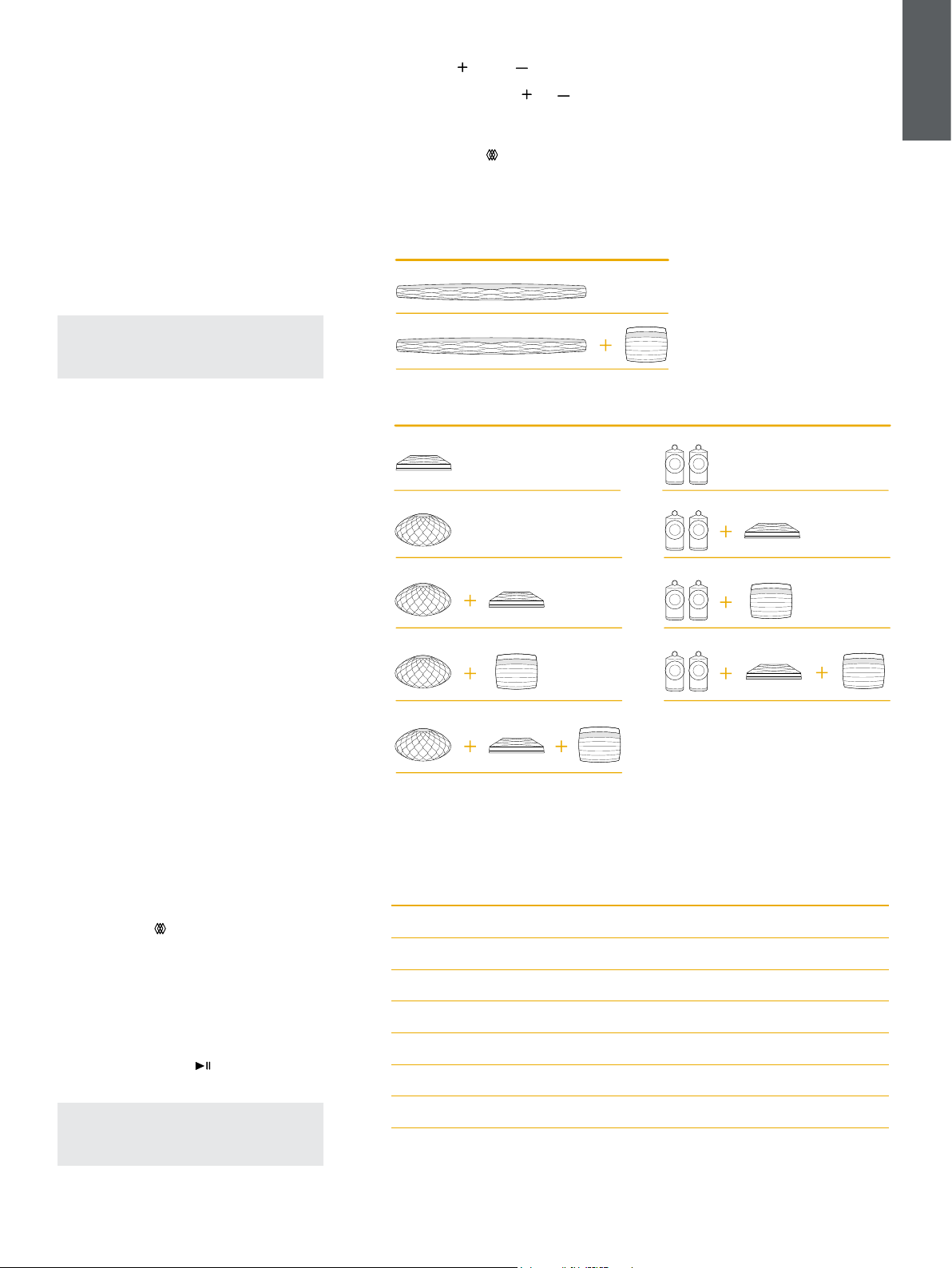
Each space can include different combinations of
Formation products. The possible congurations
are displayed in Diagram 2.
Playing Audio
The Bowers & Wilkins Home app enables you to
select and play any available audio source or stream.
However, in much the same way that conventional
audio source playback requires initiation through
a play command, Formation streams must be rst
initiated through their own gateway app: the Spotify
app for example, or a music library app such as
Roon. Each gateway or library app will list your
Formation Bar space as an available playback device
using Airplay, Bluetooth or in the case of Spotify,
Spotify Connect.
Once audio streams are playing on the Formation
network they can be selected via the Bowers &
Wilkins Home app or via the Formation Bar top panel
Form touch button
. Touching the Form button will
cycle though the available streams and sources.
Formation Bar Top Panel Controls
and Illumination
Your Formation Bar has touch buttons on its top
panel that provide play/pause control, volume
adjustment and source/stream selection.
• Touching the Play/Pause
will alternately stop
and restart audio playback.
Note: Play/pause will only operate if the stream
source has play and pause functions that can
be accessed through Bluetooth or network
connections.
• Touching volume up
or down will adjust
the local volume of any network stream or local
source. Pressing and holding the
and
buttons will continuously increase or decrease
volume.
• Touching the Form button
will cycle through
and play the active streams and sources available
to the Formation Bar.
Diagram 2
Space congurations
Diagram 3
Form button illuminations
Indicator Operational state
Flashing white Start-up in progress
Pulsing orange Ready for setup
Flashing orange Firmware update in progress
Pulsing white Audio pull in progress
Pulsing red Error - contact support
Solid red Error - contact support
Flashing red Factory reset in progress
Form Button illumination
The Formation Bar Form button illumination changes
to indicate a variety of operational states. The
illuminations are displayed in Diagram 3.
Formation Bar
Formation Audio Formation Duo
Formation Wedge
Formation Wedge + Formation Audio
Formation Wedge + Formation Bass
Formation Wedge + Formation Audio + Formation Bass
Formation Bar + Formation Bass
Formation Duo + Formation Audio
Formation Duo + Formation Bass
Formation Duo + Formation Audio + Formation Bass
TV Space congurations
Music Space congurations

5
ENGLISH
4. The Bowers & Wilkins Home App
With your Formation Bar congured and connected
to your network, the Bowers & Wilkins Home app
will open to its Home screen where the Formation
Bar space and any other available Formation spaces
will be listed.
Tap on a Formation space to select from any
available streams or inputs. If there are no streams
available, open a streaming app, Spotify for example,
and select an item to play, then select the Formation
Space from the list of available playback devices.
Now, when you return to the Bowers & Wilkins
Home app, the Spotify stream will be listed on the
Formation Bar space page.
The Bowers & Wilkins Home app Home page has
a Settings icon in the top right corner. Tap the
icon to open the app Settings menu. The Settings
menu provides options to congure and reset your
Formation devices and re-name your Formation
spaces. App and Formation device rmware updates
are also initiated from the Settings menu.
Finding Your Way Around the
Bowers & Wilkins Home App
The Bowers & Wilkins Home app will search for
available Formation spaces when opened then
display its Home page with the spaces listed.
Beneath each space the app will display its current
activity. Tapping on an active space will open a “now
playing” screen that enables volume and play/pause
control.
The ‘now playing’ screen also provides an ‘Available
Spaces’ option that enables the stream playing in
the selected space to be transferred to another
space or played in multiple spaces. The ‘Available
Spaces’ screen also provides the opportunity to
control volume, both globally across all spaces, or in
individual spaces.
The Bowers & Wilkins Home app Settings page is
opened by tapping on the settings icon. The initial
Settings menu lists each space and the number of
Formation devices present in each one.
Tapping on a space listed in the Settings menu
provides access to its Space and Formation device
settings. Tap the Space name to access the space
settings and tap the device name to access the
device settings. The device settings available will
depend on the device in question.
Note: If the Settings icon on the Bowers & Wilkins
Home app displays a yellow dot this indicates
that a Formation rmware update is available.
The rmware update process is initiated from
the Settings menu. You should always aim to
keep the Bowers & Wilkins Home app and your
Formation devices up to date with the latest
version and rmware. Not only will this help
ensure the most reliable performance, it will
ensure that you benet from new Formation
features.
TV Remote Setup
Your Formation Bar is able to learn your TV remote
control volume and mute commands. This enables
control of Formation Bar volume from the TV
remote control.
Select the Bowers & Wilkins Home app Settings
page and tap on Formation Bar. Now in The
following Formation Bar settings page tap on, ‘Learn
Remote Control’. The app will guide you through the
process of remote control command learning.
5. Formation Music Streams and Sources
Using Spotify
Use your phone, tablet or computer as a remote
control for Spotify. Go to spotify.com/connect to
learn how.
The Spotify Software is subject to third party licenses
found here: https://www.spotify.com/connect/third-
party-licenses.
Using Airplay
Airplay enables audio apps on Apple mobile,
laptop or desktop devices to stream material over
a network to Airplay compatible speakers such as
Formation Bar. Airplay enabled apps will display the
Airplay icon.
To use Airplay, open the audio app you wish to use
and select the music you wish to play. Tap on the
Airplay icon to display a list of available devices
followed by the Formation Space you wish to use.
Note: It is possible to stream audio via Airplay
on multiple devices simultaneously, however the
playback quality and synchronisation may then
depend on the capabilities of your home network.
If you wish to play material simultaneously in
more than one Formation space this will be more
satisfactorily achieved through selecting multiple
spaces in the Bowers & Wilkins Home app.
Using Roon
Roon is a feature rich music library and playback
app that compiles all the music les available to your
network and makes them easily available to play
across all your Formation Spaces and any other
Roon enabled audio devices. Roon is available for
mobile, laptop or desktop devices.
When you open Roon it will display your complete
audio library together with its metadata and artwork
along with all the Formation Spaces and any other
available network audio devices. Simply select the
music you wish to play and Formation space in
which you want to hear it.
Note: It is possible to stream audio from Roon
on multiple devices simultaneously, however
the playback quality and synchronisation and
may then depend on the capabilities of your
home network. If you wish to play material
simultaneously in more than one Formation
space, synchronization can be greatly improved
by selecting multiple spaces through the Bowers
& Wilkins Home app.
Using Bluetooth
Bluetooth enables audio apps on mobile, laptop or
desktop devices to stream material over a wireless
connection to compatible hardware such as the
Formation Bar. Bluetooth enabled audio apps will
display the Airplay icon.
To use Bluetooth, ensure that the required Formation
Space is selected in your device Bluetooth settings
menu, open the audio app you wish to use and
select the music you wish to play. Tap on the
playback devices icon to display a list of those
available followed by Formation Space you wish
to use.
6. Cleaning
Should your Formation Bar need cleaning you
can wipe its top surface with a clean, lint-free cloth
and brush its grille with a soft brush. If you wish to
use any cleaning uid, apply it onto the cleaning
cloth and not directly onto the Formation Bar.
Test a small area rst, as some cleaning products
may damage some of the surfaces. Avoid products
that are abrasive, or contain acid, alkali or anti-
bacterial agents.
7. Support
Should you require further help or advice regarding
your Formation Bar please visit the Formation
support site here www.bowerswilkins.com/support.
Environmental Information
This product complies with international directives,
including but not limited to the Restriction of
Hazardous Substances (RoHS) in electrical and
electronic equipment, the Registration, Evaluation,
Authorisation and restriction of Chemicals (REACH)
and the disposal of Waste Electrical and Electronic
Equipment (WEEE). Consult your local waste
disposal authority for guidance on how properly to
recycle or dispose of this product.

6
DEUTSCH
www.bowerswilkins.com
Willkommen bei Bowers & Wilkins und Formation Bar.
Vielen Dank, dass Sie sich für Formation entschieden haben. Als John Bowers
das Unternehmen Bowers & Wilkins gründete, war er überzeugt, dass ein
einfallsreiches, elegantes Design sowie eine innovative Konstruktion und
fortschrittliche Technologien der Schlüssel für ein einmaliges Klangerlebnis in
Ihrem Zuhause sind. Diese Überzeugung inspiriert weiterhin jedes Produkt, das
wir entwickeln, und hat mit Formation die bisher ausgereifteste Form gefunden.
Formation Bar ist eine netzwerkfähige, kabellose Aktiv-Soundbar, die eine
äußerst leistungsstarke Wiedergabe von TV-Audio und Formation-Audiostreams
ermöglicht. Formation Bar wird hauptsächlich mit der Bowers & Wilkins Home
App konguriert und gesteuert. Die App ist sowohl für iOS- als auch für Android-
Geräte verfügbar. Einige häug verwendete Steuerfunktionen sind auch über die
Symbol-Tasten auf der Oberseite der Formation Bar verfügbar. Außerdem kann
das Gerät die Lautstärkebefehle der Fernbedienung des Fernsehers lernen und
darauf reagieren. Das Installieren und Kongurieren einer Formation Bar ist nur
über die Bowers & Wilkins Home App möglich.
Mit der Formation Bar können Sie:
• Audio von Ihrem Fernseher hören.
• Audio von Streaming-Diensten wie Spotify, Apple Music und Roon hören.
• Im Netzwerk gespeicherte Audiodateien hören.
• Audio über Bluetooth von entsprechend aktivierten Bluetooth-Quellen hören.
• Audio von Geräten wie Plattenspieler (über einen Phono-Vorverstärker)
oder CD-Player hören, die an einen Bowers & Wilkins Formation Audio
angeschlossen sind.
• Audio von Airplay- oder Bluetooth-fähigen Diensten und Apps hören,
z. B. Internet-Radio.
• Audio überall in Ihrem Zuhause auf einem beliebigen Formation-Gerät hören,
das mit Ihrem Heimnetzwerk verbunden ist.
Die Bowers & Wilkins Home App ist erforderlich, um Formation Bar mit Ihrem
Heimnetzwerk zu verbinden, aber auch um eine Verbindung mit anderen
Formation-Produkten in Ihrem Zuhause herzustellen. Die Bowers & Wilkins Home
App bietet zudem einige Steuerungs- und Kongurationsfunktionen während des
Gebrauchs. Bevor Sie mit der Installation von Formation Bar beginnen, laden Sie
bitte die Bowers & Wilkins Home App herunter und installieren Sie sie auf Ihrem
iOS oder Android-Gerät. Für die Bowers & Wilkins Home App ist iOS V11.4 oder
höher bzw. Android V8.1 oder höher erforderlich. Bluetooth- und WLAN-Dienste
müssen auf Ihrem iOS- oder Android-Gerät aktiviert sein. Zudem müssen Sie Ihr
WLAN-Passwort kennen.
Hinweis: Auf Android-Geräten müssen die Ortungsdienste während des
Einrichtungsvorgangs für Formation aktiviert sein. Dies liegt daran, dass
Formation-Produkte für die Kommunikation einen Bluetooth-Modus mit geringem
Stromverbrauch (BT-LE) verwenden, der auf Android-Geräten nur eingeschaltet
ist, wenn die Ortungsdienste aktiviert sind. Bowers & Wilkins verwendet keine
Standortdaten für Marketingzwecke.
Softwareversion - V1.4
DEUTSCH
Inhalt
DEUTSCH 2
1. Formation Bar Kartoninhalt 3
2. So installieren Sie Formation Bar 3
3. So verwenden Sie Formation Bar 4
4. Die Bowers & Wilkins Home App 5
5. Formation Musik-Streams und Quellen 5
6. Reinigung 5
7. Support 5
7
DEUTSCH
1. Formation Bar Kartoninhalt
Formation Bar
TOSLINK optisches digitales Verbindungskabel
Netzkabel-Set passend für Ihr Land
Wandhalterung
Verschiedene Unterlagen
2. So installieren Sie Formation Bar
Ihre Formation Bar benötigt zum Betrieb eine
Netzstromversorgung und muss sich in Reichweite
einer Steckdose benden. Wenn Ihre Formation
Bar eine Kabelverbindung zu Ihrem Heimnetzwerk
verwenden soll, muss sich das Gerät in Reichweite
eines geeigneten Netzwerkkabels (Ethernet)
benden.
Formation Bar ist für die Positionierung direkt unter
Ihrem Fernseher vorgesehen und kann auf einem
Regal, Tisch oder Möbelstück platziert bzw. an einer
speziellen Wandhalterung montiert werden.
Soll Ihre Formation Bar auf ein Regal gestellt werden,
so stellen Sie sicher, dass dieses stabil genug ist,
um das Gewicht zu tragen. Darüber hinaus kann
die Klangqualität der Formation Bar leiden, wenn
Möbelstücke oder Regalböden nicht ausreichend
stabil und resonanzfrei sind.
Hinweis: Wenn Ihre Formation Bar an einer
Wandhalterung montiert werden soll, befolgen
Sie bitte die beiliegenden Anweisungen. Wenn
Sie sich nicht sicher sind, ob eine Wand geeignet
ist oder ob Sie die Wandhalterung installieren
können, sollten Sie eine Fachkraft hinzuziehen.
Ständer- und Gipskartonwände dürften kaum
eine ausreichende Festigkeit oder Steigkeit
aufweisen, um eine Formation Bar samt
Halterung zu tragen.
Anschlüsse
Neben einer Netzsteckdose
verfügt Formation
Bar über eine optisch-digitale Audioeingangsbuchse
für den Anschluss an einen Fernseher sowie
eine Ethernet-Buchse
für den Anschluss
an einen Router, falls eine kabelgebundene
Netzwerkverbindung gegenüber Wireless (WLAN)
bevorzugt wird.
Hinweis: Die USB-Buchse auf der Rückseite
der Formation Bar ist nur für Service- und
Diagnosezwecke vorgesehen. Sie darf nicht für
andere Zwecke verwendet werden.
Der optisch-digitale Audioeingang von Formation
Bar ist speziell für den Anschluss an einen optisch-
digitalen TV-Audioausgang vorgesehen. Verwenden
Sie das mitgelieferte TOSLINK-Kabel, um den
TV-Audioausgang mit dem Audioeingang der
Formation Bar zu verbinden. Formation Bar schaltet
automatisch auf den TV-Audioeingang um, wenn ein
Signal anliegt.
Formation Bar erkennt und decodiert automatisch
Inhalte im Dolby Surround-Format und erzeugt
ein Surround-Klangerlebnis. Wenn ein Formation
Bass-Subwoofer im selben Formation-Raum wie
Ihre Formation Bar eingerichtet ist, schaltet dieser
automatisch auf die Wiedergabe des LFE-Kanals
(Low Frequency Effects) von Inhalten im Dolby
Surround-Format um.
Sobald Sie Formation Bar eingerichtet haben, sollten
Sie die internen Lautsprecher Ihres Fernsehers
über das Menü für die Audioeinstellungen des
Fernsehgeräts ausschalten. Möglicherweise müssen
Sie auch den digitalen Audioausgang über das TV-
Einstellungsmenü aktivieren.
Ein- und Ausschalten
Nachdem alle Verbindungen hergestellt wurden
und die Bowers & Wilkins Home App auf Ihrem
Mobilgerät installiert ist, kann Ihre Formation Bar
eingerichtet werden. Formation Bar hat keinen
Netzschalter und ist nach einem kurzen Startvorgang
betriebsbereit, sobald sie an das Stromnetz
angeschlossen wird. Sie hören ein Tonsignal, wenn
der Startvorgang abgeschlossen ist.
Wenn eine zuvor noch nicht benutzte Formation
Bar zum ersten Mal eingeschaltet wird, wechselt
sie automatisch in den Setup-Modus, damit die
Verbindung zu Ihrem Heimnetzwerk und zu anderen
verfügbaren Formation-Geräten hergestellt werden
kann. Der Setup-Modus wird durch ein langsames
orangefarbenes Aueuchten der Form-Touch-Taste
angezeigt
. Die Formation Bar erscheint nun
einrichtungsbereit auch in der Bowers & Wilkins
Home App: entweder auf der Startseite der App oder
nach Auswahl von „Formation-Produkt hinzufügen“
auf der Kongurationsseite.
Formation Bar steuert ihren Betriebszustand
und Stromverbrauch vollautomatisch und
wechselt nach zwanzig Minuten Inaktivität in
einen Energiesparmodus. Daher müssen Sie Ihre
Formation Bar niemals ausschalten. Wenn Sie
dies trotzdem wünschen, trennen Sie sie einfach
vom Stromnetz. Die Formation Bar behält ihre
Einstellungen auch ohne Netzanschluss bei.
Sie können eine Formation Bar durch kurzes
Drücken und Loslassen der Reset-Taste
auf der
Rückseite neu starten. Durch Drücken der Taste wird
Formation Bar aus- und wieder eingeschaltet. Alle
Einstellungen bleiben beim Neustart der Formation
Bar erhalten. Sie können Ihre Formation Bar auch
über die Kongurationsseite in der Bowers & Wilkins
Home App neu starten.
Wenn Sie Ihre Formation Bar auf die
Standardeinstellungen zurücksetzen möchten, halten
Sie die Reset-Taste fünf Sekunden lang gedrückt.
Beim Neustart wechselt Formation Bar dann in
den Setup-Modus. Beim Zurücksetzen werden alle
Einstellungen gelöscht. Sie können Ihre Formation
Bar auch über das Kongurationsmenü in der
Bowers & Wilkins Home App zurücksetzen.
Netzwerkeinrichtung
• Öffnen Sie die Bowers & Wilkins Home App auf
Ihrem iOS- oder Android-Gerät, während sich Ihre
Formation Bar im Setup-Modus bendet und die
Form-Taste
langsam orange blinkt. Die App
führt Sie durch den Einrichtungsvorgang.
Hinweis: Formation Bar verwendet während des
Einrichtungsvorgangs eine Bluetooth-Verbindung
zu dem Gerät, auf dem die Bowers & Wilkins Home
App läuft. Bluetooth-Signale haben eine relativ
geringe Reichweite und können durch Wände/
Hindernisse unterbrochen werden. Wir empfehlen
daher, dass Formation Bar und das Gerät mit
der Bowers & Wilkins Home App während des
Einrichtungsvorgangs nahe beieinander bleiben.
• Die Bowers & Wilkins Home App sucht zunächst
im Setup-Modus nach Formation-Produkten
und zeigt einen Bildschirm an, in dem Sie
zur Auswahl aufgefordert werden. Tippen Sie
auf Ihre Formation Bar. Wenn Sie bereits ein
Formation-Produkt eingerichtet haben und ein
weiteres hinzufügen möchten, wählen Sie auf
der Kongurationsseite in der App die Option
„Formation-Produkt hinzufügen“.
• Die Bowers & Wilkins Home App fordert Sie als
Nächstes auf, den Raum zu benennen, in dem Ihre
Formation Bar verwendet werden soll. Sie sehen
eine Liste mit Standardnamen für Räume, können
aber auch eigene Namen erstellen. Nachdem
Sie einen Raumnamen ausgewählt oder erstellt
haben, fordert Sie die App auf, die Form-Taste
oben auf Ihrer Formation Bar zu betätigen, um die
Auswahl zu bestätigen.
• Wenn eine drahtlose Netzwerkverbindung für Ihre
Formation Bar verwendet werden soll, erfolgt im
nächsten Einrichtungsschritt die Verbindung der
Formation Bar mit Ihrem heimischen WLAN-Netz.
Die App fordert Sie auf, das richtige WLAN-Netz
zu bestätigen und das Passwort einzugeben. Falls
Ihre Formation Bar mit einem Ethernet-Kabel an
Ihren Netzwerk-Router angeschlossen ist, wird
dieser Einrichtungsschritt übersprungen.
• WLAN-Übertragungsmodus 802.11g (2,4 GHz).
Hinweis: Wenn Sie bereits andere Formation-
Produkte mit Ihrem WLAN-Netzwerk verbunden
haben, müssen Sie für Formation Bar das WLAN-
Passwort nicht erneut eingeben.
• Nach Abschluss der WLAN-Konguration und der
Raumauswahl ist Ihre Formation Bar einsatzbereit.
Ihre Formation Bar gibt ein Tonsignal aus, um die
erfolgreiche Einrichtung zu bestätigen.
Abbildung 1
Formation Bar Rückwand
8
DEUTSCH
Bluetooth-Einrichtung
Sie können Ihre Formation Bar an eine Bluetooth-
fähige Audioquelle (z. B. ein Smartphone)
anschließen, um Audio über Bluetooth
wiederzugeben. Dazu muss Formation Bar zuerst mit
der Bluetooth-Audioquelle „gekoppelt“ werden.
Nachdem Sie die Netzwerkeinrichtung von
Formation Bar abgeschlossen haben, öffnen Sie
die Kongurationsseite der Bowers & Wilkins Home
App und wählen Sie den Formation-Raum, mit
dem Sie ein Bluetooth-Gerät koppeln möchten.
Wählen Sie anschließend aus dem Bluetooth-Menü
die Option „+ Neues Gerät koppeln“ und folgen
Sie den Anweisungen der App, um den Vorgang
abzuschließen. Ihre Formation Bar gibt nach
Abschluss der Kopplung ein Tonsignal aus und
der entsprechende Raum steht dem gekoppelten
Bluetooth-Gerät für die Audiowiedergabe zur
Verfügung.
Hinweis: Es können bis zu acht Bluetooth-Geräte
gleichzeitig mit jedem Formation-Raum gekoppelt
werden, jedoch werden die Geräte nicht
automatisch verbunden und es erfolgt auch keine
automatische Wiedergabe.
3. So verwenden Sie Formation Bar
Grundsätzliches
Sie können mit Formation Bar Audio von Ihrem
Fernseher, Streaming-Diensten wie Spotify, Apple
Music und Tidal, von einer Roon-Musikbibliothek,
von NAS-Festplatten und Internetradio über eine
entsprechende iRadio-App wiedergeben. Wenn
Sie weitere Formation-Geräte an Ihr Netzwerk
angeschlossen haben, z. B. einen Formation
Audio, sind herkömmliche Audioquellen, die daran
angeschlossen sind, auch über Ihre Formation Bar
verfügbar.
Spaces
Spaces (Räume) sind ein wichtiges Konzept in der
Formation-Produktfamilie. Ein Formation-Space
ist ein Raum oder ein bestimmter Bereich in Ihrem
Zuhause, in dem Sie Musik hören. Jeder Space kann
Formation-Produkte in verschiedenen Kombinationen
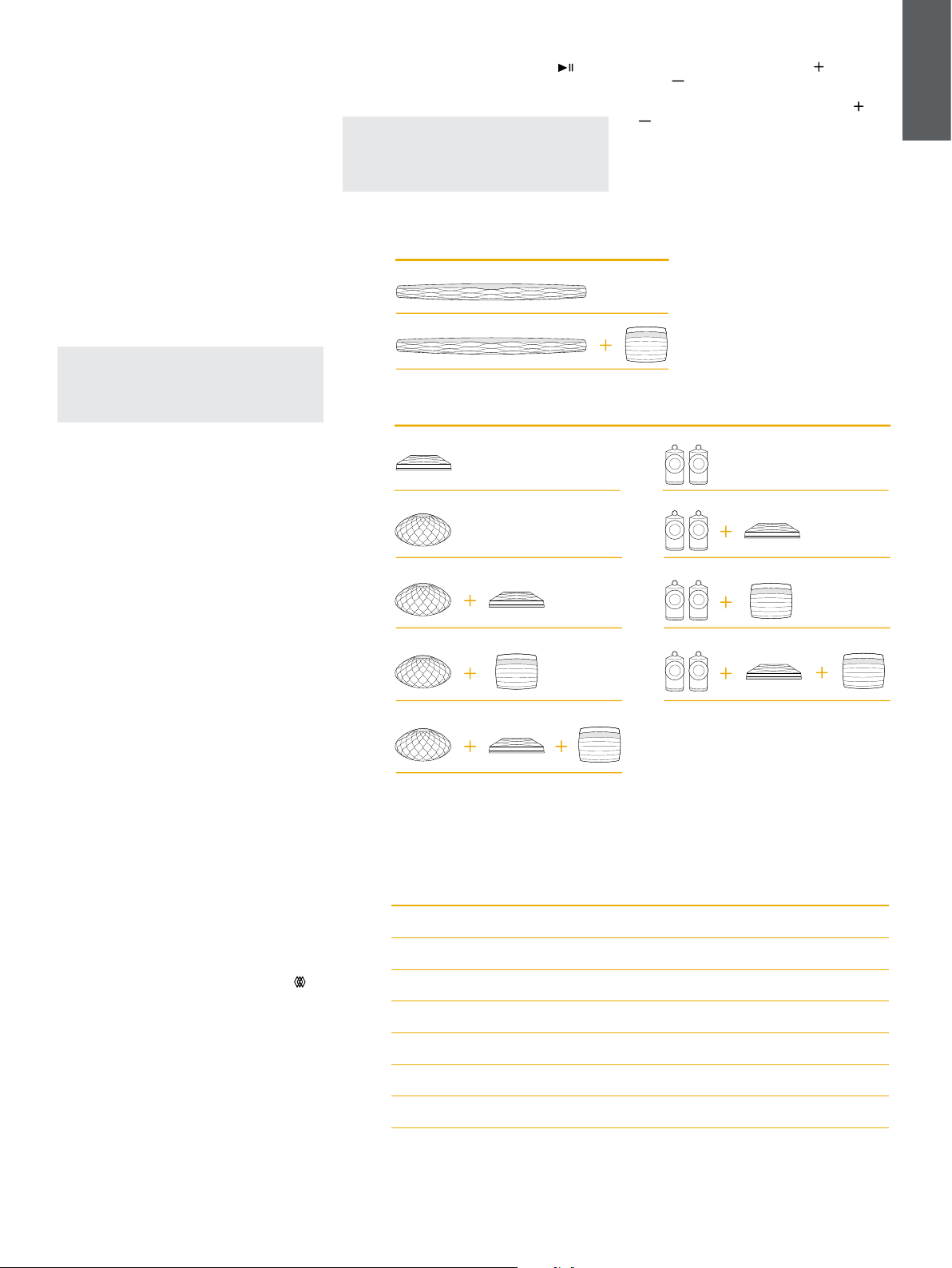
enthalten. Die möglichen Kongurationen
sind in Abbildung 2 dargestellt.
Audiowiedergabe
Mit Hilfe der Bowers & Wilkins Home App können
Sie jede verfügbare Audioquelle oder jeden
verfügbaren Stream auswählen und abspielen.
Während Sie bei der herkömmlichen Wiedergabe
von Audioquellen die Wiedergabetaste drücken,
müssen Sie zum Streamen an Formation zunächst
die jeweilige App aufrufen: die Spotify-App zum
Beispiel oder eine Musikbibliothek-App wie Roon.
Jede dieser Apps listet Ihre Formation Bar-Räume
als verfügbares Wiedergabegerät mittels Airplay,
Bluetooth oder (im Falle von Spotify) Spotify Connect
auf.
Sobald Audio-Streams im Formation-Netzwerk
abgespielt werden, können sie über die Bowers
& Wilkins Home App oder über die Form-Taste
oben auf der Formation Bar ausgewählt werden.
Durch Berühren der Form-Taste können die
verfügbaren Streams und Quellen der Reihe nach
abgerufen werden.
Formation Bar Bedienelemente
und Beleuchtung
Ihre Formation Bar verfügt über Symbol-Tasten auf
der Oberseite, mit denen Sie Wiedergabe/Pause
steuern, die Lautstärke einstellen und die Quelle/den
Stream auswählen können.
• Durch Betätigen von Wiedergabe/Pause wird
die Audiowiedergabe abwechselnd gestoppt und
neu gestartet.
Hinweis: Wiedergabe/Pause funktioniert nur,
wenn die Stream-Quelle über Wiedergabe- und
Pausenfunktionen verfügt, auf die über Bluetooth-
oder Netzwerkverbindungen zugegriffen werden
kann.
Abbildung 2
Raumkongurationen
Abbildung 3
Beleuchtung der Form-Taste
Anzeige Betriebszustand
Blinkt weiß Startvorgang läuft
Pulsiert orange Wartet auf die Einrichtung
Blinkt orange Firmware-Update wird durchgeführt
Pulsiert weiß Audio wird abgerufen
Pulsiert rot Fehler - Support kontaktieren
Konstant rot Fehler - Support kontaktieren
Blinkt rot Reset wird durchgeführt
• Durch Betätigen der Tasten Lauter
und
Leiser
wird die lokale Lautstärke eines
Netzwerkstreams oder einer lokalen Quelle
angepasst. Durch Drücken und Halten der
und
Tasten wird die Lautstärke kontinuierlich erhöht
oder verringert.
Formation Bar
Formation Audio Formation Duo
Formation Wedge
Formation Wedge + Formation Audio
Formation Wedge + Formation Bass
Formation Wedge + Formation Audio + Formation Bass
Formation Bar + Formation Bass
Formation Duo + Formation Audio
Formation Duo + Formation Bass
Formation Duo + Formation Audio + Formation Bass
TV-Kongurationen
Musik-Kongurationen

9
DEUTSCH
• Durch Betätigen der Form-Taste können die
aktiven Streams und Quellen, die für Formation
Bar zur Verfügung stehen, der Reihe nach
abgerufen werden.
• Durch anhaltendes Betätigen (für mindestens
2 Sekunden) der Form-Taste
wird die
Audiowiedergabe auf diesem Gerät abgeschaltet.
Form-Tastenbeleuchtung
Die Beleuchtung der Form-Taste ändert sich, um
verschiedene Betriebszustände anzuzeigen. Diese
Leuchtzustände sind in Abbildung 3 dargestellt.
4. Die Bowers & Wilkins Home App
Nachdem Formation Bar konguriert und mit Ihrem
Netzwerk verbunden ist, öffnet sich die Bowers &
Wilkins Home App auf der Startseite. Dort sind der
Formation Bar-Raum sowie alle anderen verfügbaren
Formation-Räume aufgelistet.
Tippen Sie auf einen Formation-Raum, um aus
allen verfügbaren Streams oder Audioquellen
auszuwählen. Wenn keine Streams verfügbar sind,
öffnen Sie eine Streaming-App (z. B. Spotify) und
wählen Sie einen Titel aus. Wählen Sie dann den
Formation-Raum aus der Liste der verfügbaren
Wiedergabegeräte aus. Wenn Sie nun zur Bowers &
Wilkins Home App zurückkehren, wird der Spotify-
Stream für den jeweiligen Raum aufgelistet, in dem
sich Ihre Formation Bar bendet.
Auf der Startseite der Bowers & Wilkins Home App
bendet sich oben rechts ein Einstellungssymbol.
Tippen Sie auf das Symbol, um das
Kongurationsmenü zu öffnen. Dieses Menü bietet
Optionen zum Kongurieren und Zurücksetzen
Ihrer Formation-Geräte und zum Umbenennen Ihrer
Formation-Räume. Updates für die App und die
Firmware der Formation-Geräte werden ebenfalls
über dieses Menü abgerufen.
Zurechtnden in der
Bowers & Wilkins Home App
Die Bowers & Wilkins Home App sucht beim Öffnen
nach verfügbaren Formation-Räumen und zeigt dann
die Startseite mit den gefundenen Räumen an.
Unter jedem Raum zeigt die App die aktuelle Aktivität
an. Wenn Sie auf einen aktiven Raum tippen,
erscheint ein Wiedergabe-Bildschirm, auf dem Sie
die Lautstärke und Wiedergabe/Pause steuern
können.
Der Wiedergabe-Bildschirm bietet auch die Option
„Verfügbare Räume“, mit der der Stream, der im
jeweils ausgewählten Raum abgespielt wird, auf
einen anderen Raum übertragen oder in mehreren
Räumen wiedergegeben werden kann. Der
Bildschirm „Verfügbare Räume“ bietet zudem die
Möglichkeit, die Lautstärke zu regeln, sowohl über
alle Räume hinweg als auch in einzelnen Räumen.
Die Kongurationsseite der Bowers & Wilkins Home
App wird durch Tippen auf das Einstellungssymbol
geöffnet. Das Menü der Grundeinstellungen listet
jeden Raum und die Anzahl der in jedem Raum
vorhandenen Formation-Geräte auf.
Wenn Sie auf einen Raum tippen, der im
Kongurationsmenü aufgeführt ist, erhalten Sie
Zugriff auf die Einstellungen für den Raum und
dort vorhandene Formation-Geräte. Tippen Sie auf
den Raumnamen, um auf die Raumeinstellungen
zuzugreifen, und tippen Sie auf den Gerätenamen,
um auf die Geräteeinstellungen zuzugreifen. Die
verfügbaren Geräteeinstellungen hängen vom
jeweiligen Gerät ab.
Hinweis: Wenn das Einstellungssymbol in der
Bowers & Wilkins Home App einen gelben Punkt
anzeigt, bedeutet dies, dass ein Firmware-Update
für Formation verfügbar ist. Das Firmware-Update
wird über das Kongurationsmenü gestartet.
Sie sollten immer darauf achten, die Version der
Bowers & Wilkins Home App und die Firmware
Ihrer Formation-Geräte auf dem neuesten Stand
zu halten. Dadurch wird nicht nur die höchste
Zuverlässigkeit gewährleistet, sondern Sie
protieren auch von neuen Formation-Funktionen.
TV-Fernbedienung einrichten
Ihre Formation Bar kann die Lautstärkeregelung
Ihrer TV-Fernbedienung und die Befehle zum
Stummschalten lernen. Dies ermöglicht die
Steuerung der Lautstärke der Formation Bar über die
Fernbedienung des Fernsehgeräts.
Wählen Sie die Kongurationsseite der Bowers &
Wilkins Home App und tippen Sie auf Formation Bar.
Tippen Sie nun auf der folgenden Kongurationsseite
für Formation Bar auf „Fernbedienung lernen“.
Die App führt Sie durch den Lernprozess für
Fernbedienungsbefehle.
5. Formation Musik-Streams und Quellen
Verwendung von Spotify
Nutzen Sie Ihr Handy, Tablet oder Ihren Computer
als Fernbedienung für Spotify. Eine entsprechende
Anleitung nden sie unter spotify.com/connect.
Die Spotify-Software unterliegt Lizenzen von
Drittanbietern: https://www.spotify.com/connect/
third-party-licenses.
Verwendung von Airplay
Mit Hilfe von Airplay können Audio-Apps auf
Apple-Mobilgeräten, Notebooks oder Desktops,
Inhalte über ein Netzwerk an Airplay-kompatible
Lautsprecher wie Formation Bar übertragen. Airplay-
fähige Apps zeigen das Airplay-Symbol an.
Um Airplay zu verwenden, öffnen Sie die gewünschte
Audio-App und wählen Sie die Musik aus, die Sie
abspielen möchten. Tippen Sie auf das Airplay-
Symbol, um eine Liste der verfügbaren Geräte
anzuzeigen, gefolgt von dem Formation-Raum, in
dem Sie Musik hören möchten.
Hinweis: Es ist möglich, Audio über Airplay auf
mehreren Geräten gleichzeitig zu streamen.
Wiedergabequalität und die Synchronisierung
hängen dann jedoch von den Fähigkeiten Ihres
Heimnetzwerks ab. Wenn Sie Inhalte gleichzeitig
in mehr als einem Formation-Raum wiedergeben
möchten, wird dies durch die Auswahl mehrerer
Räume in der Bowers & Wilkins Home App
besser erreicht.
Verwendung von Roon
Roon ist eine funktionsreiche Musikbibliothek- und
Wiedergabe-App zur Verwaltung und zum Abspielen
aller in Ihrem Netzwerk verfügbaren Musikdateien.
Auf diese Weise ist eine problemlose Wiedergabe
in allen Ihren Formation-Räumen und auf anderen
Roon-fähigen Audiogeräten möglich. Roon ist für
mobile Geräte, Laptops oder Desktops verfügbar.
Wenn Sie Roon öffnen, wird Ihre gesamte
Audiobibliothek einschließlich Metadaten und Cover
zusammen mit allen Formation-Räumen und anderen
verfügbaren Netzwerk-Audiogeräten angezeigt.
Wählen Sie einfach die gewünschte Musik und den
Formation-Raum, in dem Sie sie hören möchten.
Hinweis: Es ist möglich, Audio von Roon auf
mehrere Geräte gleichzeitig zu streamen.
Wiedergabequalität und die Synchronisierung
hängen dann jedoch von der Leistungsfähigkeit
Ihres Heimnetzwerks ab. Wenn Sie Audio
gleichzeitig in mehreren Formation-Räumen
wiedergeben möchten, können Sie die
Synchronisierung erheblich verbessern, indem Sie
mehrere Räume in der Bowers & Wilkins Home
App auswählen.
Verwendung von Bluetooth
Mit Hilfe von Bluetooth können Audio-Apps auf
Mobilgeräten, Notebooks oder Desktops, Inhalte
über eine drahtlose Verbindung an kompatible
Hardware wie Formation Bar übertragen. Bluetooth-
fähige Audio-Apps zeigen das Bluetooth-Symbol an.
Um Bluetooth zu verwenden, stellen Sie sicher, dass
der gewünschte Formation-Raum im Bluetooth-
Kongurationsmenü Ihres Geräts ausgewählt ist.
Öffnen Sie dann die Audio-App, die Sie verwenden
möchten, und wählen Sie die gewünschte Musik.
Tippen Sie auf das Symbol für Wiedergabegeräte,
um eine Liste der verfügbaren Geräte anzuzeigen,
gefolgt von dem Formation-Raum, den Sie
beschallen möchten.
6. Reinigung
Zum Reinigen der Formation Bar wischen Sie die
Oberseite mit einem sauberen, fusselfreien Tuch ab.
Das Gitter kann mit einer weichen Bürste gereinigt
werden. Wenn Sie Reinigungsüssigkeit verwenden
möchten, tragen Sie diese auf das Reinigungstuch
und nicht direkt auf Formation Bar auf.
Testen Sie zunächst an einer kleinen, unauffälligen
Stelle, da einige Reinigungsprodukte bestimmte
Oberächen beschädigen können. Verwenden Sie
daher keine scharfen bzw. säure- oder alkalihaltigen
oder antibakteriellen Produkte.
7. Support
Wenn Sie weitere Hilfe oder Beratung zur Formation
Bar benötigen, besuchen Sie bitte die folgende
Support-Seite für Formation www.bowerswilkins.
com/support.
Umweltinformationen
Dieses Produkt entspricht den internationalen
Richtlinien über die Beschränkung der Verwendung
bestimmter gefährlicher Stoffe in Elektro- und
Elektronikgeräten (RoHS), der Verordnung
zur Registrierung, Bewertung, Zulassung und
Beschränkung chemischer Stoffe (REACH) und den
Richtlinien über Elektro- und Elektronik-Altgeräte
(WEEE). Erkundigen Sie sich bezüglich des
Recyclings bzw. der Entsorgung dieses Produktes
bei der örtlichen Abfallentsorgung.