
Basic Knowledge
1.1 Introduction
statement:
Please read this manual carefully to get better use of
your player.
Based on the principle of sustainable development,
our company reserves the right to improve the player
without prior notice, and reserves the final
interpretation right for product performance.
Due to differences in device software and service
providers, the content in this manual may differ from
the actual display, please refer to your player.
Safety Warnings and Precautions
Safety Warning
Professional Service
Only professionals can install or repair player.
Installing or servicing player by yourself can be very
dangerous and violate the warranty.
Accessories and Batteries
Only can use accessories and batteries approved by
the manufacturer.

Reasonable Use
Use the player in normal way.
Precautions
Your player is well designed and crafted, should be
taken good cared of.The suggestions below will help
your player survive the warranty period and continue
for years.
Keep the player and all its parts and accessories out
of the reach of children.
Keep the player dry. Avoid rain, moisture and
liquids may contain substances that may corrode
electronic circuits.
Do not use or store the player in dusty places to
avoid damage to its moving parts.
Do not store the player in high temperature place.
High temperatures can shorten the life of electronic
circuits, damage batteries and certain plastic parts.
Do not store the player in cold place. Otherwise,
when the player rises to normal temperature, moisture
will form inside, which may damage the electronic
circuit board.
Do not drop, knock or vibrate the player. Roughly
hand the player can damage internal circuit boards
and delicate structures.
Please use regular national standard charger to
charge. The charging parameters of this player are:
5V2A
2. Your player
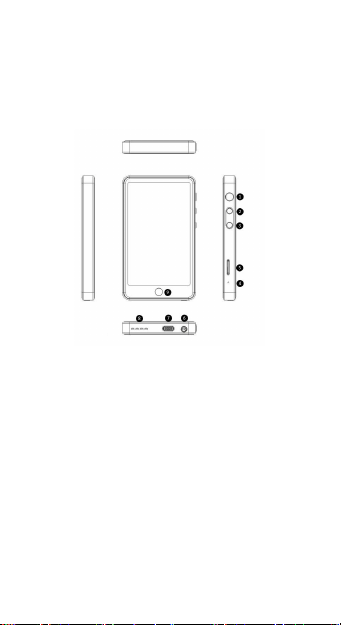
2.1 buttons diagram of player
Mark 1 is: Switch Button
Mark 2 is: Volume Plus
Mark 3 is: Volume Minus
Mark 4 is: Recording Hole
Mark 5 is: TF Card Interface
Mark 6 is: Headphone Jack
Mark 7 is: Type-c USB Interface/Charging Port
Mark 8 is: Speaker Sound Hole
Mark 9 is: Home Button

2.2 Button Description
Power Key
This button is on the right side of the player, long
press to turn on; when using the player, press this
button to lock and wake up the screen; in the standby
interface, long press this button will pop up a prompt
box, you can choose to shut down or restart.
After power on, long press the power button and
volume down button to display the automatic screen
capture function.
In the power-on state, press and hold the power button
for about 20 seconds to automatically reset the
settings (apply to force shutdown and reboot)
Volume Control Keys
This button is below the power button and used to
adjust the volume.
Reset Hole
If the player cannot touch or get stuck and cannot
operate, it can be reset and restarted by pressing down
the hole button with the reset needle.
2.3 Icon Description
The circle icon at the bottom of the player is a
one-key return function to return to the main
interface.

Menu Icon
Click on any interface, and a dialog box will pop up
on the screen for further operations.
Home Icon
Click on any interface to exit and return to the
standby interface.
Back icon
Tap the icon to return to the previous menu.
2.4 Technical Parameters
Dimensions: 105.7mm x 62mm x 11.4mm
Weight: 133.6g
Lithium Polymer Battery
Charger Required output: DC5V 1A-2A
For other related parameters of the battery and charger,
please refer to the actual player.
3. Preparation Before Use
3.1 Install TF Card
TF card is a removable memory card located inside
the player.
Install TF card: Carefully insert the TF card into the
TF card jack, the installation is successful.
Remove the TF card: Carefully remove the TF card,
the removal is successful.

Notice:
1. The player will automatically recognize when the
TF card is inserted in the power-on state, and click the
device screen to switch the storage location.
2. TF card is a small object, please do not let children
touch to prevent from accidentally swallowing !
3.2 Battery Charging
The lithium-ion battery supplied with this player is
ready to use after unpacking. For the first 3 charges,
please fully charge after the battery is completely used
up, so the battery can be used in the best state.
Battery Level Indicator:
Your player can monitor and display battery related
information.
Under normal circumstances, you can see the
remaining battery power from the battery power icon
in the upper right corner of the display.
When the battery power is low, the device will have a
"low battery" prompt. If you select Prompt
Tone-Warning Tone in any of the profiles, a warning
tone will also sound.
When the battery is charging, the charging animation
is displayed, and the charging animation stops
indicating the charging is completed.
It is normal for the battery to heat up slightly during
charging.

Notice:
It must be ensured that the standard voltage and
frequency of the location match the rated voltage and
power of your travel charger.
Battery Usage
Battery performance is affected by some factors,
including your wireless network configuration, signal
strength, the temperature at which you use the player,
the features or settings you choose and use, the
accessories you choose for your player, the voice, data
or other application mode.
For optimal battery performance, follow these rules:
Only allow the original battery to charge to avoid
damage caused by wrong charging.
A new battery or a battery that has not been used
for a long time, it takes a long time to charge. If the
battery voltage is too low to turn on, it will take a long
time for the battery icon to change.
When charging, keep the battery at or near room
temperature.
If you find any strange smell or overheating,
cracks, deformation or other types of damage to the
battery, or find leakage of electrolyte, stop using
immediately.

After long-term use, the battery will require a long
time charging due to gradual wear and tear, which is a
normal phenomenon. If you find talk time decreases
and the charging time increases after normal charging,
you need to buy original batteries or batteries
approved by our company, inferior accessories will
damage your player and cause danger !
Note: For your safety and to protect the
environment, do not throw away the battery
anywhere! It is recommended used batteries are
returned to the manufacturer or placed in a
designated public waste battery recycling area,
should not be mixed with other garbage or
discarded.
Warning: Any form of battery short circuit may
cause serious consequences such as explosion, fire
or personal injury!
3.3 Connect to the network
Your player can connect to a variety of networks
and devices, including wireless data networks, and
Bluetooth devices. You can also connect the device to
a computer and transfer the data in the device by
connecting the USB interface.

Wi-Fi connection
You can connect to WLAN, use wireless network to
surf the Internet and download at high speed.
Connect to Wi-Fi
In the application menu, tap Settings > Wireless &
Networks.
Click WLAN, when the WLAN status indicator is
highlighted, it means that WLAN is turned on, at the
same time, the status bar at the top of the screen of the
player will display the WLAN indicator.
To prolong battery life, please turn off WLAN when
not use.
WLAN search and connection
In the app menu, tap Settings > Wireless &
networks > Wi-Fi settings.
Tap WLAN to turn on and search. If Wi-Fi is on, tap
the [Menu] icon to open Menu Options > Scan. The
player will list the networks within the search range.
Tap the network you want to connect to, tap Connect.
If necessary, after entering the wireless password and
other information, tap Connect. When the player is
connected to the network, the wireless indicator will
be displayed in the player's status bar.

1.1.1.1 Bluetooth Connection
This player supports Bluetooth wireless connection,
you can establish wireless connection between this
player and Bluetooth headset accessories, hands-free
car calling equipment, computer or other devices to
realize data exchange.
Certain regions may prohibit or restrict the use of
Bluetooth devices or accessories. Please comply with
local laws and regulations. To ensure maximum
Bluetooth security, you should be in a safe,
non-public place when connecting your Bluetooth
device.
Turn on/off Bluetooth
In the application menu, tap Settings > Wireless &
Networks.
Click Bluetooth, when the Bluetooth status
indicator is highlighted, it means that Bluetooth is
turned on, at the same time, the status bar at the top of
the screen of the player will display the Bluetooth
indicator.
To save battery power and ensure maximum
Bluetooth security, please turn off the Bluetooth
power when not using the Bluetooth function. Once
turned off, the player will not be able to connect to
another device until you use the Bluetooth function
again or turn Bluetooth on again.

Bluetooth Settings
In the app menu, tap Settings > Wireless &
Networks > Bluetooth Settings.
Connect the player to a new device
Make sure that all Bluetooth devices are turned on,
visible, and within a suitable range (about 10 meters).
In the app menu, tap Settings > Wireless &
Networks > Bluetooth settings.
Tap Bluetooth to turn on Bluetooth.
Tap scan for devices. The player displays a list of
found devices.
After tapping the desired device, tap Pair or enter
the device password to pair with the device. After
Bluetooth is turned on, the Bluetooth indicator will be
displayed in the status bar.
Relevant Bluetooth devices have specific functions.
For specific connection and using methods, please
refer to the corresponding instructions for use.
3.4 Using the touch screen
lock screen
When the player is on, press the power key to lock
the screen.
The player will automatically lock the screen after a
period of inactivity.
3.5 Using headphone accessories
When you insert the headphone accessory into the
headphone socket, it will automatically enter the
headphone mode, and the headphone accessory will
play the role of the earpiece of the player; be sure to
insert it all the way to ensure normal use.
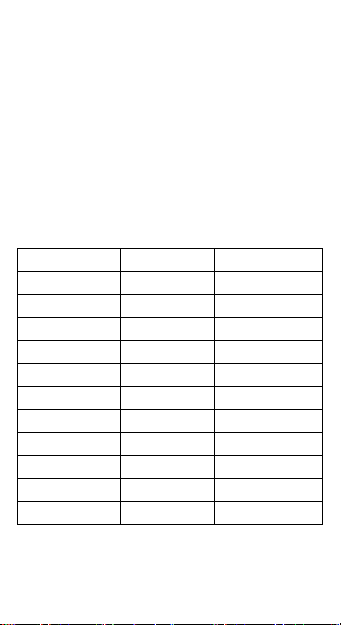
4. Player Application List
Application Name
System Category
Whether.can.Uninstall
setting
system application
no
browser
system application
no
calendar
system application
no
recorder
system application
no
calculator
system application
no
clock
system application
no
download
system application
no
file management
system application
no
pic
system application
no
music
system application
no
FM radio
system application
no

Simple Troubleshooting:
If you feel abnormal when operating the player, please
restore the factory settings first, and refer to the
following simple solutions. If the problem still cannot
be solved, please contact the seller or service
provider.
Problem: Can not boot
Reason: Battery drained
Solution: Please charge the battery
Problem: Can't charge
Reason 1: The voltage is inconsistent with the range
marked on the charger
Solution 1: Please use the same voltage as the charger
marked
Reason 2: Use a non-standard charger
Solution 2: Please use a charger specially designed for
this player
Reason 3: Poor connection
Solution 3: Check if the connection is well connected

Disclaimer:
This player is a hardware platform that can be
pre-installed with third-party APK software. If you
need to install and use the APK software, the player
will cause instability, freeze and data loss.Our
company does not promise and be responsible for any
problems arising from this consequence.Please make
sure to back up the data during use.
The company is not responsible for the loss or
damage of personal data caused by wrong operation
of software and hardware, product maintenance,
battery replacement or other unexpected situations.
Nor is it liable for consequential damages. At the
same time, we cannot control the possible
misunderstanding of this manual by users, so our
company will not be responsible for any accidental
damage may occur during the use of this manual.
