User Manual Aimoonsa MP3 Player
All Aimoonsa products come with a limited warranty of 12 months since purchase date. And we have professional service team for your support as soon as we can. If you have any questions about our product or the Warranty, please feel free to contact us: [email protected]
We will do our best to help you solve the problem until you are satisfied.
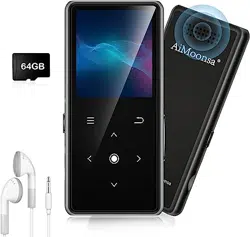
Parts and Controls
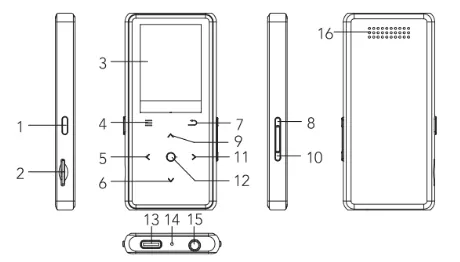
- On/off button (Holding for 3 seconds)
- TF card slot
- Display screen
- Menu
- Previous song / fast rewind (Keep holding)
- Page down key
- Return key
- Volume plus key
- Page up key
- Volume down key
- Next song / fast forward (Keep holding)
- Play / Pause / Confirm button
- USB port
- Microphone
- Headphone jack
- Speaker
Note: Please insert the TF card before use, otherwise the machine will not work normally!
Please choose a high-speed transfer TF card of CLASS10 and above to ensure the fluency of music appreciation.
Function Description
What's in the box
- MP3 Player (MP3 Player comes with the TF Card already inserted.)
- Charging cable
- TF Card Reader
- Earphones
- Instruction manual
Charging the AiMoonsa MP3 Player
A charging cable is supplied with a micro USB plug at one end and a USB plug at the other end. Insert the micro USB plug into the micro USB socket on the MP3 Player and insert the USB plug into the USB port of a PC or laptop or a 5Volt 1Amp USB adapter. An icon in the top right corner of the screen shows the level of charge in the battery.
File Transfer
There are 2 ways of transferring files to and from the MP3 player as follows:
- Use the charging cable to connect the MP3 Player to a PC or laptop/notebook.
- The quickest way is to use the TF Card Reader. Remove the TF Card from the MP3 Player either by prizing it out using your thumb - if you press on it it will pop out. or use small tweezers such as eyebrow tweezers to grasp the card and pull it out.
Then insert the TF Card into the TF Card Reader at the BLACK end where you will see a row of metal strips. Insert the TF Card into the TF Card Reader so that the row of metal strips on the TF Card make contact with the row of metal strips in the TF Card Reader. Then the black end of the TF Card Reader can be inserted into a USB Port on a PC or laptop for file transfer.
When the file transfer is complete, re-insert the TF Card into the MP3 Player with the row of metal strips facing you and the front of the MP3 Player facing you. Make sure the TF Card is fully inserted as otherwise the MP3 Player will not function. An icon of a TF Card appears on the top of the screen when the TF Card is correctly inserted and if it is not fully inserted the TF Card icon flashes.
After adding new audio files you need to update the playlist which is an option found in the Music function.
Update playlist
- If the MP3 playlist is not automatically updated after a new music file is added, you can insert the TF card into the card reader then connect with the computer to recover the TF card. and it will be updated automatically. (The previous music operation record will not be cleared by this action)
- If new music files are added and the MP3 playlist is not automatically updated. please select "Update Playlist" in "Music" or "Settings".
(This process will clear the previous music operation records, such as "playlists", "bookmarks", etc.)
- The update speed will slow down when the TF card file is large, please be patient.
Main interface
The main interface includes Music, Artists, Albums, Favorites, Bluetooth, Folders, Applications (Ebook, Pictures, FM, Recorder, Settings), press  to enter.
- This MP3 player supports APE, FLAC, ACELP, WAV, MP3 and other lossless formats but not M4A files.
- When you transfer music to the AiMoonsa MP3 Player album and artist integrity is maintained.
- Touch icon to Music then for menu of All Songs, Last Played, Artists, Albums, Favourites, Play mode, Update Playlist.
PLAY ALL SONGS will play all the audio files stored on the MP3 Player in alphabetical sequence.
AB REPEAT — allows one to repeat a section WITHIN ONE AUDIO FILE. To use this function select the audio file and begin playing — LONG TOUCH the  icon at the point in the audio file where you want the repeat to begin and then touch > at the end of the section to be repeated — this section will be continuously repeated. Touch > again to cancel this repeat function.
Bluetooth Connection
- Switch on Bluetooth on the device with which you wish to connect the MP3 Player.
- Bring the AiMoonsa MP3 Player close to the device and touch the > and < icons until you reach the Bluetooth icon and touch to open and touch to turn Bluetooth ON.
- Then using "v" scroll down to "Search Device".
- While the AiMoonsa MP3 player is searching for the device the screen will show the Bluetooth icon with waves emitting from it.
- The name or code for the device will appear in "Paired Devices", the screen will indicate when the connection is successful - "[device name] connected" will appear on the screen and the Bluetooth icon will flash in the top right hand corner of the screen next to the battery icon.
- Bluetooth will only operate for music.
Folder
In the folder, press the "^"/"v" key to scroll through the file list. and press the "<"/">" key to turn pages;
Press the key to enter the delete operation, press the "<"/">" key to select "Yes/No" to delete the current file. and press the key to confirm.
E-book
Autoplay: Press the button on the e-book play interface, the e-book can be played automatically. Press the button to make the following settings.
Bookmark option:
- Press the key to enter the bookmark list, then press the key to bookmark the current page.
- Press the key to choose whether to delete the selected bookmark.
Note: Only support ‘TXT’ files.
Picture
Press the "^"/"v" key to switch pictures, and then press " " key to return to the picture list interface.
FM Radio
FM Radio function is found by going into App and using the arrow icons. Wired earphones are needed to listen to the radio — it is not available through the loud speaker.
Insert the earphones, press the ' <'/ '>' key to adjust the frequency, press the '^'/'v' key to adjust the radio station.
Preset stations:
There are 30 built-in radio stations, click the button to save the currently playing radio station. Press the key to enter the "preset radio station" list. and press the key to choose whether to delete the radio station.
Auto Search FM: The machine will automatically filter out the radio stations with signals in the set frequency band. and then store them in the preset radio stations for easy switching.
- The radio function is only active on the ‘FM’ interface, turn off when you quit.
- When listening to the radio, please insert a wired headset as an FM antenna;
- Bluetooth doesn't support radio.
Recorder
Press the key to select "Start Voice Recording" to record. press the " > " key to exit. and select "Yes/No" to save the recording and return.
Voice control recording (VAD): Press the key to "turn on/off" the voice control mode.
Notice: This machine does not support background playback of recording files.
Settings
Select settings on the application side, press to enter the operation interface (including "Language, Date&time, Brightness, Backlight Timer, Idle Shutdown, Information, Factory Settings, Update Playlist").
Troubleshooting FAQs
Q: The player cannot be turned on
A: Please check whether the battery is exhausted. You can connect it to a computer or a charger and try to turn it on again.
Q: No sound can be heard in the headset
A: Please check if the volume is set to zero. Please check if the earphone is correctly inserted into the earphone jack.
Q: Severe noise
A: Please check whether the plug of the earphone is clean. Dirt can cause noise. Please check whether the music file is damaged, you can try to play other music files to confirm. If the file is damaged, it may cause severe noise or skipping of sound.
Q: FM signal reception is weak
A: Please adjust the direction and position of the player. and extend the headphone cable. Please check if there is interference from electronic equipment nearby.
Q: Do you support displaying lyrics?
A: Yes, but you need to download the file in "LRC" format and check the song time corresponding to the lyrics. The song name and lyrics must be the same.
Q: Why are there garbled characters in lyrics or e-books?
A: The encoding format may be wrong. Please select "UTF-8" encoding format when saving lyrics or e-books.