YAMAHA ELECTRONICS CORPORATION, USA 6660 ORANGETHORPE AVE., BUENA PARK, CALIF. 90620, U.S.A.
YAMAHA CANADA MUSIC LTD. 135 MILNER AVE., SCARBOROUGH, ONTARIO M1S 3R1, CANADA
YAMAHA ELECTRONIK EUROPA G.m.b.H. SIEMENSSTR. 22-34, 25462 RELLINGEN BEI HAMBURG, F.R. OF GERMANY
YAMAHA ELECTRONIQUE FRANCE S.A. RUE AMBROISE CROIZAT BP70 CROISSY-BEAUBOURG 77312 MARNE-LA-VALLEE CEDEX02, FRANCE
YAMAHA ELECTRONICS (UK) LTD. YAMAHA HOUSE, 200 RICKMANSWORTH ROAD WATFORD, HERTS WD18 7GQ, ENGLAND
YAMAHA SCANDINAVIA A.B. J A WETTERGRENS GATA 1, BOX 30053, 400 43 VÄSTRA FRÖLUNDA, SWEDEN
YAMAHA MUSIC AUSTRALIA PTY, LTD. 17-33 MARKET ST., SOUTH MELBOURNE, 3205 VIC., AUSTRALIA
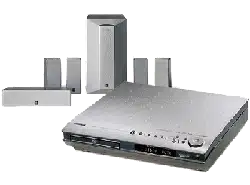
DVD HOME THEATER SOUND SYSTEM
DVX-S120
(DVR-S120+NX-S120+NX-C120+NX-SW120)
OWNER’S MANUAL
U B
DVD RECEIVER
DVR-S120
Printed in Malaysia WB85310-1
cv_DVX-S120_UB.p65 03.8.19, 7:44 PM1
• Explanation of Graphical Symbols
The lightning flash with arrowhead
symbol, within an equilateral triangle, is
intended to alert you to the presence of
uninsulated “dangerous voltage” within
the product’s enclosure that may be of
sufficient magnitude to constitute a risk of
electric shock to persons.
The exclamation point within an
equilateral triangle is intended to alert you
to the presence of important operating and
maintenance (servicing) instructions in
the literature accompanying the appliance.
IMPORTANT SAFETY INSTRUCTIONS
1 Read these instructions.
2 Keep these instructions.
3 Heed all warnings.
4 Follow all instructions.
5 Do not use this apparatus near water.
6 Clean only with dry cloth.
7 Do not block any ventilation openings. Install in accordance
with the manufacturer’s instructions.
8 Do not install near any heat sources such as radiators, heat
registers, stoves, or other apparatus (including amplifiers) that
produce heat.
9 Do not defeat the safety purpose of the polarized or
grounding-type plug. A polarized plug has two blades with
one wider than the other. A grounding type plug has two
blades and a third grounding prong. The wide
blade or the third prong are provided for your safety. If the
provided plug does not fit into your outlet, consult an
electrician for replacement of the obsolete outlet.
10 Protect the power cord from being walked on or pinched
particularly at plugs, convenience receptacles, and the point
where they exit from the apparatus.
11 Only use attachments/accessories specified by the manufacturer.
12 Use only with the cart, stand, tripod, bracket,
or table specified by the manufacturer, or
sold with the apparatus. When a cart is used,
use caution when moving the cart/apparatus
combination to avoid injury from tip-over.
13 Unplug this apparatus during lightning storms or when
unused for long periods of time.
14 Refer all servicing to qualified service personnel. Servicing is
required when the apparatus has been damaged in any way,
such as power-supply cord or plug is damaged, liquid has
been spilled or objects have fallen into the apparatus, the
apparatus has been exposed to rain or moisture, does not
operate normally, or has been dropped.
15 Be sure to allow spaces of at least 20 cm above, 10 cm behind
and on both sides the unit.
16 Do not place the following objects on this unit:
A vessel with water in it.
If the vessel falls by vibrations and water spills, it may cause
damage to the unit, and/or you may get an electric shock.
CAUTION: TO REDUCE THE RISK OF
ELECTRIC SHOCK, DO NOT REMOVE
COVER (OR BACK). NO USER-SERVICEABLE
PARTS INSIDE. REFER SERVICING TO
QUALIFIED SERVICE PERSONNEL.
RISK OF ELECTRIC SHOCK
DO NOT OPEN
CAUTION
IMPORTANT
Please record the serial number of this unit in the space
below.
MODEL:
Serial No.:
The serial number is located on the rear or the bottom of
this unit.
Retain this Owner’s Manual in a safe place for future
reference.
I CAUTION
DVX-S120_UB.p65 03.8.5, 1:29 PM2
We Want You Listening For A Lifetime
YAMAHA and the Electronic Industries Association’s Consumer
Electronics Group want you to get the most out of your equipment
by playing it at a safe level. One that lets the sound come through
loud and clear without annoying blaring or distortion – and, most
importantly, without affecting your sensitive hearing.
Since hearing damage from loud sounds is often
undetectable until it is too late, YAMAHA and the
Electronic Industries Association’s Consumer
Electronics Group recommend you to avoid prolonged
exposure from excessive volume levels.
1. IMPORTANT NOTICE : DO NOT MODIFY THIS
UNIT!
This product, when installed as indicated in the instructions
contained in this manual, meets FCC requirements.
Modifications not expressly approved by Yamaha may void
your authority, granted by the FCC, to use the product.
2. IMPORTANT :
When connecting this product to accessories and/or another
product use only high quality shielded cables. Cable/s
supplied with this product MUST be used. Follow all
installation instructions. Failure to follow instructions could
void your FCC authorization to use this product in the USA.
3. NOTE :
This product has been tested and found to comply with the
requirements listed in FCC Regulations, Part 15 for Class
“B” digital devices. Compliance with these requirements
provides a reasonable level of assurance that your use of this
product in a residential environment will not result in harmful
interference with other electronic devices.
This equipment generates/uses radio frequencies and, if not
installed and used according to the instructions found in the
users manual, may cause interference harmful to the
operation of other electronic devices.
Compliance with FCC regulations does not guarantee that
interference will not occur in all installations. If this product is
found to be the source of interference, which can be determined
by turning the unit “OFF” and “ON”, please try to eliminate the
problem by using one of the following measures:
Relocate either this product or the device that is being affected
by the interference.
Utilize power outlets that are on different branch (circuit breaker
or fuse) circuits or install AC line filter/s.
In the case of radio or TV interference, relocate/reorient the
antenna. If the antenna lead-in is 300 ohm ribbon lead, change
the lead-in to coaxial type cable.
If these corrective measures do not produce satisfactory results,
please contact the local retailer authorized to distribute this type
of product. If you can not locate the appropriate retailer, please
contact Yamaha Electronics Corp., U.S.A. 6660 Orangethorpe
Ave, Buena Park, CA 90620.
The above statements apply ONLY to those products distributed
by Yamaha Corporation of America or its subsidiaries.
FCC INFORMATION (for US customers)
English
CAUTION II
DVX-S120_UB.p65 03.8.5, 1:29 PM3
CAUTION: READ THIS BEFORE OPERATING YOUR UNIT.
DVR-S120
This unit is not disconnected from the AC power source as long
as it is connected to the wall outlet, even if this unit itself is
turned off. This state is called the standby mode. In this state,
this unit is designed to consume a very small quantity of power.
FOR CANADIAN CUSTOMERS
To prevent electric shock, match wide blade of plug to wide slot
and fully insert.
This Class B digital apparatus complies with Canadian ICES-
003.
DANGER
When this unit is plugged to the wall outlet, do not place your eyes
close to the opening of the disc tray and other openings to look into
inside.
The laser component in this product is capable of emitting
radiation exceeding the limit for Class 1.
DVR-S120
The name plate is located on the bottom of the unit.
WARNING
TO REDUCE THE RISK OF FIRE OR ELECTRIC SHOCK,
DO NOT EXPOSE THIS APPLIANCE TO RAIN OR
MOISTURE.
■ For U.K. customers
If the socket outlets in the home are not suitable for the plug supplied
with this appliance, it should be cut off and an appropriate 3 pin plug
fitted. For details, refer to the instructions described below.
Note
• The plug severed from the mains lead must be destroyed, as a plug
with bared flexible cord is hazardous if engaged in a live socket
outlet.
■ Special Instructions for U.K. Model
IMPORTANT
THE WIRES IN MAINS LEAD ARE COLOURED IN
ACCORDANCE WITH THE FOLLOWING CODE:
Blue: NEUTRAL
Brown: LIVE
As the colours of the wires in the mains lead of this apparatus
may not correspond with the coloured markings identifying the
terminals in your plug, proceed as follows:
The wire which is coloured BLUE must be connected to the
terminal which is marked with the letter N or coloured BLACK.
The wire which is coloured BROWN must be connected to the
terminal which is marked with the letter L or coloured RED.
Making sure that neither core is connected to the earth terminal
of the three pin plug.
1 To assure the finest performance, please read this manual
carefully. Keep it in a safe place for future reference.
2 Install this sound system in a well ventilated, cool, dry, clean
place with at least 10 cm on the top, 10 cm on the left and right,
and 10 cm at the back of DVR-S120, and 20 cm on the top, 20
cm on the left and right, and 20 cm at the back of NX-SW120
— away from direct sunlight, heat sources, vibration, dust,
moisture, and/or cold.
3 Locate this unit away from other electrical appliances, motors,
or transformers to avoid humming sounds.
4 Do not expose this unit to sudden temperature changes from
cold to hot, and do not locate this unit in a environment with
high humidity (i.e. a room with a humidifier) to prevent
condensation inside this unit, which may cause an electrical
shock, fire, damage to this unit, and/or personal injury.
5 Avoid installing this unit where foreign object may fall onto
this unit and/or this unit may be exposed to liquid dripping or
splashing. On the top of this unit, do not place:
– Other components, as they may cause damage and/or
discoloration on the surface of this unit.
– Burning objects (i.e. candles), as they may cause fire,
damage to this unit, and/or personal injury.
– Containers with liquid in them, as they may fall and liquid
may cause electrical shock to the user and/or damage to
this unit.
6 Do not cover this unit with a newspaper, tablecloth, curtain, etc.
in order not to obstruct heat radiation. If the temperature inside
this unit rises, it may cause fire, damage to this unit, and/or
personal injury.
7 Do not plug in this unit to a wall outlet until all connections are
complete.
8 Do not operate this unit upside-down. It may overheat, possibly
causing damage.
9 Do not use force on switches, knobs and/or cords.
10 When disconnecting the power cord from the wall outlet, grasp
the plug; do not pull the cord.
11 Do not clean this unit with chemical solvents; this might
damage the finish. Use a clean, dry cloth.
12 Only voltage specified on this unit must be used. Using this
unit with a higher voltage than specified is dangerous and may
cause fire, damage to this unit, and/or personal injury.
YAMAHA will not be held responsible for any damage
resulting from use of this unit with a voltage other than
specified.
13 To prevent damage by lightning, disconnect the power cord
from the wall outlet during an electrical storm.
14 Do not attempt to modify or fix this unit. Contact qualified
YAMAHA service personnel when any service is needed. The
cabinet should never be opened for any reasons.
15 When not planning to use this unit for long periods of time (i.e.
vacation), disconnect the AC power plug from the wall outlet.
16 Be sure to read the “Solutions to Common Problems” section
on common operating errors before concluding that this unit is
faulty.
17 Before moving this unit, press STANDBY/ON to set this unit
in standby mode, and disconnect the AC power plug from the
wall outlet.
18 Do not place much pressure against the Subwoofer net. It may
break the net or the unit may fall, resulting in injury.
19 Do not place anything fragile beside the Subwoofer, as air
pressure is produced that may break it, result in malfunction or
cause injury.
20 Condensation will form when the surrounding temperature
changes suddenly. Disconnect the power cord from the outlet,
then leave the unit alone.
21 When using the unit for a long time, the unit may become
warm. Turn the power off, then leave the unit alone for cooling.
III CAUTION
DVX-S120_UB.p65 03.8.5, 1:29 PM4
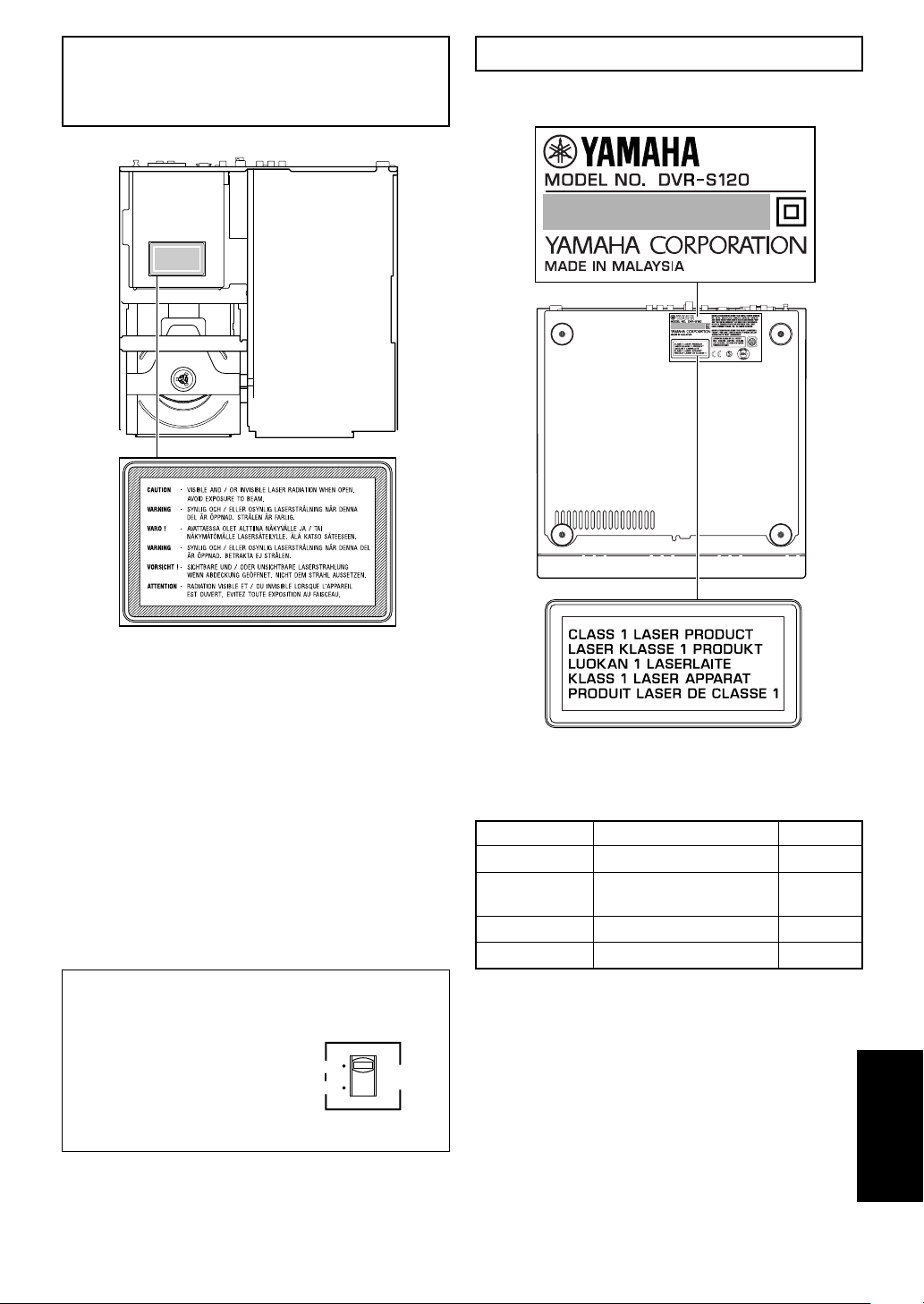
CAUTION
Use of controls or adjustments or performance of procedures
other than those specified herein may result in hazardous
radiation exposure.
● The name plate is located on the bottom of the unit.
This product is a DVD home theater sound system consisting of the
components shown on the table.
Please check to make sure that all of the components listed in the
table are included.
NX-SW120
VOLTAGE SELECTOR
(Korea, Asia and General models only)
The VOLTAGE SELECTOR on the
rear panel of this unit must be set
for your local main voltage
BEFORE plugging into the AC
main supply.
Voltages are 110V-120V, 220V-240V AC, 50/60 Hz.
110V
–
120V
220V
–
240V
VOLTAGE
SELECTOR
Model name Category No. of pcs
DVR-S120 DVD receiver 1
NX-S120 Satellite Speaker 4
(for front/surround)
NX-C120 Center speaker 1
NX-SW120 Subwoofer 1
English
CAUTION IV
DVX-S120_UB.p65 03.8.5, 1:29 PM5
2
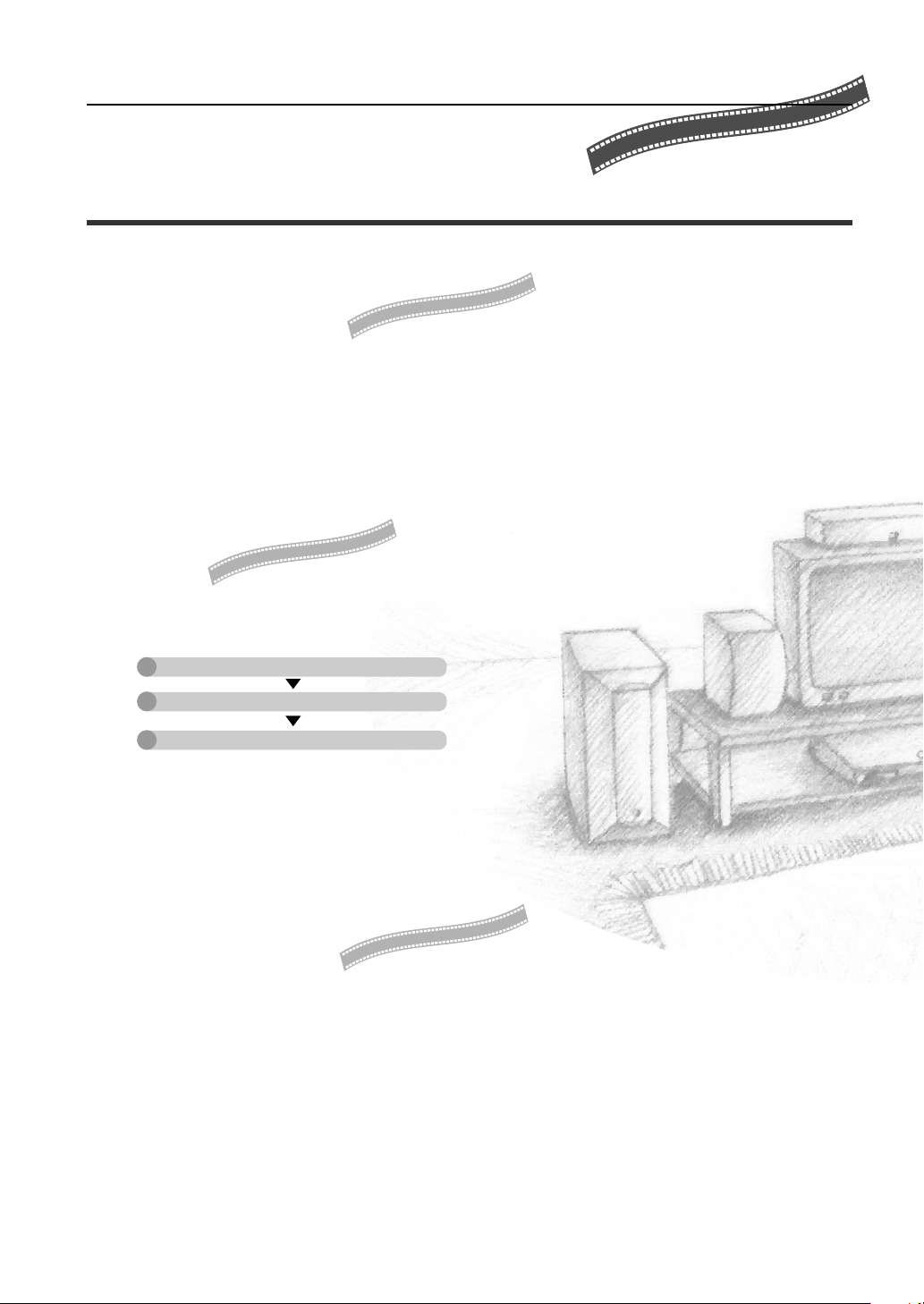
In a few steps, a whole new world of DVD will open up.
Settle into your favorite place
on the sofa and let the show begin.
LET’S GET THINGS READY!
➡Page 6, “Preparation”
Decide on a place for the speakers, perform a few simple connections, and that’s all there
is to it.
• Connecting Speakers and TV to CinemaStation couldn’t be easier.
• Connecting the Speaker Cables with one touch colored connectors.
Come on, let’s watch a DVD!
➡Page 10, “Basic Operations”
Transform your room into a home theater in 3 steps.
Double and triple your enjoyment by
CONNECTING OTHER EQUIPMENT.
➡Page 46, “Using Other Equipment”
• Enhance the feeling of movement with DSP Programs when you play video games.
• Listen to and record CD-R and MiniDisc media.
• View and dub video media.
Connect Speakers and TV
Play a disc
Select a sound field
• Sound fields to match the movie you are viewing and
experience the feeling of being there.
• Progressive scan technology for enjoying high-quality
video even on a large screen.
001DVX-S120-en 03.8.5, 1:39 PM2
3
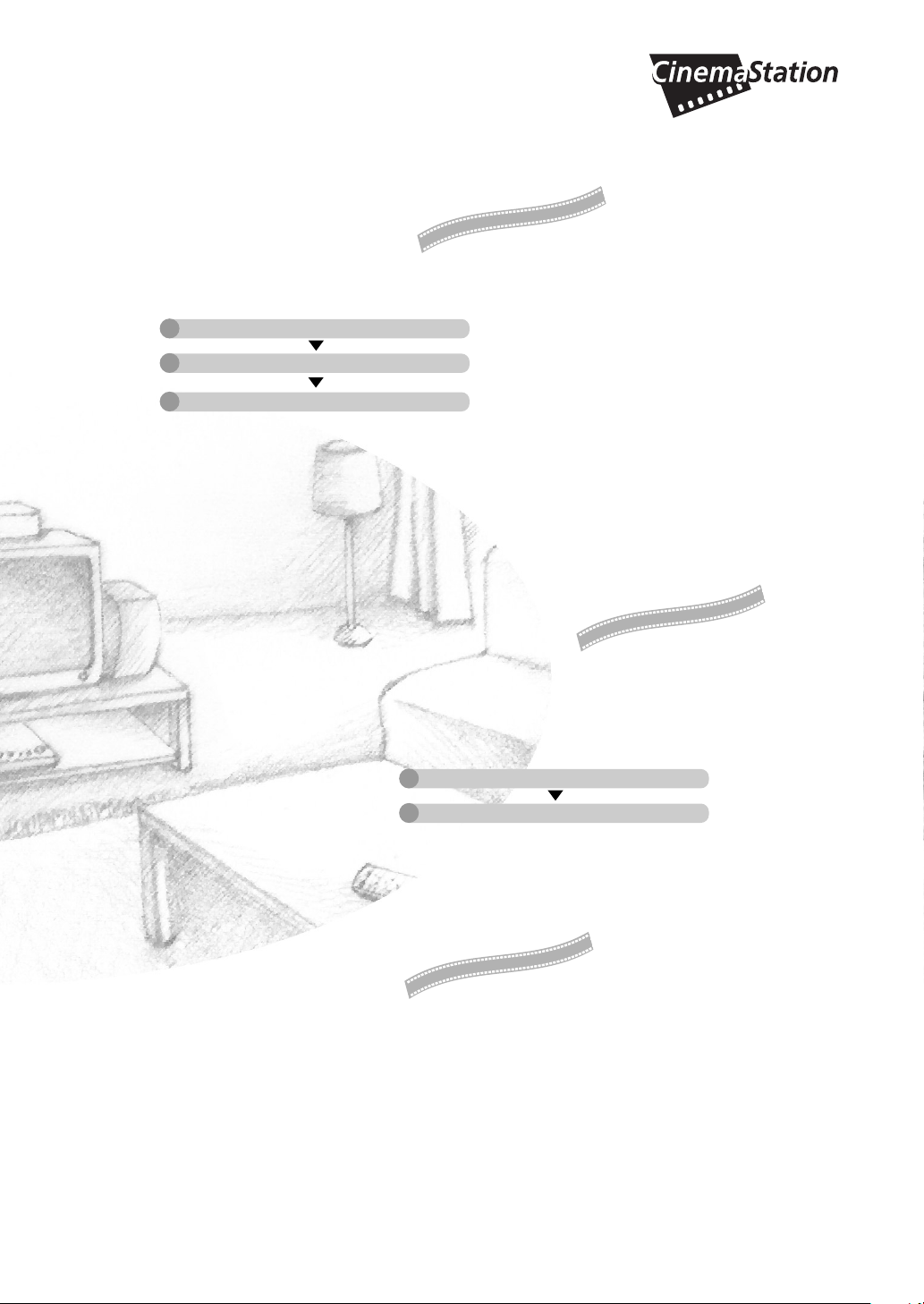
Enjoy playing A VARIETY OF DISCS!
➡Page 28, “Playing Video and Music Discs”
In 3 short steps, play everything from commercial CDs to your own homemade discs.
It’s time to TAKE YOUR LISTENING
EXPERIENCE UP A NOTCH!
➡Page 53, “Creating the Best Listening Space”
• With the Speakers you can create a sound space to match the listening environment of the room.
• The Matrix 6.1 Decoder provides virtual surround back speakers for experiencing a remarkable
acoustic presence.
• SILENT CINEMA provides an incredible listening presence with headphones.
Let’s listen to an FM/AM
BROADCAST!
➡Page 38, “Listening to the Radio”
In 2 quick steps you can enjoy live radio broadcasts.
• Enjoy playing all types of discs including audio and video CDs and MP3 music
recorded on CD-Rs.
• Create the sound and ambience to match the music you are listening to, whether
it be the excitement of a nightclub or the acoustics of a concert hall.
• In addition to Auto Tuning, you can use various controls
including Auto Preset for FM channels.
Connect Speakers
Play a disc
Select a sound field
Connect Speakers and Antennas
Select a channel
001DVX-S120-en 03.8.5, 1:39 PM3
4
CONTENTS
Basic
Advanced
Playing back a DVD
Advanced Features
Names and Functions of Parts Page 18
Top and Front Page 18
CinemaStation Display Page 20
Remote Control Features Page 21
Amp Mode Button Names and Functions Page 22
DVD/CD Mode Button Names and Functions Page 23
Using the On Screen Menu Page 24
Selecting the Media Device
Selecting the Equipment Page 26
Playing Video and Music Discs
Playback Methods Page 28
Selecting a Scene or Tune Page 28
Customizing Playback Order (Program Play) Page 31
Repeating a Disc or Track (Repeat Play) Page 34
Using a Disc Menu Page 36
MP3 Playback Features Page 37
Preparation
Introduction Page 6
About this Manual Page 6
Supplied Accessories Page 6
Preparing the Remote Control Page 7
Preparing the Speakers Page 7
Placing the Speakers Page 7
Connecting the Speakers and TV Page 8
Basic Operations
Viewing a DVD Page 10
Useful Features Page 13
Selecting the Audio Language Page 13
Selecting the Subtitle Language Page 13
Moving Forward and Backward Page 13
Adjusting the Audio Volume Page 13
Pausing Playback Page 13
Switching the Viewing Angle Page 14
Restarting Playback from the Stop Position
(Memory Resume) Page 14
Enhancing the Sound Presence Page 15
Turning off the Sound Page 15
Controlling the DVDs Your Children Can View Page 15
Enhancing Video Quality Page 15
Answers to Common Problems Page 15
Sound Presence
Finding the Best DSP Effect Page 16
001DVX-S120-en 03.8.5, 1:39 PM4

5
Listening to the Radio
Connecting the Antennas Page 38
Connecting the FM Antenna Page 38
Connecting the AM Loop Antenna Page 38
Listening to the Radio Page 39
Selecting the Radio Tuner Page 39
Selecting Radio Stations Page 39
Setting Channels in Advance (Preset) Page 41
Selecting a Preset Station (Preset Tuning) Page 43
Changing the Order of Preset Stations Page 43
Receiving RDS Stations
(U.K. and Europe models only) Page 44
Using Other Equipment
Connecting Video Equipment Page 46
Connecting a Game Console or VCR Page 46
Operating a VCR Page 48
Playing a Video Game or Operating
a Video Camera Page 48
Dubbing from a Video Camera to a VCR Page 49
Connecting Audio Equipment Page 50
Connecting a CD or MD Recorder Page 50
Recording Audio from CinemaStation Page 52
Creating the Best Listening Space
Placing the Speakers (NX-P120) Page 53
Placing the Center Speaker Page 53
Placing the Subwoofer Page 53
Placing the Front and Surround Speakers Page 54
Using Commercially Available Speakers
or Cables Page 56
Adjusting the Speaker Volume Level Page 58
Adjusting the Speaker Balance with a Test Tone Page 58
Adjusting the Speaker Volume Level
During Playback Page 60
Setting the Speaker Size Page 62
Setting the Speaker Mode Page 62
More Information about DSP (Surround)
Effects
Selecting DSP Program Effects Page 64
Using Matrix 6.1 Page 64
Using All Speakers for CD or Video playback Page 66
Using Front Speakers Only for DSP Program
(Virtual Cinema DSP) Page 68
Using a DSP Program with Headphones
(SILENT CINEMA) Page 69
Using a DSP Program with Low Volume
(Night Listening) Page 70
Changing the Delay Time of a DSP Program Page 71
Reproducing the Original Dolby and DTS Sound Page 73
Reproducing Stereo Sound Page 74
Types of Input Signals
Types of Input Signals Page 75
Checking Sound Information
(Input Signal Information Display) Page 75
Switching Input Modes Page 77
Additional Features
Using the Sleep Timer Page 78
Enjoying High-Quality Video Page 79
Protecting Your Children
from Undesirable Scene Page 80
Setting the Password and Parental
Control Level Page 80
Locking a Disc Page 82
Operating Other Equipment with the
CinemaStation Remote Control
Storing Manufacturer Codes
in the Remote Control Page 83
Setting the Manufacturer Code Page 83
Available Operations Page 84
Manufacturer Code List Page 86
Using the SET MENU
Using the SET MENU Page 88
SET MENU List Page 88
Navigating the SET MENU Page 89
Using the On Screen Menu
Using the On Screen Menu Page 92
Navigating the On Screen Menu Page 92
On Screen Menu Guide Page 94
Appendix
Solutions to Common Problems Page 96
General Problems Page 96
Disc Playback Page 99
Radio Reception Page 100
Remote Control Page 101
Information Page 102
Glossary Page 105
Index Page 107
Specifications Page 109
CONTENTS
English
001DVX-S120-en 03.8.5, 1:39 PM5
6
Preparation
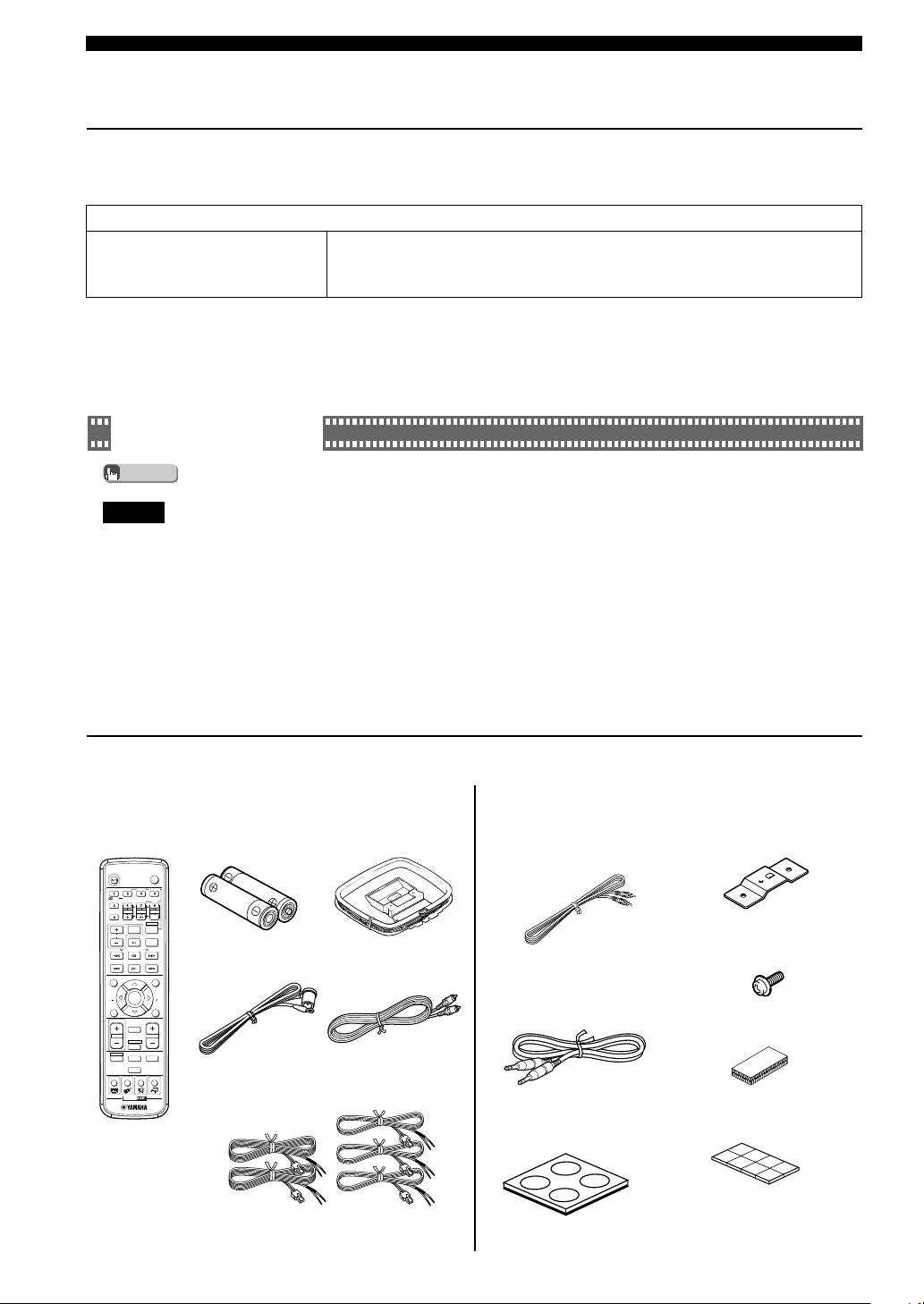
Supplied Accessories
Remote Control
Make sure all of the following accessories are in the box.
System Control Cable
(5 m (1))
Batteries (2)
(AA, R06, UM-3)
AM Loop Antenna
Indoor FM Antenna
Speaker Cables (Surround: 15 m (2),
Front, Center: 5 m (3))
DVR-S120
NX-P120: NX-S120, NX-C120, NX-SW120
Video Pin Cable
Subwoofer Cable
(1 pin, 5 m, (1))
Screws (M4 ✕ 10) (Front,
Surround Speakers (4))
Mounting Brackets (Front,
Surround Speakers (4))
Non-Skid Pads
(Subwoofer, 1 Set (4))
Fasteners (Center (2))
Non-Skid Pads (Front, Surround
Speakers, 2 Sets (16))
About this Manual
● explains additional operating tips that you
may find useful.
● indicates an operation that you should
definitely perform.
● In this manual, operations that can be performed on
either the DVD Receiver or Remote Control are
explained using the Remote Control.
● In this manual, Remote Control descriptions and
illustrations are based on models other than those in
the U.K. or Europe. Any exceptions are clearly stated.
Introduction
Your DVD Home Theater Sound System DVX-S120 consists of the following components.
DVD Receiver (DVR-S120) 1 unit
Speaker Set (NX-P120) Satellite Speakers (Front, Surround) (NX-S120) 4 units
Center Speaker (NX-C120) 1 unit
Subwoofer (NX-SW120) 1 unit
● This Owner’s Manual was printed before final product
development. After printing, some product
specifications may change due to operational upgrades
and other reasons. In this case, the specifications of the
product itself will take precedence over the
specifications in this manual.
● In some cases, graphics or terms used may differ
slightly from the actual product or packaging to
facilitate explanation.
Explanations in this Owner’s Manual are based on DVX-S120 (DVD Receiver (DVR-S120) and Speaker Set (NX-
P120)). If you use speakers other than NX-P120, make sure to set the speaker size and volume level in advance.
→Page 62, “Setting the Speaker Size”
→Page 58, “Adjusting the Speaker Volume Level”
Advice
Please...
TV
CH
CINEMA
CH
POWER
POWER
AUDIO
/
DTS
SELECT
NIGHT
SW
TV CH
TV INPUT
SLEEP
PRESET PRESET
A B C D E
CENTER
SURR
SHIFT
STEREOMATRIX 6.1
A-B
REPEAT
ANGLE
SUBTITLE
DVR-S120 WB56650
ON SCREEN MENU
TEST
RETURN
STATUS
TV VOL
VOLUME
MUTE
AMP
DVD/CD
VCR
VIDEO
TUNER
MOVIE MUSIC SPORTS GAME
SET MENU
ENTER
002DVX-S120-en 03.8.5, 1:39 PM6
B asic
7
Preparation
Preparing the Remote Control
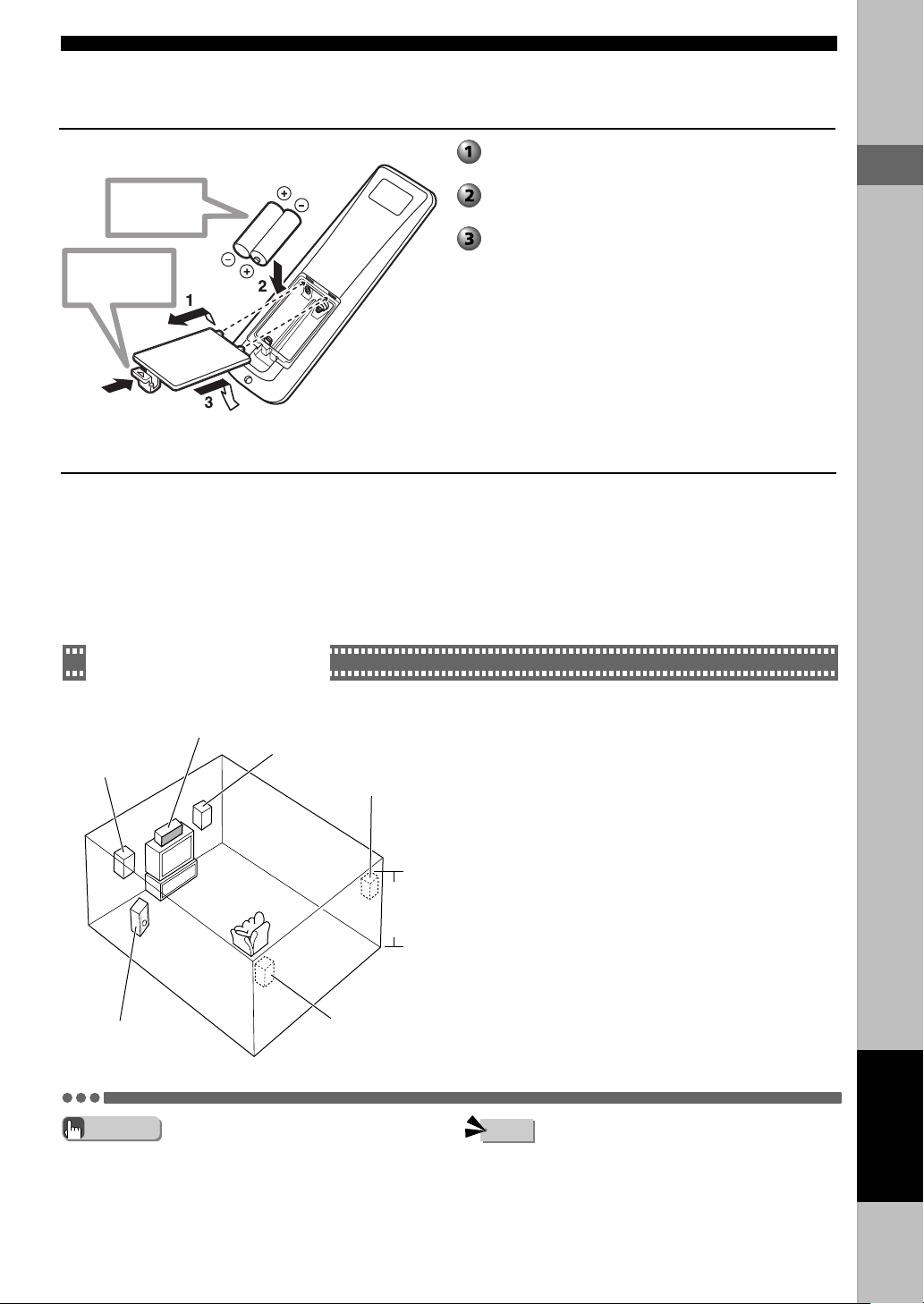
Put the batteries in the Remote Control.
Preparing the Speakers
The Front Speakers, Surround Speakers, Center Speaker and Subwoofer have special roles based on the type of sound each produces.
• The Front Speakers produce front channel sound (stereo) and sound effects.
• The Surround Speakers produce surround sound and sound effects.
• The Center Speaker produces sound oriented toward the center of the screen such as dialog or vocals.
• The Subwoofer produces bass sounds and the LFE signal contained in Dolby Digital and DTS.
• You can secure the Center Speaker, Surround Speakers or
Subwoofer in place using fasteners or non-skid pads. You can
hang the Front and Surround Speakers from the wall or attach
them to optional speaker stands.
See page 53, “Placing the Speakers (NX-P120)”.
Placing the Speakers
Place the speakers as shown in the diagram below.
• If the television (monitor) image is distorted, place the
speakers away from the television.
Front Speakers (L, R)
Place the Front Left and Right Speakers an equal distance from
the ideal listening position. The distance of each speaker from
each side of the video monitor should be the same.
Center Speaker
Align the front face of the center speaker with the front face of
your video monitor. Place the speaker as close to the monitor as
possible (such as directly over or under the monitor) and
centrally between the front speakers.
Surround Speakers (L, R)
Place these speakers behind your listening position, facing
slightly inwards, approximately 1.8 m (6 feet) above the floor.
Subwoofer
The position of the Subwoofer is not so critical, because low bass
sounds are not highly directional. But it is better to place the
Subwoofer near the Front Speakers. Turn it slightly toward the
center of the room to reduce wall reflections.
Press the h mark and slide off the back
cover.
Insert the two supplied batteries (AA, R06,
UM-3) into the battery compartment.
Close the back cover.
Center Speaker
Front Speaker (L)
Front Speaker (R)
Surround Speaker (R)
1.8 m
(6 feet)
Surround
Speaker (L)
Subwoofer
Advice
Note
Check +/-
polarity
Press h
English
Preparation
002DVX-S120-en 03.8.5, 1:39 PM7
88
Connecting the Speakers and TV
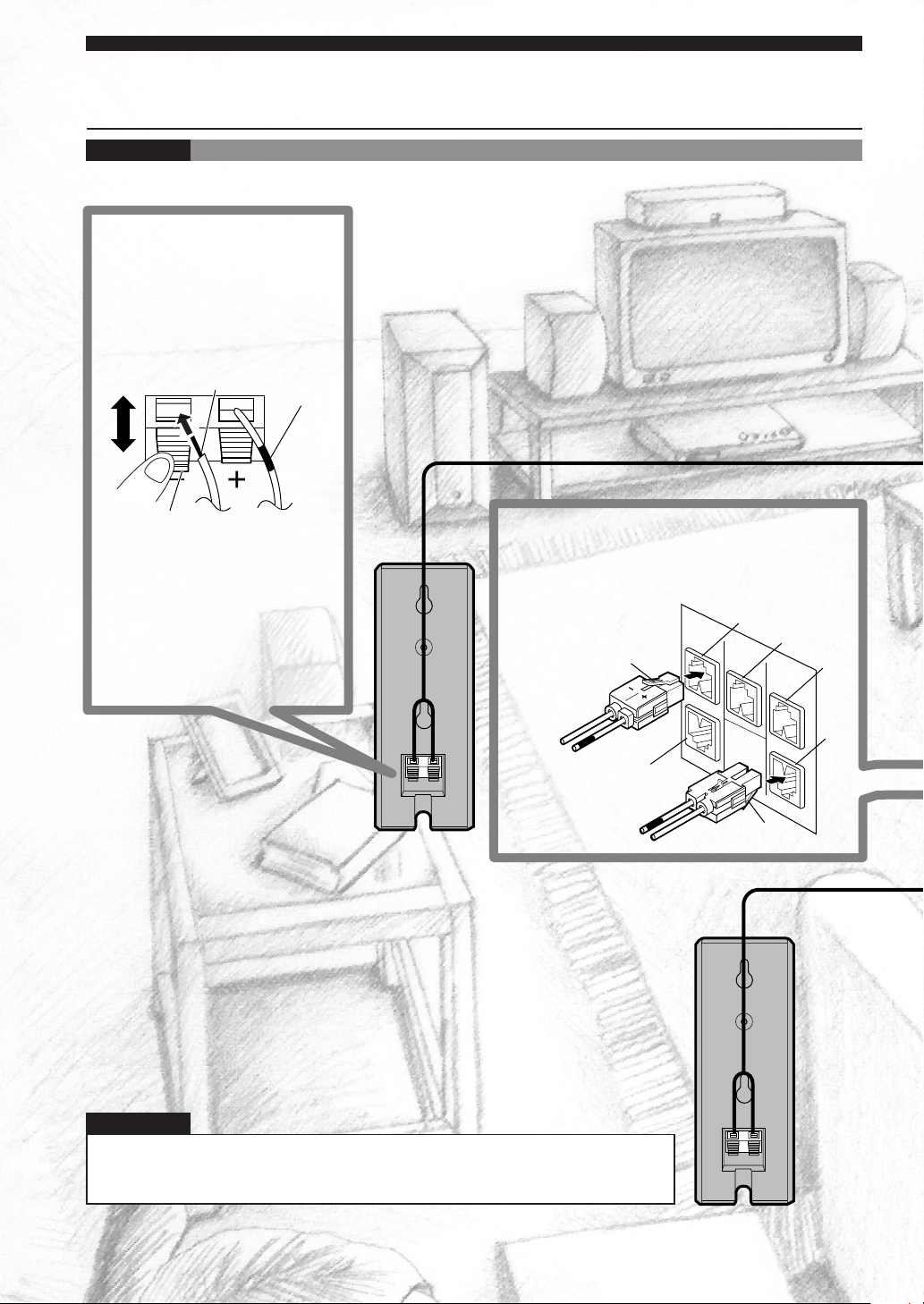
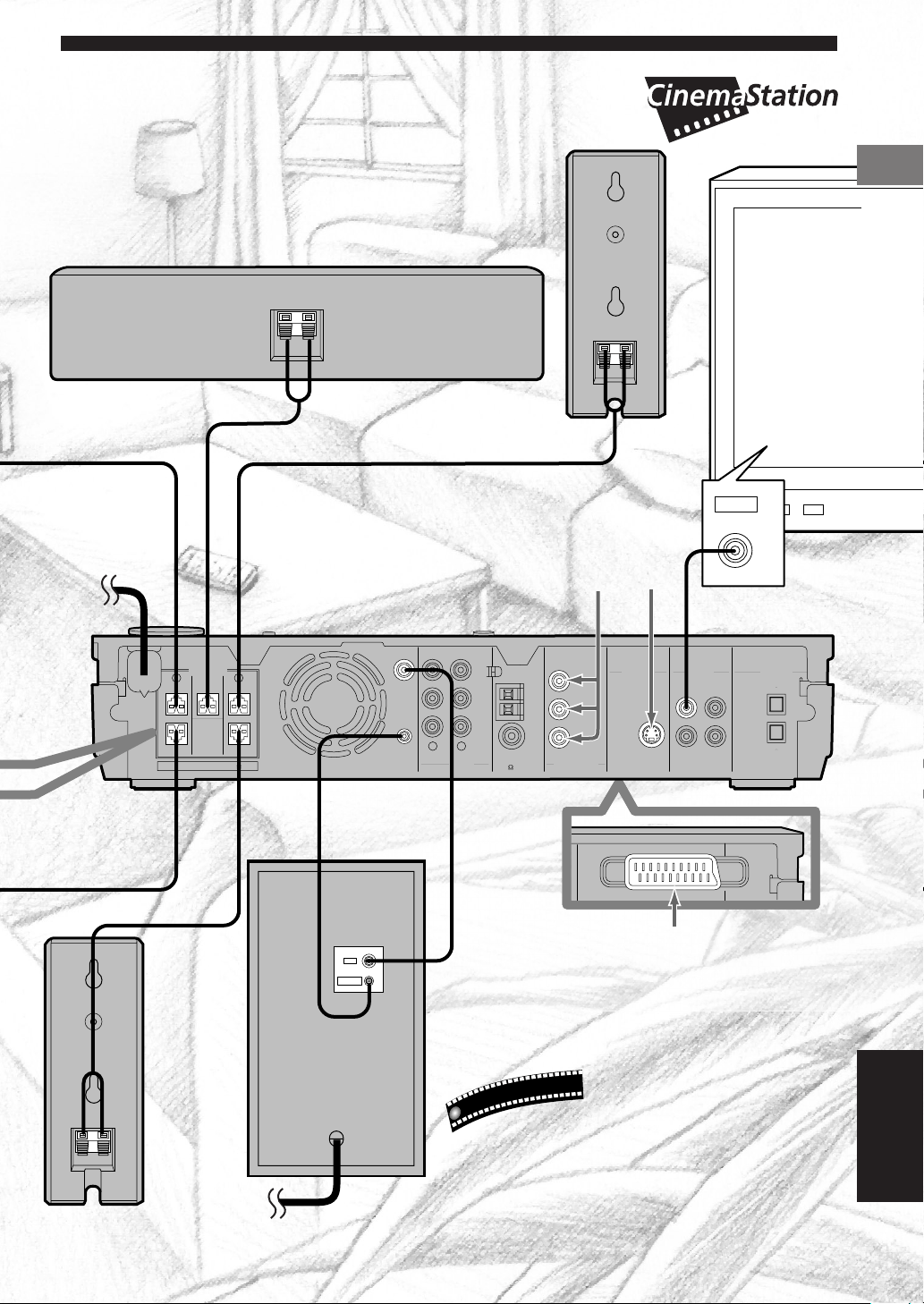
Connect the power cord after connecting the speakers and TV.Please ...
Connect the cable core with the
color band near the tip to the +
connector. Be careful, if you
reverse the cables, the sound
will be unnatural.
32
Cable
core
Color
band
Lever
1 Press the lever down.
2 Insert the speaker cable core
into the hole.
3 Release the lever and the
lever will snap back into place.
1
Speaker Cable (Red)
Connect the plug to the jack of the same color.
Insert it firmly.
Red, green, white: Face the tab upwards and insert.
Gray, blue: Face the tab downwards and insert.
Tab
Red
Green
White
Blue
Tab
Gray
Speaker Cable (Gray)
Surround Right
Speaker
Front Right Speaker
Please
• Do not allow the speaker cable cores to touch each other.
• Do not use excessive force when inserting plugs, connectors or jacks as they can be damaged.
Preparation
Please ...
003DVX-S120-en 03.8.19, 7:03 PM8
9
DIGITAL
AUDIO
VIDEOS VIDEO
IN
VCR
OUT
AM
ANT
VCR
OUT
VCR
IN
VIDEO
IN
Y
P
B
P
R
FM
ANT
GND
MONITOR
OUT
MONITOR
OUT
(DVD ONLY)
MONITOR
OUT
(DVD ONLY)
SUBWOOFER
SPEAKERS
CENTER FRONT
SURROUND
FRONT
SURROUND
OUT
VCR
IN
VIDEO
IN
COMPONENT
VIDEO
AUDIO
R
LR
L
SYSTEM
CONNECTOR
75 UNBAL
OUT
OPTICAL
SPEAKER IMPEDANCE: 6 MIN.
AV MONITOR OUT
(DVD ONLY)
INPUT
SYSTEM
CONNECTOR
VIDEO IN
VIDEO
9
Surround
Left
Speaker
Front Left
Speaker
Center Speaker
Speaker Cable (Green)
Speaker Cable (White)
TV
Connect the
power cord after
making all other
connections.
Turn off the
TV before
connecting.
Video Pin Cable
DVD Receiver
Speaker
Cable
(Blue)
System Control
Cable
Subwoofer
Cable
Connect to the S-video or
Y/P
B/PR jack on the TV.
Connect the
power cord
after making
all other
connections.
Use a commercially available S-video cable to
connect the S VIDEO MONITOR OUTPUT to
your TV’s S-video input.
U
s
e
f
u
l
t
i
p
Preparation
Preparation
AV MONITOR OUT
(U. K. and Europe models only)
If your monitor has only one jack for video
input, you can use CinemaStation’s SCART
output jack for connecting directly to the
monitor. This connection provides the best
picture quality. See page 95 when the
screen does not appear properly.
Subwoofer
Connecting with S-video
English
003DVX-S120-en 03.8.19, 8:46 PM9
10
POWER
TV
POWER
POWER
AUDIO
/
DTS
SELECT
NIGHT
SW
TV CH
TV INPUT
A B C D E
CENTER
SURR
SHIFT
STEREOMATRIX 6.1
A-B
REPEAT
ANGLE
SUBTITLE
DVR-S120 WB56650
Basic Operations
Viewing a DVD
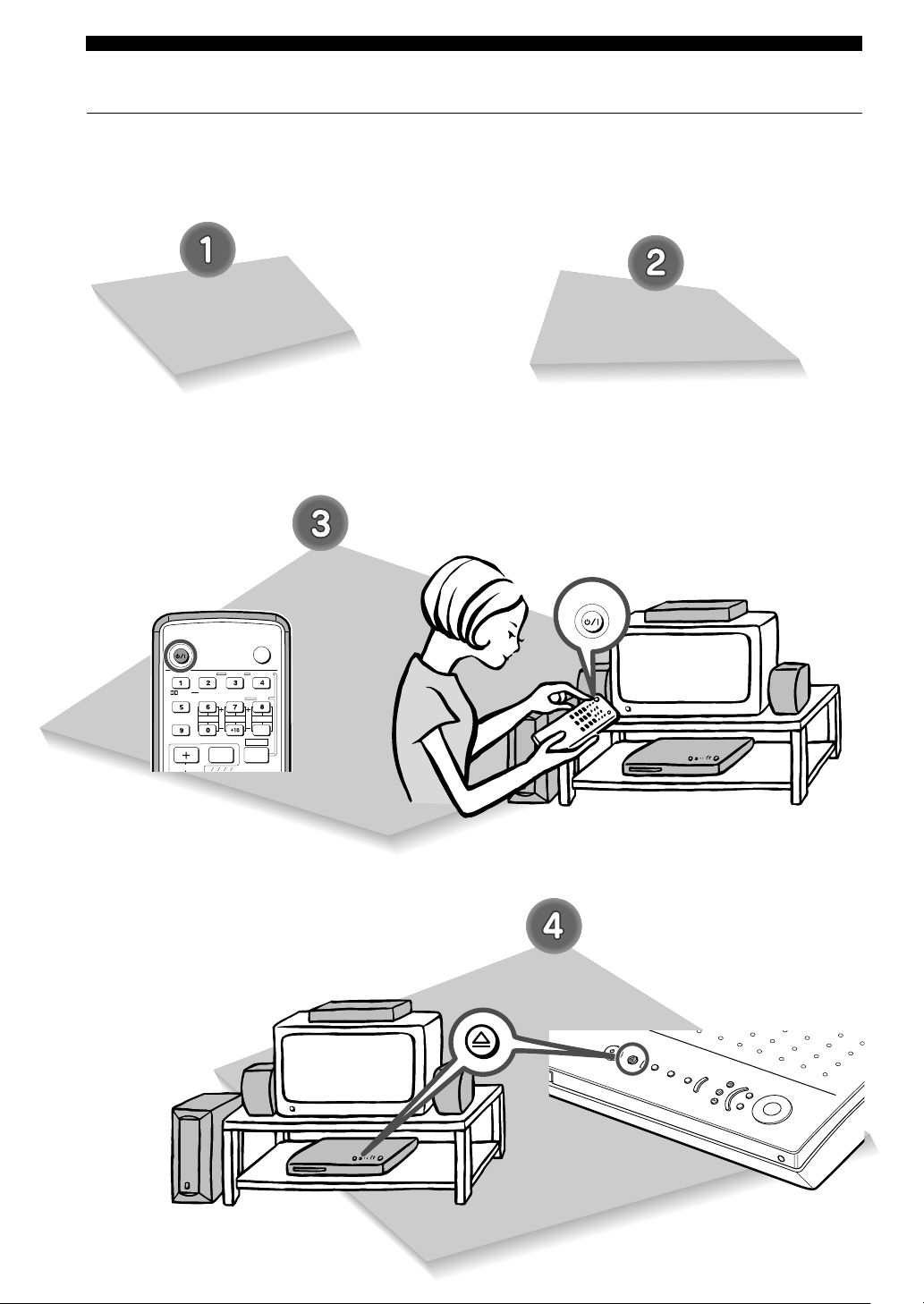
It’s time to play a DVD. Select a disc and begin from step 1.
Turn on the TV.
Use the TV remote control or
power switch.
Switch TV Input.
Use the TV remote control or the
input switch button on the
television.
For example, switch to video input
1 if CinemaStation is connected
to video input 1.
Press POWER.
CinemaStation turns on.
The CinemaStation Display lights
up.
Press f on the
CinemaStation.
The disc tray slides out.
004DVX-S120-en 03.8.5, 1:41 PM10
11
Basic Operations
DVD/CD
CINEMA
AMP
DVD/CD
VCR
VIDEO
TUNER
MOVIE MUSIC SPORTS GAME
English
Basic Operations
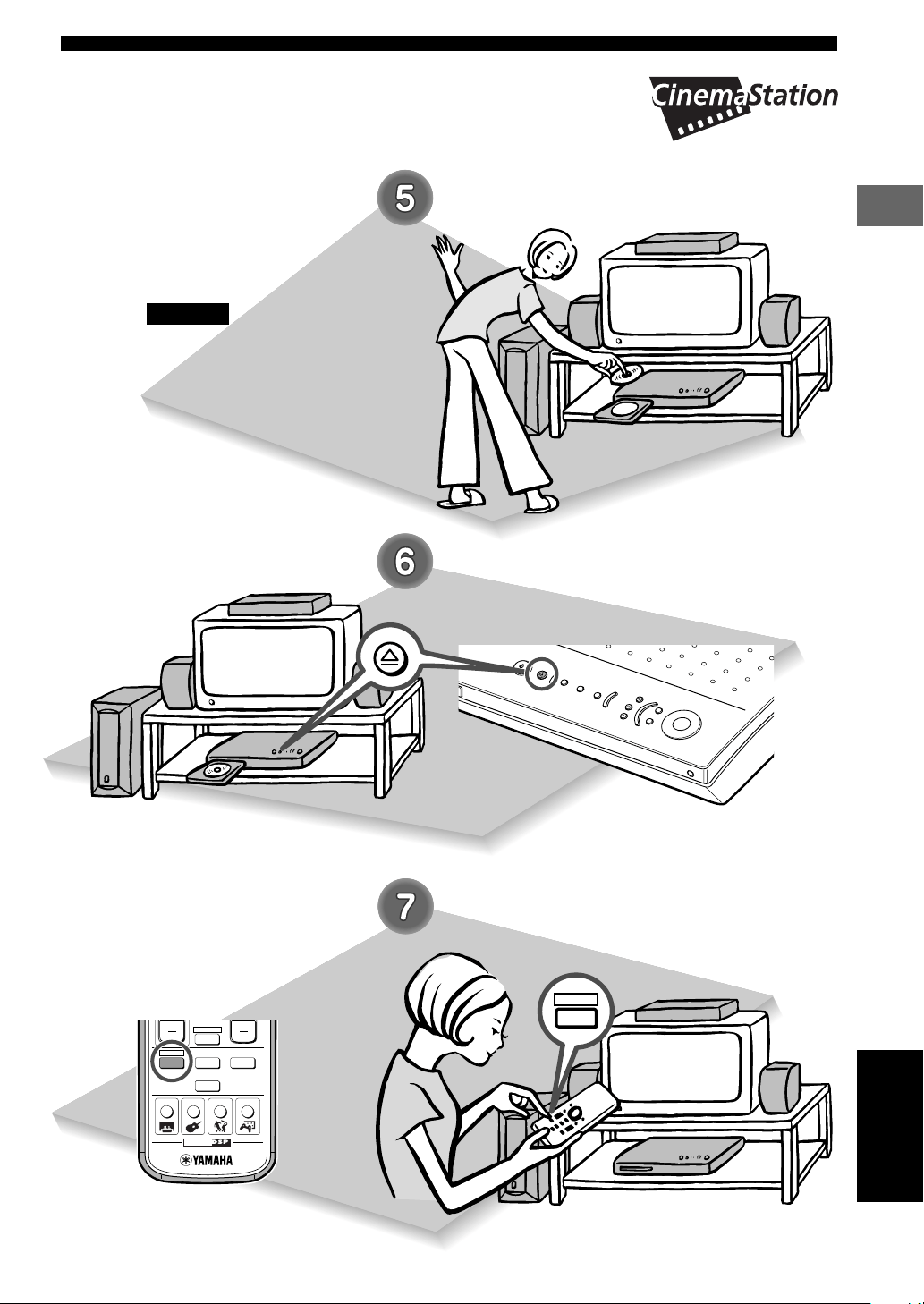
Place a disc in the tray.
• Place the disc with the label side
facing up.
• Hold the disc by its edge and hole in
the center to avoid touching the
surface of the disc.
Please ...
Press f on the
CinemaStation.
The disc tray slides in.
Press DVD/CD.
CinemaStation enters DVD/CD
mode.
004DVX-S120-en 03.8.5, 1:41 PM11
12
Basic Operations
POWER
A B C D E
CHCH
TV
CH
SLEEP
PRESET PRESET
A
B
C
D
E
ON SCREEN MENU
TEST
RETURN
STATUS
TV VOL
VOLUME
SET MENU
ENTER
NIGHT
SW
TV CH
TV INPUT
SLEEP
PRESET PRESET
A B C D E
CENTER
SURR
SHIFT
ON SCREEN MENU
SET MENU
TV
POWER
POWER
AUDIO
/
DTS
SELECT
NIGHT
SW
TV CH
TV INPUT
ABCDE
CENTER
SURR
SHIFT
STEREOMATRIX 6.1
A-B
REPEAT
ANGLE
SUBTITLE
DVR-S120 WB56650
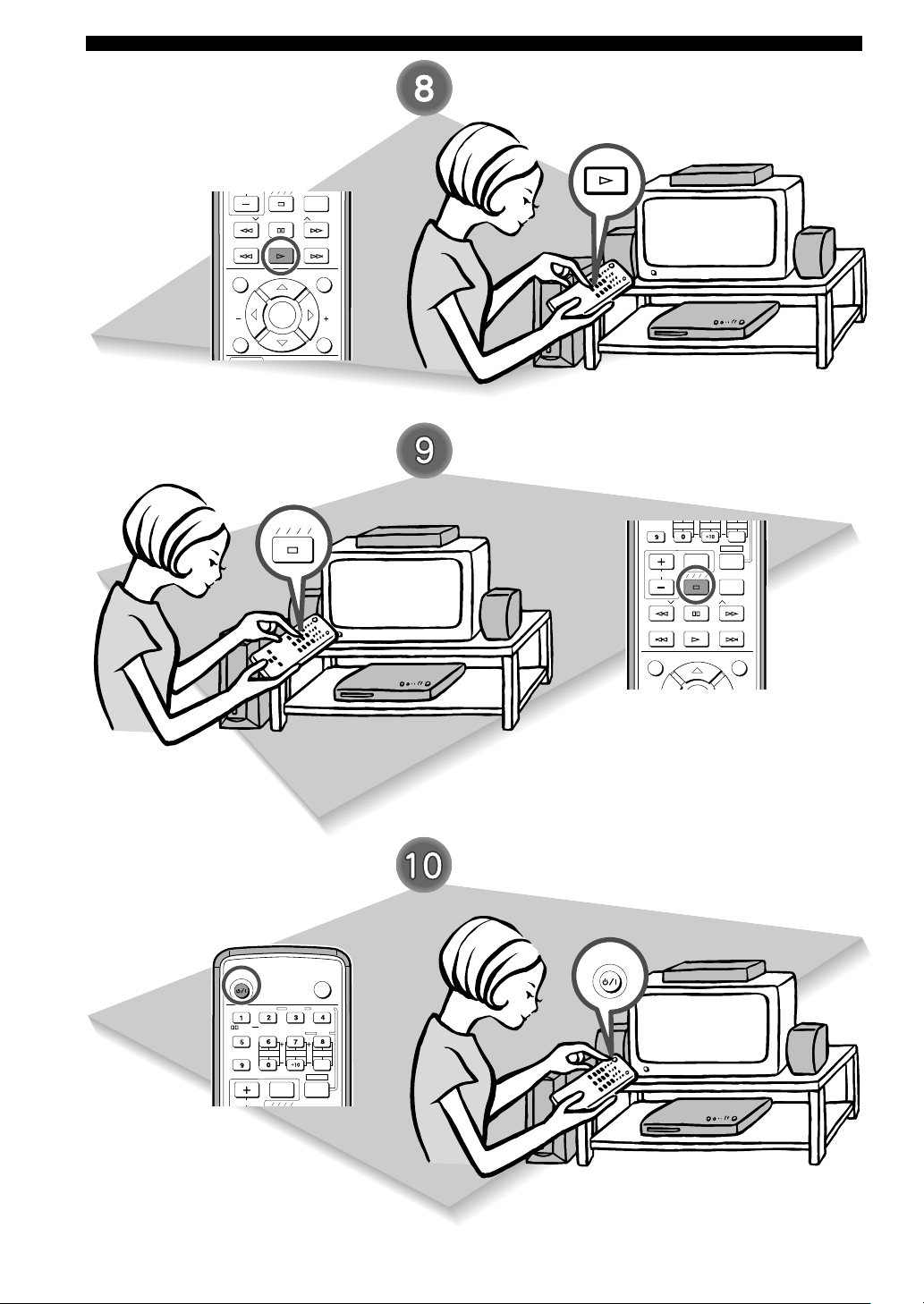
Press p.
The DVD starts playing.
Press s to stop playback.
To change discs
Press f on CinemaStation to
eject the disc.
Set another disc in the tray and
press f.
Press POWER to turn off.
Eject the disc before turning off
the power.
After finished playing, press f on CinemaStation to
eject the disc. Then press f once more to close the
disc tray.
004DVX-S120-en 03.8.5, 1:41 PM12
13
Basic Operations
13
Basic Operations
Basic Operations
Handy Features
TV
CHCH
POWER
POWER
AUDIO
/
DTS
SELECT
NIGHT
SW
TV CH
TV INPUT
SLEEP
PRESET PRESET
A B C D E
CENTER
SURR
SHIFT
STEREOMATRIX 6.1
A-B
REPEAT
ANGLE
SUBTITLE
DVR-S120 WB56650
ON SCREEN MENU
TEST
RETURN
STATUS
TV VOL
VOLUME
SET MENU
ENTER
TV
CHCH
POWER
POWER
AUDIO
/
DTS
SELECT
NIGHT
SW
TV CH
TV INPUT
SLEEP
PRESET PRESET
A B C D E
CENTER
SURR
SHIFT
STEREOMATRIX 6.1
A-B
REPEAT
ANGLE
SUBTITLE
DVR-S120 WB56650
ON SCREEN MENU
TEST
RETURN
STATUS
TV VOL
VOLUME
SET MENU
ENTER
CHCH
NIGHT
SW
TV CH
TV INPUT
SLEEP
PRESET PRESET
A B C D E
CENTER
SURR
SHIFT
A-B
REPEAT
ON SCREEN MENU
RETURN
STATUS
SET MENU
ENTER
CH
CINEMA
CH
TEST
RETURN
STATUS
TV VOL
VOLUME
MUTE
AMP
DVD/CD
VCR
VIDEO
TUNER
MOVIE MUSIC SPORTS GAME
SET
MENU
ENTER
CHCH
NIGHT
SW
TV CH
TV INPUT
SLEEP
PRESET PRESET
A B C D E
CENTER
SURR
SHIFT
A-B
REPEAT
ON SCREEN MENU
RETURN
STATUS
SET MENU
ENTER
English
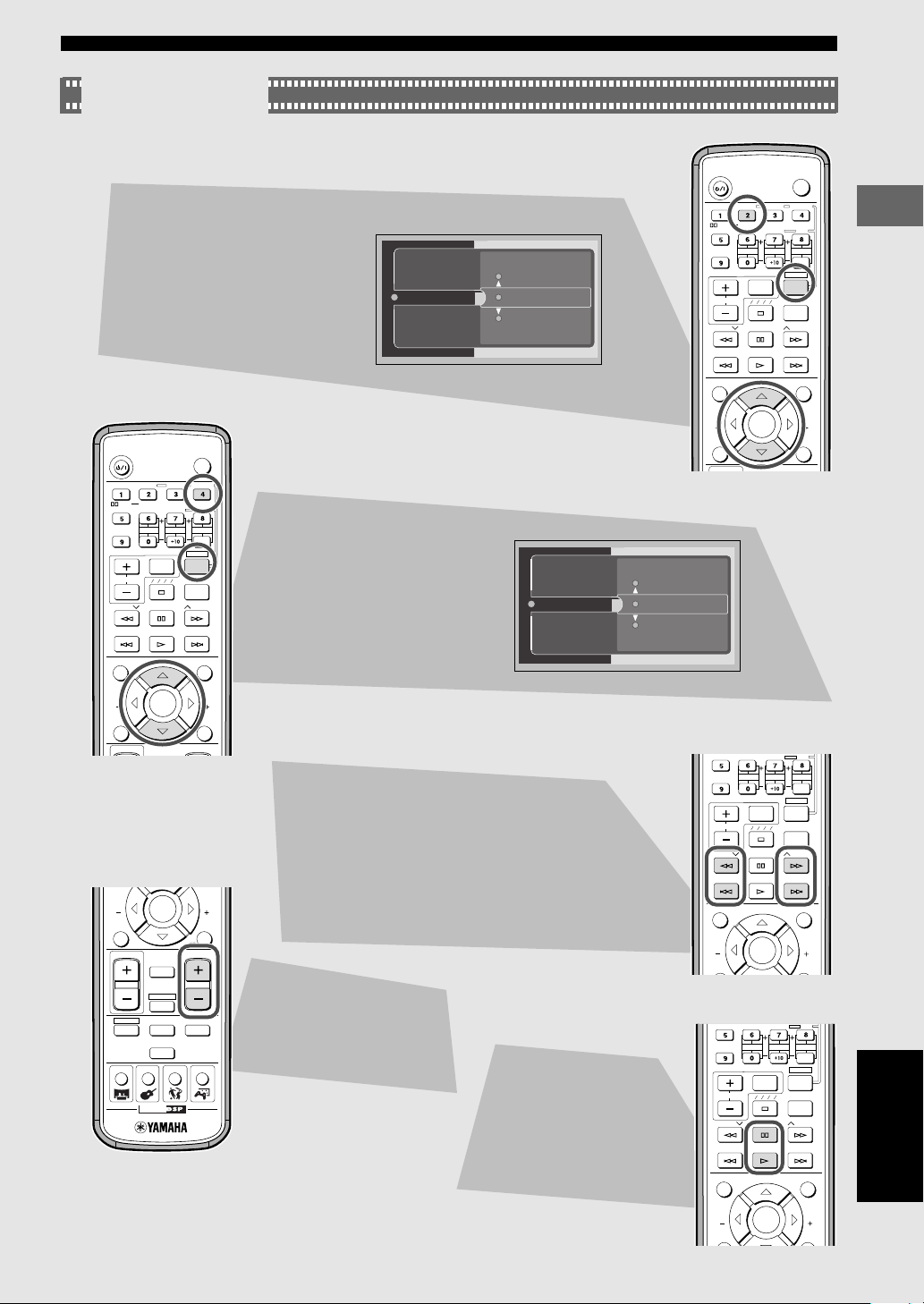
Useful Features
Selecting the Audio Language
1 While holding down SHIFT,
press AUDIO.
2 While viewing the TV
screen, press h or g to
select the audio language
you want.
The audio language
changes each time you
press AUDIO while holding
down SHIFT.
This selection is available when the DVD disc
contains multi-language audio.
Selecting the Subtitle Language
1 While holding down SHIFT,
press SUBTITLE.
2 While viewing the TV
screen, press h or g to
select the subtitle lan-
guage you want. Select
“None” to turn off the
subtitle.
The subtitle language
changes each time you
press SUBTITLE while
holding down SHIFT.
This selection is available when the DVD disc
contains multi-language subtitles.
Moving Forward and Backward
To fast reverse: Press e.
To fast forward: Press r.
To move to the start of the currently playing or
previous chapter: Press t.
To move to the start of the next chapter: Press y.
Adjusting the Audio
Volume
Press + to increase the
volume and - to decrease.
Pausing Playback
Press d.
To resume playback press w.
1 ja
2 ja
3 en
Audio
2 ja
Sub-title
1 ja
3 en
004DVX-S120-en 03.8.6, 2:25 PM13
1414
Basic Operations
Handy FeaturesHandy Features
TV
POWER
POWER
AUDIO
/
DTS
SELECT
NIGHT
SW
TV CH
TV INPUT
SLEEP
PRESET PRESET
A B C D E
CENTER
SURR
SHIFT
STEREOMATRIX 6.1
A-B
REPEAT
ANGLE
SUBTITLE
DVR-S120 WB56650
TV
CHCH
POWER
POWER
AUDIO
/
DTS
SELECT
NIGHT
SW
TV CH
TV INPUT
SLEEP
PRESET PRESET
A B C D E
CENTER
SURR
SHIFT
STEREOMATRIX 6.1
A-B
REPEAT
ANGLE
SUBTITLE
DVR-S120 WB56650
ON SCREEN MENU
TEST
RETURN
STATUS
TV VOL
VOLUME
SET MENU
ENTER
Useful Features
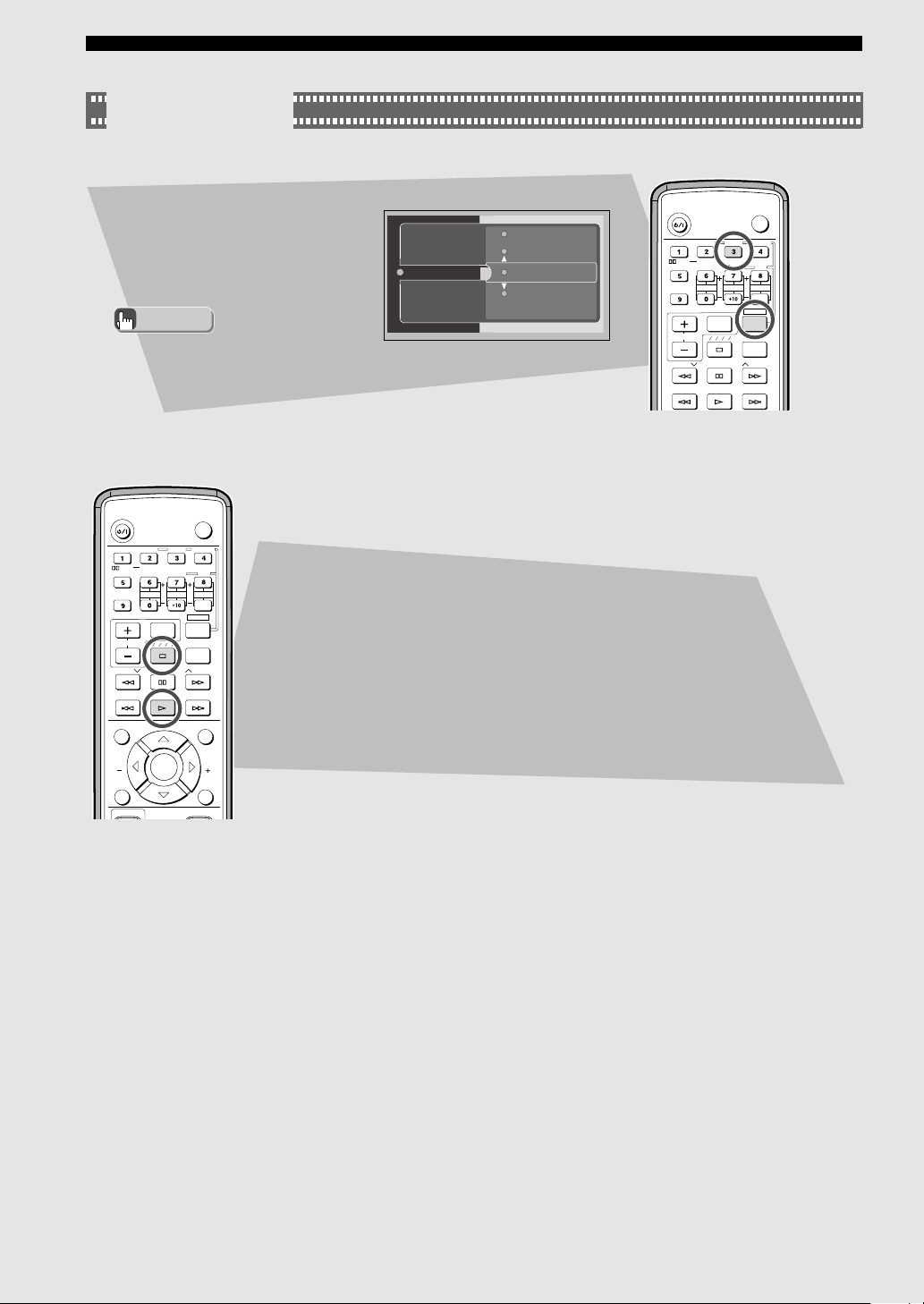
Switching the Viewing Angle
While holding down SHIFT, press
ANGLE.
The video angle changes each
time you press ANGLE while
holding down SHIFT.
Restarting Playback from the Stop Position
(Memory Resume)
Pressing a during playback enables Memory Resume. CinemaStation
memorizes the stop position.
Pressing w starts playing back the disc from the stop position.
• You can change the angle with
h, g, or Number buttons,
instead of ANGLE.
Advice
2
4
Angle
3
5
This selection is available
when the DVD disc contains
multi-angle content.
004DVX-S120-en 03.8.6, 2:25 PM14
15
Basic Operations
15
Basic Operations
Basic Operations
Try It Out!
CH
CINEMA
CH
TEST
RETURN
STATUS
TV VOL
VOLUME
MUTE
AMP
DVD/CD
VCR
VIDEO
TUNER
MOVIE MUSIC SPORTS GAME
SET
MENU
ENTER
English
Useful Features
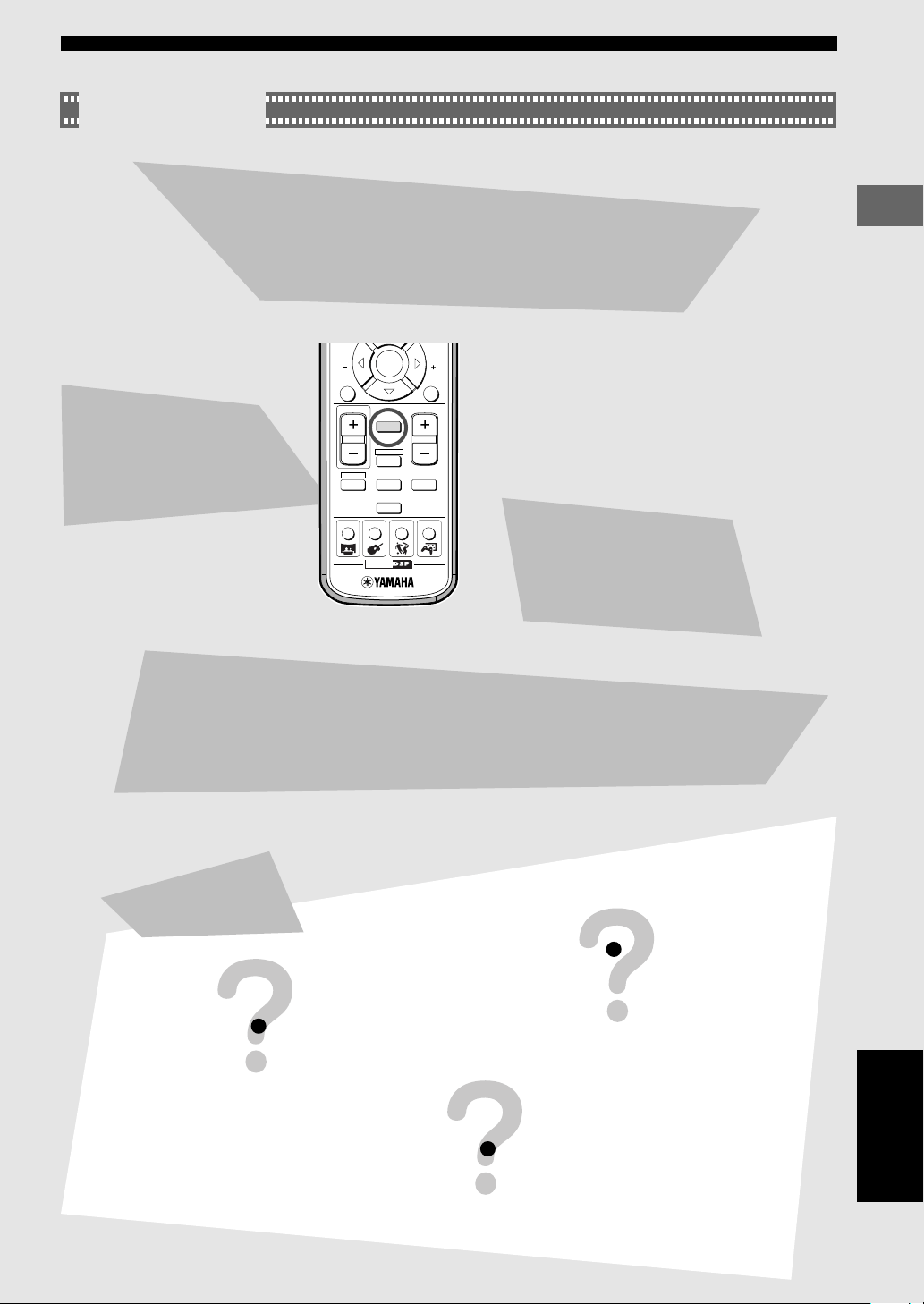
Enhancing the Sound Presence
CinemaStation is loaded with a variety of DSP Programs, so you can
experience from the raw excitement of a rock concert to the breathtaking
space of a cinemagraphic spectacle.
See page 64, “More Information about DSP (Surround) Effects”.
Turning off the
Sound
Press MUTE on the Remote
Control.
Press it again to turn on the
sound.
Controlling the
DVDs Your Children
Can View
You can set the Parental Control
level and lock discs.
See page 80, “Protecting Your
Children from Undesirable
Scene”.
Enhancing Video Quality
CinemaStation can use progressive image playback to render the full beauty of DVD
video.
You can connect a television that has component video input jacks to CinemaStation’s
COMPONENT VIDEO jacks and enjoy progressive scan imaging.
See page 79, “Enjoying High-Quality Video”.
Answers to Common Problems
I cannot change the audio
or subtitle language
The disc may have only one audio and
one subtitle language.
I followed each step correctly but the disc
doesn’t play.
Some discs have a Disc Menu or DVD Menu.
Your settings may change if you use this type of menu.
No subtitles appear
Check the disc jacket to make sure
subtitles are available.
004DVX-S120-en 03.8.5, 1:41 PM15
16
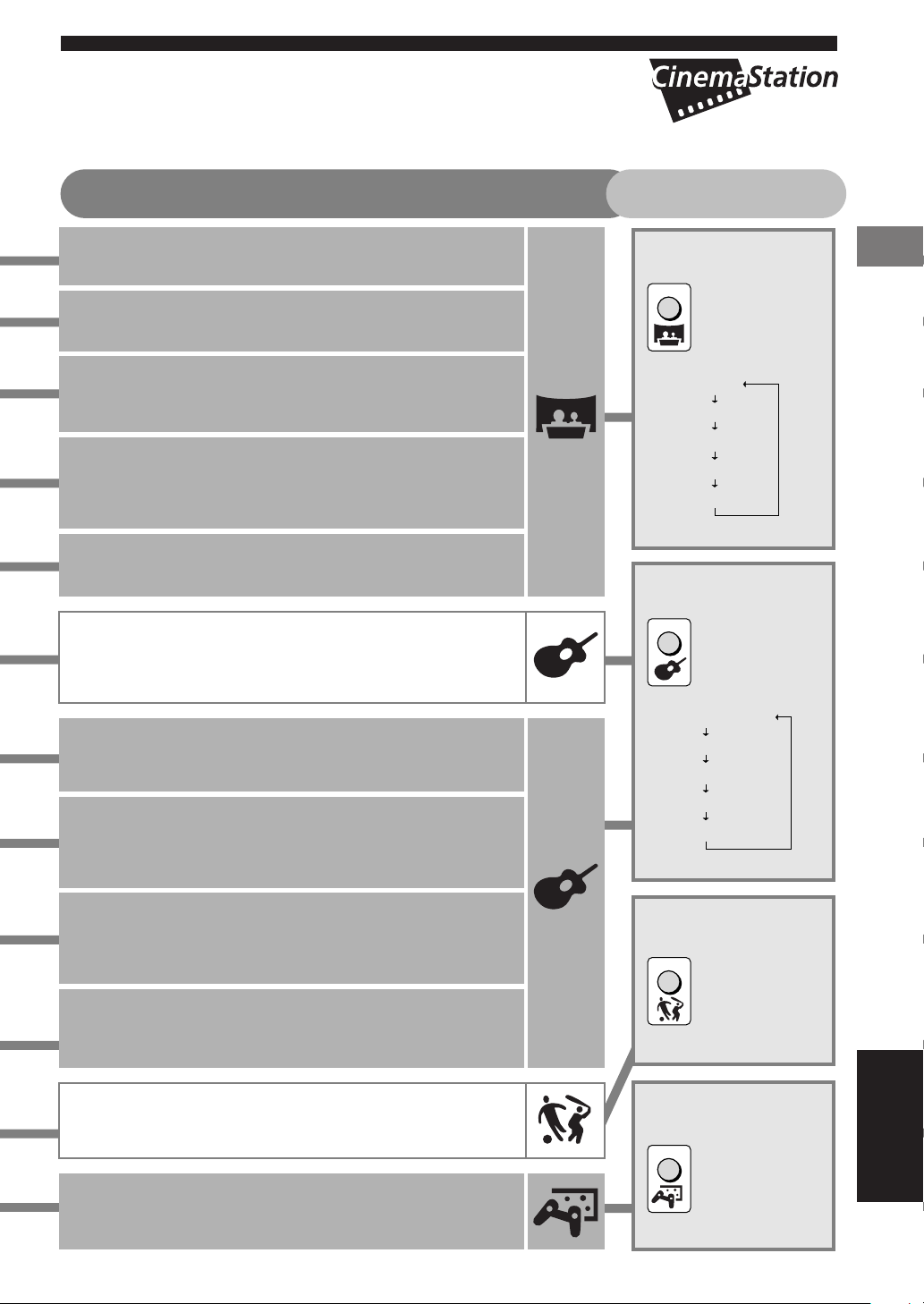
• Experiment with different sound field effects until you find the DSP Program that you feel best matches
your source.
• CinemaStation has other DSP Programs not listed below. See page 64, “Selecting DSP Program
Effects”.
Sound Presence
Finding the Best DSP Effect
Changing the DSP effect based on listening and viewing content
Select a DSP Program for the movie or music and experience the sound of a
movie theater or concert hall. Follow the chart below to select the DSP
Program that offers the acoustic qualities you want.
Advice
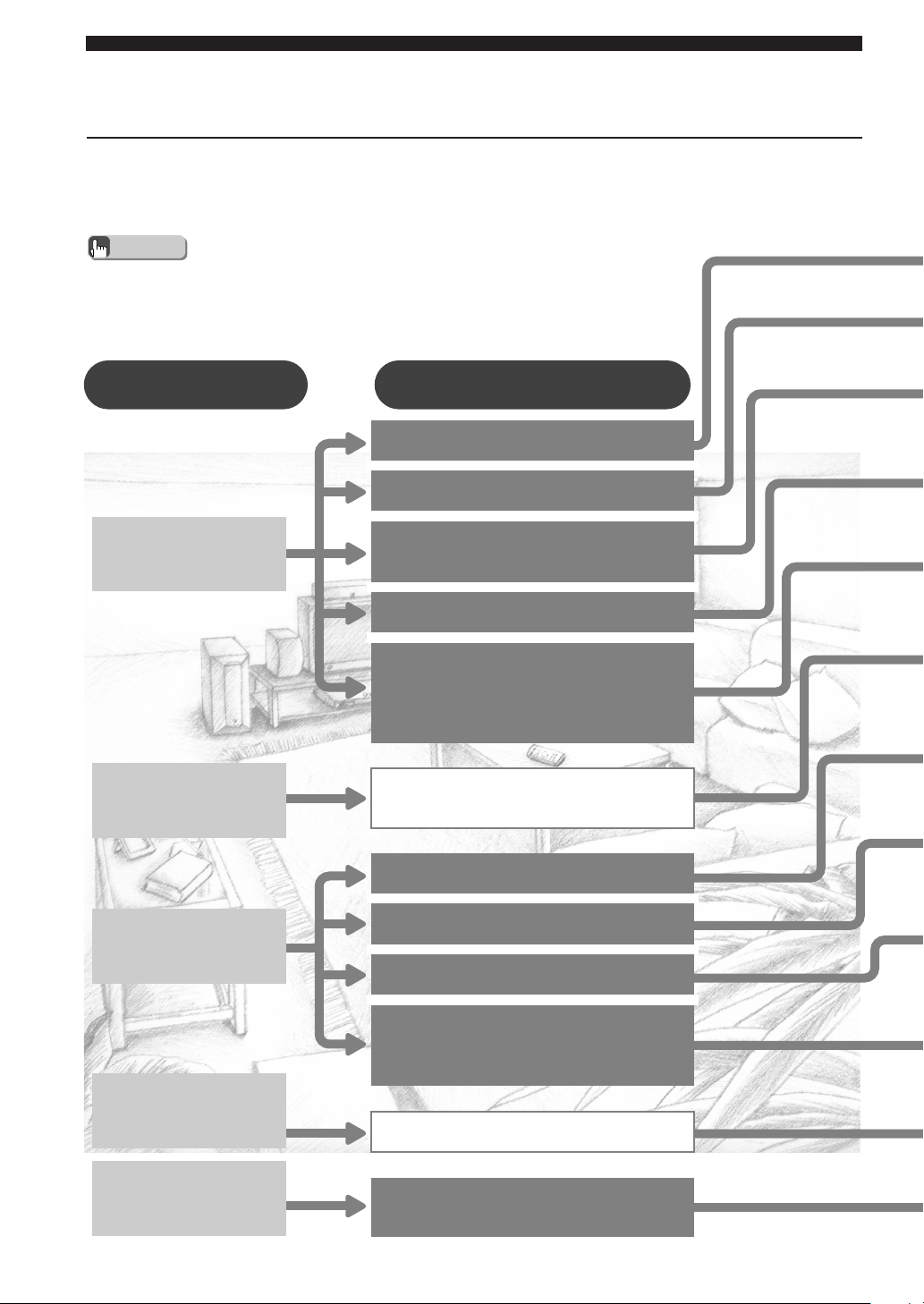
What do you want to do? Next selection
Watch a movie
Watch live entertain-
ment
Listen to music
Watch a sports
broadcast
Play video games
An action-packed thriller
Romantic or comic drama
Popular science fiction with loads
of effects
Grand spectacle
Experience the digital surround
sound of a movie theater
Feel the excitement on the big stage
Classical concert
Live jazz
Rock Concert
Home party
Baseball and soccer
Feel the power and momentum of
the game
005DVX-S120-en 03.8.19, 7:04 PM16
17
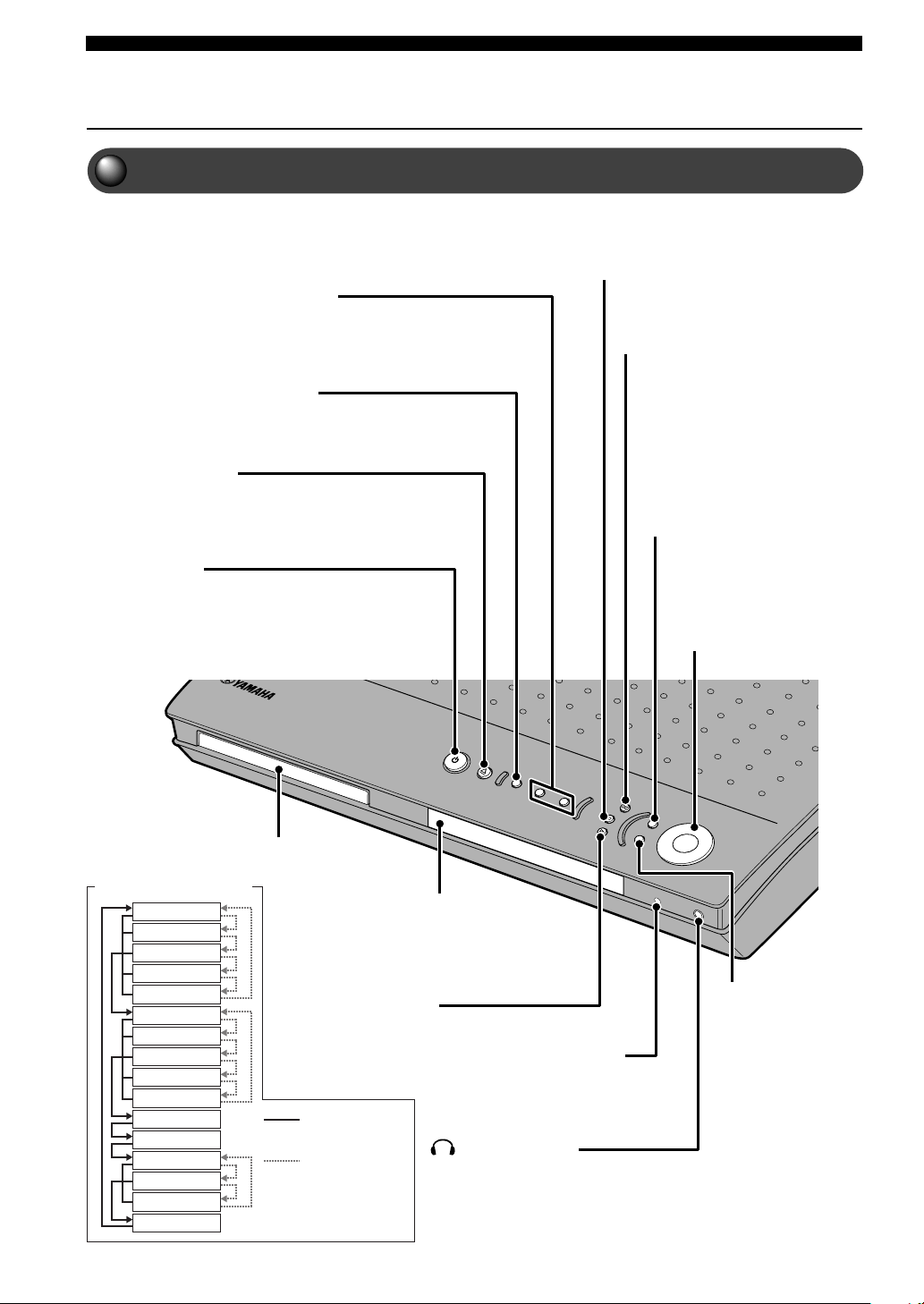
Sound Presence
Action
Drama
Sci-Fi
Spectacle
Theater
Music Video
Classic Hall
Jazz Club
Rock Concert
5ch Stereo
MUSIC
SPORTS
GAME
MOVIE
Finding the right DSP Program
Action
Enhances the stereoscopic effect for a thrilling sense of
presence only found in an action movie.
Drama
Expresses surround sounds softly so that voice and dialog are
clear and crisp.
Sci-Fi (Science Fiction)
Fills the space with music and sound that have an eerie sense of
reality.
Suitable for serious science fiction that has a good story line.
Spectacle
Expresses super-wide spaces. Suitable for movies that have a
powerful visual impact.
Theater
Preserves the power of Dolby or DTS Surround for experiencing
the rich acoustical presence of a movie theater.
Music Video
Magnifies the feeling of listening to live rock or jazz in a concert
hall. The screen image and sound field space stretch out to the
fullest, engulfing you in an atmosphere of excitement.
Classic Hall (The Munich Philharmonic Hall)
Puts you in a front row seat at the Munich Philharmonic Hall,
surrounded in calm, voluptuous sound.
Jazz Club (The Bottom Line)
Reproduces the acoustics of sitting right in front of the stage at
The Bottom Line, a popular New York City jazz club. Experience
the lively, realistic throb of a wide stage.
Rock Concert (The Roxy Theater)
Recreates the acoustic personality of a nightclub seating for an
audience of about 460.
5ch Stereo
Fills the space with sound and allows all listeners to enjoy the same
high-quality sound no matter where they are sitting or standing in the
room. A DSP Program that is especially suitable for home parties.
Live Sports
In a live stereo sports broadcast, announcer voices are central,
engulfed in the cheers and emotional whirl of the stadium.
Game
Gives TV games extra depth and surround. You can enjoy TV
games with monaural or stereo sound.
Selecting a DSP Program
Remote Control
Press MOVIE
repeatedly to
display DSP
Programs.
Remote Control
Press MUSIC
repeatedly to
display DSP
Programs.
Remote Control
Press SPORTS.
Remote Control
Press GAME.
English
Sound Presence
005DVX-S120-en 03.8.19, 7:04 PM17
18
Advanced Features
Names and Functions of Parts
Top and Front
Buttons for amplifier and disc operations
a
Stops disc playback.
d
Pauses disc playback.
INPUT
Selects an input source. Press this
button until you find the source you
want to watch or listen to.
Selects an audio input signal. You
can set the priority level for the audio
input signals when the equipment is
connected to both OPTICAL IN jack
and AUDIO IN jack.
(See page 77.)
VOLUME
Adjusts the overall sound volume.
Turn right to increase the volume
and left to decrease the volume.
Disc tray
Receives your disc.
Display
Displays DSP Program names,
setting values and playback
information.
w
Starts disc playback.
DSP
Selects a DSP Program.
Press this button until you
find the DSP Program you
want. To select another
DSP Program group, hold
down this button.
See the diagram shown on
the left.
t/e, r/y
Selects the previous/next track or chapter.
Continue pressing to fast forward or fast reverse.
f
Opens and closes
the disc tray.
STANDBY/ON
Switches the unit between ON and STANDBY.
No audio will be heard for a few seconds after power is
switched on.
STANDBY mode uses a little energy to receive an
infrared signal from the Remote Control.
Remote Control Sensor
Receives signals from the Remote Control.
Action
Drama
Sci-Fi
Spectacle
Theater
Music Video
Classic Hall
Jazz Club
Rock Concert
5ch Stereo
Live Sports
Game
PL Normal
PL II Movie
PL II Music
STEREO
Holding down
DSP.
Press DSP.
DSP button operation
(phones) jack
Connects your headphones. When
selecting a DSP Program, you can
enjoy SILENT CINEMA.
PROGRESSIVE (NTSC only)
Switches DVD playback between progressive and
interlace outputs. (See page 79.)
006DVX-S120-en 03.8.5, 1:42 PM18
19
Advanced Features
Advanced Features
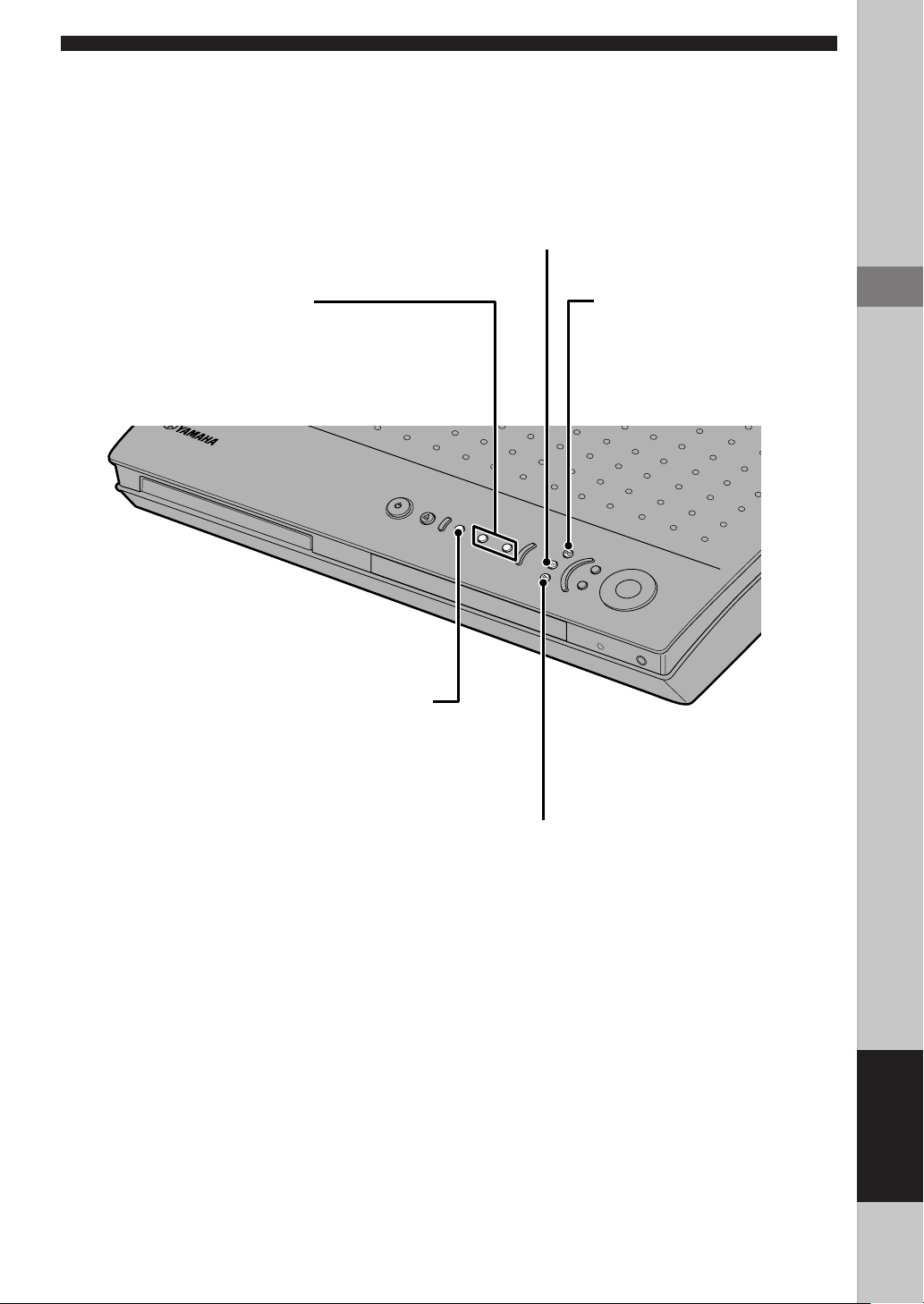
Buttons for tuner operations
Press INPUT on CinemaStation or press TUNER on the Remote Control to select Tuner mode. In Tuner mode, the buttons
below function as described.
About memory backup
If you disconnect the power cord from the outlet,
CinemaStation will memorize the settings listed to the
right for about a week.
Set them again if those settings are erased after a week.
• Volume
• Subwoofer, Center and Surround L/R Speakers output
levels (See page 58.)
• SET MENU options (See page 88.)
• Sleep Timer settings (See page 78.)
• Preset radio stations (See page 41.)
• DSP Program settings
Delay Time (See page 71.)
Dolby Pro Logic II Music settings (See page 67.)
A dvanced
Advanced Features
19
A/B/C/D/E
Selects preset groups (A, B, C, D, E) for FM/AM stations. (See page 41.)
d PRESET/TUNING u
Selects a Preset Number.
Searches a radio station. (See page 39.)
PRESET/BAND
Selects FM or AM tuning mode or Preset
mode. (See page 39.)
MEMORY
Stores received stations for
Preset Tuning.
(See page 41.)
AUTO/MAN’L
Switches between Auto Tuning and Manual Tuning
modes. (See page 39.)
Press this button to set CinemaStation to Auto
Tuning mode (AUTO indicator lights up), or press
this button to set CinemaStation to Manual Tuning
mode (AUTO indicator goes out).
English
006DVX-S120-en 03.8.19, 7:04 PM19
20
Advanced Features
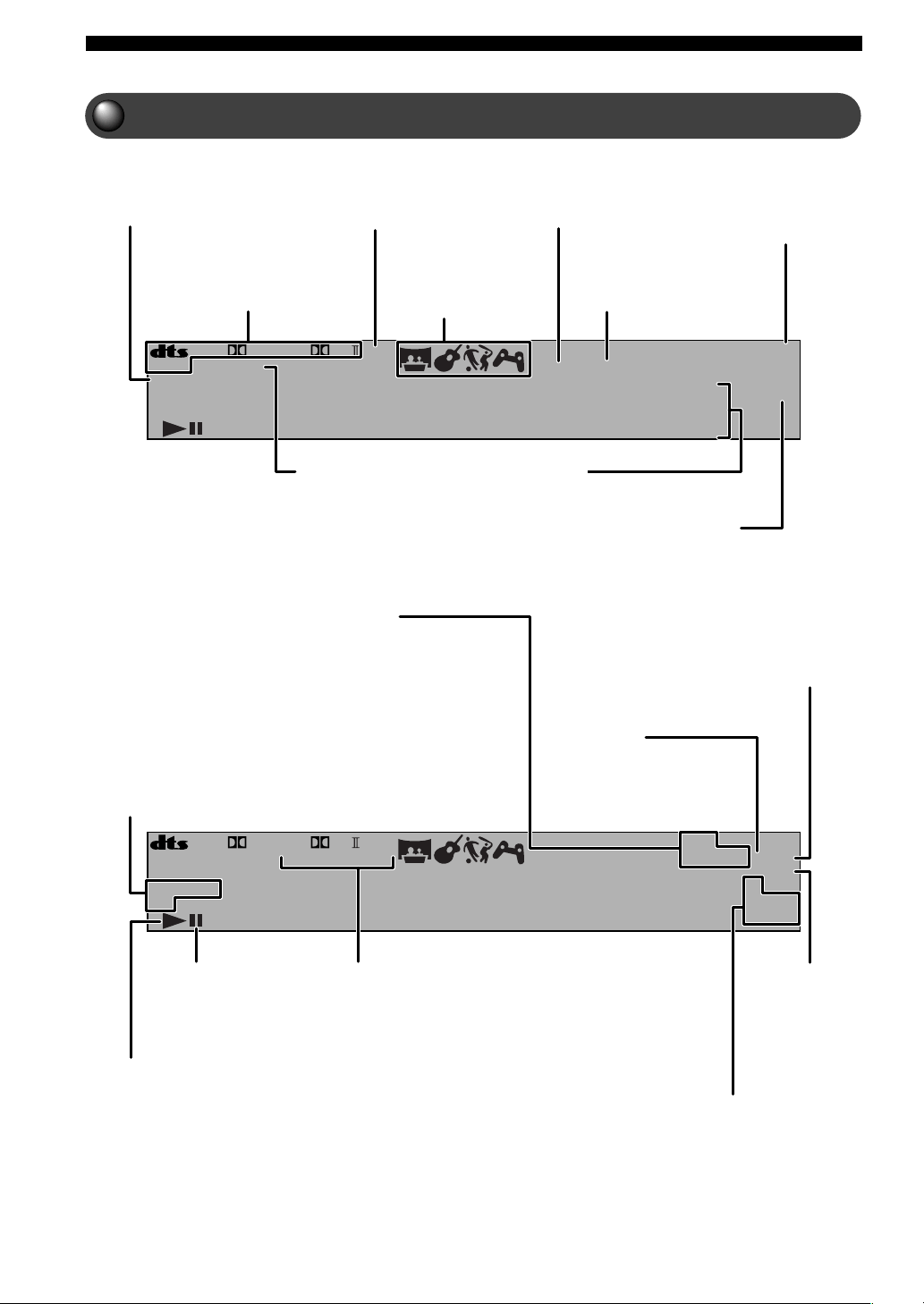
CinemaStation Display
MATRIX
PCM
TITLE TRACK CHAP
VIRTUAL SILENT REP
A-B
ALL AUTO ST
MEMORY
TUNEDPS
PTY RT
PTY
CT
HOLD
PROGRESSIVE
DIGITAL
DVD VCD
CD
888888888888
PL DSP
PROG SLEEP
MATRIX
PCM
TITLE TRACK CHAP
VIRTUAL SILENT REP
A-B
ALL AUTO ST
MEMORY
TUNED
PROGRESSIVE
DIGITAL
DVD VCD
CD
888888888888
PL DSP
PROG SLEEP
PS
PTY RT
PTY
CT
HOLD
PROGRESSIVE
Lights up when
PROGRESSIVE is activated.
Decoder indicator
Lights up when an internal
decoder is working.
DSP
Lights up when a DSP sound field
program is selected.
DSP Program
indicator
Lights up when a DSP
Program is selected.
VIRTUAL
Lights up when Virtual
Cinema DSP is enabled.
SILENT CINEMA indicator
Lights up when using a DSP
Program with headphones for
SILENT CINEMA.
SLEEP
Lights up when using
the Sleep Timer.
PCM
Lights up when playing
PCM signal such as CDs.
Program, Repeat indicator
PROG: Lights up during Program Play.
REP: Lights up during Repeat Play for whole disc,
chapter and track.
REP ALL: Lights up during Repeat Play for whole
disc.
REP A-B: Lights up during A-B Repeat.
ST
Lights up when receiving a strong
FM radio signal in Auto Tuning or
Auto Preset mode.
Disc indicator
DVD: Lights up while a DVD disc is set in the disc tray.
VCD: Lights up while a VCD disc is set in the disc tray.
CD: Lights up while a music CD disc is set in the disc tray.
AUTO
Lights up when using Auto
Tuning or Auto Preset in
Tuning mode.
Stop (Pause)
indicator
Lights up when stopping or
pausing disc playback.
Title, Track, Chapter indicator
TITLE: Lights up when showing the title.
TRACK: Lights up when showing the track.
CHAP: Lights up when showing the chapter.
MEMORY
Blinks when
memorizing
(presetting) an FM/
AM radio station.
Playback indicator
Lights up during disc playback.
RDS indicator (U. K. and
Europe models only)
Lights up when receiving an RDS
signal. In PTY SEEK mode the
PTY HOLD indicator lights up.
TUNED
Lights up when receiving an
FM/AM broadcast.
Main Display
Shows Input Source and DSP
Program names, Radio Station
Frequency, Preset Numbers and
other info. Shows chapter or
track number, elapsed time and
other info during disc playback.
006DVX-S120-en 03.8.5, 1:42 PM20
21
Advanced Features
Advanced Features
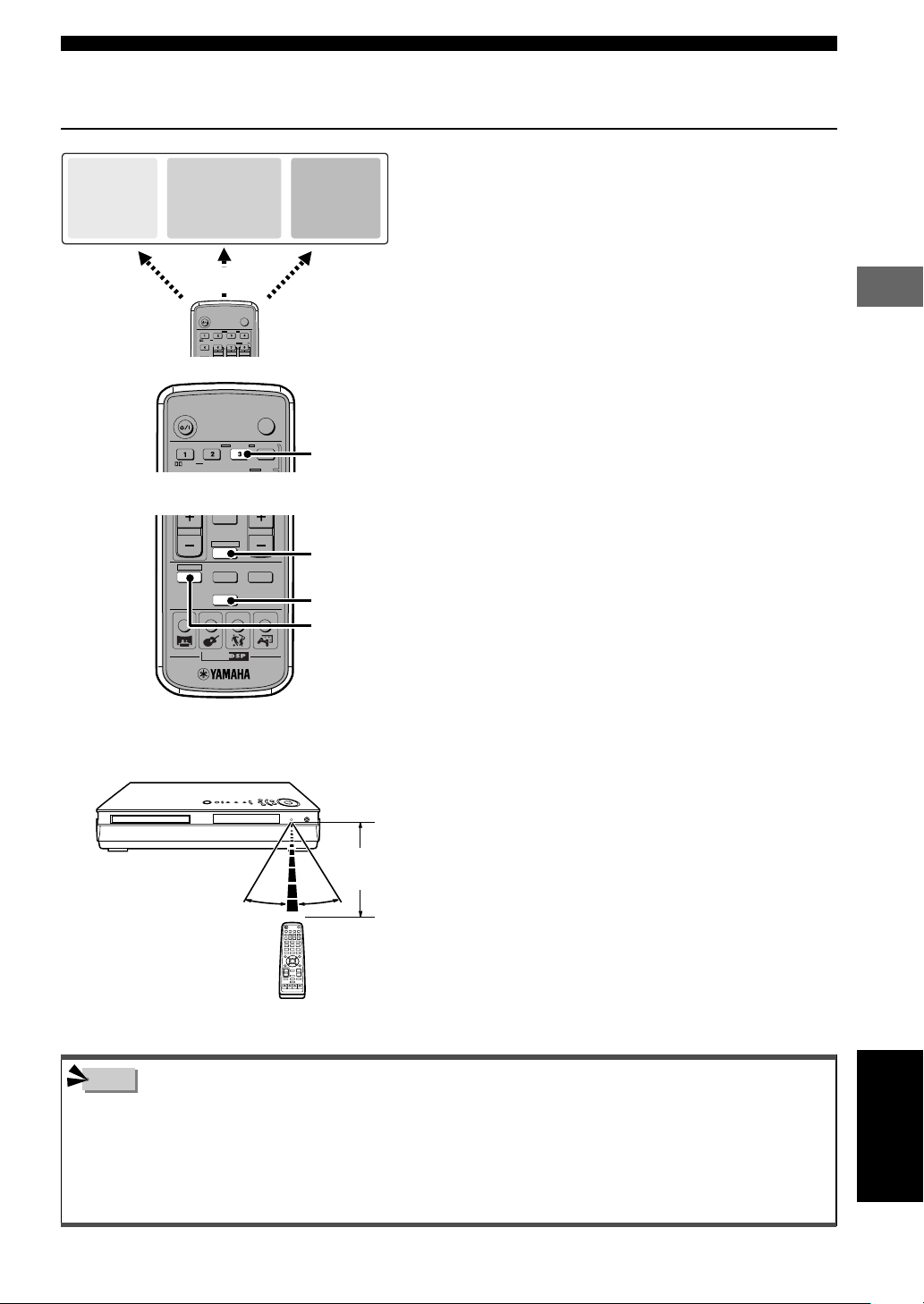
30° 30°
Remote Control Features
As shown on the left, CinemaStation is composed of three
main parts. Remote Control button operations change
depending on the mode, so it is possible to control all
Amplifier, DVD/CD and Tuner functions with a single
remote unit.
For example, in Amp mode the “3” button is used to select
Matrix 6.1, but in DVD/CD mode, it functions as a
numerical button that specifies time, track and other
numbers.
The Remote Control can also operate a television or VCR
connected to CinemaStation. However, it is first necessary
to enter the manufacturer code for the equipment in the
Remote Control’s memory. See page 83, “Storing
Manufacturer Codes in the Remote Control”.
To switch modes, follow the steps below.
• Amp mode: Press AMP.
• DVD/CD mode: Press DVD/CD. See page 23, “DVD/CD
Mode Button Names and Functions”.
• Tuner mode: Press TUNER.
For details on Tuner operations, see page 39, “Listening
to the Radio”.
Some reminders when using the Remote Control
• Do not spill water or tea, or drop anything on the unit.
• Do not leave the unit in the following places.
Near a stove, bath or hot and humid place.
In a dusty place.
In an extremely cold place.
When the batteries run down, replace them
When the batteries grow old, the effective operation distance
decreases considerably. When that happens, replace the batteries
with two new ones. Once you take the old batteries out, replace
them within two minutes to preserve the memory in the Remote
Control.
Use the Remote Control
within 6 m (20 feet) of the
CinemaStation and point it
toward the Remote Control
Sensor.
Using the Remote Control
• Replace worn out batteries as soon as possible.
• Do not use a new battery with one that has been used before.
• Do not use different types of batteries (for example, alkaline with manganese) together. Each type of battery has its own
characteristics.
• If a battery starts leaking, dispose of it immediately. Be careful not to let leaking battery acid come into contact with you or your
clothing. Before inserting new batteries wipe the compartment clean.
TV
POWER
POWER
AUDIO
/
DTS
SELECT STEREOMATRIX 6.1
A-B
REPEAT
ANGLE
SUBTITLE
DVR-S120 WB56650
CINEMA
AMP
DVD/CD
VCR
VIDEO
TUNER
MOVIE MUSIC SPORTS GAME
TUNER
AMP
DVD/CD
TV
POWER
POWER
AUDIO
/
DTS
SELECT
NIGHT
SW
CENTER
SURR
STEREOMATRIX 6.1
A-B
REPEAT
ANGLE
SUBTITLE
DVR-S120 WB56650
Note
CinemaStation
AMP
DSP Program
Input selection
DVD/CD
Playback
Subtitles, audio
language selection
FM/AM
Radio station
reception
Radio station
preset
Amp mode Tuner mode
“3” button
Within 6m
(20 feet)
English
DVD/CD mode
006DVX-S120-en 03.8.5, 1:42 PM21
22
Advanced Features
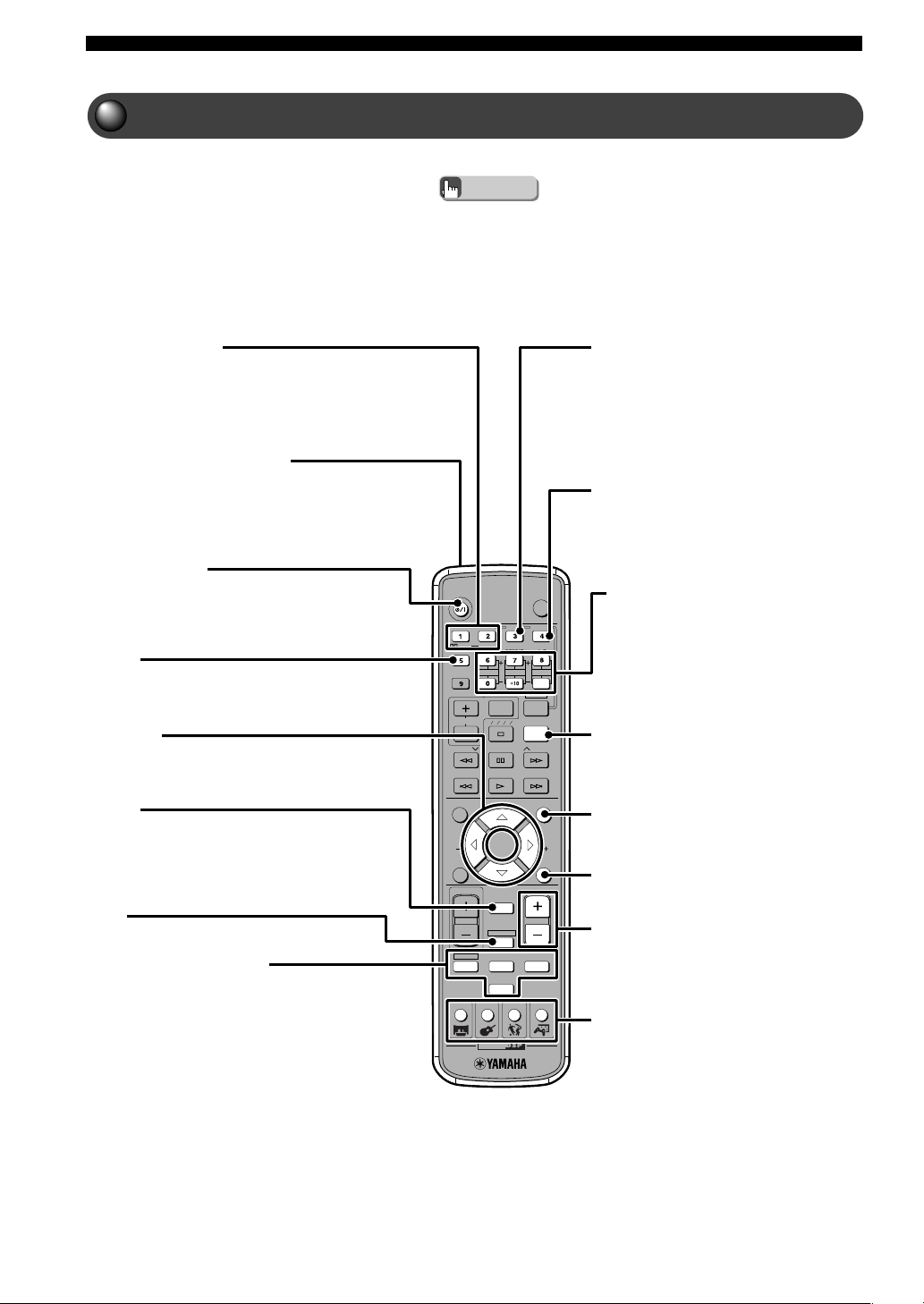
Amp Mode Button Names and Functions
Press AMP before starting operations.
• The purple color on the Remote Control indicates Amp mode.
Advice
TV
CH
CINEMA
CH
POWER
POWER
AUDIO
/
DTS
SELECT
NIGHT
SW
TV CH
TV INPUT
SLEEP
PRESET PRESET
A B C D E
CENTER
SURR
SHIFT
STEREOMATRIX 6.1
A-B
REPEAT
ANGLE
SUBTITLE
DVR-S120 WB56650
ON SCREEN MENU
TEST
RETURN
STATUS
TV VOL
VOLUME
MUTE
AMP
DVD/CD
VCR
VIDEO
TUNER
MOVIE MUSIC SPORTS GAME
SET MENU
ENTER
DSP Program buttons
Selects one of four DSP Programs: MOVIE,
MUSIC, SPORTS or GAME. (See pages 16
and 17.)
The MOVIE and MUSIC groups contain
multiple sound field programs. Press the
button repeatedly and select the effect you
like.
VOLUME +/-
Adjusts the overall volume level. Press + to
increase the volume and - to decrease the
volume.
TEST
Outputs a test tone. (See page 58.)
SET MENU
Enters the SET MENU. (See page 89.)
SLEEP
Sets the Sleep Timer. (See page 78.)
Volume level buttons
Adjust speaker volume level. (See page 58.)
SW +/-: Adjusts the Subwoofer volume.
CENTER +/-: Adjusts the Center Speaker
volume.
SURR +/-: Adjusts the volume of the
Surround Speakers.
STEREO
Switches between normal stereo sound and
audio with a sound field effect. (See page 74.)
Select STEREO to listen to audio with no
sound field effect from the Front L/R Speakers.
MATRIX 6.1
Sets the Matrix 6.1 decoder. (See page 64.)
In most cases, the Matrix 6.1 decoder works
automatically once Dolby Digital Surround
EX or DTS ES discs start playing. However,
for some disc types, you may have to set the
decoder using this button.
AMP
Puts the Remote Control in Amp mode.
q/DTS, SELECT
Switches between Dolby Digital and DTS decoders.
After pressing q/DTS, repeatedly press SELECT to
select a decoder. (See page 73.)
POWER (a/I)
Switches the CinemaStation between ON and
STANDBY.
NIGHT
Sets the CinemaStation to Night Listening mode.
(See page 70.)
h, g, q, w
Adjusts the test tone and SET MENU.
MUTE
Turns off the sound. Press again to return to the
previous sound volume.
This button works in every mode.
Input Selection buttons
Selects a source to operate with the Remote Control.
(See page 27.)
To operate a VCR, you need to set the manufacturer
code for the VCR button.
Infrared signal transmitter
Sends an infrared signal to the CinemaStation.
006DVX-S120-en 03.8.5, 1:42 PM22
23
Advanced Features
Advanced Features
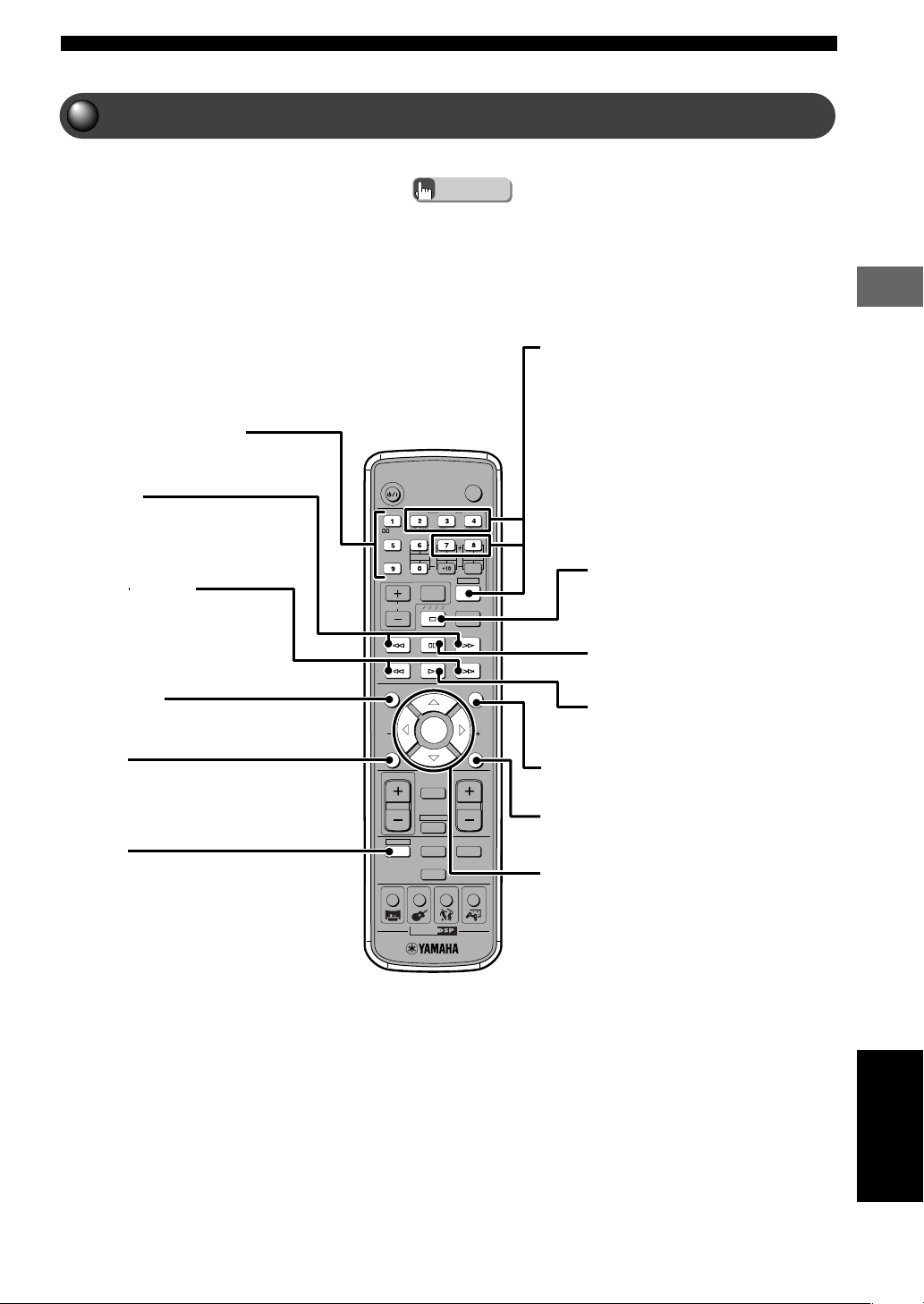
DVD/CD Mode Button Names and Functions
Press DVD/CD before starting operations.
• The green color on the Remote Control indicates DVD/CD mode.
Advice
TV
CH
CINEMA
CH
POWER
POWER
AUDIO
/
DTS
SELECT
NIGHT
SW
TV CH
TV INPUT
SLEEP
PRESET PRESET
A B C D E
CENTER
SURR
SHIFT
STEREOMATRIX 6.1
A-B
REPEAT
ANGLE
SUBTITLE
DVR-S120 WB56650
ON SCREEN MENU
TEST
RETURN
S TATU S
TV VOL
VOLUME
MUTE
AMP
DVD/CD
VCR
VIDEO
TUNER
MOVIE MUSIC SPORTS GAME
SET MENU
ENTER
STATUS
Shows type of disc, play/stop status, playing time
and other info.
DVD/CD
Puts the Remote Control in DVD/CD mode.
While holding down SHIFT, press a button
below to enable the corresponding operation.
7 button: Enables Repeat Play.
8 button: Enables settings for A-B Repeat.
AUDIO: Switches the audio language of the
DVD video.
ANGLE: Switches the angle of the DVD
video.
SUBTITLE: Switches the subtitle language of
the DVD video.
s (Stop)
Stops disc playback.
e (Pause)
Pauses disc playback.
h (Play)
Starts disc playback.
MENU
Shows the Disc Menu on the TV.
RETURN
Returns the Disc Menu to one position before the
current screen.
h, g, q, w/ENTER
Adjusts On Screen Menu and other settings.
Number buttons (1-9, 0)
Input numerals for track numbers and others.
w, f
Fast forwards and reverses.
b, a (Skip)
Moves to the start of a disc track.
ON SCREEN
Shows the On Screen Menu on the TV.
English
006DVX-S120-en 03.8.5, 1:42 PM23
24
Advanced Features
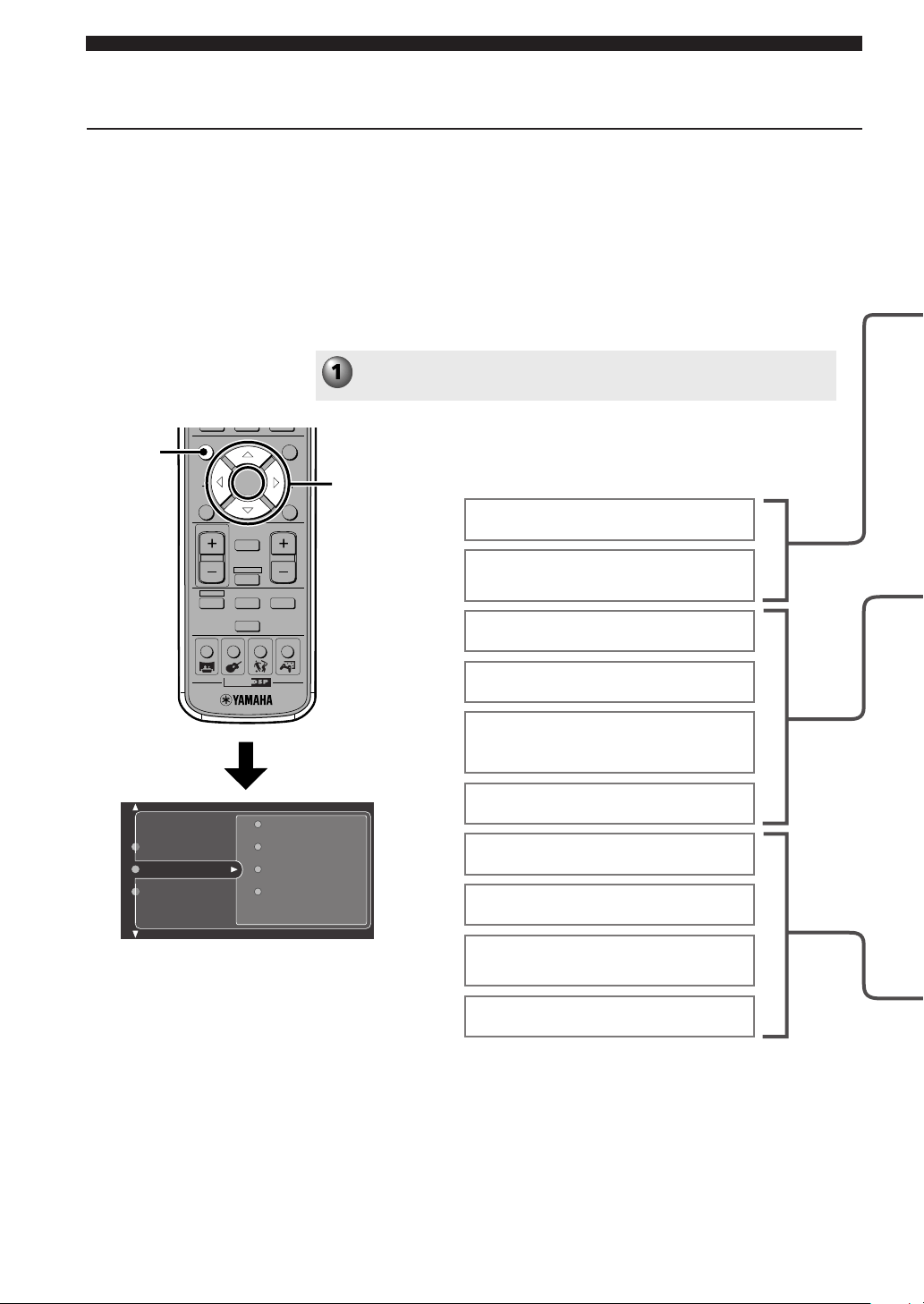
Using the On Screen Menu
The On Screen Menu includes Preference, Toolbar and Setup. Perform
operations using the TV screen.
Preference: You can adjust picture contrast, sharpness and other picture
qualities of the DVD or video CD to your liking.
Toolbar: You can use Program Play, Disc Navigation and other handy
playback features.
Setup: You can adjust DVD playback controls such as the default subtitle
language and screen size.
Useful functions
Press ON SCREEN.
The On Screen Menu appears.
CH
CINEMA
CH
ON SCREEN MENU
TEST
RETURN
STATUS
TV VOL
VOLUME
MUTE
AMP
DVD/CD
VCR
VIDEO
TUNER
MOVIE MUSIC SPORTS GAME
SET MENU
ENTER
g
g
,, ,
h
g
ON
SCREEN
Setting default subtitle and audio
languages
Program
View
Play Option
Search
Toolbar
Preferences
Setup
Adjusting the picture quality such as
contrast or brightness
Setting the Status Display
Using Program Play
Using zoom and angle view
Selecting audio and subtitle
languages, and learning about the
disc structure
Finding a scene or track to view or
listen to
Using the Parental Control
Fine-tuning TV screen settings
Setting Playback Control
On Screen Menu
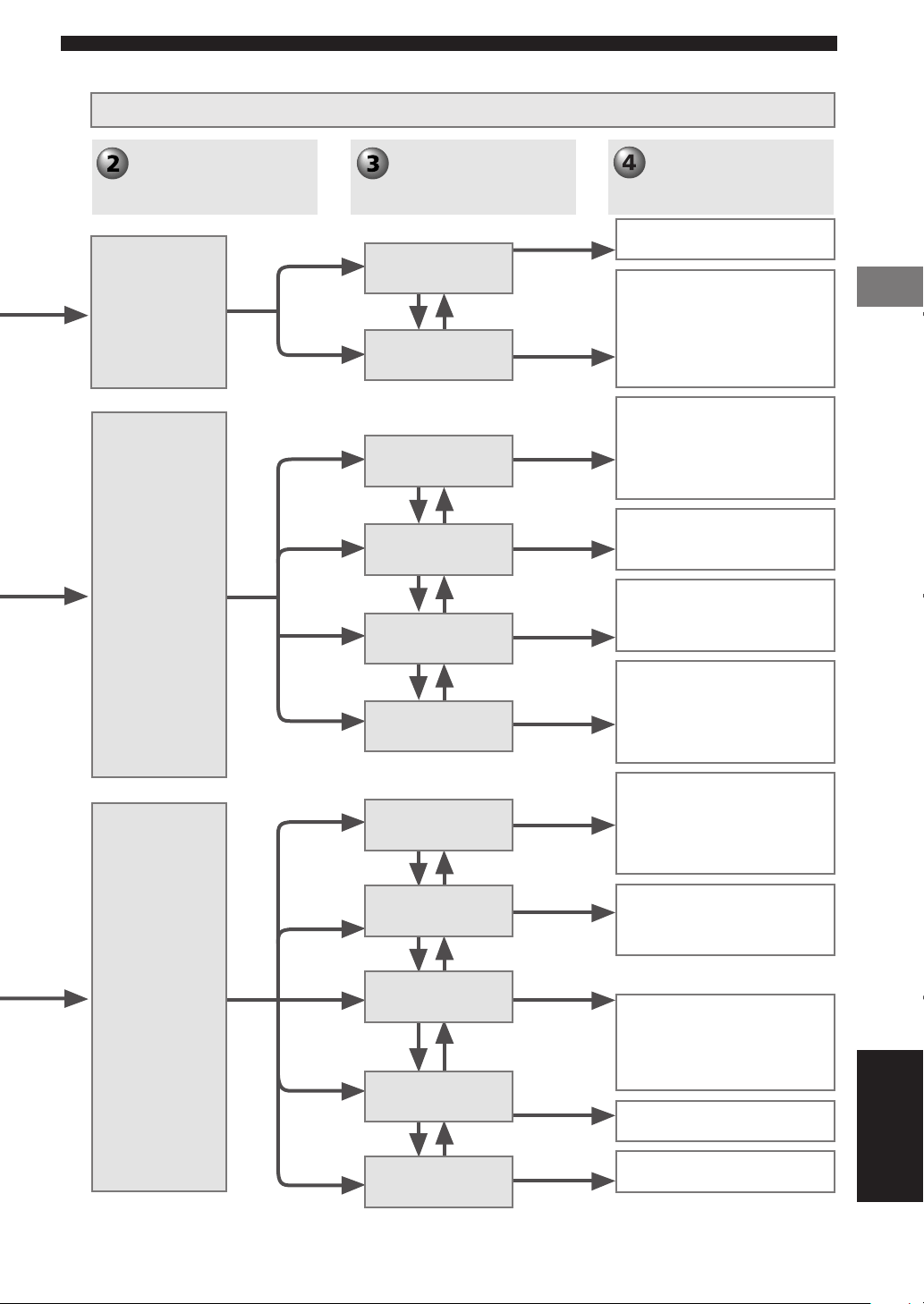
007DVX-S120-en 03.8.19, 7:05 PM24
25
Advanced Features
Advanced Features
Press h or g to
navigate the Main
Menus, then press w.
On Screen Menu
Press h or g to navigate
the Submenus, then
press w.
Press h, g, q or w to
select or set items.
Preference
Toolbar
Setup
Features
Picture
Program
View
Play Option
Search
Access
TV
Language
Features
Video shift
Saturation
Contrast
Color settings (Colour settings)
Brightness
Sharpness
Status window
Clear All
Tracks
Program
Play list (Playlist)
Zoom
Angle
Chapter Preview
Audio
Disc Navigation
Sub-title (Subtitle)
Frame by Frame
Fast
Time
Slow
Disc Lock
Parental level
Enter PIN
Change PIN
TV shape
TV System
Video Output*
Default Sub-title
(Default Subtitle)
Country
Menu Language
Default Audio
PBC
English
*U.K. and Europe models only.
Digital output
Audio Menu
Refer to On Screen Menu Guide on pages 94 and 95.
007DVX-S120-en 03.8.19, 7:05 PM25
26
Selecting the Media Device
Selecting the Equipment
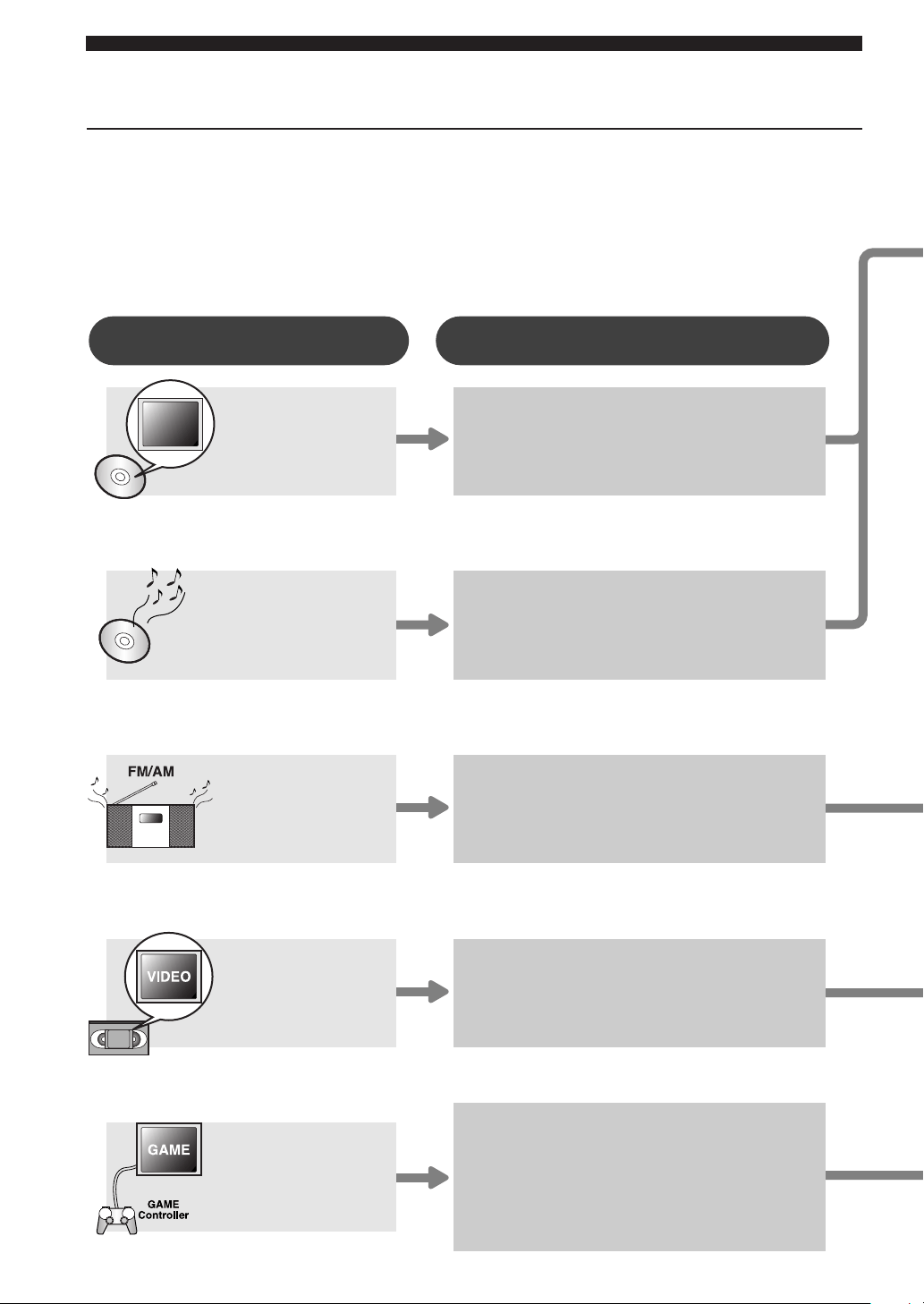
CinemaStation provides you with a variety of playback options, including
CDs, video discs, music CDs and MP3 discs. You can connect a VCR or
video game console and increase your home entertainment possibilities. For
connecting the equipment you want, follow the chart below.
What would you like to play? Equipment you use
Video discs
Music CDs
FM/AM radio
Video tape
Video game or
video camera
CinemaStation
CinemaStation
CinemaStation
CinemaStation
+
VCR
CinemaStation
+
video game console or
video camera
Play
video
CDs
007DVX-S120-en 03.8.19, 7:05 PM26
Selecting the Media Device
27
CINEMA
DVD/CD
VCR
VIDEO
TUNER
MOVIE MUSIC SPORTS GAME
CINEMA
DVD/CD
VCR
VIDEO
TUNER
MOVIE MUSIC SPORTS GAME
CINEMA
DVD/CD
VCR
VIDEO
TUNER
MOVIE MUSIC SPORTS GAME
CINEMA
DVD/CD
VCR
VIDEO
TUNER
MOVIE MUSIC SPORTS GAME
DVD/CD
TUNER
VCR
VIDEO
Selecting the Media Device
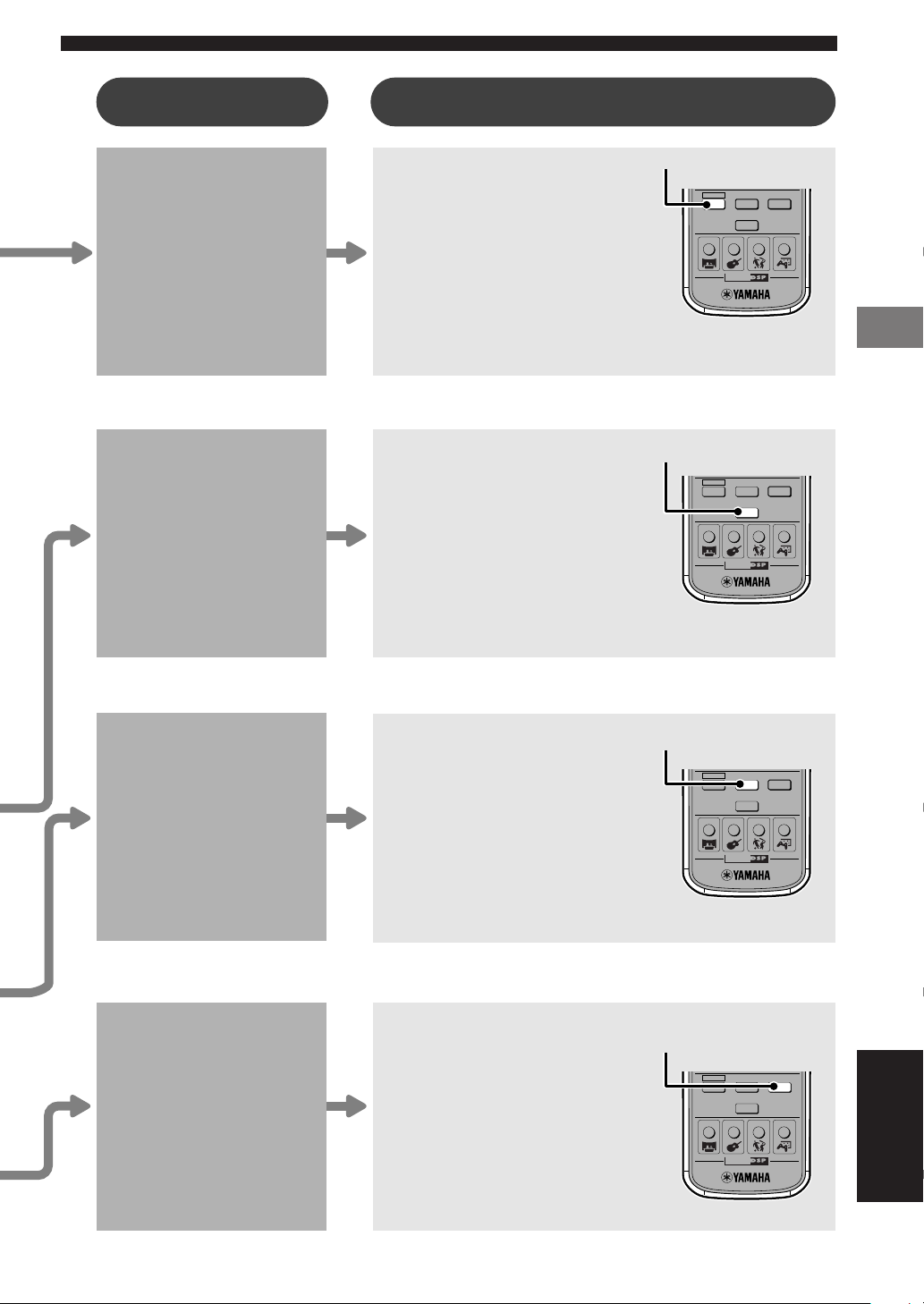
Press DVD/CD on
the Remote
Control.
To play a video disc, perform
steps 1 to 10 on pages 10 to 12,
“Viewing a DVD”.
To play a music disc, perform
steps 4 to 10 on pages 10 to 12,
“Viewing a DVD”.
Complete the steps on
pages 8 and 9,
“Connecting the
Speakers and TV”.
Complete the steps on
pages 8 and 9,
“Connecting the
Speakers and TV”. Then
connect the indoor FM
Antenna and AM Loop
Antenna to
CinemaStation. See page
38, “Connecting the
Antennas”.
Complete the steps on
pages 8 and 9,
“Connecting the
Speakers and TV”. Then
connect a VCR to
CinemaStation. See page
46, “Connecting Video
Equipment”.
Complete the steps on
pages 8 and 9,
“Connecting the
Speakers and TV”. Then
connect a game console
or video camera to
CinemaStation. See page
46, “Connecting Video
Equipment”.
Press TUNER on
the Remote
Control.
To tune in your favorite channel,
see page 39, “Listening to the
Radio”.
Press VCR on the
Remote Control.
Press VIDEO on
the Remote
Control.
Making the connections Selecting the equipment
English
007DVX-S120-en 03.8.19, 7:05 PM27
28
Playing Video and Music Discs
Playback Methods
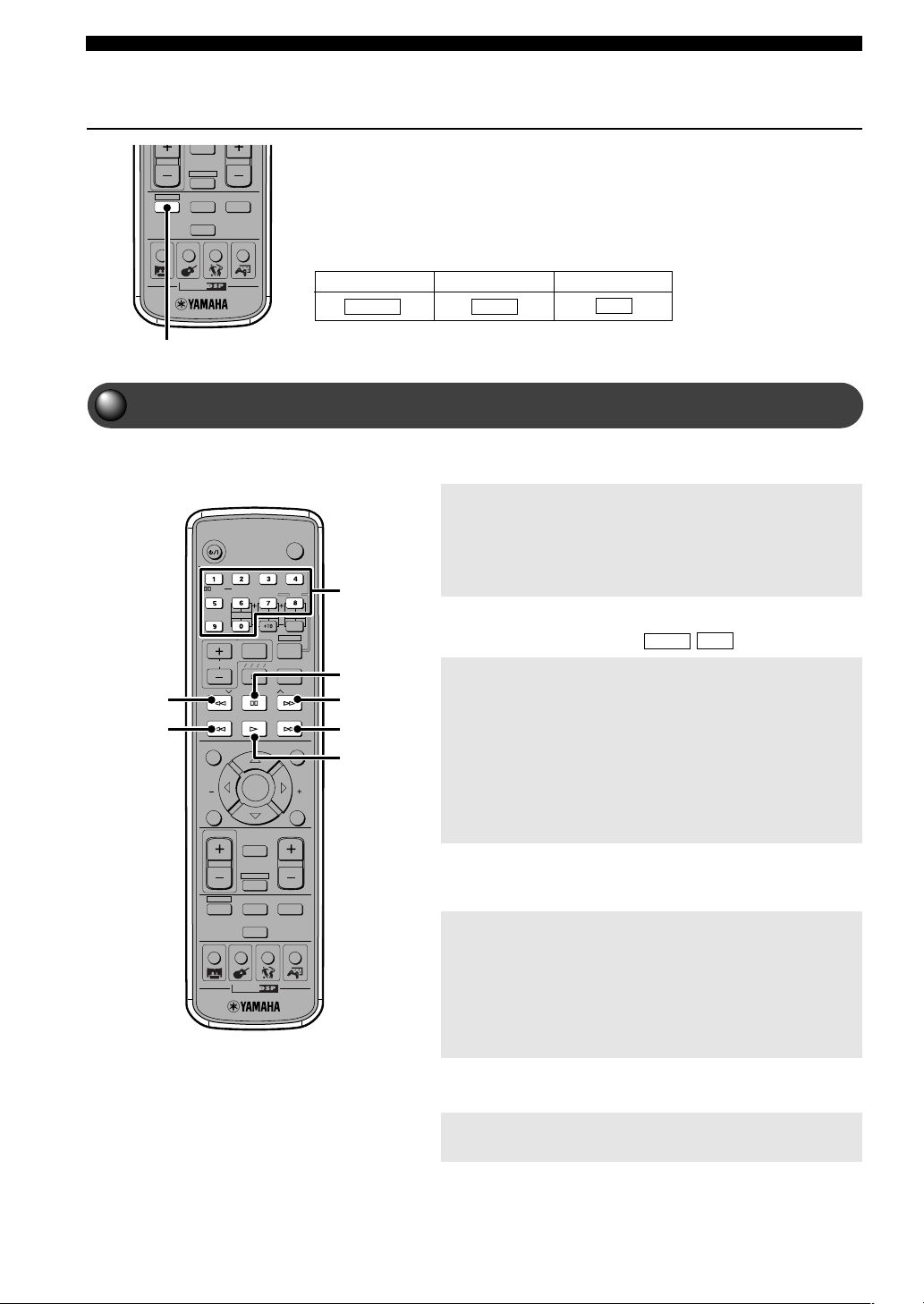
CinemaStation provides you with a variety of playback methods, including
the ability to select and quickly find a scene or tune.
Start operations after first pressing DVD/CD. CinemaStation enters DVD/CD
mode to play a disc.
To skip chapters and tracks
To return to the previous chapter or track: Quickly
press t twice.
When you press t only once, playback starts from the
beginning of the currently playing chapter or track.
To advance to the next chapter or track: Press y.
To specify a track
Enter the track number with the Number buttons.
For a 1-digit number use buttons 1 to 9. For a 2-digit number,
use the buttons 1 to 9 for the second digit place, and buttons 1
to 9 and 0 for the first digit place.
For example:
To select track 17 press the 1 button followed by the 7
button.
To select track 20 press the 2 button followed by the 0
button.
To Fast Forward and Fast Reverse
Perform while playing.
To Fast Reverse: Press e.
Each time you press the button, the speed changes (4✕, 8✕ or
32✕).
To Fast Forward: Press r.
Each time you press the button, the speed changes (4✕, 8✕ or
32✕).
To pause playback
Press d while playing.
Press w to return to normal playback.
Selecting a Scene or Tune
Number
buttons
TV
CH
CINEMA
CH
POWER
POWER
AUDIO
/
DTS
SELECT
NIGHT
SW
TV CH
TV INPUT
SLEEP
PRESET PRESET
A B C D E
CENTER
SURR
SHIFT
STEREOMATRIX 6.1
A-B
REPEAT
ANGLE
SUBTITLE
DVR-S120 WB56650
ON SCREEN MENU
TEST
RETURN
STATUS
TV VOL
VOLUME
MUTE
AMP
DVD/CD
VCR
VIDEO
TUNER
MOVIE MUSIC SPORTS GAME
SET MENU
ENTER
d
w
re
t
y
CD
VCD
Music CDDVD Video Video CD
In this manual, each type of disc has its own mark as shown below.
DVD-V
VCD
CD
CINEMA
AMP
DVD/CD
VCR
VIDEO
TUNER
MOVIE MUSIC SPORTS GAME
DVD/CD
008DVX-S120-en 03.8.5, 1:43 PM28
29
Playing Video and Music Discs
Playing Video and Music Discs
• You can also use the On Screen Menu to operate Frame Advance, Fast Forward/Reverse and Slow Advance/Reverse. In addition
to those, you can use Frame Reverse from the On Screen Menu.
See pages 94 and 95, “On Screen Menu Guide”.
• The Skip feature may not work properly when using Playback Control to play a video CD.
• If you use Fast Forward/Reverse while playing a Dolby Digital or DTS disc, the Speakers do not output any sound.
• Slow Reverse is not available for a video CD.
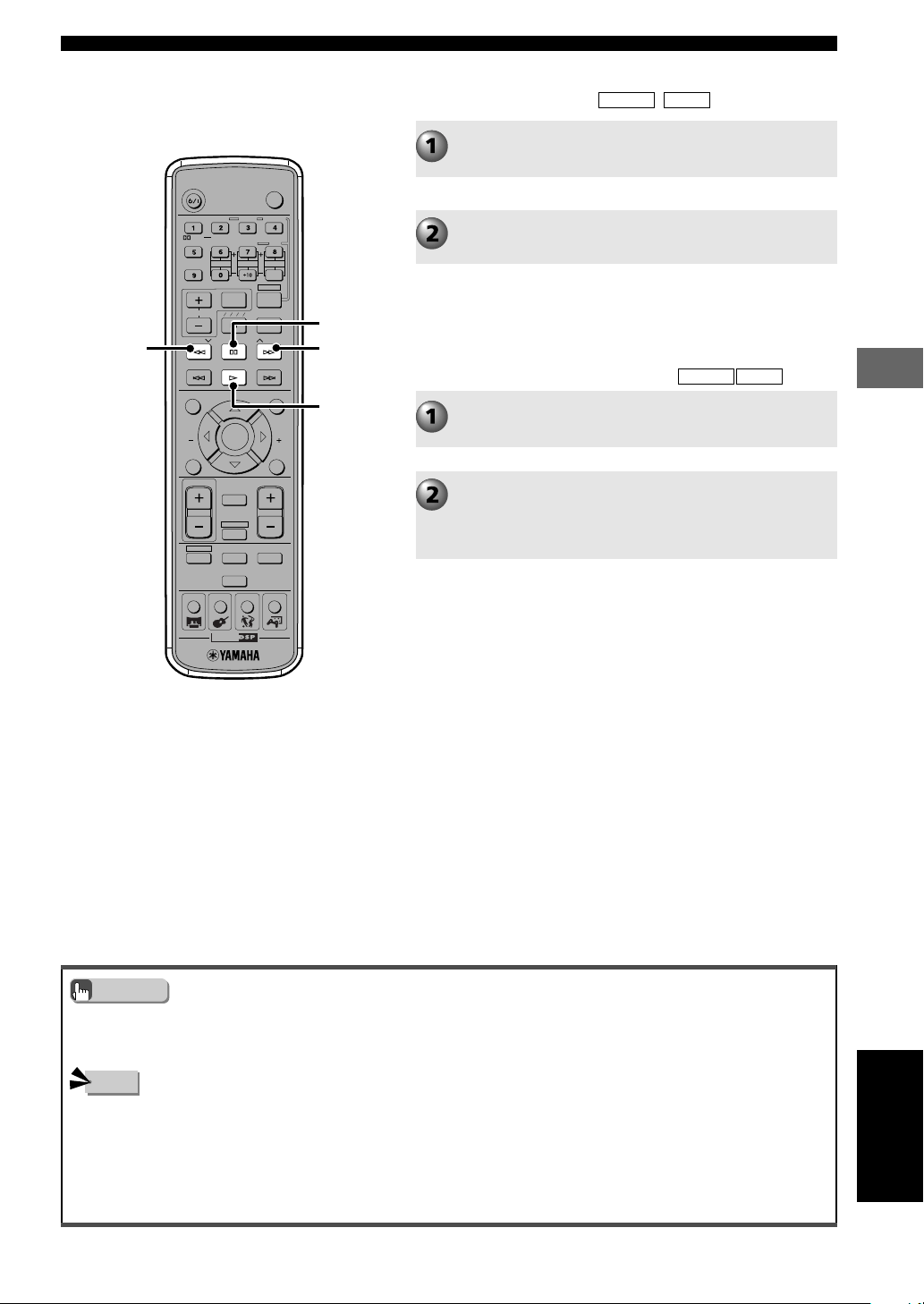
Frame Advance
Press d to pause playback.
Press d.
To return to normal play
Press w.
Slow Advance/Reverse
Press
d
to pause playback.
To return press e or to advance press r.
Each time you press the button, the speed changes (0.125✕,
0.25✕ or 0.5✕).
TV
CH
CINEMA
CH
POWER
POWER
AUDIO
/
DTS
SELECT
NIGHT
SW
TV CH
TV INPUT
SLEEP
PRESET PRESET
A B C D E
CENTER
SURR
SHIFT
STEREOMATRIX 6.1
A-B
REPEAT
ANGLE
SUBTITLE
DVR-S120 WB56650
ON SCREEN MENU
TEST
RETURN
STATUS
TV VOL
VOLUME
MUTE
AMP
DVD/CD
VCR
VIDEO
TUNER
MOVIE MUSIC SPORTS GAME
SET MENU
ENTER
d
w
re
Advice
Note
English
VCD
DVD-V
DVD-V
VCD
To return to normal play
Press w.
008DVX-S120-en 03.8.5, 1:43 PM29
30
Playing Video and Music Discs
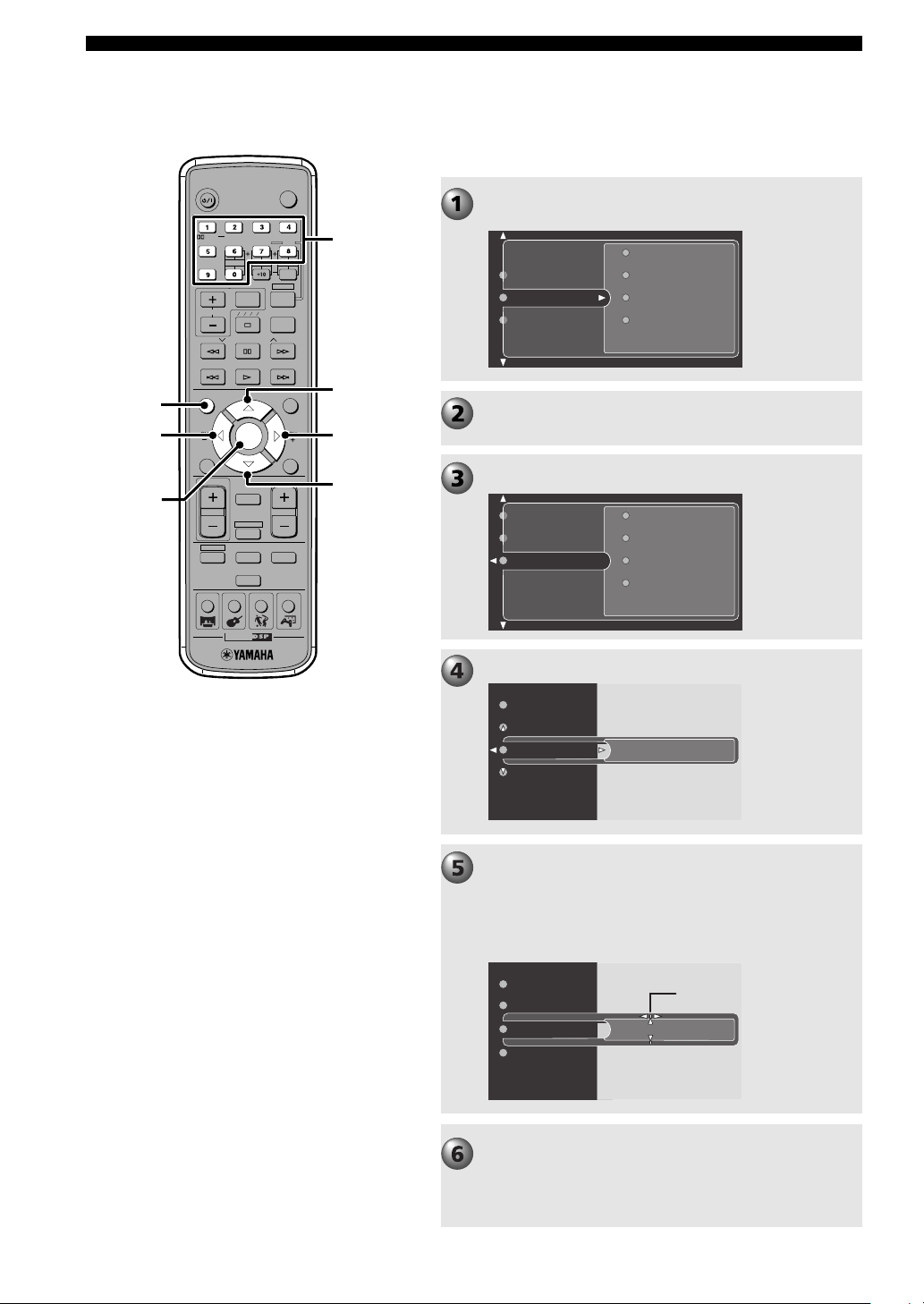
Specify an elapsed time for playback
(Time Search)
Perform operations using the TV On Screen Menu.
TV
CH
CINEMA
CH
POWER
POWER
AUDIO
/
DTS
SELECT
NIGHT
SW
TV CH
TV INPUT
SLEEP
PRESET PRESET
A B C D E
CENTER
SURR
SHIFT
STEREOMATRIX 6.1
A-B
REPEAT
ANGLE
SUBTITLE
DVR-S120 WB56650
ON SCREEN MENU
TEST
RETURN
STATUS
TV VOL
VOLUME
MUTE
AMP
DVD/CD
VCR
VIDEO
TUNER
MOVIE MUSIC SPORTS GAME
SET MENU
ENTER
g
h
ON
SCREEN
ENTER
g
g
Press ON SCREEN.
Make sure that “Toolbar” is selected.
Press w to select “Play Option”.
Press g to select “Search”.
Press w to select “Time”.
Press w or q to select 0:00:00 (hour, minute or
second) with the cursor. Then enter time with the
Number buttons.
You can specify the time only within the current track or
title, not the whole disc.
Press ENTER, then press ON SCREEN to turn off
the On Screen Menu.
When pressing ENTER, playback starts from the time
position you specified in step 5.
Number
buttons
Program
View
Play Option
Search
Toolbar
Preferences
Setup
Frame by Frame
Fast
Time
Slow
Search
View
Play Option
0:00:28
Time
Frame by Frame
Fast
Slow
0:02:09
Time
Frame by Frame
Fast
Slow
Cursor
008DVX-S120-en 03.8.5, 1:44 PM30
31
Playing Video and Music Discs
Playing Video and Music Discs
TV
CH
CINEMA
CH
POWER
POWER
AUDIO
/
DTS
SELECT
NIGHT
SW
TV CH
TV INPUT
SLEEP
PRESET PRESET
A B C D E
CENTER
SURR
SHIFT
STEREOMATRIX 6.1
A-B
REPEAT
ANGLE
SUBTITLE
DVR-S120 WB56650
ON SCREEN MENU
TEST
RETURN
STATUS
TV VOL
VOLUME
MUTE
AMP
DVD/CD
VCR
VIDEO
TUNER
MOVIE MUSIC SPORTS GAME
SET MENU
ENTER
g
h
ON
SCREEN
ENTER
g
g
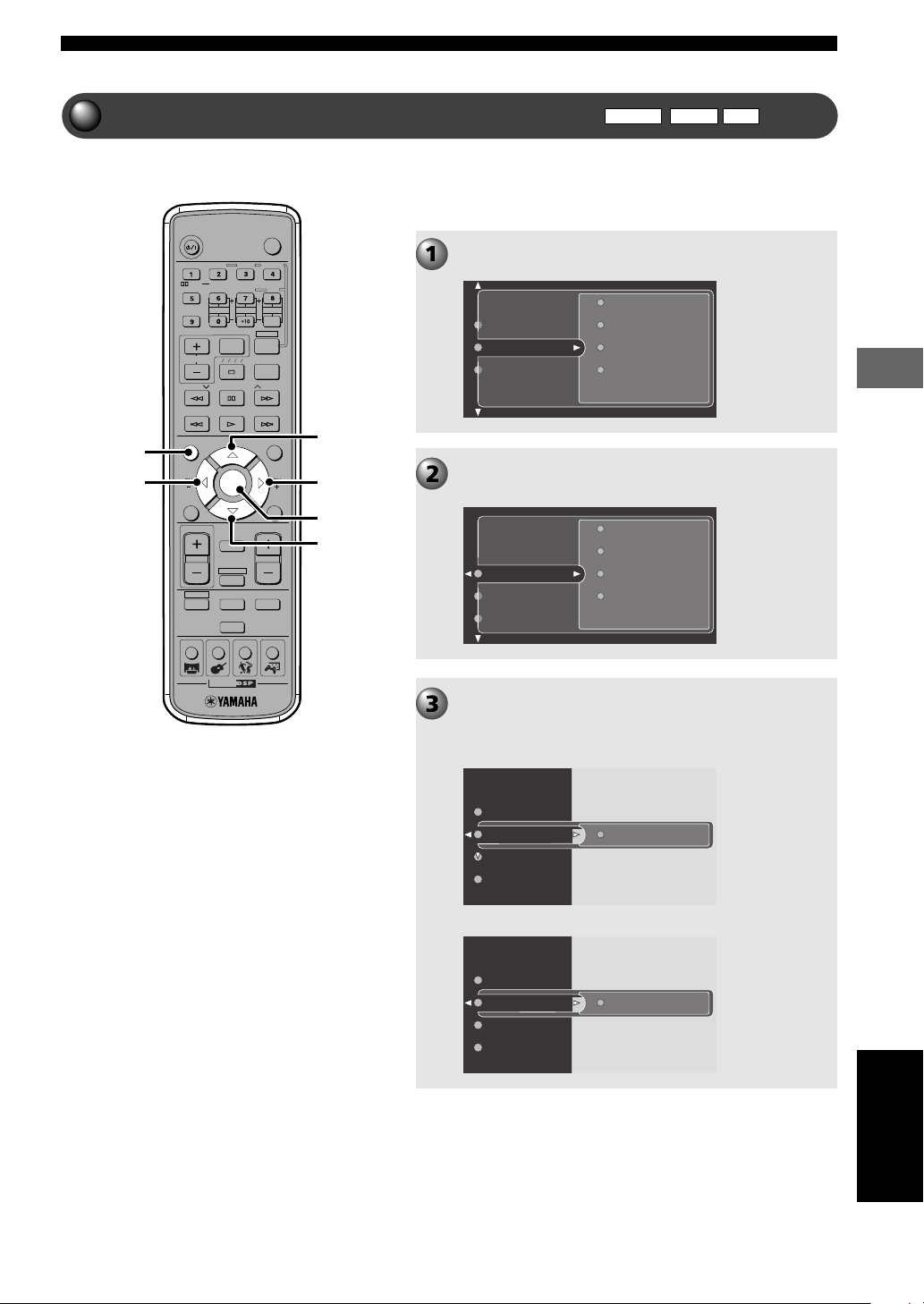
Customizing Playback Order (Program Play)
Playback your favorite chapters and tracks in the order you
want.
Perform operations using the TV On Screen Menu.
Program
View
Play Option
Search
Toolbar
Preferences
Setup
Clear all
Tracks
Program
Play list
Program
View
Play Option
T1 C1
Program
Tracks
Clear all
Play list
English
VCD
CD
Press ON SCREEN.
Make sure that “Toolbar” is selected.
Press w, then repeatedly press h to select
“Program”.
Press w, then press h to select “Tracks”. Then
press w.
Ex. DVD video
Ex. CD
T1
Tracks
Clear all
Program
Play list
DVD-V
008DVX-S120-en 03.8.5, 1:44 PM31
32
Playing Video and Music Discs
TV
CH
CINEMA
CH
POWER
POWER
AUDIO
/
DTS
SELECT
NIGHT
SW
TV CH
TV INPUT
SLEEP
PRESET PRESET
A B C D E
CENTER
SURR
SHIFT
STEREOMATRIX 6.1
A-B
REPEAT
ANGLE
SUBTITLE
DVR-S120 WB56650
ON SCREEN MENU
TEST
RETURN
STATUS
TV VOL
VOLUME
MUTE
AMP
DVD/CD
VCR
VIDEO
TUNER
MOVIE MUSIC SPORTS GAME
SET MENU
ENTER
g
h
ON
SCREEN
ENTER
g
g
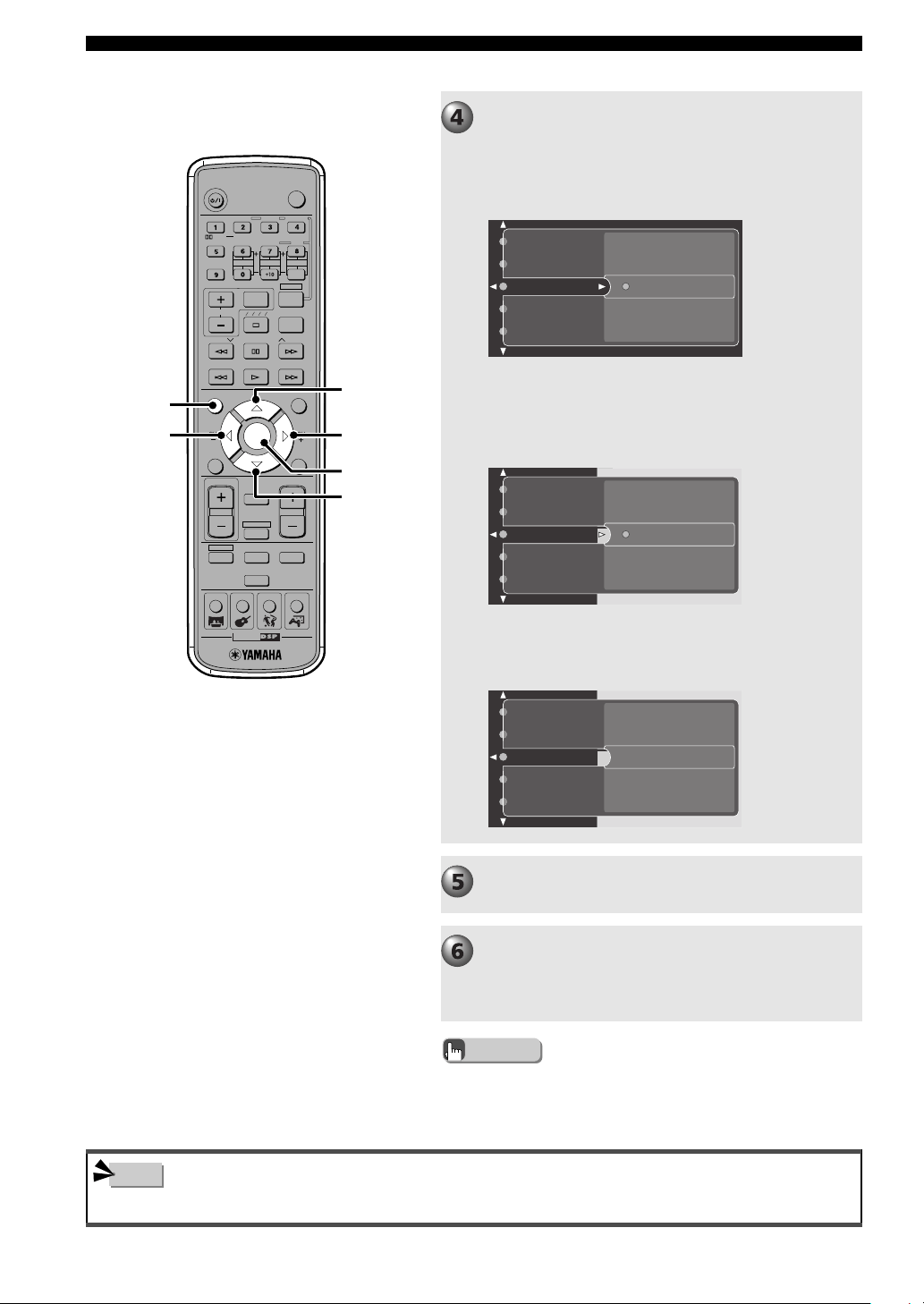
• Playback Control is not available during Program Play of a video CD.
Press ON SCREEN to turn off the On Screen
Menu.
Program Play starts. Press w to start Program Play when
Program Play does not start.
Advice
Note
• Once Program Play is set, the PROG indicator lights up in the
CinemaStation Display.
Chapter 1
Title 1
Title 9
Title 10
Title 2
Title 3
Select the chapter or track to add to Program
Play.
Ex. DVD video
Press h or g to select the title number to add,
then press ENTER.
Perform step 4 until you add all desired chapters
or tracks.
➡
Press h or g to select the chapter number to
add, then press ENTER.
Chapter 1
Title 1
Title 9
Title 10
Title 2
Title 3
Ex. CD
Press h or g to select the track number to add,
then press ENTER.
Track 2
Track 14
Track 1
Track 3
Track 4
008DVX-S120-en 03.8.5, 1:44 PM32
33
Playing Video and Music Discs
Playing Video and Music Discs
CHCH
ON SCREEN MENU
TEST
RETURN
STATUS
SET MENU
ENTER
g
h
ON
SCREEN
g
g
CHCH
ON SCREEN MENU
TEST
RETURN
STATUS
SET MENU
ENTER
g
h
ON
SCREEN
g
g
Check Program Play content
Delete Program Play
Perform steps 1 to 2 in “Customizing Playback
Order (Program Play)” on page 31.
Press w, then press g to select “Play list”
(“Playlist”). Then press w.
The list appears in the specified order.
Press h or g to scroll through the list.
Perform steps 1 to 2 in “Customizing Playback
Order (Program Play)” on page 31.
Press w, then press h to select “Clear All”. Then
press w.
“Clear” changes to “Cleared”, and all Program Play
content is deleted.
English
CHCH
ON SCREEN MENU
TEST
RETURN
STATUS
SET MENU
ENTER
g
h
ON
SCREEN
g
g
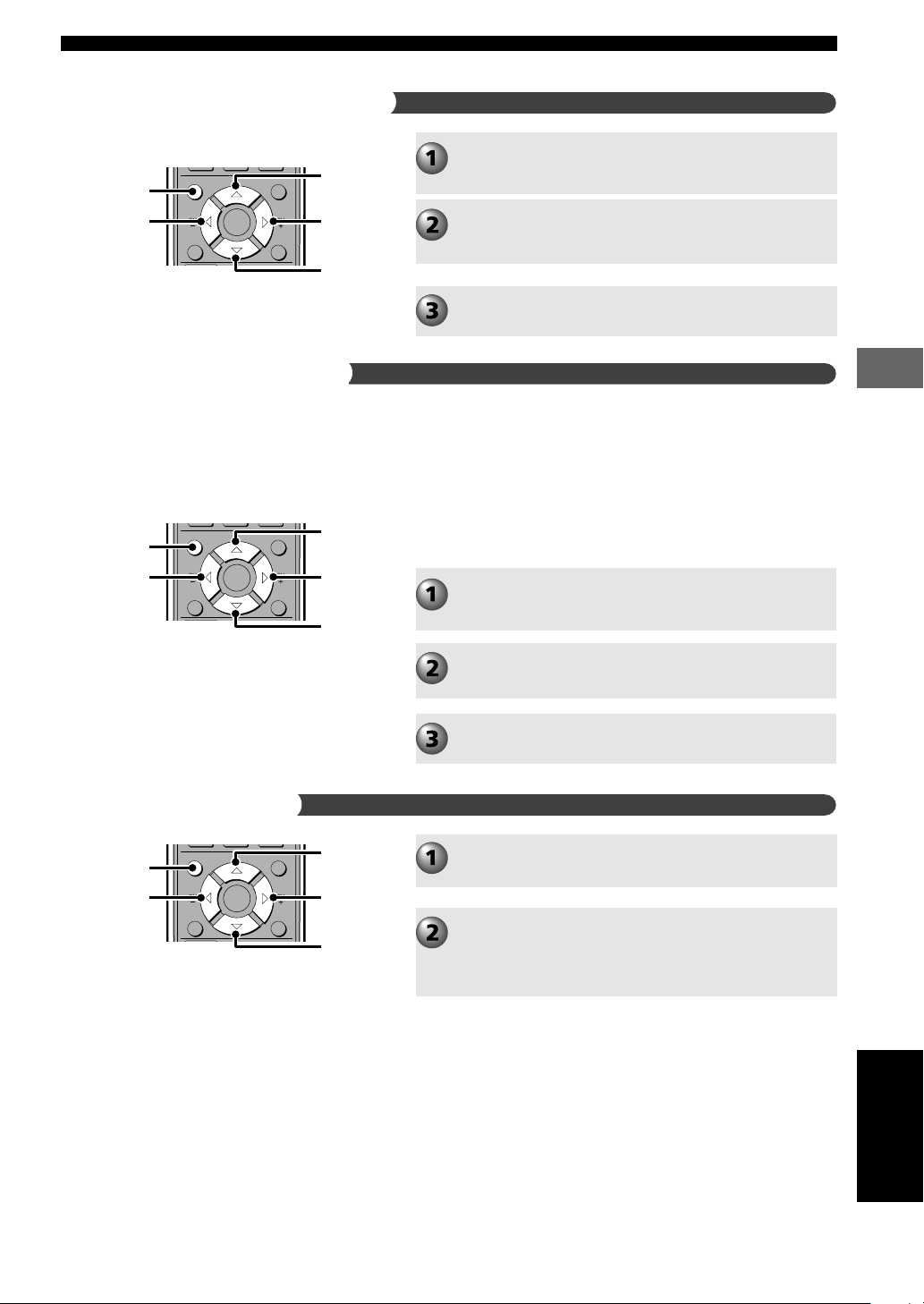
Turn on/off Program Play
Perform steps 1 to 2 in “Customizing Playback
Order (Program Play)” on page 31.
Press w to select “Program”. Then press w.
Press h or g to select “On” or “Off”.
CinemaStation automatically sets Program menu item to
“On” after Program Play starts. The setting does not
change even if Program Play finishes, so you can restart
Program Play by pressing w.
To return to normal playback, select “Off” for Program
menu item in the On Screen Menu. Even if you set it to
“Off”, the playlist remains in the memory, so you can use
the previous play list by setting it to “On”.
008DVX-S120-en 03.8.5, 1:44 PM33
34
Playing Video and Music Discs
You can repeat a favorite track, chapter or entire disc. You
can also repeat Program Play and certain parts you
specified as many times as you like.
TV
CH
CINEMA
CH
POWER
POWER
AUDIO
/
DTS
SELECT
NIGHT
SW
TV CH
TV INPUT
SLEEP
PRESET PRESET
A B C D E
CENTER
SURR
SHIFT
STEREOMATRIX 6.1
A-B
REPEAT
ANGLE
SUBTITLE
DVR-S120 WB56650
ON SCREEN MENU
TEST
RETURN
STATUS
TV VOL
VOLUME
MUTE
AMP
DVD/CD
VCR
VIDEO
TUNER
MOVIE MUSIC SPORTS GAME
SET MENU
ENTER
SHIFT
• Once Repeat Play is selected, the Repeat mode indicator lights up in the CinemaStation Display.
— REP indicates title, chapter and track repeat
— REP ALL indicates entire disc repeat
• Repeat Play may not work properly with some DVD video discs.
• Repeat Play will not work during Menu Play of a video CD that is using Playback Control.
Repeating a Disc or Track (Repeat Play)
DVD-V
VCD
CD
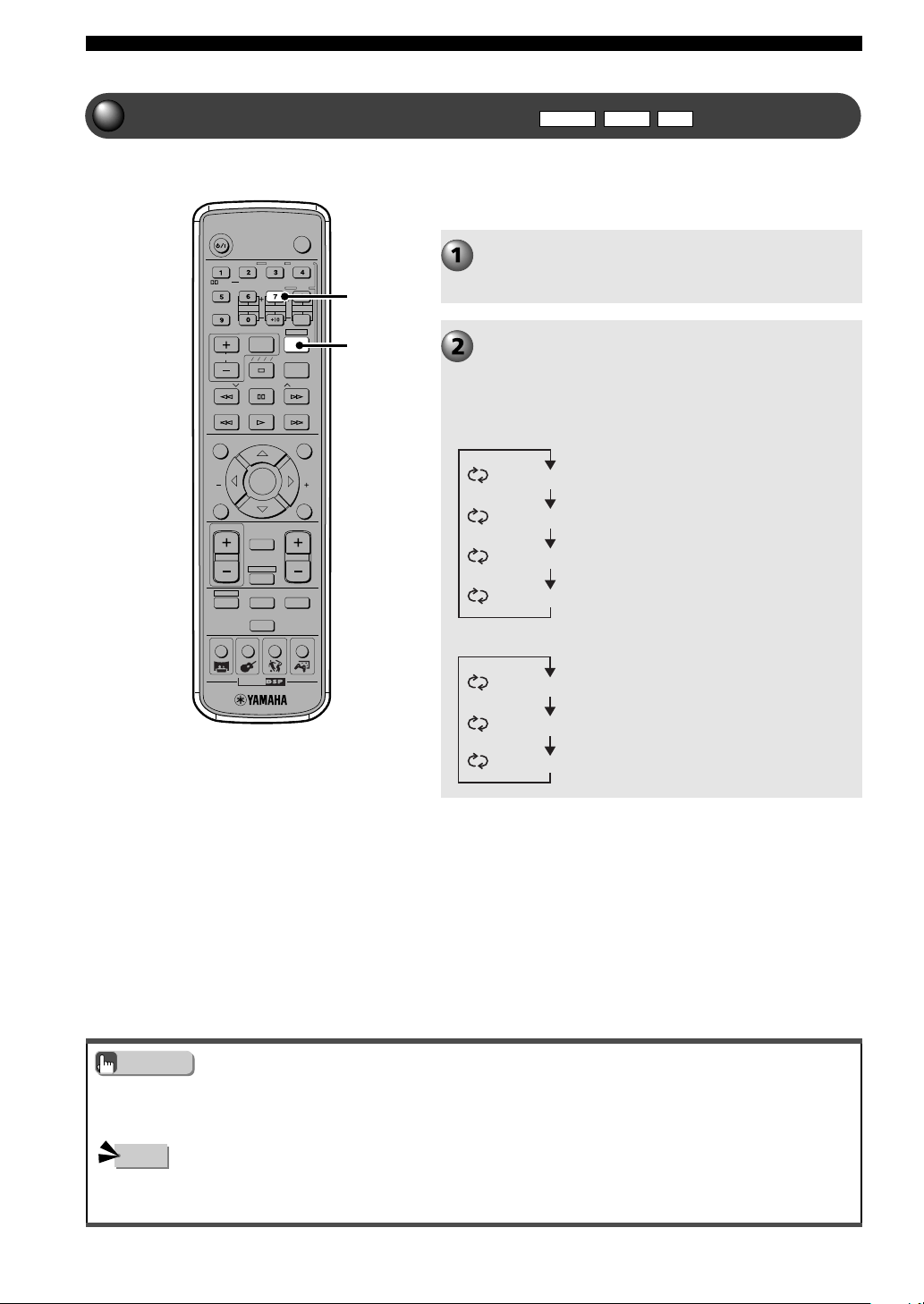
Play back a disc.
To repeat a chapter or track first start playing it. See page
28, “Selecting a Scene or Tune”.
While holding down SHIFT, press the “7” button
to select Repeat mode.
Every time you press the button, the display on the TV
screen changes as shown below.
Advice
Note
“7” button
Off (Normal playback)
Repeat (Repeat Play for currently playing chapter)
Disc (Repeat Play for currently playing disc)
Title (Repeat Play for currently playing title)
Off (Normal playback)
Repeat (Repeat Play for currently playing track)
Disc (Repeat Play for currently playing disc)
DVD video
Video CD/CD
009DVX-S120-en 03.8.5, 1:44 PM34
35
Playing Video and Music Discs
Playing Video and Music Discs
English
• A-B Repeat may not work properly with some DVD video discs.
• You can use A-B Repeat only within one track or title.
TV
CH
CINEMA
CH
POWER
POWER
AUDIO
/
DTS
SELECT
NIGHT
SW
TV CH
TV INPUT
SLEEP
PRESET PRESET
A B C D E
CENTER
SURR
SHIFT
STEREOMATRIX 6.1
A-B
REPEAT
ANGLE
SUBTITLE
DVR-S120 WB56650
ON SCREEN MENU
TEST
RETURN
STATUS
TV VOL
VOLUME
MUTE
AMP
DVD/CD
VCR
VIDEO
TUNER
MOVIE MUSIC SPORTS GAME
SET MENU
ENTER
SHIFT
Repeat between two points (A-B Repeat)
DVD-V
VCD
CD
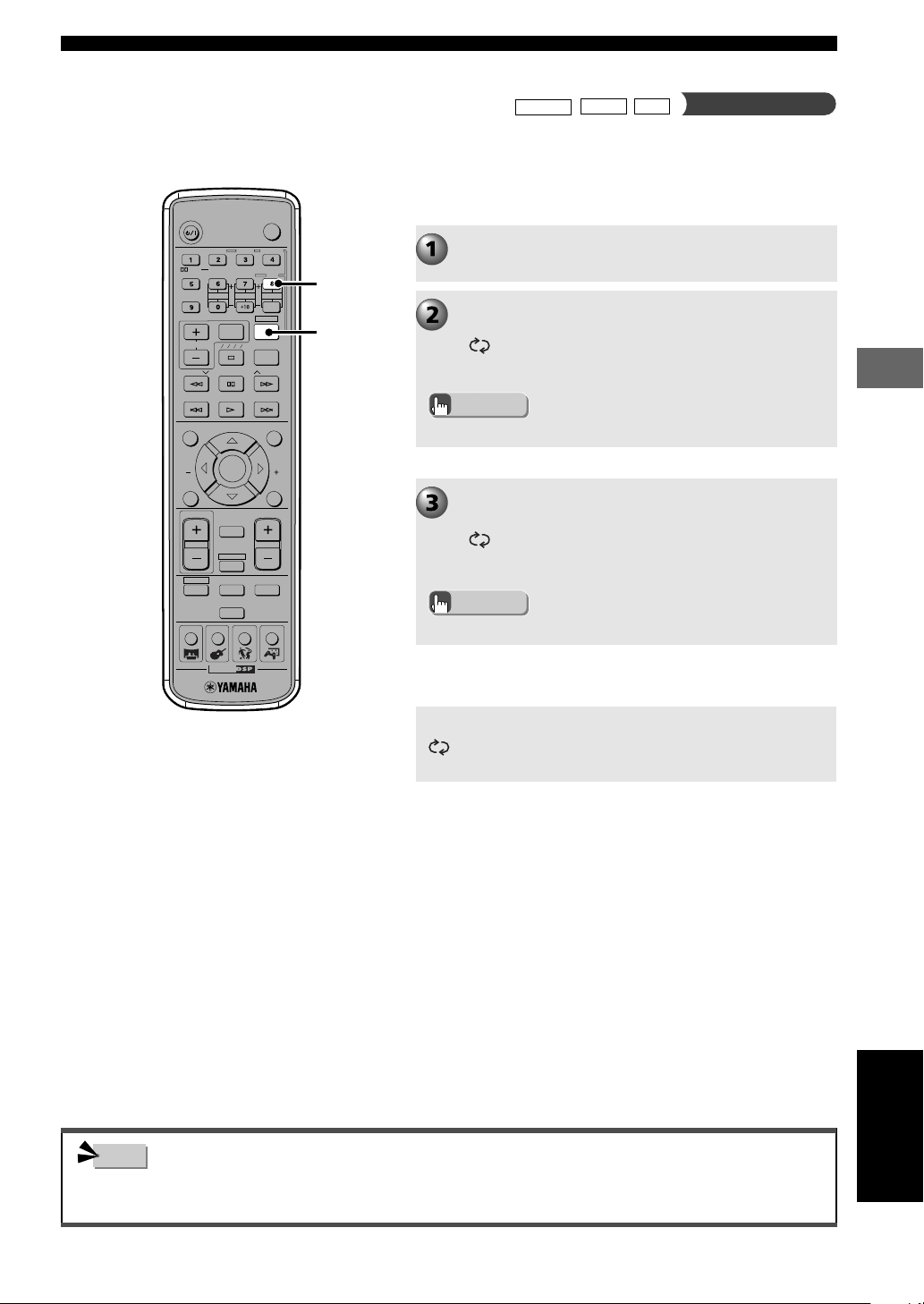
Specify the start and end of a favorite segment (points A
and B) then playback between those two points as much
as you like. You can specify a part within one title or track.
Play back a disc.
While holding down SHIFT at the start position
(point A), press the “8” button.
“
Repeat A” appears on the TV screen.
• The REP A- indicator lights up in the CinemaStation Display.
While holding down SHIFT at the end position
(point B), press the “8” button.
“
Repeat A/B” appears on the TV screen. A-B Repeat
starts.
Advice
Advice
Note
“8” button
• The REP A-B indicator lights up in the CinemaStation Display.
To return to normal playback
While holding down SHIFT, press the “8” button.
“
A/B Off” appears on the TV screen, and A-B Repeat
cancels.
009DVX-S120-en 03.8.5, 1:44 PM35
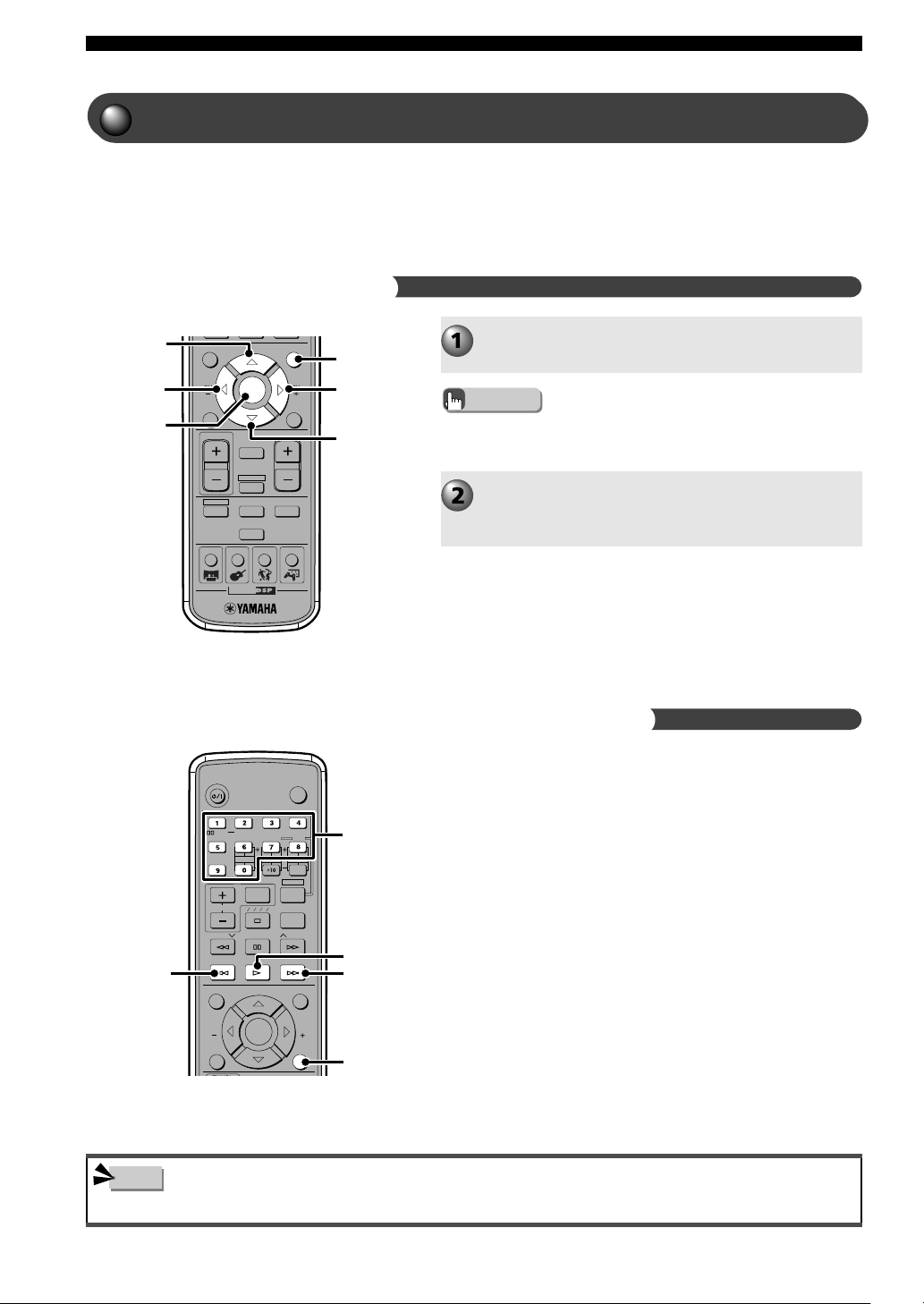
36
Playing Video and Music Discs
Many DVDs or video CDs that have Playback Control
include an original menu. You can use the menu for
skipping to a favorite title or chapter and switching audio or
subtitle language.
CH
CINEMA
CH
ON SCREEN MENU
TEST
RETURN
STATUS
TV VOL
VOLUME
MUTE
AMP
DVD/CD
VCR
VIDEO
TUNER
MOVIE MUSIC SPORTS GAME
SET MENU
ENTER
g
h
ENTER
MENU
g
g
TV
CHCH
POWER
POWER
AUDIO
/
DTS
SELECT
NIGHT
SW
TV CH
TV INPUT
SLEEP
PRESET PRESET
A B C D E
CENTER
SURR
SHIFT
STEREOMATRIX 6.1
A-B
REPEAT
ANGLE
SUBTITLE
DVR-S120 WB56650
ON SCREEN MENU
TEST
RETURN
STATUS
TV VOL
VOLUME
SET MENU
ENTER
w
t
RETURN
y
• Playback Control is not available during Program Play.
Using a Disc Menu
Navigate a DVD Disc Menu
Use Video CD Playback Control (PBC) (Menu Play)
Press MENU.
A menu appears on the TV screen.
• Depending on the disc, a menu may automatically pop up when
playback starts.
Advice
Select items with h, g, q, w and press ENTER.
If operating instructions appear in the menu, follow them
and repeat step 2.
If you play a video CD that includes Playback Control, a menu
will appear on the TV screen. From the menu you can select the
scenes and information that interest you. In this manual, using
the menu screen to play media is called Video CD Menu Play.
Number buttons: For selecting the desired item.
RETURN: For returning to the previous screen.
w: For playing the selected item.
y: For moving to the next screen.
t: For returning to the previous screen.
Note
Number
buttons
Using a Disc Menu
009DVX-S120-en 03.8.5, 1:44 PM36
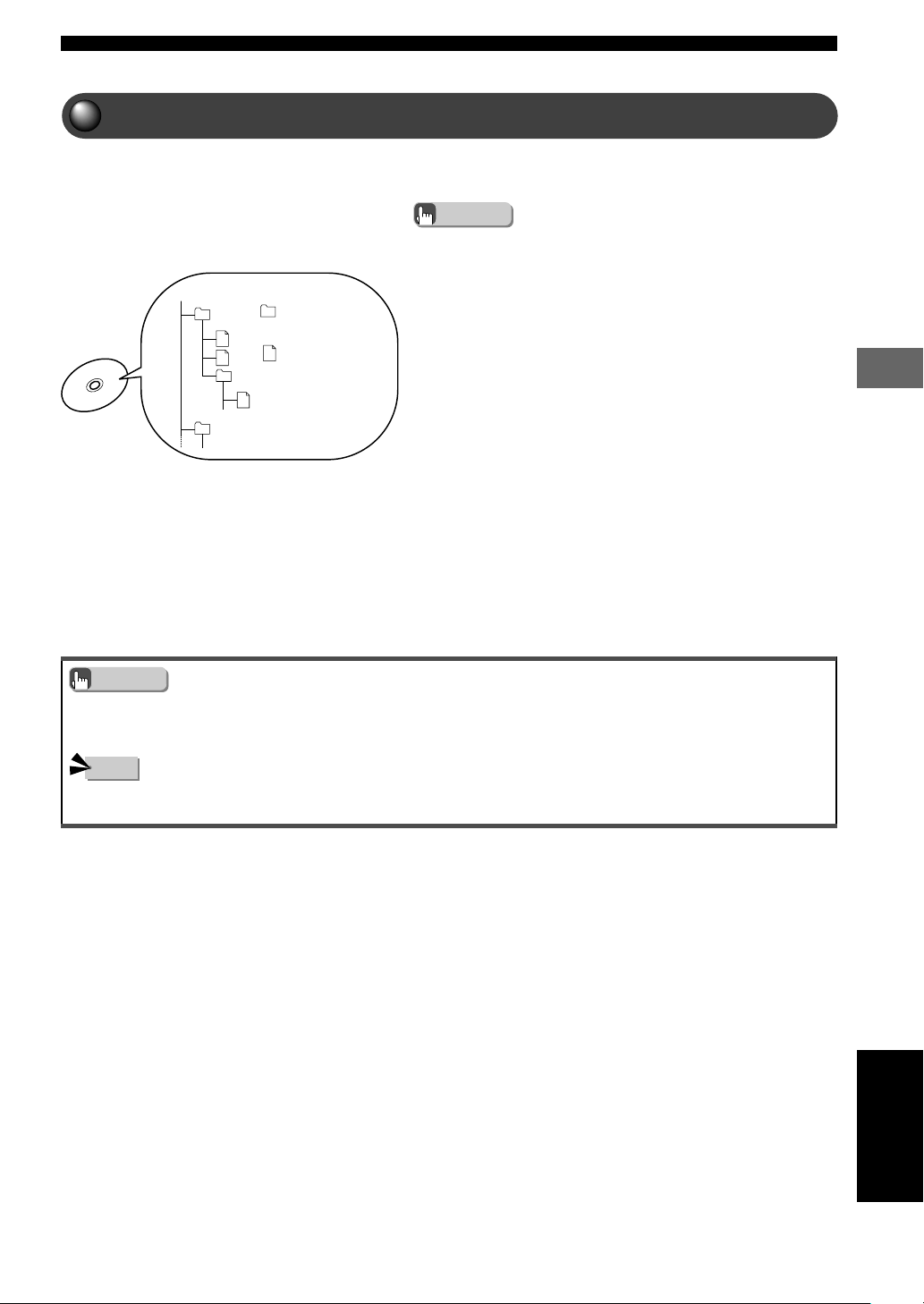
37
Playing Video and Music Discs
Playing Video and Music Discs
English
You can play MP3 music that was recorded onto a CD-R or
CD-RW by a computer.
• Depending on recording conditions some discs cannot be played.
Disc Structure
Since the MP3 format can store several albums on a disc, a
folder is assigned to an “Album”, and a file is assigned to a
“Track”.
Repeat Play
You can use Track Repeat and Album Repeat to repeat the
music. See page 34, “Repeating a Disc or Track (Repeat
Play)”.
Playback status on the TV screen
You can check the playback status (disc type, now playing/
stopped) along with the total and elapsed playing of the current
track on the TV screen.
• CinemaStation is compatible with a bit rate range of 32, 64, 96, 128, 192 or 256 kbps. CinemaStation is also compatible with
variable bit rate encoded MP3 files.
• CinemaStation is compatible with a sampling frequency of 32, 44.1 or 48 kHz.
• In some cases, you may not be able to play tracks in the order they were recorded.
Advice
Advice
Note
Root
: Album
(Folder)
: Track
(File)
MP3 Playback Features
009DVX-S120-en 03.8.5, 1:44 PM37
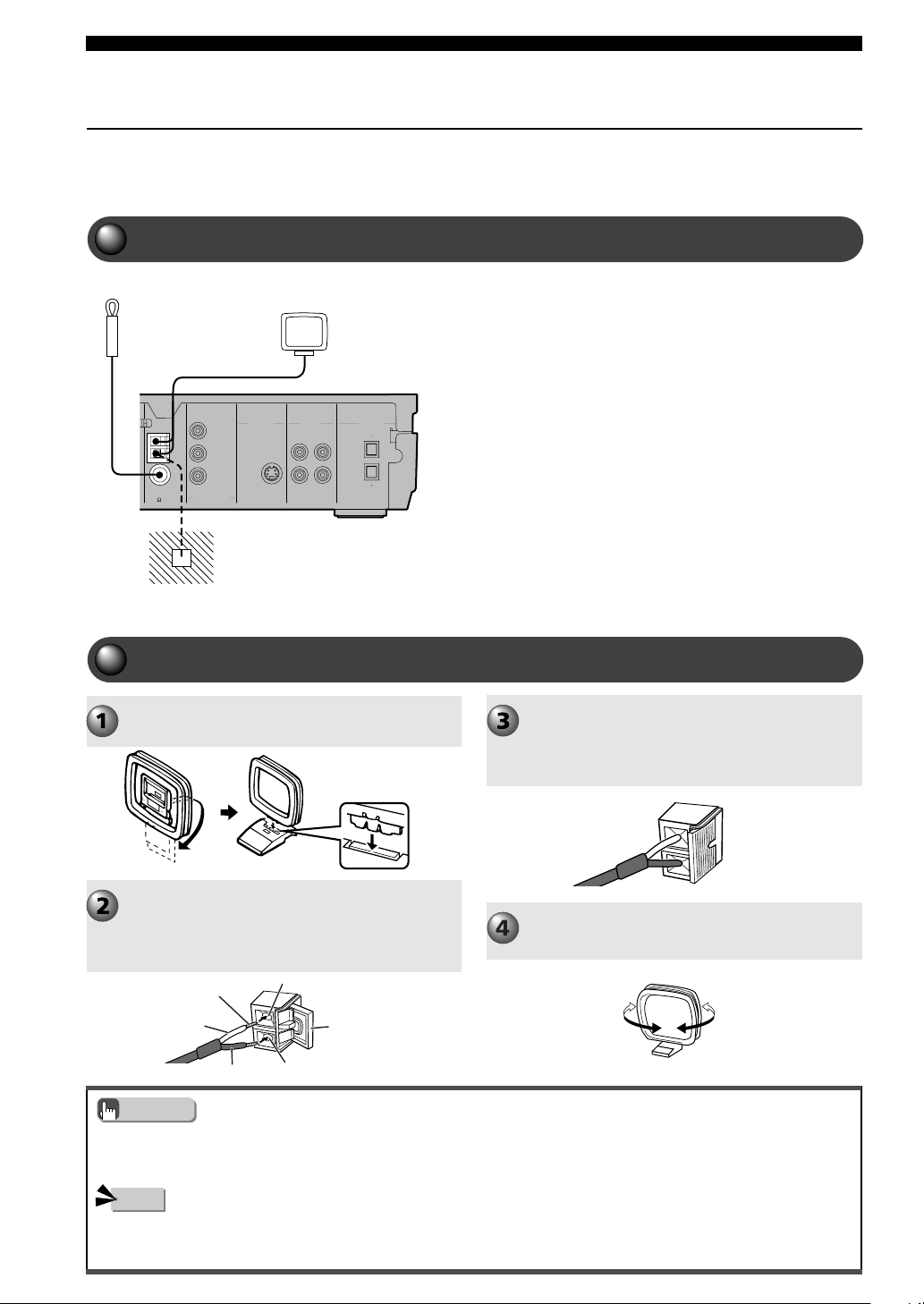
38
Listening to the Radio
Connecting the Antennas
CinemaStation includes an AM Loop Antenna and indoor FM Antenna. Use
the supplied antennas in areas with good radio wave reception. Connect
each antenna into its jack properly.
DIGITAL
AUDIO
VIDEOS VIDEO
IN
VCR
OUT
AM
ANT
O
Y
P
B
PR
FM
ANT
GND
MONITOR
OUT
MONITOR
OUT
(DVD ONLY)
MONITOR
OUT
(DVD ONLY)
VCR
IN
VIDEO
IN
COMPONENT
VIDEO
75 UNBAL
OUT
OPTICAL
• The AM Loop Antenna can be detached from its stand and attached to a wall.
• To improve reception, we recommend that you install an outdoor antenna. For details, contact your local Yamaha sound products
service center.
• Install the supplied indoor FM Antenna and AM Loop Antenna away from this system.
• Even if you connect an outdoor AM antenna, be sure to still use the AM Loop Antenna.
Attach the Antenna to its stand.
Open the AM ANT and GND jack levers to
the right. Insert the AM Loop Antenna’s
cord cores into the AM ANT and GND
jacks.
Close the lever to fasten the cord.
Pull the cord lightly to make sure it is properly
fastened.
Adjust the Antenna left and right and find
the best position for reception.
Cord Core
Lever
Connecting the FM Antenna
Connect the supplied indoor FM Antenna to the FM
ANT jack.
When connecting an outdoor FM
antenna
Use the antenna’s coaxial cable and a commercially
available F-type connector to connect the antenna to the FM
ANT jack. For details, ask the shop where you bought the
outdoor antenna.
Earth (GND jack)
The GND jack does not provide secure grounding. However when there
is a lot of noise, connecting it may improve reception. To ground
CinemaStation, connect one end of a vinyl coated wire to the GND jack
and the other end to a commercially available grounding rod or copper
sheet, and bury the rod or sheet in damp earth.
Connecting the AM Loop Antenna
Advice
Note
Indoor FM
Antenna (supplied)
AM Loop
Antenna
(supplied)
White
Black
AM ANT jack
GND jack
010DVX-S120-en 03.8.5, 1:45 PM38
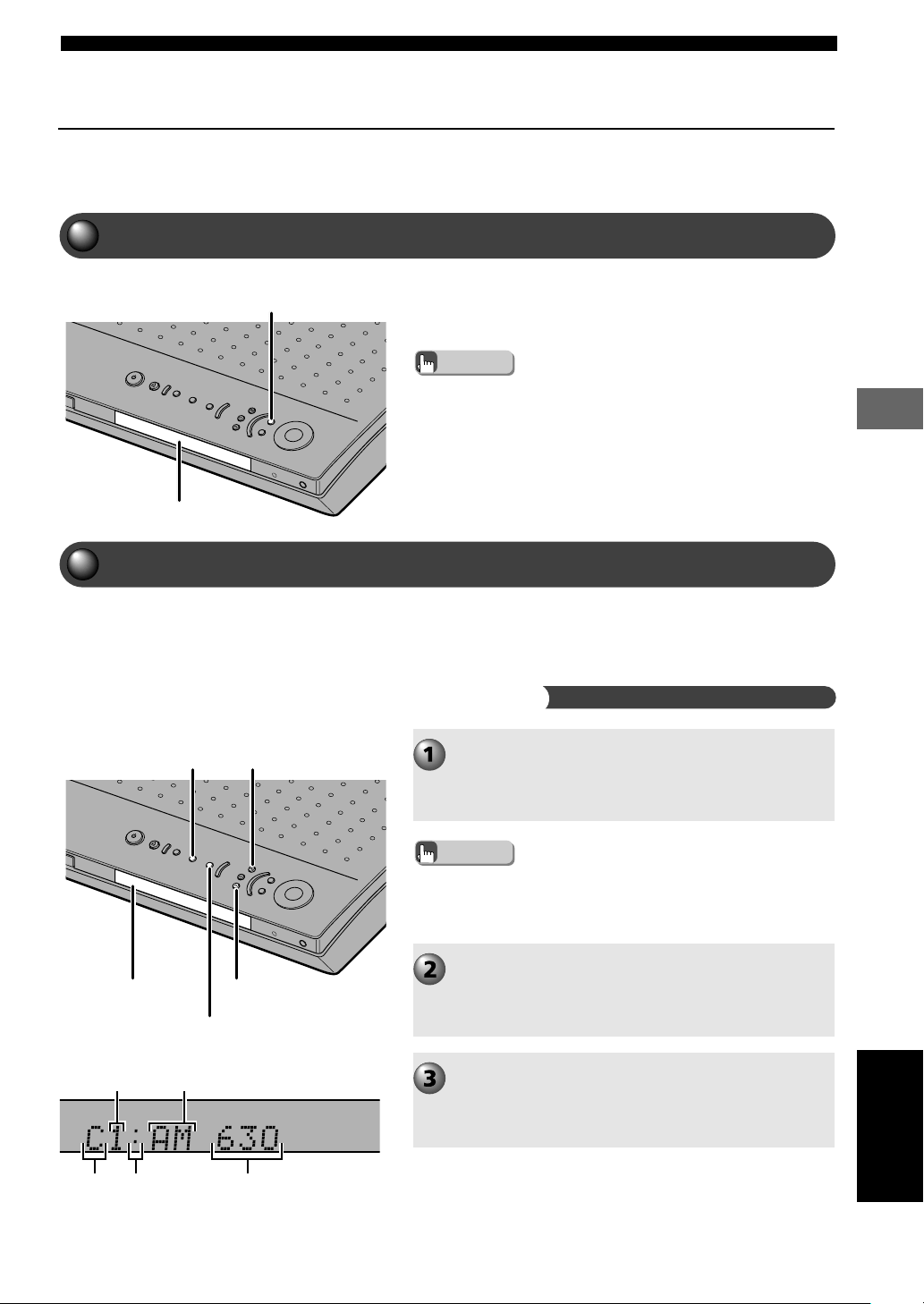
39
Listening to the Radio
Listening to the Radio
English
Listening to the Radio
CinemaStation provides several methods for tuning radio stations to help you
find channels as easy as you can.
INPUT
Press PRESET/BAND to select either FM or AM.
Each time you press, the mode changes in the order as
follows: FM (Tuning mode) → AM (Tuning mode) →
(Preset mode) → FM (Tuning mode) → ...
PRESET/BAND
AUTO/MAN’L
d PRESET/TUNING
PRESET/TUNING u
Selecting the Radio Tuner
Press INPUT repeatedly on CinemaStation until TUNER
appears. The input source changes to Tuner (Radio) and
you can listen to AM/FM broadcasts.
• You can also press TUNER on the Remote Control to change the input
source to Tuner.
Advice
Display
Selecting Radio Stations
You have two ways to select radio stations, Auto Tuning
and Manual Tuning. Auto Tuning is quick and handy to use
when radio signal reception is strong.
Select stations automatically (Auto Tuning)
• If the colon (:) beside the Band indicator goes out, that means
CinemaStation is in Tuning mode. Make sure the colon (:) is not lit
up.
Advice
Press AUTO/MAN’L to set CinemaStation to Auto
Tuning mode.
When CinemaStation is set to Auto Tuning mode, the
AUTO indicator lights up in the CinemaStation Display.
Press PRESET/TUNING u/d to select the radio
station you want to receive.
Press u to search for high-frequency stations or press d
to search for low-frequency stations.
Display
Preset number Band
Group Colon* Frequency
* Goes out in Tuning mode, lights up in Preset mode.
010DVX-S120-en 03.8.5, 1:45 PM39
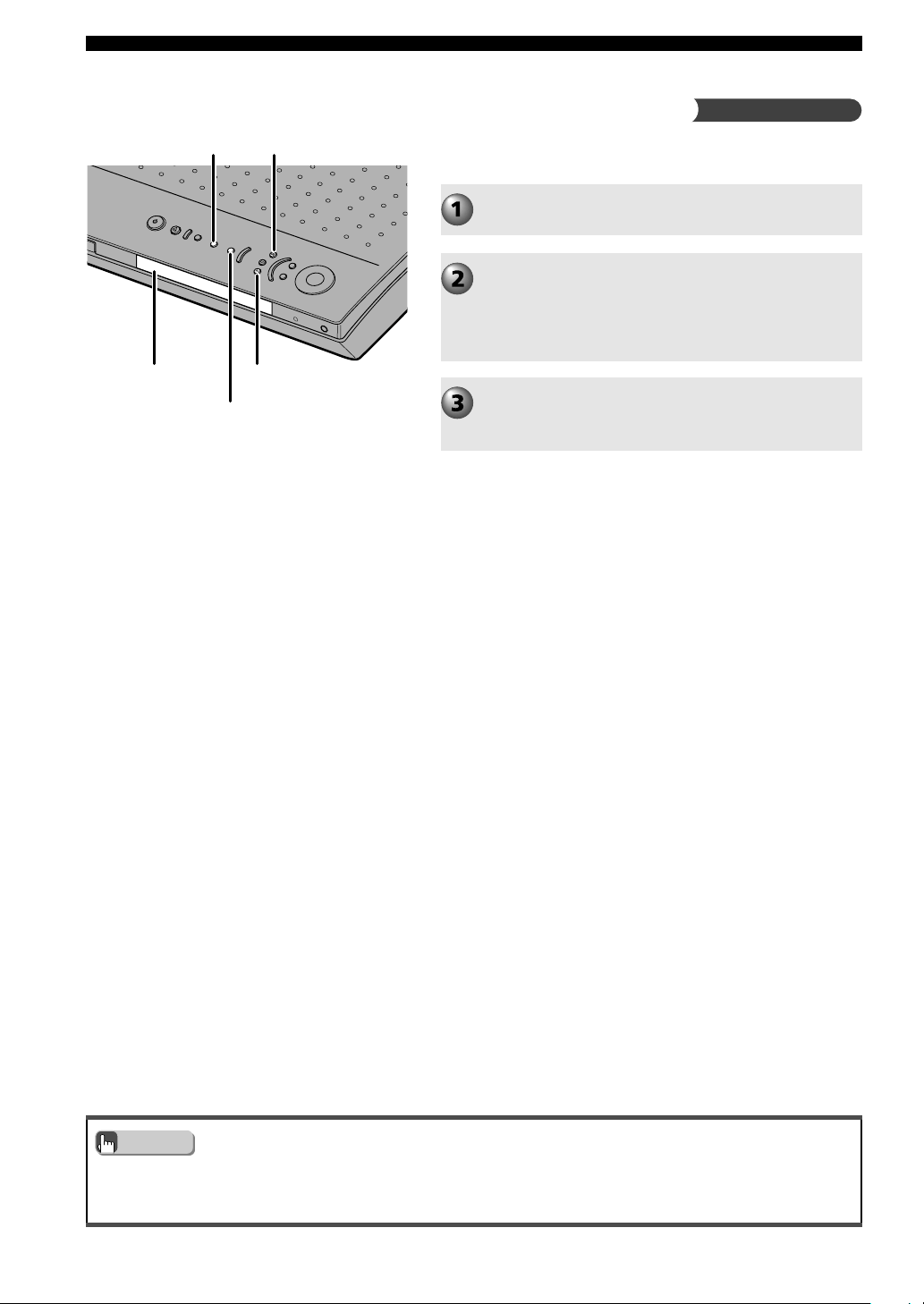
40
Listening to the Radio
PRESET/BAND
AUTO/MAN’L
d PRESET/TUNING
PRESET/TUNING u
For stations with weak radio signals, tune manually.
• If the radio waves are weak and Auto Tuning doesn’t work, tune manually (Manual Tuning).
• When Auto Tuning finds a radio station, the TUNED indicator lights up and the frequency appears.
• Manually tuning in to an FM station will automatically change the reception mode to monaural to increase the signal quality.
Select your favorite stations by hand (Manual Tuning)
Perform step 1 in “Select stations automatically
(Auto Tuning)” on page 39.
Press AUTO/MAN’L to set CinemaStation to
Manual Tuning mode.
When CinemaStation is set to Manual Tuning mode, the
AUTO indicator goes out from the CinemaStation
Display.
Press PRESET/TUNING u/d to select the radio
station you want to receive.
Hold down the button to continue the tuning search.
Advice
Display
010DVX-S120-en 03.8.5, 1:45 PM40
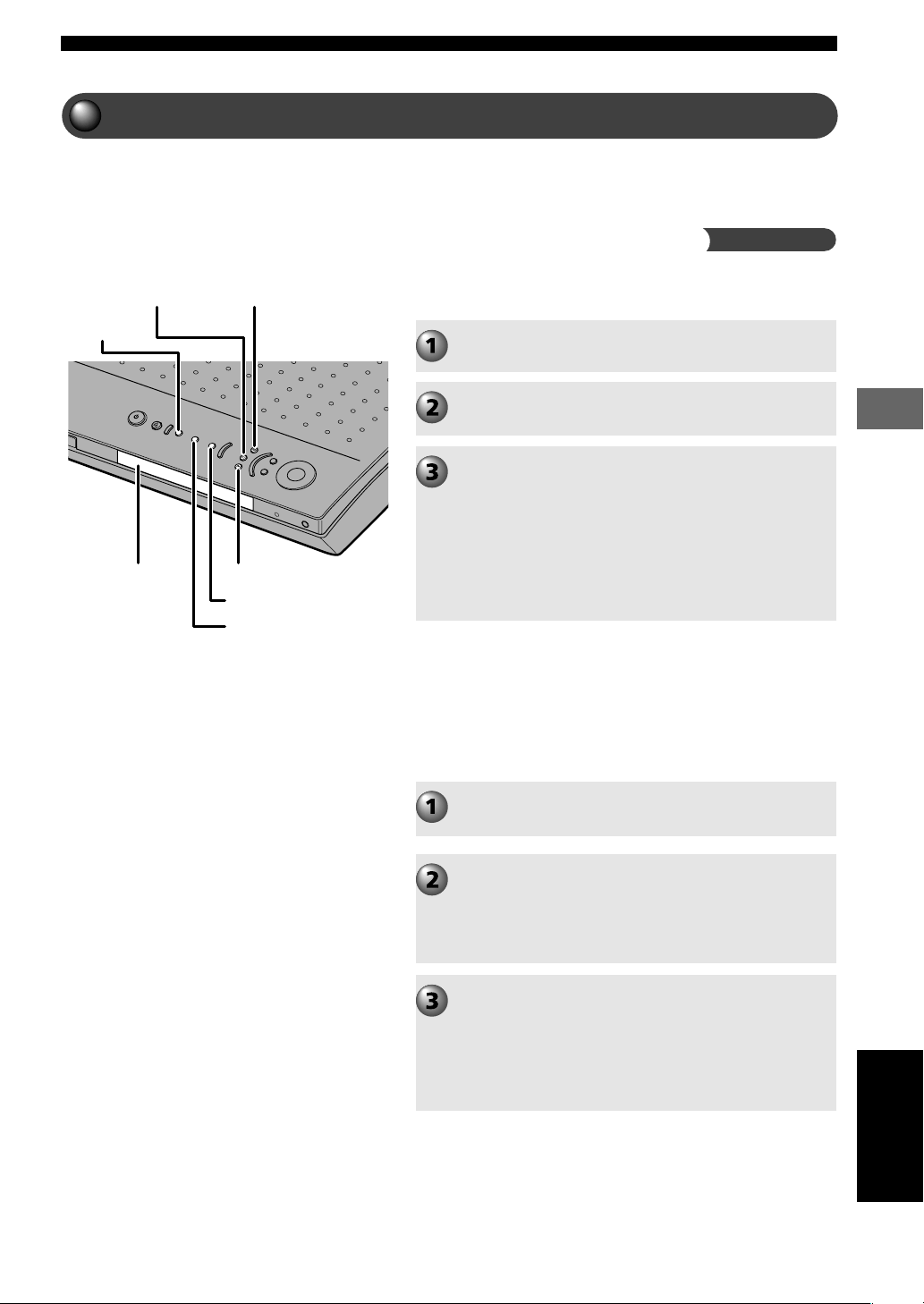
41
Listening to the Radio
Listening to the Radio
English
Up to 40 stations (5 Groups ✕ 8 Stations) can be automatically
preset.
PRESET/BANDA/B/C/D/E
MEMORY
AUTO/MAN’L
PRESET/TUNING u
d PRESET/TUNING
Setting Channels in Advance (Preset)
Presetting radio stations in memory helps you tune the
preset radio stations using a few simple button operations.
Automatically preset FM stations in advance (Auto Preset)
Press PRESET/BAND to select FM.
Press AUTO/MAN’L to make the AUTO indicator
light up.
Keep pressing MEMORY down for about 3
seconds.
The Preset Number, MEMORY and AUTO indicators
blink. After a few seconds, Auto Preset starts at the
frequency currently displayed toward the higher
frequency.
When Auto Preset finishes the frequency of the last radio
station memorized appears.
Customizing Auto Preset method
You can specify the Preset Group or number to start
tuning. You can also start Auto Tuning at the frequency
currently displayed toward either the lower or higher
frequency.
Perform steps 1 and 2 above, in “Automatically
preset FM stations in advance (Auto Preset)”.
Press MEMORY for about 3 seconds, then press
A/B/C/D/E and PRESET/TUNING u/d to select
the Preset Number you want to memorize first.
Auto Preset will stop when the number memorized
reaches 40 radio stations.
Press PRESET/BAND to turn off the colon (:),
then press PRESET/TUNING u/d.
When pressing d, Auto Preset starts at the frequency
currently displayed toward the lower frequency, and when
pressing u, Auto Preset starts at the frequency currently
displayed toward the higher frequency.
Display
010DVX-S120-en 03.8.5, 1:45 PM41
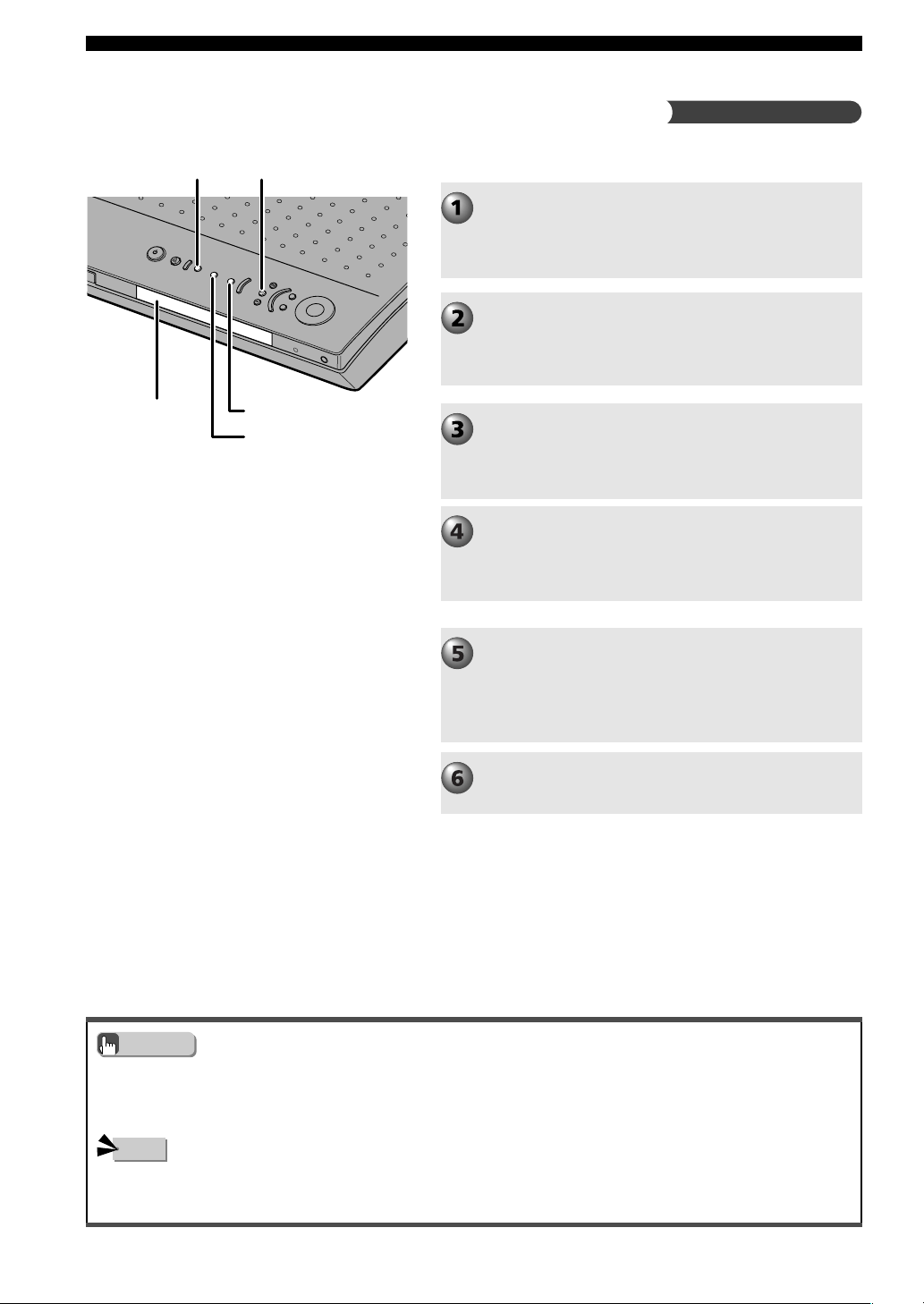
42
Listening to the Radio
You can manually preset up to 40 radio stations.
A/B/C/D/EMEMORY
PRESET/TUNING u
d PRESET/TUNING
• When presetting a radio station, you can set the frequency and reception mode (stereo/monaural) at the same time.
• You can change the order of preset FM radio stations later. See page 43, “Changing the Order of Preset Stations”.
• If the number of radio stations that have been preset is less than 40, Auto Preset automatically stops after searching the whole
frequency range.
• If a new radio station is preset for a Preset Number, the previously preset station for the Preset Number is deleted.
• In Auto Preset, only FM radio stations with a strong signal are set. To preset radio stations with a weak signal set reception mode
to monaural and preset manually.
Manually preset stations in advance (Manual Preset)
Select radio stations you want to preset.
See page 39, “Selecting Radio Stations”.
The frequency and broadcast band (FM or AM) of the
tuned-in station appear in the CinemaStation Display.
Press MEMORY.
The MEMORY indicator blinks for about 5 seconds in the
CinemaStation Display, which means CinemaStation is
ready to preset.
While the MEMORY indicator is blinking, press
A/B/C/D/E to select the Preset Group (A to E).
The Group appears. Check that the colon (:) beside the
band indicator lights up.
While the MEMORY indicator is blinking, press
PRESET/TUNING u/d to select a Preset Number
(1 to 8).
Press u for a larger number and d for a smaller number.
While the MEMORY indicator is blinking, press
MEMORY.
The selected Preset Group and Number, broadcast band
(FM or AM) and frequency appear in the CinemaStation
Display.
Repeat steps 1 to 5 to manually preset other
radio stations.
Advice
Note
Display
010DVX-S120-en 03.8.5, 1:45 PM42
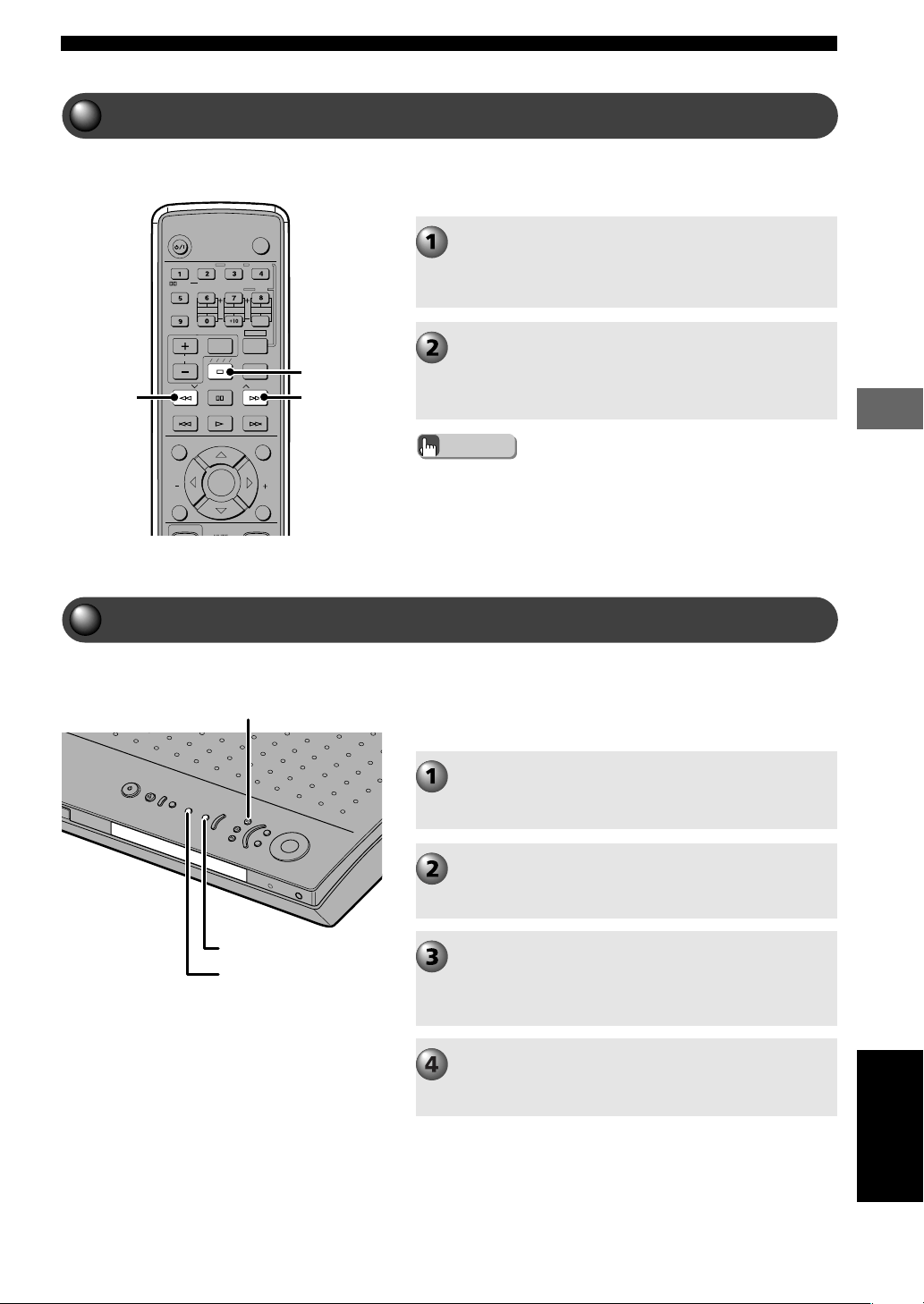
43
Listening to the Radio
Listening to the Radio
English
You can tune in a radio station simply by selecting its
Preset Number.
TV
CHCH
POWER
POWER
AUDIO
/
DTS
SELECT
NIGHT
SW
TV CH
TV INPUT
SLEEP
PRESET PRESET
A B C D E
CENTER
SURR
SHIFT
STEREOMATRIX 6.1
A-B
REPEAT
ANGLE
SUBTITLE
DVR-S120 WB56650
ON SCREEN MENU
TEST
RETURN
STATUS
TV VOL
VOLUME
MUTE
SET MENU
ENTER
A/B/C/D/E
u
PRESET
PRESET
d
PRESET/TUNING u
PRESET/BAND
d PRESET/TUNING
Selecting a Preset Station (Preset Tuning)
Changing the Order of Preset Stations
Press A/B/C/D/E repeatedly to select the
station’s Preset Group.
The Preset Group that appears in the CinemaStation
Display changes each time you press A/B/C/D/E.
Press PRESET u/d to select the Preset Number.
The Preset Group and Number, broadcast band (FM or
AM) and frequency appear in the CinemaStation Display
with the TUNED indicator lit up.
• You can also perform Preset Tuning by repeatedly pressing A/B/C/D/E
and PRESET/TUNING u/d on CinemaStation.
Advice
You can also change the order of preset stations.
Below is an example of the steps for switching the E1 and
A5 radio stations.
Tune in the radio station preset to E1.
Review the procedure above, “Selecting a Preset Station
(Preset Tuning)”.
Press PRESET/BAND for about 3 seconds.
E1 and the MEMORY indicator will blink in the
CinemaStation Display.
Tune in the radio station preset to A5 using A/B/
C/D/E and PRESET/TUNING u/d.
A5 and the MEMORY indicator will blink in the
CinemaStation Display.
Press PRESET/BAND.
“EDIT E1-A5” will appear in the CinemaStation Display
and the preset stations will exchange places.
010DVX-S120-en 03.8.5, 1:45 PM43
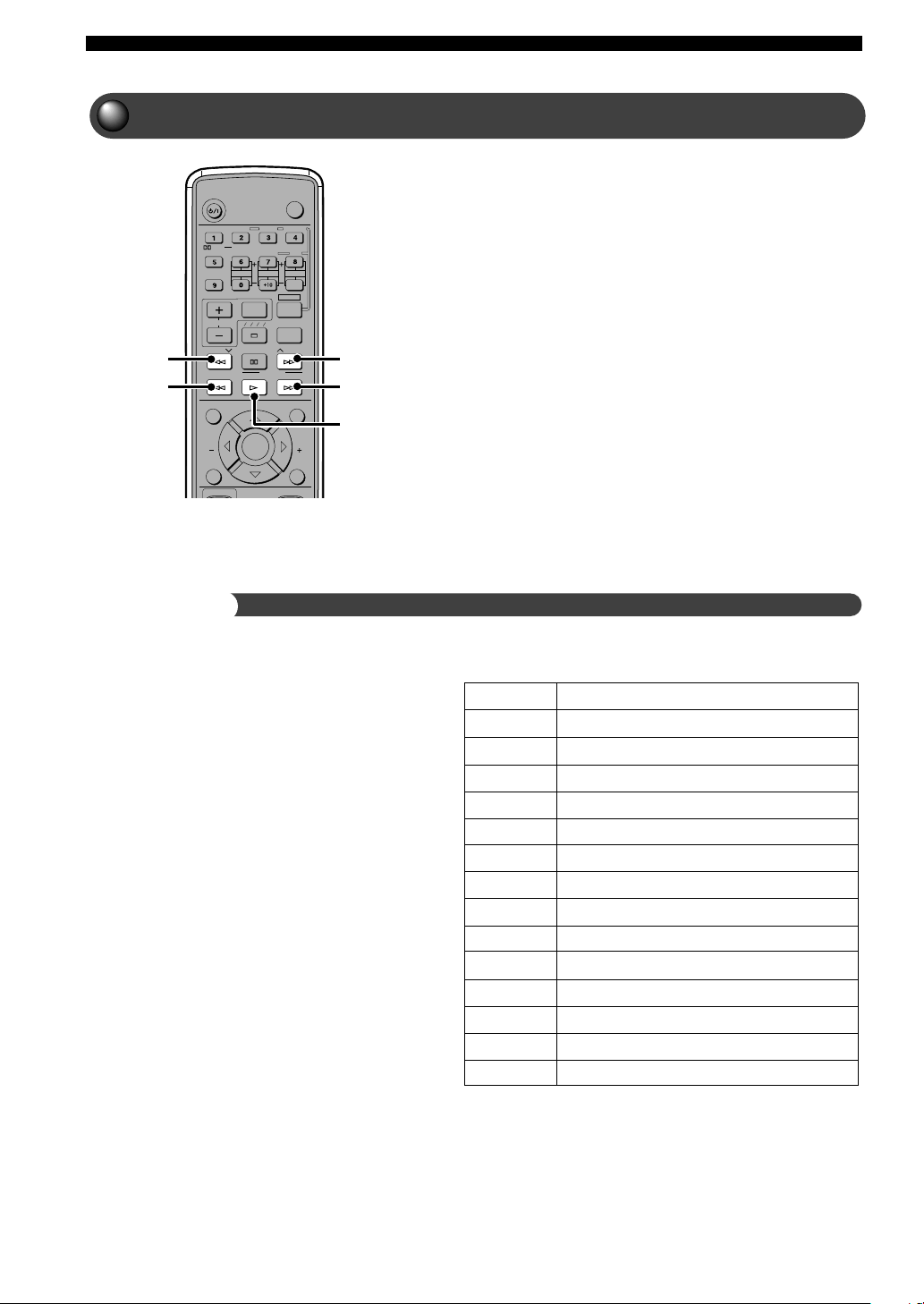
44
Listening to the Radio
TV
CHCH
POWER
POWER
AUDIO
/
DTS
SELECT
NIGHT
SW
TV CH
TV INPUT
SLEEP
PRESET PRESET
A B C D E
MODE START
PTY SEEK
FREQ/RDS
CENTER
SURR
SHIFT
STEREOMATRIX 6.1
A-B
REPEAT
ANGLE
SUBTITLE
DVR-S120RDS WB56660
ON SCREEN MENU
TEST
RETURN
STATUS
TV VOL
VOLUME
SET MENU
ENTER
u PRESET
PTY SEEK
START
PRESET d
FREQ/RDS
PTY SEEK
MODE
Receiving RDS Stations (U.K. and Europe models only)
RDS (Radio Data System) is a transmission system for
FM stations used in many countries.
RDS transmissions contain various types of information,
including PS (Program Service), PTY (Program Type),
RT (Radio Text), and CT (Clock Time). RDS works
through cooperation among broadcasting stations.
FREQ/RDS
Press this button when receiving an RDS station to switch
between frequency and RDS mode. The RDS mode
display may include PS, PTY, RT and CT, depending on
the information a radio station provides.
PTY SEEK MODE
Press this button to set the program type to search for.
PTY SEEK START
Once the program type has been selected in PTY SEEK
mode, press this button to begin the search.
PTY (Program Type)
RDS Modes
RDS supports four types of information: PS, PTY,
RT and CT.
PS (Program Service)
Shows the name of the RDS station broadcasting.
PTY (Program Type)
Divides RDS broadcasts into the 15 genres shown
at right.
RT (Radio Text)
Shows RDS broadcast information (including song
title, artist name) using up to 64 letters and numbers
plus the umlaut letter. If the radio text contains
other characters, they will appear with an underbar.
CT (Clock Time)
Shows the current time updated once a minute. If
data flow is interrupted, CT WAIT will appear.
NEWS
AFFAIRS
INFO
SPORT
EDUCATE
DRAMA
CULTURE
SCIENCE
VARIED
POP M
ROCK M
M.O.R. M
LIGHT M
CLASSICS
OTHER M
News
Current Affairs
General Information
Sports
Education
Drama
Culture
Science
Light Entertainment
Pops
Rock
Middle-Of-the-Road Music (easy-listening)
Light Classics
Serious Classics
Other Music
U.K. and Europe models
011DVX-S120-en 03.8.5, 1:46 PM44
45
Listening to the Radio
Listening to the Radio
English
Change RDS Mode
There are four RDS display modes. When an RDS
station is broadcasting, PS, PTY, RT or CT mode
indicators corresponding to the services provided
light up in the CinemaStation Display. Press
FREQ/RDS repeatedly to change among the
modes supported by the currently tuned RDS
station.
Note
• When an RDS station is broadcasting, do not press FREQ/RDS until
one or more mode indicators light up in the CinemaStation Display. If
you press FREQ/RDS before the mode indicators light up,
CinemaStation may not be able to change modes.
• RDS information not provided by a station cannot be selected.
• If the RDS station’s signal transmission is too weak, CinemaStation
may not be able to use the service fully. In particular, radio text uses a
lot of bandwidth, so it may not be available even when other modes
are selectable.
• RDS information may not transmit under poor conditions. In this
case, press AUTO/MAN’L to set CinemaStation to Manual Tuning
mode. This changes reception to monaural and may help RDS
information reappear when you switch to RDS display mode.
• If outside interference disrupts an RDS station broadcast, RDS
information may suddenly disappear and “...WAIT ” appears in the
CinemaStation Display.
About PTY SEEK
Press PTY SEEK MODE to set CinemaStation to
PTY SEEK mode.
The program type of the tuned in station or NEWS blinks
in the CinemaStation Display.
Press PTY SEEK START to start searching all
preset RDS stations.
The selected program type flashes and the PTY HOLD
indicator lights up while the search is in progress.
If the search finds a station that matches the program type
you selected, CinemaStation will tune it in.
If the station tuned in is not the one you want press PTY
SEEK START again to continue the search for other
stations broadcasting the program type you selected.
Press PRESET u/d to select the program type
you want.
Your program type selection appears in the
CinemaStation Display.
When you select the program type, CinemaStation automatically
searches through all preset stations currently broadcasting for
that type.
To cancel steps 1 or 2
Press PTY SEEK MODE twice.
PS
PTY
RT
CT
RDS mode OFF
011DVX-S120-en 03.8.5, 1:46 PM45
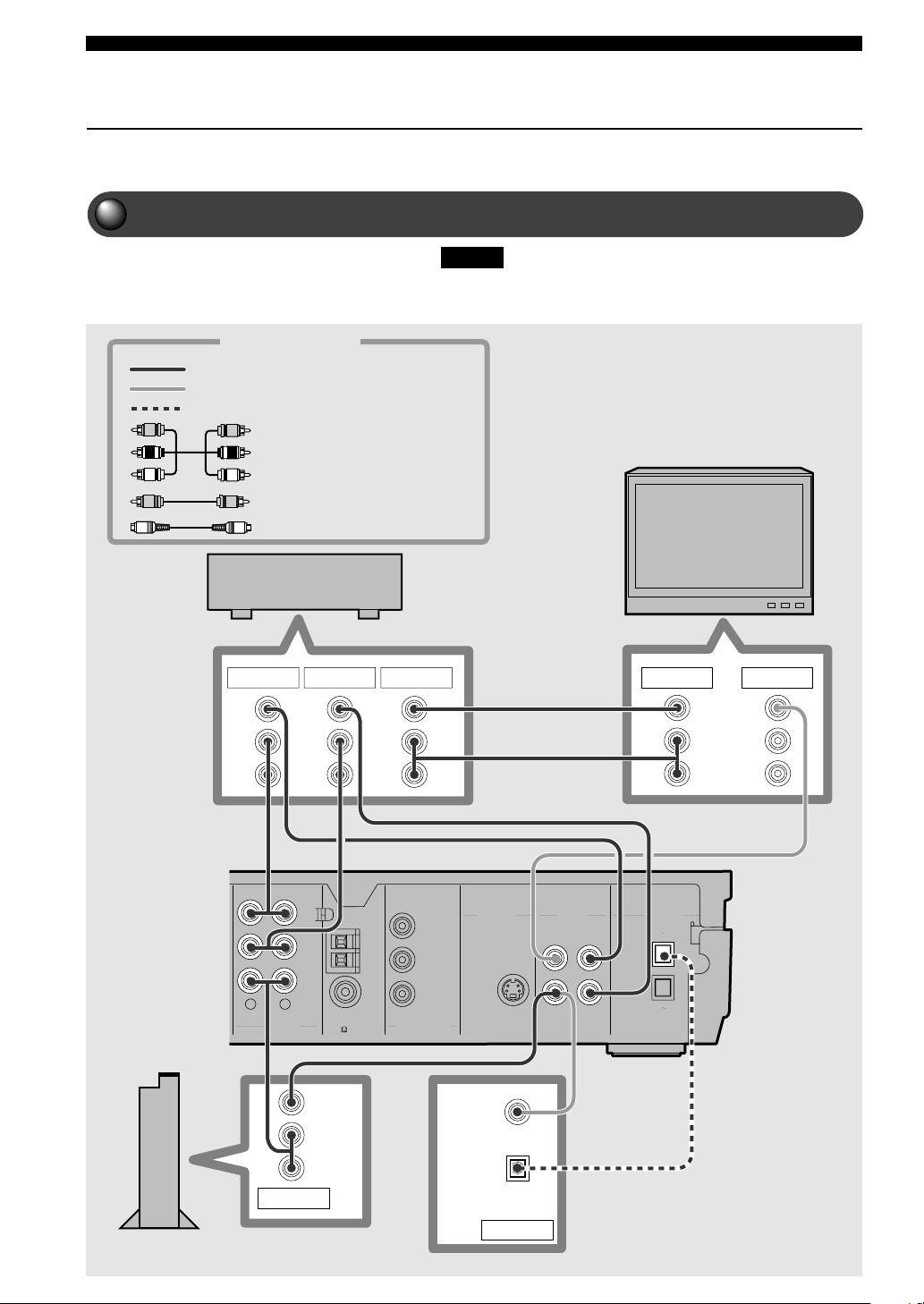
46
Using Other Equipment
Connecting Video Equipment
Connect a VCR to CinemaStation to play or dub videos. You can also
connect a game console or video camera.
Connecting a Game Console or VCR
•
Always read the owner’s manual of any equipment you want to connect.
DIGITAL
AUDIO
VIDEOS VIDEO
IN
VCR
OUT
AM
ANT
VCR
OUT
VCR
IN
VIDEO
IN
Y
P
B
P
R
FM
ANT
GND
MONITOR
OUT
MONITOR
OUT
(DVD ONLY)
MONITOR
OUT
(DVD ONLY)
VCR
IN
VIDEO
IN
COMPONENT
VIDEO
AUDIO
RL
75 UNBAL
OUT
OPTICAL
VIDEO
DIGITAL
OPTICAL
OUTPUT
OUTPUT
L
R
L
R
AUDIO
VIDEO
L
R
L
R
AUDIO
VIDEO
AUDIO
VIDEO
L
R
AUDIO
VIDEO
INPUT OUTPUT1 OUTPUT2 INPUT1 INPUT2
Please...
TV
Connection Cables
VCR
Game console or
video camera
Or
CinemaStation
Use a commercially available Audio/Video cable.
Use the supplied Video Pin Cable.
Audio/Video cable
(commercially available)
Video Pin Cable (supplied)
When directly
connecting the TV
with the VCR, you can
play video tape on the
VCR even if you turn
off CinemaStation.
Use a commercially available optical cable
Optical cable (commercially available)
011DVX-S120-en 03.8.5, 1:46 PM46
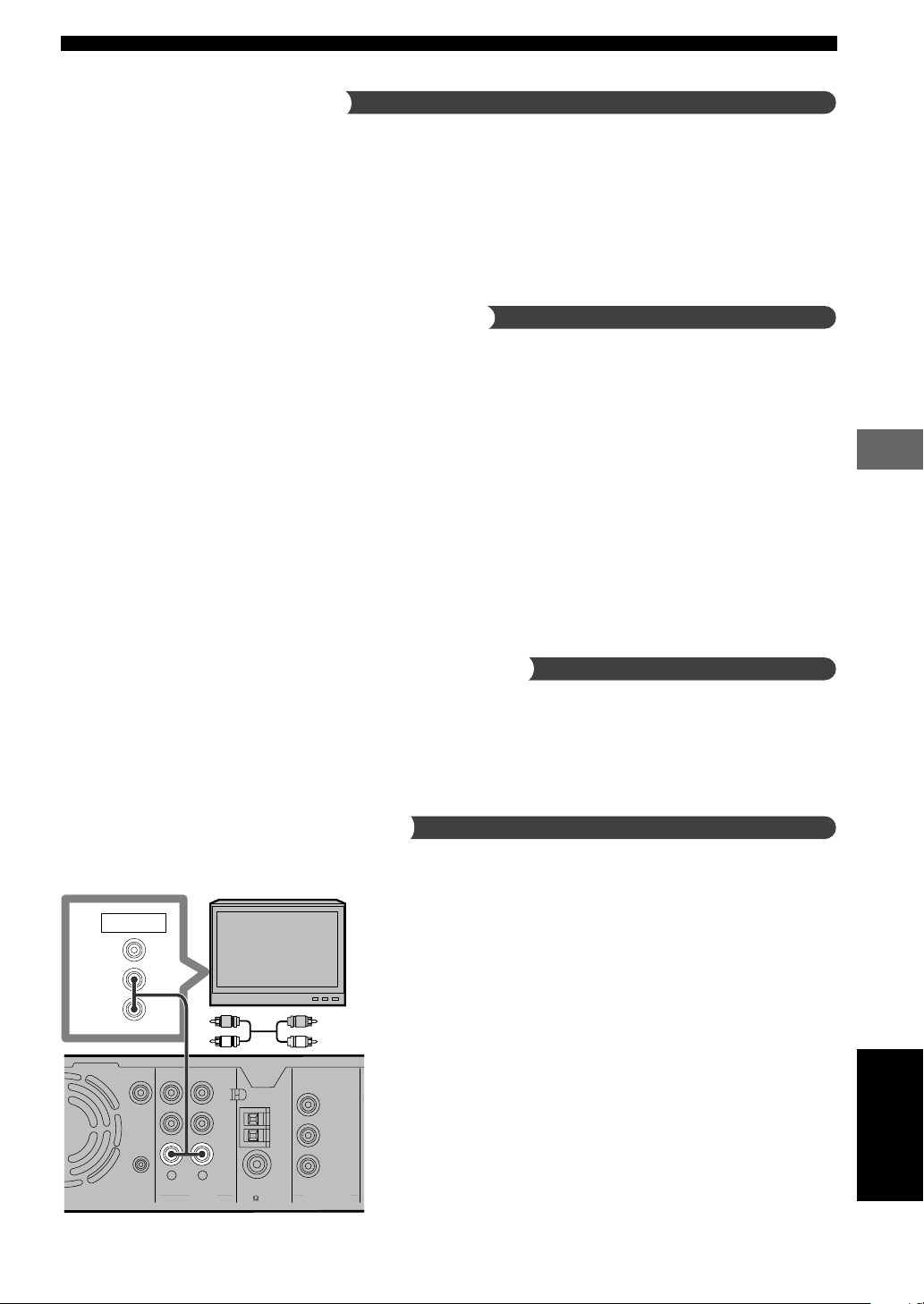
47
Using Other Equipment
Using Other Equipment
English
TV
Use a commercially available audio cable.
CinemaStation
AM
ANT
VCR
OUT
VCR
IN
VIDEO
IN
Y
P
B
P
R
FM
ANT
GND
MONITOR
OUT
(DVD ONLY)
SUBWOOFER
OUT
COMPONENT
VIDEO
AUDIO
RL
SYSTEM
CONNECTOR
75 UNBAL
L
R
OUTPUT
AUDIO
VIDEO
Notes on the audio jacks
• You cannot simultaneously use both IN and OUT jacks when
the jack names are the same as each other. For example, the
signal input from the VCR IN jack does not output from the
VCR OUT jack.
• CinemaStation’s digital and analog signal circuits are
independent of each other, so analog input signals can only
output from analog output jacks and digital input signals can
only output from digital output jacks.
Notes on recording and playing video
• Perform a test recording before recording.
• Do not press ON SCREEN during recording a DVD video. If
you press ON SCREEN, the On Screen Menu appears, and
both the video and On Screen Menu will be recorded.
• It is not possible to record DSP effects.
• When you turn off the connected VCR power, playback sound
may become distorted and the volume reduced. In this case,
turn on the VCR power.
• Even if you adjust the audio volume, audio quality, or change
the DSP Program during a video recording, it has no effect on
the recorded sound.
• Video recordings that you make cannot be used for any
purpose other than private enjoyment without the consent of
the copyright holder.
• You cannot record from a copy protected DVD disc.
Connect a game console to a digital input
If your game console has a digital output jack (optical), it can be
connected to CinemaStation’s OPTICAL IN jack.
See page 50, “Connecting Audio Equipment” to learn how
to connect an optical jack.
Video output connects to CinemaStation’s VIDEO IN jack.
Connect a TV to an audio input
Enjoy TV sound with CinemaStation by connecting the TV
audio output jack to an AUDIO IN jack.
Press VIDEO on the Remote Control to input TV sound.
011DVX-S120-en 03.8.5, 1:46 PM47
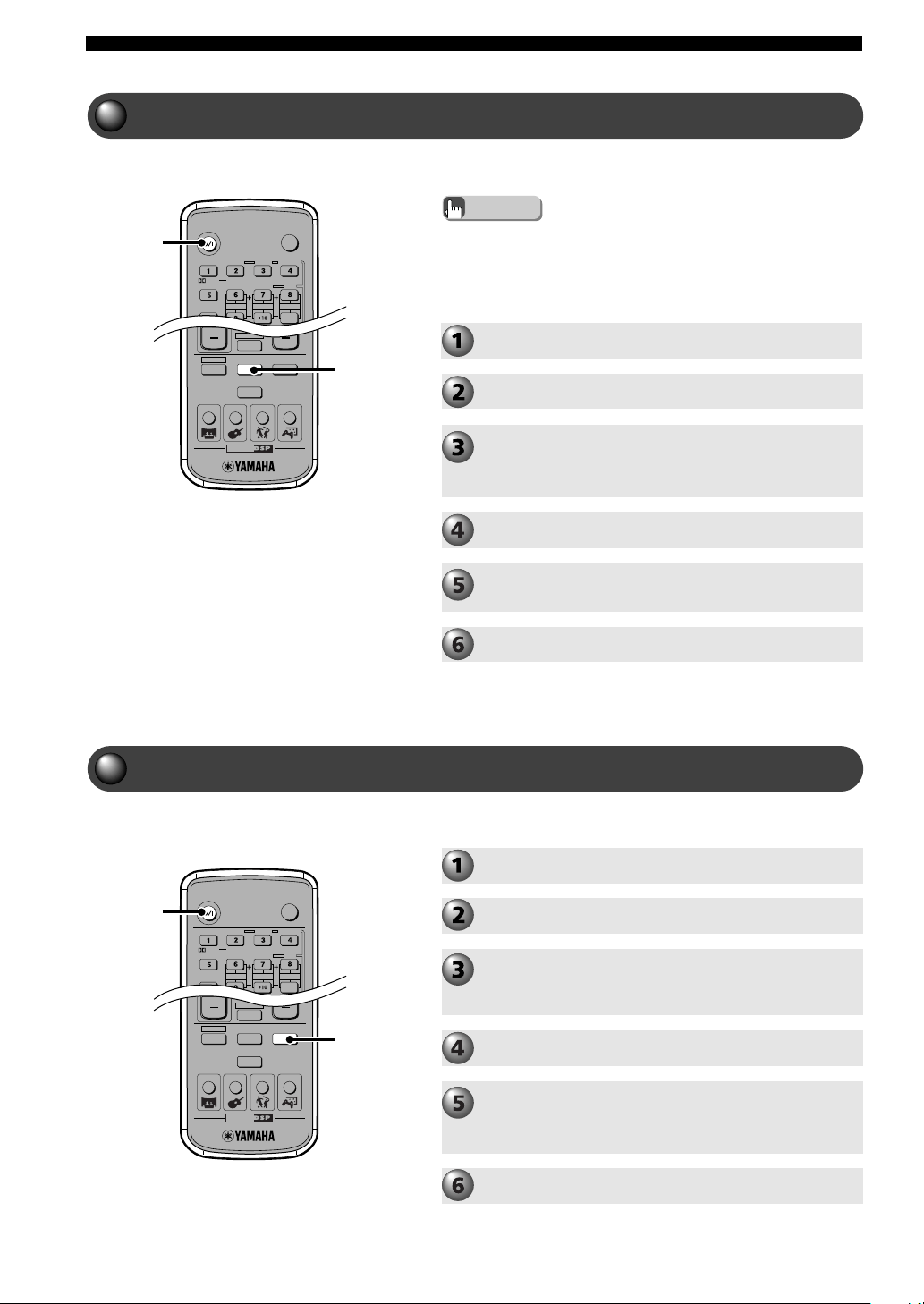
48
Using Other Equipment
Operating a VCR
For VCR operations, read your VCR owner’s manual.
TV
POWER
POWER
AUDIO
/
DTS
SELECT
NIGHT
SW
CENTER
SURR
SHIFT
STEREOMATRIX 6.1
A-B
REPEAT
ANGLE
SUBTITLE
DVR-S120 WB56650
CINEMA
AMP
DVD/CD
VCR
VIDEO
TUNER
MOVIE MUSIC SPORTS GAME
POWER
VCR
TV
POWER
POWER
AUDIO
/
DTS
SELECT
NIGHT
SW
CENTER
SURR
SHIFT
STEREOMATRIX 6.1
A-B
REPEAT
ANGLE
SUBTITLE
DVR-S120 WB56650
CINEMA
AMP
DVD/CD
VCR
VIDEO
TUNER
MOVIE MUSIC SPORTS GAME
POWER
VIDEO
Advice
• The Remote Control can also operate a television or VCR connected
to CinemaStation. However, it is first necessary to enter the
manufacturer code for the equipment in the Remote Control’s
memory. See page 83, Storing Manufacturer Codes in the
Remote Control.
Operate your VCR.
Turn on the TV.
Turn on the VCR.
Switch the TV input.
For example, switch to video 1 if CinemaStation is
connected to video input 1 on the television.
Press POWER to turn on CinemaStation.
Press VCR.
CinemaStation can now output the VCR signal.
Playing a Video Game or Operating a Video Camera
For game console and video camera operations, read their
respective owner’s manuals.
Play your game console or video camera.
Press VIDEO.
CinemaStation can now output video signals (game
console or video camera).
Press POWER to turn on CinemaStation.
Switch the TV input.
For example, switch to video 1 if CinemaStation is
connected to video input 1 on the television.
Turn on a game console or video camera.
Turn on the TV
011DVX-S120-en 03.8.5, 1:46 PM48
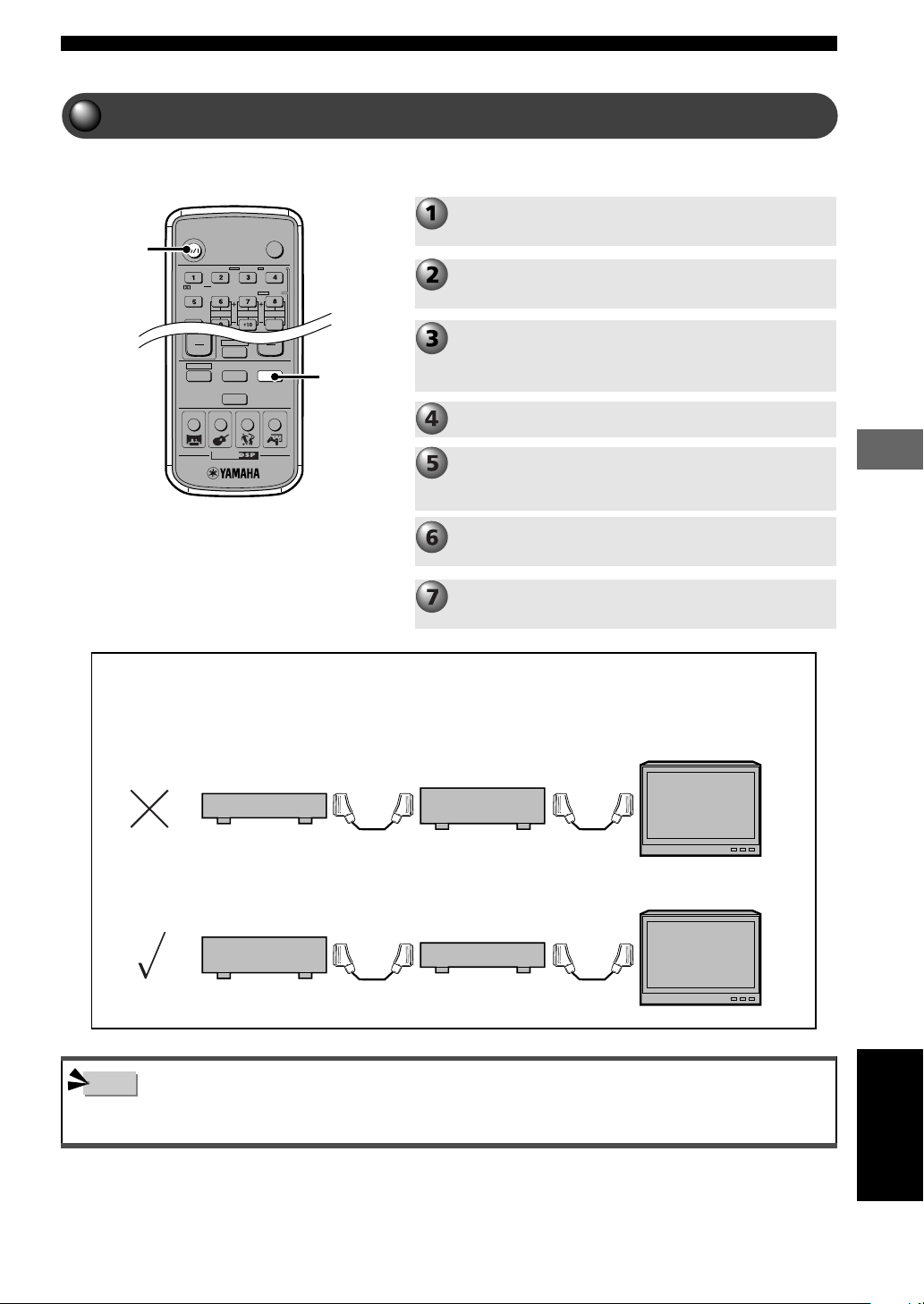
49
Using Other Equipment
Using Other Equipment
English
Dubbing from a Video Camera to a VCR
For video camera and VCR operations, be sure to read
their respective owner’s manuals.
TV
POWER
POWER
AUDIO
/
DTS
SELECT
NIGHT
SW
CENTER
SURR
SHIFT
STEREOMATRIX 6.1
A-B
REPEAT
ANGLE
SUBTITLE
DVR-S120 WB56650
CINEMA
AMP
DVD/CD
VCR
VIDEO
TUNER
MOVIE MUSIC SPORTS GAME
POWER
VIDEO
Turn on the TV
Start playback on the video camera, then start
recording with the VCR.
Prepare to record with the VCR.
For example, switch the VCR input to external.
Press VIDEO.
CinemaStation can now input video signal (video
camera).
Press POWER to turn on CinemaStation.
Switch the TV input.
For example, switch to video 1 if CinemaStation is
connected to video input 1 on the television.
Turn on the video camera and VCR.
CinemaStation
VCR
TV
VCR
CinemaStation
TV
Note
• If you play a video source that uses scrambled or encoded signals to prevent it from being dubbed, the picture itself may be
disturbed due to those signals.
Connecting with SCART cable (U.K. and Europe models only)
Do not connect CinemaStation to a monitor via a VCR. The copyright protection
technology incorporated in CinemaStation may not allow the video to play.
011DVX-S120-en 03.8.5, 1:46 PM49
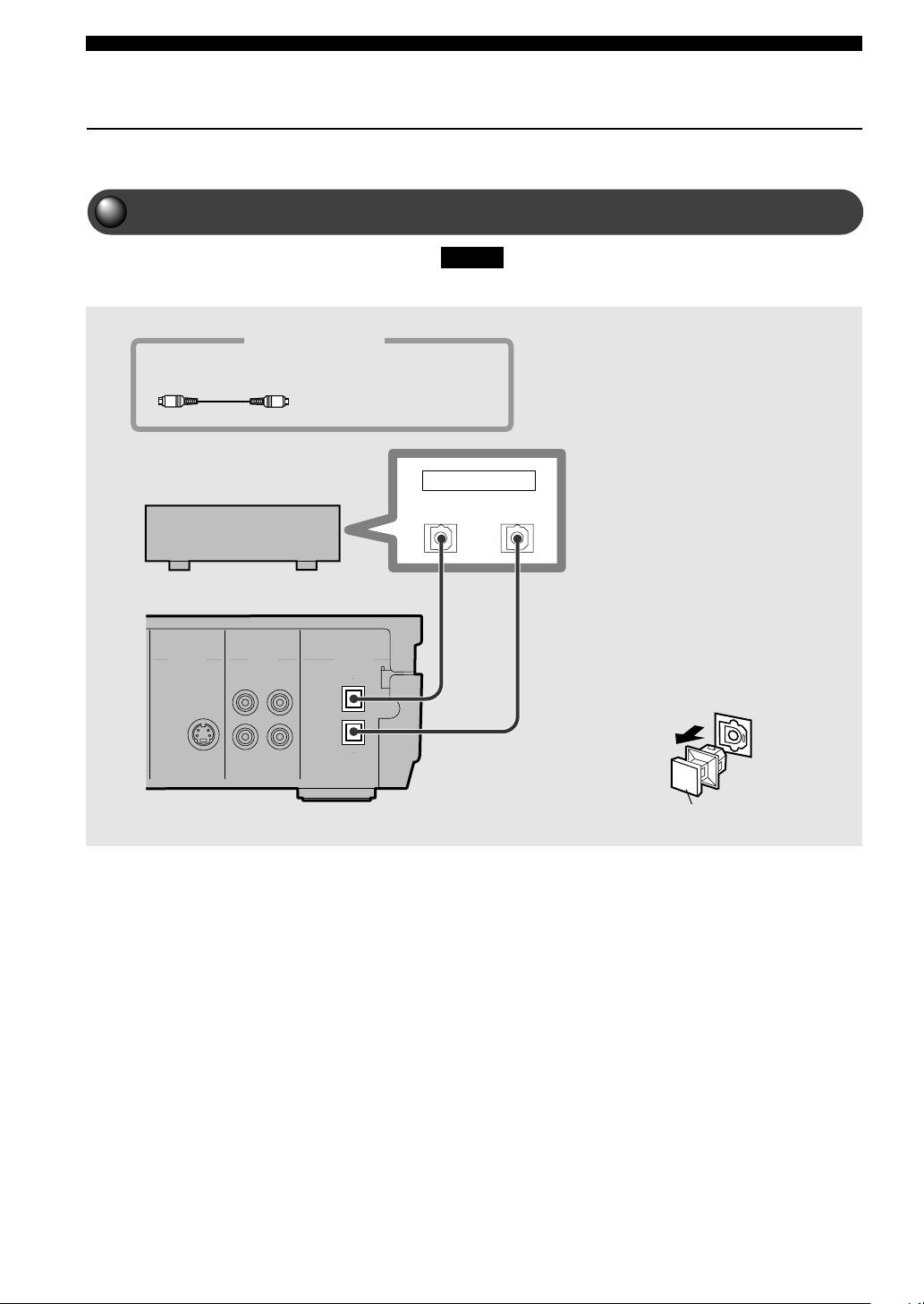
50
Using Other Equipment
Connecting Audio Equipment
You can connect a CD recorder or MD recorder to CinemaStation to record
audio played on CinemaStation.
Connecting a CD or MD Recorder
DIGITAL
AUDIO
VIDEOS VIDEO
IN
VCR
OUT
MONITOR
OUT
MONITOR
OUT
(DVD ONLY)
VCR
IN
VIDEO
IN
OUT
OPTICAL
OUTPUT
OPTICAL
INPUT
Please...
• For equipment connection, read the owner's manual of the equipment
you want to connect.
Anti-dust cap
When connecting an optical cable, first
remove the dust cap attached to the
OPTICAL jack. Store the cap in a safe
place and re-attach it when the jack is
not in use to prevent it from collecting
dust.
Connection Cables
CD recorder or
MD recorder
CinemaStation
Use a commercially available optical cable
Optical cable (commercially
available)
Anti-Dust Cap
011DVX-S120-en 03.8.5, 1:46 PM50
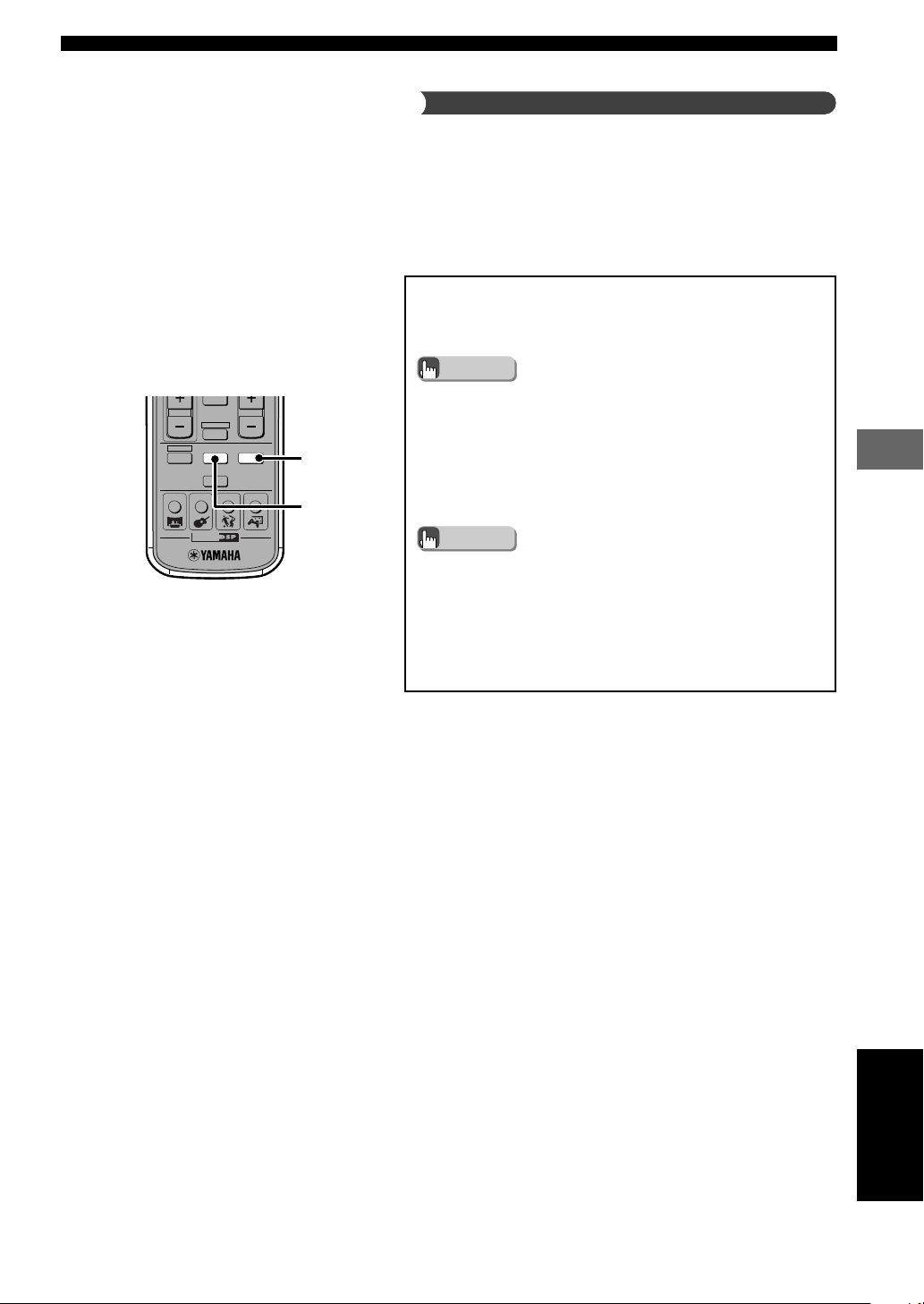
51
Using Other Equipment
Using Other Equipment
English
Advice
Advice
• When you assign the OPTICAL IN jack as VIDEO and equipment is
connected to the VIDEO IN jacks, the OPTICAL IN jack has priority
over the VIDEO IN jacks if the input mode is set to AUTO.
• CinemaStation’s digital and analog signal circuits are
independent of each other, so analog input signals can only
output from analog output jacks and digital input signals can
only output from digital output jacks.
• CinemaStation’s optical digital jack is designed based on EIA
standards. If you use an optical cable that does not meet EIA
standards, it may not function properly.
• The digital jacks are compatible with PCM, Dolby Digital and
DTS signals.
• The OPTICAL IN jack is compatible with a digital signal that
has a 96 kHz or less sampling frequency.
• You can use “* Input Assign” in the SET MENU to assign
VIDEO or VCR to the OPTICAL IN jack. The default setting
is VIDEO.
Set to VIDEO (default setting)
Press VIDEO on the Remote Control to input a signal from CD
recorder or MD recorder.
Set to VCR
Press VCR on the Remote Control to input a signal from CD
recorder or MD recorder.
• When you assign the OPTICAL IN jack as VCR and equipment is
connected to the VCR IN jacks, the OPTICAL IN jack has priority
over the VCR IN jacks if the input mode is set to AUTO.
Notes on the digital audio jacks
For details about assigning OPTICAL IN jacks see page 88,
“Using the SET MENU”. For details about input modes see
page 77, “Switching Input Modes”.
CINEMA
AMP
DVD/CD
VCR
VIDEO
TUNER
MOVIE MUSIC SPORTS GAME
VIDEO
VCR
011DVX-S120-en 03.8.5, 1:46 PM51
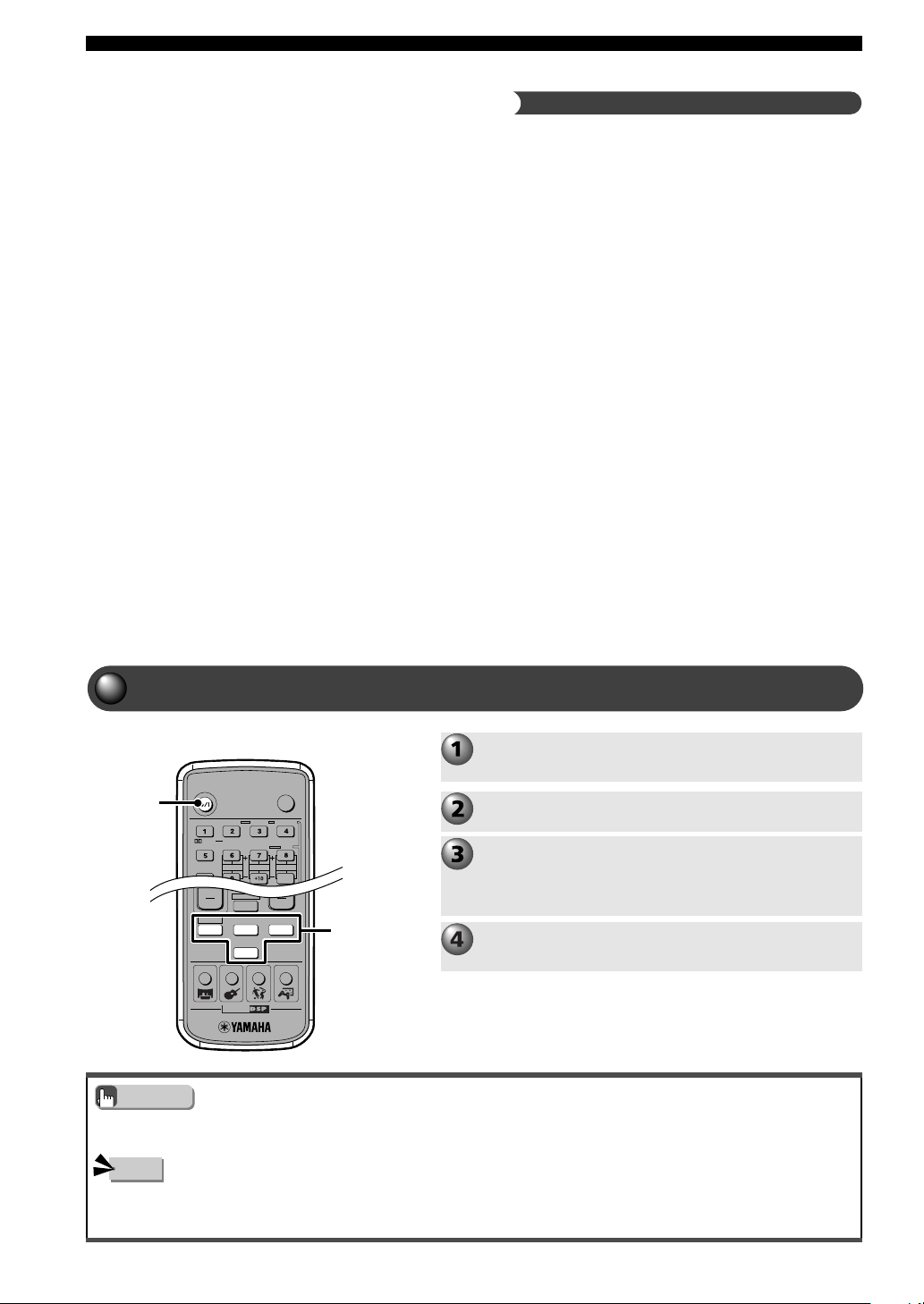
52
Using Other Equipment
• When using Timer Playback/Recording, even if CinemaStation is in standby mode, the memory content (input source, AM/FM
frequency) is retained and used.
TV
POWER
POWER
AUDIO
/
DTS
SELECT
NIGHT
SW
CENTER
SURR
SHIFT
STEREOMATRIX 6.1
A-B
REPEAT
ANGLE
SUBTITLE
DVR-S120 WB56650
CINEMA
AMP
DVD/CD
VCR
VIDEO
TUNER
MOVIE MUSIC SPORTS GAME
POWER
Turn on the CD recorder or MD recorder power
and get ready for recording.
• Perform a test recording before recording.
• It is not possible to record DSP effects.
• When you turn off the connected CD recorder or MD recorder
power, playback sound may become distorted and the volume
reduced. In this case, turn on the CD recorder or MD recorder
power.
• Even if you adjust the audio volume, audio quality, or change
the DSP Program during a video recording, it has no effect on
the recorded sound. However, in DVD/CD mode, the output
sound for recording may cut off if any of the operations below
are performed. Do not perform any of the below during
recording.
— Output a test tone.
— Change a DSP Program
— Connect/disconnect the headphones
• CinemaStation can output a signal from the DIGITAL IN jack
to the DIGITAL OUT jack. The signal input from the
DIGITAL IN jack cannot output from the analog output jacks,
and the signal input from the analog input jacks cannot output
from the DIGITAL OUT jacks.
• Audio recordings that you make cannot be used for any
purpose other than private enjoyment without the consent of
the copyright holder.
Timer Playback/Recording
Combined with a commercially available audio timer, you can
perform Timer Playback and Timer Recordings.
Operations vary depending on the equipment and audio timer
used, so be sure to read the relevant equipment owner’s manual.
Recording Audio from CinemaStation
Notes on recording and playing audio
Start recording with the CD recorder or MD
recorder.
Switch CinemaStation input to the source you
want and start playback.
Ex. To play a CD: First press DVD/CD then play the CD.
Press POWER to turn on CinemaStation.
Input
Selection
buttons
Note
• Even if you use DTS software to digitally record a DTS signal only noise will be recorded.
• If you want to perform Timer Recording without hearing sound, turn the volume down before starting Timer Recording.
Advice
011DVX-S120-en 03.8.5, 1:46 PM52
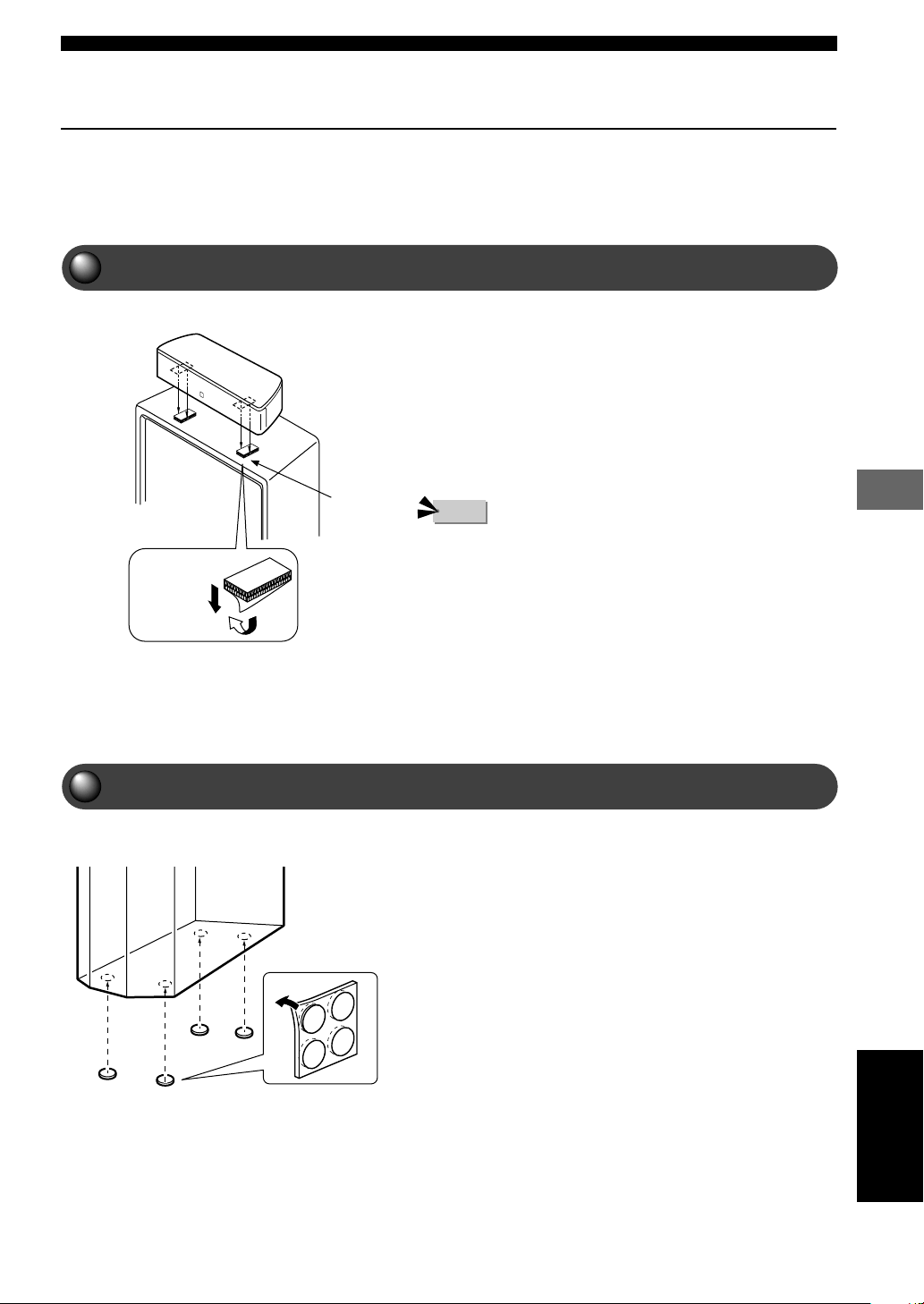
53
Creating the Best Listening Space
Creating the Best Listening Space
Placing the Speakers (NX-P120)
Make sure the top of the television is level. If the top of the
television is not level, place the Center Speaker inside the
TV rack or directly on the floor. In any case, make sure it is
placed on a level surface.
When placing on top of the television, use the supplied
fastener (two pieces) as shown in the picture on the left,
between the bottom of the Center Speaker and top of the
television to fasten.
• Do not place on a television with top narrower than the bottom of the
speaker. You may get injured if the speaker falls over.
• Do not place if the top of the television is slanting. You may get
injured if the speaker falls over.
• After peeling off the fastener seal, do not touch the bonding surface. If
you do, the bonding surface weakens, which later may cause the
speaker to fall over.
• Before attaching the fastener to the television, wipe the TV top clean.
If the surface is dirty or wet tape will lose bonding strength, which
later may cause the speaker to fall over.
Placing the Center Speaker
Placing the Subwoofer
Place the Subwoofer on a level hard floor.
When placing, use non-skid pads on the bottom of the
Subwoofer in the four corners as shown in the picture. This
will prevent the Subwoofer from sliding when it vibrates.
Also, increasing stability prevents degradation of sound.
To get the most out of the sound field effects you need to place the speakers
in the best positions. To guard against poor acoustics like sound blur make
sure the speakers are stable. Also read page 7, Preparing the Speakers.
Note
Fastener
Peel off
the seal
English
012DVX-S120-en 03.8.5, 1:47 PM53
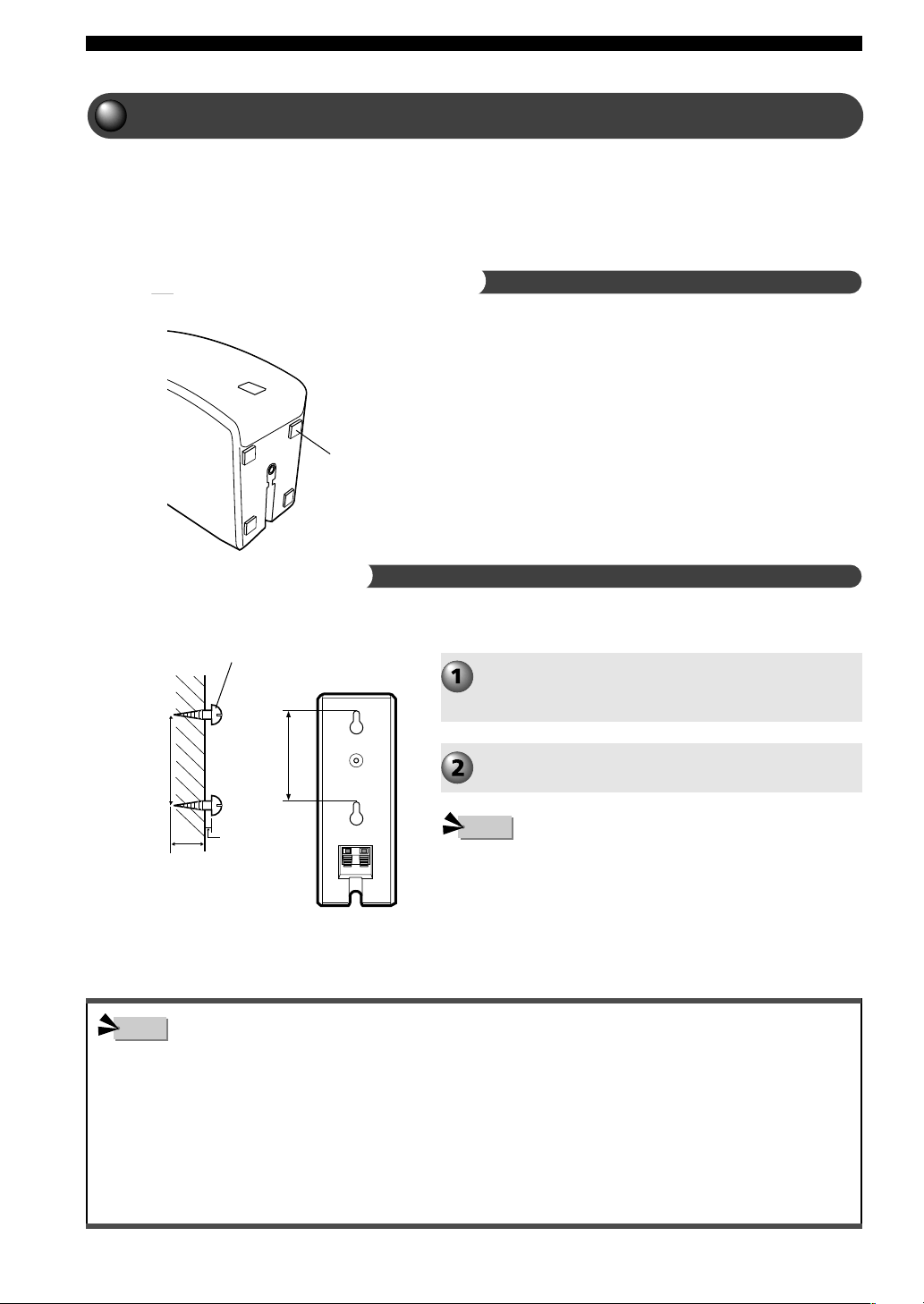
54
Creating the Best Listening Space
• One speaker weighs about 1.1 kg (2.43 lb). Make sure you fasten screws only into a solid wall or pillar. Do not attach to a wall
that is made of plaster, decorative veneer sheeting or other material that peels easily. If the screws come off and a speaker falls,
somebody may get injured.
• Do not attach the speakers using nails or two-sided tape. Vibration during use may cause the nails to loosen, tape to peel off and
speakers to fall, resulting in injury.
• CinemaStation may fall over if your feet or hands get caught in the speaker cable. Make sure the cables are fixed in place.
• After attaching everything, check the overall safety of your installation.
YAMAHA will bear no responsibility for accidents caused by improperly placed equipment or faulty installation methods.
Placing the Front and Surround Speakers
Attach to the wall using the two holes on the back of the Front and
Surround Speakers.
Attach 2 screws (3.5 to 4 mm (
1
/
8
⬙ to
5
/
32
⬙) dia.,
commercially available) to each place you want
to hang a Front or Surround Speaker.
Hang the speakers on the screws using the
holes in the back of each speaker.
• Make sure that the tapping screw enters the narrow part of the hole
and the speaker is fixed securely in place.
As shown in the picture, attach the non-skid pads on the bottoms
of the Front and Surround Speakers in the four corners. This
stabilizes the speakers to prevent sliding.
* Place on a stable, flat surface.
You can place the Front Speakers and Surround Speakers
on the floor or a rack, or attach them to a wall. You can also
mount them on commercially available speaker stands.
Note
Note
Non-skid pad
Screws (3.5 to 4 mm (
1
/
8
⬙ to
5
/
32
⬙)
dia., commercially available)
70 mm (2
3
/
4
⬙)
10 mm (
13
/
32
⬙)
20 mm (
25
/
32
⬙)
or more
When placing on the floor or a rack
When attaching to a wall
70 mm (2
3
/
4
⬙)
012DVX-S120-en 03.8.5, 1:47 PM54
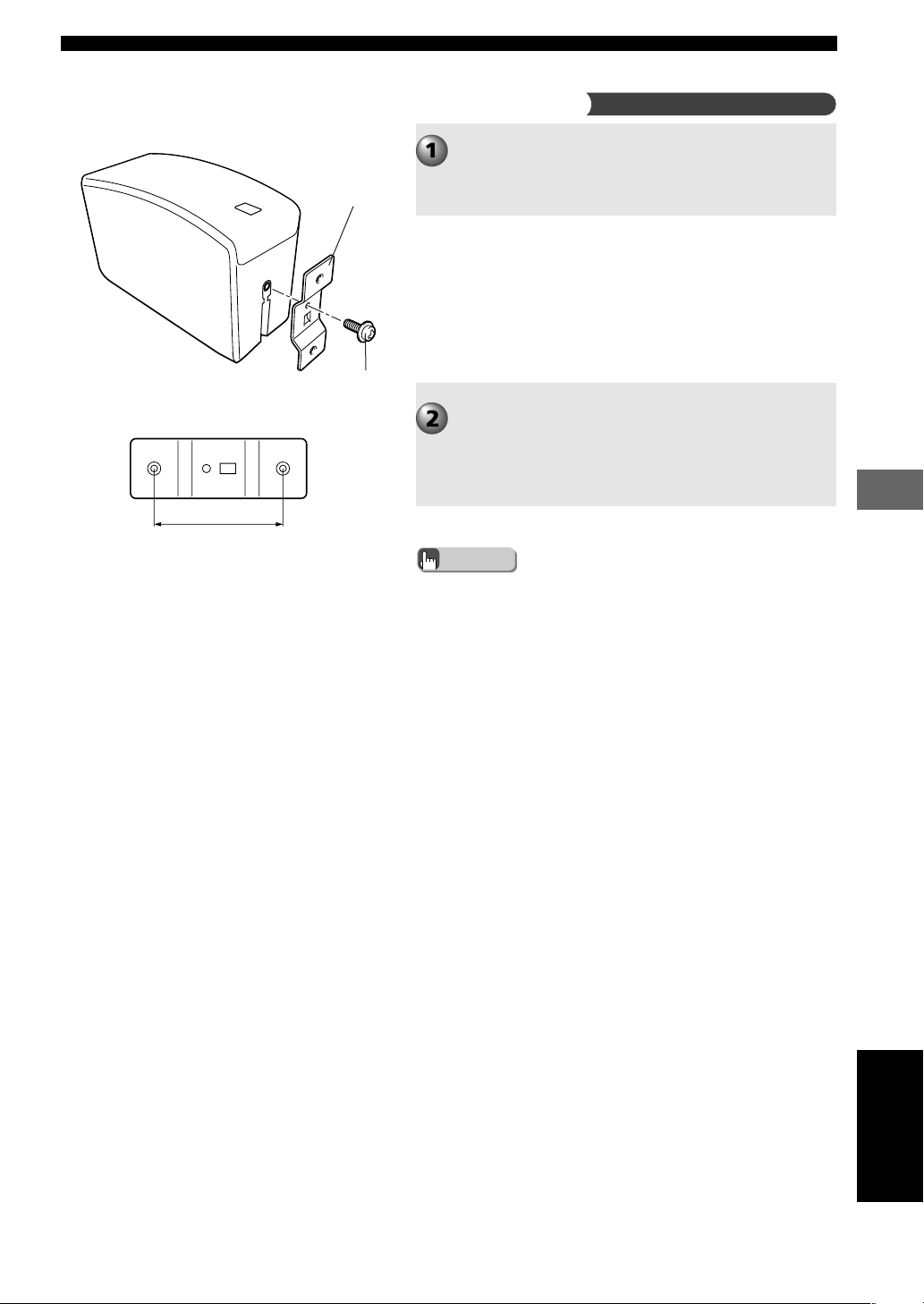
55
Creating the Best Listening Space
Creating the Best Listening Space
Use the supplied screw to attach the mounting
bracket to the bottom of the speaker.
The jutting part of the bracket enters the groove at the
speaker base.
Use the bracket holes (60 mm (2
3
/
8
⬙) spacing) to
fasten the mounting bracket to the speaker
stand.
Use the screws (4 mm (
5
/
32
⬙) dia.), spring washers and
washers.
Mounting bracket
(supplied)
Screw (supplied)
60 mm (2
3
/
8
⬙)
When attaching to a speaker stand and bracket
English
• When attaching to a speaker stand and bracket, be sure to read their
respective owner’s manuals.
• When attaching to the optional SPS-80 Speaker Stands, you do not
need to attach the supplied mounting brackets.
Advice
012DVX-S120-en 03.8.5, 1:47 PM55
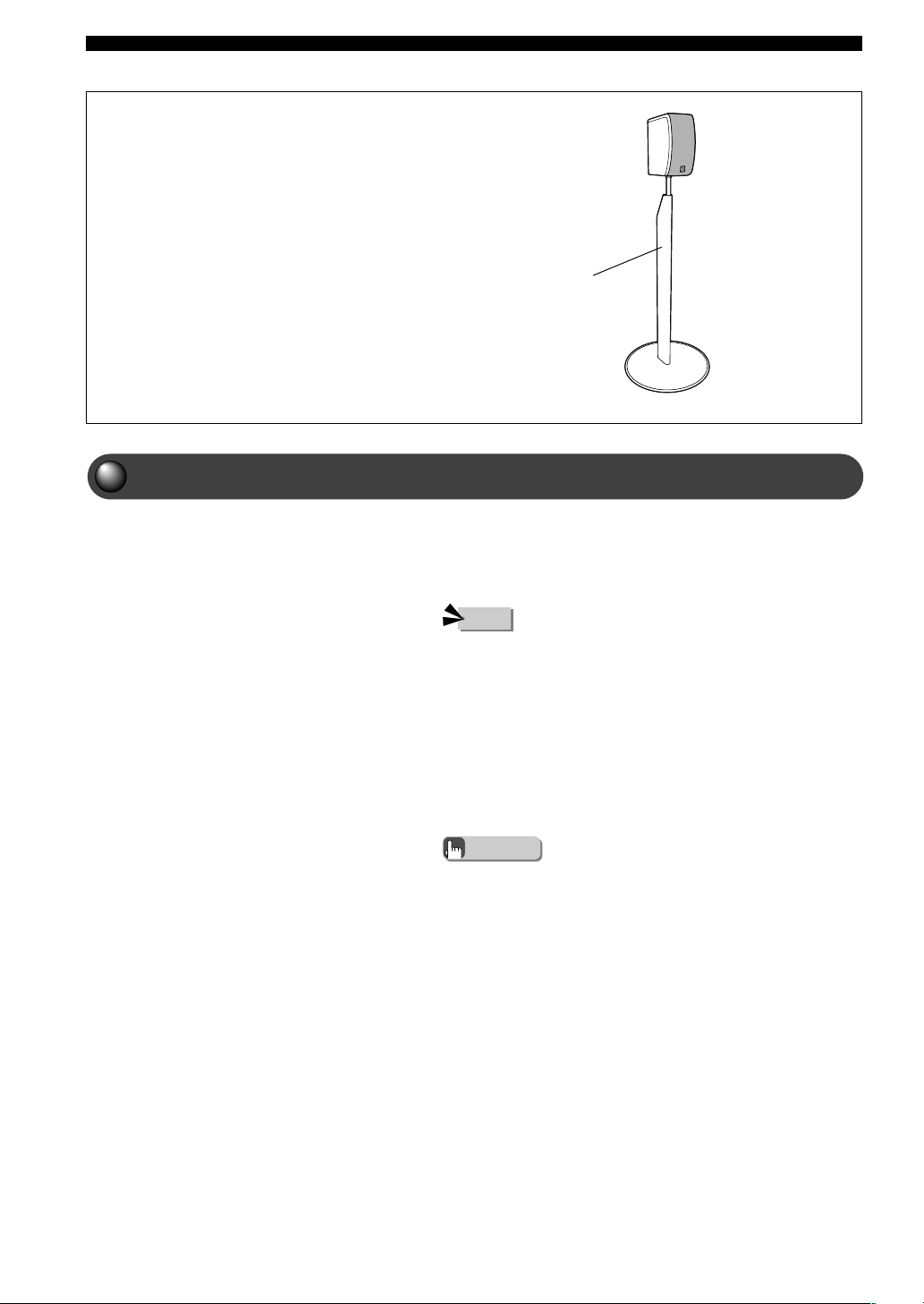
56
Creating the Best Listening Space
Yamaha Speaker Stand SPS-80 (Option)
With the SPS-80 Speaker Stands, you can set the Front Speakers
and Surround Speakers on the floor. (2 stands/set)
SPS-80
Using Commercially Available Speakers or Cables
• Use speakers of the same manufacturer and quality, if possible. If the
quality of each speaker differs, the voice of a moving person may
become unnatural.
Advice
You can use commercially available speakers instead of
the supplied Center Speaker, Front Speakers, Surround
Speakers, or Subwoofer. You can also use commercially
available speaker cables instead of the supplied cables.
• Use a speaker with 6-ohm impedance or more. If a speaker
with less than 6-ohm impedance is used, the protective circuit
may trip or the speaker may malfunction.
• Use magnetically shielded speakers. If these speakers still
create interference with the monitor, place the speakers away
from the monitor.
• Make sure the speaker cable you use is the same thickness as
the supplied cable.
* SPS-80 stands may not be available in certain regions.
Note
012DVX-S120-en 03.8.5, 1:47 PM56
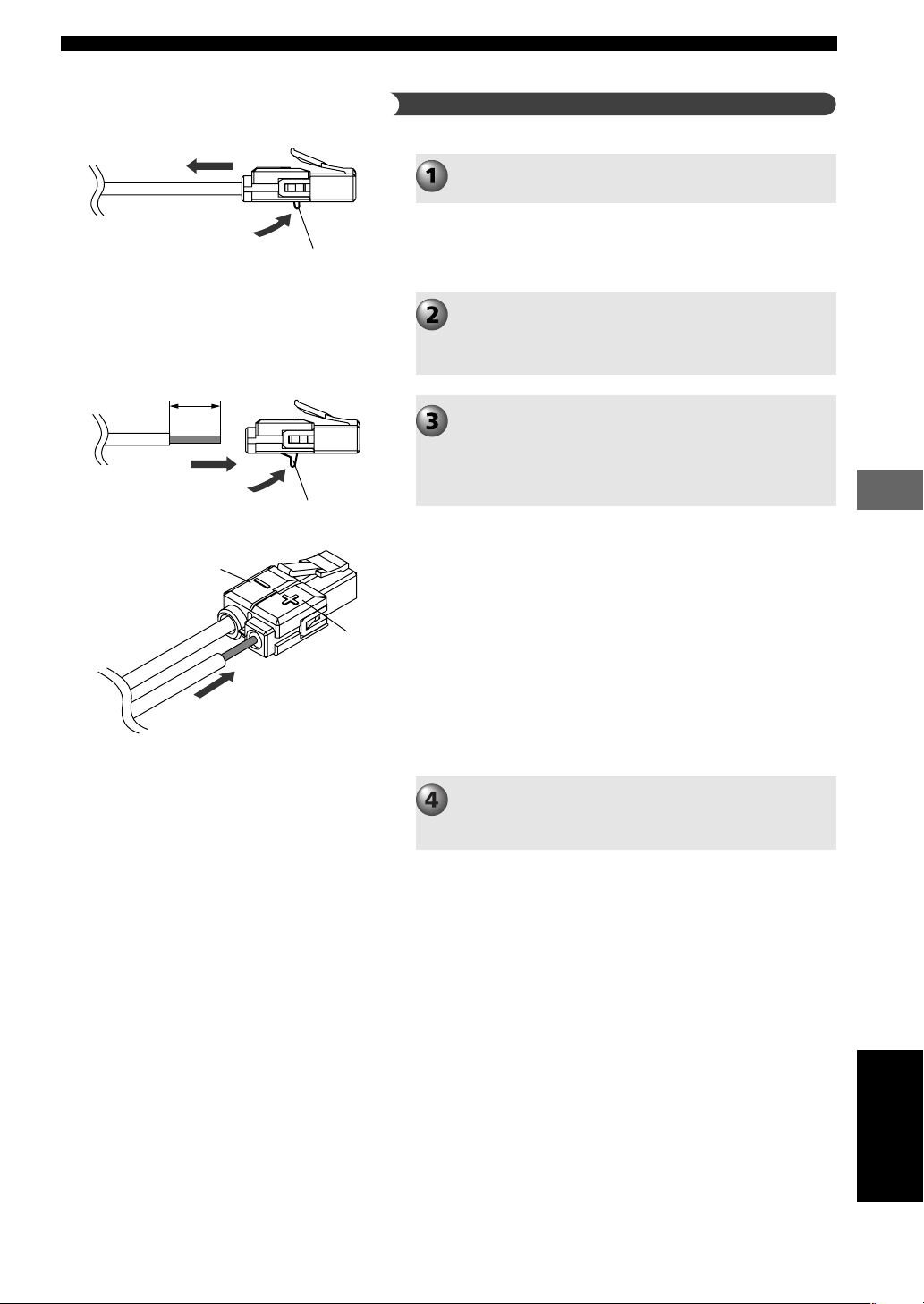
57
Creating the Best Listening Space
Creating the Best Listening Space
Push up the release button and pull out the
supplied speaker cable from the connector.
Peel away about 10 mm (
13
/
32
⬙) of covering from
the tip of the commercially available cable and
firmly twist the cable cores.
Not twisting firmly can cause a short.
Keep pushing up the release button and insert
the cable cores of the commercially available
cable.
Match the speaker cable polarity (+/-) with the polarity
indicator (+/-) of the connector.
Release your finger from the release button to
fasten the cable.
Release button
10 mm (
13
/
32
⬙)
Polarity indicator ⳮ
Polarity indicator Ⳮ
Changing the speaker cables
Release button
English
012DVX-S120-en 03.8.5, 1:47 PM57
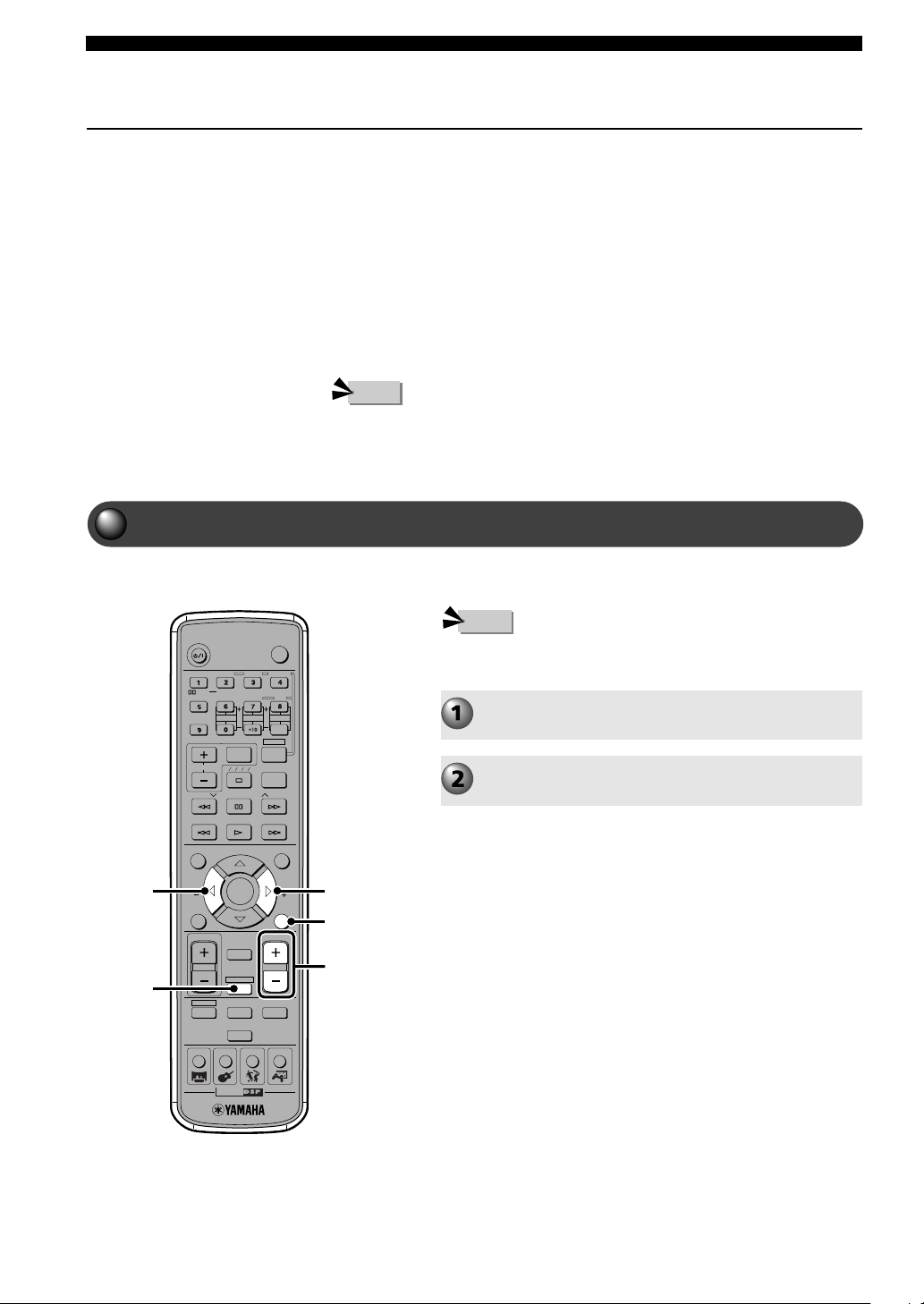
58
Creating the Best Listening Space
Adjusting the Speaker Balance with a Test Tone
TV
CH
CINEMA
CH
POWER
POWER
AUDIO
/
DTS
SELECT
NIGHT
SW
TV CH
TV INPUT
SLEEP
PRESET PRESET
A B C D E
CENTER
SURR
SHIFT
STEREOMATRIX 6.1
A-B
REPEAT
ANGLE
SUBTITLE
DVR-S120 WB56650
ON SCREEN MENU
TEST
RETURN
STATUS
TV VOL
VOLUME
MUTE
AMP
DVD/CD
VCR
VIDEO
TUNER
MOVIE MUSIC SPORTS GAME
SET MENU
ENTER
AMP
VOLUME
+ / –
TEST
g
g
Adjusting the Speaker Volume Level
The default settings of the Speakers are suitable for most conditions.
However, depending on room conditions or listening position, you may
need to adjust the Speaker volume level, especially when changing
speaker or furniture position.
This adjustment is important because it brings out the maximum effect of
the DSP Program, and faithfully reproduces the acoustic personalities of
Dolby Pro Logic, Dolby Pro Logic II, Dolby Digital and DTS.
Even after performing the test tone, you may still like to adjust the
speaker volume level for some sources. In this case see page 60,
“Adjusting the Speaker Volume Level During Playback”.
• You cannot adjust the volume level while connected to headphones. To adjust, disconnect
your headphones.
Adjust the volume so that it is the same for each speaker
from your listening position.
• To adjust the sound, use the Remote Control from your listening
position.
Press AMP.
Press TEST.
Note
Note
012DVX-S120-en 03.8.5, 1:47 PM58
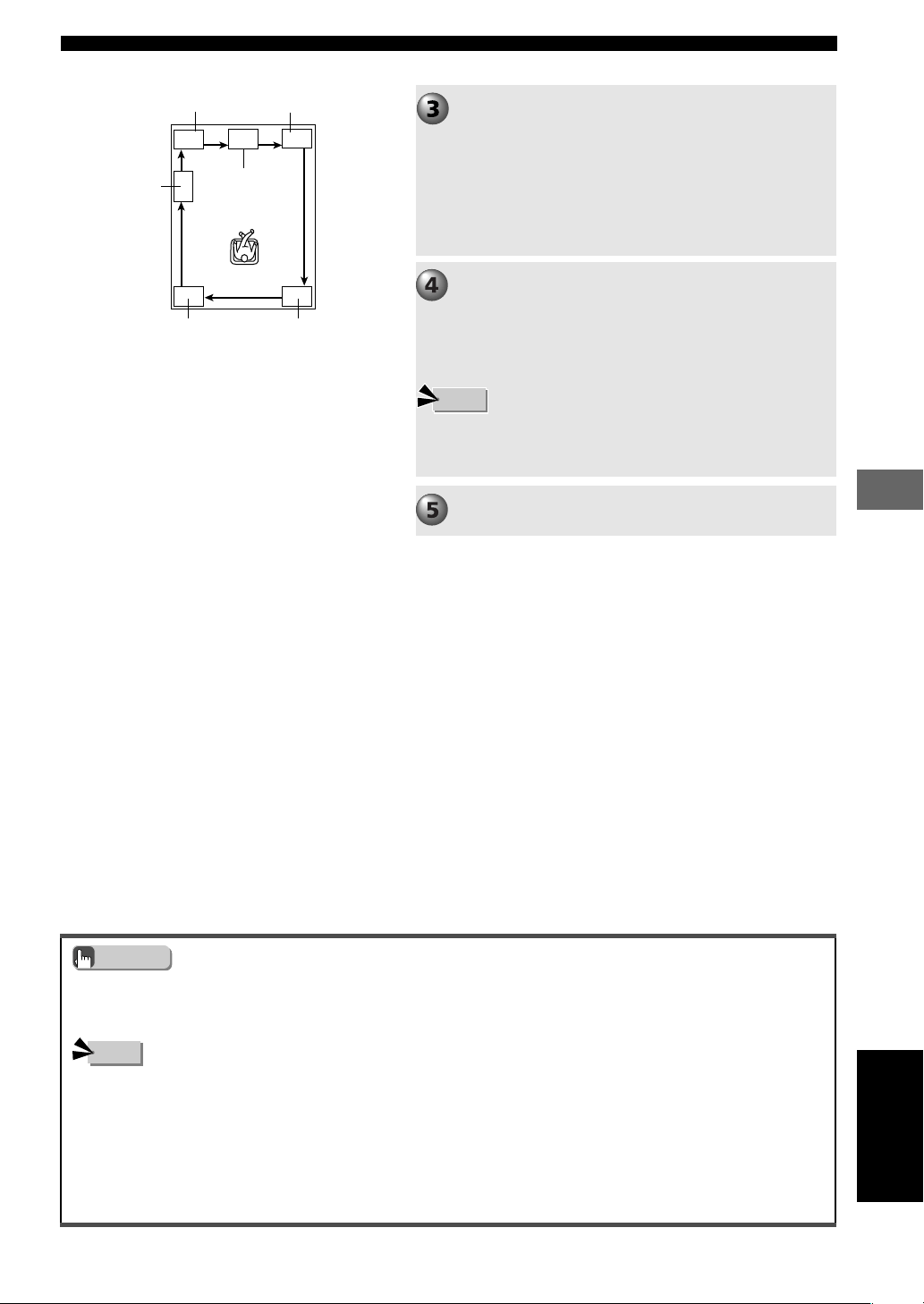
59
Creating the Best Listening Space
Creating the Best Listening Space
• If you raise the volume level of the Center and Surround L/R Speakers to + 10 dB and this is still less than the Front Speakers,
set the “* F. Level” in the SET MENU to -10 dB and lower the volume level of the Front Speakers by about 1/3. If you change
the volume level of the Front Speakers, adjust the volume level of the Center and Surround L/R Speakers once again.
Adjust the overall sound using the VOLUME +/-
so that you can hear the test tone.
The picture on the left shows the test tone order: LEFT
(Front L Speaker) → CENTER (Center Speaker) →
RIGHT (Front R Speaker) → R SUR. (Surround R
Speaker) → L SUR. (Surround L Speaker) →
SUBWOOFER (Subwoofer). Each speaker outputs sound
for about 2 seconds. The speaker currently outputting a
test tone appears in the CinemaStation Display.
While a test tone is outputting from the speaker
you want to adjust, press q or w and tune it to
the same volume level as the Front Speakers.
Only the speaker currently being adjusted produces a test
tone.
• While in test tone mode you cannot adjust the volume level of the
Front Speakers which serve as the standard. If you need to adjust the
volume level of the Front Speakers, press VOLUME +/-.
When adjustment is finished, press TEST.
The test tone stops.
Note
• If “* CENTER” in the SET MENU is set to “NON”, the Center Speaker signal is distributed to the Front L/R Speakers at the
same volume level and output. In this case, you cannot adjust the audio output level of the Center Speaker.
• If “* SUR”. in the SET MENU is set to “NON”, you cannot adjust the volume level of the Surround L/R Speakers. The test tone
skips the Surround L/R Speakers and continues its cycle.
• If “* BASS” in the SET MENU is set to “FRONT”, the test tone skips the Subwoofer and continues its cycle.
• The test tone for Subwoofer is different from the others, but this is not a defect.
Note
Advice
RIGHTLEFT
SUBWOOFER
CENTER
L SUR. R SUR.
English
012DVX-S120-en 03.8.5, 1:47 PM59
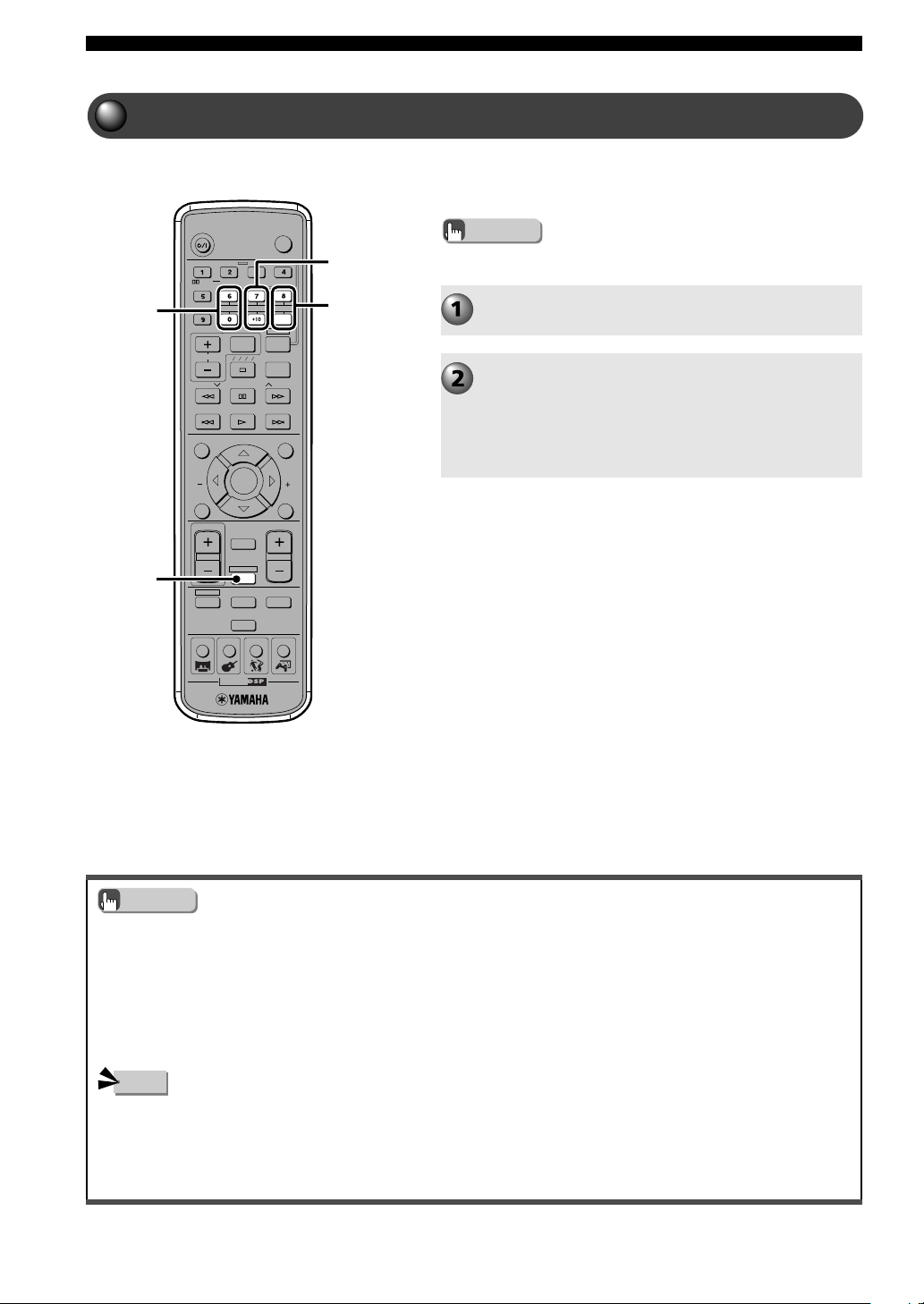
60
Creating the Best Listening Space
Adjusting the Speaker Volume Level During Playback
• The volume level adjustment range is +10 dB to -10 dB.
• You cannot adjust the Left and Right Surround Speakers individually. The same adjustment level will be applied to both.
If the level adjusted during the sound test was different for Left and Right and one speaker was then tuned to a maximum of +10
dB or a minimum of -10 dB, the value cannot be adjusted any further up or down.
• We recommend that you first adjust the speaker balance with a test tone. See page 58, “Adjusting the Speaker Balance
with a Test Tone”.
• If you change the speaker volume level with the SW, CENTER or SURR buttons, the levels you adjust with the test tone also
change.
TV
CH
CINEMA
CH
POWER
POWER
AUDIO
/
DTS
SELECT
NIGHT
SW
TV CH
TV INPUT
SLEEP
PRESET PRESET
A B C D E
CENTER
SURR
SHIFT
STEREOMATRIX 6.1
A-B
REPEAT
ANGLE
SUBTITLE
DVR-S120 WB56650
ON SCREEN MENU
TEST
RETURN
STATUS
TV VOL
VOLUME
MUTE
AMP
DVD/CD
VCR
VIDEO
TUNER
MOVIE MUSIC SPORTS GAME
SET MENU
ENTER
AMP
SURR
+ / –
SW + / –
CENTER
+ / –
Adjust the volume level of the Subwoofer, Center and
Surround Left/Right Speakers, if you feel the speaker is
unbalanced during audio playback.
• Volume levels other than for Front Speakers can be adjusted.
Advice
Press AMP during playback.
Adjust the speaker volume level.
To adjust the Subwoofer volume press SW +/-.
To adjust the Center Speaker volume press
CENTER +/-.
To adjust the Surround Speakers volume press
SURR +/-.
• Depending on your settings in SET MENU, volume level adjustment may not be available for a speaker.
– If “* CENTER” is set to “NON” you cannot adjust the Center Speaker.
– If “* SUR.” is set to “NON” you cannot adjust the Surround Speakers.
– If “* BASS” is set to “FRONT” you cannot adjust the Subwoofer.
Note
Advice
012DVX-S120-en 03.8.5, 1:47 PM60
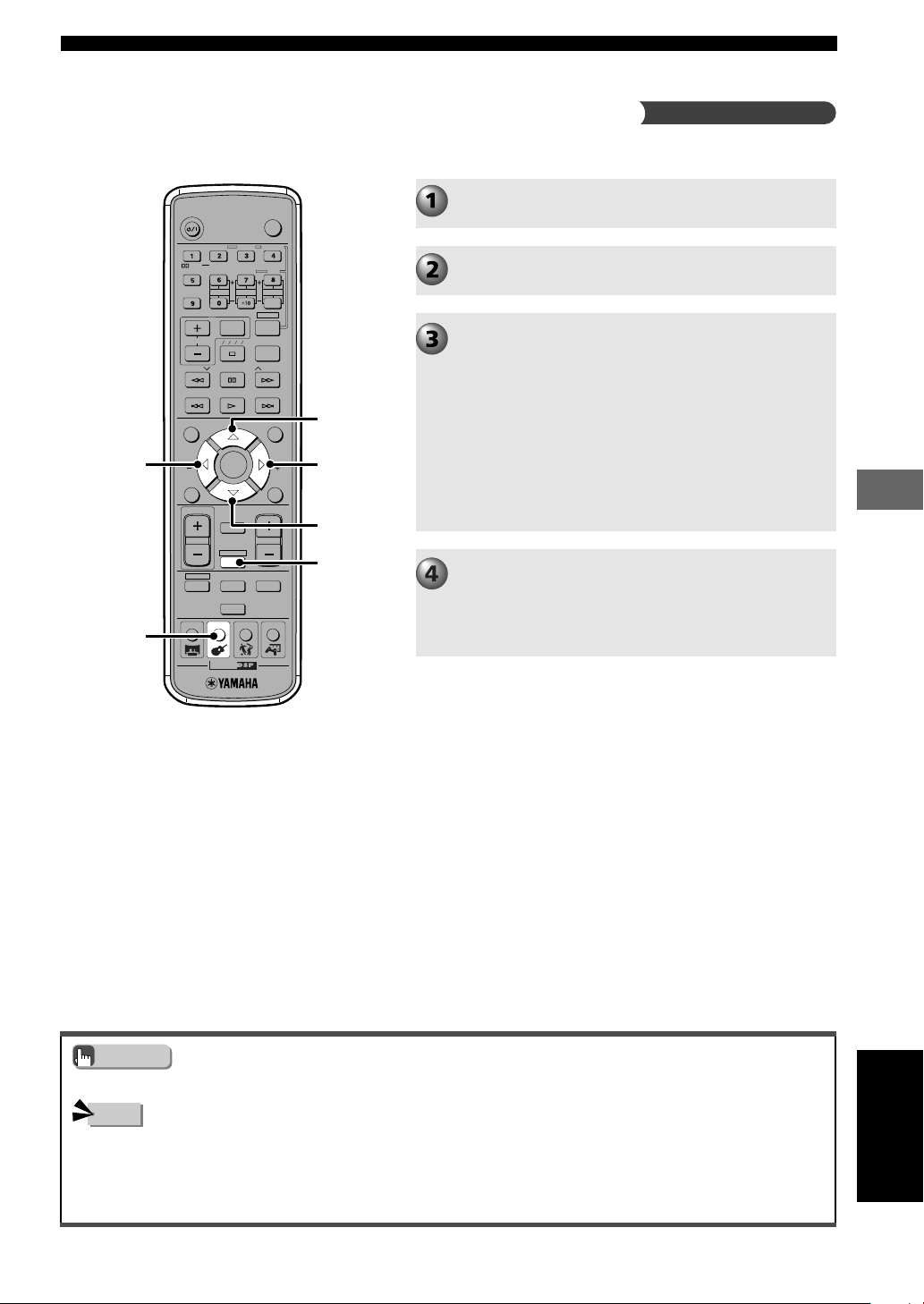
61
Creating the Best Listening Space
Creating the Best Listening Space
• You can adjust the speaker volume level from 0 to 100%. The factory default setting is 100%, which is the maximum value.
You can adjust the speaker volume for 5ch Stereo DSP Program
Press AMP during playback.
Repeatedly press MUSIC and select “5ch
Stereo”.
Repeatedly press g or h, and select the speaker
you want to adjust.
The switching order is CT LEV → RL LEV → RR LEV
→ CT LEV...
To adjust the Center Speaker volume level, select CT
LEV.
To adjust the Surround L Speaker volume level, select
RL LEV.
To adjust the Surround R Speaker volume level, select
RR LEV.
Press q or w and adjust the speaker volume
level.
When setting to 50%, the speaker volume becomes half,
and when setting to 0%, you hear no sound from the
Speaker.
• The volume levels adjusted with the test tone or the CENTER or SURR buttons in 5ch Stereo mode are replaced with the
setting with “CT LEV”, “RL LEV” or “RR LEV”. The actual volume you hear is the volume shown in the CinemaStation
Display multiplied by the percentage you set for volume level.
• If “* CENTER” is set to “NON”, you cannot adjust the Center Speaker. If “* SUR.” is set to “NON”, you cannot adjust the
Surround Speakers.
TV
CH
CINEMA
CH
POWER
POWER
AUDIO
/
DTS
SELECT
NIGHT
SW
TV CH
TV INPUT
SLEEP
PRESET PRESET
A B C D E
CENTER
SURR
SHIFT
STEREOMATRIX 6.1
A-B
REPEAT
ANGLE
SUBTITLE
DVR-S120 WB56650
ON SCREEN MENU
TEST
RETURN
STATUS
TV VOL
VOLUME
MUTE
AMP
DVD/CD
VCR
VIDEO
TUNER
MOVIE MUSIC SPORTS GAME
SET MENU
ENTER
g
AMP
h
MUSIC
g
g
Note
Advice
Adjust speaker volume for 5ch Stereo DSP Program
English
012DVX-S120-en 03.8.5, 1:47 PM61
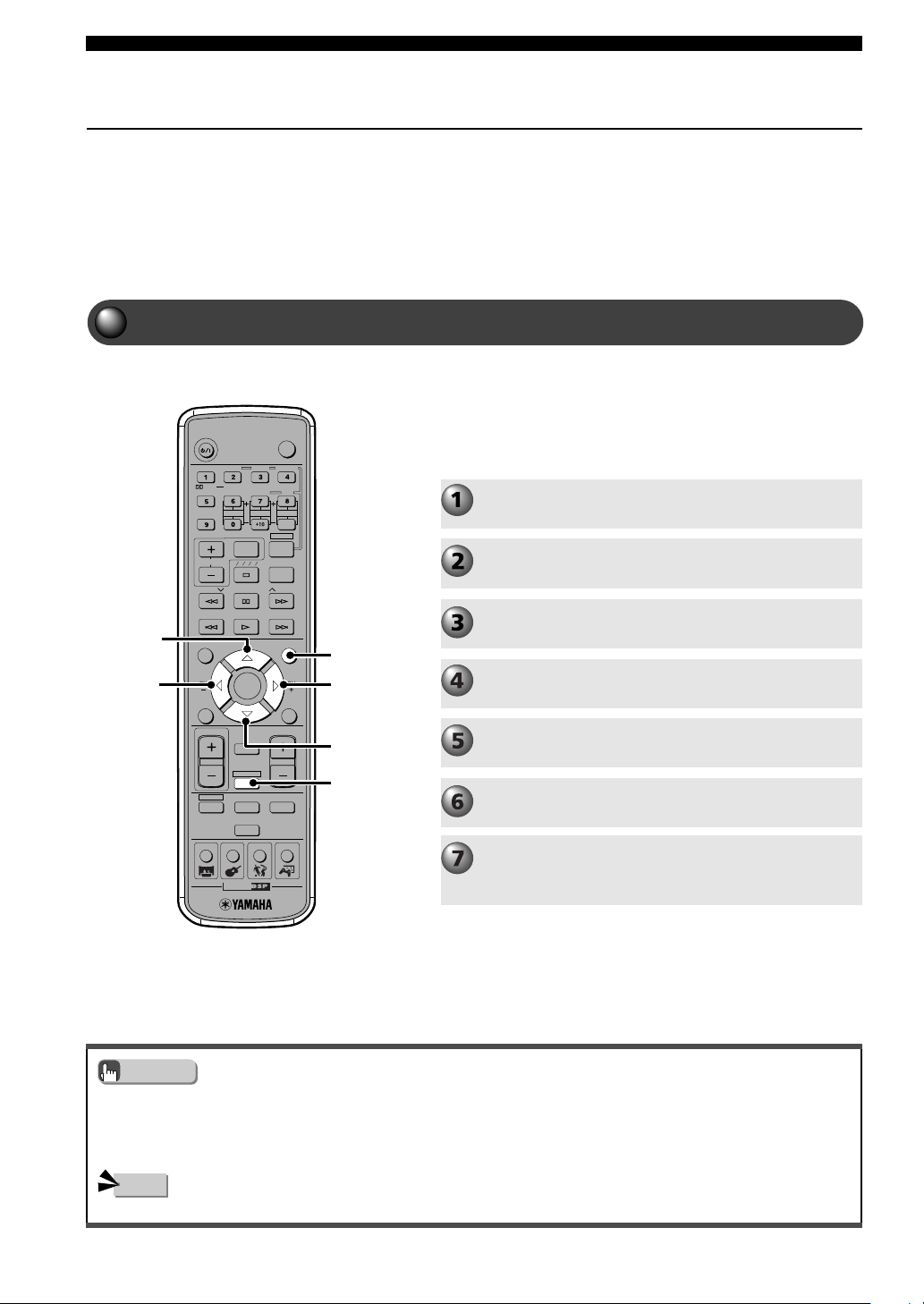
62
Creating the Best Listening Space
Setting the Speaker Size
TV
CH
CINEMA
CH
POWER
POWER
AUDIO
/
DTS
SELECT
NIGHT
SW
TV CH
TV INPUT
SLEEP
PRESET PRESET
A B C D E
CENTER
SURR
SHIFT
STEREOMATRIX 6.1
A-B
REPEAT
ANGLE
SUBTITLE
DVR-S120 WB56650
ON SCREEN MENU
TEST
RETURN
STATUS
TV VOL
VOLUME
MUTE
AMP
DVD/CD
VCR
VIDEO
TUNER
MOVIE MUSIC SPORTS GAME
SET MENU
ENTER
g
AMP
h
g
g
SET MENU
• Even if “* FRONT” is set to “SMALL”, when “* BASS” is set to “FRONT”, low tones below 90 Hz of the Front L/R channel
signal will output from the Front Speakers.
• If you select a sound field effect when “* SUR.” is set to “NON”, CinemaStation enters Virtual Cinema DSP mode.
• Settings made in Speaker mode are not reflected when connected to headphones.
To get the most out of the sound field effects, you need to use all 6 of the
supplied speakers (Front, Center, Surround and Subwoofer). But depending
on your listening objectives, you can turn off specified speakers.
When using any speaker other than YAMAHA Speaker Set NX-P120, you
need to specify the speaker size.
You can specify these settings in Speaker mode.
Setting the Speaker Mode
Specify the speaker to produce no sound by setting
“* CENTER”, “* SUR.” or “* BASS”.
When using other speakers, be sure to set the speaker
size, and depending on your listening objectives set the
Front Speaker level.
Press AMP.
Press SET MENU.
“* Speaker Set” appears.
Press w.
Press h or g to select item you want to set.
Press q or w to change the setting.
Repeat steps 4 and 5 to set the needed item.
When exiting the SET MENU, press SET MENU.
Pressing any one of the DSP Program buttons also exits
the SET MENU.
Note
Advice
• When a sampling digital signal over 48 kHz is input, some settings may not be reflected in the playback sound.
012DVX-S120-en 03.8.5, 1:47 PM62

63
Creating the Best Listening Space
Creating the Best Listening Space
* CENTER
Sets whether the Center Speaker is present or not, and
sets the size of the Center Speaker.
Selection items: LRG (Large), SML (Small), NON
(None)
Default setting: SML
LRG: Select this setting when using a big Center
Speaker. The entire frequency band of the center channel
signal is output as it is from the Center Speaker.
SML: Select this setting when using a small Center
Speaker. A center channel signal with a low tone of 90
Hz or below is output from the speaker set to * BASS.
NON: Select this setting when not using a Center
Speaker. The center channel signal distributes the same
volume level to the Front L/R Speakers.
* FRONT
Sets the size of the Front Speakers.
Selection items: LARGE, SMALL
Default setting: SMALL
LARGE: Select this setting when using big Front
Speakers. The entire frequency band of the front L/R
channel signal is output as it is from the Front Left and
Right Speakers.
SMALL: Select this setting when using small Front
Speakers. A front L/R channel signal with a low tone of
90 Hz or below is output from the speaker set to *
BASS.
* SUR.
Sets whether the Surround L/R Speakers are present or
not, and sets the size of the Surround L/R Speakers.
Selection items: LRG (Large), SML (Small), NON
(None)
Default setting: SML
LRG: Select this setting when using big Surround L/R
Speakers or when using Surround L/R Speakers with
surround subwoofers connected by speaker cables.
The entire frequency band of the surround L/R channel
signal is output as it is from the Surround Speakers.
SML: Select this setting when using small Surround L/R
Speakers. A surround L/R channel signal with a low tone
of 90 Hz or below is output from the speaker set to *
BASS.
NON: Select this setting when not using Surround L/R
Speakers. The surround L/R channel signal distributes
the same volume level to the Front L/R Speakers.
* BASS
Selects the speaker to output a LFE/BASS (low tone)
signal. LFE stands for Low Frequency Effect and it is
used to output bands of 90 Hz and below when Dolby
Digital or DTS is active.
Selection item: SWFR (Subwoofer), FRONT, BOTH
Default setting: SWFR
SWFR: Select this setting when using a Subwoofer.
The LFE and low tone (90 Hz and below) sound from
other channels, depending on * CENTER, * FRONT and
* SUR. settings, are output from the Subwoofer.
FRONT: Select this setting when not using a
Subwoofer. The LFE and low tone (90 Hz and below)
sound from other channels, depending on * CENTER, *
FRONT and * SUR. settings, are output from the Front
L/R Speakers.
BOTH: Select this item to mix a low tone of 90 Hz and
below with a LFE channel when using a Subwoofer and
independent of the Front Speaker Sound mode setting.
The entire frequency band of the front L/R channel is
output from both the Front L/R Speakers and Subwoofer.
Sound can output from the Subwoofer during 2-channel
or Dolby Surround playback.
* F. Level
Selects the Front Speaker level.
When the Front Speaker volume level is extremely high
and out of alignment with that of other speakers, you can
lower the volume level and regain a balance.
Selection items: Nrm (Normal), -10 dB
Default setting: Nrm
Nrm: Usually this setting is selected.
-10 dB: Use this setting if the output level of the Center
or Surround Speakers is out of alignment with the Front
Speakers. The volume level of the Front Speakers
decreases 10 dB (about 1/3).
English
012DVX-S120-en 03.8.5, 1:47 PM63
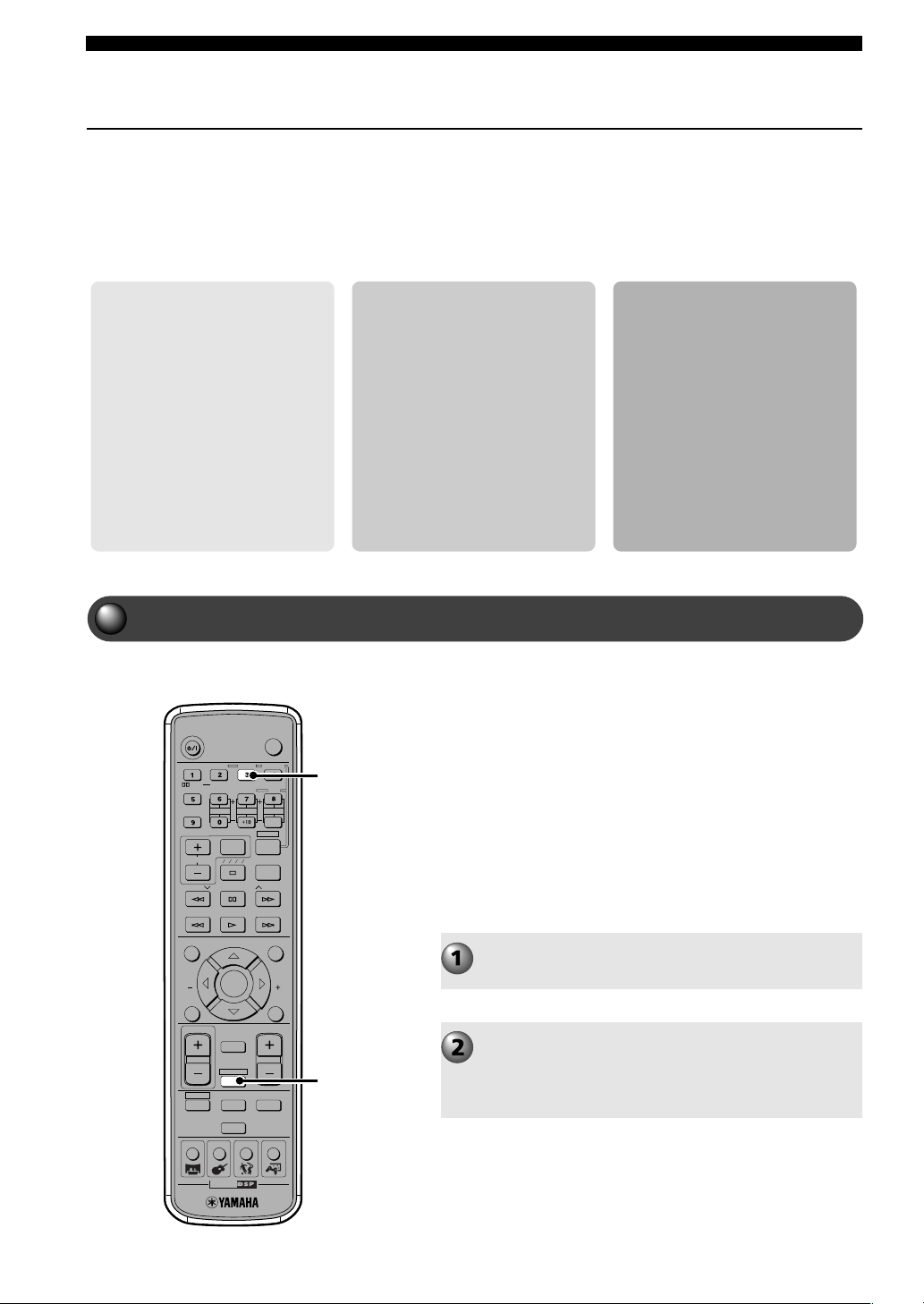
64
More Information about DSP (Surround) Effects
Selecting DSP Program Effects
To get the most out of CinemaStation, select a sound field based on how
many speakers you want to use and the listening environment.
Select a sound field based on
how many speakers you want
to have sound.
• For a 6-speaker plus surround
back speaker setup, see page 64,
“Using Matrix 6.1”.
• For a 6-speaker setup, see page
66, “Using All Speakers for CD
or Video playback”.
• For a 2-speaker setup, see page
68, “Using Front Speakers Only
for DSP Program (Virtual
Cinema DSP)”.
Select a sound field based on
your listening environment
• For headphones, see page 69,
“Using a DSP Program with
Headphones (SILENT
CINEMA)”.
• For evening enjoyment, see page
70, “Using a DSP Program with
Low Volume (Night Listening)”.
• For setting a DSP Program to
match your listening room, see
page 71, “Changing the Delay
Time of a DSP Program”.
Enjoy original Dolby and DTS
sound
• To listen to original Dolby or
DTS sound as it is, see page 73,
“Reproducing the Original
Dolby and DTS Sound”.
• To listen to stereo sound as it is,
see page 74, “Enjoying Stereo
Sound”.
Using Matrix 6.1
TV
CH
CINEMA
CH
POWER
POWER
AUDIO
/
DTS
SELECT
NIGHT
SW
TV CH
TV INPUT
SLEEP
PRESET PRESET
A B C D E
CENTER
SURR
SHIFT
STEREOMATRIX 6.1
A-B
REPEAT
ANGLE
SUBTITLE
DVR-S120 WB56650
ON SCREEN MENU
TEST
RETURN
STATUS
TV VOL
VOLUME
MUTE
AMP
DVD/CD
VCR
VIDEO
TUNER
MOVIE MUSIC SPORTS GAME
SET MENU
ENTER
AMP
MATRIX 6.1
Matrix 6.1 sound creates a realistic sense of sonic
movement with a surround back sound.
You can enjoy Dolby Digital plus Matrix 6.1 or DTS plus
Matrix 6.1 sound without adjusting any settings when you
play a Dolby Digital Surround EX or DTS ES disc.
In addition to Dolby Digital Surround EX or DTS ES discs,
you can also enjoy Matrix 6.1 sound with a 5.1 channel
source. Selecting Matrix 6.1 with the MATRIX 6.1 button
will enable the Dolby Digital plus Matrix 6.1 and DTS plus
Matrix 6.1 decoder. The surround L/R channel will produce
a surround back channel, making it possible to output
sound from a virtual surround back speaker.
Press AMP.
Press MATRIX 6.1 to set.
The display indicator switches in the following order each
time you press MATRIX 6.1 : AUTO (auto-recognition)
→ Matrix 6.1 (Matrix audio) → OFF → AUTO...
013DVX-S120-en 03.8.5, 1:47 PM64
65
More Information about DSP (Surround) Effects
More Information about DSP (Surround) Effects
• When the Matrix 6.1 decoder is working, the MATRIX indicator lights up in the CinemaStation Display. 6.1 appears beside the
DSP Program name (For example: Action 6.1). Matrix 6.1 appears with Dolby Digital and DTS sound fields.
• Some Dolby Digital Surround EX or DTS ES discs do not contain a signal (flag) that CinemaStation can use for auto
recognition. To play this type of disc with 6.1-channel sound, press MATRIX 6.1 to select Matrix 6.1.
• In the cases below, 6.1-channel sound cannot play even if you press MATRIX 6.1.
–If “* SUR.” is set to “NON” in the SET MENU.
–If sound effect is set to off (Stereo Playback).
–If headphones are connected.
–If a Dolby Digital KARAOKE source is playing.
–If you select 5ch Stereo DSP Program.
• If you turn on the power once more after CinemaStation goes into standby, Matrix 6.1 returns to AUTO.
AUTO: Depending on whether the source is Dolby
or DTS, automatically switches between
Dolby Digital plus Matrix 6.1 and DTS plus
Matrix 6.1 audio. Even if you play a 5.1
channel source with this setting, no virtual
surround back speaker is created.
MATRIX 6.1: Select this item to play a 5.1 channel source
with Matrix 6.1. Sound outputs from the
virtual surround back speaker.
OFF: The Matrix 6.1 decoder is not enabled. Even
if you play a Dolby Digital Surround EX or
DTS ES disc, no sound outputs from the
virtual surround back speaker.
Advice
Note
English
013DVX-S120-en 03.8.5, 1:47 PM65
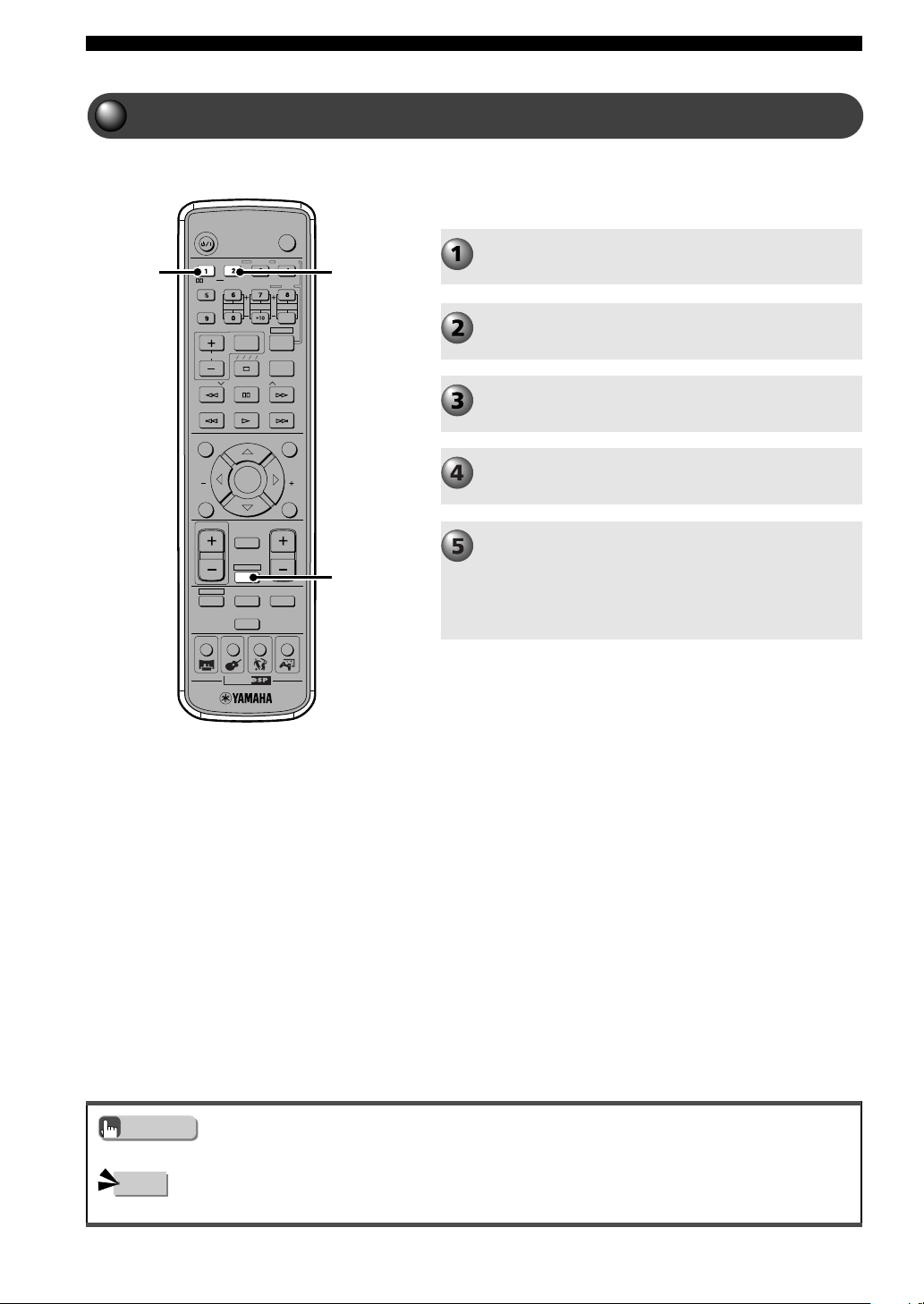
66
More Information about DSP (Surround) Effects
Using All Speakers for CD or Video playback
TV
CH
CINEMA
CH
POWER
POWER
AUDIO
/
DTS
SELECT
NIGHT
SW
TV CH
TV INPUT
SLEEP
PRESET PRESET
A B C D E
CENTER
SURR
SHIFT
STEREOMATRIX 6.1
A-B
REPEAT
ANGLE
SUBTITLE
DVR-S120 WB56650
ON SCREEN MENU
TEST
RETURN
S TATU S
TV VOL
VOLUME
MUTE
AMP
DVD/CD
VCR
VIDEO
TUNER
MOVIE MUSIC SPORTS GAME
SET MENU
ENTER
AMP
SELECT
q/DTS
• You can also press the DSP button on CinemaStation to select “PRO LOGIC II Movie” or “PRO LOGIC II Music”.
• Even if you play back a monaural source with Dolby Pro Logic II, CinemaStation cannot reproduce multi-channel sound.
Selecting Dolby Pro Logic II converts a 2-channel source
into virtual multi-channels for enjoying sound using all
speakers.
Play the 2-channel source.
Press AMP.
Press q/DTS.
Press SELECT repeatedly to select “PRO LOGIC
II”.
Press q/DTS to select “PRO LOGIC II Movie” or
“PRO LOGIC II Music”.
Each time the button is pressed the selection switches
between “PRO LOGIC II Movie” and “PRO LOGIC II
Music”. Match your source with the appropriate selection
item, Movie or Music.
Advice
Note
013DVX-S120-en 03.8.5, 1:47 PM66
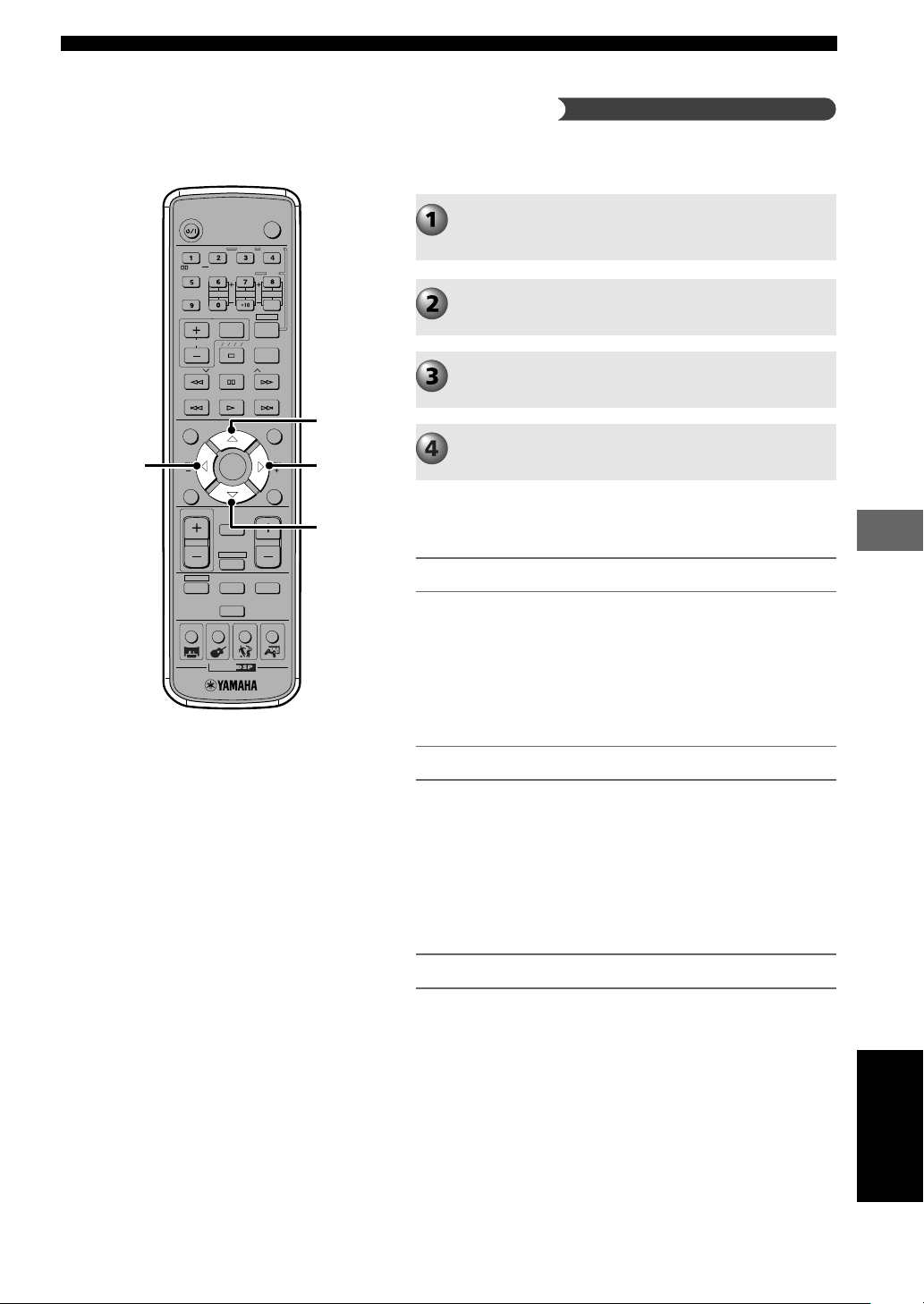
67
More Information about DSP (Surround) Effects
More Information about DSP (Surround) Effects
TV
CH
CINEMA
CH
POWER
POWER
AUDIO
/
DTS
SELECT
NIGHT
SW
TV CH
TV INPUT
SLEEP
PRESET PRESET
A B C D E
CENTER
SURR
SHIFT
STEREOMATRIX 6.1
A-B
REPEAT
ANGLE
SUBTITLE
DVR-S120 WB56650
ON SCREEN MENU
TEST
RETURN
STATUS
TV VOL
VOLUME
MUTE
AMP
DVD/CD
VCR
VIDEO
TUNER
MOVIE MUSIC SPORTS GAME
SET MENU
ENTER
g
h
g
g
Below are the “Pro Logic II Music” setting values
(parameters).
PANORAMA
Gives front L/R channel sound a wraparound effect, distributed
throughout the entire surround sound field, for an expansive
feeling.
Function: Expands the front sound field of Dolby Pro Logic II.
Selection item: OFF/ON
Default setting: OFF
DIM. (Dimension)
Adjusts the difference in volume between front and surround
channels to the volume balance you desire.
Function: Adjusts the difference between front surround sound
field and surround volume.
Variable range: -3 (stronger toward the surround direction) to
+3 (stronger toward the front direction).
Default setting: STD (Standard)
CT WIDTH
Distributes the center channel sound to the left and right.
Function: Expands audio from the front sound field to the left
and right.
Variable range: 0 to 7.
If set to 0 center channel sound will only output from Center
Speaker. As the value rises center channel sound is incrementally
distributed to the L/R Speakers. When set to 7, sound will only
output from the L/R Speakers.
Default setting: 3
You can change the settings (parameters) for Dolby Pro Logic II
Music and adjust the sound field to match your listening space.
Perform steps 1 to 5 in “Using All Speakers for
CD or Video playback” on page 66, and select
“PRO LOGIC II Music”.
Press h or g repeatedly to select “PANORAMA”,
“DIM.” or “CT WIDTH”.
Press q or w to change the setting value.
Repeat steps 2 and 3 if you want to change other
setting values.
Change the Dolby Pro Logic II Music setting
English
013DVX-S120-en 03.8.5, 1:48 PM67
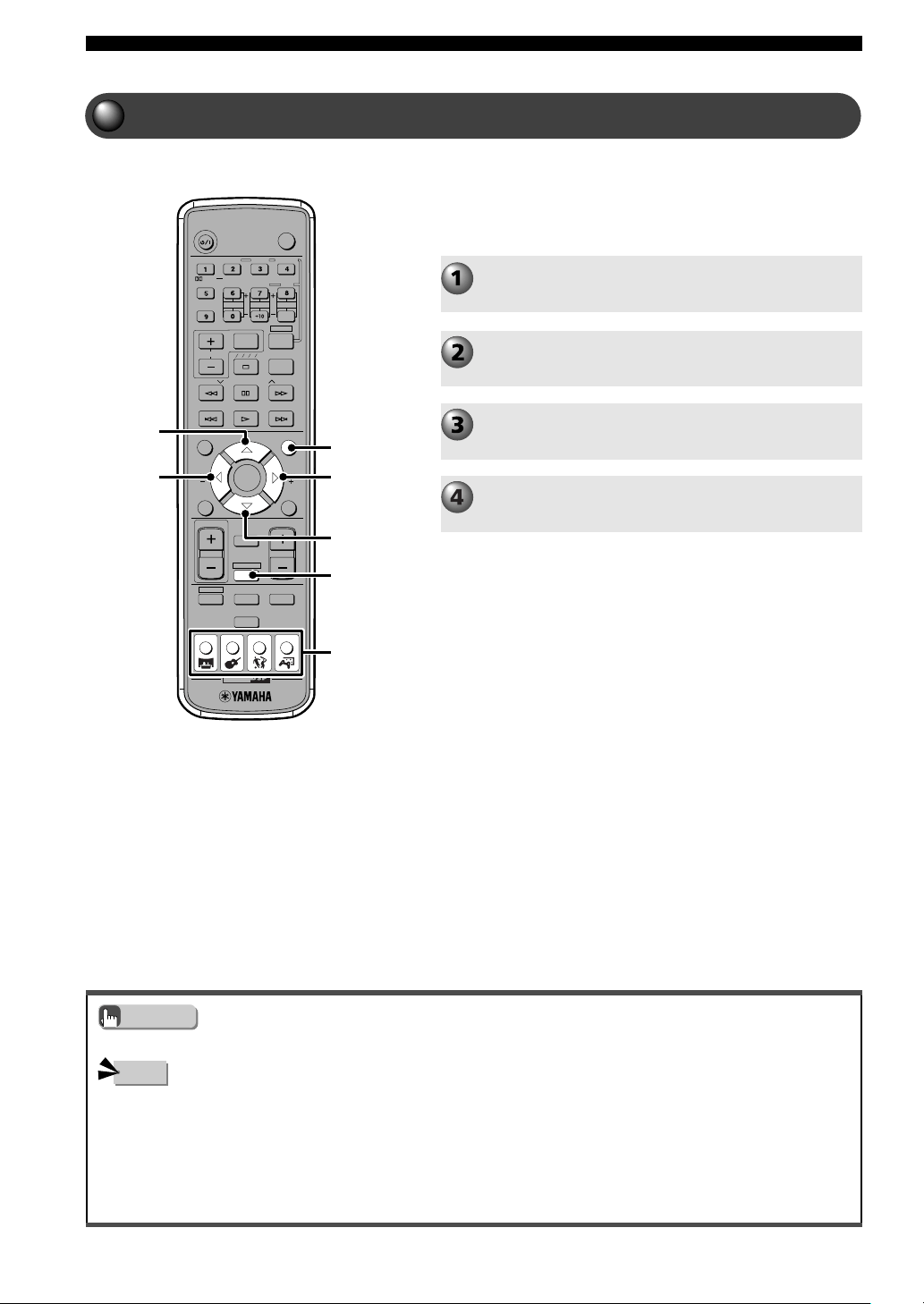
68
More Information about DSP (Surround) Effects
Using Front Speakers Only for DSP Program (Virtual Cinema DSP)
TV
CH
CINEMA
CH
POWER
POWER
AUDIO
/
DTS
SELECT
NIGHT
SW
TV CH
TV INPUT
SLEEP
PRESET PRESET
A B C D E
CENTER
SURR
SHIFT
STEREOMATRIX 6.1
A-B
REPEAT
ANGLE
SUBTITLE
DVR-S120 WB56650
ON SCREEN MENU
TEST
RETURN
STATUS
TV VOL
VOLUME
MUTE
AMP
DVD/CD
VCR
VIDEO
TUNER
MOVIE MUSIC SPORTS GAME
SET MENU
ENTER
AMP
SET MENU
g
h
g
g
• For Virtual Cinema DSP, the VIRTUAL indicator lights up in the CinemaStation Display.
In the cases below, even if “* SUR.” is set to “NON” in the SET MENU, Virtual Cinema DSP does not function.
• When you select the following DSP Programs: 5ch Stereo; PL Normal; Dolby Digital or DTS Normal; PL II Movie or PL II
Music.
• When sound field effects are off (Stereo Playback).
• When a digital audio sampling frequency over 48 kHz is input.
• When using a test tone.
• When listening through headphones.
Since Virtual Cinema DSP processes the sound input
source, you can virtually reproduce surround speakers,
and enjoy a DSP Program with only your Front L/R
Speakers.
Play the source.
Press AMP.
Select a DSP Program.
Set “* SUR.” to “NON” in the SET MENU. See
page 62, “Setting the Speaker Mode”.
Advice
Note
DSP Program buttons
013DVX-S120-en 03.8.5, 1:48 PM68
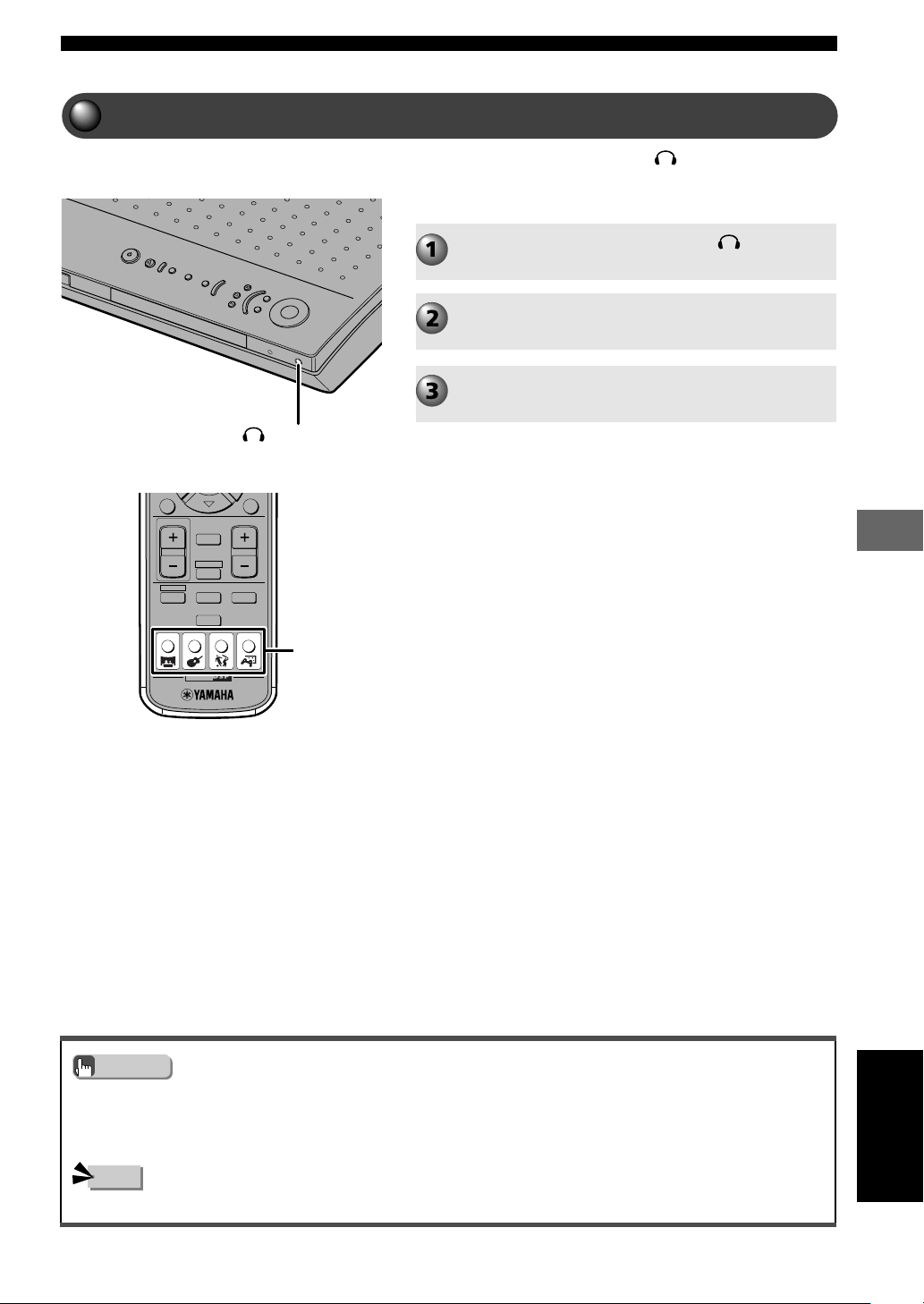
69
More Information about DSP (Surround) Effects
More Information about DSP (Surround) Effects
CINEMA
TEST
RETURN
STATUS
TV VOL
VOLUME
MUTE
AMP
DVD/CD
VCR
VIDEO
TUNER
MOVIE MUSIC SPORTS GAME
• When SILENT CINEMA is on, the SILENT CINEMA indicator lights up in the CinemaStation Display.
• CinemaStation mixes LFE channel audio and other channel audio.
• When headphones are connected, sound does not output from any speaker regardless of whether sound field effect is on or off.
• When you do not select any DSP Program, the headphone produces normal stereo sound.
• If CinemaStation inputs a digital audio sampling frequency over 48 kHz, SILENT CINEMA does not function.
Connect your headphones to the (phones) jack on
CinemaStation and enjoy multi-speaker simulation called
SILENT CINEMA.
Using a DSP Program with Headphones (SILENT CINEMA)
Connect your headphones to the (phones)
jack on CinemaStation.
Play the source.
Select a DSP Program.
Advice
Note
DSP Program buttons
English
(phones) jack
013DVX-S120-en 03.8.5, 1:48 PM69
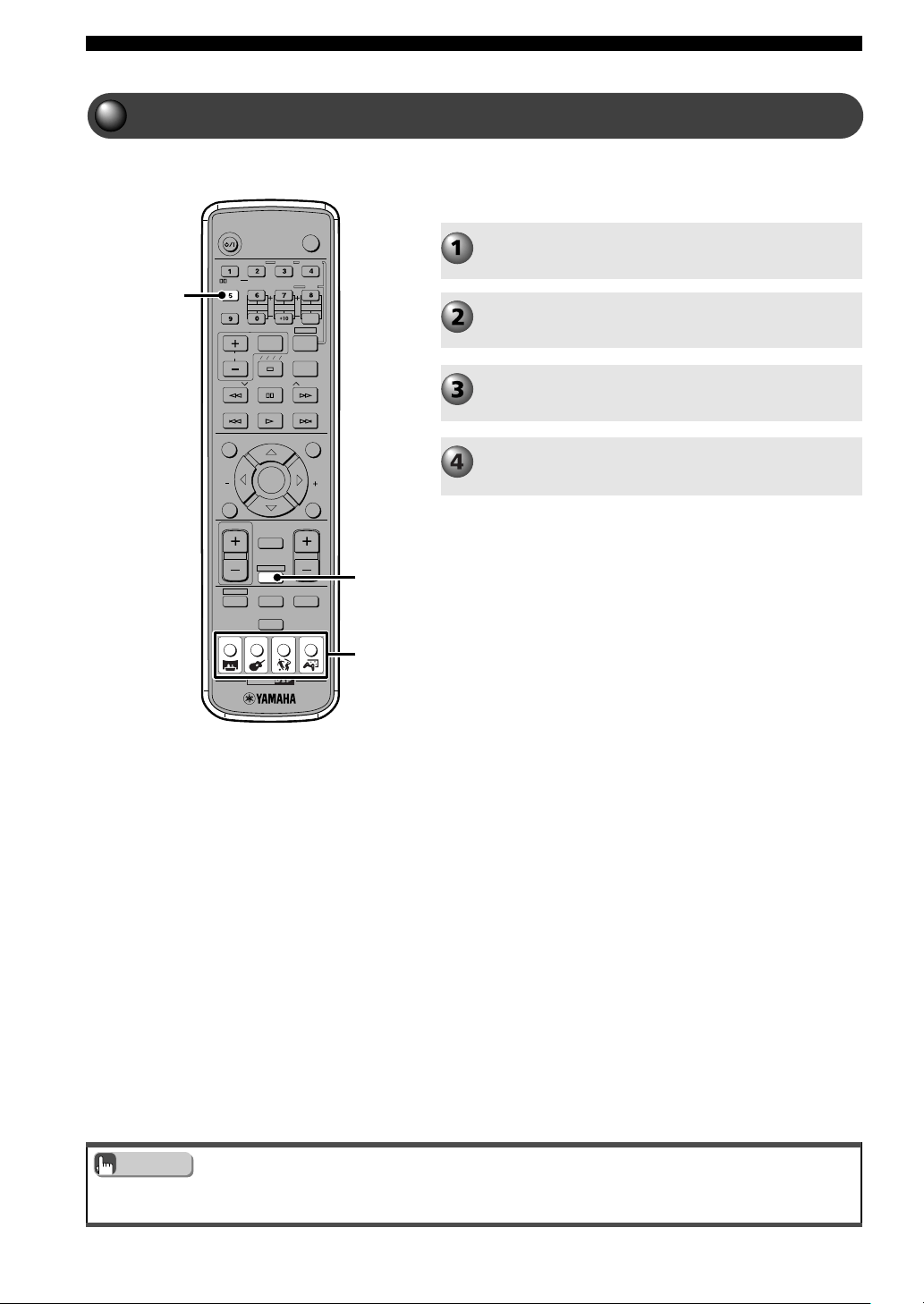
70
More Information about DSP (Surround) Effects
TV
CH
CINEMA
CH
POWER
POWER
AUDIO
/
DTS
SELECT
NIGHT
SW
TV CH
TV INPUT
SLEEP
PRESET PRESET
A B C D E
CENTER
SURR
SHIFT
STEREOMATRIX 6.1
A-B
REPEAT
ANGLE
SUBTITLE
DVR-S120 WB56650
ON SCREEN MENU
TEST
RETURN
STATUS
TV VOL
VOLUME
MUTE
AMP
DVD/CD
VCR
VIDEO
TUNER
MOVIE MUSIC SPORTS GAME
SET MENU
ENTER
AMP
NIGHT
• All DSP Programs are available in Night Listening mode.
• Night Listening mode does not work when listening through headphones.
You can control the big sound effects and focus on
listening clearly to speech. Enjoy a DSP Program even in
the evening at a low volume.
Using a DSP Program with Low Volume (Night Listening)
Play the source.
Press AMP.
Select a DSP Program.
Press NIGHT to activate Night Listening mode.
“Night L. ON” appears in the CinemaStation Display.
To return to normal play
Press NIGHT to deactivate Night Listening mode. “Night L.
OFF” appears in the CinemaStation Display.
Advice
DSP Program
buttons
013DVX-S120-en 03.8.5, 1:48 PM70
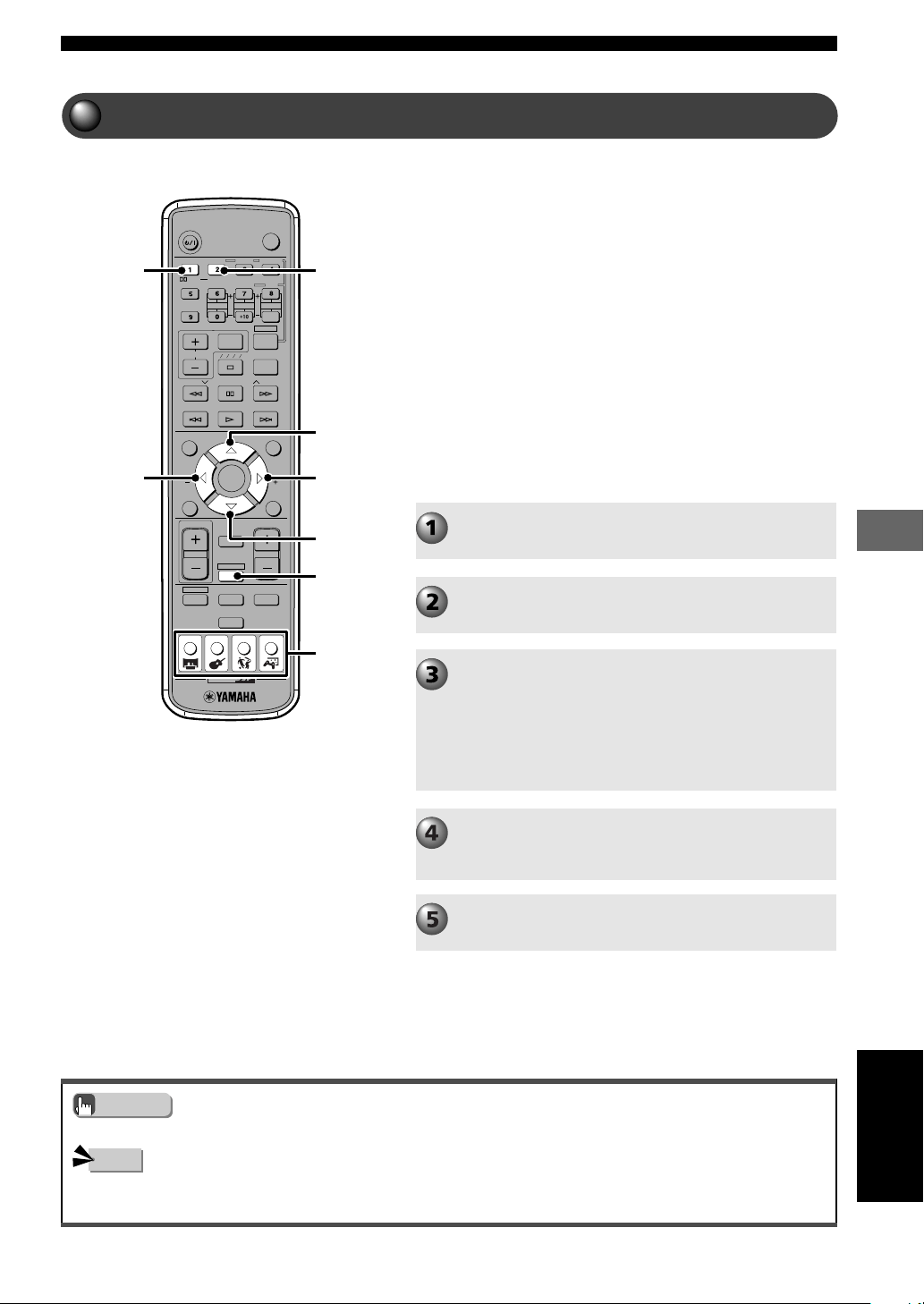
71
More Information about DSP (Surround) Effects
More Information about DSP (Surround) Effects
Changing the Delay Time of a DSP Program
TV
CH
CINEMA
CH
POWER
POWER
AUDIO
/
DTS
SELECT
NIGHT
SW
TV CH
TV INPUT
SLEEP
PRESET PRESET
A B C D E
CENTER
SURR
SHIFT
STEREOMATRIX 6.1
A-B
REPEAT
ANGLE
SUBTITLE
DVR-S120 WB56650
ON SCREEN MENU
TEST
RETURN
STATUS
TV VOL
VOLUME
MUTE
AMP
DVD/CD
VCR
VIDEO
TUNER
MOVIE MUSIC SPORTS GAME
SET MENU
ENTER
AMP
SELECT
q/DTS
g
h
g
g
• You can also adjust the Delay Time of Matrix 6.1 DSP Program.
• Depending on the source it is possible to over or under adjust the Delay Time and create an unnatural sound effect.
• While adjusting the Delay Time, you hear no sound temporarily.
Each DSP Program is designed to draw out the maximum
effect from the source audio. CinemaStation provides the
DSP Programs with optimum value of parameters including
reflected sound, reverberant sound and Delay Time.
Among these parameters, you can change the Delay Time
to match to your Speaker positions.
Delay Time is the time gap in playback between front
speaker audio and surround speaker audio. The bigger the
value becomes the later the surround audio plays back,
and the bigger the sound space feels.
Delay Time is preset at an optimum value for each DSP
Program. In most cases, the default value will work well for
your listening enjoyment. But depending on the audio
source or listening environment, you can adjust each DSP
Program the way you like.
Play the source.
Press AMP.
Select a DSP Program.
To select a Movie, Music, Sports, or Game DSP Program,
press the appropriate DSP Program button (MOVIE,
MUSIC, SPORTS or GAME).
To select a Dolby Digital, Dolby Pro Logic or DTS, after
pressing q/DTS, repeatedly press SELECT until you
come to the item you want.
Press h or g.
The DELAY indicator appears in the CinemaStation
Display.
Press q or w to adjust the Delay Time.
Advice
Note
DSP
Program
buttons
English
013DVX-S120-en 03.8.5, 1:48 PM71
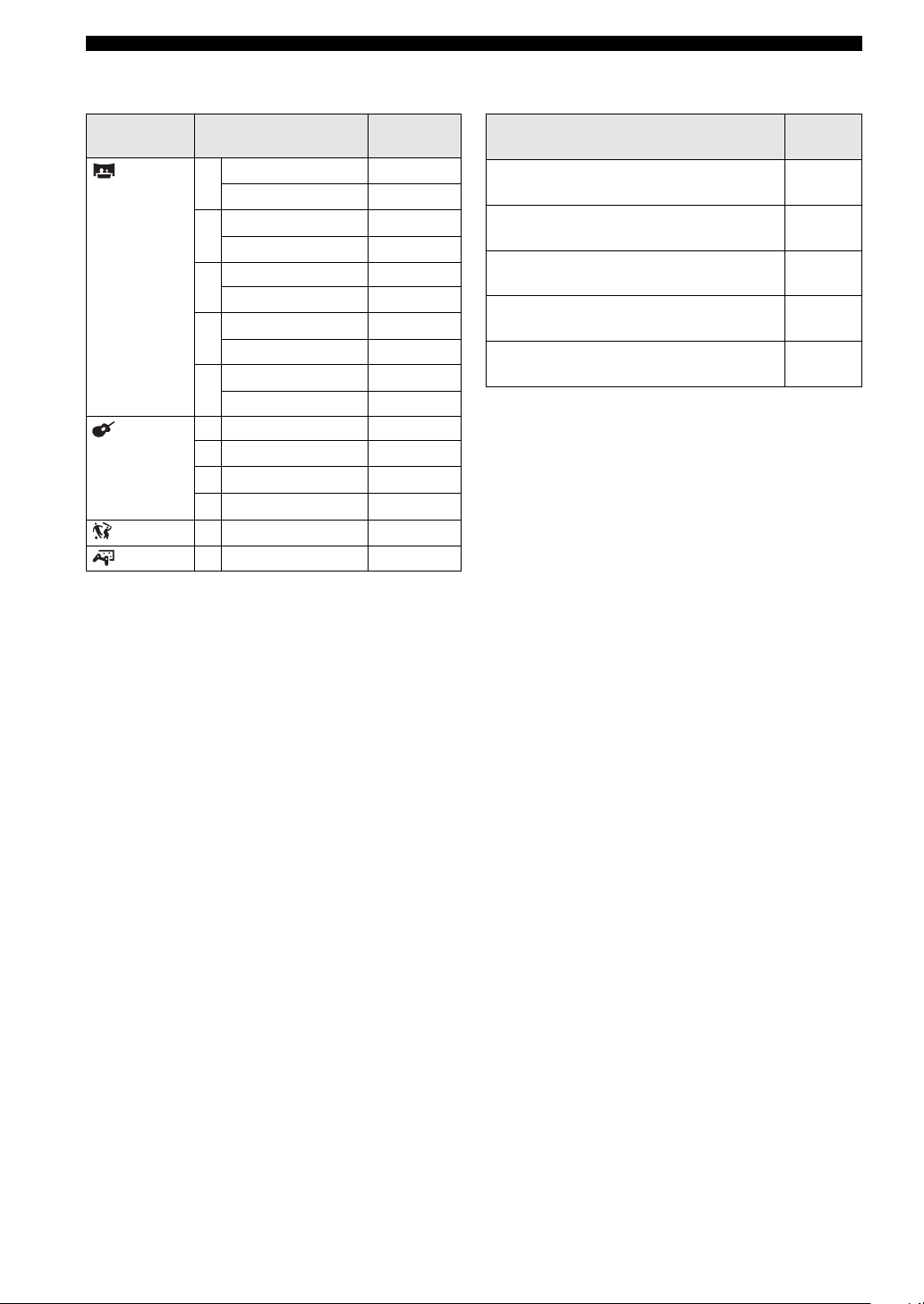
72
More Information about DSP (Surround) Effects
Program
Program Name
Default Setting
Group (ms)
MOVIE
1
Action 20
Action 6.1 15
2
Drama 20
Drama 6.1 15
3
Sci-Fi 20
Sci-Fi 6.1 15
4
Spectacle 23
Spectacle 6.1 15
5
Theater 20
Theater 6.1 5
MUSIC 1 Music Video 21
2 Classic Hall 30
3 Jazz Club 30
4 Rock Concert 15
SPORTS 1 Live Sports 10
GAME 1 Game 36
Program Name
Default Setting
(ms)
PL Normal
(Dolby Pro Logic)
15
Normal
(Dolby Digital, DTS)
5
Matrix 6.1
(Dolby Digital, DTS)
5
PL
II Movie
(Dolby Pro Logic II Movie)
15
PL
II Music
(Dolby Pro Logic II Music)
5
Default values for Delay Time
Dolby Digital, Dolby Pro Logic and DTS
013DVX-S120-en 03.8.5, 1:48 PM72
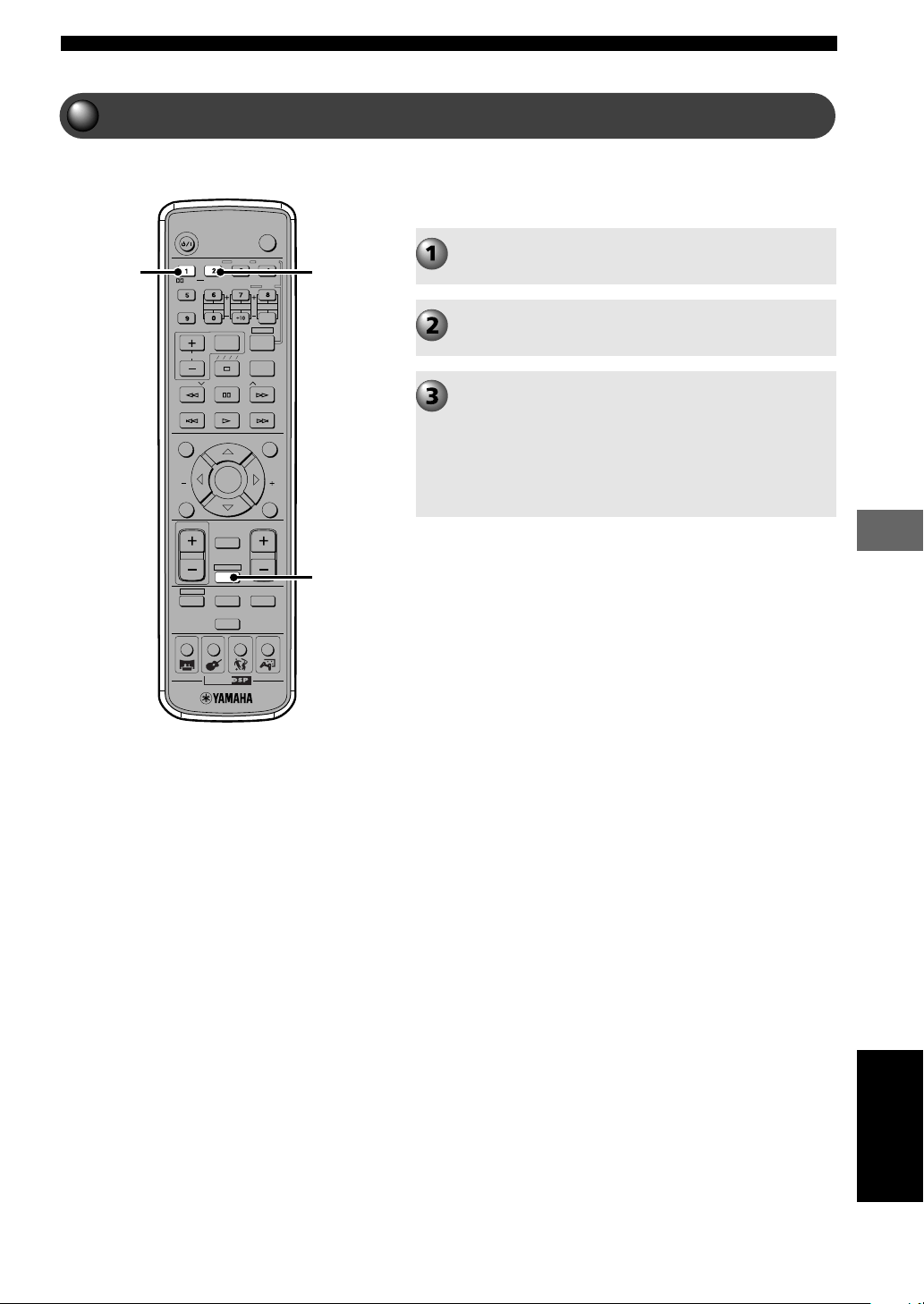
73
More Information about DSP (Surround) Effects
More Information about DSP (Surround) Effects
Reproducing the Original Dolby and DTS Sound
TV
CH
CINEMA
CH
POWER
POWER
AUDIO
/
DTS
SELECT
NIGHT
SW
TV CH
TV INPUT
SLEEP
PRESET PRESET
A B C D E
CENTER
SURR
SHIFT
STEREOMATRIX 6.1
A-B
REPEAT
ANGLE
SUBTITLE
DVR-S120 WB56650
ON SCREEN MENU
TEST
RETURN
STATUS
TV VOL
VOLUME
MUTE
AMP
DVD/CD
VCR
VIDEO
TUNER
MOVIE MUSIC SPORTS GAME
SET MENU
ENTER
AMP
SELECT
q/DTS
You can play back and enjoy movie sound processed with
Dolby Digital, Dolby Pro Logic or DTS. Enjoy smooth,
precise and flowing audio of the original sound design.
English
Play the source.
Press AMP.
Press q/DTS.
The suitable Program is selected depending on the input
source.
Dolby Digital: Normal appears, and qindicator lights up.
DTS: Normal appears, and t indicator lights up.
When the 2-channel source (Dolby Pro Logic II) is
selected, press SELECT to select PL Normal.
013DVX-S120-en 03.8.5, 1:48 PM73
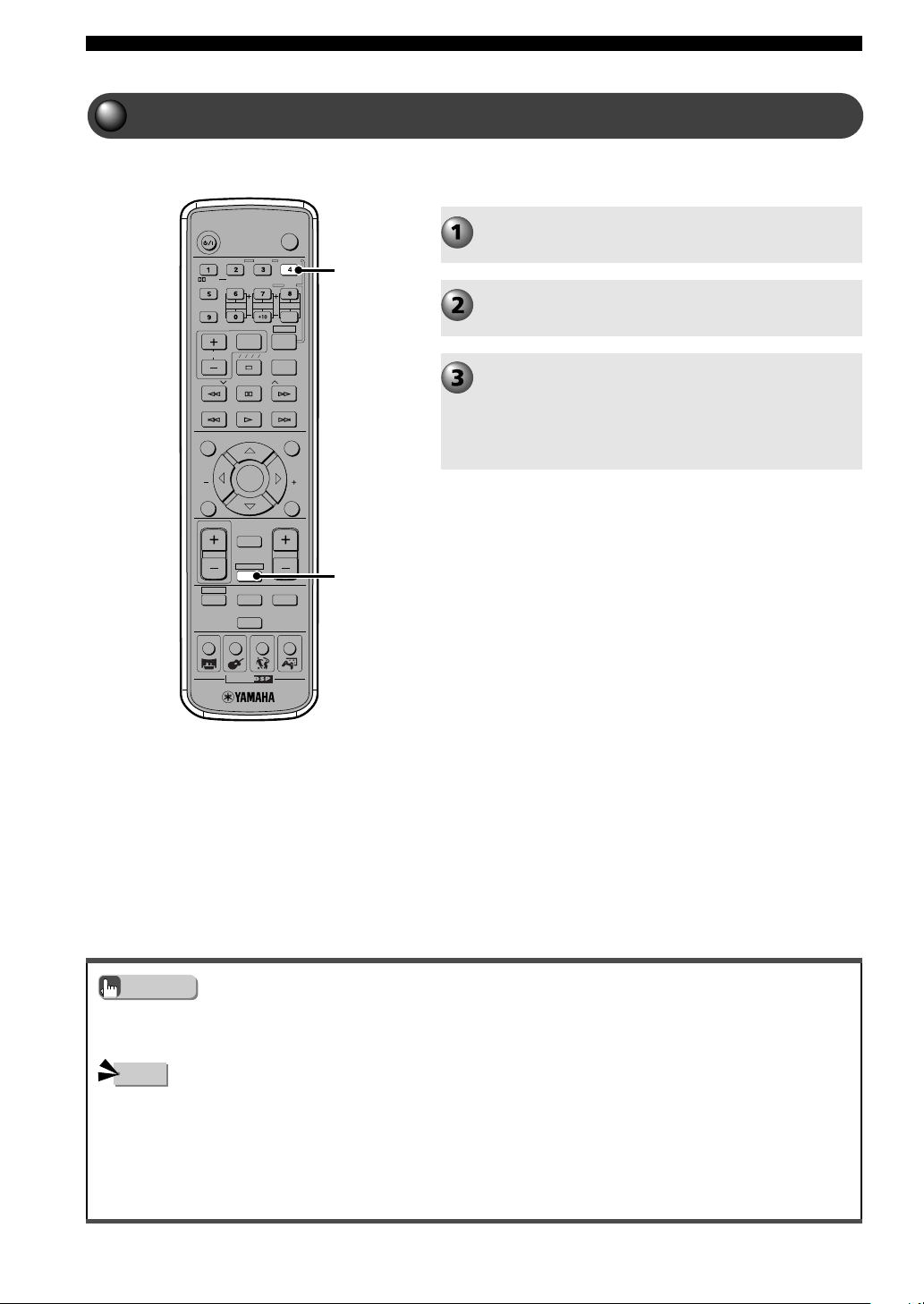
74
More Information about DSP (Surround) Effects
Reproducing Stereo Sound
TV
CH
CINEMA
CH
POWER
POWER
AUDIO
/
DTS
SELECT
NIGHT
SW
TV CH
TV INPUT
SLEEP
PRESET PRESET
A B C D E
CENTER
SURR
SHIFT
STEREOMATRIX 6.1
A-B
REPEAT
ANGLE
SUBTITLE
DVR-S120 WB56650
ON SCREEN MENU
TEST
RETURN
STATUS
TV VOL
VOLUME
MUTE
AMP
DVD/CD
VCR
VIDEO
TUNER
MOVIE MUSIC SPORTS GAME
SET MENU
ENTER
AMP
STEREO
• An LFE channel can be output from the Front L/R Speakers or Subwoofer depending on how you set “* BASS” in the SET
MENU.
• If “* BASS” in the SET MENU is set to “BOTH” or “* FRONT” is set to “SML”, a low tone is output from the Subwoofer.
• If sound field effects are off, no sound will output from the Center Speaker or Surround L/R Speakers.
• The volume may become very low if you turn off sound field effects and set “* D. Range” to “MIN” in the SET MENU. In this
case, turn on sound field effects.
• If sound field effects are off and you play Dolby Digital or DTS audio, the volume balance of the Front L/R Speakers may be
disturbed. This is because the dynamic range becomes compressed and the channel sound set in “* Speaker Set” in the SET
MENU mixes and outputs with the front L/R channel sound.
Play the source.
Press AMP.
Press STEREO.
The STEREO indicator lights up in the CinemaStation
Display.
If sound field effects are off, you will have normal stereo
playback. Press STEREO once more to turn on the sound
field effect.
Advice
Note
You can enjoy the 2-channel (stereo sound) source only
with the Front L/R Speakers.
013DVX-S120-en 03.8.5, 1:48 PM74
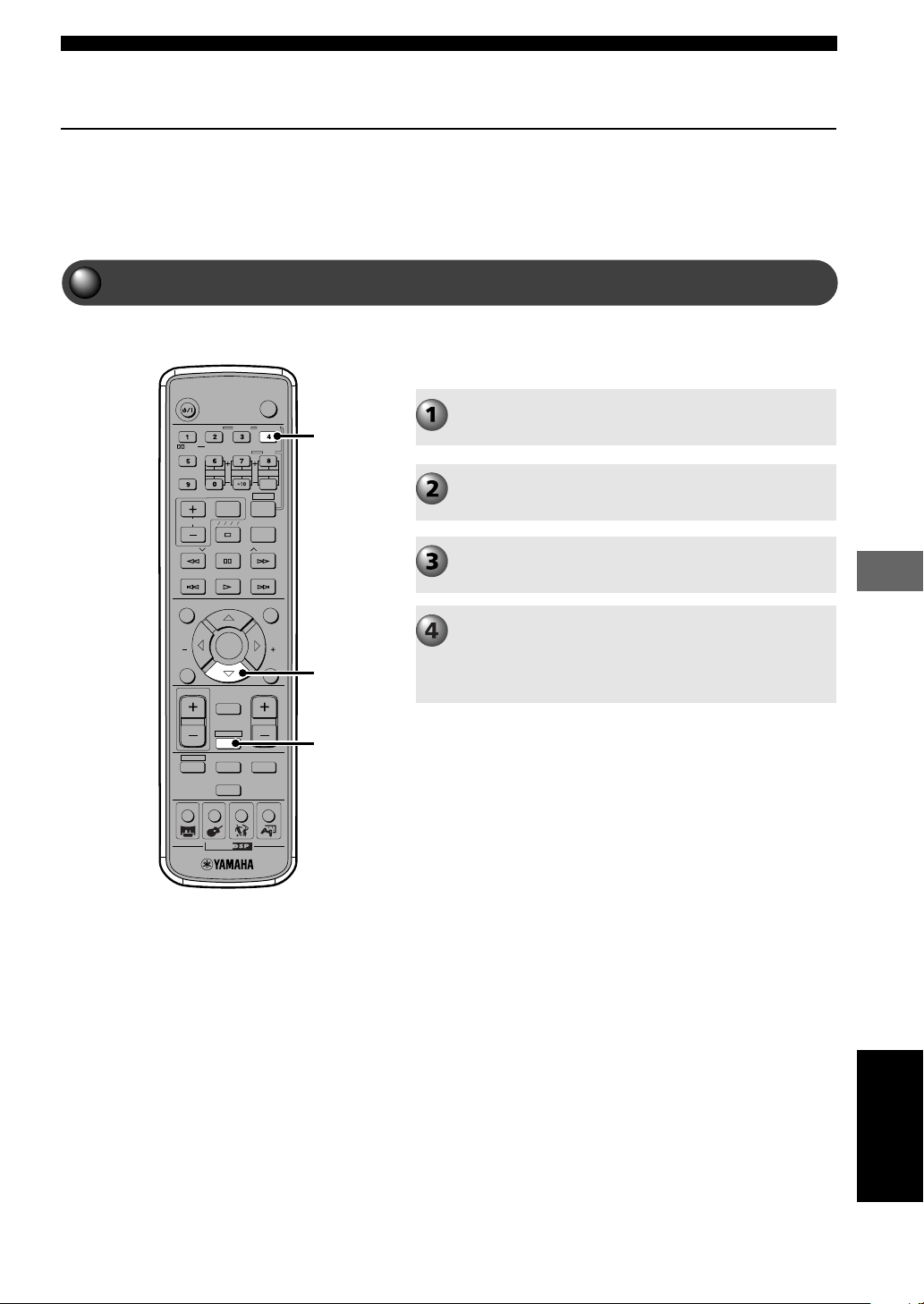
Types of Input Signals
75
Types of Input Signals
Types of Input Signals
You can check the type of input signal and format from the CinemaStation
Display.
You can also set the input mode to select the digital/analog entry sequence
or to only input a specified signal.
TV
CH
CINEMA
CH
POWER
POWER
AUDIO
/
DTS
SELECT
NIGHT
SW
TV CH
TV INPUT
SLEEP
PRESET PRESET
A B C D E
CENTER
SURR
SHIFT
STEREOMATRIX 6.1
A-B
REPEAT
ANGLE
SUBTITLE
DVR-S120 WB56650
ON SCREEN MENU
TEST
RETURN
STATUS
TV VOL
VOLUME
MUTE
AMP
DVD/CD
VCR
VIDEO
TUNER
MOVIE MUSIC SPORTS GAME
SET MENU
ENTER
AMP
STEREO
g
Checking Sound Information (Input Signal Information Display)
During playback, you can show input signal type, format
and sampling frequency information in the CinemaStation
Display.
Play the source.
Press AMP.
Press STEREO.
Stereo playback begins.
Press g.
Input signal information appears.
Depending on the input source, input signal information
changes each time you press g.
English
014DVX-S120-en 03.8.5, 1:48 PM75
Types of Input Signals
76
Note on digital signals that exceed 48 kHz
CinemaStation’s digital input jack can input a sampling
frequency up to 96 kHz. For details read the owner’s
manual of the device connected to the digital input jack.
Keep in mind the points below when inputting a digital
signal that exceeds 48 kHz.
• DSP Programs are not selectable. You can only listen to
normal 2-channel stereo from the Front Speakers.
• During playback, you cannot adjust the volume level of
Center and Surround L/R Speakers.
• Depending on the “* Speaker Set” setting in the SET
MENU, the Subwoofer may output sound.
Input signal information
■ (Format)
Shows the input signal format. When the digital input
cannot be recognized, the mode is set to analog.
Input Signal Format Display
Analog Audio Analog
PCM Audio PCM
Dolby Digital Audio Dolby DGTL
DTS Audio DTS
Other Digital Signals Unknwn DGTL
■ (Audio Channels)
Shows the number of audio channels an input signal
contains (only when Dolby Digital or DTS is input).
For example, “in: 3/2/LFE” indicates 3 Front Channels,
2 Surround Channels and LFE.
“1+1” indicates Main + Sub in bilingual broadcasts or
other 2 channel audio, and MLT indicates 3-channel or
more multi-channel audio.
■ fs
Shows the frequency sampling of an input signal (only
when digital signal is input). If the sampling frequency
cannot be measured, “unknown” appears.
■ rate (bit rate)
Shows the amount of data an input signal contains per
second (only Dolby Digital and DTS). If the bit rate
cannot be measured, “unknown” appears.
■ flg (flag)
Shows a recognition signal (flag), in an input signal and
initiates an action (only Dolby Digital and DTS). If the
flag cannot be recognized, “None” appears.
014DVX-S120-en 03.8.5, 1:48 PM76
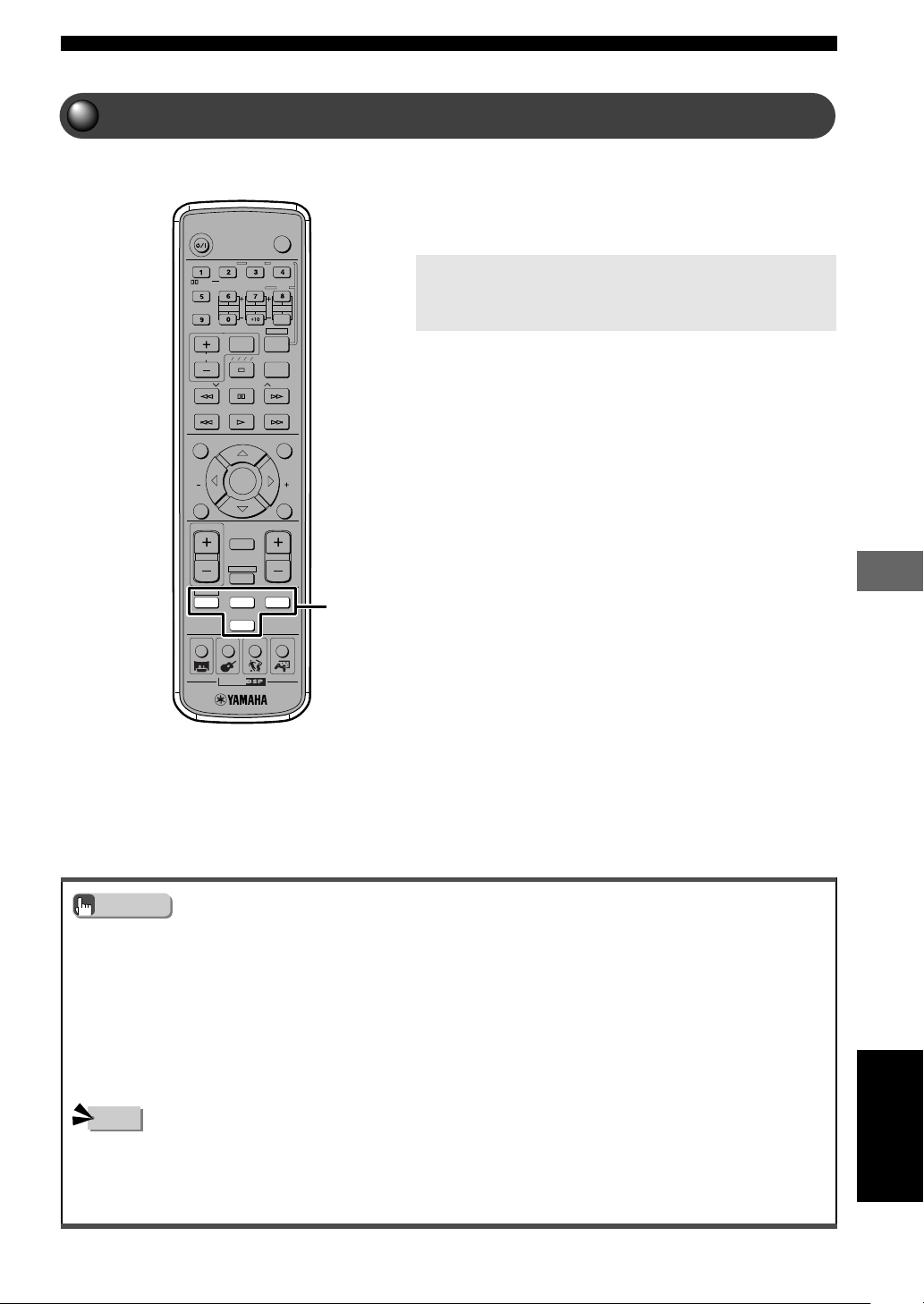
Types of Input Signals
77
Types of Input Signals
Switching Input Modes
TV
CH
CINEMA
CH
POWER
POWER
AUDIO
/
DTS
SELECT
NIGHT
SW
TV CH
TV INPUT
SLEEP
PRESET PRESET
A B C D E
CENTER
SURR
SHIFT
STEREOMATRIX 6.1
A-B
REPEAT
ANGLE
SUBTITLE
DVR-S120 WB56650
ON SCREEN MENU
TEST
RETURN
STATUS
TV VOL
VOLUME
MUTE
AMP
DVD/CD
VCR
VIDEO
TUNER
MOVIE MUSIC SPORTS GAME
SET MENU
ENTER
• It is possible to switch Input mode even if you press INPUT on CinemaStation for more than one second.
• When Input mode is set to AUTO and a Dolby Digital or DTS signal is input, the most suitable decoder is automatically
selected.
• The following happens when set to Input mode and DTS is played:
— CinemaStation detects the DTS signal and automatically switch to DTS mode (t indicator lights up). Once DTS audio
finishes playback, the t indicator may blink, and while it blinks only DTS audio can be played back. Immediately after
DTS audio finishes playback, if you want to play normal PCM audio, reset the Input mode to AUTO.
— If the DTS signal is interrupted when you perform Search or Skip, the t indicator may blink. If this condition continues
for over 30 seconds, the Input mode automatically changes from DTS to normal digital (PCM) and the t goes out.
• Using “* Input Mode” in the SET MENU you can set whether to use the Input mode specified previously when CinemaStation
was turned on or return to AUTO.
• It is not possible to select ANLG with the DVD/CD Input Selection button.
• You cannot switch input modes when the input jack you select with the Input Selection button can only input an analog input
signal.
• To play back DTS, set the Input mode to AUTO or DTS. Do not set it to ANLG. If you do, audio may not output or you may
hear noise.
You can playback most sources without a problem with
the AUTO setting (factory default setting). Then depending
on your needs, you can select the priority level for digital
and analog input signals, and specify formats such as
DTS.
Press the Input Selection button for current input
source until the desired input mode appears in the
CinemaStation Display.
AUTO: Input signal can be selected in the order below.
1) Digital signal
2) Analog signal
DTS: Only DTS can be played.
ANLG: Only analog signal can be played.
Learning about input modes, jacks and Input Selection
buttons
CinemaStation can receive signals from the VIDEO (analog),
VCR (analog) and OPTICAL (digital) jacks of equipment that
is connected to it. You can assign a VIDEO or VCR input name
to the OPTICAL IN jack. This will allow you to use the VIDEO
button or VCR button to input a device connected to the
OPTICAL IN jack (VIDEO is assigned in the default setting.)
Normally, an analog signal is input to the VIDEO or VCR IN
jack, and a digital signal is input to the OPTICAL IN jack.
However, by setting the input mode to AUTO the input will be
automatically detected and you can then playback audio from
the device you want by simply pressing an Input Selection
button.
Advice
Note
Input
Selection
buttons
English
014DVX-S120-en 03.8.5, 1:48 PM77
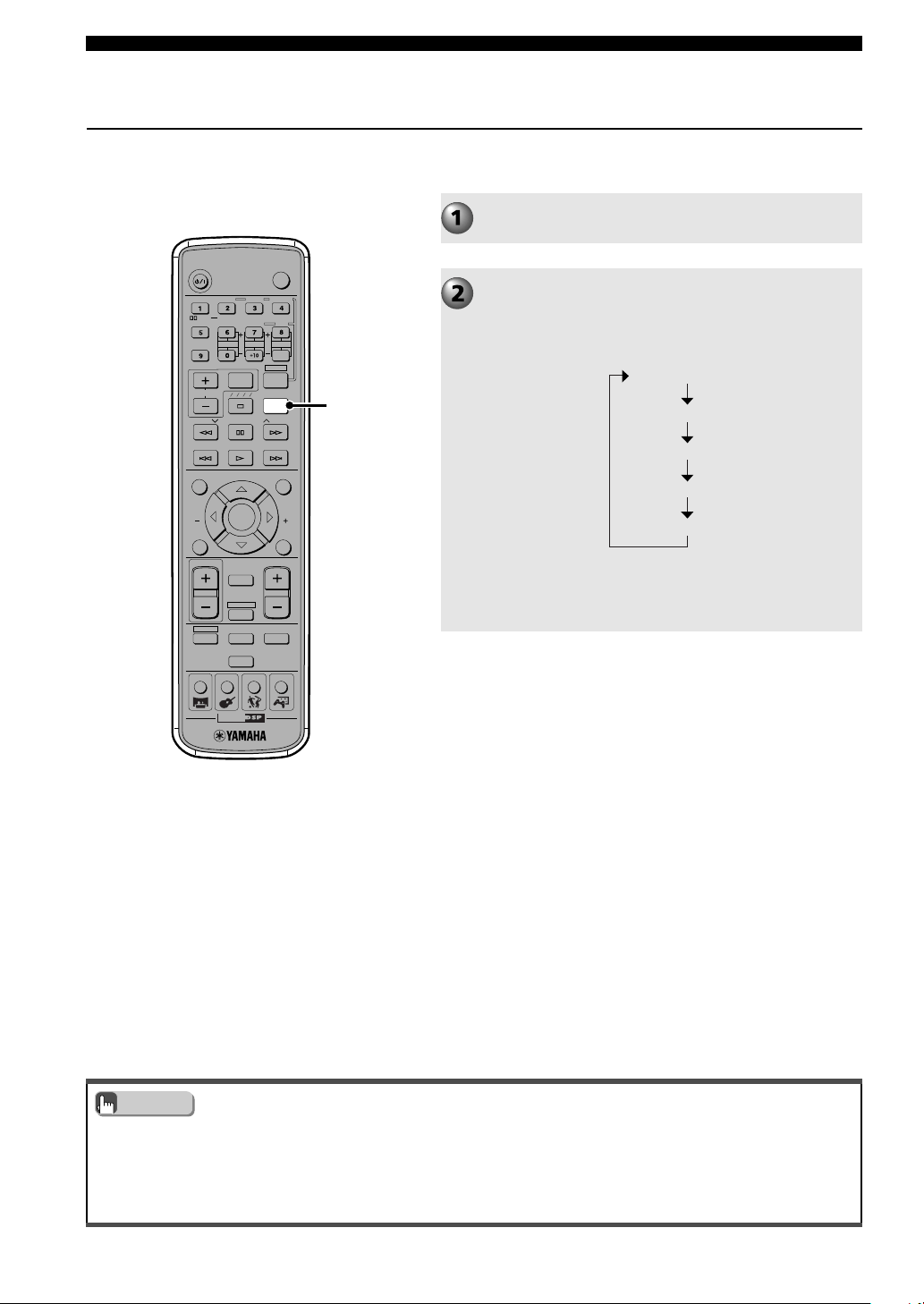
78
Additional Features
Using the Sleep Timer
After a specified time the power automatically enters standby so you can
enjoy CinemaStation until you fall asleep.
TV
CH
CINEMA
CH
POWER
POWER
AUDIO
/
DTS
SELECT
NIGHT
SW
TV CH
TV INPUT
SLEEP
PRESET PRESET
A B C D E
CENTER
SURR
SHIFT
STEREOMATRIX 6.1
A-B
REPEAT
ANGLE
SUBTITLE
DVR-S120 WB56650
ON SCREEN MENU
TEST
RETURN
STATUS
TV VOL
VOLUME
MUTE
AMP
DVD/CD
VCR
VIDEO
TUNER
MOVIE MUSIC SPORTS GAME
SET MENU
ENTER
SLEEP
• You cannot link the sleep timer of the device that is playing, so make sure to set the sleep timer of each device separately.
• The Sleep Timer cancels if you press POWER on the Remote Control, press STANDBY/ON on CinemaStation or pull out the
power cord.
• Memory backup remembers the previous setting so you can use the same setting next time.
Play the source.
Repeatedly press SLEEP and set the time to
enter standby mode.
The CinemaStation Display changes as shown below.
Once the Sleep Timer is set a SLEEP indicator lights up
in the CinemaStation Display.
SLEEP 120 min
SLEEP 90 min
SLEEP 60 min
SLEEP 30 min
SLEEP OFF
To cancel the Sleep Timer
Keep pressing SLEEP until SLEEP OFF appears in the
CinemaStation Display.
In a few seconds SLEEP OFF disappears. The CinemaStation
Display once again shows the DSP Program and the SLEEP
indicator disappears.
Advice
015DVX-S120-en 03.8.5, 1:49 PM78
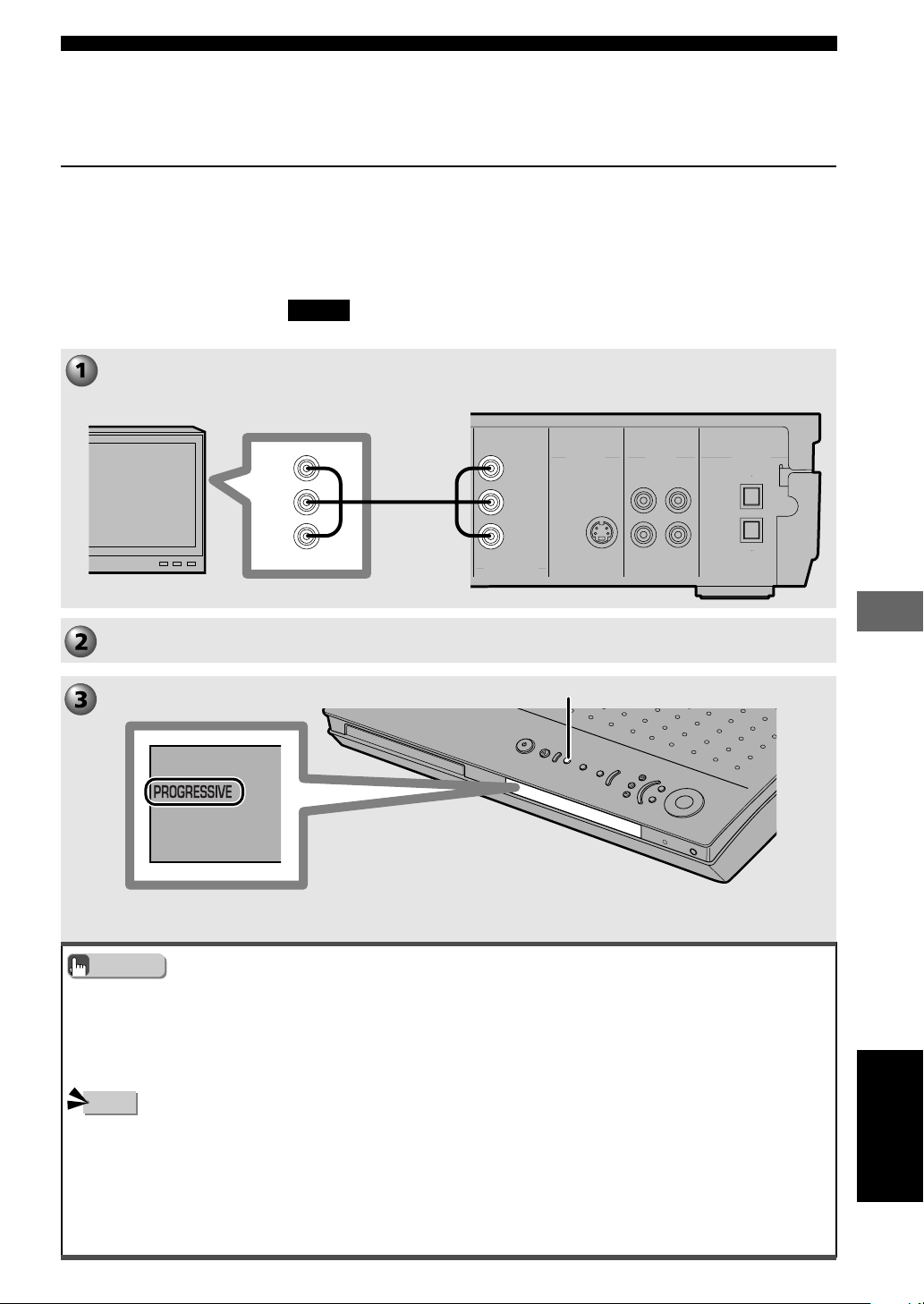
79
Additional Features
Additional Features
Enjoying High-Quality Video
Progressive Scan (NTSC only)
The COMPONENT VIDEO jack on CinemaStation is compatible with
Progressive Scan. You can enjoy highly defined images without flicker when
connecting to a television that has a component video input jack compatible
with Progressive Scan.
Progressive Scan is available only for NTSC signal output. See pages
94 and 95, “On Screen Menu Guide”.
• Before connecting make sure to turn off the television and CinemaStation power.
Connect the television.
Use a commercially available component video cable.
Start playing the DVD. See page 10, “Viewing a DVD”.
Press PROGRESSIVE on CinemaStation.
DIGITAL
AUDIO
VIDEOS VIDEO
IN
VCR
OUT
Y
P
B
PR
MONITOR
OUT
MONITOR
OUT
(DVD ONLY)
MONITOR
OUT
(DVD ONLY)
VCR
IN
VIDEO
IN
COMPONENT
VIDEO
OUT
OPTICAL
Y
P
B
PR
PROGRESSIVE
• If you play video with a 4:3 aspect ratio on a 16:9 wide television screen, Progressive Scan may fill the screen top to bottom.
In this case, use the On Screen Menu to change to the screen display that matches your television. See pages 94 and 95, “On
Screen Menu Guide”.
If you cannot adjust the size, turn off Progressive Scan. (Changes to interlace output.)
• When Progressive Scan is on, a video signal will only output from the COMPONENT VIDEO. You can use the
COMPONENT VIDEO jack and Progressive Scan only for DVD playback, so it is not possible to enjoy progressive playback
from other sources.
CONSUMERS SHOULD NOTE THAT NOT ALL HIGH DEFINITION TELEVISION SETS ARE FULLY COMPATIBLE
WITH THIS PRODUCT AND MAY CAUSE ARTIFACTS TO BE DISPLAYED IN THE PICTURE. IN CASE OF 525
PROGRESSIVE SCAN PICTURE PROBLEMS, IT IS RECOMMENDED THAT YOU SWITCH THE CONNECTION TO
THE “STANDARD DEFINITION” OUTPUT. IF THERE ARE QUESTIONS REGARDING YOUR VIDEO MONITOR
COMPATIBILITY WITH THIS UNIT, PLEASE CONTACT OUR CUSTOMER SERVICE CENTER.
This unit is compatible with the complete line of YAMAHA projectors, including the DPX-1, LPX-500, DPX-1000 and with the
YAMAHA PDM-1 plasma display.
Please...
Advice
Note
The PROGRESSIVE
indicator lights up.
To cancel Progressive Scan
Press PROGRESSIVE to turn off the PROGRESSIVE indicator.
English
015DVX-S120-en 03.8.5, 1:49 PM79
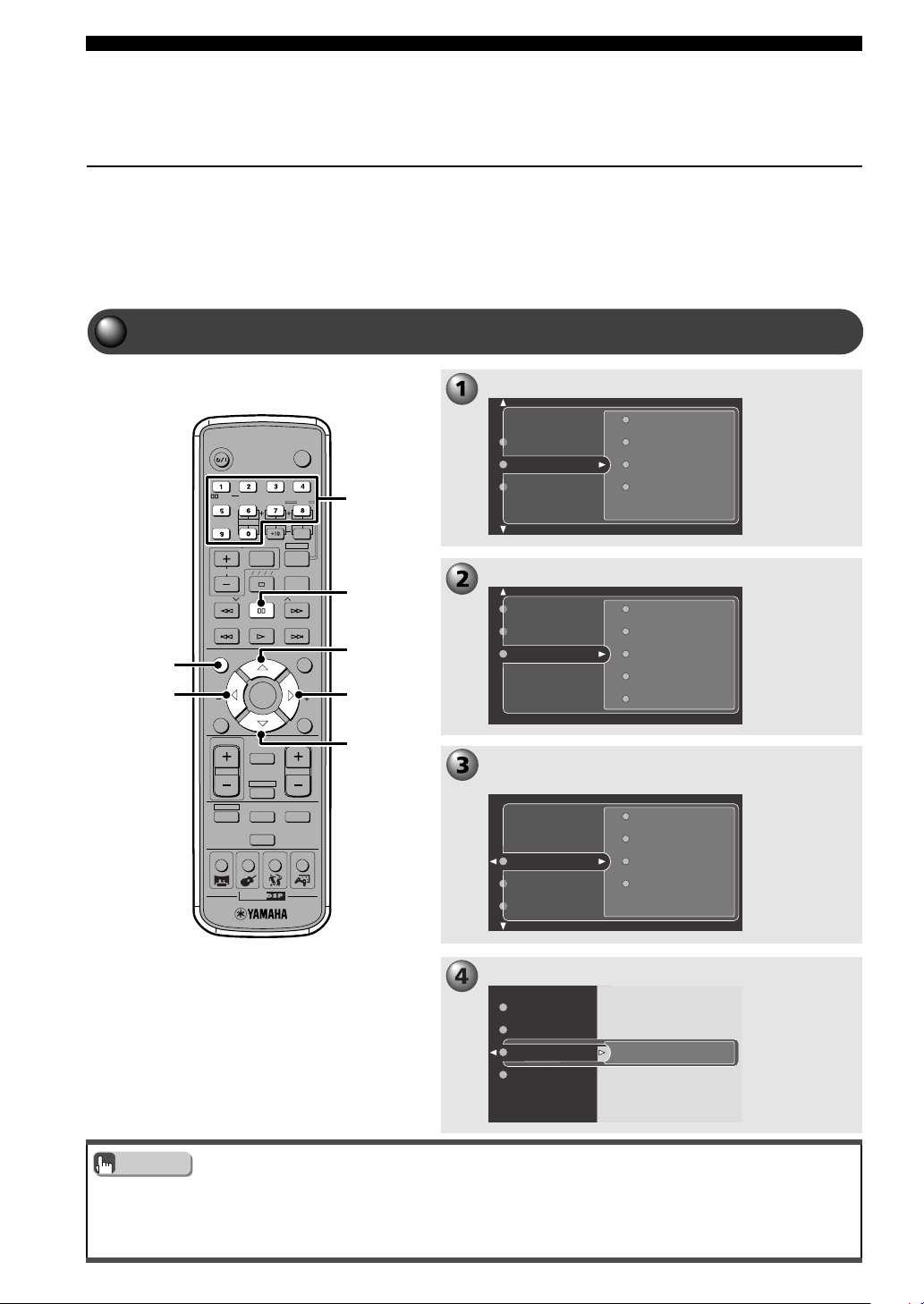
80
Additional Features
Protecting Your Children from Undesirable Scene
Using Parental Control
You can cut a scene that you do not feel it is suitable for your children, or lock a
disc from being played.
CinemaStation allows you to set the level of Parental Control. It then checks the
level of a disc whose level has been set in advance and automatically decides if
the content is suitable for viewing by your children before playing.
Setting the Password and Parental Control Level
TV
CH
CINEMA
CH
POWER
POWER
AUDIO
/
DTS
SELECT
NIGHT
SW
TV CH
TV INPUT
SLEEP
PRESET PRESET
A B C D E
CENTER
SURR
SHIFT
STEREOMATRIX 6.1
A-B
REPEAT
ANGLE
SUBTITLE
DVR-S120 WB56650
ON SCREEN MENU
TEST
RETURN
STATUS
TV VOL
VOLUME
MUTE
AMP
DVD/CD
VCR
VIDEO
TUNER
MOVIE MUSIC SPORTS GAME
SET MENU
ENTER
g
h
d
g
g
ON
SCREEN
• The default password is 0000.
• If the password you input is wrong, some menu items, such as Parental level or Disc Lock, are grayed out. Enter the correct
password.
• If you forget your password, press s four times, instead of the Number buttons.
Advice
Press g to select “Enter PIN”, then press w.
Press w and h a number of times to select
“Access”.
Press g to select “Setup”.
Press ON SCREEN.
Number
Number
buttons
Program
View
Play Option
Search
Toolbar
Preferences
Setup
Access
TV
Language
Audio Menu
Features
Setup
Preferences
Toolbar
Disc lock
Parental level
Enter PIN
Change PIN
Access
TV
Language
* * * *
Disc lock
Parental level
Change PIN
Enter PIN
015DVX-S120-en 03.8.5, 1:49 PM80
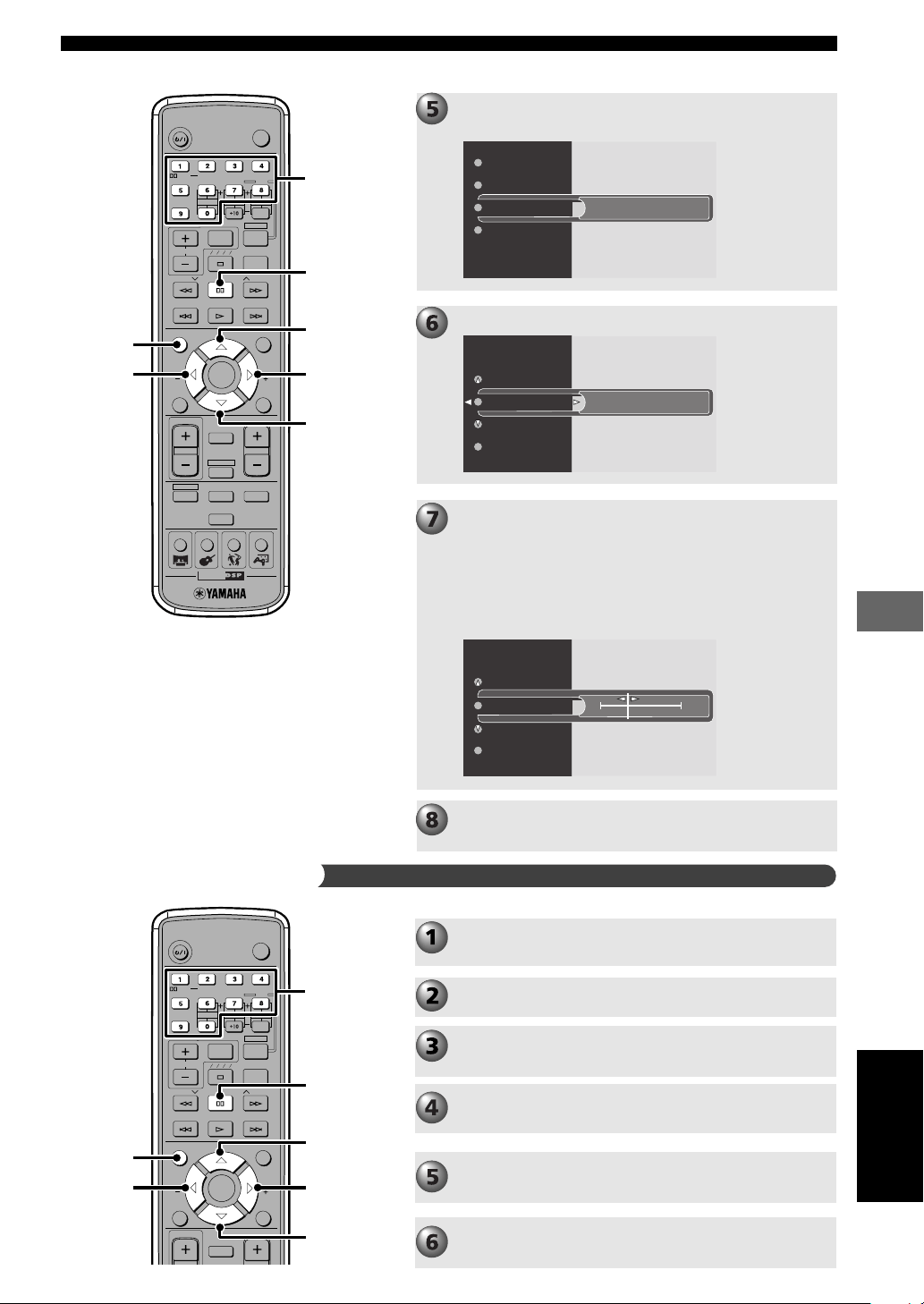
81
Additional Features
Additional Features
TV
CHCH
POWER
POWER
AUDIO
/
DTS
SELECT
NIGHT
SW
TV CH
TV INPUT
SLEEP
PRESET PRESET
A B C D E
CENTER
SURR
SHIFT
STEREOMATRIX 6.1
A-B
REPEAT
ANGLE
SUBTITLE
DVR-S120 WB56650
ON SCREEN MENU
TEST
RETURN
STATUS
TV VOL
VOLUME
MUTE
SET MENU
ENTER
g
h
d
g
g
ON
SCREEN
TV
CH
CINEMA
CH
POWER
POWER
AUDIO
/
DTS
SELECT
NIGHT
SW
TV CH
TV INPUT
SLEEP
PRESET PRESET
A B C D E
CENTER
SURR
SHIFT
STEREOMATRIX 6.1
A-B
REPEAT
ANGLE
SUBTITLE
DVR-S120 WB56650
ON SCREEN MENU
TEST
RETURN
STATUS
TV VOL
VOLUME
MUTE
AMP
DVD/CD
VCR
VIDEO
TUNER
MOVIE MUSIC SPORTS GAME
SET MENU
ENTER
g
h
d
g
g
ON
SCREEN
Perform steps 1 to 5 in “Setting the Password
and Parental Control Level” on page 80.
Enter the new password (4 digits) again for
confirmation.
Enter the new password (4 digits) with the
Number buttons.
Enter the current password (4 digits) with the
Number buttons.
Press g to select Change PIN, then press w.
Number
buttons
Change the password
Press ON SCREEN to turn off the On Screen
Menu.
Press w or q and select control level (0 to 8).
0: Parental Control is set to off, and you can play all
discs.
1 to 7: You can play discs of same level or below the level
you set. The smaller the number the stricter Parental
Control is.
8: You can play all discs.
Press h and select “Parental level”.
Use the Number buttons to enter a password (4
digits).
Number
buttons
* * * *
Enter PIN
Disc lock
Parental level
Change PIN
0
Enter PIN
Parental level
Disc lock
Change PIN
+3
Enter PIN
Parental level
Disc lock
Change PIN
Press ON SCREEN to turn off the On Screen
Menu.
English
015DVX-S120-en 03.8.5, 1:49 PM81
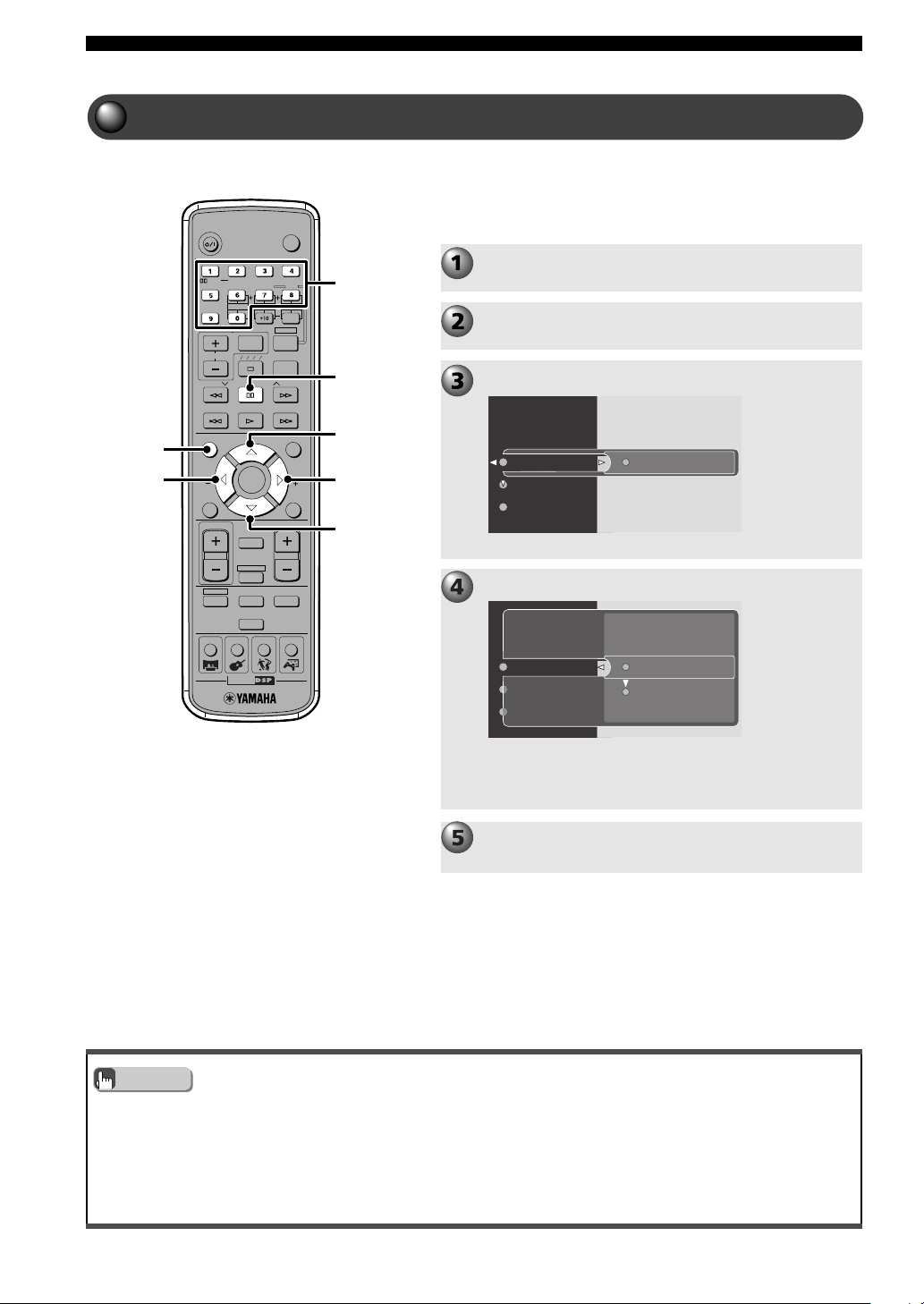
82
Additional Features
• If you enter a password you can play back the disc even when Disc Lock is on.
1 Insert the disc.
2 Select “Play once” or “Play always” with h or g.
3 Press w, then once you enter the password with the Number buttons, playback starts.
• You can set “Disc lock” to “On” for up to 120 discs.
Locking a Disc
TV
CH
CINEMA
CH
POWER
POWER
AUDIO
/
DTS
SELECT
NIGHT
SW
TV CH
TV INPUT
SLEEP
PRESET PRESET
A B C D E
CENTER
SURR
SHIFT
STEREOMATRIX 6.1
A-B
REPEAT
ANGLE
SUBTITLE
DVR-S120 WB56650
ON SCREEN MENU
TEST
RETURN
STATUS
TV VOL
VOLUME
MUTE
AMP
DVD/CD
VCR
VIDEO
TUNER
MOVIE MUSIC SPORTS GAME
SET MENU
ENTER
g
h
d
g
g
ON
SCREEN
Press ON SCREEN to turn off the On Screen
Menu.
Playback is locked for that disc and disabled unless you
enter the password.
Select “Off” if you do not want to lock.
Press w to select “On”.
Press h repeatedly to select “Disc Lock”.
Perform steps 1 to 5 in “Setting the Password
and Parental Control Level” on page 80.
CinemaStation locks a disc by storing its ID code in
memory. So the next time the disc is inserted the user is
prompted to enter a password to unlock the disc. Enter the
password correctly to load the disc.
Number
buttons
Off
Parental level
Disc lock
Enter PIN
On
Disc lock
Parental level
Enter PIN
Off
Advice
Play the disc to lock.
015DVX-S120-en 03.8.5, 1:49 PM82
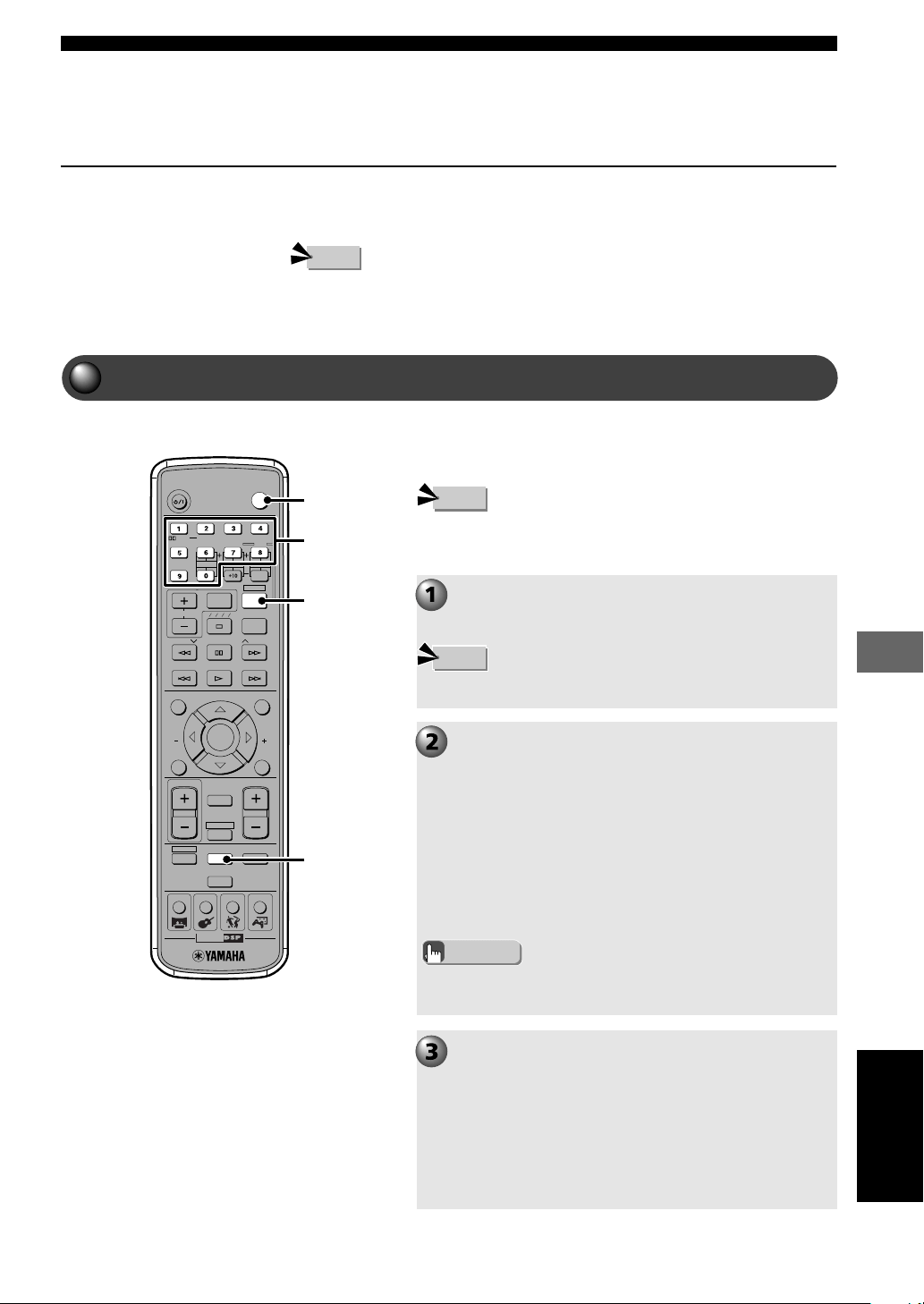
83
Operating Other Equipment with the CinemaStation Remote Control
Operating Other Equipment
with the CinemaStation Remote Control
Storing Manufacturer Codes in the Remote
Control
If you set the manufacturer code (a unique code assigned to each
manufacturer) in the CinemaStation Remote Control, you can operate a
connected television, VCR, CD or MD recorder with the Remote Control.
• Depending on the model, the Remote Control may not work, or only work with a limited
number of functions. In this case, use the remote control that came with the television, VCR,
CD or MD recorder.
Setting the Manufacturer Code
When a manufacturer code is set for the TV button or VCR
button, you can begin using the features described in
“Available Operations” on page 84.
TV
CH
CINEMA
CH
POWER
POWER
AUDIO
/
DTS
SELECT
NIGHT
SW
TV CH
TV INPUT
SLEEP
PRESET PRESET
A B C D E
CENTER
SURR
SHIFT
STEREOMATRIX 6.1
A-B
REPEAT
ANGLE
SUBTITLE
DVR-S120 WB56650
ON SCREEN MENU
TEST
RETURN
STATUS
TV VOL
VOLUME
MUTE
AMP
DVD/CD
VCR
VIDEO
TUNER
MOVIE MUSIC SPORTS GAME
SET MENU
ENTER
TV
SHIFT
VCR
Note
Note
Note
Make sure that you set the correct manufacturer
code.
With a manufacturer code set for the TV button, press the
button to turn the TV power on/off (standby), and check
that the setting is working correctly.
With a manufacturer code set for the VCR button, press
the button then the features described in “Available
Operations” on page 84, and check that the setting is
working correctly.
• The TV button has 299 and the VCR button has 399 as the factory
default setting for manufacturer code.
Advice
While holding down SHIFT, enter the
manufacturer code (3 digits) of the device with
the Number buttons.
For details, refer to “Manufacturer Code List” on
pages 86 and 87.
When the setting succeeds, “Code Set OK” appears;
however, when it does not, “Code Set NG” appears in the
CinemaStation Display. If setting is unsuccessful,
perform steps 1 and 2 again.
When finished entering the code, release your finger from
SHIFT.
• Perform steps 1 to 2 while holding down SHIFT.
While holding down SHIFT, press TV or VCR.
Each button can be assigned one manufacturer code.
• For the TV button you can only set a television manufacturer code and
for the VCR button you can only set a VCR, CD or MD recorder
manufacturer code.
Number
buttons
English
016DVX-S120-en 03.8.5, 1:50 PM83
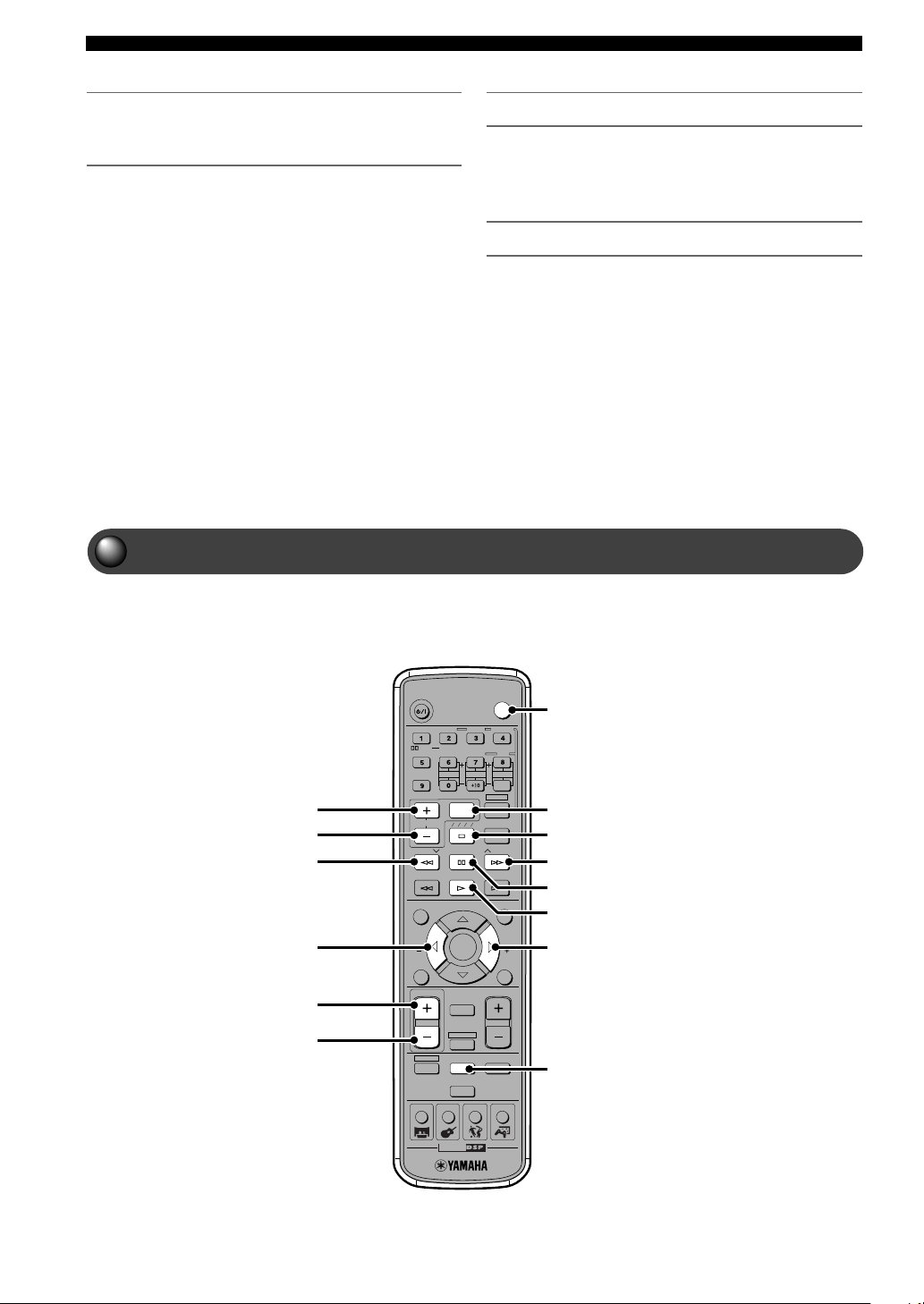
84
Operating Other Equipment with the CinemaStation Remote Control
Available Operations
While you set the manufacturer code for the TV or VCR button, you can use
the following functions after you press the TV or VCR button.
TV
CH
CINEMA
CH
POWER
POWER
AUDIO
/
DTS
SELECT
NIGHT
SW
TV CH
TV INPUT
SLEEP
PRESET PRESET
A B C D E
CENTER
SURR
SHIFT
STEREOMATRIX 6.1
A-B
REPEAT
ANGLE
SUBTITLE
DVR-S120 WB56650
ON SCREEN MENU
TEST
RETURN
STATUS
TV VOL
VOLUME
MUTE
AMP
DVD/CD
VCR
VIDEO
TUNER
MOVIE MUSIC SPORTS GAME
SET MENU
ENTER
When the Remote Control’s TV or VCR
button does not work even after setting the
device manufacturer code
Try again from step 1 and keep the following points in
mind.
• Make sure you select the Remote Control’s TV or VCR
button correctly when setting the manufacturer code.
• If there are multiple manufacturer codes enter them in
order.
• After reinserting batteries, try the steps again (within 2
minutes of reinserting).
(When reinserting batteries be careful not to press the
Remote Control buttons. If a manufacturer code has been
set for the TV or VCR button, it may get deleted.)
To return to the factory default settings
While pressing SHIFT down as in step 2 Setting the
Manufacturer Code, enter 299 for TV or 399 for VCR.
(Step 3 is not necessary.)
Maintaining manufacturer code settings
Replace batteries before they become unusable. When the
batteries wear out and you remove them, the custom
manufacturer code setting will stay in memory for about 2
minutes. Be careful because if more than 2 minutes elapse
the codes may be deleted. Also, at this time, be careful not
to accidentally press a Remote Control button. This can
delete the codes.
*
1
TV POWER
*
1
TV Input Switch
Stop
Fast Forward
Pause
Playback
Video Channel Selection (+)
Press VCR before starting operations.
*
1
TV Channel Selection (+)
*
1
TV Channel Selection (-)
Rewind
Video Channel Selection (-)
*
1
TV Volume (+)
*
1
TV Volume (-)
VCR operation
*
1
While you set the TV manufacturer code for the TV button, you can operate your television.
016DVX-S120-en 03.8.5, 1:50 PM84
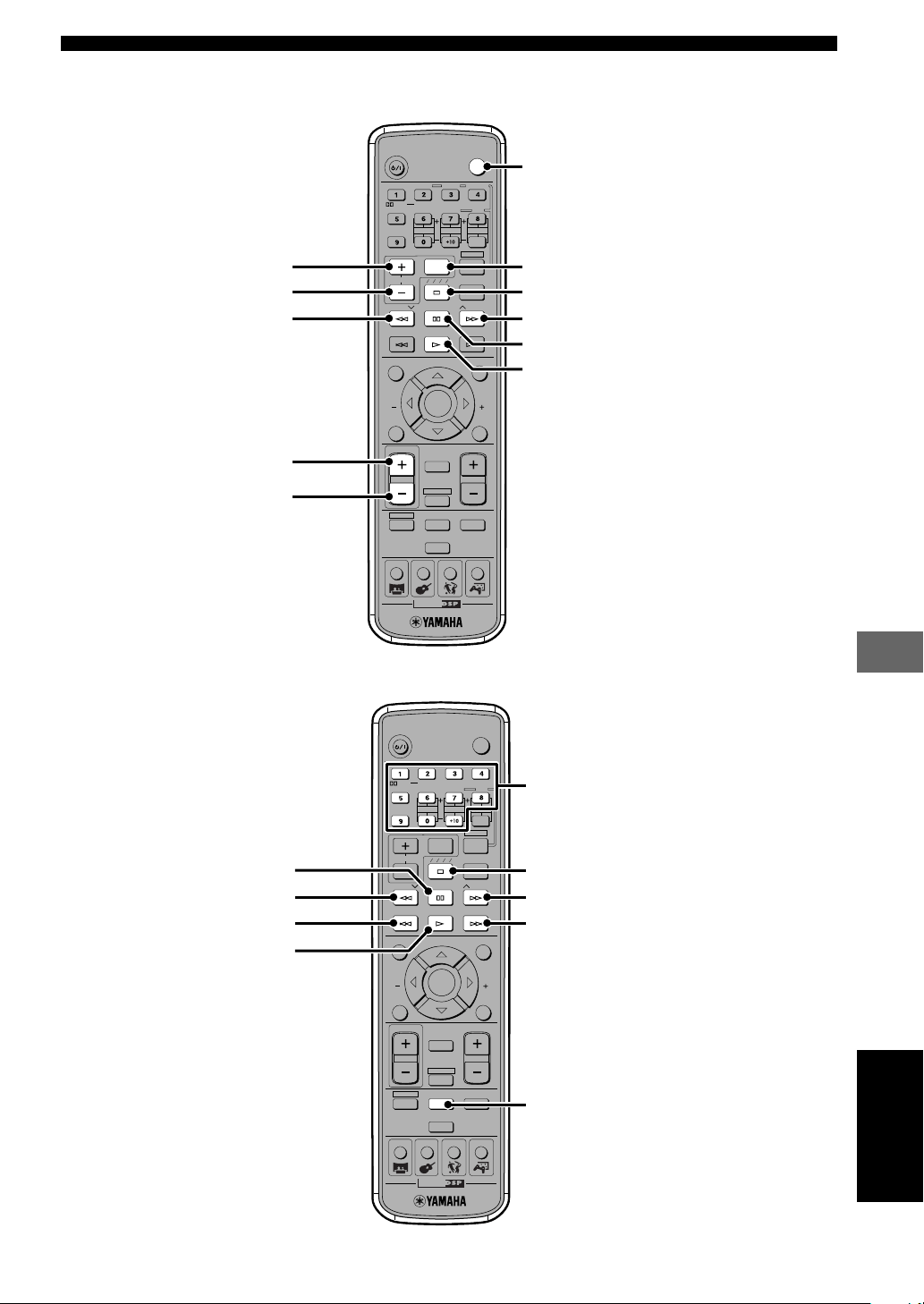
85
Operating Other Equipment with the CinemaStation Remote Control
Operating Other Equipment
with the CinemaStation Remote Control
TV
CH
CINEMA
CH
POWER
POWER
AUDIO
/
DTS
SELECT
NIGHT
SW
TV CH
TV INPUT
SLEEP
PRESET PRESET
A B C D E
CENTER
SURR
SHIFT
STEREOMATRIX 6.1
A-B
REPEAT
ANGLE
SUBTITLE
DVR-S120 WB56650
ON SCREEN MENU
TEST
RETURN
STATUS
TV VOL
VOLUME
MUTE
AMP
DVD/CD
VCR
VIDEO
TUNER
MOVIE MUSIC SPORTS GAME
SET MENU
ENTER
TV
CH
CINEMA
CH
POWER
POWER
AUDIO
/
DTS
SELECT
NIGHT
SW
TV CH
TV INPUT
SLEEP
PRESET PRESET
A B C D E
CENTER
SURR
SHIFT
STEREOMATRIX 6.1
A-B
REPEAT
ANGLE
SUBTITLE
DVR-S120 WB56650
ON SCREEN MENU
TEST
RETURN
STATUS
TV VOL
VOLUME
MUTE
AMP
DVD/CD
VCR
VIDEO
TUNER
MOVIE MUSIC SPORTS GAME
SET MENU
ENTER
TV operation
CD or MD recorder operation
Press POWER before starting operations.
Channel Selection (+)
Channel Selection (-)
*
2
VCR Rewind
Input Switch
Volume (+)
Volume (-)
*
2
VCR Stop
*
2
VCR Fast Forward
*
2
VCR Pause
*
2
VCR Playback
Track Selection/Elapsed Time Input
StopPause
Playback
Reverse Search
Reverse Skip
Forward Search
Forward Skip
Press VCR before starting operations.
*
2
While you set the VCR manufacturer code for the VCR button, you can operate your VCR.
English
016DVX-S120-en 03.8.5, 1:50 PM85

86
Operating Other Equipment with the CinemaStation Remote Control
Manufacturer Code List
Depending on the model and year, you may not be able to use some manufacturer products. In this case, use
the remote control supplied with each product.
Manufacturer Manufacturer Code
Yamaha 299/292
Admiral 292/293
Aiko 287
Aiwa 294/276/283
Akai 295/296
Alba 296
AOC 297/286
Audiovox 285
Belcor 297
Bell & Howell 292
Bestar 298
Blaupunkt 229/222
Blue sky 298
Bradford 285
Brandt 223
Brocsonic 297
Brokwood 297
Bush 296
Candle 286/297
Citizen 286/287/297
Clatronic 298
Contec 285
Craig 224/285
Croslex 225
Crown 285
Curtis Mathis 297/226/286
CXC 285
Daewoo 297/298/224/227/228/
287
Daytron 239/297
Dual 298
Dumont 297
Emerson 297/224/239/232/285
Envision 286/297
Ferguson 223/265/266
First line 298
Fisher 295/233
Fraba 298
Manufacturer Manufacturer Code
Funai 277/278/285
Futuretec 285
GE 293/297/234/235/236
Gibralter 297
LG/Goldstar 297/298/239/237
Goodmans 296/298/223
Grundig 229/238/249
Harvard 285
Hitachi 297/239/242/243
ICE 296
Irradio 296
Itt/Nokia 244/245
JC Penny 293/297/234/237/286
JVC (Victor) 296/246/247
Kendo 298
Kenwood 297
KTV 297/239/285
Loewe 298/248
LXI 293/297/225/226/233
Magnavox 297/225/239/286
Marantz 286/297
Matsui 295
MGA 286/297
Mitsubishi 299/297/259
MTC 286/297
Multitec 285
NEC 297/252/282/286
Nikko 286/287/297
Nokia 244/245
Nokia Oceanic 245
Nordmende 265/266
NTC 287
Onwa 296/285
Panasonic 234/235/236/253
Philco 297/225/239/286
Philips 225
Pilot 297
Pioneer 226/235/254/255/268
Manufacturer Manufacturer Code
Portland 297/256/287
Quasar 234/235
Radio Shack 299/293/297/285/286
RCA 293/297/234/256/257/
258
Realistic 299/293/297/285/286
SABA 223/269/265/266
Sampo 286/297
Samsung 297/239/248/262/275/
286
Sanyo 295/233/279/272/273/
274
Schneider 296
Scott 297/285
Sharp 292/239/232/284
Shogun 297
Siemens 229
Signature 292
Sony 263
Soundesign 285
SSS 285/297
Starlite 285
Sylvania 297/225/286
Teknika 297/285/287
Telefunken 269/264/265/266
Thomson 223/266
Toshiba 292/226/267
Videch 297/242
Wards 297/239/232/286
TV
016DVX-S120-en 03.8.5, 1:50 PM86

87
Operating Other Equipment with the CinemaStation Remote Control
Operating Other Equipment
with the CinemaStation Remote Control
Manufacturer Manufacturer Code
Yamaha 399/392/393/394
Admiral 395
Aiwa 396/397/398/329/339
Akai 322/323/324
Asha 363
Audio Dynamic 392/394
Audiovox 396
Beaumark 363
Bell & Howell 393
Blaupunkt 325/326
Brocsonic 327
Bush 322
Calix 396
Candle 335/363/396
Canon 325/328
CGM 396/332
Citizen 396
Craig 396/363
Curtis Mathis 397/328/333/392
Cybernex 363
Daewoo 328/334/335
DBX 392/394
Dimensia 333
Dynatech 397
Electrohome 396
Electrophonic 396
Emerson 327/334/396/397
Fisher 393/336
Funai 397
Garrard 397
GE 328/333/387/363
LG/Goldstar 396/388/392
Goodmans 334/337
Grandiente 397
Grundig 332/338
Hitachi 325/333/349/342/343
Harman Kardon 392
Instant Replay 325/328
Itt/Nokia 393
JCL 328
JC Penny 392/393/394/328/333/
349/363/396
JVC (Victor) 392/394/344/345/346/
347
Kendo 396
Kenwood 392/394/396
Kodak 396
Manufacturer Manufacturer Code
Lloyd 397
Loewe 396/337
Luxor 395
LXI 393/396/397/336/349
Magnavox 325/326/328
Magnin 363
Marantz 392/394/328
Marta 396
Matsui 396
MEI 328
Memorex 328/336/363/396/397
Minolta 333/349/342
Mitsubishi 399/344/348/359/352/
353
MTC 363/397
Multitech 397/348/354
NEC 392/394/344/383
Nikko 396
Noblex 363
Nokia 393/395
Nokia Oceanic 395
Okano 323
Olympic 325/328
Optimus 396
Orion 327
Panasonic 325/328/355/378/384/
385
Pentax 333/349/342
Philco 325/328
Philips 325/326/328/337/356/
357
Phonola 337
Pilot 396
Pioneer 325
Quasar 325/328
Radio Shack 396/397
Radix 396
RCA/PROSCAN 325/326/328/333/335/
349/358/369/363/342
Realistic 393/397/328/336/359/
362/396
Samsung 354/358/363/364/365/
366/335
Sansui 394
Sanyo 393/336/367/363
Schneider 337
Scott 399/335/336/348/359/
352/354/358
Sears 328/342/396
Seleco 322
Manufacturer Manufacturer Code
Sharp 395/362/382
Siemens 393
Signature 2000 395/397
Sony 368/379/372/373/374/
375
Sylvania 397/325/326/328
Symphonic 397
Tandberg 334
Tashiro 396
Tatung 392/394
Teac 392/394/397
Technics 325/328
Teknika 328/396/397
Telefunken 376/377
Thorn 393/396
Toshiba 335/369/389
Totevision 363/396
Universum 396/327/376
Vector Research 392
Videosonic 363
W.WHouse 396
Wards 395/396/336/362/328/
342/363/397
CD recorder
Manufacturer Manufacturer Code
Yamaha 499
DENON 422/423
Hitachi 424
JVC (Victor) 425/428
Kenwood 422
Marantz 422
Philips 422
Pioneer 426
Sony 427
Teac 429
MD recorder
Manufacturer Manufacturer Code
Yamaha 599/522/598
Denon 523/524
JVC (Victor) 525
Kenwood 526
Onkyo 592
Pioneer 527
Sharp 528
Sony 522
Teac 593
VCR
English
016DVX-S120-en 03.8.5, 1:50 PM87
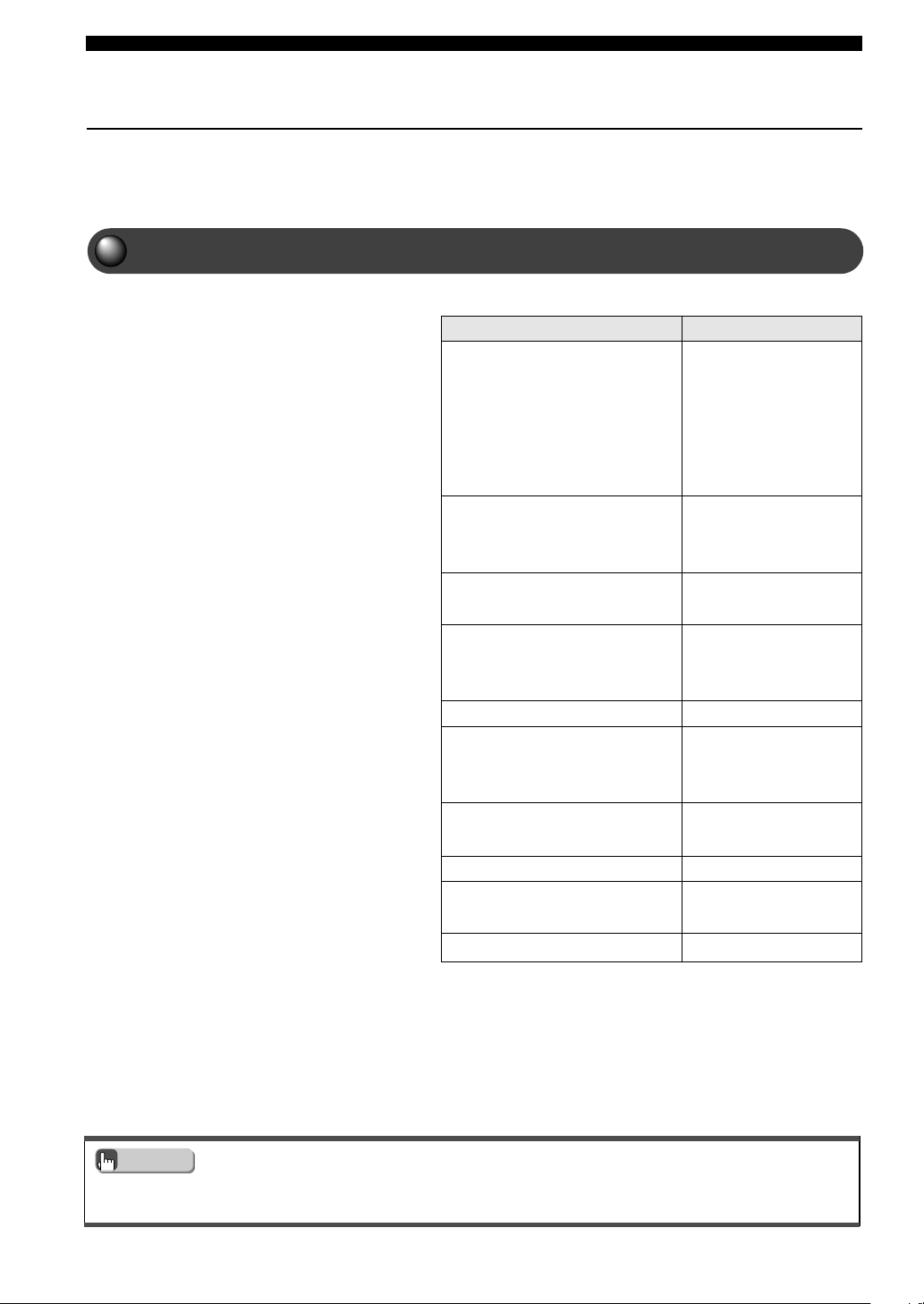
88
Using the SET MENU
Using the SET MENU
• Even during playback you can change settings in the SET MENU.
• To learn more about “* Speaker Set” read “Setting the Speaker Mode” on page 62.
You can use the SET MENU to adjust settings, including Speaker settings.
Change the settings to match your listening environment.
SET MENU List
The SET MENU contains the items below.
Item Default Setting (value)
* Speaker Set
* CENTER SML
* FRONT SMALL
* SUR. SML
* BASS SWFR
* F. Level Nrm
* LFE Level
* SP LFE 0 dB
* HP LFE 0 dB
* SP Delay
* CENTER 0 ms
* D. Range
* SP D.R MAX
* HP D.R MAX
* L/R Balance Center
* HP Tone CTRL
* HP BASS 0 dB
* HP TRBL 0 dB
* Input Assign
* OPT: VIDEO
* Input Mode AUTO
* Display set
* DIMMER 0
* Tuner Step AM9/FM50
Advice
017DVX-S120-en 03.8.5, 1:50 PM88
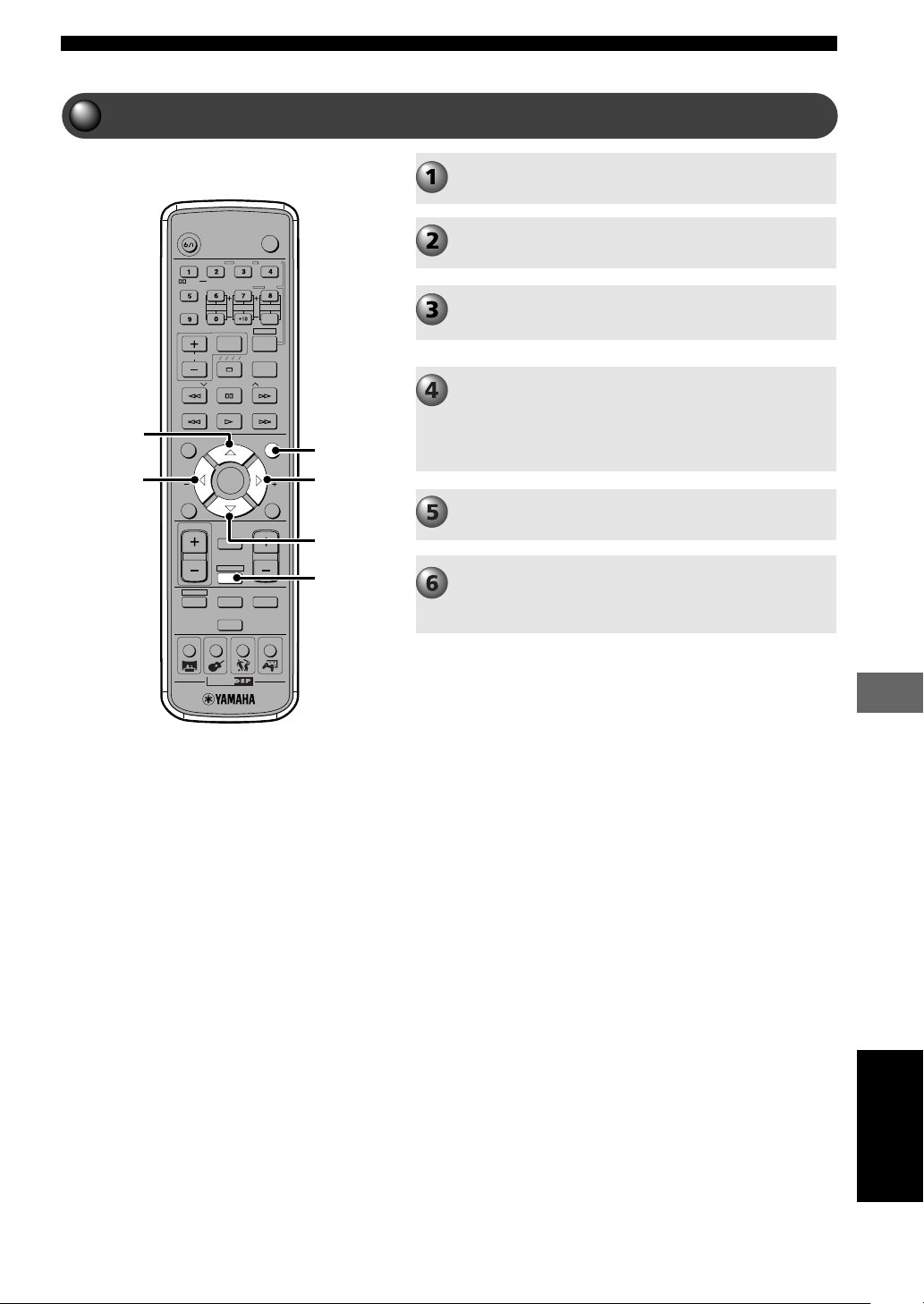
89
Using the SET MENU
Using the SET MENU
Navigating the SET MENU
TV
CH
CINEMA
CH
POWER
POWER
AUDIO
/
DTS
SELECT
NIGHT
SW
TV CH
TV INPUT
SLEEP
PRESET PRESET
A B C D E
CENTER
SURR
SHIFT
STEREOMATRIX 6.1
A-B
REPEAT
ANGLE
SUBTITLE
DVR-S120 WB56650
ON SCREEN MENU
TEST
RETURN
STATUS
TV VOL
VOLUME
MUTE
AMP
DVD/CD
VCR
VIDEO
TUNER
MOVIE MUSIC SPORTS GAME
SET MENU
ENTER
AMP
SET MENU
g
h
g
g
Press AMP.
Press SET MENU.
Press h or g repeatedly to select the Menu you
want.
Press q or w.
Once in the setting mode of the selected menu the current
setting appears in the CinemaStation Display.
Depending on the item, press h or g to enter a submenu.
Press q or w repeatedly to change the setting.
When exiting the SET MENU, press SET MENU.
Pressing any one of DSP Program buttons also exits the
SET MENU.
English
017DVX-S120-en 03.8.5, 1:50 PM89
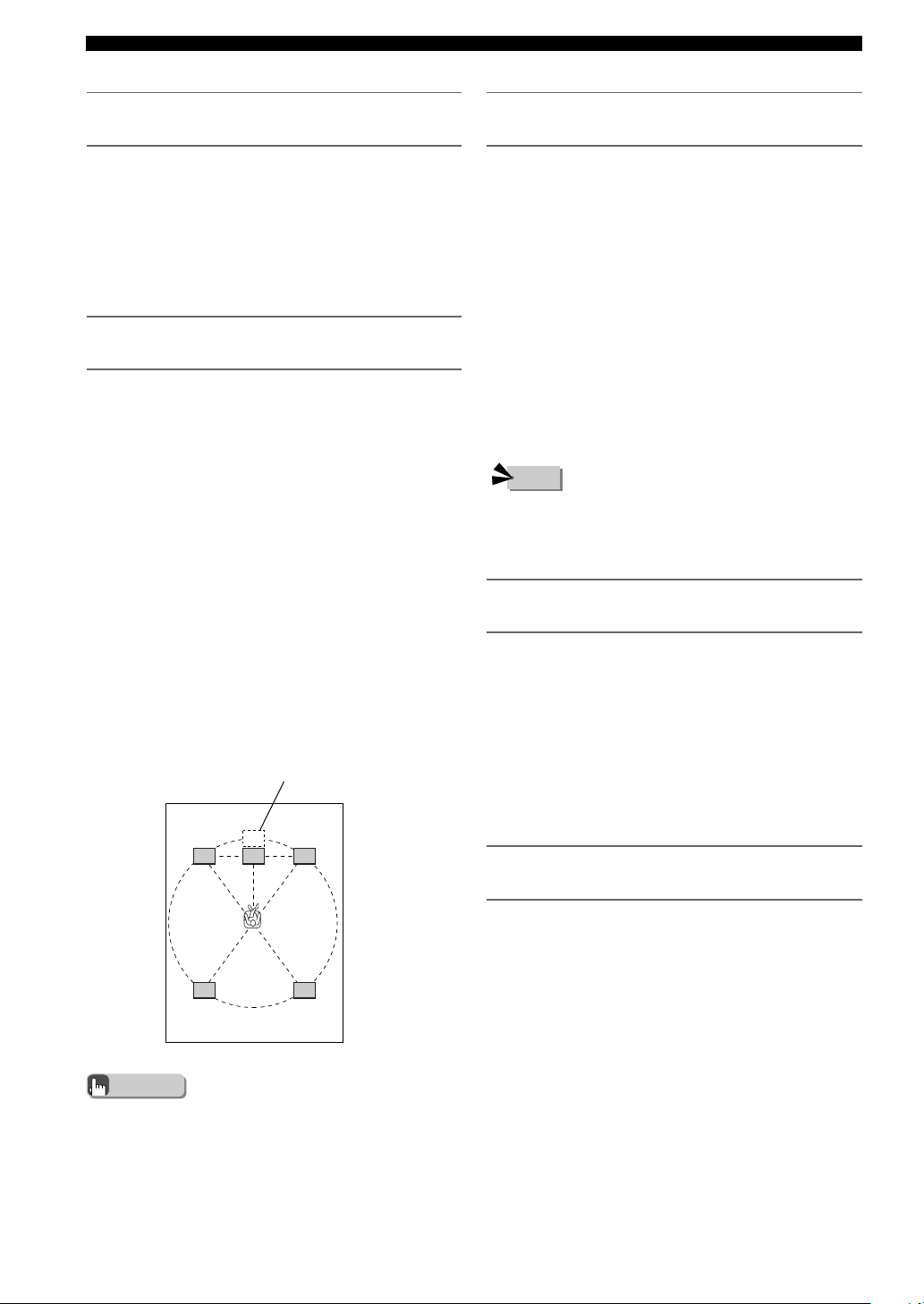
90
Using the SET MENU
Adjust the playback level of the LFE signal
(* LEF Level)
You can adjust the LFE channel output level while
playing a Dolby Digital or DTS signal. Adjust the LFE
level to match the performance of the Subwoofer and
headphones.
Submenu: SP LFE, HP LFE
Variable range (dB): -20 to 0 dB.
Default setting: 0 dB
L
C
C
R
RL
RR
Virtual Center Speaker Position
Set the dynamic range during Dolby Digital
playback (* D. Range)
You can select the dynamic range (spread between the
max. and min. volume) of Dolby Digital playback from
3 levels.
Submenu: SP D.R, HP D.R
Selection items: MAX (Maximum), STD (Standard),
MIN (Minimum)
Default setting: MAX
MAX: Plays back the dynamic range of the source at the
maximum limit.
STD: Dynamic range recommended by software
manufacturers for home use.
MIN: Easy to hear even at a low volume, dynamic range
suitable for evening listening.
Set the Delay Time of the Center Speaker (*
SP Delay)
You can set the Delay Time of the Center Speaker. This
is effective when the Center Speaker outputs sound
during Dolby Digital or DTS playback.
Normally the Center Speaker and Front L/R Speakers
are placed in line with each other. However, they should
be placed at an equal distance from the listener so that
the sound each one outputs enters the listener’s ear at the
same time. With Delay Time, the Center Speaker can be
moved to an ideal position further away to match the
distance of each speaker to the listener. Center Delay is
effective in adding depth to the sound field and presence
to speech.
Variable range (ms): 0 to 5 ms
Default setting: 0 ms
Press w to set the speaker’s virtual position further
away. Press q to set it closer.
• Every 1 ms increase in Delay Time increases the distance
away from the listening position by 30 cm (1 foot).
Advice
• Depending on the Dolby Digital playback source, the MIN
dynamic range may not work and result in an extremely low
volume. In this case, set the dynamic range to MAX or STD.
Adjust the volume balance of the Front
Speakers (* L/R Balance)
You can set the volume balance of the Front L/R
Speakers. This setting also applies to Headphones.
Variable range: L/R 10 levels
Default setting: Center
Press w to make the sound smaller in the Front Left
Speaker, and press q to make the sound smaller in the
Front Right Speaker. You cannot turn off the sound for
either one of the Front Speaker.
Adjust the sound quality of headphones
(* HP Tone CTRL)
You can adjust the low tones (BASS) and high tones
(TRBL) of your headphones.
Submenu: HP BASS, HP TRBL
Variable range (dB): -6 to +3 dB.
Default setting: 0 dB
Press w to increase the range of the low or high tones.
Press q to decrease the range.
Note
017DVX-S120-en 03.8.5, 1:50 PM90
91
Using the SET MENU
Using the SET MENU
Reassign input jacks (* Input Assign)
You can assign CinemaStation’s OPTICAL IN jack to
VIDEO or VCR. When set to VIDEO, press the VIDEO
button to operate the device connected to the OPTICAL
IN jack and the input source name will appear as VIDEO.
When set to VCR, press the VCR button to operate the
device connected to the OPTICAL IN jack and the input
source name will appear as VCR.
Selection items: VIDEO, VCR
Default setting: VIDEO
Set the input mode when powering on (*
Input Mode)
Set the input mode for powering on when playback devices
are connected to both digital and analog jacks.
Selection items: AUTO, LAST
Default setting: AUTO
AUTO: When CinemaStation power is turned on the input
mode automatically sets to AUTO.
LAST: The last selected input mode is applied as is.
Adjust the CinemaStation Display
brightness (* Display set)
Dimmer
You can adjust the CinemaStation Display brightness.
Variable range: -4 to 0
Default setting: 0
Press w to increase the brightness. Press q to decrease the
brightness.
Set frequency step (* Tuner Step) (Asia and
General models only)
The inter-station frequency spacing differs depending on
the areas. Set the frequency step according to the frequency
spacing in your area.
Selection items: AM9/FM50, AM10/FM100
Default setting: AM9/FM50
Press w or q to select the desired setting.
• Turn off CinemaStation after you change the setting. The
new setting becomes effective after you turn on
CinemaStation again.
• Refer to the list below for the frequency spacing.
— North, Central and South America: AM10/FM100
— Other areas: AM9/FM50
Note
English
017DVX-S120-en 03.8.5, 1:50 PM91
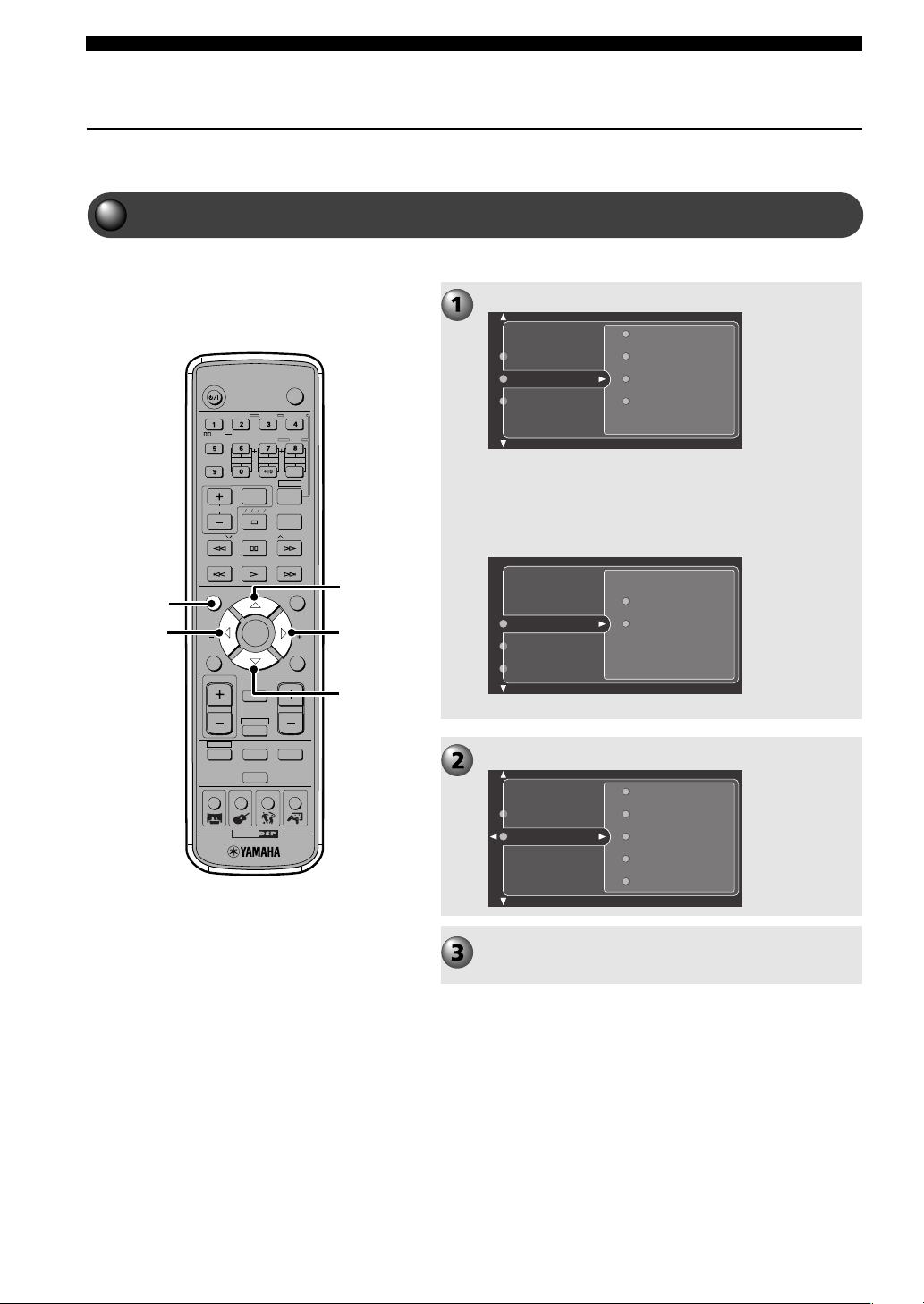
92
Using the On Screen Menu
Using the On Screen Menu
You can use the On Screen Menu to adjust settings for DVD playback,
including picture and language settings.
Navigating the On Screen Menu
For example, adjust the color saturation.
TV
CH
CINEMA
CH
POWER
POWER
AUDIO
/
DTS
SELECT
NIGHT
SW
TV CH
TV INPUT
SLEEP
PRESET PRESET
A B C D E
CENTER
SURR
SHIFT
STEREOMATRIX 6.1
A-B
REPEAT
ANGLE
SUBTITLE
DVR-S120 WB56650
ON SCREEN MENU
TEST
RETURN
STATUS
TV VOL
VOLUME
MUTE
AMP
DVD/CD
VCR
VIDEO
TUNER
MOVIE MUSIC SPORTS GAME
SET MENU
ENTER
ON
SCREEN
g
h
g
g
Press h or g to select “Picture” in the submenu.
Press w to enter the submenus.
Press h or g to select “Preference” in the Main
Menu.
Press ON SCREEN.
Program
View
Play Option
Search
Toolbar
Preferences
Setup
Features
Picture
Preferences
Toolbar
Setup
Saturation
Contrast
Color settings
Brightness
Sharpness
Picture
Features
➡
018DVX-S120-en 03.8.5, 1:51 PM92
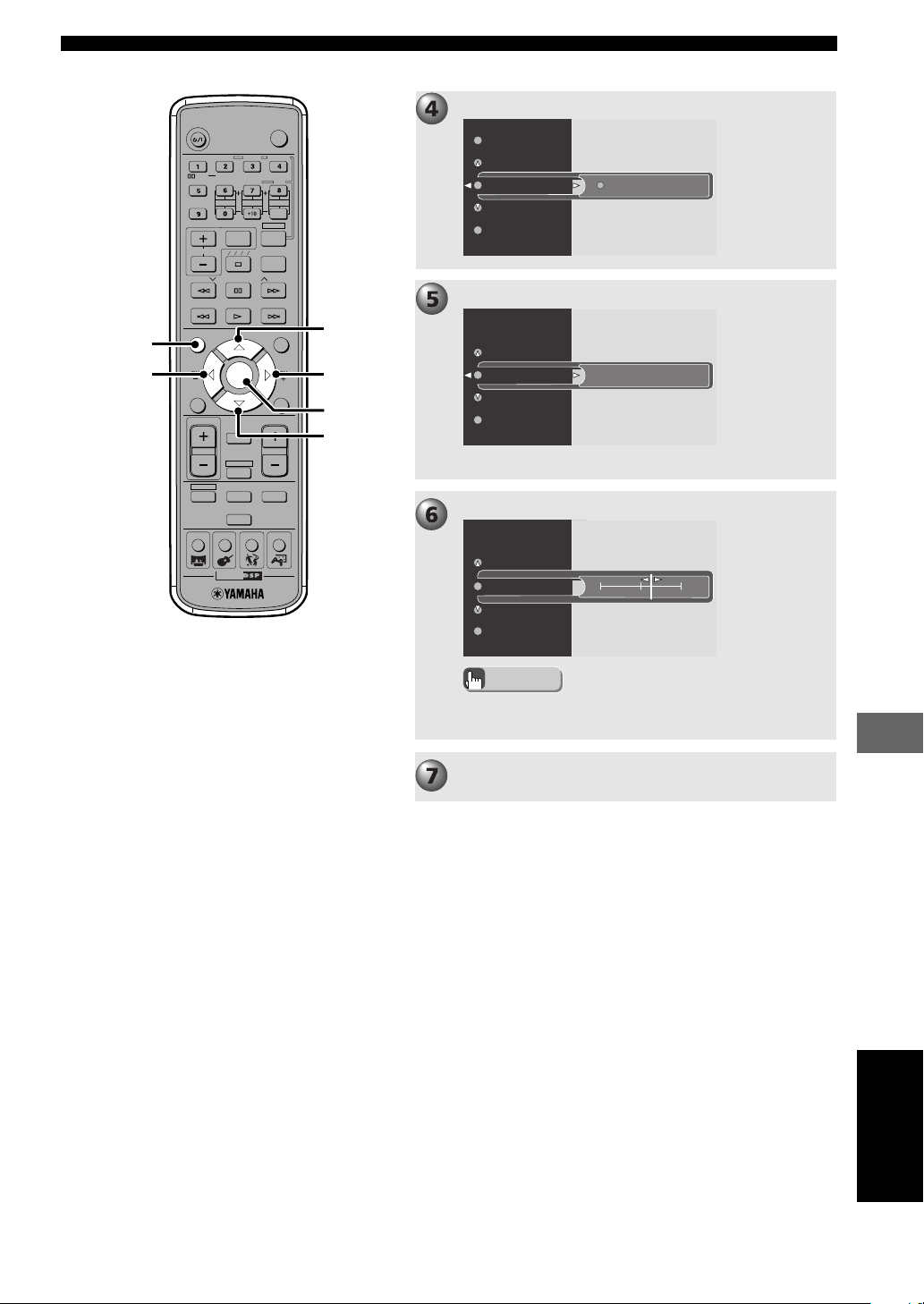
93
Using the On Screen Menu
Using the On Screen Menu
TV
CH
CINEMA
CH
POWER
POWER
AUDIO
/
DTS
SELECT
NIGHT
SW
TV CH
TV INPUT
SLEEP
PRESET PRESET
A B C D E
CENTER
SURR
SHIFT
STEREOMATRIX 6.1
A-B
REPEAT
ANGLE
SUBTITLE
DVR-S120 WB56650
ON SCREEN MENU
TEST
RETURN
STATUS
TV VOL
VOLUME
MUTE
AMP
DVD/CD
VCR
VIDEO
TUNER
MOVIE MUSIC SPORTS GAME
SET MENU
ENTER
g
h
ON
SCREEN
ENTER
g
g
Press ENTER, then press ON SCREEN to turn off
the On Screen Menu.
In some cases, you can also use h or g for setting
content.
Press q or w to set.
Press h or g to select “Saturation”.
Press w to enter menu items.
Natural
Brightness
Color settings
Saturation
Contrast
Sharpness
0
Contrast
Saturation
Video shift
Color settings
+2
Contrast
Saturation
Video shift
Color settings
English
Advice
To set the other menu items, follow the example above.
018DVX-S120-en 03.8.5, 1:51 PM93
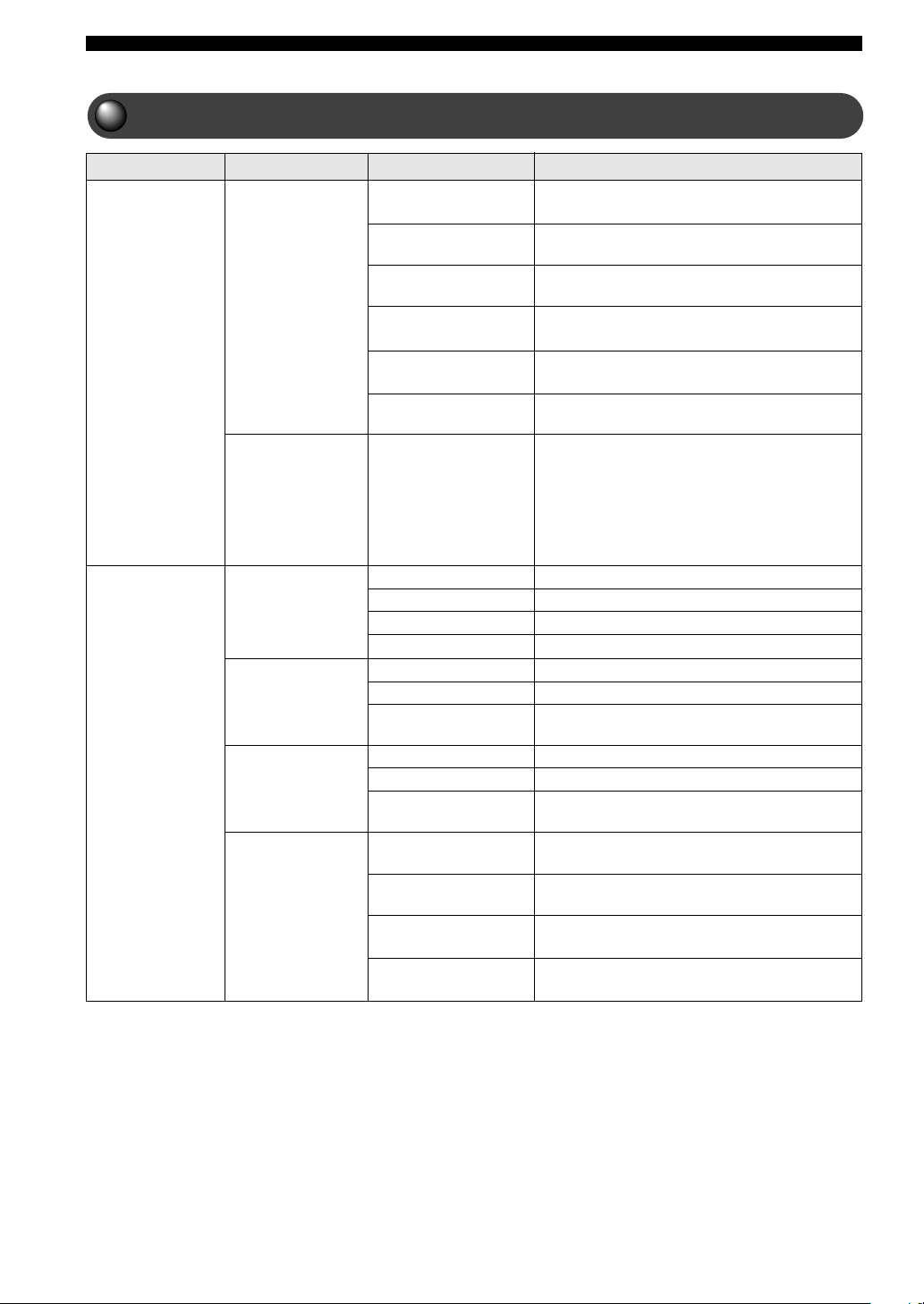
94
Using the On Screen Menu
On Screen Menu guide
On Screen Menu Guide
Adjust from +1 to +7. Adjusts the screen
position.
Adjust from -7 to +7. Adjusts the video color
saturation.
Adjust from -7 to +7. Accentuates bright and
dark parts of video.
Adjust the video shade.
Adjust from -7 to +7. Adjusts the video
brightness.
Adjust from -7 to +7. Adjusts the video
vividness.
Set to “On” to turn on/off the status display using
the STATUS button on the Remote Control. The
status display includes the type of disc, the
currently playing track/chapter number, the total
time of track/chapter and the elapsed time of
track/chapter. Set to “Off” to hide the status
display.
Deletes all Program content. Page 33
Selects a track. Page 31
Saturation
Picture
Preference
Toolbar
Features
Program
View
Contrast
Brightness
Sharpness
Status window
Clear All
Tracks
Program
Play list (Playlist)
Zoom
Angle
Chapter Preview
Audio
Disc Navigation
Play Option
Setting ContentSetting ItemSubmenuMain Menu
Selects Program Play “On”/“Off”. Page 33
Shows Playlist. Page 33
Enlarges the picture.
Switches the picture angle.
Returns to the beginning of the chapter currently
playing.
Selects the audio language.
Select the title, chapter or track to play.
Selects the subtitle language. You can only select
languages the disc contains.
Advances/reverses one frame at a time. Frame
Advance is not available with video CD.
Select the speed from among -32, -8, -4, 1, 4, 8,
32.
Specify an elapsed time and search for a scene.
Page 30
Select the speed from among -1, -1/2, -1/4, -1/8,
0, 1/4, 1/2, 1.
Fast
Search
Time
Sub-title (Subtitle)
Frame by Frame
Video shift
Color settings
(Colour settings)
Slow
018DVX-S120-en 03.8.5, 1:51 PM94
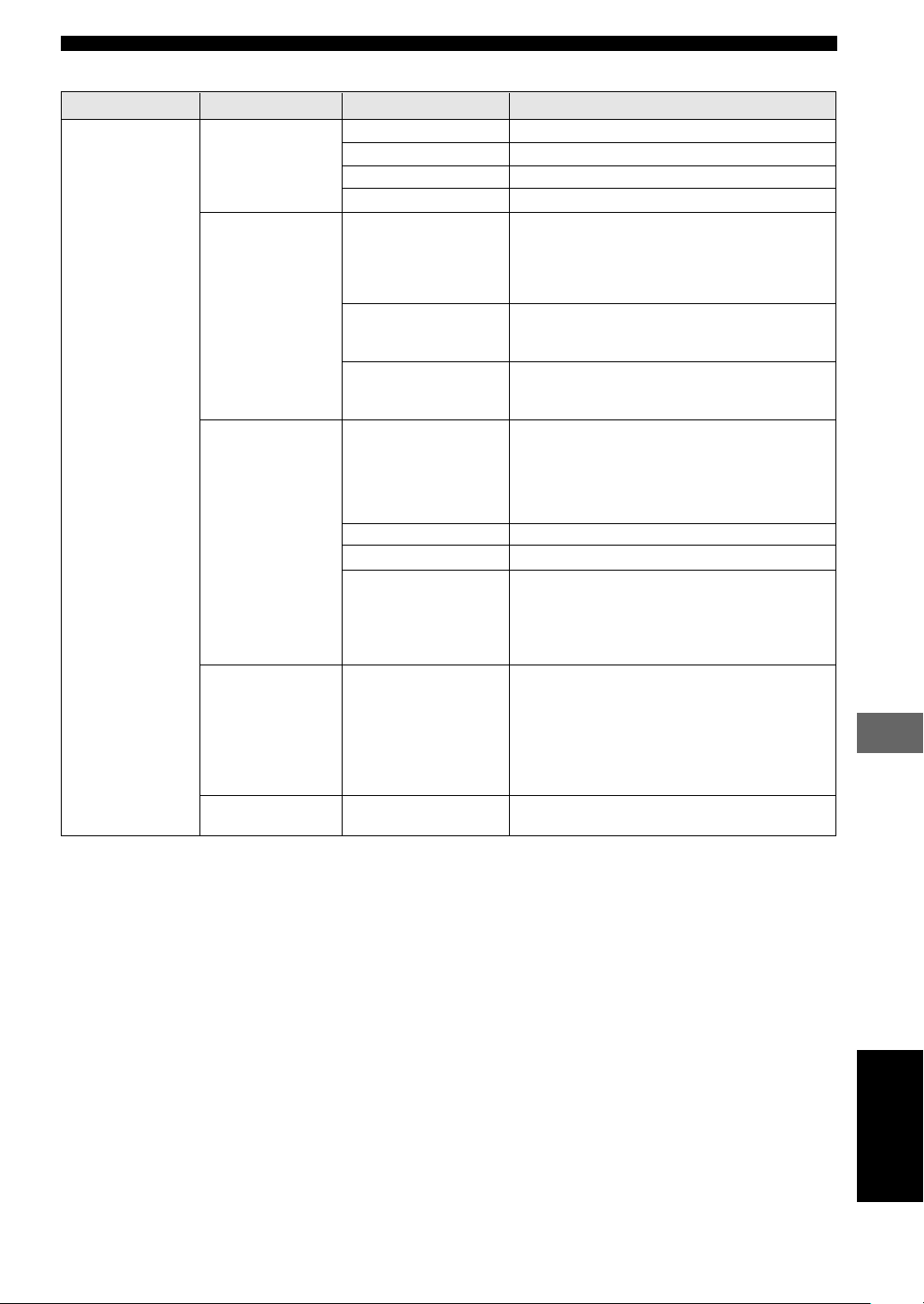
95
Using the On Screen Menu
Using the On Screen Menu
Set the Disc Lock “On”/“Off”. Page 82
Adjust the level from 0 to +8. Page 81
Enter the password. Page 80
Change the password. Page 81
Set to match your TV screen aspect.
4:3 panscan
4:3 letterbox
Wide-screen (Widescreen)
Set the video signal system*
2
to match your TV.
Set to AUTO when using a TV compatible with
both NTSC and PAL.
(U.K. and Europe models only) Sets the output
signal of AV MONITOR OUT jack to YUV or
RGB.
Set the language you usually select for subtitles.
When playing a disc, the subtitles in the selected
language appear first. When the disc does not
contain the selected subtitle language, no subtitle
appear.
Disc Lock
Parental level
Enter PIN
Change PIN
TV shape
Access
TV*
1
Setup
TV System
Video Output
Language
Setting ContentSetting ItemSubmenuMain Menu
Default Sub-title
(Default Subtitle)
Select the country where you use CinemaStation.
Set the language for the On Screen Menu.
Set the language you usually select for audio.
Country
Menu Language
When playing a disc, you hear the audio in the
selected language first. When the disc does not
contain the selected language you selected, it will
play in another language.
Select the output signal for the OPTICAL OUT
jack. The speaker sound changes depending on
the setting for this menu item.
All: Outputs all types of digital signals that
CinemaStation can reproduce.
PCM Only: Outputs the Pro Logic decoded
signal only.
Set Playback Control “On”/“Off”. If set to “Off”,
the Disc Menu does not appear on the TV screen.
Default Audio
Features PBC
*
1
Be careful when setting this menu item. If it does not match your TV, the menu and playback screen will not appear
properly or will not appear on the TV. If that happens, refer to “Recover TV settings” below.
*
2
This unit can play PAL and NTSC, but your television must match the system used on the disc.
Recover TV settings
When the screen does not appear properly due to TV setting, perform the steps below to recover the setting.
1 Press DVD/CD.
2 Press s for 5 seconds. NTSC<->PAL appears in the CinemaStation Display.
3 Press e to switch the setting. NTSC/PAL SET appears in the CinemaStation Display.
When connecting with AV MONITOR OUT (U.K. and Europe models only)
1 Perform steps 1 and 2 above.
2 Press s again. YUV<->RGB appears in the CinemaStation Display.
3 Press e to switch the setting. YUV/RGB SET appears in the CinemaStation Display.
English
Audio Menu Digital output
018DVX-S120-en 03.8.5, 1:51 PM95
96
Appendix
Solutions to Common Problems
Be sure to check the points below if CinemaStation doesn’t seem to be
working normally for you. If you notice something wrong that is not listed
below and you have already tried some solutions with no success, turn off
the CinemaStation power, remove the power plug from the outlet and contact
the store where you purchased the product or your nearest YAMAHA sound
products service center and ask for assistance.
General Problems
Power turns on but immediately shuts off.
1 The power plug is not completely plugged
in.
Insert the plug into the outlet firmly.
2 Speaker cable is shorted. When power is
turned on, the protective circuit engages and
shuts the system down.
Make sure that all speaker cables are
correctly connected.
3 CinemaStation received a strong, external
electric shock such as from a lightening bolt
or excessive static electricity.
Put CinemaStation in standby, pull out the
electric cord then wait for about 30 seconds
before reinserting the cord and turning on
the power again.
No sound.
1 You did not connect the cable properly.
Check your connections.
2 The source you selected is not suitable for
playback.
Choose the correct source using the Input
Selection buttons.
3 You did not connect the Speaker cable
properly.
Check your speaker connections.
4 You turned the sound volume down.
Turn the sound volume up.
5 Sound is muted.
Press MUTE or VOLUME +/- to regain the
sound and adjust the volume to your liking.
6 You inserted a CD-ROM that CinemaStation
cannot play.
Play a source signal that CinemaStation can
play.
No picture.
You did not connect the cable properly.
Check your connections.
The audio suddenly decreased.
The Sleep Time function started working.
Turn the power back on and try playing the
source again.
Sound is too low on one side.
You did not connect the cable properly.
Check your connections.
Cause
Solution
Cause
Solution
Cause
Solution
Cause
Solution
Cause
Solution
Cause
Solution
Cause
Solution
Cause
Solution
Cause
Solution
Cause
Solution
Cause
Solution
Cause
Solution
019DVX-S120-en 03.8.5, 1:51 PM96
97
Appendix
Appendix
No sound except from the Front
Speakers.
1 You are listening to STEREO sound.
Press STEREO and make sure sound field
effect is on.
2 You are playing a source such as Dolby
Surround, Dolby Digital or DTS that doesn’t
contain a special effect signal.
Select another DSP Program.
3 A digital audio sampling frequency over 48
kHz is input.
A digital audio sampling frequency over 48
kHz only outputs from the Front Speakers.
No sound from the Center Speaker.
1 You turned off the Center Speaker volume
level.
Turn up the Center Speaker volume. See
page 60.
2 You set “* CENTER” in the SET MENU to
“NON”.
Set the Center Speaker correctly. See page
63.
3 You have selected a DSP Program from the
Music group (excluding 5ch Stereo).
Select another DSP Program. See pages 16
and 17.
4 Dolby Digital and DTS sources do not
contain a center channel signal.
—
No sound from the Surround Speakers.
1 You turned off the Surround Speaker
volume level.
Turn up the Surround Speaker volume. See
page 60.
2 CinemaStation plays a monaural source in
the Theater DSP Program.
Select another DSP Program. See pages 16
and 17.
No sound from the Subwoofer.
1 You set “* BASS” in the SET MENU to
“FRONT” when CinemaStation plays a
Dolby Digital or DTS source.
Set “* BASS” to “SWFR” or “BOTH”. See
page 63.
2 You set “* BASS” in the SET MENU to
“FRONT” or “SWFR” when CinemaStation
plays a 2-channel source.
Set “* BASS” to “BOTH”. See page 63.
3 The source doesn’t contain an LFE or other
low tone signal (below 90 Hz).
—
No low tones.
The Speaker mode you selected in the SET
MENU does not match your speaker.
Set the appropriate Speaker mode based on
the size of the speakers you are using. See
page 62.
Strange humming noises.
You did not connect the pin cable properly.
Check your pin cable connections.
Cause
Solution
Cause
Solution
Cause
Cause
Solution
Cause
Solution
Cause
Solution
Cause
Solution
Cause
Solution
Cause
Solution
Cause
Solution
Cause
Solution
Cause
Solution
Cause
Solution
Cause
Solution
English
019DVX-S120-en 03.8.5, 1:52 PM97
98
Appendix
Sound volume will not increase.
The power of the device connected to
CinemaStation’s output jack is not turned
on.
If the power of the device connected to the
output jack is not turned on, playback may
be distorted and volume low. Turn on the
power of the connected device.
Sound field effect will not work.
It is not possible to record audio enhanced
by a sound field effect.
Audio recording will not work.
1 You are trying to make a digital recording
with an analog source.
Try inputting a digital source.
2 CinemaStation and the recording device are
not connected digitally.
Connect them digitally.
3 You are trying to make an analog recording
with a digital source.
Try inputting an analog source.
4 CinemaStation, the playback device and the
recording device do not share an analog
connection.
Connect them with an analog connection.
5 Some recording devices are not able to
record a digital source such as Dolby Digital
or DTS.
CinemaStation is not working normally.
The internal microcomputer froze up due to
electric shock (lightening bolt or excessive
static electricity) or drop in power supply.
Pull out the AC plug from the outlet and
after about 30 seconds plug it in again.
Digital and high frequency devices create
noise.
CinemaStation is placed too close to a
digital or high frequency device.
Place CinemaStation further away from
such devices.
SET MENU setting content has disappeared.
The power cord has not been connected to
the outlet for over a week or the external
timer was disconnected.
Set the SET MENU again.
Cause
Solution
Cause
Cause
Solution
Cause
Solution
Cause
Solution
Cause
Solution
Cause
Cause
Solution
Cause
Solution
Cause
Solution
019DVX-S120-en 03.8.5, 1:52 PM98
99
Appendix
Appendix
Disc Playback
One of the buttons doesn’t work.
Some discs do not allow certain operations.
Playback does not start when pressing w,
or it immediately stops.
1 When moved from a very cold place to a
warm one, condensation forms on the lens.
Let it alone for 1 to 2 hours.
2 You inserted a disc that CinemaStation
cannot play.
3 The disc is dirty.
Wipe the disc clean.
4 The disc is not set in the tray correctly.
Set the disc in the tray correctly. See page
11.
Audio or subtitle language does not switch.
1 The disc does not contain multiple audio or
subtitle languages.
2 Use the Disc Menu to change audio or
subtitle languages. See page 36.
No subtitles appear.
1 DVD does not contain subtitle data.
2 The subtitle setting is off.
Turn on subtitles. See page 13.
3 When using A-B Repeat subtitles sometimes
do not appear before and after points A and
B.
Viewing angle does not change.
You can only use this feature if you are
playing a disc recorded with multiple
angles.
VCR recording does not work.
Almost all DVD discs are copy protected, so
you cannot copy them.
Picture looks poor while fast forwarding or
reversing.
To some degree the picture does not look
normal, but this is not a defect.
The television (monitor) has no picture. (Or
the screen size looks strange.)
1 The setting in the On Screen Menu is not
correct.
Select Setup → TV in the On Screen Menu
to set the menu item correctly.
2 The television cannot handle progressive
input.
Turn off CinemaStation’s progressive output
and change to interlace input on the
television. See page 79.
Part of picture appears double with
progressive output.
The disc content does not match the
progressive output due to the editing method
or other conditions.
Turn off CinemaStation’s progressive output
and change to interlace input on the
television (monitor). See page 79.
The picture quality is poor.
Adjust the picture quality using “Picture” in
the On Screen Menu. See page 92.
No Status display appears.
Under “Features” in the On Screen Menu,
switch the “Status window” to “On”. See
page 92.
Cause
Cause
Solution
Cause
Cause
Solution
Cause
Solution
Cause
Cause
Cause
Cause
Cause
Cause
Cause
Cause
Cause
Solution
Cause
Solution
Cause
Solution
Solution
Solution
Solution
English
019DVX-S120-en 03.8.5, 1:52 PM99
100
Appendix
The disc is ejected as soon as it is inserted.
A disc that cannot be played has been
inserted.
Radio Reception
Preset Tuning does not work.
1 The Preset (memory) has been deleted.
Perform Preset again. See page 41.
Too much noise blocks out stereo
broadcast.
The radio station is far away from your area
or your antenna is weak.
1 Check your antenna connection. And change
your outdoor FM antenna for a multi-
channel one.
2 Try Manual Tuning. See page 40.
Audio is distorted and the receiver
sensitivity is poor even with outdoor FM
antenna.
You are experiencing multipath reflection
and other radio interference.
Change the antenna’s height, direction or
placement.
Auto Tuning does not work.
The radio station is far away from your area
or your antenna is weak.
1 Try Manual Tuning. See page 40.
2 Change your outdoor FM antenna for a
multi-channel one.
Auto Tuning does not work.
The radio waves are weak or your antenna is
not completely connected.
1 Change the AM Loop antenna’s direction.
See page 38.
2 Try Manual Tuning. See page 40.
Too much noise.
Noise can be related to atmospheric
electricity and lightning, or fluorescent
lights, motors and thermostats attached to
electric devices.
Connecting the outdoor AM antenna and
establishing good grounding will decrease
noise. However, it is difficult to completely
eliminate noise.
Too much noise, especially in the evening.
A television is in use near CinemaStation.
Place the television further away from
CinemaStation.
Cause
Cause
Solution
FM/AM
Cause
Solution
FM
Cause
Solution
Solution
Cause
Solution
Cause
Solution
Solution
AM
Cause
Solution
Solution
Cause
Solution
Cause
Solution
“No Disc” appears in the CinemaStation
Display.
No disc is inserted or a disc is inserted
incorrectly.
Set the disc in the tray correctly. See page
11.
019DVX-S120-en 03.8.5, 1:52 PM100
101
Appendix
Appendix
The Remote Control does not work.
1 You are outside the Remote Control
operating range.
Operate the Remote Control within 6 m (20
feet) and a 30° angle of the Remote Control
Sensor.
2 The Remote Control Sensor is exposed to
direct sunlight or lighting (inverted
fluorescent lamps).
Change the lighting or CinemaStation’s
orientation.
3 The batteries are worn out.
Replace the batteries with new ones.
4 You did not select the device to operate.
Press the Input Selection buttons to select
the device you want to operate.
Remote Control does not work with
CinemaStation.
You did not select the mode to operate
CinemaStation.
Press DVD/CD, AMP or TUNER on the
Remote Control before starting operation.
Remote Control
A peripheral device does not work with the
Remote Control.
1 You cannot operate a system component.
Use the remote control that came with the
device to operate it.
2 You did not correctly set the manufacturer
code.
• Set the manufacturer code once again.
See page 83.
• Set a different code from the list of codes
for the same manufacturer. See page 83.
3 The Remote Control is not compatible with
your equipment.
Use the remote control that came with the
device to operate it.
Cause
Solution
Cause
Solution
Cause
Solution
Cause
Solution
Cause
Solution
Cause
Solution
Cause
Solution
Cause
Solution
English
019DVX-S120-en 03.8.5, 1:52 PM101
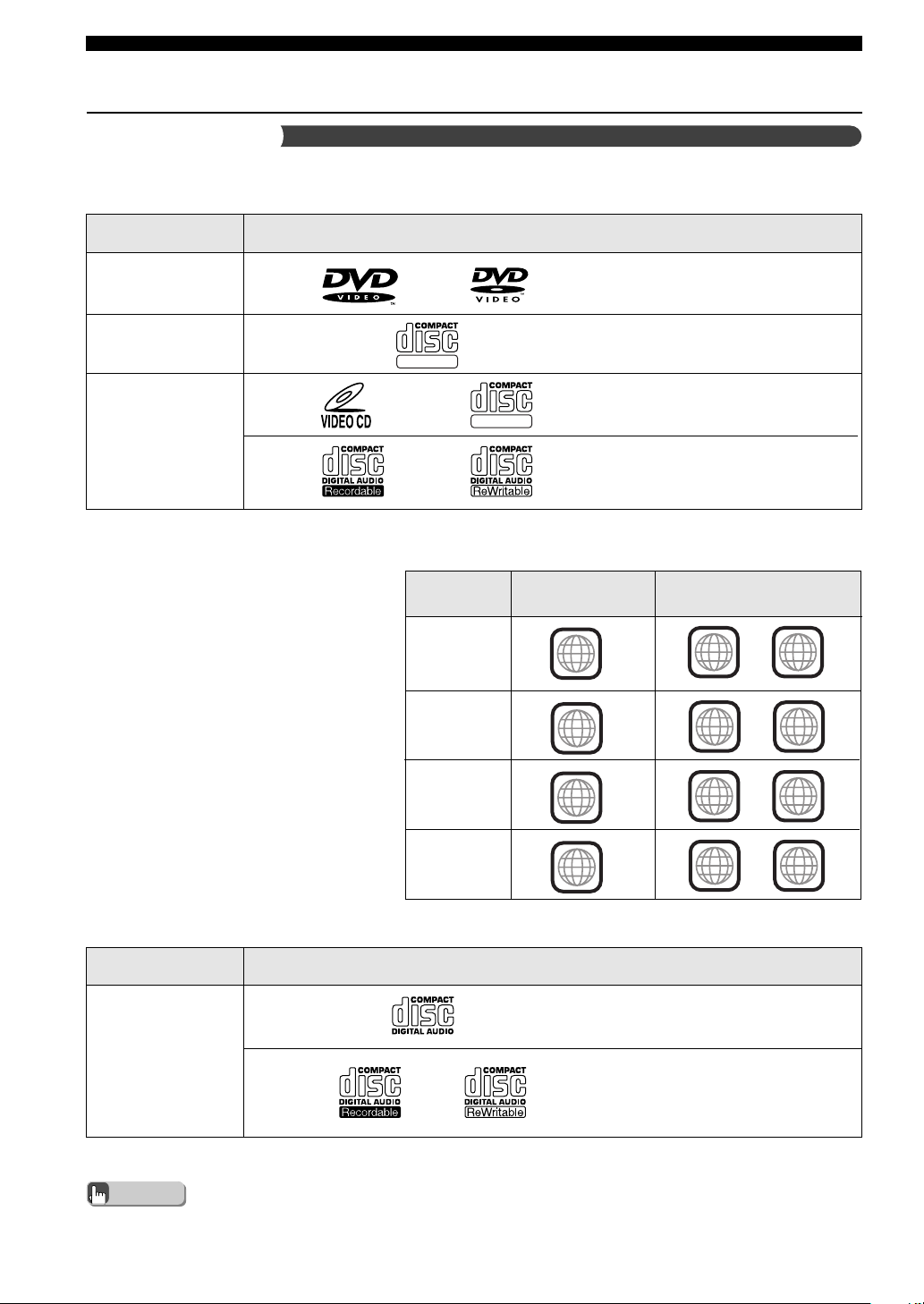
102
Appendix
Information
The table below lists the types of discs you can play on CinemaStation.
Video Discs
Type of Disc
DVD Video
SVCD
(Super Video CD)
Video CD
Disc Logo Mark
DIGITAL VIDEO
DIGITAL VIDEO
Playable discsDestination
Region code of
CinemaStation
1
ALL
1
The region code (an ID number assigned to
each market region) is set for normal DVD
players and DVD video discs. CinemaStation
can play the discs with the region codes
shown below on the right. For more details
read the information on the disc jacket.
Advice
DVD region codes
U.S.A.
Canada
2
ALL
2
U.K.
European
4
ALL
4
Australia
3
ALL
3
Korea
General
• Disc logo marks are printed on the disc and the disc jacket.
Disc information
Video CDs made by copying
an MPEG movie file onto a
CD-R or CD-RW.
Type of Disc
Music CD
(Compact disc
digital audio)
Disc Logo Mark
Music CDs made by copying
onto a CD-R or CD-RW. Music
in MP3 format can also be
played.
Music Discs
019DVX-S120-en 03.8.5, 1:52 PM102
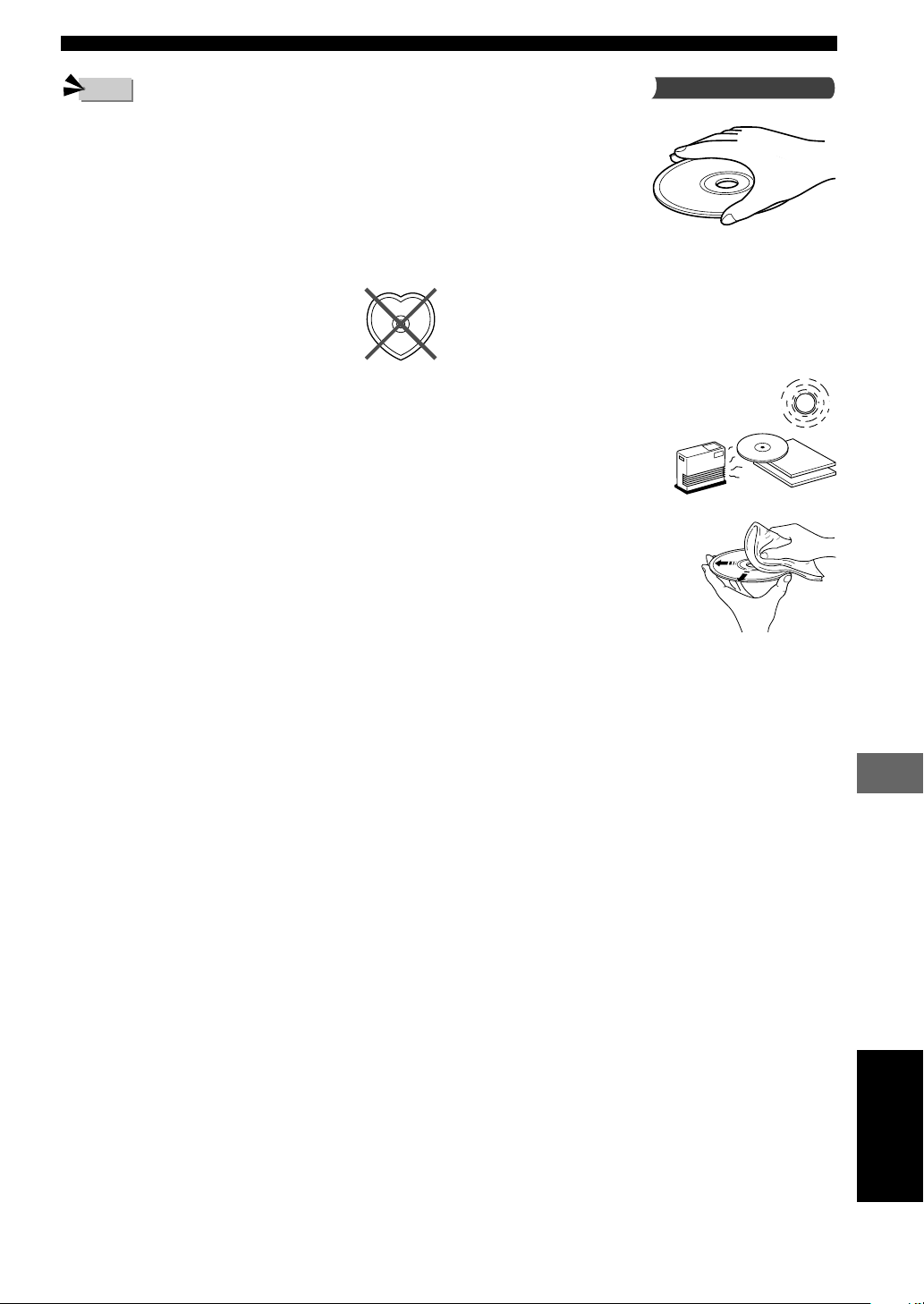
103
Appendix
Appendix
• The following discs cannot be played with this unit.
CD-ROM, DVD-ROM, CDV. (This product can play some
types of DVD-R, DVD-RW (Video format only), DVD+R or
DVD+RW discs.)
• CinemaStation cannot play a CD-R, CD-RW, DVD-R, DVD-
RW, DVD+R or DVD+RW disc that has not been finalized.
Finalizing is a process that prepares a disc for playback on a
compatible device.
• Only use discs from a reputable manufacturer. Some discs
cannot be played back, depending on recording conditions and
disc characteristics.
• Do not use discs with non-standard shapes or
sizes.
• Some DVD video or video CD discs may operate and
function differently than noted in this manual. That is by
manufacturer design and not a defect in this unit. For more
details read the information on the disc jacket.
• This unit can play the disc types associated with the logos
shown on page 102. (Do not attempt to load any other type of
disc into the unit, or the unit may be damaged.)
• Some discs cannot be played depending on the recording
conditions such as PC environment and application software.
Failure can also result from disc characteristics and condition,
like material quality, scratches or curvature.
Note
Caution
Handling a disc
• Do not touch the surface of
the disc. Hold a disc by its
edge and center hole.
• Do not leave a disc in the
tray when you are not
playing it.
• Do not write on the disc with
a pencil or other marker.
• Do not stick tape, seals or other attachments to a disc, and do
not bring into contact with glue.
• Do not use a protective cover to prevent scratches.
• Do not use a disc whose surface can be printed with a
commercially available label printer.
• Do not put a disc in a place with
direct sunlight, high temperature,
high humidity or a lot of dust.
• If a disc becomes dirty, wipe it with a
clean, dry cloth from the center out to
the edge. Do not use record cleaner or
paint thinner.
• To avoid malfunction, do not use a commercially available
lens cleaner.
English
019DVX-S120-en 03.8.5, 1:52 PM103
104
Appendix
“DTS” and “DTS Digital Surround” are registered trademarks of
Digital Theater Systems, Inc.
MPEG Layer-3 audio decoding technology licensed from
Fraunhofer IIS and Thomson multimedia.
Manufactured under license from Dolby Laboratories. “Dolby”,
“Pro Logic”, and the double-D symbol are trademarks of Dolby
Laboratories.
Copyright and logo marks
This product incorporates copyright protection technology that is
protected by method claims of certain U.S. patents and other
intellectual property rights owned by Macrovision Corporation and
other rights owners. Use of this copyright protection technology
must be authorized by Macrovision Corporation, and is intended for
home and other limited viewing uses only unless otherwise
authorized by Macrovision Corporation. Reverse engineering or
disassembly is prohibited.
SILENT CINEMA is a trademark of YAMAHA
CORPORATION.
Active Servo Processing Subwoofer System with a built-in
power amplifier
This subwoofer system (NX-SW120) employs Advanced
Yamaha Active Servo Technology which YAMAHA has
developed for reproducing higher quality super-bass sound. This
super-bass sound adds a more realistic, theater-in-the-home
effect to your stereo system.
019DVX-S120-en 03.8.5, 1:52 PM104

105
Appendix
Appendix
Glossary
Bit Stream
A signal that is compressed and changed into digital
format. Then depending on the decoder it can be
processed as 5.1 multi-channel audio.
Channel (ch)
A channel is an audio type that has been divided based
on range and other characteristics.
Ex. 5.1 channel
• Front Speakers, Left (1ch), Right (1ch)
• Center Speaker (1 ch)
• Surround Speakers, Left (1ch), Right (1ch)
• Subwoofer (1 ch x 0.1* = 0.1 ch)
* In contrast to a full 1-channel band, a component designed
to enhance low frequency sound for added effect.
Cinema DSP (Digital Sound Field
Processor)
Dolby Surround and DTS were originally designed for
the movie theater, so playing the same program at home
would produce disparate listening experiences
depending on variables like the room size, walling and
number of speakers.
Yamaha Cinema DSP applies original sound field
technology based on a wealth of real-world data
measurements to reproduce Dolby Pro Logic, Dolby
Digital and DTS sound, combining them with acoustic
scale, depth and tone so that you can experience the
presence of a movie theater at home.
Component Video Signal
A component video signal is separated into one
luminance Y-signal and two chrominance P
B/CB and PR/
C
R signals. Since each signal is sent independently, color
can be reproduced more faithfully. The component
signal is also called a color-difference signal by the way
it subtracts the luminance signal from the color signals.
Decoder
A device that converts encoded data on DVD and other
media back to its original audio or video signal.
Dolby Digital
Dolby Digital is a digital surround sound system that
gives you completely independent multi-channel audio.
With 3 front channels (left, center, and right), and 2
surround stereo channels, Dolby Digital provides 5 full-
range audio channels. With an additional channel
especially for bass effects, called LFE (low frequency
effect), the system has a total of 5.1 channels.
By using 2-channel stereo for the surround speakers,
more accurate moving sound effects and surround sound
environment can be reproduced, like the rustling of trees
or sound of waves.
Dolby Pro Logic
A surround system that takes a 4-channel signal and
records it as a 2-channel signal, then by way of some
arithmetic processing converts back to an independent 4-
channel signal for playback.
Dolby Pro Logic II
Takes any 2-channel source and reproduces dynamic
5.1-channel surround with excellent separation using
special signal processing. You can experience Dolby Pro
Logic II in MOVIE mode and MUSIC mode for stereo.
You can even enjoy old movies that were only recorded
in 2-channel audio (excluding monaural) in powerful
5.1-channel surround.
DTS (Digital Theater Systems)
The 5.1-channel surround system adopted by most
movie theaters. With an abundance of audio data, it is
able to provide authentic sounding effects.
Dynamic Range
The difference between the smallest sound that can be
heard above the equipment noise and the biggest sound
that can be heard without distortion is the dynamic
range.
Film and Video Data
In general, DVD media can be classified into the 2 types
below.
• Film Data
Video recorded at 24 frames/second. (The film used
for shooting movies is recorded at 24 frames/second.)
Recently 30 frames/second progressive video has
made its debut.
• Video Data
Video recorded at 30 frames/second.
CinemaStation will automatically recognize whether the
source recorded on DVD is film or video, then select the
best method to convert it into progressive output.
Interlace and Progressive Outputs
Up to now the standard video signal has been NTSC
with 525i (i: interlaced) scan lines. In contrast, 525p (p:
progressive) is a high-density signal with double the
number of scan lines.
English
019DVX-S120-en 03.8.5, 1:52 PM105

106
Appendix
LFE (Low Frequency Effect) 0.1
Channel
This channel is for the reproduction of low bass signals.
The frequency range for this channel is 20 Hz to 120 Hz.
It is added to the full-range 5 channels in Dolby Digital
and DTS to enhance low frequency sound for added
effect. This channel is counted as 0.1 because it only
enforces a low frequency range.
Linear PCM (LPCM)
A signal that is changed to digital format without
compression. A CD is recorded with 16-bit sound at
44.1kHz, while DVD recording is anywhere between 16
bits at 48 kHz to 24 bits at 192 kHz, which makes it a
higher quality sound than CD. This signal also has a type
called Packed PCM (P.PCM) that can be compressed
without any loss of data.
Matrix 6.1
CinemaStation incorporates a Matrix 6.1 decoder for
Dolby Digital and DTS multi-channel software that
enables 6.1-channel reproduction by adding the surround
back channel to existing 5.1-channel format. (The
surround back channel is created from surround left and
right channels, and output from a virtual surround back
speaker.) With this additional channel, you can
experience more dynamic and realistic moving sound
especially scenes with "fly-over" and "fly-around"
effects.
NTSC
NTSC is a video signal system (525 lines, 30 frames per
second) used in North America, Central America, a
number of South American countries, and some Asian
countries, including Japan.
Pan & Scan and Letter Box
In general, DVD Video is produced for viewing on a
wide television screen with an aspect ratio of 16:9. This
means you can now view most material with the
intended aspect ratio on a wide-screen television.
This ratio will not fit on a standard television that has an
aspect ratio of 4:3. Two picture styles, Pan & Scan and
Letterbox, deal with this problem.
• Pan & Scan cuts off the left and right portions of the
picture to fill the screen.
• Letterbox inserts black bands at the top and bottom of
the picture to reproduce an aspect ratio of 16:9.
PAL
PAL is a video signal system (625 lines, 25 frames per
second) used in the United Kingdom, much of the rest of
western Europe, several South American countries, some
Middle East and Asian countries, several African
countries, Australia, New Zealand, and other Pacific
island countries.
Sampling Frequency and Quantized
Bit Rate
When converting an analog signal to digital, the number
of times the signal is sampled per second is called the
sampling frequency while the degree of fineness when
converting the sound level into a numeric value is called
the quantized bit rate.
The frequency band that can be played back is
determined by the sampling rate while the dynamic
range expressing the difference in sound level is
determined by the quantized bit rate. In principle, the
higher the sampling rate, the wider the frequency range
that can be played back. And the higher the quantized bit
rate the finer the sound that can be reproduced.
SILENT CINEMA
SILENT CINEMA is an original Yamaha system that
reproduces in a pair of headphones the acoustic
personality of sound field programs based on multi-
speakers. Headphone parameters have been set for each
sound field so that natural stereoscopic sound can be
expressed and enjoyed through headphones.
S-Video Signal
With S-video the video signal that was normally
transmitted using a pin cable is separated and
transmitted as a luminance Y-signal and chrominance C-
signal through an S video cable. Connecting with an S
VIDEO jack you can enjoy recording and playback with
more beautiful images.
Title, Chapter (DVD Video)
DVD video lets you divide a disc in a big way by titles
or a small way by chapters. Each division is either called
a title number or a chapter number.
Track (CD/Video CD)
A CD or Video CD can be divided into a number of
segments (tracks). Each division is called a title number.
Virtual Cinema DSP (Digital Sound
Field Processor)
Reproduces a surround speaker sound field to let you
enjoy virtual Center and Surround L/R Speakers with
only two Front L/R Speakers.
019DVX-S120-en 03.8.5, 1:52 PM106

107
Appendix
Appendix
Index
5ch Stereo ...................................................................... 17
A
A-B Repeat .................................................................... 35
Action ............................................................................ 17
C
Changing the Order of Preset Stations .......................... 43
CinemaStation Display brightness ................................ 91
Classic Hall .................................................................... 17
Connecting a CD or MD recorder ................................. 50
Connecting a Game Console ......................................... 46
Connecting a VCR ......................................................... 46
Connecting the Antennas ............................................... 38
Connecting the Speakers ................................................. 8
Connecting the TV .......................................................... 8
Connect a TV to an audio input ................................. 47
Connecting with S-video ................................................. 9
D
D. Range ........................................................................ 90
Delay Time .................................................................... 71
Digital audio jacks ......................................................... 51
Disc information .......................................................... 102
Discs this unit cannot play back .............................. 103
Handling a disc ........................................................ 103
Music Discs ............................................................. 102
Video Discs .............................................................. 102
Disc Lock ...................................................................... 82
Disc Menu ..................................................................... 36
Display Set .................................................................... 91
Dolby Digital Surround EX disc ................................... 64
Drama ............................................................................ 17
DSP Program ................................................................. 17
DTS ES disc .................................................................. 64
DVD region codes ....................................................... 102
F
Fastener ......................................................................... 53
Finding the Best DSP Effect .......................................... 16
Frame Advance .............................................................. 29
G, H
Game ............................................................................. 17
HP Tone CTRL .............................................................. 90
I, J
Input Assign ................................................................... 91
Input Mode .................................................................... 91
Input Modes ................................................................... 77
Jazz Club ....................................................................... 17
L
L/R Balance ................................................................... 90
LEF Level ...................................................................... 90
Live Sports .................................................................... 17
M, N
Matrix 6.1 ...................................................................... 64
MP3 ............................................................................... 37
Music Video ................................................................... 17
Night Listening .............................................................. 70
No Disc ........................................................................ 100
Non-skid pad ........................................................... 53, 54
O, P
On Screen Menu ............................................................ 24
On Screen Menu Guide ............................................. 94
Using the On Screen Menu ........................................ 92
Original Dolby and DTS Sound .................................... 73
Parental Control ............................................................. 80
Placing the Speakers ........................................................ 7
Playback Control (PBC) ................................................ 36
PRO LOGIC II Movie ................................................... 66
PRO LOGIC II Music ................................................... 66
Pro Logic II Music setting ......................................... 67
Program Play ................................................................. 31
Progressive Scan ............................................................ 79
R
Reassign input jacks ...................................................... 91
Recording Audio from CinemaStation .......................... 52
Remote Control ............................................................. 21
Amp Mode ................................................................. 22
DVD/CD Mode .......................................................... 23
Tuner Mode................................................................ 21
Using the Remote Control ......................................... 21
Repeat Play .................................................................... 34
Rock Concert ................................................................. 17
English
019DVX-S120-en 03.8.5, 1:52 PM107

108
Appendix
S
Sci-Fi (Science Fiction) ................................................. 17
Selecting Radio Stations ................................................ 39
Auto Tuning ............................................................... 39
Manual Tuning ........................................................... 40
Preset Tuning ............................................................. 43
SET MENU ................................................................... 90
Setting Channels in Advance (Preset) ........................... 41
Auto Preset ................................................................ 41
Manual Preset ............................................................ 42
Setting the Manufacturer Code ...................................... 83
SILENT CINEMA ......................................................... 69
Sleep Timer .................................................................... 78
Slow Advance/Reverse .................................................. 29
SP Delay ........................................................................ 90
Speaker Mode ................................................................ 62
Speaker Size .................................................................. 62
Speaker Volume Level ............................................. 58, 60
5ch Stereo DSP Program ........................................... 61
Spectacle ........................................................................ 17
Stereo playback ............................................................. 17
T
Test Tone ........................................................................ 58
Theater ........................................................................... 17
Time Search ................................................................... 30
To change discs .............................................................. 12
Tuner Step...................................................................... 91
Types of Input Signals ................................................... 75
V
Virtual Cinema DSP ...................................................... 68
019DVX-S120-en 03.8.5, 1:52 PM108
109
Appendix
Appendix
Specifications
AUDIO SECTION
Minimum RMS Output Power
FRONT L/R, CENTER, SURROUND L/R
1 kHz, 0.9% THD, 6Ω ........................................... 45 W
U.S.A. and Canada models
20 Hz to 20 kHz, 0.9% THD, 6Ω ........................ 45 W
Maximum Power (EIAJ)
FRONT L/R, CENTER, SURROUND L/R
1 kHz, 10% THD, 6Ω ............................................. 55 W
Total Harmonic Distortion
FRONT L/R (20 W, 1 kHz) .................. Less than 0.05 %
Signal to Noise Ratio (IHF-A Network, shorted) ......... 90 dB
Input Sensitivity
VIDEO, VCR ........................................... 200 mV/47 kΩ
Output Level (when 200mV is input)
REC OUT ............................................... 200 mV/1.2 kΩ
VIDEO SECTION
Video Signal Level
Video ............................................................ 1 Vp-p/75 Ω
S Video (Y/C) ......................... 1 Vp-p/0.286 Vp-p/75 Ω
Component (Y/P
B, PR) ................. 1 Vp-p/0.7 Vp-p/75 Ω
Signal to Noise Ratio .................................................... 50 dB
TUNER SECTION
FM Tuning Range
U.S.A. and Canada models ................ 87.5 to 107.9 MHz
Other models ...................................... 87.5 to 108.0 MHz
AM Tuning Range
U.S.A., Canada and Korea models
.............................................................. 530 to 1710 kHz
U.K., Europe and Australia models
.............................................................. 531 to 1611 kHz
Asia and General models
.............................................. 530/531 to 1710/1611 kHz
SPEAKERS
Satellite Speakers (Front and Surround Speakers)
Model Name ..................................................... NX-S120
Type
..........
Full range acoustic suspension magnetic shielding type
Driver
...
5 cm (2 inch) full range cone x 2, magnetic shielding type
Impedance ................................................................... 6Ω
Center Speaker
Model Name .................................................... NX-C120
Type
..........
Full range acoustic suspension magnetic shielding type
Driver
...
5 cm (2 inch) full range cone x 2, magnetic shielding type
Impedance ................................................................... 6Ω
Subwoofer
Model Name ................................................. NX-SW120
Type
........
Advanced YAMAHA Active Servo Technology system
Driver
........... 16 cm (6
1
/2 inch) cone, magnetic shielding type
GENERAL
Power Supply
U.S.A. and Canada models ................... AC 120 V/60 Hz
Australia model ..................................... AC 240 V/50 Hz
U.K. and Europe models ....................... AC 230 V/50 Hz
Korea model .......................................... AC 220 V/60 Hz
Asia model .................................... AC 220-240 V, 50 Hz
General model ............................... AC 110-120 V, 50 Hz
NX-SW120 for Korea, Asia and General models
................................... AC 110-120/220-240 V, 50/60 Hz
Power Consumption
DVR-S120 .............................................................. 85 W
NX-SW120 ............................................................. 40 W
Standby Power Consumption
DVR-S120
Asia and General models ....................................... 0.5 W
Other models .......................................................... 0.4 W
Laser Pickup
Type .................................. Semiconductor laser GaAlAs
Wave length ............ 650 nm (DVD), 790 nm (VCD/CD)
Output Power .... 1.45 mW (DVD), 1.31 mW (VCD/CD)
Dimensions (W ✕ H ✕ D)
DVR-S120 ...................................... 360 ✕ 75 ✕ 360 mm
(14
3
/16⬙ x 2
15
/16⬙ x 14
3
/16⬙)
NX-SW120 ................................... 200 ✕ 365 ✕ 390 mm
(7
7
/8⬙ x 14
3
/8⬙ x 15
11
/32⬙)
NX-C120 ......................................... 300 ✕ 72 ✕ 105 mm
(11
13
/16⬙ x 2
27
/32⬙ x 4
1
/8⬙)
NX-S120 ......................................... 72 ✕ 170 ✕ 108 mm
(2
27
/32⬙ x 6
11
/16⬙ x 4
1
/4⬙)
Weight
DVR-S120 ........................................ 6.4 kg (14 lbs 2 oz)
NX-SW120 ....................................... 8.4 kg (18 lbs 8 oz)
NX-C120 ............................................. 1.1 kg (2 lbs 6 oz)
NX-S120 ..................................................... 0.9 kg (2 lbs)
Operating Temperature Range
................................................. +5 to +35°C (41 to 95°F)
Operating Humidity Range
........................................... 5 to 90% (No Condensation)
Accessories ........................................................... See page 6.
Specifications are subject to change without notice.
English
019DVX-S120-en 03.8.5, 1:52 PM109
YAMAHA ELECTRONICS CORPORATION, USA 6660 ORANGETHORPE AVE., BUENA PARK, CALIF. 90620, U.S.A.
YAMAHA CANADA MUSIC LTD. 135 MILNER AVE., SCARBOROUGH, ONTARIO M1S 3R1, CANADA
YAMAHA ELECTRONIK EUROPA G.m.b.H. SIEMENSSTR. 22-34, 25462 RELLINGEN BEI HAMBURG, F.R. OF GERMANY
YAMAHA ELECTRONIQUE FRANCE S.A. RUE AMBROISE CROIZAT BP70 CROISSY-BEAUBOURG 77312 MARNE-LA-VALLEE CEDEX02, FRANCE
YAMAHA ELECTRONICS (UK) LTD. YAMAHA HOUSE, 200 RICKMANSWORTH ROAD WATFORD, HERTS WD18 7GQ, ENGLAND
YAMAHA SCANDINAVIA A.B. J A WETTERGRENS GATA 1, BOX 30053, 400 43 VÄSTRA FRÖLUNDA, SWEDEN
YAMAHA MUSIC AUSTRALIA PTY, LTD. 17-33 MARKET ST., SOUTH MELBOURNE, 3205 VIC., AUSTRALIA
DVD HOME THEATER SOUND SYSTEM
DVX-S120
(DVR-S120+NX-S120+NX-C120+NX-SW120)
OWNER’S MANUAL
U B
DVD RECEIVER
DVR-S120
Printed in Malaysia WB85310-1
cv_DVX-S120_UB.p65 03.8.19, 7:44 PM1
