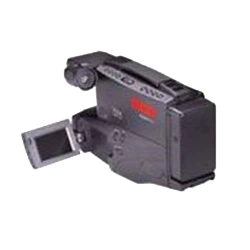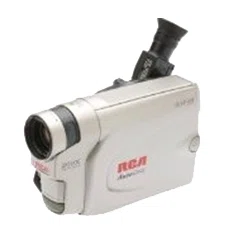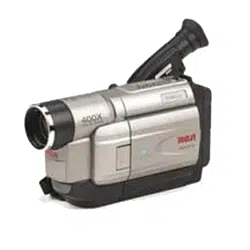
USER'S
GUIDE
CA MC0
Important Safety lntbrmation
Be sure to read all the safety information before you begin to use this product.
WARNING: To reduce the risk of fire or shock hazard, do not expose
product or AC adapter/charger to rain or moisture.
RISK_E].ECTRICSt-IOCK
DO NOT OPEN
This symbol indicates "dangerous voltage"
inside the product that presents a risk of
electric shock or personal injury.
_ This symbol indicates important
instructions accompanying the product.
B._-'ql:_K)t.E NE PAS OUV_R
TO REDUCE THE RISK OF ELECTRIC SHOCK, DO NOT REMOVE THE
COVER (OR BACK). NO USER-SERVICEABLE PARTS ARE INSIDE. REFER
SERVICING TO QUALIFIED SERVICE PERSONNEL.
CAUTION: To prevent electric shock, match wide blade of plug
to wide slot, fully insert.
ATTENTION: Pour 6viter les chocs 61ectriques, introduire la lame
la plus large de la fiche dans la borne correspondante de la prise et
pousser jusqu au fond.
To reduce risk of injury, charge only rechargeable batteries recommended by the
manufacturer for this eamcorder. Other types of batteries may burst causing
damage and personal injury.
CAUTION: Avoid operating this product immediately after moving it from a
cold location to a warm location. Give it 2 to 3 hours to reach a stable temperature
before inserting a video cassette. When moved from a cold area to a warm
location, moisture may condense on the head drum inside the machine. This
moisture could cause the tape to stick to the headwheel and damage the
headwheel or tape.
FCC Regulations state that unauthorized changes or modifications to this
equipment may void the user's authority to operate it.
Product Registration
Please fill out the product registration card and return it immediately. Returning
this card allows us to contact you if needed.
Keep your sales receipt for proof of purchase to obtain warranty parts and service
and attach it here. Record the serial and model numbers located on the bottom of
the product.
Model CC432
Serial No:
Purchase Date:
Purchased From:
Assistance
We want to make sure you enjoy your new camcorder. If you have any
questions, call:
Customer Service ..................................... 800-336-1900 (Page 59)
Accessories ......................................... 800-338-0376 (Pages 46-53)
Safety Information ................................ i
Product Registration ............................. i
Contents ............................................. 1-2
First-Time Operation
•Assistance ............................................ 3
• Unpack Camcorder and
Accessories ...................................... 3
• Attach the Adapter/Charger ................ 4
• Remove Lens Cap and Attach
to Handstrap ..................................... 5
• Turn on the Camcorder ....................... 5
• Insert a Cassette .................................. 6
•Position Viewfinder and
Adjust Eyepiece Focus Control .......6
• Start and Stop Recording .................... 7
• Play Back What You Have
Recorded .......................................... 7
• Review the Camcorder's
Operating Controls ....................... 8-9
Powering the Camcorder
• Using the Adapter/Charger ............... I0
• Using the Rechargeable Battery
• Charging ......................................... 11
• Attaching and Removing ................ 12
• Care and Storage ............................ 13
• Safety Precautions .......................... 13
• Battery Level Indicator ................... 14
• Using the Optional Thomson
Car Cord Adapter ....................... 15
Video Cassettes
• Erase Protection .............................. 16
• Recording and Playback Times ...... 16
• Inserting andRemoving
Cassettes ..................................... 17
Cassette Care and Storage ................ 17
Traveling Tips .................................... 18
Cassette Tips ....................................... 18
Table of Contents ...............................................:
Recording Features
• Quick Review .................................... 19
• Tape Positioning ............................... 19
°Microphone ....................................... 19
•AI (Artificial Intelligence) ................ 19
• Program AE (Auto Exposure) ........... 20
• Auto Focus ........................................ 20
•Macro Focus ...................................... 20
• Electronic Indexing ........................... 21
• Time Remaining Display .................. 21
• Viewfinder ................................... 22-23
• Displays in Viewfinder ................ 24-25
• Date and Time Display
•Set the Date and Time .................... 26
• Record the Date and Time
(or Date) on Your Tape ............. 27
• Charging the Clock Cell ................. 27
•Tape Counter with Memory Stop..28-29
• Zooming ............................................ 30
• ProEdit ® Features
•Edit Search ..................................... 31
• Titler .......................................... 32-34
• Playback Features
• Stop-Action Pause ..................... 36-37
• Picture Search ........................... 36-37
• Tracking ......................................... 37
• Playback on TV (or VCR) with
AUDIO/VIDEO IN Jacks ....... 38-39
• Playback on TV without
Audio and Video Inputs ......... 40-41
Color Enhancement Light ............ 42-43
Attaching the Shoulder Strap ...........44
Information to User ........................... 45
Specifications ...................................... 46
Optional Accessories ..................... 46-53
•Accessory Order Form................. 51-53
Care and Maintenance ................. 54-55
Trouble Checks ............................. 56-58
Recording Tips ................................... 35 Limited Warranty .............................. 59
Playback
•Viewfinder Playback ......................... 36 Index (Alphabetical) ..................... 60-61
First-Time Operation ................................................................._":7
This section describes only the basic steps necessary to set up your camcorder to
record. Refer to the other sections for detailed operation and feature options.
Assistance
The toll-free numbers areavailable to help you with any problem you may encounter.
Customer Service ................ 800-336-1900
Accessories .................... 800-338-0376
1. Unpack: the camcorder and accessories.
• Save the box and packing materials in case you ever need to store or ship
your camcorder.
• The items shown below arepacked with your camcorder. If any of them are
missing or appeardamaged, contact your dealer immediately.
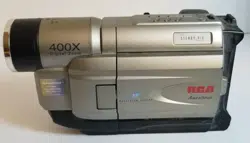
Camcorder
Model CC432
ACID BATTERY.
MUST BE DISPOSED
OF PROPERLY. i
Rechargeable 10-Volt Battery
Stock No. EP096FS
Shoulder Strap
Stock No. 227327 AC Adapter/Charger: Stock No.232595
DC Cable: Stock No. 233328
Caution: Do notuse this adapterlcharger for any purpose oiher _nch_glng the
EP096FLor EPO96FSbattery pack or supplying power to the camcorder.
Adapter/Charger
DC OUTPUT
Jack
• _Adapter/Charger's DC 1N 9.6V Jack on
DC Cable Back of Camcorder
2. Attach the adapter/charger.
Since the battery must be charged
before itcan be used the first time,
attach the adapter/charger to the
camcorder.
•Attach one end of the
adapter/charger's DC cable to the
DC OUTPUT jack on the
adapter/charger.
•Attach the other end of the cable to
the DC IN 9.6V jack on the
camcorder.
•Plug the adapter/charger's plug into
an operating outlet.
•Details are on page 10.
First.Time Operation _ _, _:_ ,_ _ _<_
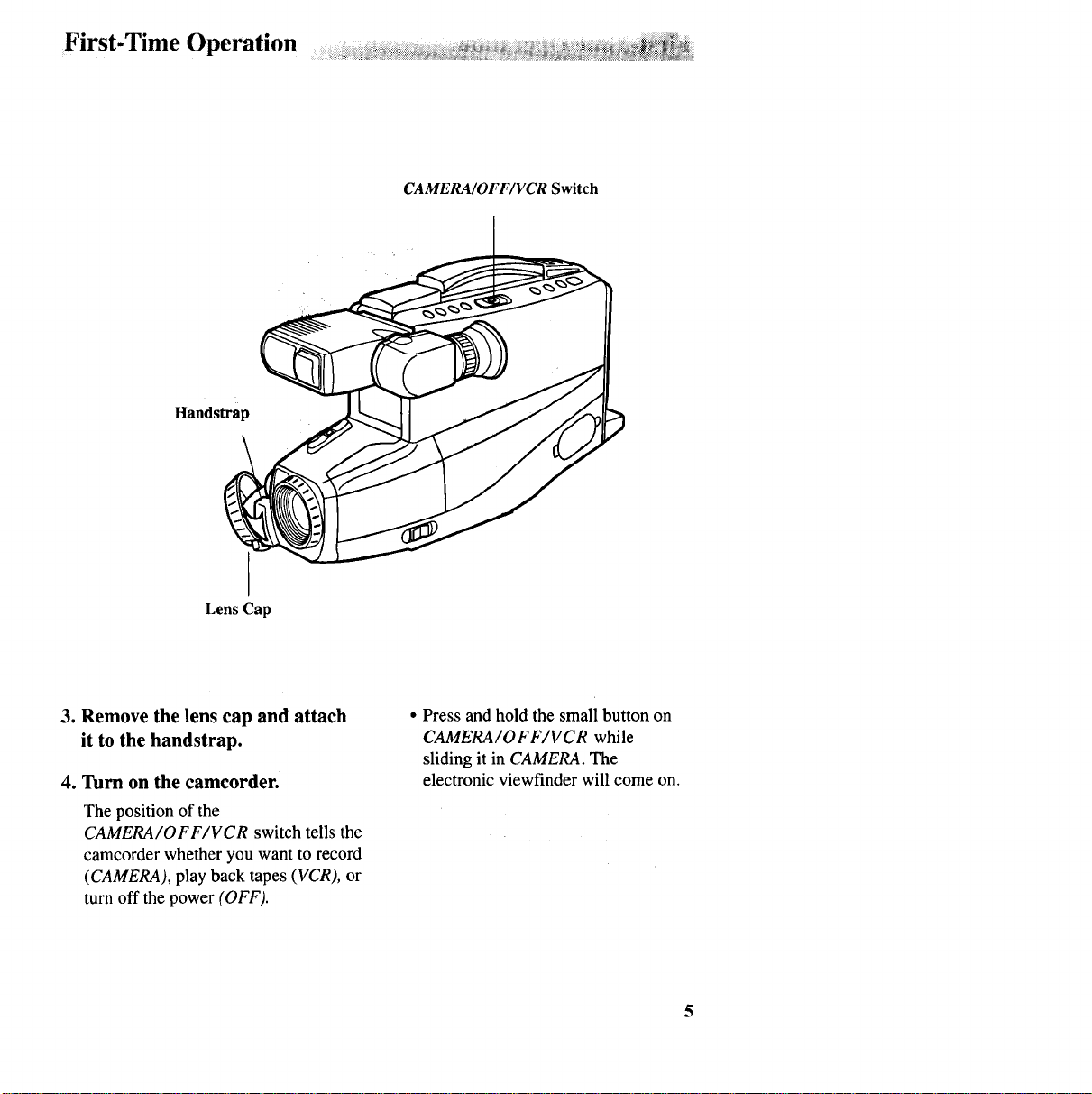
CAMERA/OFF/VCR Switch
Handstrap
Lens Cap
3. Remove the lens cap and attach
it to the handstrap.
4. Turn on the camcorder.
The position of the
CAMERA/OFF/VCR switch tells the
camcorder whether you want to record
(CAMERA), play back tapes (VCR), or
turn off the power (OFF).
• Press andhold the small button on
CAMERA/O F F/VCR while
sliding it in CAMERA. The
electronic viewfinder will come on.
First-Time Operation
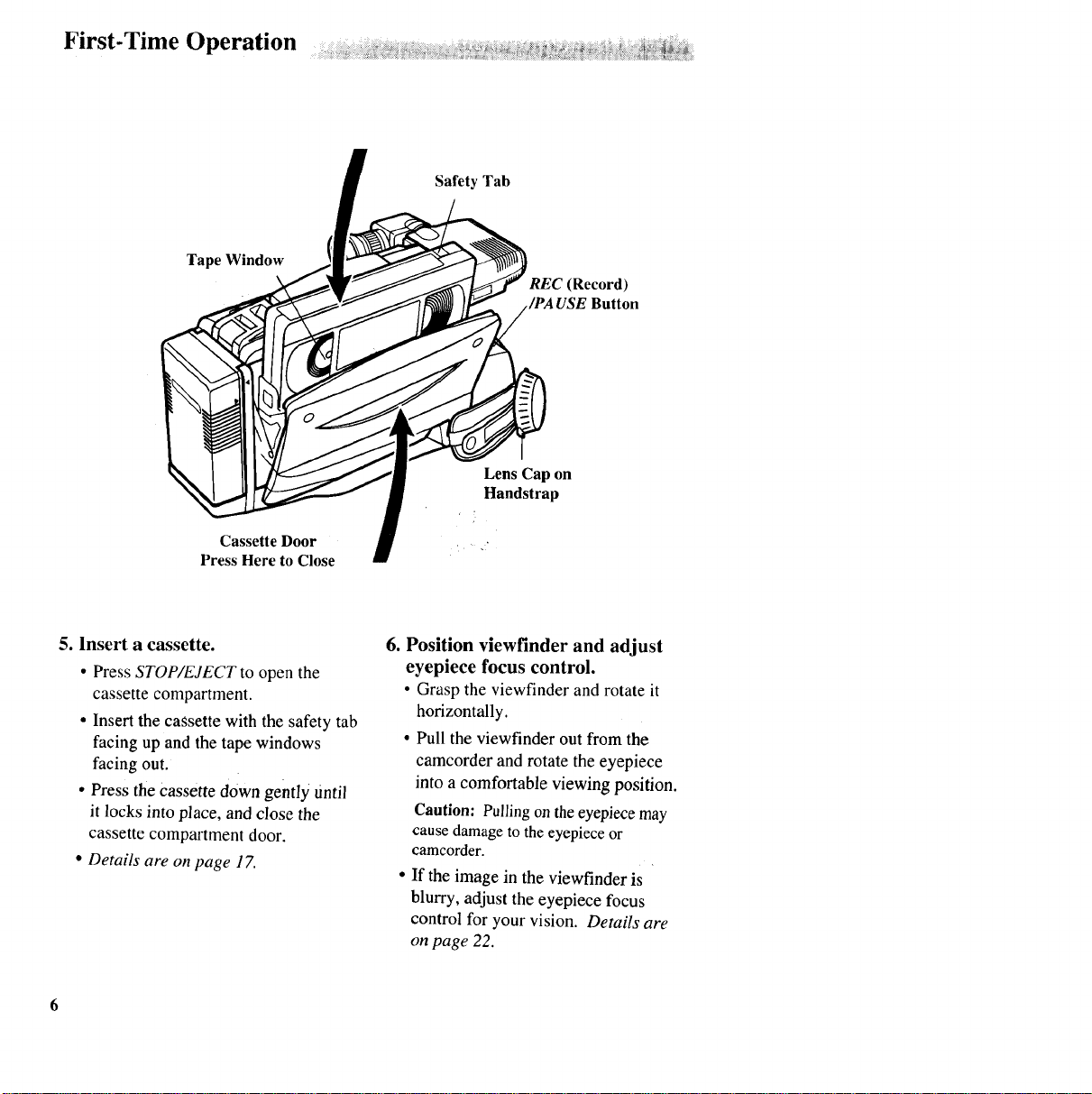
Safety Tab
Tape Window REC (Record)
Button
Cassette Door
Press Here to Close ILens Cap on
Handstrap
5. Insert a cassette.
•Press STOP/EJECT to open the
cassette compartment.
• Insert the cassette with the safety tab
facing up and the tape windows
facing out.
• Press the Cassette down gently Until
it locks into place, and close the
cassette compartment door.
•Details are on page 17.
6. Position viewfinder and adjust
eyepiece focus control.
• Grasp the viewfinder androtate it
horizontally.
• Pull the viewfinder out from the
camcorder and rotate the eyepiece
into a comfortable viewing position.
Caution: Pullingontheeyepiece may
cause damage to the eyepiece or
camcorder.
•If the image in the viewfinder is
blurry, adjust the eyepiece focus
control for your vision. Details are
on page 22.
First-Time Operation =
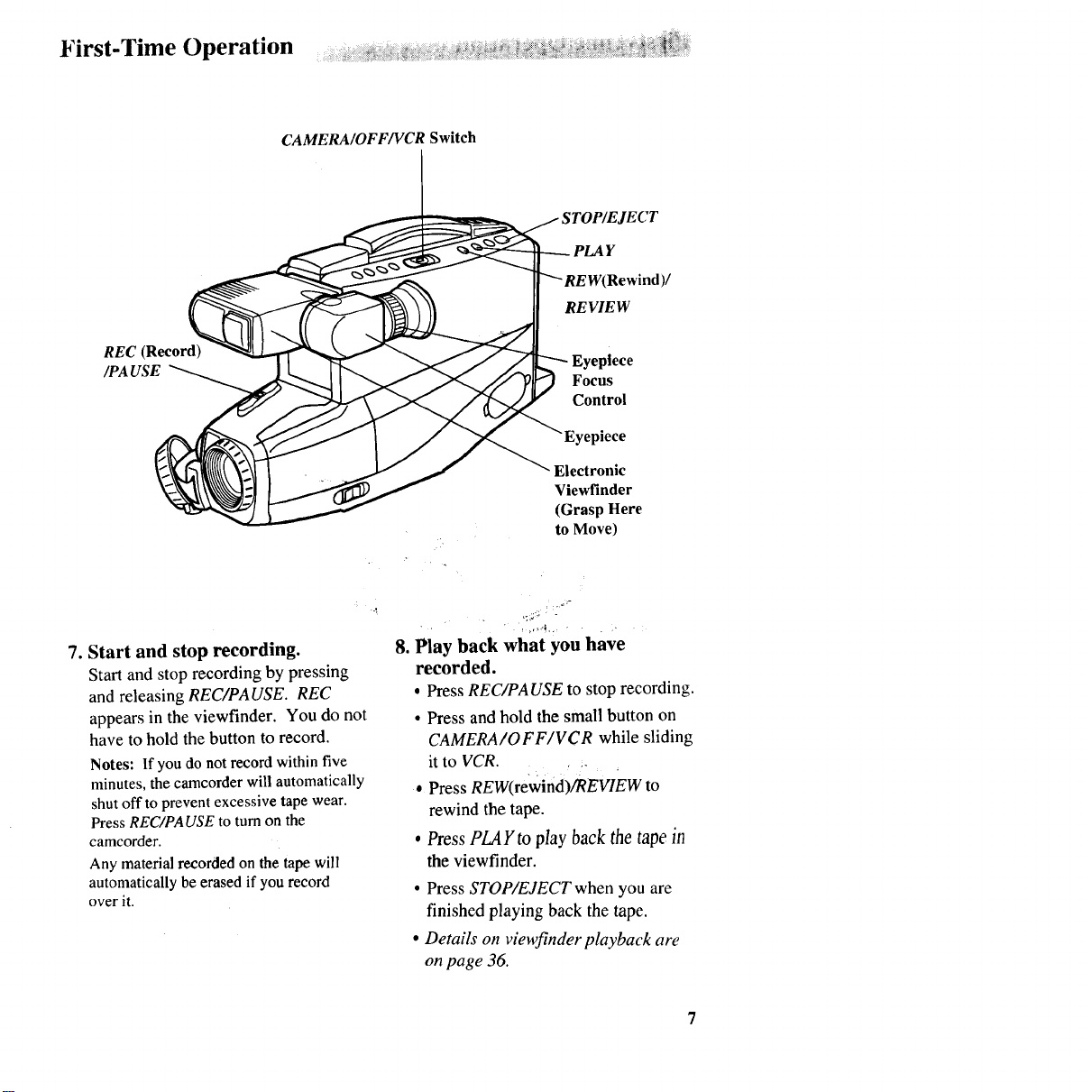
CAMERA/OFF/VCR Switch
"LAY
Rewind)/
REVIEW
REC (Record)
/PA USE Eyepiece
Focus
Control
Eyepiece
Electronic
Viewfinder
(Grasp Here
to Move)
7. Start and stop recording.
Startand stop recording by pressing
and releasing REC/PA USE. REC
appears in the viewfinder. You do not
have to hold the button to record.
Notes: If youdo notrecordwithin five
minutes,the camcorderwill automatically
shutoff topreventexcessive tapewear.
PressREC/PAUSEto turnon the
camcorder.
Any materialrecordedonthe tapewill
automaticallybe erasedif yourecord
over it.
8. Play back what you have
recorded.
•Press REC/PAUSE to stop recording.
• Press andhold the small button on
CAMERA/OFF/VCR while sliding
it to VCR ....
• Press REW(rewind)/REVIEW to
rewind the tape.
•Press PLAYto play back the tape in
the viewfinder.
•Press STOP/EJECT when you are
finished playing back the tape.
•Details on viewfinder playback are
on page 36.
First-Time Operation ..........._..................................................................
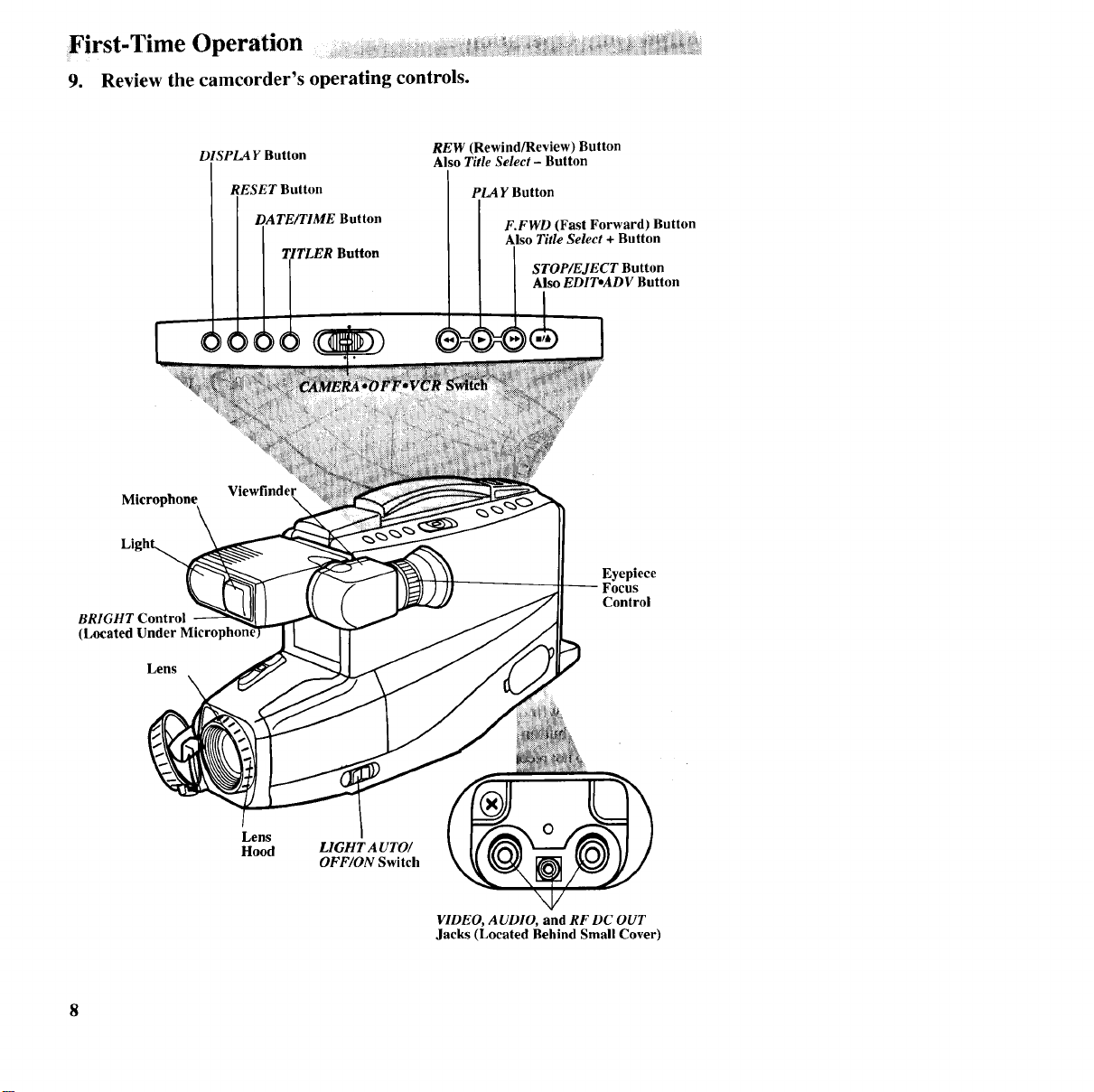
9. Review the camcorder's operating controls.
DISPLAY Button
RESET Button
DATE/TIME Button
Button
REW (Rewind/Review) Button
Also Title Select - Button
IPLA Y Button
F.FWD (Fast Forward) Button
Also Title Select + Button
STOP/EJECT Button
Also EDITeADV Button
Microphone Viewfinder
Li
BRIGHT Control
(Located
Lens
Eyepiece
Control
Lens
Hood LIGHT AUTO/
OFF/ON Switch
VIDEO, AUDIO, and RF DC OUT
Jacks (Located Behind Small Cover)
First-Time Onerat on ...................... _............ _i.......1= : ........ =:
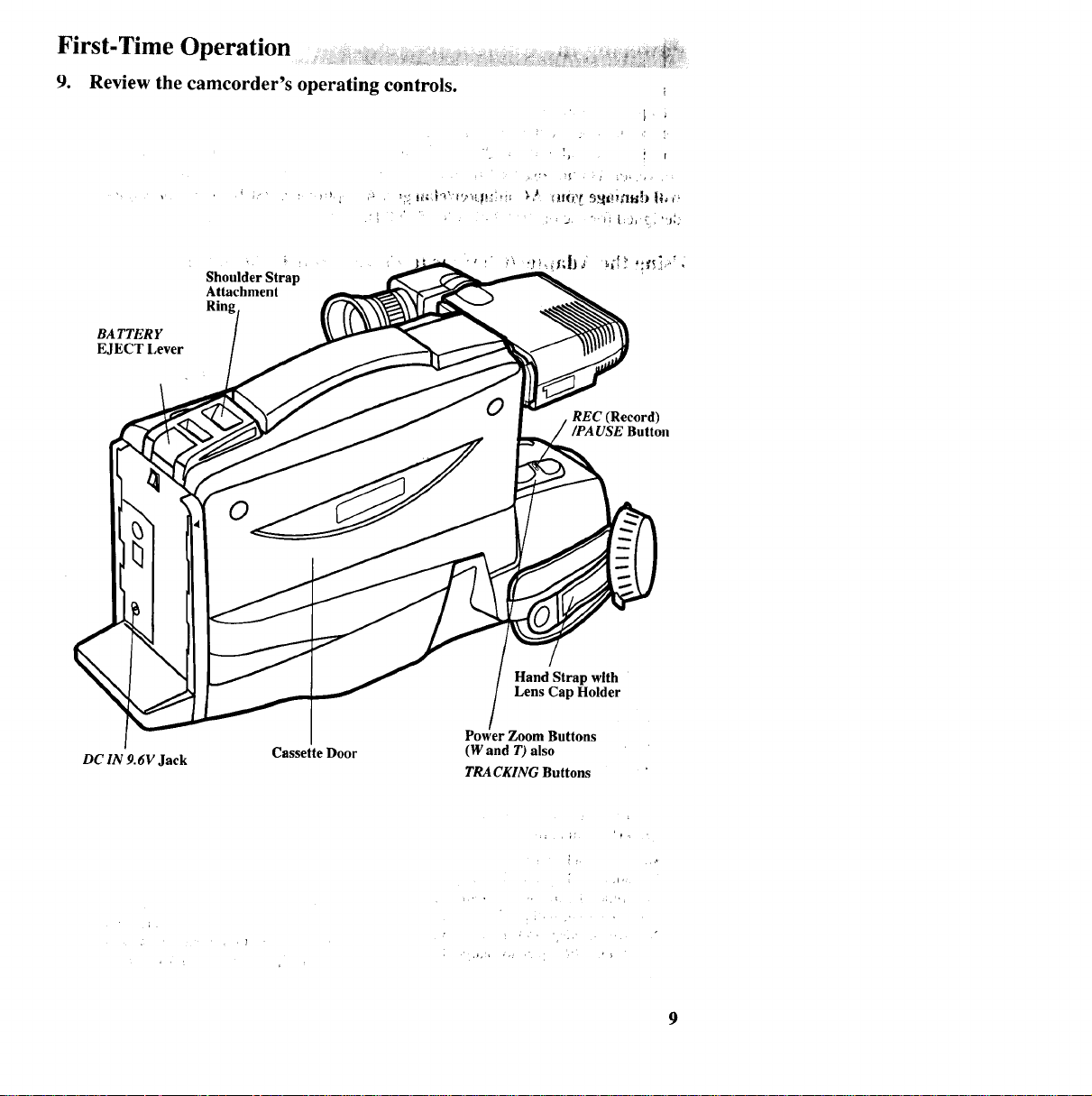
9. Review the camcorder's operating controls.
_,; i ¸
• !_ ! r
BATTER Y
EJECT Lever
Shoulder Strap
Attachment
Rin
REC (Record)
/PA USE Button
0
Hand Strap with
Lens Cap Holder
DC IN 9.6V Jack Cassette Door
Power Zoom Buttons
(W and T) also
TRACKING Buttons
Powering the Camcorder
Caution: Do not attempt ......... ' ° _• " " " °_
to use a power converlet' to la,_eyot_l'AC adapteffcharger
on a power source other than 120 volts, 50/60 Hz, or the adapter/charger and
camcorder may be damaged. If you wish to operate the AC adapter/charger on a
power source other than 120 volts, 50/60 Hz, use only a transformer-type power
eonverter. Do not use "solid-state" or "switching-type" power converters. They
will damage your AC adapter/charger. An optional CPS014 shown on page 47 is
designed for use on 100-240 volts, 50/60 Hz.
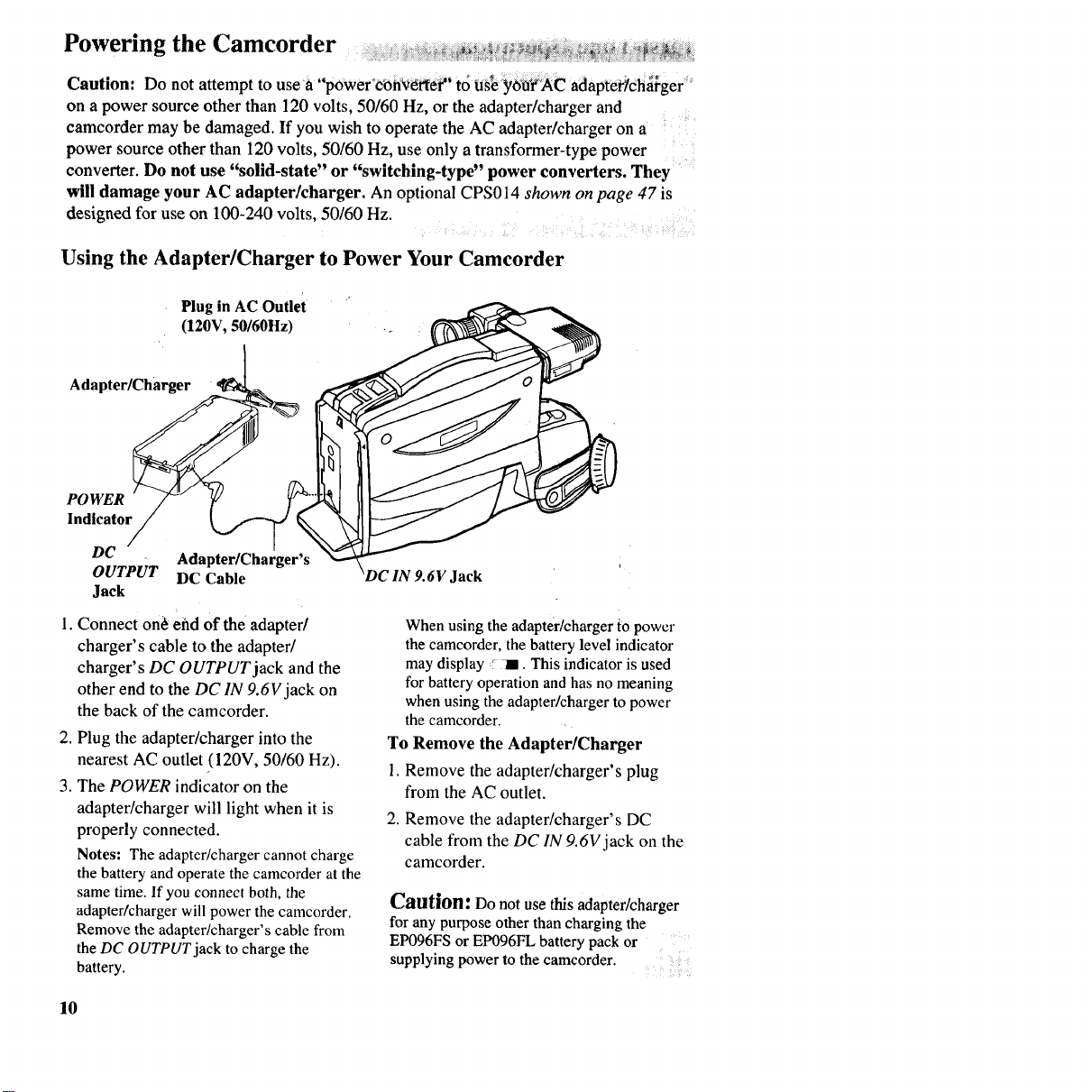
Using the Adapter/Charger to Power Your Camcorder
Plug in AC Outlet
(120V, 50/60Hz)
Adapter/Charger
POWER
Indicator
DC
OUTPUT Adapter/Charger's
DC Cable
Jack
1. Connect on_ end Of the adapter/
charger's cable to the adapter/
charger's DC OUTPUT jack and the
other end to the DC IN 9.6V jack on
the back of the camcorder.
2. Plug the adapter/charger into the
nearest AC outlet (120V, 50/60 Hz).
3. The POWER indicator on the
adapter/charger will light when it is
properly connected.
Notes: The adapter/charger cannot charge
the battery andoperate the camcorder at the
same time. If you connect both, the
adapter/charger will power the camcorder.
Remove the adapter/charger's cable from
the DC OUTPUTjack to charge the
battery.
DC IN 9.6V Jack
When using the adapter/charger to power
the camcorder, the battery level indicator
may display _ il. This indicator is used
for battery operation and has no meaning
when using the adapter/charger to power
the camcorder.
To Remove the Adapter/Charger
1. Remove the adapter/charger's plug
from the AC outlet.
2. Remove the adapter/charger's DC
cable from the DC IN 9.6V jack on the
camcorder.
Caution: Do notusethis adapter/charger
for any purpose other than charging the
EPO96FS or EP096FL battery pack or ....
supplying power to the camcorder.
10
Powering the Camcorder
Using the Battery to Power Your Camcorder J
Charging the Battery
The battery must be charged before it can be used the first time. Charging will take
approximately two hours depending on the condition of the battery. When fully
charged, the battery should supply approximately 60 minutes of operating time
(depending on how much you use zoom andpause). To extend the battery's operation
time, turnoff the camcorder's power when not in use.
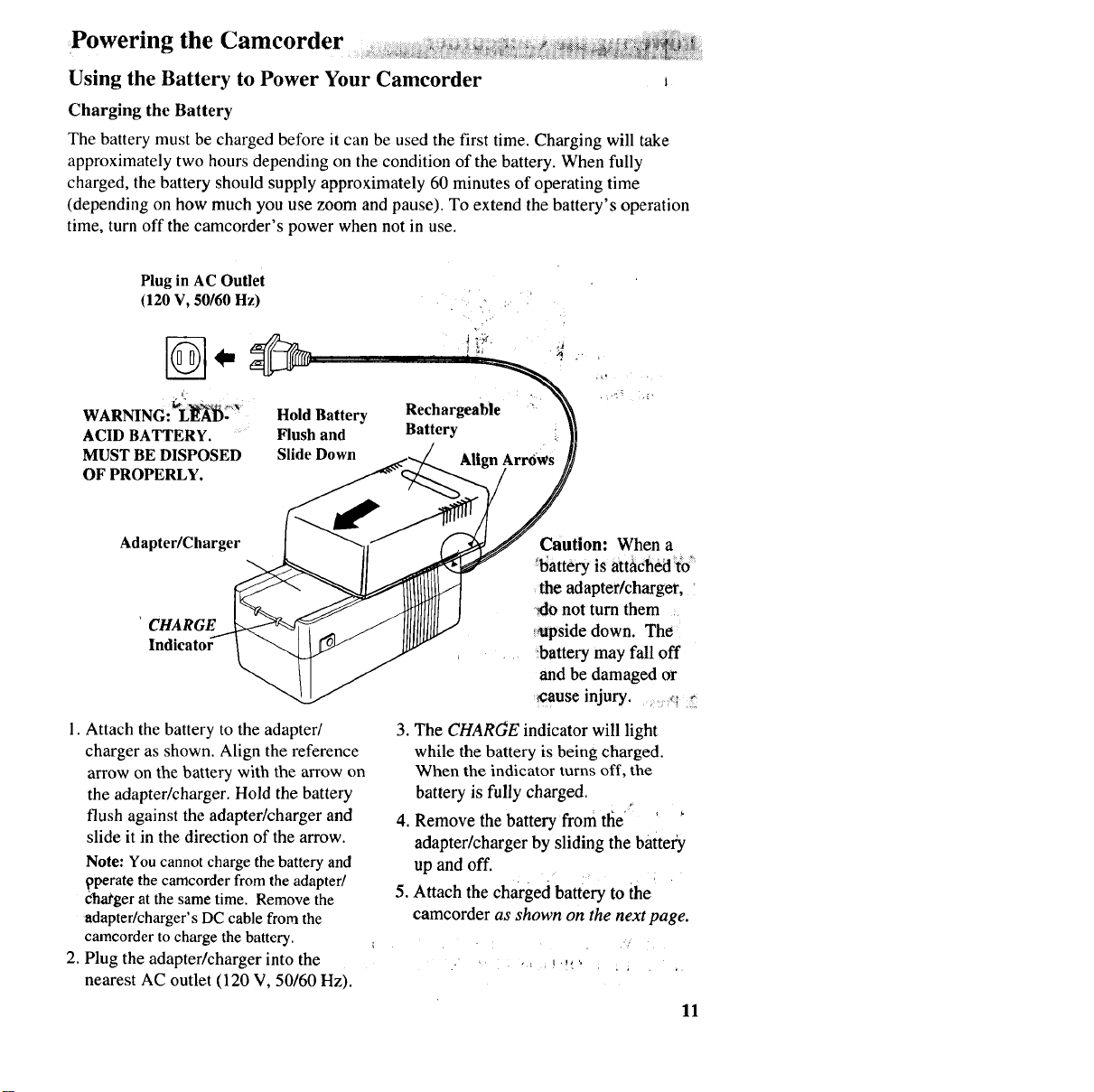
Plug in AC Outlet
(120V, 50/60 Hz)
i.
WARNING: L_-
ACID BATTERY.
MUST BE DISPOSED
OF PROPERLY.
Hold Battery
Slide Down
Rechargeabie _:ii
Adapter/Charger
'CHARGE
In(
1. Attach the battery to the adapter/
charger as shown. Align the reference
arrow on the battery with the arrow on
the adapter/charger. Hold the battery
flush against the adapter/charger and
slide it in the direction of the arrow.
Note: You cannot charge the battery and
t?perate the camcorder from the adapter/
charger at the same time. Remove the
adapter/charger's DC cable from the
camcorder to charge the battery.
2. Plug the adapter/charger into the
nearest AC outlet (120 V, 50/60 Hz).
Caution: When a
_attery is attached __o_
the adapter/charger,
,,_onot turn them
_pside down. The
battery may fall off
and be damaged or
_ause injury.
3. The CHARGE indicator will light
while the battery is being charged.
When the indicator turns off, the
battery is fully charged.
4. Remove the battery from tlie
adapter/charger by sliding the battery
up and off.
5. Attach the charged battery to the
camcorder as shown on the next page.
11
Powering the Camcorder _._ _i_
Using the Battery to Power Your Camcorder
f
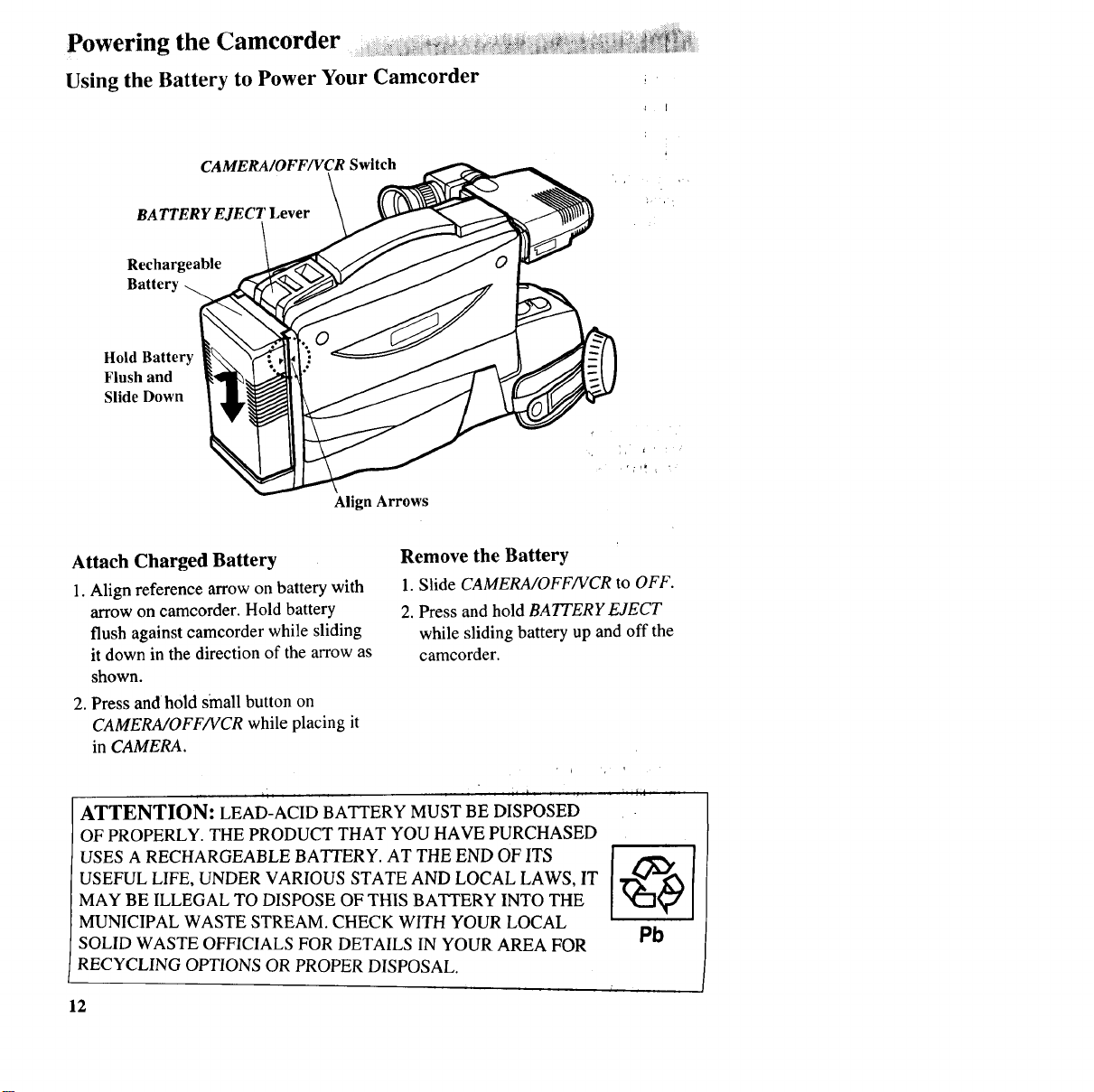
CAMERA/OFF/VCR Switch
BATTERY EJECT Lever
Rechargeable
Battery
Hold Battery
Flush and
Slide Down
Align Arrows
Attach Charged Battery
1. Align reference arrowon battery with
arrowon camcorder. Hold battery
flush against camcorder while sliding
it down in the direction of the arrow as
shown.
2. Press and hold small button on
CAMERA/OFFNCR while placing it
in CAMERA.
Remove the Battery
1. Slide CAMERA/OFF/VCR to OFF.
2. Press and hold BATTERY EJECT
while sliding battery up and off the
camcorder.
ATTENTION: LEAD-ACID BATTERY MUST BE DISPOSED
OF PROPERLY. THE PRODUCT THAT YOU HAVE PURCHASED
USES A RECHARGEABLE BATTERY. AT THE END OF ITS
USEFUL LIFE, UNDER VARIOUS STATE AND LOCAL LAWS, IT
MAY BE ILLEGAL TO DISPOSE OF THIS BATTERY INTO THE
MUNICIPAL WASTE STREAM. CHECK WITH YOUR LOCAL
SOLID WASTE OFFICIALS FOR DETAILS IN YOUR AREA FOR Pb
RECYCLING OPTIONS OR PROPER DISPOSAL.
12
Powering the Camcorder
Using the Battery to Power Your Camcorder
Battery Care
• Your battery will provide better service
and longer performance if you charge it
before and after use, and store it at
normal room temperature.
• The battery should be charged at a
temperature of 32°F-95°F (0°C-35°C) to
prevent damage.
•Do not operate the battery at
temperatures below 14°F (-10°C) or
above 95°F (35°C). The battery may be
damaged if operated at temperatures
above 122°F (50°C). Operation time
will decrease at extremely low
temperatures.
After repeated chargings and use, the
operation time will gradually decrease.
When operation time becomes too short
to be useful, it is time to replace the
battery.
Battery Storage ...... ............... ::==: .............................
• Store the battery at normal room
temperature.
•Lead acid batteries discharge if not
used. Recharge the battery at least once
every six months or you may not be
able to recharge it.
•Abattery stored for a long period may
not supply power for the specified time.
Additional rechargings may help
restore the battery's operation time.
Battery Safety Precautions _-_ _-_.__::_:_ _.:_._,<_%:'_._,:*:_,_
Batteries being recharged that havei_ot
been used for an extended period may
continue to charge after the normal
time. Do not charge a battery for more
than 24 hours.
If both indicators 6n the adapter/
charger start flashing, remove the
battery, and reattach it. If after several
attempts _ the indicators continue to
flash _ your battery cannot take a
charge and must be replaced.
Allow bat{ery to c06I down b6f0re
attaching it to adapterlcharger, The
CHARGE indicator will not light and
the battery will not charge if you attach
a hot battery.
Do not attempt to dhsassembte or
modify the battery. There are no user-
serviceable parts inside.
Use the battery only with spemfied AC
adapter/chargers and camcorders.
'If leakage from a damaged battery .....
Throwing the battery into a fire or contacts your skin or clothing, wash it
exposing the battery to excessive heat - off immediately with running water.
over 149°F (65°C) could be hazardous.
Do not short the battery's terminals.
13
Powering the Camcorder
Check Battery Power (Battery Level Indicator)
Battery Level Indicator
Display in Viewfinder :i' P
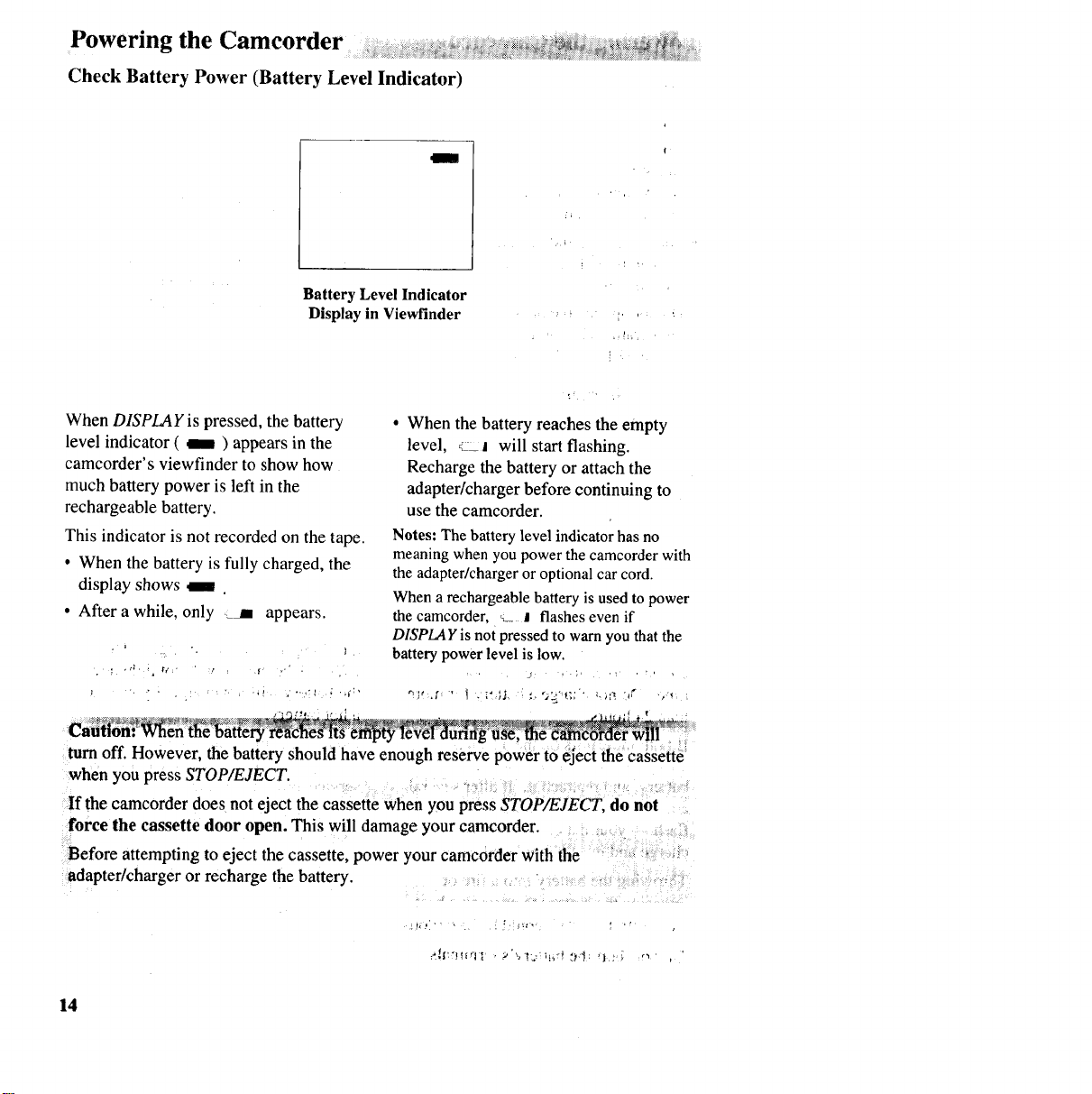
When DISPLAY is pressed, the battery
level indicator ( lI ) appears in the
camcorder's viewfinder to show how
much battery power is left in the
rechargeable battery.
This indicator is not recorded on the tape.
• When the battery is fully charged, the
display shows iI
• After a while, only jI appears.
• When the battery reaches the empty
level, __J will start flashing.
Recharge the battery or attach the
adapter/charger before continuing to
use the camcorder.
Notes: The battery level indicator has no
meaning when you powerthe camcorder with
the adapter/charger oroptional car cord.
When a rechargeable battery is used to power
the camcorder, __ I flashes even if
DISPLAY is not pressed to warn you that the
battery powerlevel is low.
caa i
turn off. However, the battery should have enough reserve power to eject the Cassette
when you press STOP/EJECT. :
If the camcorder does not eject the cassette when you press STOP/EJECT, do not
force the cassette door open. This will damage your camcorder,
Before attempting to eject the cassette, power your camcorder with the
adapter/charger or recharge the battery•
14
Powering the Camcorder _ _,'_i_ i_,_ _ = i_ ,.4 _'_;'_
Using the Optional Thomson Car Cord Adapter
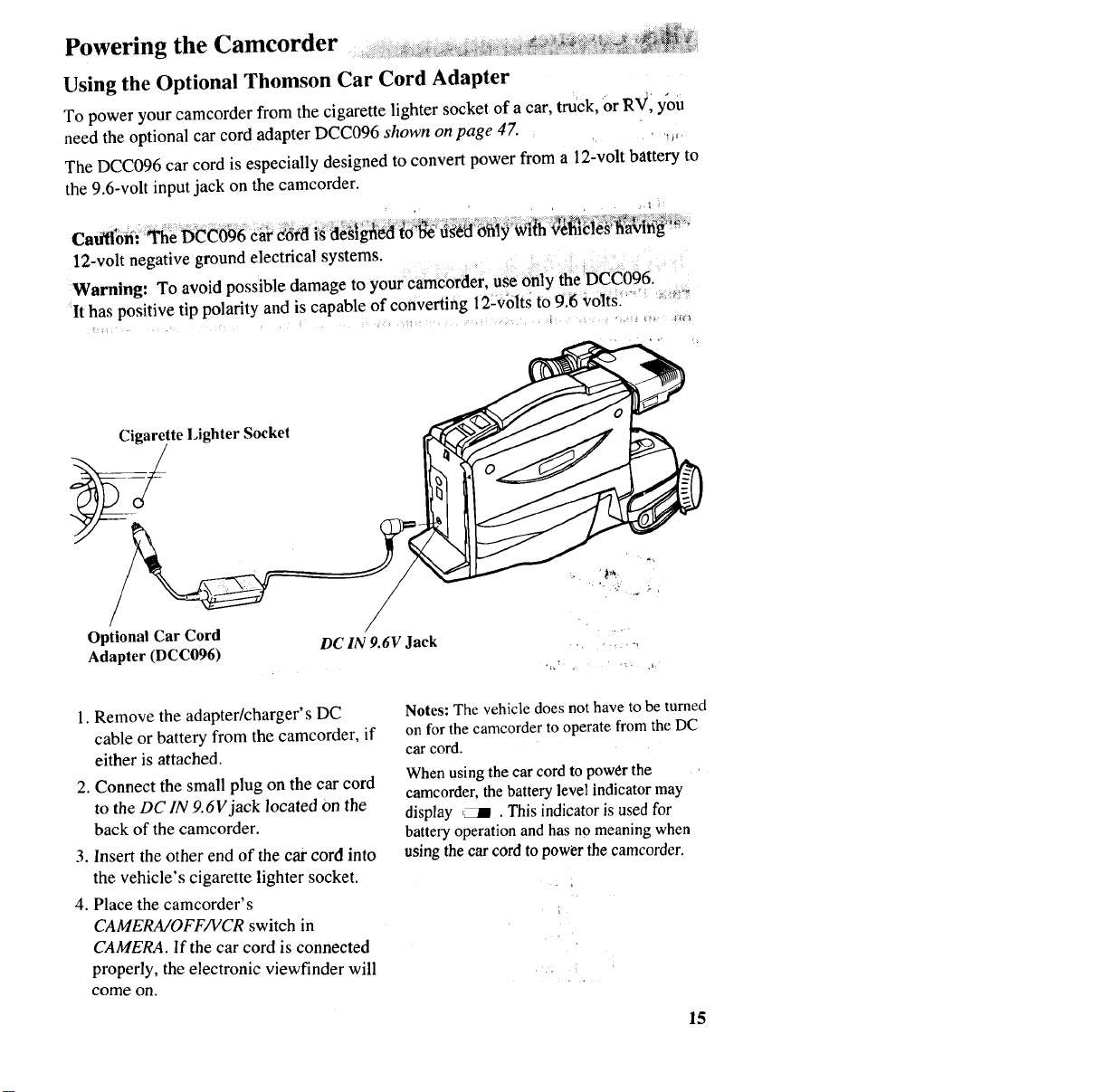
To power your camcorder from the cigarette lighter socket of a car, truck, 'orR_iI you
need the optional car cord adapter DCC096 shown on page 47. ,_ ' w.
The DCC096 car cord is especially designed to convert power from a 12-volt battery to
the 9.6-volt input jack on the camcorder.
.... 1
Caffflon: The DCC096 caredtd is des_g_iedlto _ug&113fity_(h _teles_Ing "
12-volt negative ground electrical systems.
Warning: To avoid possible damage to your eamcorder, use only the DCC096.
It has positive tip polarity and is capable of converting 12-volts to 9.6 volts_ "_
Cigarette Lighter Socket
Optional Car Cord ....
Adapter (DCC096) DC 1N 9.6V Jack ,, . _.....
1. Remove the adapter/charger's DC
cable or battery from the camcorder, if
either is attached.
2. Connect the small plug on the car cord
to the DC IN 9.6V jack located Onthe
back of the camcorder.
3. Insert the other end of the car cord into
the vehicle's cigarette lighter socket.
4. Place the camcorder's
CAMERA/OFF/VCR switch in
CAMERA. If the car cord is connected
properly, the electronic viewfinder will
come Oil.
Notes: The vehicle does not have to be turned
on for the camcorder to operate from the DC
car cord.
When using the car cord to power the
camcorder, the battery level indicator may
display _ . This indicator is used for
battery operation and has no meaning when
using the car cord to power the camcorder.
•,, i
15
Video Cassettes :::
We recommend that our cassettes be used with your camcorder. Use of poor quality
tapes or tapes that have been damaged or mishandled can contaminate the video heads,
resulting in a snowy picture or no picture at all during playback. Because there is no
control over the type of tape purchased or rented by consumers, head cleaning is dot
covered under warranty. It is considered normal maintenance.
If a snowy picture or no-picture condition persists, consider the use of a dry chemical
non-abrasive head-cleaning tape. Be sure to follow the directions with the head-
cleaning kit carefully. Improper use of a head cleaner may damage your camcorder.
Erase Protection -- Safety Tab _ -_ ._ --
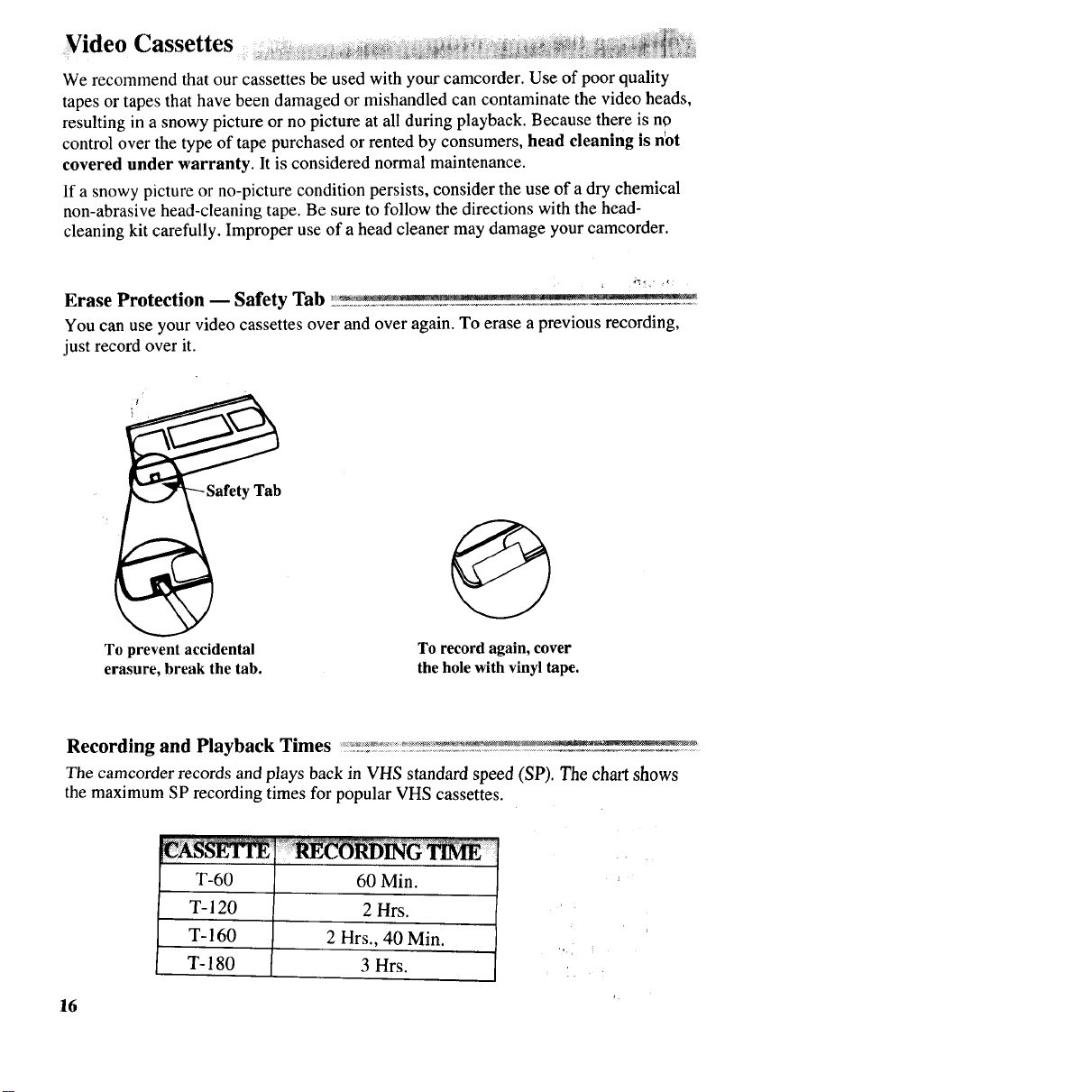
You can use your video cassettes over and over again. To erase a previous recording,
just record over it.
Tab
To prevent accidental
erasure, break the tab. To record again, cover
the hole with vinyl tape.
Recording and Playback Times
The camcorder records and plays back in VHS standard speed (SP). The chart shows
the maximum SP recording times for popular VHS cassettes.
T-60
T-120
T-160
T-180
60 Min.
2 Hrs.
2 Hrs., 40 Min.
3 Hrs.
16
Video Cassettes
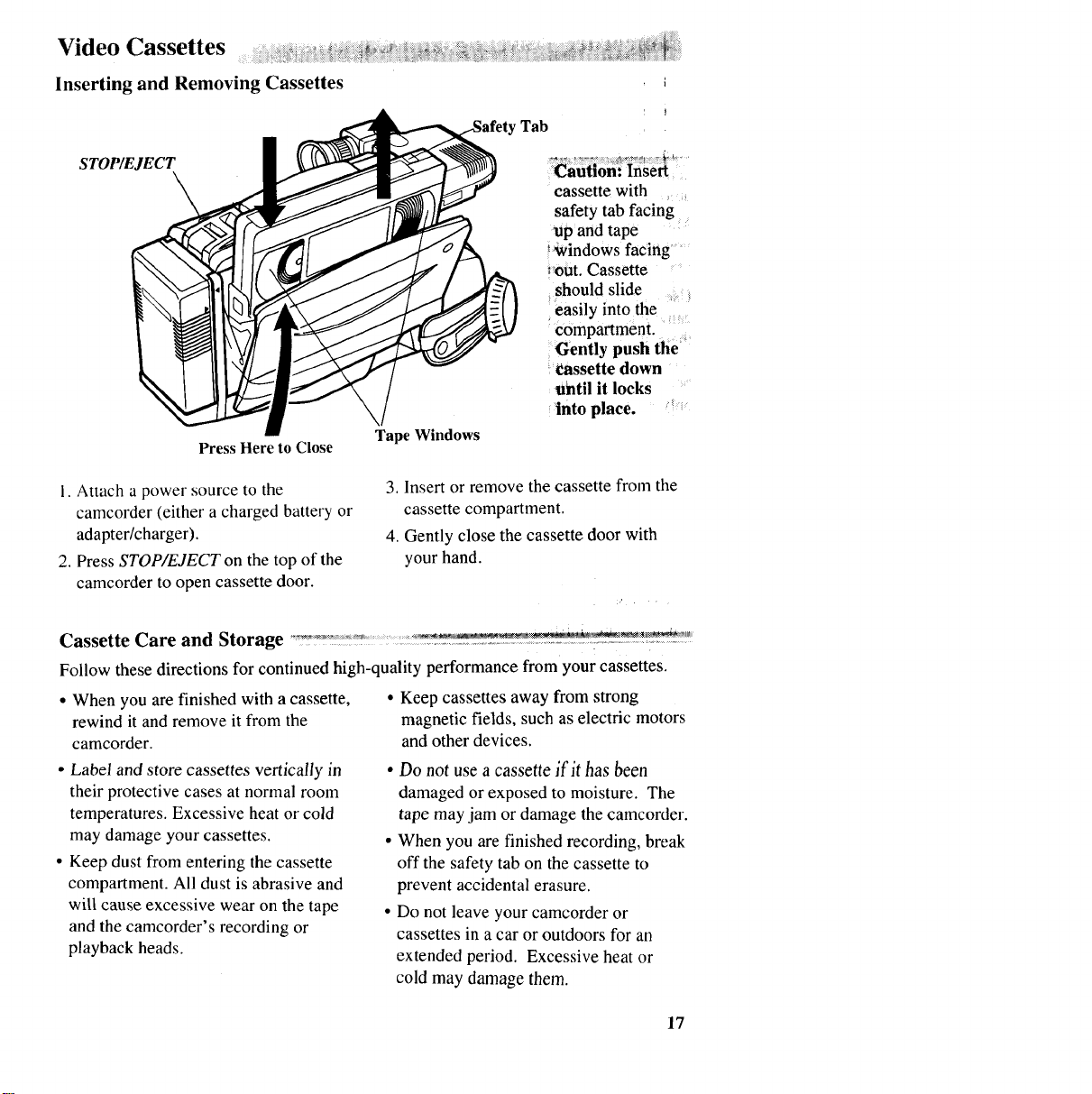
Inserting and Removing Cassettes
S TOP/EJECT
Press Here to Close Tape Windows
i
Tab
Caution: Inse_
cassette with
safety tab facing
up and tape
windows facing
out. Cassette
should slide
easily into the
compartment.
Gently push the
cassette down
until it locks
into place.
1. Attach a power source to the
camcorder (either a charged battery or
adapter/charger).
2. Press STOP/EJECT on the top of the
camcorder to open cassette door.
3. Insert or remove the cassette from the
cassette compartment.
4. Gently close the cassette door with
your hand.
Cassette Care and Storage ................................................____+_=_+°
Follow these directions for continued high-quality performance from your cassettes.
• When you are finished with acassette, • Keep cassettes away from strong
rewind it and remove it from the
camcorder.
•Label and store cassettes vertically in
their protective cases at normal room
temperatures. Excessive heat or cold
may damage your cassettes.
•Keep dust from entering the cassette
compartment. All dust is abrasive and
will cause excessive wear on the tape
and the camcorder's recording or
playback beads.
magnetic fields, such as electric motors
and other devices.
•Do not use a cassette if it has been
damaged or exposed to moisture. The
tape may jam or damage the camcorder.
•When you are finished recording, break
off the safety tab on the cassette to
prevent accidental erasure.
• Do not leave your camcorder or
cassettes in a car or outdoors for an
extended period. Excessive heat or
cold may damage them.
17
Camcorder Traveling and Cassette Tips
Traveling Tips
Write down your camcorder's scrial
number andkeep it separatefrom the
camcorder when traveling. If your
camcorder is lost orstolen, you will be
able to identify it.
Make sureyou have any plug adapters
you need before taking your camcorder to
othercountries. Consult your dealer.
Use extra care to avoid damage to your
camcorder andaccessories when operating
them at abeach or pool. Spray, sand, and
dust should be avoided. If your lens has
been exposed to the elements, clean it
only with proper lens cleaning supplies.
Carry your camcorder in a carrying case
when traveling. See page 46 for a
specially designed soft case. An ordinary
suitcase or carry bag does not offer the
protection your camcorder needs. Treat
your camcorder as carry-on luggage to
protect it from rough handling.
Cassette Tips _
Do not use acassette if it has been
damaged or exposed to moisture. The tape
may jam or damage your camcorder.
When you are finished recording, break
off the safety tab on the cassette to prevent
accidental erasure.
Label your cassettes before storing them.
Store your cassettes vertically in their
protective cases at normal room
temperature.
Do not leave your camcorder or cassettes
in a car or outdoors for an extended
period. Excessive heat or cold may
damage them.
18
Camcorder Features
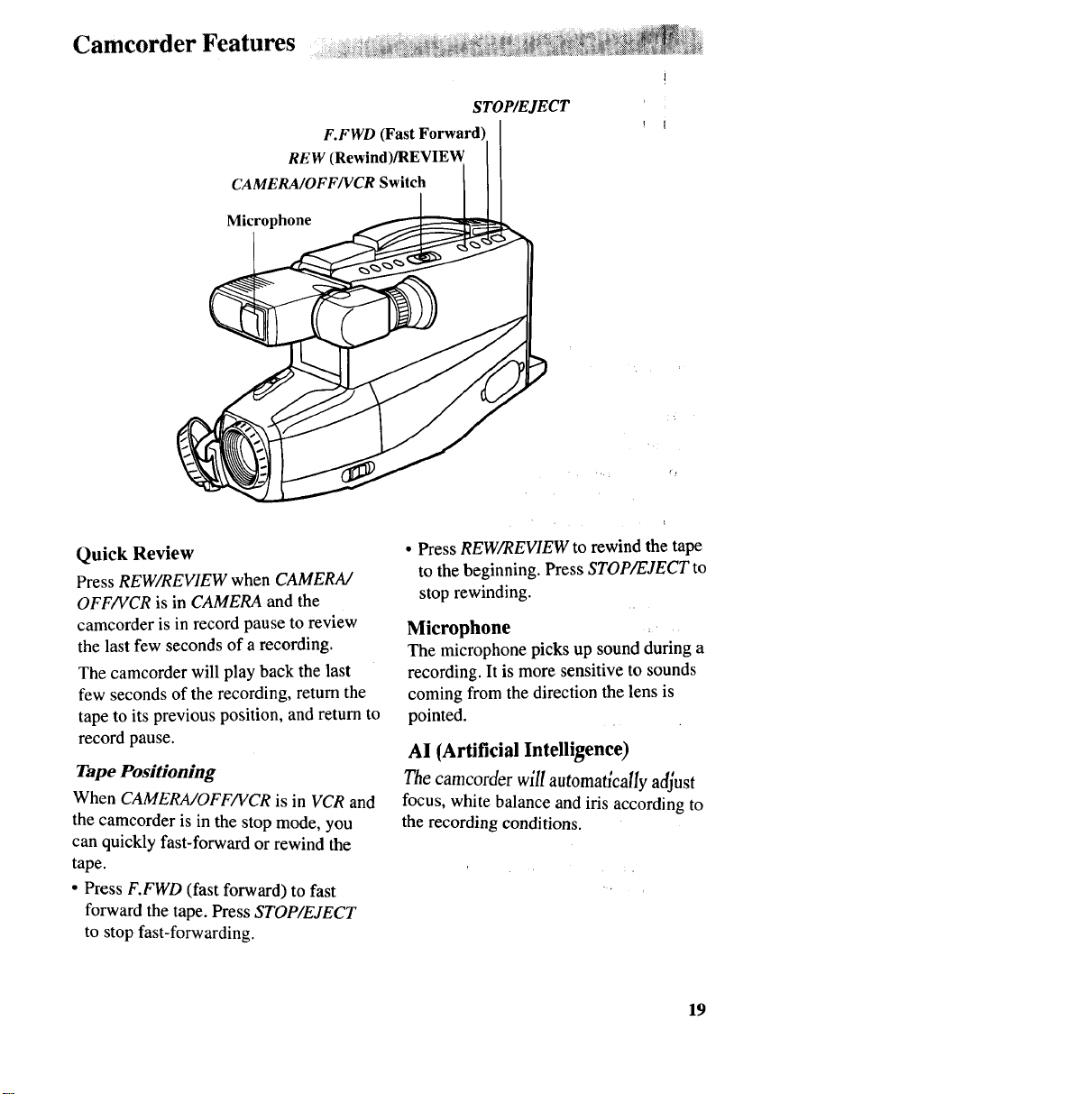
F.FWD
REW (Rewind)/REVIEW
CAMERA/OFF/VCR Switch
Microphone
STOP/EJECT
Quick Review
Press REW/REVIEW when CAMERA/
OFF/VCR is in CAMERA and the
camcorder is in record pause to review
the last few seconds of a recording.
The camcorder will play back the last
few seconds of the recording, return the
tape to its previous position, and return to
record pause.
Tape Positioning
When CAMERA/OFF/VCR is in VCR and
the camcorder is in the stop mode, you
can quickly fast-forward or rewind the
tape.
°Press F.FWD (fast forward) to fast
forward the tape. Press STOP/EJECT
to stop fast-forwarding.
• Press REW/'REVIEW to rewind the tape
to the beginning. Press STOP/EJECT to
stop rewinding.
Microphone
The microphone picks up sound during a
recording. It is more sensitive to sounds
coming from the direction the lens is
pointed.
AI (Artificial Intelligence)
The camcorder will automatically adjust
focus, white balance and iris according to
the recording conditions.
19
Camcorder Features i iii_iii ii iii_iiiiiii_i _ii__i! !_;__!_ i_ @_ _i _i _ii ¸ _ii_iii_iii_iiii_ii_i_ i_i!_ii_ i_ _ _i _ii!
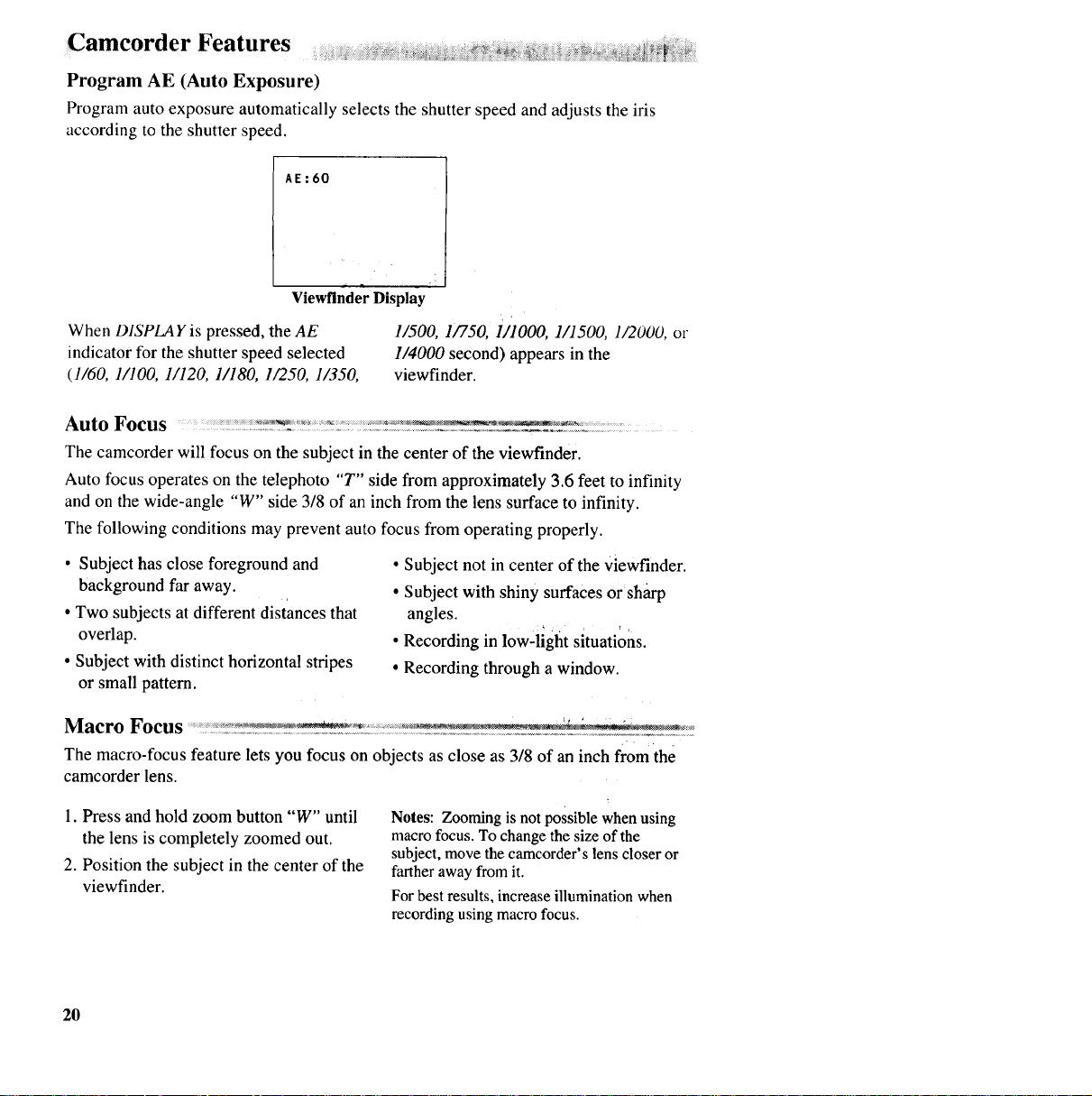
Program AE (Auto Exposure)
Programauto exposure automatically selects the shutter speed and adjusts the iris
according to the shutter speed.
AE:60
Viewflnder Display
When DISPLAY is pressed, the AE 1/500, 1/750, 1/1000, 1/1500, 1/2000, or
indicator for the shutter speed selected 1/4000 second) appears in the
(1/60, 1/100, 1/120, 1/180, 1/250, 1/350, viewfinder.
Auto Focus :_::
The camcorder will focus on the subject in the center of the viewfinder.
Auto focus operates on the telephoto "T" side from approximately 3.6 feet to infinity
and on the wide-angle "W" side 3/8 of an inch from the lens surface to infinity.
The following conditions may prevent auto focus from operating properly.
•Subject has close foreground and
background far away.
• Two subjects at different distances that
overlap.
• Subject with distinct horizontal stripes
or small pattern.
• Subject not in center of the Viewfinder.
• Subject with shiny surfaces or sharp
angles.
• Recording in low-light situations.
• Recording through a window.
Macro Focus .... ____ ,:,
The macro-focus feature lets you focus on objects as close as 3/8 of an inch from the
camcorder lens.
1. Press and hold zoom button "W" until
the lens is completely zoomed out.
2. Position the subject in the center of the
viewfinder.
Notes: Zooming is notpossible whenusing
macro focus. To changethe size of the
subject, move the camcorder's lenscloser mr
farther away from it.
For bestresults, increaseillumination when
recordingusing macrofocus.
2O
Camcorder Features ....... ...... _i_i_ i!iii_ii_i_i_ _!i_!i_ _i_ii_ _ _ ____=:=_=_i_ i_iiiiiiiiii_iiiil:iiiiiiii_ _i__i_i!iliiii_i__,i_i__i _ _i_i_i_ii__i_iii_=_ii_Ii [iiiii_ii_
i_iiilii_ii!iii_i_iiii_iiiii_iil_iiii_!iii_!_ii_i__iiii_iiii__ii__i_iiii@__,_,_ _i_i_ii __iiii_iii_?_,_ _ _ _i!!_!_iii_i_i_i__i_,_ @,®!_==_!i_=__iiiiiiiiiii_
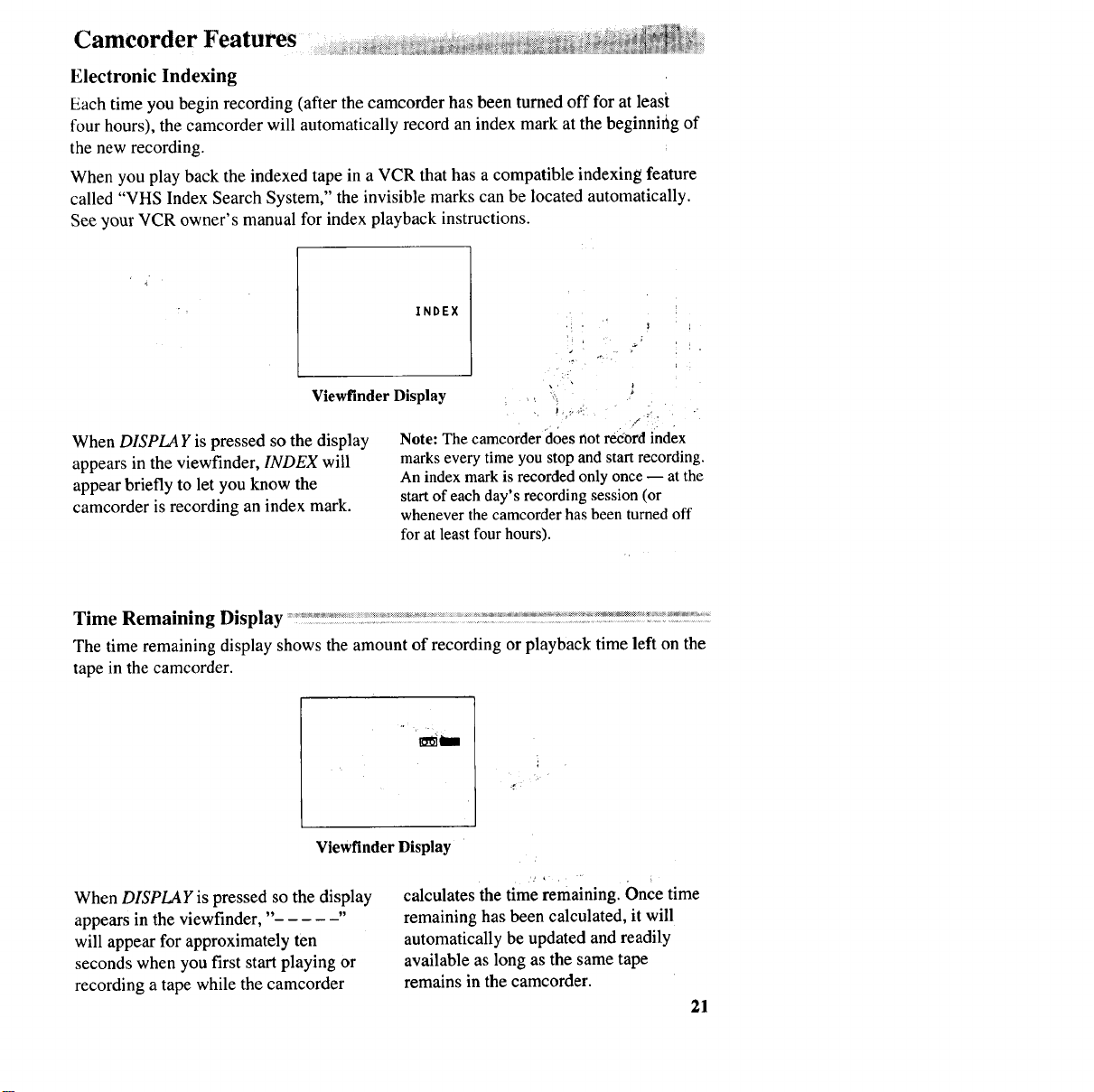
Electronic Indexing
Each time you begin recording (after the camcorder has been turned off for at least
four hours), the camcorder will automatically record an index mark at the beginning of
the new recording.
When you play back the indexed tape in a VCR that has a compatible indexing feature
called "VHS Index Search System," the invisible marks can be located automatically.
See your VCR owner's manual for index playback instructions.
INDEX
Viewfinder Display
When DISPLAY is pressed so the display
appearsin the viewfinder, INDEX will
appear briefly to let you know the
camcorder is recording an index mark.
Note: The camcorder does not reco'rdindex
marks every time you stop and start recording.
An index mark is recorded only once -- at the
start of each day's recording session (or
whenever the camcorder has been turned off
for at least four hours).
Time Remaining Display ......... _"_ ,::-"_..... .........
The time remaining display shows the amount of recording or playback time left on the
tape in the camcorder.
Viewfinder Display
When DISPLAY is pressed so the display
appears in the viewfinder," "
will appear for approximately ten
seconds when you first start playing or
recording a tape while the camcorder
calculates the time remaining. Once time
remaining has been calculated, it will
automatically be updated and readily
available as long as the same tape
remains in the camcorder.
21
Viewfinder
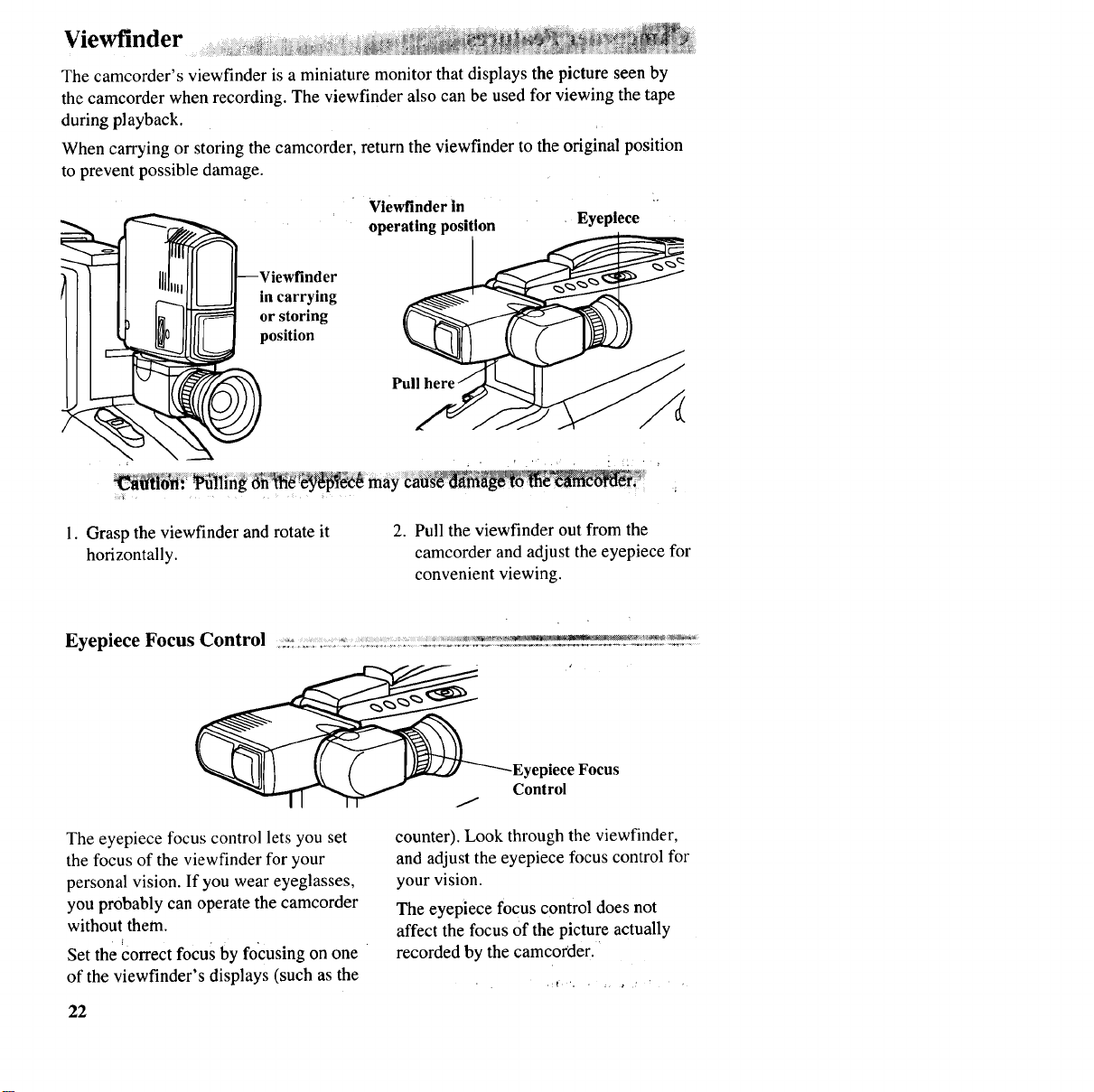
The camcorder's viewfinder is a miniature monitor that displays the picture seen by
the camcorder when recording. The viewfinder also can be used for viewing the tape
during playback.
When carrying or storing the camcorder, return the viewfinder to the original position
to prevent possible damage.
vlewfinder In _
operating position .Eyeplece
in carrying
or storing
position
Pull
1. Grasp the viewfinder and rotate it
horizontally.
2. Pull the viewfinder out from the
camcorder and adjust the eyepiece for
convenient viewing.
_Eyepiece Focus
Control
The eyepiece focus control lets you set
the focus of the viewfinder for your
personal vision. If you wear eyeglasses,
you probably can operate the camcorder
without them.
Set the correct focus by focusing on one
of the viewfinder's displays (such as the
counter). Look through the viewfinder,
and adjust the eyepiece focus control for
your vision.
The eyepiece focus control does not
affect the focus Ofthe picture actually
recorded by the camcorder. '
22
Viewfinder
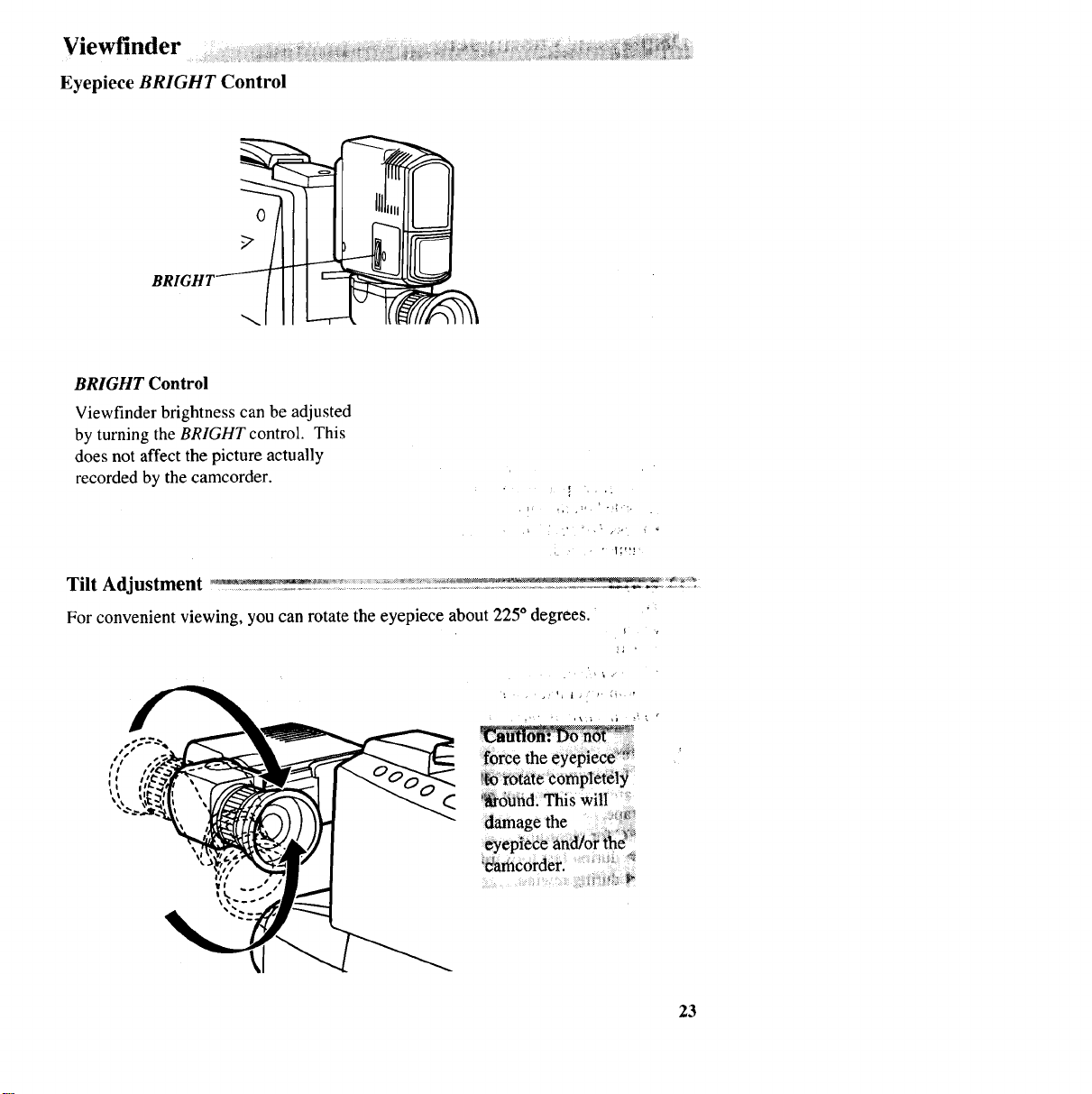
Eyepiece BRIGHT Control
o
BRIGHT Control
Viewfinder brightness can be adjusted
by turning the BRIGHT control. This
does not affect the picture actually
recorded by the camcorder.
For convenient viewing, you can rotate the eyepiece about 225° degrees.
force the eyepiece _
t_o_'o_atecompletely
_6_r_d: This will
'_corder. _ _
23
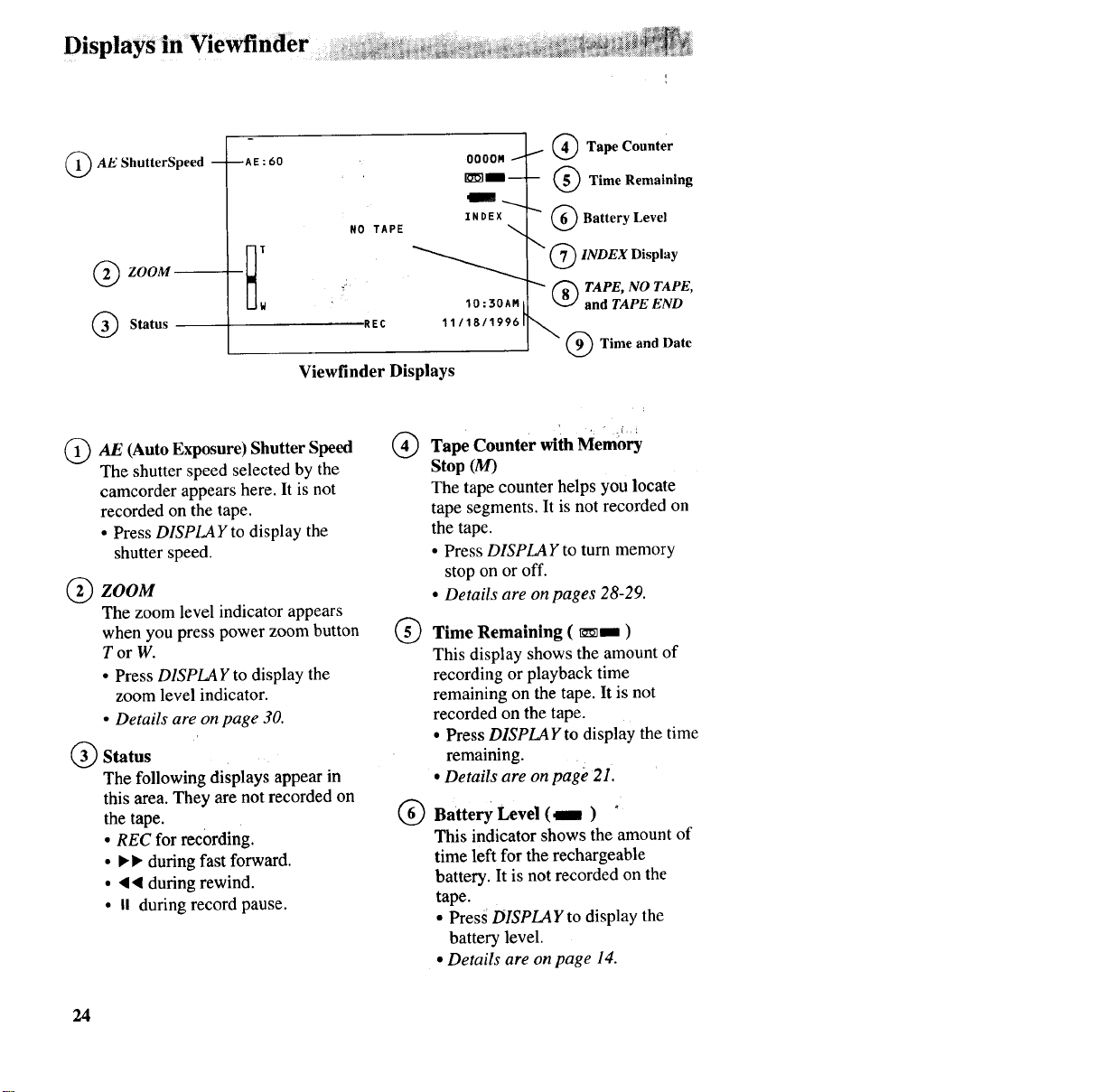
(_ AE ShutterSpeed
_ZOOM
(_ Status-
--AE:60
NO TAPE
REC
O000M i
ZNDEX
IO:30AM
11118/1996
Viewfinder Displays
i. (_ Tape Counter
-- (_ Time Remaining
"" (_ Battery Level
QINDEX Display
"" (_ TAPE, NO TAPE,
and TAPE END
(_) Time and Date
(_AE (Auto Exposure) Shutter Speed
The shutter speed selected by the
camcorder appears here. It is not
recorded on the tape.
• Press DISPLAY to display the
shutter speed.
(_ ZOOM
The zoom level indicator appears
when you press power zoom button
Tor W.
• Press DISPLAY to display the
zoom level indicator.
•Details are on page 30.
(_) Status
The following displays appear in
this area. They are not recorded on
the tape.
•REC for recording.
• I_I, during fast forward.
• • • during rewind.
• II during record pause.
®
®
®
Tape Counter with Memory
stop (M)
The tape counter helps you locate
tape segments. It is not recorded on
the tape.
• Press DISPLAY to turn memory
stop on or off.
•Details are on pages 28-29.
Time Remaining ( _, )
This display shows the amount of
recording or playback time
remaining on the tape. It is not
recorded on the tape.
• Press DISPLAY to display the time
remaining.
•Details are on page 21.
Battery Level (m) '
This indicator shows the amount of
time left for the rechargeable
battery. Itis not recorded on the
tape.
• Press DISPLAY to display the
battery level.
•Details are onpage 14.
24
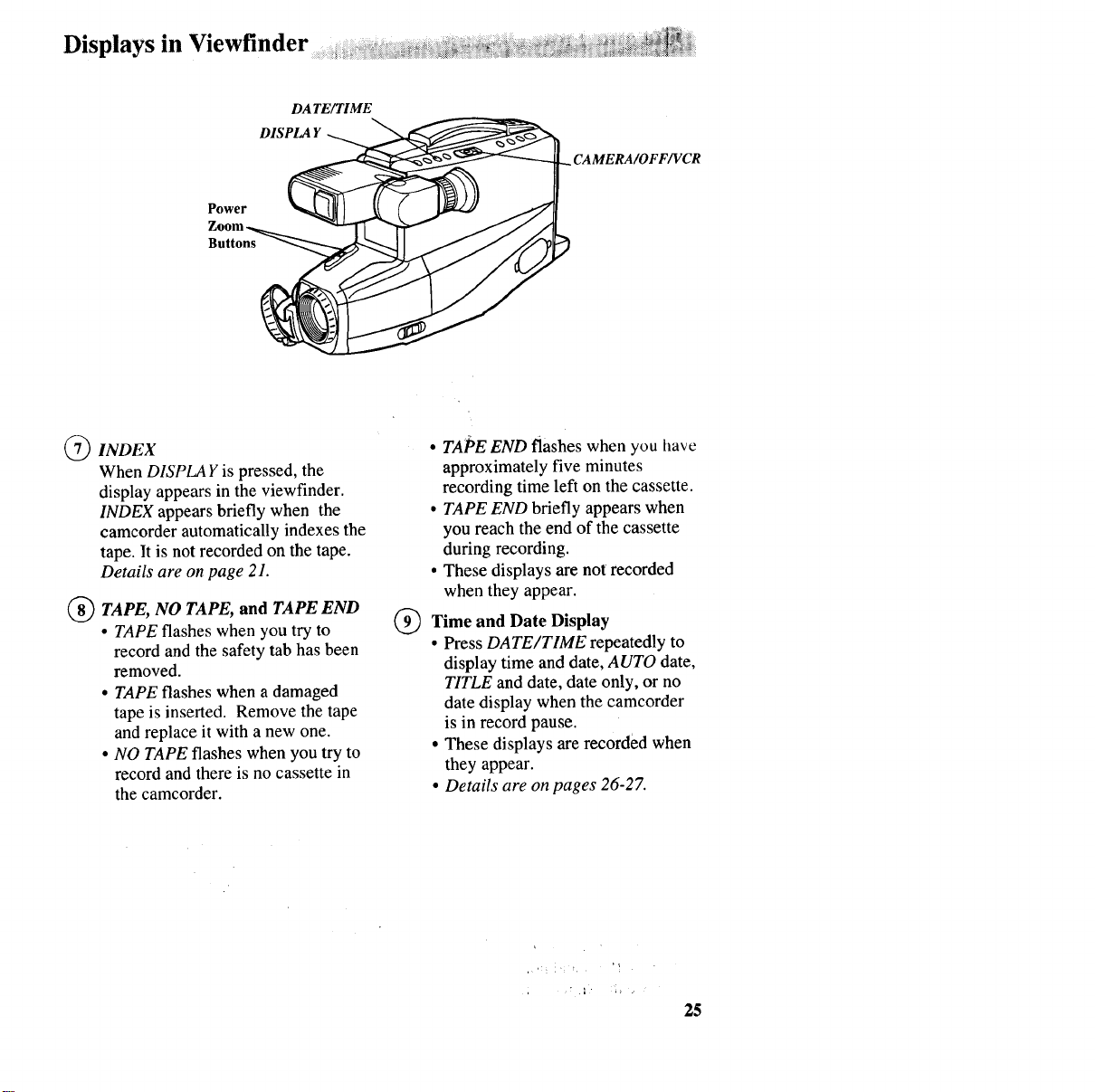
Displays in Viewfinder
DATE/TIME
DISPLA r
Power
Buttons
INDEX
When DISPLAY is pressed, the
display appears in the viewfinder.
INDEX appears briefly when the
camcorder automatically indexes the
tape. It is not recorded on the tape.
Details are on page 21.
TAPE, NO and TAPE END
TAPE,
•TAPE flashes when you try to
record and the safety tab has been
removed.
• TAPE flashes when a damaged
tape is inserted. Remove the tape
and replace it with a new one.
• NO TAPE flashes when you try to
record and there is no cassette in
the camcorder.
•TAPE END flashes when you have
approximately five minutes
recording time left on the cassette.
• TAPE END briefly appears when
you reach the end of the cassette
during recording.
•These displays are not recorded
when they appear.
Time and Date Display
•Press DATE/TIME repeatedly to
display time and date, AUTO date,
TITLE and date, date only, or no
date display when the camcorder
is in record pause.
•These displays are recorded when
they appear.
• Details are on pages 26-27.
25
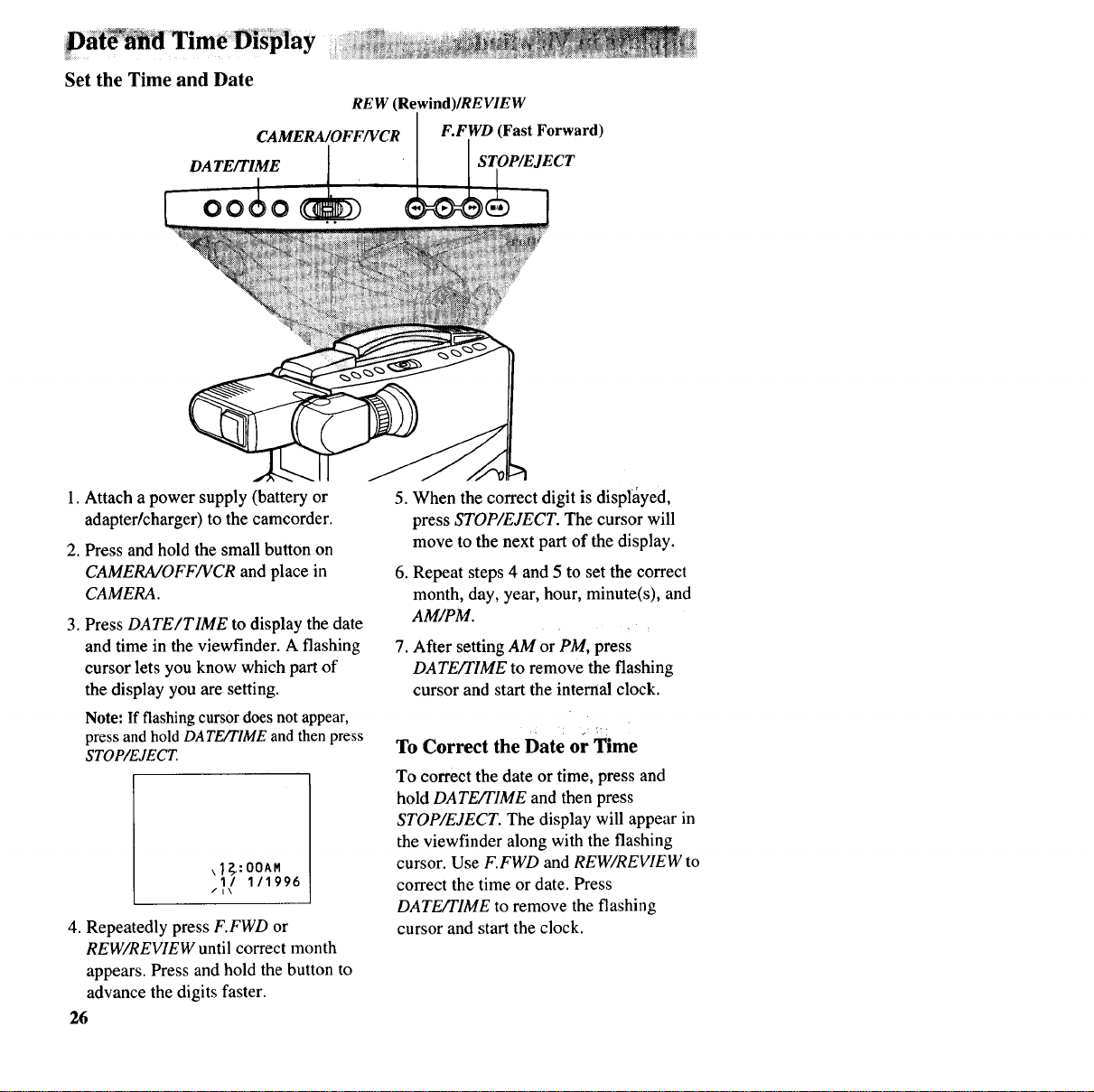
Set the Time and Date
REW (Rewind)IREVIEW
CAMERA/OFF/VCR F.FWD (FastForward)
DATE/TIME STOP/EJECT
1. Attach a power supply (battery or
adapter/charger) to the camcorder.
2. Press and hold the small button on
CAMERA/OFF/VCR and place in
CAMERA.
3. Press DATE/TIME to display the date
and time in the viewflnder. A flashing
cursor lets you know which part of
the display you are setting.
Note: If flashing cursor does not appear,
press and hold DATE/TIME and then press
STOP/EJECT.
\I_:OOAM
I/ I11996
/I\
4. Repeatedly press F.FWD or
REW/REVIEW until correct month
appears. Press and hold the button to
advance the digits faster.
26
5. When the correct digit is displayed,
press STOP/EJECT. The cursor will
move to the next part of the display.
6. Repeat steps 4 and 5 to set the correct
month, day, year, hour, minute(s), and
AM/PM.
7. After setting AM or PM, press
DATE/TIME to remove the flashing
cursor and start the internal clock.
¢: ;: Z
To Correct the Date or Time
To correct the date or time, press and
hold DATE/TIME and then press
STOP/EJECT. The display will appear in
the viewfinder along with the flashing
cursor. Use F.FWD and REW/REVIEW to
correct the time or date. Press
DATE/TIME to remove the flashing
cursor and start the clock.
ii_!Datei_i iiia_n_d Time Display i_ii_i_!!_ii_ii_i_iii_iiiiiiiiiiii_ii_iii_ii_!_i_ii_iiii_ii;_iiii_iii_ii_:_= _ _ i!__i_i_i_i__:__ _i _iii_i_i__ii_i!iiiil_ili_iii_i_ii_iiiii_ii_i_,_i_i_i_iiiii_i_!i_iiiii_ii_i__i_:i_ _:__iii_i_ii_iii_!l_:_;_i_!%____ _i_i_i:i_i_i_iiiiii_:_iii_iii_;_!ii_!_i_
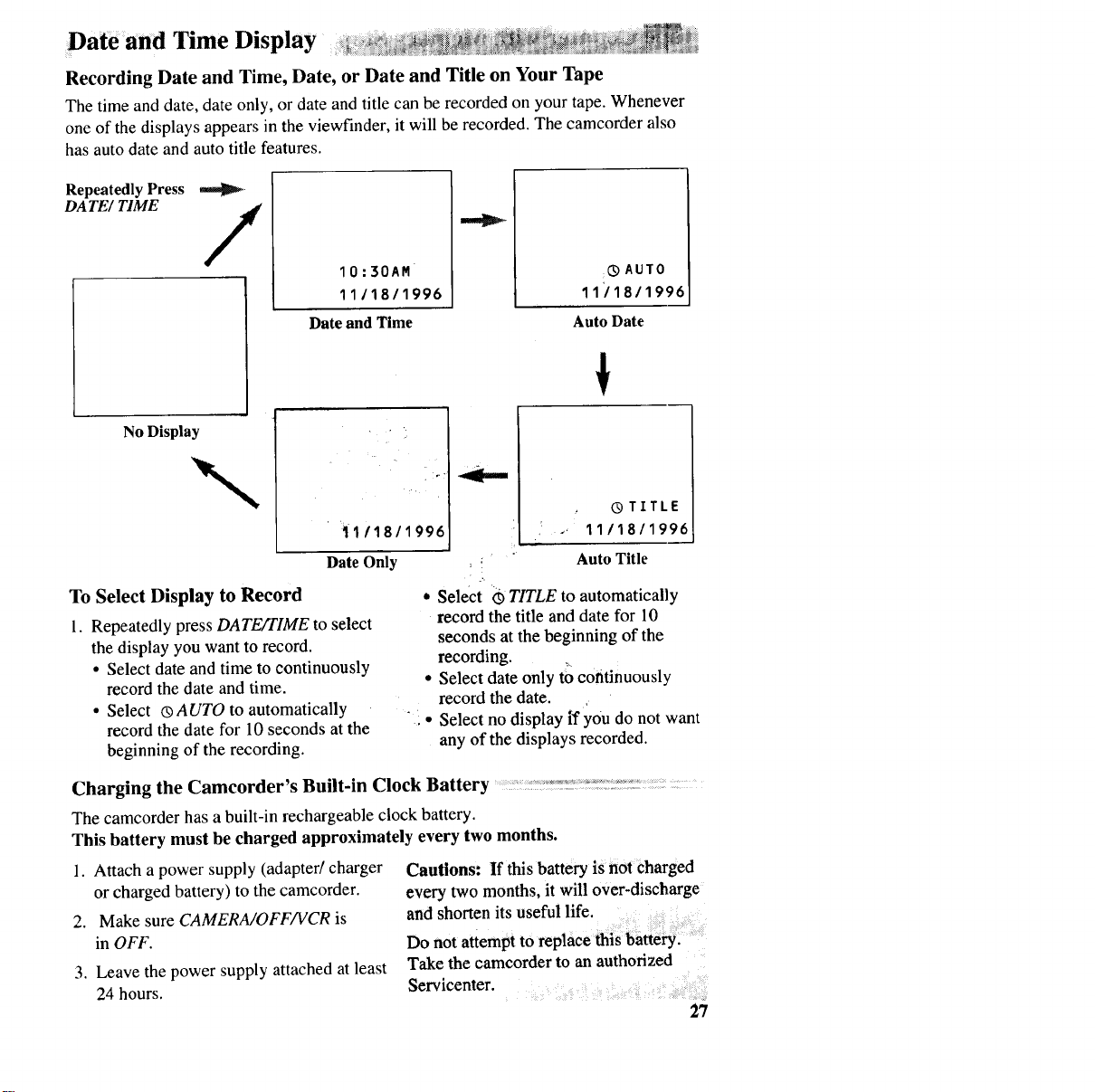
Recording Date and Time, Date, or Date and Title on Your Tape
The time and date, date only, or date andtitle can be recorded on your tape. Whenever
one of the displays appears in the viewfinder, it will be recorded. The camcorder also
has auto date and auto title features.
Repeatedly Press
DATE/ TIME /IO:30AM
11/18/1996
Dateand Time
:_ AUTO
11'11811996
Auto Date
No Display
'1"111811996
Date Only
To Select Display to Record
1. Repeatedly press DATE/TIME to select
the display you want to record.
• Select date and time to continuously
record the date and time.
•Select ®AUTO to automatically
record the date for 10 seconds atthe
beginning of the recording.
._ ® TITLE
1111811996
Auto Title
* Select _) TITLE to automatically
record the title and date for 10
seconds atthe beginning of the
recording.
• Select date only to continuously
record the date.
" • Select no display il'you do not want
any of the displays recorded.
Charging the Camcorder's Built-in Clock Battery ................: ,"°_ __::: : :_: : ......
The camcorder has a built-in rechargeable clock battery.
This battery must be charged approximately every two months.
1. Attach a power supply (adapter/charger
or charged battery) to the camcorder.
2. Make sure CAMERA/OFF/VCR is
in OFF.
3. Leave the power supply attached at least
24 hours.
Cautions: If this battery is not charged
every two months, it will over-discharge
and shorten its useful life.
Do not attempt to replace this battery.
Take the camcorder to an authorized
Servicenter.
27
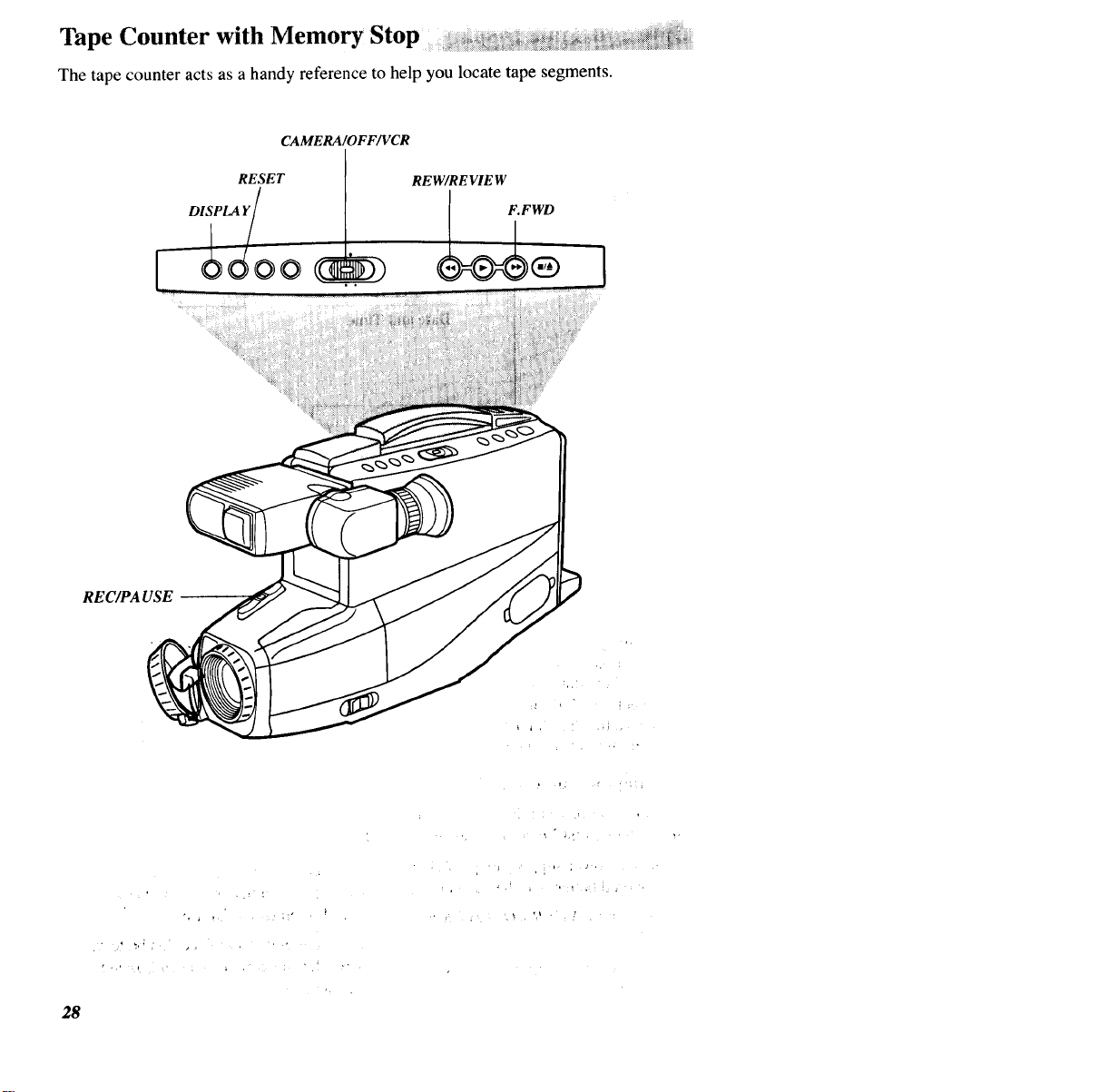
Tape Counter with Memory Stop _ _,__ ,_ __:_::_
The tape counter acts as ahandy reference to help you locate tape segments.
CAMERA/OFF/VCR
RESET REW/REVIEW
ii_i_iii_ i
REC/PA USE
28
Tape Counter with Memory Stop
Memory Stop
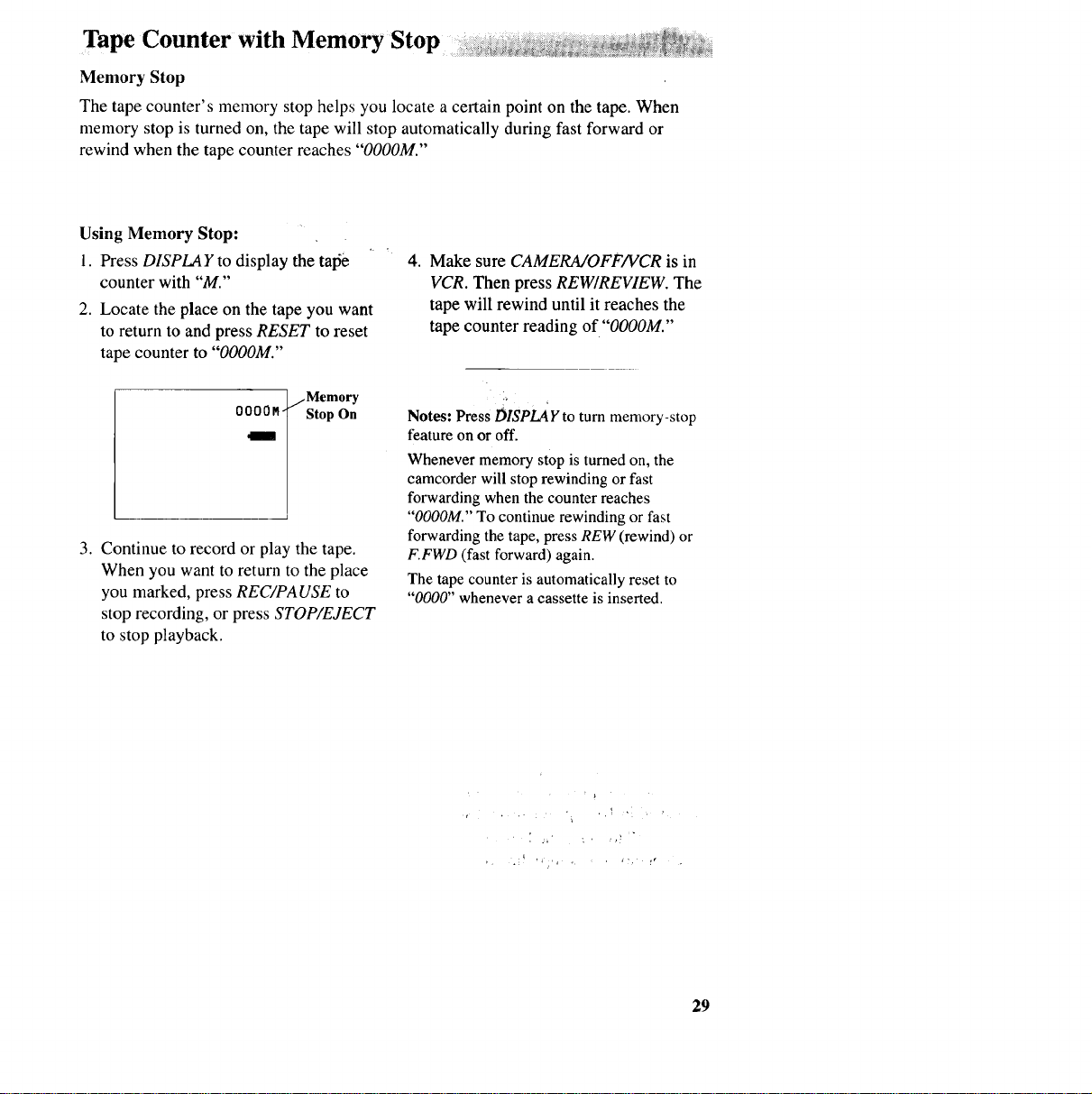
The tape counter's memory stop helps you locate a certain point on the tape. When
memory stop is turned on, the tape will stop automatically during fast forward or
rewind when the tape counter reaches "O000M."
Using Memory Stop:
1. Press DISPLAY to display the talSe
counter with "M."
2. Locate the place on the tape you want
to return to and press RESET to reset
tape counter to "O000M."
/Memory
0000M° Stop On
,In
3. Continue to record or play the tape.
When you want to return to the place
you marked, press REC/PAUSE to
stop recording, or press STOP/EJECT
to stop playback.
4. Make sure CAMERA/OFF/VCR is m
VCR. Then press REW/REVIEW. The
tape will rewind until it reaches the
tape counter reading of "O000M."
Notes:Press DISPLAYto turn memory-stop
feature on or off.
Whenever memory stop is turned on, the
camcorder will stop rewinding orfast
forwarding when the counter reaches
"O000M."To continue rewinding or fast
forwarding the tape, pressREW (rewind) or
F.FWD (fast forward)again.
The tape counter is automatically reset to
"0000" whenever a cassette is inserted.
, ,, " 'r _ '_ ,
29
Zooming
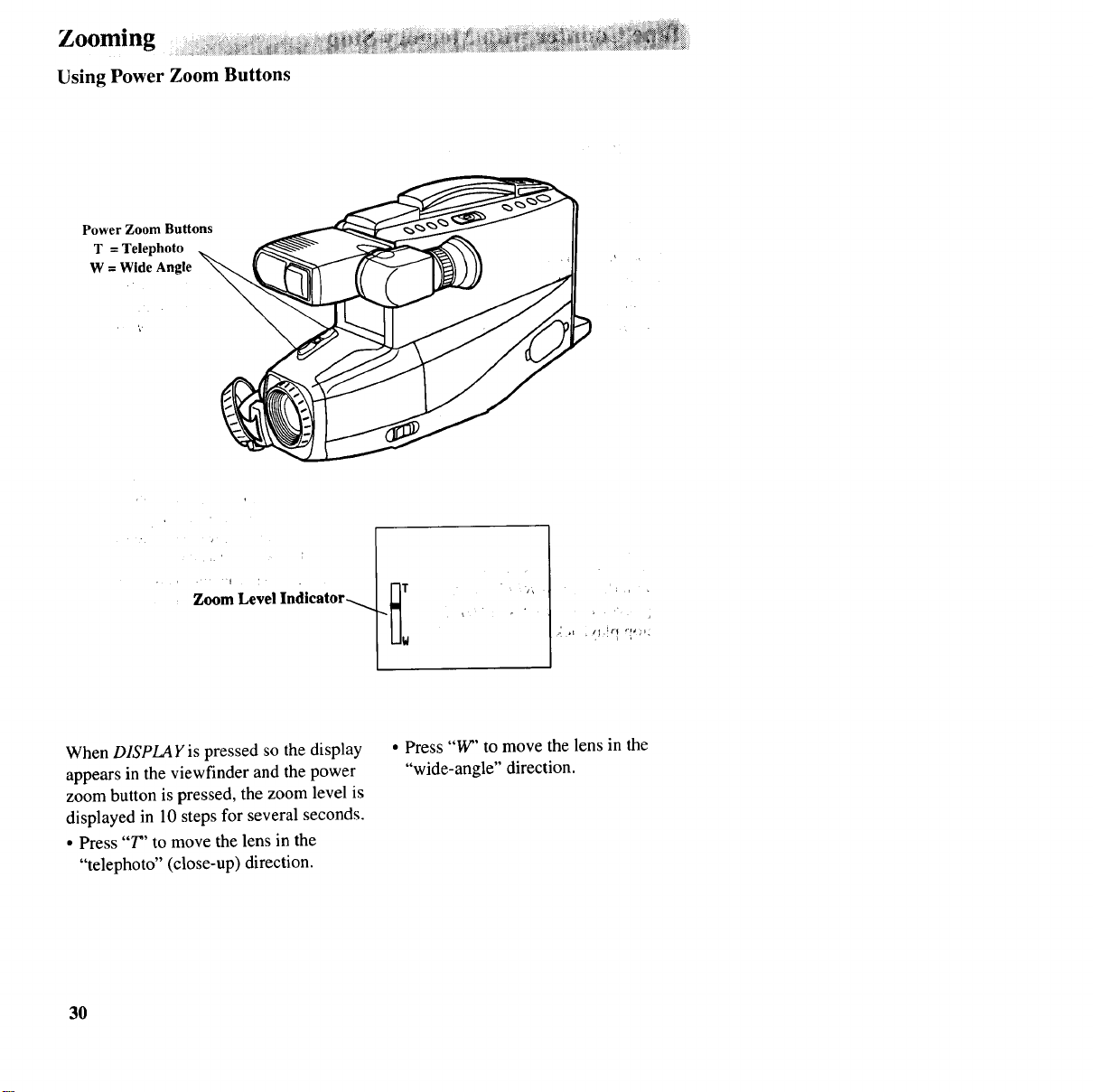
Using Power Zoom Buttons
Power Zoom Buttons
T=Telephoto
W=Wide Angle
Zoom Level Indicator_.. _T
w
When DISPLAYis pressed so the display
appears in the viewfinder and the power
zoom button is pressed, the zoom level is
displayed in 10 steps for several seconds.
• Press "7" to move the lens in the
"telephoto" (close-up) direction.
• Press "W" to move the lens in the
"wide-angle" direction.
30
ProEdit Features
ProEdit ®System
-- -- -- • Edit Search
---- _:_T • Titler o-
,. ,' i.4
The camcorder incorporates a complete package of advanced editing features
to make it easy and fun to edit your home videos like a professional. The
major ProEdit ®System features are described here and on the following pages.
Edit Search ....
The edit-search feature allows you to edit as you
make your recording by using F.FWD,
•REW/REVIEW, and PLAYto precisely position the
tape while the camcorder is in record pause.
• Press and hold REW/REVIEW to visually search
the recorded tape in reverse.
• Press and hold F.FWD to visually •search forward
on the recorded tape.
• Press and hold PLAY to viewS{herecorded tape at
normal speed.
When you release the button, the camcorder will
return to record pause at that point on the tape.
31
ProEdit Features
Titler
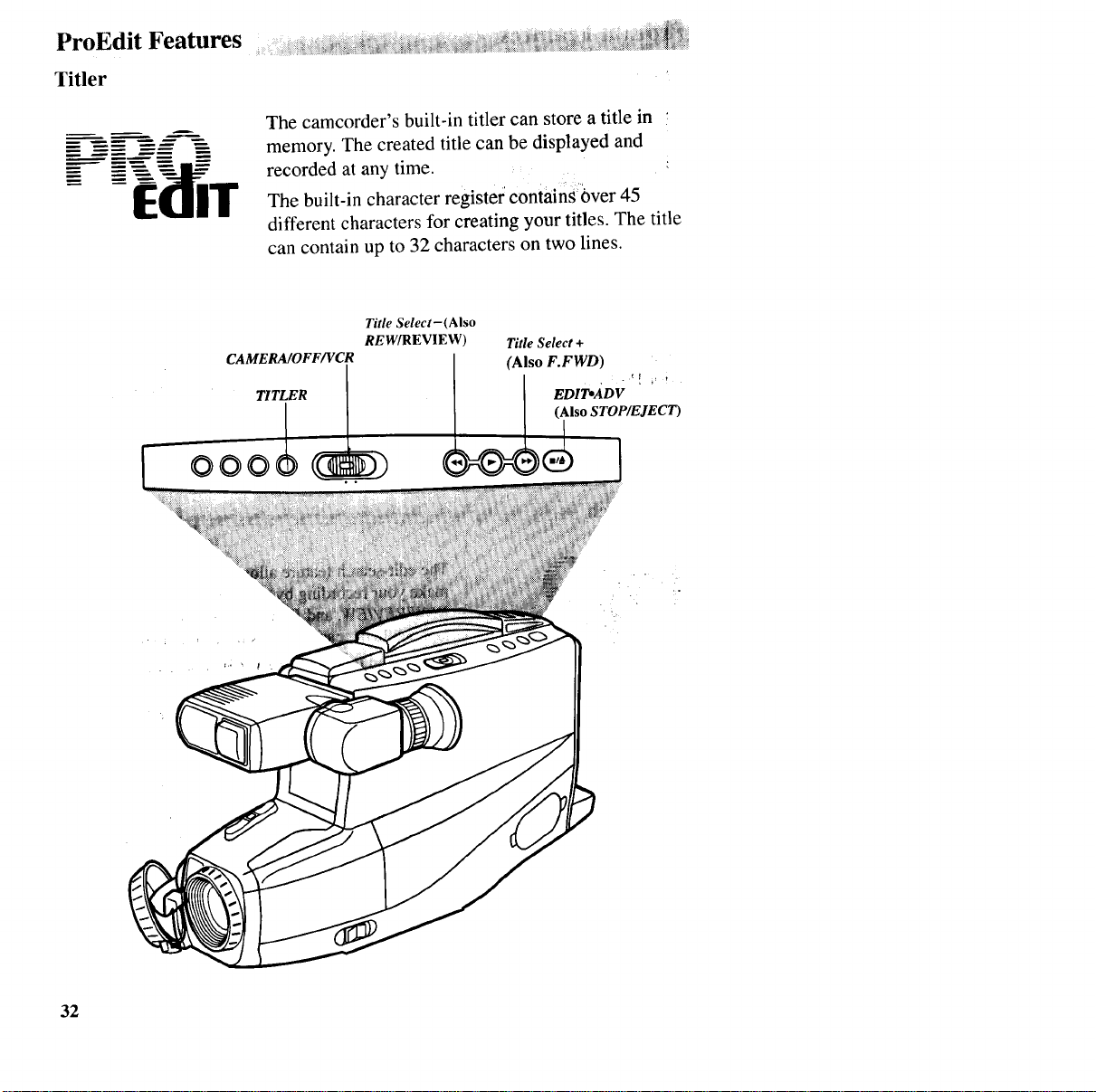
°ti:lk The camcorder's built-in titler can store a title in
memory. The created title can be displayed and
recorded at any time.
The built-in character register' contains 6ver 45
different characters for creating your titles. The title
can contain up to 32 characters on two lines.
Title Select- (Also
REW/REVIEW) Title Select +
CAMERA/OFF/VCR (Also F.FWD)
TITLER EDIT*ADV i_
(AlsoSTOP/EJECT)
000
:!
32
ProEdlt' Features ....... :, :o ,o...........
To Create aTitle :.,
1. Attach a power source to the
camcorder, press and hold the small
button on CAMERA/OFF/VCR while
sliding it to CAMERA.
2. Press TITLER to display titler
graphics in the viewfinder. A
flashing cursor will appear.
3. Press EDIToADV to move the flashing
cursor to the place you want to begin
your title.
4. Select the first character for your title
by pressing the Title Select + button
or the - button until the character you
want appears in the viewfinder.
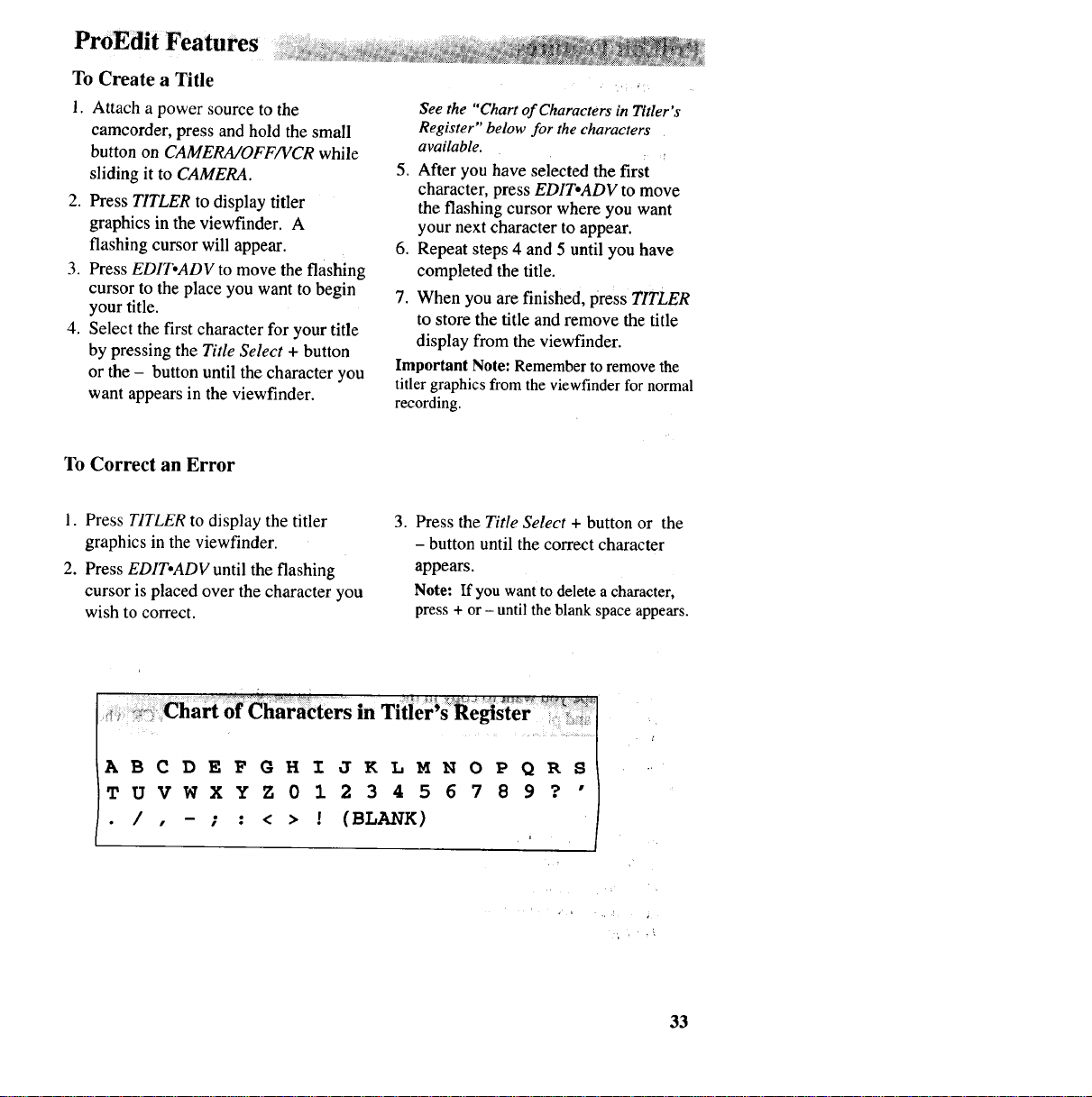
See the "Chart of Characters inTttler"s
Register" below for the characters
available.
5. After you have selected the first
character, press EDIToADV to move
the flashing cursor where you want
your next character to appear.
6. Repeat steps 4 and 5 until you have
completed the title.
7. When you are finished, press TITLER
to store the title and remove the title
display from the viewfinder.
Important Note: Remember to remove the
titlergraphicsfromthe viewfinderfornormal
recording.
To Correct an Error
1. Press TITLER to display the titler
graphics in the viewfinder.
2. Press EDIToADV until the flashing
cursor is placed over the character you
wish to correct.
3. Press the Title Select + button or the
-button until the correct character
appears.
Note: If you want to delete a character,
press + or - until the blank space appears.
ABCDEFGH_
TUVWXYZ01
./,-;:<>!
JKLMN O P QRS
23456789?"
(BLANK )
33
Recording a Title on a Tape in the Camcorder
To record atitle on a tape inthe camcorder, follow the steps below.
1. Attach a power source to the
camcorder, slide CAMERA/OFF/VCR
to CAMERA.
2. Locate the place on the tape where
you want to record the title.
Notes: If you record a title on a pre-
recorded tape, the audio and video will be
erased where the title is inserted. There will
also be a three-to-four second pause of
blank tape before the existing audio and
video return.
3. Press TITLER to display the titler
graphics in the viewfinder.
4. Press REC/PAUSE to start recording
the title.
5. After you have recorded the title for
the desired length of time, press
TITLER to remove titler graphics from
the viewfinder. The camcorder will
now record as normal. If you do not
want to continue recording, press
REC/PAUSE.
Important Note: Remember to remove the
titler graphics from the viewfinder for normal
recording.
Note: You can also use the automatic title
recording feature to automatically record the
title and date for 10 seconds when you begin
recording. Press DATE/TIME to display ®
TITLE before starting to record.
Recording a Title While Copytng a Tape from Camcorder to Another VCR
This method of adding titles lets you keep the original tape as it is, and add titles to the
copy you are making on another VCR. Connect your camcorder to a VCR as shown on
pages 38-39.
1. Attach apower source to the
camcorder.
2. Place the tape you want to copy in the
camcorder and place
CAMERA/OFF/VCR in VCR.
3. Place a blank tape in the VCR, and
place the VCR in record pause.
4. Start copying the tape from the
camcorder to the VCR. Details for
copying a tape are on pages 38-39.
5. When you see the place on the tape
you want to insert the title, press
TITLER.
6. After you have recorded the title for
the desired time, press TITLER to stop
recording the title.
7. Stop the cameo€tier arid VCR when
you are finished copying the tape.
Important Note: Remember to remove the
titler graphics from the viewfinder for normal
plan,back.
34
Make a recording of your home and
contents to store in a safe place in case of
fire or theft.
Practice recording under a variety of
lighting conditions. This will help you
respond quickly whenever you see a scene
you want to record.
Do not move the eamcorder rapidly from
side-to-side while recording. A steady,
gradual "pan" avoids blurring and "jitter".
Use the viewfinder to make sure the
camcorder is level while recording or your
scenes will appear "tilted".
Make sure indoor scenes are well-lit to "
improve picture quality and color
reproduction.
Do not bump or tap the camcorder's
microphone while recording because this
sound will be recorded.
Avoid long "still" shots of landmarks and
scenic attractions. Recordings are more
interesting if they include people and
details. "Local color" will give travel
videos lasting appeal. Consider recording
a familiar or landmark scene from an
unfamiliar vantage point for added
interest. Remember to check the lighting
before starting to record.
Try to avoid taping backlit subjects
indoors. Bright light behind your subject
may cause the subject to appear too dark.
Include close-up shots of individuals
when taping family outings or group
functions.
For a different perspective, try kneeling
down (or laying) on the floor when
recording children or pets.
Be aware of video and audio backgrounds.
Background details barely noticed while
you are taping may show up as visual
"clutter" on your recording. Background
noises (especially TV sets, radios,
household appliances, traffic sounds, etc.)
can detract from the sound you want to
record.
'i¸' "_i (' "''_
, !!,
')_' ) .'
35
_ _ _::_ _ __i_iii _i_i _i_:_iiiii_i_iii_
Vie_nder Playback and Playback Features :_ _ _, _ _ _
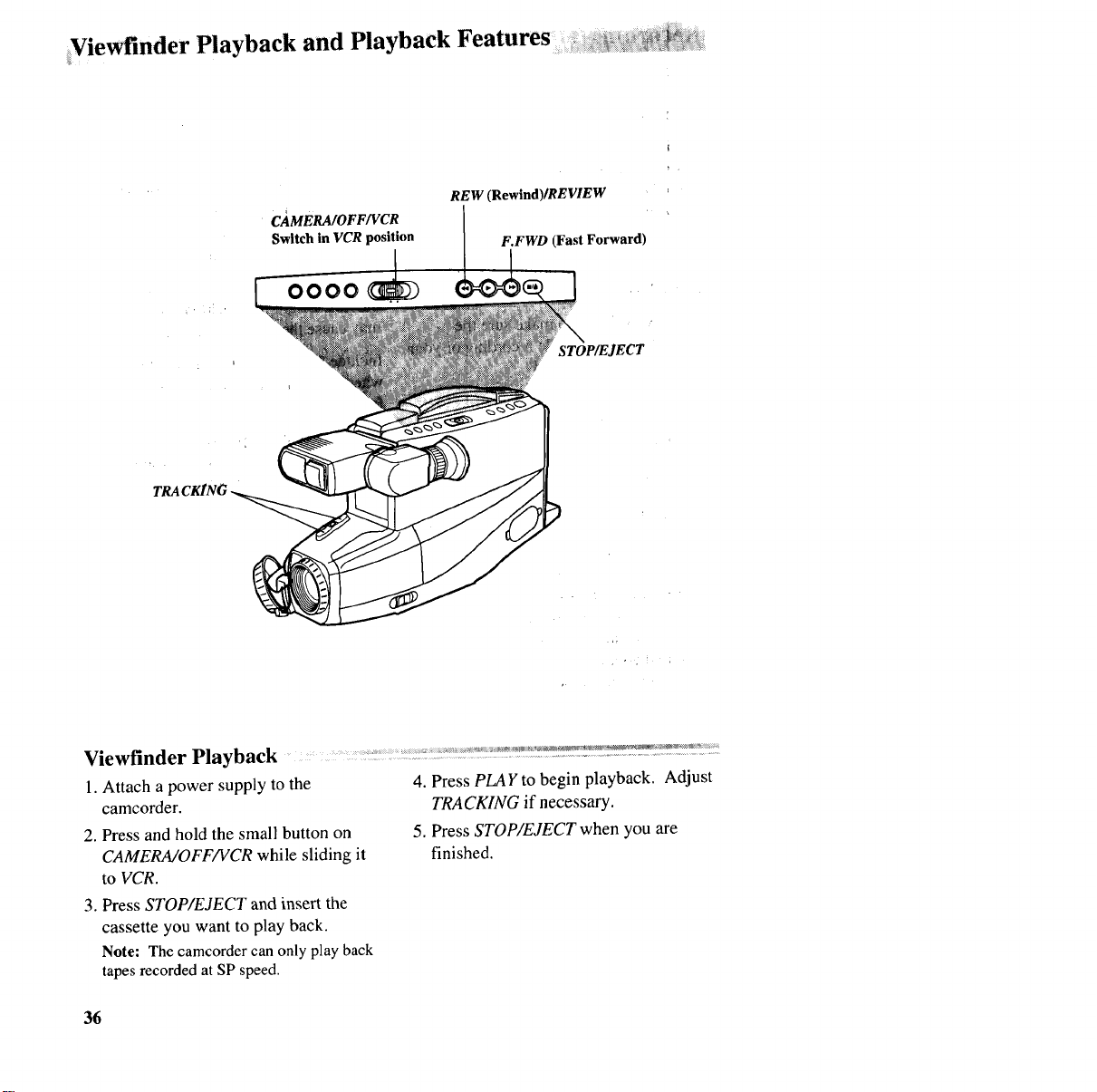
C_4MERA/OFF/VCR
Switch in VCR position
REW (Rewind)/REVIEW
F.FWD (Fast Forward)
STOP/EJECT
Viewfinder Playback .... ................................................................................
1. Attach a power supply to the
camcorder.
2. Press and hold the small button on
CAMERA/OFF/VCR while sliding it
to VCR.
3. Press STOP/EJECT and insert the
cassette you want to play back.
Note: The camcordcr can only play back
tapes recorded at SP speed.
4. Press PLAY to begin playback. Adjust
TRACKING if necessary.
5. Press STOP/EJECT when you are
finished.
36
Viewfinder Playback and Playback Features
Playback Features
Stop-Action Pause
During playback, you can view one
frame of the tape.
• Press REC/PAUSE to stop the action.
• Press REC/PA USE again to return to
normal playback.
• _ -,.o _ •
Caution: Pause 1_designed for _°,-,,o.
momentary interruptions and should not
be used for an extended period of time.
If the camcorder remains m pause for
more than five minutes, it will
automatically remove the tape from the
spinning heads to prevent excessive
tape wear,
Picture Search
During playback you can visually search
the tape ata higher speed in forward or
reverse.
• Press and hold F.FWD to search the
tape forward.
* Press and hold REW/REVIEW to
search the tape in reverse.
• Release the button to return to normal
playback.
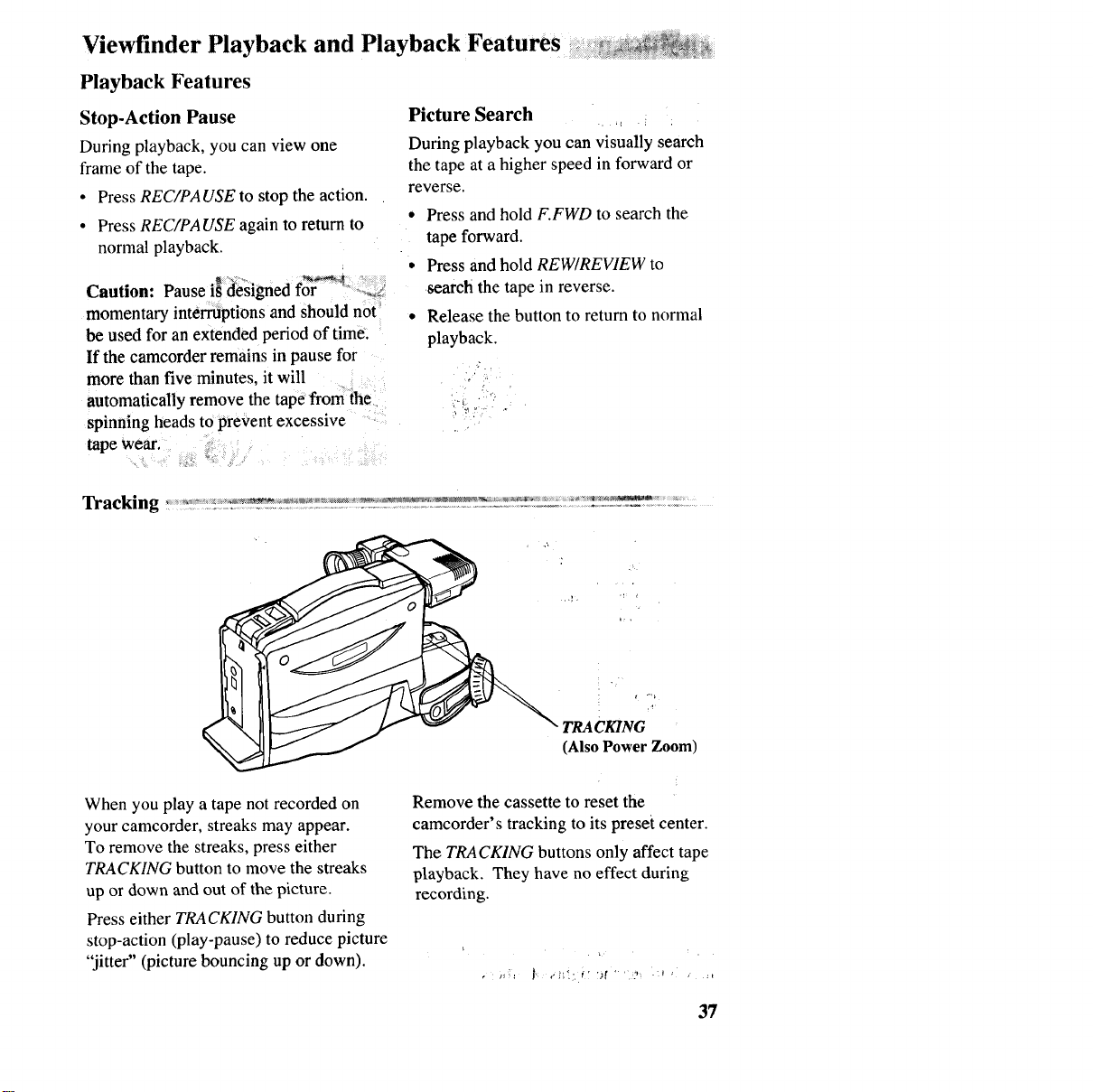
When you play a tape not recorded on
your camcorder, streaks may appear.
To remove the streaks, press either
TRACKING button to move the streaks
up or down and out of the picture.
Press either TRACKING button during
stop-action (play-pause) to reduce picture
"jitter" (picture bouncing up or down).
TnACmNG
(Also Power Zoom)
Remove the cassette to reset the
camcorder's tracking to its preset center.
The TRACKING buttons only affect tape
playback. They have no effect during
recording.
37
Playback on a TV or VCR withAUDlO and VIDEO IN Jfic_
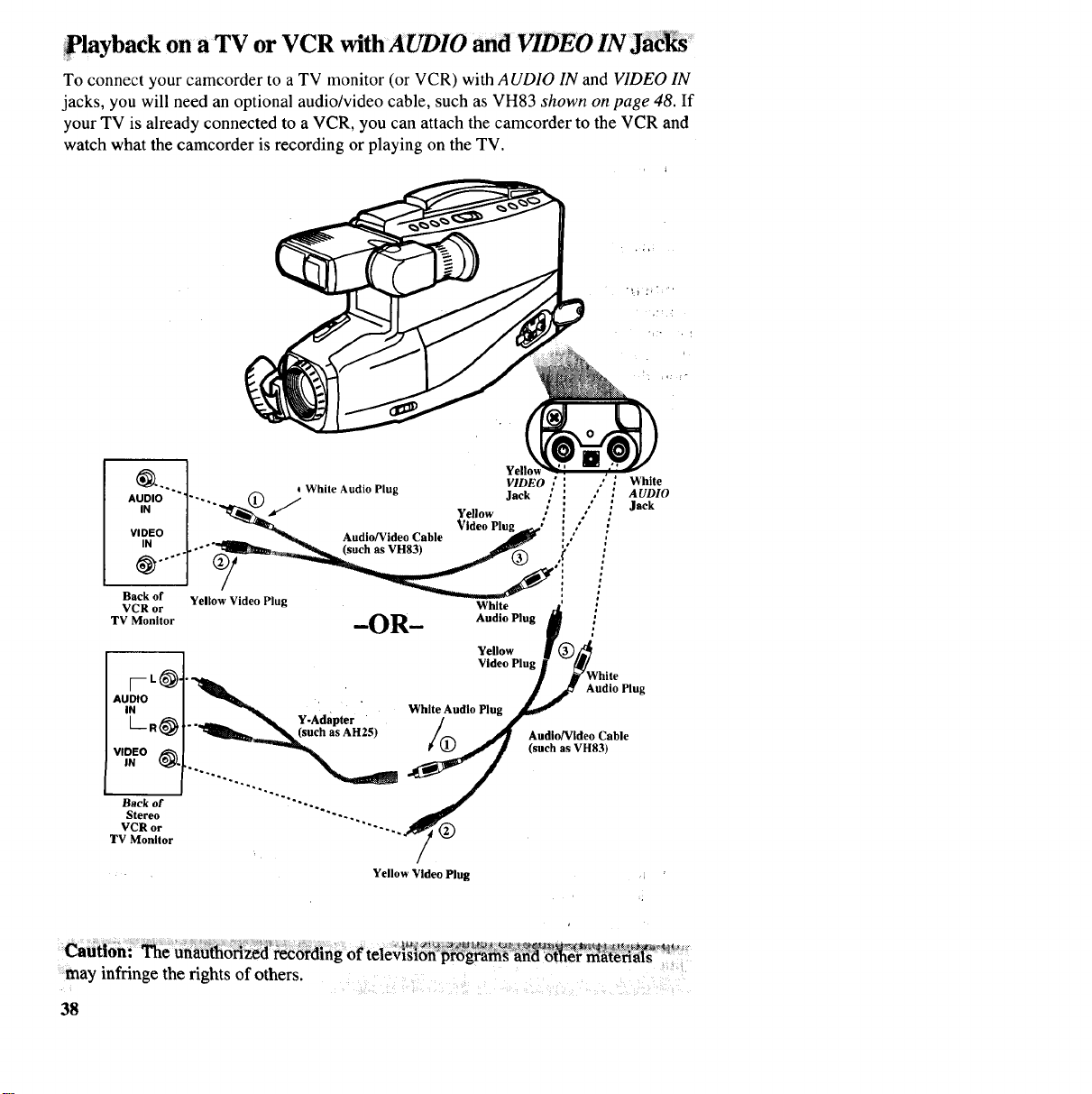
To connect your camcorder to a TV monitor (or VCR) with AUDIO IN and VIDEO IN
jacks, you will need an optional audio/video cable, such as VH83 shown on page 48. If
your TV is already connected to a VCR, you can attach the camcorder to the VCR and
watch what the camcorder is recording or playing on the TV.
_). ] Yello .
.... 1_, White Audio Plug VIDEO : i
AUDIO ]..... I_ /Jac ::
IN / _/Yellow /:
VI | _ Video Plug. -'
ID#O [ "_ Audio/Video Cable "-_d_€" [,""
Back of Yellow Video Plug
VCR or White '
TV Monitor -OR- Audio Plug
[--L_.
AUDIO
IN
_l_O_.
'..__ Y-Adapter
Yellow
Video Plug
White Audio Plug
Audio Plug
AudioNIdeo Cable
(such as VH83)
Back of
Stereo
VCR or
TV Monitor /
/
Yellow Video Plug
White
AUDIO
Jack
Cafitiom _e unauthorized recording of televlslon__"¢_'_°_:_:_=_:'::programg_i _ _'_'_:_':mate_°_':
may infringe the rights of others.
38
Playback on a TV or VCR with AUDIO andVIDEO
(_) Attach the white plug on one end of
the audio/video cable to the AUDIO
IN jack on the TV or VCR.
Note: If your TV (or VCR) has stereo
left and right AUDIO IN jacks, attach the
plug to the one labeled MONO. If one of
the jacks is not labeled MONO, you may
need a Y-adapter, such as AH25 shown
on page 48, to hear both channels.
(_ Attach the yellow plug on the Same
end of the audio/video cable to the
VIDEO lNjack on the TV or VCR.
Attach the yellow plug on the other
end of the audio/video cable to the
yellow VIDEO jack and the white
plug to the white AUDIO jack on the
side of the camcorder.
,. :'- ,i: ¸
Playback Operation and HOW to Copy Tapes on a VCR .........
1. A. Cameorder connected directly to ,: i_
TV monitor: Turn on the TV and
tune it to its video input channel.
B. Camcorder connected to VCR that
is already connected to TV: Turn on
VCR and place it in the "line" or
"camera" mode. (If your VCR does
not have a "line" or "camera"
mode, consult the VCR owner's
manual.) Operate the TV as you
normally do to see the signal
coming from the VCR.
2. Press and hold the small button on the
camcorder's CAMERA/OFF/VCR
switch while sliding it to VCR. Insert
the cassette you want to playback (or
copy).
Note: The camcorder can only playback
tapes recorded atthe SP speed.
3. Press PLAY on the camcorder. To copy
what the camcorder is playing, place a
blank cassette in the VCR and start the
VCR recording. Adjust the tracking on
the camcorder if necessary. Details are
on page 37. ........
•During playback, use the playback
features described on page 37.
4. Press STOP/EJECT when you are
finished.
Watching What the Camcorder is Seeing or Recording on' th6 TV
1. A. Camcorder connected directly to
TV: Turn on the TV, and tune it to
its video input channel.
B. Camcorder connected to VCR that
is already connected to TV: Turn on
VCR and place it in the "line" or
"camera" mode. (If your VCR does
not have a "line" or "camera"
mode, consult the VCR owner's
manual.) Operate the TV as you
normally do to see the signal
coming from the VCR.
2. Press and hold the small button on the
camcorder' s CAMERA/OFF/VCR
switch while sliding it to CAMERA.
Insert the cassette you want to
record on.
Note: When the carncorder is used as a
camera, turn the TV's volume down to
prevent ahigh-pitched squeal caused by
feedback.
3. Press the camed?der"s RECiPAUSE
button to begin recording. You can
watch what the camcorder is seeing or
recording on the TV screen. 39
Playback ona TV Without Audio and Video Inputs
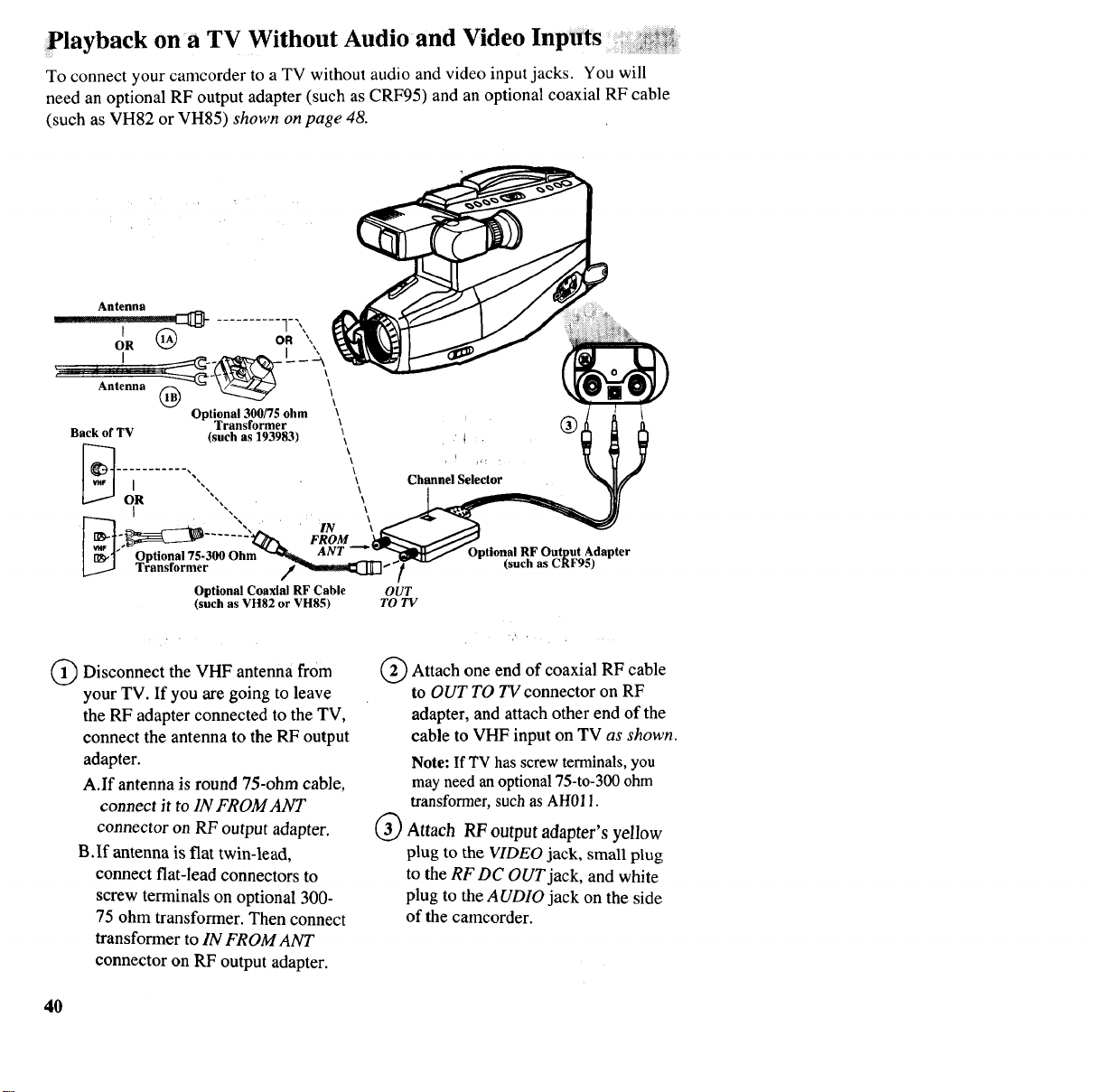
To connect your camcorder to a TV without audio and video inputjacks. You will
need an optional RF output adapter (such as CRF95) and an optional coaxial RF cable
(such as VH82 or VH85) shown on page 48.
Antenna
OR I
Antenna \\
Optional 300/75 ohm
Transformer
Back of TV (such as 193983)
÷-] ........ ,
Optional 75-300 Ohm
Transformer
IN
FROM
A
Optional Coaxial RF Cable
(such as VH82 or VH85)
\ ®
,!
\
F
\ Channel Selector
(_) Disconnect the VHF antenna from
your TV. If you are going to leave
the RF adapter connected to the TV,
connect the antenna to the RF output
adapter.
A.If antenna is round 75-ohm cable,
connect it to 1NFROMANT
connector on RF output adapter.
B.If antenna is flat twin-lead,
connect flat-lead connectors to
screw terminals on optional 300-
75 ohm transformer. Then connect
transformer to IN FROM ANT
connector on RF output adapter.
RF
!
OUT
TO TV
(_) Attach one end of coaxial RF cable
to OUT TO TV connector on RF
adapter, and attach other end of the
cable to VHF input on TV as shown.
Note: If TV has screw terminals, you
may aeed anoptional75-to-300ohm
transformer, suchas AH011.
(_ Attach RF output adapter's yellow
plug to the VIDEO jack, small plug
to the RF DC OUT jack, and white
plug to the AUDIO jack on the side
of the camcorder.
40
Playback on a TV Without Audio and Video In uts
P:
Playback Operation
I. Set the channel selector switch on the
RF output adapter to CH3 or CH4.
2. Turn on the TV andtune it to the same
channel (3 or 4) you selected with the
channel selector switch on the RF
output adapter.
3. Press and hold the small button on the
camcorder's CAMERA/OFF/VCR
switch while sliding it to VCR.
5. Press PLAY on the camcorder. Adjust
tracking on the camcorder, if
necessary. Details are on page 37.
• During playback, use the playback
features described on page 37.
6, Press STOP/EJECT on the camcorder
when you are finished playing back the
tape.
4. Insert the cassette you want to play
back into the camcorder.
Note: The camcorder can only play back
tapes recorded at the SP speed. '?
Watch What the Camcorder is Seeing or Recording on the TV _....
1. Turn on the TV and tune it to channel
3 or 4 (the same channel you selected
with the CH3/CH4 switch on the RF
output adapter).
2. Press and hold the small button on the
camcorder' s CAMERA/OFF/VCR
switch while sliding it to CAMERA.
Insert the cassette you want to
record on.
3. Press the camcorder's REC/PAUSE
button to begin recording. You can
watch what the camcorder is seeing
or recording on the TV screen.
Note: When the camcorder is used as a
camera, turn the TV's volume down to
prevent a high-pitched squeal caused by
feedback.
• Li •
Normal TV Viewing _ ...... -_ •.... • - •
For normal TV viewing, you can leave from the camcorder or turn the
the RF output adapter hooked up to the camcorder's power off.
TV. Just disconnect the adapter's plug
Note to Cable-TV Installer: This reminder is provided to call your attention to Article
820-40 of the National Electrical Code (Section 54 of Canadian Electrical Code,
PartI), thatprovides guidelines for proper grounding and, in particular, specifies thatthe
cable ground shall be connected to the grounding system of the building as close to the
point of cable entry as practical.
41
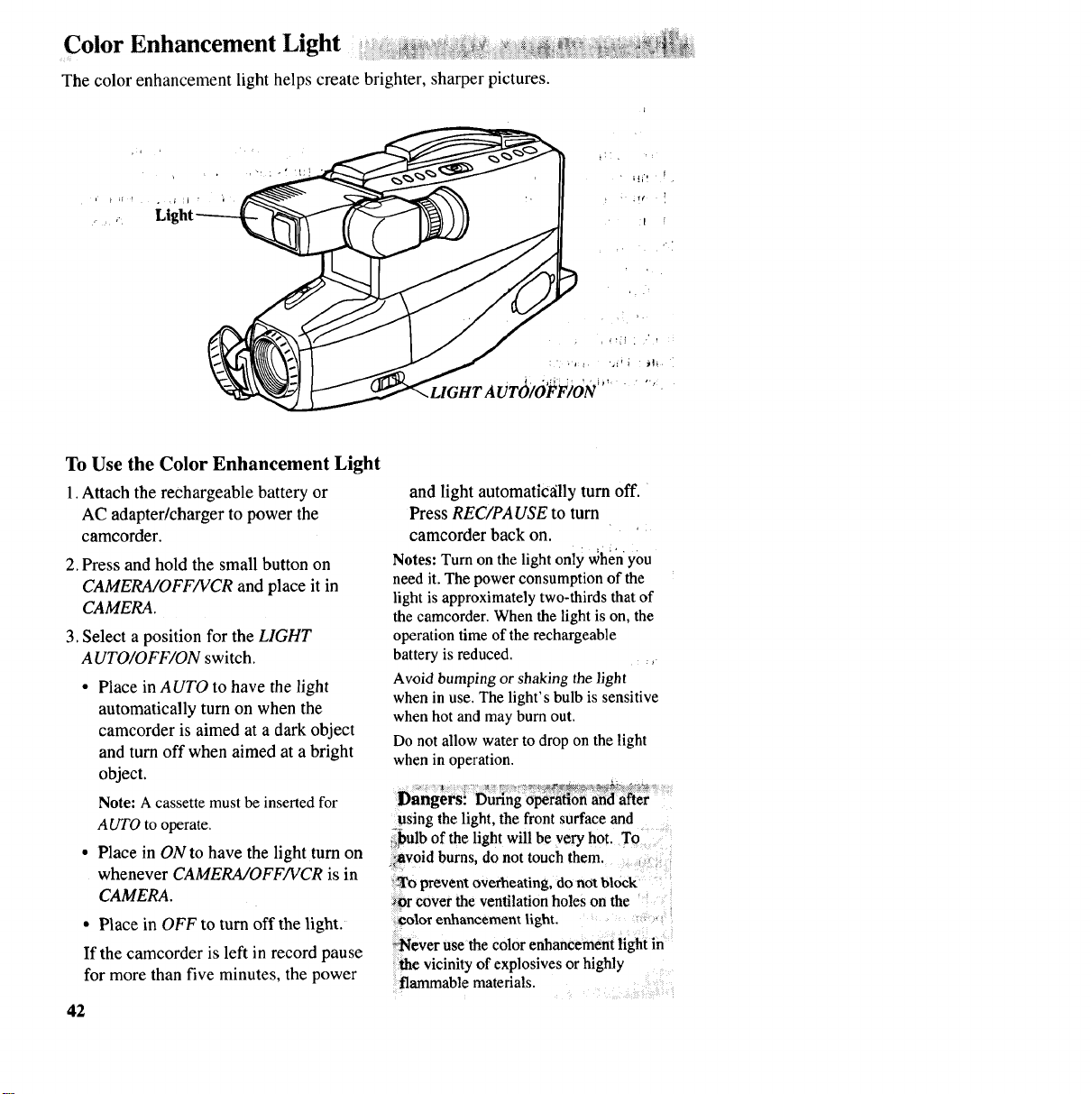
Color Enhancement Light
The color enhancement light helps create brighter, sharper pictures.
To Use the Color Enhancement Light
1.Attach the rechargeable battery or
AC adapter/charger to power the
camcorder.
2. Press and hold the small button on
CAMERA/OFF/VCR and place it in
CAMERA.
3. Select a position for the LIGHT
AUTO/OFF/ON switch.
•Place in AUTO to have the light
automatically turn on when the
camcorder is aimed at a dark object
and turn off when aimed at a bright
object.
Note: A cassette mustbe insertedfor
AUTO to operate.
• Place in ON to have the light turn on
whenever CAMERA/OFF/VCR is in
CAMERA.
• Place in OFF to turn off the light.
If the camcorder is left in record pause
for more than five minutes, the power
42
and light automatiC_tlly turn off.
Press REC/PAUSE to turn
camcorder back on.
Notes: Turn on the light only whenyou
need it. The power consumption of the
light is approximately two-thirds that of
the camcorder. When the light is on, the
operation time of the rechargeable
battery is reduced.
Avoid bumping or shaking the light
when in use. The light's bulb is sensitive
when hot and may bum out.
Do not allow water to drop on the light
when in operation.
Dangers! Duringoperationand after
using the light, the front surface and
,,bulb ofthe lightwill be very hot. To
_void bums, do not touchthem.
To prevent overheating, do not block
_or cover the ventilationholes on the
colorenhancementlight.
_tgeverusethecolor enhancement light in
the vicinityofexplosives orhighly
flammablematerials,
Color Enhancement Light
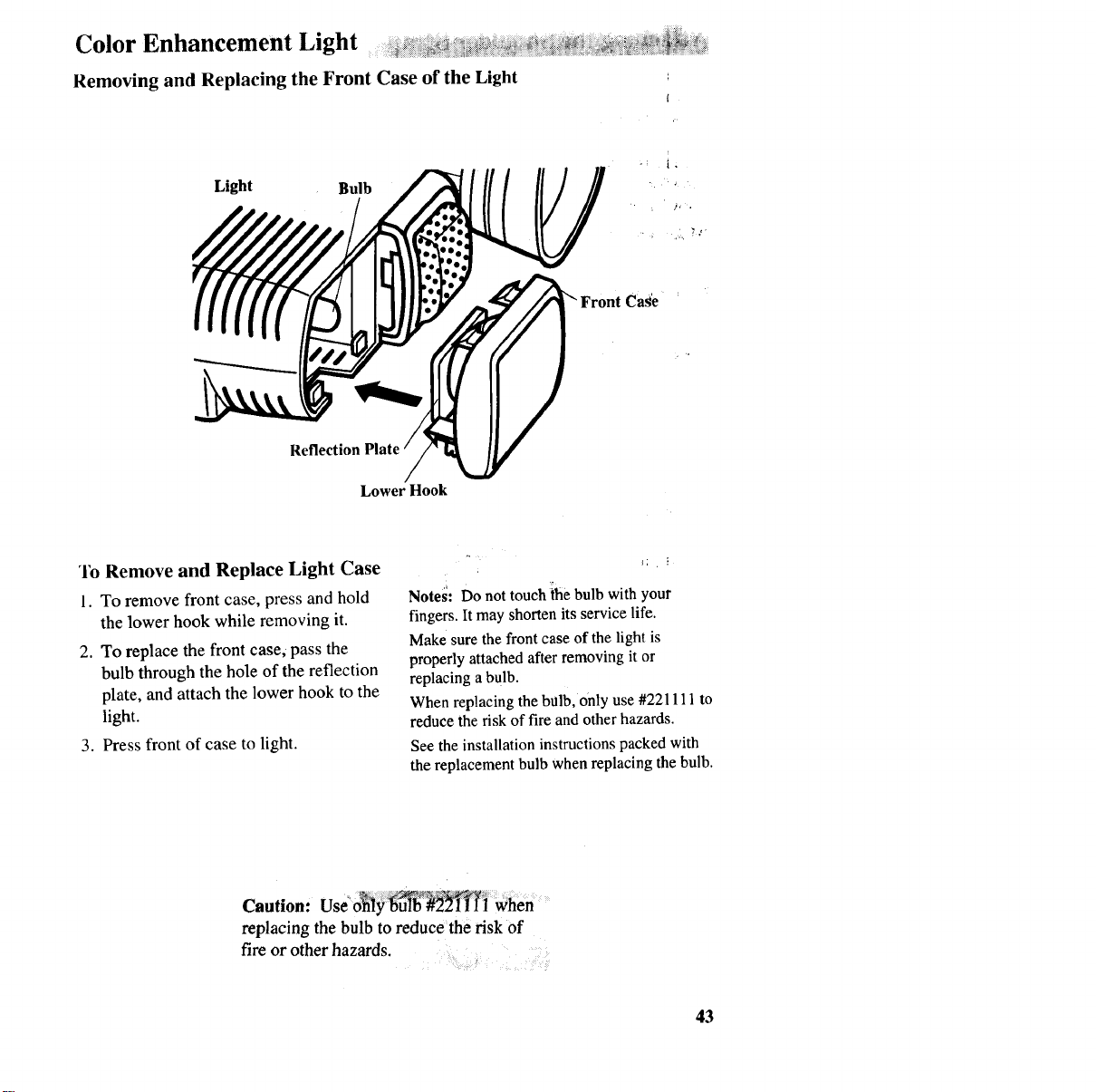
Removing and Replacing the Front Case of the Light [
Light Bulb
Reflection Plate
Lower Hook
Cas'e
_lb Remove and Replace Light Case
1. To remove front case, press and hold
the lower hook while removing it.
2. To replace the front case, pass the
bulb through the hole of the reflection
plate, andattach the lower hook to the
light.
3. Press front of case to light.
Notes: Do not touch _he bulb with your
fingers. It may shorten its service life.
Make sure the front case of the light is
properly attached after removing it or
replacing abulb.
When replacing the bulb, only use #221111 to
reduce the risk of fire and other hazards.
See the installation instructions packed with
the replacement bulb when replacing the bulb.
C utio.: ......
replacing the bulb to reduce the risk of
fire or other hazards.
43
Attaching the Shoulder Strap _iiii_i!_!!iiiil_!i_i!iii_ii!!!_iiii_iiiiiiiiiii_iil_iiiiiiiiiiii_iiiiii_iiliiiiiiiiiiiiiiiiiiii_iiiiiiiiiiiiiiiiiiiiiiiiiiiiiiii_iiiiiiiiiiiiiiiiiiiiiiiiiiiiiiiiiiiiiiiiiiiiiiiiiiiiii!iiiiiiiiiiiiiii!iiiiiiiiiiiiii_iiiiiiiiiiiii_i!ii_i!i_!!il!_i!iiiii_i
The shoulder strap is designed to let you carry the camcorder from your shoulder and
-- when you are ready to shoot -- bring the camcorder to shooting position in one
quick movement.
Cautions: When carrying the cameorder with the shoulder strap, place the
viewfinder in its original position. This helps prevent possible damage to the
viewfinder from bumping against your body as you move.
Make sure the shoulder strap is firmly attached before using it to e_ your camc6rder_
To Attach the Shoulder Strap . _ i _ _ ,_
1. Unfasten one end of the shoulder strap from the buckle. MaKe sure you leave the
buckle on the strap.
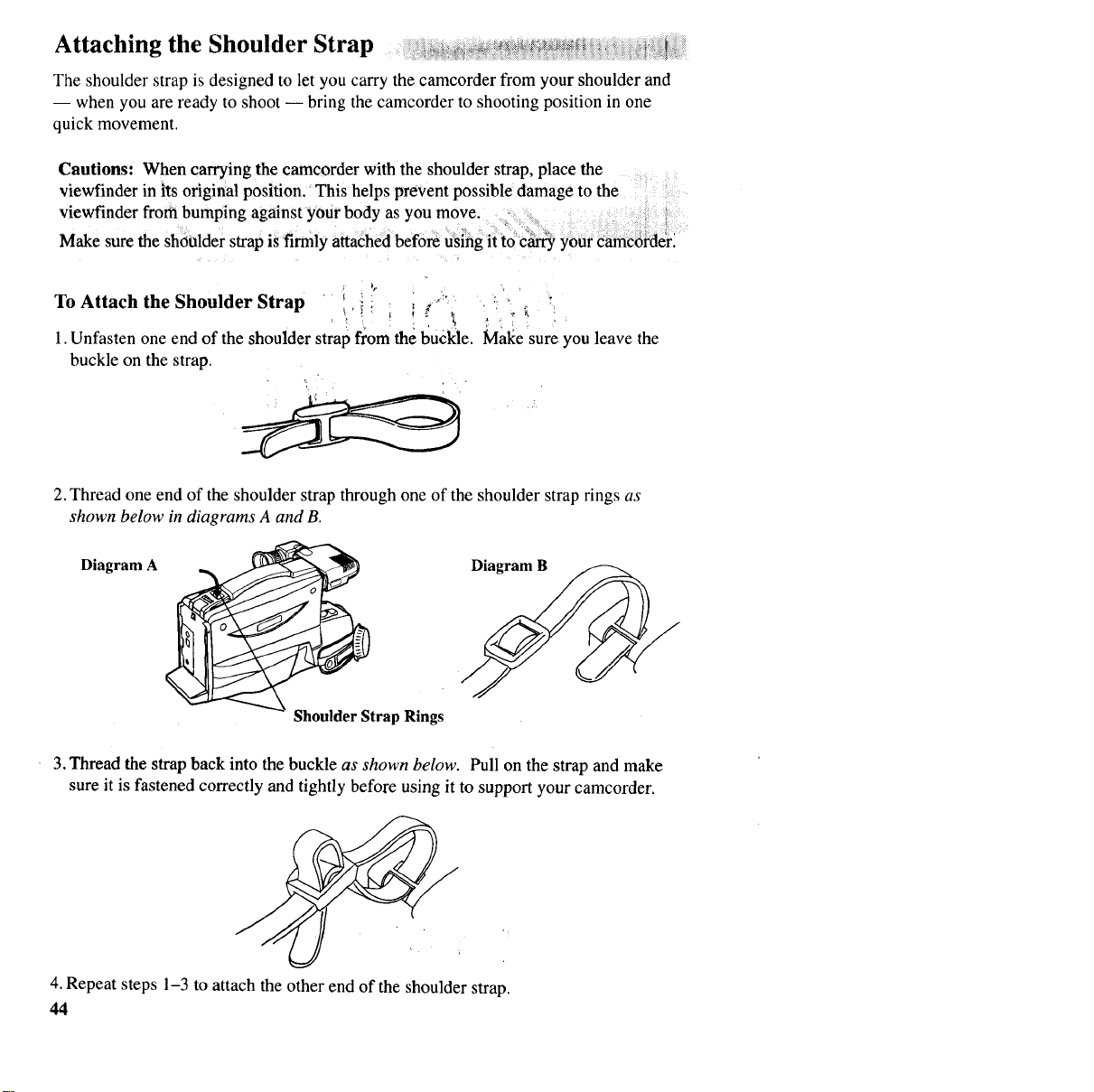
2. Thread one end of the shoulder strap through one of the shoulder strap rings as
shown below in diagrams A and B.
Diagram A Diagram B
Shoulder Strap Rings
3. Thread the strap back into the buckle as shown below. Pull on the strap and make
sure it is fastened correctly and tightly before using it to support your camcorder.
4. Repeat steps 1-3 to attach the other end of the shoulder strap.
44
information to User
This equipment has been tested and found to
comply with the limits for a Class B digital
device and RF lighting device, pursuant to
Part 15 and part 18 of the FCC Rules. These
limits are designed to provide reasonable
protection against harmful interference in a
residential installation. This equipment
generates, uses, and can radiate radio
frequency energy and, if not installed and
used in accordance with the instructions, may
cause harmful interference to radio
communications. However, there is no
guarantee that interference will not occur in a
particular installation. If this equipment does
cause harmful interference to radio or
television reception, which can be determined
by turning the equipment off and on, the user
is encouraged to try to correct the interference
by one or more of the following meas0res:
•Reorient or relocate the receiving antenna.
• Increase the separation between the
equipment and receiver.
• Connect the equipment into an outlet on a
circuit different from that to which the
receiver is connected.
• Consult the dealer or an experienced
radio/TV technician for help.
Alterations or modifications carried out
without appropriate authorization may
invalidate the user's FCC right to operate the
equipment.
_n_terference.Causing Equipmen fRegula6ons. :-_
_et appareil num_riqu'ede la Classe B respe_te ilds_ du '_:_
R_glement sur le mat6rial brouilleur du Canada.
,/, . ,÷
,:_ ;it
45
Specifications
iiii
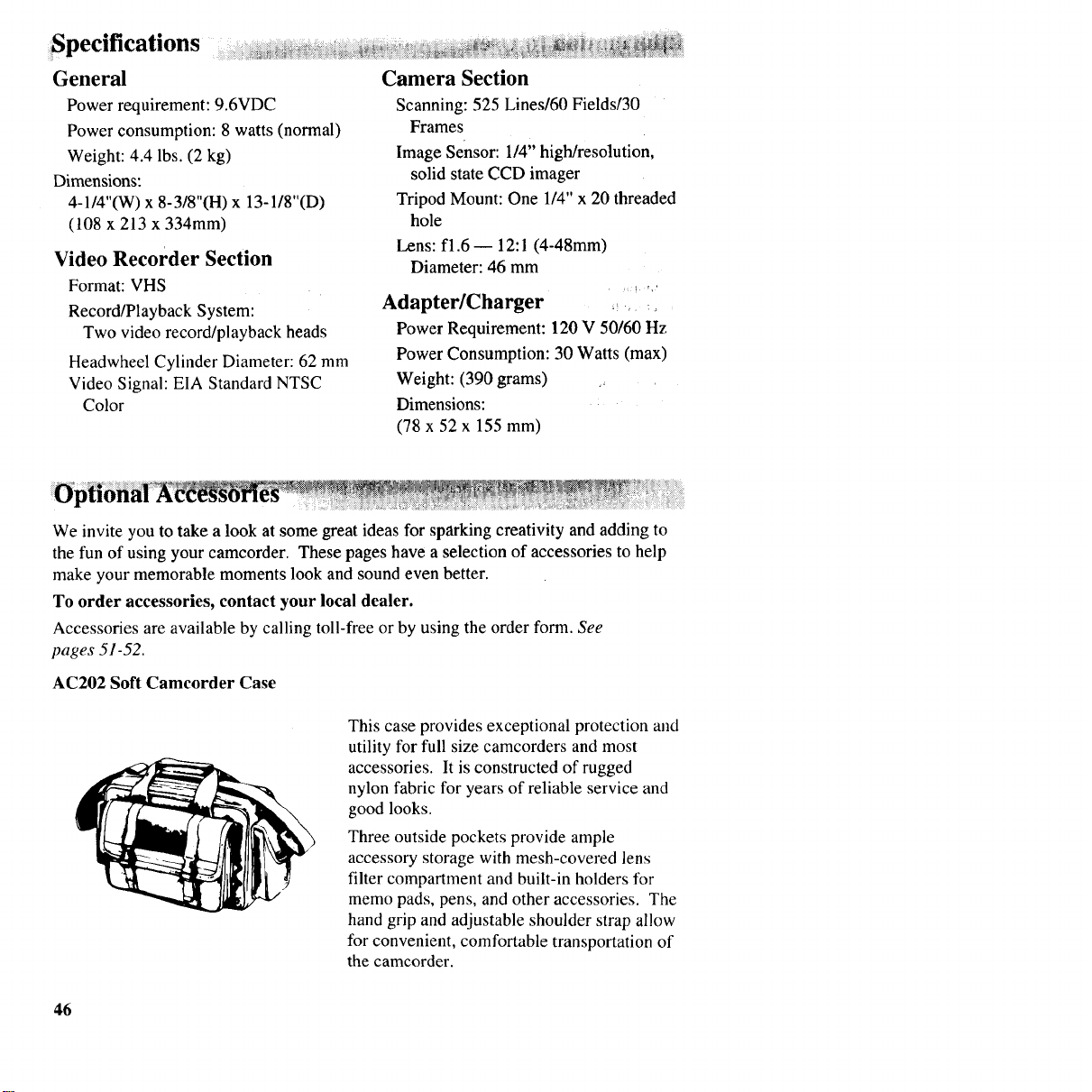
General
Power requirement: 9.6VDC
Power consumption: 8 watts (normal)
Weight: 4.4 lbs. (2 kg)
Dimensions:
4-1/4"(W) x 8-3/8"(H) x 13-1/8"(D)
(108 x 213 x 334mm)
Video Recorder Section
Format: VHS
Record/Playback System:
Two video record/playback heads
Headwheel Cylinder Diameter: 62 mm
Video Signal: EIA Standard NTSC
Color
Camera Section
Scanning: 525 Lines/60 Fields/30
Frames
Image sensor: 1/4" high/resolution,
solid state CCD imager
Tripod Mount: One 1/4" x 20 threaded
hole
Lens: fl.6- 12:1 (4-48mm)
Diameter: 46 mm
Adapter/Charger ,, ,
Power Requirement: 120 V 50/60 Hz
Power Consumption: 30 Watts (max)
Weight: (390 grams) ,_
Dimensions:
(78 x 52 x 155 mm)
We invite you to take a look at some great ideas for sparking creativity and adding to
the fun of using your camcorder. These pages have a selection of accessories to help
make your memorable moments look and sound even better.
To order accessories, contact your local dealer.
Accessories are available by calling toll-free or by using the order form. See
pages 51-52.
AC202 Soft Camcorder Case
This case provides exceptional protection and
utility for full size camcorders and most
accessories. It is constructed of rugged
nylon fabric for years of reliable service and
good looks.
Three outside pockets provide ample
accessory storage with mesh-covered lens
filter compartment and built-in holders for
memo pads, pens, and other accessories. The
hand grip and adjustable shoulder strap allow
for convenient, comfortable transportation of
the camcorder.
46
Optional Accessories ................
DCC096 DC (Battery) Car Cord ,,., ;.
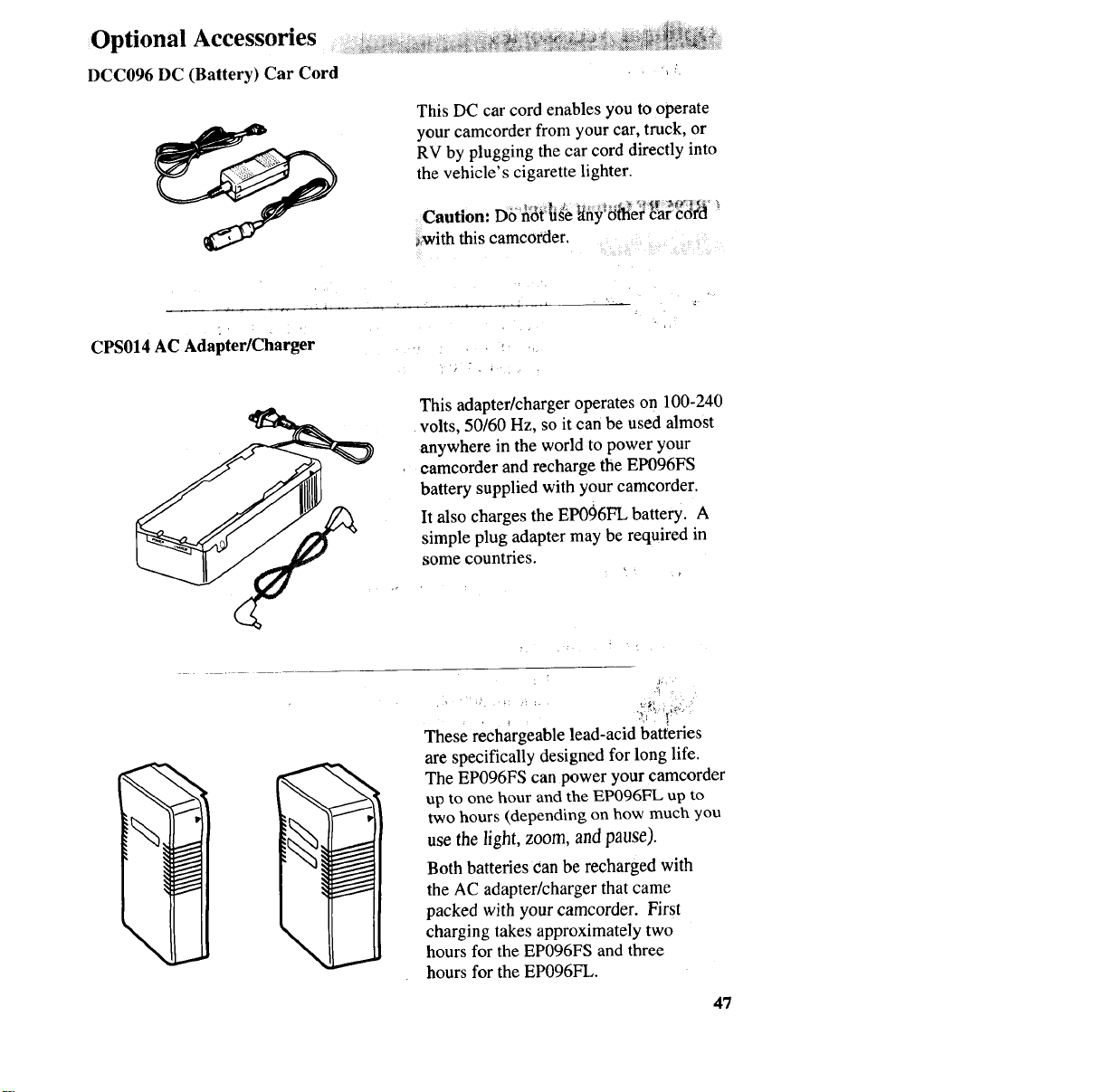
This DC car cord enables you to operate
your camcorder from your car, truck, or
RV by plugging the car cord directly into
the vehicle's cigarette lighter.
Caution: DOhOt'useany_Otherear cO_'d
with this camcorder.
CPS014 AC Adapter/Charger
1
This adapter/charger operates on 100-240
volts, 50/60 Hz, so it can be used almost
anywhere in the world to power your
eamcorder and recharge the EP096FS
battery supplied with your camcorder.
It also charges the EP096FL battery. A
simple plug adapter may be required in
some countries.
:,i_¸ ,
These reehargeable lead-acid batteries
are specifically designed for long life.
The EP096FS can power your camcorder
up to one hour and the EP096FL up to
two hours (depending on how much you
use the light, zoom, and pause).
Both batteries Canbe recharged with
the AC adapter/charger that came
packed with your camcorder. First
charging takes approximately two
hours for the EP096FS and three
hours for the EP096FL.
,17
Optional
VH83 Audio/Video Cable
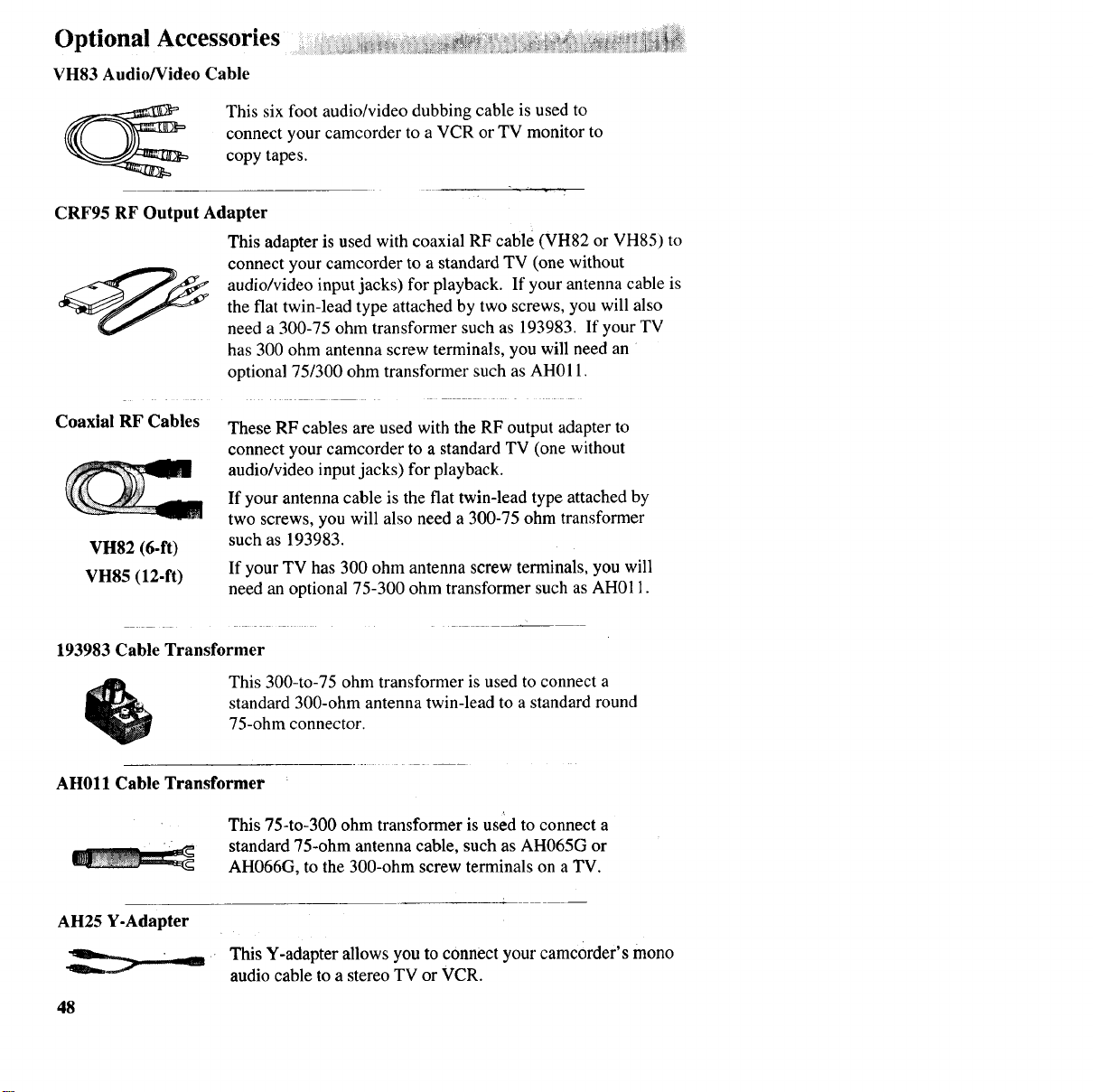
This six foot audio/video dubbing cable is used to
connect your camcorder to a VCR or TV monitor to
copy tapes.
CRF95 RF Output Adapter
Coaxial RF Cables
VH82 (6-ft)
VH85 (12-ft)
This adapter is used with coaxial RF cable (VH82 or VH85) to
connect your camcorder to a standard TV (one without
audio/video input jacks) for playback. If your antenna cable is
the flat twin-lead type attached by two screws, you will also
need a 300-75 ohm transformer such as 193983. If your TV
has 300 ohm antenna screw terminals, you will need an
optional 75/300 ohm transformer such as AH011.
These RF cables are used with the RF output adapter to
connect your camcorder to a standard TV (one without
audio/video input jacks) for playback.
If your antenna cable is the flat twin-lead type attached by
two screws, you will also need a 300-75 ohm transformer
such as 193983.
If your TV has 300 ohm antenna screw terminals, you will
need an optional 75-300 ohm transformer such as AH01 I.
193983 Cable Transformer
This 300-to-75 ohm transformer is used to connect a
standard 300-ohm antenna twin-lead to a standard round
75-ohm connector.
AH011 Cable Transformer
This 75-to-300 ohm transformer is used to connect a
standard 75-ohm antenna cable, such as AH065G or
AH066G, to the 300-ohm screw terminals on a TV.
AH25 Y-Adapter
_r
48
This Y-adapter allows you to connect your camcorder's mono
audio cable to a stereo TV or VCR.
_, _= _i _ __=__ _:ii_=i=_i_ii=_i_,_=_ii_i,_i_ii_%_ii_ii_ii_i_i!_"i_iiiii_iii_ii_,_ii_ii_iiiiii_iiiiii_ i_ _ii i_iii
Optional Accessories ....
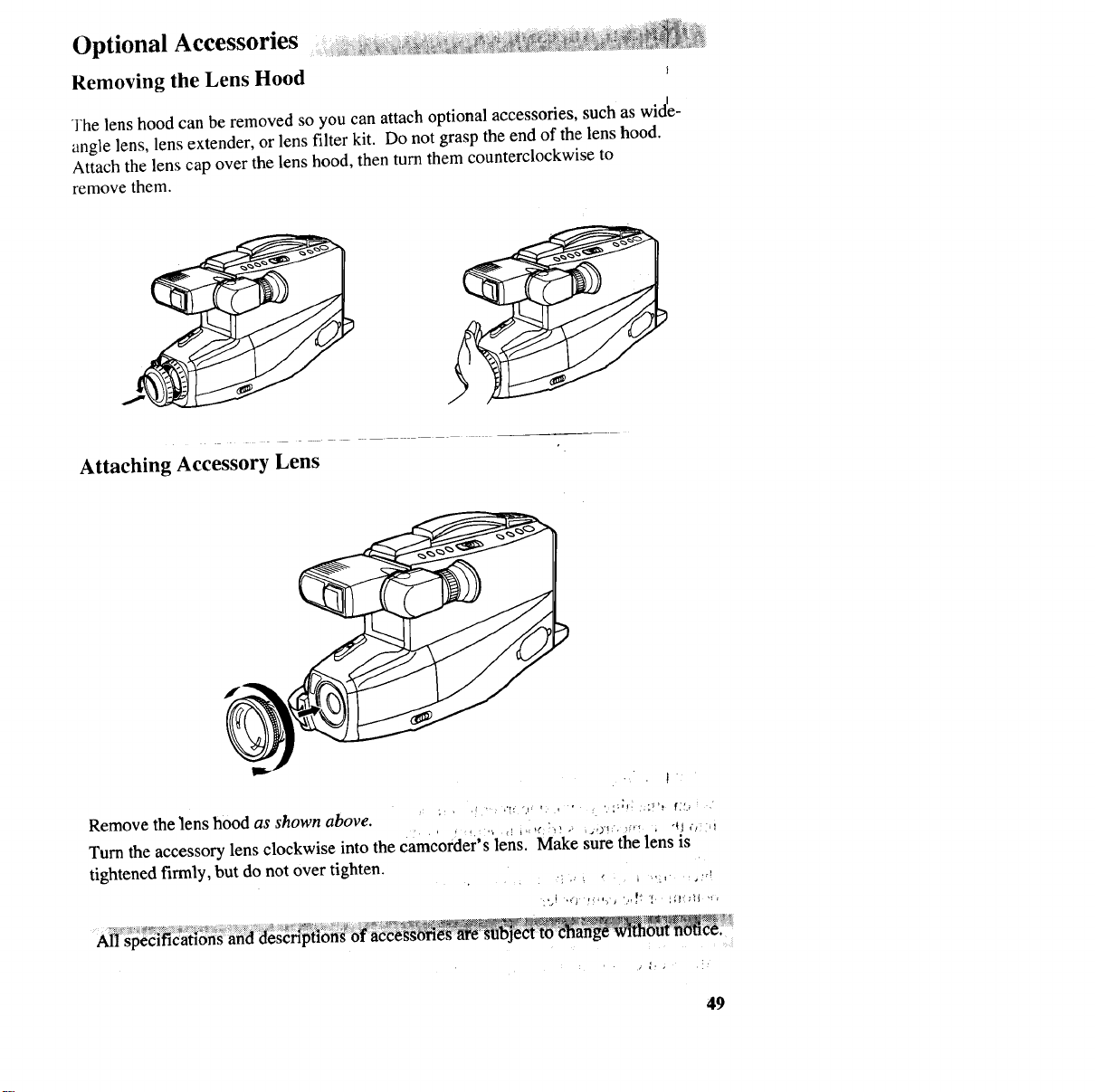
Removing the Lens Hood
The lens hood can be removed so you can attach optional accessories, such as wid_-
angle lens, lens extender, or lens filter kit. Do not grasp the end of the lens hood.
Attach the lens cap over the lens hood, then turnthem counterclockwise to
remove them.
Attaching Accessory Lens
Remove the lens hood as shown above.
Turn the accessory lens clockwise into the camcorder's lens. 'Make sure_'J the-lens'"'_"is '
tightened firmly, but do not over tighten. ._
AII specifications and deserli_flon__ot_acc _o_u[_,
49
Optional Accessories ...................
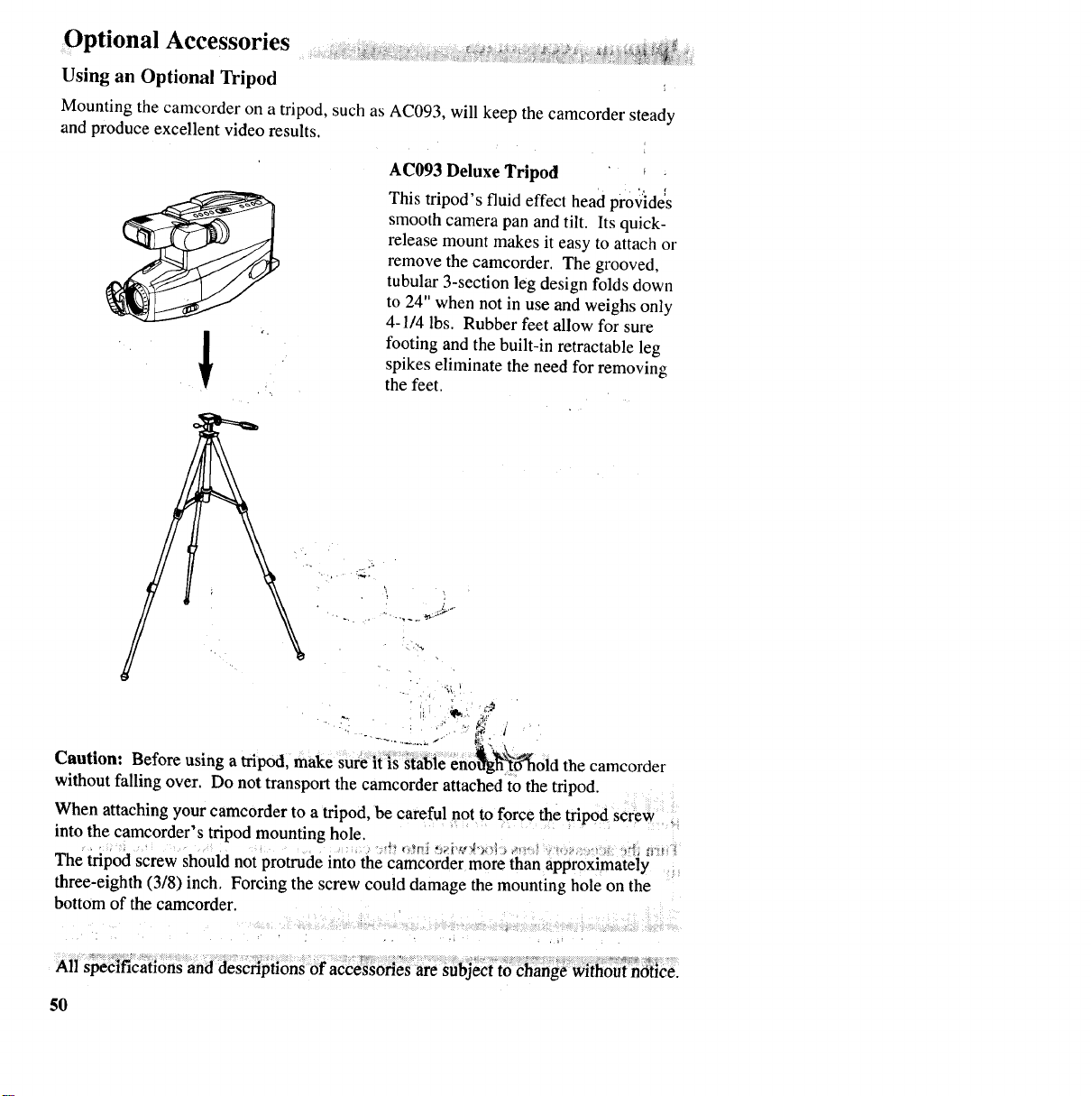
Using an Optional Tripod .
Mounting the camcorder on atripod, such as AC093, will keep the camcorder steady
and produce excellent video results.
AC093 Deluxe Tripod
This tripod's fluid effect head provides
smooth camera pan and tilt. Its quick-
release mount makes it easy to attach or
remove the camcorder. The grooved,
tubular 3-section leg design folds down
to 24" when not in use and weighs only
4-1/4 lbs. Rubber feet allow for sure
footing and the built-in retractable leg
spikes eliminate the need for removing
the feet.
Caution: Before using a tripod, make sure it ,s stable enoffgh'_f6"holdthe camcorder
without falling over. Do not transport the camcorder attached to the tripod.
When attaching your camcorder to atripod, be careful not to force the tripod screw
into the camcorder's tripod mounting hole.
The tripod screw should not protrude into the camcorder more than approximately
three-eighth (3/8) inch. Forcing the screw could damage the mounting hole on the
bottom of the camcorder.
5O
Accessory Order Form ............................ :
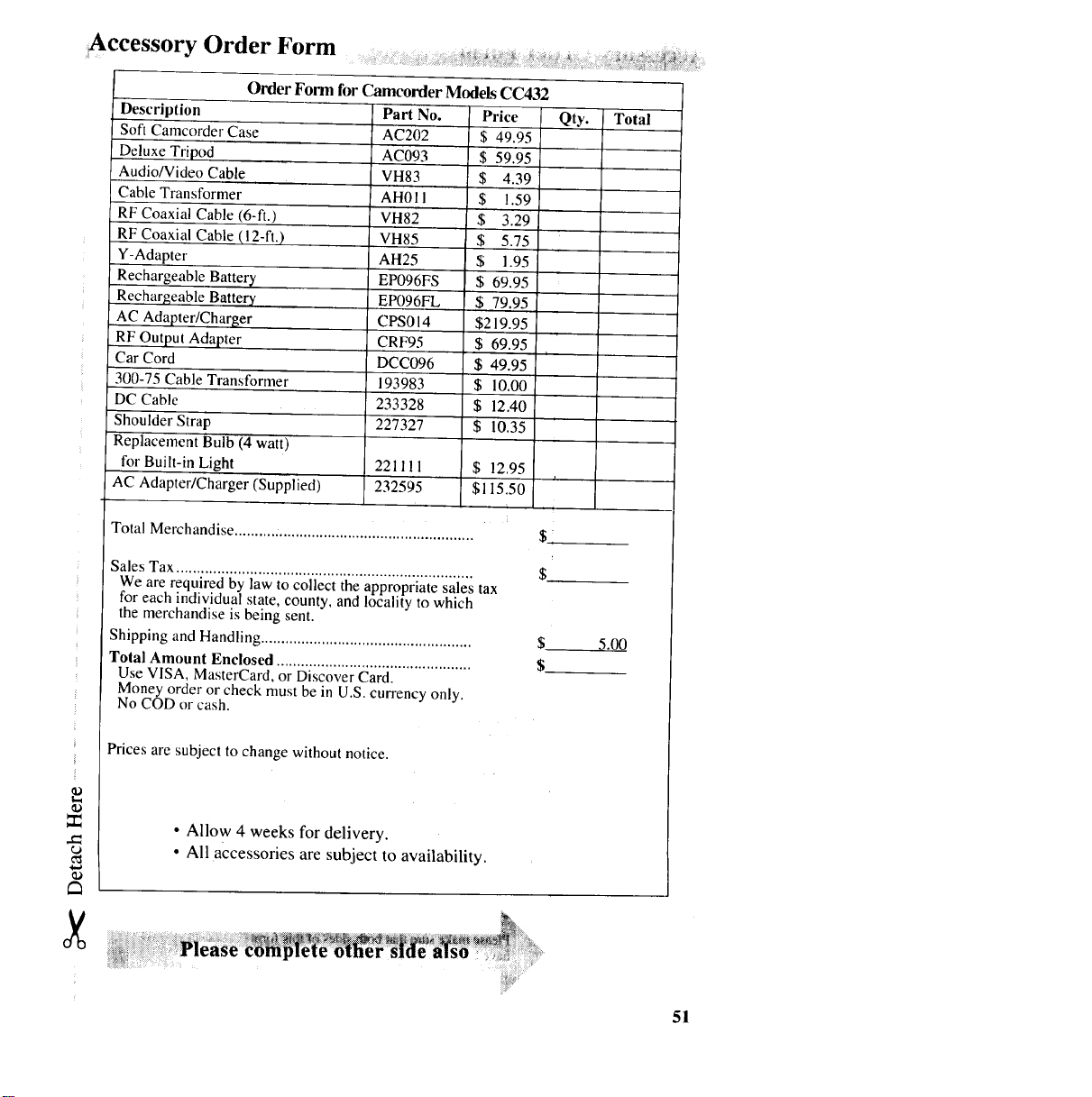
Order Form forCamcorder Models CC432
Description
Soft Camcorder Case
Deluxe Tripod
Audio/Video Cable
Cable Transformer
RF Coaxial Cable (6-ft.)
RF Coaxial Cable (l 2-ft.)
Y-Adapter
Rechargeable Battery
Recharg_eable Batter),
AC Adapter/Charger
RF Output Adapter
Car Cord
300-75 Cable Transformer
DC Cable
Shoulder Strap
Replacement Bulb (4 watt)
for Built-in Light
AC Adapter/Charger ('Supplied)
Part No. Price
AC202 $ 49.95
AC093 $59.95
VH83 $4.39
AH011 $ 1.59
VH82 $ 3.29
VH85 $ 5.75
AH25 $ 1.95
EP096FS $ 69.95
EP096FL $ 79.95
CPS014 $219.95
CRF95 $ 69.95
DCC096 $ 49.95
193983 $ 10.00
233328 $ 12.40
227327 $ 10.35
221111 $ 12.95
232595 $115.50
Qty. Total
Total Merchandise ........... ................................................ $:
Sales Tax ......................................................................... $.
We are required by law to collect the appropriate sales tax
for each individual state, county, and locality to which
the merchandise is being sent.
Shipping and Handling .................................................... $
Total Amount Enclosed ................................................ $.
Use VISA, MasterCard, or Discover Card.
Money order or check must be in U.S. currency only.
No COD or cash.
5.00
Prices are subject to change without notice.
•Allow 4 weeks for delivery.
• All accessories are subject to availability
51
_ccessory Order Form ...........................
i
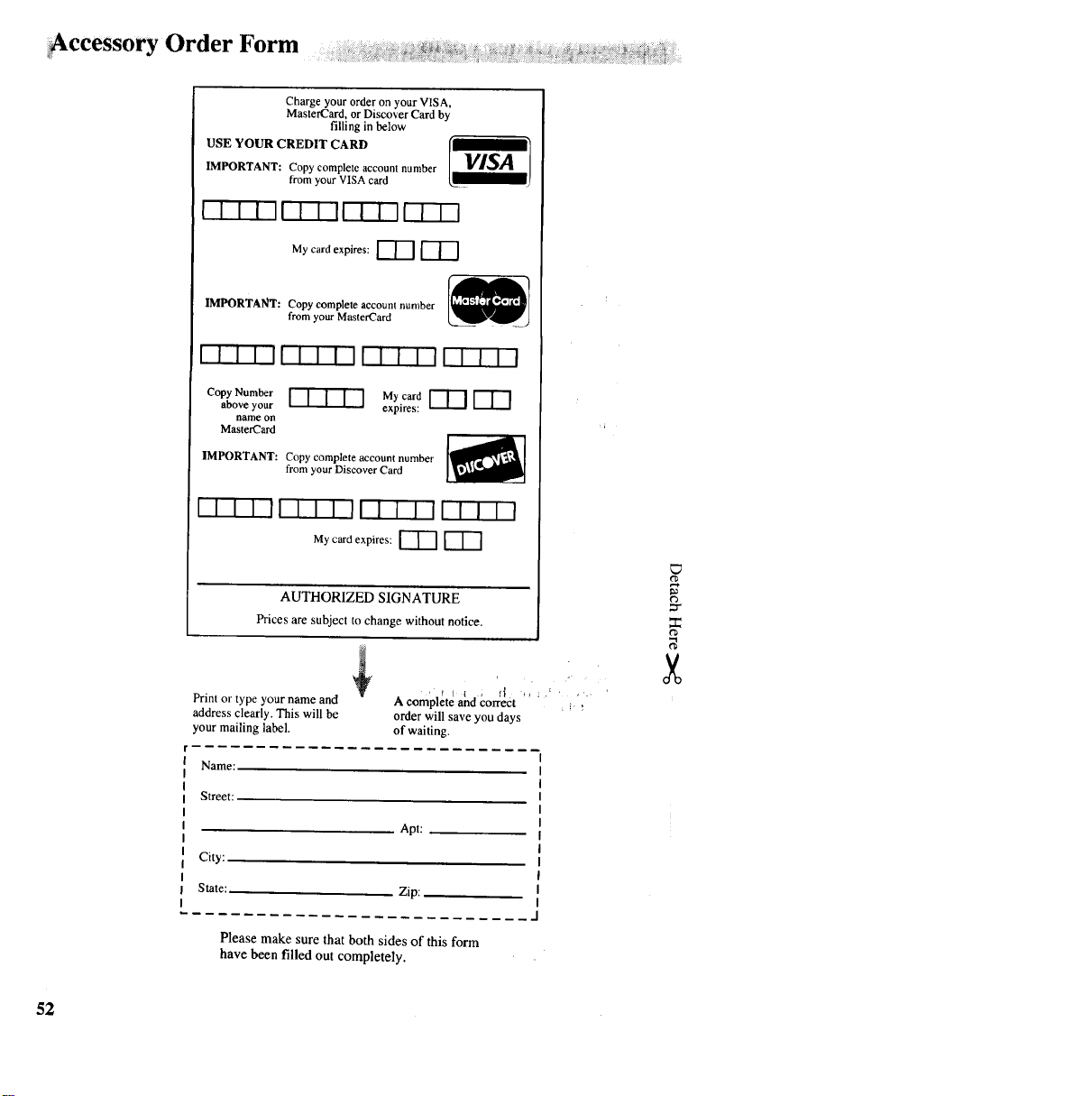
Charge your order on your VISA,
MasterCard, or Discover Card by
filling in below
USE YOUR CREDIT CARD
IMPORTANT: Copy complete account number
from your VISA card
Iill iI-r-l-ql--I- I-7
Mycar_expires:I-'T--I
IMPORTANT: Copy complete account number
from your MasterCard
I I I I I[ I II II I I I IIT-IW-]
CopyN.mber [ I [ 1 I My card [7"7 [_]
above your expires:
name on
MasterCard
IMPORTANT: Copy complete account number
from your Discover Card
I1IIIIIIIIIIIIIIIIII
Mycardexpiros:i--rq7-l-q
AUTHORIZED SIGNATURE
Prices are subject to change without notice.
Print or type your name and
address clearly. This will be
your mailing label.
Acomplete and correct _ _
order will save you days
of waiting.
Name:
Street:
City:
State:
Apt:
Zip:
Please make sure that both sides of this form
have been filled out completely.
_7
52
Accessory Order ........................... ........
Form _ _ _ _i_:_
To order accessories, contact your local Dealer.
if a dealer is not nearby, you can also follow the directions below to order by ,
telephone or direct-by-mail, i
United States and Canada Orders
To place your order by phone, have your Visa, MasterCard, or Discover Card ready
and call the toll-free number listed below between 8AM and 8PM (EST) Mon.- Fri.,
or 9AM - 5PM (EST) Sat. Use this number only to place an order for accessory
items listed on this order form.
1-800 -338 - 0376
To place your order by mail, detach and mail the completed order form with credit
card information, money order, or check in U.S. currency (made payable to Thomson
Consumer Electronics, Inc.) to the following address:
Video Accessories ....
'I
POBox 8419 ........ : "
Ronks, PA 17573 ' :
53
Care and Maintenance .......
Keep dust and grit from entering the
camcorder's cassette door. Dust and grit
are abrasive and cause excessive wear to
both the camcorder's recording and
playback heads and cassettes.
Do not use strong or abrasive detergents
when cleaning your camcorder. They
may damage the camcorder.
Before handling your camcorder, make
sure your hands and face are free from
any chemical products such as suntan
lotion, as it may damage the finish.
Do not touch the lens with your fingers!
The oil from your skin may damage the
lens. To clean the lens, always use lens-
cleaning tissues and a commercially
prepared cleaning solution designed for
use on camera lens.
Always replace the lens cap on the lens
when the camcorder is not in use.
The camcorder can be damaged by
improper storage or handling. Do not
subject the camcorder to swinging,
shaking, or dropping.
Do not store the camcorder in
temperatures below -22°F (-30°C) or
above 149°F (65°(2).
When the camcorder is not in use, always
remove the cassette and AC adapter/
charger or battery.
Retain the original carton for future
storage or shipping purposes.
Things to Avoid ...........................................................................................................................................................................
Do not aim your camcorder at the sun or
other bright objects or leave your
camcorder in direct sunlight. Doing so
could permanently damage the
camcorder's internal parts.
Avoid operating your camcorder after
moving it from a cold location to a warm
location. Moisture may cause the tape to
stick to the headwheel and damage the
headwheel or tape. Give the camcorder 2
to 3 hours to reach a stable temperature
before inserting a cassette.
Do not operate or leave your
camcorder in extremely humid
environments.
Do not operate the camcorder for
extended periods in temperatures
below 40°F (4°C) or above 95°F
(35°C).
Do not expose the camcorder or
adapter/charger to rain or moisture.
If either component becomes wet,
turn off the power and take the unit to
an Authorized RCA Camcorder
Servicenter.
54
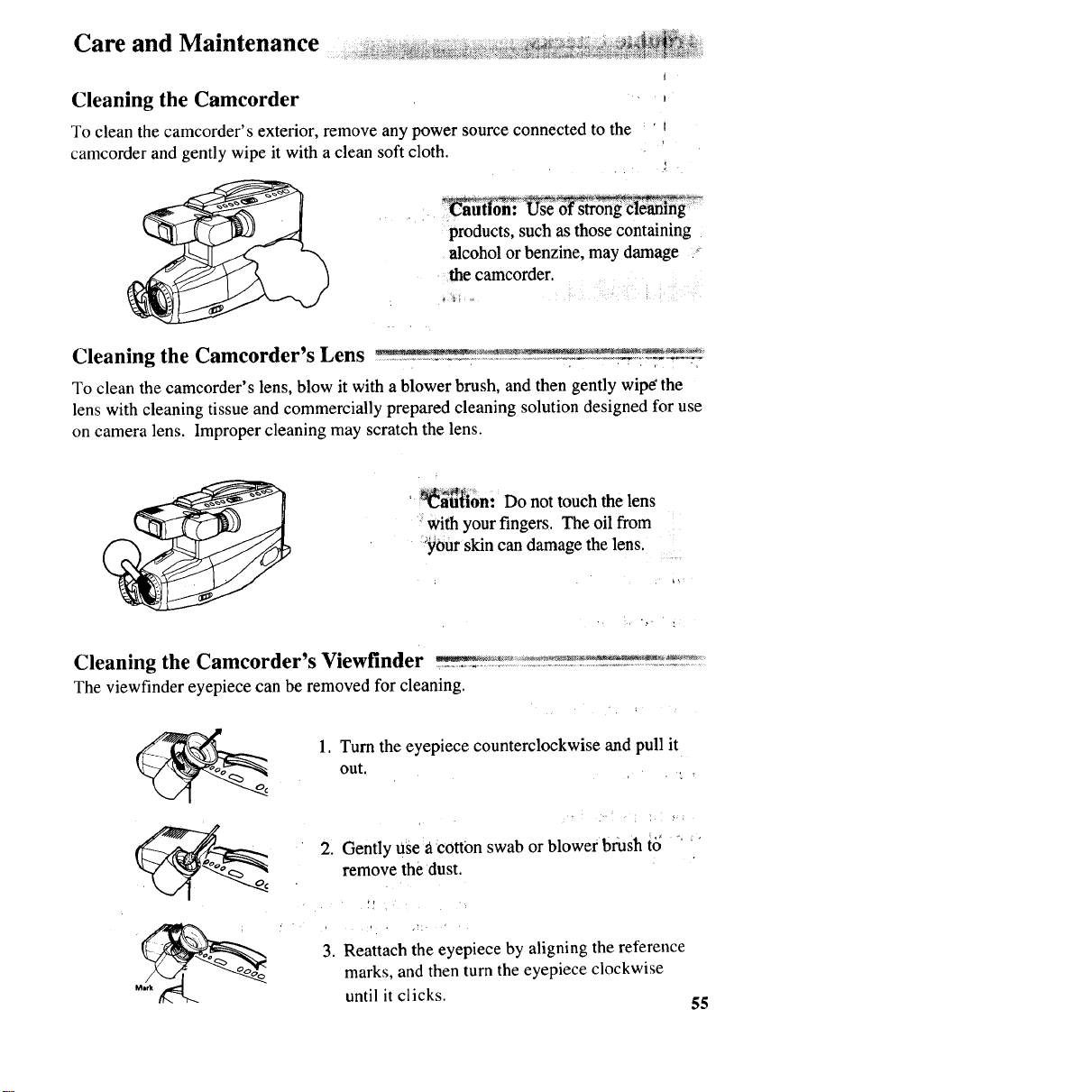
Cleaning the Camcorder
To clean the camcorder's exterior, remove any power source connected to the
camcorder and gently wipe it with a clean soft cloth.
_S_'_ong ¢leamng
products, such as those containing
alcohol or benzine, may damage
the camcorder.
Cleaning the Camcorder's Lens _
To clean the camcorder's lens, blow it with ablower brush, andthen gently wip_ the
lens with cleaning tissue and commercially prepared cleaning solution designed for use
on camera lens. Impropercleaning may scratch the lens.
' _aU_on: Do not touch the lens
:with your fingers. The oil from
:_0ur skin can damage the lens.
Cleaning the Camcorder's Viewfinder _v_ _::_ _v: _
The viewfinder eyepiece can be removed for cleaning.
oo
1. Turn the eyepiece counterclockwise and pull it
out.
2. Gently USea Cotton swab or blower brash t_ ' _'
remove the dust.
3. Reattach the eyepiece by aligning the reference
marks, and then turn the eyepiece clockwise
until it clicks. 55
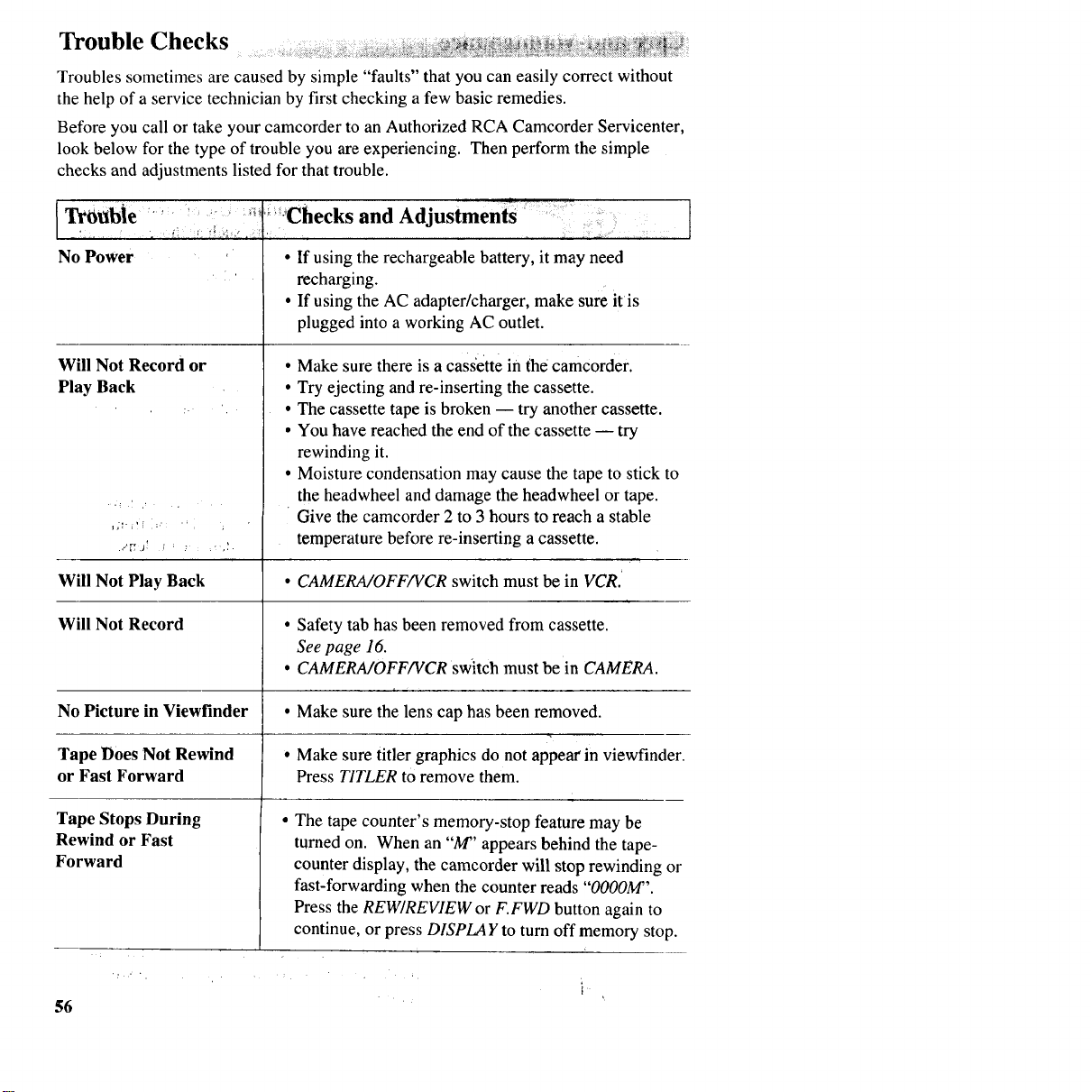
Trouble Checks ::
i_ i i_iiiiiiii!iiii!_i_i_i_!ii!!ii_:i_!_iiii!i_i_i_ i__i!i_il!i__!_ _!i_ _ _i_i__ili!_ii __!i_i_!_iiili__i_i_!_!i__i_ili_i__ _:i_ii_!iiil_!i____ i__i_i!!i!i_!_i!ii:___ii _iiii__il i_ _ii !
Troubles sometimes are caused by simple "faults" that you can easily correct without
the help of a service technician by first checking a few basic remedies.
Before you call or take your camcorder to an Authorized RCA Camcorder Servicenter,
look below for the type of trouble you are experiencing. Then perform the simple
checks and adjustments listed for that trouble.
ITrO_b|e ...... _ ' 'Checks and Adjustmenis
No Power ' • If using the rechargeable battery, it may need
:' recharging.
• If using the AC adapter/charger, make sure itis
plugged into a working AC outlet.
Will Not Record or
Play Back
j,'_" i! [:"
.,"r_ .._! ;'_ _ _' ,_ •
Will Not Play Back
• Make sure there is acass'ette in the camcorder.
• Try ejecting and re-inserting the cassette.
• The cassette tape is broken -- try another cassette.
• You have reached the end of the cassette -- try
rewinding it.
• Moisture condensation may cause the tape to stick to
the headwheel and damage the headwheel or tape.
Give the camcorder 2 to 3 hours to reach a stable
temperature before re-inserting a cassette.
•CAMERA/OFF/VCR switch must be in VCR.
Will Not Record • Safety tab has been removed from cassette.
See page 16.
•CAMERA/OFF/VCR switch must be in CAMERA.
No Picture in Viewfinder
Tape Does Not Rewind
or Fast Forward
• Make sure the lens cap has been removed.
• Make sure titler graphics do not appear in viewfinder.
Press T1TLER to remove them.
Tape Stops During
Rewind or Fast
Forward
• The tape counter's memory-stop feature may be
turned on. When an "M" appears behind the tape-
counter display, the camcorder will stop rewinding or
fast-forwarding when the counter reads "O000M".
Press the REW/REVIEW or F.FWD button again to
continue, or press DISPLAY to turn off memory stop.
56
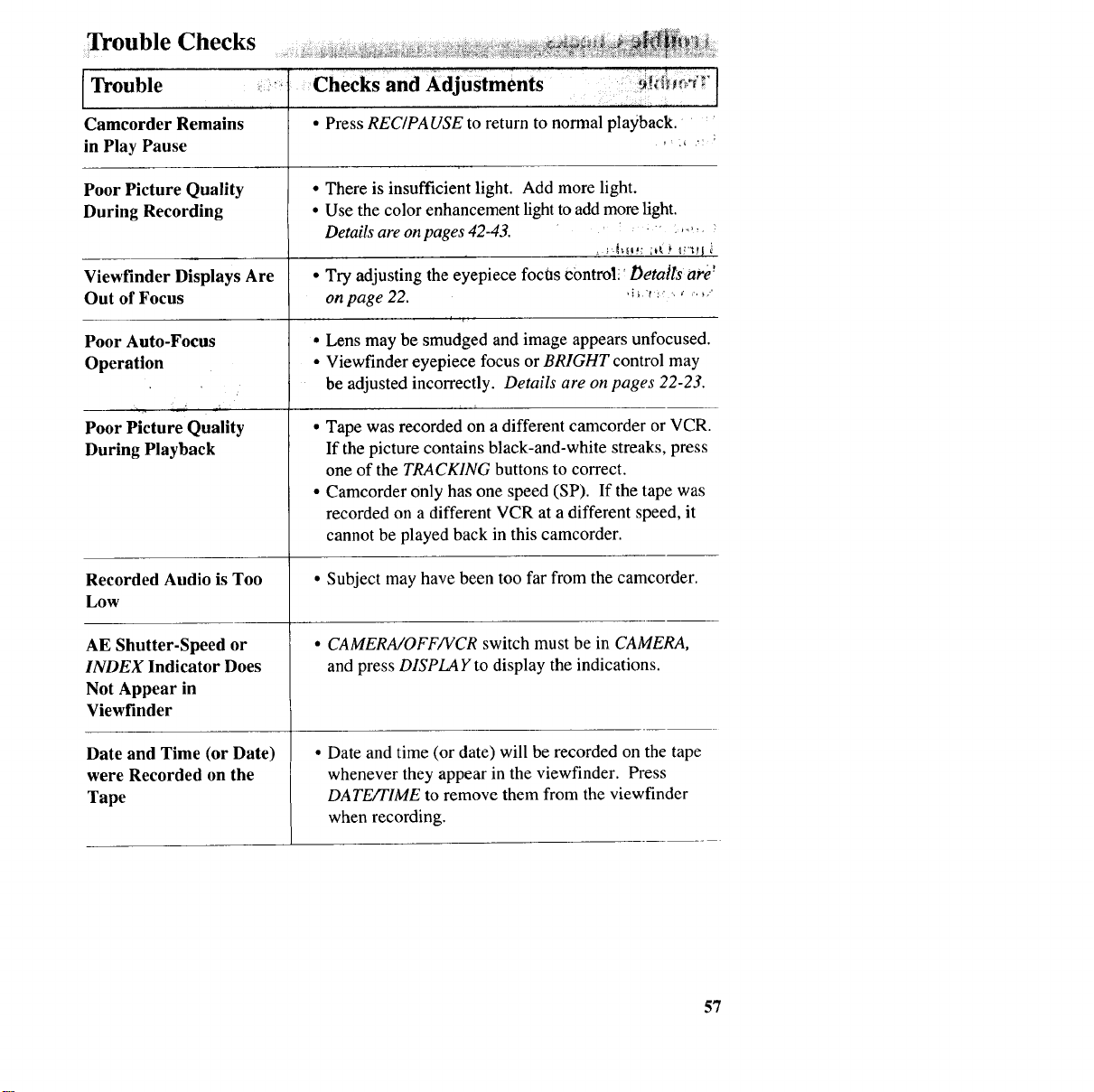
Trouble Checks
Trouble
Camcorder Remains
in Play Pause
Poor Picture Quality
During Recording
Viewfinder Displays Are
Out of Focus
Poor Auto-Focus
Operation
,., i
Poor Picture Quality
During Playback
Recorded Audio is Too
Low
AE Shutter-Speed or
INDEX Indicator Does
Not Appear in
Viewfinder
Date and Time (or Date)
were Recorded on the
Tape
,LI '
Checks and Adjustments _" _ _ I
• Press REC/PA USE to return to normal playback.
•There is insufficient light. Add more light.
•Use the color enhancement light to add more light.
Details are on pages 42-43. "" ,"_',
• Try adjusting the eyepiece focOs c0ntroll _Detatls arb'
on page 22. ,i_ _ _.,........
• Lens may be smudged and image appears unfocused.
• Viewfinder eyepiece focus or BRIGHT control may
be adjusted incorrectly. Details are on pages 22-23.
• Tape was recorded on a different camcorder or VCR.
If the picture contains black-and-white streaks, press
one of the TRACKING buttons to correct.
• Camcorder only has one speed (SP). If the tape was
recorded on a different VCR at a different speed, it
cannot be played back in this camcorder.
• Subject may have been too far from the camcorder.
•CAMERA/OFF/VCR switch must be in CAMERA,
and press DISPLAY to display the indications.
• Date and time (or date) will be recorded on the tape
whenever they appear in the viewfinder. Press
DATE/TIME to remove them from the viewfinder
when recording.
57
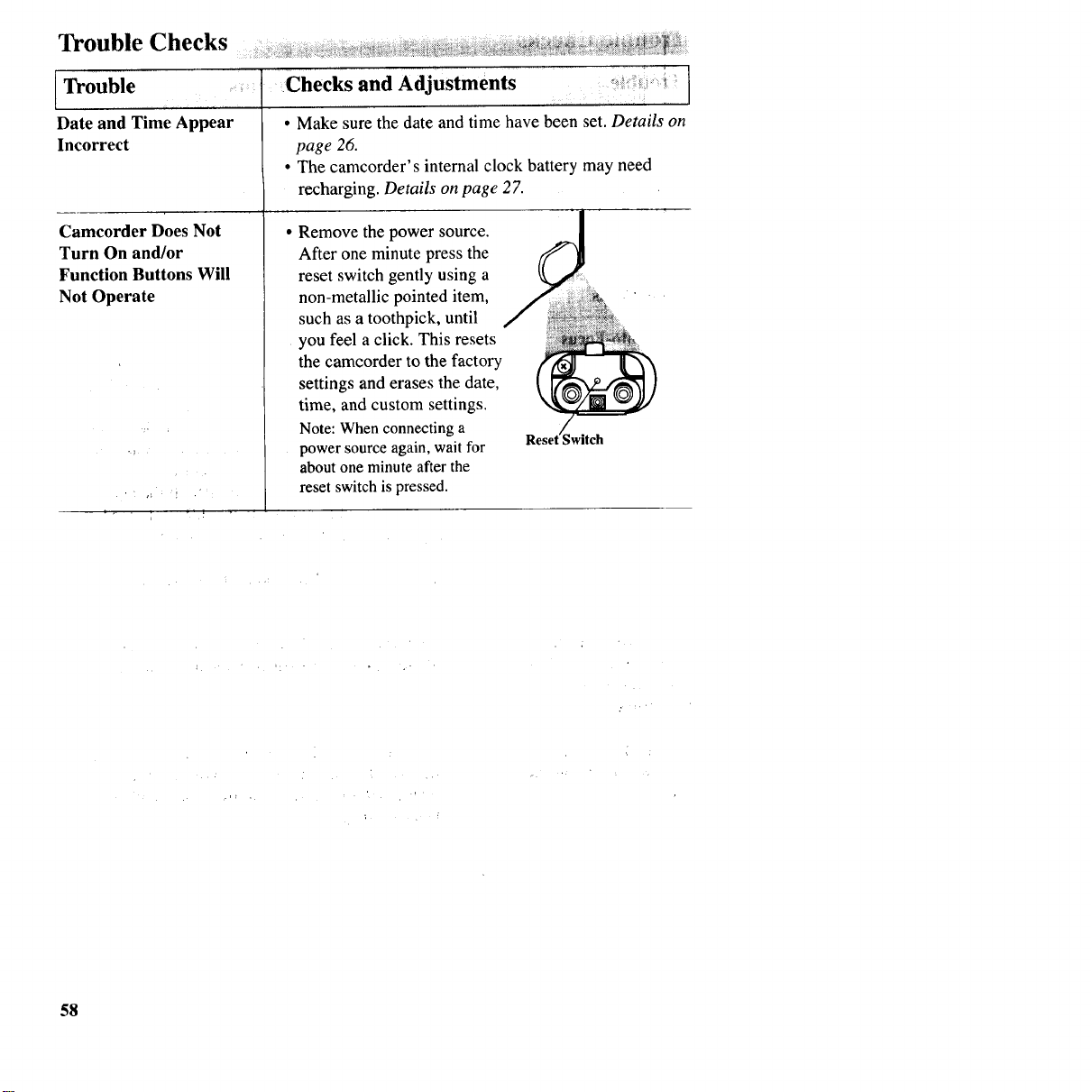
Trouble Checks h
Trouble Checks and Adjustments
Date and Time Appear • Make surethe date and time have been set. Details on
Incorrect page 26.
•The camcorder's internal clock battery may need
recharging. Details onpage 27.
Camcorder Does Not
Turn On and/or
Function Buttons Will
Not Operate
H
Remove the power source.
After one minute press the
reset switch gently using a
non-metallic pointed item,
such as a toothpick, until
you feel a click. This resets
the camcorder to the factory
settings and erases the date,
time, and custom settings.
Note: When connectinga
power sourceagain, wait for
about one minute afterthe
reset switchis pressed.
Reset_witch
58
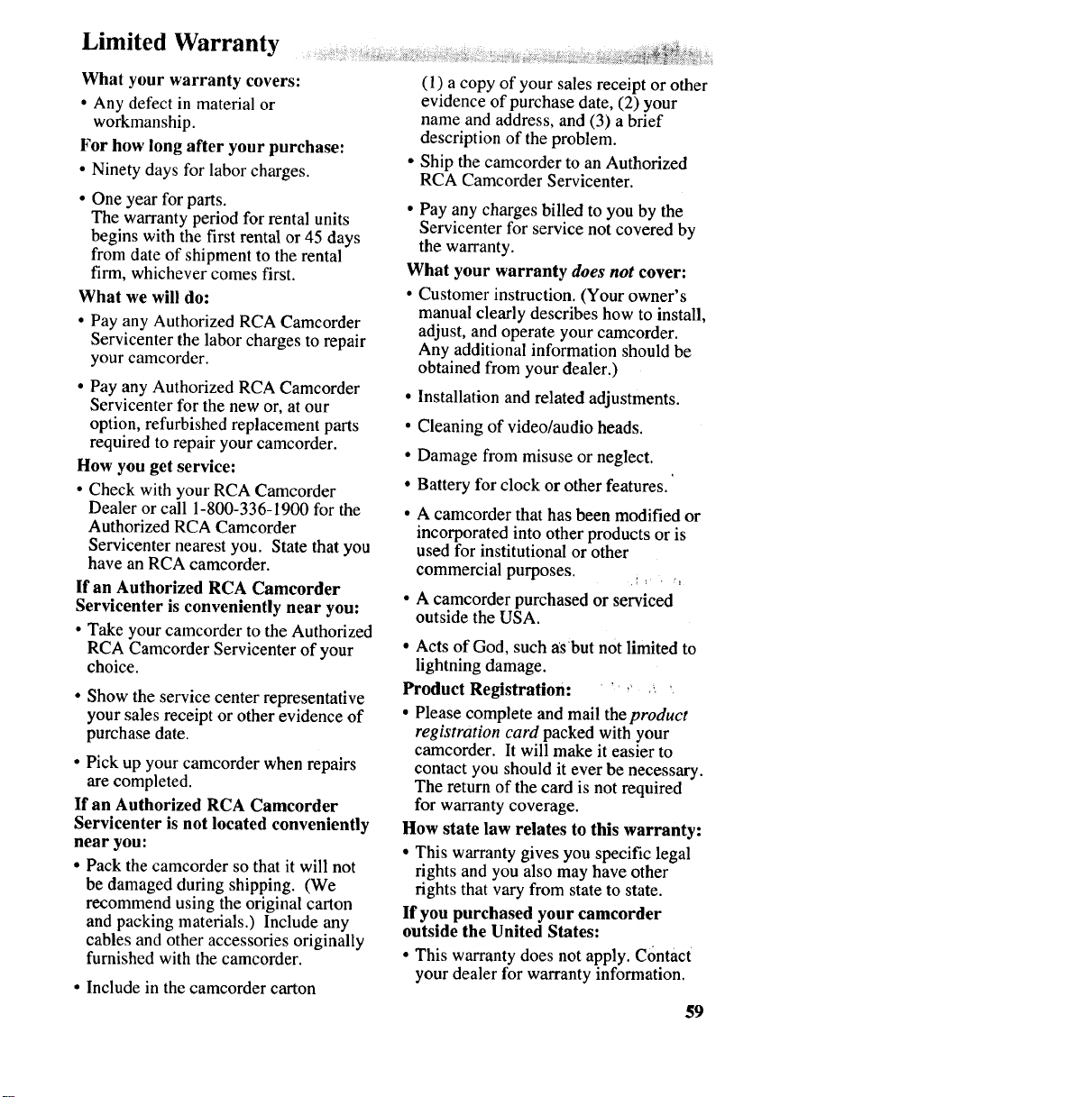
Limited Warranty
What your warranty covers:
• Any defect in material or
workmanship.
For how long after your purchase:
• Ninety days for labor charges.
• One year for parts.
The warranty period for rental units
begins with the first rental or 45 days
from date of shipment to the rental
firm, whichever comes first.
What we will do:
• Pay any Authorized RCA Camcorder
Servicenter the labor charges to repair
your camcorder.
• Pay any Authorized RCA Camcorder
Servicenter for the new or, at our
option, refurbished replacement parts
required to repair your camcorder.
How you get service:
•Check with your RCA Camcorder
Dealer orcall 1-800-336-1900 for the
Authorized RCA Camcorder
Servicenter nearest you. State that you
have an RCA camcorder.
ff an Authorized RCA Camcorder
Servicenter is conveniently near you:
•Take your camcorder to the Authorized
RCA Camcorder Servicenter of your
choice.
• Show the service center representative
your sales receipt or other evidence of
purchase date.
• Pick up your camcorder when repairs
are completed.
If an Authorized RCA Camcorder
Servicenter is not located conveniently
near you:
•Pack the camcorder so that it will not
be damaged during shipping. (We
recommend using the original carton
and packing materials.) Include any
cables and other accessories originally
furnished with the camcorder.
•Include in the camcorder carton
(1) a copy of your sales receipt or other
evidence of purchase date, (2) your
name and address, and (3) a brief
description of the problem.
Ship the camcorder to an Authorized
RCA Camcorder Servicenter.
•Pay any charges billed to you by the
Servicenter for service not covered by
the warranty.
What your warranty does not cover:
• Customer instruction. (Your owner's
manual clearly describes how to install,
adjust, and operate your camcorder.
Any additional information should be
obtained from your dealer.)
• Installation and related adjustments.
• Cleaning of video/audio heads.
• Damage from misuse or neglect.
•Battery for clock or other features.
• A camcorder that has been modified or
incorporated into other products or is
used for institutional or other
commercial purposes.
• A camcorder purchased or serviced
outside the USA.
• Acts of God, such asbut not limited to
lightning damage.
Product Registration: ' ' ,'_
• Please complete and mail the product
registration card packed with your
camcorder. It will make it easier to
contact you should it ever be necessary.
The return of the card is not required
for warranty coverage.
How state law relates to this warranty:
• This warranty gives you specific legal
rights and you also may have other
rights that vary from state to state.
If you purchased your camcorder
outside the United States:
•This warranty does not apply. Contact
your dealer for warranty information.
59
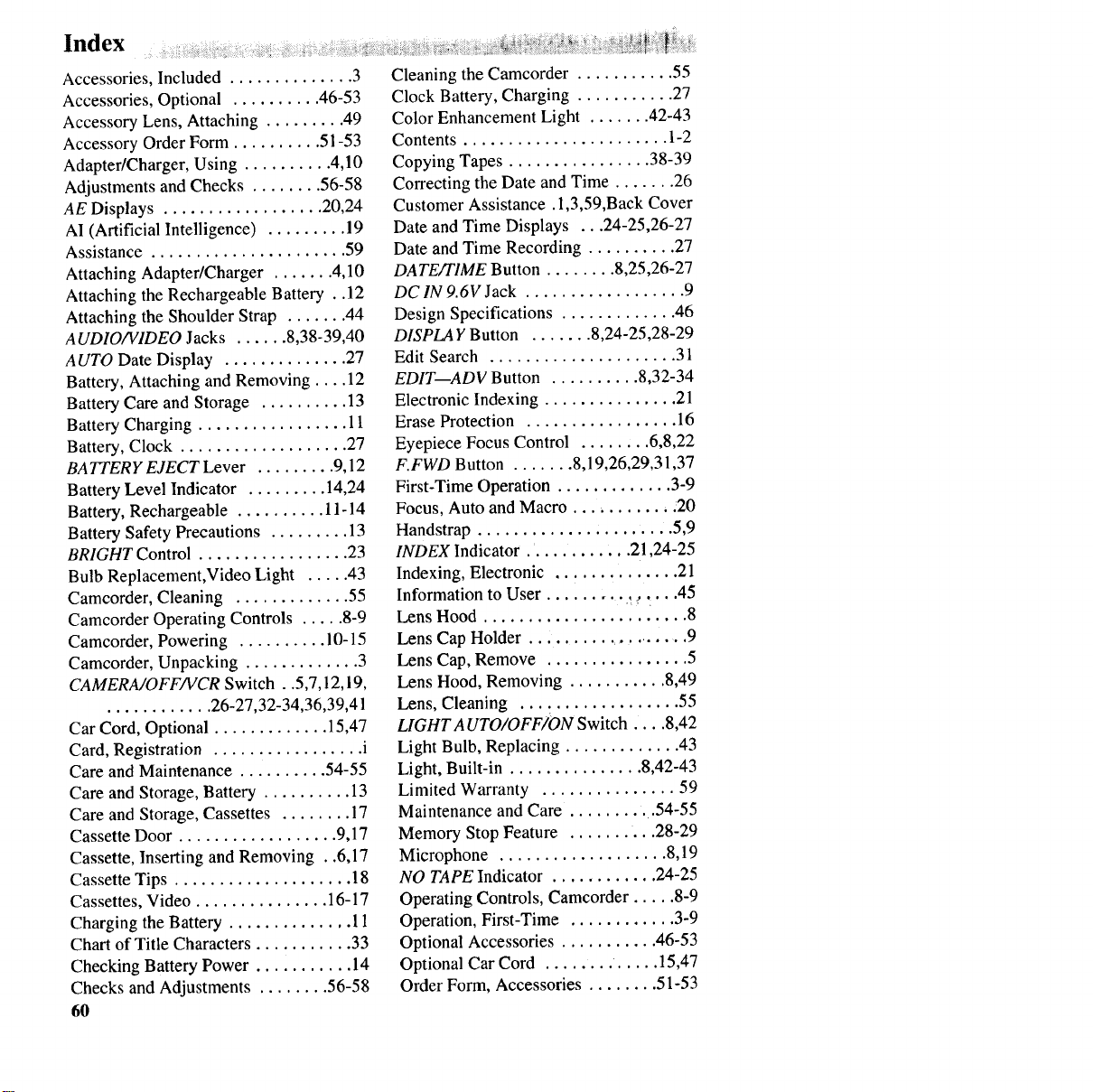
Index
Accessories, Included .............. 3
Accessories, Optional .......... 46-53
Accessory Lens, Attaching ......... 49
Accessory Order Form .......... 51-53
Adapter/Charger, Using .......... 4,10
Adjustments and Checks ........ 56-58
AE Displays .................. 20,24
AI (Artificial Intelligence) ......... 19
Assistance ...................... 59
Attaching Adapter/Charger ....... 4,10
Attaching the Rechargeable Battery . .12
Attaching the Shoulder Strap ....... 44
AUDIO/VIDEO Jacks ...... 8,38-39,40
AUTO Date Display .............. 27
Battery, Attaching and Removing .... 12
Battery Care and Storage .......... 13
Battery Charging ................. 11
Battery, Clock ................... 27
BATTERY EJECT Lever ......... 9,12
Battery Level Indicator ......... 14,24
Battery, Rechargeable .......... 11-14
Battery Safety Precautions ......... 13
BRIGHT Control ................. 23
Bulb Replacement,Video Light ..... 43
Camcorder, Cleaning ............. 55
Camcorder Operating Controls ..... 8-9
Camcorder, Powering .......... 10-15
Camcorder, Unpacking ............. 3
CAMERA/O FF/VCR Switch..5,7,12,19,
............ 26-27,32-34,36,39,41
Car Cord, Optional ............. 15,47
Card, Registration ................. i
Care and Maintenance .......... 54-55
Care and Storage, Battery .......... 13
Care and Storage, Cassettes ........ 17
Cassette Door .................. 9,17
Cassette, Inserting and Removing . .6,17
Cassette Tips .................... 18
Cassettes, Video ............... 16-17
Charging the Battery .............. 11
Chart of Title Characters ........... 33
Checking Battery Power ........... 14
Checks and Adjustments ........ 56-58
60
Cleaning the Camcorder ........... 55
Clock Battery, Charging ........... 27
Color Enhancement Light ....... 42-43
Contents ....................... 1-2
Copying Tapes ................ 38-39
Correcting the Date and Time ....... 26
Customer Assistance. 1,3,59,Back Cover
Date and Time Displays ...24-25,26-27
Date and Time Recording .......... 27
DATE/TIME Button ........ 8,25,26-27
DC IN 9.6V Jack .................. 9
Design Specifications ............. 46
DISPLAY Button ....... 8,24-25,28-29
Edit Search ..................... 31
EDIT--ADV Button .......... 8,32-34
Electronic Indexing ............... 21
Erase Protection ................. 16
Eyepiece Focus Control ........ 6,8,22
F.FWD Button ....... 8,19,26,29,31,37
First-Time Operation ............. 3-9
Focus, Auto and Macro ........... .20
Handstrap ...................... 5,9
INDEX Indicator ............ 21,24-25
Indexing, Electronic .............. 21
Information to User .......... _, ....45
Lens Hood ....................... 8
Lens Cap Holder ..................... 9
Lens Cap, Remove ................ 5
Lens Hood, Removing ........... 8,49
Lens, Cleaning .................. 55
LIGHT AUTO/OFFION Switch ...8,42
Light Bulb, Replacing ............. 43
Light, Built-in ............... 8,42-43
Limited Warranty ............... 59
Maintenance and Care ......... .54-55
Memory Stop Feature .......... 28-29
Microphone ................... 8,19
NO TAPE Indicator ............ 24-25
Operating Controls, Camcorder ..... 8-9
Operation, First-Time ............ 3-9
Optional Accessories ........... 46-53
Optional Car Cord ........ ..... 15,47
Order Form, Accessories ........ 51-53
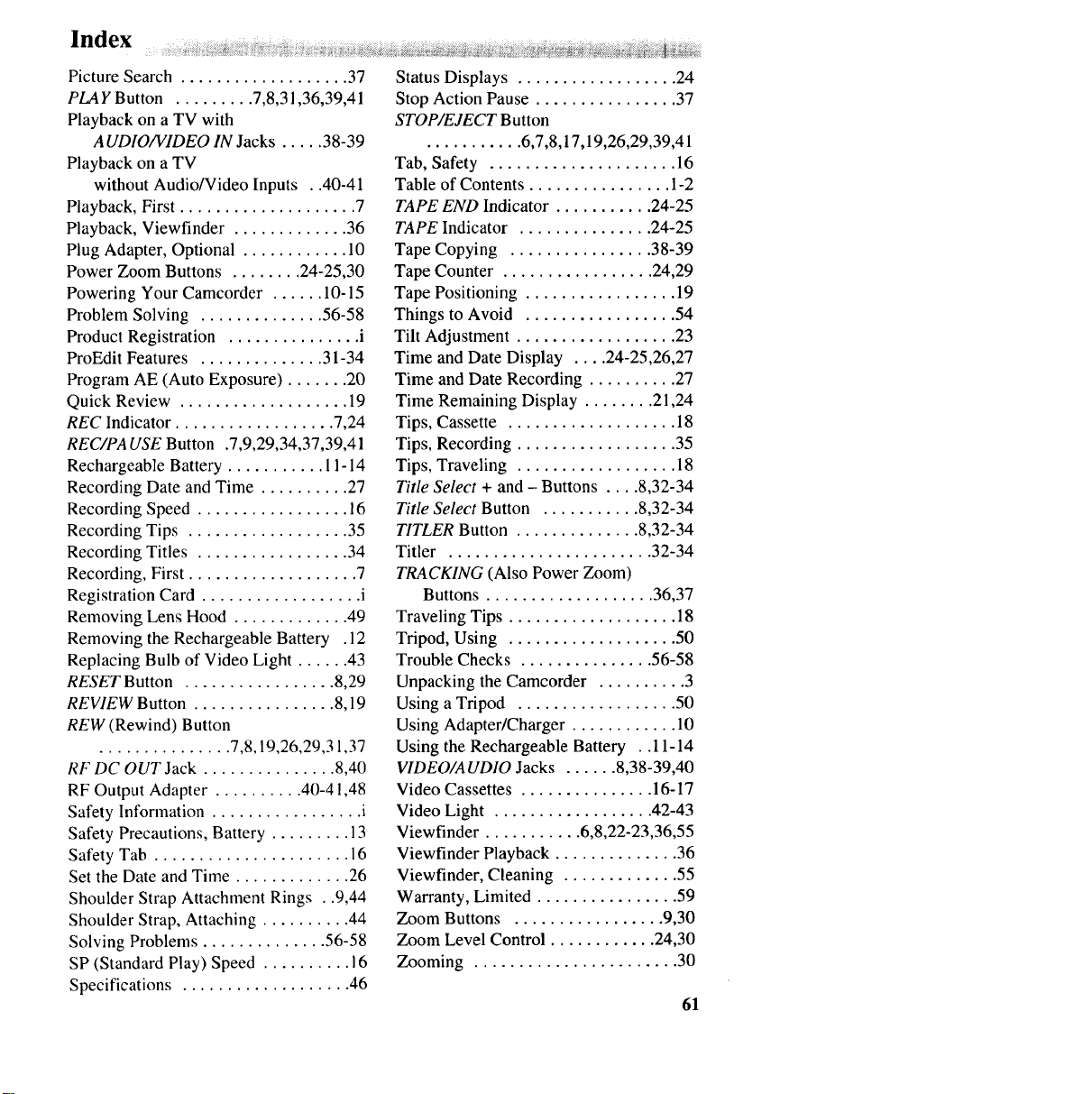
Index
Picture Search ................... 37
PLAY Button ......... 7,8,31,36,39,41
Playback on a TV with
A UDIO/VIDEO IN Jacks ..... 38-39
Playback on a TV
without Audio/Video Inputs . .40-41
Playback, First .................... 7
Playback, Viewfinder ............. 36
Plug Adapter, Optional ............ 10
Power Zoom Buttons ........ 24-25,30
Powering Your Camcorder ...... 10-15
Problem Solving .............. 56-58
Product Registration ............... i
ProEdit Features .............. 31-34
Program AE (Auto Exposure) ....... 20
Quick Review ................... 19
REC Indicator .................. 7,24
REC/PA USE Button .7,9,29,34,37,39,41
Rechargeable Battery ........... 11-14
Recording Date and Time .......... 27
Recording Speed ................. 16
Recording Tips .................. 35
Recording Titles ................. 34
Recording, First ................... 7
Registration Card .................. i
Removing Lens Hood ............. 49
Removing the Rechargeable Battery .12
Replacing Bulb of Video Light ...... 43
RESET Button ................. 8,29
REVIEW Button ................ 8,19
REW (Rewind) Button
............... 7,8,19,26,29,31,37
RF DC OUT Jack ............... 8,40
RF Output Adapter .......... 40-41,48
Safety Information ................. i
Safety Precautions, Battery ......... 13
Safety Tab ...................... 16
Set the Date and Time ............. 26
Shoulder Strap Attachment Rings . .9,44
Shoulder Strap, Attaching .......... 44
Solving Problems .............. 56-58
SP (Standard Play) Speed .......... 16
Specifications ................... 46
Status Displays .................. 24
Stop Action Pause ................ 37
STOP/EJECT Button
........... 6,7,8,17,19,26,29,39,41
Tab, Safety ..................... 16
Table of Contents ................ 1-2
TAPE END Indicator ........... 24-25
TAPE Indicator ............... 24-25
Tape Copying ................ 38-39
Tape Counter ................. 24,29
Tape Positioning ................. 19
Things to Avoid ................. 54
Tilt Adjustment .................. 23
Time and Date Display .... 24-25,26,27
Time
Time
Tips,
Tips,
and Date Recording .......... 27
Remaining Display ........ 21,24
Cassette ................... 18
Recording .................. 35
Tips, Traveling .................. 18
Title Select + and - Buttons .... 8,32-34
Title Select Button ........... 8,32-34
TITLER Button .............. 8,32-34
Titler ....................... 32-34
TRACKING (Also Power Zoom)
Buttons ................... 36,37
Traveling Tips ................... 18
Tripod, Using ................... 50
Trouble Checks ............... 56-58
Unpacking the Camcorder .......... 3
Using a Tripod .................. 50
Using Adapter/Charger ............ 10
Using the Rechargeable Battery .. 11-14
VIDEO/AUDIO Jacks ...... 8,38-39,40
Video Cassettes ............... 16-17
Video Light .................. 42-43
Viewfinder ........... 6,8,22-23,36,55
Viewfinder Playback .............. 36
Viewfinder, Cleaning ............. 55
Warranty, Limited ................ 59
Zoom Buttons ................. 9,30
Zoom Level Control ............ 24,30
Zooming ....................... 30
61
Need Assistance? We want to help!
U.S. Consumers:
Customer Service ................. 800-336-1900
Accessories ..................... 800-338-0376
Canadian Consumers:
English ......................... 800-522-0338
French ......................... 800-522-0445
Please do not scnd any products to the
Indianapolis address listed in this manual or
on the carton. This will only add delays in
service for your product.
qo_"II'IOMSON CONSUMER ELECTRONICS
10330 N Meridian Street
Indianapolis, IN 46290
©1996Thomson Consumer Electronics, Inc.
Trademark(s)® Registered
Marca(s) Registrada(s)
Printed in Japan
Part Number 96-CC432-1
QR14435