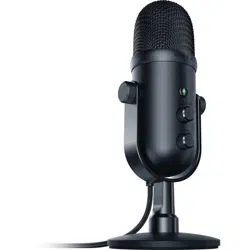

RAZER SEIREN V2 PRO
MASTER GUIDE

FOR GAMERS. BY GAMERS .
™
1
Sound like a pro and take your production quality up a notch with the Razer
Seiren V2 Pro—a USB microphone designed for those serious about
streaming. Whether you’re an industry vet or a professional-to-be, enjoy
top-notch voice clarity and quality thanks to its suite of high-end features.

FOR GAMERS. BY GAMERS .
™
2
CONTENTS
1. WHAT’S INSIDE / WHAT’S NEEDED ....................................................................................................... 3
2. LET’S GET YOU COVERED ...................................................................................................................... 5
3. TECHNICAL SPECIFICATIONS ................................................................................................................. 6
4. GETTING STARTED ................................................................................................................................. 7
5. USING THE MICROPHONE ................................................................................................................... 10
6. CONFIGURING YOUR RAZER SEIREN V2 PRO VIA RAZER SYNAPSE ..................................................... 12
7. SAFETY AND MAINTENANCE ............................................................................................................... 24
8. LEGALESE ............................................................................................................................................. 25

FOR GAMERS. BY GAMERS .
™
3
1. WHAT’S INSIDE / WHAT’S NEEDED
WHAT’S INSIDE
▪ Razer Seiren V2 Pro
A. Angle adjustment knobs
B. Mic mute button
C. Headphone volume control knob
D. Mic gain control knob
E. 3.5 mm headphone port
F. Type C port
G. Thread mount
FOR GAMERS. BY GAMERS .
™
4
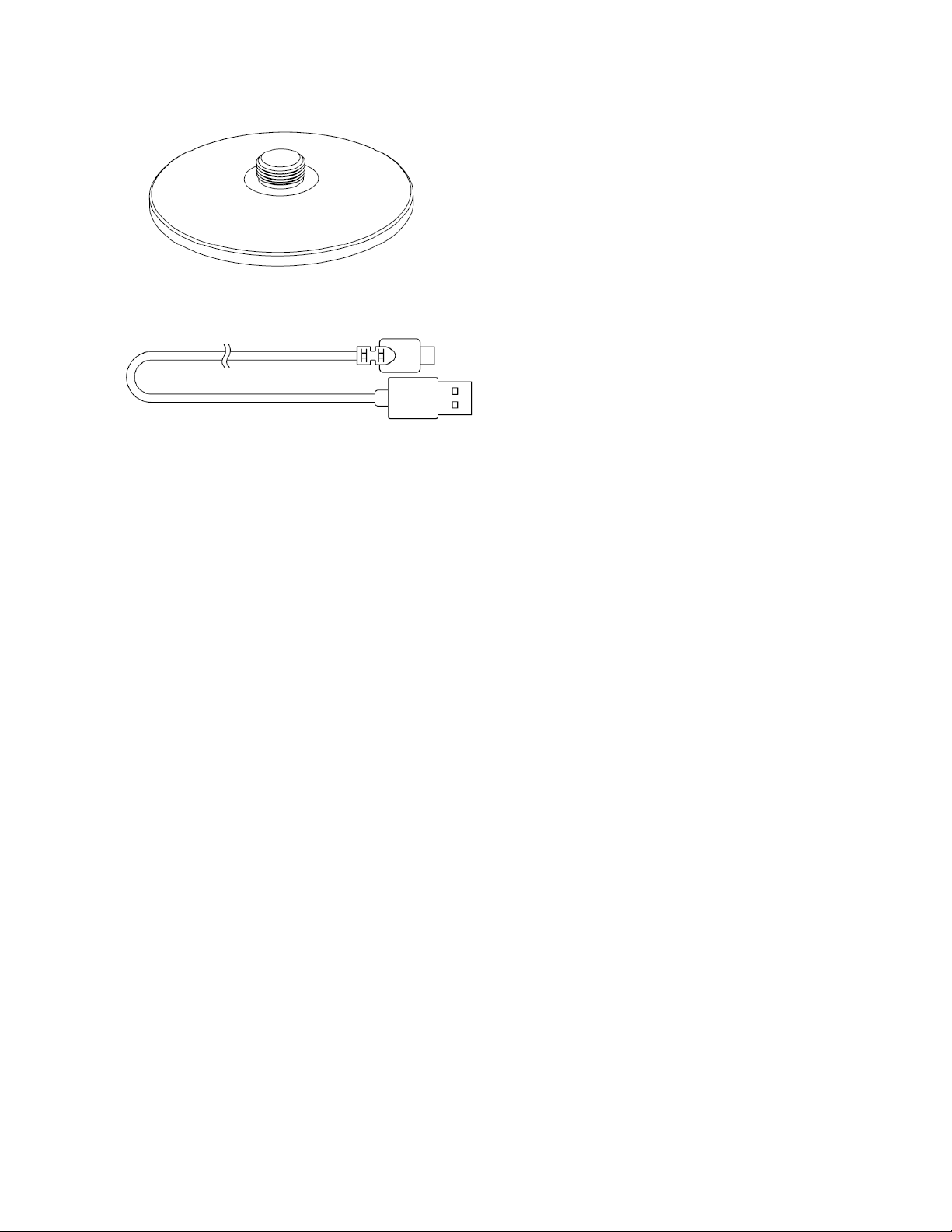
▪ Desk stand base
▪ Type C to Type A cable
▪ Windsock
▪ Important Product Information Guide
WHAT’S NEEDED
Product requirements
▪ PC with a free USB port
Razer Synapse requirements
▪ Windows® 10 64-bit (or higher)
▪ Internet connection for software installation
FOR GAMERS. BY GAMERS .
™
5
2. LET’S GET YOU COVERED
You’ve got a great device in your hands, complete with a 1-year limited warranty coverage. Now
maximize its potential and score exclusive Razer benefits by registering at razerid.razer.com
Got a question? Ask the Razer Support Team at support.razer.com
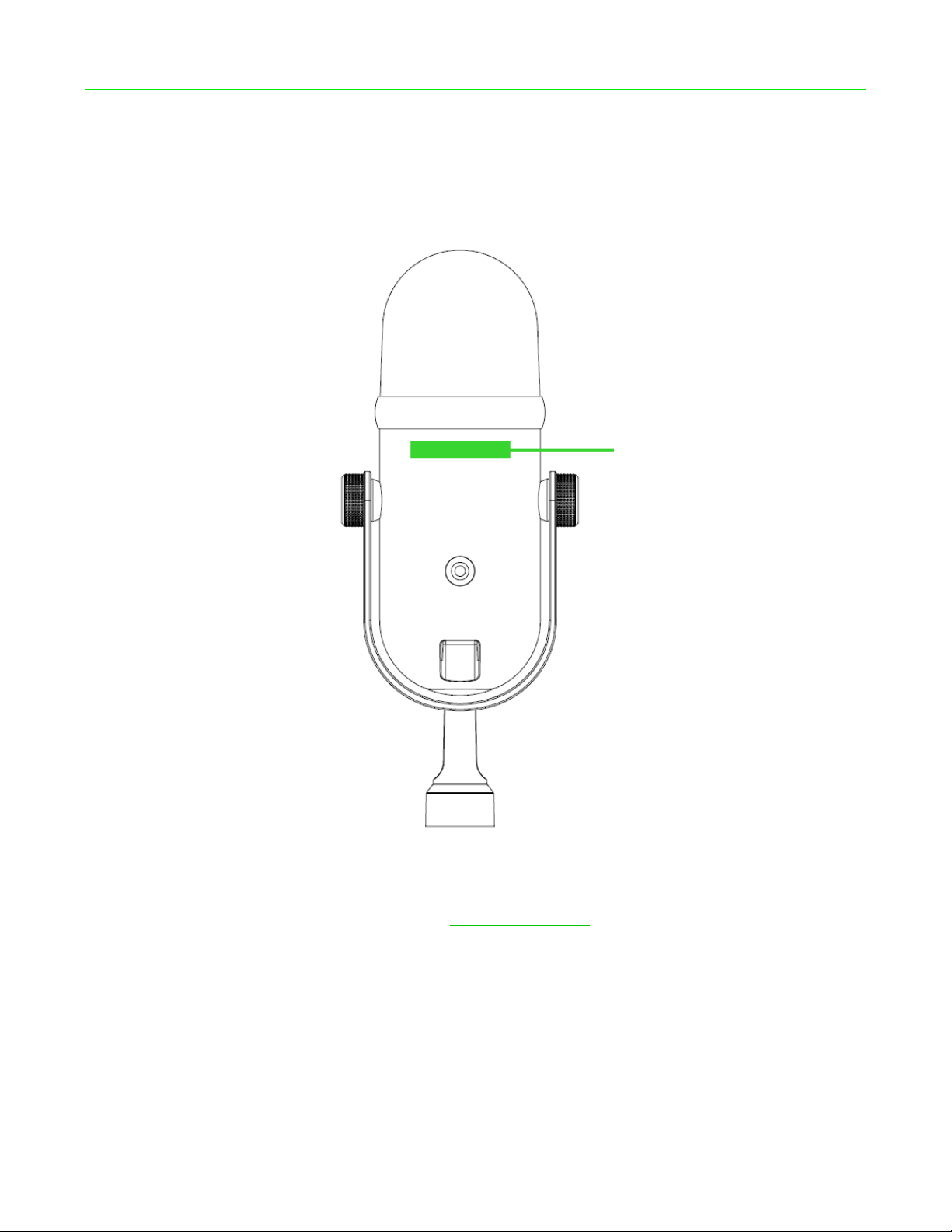
Your product’s
serial number can
be found here.

FOR GAMERS. BY GAMERS .
™
6
3. TECHNICAL SPECIFICATIONS
MICROPHONE
▪ Power Required / Consumption: 5V/350mA
▪ Sample rate: 96KHz
▪ Bit rate: 24bit
▪ Capsules: 30mm Dynamic Microphone
▪ Polar patterns: Cardioid Microphone
▪ Frequency response: 20 ~ 20KHz
▪ Sensitivity: -34dB (1V/Pa at 1kHz)
▪ Max SPL:120dB
▪ Signal to Noise:105dB(A-weighted)
▪ Compatible with Razer Synapse 3

FOR GAMERS. BY GAMERS .
™
7
4. GETTING STARTED
1. Securely fasten the Razer Seiren V2 Pro onto the desk stand base.
2. Loosen the angle adjustment knobs and tilt the microphone so that the top portion of the
microphone is facing you. Tighten the knobs again to hold its new angle in place.
FOR GAMERS. BY GAMERS .
™
8
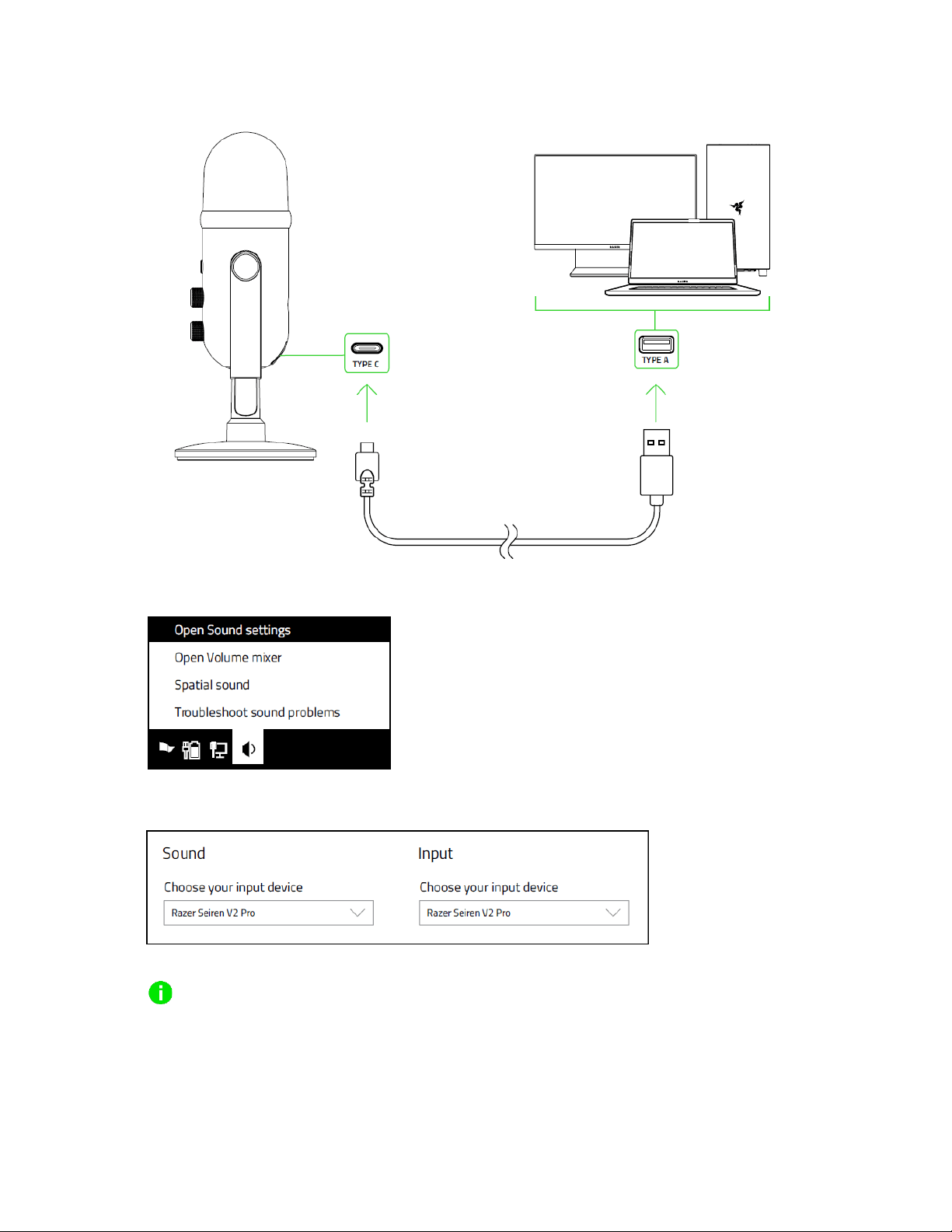
3. Connect the microphone to the USB port of your PC using the Type C to Type A cable.
4. On your PC, right-click on the sound icon on the system tray and select Open Sound Settings.
5. On the Sound window, set Razer Seiren V2 Pro as the default Output and Input device.
When set as the default output device, an audio output device (such as a headphone)
must be connected to its 3.5 mm headphone port. This will allow you to listen to the
audio output and recording at the same time.

FOR GAMERS. BY GAMERS .
™
9
6. Use the Razer Synapse app to customize the mic’s features and even route various audio input
sources and/or applications to desired virtual channels which you can mix and output as a
single audio source.
Install Razer Synapse when prompted or download the installer from razer.com/synapse.
FOR GAMERS. BY GAMERS .
™
10
5. USING THE MICROPHONE
MUTING THE MICROPHONE
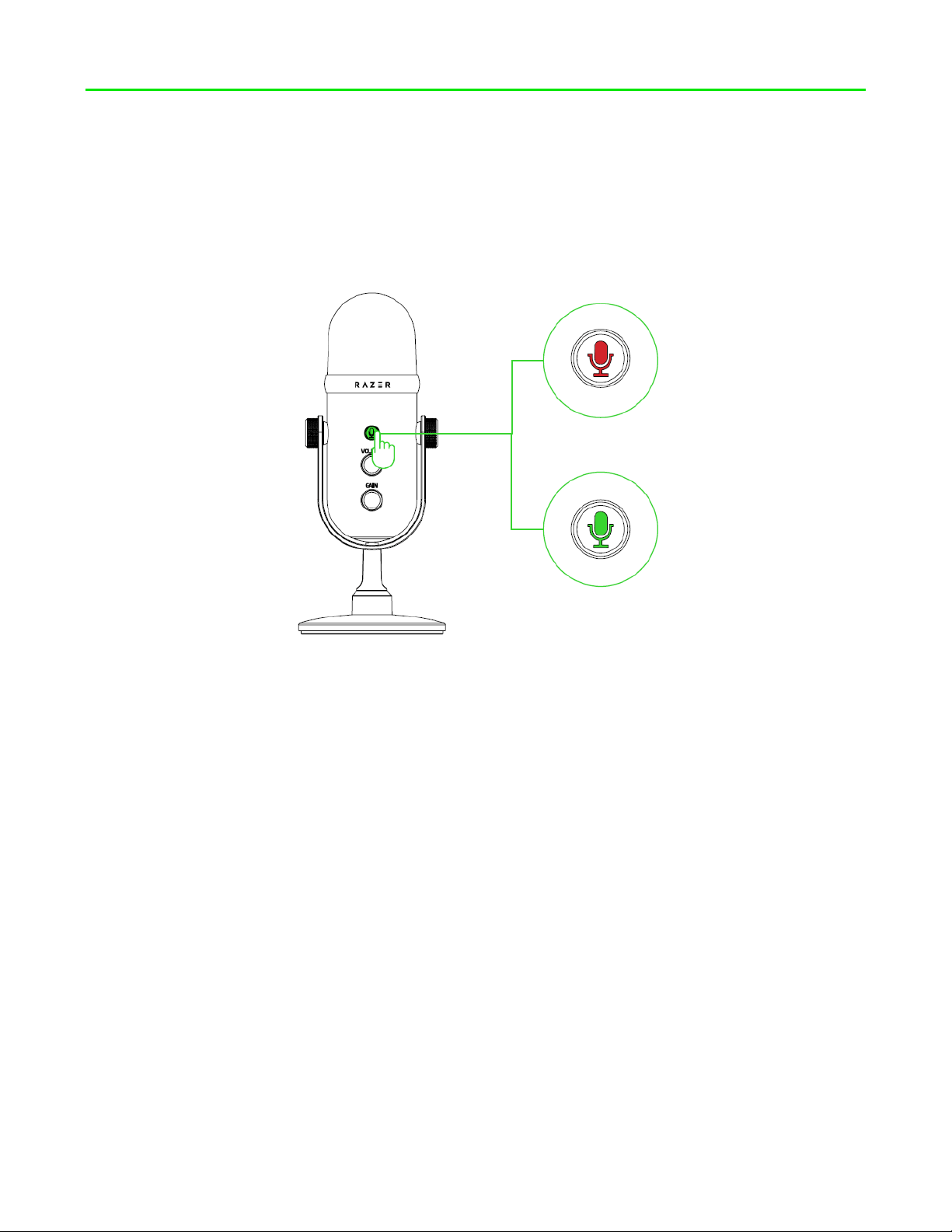
Press the microphone mute button to mute or unmute the microphone. The button will light up in red
when the microphone is muted.
ADJUSTING THE HEADPHONE VOLUME
Rotate the headphone volume control knob to adjust the headphone volume.
Muted
Enabled

FOR GAMERS. BY GAMERS .
™
11
ADJUSTING THE MICROPHONE GAIN
Rotate the mic gain control knob to adjust the sensitivity of the microphone when capturing sound.
This is recommended if the microphone is capturing too much ambient noise and vice versa.
Increase
microphone gain
Decrease microphone
gain
Increase
headphone volume
Decrease
headphone volume

FOR GAMERS. BY GAMERS .
™
12
6. CONFIGURING YOUR RAZER SEIREN V2 PRO
Internet connection is required for installation, updates and cloud-based features.
Registering for a Razer ID account is recommended, but optional. All listed features are
subject to change based on the current software version, connected device(s), and supported
apps and software.
SYNAPSE TAB
The Synapse tab is your default tab when you first launch Razer Synapse. This tab allows you to
navigate the Dashboard subtab.
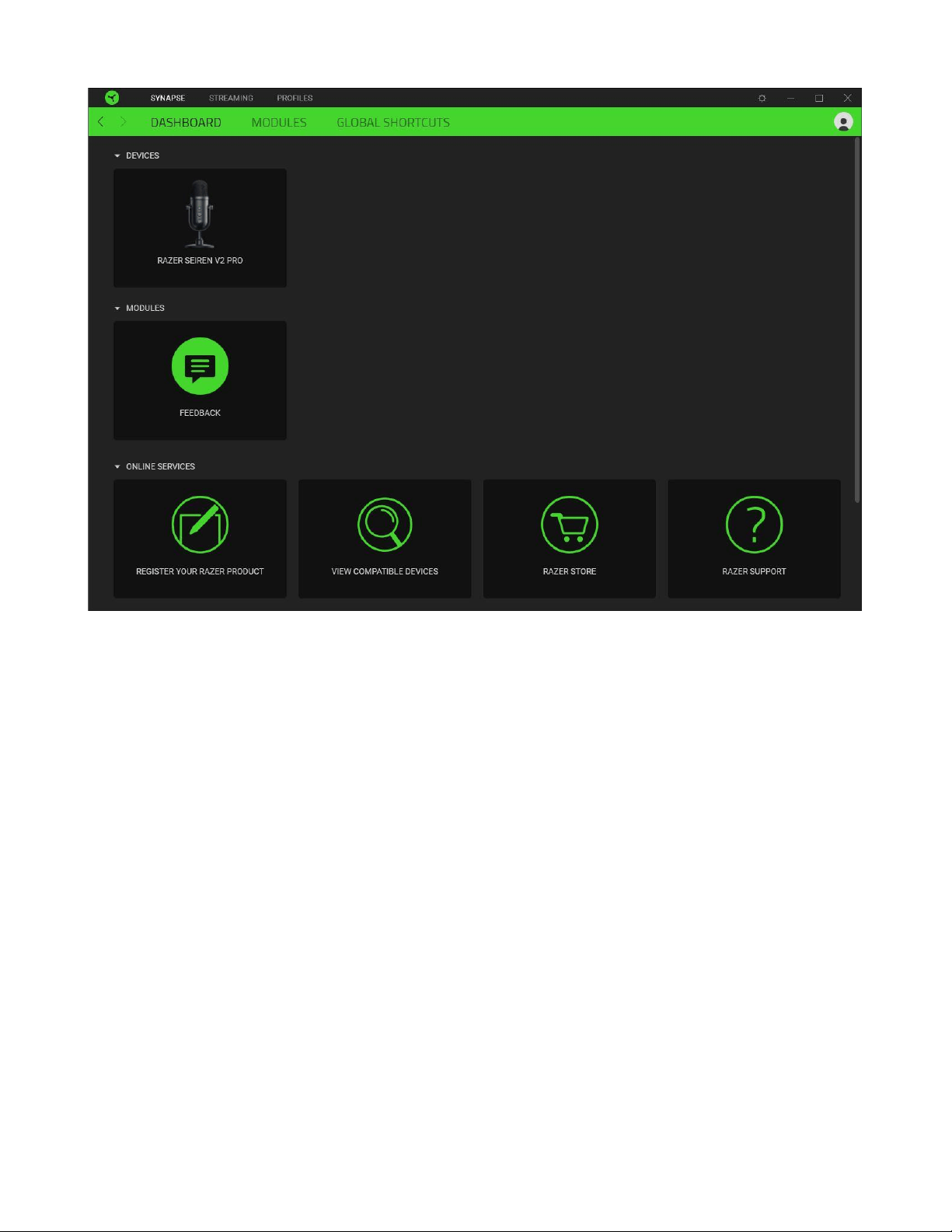
Dashboard
The Dashboard subtab is an overview of your Razer Synapse where you can access all your Razer
devices, modules, and online services.
FOR GAMERS. BY GAMERS.
™
13
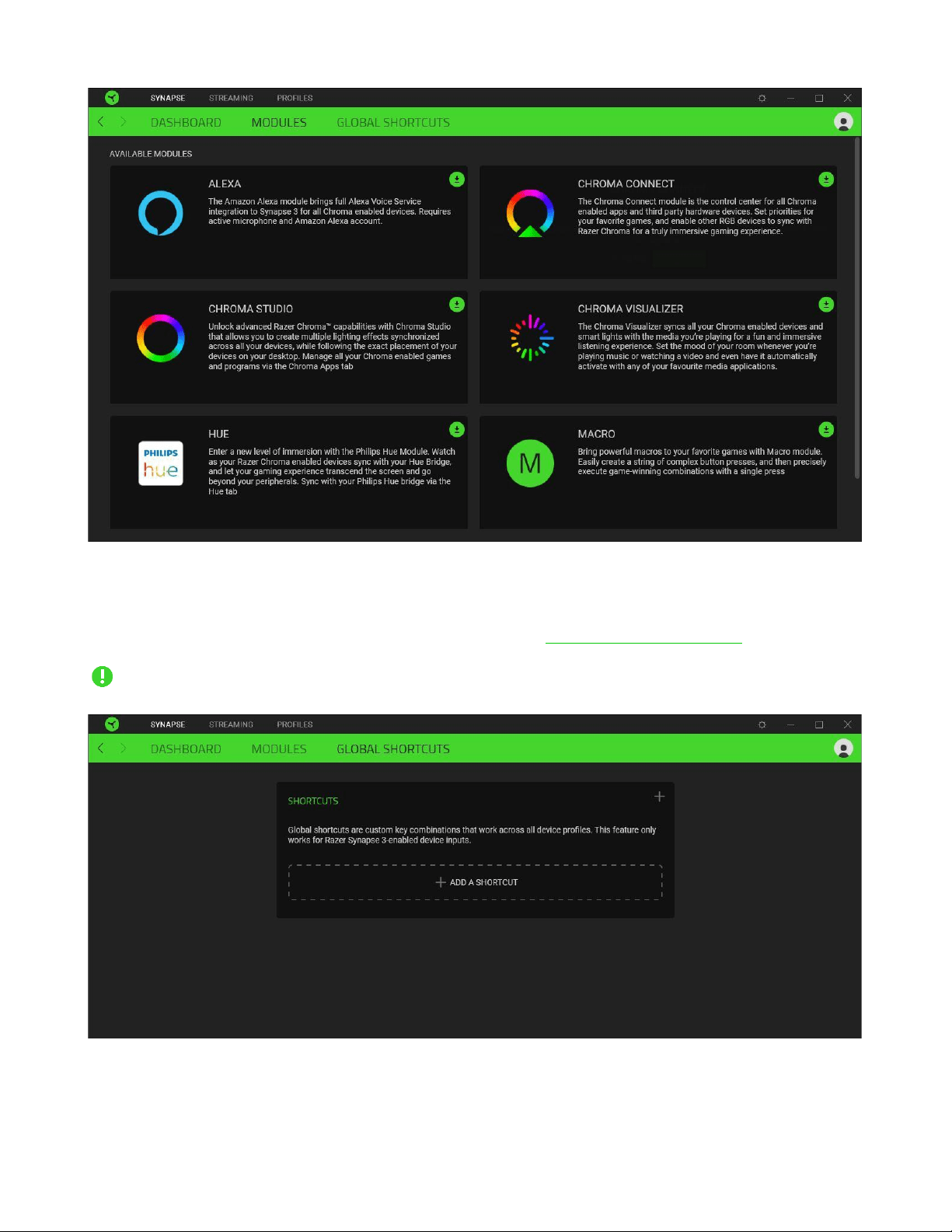
Modules
The Modules subtab displays all installed and available modules for installation.

FOR GAMERS. BY GAMERS.
™
15
STREAMING TAB
The Streaming tab is the main tab for your Razer Seiren V2 Pro. From here, you’ll be able to adjust the
microphone gain and headphone volume, enable features such as high pass filter and analog gain
limiter and even route specific applications to input channels which you can mix to a single audio
channel.
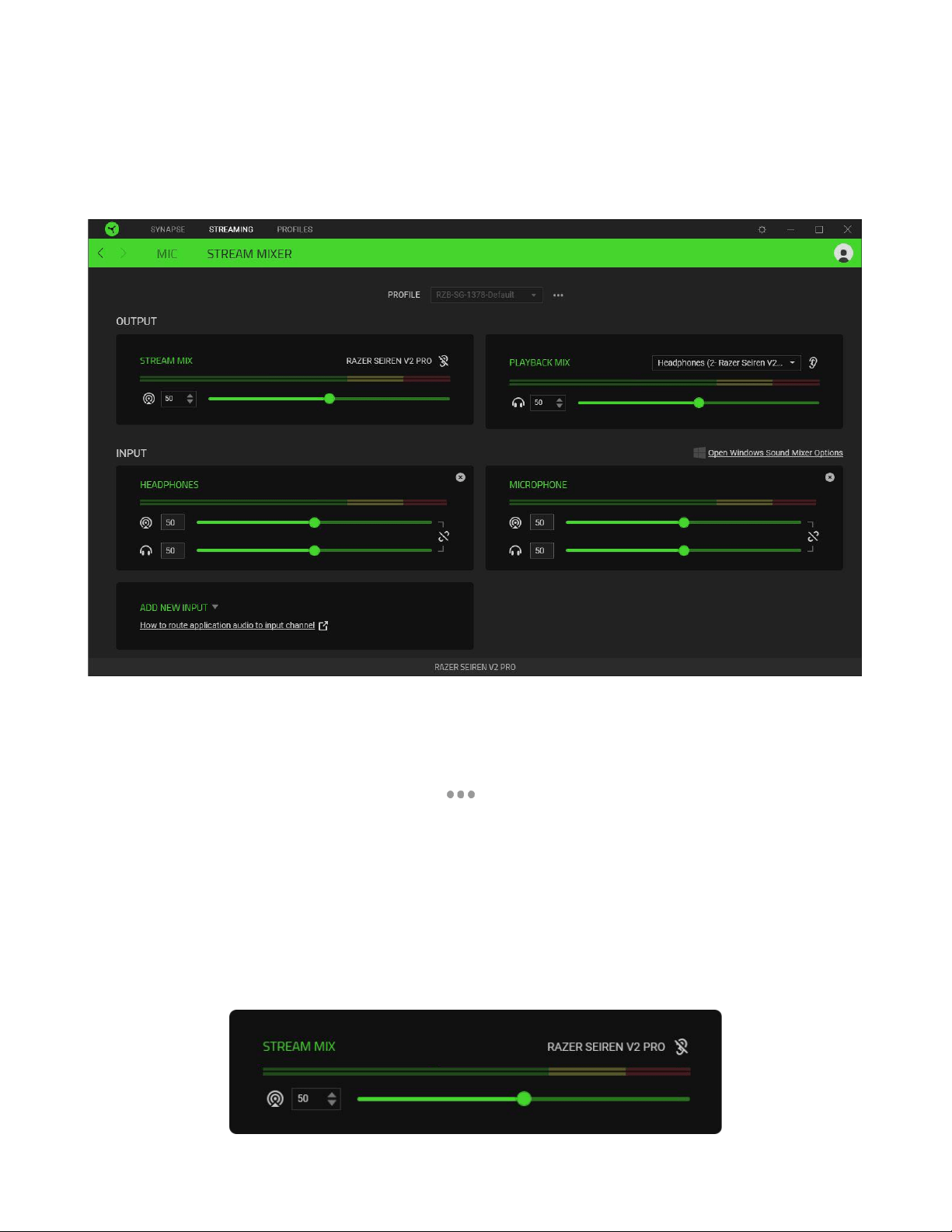
Mic
The Mic subtab is for muting or adjusting the microphone gain and headphone volume. You can also
use this page to see how loud the captured audio is, change the microphone’s sampling rate and
enable other features such as High Pass Filter and Analog Gain Limiter.
Audio input bar
Shows how loud the captured audio is.
Microphone gain
Mute the microphone by clicking on the microphone gain icon ( ) or use the slider to increase or
decrease its sensitivity.
Headphone volume
Adjust the slider to increase or decrease the volume of the audio output device connected to the 3.5
mm headphone port or mute it by clicking on the headphone volume icon ( ).

FOR GAMERS. BY GAMERS.
™
16
Sampling rate
Determines the resolution of your recordings. The higher the sampling rate, the more often the
computer receives information about the captured audio, providing a more accurate capture and
representation of audio.
High pass filter
Enable to eliminate any background humming and buzzing such as wind noise from the air
conditioning systems and cars driving by in a distance.
Analog gain limiter
Enable this feature to prevent unwanted voice distortions, voice clipping and peaking on your
recordings.
FOR GAMERS. BY GAMERS.
™
17
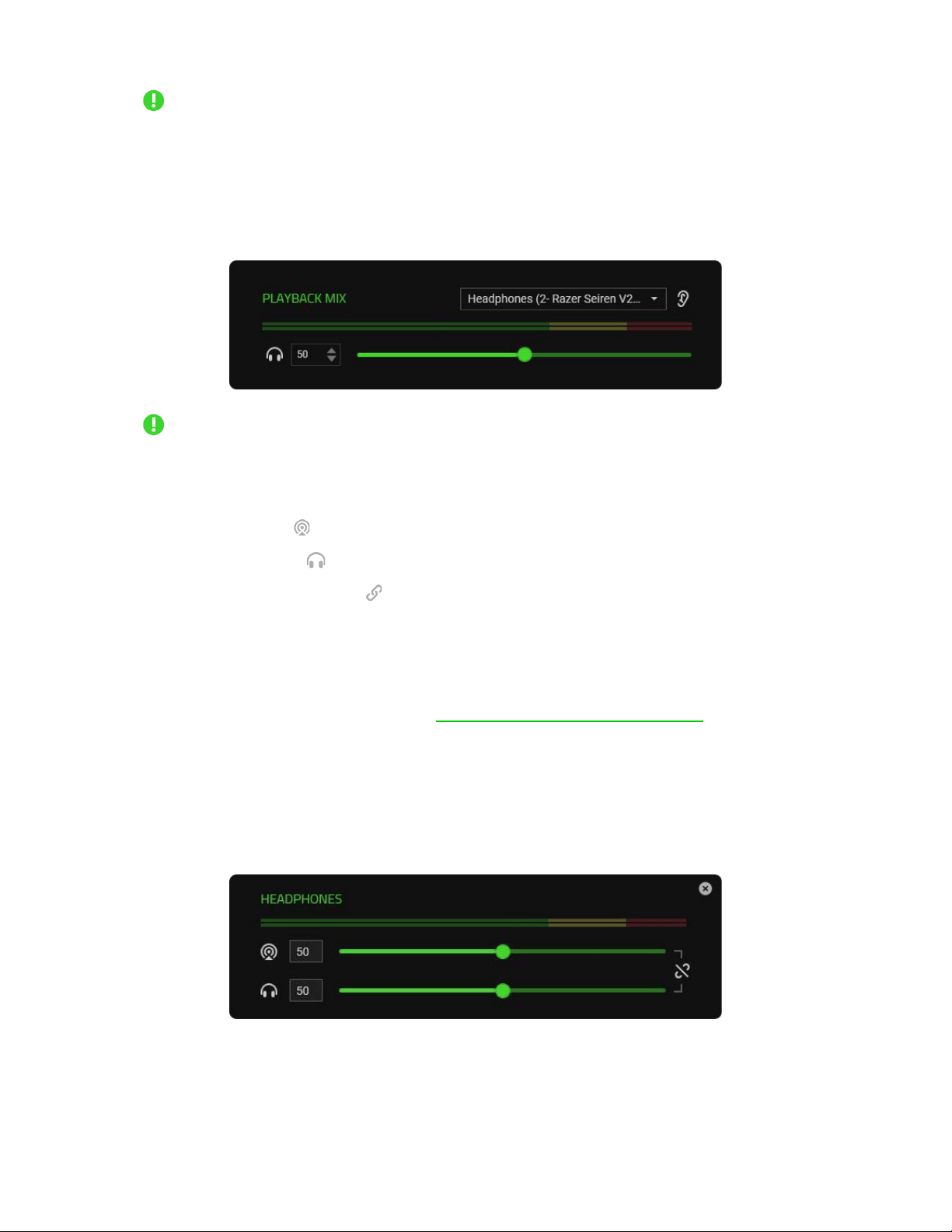
Stream Mixer
The Stream Mixer subtab enables you to monitor, individually adjust, and mix all available virtual
input channels on a single virtual output channel. Changes made under this tab are automatically
saved to your system and cloud storage.
Profile
A Profile is a data storage for keeping all your Razer devices’ settings. By default, the profile name is
based on your system’s name. To add, import, rename, duplicate, export, or delete a profile, press the
profile’s corresponding Miscellaneous button ( ).
Output
Output channels are virtual channels recognized by the Windows operating system as Input devices.
Upon installing Razer Synapse, the following output channels become available:
▪ Stream Mix. Combines all input channels in a single stream. Set this channel as the
microphone or input device of your streaming software (e.g. OBS, Twitch, Streamlabs etc.) to
individually control the volume of each channel using Razer Synapse.
FOR GAMERS. BY GAMERS.
™
18
Adjusting the slider of the Stream Mix will increase or decrease the volume of what you
hear in your recording / streams. Instructions in setting the Stream Mix as the input
device for your streaming software may vary.
▪ Playback Mix. Allows you to listen to all channels using the selected playback device. The 3.5
mm headphone port of the microphone is set as the Playback device by default.
Adjusting the slider of the Playback Mix only increases or decreases the volume of the
selected playback device.
The following controls are available for both output channels:
▪ Mute Stream Mix ( ). Click to mute the Stream Mix channel.
▪ Mute Playback Mix ( ). Click to mute the Playback Mix channel.
▪ Enable/Disable monitoring ( ). Listen to either the Stream Mix or the Playback Mix.
Open Windows Sound Mixer Options
Opens the App volume and device preferences on Windows where you can route specific
applications to various virtual input channels. Learn more about routing channels
Input
Input channels are virtual channels recognized by the Windows operating system as Output devices.
You can assign applications to Browser, Headphones, Game, Sound effects, System, Music input
channels, with other input devices assignable to Aux (1 / 2 / 3) channels.
By assigning specific applications and/or devices to input channels, you can use a single channel on
your streaming software while controlling each channel volume individually on Razer Synapse.

FOR GAMERS. BY GAMERS.
™
19
The following controls are available for all input channels:
▪ Slider. Adjust how loud the corresponding channel is on Stream Mix and/or Playback Mix.
▪ Link ( ). Link both Stream Mix and Playback Mix sliders to proportionally adjust the volume
of each setting.
▪ Mute Stream Mix ( ). Click to mute the corresponding channel from the Stream Mix.
▪ Mute Playback Mix ( ). Click to mute the corresponding channel from the Playback Mix.
▪ Remove channel ( ). Removes the corresponding input channel from the Stream Mix.
Routing / Adding channels
For an input channel to work, an application or a device must be assigned to it first. To add an input
channel on Razer Synapse with the desired application/device:
1. Make sure the application that you want to assign is running.
2. On Razer Synapse, go to the Stream Mixer subtab and then click Open Windows Sound Mixer
Options.
3. On the App volume and device preferences window, go to the desired app, and set its Output
to the preferred virtual input channel (e.g. Spotify to Music, Google Chrome to Browser,
Microphone to Aux 1 etc.).
4. On Razer Synapse, click on Add New Input and select the newly configured virtual channel
from the dropdown list to include it on the Stream Mix.
FOR GAMERS. BY GAMERS.
™
20
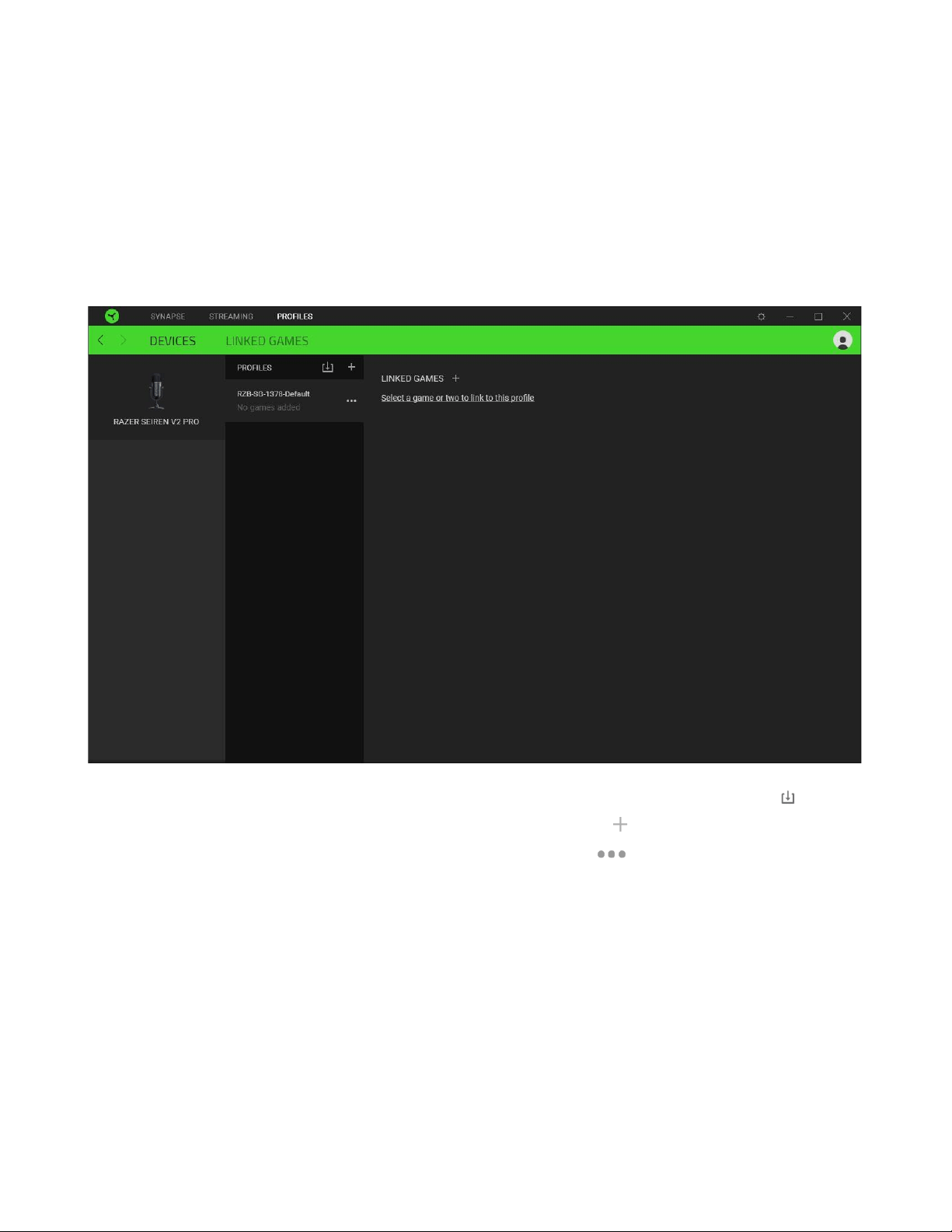
PROFILES TAB
The Profiles tab is a convenient way of managing all your profiles and linking them to your games and
applications.
Devices
View which games are linked to each device’s profiles or which Chroma Effect is linked to specific
games using the Devices subtab.
You can import Profiles from your computer or from the cloud through the import button ( ) or
create new profiles within the selected device using the add button ( ). To rename, duplicate,
export, or delete a profile, simply press the Miscellaneous button ( ). Each profile can be set to
automatically activate when you run an application using the Linked Games option.

FOR GAMERS. BY GAMERS.
™
21
Linked Games
The Linked Games subtab gives you the flexibility to add games, view devices that are linked to
games, or search for added games. You can also sort games based on alphabetical order, last played,
or most played. Added games will still be listed here even if it is not linked to a Razer device.
To link games to connected Razer devices or Chroma Effects, simply click on any game from the list,
and then click Select a device and its profile to launch automatically during gameplay to select the
Razer device or Chroma Effect it will link with. Once linked, you may click on the Miscellaneous button
( ) of the corresponding Chroma Effect or device to select a specific Chroma Effect or profile.

FOR GAMERS. BY GAMERS.
™
22
SETTINGS WINDOW
The Settings window, accessible by clicking the ( ) button on Razer Synapse, enables you to
configure the startup behavior and display language of Razer Synapse, view the master guides of each
connected Razer device, or perform factory reset on any connected Razer device.
General tab
The default tab of the Settings window. The General tab enables you to change the software’s display
language, start-up behavior, display theme, and on-screen notifications display. You may also
manually sync your profiles to the cloud ( ) or view the master guide of all connected Razer devices
and installed modules.
Reset tab
The Reset tab allows you to perform a factory reset on all connected Razer devices with on-board
memory and/or reset Razer Synapse tutorials to acquaint yourself again with Razer Synapse’s new
features on its next launch.
By resetting a Razer device, all profiles stored on the selected device’s on-board memory will be
erased.

FOR GAMERS. BY GAMERS.
™
23
About tab
The About tab displays brief software information, copyright statement and provides relevant links for
its terms of use. You may also use this tab to check for software updates, or as a quick access to
Razer’s social communities.

FOR GAMERS. BY GAMERS.
™
24
7. SAFETY AND MAINTENANCE
SAFETY GUIDELINES
In order to achieve maximum safety while using your Razer Seiren V2 Pro, we suggest that you adopt
the following guidelines:
Should you have trouble operating the device properly and troubleshooting does not work, unplug
the device and contact the Razer hotline or go to for assistance.
Do not take apart the device and do not attempt to operate it under abnormal current loads. Doing so
will void your warranty.
When connecting external devices, carefully plan how the wires will be placed. Protect any connected
cables from being walked on or pinched, particularly at plugs, convenience receptacles, or the point
where they exit from.
When unplugging any connected devices and/or cables, always pull on its plug or connector. Don’t
forcefully tug on its cord.
Keep the device away from liquid, humidity or moisture. Operate the device only within the specific
temperature range of 0°C (32°F) to 40°C (104°F). Should the temperature exceed this range, unplug
and/or switch off the device in order to let the temperature stabilize to an optimal level.
Listening to excessively loud volumes over extended periods of time can damage your hearing.
Furthermore, legislation of certain countries permits a maximum sound level of 86db to affect your
hearing for 8 hours a day. We therefore recommend that you reduce the volume to a comfortable
level when listening for prolonged periods of time. Please, take good care of your hearing.
MAINTENANCE AND USE
The Razer Seiren V2 Pro requires minimum maintenance to keep it in optimum condition. Once a
month we recommend you unplug all connected cables and clean it using a soft cloth or cotton swab
to prevent dirt buildup. Do not use soap or harsh cleaning agents.

FOR GAMERS. BY GAMERS.
™
25
8. LEGALESE
COPYRIGHT AND INTELLECTUAL PROPERTY INFORMATION
©2021 Razer Inc. All rights reserved. Razer, the triple-headed snake logo, Razer logo, and “For
Gamers. By Gamers.” are trademarks or registered trademarks of Razer Inc. and/or affiliated
companies in the United States or other countries. All other trademarks are the property of their
respective owners.
Windows and the Windows logo are trademarks of the Microsoft group of companies.
Razer Inc. (“Razer”) may have copyright, trademarks, trade secrets, patents, patent applications, or
other intellectual property rights (whether registered or unregistered) concerning the product in this
guide. Furnishing of this guide does not give you a license to any such copyright, trademark, patent or
other intellectual property right. The Razer Seiren V2 Pro (the “Product”) may differ from pictures
whether on packaging or otherwise. Razer assumes no responsibility for such differences or for any
errors that may appear. Information contained herein is subject to change without notice.
LIMITED PRODUCT WARRANTY
For the latest and current terms of the Limited Product Warranty, please visit razer.com/warranty.
LIMITATION OF LIABILITY
Razer shall in no event be liable for any lost profits, loss of information or data, special, incidental,
indirect, punitive or consequential or incidental damages, arising in any way out of distribution of,
sale of, resale of, use of, or inability to use the Product. In no event shall Razer’s liability exceed the
retail purchase price of the Product.
GENERAL
These terms shall be governed by and construed under the laws of the jurisdiction in which the
Product was purchased. If any term herein is held to be invalid or unenforceable, then such term (in
so far as it is invalid or unenforceable) shall be given no effect and deemed to be excluded without
invalidating any of the remaining terms. Razer reserves the right to amend any term at any time
without notice.