M
EASURE
M
ASTER
™
P
RO
FEET-INCH-FRACTION and METRIC CALCULATOR
Model 4020
v3.1
Pocket Reference Guide

The
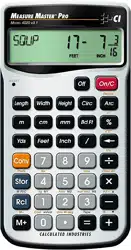
Measure Master Pro
calculator helps
you save time, cut costly errors and
measure and estimate
like a pro!
Quickly Solve:
• Feet-Inches-Fractions, Yards, and
Metric Dimensional Problems
• Feet-Inches-Fractions, Yards, and
Metric Conversions
• Problems Involving All Fractions –
1/2-1/64ths!
• Instant Areas, Volumes and Weights
• Circle/Arc Calculations
• Material Quantity (e.g., Concrete,
Flooring)
• Squaring-up, and more
MEASURE MASTER
™
PRO
V3.1

KEY DEFINITIONS..................................1
Basic Function Keys............................1
Unit Keys .............................................2
Circle/Arc Keys....................................4
Miscellaneous Functions .....................5
Paperless Tape Example.....................7
Preference Settings.............................8
EXAMPLES...........................................10
Adding and Subtracting Strings of
Dimensions....................................10
Multiplying Dimensions......................10
Dividing Dimensions ..........................11
Percent Calculations..........................11
Square Area.......................................12
Square Root.......................................12
Rectangular Area and Volume...........13
Multi-Function h Key.....................14
Entering Square and Cubic and
Adding a Waste Allowance............14
Linear Conversions............................15
Square and Cubic Conversions.........16
Weight Conversions...........................17
Weight per Volume ............................17
Using the Memory .............................18
Using the Memory—
Finding Quantity
of Carpet Required
........................20
Board Feet and Cost .........................20
TABLE OF CONTENTS

Circle Area and Circumference..........21
Arc Properties....................................22
Concrete Volume for Driveway..........23
Squaring-up a Foundation.................23
APPENDIX ............................................24
Setting Fractional Resolution.............24
Default Settings .................................25
Auto-Shut Off.....................................26
Accuracy/Errors.................................26
Batteries.............................................27
Replacing the Batteries .....................28
Reset .................................................28
AREA AND VOLUME FORMULAS......29
Area Formulas...................................29
Volume Formulas...............................30
REPAIR AND RETURN.........................31
Warranty, Repair and Return
Information.....................................31
WARRANTY..........................................32
FCC CLASS B ......................................34
LOOKING FOR NEW IDEAS................34

POCKET REFERENCE GUIDE — 1
Basic Function Keys
+ – x Arithmetic operation keys.
÷ =
0 – 9 Keys used for entering
and • numbers.
%
Percent Key
— Four-func-
tion (+, –, x, ÷) percent key.
O
Off Key
— Turns all power
off, clearing all non-perma-
nent registers.
o
On/Clear Key
— Turns on
power. Pressing once
clears the display. Pressing
twice clears all temporary
values.
Ç
Convert Key
— Used with
the dimensional keys to
convert between dimen-
sions or with other keys to
access special functions.
ß
Store Key
— Used for stor-
ing values.
®
Recall Key
— Used for
recalling stored values.
KEY DEFINITIONS

POCKET REFERENCE GUIDE — 2
Unit Keys
y
Yards Key
— Enters or
converts to
Yards
.
f
Feet Key
— Enters or con-
verts to
Feet
as whole or
decimal numbers. Also
used with the i and /
keys for entering Feet-Inch
values (e.g., 6 f 9 i
1 / 2). Repeated press-
es during conversions tog-
gle between Fractional and
Decimal Feet.
i
Inch Key
— Enters or con-
verts to
Inches
. Entry can
be whole or decimal num-
bers. Also used with the /
key for entering fractional
inch values (e.g., 9 i 1
/ 2). Repeated presses
during conversions toggle
between Fractional and
Decimal Inches.
/
Fraction Bar Key
—
Used to enter
Fractions
.
Fractions can be entered
as proper (1/2, 1/8, 1/16) or
improper (3/2, 9/8). If the

POCKET REFERENCE GUIDE — 3
denominator (bottom) is not
entered, the calculator's
fractional accuracy setting
is automatically used.
m
Meters Key
— Enters or
converts to
Meters
.
c
Centimeters Key
— Enters
or converts to
Centimeters
.
M
Millimeters Key
— Enters
or converts to
Millimeters
.
Ç 2
Acres
— Enters or converts
(a square value) to
Acres.
b
Board Feet Key
— Enters
or converts Cubic values
to Board Feet. One Board
Foot is equal to 144 Cubic
Inches.
l
Length
— Enters length
for calculation of area or
volume.
W
Width
— Enters width and
calculates area, square-up
and perimeter.
h
Height
— Enters height
and calculates volume, wall
area and total room area.

POCKET REFERENCE GUIDE — 4
Ç 1
Kilograms
— Enters or
converts to Kilograms.
Ç 3
Metric Tons
— Enters or
converts to Metric Tons.
Ç 4
Pounds
— Enters or con-
verts to Pounds.
Ç 6
Tons
— Enters or converts
to Tons.
Circle/Arc Keys
C
Circle Key
— Calculates
circle area and circumfer-
ence based on entered
diameter.
a
Arc Key
— Calculates Arc
length or degree, Chord
Length, Segment Area, Pie
Slice Area and Segment
Rise based on entered
diameter/radius and Arc
Degree or length (e.g., if
Arc Degree is entered, it
will calculate arc length,
and vice versa).
Ç a
Radius
– Enters or calcu-
lates the circle radius.

POCKET REFERENCE GUIDE — 5
Miscellaneous Functions
B Backspace key
Ç B ( ) Square Root
Ç ÷
(
1/x
) Reciprocal
— Finds
the reciprocal of a number
(e.g., 8 Ç ÷ 0.125).
Ç x
Clear All
— Returns all
stored values to the default
settings (does not affect
Preference Settings).
Ç – (+/–) Toggle
Ç + Pi (π) 3.141593
Ç %
x
2
— Squares the value in
the display.
Ç ß Preference Settings
ß 0
Weight per Volume
—
Stores a new
Weight per
Volume
value as listed on
the following page.
Note: After entering a value and
pressing
ß 0
, continue
pressing the
0
digit key until
you’ve reached the desired
Weight per Volume format. To
recall your setting, press
® 0
.
(Cont’d)

POCKET REFERENCE GUIDE — 6
(Cont’d)
• Ton Per CU YD
• LB Per CU YD
• LB Per CU FEET
• MET Ton Per CU M
• kG Per CU M
This value is stored until you
change it or perform a
Clear
All
(Ç x).
Ç 0 Total Cost (based on entry
of per unit cost)
Ç • Converts between D:M:S
and Decimal Degrees.
µ (M+) Memory +
Ç µ (M–) Memory –
® ® Recall and Clear M+
ß 1 (M1) Storage Register
ß 2 (M2) Storage Register
ß 3 (M3) Storage Register
® µ, Recall M+, M1, M2 or M3
1, 2 or 3

POCKET REFERENCE GUIDE — 7
® =
Paperless Tape
– Useful for
checking figures, as it scrolls
through your past 20 entries
or calculations. Press ® =
to access Paperless Tape
mode. Press + or – to
scroll forward or backward.
Press = to exit mode and
continue with a new entry or
calculation.
Paperless Tape Example
Add 6 Feet, 5 Feet and 4 Feet, then
access the paperless tape mode and
scroll back through your entries. Then,
back up one entry, exit the tape mode
and add 10 Feet to the total.
KEYSTROKE DISPLAY
o o 0.
6 f + 6
FEET 0 INCH
5 f + 11 FEET 0 INCH
4 f = 15 FEET 0 INCH
® = TTL= 15 FEET 0 INCH
+ 01 6 FEET 0 INCH
+ 02 + 5 FEET 0 INCH
+ 03 + 4 FEET 0 INCH
– 02 + 5 FEET 0 INCH
= TTL= 15 FEET 0 INCH
+ 1 0 f = 25 FEET 0 INCH

POCKET REFERENCE GUIDE — 8
Preference Settings
Press
Ç
, then
ß
, then keep pressing
ß
to toggle through the main settings.
Press the
+
key to advance within sub-
setting. Use the
–
key to back up. Press
the
o
key to exit Preferences.
PRESS
Ç AND: SETTING--FUNCTION
First press Fractional Resolution:
of
ß
:
--1/16
+ --1/32
+ --1/64
+ --1/2
+ --1/4
+ --1/8
+ --1/16
(repeats options)
Second press Area Displays:
of
ß
:
--Std.
+ --0.
SQ FEET
+ --0. SQ YD
+ --0. SQ M
+ --Std.
(repeats options)
Third press Volume Displays:
of
ß
:
--Std.
+ --0.
CU YD
+ --0. CU FEET
+ --0. CU M
+ --Std.
(repeats options)

POCKET REFERENCE GUIDE — 9
Fourth press Exponential Mode:
of
ß
:
--OFF
+ --On
+ --OFF
(repeats options)
Fifth press Meter Linear Displays:
of
ß
:
--0.000 M
+ --FLOAt M
(floating point)
+ --0.000 M
(repeats options)
Sixth press Decimal Degree Displays:
of
ß
:
--0.00°
+ --FLOAt
(floating point)
+ --0.00°
(repeats options)
Seventh press Fractional Mode:
of
ß
:
--Std.
+ --COnSt
+ --Std.
(repeats options)

POCKET REFERENCE GUIDE — 10
Adding and Subtracting Strings of
Dimensions
Add the following measurements:
• 6 Feet 2-1/2 Inches
• 11 Feet 5-1/4 Inches
• 18.25 Inches
Then subtract 2-1/8 Inches.
KEYSTROKE DISPLAY
o o 0.
6 f 2 i 1 / 2 +
6
FEET 2-1/2 INCH
1 1 f 5 i 1 / 4 +
17
FEET 7-3/4 INCH
1 8 • 2 5 i = 19 FEET 2 INCH
– 2 i 1 / 8 = 18 FEET 11-7/8 INCH
Multiplying Dimensions
What is the perimeter of a room with
three walls which measure 15 Feet 3-3/4
Inches each?
KEYSTROKE DISPLAY
3 x 1 5 f 3 i 3 / 4 =
45 FEET 11-1/4 INCH
EXAMPLES

POCKET REFERENCE GUIDE — 11
Multiply 5 Feet 3 Inches by 11 Feet 6-1/2
Inches:
KEYSTROKE DISPLAY
5 f 3 i x 1 1 f
6 i 1 / 2 = 60.59375 SQ FEET
Dividing Dimensions
Divide 15 Feet 3-3/4 Inches into thirds
(divide by 3):
KEYSTROKE DISPLAY
o o 0.
1 5 f 3 i 3 / 4 ÷ 3 =
5 FEET 1-1/4 INCH
How many 3’ 6” pieces can you cut from
one 25’ board?
KEYSTROKE DISPLAY
o o 0.
2 5 f ÷ 3 f 6 i = 7.142857
(or 7 whole pieces)
Percent Calculations
Add a 10% waste allowance to 2.78 Cubic
Yards.
KEYSTROKE DISPLAY
o o 0.
2 • 7 8 y y y + 1 0 %
3.058
CU YD

POCKET REFERENCE GUIDE — 12
What is 25% of $1,575?
KEYSTROKE DISPLAY
o o 0.
1 5 7 5 x 2 5 % 393.75
Square Area
Find the area of a square room with sides
measuring 15 Feet 8-1/2 Inches.
KEYSTROKE DISPLAY
o o 0.
1 5 f 8 i 1 / 2
15
FEET 8-1/2 INCH
Ç %
(x
2
)
246.7517 SQ FEET
Square Root
What is the Square Root of 200?
KEYSTROKE DISPLAY
o o 0.
2 0 0 Ç B
( )
14.14214

POCKET REFERENCE GUIDE — 13
Rectangular Area and Volume
Find the area and volume:
• Length: 20 Feet 6-1/2 Inches
• Width: 12 Feet 8-1/2 Inches
• Height: 10 Inches
KEYSTROKE DISPLAY
o o 0.
2 0 f 6 i 1 / 2 l
LNTH 20
FEET 6-1/2 INCH
1 2 f 8 i 1 / 2 W W*
AREA 261.0503
SQ FEET
1 0 i h h*
VOL 8.057109
CU YD
*Press
W
and
h
keys a second time (after
entry of Width and Height) to calculate Area
and Volume.

POCKET REFERENCE GUIDE — 14
Multi-Function h Key
Find the volume, wall area, and total
room area of an 18’ x 25’ room measuring
12’ tall.
KEYSTROKE DISPLAY
o o 0.
1 8 f l LNTH 18
FEET 0 INCH
2 5 f W WDTH 25 FEET 0 INCH
1 2 f h HGHT 12 FEET 0 INCH
h VOL 5400. CU FEET
h WALL* 1032. SQ FEET
h ROOM** 1482. SQ FEET
*Wall Area adds the length and width, multiplies
them by two and then multiplies by height.
**Room Area=Wall Area+Ceiling Area
Entering Square and Cubic and Adding
a Waste Allowance
Add a 10% waste allowance to 55 Square
Feet. Then add a 20% waste allowance
to 150 Cubic Feet:
KEYSTROKE DISPLAY
o o 0.
5 5 f f + 1 0 % 60.5
SQ FEET
1 5 0 f f f + 2 0 %
180.
CU FEET

POCKET REFERENCE GUIDE — 15
Linear Conversions
Convert 10 feet 6 inches to other dimen-
sions, including Metric:
KEYSTROKE DISPLAY
o o 0.
1 0 f 6 i 10
FEET 6 INCH
Ç y 3.5 YD
Ç i 126 INCH
Ç m 3.200 M
Ç c 320.04 CM
Ç M 3200.4 MM
Convert 14 Feet 7-1/2 Inches to Decimal
Feet:
KEYSTROKE DISPLAY
o o 0.
1 4 f 7 i 1 / 2
14
FEET 7-1/2 INCH
Ç f 14.625 FEET
Convert 22.75 Feet to Feet-Inches:
KEYSTROKE DISPLAY
o o 0.
2 2 • 7 5 f 22.75
FEET
Ç f 22 FEET 9 INCH

POCKET REFERENCE GUIDE — 16
Square and Cubic Conversions
Convert 14 Square Feet to Square Yards:
KEYSTROKE DISPLAY
o o 0.
1 4 f f 14
SQ FEET
Ç y 1.555556 SQ YD
Convert 25 Square Yards to Square Feet:
KEYSTROKE DISPLAY
o o 0.
2 5 y y 25
SQ YD
Ç f 225. SQ FEET
Convert 12 Cubic Feet to Cubic Yards:
KEYSTROKE DISPLAY
o o 0.
1 2 f f f 12
CU FEET
Ç y 0.444444 CU YD

POCKET REFERENCE GUIDE — 17
Weight Conversions
Convert 150 Pounds to other weights
(Tons, Metric Tons, Kilograms):
KEYSTROKE DISPLAY
o o 0.
1 5 0 Ç 4
(lbs)
150 LB
Ç 6
(tons)
0.075 Ton
Ç 3
(met tons)
0.068039 MET Ton
Ç 1
(kg)
68.03886 kG
Weight per Volume
Convert 20 Cubic Yards of concrete to
Pounds, Tons, Metric Tons and Kilograms,
if concrete weighs 1.5 Tons per Cubic
Yard (default value):
KEYSTROKE DISPLAY
o o 0.
2 0 y y y 20 CU YD
Ç 4
(lbs)
60000. LB
Ç 6
(tons)
30. Ton
Ç 3
(met tons)
27.21554 MET Ton
Ç 1
(kg)
27215.54 kG
(Cont’d)

POCKET REFERENCE GUIDE — 18
(Cont’d)
Now convert again, if concrete weighs
2 Tons per Cubic Yard (store new Weight
per Volume value):
KEYSTROKE DISPLAY
2 ß 0 2. Ton Per CU YD
2 0 y y y 20 CU YD
Ç 4
(lbs)
80000. LB
Ç 6
(tons)
40. Ton
Ç 3
(met tons)
36.28739 MET Ton
Ç 1
(kg)
36287.39 kG
Ç x ALL CLEArEd
(Clear stored Wt/Vol)
Using the Memory
Whenever the µ key is pressed, the
displayed value will be added to the
Memory. Other Memory functions:
FUNCTION KEYSTROKES
Add to Memory µ
Subtract from Memory Ç µ
Recall total in Memory ® µ
Display/Clear Memory ® ®
Clear Memory Ç ®
STORED
POCKET REFERENCE GUIDE — 19
Memory is semi-permanent, clearing only
when you:
1) turn off the calculator;
2) press ® ®;
3) press Ç ®;
4) press Ç x
(Clear All)
.
When Memory is recalled (® µ),
consecutive presses of µ will display
the calculated average and total count of
the accumulated values.
Example:
KEYSTROKE DISPLAY
3 5 5 µ M+ 355.
2 5 5 µ M+ 255.
7 4 5 Ç µ
(M-)
M- 745.
® µ TTL – 135.
µ AVG – 45.
µ CNT 3.
® ® M+ – 135.
M
M
M
STORED
M
M
M
POCKET REFERENCE GUIDE — 20
Using the Memory —
Finding Quantity
of Carpet Required
--Room 1: 12’ 4” x 15’
--Room 2: 14’ 8” x 16’
--Add 10% waste allowance
KEYSTROKE DISPLAY
o o 0.
1 2 f 4 i 12
FEET 4 INCH
x 1 5 f = 185. SQ FEET
µ M+ 185. SQ FEET
1 4 f 8 i 14 FEET 8 INCH
x 1 6 f = µ
M+ 234.6667
SQ FEET
® ® M+ 419.6667 SQ FEET
Ç y 46.62963 SQ YD
+ 1 0 % 51.29259 SQ YD
Board Feet and Cost
Find the total Board Feet for the follow-
ing boards: 2 x 4 x 16, 2 x 10 x 18 and
2 x 12 x 20. What is the total cost at
$275 per MBM*?
*Per thousand Board Foot measure.
KEYSTROKE DISPLAY
o o 0.
2 x 4 x 1 6 b µ
BDFT 10.66667
M
M
M
M

POCKET REFERENCE GUIDE — 21
2 x 1 0 x 1 8 b µ
BDFT 30.
2 x 1 2 x 2 0 b µ
BDFT 40.
® ® BDFT 80.66667
x 2 7 5 Ç 0
(Cost)
$ 22.
18
Circle Area and Circumference
Find the Area and Circumference of a
circle with a diameter of 25 Inches:
KEYSTROKE DISPLAY
o o 0.
2 5 i C DIA 25 INCH
C AREA 490.8739 SQ INCH
C CIRC 78-9/16 INCH
M
M
POCKET REFERENCE GUIDE — 22
Arc Properties
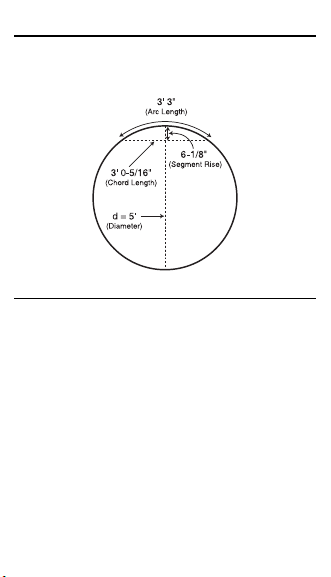
Find Arc properties given a 5-foot diameter
and an Arc length of 3 Feet 3 Inches:
KEYSTROKE DISPLAY
1. Enter Circle diameter and Arc length:
o o 0.
5 f C DIA 5
FEET 0 INCH
3 f 3 i a ARC 3 FEET 3 INCH
2. Find Degree of Arc, Chord Length,
Segment Area, Pie Slice Area and
Segment Rise:
a ARC 74.48°
a CORD 3
FEET 0-5/16 INCH
a SEG 1.051381 SQ FEET
a PIE 4.0625 SQ FEET
a RISE 0 FEET 6-1/8 INCH

POCKET REFERENCE GUIDE — 23
Concrete Volume for Driveway
Calculate the Cubic Yards of concrete
required to pour a driveway that measures:
45 Feet 5 Inches long x 13 Feet 6 Inches
wide x 5 Inches deep. If concrete is $65
per Cubic Yard, what will it cost?
KEYSTROKE DISPLAY
o o 0.
4 5 f 5 i 45
FEET 5 INCH
x 1 3 f 6 i 13 FEET 6 INCH
x 5 i = 9.461806 CU YD
x 6 5 Ç 0
(Cost)
$ 615.
02
(total cost)
Squaring-up a Foundation
Square-up a foundation measuring
15 Feet 6 Inches by 10 Feet 2 Inches:
KEYSTROKE DISPLAY
o o 0.
1 5 f 6 i l
LNTH 15
FEET 6 INCH
1 0 f 2 i W
WDTH 10
FEET 2 INCH
W W SQUP 18 FEET 6-7/16 INCH

POCKET REFERENCE GUIDE — 24
Setting Fractional Resolution
Fractional resolution is pemanently set via
the Preference Settings (see Preference
Settings section for instructions). To select
other formats temporarily (e.g., 1/64ths,
1/32nds, etc.), see the example below:
Add 44/64th to 1/64th of an inch and then
convert the answer to other fractional
resolutions:
KEYSTROKE DISPLAY
o o 0.
4 4 / 6 4 0-44/64 INCH
+ 1 / 6 4 = 0-45/64 INCH
Ç 1
(1/16)
0-11/16 INCH
Ç 2
(1/2)
0-1/2 INCH
Ç 3
(1/32)
0-23/32 INCH
Ç 4
(1/4)
0-3/4 INCH
Ç 6
(1/64)
0-45/64 INCH
Ç 8
(1/8)
0-3/4 INCH
o o 0.
Note: Changing the Fractional Resolution on a
displayed value does not alter your Permanent
Fractional Resolution Setting. Pressing
o
will
return your calculator to the permanently set
fractional resolution.
APPENDIX

POCKET REFERENCE GUIDE — 25
Default Settings
After a
Clear All
(Ç x), your calculator
will return to the following setting:
STORED VALUE DEFAULT VALUE
Weight per Volume 1.5 Ton Per CU YD
If you replace your batteries or perform a
Full Reset
* (press O, hold down x, and
press o), your calculator will return to
the following settings (in addition to that
listed above):
PREFERENCE SETTINGS DEFAULT VALUE
Fractional Resolution 1/16
Area Display Standard
Volume Display Standard
Exponent Off
Meter Linear Display 0.000
Decimal Degree Display 0.00°
Fractional Mode Standard
*Depressing the Reset button located above the
l
key will also perform a Full Reset.

POCKET REFERENCE GUIDE — 26
Auto-Shut Off
Your calculator will shut itself off after
about 8-12 minutes of non-use.
Accuracy/Errors
Accuracy/Display Capacity
— Your calcu-
lator has a twelve-digit display made up of
eight digits (normal display) and four frac-
tional digits. You may enter or calculate
values up to 19,999,999.99. Each calcula-
tion is carried out internally to twelve digits.
Errors
— When an incorrect entry is
made, or the answer is beyond the range
of the calculator, it will display the word
“ERROR.” To clear an error condition you
must hit the o button once. At this
point, you must determine what caused
the error and re-key the problem.
Error Codes:
DISPLAY ERROR TYPE
OFLO Overflow (too large)
MATH Error Divide by 0
DIM Error Dimension error
ENT Error Entry error

POCKET REFERENCE GUIDE — 27
Auto-Range
— If an “overflow” is created
because of an input and calculation with
small units that are out of the standard
seven-digit range of the display, the
answer will be automatically expressed in
the next larger units (instead of showing
“ERROR”) — e.g., 20,000,000 mm is
shown as 20,000 m. Also applies to inch-
es, feet and yards.
Batteries
This model uses two (2) LR44 batteries
(included).
Should your calculator display become
very dim or erratic, replace the batteries.
Note: Please use caution when disposing of
your old battery, as it contains hazardous
chemicals.
Replacement batteries are available at
most discount or electronics stores. You
may also call Calculated Industries at
1-775-885-4900.
POCKET REFERENCE GUIDE — 28
Replacing the Batteries
To replace the batteries, slide open the
battery door (at top backside of unit) and
replace with new batteries. Make sure the
batteries are facing positive side up.
Reset
If your calculator should ever “lock up,”
press Reset — a small hole located above
the l key — to perform a total reset.
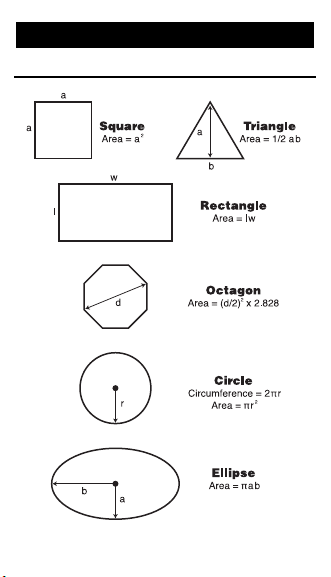
POCKET REFERENCE GUIDE — 29
Area Formulas
AREA AND VOLUME FORMULAS
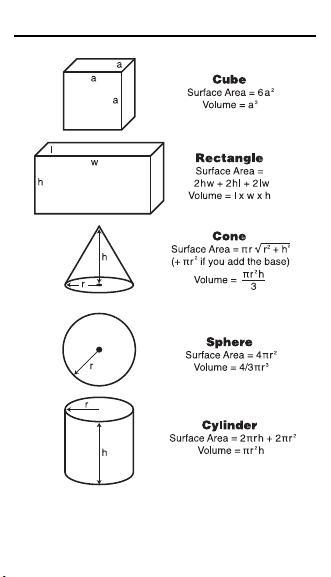
POCKET REFERENCE GUIDE — 30
Volume Formulas

POCKET REFERENCE GUIDE — 31
Warranty, Repair and Return
Information
Return Guidelines:
1. Please read the
Warranty
in this User's
Guide to determine if your Calculated
Industries product remains under warranty
before calling or returning any device for
evaluation or repairs.
2. If your product won't turn on, check the
batteries as outlined in the User's Guide.
3. If you need more assistance, please go to
the website listed below.
4. If you believe you need to return your
product, please call a Calculated Industries
representative between the hours of
8:00am and 4:00pm Pacific Time for
additional information and a Return
Merchandise Authorization (RMA).
Call Toll Free: 1-800-854-8075
Outside USA: 1-775-885-4900
www.calculated.com/warranty
REPAIR AND RETURN

POCKET REFERENCE GUIDE — 32
Warranty Repair Service – U.S.A.
Calculated Industries (“CI”) warrants this product
against defects in materials and workmanship for a peri-
od of one (1) year from the date of original consumer
purchase in the U.S. If a defect exists during the war-
ranty period, CI, at its option, will either repair (using
new or remanufactured parts) or replace (with a new or
remanufactured calculator) the product at no charge.
THE WARRANTY WILL NOT APPLY TO THE PROD-
UCT IF IT HAS BEEN DAMAGED BY MISUSE, ALTER-
ATION, ACCIDENT, IMPROPER HANDLING OR
OPERATION, OR IF UNAUTHORIZED REPAIRS ARE
ATTEMPTED OR MADE. SOME EXAMPLES OF DAM-
AGES NOT COVERED BY WARRANTY INCLUDE,
BUT ARE NOT LIMITED TO, BATTERY LEAKAGE,
BENDING, A “BLACK INK SPOT” OR VISIBLE CRACK-
ING OF THE LCD, WHICH ARE PRESUMED TO BE
DAMAGES RESULTING FROM MISUSE OR ABUSE.
To obtain warranty service in the U.S., please go to the
website.
A repaired or replacement product assumes the remain-
ing warranty of the original product or 90 days, whichev-
er is longer.
Non-Warranty Repair Service – U.S.A.
Non-warranty repair covers service beyond the warranty
period, or service requested due to damage resulting
from misuse or abuse.
Contact Calculated Industries at the number listed
above to obtain current product repair information and
charges. Repairs are guaranteed for 90 days.
WARRANTY

POCKET REFERENCE GUIDE — 33
Repair Service – Outside the U.S.A.
To obtain warranty or non-warranty repair service for
goods purchased outside the U.S., contact the dealer
through which you initially purchased the product. If you
cannot reasonably have the product repaired in your
area, you may contact CI to obtain current product
repair information and charges, including freight and
duties.
Disclaimer
CI MAKES NO WARRANTY OR REPRESENTATION,
EITHER EXPRESS OR IMPLIED, WITH RESPECT TO
THE PRODUCT’S QUALITY, PERFORMANCE, MER-
CHANTABILITY, OR FITNESS FOR A PARTICULAR
PURPOSE. AS A RESULT, THIS PRODUCT, INCLUD-
ING BUT NOT LIMITED TO, KEYSTROKE PROCE-
DURES, MATHEMATICAL ACCURACY AND PREPRO-
GRAMMED MATERIAL, IS SOLD “AS IS,” AND YOU
THE PURCHASER ASSUME THE ENTIRE RISK AS
TO ITS QUALITY AND PERFORMANCE.
IN NO EVENT WILL CI BE LIABLE FOR DIRECT, INDI-
RECT, SPECIAL, INCIDENTAL, OR CONSEQUENTIAL
DAMAGES RESULTING FROM ANY DEFECT IN THE
PRODUCT OR ITS DOCUMENTATION.
The warranty, disclaimer, and remedies set forth above
are exclusive and replace all others, oral or written,
expressed or implied. No CI dealer, agent, or employee
is authorized to make any modification, extension, or
addition to this warranty.
Some states do not allow the exclusion or limitation of
implied warranties or liability for incidental or conse-
quential damages, so the above limitation or exclusion
may not apply to you. This warranty gives you specific
rights, and you may also have other rights, which vary
from state to state.

POCKET REFERENCE GUIDE — 34
This equipment has been certified to comply with the
limits for a Class B computing device, pursuant to
Subpart J of Part 15 of FCC rules.
Calculated Industries, a leading manufacturer of special-
function calculators and digital measuring instruments,
is always looking for new product ideas in these areas.
If you have an idea, or a suggestion for improving this
product or User's Guide, please submit your comments
online at www.calculated.com under “Contact Us”,
“Product Idea Submittal Agreement”. Thank you.
LOOKING FOR NEW IDEAS
FCC CLASS B
This equipment has been certified to comply
with the limits for a Class B computing device,
pursuant to Subpart J of Part 15 of FCC rules.
Software copyrighted and licensed to
Calculated Industries, Inc. by
Construction Master Technologies, LLC, 2006.
Pocket Reference Guide copyrighted by
Calculated Industries, Inc. © 2006.
Measure Master™ is a trademark
and Calculated Industries® is a registered
trademark of Calculated Industries, Inc.
ALL RIGHTS RESERVED
CALCULATED INDUSTRIES®
4840 Hytech Drive
Carson City, NV 89706 U.S.A.
1-800-854-8075 or 1-775-885-4900
Fax: 1-775-885-4949
E-mail: [email protected]
www.calculated.com
Designed in the USA
Printed in China
5/06
PRG4020E-D