User’s Guide
For Models:
4065 v3.1 Construction Master Pro
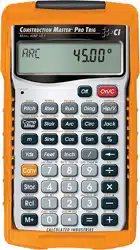
4080 v3.1 Construction Master Pro Trig
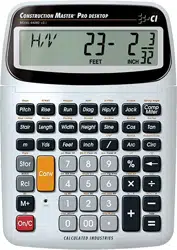
44080 v3.1 Construction Master Pro Desktop

This User’s Guide helps you solve common construction math and
material estimation problems using the latest Construction Master Pro
calculators—three of the most powerful feet-inch-fraction calculators
to date:
The Series —
1. Construction Master Pro (#4065 v3.1)
2. Construction Master Pro Trig (#4080 v3.1)
3. Construction Master Pro Desktop (#44080 v3.1)
IMPORTANT: The Construction Master Pro Trig does not have
Block, Concrete Footing, Drywall, or Length, Width, and Height
functions. These keys are replaced with standard trigonometric keys.

INTRODUCTION
The Construction Master Pro line includes the most advanced feet-
inch-fraction calculators designed specifically for building pro’s!
The Pro calculators handle practically any problem involving mea-
surements and can be used to save time, prevent errors, and accu-
rately perform common building projects such as: estimating con-
crete volume, squaring-up foundations, framing roofs, ordering lum-
ber, building stairs, walls, laying driveways, carpet or floor covering,
figuring precise angle calculations, or simply working in feet-inch-
fractions or decimal feet!
Your Calculator Helps You Solve:
• Dimensional Math Problems
• Conversions Between Feet-Inch-Fractions, Decimal Feet,
Decimal Inches, and Yards
• Imperial/Metric Conversions
• Problems Involving All Common Fractions — 1/2” to 1/64”!
• Area/Volume Calculations
• Board Feet/Lumber Calculations
• Circle Calculations
• Column/Cone Area and Volume
• Compound Miter Cuts for Crown Moulding
• Material Estimations and Costs
• Polygons
• Rake-Walls
• Right Angle/Triangle Solutions
• Roofing Materials
• Stair Layout (Risers/Treads)
• Studs
• Weight/Volume Conversions
Pro and Desktop Models (not available on trig model #4080)
Also Solve:
• Block/Bricks, Concrete Footings and Drywall
• Instant Square-up, Perimeter, Wall Area, Room Area and
Volume

TABLE OF CONTENTS
GETTING STARTED ........................................................................1
KEY DEFINITIONS .........................................................................1
Basic Operation Keys ..................................................................1
Convert Ç Key – Unit Conversions and Second Functions ....1
Memory and Storage Functions ...................................................2
Recall ® Key .............................................................................3
Dimensional Measurement Unit Keys ..........................................3
Area and Volume Keys .
Weight Keys .................................................................................5
Construction Project Keys and Functions .................................... 6
Block/Brick Function .....6
Circular/Arc Function Keys ..........................................................7
Column/Cone Function ................................................................
Compound Miter/Crown Moulding Keys ......................................
Drywall Function ...........9
Footing Function ........... 9
Polygon Function .........................................................................9
Right Triangle/Roof Framing Keys .............................................
Hip/Valley and Jack Rafter Keys................................................11
Rake-Wall Function .................................................................... 13
Roof Materials/Covering Function .............................................
Stair Key ....................................................................................
Studs Function ...........................................................................16
Trigonometric Keys
.........................................................................16
ENTERING DIMENSIONS ............................................................
Entering Linear Dimensions .......................................................
Entering Square/Cubic Dimensions ...........................................
SETTING FRACTIONAL RESOLUTION ......................................
Setting Fraction Resolution – Using the Preference
Setting Mode...........................................................................
Converting a Fractional Value to a Different Resolution ............ 21
CONVERSIONS (LINEAR, AREA, VOLUME) ..............................22
Linear Conversions ....................................................................22
Converting Feet-Inch-Fractions to Decimal Feet .......................22
Converting Decimal Feet to Feet-Inch-Fractions .......................22
Converting Fractional Inches to Decimal Inches .......................23
Converting Decimal Inches to Fractional Inches .......................23
Square Conversions ..................................................................23

Cubic Conversions .....................................................................23
PERFORMING BASIC MATH WITH DIMENSIONS .....................
Adding Dimensions ....................................................................
Subtracting Dimensions .............................................................
Multiplying Dimensions ..............................................................
Dividing Dimensions ..................................................................
Percentage Calculations ............................................................25
MEMORY OPERATION ................................................................25
Basic Cumulative Memory (M+) ................................................26
Permanent Storage Registers (M1 and M2) .............................. 26
PAPERLESS TAPE OPERATION .................................................27
EXAMPLES – .....29
LINEAR MEASUREMENT EXAMPLES ........................................29
Adding Linear Measurements ....................................................29
Cutting Boards ...........................................................................29
Window Measurement ...............................................................
Calculating the Center Point ......................................................
AREA CALCULATIONS ................................................................31
Square Area (x
2
) .......................................................................31
Area of a Rectangular Room (LxW) ..........................................31
Using Multi-Function W Key to Find Area, Square-up and
Perimeter ................. 31
VOLUME CALCULATIONS ........................................................... 32
Rectangular Containers (LxWxH) ..............................................32
Using the Multi-Function h Key to Find Volume,
Wall Area and Room Area
.................................32
Volume of a Cylinder .................................................................. 33
Volume of a Cone ......................................................................33
WEIGHT/VOLUME CONVERSIONS ............................................
Weight Conversions ...................................................................
Weight per Volume/Volume Conversions ..................................
BLOCKS/BRICKS ..........35
Number of Blocks, Based on Entered Length and Height ........35
Number of Blocks, Based on Entered Area ...............................35
Number of Blocks, Based on Calculated Perimeter ..................36
Number of Blocks, Based on Entered Length ...........................36
Number of “Face” Bricks ........................................................... 37
Number of “Paver” Bricks .........................................................37
BOARD FEET – LUMBER ESTIMATION .....................................
Total Board Feet – With Dollar Cost ..........................................

Number of Board Feet Based on Entered Volume ....................
CIRCLE AND ARC CALCULATIONS .........................................39
Circumference and Area of a Circle ...........................................39
Arc Length – Degree and Diameter Known ............................... 39
Arc Length – Chord Length and Segment Rise Known ............39
Arc Calculations – Arc Length and Diameter Known ................
ARCHED SEGMENT WALLS .......................................................
Arched Segment Walls – Arched Windows (No Base) ..............
Arched Segment Walls – Arched Windows (With Base) ...........
Arched Segment Walls – Chord Length and Segment Height
Known .....................................................................................
COMPOUND MITER .....................................................................
Compound Miter Cuts ................................................................
CONCRETE/PAVING ....................................................................
Volume of Concrete for a Driveway ...........................................
Concrete Columns .....................................................................
Complex Concrete Volume ........................................................
Polygon, Finding Angles Based on Entered Radius and
Number of Sides .....................................................................
Concrete Footings ......
Squaring-up a Foundation .........................................................51
DRYWALL ...................... 52
Number of Drywall Sheets for a Given Area ..............................52
Number of Drywall Sheets for a Given Length ..........................52
GRADE/SLOPE ............................................................................53
Back-Fill on a Slope – Percent of Grade Known .......................53
RIGHT TRIANGLE AND ROOF FRAMING EXAMPLES ..............
Roof Framing Definitions ...........................................................55
Degree of Pitch ..........................................................................57
Percent Grade ............................................................................ 57
Pitch Ratio or Slope ...................................................................57
Common Rafter Length .............................................................
Common Rafter Length – Pitch Unknown .................................
Angle and Diagonal (Hypotenuse) ............................................. 59
Rise ............................................................................................59
Rise and Diagonal .....................................................................59
Sheathing Cut ............................................................................
Regular Hip/Valley and Jack Rafters ........................................
Jack Rafters – Using Other Than 16-Inch On-Center
Spacing ..................................................................................61

Irregular Hip/Valley and Jack Rafters – Descending, with
On-center Spacing Maintained ...............................................62
Irregular Hip/Valley and Jack Rafters – Ascending, with
Jacks Mating at Hip/Valley .....................................................
Rake-Wall – No Base ................................................................66
Rake-Wall – With Base ..............................................................67
ROOFING MATERIALS ................................................................
Roof Covering – Entering Pitch, Length and Width ..................
Roof Covering – Entering Rise, Run (No Pitch) and Area ........69
STAIR LAYOUT EXAMPLES ........................................................
Stair Layout Definitions ..............................................................
Stairs – Given Only Floor-to-Floor Rise .....................................72
Stairs – Given Only the Run ......................................................
Stairs – Given Rise and Run .....................................................75
Stairs – Given Rise and Run, Using “Riser Limited” Function
for Code Restrictions ..............................................................76
Baluster Spacing ........................................................................77
STUDS ..........................................................................................
BASIC D:M:S AND TRIGONOMETRY EXAMPLES .....................
Converting Degrees:Minutes:Seconds ......................................
Time Calculations Using D:M:S .................................................
TRIGONOMETRIC FUNCTIONS .................................................. 79
Converting Percent Grade to D:M:S ..........................................
Converting Tangent/Pitch to Angle .............................................
Converting Roof Angle in Degrees to Pitch in Inches ...............
Angle – Rise and Hypotenuse Known .......................................
APPENDIX A – ............................................82
APPENDIX B – ....................................83
How to Set Preferences .............................................................
Accessing Preference Settings ..................................................
APPENDIX C – .........................................89
APPENDIX D –
..................................90
APPENDIX E –
....................................................................91
ACCURACY/ERRORS ................................................................91
Error Codes ................................................................................91
AUTO SHUT-OFF ........................................................................91
BATTERIES .................................................................................92
Replacing the Battery(ies) .........................................................92
Battery Replacement Instructions ..............................................92

RESET ..........................................................................................92
APPENDIX F – ................................93
AREA FORMULAS ......................................................................93
SURFACE AREA/VOLUME FORMULAS ..................................
REPAIR AND RETURN ...................................................................95
WARRANTY .....................................................................................96
INDEX...............................................................................................99

GETTING STARTED
KEY DEFINITIONS
Basic Operation Keys
o — Turns power on. Pressing once clears the
display. Pressing twice clears all temporary values.
O — Turns all power off, clearing all non-permanent
Ç o
to turn power off.
+ – x Arithmetic operation keys.
÷ =
% Four-function (+, -, x, ÷) percent key. (See page 25
for examples.)
0 – 9 and • Keys used for entering digits.
) (desktop only)
1 )
B — Used to delete entries one key-
stroke at a time (unlike the o function, which
deletes the entire entry).
Convert Ç Key —
The Ç key is used to convert between measurement units or to
access the second functions listed below:
Ç x — Clears all values, including Memory.
Resets all permanent entries to default values
(except Preference Settings which are retained).
Note: Use only when necessary, as it resets all stored values to
factory defaults. See for a listing of default values.
Ç % x
— Squares the value in the display. For example,
1 0 then Ç %.
Ç B ) — Used to find the
square root of a non- dimensional or area
value (e.g., 1 0 0 Ç B = 10).
Ç / 0
— Allows entry of an exponent. For example,
8 Ç / 1 4
Ç ÷ — Finds the reciprocal of a number (e.g., 8
Ç ÷ = 0.125).

TM
Ç – — Toggles the sign of the dis-
played value to positive or negative.
Ç +
Ç • —
Converts between D:M:S and decimal degree formats.
Ç 0 ) — Calculates total material cost
given a unit dimension and an entered Per Unit Cost.
Ç ß — Used to
access various customizable settings, such as
dimensional answer formats (see Preference
Settings on page 83).
Memory and Storage Functions
µ — Whenever the µ key is
pressed, the displayed value will be added to the
Memory. Other memory functions:
FUNCTION KEYSTROKES
Add to Memory µ
Subtract from Memory Ç µ
Recall total in Memory ® µ
Display/Clear Memory ® ®
Clear Memory Ç ®
Memory is semi-permanent, clearing only when you:
1) turn off the calculator;
2) press ® ®;
3) press Ç ®;
Ç x (Clear All).
When memory is recalled (® µ), consecutive
presses of µ will display the calculated average
and total count of the accumulated values.
ß 1 – 3 — Stores
the displayed value in non-cumulative, permanent
Memory (e.g., 1 0 ß 1). Good for storing a
single value, for future reference (® 1 = 10).
Note: Non-cumulative means it only accepts one value (does not
add or subtract) and a second entered value will replace the first.
Permanent means the value is stored even after the calculator is
shut off. To delete a stored value, enter a new value or perform a
Clear All (Ç x).

Recall ® Key
The ® key is used to recall or review stored values (e.g., ® p
to recall a previously entered pitch value). It is also used in reviewing
stored settings, or in Paperless Tape and Memory operation (see
below).
® = — Accesses the paperless
tape mode (see “Paperless Tape” page 27), which
keeps track of your past 20 entries. Useful for
checking strings of numbers.
® ® — Displays and clears M+.
® µ — Displays value stored in M+.
® 1 – 3 — Recalls the value
stored in M1, M2, or M3.
Dimensional Measurement Unit Keys
The following keys are used for entering units of measure, with ease
and accuracy:
y — Enters or converts to Yards.
f — Enters or converts to Feet. Also used with
the i and / keys for entering Feet-Inch values
(e.g., 6 f 9 i 1 / 2).
Note: Repeated presses of f after Ç toggle between Feet-
Inches and Decimal Feet (e.g., 6 f 9 i 1 / 2 Ç f =
Feet; press f again to return to Feet-Inch-Fractions).
i — Enters or converts to Inches. Also used
with the / key for entering fractional Inch values
(e.g., 9 i 1 / 2).
Note: Repeated presses of i after Ç toggle between
Fractional and Decimal Inches (e.g., 9 i 1 / 2 Ç i =
Inch; press i again to return to Fractional Inches).
/ — Used to enter fractions. Fractions
may be entered as proper (1/2, 1/8, 1/16) or improper
(3/2, 9/8). If the denominator (bottom) is not entered,
the calculator's fractional resolution setting is auto-
matically used (e.g., entering 1 5 / = or + will
display 15/16, based on the default fractional resolu-
tion setting of 16ths.

4
—
TM
m — Enters or converts to Meters.
Ç 7 — Enters or converts to
Centimeters.
Ç 9 — Enters or converts to
Millimeters.
Ç 2 — Enters or converts (a square value)
to Acres.
Ç 8 — Enters or converts cubic
values to Board Feet. One Board Foot is equal to
Area and Volume Keys (not available on trig model #4080)
l — Enters a length for calculation of area or
volume.
W — A multi-function key used to enter a width
for calculation of area or volume (if a length and
height are also entered). Consecutive presses of
this key display or calculate:
Press Result
1 Displays Entered Width (WDTH)
2 Area (AREA)
3 Square-up (SQUP)
(PER)
5 Redisplays Entered Length (LNTH)
6 Redisplays Entered Width (WDTH)
h — A multi-function key used to enter a
height for calculation of volume (if a length and width
are also entered). Consecutive presses of this key
display or calculate:
Press Result
1 Displays Entered Height (HGHT)
2 Volume (VOL)
3 Wall Area (WALL)
(ROOM)
5 Redisplays Entered Length (LNTH)
6 Redisplays Entered Width (WDTH)

Weight Keys
Ç 1 — Enters or converts (a weight or
volume value) to Kilograms. A dimensioned volume
will convert using the stored Weight per Volume value.
Ç 3 — Enters or converts (a
weight or volume value) to Metric Tons. A dimen-
sioned volume will convert using the stored Weight
per Volume value.
Ç 4 — Enters or converts (a weight or vol-
ume value) to Pounds. A dimensioned volume will
convert using the stored Weight per Volume value.
Ç 6 — Enters or converts (a weight or vol-
ume value) to Tons. A dimensioned volume will con-
vert using the stored Weight per Volume value.
ß 0 — Stores a new
Weight per Volume value as Tons per Cubic Yard or
other format, as listed below:
Note: After entering a value and pressing ß 0, continue press-
ing the 0 digit key until you’ve reached the desired weight per
volume format. To recall your setting, press ® 0.
• Ton Per CU YD
• LB Per CU YD
• LB Per CU FEET
• MET Ton Per CU M
• kG Per CU M
This value is permanently stored until you change it
or perform a Clear All (Ç x).

6
—
TM
Construction Project Keys and Functions
The following Construction Project Keys and Functions help you instantly
figure quantities and costs of materials, so you can build like a pro!
Block/Brick Function (not available on trig model #4080)
The Blocks function helps you quickly estimate the quantity of blocks
or bricks required for building walls, walkways or other areas.
Ç l —
Calculates the number of blocks (or bricks) based on:
• an entered or calculated linear value
• an entered or calculated area
• an entered value in l
• values entered in l and h (solved area)
Uses a standard block/mortar area of 128 Square
Inches and a block length of 16 Inches. This
function can also be used for calculating the number
of “face” or “paver” bricks by storing a brick size
(see below).
ß 4 — Used to
store: (1) a block area other than the default block
area of 128 Square Inches (e.g., 1 2 0 i i
ß 4
(2) a block length other than the default block length
of 16 Inches (e.g., 1 8 i ß 4 stores a length
until you change them or perform a Clear All (Ç
x). To recall the stored settings, press ® 4
(repeated presses of ® 4 toggle between block
area and block length).
Note: For Brick Estimates — You may also enter a brick size
using ß 4. For example, when building with standard “face”
bricks, enter a brick size of 21 Square Inches ( 2 1 i i
ß 4) or store a “paver” brick size of 32 Square Inches ( 3 2
i i ß 4; based on Modular U.S. brick size of
3-5/8 Inches x 2-1/4 Inches x 7-5/8 Inches, including 3/8-inch
mortar = 4 Inches x 2-5/8 Inches x 8 Inches).

Circular/Arc Function Keys
The circle key helps you quickly solve circular area, volume or arc
problems.
C — Displays and calculates the following val-
ues, given an entered circle diameter* or radius:
• Diameter (DIA)
• Circle area (AREA)
• Circumference (CIRC)
*To enter a diameter (e.g., 10 Feet), press 1 0 f C.
Ç a — Enters or calculates the circle radius
(e.g., 5 f Ç a).
a — A multi-function
key that enters or calculates Arc Length or Degree
of Arc, and further solves for additional circular/arc
values, including arched segment walls (based on
the stored On-center spacing), listed below.
Press Result
1 Arc Length or Degree of Arc (ARC)
2 Chord Length (CORD)
3 Segment Area (SEG)
(PIE)
5 Segment Rise (RISE)
6 Stored On-Center Spacing (OC)
7 Length of Arched Wall 1* (AW 1)
* The calculator will calculate arched segment wall lengths (if
applicable) with consecutive presses of the a key until it reach-
es the last wall length.
R — Enters or calculates the
Chord Length. Used in conjunction with an entered
segment rise to solve for the radius of a circle or
with an entered radius to solve for the segment rise.
r — Enters or calculates the
segment rise. Used in conjunction with an entered
Chord Length to solve for the radius of a circle or
with an entered radius to solve for the Chord Length.

TM
Column/Cone Function
The Column and Cone function helps you quickly estimate volume
and surface area of columns or cones.
Ç C — With an
entered diameter and height, the first and second
presses of C (following Ç) will calculate the
total volume and surface area of a Column; the third
and fourth consecutive presses of C calculate the
total volume and surface area of a Cone.
For Trig Model (#4080) Users:
As this model does not have a h key, you must enter the height using the r key.
Compound Miter/Crown Moulding Keys
The Construction Master Pro also calculates compound miter cut
angle solutions for cutting and installing crown moulding on a wall.
The Compound Miter function can also be used for finding angle
cuts for many types of compound miter problems, such as siding,
railing and trim.
 — With stored spring (crown)
angle and entered wall corner angle*, consecutive
presses of  will calculate the following:
Press Result
1 Miter Angle (MITR)
2 Bevel Angle (BEVL)
3 Redisplays Stored Spring Angle (SPRG)
Redisplays Entered Wall Corner Angle (CRNR)
* Wall Corner Angle entries of less than 25 into  will be
assumed to be the number of sides of a polygon; in this case, the
calculator will calculate the unknown Wall Corner Angle first, then
proceed with the above angle calculations.
ß Â — Stores a
value other than the default spring (crown) angle of
45° (e.g., 3 8 ß Â
This value is permanently stored until you change it
or perform a Clear All (Ç x). To recall the stored
setting, press ® Â.

Drywall Function (not available on trig model #4080)
Ç h — Calculates the number
sheets for an entered or
calculated area.
Footing Function (not available on trig model #4080)
The Footing function helps you quickly estimate the volume of
concrete required for concrete footings.
Ç W — Calculates total quantity of concrete
required for concrete footings based on an entered
wall length and footing size. Size based on the
standard).
ß 6 — Used to store a
value other than the default footing size of 264
Square Inches (e.g., 1 2 8 i i ß 6
value is permanently stored until you change it or
perform a Clear All (Ç x). To recall the stored
setting, press ® 6.
Polygon Function
The Polygon function is handy for calculating multi-sided shapes
(such as found in concrete applications).
Ç R — With an entered diameter or radius and
number of sides of a polygon-shaped figure, Ç
R, calculates the following:
Press Result
1 Full Angle (FULL)
2 Bi-Sect, or Half Angle (HALF)
3 Side Length (SIDE)
(PER)
5 Area of Polygon (AREA)
6 Radius* (RAD)
7 Redisplays Entered Number of Sides (SIDE)
*Solves radius for an entered diameter or redisplays the entered
radius.
TM
Right Triangle/Roof Framing Keys
Right Triangle:
Using the Pythagorean theorem, the top row of keys on your
Construction Master Pro will calculate instant solutions in dimensional
format to right triangle problems (particularly, roof framing).
The Construction Master Pro’s keys are labeled in easy to remember
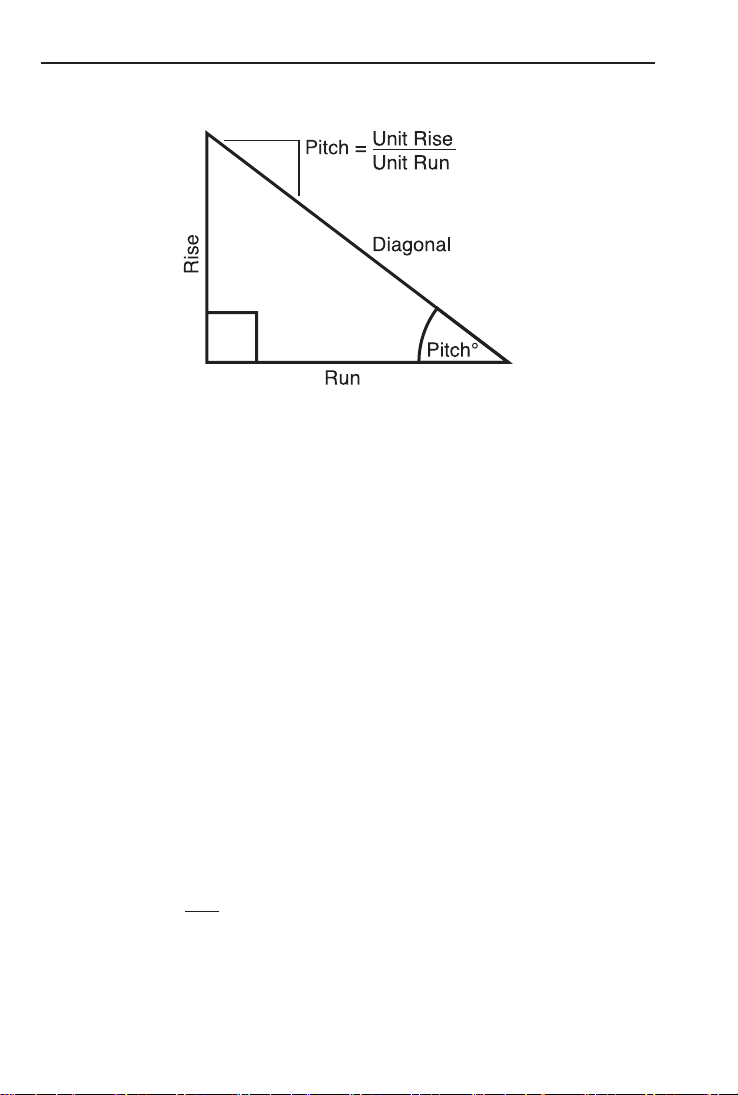
roofing terms. The right triangle is calculated simply by entering two
of four variables: Rise, Run, Diagonal, or Pitch.
p Pitch — Enters or calculates the Pitch (slope) of a
roof (or right triangle). Pitch is the amount of “rise”
over 12 Inches (or one meter) of “run.” Pitch may be
entered as:
• a dimension: 9 i p
• an angle or degrees: 3 0 p
• a percentage (percent grade): 7 5 % p
• a pitch ratio: 0 • 7 5 Ç p
Once a Pitch in one of the above formats is entered,
consecutive presses of p will convert to the
remaining Pitch formats listed above (e.g., Pitch in
Inches will convert to Pitch Degrees, Percent Grade
and Pitch Ratio/Slope).
Note: An entered (vs. calculated) pitch is a entry. This
means that it will remain stored even after you turn the calculator
off. To change the Pitch, simply enter a new Pitch value.
In contrast, a Pitch value is .
This means that the calculator will return to the Pitch value you
when you clear the calculator or press o twice.
Ç p — Enters the Pitch as
a ratio or Slope of a roof (or right triangle). For
• 5 8 Ç
p.
r — Enters or calculates the Rise or vertical leg
(height) of a right triangle.
R —Enters or calculates the Run or horizontal leg
(base) of a right triangle.
d — Enters or calculates the diagonal leg
(hypotenuse) of a right triangle. Typical applications
are “squaring up” slabs or finding common rafter
lengths. Additional presses of the d key will also
display plumb and level cut angles in degrees.
Note: The Common rafter calculation is the “point-to-point” length
and does not include the overhang or ridge adjustment.
Hip/Valley and Jack Rafter Keys
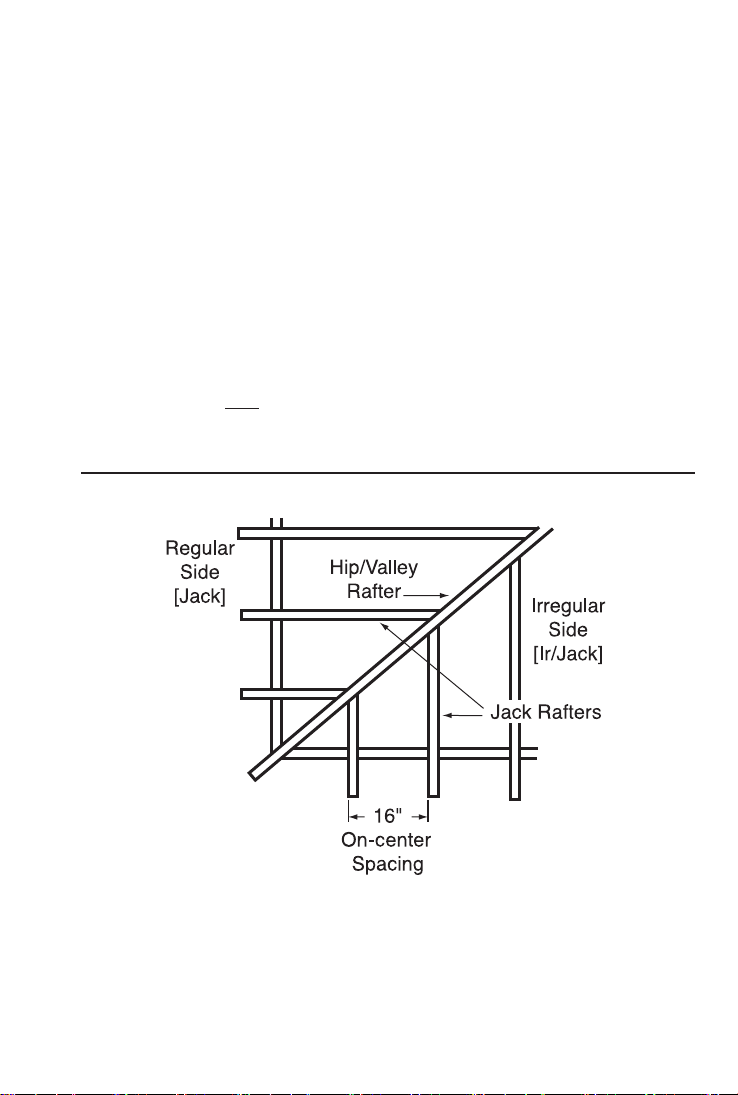
The Construction Master Pro uses the Rise, Run, Diagonal, Pitch
and On-center spacing values to calculate Regular and Irregular Hip/
Valley and Jack rafter lengths (excluding wood thickness, etc.).
(Cont’d)

TM
(Cont’d)
When calculating Regular and Irregular Jack rafter lengths, you will
see the letters “JK” (Regular pitch side) or “IJ” (Irregular pitch side)
and the corresponding jack number to the left of your calculator dis-
play. This will help you keep track of the descending sizes and which
side the corresponding rafter is based on.
H — Finds the Regular or Irregular
Hip/Valley rafter length.
• Regular Hip/Valley Length: After right triangle/
rafter values are entered or calculated (e.g.,
Pitch, Rise, Run), pressing H will calculate
the length of the Regular Hip/Valley rafter.
• Irregular Hip/Valley Length: If an irregular
pitch is entered (see next definition), pressing
H will calculate the Irregular Hip/Valley rafter
length. (An Irregular or “non-standard” roof has
two different Pitches/Slopes.)
• Subsequent presses of the H key will also
display plumb, level, and cheek cut angle values
in degrees.
Ç H — Enters the irregular or
secondary pitch value used to calculate lengths of
the irregular hip/valley and jack rafters.
You may enter the irregular pitch as:
• a dimension: 9 i Ç H
• an angle: 3 0 Ç H
• a percentage: 7 5 % Ç H
Note: An entered irregular pitch can be recalled by pressing ®
Ç H.
j — Finds the descending Jack rafter
sizes for regular pitched roofs, based on the stored
On-center spacing and previously entered or calcu-
lated right triangle/rafter values (e.g., pitch, rise, run).
Repeated presses of the j key will display the incremental jack
adjustment, all the rafter sizes (on the pitch side) as well
as display the plumb, level, and cheek cut angle values.
Additional presses will display the rafter sizes on the
pitch side (if an Irregular Pitch was entered; see above), or repeat
the previously displayed values.

Note: You may set your calculator to display the Jack Rafter
lengths in either ascending or descending order (see Preference
Settings on ).
Note: You may set your calculator to “mate up” with the Jack
Rafters, rather than using the entered or default On-center
spacing for both sides (see Preference Settings on ).
ß 5 — Used to store a
value other than the default of 16 Inches On-center
(e.g., 1 8 i ß 5
On-center) for Jack Rafter calculations. Press ®
5 to review the stored value.
Ç j — Operates same
as j, but displays the rafter values from the
Irregular pitched side first.
Rake-Wall Function
Ç r — This function finds the stud
sizes in a Rake-Wall based on calculated or entered
values for pitch, rise and/or run. Repeated presses
of r will display the various sizes. The sizes can
be displayed in either descending (from longest to
shortest) or ascending (from shortest to the longest)
order, depending upon your preference setting (see
Preference Settings on page 83). If a dimensional
value is entered before pressing Ç r, this value
will be taken as the Rake-Wall base size and auto-
matically added to the various rafter lengths.
ß 5 — Used to store a
value other than the default of 16 Inches On-center
(e.g., 1 8 i ß 5
On-center) for Rake-Wall stud calculations. Press
® 5 to review the stored value.

TM
Roof Materials/Covering Function
The Construction Master Pro's Roof function provides a quick calcu-
lation of roof area, number of squares and bundles, and number of
Ç d — Given an entered Pitch (or Rise and Run)
and plan area (or Length and Width), calculates
the following:
Press Result
1 Roof Area (ROOF)
2 Number of Roof Squares (SQRS)
3 Number of Roof Bundles (BNDL)
(B-SZ)
(4X8)
6 Pitch (PTCH)
7 Plan Area (PLAN)
*Roof bundle size is 33.33 Square Feet.
Stair Key
The Construction Master Pro easily calculates stair layout solutions.
With entered values for floor-to-floor rise and/or run, it will calculate
Riser, Tread, Stringer, and Incline Angle values simply by pressing
the s key.
s — A multi-function key that uses a stored Riser
Height, stored Tread Width, stored Headroom Height
and Floor Thickness, and entered Rise and Run val-
ues to calculate and display the following:
Press Result
1 Actual Riser Height (R-HT)
2 Number of Risers (RSRS)
3 Riser Overage/Underage (R+/-)
(T-WD)
5 Number of Treads (TRDS)
6 Tread Overage/Underage (T+/-)
7 Stairwell Opening (OPEN)
(STRG)
9 Incline Angle* (INCL)
(RUN)
11 Floor-to-Floor Rise (RISE)

Press Result
12 Stored (Desired) Riser Height (R-HT
STORED
)
13 Stored (Desired) Tread Width (T-WD )
(HDRM
STORED
)
15 Stored Floor Thickness (FLOR
STORED
)
Note: Default values are 7-1/2 Inches for Desired Riser Height
and 10 Inches for Desired Tread Width, 10 Inches for Floor
Thickness, and 6 Feet 8 Inches for Headroom Height.
Note: It is not possible for the calculator to include the nose/over-
hang measurement. Thus, you need to adjust for this measure-
ment per local codes.
*If the inclination angle exceeds the stored riser height and Tread
Width ratio by 10%, the yield symbol will appear, indicating a
steep incline.
ß 7 — Stores a
value other than the default desired stair riser height
of 7-1/2 Inches (e.g., 8 i ß 7 stores an
setting, press ® 7.
ß 8 — Stores
a value other than the default desired floor thickness
of 10 Inches (e.g., 8 i ß 8
desired floor thickness). To recall the stored setting,
press ® 8. This is used, along with stored head-
room height, for calculating the length of the stair-
well opening.
ß 9 — Stores a
value other than the default desired stair Tread Width
of 10 Inches (e.g., 1 2 i ß 9 stores a
12-inch desired stair Tread Width). To recall the
stored setting, press ® 9.
Ç ß ß — Sets the desired
ß ß Headroom Height for calculation of the stairwell
opening. Default is 6 Feet 8 Inches. Use the + key
to increase and the – key to decrease the stored
headroom height. See Preference Settings instruc-
tions on page 86.
(Cont’d)
STORED
TM
(Cont’d)
Ç s — Used for situations when the riser
height is limited by local code. When you press Ç
s, the calculator will recalculate stair values so
that the actual Riser Height will not exceed your
stored desired Riser Height (e.g., it will never
exceed the stored desired Riser Height of
7-1/2 Inches, if 7-1/2 Inches is the value stored
using ß 7). To compensate for this limitation, the
calculator will add one to the number of risers.
Studs Function
The Construction Master Pro also calculates the number of studs
required for a wall using an entered length and stored On-center
spacing value.
Ç 5 — Calculates the number of studs for an
entered or displayed linear value. Based on the
stored On-center spacing (16 inches is the default).
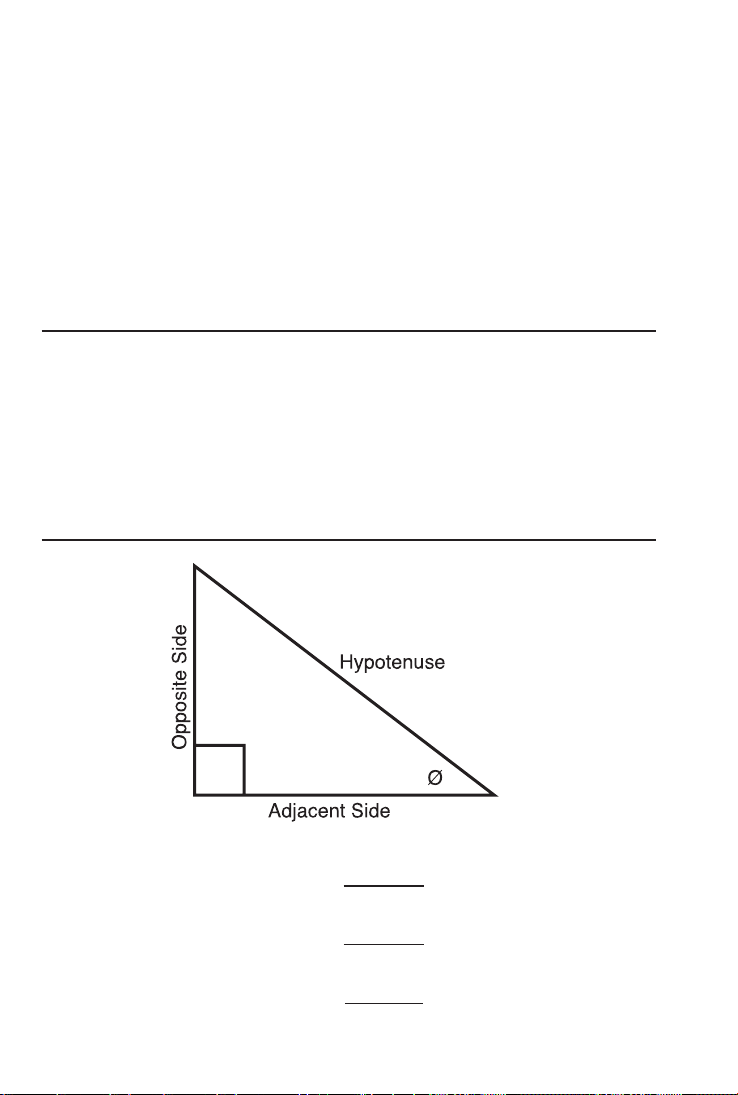
Trigonometric Keys (trig #4080 and desktop #44080 models only)
Tangent Ø = Opposite
Adjacent
Sine Ø = Opposite
Hypotenuse
Cosine Ø = Adjacent
Hypotenuse

The TrigDesktop
standard trigonometric keys, in addition to right triangle/rafter keys
(e.g., Rise, Run, Diagonal), for advanced right triangle mathematics.
The Sine, Cosine and Tangent of an angle are defined in relation to
the sides of a right triangle.
Using the Ç key with the trigonometric function displays the
inverse (Arcsine, Arccosine, and Arctangent). These are used to find
the angle for the Sine, Cosine, or Tangent value entered.
S — Calculates the Sine of an entered
degree or non-dimensioned* value.
Ç S
) — Calculates the angle for the
entered or calculated Sine value.
ç — Calculates the Cosine of a
degree or non-dimensioned* value.
Ç ç
) — Calculates the angle for the
entered or calculated Cosine value.
t — Calculates the Tangent of a
degree or non-dimensioned* value.
Ç t
) — Calculates the angle for the
entered or calculated Tangent value.
*Cannot use on dimensioned values.

ENTERING DIMENSIONS
Entering Linear Dimensions
When entering Feet-Inch-Fraction values, enter dimensions from
largest to smallest — e.g., Feet before Inches, and Inches before
Fractions. Enter Fractions by entering the numerator (top), pressing
/ (fraction bar key), and then the denominator (bottom).
Note: If a denominator is not entered, the fractional setting value is used.
Examples of Entering Linear Dimensions:
DIMENSION KEYSTROKES
Clear calculator o
5 Feet 1-1/2 Inch 5 f 1 i 1 / 2
Clear calculator o
5 Yards 5 y
Clear calculator o
17.5 Meters 1 7 • 5 m
Entering Square/Cubic Dimensions
The Construction Master Pro lets you easily enter Square and Cubic
values. Simply press a dimensional unit key two times to label a
number as a Square value, or three times to label a Cubic value.
Note: If you pass the desired dimensional format, keep on pressing the dimensional
unit key until the desired result is displayed again.
Enter Square and Cubic dimensions in the following order:
(1) Enter numerical value (e.g., 1 0 0).
(2) Press desired unit key (e.g., f) to label value as “linear”.
KEYSTROKE DISPLAY
o o 0.
1 0 0 f 100 feet
(3) Second press of unit key (e.g., f f) labels value as “Square”.
KEYSTROKE DISPLAY
o o 0.
1 0 0 f f 100 sq feet
f f f) labels value as “Cubic”.
KEYSTROKE DISPLAY
o o 0.
1 0 0 f f f 100 cu feet
Note: Feet-Inches format cannot be used to enter Square or Cubic values.
TM

Examples of Entering Square and Cubic Dimensions:
YARDS
y y —
(e.g., 5 y y will display 5 sq yd).
y y y —
(e.g., 5 y y y will display 5 cu yd).
FEET
f f —
(e.g., 5 f f will display 5 sq feet).
f f f —
(e.g., 5 f f f will display 5 cu feet).
INCHES
i i —
(e.g., 5 i i will display 5 sq inch).
i i i —
(e.g., 5 i i i will display 5 cu inch).
METERS
m m —
(e.g., 5 m m will display 5 sq m).
m m m —
(e.g., 5 m m m will display 5 cu m).
CENTIMETERS
Ç 7 7 —
(e.g., 5 Ç 7 7 will display 5 sq cm).
Ç 7 7 7 —
(e.g., 5 Ç 7 7 7 will display 5 cu cm).
MILLIMETERS
Ç 9 9 —
(e.g., 5 Ç 9 9 will display 5 sq mm).
Ç 9 9 9—
(e.g., 5 Ç 9 9 9 will display 5 cu mm).

TM
SETTING FRACTIONAL RESOLUTION
The Construction Master Pro is set to display fractional answers in
16ths of an Inch. All examples in this User’s Guide are based on
1/16”. However, you may select the fractional resolution to be dis-
permanently changing fractional resolution is shown below.
Setting Fractional Resolution
—
KEYSTROKE DISPLAY
1. Access Preference Settings:
Ç ß (Prefs) FRAC 0-1/16 inch*
2. Access Next Fraction Subsetting:
+ FRAC 0-1/32 inch
+ FRAC 0-1/64 inch
+ FRAC 0-1/2 inch
+ FRAC 0-1/4 inch
+ FRAC 0-1/8 inch
+ (repeats options) FRAC 0-1/16 inch
3. To Permanently Set the Fractional Resolution You Have Selected
Above, press o (or any key) to set the displayed Fractional
Resolution and Exit Preference Settings.
o 0.
4. To Recall Your Selected Fractional Resolution:
® / STD 0-1/16 inch
*1/16” is the default setting. The display may differ from the example depending on
what the resolution is currently set to.

Converting a Fractional Value to a Different Resolution
other fractional resolutions:
KEYSTROKE DISPLAY
o o 0.
4 4 / 6 4 0-44/64 inch
+ 1 / 6 4 = 0-45/64 inch
Ç 1 (1/16) 0-11/16 inch
Ç 2 (1/2) 0-1/2 inch
Ç 3 (1/32) 0-23/32 inch
Ç 4 (1/4) 0-3/4 inch
Ç 6 (1/64) 0-45/64 inch
Ç 8 (1/8) 0-3/4 inch
o o* 0.
* Changing the Fractional Resolution on a displayed value does not alter your
Permanent Fractional Resolution Setting (set via Preference Settings).
Note: This setting is temporary; it will revert back to your permanent fractional setting
upon press of o, or when you turn the calculator off.

TM
CONVERSIONS (LINEAR, AREA, VOLUME)
Linear Conversions
KEYSTROKE DISPLAY
o o 0.
1 4 f 14 feet
Ç y 4.666667 yd
Ç f 14 feet 0 inch
Ç i 168 inch
Ç m 4.267 m
Ç 7 (cm) 426.72 cm
Ç 9 (mm) 4267.2 mm
Note: When performing multiple conversions, you only have to press the Ç key
once except when accessing secondary functions, such as Ç 7 for Centimeters.
Converting Feet-Inch-Fractions to Decimal Feet
Convert 15 Feet 9-1/2 Inches to Decimal Feet. Then convert back to
Feet-Inch-Fractions.
KEYSTROKE DISPLAY
o o 0.
1 5 f 9 i 1 / 2 15 feet 9-1/2 inch
Ç f 15.79167 feet
f* 15 feet 9-1/2 inch
Converting Decimal Feet to Feet-Inch-Fractions
Convert 17.32 Feet to Feet-Inch-Fractions.
KEYSTROKE DISPLAY
o o 0.
1 7 • 3 2 f 17.32 feet
Ç f 17 feet 3-13/16 inch
f* 17.32 feet
* Repeated presses of f or i will toggle between Feet-Inch-Fractions and
Decimal Feet or Inches.

Converting Fractional Inches to Decimal Inches
KEYSTROKE DISPLAY
o o 0.
8 i 1 / 8 8-1/8 inch
Ç i 8.125 inch
f 0.677083 feet
i* 8.125 inch
Converting Decimal Inches to Fractional Inches
Feet.
KEYSTROKE DISPLAY
o o 0.
9 • 0 6 2 5 i 9.0625 inch
Ç i 9-1/16 inch
f f* 0.755208 feet
*Repeated presses of f or i will toggle between Feet-Inch-Fractions and
Decimal Feet or Inches.
Square Conversions
KEYSTROKE DISPLAY
o o 0.
1 4 f f 14 sq feet
Ç i 2016. sq inch
Ç y 1.555556 sq yd
Ç m 1.300643 sq m
Ç 7 (cm) 13006.43 sq cm
Cubic Conversions
KEYSTROKE DISPLAY
o o 0.
1 4 f f f 14 cu feet
Ç i 24192. cu inch
Ç y 0.518519 cu yd
Ç m 0.396436 cu m

TM
PERFORMING BASIC MATH WITH DIMENSIONS
Adding Dimensions
KEYSTROKE DISPLAY
Add 11 Inches to 2 Feet 1 Inch:
1 1 i + 2 f 1 i = 3 feet 0 inch
5 f 7 i 1 / 2 + 1 8 f 8 i =
24 feet 3-1/2 inch
Subtracting Dimensions
KEYSTROKE DISPLAY
Subtract 3 Feet from 11 Feet 7-1/2 Inches:
1 1 f 7 i 1 / 2 – 3 f = 8 feet 7-1/2 inch
8 1 i – 3 2 i = 49 inch
Multiplying Dimensions
KEYSTROKE DISPLAY
Multiply 5 Feet 3 Inches by 11 Feet 6-1/2 Inches:
5 f 3 i x 1 1 f 6 i 1 / 2 =
60.59375 sq feet
2 f 7 i x 1 0 = 25 feet 10 inch
Dividing Dimensions
KEYSTROKE DISPLAY
3 0 f 4 i ÷ 7 i = 52.
2 0 f 3 i ÷ 9 = 2 feet 3 inch

Percentage Calculations
The percent % key is used to find a given percent of a number or to
perform add-on, discount or division percentage calculations. You
may also perform percentage calculations with dimensional units
(Feet, Inch, etc.), in any format (linear, Square or Cubic).
Examples:
KEYSTROKE DISPLAY
5 0 0 f x 1 8 % 90 feet 0 inch
1 3 7 f f + 1 0 % 150.7 sq feet
5 5 2 f 6 i – 2 0 % 442 feet 0 inch
3 5 0 y y y ÷ 8 0 % 437.5 cu yd
MEMORY OPERATION
Your calculator has two types of Memory operations:
1) a standard, cumulative, semi-permanent Memory µ; and
2) three storage registers M1, M2, and M3, used to permanent-
ly store single, non-cumulative values.
Memory commands are listed below.
FUNCTION KEYSTROKES
µ:
Add value to M+ µ
Subtract value from M+ Ç µ
Clear M+ Ç ®
Display and Clear M+ ® ®
Recall stored value ® µ
M1/M2/M3:
Store single value in M1 ß 1
Store single value in M2 ß 2
Store single value in M3 ß 3
Clear register M1 0 ß 1
(Cont’d)
TM
(Cont’d)
FUNCTION KEYSTROKES
Clear register M2 0 ß 2
Clear register M3 0 ß 3
Recall stored value in M1 ® 1
Recall stored value in M2 ® 2
Recall stored value in M3 ® 3
Basic Cumulative Memory (M+)
Example:
average, and total count. Clear the Memory:
KEYSTROKE DISPLAY
1 0 0 µ M+ 100.
M
2 0 0 µ M+ 200.
M
5 0 Ç µ (M-) M- 50.
M
® µ TTL
STORED
250.
M
µ AVG 83.33333
M
µ CNT 3.
M
® ® M+ 250.
Note: To Clear Memory (M+):
- press ® ®;
- Ç ®; or
- turn off the calculator.
Permanent Storage Registers (M1 and M2)
Examples:
Store a rate of $175 into M1 and recall the value:
KEYSTROKE DISPLAY
1 7 5 ß 1 M-1
STORED
175.
O o 0.
® 1 M-1
STORED
175.
Store 1,575 Square Yards into M2 and recall the value:
KEYSTROKE DISPLAY
1 5 7 5 y y ß 2 M-2
STORED
1575. sq yd
O o 0.
® 2 M-2
STORED
1575. sq yd
Note: To Clear M1-M3: Values stored in M1-M3 will remain permanently stored, even
after you turn the calculator off. You will never need to clear the storage registers;
simply enter a new value. However, if you wish to clear M1-M3 to “zero”:
- Enter 0 ß 1, 0 ß 2, or 0 ß 3 or Ç x to clear all registers

PAPERLESS TAPE OPERATION
Note: Not available on DT (Desktop) Printer — Model #44065.
The Paperless Tape allows you to display and review the last twenty
entries of a regular math or basic dimensional math string calculation.
To access this mode after entering values, press ® =. Then,
press + or – to scroll forward or backward through the entries.
While in the Paperless Tape mode, the display will show the previously
entered or calculated value, along with the sequential number of
the upper left corner of the display.
Note: If = has been used in the middle of a string, SUB (for Subtotal) will display in
the upper left. If = was the last operation performed, the display will show TTL (Total)
as the last entry.
To exit this mode, press = to exit and maintain the last entry on the
display. When exiting, the last entry (or TTL) will be displayed, allow-
ing you to continue using the last tape value for another operation, if
desired.
Note: The Paperless Tape is cleared when:
- o is pressed twice;
- upon a new calculation (new equation string is started); or
- when the calculator is shut off.
Example:
KEYSTROKE DISPLAY
1. Enter a string of numbers:
4 f + 4 feet 0 inch
5 f + 9 feet 0 inch
6 f + 15 feet 0 inch
7 f = 22 feet 0 inch
2. Access the tape function:
® = TTL= 22 feet 0 inch
3. Scroll from first value to total:
+ 01 4 feet 0 inch
+ 02+ 5 feet 0 inch
+ 03+ 6 feet 0 inch
+ 04+ 7 feet 0 inch
+ TTL = 22 feet 0 inch
(Cont’d)

TM
(Cont’d)
KEYSTROKE DISPLAY
4. Scroll last two values:
– 04+ 7 feet 0 inch
– 03+ 6 feet 0 inch
5. Exit tape function and continue:
= TTL= 22 feet 0 inch
+ 22 feet 0 inch
2 f = 24 feet 0 inch

EXAMPLES —
The Construction Master Pro calculators have keys and functions
labeled in common building terms. Just follow the examples and
adapt the keystrokes to your specific application.
Please note that some of the following examples will not apply to
your specific calculator model. For example, the Trig Model
has trigonometry functions, but does not have l, W or h
keys, or Blocks, Footing or Drywall functions.
It is good practice to clear your calculator (press o twice) before
beginning each problem. And remember to use the Backspace B
key to correct entries one entry at a time.
LINEAR MEASUREMENT EXAMPLES
Adding Linear Measurements
KEYSTROKE DISPLAY
1. Add the measurements:
o o 0.
5 f 4 i 1 / 2 + 5 feet 4-1/2 inch
8 i + 6 feet 0-1/2 inch
3 • 5 y 3.5 yd
2. Find the total:
= 16 feet 6-1/2 inch
Cutting Boards
KEYSTROKE DISPLAY
Divide board length by smaller cuts:
o o 0.
1 0 f 10 feet
÷ 2 f 2 i = 4.615385
(4 whole pieces)

TM
Window Measurement
What is the total width of three window openings, if each measures
KEYSTROKE DISPLAY
1. Enter window width:
o o 0.
2 f 5 i 2 feet 5 inch
2. Find total width:
x 3 = 7 feet 3 inch
3. Convert to Decimal Feet:
f 7.25 feet
Calculating the Center Point
KEYSTROKE DISPLAY
1. Divide length in half, to figure first center point:
o o 0.
1 3 f 8 i 13 feet 8 inch
÷ 2 = 6 feet 10 inch
2. Divide width in half, to figure second center point:
1 4 f 1 0 i 14 feet 10 inch
÷ 2 = 7 feet 5 inch
Therefore, you should install the fan at the intersection of 6 Feet

AREA CALCULATIONS
Square Area (x
2
)
What is the area of a square room with sides measuring 7 Feet
KEYSTROKE DISPLAY
o o 0.
7 f 4 i Ç % (x
2
) 53.77778 sq feet
Area of a Rectangular Room (LxW)
What is the area of a room measuring 12 Feet 6 Inches by 15 Feet
KEYSTROKE DISPLAY
o o 0.
1 2 f 6 i 12 feet 6 inch
x 1 5 f 8 i = 195.8333 sq feet
Note: You can also find area using the l and W keys as seen in the next problem.
However, these keys are not available on the Trig Model (#4080).
Using Multi-Function W Key to Find Area, Square-up and
Perimeter (not available on trig model #4080)
Find the area, square-up and perimeter of a space measuring
KEYSTROKE DISPLAY
o o 0.
2 0 f 6 i l LNTH 20 feet 6 inch
2 5 f 6 i W WDTH 25 feet 6 inch
W AREA 522.75 sq feet
W SQUP 32 feet 8-5/8 inch
W PER 92 feet 0 inch

TM
VOLUME CALCULATIONS
Rectangular Containers (LxWxH)
What is the volume of a rectangular container that measures 3 Feet
KEYSTROKE DISPLAY
1. Find volume in Cubic Feet:
o o 0.
3 f 3 feet
x 1 f 9 i 5 / 8 1 feet 9-5/8 inch
x 2 f 4 i = 12.61458 cu feet*
2. Convert to Cubic Yards:
Ç y 0.467207 cu yd
*If the “Volume Display Format” Preference Setting is set to Cubic Yards or Cubic
Meters, your result will display accordingly. (See Preference Settings on .)
Using the Multi-Function h Key to Find Volume, Wall Area
and Room Area (not available on trig model #4080)
Find the volume, wall area and total surface/room area* if you have
*Room Area includes four walls plus ceiling area.
KEYSTROKE DISPLAY
o o 0.
1 5 f l LNTH 15 feet 0 inch
2 0 f W WDTH 20 feet 0 inch
1 2 f h HGHT 12 feet 0 inch
h VOL 3600. cu feet
h WALL 840. sq feet
h ROOM 1140. sq feet
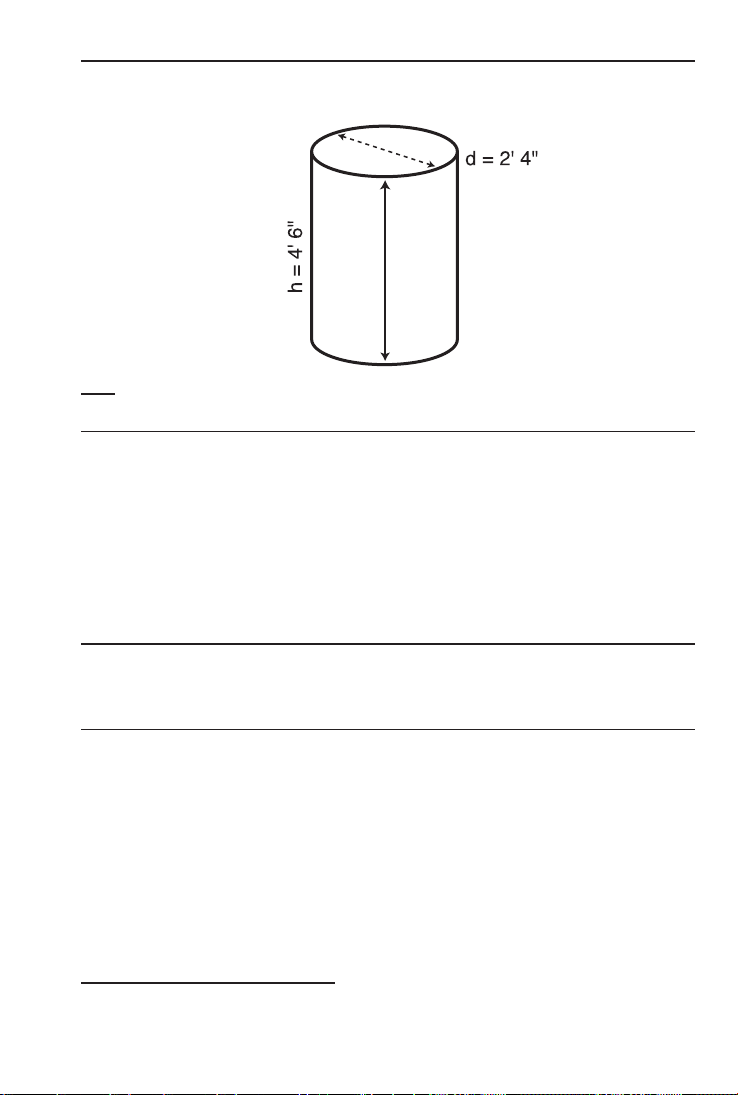
Volume of a Cylinder
Note: For a cylinder, use the Column function.
KEYSTROKE DISPLAY
1. Find Circle area:
o o 0.
2 f 4 i 2 feet 4 inch
C C AREA 4.276057 sq feet
2. Enter height and find volume:
4 f 6 i h HGHT 4 feet 6 inch
Ç C COL 19.24226 cu feet
Volume of a Cone
Calculate the volume of a Cone with a diameter of 3 Feet 6 Inches
and a height of 5 Feet:
KEYSTROKE DISPLAY
1. Find Circle area:
o o 0.
3 f 6 i C DIA 3 feet 6 inch
C AREA 9.621128 sq feet
2. Enter height and find volume:
5 f h HGHT 5 feet 0 inch
Ç C C C* CONE 16.03521 cu feet
*To access Cone volume, you must press the C key three times after Ç.
For Trig Model (#4080) Users:
As this model does not have a h key, you must enter the height using the r key.

TM
WEIGHT/VOLUME CONVERSIONS
Weight Conversions
KEYSTROKE DISPLAY
1. Enter Pounds:
o o 0.
2 5 0 0 Ç 4 (lbs) 2500 lb
2. Convert to Kilograms, Tons and Metric Tons:
Ç 1 (kg) 1133.981 kg
Ç 6 (tons) 1.25 ton
Ç 3 (met tons) 1.133981 met ton
Weight per Volume/Volume Conversions
Convert 5 Cubic Yards of concrete to Pounds, Tons and Kilograms, if
concrete weighs 1.5 Tons per Cubic Yard.
KEYSTROKE DISPLAY
1. Store Weight per Volume:
o o 0.
1 • 5 ß 0* (wt/vol)
STORED
1.5 ton per cu yd
2. Enter concrete volume:
5 y y y 5 cu yd
3. Convert to Pounds, Tons and Kilograms:
Ç 4 (lbs) 15000. lb
Ç 6 (tons) 7.5 ton
Ç 1 (kg) 6803.886 kg
*If calculator does not display Tons per Cubic Yard, keep pressing the 0 key until the
desired format is displayed (e.g., Ton Per CU YD, LB Per CU YD, LB Per CU FEET,
MET Ton Per CU M, or kG Per CU M).
BLOCKS/BRICKS (not available on trig model #4080)
Number of Blocks, Based on Entered Length and Height
16-inch size blocks (Note: this is the default block size of 128 Square
Inches). One side of the retaining wall is 22 Feet long, and the other
Note: The calculated area from an entered length (l) and height (h) will be
used for calculating blocks if these values exist.
KEYSTROKE DISPLAY
1. Find total wall length:
o o 0.
® Ç 4* (Blk Size) B--AR
STORED
128. sq inch
2 2 f + 1 5 f 8 i = 37 feet 8 inch
l LNTH 37 feet 8 inch
2. Enter wall height as height:
4 f h HGHT 4 feet 0 inch
3. Find the number of blocks and add 5% waste allowance:
Ç l (Blocks) BLKS 169.5
+ 5 % 177.975
(178 Blocks)
*If ® Ç l (Blocks)
then enter the following:
1 2 8 i i ß 4 (Blk Size) B--AR
STORED
128. sq inch
-OR-
8 i x 1 6 i = 128. sq inch
ß 4 (Blk Size) B--AR
STORED
128. sq inch
Number of Blocks, Based on Entered Area
KEYSTROKE DISPLAY
o o 0.
3 0 0 f f 300 sq feet
Ç l (Blocks) BLKS 337.5
+ 3 % 347.625
(348 Blocks)

TM
Number of Blocks, Based on Calculated Perimeter
allowance.
KEYSTROKE DISPLAY
1. Find wall area:
o o 0.
3 0 f l LNTH 30 feet 0 inch
4 5 f W WDTH 45 feet 0 inch
2. Find the perimeter:
W W W PER 150 feet 0 inch
3. Find the number of blocks for the displayed perimeter, and add
3% waste allowance:
= Ç l (Blocks) BLKS 112.50
+ 3 % 115.875
(116 Blocks)
Number of Blocks, Based on Entered Length
KEYSTROKE DISPLAY
1. Enter length then calculate number of blocks:
o o 0.
2 0 f 20 feet
Ç l (Blocks) BLKS 15.
2. Display the stored block length*:
l B-LN
STORED
16 inch
Note: The calculator will calculate the number of blocks based on the entered length
and the stored block size (length).
*If the stored block length is not 16 Inches, then enter the following:
1 6 i ß 4 (Blk Size) B-LN
STORED
16 inch
Number of “Face” Bricks
How many “face” bricks (21 Square Inch size) will you need to pur-
KEYSTROKE DISPLAY
1. Enter and store brick area into Block Size storage key:
o o 0.
2 1 i i ß 4 (Blk Size) B--AR
STORED
21. sq inch
2. Enter length and height of wall:
4 0 f l LNTH 40 feet 0 inch
8 f h HGHT 8 feet 0 inch
3. Find the number of bricks and add a 3% waste allowance:
Ç l (Blocks) BLKS 2194.286
+ 3 % 2260.114
(2261 Bricks)
4. Reset block area to default value:
1 2 8 i i ß 4 (Blk Size)
B--AR
STORED
128. sq inch
Number of “Paver” Bricks
How many “paver” bricks (32 Square Inch size) will you need to fill a
KEYSTROKE DISPLAY
1. Enter brick area into Block Size storage key:
o o 0.
3 2 i i ß 4 (Blk Size) B--AR
STORED
32. sq inch
2. Enter length and width (as height):
5 f l LNTH 5 feet 0 inch
1 5 f h HGHT 15 feet 0 inch
3. Find the number of bricks:
Ç l (Blocks) BLKS 337.5
(338 Bricks)
4. Reset block area to default value:
1 2 8 i i ß 4 (Blk Size)
B--AR
STORED
128. sq inch
TM
BOARD FEET —
The Construction Master Pro easily calculates board feet for lumber
estimation problems. The default entry format for Board Feet is “Inch x
Inch x Feet” (e.g., 2 x 4 x 1 4
You can also convert Cubic values (volume) to Board Feet.
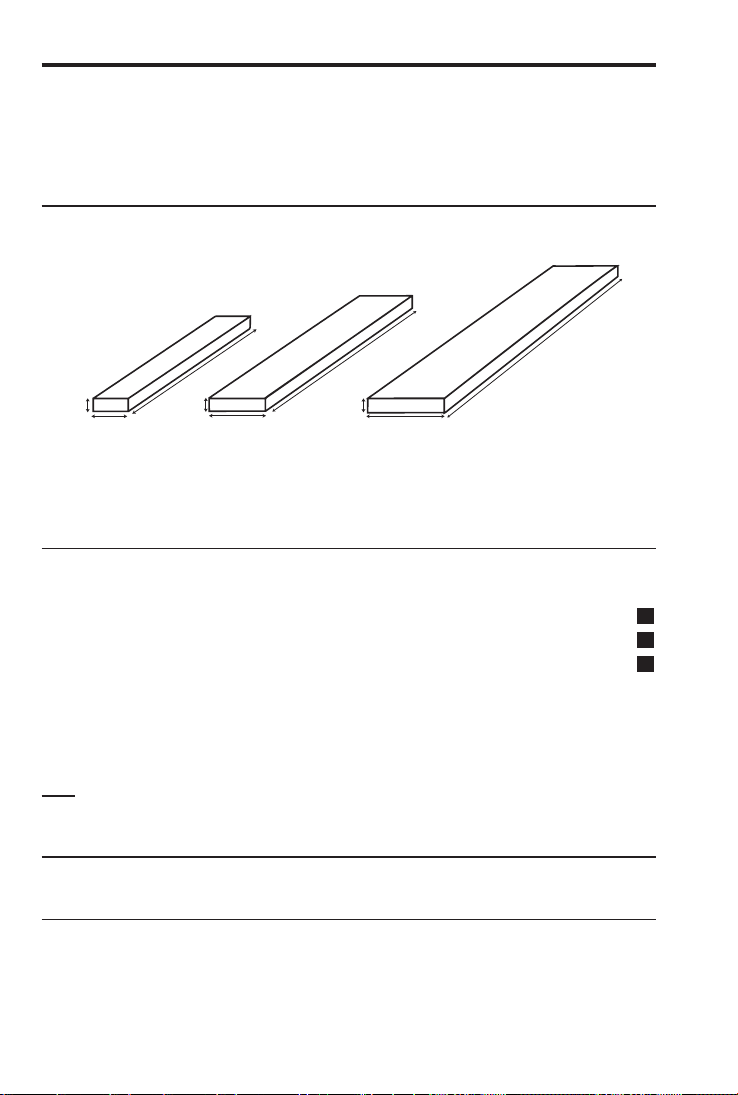
Total Board Feet —
Find the total board feet for the following board sizes:
2"
2" 2"
12"10"
4"
14'
16'
18'
Ç 0
(Cost) to figure total lumber cost.
KEYSTROKE DISPLAY
1. Enter board sizes, convert to board feet and store in memory:
o o 0.
2 x 4 x 1 4 Ç 8 µ BDFT 9.333333
M
2 x 1 0 x 1 6 Ç 8 µ BDFT 26.66667
M
2 x 1 2 x 1 8 Ç 8 µ BDFT 36.
M
2. Recall total Board Feet and calculate total cost:
® ® BDFT 72.
x 2 5 0 Ç 0 (Cost) $18.
00
Note: Unit cost is entered in the standard per thousand Board Foot measure (MBM)
format.
Number of Board Feet Based on Entered Volume
KEYSTROKE DISPLAY
Enter cubic feet and convert to board feet:
o o 0.
1 5 0 f f f 150 cu feet
Ç 8 (Bd Ft) BDFT 1800.

CIRCLE AND ARC CALCULATIONS
Circle/Arc values can be solved by entering any two of the following
values: Arc Length/Angle, Diameter/Radius, Chord Length (Run),
and Segment Rise (Rise).
It is recommended that you clear the calculator (press o twice)
after calculating right-triangle solutions prior to beginning an Arc or
Circle solution.
Note: Circle/Arc solutions cannot be solved for the following cases:
• Entered Arc Length and Chord Length (Run)
• Entered Arc Length and Segment Rise (Rise)
Circumference and Area of a Circle
Find the area and circumference of a circle with a diameter of
11 Inches:
KEYSTROKE DISPLAY
o o 0.
1 1 i C DIA 11 inch
C AREA 95.03318 sq inch
C CIRC 34-9/16 inch
Arc Length —
KEYSTROKE DISPLAY
o o 0.
5 f C DIA 5 feet 0 inch
8 5 a ARC 85.00
a ARC 3 feet 8-1/2 inch
Arc Length —
Find the arc length and radius of a circle with a 3-feet 6-inch chord
length and 1-foot 3-inch segment rise.
KEYSTROKE DISPLAY
1. Enter the chord length of the segment as Run:
o o 0.
3 f 6 i R RUN 3 feet 6 inch
2. Enter the height of the segment as Rise:
1 f 3 i r RISE 1 feet 3 inch
3. Find the Radius:
Ç a (Radius) RAD 1 feet 10-3/16 inch
(Cont’d)
40 —
TM
(Cont’d)
KEYSTROKE DISPLAY
4. Find the Arc Angle:
a ARC 142.15
5. Find the Arc Length:
a ARC 4 feet 7-1/16 inch
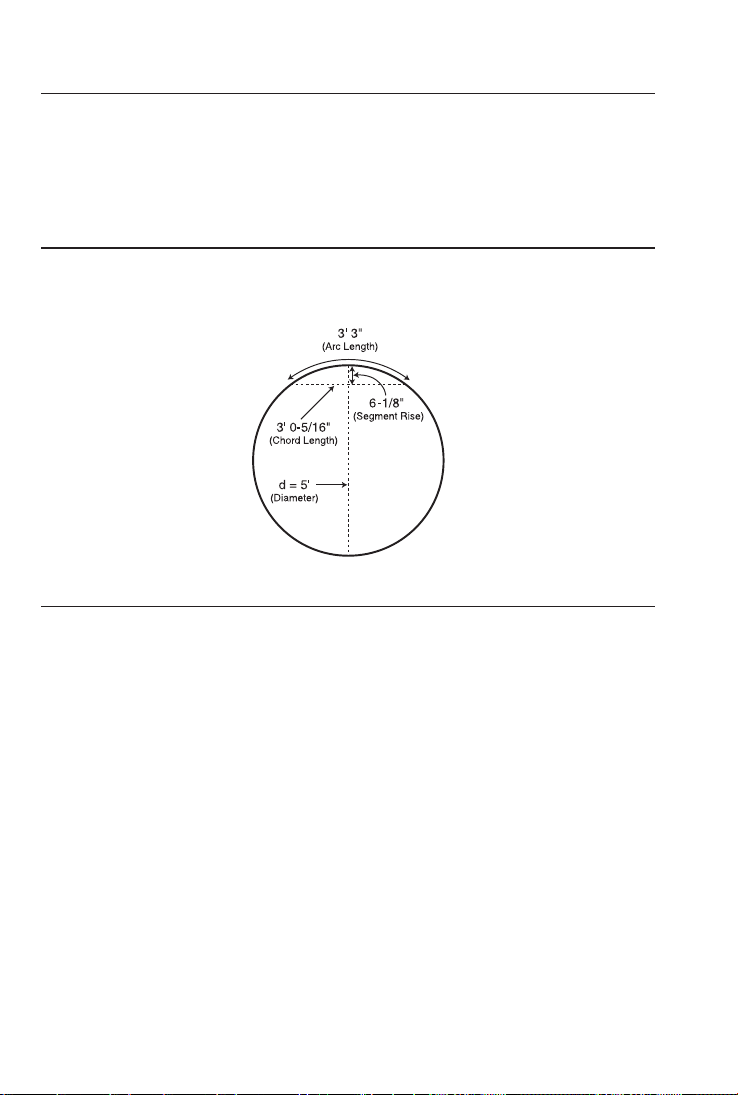
Arc Calculations —
Find the arc degree, chord length, segment rise, segment and pie
slice area, and segment rise, given a 5-foot diameter and an arc
length of 3 Feet 3 Inches:
KEYSTROKE DISPLAY
1. Enter Circle diameter (Note: enter diameter into the C key):
o o 0.
5 f C DIA 5 feet 0 inch
2. Enter Arc length:
3 f 3 i a ARC 3 feet 3 inch
3. Find degree of Arc:
a ARC 74.48
4. Find chord length:
a CORD 3 feet 0-5/16 inch
5. Find segment area:
a SEG 1.051381 sq feet
6. Find pie slice area:
a PIE 4.0625 sq feet
7. Find segment rise:
a RISE 0 feet 6-1/8 inch
ARCHED SEGMENT WALLS
The arc function can also calculate the outside (default) and inside
lengths of arched walls. The outside arched wall lengths are mea-
sured outside of the arc (see diagram below). The inside arched wall
lengths are measured inside of the arc (see diagram on page 43).
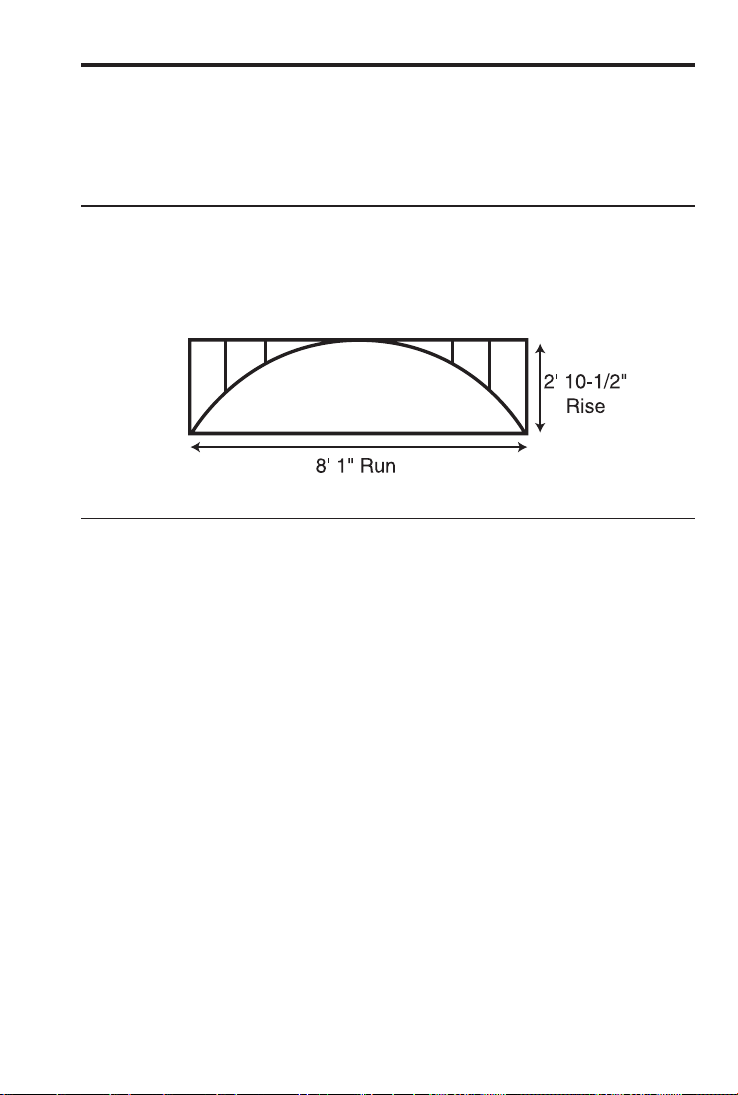
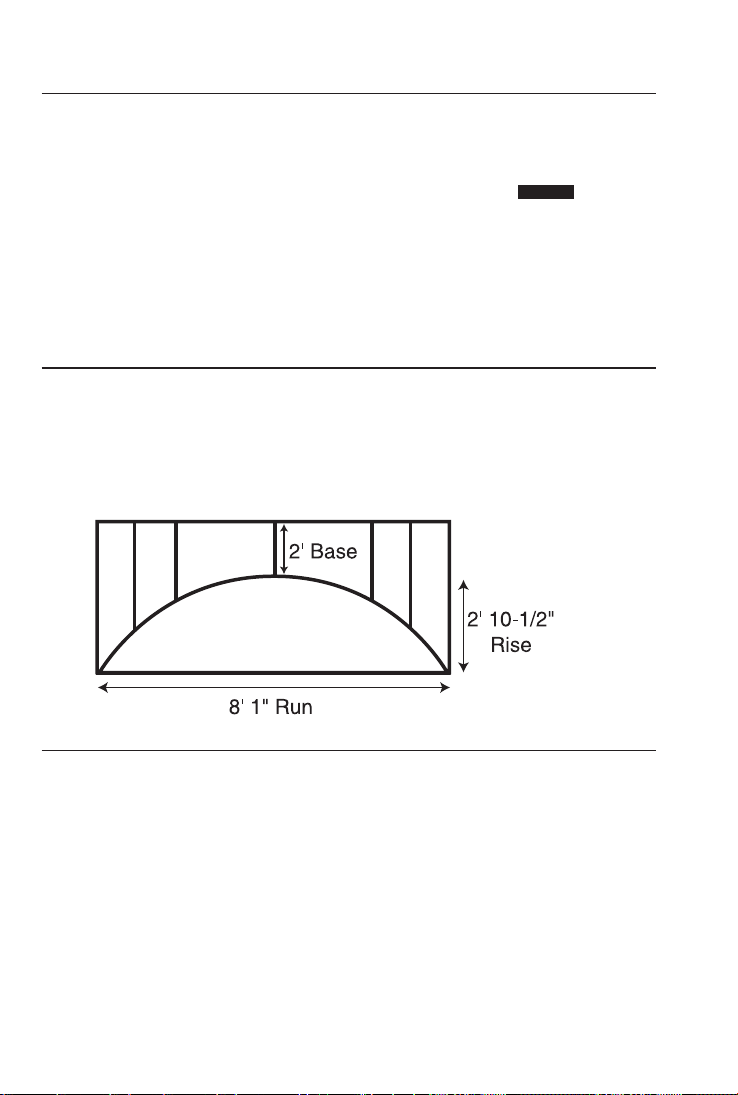
Arched Segment Walls —
angle, arc length and segment area of the window. Then find the
“outside” arched segment wall lengths in order to frame the window.
KEYSTROKE DISPLAY
1. Enter chord length:
o o 0.
8 f 1 i R RUN 8 feet 1 inch
2. Enter rise:
2 f 1 0 i 1 / 2 r RISE 2 feet 10-1/2 inch
3. Find Arc angle:
a ARC 141.70°
4. Find Arc length:
a ARC 10 feet 7 inch
5. Display chord length:
a CORD 8 feet 1 inch
6. Find segment area:
a SEG 16.96327 sq inch
7. Find pie slice area:
a PIE 22.63527 sq inch
(Cont’d)
(Cont’d)
KEYSTROKE DISPLAY
8. Display entered rise (segment height):
a RISE 2 feet 10-1/2 inch
9. Display On-center spacing:
a OC
STORED
16 inch
10. Find the arched segment wall lengths:
a AW 1 0 feet 2-9/16 inch
a AW 2 0 feet 11-3/16 inch
a AW 3 2 feet 9-1/8 inch
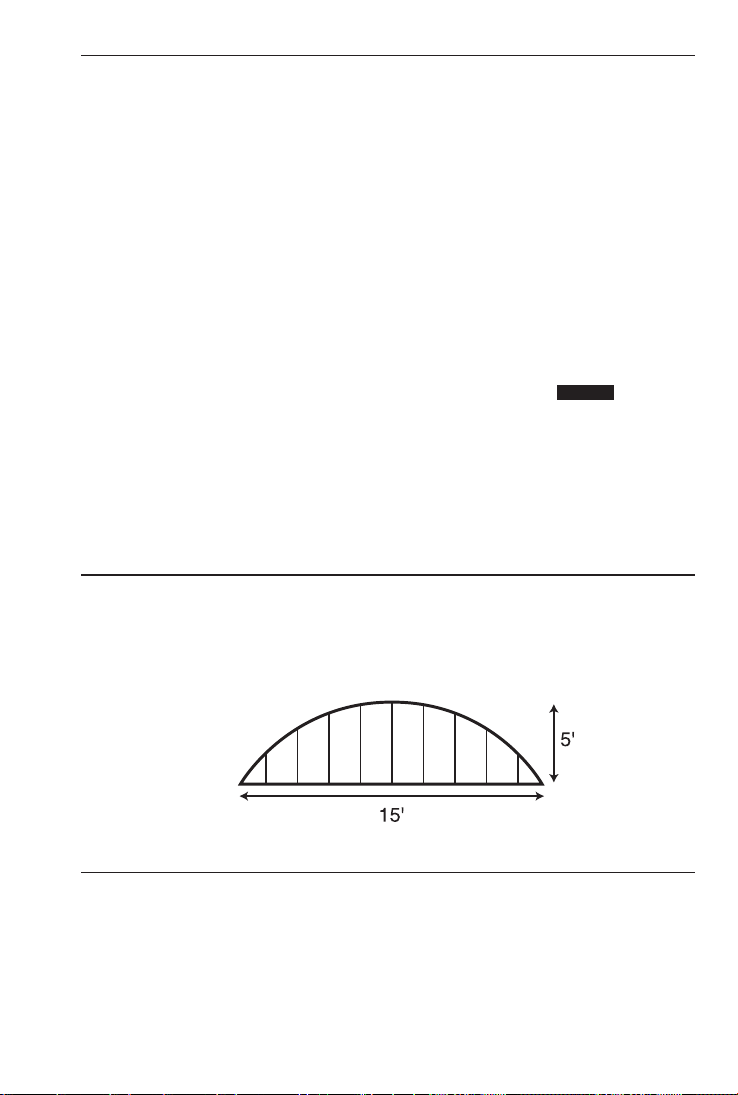
Arched Segment Walls —
2 Feet. Then, find the arc angle, arc length and segment area of the
window. Then find the “outside” arched segment wall lengths in order
to frame the window.
KEYSTROKE DISPLAY
1. Enter chord length:
o o 0.
8 f 1 i R RUN 8 feet 1 inch
2. Enter rise:
2 f 1 0 i 1 / 2 r RISE 2 feet 10-1/2 inch
3. Enter base height (into Rake Wall function):
2 f Ç r BASE 2 feet 0 inch
4. Find Arc angle:
a ARC 141.70°
2
TM
KEYSTROKE DISPLAY
5. Find Arc length:
a ARC 10 feet 7 inch
6. Display chord length:
a CORD 8 feet 1 inch
7. Find segment area:
a SEG 16.96327 sq inch
8. Find pie slice area:
a PIE 22.63527 sq inch
9. Display entered rise (segment height):
a RISE 2 feet 10-1/2 inch
10. Display On-center spacing:
a OC
STORED
16 inch
11. Find the arched segment wall lengths:
a AW 1 2 feet 2-9/16 inch
a AW 2 2 feet 11-3/16 inch
a AW 3 4 feet 9-1/8 inch
Arched Segment Walls —
You’re building a circular or arched segment wall. Given a chord
length of 15 Feet and a segment height of 5 Feet, find all arc values
and “inside” arched segment wall lengths. The On-center spacing is
16 Inches.
KEYSTROKE DISPLAY
1. Change arched walls preference setting to “inside” Arc:
Ç ß ß ß ß ß ß AW outSidE
+ AW inSidE
o 0.
(Cont’d)

44 —
TM
(Cont’d)
KEYSTROKE DISPLAY
2. Enter chord length and segment height (rise):
o o 0.
1 5 f R RUN 15 feet 0 inch
5 f r RISE 5 feet 0 inch
3. Find Arc angle:
a ARC 134.76º
4. Find Arc length:
a ARC 19 feet 1-5/16 inch
5. Display entered chord length:
a CORD 15 feet 0 inch
6. Find segment area:
a SEG 54.19722 sq feet
7. Find pie slice area:
a PIE 77.63472 sq feet
8. Display entered segment height (rise):
a RISE 5 feet 0 inch
9. Display stored On-center spacing for the wall:
a OC
STORED
16 inch
10. Find arched segment wall lengths:
a AW 1 4 feet 10-11/16 inch
a AW 2 4 feet 6-5/8 inch
a AW 3 3 feet 11-3/8 inch
a AW 4 3 feet 0-1/16 inch
a* AW 5 1 feet 6-1/4 inch
11. Change arched walls preference setting back to “outside” Arc:
Ç ß ß ß ß ß ß AW inSidE
+ AW outSidE
o 0.
*Successive presses of a will toggle to the beginning.
COMPOUND MITER
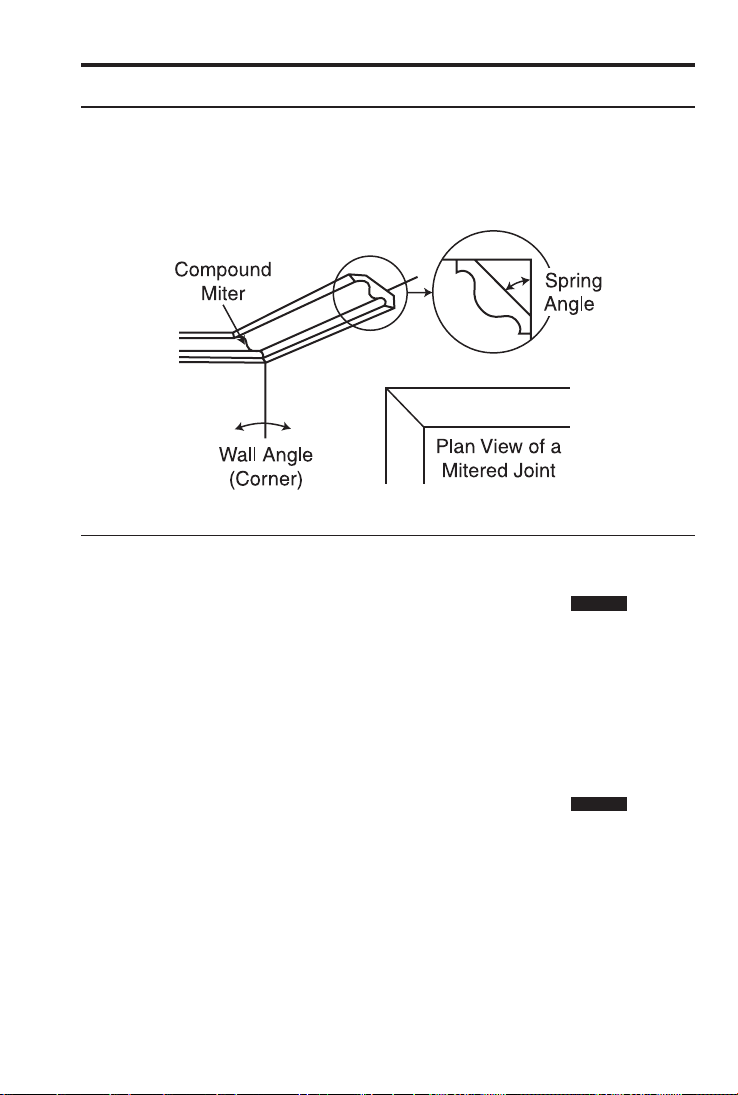
Compound Miter Cuts
You’re installing crown moulding on the upper wall of your living
KEYSTROKE DISPLAY
1. Store the spring angle:
o o 0.
3 8 ß Â (Spring Angle) SPRG
STORED
38.00°
2. Enter wall corner angle and calculate miter angle:
6 0 Â* MITR 46.84°
3. Calculate bevel angle:
 BEVL 43.03°
4. Display stored spring angle:
 SPRG
STORED
38.00°
5. Display entered wall corner angle:
 CRNR 60.00°
*When a value less than 25 is entered as the wall corner angle, the compund miter
function assumes this is the number of sides of a polygon, calculates the wall corner
angle, and displays it first before displaying the miter angle.

46 —
TM
CONCRETE/PAVING
Volume of Concrete for a Driveway
Find the Cubic Yards of concrete required to pour a driveway with
the following dimensions: 36 Feet 3 Inches long by 11 Feet 6 Inches
KEYSTROKE DISPLAY
1. Multiply the length times the width to find the area:
o o 0.
3 6 f 3 i 36 feet 3 inch
x 1 1 f 6 i 11 feet 6 inch
= 416.875 sq feet
2. Multiply times the depth to find the volume:
x 4 i = 5.146605 cu yd*
3. Multiply times the per Unit Cost to find the total cost of concrete:
x 5 5 Ç 0 (Cost) $283.
06
*This answer will automatically display in Cubic Yards due to the multiplication of
mixed units, unless the preference setting for volume display has been changed from
the default Standard Setting. (See Preference Settings on .)
Concrete Columns
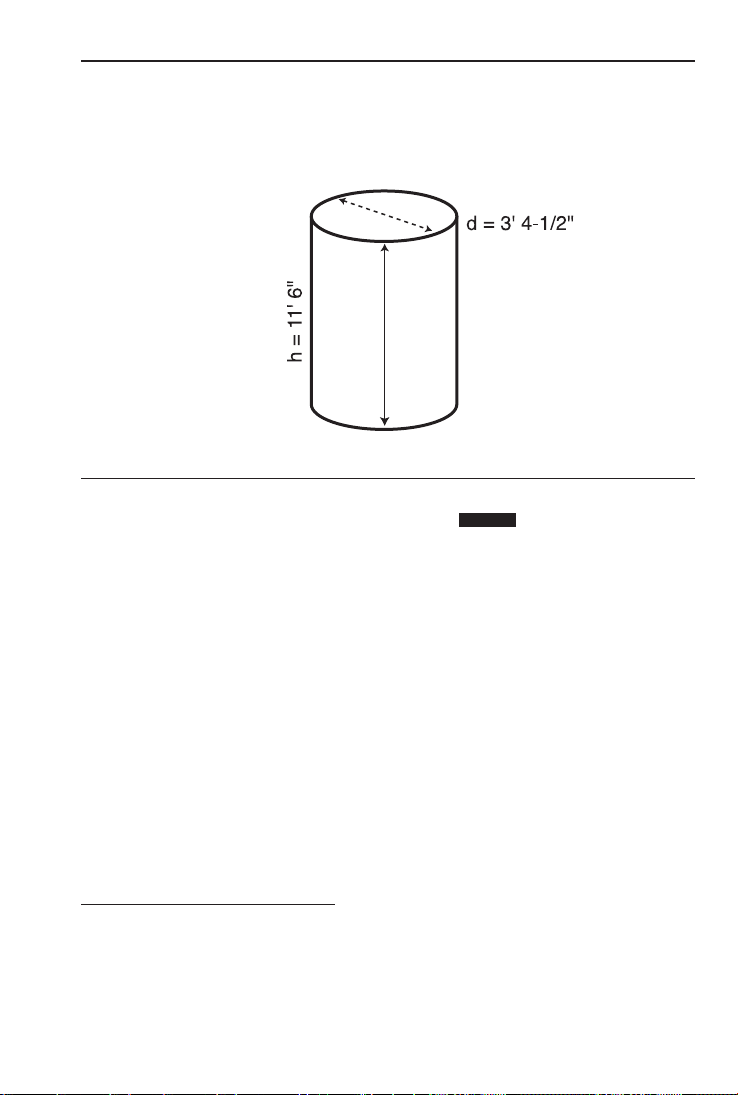
Find the Cubic Yards of concrete required to pour five columns, if
6 Inches. If the concrete weighs 1.75 Tons per Cubic Yard, what is
KEYSTROKE DISPLAY
1. Enter weight in Tons per Cubic Yard:
1 • 7 5 ß 0 (wt/vol)
STORED
1.75 ton per cu yd
2. Enter diameter and find Circle area:
o o 0.
3 f 4 i 1 / 2 3 feet 4-1/2 inch
C C AREA 8.946176 sq feet
3. Enter height and find total volume of concrete:
1 1 f 6 i h HGHT 11 feet 6 inch
Ç C (Column/Cone) COL 102.881 cu feet
Ç y 3.810408 cu yd
x 5 = 19.05204 cu yd
4. Convert volume to weight in tons, pounds, and kilograms:
Ç 6 (tons) 33.34107 t
on
Ç 4 (lbs) 66682.14 lb
Ç 1 (kg) 30246.51 kg
For Trig Model (#4080) Users:
As this model does not have a h key, you must enter the height using the r key.
TM
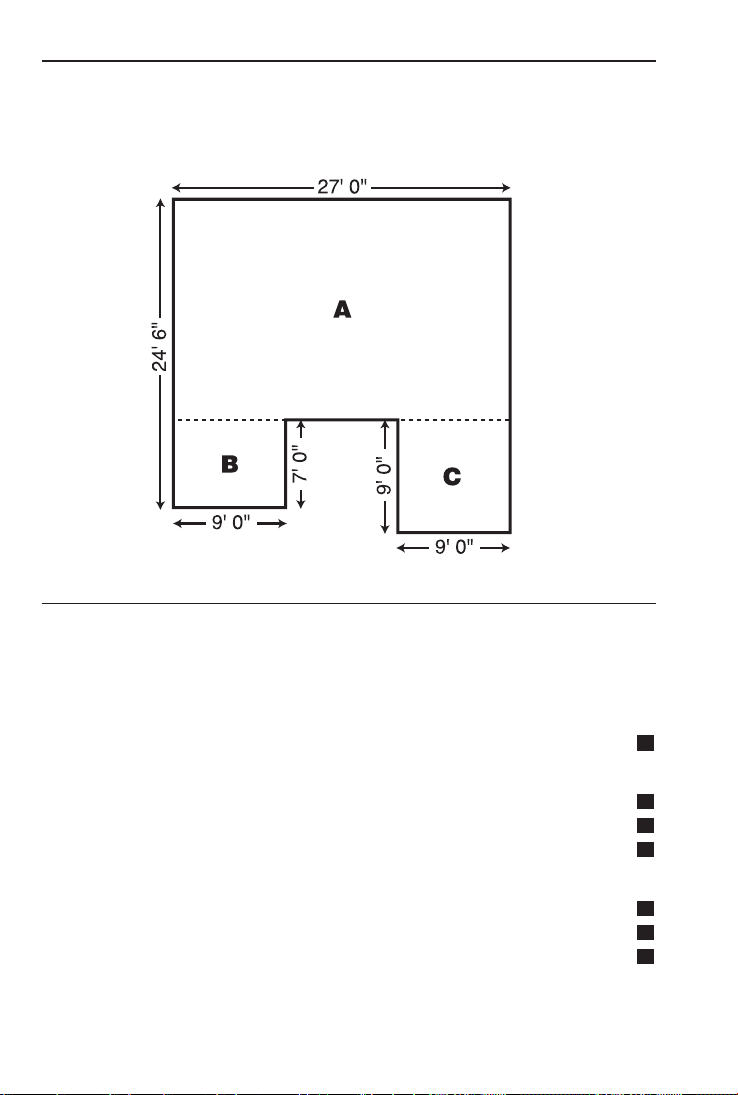
Complex Concrete Volume
dimensions shown below. Calculate the total area (by dividing the draw-
ing into three rectangles) and determine the total Yards of concrete
KEYSTROKE DISPLAY
1. Find area of Part “A” and store into Memory:
o o 0.
2 4 f 6 i – 24 feet 6 inch
7 f = 17 feet 6 inch
x 2 7 f = 472.5 sq feet
µ M+ 472.5 sq feet
M
2. Find area of Part “B” and store into Memory:
7 f 7 feet
M
x 9 f = 63. sq feet
M
µ M+ 63. sq feet
M
3. Find area of Part “C” and store into Memory:
9 f 9 feet
M
x 9 f = 81. sq feet
M
µ M+ 81. sq feet
M
KEYSTROKE DISPLAY
4. Find total area and clear Memory:
® ® M+ 616.5 sq feet
5. Find total Cubic Yards:
x 4 i 1 / 2 = 8.5625 cu yd
6. Find total cost:
x 4 5 Ç 0 (Cost) $385.
31
Polygon, Finding Angles Based on Entered Radius and
Number of Sides
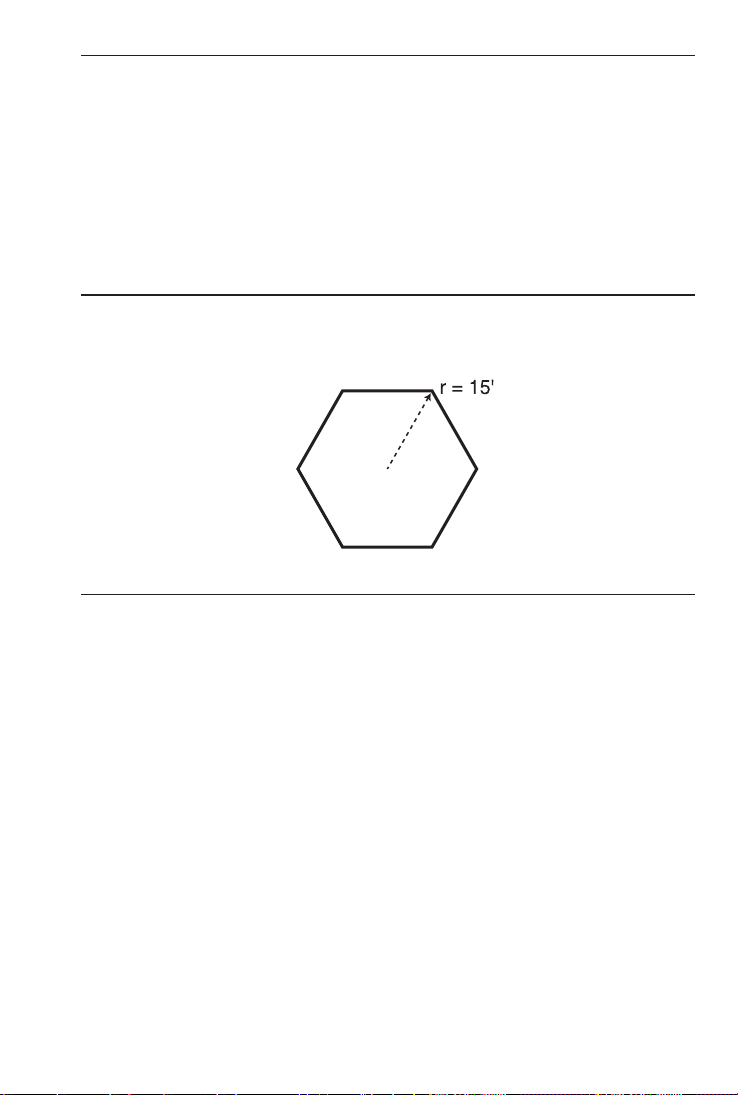
You’re going to pour a polygon-shaped patio. Find the polygon values
if the radius is 15 Feet and the number of sides is 6.
KEYSTROKE DISPLAY
1. Enter radius and number of sides* to calculate the full angle:
o o 0.
1 5 f Ç a (Radius) RAD 15 feet 0 inch
6 Ç R (Polygon) FULL 120.00
2. Then calculate the bi-sect angle, side length, perimeter, and
polygon area:
R HALF 60.00
R SIDE 15 feet 0 inch
R PER 90 feet 0 inch
R AREA 584.5671 sq feet
*You must enter more than three sides for a multi-sided polygon figure or the calcula-
tor will display “None”.

TM
Concrete Footings (not available on trig model #4080)
that measures 232 Feet 6 Inches in length. Then find the volume of
five footings of the same size.
KEYSTROKE DISPLAY
1. Calculate and store footing area:
o o 0.
1 6 i x 8 i = ß 6 (Ftg Area)
F-AR
STORED
128. sq inch
2. Enter length and find footing volume:
2 3 2 f 6 i Ç W (Footing) FTG 7.654321 cu yd
To find the volume of multiple footings of the same size, multiply
times the total number of footings:
3. Multiply by 5 footings to find total concrete volume:
x 5 = 38.2716 cu yd
4. Clear and return stored footing size to default:
Ç x ALL CLEArEd
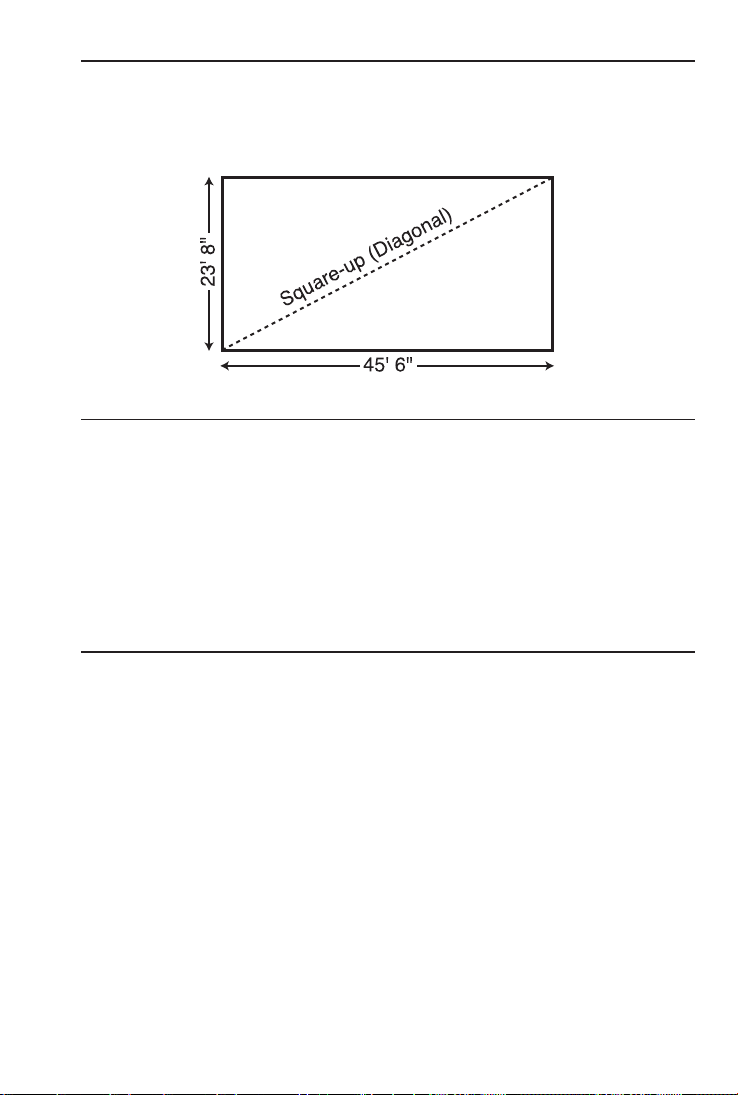
Squaring-up a Foundation
the form is perfectly square.
KEYSTROKE DISPLAY
1. Enter sides as rise/run:
o o 0.
2 3 f 8 i r RISE 23 feet 8 inch
4 5 f 6 i R RUN 45 feet 6 inch
2. Find the square-up (diagonal):
d DIAG 51 feet 3-7/16 inch
Alternative Method using l and W keys
(not available on trig model #4080):
1. Enter sides as length and width:
o o 0.
2 3 f 8 i l LNTH 23 feet 8 inch
4 5 f 6 i W WDTH 45 feet 6 inch
2. Find the square-up (diagonal):
W W SQUP 51 feet 3-7/16 inch

DRYWALL (not available on trig model #4080)
Number of Drywall Sheets for a Given Area
KEYSTROKE DISPLAY
1. Enter area:
o o 0.
1 5 0 f f 150 sq feet
2. Find the number of 4 x 8 sheets, 4 x 9 sheets and 4 x 12 sheets
required:
Ç h (Drywall) 4x8 4.6875
(5 - 4 x 8 Sheets)
h 4x9 4.166667
(5 - 4 x 9 Sheets)
h 4x12 3.125
(4 - 4 x 12 Sheets)
h 150. sq feet
Number of Drywall Sheets for a Given Length
KEYSTROKE DISPLAY
1. Enter length:
o o 0.
4 0 f 40 feet
2. Find the number of 4 x 8 sheets, 4 x 9 sheets and 4 x 12 sheets
required:
Ç h (Drywall) 4x8 10.*
h 4x9 10.*
h 4x12 10.*
h LNTH 40 feet 0 inch
* It is
the same amount for all three of the sheet sizes because the linear calculation
is based on the width of the sheets (e.g., 4 Feet).
Note: The order in which the different sheet size answers appear may differ from that
of the guide. The order is based on the last displayed sheet size when previously
calculated.
TM
GRADE/SLOPE
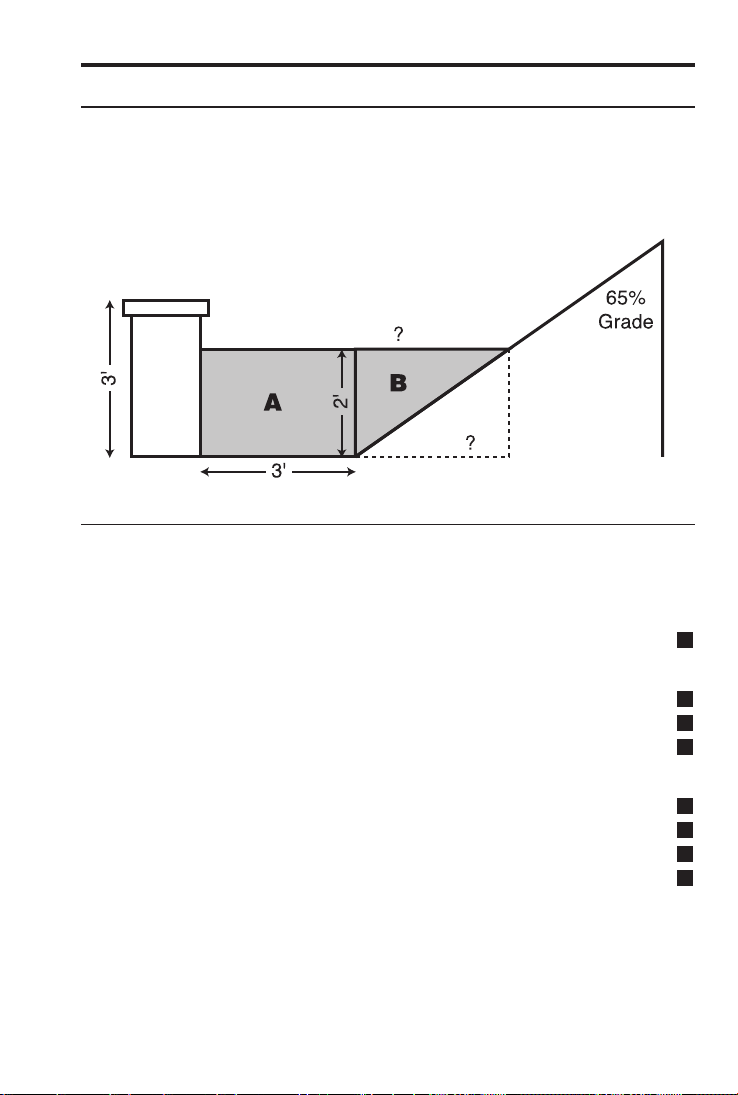
Back-Fill on a Slope —
You’ve built 55 linear Feet of a 3-foot high retaining wall that is 3 Feet
12 Inches of the top of the wall (for a 2 Foot depth). How many Cubic
KEYSTROKE DISPLAY
1. Find volume for “A”:
o o 0.
5 5 f 55 feet
x 3 f 3 feet
x 2 f = µ M+ 330. cu feet
M
2. Find run of “B”:
6 5 % p %GRD 65.
M
2 f r RISE 2 feet 0 inch
M
R RUN 3 feet 0-15/16 inch
M
3. Find volume of triangle “B”:
5 5 f 55 feet
M
x ® R RUN 3 feet 0-15/16 inch
M
x 2 f = 338.4615 cu feet
M
÷ 2 = µ M+ 169.2308 cu feet
M
4. Find total volume:
® ® M+ 499.2308 cu feet
Ç y 18.49003 cu yd
TM
RIGHT TRIANGLE AND ROOF FRAMING EXAMPLES

Roof Framing Definitions
Rise: The vertical distance measured from the wall’s top plate to the
top of the ridge.
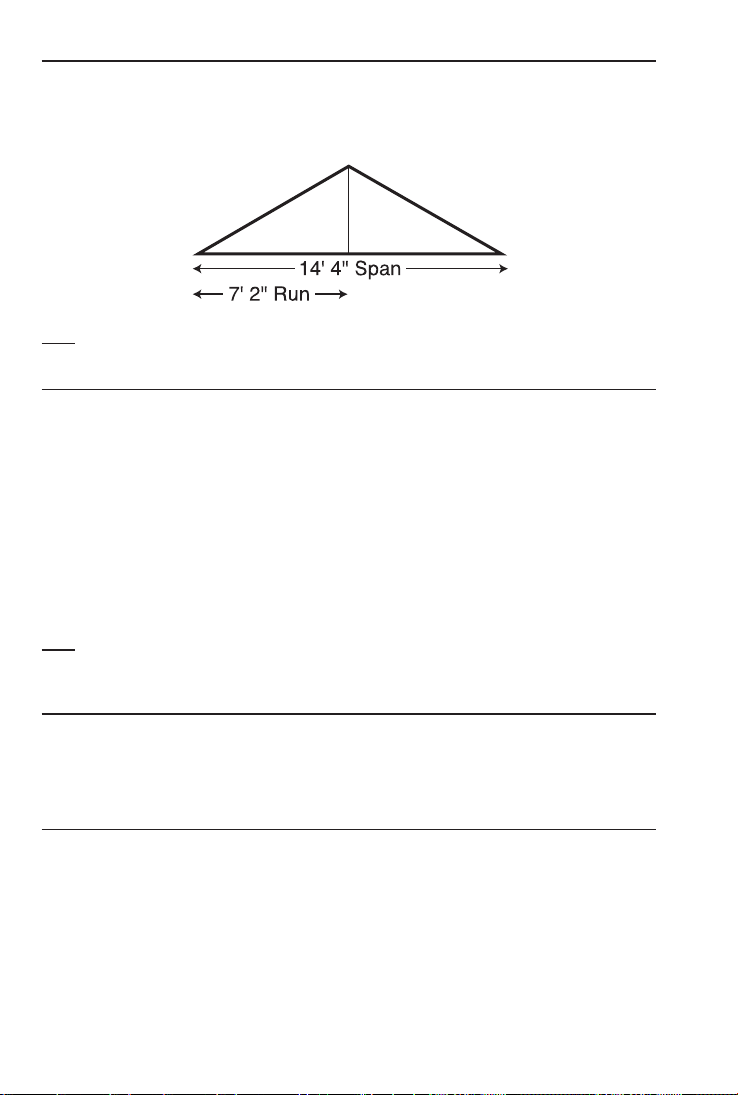
Span: The horizontal distance or full width between the outside
edges of the wall’s top plates.
Run: The horizontal distance between the outside edge of the wall’s
top plate and the center of the ridge; in most cases this is equivalent
to half of the span.
Pitch: Pitch and slope are synonymous in modern trade language.
Pitch/slope of a roof is generally expressed in two types of measure-
ment:
1) Ratio of unit rise to unit run* — 7/12 or 7 Inch
*The unit rise is the number of Inches of rise per Foot (12 Inches) of unit run. The unit
run is expressed as one Foot (12 Inches).
Plate: The top horizontal wall member that the ceiling joist and raf-
ters sit on and fasten to.
Ridge: The uppermost point of two roof planes. This rafter is the
uppermost rafter that all Hip, Valley, Valley Jack and Common rafters
are fastened to.
Rafters: Rafters are inclined roof support members. Rafters include
the following types:
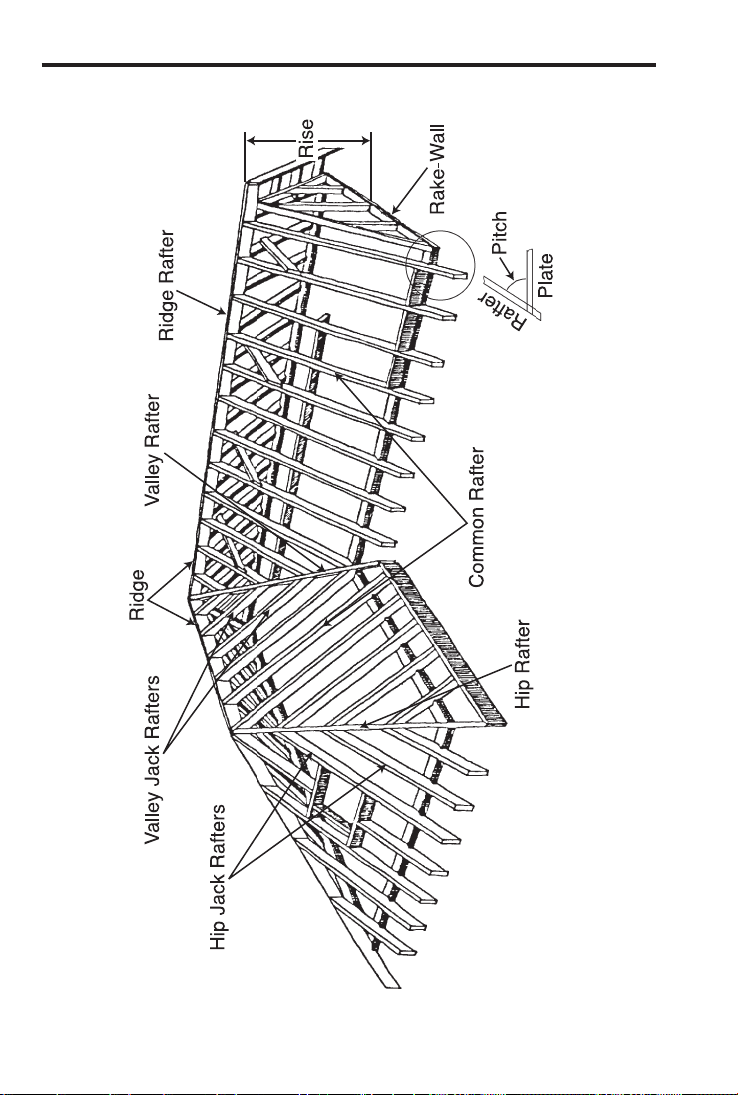
• Common Rafter: The Common connects the plate to the ridge
and is perpendicular to the ridge.
• Hip Rafter: The Hip rafter extends from the corner of two wall
rafter is an external angle of two planes.
• Valley Rafter: The Valley rafter extends from the corner of two
The Valley rafter is an internal angle of two planes.
• Jack Rafters: Rafters that connect the Hip or Valley rafter to the
wall plate.
• Irregular Hip/Valley Jacks: Jack rafters found in dual pitch or
“Irregular” roofs.
Regular Roof: A standard roof where the Hips and/or Valleys run at
Valley.
Irregular Roof: A non-standard roof where the Hips and/or Valleys
bisect two different pitches/slopes, or have “skewed wings” or irregu-
lar Jacks.
Rake Wall: A gable end wall that follows the pitch/slope of a roof.
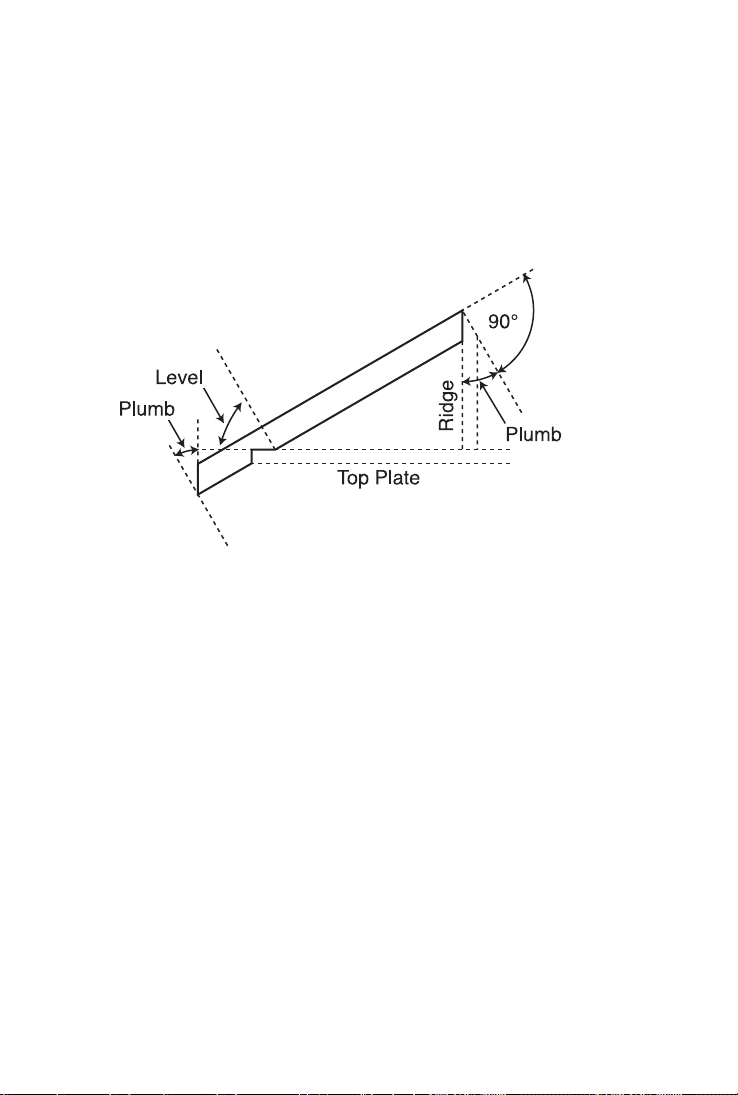
Plumb: Vertical Cut. The angle of cut from the edge of the board
that allows the rafter to mate on the vertical side of the ridge rafter.
Level: Horizontal Cut. The angle of cut from the edge of the board
that allows the rafter to seat flat on the wall plate.
Cheek: Side Cut(s). The angle to cut from the SIDE of the Jack raf-
ter to match up against the Hip or Valley rafter, usually made by
tilt-
there are two pitches, each side will have a different Cheek cut for
Incremental Adjustment: The difference in rafter length from one
rafter to the next.
TM

Degree of Pitch
KEYSTROKE DISPLAY
o o 0.
3 0 • 4 5 p PTCH 30.45°
p %GRD 58.78702
p SLP 0.58787
p PTCH 7-1/16 inch
Note: To convert Pitch in Inches: Simply enter the Pitch in Inches first (e.g., 7 i
p), then continuously press the p key to calculate the pitch conversions, as
above.
Percent Grade
KEYSTROKE DISPLAY
o o 0.
4 7 • 2 5 %* p %GRD 47.25
p SLP 0.4725
p PTCH 5-11/16 inch
p PTCH 25.29°
*For entering Percent Grade, you need to label the value with the percent key.
Pitch Ratio or Slope
KEYSTROKE DISPLAY
o o 0.
• 6 5 Ç* p (Slope) SLP 0.65
p PTCH 7-13/16 inch
p PTCH 33.02°
p %GRD 65.
*For entering Pitch Ratio, you must press the Ç key first.
TM
Common Rafter Length
point-to-point length of the Common rafter (excluding the overhang
Note: Run is half the Span.
KEYSTROKE DISPLAY
1. Find diagonal or point-to-point length of the Common rafter:
o o 0.
7 i p PTCH 7 inch
1 4 f 4 i ÷ 2 = 7 feet 2 inch
R RUN 7 feet 2 inch
d DIAG 8 feet 3-9/16 inch
2. Find Plumb and Level cuts:
d PLMB 30.26°
d LEVL 59.74°
Note: The Common rafter calculation is the "point-to-point" length and does not
include the overhang or ridge adjustment.
Common Rafter Length —
Find the common rafter length for a roof with a rise of 6 Feet
Degrees and in Inches.
KEYSTROKE DISPLAY
Find Diagonal and Pitch:
o o 0.
6 f 1 1 i 1 / 2 r RISE 6 feet 11-1/2 inch
1 4 f 6 i R RUN 14 feet 6 inch
d DIAG 16 feet 1 inch
p PTCH 5-3/4 inch
p PTCH 25.64°

Angle and Diagonal (Hypotenuse)
Find the Diagonal (Hypotenuse) and degree of angle of a right trian-
gle that is 9 Feet high and 12 Feet long.
KEYSTROKE DISPLAY
1. Enter Rise and Run:
o o 0.
9 f r RISE 9 feet 0 inch
1 2 f R RUN 12 feet 0 inch
2. Solve for Diagonal/Hypotenuse and Pitch in Inches and Degree of
Angle:
d DIAG 15 feet 0 inch
p PTCH 9 inch
p PTCH 36.87°
Rise
Find the Rise given a 7/12 Pitch and a Run of 11 Feet 6 Inches.
KEYSTROKE DISPLAY
o o 0.
7 i p PTCH 7 inch
1 1 f 6 i R RUN 11 feet 6 inch
r RISE 6 feet 8-1/2 inch
Rise and Diagonal
KEYSTROKE DISPLAY
o o 0.
3 0 p PTCH 30.00°
2 0 f 4 i R RUN 20 feet 4 inch
r RISE 11 feet 8-7/8 inch
d DIAG 23 feet 5-3/4 inch

60 —
TM
Sheathing Cut
You have framed an equal pitch roof and need to apply the roof
sheathing. Find the distance from the corner of the sheathing so that
you can finish the run at the Hip rafter and cut the material. The
KEYSTROKE DISPLAY
1. Enter Pitch:
o o 0.
6 i p PTCH 6 inch
2. Enter width of plywood:
4 f d DIAG 4 feet 0 inch
3. Find length of sheathing:
R RUN 3 feet 6-15/16 inch
Regular Hip/Valley and Jack Rafters
5 Inches:
(1) Find point-to-point length and cut angles for the common rafter;
(2) Find the length and cut angles of the adjoining Hip (or Valley) and;
(3) Find the Incremental Jack Adjustment, Regular Jack Rafter
lengths and cut angles (Jack Rafters at 16-Inch On-center
spacing).
KEYSTROKE DISPLAY
1. Find Common rafter length and Plumb and Level cuts:
o o 0.
8 f 5 i R RUN 8 feet 5 inch
7 i p PTCH 7 inch
d DIAG 9 feet 8-15/16 inch
d PLMB 30.26°
d LEVL 59.74°
2. Find Hip/Valley rafter length and cut angles:
H H/V 12 feet 10-1/2 inch
H PLMB 22.42°
H LEVL 67.58°
H CHK1 45.00°
KEYSTROKE DISPLAY
3. Find regular incremental Jack adjustment and regular Jack rafter
lengths and cut angles:
j JKOC
STORED
16 inch*
j INCR 1 feet 6-1/2 inch
j JK 1 8 feet 2-3/8 inch
j JK 2 6 feet 7-7/8 inch
j JK 3 5 feet 1-3/8 inch
j JK 4 3 feet 6-13/16 inch
j JK 5 2 feet 0-5/16 inch
j JK 6 0 feet 5-13/16 inch
j JK 7 0 feet 0 inch
j PLMB 30.26°
j LEVL 59.74°
j CHK1 45.00°
*If display does not read JKOC 16 INCH (the default), then reset On-center spacing
by pressing 1 6 i ß 5.
Jack Rafters —
A roof has a 9/12 Pitch and a run of 6 Feet 9 Inches. Find the incre-
(versus 16-inch) On-center spacing. The On-center spacing is used
for both Regular and Irregular Jack calculations.
KEYSTROKE DISPLAY
1. Enter Pitch, Run and spacing:
o o 0.
9 i p PTCH 9 inch
6 f 9 i R RUN 6 feet 9 inch
1 8 i ß 5 (o.c.) OC
STORED
18 inch
2. Find regular incremental Jack adjustment and regular Jack rafter
lengths and cut angles:
j JKOC
STORED
18 inch
j INCR 1 feet 10-1/2 inch
j JK 1 6 feet 6-3/4 inch
j JK 2 4 feet 8-1/4 inch
j JK 3 2 feet 9-3/4 inch
j JK 4 0 feet 11-1/4 inch
j JK 5 0 feet 0 inch
j PLMB 36.87°
j LEVL 53.13°
j CHK1 45.00°
3. Reset On-center spacing to default 16-inch:
1 6 i ß 5 (o.c.) OC
STORED
16 inch

TM
Irregular Hip/Valley and Jack Rafters —
-
tained on both sides. Complete the following steps:
(1) Find the length of the common rafter;
(2) Reset calculator to 16-inch On-center spacing;
(3) Enter the Irregular Pitch; find the length of the adjoining
“Irregular” Hip (or Valley) and the cut angles;
the “Irregular” Pitch side (16-inch On-center spacing);
(5) Find the cut angles;
(6) Find the incremental jack adjustment and the jack lengths on
the “Regular” Pitch side (16-inch On-center spacing);
(7) Find the cut angles.
KEYSTROKE DISPLAY
1. Find Common rafter length:
o o 0.
7 i p PTCH 7 inch
4 f R RUN 4 feet 0 inch
d DIAG 4 feet 7-9/16 inch
2. Enter On-center spacing:
1 6 i ß 5 (o.c.) OC
STORED
16 inch
3. Find Irregular Hip/Valley rafter length and cut angles:
8 i Ç H (Ir/Pitch) IPCH 8 inch
H IH/V 5 feet 9-11/16 inch
H PLMB 23.70°
H LEVL 66.30°
H CHK1 41.19°
H CHK2 48.81°

KEYSTROKE DISPLAY
4. Find irregular incremental jack adjustment and Irregular Jack
lengths:
Ç j (Ir/Jack) IJOC
STORED
16 inch
j
INCR 1 feet 4-13/16 inch
j* IJ 1 2 feet 9-5/8 inch
j IJ 2 1 feet 4-13/16 inch
j IJ 3 0 feet 0 inch
*It is not necessary to continue pressing Ç when displaying each Jack rafter size.
5. Find Irregular Jack plumb, level and cheek cut angles:
j PLMB 33.69°
j LEVL 56.31°
j CHK1 41.19°
6. Find regular incremental jack adjustment and Regular Jack
lengths:
j JKOC
STORED
16 inch
j
INCR 1 feet 9-3/16 inch
j JK 1 2 feet 10-3/8 inch
j JK 2 1 feet 1-1/4 inch
j JK 3 0 feet 0 inch
7. Find Regular Jack plumb, level and cheek cut angles:
j PLMB 30.26°
j LEVL 59.74°
j CHK1 48.81°

64 —
TM
Irregular Hip/Valley and Jack Rafters —
The maximum allowable On-center spacing is 16 Inches. Find the
Jack rafter sizes from smallest to largest (ascending order).
Complete the following steps:
(1) Set Preference display to “JK ASCEND” (Jack sizes in
ascending order);
(2) Set Preference display to “IRJK JAC-JAC” (Jacks mate);
(3) Find the length of the common rafter;
the cut angles;
(5) Find the o.c., incremental jack adjustment, Jack lengths and
cut angles on the “Irregular” pitched side;
(6) Find the o.c., incremental jack adjustment, Jack lengths and
cut angles on the “Regular” pitched side.
Note: After completing this example, you may need to reset the Preferences back to
“IRJK OC-OC” if you do not normally figure jacks in this manner. (See Preference
Settings on .)
KEYSTROKE DISPLAY
1. Review Preferences until you find “Jack Descend”:
o o 0.
Ç ß (Prefs) FRAC 0-1/16 inch
(If not at 1/16, press + until 1/16 is displayed)
ß AREA Std.
ß VOL Std.
ß HDRM 6 feet 8 inch
ß RAKE dESCEnd
ß AW outSidE
ß JACK dESCEnd
Set Preference to “Ascend”:
+ (plus sign) JACK ASCEnd
2. Set Preference to “Jacks Mate”:
ß IRJK OC-OC
+ (plus sign) IRJK JAC-JAC
3. Find common rafter length:
7 i p PTCH 7 inch
4 f R RUN 4 feet 0 inch
d DIAG 4 feet 7-9/16 inch

KEYSTROKE DISPLAY
4. Enter Irregular Pitch and find Irregular Hip/Valley rafter length and
cut angles:
8 i Ç H (Ir/Pitch) IPCH 8 inch
H IH/V 5 feet 9-11/16 inch
H PLMB 23.70°
H LEVL 66.30°
H CHK1 41.19°
H CHK2 48.81°
5. Display the o.c. and find the irregular incremental jack adjustment
and Irregular Jack lengths and cut angles:
Ç j (Ir/Jack) IJOC
STORED
16 inch*
j
INCR 1 feet 4-13/16 inch
j IJ 1 1 feet 4-13/16 inch
j IJ 2 2 feet 9-5/8 inch
j IJ 3 4 feet 2-1/2 inch
j PLMB 33.69°
j LEVL 56.31°
j CHK1 41.19°
6. Find the o.c., regular incremental jack adjustment and Regular
Jack lengths and cut angles:
j JKOC 14 inch*
j INCR 1 feet 6-1/2 inch
j JK 1 1 feet 6-1/2 inch
j JK 2 3 feet 1-1/16 inch
j JK 3 4 feet 7-9/16 inch
j PLMB 30.26°
j LEVL 59.74°
j CHK1 48.81°
7. Reset jack rafter Preference Settings:
o o 0.
Ç ß ß ß ß ß ß ß JACK ASCEnd
Set Preference to “Descend”:
+ (plus sign) JACK dESCEnd
Set Preference to “Jacks On-Center”:
ß IRJK JAC-JAC
+ IRJK OC-OC
Exit Preference Settings:
o 0.
*The stored On-center spacing is used as the maximum allowable spacing. Therefore,
it is assigned to the side with the largest entered pitch. In this example, the “Irregular”
side pitch is larger than the “Regular” side pitch; thus, the Irregular side is calculated
using the maximum On-center value (16 Inches). If the Regular pitch side had the
larger pitch, it would require the larger (16 Inches) On-center.
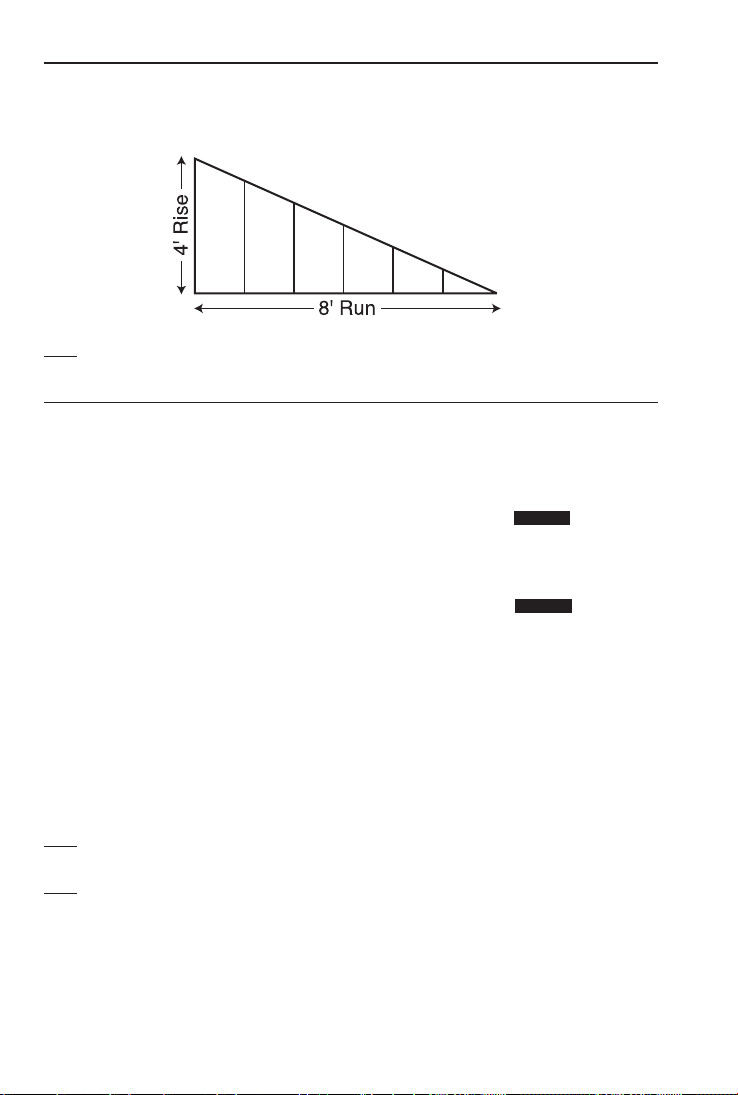
66 —
TM
Rake-Wall –
Note: The wall has no base.
KEYSTROKE DISPLAY
1. Enter Rise and Run and display o.c. spacing:
o o 0.
4 f r RISE 4 feet 0 inch
8 f R RUN 8 feet 0 inch
® 5* OC
STORED
16 inch
*If 16-inch is not displayed, enter 1 6 i ß 5.
2. Find stud lengths:
Ç r (R/Wall) RWOC
STORED
16 inch
r RW 1 3 feet 4 inch
r RW 2 2 feet 8 inch
r RW 3 2 feet 0 inch
r RW 4 1 feet 4 inch
r RW 5 0 feet 8 inch
r BASE 0 feet 0 inch
3. Find Rake-Wall angle of incline:
r RW 26.57°
Note: By setting the Rake “Ascend” Preference (see Preference Settings on
), you may view Rake-Wall stud lengths from smallest to largest size.
Note: You can also solve if you only know the Rise and Pitch, Run and Pitch, or
Diagonal and Pitch. Simply enter the known values via p, r, R, or d keys,
similar to Step #1 above, then solve for Rake-Wall stud lengths, as seen in Step #2.
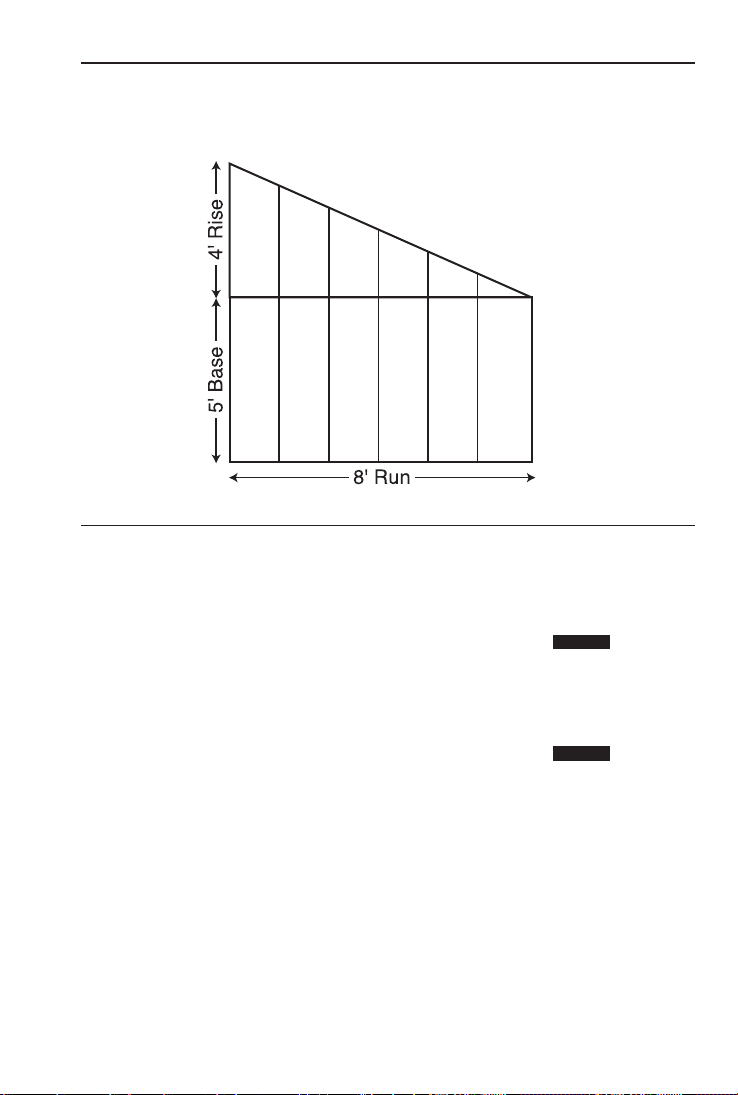
Rake-Wall –
On-center spacing.
KEYSTROKE DISPLAY
1. Enter Rise, Run, and o.c. spacing:
o o 0.
4 f r RISE 4 feet 0 inch
8 f R RUN 8 feet 0 inch
® 5* OC
STORED
16 inch
*If 16-inch is not displayed, enter 1 6 i ß 5.
2. Enter base, then find stud lengths and angle of incline:
5 f Ç r (R/Wall) BASE 5 feet 0 inch
r RWOC
STORED
16 inch
r RW 1 8 feet 4 inch
r RW 2 7 feet 8 inch
r RW 3 7 feet 0 inch
r RW 4 6 feet 4 inch
r RW 5 5 feet 8 inch
r BASE 5 feet 0 inch
r RW 26.57°

ROOFING MATERIALS
The Roof function solves for the amount of bundles and squares for
standard gable-end style roofs. Bundles are based on a coverage area
Roof Covering —
Find the roof area and number of roofing squares, number of bundles
KEYSTROKE DISPLAY
1. Enter Pitch and floor area*:
o o 0.
1 0 i p PTCH 10 inch
1 4 f l LNTH 14 feet 0 inch
1 1 f W WDTH 11 feet 0 inch
2. Find roof area:
Ç d (Roof) ROOF 200.4631 sq feet
3. Find number of roofing squares:
d SQRS 2.00
4. Find number of bundles:
d BNDL 6.01
5. Display bundle size/area:
d B-SZ 33.33 sq feet
6. Find number of 4 x 8 sheets:
d 4X8 6.26
7. Display stored Pitch:
d PTCH
STORED
10 inch
8. Find floor/plan area:
d PLAN 154. sq feet
*If you know the
area (and do not need to calculate it), once you have entered the
Pitch, enter the area and label it as Square Feet, then press Ç d. For example, if
the plan/floor area is 100 Square Feet, enter 1 0 0 f f Ç d.
For Trig Model (#4080) Users:
As this model does not have l and W keys, you must calculate area the stan-
dard way (e.g., L x W, or entering 154 Square Feet), then press Ç d.
TM

Roof Covering —
KEYSTROKE DISPLAY
1. Enter Rise, Run, length and width:
o o 0.
1 0 f r RISE 10 feet 0 inch
1 5 f R RUN 15 feet 0 inch
5 0 f l LNTH 50 feet 0 inch
3 0 f W WDTH 30 feet 0 inch
2. Find roof area, number of roofing squares, number of bundles,
stored bundle size, number of 4 x 8 sheets, Pitch and plan area:
Ç d (Roof) ROOF 1082.776 sq feet
d SQRS 18.03
d BNDL 54.08
d B-SZ 33.33 sq feet
d 4X8 56.34
d PTCH
STORED
8 inch
d PLAN 1500. sq feet
For Trig Model (#4080) Users:
As this model does not have l and W keys, you must calculate area the stan-
dard way (e.g., L x W, or entering 200 Square Feet), then press Ç d.
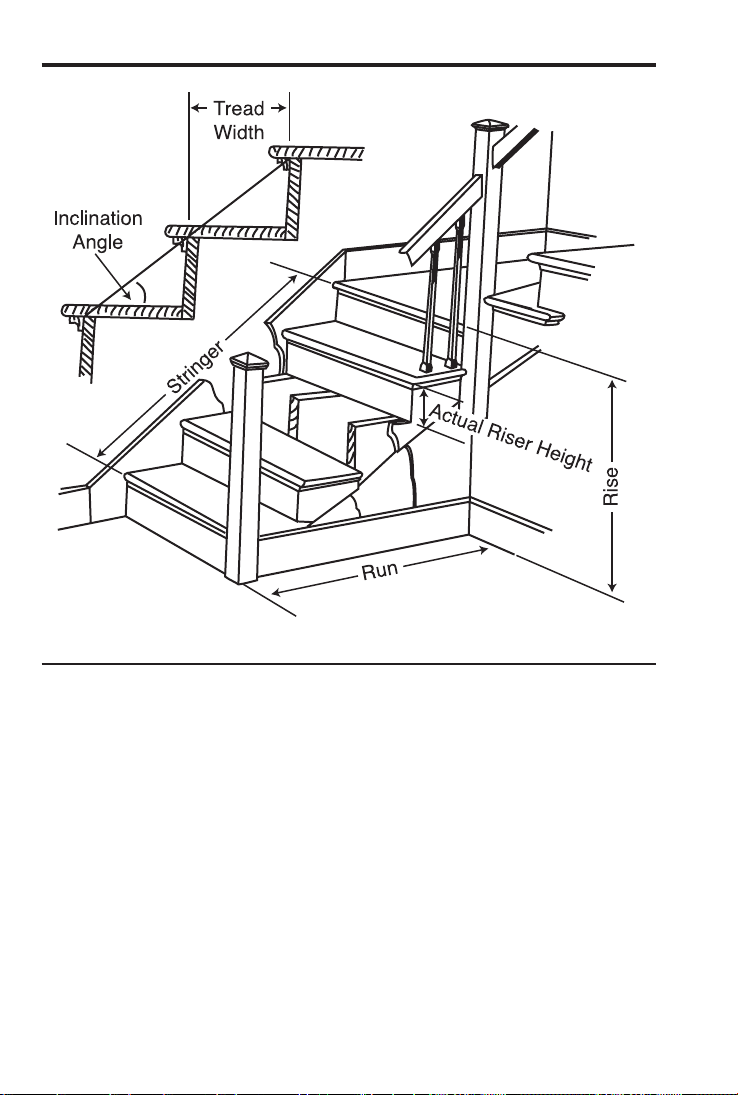
STAIR LAYOUT EXAMPLES
Stair Layout Definitions
Rise: The “floor-to-floor” or “landing-to-landing” rise is the actual ver-
tical rise required for building a stairway after the finish flooring has
been installed.
Run: The run of a stairway is
the amount of horizontal space
required. The total run of a stairway is equal to the width of each
tread multiplied by the number of treads.
Desired Riser Height: The desired riser height is the amount of
vertical rise you allow for each individual riser in the stairway. This
is sometimes dictated by local code.
Actual Riser Height: The actual height of each riser is measured
from the top of one tread to the top of the next tread.
TM

Number of Risers: The number of risers includes both the first and
the last riser of the stairway.
Riser Overage or Underage: The riser overage or underage is the
difference between the “floor-to-floor” rise and the total height of all
of the risers. Many times the riser height does not divide evenly into
the floor-to-floor rise and a small fraction of an inch is left over. A
positive remainder is an overage, while a negative remainder is an
underage.
Tread Width: The width of each tread is measured from the front of
one riser to the front of the next riser. The width of each tread does
NOT include the nosing or overhang of the tread. The nosing or
overhang of a tread is the rounded front of the tread that projects
beyond the face of the riser.
Number of Treads: The number of treads is one less than the
number of risers.
Tread Overage or Underage: The tread overage or underage is the
difference between the run or horizontal space that a stairway must
fit into and the total width of the treads. Similar to the riser overage/
underage, many times the total width of the treads does not divide
evenly into the run or horizontal space for the stairway and a small
fraction of an inch is left over. A positive remainder is an overage, a
negative remainder is an underage.
Stringers: Also called carriages, stair horses or stair jacks. Stringers
are the diagonal members that support the treads and risers.
Angle of Incline: The angle of incline of the stairway is determined
by the rise and run of each stair. The angle of incline should not be
confused with the pitch of the stairway. The pitch of a stairway is the
angle based on the floor-to-floor rise and the horizontal run of the
stairway. The angle of incline is based on the “actual” riser height
and the “actual” tread width of the stair.
Stairwell Opening: The length of the opening at the top of the
stairs. The computation is based on the headroom height (the
desired spacing between the stairs and upper floor ceiling) and
thickness of the upper floor where the opening is located.
TM
Stairs —
You’re building a stairway with a total rise of 9 Feet 11 Inches. Your
desired riser height is 7-1/2 Inches and desired tread width is
-
*Headroom and floor thickness are required to calculate the length of the stairwell
opening.
KEYSTROKE DISPLAY
1. Enter known Rise:
o o 0.
9 f 1 1 i r RISE 9 feet 11 inch
2. Recall stored desired stair riser height:
® 7 R-HT
STORED
7-1/2 inch
3. Recall stored desired stair tread width:
® 9 T-WD
STORED
10 inch
4. Recall stored desired floor thickness:
® 8 FLOR
STORED
10 inch
5. Display stored Headroom (via Preference Setting Mode):
Ç ß ß ß ß HDRM 6 feet 8 inch
6. Find riser height, number of risers, riser underage/overage, tread
width, number of treads, tread overage/underage, length of stairwell
opening, stringer length and angle of incline. As a final step, calcu-
late the run.
s R-HT 7-7/16 inch
s RSRS 16.
s R+/– 0 inch
s T-WD
STORED
10 inch
s TRDS 15.
s T+/– 0 inch
s OPEN 10 feet 1 inch
s STRG 15 feet 6-15/16 inch
s INCL 36.64°
s RUN 12 feet 6 inch
s* RISE
STORED
9 feet 11 inch
*Continuous presses of s will also recall stored desired riser height, tread, head-
room and floor thickness values.

Notes on Changing Stored Stair Variables:
To Change Desired Riser Height: If you wish to use a Desired
Riser Height of other than 7-1/2 Inches (the calculator’s default),
8 i ß 7. Press ® 7 to review your new entry. This value
will be permanently stored until you change it.
To Change Desired Tread Width: If you wish to use a Desired
Tread Width of other
1 0 i 1 / 2 ß 9. Press ® 9 to review your new entry.
This value will be permanently stored until you change it.
To Change Desired Floor Thickness: If you wish to use a Desired
Floor Thickness of other
simply enter a new value. For example, to enter 12 Inches, enter
1 2 i ß 8. Press ® 8 to review your new entry. This
value will be permanently stored until you change it.
To Change Desired Headroom: If you wish to use a Desired
Headroom other
simply select a new value via the Preference Mode and use the +
or – keys to increase/decrease by one inch. See examples below.
This value will be permanently stored until you change it.
KEYSTROKE DISPLAY
1. Select Headroom via Preference Mode:
o o 0.
Ç ß ß ß ß HDRM 6 feet 8 inch
2. Decrease Headroom Height by 2 Inches:
– – HDRM 6 feet 6 inch
3. Then increase Headroom Height by 4 Inches:
+ + + + HDRM 6 feet 10 inch
4. Return Headroom Height to default of 6 Feet 8 Inches:
– – HDRM 6 feet 8 inch
TM
Stairs —
Find all stair values, then calculate the rise.
KEYSTROKE DISPLAY
1. Enter run:
o o 0.
2 0 f R RUN 20 feet 0 inch
2. Find riser height, number of risers, riser underage/overage, tread
width, number of treads, tread overage/underage, stairwell opening,
stringer length and angle of incline. As a final step, calculate the rise.
s R-HT
STORED
7-1/2 inch
s RSRS 25.
s R+/– 0 inch
s T-WD 10 inch
s TRDS 24.
s T+/– 0 inch
s OPEN 10 feet 0 inch
s STRG 25 feet 0 inch
s INCL 36.87°
s RUN
STORED
20 feet 0 inch
s RISE 15 feet 7-1/2 inch
Stairs —
1 Inch, a run of 15 Feet 5 Inches, and a nominal desired riser height
of 7-1/2 Inches (default). Calculate all stair values.
KEYSTROKE DISPLAY
1. Enter Rise and Run:
o o 0.
1 0 f 1 i r RISE 10 feet 1 inch
1 5 f 5 i R RUN 15 feet 5 inch
2. Find Stair values:
s R-HT
7-9/16 inch*
s RSRS 16.
s R+/– 0 inch
s T-WD 12-5/16 inch
s TRDS 15.
s T+/– – 0-5/16 inch
s OPEN 12 feet 2-1/2 inch
s STRG 18 feet 0-3/4 inch
s INCL 31.56°
s RUN
STORED
15 feet 5 inch
s RISE
STORED
10 feet 1 inch
s R-HT
STORED
7-1/2 inch
s T-WD
STORED
10 inch
s HDRM
STORED
6 feet 8 inch
s FLOR
STORED
10 inch
*A
in the display means that the calculated riser height exceeds the stored desired
riser height.
TM
Stairs —
Your local code prohibits risers greater than 7-1/2 Inches. You need
of 15 Feet 5 Inches. Calculate all stair values. Use the “Riser
Limited” function (second function of the s key) to calculate a riser
height that does not exceed the stored Desired Riser Height of 7-1/2
Inches.
KEYSTROKE DISPLAY
1. Enter Rise and Run:
o o 0.
1 0 f 1 i r RISE 10 feet 1 inch
1 5 f 5 i R RUN 15 feet 5 inch
2. Find stair values using “Riser Limited”:
Ç s (Riser Limited) R-HT 7-1/8 inch
s RSRS 17.
s R+/– 1/8 inch
s T-WD 11-9/16 inch
s TRDS 16.
s T+/– 0 inch
s OPEN 12 feet 2-1/16 inch
s STRG 18 feet 1-5/16 inch
s INCL 31.64°
s RUN
STORED
15 feet 5 inch
s RISE
STORED
10 feet 1 inch
s R-HT
STORED
7-1/2 inch
s T-WD
STORED
10 inch
s HDRM
STORED
6 feet 8 inch
s FLOR
STORED
10 inch

Baluster Spacing
You are going to install a handrail at the top of a balcony. Your total
span is 156 Inches and you would like the space between the balus-
KEYSTROKE DISPLAY
1. Estimate number of balusters in span.
o o 0.
1 5 6 i ÷ 156 inch
5 i 1 / 2 =* 28.36364
(28 balusters)
*Desired spacing plus baluster width (4” plus 1-1/2”).
2. Find total space ‘occupied’ by the balusters by multiplying the
width of each baluster by the rounded number of balusters (found
above):
1 i 1 / 2 x 1-1/2 inch
2 8 = 42 inch
3. Find total space between all balusters:
1 5 6 i – 156 inch
4 2 i = 114 inch
4. Find actual baluster spacing by dividing total space between all
balusters by the number of spaces between the balusters (number
of balusters plus one equals 29):
1 1 4 i ÷ 114 inch
2 9 = 3-15/16 inch
TM
STUDS
Find the number of 16-inch On-center studs needed for a wall with a
KEYSTROKE DISPLAY
1. Enter length and convert to Studs*.
o o 0.
1 8 f 7 i 1 / 2 18 feet 7-1/2 inch
Ç 5 (Studs) STUD 15.
(studs)
*The length is divided by the On-center spacing; in this case, 16 Inches (default set-
ting). Press ® 5 to review the stored On-center value. If you need to enter a new
On-center, for example 18 Inches, enter 1 8 i ß 5.
BASIC D:M:S AND TRIGONOMETRY EXAMPLES
Converting Degrees:Minutes:Seconds
KEYSTROKE DISPLAY
o o 0.
2 3 • 4 2 • 3 9 DMS 23.42.39
Ç • (dms deg) 23.71°
KEYSTROKE DISPLAY
o o 0.
4 4 • 2 9 Ç • (dms deg) DMS 44.17.24
Note: Improperly formatted entries will be redisplayed in the correct convention after
any operator key is pressed. For example, 30° 89’ entered will be corrected and dis-
played at 31° 29’ 0” or 31.48333°.
Time Calculations Using D:M:S
KEYSTROKE DISPLAY
o o 0.
7 • 4 5 • 3 3 DMS 7.45.33
+ 1 1 • 1 6 • 2 0 = DMS 19.01.53
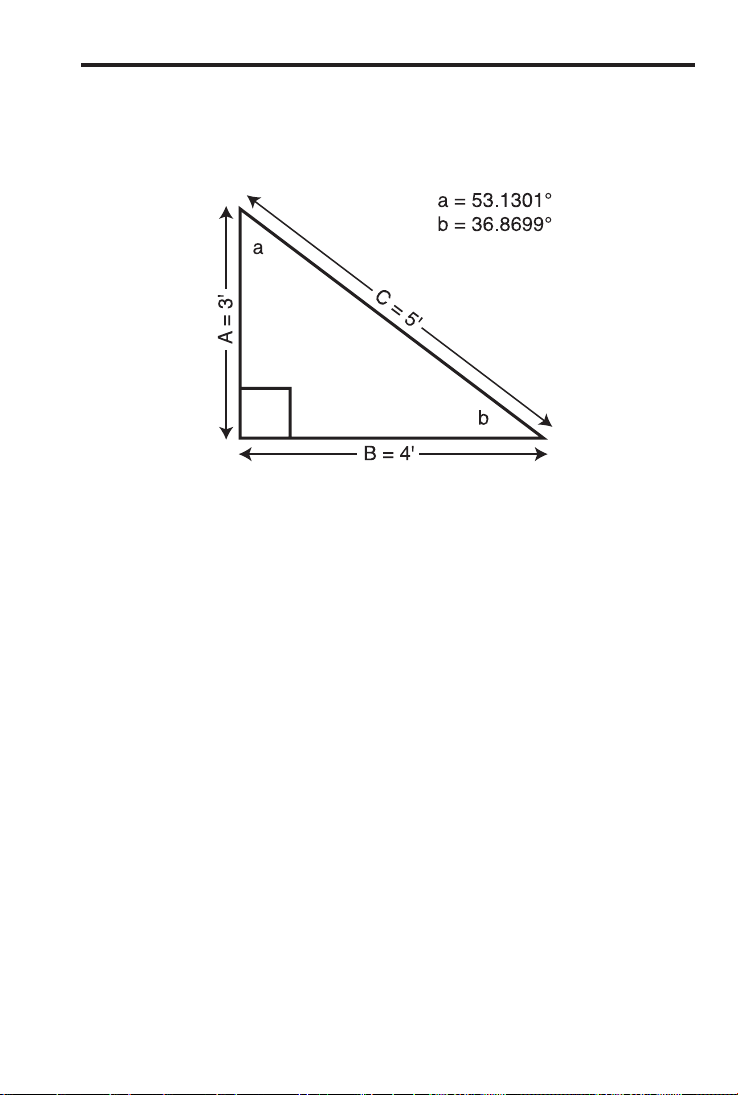
TRIGONOMETRIC FUNCTIONS
Trigonometric functions are available on the Construction Master Pro
Trig and Construction Master Pro Desktop calculators.
The drawing and formulas below list basic trigonometric formulas, for
your reference:
Given side A and angle a, find:
Side C A ÷ a ç =
(e.g., 3 f ÷ 5 3 • 1 3 ç =)
Side B A x a t =
– a =
Given side A and angle b, find:
Side B A ÷ b t =
Side C A ÷ b S =
– b =
Given side B and angle a, find:
Side A B ÷ a t =
Side C B ÷ a S =
Given side C and angle a, find:
Side A C x a ç =
Side B C x a S =
Given side A and side C, find:
Angle a A ÷ C = Ç ç
Angle b A ÷ C = Ç S
Given side B and angle b, find:
Side C B ÷ b ç =
Side A B x b t =

TM
Converting Percent Grade to D:M:S
You are grading a piece of property and the site plans call for an
KEYSTROKE DISPLAY
Enter grade and convert to degrees:minutes:seconds:
o o 0.
3 5 % Ç t Ç • (dms deg) DMS 19.17.24
slope will pass inspection.
Converting Tangent/Pitch to Angle
KEYSTROKE DISPLAY
1. Enter pitch:
o o 0.
8 i p PTCH 8 inch
2. Convert Pitch to degrees:
p PTCH 33.69°
3. Find Tangent or Slope:
t 0.666667
Converting Roof Angle in Degrees to Pitch in Inches
KEYSTROKE DISPLAY
1. Enter angle:
o o 0.
3 0 • 2 5 t 0.583183
2. Convert to Pitch:
Ç p (Slope) SLP 0.583183
p PTCH 7 inch

Angle —
Find the angle that connects the rise and hypotenuse of a right trian-
KEYSTROKE DISPLAY
1. Use trigonometric formula (divide the rise by the hypotenuse):
o o 0.
6 f ÷ 1 0 f = 0.6
2. Solve for degrees:minutes:seconds or angle:
Ç ç (cos
-1
) 53.13°
Ç • (dms deg) DMS 53.07.48

TM
APPENDIX A —
After a Clear All (Ç x), your calculator will return to the following
settings:
STORED VALUES DEFAULT VALUE
Desired Riser Height 7-1/2 inch
Desired Tread Width 10 inch
Floor Height 10 inch
On-center Spacing 16 inch
Weight per Volume 1.5 ton per cu yd
Block Area (except Trig model) 128. sq inch
Block Length (except Trig model) 16 inch
Footing Area (except Trig model) 264. sq inch
Spring (Crown) Angle 45.00°
If you replace your batteries or perform a Full Reset* (press O, hold
down x, and press o), your calculator will return to the following
settings (in addition to those listed above):
PREFERENCE SETTINGS DEFAULT VALUE
Fractional Resolution 1/16
Area Display Standard
Volume Display Standard
Rake Wall Descending
Arched Wall Outside
Jack Rafters Descending
Irregular Jack Spacing OC-OC
Exponent Off
Fractional Mode Standard
*Depressing the Reset button located above the p key (below the Ç key on the
Desktop model) will also perform a Full Reset.

APPENDIX B —
The Construction Master Pro calculators have Preference Settings
that allow you to customize or set desired dimensional formats and
calculations. The options vary per model.
If you replace your batteries or perform a Full Reset* (press O, hold
down x, and press o), your calculator will return to the following
settings (in addition to those listed on the previous page):
*Depressing the Reset button located above the p key (below the Ç key on the
Desktop model) will also perform a Full Reset.
PREFERENCE OPTIONS
1) Fractional Resolution – *1/16 (displays fractional values to the
nearest 16th of an Inch)
– 1/32
– 1/64
– 1/2
– 1/4
– 1/8
2) Area Display Format – *Standard (if units entered are the
same—e.g., Feet x Feet—the answer
will remain in this format (Square Feet),
but if units entered are different — e.g.,
Inches x Feet—area answer will be dis-
played in Square Feet)
– Square Feet (area answers always
displayed in Square Feet, regardless of
unit entry — e.g., Inches x Inches =
Square Feet)
– Square Yards (area answers always
displayed in Square Yards — e.g.,
Feet x Feet = Square Yards)
– Square Meters (area answers always
displayed in Square Meters — e.g.,
Feet x Feet = Square Meters)
Note: To check the current Fractional Resolution, press ® /. Either “Std” (standard
fractional resolution) or “Cnst” (constant) will be displayed, along with the fractional
resolution).
(Cont’d)

TM
(Cont’d)
PREFERENCE OPTIONS
3) Volume Display Format – *Standard (if units entered are the
same — e.g., Feet x Feet x Feet — the
answer will remain in this format (cu. ft),
but if units entered are different — e.g.,
Feet x Feet x Inches — vol. answer will
always be displayed in Cubic Yards)
– Cubic Yards (vol. answers always
displayed in Cubic Yards, regardless of
unit entry — e.g., Feet x Feet x Feet =
Cubic Yards)
– Cubic Feet (vol. answers always dis-
played in Cubic Feet, regardless of unit
entry — e.g., Inches x Inches x Inches =
Cubic Feet)
– Cubic Meters (vol. answers always
displayed in Cubic Meters, regardless of
unit entry — e.g., Feet x Feet x Feet =
Cubic Meters)
6 Feet 8 Inch (default)
Height – Use + or – key to increase or
decrease above value by 1 Inch
5) Rake-Wall Descending – *Descending (Rake-Wall studs are
or Ascending displayed from largest to smallest size)
– Ascending (Rake-Wall studs are
displayed from smallest to largest size)
6) Arched Wall Outside – *Outside (Arched walls are calculated
or Inside for outside of the arc)
– Inside (Arched walls are calculated
for inside of the arc)
7) Jack Rafters Descending – *Descending (Jack rafters are
or Ascending displayed from largest to smallest size)
– Ascending (Jack rafters are displayed
from smallest to largest size)

PREFERENCE OPTIONS
OC-OC (On-center spacing maintained
O-C or Mate on both regular and irregular sides)
– JAC-JAC (regular/irregular Jack rafters
“mate” at the hip/valley, e.g., On-center
spacing not maintained on both sides)
9) Exponent Off or On – *Off (Exponential Mode is Off; turns
on Auto-ranging; e.g., if display can’t
show seven digits, will display in next
largest unit).
– On (Exponential Mode is On)
0.000 (linear Meter answers are
always displayed to third decimal place)
– FLOAt (linear Meter answers are
displayed to the maximum number of
11) Decimal Degree – *0.00°
Display – FLOAt
12) Fractional Mode – *Standard (fractions are displayed to
the nearest fraction)
– Constant (fractions are displayed in
the set fractional resolution)

TM
How to Set Preferences
The following sections detail Preference Setting options for the
Construction Master Pro calculators.
Enter the Preference Mode by pressing Ç ß (Prefs). Access
each category by pressing the ß key until you reach the desired
setting. Within each category, press the + or – keys to toggle
between individual selections. Press o to exit and set your
Preference.
Note: Press + to advance and press – to back up. Pressing the ß key continuously
in this mode will cycle through all of the Preference Settings.
You may change these settings at any time by repeating the above,
and setting in a new preference.
To reset preferences back to factory default settings, turn your calcu-
lator off, hold down the x key and turn the calculator back on.
For example, if you wish to display all your dimensional area answers
in square meters, press Ç ß ß (Area Std), then the + key
until “AREA 0. sq m” is displayed. Simply exit this mode by press-
ing o or any key, except + or ß, and all your future area
answers will be displayed in square meters.
Accessing Preference Settings
KEYSTROKE DISPLAY
To Set “Fractional Resolution”:
Ç ß (Prefs) (1st press of ß) FRAC 0-1/16 inch
+ (plus sign) FRAC 0-1/32 inch
+ FRAC 0-1/64 inch
+ FRAC 0-1/2 inch
+ FRAC 0-1/4 inch
+ FRAC 0-1/8 inch
+ (repeats options) FRAC 0-1/16 inch
To Set “Area” Answer Format:
ß (2nd press of ß) AREA Std.
+ (plus sign) AREA 0. sq feet
+ AREA 0. sq yd
+ AREA 0. sq m
+ (repeats options) AREA Std.

KEYSTROKE DISPLAY
To Set “Volume” Answer Format:
ß (3rd press of ß) VOL Std.
+ (plus sign) VOL 0. cu yd
+ VOL 0. cu feet
+ VOL 0. cu m
+ (repeats options) VOL Std.
To Increase or Decrease Stairwell “Headroom” from Default of 6’8”:
ß (4th press of ß) HDRM 6 feet 8 inch
+* (plus sign increases height by 1 Inch) HDRM 6 feet 9 inch
–* (minus sign decreases height by 1 Inch) HDRM 6 feet 8 inch
*Keep pressing + or – to increase or decrease an Inch at a time.
To Set Rake-Wall Stud Sizes to “Descending” or “Ascending”:
ß (5th press of ß) RAKE dESCEnd
+ (plus sign) RAKE ASCEnd
+ (repeats options) RAKE dESCEnd
To Set Arched Wall Calculations to “Outside” or “Inside”:
ß (6th press of ß) AW outSidE
+ (plus sign) AW inSidE
+ (repeats options) AW outSidE
To Set Jack Rafter to “Descending” or “Ascending”:
ß (7th press of ß) JACK dESCEnd
+ (plus sign) JACK ASCEnd
+ (repeats options) JACK dESCEnd
To Set Irregular Jack Spacing to “On-Center” or “Mate”:
ß (8th press of ß) IRJK OC-OC
+ (plus sign) IRJK JAC-JAC
+ (repeats options) IRJK OC-OC
To Set “Exponential Mode” On or Off:
ß (9th press of ß) EXP OFF
+ (plus sign) EXP On
+ (repeats options) EXP OFF
(Cont’d)

TM
(Cont’d)
KEYSTROKE DISPLAY
To Set “Meter” Linear Decimal Format:
ß (10th press of ß) METR 0.000 m
+ (plus sign) METR FLOAt m
+ (repeats options) METR 0.000 m
To Set “Number of Decimal Places for Degree Displays”:
ß (11th press of ß) DEG 0.00°
+ (plus sign) DEG FLOAt
+ (repeats options) DEG 0.00°
To Set Fractional Mode to “Standard” or “Constant”:
ß (12th press of ß) Std.
+ (plus sign) COnSt
+ (repeats options) Std.
Note: Press o at any time to exit the Preference Mode.

APPENDIX C —
Please follow the guidelines listed in this section for proper care and
operation of your calculator. Not following the instructions listed
below may result in damage not covered by your warranty. Refer to
the Repair and Return section on page 95 for more details.
Do not expose calculator to temperatures outside the operating
temperature range of 32ºF – 104ºF (0ºC – 40ºC).
Do not expose calculator to high moisture such as submersion
in water, heavy rain, etc.

TM
APPENDIX D —
The Construction Master Pro Workbook and Study Guide has been
written with keystroke examples, illustrations and solutions using
Construction Master Pro v3.1. If you are using a Construction Master
to the v 3.1 edition. The version number you are using appears next
You can also refer to your User’s Guide for more information on any
of the following functions.
NEW/ENHANCED FUNCTION DESCRIPTION
Accumulative Memory (M+) – Now also displays the average and the
count upon repeated key presses of µ.
Arc and Circle Calculations – Arc and Circle values can now be solved by
entering any two of the following values: Arc
Length/Angle, Diameter/Radius, Chord Length,
and Segment Rise.
Arched Segment Walls – Now calculates the segment walls outside
the arc (including a base, if needed), or cal-
culates the arched segment walls inside the
arc, depending upon preference setting.
Blocks Function – Now solves for blocks based on values
stored in l only or in l and h.
Compound Miter – Now calculates the Miter and Bevel angles
using the spring (crown) angle (this is the
angle of the crown molding to the wall; previ-
molding to the ceiling).
Column/Cone Function – Column/Cone Height is now entered using
the h key instead of the r key
Height – Displays Volume, Wall Area, and Room
Area only (excludes display of Area, Square-
Up, and Perimeter, which are displayed in
the Width function).
Jack Rafters – Now displays the incremental adjustment,
which is the difference in rafter length from
one rafter to the next.

APPENDIX E —
ACCURACY/ERRORS
Accuracy/Display Capacity — Your calculator has a twelve-digit
display made up of eight digits (normal display) and four fractional
digits. You may enter or calculate values up to 19,999,999.99. Each
calculation is carried out internally to twelve digits.
Errors — When an incorrect entry is made, or the answer is beyond
the range of the calculator, it will display the word “ERROR.” To clear
an error condition you must hit the o button once. At this point
you must determine what caused the error and re-key the problem.
Error Codes
DISPLAY ERROR TYPE
OFLO Overflow (too large)
MATH Error
DIM Error Dimension error
ENT Error Invalid entry error
TRIG Error Trig. error (for example, tan of 1 foot)
None Attempt to calculate stairs without enter-
ing rise and run
Auto-Range — If an “overflow” is created because of an input and
calculation with small units that are out of the standard seven-digit
range of the display, the answer will be automatically expressed in
the next larger units (instead of showing “ERROR”) — e.g.,
and yards.
Note: If Exponential Notation is activated through the Preference Setting, the value
will be shown in scientific notation (e.g., 20 million mm—2.00000
07
mm).
AUTO SHUT-OFF
of non-use.
BATTERIES
• Construction Master Pro v3.1Construction Master Pro
Trig v3.1
• Construction Master Pro Desktop v3.1
Replacing the Battery(ies)
Should your calculator display become very dim or erratic, replace
the battery(ies).
Note: Please use caution when disposing of your old battery, as it contains hazardous
chemicals.
Battery Replacement Instructions
• The Hand-held Models —
– Construction Master Pro v3.1
– Construction Master Pro Trig v3.1
To replace the batteries, slide open the battery door (at top
backside of unit) and replace with new batteries. Make sure the
batteries are facing positive side up.
• Construction Master Pro Desktop v3.1
(1) To remove battery door, release snap lock in slot and lift. (2)
Remove the battery and replace it with a new battery, with the
positive (+) side up. (3) To replace the door, slide it in at an angle
and push down.
RESET
If your calculator should ever “lock up,” press Reset — a small hole
located above the
p key (below the Ç key on the Construction
Master Pro Desktop) — to perform a total reset.
TM
1. Remove Door
2. Replace Battery
3. Replace Door
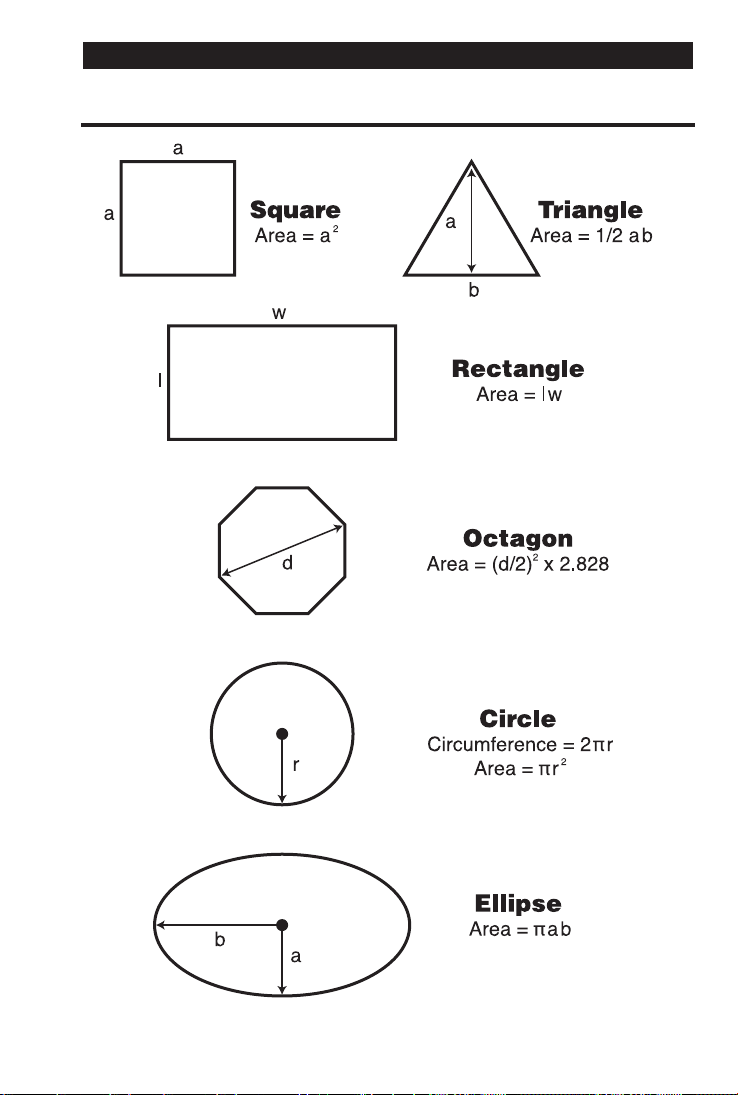
APPENDIX F —
AREA FORMULAS
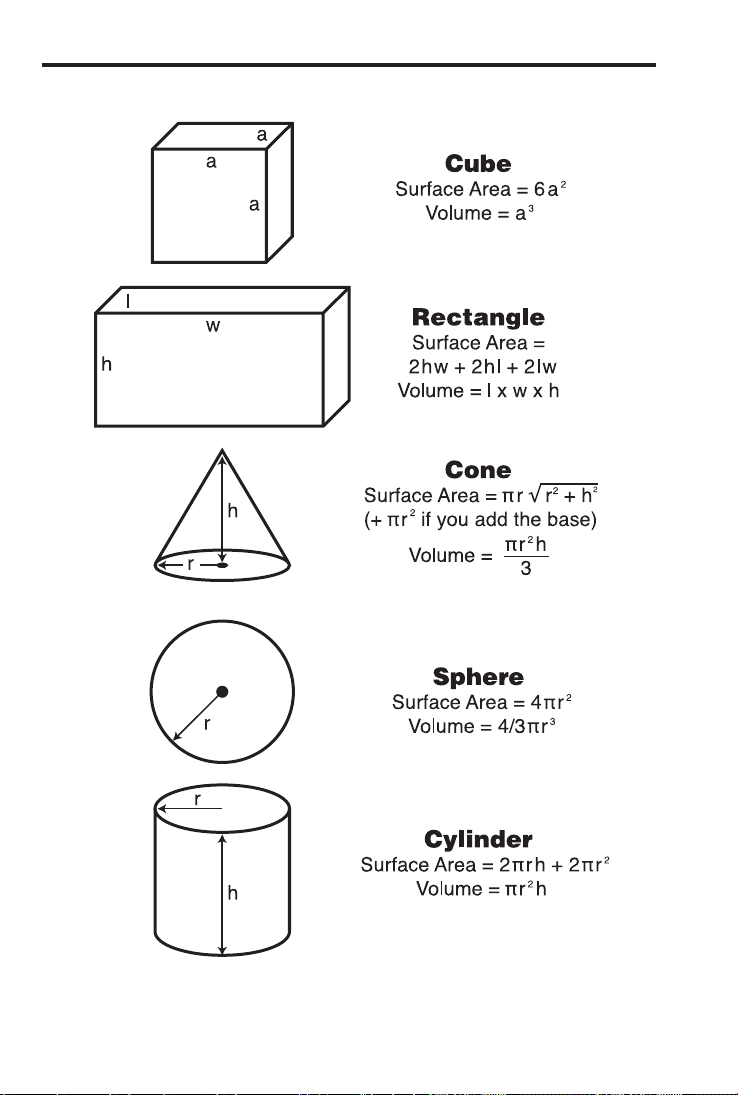
TM
SURFACE AREA/VOLUME FORMULAS

REPAIR AND RETURN
WARRANTY, REPAIR AND RETURN INFORMATION
1. Please read the in this User's Guide to determine if
your Calculated Industries product remains under warranty
before calling or returning any device for evaluation or repairs.
2. If your product won't turn on, check the batteries as outlined in
the User's Guide.
3. If you need more assistance, please go to the website listed
below.
4. If you believe you need to return your product, please call a
Calculated Industries representative between the hours of
Return Authorization (RA) number.
Call Toll Free: 1-800-854-8075
Outside USA: 1-775-885-4900
www.calculated.com/warranty

TM
WARRANTY
Warranty Repair Service – USA
Calculated Industries (“CI”) warrants this product against defects in materi-
als and workmanship for a period of one (1) year from the date of original
consumer purchase in the U.S. If a defect exists during the warranty peri-
od, CI at its option will either repair (using new or remanufactured parts) or
replace (with a new or remanufactured calculator) the product at no charge.
THE WARRANTY WILL NOT APPLY TO THE PRODUCT IF IT HAS BEEN
DAMAGED BY MISUSE, ALTERATION, ACCIDENT, IMPROPER HANDLING
OR OPERATION, OR IF UNAUTHORIZED REPAIRS ARE ATTEMPTED OR
MADE. SOME EXAMPLES OF DAMAGES NOT COVERED BY
WARRANTY INCLUDE, BUT ARE NOT LIMITED TO, BATTERY LEAKAGE,
BENDING,
A BLACK “INK SPOT” OR VISIBLE CRACKING OF THE LCD,
WHICH ARE PRESUMED TO BE DAMAGES RESULTING FROM MISUSE
OR ABUSE.
To obtain warranty service in the U.S., please go to the website.
A repaired or replacement product assumes the remaining warranty of the
Non-Warranty Repair Service – USA
Non-warranty repair covers service beyond the warranty period, that are less
than 5 years old and which have not been damaged due to misuse or abuse.
Repair Service – Outside the USA
To obtain warranty or non-warranty repair service for goods purchased out-
side the U.S., contact the dealer through which you initially purchased the
product. If you cannot reasonably have the product repaired in your area,
you may contact CI to obtain current product repair information and charges,
including freight and duties.

Disclaimer
CI MAKES NO WARRANTY OR REPRESENTATION, EITHER EXPRESS
OR IMPLIED, WITH RESPECT TO THE PRODUCT’S QUALITY,
PERFORMANCE, MERCHANTABILITY, OR FITNESS FOR A PARTICULAR
PURPOSE. AS A RESULT, THIS PRODUCT, INCLUDING BUT NOT
LIMITED TO, KEYSTROKE PROCEDURES, MATHEMATICAL ACCURACY
AND PREPROGRAMMED MATERIAL, IS SOLD “AS IS,” AND YOU THE
PURCHASER ASSUME THE ENTIRE RISK AS TO ITS QUALITY AND
PERFORMANCE.
IN NO EVENT WILL CI BE LIABLE FOR DIRECT, INDIRECT, SPECIAL,
INCIDENTAL, OR CONSEQUENTIAL DAMAGES RESULTING FROM ANY
DEFECT IN THE PRODUCT OR ITS DOCUMENTATION.
The warranty, disclaimer, and remedies set forth above are exclusive and
replace all others, oral or written, expressed or implied. No CI dealer, agent,
or employee is authorized to make any modification, extension, or addition
to this warranty.
Some states do not allow the exclusion or limitation of implied warranties or
liability for incidental or consequential damages, so the above limitation or
exclusion may not apply to you. This warranty gives you specific rights, and
you may also have other rights, which vary from state to state.

TM
FCC Class B
This equipment has been certified to comply with the limits for a Class B cal-
culating device, pursuant to Subpart J of Part 15 of FCC rules.
Legal Notes
23
Construction Master
TM
and Calculated Industries® are trademarks
and registered trademarks of Calculated Industries, Inc.
ALL RIGHTS RESERVED
Designed in the USA
Looking For New Ideas
Calculated Industries, a leading manufacturer of special-function calculators
and digital measuring instruments, is always looking for new product ideas in
these areas.
If you have a new product idea, please visit our “Bright Idea” page at www.
calculated.com/brightidea.asp. For suggestions about improving this product
or other products, please visit us at www.calculated.com under “Contact Us.”
Thank you.

INDEX
Accuracy/Errors, 91
Adding Linear Measurements, 29
Angle – Rise and Hypotenuse Known
Angle and Diagonal (Hypotenuse), 59
Arc Length, 39
Area Calculations, 31
Area, Rectangular, 31
Area, Square, 31
Area/Volume Formulas, 93
Auto Shut-Off, 91
Baluster Spacing, 77
Basic Operation Keys, 1
Batteries, 92
Block/Brick Function, 6
Blocks, Number of, Based on Calculated Perimeter, 36
Blocks, Number of, Based on Entered Area, 35
Blocks, Number of, Based on Entered Length, 36
Blocks, Number of, Based on Entered Length and Height, 35
Board Feet – With Dollar Cost
Bricks (Face), Number of, 37
Bricks (Paver), Number of, 37
Circular/Arc Function Keys, 7
Circumference and Area of a Circle, 39
Common Rafter Length – Pitch Unknown
Cone, Volume, 33
Construction Project Keys and Functions, 6
Conversions, Area/Square, 23
Conversions, Linear, 22
Conversions, Volume/Cubic, 23
Convert Ç Key, 1
Convert Degree of Pitch, 57
Convert Percent Grade, 57
Converting Decimal Feet to Feet-Inch-Fractions, 22
Converting Decimal Inches to Fractional Inches, 23
Converting Feet-Inch-Fractions to Decimal Feet, 22
Converting Fractional Inches to Decimal Inches, 23

TM
Cutting Boards, 29
Cylinder, Volume, 33
Dimensional Measurement Unit Keys, 3
Drywall, 52
Drywall Sheets, Number of (For a Given Area), 52
Drywall Sheets, Number of (For a Given Length), 52
Error Codes, 91
Examples, 29
Footing Function, 9
Grade/Slope, 53
Hip/Valley and Jack Rafter Keys, 11
Hip/Valley Rafter, 12
Irregular Pitch, 12
Irregular Side Jacks, 13
Jack Rafters, 12
Jack Rafters – Using Other Than 16 Inch, 61
Key definitions, 1
Memory and Storage Functions, 2
Memory Operation, 25
Multi-Function h Example, 32
Multi-Function W Example, 31
Paperless Tape Operation, 27
Percentage Calculations, 25
Pitch Ratio, 57
Polygon Function, 9
Rake-Wall Function, 13
Rake-Wall – No Base, 66
Rake-Wall – With Base, 67
Recall ® Key, 3
Reset, 92
Rise, 59
Rise and Diagonal, 59
Roof Covering – Entering Pitch, Length and Width
Roof Covering – Entering Rise, Run (No Pitch) and Area, 69
Roof Framing Definitions, 55
Square Area, 31

Squaring-Up a Foundation, 51
Stairs – Given Only Floor-to-Floor Rise, 72
Stairs – Given Only the Run
Stairs – Given Rise and Run, 75
Stairs – Given Rise and Run, Using “Riser Limited” Function for Code Restrictions, 76
Studs Function, 16
Volume Calculations, 32
Volume, Cone, 33
Volume, Cylinder, 33
Volume, Rectangular Containers, 32
Warranty, 96
Warranty Repair Service, 96
Weight Keys, 5
E-mail: [email protected]
www.calculated.com

Designed in the United States of America
Printed in the Philippines
03/23
UG4065E-J