Battery Saver
Your universal remote control saves battery power by
automatically turning off if any key is pressed for more than
60 seconds. This saves your battery life should your remote
get stuck in a place where the keys remain depressed, such as
between sofa cushions.
RCRN03BR
Universal Remote Control
Owner’s Manual
Manual del Propietario (parte posterior)
SAVE THIS MANUAL AND THE CODE LISTS!
Remote controls can sometimes lose their programming
when you change the batteries. Make sure you keep the
manual and code lists in a safe place so that you can
reprogram the remote if you need to.
Tip: This remote is already programmed to operate most
RCA-branded TVs, DVD players, and satellite receivers.
receiver.
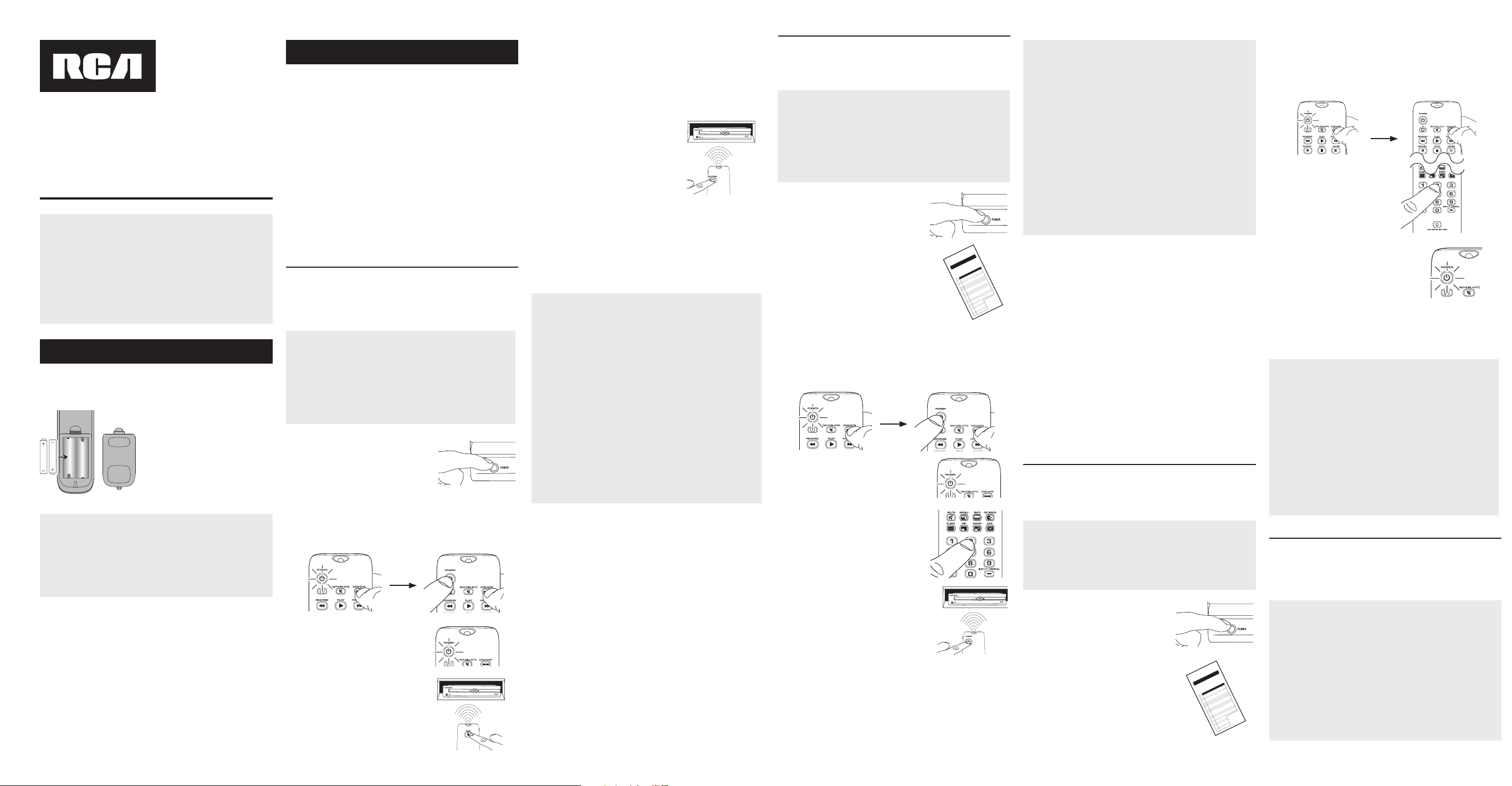
Your universal remote requires two AAA alkaline batteries (not
included).
To install the batteries:
1.
Remove the battery
compartment cover.
2.
Insert the batteries, matching
the batteries to the (+) and
(–) marks inside the battery
compartment.
3.
Push the battery cover back into
place.
Battery Precautions:
and National Regulations.
To use this universal remote with your home entertainment
system, first you need to program it to control your devices.
There are four ways you can program the universal remote to
operate your devices:
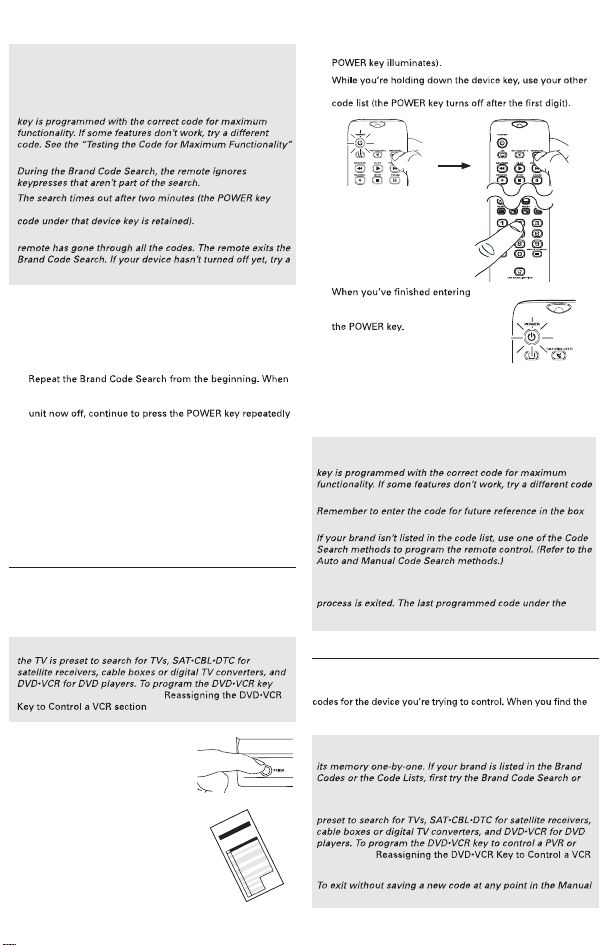
Auto Code Search goes automatically through all the
codes for the device you’re trying to control. It’s the easiest
method, but it can sometimes take longer than some of the
other programming methods.
Brand Code Search searches through the codes for
select brands of devices. It’s not as easy as the auto code
search, but it can be faster.
Direct Code Entry lets you enter a code from the
accompanying code list for your brand of device. It’s not as
easy as the other methods, but it’s potentially the fastest
method.
Manual Code Search lets you manually go through
all the codes for the device you’re trying to control.
Testing the Code for Maximum Functionality
1. Try a variety of the device’s functions with the remote. If
some device features don’t work, go to the next step to try
a different code.
2. Repeat the Auto Code Search Method from the beginning.
Instead, with the unit now off, continue to press the PLAY
key every 5 seconds until the unit turns back on.
3. Once the unit turns back on, press the REVERSE key on the
remote every 2 seconds until your device turns off again.
4. Test the key’s functionality again by attempting to control
a variety of the device’s functions. If the code that has
been stored controls the majority of the device’s functions,
programming is complete. If the code stored does not give
maximum functionality, try another code.
Auto Code Search
The Auto Code Search goes automatically through all the
the one that operates your device, you can stop the search and
store that code.
TIPS: Each device key is associated with a type of
key to control a PVR or VCR, see the Reassigning the
.
Code Search, press the EXIT key.
1.
Manually turn on the device you
want to control.
2.
Press and hold the device key you want to program. The
3.
on and stays on. Then release
both keys.
4.
Point the remote directly at the
front panel of the device you
want to control. Press PLAY on
the remote and wait 5 seconds.
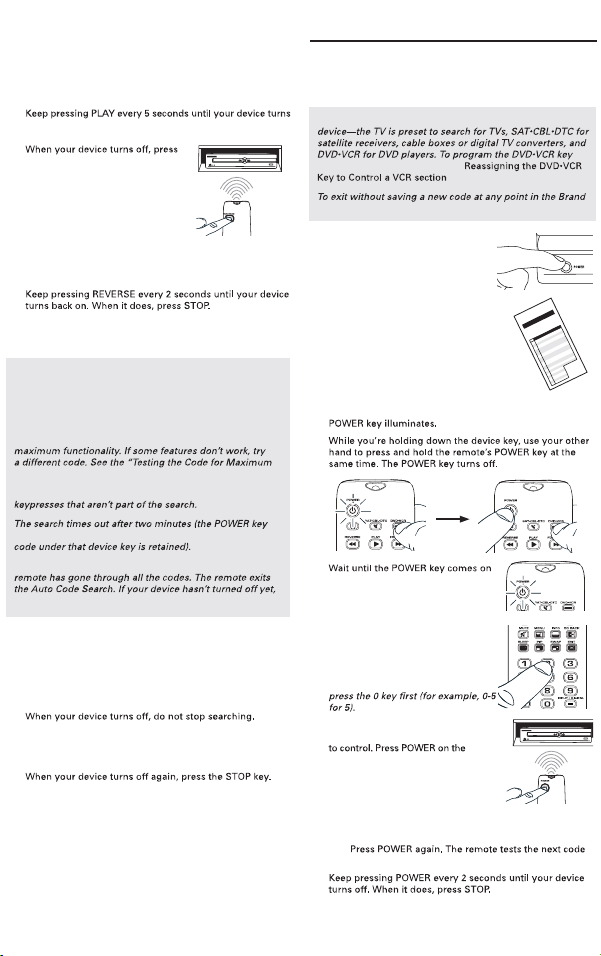
The remote is testing a batch of
10 codes on your device.
Did your device turn off?
YES: Go to step 5.
NO: Press PLAY again. The remote tests the next batch of
10 codes.
off.
5.
the REVERSE key on the remote
and wait at least 2 seconds.
The remote tries the last of the
previous ten codes.
Did your device turn on?
YES: Press the STOP key. You’re
done! You’ve programmed this
device key.
NO: Press REVERSE again. The remote tests the next
code in the batch.
Note: If you accidentally press the REVERSE key after your
device turns on, press the FORWARD key. Then, wait two
seconds to see if your device turns off again.
NOTES
Throughout the programming of each key, be sure to keep
the remote pointed at the IR sensor of the device you are
currently programming the remote to control.
Test the remote with the device to make sure the
device key is programmed with the correct code for
Functionality” section below for more information.
During the Auto Code Search, the remote ignores
blinks four times and turns off, and the last programmed
The POWER key blinks four times and turns off when the
try a different search method.
Testing the Code for Maximum Functionality
1. Try a variety of the device’s functions with the remote. If
some device features don’t work, go to the next step to try
a different code.
2.
the device turns off for the first time, don’t press the STOP
key, which would store the same code. Instead, with the
until the unit turns back on.
3. Once the unit turns back on, you have found another code
that operates the device. Press the STOP key.
4. Test the key’s functionality again by attempting to control
a variety of the device’s functions. If the code that has
been stored controls the majority of the device’s functions,
programming is complete. If the code stored does not give
maximum functionality, try another code.
Brand Code Search
The Brand Code Search goes through only the codes for one of
the select brands listed in the accompanying code list. If your
brand of device is listed, this search can be very quick and easy.
TIPS: Each device key is associated with a type of
to control a PVR or VCR, see the
.
Code Search, press the EXIT key.
1.
Manually turn on the device you
want to control.
3.
Press and hold the device key you want to program. The
4.
and stays on. Then release both keys.
6.
Point the remote directly at the
front panel of the device you want
remote and wait 2 seconds. The
remote is testing a single code for
your device’s brand.
Did your device turn off?
YES: Press the STOP key to store the code. You’re done!
You’ve programmed this device key.
NO:
for your brand.
2.
Find your device’s brand in the
Brand Code list section of the
accompanying code list. Circle
the number for your brand and
keep the list handy.
5.
Look at the numbers you circled for
your device’s brand code number.
Press those numbers on the remote
keypad.
Note: For single-digit brand codes,
NOTES
Throughout the programming of each key, be sure to keep
the remote pointed at the IR sensor of the device you are
currently programming the remote to control.
Test the remote with the device to make sure the device
section below for more information.
blinks four times and turns off, and the last programmed
The POWER key blinks four times and turns off when the
different search method.
Direct Code Entry
Direct Code Entry lets you enter a code from the accompanying
code list for your brand of device. It’s not as easy as the other
methods, but it’s potentially the fastest method.
TIP: Each device key is associated with a type of device—
to control a PVR or VCR, see the
.
1.
Manually turn on the device you
want to control.
3.
Press and hold the device key you want to program (the
hand enter the first five-digit code for your brand in the
2.
Find the Code List that came with
the remote. Locate the section for
the type of device you’re trying to
program, and find your brand in
that section. Circle the codes for
your brand and keep them handy.
NOTES
Test the remote with the device to make sure the device
in the list.
provided in the Code Retrieval section of this manual.
If you release the device key any time during the Direct Code
Entry procedure, the POWER key blinks four times, and the
device key is retained.
4.
the five-digit code, keep holding
down the device key and look at
Is the POWER key
illuminated?
YES: You’re done! You’ve programmed this device key.
NO, it blinked four times and turned off: You have
either entered a code number that is not in the code lists
or missed a step in the code entry procedure. Try step 3
again.
Manual Code Search
The Manual Code Search lets you go one-by-one through all the
one that operates your device, you can stop the search and store
that code.
TIPS: The Manual Code Search method may take a long time
because the remote searches through all of the codes in
the Direct Code Entry method.
Each device key is associated with a type of device—the TV is
VCR, see the
section.
Code Search, press the EXIT key.
Step 1: Install your batteries
Step 2: Program your remote
C
o
de
L
i
s
t
s
/
L
i
s
te
d
e
s
c
o
d
e
s
/
L
i
st
a
d
e
Có
d
i
go
s
ra
nd
C
o
e
i
t
s
te
e
s
od
e
d
e
m
aq
u
e
/
L
t
a
e
C
d
i
g
s
de
M
a
a
s
C
o
d
e
L
i
s
t
s
/
L
i
s
t
e
d
e
s
co
d
e
s
/
L
i
s
t
a
d
e
C
ó
d
i
g
o
s
r
n
d
o
e
L
t
/
s
e
e
s
o
e
d
e
m
rq
u
e
/
L
s
a
e
C
dg
s
e
M
a
a
s
Battery Saver
Your universal remote control saves battery power by
automatically turning off if any key is pressed for more than
60 seconds. This saves your battery life should your remote
get stuck in a place where the keys remain depressed, such as
between sofa cushions.
RCRN03BR
Universal Remote Control
Owner’s Manual
Manual del Propietario (parte posterior)
SAVE THIS MANUAL AND THE CODE LISTS!
Remote controls can sometimes lose their programming
when you change the batteries. Make sure you keep the
manual and code lists in a safe place so that you can
reprogram the remote if you need to.
Tip: This remote is already programmed to operate most
RCA-branded TVs, DVD players, and satellite receivers.
receiver.
Your universal remote requires two AAA alkaline batteries (not
included).
To install the batteries:
1.
Remove the battery
compartment cover.
2.
Insert the batteries, matching
the batteries to the (+) and
(–) marks inside the battery
compartment.
3.
Push the battery cover back into
place.
Battery Precautions:
and National Regulations.
To use this universal remote with your home entertainment
system, first you need to program it to control your devices.
There are four ways you can program the universal remote to
operate your devices:
Auto Code Search goes automatically through all the
codes for the device you’re trying to control. It’s the easiest
method, but it can sometimes take longer than some of the
other programming methods.
Brand Code Search searches through the codes for
select brands of devices. It’s not as easy as the auto code
search, but it can be faster.
Direct Code Entry lets you enter a code from the
accompanying code list for your brand of device. It’s not as
easy as the other methods, but it’s potentially the fastest
method.
Manual Code Search lets you manually go through
all the codes for the device you’re trying to control.
Testing the Code for Maximum Functionality
1. Try a variety of the device’s functions with the remote. If
some device features don’t work, go to the next step to try
a different code.
2. Repeat the Auto Code Search Method from the beginning.
Instead, with the unit now off, continue to press the PLAY
key every 5 seconds until the unit turns back on.
3. Once the unit turns back on, press the REVERSE key on the
remote every 2 seconds until your device turns off again.
4. Test the key’s functionality again by attempting to control
a variety of the device’s functions. If the code that has
been stored controls the majority of the device’s functions,
programming is complete. If the code stored does not give
maximum functionality, try another code.
Auto Code Search
The Auto Code Search goes automatically through all the
the one that operates your device, you can stop the search and
store that code.
TIPS: Each device key is associated with a type of
key to control a PVR or VCR, see the Reassigning the
.
Code Search, press the EXIT key.
1.
Manually turn on the device you
want to control.
2.
Press and hold the device key you want to program. The
3.
on and stays on. Then release
both keys.
4.
Point the remote directly at the
front panel of the device you
want to control. Press PLAY on
the remote and wait 5 seconds.
The remote is testing a batch of
10 codes on your device.
Did your device turn off?
YES: Go to step 5.
NO: Press PLAY again. The remote tests the next batch of
10 codes.
off.
5.
the REVERSE key on the remote
and wait at least 2 seconds.
The remote tries the last of the
previous ten codes.
Did your device turn on?
YES: Press the STOP key. You’re
done! You’ve programmed this
device key.
NO: Press REVERSE again. The remote tests the next
code in the batch.
Note: If you accidentally press the REVERSE key after your
device turns on, press the FORWARD key. Then, wait two
seconds to see if your device turns off again.
NOTES
Throughout the programming of each key, be sure to keep
the remote pointed at the IR sensor of the device you are
currently programming the remote to control.
Test the remote with the device to make sure the
device key is programmed with the correct code for
Functionality” section below for more information.
During the Auto Code Search, the remote ignores
blinks four times and turns off, and the last programmed
The POWER key blinks four times and turns off when the
try a different search method.
Testing the Code for Maximum Functionality
1. Try a variety of the device’s functions with the remote. If
some device features don’t work, go to the next step to try
a different code.
2.
the device turns off for the first time, don’t press the STOP
key, which would store the same code. Instead, with the
until the unit turns back on.
3. Once the unit turns back on, you have found another code
that operates the device. Press the STOP key.
4. Test the key’s functionality again by attempting to control
a variety of the device’s functions. If the code that has
been stored controls the majority of the device’s functions,
programming is complete. If the code stored does not give
maximum functionality, try another code.
Brand Code Search
The Brand Code Search goes through only the codes for one of
the select brands listed in the accompanying code list. If your
brand of device is listed, this search can be very quick and easy.
TIPS: Each device key is associated with a type of
to control a PVR or VCR, see the
.
Code Search, press the EXIT key.
1.
Manually turn on the device you
want to control.
3.
Press and hold the device key you want to program. The
4.
and stays on. Then release both keys.
6.
Point the remote directly at the
front panel of the device you want
remote and wait 2 seconds. The
remote is testing a single code for
your device’s brand.
Did your device turn off?
YES: Press the STOP key to store the code. You’re done!
You’ve programmed this device key.
NO:
for your brand.
2.
Find your device’s brand in the
Brand Code list section of the
accompanying code list. Circle
the number for your brand and
keep the list handy.
5.
Look at the numbers you circled for
your device’s brand code number.
Press those numbers on the remote
keypad.
Note: For single-digit brand codes,
NOTES
Throughout the programming of each key, be sure to keep
the remote pointed at the IR sensor of the device you are
currently programming the remote to control.
Test the remote with the device to make sure the device
section below for more information.
blinks four times and turns off, and the last programmed
The POWER key blinks four times and turns off when the
different search method.
Direct Code Entry
Direct Code Entry lets you enter a code from the accompanying
code list for your brand of device. It’s not as easy as the other
methods, but it’s potentially the fastest method.
TIP: Each device key is associated with a type of device—
to control a PVR or VCR, see the
.
1.
Manually turn on the device you
want to control.
3.
Press and hold the device key you want to program (the
hand enter the first five-digit code for your brand in the
2.
Find the Code List that came with
the remote. Locate the section for
the type of device you’re trying to
program, and find your brand in
that section. Circle the codes for
your brand and keep them handy.
NOTES
Test the remote with the device to make sure the device
in the list.
provided in the Code Retrieval section of this manual.
If you release the device key any time during the Direct Code
Entry procedure, the POWER key blinks four times, and the
device key is retained.
4.
the five-digit code, keep holding
down the device key and look at
Is the POWER key
illuminated?
YES: You’re done! You’ve programmed this device key.
NO, it blinked four times and turned off: You have
either entered a code number that is not in the code lists
or missed a step in the code entry procedure. Try step 3
again.
Manual Code Search
The Manual Code Search lets you go one-by-one through all the
one that operates your device, you can stop the search and store
that code.
TIPS: The Manual Code Search method may take a long time
because the remote searches through all of the codes in
the Direct Code Entry method.
Each device key is associated with a type of device—the TV is
VCR, see the
section.
Code Search, press the EXIT key.
Step 1: Install your batteries
Step 2: Program your remote
C
o
de
L
i
s
t
s
/
L
i
s
te
d
e
s
c
o
d
e
s
/
L
i
st
a
d
e
Có
d
i
go
s
ra
nd
C
o
e
i
t
s
te
e
s
od
e
d
e
m
aq
u
e
/
L
t
a
e
C
d
i
g
s
de
M
a
a
s
C
o
d
e
L
i
s
t
s
/
L
i
s
t
e
d
e
s
co
d
e
s
/
L
i
s
t
a
d
e
C
ó
d
i
g
o
s
r
n
d
o
e
L
t
/
s
e
e
s
o
e
d
e
m
rq
u
e
/
L
s
a
e
C
dg
s
e
M
a
a
s
Battery Saver
Your universal remote control saves battery power by
automatically turning off if any key is pressed for more than
60 seconds. This saves your battery life should your remote
get stuck in a place where the keys remain depressed, such as
between sofa cushions.
RCRN03BR
Universal Remote Control
Owner’s Manual
Manual del Propietario (parte posterior)
SAVE THIS MANUAL AND THE CODE LISTS!
Remote controls can sometimes lose their programming
when you change the batteries. Make sure you keep the
manual and code lists in a safe place so that you can
reprogram the remote if you need to.
Tip: This remote is already programmed to operate most
RCA-branded TVs, DVD players, and satellite receivers.
receiver.
Your universal remote requires two AAA alkaline batteries (not
included).
To install the batteries:
1.
Remove the battery
compartment cover.
2.
Insert the batteries, matching
the batteries to the (+) and
(–) marks inside the battery
compartment.
3.
Push the battery cover back into
place.
Battery Precautions:
and National Regulations.
To use this universal remote with your home entertainment
system, first you need to program it to control your devices.
There are four ways you can program the universal remote to
operate your devices:
Auto Code Search goes automatically through all the
codes for the device you’re trying to control. It’s the easiest
method, but it can sometimes take longer than some of the
other programming methods.
Brand Code Search searches through the codes for
select brands of devices. It’s not as easy as the auto code
search, but it can be faster.
Direct Code Entry lets you enter a code from the
accompanying code list for your brand of device. It’s not as
easy as the other methods, but it’s potentially the fastest
method.
Manual Code Search lets you manually go through
all the codes for the device you’re trying to control.
Testing the Code for Maximum Functionality
1. Try a variety of the device’s functions with the remote. If
some device features don’t work, go to the next step to try
a different code.
2. Repeat the Auto Code Search Method from the beginning.
Instead, with the unit now off, continue to press the PLAY
key every 5 seconds until the unit turns back on.
3. Once the unit turns back on, press the REVERSE key on the
remote every 2 seconds until your device turns off again.
4. Test the key’s functionality again by attempting to control
a variety of the device’s functions. If the code that has
been stored controls the majority of the device’s functions,
programming is complete. If the code stored does not give
maximum functionality, try another code.
Auto Code Search
The Auto Code Search goes automatically through all the
the one that operates your device, you can stop the search and
store that code.
TIPS: Each device key is associated with a type of
key to control a PVR or VCR, see the Reassigning the
.
Code Search, press the EXIT key.
1.
Manually turn on the device you
want to control.
2.
Press and hold the device key you want to program. The
3.
on and stays on. Then release
both keys.
4.
Point the remote directly at the
front panel of the device you
want to control. Press PLAY on
the remote and wait 5 seconds.
The remote is testing a batch of
10 codes on your device.
Did your device turn off?
YES: Go to step 5.
NO: Press PLAY again. The remote tests the next batch of
10 codes.
off.
5.
the REVERSE key on the remote
and wait at least 2 seconds.
The remote tries the last of the
previous ten codes.
Did your device turn on?
YES: Press the STOP key. You’re
done! You’ve programmed this
device key.
NO: Press REVERSE again. The remote tests the next
code in the batch.
Note: If you accidentally press the REVERSE key after your
device turns on, press the FORWARD key. Then, wait two
seconds to see if your device turns off again.
NOTES
Throughout the programming of each key, be sure to keep
the remote pointed at the IR sensor of the device you are
currently programming the remote to control.
Test the remote with the device to make sure the
device key is programmed with the correct code for
Functionality” section below for more information.
During the Auto Code Search, the remote ignores
blinks four times and turns off, and the last programmed
The POWER key blinks four times and turns off when the
try a different search method.
Testing the Code for Maximum Functionality
1. Try a variety of the device’s functions with the remote. If
some device features don’t work, go to the next step to try
a different code.
2.
the device turns off for the first time, don’t press the STOP
key, which would store the same code. Instead, with the
until the unit turns back on.
3. Once the unit turns back on, you have found another code
that operates the device. Press the STOP key.
4. Test the key’s functionality again by attempting to control
a variety of the device’s functions. If the code that has
been stored controls the majority of the device’s functions,
programming is complete. If the code stored does not give
maximum functionality, try another code.
Brand Code Search
The Brand Code Search goes through only the codes for one of
the select brands listed in the accompanying code list. If your
brand of device is listed, this search can be very quick and easy.
TIPS: Each device key is associated with a type of
to control a PVR or VCR, see the
.
Code Search, press the EXIT key.
1.
Manually turn on the device you
want to control.
3.
Press and hold the device key you want to program. The
4.
and stays on. Then release both keys.
6.
Point the remote directly at the
front panel of the device you want
remote and wait 2 seconds. The
remote is testing a single code for
your device’s brand.
Did your device turn off?
YES: Press the STOP key to store the code. You’re done!
You’ve programmed this device key.
NO:
for your brand.
2.
Find your device’s brand in the
Brand Code list section of the
accompanying code list. Circle
the number for your brand and
keep the list handy.
5.
Look at the numbers you circled for
your device’s brand code number.
Press those numbers on the remote
keypad.
Note: For single-digit brand codes,
NOTES
Throughout the programming of each key, be sure to keep
the remote pointed at the IR sensor of the device you are
currently programming the remote to control.
Test the remote with the device to make sure the device
section below for more information.
blinks four times and turns off, and the last programmed
The POWER key blinks four times and turns off when the
different search method.
Direct Code Entry
Direct Code Entry lets you enter a code from the accompanying
code list for your brand of device. It’s not as easy as the other
methods, but it’s potentially the fastest method.
TIP: Each device key is associated with a type of device—
to control a PVR or VCR, see the
.
1.
Manually turn on the device you
want to control.
3.
Press and hold the device key you want to program (the
hand enter the first five-digit code for your brand in the
2.
Find the Code List that came with
the remote. Locate the section for
the type of device you’re trying to
program, and find your brand in
that section. Circle the codes for
your brand and keep them handy.
NOTES
Test the remote with the device to make sure the device
in the list.
provided in the Code Retrieval section of this manual.
If you release the device key any time during the Direct Code
Entry procedure, the POWER key blinks four times, and the
device key is retained.
4.
the five-digit code, keep holding
down the device key and look at
Is the POWER key
illuminated?
YES: You’re done! You’ve programmed this device key.
NO, it blinked four times and turned off: You have
either entered a code number that is not in the code lists
or missed a step in the code entry procedure. Try step 3
again.
Manual Code Search
The Manual Code Search lets you go one-by-one through all the
one that operates your device, you can stop the search and store
that code.
TIPS: The Manual Code Search method may take a long time
because the remote searches through all of the codes in
the Direct Code Entry method.
Each device key is associated with a type of device—the TV is
VCR, see the
section.
Code Search, press the EXIT key.
Step 1: Install your batteries
Step 2: Program your remote
C
o
de
L
i
s
t
s
/
L
i
s
te
d
e
s
c
o
d
e
s
/
L
i
st
a
d
e
Có
d
i
go
s
ra
nd
C
o
e
i
t
s
te
e
s
od
e
d
e
m
aq
u
e
/
L
t
a
e
C
d
i
g
s
de
M
a
a
s
C
o
d
e
L
i
s
t
s
/
L
i
s
t
e
d
e
s
co
d
e
s
/
L
i
s
t
a
d
e
C
ó
d
i
g
o
s
r
n
d
o
e
L
t
/
s
e
e
s
o
e
d
e
m
rq
u
e
/
L
s
a
e
C
dg
s
e
M
a
a
s
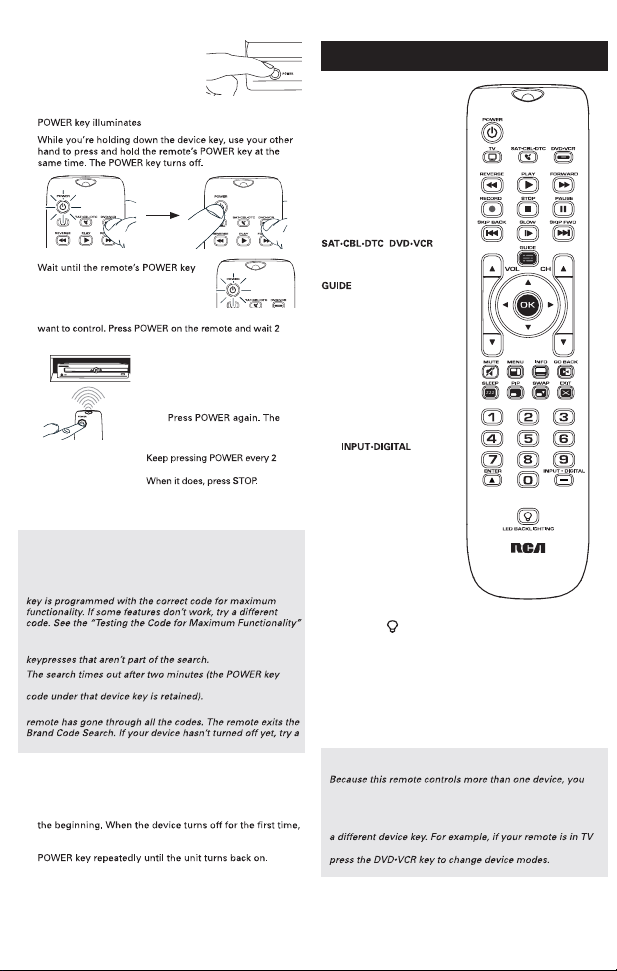
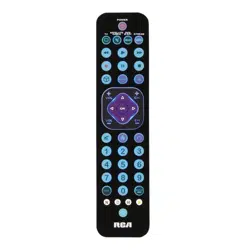
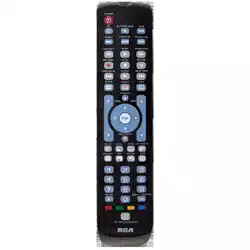
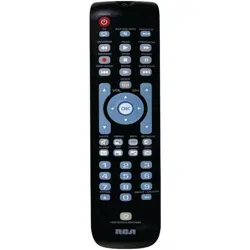
In most cases, the keys on
this remote perform the same
functions as the keys on your
original remotes once you’ve
programmed this remote to
operate your components.
Many keys on this remote
have other functions as well.
Illuminated POWER key
serves as an indicator light to
provide feedback.
Device keys (TV,
, ) put
the remote in the right mode
to control your device.
and MENU put the
remote in menu/guide mode;
they also access the same
features as the keys on your
original remotes.
EXIT exits remote
programming; it also
performs the same functions
as on your original remotes.
Arrow keys act as navigation
keys in device guides and
menu systems.
The and
— (dash) key has three
functions: (1) it toggles
through all the video sources
connected to your TV; (2)
when the remote is in VCR
mode, this button toggles
between VCR and the TV
input; (3) when you’re
entering digital channel
numbers directly, this button
lets you separate the main
channel number from the
sub-channel number (such
as 59.1).
Backlight key ( ) turns
backlighting on/off.
Actual model may vary from
illustration
Care and Maintenance
malfunction and invalidate its warranty.
1.
Manually turn on the device you
want to control.
2.
Press and hold the device key you want to program. The
3.
comes on and stays on. Then release
both keys.
4.
Point the remote directly at the front panel of the device you
seconds. The remote is testing a single code for your device.
Did your device turn off?
YES: Press the STOP key to store
the code. You’re done! You’ve
programmed this device key.
NO:
remote tests the next code for
your device.
seconds until your device turns off.
TIP: Because there are so many codes, you may have to press
the POWER key many times—possibly hundreds of times.
NOTES
Throughout the programming of each key, keep the remote
pointed at the IR sensor of the device you are programming
the remote to control.
Test the remote with the device to make sure the device
section below for more information.
During the Manual Code Search, the remote ignores
blinks four times and turns off, and the last programmed
The POWER key blinks four times and turns off when the
different search method.
Testing the Code for Maximum Functionality
1. Try a variety of the device’s functions with the remote. If
some features of your devices don’t work, go to the next
step to try a different code.
2. Repeat the Manual Code Search and Entry Method from
don’t press the STOP key, which would store the same
code. Instead, with the unit now off, continue to press the
3. Once the unit turns back on, you have found another code
that operates the device. Press the STOP key.
4. Test the key’s functionality again by trying a variety of
functions. If the code controls the majority of the device’s
functions, programming is complete. If the code stored
does not give maximum functionality, try another code.
a VCR
VCR.
4. Follow the directions in the auto, brand, direct entry, or manual
Code Retrieval
Once you’ve programmed the remote to control your devices,
you may want to record the codes for future reference. If you
used the Direct Code Entry method, this is easy. Just find
the codes you entered and make a note of them in the boxes
below. If you used one of the Code Search methods to program
your remote or if you used the Direct Entry method but don’t
remember the code, you will need to retrieve each device’s
five-digit code. Retrieving the actual code and writing it down
will save you time if you ever need to program the remote
again. If the codes are recorded, you can use the Direct Entry
method to reprogram your remote to control your devices,
which is quick and easy.
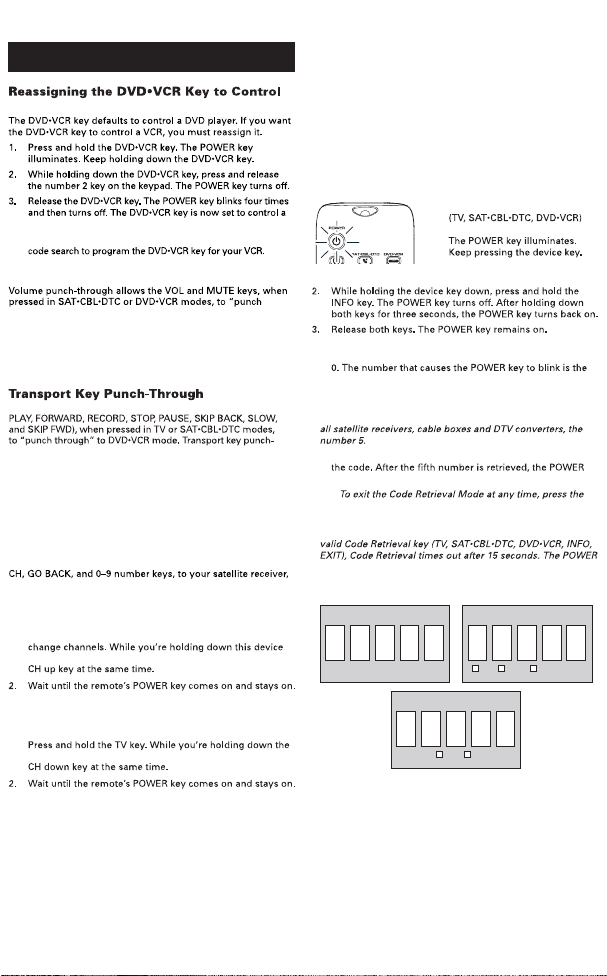
1. Press and hold the device key
whose code you wish to retrieve.
4. Starting with the number 1 key, press and release each
number key on the keypad in the following order: 1-9, then
first number of the code. As you find each number of the
code, write it down for future reference.
Note: All TV codes begin with the number 1; all VCR and DVR
codes begin with the number 2; all DVDs, the number 3; and
5. Repeat step 4 until you have retrieved all five numbers in
key blinks briefly, then turns off.
TIP:
EXIT key.
Note: If you press an invalid key during the Code Retrieval
process, the remote will not respond. If you do not press a
key blinks four times, and then turns off.
IMPORTANT
must first “tell” the remote which device you wish to
operate. That means, if you wish to operate your TV, you
must first press the TV key to put the remote in the TV
Mode. The remote stays in that device mode until you press
Mode and you want to operate the DVD player, you must
Problem: The remote does not operate your device.
tells the remote which device to operate.
sure you’re aiming the remote at the device’s IR sensor.
Replace the batteries with two new AAA batteries, if necessary
(see the Battery Installation section).
Problem: The remote can’t be programmed to operate your
device.
too far away from the device or at a wrong angle. There must be
an unobstructed path between the remote and the IR sensor on
the device. Move closer and make sure you point the remote at the
device you’re trying to control.
the codes for your brand and the unit is still not functioning
properly, try the auto, brand, or manual search method.
program the individual corresponding device keys to control
each part of the combo unit. Once programmed successfully, the
the VCR or DVD functions.
Problem: The remote doesn’t perform commands properly.
tells the remote which device to operate.
disc loaded).
the ENTER key after entering the channel number as this is a
requirement of certain models and brands.
able to control some of your device features (for example, only
turns a device on and off). To confirm that the device key is
programmed with the correct code for maximum functionality,
test the device. Attempt to control a variety of the device’s
functions with the remote. If some of the features of your
devices don’t work, try programming the remote with a different
code in the list using the Direct Code Entry Method, until you
find the code that allows the remote to control the majority of
your device’s functions. Different codes can provide different
levels of functionality.
Problem: The POWER key does not light when you press a key.
tells the remote which device to operate.
Replace the batteries with two new AAA batteries, if necessary
(see the Battery Installation section).
Problem: The remote will not change channels on device.
tells the remote which device to operate.
sure to aim the remote at the IR sensor on the device.
Problem: The device’s menu does not appear on the TV screen.
selected the correct input. (See your devices’ Owner’s Manuals for
proper connection procedures.)
tells the remote which device to operate.
your original remote control to access menu functions for some
devices.
For more information, please visit www rcaaccessories.com
Consumer Help Line: 1-800-420-7968
Audiovox Electronics Corporation (the “Company”) warrants to you the
original retail purchaser of this product that should it, under normal use
and conditions, be proven defective in material or workmanship during
its lifetime while you own it, such defect(s) will be repaired or replaced
(at the Company’s option) without charge for parts and repair labor. To
is to be delivered with proof of warranty coverage (e.g. dated bill of sale),
specification of defect(s), transportation prepaid, to the Company at the
address shown below.
not extend to costs incurred for installation, removal or reinstallation of
the product has been damaged through alteration, improper installation,
mishandling, misuse, neglect, accident, or the simultaneous use of different
battery types (e.g. alkaline, standard or rechargeable).
to assume for the Company any liability other than expressed herein in
connection with the sale of this product.
Some states/provinces do not allow limitations on how long an implied
warranty lasts or the exclusion or limitation of incidental or consequential
damage so the above limitations or exclusions may not apply to you. This
which vary from state/province to state/province.
U.S.A.:
New York 11788
CANADA:
Trademark(s) ® Registered
©2010 Audiovox Accessories Corporation
Tour of the Remote Advanced Functions Troubleshooting
Limited Lifetime Warranty
DVD•VCR CODE
5
SAT•CBL•DTC CODE
1
TV CODE
SAT
CABLE DTV CONVERTER
DVD
VCR
Volume Punch-Through
through” to TV. Volume punch-through occurs automatically
and allows you to control the volume without exiting the
current mode.
Note: Volume punch-through does not occur in cases where
the component code has its own volume/mute controls, such
as some satellite receivers.
Transport key punch-through allows the transport keys (REVERSE,
through occurs automatically and allows you to use the transport
keys without exiting the current mode. For example, if the
transport keys were last used in DVD mode and accessed again
after pressing the TV key, they will punch through to the DVD.
Note: Transport key punch-through does not occur in cases
where the device code has its own transport key data, such as
a satellite receiver with a built-in DVR.
Channel Lock
Channel lock automatically sends channel commands, like the
cable box, or digital TV converter when you’re in TV mode.
This can save you keypresses if you use a device other than
your TV to change channels.
To turn channel lock on:
1. Press and hold the device key for the device you use to
key, use your other hand to press and hold the remote’s
Then release both keys.
3. Press ENTER to lock channel commands to this device.
To turn channel lock off:
1.
TV key, use your other hand to press and hold the remote’s
Then release both keys.
3. Press ENTER to start changing channels with your TV.
In most cases, the keys on
this remote perform the same
functions as the keys on your
original remotes once you’ve
programmed this remote to
operate your components.
Many keys on this remote
have other functions as well.
Illuminated POWER key
serves as an indicator light to
provide feedback.
Device keys (TV,
, ) put
the remote in the right mode
to control your device.
and MENU put the
remote in menu/guide mode;
they also access the same
features as the keys on your
original remotes.
EXIT exits remote
programming; it also
performs the same functions
as on your original remotes.
Arrow keys act as navigation
keys in device guides and
menu systems.
The and
— (dash) key has three
functions: (1) it toggles
through all the video sources
connected to your TV; (2)
when the remote is in VCR
mode, this button toggles
between VCR and the TV
input; (3) when you’re
entering digital channel
numbers directly, this button
lets you separate the main
channel number from the
sub-channel number (such
as 59.1).
Backlight key ( ) turns
backlighting on/off.
Actual model may vary from
illustration
Care and Maintenance
malfunction and invalidate its warranty.
1.
Manually turn on the device you
want to control.
2.
Press and hold the device key you want to program. The
3.
comes on and stays on. Then release
both keys.
4.
Point the remote directly at the front panel of the device you
seconds. The remote is testing a single code for your device.
Did your device turn off?
YES: Press the STOP key to store
the code. You’re done! You’ve
programmed this device key.
NO:
remote tests the next code for
your device.
seconds until your device turns off.
TIP: Because there are so many codes, you may have to press
the POWER key many times—possibly hundreds of times.
NOTES
Throughout the programming of each key, keep the remote
pointed at the IR sensor of the device you are programming
the remote to control.
Test the remote with the device to make sure the device
section below for more information.
During the Manual Code Search, the remote ignores
blinks four times and turns off, and the last programmed
The POWER key blinks four times and turns off when the
different search method.
Testing the Code for Maximum Functionality
1. Try a variety of the device’s functions with the remote. If
some features of your devices don’t work, go to the next
step to try a different code.
2. Repeat the Manual Code Search and Entry Method from
don’t press the STOP key, which would store the same
code. Instead, with the unit now off, continue to press the
3. Once the unit turns back on, you have found another code
that operates the device. Press the STOP key.
4. Test the key’s functionality again by trying a variety of
functions. If the code controls the majority of the device’s
functions, programming is complete. If the code stored
does not give maximum functionality, try another code.
a VCR
VCR.
4. Follow the directions in the auto, brand, direct entry, or manual
Code Retrieval
Once you’ve programmed the remote to control your devices,
you may want to record the codes for future reference. If you
used the Direct Code Entry method, this is easy. Just find
the codes you entered and make a note of them in the boxes
below. If you used one of the Code Search methods to program
your remote or if you used the Direct Entry method but don’t
remember the code, you will need to retrieve each device’s
five-digit code. Retrieving the actual code and writing it down
will save you time if you ever need to program the remote
again. If the codes are recorded, you can use the Direct Entry
method to reprogram your remote to control your devices,
which is quick and easy.
1. Press and hold the device key
whose code you wish to retrieve.
4. Starting with the number 1 key, press and release each
number key on the keypad in the following order: 1-9, then
first number of the code. As you find each number of the
code, write it down for future reference.
Note: All TV codes begin with the number 1; all VCR and DVR
codes begin with the number 2; all DVDs, the number 3; and
5. Repeat step 4 until you have retrieved all five numbers in
key blinks briefly, then turns off.
TIP:
EXIT key.
Note: If you press an invalid key during the Code Retrieval
process, the remote will not respond. If you do not press a
key blinks four times, and then turns off.
IMPORTANT
must first “tell” the remote which device you wish to
operate. That means, if you wish to operate your TV, you
must first press the TV key to put the remote in the TV
Mode. The remote stays in that device mode until you press
Mode and you want to operate the DVD player, you must
Problem: The remote does not operate your device.
tells the remote which device to operate.
sure you’re aiming the remote at the device’s IR sensor.
Replace the batteries with two new AAA batteries, if necessary
(see the Battery Installation section).
Problem: The remote can’t be programmed to operate your
device.
too far away from the device or at a wrong angle. There must be
an unobstructed path between the remote and the IR sensor on
the device. Move closer and make sure you point the remote at the
device you’re trying to control.
the codes for your brand and the unit is still not functioning
properly, try the auto, brand, or manual search method.
program the individual corresponding device keys to control
each part of the combo unit. Once programmed successfully, the
the VCR or DVD functions.
Problem: The remote doesn’t perform commands properly.
tells the remote which device to operate.
disc loaded).
the ENTER key after entering the channel number as this is a
requirement of certain models and brands.
able to control some of your device features (for example, only
turns a device on and off). To confirm that the device key is
programmed with the correct code for maximum functionality,
test the device. Attempt to control a variety of the device’s
functions with the remote. If some of the features of your
devices don’t work, try programming the remote with a different
code in the list using the Direct Code Entry Method, until you
find the code that allows the remote to control the majority of
your device’s functions. Different codes can provide different
levels of functionality.
Problem: The POWER key does not light when you press a key.
tells the remote which device to operate.
Replace the batteries with two new AAA batteries, if necessary
(see the Battery Installation section).
Problem: The remote will not change channels on device.
tells the remote which device to operate.
sure to aim the remote at the IR sensor on the device.
Problem: The device’s menu does not appear on the TV screen.
selected the correct input. (See your devices’ Owner’s Manuals for
proper connection procedures.)
tells the remote which device to operate.
your original remote control to access menu functions for some
devices.
For more information, please visit www rcaaccessories.com
Consumer Help Line: 1-800-420-7968
Audiovox Electronics Corporation (the “Company”) warrants to you the
original retail purchaser of this product that should it, under normal use
and conditions, be proven defective in material or workmanship during
its lifetime while you own it, such defect(s) will be repaired or replaced
(at the Company’s option) without charge for parts and repair labor. To
is to be delivered with proof of warranty coverage (e.g. dated bill of sale),
specification of defect(s), transportation prepaid, to the Company at the
address shown below.
not extend to costs incurred for installation, removal or reinstallation of
the product has been damaged through alteration, improper installation,
mishandling, misuse, neglect, accident, or the simultaneous use of different
battery types (e.g. alkaline, standard or rechargeable).
to assume for the Company any liability other than expressed herein in
connection with the sale of this product.
Some states/provinces do not allow limitations on how long an implied
warranty lasts or the exclusion or limitation of incidental or consequential
damage so the above limitations or exclusions may not apply to you. This
which vary from state/province to state/province.
U.S.A.:
New York 11788
CANADA:
Trademark(s) ® Registered
©2010 Audiovox Accessories Corporation
Tour of the Remote Advanced Functions Troubleshooting
Limited Lifetime Warranty
DVD•VCR CODE
5
SAT•CBL•DTC CODE
1
TV CODE
SAT
CABLE DTV CONVERTER
DVD
VCR
Volume Punch-Through
through” to TV. Volume punch-through occurs automatically
and allows you to control the volume without exiting the
current mode.
Note: Volume punch-through does not occur in cases where
the component code has its own volume/mute controls, such
as some satellite receivers.
Transport key punch-through allows the transport keys (REVERSE,
through occurs automatically and allows you to use the transport
keys without exiting the current mode. For example, if the
transport keys were last used in DVD mode and accessed again
after pressing the TV key, they will punch through to the DVD.
Note: Transport key punch-through does not occur in cases
where the device code has its own transport key data, such as
a satellite receiver with a built-in DVR.
Channel Lock
Channel lock automatically sends channel commands, like the
cable box, or digital TV converter when you’re in TV mode.
This can save you keypresses if you use a device other than
your TV to change channels.
To turn channel lock on:
1. Press and hold the device key for the device you use to
key, use your other hand to press and hold the remote’s
Then release both keys.
3. Press ENTER to lock channel commands to this device.
To turn channel lock off:
1.
TV key, use your other hand to press and hold the remote’s
Then release both keys.
3. Press ENTER to start changing channels with your TV.
In most cases, the keys on
this remote perform the same
functions as the keys on your
original remotes once you’ve
programmed this remote to
operate your components.
Many keys on this remote
have other functions as well.
Illuminated POWER key
serves as an indicator light to
provide feedback.
Device keys (TV,
, ) put
the remote in the right mode
to control your device.
and MENU put the
remote in menu/guide mode;
they also access the same
features as the keys on your
original remotes.
EXIT exits remote
programming; it also
performs the same functions
as on your original remotes.
Arrow keys act as navigation
keys in device guides and
menu systems.
The and
— (dash) key has three
functions: (1) it toggles
through all the video sources
connected to your TV; (2)
when the remote is in VCR
mode, this button toggles
between VCR and the TV
input; (3) when you’re
entering digital channel
numbers directly, this button
lets you separate the main
channel number from the
sub-channel number (such
as 59.1).
Backlight key ( ) turns
backlighting on/off.
Actual model may vary from
illustration
Care and Maintenance
malfunction and invalidate its warranty.
1.
Manually turn on the device you
want to control.
2.
Press and hold the device key you want to program. The
3.
comes on and stays on. Then release
both keys.
4.
Point the remote directly at the front panel of the device you
seconds. The remote is testing a single code for your device.
Did your device turn off?
YES: Press the STOP key to store
the code. You’re done! You’ve
programmed this device key.
NO:
remote tests the next code for
your device.
seconds until your device turns off.
TIP: Because there are so many codes, you may have to press
the POWER key many times—possibly hundreds of times.
NOTES
Throughout the programming of each key, keep the remote
pointed at the IR sensor of the device you are programming
the remote to control.
Test the remote with the device to make sure the device
section below for more information.
During the Manual Code Search, the remote ignores
blinks four times and turns off, and the last programmed
The POWER key blinks four times and turns off when the
different search method.
Testing the Code for Maximum Functionality
1. Try a variety of the device’s functions with the remote. If
some features of your devices don’t work, go to the next
step to try a different code.
2. Repeat the Manual Code Search and Entry Method from
don’t press the STOP key, which would store the same
code. Instead, with the unit now off, continue to press the
3. Once the unit turns back on, you have found another code
that operates the device. Press the STOP key.
4. Test the key’s functionality again by trying a variety of
functions. If the code controls the majority of the device’s
functions, programming is complete. If the code stored
does not give maximum functionality, try another code.
a VCR
VCR.
4. Follow the directions in the auto, brand, direct entry, or manual
Code Retrieval
Once you’ve programmed the remote to control your devices,
you may want to record the codes for future reference. If you
used the Direct Code Entry method, this is easy. Just find
the codes you entered and make a note of them in the boxes
below. If you used one of the Code Search methods to program
your remote or if you used the Direct Entry method but don’t
remember the code, you will need to retrieve each device’s
five-digit code. Retrieving the actual code and writing it down
will save you time if you ever need to program the remote
again. If the codes are recorded, you can use the Direct Entry
method to reprogram your remote to control your devices,
which is quick and easy.
1. Press and hold the device key
whose code you wish to retrieve.
4. Starting with the number 1 key, press and release each
number key on the keypad in the following order: 1-9, then
first number of the code. As you find each number of the
code, write it down for future reference.
Note: All TV codes begin with the number 1; all VCR and DVR
codes begin with the number 2; all DVDs, the number 3; and
5. Repeat step 4 until you have retrieved all five numbers in
key blinks briefly, then turns off.
TIP:
EXIT key.
Note: If you press an invalid key during the Code Retrieval
process, the remote will not respond. If you do not press a
key blinks four times, and then turns off.
IMPORTANT
must first “tell” the remote which device you wish to
operate. That means, if you wish to operate your TV, you
must first press the TV key to put the remote in the TV
Mode. The remote stays in that device mode until you press
Mode and you want to operate the DVD player, you must
Problem: The remote does not operate your device.
tells the remote which device to operate.
sure you’re aiming the remote at the device’s IR sensor.
Replace the batteries with two new AAA batteries, if necessary
(see the Battery Installation section).
Problem: The remote can’t be programmed to operate your
device.
too far away from the device or at a wrong angle. There must be
an unobstructed path between the remote and the IR sensor on
the device. Move closer and make sure you point the remote at the
device you’re trying to control.
the codes for your brand and the unit is still not functioning
properly, try the auto, brand, or manual search method.
program the individual corresponding device keys to control
each part of the combo unit. Once programmed successfully, the
the VCR or DVD functions.
Problem: The remote doesn’t perform commands properly.
tells the remote which device to operate.
disc loaded).
the ENTER key after entering the channel number as this is a
requirement of certain models and brands.
able to control some of your device features (for example, only
turns a device on and off). To confirm that the device key is
programmed with the correct code for maximum functionality,
test the device. Attempt to control a variety of the device’s
functions with the remote. If some of the features of your
devices don’t work, try programming the remote with a different
code in the list using the Direct Code Entry Method, until you
find the code that allows the remote to control the majority of
your device’s functions. Different codes can provide different
levels of functionality.
Problem: The POWER key does not light when you press a key.
tells the remote which device to operate.
Replace the batteries with two new AAA batteries, if necessary
(see the Battery Installation section).
Problem: The remote will not change channels on device.
tells the remote which device to operate.
sure to aim the remote at the IR sensor on the device.
Problem: The device’s menu does not appear on the TV screen.
selected the correct input. (See your devices’ Owner’s Manuals for
proper connection procedures.)
tells the remote which device to operate.
your original remote control to access menu functions for some
devices.
For more information, please visit www rcaaccessories.com
Consumer Help Line: 1-800-420-7968
Audiovox Electronics Corporation (the “Company”) warrants to you the
original retail purchaser of this product that should it, under normal use
and conditions, be proven defective in material or workmanship during
its lifetime while you own it, such defect(s) will be repaired or replaced
(at the Company’s option) without charge for parts and repair labor. To
is to be delivered with proof of warranty coverage (e.g. dated bill of sale),
specification of defect(s), transportation prepaid, to the Company at the
address shown below.
not extend to costs incurred for installation, removal or reinstallation of
the product has been damaged through alteration, improper installation,
mishandling, misuse, neglect, accident, or the simultaneous use of different
battery types (e.g. alkaline, standard or rechargeable).
to assume for the Company any liability other than expressed herein in
connection with the sale of this product.
Some states/provinces do not allow limitations on how long an implied
warranty lasts or the exclusion or limitation of incidental or consequential
damage so the above limitations or exclusions may not apply to you. This
which vary from state/province to state/province.
U.S.A.:
New York 11788
CANADA:
Trademark(s) ® Registered
©2010 Audiovox Accessories Corporation
Tour of the Remote Advanced Functions Troubleshooting
Limited Lifetime Warranty
DVD•VCR CODE
5
SAT•CBL•DTC CODE
1
TV CODE
SAT
CABLE DTV CONVERTER
DVD
VCR
Volume Punch-Through
through” to TV. Volume punch-through occurs automatically
and allows you to control the volume without exiting the
current mode.
Note: Volume punch-through does not occur in cases where
the component code has its own volume/mute controls, such
as some satellite receivers.
Transport key punch-through allows the transport keys (REVERSE,
through occurs automatically and allows you to use the transport
keys without exiting the current mode. For example, if the
transport keys were last used in DVD mode and accessed again
after pressing the TV key, they will punch through to the DVD.
Note: Transport key punch-through does not occur in cases
where the device code has its own transport key data, such as
a satellite receiver with a built-in DVR.
Channel Lock
Channel lock automatically sends channel commands, like the
cable box, or digital TV converter when you’re in TV mode.
This can save you keypresses if you use a device other than
your TV to change channels.
To turn channel lock on:
1. Press and hold the device key for the device you use to
key, use your other hand to press and hold the remote’s
Then release both keys.
3. Press ENTER to lock channel commands to this device.
To turn channel lock off:
1.
TV key, use your other hand to press and hold the remote’s
Then release both keys.
3. Press ENTER to start changing channels with your TV.