Need some help?
Visit www.tp-link.com/support
for User Guides, FAQs, Warranty & more
?
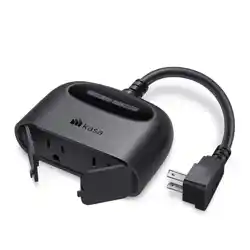
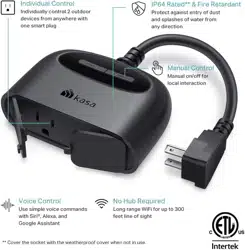
Kasa Smart Outdoor Plug
Images may dier from actual product.
Quick Start Guide
7106509776 REV1.0.0

Want to Add to Home?
STEP 1
INSTALL KASA APP
Get the Kasa Smart app from the
App Store or Google Play.
ADD TO KASA
STEP 2
Simply follow the instructions in the
Kasa Smart app to complete setup.
INSTALL AND POWER UP
STEP 3
Note: Unused sockets should be rmly
capped with the included weather-resistant
cover.
Tap the button in the Kasa Smart
app and select Smart Plugs > HomeKit
Smart Plug, 2-Outlet.
This is a HomeKit-enabled device. You can also add it to
the Home app for easy control from your iPhone or iPad.
Failed to Add to Home?
Add to Home
Press and hold the power button on your plug for at
least 10 seconds to reset the plug, and restart your
phone. Then try again.
Refer to the troubleshooting guide for detailed
instructions:
https://www.tp-link.com/support/faq/3390/
Before You Start:
1. Your phone should be connected to a stable 2.4 GHz
Wi-Fi network with internet access.
2. HomeKit will be disabled 10 minutes after the plug is
powered on. You can unplug and plug it back in to
restart the plug, and then try again.
Set Up Your Plug
Open the Home app and scan the HomeKit QR code on
the plug, then you can add your plug to Home.
© 2022 TP-Link