DOWNLOAD KASA
Get the Kasa Smart app
from the App Store or
Google Play.
STEP 1
Let’s get started with your new smart plug.
STEP 2
*Image may dier
from actual product.
Plug in your smart plug. Tap
the button in the app and
select your model (Bluetooth
Setup). Follow the
instructions in the Kasa Smart
app to complete setup.
PLUG IN & SET UP
Kasa Smart Wi-Fi Plug www.tp-link.com7106510350 REV1.0.0 © 2023 TP-Link
Safety Information
• For indoor use only. Plug the device into a
suitable outlet.
• Purpose of control: Operating control, Type 1.B
action
• Keep the device away from water, re, humidity
or hot environments.
Need some help?
Visit https: //www.tp-link.com/support
for technical support, user guides, FAQs,
warranty & more
?
Heater: ≤1500 W
Humidier: ≤260 W
Iron: ≤1500 W
Toaster: ≤850 W
Tower Fan: ≤50 W
Common Load Types:
Third-Party Services
Kasa works with Alexa, Google Assistant and
other third-party services to control your
smart plug by voice. Go to Me > Third-Party
Services in the Kasa Smart app to integrate
Third-Party Services.
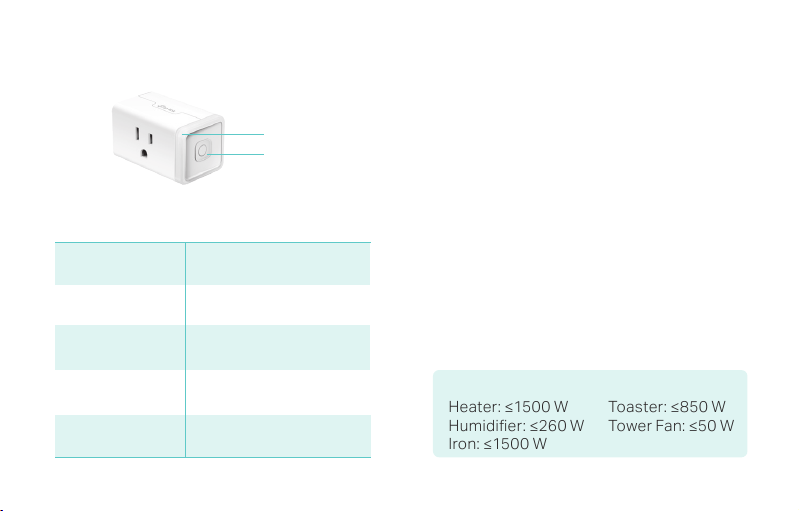
Reset Button
• Press once to turn the plug ON or OFF.
• Press and hold the button on the plug for
about 5s to reset your Wi-Fi while keeping
other settings.
• Press and hold the button on the plug for
about 10s to restore your plug to factory
default settings.
LED Indications
Blinking blue quickly
Solid orange
Solid blue
Blinking orange &
blue slowly
Ready for setup.
Restoring to factory default
settings.
Blinking blue slowly
Resetting Wi-Fi;
Firmware updating.
Disconnected from Wi-Fi;
Disconnected from Cloud.
Connected to Cloud.
Appearance
LED
Button