Quick Start Guide
HS1XX Series
Smart Wi-Fi Plug Installation
Support
Create Account
Skip
Forgot password?
LOG IN
Password
Email
Log in to access your devices.
Welcome
home
Sketch 9:41 AM 100%
OR scan
QR code
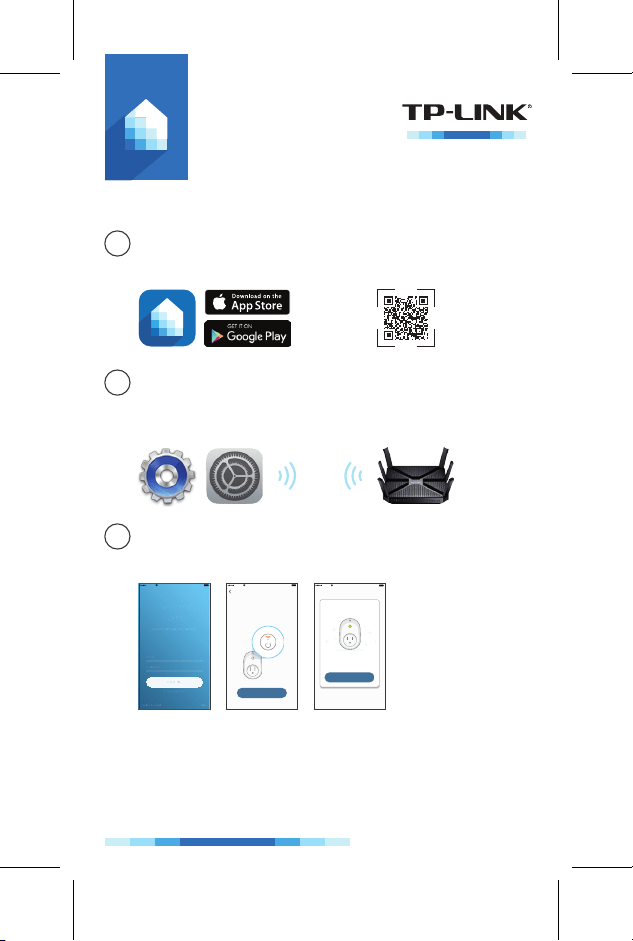
1 Download TP-LINK Kasa from App Store or
Google Play.
2 Connect mobile device to your 2.4GHz Wi-Fi
network.
3 Launch Kasa and follow the in-app instructions
to connect the Smart Plug to your network.
Note: The Smart Plug only supports 2.4GHz networks.
If you encounter any issues during installation or
configuration, please visit www.tp-link.com/support for
web support and troubleshooting information.
7106506290 REV 1.0.2
Sketch 9:41 AM 100%
Power up your Smart Plug
Plug in your Smart Plug.
The Wi-Fi light will turn solid amber.
NEXT
Sketch 9:41 AM 100%
DONE
Great!
Your Smart Plug is all set up. It is
now saved in your Device List.
Smart Wi-Fi Plug
Troubleshooting
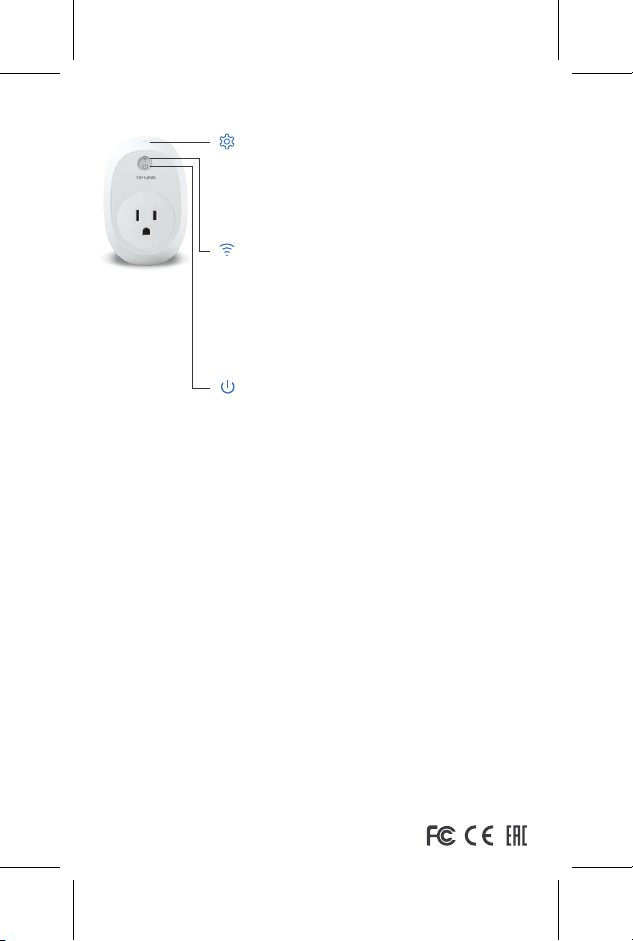
Press and hold (for 5 seconds) until the Wi-Fi
LED blinks amber and green alternately to
initiate the App-Config process.
Press and hold (for 10 seconds) until the Wi-Fi
LED blinks amber rapidly to factory reset the
Smart Plug.
Blinking Amber and Green: App-Config mode
initiated.
Quick Blinking Green: Connecting to the
network.
Solid Green: Connected to the network.
Quick Blinking Amber: Factory reset.
Solid Amber: Rebooting.
Solid Red: No network connection.
Solid Green: The Smart Plug is switched on.
Off: The Smart Plug is switched off.
1. What devices can I control with the Smart Plug?
You can control lights, fans, humidifiers, portable heaters, and
any small appliances in accordance with the Smart Plug’s
specifications.
2. What should I do when I can’t turn devices on or off?
• Make sure the devices connected to the Smart Plug are
turned on.
• Make sure your mobile device and the Smart Plug are
connected to the same network.
3. What should I do when the Wi-Fi LED is lit solid red?
A solid red indicates no network connection, or that the
App-Config process has failed. You can:
• Check your network connectivity.
• Check for Wi-Fi interference or relocate the Smart Plug to
another location within the signal range.
• Repeat the App-Config process.
• Factory reset the Smart Plug and try to add it again.
4. How do I pair the Smart Plugs with Amazon Echo?
Visit www.tp-link.com/en/faq-944.html for pairing instructions.
© 2016 TP-LINK. All rights reserved.