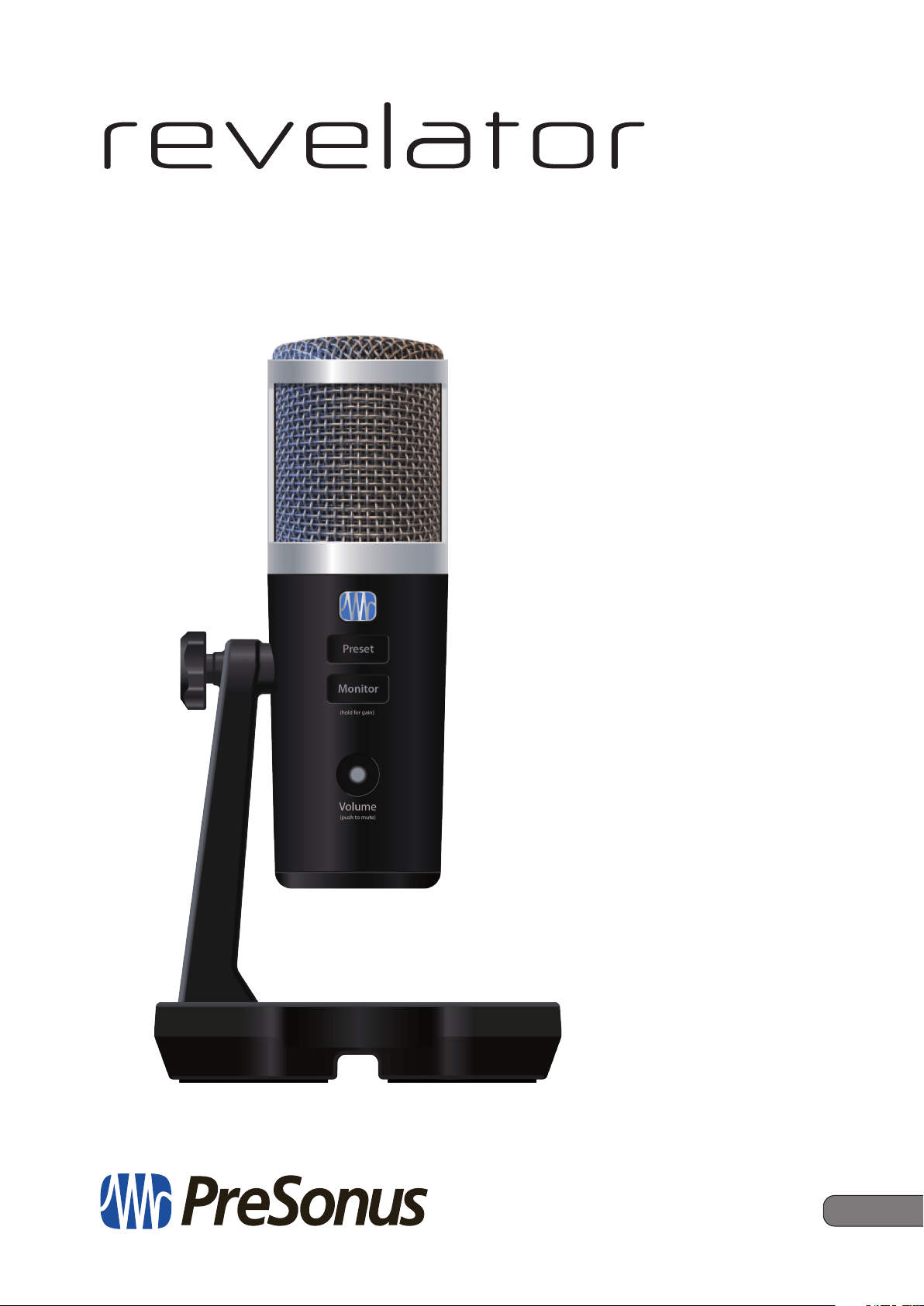
USB Microphone with StudioLive
®
processing inside
Owner’s Manual
www.presonus.com
®
English

Table of Contents
1 Overview — 1
1.1 Introduction — 1
1.2 What is in the Box — 1
1.3 What is in your MyPreSonus account — 2
1.3.1 Step 1: Register Revelator — 2
1.3.2 Step 2: Download and Install
Universal Control — 4
1.3.3 Step 3: Download and Install
Studio One Artist (Optional) — 5
1.3.4 Step 4: Download and Install
Studio Magic (Optional) — 6
2 Connections and Controls — 7
2.1 Basic hookup — 7
2.2 Standalone controls — 7
2.2.1 Setting the Microphone Level — 8
2.2.2 Setting Headphone level — 8
2.2.3 Setting Monitor level — 8
2.2.4 Selecting Presets — 9
3 Universal Control — 10
3.1 The Launch Window — 10
3.1.1 Launch Window Menu Items — 11
3.2 Using Your Revelator
with Popular Applications — 12
3.2.1 Using Revelator for System Audio — 13
3.2.2 Using Revelator for Skype — 16
3.2.3 Using Revelator for Zoom — 16
3.2.4 Using Revelator for Google Meets — 20
3.2.5 Using Revelator for OBS — 21
3.2.6 Using Revelator on Chromebook — 23
3.2.7 Using Revelator with Zoom
on Chromebook — 24
3.2.8 Using Revelator with Google Meet
on Chromebook — 25
3.2.9 Using Revelator with
iOS/iPadOS devices — 26
3.2.10 Using Revelator
with Android devices — 26
4 Presets, Fat Channel,
and Voice Effects — 27
4.1 Preset Management — 27
4.1.1 Changing Preset Button Slots — 28
4.1.2 Storing New Presets — 29
4.2 Fat Channel and Voice FX — 30
4.2.1 High Pass Filter (HPF) — 31
4.2.2 Gate — 31
4.2.3 Compressor (Comp) — 32
4.2.4 Equalizer (EQ) — 32
4.2.5 Limiter — 33
4.2.6 Voice FX — 34
4.3 Reverb — 34
5 Mixing and Loopback Audio — 36
5.1 What is Loopback Audio? — 36
5.2 Mixer Controls — 37
5.2.1 Microphone Channel Controls — 37
5.2.2 Mixer Channel Controls — 37
5.2.3 Main Output Controls
and Mix Selection — 38
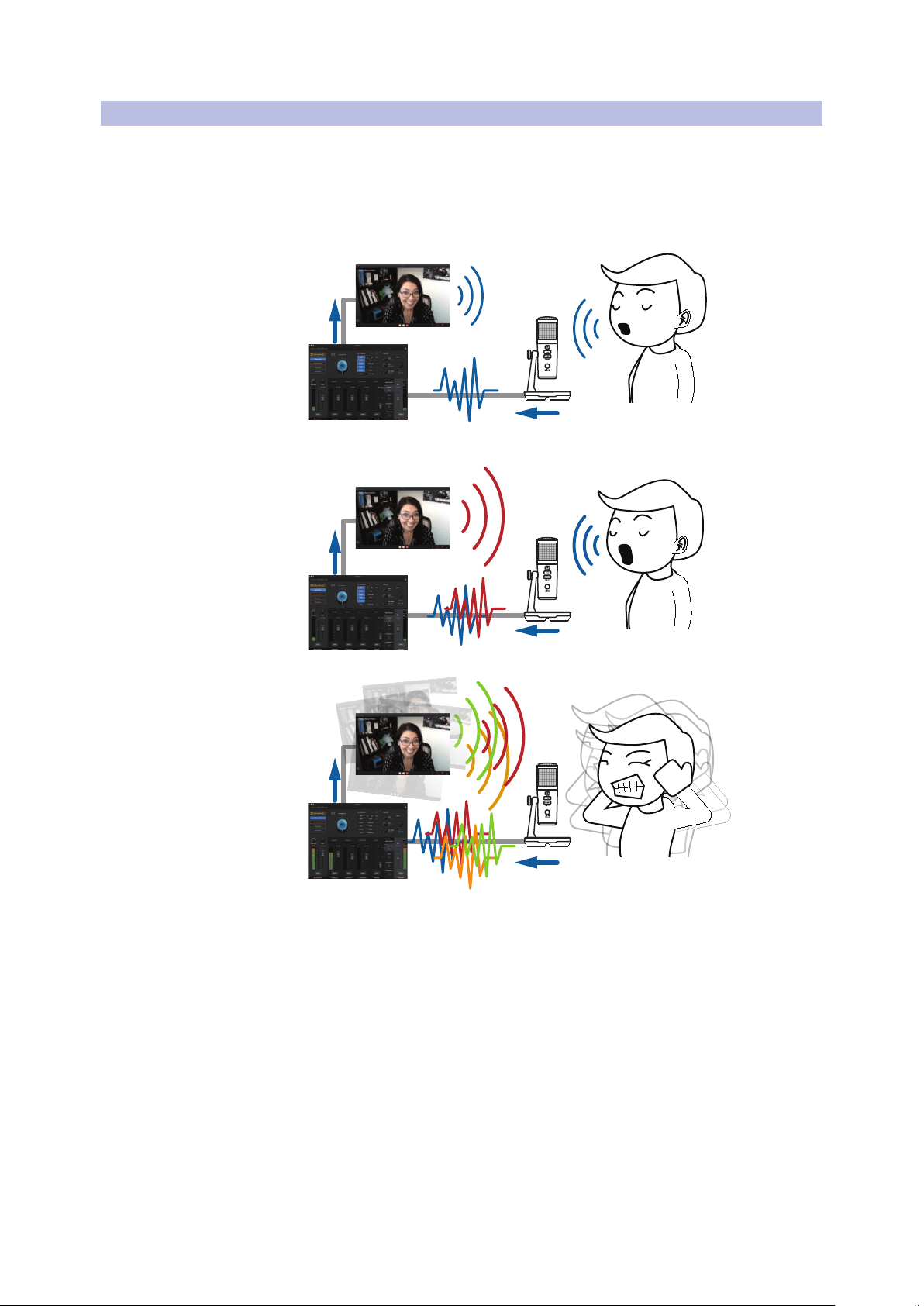
5.3 Feedback Loops are Bad — 39
6 Advanced Features
and Customization Tools — 40
6.1 Settings Menu — 40
6.2 Advanced Fat Channel
and Voice Effects Controls — 41
6.2.1 High Pass Filter — 41
6.2.2 Noise Gate — 41
6.2.3 Compressor — 42
6.2.4 Changing the Signal Chain — 45
6.2.5 Equalizer — 45
6.2.6 Limiter — 48
6.2.7 Voice FX — 48

7 Studio One Artist
Quick Start Guide — 51
7.1 Installation and Authorization — 51
7.2 Setting Up Studio One — 52
7.2.1 Configuring Audio Devices — 53
7.2.2 Configuring MIDI Devices — 53
7.3 Creating a New Song — 57
7.3.1 Configuring Your I/O — 57
7.3.2 Creating Audio and Instrument
Tracks — 59
7.3.3 Recording an Audio Track — 60
7.3.4 Adding Virtual Instruments
and Effects — 60
8 Resources — 62
8.1 Gain Staging 101: Begin at the Beginning — 62
8.2 Microphone Tips and Tricks — 63
8.2.1 Handling Noise — 63
8.2.2 How Close is Too Close? — 64
8.2.3 Problematic Pronunciation — 64
8.2.4 Putting it All Together — 64
8.2.5 Removing Revelator from its Base — 65
8.3 Technical Specifications — 65
1
1 Overview
1.1 Introduction
Revelator
Owner’s Manual
1 Overview
1.1 Introduction
Thank you for purchasing the Revelator USB microphone! Revelator is
the perfect microphone for live streaming or podcasting, and is a simple
recording solution for voice-overs in your home studio. It’s designed to
deliver polished, professional-sounding results with ease. Once you’ve
registered your Revelator at my.presonus.com, you’ll be able to download
your drivers, a complimentary copy of Studio One Artist, additional plug-ins,
content, and more. It’s our gift to you for becoming a PreSonus customer.
We suggest you read this manual to familiarize yourself with the features and
applications for your Revelator before trying to connect it to your computer.
This will help you to avoid problems during installation and use.
Throughout this manual you will find Power User Tips. These tips and
tricks will help you to become a Revelator expert—as well as help
you to better understand audio terminology, so you can get the most
from your purchase and get the best sound quality possible.
Thanks for joining the PreSonus family. We’re glad you’re here.
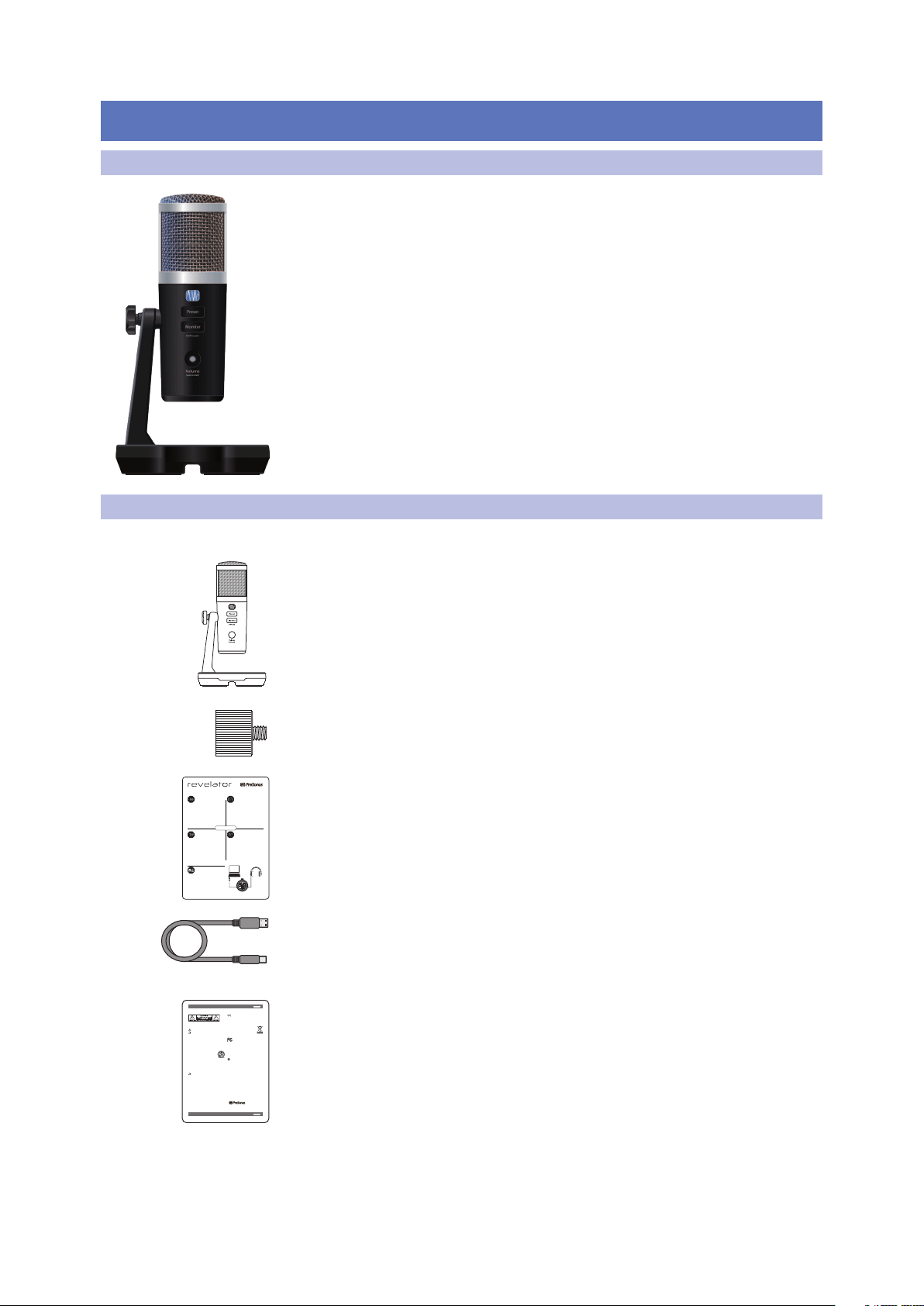
1.2 What is in the Box
Your Revelator package contains:
Revelator USB Microphone with StudioLive inside
Revelator to boom stand adapter
Quick Start Guide. Use this as a handy reference guide to your hardware features
while you familiarize yourself with your new microphone
1M USB-C-to-USB-A Cable. Use this to connect your Revelator
to a USB port on your computer or a powered USB hub.
Power User Tip: If your computer only has USB-C ports, you will need to purchase a
standard USB-C cable, or use an extra one you might have handy.
PreSonus Health, Safety, and Compliance Guide. Legal language to cure your
insomnia.
USB Microphone with StudioLive
™
processing inside
Getting Started • Erste Schritte • Cómo empezar • Pour commencer • 开始
®
Go online to my.presonus.com and
register your serial number.
Thank you for purchasing the Revelator USB microphone! Revelator
is the perfect microphone for live streaming or podcasting, and is a
simple recording solution for voice-overs in your home studio. It’s
designed to deliver polished, professional-sounding results with ease.
Once you’ve registered your Revelator at mypresonus.com, you’ll be
able to download your complimentary copy of Studio One Artist as
well as additional plug-ins, content, and more. It’s our gift to you for
becoming a PreSonus customer.
Please review your Revelator User Manual available at PreSonus.com
for more information on proper operation and installation. This Quick
Start Guide will take you through the basics... but there is so much
more your Revelator can do!!
Önen Sie die Webseite my.presonus.com
und registrieren Sie Ihre Seriennummer.
Vielen Dank, dass Sie sich für das Revelator USB-Mikrofon
entschieden haben! Revelator ist das perfekte Mikrofon für Live-
Streaming und Podcasts und empehlt sich als unkompliziertes
Voiceover-System für Ihr Heimstudio. Das Mikrofon wurde als
einfache Lösung für hochwertige Aufnahmen in professioneller
Klangqualität entwickelt. Nachdem Sie Ihr Revelator auf my.presonus.
com registriert haben, können Sie Ihr kostenloses Studio One Artist
sowie zusätzliche Plug-Ins, Inhalte etc. herunterladen. Dies ist unser
Willkommensgeschenk für Sie als PreSonus Kunden.
Weitere Informationen zur Installation und Konguration nden Sie
in der Revelator Bedienungsanleitung auf www.presonus.com. Diese
Kurzanleitung bringt Ihnen die Grundlagen nahe, aber Revelator kann
noch viel, viel mehr!
登录 my.presonus.com 并注册您的
序列号。
感谢您购买 Revelator USB 话筒!Revelator 是实时流媒体或
播客的完美话筒,也是一种用于家庭工作室画外音的简单录音
解决方案。它的设计宗旨在于便捷地提供完美专业的声音 。一旦
您在mypresonus.com上注册了您的 Revelator,就可以下载
免费的Studio One Artist 以及其他插件、内容等等。这是我们送
给您的礼物,感谢您成为 PreSonus 的客户。
有关正确操作和安装的更多信息,请查看 PreSonus.com 提供
的 Revelator 用户手册。这个快速启动指南将带您了解基础内
容。随后您会发现 Revelator 可以做的还有很多!!
Allez sur my.presonus.com et enregistrez
votre numéro de série.
Merci d’avoir acheté le microphone USB Revelator ! Le Revelator est
le microphone parfait pour le streaming live ou le podcasting, et c’est
une solution d’enregistrement simple pour les voix-o dans votre
home studio. Il est conçu pour obtenir facilement un son impeccable,
de qualité professionnelle. Après avoir enregistré votre Revelator
sur mypresonus.com, vous pourrez télécharger gratuitement
Studio One Artist ainsi, entre autres, que des plug-ins et du contenu
supplémentaires. C’est notre cadeau pour vous remercier d’être
maintenant un client PreSonus.
Veuillez consulter le mode d’emploi de votre Revelator, disponible sur
PreSonus.com, pour plus d’informations sur son installation et son
utilisation. Ce guide de prise en main vous fera découvrir les bases…
mais votre Revelator peut faire tellement plus !
Vaya online a my.presonus.com y registre
su número de serie.
¡Grácias por la compra del micrófono Revelator USB! Revelator es
el micrófono perfecto para streaming y podcasting en directo, y
además es una solución sencilla para grabación de voice-overs en su
estudio doméstico. Está diseñado para ofrecer resultados renados y
profesionales con facilidad. Una vez que haya registrado su Revelator
en mypresonus.com, podrá descargar su copia gratuita de Studio
One Artist, así como plug-ins adicionales, contenido y más. Es nuestro
regalo para usted por convertirse en cliente de PreSonus.
Por favor, consulte su Manual del Usuario de Revelator disponible en
www.PreSonus.com para más información sobre el correcto manejo
e instalación. Esta Guía de Inicio Rápido lo llevará a través de los
conceptos básicos... ¡pero hay mucho más que su Revelator puede
hacer!
PreSonus Safety Warnings and Instructions
Electrical information and warning symbols for PreSonus products are located on the rear electrical panel of the unit
adjacent to the electrical plug or on the bottom of the unit along with other product compliance information.
This lightning flash with arrowhead symbol within an equilateral triangle is intended to alert the user to the presence of non-
insulated “dangerous voltage” within the product’s enclosure that may be of sufficient magnitude to constitute a risk of electric shock.
WARNING: TO REDUCE THE RISK OF ELECTRIC SHOCK, DO NOT REMOVE COVER (OR BACK) AS THERE
ARE NO USER-SERVICEABLE PARTS INSIDE. REFER SERVICING TO QUALIFIED PERSONNEL.
The exclamation point within an equilateral triangle is intended to alert the user to the presence of
important operating and maintenance instructions in the literature accompanying the appliance.
CAUTION: To reduce the risk of electric shock, do not expose this appliance to rain and moisture. Do not expose this device
to dripping or splashing liquids and no object filled with liquids, such as vases, should be placed on the device.
CAUTION: These service instructions are for use by qualified service personnel only. To reduce the risk of electric shock,
do not perform any servicing other than that contained in the operation instructions. Qualified service personnel must
perform repairs.
1. Read these instructions.
2. Keep these instructions.
3. Heed all warnings.
4. Follow all instructions.
5. Do not use this device near water.
6. Clean only with a dry cloth.
7. Do not block any ventilation openings. Install in accordance with the manufacturer’s instructions.
8. Do not install near any heat sources, such as radiators, heat registers, stoves,
or other device (including amplifiers) that produce heat.
9. Do not defeat the safety purpose of the polarized or grounding-type plug. A polarized plug has two blades
and a third grounding prong. The wide blade and the third prong are provided for your safety. If the provided
plug does not fit into your outlet, consult an electrician for replacement of the obsolete outlet.
10. Protect the power cord from being walked on or pinched, particularly at plugs,
convenience receptacles, and the point where they exit from the device.
11. Use only attachments/accessories specified by PreSonus.
12. Use only with a cart, stand, tripod, bracket, or table specified by the manufacturer or sold with
this device. Use caution when moving a cart/device combination to avoid injury from tip-over.
13. Unplug this device during lightning storms or when unused for long periods.
14. Servicing is required when the device has been damaged in any way, such as if a power-supply
cord or plug is damaged; or liquid is spilled, or objects have fallen into the device; or if
the device has been exposed to rain or moisture, does not operate normally, or has been
dropped. All PreSonus products in the USA should be serviced at the PreSonus factory
in Baton Rouge, Louisiana. If your PreSonus product requires a repair, contact support@
presonus.com to arrange for a return authorization number. Customers outside the USA
should contact their local distributor. Your distributor’s contact information is available at www.presonus.com.
15. Protective grounding(earthing) terminal. The apparatus should be connected to a
mains socket outlet with a protective grounding(earthing) connection.
16. Where the Mains plug or an appliance coupler is used as the disconnect device,
the disconnect device shall remain readily operable.
17. The use of apparatus is in moderate climates.
18. Please allow 5cm around the apparatus for sufficient ventilation; the ventilation should not be impeded
by covering the ventilation openings with items, such as newspapers, table-cloths, curtains, etc.
Rackmounting
• Use an equipment rack that is 19-inches wide (482.6 mm) and rated for the total weight of your equipment.
• Use a minimum of (4) 10/32 threaded screws per rack mounted device.
WARNING:
Cancer and reproductive harm - www.p65warnings.ca.gov
PreSonus Compliance Information
European Union (EU)
The CE mark on this product indicates that the device is compliant with the
EU Council Directives
2014/35/EU Low Voltage Directive
2014/30/EU EMC Directive
2011/65/EU RoHS Recast
EC 1907/2006 REACh
For a copy of a specific product DoC, contact PreSonus at [email protected].
RoHS Recast Directive 2011/65/EU
REACh Directive EC1907/206
WEEE This symbol on this product or its packaging indicates that this product must not be disposed of with other
waste. Instead, it is your responsibility to dispose of your waste equipment by handing it over to a designated
collection point for the recycling of waste electrical and electronic equipment. The separate collection and recycling
of your waste equipment at the time of disposal will help conserve natural resources and ensure that it is recycled
in a manner that protects human health and the environment. For more information about where you can drop
off your waste equipment for recycling, please contact your local city recycling office or the dealer from whom you
purchased the product.
Radio and Television Interference
If these symbols are marked on the product, the device complies as follows:
Any Changes or modifications not expressly approved by the party responsible for compliance could void the user’s authority to operate
the equipment.
USA: This equipment has been tested and found to comply with the limits for a Class B digital device, pursuant to
Part 15 of the FCC Rules. Operation is subject to the following two conditions: (1) This device may not cause harmful
interference, and (2) this device must accept any interference received, including interference that may cause
undesired operation. These limits are designed to provide reasonable protection against harmful interference in a
residential installation. This equipment generates, uses, and can radiate radio frequency energy, and, if not installed
in accordance with the instructions, may cause harmful interference to radio communications. However, there is no guarantee that
interference will not occur in a particular installation. If this equipment does cause harmful interference to radio or television reception,
which can be determined by turning the equipment off and on, the user is encouraged to try to correct the interference by one or more of
the following measures:
• Reorient or relocate the receiving antenna.
• Increase the separation between the equipment and the receiver.
• Connect the equipment into an outlet on a circuit different from that to which the receiver is connected.
• Consult the dealer or an experienced radio/TV technician for help.
FCC Radiation Exposure Statement:
This equipment complies with FCC radiation exposure limits set forth for an uncontrolled environment. This equipment should be installed
and operated with minimum distance 20cm between the radiator& your body.
This transmitter must not be co-located or operating in conjunction with any other antenna or transmitter.
CAUTION: Changes or modifications to this device not expressly approved by PreSonus Audio Electronics could void the user’s authority to
operate the equipment under FCC rules.
Australian Compliance: This equipment complies with Radio communication Devices Notice 2003; or Radio communication
Labeling (Electromagnetic Compatibility) Notice 2008; or Radio communication (Compliance Labeling Electromagnetic
Radiation) Labeling Notice 2003.
IC WARNING
IC RSS warning: This device complies with Industry Canada licence-exempt RSS standard (s). Operation is subject to the following two
conditions: (1) this device may not cause interference, and (2) this device must accept any interference,including interference that may
cause undesired operation of the device. Under Industry Canada regulations, this radio transmitter may only operate using an antenna of a
type and maximum (or lesser) gain approved for the transmitter by Industry Canada. To reduce potential radio interference to other users,
the antenna type and its gain should be so chosen that, the equivalent isotropically radiated power (e.i.r.p.) is not more than that necessary
for successful communication.
This radio transmitter (identify the device by certifcation number, or model number if Category II) has been approved by Industry Canada
to operate with the antenna types listed below with the maximum permissible gain and required antenna impedance for each antenna
type indicated. Antenna types not included in this list, having a gain greater than the maximum gain indicated for that type, are strictly
prohibited for use with this device.
IC Radiation Exposure Statement:
This equipment complies with IC RF radiation exposure limits set forth for an uncontrolled environment. This transmitter must not be
co-located or operating in conjunction with any other antenna or transmitter.
ICES003: This CAN ICES3 (B)/NMB3(B) digital apparatus complies with Canadian ICES003.
PreSonus Health, Safety, and Compliance Guide
Class B
PreSonus Health, Safety, and Compliance Guide
Class B
®
PreSonus Health, Safety, and Compliance Guide. Part# 70-00000013-C
© 2018 PreSonus Audio Electronics, Inc. All Rights Reserved.
18011 Grand Bay Ct. • Baton Rouge, Louisiana 70809 USA • 1-225-216-7887
www.presonus.com
2
1 Overview
1.3 What is in your MyPreSonus account
Revelator
Owner’s Manual
1.3 What is in your MyPreSonus account
There’s more to your Revelator than what comes in the box! Let’s take a
moment to register your Revelator and download the digital products that
come with it. These include:
• Universal Control. Unlock the StudioLive inside your Revelator with
Universal Control. This installation package also includes your audio
driver controls that you will need to use advanced Revelator features.
• Studio One Artist. Studio One Artist is our award-winning recording
and production software. It’s also designed to be intuitive and easy
to use, so whether you’re a seasoned professional or just starting out,
Studio One Artist has the tools you need to make a great recording.
• Studio Magic Bundle. Over $1000 USD worth of plug-ins, sounds, and
more; Studio Magic supercharges your Studio One Artist experience!
1.3.1 Step 1: Register Revelator
To download your digital products, you must first create a MyPreSonus
account. This account lets you manage all your PreSonus product
registrations, provides curated educational content, and is the portal
to all tech support and service inquiries. Let’s get started!
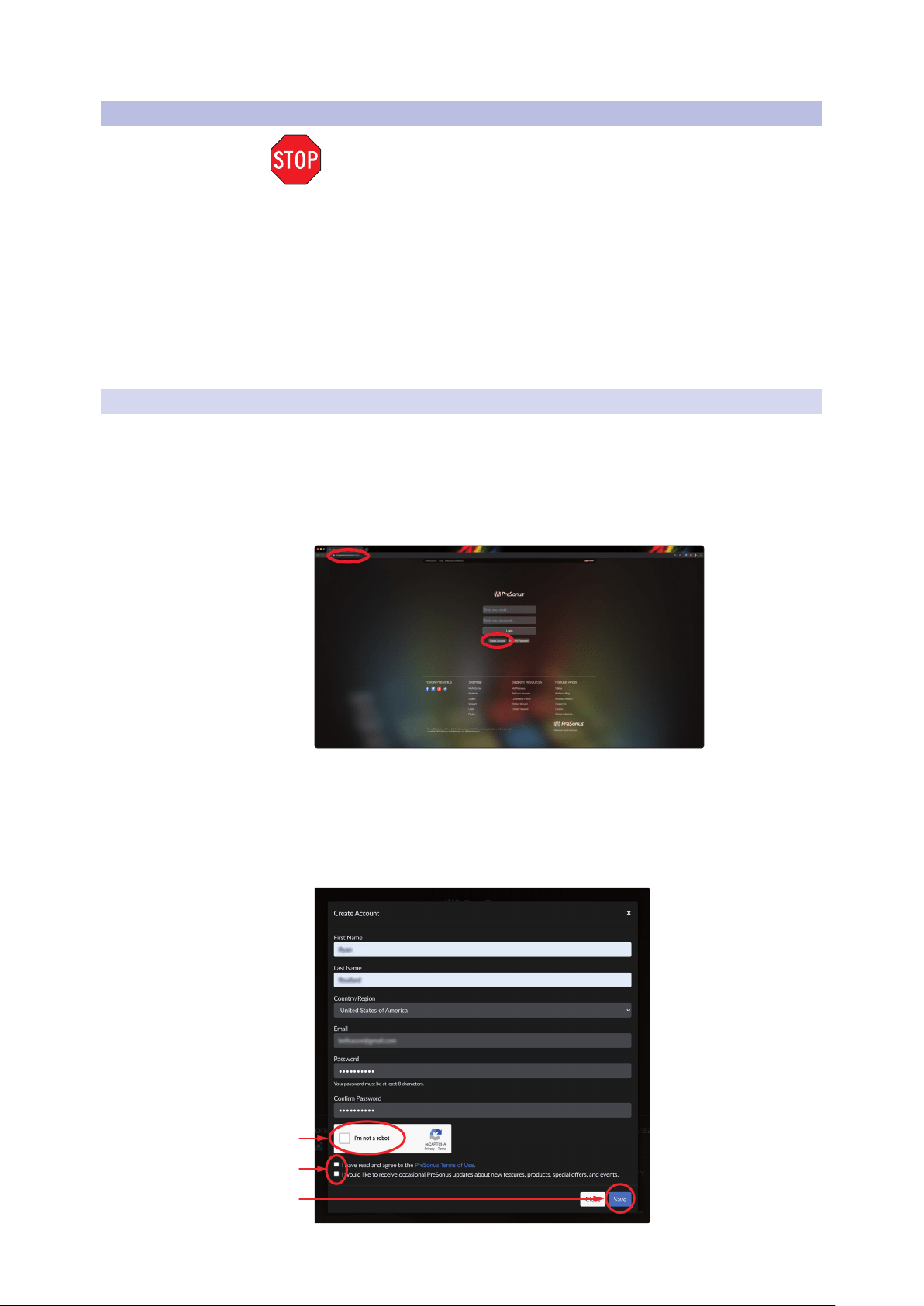
1. In your Internet browser of choice, visit my.presonus.
com and click “Create Account”
Power User Tip: If you already have a MyPreSonus account, please log in
and skip to step 5.
2. Fill in the form with the required information. Make sure to verify
that you are, in fact, human and agree to our PreSonus Terms of
Use. If you’d like to receive occasional emails about promotions
and new video content, check that box now as well.

3
1 Overview
1.3 What is in your MyPreSonus account
Revelator
Owner’s Manual
3. Click “Save.”
4. Click “Go to MyPreSonus” to log into your shiny new MyPreSonus account.
5. Click “Register a Product.”
6. In the pop-up menu, click on the Hardware tab.
7. Select your purchase date and enter your Revelator Serial
Number. You can find your serial number on the bottom of
your microphone as well as on your Quick Start Guide.
8. Click Register.
9. Click View Product to download your companion software.

4
1 Overview
1.3 What is in your MyPreSonus account
Revelator
Owner’s Manual
1.3.2 Step 2: Download and Install Universal Control
1. From the Revelator product listing in MyPreSonus, click the “Download
Universal Control” button at the top. MyPreSonus will scan your computer
and present the correct installer for your operating system.
2. Locate the Universal Control installer in your
Downloads folder. Double click to open it.
3. Follow the onscreen instructions to install Universal Control.
See Sections 3-6 for information and use instructions for all the advanced features
available in Universal Control.
5
1 Overview
1.3 What is in your MyPreSonus account
Revelator
Owner’s Manual
1.3.3 Step 3: Download and Install Studio One Artist (Optional)
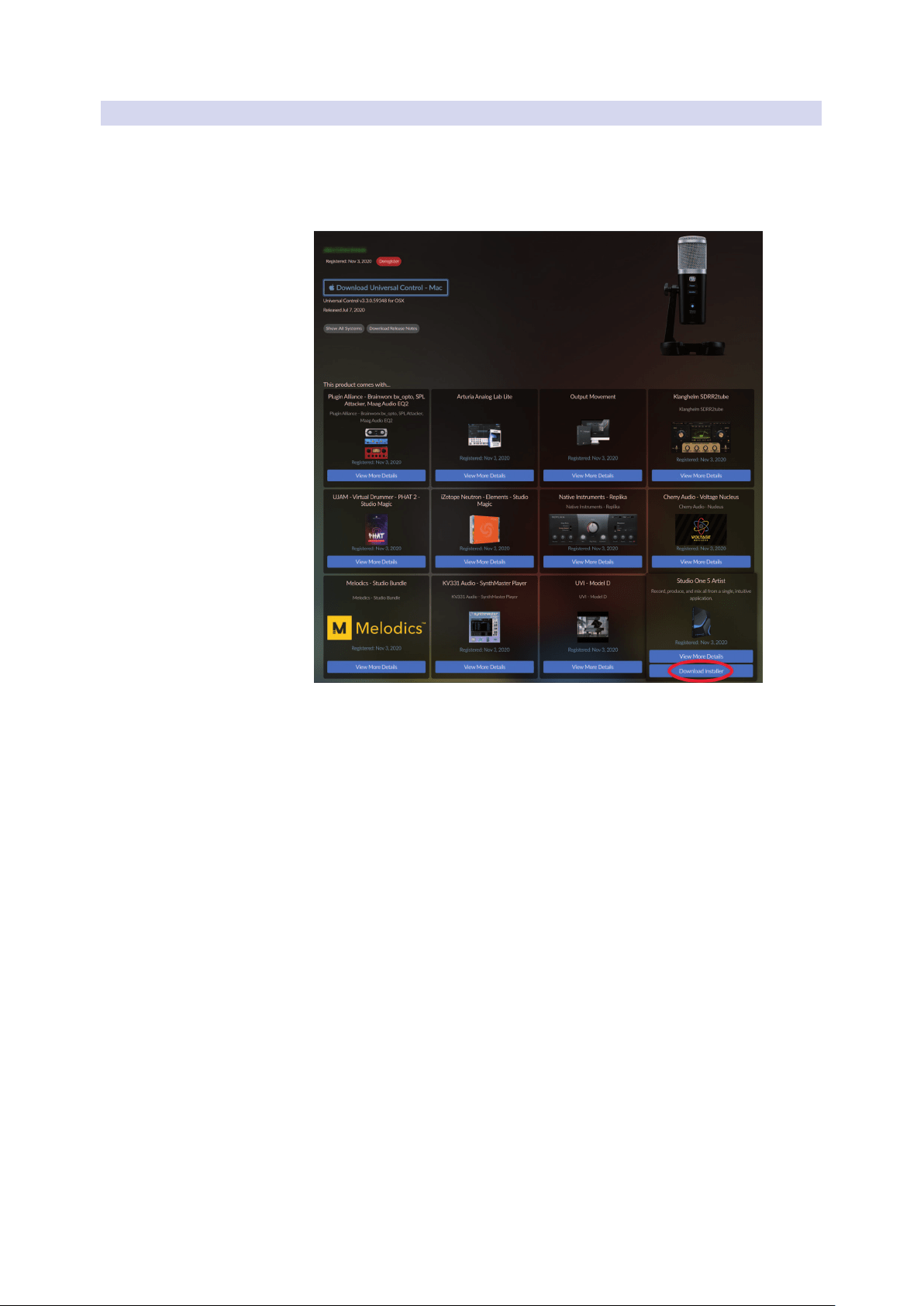
1. From the Revelator product listing in MyPreSonus, locate Studio One Artist
from the product listing. Quick links to every digital product that comes
with your Revelator will be listed here. Click the “Download Installer” button
at the bottom of the Studio One Artist listing. MyPreSonus will scan your
computer and present the correct installer for your operating system.
2. Locate the Studio One installers in your Downloads
folder. Double click to open it.
Windows: Launch the Studio One Artist installer
and follow the onscreen instructions.
Mac: Drag the Studio One Artist application into the
Applications folder on your Mac hard drive.
6
1 Overview
1.3 What is in your MyPreSonus account
Revelator
Owner’s Manual
3. Locate Studio One in your Applications and launch it. When Studio One is
launched for the first time on your computer, it will communicate with your
My.PreSonus account and verify your registration. To ensure a seamless
authorization process, make sure to download your installer to the computer
on which you will be using it, and be sure that your computer is connected
to the Internet when you launch the application for the first time.
Power User Tip: You may be prompted to enter your My.PreSonus user account
information. Clicking “Remember Credentials” will allow you to have immediate
access to any content you purchase from shop.presonus.com.
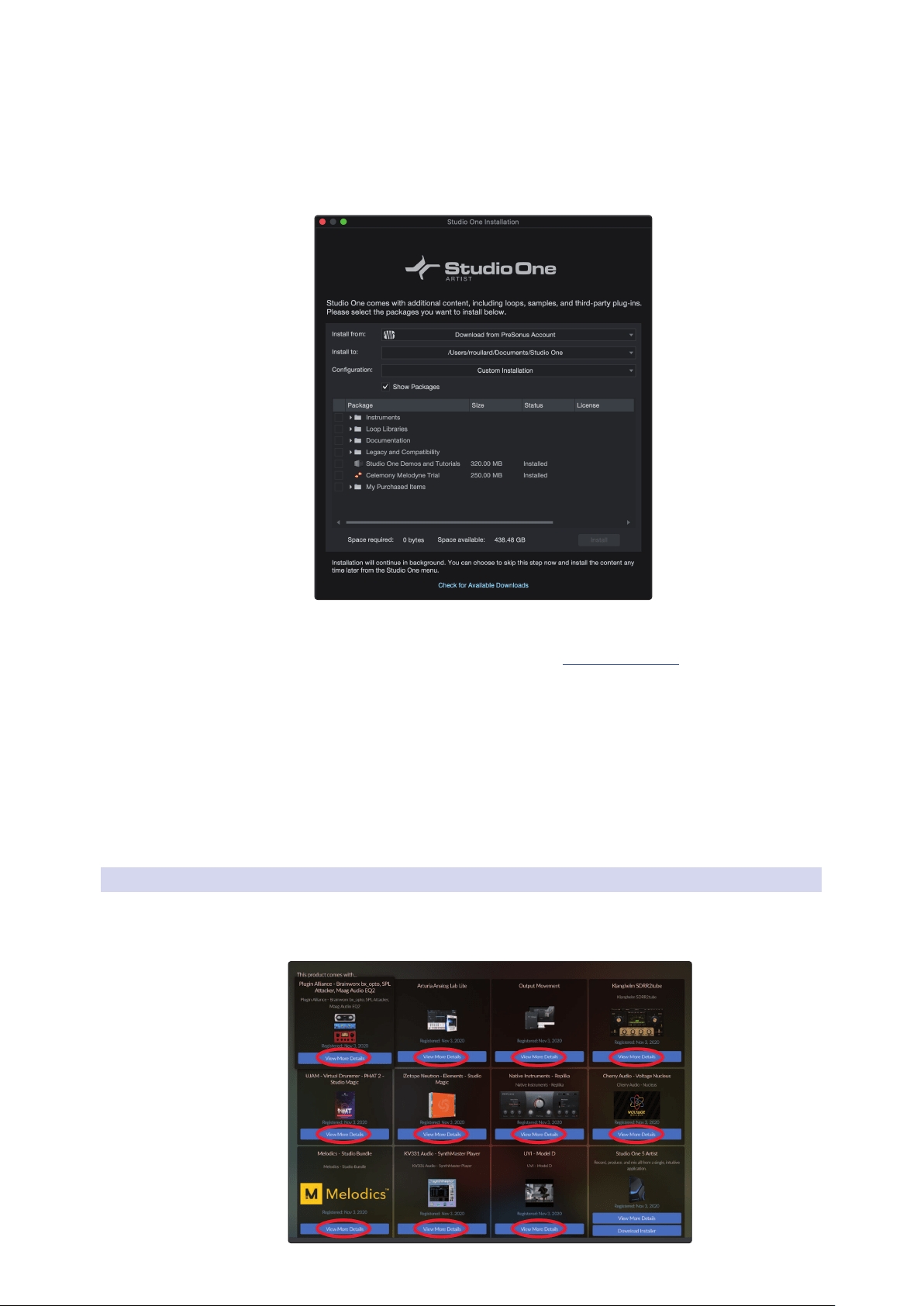
Studio One Artist comes bundled with an array of demo and tutorial
materials, instruments, loops, and samples. The first time you launch Studio
One Artist, you will be prompted to install its companion content. Select the
content you wish to add and click “Install.” The content will automatically
begin to download and install from your My.PreSonus user account.
Power User Tip: To select only a portion of the available content, click on “Show
Packages.” From here you can customize your content installation.
See Section 7 for a Getting Started guide to help your start recording and mixing in
Studio One Artist.
1.3.4 Step 4: Download and Install Studio Magic (Optional)
From the Revelator product listing in MyPreSonus, you will also find a complete list
with links to all the Studio Magic products that came with your Revelator registration.
Click on the “View More Details” button below any product you’d like to install.

7
2 Connections and Controls
2.1 Basic hookup
Revelator
Owner’s Manual
2 Connections and Controls
2.1 Basic hookup
All the connections you need for your Revelator are
located on the bottom of the microphone.
USB-C Compatible Connection. Use this port to connect your Revelator to
your computer. While the Revelator’s onboard connection is USB Type C, it is
fully compatible with USB Type A 2.0 and 3.0 connections. Use the USB-C to A
cable that came with your Revelator if your computer has a USB-A connection
rather than a USB-C connection. Please note: Revelator is backward compatible
with USB 2.0 and USB 3.0 speed connections. USB 1.1 is not supported.
USB-A
USB-C
Headphone Output. This is the headphone connection for your Revelator. The level
is controlled by the Volume knob. You can also change the mix that you are listening
to from Universal Control. See Section 5 for details.
2.2 Standalone controls
While many of the features available for your Revelator can be found
in Universal Control, every critical control is available right at your
fingertips. Most of these settings can be changed from Universal Control
to customize your Revelator to your application and needs.
The most important thing to remember is that the Volume control on
your Revelator can be used to set your mic level, adjust your headphone
volume, and blend your mix between your input signal and the playback
from your computer. The Quick Start Guide that came with your Revelator
can be used as a handy reference until you get the hang of it.

8
2 Connections and Controls
2.2 Standalone controls
Revelator
Owner’s Manual
2.2.1 Setting the Microphone Level
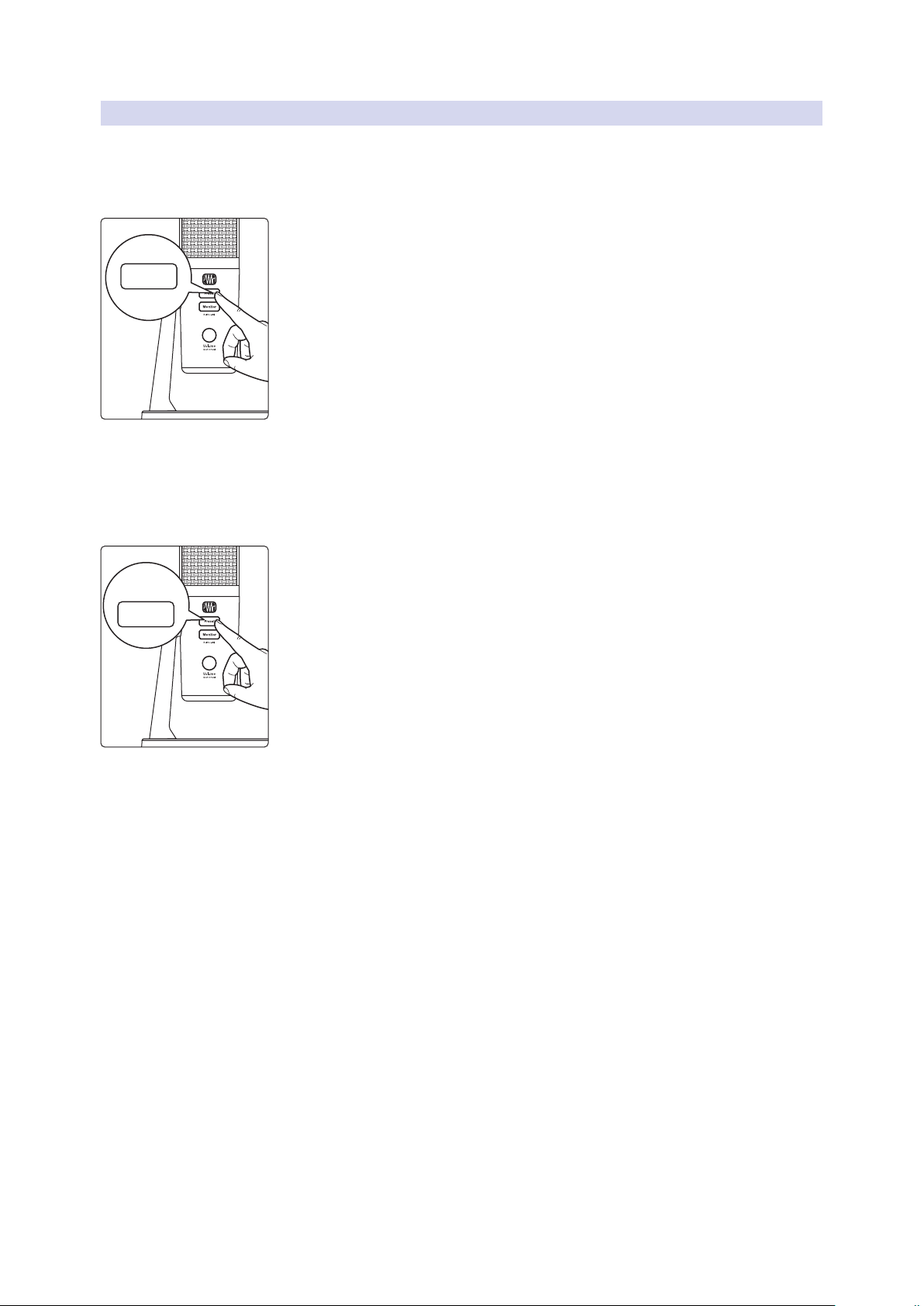
To set your Revelator’s input level, press and hold the Monitor button. The Volume
knob will turn green, letting you know that it is now controlling the microphone
level.
Power User Tip: If your input level is too loud, the Volume knob will flash red. This means
that your input signal is “clipping,” and will begin to sound distorted. If your input signal
clips, it will overload the analog-to-digital converters that take the sound of your voice
and convert it to 1s and 0s that the computer can understand, causing digital distortion.
Digital distortion sounds terrible, and cannot be undone if recorded. Because of this, it’s
important to keep your eye on this indicator while you’re setting your levels. Check out
Section 8 for other recording tips.
To exit this mode, simply wait five seconds or press the Monitor button again.
2.2.2 Setting Headphone level
By default, the Volume knob on your Revelator controls the output level of your
headphones. While in its default state, the knob will be unlit.
Press the knob to mute the mic. The knob will turn red while your mic is muted. You
will still be able to listen to audio from your computer while your mic is muted.
You can also choose to mute your monitor mix instead from Universal Control. Use
this option if you want to mute your headphones completely. Note that this does not
mute your microphone... so be careful on that Zoom meeting! See Section 6.1.5 for
instructions.
2.2.3 Setting Monitor level
Revelator provides an easy way to create a blend between your
microphone signal and the playback from your computer. This lets you
listen to your performance in real-time without any latency (delay).
Press the Monitor button and turn the knob to adjust the
blend between your microphone and the playback from
your computer. The knob will be blue in this mode.
Turning the knob to the left will increase the level of the input signal relative
to the playback from your computer. Turning it to the right will increase the
level of the playback from your computer relative to the input signal.
Power User Tip: Universal Control lets you create a custom mix between your
microphone, main computer playback, and both stereo loopback audio channels. So
when you’re ready to dial in your headphone mix, go to Section 5 to learn more!
Monitor
HOLD
Volume
(push to mute)
Volume
(push to mute)
Volume
(push to mute)
Volume
(push to mute)
PlaybackMic
Monitor
9
2 Connections and Controls
2.2 Standalone controls
Revelator
Owner’s Manual
2.2.4 Selecting Presets
EQ and compression are the secret behind the professional broadcast studio
sound we all know so well. Your Revelator has you covered with 8 easy-to-use,
professionally-crafted processing and effects presets. These presets are designed to
give you great-sounding results with no audio engineering experience required!
The first four presets can be accessed right from the Preset button on
your Revelator. To cycle through them, press the Preset button repeatedly.
The button will change color to let you know which preset is active.
1. Blue. Broadcast Male.
2. Yellow. Broadcast Female.
3. Green. Screamer.
4. Pink. Slap Echo.
Power User Tip: But wait! There’s more! No really, there are a lot more. Open up Universal
Control to access the other presets. You’ll also find an additional eight preset slots to
create your own. You can choose any four of these 16 total presets to be accessible
directly from the Preset button on your Revelator. See Section 4.1 for information on
creating and storing presets.
By default, the sound you hear in your headphones will be the sound that is
recorded. If you’d like to use presets for monitoring purposes only, you can open
up Universal Control and change that setting. See Section 6.1.3 to learn how.
To bypass the presets, just press and hold the Preset button. The
button will illuminate red while presets are bypassed.
Power User Tip: Bypass the presets when you want a clean sound with no effects—great
for processing your recording later, or when you want to monitor through plug-ins inside
your favorite recording application.
Preset
HOLD
Preset
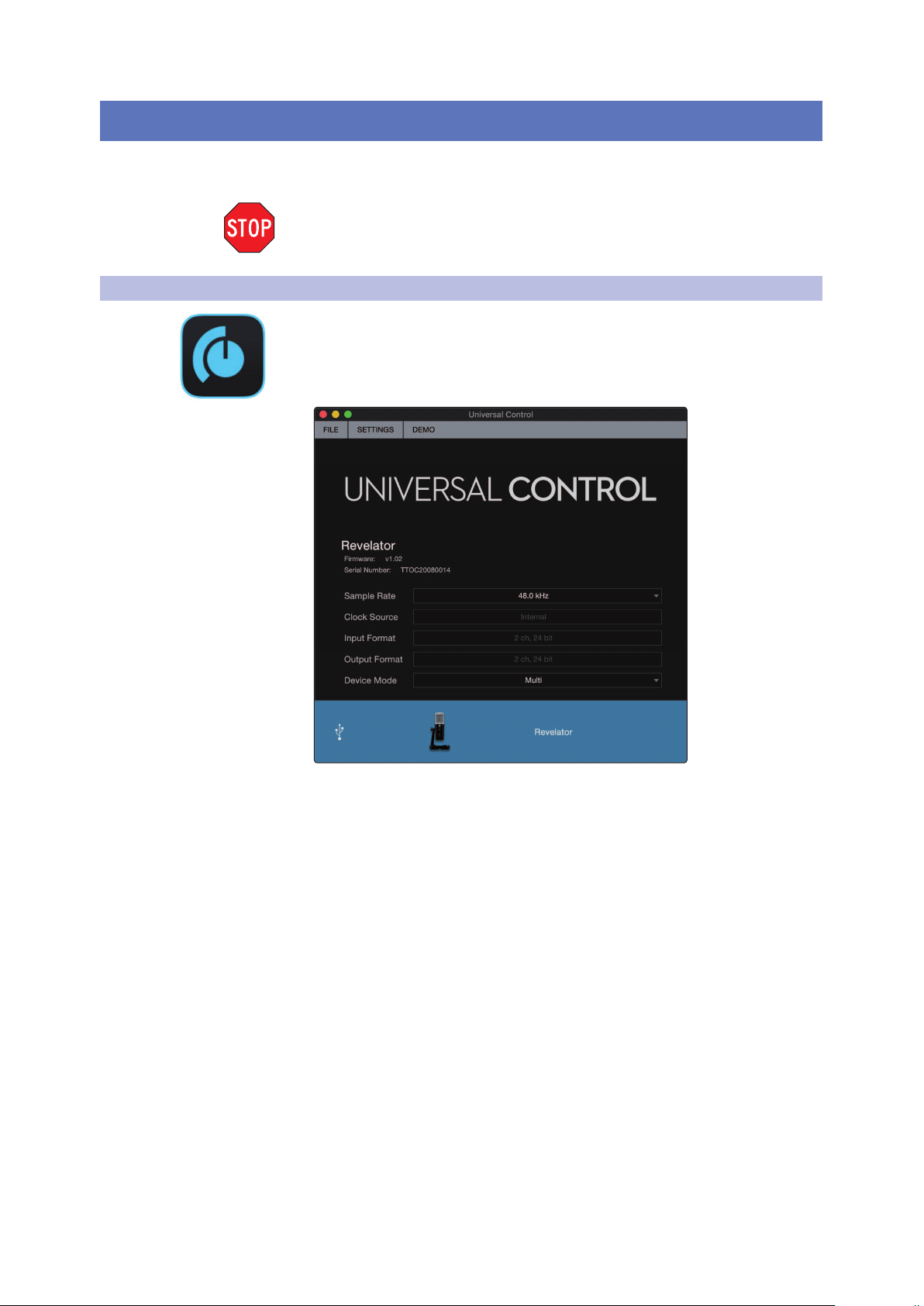
10
3 Universal Control
3.1 The Launch Window
Revelator
Owner’s Manual
3 Universal Control
The Revelator is so much more than a great-sounding USB
microphone, and the secret to its advanced features and
mixing capability is unlocked with Universal Control.
Before proceeding, please make sure you have followed the instructions in
Section 1.3.2 and have downloaded and installed Universal Control.
3.1 The Launch Window
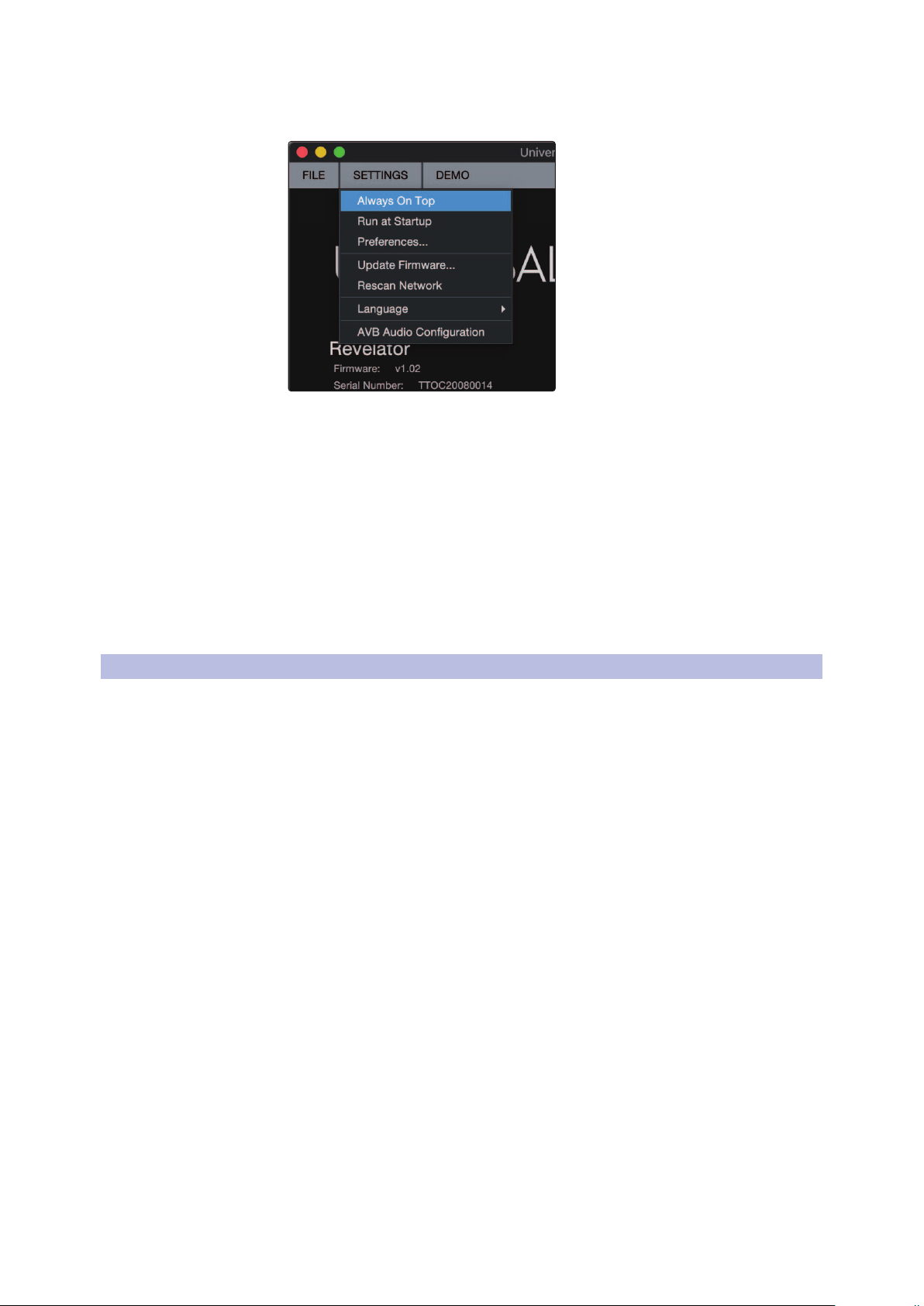
Get ready for lift off! When Universal Control is launched, you will see the Launch
window. From this window, you can manage all the driver settings for your Revelator.
1. Sample Rate. Changes the sample rate. You can set the sample rate
to 44.1, 48, 88.2, or 96 kHz. (With Multi Mode on macOS, the sample
rate is limited to 44.1 and 48kHz.) A higher sample rate will increase
the fidelity of the recording, but will also increase the file size and the
amount of system resources necessary to process the audio.
Power User Tip: For most applications, leaving this setting on 48 kHz will yield the
best results with the least amount of hassle.
2. Block Size (Windows only). Sets the buffer size. From this menu, you can set the
buffer size from 64 to 8,192 samples. Lowering the buffer size will lower latency,
which is the amount of time it takes for your audio to go from Revelator to the
computer and back to your ears; however, this will also increase performance
demands on your computer. In general, you will want to set the buffer size as low
as your system can safely support. If you begin to hear pops, clicks, or distortion
in your audio path, try raising the buffer size. When adjusting the block size,
the Safe mode will automatically change to provide the best performance.
Power User Tip: Your Revelator features built-in zero-latency monitoring so you can
leave your Block Size high and the performance demands on your computer low. In
general, you can use the default block size, but if you’re using an older computer that
is having trouble keeping up, go ahead and raise this setting. Experiment to find
what works best for you!

11
3 Universal Control
3.1 The Launch Window
Revelator
Owner’s Manual
3. Device Mode (macOS only). By default, your Revelator presents itself as a single
audio interface with 6 inputs and 6 outputs. But when you’re ready to use the
loopback audio streams to record or route audio to multiple applications at the
same time (like the output of a Skype call to the audio input of your Facebook
Live stream), that’s where Multi Mode comes in. In this mode, your Revelator will
show up as 3 different devices on your computer: Revelator, Revelator Loopback
1, and Revelator Loopback 2. Each of these devices has 2 inputs and 2 outputs.
This is great for applications like Skype that only allow you to use the first two
inputs and outputs of any audio interface. PreSonus recommends that you use
Multi Mode for the best experience. Note that in Multi mode, sample rate options
are limited to 44.1 kHz or 48 kHz. For more information on how loopback audio
works and how to use it for your podcasts, streams, and more, see Section 5.
Power User Tip for Windows Users: On Windows, Revelator is always in Single
Mode. If you are using WDM for applications like Skype, your Web Browser, etc., look
for the Revelator name in respective applications’ audio setup menus. If you are
using ASIO for applications like Studio One and other DAWs, look for “PreSonus DSP
USB” respective applications’ audio setup menus.
3.1.1 Launch Window Menu Items
File Menu. Manages devices connected to Universal Control.
• Show All Devices. Launches all control windows for all
supported devices connected to your computer.
• Close All Devices. Closes all open control windows.
• Sign Out. Signs out of your My.PreSonus user account.
• Check for Updates... Connects to your My.PreSonus user
account to check for updates for Universal Control.
• Transfers. Displays recent downloads from your My.PreSonus user account.
• About Universal Control. Displays version and build date information.
• Quit. Quits the Universal Control application and all hardware control windows.
12
3 Universal Control
3.2 Using Your Revelator with Popular Applications
Revelator
Owner’s Manual
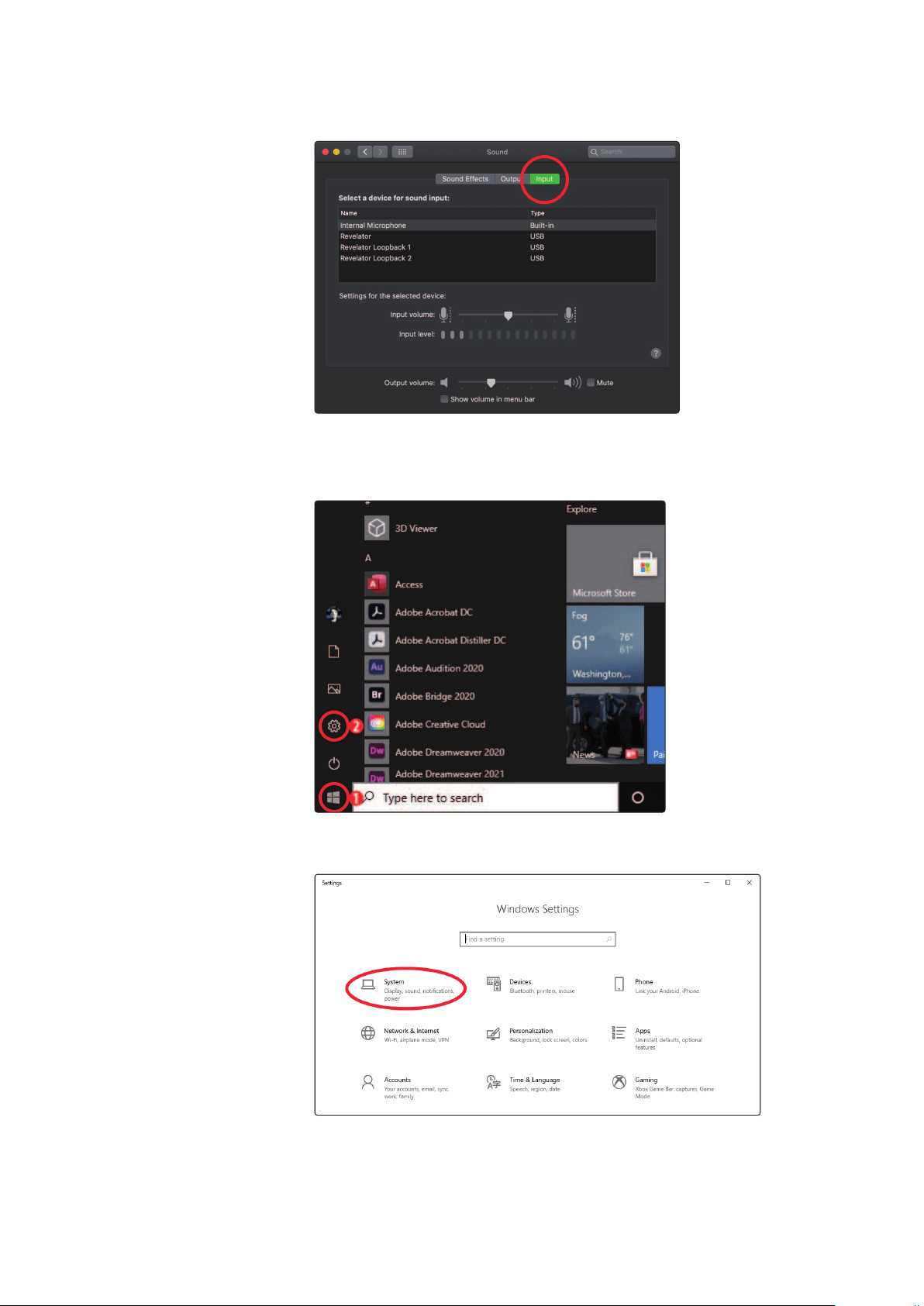
Settings Menu. Provide customization options to personalize your
Universal Control experience.
• Always on Top. Keeps the Universal Control Launch window on
top whether it is the currently active application or not.
• Run at Startup. Launches Universal Control
automatically when your computer boots.
• Preferences. Sets language and appearance options (see below).
• Rescan Network. Scans your computer’s connections
for all supported PreSonus products.
• Language. Sets the language (English, French, German,
Korean, Simplified Chinese, or Spanish).
Power User Tip: The Launch Window will inform you when a new firmware update is
available for your Revelator—or other PreSonus hardware!
3.2 Using Your Revelator with Popular Applications
If you’ve never used an audio interface, your computer and every application
on it are currently sourcing audio from the built-in microphone and
routing audio out to the onboard sound card. To use Revelator with any
application that can access audio inputs or outputs or both, you must
first set up your computer to use Revelator as an audio interface.
This section will take you through some of the most common use
cases. If you are using an application not listed in this section, you’ll
need to check with the documentation that came with it.

13
3 Universal Control
3.2 Using Your Revelator with Popular Applications
Revelator
Owner’s Manual
3.2.1 Using Revelator for System Audio
The easiest way to make your Revelator seen by just about any application on your
computer is to set it up as the default sound source for your computer. Not only
will this prompt most video conferencing and streaming applications to look for
Revelator, it will also set your default Internet browser to use Revelator as well.
Power User Tip: Setting your Revelator as the default sound card for your system will also
route music streaming applications like Spotify and Apple Music to the headphone
output on your new microphone. If you do not want to use your microphone this way, it is
best to configure Revelator as the audio I/O only for the applications for which you want
to use it.
macOS
1. From the Apple Menu, go to System Preferences.
2. Click on Sound.
3. Click on the Outputs tab and select Revelator from the device list. This will route
all audio from your computer to the headphone output on your Revelator.
14
3 Universal Control
3.2 Using Your Revelator with Popular Applications
Revelator
Owner’s Manual
4. Click on the Inputs tab and select Revelator from the device list. This will
set your Revelator microphone as the input source for your computer.
Your Revelator is ready to use!
Windows
1. Click on start icon in lower left corner
2. Click on Settings gear icon
3. Click on System
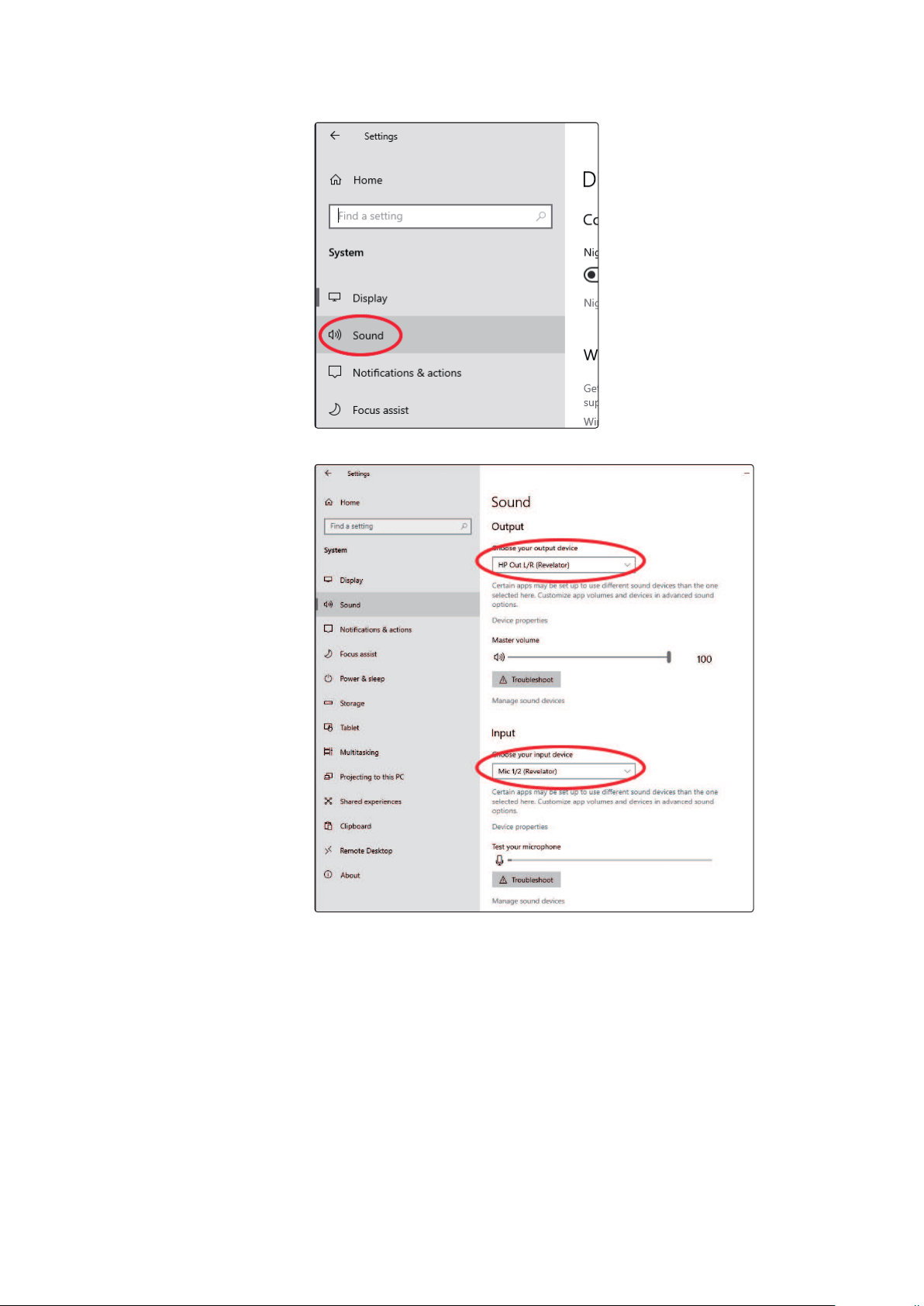
4. Click on Sound
5. Click on “Choose your Output Device” and choose HP Out L/R (Revelator)
6. Click on “Choose your input device” and choose Mic 1/2 (Revelator)
16
3 Universal Control
3.2 Using Your Revelator with Popular Applications
Revelator
Owner’s Manual
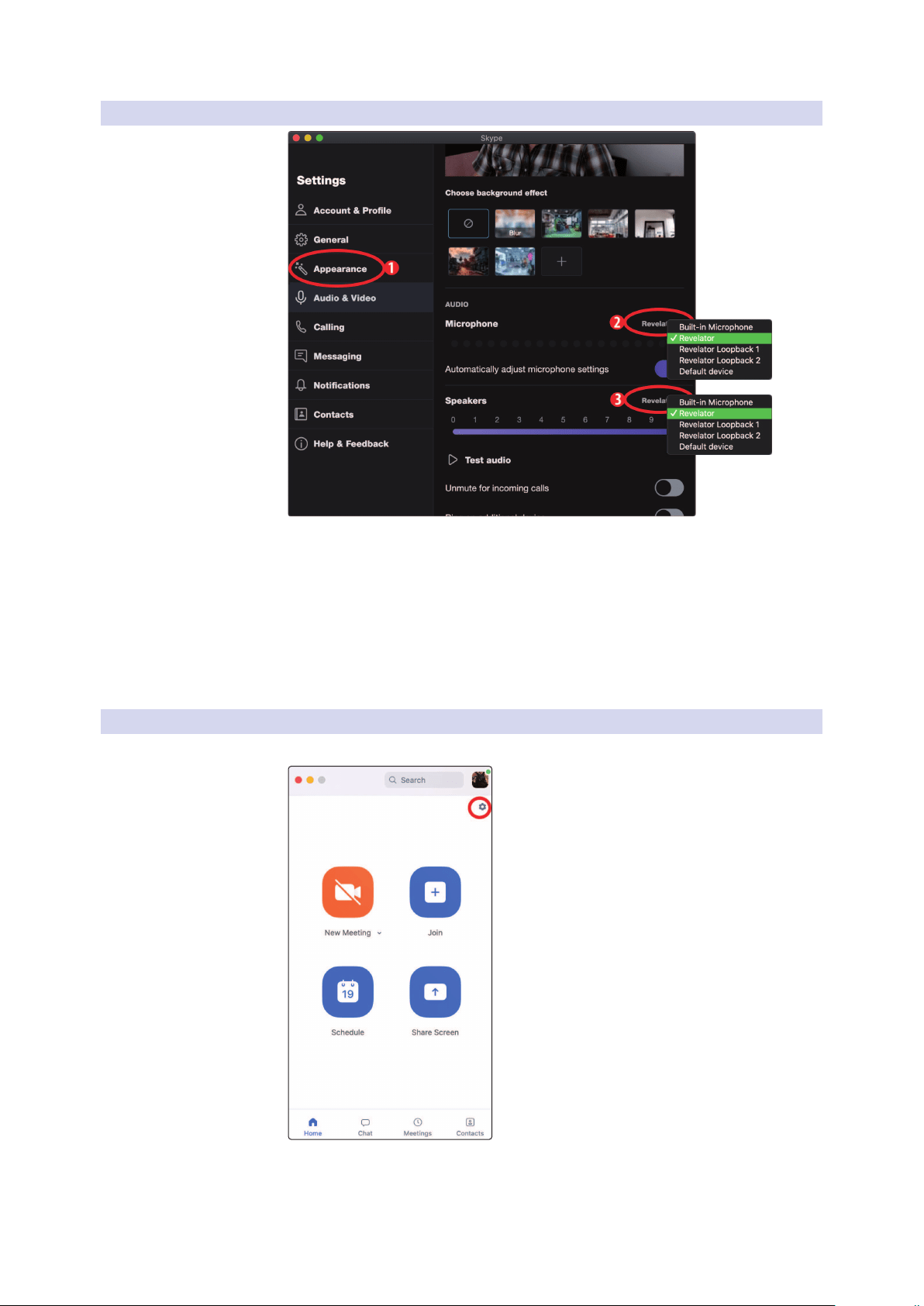
3.2.2 Using Revelator for Skype
1. From the Skype menu, go to “Audio & Video Settings.”
2. Under Microphones, select “Revelator.” This will route the audio
from your Revelator microphone to your Skype call.
3. Under Speakers, select “Revelator.” This will route the audio from
your Skype call to the headphone output on your Revelator.
Power User Tip: If you would like to record your Skype call, select Revelator Loopback 1 or
Revelator Loopback 2 from the Speaker menu. See Section 5 for more information on
using loopback audio.
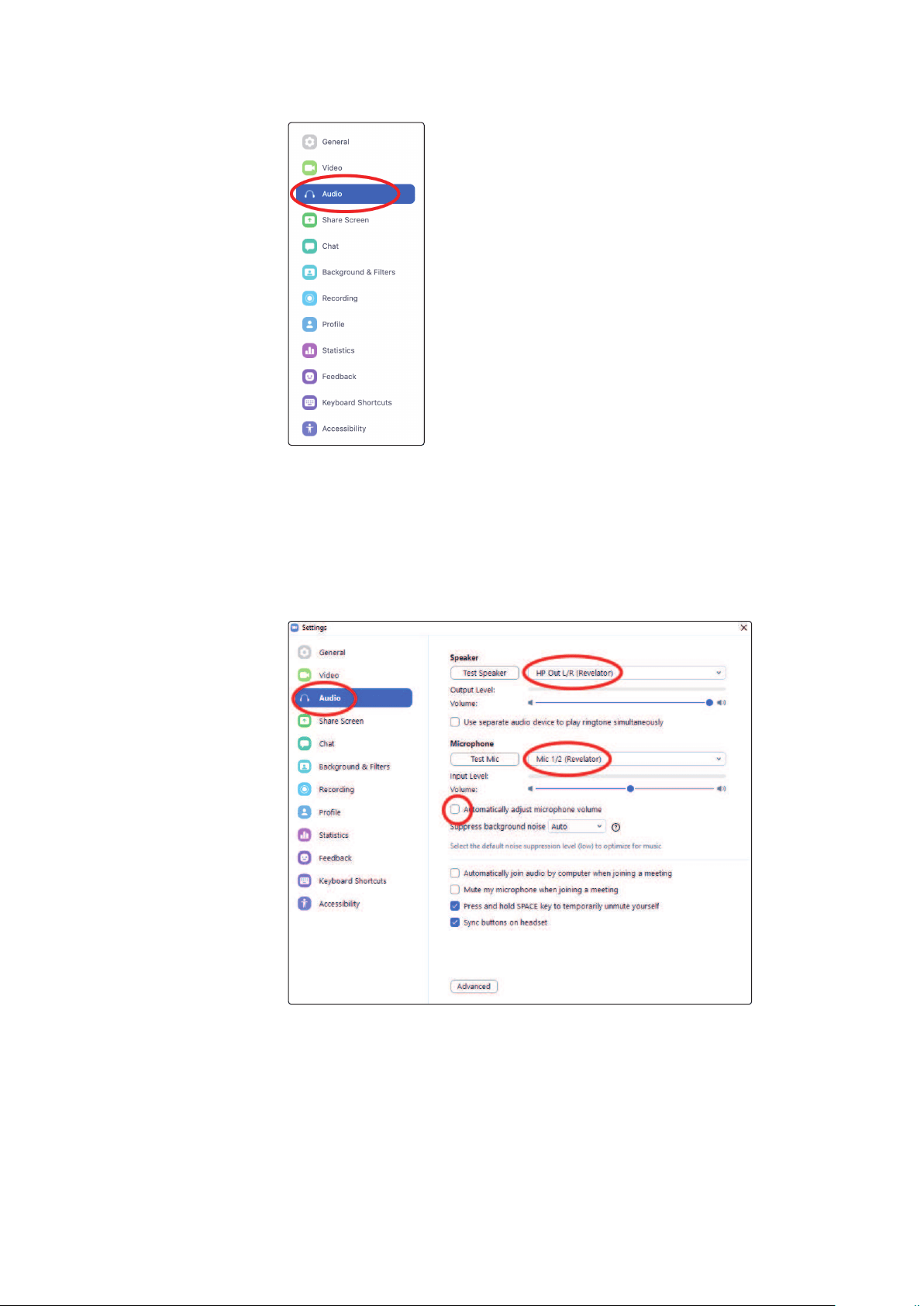
3.2.3 Using Revelator for Zoom
1. Launch Zoom, and click the cog wheel icon to enter Zoom Preferences.
17
3 Universal Control
3.2 Using Your Revelator with Popular Applications
Revelator
Owner’s Manual
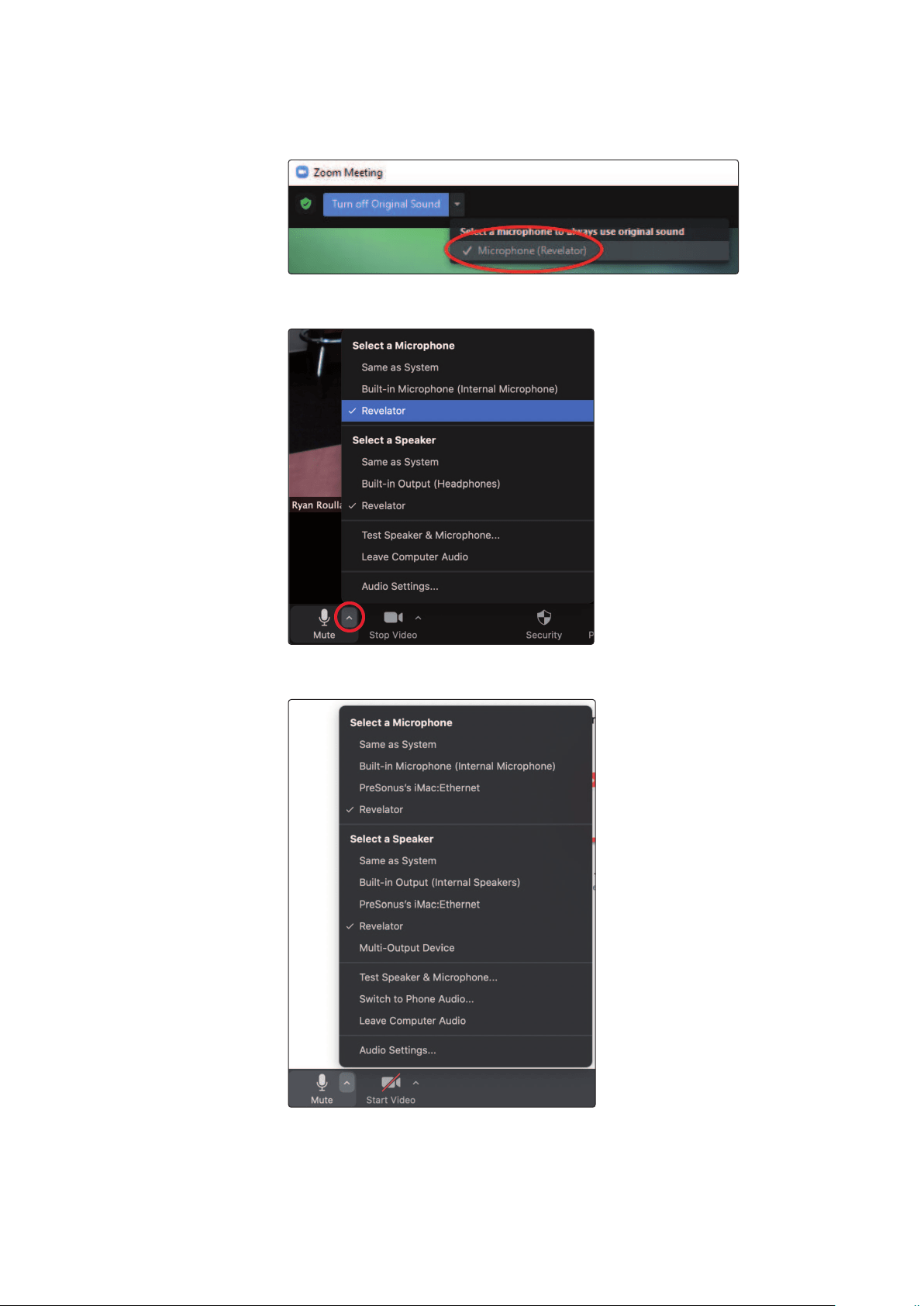
2. Click the “Audio” tab.
Windows:
• Set Speaker to HP Out L/R (Revelator)
• Set Microphone to Mic 1/2 (Revelator)
• Uncheck the box marked “Automatically adjust microphone volume”
Power User Tip: When this option is selected, the sliders in Zoom will not have any effect
on the Speaker output or Microphone Input gain, as these are controlled by the Revelator
itself—either by the on-board controls and/or through the Universal Control software.
macOS:
• Set Speaker to Revelator
• Set Microphone to Revelator
• Uncheck the box marked “Automatically adjust microphone volume”

18
3 Universal Control
3.2 Using Your Revelator with Popular Applications
Revelator
Owner’s Manual
Power User Tip: When this option is selected, the sliders in Zoom will not have any effect
on the Speaker output or Microphone Input gain, as these are controlled by the Revelator
itself—either by the on-board controls and/or through the Universal Control software.
Mac users will see that the sliders do not move and will snap back to the zero position
indicating that these controls in Zoom are disabled.
3. Scroll down and click on Advanced.
4. In Zoom’s Advanced Audio settings menu, please populate the
checkboxes and the drop-down menu with the settings shown below.
19
3 Universal Control
3.2 Using Your Revelator with Popular Applications
Revelator
Owner’s Manual
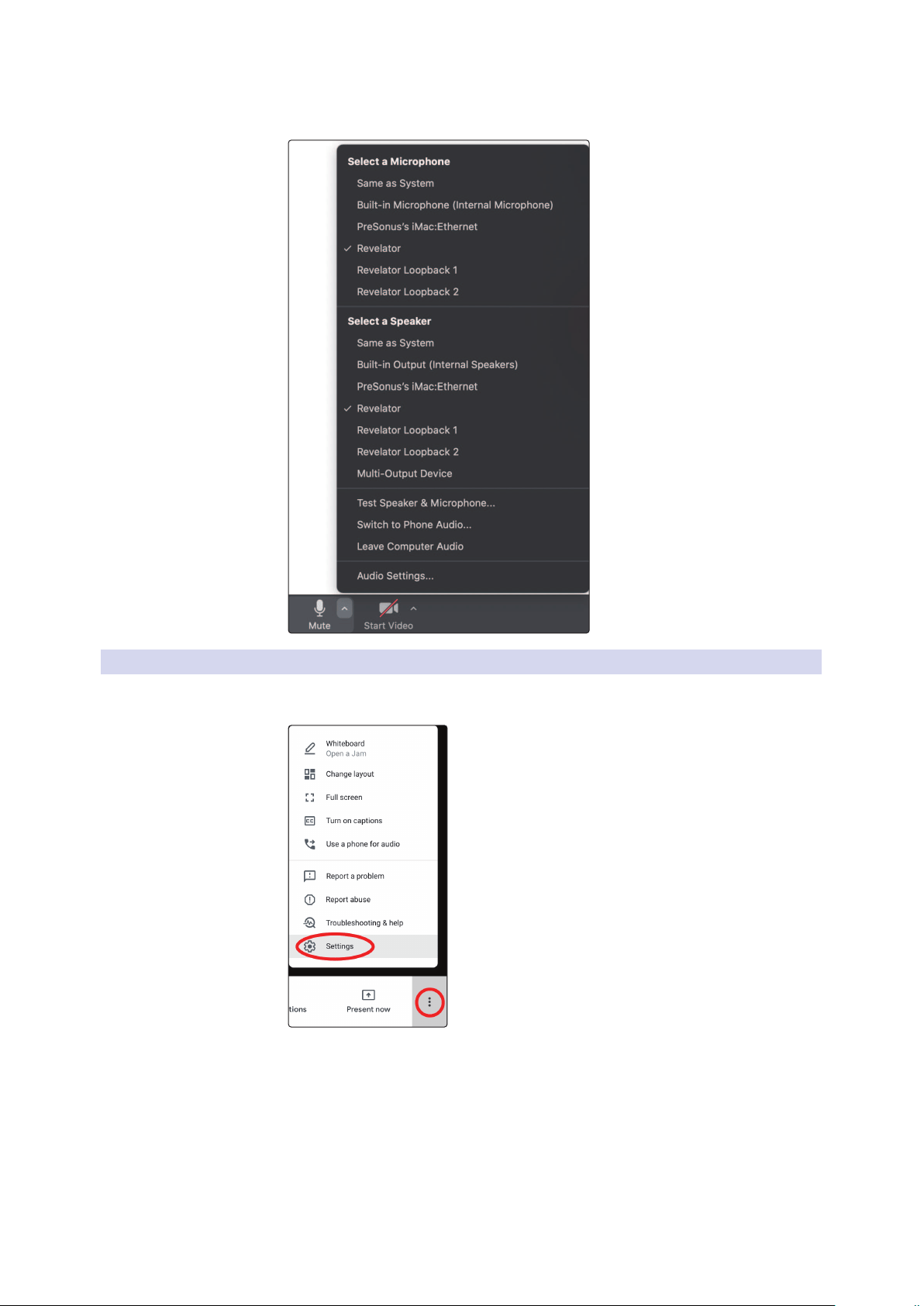
When in a Zoom meeting/call, click on the drop-down menu in the upper left
corner to choose Original Sound for Revelator. Make sure the selection is checked as
shown here. This disables Zoom’s echo cancellation and audio-enhancing features.
If you need to switch your audio device to Revelator while in a meeting,
select the arrow next to the Mute Button to select your audio device list.
macOS users running Revelator in Single Mode will see Revelator
appear in Zoom’s Microphone and Speaker selections as follows:
20
3 Universal Control
3.2 Using Your Revelator with Popular Applications
Revelator
Owner’s Manual
All Windows users and Mac users running Revelator in Multi
Mode will see Revelator appear in a list similar to this:
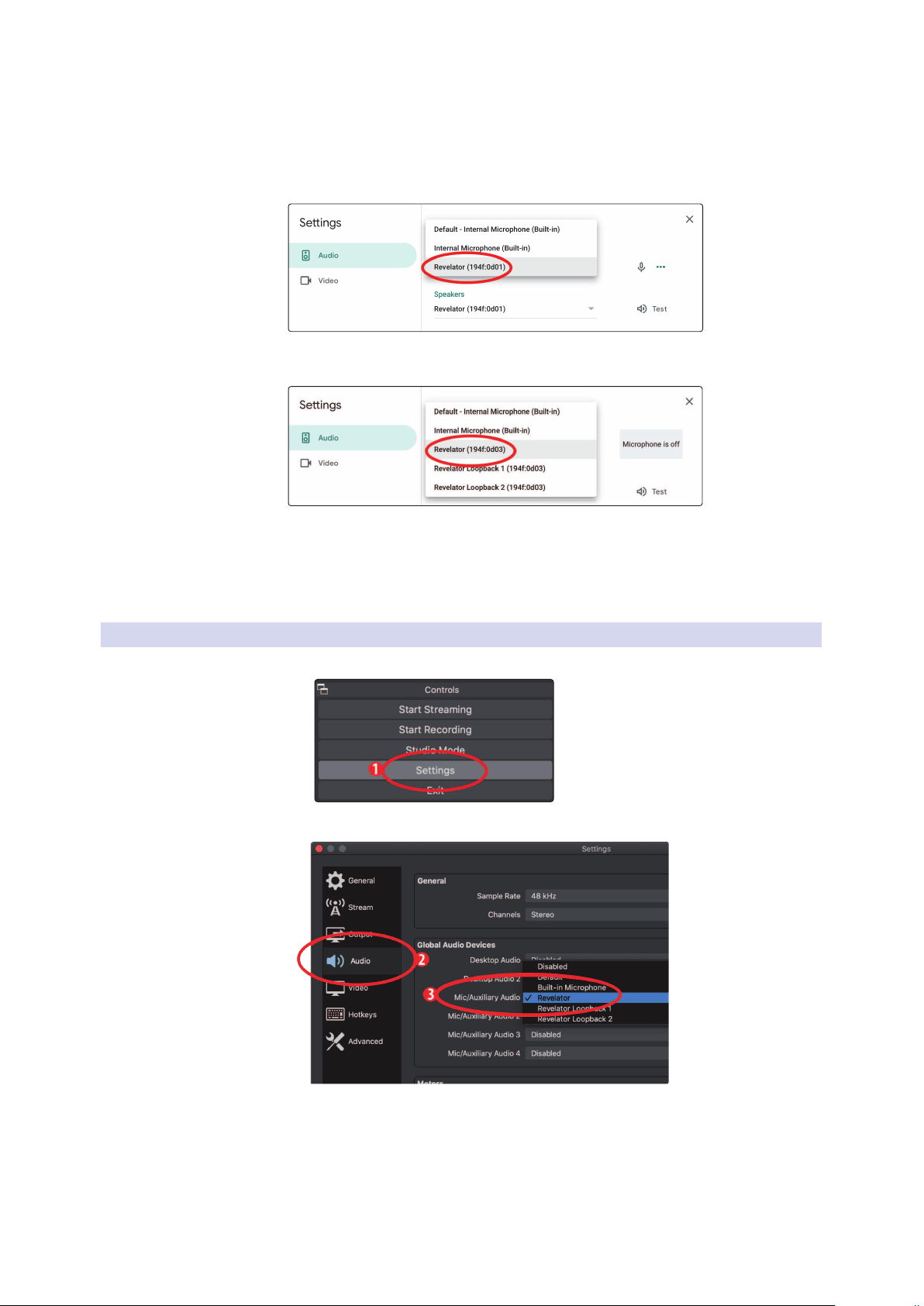
3.2.4 Using Revelator for Google Meets
Open Google Meet, and click on the vertical dots in the lower right corner of the
Google Meet window. In the pop-up menu, choose “Settings” by the cog icon.
21
3 Universal Control
3.2 Using Your Revelator with Popular Applications
Revelator
Owner’s Manual
Google Meet’s Audio menu will be highlighted by default. If
Revelator is not already selected, click the down arrow under
Microphone and Speakers and click on “Revelator.”
A. Mac Users running Revelator in Single Mode will see
one instance of Revelator shown as follows
B. Windows Users and Mac Users running Revelator in Multi Mode will see
multiple instances of Revelator. This is normal. Click on “Revelator.”
Power User Tip: Google Meet will switch audio devices automatically to the last device
connected to your system. There is a chance that the next time you open Google Meet
that it may default to a different audio device without notifying you. Be sure to check
your audio settings to make sure Revelator is selected. PreSonus has no control over how
this device selection works.
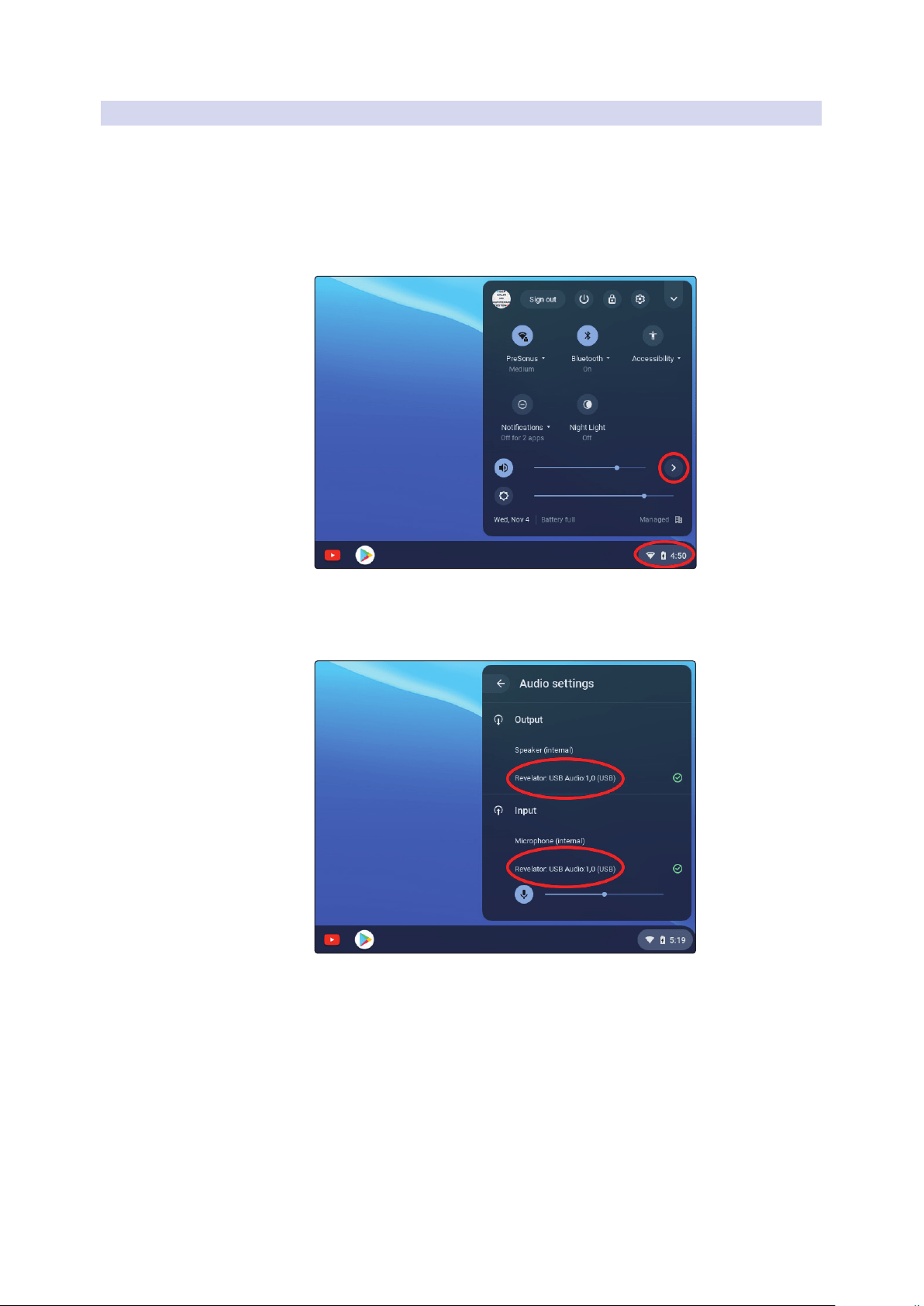
3.2.5 Using Revelator for OBS
1. Click on Settings under “Controls”
2. Click “Audio.”

22
3 Universal Control
3.2 Using Your Revelator with Popular Applications
Revelator
Owner’s Manual
3. Under Mic/Auxiliary Audio, select Revelator.
4. If you would like to source the audio for other applications, you can set
Mic/Auxiliary Audio 2 and 3 to Revelator Loopback 1 and 2 respectively.
Please note, you must route the output for those applications to the
same device. For example, if you would like the audio output from your
Skype call to be available on Auxiliary Audio 2, you would set “Revelator
Loopback 1” as both the Speaker output for Skype and the source
for Auxiliary Audio 2. Please see Section 5 for more information.
5. Under Advanced, set the Monitoring Device to Revelator. This will route
the output audio from OBS to the headphone output on Revelator.
6. Click Apply.
7. Click OK.
Your Revelator is now set-up for OBS!
23
3 Universal Control
3.2 Using Your Revelator with Popular Applications
Revelator
Owner’s Manual
3.2.6 Using Revelator on Chromebook
While Chromebooks are compatible with Revelator, there is no way to
run Universal Control for advanced editing of the settings or effects
presets beyond what is directly accessible on the microphone itself.
That said, Audio setup in Google Chromebooks is very simple.
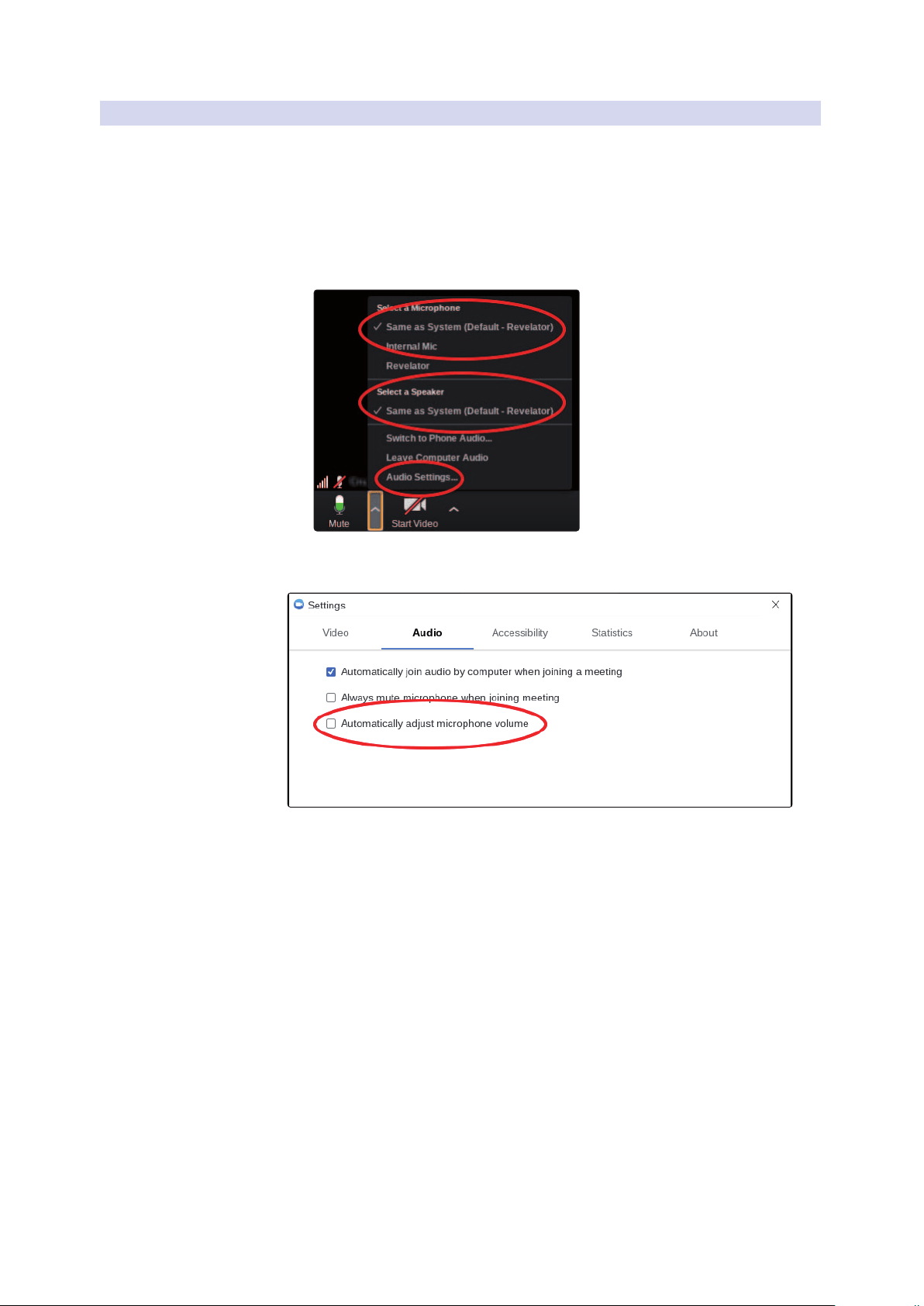
1. After connecting the Revelator Microphone to your
Chromebook, select the taskbar menu in the lower right
corner (by the clock) to bring up the system menu.
2. Select the greater than symbol (>) to the right of the volume slider to
enter Audio Settings and select your audio device. The green circle
with the check mark indicates your preferred device. If Revelator is
not already selected, select it here for both Output and Input.
24
3 Universal Control
3.2 Using Your Revelator with Popular Applications
Revelator
Owner’s Manual
3.2.7 Using Revelator with Zoom on Chromebook
You can use Revelator on a Chromebook to conduct Zoom meetings.
Chrome does not install an application for Zoom like it does on macOS or Windows.
Instead, on Chromebook, Zoom installs a widget for the Chrome browser, through
which you can select your audio device and toggle some advanced audio settings.
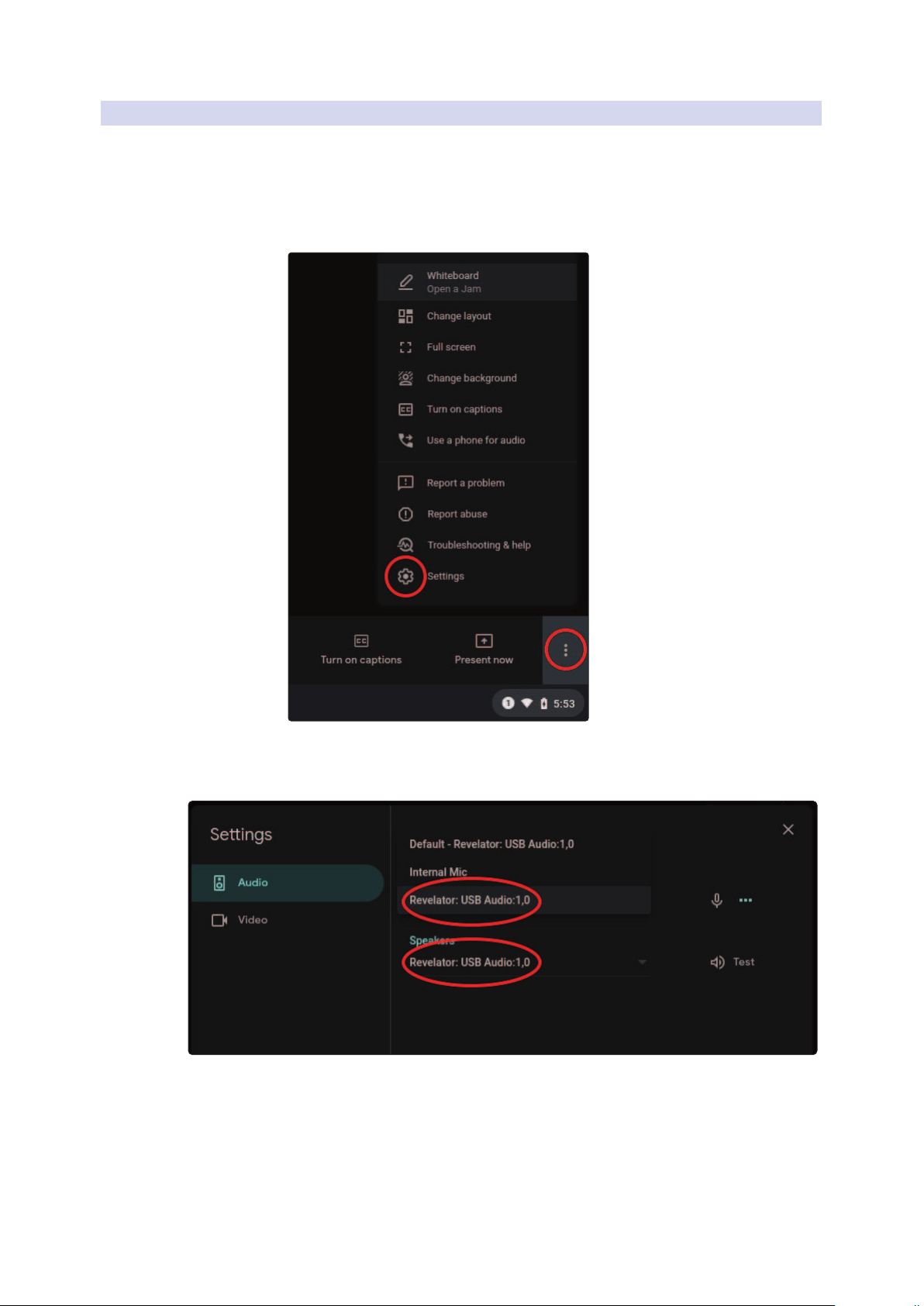
1. Launch Zoom and start a Zoom meeting.
2. Once you are in a Zoom meeting, you can change your audio device by selecting
the up arrow next to the microphone icon in the lower left corner of the screen.
3. Select Revelator as your Microphone and Speaker.
4. Click on Audio Settings to access the Advanced options menu.
5. Ensure that the box labeled “Automatically adjust
microphone volume” is not checked.
You can adjust both Input gain and speaker playback
volume on the Revelator manually.
There are no other advanced menu options as found
in the Mac / Windows versions of Zoom.
25
3 Universal Control
3.2 Using Your Revelator with Popular Applications
Revelator
Owner’s Manual
3.2.8 Using Revelator with Google Meet on Chromebook
Revelator will work with Google Chromebook for Google Meet.
1. Open Google Meet and start a meeting.
2. Once you’re in a Google Meeting, select the vertical dots in the lower
right corner of your Google Meet window to open the Options menu.
3. Click on the Settings Cog icon.
Google Meet’s Audio menu will be highlighted by default. If
Revelator is not already selected, click the down arrow under
Microphone and Speakers and click on “Revelator.”
Power User Tip: Google Meet will automatically switch to the last audio device
connected to your system. There is a chance that the next time you open Google Meet
that it may choose a different audio device without notifying you. Be sure to check your
audio settings to make sure Revelator is selected. PreSonus has no control over how this
device selection works.

26
3 Universal Control
3.2 Using Your Revelator with Popular Applications
Revelator
Owner’s Manual
3.2.9 Using Revelator with iOS/iPadOS devices
Revelator works when connected directly to iOS/iPadOS devices
like iPads, though you should be aware of the following:
• When connected to iPad Pro tablets with USB-C ports, Revelator will
function as intended without additional power or direct connect. However,
there’s no way to charge the iPad while Revelator is connected.
• All other iOS devices with Lightning connectors will require
the use of the Apple Lightning to USB 3 Camera Adapter
which features a pass-through for a power cable.
• Revelator will not work when connected directly to
an iPhone, as it requires additional power.
Note: You must use the Apple Lightning to USB 3 Camera
Adapter, not the Lightning to USB cable.
3.2.10 Using Revelator with Android devices
Revelator works great when connected directly to Android devices. If you find your
Android device doesn’t provide enough power, an externally-powered USB hub can
be connected to your Android device to provide additional power to your Revelator.

27
4 Presets, Fat Channel, and Voice Effects
4.1 Preset Management
Revelator
Owner’s Manual
4 Presets, Fat Channel, and Voice Effects
4.1 Preset Management
Your Revelator can access 4 presets using the Preset button... but there are 4 more
presets created by PreSonus for you to enjoy—plus another 8 preset slots for you
to create custom presets. These 16 presets are all available from Universal Control.
To view the advanced features, click on Revelator from the
Device List in the Universal Control Launch window.
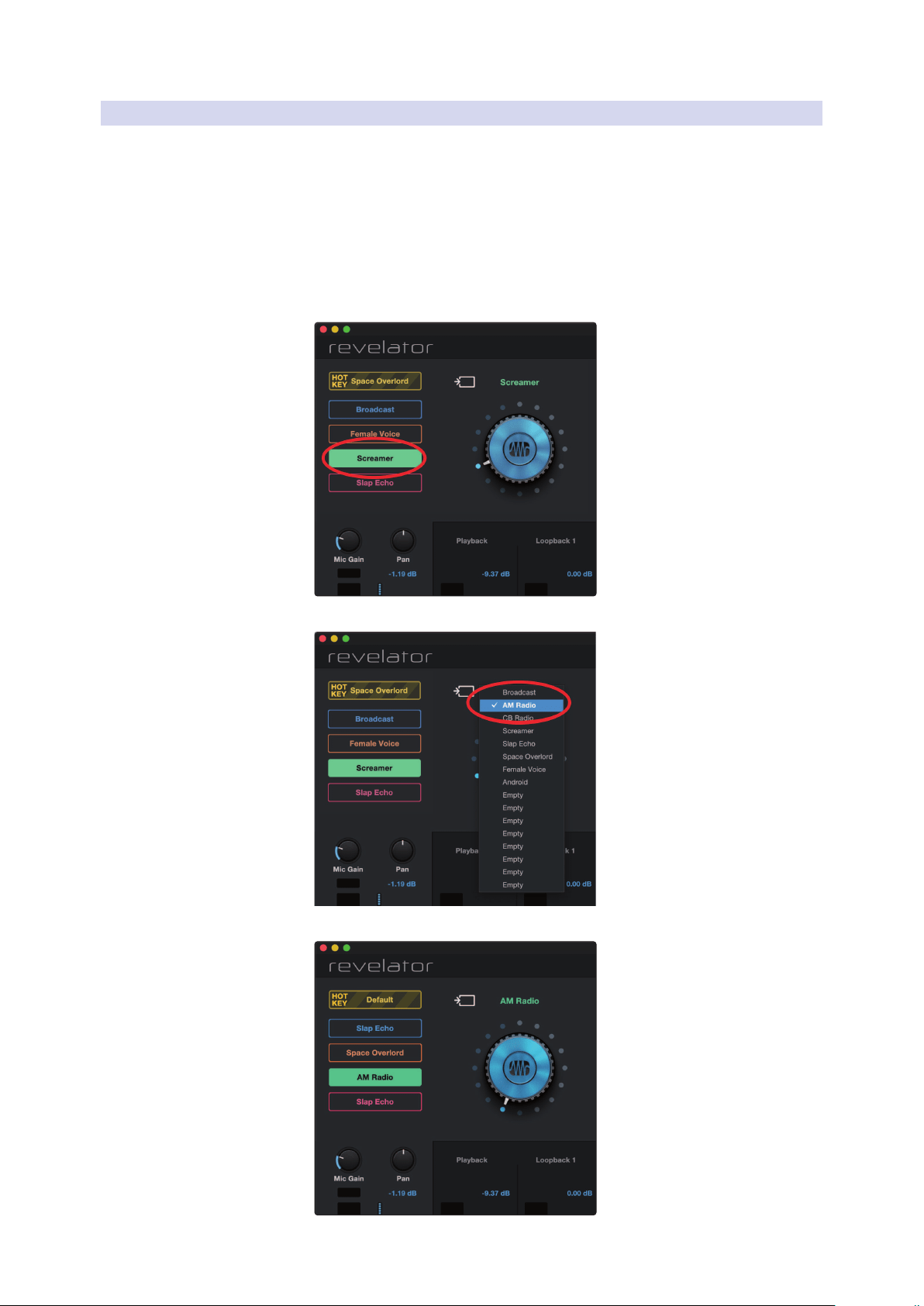
In the upper left corner, you will see the Preset Manager. Let’s take a quick tour:
1. Hot Key. This preset slot lets you store a setting to use on the fly. It overrides the
current presets and must be toggled off before you can use the other presets
again. This is great when you want to throw a quick effect on your voice.
2. Preset Slots 1-4. This corresponds to the four Preset slots on your Revelator.
These are the presets that are available from the Preset button. You can
choose to keep the factory presets or change them as you see fit.
3. Save Preset. Click on this button to save a preset to
one of the 8 user slots. Rename it, if you like.
4. Preset List. Click on the Preset name to view the Preset dropdown menu. This
will let you view every Preset available and quickly select the one you want.
5. Preset Selection Knob. Use your scroll wheel to turn
this knob and audition presets in real-time.
28
4 Presets, Fat Channel, and Voice Effects
4.1 Preset Management
Revelator
Owner’s Manual
4.1.1 Changing Preset Button Slots
To change one of the presets available from Revelator:
1. Click to select the slot you would like to change.
2. Select the desired preset using either the Preset selection
knob or selecting it from the dropdown menu.
Let’s try it!
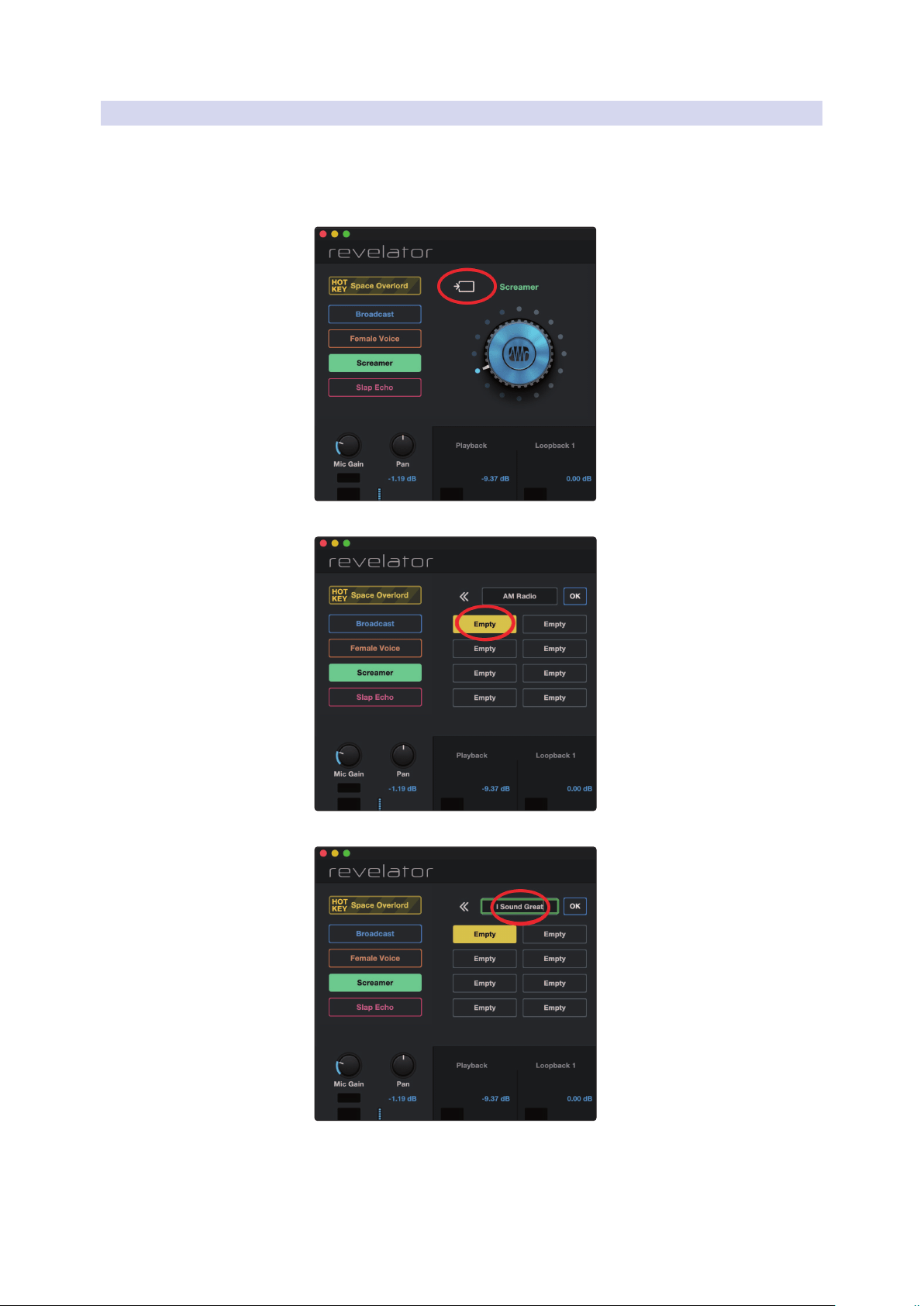
In our example, we’re going to change the “green”
preset from “Screamer” to “AM Radio.”
1. From the Preset Slot list, select “Screamer”
2. Click on the dropdown menu and select “AM Radio” from the list.
3. “AM Radio” is now the preset stored in this slot.
That’s it!
29
4 Presets, Fat Channel, and Voice Effects
4.1 Preset Management
Revelator
Owner’s Manual
4.1.2 Storing New Presets
We’re going to get into all the Fat Channel settings in the next section
(Section 4.2), but while we’re here, let’s talk about storing new Presets.
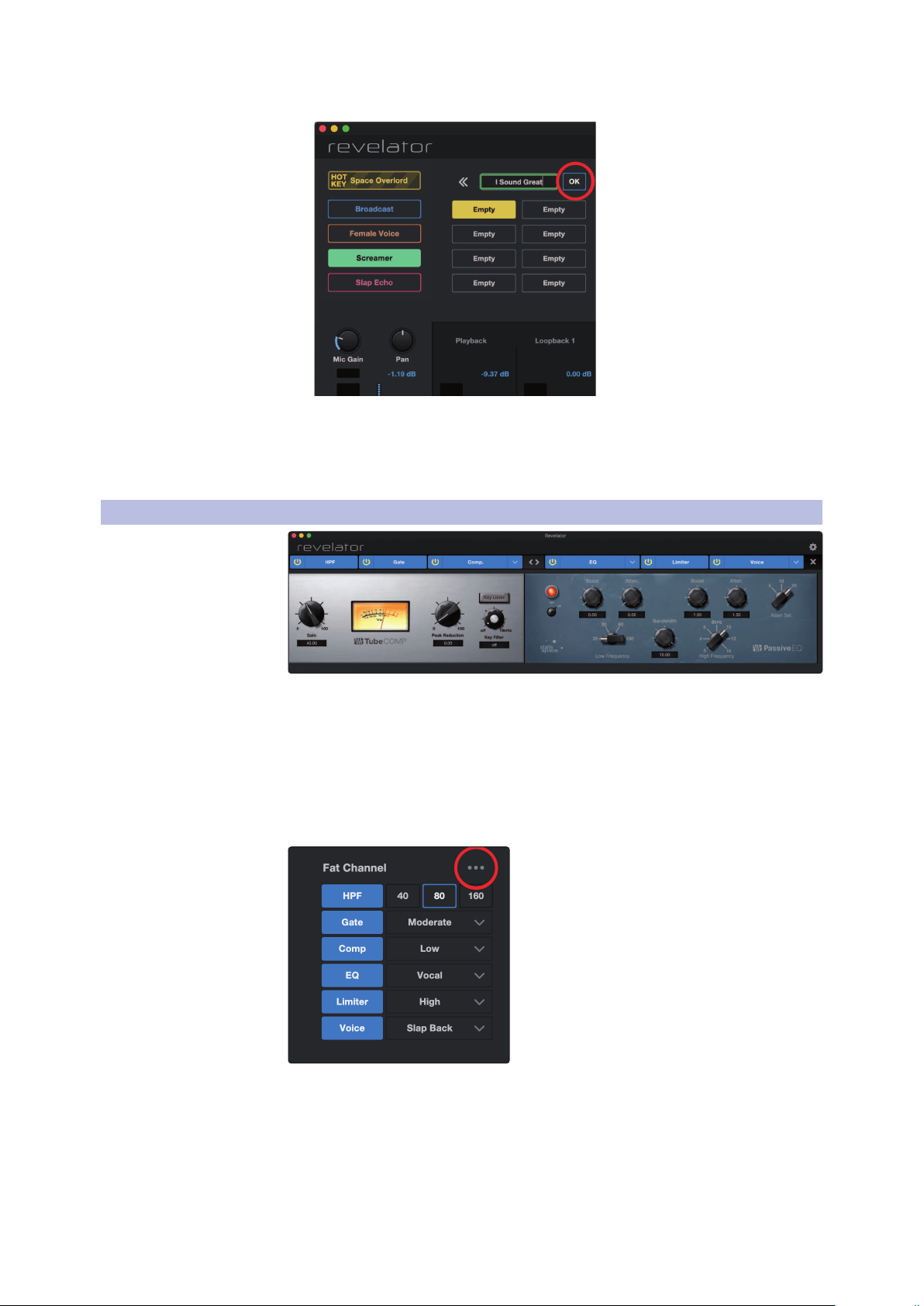
To store a new preset to one of the 8 User Slots:
1. Click on the Save Preset button
2. Select the user slot to which you want to store it.
3. Enter the name you’d like to use.
30
4 Presets, Fat Channel, and Voice Effects
4.2 Fat Channel and Voice FX
Revelator
Owner’s Manual
4. Click Ok.
Done!
Now, if you’d like that new preset stored in one of the positions
available from the Preset button on your Revelator, follow the
instructions in Section 4.1.1 and customize away!
4.2 Fat Channel and Voice FX
The Fat Channel provides essential vocal processing tools to sculpt
your sound, as well as Voice FX section to warp, distort, and bounce it
around. These are the effects that are stored with a preset. A dedicated
Reverb processor is also available, but it is important to note that
Reverb is not stored with a Preset. More on Reverb in Section 4.3.
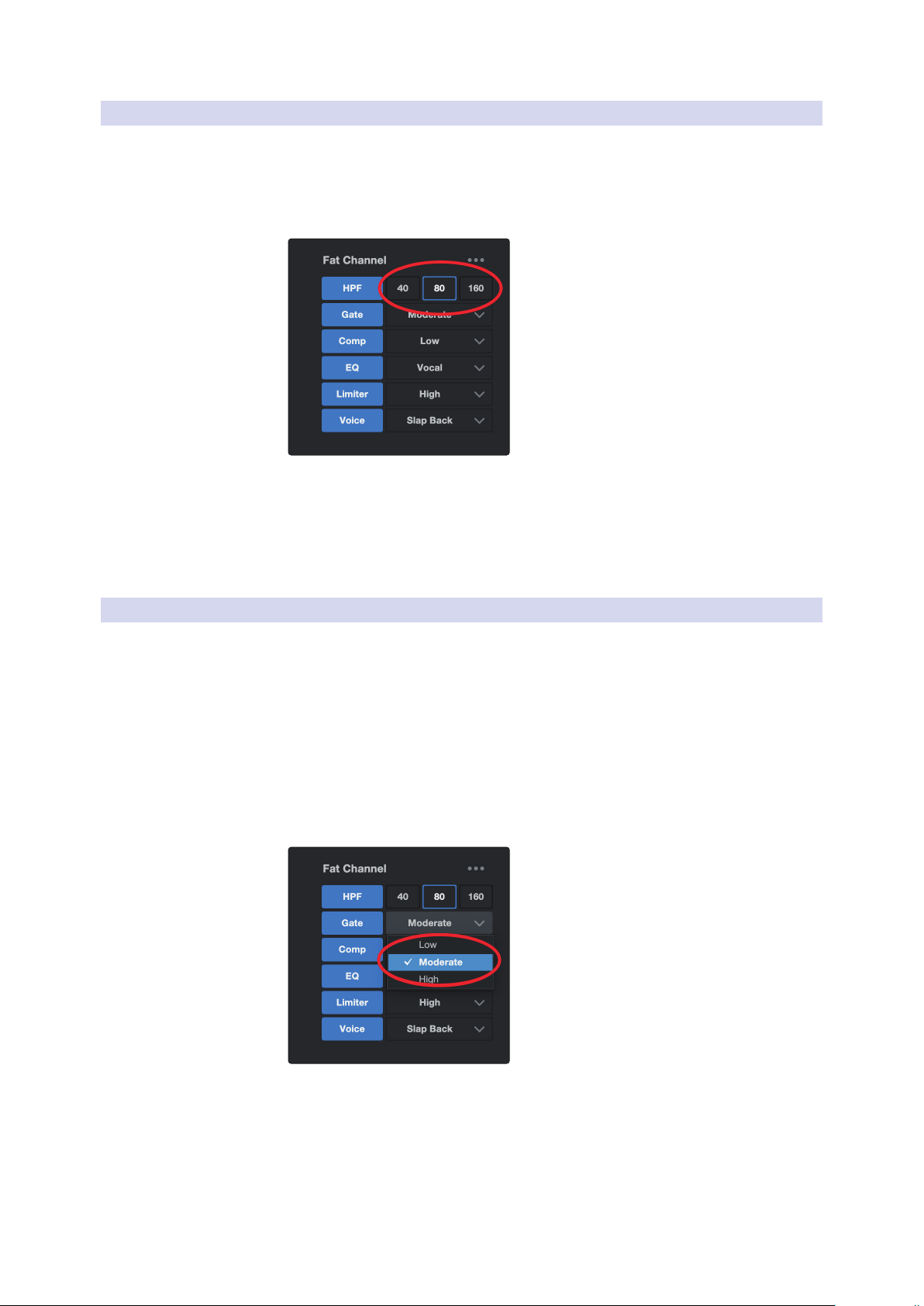
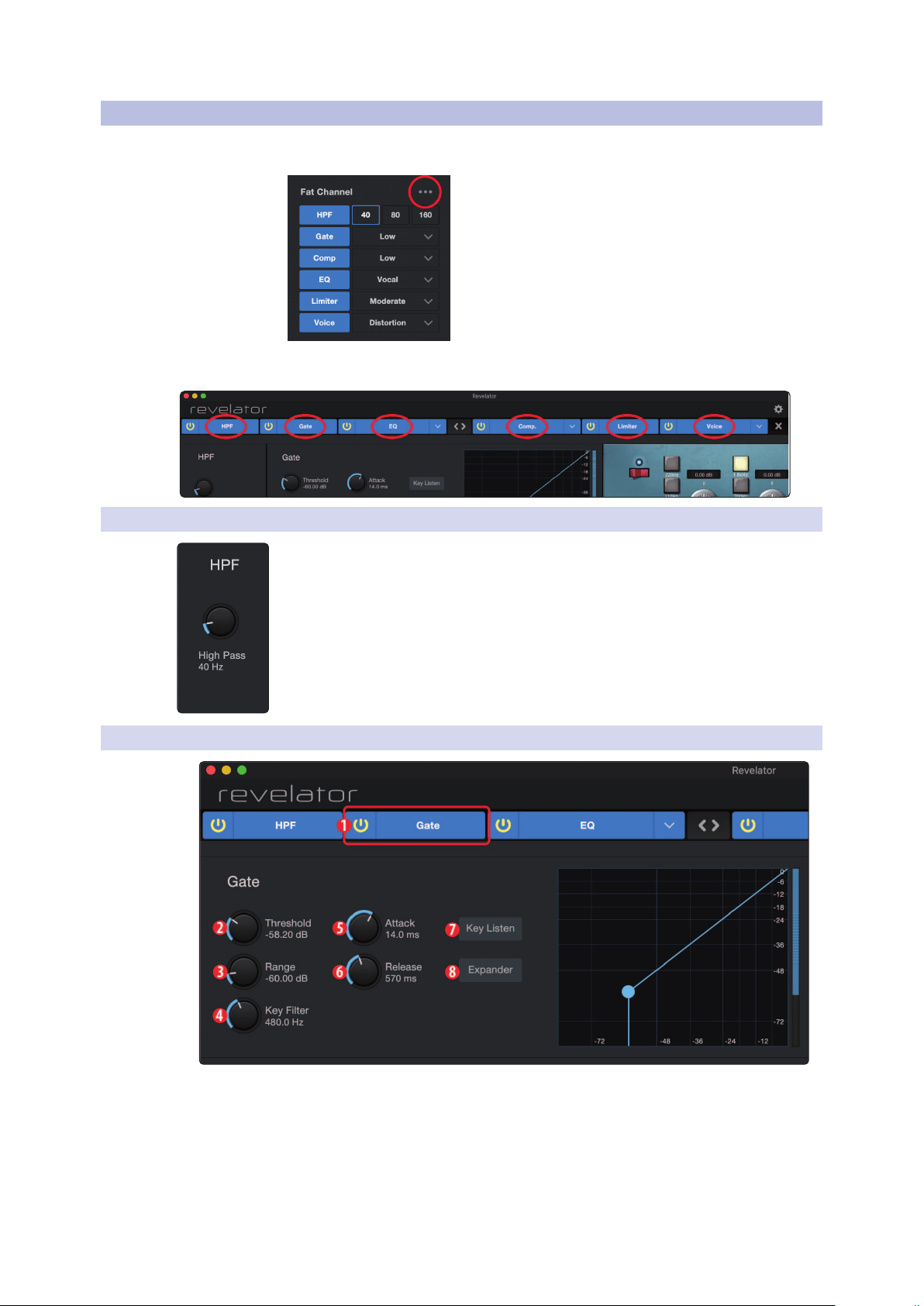
If you’re new to vocal processing, the Fat Channel section provides easy-to-use
presets for each processor block. This section will go through the controls available as
well as provide some useful information on how these processors affect your sound.
If you are an advanced user, more granular control is available for each
processor. To view every parameter available, click on the Advanced
(...) button. For more information, please refer to Section 6.2.
31
4 Presets, Fat Channel, and Voice Effects
4.2 Fat Channel and Voice FX
Revelator
Owner’s Manual
4.2.1 High Pass Filter (HPF)
Also known as a low-end roll-off filter, the High Pass Filter (HPF) lets you cut all
frequencies below a specified point, letting the frequencies above that point
pass through unchanged. This filter can be handy when you want to reduce
the “boominess” or “muddiness” of a vocal and improve the overall clarity.
Choose between 40 Hz, 80 Hz, and 160 Hz.
Power User Tip: When looking at frequency ranges in audio, it’s important to know that
the smaller the number, the lower the frequency is. The 40 Hz and 80 Hz settings can be
especially useful in reducing the “rumble” from a nearby road or any background
electrical noise or hum.
If you would like more granular control, please see Section
6.2.1 on advanced High Pass Filter settings.
4.2.2 Gate
Noise gating is the process of removing unwanted sounds from your audio by
cutting (or attenuating) all signals below a set threshold. The gate will remain
“open” as long as the signal is louder than the set threshold. Noise gates were
originally designed to help eliminate extraneous noise and unwanted artifacts
from a recording, such as hiss, rumble, or transients from other instruments in
the room. Since hiss and noise are not as loud as the intended audio source
(You!), a properly set gate will only allow the intended sound to pass through;
the volume of everything else is lowered. Not only will this strip away unwanted
artifacts, it will also add definition and clarity to the desired sound.
Choose between Low, Moderate, and High. Low will provide
the least amount of gating, High will provide the most.
Ready to build your own gate? See Section 6.2.2 for advanced Noise Gate controls.

32
4 Presets, Fat Channel, and Voice Effects
4.2 Fat Channel and Voice FX
Revelator
Owner’s Manual
4.2.3 Compressor (Comp)
Audio signals have very wide peak-to-average signal-level ratios (sometimes
referred to as dynamic range) which is the difference between the loudest
level and the softest level. This can create problems when you’re setting
input levels because when enough gain (or volume) is applied to capture
the softest level at its best, one cough, laugh, or excited moment can
overload the input, resulting in distortion… and not the cool kind.
A compressor works by limiting the dynamic range of an audio source to make it
sound more consistent and even. By setting the maximum level, the compressor
makes sure that any audio signal that exceeds that volume is reduced to match it.
Choose between Low, Moderate, High, and De-Ess. Low will provide
the least amount of compression, High will provide the most.
Use the De-Ess setting if you notice a lot of “sibilance” in your speech.
Sibilance is the pronounced presence of the “s” or “sh” sound. Depending
on your accent and speech pattern, it can be more or less pronounced.
Power User Tip: While it may be charming in casual speech, sibilance can quickly become
distracting because it resonates at a higher frequency that can become grating when
heard repeatedly. The goal of a de-esser is not to remove the “s” sound entirely, rather, it’s
intended purpose is to level it out so that it’s even with the rest of the consonants. In other
words, you’ll still sound like you.
For more advanced compression controls and to learn about the different
compressor models onboard your Revelator, see Section 6.2.3.
4.2.4 Equalizer (EQ)
An equalizer, or EQ, is a filter that allows you to adjust the volume level of a
frequency or range of frequencies within an audio signal. In its simplest form,
an EQ will let you turn the treble and bass up or down, allowing you to adjust
the coloration of your car stereo or your television. In professional audio circles,
equalization is a highly sophisticated art that can be used to sculpt the tone of
instruments in a mix, counteract anomalies in a room, or just pump up the bass.
Regardless of its application, good equalization is critical to a good sound.
When used correctly, an equalizer can provide the impression of nearness
or distance, “fatten” or “thin” a sound, and help blend or provide separation
between similar sounds in a mix, allowing both to be heard as intended.
33
4 Presets, Fat Channel, and Voice Effects
4.2 Fat Channel and Voice FX
Revelator
Owner’s Manual
Choose between the following preset EQ settings:
• Vocal
• Vintage
• Bass-Boost
• Mid-Boost
• Band Pass
• Female Vox
Power User Tip: The best way to pick the best EQ setting for your voice is to experiment.
Everybody’s voice is unique and because EQs are entirely dependent on the frequency of
the source, your ears are your best tool in finding the right sound for your voice.
Like the Compressor, Revelator offers advanced controls and
several EQ models to choose from when you’re ready to dive
deeper. See Section 6.2.5 for Advanced EQ Controls.
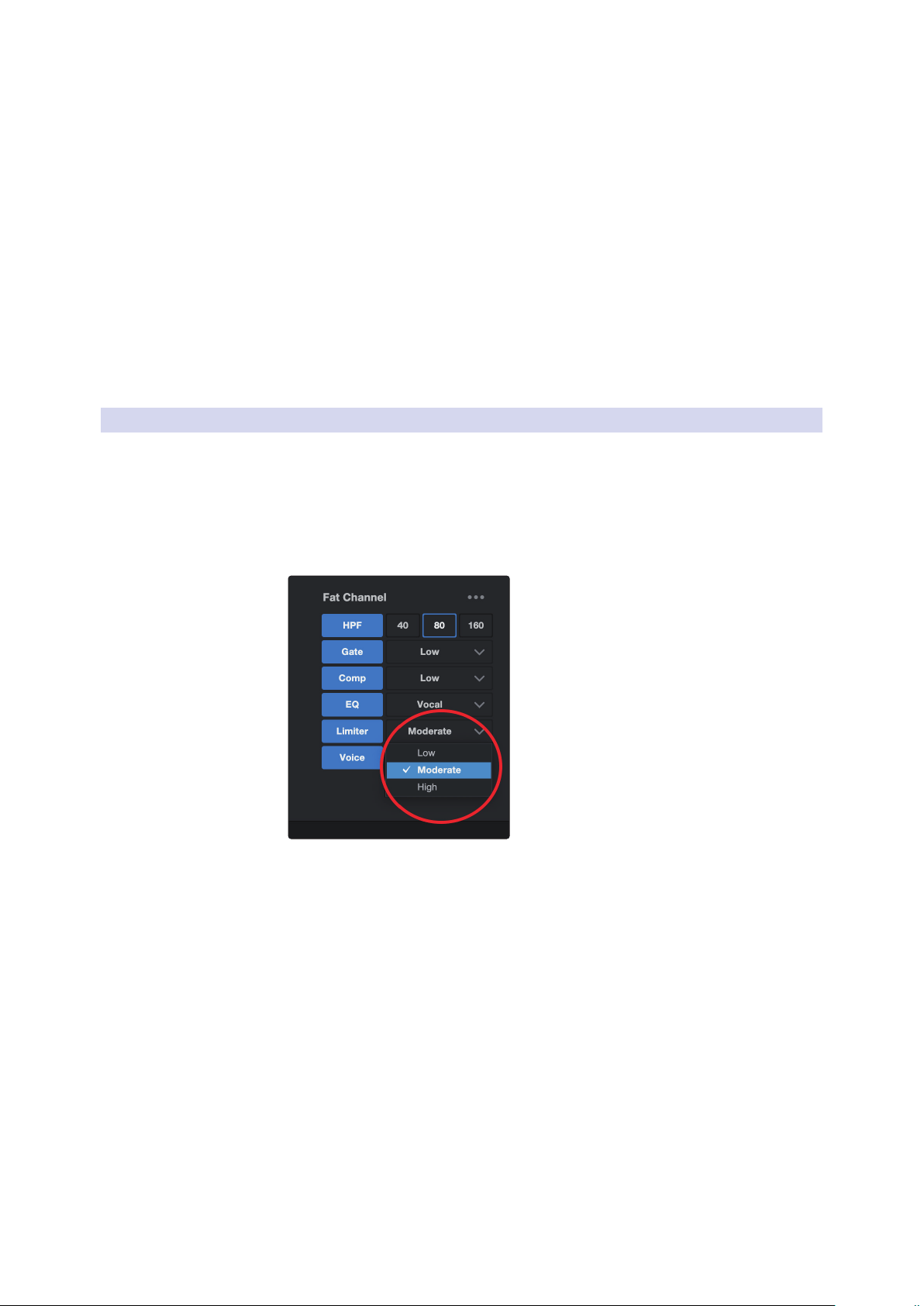
4.2.5 Limiter
True to its name, a Limiter sets the upper dynamic range of your signal and prevents
the source from exceeding it by “limiting” it to that threshold. If you’re thinking that
sounds a lot like what we just told you a compressor does, you’re catching on! A
limiter is different from a compressor in a very critical way: Unlike a compressor,
which works gradually to reduce the signal, the limiter prevents virtually any increase
in gain at the upper end of the dynamic range. In other words, you can try to get as
loud as you want, but the limiter is going to stop that volume spike like a brick wall.
Choose between Low, Moderate, and High. Low will provide the
least amount of limiting, High will provide the most.
Ready to dial in a customized Limiter setting? See
Section 6.2.6 for advanced Limiter controls.
34
4 Presets, Fat Channel, and Voice Effects
4.3 Reverb
Revelator
Owner’s Manual
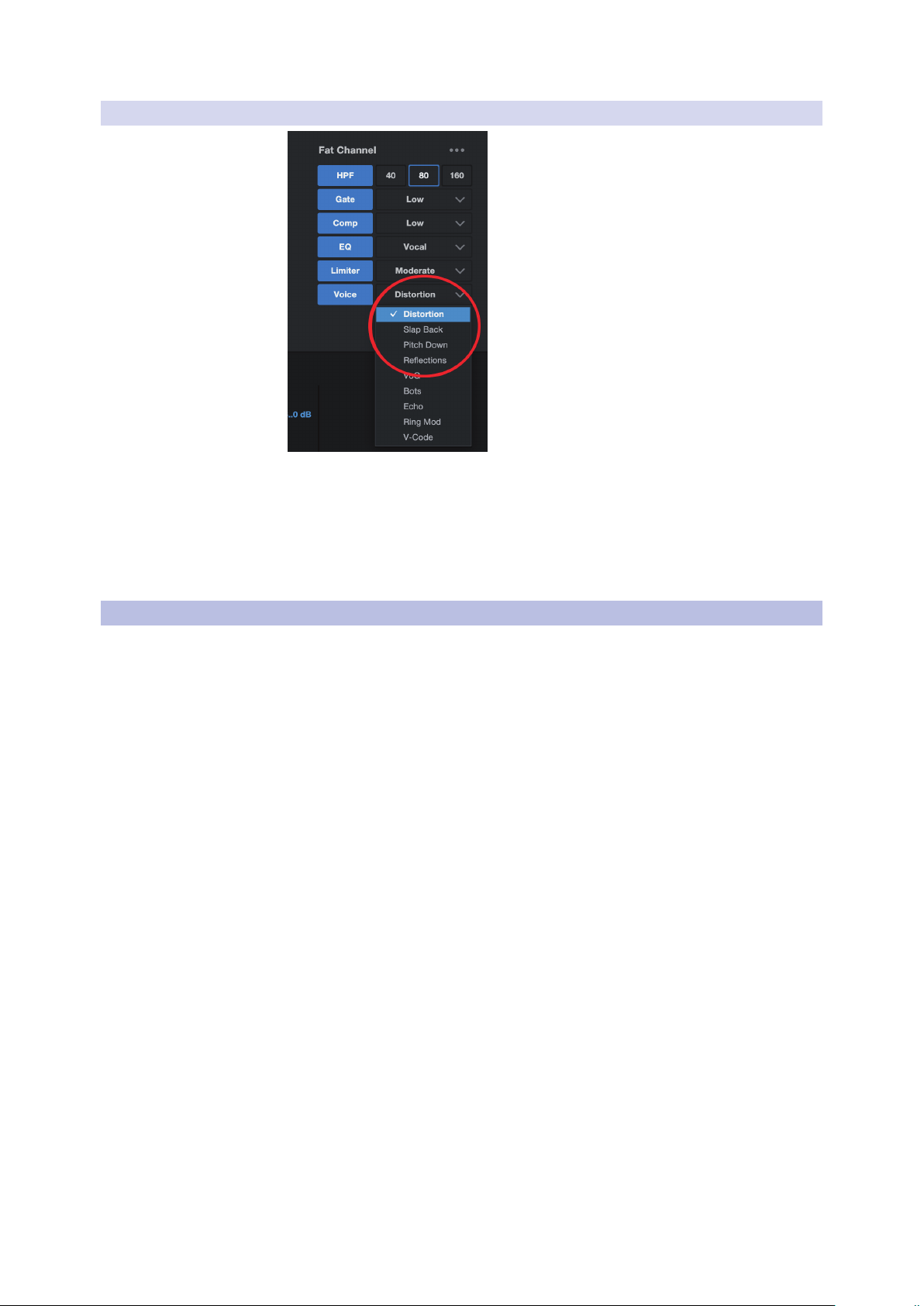
4.2.6 Voice FX
Need an effect for your Sci-Fi podcast? Want to add a little spookiness to your
Halloween stream? Voice FX are here to give you fun, fantastical effects for your
audio. Expect crazy echoes, distortions, warbles, robot voices, and more.
Don’t forget—just because they’re called Voice FX, doesn’t mean they can
only be used on voices... Experiment with different sound sources!
Like the rest of the Fat Channel, each Voice Effect has advanced
controls. See Section 6.2.7 to find out more.
4.3 Reverb
Reverberation—or reverb, as it is more commonly known—is perhaps the
most widely-used effect in recording. Natural reverb is created by sound
waves reflecting off of a surface or many surfaces. For example, when you walk
across the wooden stage in a large hall, thousands of reflections are generated
almost instantaneously as the sound waves bounce off the floor, walls, and
ceilings. These are known as early reflections, and their pattern provides
psycho-acoustic indications as to the nature of the space that you are in, even
if you can’t see it. As each reflection is then reflected off of more surfaces,
the complexity of the sound increases, while the reverb slowly decays.
The reason for the widespread use of reverb in audio recording is fairly self-evident:
Human beings don’t live in a vacuum. Because our brains receive cues about the
nature of the space around us based partially on audio reflections, a sense of space
can make an audio recording sound more natural and, therefore, more pleasing.
35
4 Presets, Fat Channel, and Voice Effects
4.3 Reverb
Revelator
Owner’s Manual
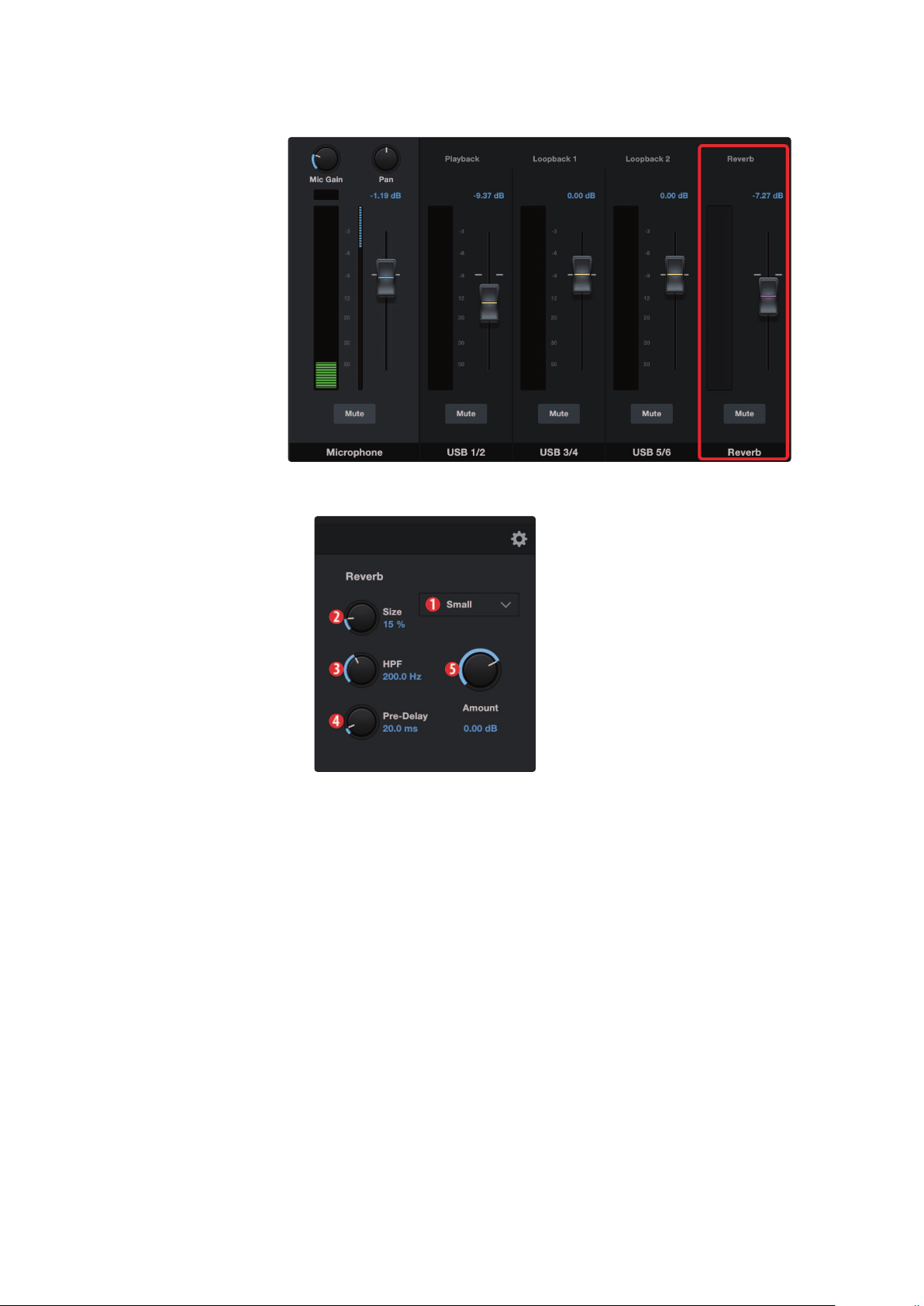
The Reverb in Revelator is independent of your presets, so you
can use the same Reverb setting on any preset you like.
To adjust the amount of Reverb you hear in your mix, raise or lower the Reverb
Fader in the mixer. See Section 5.2.2 for more information on your Revelator mixer.
1. Preset. Choose between Small, Medium, and Large. These presets emulate
room size. In general, the bigger the room size, the more reverberant it will be.
2. Size. This setting adjusts the length of each reflected
sound as well as how often you hear them.
3. HPF (High Pass Filter). Like the High Pass Filter in Fat Channel, this setting
will cut frequencies in the reverb’s output below the threshold you set here.
Power User Tip: This is especially helpful for bass-rich sound sources (baritone voice,
acoustic guitar) as adding too much reverb in low frequencies can muddy your sound.
4. Pre-Delay. Pre-Delay is the time (in milliseconds) between the end of the
initial sound and the moment when the first reflections become audible.
Power User Tip: Imagine you’re on a stage in a large music hall. You stand on the
very edge of the stage and shout “Hello world!” toward the center of the hall. There
will be a brief pause before you hear the first noticeable reflections of your voice,
because the sound waves can travel much further before encountering a surface and
bouncing back. Adjusting the pre-delay parameter on a reverb allows you to change
the apparent size of the room without having to change the overall Size. This will
give your mix a little more transparency by leaving some space between the original
sound and its reverb.
5. Amount. This is the “send” level to the Reverb from your
microphone. Increasing this level will increase how processed,
or “wet,” the Microphone Channel will sound.

36
5 Mixing and Loopback Audio
5.1 What is Loopback Audio?
Revelator
Owner’s Manual
5 Mixing and Loopback Audio
Revelator is equipped with a powerful yet easy-to-use mixer that lets you
blend your microphone with three stereo audio streams. These can include
playback from a recording application like Studio One, the audio from a Skype
call, the sounds from your favorite video game, or all three at the same time.
If you’re just starting out and only plan on recording your voice, you
won’t ever need to use the mixer. However, when you’re ready to start
adding call-in audio to your podcast or creating more elaborate streams,
this mixer will solve a myriad of routing problems and headaches.
macOS users, please note: All the mixer descriptions in this section assume that you have
enabled Multi Mode. This will provide you with the best user experience. If you haven’t
enabled Multi Mode, please take a step back to Section 3.1 and do so now.
5.1 What is Loopback Audio?
Loopback audio is the industry term for routing audio from one application
to another. Applications that use audio interfaces, like your Revelator,
are designed to receive audio from one audio device and send audio to
one audio device. This means that most applications can only send to
and receive from an audio interface… not from other applications.
This can present a challenge in certain situations. Still wondering
why loopback audio is so cool? Here are some great uses:
• Make your Podcast Guests feel like they’re right there in the studio
with you. Not only can you easily record the audio from your Zoom
guest, you can combine your mic signal with audio from Studio One—
and send the entire mix to Zoom by selecting one of your Revelator’s
Loopback Devices as the source for Zoom. Your guests hear both your
voice and your audio add-ons while you record just their voice!
• Create Super Pro Screencasts. Most screen-capture applications let you
include your mic OR your system audio. With Revelator’s mixer and loopback
streams, you can create a mix of both your mic and your system sound then use
a Revelator Loopback Device as the source for your screen-capture application.
• Make a Gameplay Video. Just like with making a screencast, loopback audio
makes recording Gameplay audio and your mic at the same time quick and easy.
Best of all, the Revelator’s mixer makes it easy to monitor any mix you
create, so you can record and stream with confidence, knowing that what
you’re hearing is exactly what your audience will be listening to as well.

37
5 Mixing and Loopback Audio
5.2 Mixer Controls
Revelator
Owner’s Manual
5.2 Mixer Controls
5.2.1 Microphone Channel Controls
1. Mic Gain. Use this control to set the gain for your microphone.
Mic gain can also be set using the knob on your Revelator.
Press and hold the Monitor button to use the knob.
2. Pan. This sets the pan position for your microphone in every stereo mix. Pan
sets the position of the microphone relative to the left and right side of the mix.
When the Pan is set to the center position, your microphone will sound equally
in both the left and right side of the mix. As you turn it to the right, it will be
louder in the right side. As you turn it to the left, it will be louder in the left side.
3. Clip Light. This light will illuminate red when the signal level of your microphone
is too loud and clipping. If your input signal clips, it will overload the Revelator’s
analog-to-digital converters, causing digital distortion. This distortion sounds
terrible and cannot be undone if your voice is recorded that way. Because of this,
it’s important to keep your eye on this indicator while you’re setting your levels.
4. Channel Meter. This meter displays the current level
of your microphone before the fader level.
5. Gain Reduction Meter. This meter displays the amount of gain reduction being
applied to your microphone signal by the gate, compressor and/or limiter.
6. Microphone Channel Fader. Controls the Overall Level of the
Microphone Channel in the currently selected mix.
7. Mute. Mutes the Microphone in every stereo mix.
8. Channel Name. Double-clicking on the word “Microphone” will
let you customize the name of the microphone channel.
5.2.2 Mixer Channel Controls
Your Revelator mixer has four channels:
• Playback. This is the output channelfor the Revelator
Playback Device in each stereo mix.
• Loopback 1. This is the output channel for the Revelator
Loopback 1 Device in each stereo mix.
• Loopback 2. This is the output channel for the Revelator
Loopback 2 Device in each stereo mix.
• Reverb. This is the output channel for the Reverb in each stereo mix.
The higher you set the fader, the more Reverb you will hear.
Each channel has the same controls:
1. Channel Meter. This meter displays
the current level of the channel
before the fader (#2) level.
2. Channel Fader. Controls the Overall Level
of the Channel in the currently selected mix.
3. Mute. Mutes the Channel in your
currently-selected mix. Note that the
microphone channel Mute is global
and mutes the mic across all mixes.
4. Channel Name. Double-clicking on the
default name will let you customize the
name of the Channel.
38
5 Mixing and Loopback Audio
5.2 Mixer Controls
Revelator
Owner’s Manual
5.2.3 Main Output Controls and Mix Selection
Revelator lets you create four different mixes:
• Phones. This is the dedicated mix for the headphone output on your
Revelator. Revelator provides an easy way to create a blend between
your microphone signal and the playback from your computer using
the knob and the Monitor button (See Section 2.2.3). This lets you listen
to your performance in real-time without any latency (delay).
• Main. This is the mix that will be routed to the Revelator Device.
• Loopback 1. This is the mix that will be routed
to the Revelator Loopback 1 Device.
• Loopback 2. This is the mix that will be routed
to the Revelator Loopback 2 Device.
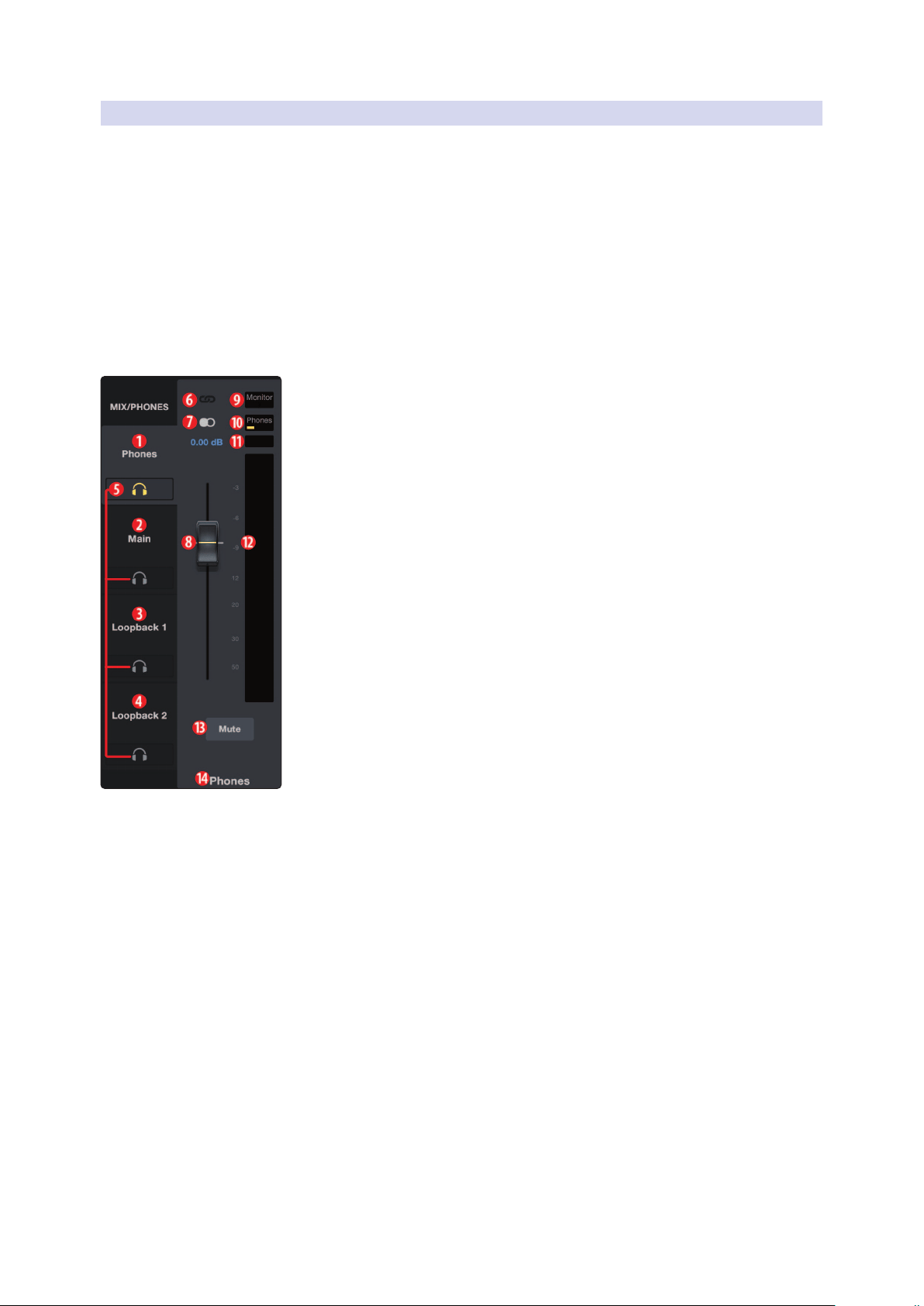
1. Phones. Click on this tab to bring up the mix for the Phones.
2. Main. Click on this tab to bring up the mix for the Revelator Device.
3. Loopback 1. Click on this tab to bring up the mix
for the Revelator Loopback 1 Device.
4. Loopback 2. Click on this tab to bring up the mix
for the Revelator Loopback 2 Device.
5. Phones Listen. You can listen to any of the four mixes by
clicking on the headphone icon. This will route the mix
to your headphones instead of the Phones mix.
6. Link. You can quickly copy your Phones mix settings
to any other Mix by clicking this Link button.
7. Mono/Stereo. Each mix can toggled between mono and stereo. Use
the mono control when routing loopback audio to an application that
only accepts one input, or when you wish to monitor in mono.
8. Output Fader. Sets the overall output level of the currently selected mix.
9. Monitor Indicator. Displays the current position of
the Monitor control on your Revelator.
10. Phones Indicator. Displays the current position of
the Headphone control on your Revelator.
11. Mix Clip. When this light illuminates, your mix is too loud
and is “clipping”. You can fix this by lowering the overall
output level or by lowering each channel in the mix.
12. Mix Meter. Displays the overall level of the current mix.
13. Mute. Mutes the currently selected mix.
14. Mix Name. Each Mix name can be customized by clicking
on the default name below the Main output fader.
39
5 Mixing and Loopback Audio
5.3 Feedback Loops are Bad
Revelator
Owner’s Manual
5.3 Feedback Loops are Bad
While loopback audio and the Revelator mixer makes it really easy
to mix and record the sound of one piece of software into another,
there is also the potential to send the output of a software application
back into itself and create what is known as a “feedback loop.”
Whenever you’re recording using the Revelator mixer with an application that offers
monitoring, like Studio One or OBS, you must either disable monitoring or mute
the return channel in your Revelator mixer to avoid creating a feedback loop.
Applications like Skype and Zoom have a “mix minus” feature that removes the
input signal from the output signal, so you don’t have to worry about this if
you’re just recording a video chat. This feature is on by default, all the time.

40
6 Advanced Features and Customization Tools
6.1 Settings Menu
Revelator
Owner’s Manual
6 Advanced Features and Customization Tools
6.1 Settings Menu
Your Revelator features several customizable features. Press the
Settings button button in the upper right corner to get started.
1. Reset. Click this button to reset your Revelator to its factory default state.
2. Polar patterns. Your Revelator can be set to one of the following polar patterns:
a. Cardioid. In this pattern, your Revelator will pick up signal the best from the
front.
b. Figure 8. In this pattern, your Revelator will pick up signals equally well from
the rear and front.
c. Omnidirectional. In this pattern, your Revelator will pick up signal equally
well all around the microphone.
3. Fat Channel on USB Stream Outputs. By default, your Revelator will record
audio just as you hear it in your headphones, complete with the Fat Channel
preset. If you would like to record only the raw unprocessed audio, but still listen
to the presets while you record, disable “Fat Channel on USB Stream Outputs.”
4. Preset Button Mode. By default, your Revelator offers four presets
via the Preset button on the mic itself. If you find yourself only using
one or two, you can simplify this accordingly by clicking here.
When One or Two Preset Button Mode is engaged, you will only
see the respective number of presets in the Revelator mixer as well;
note the unused presets are greyed out. Note that in single Preset
slot mode, the Preset button on Revelator will toggle between the
loaded preset and bypass. In two-Preset slot mode, bypass is still
achieved by pressing and holding the Preset button on Revelator.
5. Mute Button Mode. By default, your Revelator’s mute button
controls the microphone. This allows you to mute the microphone,
but still hear playback from your computer in your headphones.
If you would like to mute all audio, select Monitor mode.
Power User Tip: Note that this does not mute the your mic input to the mix outputs.
Even while your headphones are muted, you can still be heard by others on your call
or stream—so try not to say anything embarrassing.
41
6 Advanced Features and Customization Tools
6.2 Advanced Fat Channel and Voice Effects Controls
Revelator
Owner’s Manual
6.2 Advanced Fat Channel and Voice Effects Controls
To open the advanced Fat Channel and Voice Effects Controls, click
on the Advanced button (...) in the Fat Channel section.
To edit any of the effects, click on the name of the desired processor from
the tabs at the top of the screen. This will bring its controls into focus.
6.2.1 High Pass Filter
Use this control to set the High-Pass Filter frequency threshold for
the selected Channel or Output Bus. The filter’s threshold can be set
from 24 Hz to 1 kHz. When the threshold is set to its lowest point,
the filter is off. The high-pass filter’s slope is -12 dB/8va.
Power User Tip: A high-pass filter attenuates all frequencies below the set threshold.
Usethe Fat Channel high-pass filter to remove unwanted low frequencies from your
source signal, rather than trying to EQ them out.
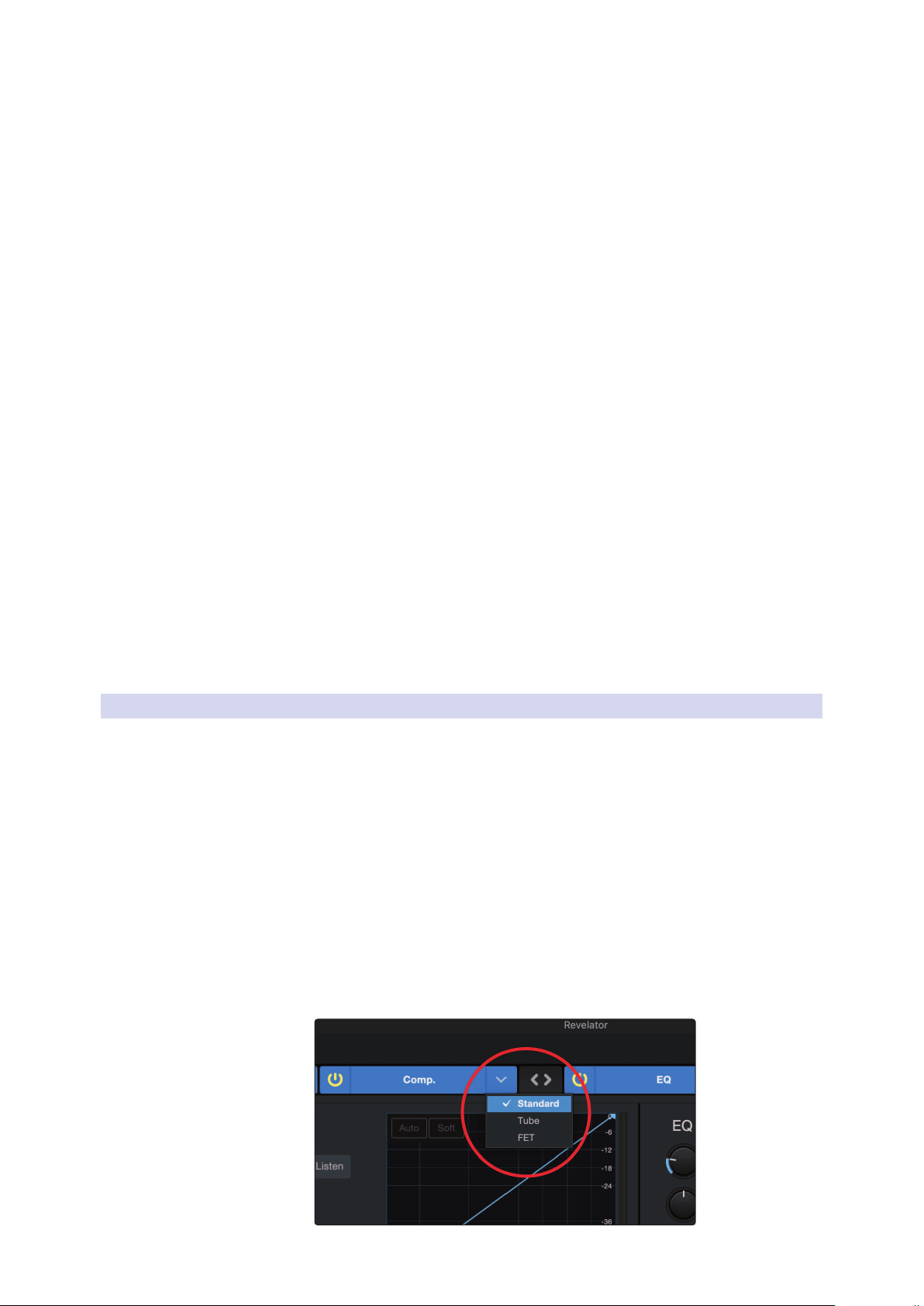
6.2.2 Noise Gate
1. On/Off. Turns the Noise Gate on or off in the signal chain.
2. Threshold. Sets the signal level that bisects the signals you wish
to keep from the signals you want to attenuate. Signals below
this level are attenuated according to the setting of the Range
parameter. Signals above this level pass through unaffected.
42
6 Advanced Features and Customization Tools
6.2 Advanced Fat Channel and Voice Effects Controls
Revelator
Owner’s Manual
3. Range. Sets the amount of attenuation applied to a signal when its level falls
below the Threshold. Lower settings pull signal level down further, all the
way to -∞, if desired. Higher settings pull the signal down to a lesser extent,
de-emphasizing noise and other nuisance signals more subtly (without a
“hard” cut-off). Note: Range is disabled when the Expander is engaged.
4. Key Filter. This sets the frequency at which the gate will open. Setting a specific
frequency, in addition to a specific decibel level, provides more sonic shaping.
Power User Tip: A properly set key filter on a gate can greatly improve the overall
sound quality of a mix. For example, if you are recording outside, the road noise may
be loud enough to open the gate. This is where a key filter can come in handy. By
setting the key filter to remove some of those low frequencies, the gate won’t be as
apt to open for the next passing car.
5. Attack. Sets the time it takes for the gate to “open”
when a signal passes the threshold.
Power User Tip: A fast attack rate is crucial for percussive instruments. Slow-rising
signals such as vocals and bass guitar require a slower attack; with these signals, a
faster attack can cause an audible click. All gates have the ability to click when
opening but a properly set gate will never click.
6. Release. Sets the time it takes for the gate to “close”
when a signal falls beneath the threshold.
Power User Tip: Gate release times should typically be set so that the natural decay
of the instrument or vocal being gated is not affected. Shorter release times help to
clean up the noise in a signal but may cause “chattering“ with percussive
instruments. Longer release times usually eliminate chattering and should be set by
listening carefully for the most natural release of the signal.
7. Key Listen. Press the button to engage or disengage the Key Listen function.
It will illuminate to indicate that the Key Listen is active. When Key Listen is
enabled, you will be listening to the frequency that Key Listen is set to.
8. Expander Mode. Press the button or turn the encoder to switch
between Gate and Expander functions for this processor.
6.2.3 Compressor
As previously mentioned, a compressor is a dynamics processor that
reduces the dynamic range of a signal by attenuating it by a set ratio when
it exceeds a defined threshold. Your Revelator is equipped with three
compressor models from which to choose: Standard, Tube, and FET.
These distinct compressor plug-in models have
their own set of controls and behavior:
• Standard Compressor. A clean and full-featured compressor
that offers transparent dynamic range reduction.
• Tube Leveling Amplifier. A model of a tube-based optoelectronic
compressor, with simple, quick controls and a classic tonal character.
• Class-A FET Leveling Amplifier. A model of a Class-A FET-based
compressor, with an aggressive, punchy tonal character.
To change the compressor model, click on the dropdown menu. Note:
The compressor will turn off whenever a new model is loaded and
must be re-enabled for you to hear its effect on your voice.
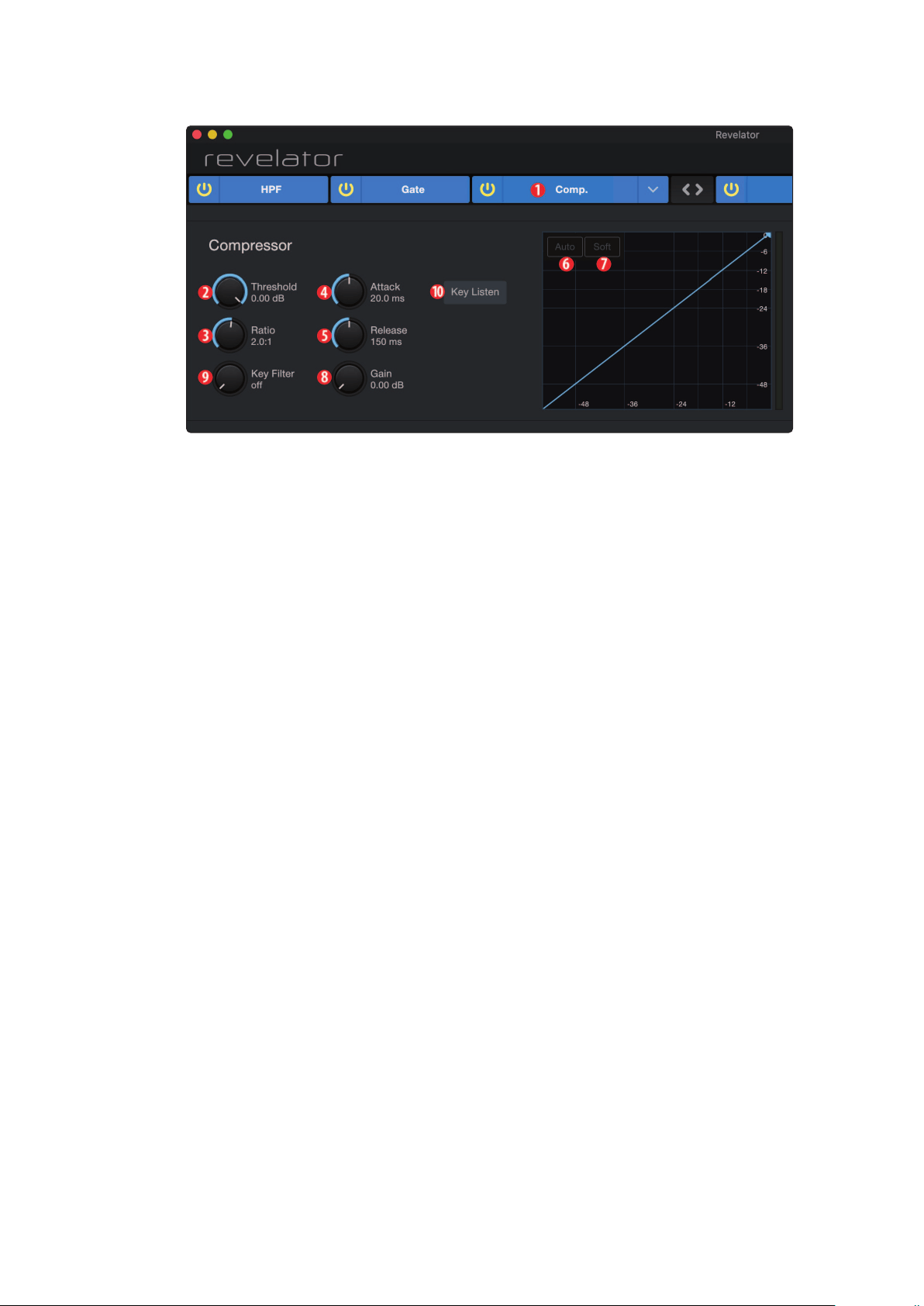
43
6 Advanced Features and Customization Tools
6.2 Advanced Fat Channel and Voice Effects Controls
Revelator
Owner’s Manual
Standard Compressor
1. On/Off. Turns the Compressor on or off in the signal chain.
2. Threshold. Sets the level above which the compressor
begins to attenuate the signal.
3. Ratio. Sets the relationship between the amount a signal goes above the
threshold, and the amount it is attenuated. At a 1-to-1 ratio (often written as
1:1), no compression occurs. At a 4:1 ratio, a signal that passes the threshold by
8 dB is attenuated to within 2 dB of the threshold (dividing by four). The higher
the ratio you choose, the more pronounced the compressor effect becomes.
4. Attack. Sets the time it takes for the compressor to begin
attenuating a signal, once it passes the threshold.
5. Release. Sets the time it takes for the compressor to stop
attenuating a signal once it falls below the threshold.
6. Auto. Press to toggle Auto mode on or off. When Auto mode is active, the
Attack and Release controls become inoperative, and a preprogrammed attack
and release curve is used. In this mode, the attack is set to 10 ms, and the release
is set to 150 ms. All other compressor parameters can still be adjusted manually.
7. Soft. Press to toggle Soft knee on or off. When set to “on,”
compression will be applied more gradually over time
when the Threshold is reached by the input signal.
Power User Tip: Very short compressor release times can produce a choppy or “jittery”
sound, especially when compressing instruments that have a lot of low-frequency
components, such as a rich acoustic guitar. Very long release times can result in an
over-compressed, or “squashed,” sound. All ranges of release can be useful, however, and
you should experiment to become familiar with different sonic possibilities.
8. Gain. Sets the amount of “makeup gain” to apply to a signal. Once a
signal is compressed, its overall level is often reduced. This gain control
lets you bring it back up to the proper level after compression occurs.
9. Key Filter. This sets the frequency at which the compressor will
engage. The compressor will still process the entire frequency range,
but it is only engaged when the specified frequency is present.
10. Key Listen. Press to listen the signal being used to trigger the compressor,
as set with the Key Filter control (including the effects of the high-pass
filter). Press again to switch back to the normal channel signal.

44
6 Advanced Features and Customization Tools
6.2 Advanced Fat Channel and Voice Effects Controls
Revelator
Owner’s Manual
Tube Leveling Amplifier
1. On/Off. Turns the Compressor on or off in the signal chain.
2. Gain. Sets input gain to the compressor. Because this type of
compressor operates in a different way than a standard compressor,
much of the way that it affects signals is based on the input
level. Try different settings to see what suits your needs.
3. Peak Reduction. Sets the amount of peak reduction to
apply to the signal. Higher settings result in more gain
reduction and more pronounced compression effect.
4. Compressor/Limiter Toggle. The button below toggles the Tube Leveling
Amplifier between its compressor and limiter modes. When in compressor
mode, it acts with a variable ratio of 1:1-10:1. When in limiter mode, it acts
with a variable ratio of 10:1-20:1, more aggressively limiting peaks.
5. Key Filter. This sets the frequency at which the Tube Leveling
Amplifier will engage. It will still process the entire frequency range,
but it is only engaged when the specified frequency is present.
6. Key Listen. Press to listen to the signal being used to trigger the compressor,
as set with the Key Filter control (including the effects of the high-pass
filter). Press again to switch back to the normal channel signal.
Class-A FET Compressor
1. On/Off. Turns the Compressor on or off in the signal chain.
2. Input Gain. Sets input gain to the compressor. This setting
affects the action of the compressor, so feel free to try various
settings to find the optimal effect for your needs.
3. Output Gain. Sets the amount of “makeup gain” to apply to a signal. Once
a signal is compressed, its overall level is often reduced. This gain control
lets you bring it back up to the proper level after compression occurs.
4. Attack. Sets the time it takes for the compressor to begin
attenuating a signal once it passes the threshold.
5. Release. Sets the time it takes for the compressor to stop
attenuating a signal once it falls below the threshold.
6. Ratio. Sets the Ratio for the compressor. The following
Ratios are available: 4:1, 8:1, 12:1, 20:1, or All.
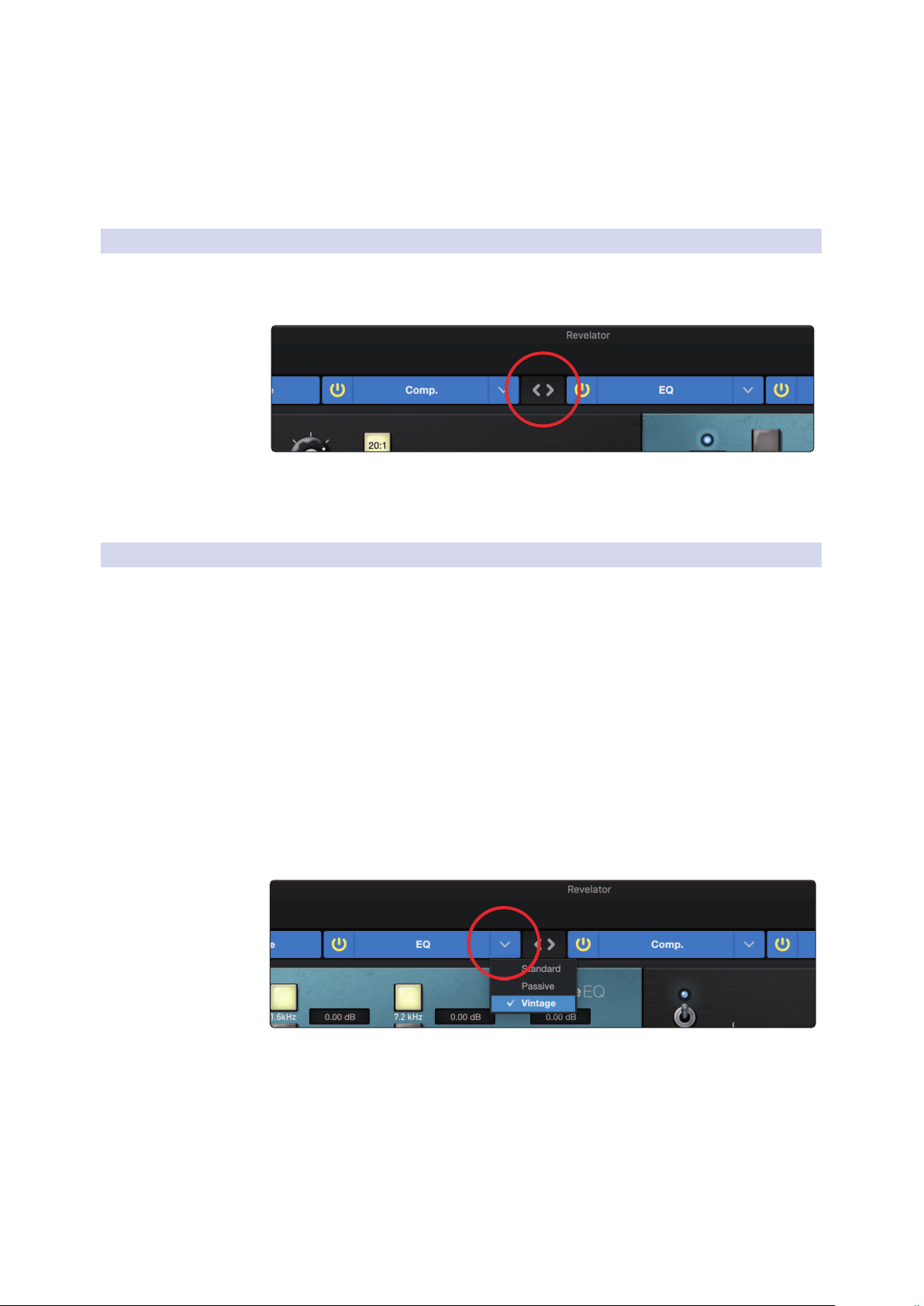
45
6 Advanced Features and Customization Tools
6.2 Advanced Fat Channel and Voice Effects Controls
Revelator
Owner’s Manual
7. Key Filter. This sets the frequency at which the compressor will
engage. The compressor will still process the entire frequency range,
but it is only engaged when the specified frequency is present.
8. Key Listen. Press to listen to the signal being used to trigger the
compressor,as set with the Key Filter control (including the effects of the
high-pass filter). Press again to switch back to the normal channel signal.
6.2.4 Changing the Signal Chain
The Compressor and EQ can be reordered in the signal path. By default, the
signal passes through the compressor before passing through the EQ. When
reordered, the EQ is placed before the compressor in the signal path.
Power User Tip: Placing the compressor before the EQ allows you to make dramatic
changes to the EQ settings without needing to alter the compressor setting. However, if
you place the EQ before the compressor, you can better control different frequencies,
achieving a more natural response.
6.2.5 Equalizer
As previously mentioned, an EQ (or equalizer) is a tone control that lets
you make changes in the tonal balance of a signal. You can boost or cut
the level of ranges of frequencies, to make corrective or creative changes
to the signal. Like the compressor, your Revelator is equipped with three
EQ models from which to choose: Standard, Passive, and Vintage.
These distinct EQ models have their own set of controls and behavior:
• Standard EQ. A clean and full-featured EQ that offers transparent tone shaping.
• Passive Program EQ. A model of a tube-based EQ with
simple, quick and a classic tonal character.
• Vintage 1970s EQ. A model of a classic solid-state EQ, with
simple, musical frequency settings and a lot of character.
To change the EQ model, click on the dropdown menu. Note:
The EQ will turn off whenever a new model is loaded and must
be re-enabled for you to hear its effect on your voice.
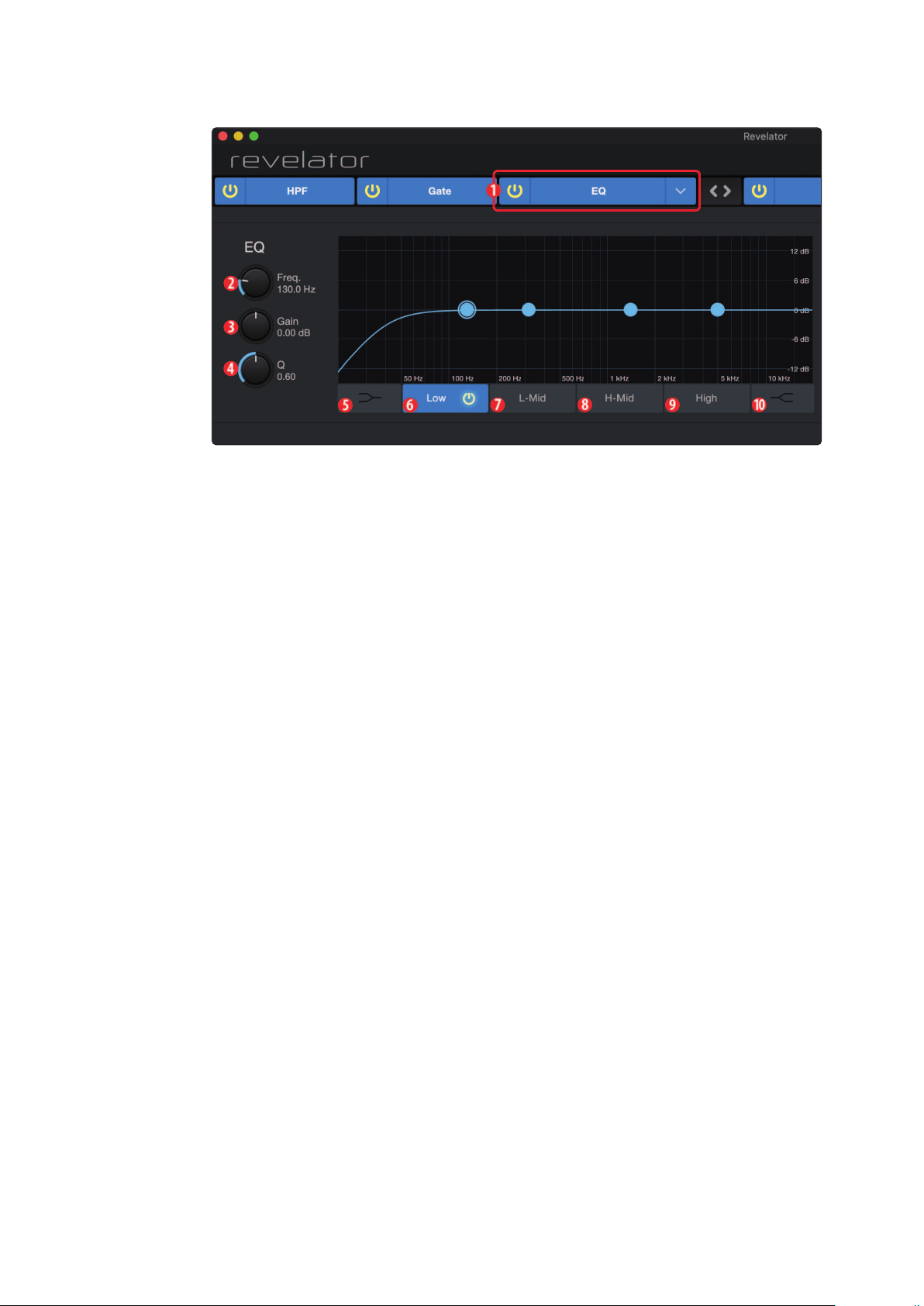
46
6 Advanced Features and Customization Tools
6.2 Advanced Fat Channel and Voice Effects Controls
Revelator
Owner’s Manual
Standard EQ
1. On/Off. Turns the EQ on or off in the signal chain.
2. Frequency. This control sets the center frequency at which
signals are boosted or cut for the currently selected band.
3. Gain. Sets the amount by which the selected frequency will be boosted or cut.
4. Q. Sets the Q (or width) of the current EQ band. Larger Q values affect a
narrower range of frequencies. Lower Q values affect a wider range.
5. Low Shelf On/Off. Enables/disables the low shelf EQ. When the Shelf button
is not engaged, the Low band is parametric. Enabling the Shelf button turns
the Low band into a low-shelving EQ that alters, by a fixed amount, a band
of low frequencies at and below a user-selected shelving frequency.
Power User Tip: A low shelving EQ is like a bass-control knob on a stereo. In this
mode, the Center Frequency control selects the shelving frequency.
6. Low Band Select. Enables/Disables the Low Band and
enables the Frequency, Gain, and Q for this band.
7. L-Mid Band Select. Enables/Disables the Low-mid Band and
enables the Frequency, Gain, and Q for this band.
8. H-Mid Band Select. Enables/Disables the High-mid Band
and enables the Frequency, Gain, and Q for this band.
9. High Band Select. Enables/Disables the High Band and
enables the Frequency, Gain, and Q for this band.
10. High Shelf On/Off. Enables/disables the high shelf EQ. When the Shelf button
is not engaged, the High band is a parametric EQ. Enabling the Shelf button
turns the High band into a high shelving EQ that alters, by a fixed amount, a
band of high frequencies at and above a user-selected shelving frequency.
Power User Tip: A high shelving EQ is like a treble-control knob on a stereo. In this
mode, the Center Frequency control selects the shelving frequency.

47
6 Advanced Features and Customization Tools
6.2 Advanced Fat Channel and Voice Effects Controls
Revelator
Owner’s Manual
Passive Program EQ
1. On/Off. Turns the EQ on or off in the signal chain.
2. Low Boost. Sets the level of boost applied around the chosen low frequency.
This control interacts nicely with the Low Attenuation control, allowing for boosts
in apparent bass energy while keeping overall bass energy within optimal limits.
3. Low Attenuation. Sets the level of attenuation applied around
the chosen low frequency. his control interacts nicely with the
Low Boost control, allowing for boosts in apparent bass energy
while keeping overall bass energy within optimal limits.
4. Low Frequency Select. Sets the center frequency of the band
covered by the Low Boost and Low Attenuation controls.
5. High Bandwidth. Sets the Q (or width) of the effect of the high EQ band.
6. High Boost. Sets the level of boost applied around the chosen high frequency.
7. High Attenuation. Sets the amount of attenuation applied in a shelving
fashion to frequencies at and above the chosen high frequency.
8. High Frequency. Sets the center frequency of the high EQ band.
9. Attenuation Select. Sets the frequency at and above which
the High Attenuation control attenuates treble content.
Vintage 1970s EQ
1. EQ On/Off. Enables/disables the EQ globally. Touch to toggle on or off.
2. Low Frequency. Sets the shelving frequency for the Low Band.
3. Low Gain. Sets the Gain for the Low Band.
4. Low-Mid Frequency. Sets the center frequency for the Low-Mid Band.
5. Low-Mid Gain. Sets the Gain for the Low-Mid Band.
6. High-Mid Frequency. Sets the center frequency for the High-Mid Band.
7. High-Mid Gain. Sets the Gain for the High-Mid Band.
8. High Gain. Sets the Gain for the High Band.
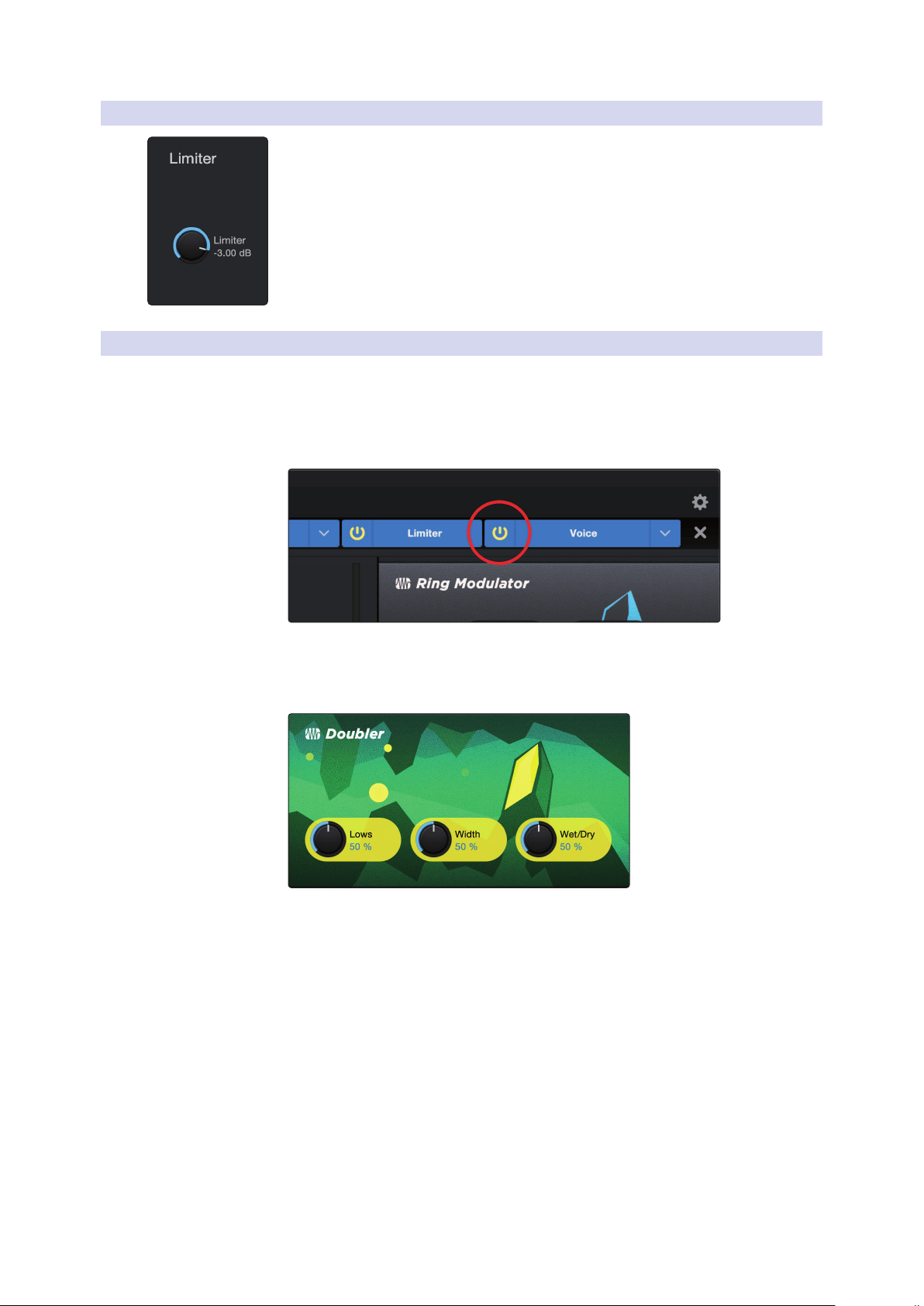
48
6 Advanced Features and Customization Tools
6.2 Advanced Fat Channel and Voice Effects Controls
Revelator
Owner’s Manual
6.2.6 Limiter
This encoder sets the threshold of the limiter for the selected channel or output
bus. When the signal’s amplitude (level) exceeds the threshold setting, the limiter
is engaged. Turning the knob counterclockwise lowers the threshold, so limiting
begins at a lower amplitude. The Limiter ratio is ∞:1.
6.2.7 Voice FX
Your Revelator is equipped with six Voice FX processors that can make your voice
sound ethereal, otherworldly, or just plain weird… your choice! This section
will go through each effect in detail. Note that while you can use any of these
effects with the Fat Channel and Reverb, you can only use one effect at a time.
To enable/disable the Voice FX of your choice, use the power button in the Voice tab.
Doubler
The Doubler will enhance your voice with a natural doubling effect
that will add richness and depth with just a hint of reverb.
1. Lows. Use this control to boost the low-frequency content.
2. Width. This control adjusts the stereo image.
3. Wet/Dry. Blends the affected sound with the dry sound of your voice. Set to
100% to only hear the processed sound. Set to 0% to only head the dry sound.
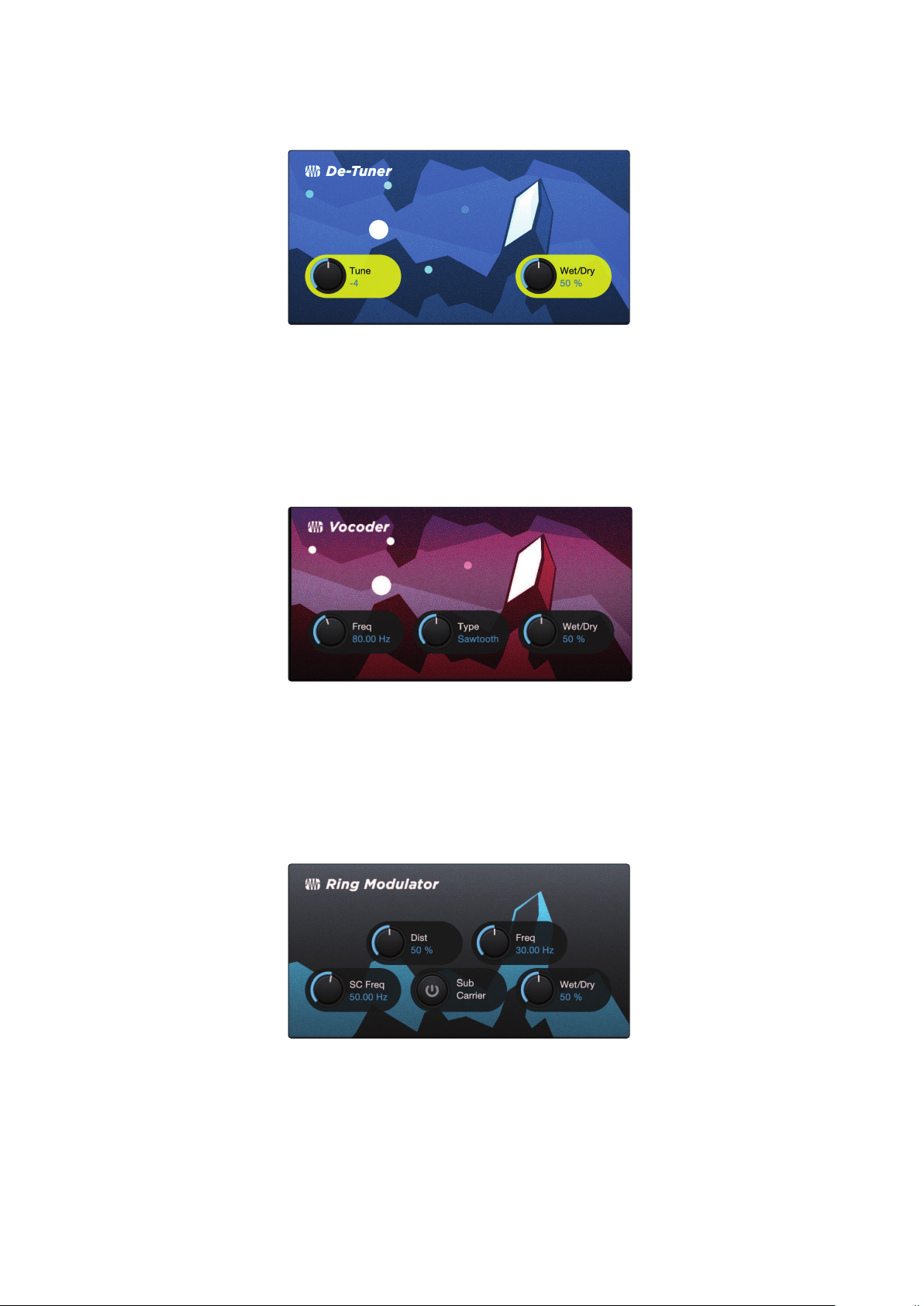
49
6 Advanced Features and Customization Tools
6.2 Advanced Fat Channel and Voice Effects Controls
Revelator
Owner’s Manual
Detuner
True to its name, the Detuner will artificially lower your voice.
1. Tune. Sets the amount your voice will be lowered.
2. Wet/Dry. Blends the affected sound with the dry sound of your voice. Set to
100% to only hear the processed sound. Set to 0% to only head the dry sound.
Vocoder
Think of a vocoder as a “talking synthesizer.” Your voice is sent through a
filter and essentially removed so that only the synthesized sound after it
was modulated by the filter remains. This results in a synthesized sound that
pulses to the tempo of your voice with the same tonal characteristics.
1. Freq. Sets the frequency of the filter.
2. Type. Choose between three filter types: Noise, Sawtooth, Rectangle
3. Wet/Dry. Blends the affected sound with the dry sound of your voice. Set to
100% to only hear the processed sound. Set to 0% to only head the dry sound.
Ring Modulator
A Ring Modulator basically takes two separate signals (your voice and an oscillator)
and creates a new signal that is made up of the sum and differences of the original
sources. All of this is a fancy way of saying: it makes you sound like a robot.
1. Dist. Controls the amount of distortion from zero to over-the-top.
2. Freq. Sets the frequency of the oscillation.
3. SC Freq. Sets the frequency of the Sub Carrier.
4. Sub Carrier. You can choose to add a low frequency oscillation to
your signal or not by engaging or disengaging the Sub Carrier.
5. Wet/Dry. Blends the affected sound with the dry sound of your voice. Set to
100% to only hear the processed sound. Set to 0% to only head the dry sound.

50
6 Advanced Features and Customization Tools
6.2 Advanced Fat Channel and Voice Effects Controls
Revelator
Owner’s Manual
Filters
This is a custom filter bank that allows you to create some truly otherworldly effects!
1. Tune: Adjusts the pitch of the affected signal from high to low.
2. Damping: Adjusts the amount of high-frequency content
sent through feedback (4.) in the affected signal.
3. Wet/Dry: Blends the affected (“wet”) sound with the un-affected,
(“dry”) sound of your voice. Set to 100% to only hear only the
processed sound. Set to 0% to only head the dry sound.
4. Feedback: Adjusts length of echo effect.
5. Distortion: Add some grit and edge to the affected
sound, like an overdriven guitar ampllifier.
Delay
A delay essentially creates an echo, although you can often use
delays to create more complex time-based effects. The source signal
is delayed so that it is heard later than it actually occurred.
1. Time. This is the time (in milliseconds) between the source signal
and its echo. The simplest delay effect is a single repeat. A short
delay between 30 and 100 ms can be used to create slap-back
echo, while longer delay times produce a more distant echo.
2. Feedback. Variable feedback, or regeneration, produces multiple decaying
repeats. Increasing the feedback value increases the number of echoes, as
well as the resonance that is created as one echo disappears into another.
3. Wet/Dry. Blends the affected sound with the dry sound of your voice. Set to
100% to only hear the processed sound. Set to 0% to only hear the dry sound.
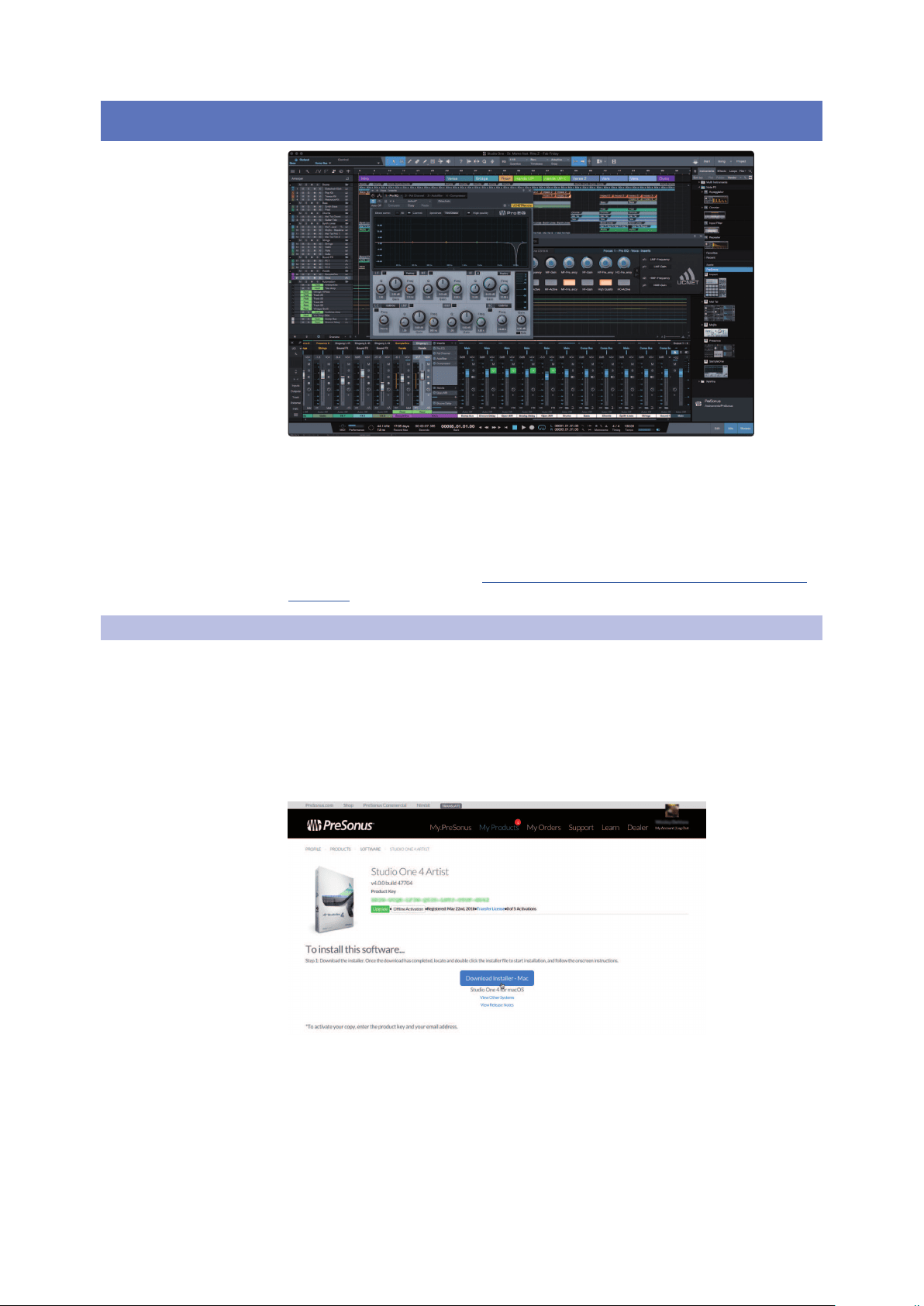
51
7 Studio One Artist Quick Start Guide
7.1 Installation and Authorization
Revelator
Owner’s Manual
7 Studio One Artist Quick Start Guide
All PreSonus professional recording products come with Studio One Artist
recording and production software. Whether you are about to record
your first album or your fiftieth, Studio One Artist provides you with all
of the tools necessary to capture and mix a great performance.
Power User Tip: As a valued PreSonus customer, you are eligible for a discount upgrade
to Studio One Professional. For more details on the Studio One upgrade program for
PreSonus customers, please visit https://shop.presonus.com/products/software/studio-
one-prods.
7.1 Installation and Authorization
Once you have installed the drivers for your Revelator and connected it to
your computer, you can use the included PreSonus Studio One Artist music-
production software to begin recording, mixing, and producing your music.
To install Studio One Artist, log into your My.PreSonus account and register
your Revelator. Your product key for Studio One Artist will automatically be
registered to your My.PreSonus account, along with your hardware registration.
Downloading and Running the Studio One Installer
To install Studio One Artist, download the Studio One Artist installer from
your My.PreSonus account to the computer on which you will use it.
Windows: Launch the Studio One Artist installer
and follow the onscreen instructions.
Mac: Drag the Studio One Artist application into the
Applications folder on your Mac hard drive.
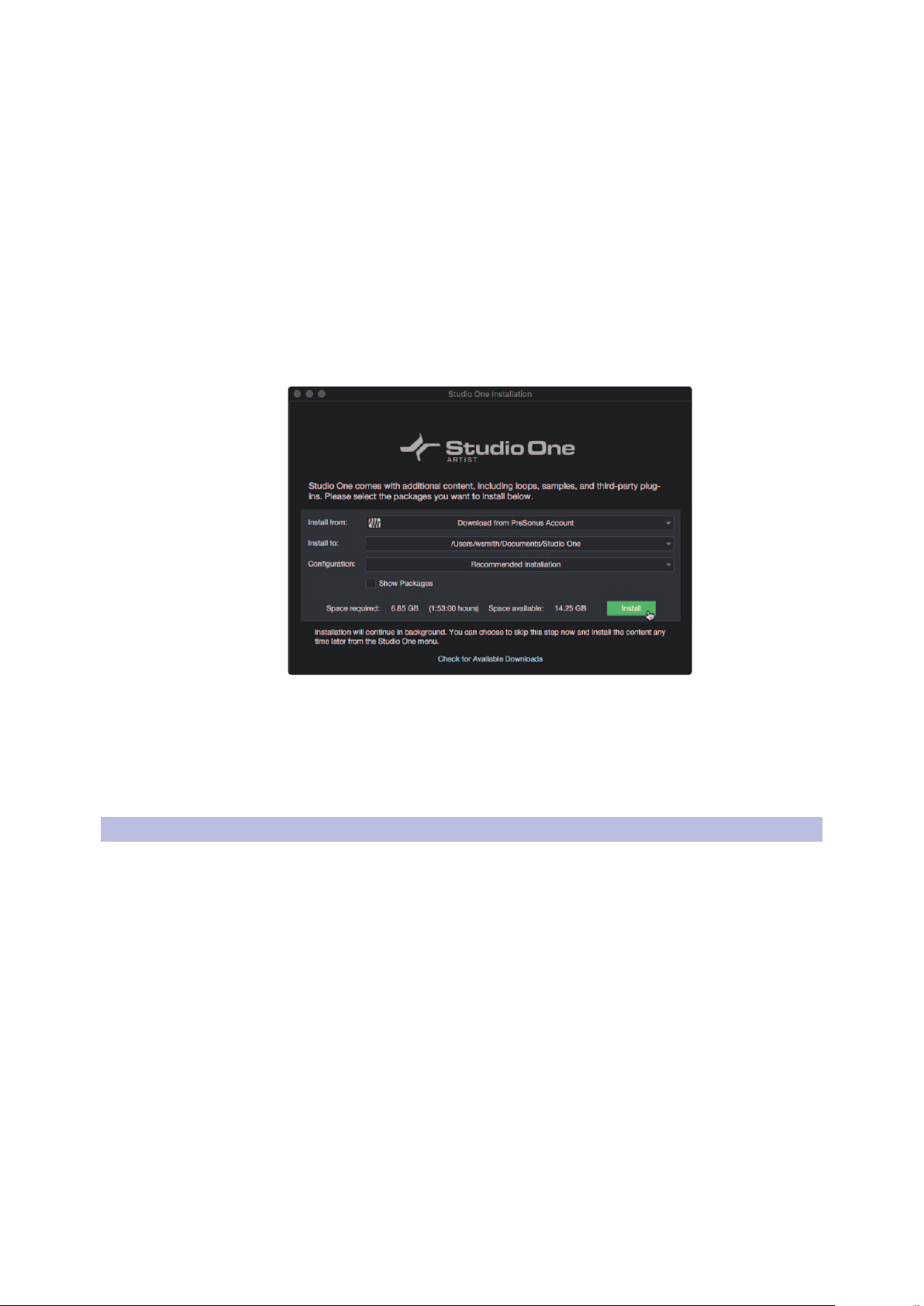
52
7 Studio One Artist Quick Start Guide
7.2 Setting Up Studio One
Revelator
Owner’s Manual
Authorizing Studio One
When Studio One is launched for the first time on your computer, it will
communicate with your My.PreSonus account and verify your registration. To
ensure a seamless authorization process, make sure to download your installer
to the computer on which you will be using it, and be sure that your computer is
connected to the Internet when you launch the application for the first time.
Power User Tip: You may be prompted to enter your My.PreSonus user account
information. Clicking “Remember Credentials” will allow you to have immediate access to
any content you purchase from the PreSonus Marketplace.
Installing Bundled Content for Studio One Artist
Studio One Artist comes bundled with an array of demo and tutorial
materials, instruments, loops, and samples. The Studio One Artist
bundle includes all that you need to begin producing music.
The first time you launch Studio One Artist, you will be prompted
to install its companion content. Select the content you wish to
add and click “Install.” The content will automatically begin to
download and install from your My.PreSonus user account.
Power User Tip: To select only a portion of the available content, click on “Show
Packages”. From here you can customize your content installation.
7.2 Setting Up Studio One
Studio One Artist was designed to work with PreSonus interfaces and provides
unique interoperability and simplified setup. When Studio One Artist is
launched, by default you will be taken to the Start page. On this page, you
will find document-management and device-configuration controls, as well
as a customizable artist profile, a news feed, and links to demos and tutorials
from PreSonus. If your computer is connected to the Internet, these links will
be updated as new tutorials become available on the PreSonus website.
Complete information on all aspects of Studio One Artist is available in
the Reference Manual PDF located within Studio One. The information
in this tutorial covers only the basic aspects of Studio One Artist and is
intended to get you set up and recording as quickly as possible.
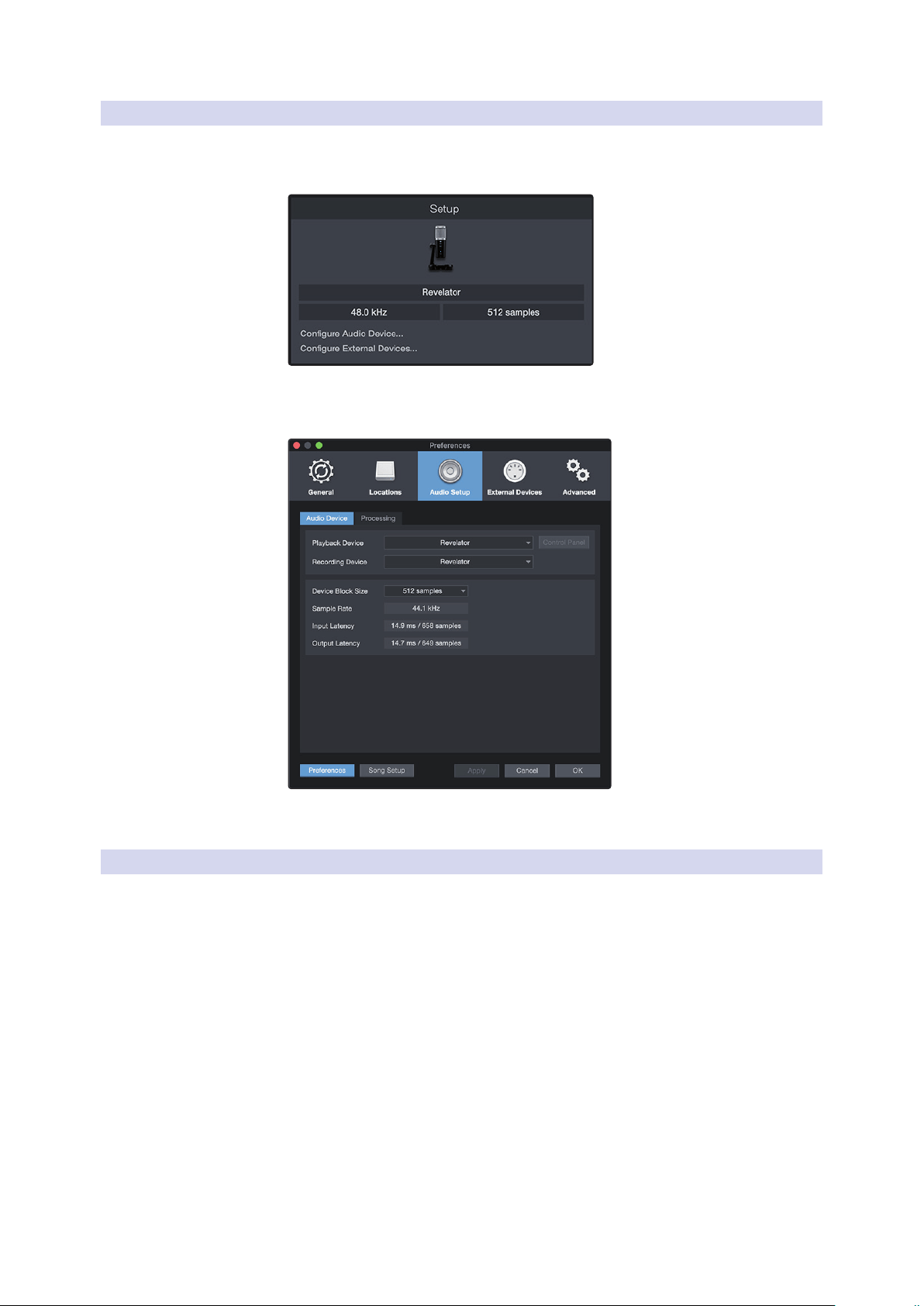
53
7 Studio One Artist Quick Start Guide
7.2 Setting Up Studio One
Revelator
Owner’s Manual
7.2.1 Configuring Audio Devices
In the middle of the Start page, you will see the Setup area. Studio One
Artist automatically scans your system for all available drivers and selects
a driver. By default, it will choose a PreSonus driver if one is available.
If you do not see your device listed on the Start page when
you launch Studio One, click on the Configure Audio Devices
link in the Setup area to open the Options window.
In the Options window, click on the Audio Setup tab and
select your device driver from the pull-down.
7.2.2 Configuring MIDI Devices
From the External Devices window in Studio One Artist, you can configure
your MIDI keyboard controller, sound modules, and control surfaces. This
section will guide you through setting up your MIDI keyboard controller
and sound modules. Please consult the Reference Manual located within
Studio One for complete setup instructions for other MIDI devices.
If you are using a third-party MIDI interface or USB MIDI-controller
keyboard, you must install any required drivers for these devices before
beginning this section. Please consult the documentation that came
with your MIDI hardware for complete installation instructions.
If you do not have any MIDI devices, please skip to Section 7.3.
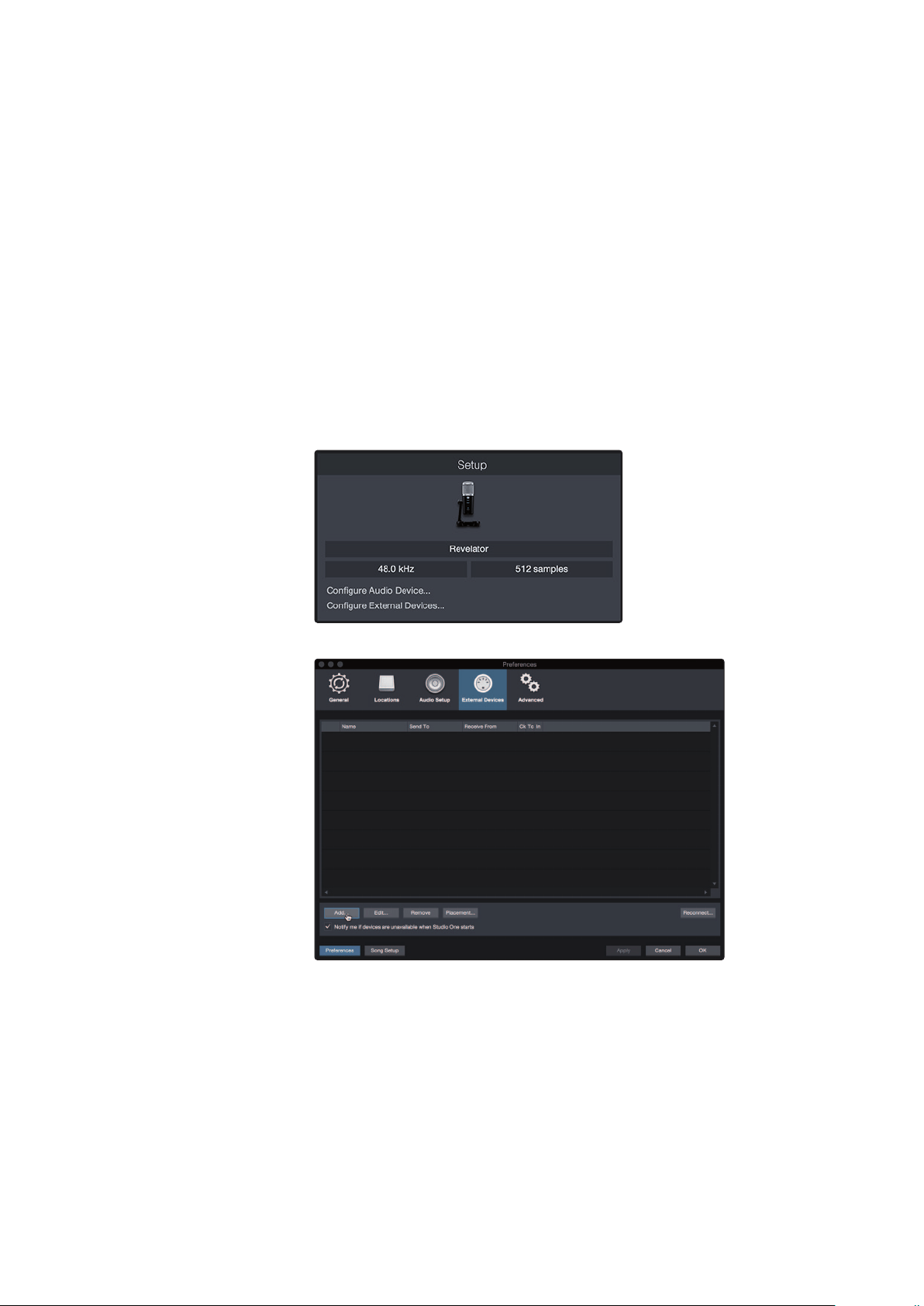
54
7 Studio One Artist Quick Start Guide
7.2 Setting Up Studio One
Revelator
Owner’s Manual
Setting up an External MIDI Keyboard Controller from the Start Page
A MIDI keyboard controller is a hardware device that is generally used for playing
and controlling other MIDI devices, virtual instruments, and software parameters.
In Studio One Artist, these devices are referred to as Keyboards, and they must be
configured before they are available for use. In some cases, your MIDI keyboard
controller is also used as a tone generator. Studio One Artist views the controller
and tone-generation functions as two different devices: a MIDI keyboard controller
and a sound module. The MIDI controls (keyboard, knobs, faders, etc.) will be
set up as a Keyboard. The sound modules will be set up as an Instrument.
You can set up your external MIDI devices from the Setup area
in the Start page. Before setting up a new Song for recording,
take a moment to configure external devices.
Make sure you have connected the MIDI Out of your external MIDI controller to
a MIDI In on your PreSonus audio interface (if available) or other MIDI interface. If
you are using a USB MIDI controller, connect it to your computer and power it on.
1. Click on the Configure External Devices link in the Setup area on
the Start page to launch the External Devices window.
2. Click the Add button. This will launch the Add Device window.

55
7 Studio One Artist Quick Start Guide
7.2 Setting Up Studio One
Revelator
Owner’s Manual
3. From the menu on the left, select your MIDI controller from the list of
manufacturers and models. If you do not see your MIDI controller listed,
select New Keyboard. At this point, you can customize the name of
your keyboard by entering the manufacturer and device names.
4. You must specify which MIDI channels will be used to communicate with
this keyboard. For most purposes, you should select all MIDI channels.
If you are unsure of which MIDI channels to choose, select all 16.
5. Studio One allows you to filter out specific control functions. If you would
like Studio One to ignore Aftertouch, Pitch Bend, Program Change, or
all CC messages, enable filtering for any or all of these messages.
6. In the Receive From drop-down menu, select the MIDI interface
input from which Studio One Artist will receive MIDI data (that
is, the MIDI port to which your keyboard is connected).
Power User Tip: In the Send To drop-down menu, select the MIDI interface output
from which your Studio One Artist will send MIDI data to your keyboard. If your
keyboard controller doesn’t need to receive MIDI data from Studio One, you can
leave this unselected.
7. If this is the only keyboard that you will use to control your external
synthesizers and virtual instruments, you should check the box
next to Default Instrument Input. This will automatically assign
your keyboard to control all MIDI devices in Studio One Artist.
8. Click “OK.”
If you have a sound module that you’d like to connect, leave the External
Devices window open and proceed to the next part of this section.
If not, you can close the window and skip to the next section.
Setting up an External MIDI Sound Module from the Start Page
MIDI instrument controllers (keyboards, MIDI guitars, etc.) send musical information,
in the form of MIDI data, to tone modules and virtual instruments, which respond
by generating sound as instructed. Tone modules can be standalone sound devices
or can be integrated into a MIDI instrument, such as a keyboard synthesizer. Studio
One Artist refers to all tone generators as Instruments. Once you have set up your
MIDI keyboard controller, take a moment to configure your sound module.
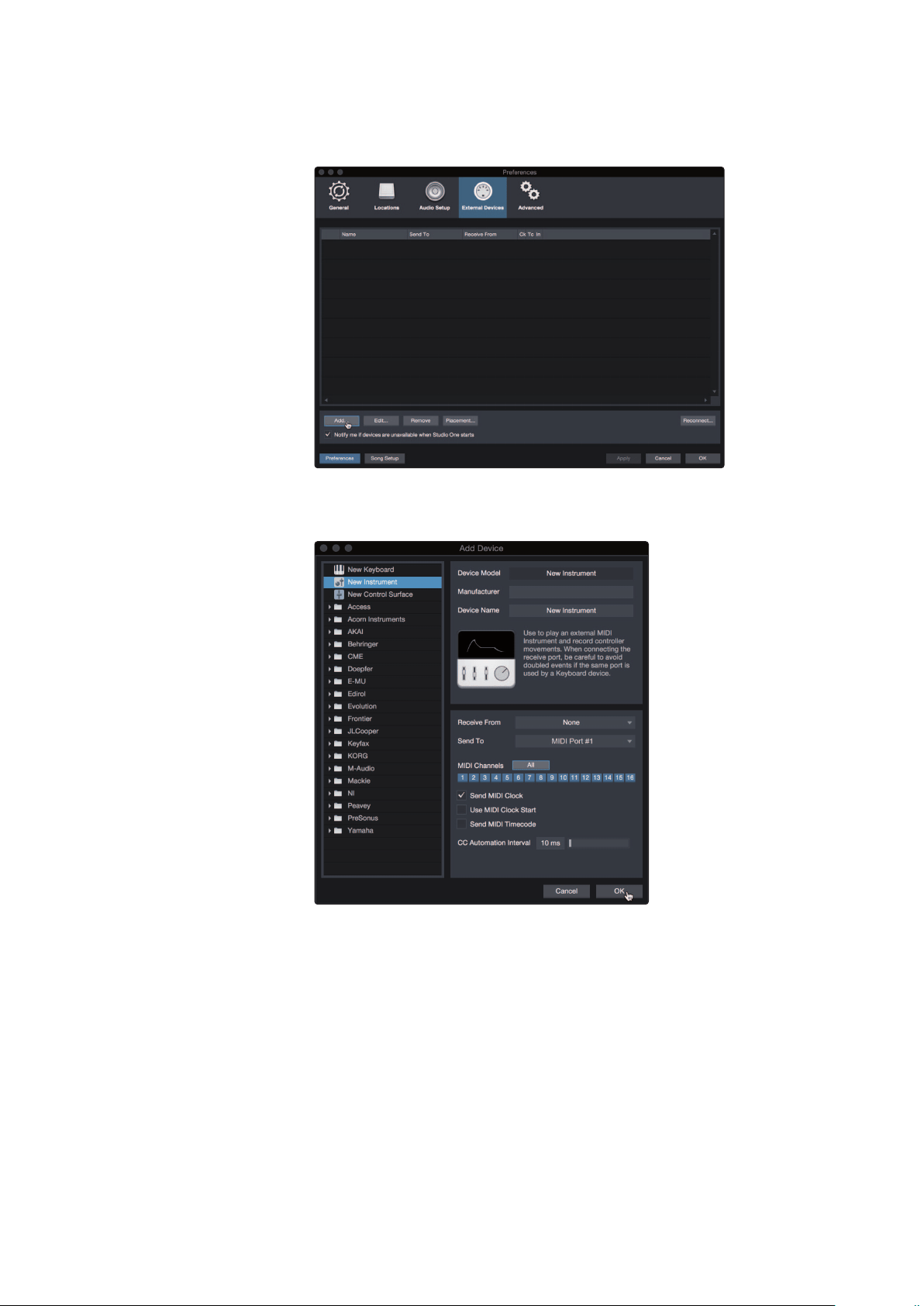
56
7 Studio One Artist Quick Start Guide
7.2 Setting Up Studio One
Revelator
Owner’s Manual
Make sure you have connected the MIDI In of your external
sound module to the MIDI Out of your MIDI interface.
1. In the External Devices window, click the Add button.
2. Select your device in the menu on the left. If your device is not listed,
select New Instrument. At this point you can customize the name of
your keyboard by entering the manufacturer and device names.
3. Specify which MIDI channels will be used to communicate with this sound
module. For most purposes, you should select all MIDI channels. If you are
unsure of which MIDI channels to select, we suggest you select all 16.
4. In the Send To menu, select the MIDI interface output from which Studio One
Artist will send MIDI data to your sound module. Click “OK” and close the External
Devices window. You are now ready to start recording in Studio One Artist.
The rest of this Quick Start Guide will go over how to set
up a Song and will discuss some general workflow tips for
navigating through the Studio One Artist environment.
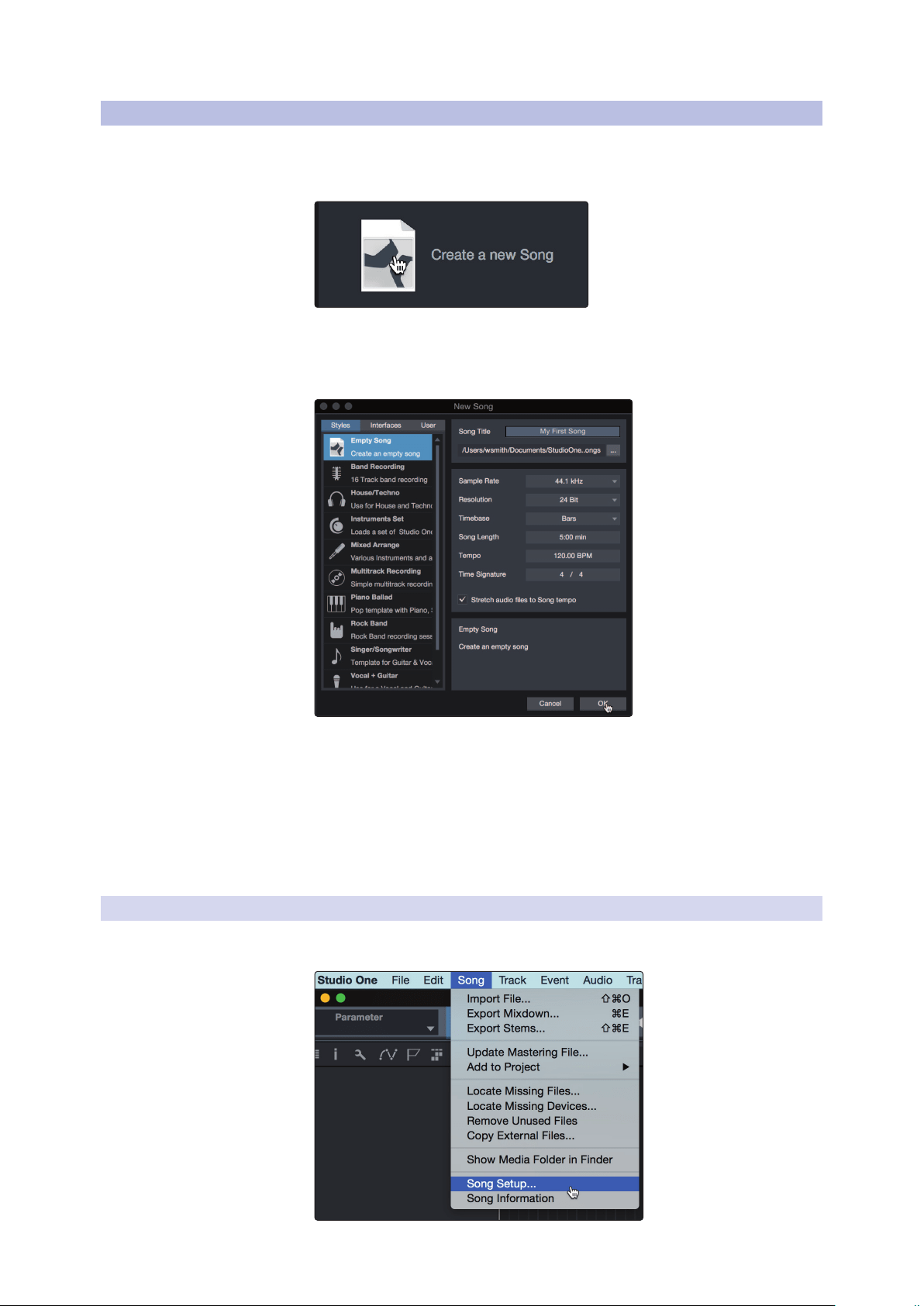
57
7 Studio One Artist Quick Start Guide
7.3 Creating a New Song
Revelator
Owner’s Manual
7.3 Creating a New Song
Now that you’ve configured your audio and MIDI devices, let’s create
a new Song. We’ll start by setting up your default audio I/O.
1. From the Start page, select “Create a New Song.”
2. In the New Song window, name your Song and choose the directory in
which you’d like it saved. You’ll notice a list of templates on the left. These
templates provide quick setups for a variety of devices and recording
situations. The section will describe creating a Song from an empty session.
3. Select “Empty Song” from the Templates list. At this point, you should give
your Song a name and select your preferred sample rate and bit depth for
recording and playback. You can also set the length of your Song and the
type of time format you would like the timeline to follow (notation bars,
seconds, samples, or frames). Click the OK button when you are finished.
Power User Tip: If you plan to import loops into your Song, make sure that the Stretch
Audio Files to Song Tempo option is selected. This will automatically import loops at the
correct tempo.
7.3.1 Configuring Your I/O
1. Click on Song | Song Setup to set your sample rate and
resolution and configure your audio I/O.

58
7 Studio One Artist Quick Start Guide
7.3 Creating a New Song
Revelator
Owner’s Manual
2. Click on the Audio I/O Setup tab.
3. From the Inputs tab, you can enable the inputs for your Revelator, including
the Loopback Inputs. that you’d like to have available. We recommend
you create a mono input using Input 1 of your Revelator and two Stereo
Inputs; one for Loopback Streams 3-4 and another for Loopback Streams
5-6. These correspond to Loopback 1 and Loopback 2 respectively.
4. Click on the Outputs tabs to enable any or all of the outputs on
your Revelator. In the lower right corner, you will see the Audition
Select menu. This allows you to choose the output from which you
will audition audio files prior to importing them into Studio One
Artist. In general, you will want this to be the main output bus.
Power User Tip: If you would like this I/O configuration to be the same every time
you open Studio One, click the Make Default button.
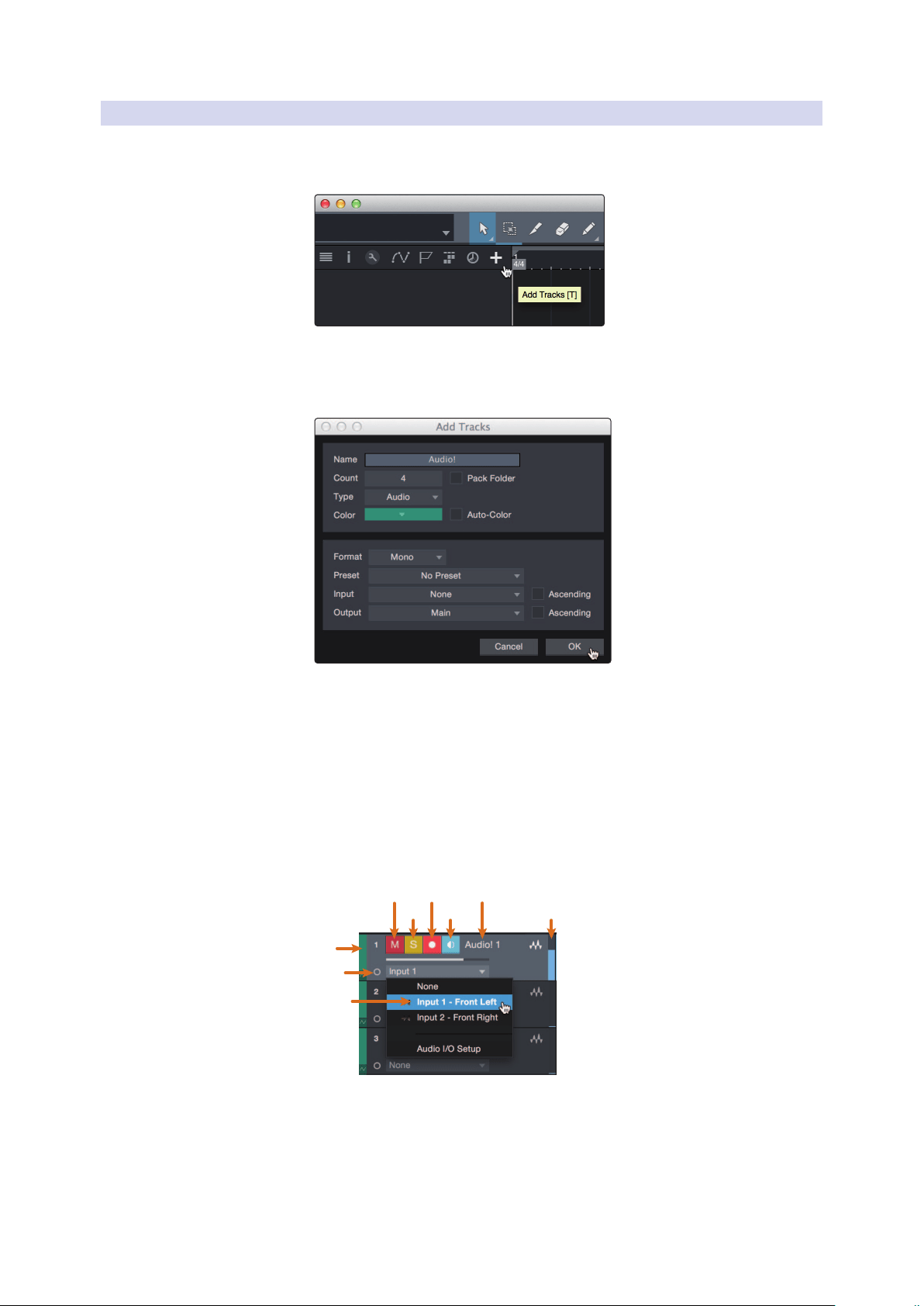
59
7 Studio One Artist Quick Start Guide
7.3 Creating a New Song
Revelator
Owner’s Manual
7.3.2 Creating Audio and Instrument Tracks
1. In the upper left corner of the Arrange window, you will notice
several buttons. The button furthest to the right is the Add Tracks
button. Click on this button to open the Add Tracks window.
2. In the Add Tracks window, you can customize the track name and
color, add a preset rack of effects, and set the physical source for
the input and output of your audio tracks. Most important, you
can select the number and type of tracks you’d like to create.
• Audio. Use this track type to record and playback audio files.
• Instrument. Use this track to record and playback MIDI data to
control external MIDI devices or virtual instrument plug-ins.
• Automation. This track type lets you create automated
parameter controls for your session.
• Folder. This track helps you to manage your session as
well as to quickly edit multiple tracks at once.
Power User Tip: If you would like to add an audio track for each of the available inputs,
go to Track | Add Tracks for All Inputs.
Mute
Custom
Track
Color
ST/Mono
Audio Input
Source Select
Solo
Rec
Arm
Monitor
Track
Name
Meter
Note: Instrument tracks are nearly identical to audio tracks. The Input Source list for
Instrument tracks lists available external MIDI devices as well as any virtual instruments
that have been added to the Song.
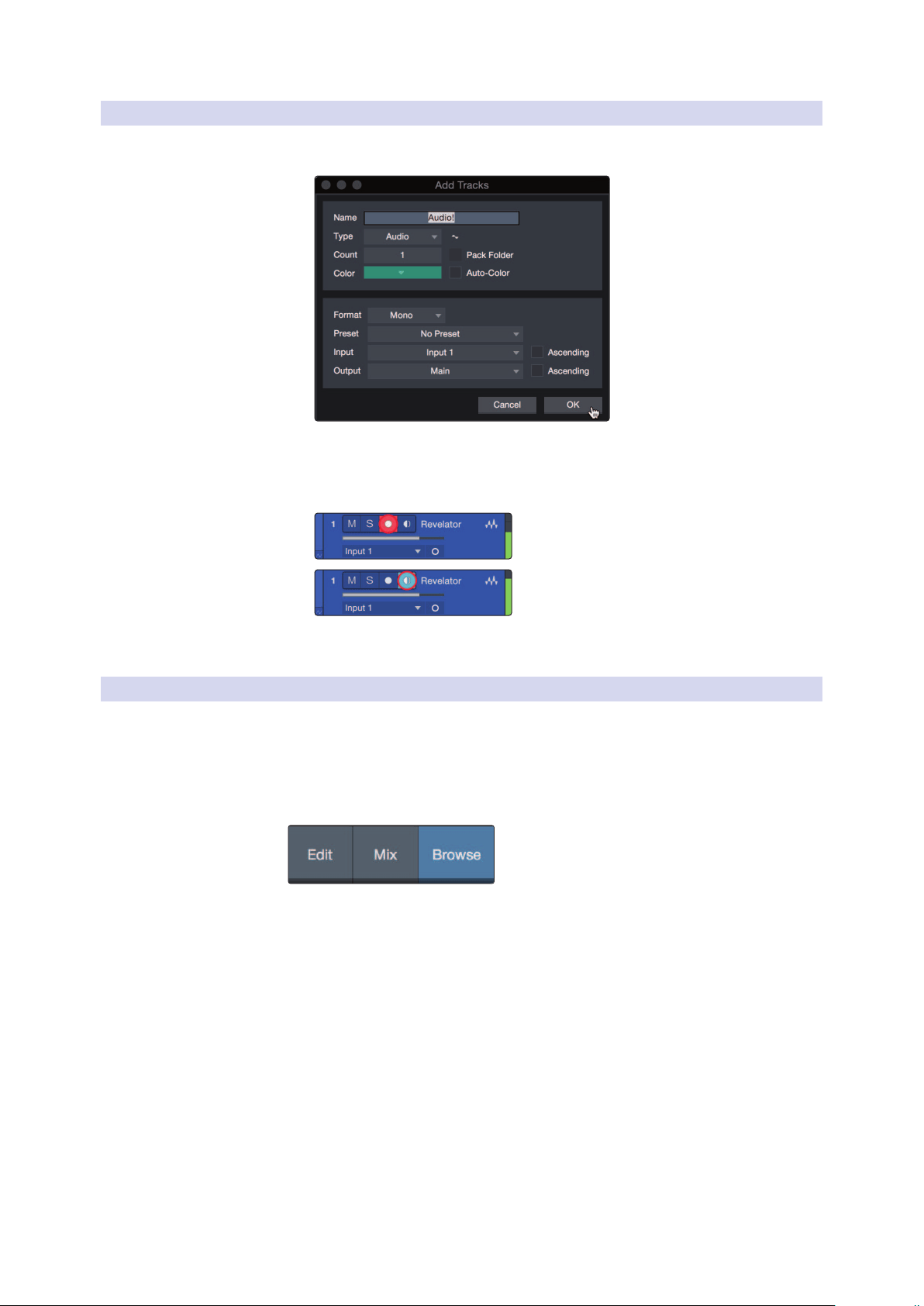
60
7 Studio One Artist Quick Start Guide
7.3 Creating a New Song
Revelator
Owner’s Manual
7.3.3 Recording an Audio Track
1. To begin recording, create an audio track from the Add Tracks window, set its
input to Input 1 on your Revelator, and connect a microphone to the same input.
2. Select Record Enable on the track. Turn up the Input 1 level on your
Revelator while speaking/singing into the microphone. You should see
the input meter in Studio One Artist react to the input. Adjust the gain
so the input level is near its maximum without clipping (distorting).
You are now ready to start recording. For complete instructions, please consult the
Studio One Reference manual located in Help | Studio One Reference Manual.
7.3.4 Adding Virtual Instruments and Effects
You can add plug-ins and instruments to your Song by dragging-and-dropping
them from the browser. You can also drag an effect or group of effects from one
channel to another, drag in customized effects chains, and instantly load your
favorite virtual-instrument preset without ever scrolling through a menu.
Opening the browser.
In the lower right corner of the Arrange window are three buttons:
• The Edit button opens and closes the audio and MIDI editors.
• The Mix button opens and closes the Mixer window.
• The Browse button opens the browser, which displays all of the
available virtual instruments, plug-in effects, audio files, and MIDI files,
as well as the pool of audio files loaded into the current session.

61
7 Studio One Artist Quick Start Guide
7.3 Creating a New Song
Revelator
Owner’s Manual
Drag-and-Drop Virtual Instruments
To add a virtual instrument to your session, open the browser and click on
the Instrument button. Select the instrument or one of its patches from the
Instrument browser and drag it into the Arrange view. Studio One Artist will
automatically create a new track and load the instrument as the input.
Drag-and-Drop Effects
To add a plug-in effect to a track, click the Effects button in the browser and
select the plug-in or one of its presets in the effects browser. Drag-and-drop
the selection over the track to which you would like to add the effect.
Drag-and-Drop Audio and MIDI Files
Audio and MIDI files can be quickly located, auditioned, and imported into
your Song by dragging them from the file browser into the Arrange view.
If you drag the file to an empty space, a new track will be created with
that file placed at the position to which you dragged it. If you drag the file
to an existing track, the file will be placed as a new part of the track.
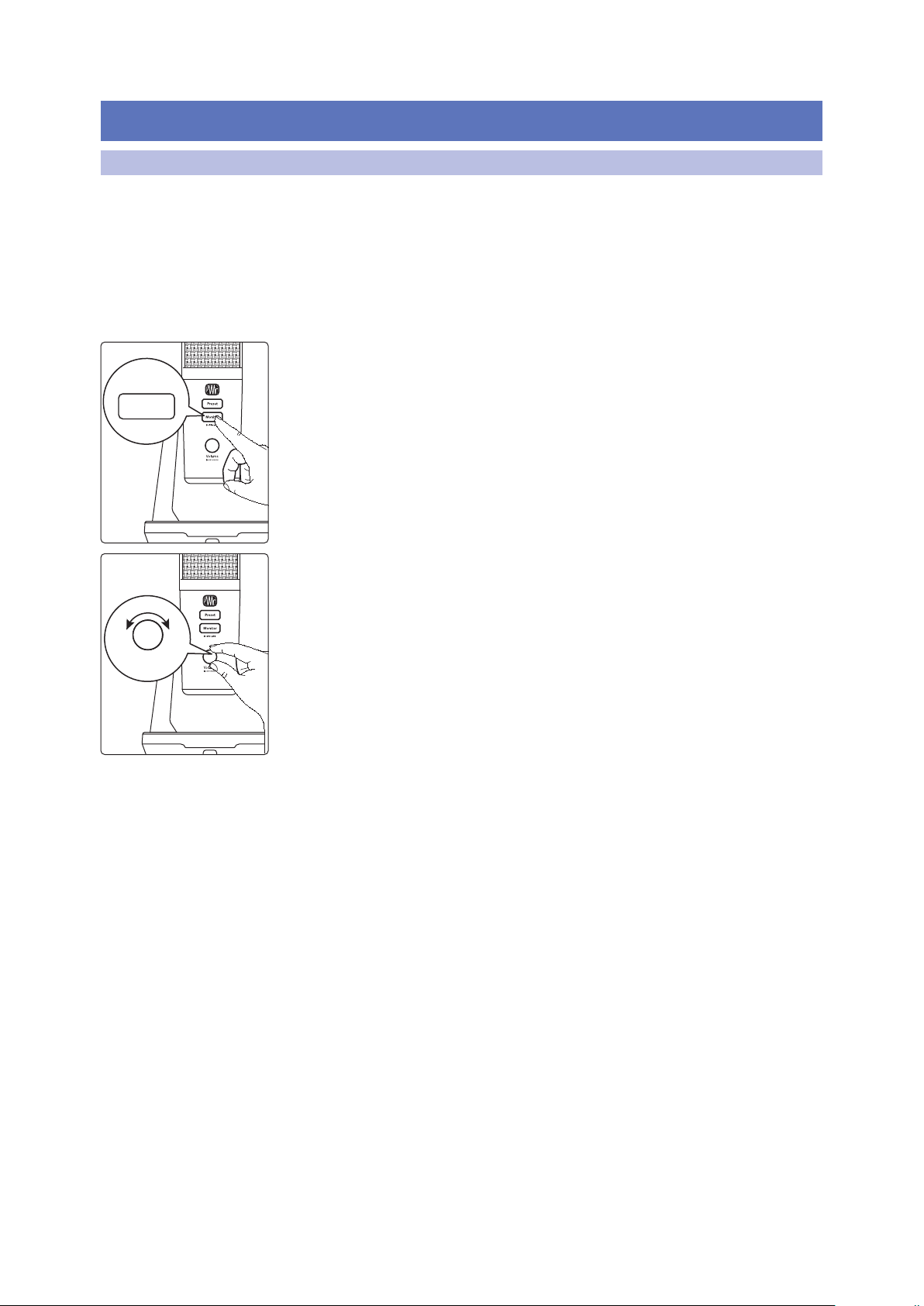
62
8 Resources
8.1 Gain Staging 101: Begin at the Beginning
Revelator
Owner’s Manual
8 Resources
8.1 Gain Staging 101: Begin at the Beginning
It may seem counterintuitive to boost the signal closest to its source and cut it
later in the signal path if it is too loud, but this is precisely the best way to get
a noise- and feedback-free recording. That said, you don’t want to gain it up
too much at the beginning either. If you find that you must cut the signal at
every component that sits after the input-trim stage to avoid distortion, you’ve
probably set the trim too high. Then, and only then, should you gain it down.
Step 1: Setting the Microphone Gain
First, press and hold the Monitor button on your Revelator until it lights green.
Turn the Volume knob for your Revelator clockwise while speaking into the
microphone. Watching for the signal/clip indicator to turn red, then back it down
until the indicator is green only. When you’ve stopped speaking the knob will go
dark.
Step 2: Setting the EQ and Dynamics
After you have set the input gain, you can use your channel EQ to
sculpt your source. The more bands your EQ offers, the more control
you will have, but you’ll also add more potential for improper gain
staging, so use with caution. This is also true with compression.
To set the EQ, you will need to adjust both the channel and the
main faders to 0.0 dB. (AKA “unity.”) This is just for the purposes of
dialing in the sound you want. You’ll dial in the mix next.
Often, when people are new to using an equalizer, they listen for what
is missing from their source signal and try to boost it in. But that’s
not always the best solution. Sometimes removing the frequencies
that are drowning out the ones you want works best.
Dynamics processors can be difficult to work with at first, because they both reduce
gain and amplify it. Let’s take a look at a compressor for a moment. A compressor
works by lowering the dynamic range—and by extension, the gain—of a signal,
but it also gives you a make-up gain control that allows you to get some of that
back. If you apply a lot of gain reduction to a signal, then boost it too far with the
make-up gain, your sound can get very unwieldy very fast. As with an EQ, only
compress a signal as much as you need to (unless you’re using it for a creative
effect), and only gain it back up as far as you have to for it to cut through your mix.
Monitor
HOLD
Volume
(push to mute)

63
8 Resources
8.2 Microphone Tips and Tricks
Revelator
Owner’s Manual
Step 3: Setting Your Mix—The Unity Myth
There is an unfortunate rumor that persists in the darker corners of the
audio-nerd Internet. It states that all your faders should be set to unity (that
bold line in the middle of the fader markings at 0 dB). But if you do this, you
will limit the dynamic range of your signals—and not in a good way.
That bold mark next to your faders means just one thing:
The channel and output mix level controls are not adding or
removing any amplitude (volume) to or from your signal.
Why do you need to know this? For input gain staging and
dialing in your EQ and dynamics, of course!
With the channel and the main faders at unity, you can listen to an individual channel
unadulterated while you’re setting your input gain level and adjusting your EQ and
dynamics to sculpt the sound. Once that’s done, the fat line in the middle of the
channel has largely served its purpose. Are you getting too much of your animated
guest caller in your headphones? By all means, go ahead and lower it. Need to give
your own channel a little gas to compete? That’s what that 10 dB above unity is for.
Like everything in audio, however, these rules aren’t absolute, especially
in a live sound situation. If you are gaining up a channel well above
unity just for it to be heard in your mix, maybe your other channels
are too loud. Try lowering the levels of the rest of your mix.
8.2 Microphone Tips and Tricks
Like any tool, a microphone must be used properly to get the best result.
Professional broadcasters or vocalists will tell you that good microphone technique
is crucial to getting a good recording. How many times have you listened to a
podcast where it sounded like there was a wall between the on-air talent and
their microphone? Or the microphone was so close you could hear each breathe
and every popping ‘P’ sounded like a mini explosion in your headphones?
Proximity to the microphone is the most common issue when anyone
begins the process of learning proper mic technique, but other issues, like
background noise and improper gain staging, will exacerbate a poorly
positioned microphone. Don’t worry, we’ve all been there, and PreSonus has
put together this tutorial to help you mitigate the most common mistakes
people make when getting started recording their voice with a microphone.
8.2.1 Handling Noise
Microphones are designed with different polar patterns. A polar pattern
represents the particular areas around the microphone’s capsule
where it is most sensitive to sound. The most common pattern for
vocal and broadcast microphones is called Cardioid, because it’s heart-
shaped—and this is the default pattern for your Revelator:
When looking at the shape of this polar pattern, it quickly becomes apparent
why holding a microphone too close to the capsule will create problematic
handling noise. While this is fine for a stage performance where the sheer
volume of the instruments on stage will mask this noise, in an audio

64
8 Resources
8.2 Microphone Tips and Tricks
Revelator
Owner’s Manual
recording made from a quiet location, handling noise becomes a distraction
from the primary sound source. And in this case, that source is you.
Revelator’s sturdy desktop stand is designed to reduce handling
noise by holding the microphone for you, so use it!
8.2.2 How Close is Too Close?
Microphones are designed to pick up sound; that’s their job. When folks
are first learning to use a microphone, there is a natural tendency to speak
too softly or too loudly. We’ve designed Revelator to just let you be you,
so speak in your normal voice and adjust your seating position until your
voice sounds natural and reproduces well. This is where monitoring yourself
through headphones is especially helpful. As a general rule, if it sounds
good in your headphones, it will sound good in your recording.
A good starting point is to position your mouth about four inches from
the microphone. If you project your voice naturally, you may need to sit
a little further back. The good news is that good microphone technique
quickly becomes muscle memory once you get the hang of it, so the
more you practice, the less awkward it becomes. But if you want to
remove Revelator from its base, you can do that. Check section 8.2.5.
8.2.3 Problematic Pronunciation
Depending on your natural speaking style, additional adjustments may be necessary:
• Plosives. Plosives are bursts of air that are picked up by the microphone
that sound like a sort of low thump or booming sound when recorded. They
can occur with any consonant, but occur most commonly when you say
‘P’ or ‘B’ sounds. The audio industry has battled these natural speech events
for so long that there is a specialized hardware tool to combat them: pop
filters! A pop filter sits between your mouth and microphone and slows
down and disperses these bursts of air, shielding the microphone from
picking them up. The other advantage of a pop filter is that it they can be
used for maintaining a fixed position in front of your microphone, and
are especially useful when recording with a condenser microphone.
• Sibilance. Sibilance occurs when you make a consonant sound by directing
your breath to the back of your teeth using your tongue. The most common
examples of problematic sibilants are ‘S’ and ‘Z’ sounds. Depending on
your speech pattern, you may naturally exaggerate these sounds without
noticing—and this may be a habit that you wish to alter while you’re
recording. Luckily, if this is a habit you cannot or do not want to break, you
can fix most sibilance issues in post-production as long as you are multi-
tracking your podcast using a dynamics effect called a de-esser, which your
Revelator microphone happens to have onboard! See Section 4.2.3 for more
information. Professional DAW applications, like PreSonus Studio One,
are also equipped with a de-esser plug-in especially for this purpose.
Power User Tip: If you are recording a several speakers at once with your Revelator,
using a de-esser can cause more problems than it solves, because over-using a
de-esser or putting one where it is not needed can turn all your ‘S’ sounds to “Th”
sounds, and you can easily give someone a lisp they don’t have, which they are
unlikely to appreciate.
8.2.4 Putting it All Together
Once you’ve practiced your microphone placement and technique, do some
practice recordings to find out what works for you and what doesn’t. Just
sit in front of the microphone and talk as you would if you were chatting
with a friend. The more natural you feel behind the microphone, the
more engaging your performance will be. Letting your natural charisma
and charm come across is the best way to engage your audience.

65
8 Resources
8.3 Technical Specifications
Revelator
Owner’s Manual
8.2.5 Removing Revelator from its Base
Loosen the adjuster on the left side of Revelator’s stand by turning it
counter-clockwise until Revelator is easily removed from the stand.
Turn the detached stand upside-down and you’ll find a small rubber
ring on the underside of the stand. You can remove this ring and use
it to plug the mounting hole in Revelator for handling comfort.
8.3 Technical Specifications
Mi crophone
Type Mono Condenser
Polar Patter Cardioid, Bi-directional (Figure 8), Omnidirectional
Frequency Response (±3.0 dB) 20 Hz to 20 kHz
Sensitivity 1mV/Pa
Max SPL 110 dB <3% THD
Headphone Output
Type 1/8” TRS active stereo
Power Output (RMS) 22.6 mW (16Ω)
THD 0.008%
Frequency Response 20 Hz to 20 kHz
Impedance 16Ω
Dynamic Range 77.5 dB
Audio Interface
Type USB-C™ compatible USB 2.0
Sample Rate 44.1, 48, 88.2, and 96 kHz ( Note: 44.1 and 48 kHz only on macOS while in Multi Mode)
Bit Depth 24-bit
Power USB Bus Power
Hardware Controls Direct Monitor, Mic Gain, Headphone Level, Mute, Preset Select
Software Controls Mic Gain, Pattern Select, Monitor Mix, Preset Management
Onboard DSP PreSonus Fat Channel: High Pass Filter, Noise Gate, 3 Compressor models, 3 EQ models, and Limiter
Voice Effects: Comb Filter, Delay, Doubler, Ring Modulator, Vocoder, Reverb
Physical
Dimensions (HxWxD) 8.875” x 5.125” x 5.125” (225 x 130 x 130 mm)
Weight 1.6 lbs. (0.73 kg)

© 2020 PreSonus Audio Electronics, Inc. All Rights Reserved. StudioLive is a registered trademark of PreSonus Audio Electronics, Inc. Studio One is a registered trademark of PreSonus
Software Ltd. Mac and macOS are registered trademarks of Apple, Inc., in the U.S. and other countries. Windows is a registered trademark of Microsoft, Inc., in the U.S. and other
countries. Other product names mentioned herein may be trademarks of their respective companies. All specifications subject to change without notice... except the recipe,
which is a classic.
Dinner is Served
Added bonus: PreSonus’ previously Top Secret recipe for…
Andouille & German Red Cabbage Po-Boys
Ingredients:
• 1 small Onion
• 3 Tbsp. fresh Ginger
• 1 small head Red Cabbage
• 1 tsp Salt
• 3 Tbsp. Honey
• ¼ cup Red Vinegar
• 12 oz Andouille or Bratwurst Sausage sliced lengthwise
• ¼ lb. Muenster Cheese
• Creole or German Mustard to taste
• 1 loaf French Bread
Cooking Instructions:
1. Heat 2 tablespoon vegetable oil in large skillet. Add onions and ginger, then cook them for about 3 minutes until onions
begin to wilt. Add cabbage, vinegar, and honey, and then cook for about 5 minutes. Add salt to taste and set aside.
2. Heat oil in a skillet till hot. Add sausage cut side down till nice and brown, turn and cook for about 5 minutes till thoroughly
cooked.
3. Slice bread lengthwise, lay a bed of cabbage, then sausage, and cheese on top. Toast under the broiler or in a hot oven till
cheese is melted and bread is crisp.
4. Spread mustard on bread. Sandwich can then be cut into 2-3 pieces and shared (or not if you’re really hungry).
BONUS: Extra cabbage can be used as a condiment with meat, eggs, sandwiches, etc.

18011 Grand Bay Ct. • Baton Rouge,
Louisiana 70809 USA• 1-225-216-7887
www.presonus.com
Part# 70-12000161-A
®
USB Microphone with StudioLive
®
processing inside
Owner’s Manual