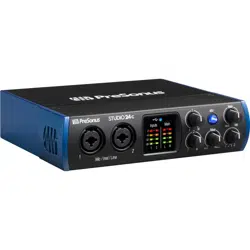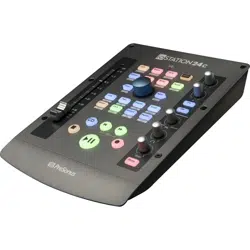
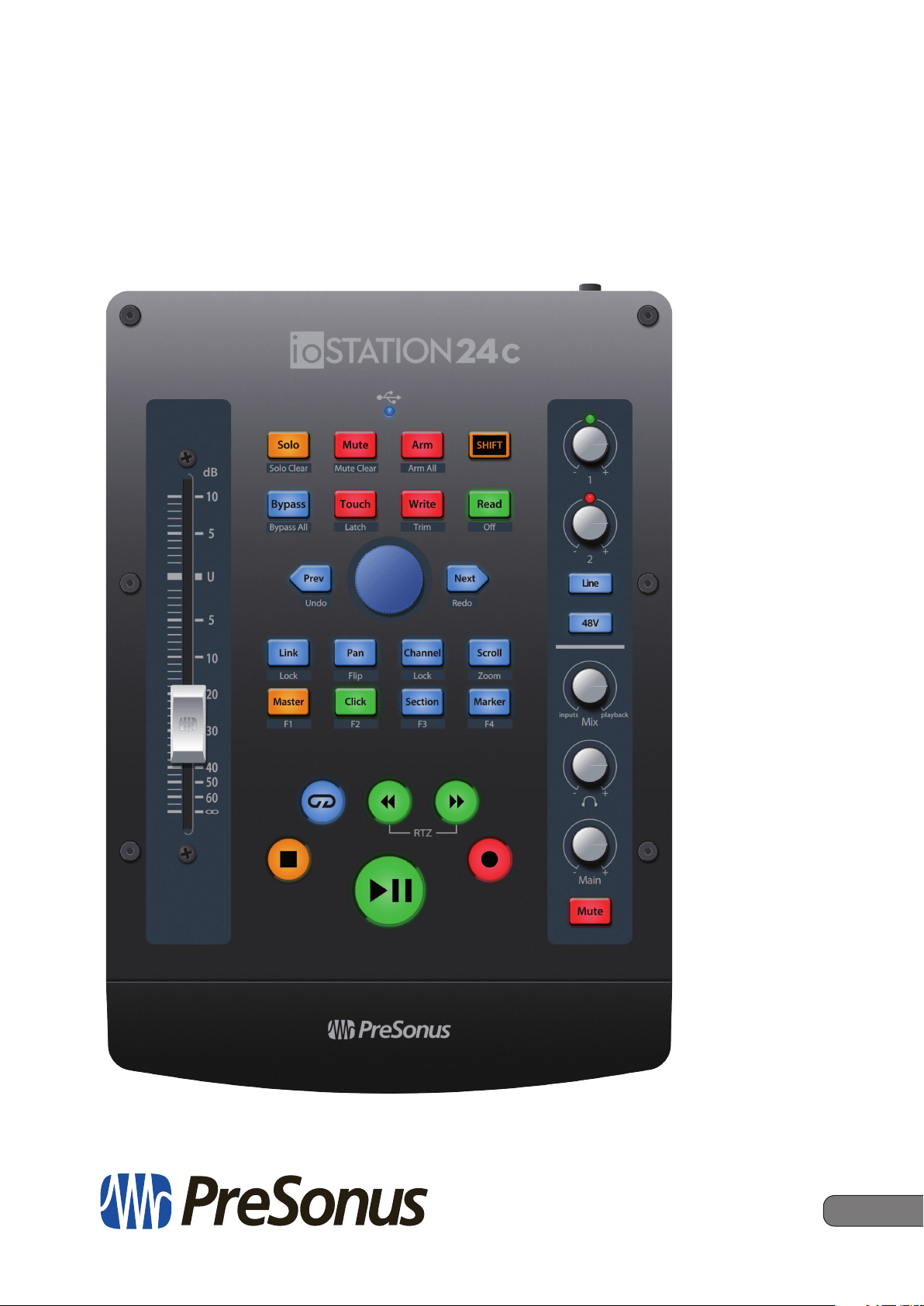
www.presonus.com
®
English
ioStation 24c
Audio Interface and Production Controller
Owner’s Manual

Table of Contents
1 Overview — 1
1.1 Introduction — 1
1.2 What’s in the Box? — 2
1.3 What’s in your My PreSonus Account — 3
1.4 Firmware Updates — 3
2 Hookup — 5
2.1 Back Panel Connections — 5
2.2 Top-Panel — 6
2.3 Connection Diagram — 7
3 Connecting to a Computer — 8
3.1 Installation for Windows — 8
3.1.1 Universal Control (Windows) — 8
3.1.2 Loopback Recording
(Windows only) — 10
3.2 Installation for macOS — 11
3.3 Using the ioStation 24c
with Popular Audio Applications — 11
4 Studio One — 13
4.1 Getting Started — 13
4.2 Channel Strip — 14
4.3 Transport Controls — 14
4.4 The Session Navigator — 15
4.4.1 F1-F4 Functions — 16
4.5 Automation Controls — 16
4.6 Control Link — 17
5 Pro Tools (HUI) — 18
5.1 Getting Started — 18
5.2 Channel Strip — 19
5.3 Transport Controls — 19
5.4 The Session Navigator — 20
5.5 Automation Controls — 20
6 Logic (MCU) — 21
6.1 Getting Started — 21
6.2 Channel Strip — 23
6.3 Transport Controls — 23
6.4 The Session Navigator — 24
6.5 Automation Controls — 25
6.6 Bypass — 25
7 Cubase / Nuendo (MCU) — 26
7.1 Getting Started — 26
7.2 Channel Strip — 28
7.3 Transport Controls — 28
7.4 The Session Navigator — 29
7.5 Automation Controls — 30
8 Live (MCU) — 31
8.1 Getting Started — 31
8.2 Channel Strip — 32
8.3 Transport Controls — 32
8.4 The Session Navigator — 33
8.5 Automation Controls — 34
8.6 Bypass — 34
9 Studio One Artist Quick Start — 35
9.1 Installation and Authorization — 35
9.2 Setting Up Studio One — 36
9.2.1 Configuring Audio Devices — 37
9.2.2 Configuring MIDI Devices — 37
9.3 Creating a New Song — 42
9.3.1 Configuring Your Audio I/O — 43
9.3.2 Creating Audio and Instrument
Tracks — 44
9.3.3 Recording an Audio Track — 45
9.3.4 Adding Virtual Instruments
and Effects — 46
10 Appendix — 48
10.1 Operation Modes — 48
10.2 ioStation 24c Multichannel Controller
MIDI Protocol — 48
10.2.1 SysEx — 48
10.2.2 Fader — 49
10.2.3 Session Navigator Encoder — 49
10.2.4 Buttons and LEDs — 49
1
1 Overview
1.1 Introduction
ioStation 24c Audio Interface and Production Controllers
Owner’s Manual
1 Overview
1.1 Introduction
Thank you for purchasing the PreSonus® ioStation 24c
audio interface and production controller.
Featuring a 2-in, 2-out USB-C™ compatible audio interface and ultra-
smooth, touch-sensitive, motorized fader; complete automation and
transport controls; and the unique Session Navigator, the ioStation 24c
is your all-in-one recording and mixing assistant—making tracking
and mixing in your favorite DAW application quick and easy.
Loaded with high-headroom, Class A XMAX microphone preamplifiers; robust
metering, high-definition 24-bit, 192 kHz conversion; and more, the ioStation
24c breaks new boundaries for music performance and production. All you
need is a computer with a USB C, 2.0, or 3.0 connection, a few microphones and
cables, powered speakers, and your instruments, and you are ready to record!
PreSonus Audio Electronics is committed to constant product improvement, and
we highly value your suggestions. We believe the best way to achieve our goal
of constant product improvement is by listening to the real experts: our valued
customers. We appreciate the support you have shown us through the purchase
of this product and are confident that you will enjoy your ioStation 24c!
About this manual: We suggest that you use this manual to familiarize
yourself with the features, applications, and correct connection procedures
for your ioStation 24c before trying to connect it to your computer.
This will help you avoid problems during installation and setup.
This manual describes the ioStation 24c behavior in the DAWs
for which each operation mode was designed. Please see Section
10.1 for applications not listed in the Table of Contents.
Throughout this manual, you will find Power User Tips that can quickly make you
an ioStation 24c expert and help you get the most out of your investment.
2
1 Overview
1.2 What’s in the Box?
ioStation 24c Audio Interface and Production Controllers
Owner’s Manual
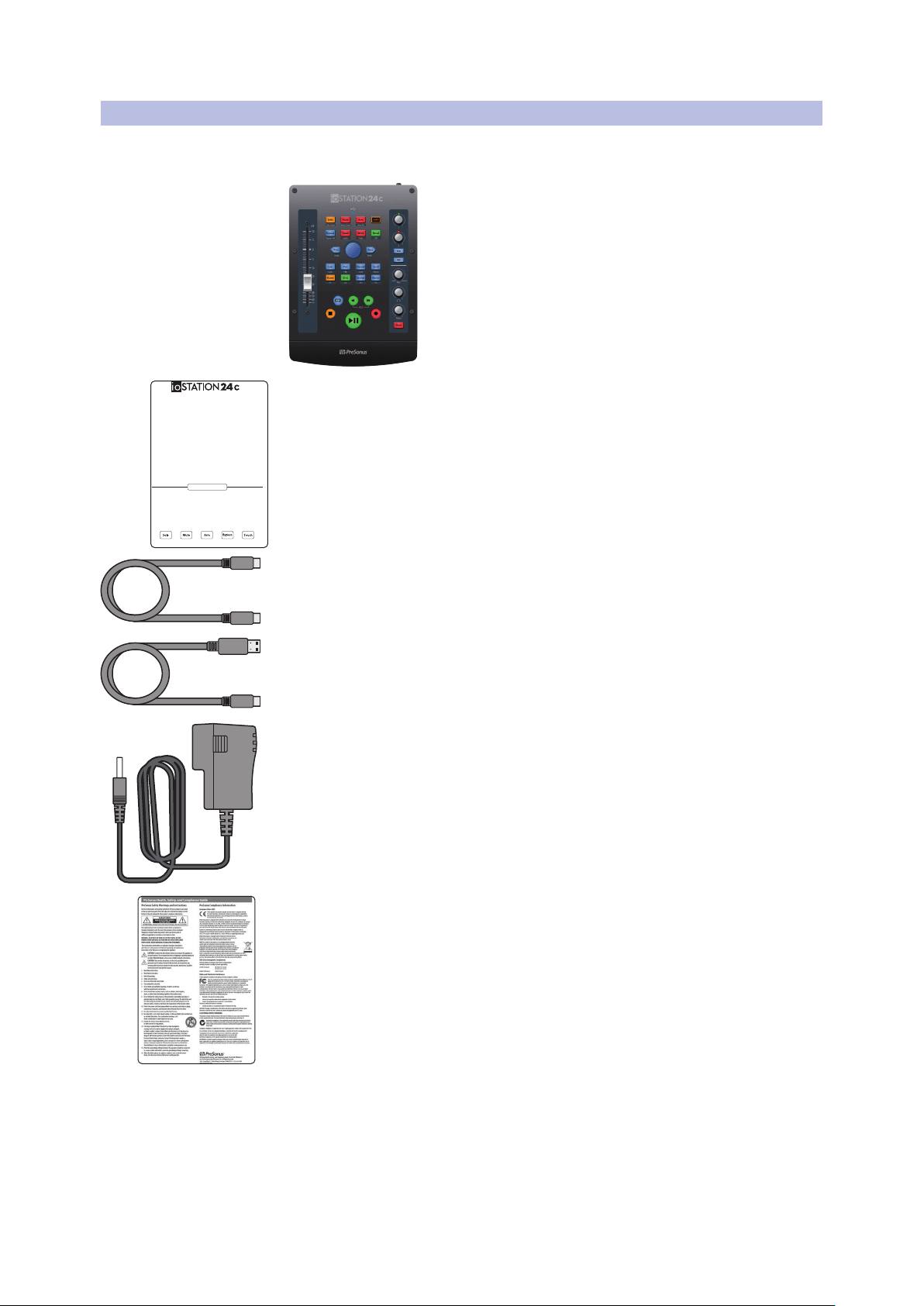
1.2 What’s in the Box?
Your ioStation 24c package contains the following:
ioStation 24c audio interface/production controller
Quick Start Guide
1m USB C cable
6’ (1m) USB A-C cable
External Power Supply
PreSonus Health, Safety, and Compliance Guide
Go online to my.presonus.
com and register your
serial number.
Whether you’re a musician
producing your latest
album or just getting
started with your first
podcast, the ioStation 24c
gives you all the tools you
need to record and mix
with the ease of hands-
on, tactile control. Once
you’ve registered your
ioStation 24c, you’ll be
able to download your
complimentary copy of
Studio One® as well as
additional plugins, content,
and more. Studio One is a
full-featured DAW designed
with ease of use at its core,
so you can quickly bring
musical ideas to sonic
reality. It’s our gift to you
for becoming a PreSonus
customer.
Please review your ioStation
24c User Manual available
at www.PreSonus.com
for complete information
on proper operation and
installation.
Navegue online a
my.presonus.com y
registre su número de
serie.
Tanto si es un músico
que está produciendo
su último álbum como
si acaba de empezar con
su primer podcast, el
ioStation 24c le ofrece
todas las herramientas
que necesita para grabar
y mezclar con la facilidad
de un control práctico y
táctil. Una vez que haya
registrado su ioStation
24c, podrá descargar su
copia gratuita de Studio
One®, así como plugins
adiconales, contenido y
mucho más. Studio One
es un DAW con todas las
funciones diseñado con
la facilidad de uso en su
núcleo, para que pueda
convertir rápidamente sus
ideas musicales en realidad
sonora. Es nuestro regalo
para usted por convertirse
en cliente de PreSonus.
Consulte el manual del
usuario de ioStation
24c disponible en www.
PreSonus.com para
obtener información
completa sobre su
correcto funcionamiento e
instalación.
Öffnen Sie die Webseite
My.PreSonus.com und
registrieren Sie Ihre
Seriennummer.
Egal, ob Sie als Musiker Ihr
neues Album produzieren
oder als Einsteiger Ihren
ersten Podcast erstellen
– ioStation 24c bietet
Ihnen alle notwendigen
Tools für die Aufnahme
und Mischung mit einem
einfachen Workflow
und physikalischen
Bedienelementen.
Nachdem Sie Ihr ioStation
24c registriert haben,
können Sie Studio
One® sowie zusätzliche
Plug-Ins, Inhalte etc.
kostenlos herunterladen.
Studio One ist eine
vollwertige DAW, die mit
ihrem unkomplizierten
Bedienkonzept dafür sorgt,
dass Sie Ihre musikalischen
Ideen schnell zum Klingen
bringen. Dies ist unser
Willkommensgeschenk für
Sie als PreSonus Kunden.
Weitere Informationen
zur Installation und
Konfiguration finden
Sie in der ioStation 24c
Bedienungsanleitung unter
www.presonus.com.
Allez sur my.presonus.
com et enregistrez votre
numéro de série.
Que vous soyez un
musicien produisant son
dernier album ou un
débutant aux prises avec
son premier podcast,
l‘ioStation 24c vous
apporte tous les outils
dont vous avez besoin
pour enregistrer et mixer
avec la facilité qu’offre un
contrôle tactile pratique.
Après avoir enregistré votre
ioStation 24c, vous pourrez
télécharger gratuitement
votre exemplaire gratuit
de Studio One® avec entre
autres des plugins et du
contenu supplémentaires.
Studio One est une station
de travail audio numérique
(STAN) complète conçue
pour que vous puissiez en
toute simplicité transformer
rapidement vos idées
musicales en réalité sonore.
C‘est notre cadeau pour
vous remercier d’être
maintenant un client
PreSonus.
Veuillez consulter le mode
d’emploi de votre ioStation
24c, disponible sur www.
PreSonus.com, pour des
informations complètes
sur son installation et son
utilisation.
登录 my.presonus.com
并注册您的序列号。
无论您是制作最新专辑的
音乐家还是刚刚开始使用
您的第一个播客,ioStation
24c都能为您提供录制和
混音所需的所有工具,轻
松实现触觉控制。您注册
了ioStation 24c之后就可
以下载Studio One®的免费
副本以及其他插件、内容
等。Studio One是一款功能
齐全的DAW,其设计易于使
用,因此您可以快速将音乐
创意带入声音现实。这是我
们为PreSonus的新客户献
上的礼物。
有关正确操作和安装
的完整信息,请查看
www.PreSonus.com上提供
的ioStation 24c用户手册。
Getting Started • Erste Schritte • Cómo empezar • Pour commencer • 开始
MCU (Live)
HUI (ProTools)
Studio One
MCU (Logic)
MCU (Cubase)
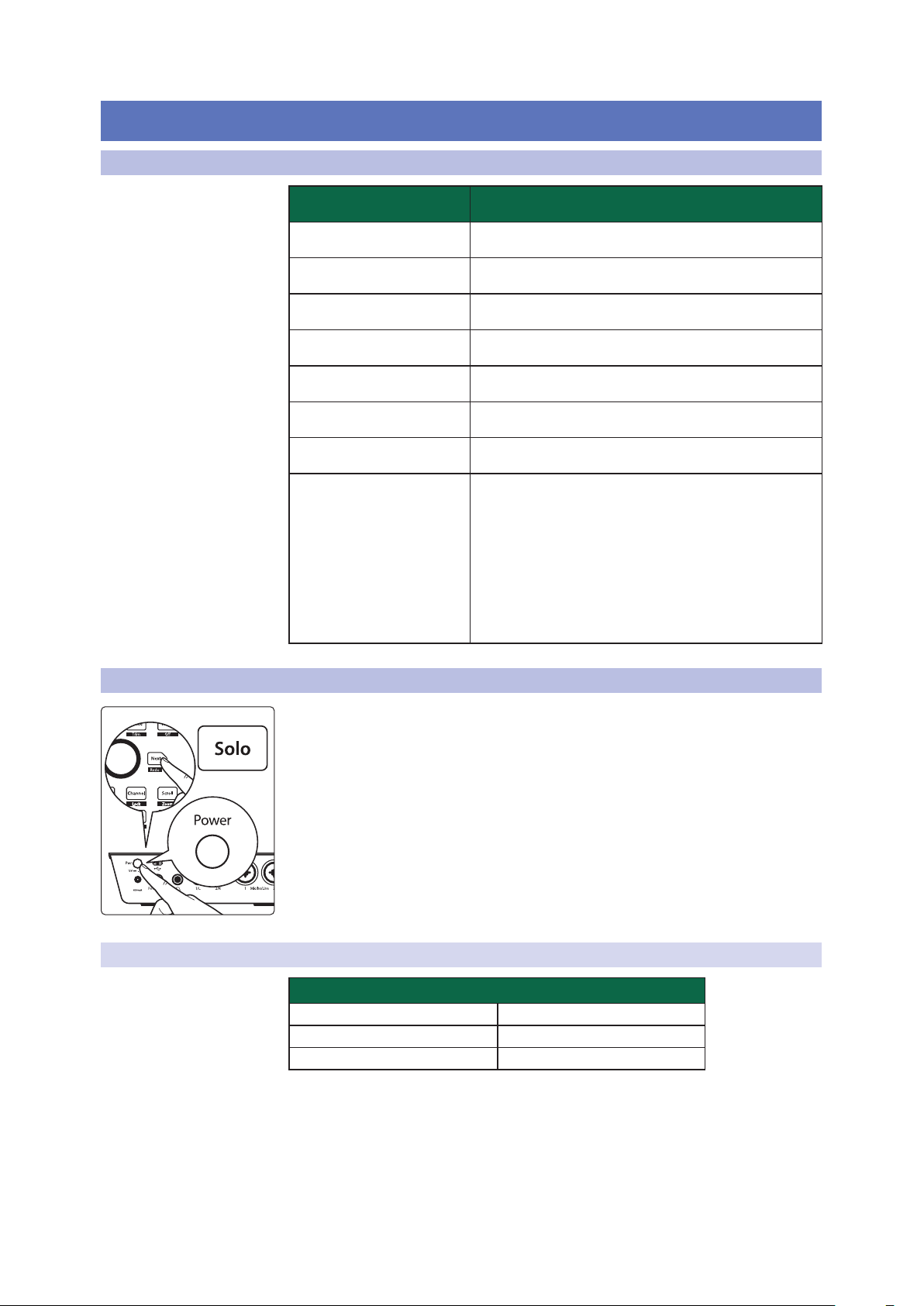
The ioStation 24c offers
customized operation
modes for five (5) major
DAWs. To select your
Operation Mode, press and
hold the NEXT button while
powering on your ioStation
24c, then press the button
for the desired mode (see
below).
El ioStation 24c ofrece
modos de operación
personalizados para cinco
(5) DAWs destacados. Para
seleccionar el modo de
funcionamiento, pulse
y mantenga pulsado el
botón SIGUIENTE mientras
enciende su ioStation 24c
y, a continuación, pulse el
botón del modo deseado
(véase más abajo).
ioStation 24c bietet
angepasste Betriebsmodi
für fünf (5) bekannte DAWs.
Um einen Betriebsmodus
auszuwählen, halten
Sie beim Einschalten
Ihres ioStation 24c die
NEXT-Taste gedrückt und
drücken dann die Taste des
gewünschten Modus (siehe
unten).
L’ioStation 24c offre des
modes de fonctionnement
personnalisés pour cinq (5)
grandes stations de travail
audio numériques (STAN).
Pour sélectionner votre
mode de fonctionnement,
pressez et maintenez la
touche NEXT pendant
que vous mettez votre
ioStation 24c sous tension,
puis pressez la touche
correspondant au mode
désiré (voir ci-dessous).
IoStation 24c为 五( 5)个 主
要DAW提供个性化操作模
式。要选择您的操作模式,
请在启动ioStation 24c时按
住NEXT按钮,然后按所需
模式的按钮(见下文)。
3
1 Overview
1.3 What’s in your My PreSonus Account
ioStation 24c Audio Interface and Production Controllers
Owner’s Manual
1.3 What’s in your My PreSonus Account
Once you register your ioStation 24c , you will be able to download the following:
Studio One Artist recording software and content
Universal Control (necessary for firmware updates)
Visit http://my.presonus.com to register your
ioStation 24c and download your software and license.
1.4 Firmware Updates
PreSonus is committed to constant product improvement. As part of this
commitment, we offer periodic firmware updates that add features, improve
functionality, and resolve issues that are discovered in the field. Because
of this, it is highly recommended that you download Universal Control
from your My PreSonus account after registering your ioStation 24c.
Note: At the time of this manual’s publication, a firmware update is required for full
functionality of your ioStation 24c. You must download and install Universal Control and
run the firmware update on your unit.
During installation, you will be given the option to install various
PreSonus audio drivers. No driver installation is required for macOS.
Windows users must install the ioStation 24c audio driver.
4
1 Overview
1.4 Firmware Updates
ioStation 24c Audio Interface and Production Controllers
Owner’s Manual
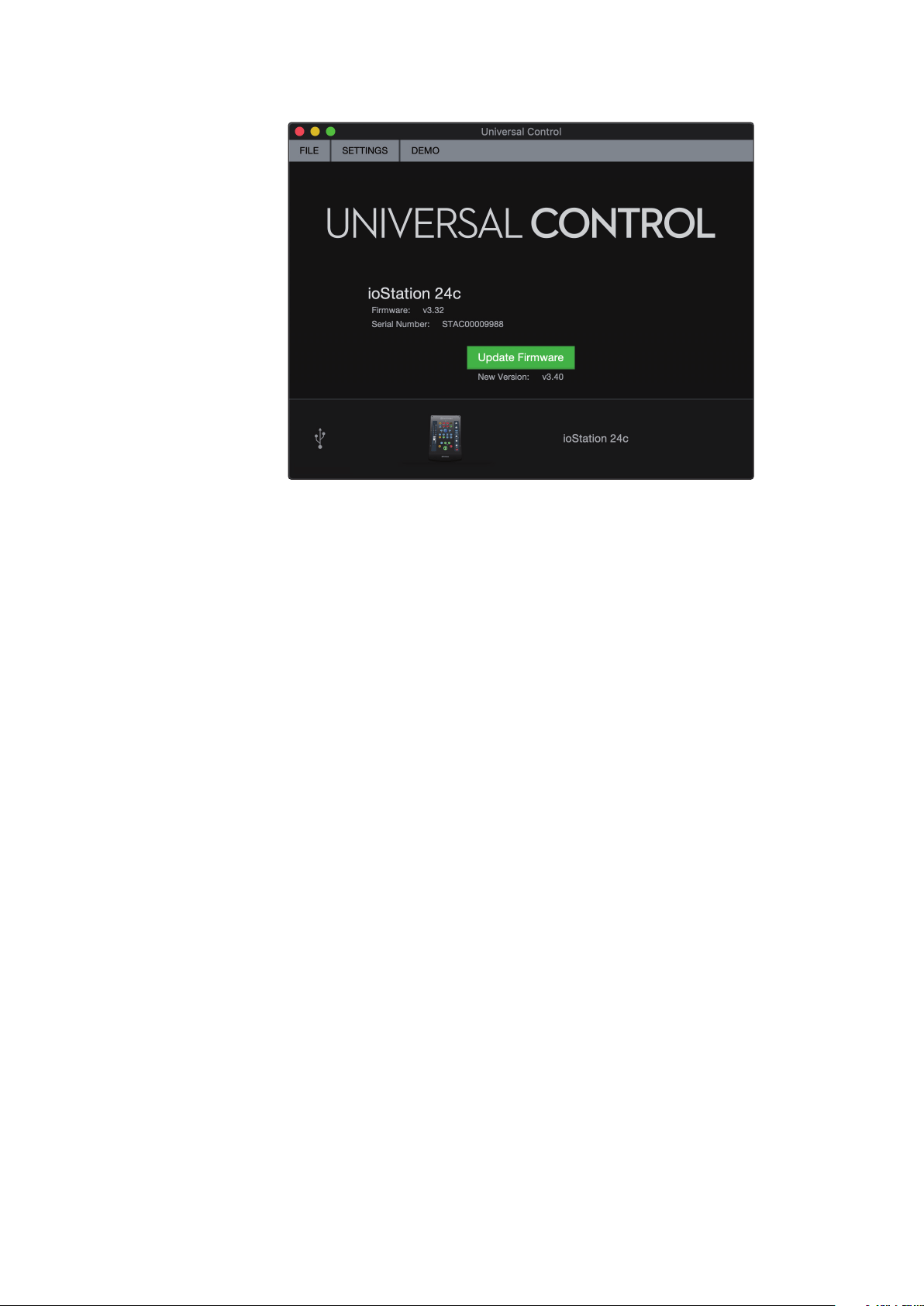
Once installed, connect your ioStation 24c to your computer.
Universal Control will alert you if there is new firmware available for your
ioStation 24c. Clicking on the Update Firmware button will begin the
update process. This process can take up to five minutes. At the end of the
firmware update, you will be prompted to reboot your ioStation 24c.
Once rebooted, your ioStation 24c fader may require recalibration. This is an
automated process. Do not interfere with or interrupt the fader calibration process.
Note: One of the Operating Modes must be selected to perform a firmware update.
5
2 Hookup
2.1 Back Panel Connections
ioStation 24c Audio Interface and Production Controllers
Owner’s Manual
2 Hookup
2.1 Back Panel Connections
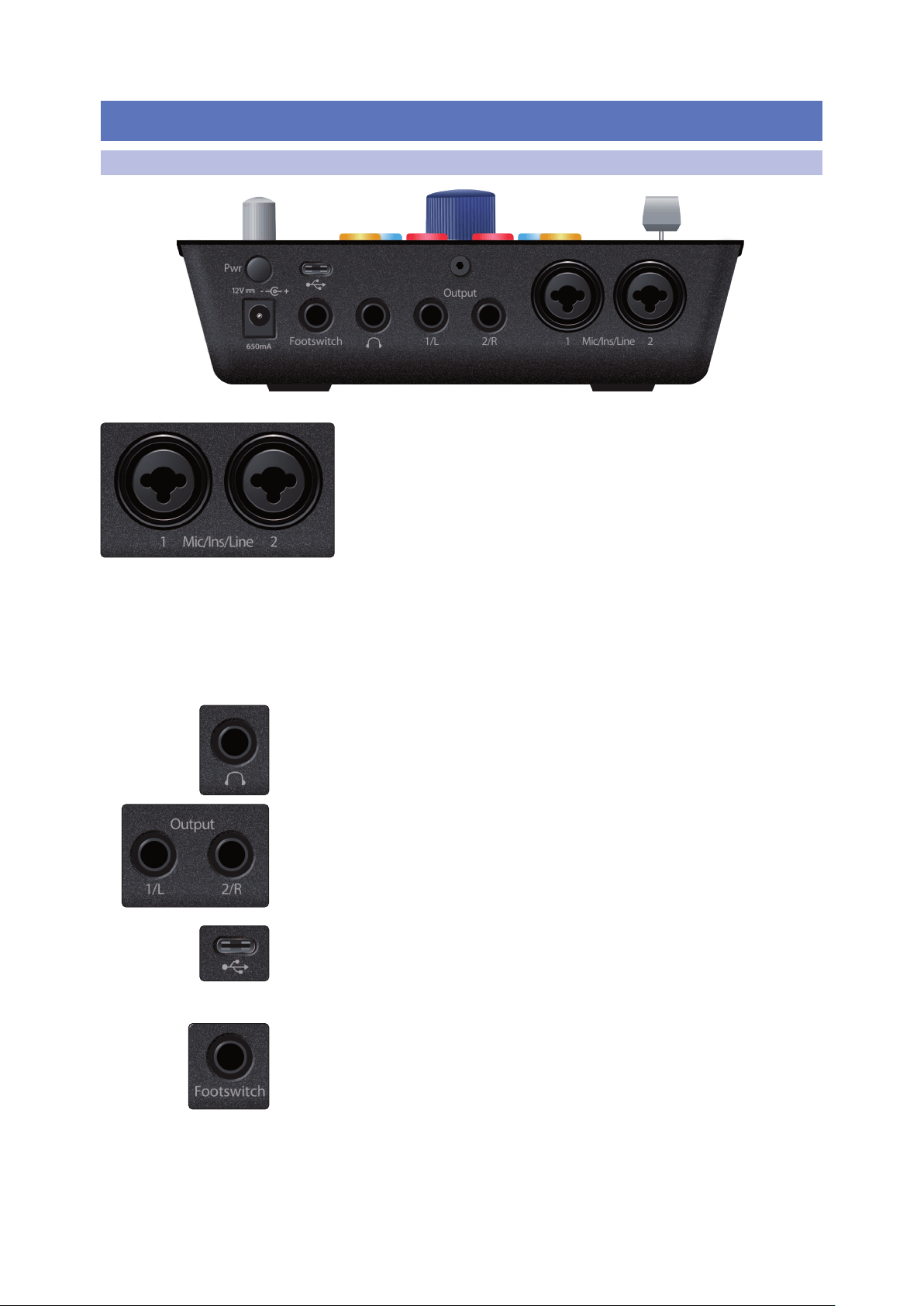
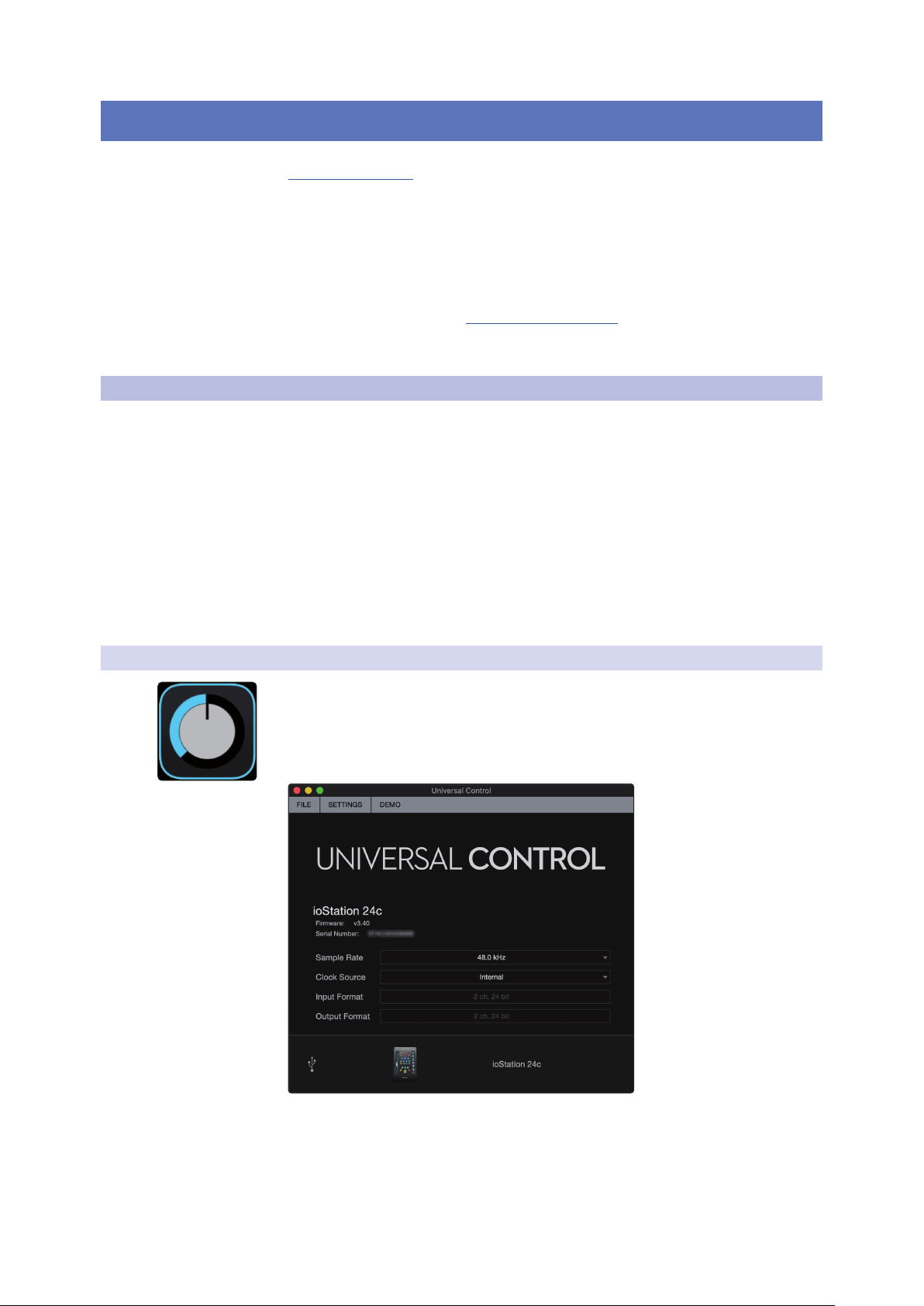
Mic/Ins/Line inputs Your ioStation 24c interface
is equipped with high-quality XMAX microphone
preamplifiers for use with all types of microphones.
Both input channels on your ioStation 24c interface are equipped
with combo jacks. This convenient connector accepts:
• a ¼-inch line-level phone plug (for synthesizers, signal processors, etc.)
• a ¼ passive instrument cable (for guitar, bass, etc.),
• or an XLR plug.
Please note: As with any audio input device, plugging in a microphone or an instrument,
or turning phantom power on or off, will create a momentary spike in the audio output.
Because of this, we highly recommend that you turn down the channel trim before
changing connections or turning phantom power on or off. This simple step will add
years to the life of your audio equipment.
Headphone Output. The rear-panel headphone output mirrors the same streams as
the Main left/right outputs.
Main Outs. These are the Main outputs for the ioStation 24c. The output level of the
Main outputs is controlled by the Main level control on the front of the unit. Playback
streams 1 and 2 are routed to these outputs.
USB C Port. Use this port to connect your ioStation 24c to your computer. While
the ioStation 24c connects using USB C, it is fully compatible with USB 2.0 and 3.0
connections. Use the USB C to A cable that came with your ioStation 24c if your
computer has a USB 2.0 or 3.0 connection rather than a USB C connection. Do not
connect your ioStation 24c to a USB 1.1 or lower connection on your computer.
Footswitch. Use this port to connect a footswitch to your ioStation 24c to trigger
start/stop or recording punch-ins. The ioStation 24c will auto-detect the footswitch
polarity upon power-up and conform to the footswitch that is connected to it. Either
a momentary or a latching switch can be used.
6
2 Hookup
2.2 Top-Panel
ioStation 24c Audio Interface and Production Controllers
Owner’s Manual
2.2 Top-Panel
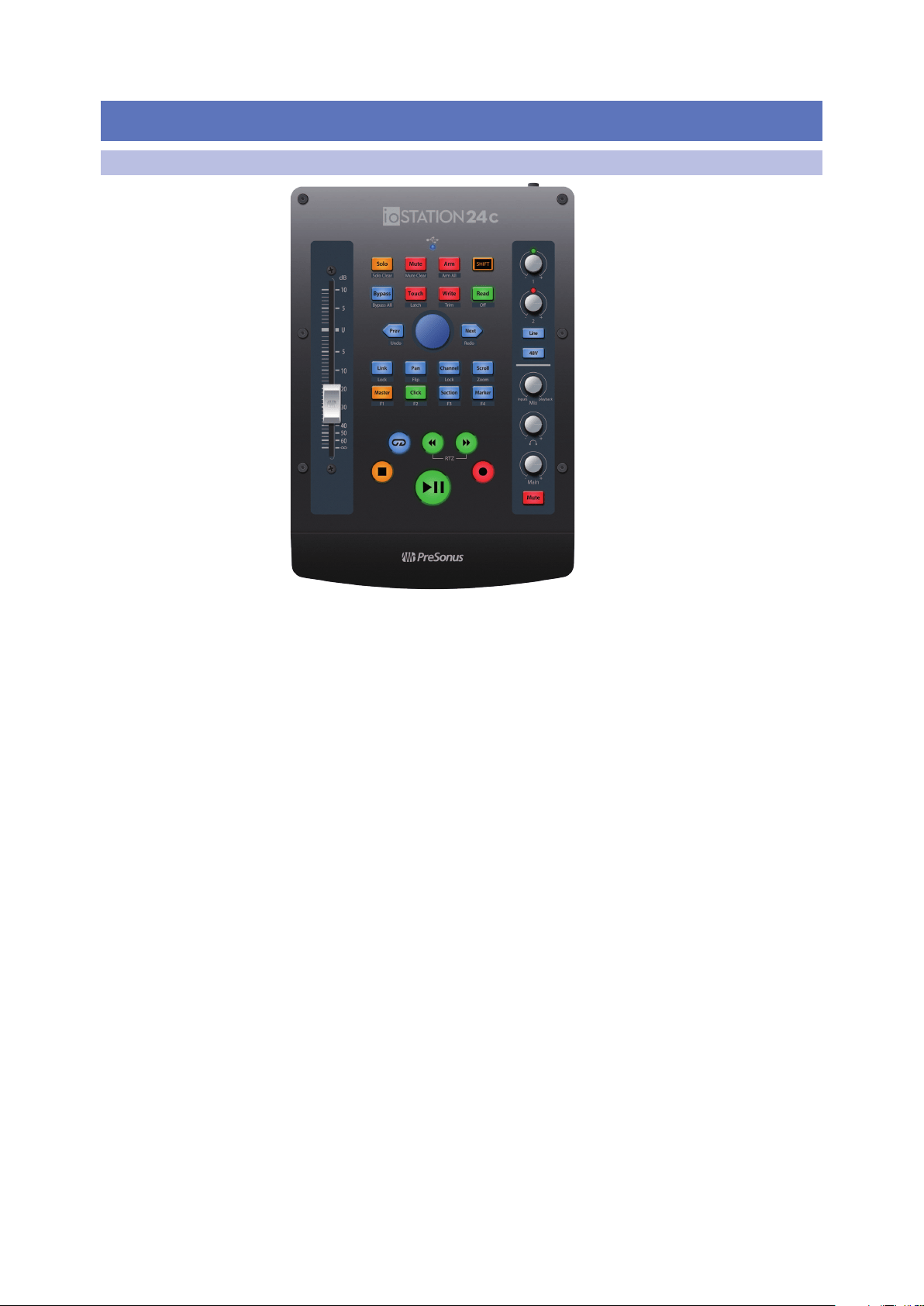
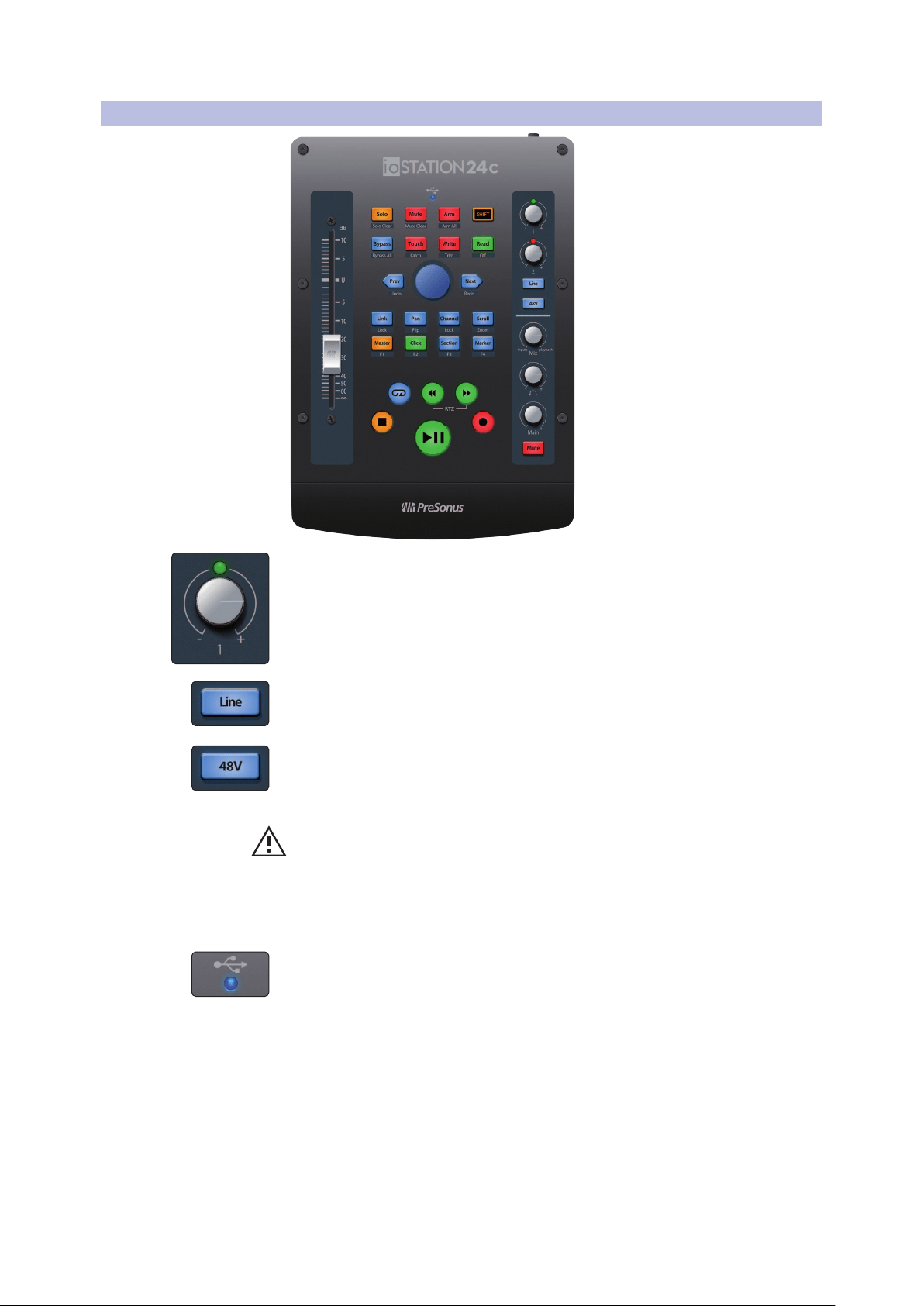
Input Gain Controls. These knobs provide 80 dB of variable gain
for Mic and Instrument; 40 dB of range for Line (-20 to +20)
Clip Indicators. The red Clip LED will illuminate when your input signal reaches -0.5
dBFS. At this level, the signal will begin to overload the analog-to-digital converters
and exhibit signs of clipping. Use the gain controls to keep the signal below this level.
Line. Use the Line switch to toggle between instrument-level
and line-level sources. It will light up blue when selected; light off
indicates high-impedence instrument-level compatibility.
48V The ioStation 24c provides 48V phantom power for the microphone
inputs. Pressing the 48V button switches phantom power on and off
for all microphone inputs; the button will illuminate in blue when
phantom power is available on the microphone preamplifiers.
WARNING: Phantom power is only required for condenser microphones and can
severely damage some dynamic mics, especially ribbon mics. Therefore, switch
phantom power off when it is not required. Consult the user documentation
that came with your microphone before engaging phantom power.
XLR connector wiring for phantom power:
Pin 1 = GND Pin 2 = +48V Pin 3 = +48V
Sync LED. This light indicates if your ioStation 24c is in sync with your computer.
When no sync is available, this light will flash red.
7
2 Hookup
2.3 Connection Diagram
ioStation 24c Audio Interface and Production Controllers
Owner’s Manual
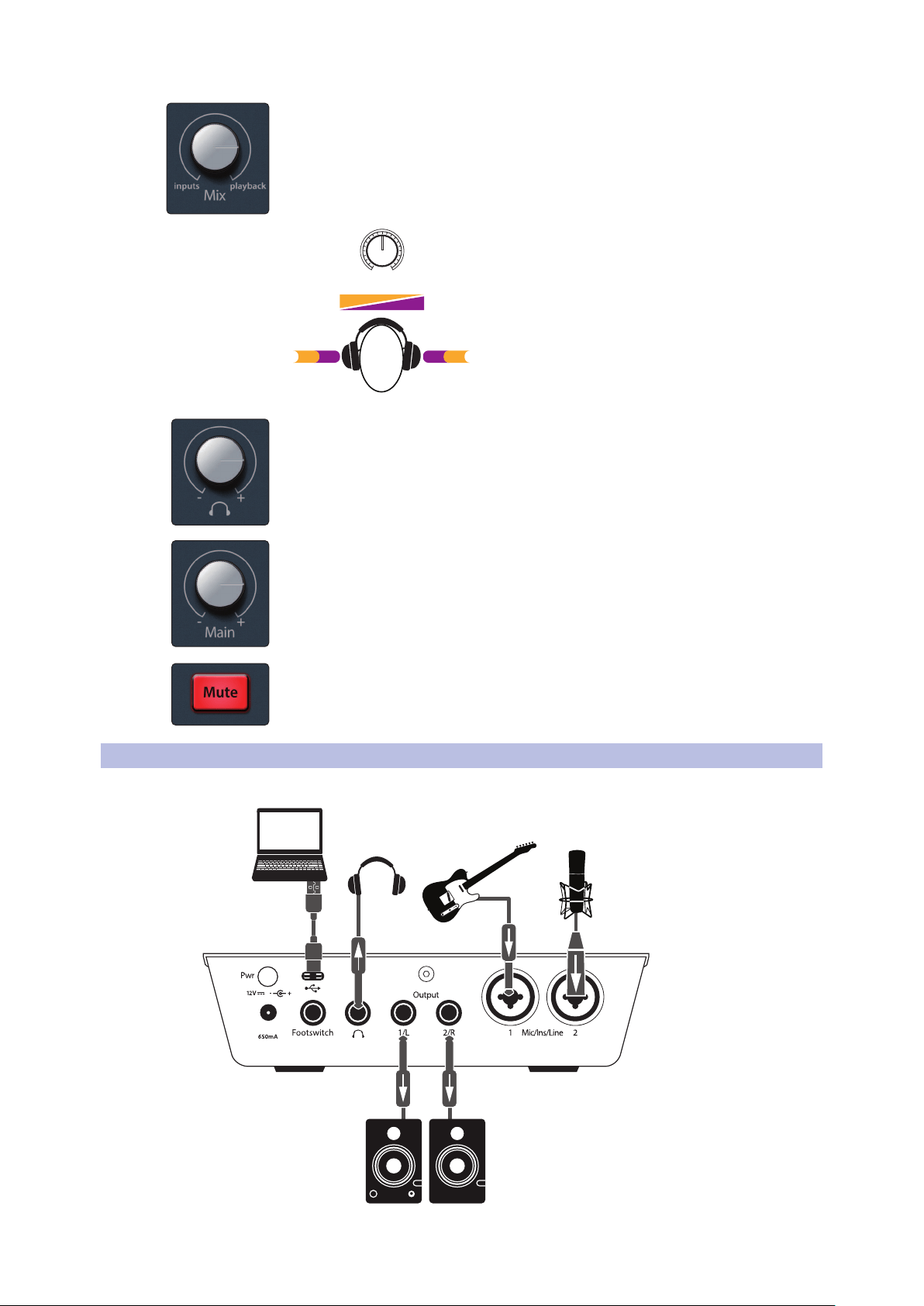
Mix. The Mix knob allows you to blend your input signals with the playback streams
from your computer so that you can monitor your input signals without any latency
(delay). If the knob is positioned at 12 o’clock, the input signal and the playback
stream will be equally balanced. Turning the knob to the left will increase the level
of the input signal relative to the playback stream; turning to the right will increase
the level of the playback stream relative to the input signal as illustrated below:
Mixer
PlaybackInputs
Inputs
Playback
Playback InputsPlaybackInputs
Headphone Level. This knob controls the level of the rear panel headphone output.
Main. The main knob controls the output level for the main left/right outputs on the
back of your ioStation 24c and has a range of -80 dB to 0 dB. This control provides
attenuation only.
Mute. This button mutes the Main Outputs. The headphone output is unaffected by
this mute switch.
2.3 Connection Diagram
8
3 Connecting to a Computer
3.1 Installation for Windows
ioStation 24c Audio Interface and Production Controllers
Owner’s Manual
3 Connecting to a Computer
Before connecting your ioStation 24c to a computer, please visit
www.presonus.com to verify the latest system requirements.
Note: The speed of your processor, amount of RAM, and capacity, size, and speed of your
hard drives will greatly affect the overall performance of your recording system. A faster
processor and more RAM can reduce signal latency (delay) and improve overall
performance.
The Windows ASIO driver, and Universal Control installer for macOS and
Windows are available for download from your MyPreSonus user account.
To begin, you must first visit http://my.presonus.com, create or log into your
user account, and register your ioStation 24c. Once registered, all software
downloads will be available from within your MyPreSonus user account.
3.1 Installation for Windows
Download the Universal Control installer from your MyPreSonus account.
Connect your ioStation 24c to an available USB C, 2.0, or 3.0 port and
launch the installer. The installer will take you through each step of the
installation process. This application will install the ASIO and WDM drivers,
as well as Universal Control. Please read each message carefully.
It is recommended that you quit all applications before you start the installation.
The Universal Control installer will take you through each step
of the installation process. Please read each message carefully
so that you do not connect your ioStation 24c too soon.
Power User Tip: It is recommended that you temporarily disable or turn off any anti-virus
programs you have running to prevent installation issues.
3.1.1 Universal Control (Windows)
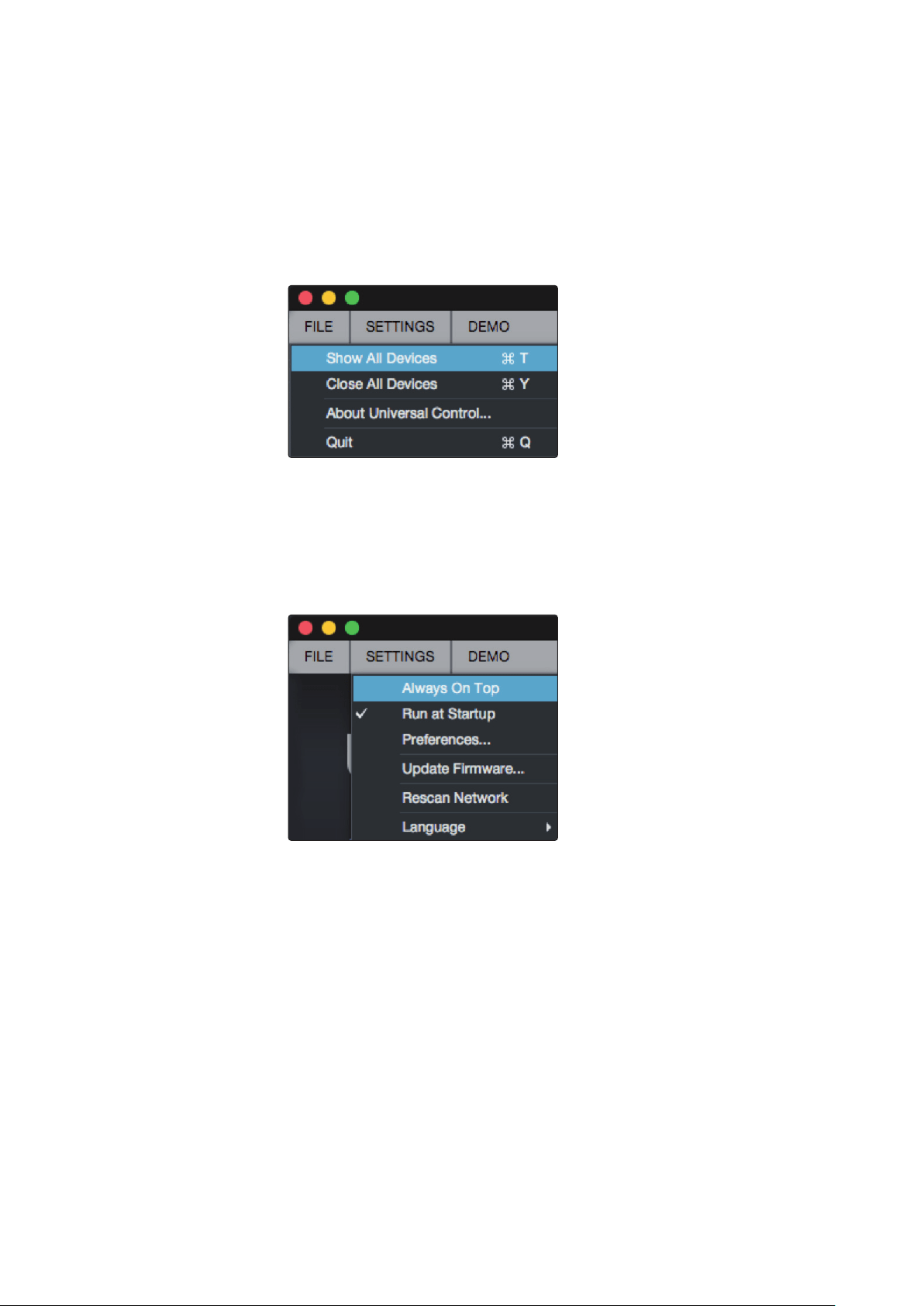
Universal Control is a powerful hardware-management application for all
PreSonus interface products. It allows you to view any PreSonus interface
product connected to your computer or your computer’s network.
When Universal Control is launched, you will see the Launch window.
From this window, you can manage all the ASIO driver settings.
Sample Rate. Changes the sample rate.
You can set the sample rate to 44.1, 48, 88.2, 96, 176.4, or 192 kHz. A higher
sample rate will increase the fidelity of the recording but will increase the file
size and the amount of system resources necessary to process the audio.
9
3 Connecting to a Computer
3.1 Installation for Windows
ioStation 24c Audio Interface and Production Controllers
Owner’s Manual
Block Size. Sets the buffer size.
From this menu, you can set the buffer size. Lowering the buffer size will
lower latency; however, this will also increase performance demands
on your computer. In general, you will want to set the buffer size as
low as your system can safely support. If you begin to hear pops, clicks,
or distortion in your audio path, try raising the buffer size.
Loopback (Windows only). The ioStation 24c ASIO driver provides
two loopback streams to record audio from one application
to another. See Section 3.1.2 for more information.
File Menu. Manages devices connected to Universal Control.
• Show All Devices. Launches all control windows for all
supported devices connected to your computer.
• Close All Devices. Closes all open control windows.
• About Universal Control. Displays version and build date information.
• Quit. Quits the Universal Control application and all hardware control windows.
Settings Menu. Provide customization options to
personalize your Universal Control experience.
• Always on Top. Keeps the Universal Control Launch window on
top whether it is the currently active application or not.
• Run at Startup. Launches Universal Control
automatically when your computer boots.
• Preferences. Sets language and appearance options (see below).
• Rescan Network. Scans the network and local transport bus
(USB or FireWire) for all supported PreSonus products.
• Language. Sets the language (English, French, German,
Korean, Simplified Chinese, or Spanish).
10
3 Connecting to a Computer
3.1 Installation for Windows
ioStation 24c Audio Interface and Production Controllers
Owner’s Manual
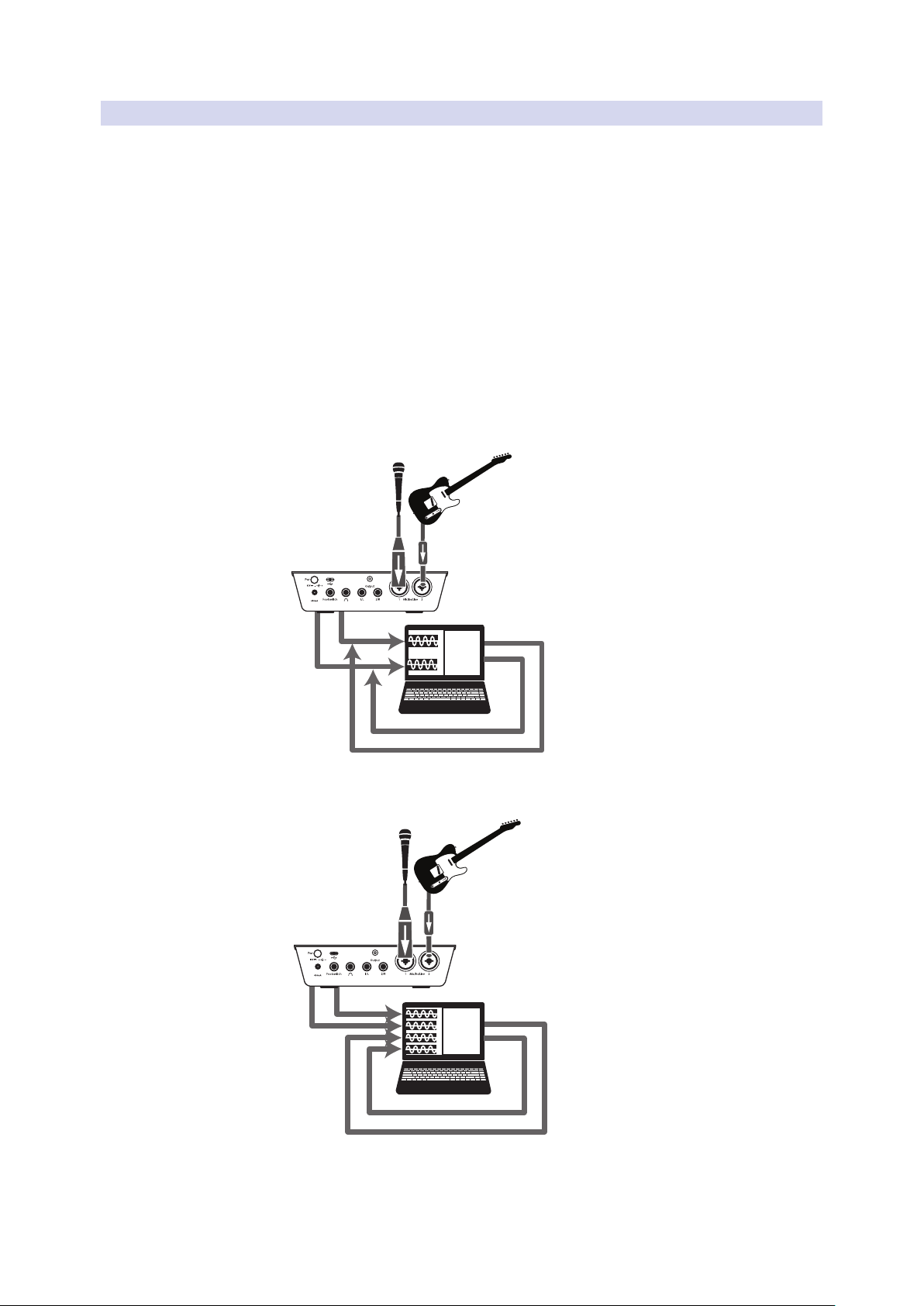
3.1.2 Loopback Recording (Windows only)
The Windows drivers for the ioStation 24c provides two virtual streams
that allow you to record the output of one audio application in another
application. Loopback can be useful in a variety of situations:
• Recording the audio from a video game or YouTube
video for a podcast or livestream.
• Recording a vocal in real time over a karaoke track
played from a web browser or media player.
Power User Tip: Because the ioStation 24c is a class compliant Core Audio device, these
virtual streams are not available in macOS. However, there are several third-party
applications that provide this functionality in macOS.
From Universal Control, you can enable or disable Loopback and pick
the streams on which the loopback audio will be recorded.
When Loopback is enabled and “Merge Loopback with 1/2” is selected,
the audio from another application will be recorded with the audio
source connected to analog inputs 1 and 2 on your ioStation 24c.
Media Player
Web Browser
Etc.
When Loopback is enabled and “Dedicated Loopback Inputs” is selected, the audio
from another application will be recorded on the last pair of driver inputs (3/4).
Media Player
Web Browser
Etc.
Power User Tip: When using either option, you will need to select Outputs 1 and 2 in the
audio application you want to record. Make sure to select Outputs 3 and 4 in the audio
application in which you’re recording to avoid a feedback loop.

11
3 Connecting to a Computer
3.2 Installation for macOS
ioStation 24c Audio Interface and Production Controllers
Owner’s Manual
3.2 Installation for macOS
Your ioStation 24c is a class-compliant Core Audio device
in macOS. No driver installation is necessary.
3.3 Using the ioStation 24c with Popular Audio Applications
Complete setup instructions for Studio One Artist and a brief tutorial on
its features can be found in Section 9 of this manual. However, you can
use your ioStation 24c with any audio-recording application that supports
Core Audio or ASIO. Please consult the documentation that came with
your audio application for specific instructions on how to select the
ioStation 24c driver as the audio-device driver for your software.
Below are basic driver-setup instructions for a few popular audio applications.
Steinberg Cubase 4+
1. Launch Cubase.
2. Go to Devices | Device Setup.
3. Select “VST Audio System” from the Devices column in the Device Setup.
4. Select your ioStation 24c from the ASIO Driver dropdown list.
5. Click “Switch” to begin using the Studio-series Driver.
6. Once you have successfully changed the driver, go to Devices |
VST Connections to enable your input and output buses.
Ableton Live 5+
1. Launch Ableton Live.
2. Go to Options | Preferences | Audio.
3. Choose Driver Type: ASIO | Audio Device: ASIO ioStation 24c
4. Go to Input Config: Enable and select the desired Input channels.
5. Go to Output Config: Enable and select the desired Output channels.
6. You may now select your ioStation 24c inputs and
outputs for each track created in Live.
Apple Logic Pro/Express 7+:
1. Launch Logic Pro/Express.
2. Go to Logic | Preferences | Audio.
3. Click on the Devices Tab.
4. On the Core Audio tab, check Enabled.
5. Select your ioStation 24c from the device menu.
6. You will be asked if you’d like to relaunch Logic. Click “try (re)launch.”
7. Your ioStation 24c features custom I/O labels for faster work flow. To
enable these labels for use in Logic, go to Options | Audio | I/O Labels.
8. The second column in the pop-up window will be named
“Provided by Driver.” Activate each of these labels for your
ioStation 24c. When you are done, close this window.
9. You are now ready to use your ioStation 24c.

12
3 Connecting to a Computer
3.3 Using the ioStation 24c with Popular Audio Applications
ioStation 24c Audio Interface and Production Controllers
Owner’s Manual
Avid Pro Tools 9+
1. Launch Pro Tools.
2. Got to Setup | Hardware and select your ioStation 24c
from the Peripherals list. Click OK.
3. Go to Setup | Playback Engine and select your ioStation 24c
from the menu at the top of the window. Click OK.
Cakewalk by Bandlab
1. Launch Cakewalk by Bandlab.
2. Go to Edit | Preferences
3. In the Devices tab, uncheck the output driver for the Generic
Low Latency Driver. This is usually on by default, and will
not let you check anything unless it’s unchecked.
4. Check all the ioStation 24c input and output driver boxes
5. Click the “Apply” and “OK” buttons.
6. Click the Driver Settings tab
7. Set the Playback Timing Master to: “ioStation 24c Main Out Left”
8. Set the Record Timing Master to: “ioStation 24c Main Out Right”
9. Click the “Apply” and “OK” buttons.
13
4 Studio One
4.1 Getting Started
ioStation 24c Audio Interface and Production Controllers
Owner’s Manual
4 Studio One
4.1 Getting Started
By default, your ioStation 24c is configured for Studio One. No further device setup
is required.
If you have changed the ioStation’s Operation Mode and would like to
return to using it with Studio One, press and hold the NEXT button while
powering on, then press the Solo button to enable Studio One.
Note: In addition to Studio One, this operation mode should be used with other DAWs
that provide native ioStation 24c support. A complete list of native-support DAW
applications is available at www.presonus.com.
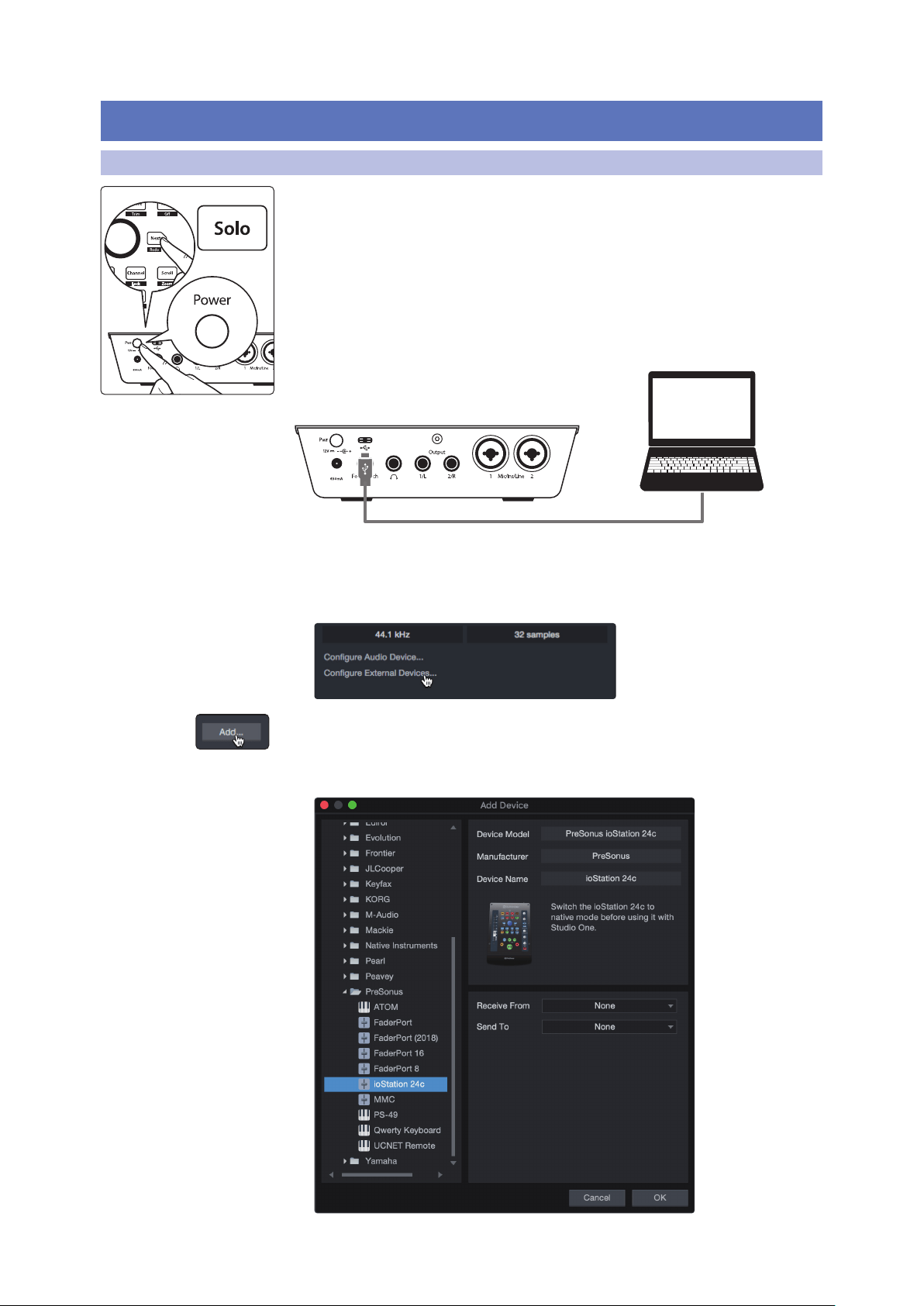
Studio One will autoconfigure when an ioStation 24c is
recognized. In the event this does not occur, please use the following
instructions to configure your ioStation 24c as a controller:
1. From the Start page, click on the Configure External Devices link.
2. Click the Add button.
3. From the manufacturers list at the left, click on
PreSonus and then select ioStation 24c.
Studio One
14
4 Studio One
4.2 Channel Strip
ioStation 24c Audio Interface and Production Controllers
Owner’s Manual
Set the Send To and Receive From fields to “ioStation 24c”
Your ioStation 24c is now ready for use.
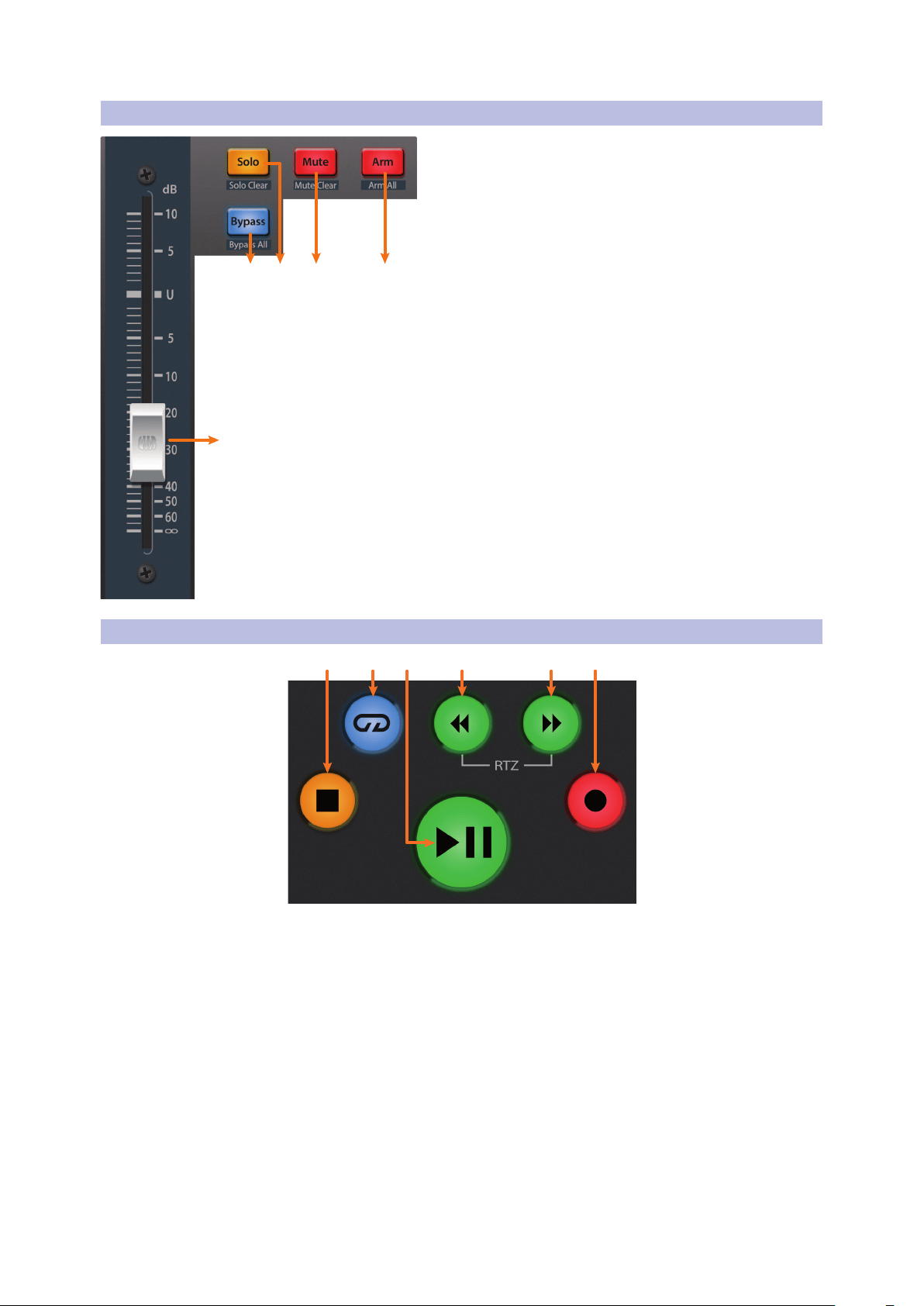
4.2 Channel Strip
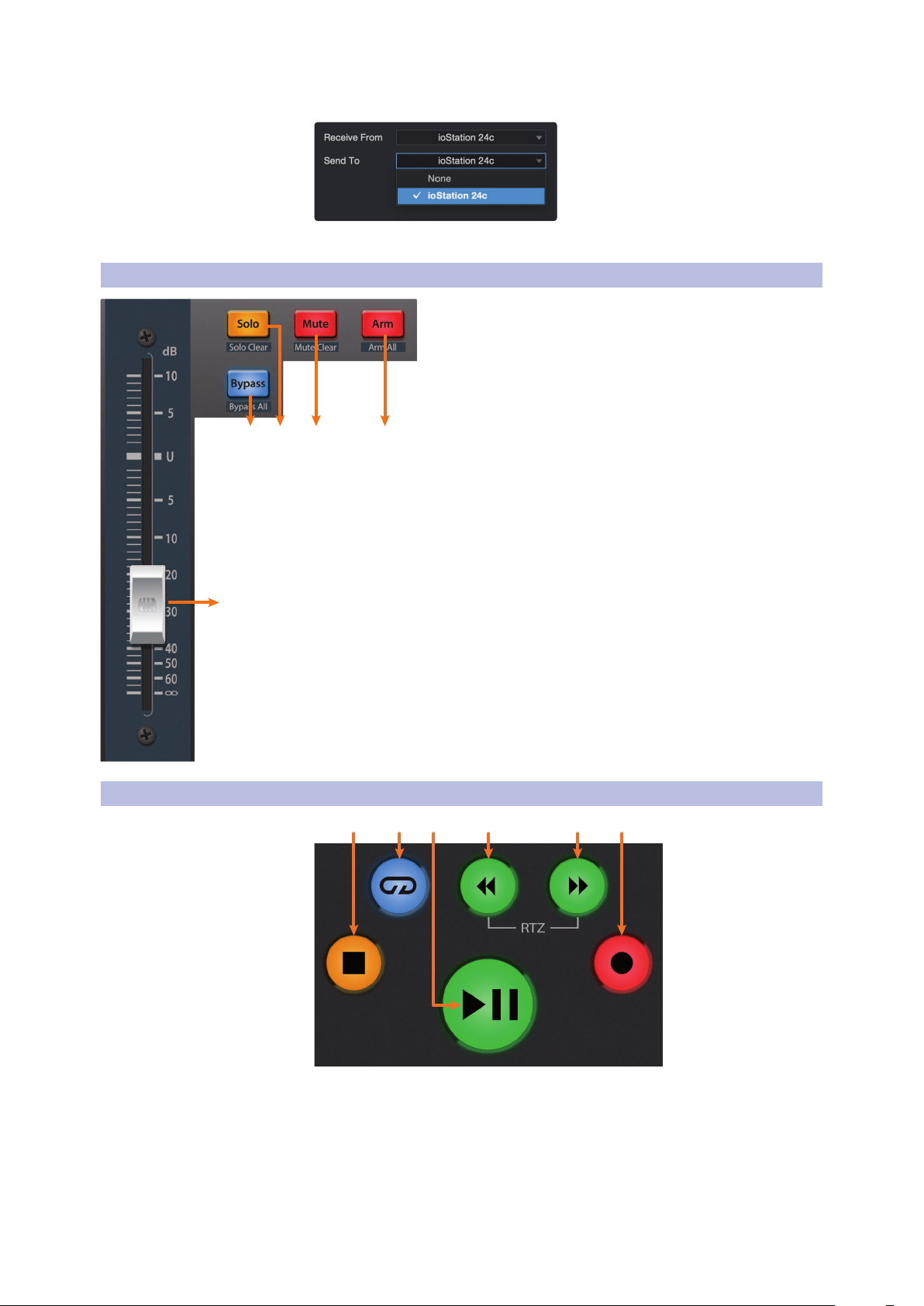
1. Arm. Pressing the Arm button will allow you to arm track
for recording the currently selected track in Studio One.
Press with SHIFT to arm all tracks for recording.
2. Mute. Mutes the corresponding channel’s output signal.
Press and hold to mute momentarily. Press with SHIFT for
Mute Clear.
3. Solo. Isolates the corresponding channel’s output signal
in the mix. Press and hold to solo momentarily. Press with
SHIFT for Solo Clear.
4. Bypass / Bypass All. Press the Bypass button to bypass
every plug-in on the selected channel. Press SHIFT +
Bypass to disable every plug-in in the Session.
5. Touch-Sensitive Fader. This 100 mm motorized fader can
be used to control volume levels and panning in Pan Flip
mode. See Section 4.4 for details.
4.3 Transport Controls
21 43 5 6
1. Stop. Stops playback. Press twice to return playback-cursor to zero.
2. Loop. Engages / disengages Looping.
3. Play / Pause. Starts playback at the current playback-
cursor position. Press again to pause playback.
4. Rewind. Press and hold for continuous rewind. Press the Rewind
and Fast Forward buttons simultaneously to Return to Zero.
2 134
5
15
4 Studio One
4.4 The Session Navigator
ioStation 24c Audio Interface and Production Controllers
Owner’s Manual
5. Fast Forward. Press and hold for continuous fast forward.
6. Record. Press to start recording at the current playback-
cursor position for record-enabled tracks.
4.4 The Session Navigator
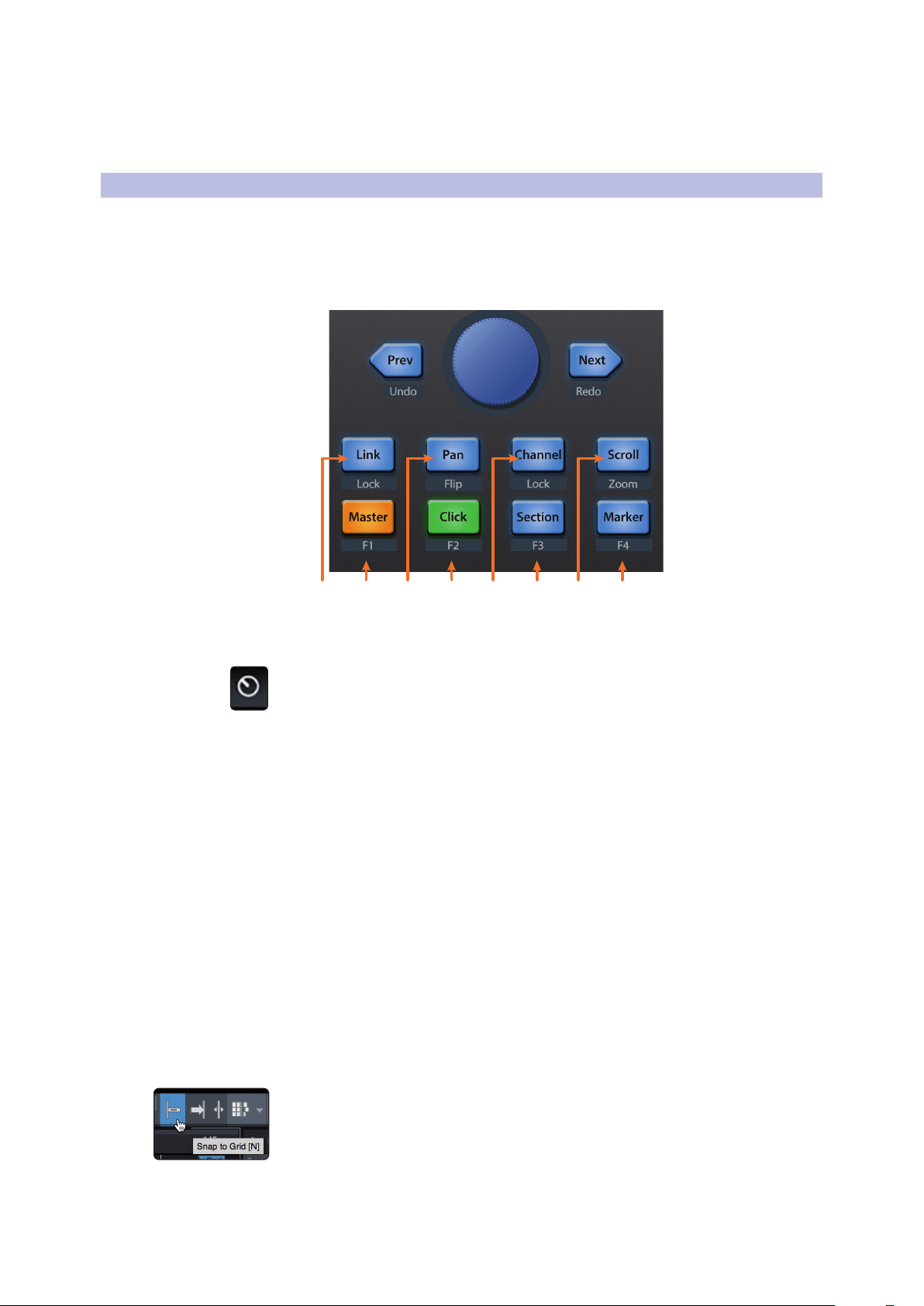
The Session Navigator provides quick navigation and session
controls. Each button alters the functions of the push-button
encoder and the Next and Prev buttons on either side.
Pressing SHIFT + Prev will Undo the last action. Pressing
SHIFT + Next will Redo the last action.
21 43 65 87
Link. Encoder controls any parameter beneath your mouse.
Navigation buttons select Next and Previous tracks respectively.
To lock a parameter to this encoder, press SHIFT + Link.
Power User Tip: The Channel Editor is a powerful feature in Studio One Professional that
allows you to map multiple parameters to the same control, with independent range/
polarity/curve controls. Additional XY vector pads can be assigned with individual
parameters; and much more.
1. Master. Encoder controls the Master level. Push the Encoder to reset the Master
level to 0 dB. While in this mode, the navigation buttons will control banking.
Press SHIFT + Master to enable F1 User function. See Section 4.4.1 for details.
2. Pan. Encoder controls panning. Navigation buttons scroll
through track list. Push the Encoder to reset the level to 0 dB.
Press SHIFT + Pan to use the fader to control panning.
3. Click. Turns the metronome on/off. The metronome can be
engaged or disengaged while any mode is active. Press SHIFT +
Click to enable F2 User function. See Section 4.4.1 for details.
4. Channel. Encoder controls individual channel scrolling. Navigation buttons
adjust the currently visible fader on the ioStation 24c by one channel. Press
SHIFT + Channel to lock the channel controls to the currently selected track.
Note: Channel Lock is only available in Studio One v4 and higher.
5. Section. Encoder nudges the selected event. Use the navigation buttons
to navigate through the events on the Arranger track. Press SHIFT +
Section to enable F3 User function. See Section 4.4.1 for details.
Power User Tip: Enable Snap to Grid for coarse nudging. Disable it for fine tuning.
16
4 Studio One
4.5 Automation Controls
ioStation 24c Audio Interface and Production Controllers
Owner’s Manual
6. Scroll / Zoom. Encoder controls timeline scrolling. Push the encoder to
fit the timeline to the window size. Use the navigation buttons to scroll
through the track list. Press SHIFT + Scroll to enable Zooming. While Zoom
is active, encoder controls horizontal zooming. Navigation buttons control
vertical zooming. Press the encoder to undo zooming in both directions.
7. Marker. Encoder moves the playback cursor in the Timeline. Use the navigation
buttons to scroll through markers. Press Encoder to drop a marker. Press
SHIFT + Marker to enable F4 User function. See Section 4.4.1 for details.
4.4.1 F1-F4 Functions
Using Shift plus the lower four Session Navigator button will access alternate
functions for your ioStation 24c. By default, these are assigned as follows:
• F1. Open Inspector
• F2. Open Editor
• F3. Open Mixer
• F4. Open Browser
Power User Tip: The default assignments for the Function buttons can be customized
using the ioStation 24c device editor. See Section 4.6 for more information.
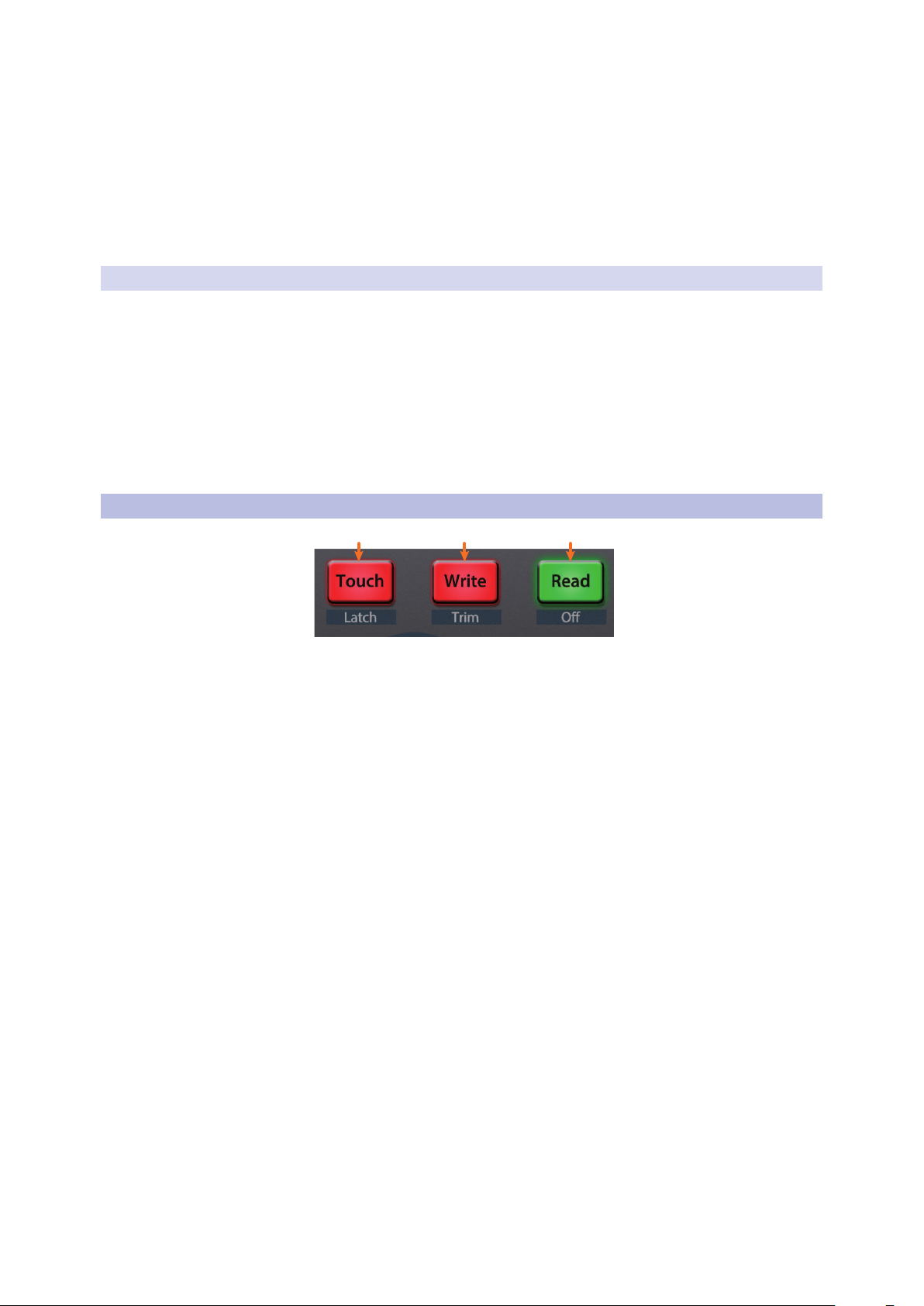
4.5 Automation Controls
3
2
1
1. Touch / Latch. Engages Touch Automation on the currently
selected track. Press the SHIFT and Touch buttons simultaneously
to engage Latch Automation on the currently selected track.
2. Write / Trim. Engages Write Automation on the currently selected track. At
the time of publication, Trim Automation is not available in Studio One.
3. Read / Off. Engages Read Automation on the currently selected
track. Press the SHIFT and Read buttons simultaneously
to turn automation off on the selected channel.
17
4 Studio One
4.6 Control Link
ioStation 24c Audio Interface and Production Controllers
Owner’s Manual
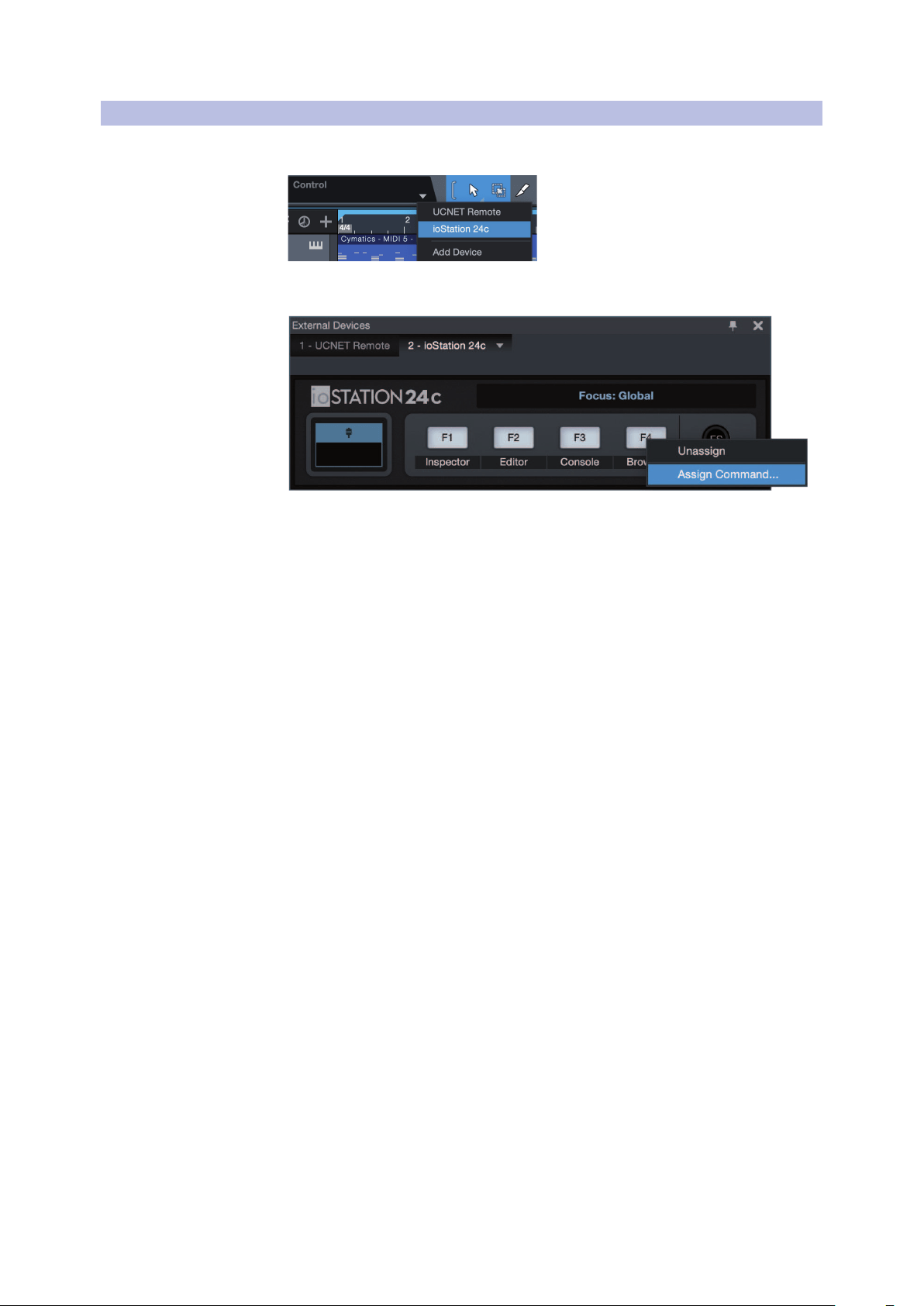
4.6 Control Link
Click on the pull-down menu in the Control Link display
to launch the ioStation 24c editor window.
Right-click on any ioStation 24ccontrol and select “Assign
Command” to customize your ioStation 24c.
18
5 Pro Tools (HUI)
5.1 Getting Started
ioStation 24c Audio Interface and Production Controllers
Owner’s Manual
5 Pro Tools (HUI)
5.1 Getting Started
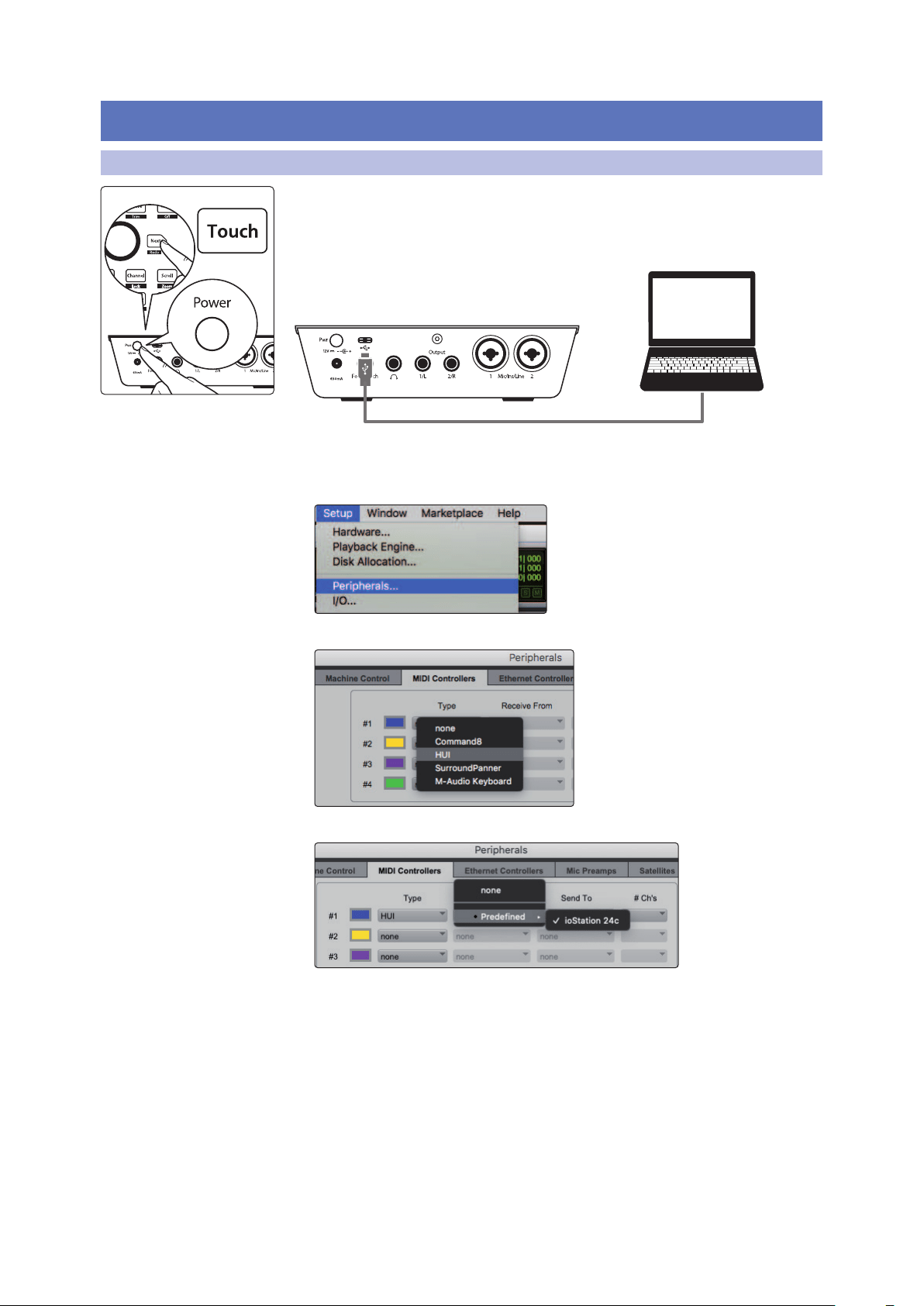
By default, the ioStation 24c is in Studio One operation mode. To switch to Pro Tools
operation, press and hold the NEXT button while powering on your ioStation 24c,
then press the Touch button to enable Pro Tools (HUI) operation.
Once you have connected your ioStation 24c to your computer,
launch Pro Tools to set up the ioStation 24c as a HUI device.
1. Go to Setups | Peripherals.
2. Create one HUI device under MIDI Controllers.
3. Set the Receive From and Send To menus to “ioStation 24c” and #Ch’s to 8.
Click “OK.”
Your ioStation 24c is now ready to use. Enjoy!
ProTools (HUI)
19
5 Pro Tools (HUI)
5.2 Channel Strip
ioStation 24c Audio Interface and Production Controllers
Owner’s Manual
5.2 Channel Strip
1. Arm. Pressing the Arm button will allow you to arm the
currently selected track for recording. Press with SHIFT to
arm all tracks for recording.
2. Mute. Mutes the corresponding channel’s output signal.
Press with SHIFT to clear mutes on the active bank.
3. Solo. Isolates the corresponding channel’s output signal
in the mix. Press with SHIFT clear soloes on the active
bank.
4. Bypass / Bypass All. At the time of publication, this
button has no functionality in Pro Tools.
5. Touch-Sensitive Fader. This 100 mm motorized fader can
be used to control volume levels and panning in Pan Flip
mode. See Section 5.4 for details.
5.3 Transport Controls
21 43 5 6
1. Stop. Stops playback.
2. Loop. Engages / disengages Looping.
3. Play / Pause. Starts playback at the current playback-cursor position.
4. Rewind. Press once to regress playback by bar, second, frame, or base sample
rate depending on mode. Press and hold to regress in finer increments. Press
the Rewind and Fast Forward buttons simultaneously to Return to Zero.
5. Fast Forward. Press once to advance playback by bar, second, frame, or base
sample rate depending on mode. Press and hold to advance in finer increments.
6. Record. Press to enable record ready. Press with Play to start recording
at the current playback-cursor position for record-enabled tracks.
2 134
5
20
5 Pro Tools (HUI)
5.4 The Session Navigator
ioStation 24c Audio Interface and Production Controllers
Owner’s Manual
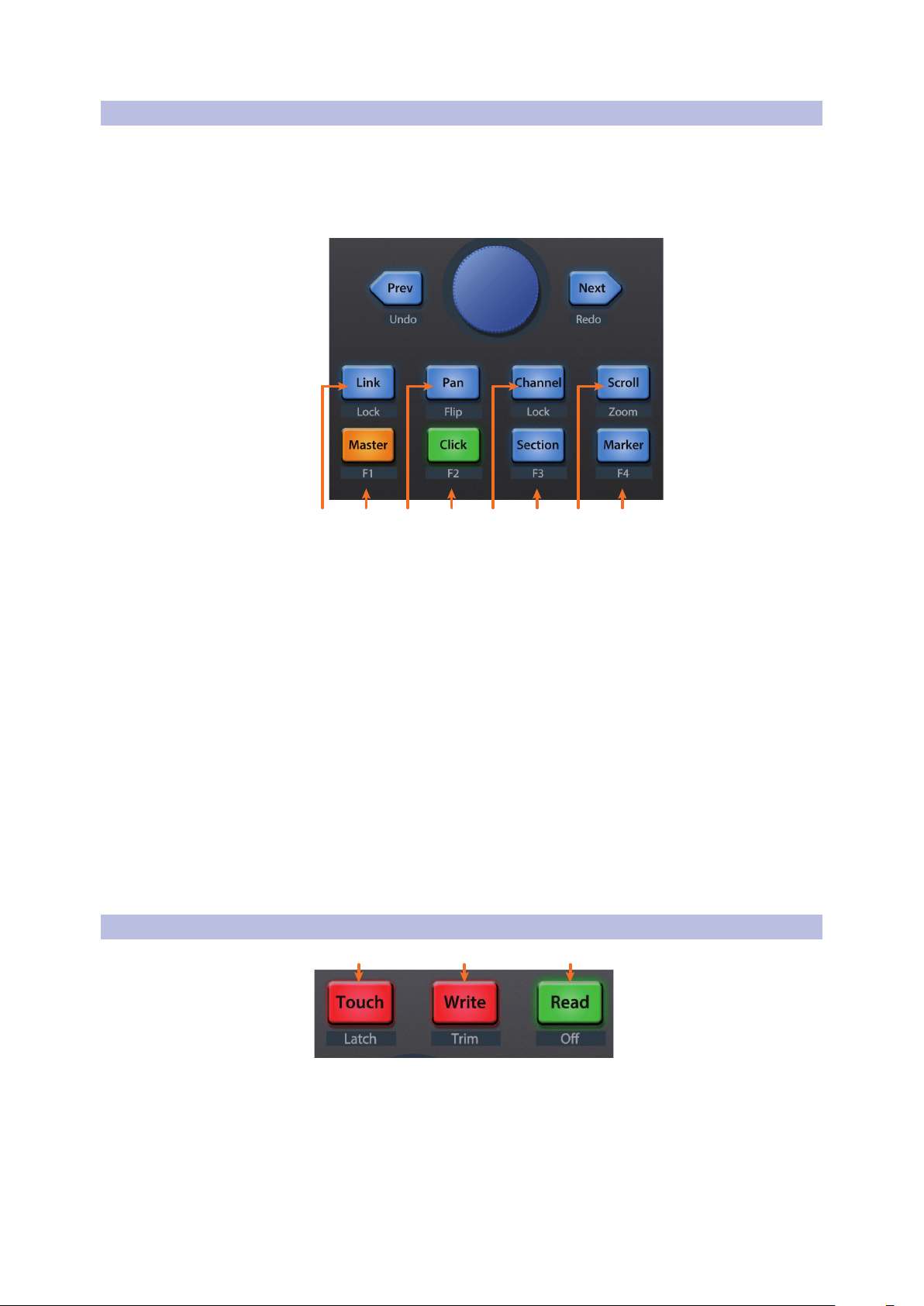
5.4 The Session Navigator
The Session Navigator provides quick navigation and session
controls. Each button alters the functions of the push-button
encoder and the Next and Prev buttons on either side.
Pressing SHIFT + Prev will Undo the last action. Pressing
SHIFT + Next will Redo the last action.
21 43 65 87
1. Link. At the time of publication, this button has no function in Pro Tools.
2. Master. This function is not available in HUI mode.
3. Pan. Encoder controls panning. Navigation buttons scroll through track
list. Press SHIFT + Pan to use the fader to control panning. Pressing the
encoder toggles pan control between Left and Right for stereo channels.
4. Click. Turns the metronome on/off. The metronome can be engaged
or disengaged while any mode is active. Note: This only functions
if a click track has been created for the Pro Tools session.
5. Channel. Encoder and navigation buttons select the previous or next channel.
Press SHIFT + Channel to lock the channel controls to the currently selected track.
6. Section. This function is not available in HUI mode.
7. Scroll / Zoom. Press once to enable audio scrubbing. Press twice to enable
faster audio scrubbing. Press Stop or any other Session Navigator button to
disengage scrubbing. Press SHIFT + Scroll to enable Zooming. While Zoom
is active, encoder and navigation buttons control horizontal zooming.
8. Marker. Encoder and navigation buttons scroll through markers 1-9. Press
Encoder to drop a marker. Press Shift and Marker to cycle through the tools.
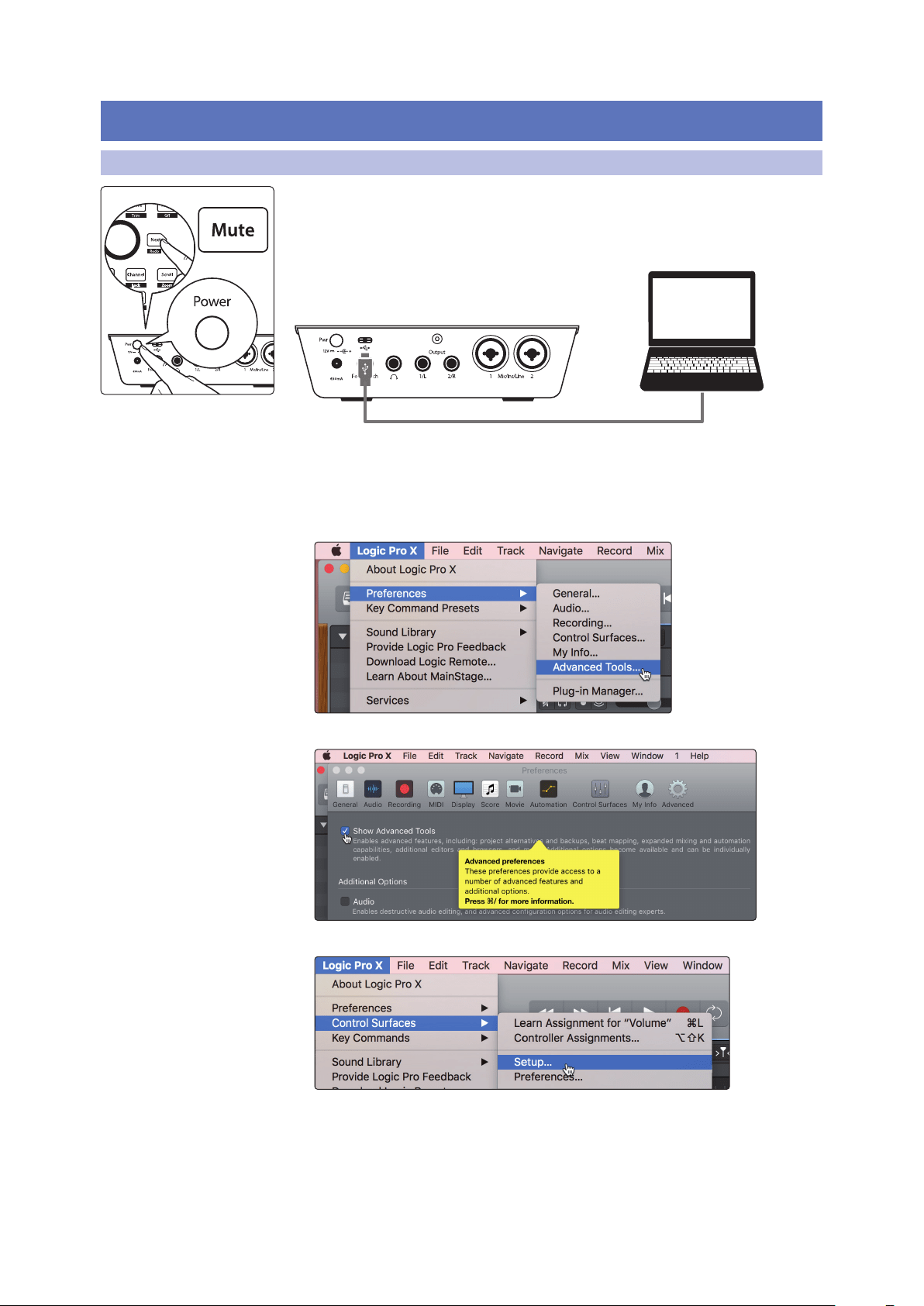
5.5 Automation Controls
3
2
1
1. Touch / Latch. Engages Touch Automation on the currently
selected track. Press the SHIFT and Touch buttons simultaneously
to engage Latch Automation on the currently selected track.
2. Write / Trim. Engages Write Automation on currently selected
track. Press the SHIFT and Write buttons simultaneously to
engage Trim Automation on the currently selected track.
3. Read / Off. Engages Read Automation on the currently selected track. Press
the SHIFT and Read buttons simultaneously to undo the last action.
21
6 Logic (MCU)
6.1 Getting Started
ioStation 24c Audio Interface and Production Controllers
Owner’s Manual
6 Logic (MCU)
6.1 Getting Started
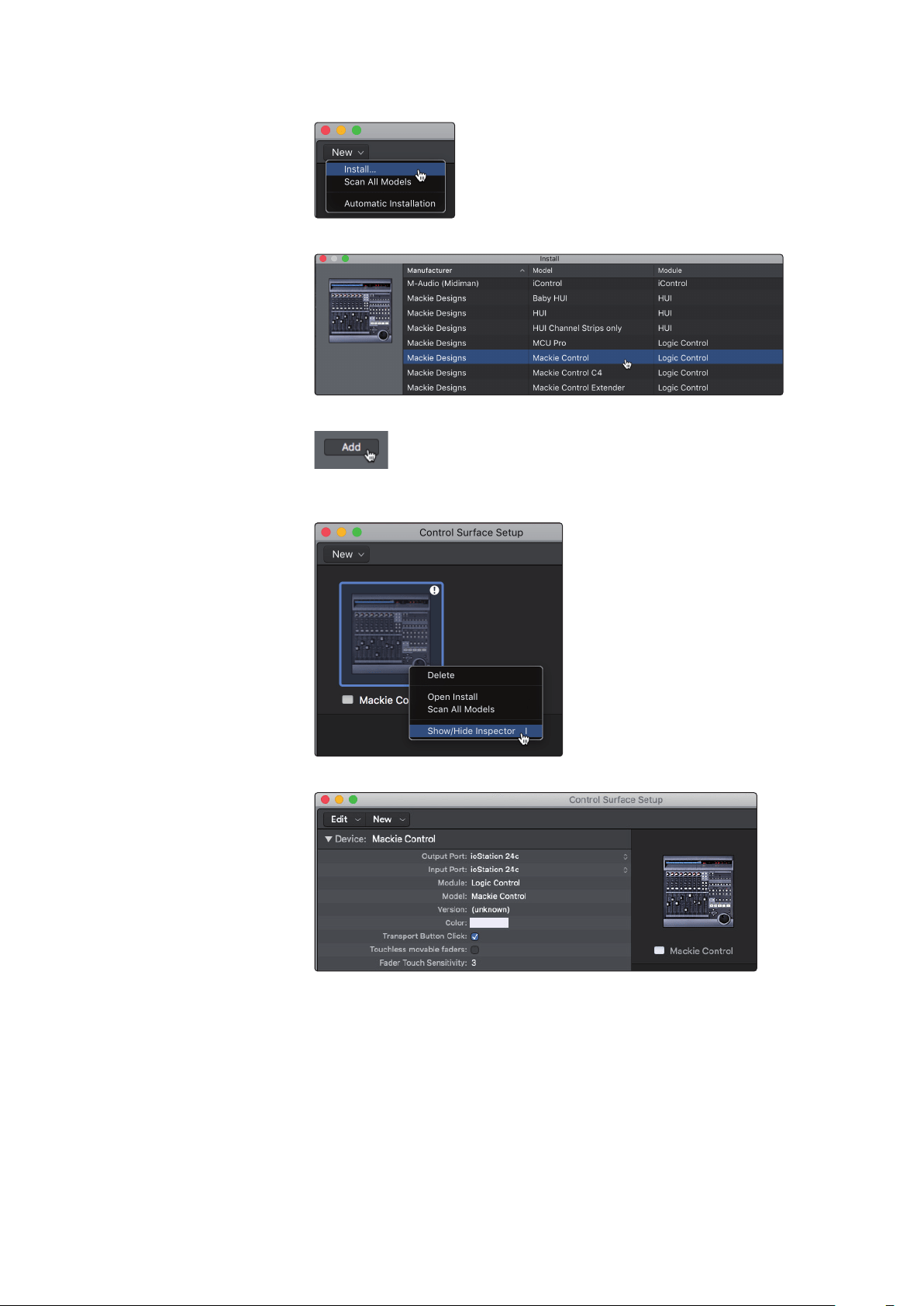
By default, the ioStation 24c is in Studio One operation mode. To switch to
Logic operation, press and hold the NEXT button while powering on your
ioStation 24c, then press the Mute button to enable Logic (MCU) operation.
Once you have connected your ioStation 24c to your computer, launch Logic.
The ioStation 24c will auto-configure as a Mackie Control Universal device. If
for some reason this does not happen, you will need to enable it manually.
1. If you do not have Advanced preferences enabled, go
to Logic Pro | Preferences | Advanced Tools…
2. Enable “Show Advanced Tools.”
3. Go to Logic Pro | Control Surfaces | Setup…
Logic (MCU)
22
6 Logic (MCU)
6.1 Getting Started
ioStation 24c Audio Interface and Production Controllers
Owner’s Manual
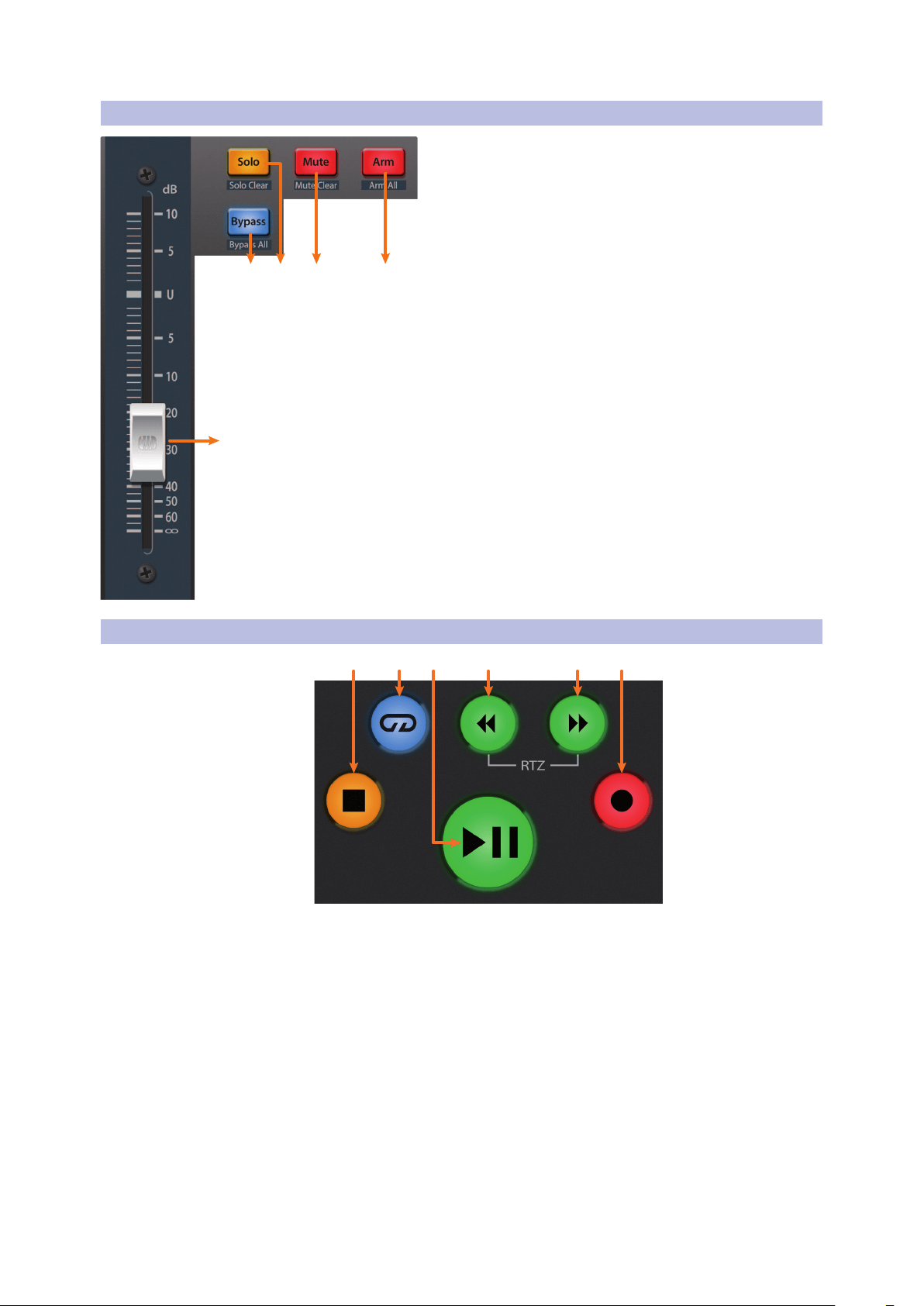
4. In the pop-up menu, go to New | Install…
5. From the list of devices, select Mackie Control.
6. Click Add.
7. Right-click on the Mackie Control in the Control Surface
Setup and select Show/Hide Inspector.
8. In the Inspector, set the Input and Output ports to “ioStation 24c.”
Your ioStation 24c is now ready to use. Enjoy!
23
6 Logic (MCU)
6.2 Channel Strip
ioStation 24c Audio Interface and Production Controllers
Owner’s Manual
6.2 Channel Strip
1. Arm. Pressing the Arm button will allow you to arm the
currently selected track for recording. Press with SHIFT to
arm all tracks for recording.
2. Mute. Mutes the corresponding channel’s output signal.
Press with SHIFT for Mute Clear.
3. Solo. Isolates the corresponding channel’s output signal
in the mix. Press with SHIFT for Solo Clear.
4. Bypass / Bypass All. Press to Show/Hide the Detail View.
5. Touch-Sensitive Fader. This 100 mm motorized fader
can be used to control volume levels and panning in Pan
Flip mode. See Section 6.4 for details.
6.3 Transport Controls
21 43 5 6
1. Stop. Stops playback. Press again to return to zero.
2. Loop. Engages / disengages cycle/loop playback.
Press and hold the Loop and Rewind button simultaneously to
set the cycle start point at the current timeline position.
Press and hold the Loop and Fast Forward buttons simultaneously
to set the cycle end point at the current timeline position.
3. Play / Pause. Starts playback at the current playback-cursor position.
Press again to restart playback at the previous play position.
Hold the Shift button and press Play to Pause playback.
4. Rewind. Press and hold to move the cursor backward through the timeline.
5. Fast Forward. Press and hold to move the cursor forwards through
the timeline. Repeated pressing will accelerate speed.
6. Record. Starts recording at the current playback-
cursor position for record-enabled tracks.
2 134
5
24
6 Logic (MCU)
6.4 The Session Navigator
ioStation 24c Audio Interface and Production Controllers
Owner’s Manual
6.4 The Session Navigator
The Session Navigator provides quick navigation and session
controls. Each button alters the functions of the push-button
encoder and the Next and Prev buttons on either side.
Pressing SHIFT + Prev will Undo the last action. Pressing
SHIFT + Next will Redo the last action.
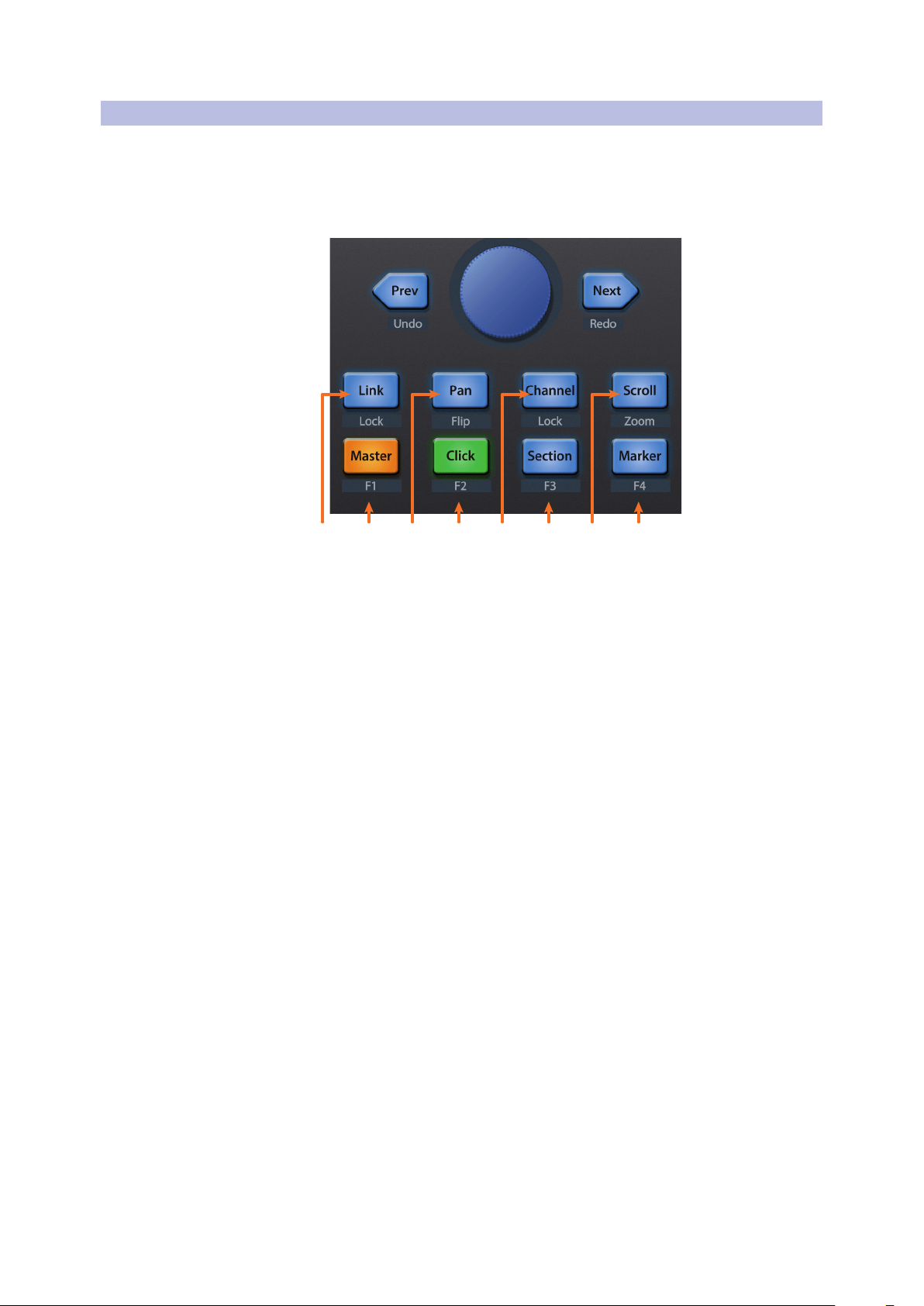
21 43 65 87
1. Link. Press to return to Arrangement.
2. Master. Encoder controls the Master Level. Navigation buttons control
Channel mode. Press SHIFT + Master triggers Logic ScreenSet 1.
3. Pan. Encoder controls panning. Navigation buttons scroll
through track list. Press SHIFT + Pan to use the fader to control
panning. Press the encoder to reset panning to C.
4. Click. Engages the Punch-in switch. Press SHIFT + Click
triggers Logic ScreenSet 2.
5. Channel. Encoder and navigation buttons control individual channel scrolling.
Press SHIFT + Channel to lock the channel controls to the currently selected track.
6. Section. Engages Punch In switch. Press SHIFT + Section
triggers Logic ScreenSet 3.
7. Scroll / Zoom. While in Arranger view, the encoder controls horizontal zooming.
Navigation buttons control vertical zooming for the currently selected track.
While in Session view, pressing Zoom once will engage clip/
scene launch mode. Zoom and Scroll will both light up.
• Encoder selects the next/previous scene. Navigation
buttons select the next/previous track.
• Press Zoom to launch the currently selected clip.
• Press Scroll to launch the currently selected scene.
• Press any other mode to leave clip/scene launch mode.
8. Marker. Encoder scrolls though timeline in Arranger view. Use the
Navigation button to jump to Next or Prev markers. Logic ScreenSet 4.
25
6 Logic (MCU)
6.5 Automation Controls
ioStation 24c Audio Interface and Production Controllers
Owner’s Manual
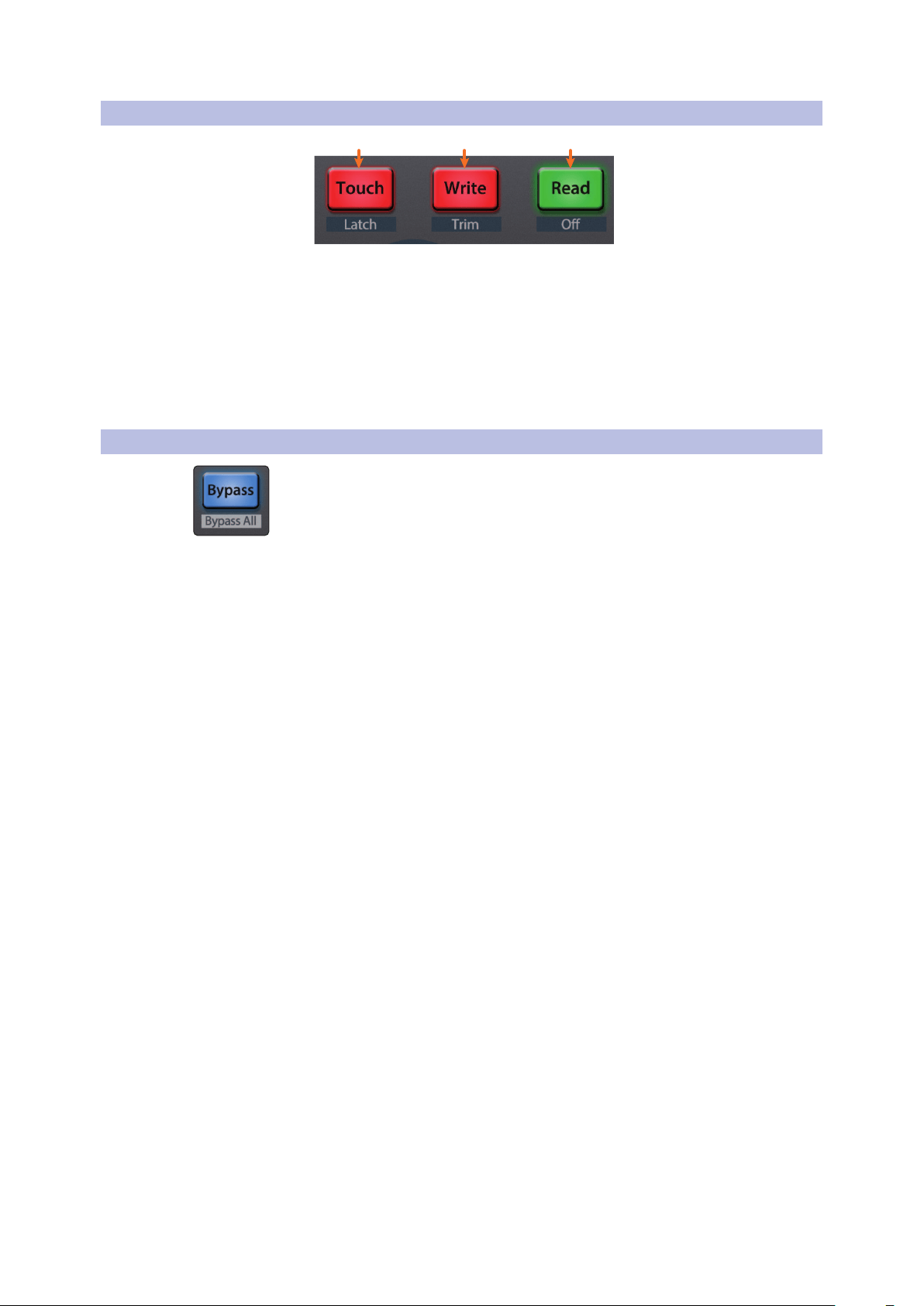
6.5 Automation Controls
3
2
1
1. Touch / Latch. Engages Touch Automation on the currently
selected track. Press the SHIFT and Touch buttons simultaneously
to engage Latch Automation on the currently selected track.
2. Write / Trim. Engages Write Automation on currently selected
track. Press the SHIFT and Write buttons simultaneously to toggle
Trim automation when Latch or Touch modes are active.
3. Read / Off. Engages Read Automation on the currently selected track. Press
the SHIFT and Read buttons simultaneously to undo the last action.
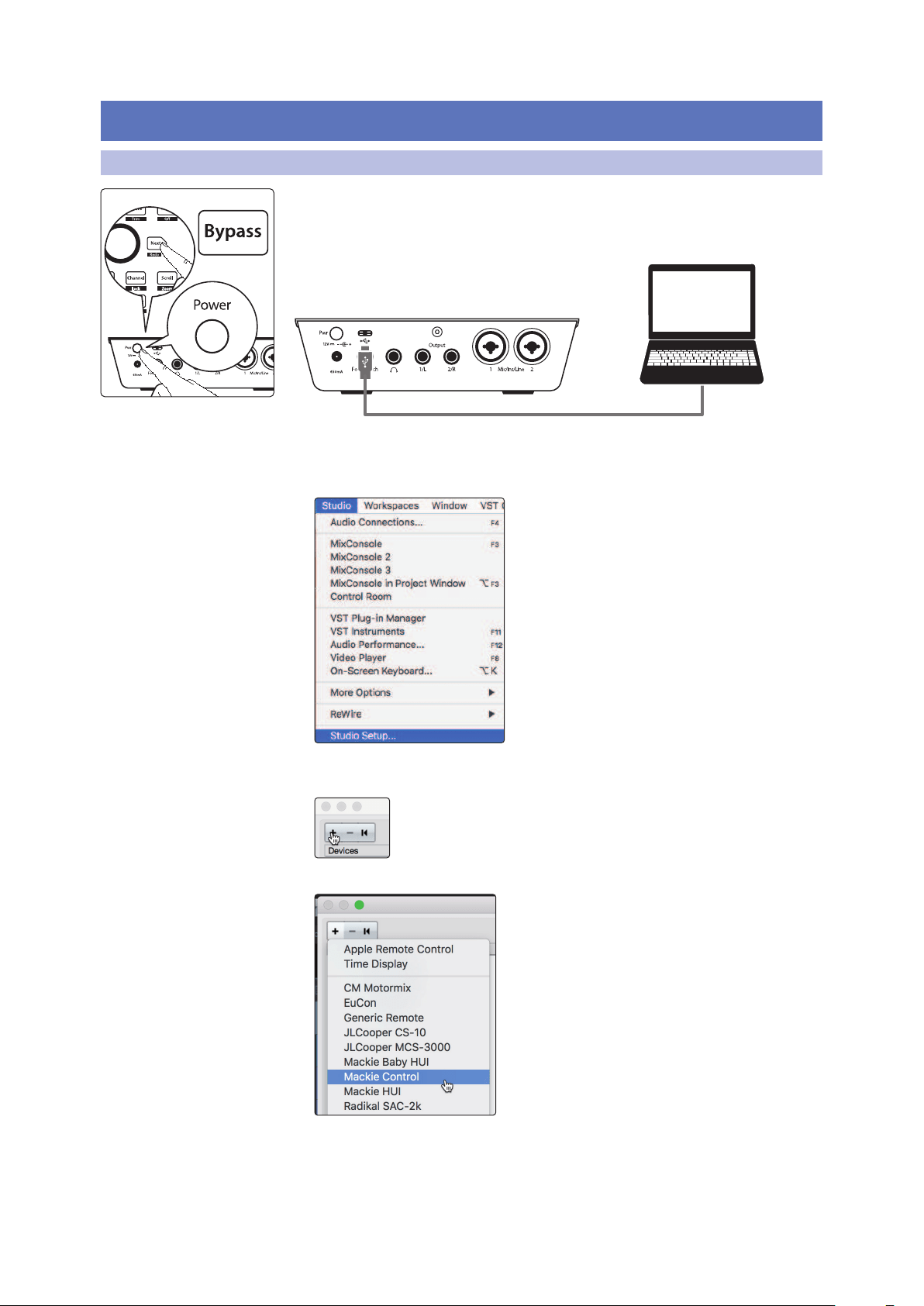
6.6 Bypass
Bypass. Switch faders to control Return tracks.
26
7 Cubase / Nuendo (MCU)
7.1 Getting Started
ioStation 24c Audio Interface and Production Controllers
Owner’s Manual
7 Cubase / Nuendo (MCU)
7.1 Getting Started
By default, the ioStation 24c is in Studio One operation mode. To
switch to Cubase / Nuendo operation, press and hold the NEXT
button while powering on your ioStation 24c, then press the Bypass
button to enable Cubase / Nuendo (MCU) operation.
Once you have connected your ioStation 24c to your computer, launch Cubase
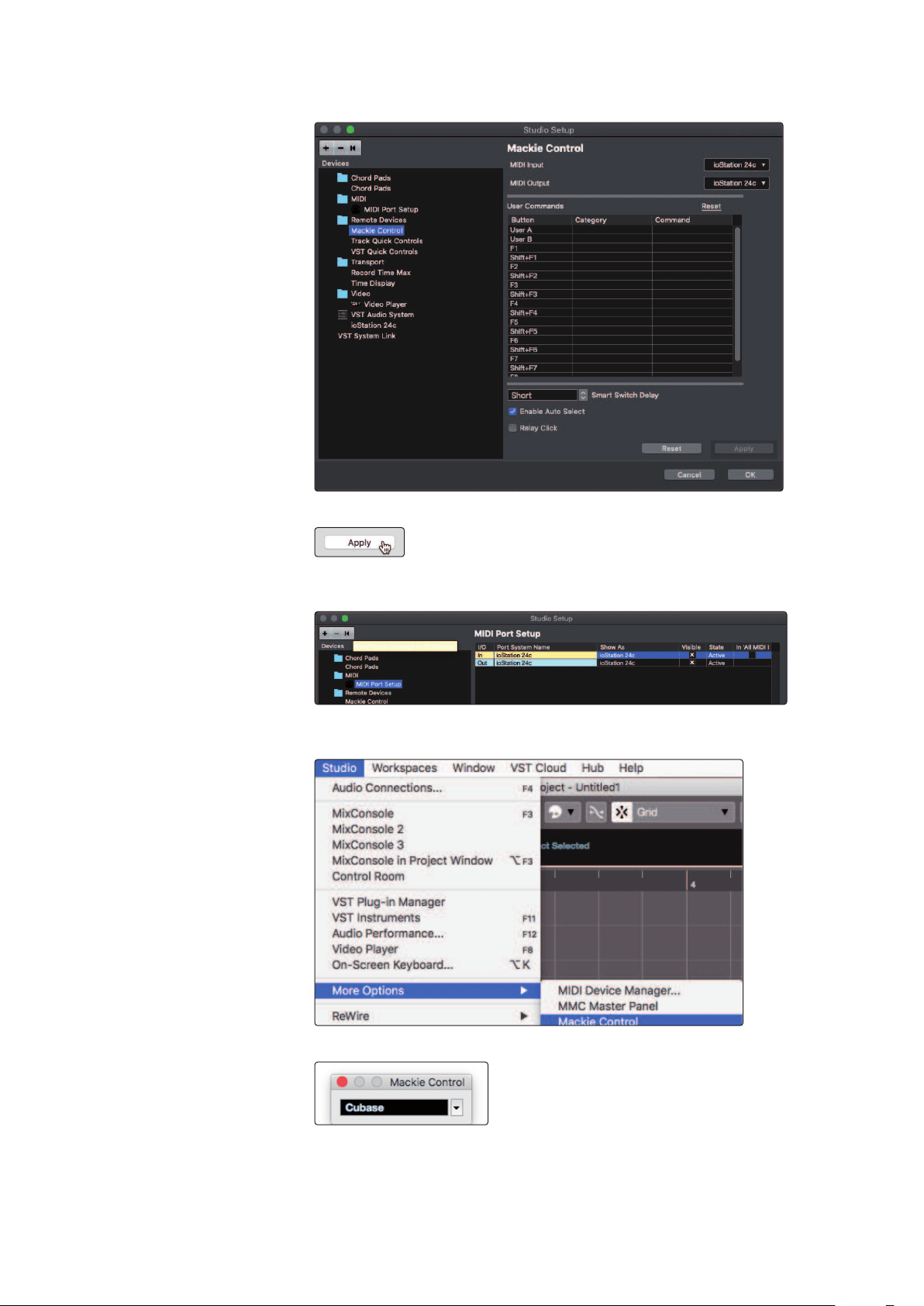
or Nuendo to set up the ioStation 24c as a Mackie Control Universal device.
1. Go to Studio | Studio Setup.
2. In the Setup window, click the “Add/Remove” menu
to add the first Mackie Control device.
3. Select “Mackie Control” from the pull-down menu.
Cubase (MCU)
27
7 Cubase / Nuendo (MCU)
7.1 Getting Started
ioStation 24c Audio Interface and Production Controllers
Owner’s Manual
4. Set the MIDI Input and Output to “ioStation 24c.”
5. Click “Apply.”
6. Select MIDI Port Setup and make sure that “In All
MIDI” box is unchecked and then click “OK.”
7. You will need to switch the Mackie Control device to Compatibility
mode. To do this, select the Mackie Control from the Devices menu.
8. From the pop-up windows, select Cubase from the menu.
Your ioStation 24c is now ready to use. Enjoy!
28
7 Cubase / Nuendo (MCU)
7.2 Channel Strip
ioStation 24c Audio Interface and Production Controllers
Owner’s Manual
7.2 Channel Strip
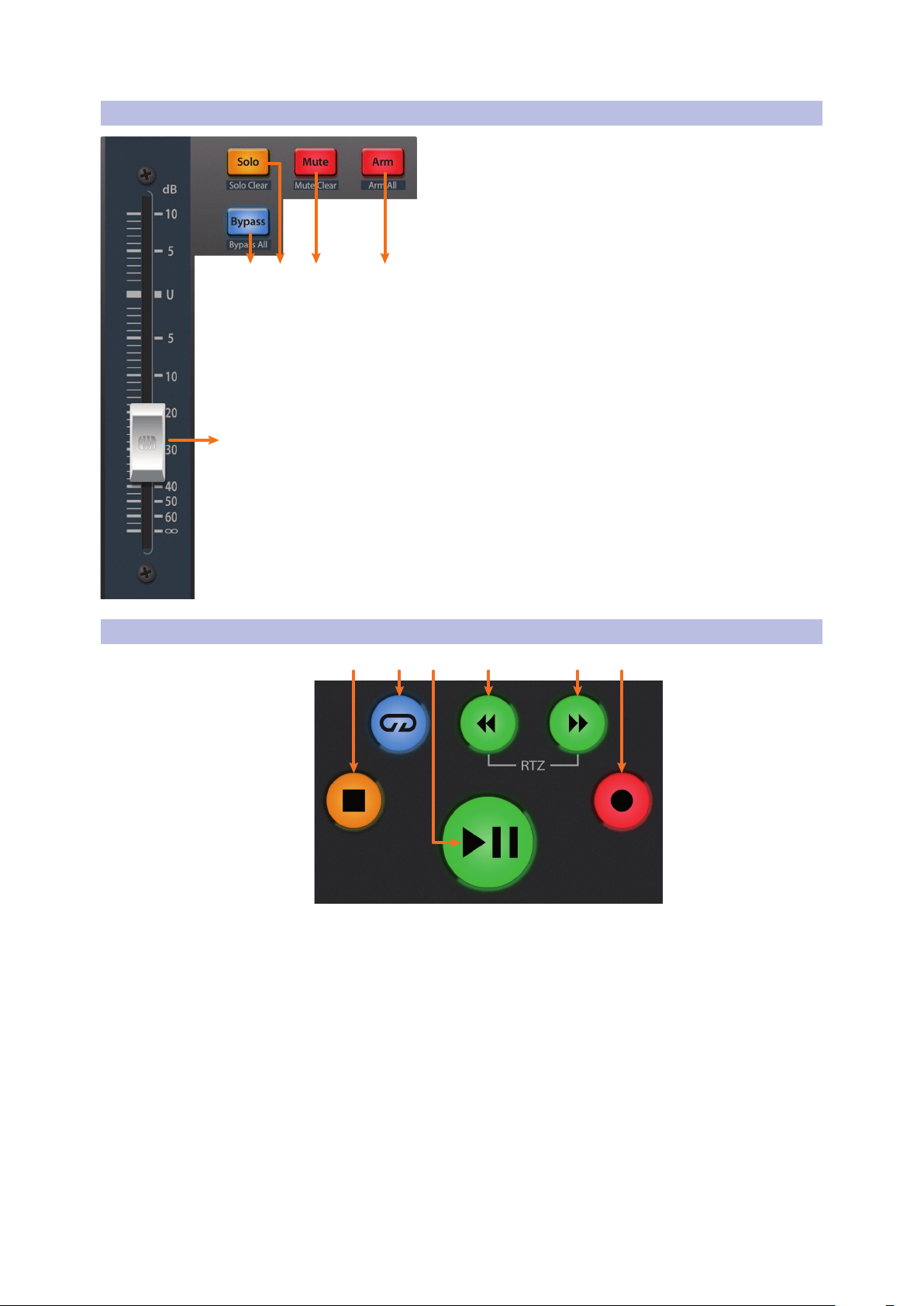
1. Arm. Pressing the Arm button will allow you to arm the
currently selected track for recording. Press with SHIFT to
arm all tracks for recording.
2. Mute. Mutes the corresponding channel’s output signal.
Press and hold to mute momentarily. Press with SHIFT for
Mute Clear.
3. Solo. Isolates the corresponding channel’s output signal
in the mix. Press and hold to solo momentarily. Press with
SHIFT for Solo Clear.
4. Bypass / Bypass All. At the time of publication, this
button has no function in Cubase or Nuendo.
5. Touch-Sensitive Fader. This 100 mm motorized fader can
be used to control volume levels and panning in Pan Flip
mode. See Section 7.4 for details.
7.3 Transport Controls
21 43 5 6
1. Stop. Stops playback. Press twice to return to the initial playback position.
2. Loop. Engages / disengages Looping.
3. Play / Pause. Starts playback at the current playback-
cursor position. Pause is not available in Cubase.
4. Rewind. Press and hold to move the cursor backward through the timeline.
Press the Rewind and Fast Forward buttons simultaneously to Return to Zero.
5. Fast Forward. Press and hold to move the cursor forward through the timeline.
6. Record. Starts recording at the current playback-
cursor position for record-enabled tracks.
2 134
5
29
7 Cubase / Nuendo (MCU)
7.4 The Session Navigator
ioStation 24c Audio Interface and Production Controllers
Owner’s Manual
7.4 The Session Navigator
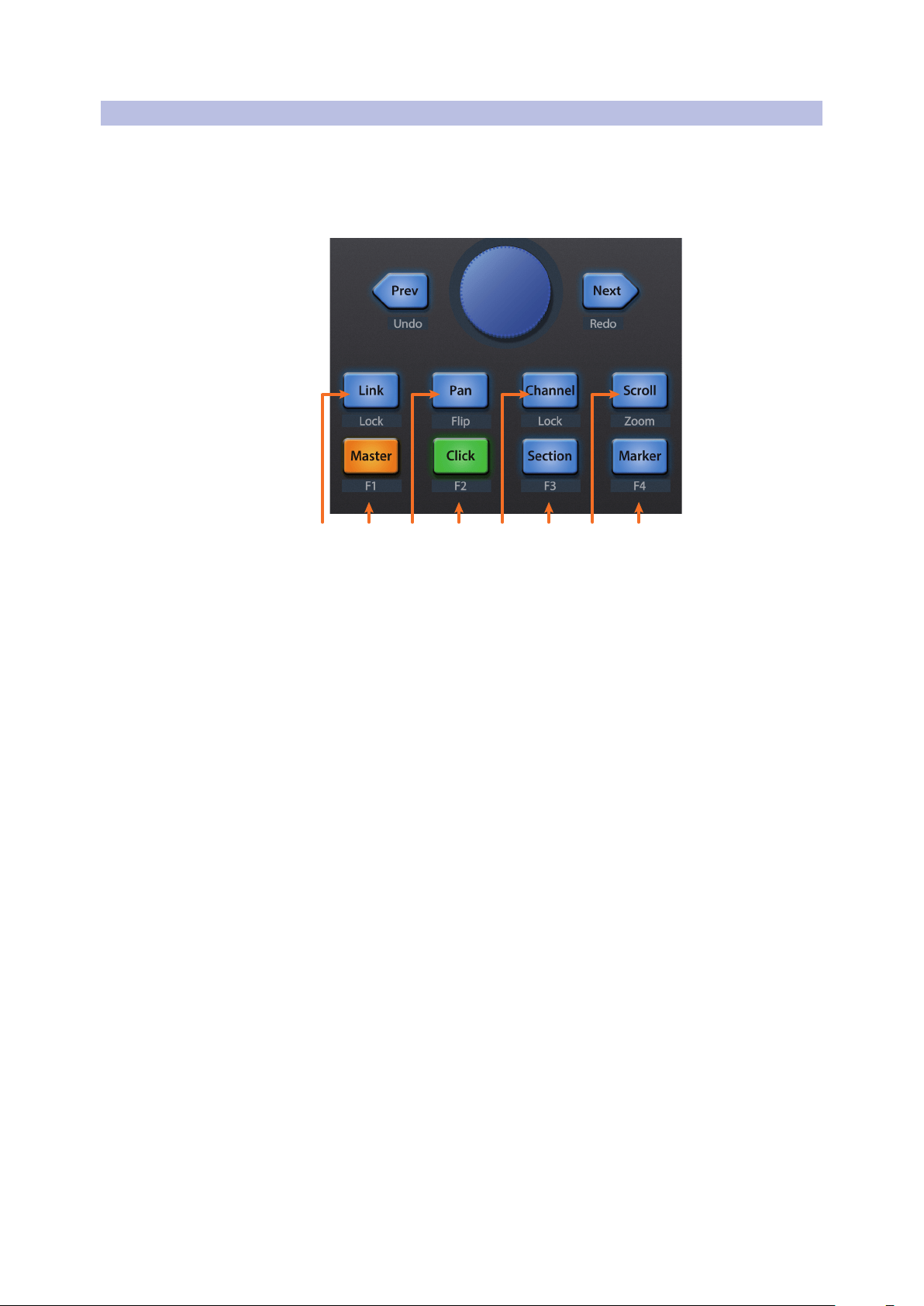
The Session Navigator provides quick navigation and session
controls. Each button alters the functions of the push-button
encoder and the Next and Prev buttons on either side.
Pressing SHIFT + Prev will Undo the last action. Pressing
SHIFT + Next will Redo the last action.
21 43 65 87
1. Link. Pressing the Link button toggles the Channel Setting Window.
Press SHIFT + Link to bring the Arrangement into focus.
2. Master. The Encoder controls the Master bus level. Navigation buttons
switch between the left / right panning and front / rear panning.
Press SHIFT + Master to open Channel Visibility Configuration 1.
3. Pan. Encoder controls panning. Navigation buttons scroll through
track list. Press SHIFT + Pan to use the fader to control panning.
4. Click. Pressing the Click button toggles the Mixer. Press SHIFT
+ Click to open Channel Visibility Configuration 2.
5. Channel. Encoder scrolls and selects individual channels. Navigation
buttons adjust the current bank by one channel. Press SHIFT + Channel
to lock the channel controls to the currently selected track.
6. Section. Enables scrubbing control with the encoder and navigation
buttons. Press SHIFT + Section to open Channel Visibility Configuration 3.
7. Scroll / Zoom. Encoder and navigation buttons control timeline
scrolling. By default, Scroll mode is set to Coarse tune scrolling, press the
Scroll button a second time to engage Fine tune scrolling. Press SHIFT
+ Scroll to enable Zooming. While Zoom is active, encoder controls
horizontal zooming. Navigation buttons control vertical zooming.
8. Marker. Encoder and navigation buttons scroll through
markers. Press the Encoder to drop a marker. Press SHIFT +
Marker to open Channel Visibility Configuration 4.
30
7 Cubase / Nuendo (MCU)
7.5 Automation Controls
ioStation 24c Audio Interface and Production Controllers
Owner’s Manual
7.5 Automation Controls
3
2
1
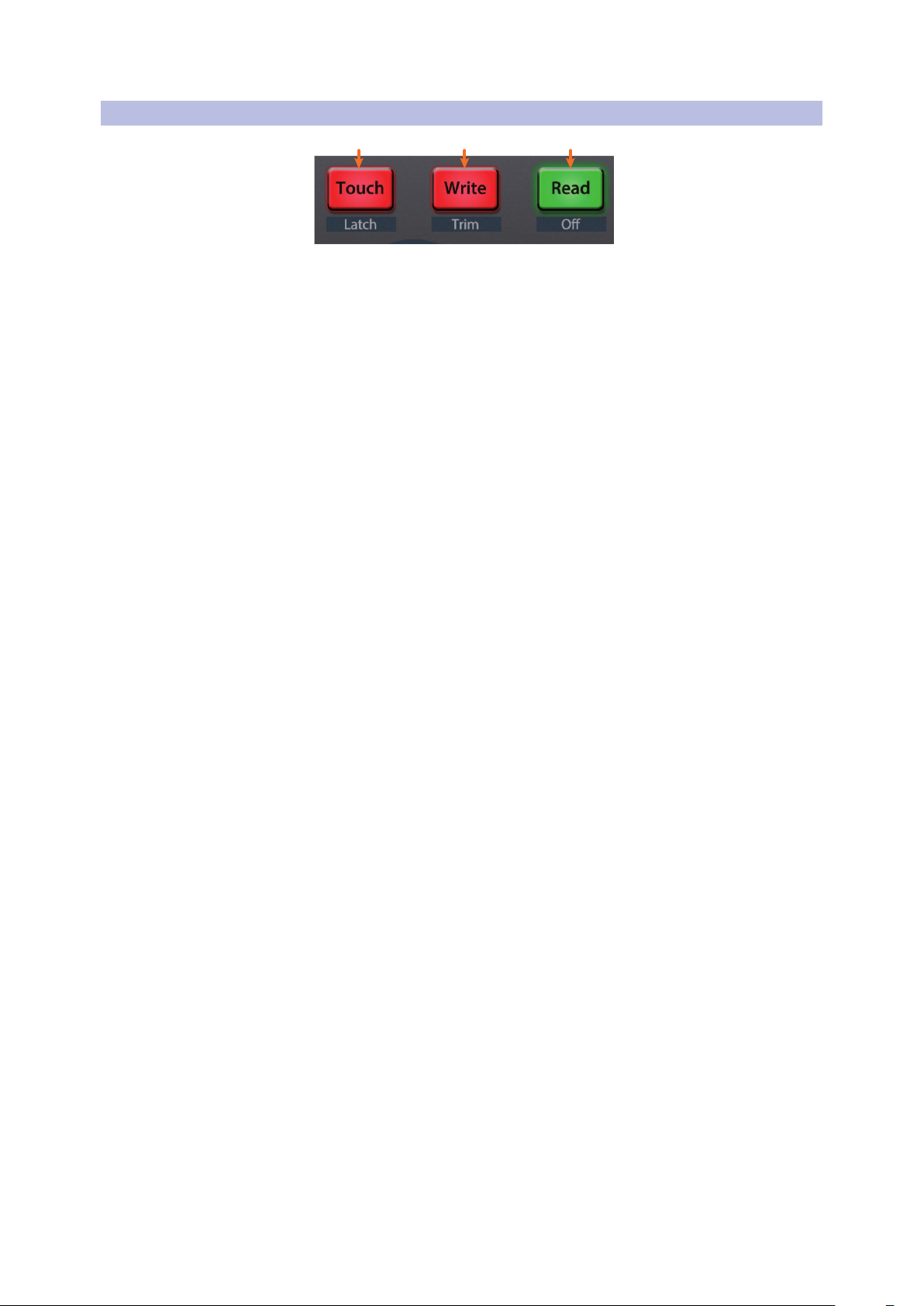
1. Touch / Latch. Press Touch to open the dialog prompt in Cubase
to revert to the last saved version of your session.
2. Write / Trim. Engages Write Automation on the currently selected track.
3. Read / Off. Engages Read Automation on the currently selected track.
Press again to turn automation off on the currently selected track.
31
8 Live (MCU)
8.1 Getting Started
ioStation 24c Audio Interface and Production Controllers
Owner’s Manual
8 Live (MCU)
8.1 Getting Started
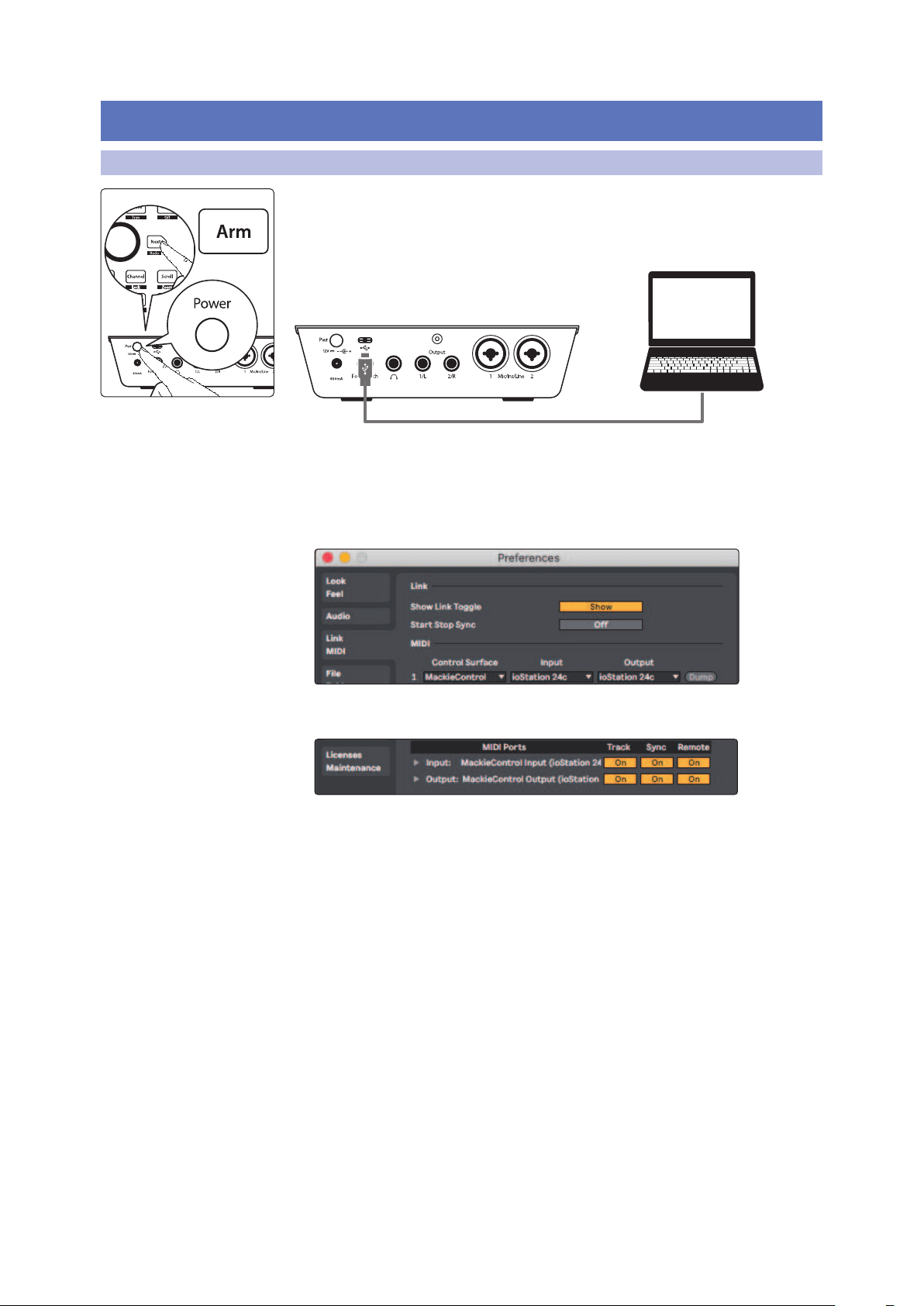
By default, the ioStation 24c is in Studio One operation mode. To switch to
Live operation, press and hold the NEXT button while powering on your
ioStation 24c, then press the Arm button to enable Live (MCU) operation.
Once you have connected your ioStation 24c to your computer, launch
Live to set up the ioStation 24c as a Mackie Control Universal device.
1. Go to Live | Preferences
2. Choose the Link MIDI tab and set Control Surface 1 to Mackie
Control and the Input and Output to “ioStation 24c.”
3. Make sure that Track, Sync, and Remote are all enabled for
both the Input and the Output of “MackieControl.”
4. Select MIDI Port Setup and make sure that “In All
MIDI” box is unchecked and then click “OK.”
Your ioStation 24c is now ready to use. Enjoy!
Live (MCU)
32
8 Live (MCU)
8.2 Channel Strip
ioStation 24c Audio Interface and Production Controllers
Owner’s Manual
8.2 Channel Strip
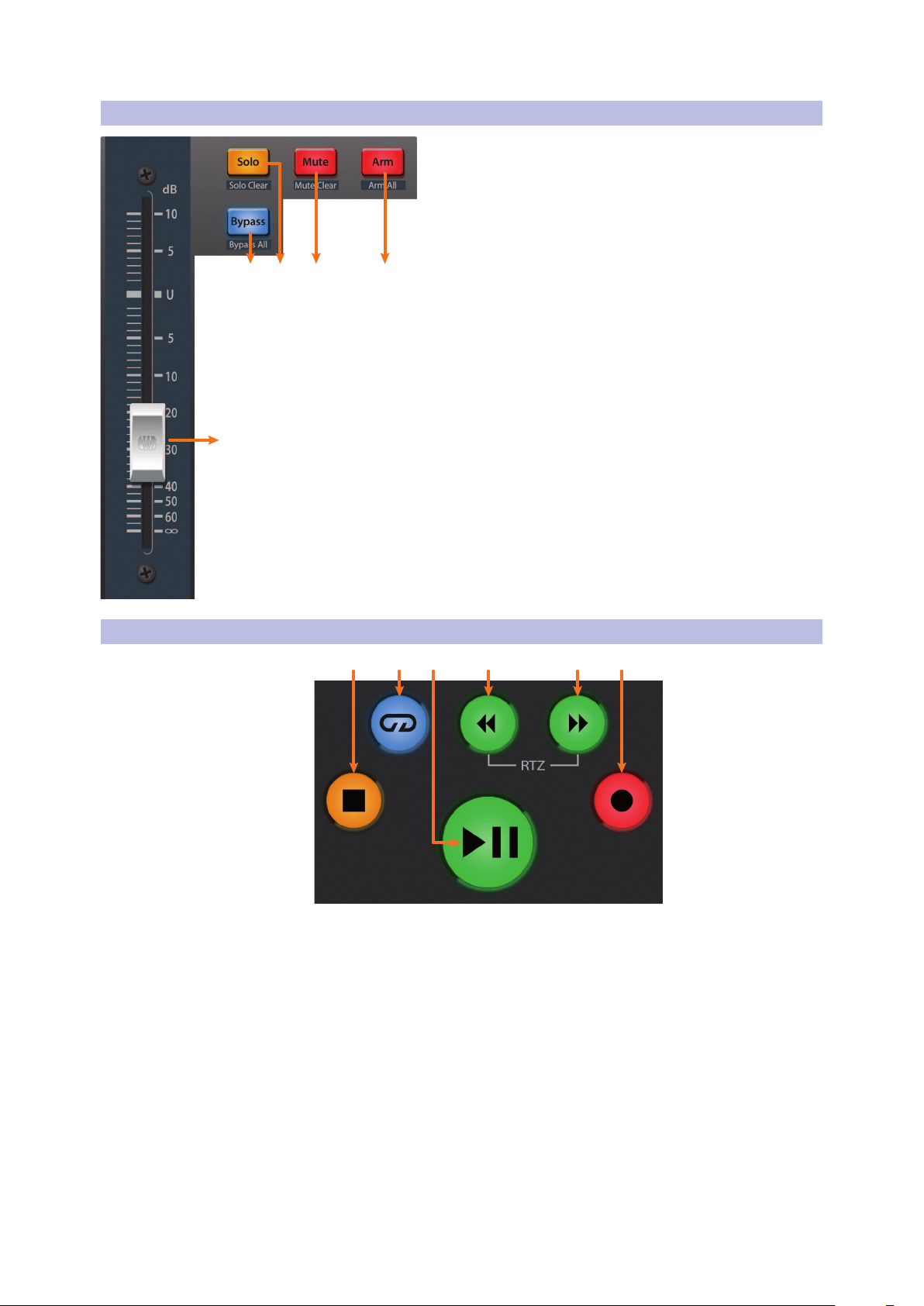
1. Arm. Pressing the Arm button will allow you to arm the
currently selected track. Press with SHIFT to arm the
currently focused bank of tracks for recording.
2. Mute. Mutes the corresponding channel’s output signal.
Press with SHIFT to clear all mutes for the currently focused
bank.
3. Solo. Isolates the corresponding channel’s output signal
in the mix. Press with SHIFT to clear all soloes for the
currently focused bank.
4. Bypass / Bypass All. Press to Show/Hide the Detail View.
5. Touch-Sensitive Fader. This 100 mm motorized fader can
be used to control volume levels and panning in Pan Flip
mode. See Section 8.4 for details.
8.3 Transport Controls
21 43 5 6
1. Stop. Stops playback. Press again to return to zero.
2. Loop. Engages / disengages Looping.
3. Play / Pause. Starts playback at the current playback-cursor position.
Press again to restart playback at the previous play position.
4. Rewind. Press and hold to move the cursor backward through the timeline.
5. Fast Forward. Press and hold to move the cursor forwards through the timeline.
6. Record. Starts recording at the current playback-
cursor position for record-enabled tracks.
2 134
5
33
8 Live (MCU)
8.4 The Session Navigator
ioStation 24c Audio Interface and Production Controllers
Owner’s Manual
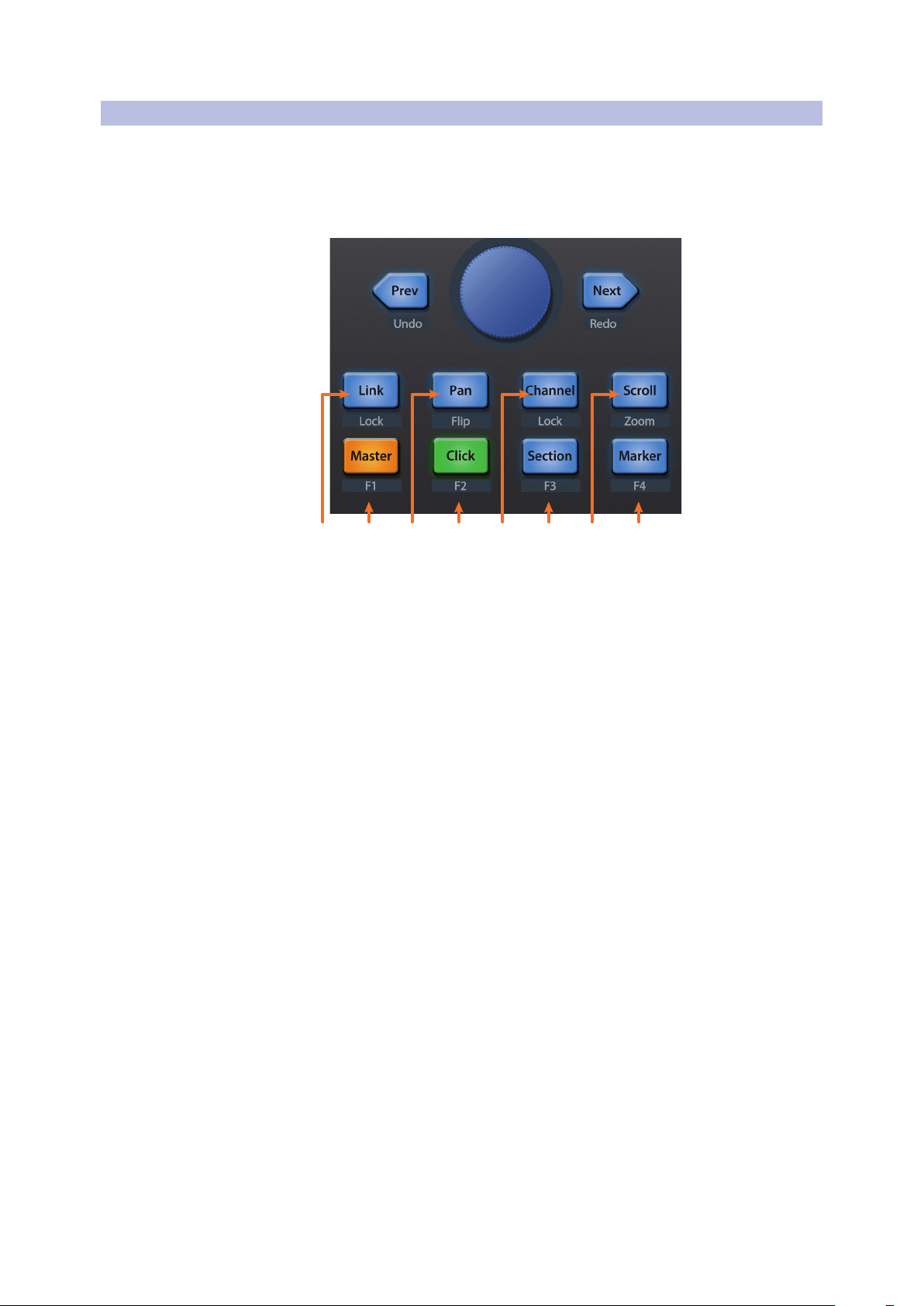
8.4 The Session Navigator
The Session Navigator provides quick navigation and session
controls. Each button alters the functions of the push-button
encoder and the Next and Prev buttons on either side.
Pressing SHIFT + Prev will Undo the last action. Pressing
SHIFT + Next will Redo the last action.
21 43 65 87
1. Link. Press to return to Arrangement.
2. Master. Encoder controls the Master Level. Navigation buttons control
Channel mode. Press SHIFT + Master triggers MIDI Note F#2.
3. Pan. Encoder controls panning. Navigation buttons scroll
through track list. Press SHIFT + Pan to use the fader to control
panning. Press the encoder to reset panning to C.
4. Click. Engages the Punch-in switch. Press SHIFT + Click triggers MIDI Note G2.
5. Channel. Encoder and navigation buttons control individual channel scrolling.
Press SHIFT + Channel to lock the channel controls to the currently selected track.
6. Section. Encoder nudges the selected event. Use the navigation buttons to
navigate through the events on the Arranger track. Press SHIFT + Section
triggers MIDI Note G#3. Section = Punch Out Switch, MIDI note G#2
7. Scroll / Zoom. While in Arranger view, the encoder controls horizontal zooming.
Navigation buttons control vertical zooming for the currently selected track.
While in Session view, pressing Zoom once will engage clip/
scene launch mode. Zoom and Scroll will both light up.
• Encoder selects the next/previous scene. Navigation
buttons select the next/previous track.
• Press Zoom to launch the currently selected clip.
• Press Scroll to launch the currently selected scene.
• Press any other mode to leave clip/scene launch mode.
8. Marker. Encoder scrolls though timeline in Arranger view. Use the
Navigation button to jump to Next or Prev markers. MIDI Note A2.
34
8 Live (MCU)
8.5 Automation Controls
ioStation 24c Audio Interface and Production Controllers
Owner’s Manual
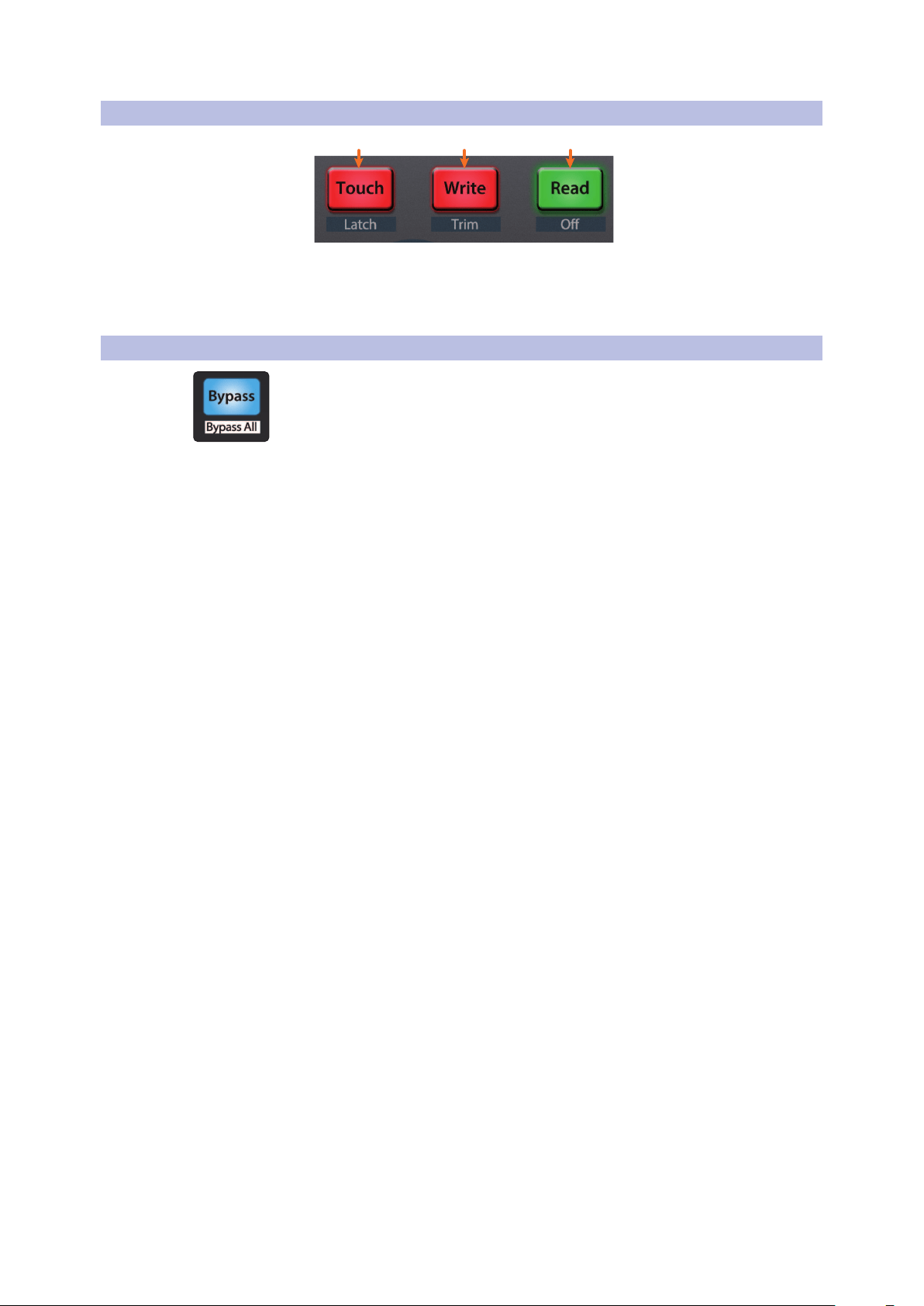
8.5 Automation Controls
3
2
1
1. Touch / Latch. Press to Show/Hide Browser.
2. Write / Trim. Press to toggle Clip and Device views.
3. Read / Off. Press to toggle Session and Arrangement views.
8.6 Bypass
Bypass. Show/Hide detail view.
35
9 Studio One Artist Quick Start
9.1 Installation and Authorization
ioStation 24c Audio Interface and Production Controllers
Owner’s Manual
9 Studio One Artist Quick Start
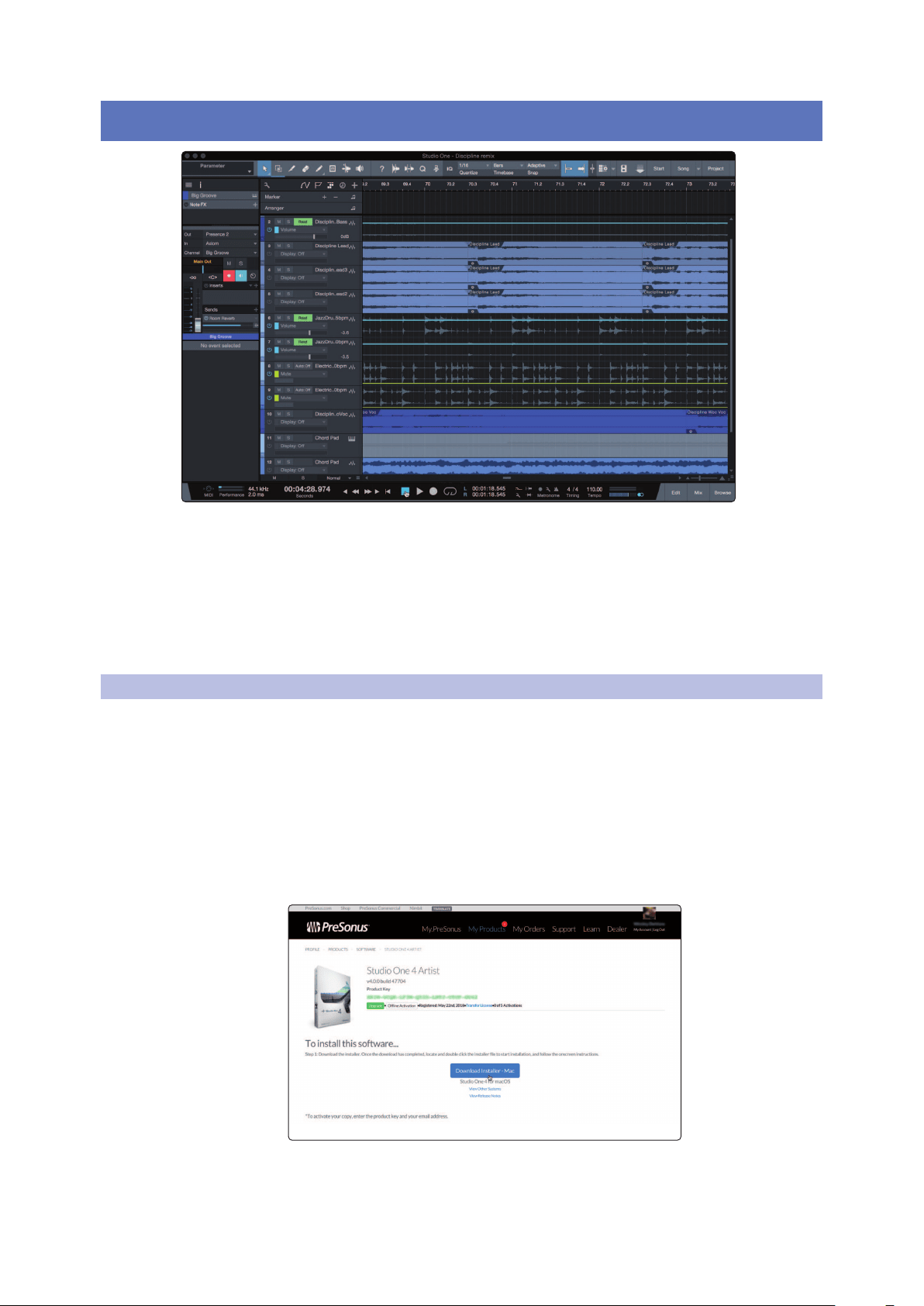
All registered ioStation 24c users receive Studio One Artist recording
and production software. Whether you are about to record your first
album or your fiftieth, Studio One Artist provides you with all of the
tools necessary to capture and mix a great performance.
Power User Tip: As a valued PreSonus customer, you are eligible for a discount upgrade
to Studio One Professional. For more details on the Studio One upgrade program for
PreSonus customers, please visit https://shop.presonus.com/products/software/studio-
one-prods.
9.1 Installation and Authorization
Once you have installed the drivers for your audio interface and connected it
to your computer, you can use the included PreSonus Studio One Artist music-
production software to begin recording, mixing, and producing your music.
To install Studio One Artist, log into your My PreSonus account and register
your ioStation 24c. Your product key for Studio One Artist will automatically be
registered to your My PreSonus account, along with your hardware registration.
Downloading and Running the Studio One Installer
To install Studio One Artist, download the Studio One Artist installer from
your MyPreSonus account to the computer on which you will use it.
Windows: Launch the Studio One Artist installer
and follow the onscreen instructions.
Mac: Drag the Studio One Artist application into the
Applications folder on your Mac hard drive.
36
9 Studio One Artist Quick Start
9.2 Setting Up Studio One
ioStation 24c Audio Interface and Production Controllers
Owner’s Manual
Authorizing Studio One
When Studio One is launched for the first time on your computer, it will
communicate with your MyPreSonus account and verify your registration. To
ensure a seamless authorization process, make sure to download your installer
to the computer on which you will be using it, and be sure that your computer is
connected to the Internet when you launch the application for the first time.
Installing Bundled Content for Studio One Artist
Studio One Artist comes bundled with an array of demo and tutorial
materials, instruments, loops, and samples. The Studio One Artist
bundle includes all that you need to begin producing music.
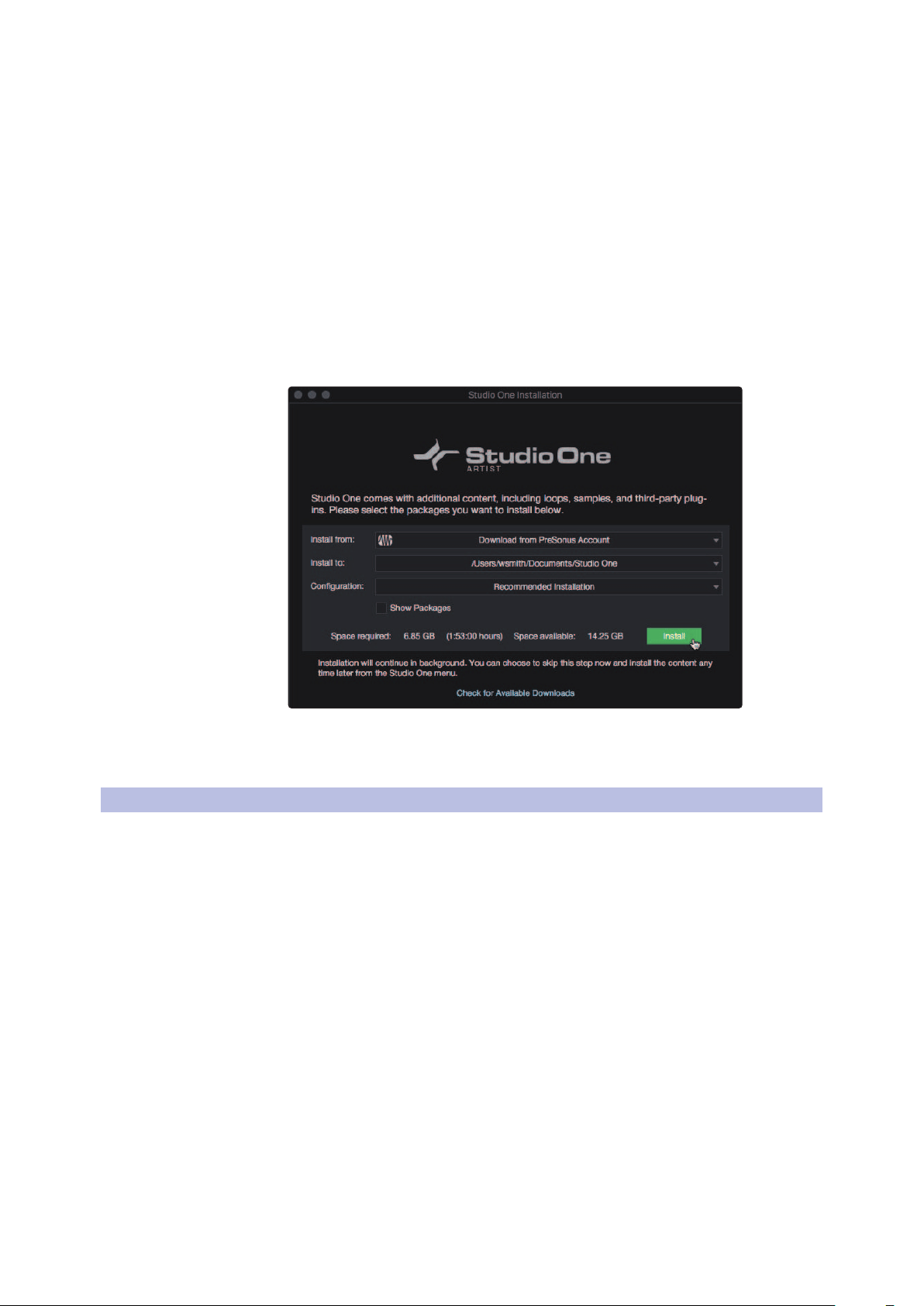
The first time you launch Studio One Artist, you will be prompted to install its
companion content. Select the content you wish to add and click “Install.” The content
will automatically begin to download and install from your MyPreSonus user account.
Power User Tip: You may be prompted to enter your My PreSonus user account
information. Clicking “Remember Credentials” will allow you to have immediate access to
any content you purchase from the PreSonus Marketplace.
9.2 Setting Up Studio One
Studio One Artist was designed to work with PreSonus interfaces and provides
unique interoperability and simplified setup. When Studio One Artist is
launched, by default you will be taken to the Start page. On this page, you
will find document-management and device-configuration controls, as well
as a customizable artist profile, a news feed, and links to demos and tutorials
from PreSonus. If your computer is connected to the Internet, these links will
be updated as new tutorials become available on the PreSonus website.
Complete information on all aspects of Studio One Artist is available in
the Reference Manual PDF located within Studio One. The information
in this tutorial covers only the basic aspects of Studio One Artist and is
intended to get you set up and recording as quickly as possible.
37
9 Studio One Artist Quick Start
9.2 Setting Up Studio One
ioStation 24c Audio Interface and Production Controllers
Owner’s Manual
9.2.1 Configuring Audio Devices
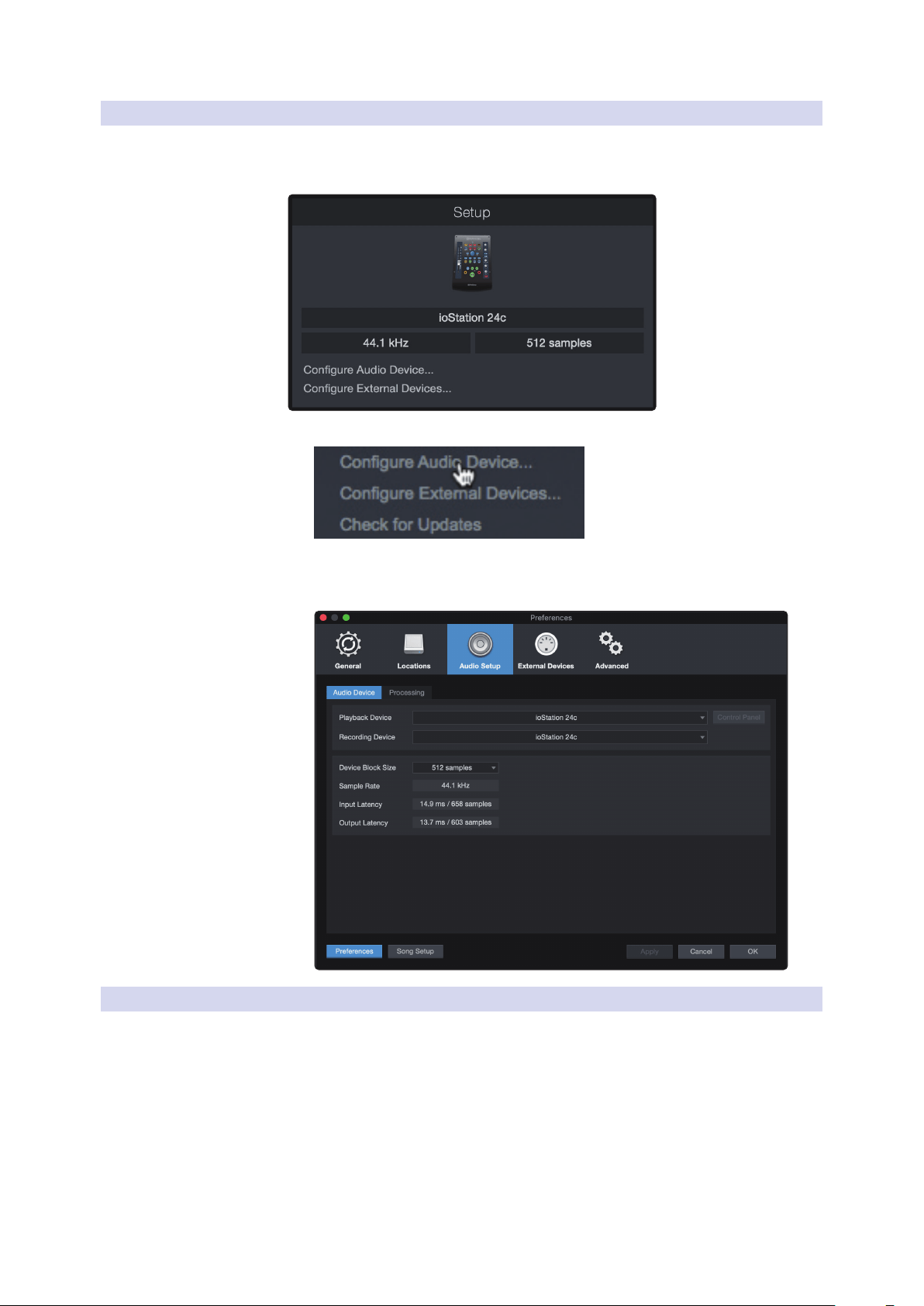
In the middle of the Start page, you will see the Setup area. Studio One
Artist automatically scans your system for all available drivers and selects
a driver. By default, it will choose a PreSonus driver if one is available.
1. Click on the Configure Audio Interface link to select your audio interface driver.
2. Select your audio interface from the Audio Device pull-
down menu. From this page, you can also adjust your device
buffer block size. Click OK when you are finished.
9.2.2 Configuring MIDI Devices
From the External Devices window in Studio One Artist, you can configure your
ioStation 24c, MIDI keyboard controller, sound modules, and control surfaces.
This section will guide you through setting up your ioStation 24c as well as MIDI
keyboard controllers and sound modules. Please consult the Reference Manual
located within Studio One for complete setup instructions for other MIDI devices.
If you are using a third-party MIDI interface or USB MIDI-controller
keyboard, you must install any required drivers for these devices before
beginning this section. Please consult the documentation that came
with your MIDI hardware for complete installation instructions.
38
9 Studio One Artist Quick Start
9.2 Setting Up Studio One
ioStation 24c Audio Interface and Production Controllers
Owner’s Manual
Setting up the ioStation 24c
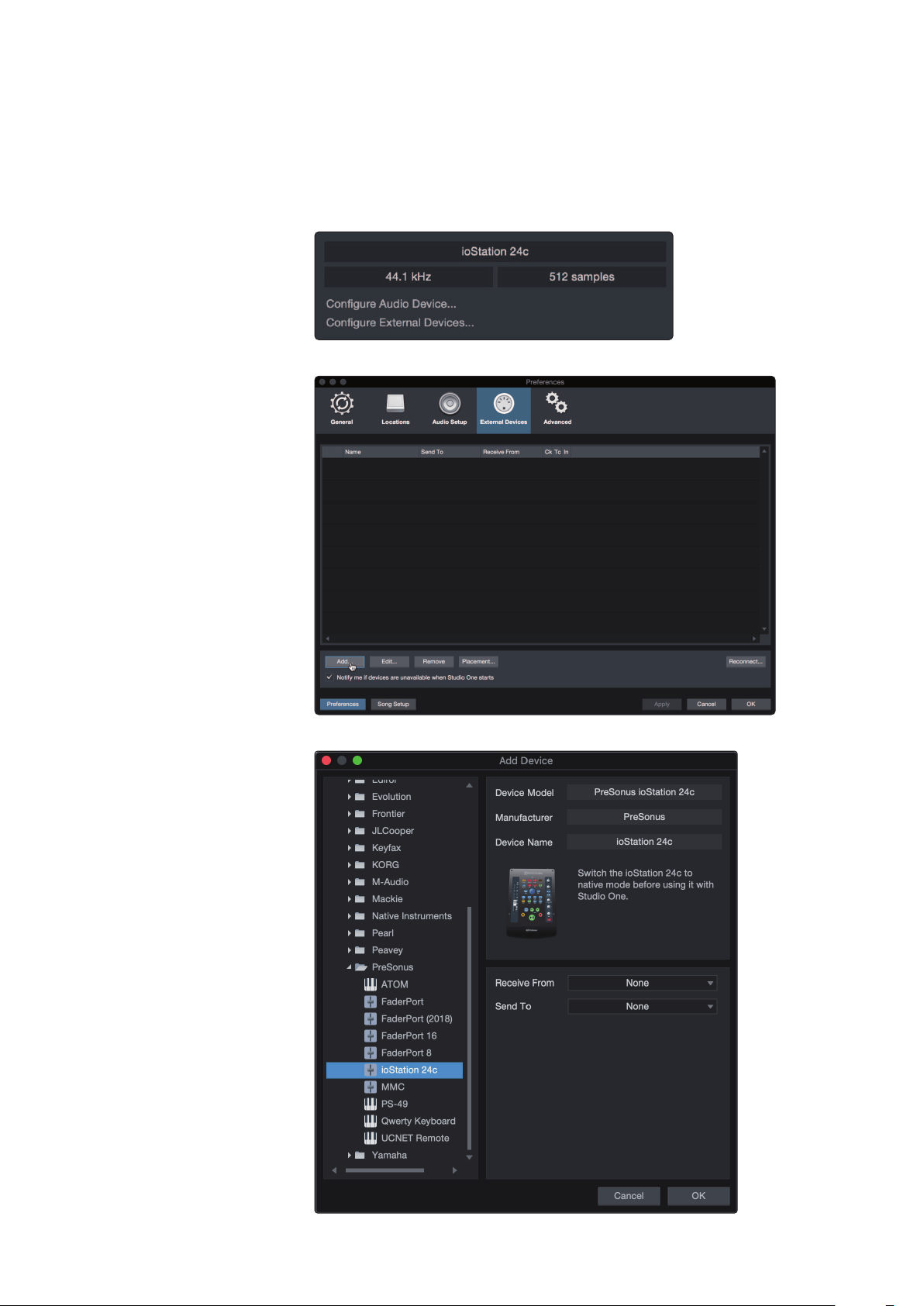
You can set up your ioStation 24c from the Setup area in the Start page.
Before you begin, make sure your ioStation 24c is connected to one of your
computer’s USB ports, is powered on, and set to Studio One mode.
1. Click on the Configure External Devices link in the Setup area on
the Start page to launch the External Devices window.
2. Click the Add button. This will launch the Add Device window.
3. From the menu on the left, click on the PreSonus folder and select “ioStation 24c.”
39
9 Studio One Artist Quick Start
9.2 Setting Up Studio One
ioStation 24c Audio Interface and Production Controllers
Owner’s Manual
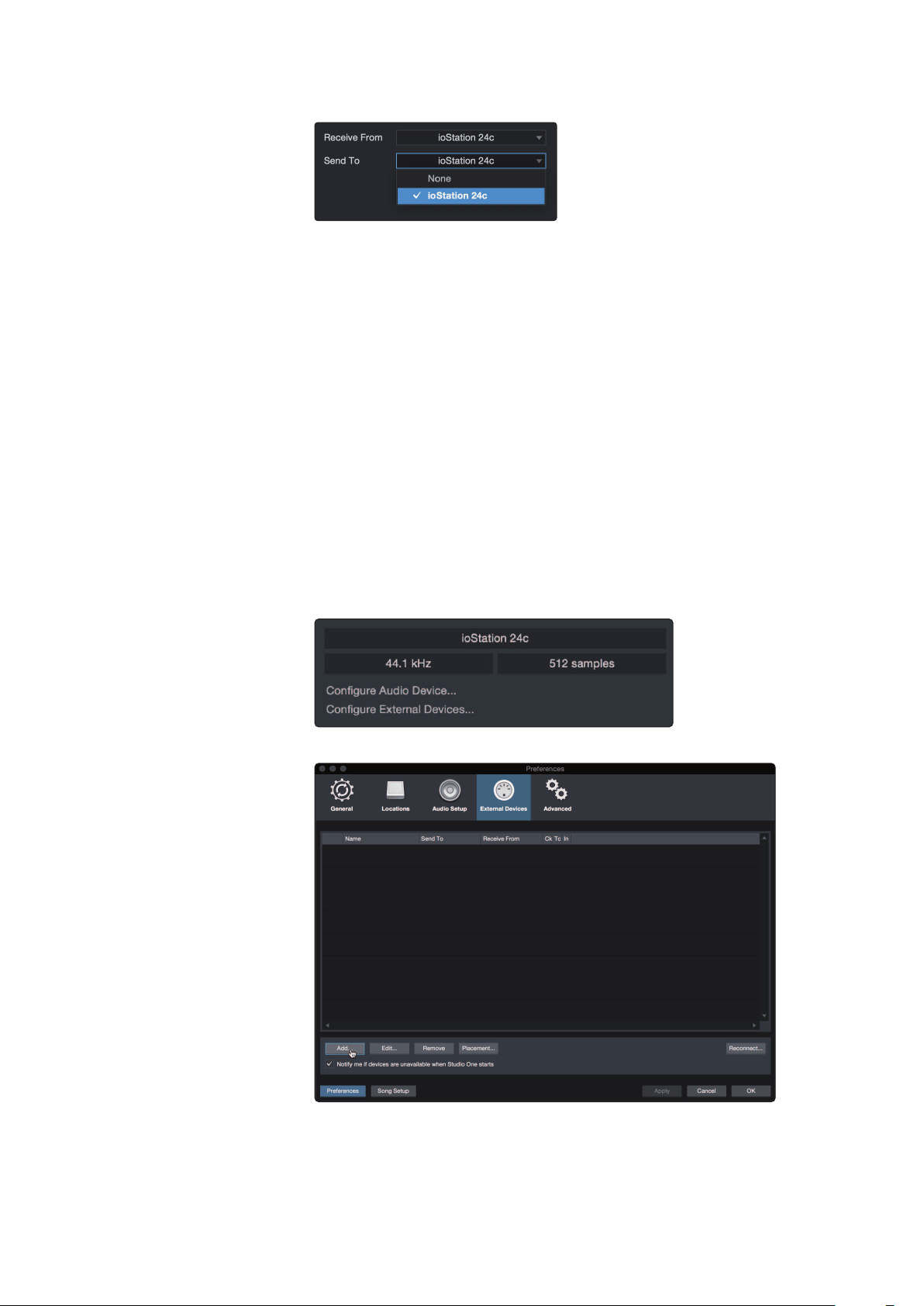
In the Receive From and Send To drop-down menus, select “ioStation 24c.”
4. Click “OK.”
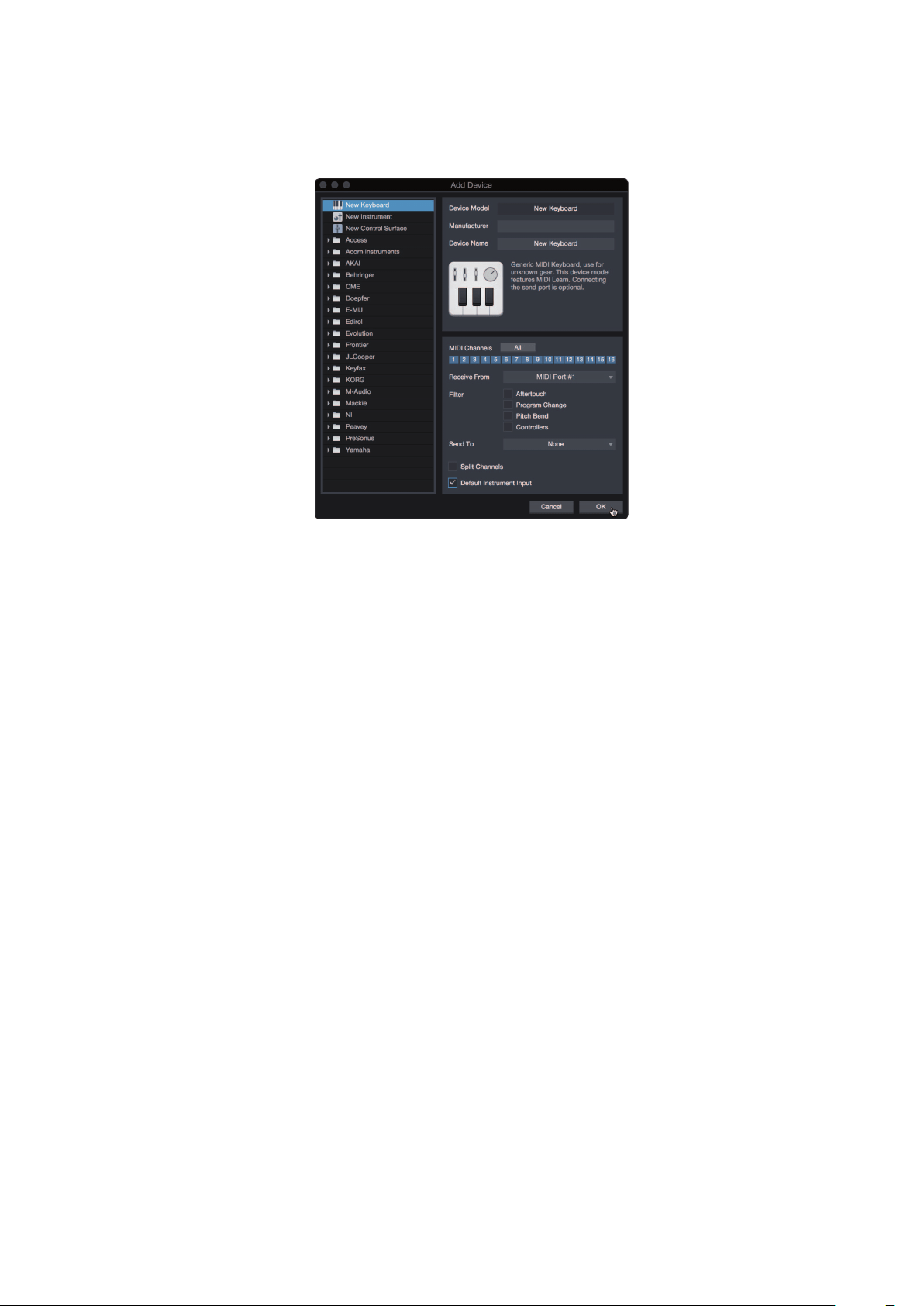
Setting up a MIDI Keyboard controller
A MIDI keyboard controller is a hardware device that is generally used for playing
and controlling other MIDI devices, virtual instruments, and software parameters.
In Studio One Artist, these devices are referred to as Keyboards, and they must be
configured before they are available for use. In some cases, your MIDI keyboard
controller is also used as a tone generator. Studio One Artist views the controller
and tone-generation functions as two different devices: a MIDI keyboard controller
and a sound module. The MIDI controls (keyboard, knobs, faders, etc.) will be
set up as a Keyboard. The sound modules will be set up as an Instrument.
You can set up your external MIDI devices from the Setup area
in the Start page. Before setting up a new Song for recording,
take a moment to configure external devices.
Make sure you have connected the MIDI Out of your external MIDI controller to a
MIDI In on your PreSonus audio interface (if available) or another MIDI interface. If
you are using a USB MIDI controller, connect it to your computer and power it on.
1. Click on the Configure External Devices link in the Setup area on
the Start page to launch the External Devices window.
Click the Add button. This will launch the Add Device window.
40
9 Studio One Artist Quick Start
9.2 Setting Up Studio One
ioStation 24c Audio Interface and Production Controllers
Owner’s Manual
2. From the menu on the left, select your MIDI controller from the list of
manufacturers and models. If you do not see your MIDI controller listed,
select New Keyboard. At this point, you can customize the name of
your keyboard by entering the manufacturer and device names.
3. You must specify which MIDI channels will be used to communicate with
this keyboard. For most purposes, you should select all MIDI channels.
If you are unsure of which MIDI channels to choose, select all 16.
4. Studio One allows you to filter out specific control functions. If you would
like Studio One to ignore Aftertouch, Pitch Bend, Program Change, or
all CC messages, enable filtering for any or all of these messages.
5. In the Receive From drop-down menu, select the MIDI interface
input from which Studio One Artist will receive MIDI data (that
is, the MIDI port to which your keyboard is connected).
Power User Tip: In the Send To drop-down menu, select the MIDI interface output
from which your Studio One Artist will send MIDI data to your keyboard. If your
keyboard controller doesn’t need to receive MIDI data from Studio One, you can
leave this unselected.
6. If this is the only keyboard that you will use to control your external
synthesizers and virtual instruments, you should check the box
next to Default Instrument Input. This will automatically assign your
keyboard to control all MIDI devices in Studio One Artist.
7. Click “OK.”
If you have a sound module that you’d like to connect, leave the External
Devices window open and proceed to the next part of this section.
If not, you can close the window and skip to the next section.
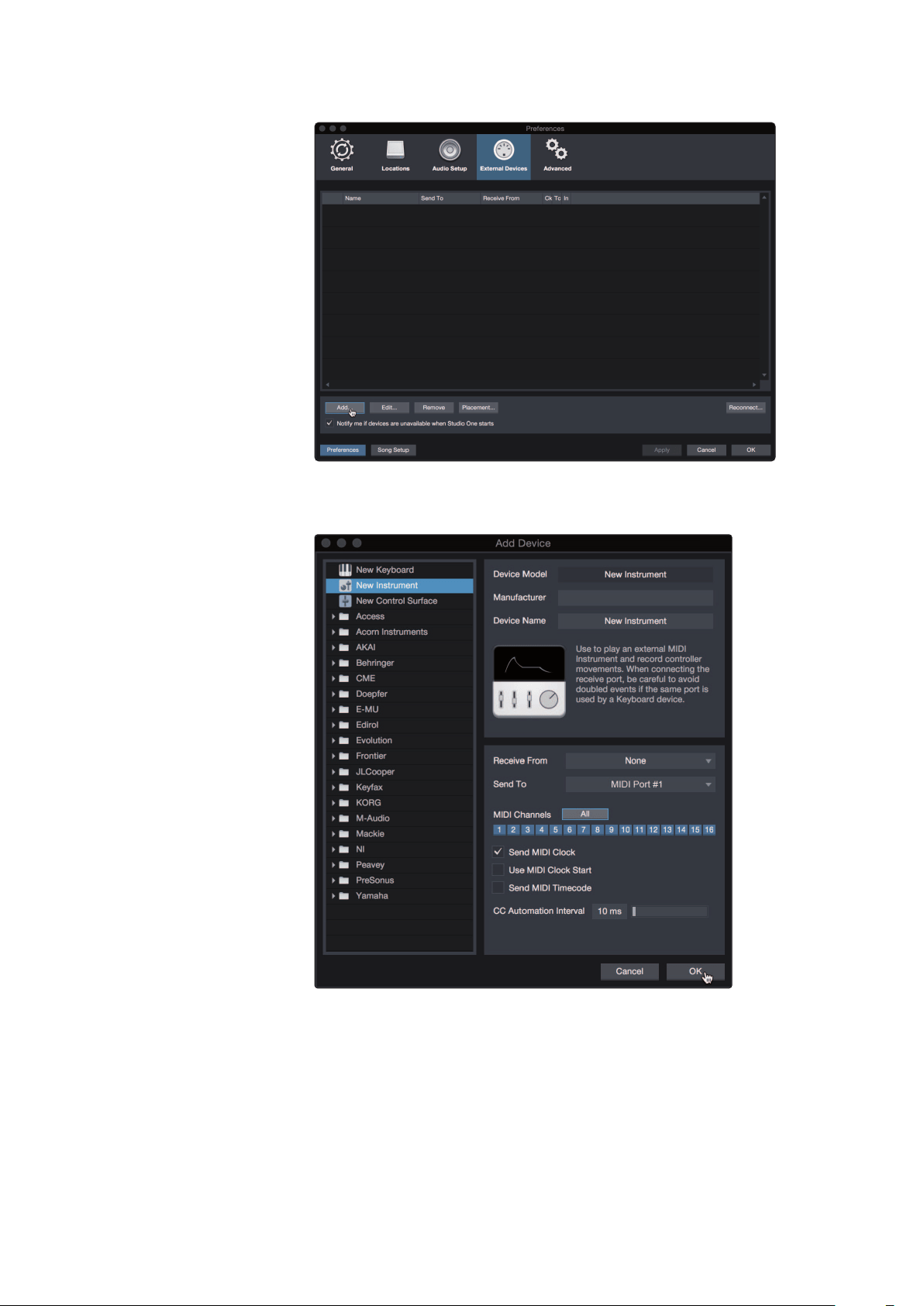
Setting up an External MIDI Sound Module
MIDI instrument controllers (keyboards, MIDI guitars, etc.) send musical information,
in the form of MIDI data, to tone modules and virtual instruments, which respond
by generating sound as instructed. Tone modules can be standalone sound devices
or can be integrated into a MIDI instrument, such as a keyboard synthesizer. Studio
One Artist refers to all tone generators as Instruments. Once you have set up your
MIDI keyboard controller, take a moment to configure your sound module.
Make sure you have connected the MIDI In of your external
sound module to the MIDI Out of your MIDI interface.
41
9 Studio One Artist Quick Start
9.2 Setting Up Studio One
ioStation 24c Audio Interface and Production Controllers
Owner’s Manual
1. In the External Devices window, click the Add button.
2. Select your device in the menu on the left. If your device is not listed,
select New Instrument. At this point, you can customize the name of
your keyboard by entering the manufacturer and device names.
3. Specify which MIDI channels will be used to communicate with this sound
module. For most purposes, you should select all MIDI channels. If you are
unsure of which MIDI channels to select, we suggest you select all 16.
4. In the Send To menu, select the MIDI interface output from which Studio One
Artist will send MIDI data to your sound module. Click “OK” and close the External
Devices window. You are now ready to start recording in Studio One Artist.
The rest of this Quick Start Guide will go over how to set
up a Song and will discuss some general workflow tips for
navigating through the Studio One Artist environment.
42
9 Studio One Artist Quick Start
9.3 Creating a New Song
ioStation 24c Audio Interface and Production Controllers
Owner’s Manual
9.3 Creating a New Song
Now that you’ve configured your audio and MIDI devices, let’s create
a new Song. We’ll start by setting up your default audio I/O.
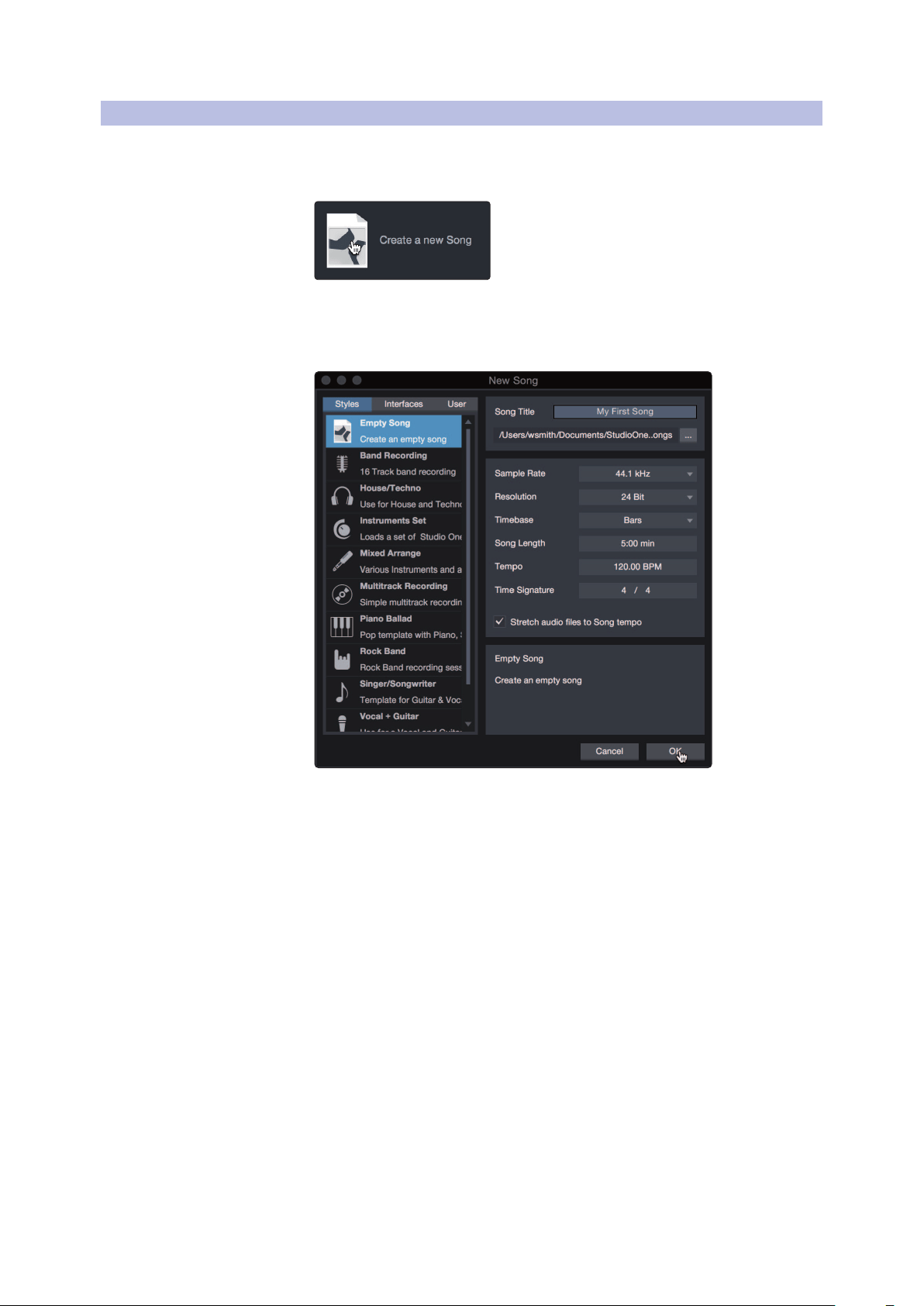
1. From the Start page, select “Create a New Song.”
2. In the New Song window, name your Song and choose the directory in
which you’d like it saved. You’ll notice a list of templates on the left. These
templates provide quick setups for a variety of devices and recording
situations. The section will describe creating a Song from an empty session.
3. Select “Empty Song” from the Templates list. At this point, you should give
your Song a name and select your preferred sample rate and bit depth for
recording and playback. You can also set the length of your Song and the
type of time format you would like the timeline to follow (notation bars,
seconds, samples, or frames). Click the OK button when you are finished.
Power User Tip: If you plan to import loops into your Song, make sure that the
Stretch Audio Files to Song Tempo option is selected. This will automatically import
loops at the correct tempo.
43
9 Studio One Artist Quick Start
9.3 Creating a New Song
ioStation 24c Audio Interface and Production Controllers
Owner’s Manual
9.3.1 Configuring Your Audio I/O
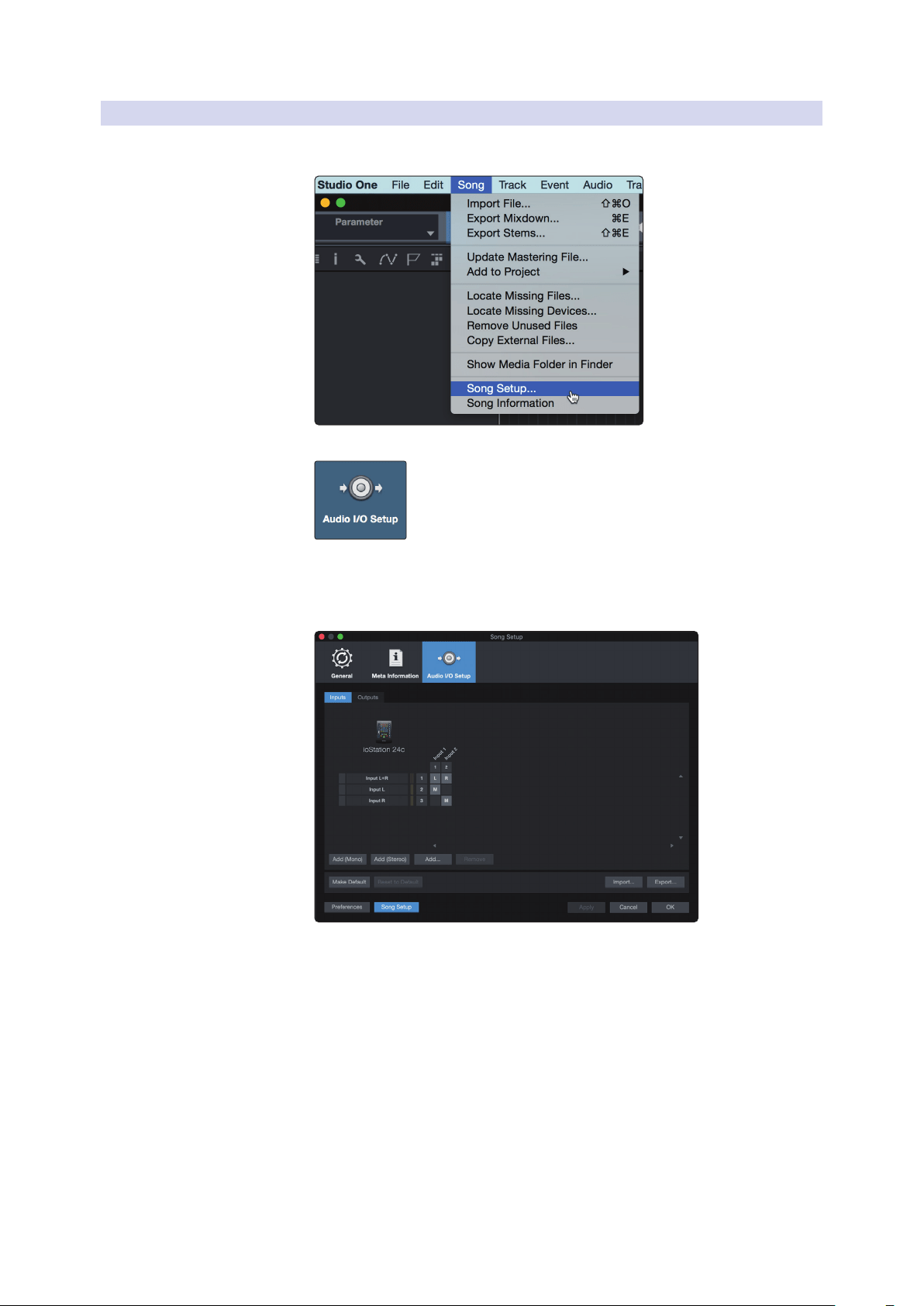
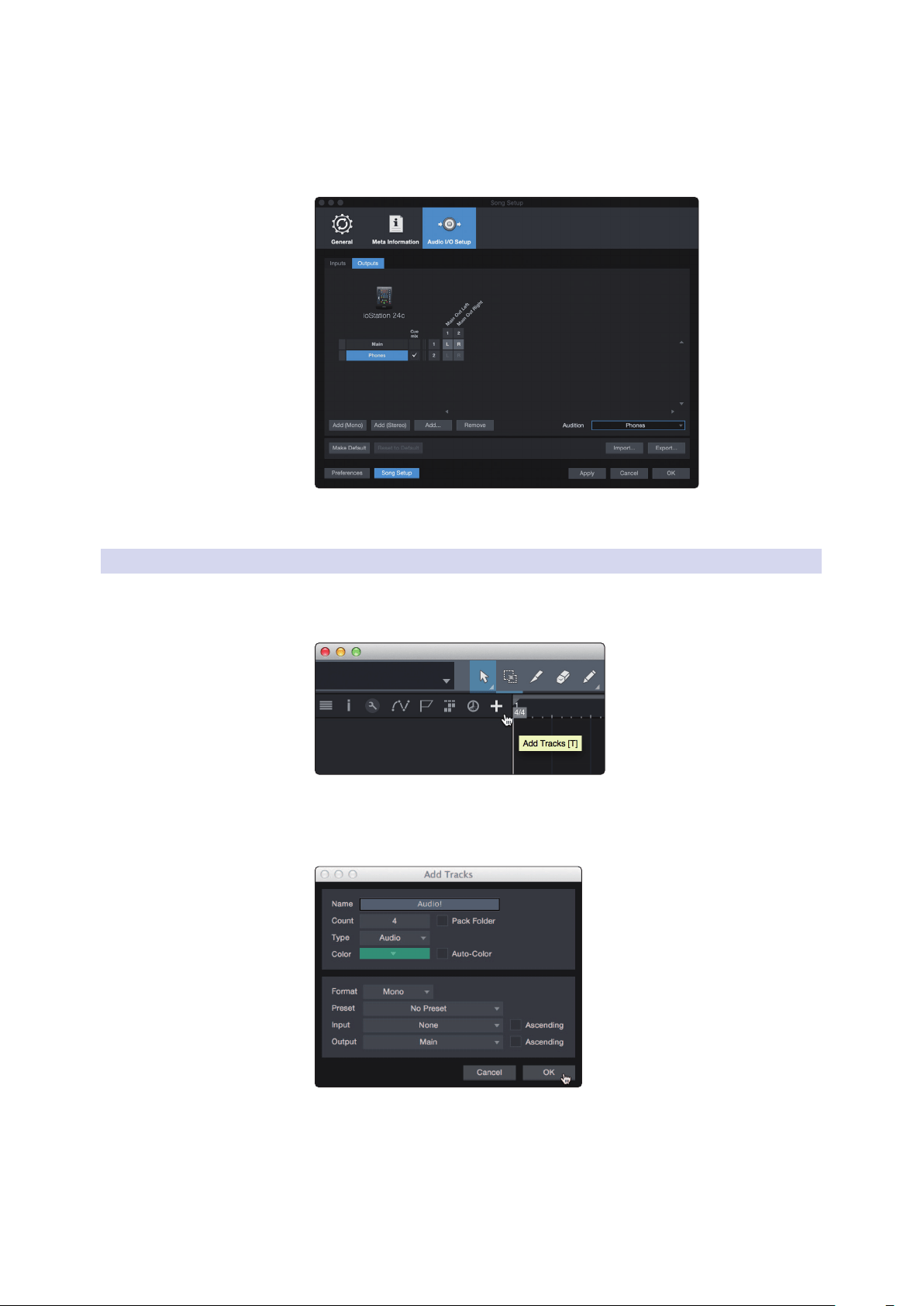
1. Click on Song | Song Setup to set your sample rate and
resolution and configure your audio I/O.
2. Click on the Audio I/O Setup tab.
3. From the Inputs tab, you can enable any or all of the inputs on your
audio interface that you’d like to have available. We recommend that
you create a mono input for each of the inputs on your interface. If
you plan on recording in stereo, you could create a stereo input.
44
9 Studio One Artist Quick Start
9.3 Creating a New Song
ioStation 24c Audio Interface and Production Controllers
Owner’s Manual
4. Click on the Outputs tabs to enable any or all of the outputs on your
audio interface. In the lower right corner, you will see the Audition
Select menu. This allows you to choose the output from which you
will audition audio files prior to importing them into Studio One
Artist. In general, you will want this to be the main output bus.
Power User Tip: If you would like this I/O configuration to be the same every time
you open Studio One, click the Make Default button.
9.3.2 Creating Audio and Instrument Tracks
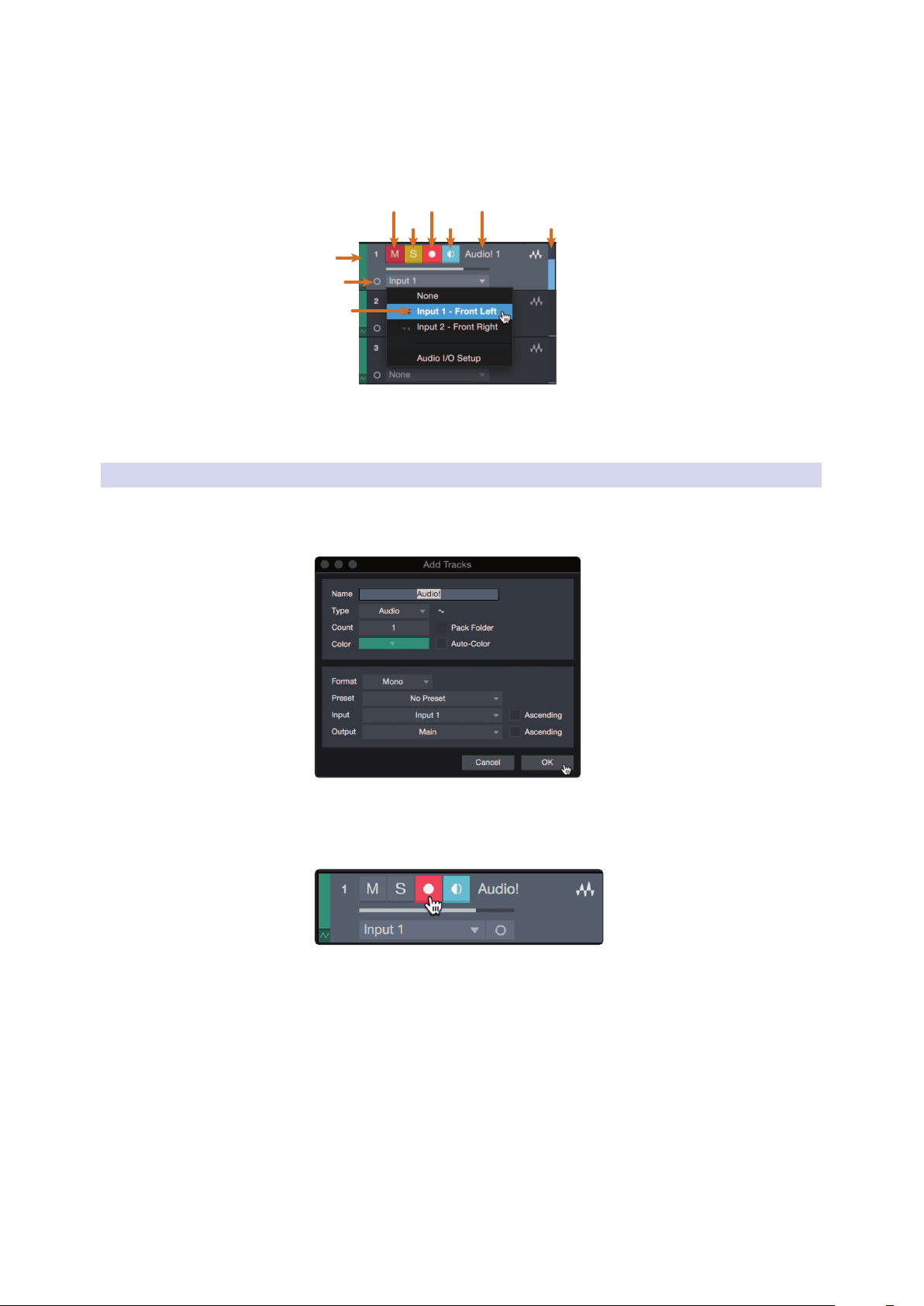
1. In the upper left corner of the Arrange window, you will notice
several buttons. The button furthest to the right is the Add Tracks
button. Click on this button to open the Add Tracks window.
2. In the Add Tracks window, you can customize the track name and
color, add a preset rack of effects, and set the physical source for
the input and output of your audio tracks. Most important, you
can select the number and type of tracks you’d like to create.
Audio. Use this track type to record and playback audio files.
Instrument. Use this track to record and playback MIDI data to
control external MIDI devices or virtual instrument plug-ins.
Automation. This track type lets you create automated
parameter controls for your session.
45
9 Studio One Artist Quick Start
9.3 Creating a New Song
ioStation 24c Audio Interface and Production Controllers
Owner’s Manual
Folder. This track helps you to manage your session as
well as to quickly edit multiple tracks at once.
Power User Tip: If you would like to add an audio track for each of the available inputs,
go to Track | Add Tracks for All Inputs.
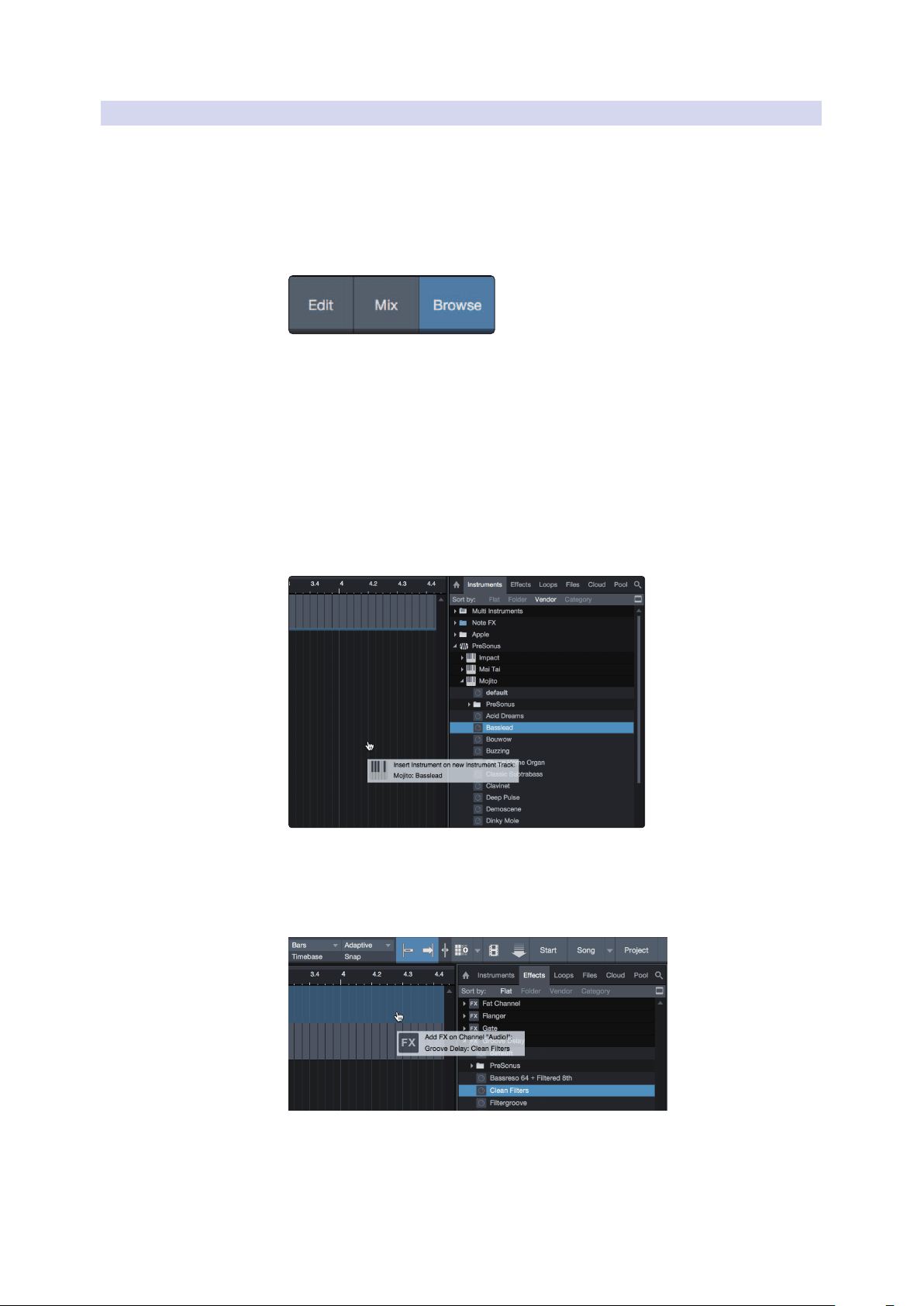
Mute
Custom
Track
Color
ST/Mono
Audio Input
Source Select
Solo
Rec
Arm
Monitor
Track
Name
Meter
Note: Instrument tracks are nearly identical to audio tracks. The Input Source list for
Instrument tracks lists available external MIDI devices as well as any virtual instruments
that have been added to the Song.
9.3.3 Recording an Audio Track
1. To begin recording, create an audio track from the Add Tracks
window, set its input to Input 1 on your audio interface,
and connect a microphone to the same input.
2. Select Record Enable on the track. Turn up the Input 1 level on your audio
interface while speaking/singing into the microphone. You should see
the input meter in Studio One Artist react to the input. Adjust the gain
so the input level is near its maximum without clipping (distorting).
You are now ready to start recording. For complete instructions, please consult the
Studio One Reference manual located in Help | Studio One Reference Manual.
46
9 Studio One Artist Quick Start
9.3 Creating a New Song
ioStation 24c Audio Interface and Production Controllers
Owner’s Manual
9.3.4 Adding Virtual Instruments and Effects
You can add plug-ins and instruments to your Song by dragging-and-dropping
them from the browser. You can also drag an effect or group of effects from one
channel to another, drag in customized effects chains, and instantly load your
favorite virtual-instrument preset without ever scrolling through a menu.
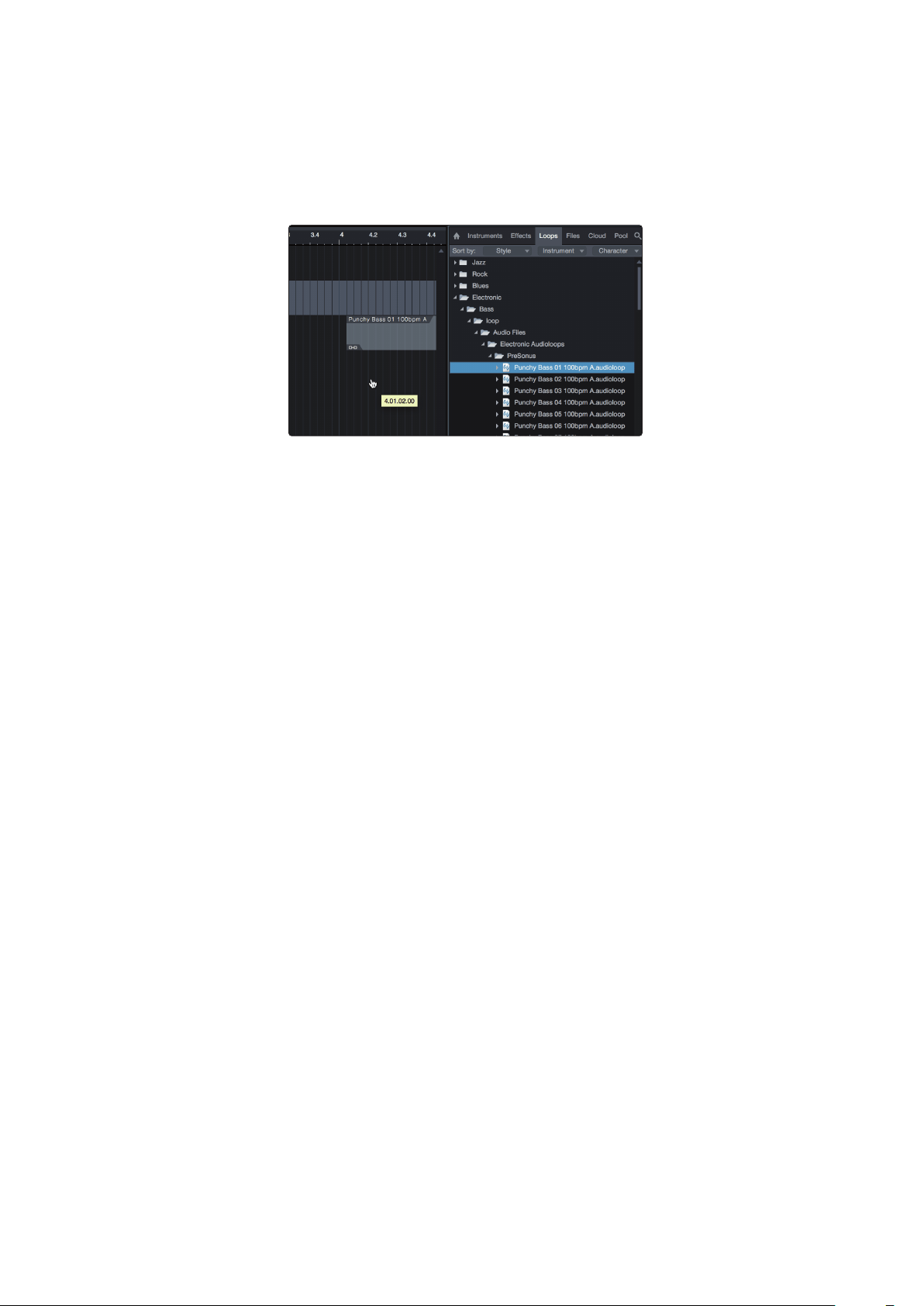
Opening the browser
In the lower right corner of the Arrange window are three buttons:
Edit. The Edit button opens and closes the audio and MIDI editors.
Mix. The Mix button opens and closes the Mixer window.
Browse. The Browse button opens the browser, which displays all of the
available virtual instruments, plug-in effects, audio files, and MIDI files,
as well as the pool of audio files loaded into the current session.
Drag-and-Drop Virtual Instruments
To add a virtual instrument to your session, open the browser and click on
the Instrument button. Select the instrument or one of its patches from the
Instrument browser and drag it into the Arrange view. Studio One Artist will
automatically create a new track and load the instrument as the input.
Drag-and-Drop Effects
To add a plug-in effect to a track, click the Effects button in the browser and
select the plug-in or one of its presets in the effects browser. Drag-and-drop
the selection over the track to which you would like to add the effect.
47
9 Studio One Artist Quick Start
9.3 Creating a New Song
ioStation 24c Audio Interface and Production Controllers
Owner’s Manual
Drag-and-Drop Audio and MIDI Files
Audio and MIDI files can be quickly located, auditioned, and imported into
your Song by dragging them from the file browser into the Arrange view.
If you drag the file to an empty space, a new track will be created with
that file placed at the position to which you dragged it. If you drag the file
to an existing track, the file will be placed as a new part of the track.
48
10 Appendix
10.1 Operation Modes
ioStation 24c Audio Interface and Production Controllers
Owner’s Manual
10 Appendix
10.1 Operation Modes
DAW Recommended Mode
Ableton Live MCU (Live)
Apple Logic MCU (Logic)
Avid Pro Tools HUI
MOTU Digital Performer MCU (Logic)
PreSonus Studio One Studio One
Steinberg Cubase MCU (Cubase)
Steinberg Nuendo MCU (Cubase)
Others
MCU (Logic); If “ioStation 24c” is not listed as a supported device
in your DAW, configure it as an Mackie Control Universal. Note that
the ioStation 24c’s control performance may vary depending your
DAW’s MCU implementation.
OR
Studio One. If “ioStation 24c” is listed as a supported device by your
DAW, it has been integrated into your application using the Studio
One native protocol.
10.2 ioStation 24c MIDI Protocol
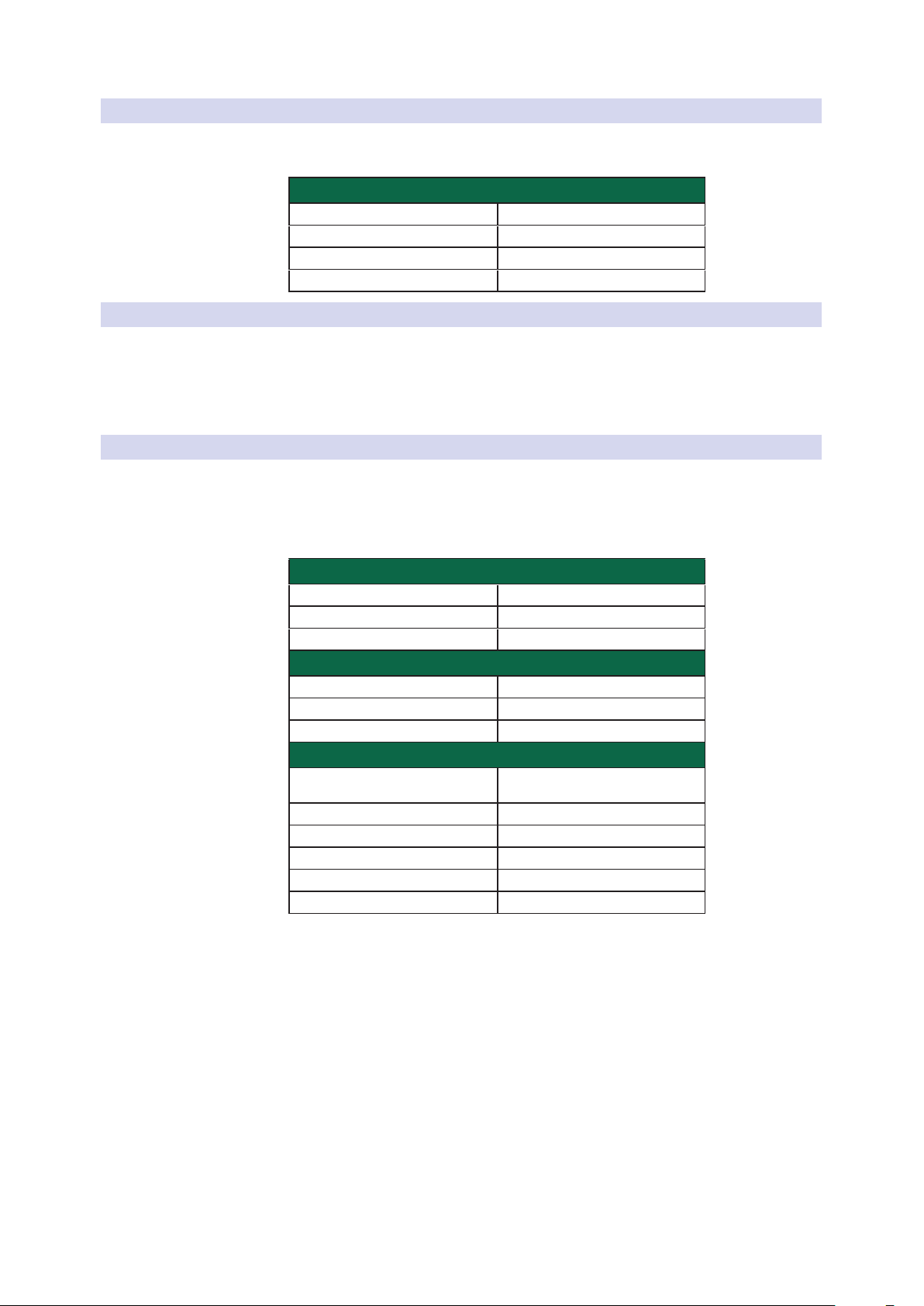
Studio One operation mode employs a native MIDI protocol. For
advanced users or developers, this MIDI protocol can be used to
access the ioStation 24c user interface elements directly.
To access this mode, press and hold the Next button on power up, then press Solo.
10.2.1 SysEx
SysEx
SysEx header <SysExHdr> F0 00 01 06 16
Manufacturer ID 00 01 06
ioStation 24cDevice ID 0x0208
Studio One
49
10 Appendix
10.2 ioStation 24c MIDI Protocol
ioStation 24c Audio Interface and Production Controllers
Owner’s Manual
10.2.2 Fader
Use MIDI pitch bend message to transmit fader moves and receive fader positions.
Channel 0 is used to address the fader.
Faders
Received E0, ll, hh
Transmitted E0, ll, hh
Low 7 bits ll
High 7 bits hh
10.2.3 Session Navigator Encoder
Use CC messages to transmit increment and decrement values.
Transmitted endless rotary encoder delta values:
Session Navigator Encoder: B0, 3C, xx
xx delta value bit (Bit 7 = direction, Bits 0-6 = number of steps)
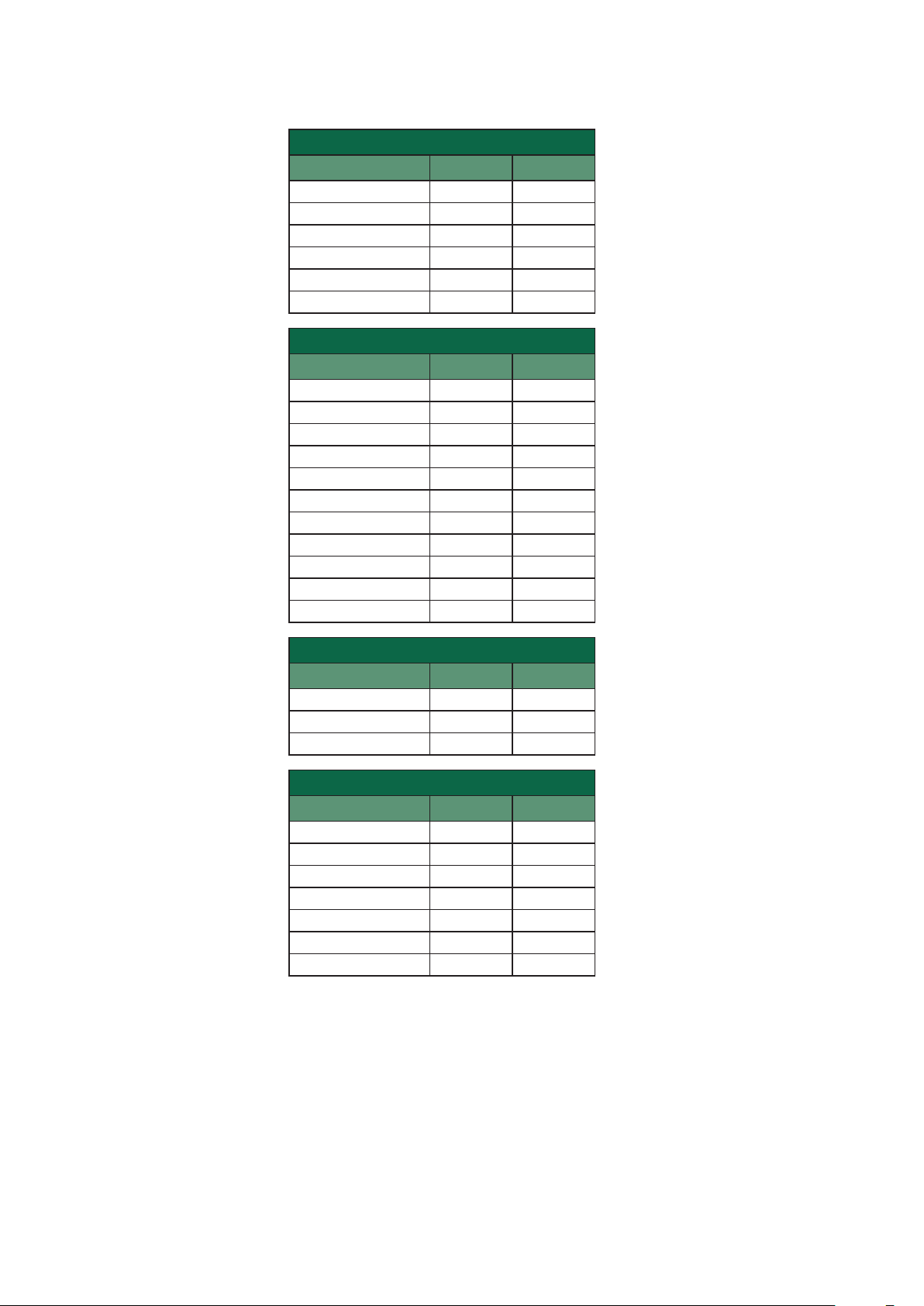
10.2.4 Buttons and LEDs
Buttons use Note On/Off messages to transmit the
pressed and released state on channel 0.
LEDs use Note On/Off messages to receive the on,
off and flashing state on channel 0.
Transmitted
Button press and release message 90, id, ss
ID See ID Table
ss State (Release: 00, Pressed, 7F)
Received (On, Off, Flashing)
LED on / off message 90, id, ss
ID See ID Table
ss State (Off: 00, On: 7F, Flashing: 01)
Received (Color)
LED Color message MIDI channel 1-3 is used to set the RGB values of a LED
color with 7-bit resolution per color
Red 91, id, cc
Green 92, id, cc
Blue 93, id, cc
ID See ID table
cc 7-bit color value
50
10 Appendix
10.2 ioStation 24c MIDI Protocol
ioStation 24c Audio Interface and Production Controllers
Owner’s Manual
Button and LED ID Tables:
Channel Strip Controls
Button Label ID (Hex) LED Type
Arm 00 LED
Bypass 03 LED
Solo 08 LED
Mute 10 LED
Fader Touch 68 n/a
SHIFT 46 LED
Session Navigator
Button Label ID (Hex) LED Type
Prev 2E LED
Session Navigator Push Encoder 20 n/a
Next 2F LED
Link 05 RGB
Pan 2A RGB
Channel 36 RGB
Scroll 38 RGB
Master 3A LED
Click 3B LED
Section 3C LED
Marker 3D LED
Automation
Button Label ID (Hex) LED Type
Read 4A RGB
Write 4B RGB
Touch 4D RGB
Transport
Button Label ID (Hex) LED Type
Loop 56 LED
Rewind 5B LED
Fast Forward 5C LED
Stop 5D LED
Play 5E LED
Record 5F LED
Footswitch 66 n/a

© 2020 PreSonus Audio Electronics, Inc. All Rights Reserved. FaderPort, FireStudio, and PreSonus are trademarks or registered trademarks of PreSonus Audio Electronics, Inc. Studio
One is a registered trademarks of PreSonus Software Ltd. Mac and macOS are registered trademarks of Apple, Inc., in the U.S. and other countries. Windows is a registered trademark
of Microsoft, Inc., in the U.S. and other countries. Other product names mentioned herein may be trademarks of their respective companies. All specifications subject to change
without notice...except the recipe, which is a classic.
Dinner is Served
Added bonus: PreSonus’ previously Top Secret recipe for…
Redfish Couvillion
Ingredients:
• ¼ C Vegetable oil
• ¼ C flour
• 1 onion diced
• 1 clove garlic minced
• 1 green pepper diced
• 3 celery stalks diced
• 1 14oz can diced tomatoes
• 1 bottle light beer
• 2 bay leaves
• 1 tsp thyme
• 2 lbs Redfish fillets
Cooking Instructions:
1. In a heavy saucepan or large skillet, heat oil on medium high and slowly add flour a tablespoon at a time to create a roux.
Continue cooking the roux until it begins to brown, creating a dark blond roux.
2. Add garlic, onions, green pepper, and celery to roux.
3. Sauté vegetables for 3-5 minutes until they start to soften.
4. Add tomatoes, bay leaves, thyme, and redfish. Cook for several minutes.
5. Slowly add beer and bring to a low boil.
6. Reduce heat and simmer uncovered for 30-45 minutes until redfish and vegetables are completely cooked, stirring occa-
sionally. Break up redfish into bite size chunks and stir in. Add pepper or hot sauce to taste. Do not cover.
7. Serve over rice
Serves 6-8
While not one of Southeast Louisiana’s more famous dishes, Redfish Couvillion is a favorite way to serve our favorite Gulf fish.
Also known as Reds or Red Drum, Redfish is not only fun to catch, it’s also delicious!
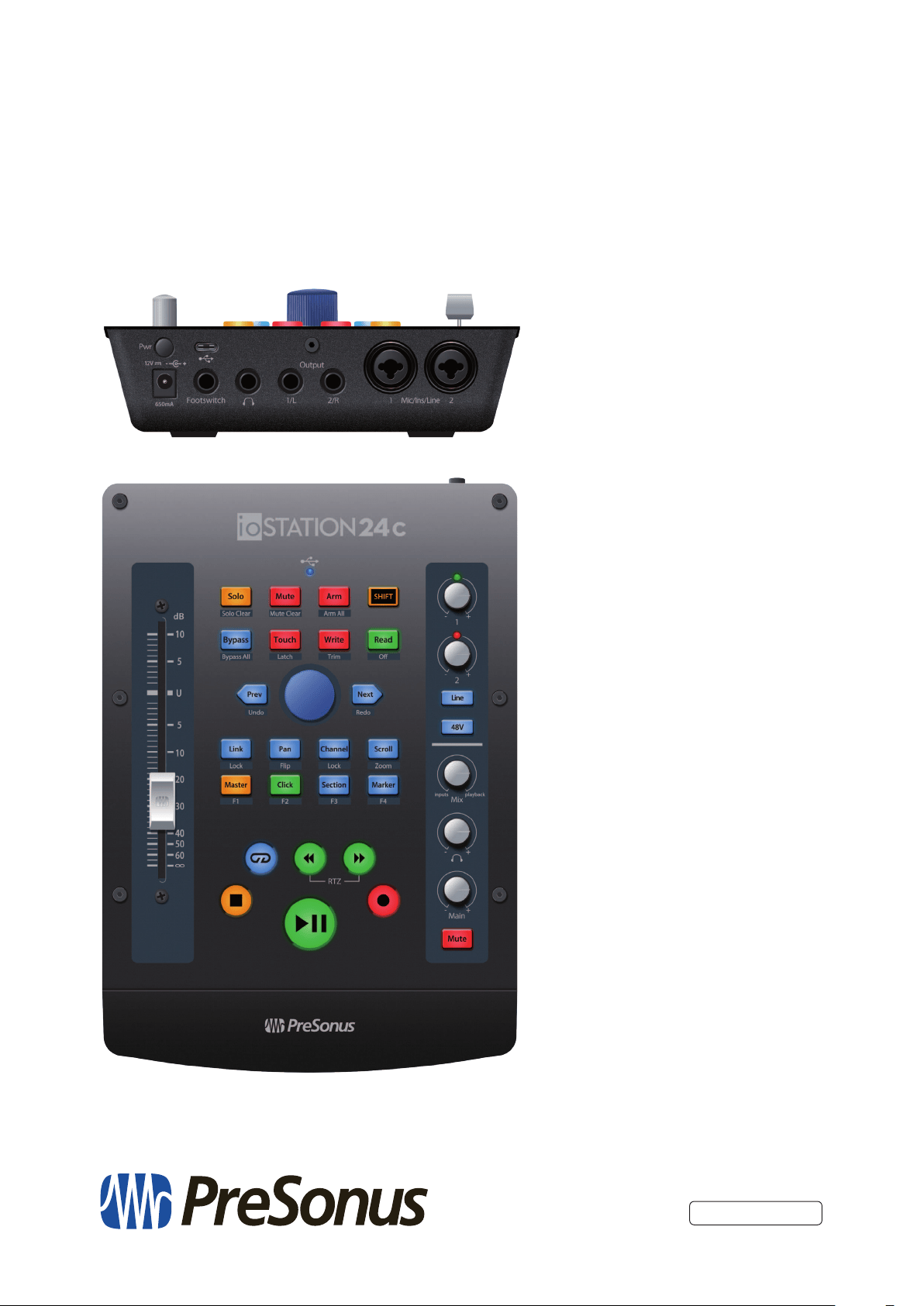
18011 Grand Bay Ct. • Baton Rouge,
Louisiana 70809 USA• 1-225-216-7887
www.presonus.com
Part# 70-52000148-A
®
ioStation 24c
Audio Interface and Production Controller
Owner’s Manual