English
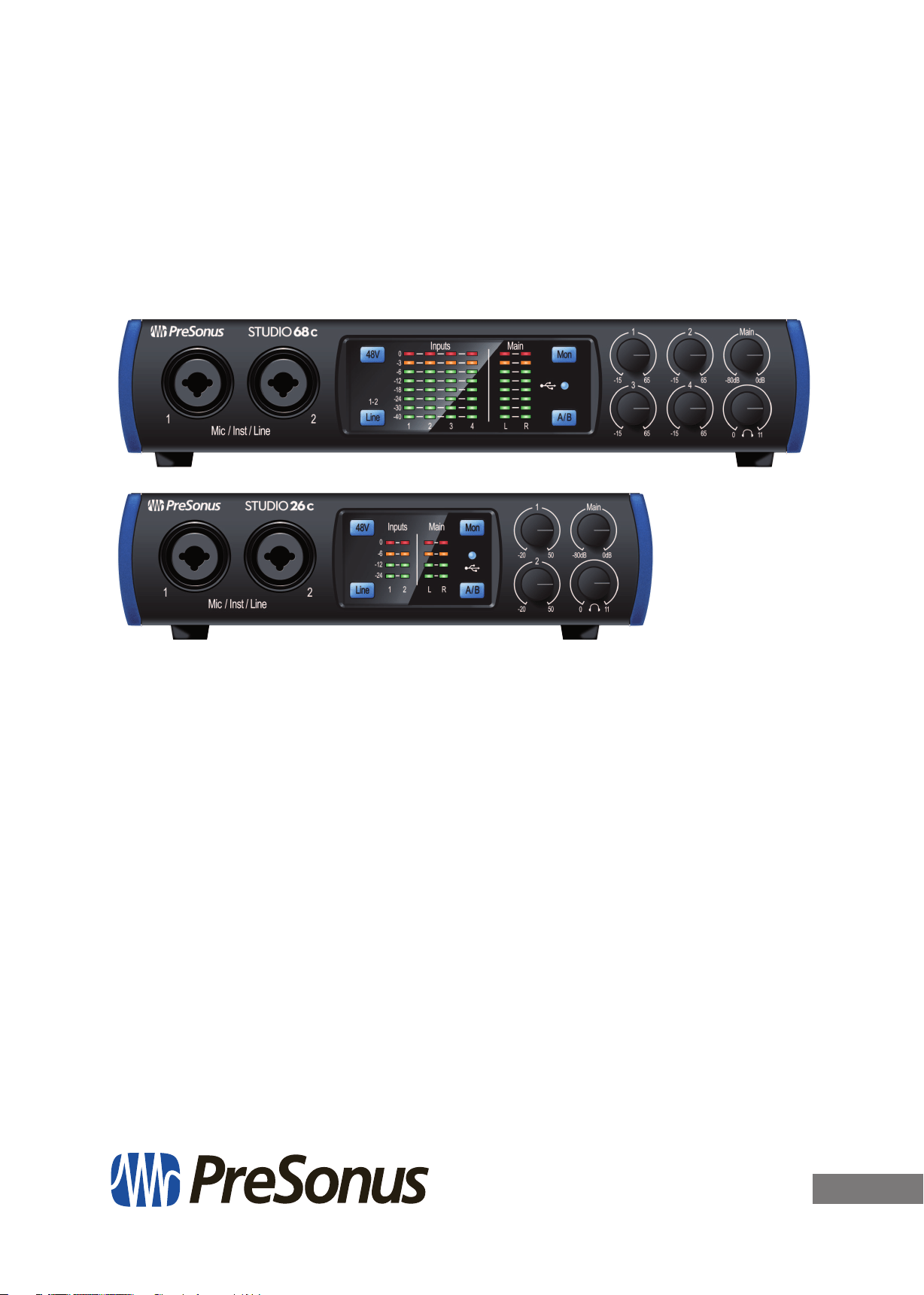
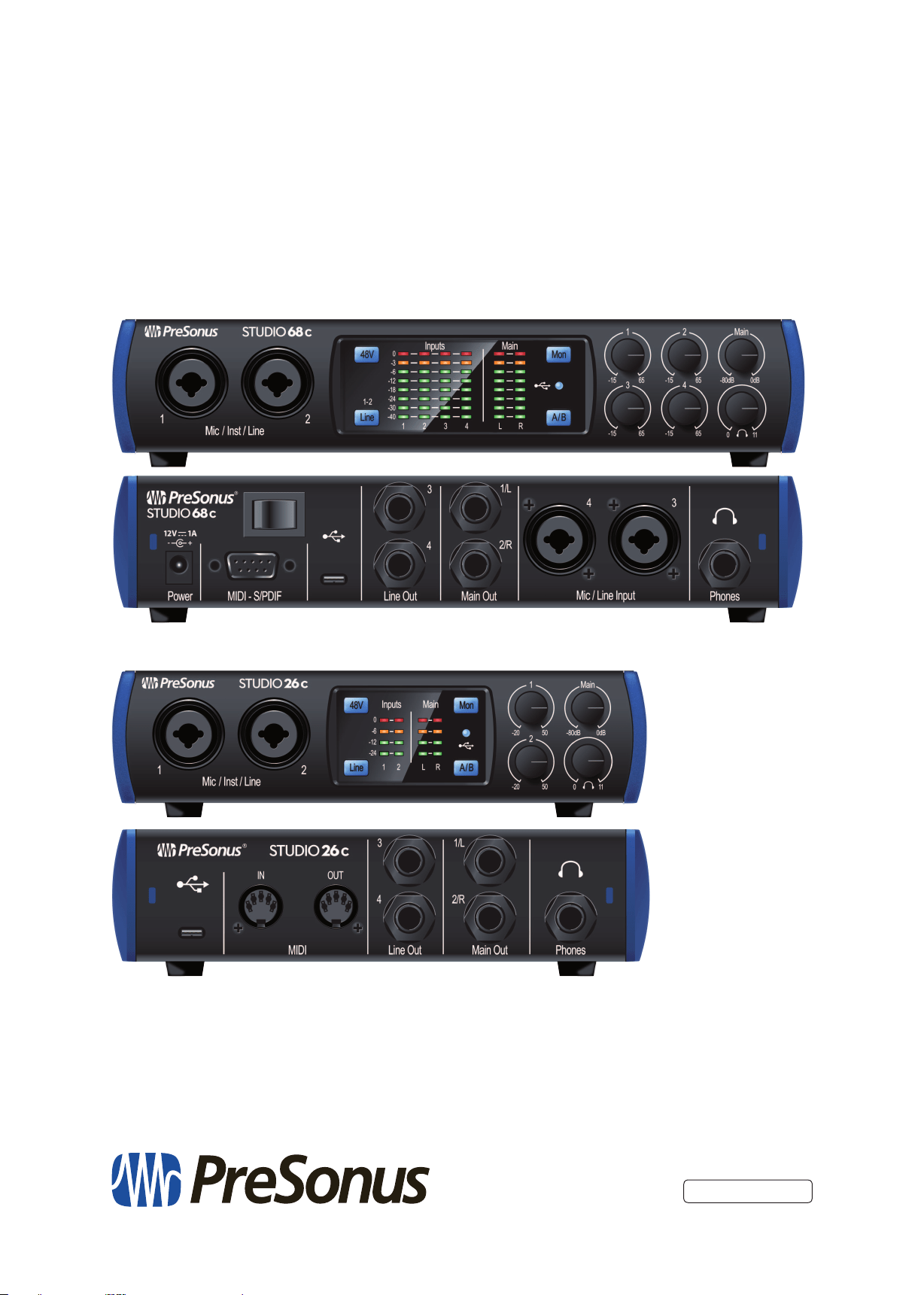
Studio 26c and Studio 68c
24-Bit, 192 kHz USB-C Audio Interfaces
Owner’s Manual
www.presonus.com
®

Table of Contents
1 Overview — 1
1.1 Introduction — 1
1.2 About This Manual — 1
1.3 Summary of Studio-series
Hardware Features — 2
1.4 Summary of Studio One Artist
Software Features — 2
1.5 What is in the Box — 3
2 Hookup — 4
2.1 Front-Panel Connections — 4
2.2 Back Panel Connections — 6
2.3 Connection Diagrams — 8
2.3.1 Studio 26c — 8
2.3.2 Studio 68c — 9
3 Connecting to a Computer — 10
3.1 Installation for Windows — 10
3.1.1 Universal Control (Windows) — 10
3.1.2 Loopback Recording
(Windows only) — 12
3.2 Installation for macOS — 13
3.3 Using the Studio-series interfaces
with Popular Audio Applications — 13
4 Studio One Artist Quick Start — 15
4.1 Installation and Authorization — 15
4.2 Setting Up Studio One — 16
4.2.1 Configuring Audio Devices — 17
4.2.2 Configuring MIDI Devices — 17
4.3 Creating a New Song — 21
4.3.1 Configuring Your I/O — 22
4.3.2 Creating Audio and
Instrument Tracks — 23
4.3.3 Recording an Audio Track — 24
4.3.4 Adding Virtual Instruments
and Effects — 25
5 Technical Information — 27
5.1 Specifications — 27
6 Warranty Information — 29
6.1 How Consumer Law Relates
To This Warranty — 29
1
1 Overview
1.1 Introduction
Studio 26c and Studio 68c
Owner’s Manual
1 Overview
1.1 Introduction
Thank you for purchasing a PreSonus® Studio-series audio interface. PreSonus
Audio Electronics, Inc., has designed the Studio-series interfaces utilizing high-grade
components to ensure optimum performance that will last a lifetime. Loaded with
high-headroom, Class A microphone preamplifiers; a robust metering, Cue Mix A/B
switching, high-definition 24-bit, 192 kHz conversion; and more, the Studio-series
breaks new boundaries for music performance and production. All you need is a
computer with a USB-C or USB-A (2.0 or 3.0) connection, a few microphones and
cables, powered speakers, and your instruments, and you are ready to record!
1.2 About This Manual
We suggest that you use this manual to familiarize yourself with the
features, applications, and correct connection procedures for your Studio-
series audio interface before trying to connect it to your computer.
This will help you avoid problems during installation and setup.
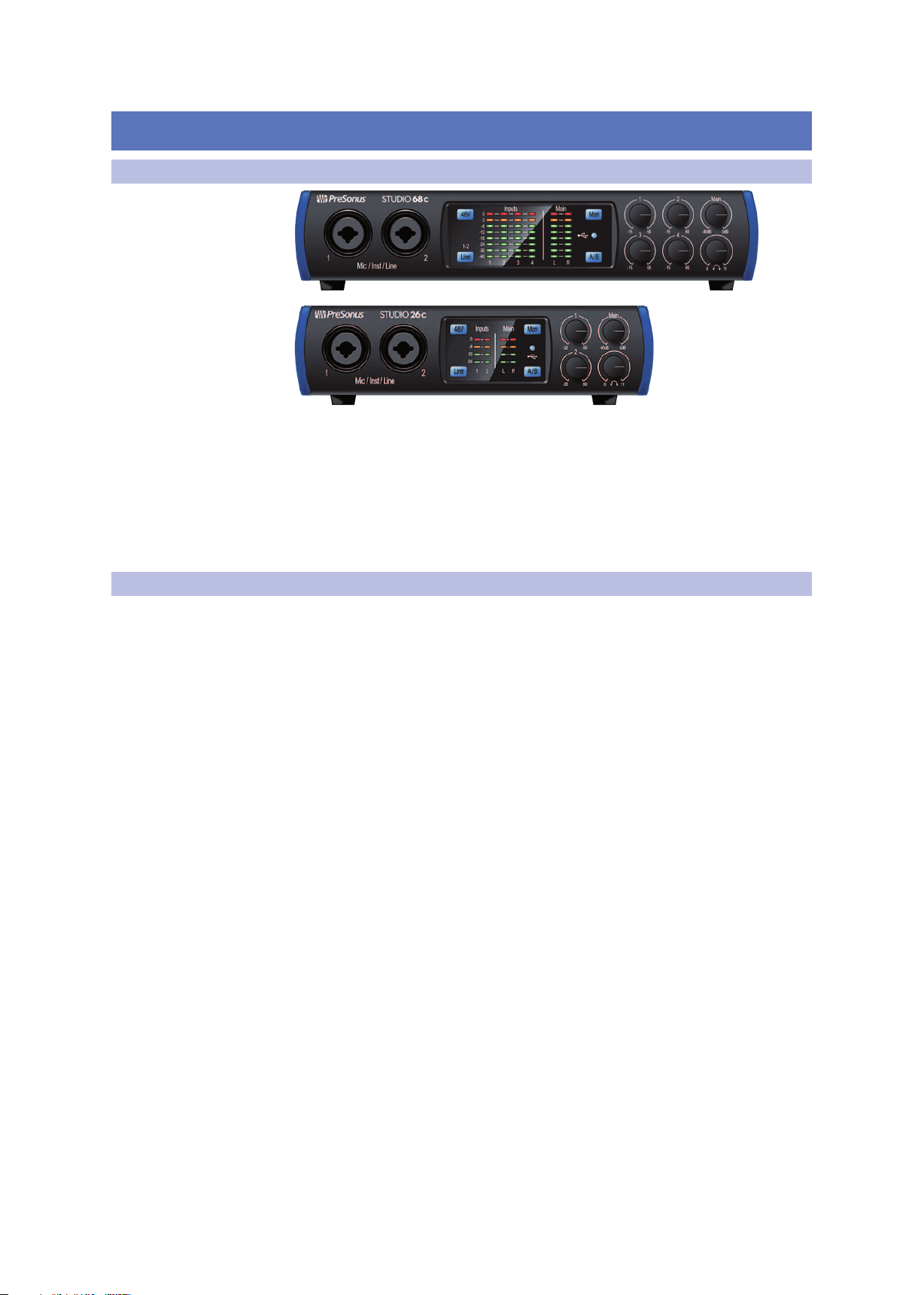
Many of the features and functions of the both Studio-series
interface models are the same. When differences occur, the
Studio 26c will be listed first, followed by the Studio 68c.
Throughout this manual you will find Power User Tips that can
quickly make you a Studio-series interface expert.
2
1 Overview
1.3 Companion PreSonus Products
Studio 26c and Studio 68c
Owner’s Manual
1.3 Companion PreSonus Products
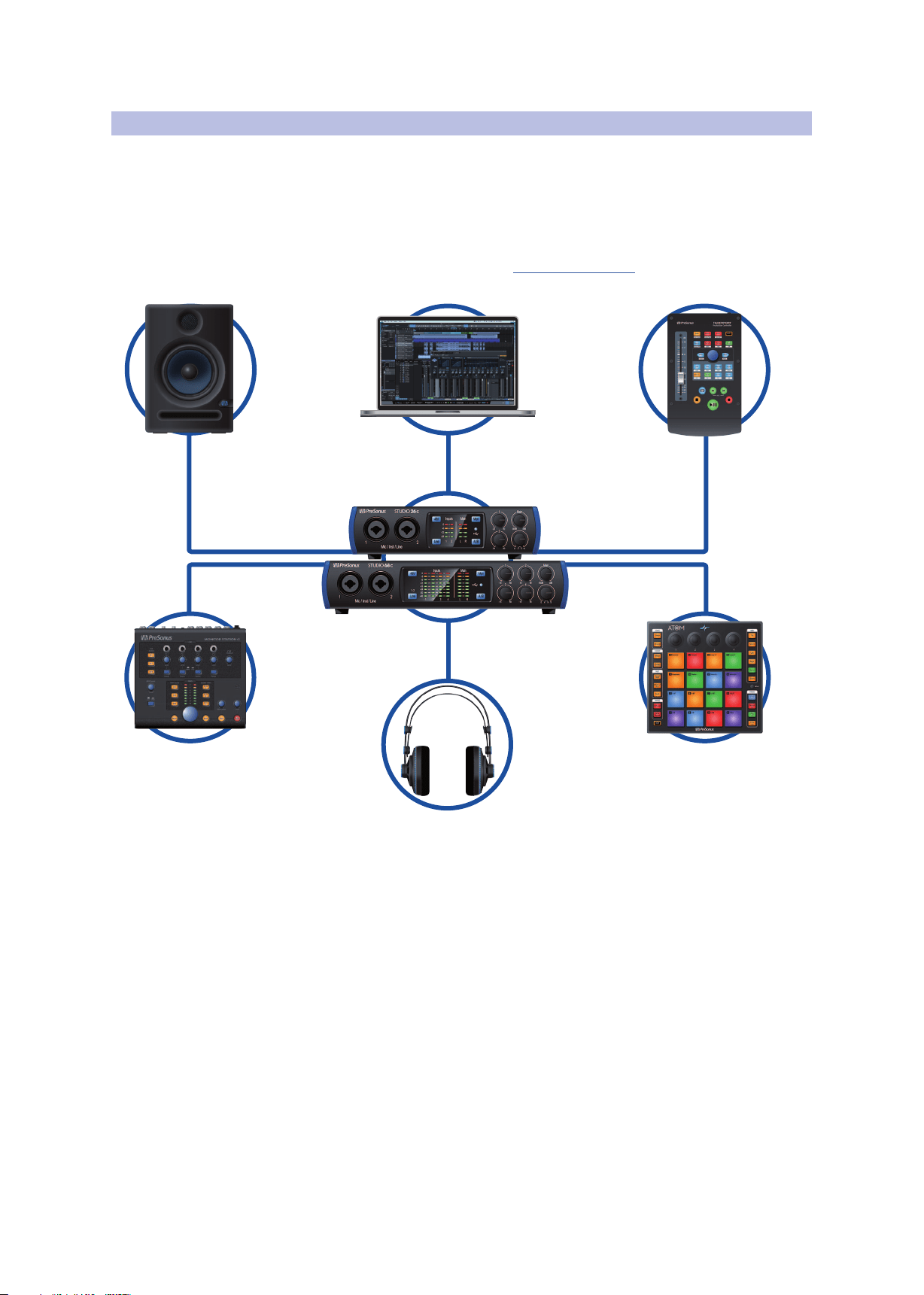
Thanks for choosing PreSonus! As a solutions company, we believe the best way to
take care of our customers (that’s you) is to ensure that you have the best possible
experience from the beginning of your signal chain to the end. To achieve this goal,
we’ve prioritized seamless integration throughout every design phase of these
products from day one. The result is systems that communicate with each other
as intended—straight out of the box—without excessive configuration hassles.
We’re here for you. Find out more at www.presonus.com.
3
1 Overview
1.4 What is in the Box
Studio 26c and Studio 68c
Owner’s Manual
1.4 What is in the Box
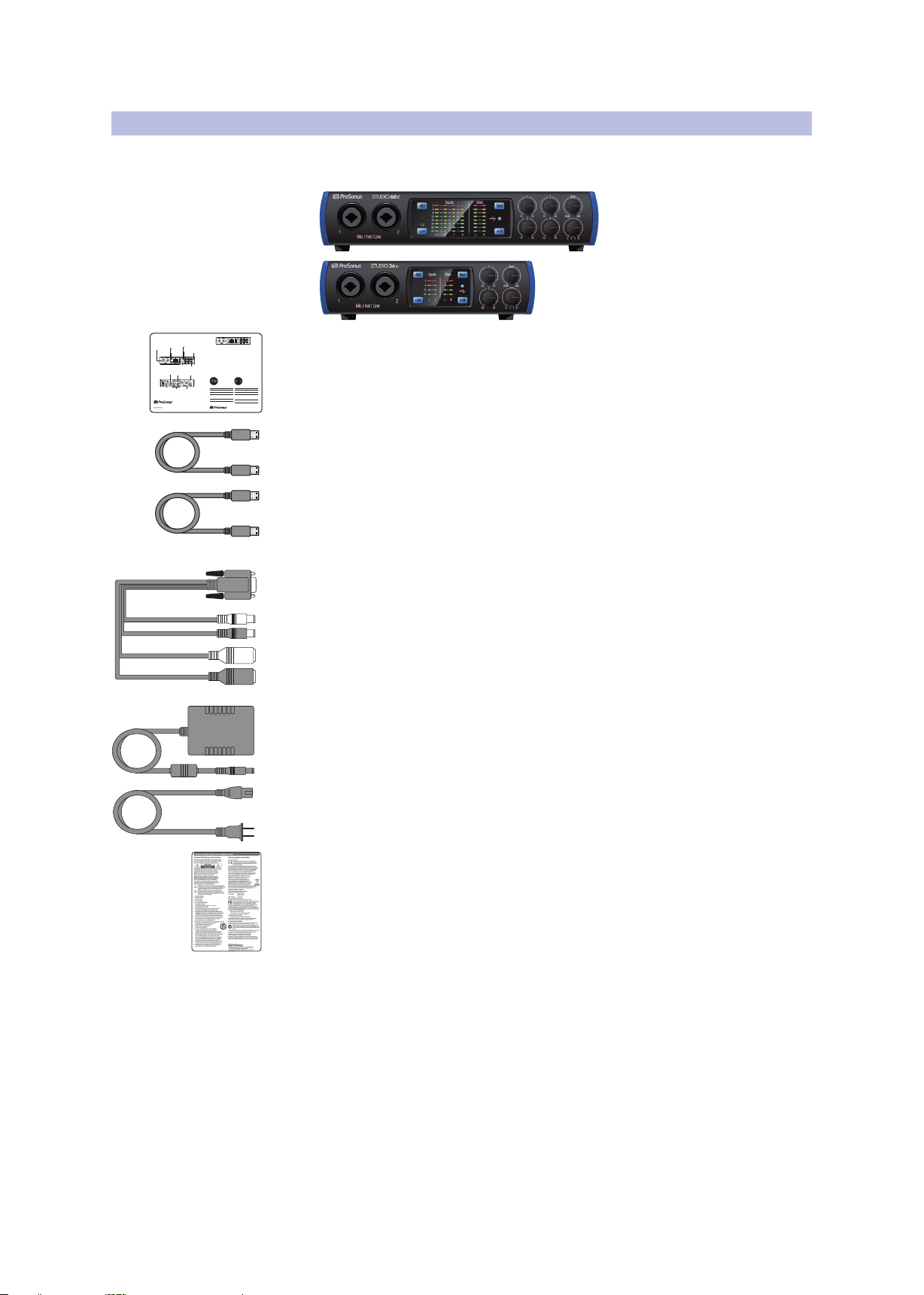
Your Studio-series package contains:
• Studio 26c or Studio 68c 24-bit, 192 kHz audio interface
• Quick Start Guide
• 1M USB-C to C Cable
• 1M USB-C to A Cable
• MIDI / S/PDIF breakout cable (Studio 68c only)
• External power supply (Studio 68c only)
PreSonus Health Safety and Compliance Guide
Power User Tip: All companion software and drivers for your PreSonus Studio-series
audio interfaces are available for download from your My PreSonus user account. Please
visit http://my.presonus.com and register your Studio-series interface to receive
downloads and licenses.
Studio 6|8 24-Bit 192 kHz USB 2.0
Audio Interface
Congratulations on choosing PreSonus. You now own a
state-of-the-art, USB 2.0 interface featuring our renowned
XMAX™ Class A microphone preamplifiers — and Studio One
Artist creative music environment.
Getting Started
Package Contents
• Studio 6|8
• USB cable
• MIDI-S/PDIF Breakout Cable
• Studio One® 3 Key Command Card
• This Hook-Up Guide
• Safety Instructions
Downloads
• Studio 6|8 software drivers for Windows
• Studio One Artist DAW and resources (approximately 2 GB)
• Studio 6|8 Owner’s Manual PDF
Before operating your Studio 6|8
Mobile, you must register online
for software downloads, Owner’s
Manual, and instructional video.
1 Go online to my.presonus.com and create — or log into
— your MyPreSonus user account.
2 Click to register.
3 Enter your Studio 6|8 serial number.
4 Download your Windows driver (no driver necessary for
Mac), software and Owner’s Manual.
5 Connect your equipment to the Studio 6|8. Please refer
to the hook-up diagram in this Getting Started guide
and additional instructions in your Owner’s Manual.
6 Install your Windows driver (if necessary) and
Studio One Artist 3 DAW software.
7 Watch the Studio 6|8 Instruction video and consult
your Owner’s Manual for further instructions.
Studio 6|8 - Interfaz de Audio
USB 2.0 a 24 Bits / 192 kHz
Felicitaciones por y gracias por elegir PreSonus. Ahora usted
posee su propia interfaz USB 2.0 de última generación
portando nuestros renombrados y afamados preamplifica-
dores de micrófono Clase A XMAX™ — y el entorno creativo
musical que proporciona Studio One Artist.
Comenzando
Contenido del paquete
• Studio 6|8- Interfaz de audio y Centro de comando para
estudio de grabación
• Cable USB
• Cable Breakout MIDI-S/PDIF E/S
• Tarjeta de comandos de teclado para Studio One® 3
• Esta guía de conexiones
• Instrucciones de seguridad
Descargas
• Drivers de Studio 6|8 para Windows
• Daw Studio One Artist y recursos (aproximadamente 2 GB)
• Manual de usuario en formato PDF para su Studio 6|8
Antes de operar su Studio 6|8,
primero debe registrarse online
para descargar el software,
Manual de usuario y video
instructivo.
1 Vaya online a my.presonus.com y cree — o ingrese —
a su cuenta de usuario MyPreSonus.
2 Haga clic en Register (Registrar).
3 Ingrese el número de serie de su Studio 6|8.
4 Descargue el driver para Windows (No se requieren
drivers para OS X), software y Manual de usuario.
5 Conecte su hardware a la interfaz Studio 6|8.
Por favor utilice como referencia el diagrama de
conexiones en esta Guía de inicio y las instrucciones
adicionales en su Manual de usuario.
6 Instala el driver de Windows (si se requiere) y el software
DAW Studio One Artist.
7 Observe el video instructivo de Studio 6|8 y consulte el
Manual de usuario para obtener más instrucciones.
Part# 70-12000037-C
18011 Grand Bay Ct. • Baton Rouge,
Louisiana 70809 USA• 1-225-216-7887
www.presonus.com
www.presonus.com
© 2017 PreSonus Audio Electronics, Inc. All Rights Reserved. PreSonus, UC Surface, and XMAX are trademarks or registered trademarks of
PreSonus Audio Electronics, Inc.. Studio One is a registered trademark of PreSonus Software, Ltd. Mac and Mac OS are registered trademarks of
Apple, Inc., in the U.S. and other countries. Windows is a registered trademark of Microsoft, Inc., in the U.S. and other countries. Other product
names mentioned herein may be trademarks of their respective companies. All specifications subject to change without notice.
Headphone level control
Control para nivel de audífonos
Regler für Kopfhörerpegel
Commande de niveau casque
Front panel mic/instrument inputs with
XMAX™ preamps
Entradas de micrófono/instrumento en el
panel frontal con preamplificadores XMAX™
Frontseitige Mikrofon-/Instrumentene-
ingänge mit XMAX™ Vorverstärkern
Entrées micro/instrument à préamplis
XMAX™ en face avant
Line/Instrument switch
Interruptor línea/instrumento
Line/Instrument-Umschaltung
Sélecteur ligne/instrument
—
+48 phantom power switch
Interruptor para poder phantom +48
+48 V Phantomspannung, schaltbar
Interrupteur d’alimentation fantôme +48 V
Main Level control
Nivel de salida principal
Lautstärkeregler Main-Ausgang
Niveau de sortie générale
Main Left/Right Level display
Medidores de salida principal
Izquierda/Derecha
Ausgangspegelanzeige Main Left/Right
Indicateurs de niveau de sortie générale
gauche/droite
8-LED input Level display
8 medidores LED del nivel de entrada
Anzeige mit 8 LEDs für Eingangspegel
Indicateurs de niveau d’entrée à 8 LED
USB 2.0 I/O
USB 2.0
USB 2.0
USB 2.0
MIDI and S/PDIF I/O
I/O MIDI y S/PDIF
MIDI- und S/PDIF-Anschlüsse
Entrées/sorties MIDI et S/PDIF
Main Outputs
Salidas principales
Main-Ausgänge
Sorties générales
Headphone output
Salidas de auriculares
Kopfhörerausgänge
Sorties casque
4 balanced TRS Line Outputs
4 salidas balanceadas de línea TRS
4 symmetrische TRS-Line-Ausgänge
4 sorties ligne symétriques sur jack 3
points (TRS)
XMAX™ ultra-low noise high-headroom mic preamps
Preamplificadores XMAX™ para micrófono de ruido
ultra-bajo y alto nivel de tolerancia (headroom)
Rauscharme, übersteuerungsfeste XMAX™
Mikrofonvorverstärker
Préamplis micro XMAX™ à grande marge et bruit ultra faible
Cue mix control for headphone monitoring
Control para mezcla cue para monitoreo
de audífonos
Cue-Mix-Regler für das Monitoring über
Kopfhörer
Commande de mixage Cue pour l’écoute
de contrôle au casque
Input monitoring switch
Interruptor para entrada de monitor
Eingangswahlschalter
Commutateur d’écoute d’entrée
—
Preamplifier controls and level display
Display de controles y controls
preamplificadores
Bedienelemente und Anzeige für den
Vorverstärker
Commandes et affichage de préampli
4
2 Hookup
2.1 Front-Panel Connections
Studio 26c and Studio 68c
Owner’s Manual
2 Hookup
2.1 Front-Panel Connections
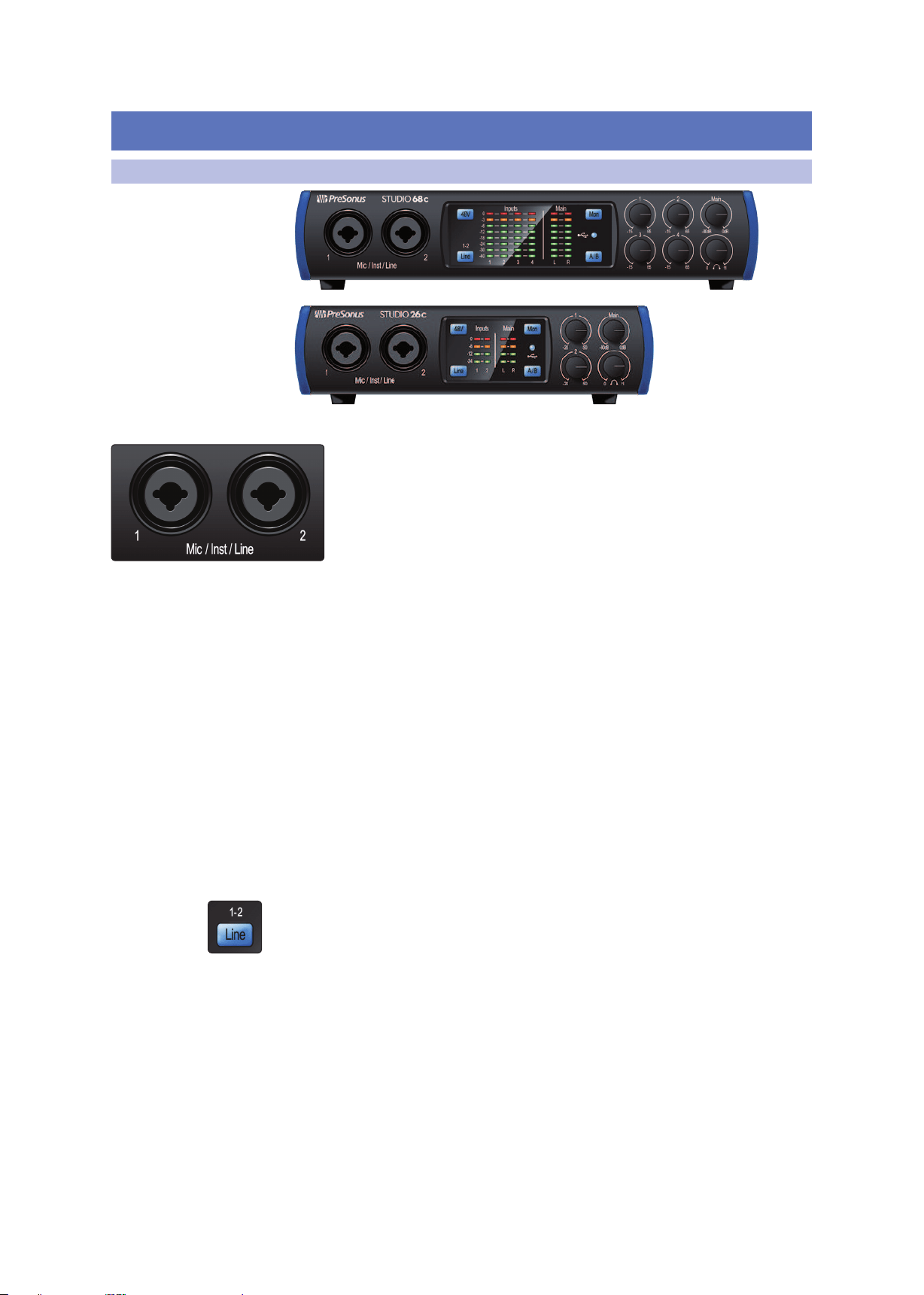
Microphone Inputs. Your Studio-series interface is equipped with high-
quality microphone preamplifiers for use with all types of microphones. The
Studio 26c features XMAX-L solid-state microphone preamps that are
optimized for bus powering. The Studio 68c features XMAX microphone
preamps with a Class A input buffer, followed by a dual-servo gain stage.
Every input channel on your Studio-series interface is equipped with combo
jacks. This convenient connector accepts either a 1/4-inch or an XLR plug.
Instrument Inputs. The ¼-inch TS connectors on Channels 1 and 2 can be used with
passive instruments (guitar, bass, etc.). See Input Source Button for more information.
Power User Tip: Active instruments are those that have an internal preamp or a line-level
output. Active instruments should be plugged into a line input rather than into an
instrument input. Plugging a line-level source into the instrument inputs not only risks
damage to these inputs but also results in a very loud and often distorted audio signal
Line-level Inputs. The ¼-inch, balanced TRS connection accept line-
level inputs. Typical examples of line-level connections are synthesizer
outputs, CD/DVD player outputs, and (with exceptions) signal-processor
outputs. The first two ¼-inch inputs can be switched between line-level
and instrument sources. See Input Source Button for more information.
Please note: As with any audio input device, plugging in a microphone or an instrument,
or turning phantom power on or off, will create a momentary spike in the audio output.
Because of this, we highly recommend that you turn down the channel trim before
changing connections or turning phantom power on or off. This simple step will add
years to life of your audio equipment.
Input Source Button. The first two input channels offer an Input Source button that
lets you select instrument or line level for the ¼-inch inputs. When the button is
illuminated, the input will accept a line-level source, such as a synthesizer or guitar
amp modeler. Press this button to engage the instrument preamp when connecting
guitars or a passive bass.
5
2 Hookup
2.1 Front-Panel Connections
Studio 26c and Studio 68c
Owner’s Manual
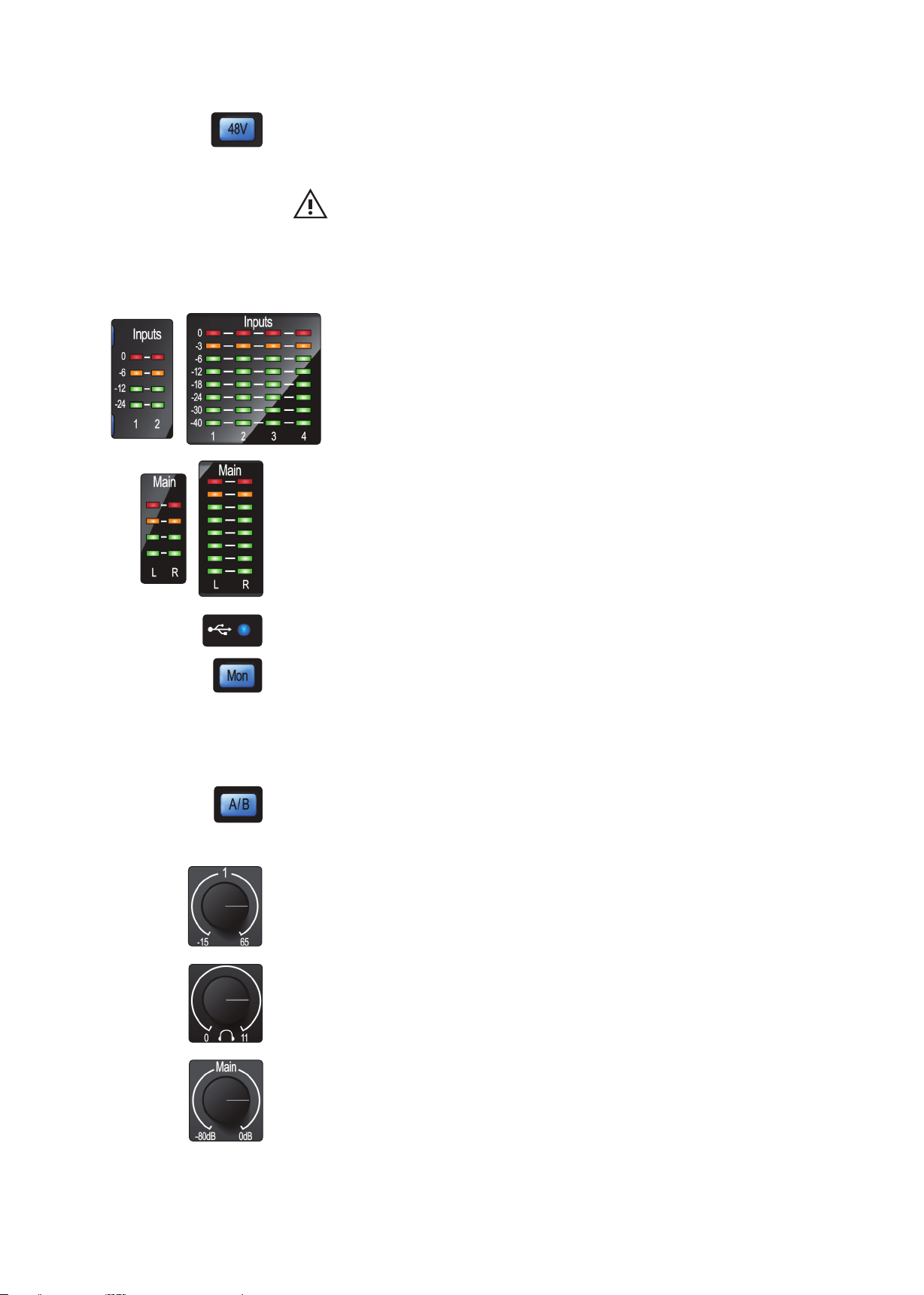
48 Volt Phantom Power. Studio-series interfaces provide 48V phantom power for
the microphone inputs. Pressing the 48V button switches phantom power on and off
for all microphone inputs; the button will illuminate in blue when phantom power is
available on the microphone preamplifiers. .
WARNING: Phantom power is only required for condenser microphones and
can severely damage some dynamic mics, especially ribbon mics. Therefore,
switch phantom power off when it is not required. Consult the user documentation
that came with your microphone before engaging phantom power.
XLR connector wiring for phantom power:
Pin 1 = GND Pin 2 = +48V Pin 3 = +48V
Input Meters. These LED meters show the input level of the analog inputs
on your Studio-series interface. The red Clip LED will illuminate when your
input signal reaches -0.5 dBFS. At this level, the signal will begin to overload
the analog-to-digital converters and exhibit signs of clipping. Use the gain
controls to keep the signal below this level.
Output Meters. These meters display the signal level received from the first two
driver returns (Main Left/Right). These meters have the same range as the input
meters and display the signal level before the main output level control.
Sync LED. This light indicates if your Studio-series interface is in sync with your
computer. When no sync is available, this light will flash red/blue.
Direct Monitor. The Direct button blends the source of what is heard through the
Headphone and Main outputs in the following manner:
• When Direct Monitoring is disabled, you’ll only
hear the playback from your computer.
• When Direct Monitoring is enabled, the button will illuminate blue, and you’ll
hear a 50/50 blend of the playback from your computer and input source signals.
Cue A/B. This button allows you to switch the source that you listen to through your
headphone output. When the button is not illuminated, playback streams 1 and 2
will be routed to the headphone output. Press the button to route playback streams
3 and 4 to your headphones instead.
Input Gain Control. These knobs adjust the gain for your audio interface inputs.
Headphone Level. This knob controls the level of the rear panel headphone output.
Main. The main knob controls the output level for the main left/right outputs on the
back of your Studio-series interface and has a range of -80 dB to 0 dB. This control
provides attenuation only.
6
2 Hookup
2.2 Back Panel Connections
Studio 26c and Studio 68c
Owner’s Manual
2.2 Back Panel Connections
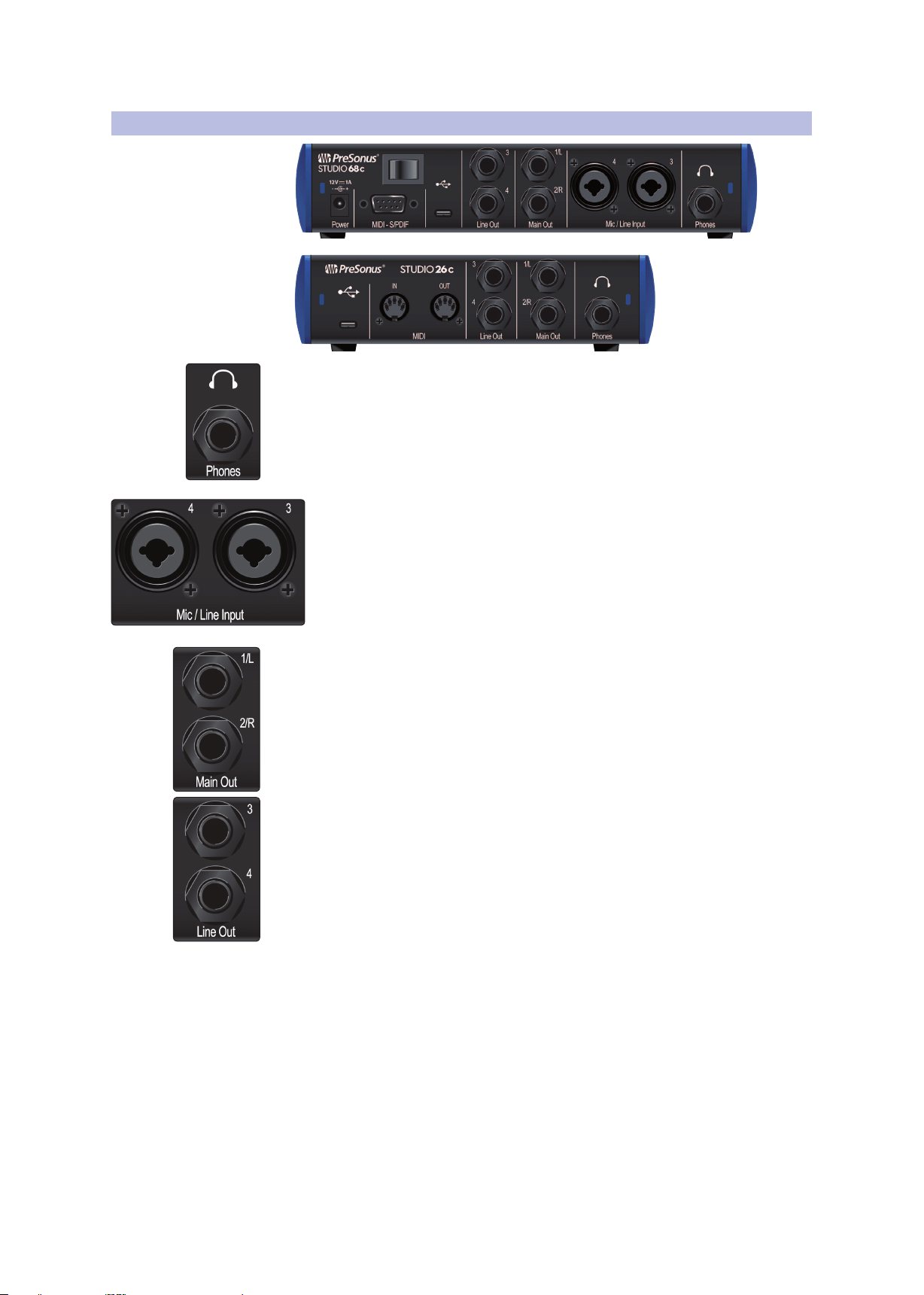
Headphone Output. The rear-panel headphone output can be switched between
playback streams 1/2 and 3/4, the same streams as the Main left/right outputs and
Outputs 3/4. These streams are switched via the Cue A/B button.
Mic/Line Inputs (Studio 68c). These mic/line combo connectors are for use
with microphones on the XLR input and with line-level devices via the
¼-inch TRS connections.
Main Outs. These are the Main outputs for the Studio-series interface. The output
level of the Main outputs is controlled by the Main level control on the front of the
unit. Playback streams 1 and 2 are routed to these outputs.
Line Outputs. These ¼-inch, balanced line outputs allow you to route to external
devices, such as headphone amps, signal processors, and additional monitors. Each
output has an independent playback stream (Playback streams 3 and 4).
7
2 Hookup
2.2 Back Panel Connections
Studio 26c and Studio 68c
Owner’s Manual
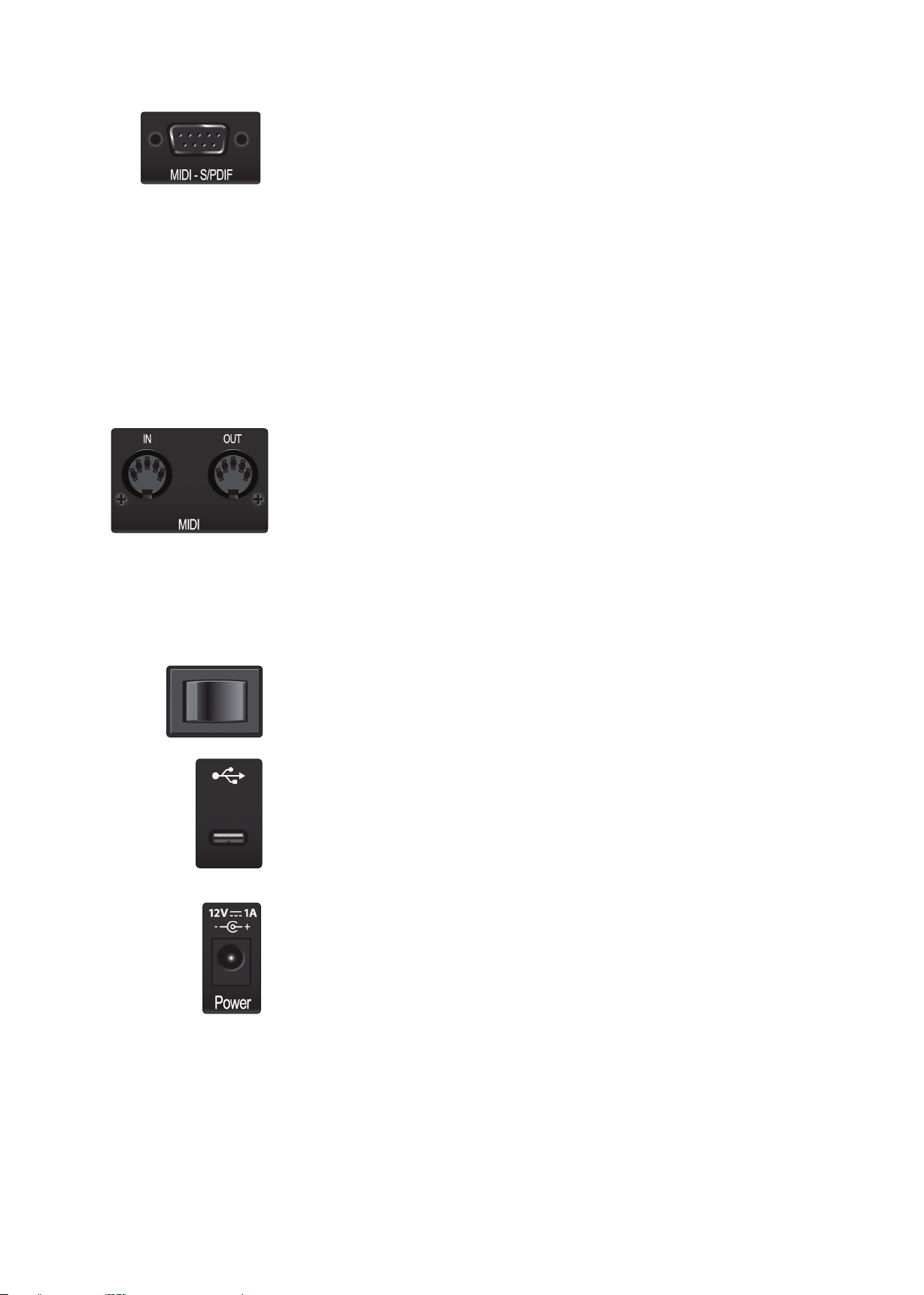
MIDI and S/PDIF Breakout-Cable Connector (Studio 68c). This is where you
connect the breakout cable for the MIDI and S/PDIF I/O.
• MIDI stands for “Musical Instrument Digital Interface.” However, MIDI
can be used for many things other than instruments and sequencing.
The MIDI inputs and outputs allow connection to a variety of MIDI-
equipped hardware, such as keyboard controllers, and can be used
to send and receive MIDI Machine Control and MIDI Time Code.
Note: MIDI does not carry audio signals but is frequently used to trigger or control an
audio source, such as a virtual instrument or hardware synthesizer. You should
ensure that MIDI data is correctly sent and received by the appropriate hardware or
software. You may also need to route hardware sound sources’ audio to the inputs of
your Studio-series interface. Please consult the User’s Manual of your MIDI devices for
help with MIDI setup and usage.
• The S/PDIF standard allows transmission of 2 channels of up to 24-bit,
96 kHz audio. The S/PDIF I/O also allows your Studio 68c interface
to send and receive word clock to external digital devices.
MIDI I/O (Studio 26c). This is the MIDI input and output connections.
• MIDI stands for “Musical Instrument Digital Interface.” However, MIDI
can be used for many things other than instruments and sequencing.
The MIDI inputs and outputs allow connection to a variety of MIDI-
equipped hardware, such as keyboard controllers, and can be used
to send and receive MIDI Machine Control and MIDI Time Code.
Note: MIDI does not carry audio signals but is frequently used to trigger or control an
audio source, such as a virtual instrument or hardware synthesizer. You should
ensure that MIDI data is correctly sent and received by the appropriate hardware or
software. You may also need to route hardware sound sources’ audio to the inputs of
your Studio-series interface. Please consult the User’s Manual of your MIDI devices for
help with MIDI setup and usage.
Power Switch (Studio 68c). This is the power switch for your Studio 68c.
USB-C Port. Use this port to connect your Studio 26c or 68c to your computer. While
the Studio 26c and 68c connect using USB-C, both are fully compatible with USB 2.0
and 3.0 connections. Use the USB-C to A cable that came with your interface if your
computer has a USB-A connection rather than a USB-C connection.
Please note: Studio-series interfaces are backward compatible with USB 2.0 and USB 3.0
speed connections. USB 1.1 is not supported. Studio 26c interfaces can be bus powered
via USB-C or USB-A connections.
Power Connection (Studio 68c). This is where you connect the included 12V
external power supply.
8
2 Hookup
2.3 Connection Diagrams
Studio 26c and Studio 68c
Owner’s Manual
2.3 Connection Diagrams
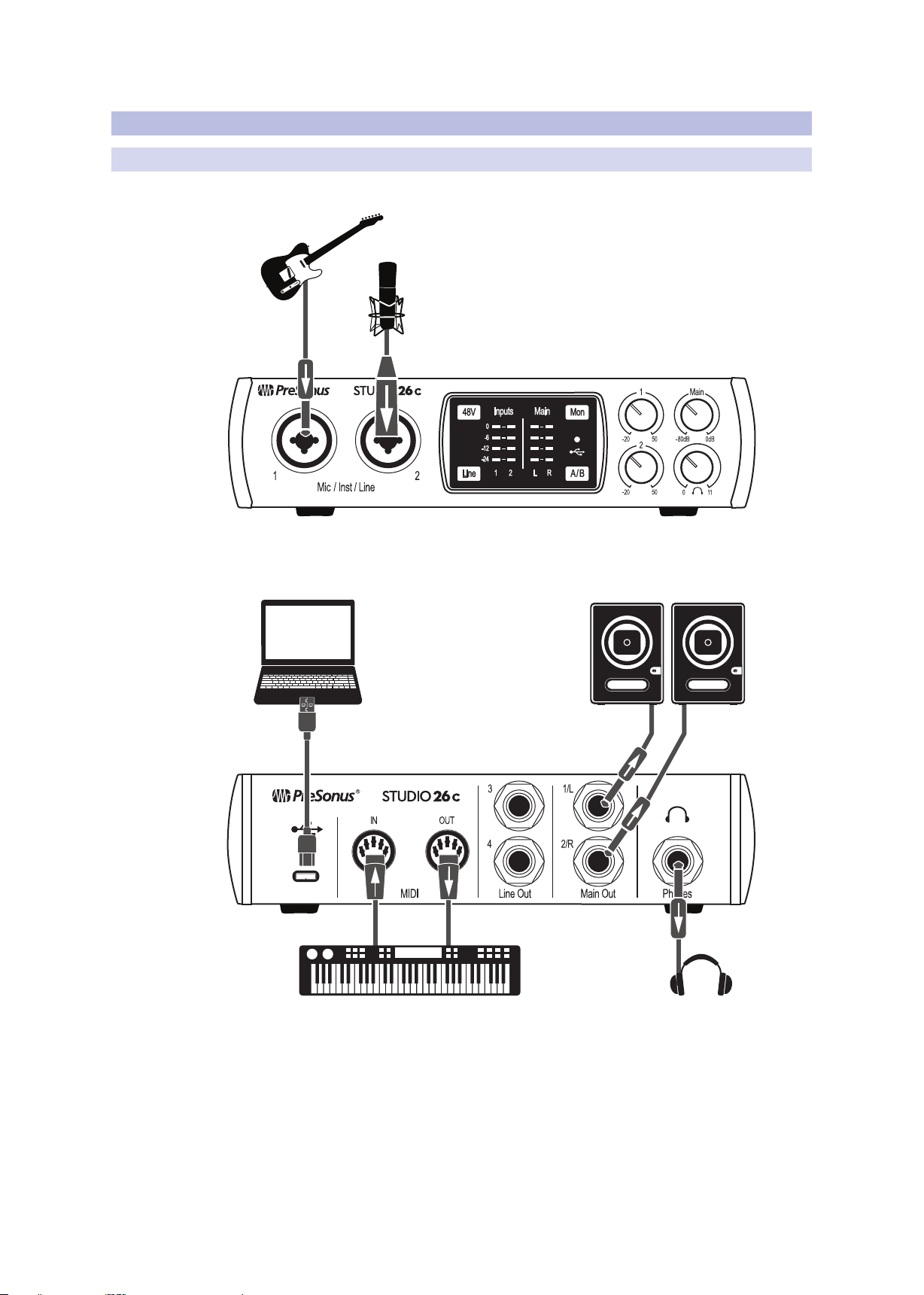
2.3.1 Studio 26c
See Studio 26 box for
computer requirements
Vea los requerimientos de
hardware en la caja de
Studio 26
Systemvoraussetzungen
siehe Studio 26
Packungsaufdruck
Voir la boîte de la Studio 26
pour les configurations
informatiques requises
9
2 Hookup
2.3 Connection Diagrams
Studio 26c and Studio 68c
Owner’s Manual
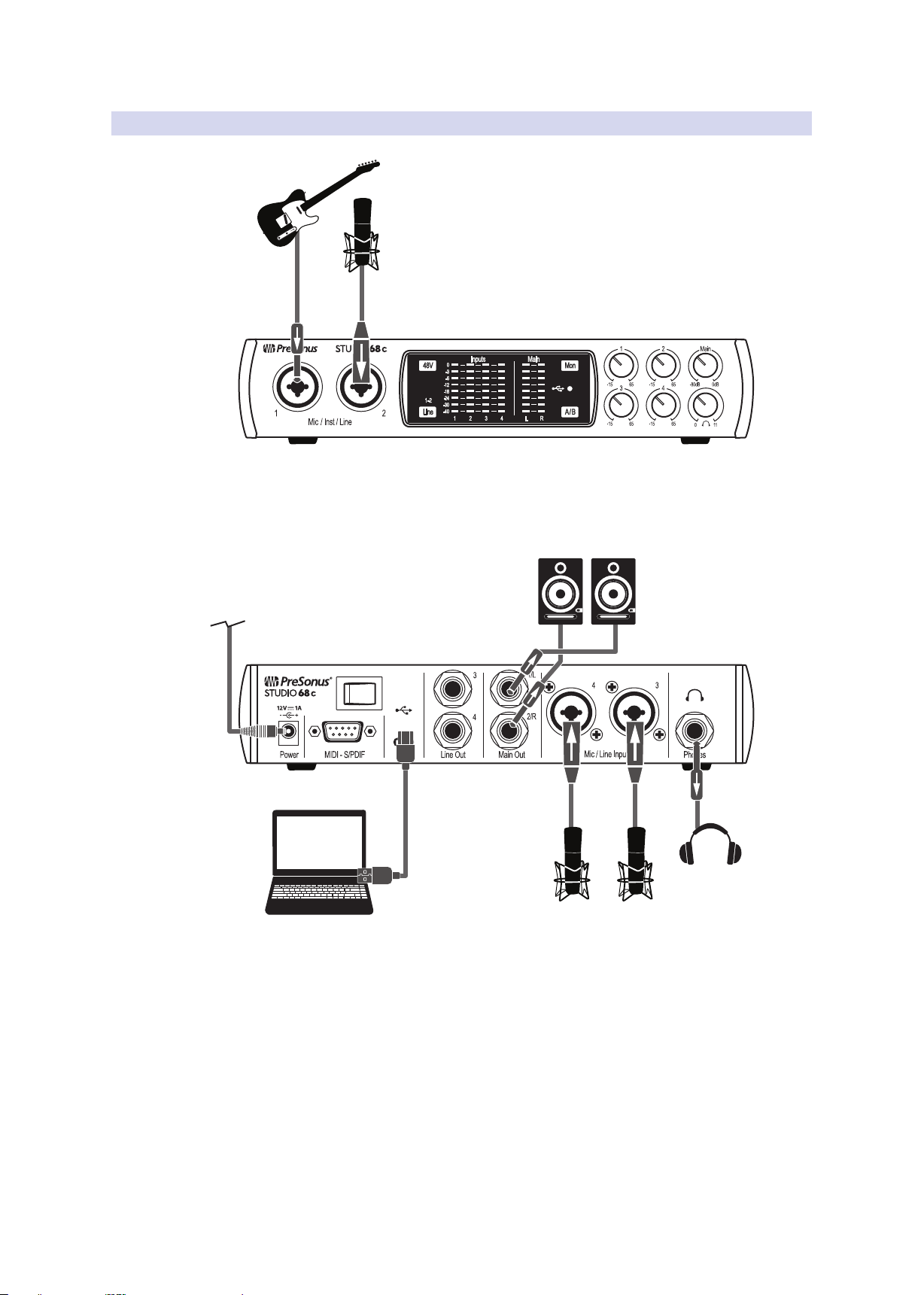
2.3.2 Studio 68c
See Studio 68 box for
computer requirements
Vea los requerimientos de
hardware en la caja de
Studio 68
Systemvoraussetzungen
siehe Studio 68
Packungsaufdruck
Voir la boîte de la Studio 68
pour les configurations
informatiques requises
3 Connecting to a Computer
3.1 Installation for Windows
Studio 26c and Studio 68c
Owner’s Manual
3 Connecting to a Computer
Your Studio-series interface is a powerful audio interface that is loaded with
professional audio tools and flexible monitoring controls. Before connecting to a
computer, please visit www.presonus.com to verify the latest system requirements.
Note: The speed of your processor, amount of RAM, and capacity, size, and speed of your
hard drives will greatly affect the overall performance of your recording system. A faster
processor and more RAM can reduce signal latency (delay) and improve overall
performance.
The Windows ASIO driver and Universal Control installer for macOS and
Windows are available for download from your My PreSonus user account.
To begin, you must first visit http://my.presonus.com, create or log into your
user account, and register your Studio-series interface. Once registered, all
software downloads will be available from within your My PreSonus user
account, including Studio One Artist and the Studio Magic bundle.
3.1 Installation for Windows
Download the Universal Control installer from your My PreSonus account.
Connect your Studio-series interface to an available USB-C or USB-A (2.0 or
3.0) port and launch the installer. The installer will take you through each
step of the installation process. This application will install the ASIO and WDM
drivers, as well as Universal Control. Please read each message carefully.
It is recommended that you quit all applications before you start the installation.
The Studio-series installer will take you through each step of the
installation process. Please read each message carefully so that
you do not connect your Studio-series interface too soon.
Power User Tip: It is recommended that you temporarily disable or turn off any anti-virus
programs you have running to prevent installation issues.
3.1.1 Universal Control (Windows)
Universal Control is a powerful hardware-management application for all PreSonus
interface products. It allows you to view any PreSonus interface product connected
to your computer or your computer’s network.
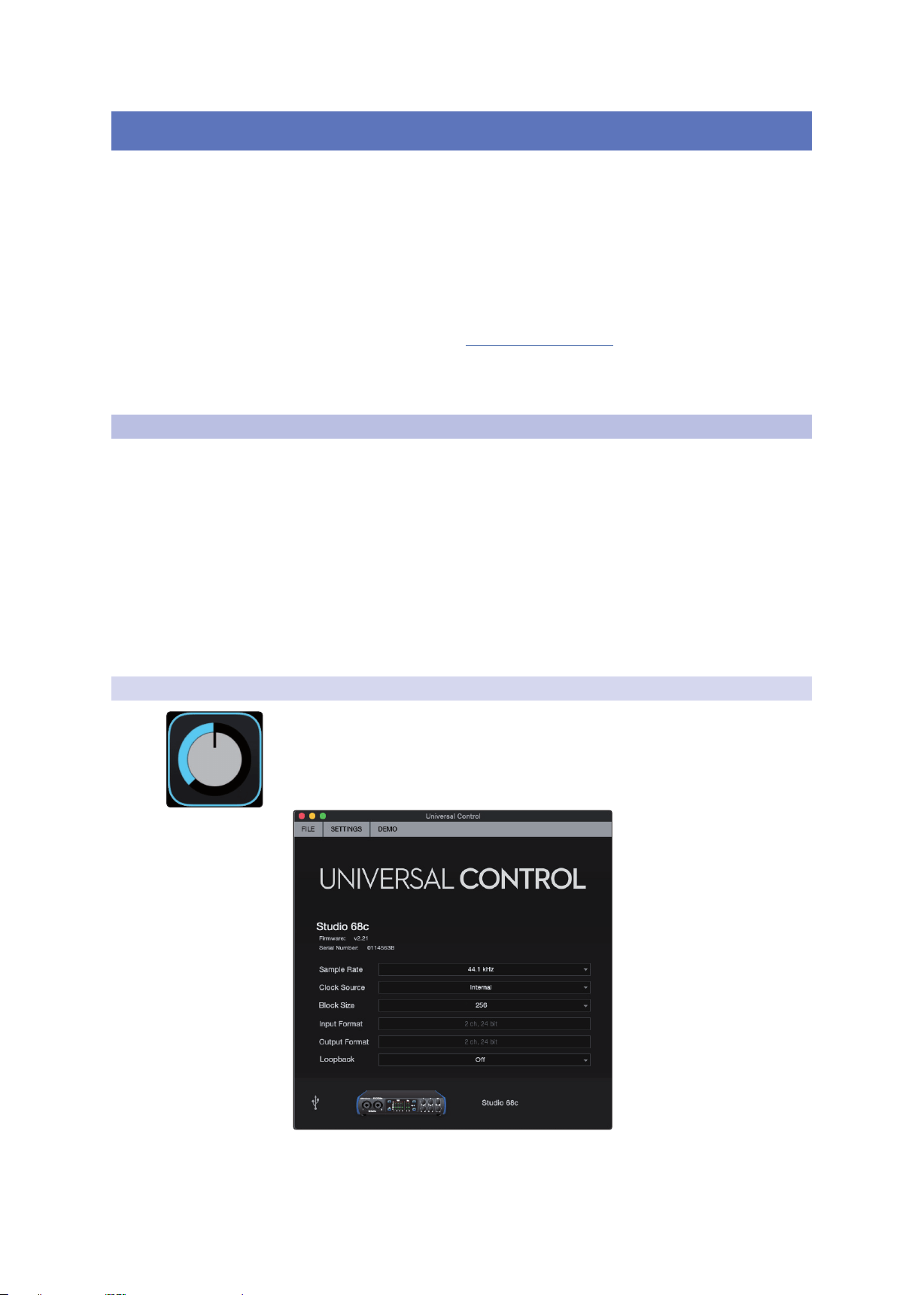
When Universal Control is launched, you will see the Launch window.
From this window, you can manage all the ASIO driver settings.
Sample Rate. Changes the sample rate.
You can set the sample rate to 44.1, 48, 88.2, 96, 176.4, or 192 kHz. A higher
sample rate will increase the fidelity of the recording but will increase the file
size and the amount of system resources necessary to process the audio.

11
3 Connecting to a Computer
3.1 Installation for Windows
Studio 26c and Studio 68c
Owner’s Manual
Clocksource (Studio 68). Sets the digital clock source. From this menu, you
can set the clock source for your Studio 68 to be Internal or External S/PDIF.
Block Size. Sets the buffer size.
From this menu, you can set the buffer size from 64 to 8,192 samples.
Lowering the buffer size will lower latency; however, this will also increase
performance demands on your computer. In general, you will want to set
the buffer size as low as your system can safely support. If you begin to hear
pops, clicks, or distortion in your audio path, try raising the buffer size.
When adjusting the block size, the Safe mode will automatically
change to provide the best performance.
Loopback (Windows only). The Studio 26c/68c ASIO driver
provides two loopback streams to record audio from one application
to another. See Section 3.1.2 for more information.
File Menu. Manages devices connected to Universal Control.
• Show All Devices. Launches all control windows for all
supported devices connected to your computer.
• Close All Devices. Closes all open control windows.
• Sign Out. Signs out of your My PreSonus user account.
• Check for Updates... Connects to your My PreSonus user
account to check for updates for Universal Control.
• Transfers. Displays recent downloads from your my PreSonus user account.
• About Universal Control. Displays version and build date information.
• Quit. Quits the Universal Control application and all hardware control windows.
Settings Menu. Provide customization options to
personalize your Universal Control experience.
• Always on Top. Keeps the Universal Control Launch window on
top whether it is the currently active application or not.
• Run at Startup. Launches Universal Control
automatically when your computer boots.
• Preferences. Sets language and appearance options (see below).
• Rescan Network. Scans the network and local transport bus
(USB or FireWire) for all supported PreSonus products.
• Language. Sets the language (English, French, German,
Korean, Simplified Chinese, or Spanish).
12
3 Connecting to a Computer
3.1 Installation for Windows
Studio 26c and Studio 68c
Owner’s Manual
3.1.2 Loopback Recording (Windows only)
The windows drivers for the Studio-series interfaces provide two virtual
streams that allow you to record the output of on audio application in
another application. Loopback can be useful in a variety of situations:
• Recording the audio from a video game or YouTube
video for a podcast or livestream.
• Recording a vocal in real time over a karaoke track
played from a web browser or media player.
Power User Tip: Because the Studio-series interfaces are class compliant Core
Audio devices, these virtual streams are not available in OS X. However, there
are several third-party applications that provide this functionality in OS X.
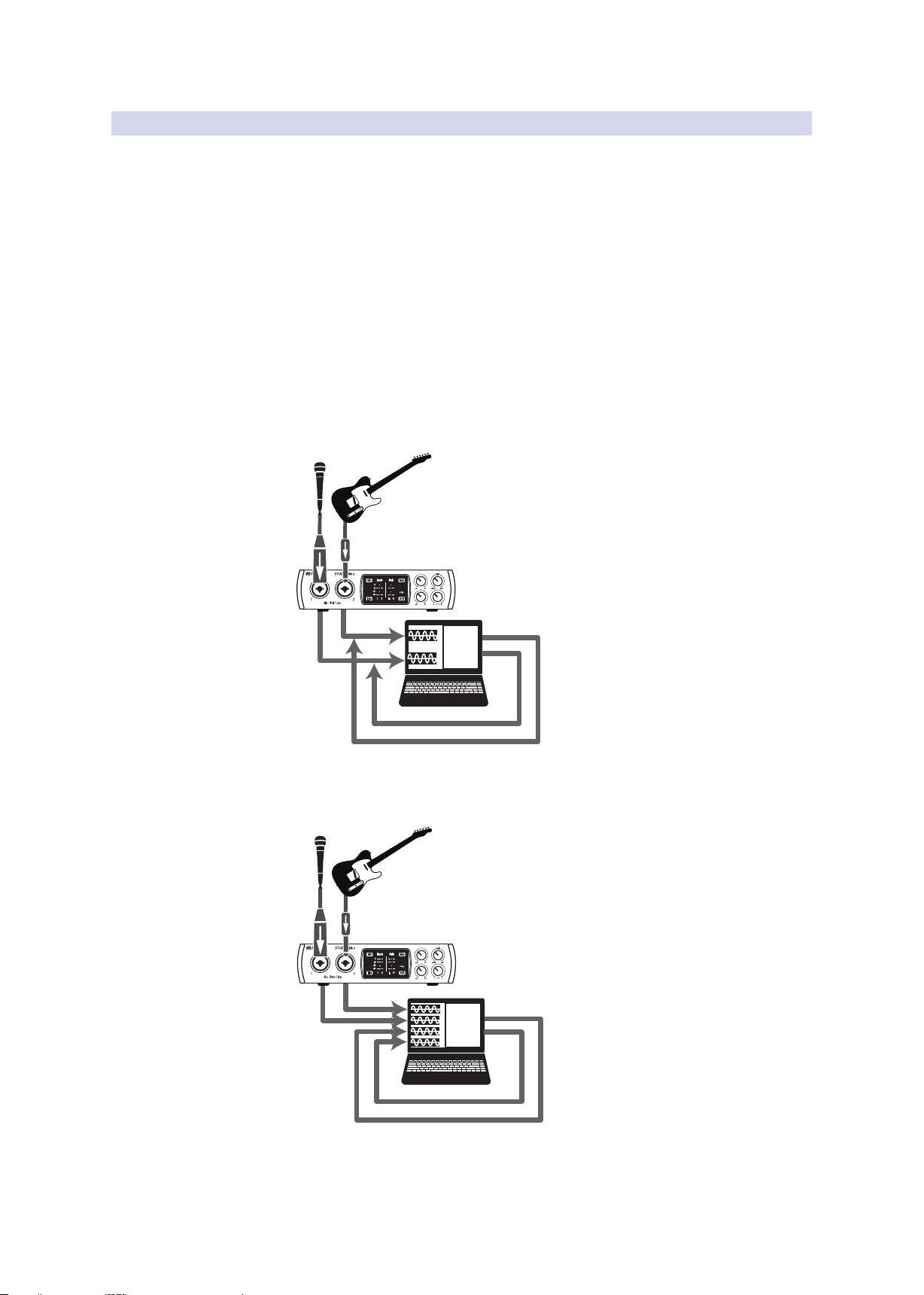
From Universal Control AI, you can enable or disable Loopback and
pick the streams on which the loopback audio will be recorded.
When Loopback is enabled and “Merge Loopback with 1/2” is selected,
the audio from another application will be recorded with the audio source
connected to analog inputs 1 and 2 on your Studio-series interfaces.
Media Player
Web Browser
Etc.
When Loopback is enabled and “Dedicated Loopback Inputs” is
selected, the audio from another application will be recorded on
the last pair of driver inputs (Studio 26: 5/6, Studio 68: 7/8).
Media Player
Web Browser
Etc.
Power User Tip: When using either option, you will need to select Outputs 1 and
2 in the audio application your want to record. Make sure to select Outputs 3 and
4 in the audio application in which your recording to avoid a feedback loop.

13
3 Connecting to a Computer
3.2 Installation for macOS
Studio 26c and Studio 68c
Owner’s Manual
3.2 Installation for macOS
Your Studio-series interface is a class-compliant Core Audio device in
macOS. No driver installation is necessary for any Studio-series device.
Power User Tip: When installation is complete, you will find the Universal Control
application in your Applications folder. From this application, you can launch UC Surface.
It is recommended that you place this in your Dock for easy access.
3.3 Using the Studio-series interfaces with Popular Audio Applications
Complete setup instructions for Studio One Artist and a brief tutorial on its
features can be found in Section 4 of this manual. However, you can use your
Studio-series interface with any audio-recording application that supports
Core Audio or ASIO. Please consult the documentation that came with
your audio application for specific instructions on how to select the Studio-
series interface driver as the audio-device driver for your software.
Below are basic driver-setup instructions for a few popular audio applications.
Steinberg Cubase 4+
1. Launch Cubase.
2. Go to Devices | Device Setup.
3. Select “VST Audio System” from the Devices column in the Device Setup.
4. Select your Studio-series interface from the ASIO Driver dropdown list.
5. Click “Switch” to begin using the Studio-series Driver.
6. Once you have successfully changed the driver, go to Devices |
VST Connections to enable your input and output buses.
Ableton Live 5+
1. Launch Ableton Live.
2. Go to Options | Preferences | Audio.
3. Choose Driver Type: ASIO | Audio Device: ASIO [Studio-series interface]
4. Go to Input Config : Enable and select the desired Input channels.
5. Go to Output Config : Enable and select the desired Output channels.
6. You may now select your Studio-series interface inputs
and outputs for each track created in Live.
Apple Logic Pro/Express 7+:
1. Launch Logic Pro/Express.
2. Go to Logic | Preferences | Audio.
3. Click on the Devices Tab.
4. On the Core Audio tab, check Enabled.
5. Select your Studio-series interface from the device menu.

14
3 Connecting to a Computer
3.3 Using the Studio-series interfaces with Popular Audio Applications
Studio 26c and Studio 68c
Owner’s Manual
6. You will be asked if you’d like to relaunch Logic. Click “try (re)launch.”
7. Your Studio-series interface features custom I/O labels for faster work flow.
To enable these labels for use in Logic, go to Options | Audio | I/O Labels.
8. The second column in the pop-up window will be named
“Provided by Driver.” Activate each of these labels for your Studio-
series interface. When you are done, close this window.
9. You are now ready to use your Studio-series interface.
Avid Pro Tools 9+
1. Launch Pro Tools.
2. Got to Setup | Hardware and select your Studio-series
interface from the Peripherals list. Click OK.
3. Go to Setup | Playback Engine and select your Studio-series
interface from the menu at the top of the window. Click OK.
Cakewalk Sonar 6+
1. Launch Sonar.
2. Go to Options | Audio... and click on the Advanced tab.
3. Change the Driver Mode to “ASIO.”
4. Click the “OK” button.
5. Restart Sonar.
6. Go to Options | Audio... and click on the Drivers tab.
7. Highlight all input and output drivers beginning
with your Studio-series product name.
8. Go to Options | Audio... and click on the General tab.
9. Set the Playback Timing Master to “[Studio-series model] ... DAW Out 1.”
10. Set the Recording Timing Master to “[Studio-series model] ... DAW Out 2.”
15
4 Studio One Artist Quick Start
4.1 Installation and Authorization
Studio 26c and Studio 68c
Owner’s Manual
4 Studio One Artist Quick Start
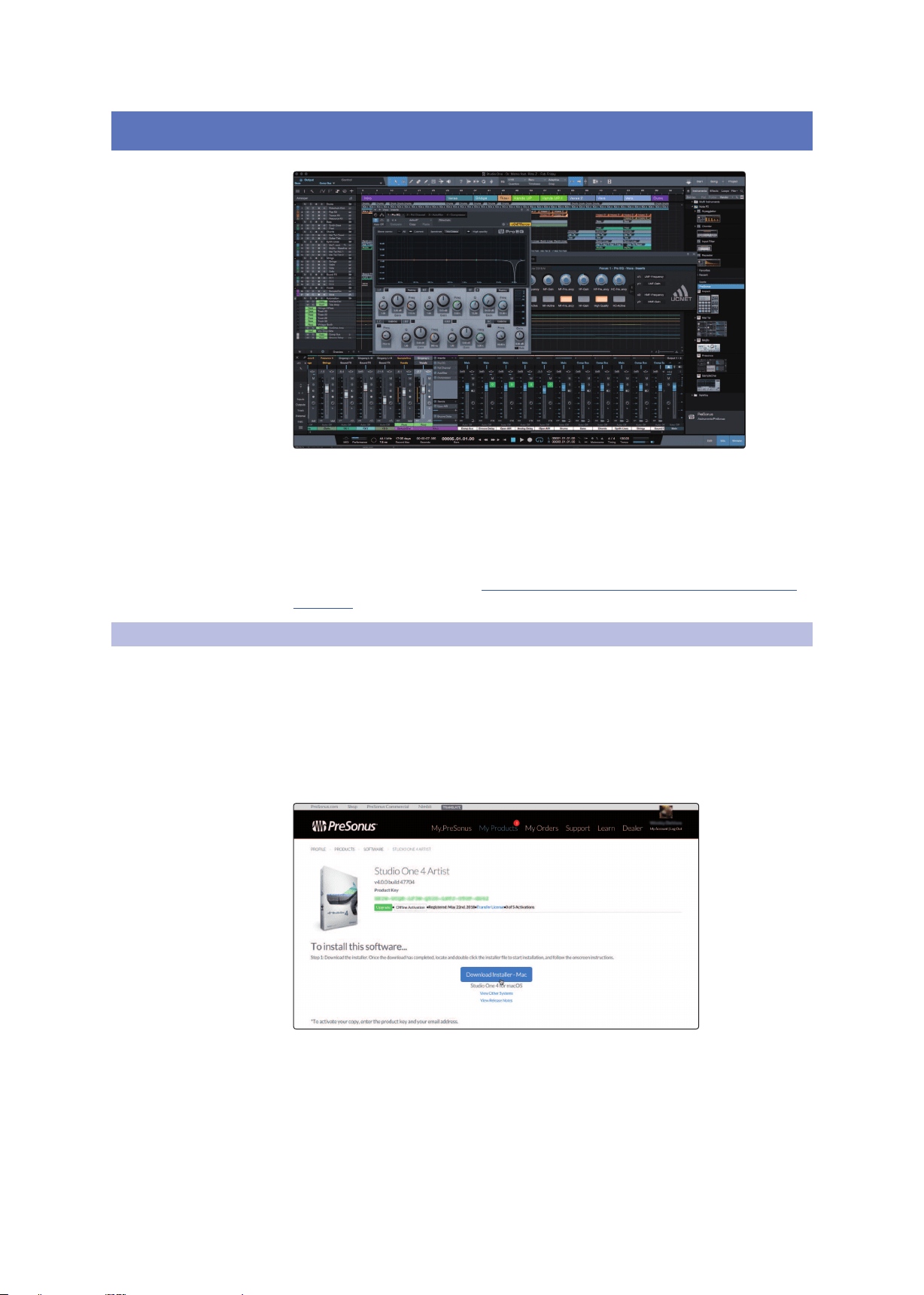
All PreSonus professional recording products come with Studio One Artist
recording and production software. Whether you are about to record
your first album or your fiftieth, Studio One Artist provides you with all
of the tools necessary to capture and mix a great performance.
Power User Tip: As a valued PreSonus customer, you are eligible for a discount upgrade
to Studio One Professional. For more details on the Studio One upgrade program for
PreSonus customers, please visit https://shop.presonus.com/products/software/studio-
one-prods.
4.1 Installation and Authorization
Once you have installed the drivers for your audio interface and connected it
to your computer, you can use the included PreSonus Studio One Artist music-
production software to begin recording, mixing, and producing your music. To
install Studio One Artist, log into your My PreSonus account and register your
interface. Your product key for Studio One Artist will automatically be registered
to your My PreSonus account, along with your hardware registration.
Downloading and Running the Studio One Installer
To install Studio One Artist, download the Studio One Artist installer from
your My PreSonus account to the computer on which you will use it.
Windows: Launch the Studio One Artist installer
and follow the onscreen instructions.
Mac: Drag the Studio One Artist application into the
Applications folder on your Mac hard drive.
16
4 Studio One Artist Quick Start
4.2 Setting Up Studio One
Studio 26c and Studio 68c
Owner’s Manual
Authorizing Studio One
When Studio One is launched for the first time on your computer, it will
communicate with your My PreSonus account and verify your registration. To
ensure a seamless authorization process, make sure to download your installer
to the computer on which you will be using it, and be sure that your computer is
connected to the Internet when you launch the application for the first time.
Installing Bundled Content for Studio One Artist
Studio One Artist comes bundled with an array of demo and tutorial
materials, instruments, loops, and samples. The Studio One Artist
bundle includes all that you need to begin producing music.
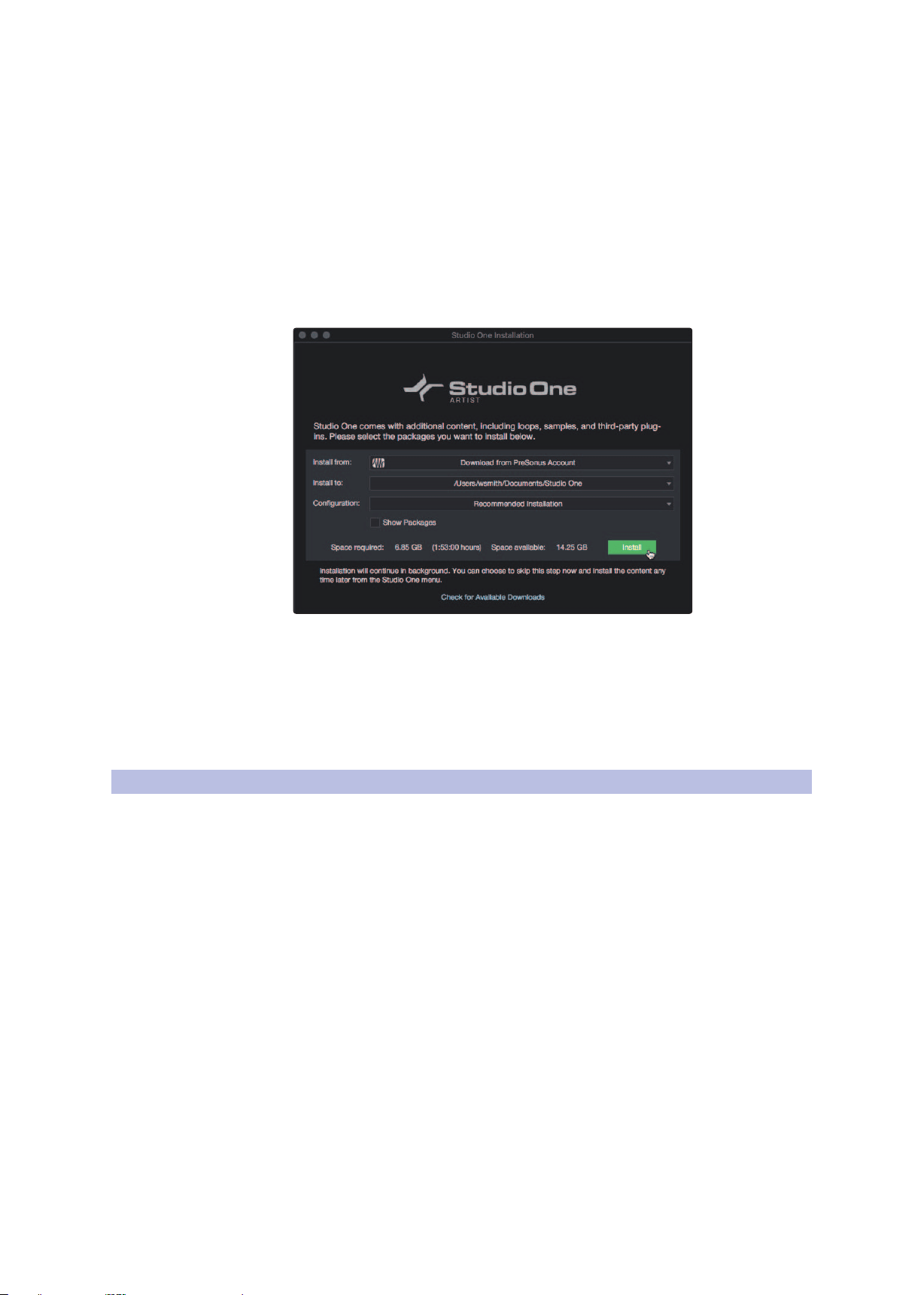
The first time you launch Studio One Artist, you will be prompted
to install its companion content. Select the content you wish to
add and click “Install.” The content will automatically begin to
download and install from your My PreSonus user account.
Power User Tip: You may be prompted to enter your My PreSonus user account
information. Clicking “Remember Credentials” will allow you to have immediate access to
any content you purchase from the PreSonus Marketplace.
4.2 Setting Up Studio One
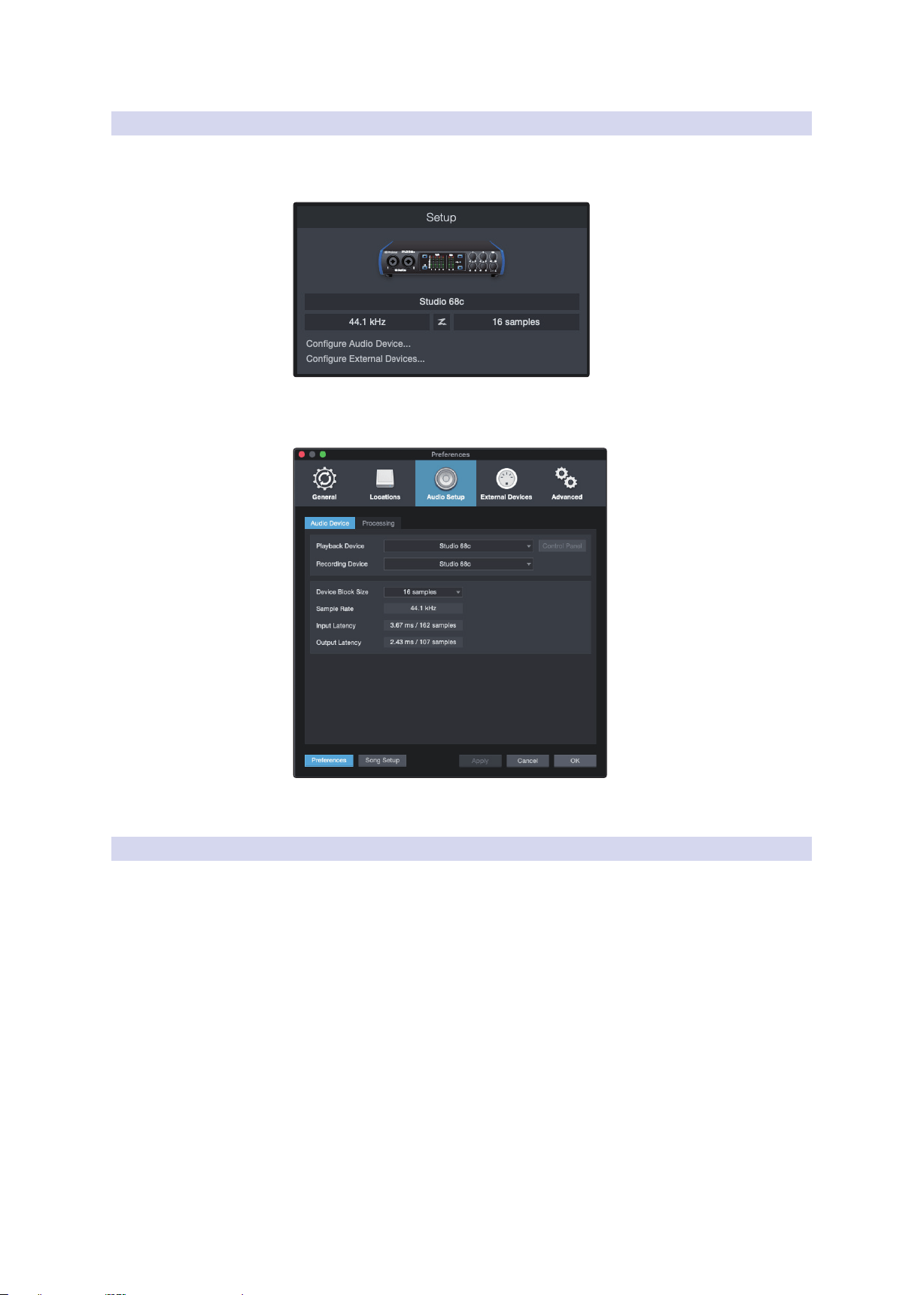
Studio One Artist was designed to work with PreSonus interfaces and provides
unique interoperability and simplified setup. When Studio One Artist is
launched, by default you will be taken to the Start page. On this page, you
will find document-management and device-configuration controls, as well
as a customizable artist profile, a news feed, and links to demos and tutorials
from PreSonus. If your computer is connected to the Internet, these links will
be updated as new tutorials become available on the PreSonus Web site.
Complete information on all aspects of Studio One Artist is available in
the Reference Manual PDF located within Studio One. The information
in this tutorial covers only the basic aspects of Studio One Artist and is
intended to get you set up and recording as quickly as possible.
17
4 Studio One Artist Quick Start
4.2 Setting Up Studio One
Studio 26c and Studio 68c
Owner’s Manual
4.2.1 Configuring Audio Devices
In the middle of the Start page, you will see the Setup area. Studio One
Artist automatically scans your system for all available drivers and selects
a driver. By default, it will choose a PreSonus driver if one is available.
If you do not see your device listed on the Start page when
you launch Studio One, click on the Configure Audio Devices
link in the Setup area to open the Options window.
In the Options window, click on the Audio Setup tab and
select your device driver from the pull-down.
4.2.2 Configuring MIDI Devices
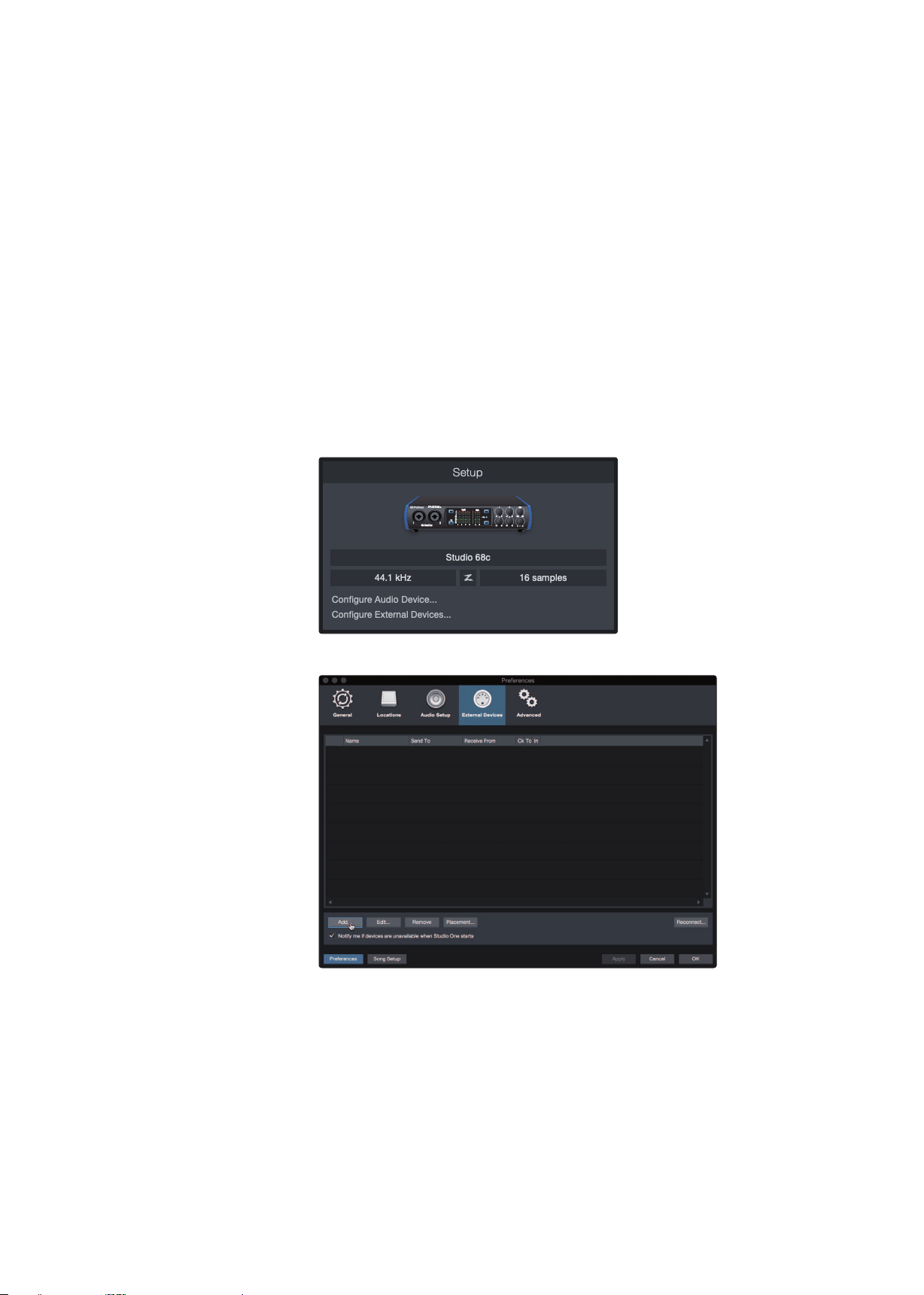
From the External Devices window in Studio One Artist, you can configure
your MIDI keyboard controller, sound modules, and control surfaces. This
section will guide you through setting up your MIDI keyboard controller
and sound modules. Please consult the Reference Manual located within
Studio One for complete setup instructions for other MIDI devices.
If you are using a third-party MIDI interface or USB MIDI-controller
keyboard, you must install any required drivers for these devices before
beginning this section. Please consult the documentation that came
with your MIDI hardware for complete installation instructions.
If you do not have any MIDI devices, please skip to Section 4.3.
18
4 Studio One Artist Quick Start
4.2 Setting Up Studio One
Studio 26c and Studio 68c
Owner’s Manual
Setting up an External MIDI Keyboard Controller from the Start Page
A MIDI keyboard controller is a hardware device that is generally used for playing
and controlling other MIDI devices, virtual instruments, and software parameters.
In Studio One Artist, these devices are referred to as Keyboards, and they must be
configured before they are available for use. In some cases, your MIDI keyboard
controller is also used as a tone generator. Studio One Artist views the controller
and tone-generation functions as two different devices: a MIDI keyboard controller
and a sound module. The MIDI controls (keyboard, knobs, faders, etc.) will be
set up as a Keyboard. The sound modules will be set up as an Instrument.
You can set up your external MIDI devices from the Setup area
in the Start page. Before setting up a new Song for recording,
take a moment to configure external devices.
Make sure you have connected the MIDI Out of your external MIDI controller to
a MIDI In on your PreSonus audio interface (if available) or other MIDI interface. If
you are using a USB MIDI controller, connect it to your computer and power it on.
1. Click on the Configure External Devices link in the Setup area on
the Start page to launch the External Devices window.
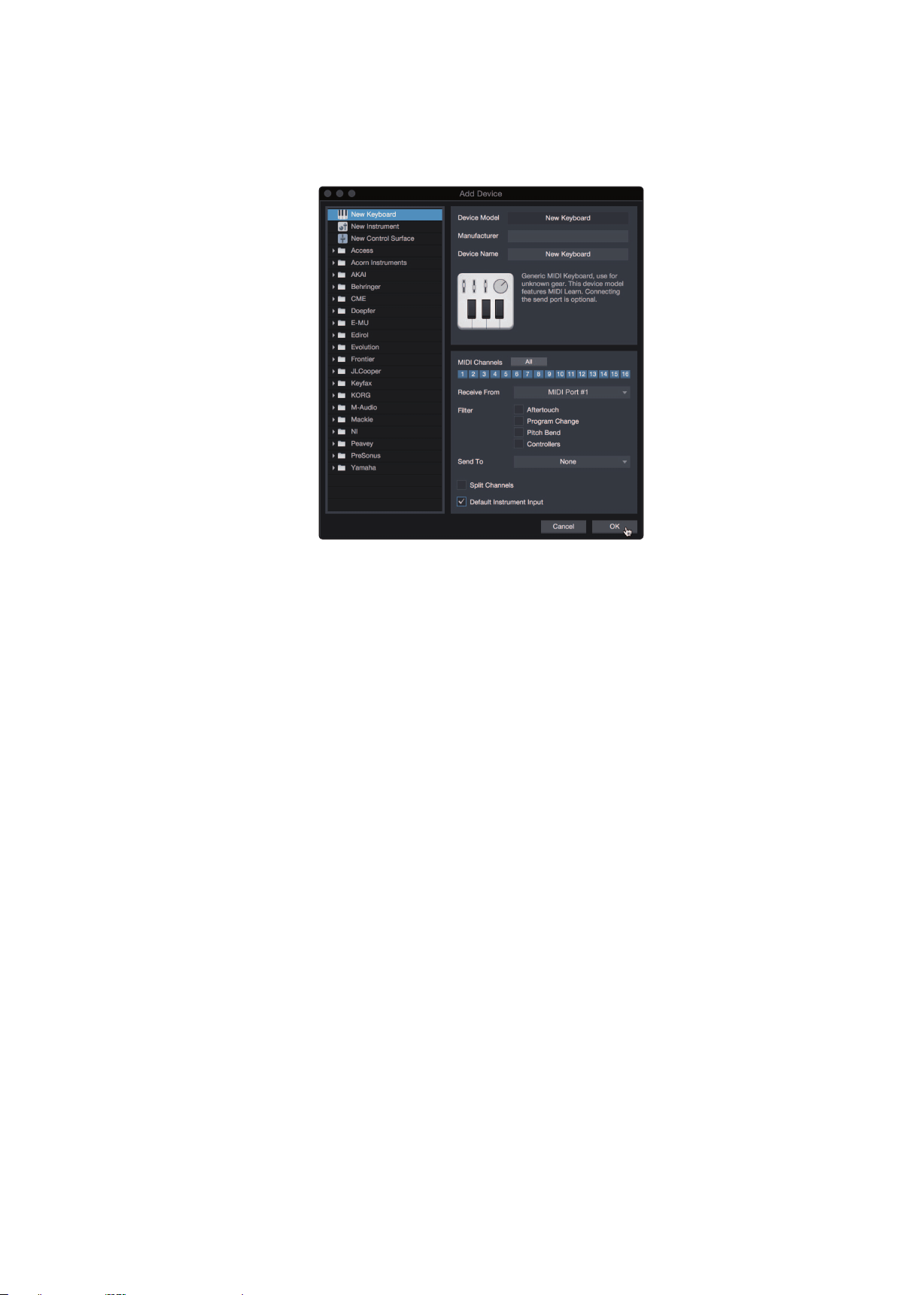
2. Click the Add button. This will launch the Add Device window.
19
4 Studio One Artist Quick Start
4.2 Setting Up Studio One
Studio 26c and Studio 68c
Owner’s Manual
3. From the menu on the left, select your MIDI controller from the list of
manufacturers and models. If you do not see your MIDI controller listed,
select New Keyboard. At this point, you can customize the name of
your keyboard by entering the manufacturer and device names.
4. You must specify which MIDI channels will be used to communicate with
this keyboard. For most purposes, you should select all MIDI channels.
If you are unsure of which MIDI channels to choose, select all 16.
5. Studio One allows you to filter out specific control functions. If you would
like Studio One to ignore Aftertouch, Pitch Bend, Program Change, or
all CC messages, enable filtering for any or all of these messages.
6. In the Receive From drop-down menu, select the MIDI interface
input from which Studio One Artist will receive MIDI data (that
is, the MIDI port to which your keyboard is connected).
Power User Tip: In the Send To drop-down menu, select the MIDI interface output
from which your Studio One Artist will send MIDI data to your keyboard. If your
keyboard controller doesn’t need to receive MIDI data from Studio One, you can
leave this unselected.
7. If this is the only keyboard that you will use to control your external
synthesizers and virtual instruments, you should check the box
next to Default Instrument Input. This will automatically assign your
keyboard to control all MIDI devices in Studio One Artist.
8. Click “OK.”
If you have a sound module that you’d like to connect, leave the External
Devices window open and proceed to the next part of this section.
If not, you can close the window and skip to the next section.
Setting up an External MIDI Sound Module from the Start Page
MIDI instrument controllers (keyboards, MIDI guitars, etc.) send musical information,
in the form of MIDI data, to tone modules and virtual instruments, which respond
by generating sound as instructed. Tone modules can be standalone sound devices
or can be integrated into a MIDI instrument, such as a keyboard synthesizer. Studio
One Artist refers to all tone generators as Instruments. Once you have set up your
MIDI keyboard controller, take a moment to configure your sound module.
Make sure you have connected the MIDI In of your external
sound module to the MIDI Out of your MIDI interface.
20
4 Studio One Artist Quick Start
4.2 Setting Up Studio One
Studio 26c and Studio 68c
Owner’s Manual
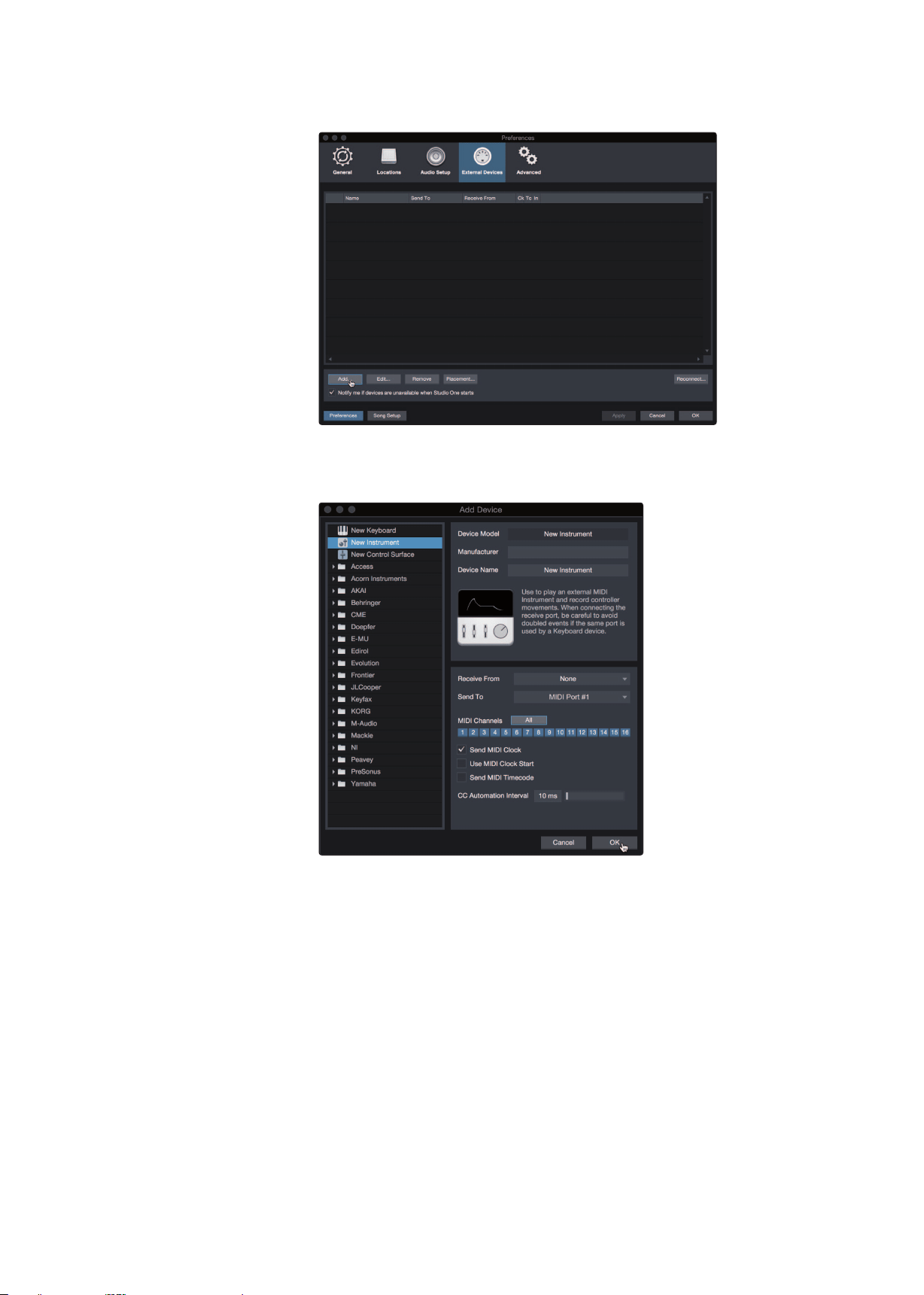
1. In the External Devices window, click the Add button.
2. Select your device in the menu on the left. If your device is not listed,
select New Instrument. At this point you can customize the name of
your keyboard by entering the manufacturer and device names.
3. Specify which MIDI channels will be used to communicate with this sound
module. For most purposes, you should select all MIDI channels. If you are
unsure of which MIDI channels to select, we suggest you select all 16.
4. In the Send To menu, select the MIDI interface output from which Studio One
Artist will send MIDI data to your sound module. Click “OK” and close the External
Devices window. You are now ready to start recording in Studio One Artist.
The rest of this Quick Start Guide will go over how to set
up a Song and will discuss some general workflow tips for
navigating through the Studio One Artist environment.
21
4 Studio One Artist Quick Start
4.3 Creating a New Song
Studio 26c and Studio 68c
Owner’s Manual
4.3 Creating a New Song
Now that you’ve configured your audio and MIDI devices, let’s create
a new Song. We’ll start by setting up your default audio I/O.
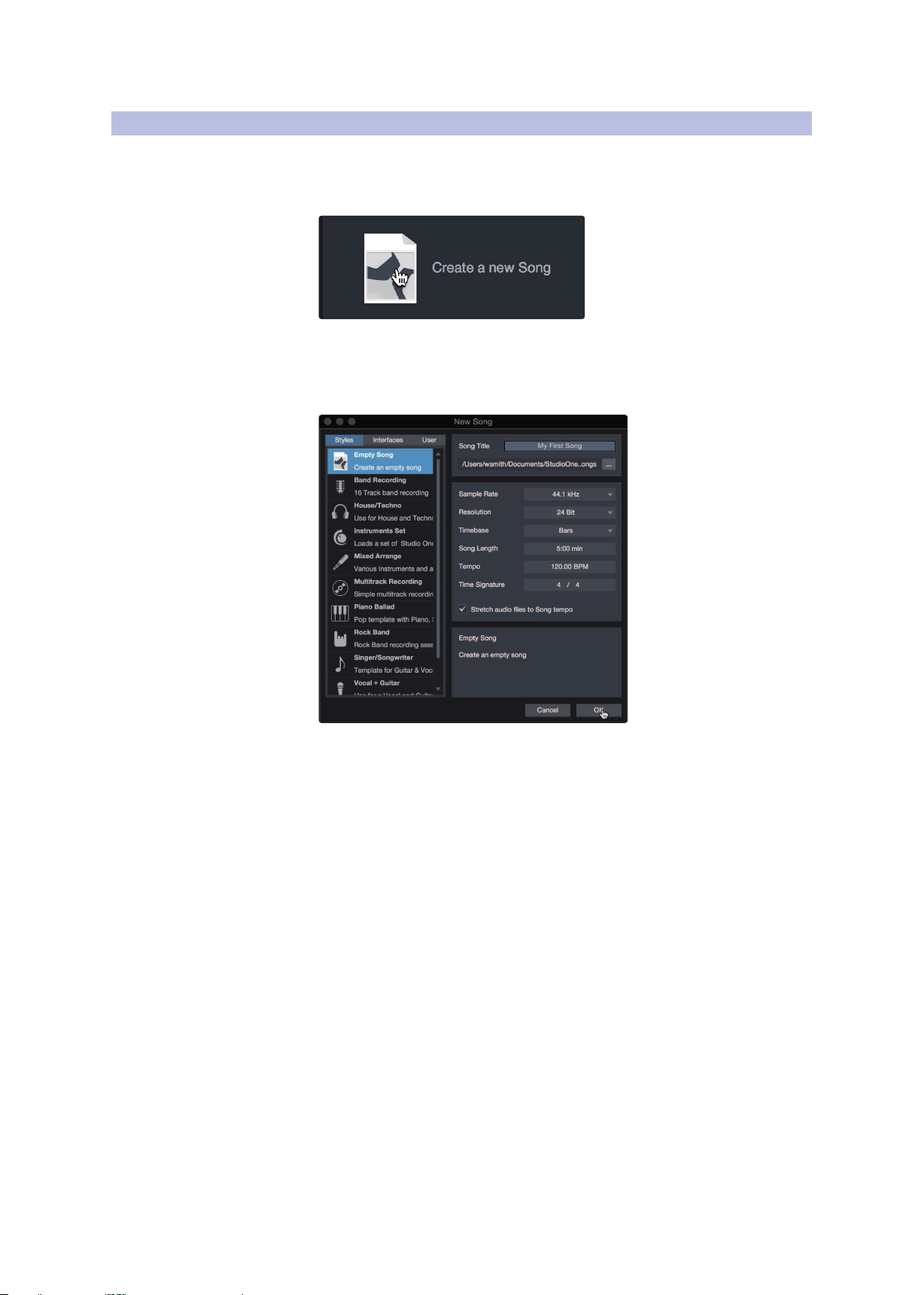
1. From the Start page, select “Create a New Song.”
2. In the New Song window, name your Song and choose the directory in
which you’d like it saved. You’ll notice a list of templates on the left. These
templates provide quick setups for a variety of devices and recording
situations. The section will describe creating a Song from an empty session.
3. Select “Empty Song” from the Templates list. At this point, you should give
your Song a name and select your preferred sample rate and bit depth for
recording and playback. You can also set the length of your Song and the
type of time format you would like the timeline to follow (notation bars,
seconds, samples, or frames). Click the OK button when you are finished.
Power User Tip: If you plan to import loops into your Song, make sure that the Stretch
Audio Files to Song Tempo option is selected. This will automatically import loops at the
correct tempo.
22
4 Studio One Artist Quick Start
4.3 Creating a New Song
Studio 26c and Studio 68c
Owner’s Manual
4.3.1 Configuring Your I/O
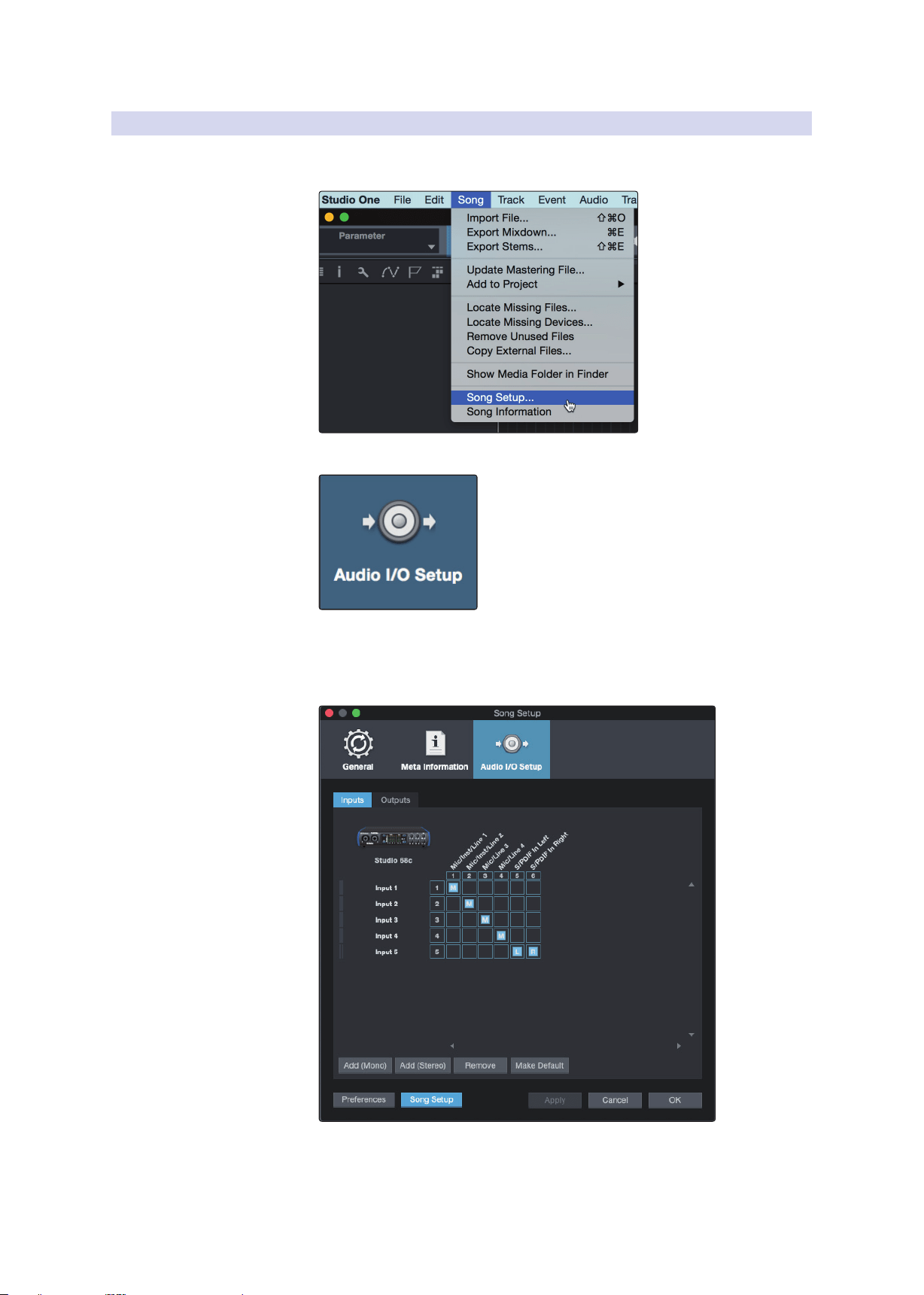
1. Click on Song | Song Setup to set your sample rate and
resolution and configure your audio I/O.
2. Click on the Audio I/O Setup tab.
3. From the Inputs tab, you can enable any or all of the inputs on your PreSonus
Studio-series audio interface that you’d like to have available. We recommend
that you create a mono input for each of the inputs on your interface. If you
plan on recording in stereo, you should also create a few stereo inputs.
23
4 Studio One Artist Quick Start
4.3 Creating a New Song
Studio 26c and Studio 68c
Owner’s Manual
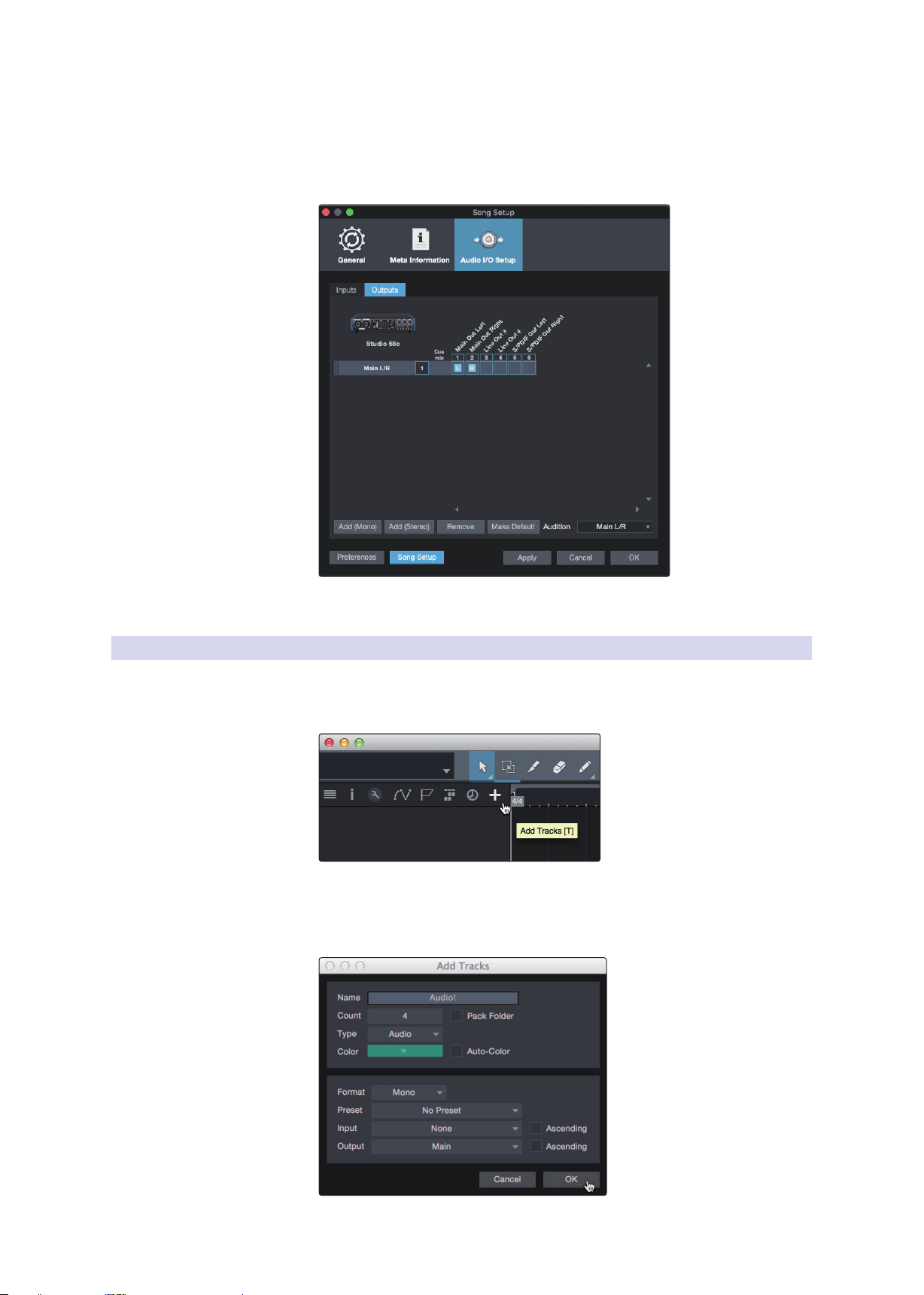
4. Click on the Outputs tabs to enable any or all of the outputs on your
Studio-series audio interface. In the lower right corner, you will see the
Audition Select menu. This allows you to choose the output from which
you will audition audio files prior to importing them into Studio One
Artist. In general, you will want this to be the main output bus.
Power User Tip: If you would like this I/O configuration to be the same every time
you open Studio One, click the Make Default button.
4.3.2 Creating Audio and Instrument Tracks
1. In the upper left corner of the Arrange window, you will notice
several buttons. The button furthest to the right is the Add Tracks
button. Click on this button to open the Add Tracks window.
2. In the Add Tracks window, you can customize the track name and
color, add a preset rack of effects, and set the physical source for
the input and output of your audio tracks. Most important, you
can select the number and type of tracks you’d like to create.
24
4 Studio One Artist Quick Start
4.3 Creating a New Song
Studio 26c and Studio 68c
Owner’s Manual
• Audio. Use this track type to record and playback audio files.
• Instrument. Use this track to record and playback MIDI data to
control external MIDI devices or virtual instrument plug-ins.
• Automation. This track type lets you create automated
parameter controls for your session.
• Folder. This track helps you to manage your session as
well as to quickly edit multiple tracks at once.
Power User Tip: If you would like to add an audio track for each of the available inputs,
go to Track | Add Tracks for All Inputs.
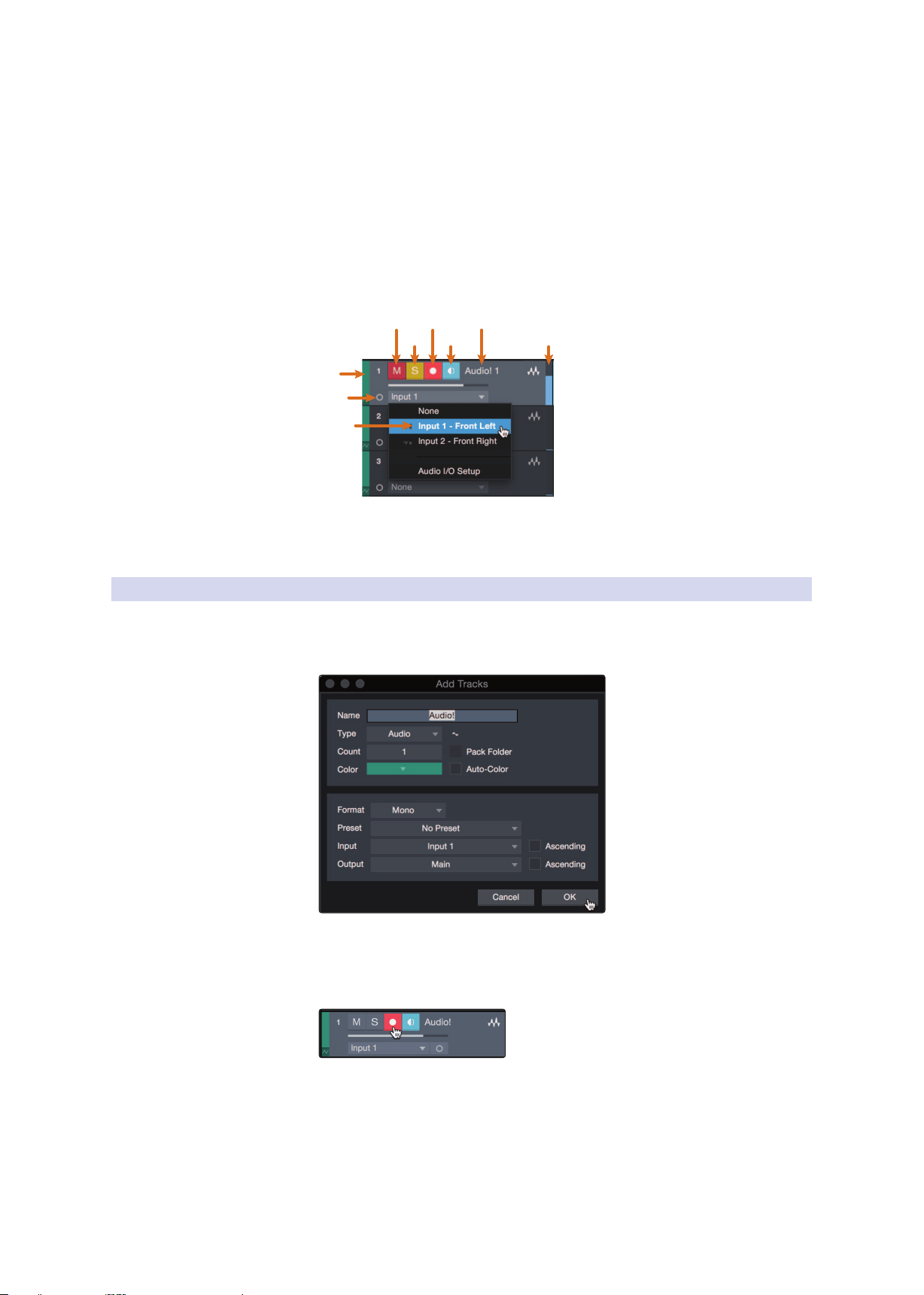
Mute
Custom
Track
Color
ST/Mono
Audio Input
Source Select
Solo
Rec
Arm
Monitor
Track
Name
Meter
Note: Instrument tracks are nearly identical to audio tracks. The Input Source list for
Instrument tracks lists available external MIDI devices as well as any virtual instruments
that have been added to the Song.
4.3.3 Recording an Audio Track
1. To begin recording, create an audio track from the Add
Tracks window, set its input to Input 1 on your Studio-series
interface, and connect a microphone to the same input.
2. Select Record Enable on the track. Turn up the Input 1 level on your audio
interface while speaking/singing into the microphone. You should see
the input meter in Studio One Artist react to the input. Adjust the gain
so the input level is near its maximum without clipping (distorting).
You are now ready to start recording. For complete instructions, please consult the
Studio One Reference manual located in Help | Studio One Reference Manual.
25
4 Studio One Artist Quick Start
4.3 Creating a New Song
Studio 26c and Studio 68c
Owner’s Manual
4.3.4 Adding Virtual Instruments and Effects
You can add plug-ins and instruments to your Song by dragging-and-dropping
them from the browser. You can also drag an effect or group of effects from one
channel to another, drag in customized effects chains, and instantly load your
favorite virtual-instrument preset without ever scrolling through a menu.
Opening the browser.
In the lower right corner of the Arrange window are three buttons:
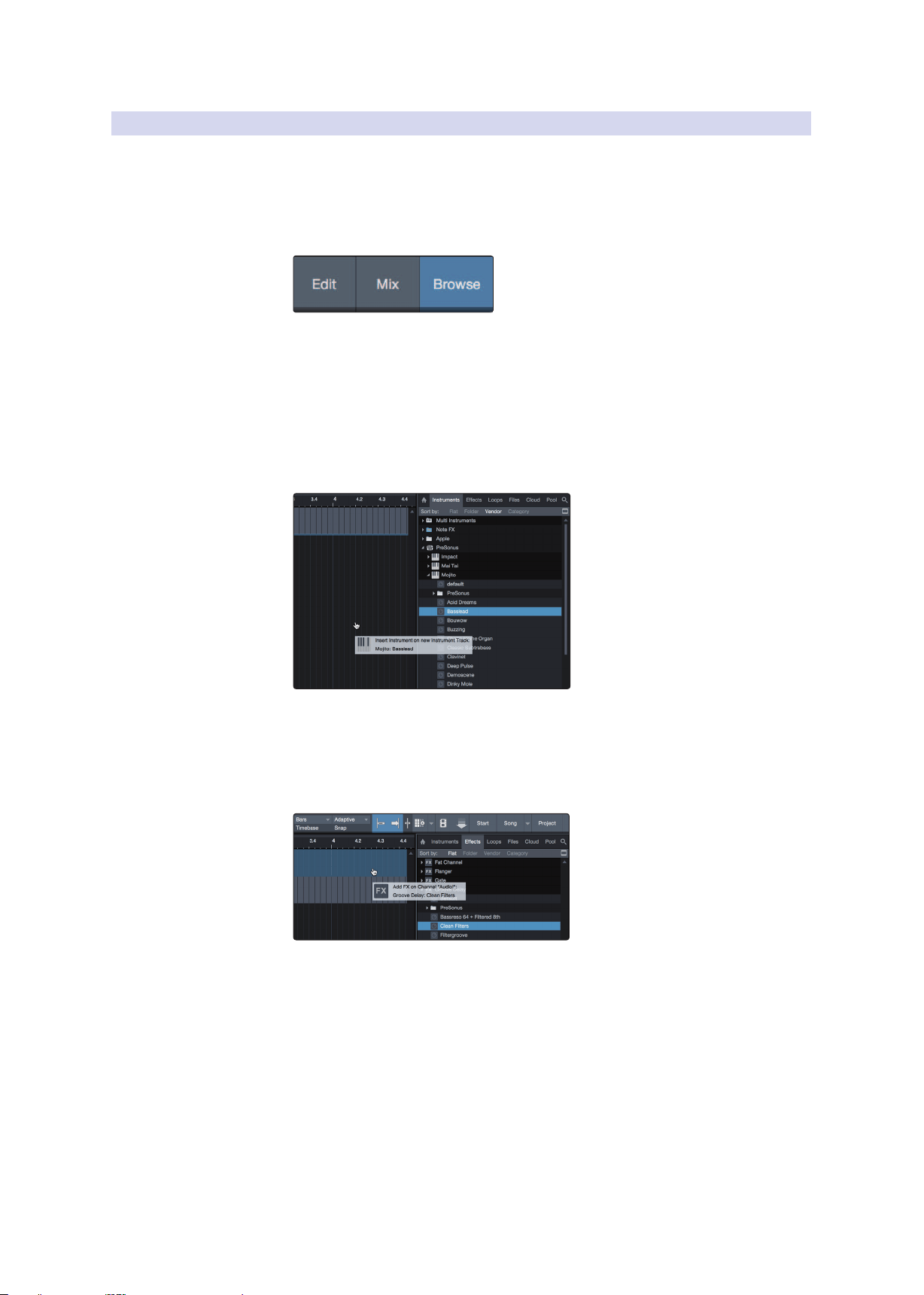
• The Edit button opens and closes the audio and MIDI editors.
• The Mix button opens and closes the Mixer window.
• The Browse button opens the browser, which displays all of the
available virtual instruments, plug-in effects, audio files, and MIDI files,
as well as the pool of audio files loaded into the current session.
Drag-and-Drop Virtual Instruments
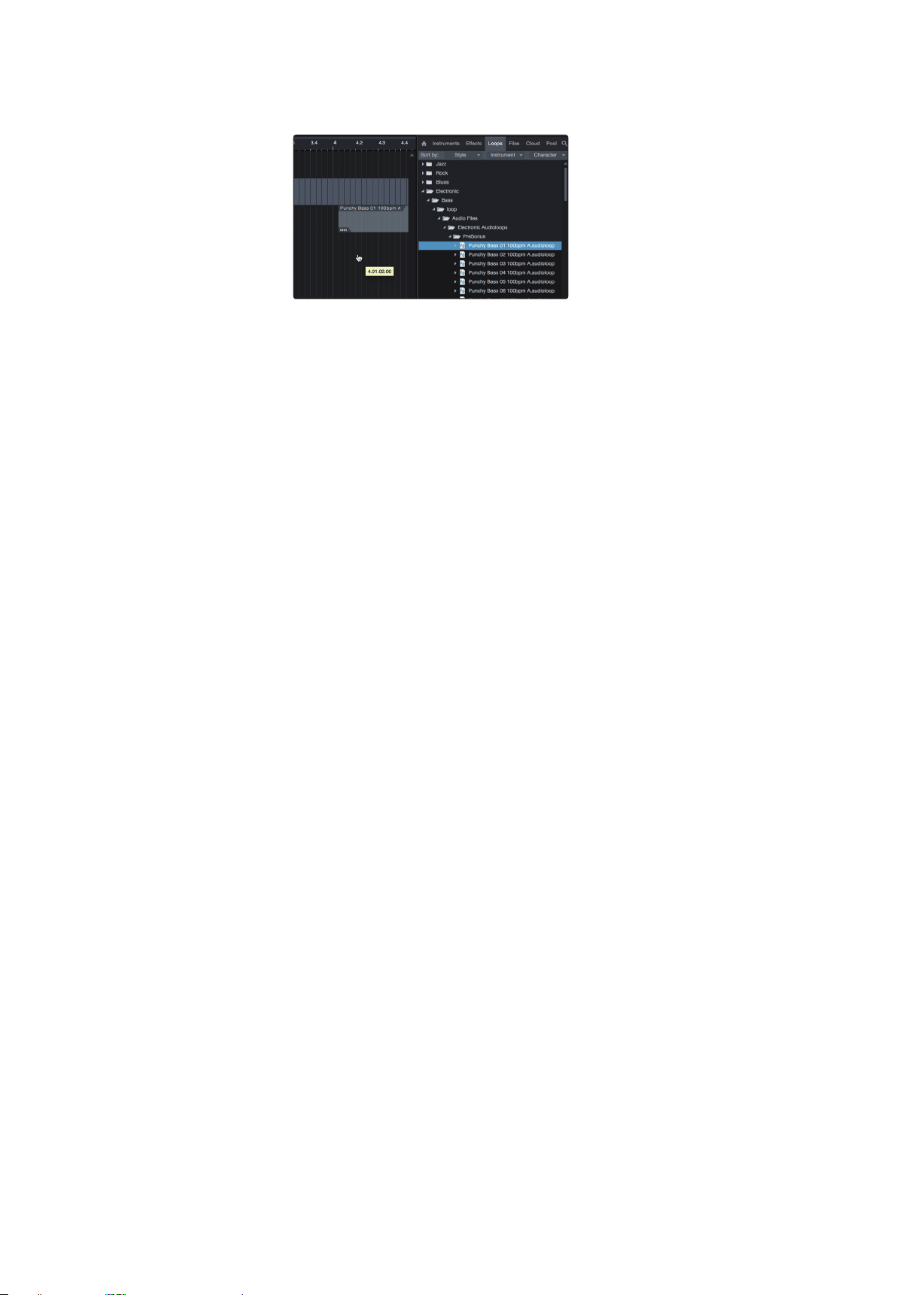
To add a virtual instrument to your session, open the browser and click on
the Instrument button. Select the instrument or one of its patches from the
Instrument browser and drag it into the Arrange view. Studio One Artist will
automatically create a new track and load the instrument as the input.
Drag-and-Drop Effects
To add a plug-in effect to a track, click the Effects button in the browser and
select the plug-in or one of its presets in the effects browser. Drag-and-drop
the selection over the track to which you would like to add the effect.
26
4 Studio One Artist Quick Start
4.3 Creating a New Song
Studio 26c and Studio 68c
Owner’s Manual
Drag-and-Drop Audio and MIDI Files
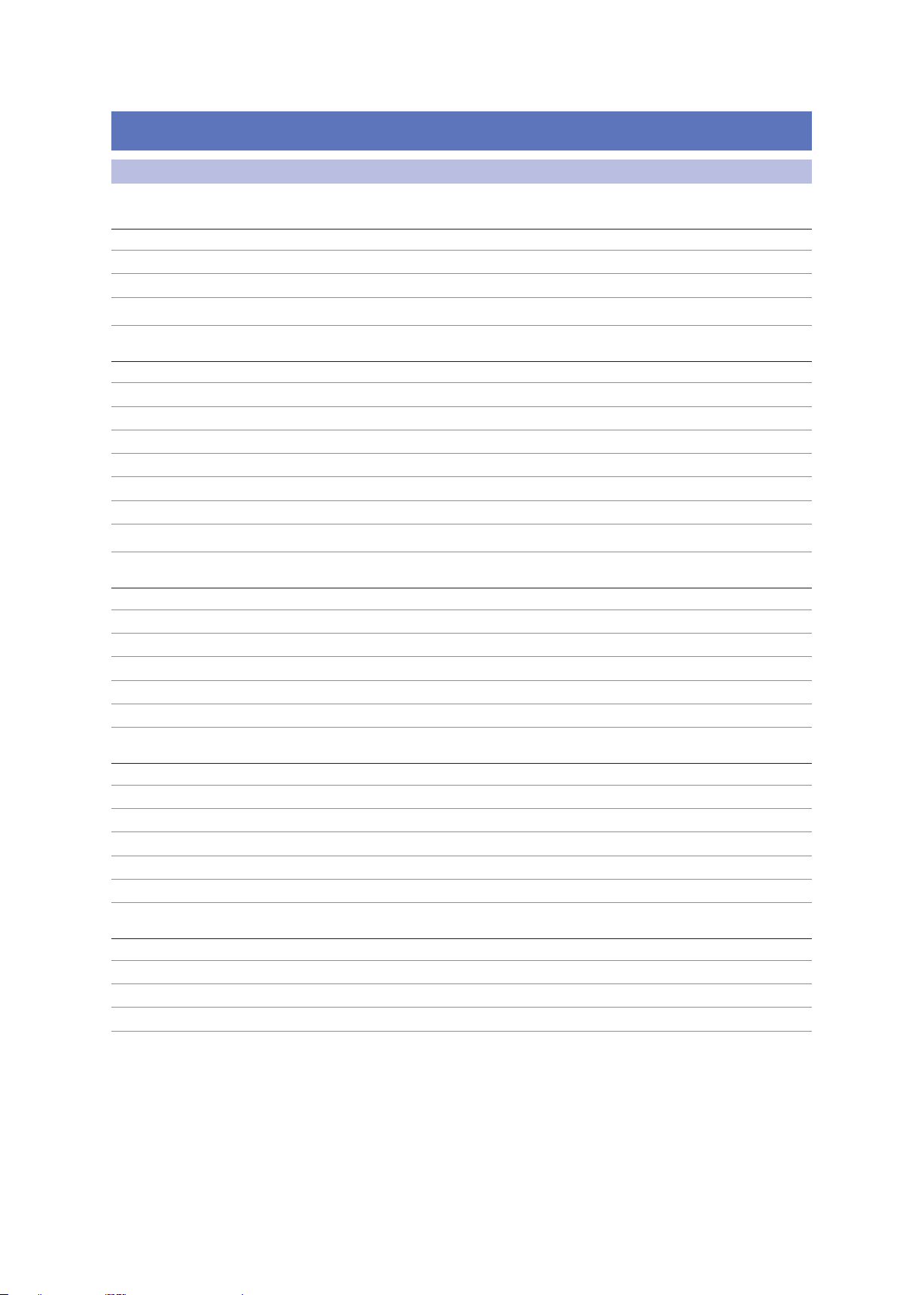
Audio and MIDI files can be quickly located, auditioned, and imported into
your Song by dragging them from the file browser into the Arrange view.
If you drag the file to an empty space, a new track will be created with
that file placed at the position to which you dragged it. If you drag the file
to an existing track, the file will be placed as a new part of the track.
27
5 Technical Information
5.1 Specifications
Studio 26c and Studio 68c
Owner’s Manual
5 Technical Information
5.1 Specifications
Studio 26 Studio 68
General
Sample Rates 44.1, 48, 88.2, 96, 176.4, or 192 kHz 44.1, 48, 88.2, 96, 176.4, or 192 kHz
Converter Resolution 24 bit 24 bit
Converter Dynamic Range 114 dB 114 dB
Converter Dynamic Range 114 dB 114 dB
Microphone Inputs
Maximum Level +4.5 dBu (balanced, min gain) +16 dBu (balanced, min gain)
Gain Range 70 dB 80 dB
Frequency Response 20Hz - 20kHz (+/- 0.1dB, min gain, 48kHz) 20Hz - 20kHz (+/- 0.15dB, min gain, 48kHz)
Dynamic Range 110 dB (A-wtd, min gain) 114 dB (A-wtd, min gain)
THD + N 0.004% (1kHz, -1 dBFS, unity gain) 0.007% (1kHz, -1 dBFS, min gain)
EIN -125 dBu (max gain, 150Ω, A-wtd) -130 dBu (max gain, 150Ω, A-wtd)
Input Impedance 1.6K Ω 1.6K Ω
Phantom Power +48 VDC (10mA total) +48 VDC (10mA per channel)
Line Inputs
Maximum Level +19.5 dBu (balanced, min gain) +22 dBu (balanced, min gain)
Gain Range 70 dB 40 dB
Frequency Response 20Hz - 20kHz (+/- 0.1dB, min gain, 48kHz) 20Hz - 20kHz (+/- 0.15dB, min gain, 48kHz)
Dynamic Range 110 dB (A-wtd, min gain) 113.9 dB (A-wtd, min gain)
THD + N 0.007% (1kHz, -1 dBFS, min gain) 0.007% (1kHz, -1 dBFS, min gain)
Input Impedance 10K Ω 10K Ω
Instrument Inputs
Maximum Level +14 dBu (unbalanced, min gain) +15 dBu (unbalanced, min gain)
Gain Range 70 dB 80 dB
Frequency Response 20Hz - 20kHz (+/- 0.15dB, 48kHz, min gain) 20Hz - 20kHz (+/- 0.1dB, 48kHz, min gain)
Dynamic Range 110 dB (A-wtd, min gain) 114.7 dB (A-wtd, min gain)
THD + N 0.008% (1kHz, -1 dBFS, min gain) 0.012% (1kHz, -1 dBFS, min gain)
Input Impedance 1M Ω 1M Ω
Line Outputs (Mains)
Maximum Level +10 dBu (balanced) +18 dBu (balanced)
Frequency Response 20Hz - 20kHz (+/- 0.1dB, unity gain, 48kHz) 20Hz - 20kHz (+/- 0.2dB, unity gain, 48kHz)
Dynamic Range 108 dB (A-wtd) 109 dB (A-wtd)
THD + N 0.0015% (1kHz, -1 dBFS) 0.001% (1kHz, -1 dBFS)

28
5 Technical Information
5.1 Specifications
Studio 26c and Studio 68c
Owner’s Manual
Studio 26 Studio 68
Line Outputs (3/4)
Maximum Level +10 dBu (balanced) +18 dBu (balanced)
Frequency Response 20Hz - 20kHz (+/- 0.1dB, unity gain, 48kHz) 20Hz - 20kHz (+/- 0.2dB, unity gain, 48kHz)
Dynamic Range 113 dB (A-wtd) 109 dB (A-wtd)
THD + N 0.008% (1kHz, -1 dBFS) 0.0015% (1kHz, -1 dBFS)
Headphone Outputs
Maximum Power 30 mW/channel (56Ω load) 150 mW/channel (56Ω load)
Frequency Response 20Hz - 20kHz (+/- 0.2dB, 56Ω load, 48kHz) 20Hz - 20kHz (+/- 0.2dB, 56Ω load, 48kHz)
Dynamic Range 104 dB (A-wtd, 56Ω load) 107 dB (A-wtd, no load)
THD + N 0.009% (1kHz, -1 dBFS, no load) 0.002% (1kHz, -1 dBFS, no load)
Impedance Working Range 32Ω to 300Ω 32Ω to 300Ω
29
6 Warranty
6.1 Warranty Information
Studio 26c and Studio 68c
Owner’s Manual
6 Warranty
6.1 Warranty Information
PreSonus’ warranty obligations for this hardware product
are limited to the terms set forth below:
How Consumer Law Relates To This Warranty:
THIS WARRANTY GIVES YOU SPECIFIC LEGAL RIGHTS, AND YOU MAY HAVE OTHER
RIGHTS THAT VARY FROM STATE TO STATE (OR BY COUNTRY OR PROVINCE). OTHER
THAN AS PERMITTED BY LAW, PRESONUS® DOES NOT EXCLUDE, LIMIT OR SUSPEND
OTHER RIGHTS YOU MAY HAVE, INCLUDING THOSE THAT MAY ARISE FROM THE
NONCONFORMITY OF A SALES CONTRACT. FOR A FULL UNDERSTANDING OF YOUR
RIGHTS YOU SHOULD CONSULT THE LAWS OF YOUR COUNTRY PROVINCE OR STATE.
PreSonus Products And EU Statutory Warranty:
When you purchase PreSonus products, European Union consumer
law provides statutory warranty rights in addition to the coverage
you receive from the PreSonus limited warranty. A summary of the EU
Statutory Warranty and the PreSonus Limited Warranty is below:
EU Consumer Law PreSonus Limited Warranty
Repair or Replacement
Coverage For
Defects present when customer
takes delivery
Defects arising after customer takes delivery
Warranty Period
2 years (minimum) from
original date of purchase (unless
superseded by PreSonus)
1 year from original date of purchase (unless superseded
by PreSonus)
Cost of Coverage Provided at no additional cost Included at no additional cost
Who to contact to
make a claim
The seller PreSonus technical support for your region
What This Warranty Covers:
PreSonus Audio Electronics, Inc., (“PreSonus”) warrants defects in material and
workmanship in PreSonus-branded products under normal use. This Limited
Warranty applies only to hardware products manufactured by or for PreSonus that
can be identified by the PreSonus trademark, trade name, or logo affixed to them.
Exclusions and Limitations:
This warranty does not cover the following:
1. Damage caused by accident, abuse, improper installation, failure to
follow instructions in the applicable owner’s manual or improper
operation, rental, product modification, alteration, or neglect.
2. Damage from improper grounding, faulty wiring (AC and signal),
faulty equipment, or connection to a voltage range outside
published specifications (see applicable owner’s manual).
3. Damage to drivers or diaphragm assemblies found to have burnt voice
coils from over/under driving or signal surge from another device.
4. Damage occurring during shipment or improper handling.
5. Damage caused by repair or service performed by
persons not authorized by PreSonus.
6. Products on which the serial number has been altered, defaced, or removed.
7. Products purchased from an unauthorized PreSonus dealer (products
that have transferable warranties are excluded from this provision,
provided the customer and the product are registered with PreSonus).

30
6 Warranty
6.1 Warranty Information
Studio 26c and Studio 68c
Owner’s Manual
Who This Warranty Protects:
This Warranty protects only the original retail purchaser of the product
(products that have transferable warranties are excluded from this provision
provided the customer and the product are registered with PreSonus).
How Long This Warranty Lasts:
The Warranty begins on the original date of purchase from
the retail purchaser, and the duration is as follows:
1-Year Limited Warranty
Product Category Model Transferable
Recording Interfaces
AudioBox® iOne, AudioBox iTwo, AudioBox Stereo, AudioBox Studio, AudioBox
USB, AudioBox VSL (1818, 44, 22), FireStudio™ Project, FireStudio Mobile,
FireStudio Mobile Studio, Studio 192, Studio 192 Mobile, Studio-series
(1824/1824c, 1810/1810c, 68/68c, 26/26c, 24/24c), Quantum, and Quantum 2
No
Preamplifiers
ADL600, ADL700, BlueTube DP V2, DigiMax D8, DigiMax DP88, Eureka, RC500,
Studio Channel, TubePre V2
No
StudioLive® Mixers
Series III (32, 24, 16, 32R, 24R, and 16R) ,16.0.2, 16.4.2AI, 24.4.2AI, 32.4.2AI,
AR8, AR12, AR16, AR22, RM16AI, RM32AI
No
Monitoring & Controlling
ATOM, Eris®, Central Station PLUS, FaderPort™, HP4, HP60, EarMix, Monitor
Station, Monitor Station V2, R-Series, Sceptre®, Temblor®
No
Accessories Covers, Dolly, PRM1 mic, Sub Pole, breakout cables, power supplies, M10 Kit No
3-Years Limited Warranty
Product Category Model Transferable
Live Sound
StudioLive AI 328, 312, 315, 18S, ULT10, ULT12, ULT15, ULT18, AIR10, AIR12,
AIR15, AIR15S, AIR18S
Yes
What PreSonus Will Do:
PreSonus will repair or replace, at our sole and absolute option, products covered by this warranty
at no charge for labor or materials. If the product must be shipped to PreSonus for warranty service,
the customer must pay the initial shipping charges. PreSonus will pay the return shipping charges.
How to Get Warranty Service (USA):
1. You must have an active user account with PreSonus, and your hardware must be
on file with your account. If you do not have an account, please go to:
http://www.presonus.com/registration and complete the registration process.
2. Contact our Technical Support Department at (225) 216-7887 or log a
support ticket at: http://support.presonus.com. TO AVOID THE POSSIBILITY
OF SENDING IN A PRODUCT THAT DOES NOT HAVE A PROBLEM, ALL SERVICE
REQUESTS SHALL BE CONFIRMED BY OUR TECH SUPPORT DEPARTMENT.
3. The return authorization number as well as shipping instructions shall
be provided after your service request is reviewed and confirmed.
4. The product should be returned for service in the original product
packaging. Products may be shipped in a manufactured “flight”- or
“road”-style cases but PreSonus will NOT cover any shipping damage to
these cases. Products that are not shipped in the original product package
or a manufactured case may not receive a warranty repair, at PreSonus’s
sole discretion. Depending on the product model and the condition of
your original packaging, your product may not be returned to you in the
original packaging. The return shipping box may be a generic box that has
been fitted for that model tested if the original gift box is not available.

31
6 Warranty
6.1 Warranty Information
Studio 26c and Studio 68c
Owner’s Manual
How to Get Warranty Service (outside of USA):
1. You must have an active user account with PreSonus and your hardware must
be on file with your account. If you do not have an account, please go to: http://
www.presonus.com/registration and complete the registration process.
2. Contact the Technical Support/Service Department for your region
at http://www.presonus.com/buy/international_distributors and
follow procedures provided by your PreSonus contact.
Limitation of Implied Warranties:
ANY IMPLIED WARRANTIES, INCLUDING WARRANTIES OF
MERCHANTABILITY AND FITNESS FOR A PARTICULAR PURPOSE, ARE
LIMITED IN DURATION TO THE LENGTH OF THIS WARRANTY.
Some states, countries, or provinces do not allow limitations on how long
an implied warranty lasts, so the above limitation may not apply to you.
Exclusion of Damages:
PRESONUS’S LIABILITY FOR ANY DEFECTIVE PRODUCT IS LIMITED TO THE
REPAIR OR REPLACEMENT OF THE PRODUCT, AT PRESONUS’S SOLE OPTION. IF
PRESONUS ELECTS TO REPLACE THE PRODUCT, THE REPLACEMENT MAY BE A
RECONDITIONED UNIT. IN NO EVENT WILL PRESONUS BE LIABLE FOR DAMAGES
BASED ON INCONVENIENCE, LOSS OF USE, LOST PROFITS, LOST SAVINGS, DAMAGE
TO ANY OTHER EQUIPMENT OR OTHER ITEMS AT THE SITE OF USE, AND, TO THE
EXTENT PERMITTED BY LAW, DAMAGES FOR PERSONAL INJURY, OR ANY OTHER
DAMAGES WHETHER INCIDENTAL, CONSEQUENTIAL OR OTHERWISE, EVEN IF
PRESONUS HAS BEEN ADVISED OF THE POSSIBILITY OF SUCH DAMAGES.
Some states, countries, or provinces do not allow limitations on how long
an implied warranty lasts, so the above limitation may not apply to you.
If you have any questions about this warranty or service received, please contact
PreSonus (USA) at +1 (225) 216-7887 or one of our authorized international
distributors at: http://www.presonus.com/buy/international_distributors.
Product features, design, and specifications are subject to change without notice.

Added bonus: PreSonus’ previously Top Secret recipe for…
Red Beans and Rice
Ingredients:
• 1 lb dried Red Kidney Beans
• 1 large onion (diced)
• 3 celery stalks (diced)
• 1 large green bell pepper (diced)
• 6-8 C vegetable stock
• 1 Tbs. Old Bay seasoning
• ½ fresh parsley
• 2 tsp. kosher salt
• 2 Tbs. olive oil
• 1 smoked ham hock (optional)
Cooking instructions:
1. Rinse red beans in cold water.
2. In a pressure cooker, heat olive oil on medium high. Sauté onion, celery, bell pepper, beans, and ham hock (if using) until
onions are translucent.
3. Stir in Old Bay, parsley, and salt.
4. Add vegetable stock until beans and vegetables are covered.
5. Close pressure cooker and bring to full pressure on high heat.
6. Reduce heat to low while maintaining full pressure. Cook for 40 minutes.
7. Allow pressure to drop naturally (20-30 minutes).
8. Remove lid and crush with a potato masher until creamy.
9. Correct seasoning with salt and pepper if necessary.
10. Serve over rice with hot sauce and grilled Andouille sausage (optional).
© 2019 PreSonus Audio Electronics, Inc. All Rights Reserved. AudioBox, Nimbit, PreSonus, QMix, StudioLive, and XMAX are trademarks or registered trademarks of PreSonus Audio
Electronics, Inc. Capture and Studio One are trademarks or registered trademarks of PreSonus Software Ltd. Mac and Mac OS are registered trademarks of Apple, Inc., in the U.S. and
other countries. Windows is a registered trademark of Microsoft, Inc., in the U.S. and other countries. Other product names mentioned herein may be trademarks of their respective
companies. All specifications subject to change without notice...except the recipe, which is a classic.
Dinner is Served
18011 Grand Bay Ct. • Baton Rouge,
Louisiana 70809 USA• 1-225-216-7887
www.presonus.com
®
Studio 26c and Studio 68c
24-Bit, 192 kHz USB-C Audio Interfaces
Owner’s Manual
Part# 70-12000125-A