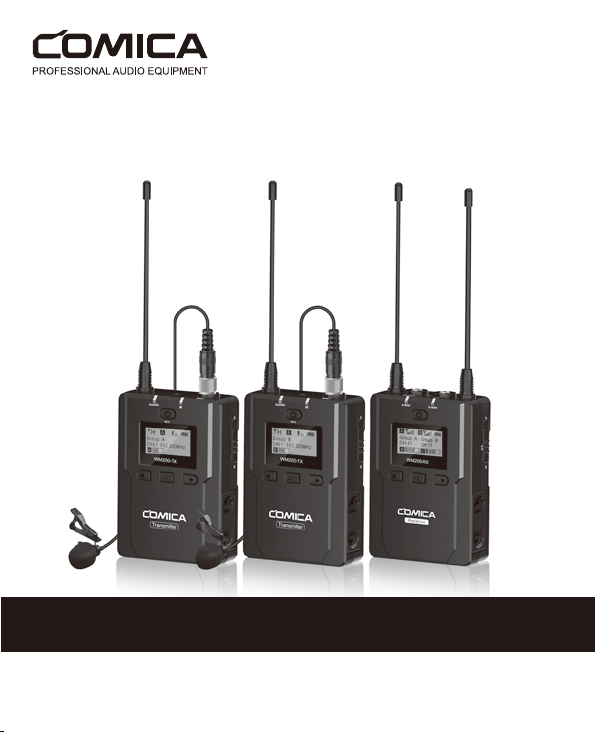
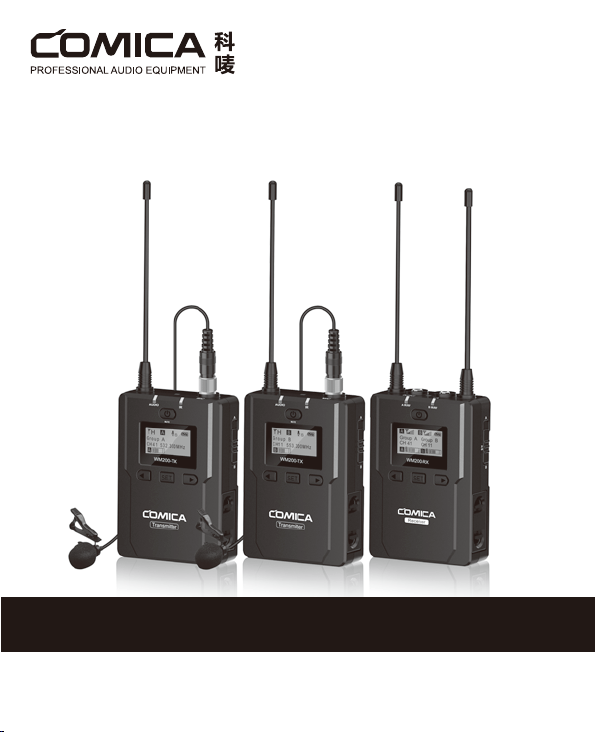
CVM-WM200
UHF Wireless Microphone
USER MANUAL


Foreword
Main Features
Thanks for purchasing COMICA WM200 UHF wireless microphone. To ensure a good
using experience and customers’ physical safety, please carefully read this instruction
before using and properly assemble and operate.
. Dual Transmitters Triggered by One Receiver, A/B Double Group Options
. Quick A/B/A+B Group Switch
. Used for Multiple Devices Working Together
. Working Distance is Up to 120m (120m in Open Area, 80m in Area with Obstacle)
. LCF Low Cut Filtering Mode
. Auto-scanning for Quick Channel Selection
. IR Sync
. Adjustable RF Signal Strength
. AA Batteries and External Power Supply
. Audio Dynamic Display Bar
. 16 Levels Volume Adjustment
. Optional Language
. Transmitter Power Monitor
. Output Modes Mono/Stereo Switch
. Low-consumption, Super-long Standby Time
. Lattice LCD Display, High Resolution
. Full Metal Manufacturing, Excellent Shielding
1
Notice
Package Contents
Transmitter should be placed at a distance more than 10cm from Receiver. When the
distance is less than 10cm, Receiver’s wireless signal receiving part will take protect
action to shut down the receiving wireless signal, then audio may be intermittent, which is
normal
When using auto IR sync, please stay within 30cm, otherwise the signal may be too weak
and the sync will not be successful
In the case of stereo/mono mode switch, please preset the mode before using to avoid
the transient interference caused by switching during usage
When there is any need for long time using, external power bank is better for power
supplying instead of using AC-DC power to avoid noise problem
The antenna will aect the working distance. Please protect the antenna and avoid any
man-made damage
The working distance will be aected by the surrounding environment. Please try to keep
the environment open without interference during usage, and close the WIFI of the device
itself
When using this product in a short distance, it is recommended to set RF strength at
‘LOW’ to reduce the power consumption
For smartphone shooting, customers need to separately purchase a TRS-TRRS audio
cable adapter, and remember to set the mobile phone mode to 'Flight Mode' for avoiding
incoming call interference (It does not support the original recording system of some
android systems, the third-party APP is recommended to be used in this case)
Please keep this product in dry environment
Do not expose the device in rain or humid environment, otherwise there will be a danger
of short circuit
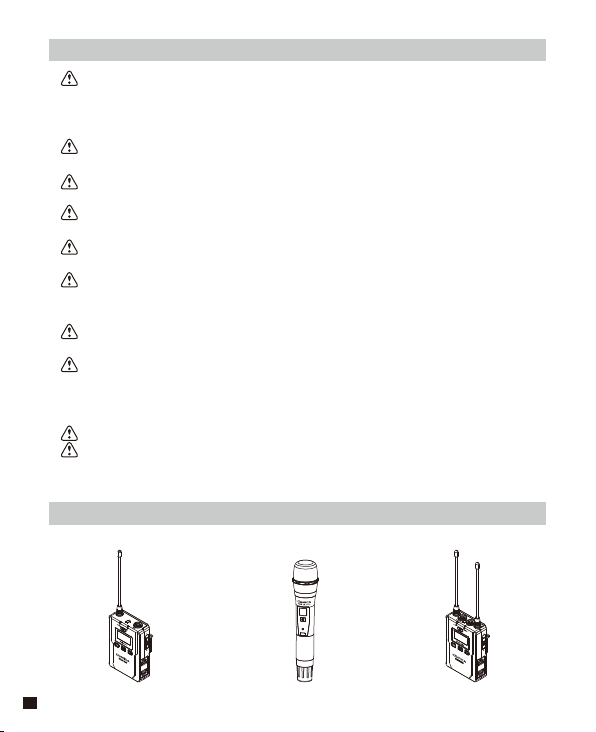
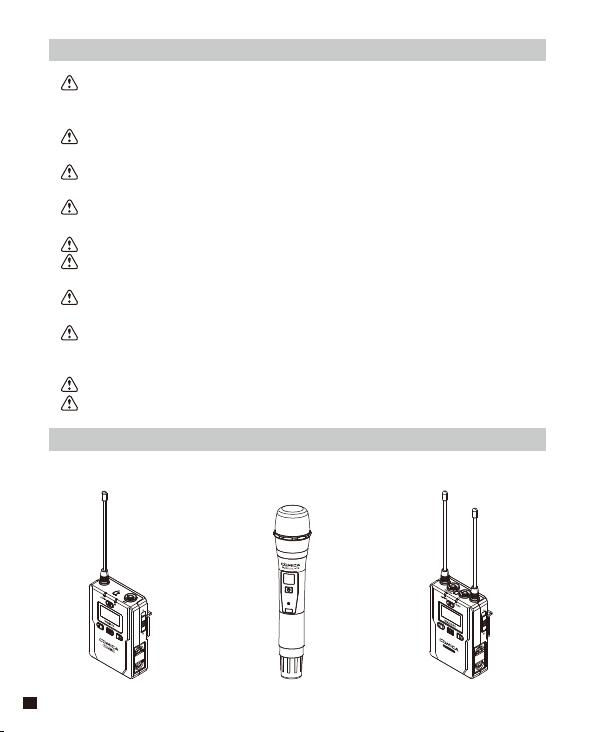
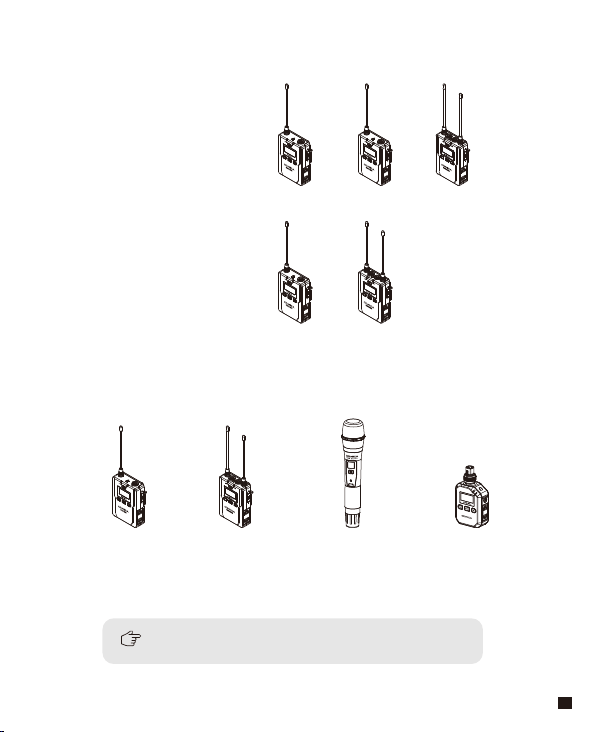
Main Parts
:
Lavalier Transmitter (TX) Hand-held Transmitter (HTX) Receiver (RX)
2
For the method of WM200/300-XLR using, please refer to the user
manual that comes with the product
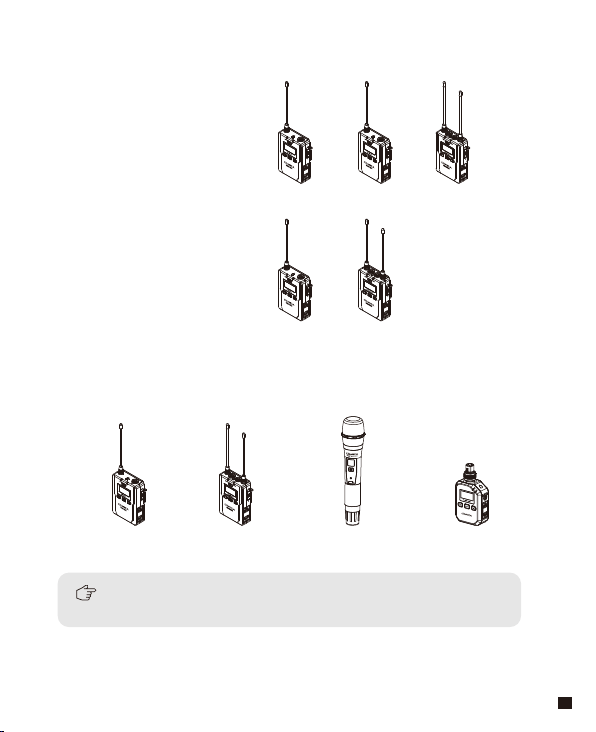
WM200(A) = 2TX + RX
WM200(C) = TX + RX
TX TX RX
++
TX RX
+
WM200-TX WM200-RX WM200-HTX WM200/300-XLR
Multiple Selections:
3
1
2
3
4
5
6 7
8
9
10
CVM-WM200
UHF Wireless Microphone
USER MANUAL
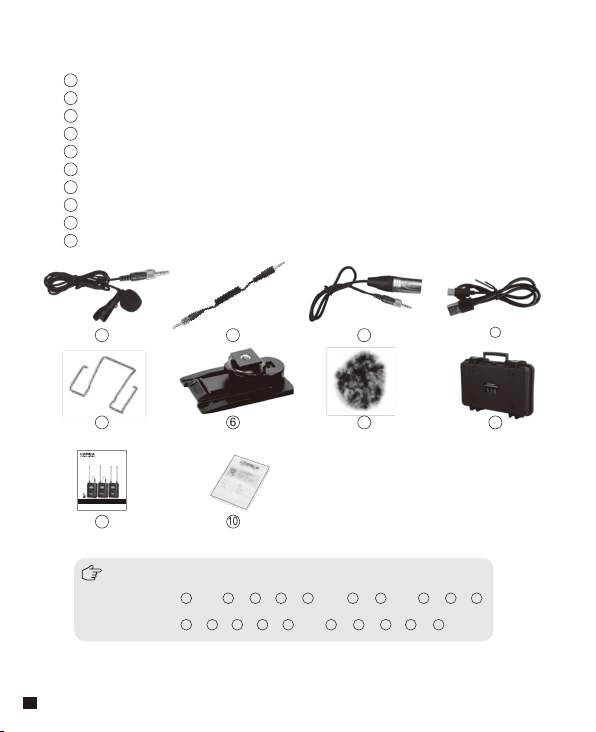
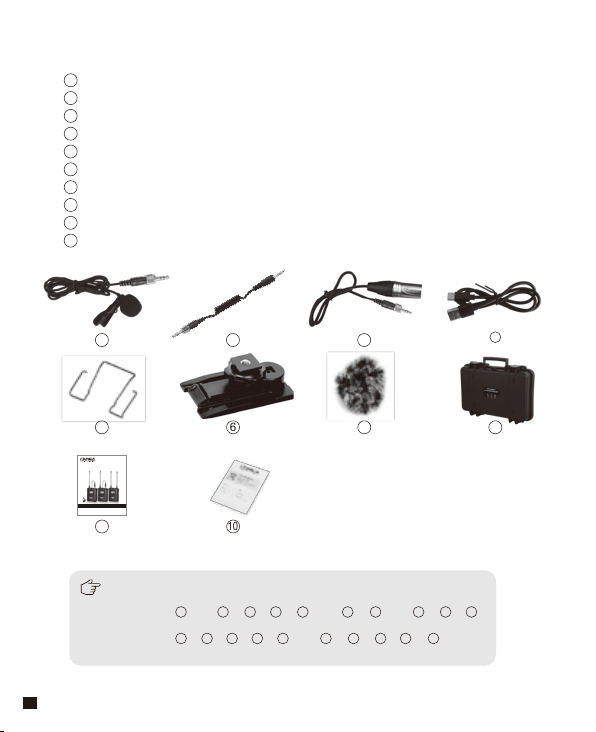
3.5mm Mic Audio Input Cable
3.5mm-3.5mm Audio Output Cable
3.5mm-XLR Audio Output Cable
USB-C Charging Cable
Belt Clip
Cold Shoe Mount
Wind Mu
Portable Box
User Manual
Warranty Card
Accessories:
1
2
3
4
5
6
7
8
9
10
4
The accessories of each combination include
:
WM200(A)= x2 + + + + x3 + + x2 + + +
WM200(C)= + + + + x2 + + + + +
1
2 3 4 6 7 8 9
10
1
2
3 4
6
5
5
7 8 9
10
1
3
2
4
5
6
7
8
10
9
11
12
13
14
15
Components and Instruction
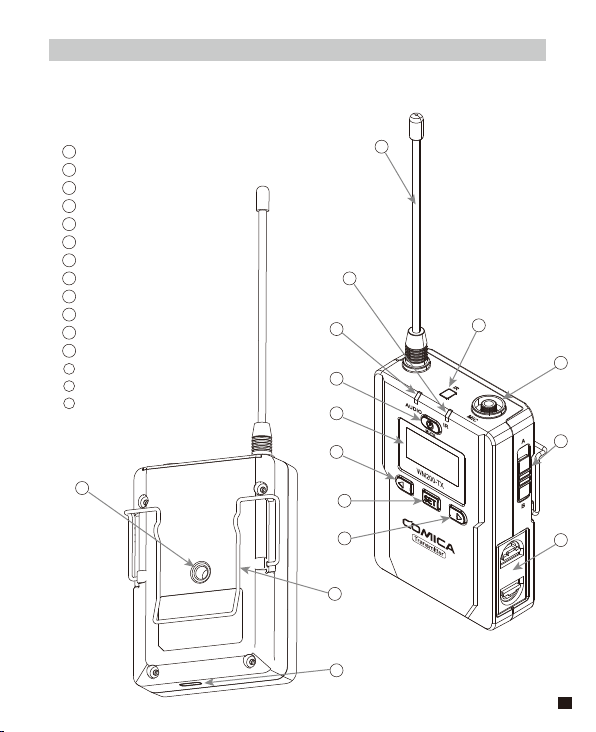
Components
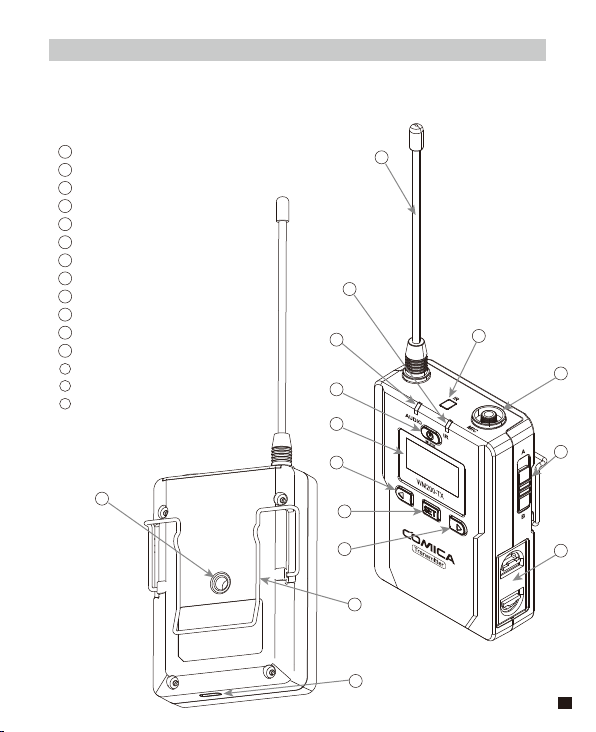
Lavalier Transmitter (TX)
Antenna
Matching Status Indicator
Sound Status Indicator
Power / Muting Button
LCD Screen
Function Selection Button -
SET Function Menu
Function Selection Button +
IR Sensor
MIC / LINE IN External Input
Group Selection Switch
Battery Tray
1/4 Mounting Hole
Belt Clip
USB-C Charging Socket
1
2
3
4
5
6
7
8
9
10
11
12
13
14
15
5
2
1
3
4
65
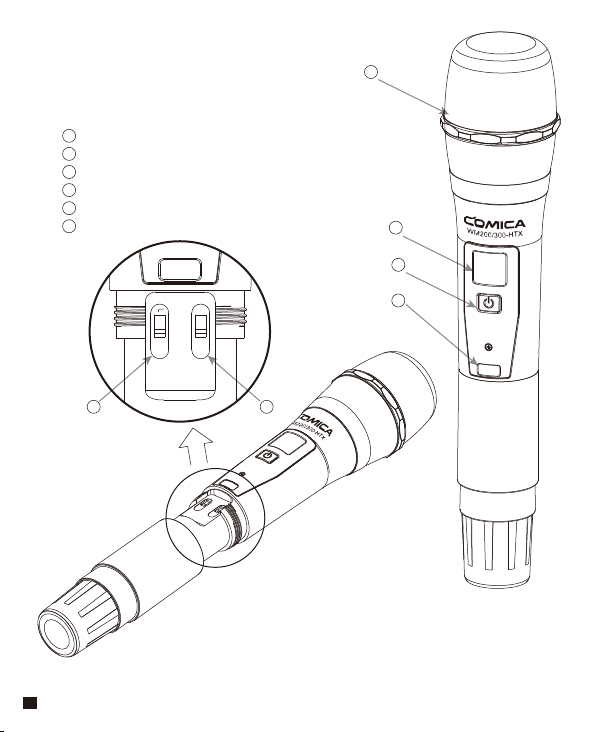
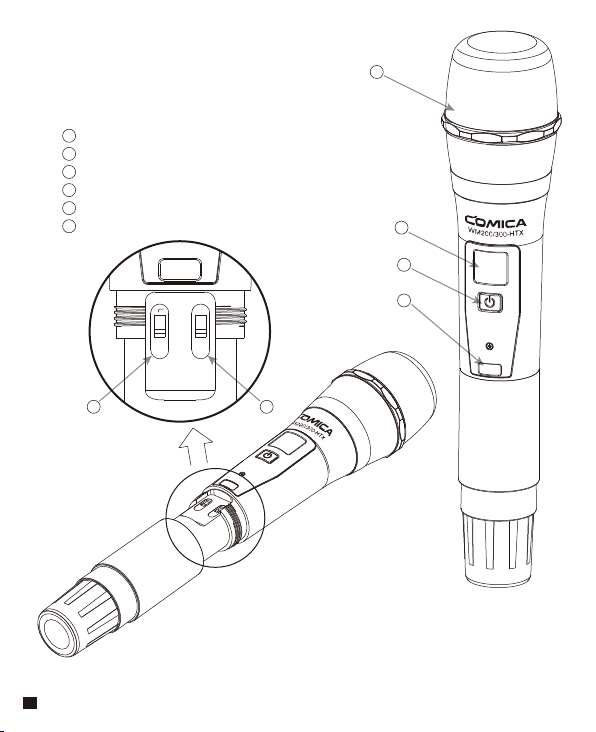
Microphone
LCD Display
Power / Muting Button
IR Screen
Low Cut Filter/Normal Audio Switch
Signal Strength “High/Low” Switch
Hand-held Transmitter (HTX)
1
2
3
4
5
6
LCF
RF
LCF
-
RF
High
Low
6
1
9
11
10
3
2
4
5
6
7
8
12
13
14
15
16
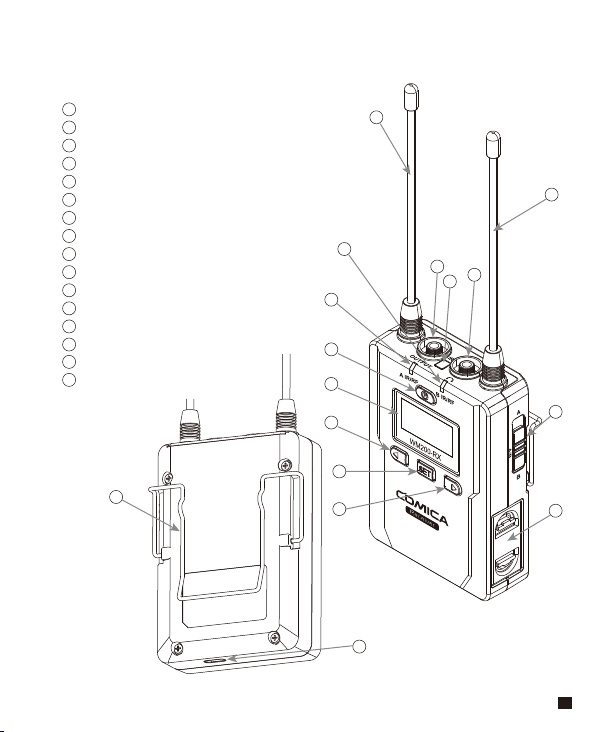
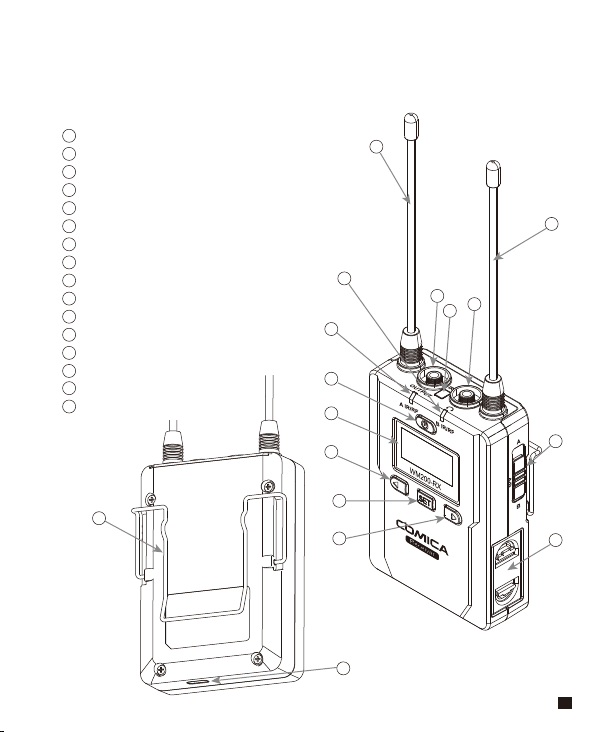
Receiver (RX)
1
2
3
4
5
6
7
8
9
10
11
12
13
14
15
16
Group A Antenna
Group B Working Status Indicator
Group A Working Status Indicator
Power Switch
LCD Screen
Function Selection Button -
SET Function Menu
Function Selection Button +
3.5mm Audio Output Socket
IR Sensor
3.5mm Monitoring Socket
Group B Antenna
Group Selection Switch
Battery Tray
Belt Clip
USB-C Charging Socket
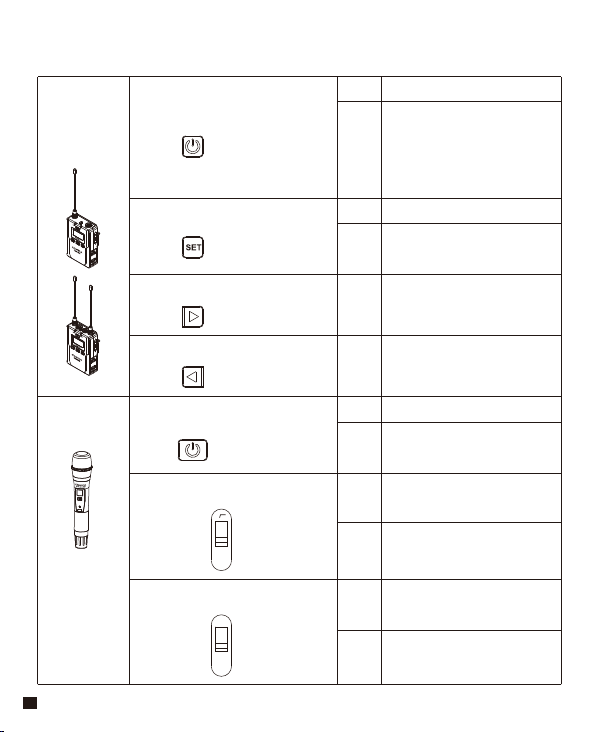
7
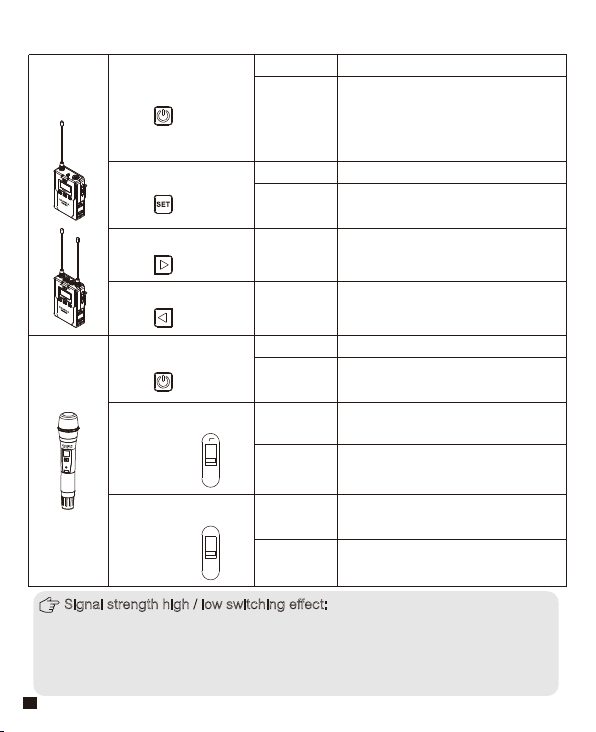
Lavalier
Transmitter
/ Receiver
Hand-held
Transmitter
Power / Muting Button
Long Press
Short Press
Power On / O
Power / Muting Button
“Low cut/ Normal”
Sound Switch
Signal Strength
“High/Low”
Switch
Long Press
Power On / O
Muting Mode
(
This function is only
for transmitter, when the mute
function is turned on and the
screen is lighted up
)
Short Press
Muting Mode
(
Only goes into
eect when the screen lights up
)
SET Function Menu
+ Button
- Button
Long Press Enter the function adjustment menu
Short Press
Short Press
Short Press
1.Confirm the selected function
2.Exit the function adjustment menu
Function Adjustment (+)
Function Adjustment (-)
Push-up
Signal strength--high
Push-down
Signal strength--low
Push-up
Low cut
Push-down
Normal
Function Button Instruction
LCF
-
RF
High
Low
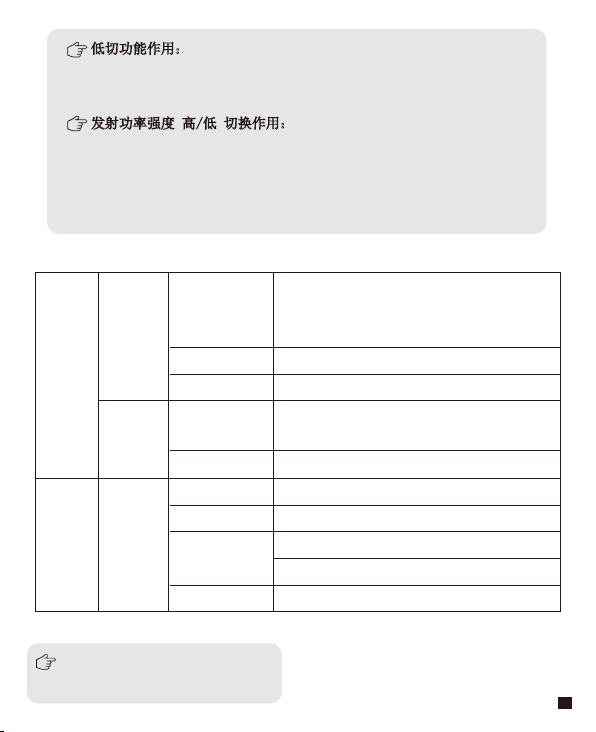
Signal strength high / low switching eect:
With high signal strength, the wireless working distance is up to 80-120M, high
power consumption, battery life is short; With low signal strength, the wireless
working distance is up to 30-60M, low power consumption, the battery can be
used for a long time.
8
Indicator Light Instruction
Transmitter
Receiver
AUDIO
A IR/RF
B IR/RF
A IR/RF
:
Group A Working Status Indicator
B IR/RF
:
Group B Working Status Indicator
IR
Green Light Keeps on
Green Light Keeps on
Green Light Keeps on
Red Light Keeps on
Red Light Flickers
Red Light Flickers
Red Light Flickers
Red Light keeps on
Green Light Flickers
Normal Recording Status
(
This state is only for the
transmitter, when the channel
matches successfully, then
the receiver can pick up the
sound
)
Muting Mode
Low-power reminder
Channel matches
(
No matter the channel
matched or not
)
Channel is matching......
(
only for IR Sync
)
Normal working status after
the channel matched
Channel match failed
Channel is matching......
(
only for IR Sync
)
Low-power reminder
Group closed
Low cut function:
Appropriately remove the low frequency part of the sound, reduce the ambient
noise of the low frequency part, to make sound more clean and clear.
9
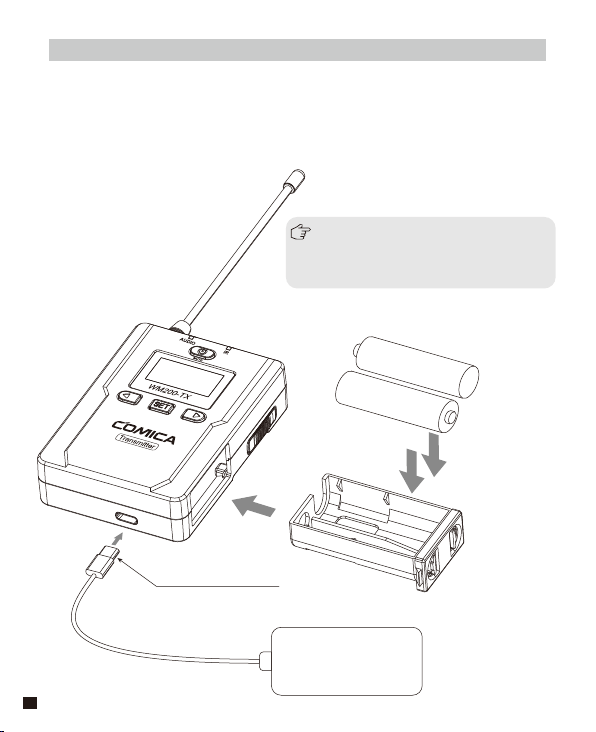
AA
AA
USB-C Plug
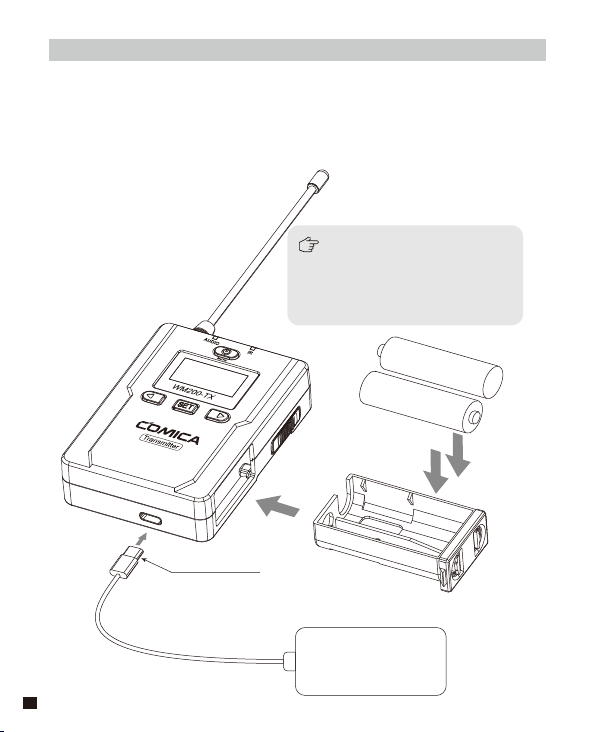
When there is any need for long time
using, external power bank is better
for power supplying instead of using
AC-DC power to avoid noise problem
POWER
5V/1A
Installation and Usage
1. Install two AA batteries into the battery tray according to the
positive and negative electrode. It supports external
power-supplying through USB-C Plug
Lavalier Transmitter
10
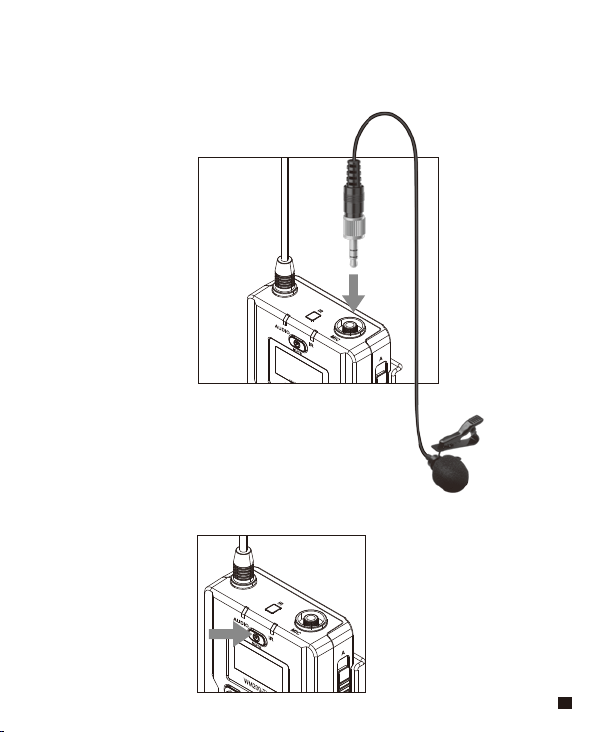
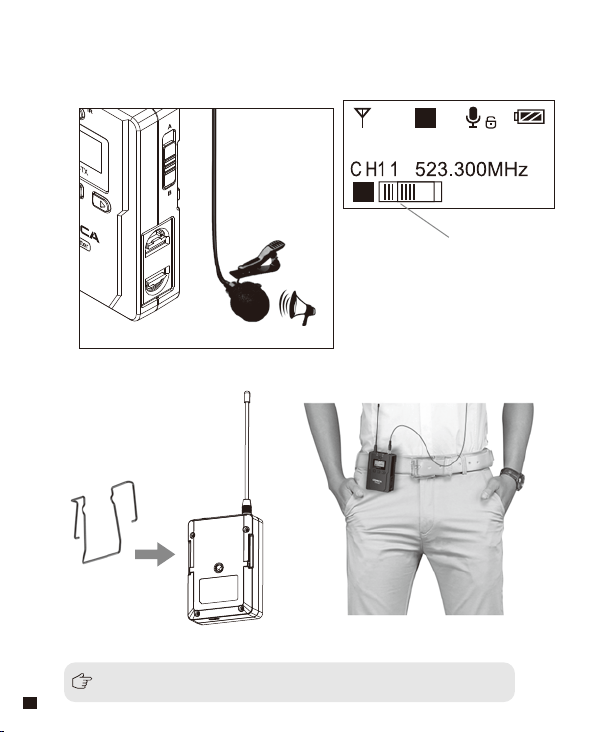
2. Insert the 3.5mm audio input cable into MIC socket
3. Long press the power button to turn on the transmitter
11
H
A
Group A
A
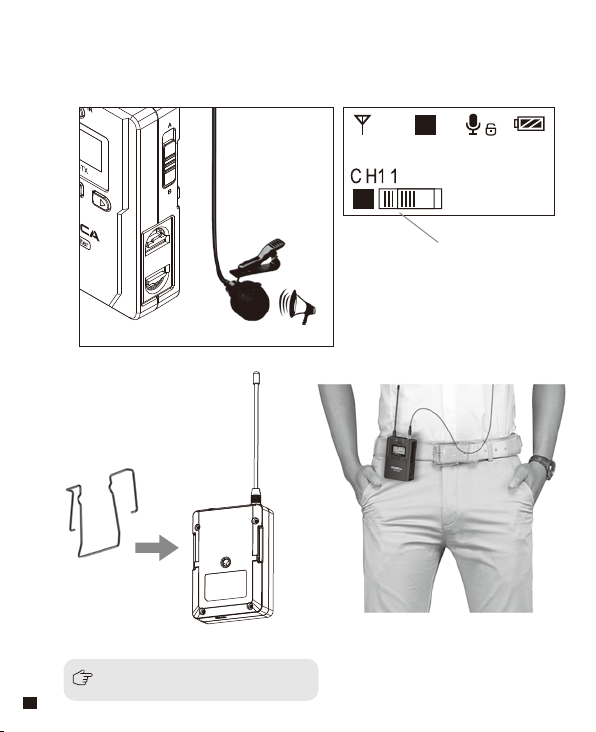
4. Place the MIC at the audio source and check the working status
according to the volume indicator on the screen
5. Insert the belt clip to the connection hole
6. After the channel matched with the receiver, it can be used
Please refer to screen operation instruction for channel matching.
Audio Dynamic Display Bar
12
Please refer to screen operation instruction for channel matching.
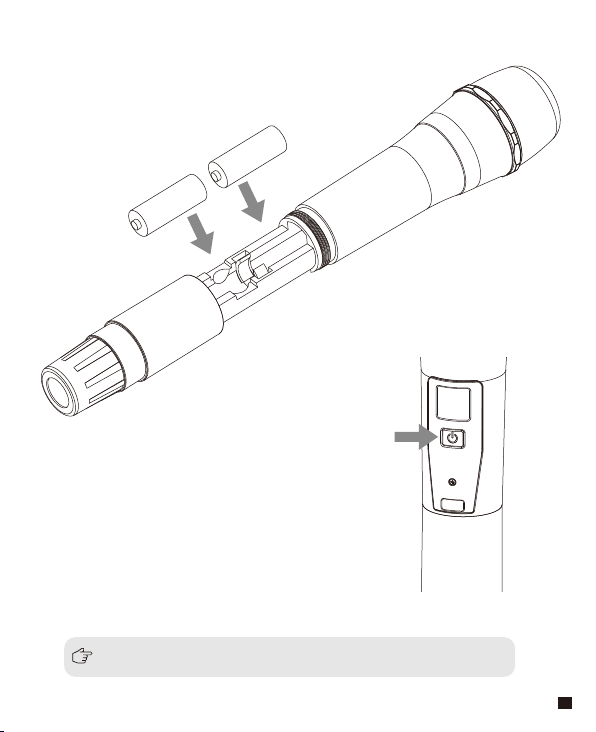
2.Long press the button switch to turn on
the hand-held transmitter
3. After the channel matched with the receiver, it can be used
Hand-held Transmitter
1. Install two AA batteries into the battery tray
according to the positive and negative electrode
AA
AA
13
AA
AA
USB Plug
When there is any need for long time
using, external power bank is better
for power supplying instead of using
AC-DC power to avoid noise problem
POWER
5V/1A
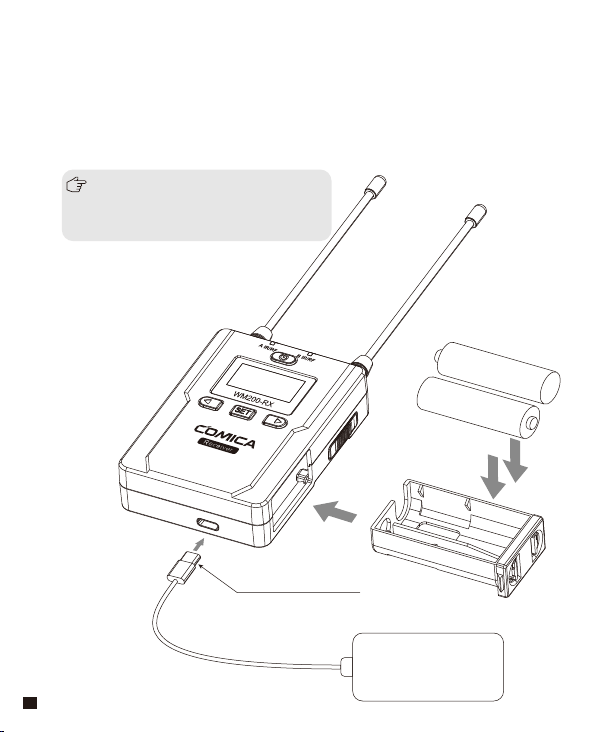
Receiver
1. Install two AA batteries into the battery tray according to the positive
and negative electrode. It supports external power-supplying through
USB-C Plug
14
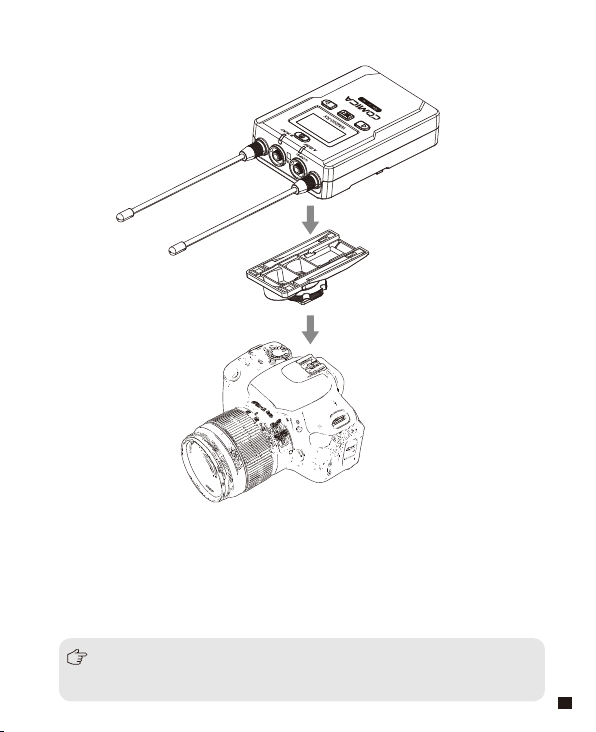
3. Connect one end of the 3.5mm-3.5mm audio OUTPUT cable to the
OUTPUT port of WM200RX and another end to the AUDIO INPUT
port of the camera or camcorder.Insert the headphone into the
3.5mm monitoring port for real-time monitoring and then long press
power button to trun on the receiver.
2. Connect the receiver to the video device through the Cold Shoe
Mount
Most DSLR cameras has 3. 5mm port, if you use the XLR camcorder,
you need to use the 3. 5mm-XLR audio output cable.
15
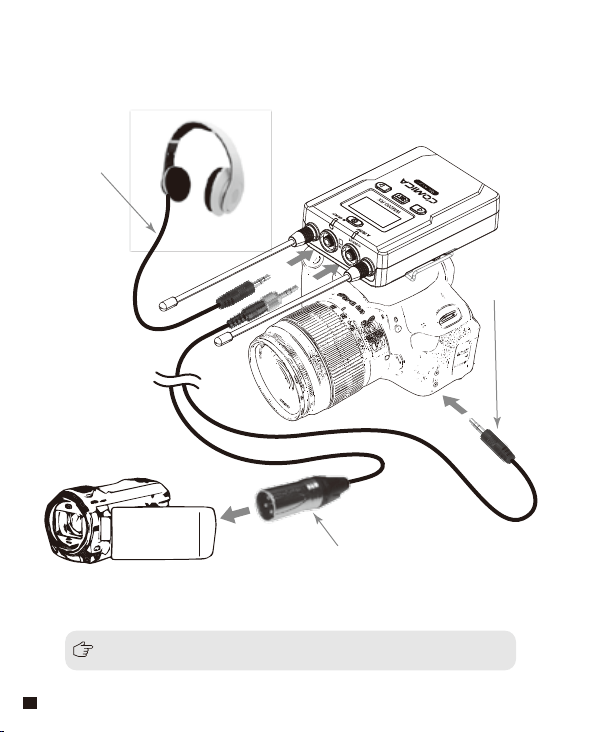
Please refer to screen operation instruction for channel matching.
4. After the channel matched with the receiver, it can be used
3.5MM-XLR Audio
Output Cable
3.5mm-3.5mm
Audio Output Cable
3.5mm Audio Output
Monitoring Cable
16
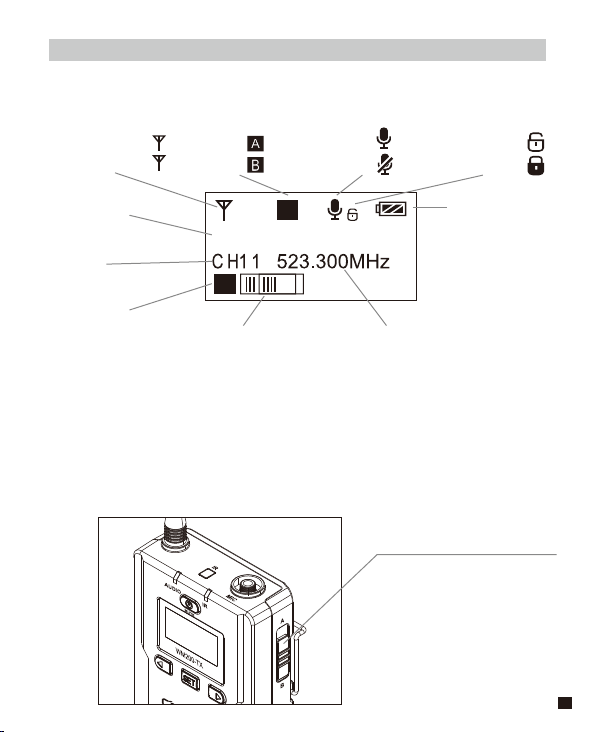
H
A
Group A
A
Screen Display and Operation Instruction
Screen Display Instruction
Operation Instruction
Lavalier Transmitter
Signal Strength High
Signal Strength Low
Group A
Group B
Normal recording
Muting
Muting
(
Unlocking
)
Muting
(
Locking
)
Battery Level
Group A/B
Channel
Group A/B
Audio dynamic display bar Channel Frequency
H
L
1. Group A/B Selection
1.1 Use A/B Group selection switch to select the group, when push
up to A, Group A truns on; when push to B,Group B truns on.
You could choose Group A or Group B according to your demand.
A/B Group Selection Switch
17
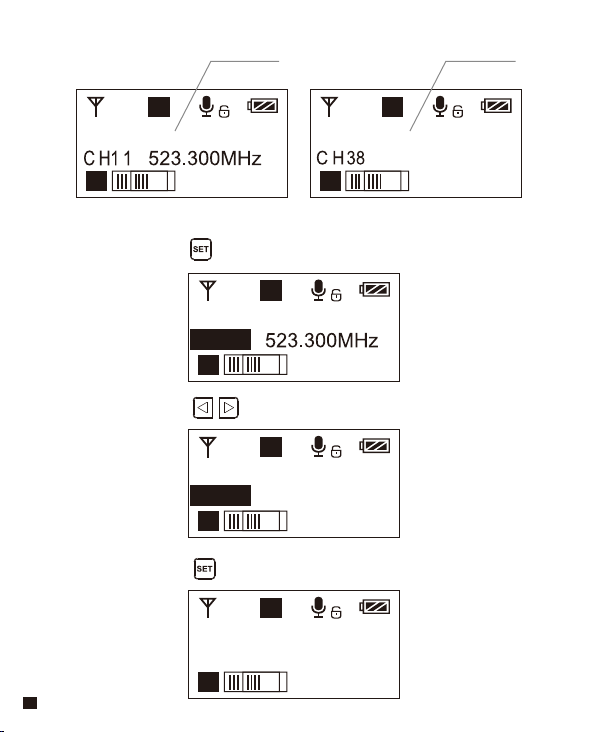
H
A
Group A
A
H
A
Group A
A
CH11
H
A
Group A
A
CH45 533.500MHz
561.400MHz
H
A
Group A
A
CH45 533.500MHz
H
B
Group B
B
2.1 Long press button to CH setting display page
2.2 Short press button to select the channel
2.Manually Adjust the Channel of Transmitter
2.3 Short press button to confirm
A Group B Group
18
H
A
Input Setting
A
MIC
H
A
Input Setting
A
MIC
H
A
Input Setting
A
LINE IN
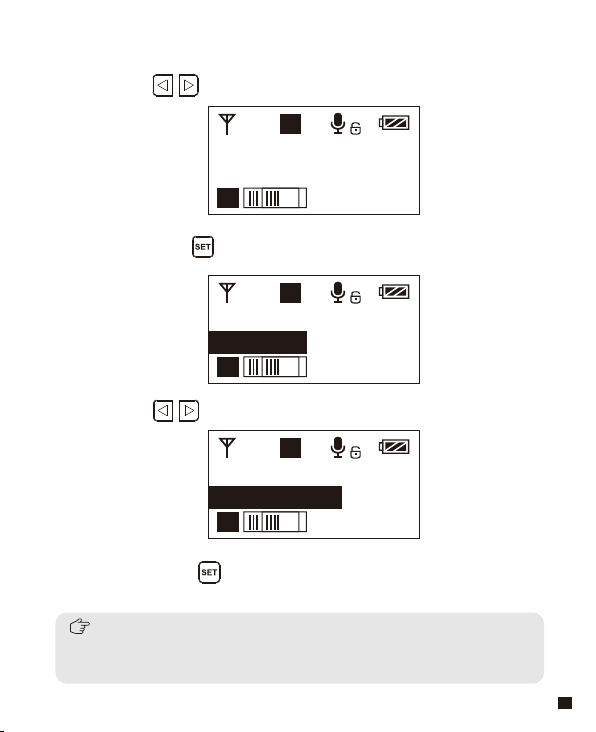
3.4 Short press button to confirm
3.2 Long press button to ‘ Input Setting ’ display page
3.3 Press button to select ‘ Mic/ Line in ’ input mode
3.1 Press button to ‘ Input Setting ’ display page
3. MIC/LINE IN Input Mode Adjustment
Mic mode is for Microphone input;
Line in mode is for external audio input, such as smartphone music player.
Selecting the corresponding input mode will bring you a better audio eect.
19
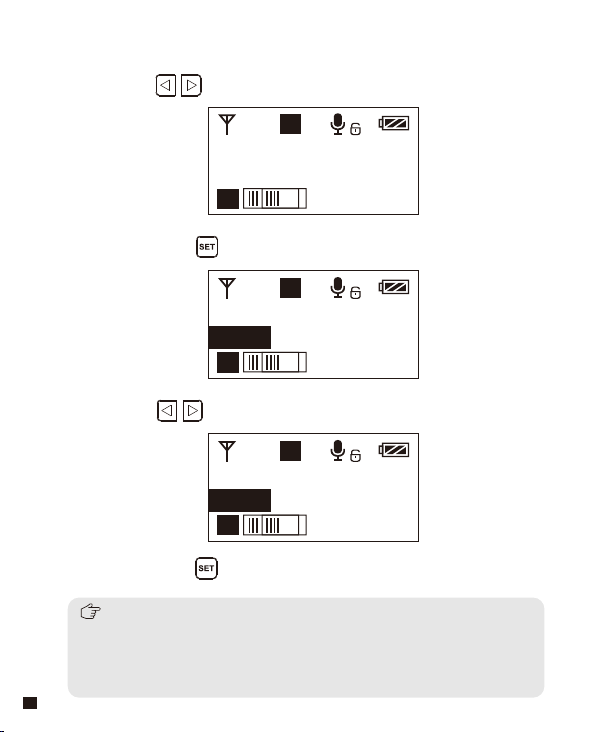
H
A
Low Cut Filter
A
OFF
H
A
Low Cut Filter
A
OFF
H
A
Low Cut Filter
A
Low
4.4 Short press button to confirm
4.2 Long press button to enter ‘ Low Cut Filter ’ display page
4.3 Press button to select LCF ‘
Low/High/OFF ’
4.1 Press button to ‘ Low Cut Filter ’ display page
4.
Low Cut Filter
‘ Low/High/OFF ’ Adjustment
The LCF function will remove the low-frequency part of the audio source,
such as the sound of wild insects and the noise of the crowd, and the
main audio source will be thinner. When the LCF function is turned o,
the original sound will be restored, and the main sound source will be
thicker. You can adjust according to actual needs.
20
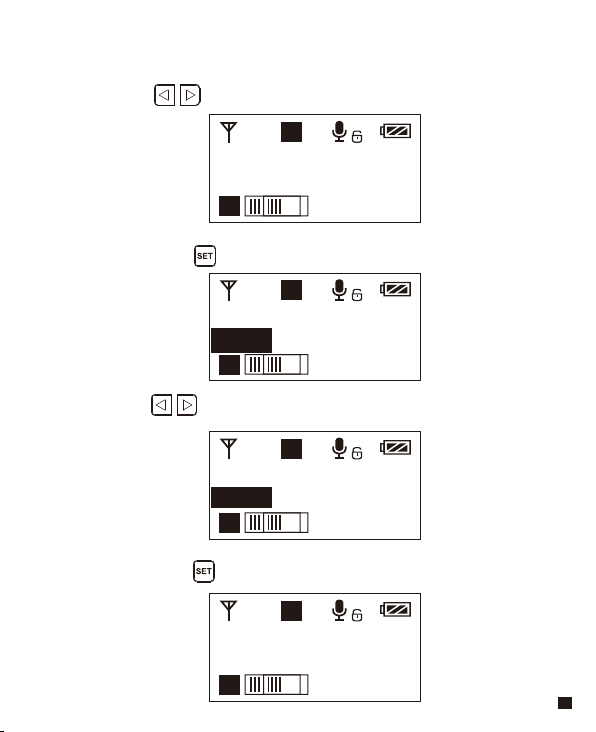
H
A
RF Power
A
High
H
A
RF Power
A
High
H
A
RF Power
A
Low
L
A
RF Power
A
Low
5.4 Short press button to confirm
5.2 Long press button to enter ‘ RF Power Setting ’ display page
5.3 Press button to adjust the transmitting signal strength
5.1 Press button to “ RF Power Setting ” display page
5. Transmitting Signal Strength ‘ High/Low ’ Adjustment
21
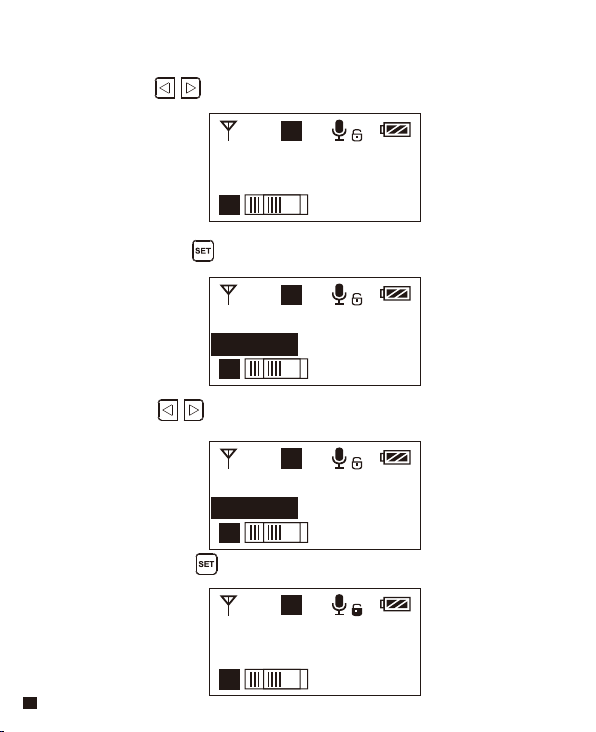
H
A
Muting
A
Enable
H
A
Muting
A
Enable
H
A
Muting
A
Disable
H
A
Muting
A
Disable
6.2 Long press button to enter ‘ Muting ’ display page
6.3 Press button to select Muting mode on/ o
6.4 Short press button to confirm
6.1 Press button to ‘ Muting ’ display page
6. Muting Mode On/ Off
22
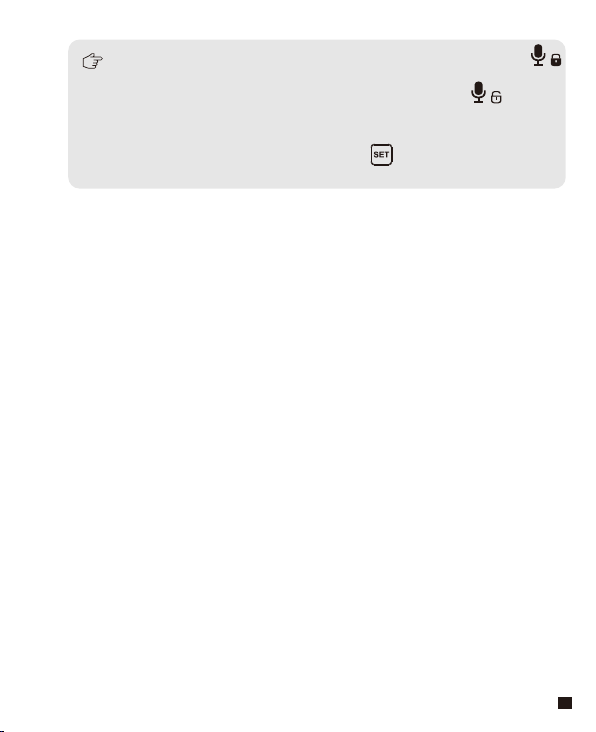
When set to ‘ Disable ’, the muting function cannot be used, the icon is:
When set to ‘ Enable ’, the muting function works, the icon is:
The muting mode can be controlled only when the screen is on, press any
button to light the screen and then press the button to switch the
muting mode.
23
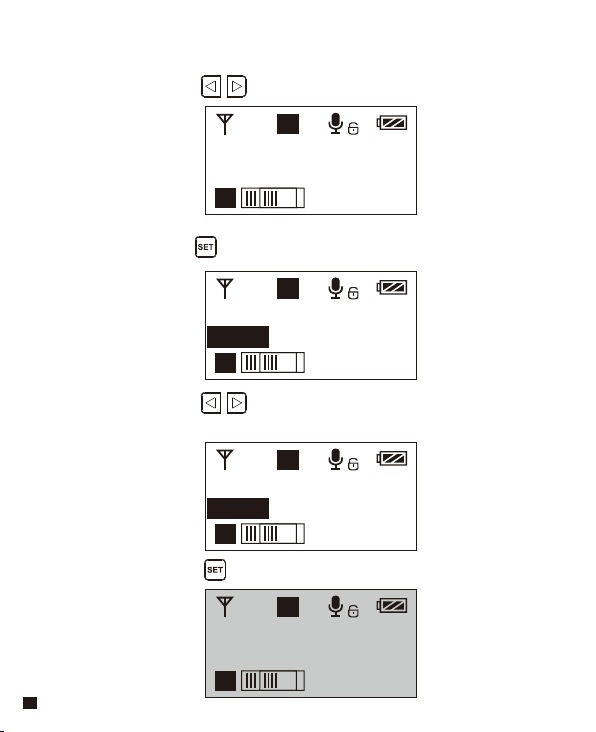
H
A
Backlight
A
60S
H
A
Backlight
A
60S
H
A
Backlight
A
00S
H
A
Backlight
A
00S
7.4 Short press button to confirm
7.2 Long press button to enter ‘ Backlight Mode ’ display page
7.3 Short press button to adjust the backlight lighting time
or you can turn it o for power saving
8.1 Short Press button to ‘Backlight Mode’ display page
7. Backlight ‘ Lighting Time/Turn Off ’ Adjustment
24
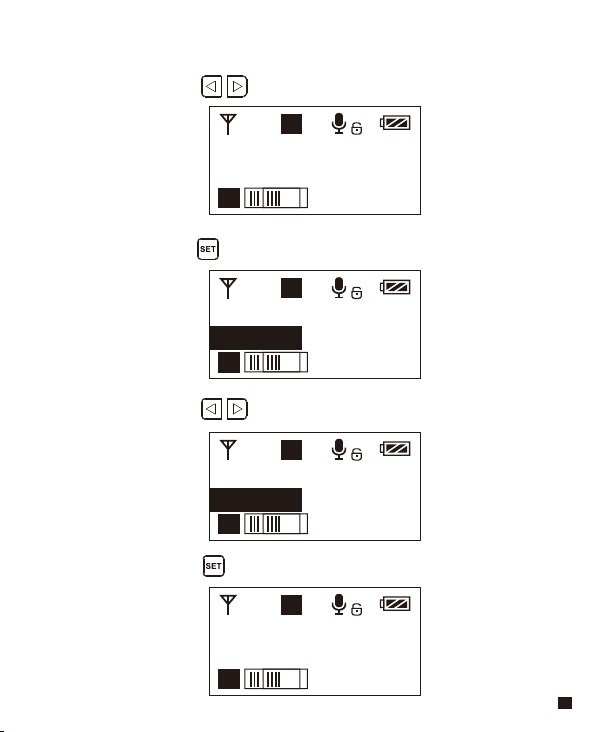
H
A
Language(语言 )
A
English
H
A
Language(语言 )
A
English
H
A
Language(语言 )
A
简体中文
H
A
语言 (Language)
A
简体中文
8.4 Short press button to confirm
8.2 Long press button to enter ‘ Language ’ display page
8.3 Short press button to select language
8.1 Short press button to ‘ Language ’ display page
8. System Language
25
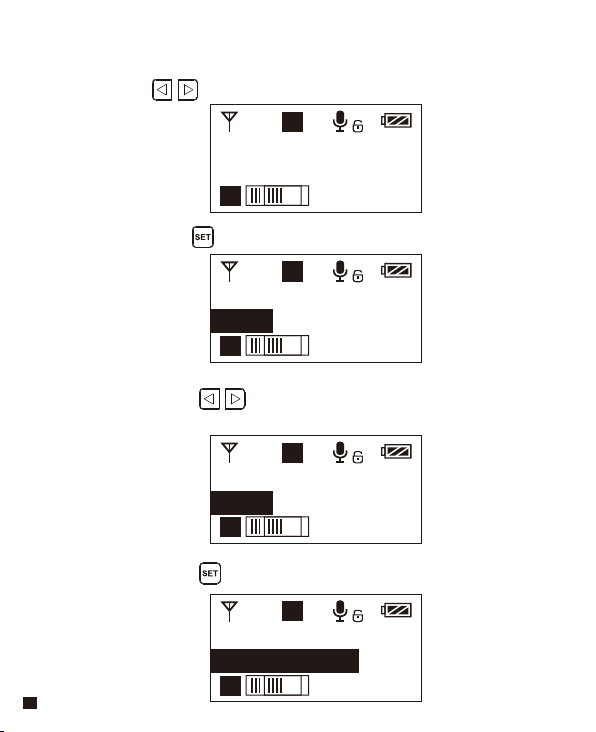
H
A
Reset
A
No
H
A
Reset
A
No
H
A
Reset
A
Yes
H
A
Reset
A
Reseting......
9.2 Long press button to enter ‘ Reset ’ display page
9.3 Short press button to select whether to restore
factory Setting
9.4 Short press button to confirm and restore factory setting
9.1 Press button to ‘ Reset ’ display page
9. Reset to Defaults
26
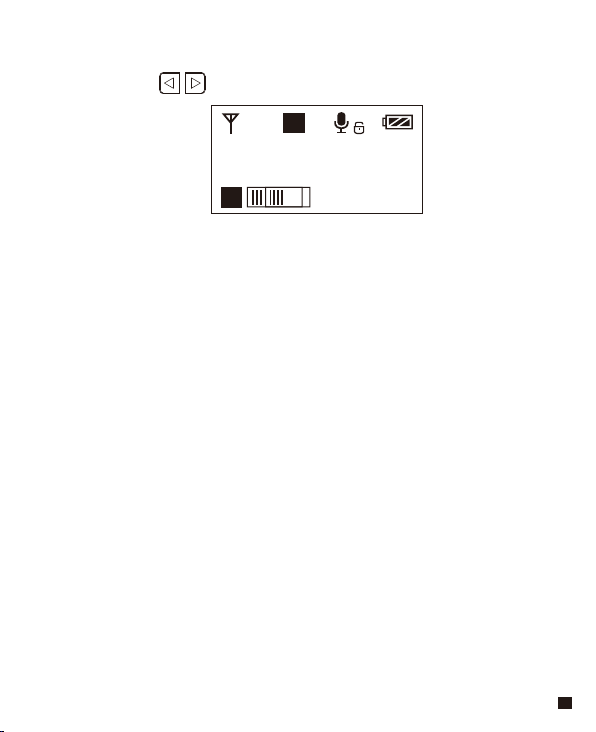
H
A
Version
A
X.X.X
10.1 Press button to ‘ Version ’ display page to check the
version
10. Version
27
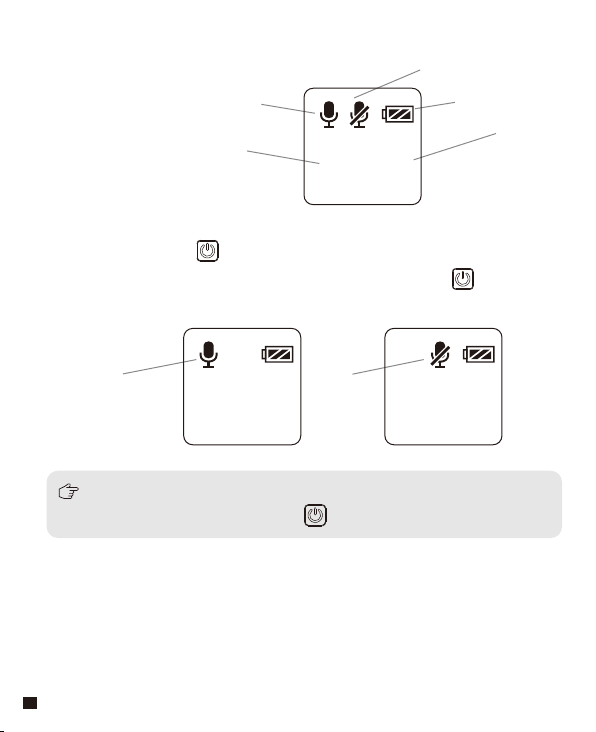
Screen Display Instruction
Operation Instruction
1.Turn on and Muting Mode Switch
Hand-held Transmitter
Normal recording mode
Muting mode
Battery Level
Group A/B
Channel
Normal recording Muting
The muting mode can be controlled only when the screen is on, press any button
to light the screen and then press the button to switch the muting mode.
1.1 Long press switch button for 2 seconds to turn on or o
1.2 When the transmitter turned on, short press the button to
select muting mode
A
B
8 8
A
B
8 8
A
B
8 8
28
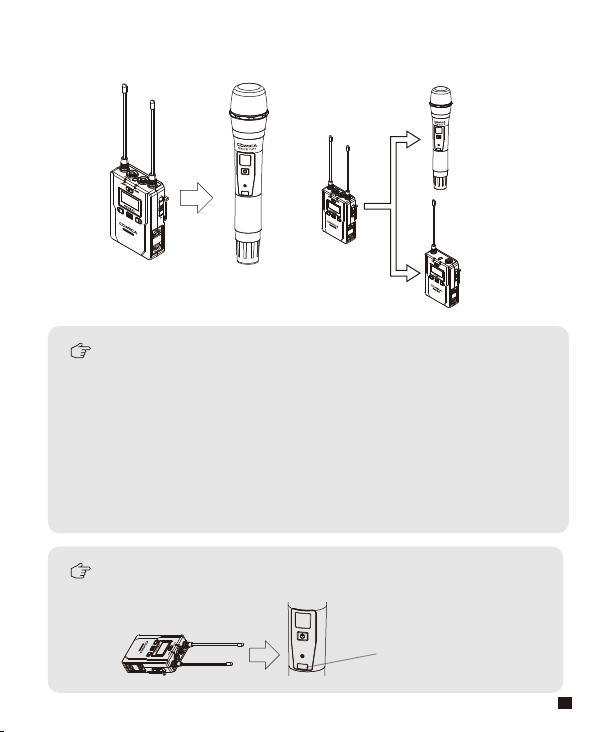
During matching, don't shield the infrared receiving screen of
the transmitter
IR Screen
The hand-held transmitter defaults to channel B, and you
can set the group and channel through the receiver (For
example, If Group A of the receiver is used for the matching,
after matched, it will be: Group A CHXX; If Group B of the
receiver is used for the matching, after matched, it will be:
Group B CHXX)
When the hand-held transmitter and the lavalier transmitter
are used together, you should set them to dierent group
B
Channel
A
Channel
2. Pair Through Infrared Sync
2.1 Set the channel through infrared sync
29
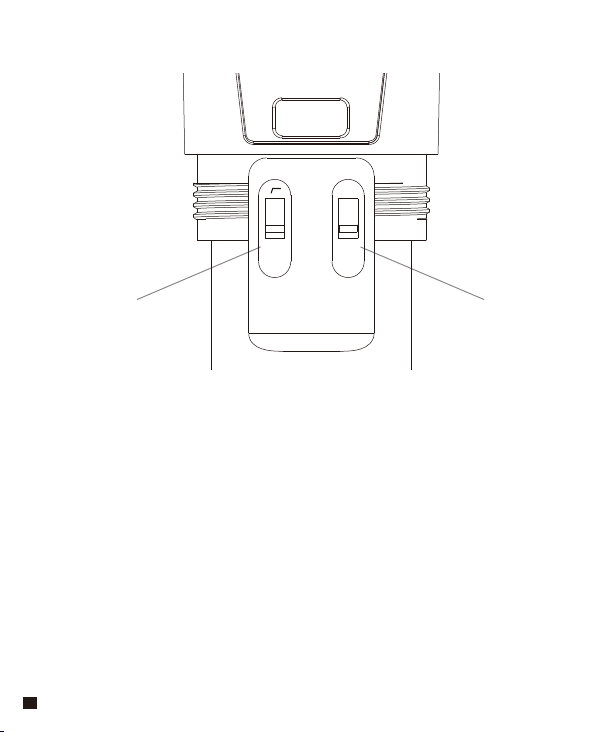
2.2 Function switch
Low cut adjustment switch RF-Low/ High
LCF
-
RF
High
Low
30
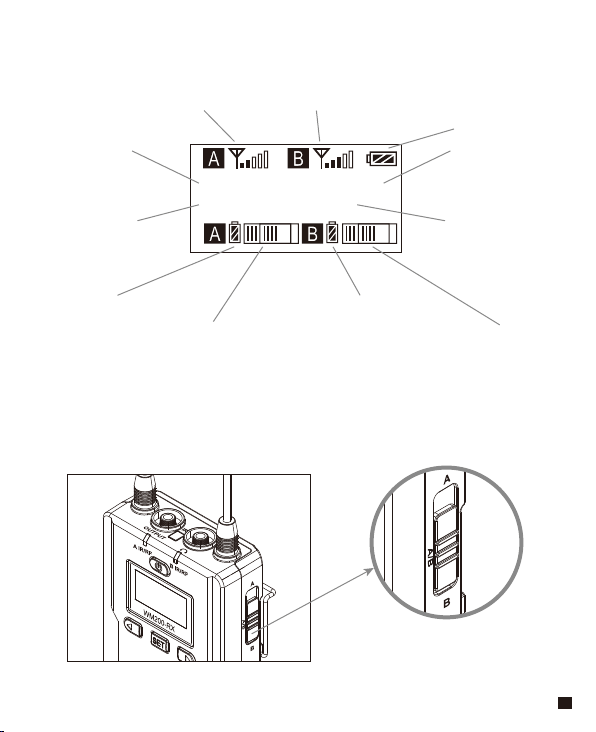
Group A Group B
CH 41 CH 11
Operation Instruction
1. A
、
B or A+B Group Selection Switch
1.1 Select the group using A, B and A+B group selection switch
A
、
B or A+B Group Selection Switch
Screen Display Instruction
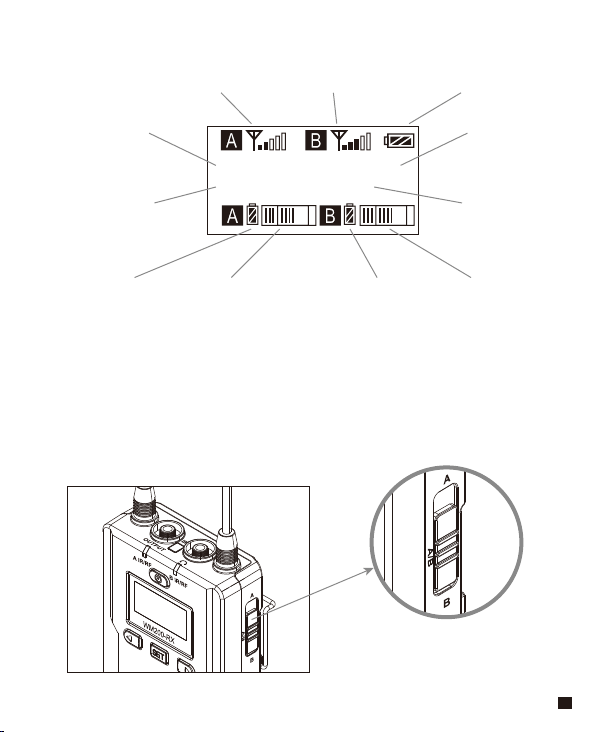
Receiver
Group A Signal Strength Display Bar Group B Signal Strength Display Bar
Group A Group B
Channel of Group A Channel of Group B
Group A transmitting battery Group B Transmitting battery
Group A Receiving Audio Status Indication Group B Receiving Audio Status Indication
Battery Level
31
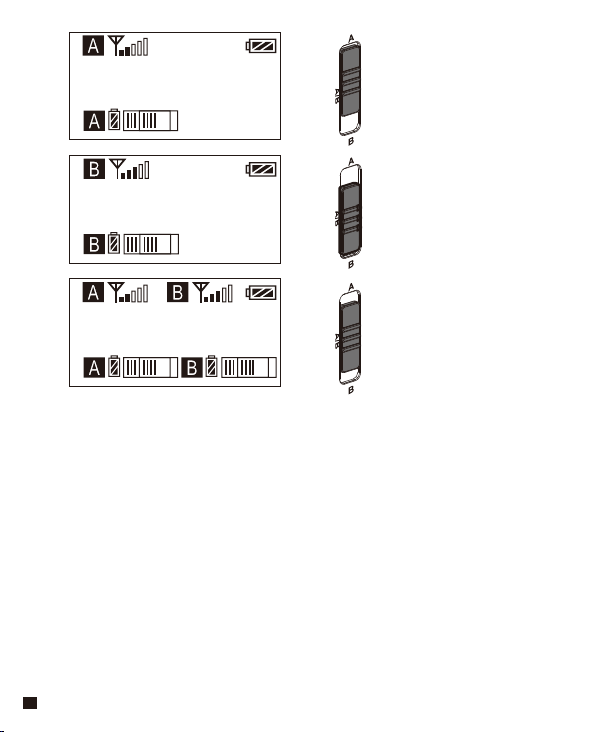
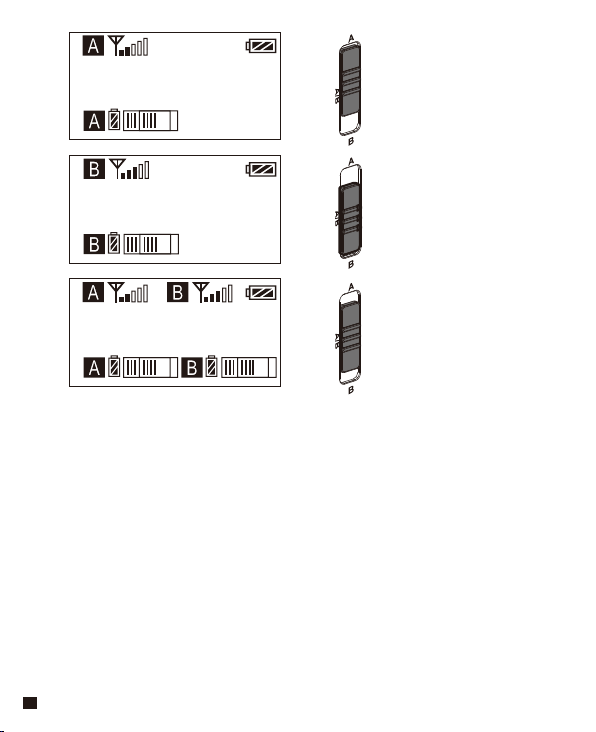
Group A
Group A
Group B
Group B
CH 41
CH 11
CH 41 CH 11
Switch to A
Group A turned on,
Group B turned o
Switch to B
Group B turned on,
Group A turned o
Switch to A/B
Group A turned on,
Group B turned on
32
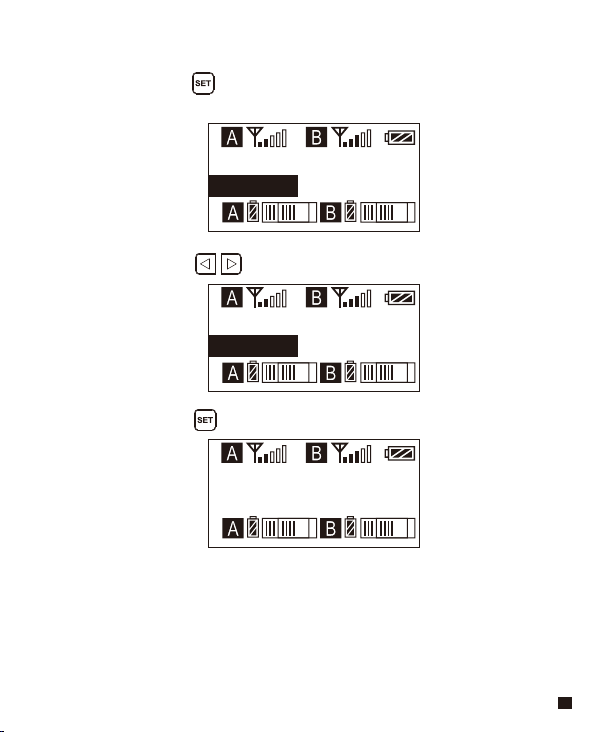
Group A Group B
Group A Group B
Group A Group B
CH 41 CH 11
CH 45 CH 11
CH 45 CH 11
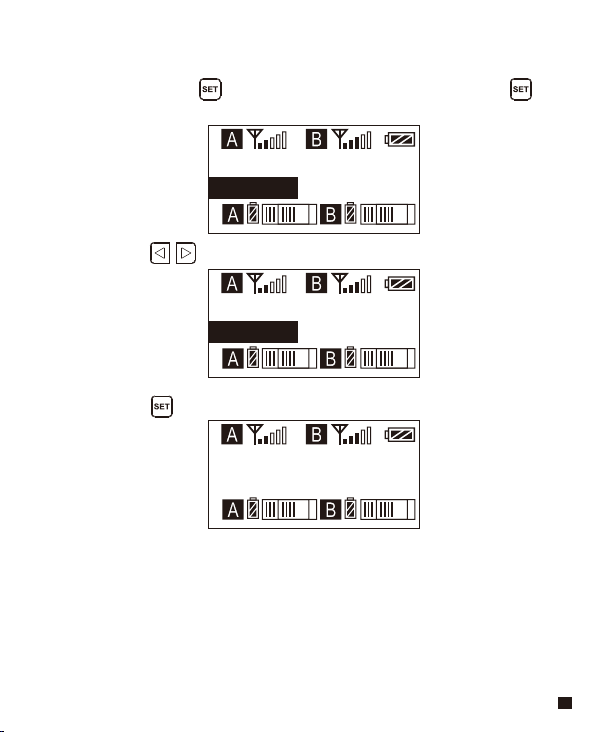
2.1 Long press button to ‘ CH ’ display page, short press
again for Group A/Group B switch
2.2 Short press button to select the group
2.Manually Adjust the Channel of Group A/ Group B
2.3 Short press button to confirm
33
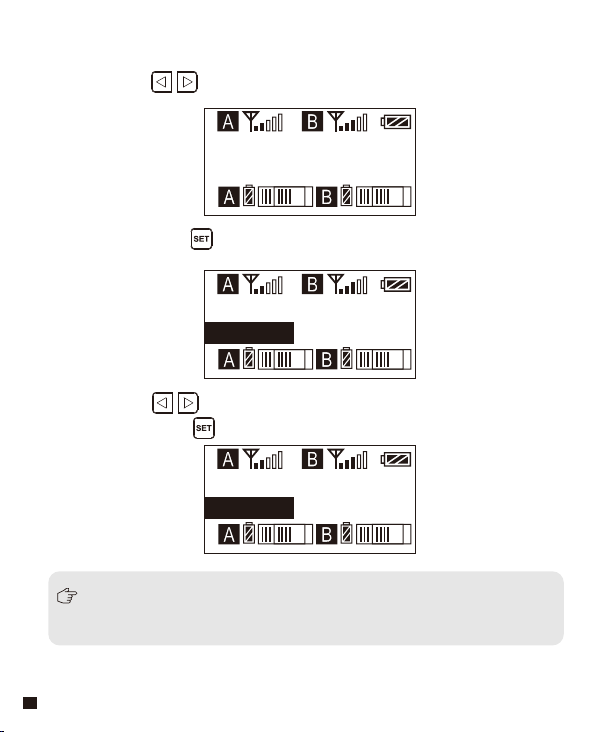
Output Mode
Output Mode
Output Mode
Mono
Mono
Stereo
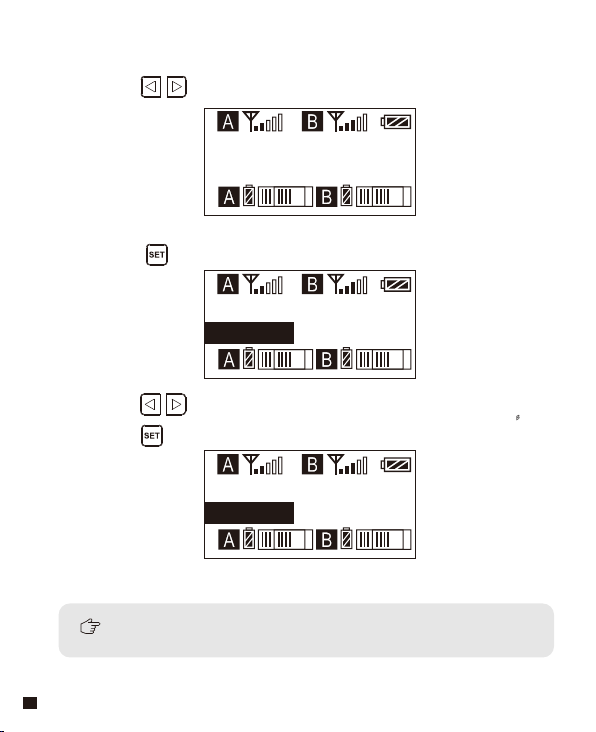
When set to a separate A channel or B channel, the output can only be
MONO mode
3. Audio Output Mode ‘Stereo/Mono’ Adjustment
3.1 Press button to ‘ Output Mode ’ display page
3.2 Long press button to ‘ Output Mode ’ display page
3.3 Press button to select ‘ Mono/ Stereo ’ Output Mode,
Short press button to confirm
34
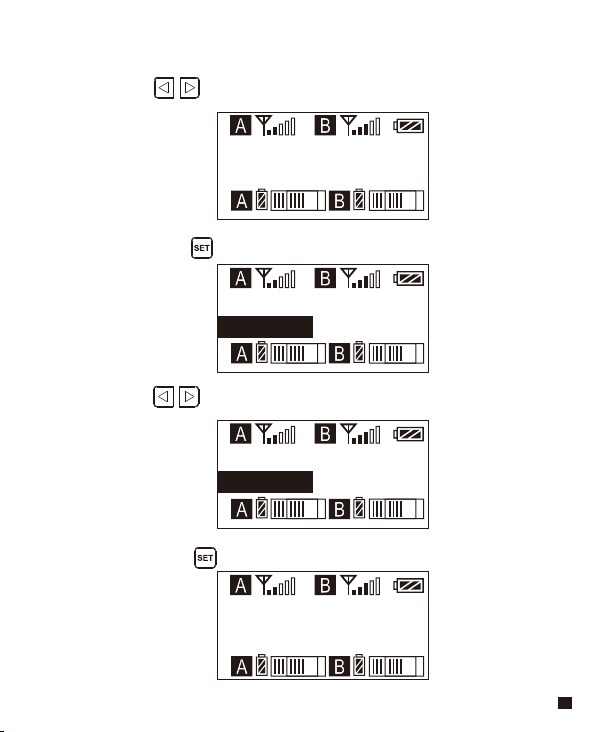
Setting
Setting
Setting
Setting
Group A
Group A
Group B
Group B
4.4 Short press button to confirm
4. Group A/B Function Setting
4.1 Press button to ‘ Setting ’ display page
4.2 Long press button to ‘ Setting ’ display page
4.3 Press button to select Group A/B to edit
35
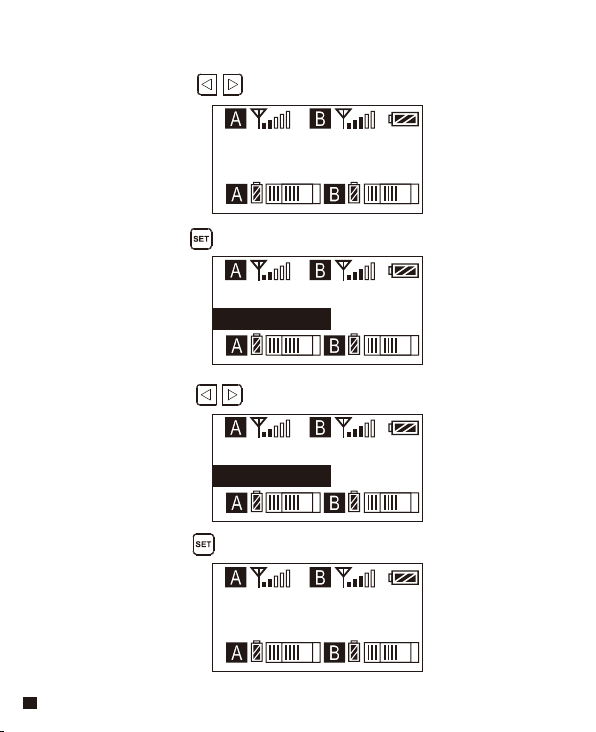
Group A Setting
Group A Setting
Group A Setting
Group A Setting
Volume 12
Volume 15
Volume 12
Volume 15
5.4 Short press button to confirm
5. Group A/B Volume Adjustment
5.1 Short Press button to ‘ Volume ’ display page
5.2 Long press button to enter ‘ Volume ’ display page
5.3 Short Press button to adjust the volume
36
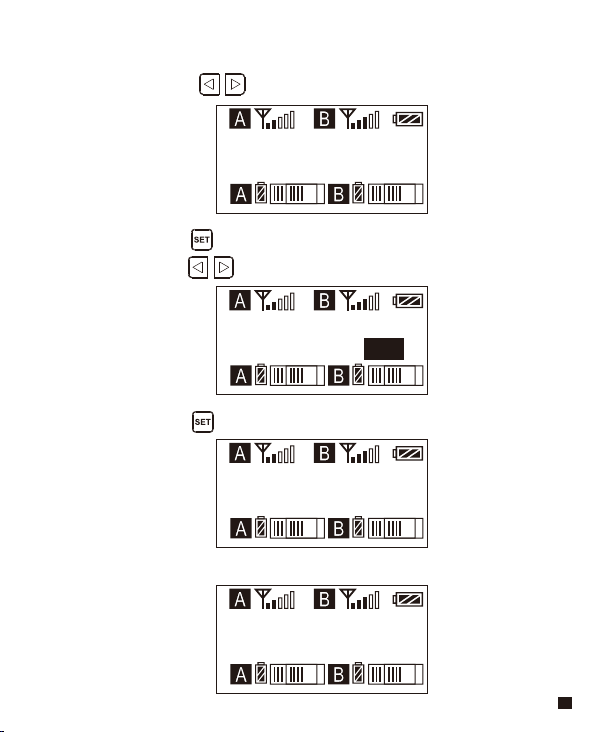
Group A Setting
Group A Setting
Group A Setting
Group A Setting
Auto scan CH63
Auto scan CH75
Auto scan ? Yes
Scanning......
6.4 The best channel will be used after scanning Group A Setting
6. Group A/B Automatic Channel Scan
6.1 Short Press button to ‘ Auto Scan ’ display page
6.2 Long press button to enter ‘ Auto Scan ’ display page, and
short press button to select whether to auto scan
6.3 Short press button to ‘ Scanning......’
37
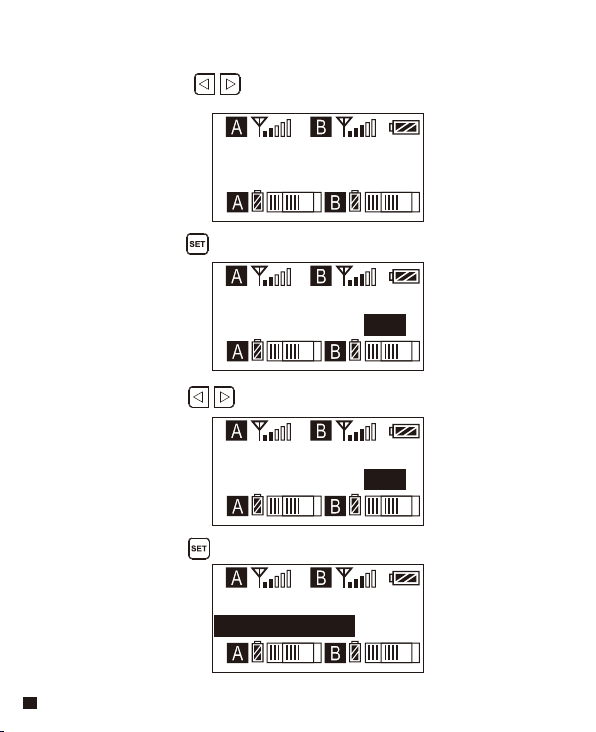
Group A Setting
Group A Setting
Group A Setting
Group A Setting
Sync
Sync ? No
Sync ? Yes
Matching......
7.Group A/B IR Sync
7.1 Short Press button to ‘ Group A/B Setting ’ display page
7.2 Long press button to enter ‘ Group A/B Setting ’ display page
7.3 Short press button to select whether to sync
7.4 Short press button to confirm sync
38
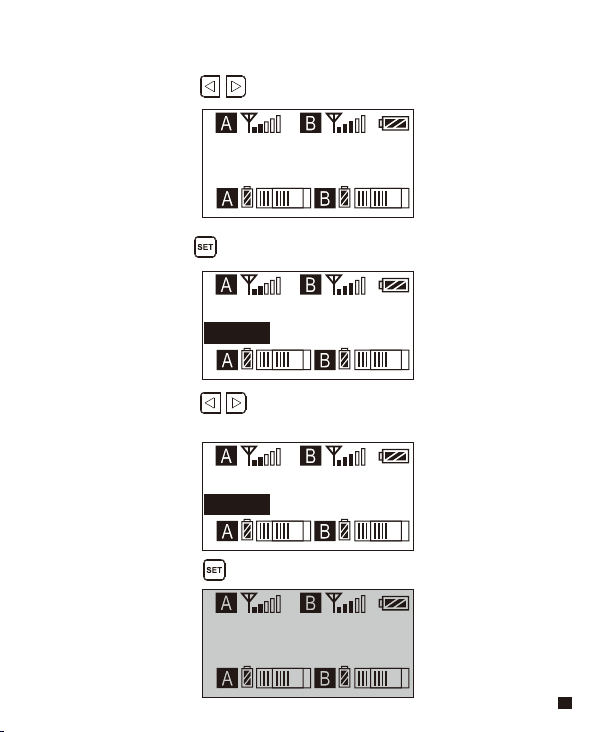
Backlight
Backlight
Backlight
60S
60S
00S
Backlight
00S
8.4 Short press button to confirm
8.2 Long press button to enter ‘ Backlight Mode ’ display page
8.3 Short press button to adjust the backlight lighting time
or you can turn it o for power saving
8.1 Short Press button to ‘ Backlight Mode ’ display page
8. Backlight ‘ Lighting Time/Turn Off ’ Adjustment
39
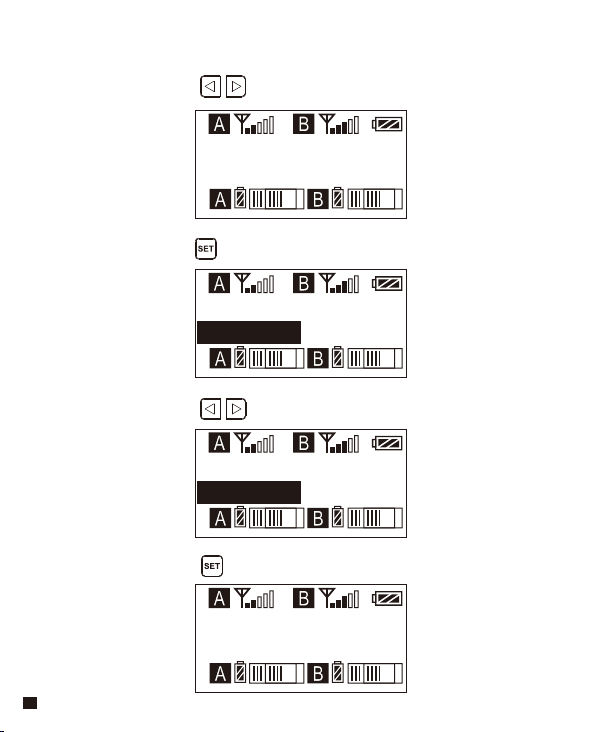
Language(语言)
English
Language(语言)
English
Language(语言)
简体中文
语言(Language)
简体中文
9.4 Short press button to confirm
9.2 Long press button to enter ‘ Language ’ display page
9.3 Short press button to select language
9.1 Short press button to ‘ Language ’ display page
9. System Language
40
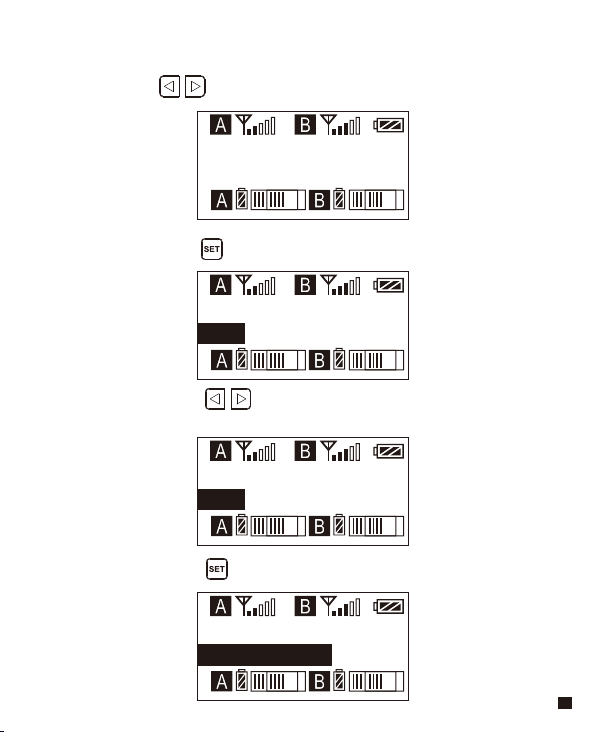
Reset
No
Reset
No
Reset
Yes
Reset
Reseting......
10.2 Long press button to enter ‘ Reset ’ display page
10.3 Short press button to select whether to restore
factory Setting
10.4 Short press button to confirm and restore factory setting
10.1 Press button to ‘ Reset ’ display page
10. Reset to Defaults
41
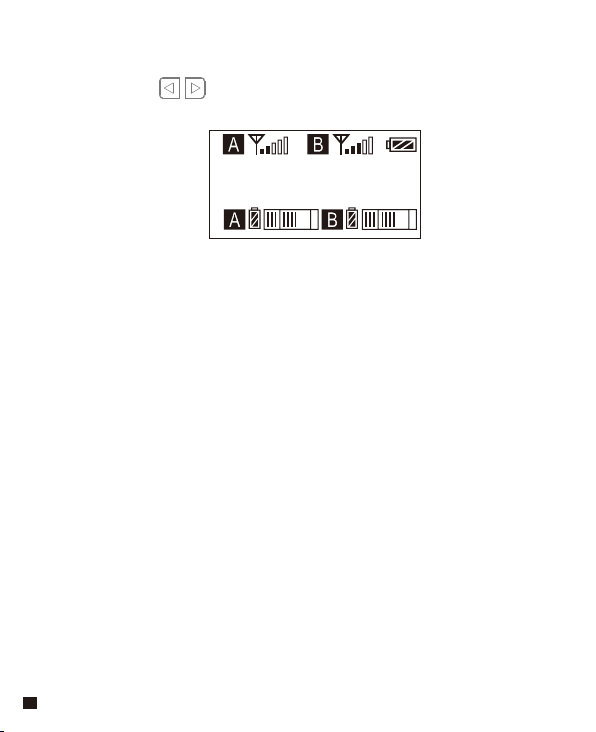
Version
X.X.X
11.1 Press button to ‘ Version ’ display page to check the
version
11. Version
42
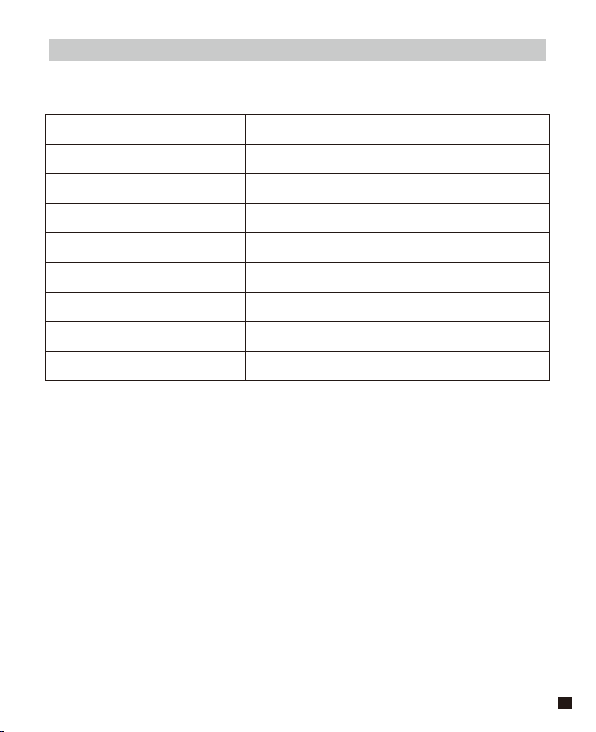
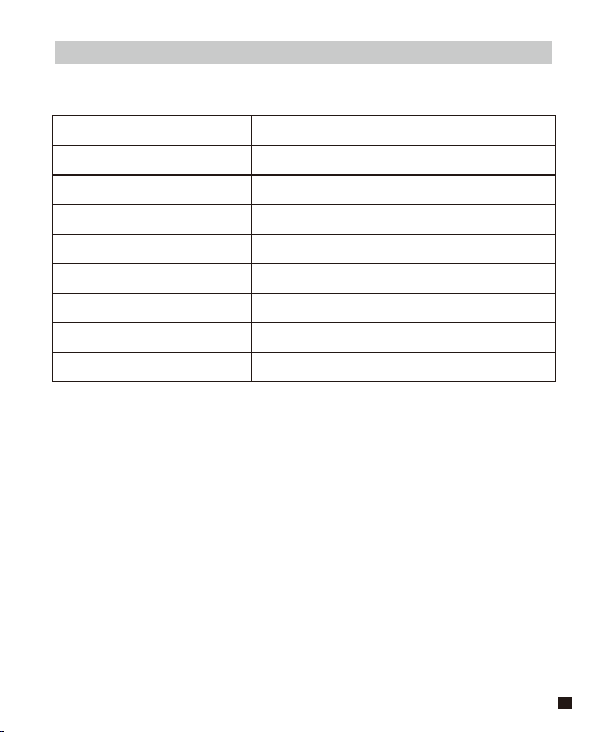
Specification
Lavalier Transmitter TX
Signal / Noise
Antenna
Stray Radiation
Sound Delay
Audio Distortion
Battery
Dimension
Operating Temperature
Storage Temperature
>65dB
1/4 Wavelength Wire Antenna
<-60dBc
<20ms
<0.5%
AA Batteries x 2pcs
84 x 63.5 x 23mm
0
℃
~ 50
℃
-20
℃
~ 60
℃
43
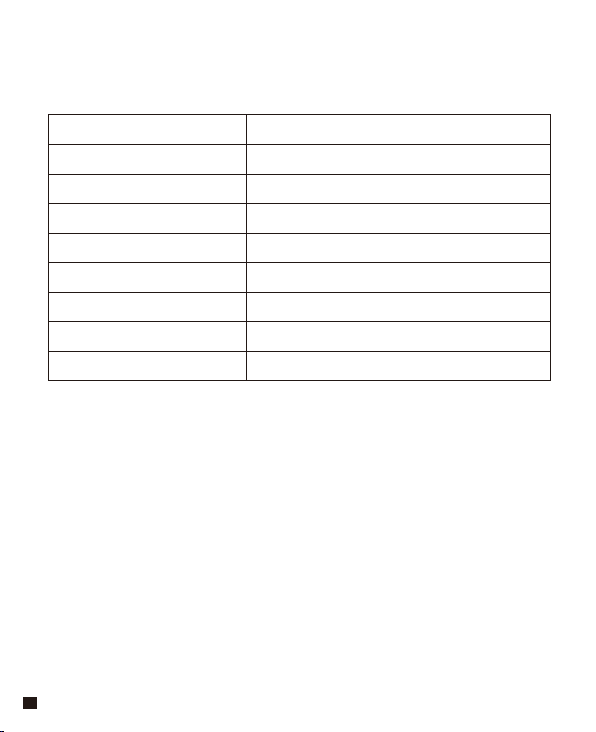
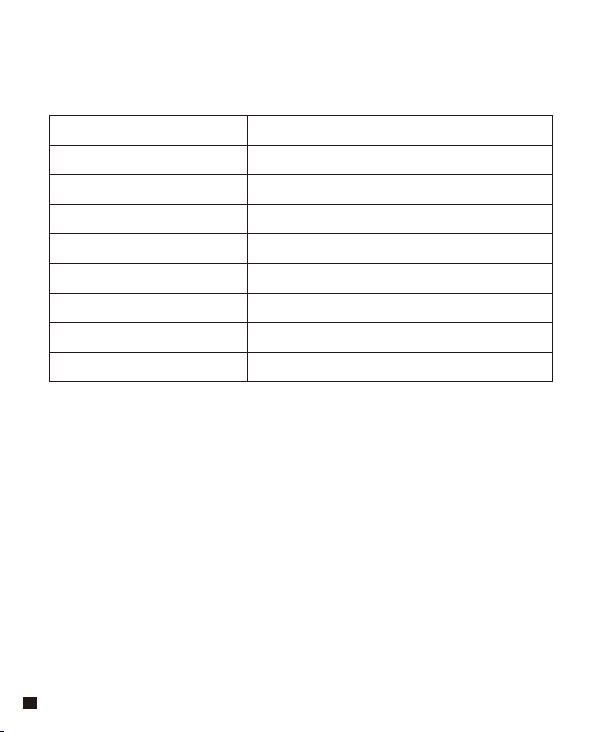
Hand-held Transmitter HTX
Signal / Noise
Antenna
Stray Radiation
Sound Delay
Audio Distortion
Battery
Dimension
Operating Temperature
Storage Temperature
>65dB
PCB Antenna
<-60dBc
<20ms
<0.5%
AA Batteries x 2pcs
Φ
53.5(MAX) x 253mm
0
℃
~ 50
℃
-20
℃
~ 60
℃
44
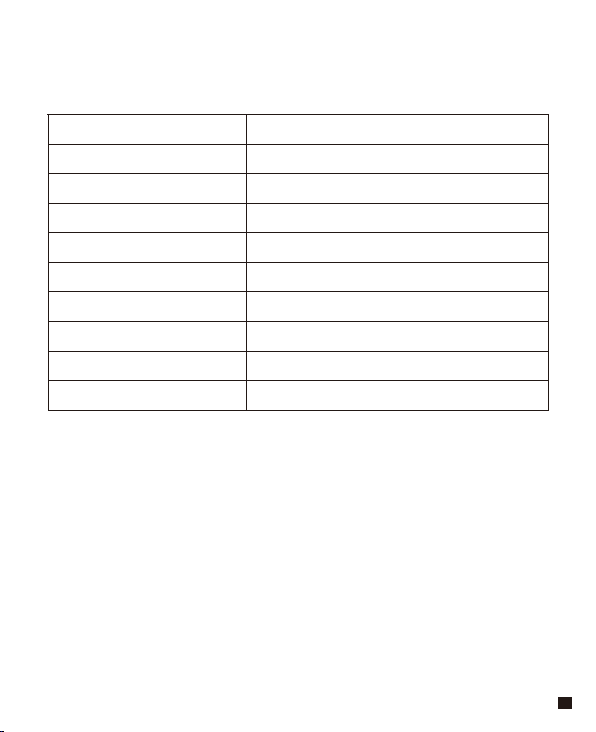
Receiver RX
Signal / Noise
Antenna
Receiving Sensitivity
Stray Radiation
Sound Delay
Audio Distortion
Battery
Dimension
Operating Temperature
Storage Temperature
>65dB
1/4 Wavelength Wire Antenna
<-93dBm
<-60dBc
<20ms
<0.5%
AA Batteries x 2pcs
84 x 63.5 x 23mm
0
℃
~ 50
℃
-20
℃
~ 60
℃
45



CVM-WM200
UHF无线麦克风
用户使用手册


前 言
产品主要功能
感谢您购买COMICA/科唛 WM200 UHF 无线麦克风。为保证产品的顺畅使用及安全,请
在使用前严格阅读本说明书,并正确组装及操作。
. 一拖二,A/B 双路音频通道可选
. A/B/A+B通道快速切换
. 多频道,可进行多场合多机位混用
. 拾音距离高达120m (空旷无干扰环境,有障碍环境高达80m)
. 低切功能
. 自动频道扫描,快速定位频道
. 红外对码
. 发射功率可调
. AA电池供电,可接外部电源供电
. 音量动态检测条
. 16级音量可调
. 发射端电量监控
. 多语言选择
. 单声道/立体声 多输出选择
. 低功耗,超强续航时间
. LCD点阵液晶屏,高清显示
. 全金属制造,优越屏蔽性能
1
注意事项
包装清单
正常使用时发射器应距离接收器10cm以上,当小于10cm时,接收器的无线信号接收
部分将会进行保护动作,从而关闭无线信号接收,音频可能出现间断,此为正常现
象
进行红外对码时,请保持在30cm 距离之内,否则可能会导致通讯过弱、对码不成
功
进行立体声/单声道切换时,请在使用前提前设置好,避免在使用过程中切换带
来的短暂电流干扰
当需要长时间使用时,可用移动电源外部供电;而不要使用AC-DC电源供电,否则
会引入噪音
天线会影响工作距离,请保护好天线切勿进行人为损坏
工作距离会受到周围环境的影响,使用过程中请尽量保持环境空旷无干扰,特别要
避开附近的对讲机,并关闭附近的WIFI
近距离使用该产品时,建议将此产品RF强度设置为“LOW”, 可降低功耗增加续航
时间
用于手机拍摄时,客户须单独购买TRS-TRRS 音频转换线, 并注意将手机模式设置
为‘飞行模式’以避免来电干扰
(不支持部分安卓系统的原生态录音系统,建议此时于第三方APP模式下使用)
请在干燥环境中对该产品进行储存
不要在雨中或潮湿环境中使用该设备,否则会有短路的危险
主体:
领夹发射器(TX) 手持发射器 (HTX) 接收器 (RX)
2
搭配选择:
WM200/300-XLR的使用方法请参照该产品自带的说明书
WM200(A) = 2TX + RX
WM200(C) = TX + RX
TX TX RX
++
TX RX
+
WM200-TX WM200-RX WM200-HTX WM200/300-XLR
3
WM200(A)= x2 + + + + x3 + + x2 + + +
WM200(C)= + + + + x2 + + + + +
3.5mm MIC 音频输入线
3.5mm-3.5mm 音频输出线
3.5mm-XLR 卡侬头音频输出线
USB-C充电线
腰带夹
冷靴快装板
防风毛
便携箱
说明书
保修卡
配件:
1
1
1
2
2
2
3
3
3
4
4
5
5
4
6
6
6
7
7
7
8
8
8
9
9
10
9
10
1
2 3 4 6
5
5 7 8 9
10
每一个搭配的配件包括:
10
CVM-WM200
UHF Wireless Microphone
USER MANUAL
4
部件介绍及说明
部件说明
领夹发射器
天线
对码状态指示灯
声音状态指示灯
开关/静音按键
液晶显示屏
功能调节按键 -
SET功能菜单选项
功能调节按键 +
红外窗口
MIC / LINE IN 音频输入接口
通道选择开关
电池仓
1/4 固定孔
腰带夹
USB-C供电插口
1
2
3
4
5
6
7
8
9
10
11
12
13
14
15
1
3
2
4
5
6
7
8
10
9
11
12
13
14
15
5
2
1
3
4
65
麦克风拾音头
液晶显示屏
开关/静音按键
红外窗口
音频“低切/普通”切换开关
发射功率强度“高/低”切换开关
手持发射器
1
2
3
4
5
6
LCF
-
RF
High
Low
LCF
RF
6
接收器
A通道天线
B通道工作状态指示灯
A通道工作状态指示灯
开/关按键
液晶显示屏
功能调节按键 -
SET功能菜单选项
功能调节按键 +
3.5mm 音频输出接口
红外窗口
3.5mm 监听接口
B通道天线
通道选择开关
电池仓
腰带夹
USB-C供电插口
1
2
3
4
5
6
7
8
9
10
11
12
13
14
15
16
16
1
9
11
10
3
2
4
5
6
7
8
12
13
14
15
7
领夹发射器
/接收器
手持发射器
开关/静音 按键
长按
短按
开机 / 关机
开关/静音 按键
音频“低切/普通”切换开关
发射功率强度“高/低”切换
开关
长按 开机 / 关机
静音
(此功能仅针对发射器,
静音功能开启并且屏幕
点亮后生效)
短按
静音
(屏幕点亮后生效)
SET 功能菜单选规项
功能调节按键+
功能调节按键-
长按 进入功能调节菜单
短按
短按
短按
1.确定所选功能
2.退出功能调节菜单
功能调节 (+)
功能调节 (-)
上推 功率强度高
下推 功率强度低
上推 低切
下推 普通
按键说明
LCF
-
RF
High
Low
8
指示灯定义
领夹
发射器
接收器
AUDIO
A IR/RF
B IR/RF
A IR/RF: A通道工作状态指示灯
B IR/RF: B通道工作状态指示灯
IR
绿灯长亮
绿灯长亮 频道匹配成功后的正常工作状态
绿灯长亮
红灯长亮
红灯闪烁
红灯闪烁
红灯闪烁
正常拾音状态
(此状态仅针对发射器,频道匹配成功
后,接收器方可拾音)
静音状态
低电量提醒
频道配对后
(无论是否匹配成功)
低切功能作用:
针对声音低频部分进行适当切除,降低低频部分环境噪音,使声音
更加干净清晰;
发射功率强度 高/低 切换作用:
功率强度高时,无线工作距离可达80-120M,功耗较高,
电池使用时间短;
功率强度低时,无线工作距离可达30-60M, 功耗较低,
电池使用时间长;
红灯长亮 通道关闭
绿灯闪烁 频道匹配不成功
频道配对中... (仅限红外对码时)
低电量提醒
频道配对中... (仅限红外对码时)
9
安装与使用
1. 将电池按照正负极指示装入发射器电池仓,可使用外置电源供电,
通过USB-C电源线将电源与设备连接起来即可
领夹发射器
AA
AA
POWER
5V/1A
USB-C插头
当需要长时间使用时,可用
移动电源外部供电;而不要
使用AC-DC电源供电,否则
会引入噪音
10
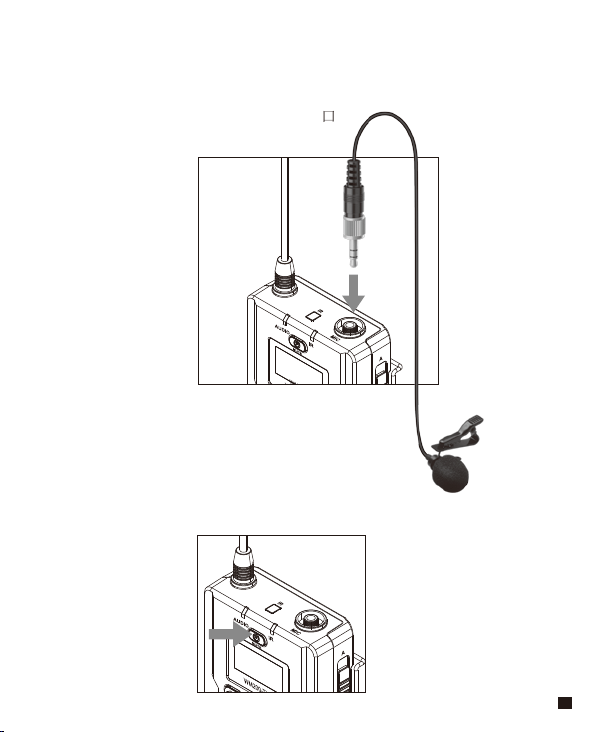
2.把3.5mm MIC音频输入线插入MIC插口
3.长按电源开关打开发射器
11
H
A
通道 A
A
4.将MIC 对准音源,根据屏幕上的音量指示条检测发射器是否正常工作
5.把腰带夹接到连接孔
6.与接收器进行频道匹配成功后,即可使用
频道匹配请见屏幕操作部分
音频动态显示条
12
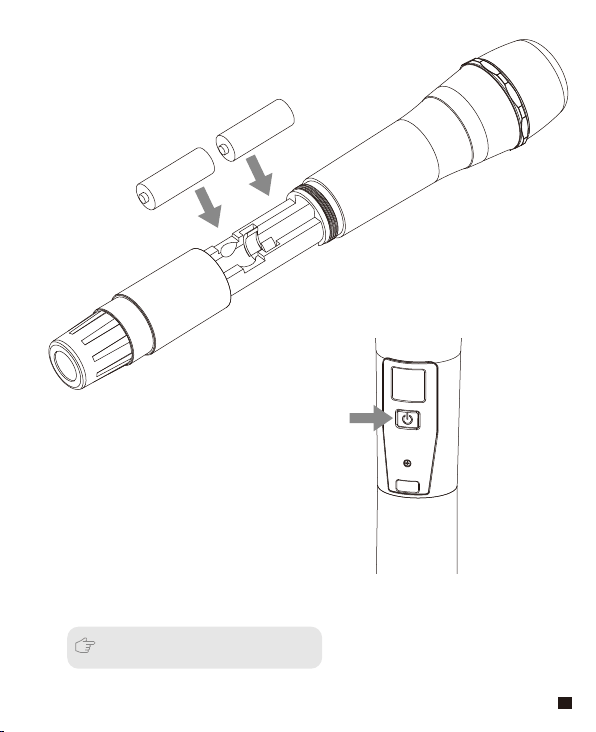
2.长按电源开关打开手持发射器
3. 与接收器进行频道匹配成功后,即可使用
手持发射器
1. 将电池按照正负极指示装入发射器电池仓
频道匹配请见屏幕操作部分
AA
AA
13
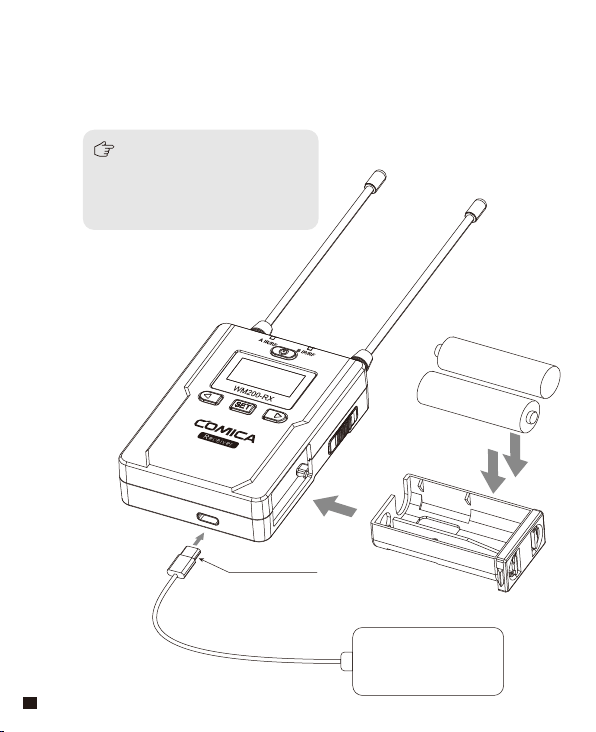
1. 将电池按照正负极指示装入接收器电池仓,可使用外置电源供电,
通过USB-C电源线将电源与设备连接起来即可
接收器
AA
AA
POWER
5V/1A
USB-C插头
当需要长时间使用时,可用
移动电源外部供电;而不要
使用AC-DC电源供电,否则
会引入噪音
14
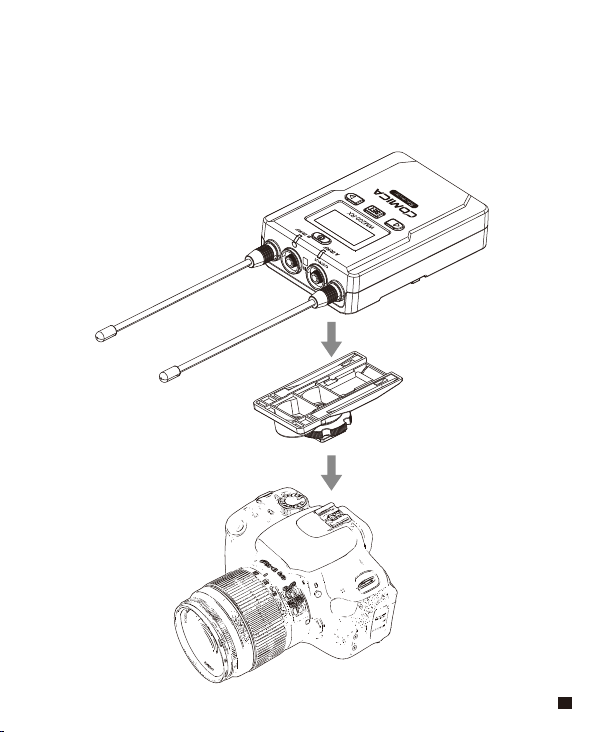
2. 通过冷靴快装板把接收器与摄影设备连接
15
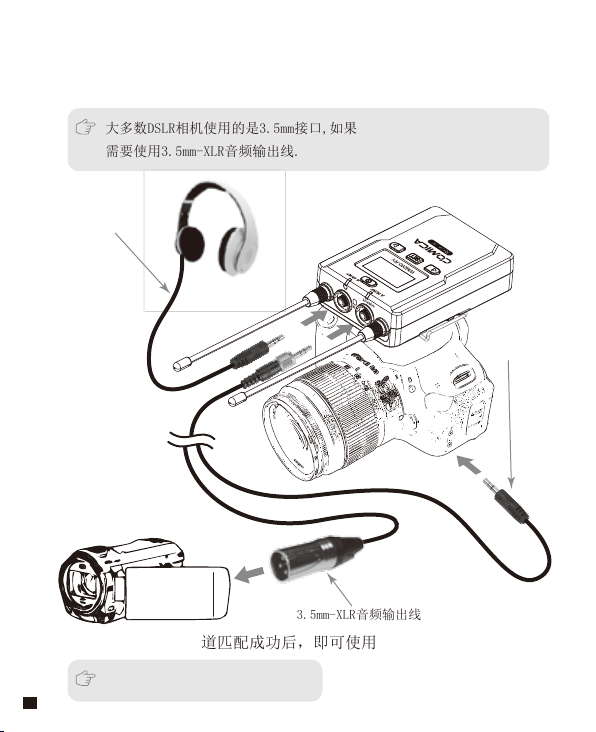
3.通过3.5mm-3.5mm 音频输出线插入OUTPUT接口把接收器与摄影设备连
接,把耳机插入3.5mm 监听接口进行实时监听,长按电源按键打开接
收器
4. 与发射器进行频道匹配成功后,即可使用
3.5mm-XLR音频输出线
3.5mm-3.5mm
音频输出线
频道匹配请见屏幕操作部分
大多数DSLR相机使用的是3.5mm接口,如果使用XLR类型接口的摄像机,
需要使用3.5mm-XLR音频输出线.
3.5mm音频监听线
16
H
A
通道 A
A
523.300MHz
屏显说明与操作说明
屏显说明
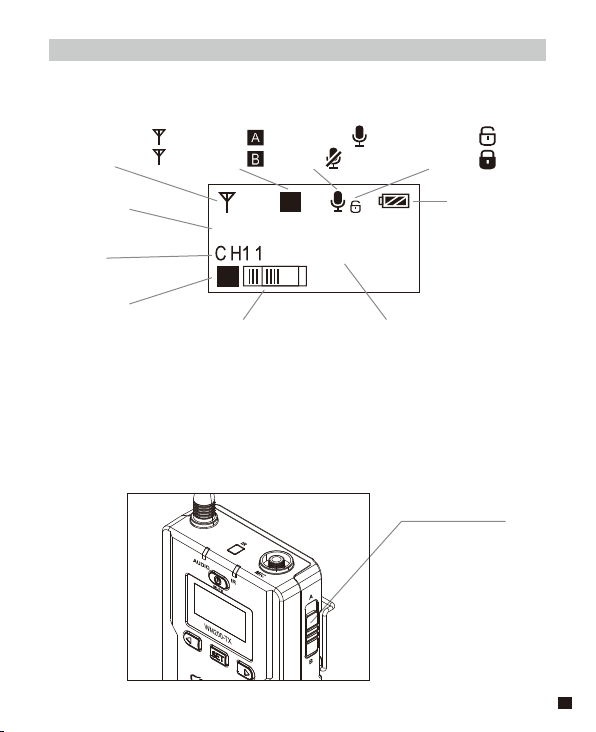
1.A/B 通道选择
1.1 使用A/B通道选择开关选择本机通道,拨到A本机即是A通道,
拨到B本机即是B通道
领夹发射器
信号强度强
信号强度弱
通道A
通道B
正常录音
静音
静音功能解锁
静音功能锁定
电量
A/B通道
频道
A/B通道
音频动态显示条 频段
H
L
操作说明
A/B通道选择开关
17
H
A
通道 A
A
H
A
通道 A
A
CH11
CH38 561.400MHzCH11 523.300MHz
523.300MHz
H
A
通道 A
A
CH45 533.500MHz
H
A
通道 A
A
CH45 533.500MHz
H
B
通道 B
B
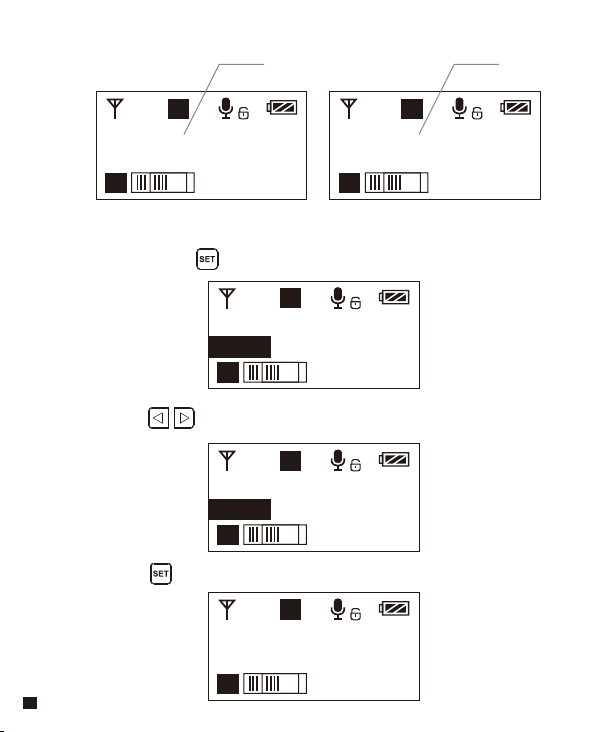
2.1 在首页长按 按键进入CH调节状态
2.2 使用 按键选择所需频道
2.3 短按 按键确定
2.手动调节发射器 CH 频道
A通道 B通道
18
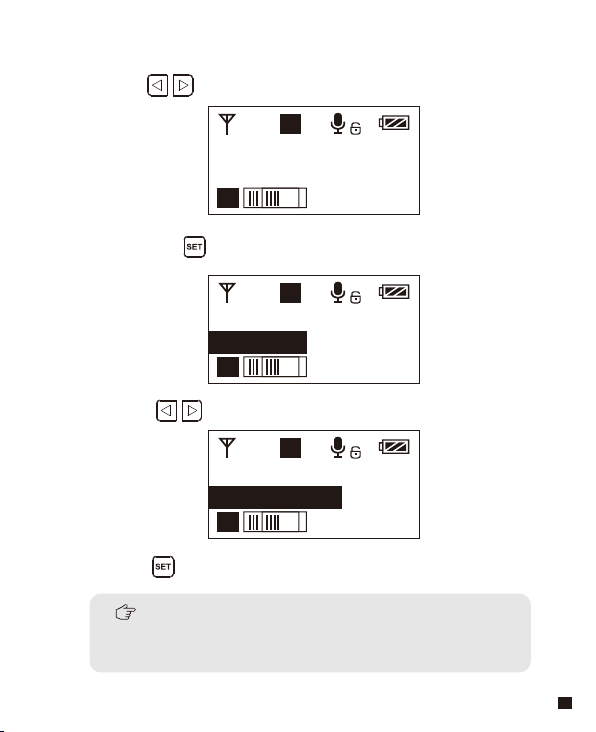
H
A
输入设置
A
MIC 输入
H
A
输入设置
A
MIC 输入
H
A
输入设置
A
LINE IN 输入
3.4 短按 按键确定
3.2 长按按键 进入输入音源选择状态
3.3 使用 按键选择“MIC输入”或“LINE IN输入”模式
3.1 使用 按键调到“输入设置”界面
3.MIC/LINE IN 输入模式调节
Mic模式是针对麦克风音源输入;
Line in模式是针对外部音源输入,比如手机音乐播放等,
选择对应的输入模式会有更好的音频效果
19
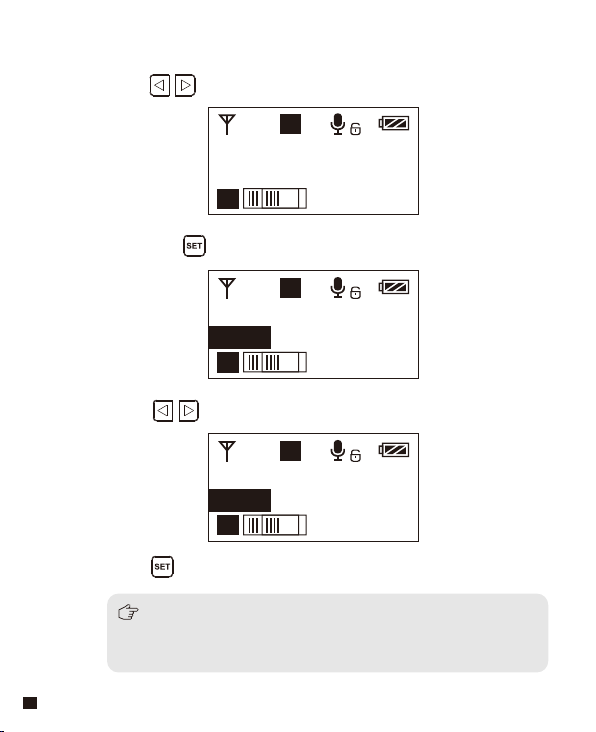
H
A
低切
A
关闭
H
A
低切
A
关闭
H
A
低切
A
低
4.4 短按 按键确定
4.2 长按按键 进入低切选择状态
4.3 使用 按键选择“低”、“高”或“关闭”音源低切功能
4.1 使用 按键调到“低切”界面
4.低切“低/高/关闭”调节
低切功能开启会把音源低频部分过滤掉,比如野外昆虫的鸣叫声和
人群的噪音,主音源也会更清脆;
关闭则真实还原环境的声音,主音源会更浑厚,可根据实际需要调整。
20
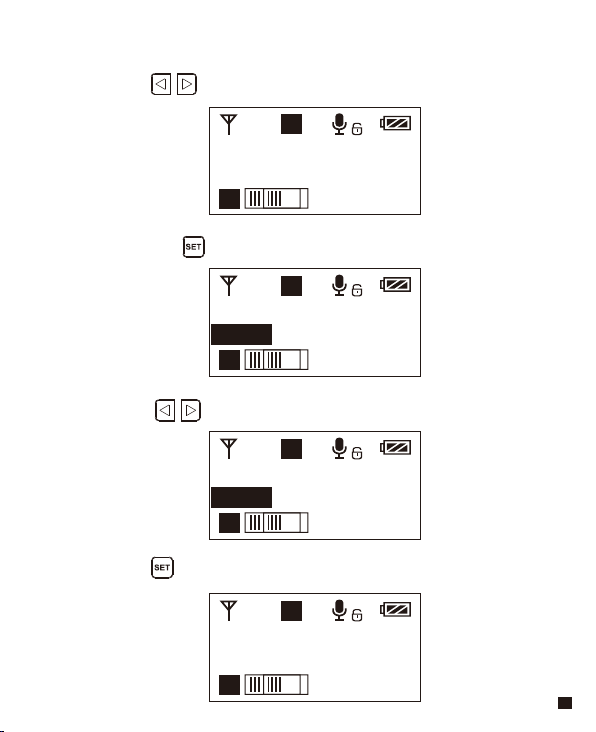
H
A
发射功率
A
高
H
A
发射功率
A
高
H
A
发射功率
A
低
H
A
发射功率
A
低
5.4 短按 按键确定
5.2 长按按键 进入发射功率调节状态
5.3 使用 按键调节发射功率强度
5.1 使用 按键调到“发射功率”界面
5.发射功率调节
21
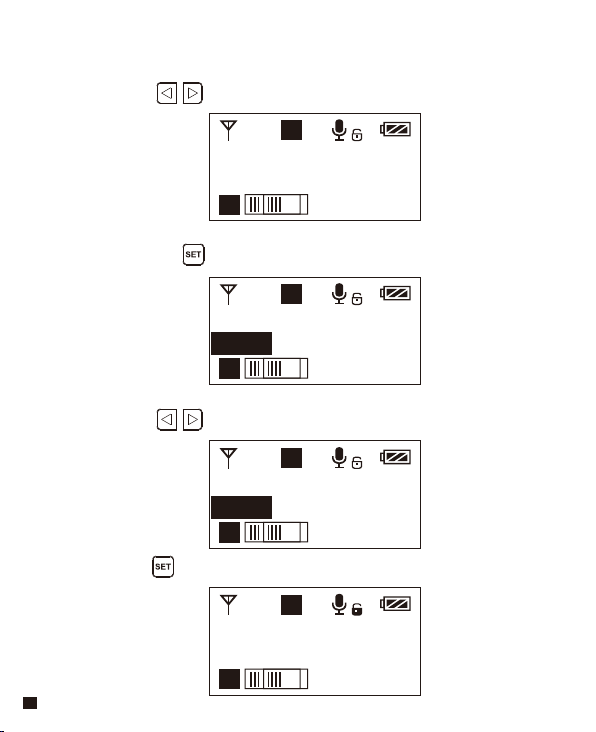
H
A
静音锁定
A
解锁
H
A
静音锁定
A
解锁
H
A
静音锁定
A
锁定
H
A
静音锁定
A
锁定
6.2 长按按键 进入静音锁定选择状态
6.3 使用 按键选择解锁/锁定静音功能
6.1 使用 按键调到“静音锁定”界面
6.静音功能解锁/锁定
6.4 短按 按键确定
22
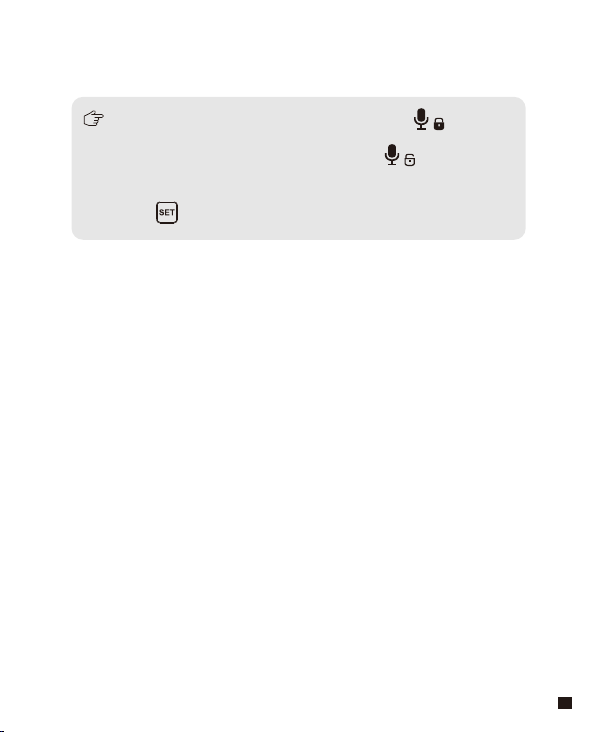
设置为“锁定”后静音功能不能使用,图标显示:
设置为“解锁”后静音功能开启,图标显示:
静音必须在屏幕点亮的时候才能操控,按下任何按键使屏幕点亮,
再短按 按键切换静音模式。
23
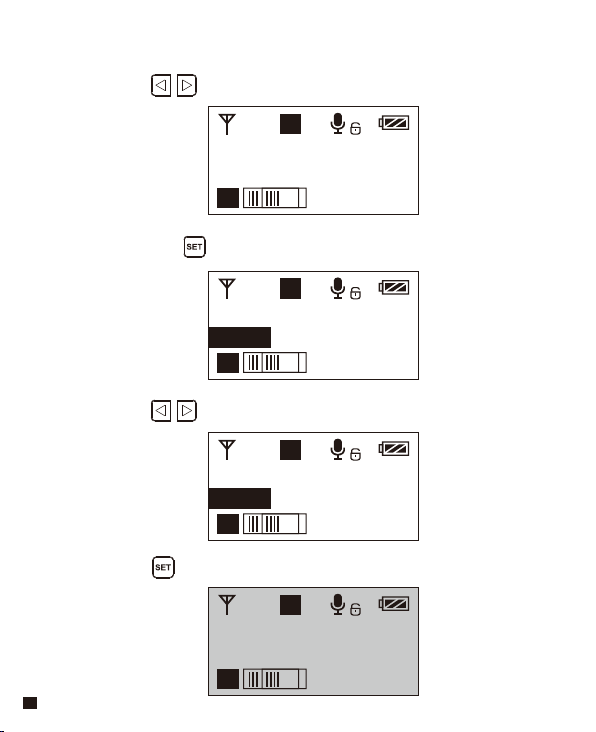
H
A
背景灯
A
60S
H
A
背景灯
A
60S
H
A
背景灯
A
00S
H
A
背景灯
A
00S
7.4 短按 按键确定
7.2 长按按键 进入背景灯调节状态
7.3 使用 按键调节背景灯点亮的延迟时间,也可以关闭以
省电
7.1 使用 按键调到“背景灯”界面
7.背景灯“点亮时间/关闭” 调节
24
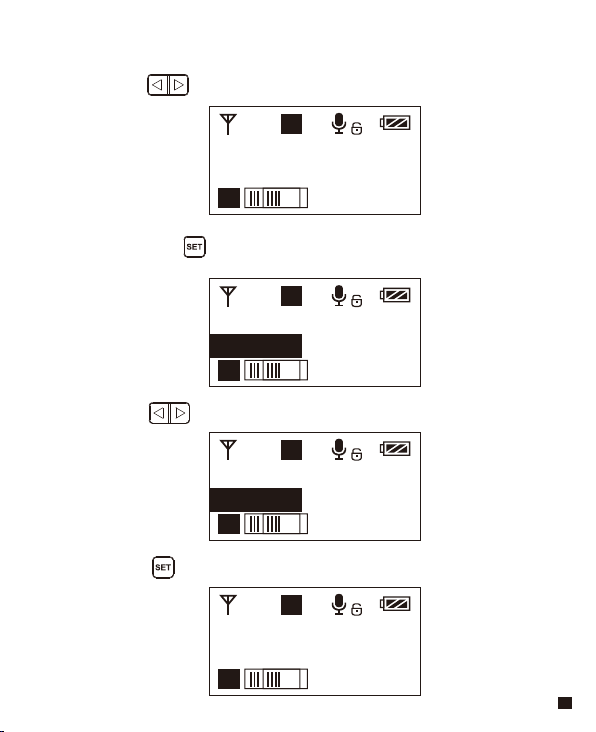
H
A
语言 (Language)
A
简体中文
H
A
语言 (Language)
A
简体中文
H
A
语言 (Language)
A
English
H
A
Language (语言)
A
English
8.4 短按 按键确定
8.2 长按按键 进入语言选择状态
8.3 使用 按键选择需要的语言
8.1 使用 按键调到“语言(Language)”界面
8.系统语言选择
25
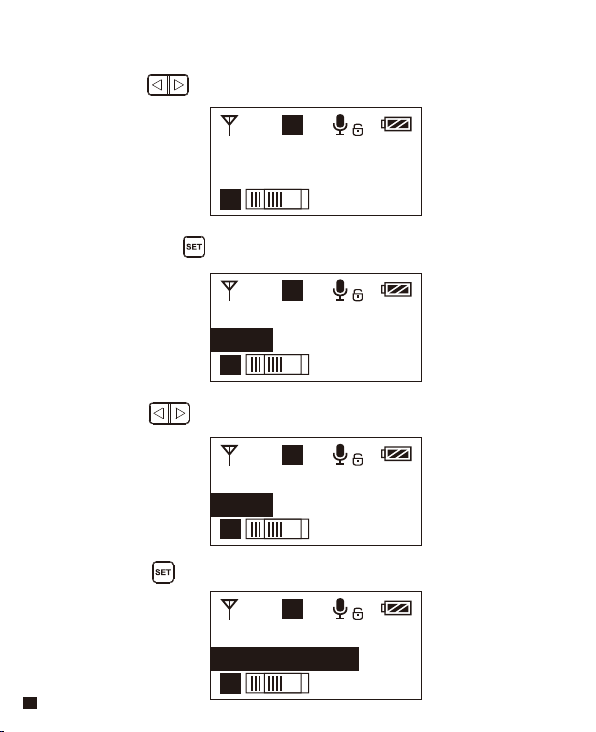
H
A
恢复出厂设置
A
否
H
A
恢复出厂设置
A
否
H
A
恢复出厂设置
A
是
H
A
恢复出厂设置
A
恢复中......
9.2 长按按键 进入恢复出厂设置操作状态
9.1 使用 按键调到“恢复出厂设置”界面
9. 恢复出厂设置
9.4 短按 按键确定,即可恢复出厂设置
9.3 使用 按键选择是否恢复出厂设置
26
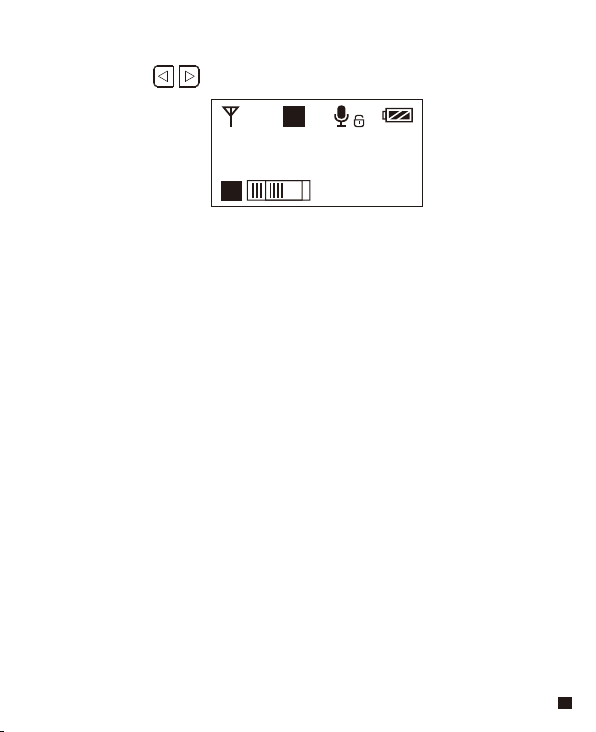
H
A
版本号
A
X.X.X
10.1 使用 按键调到“版本号”界面查看本机固件的版本
10. 固件版本号
27
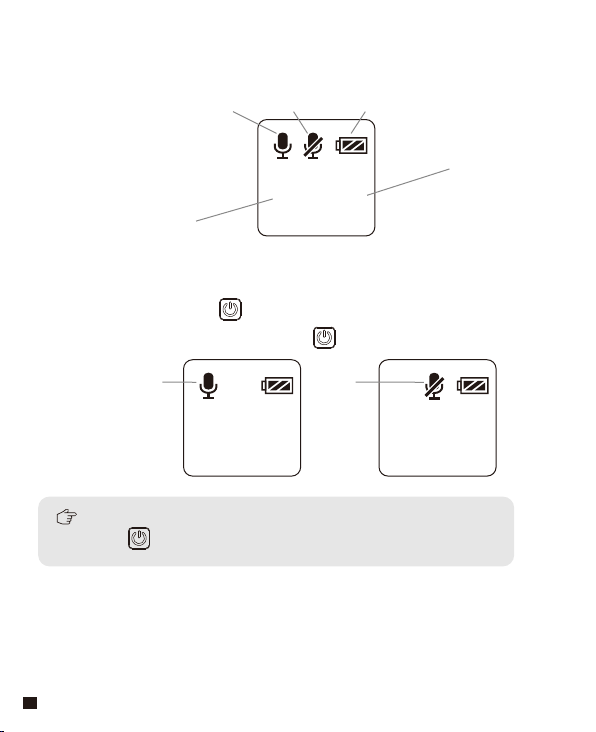
屏显说明
1.开机与静音切换
操作说明
手持发射器
A
B
8 8
正常录音 静音 电量
A/B通道
频道
A
B
8 8
正常拾音
A
B
8 8
静音
静音必须在屏幕亮显的时候才能操控,按下任何按键使屏幕亮显,
再短按 按键切换静音模式。
1.1 长按电源开关 2秒开机或关机
1.2 在开机状态,短按电源开关 进行静音切换
28
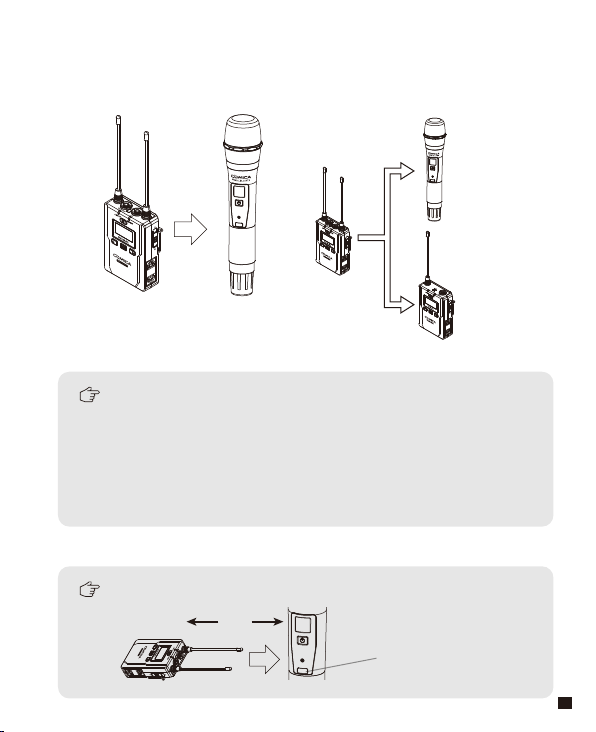
2.红外对码
对码的时候接收器要对着手持发射器的红外接受窗,不能被遮挡住。
手持发射器默认开机通道是B通道,可根据接收器进行通道及频道
切换。
如使用接收器A通道进行对码,对码成功后,即为:A通道 CH XX
如使用接收器B通道进行对码,对码成功后,即为:B通道 CH XX
手持发射器与领夹发射器混用时,两种发射器要设置到不同的
通道
2.1 频道设置通过红外对码完成
红外窗口
30cm
B通道
A通道
29
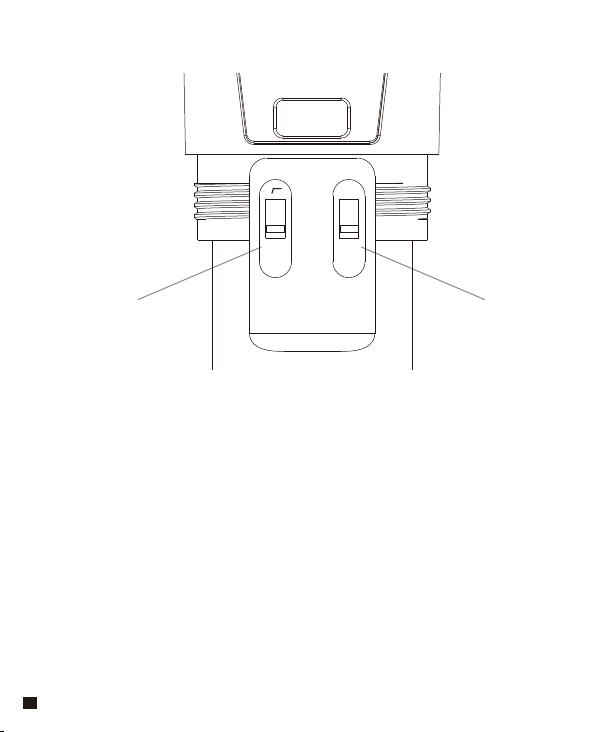
2.2 拨动开关定义
低切开关 发射功率高/低切换
LCF
-
RF
High
Low
30
通道 A 通道 B
屏显说明
操作说明
接收器
1.A、B及A/B通道选择
CH 41 CH 11
A通道信号强度
A通道 B通道
A通道频道 B通道频道
A通道发射端电量 B通道发射端电量A通道接收端音频动态 B通道接收端音频动态
B通道信号强度 电量
1.1 使用A、B及A/B通道选择开关选择开启的通道
A、B及A/B通道选择开关
31
通道 A
通道 A
通道 B
通道 B
CH 41
CH 11
CH 41 CH 11
开关调到A
A通道打开,B通道关闭
开关调到B
B通道打开,A通道关闭
开关调到A/B
A通道打开,B通道打开
32
通道 A 通道 B
通道 A 通道 B
通道 A 通道 B
CH 41 CH 11
CH 45 CH 11
CH 45 CH 11
2.1 在首页长按 按键进入通道A的CH调节状态,再次短按
按钮切换到通道B的CH调节状态
2.2 使用 按键选择所需频道
2.手动调节接收器A/B 通道的频道
2.3 短按 按键确定
33
输出模式
输出模式
输出模式
3.2 长按 按键进入输出模式选择状态
3.3 使用 按键选择“立体声/单声道”输出,
短按 按键确定
3.音频输出模式 “立体声/单声道”调节
单声道
单声道
立体声
3.1 使用 按键调到“输出模式”界面
当设置到单独的A或B通道时,无此设置项,音频输出为MONO 模式。
34
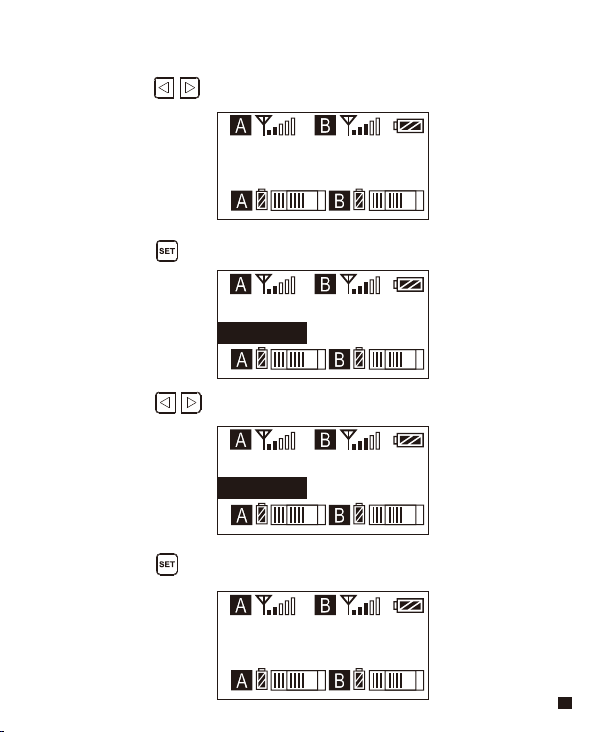
设置
设置
设置
设置
4.4 短按 按键确定
4.A/B通道功能设置
4.1 使用 按键调到“通道设置”界面
4.2 长按 按键进入通道选择状态
4.3 使用 按键选择要切换的通道
通道A
通道A
通道B
通道B
35
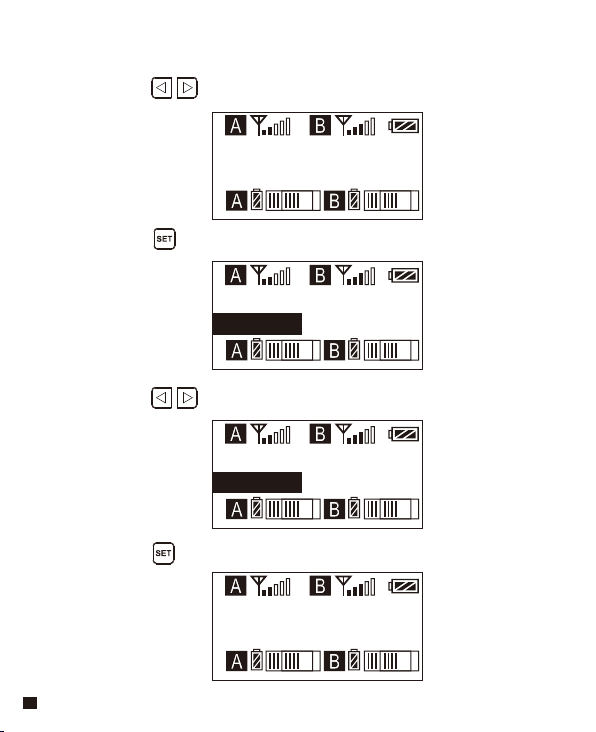
通道A设置
通道A设置
通道A设置
通道A设置
5.4 短按 按键确定
5.A/B通道音量调节
5.1 使用 按键调到“通道音量设置”界面
5.2 长按 按键进入音量调节状态
5.3 使用 按键调节音量大小
音量12
音量15
音量12
音量15
36
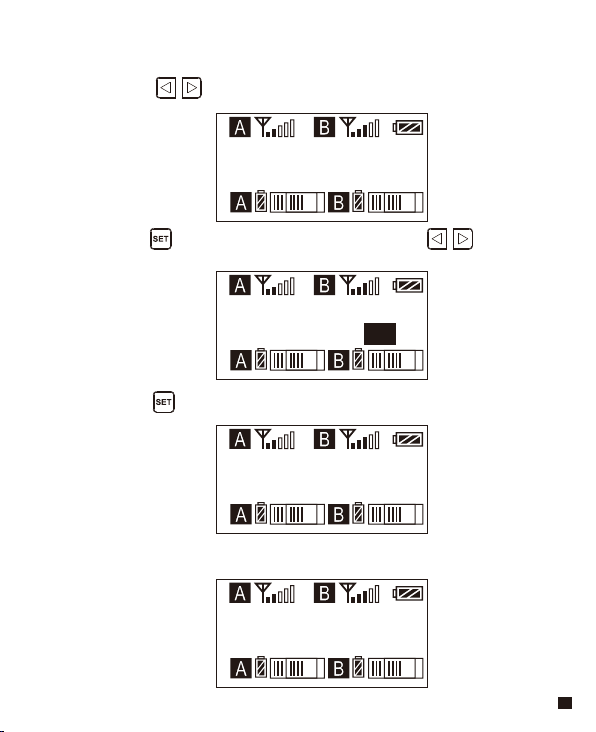
通道A设置
通道A设置
通道A设置
通道A设置
6.A/B通道自动通道扫描
6.1 使用 按键调到“通道扫描”界面
6.2 长按 按键进入通道扫描操作状态,使用 按键
选择是否扫描
6.3 短按 按键进行自动通道扫描
6.4 扫描完毕会使用扫描到的最佳通道
自动扫描 CH63
自动扫描 CH75
自动扫描 ? 是
扫频中......
37
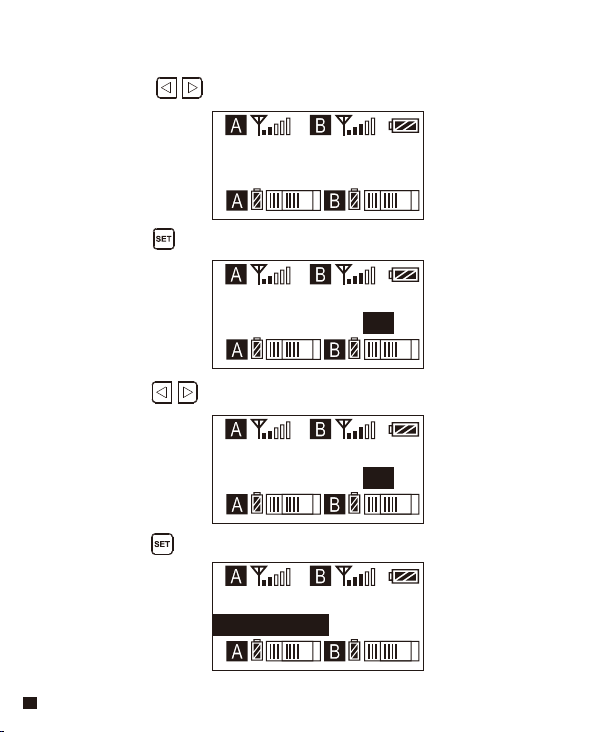
通道A设置
通道A设置
通道A设置
通道A设置
7.A/B通道红外对码
7.1 使用 按键调到“同步发射器”界面
7.2 长按 按键进入同步发射器操作状态
7.3 使用 按键选择是否同步
7.4 短按 按键进行同步
同步发射器
同步发射器 ? 否
同步发射器 ? 是
同步中......
38
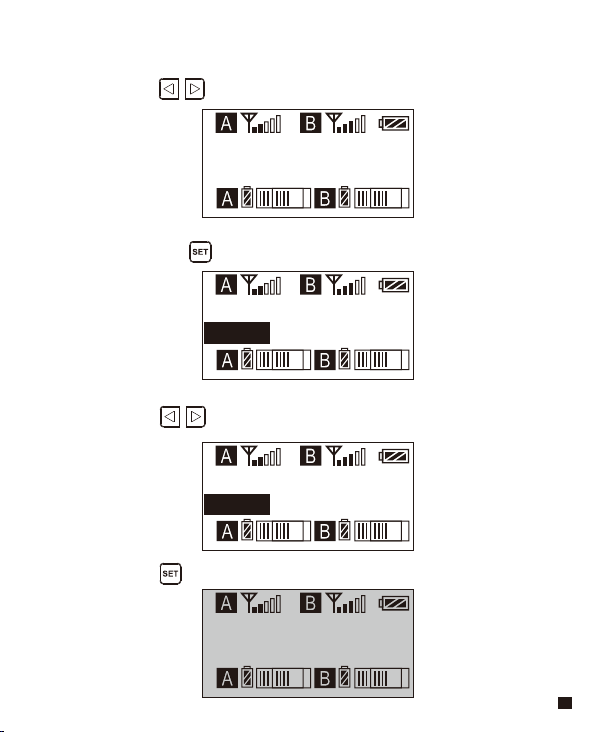
背景灯
背景灯
背景灯
60S
60S
00S
背景灯
00S
8.4 短按 按键确定
8.2 长按按键 进入背景灯调节状态状态
8.3 使用 按键调节背景灯点亮的延迟时间,也可以关闭以
省电
8.1 使用 按键调到“背景灯”界面
8.背景灯“点亮时间/关闭” 调节
39
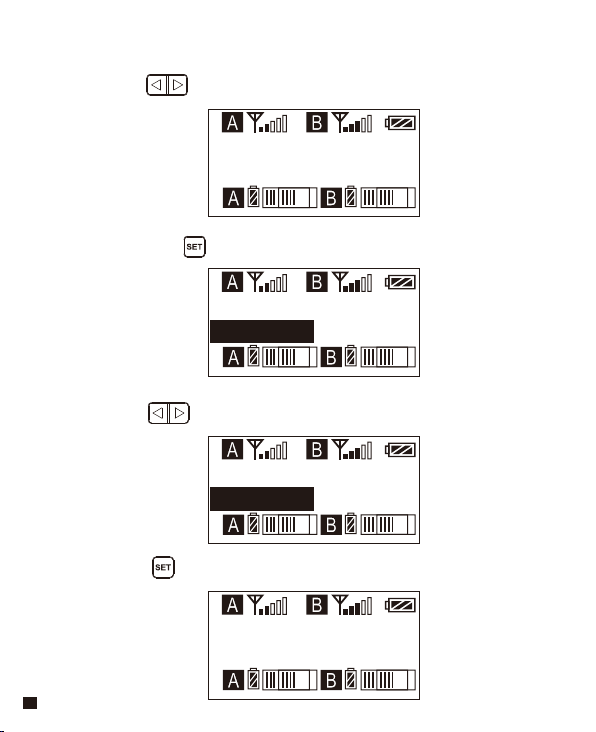
语言 (Language)
简体中文
语言 (Language)
简体中文
语言 (Language)
English
Language(语言)
English
9.4 短按 按键确定
9.2 长按按键 进入语言选择状态
9.3 使用 按键选择需要的语言
9.1 使用 按键调到“语言(Language)”界面
9.系统语言选择
40
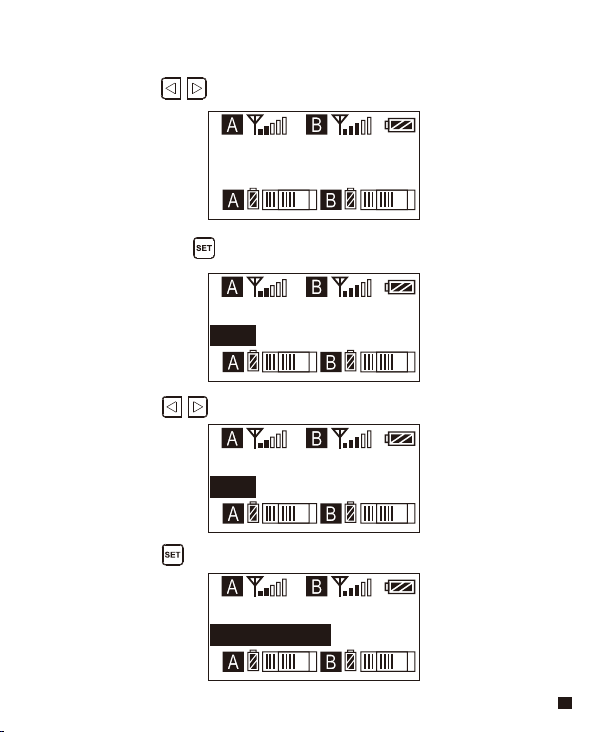
10.2 长按按键 进入恢复出厂设置操作状态
10.3 短按 选择是否恢复出厂设置
10.1 使用 按键调到“恢复出厂设置”界面
10.恢复出厂设置
恢复出厂设置
否
恢复出厂设置
否
恢复出厂设置
是
10.4 短按 按键确定,即可恢复出厂设置
恢复出厂设置
恢复中......
41
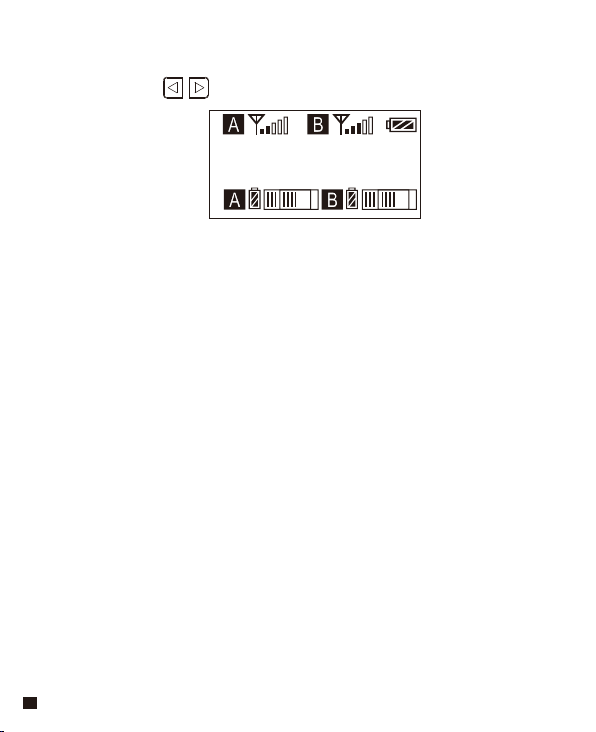
11.1 使用 按键调到“版本号”界面查看本机固件的版本
11. 固件版本号
版本号
X.X.X
42
领夹发射器 TX
信噪比
>65dB
天线 1/4 波长导线天线
杂散辐射 <-60dBc
声音延迟 <20ms
音频失真 <0.5%
电池
尺寸 84 x 63.5 x 23mm
工作温度 0 ℃
~
50
℃
存储温度 -20 ℃
~
60
℃
两节 AA 电池
技术规格
43
手持发射器 HTX
信噪比 >65dB
天线 PCB 天线
杂散辐射 < -60dBc
声音延迟 <20ms
音频失真 <0.5%
电池 两节 AA 电池
尺寸 Φ 53.5(MAX) x 253mm
工作温度 0 ℃
~
50
℃
存储温度 -20 ℃
~
60
℃
44

接收器 RX
两节 AA 电池
信噪比 >65dB
天线 1/4 波长导线天线
接收灵敏度 <- 93dBm
杂散辐射 < -60dBc
声音延迟 <20ms
音频失真 <0.5%
电池
尺寸 84 x 63.5 x 23mm
工作温度 0 ℃
~
50
℃
存储温度 -20 ℃
~
60
℃
45
Email: [email protected]
