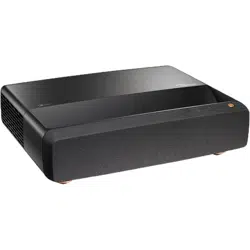

English
2
TABLE OF CONTENTS
COPYRIGHT ....................................................................................... 5
Declaration Notice for Free and Open Source Software ........................................................... 5
Free and Open Source Software Notice.................................................................................... 5
Licenses .................................................................................................................................... 6
SAFETY .............................................................................................. 10
Important Safety Instruction...................................................................................................... 10
Cleaning the Lens..................................................................................................................... 11
3D Safety Information ............................................................................................................... 11
Copyright .................................................................................................................................. 12
Disclaimer ................................................................................................................................. 12
Trademark Recognition ............................................................................................................ 13
FCC .......................................................................................................................................... 13
Declaration of Conformity for EU countries .............................................................................. 14
WEEE ....................................................................................................................................... 14
INTRODUCTION ............................................................................... 15
Package Overview.................................................................................................................... 15
Accessories .............................................................................................................................. 15
Optional accessories ................................................................................................................ 16
Product Overview ..................................................................................................................... 16
Connections.............................................................................................................................. 17
Keypad and LED indicators ...................................................................................................... 17
Remote control ......................................................................................................................... 18
SETUP AND INSTALLATION ........................................................... 19
Installing the projector .............................................................................................................. 19
Connecting sources to the projector ......................................................................................... 21
Adjusting the projector image ................................................................................................... 23
Remote setup ........................................................................................................................... 24
USING THE PROJECTOR ............................................................... 26
Powering on / o the projector .................................................................................................. 26
Selecting an input source ......................................................................................................... 27
Menu navigation and features .................................................................................................. 28
OSD Menu tree......................................................................................................................... 29
Image picture mode menu ........................................................................................................ 34
Image dynamic range menu ..................................................................................................... 34
Image brightness menu ............................................................................................................ 34
Image contrast menu ................................................................................................................ 35
Image sharpness menu ............................................................................................................ 35
Image gamma menu................................................................................................................. 35

English
3
Image dynamic black menu ...................................................................................................... 35
Image color settings menu ....................................................................................................... 35
Image wall color menu.............................................................................................................. 36
Image 3D menu ........................................................................................................................ 36
Image reset menu..................................................................................................................... 36
Display focus menu .................................................................................................................. 37
Display geometric correction menu .......................................................................................... 37
Display digital zoom menu........................................................................................................ 37
Display image shift menu ......................................................................................................... 37
Display gaming mode menu ..................................................................................................... 38
Display advanced gaming menu .............................................................................................. 38
Display aspect ratio menu ........................................................................................................ 38
Display light source mode menu .............................................................................................. 39
Display reset menu ................................................................................................................... 39
Setup test pattern menu ........................................................................................................... 40
Setup projection orientation menu ............................................................................................ 40
Setup language menu .............................................................................................................. 40
Setup menu settings menu ....................................................................................................... 40
Setup high altitude menu .......................................................................................................... 40
Setup power settings menu ...................................................................................................... 40
Setup security menu ................................................................................................................. 41
Setup eye protection sensor menu ........................................................................................... 41
Setup startup logo menu .......................................................................................................... 41
Setup background color menu.................................................................................................. 41
Setup device reset menu .......................................................................................................... 41
Input auto source menu ............................................................................................................ 42
Input remember last source menu ............................................................................................ 42
Input auto input switch menu .................................................................................................... 42
Input HDMI CEC settings menu ............................................................................................... 42
Input reset menu....................................................................................................................... 42
Audio volume menu .................................................................................................................. 43
Audio mute menu ..................................................................................................................... 43
Audio audio mode menu........................................................................................................... 43
Audio audio output menu.......................................................................................................... 43
Audio reset menu ..................................................................................................................... 43
Information menu...................................................................................................................... 43
ADDITIONAL INFORMATION .......................................................... 44
Compatible resolutions ............................................................................................................. 44
Image size and projection distance .......................................................................................... 50
Projector dimensions and ceiling mount installation ................................................................. 51
IR remote codes ....................................................................................................................... 52
Troubleshooting ........................................................................................................................ 53
Warning indicators .................................................................................................................... 54
Specications ........................................................................................................................... 56
Optoma global oces ............................................................................................................... 57

English
4
COPYRIGHT
Copyright (C) 2023 by Optoma Corporation
ALL RIGHTS RESERVED.
The copyright declaration applies to any part of the product, however if the declaration and Free and Open Source
license requirements are in explicit conict, the FOSS license prevails.
Declaration Notice for Free and Open Source Software
The software included in this product contains copyrighted software that is originally licensed under the Free and
Open Source Software licenses, such as Apache License 2.0, and SIL Open Font License (OFL). The related
notices and disclaimers are described below.
Free and Open Source Software Notice
Roboto Light
License Full Name: Apache License 2.0
SPDX Short Identier: Apache-2.0
Modied Status: No
Copyright Notice: Copyright 2011 Google Inc. Licensed under the Apache License, Version 2.0
(the “License”); you may not use this le except in compliance with the License. You may obtain a
copy of the License at
http://www.apache.org/licenses/LICENSE-2.0
Unless required by applicable law or agreed to in writing, software distributed under the License is
distributed on an “AS IS” BASIS, WITHOUT WARRANTIES OR CONDITIONS OF ANY KIND, either
express or implied. See the License for the specic language governing permissions and limitations
under the License.
Noto Serif KR
License Full Name: SIL Open Font License 1.1
SPDX Short Identier: OFL-1.1
Modied Status: No
Copyright Notice: Copyright 2017 Adobe Systems Incorporated (http://www.adobe.com/)
This Font Software is licensed under the SIL Open Font License, Version 1.1.
This license is copied below, and is also available with a FAQ at: https://scripts.sil.org/OFL

English
5
Licenses
Apache License, Version 2.0, January 2004
http://www.apache.org/licenses/
TERMS AND CONDITIONS FOR USE, REPRODUCTION, AND DISTRIBUTION
1. Denitions.
“License” shall mean the terms and conditions for use, reproduction, and distribution as dened by Sections 1
through 9 of this document.
“Licensor” shall mean the copyright owner or entity authorized by the copyright owner that is granting the License.
“Legal Entity” shall mean the union of the acting entity and all other entities that control, are controlled by, or are
under common control with that entity. For the purposes of this denition, “control” means (i) the power, direct or
indirect, to cause the direction or management of such entity, whether by contract or otherwise, or (ii) ownership of
fty percent (50%) or more of the outstanding shares, or (iii) benecial ownership of such entity.
“You” (or “Your”) shall mean an individual or Legal Entity exercising permissions granted by this License.
“Source” form shall mean the preferred form for making modications, including but not limited to software source
code, documentation source, and conguration les.
“Object” form shall mean any form resulting from mechanical transformation or translation of a Source form,
including but not limited to compiled object code, generated documentation, and conversions to other media types.
“Work” shall mean the work of authorship, whether in Source or Object form, made available under the License, as
indicated by a copyright notice that is included in or attached to the work (an example is provided in the Appendix
below).
“Derivative Works” shall mean any work, whether in Source or Object form, that is based on (or derived from)
the Work and for which the editorial revisions, annotations, elaborations, or other modications represent, as a
whole, an original work of authorship. For the purposes of this License, Derivative Works shall not include works
that remain separable from, or merely link (or bind by name) to the interfaces of, the Work and Derivative Works
thereof.
“Contribution” shall mean any work of authorship, including the original version of the Work and any modications
or additions to that Work or Derivative Works thereof, that is intentionally submitted to Licensor for inclusion
in the Work by the copyright owner or by an individual or Legal Entity authorized to submit on behalf of the
copyright owner. For the purposes of this denition, “submitted” means any form of electronic, verbal, or written
communication sent to the Licensor or its representatives, including but not limited to communication on electronic
mailing lists, source code control systems, and issue tracking systems that are managed by, or on behalf of, the
Licensor for the purpose of discussing and improving the Work, but excluding communication that is conspicuously
marked or otherwise designated in writing by the copyright owner as “Not a Contribution.”
“Contributor” shall mean Licensor and any individual or Legal Entity on behalf of whom a Contribution has been
received by Licensor and subsequently incorporated within the Work.
2. Grant of Copyright License. Subject to the terms and conditions of this License, each Contributor hereby
grants to You a perpetual, worldwide, non-exclusive, no-charge, royalty-free, irrevocable copyright license to
reproduce, prepare Derivative Works of, publicly display, publicly perform, sublicense, and distribute the Work and
such Derivative Works in Source or Object form.
3. Grant of Patent License. Subject to the terms and conditions of this License, each Contributor hereby grants
to You a perpetual, worldwide, non-exclusive, no-charge, royalty-free, irrevocable (except as stated in this section)
patent license to make, have made, use, oer to sell, sell, import, and otherwise transfer the Work, where such
license applies only to those patent claims licensable by such Contributor that are necessarily infringed by their
Contribution(s) alone or by combination of their Contribution(s) with the Work to which such Contribution(s) was
submitted. If You institute patent litigation against any entity (including a cross-claim or counterclaim in a lawsuit)
alleging that the Work or a Contribution incorporated within the Work constitutes direct or contributory patent
infringement, then any patent licenses granted to You under this License for that Work shall terminate as of the
date such litigation is led.

English
6
4. Redistribution. You may reproduce and distribute copies of the Work or Derivative Works thereof in any
medium, with or without modications, and in Source or Object form, provided that You meet the following
conditions:
1. You must give any other recipients of the Work or Derivative Works a copy of this License; and
2. You must cause any modied les to carry prominent notices stating that You changed the les; and
3. You must retain, in the Source form of any Derivative Works that You distribute, all copyright, patent,
trademark, and attribution notices from the Source form of the Work, excluding those notices that do
not pertain to any part of the Derivative Works; and
4. If the Work includes a “NOTICE” text le as part of its distribution, then any Derivative Works that
You distribute must include a readable copy of the attribution notices contained within such NOTICE
le, excluding those notices that do not pertain to any part of the Derivative Works, in at least one
of the following places: within a NOTICE text le distributed as part of the Derivative Works; within
the Source form or documentation, if provided along with the Derivative Works; or, within a display
generated by the Derivative Works, if and wherever such third-party notices normally appear. The
contents of the NOTICE le are for informational purposes only and do not modify the License. You
may add Your own attribution notices within Derivative Works that You distribute, alongside or as an
addendum to the NOTICE text from the Work, provided that such additional attribution notices cannot
be construed as modifying the License.
You may add Your own copyright statement to Your modications and may provide additional or
dierent license terms and conditions for use, reproduction, or distribution of Your modications, or for
any such Derivative Works as a whole, provided Your use, reproduction, and distribution of the Work
otherwise complies with the conditions stated in this License.
5. Submission of Contributions. Unless You explicitly state otherwise, any Contribution intentionally submitted
for inclusion in the Work by You to the Licensor shall be under the terms and conditions of this License, without any
additional terms or conditions. Notwithstanding the above, nothing herein shall supersede or modify the terms of
any separate license agreement you may have executed with Licensor regarding such Contributions.
6. Trademarks. This License does not grant permission to use the trade names, trademarks, service marks, or
product names of the Licensor, except as required for reasonable and customary use in describing the origin of the
Work and reproducing the content of the NOTICE le.
7. Disclaimer of Warranty. Unless required by applicable law or agreed to in writing, Licensor provides the
Work (and each Contributor provides its Contributions) on an “AS IS” BASIS, WITHOUT WARRANTIES OR
CONDITIONS OF ANY KIND, either express or implied, including, without limitation, any warranties or conditions
of TITLE, NON-INFRINGEMENT, MERCHANTABILITY, or FITNESS FOR A PARTICULAR PURPOSE. You are
solely responsible for determining the appropriateness of using or redistributing the Work and assume any risks
associated with Your exercise of permissions under this License.
8. Limitation of Liability. In no event and under no legal theory, whether in tort (including negligence), contract,
or otherwise, unless required by applicable law (such as deliberate and grossly negligent acts) or agreed to in
writing, shall any Contributor be liable to You for damages, including any direct, indirect, special, incidental, or
consequential damages of any character arising as a result of this License or out of the use or inability to use the
Work (including but not limited to damages for loss of goodwill, work stoppage, computer failure or malfunction, or
any and all other commercial damages or losses), even if such Contributor has been advised of the possibility of
such damages.
9. Accepting Warranty or Additional Liability. While redistributing the Work or Derivative Works thereof, You may
choose to oer, and charge a fee for, acceptance of support, warranty, indemnity, or other liability obligations and/
or rights consistent with this License. However, in accepting such obligations, You may act only on Your own behalf
and on Your sole responsibility, not on behalf of any other Contributor, and only if You agree to indemnify, defend,
and hold each Contributor harmless for any liability incurred by, or claims asserted against, such Contributor by
reason of your accepting any such warranty or additional liability.
END OF TERMS AND CONDITIONS
English
7
HOW TO APPLY THE APACHE LICENSE TO YOUR WORK
Include a copy of the Apache License, typically in a le called LICENSE, in your work, and consider also including a
NOTICE le that references the License.
To apply the Apache License to specic les in your work, attach the following boilerplate declaration, replacing the
elds enclosed by brackets “[]” with your own identifying information. (Don’t include the brackets!) Enclose the text
in the appropriate comment syntax for the le format. We also recommend that you include a le or class name and
description of purpose on the same “printed page” as the copyright notice for easier identication within third-party
archives.
Copyright [yyyy] [name of copyright owner]
Licensed under the Apache License, Version 2.0 (the “License”); you may not use this le except in compliance
with the License. You may obtain a copy of the License at
http://www.apache.org/licenses/LICENSE-2.0
Unless required by applicable law or agreed to in writing, software distributed under the License is distributed on
an “AS IS” BASIS, WITHOUT WARRANTIES OR CONDITIONS OF ANY KIND, either express or implied.
See the License for the specic language governing permissions and limitations under the License.
SIL OPEN FONT LICENSE, Version 1.1 - 26 February 2007
PREAMBLE
The goals of the Open Font License (OFL) are to stimulate worldwide development of collaborative font projects, to
support the font creation eorts of academic and linguistic communities, and to provide a free and open framework
in which fonts may be shared and improved in partnership with others.
The OFL allows the licensed fonts to be used, studied, modied and redistributed freely as long as they are not
sold by themselves. The fonts, including any derivative works, can be bundled, embedded, redistributed and/or sold
with any software provided that any reserved names are not used by derivative works. The fonts and derivatives,
however, cannot be released under any other type of license. The requirement for fonts to remain under this license
does not apply to any document created using the fonts or their derivatives.
DEFINITIONS
“Font Software” refers to the set of les released by the Copyright Holder(s) under this license and clearly marked
as such. This may include source les, build scripts and documentation.
“Reserved Font Name” refers to any names specied as such after the copyright statement(s).
“Original Version” refers to the collection of Font Software components as distributed by the Copyright Holder(s).
“Modied Version” refers to any derivative made by adding to, deleting, or substituting — in part or in whole —
any of the components of the Original Version, by changing formats or by porting the Font Software to a new
environment.
“Author” refers to any designer, engineer, programmer, technical writer or other person who contributed to the Font
Software.

English
8
PERMISSION & CONDITIONS
Permission is hereby granted, free of charge, to any person obtaining a copy of the Font Software, to use, study,
copy, merge, embed, modify, redistribute, and sell modied and unmodied copies of the Font Software, subject to
the following conditions:
1. Neither the Font Software nor any of its individual components, in Original or Modied Versions, may
be sold by itself.
2. Original or Modied Versions of the Font Software may be bundled, redistributed and/or sold with any
software, provided that each copy contains the above copyright notice and this license. These can
be included either as stand-alone text les, human-readable headers or in the appropriate machine-
readable metadata elds within text or binary les as long as those elds can be easily viewed by the
user.
3. No Modied Version of the Font Software may use the Reserved Font Name(s) unless explicit written
permission is granted by the corresponding Copyright Holder. This restriction only applies to the
primary font name as presented to the users.
4. The name(s) of the Copyright Holder(s) or the Author(s) of the Font Software shall not be used to
promote, endorse or advertise any Modied Version, except to acknowledge the contribution(s) of the
Copyright Holder(s) and the Author(s) or with their explicit written permission.
5. The Font Software, modied or unmodied, in part or in whole, must be distributed entirely under
this license, and must not be distributed under any other license. The requirement for fonts to remain
under this license does not apply to any document created using the Font Software.
TERMINATION
This license becomes null and void if any of the above conditions are not met.
DISCLAIMER
THE FONT SOFTWARE IS PROVIDED “AS IS”, WITHOUT WARRANTY OF ANY KIND, EXPRESS OR IMPLIED,
INCLUDING BUT NOT LIMITED TO ANY WARRANTIES OF MERCHANTABILITY, FITNESS FOR A PARTICULAR
PURPOSE AND NONINFRINGEMENT OF COPYRIGHT, PATENT, TRADEMARK, OR OTHER RIGHT. IN NO
EVENT SHALL THE COPYRIGHT HOLDER BE LIABLE FOR ANY CLAIM, DAMAGES OR OTHER LIABILITY,
INCLUDING ANY GENERAL, SPECIAL, INDIRECT, INCIDENTAL, OR CONSEQUENTIAL DAMAGES, WHETHER
IN AN ACTION OF CONTRACT, TORT OR OTHERWISE, ARISING FROM, OUT OF THE USE OR INABILITY TO
USE THE FONT SOFTWARE OR FROM OTHER DEALINGS IN THE FONT SOFTWARE.
English
9
SAFETY
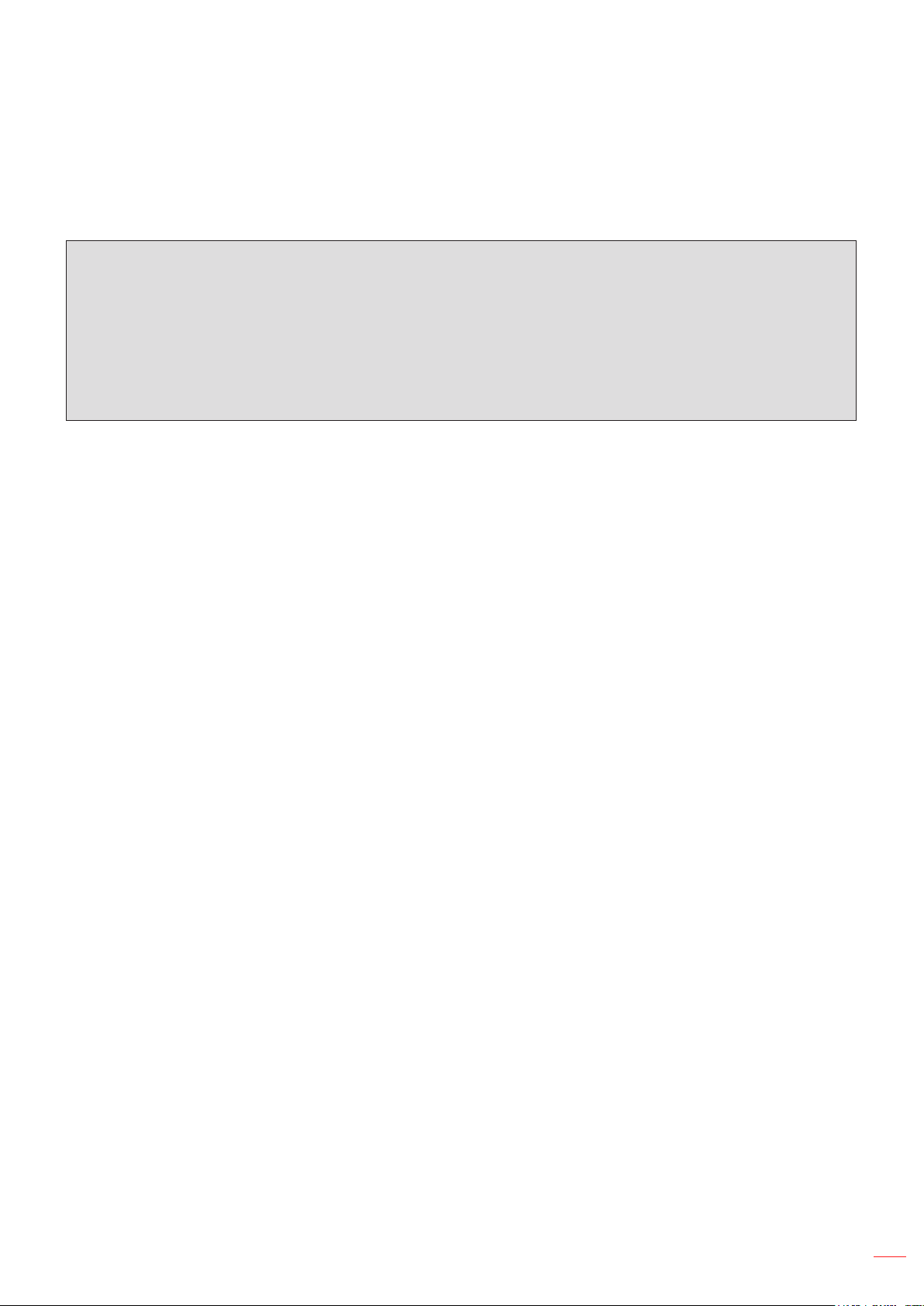
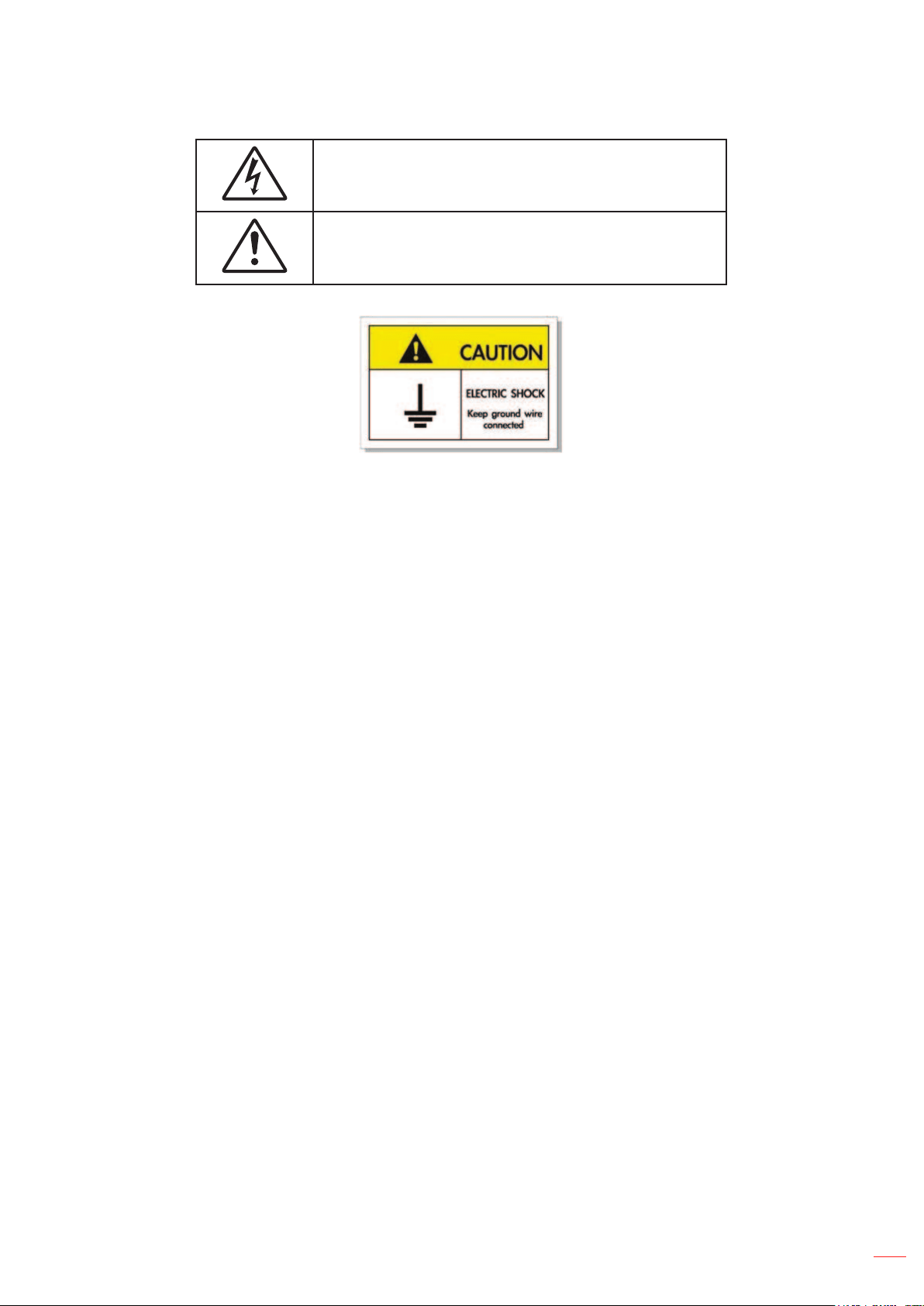
The lightning ash with arrow head within an equilateral triangle is
intended to alert the user to the presence of uninsulated "dangerous
voltage" within the product's enclosure that may be of sucient
magnitude to constitute a risk of electric shock to persons.
The exclamation point within an equilateral triangle is intended to alert
the user to the presence of important operating and maintenance
(servicing) instructions in the literature accompanying the appliance.
Please follow all warnings, precautions and maintenance as recommended in this user’s guide.
To avoid electric shock, the unit and its peripherals must be properly grounded (earthed).
Important Safety Instruction
Do not block any ventilation openings. To ensure reliable operation of the projector and to protect from
over heating, it is recommended to install the projector in a location that does not block ventilation. As an
example, do not place the projector on a crowded coee table, sofa, bed, etc. Do not put the projector in
an enclosure such as a book case or a cabinet that restricts air ow.
To reduce the risk of re and/or electric shock, do not expose the projector to rain or moisture. Do not
install near heat sources such as radiators, heaters, stoves or any other apparatus such as ampliers
that emits heat.
Do not let objects or liquids enter the projector. They may touch dangerous voltage points and short out
parts that could result in re or electric shock.
Do not use under the following conditions:
± In extremely hot, cold or humid environments.
(i) Ensure that the ambient room temperature is within 0°C ~ 40°C
(ii) Relative humidity is 10% ~ 85%
± In areas susceptible to excessive dust and dirt.
± Near any appliance generating a strong magnetic eld.
± In direct sunlight.
Do not use the projector in places where ammable gases or explosives gases may be present in the
atmosphere. The lamp inside the projector becomes very hot during operation and the gases may ignite
and result in a re.
Do not use the unit if it has been physically damaged or abused. Physical damage/abuse would be (but
not limited to):
± Unit has been dropped.
± Power supply cord or plug has been damaged.
± Liquid has been spilled on to the projector.
± Projector has been exposed to rain or moisture.
± Something has fallen in the projector or something is loose inside.

English
10
Do not place the projector on an unstable surface. The projector may fall over resulting in injury or the
projector may become damaged.
Do not block the light coming out of the projector lens when in operation. The light will heat the object
and could melt, cause burns or start a re.
Please do not open or disassemble the projector as this may cause electric shock.
Do not attempt to service the unit yourself. Opening or removing covers may expose you to dangerous
voltages or other hazards. Please call Optoma before you send the unit for repair.
See projector enclosure for safety related markings.
The unit should only be repaired by appropriate service personnel.
Only use attachments/accessories specied by the manufacturer.
Do not look into straight into the projector lens during operation. The bright light may harm your eyes.
Turn o and unplug the power plug from the AC outlet before cleaning the product.
Use a soft dry cloth with mild detergent to clean the display housing. Do not use abrasive cleaners,
waxes or solvents to clean the unit.
Disconnect the power plug from AC outlet if the product is not being used for a long period of time.
Do not setup the projector in places where it might be subjected to vibration or shock.
Do not touch the lens with bare hands.
Remove battery/batteries from remote control before storage. If the battery/batteries are left in the
remote for long periods, they may leak.
Do not use or store the projector in places where smoke from oil or cigarettes may be present, as it can
adversely aect the quality of the projector performance.
Use a power strip and or surge protector. As power outages and brown-outs can KILL devices.
Cleaning the Lens
Before cleaning the lens, be sure to turn o the projector and unplug the power cord to allow it to
completely cool down.
Use a compressed air tank to remove the dust.
Use a special cloth for cleaning lens and gently wipe the lens. Do not touch the lens with your ngers.
Do not use alkaline/acid detergents or volatile solvents such as alcohol for cleaning lens. If the lens is
damaged due to the cleaning process, it is not covered by the warranty.
Warning: Do not use a spray containing ammable gases to remove dust or dirt from the lens. This
may cause a re due to excessive heat inside the projector.
Warning: Do not clean the lens if the projector is warming up as this may cause the lens’ surface lm
to peel o.
Warning: Do not wipe or tap the lens with a hard object.
3D Safety Information
Please follow all warnings and precautions as recommended before you or your child use the 3D function.
Warning
Children and teenagers may be more susceptible to health issues associated with viewing in 3D and should be
closely supervised when viewing these images.

English
11
Photosensitive Seizure Warning and Other Health Risks
Some viewers may experience an epileptic seizure or stroke when exposed to certain ashing images
or lights contained in certain Projector pictures or video games. If you suer from, or have a family
history of epilepsy or strokes, please consult with a medical specialist before using the 3D function.
Even those without a personal or family history of epilepsy or stroke may have an undiagnosed
condition that can cause photosensitive epileptic seizures.
Pregnant women, the elderly, suerers of serious medical conditions, those who are sleep deprived or
under the inuence of alcohol should avoid utilizing the unit’s 3D functionality.
If you experience any of the following symptoms, stop viewing 3D pictures immediately and consult a
medical specialist: (1) altered vision; (2) light-headedness; (3) dizziness; (4) involuntary movements
such as eye or muscle twitching; (5) confusion; (6) nausea; (7) loss of awareness; (8) convulsions;
(9) cramps; and/ or (10) disorientation. Children and teenagers may be more likely than adults
to experience these symptoms. Parents should monitor their children and ask whether they are
experiencing these symptoms.
Watching 3D projection may also cause motion sickness, perceptual after eects, disorientation, eye
strain and decreased postural stability. It is recommended that users take frequent breaks to lessen
the potential of these eects. If your eyes show signs of fatigue or dryness or if you have any of the
above symptoms, immediately discontinue use of this device and do not resume using it for at least
thirty minutes after the symptoms have subsided.
Watching 3D projection while sitting too close to the screen for an extended period of time may
damage your eyesight. The ideal viewing distance should be at least three times the screen height. It
is recommended that the viewer’s eyes are level with the screen.
Watching 3D projection while wearing 3D glasses for an extended period of time may cause a
headache or fatigue. If you experience a headache, fatigue or dizziness, stop viewing the 3D
projection and rest.
Do not use the 3D glasses for any other purpose than for watching 3D projection.
Wearing the 3D glasses for any other purpose (as general spectacles, sunglasses, protective goggles,
etc.) may be physically harmful to you and may weaken your eyesight.
Viewing in 3D projection may cause disorientation for some viewers. Accordingly, DO NOT place your
3D PROJECTOR near open stairwells, cables, balconies, or other objects that can be tripped over, run
into, knocked down, broken or fallen over.
Copyright
This publication, including all photographs, illustrations and software, is protected under international copyright
laws, with all rights reserved. Neither this manual, nor any of the material contained herein, may be reproduced
without written consent of the author.
© Copyright 2023
Disclaimer
The information in this document is subject to change without notice. The manufacturer makes no representations
or warranties with respect to the contents hereof and specically disclaims any implied warranties of
merchantability or tness for any particular purpose. The manufacturer reserves the right to revise this publication
and to make changes from time to time in the content hereof without obligation of the manufacturer to notify any
person of such revision or changes.

English
12
Trademark Recognition
Kensington is a U.S. registered trademark of ACCO Brand Corporation with issued registrations and pending
applications in other countries throughout the world.
HDMI, the HDMI Logo, and High-Denition Multimedia Interface are trademarks or registered trademarks of HDMI
Licensing LLC in the United States and other countries.
DLP
®
, DLP Link and the DLP logo are registered trademarks of Texas Instruments and BrilliantColor
TM
is a
trademark of Texas Instruments.
All other product names used in this manual are the properties of their respective owners and are
Acknowledged.
FCC
This device has been tested and found to comply with the limits for a Class B digital device pursuant to Part 15
of the FCC rules. These limits are designed to provide reasonable protection against harmful interference in a
residential installation. This device generates, uses and can radiate radio frequency energy and, if not installed and
used in accordance with the instructions, may cause harmful interference to radio communications.
However, there is no guarantee that interference will not occur in a particular installation. If this device does cause
harmful interference to radio or television reception, which can be determined by turning the device o and on is
encouraged to try to correct the interference by one or more of the following measures:
Reorient or relocate the receiving antenna.
Increase the separation between the device and receiver.
Connect the device into an outlet on a circuit dierent from that to which the receiver is connected.
Consult the dealer or an experienced radio/television technician for help.
Notice: Shielded cables
All connections to other computing devices must be made using shielded cables to maintain compliance with FCC
regulations.
Caution
Changes or modications not expressly approved by the manufacturer could void the user's authority, which is
granted by the Federal Communications Commission, to operate this projector.
Operation Conditions
This device complies with Part 15 of the FCC Rules. Operation is subject to the following two conditions:
1. This device may not cause harmful interference and
2. This device must accept any interference received, including interference that may cause undesired operation.
Notice: Canadian users
This Class B digital apparatus complies with Canadian ICES-003.
Remarque à l'intention des utilisateurs canadiens
Cet appareil numerique de la classe B est conforme a la norme NMB-003 du Canada.

English
13
Declaration of Conformity for EU countries
EMC Directive 2014/30/EC (including amendments)
Low Voltage Directive 2014/35/EC
RED 2014/53/EU (if product has RF function)
WEEE
Disposal instructions
Do not throw this electronic device into the trash when discarding. To minimize pollution and ensure
utmost protection of the global environment, please recycle it.
English
14
INTRODUCTION
Package Overview
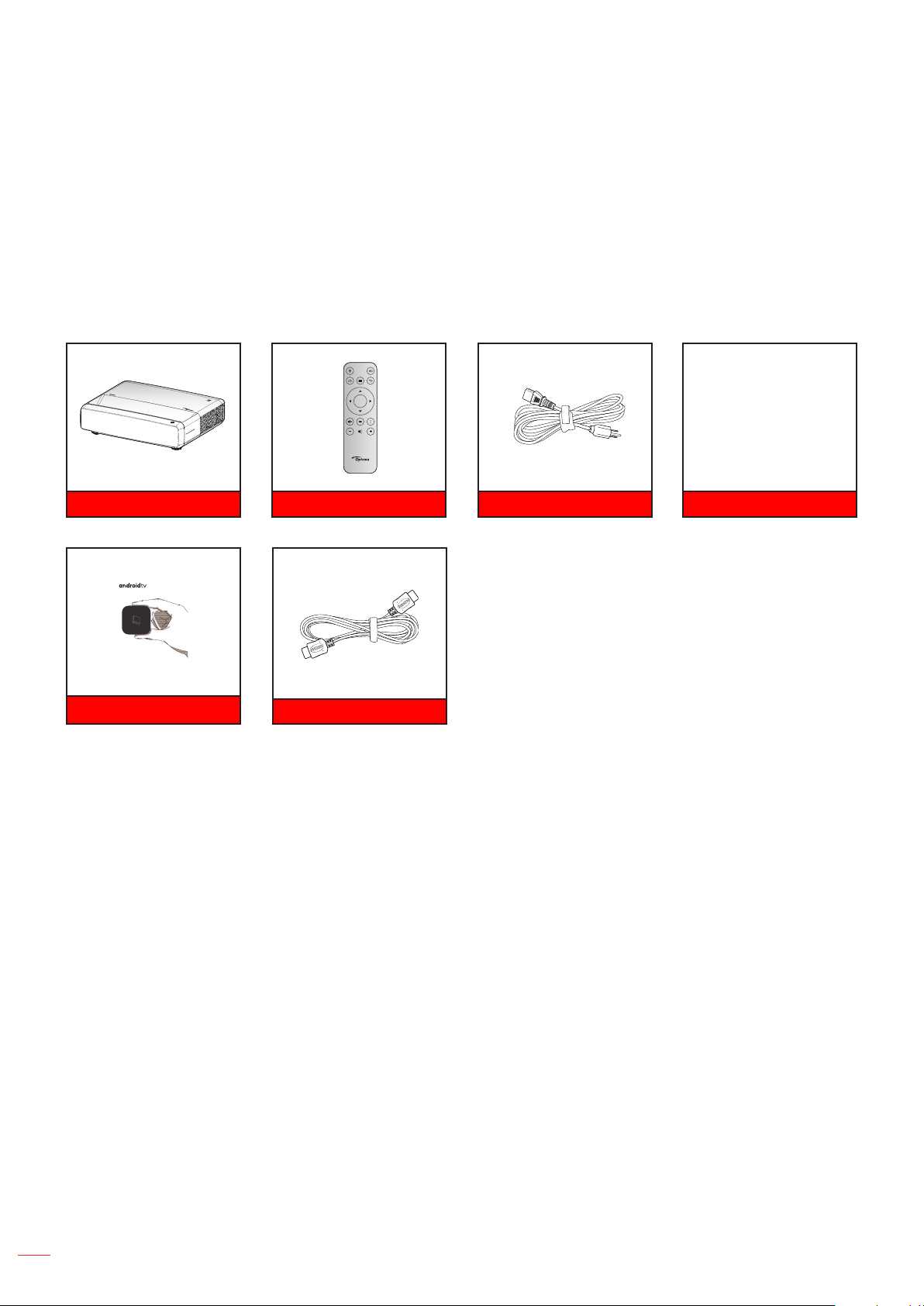
Carefully unpack and verify that you have the items listed below under standard accessories. Some of the items
under optional accessories may not be available depending on the model, specication and your region of
purchase. Please check with your place of purchase. Some accessories may vary from region to region.
The warranty card is only supplied in some specic regions. Please consult your dealer for detailed information.
Accessories
Remote control Power leadProjector Documentation
Warranty Card*
Quick Start User Manual
Note:
The remote control, Android TV Dongle, and HDMI cable may vary depending on the region and model.
* For warranty Information, please visit https://www.optoma.com/support/download.
Enter
HDMI cable
Android TV dongle
English
15
INTRODUCTION
Optional accessories
Note: Optional accessories vary depending on model, specication and region.
Product Overview
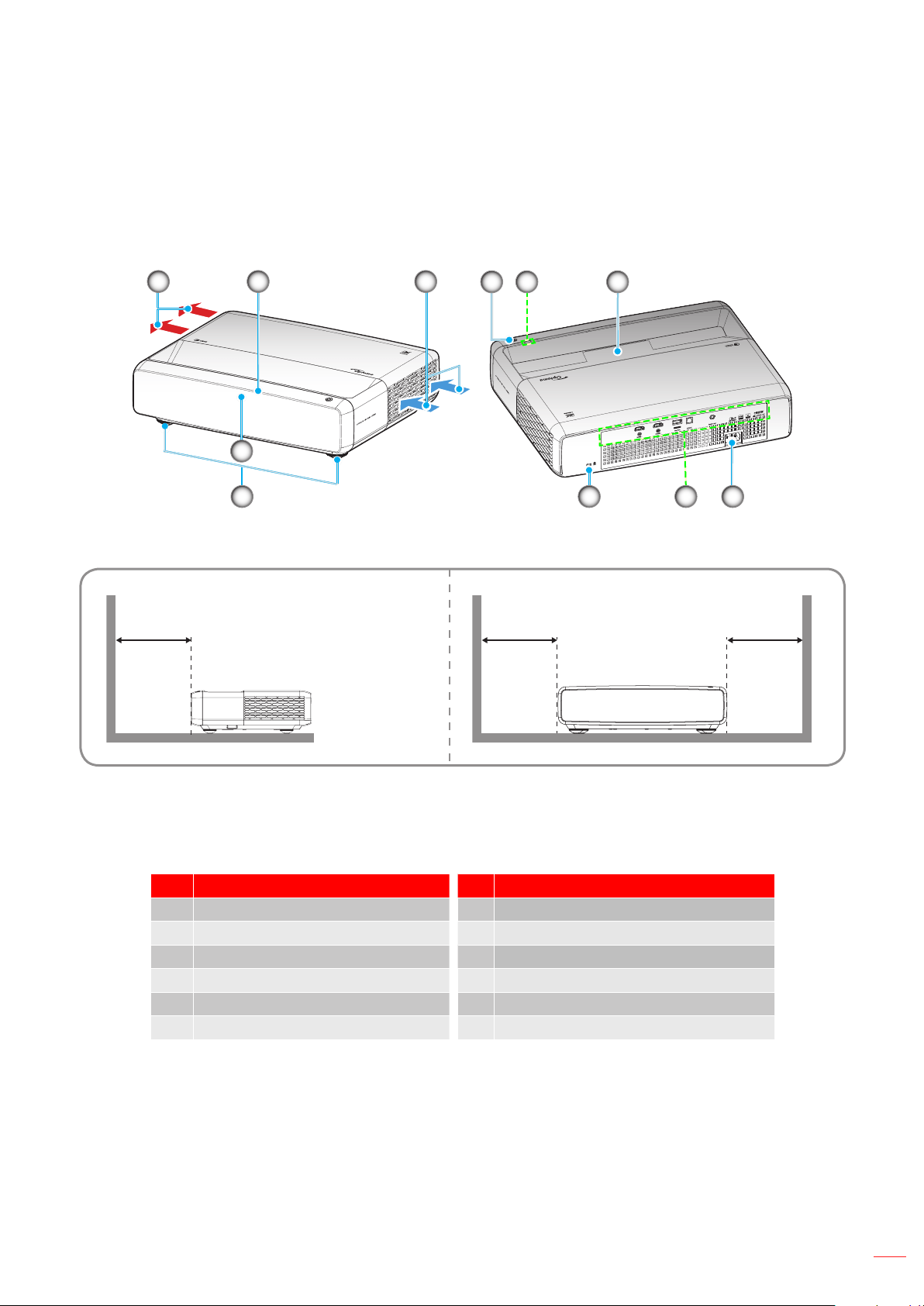
11
3
4
1
6
5
9
10
78
2
Minimum
300mm
Minimum
300mm
Minimum
300mm
Note:
Do not block projector intake and exhaust vents.
When operating the projector in an enclosed space, allow at least 30cm (12”) clearance around the
intake and exhaust vents.
No Item No Item
1. Ventilation (outlet) 7. Power Socket
2. Top IR Receiver 8. Input / Output
3. Ventilation (inlet) 9. Kensington™ Lock Port
4. Power Button 10. Tilt-Adjustment Feet
5. LED Indicators 11. Front IR Receiver
6. Lens
English
16
INTRODUCTION
Connections
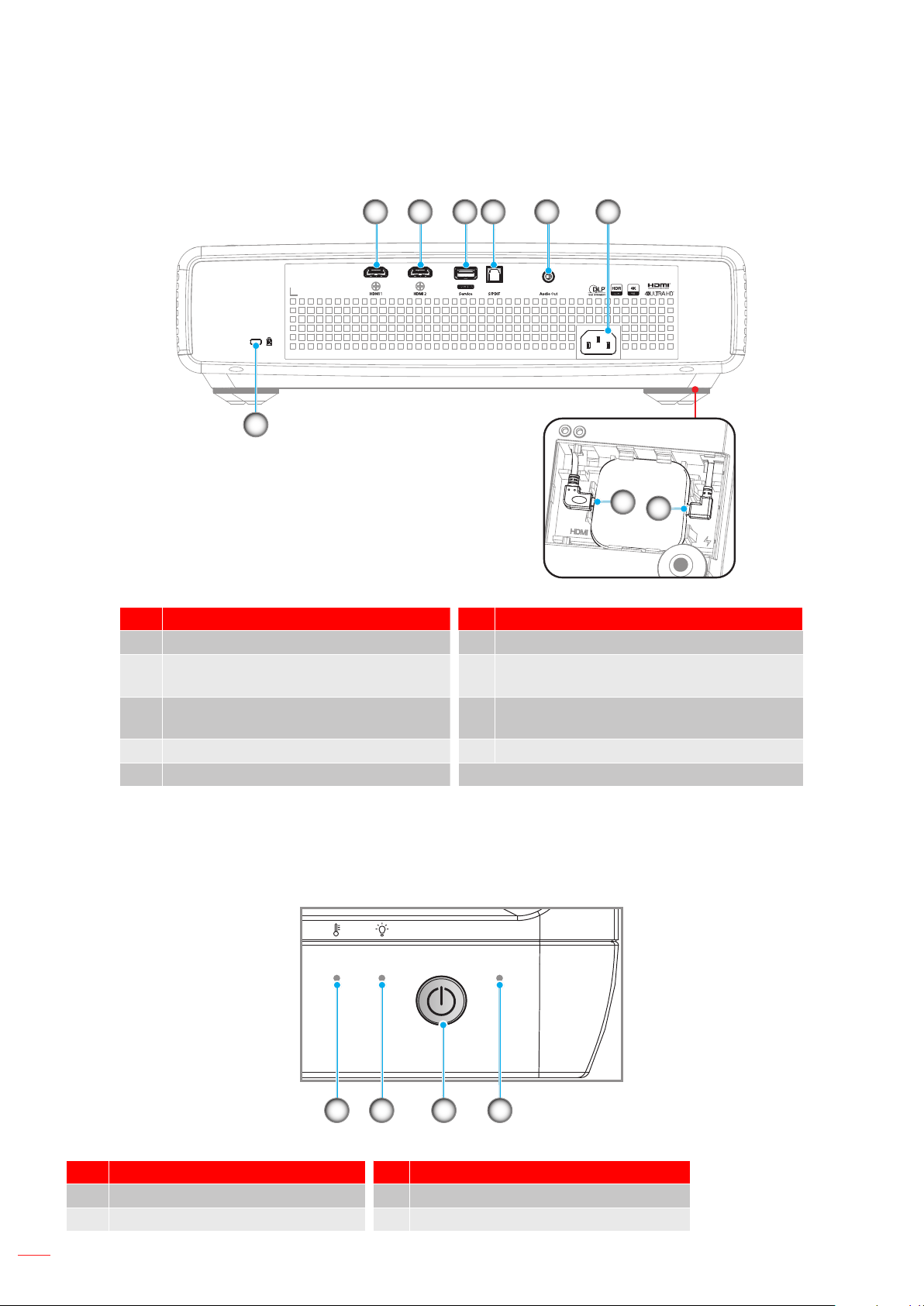
1 2 3 4 5 6
9
8
7
No Item No Item
1. HDMI 1 Connector (4K 60Hz) 6. Power Socket
2.
HDMI 2 Connector (4K 60Hz) 7. USB Power Out (5V/1.5A)
(micro USB connector for Android TV dongle)
3.
USB Power OUT (5V/1.5A)
Connector(*)
8. HDMI 3 Connector
(micro HDMI connector for ATV dongle)
4. S/PDIF Connector (PCM 2-channel) 9 Kensington
TM
Lock Port
5. Audio Out Connector
Note: (*) Not recommended for charging a cell phone.
Keypad and LED indicators
31 2 4
No Item No Item
1. Temp LED 3. Power Button
2. Light Source LED 4. Power LED
English
17
INTRODUCTION
Remote control
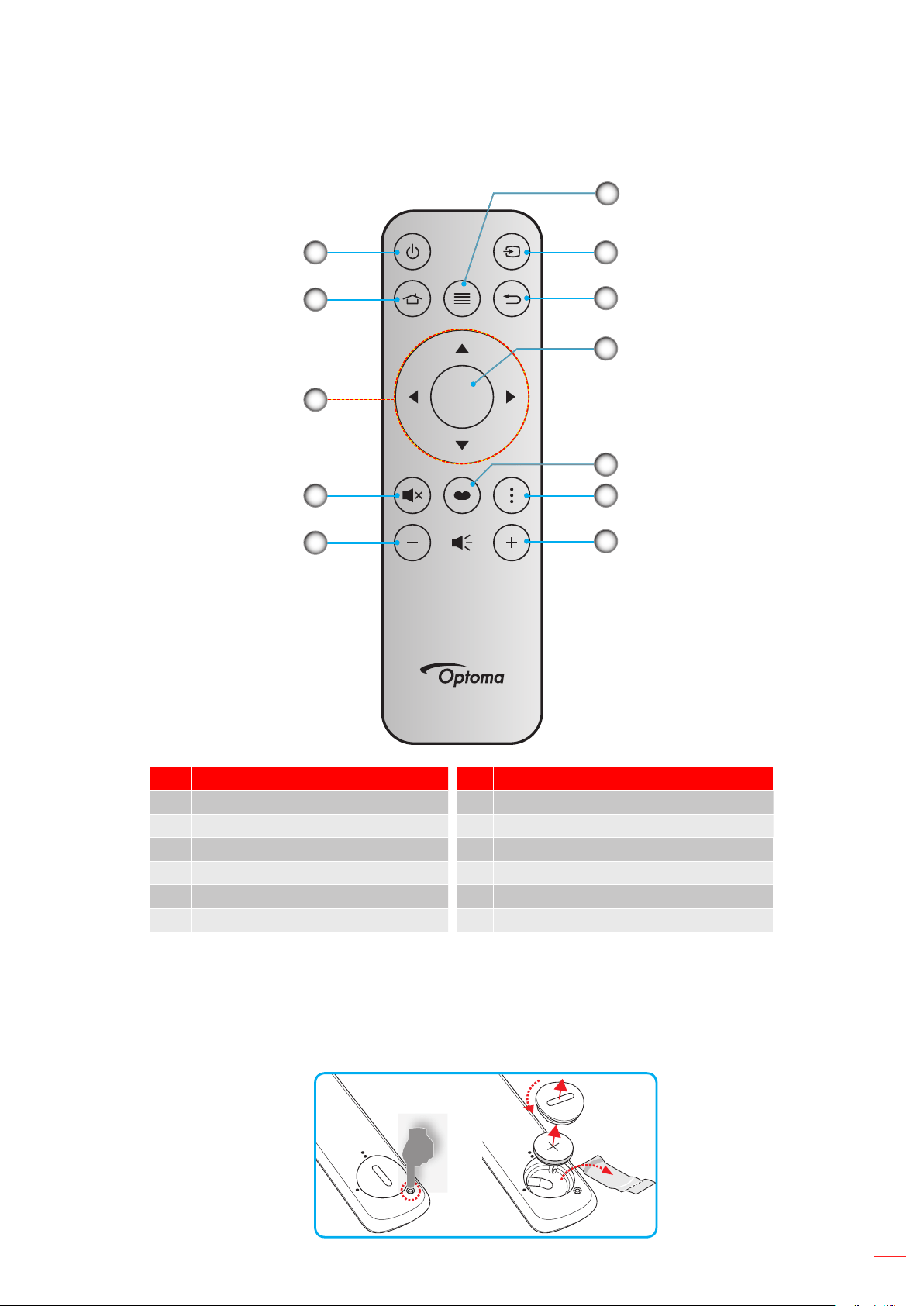
Enter
1
2
4
5
3
6
7
8
9
11
12
10
No Item No Item
1. Power On / O 7. Source
2. HDMI3 8. Return
3. Four Directional Select Keys 9. Enter
4.
Mute 10. Picture Mode
5. Volume - 11. Focus Pattern
6. Menu 12. Volume +
Note:
The actual remote control may vary depending on the region.
Some keys may have no function for models that do not support these features.
Before using the remote control for the rst time, press the lock button, open the battery compartment
cover, and then remove the transparent insulation tape as illustrated below. See page
23 for battery
installation.
3
V
O
L
T
S
CR2032
English
18
SETUP AND INSTALLATION
Installing the projector
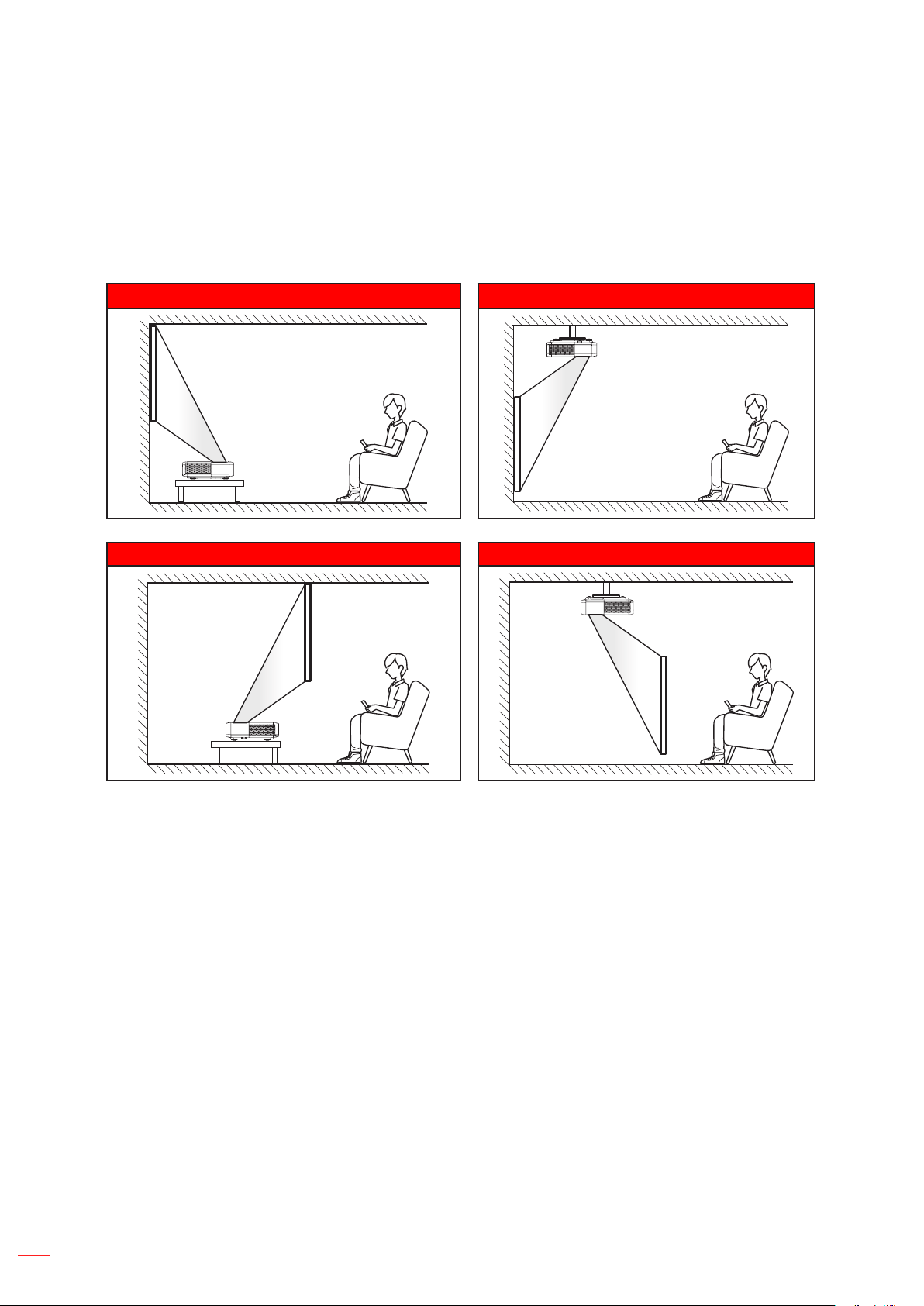
Your projector is designed to be installed in one of four possible positions.
Your room layout or personal preference will dictate which installation location you select. Take into consideration
the size and position of your screen, the location of a suitable power outlet, as well as the location and distance
between the projector and the rest of your equipment.
Table mount front Ceiling mount front
Table mount rear Ceiling mount rear
Projector should be placed at on a surface and 90 degrees / perpendicular to the screen.
How to determine projector location for a given screen size,
please refer to distance table on
page 49.
How to determine screen size for a given distance, please refer to distance table on page 49.
Note:
The further away the projector is placed from the screen the projected image size increases and
vertical oset also increases proportionally.
The vertical oset may vary between projectors, due to the limitations of optical manufacturing.
Additional adjustments may occur when switching projectors.
English
19
SETUP AND INSTALLATION
Projector installation notice
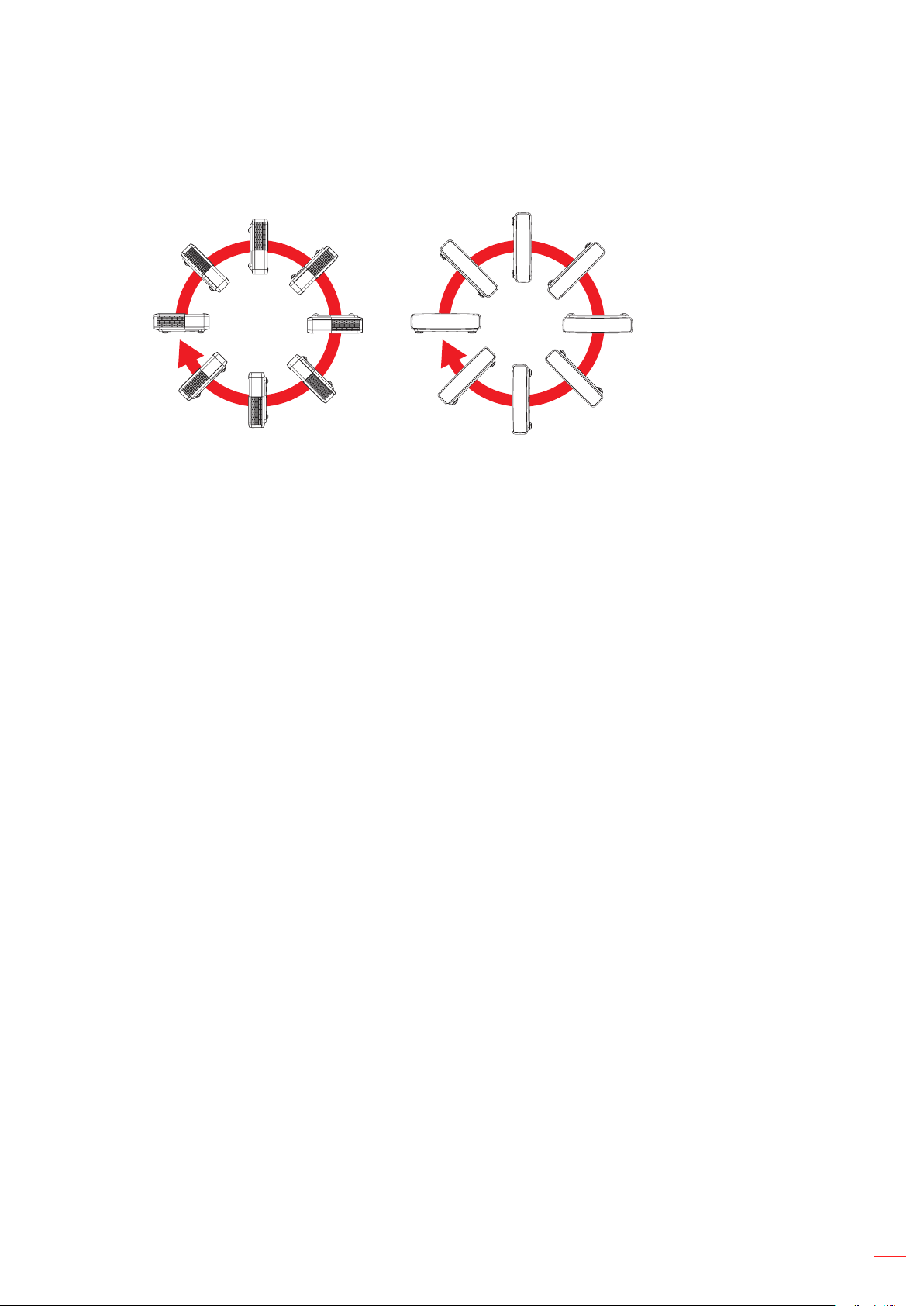
360 degree projection & Portrait mode
English
20
SETUP AND INSTALLATION
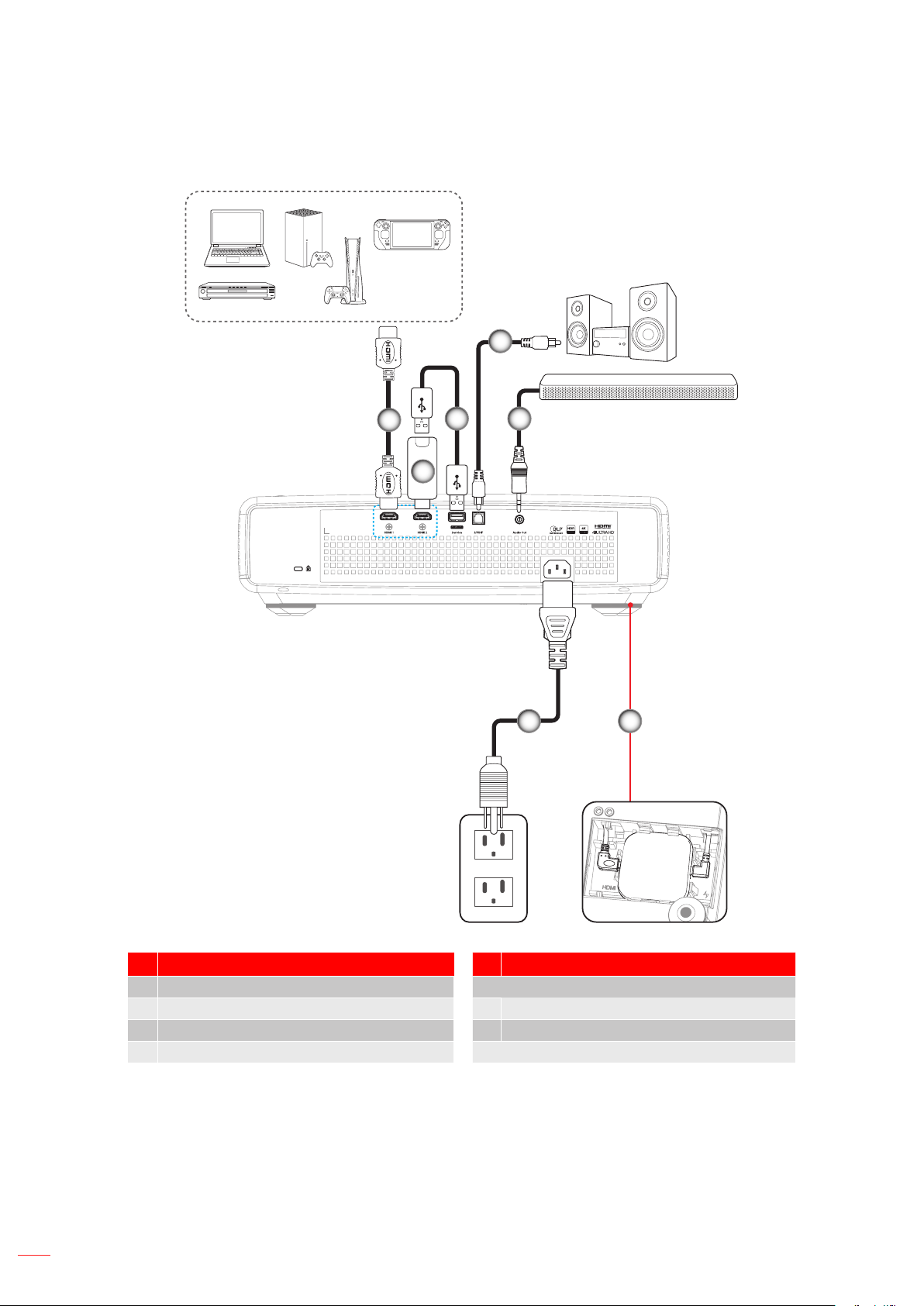
Connecting sources to the projector
1
2
4
6
53
7
No Item No Item
1. HDMI Cable 5. Audio Out Cable
2. HDMI Dongle 6. Android TV Dongle (refer to page 21)
3. USB Power Cable 7. Power Cord
4. S/PDIF Out Cable
Note:
To ensure the best image quality and avoid connection errors, we recommend the use of Premium
HDMI cables. For the cable lengths longer than 20-25 feet, we strongly recommend using Active Fiber
HDMI cables.
English
21
SETUP AND INSTALLATION
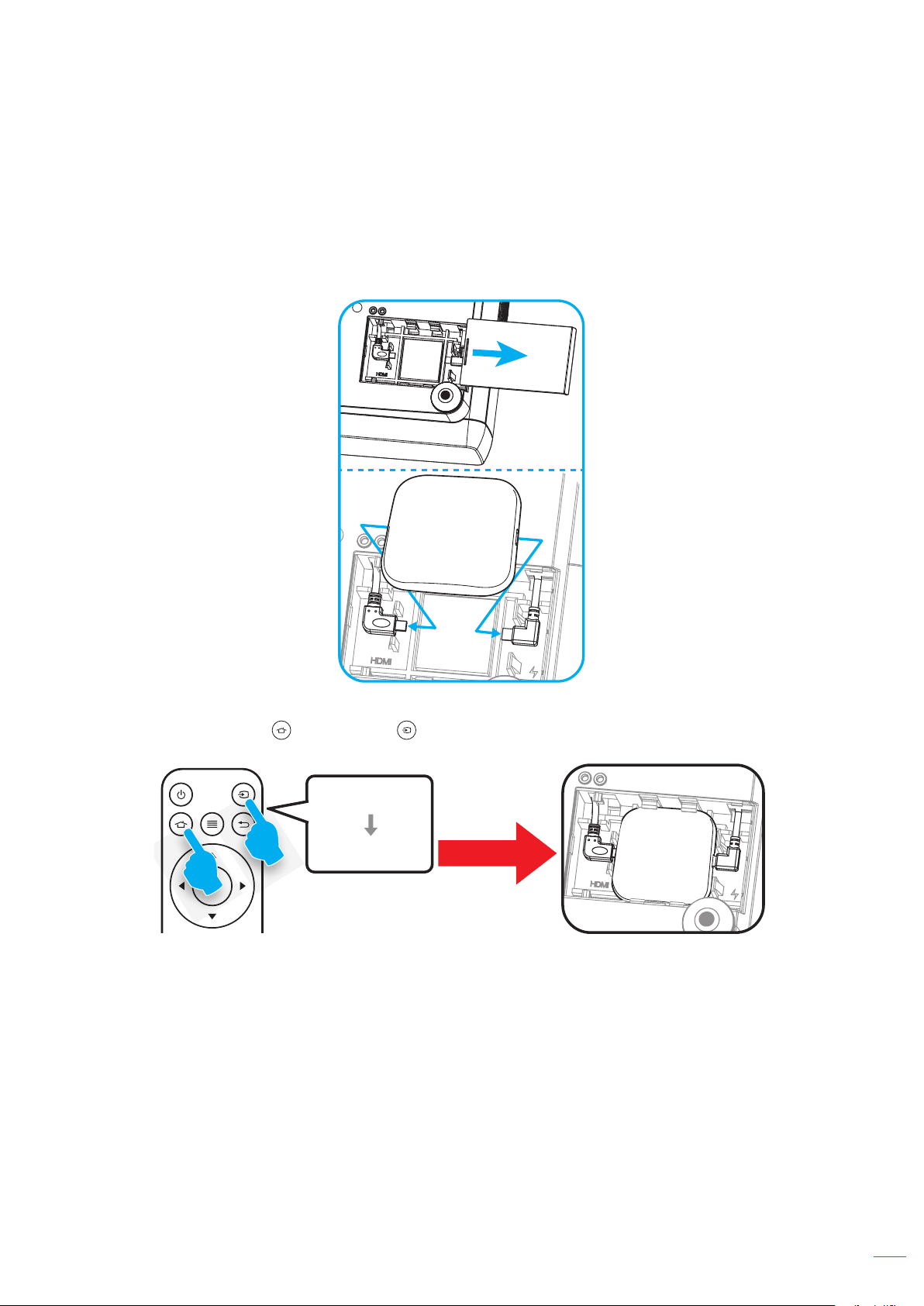
Installing and using the Android TV dongle
To install and start using the Android TV dongle, do the following:
1. Power o the projector. (Refer to page 25)
2. Remove the Android TV dongle compartment door on the bottom of the projector.
3. Align and install the Android TV dongle into its compartment.
4. Connect the HDMI and power cables to their respective connectors on the sides of the Android TV
dongle.
HDMI
POWER
5. Power on the projector. (Refer to page 25)
6. Press either the “ ” button or the “ ” button > HDMI3 on the remote control to access the streaming
apps.
Enter
Input Source
HDMI3
or
Access Streaming Apps
English
22
SETUP AND INSTALLATION
Adjusting the projector image
Image height
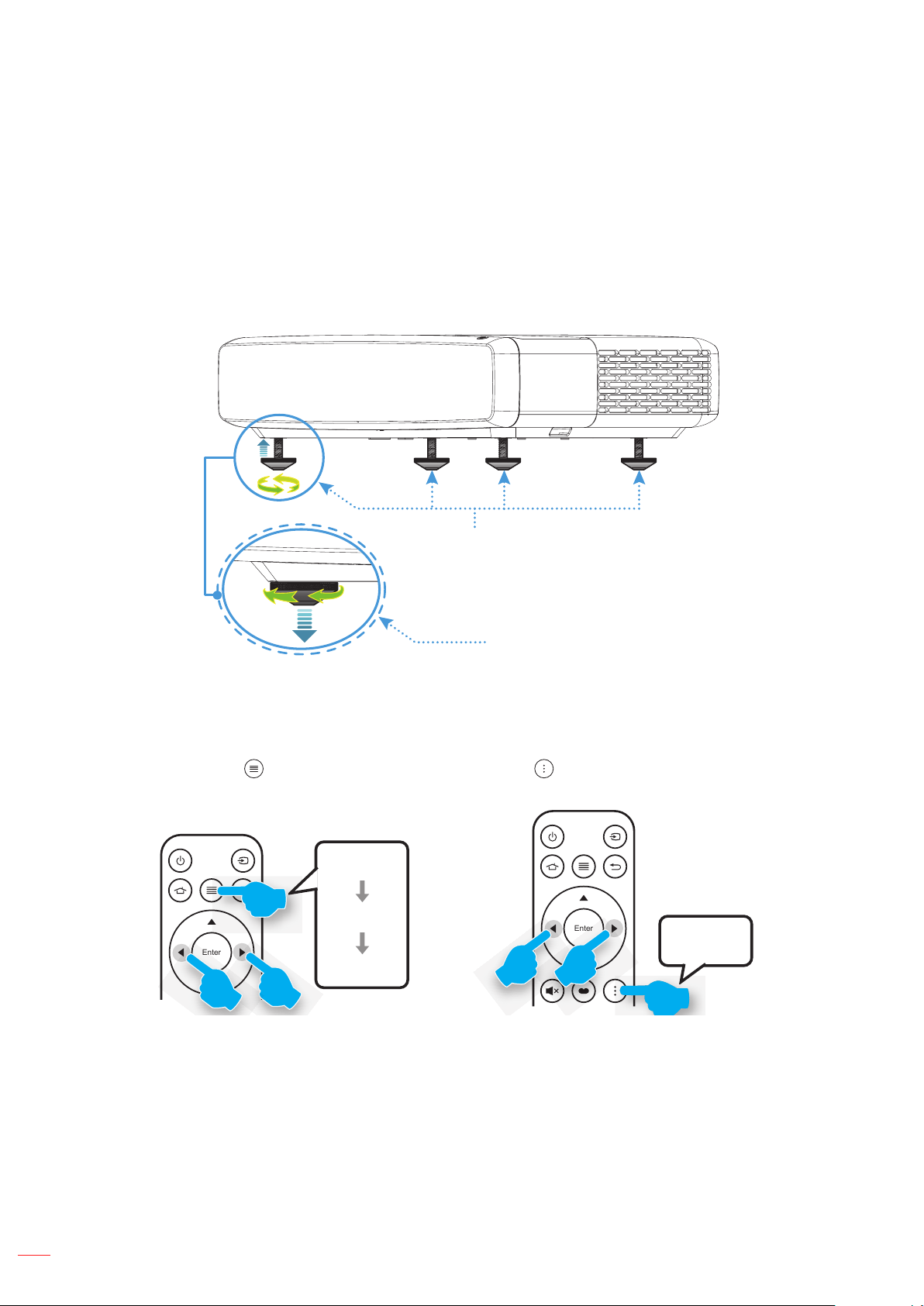
The projector is equipped with elevator feet for adjusting the image height.
1. Locate the adjustable foot you wish to adjust on the underside of the projector.
2. Rotate the adjustable foot clockwise or counterclockwise to raise or lower the projector.
Tilt-Adjustment Feet
Tilt-Adjustment Ring
Focus
To adjust the focus, do the following:
1. Open either “
” “Display-->Focus” menu or press the “ ” button on the remote control.
2. Press the “t” or “u” button on the remote control until the image is sharp and legible.
Enter
A
B
B
Menu
Display
Focus
Enter
B B
A
Focus
English
23
SETUP AND INSTALLATION
Remote setup
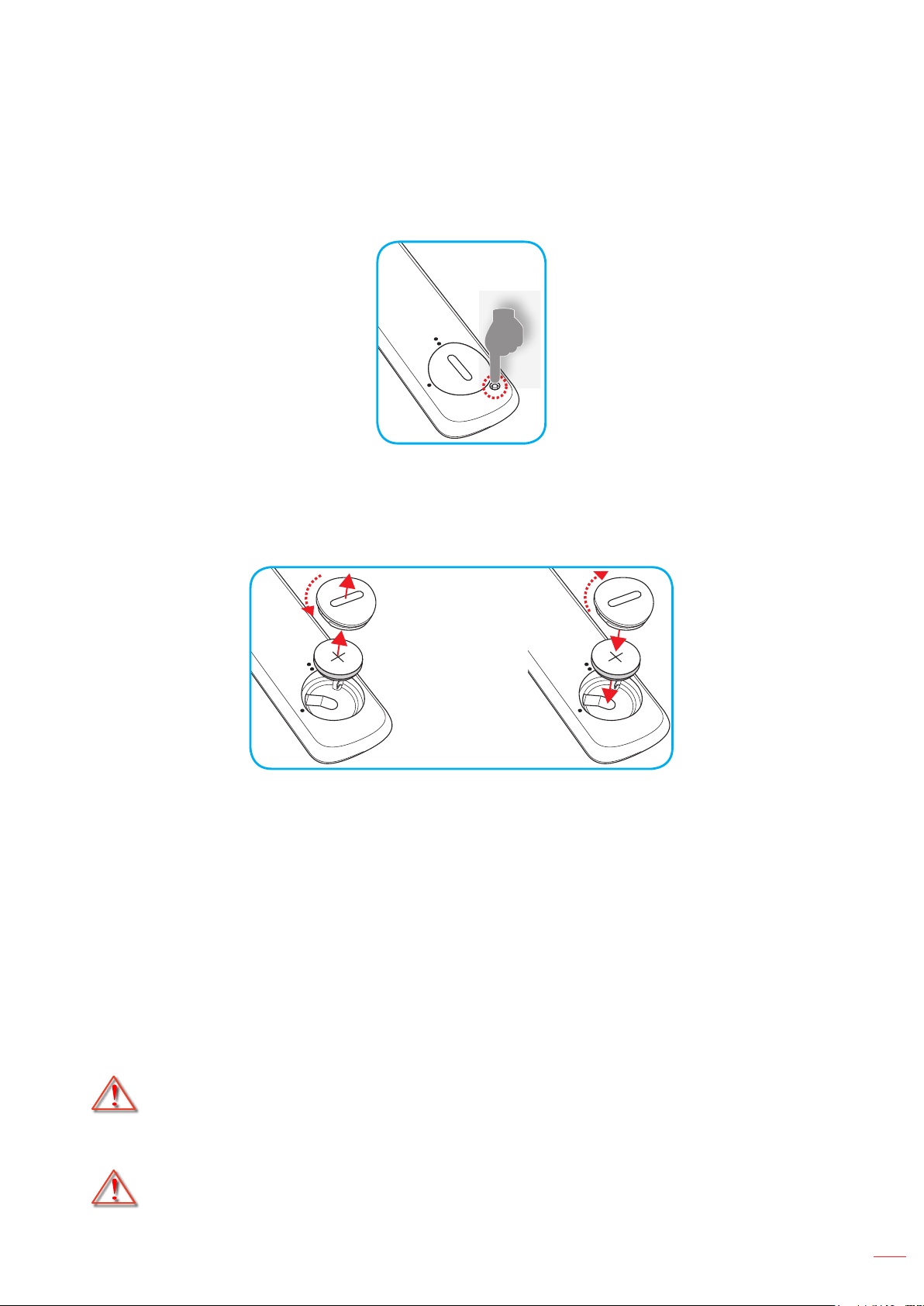
Installing / replacing the battery
1. Press the lock button next to the battery compartment cover.
2. Use a coin to turn the battery cover counterclockwise until the cover opens.
3. Install new battery into the compartment.
Remove the old battery and install new one (CR2032). Ensure that the side with a “+” is facing up.
4. Put the cover back. Then use a coin to turn the battery cover clockwise to lock it in place.
3
V
O
L
T
S
CR2032
3
V
O
L
T
S
CR2032
CAUTION:
To ensure safe operation, please observe the following precautions:
Use CR2032 type battery.
Avoid contact with water or liquid.
Do not expose the remote control to moisture or heat.
Do not drop the remote control.
If the battery has leaked in the remote control, carefully wipe the case clean and install new battery.
Risk of an explosion if battery is replaced by an incorrect type.
Dispose of used battery according to the instructions.
Warning: Do not ingest battery, Chemical Burn Hazard.
This product contains a coin / button cell battery. If the coin / button cell battery is
swallowed, it can cause severe internal burns in just 2 hours and can lead to death.
Warning: Keep new and used batteries away from children.
If the battery compartment does not close securely, stop using the product and keep it
away from children.If you think batteries might have been swallowed or placed inside any
part of the body, seek immediate medical attention.
English
24
SETUP AND INSTALLATION
Eective range
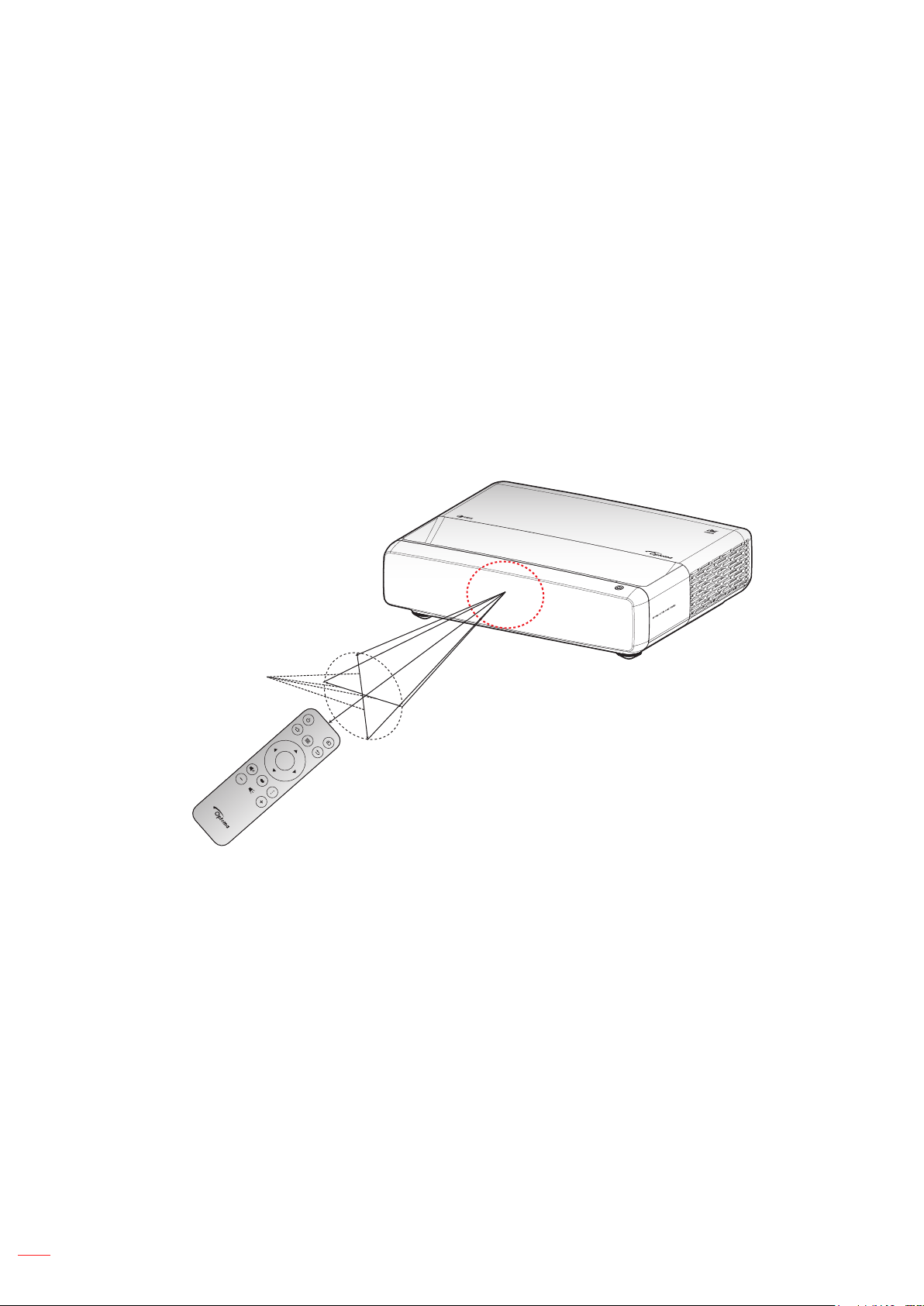
Infra-Red (IR) remote control sensor is located on top of the projector. Ensure to hold the remote control at an
angle within 30° perpendicular to the projector’s IR remote control sensors to function correctly. The distance
between the remote control and the sensor should not be longer than 4 meters (~13 feet).
Note: When pointing the remote control directly (0 degrees angle) on the IR sensor, the distance between the
remote control and the sensor should not be longer than 6 meters (~19 feet).
Make sure that there are no obstacles between the remote control and the IR sensor on the projector
that might obstruct the infra-red beam.
Please ensure that the IR transmitter of the remote control is not being shined on directly by sunlight
or uorescent lamps.
Please keep the remote control more than 2 meters away from uorescent lamps in order to avoid
possible malfunction. If the remote is exposed to inverter-type uorescent lamps it may become
intermittently ineective.
Please be aware that if used within too close proximity of the projector, the remote control may
become ineective.
Enter
Approx. ±15°
English
25
USING THE PROJECTOR
Powering on / o the projector
Enter
or
Powering on
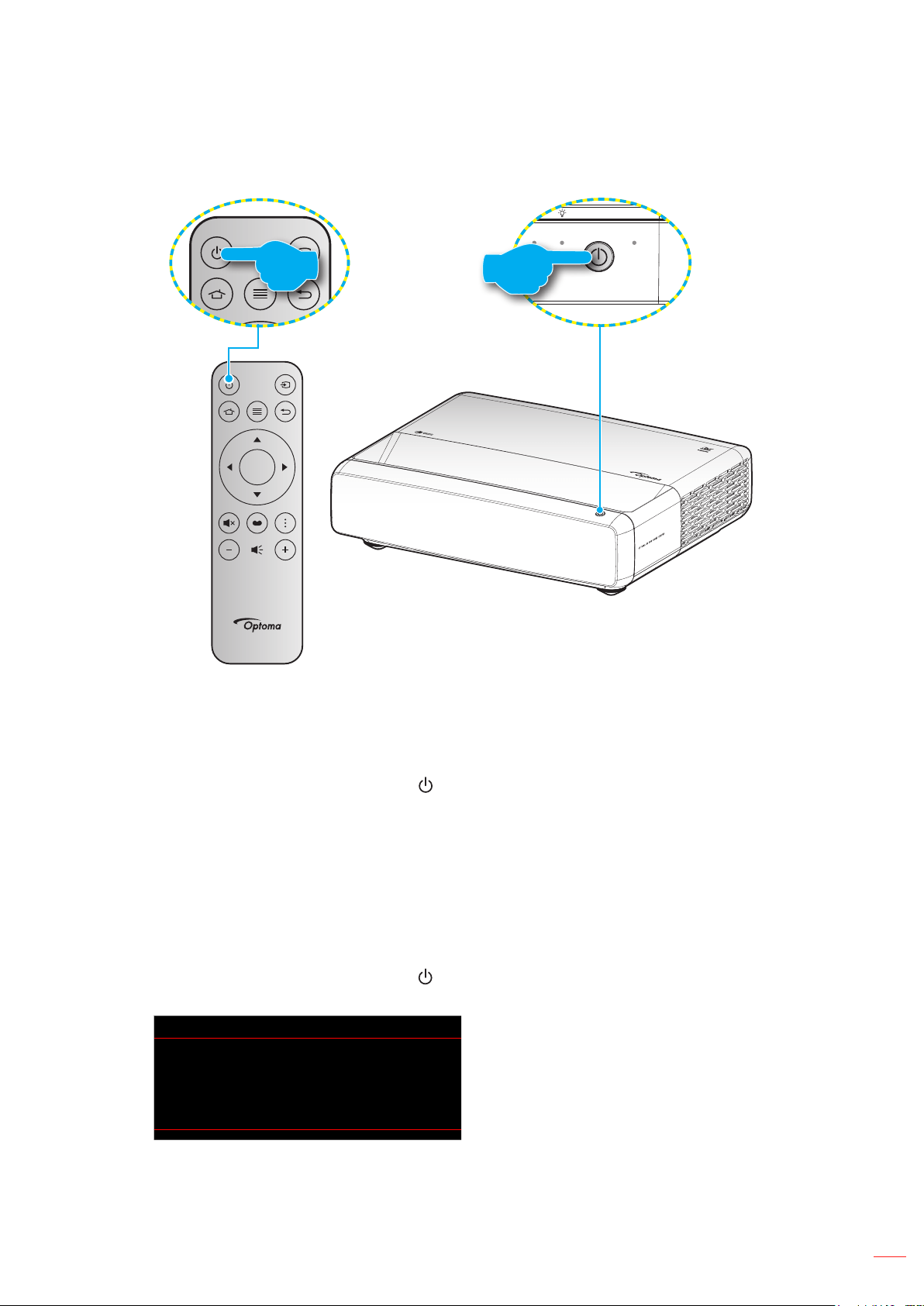
1. Securely connect the power lead and signal/source cable. When connected, the On/Standby LED will
turn red.
2. Turn on the projector by pressing the “
” button on the projector keypad or the remote control.
3. A start up screen will display in approximately 1 second and the On/Standby LED will be ashing
white.
Note: The rst time the projector is turned on, you will be prompted to select the preferred language, projection
orientation, and other settings.
Powering o
1. Turn o the projector by pressing the “ ” button on the projector keypad or the remote control.
2. The following message will be displayed:
Power O
Power O?
Press power key again.
English
26
USING THE PROJECTOR
3. Press the “
” button again to conrm, otherwise the message will disappear after 15 seconds. When
you press the “ ” button for the second time, the projector will shut down.
4. The cooling fans will continue to operate for about 1 second. When the On/Standby LED turns solid
red, this indicates the projector has entered standby mode. If you wish to turn the projector back on,
simply press the “
” button.
5. Disconnect the power lead from the electrical outlet and the projector.
Selecting an input source
Turn on the connected source that you want to display on the screen, such as computer, notebook, video player,
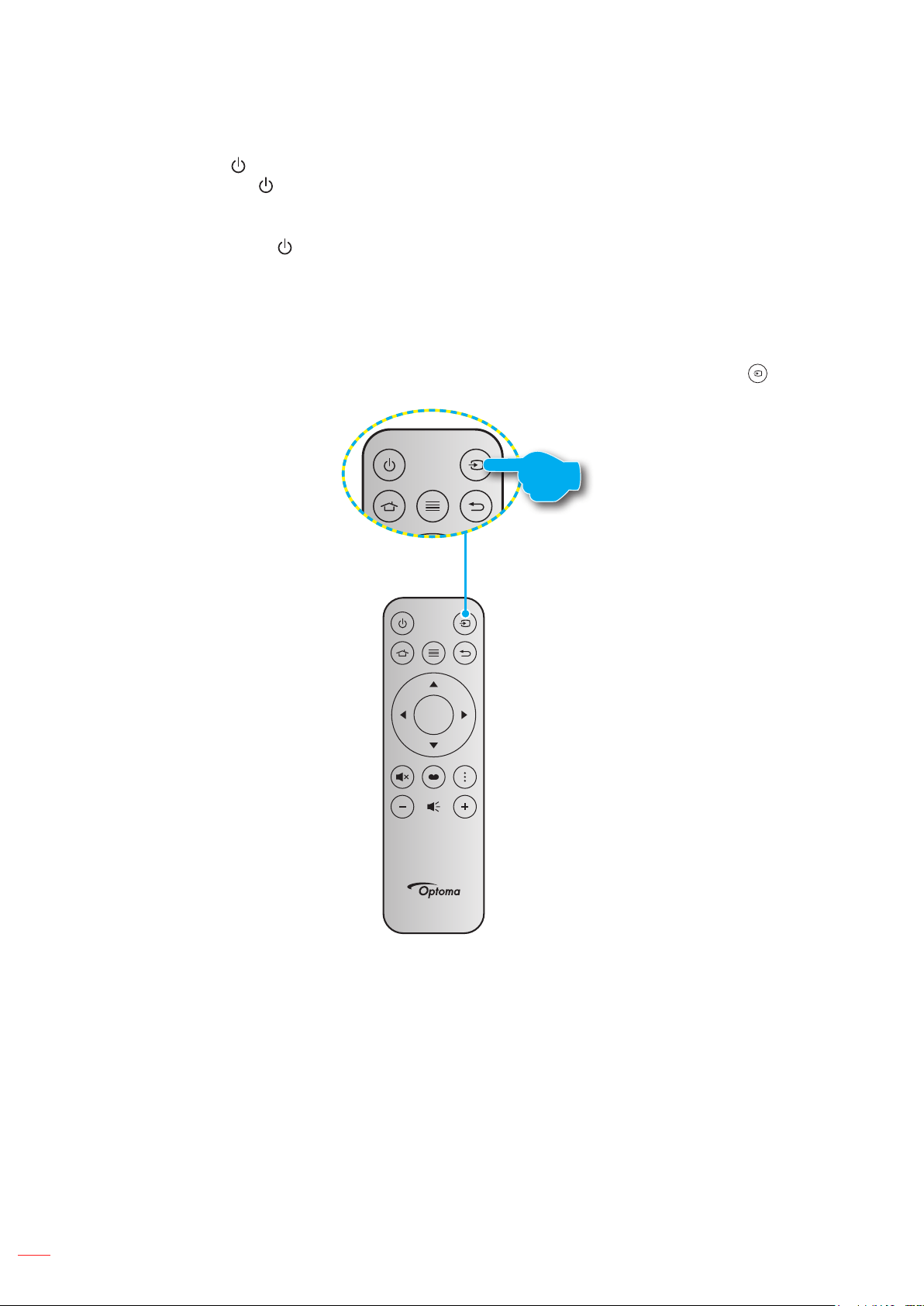
etc. The projector will automatically detect the source. If multiple sources are connected, press the “
” button on
the remote control to select the desired input.
Enter
English
27
USING THE PROJECTOR
Menu navigation and features
The projector has multilingual on-screen display menus that allow you to make image adjustments and change a
variety of settings. The projector will automatically detect the source.
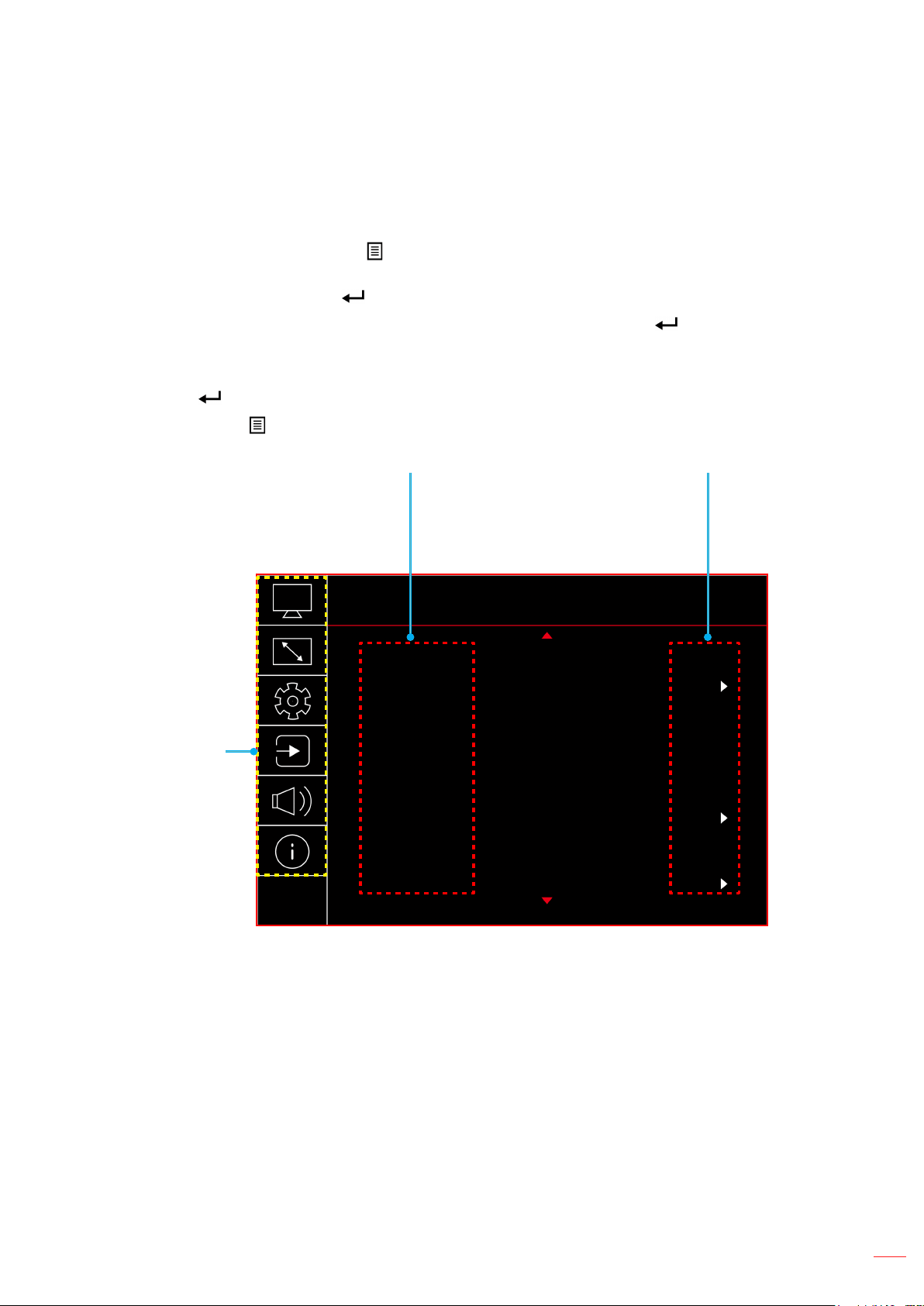
1. To open the OSD menu, press
on the remote control.
2. When OSD is displayed, use pq keys to select any item in the main menu. While making a selection
on a particular page, press
on the remote control or the projector keypad to enter sub menu.
3. Use pq keys to select the desired item in the sub menu and then press
to view further settings.
Adjust the settings by using tu keys.
4. Select the next item to be adjusted in the sub menu and adjust as described above.
5. Press
to conrm, and the screen will return to the main menu.
6. To exit, press
again. The OSD menu will close and the projector will automatically save the new
settings.
Image Picture
Picture Mode Cinema
Dynamic Range
0
0
10
O
Brightness
Contrast
Sharpness
Gamma
Dynamic Black
Color Settings
Sub Menu
Main Menu
Settings
English
28
USING THE PROJECTOR
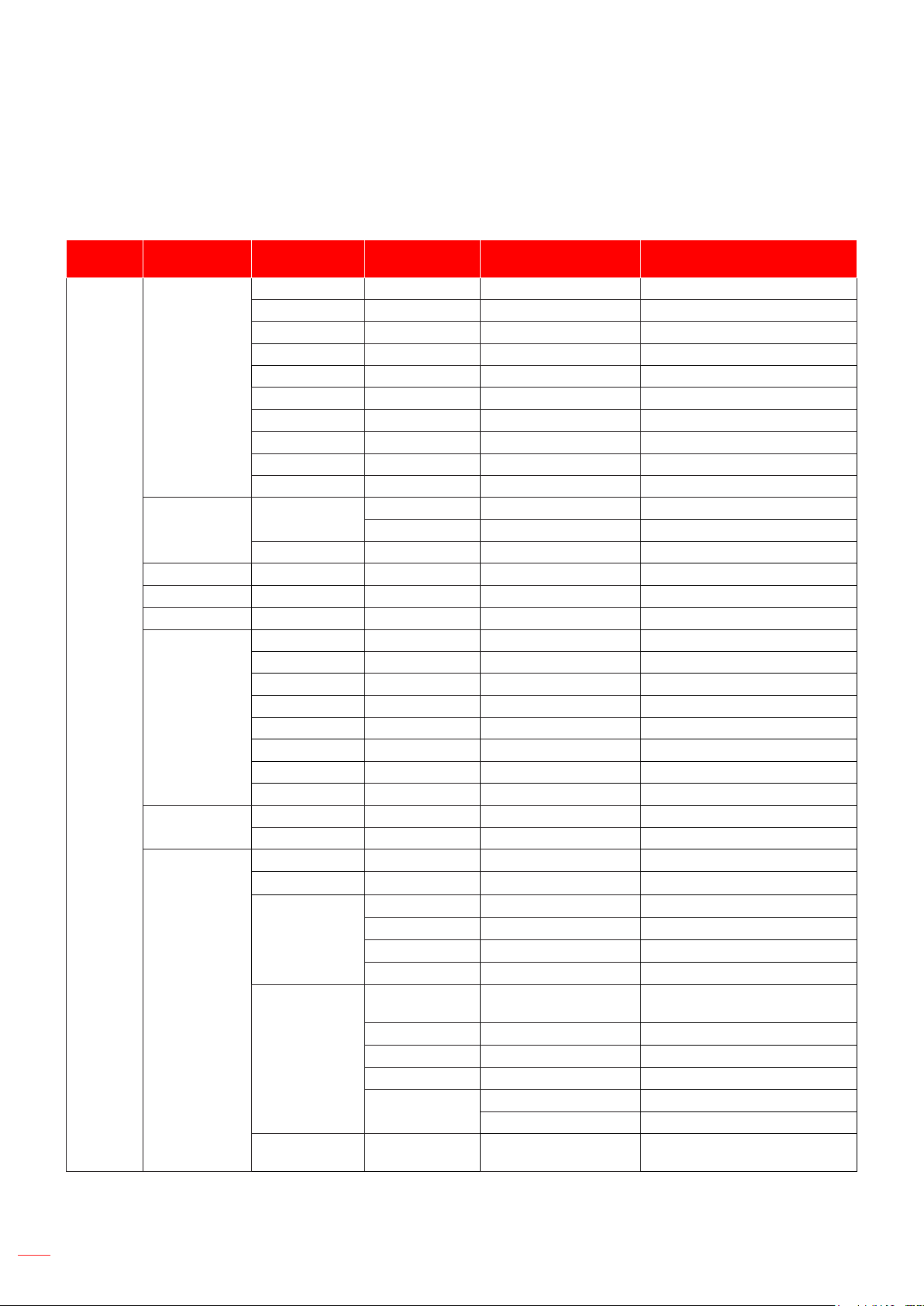
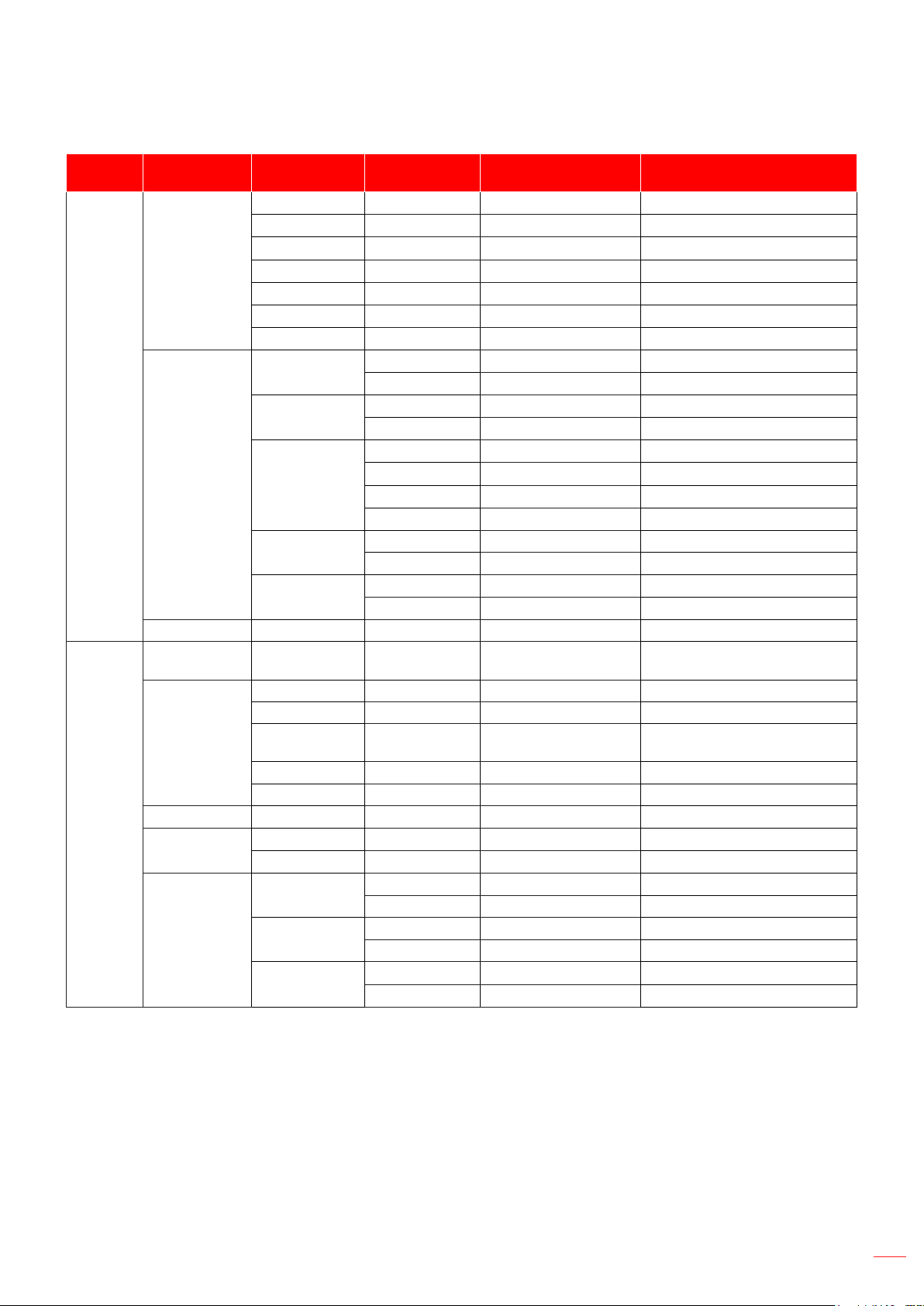
OSD Menu tree
Note: The OSD menu tree items and features are subject to models and region. Optoma reserve the right to add
or remove items to improve product performance without notice.
Main
Menu
Sub Menu Sub Menu 2 Sub Menu 3 Sub Menu 4 Values
Image
Picture Mode
Vivid
HDR
HLG
HDR SIM.
Cinema
Game
Reference
Bright
3D
Reset
Dynamic Range
HDR / HLG
Auto
O
HDR Brightness 0 ~ 10
Brightness -50 ~ 50
Contrast -50 ~ 50
Sharpness 1 ~ 15
Gamma
Film
Video
Graphics
1.8
2.0
2.2
2.4
3D
Dynamic Black
O
On
Color Settings
Color
-50 ~ 50
Tint
-50 ~ 50
Color
Temperature
Warm
Standard
Cool
Cold
CMS / Colour
Adjustment
Color
White / Red / Green / Blue / Cyan /
Magenta / Yellow
Hue
-50 ~ 50
Saturation
-50 ~ 50
Value (Luminance) -50 ~ 50
Reset
No
Yes
Color Space
HDMI Input: Auto / RGB(0~255) /
RGB(16~235) / YUV
English
29
USING THE PROJECTOR
Main
Menu
Sub Menu Sub Menu 2 Sub Menu 3 Sub Menu 4 Values
Image
Wall Color
O
Blackboard
Light Yellow
Light Green
Light Blue
Pink
Grey
3D
3D Mode
O
On
3D Sync Type
DLP-Link
3D Sync
3D Format
Auto
SBS (Side by Side)
Top and Bottom
Frame Sequential
3D Sync Invert
O
On
Reset
No
Yes
Reset
Display
Focus
Press the “t” or “u” button on the
remote control to adjust focus.
Geometric
Correction
V Keystone -10 ~ 10
H Keystone -10 ~ 10
Four Corner
Adjustment
Warping
Reset
Digital Zoom Zoom
-5 ~ 25
Gaming Mode
O
On
Advanced
Gaming
Smooth Motion
O
On
Display FPS
O
White/Red/Green
Target Master
O
White/Red/Green
English
30
USING THE PROJECTOR
Main
Menu
Sub Menu Sub Menu 2 Sub Menu 3 Sub Menu 4 Values
Display
Aspect Ratio
4:3
16:9
V-Stretch
Full Screen
21:9
32:9
Native
Auto
Light Source
Mode
Bright
Eco
Reset
Setup
Test Pattern
Green Grid
Magenta Grid
White Grid
White
O
Projection
Orientation
Front
Rear
Ceiling-Top
Rear-Top
Language
English
Deutsch
Français
Italiano
Español
Português
繁體中文
簡体中文
日本語
한국어
Русский
Menu Settings
Menu Location
Top left
Top right
Center
Bottom left
Bottom right
Menu Timer
O
5s
10s
20s
30s
Information Hide
O
On
High Altitude
O
On
English
31
USING THE PROJECTOR
Main
Menu
Sub Menu Sub Menu 2 Sub Menu 3 Sub Menu 4 Values
Setup
Power Settings
Direct Power On
O
On
Signal Power On
O
On
Auto Power O
(min.)
0, 2 ~ 180 (1 min increments)
Sleep Timer
(min.)
0 ~ 990 (30 min increments)
Security
Security
O
On
Security Timer
Month
Day
Hour
Change
Password
Eye Protection
Sensor
O
On
Startup Logo Logo
Default
Neutral
Background
Color
None
Blue
Red
Green
Grey
Logo
Device Reset
Reset OSD
No
Yes
Reset All Settings
No
Yes
Input
Auto Source
O
On
Remember Last
Source
O
On
Auto Input
Switch
O
On
HDMI CEC
Settings
HDMI Link
O
On
Inclusive of TV
No
Yes
Power On Link
Mutual
PJ Device
Device PJ
Power O Link
O
On
Reset
No
Yes
English
32
USING THE PROJECTOR
Main
Menu
Sub Menu Sub Menu 2 Sub Menu 3 Sub Menu 4 Values
Audio
Volume 0 ~ 10
Mute
O
On
Audio Mode
Auto
Standard
Movie
Game
Audio Output
Internal Speaker
SPDIF
Reset
Information
Regulatory
Serial Number
Source Info.
Source, Resolution, Refresh Rate
Color Info
Color Bit Depth
Color Gamut
Color Space
Light Source
Hours
Light Source
Mode
Bright
Eco
FW Version
DDP
MCU
MST

English
33
USING THE PROJECTOR
Image menu
Image picture mode menu
There are several predened display modes that you can choose from to suit your viewing preference. Each mode
has been ne-tuned by our expert colour team to ensure superior colour performance for wide range of content.
Vivid: In this mode, the color saturation and brightness are well-balanced. Choose this mode for
playing games.
HDR / HLG: Decodes and displays High Dynamic Range (HDR) / Hybrid Log Gamma (HLG) content
for the deepest blacks, brightest whites, and vivid cinematic color using REC.2020 color gamut.
This mode will be automatically enabled if HDR/HLG is set to Auto (and HDR/HLG Content is sent
to projector – 4K UHD Blu-ray, 1080p/4K UHD HDR/HLG Games, 4K UHD Streaming Video). While
HDR/HLG mode is active, other display modes (Cinema, Reference, etc.) cannot be selected as
HDR/HLG delivers color that is highly accurate, exceeding the color performance of the other display
modes.
HDR SIM.: Enhances non-HDR content with simulated High Dynamic Range (HDR). Choose this
mode to enhance gamma, contrast, and color saturation for non-HDR content (720p and 1080p
Broadcast/Cable TV, 1080p Blu-ray, non-HDR Games, etc).
Note: This mode can ONLY be used with non-HDR content.
Cinema: Provides the best balance of detail and colors for watching movies.
Game: Optimises your projector for maximum contrast and vivid colors allowing you to see shadow
detail when playing video games.
Reference: This mode reproduces colors as close as possible the image the way the movie director
intended. Color, color temperature, brightness, contrast and gamma settings are all congured to
Rec.709 color gamut. Select this mode for the most accurate colour reproduction when watching
movies.
Bright: This mode is suitable for environments where extra-high brightness is required, such as using
the projector in well-lit rooms.
3D: Optimized settings for watching 3D content.
Note: To experience the 3D eect, you will need to have compatible DLP Link 3D glasses. See 3D
section for more information.
Reset: Return the factory default settings for picture mode settings.
Image dynamic range menu
HDR / HLG
Congure the High Dynamic Range (HDR) / Hybrid Log Gamma(HLG) setting and its eect when displaying video
from 4K Blu-ray players and streaming devices.
Auto: Auto detect HDR/HLG signal.
O: Turn o HDR/HLG Processing. When set to O, the projector will NOT decode HDR/HLG content.
HDR Brightness
Adjust the brightness level of HDR.
Image brightness menu
Adjust the brightness of the image.

English
34
USING THE PROJECTOR
Image contrast menu
The contrast controls the degree of dierence between the lightest and darkest parts of the picture.
Image sharpness menu
Adjust the sharpness of the image.
Image gamma menu
Set up gamma curve type. After the initial setup and ne tuning is completed, utilize the Gamma Adjustment steps
to optimize your image output.
Film: For home theater.
Video: For video or TV source.
Graphics: For PC / Photo source.
1.8 / 2.0 / 2.2 / 2.4: For specic PC / Photo source.
3D: To experience the 3D eect, you need to have 3D glasses. Make sure your PC/portable device
has a 120 Hz signal output quad buered graphics card and a 3D Player installed.
Note: In 3D mode, only “3D” option is available for Gamma.
Image dynamic black menu
Use to automatically adjust the picture brightness in order to give optimum contrast performance.
Image color settings menu
Color
Adjust a video image from black and white to fully saturated color.
Tint
Adjust the color balance of red and green.
Color Temperature
Select a color temperature from Warm, Standard, Cool, or Cold.
CMS / Colour Adjustment
Select the following options:
Color: Adjust the red, green, blue, cyan, yellow, magenta, and white level of the image.
Hue: Adjust the color balance of red and green.
Saturation: Adjust a video image from black and white to fully saturated color.
Value (Luminance): Adjust the luminance of the selected color.
Reset: Return the factory default settings for color adjustment.
Color Space
Select an appropriate color matrix type from the following: Auto, RGB(0-255), RGB(16-235), and YUV.

English
35
USING THE PROJECTOR
Image wall color menu
Designed to adjust the colors of the projected image when projecting on to a wall without a screen. Each mode has
been ne-tuned by our expert colour team to ensure superior color performance.
There are several predened modes that you can choose from to suit the colour of your wall. Select between o,
blackboard, light yellow, light green, light blue, pink, and grey.
Note: For accurate color reproduction, we recommend using a screen.
Image 3D menu
Note:
This projector is a 3D ready projector with DLP-Link 3D solution.
Please make sure your 3D glasses are use for DLP-Link 3D before enjoy your video.
This projector supports frame sequential (page-ip) 3D via HDMI1/HDMI2 ports.
To enable 3D mode, the input frame rate should be set to 60Hz only, lower or higher frame rate is not
supported.
To reach the best performance, resolution 1920x1080 is recommended, please be noted that 4K
(3840x2160) resolution is not supported in 3D mode.
3D Mode
Use this option to disable or enable the 3D function.
O:
Select “O” to turn o 3D mode.
On: Select “On” to turn on 3D mode.
3D Sync Type
Use this option to select 3D technology.
DLP-Link: Select to use optimized settings for DLP 3D Glasses.
3D Sync: Select to use optimized settings for IR, RF or polarized 3D Glasses.
3D Format
Use this option to select the appropriate 3D format content.
Auto: When a 3D identication signal is detected, the 3D format is selected automatically.
SBS: Display 3D signal in “Side-by-Side” format.
Top and Bottom: Display 3D signal in “Top and Bottom” format.
Frame Sequential: Display 3D signal in “Frame Sequential” format.
3D Sync Invert
Use this option to enable/disable the 3D sync invert function.
Reset
Return the factory default setting for 3D settings.
No: Select to cancel Reset.
Yes: Select to return the factory default settings for 3D.
Image reset menu
Return the factory default settings for image settings.
English
36
USING THE PROJECTOR
Display menu
Display focus menu
Adjust the image focus. For more information, refer to “Focus” on page 22.
Display geometric correction menu
V Keystone
Adjust image distortion vertically and make a squarer image. Vertical keystone is used to correct a keystoned
image shape in which the top and bottom are slanted to one of the sides. This is intended when for use with
vertically on-axis applications.
H Keystone
Adjust image distortion horizontally and make a squarer image. Horizontal keystone is used to correct a keystoned
image shape in which the left and right borders of the image are unequal in length. This is intended for use with
vertically on-axis applications.
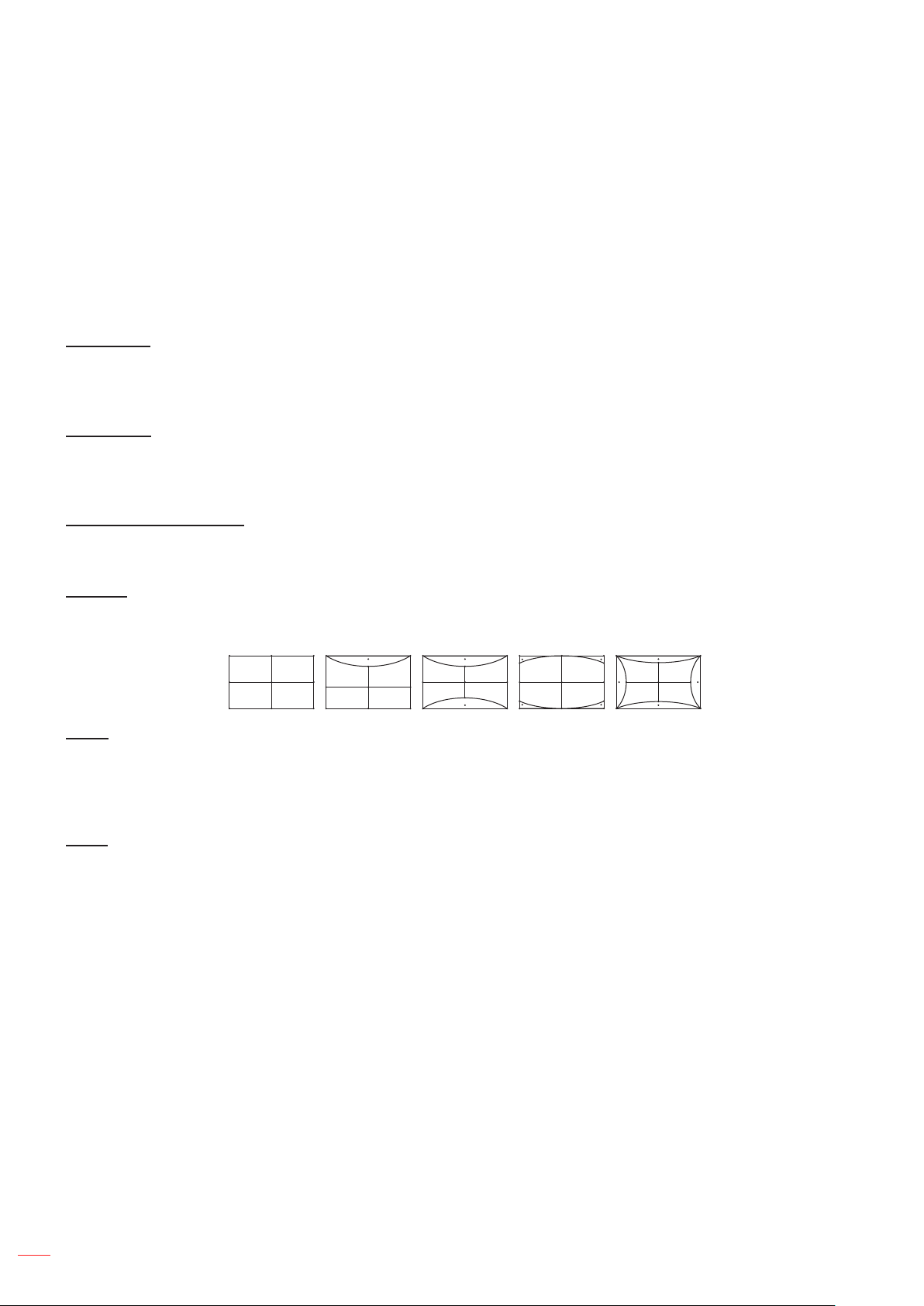
Four Corner Adjustment
This setting allows the projected image to be adjusted from each corner to make a square image when the
projection surface is not level.
Warping
Use warping to adjust the image to align with the border of the projection surface (screen) or to eliminate image
distortion (cause by an uneven surface).
Reset
Return the factory default setting for geometric correction settings.
Display digital zoom menu
Zoom
Use to reduce or magnify an image on the projection screen. Digital Zoom is not the same as optical zoom and an
result in degradation of image quality.
Note:
Zoom settings are retained on power cycle of the projector.
Digital Zoom is not supported in 3D mode.

English
37
USING THE PROJECTOR
Display gaming mode menu
Enable this feature to reduce response times (input latency) during gaming.
Display advanced gaming menu
Smooth Motion
Enable this feature to play the content with less motion artifacts, motion blur, and stuttered movement on the screen.
Note: Advanced gaming supports Variable Refresh Rate (VRR) from 48Hz to 144Hz @1080p.
Display FPS
During Smooth Motion is enabled to display the FPS number on the screen in white, red, or green where the color
reects the current frame rate.
Target Master
During Smooth Motion is enabled to display the Target Master on the screen for shooting games in white, red, or
green.
Display aspect ratio menu
Select the aspect ratio of the displayed image between the following options:
4:3:
This format is for 4:3 input sources.
16:9/ 21:9/32:9:
This format is for 16:9/ 21:9/32:9 input sources, like HDTV and DVD enhanced for
Wide screen TV.
V-Stretch:
This mode stretches a 2.35:1/2.4:1 image vertically removing the black bars.
Full Screen: Use this special 2.0:1 aspect ratio to display both 2.35:1/2/4:1 aspect ratio movies
without black bars at the top and bottom of the screen.
Native: This format displays the original image without any scaling.
Auto: Automatically selects the appropriate display format.
Note:
Detailed informations about V-Stretch mode:
± Some Letter-Box Format DVDs are not enhanced for 16x9 TVs. In this situation, the image will
not look right when displaying image in 16:9 mode. In this situation, please try to use the 4:3
mode to view the DVD. If the content is not 4:3, there will be black bars around the image in
16:9 display. For this type of content, you can use V-Stretch mode to ll the image on the 16:9
display
± If you use an external anamorphic lens, this V-Stretch mode also allows you to watch a 2.35:1
content (include Anamorphic DVD and HDTV lm source) that supports anamorphic wide is
enhanced for 16x9 Display in a wide 2.35:1 image. In this case, there are no black bars. Light
source power and vertical resolution are fully utilized
To use the Full Screen format, do the following:
a) Set the screen aspect ratio to 2.0:1.
b) Select “Full Screen” format.
c) Align the projector image correctly on the screen.
English
38
USING THE PROJECTOR
The Mapping rule for 4K UHD DMD:
16:9 screen 480i/p 576i/p 720p 1080i/p 2160p
4x3 Scale to 2880x2160.
16x9 Scale to 3840x2160.
21x9 Scale to 3840x1644.
32x9 Scale to 3840x1080.
V-stretch Get the central 3840x1620 image, and then scale it to 3840x2160 for display.
Full screen
Scale to 5068x2852 (132% Enlarge), then get the central 3840x2160 image for display.
Auto If source is 4:3, auto resize to 2880x2160.
Auto mapping rule:
Input resolution Auto/Scale
H-resolution V-resolution 3840 2160
4:3
800 600 2880 2160
1024 768 2880 2160
1280 1024 2880 2160
1400 1050 2880 2160
1600 1200 2880 2160
Wide Laptop
1280 720 3840 2160
1280 768 3600 2160
1280 800 3456 2160
SDTV
720 576 2700 2160
720 480 3240 2160
HDTV
1280 720 3840 2160
1920 1080 3840 2160
Display light source mode menu
Select a light source mode depending on the installation requirements.
Display reset menu
Return the factory default settings for display settings.

English
39
USING THE PROJECTOR
Setup menu
Setup test pattern menu
Select the test pattern from green grid, magenta grid, white grid, white, or disable this function (o).
Setup projection orientation menu
Select the preferred projection between front, rear, ceiling-top, and rear-top.
Setup language menu
Select the multilingual OSD menu between English, German, French, Italian, Spanish, Portuguese, Traditional
Chinese, Japanese, Korean, and Russian.
Setup menu settings menu
Menu Location
Select the menu location on the display screen.
Menu Timer
Set the duration where the OSD menu stays visible on the screen.
Information Hide
Enable this function to hide the information message.
Setup high altitude menu
When “On” is selected, the fans will spin faster. This feature is useful in high altitude areas where the air is thin.
Setup power settings menu
Direct Power On
Choose “On” to activate Direct Power mode. The projector will automatically power on when AC power is supplied,
without pressing the “Power” key on the projector keypad or on the remote control.
Signal Power On
Choose “On” to activate Signal Power mode. The projector will automatically power on when a signal is detected,
without pressing the “Power” key on the projector Keypad or on the remote control.
Note:
If the “Signal Power On” option is turned “On”, the power consumption of the projector in standby
mode will be over 3W.
This function is applicable with HDMI source.
Auto Power O (min.)
Sets the countdown timer interval. The countdown timer will start, when there is no signal being sent to the
projector. The projector will automatically power o when the countdown has nished (in minutes).
Sleep Timer (min.)
Sets the countdown timer interval. The countdown timer will start, with or without a signal being sent to the
projector. The projector will automatically power o when the countdown has nished (in minutes).

English
40
USING THE PROJECTOR
Note: The Sleep Timer is reset every time when the projector is powered o.
Setup security menu
Security
Enable this function to prompt for a password before using the projector.
On: Choose “On” to use security verication when the turning on the projector.
O: Choose “O” to be able to switch on the projector without password verication.
Note: The default password is 1234.
Security Timer
Can be select the time (Month/Day/Hour) function to set the number of hours the projector can be used. Once this
time has elapsed you will be requested to enter your password again.
Change Password
Use to set or modify the password that is prompted when turning the projector on.
Setup eye protection sensor menu
Enable eye protection sensor to temporarily switch o the lights when objects are too close to the projector beam.
Setup startup logo menu
Use this function to set the desired startup screen. If changes are made, they will take eect the next time the
projector is powered on.
Default: The default startup screen.
Neutral: Logo is not displayed on startup screen.
Setup background color menu
Use this function to display a blue, red, green, grey color, none, or logo screen when no signal is available.
Note: If the background color is set to “None”, then the background color is black.
Setup device reset menu
Reset OSD
Return the factory default settings for OSD menu settings.
Reset All Settings
Return the factory default settings for all settings.
English
41
USING THE PROJECTOR
Input menu
Input auto source menu
Choose this option to let the projector automatically nd an available input source.
Input remember last source menu
Choose this option to always start the projector with the last input source.
Input auto input switch menu
When HDMI input signal is detected, the projector will automatically switch the input source.
Input HDMI CEC settings menu
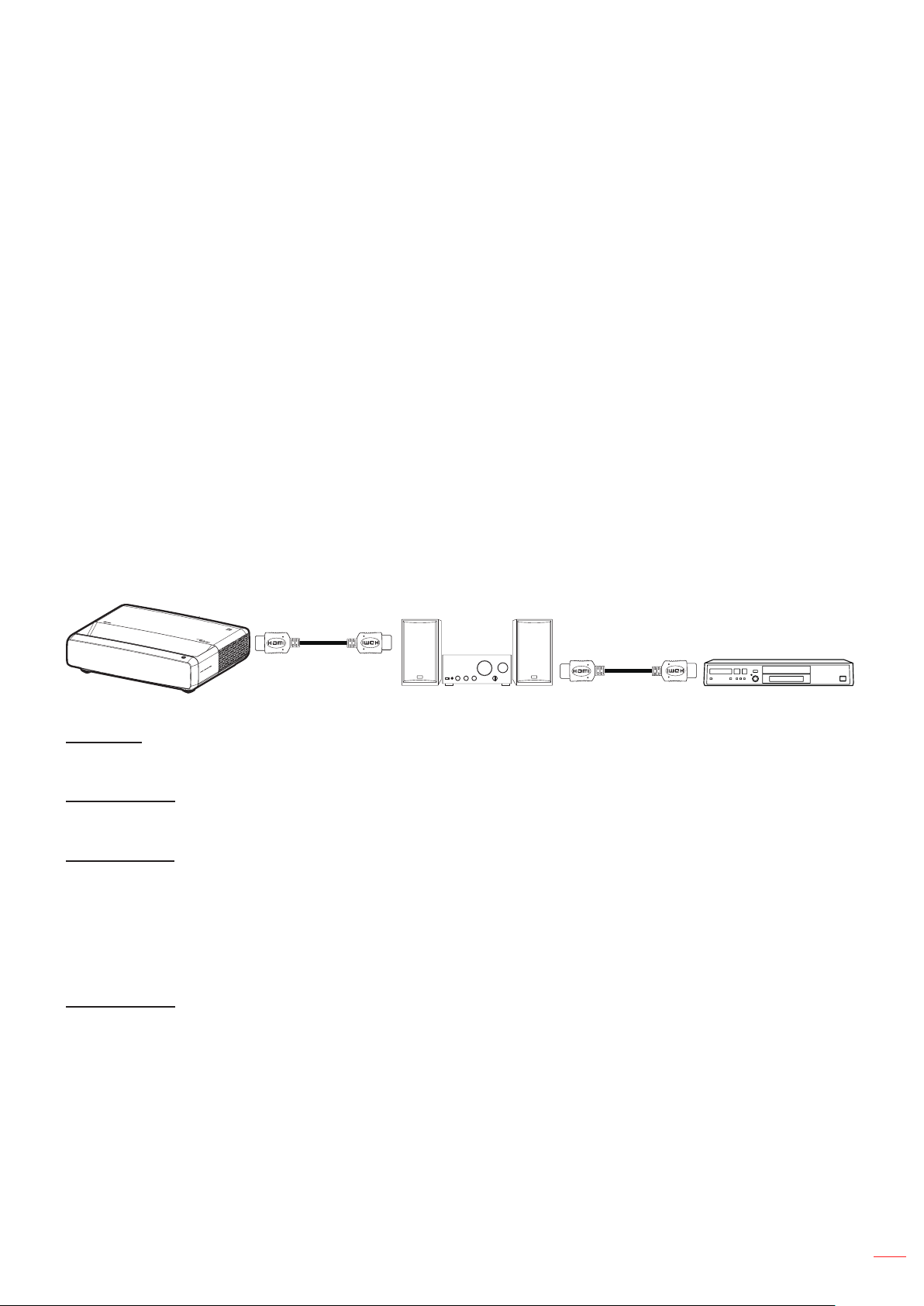
Note: When you connect HDMI CEC-compatible devices to the projector with HDMI cables, you can control them
on the same power on or power o status using the HDMI Link control feature in the projector’s OSD. This
lets one device or multiple devices in a group power on or power o via HDMI Link Feature in a typical
conguration, your DVD player may be connected to the projector through an amplier or home theater
system.
HDMI
Amplier
HDMI
DVD Player
HDMI Link
Enable/disable the HDMI Link function.
Inclusive of TV
If the settings is set to “Yes” then the power on and power o link options are available.
Power On Link
CEC power on command.
Mutual: Both projector and CEC device will be turned on simultaneously.
PJ
Device: The CEC device will be turned on only after the projector is switched on.
Device
PJ: The projector will be switched on only after the CEC device is turned on.
Power O Link
Enable this function to let both HDMI Link and projector to be automatically turned o at the same time.
Input reset menu
Return the factory default settings for input settings.

English
42
USING THE PROJECTOR
Audio menu
Audio volume menu
Adjust the volume level.
Audio mute menu
Use this option to temporarily turn o the sound.
On: Choose “On” to turn mute on.
O: Choose “O” to turn mute o.
Note: “Mute” function aects both internal and external speaker volume.
Audio audio mode menu
Select the appropriate audio mode from standard, movie, game, or allow the projector to detect the audio mode
automatically.
Audio audio output menu
Select the appropriate audio output from internal speaker or SPDIF.
Audio reset menu
Return the factory default settings for audio settings.
Information menu
Information menu
View the projector information as listed below:
Regulatory
Serial Number
Source Info.
Color Info.
Light Source Hours
Light Source Mode
FW Version
English
43
ADDITIONAL INFORMATION
Compatible resolutions
Timing table with smooth motion enabled
Modes Resolution V. Frequency [Hz]
(1) HDMI - PC Signal
VGA
640 x 480 67
VGA 640 x 480 60
VGA 640 x 480 72
VGA 640 x 480 75
VGA 720 x 400 70
SVGA 800 x 600 56
SVGA 800 x 600 60
SVGA 800 x 600 72
SVGA 800 x 600 75
XGA 1024 x 768 60
XGA 1024 x 768 70
XGA 1024 x 768 75
XGA 1024 x 768 120
SXGA 1280 x 1024 75
SXGA 1280 x 1024 60
UXGA 1600 x 1200 60
4K 3840 x 2160 60
(2) HDMI - Extended Wide timing
WXGA
1280 x 720 60
WXGA 1280 x 720 120
WXGA 1280 x 800 60
WXGA 1280 x 800 120
(3) HDMI - Video Signal
640
x 480p 640 x 480 60
480i 720 x 480 60
576i 720 x 576 50
480p 720 x 480 60
576p 720 x 576 (4:3) 50
480p 720 x 480 60
576p 720 x 576 (16:9) 50
720p 1280 x 720 60
720p 1280 x 720 50
1080i 1920 x 1080 60
1080i 1920 x 1080 50
1080p 1920 x 1080 24
1080p 1920 x 1080 60
1080p 1920 x 1080 50
1080p 1920 x 1080 120
1080p 1920 x 1080 144
1080p 3840 x 1080 60
English
44
ADDITIONAL INFORMATION
Modes Resolution V. Frequency [Hz]
2160p 3840 x 2160 60
2160p 3840 x 2160 50
2160p 3840 x 2160 25
2160p 3840 x 2160 24
2160p 3840 x 2160 30
2160p 4096 x 2160 24
2160p 4096 x 2160 25
2160p 4096 x 2160 30
2160p 4096 x 2160 50
2160p 4096 x 2160 60
Timing table with smooth motion disabled
Modes Resolution V. Frequency [Hz]
(1) HDMI - PC Signal
VGA
640 x 480 67
VGA 640 x 480 60
VGA 640 x 480 72
VGA 640 x 480 75
VGA 720 x 400 70
SVGA 800 x 600 56
SVGA 800 x 600 60
SVGA 800 x 600 72
SVGA 800 x 600 75
XGA 1024 x 768 60
XGA 1024 x 768 70
XGA 1024 x 768 75
XGA 1024 x 768 120
SXGA 1280 x 1024 75
SXGA 1280 x 1024 60
UXGA 1600 x 1200 60
4K 3840 x 2160 60
(2) HDMI - Extended Wide timing
WXGA
1280 x 720 60
WXGA 1280 x 720 120
WXGA 1280 x 800 60
WXGA 1280 x 800 120
(3) HDMI - Video Signal
640x480p
640 x 480 60
576p 720 x 576 (16:9) 50
480p 720 x 480 60
720p 1280 x 720 60
720p 1280 x 720 50
1080i 1920 x 1080 60
1080i 1920 x 1080 50
English
45
ADDITIONAL INFORMATION
Modes Resolution V. Frequency [Hz]
1080p 1920 x 1080 24
1080p 1920 x 1080 60
1080p 1920 x 1080 50
1080p 1920 x 1080 120
1080p 1920 x 1080 144
1080p 1920 x 1080 240
1080p 3840 x 1080 60
2160p 3840 x 2160 60
2160p 3840 x 2160 50
2160p 3840 x 2160 24
2160p 3840 x 2160 30
2160p 4096 x 2160 24
2160p 4096 x 2160 25
2160p 4096 x 2160 30
2160p 4096 x 2160 50
2160p 4096 x 2160 60
576p 720 x 576 50
720p 1280 x 720 60
720p 1280 x 720 50
1080i 1920 x 1080 60
1080i 1920 x 1080 50
1080p 1920 x 1080 24
1080p 1920 x 1080 60
1080p 1920 x 1080 50
1080p 1920 x 1080 120
1080p -144 (CVT-RB) 1920 x 1080 144
1080p 1920 x 1080 240
1080p 3840 x 1080 60
2160p 3840 x 2160 60
2160p 3840 x 2160 50
2160p 3840 x 2160 25
2160p 3840 x 2160 24
2160p 3840 x 2160 30
2160p 4096 x 2160 24
2160p 4096 x 2160 25
2160p 4096 x 2160 30
2160p 4096 x 2160 50
2160p 4096 x 2160 60
English
46
ADDITIONAL INFORMATION
True 3D video compatibility
Modes Resolution V. Frequency [Hz]
(4) HDMI – 1.4a 3D Timing
720p50 (Frame Packing) 1280 x 720 50
720p60 (Frame Packing ) 1280 x 720 60
1080p (Frame Packing ) 1920 x 1080 24
720p50 (Top and Bottom ) 1280 x 720 50
720p60 (Top and Bottom ) 1280 x 720 60
1080p (Top and Bottom) 1920 x 1080 24
1080p (Top and Bottom) 1920 x 1080 50
1080p (Top and Bottom) 1920 x 1080 60
720p (Side by Side (Half)) 1280 x 720 60
1080i (Side by Side (Half)) 1920 x 1080 50(25)
1080i (Side by Side (Half)) 1920 x 1080 60(30)
1080p (Side by Side (Half)) 1920 x 1080 50
1080p (Side by Side (Half)) 1920 x 1080 60
English
47
ADDITIONAL INFORMATION
Extended Display Identication Data (EDID) tables
Digital signal with VRR enabled (4K):
B0/Established
Timing
B0/Standard Timing B0/Detail Timing B1/Video Mode B1/Detail Timing
720 x 400 @ 70 (V) Hz x
31.5 (H) Hz
1280 x 720 @ 60Hz 16:9 3840 x 2160 @ 60Hz 640 x 480p @ 60Hz 4:3 1920 x 1080 @ 144Hz
640 x 480 @ 60 (V) Hz x
31.5 (H) Hz
1280 x 800 @ 60Hz 16:10 720(1440) x 576i @ 50Hz 4:3 3840 x 1080 @ 60Hz
640 x 480 @ 67 (V) Hz x
34.9 (H) Hz
1280 x 1024 @ 60Hz 5:4 720(1440) x 480i @ 60Hz 4:3
640 x 480 @ 72 (V) Hz x
37.9 (H) Hz
1600 x 1200 @ 60Hz 4:3 720(1440) x 480i @ 60Hz 16:9
640 x 480 @ 75 (V) Hz x
37.5 (H) Hz
1920 x 1200 @ 60Hz 16:10 720 x 576p @ 50Hz 4:3
800 x 600 @ 56 (V) Hz x
35.1 (H) Hz
1024 x 768 @ 120Hz 4:3 720 x 576p @ 50Hz 16:9
800 x 600 @ 60 (V) Hz x
37.9 (H) Hz
1280 x 720 @ 120Hz 16:9 720 x 480p @ 60Hz 4:3
800 x 600 @ 72 (V) Hz x
48.1 (H) Hz
1280 x 800 @ 120Hz 16:9 720 x 480p @ 60Hz 16:9
800 x 600 @ 75 (V) Hz x
46.9 (H) Hz
1280 x 720p @ 50Hz 16:9
1024 x 768 @ 60 (V) Hz x
48.4 (H) Hz
1280 x 720p @ 60Hz 16:9
1024 x 768 @ 70 (V) Hz x
56.5 (H) Hz
1920 x 1080i @ 60Hz 16:9
1024 x 768 @ 75 (V) Hz x
60 (H) Hz
1920 x 1080i @ 50Hz 16:9
1280 x 1024 @ 75 (V) Hz
x 80 (H) Hz
1920 x 1080p @ 24Hz 16:9
1920 x 1080p @ 50Hz 16:9
1920 x 1080p @ 60Hz 16:9
3840 x 2160p @ 24Hz 16:9
3840 x 2160p @ 25Hz 16:9
3840 x 2160p @ 30Hz 16:9
3840 x 2160p @ 50Hz 16:9
3840 x 2160p @ 60Hz 16:9
4096 x 2160p @ 24Hz 256:135
4096 x 2160p @ 25Hz 256:135
4096 x 2160p @ 30Hz 256:135
4096 x 2160p @ 50Hz 256:135
4096 x 2160p @ 60Hz 256:135
1920 x 1080p @ 120Hz 16:9
English
48
ADDITIONAL INFORMATION
Digital signal for gaming (4K):
B0/Established Timing B0/Standard Timing B0/Detail Timing B1/Video Mode B1/Detail Timing
720 x 400 @ 70 (V) Hz x
31.5 (H) Hz
1280 x 720 @ 60Hz 16:9 3840 x 2160 @ 60Hz 640 x 480p @ 60Hz 4:3 1920 x 1080 @ 144Hz
640 x 480 @ 60 (V) Hz x
31.5 (H) Hz
1280 x 800 @ 60Hz 16:10 720 x 576p @ 50Hz 16:9 3840 x 1080 @ 60Hz
640 x 480 @ 67 (V) Hz x
34.9 (H) Hz
1280 x 1024 @ 60Hz 5:4 720 x 480p @ 60Hz 16:9 1920 x 1080 @ 240Hz
640 x 480 @ 72 (V) Hz x
37.9 (H) Hz
1600 x 1200 @ 60Hz 4:3 1280 x 720p @ 50Hz 16:9
640 x 480 @ 75 (V) Hz x
37.5 (H) Hz
1920 x 1200 @ 60Hz 16:10 1280 x 720p @ 60Hz 16:9
800 x 600 @ 56 (V) Hz x
35.1 (H) Hz
1024 x 768 @ 120Hz 4:3 1920 x 1080i @ 60Hz 16:9
800 x 600 @ 60 (V) Hz x
37.9 (H) Hz
1280 x 720 @ 120Hz 16:9 1920 x 1080i @ 50Hz 16:9
800 x 600 @ 72 (V) Hz x
48.1 (H) Hz
1280 x 800 @ 120Hz 16:9 1920 x 1080p @ 24Hz 16:9
800 x 600 @ 75 (V) Hz x
46.9 (H) Hz
1920 x 1080p @ 50Hz 16:9
1024 x 768 @ 60 (V) Hz x
48.4 (H) Hz
1920 x 1080p @ 60Hz 16:9
1024 x 768 @ 70 (V) Hz x
56.5 (H) Hz
3840 x 2160p @ 24Hz 16:9
1024 x 768 @ 75 (V) Hz x
60 (H) Hz
3840 x 2160p @ 30Hz 16:9
1280 x 1024 @ 75 (V) Hz x
80 (H) Hz
3840 x 2160p @ 50Hz 16:9
3840 x 2160p @ 60Hz 16:9
4096 x 2160p @ 24Hz 256:135
4096 x 2160p @ 25Hz 256:135
4096 x 2160p @ 30Hz 256:135
4096 x 2160p @ 50Hz 256:135
4096 x 2160p @ 60Hz 256:135
1920 x 1080p @ 120Hz 16:9
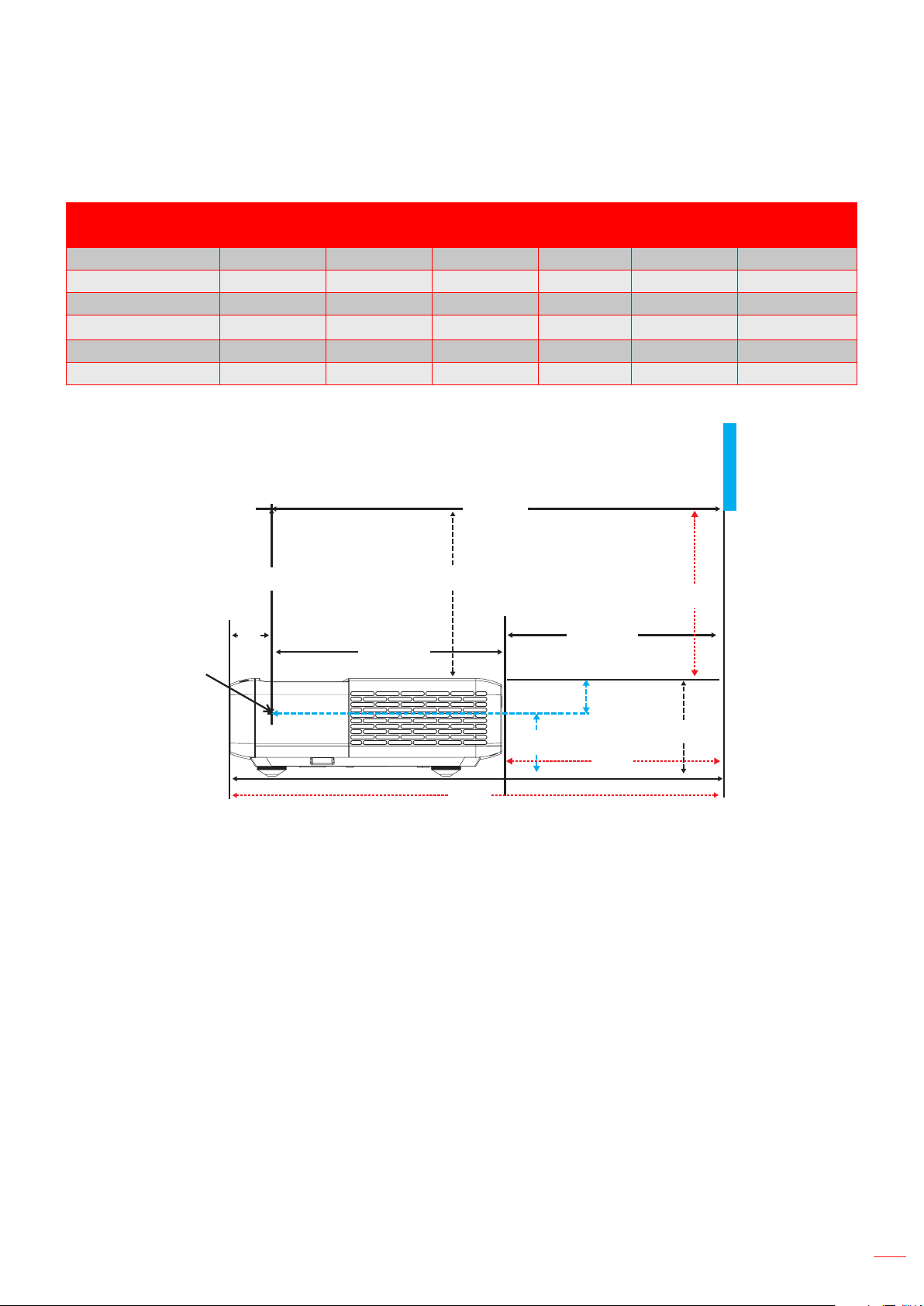
English
49
ADDITIONAL INFORMATION
Image size and projection distance
Image Size (inch)
DF Tolerance: 0~-7% DR H Oset: 121% ~ 131%
m inch m inch m inch
75" 0.479 18.867 0.163 6.427 0.147 ~ 0.241 5.798 ~ 9.475
85" 0.538 21.177 0.222 8.736 0.173 ~ 0.279 6.827 ~ 10.994
90" 0.567 22.332 0.251 9.891 0.186 ~ 0.299 7.342 ~ 11.754
100" 0.626 24.642 0.310 12.201 0.213 ~ 0.337 8.371 ~ 13.274
110" 0.685 26.951 0.369 14.510 0.239 ~ 0.425 9.401 ~ 16.718
120" 0.743 29.261 0.427 16.820 0.265 ~ 0.463 10.431 ~ 18.238
Note: All projectors have tolerance range. For the most accurate value, please measure the device directly.
562.5mm
274.83mm
285.5mm
323.7mm
~Mirror center
A
276.96mm
113.1mm
64.23mm
48.87mm
DR
DF
H
39.04mm
Screen
Bottom
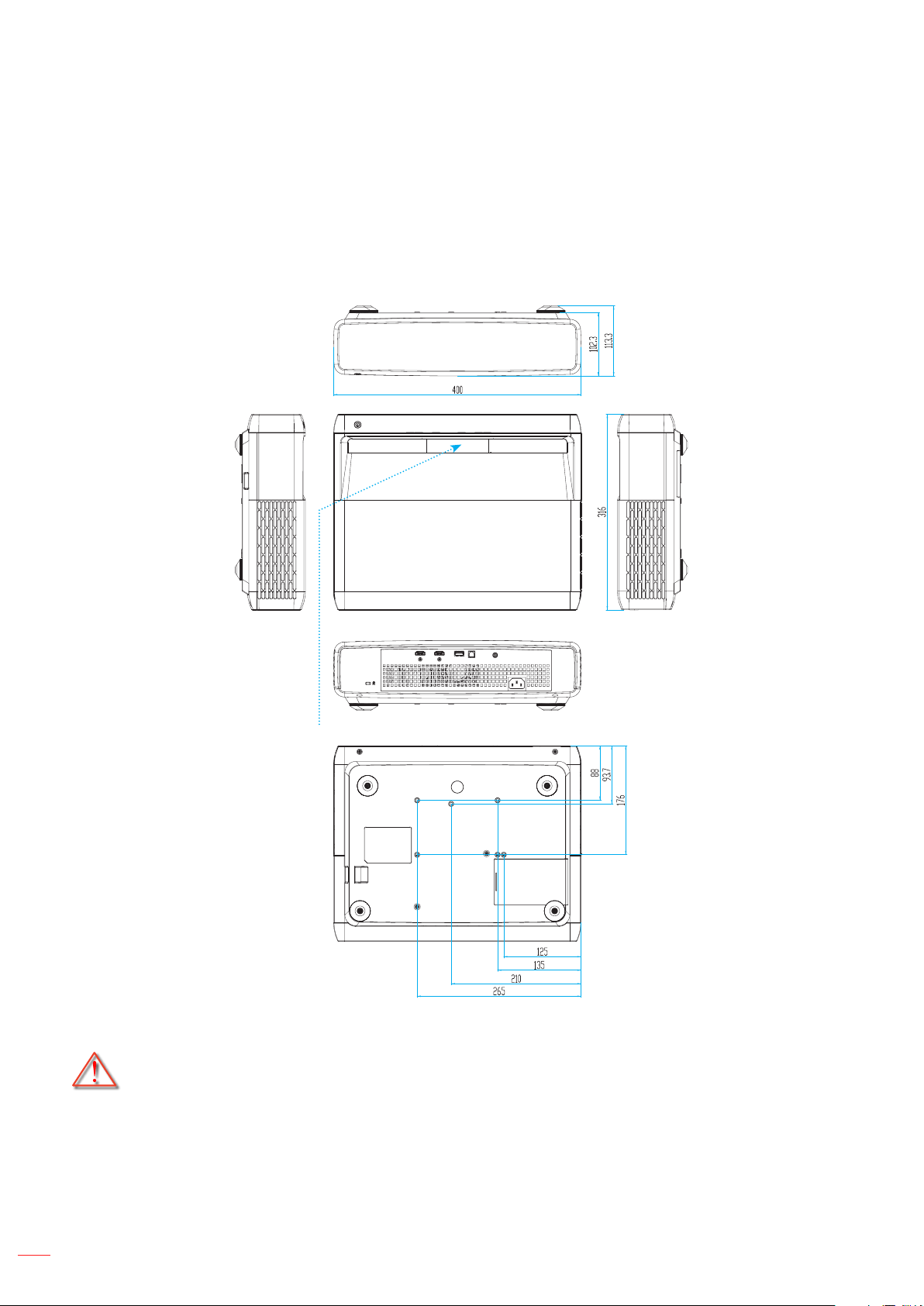
English
50
ADDITIONAL INFORMATION
Projector dimensions and ceiling mount installation
1. To prevent damage to your projector, please use the Optoma ceiling mount.
2. If you wish to use a third party ceiling mount kit, please ensure the screws used to attach a mount to
the projector meet the following specications:
Screw type: M4 for six points mounting
Minimum screw length:
10mm
Lens
Unit: mm
Note: Please note that damage resulting from incorrect installation will void the warranty.
Warning:
If you buy a ceiling mount from another company, please be sure to use the correct screw size.
Screw size will vary depending on the thickness of the mounting plate.
Be sure to keep at least 10 cm gap between the ceiling and the bottom of the projector.
Avoid installing the projector near a heat source.
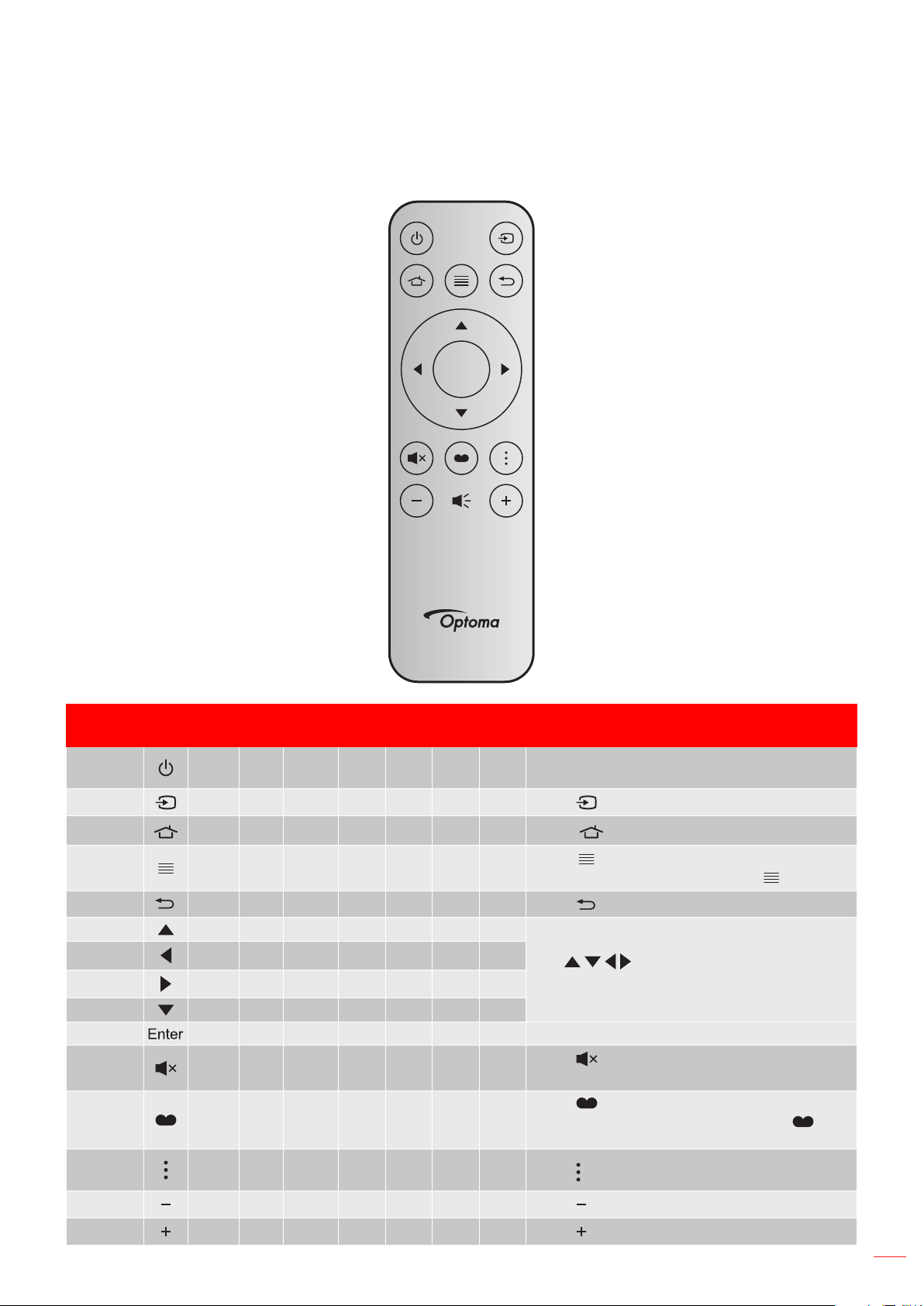
English
51
ADDITIONAL INFORMATION
IR remote codes
Enter
Key
Key
num
MTX.
Format Data0 Data1 Data2 Data3
Description
Power
on / o
K12 04 F1 32 CD 71 8E
Refer to the “Powering on / o the projector”
on page 20.
Source K3 11 F1 32 CD 18 E7
Press to select an input signal.
HDMI3 K13 03 F1 32 CD 92 6D
Press to open the HDMI3 source.
Menu K8 17 F1 32 CD 0E F1
Press to launch the on-screen display
(OSD) menu. To exit OSD, press again.
Return K4 10 F1 32 CD 86 79
Press to return to the previous page.
Up K7 18 F2 32 CD 11 EE
Use to select items or make
adjustments to your selection.
Left K14 02 F2 32 CD 10 EF
Right
K5 09 F2 32 CD 12 ED
Down
K2 19 F2 32 CD 14 EB
Enter
K9 16 F1 32 CD 0F F0 Conrm your item selection.
Mute K15 01 F1 32 CD 52 AD
Press to turn o/on the projector built-in
speaker.
Picture
Mode
K10 15 F1 32 CD 91 6E
Press to display the Picture Mode menu.
To exit the Picture Mode menu, press
again.
Focus
Pattern
K6 08 F1 32 CD 25 DA
Press to open Focus pattern.
Volume - K11 12 F2 32 CD 0C F3
Press to decrease the volume.
Volume + K1 05 F2 32 CD 09 F6
Press to increase the volume.

English
52
ADDITIONAL INFORMATION
Troubleshooting
If you experience a problem with your projector, please refer to the following information. If a problem persists,
please contact your local reseller or service center.
Image problems
No image appears on-screen
Ensure all the cables and power connections are correctly and securely connected as described in the
"Setup and Installation" section.
Ensure the pins of connectors are not crooked or broken.
Ensure that the "Mute" feature is not turned on.
Image is out of focus
Please refer to “Focus” on page 22.
Make sure the projection screen is between the required distance from the projector.
(Please refer to page 49).
The image is stretched when displaying 16:9 DVD title
When you play anamorphic DVD or 16:9 DVD, the projector will show the best image in 16: 9 format
on projector side.
If you play the LBX format DVD title, please change the format as V-Stretch in projector OSD.
If you play 4:3 format DVD title, please change the format as 4:3 in projector OSD.
Please setup the display format as 16:9 (wide) aspect ratio type on your DVD player.
Image is too small or too large
Move the projector closer to or further from the screen.
Press "Menu" on the projector panel, go to "Display-->Aspect Ratio". Try the dierent settings.
Image has slanted sides:
If possible, reposition the projector so that it is centered on the screen and below the bottom of the
screen.
Image is reversed
Select "Setup-->Projection Orientation" from the OSD and adjust the projection direction.
Blurry double image
Make sure “Picture Mode” is not 3D to avoid normal 2D image appear blurry double image.

English
53
ADDITIONAL INFORMATION
Other problems
The projector stops responding to all controls
If possible, turn o the projector, then unplug the power cord and wait at least 20 seconds before
reconnecting power.
Remote control problems
If the remote control does not work
Check the operating angle of the remote control is pointed within ±15° to the IR receiver on the
projector.
Make sure there are not any obstructions between the remote control and the projector.
Move to within 4 m (~13 ft) of the projector.
Make sure batteries are inserted correctly.
Replace batteries if they are exhausted.
Warning indicators
When the warning indicators (see below) light up or ash, the projector will automatically shutdown:
"LAMP" LED indicator is lit red and if "On/Standby" indicator ashes red.
"TEMP" LED indicator is lit red and if "On/Standby" indicator ashes red. This indicates the projector
has overheated. Under normal conditions, the project can be switched back on.
"TEMP" LED indicator ashes red and if "On/Standby" indicator ashes red.
Unplug the power cord from the projector, wait for 30 seconds and try again. If the warning indicator light up or
ash, please contact your nearest service center for assistance.
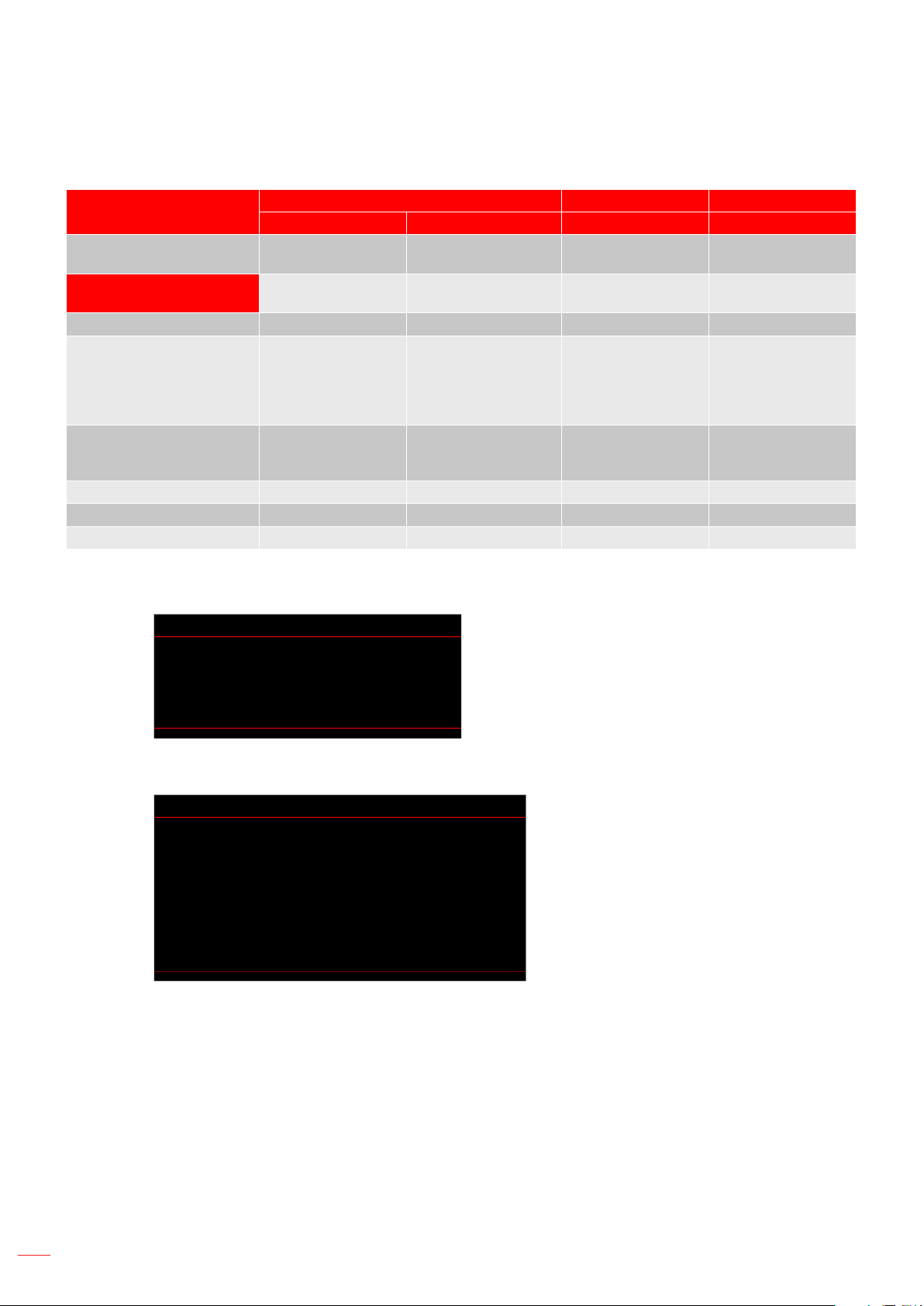
English
54
ADDITIONAL INFORMATION
LED lightning messages
Message
On/Standby LED Temp LED Lamp LED
(Red) (White) (Red) (Red)
Standby state
(Input power cord)
Steady light
Power on (Warming)
Flashing
(0.5 sec o / 0.5 sec on)
Power on and Lamp Steady light
Power o (Cooling)
Flashing
(0.5 sec o / 0.5
sec on). Back to red
steady light when
cooling fan turns o.
Quick resume (100ms)
Flashing
(0.25 sec o / 0.25 sec
on)
Error (Lamp failure) Flashing Steady light
Error (Fan failure) Flashing Flashing
Error (Over temp.) Flashing Steady light
Power o:
Power O
Press power key again.
Temperature warning:
Warning
TEMPERATURE TOO HIGH
Please:
1. Make sure air in and outlets are not blocked.
2. Make sure the environment temperature is under 45 degree C.
If the problem persists in spite of the above.
Please contact a service center for repair.

English
55
ADDITIONAL INFORMATION
Specications
Optical Description
Technology Texas Instrument DMD, 0.47” 4K UHD DMD x1 with 4-Way XPR actuator
Output resolution 4K UHD 3840 x 2160
Maximum input
resolution
Graphic up to 3840 x 2160 @60Hz
Maximum Bandwidth:
HDMI 2.0: 600MHz
Lens
Throw ratio: 0.254
F-stop: 2.04
Focal length: 2.63mm
Oset 126% ±5%
Image size 75” ~ 120”
Projection distance 14.5cm ±2cm at 75” to 39.8cm ± 3cm at 120” (28.6cm ±2.5cm at 100”)
I/Os
HDMI 2.0 x3 (outside x2 ; inside x1 for Android TV dongle)
USB x2 (outside x1, type-A connector for power delivery 5V/1.5A and service;
inside x1, micro USB connector as a power supply 5V/1.5A for Android TV dongle)
Audio Out 3.5mm
S/PDIF
Colour 1073.4 Million color
Scan rate
Horizontal scan rate: 15 ~ 140 KHz
Vertical scan rate: 24 ~ 120Hz and 240Hz for 1080P
Speaker 10W x2
Power consumption
Maximum: (Bright mode)
165W (typical), 190W(max) @110VAC
160W (typical), 184W(max) @220VAC
Minimum: (ECO mode)
145W (typical), 167W(max) @110VAC
143W (typical), 164W(max) @220VAC
Power requirement 100~240V ±10%, AC 50/60Hz
Input current
2.2A
Installation orientations Front, Rear, Ceiling-top, Rear-top
Dimensions
(W x D x H)
Without feet: 400 x 316 x 102.3 mm (15.7 x 12.4 x 4.0 inches)
With fe
et: 400 x 316 x 113.3 mm (15.7 x 12.4 x 4.5 inches)
Weight 5.1 kg (11.24 lbs)
Environmental Operating in 0~40°C, 10%~85% humidity (non-condensing)
Note: All specications are subject to change without notice.
English
56
ADDITIONAL INFORMATION
Optoma global oces
For service or support, please contact your local oce.
USA
Optoma Technology, Inc. 888-289-6786
47697 Westinghouse Drive. 510-897-8601
Fremont, Ca 94539 [email protected]
Canada
Optoma Technology, Inc. 888-289-6786
47697 Westinghouse Drive. 510-897-8601
Fremont, Ca 94539 [email protected]
Latin America
Optoma Technology, Inc. 888-289-6786
47697 Westinghouse Drive. 510-897-8601
Fremont, Ca 94539 [email protected]
Europe
Unit 1, Network 41, Bourne End Mills
Hemel Hempstead, Herts,
HP1 2UJ, United Kingdom +44 (0) 1923 691 800
www.optoma.eu +44 (0) 1923 691 888
Benelux BV
Randstad 22-123 +31 (0) 36 820 0252
1316 BW Almere +31 (0) 36 548 9052
The Netherlands
www.optoma.nl
France
Bâtiment E +33 1 41 46 12 20
81-83 avenue Edouard Vaillant +33 1 41 46 94 35
92100 Boulogne Billancourt, France [email protected]
Spain
C/ José Hierro,36 Of. 1C +34 91 499 06 06
28522 Rivas VaciaMadrid, +34 91 670 08 32
Spain
Deutschland
Am Nordpark 3 +49 (0) 2161 68643 0
41069 Mönchengladbach +49 (0) 2161 68643 99
Germany [email protected]
Scandinavia
Lerpeveien 25 +47 32 98 89 90
3040 Drammen +47 32 98 89 99
Norway [email protected]
PO.BOX 9515
3038 Drammen
Norway
Korea
https://www.optoma.com/kr/
Japan
https://www.optoma.com/jp/
Taiwan
https://www.optoma.com/tw/
China
Room 2001, 20F, Building 4, +86-21-62947376
No.1398 Kaixuan Road, +86-21-62947375
Changning District www.optoma.com.cn
Shanghai, 200052, China
Australia
https://www.optoma.com/au/

www.optoma.com
