T-8 (Version 1.02)
Owner’s Manual

Table of contents
2
Table of contents
Panel Descriptions .................................................................... 3
Top Panel.................................................................................. 3
Rear Panel ................................................................................ 6
Selecting Patterns and Setting the Tempo ..................... 7
Using the Rhythm Sequencer ............................................... 9
Using the Bass Sequencer ................................................... 15
Using Delay and Reverb ....................................................... 19
Functions, Menus and Shortcuts ...................................... 22
Connecting to a Computer or Mobile Device .............. 27
Backup and Factory Reset ................................................... 28
Main Specifications ................................................................ 29
Signal Flow ................................................................................ 30
MIDI Implementation Chart ................................................ 31
Panel Descriptions
3
Panel Descriptions
Top Panel
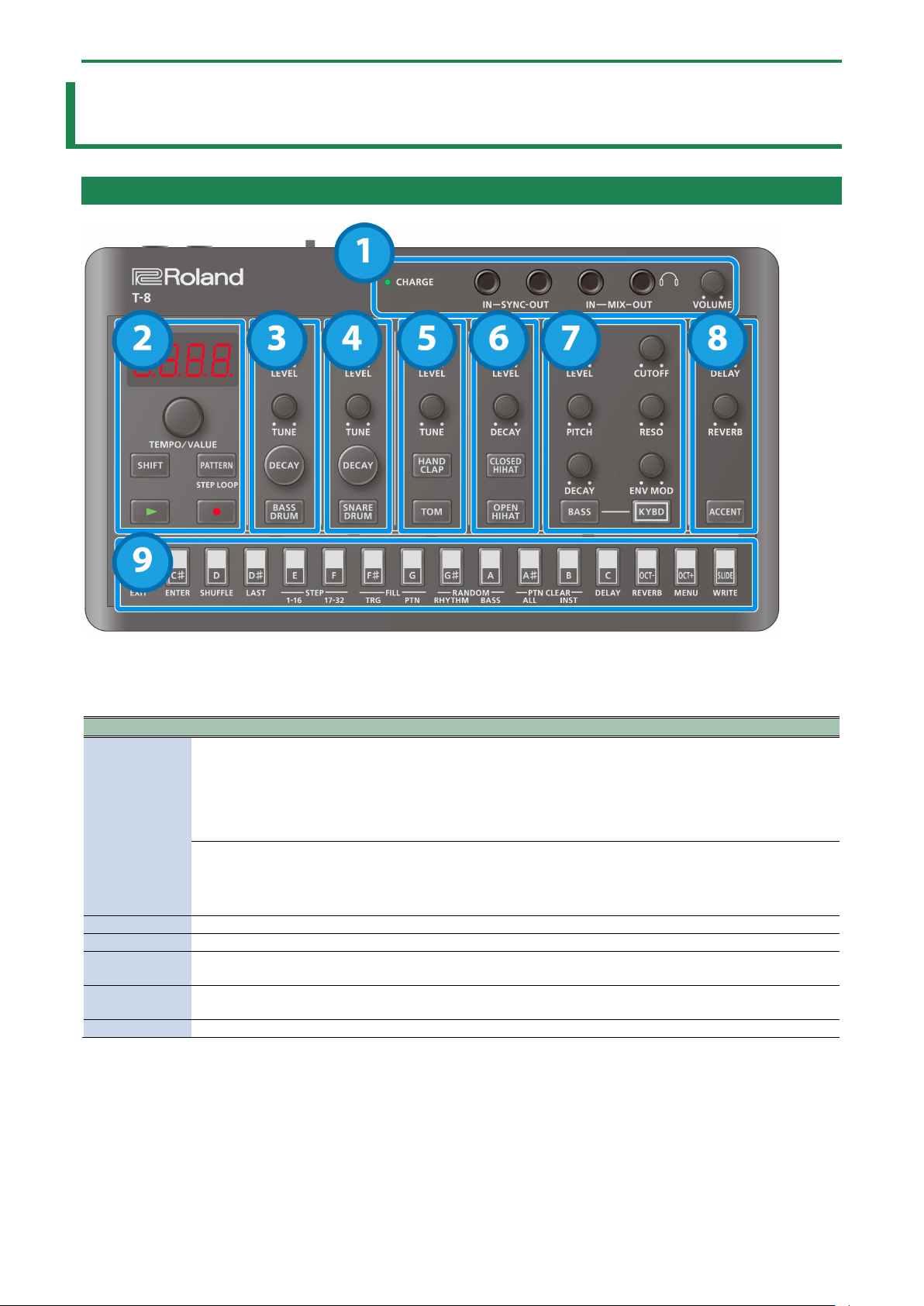
1. Jacks
Controller
Explanation
CHARGE
indicator
When charging via USB port:
Orange (lit): Charging.
Green (lit): Charging is completed.
Green and orange (blinking): A charging error occurred. Please contact your dealer or a Roland customer
service center.
https://roland.cm/service
When not charging via USB port:
Red (lit): The remaining battery power is low. Charge the battery.
* The unit powers down within 30 minutes.
SYNC IN jack
Use this jack to input synchronization signals from an external device.
SYNC OUT jack
Use this jack to output synchronization signals to an external device.
MIX IN jack
This is the audio input jack.
The sound from connected devices is output from the MIX OUT jack.
MIX OUT jack
This is the audio output jack.
You can plug a pair of headphones into this jack.
[VOLUME] knob
Adjusts the volume of audio coming from the MIX OUT jack.
* Use cables with monaural mini phone type plugs to connect to/from the SYNC IN/OUT jacks. Do not use cables with stereo
mini phone type plugs, as these cables do not work.
* Do not connect an audio device to the SYNC OUT jack. Doing so may cause a malfunction.
* If an external device is connected to the SYNC IN jack, the unit synchronizes with the clocks inputted to the SYNC IN jack,
regardless of the MIDI Clock Sync setting.
* Use cables with stereo mini phone type plugs to connect to/from the MIX IN/OUT jacks. Do not use cables with monaural
mini phone type plugs, as these cables do not work.
Panel Descriptions
4
2. Common
Controller
Explanation
Display
This is a four-digit, seven-segment LED display.
[TEMPO/VALUE]
knob
Changes the values shown in the display.
[SHIFT] button
Use this in combination with other controllers.
[PATTERN] button
Switches the unit to pattern selection mode.
[ø] (PLAY) button
Plays the pattern.
Press the button again to stop playback.
[ó] (REC) button
Switches the unit to recording standby.
Recording starts when you play the pattern; and when you press an instrument button, notes are recorded
in the step sequencer.
Press the [KYBD] button to input a bass note, accent or slide.
3. BASS DRUM
Controller
Explanation
[LEVEL] knob
Adjusts the bass drum volume.
[TUNE] knob
Adjusts the pitch.
Press the [DECAY] button to change how long the bass drum resonates (the decay
length).
[DECAY] button
Edits the function controlled by the [TUNE] knob.
[BASS DRUM] button (instrument
button)
Selects the bass drum.
4. SNARE DRUM
Controller
Explanation
[LEVEL] knob
Adjusts the snare drum volume.
[TUNE] knob
Adjusts the pitch.
Press the [DECAY] button to change how long the snare drum resonates (the decay
length).
[DECAY] button
Edits the function controlled by the [TUNE] knob.
[SNARE DRUM] button (instrument
button)
Selects the snare drum.
5. TOM/HAND CLAP
Controller
Explanation
[LEVEL] knob
Adjusts the volume for both the toms and the hand clap.
[TUNE] knob
Adjusts the pitch of the selected instrument.
[HAND CLAP] button (instrument button)
Selects the hand clap.
While this is selected, you can adjust the pitch with the [TUNE] knob.
[TOM] button (instrument button)
Selects the tom instrument.
While this is selected, you can adjust the pitch with the [TUNE] knob.
6. HIHAT
Controller
Explanation
[LEVEL] knob
Adjusts the volume of both the open and closed sounds.
[DECAY] knob
Adjusts the decay length of the hi-hat sound.
[CLOSED HIHAT] button (instrument button)
Selects the closed hi-hat.
[OPEN HIHAT] button (instrument button)
Selects the open hi-hat.
Panel Descriptions
5
7. BASS
Controller
Explanation
[LEVEL] knob
Adjusts the bass volume.
[PITCH] knob
Adjusts the pitch.
[DECAY] knob
Adjusts the decay length.
[CUTOFF] knob
Adjusts the cutoff frequency, which determines the brightness of the sound.
[RESO] knob
Adjusts the harmonics around the cutoff frequency.
[ENV MOD] knob
Adjusts the intensity of time-based change to the cutoff frequency.
[BASS] button (instrument button)
Selects the bass.
[KYBD] button
While this is on, you can use the keyboard buttons to play the bass.
8. DELAY/REVERB/ACCENT
Controller
Explanation
[DELAY] knob
Adjusts the delay volume.
[REVERB] knob
Adjusts the reverb volume.
[ACCENT] button
When you select this while a rhythm instrument is selected, an accent is set for the rhythm part.
When you select this while the bass is selected, an accent is set for the bass part.
9. Step buttons
Controller
Explanation
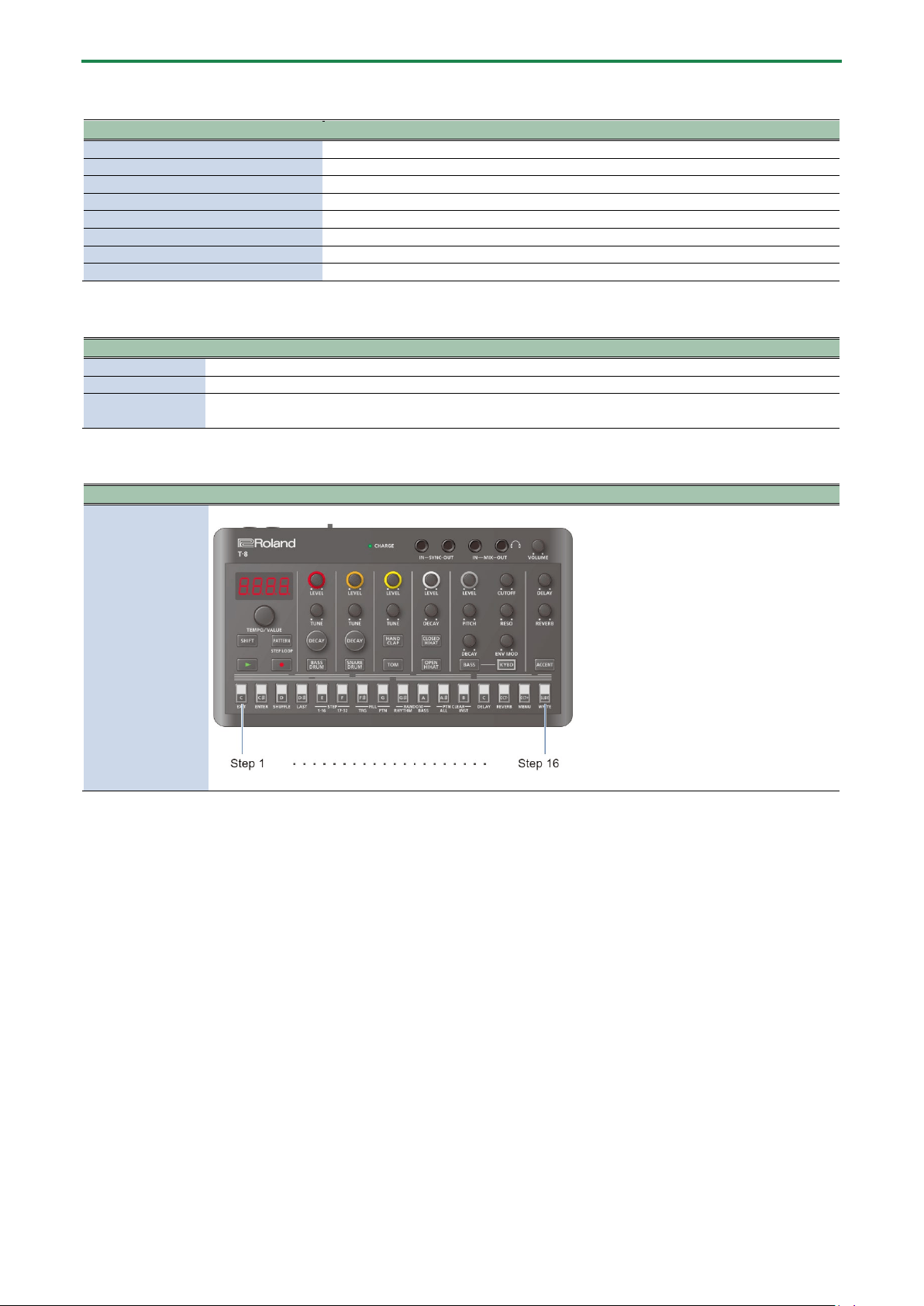
Step buttons
Using for switching patterns and banks, and inputting rhythm and bass.
Panel Descriptions
6
Rear Panel
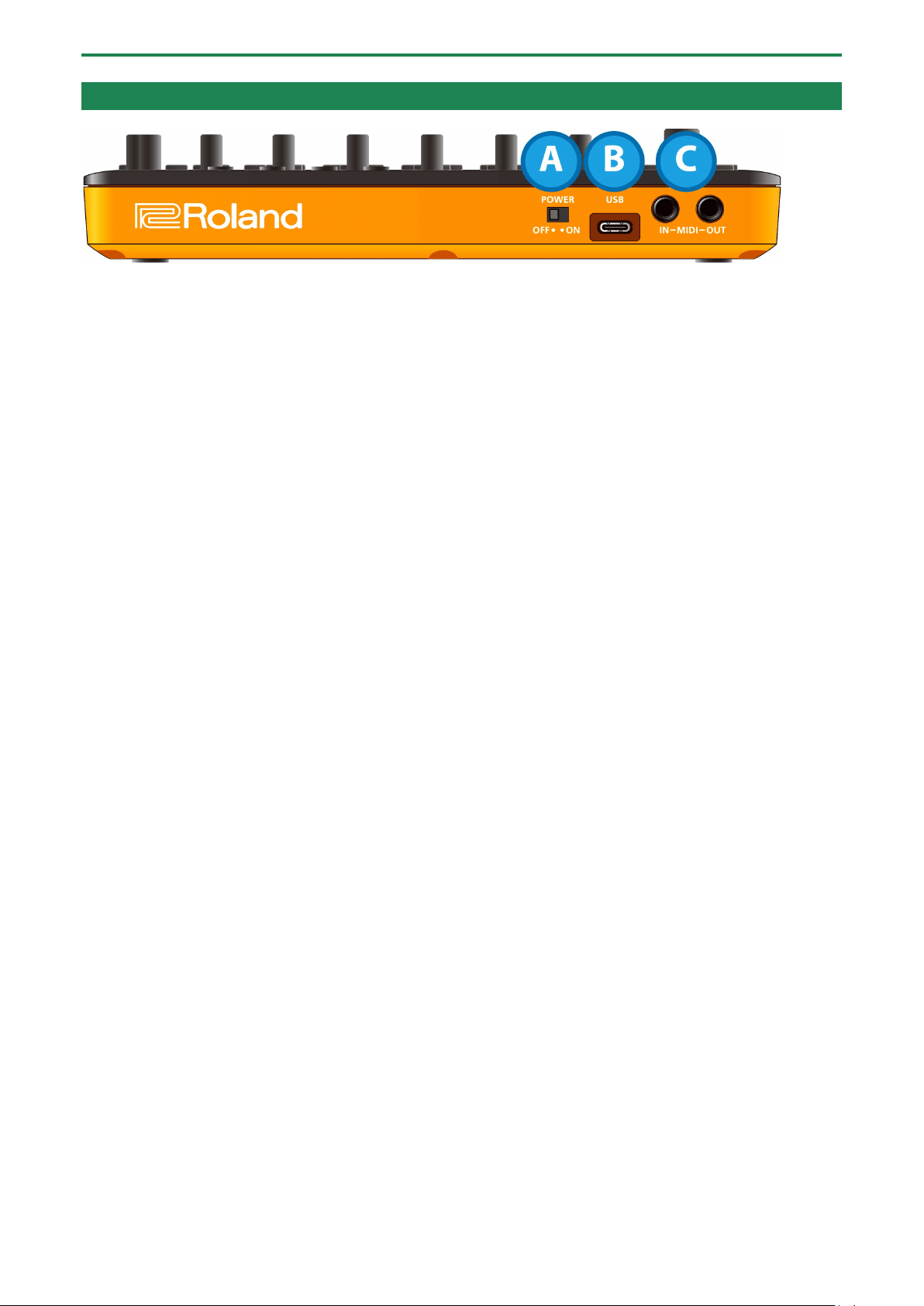
A. [POWER] switch
Turns the power on/off.
B. USB port (USB Type-C
®
)
Use a commercially available USB 2.0 cable (Type-A to C, or Type-C to C) to connect this port to your computer.
This is used to transfer USB MIDI and USB audio data.
* Do not use a USB cable that is designed only for charging. Cables used for charging only cannot transmit data.
C. MIDI IN/MIDI OUT jacks
Use TRS/TRS connecting cables (BCC-1-3535 or BCC-2-3535, sold separately) or TRS/MIDI connecting cables (BMIDI-5-35, BMIDI-1-
35 or BMIDI-2-35, sold separately) to connect this unit to an external MIDI device.
You can make this unit play in sync with a MIDI device by connecting the devices with a commercially available MIDI cable.
* Do not connect audio devices to these jacks. Doing so may cause a malfunction.
Selecting Patterns and Setting the Tempo
7
Selecting Patterns and Setting the Tempo
Switching between patterns
1.
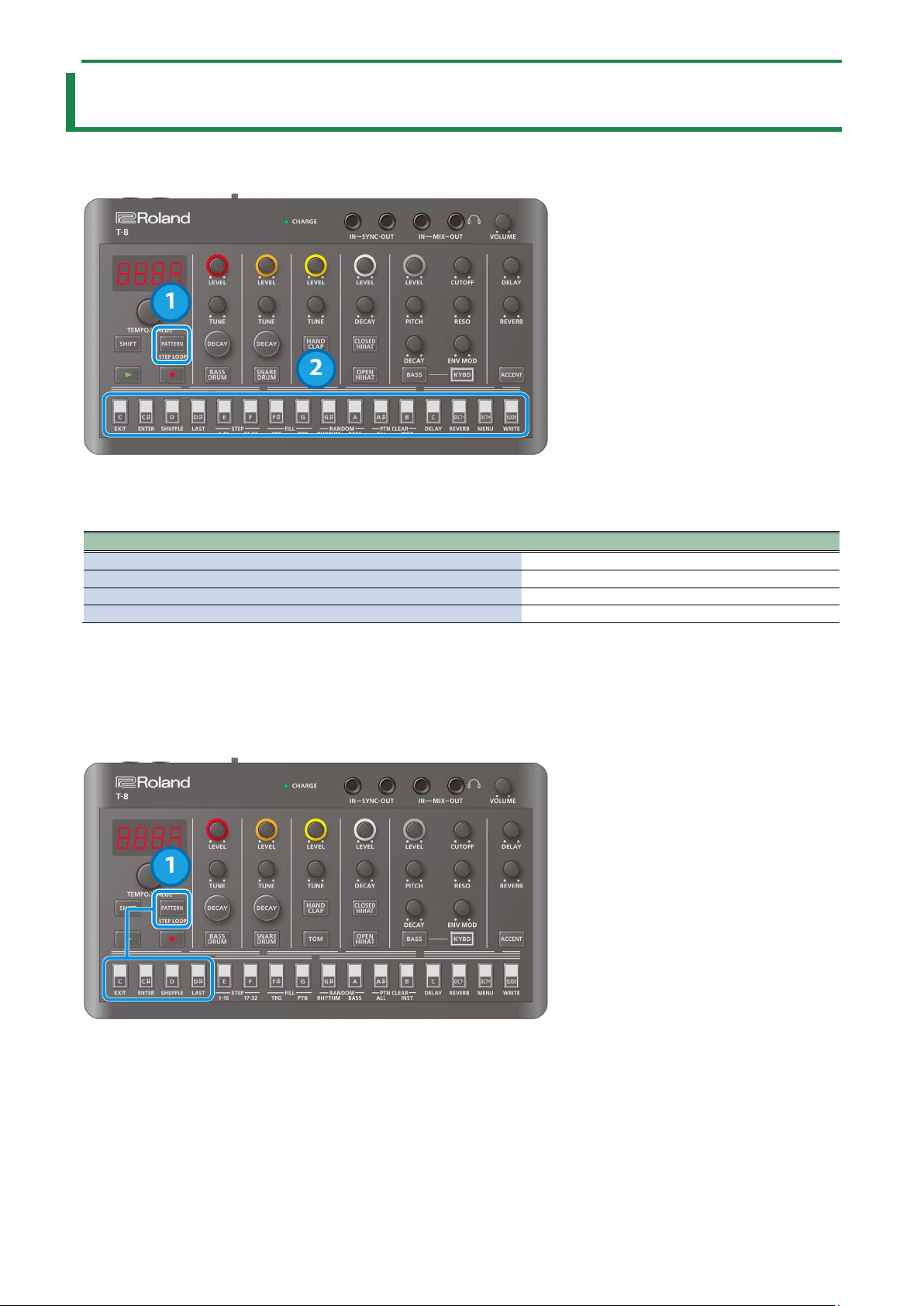
Press the [PATTERN] button.
The [PATTERN] button lights up, and the buttons are in pattern select mode.
The step buttons function as pattern numbers 1–16.
Pattern
Explanation
Playing
Lit
Playing next (up next)
Blink
Pattern exists
Lights up dimly
Pattern does not exist
Unlit
2.
Press a step button.
The selected pattern plays next (set as “up next”).
The rhythm and bass pattern numbers are recalled as a set.
Switching between banks
1.
Hold down the [PATTERN] button and press a step button.
The unit enters bank select mode.
The four leftmost step buttons function as bank numbers 1–4.
Press a step button to change to the indicated bank.
Selecting Patterns and Setting the Tempo
8
Saving a pattern
1.
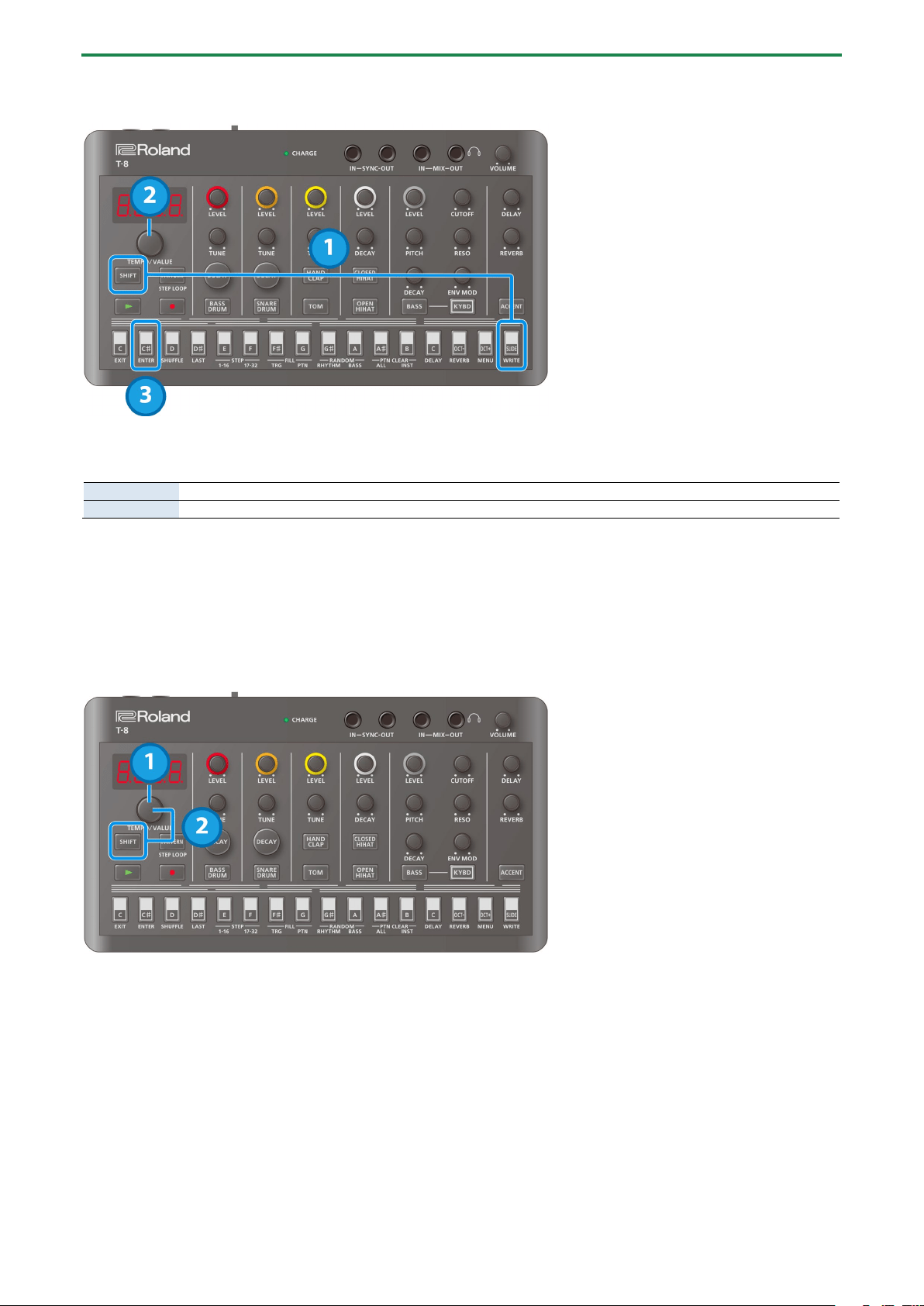
Hold down the [SHIFT] button and press the [SLIDE (WRITE)] button.
2.
Use the [TEMPO/VALUE] knob to select what to save.
Ptn
Saves the currently selected pattern.
ALL
Saves all patterns.
3.
Press the [C# (ENTER)] button.
This saves the pattern(s).
* Once the power is turned off, any unsaved patterns are reset to their last saved state.
Setting the tempo
The tempo is always shown on the display.
1.
Turn the [TEMPO/VALUE] knob.
2.
Hold down the [SHIFT] button and turn the [TEMPO/VALUE] knob to fine-tune the value in decimal
points.
The tempo settings are common to all patterns, and are saved in this unit.
Using the Rhythm Sequencer
9
Using the Rhythm Sequencer
Basic operations (basic steps for inputting notes)
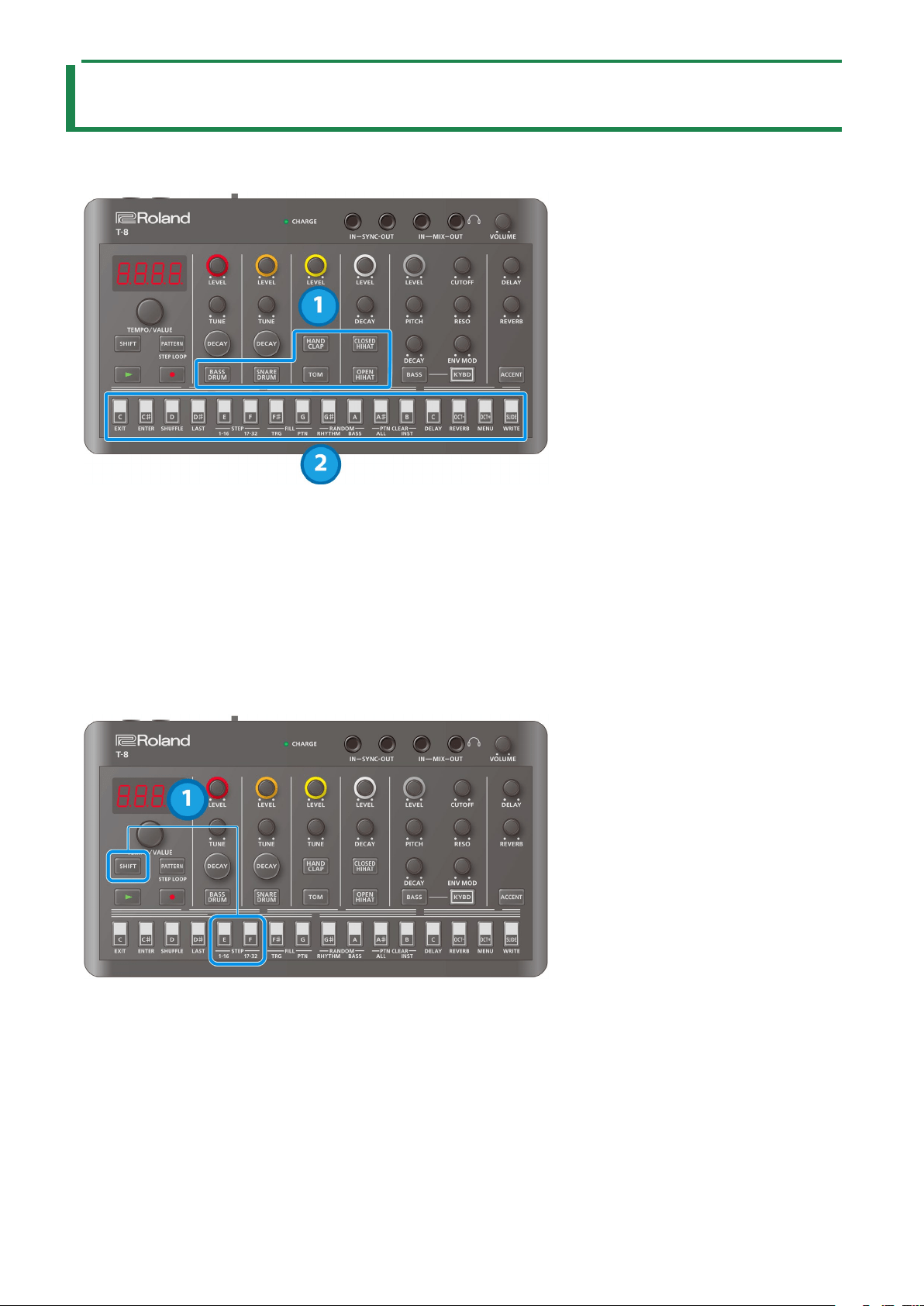
1.
Press the button of the instrument you want to input.
The button lights up and the instrument is selected.
2.
Press the step buttons of the steps you want to input.
The steps you select light up, and the notes are inputted.
Press a step button that’s lit up to delete that button’s note.
Switching between pages indicated on the panel
This unit can handle up to 32 steps (two “pages” of 16 steps each) per pattern. The steps are displayed separately in groups of 16
steps.
1.
Press the [SHIFT] button (and keep the button held down until the operation is finished).
While you’re holding the [SHIFT] button, STEP [1–16] lights up and STEP [17–32] blinks (when steps 1–16 are selected); and
STEP [1–16] blinks and STEP [17–32] lights up (when steps 17–32 are selected).
2.
Press the STEP [1–16] or STEP [17–32] button.
Doing so switches to the respective page.
If the last step is 16 or less and you press the STEP [17–32] button when steps 17–32 are empty, the last step is automatically
set to 32, and the contents of steps 1–16 are copied to steps 17–32.
Using the Rhythm Sequencer
10
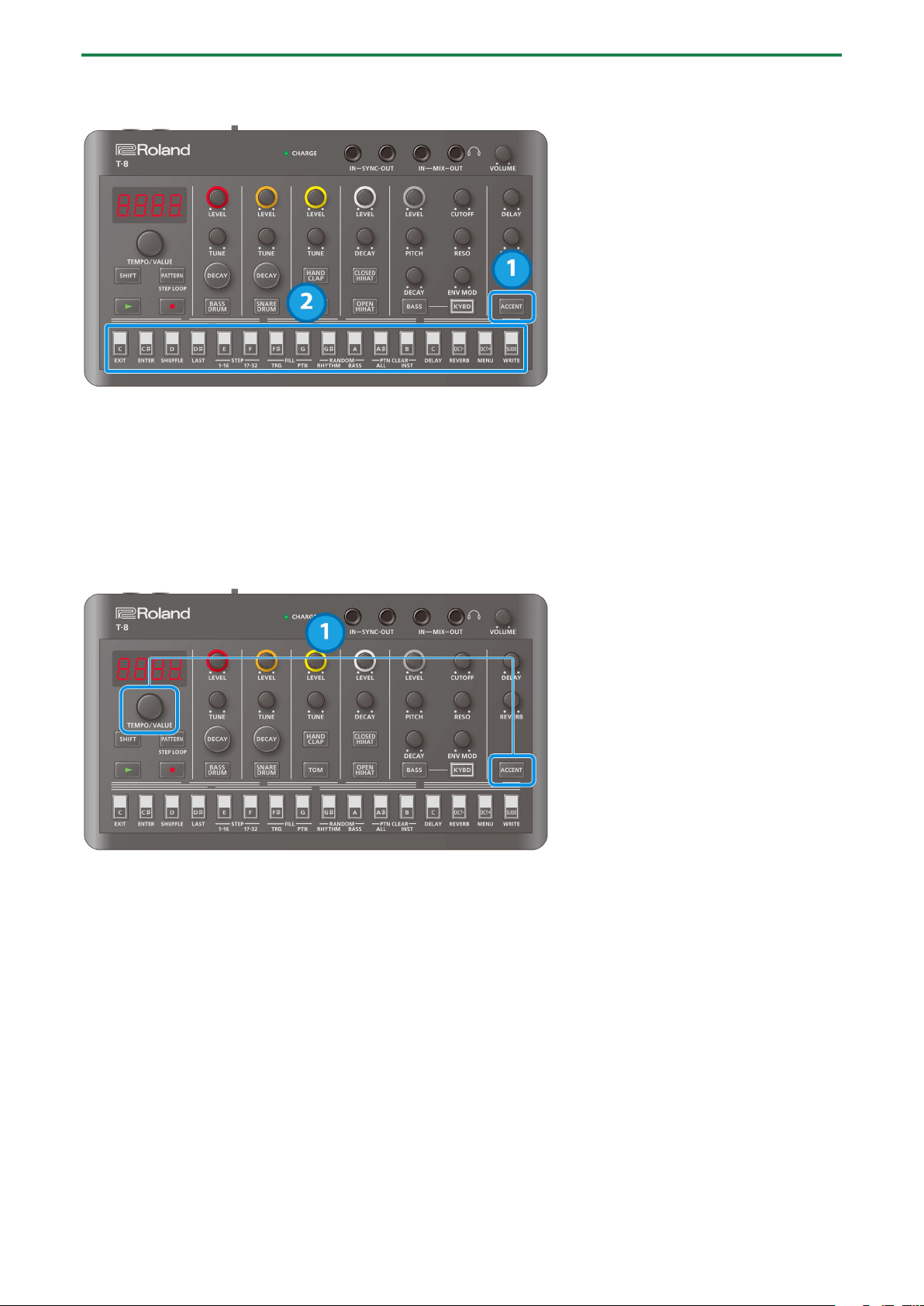
Inputting an accent
1.
With the rhythm instrument selected, press the [ACCENT] button.
The [ACCENT] button lights up.
2.
Press the step buttons of the steps you want to accent.
The steps you select light up, and the accents are inputted.
* Accents are applied to all rhythm instruments.
Adjusting the accent strength
1.
With the rhythm instrument selected, turn the [TEMPO/VALUE] knob while holding down the [ACCENT]
button.
This sets the rhythm accent.
Using the Rhythm Sequencer
11
Setting the probability
This shows how to set the probability for notes to play back. You can use the probability feature to make a pattern play in different
variations, while that same pattern keeps playing back.
1.
Press one of the step 1–16 buttons (and keep holding the step buttons until the operation is finished).
The probability value (P.0–P.100) is displayed.
2.
Turn the [TEMPO/VALUE] knob to set the value.
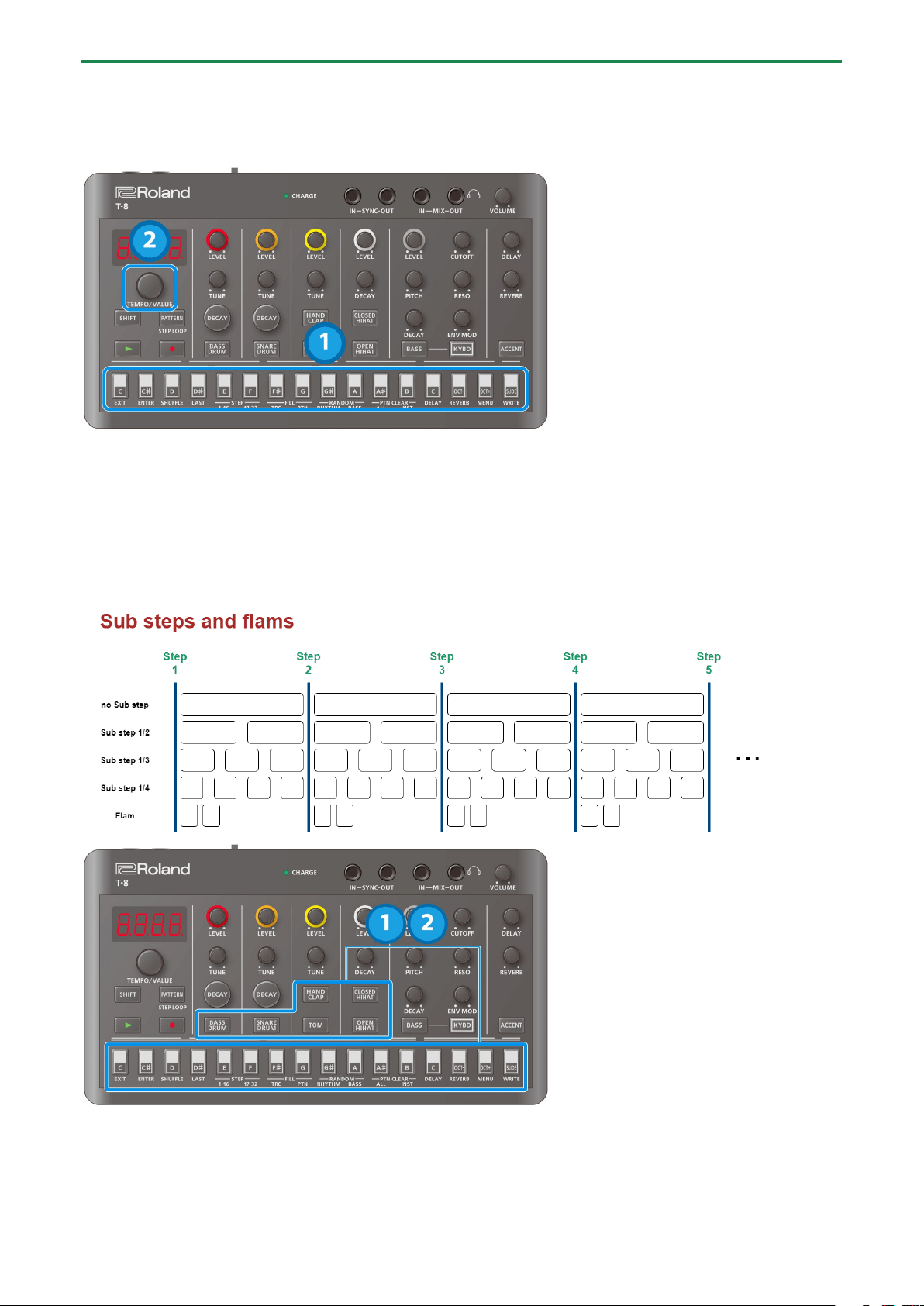
Inputting sub steps
You can divide the steps you input to create rolls or repeated strokes using the sub step function.
1.
Hold down an instrument button and press one of the step 1–16 buttons.
The status of the current sub step is shown.
2.
Hold down the instrument button and press one of the step 1–16 buttons again.
This changes the sub step setting. The settings cycle through in this order: OFF Ó 1_2 Ó 1_3 Ó 1_4 Ó FLAN.
Using the Rhythm Sequencer
12
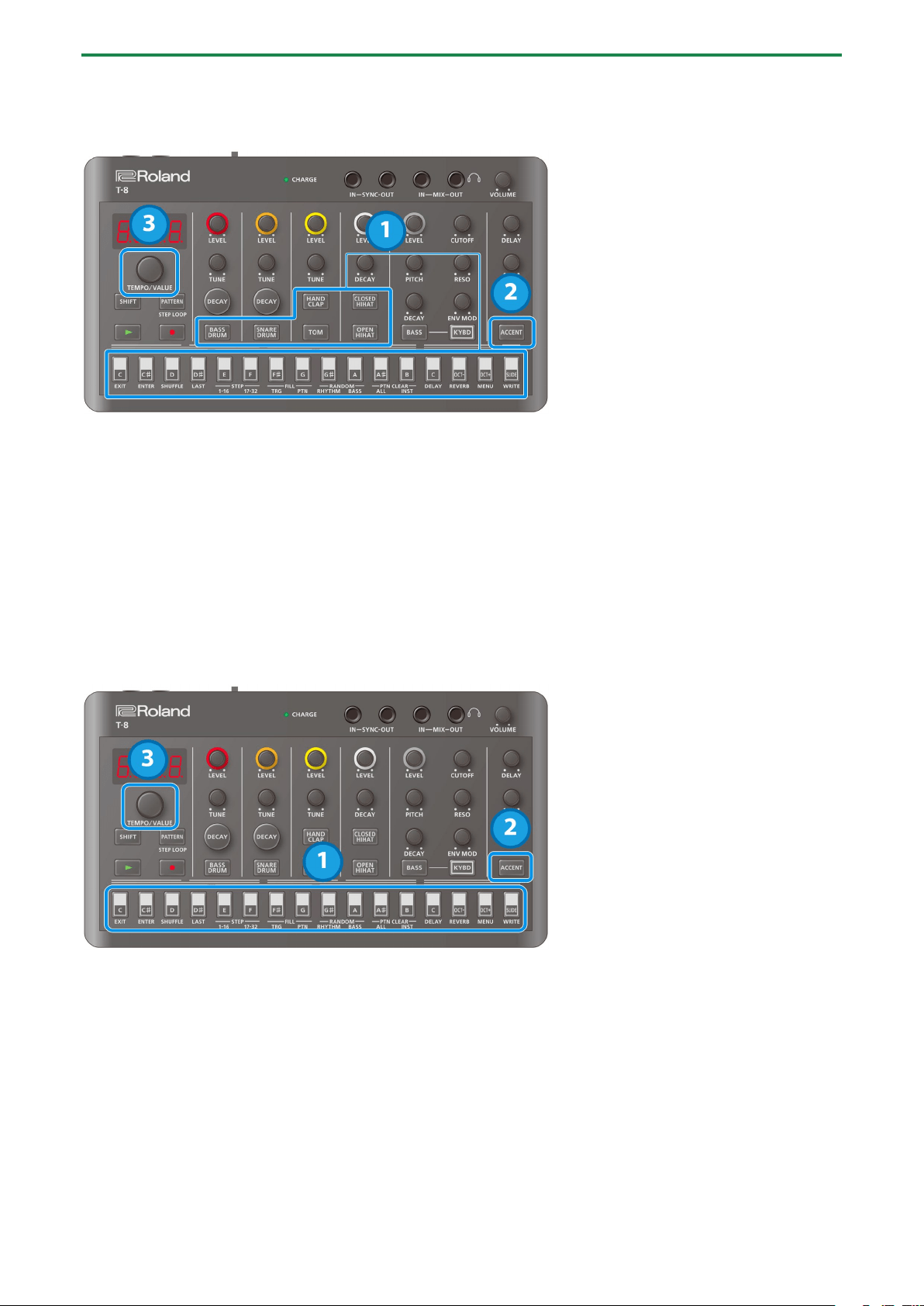
Setting the sub step probability
Here’s how to set the probability for sub steps to play back.
1.
Hold down an instrument button and press the step 1–16 buttons. (Keep holding down the instrument
button until the operation is finished.)
The setting for the current sub step (OFF–FLAN) is shown.
2.
Press the [ACCENT] button.
The probability value (P.0–P.100) for the sub step is displayed.
3.
Use the [TEMPO/VALUE] knob to set the sub step probability.
Setting the velocity
This shows how to input the velocity (how soft or loud the note plays) for the steps of each instrument.
1.
Press one of the step 1–16 buttons (and keep holding the step buttons until the operation is finished).
The probability value (P.0–P.100) is displayed.
2.
Press the [ACCENT] button.
The velocity value (v.0–v.10) is displayed.
3.
Turn the [TEMPO/VALUE] knob to set the value.
Using the Rhythm Sequencer
13
Master probability
You can add a value that affects the probability of the entire sequence.
Ø For more details on probability, refer to “Setting the probability”.
* This has no effect if the individual probabilities are not set.
1.
Hold down the [PATTERN] button and turn the [TEMPO/VALUE] knob.
This sets the master probability.
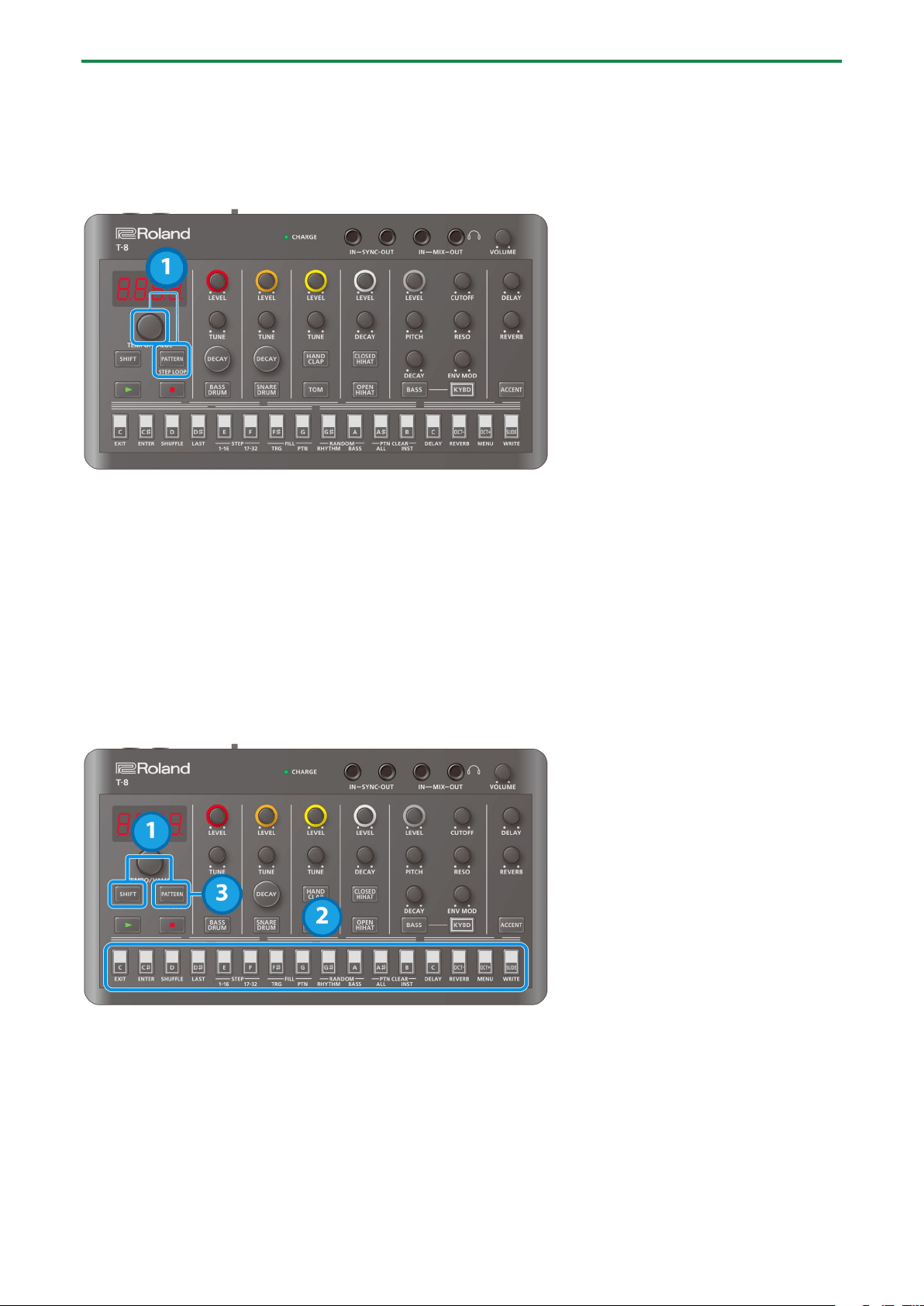
Looping specific steps (step loop)
You can make a selected step or steps play back in a loop during pattern playback.
The rhythm instruments that are played back by the selected step all play back in a loop.
Only the rhythms play back in a loop.
You can make more than one step play back in a loop at the same time.
1.
Hold down the [SHIFT] button and press the [PATTERN] button.
The [PATTERN] button blinks, and the unit enters step loop mode.
2.
Press a step button.
3.
When you are finished, press the [PATTERN] button.
Using the Rhythm Sequencer
14
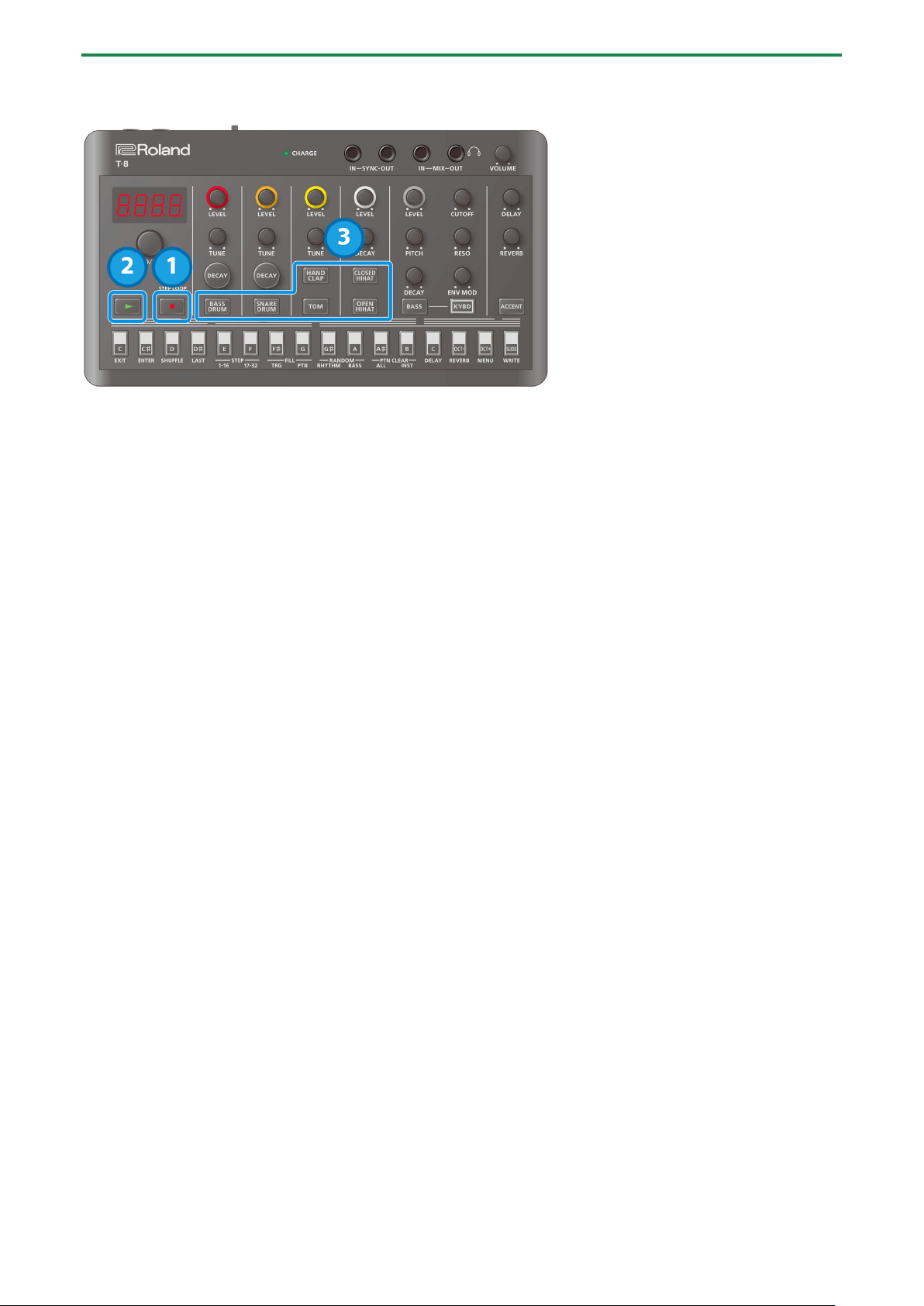
Real-time input (tap input)
1.
Press the [ó] (REC) button.
The [ó] (REC) button lights up.
2.
Press the [ø] (PLAY) button.
The [ø] (PLAY) button lights, and recording begins.
3.
Press an instrument button.
This inputs a note into the step during playback.
Using the Bass Sequencer
15
Using the Bass Sequencer
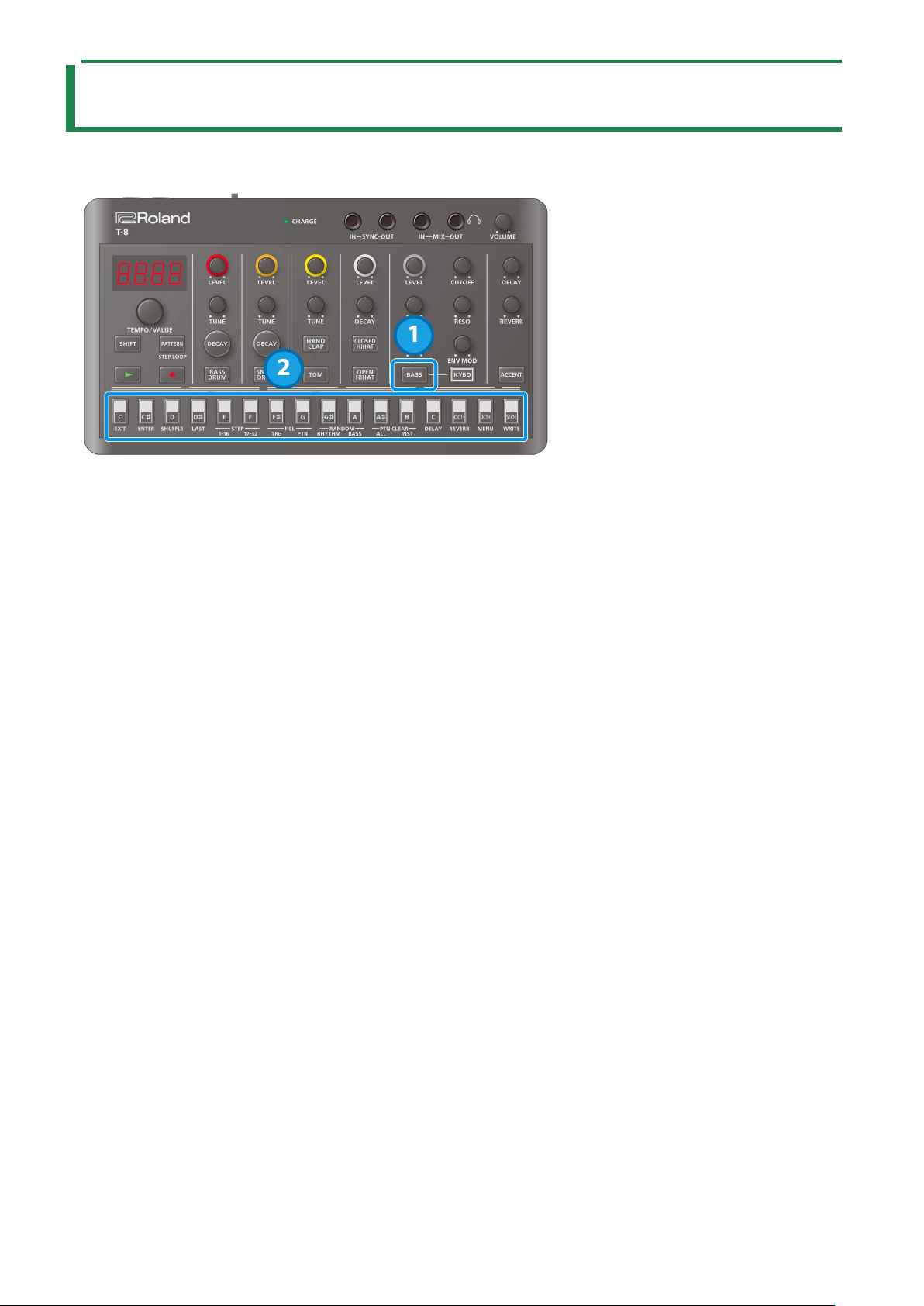
Basic operations (basic steps for inputting notes)
1.
Press the [BASS] button to select the bass.
The step buttons to which notes have been input light up. Step buttons for which a tie has been input light up dimly.
2.
Press a step button.
If the step is empty, either a C2 note (default value) is inputted, or the note you inputted just before deleting the note is
inputted again.
If the step is not empty, its contents are deleted.
Information for the note (n.oFF, n.C0–n.C7) or tie (n.tie) is shown while you hold down the step button.
Using the Bass Sequencer
16
Checking and editing what’s in a step (step mode)
1.
Press one of the step buttons (and keep holding the step button until you’re finished editing).
The step’s note is displayed.
2.
Use the [TEMPO/VALUE] knob while holding down the step button to edit the note’s value (n.oFF,
n.C0–n.C7, n.tie).
3.
Press the [ACCENT] button while holding down the step button.
The accent setting (A.OFF, A.On) is displayed.
4.
Press the [ACCENT] button again.
Displays the slide setting (S.OFF, S.On).
With each press of the [ACCENT] button, the setting value cycles as follows: note Ó accent Ó slide.
5.
While holding down the step button, use the [TEMPO/VALUE] knob to edit the accent or slide setting.
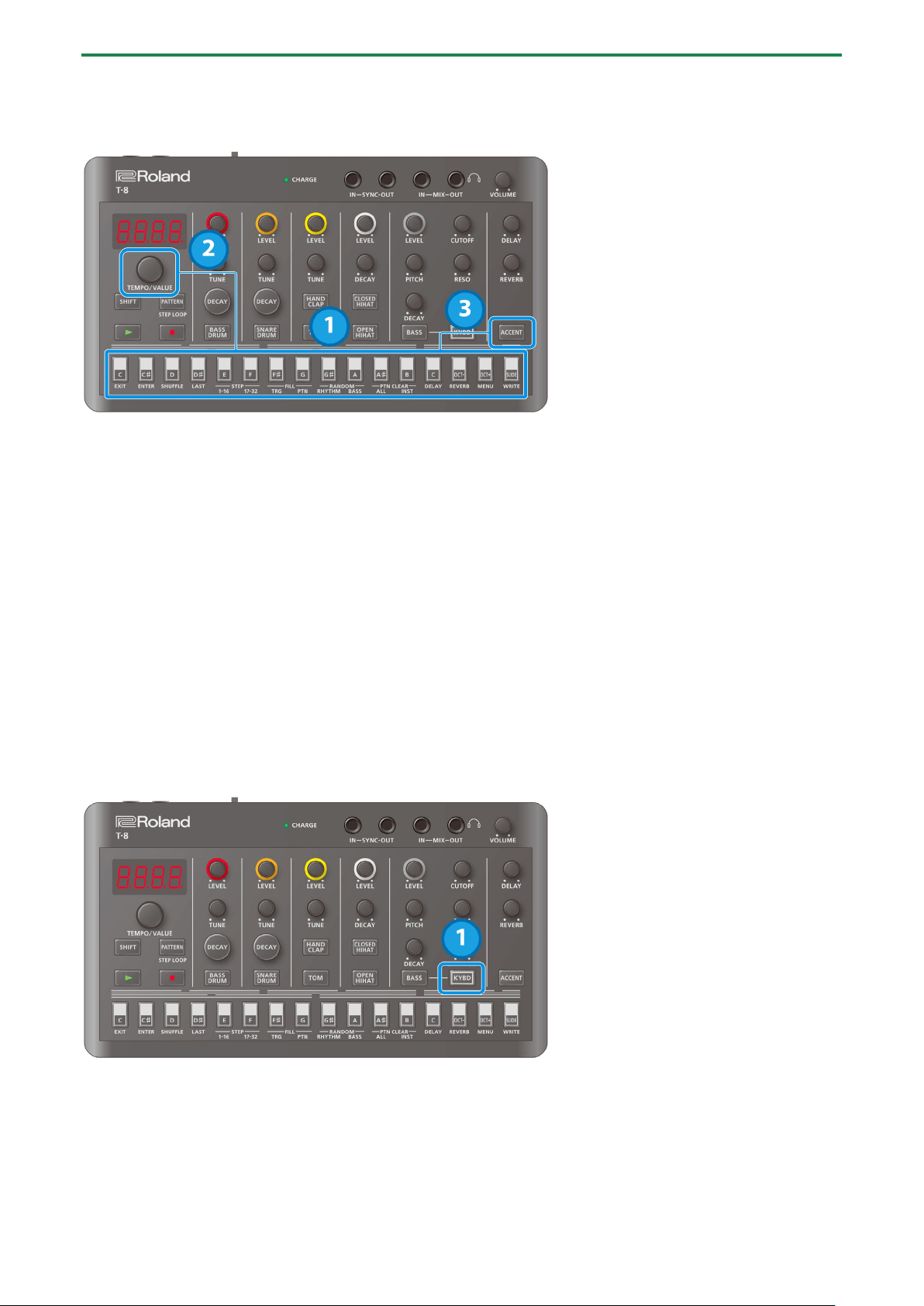
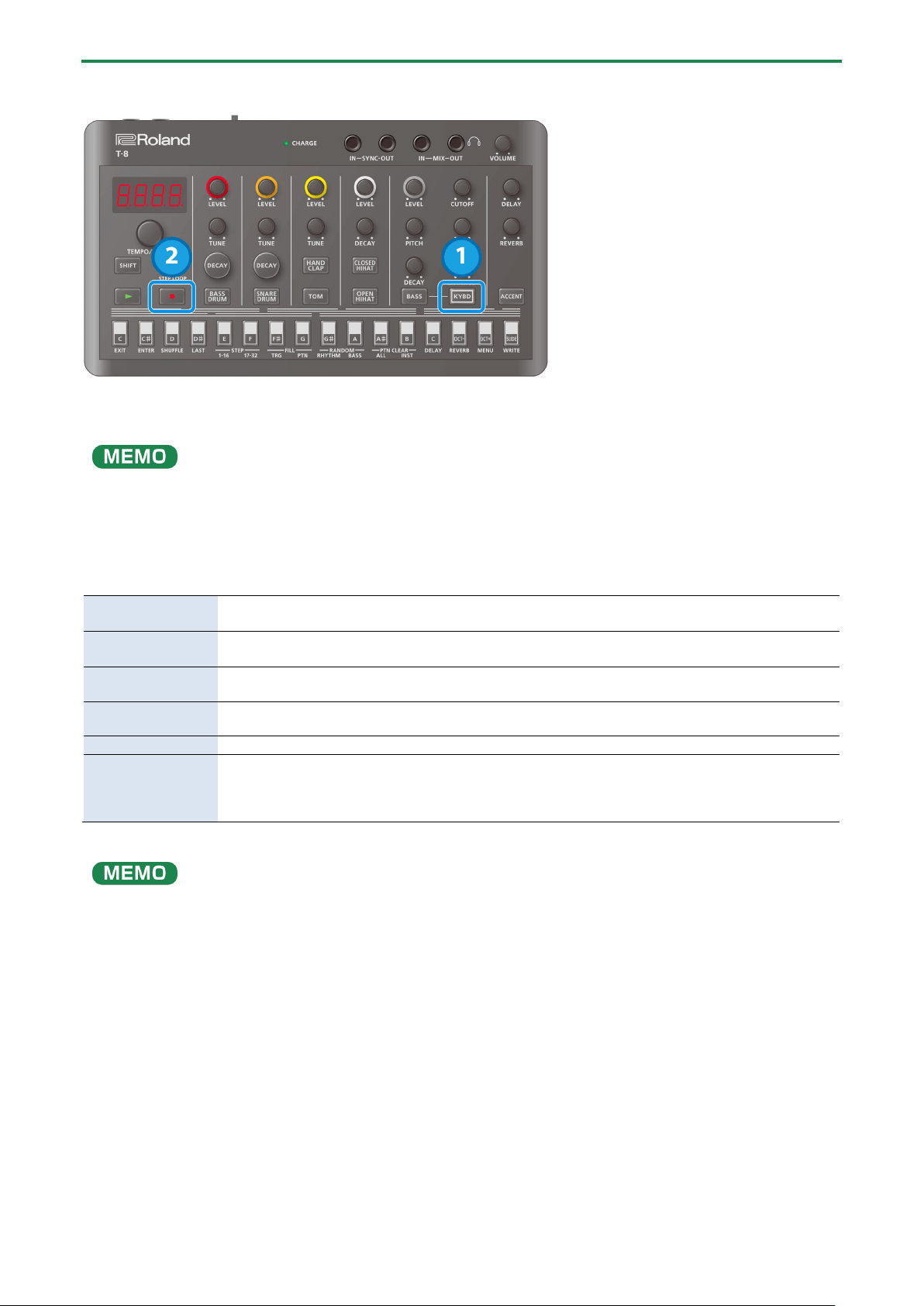
Using the step buttons as a keyboard (keyboard mode)
1.
Press the [KYBD] button.
Keyboard mode is activated for the step buttons.
If a rhythm instrument is selected, the unit switches to bass.
Using the Bass Sequencer
17
Editing the steps (keyboard mode)
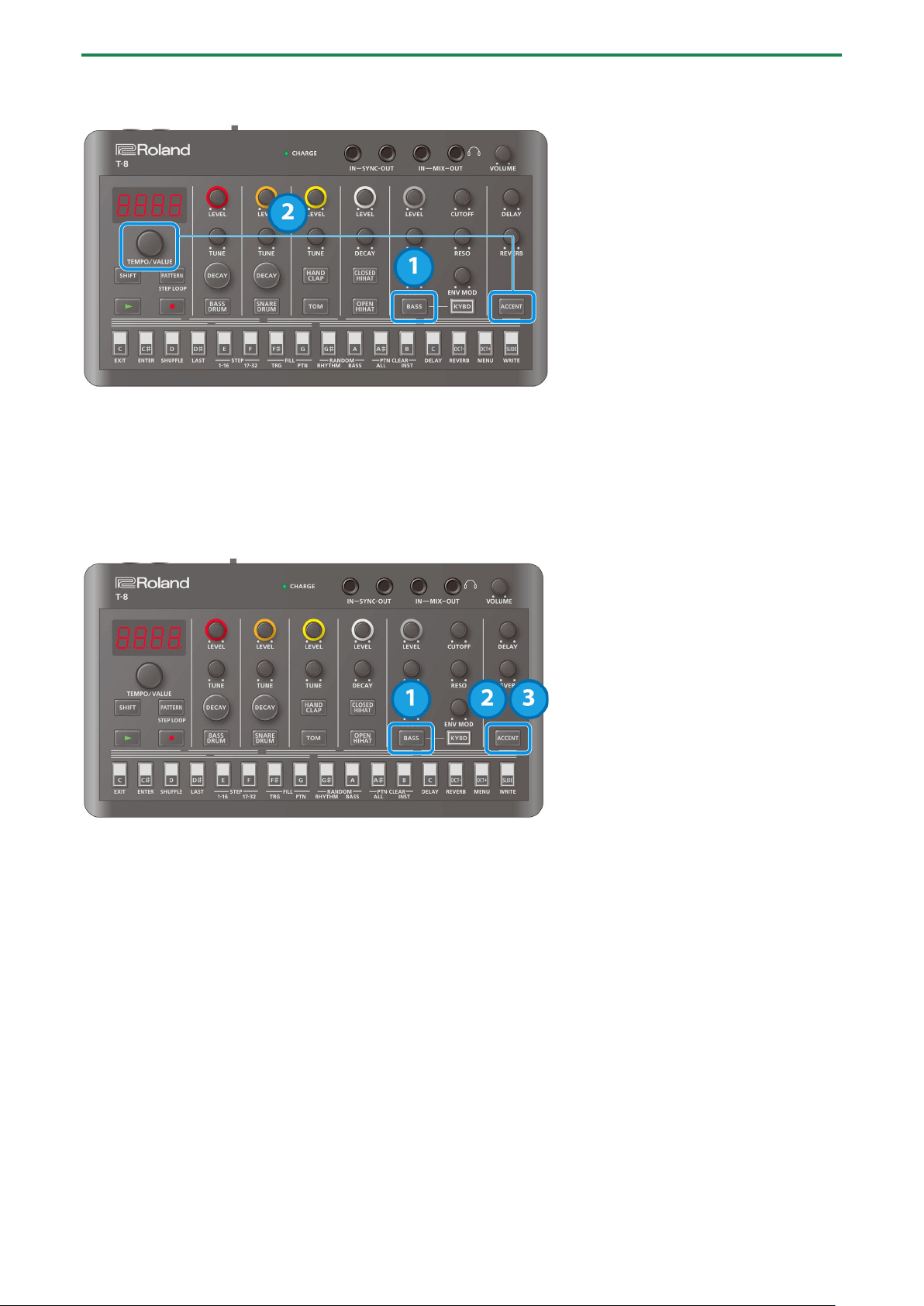
1.
Press the [KYBD] button while the sequencer is stopped.
2.
Press the [ó] (REC) button.
If the [
ó]
(REC) is unlit, press a step button while holding down the [KYBD] button to start editing from the step you want. In this
case, you can only edit the step you want, even during playback.
The [KYBD] button blinks, and you can use the step buttons to edit in keyboard mode. The note, octave and slide information
is indicated by how the buttons are lit up.
The step numbers are shown in the display (such as “St. 1”), and you can use the [TEMPO/VALUE] knob to move between
steps.
Keyboard (note)
buttons
Pressing a keyboard (note) button inputs a note into the step you’re editing.
How notes are
displayed
You can distinguish the different notes by looking at how the keyboard and octave buttons are lit.
[OCT-] / [OCT+]
button
Press the [OCT-] and [OCT+] buttons to shift the octave of the note for the step you’re editing.
[SLIDE] button
Turns the slide effect on/off for the note in the step you’re editing.
Turn slide on when you want to a note to smoothly glide into the note in the next step.
[ACCENT] button
Turns the accent on/off for the note in the step you’re editing.
Inputting a tie
Press the [SLIDE] button while holding down the [KYBD] button to make the note of the previous step
sustain into the current step.
When a tie is inputted, the [SLIDE] button lights up dimly, and the keyboard button corresponding to
the note that’s set for the previous step also lights up dimly.
3.
Press the [ó] (REC) button or the [KYBD] button to exit edit mode.
There are two ways to input notes in real time, as shown below.
Inputting only the timing where notes sound
When the [ó] (REC) button is lit and the [KYBD] button is unlit, you can input notes in real time using the [BASS] button, just as
when inputting with rhythm instruments when playback starts.
The note that’s input in this case is fixed at C2.
Inputting notes in real time using keyboard mode
When the [ó] (REC) button is lit and the [KYBD] button is blinking, the unit switches to the steps to be edited one after another
once playback starts. At this time, you can input notes, ties and slides in real time by using the step buttons in keyboard mode.
Press the [OCT-] and [OCT+] buttons to shift the octave of the notes you play using the keyboard buttons.
Using the Bass Sequencer
18
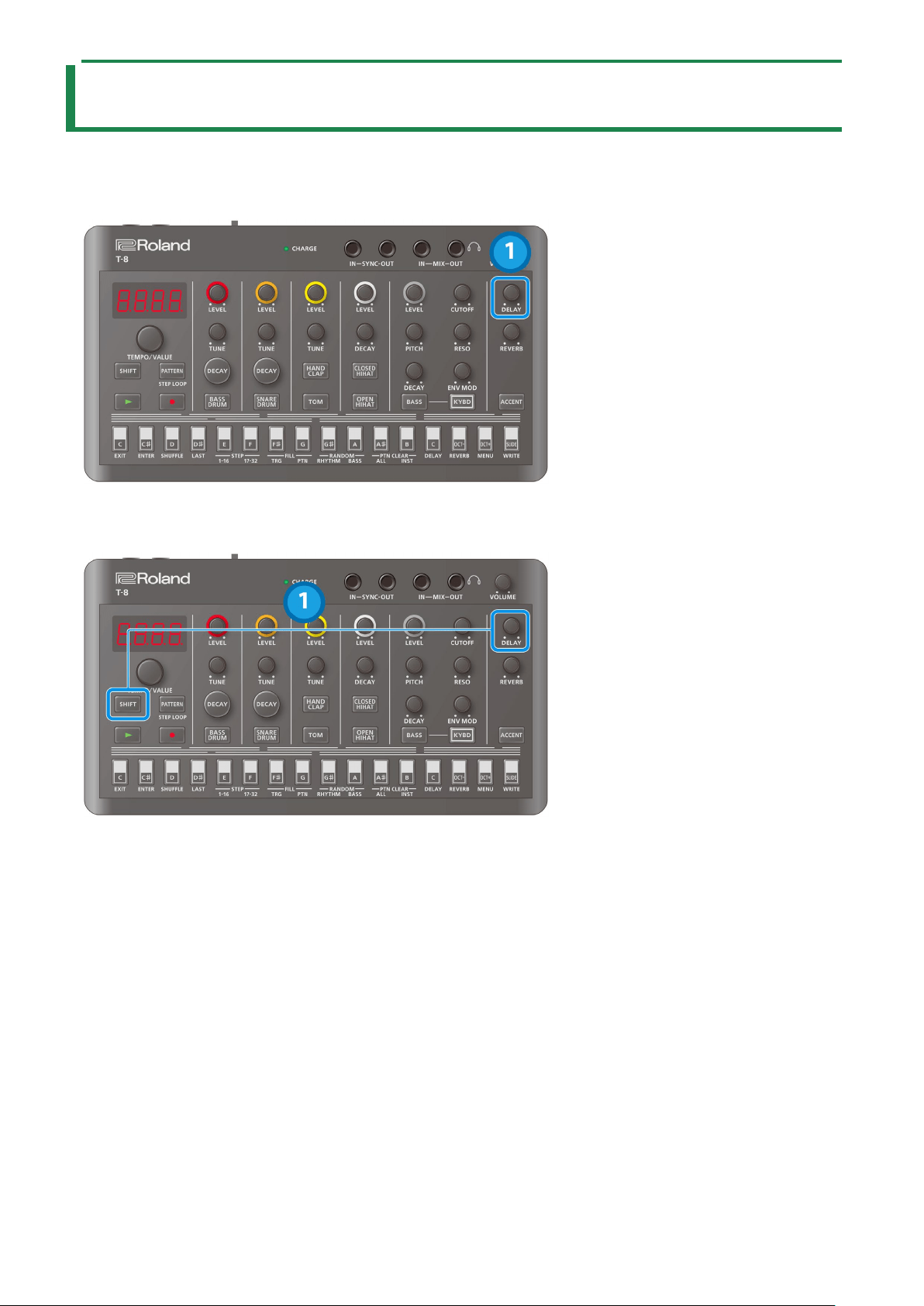
Setting the accent strength
1.
Press the [BASS] button to select the bass.
2.
Hold down the [ACCENT] button and turn the [TEMPO/VALUE] knob.
Inputting accents and slides using step input
Besides inputting accents and slides in step mode or in keyboard mode, you can also input them all at once.
1.
Press the [BASS] button to select the bass.
2.
Press the [ACCENT] button.
“b.ACC” is displayed, and you can use the step buttons to input the bass accents.
3.
Press the [ACCENT] button again.
“b.SLd” is displayed, and you can use the step buttons to input the bass slides.
Using Delay and Reverb
19
Using Delay and Reverb
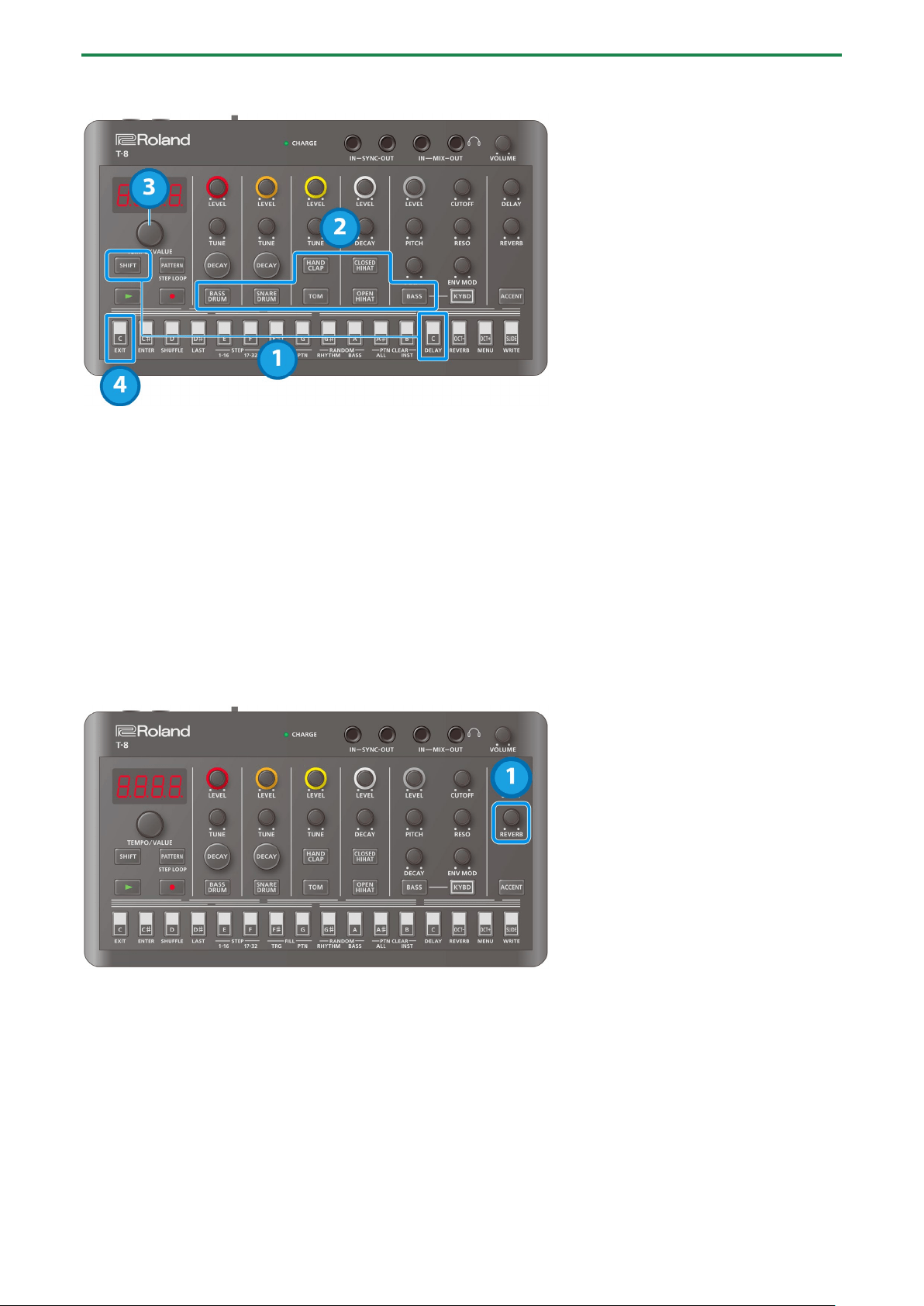
Configuring the delay
Adjusting the delay volume and feedback
1.
Turn the [DELAY] knob.
Setting the delay time
1.
Hold down the [SHIFT] button and turn the [DELAY] knob.
When Delay Sync is ON, the following text is displayed when you turn the [DELAY] knob.
1_32: Thirty-second note
16t: Sixteenth-note triplet
32d: Dotted thirty-second note
1_16: Sixteenth note
8t: Eighth-note triplet
16d: Dotted sixteenth note
1_8: Eighth note
4t: Quarter-note triplet
8d: Dotted eighth note
1_4: Quarter note
2t: Half-note triplet
4d: Dotted quarter note
1_2: Half note
1t: Whole-note triplet
2d: Dotted half note
1_1: Whole note
Using Delay and Reverb
20
Setting how much signal is sent to the delay
1.
Hold down the [SHIFT] button and press the [C (DELAY)] button.
“d.Snd” is displayed.
2.
Press the button of the instrument you want to set.
The current value (0–127) is shown on the display.
* Press the [ACCENT] button to set the send amount for the signal received via USB.
3.
Turn the [TEMPO/VALUE] knob to set the send amount.
4.
When you are finished, press the [C (EXIT)] button.
Configuring the reverb
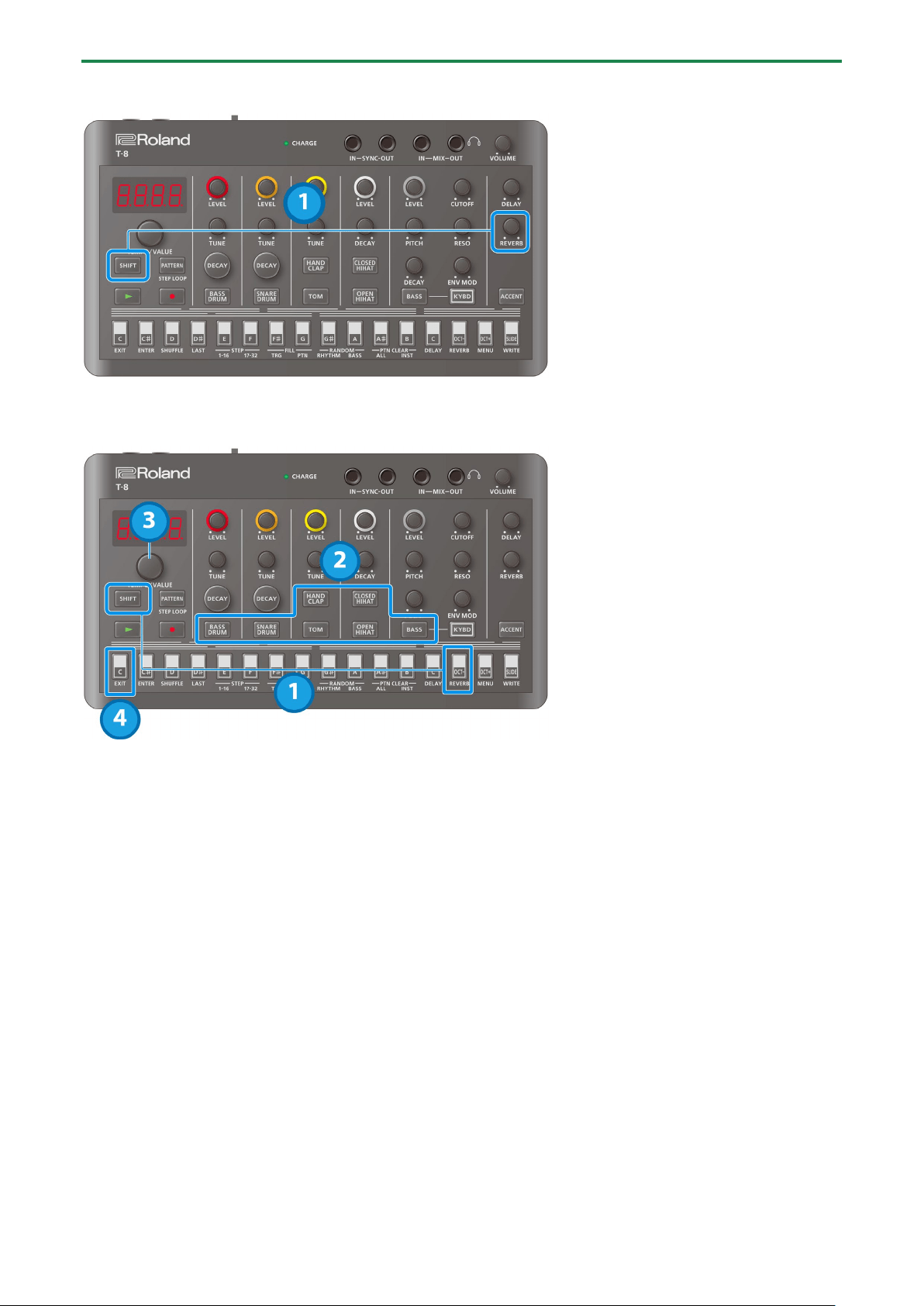
Adjusting the reverb volume
1.
Turn the [REVERB] knob.
Using Delay and Reverb
21
Setting the reverb time
1.
Hold down the [SHIFT] button and turn the [REVERB] knob.
Setting how much signal is sent to the reverb
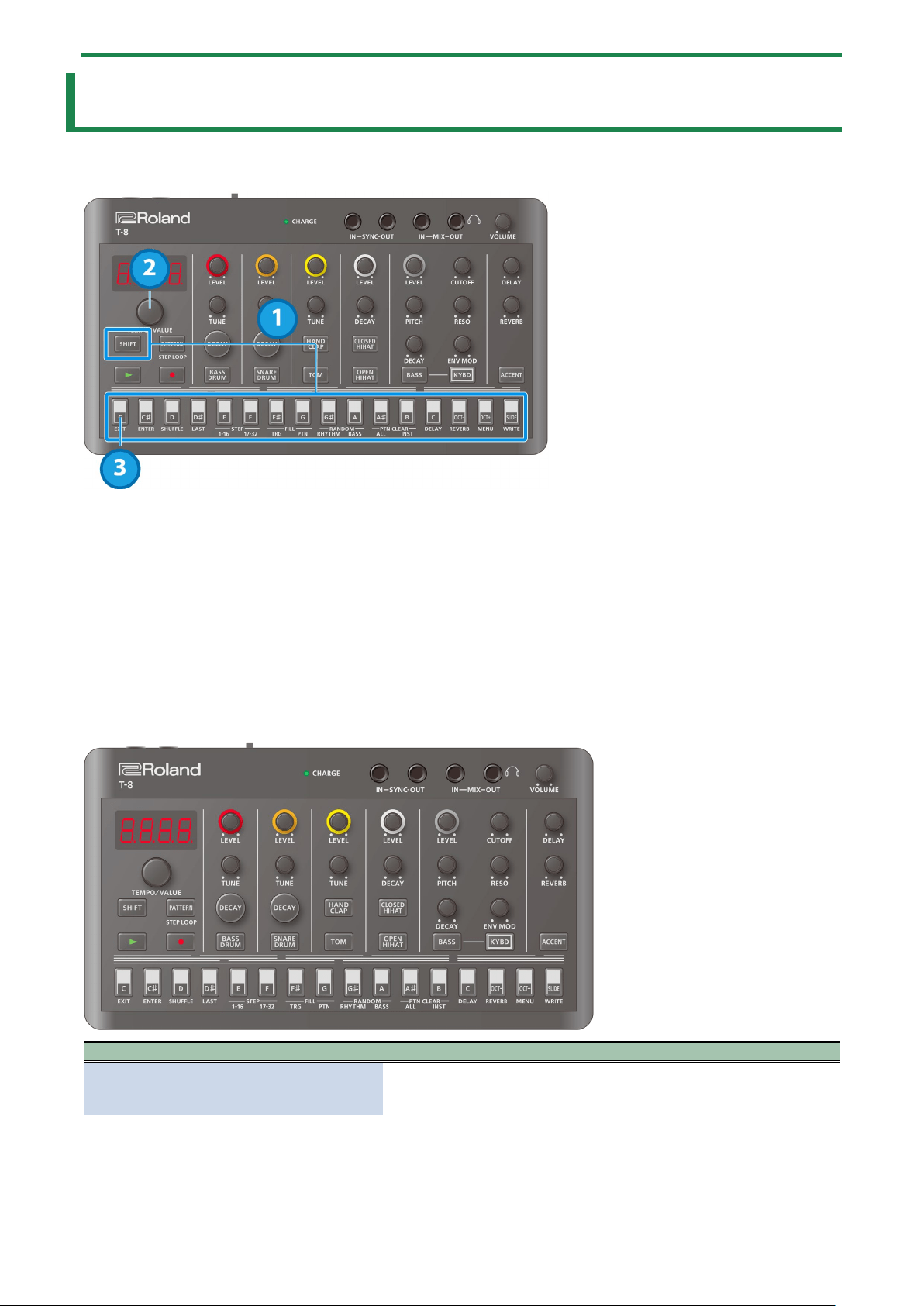
1.
Hold down the [SHIFT] button and press the [OCT- (REVERB)] button.
“r.Snd” is displayed.
2.
Press the button of the instrument you want to set.
The current value (0–127) is shown on the display.
* Press the [ACCENT] button to set the send amount for the signal received via USB.
3.
Turn the [TEMPO/VALUE] knob to set the send amount.
4.
When you are finished, press the [C (EXIT)] button.
Functions, Menus and Shortcuts
22
Functions, Menus and Shortcuts
Using the functions
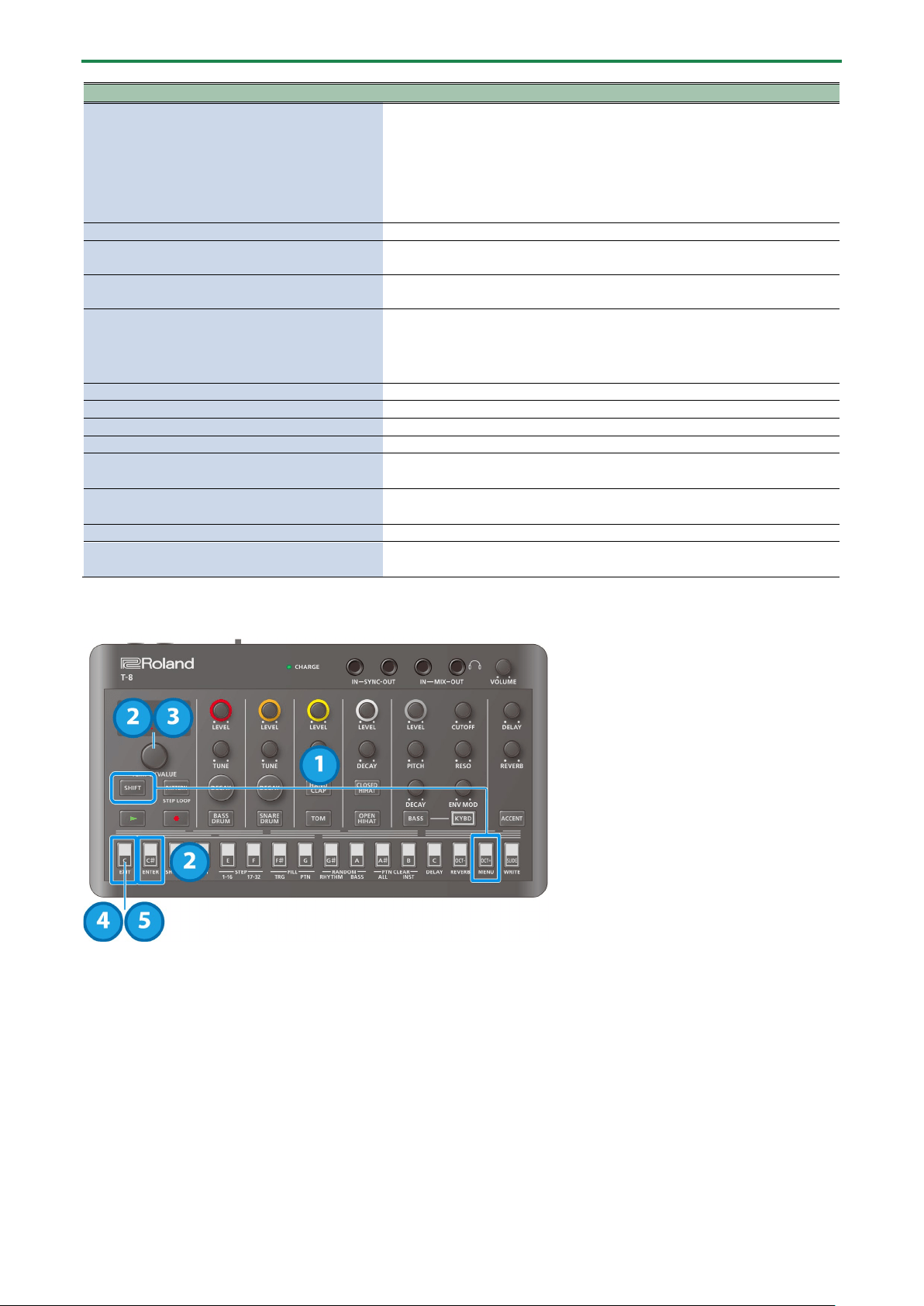
1.
Hold down the [SHIFT] button and press the step button corresponding to the function you want to
execute.
When switching between STEP 1–16/17–32 or using FILL TRG, RANDOM or PTN CLEAR, the display returns to the previous
screen after the function is executed.
For the other functions, you can proceed to step 2 to set the value.
2.
Use the [TEMPO/VALUE] knob or step buttons (for FILL PTN) to set the value.
3.
When you are finished, press the [C (EXIT)] button.
List of functions
Operation
Explanation
[SHIFT] + [C (EXIT)]
Exits the menu.
[SHIFT] + [C# (ENTER)]
Confirms the editing of a value or the selection of an item.
[SHIFT] + [D (SHUFFLE)]
Configures the pattern shuffle settings.
Functions, Menus and Shortcuts
23
Operation
Explanation
[SHIFT] + [D# (LAST)]
Sets the length (the last step) of the selected pattern.
* This can be set separately for rhythm and for bass.
* The rhythm and bass may be out of sync if their last steps are different.
By setting Pattern Sync to “OnCE”, reselecting the current pattern lines
up the instruments the next time they start.
[SHIFT] + [E (STEP 1-16)]
Switches the steps to edit with the sequencer to the first half (page 1).
[SHIFT] + [F (STEP 17-32)]
Switches the steps to edit with the sequencer to the second half (page 2).
If the last step is 16 or less, the last step is changed to 32.
[SHIFT] + [F# (FILL TRG)]
Inserts a fill-in at the end of the pattern.
Uses the pattern selected by FILL PTN.
[SHIFT] + [G (FILL PTN)]
Sets the pattern number where a fill-in is inserted, by using the step buttons
(1–16).
* Set this for each bank.
[SHIFT] + [G# (RANDOM RHYTHM)]
Generates a random rhythm pattern.
[SHIFT] + [A (RANDOM BASS)]
Generates a random bass pattern.
[SHIFT] + [A# (PTN CLEAR ALL)]
Deletes the selected pattern.
[SHIFT] + [B (PTN CLEAR INST)]
Deletes the selected instrument’s pattern.
[SHIFT] + [C (DELAY)]
Configures the delay.
Ø
Configuring the delay(P.19)
[SHIFT] + [OCT- (REVERB)]
Configures the reverb.
Ø Configuring the reverb(P.20)
[SHIFT] + [OCT+ (MENU)]
Displays the menu.
[SHIFT] + [SLIDE (WRITE)]
Saves the pattern.
Ø Saving a Pattern(P.8)
Using the menu
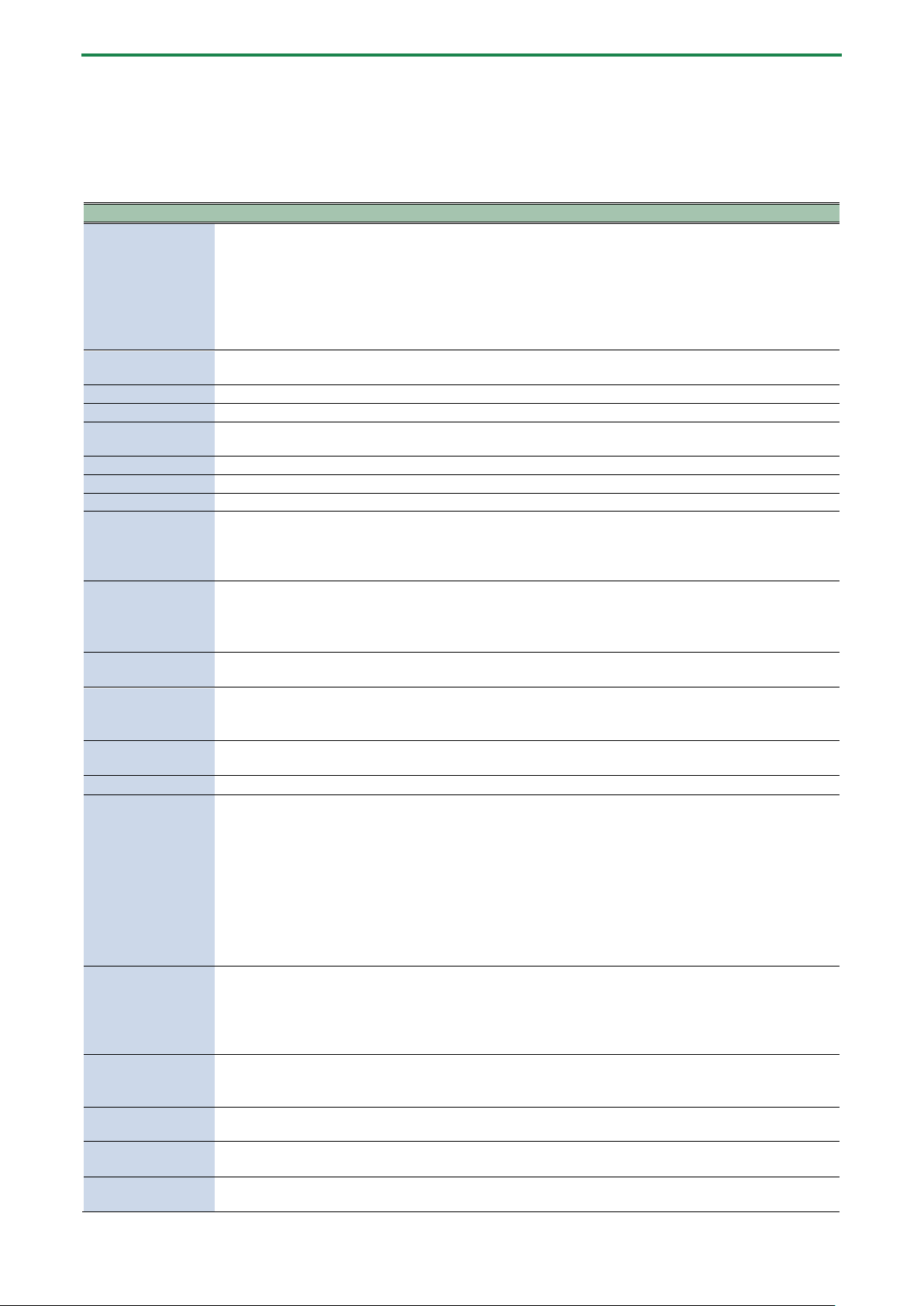
1.
Hold down the [SHIFT] button and press the [OCT+ (MENU)] button.
2.
Use the [TEMPO/VALUE] knob to select the item, and press the instrument button or the [C# (ENTER)]
button.
The value is displayed.
Ø Menu list
3.
Turn the [TEMPO/VALUE] knob to set the value.
4.
Press the [C (EXIT)] button to return to the list of menus (step 2).
5.
When you are finished making the settings, press the [C (EXIT)] button again.
Functions, Menus and Shortcuts
24
Menu list
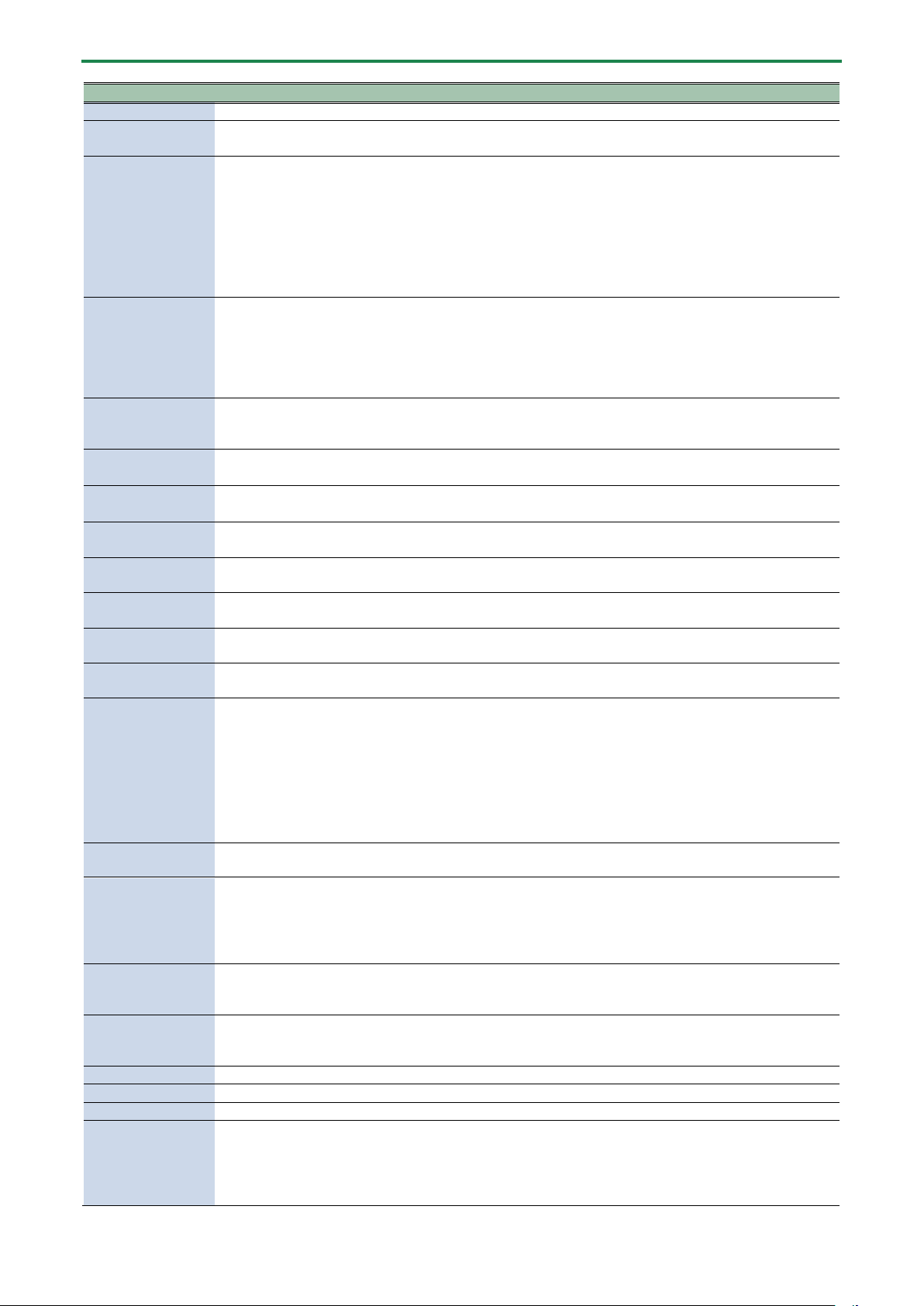
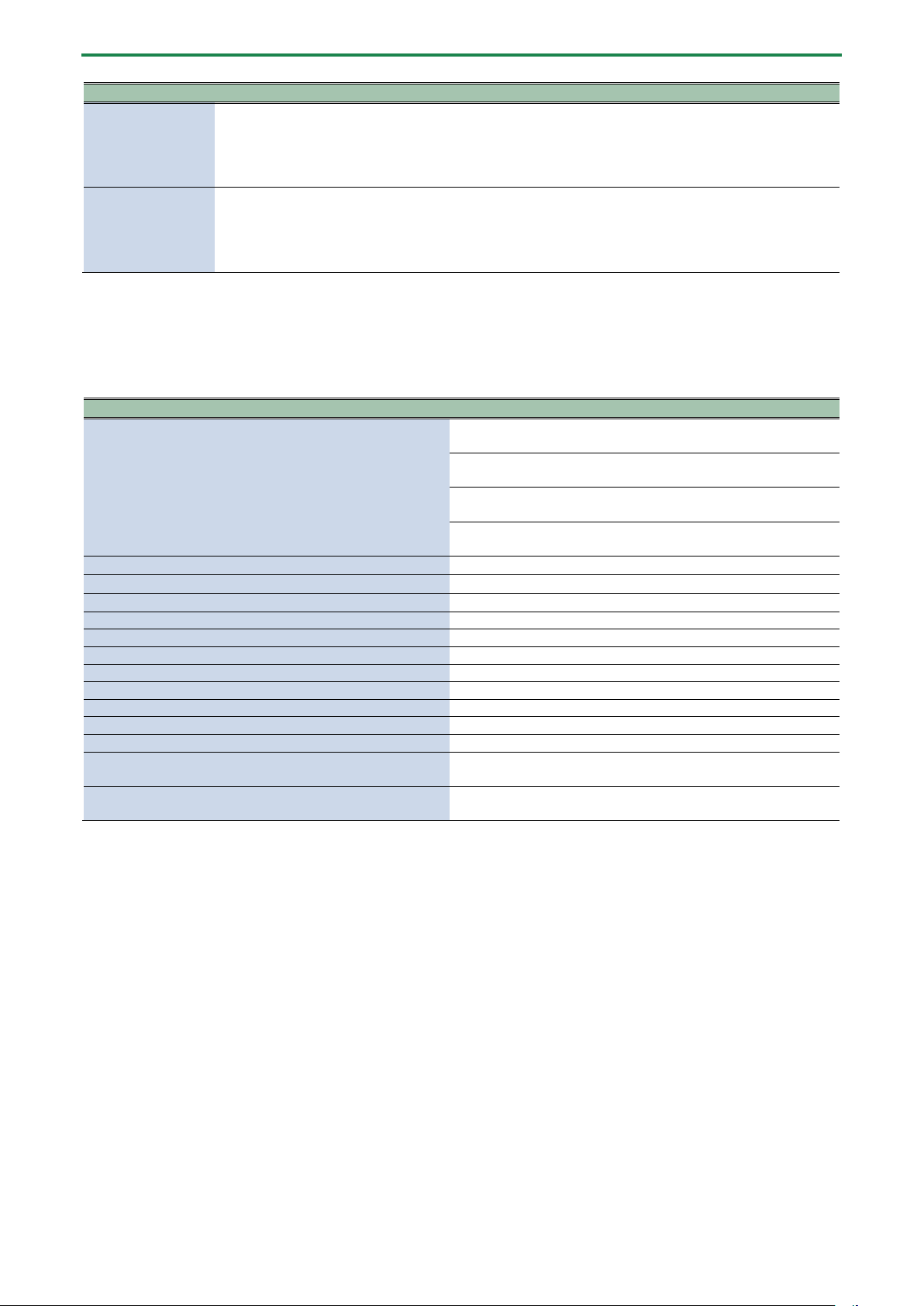
This is a list of menus that you can execute using the [SHIFT] + [OCT+ (MENU)] button combination.
Use the [TEMPO/VALUE] knob to select the item, and then press the [C# (ENTER)] button to display the values for each item.
Item
Value
Explanation
NUtE (Mute)
Instrument
button blinks or
is lit
Temporarily mutes the selected instrument.
The mute function switches between on (blinks) and off (lit) each time you press the
instrument button.
● You can switch mute on/off by holding down the [SHIFT] button and pressing the
instrument button, even when the menu is not displayed.
* The mute settings return to the “off” setting when you turn off the power.
GAIn (Gain)
0
–
200
Adjusts the gain of the instrument you selected.
To select an instrument, press the corresponding instrument button.
tUnE
(Tune)
-128
–
127
Adjusts the tuning (pitch) of the selected instrument.
dECY
(Decay)
-128
–
127
Adjusts the decay length of the instrument you selected.
PAn (Pan)
L64
–
C0
–
r63
Adjusts the panning (where the instrument is in the stereo field) of the selected
instrument (L64–C0–R63).
AtK
(Attack)
0
–
255
Adjusts the attack strength of the bass drum.
SnPy
(Snappy)
0
–
255
Adjusts the volume of the snare wires for the snare drum sound.
CoIr
(Color)
-128
–
127
Adjusts the noise volume of the low tom, the noise tom and the high tom.
tON (Tom)
tON1
,
tON2
Sets the sound used for the tom part.
You can select between two different low tom sounds.
tON1: Tom 1
tON2
: Tom 2
CLAP (Hand Clap)
CP
,
hnt
,
htON
Sets the sound for the hand clap part.
CP: The hand clap sound.
hnt: The noise tom sound.
htON
: The high tom sound.
ƶ
tNp (Open HiHat
Tempo Sync)
OFF, On
When this is on, the decay of the open hi-hat lengthens along the tempo.
ƼľAv (Bass Wave)
SAľ, Sqr
Selects the bass waveform.
SAľ: Sawtooth wave
Sqr
: Square wave
ƐACC (Rhythm
Accent)
OFF, 1–255
Adjusts the strength of the rhythm accent.
Ƽ
ACC
(Bass Accent)
OFF
,
1
–
255
Adjusts the strength of the bass accent.
ƳSyn
(Pattern Sync)
OFF, OnCE,
ALľy
Sets the synchronization timing of the rhythm and bass sequencer patterns.
OFF: The rhythm sequencer and bass sequencer each play their next patterns
individually, when their respective patterns finish playing. If their pattern lengths are
different, the patterns play out of time.
OnCE (Once): The bass sequencer goes to the next pattern at the same time that the
rhythm sequencer does. If the pattern lengths for the respective sequencers differ, the
patterns start at the same time, but they play out of time afterwards.
ALľy (Always): The bass sequencer pattern changes in time with the rhythm sequencer;
and when the rhythm sequencer pattern returns to the beginning, the bass sequencer
pattern also returns to the beginning.
ƐSCL (Rhythm Step
Scale)
16
,
32
,
8-3
,
16-
3
Sets the rhythm sequencer’s step scale.
16: Sixteenth note
32: Thirty-second note
8-3: Eighth note triplets
16-3
: Sixteenth note triplets
ƼTRi (Bass Step
Triplet)
OFF
,
On
Sets the bass sequencer’s step scale.
On: Triplet grid (1 step = eighth note triplet)
OFF
: 1 step = sixteenth note
OƞOn (Overdrive On)
OFF, On
Turns overdrive on/off for the selected instrument.
To select an instrument, press the corresponding instrument button.
Oƞdr (Overdrive
Drive)
0–127
The overdrive gain (common to all instruments).
OƞLv
(Overdrive
Level)
0
–
127
The overdrive level.
To select an instrument, press the corresponding instrument button.
Functions, Menus and Shortcuts
25
Item
Value
Explanation
ƞSyn
(Delay Sync)
OFF
,
On
Synchronizes the delay time to the tempo.
ƞƐSE
(Delay to
Reverb Send)
0
–
127
Adjusts the amount of delay to send to the reverb.
SC (Side Chain)
OFF, 1–100
Sets the depth of the side chain effect that uses a rhythm instrument as a trigger, as well
as the effect’s sustain time. A value within 1–50 changes the depth, and a value above
50 changes the sustain time at a specific depth.
* The side chain effect is triggered by the rhythm sequencer. Although the side
chain effect sustains when you turn down the LEVEL knob for the instrument you
selected for the trigger source, muting the trigger source instrument causes the
side chain effect to become lost.
SŹdG (Side Chain
Ducking/Gate)
dv.50–dv. 1
–OFF–
Gt.1–Gt.50
Configures the depth of the ducking or gate effect when side chained to an instrument,
delay/reverb or USB input.
How to select the target to set:
Instrument: each instrument button
Delay/reverb: [ACCENT] button
USB input: [SHIFT] + [ACCENT] button
SŹti (Side Chain
Time Ratio)
0.5
–
1.0
–
2.0
When the value is set to 1.0, the effect is applied in lengths of eighth notes respective to
the tempo.
Adjust the time it takes to change, to match the musical style and phrases.
SŹSr (Side Chain
Trigger Source)
bd
,
Sd
,
CLAP
,
tON
,
CH
,
OH
Selects the source instrument that triggers the side chain.
ƭcLk (Sync Clock)
1, 2, 3, 4, 6, 8,
12
,
24
Sets the number of sync clocks per beat.
r
ƴ
Ch (Rhythm MIDI
Channel)
1–16, OFF
Sets the MIDI transmitting/receiving channel for the rhythm.
bƟCh (Bass MIDI
Channel)
1–16, OFF
Sets the MIDI transmitting/receiving channel for the bass.
tXPc (TX Program
Change)
OFF, On
Sets whether program change messages are transmitted or not when the pattern
changes.
rXPc
(RX Program
Change)
OFF
,
On
Sets whether the pattern changes when a program change message is received.
Pc.Ch
(Program
Change Channel)
1
–
16
Sets the MIDI channel for transmitting/receiving the program change messages used to
change patterns.
SYnC (MIDI Clock
Sync)
AUTO, Int,
NIdI, USB
Sets which synchronization signal is used by this unit.
AUTO (Auto): Inputted clocks are accepted.
InT (Int): The unit operates according to its internal clock.
NIDI (MIDI): Only MIDI input is accepted.
USB (USB): Only USB MIDI input is accepted.
* Note that when a device is connected to the SYNC IN jack, the unit always
synchronizes to the clocks that are inputted to the SYNC IN jack.
thrv
OFF
,
On
Sets whether to output the messages that are input from the MIDI IN jack (ON, the
default value) or not (OFF).
USƼd
(USB Direct Out)
OFF
,
1
–
127
Sets whether the [VOLUME] knob affects the output volume of signal going to USB.
OFF: The volume set using the [VOLUME] knob affects the signal volume that’s output
via USB.
1–127: The volume set using the [VOLUME] knob does not affect the signal volume
that’s output via USB, and the sound is output at the set volume.
ƷLnk (*1)
(AIRA Link)
OFF
,
On
Set this to ON when connecting a device via USB that is compatible with AIRA LINK,
such as the MX-1. Otherwise, leave this at the OFF setting.
The setting takes effect after the unit is powered off and on again.
LvŸC
nrN
,
SPL
Sets the curve for the [LEVEL] knob.
After you make this setting, the level curve setting is applied once you move the [LEVEL]
knob.
rLod
The selected pattern is restored to its last saved state.
rLƞr
The rhythm of the selected pattern is restored to its last saved state.
rLƞb
The bass of the selected pattern is restored to its last saved state.
COPY
Copies the current pattern to a specified pattern.
The save destination number is shown in the display.
1.
Use the [TEMPO/VALUE] knob to select the save destination.
2.
Press the [C# (ENTER)] button to copy.
If you want to cancel, press the [C (EXIT)] button.
Functions, Menus and Shortcuts
26
Item
Value
Explanation
CPƮr
Copies the rhythm pattern to a specified pattern.
The save destination number is shown in the display.
1.
Use the [TEMPO/VALUE] knob to select the save destination.
2.
Press the [C# (ENTER)] button to copy.
If you want to cancel, press the [C (EXIT)] button.
CPƮb
Copies the current bass pattern to a specified pattern.
The save destination number is shown in the display.
1.
Use the [TEMPO/VALUE] knob to select the save destination.
2.
Press the [C# (ENTER)] button to copy.
If you want to cancel, press the [C (EXIT)] button.
*1: When using with another port besides the USB HOST 3 port on the MX-1, use “battery-only mode”. To use battery-only mode,
turn on the power while holding down the [C (EXIT)] button.
Shortcuts
Item
Operation
Switch between pattern banks
Select bank 1
[PATTERN] button + STEP1 [C (EXIT)] button
Select bank 2
[PATTERN] button + STEP2 [C# (ENTER)] button
Select bank 3
[PATTERN] button + STEP3 [D (SHUFFLE)] button
Select bank 4
[PATTERN] button + STEP4 [D# (LAST)] button
Overdrive settings (
Od.On
)
[PATTERN] button + STEP10 [A (RANDOM BASS)] button
Bass waveform settings (
b.ľAv
)
[PATTERN] button + STEP11 [A# (PTN CLEAR ALL)] button
Side chain settings (
SC
)
[PATTERN] button + STEP12 [B (PTN CLEAR INST)] button
Reload a rhythm pattern
[PATTERN] button + STEP14 [OCT- (REVERB)] button
Reload a bass pattern
[PATTERN] button + STEP15 [OCT+ (MENU)] button
Reload a pattern
[PATTERN] button + STEP16 [SLIDE (WRITE)] button
Master probability settings
[PATTERN] button + [TEMPO/VALUE] knob
Rhythm instrument probability settings
Each step button + [TEMPO/VALUE] knob
Input a sub step
Each rhythm instrument button + step 1–16 buttons
Shift a pattern for each instrument forward/backward
Each instrument button + [TEMPO/VALUE] knob
Transpose the bass
[BASS] button + [KYBD] button + [TEMPO/VALUE] knob
Set the rhythm accent
While a rhythm instrument is selected:
[ACCENT] button + [TEMPO/VALUE] knob.
Set the bass accent
While the bass is selected:
[ACCENT] button + [TEMPO/VALUE] knob

Connecting to a Computer or Mobile Device
27
Connecting to a Computer or Mobile Device
You can transmit and receive audio and MIDI data by connecting a USB cable from your computer or mobile device (smartphone
or tablet) to this unit.
You don’t need to install a device driver on your computer or other device to do this (the unit supports USB Audio Device Class 2.0
specs).
Note that data cannot be directly transmitted/received between this unit and your computer or mobile device if you’re
connecting through a USB hub.
Do not use a USB cable that is designed only for charging. Cables used for charging only cannot transmit data. We cannot
guarantee the correct functionality of all apps.
* Android devices are not guaranteed to work with this unit.
Turning AIRA LINK mode off
1.
Hold down the [SHIFT] button and press the [OCT+ (MENU)] button.
2.
Use the [TEMPO/VALUE] knob to select “A.Lnk”, and press the [C# (ENTER)] button.
The value is displayed.
3.
Use the [TEMPO/VALUE] knob to select “OFF”.
4.
Press the [C (EXIT)] button to return to the list of menus, and then press the [C (EXIT)] button again.
5.
After making the setting, turn the power off and then on again.
Connecting to your computer
Use a USB Type-C to USB Type-A cable (included) or a cable that uses USB Type-C on both sides (commercially available) to
connect this unit to your computer.
Connecting to a mobile device
For iOS devices with Lightning connectors
1.
While holding down the [C (EXIT)] button, turn on the power.
This powers up the unit in battery-only mode.
2.
Use an Apple-manufactured USB adaptor (such as the Lightning-USB Camera Adapter, the Lightning to
USB 3 Camera Adapter and so on) as a converter for the iOS device’s connector.
3.
Use a USB cable (USB Type-C to USB Type-A cable, included) to connect this unit to the USB adaptor.
* Commercially available USB Type-C to Lightning conversion cables cannot be used.
For iOS devices with a USB Type-C port
Connect your iOS device to this unit using a USB cable with USB Type-C connectors on both ends (commercially available).
When doing so, you can power this unit from your iOS device.

Backup and Factory Reset
28
Backup and Factory Reset
Restoring the factory default settings (Factory Reset)
Here’s how to restore the T-8 to its factory-set state.
1.
While holding down the [SLIDE (WRITE)] button, turn on the power.
“FACt” is shown on the display, and the [ACCENT] button blinks.
To cancel the factory reset, turn off the power.
2.
Press the [ACCENT] button.
The factory reset is executed.
3.
Once “dOnE” is displayed and all buttons are blinking, turn the power of the T-8off and then on again.
Backing up and restoring your data
Backup
1.
Connect your computer to the T-8 with a USB cable.
2.
While holding down the [ø] (PLAY) button, turn on the power.
The drive on this unit takes about a minute to get ready. The step buttons light up to show the progress.
3.
Open the “T-8” drive on your computer.
The “BACKUP” folder on the “T-8” drive contains a “BASS” and “RHYTHM” subfolder, which contain the backup files for the
bass and rhythm.
4.
Copy the backup files to the computer.
Copy the “BASS” and the “RHYTHM” subfolders that are inside the “BACKUP” folder.
5.
Once copying is finished, eject the USB drive from your computer.
Windows 10/8/7
Right-click on the “T-8” icon and click “Eject”.
MacOS
Drag the “T-8” icon to the Trash icon in the Dock.
6.
Turn off the T-8.
Restoring
1.
Execute steps 1–3 in “Backup”, and then open the “T-8” drive on your computer.
2.
Copy the “BASS” and the “RHYTHM” subfolders that are inside the “RESTORE” folder to the “T-8” drive.
3.
Once copying is finished, eject the USB drive from your computer.
4.
Press the [ACCENT] button.
This restores the data.
5.
Once you see the message “dOnE”, turn off the T-8.
Main Specifications
29
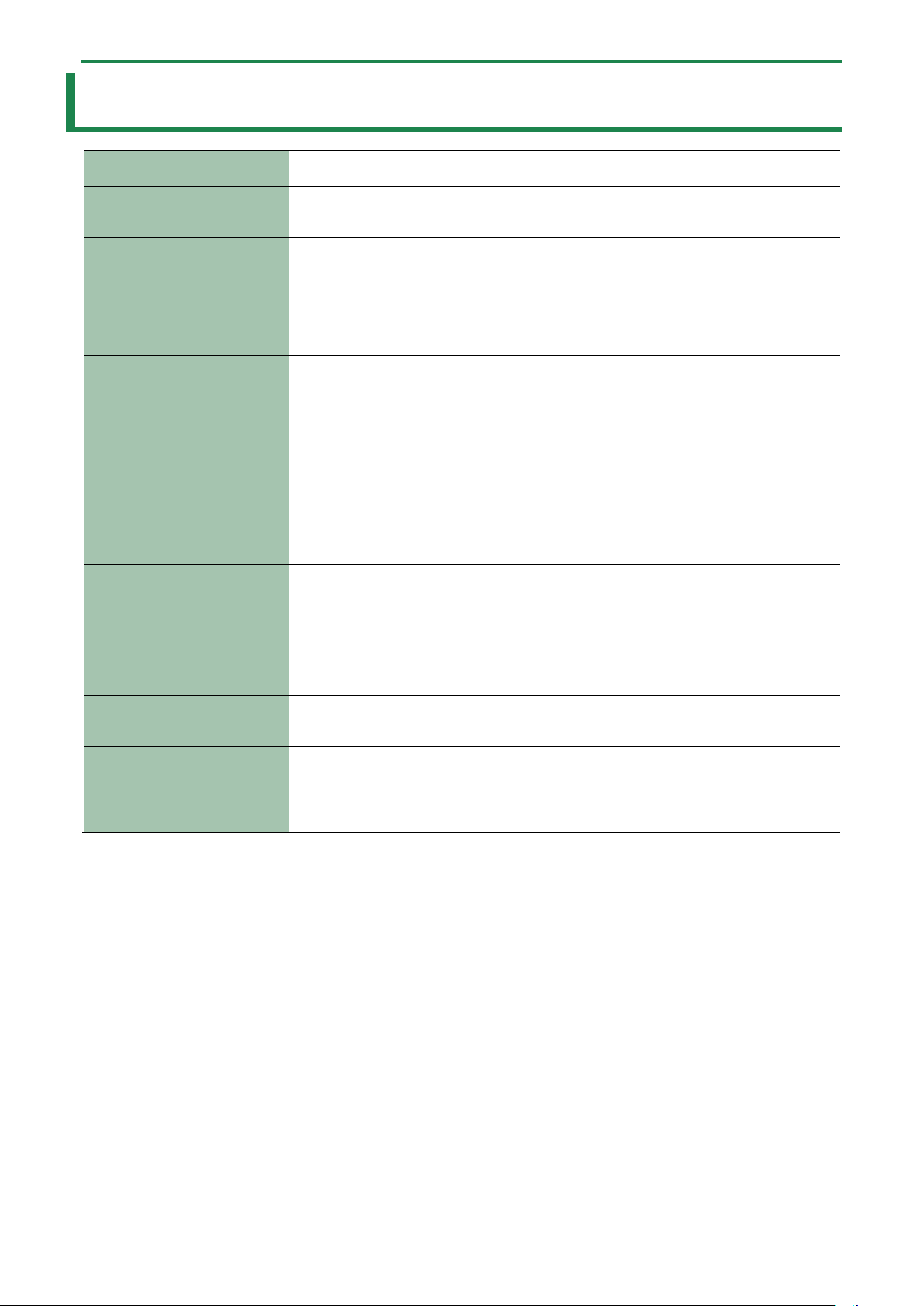
Main Specifications
User Patterns
64
Step Sequencer
Rhythm instrument parts x 6
Bass part x 1
32 steps
INST tone
BASS DRUM
SNARE DRUM
HAND CLAP
TOM
CLOSED HIHAT
OPEN HIHAT
BASS
Effects
DELAY, REVERB, OVERDRIVE, SIDE CHAIN
Display
7 segments, 4 characters (LED)
Connectors
SYNC (IN, OUT) jacks: Mini phone type
MIX (IN, OUT) / PHONES jacks: Stereo mini phone type
MIDI (IN, OUT) jacks: Stereo mini phone type
USB port: USB Type-C
®
(Audio, MIDI)
Power Supply
Rechargeable lithium-ion battery
Obtained via USB port (USB bus power)
Current Draw
500 mA
Expected battery life under
continuous use
Approx. 4.5 hours
* These figures will vary depending on the actual conditions of use.
Expected battery charging time
Approx. 3 hours
* To charge the unit, use the USB port of a computer or a commercially available USB
power supply adaptor (5 V, 500 mA or higher).
Dimensions
188 (W) x 106 (D) x 36.2 (H) mm
7-7/16 (W) x 4-3/16 (D) x 1-7/16 (H) inches
Weight (including batteries)
310 g
11 oz
Accessories
Leaflet ”Read Me First”
USB Type-C to USB Type-A cable
Signal Flow
30
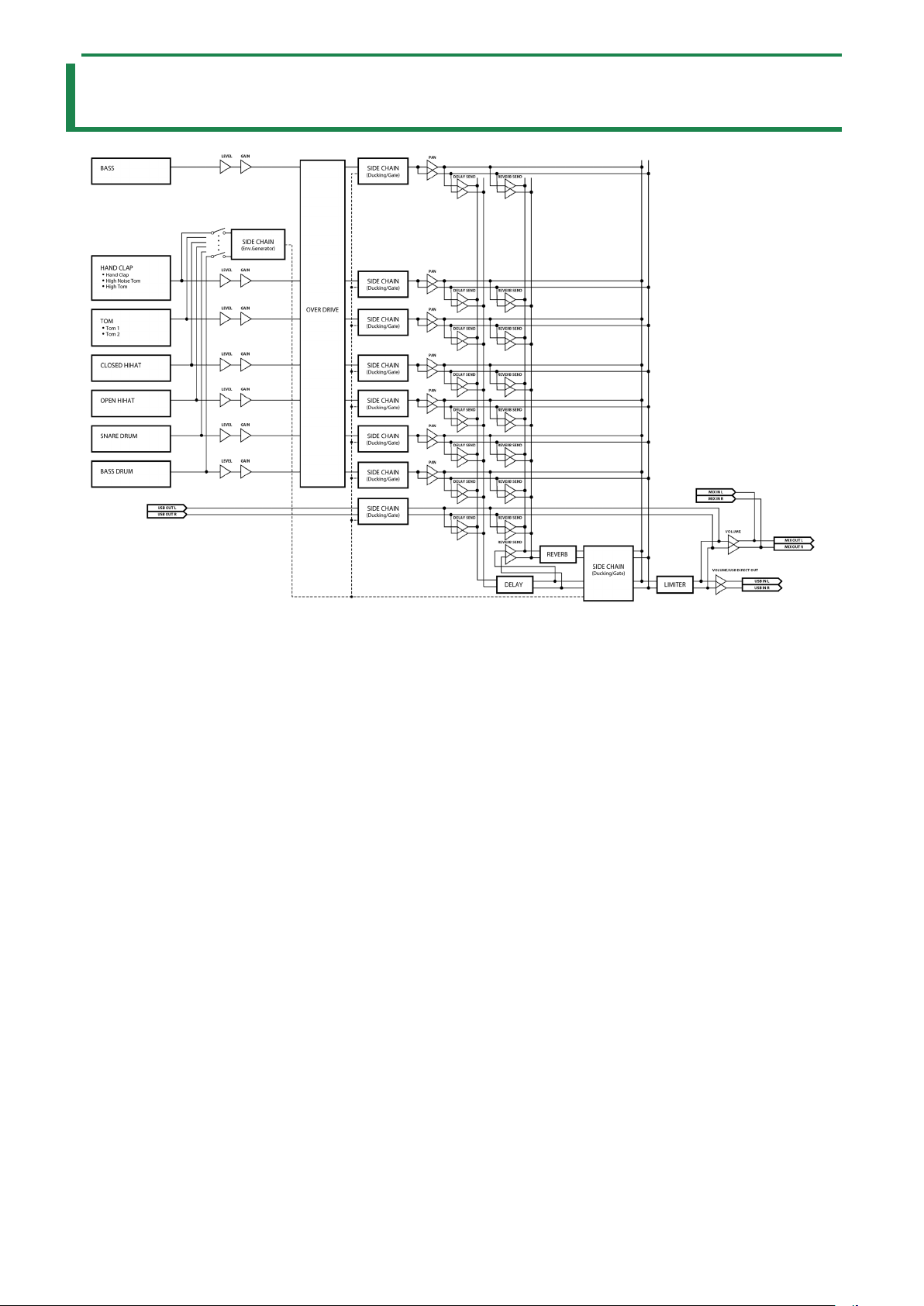
Signal Flow
MIDI Implementation Chart
31
MIDI Implementation Chart
AIRA Compact
Model:T-8
Date: Feb. 7, 2022
Version 1.02
Function
Transmitted
Recognized
Remarks
Basic
Channel
Default
Changed
2 (Bass), 10 (Rhythm), 16 (PC)
1–16, OFF
2 (Bass), 10 (Rhythm), 16 (PC)
1–16, OFF
Memorized
Mode
Default
Messages
Altered
Mode 3
x
x
Mode 3
x
x
Note
Number
: True Voice
12–96 (Bass), *1 (Rhythm)
**********
12–96 (Bass), *1 (Rhythm)
0–127
Velocity
Note On
Note Off
o
o
o
o
After
Touch
Key’s
Channel’s
x
x
x
x
Pitch Bend
x
x
Control
Change
x
x
Program
Change
: True Number
o
0–63
o
0–63
System Exclusive
x
x
System Common
: Song Position
: Song Select
: Tune Request
x
x
x
x
x
x
System
Real Time
: Clock
: Start
: Continue
: Stop
o
o
x
o
o
o
o
o
Aux
Message
: All Sound Off
: Reset All Controllers
: All Notes Off
: Omni Mode Off
: Omni Mode On
: Mono Mode On
: Poly Mode On
: Active Sensing
: System Reset
o
x
x
x
x
x
x
o
x
o
x
o
x
x
x
x
o
x
Transmitted: MIDI OFFLINE
*1 Rhythm Inst Note Number
Inst
Tx Note Number
Rx Note Number
BASS DRUM
36
35, 36
SNARE DRUM
38
38, 40
HAND CLAP
50
48, 50
TOM
47
45, 47
CLOSED HIHAT
42
42, 44
OPEN HIHAT
46
46

MIDI Implementation Chart
32
T-8
01
Owner’s Manual
©2022 Roland Corporation
