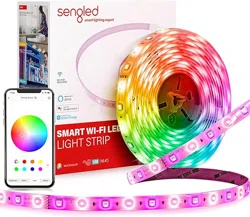
Model / SKU: W1G-N83W3
W1G-N83W5
W1G-N83TW
SMART WI-FI LED LIGHT STRIPS
smart lighting expert
USER GUIDE

1
Introduction:
Sengled Smart Wi-Fi LED Light Strips oer an easy solution to
enhance your entertainment time to a new level and bring you the
smart home experience. They enable you to control your lights in
multiple ways– On/O, dimming, color change, color temperature
change, schedule, scene setting and more through Sengled Home
app, or simply though voice control using Amazon Alexa or Google
Assistant.
Important Safety Information:
Before installing the Sengled Smart Wi-Fi LED Light Strips,
please read and follow all precautions, including:
• Turn o power before installation or removal. Discontinue use if
damaged.
• Risk of electric shock. Do not attempt to disassemble light strip.
• Suitable for use in operating environment between
-4°F and 104°F (-20°C and 40°C).
• Not for use in emergency lighting.
• Indoor use only.
Wireless Specification:
• Wireless Frequency Range:
2.4GHz (2412MHz ~ 2484MHz, IEEE 802.11b/g/n)
• Operating Channels Wi-Fi: 1 - 13
• Maximum Transmitted Output Power: +18dBm
Note: No smart home hub is required to control Sengled Smart
Wi-Fi LED Light Strips.
2
Installation Instructions:
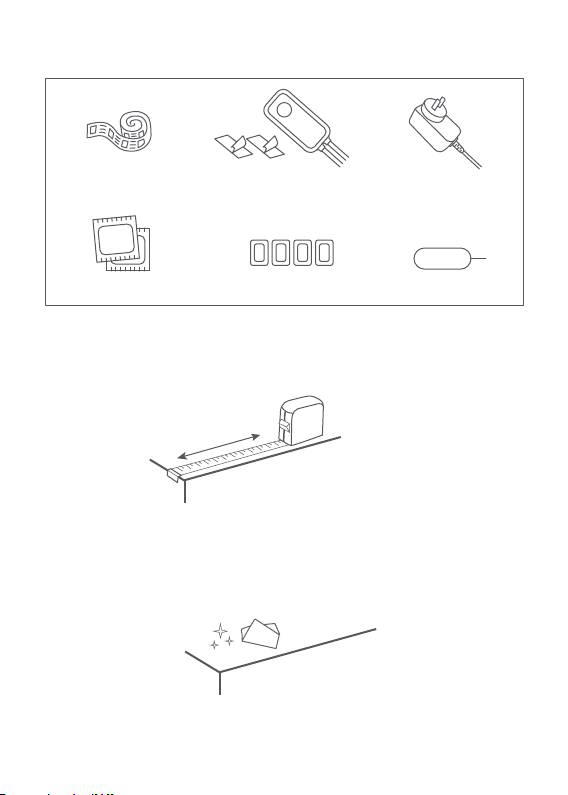
1) Measure the length of mounting surface.
2) Please stick the LED light strip on suitable surface (flat is preferred).
DON’T use on knitted or wool fabrics, wall, rough plastic surface
or frosted glass etc. Use the alcohol pad to clean the surface first
and wait for surface gets dry.
Power
Adapter
Strip Clips
Reset Pin
Cleaning Pads
ALCOHOL
PAD
What is include in the box?
Notice: Alcohol Pad should only be used for cleaning the dust of
surface, please don’t use it wipe the silicone of light strip.
Wi-Fi Controller with
3M mounting pads
3M
3M
Light Strip
with 3M Tape
3
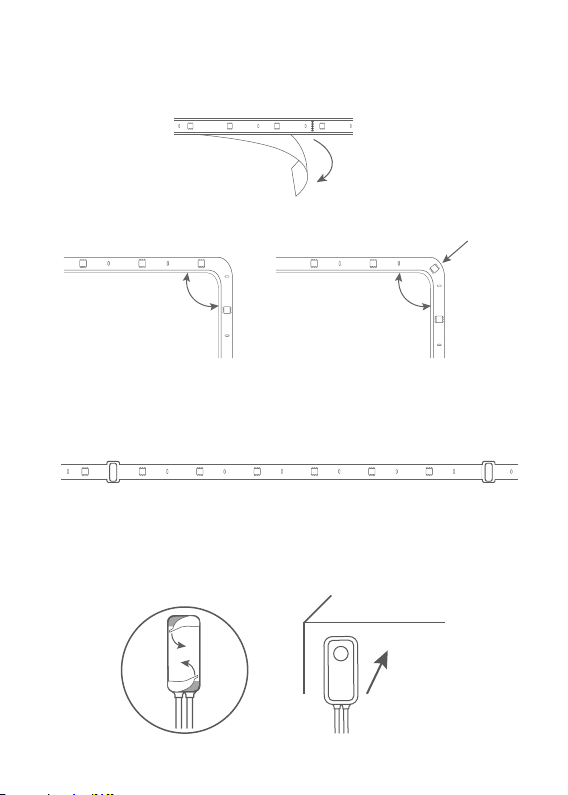
Bending Options
3) Peel o tape and stick the strip to the surface, and follow the
recommended options of bending strip. Please press and hold
strip to surface to make sure proper adhesion.
4) If somewhere adhesive is not strong enough, use the clips to
reinforce the strip.
5) Peel o tape and stick the Controller to flat surface, where easy to
press and control.
Max. 90°
√
×
LED at bend!
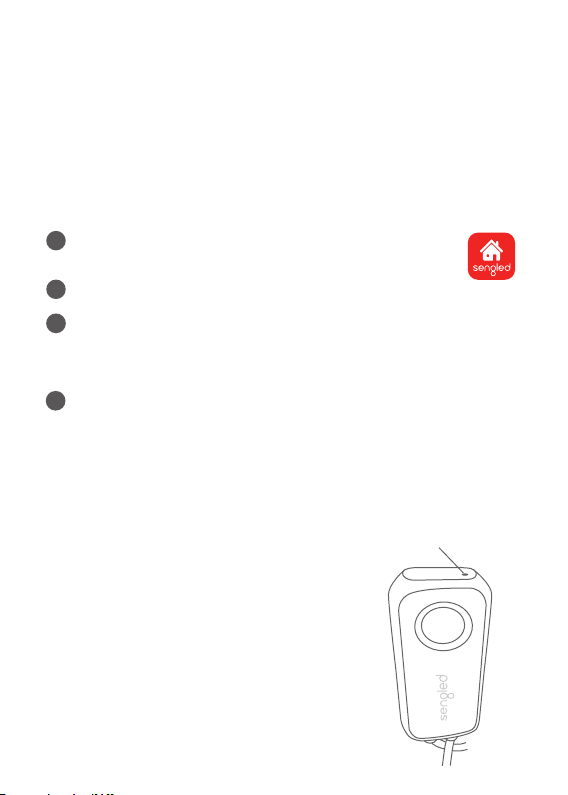
Reset Instructions:
To reset your Smart Wi-Fi LED Light
Strip, locate the reset button, push and
hold for at least 5 seconds. When the
Light Strip is successfully reset, it will
flash three times. If it does not flash,
please try again. Once successfully
reset, please pair the Light Strip again
in your Sengled Home app.
Reset Button
4
The following instructions are applicable to adding your Smart Wi-Fi
LED Light Strips through the Sengled Home app.
If you would like to use third party smart home services, such as
Amazon Alexa, Google Assistant or SmartThings, or would like to find
our latest list of supported third-party integrations, please refer to
support.sengled.com
Ensure your mobile device is connected to the same Wi-Fi router that
you would like to setup the smart Wi-Fi LED using 2.4GHz connection.
1
3
Open the Sengled Home app. Go to Devices, select the + sign,
and choose Smart Wi-Fi LEDs.
Follow in-app instructions to finish setup.
4
Ensure your Sengled Home app can discover the light strip. If the
app fails to discover the light strip, please refer to the next section
"Reset Instructions" for how to reset your light strip before
attempting to add it again.
Congratulations on successfully installing your Smart Wi-Fi LED
Light Strips!
Download the latest version of the Sengled Home
App from the Apple App Store or Google Play Store.
2
Register and sign in to your Sengled account in the app.

Operation:
The following section outlines some of the popular operational modes
of the Sengled Smart Wi-Fi LED Light Strips.
On / Off
The light strip can be controlled through a variety of means:
Use the control button on the controller
• Through Sengled Home app (including Widget)
• Through partner programs like Alexa, Google Assistant,
SmartThings (cloud-to-cloud), etc.
Dimming
The light strip can be dimmed through the following:
• Through Sengled Home app (including Widget)
• Through partner programs like Alexa, Google Assistant,
SmartThings (cloud-to-cloud), etc.
Scheduling
Schedules can be created with Sengled Home app.
A
B
C
Check the in-app how-to pages through "Settings" for the following
operations.
Voice Control
• Set up Amazon Alexa by adding Sengled Home Skill.
• Set up Google Assistant by adding Sengled Home Service.
D
Tuning Whites
Adjust whites via the white palette in the Sengled Home app, or
with voice control.
Changing Colors
Change between 16 million colors using the color palette in the
Sengled Home app, or with voice control.
Color Cycling
The light strip can be color cycled if you hold down the button on
the controller. To select a color, simply release the button.
Control Button Single click: Turn the Light Strip on/o.
Hold down: Color cycle the Light Strip and release the button to
select a color.
E
F
G
5

Frequently Asked Questions:
1. Sengled Smart Wi-Fi LED Light Strip appears offline or
unresponsive, what should I do?
a) Please check the Power adapter make sure the power is On. Push
the control button to make sure the light strip is responding.
b) Power cycle the Wi-Fi LED Light Strips, wait 1 minute and check
the status.
c) Please make sure your home Wi-Fi network and internet
connection is working properly.
d) If all else fails, try to restart your Wi-Fi router.
2. Can different types of Sengled smart devices be used
simultaneously?
Sengled Smart Wi-Fi Light Strips can be used in conjunction with
their Wi-Fi bulbs and Zigbee counterparts, the Sengled Smart LED
bulbs line, when creating scenes and schedules within your home.
Please refer to sengled.com for more information.
3. Could not connect to the Wi-Fi router or third-party services?
The firewall or port on your Wi-Fi router may be blocked and could
prevent the Sengled Wi-Fi Light Strips from connecting to the
Sengled cloud. A Sengled Home account is required to access
third-party services that utilize the Sengled cloud.
Please open Port 1883 and 8883 on your Wi-Fi router to ensure
connectivity. If your router is preventing access, you will need to
enable access to these ports.
If you need help with changing your firewall settings:
For routers provided by your internet service provider, please
contact your internet service provider.
For a router you own, please contact the manufacturer of the router.
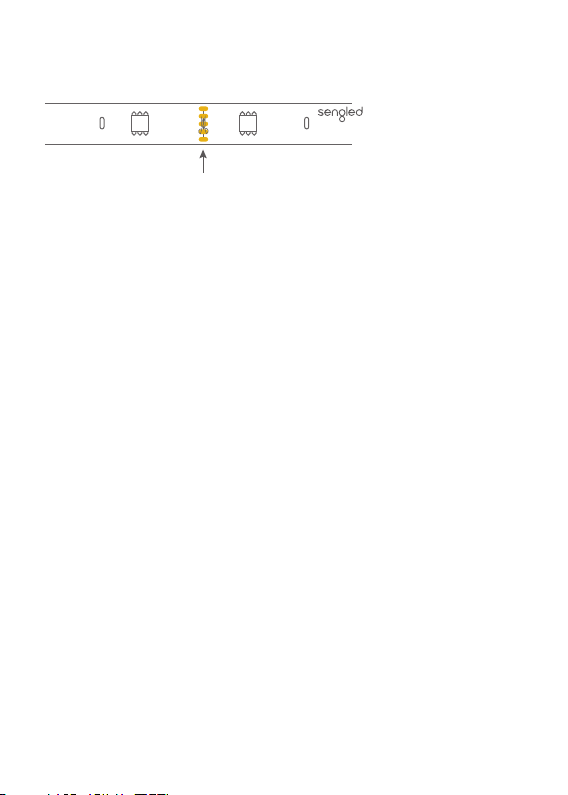
4. Can I cut the light strip if it's too long?
The length of the light strip can be shortened for special fitting.
Once shortened, it is unable to be lengthened again. Please cut
along the Cut Line (about every 25 cm, or 9.8 in).
6
7 1503260474 / v1.0
Limited Warranty:
2-year limited warranty from original purchase date. Sengled restrict
warranty service for smart home device to the country where
Sengled or its authorized retailor originally sold the device. To learn
more about the Limited Warranty for Sengled products, please visit
www.sengled.com/warranty
Support:
If you encounter any issues, please reach out to your local Sengled
Support team.
Visit the following website for web support:
https://support.sengled.com/
Send emails to:
Support@sengled.zendesk.com (USA)
[email protected]sk.com (CA)
Dial Customer Support Line 1-877-401-5990
10:00am-8:00 pm CST on Mon-Fri
11:00am-8:00 pm CST on Sat
To Shorten:
Cut Line
W
+24V +24V
W
G G
R R
B B
