
1
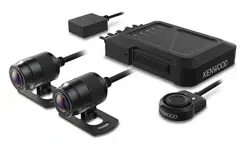
KENWOOD Motorsports CAM
Operations Guide
English
©2021 JVCKENWOOD Corporation B5A-3945-00
Contents
How to Use the Cell Phone App ..............................................2
Installing the KENWOOD Motorsports CAM App ....................2
Connect your cell phone and device through wireless LAN ....2
App Overview ..........................................................................3
Language Settings...................................................................3
Adjusting the Camera’s Field of View ......................................4
Setting the Time and Date .......................................................5
Formatting SD Cards ...............................................................5
Recorded Video List ................................................................6
Recorded File Management ....................................................8
Main Unit Settings .................................................................10
2
How to Use the Cell Phone App
You can use the KENWOOD Motorsports CAM App to view and download videos recorded and saved on
SD cards. You can also use it to change device settings.
Installing the KENWOOD Motorsports CAM App
Minimum system requirements (cell phones)
• Android 7.0 or later
• iOS 11 or later
Search for the KENWOOD Motorsports CAM App on the Google Play Store or the App Store.
Then download and install the app on your cell phone.
• Check that your cell phone is connected to the internet (mobile data or Wi-Fi).
Connect your cell phone and device through wireless LAN
1. Press and hold the switch button on the main unit for 3 seconds to switch to wireless LAN mode.
The orange status LED will light up and the blue one will blink. This shows that the main unit is pre-
paring to connect to your cell phone.
2. Open the settings on your cell phone.
3. Set Wi-Fi to ON.
Bring up the list of available networks.
4. Tap “STZ_RF200WD_(serial number)”.
5. Enter the password, tap connect, and connect to the unit.
• The default password is “12341234”.
See “Device settings”p. 10 for how to change the password.
• You only need to input the password the rst time. Subsequent connections will be automatic.
3
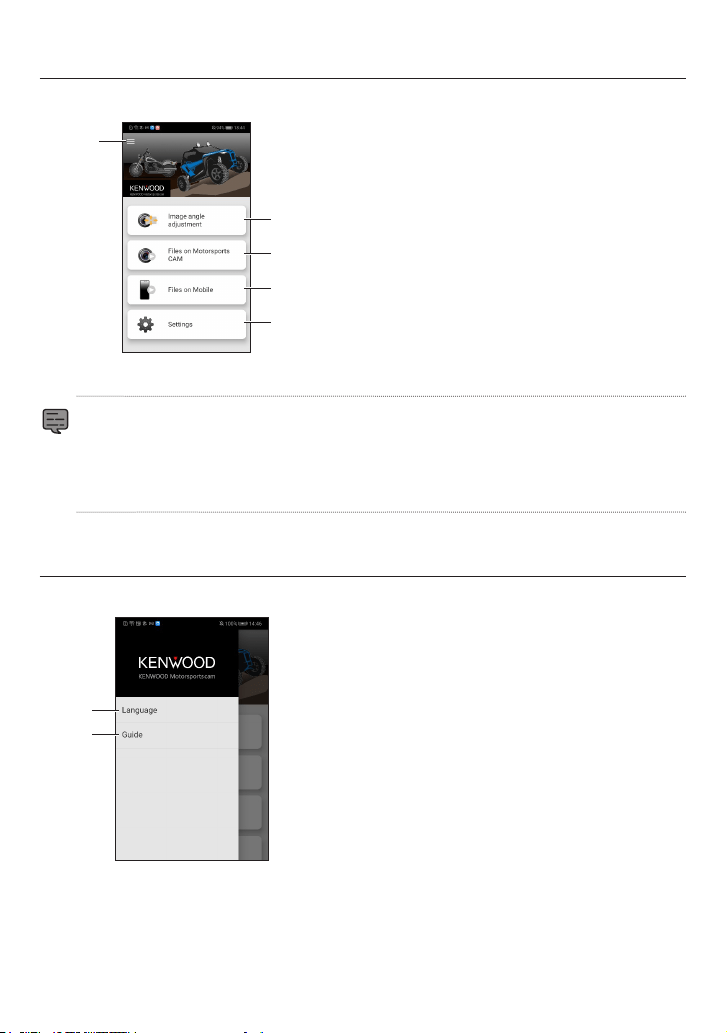
App Overview
Open the KENWOOD Motorsports CAM App on your cell phone.
Main menu
[1]
[3]
[2]
[4]
Menu
[1] Adjust the camera’s image angle. (see p. 4)
[2] Display recorded les on the SD card. (see p. 6)
[3] Display the les downloaded to the cell phone.
[4] Change the settings of the main unit. (see p. 10)
• A message asking for access permission will appear on the screen the rst time you connect.
Tap “Accept” and continue.
• Video is not recorded when the unit is connected to the KENWOOD Motorsports CAM App.
To return to recording, press and hold the switch button for three seconds to turn wireless LAN
o.
Language Settings
Menu screen
[1]
[2]
[1] Language
Select the language for the app.
[2] Guide
• Manual
Links to our company website.
• App version
• License information
Displays license information.
4
Adjusting the Camera’s Field of View
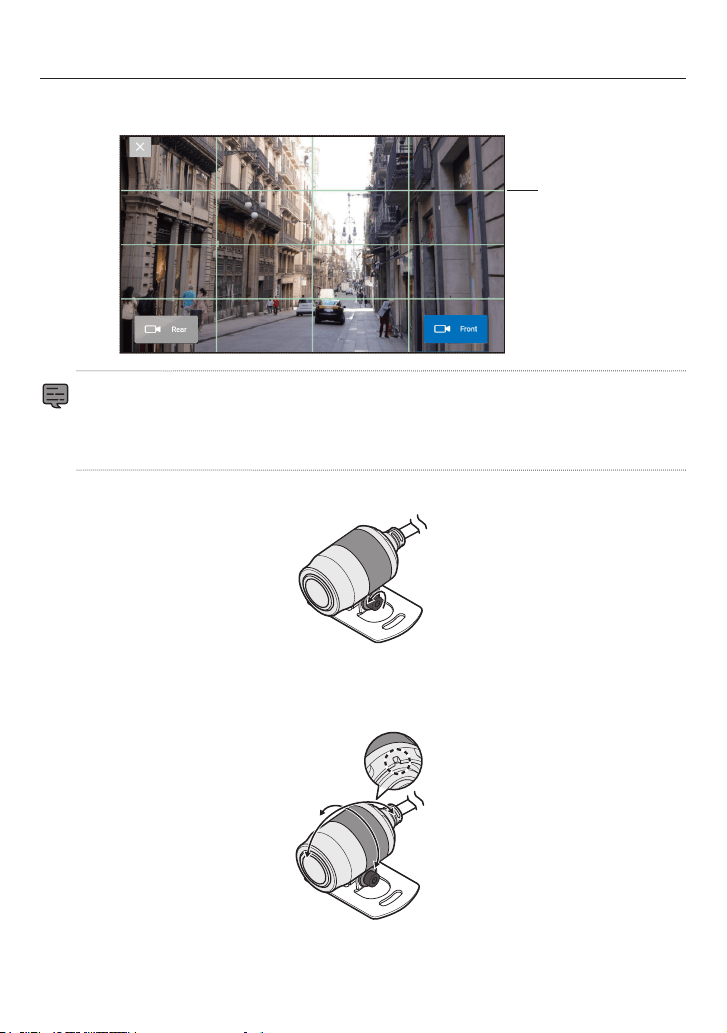
1. Tap “Image angle adjustment” in the main menu. It will start with the live feed from the front cam-
era.
Guide lines
• Tap “Rear” to switch to the live feed from the rear camera.
• Tap “X” when you are nished with the screen.
• If it starts with the live feed from the rear camera, the front and rear camera connections are
incorrect. Check the camera cable connections.
2. Use the included hex wrench to loosen the bolt on the installation bracket.
Bolt
3. Rotate the camera while checking the live feed and adjust the camera to your preferred view.
Make sure that the indentation on the back of the camera is facing up.
4. Once the adjustment is complete, tighten the bolt and lock the camera in place.

5
Setting the Time and Date
Select “Settings” from the main menu. Select “Synchronize”.
Formatting SD Cards
1. Select “Settings” from the main menu. Next, select “Format SD card”
2. A conrmation message will appear. Tap “OK” and formatting will begin.
• Formatted les cannot be restored.
Make sure to back up important les to a computer or other device before formatting.
6
Recorded Video List
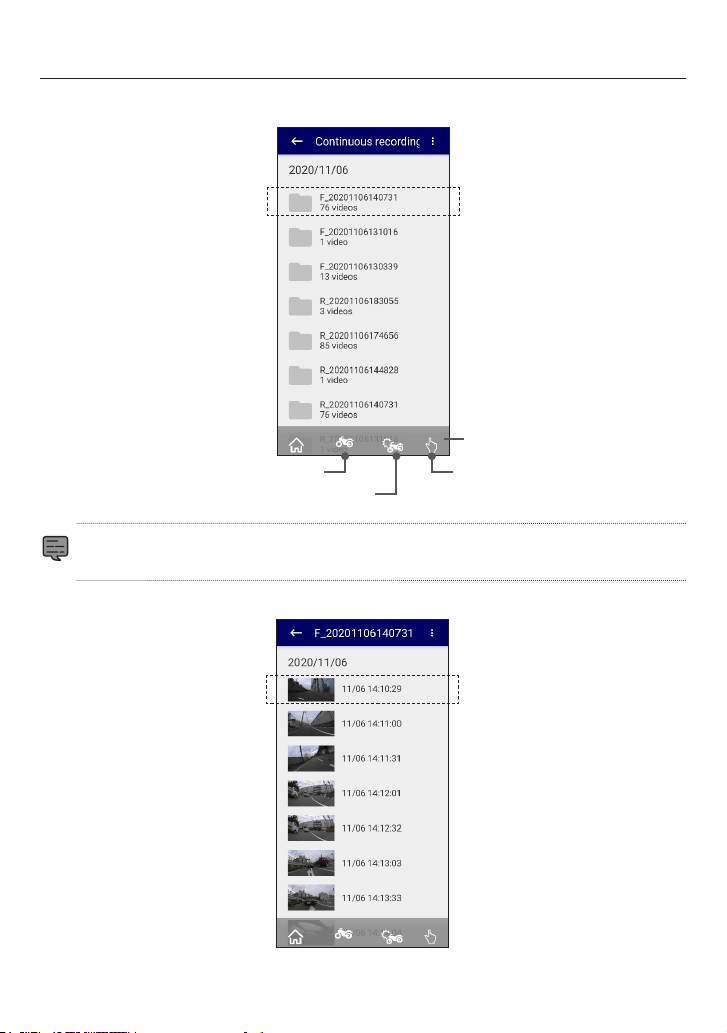
1. Tap “Files on Motorsports CAM” from the main menu. Next, select the category or folder of the videos
you want to view.
Continuous recording
Event recording
Manual recording
Video category
• F_ indicates videos recorded by the front camera.
• R_ indicates videos recorded by the rear camera.
2. Tap the video you would like to view.
7
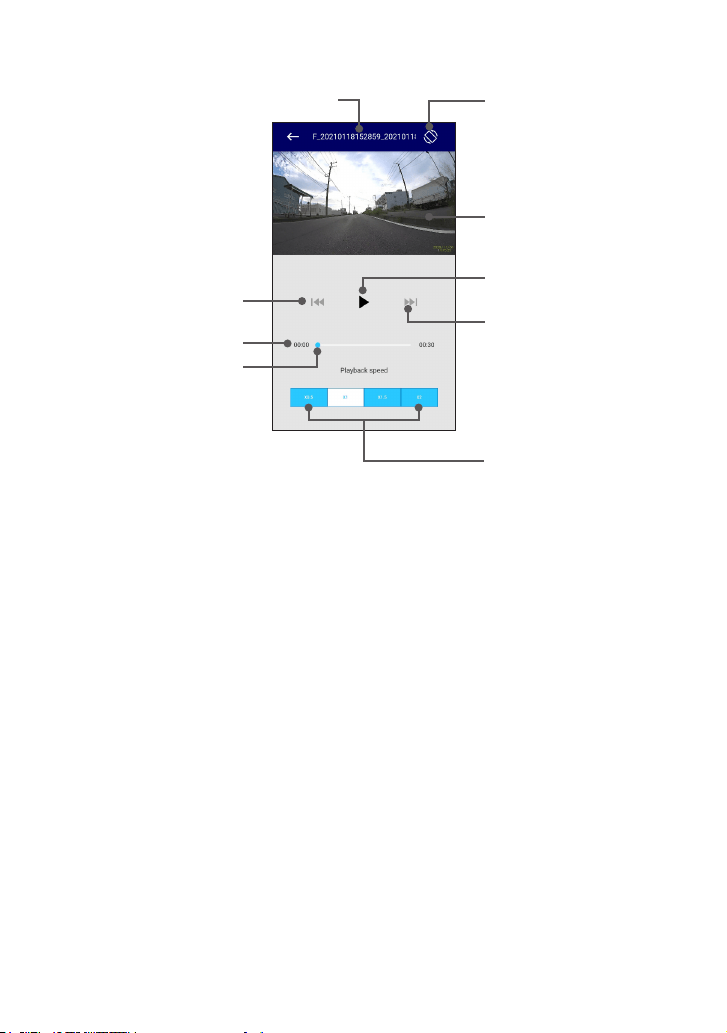
Video playback
Scroll bar
Elapsed time
File name
Tap to return to the
previous video.
Tap to skip to the next
video.
Tap to play/pause.
Tap to toggle the full
screen display.
Video playback
Tap to change
playback speed.
8
Recorded File Management
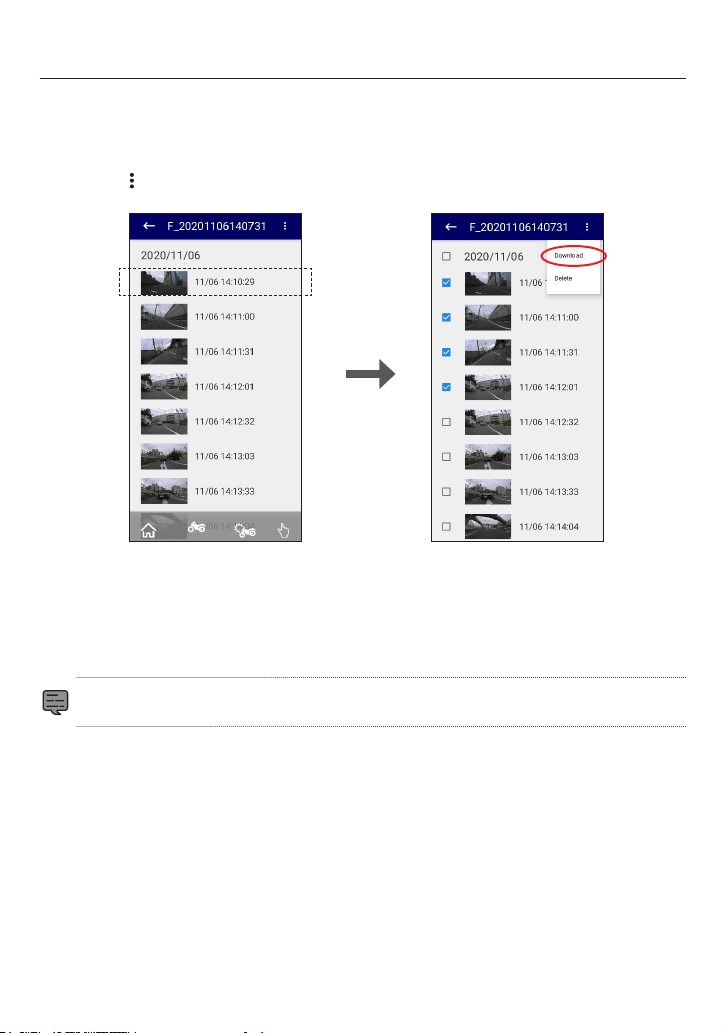
Saving les on a cell phone
1. Tap “Files on Motorsports CAM” from the main menu.
Next, select the category or folder of the videos you want to view.
2. Long press the le inside the folder. Select the le you want to download from the le selection
screen, tap
, and select “Download”.
Long press
3. Tap “Yes” on the conrmation screen.
After the download is complete, a message will appear asking if you would like to merge the les.
Tap “Yes” if you would like to merge them.
* Merging les saves multiple les as one le.
* Merged videos will be saved with “~_N_J.MP4” as the le name
• Tap “Files on Mobile” from the main menu to check the downloaded les.
9
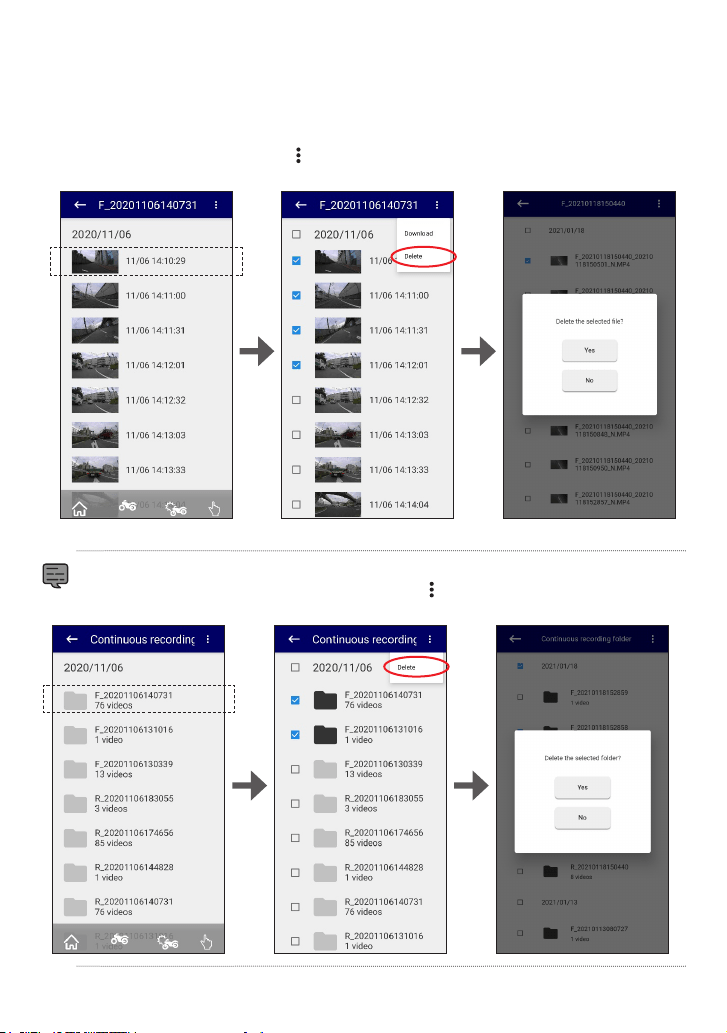
Erasing les
1. Tap “Files on Motorsports CAM” or “Files on Mobile” from the main menu.
Next, select the category or folder of the videos you want to view.
2. Long press the le inside the folder.
3. Select the les you want to delete, tap
, and select “Delete”.
Tap “Yes” on the conrmation screen.
Long
press
* “Download” will not appear when “Files on Mobile” is selected.
• You can long press a folder to delete the entire folder. This will bring up the folder selection
screen, so select the folders you want to delete, tap “
”, and select “Delete”. Tap “Yes” on the
conrmation screen.
Long
press
10
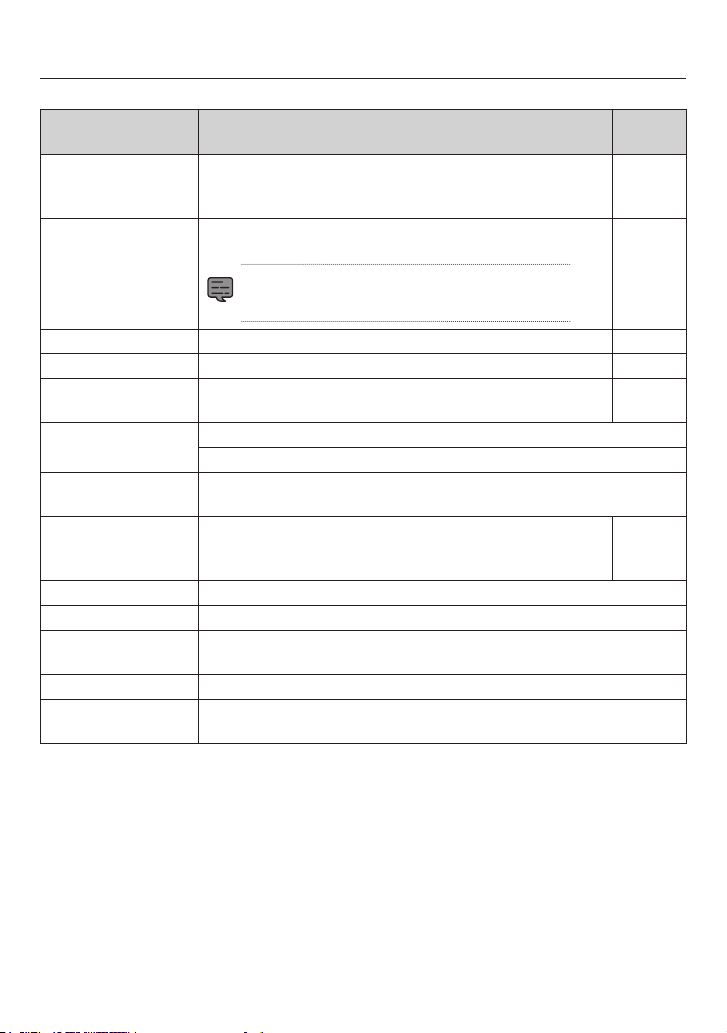
Main Unit Settings
Select “Settings” from the main menu to change the setting of each function.
Options Explanation
Default
setting
Recording time (1 le) Sets the time for continuous recording. Recorded les will be sep-
arated by the specied time.
Possible options: 30 seconds / 1 minute / 3 minutes
1 minute
Impact detection level Sets the detection level for impacts to the bike.
Possible options: 5 / 4 / 3 / 2 / 1 / OFF
• 5 is the least sensitive
• 1 is the most sensitive
3
Sound recording Set whether to record audio when recording video. ON
Rear camera Set whether to record with the rear camera. ON
Video quality Sets video quality.
Possible options: FINE / NORMAL
FINE
Time Synchronize: Synchronize time with your cell phone.
Time zone settings: Synchronize time with the region selected.
Wireless LAN
password
Change the password used to connect to the Wi-Fi.
Wireless LAN
Frequency
The settings will be reected when you turn o the wireless LAN
mode.
Possible options: 2.4 GHz / 5 GHz
2.4 GHz
Device initialization Revert all settings back to the factory defaults.
Format SD card Formats the SD card.
Display free SD card
capacity
Displays the free space on the SD card.
Firmware Displays the version of the rmware on the device.
Motorsports CAM
License Information
Displays the license information for the device’s software.
