
MATV
MODEL: RU-i42PX10/11/20
read this manual carefully and completely before
for future reference.
and serial number of the TV in the
the back cover and relate this
require service.
iiiiiiiiiiiiiiiiiiiiiiiiiiiiiiiiiiiiiiii_
Warning
f
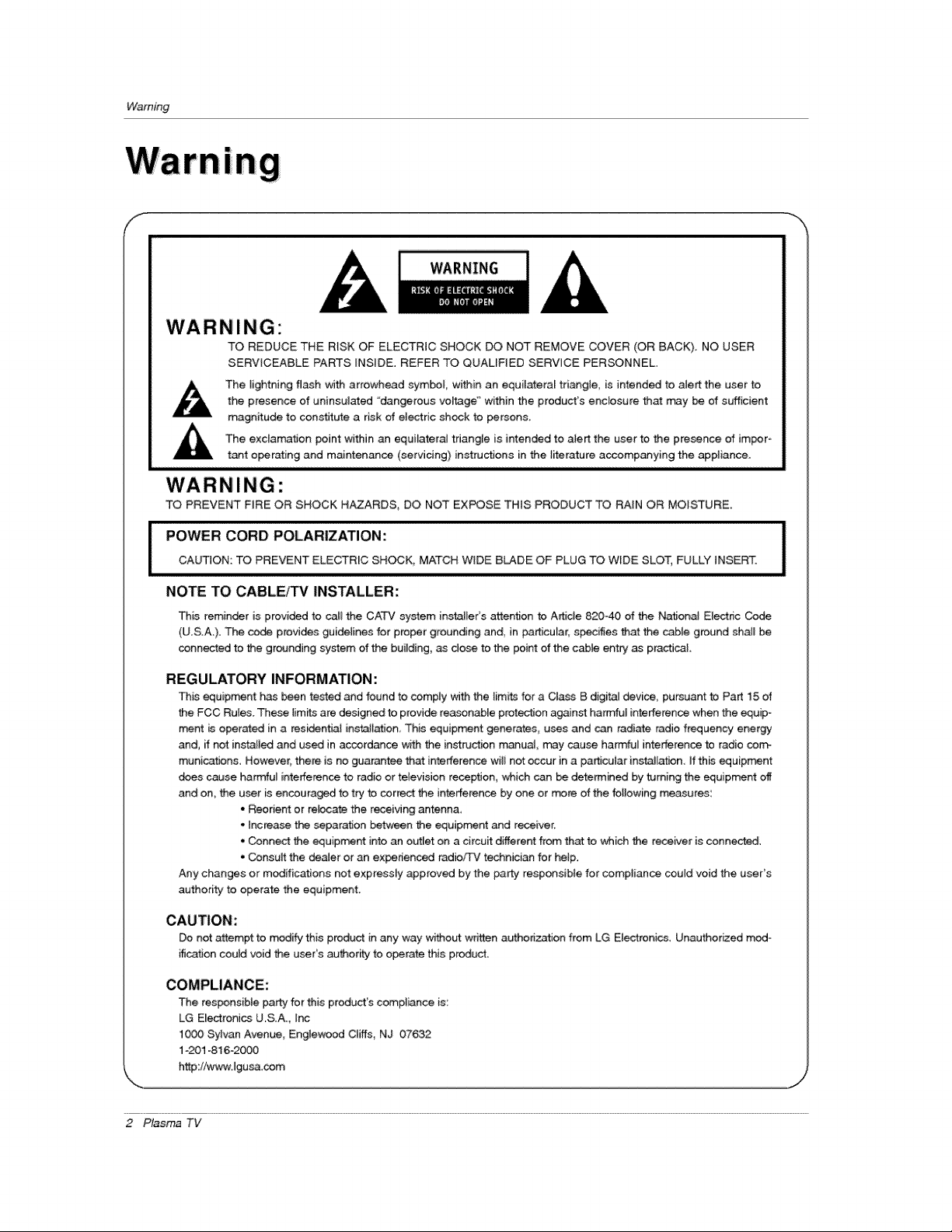
WA R N IN G"
TO REDUCE THE RISK OF ELECTRIC SHOCK DO NOT REMOVE COVER (OR BACK). NO USER
SERVICEABLE PARTS INSIDE. REFER TO QUALiFiED SERWCE PERSONNEL.
_, The ligh'ming flash with arrowhead symbol, within an equilateral triangle, is intended to atert the user to
the presence of uninsumated "dangerous vo_ge" within the product's encEosure that may _ of sufficient
magnitude to constitute a risk of electric shock to persons.
The exclamation point within an equilateral triangle is intended to alert: the user to the presence of impor-
tant oporating and maintenance (servidng) instructions in the tkerature accompanying the appliance.
WARNING:
TO PREVENT FiRE OR SHOCK HAZARDS, DO NOT EXPOSE THiS PRODUCT TO RAiN OR MOISTURE.
I OWER CORD POLARIZATION:
CAUTION: TO PREVENT ELECTRIC SHOCK, MATCH WIDE B_DE OF PLUG TO WIDE SLOT, FULLY iNSERT.
NOTE TO CABLE/TV INSTALLER:
This reminder is provided to ca]i the CA'PC system instaJler s attention to Articte 820-40 of the National Electric Code
(U.S.A.). The _ provides guideJines for proper grounding and, in particular, s_cifles that the cable ground shall be
conne_d to the grounding system of the buiJding, as dose to the point of the c_te ent_ as p_cticaL
REGULATORY INFORMATION:
Th_ equip_nt has _n tested and found to compty with the limits for a Class B digita_ device, pu_uant to Part 15 of
the FCC Rules. These limits are designed to provi_ reasonable protection ag_nst harmful interference when the equip-
ment is operated in a res_n_Jai inflation This equip_nt generates uses and carl radiate radio frequency energy
and, ff not instalie.d and used in accordance w_th the instruct_n manua_ may cause harmful interference to radio corn-
munications. However, there is no guarantee that intefferer_ce wilI not occur ina particular inst_lation. Ifthis equipment
does cause harn_ul interference to radio or teievision reception, which can _ determined by turning the equipment off
and on, the user is encouraged to try to correct the interference by one or more of the following measures:
• Reorient or re_ate the receiving antenna,
, increase the separation between the equipment and receiver.
, Cor_nect the equip_nt into an o_[et on a circuit different from that to which the receiver is connected.
• Consuff the dealer or an ex_densed radio_q'V technician for hetp.
Any changes or modifications not e×pressIy approved by the part;,, responsible for compliance could void the user's
authority to operate the equipment.
CAUTION:
Do not attempt to rr_ this product in any way without wri_en authorization from LG Ei_ronics Unauthor_ed mod-
ification could void the user's a_ority to operate this product.
COMPLIANCE:
The responsible party for this product's compi_nce is
LG E_ectronics U.S.A., [nc
1000 Sylvan Avenue, Eng_ev_od Ctiffs, NJ 07632
1-201-816-2000
ht_43:i/wwwJgusa.cem
2 Plasma TV
Safetyfnstruc#ons
I
Important safeguards for you and your new product
"Four product has been manufactured and tested with your safety in mind However, improper use can result in e_ectrica]
shock or fire hazards To avoid defeating the safeguards that have been buiit into your new product, please read and observe
the forlowing cafety points when installing and using your new product and save them for future reference.
Observing the simp{e precautions discussed in this m_nual can help you get many years of enioyment and safe operation
that are built into your new product.
This product complies with all _p_icabfe U.S. Fe_ra[ safety requirements, _d those of the C_adian Standards Association.
1. Read Instructions
All the safety and operating instructions should be read
before the product is operated.
2, Follow Instru_ions
All operating and use instructions should be folJov_,
3. Retain |nstru_ions
The s_fety and operating instructions should be retained for
future reference.
4, Heed Wamlngs
All warnings on the product and in the operating instructions
should be adhered to.
5. Cleaning
Unplug this product from the wall out_et before cJeaning. Do
not use tiquid cleaners or aeroso9 cleaners Use a damp
cloth for denning,
6, Water and Moisture
Do not use this product near water, for example, neara bath
tub, wash bow_, kitchen sink, or laundry tub, in a wet base =
merit, or near a swimming poot
7. Accessories, Carts, and Stands
Do not place this product on as_ippery or tilted surface, or on
an unstable cart, stand, tripod, bracket, or table. The product
may slide or fa]t, causing serious injury to a chitd or adult,
and serious damage to the product, Use only with a cart,
stand, tripod, bracket, or tabme recommended by the manu-
facturer_ or soid with the product Any mounting of the prod-
uct shouM follow the manufacturer's ins_tructions, and should
use a mounting accessory recommended by the manufac-
turer.
8. Transporting Product
A product and cart combin_ion should be moved with care,
Quick stops, excessive force, and uneven surfaces may
cause the product and cart combination to overturn.
g, At_hments
Do not use attachments not recomrr_nd_ by the product
manufacturer as they may cause hazards.
10. Ventilation
Slots and openings in the cabinet are provid_ for ventil_ion
and to ensure retiab_e operation of the product and to protect
it from overheating, and these openings must not be bilked
or covered. The openings should never be b}ocked by plac-
ing the product on a bed, sofa, _g, or other similar surface.
This product shouM not be placed in a buiJt-in installation
such as a bookcase or rack unless proper ventiJa_on is pro*
vided or the manufacturer's instructions have been adhered
to.
11, Power Sources
This product should be operated onmy from the type of power
source indicated on the marking label tf you are not sure of
the type of power suppty to your home consutt your product
dea_er or tocal power company. For products intended to
operate from battery power, or other sources_ refer to the
operating in_nactions.
12_ Power-Cord Polarization
This product is equipped with a three-wire grounding typic
plug, a plug having a third (grounding) pin This plug will oniy
fit into the grounding4ype power outlet. This is a safety fea-
ture. if you are unable to insert the plug into the outJet, con*
tact your e_ectdcian to repJace your obsolete out_et. Do not
defeat the sa{ety purpose of the grounding-type plug,
13. Power-Cord Protection
PowePsupply cords shouM _ routed so that they are not
likely to be walked on or pinched by items placed upon or
against them, paying pa_cuiar attention to cords at pmugs,
convenience receptacles, and the point where they exit from
the product.
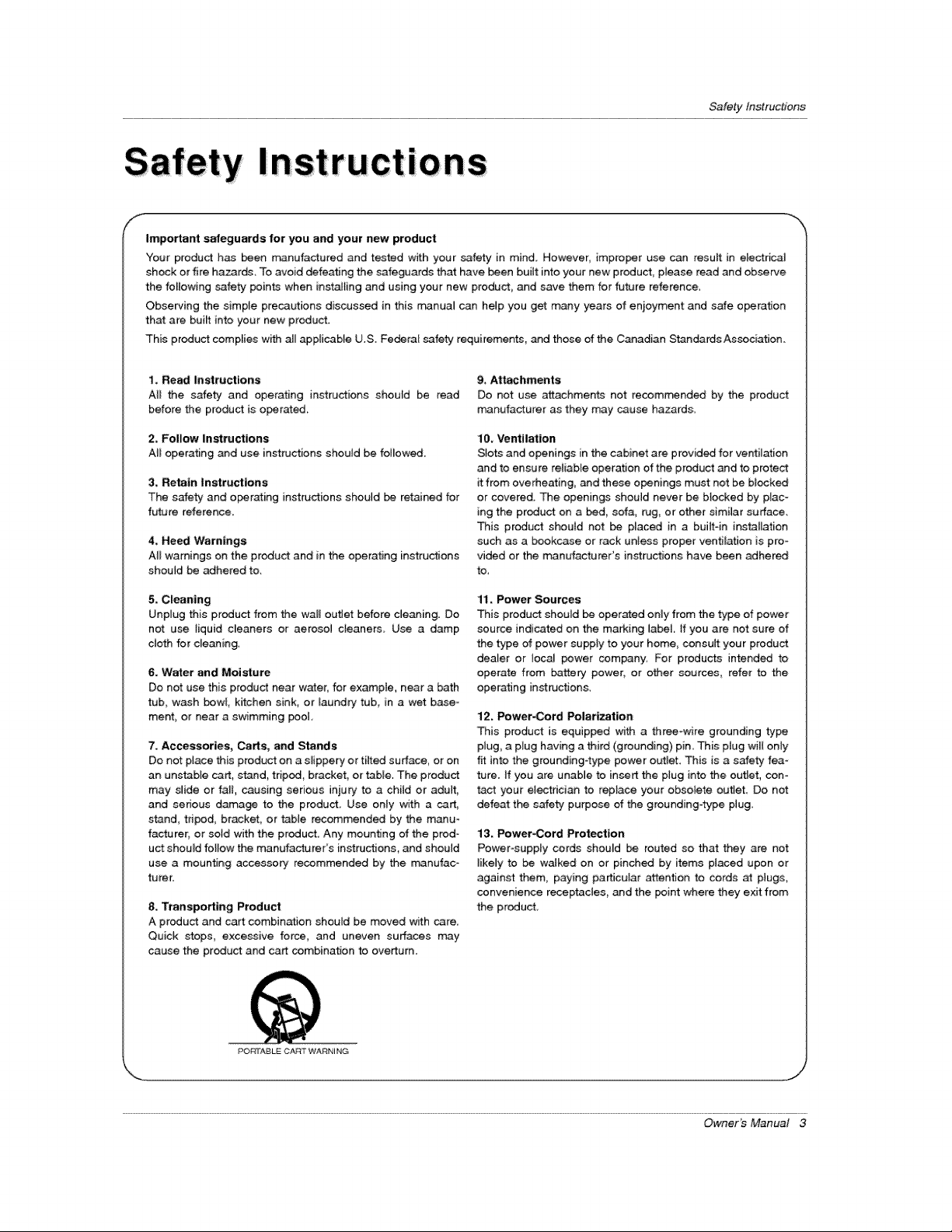
PO[_rABL_ CAin ° WARNING
OwneKs Manual 3
SafetyInstructions
Safety Instructions continued
f
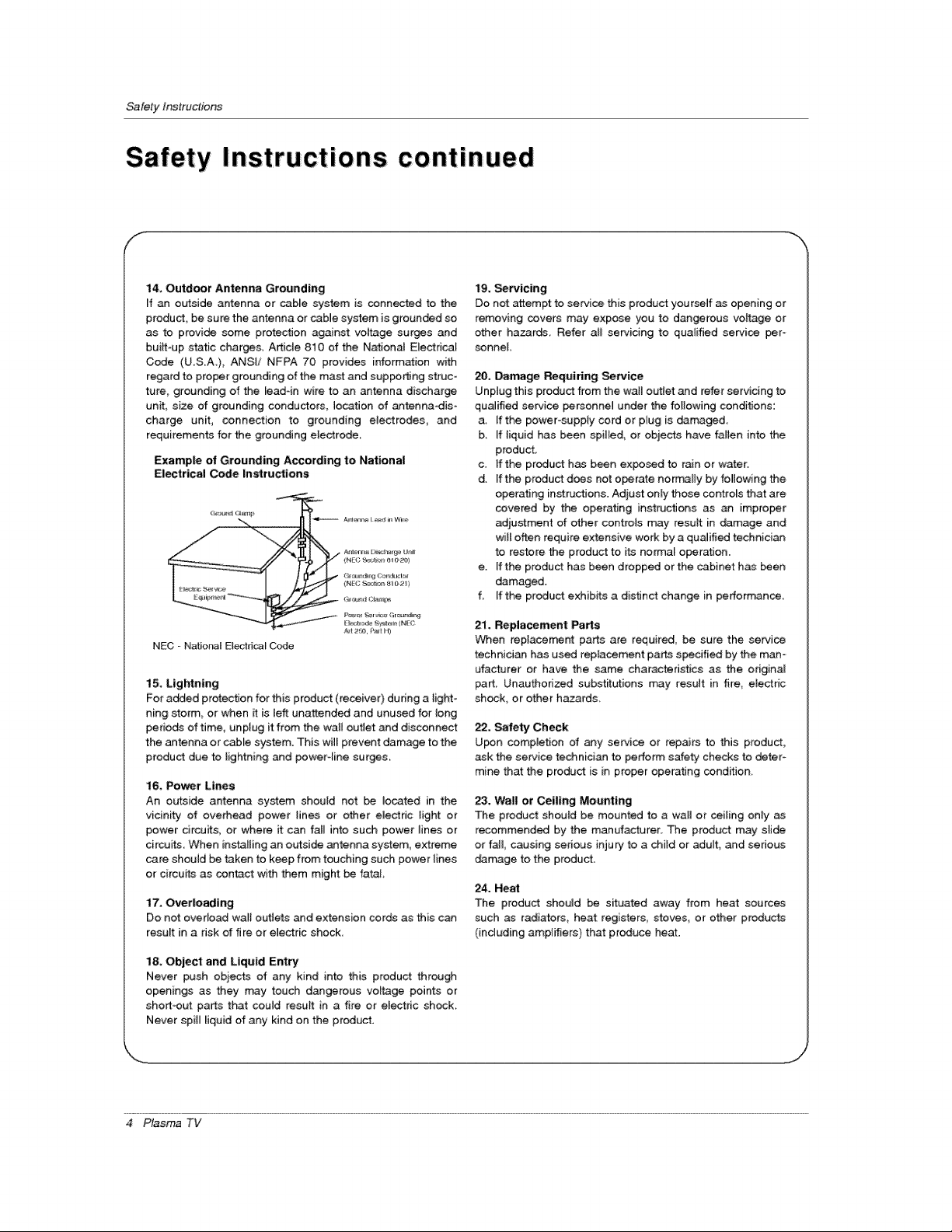
14, Outdoor Antenna Grounding
[f an outside antenna or cable system is connected to the
product, be sure the antenna or cabJe system is grounded so
as to provide some protection ag_nst voltage surges and
builtoup static charges, Article 810 of the National EJectrical
Code (USA), ANSi/ NFPA 70 provides information with
regard to proper grounding of the mast and supping struc-
ture, grounding of the read-in wire to an antenna discharge
unit, size of grounding conductors, location of _tennadis-
charge unit, connection to grounding electrodes_ and
requirements for the grounding eJectrode_
Example of Grounding According to National
Electrical Code Instructions
NEG - Nafio_l Elect_caJ Code
15. Lightning
For a_ed protection for this product (receiver) dudng a light-
ning storm or when _ is left unattended and unused for long
periods of time, unplug it from the weir outie_ and disconnect
the antenna or cable system. This will prevent damage to the
product due to lightning and poweroline surges.
16, Po_r Lines
An outside antenna system shouJd net be located in the
vicinity of overhead power lines or other electric light or
power drcuits, or where it can fall into such power _ines or
circuits. When installing an outside antenna system, extreme
care shouJd be taken to keep from touching such power {ines
or circuits as contact with them might be fatal
17. Overlosding
Do not overload wa_{ outlets _d extension cords as this c_
result in a risk of fire or e_ectric shock
l& Object and Liquid Entry
Never push obiects of any kind into this product through
openings as they may touch dangerous voltage points or
short-out parts that could result in a fire or el_dc shock.
Never spill liquid of any kind on the p_oduct.
tg, _rvicing
Donot attempt to service this product yourself as opening or
removing covers may expose you to dangerous vottage or
other hazards, Refer atl servicing to qualified service per-
sonnel
20, Damage Requiring Semite
Unptug this product from the wail out_et and refer servicing to
qualified service personne] under the following conditions:
a, Ifthe power-supply cord or plug is damaged
b, _fiiquid has been spilled, or objects have fallen into the
product,
c. If the product has been exposed to r_n or water.
d. [fthe product does not o_rate normally by following the
operating inst_ctJons. Adjust only those controls that are
covered by the operating instructions as an improper
adjustment of other contreJs may result in demage and
wilt often require extensive work by a qualified technician
to restore the product to its normal operation.
e. [fthe product has been dropped or the cabinet has _en
damaged.
f, Ifthe product exhibits a distinct change in perbrmance,
21. Replacement _rts
When replacement parts are required, be sure the service
technician has used reptacement parts specified by the man-
ufactuter or have the same characteristics as the original
part_ Unauthorized subst_utions may result in fire, etectric
shock, or other hazards,
22, Safety Check
U_n compietion of any service or repairs to this product,
ask the service technician to perform safety checks to deter-
mine that the produ_ is i_ proper operating condition,
23. Wall or Ceiling Mounting
The product should be mounted to a wall or ceiling only
recommended by the manufacturer. The product may stide
or tail, causing serious inju_ to a child or adult, _d serious
derange to the producL
24. Heal
The product shouJd be situated away from heat sources
such as radiators, heat registers stoves or other products
(including ampJifiers) that produce heat.
4 Plasma TV
Introduction
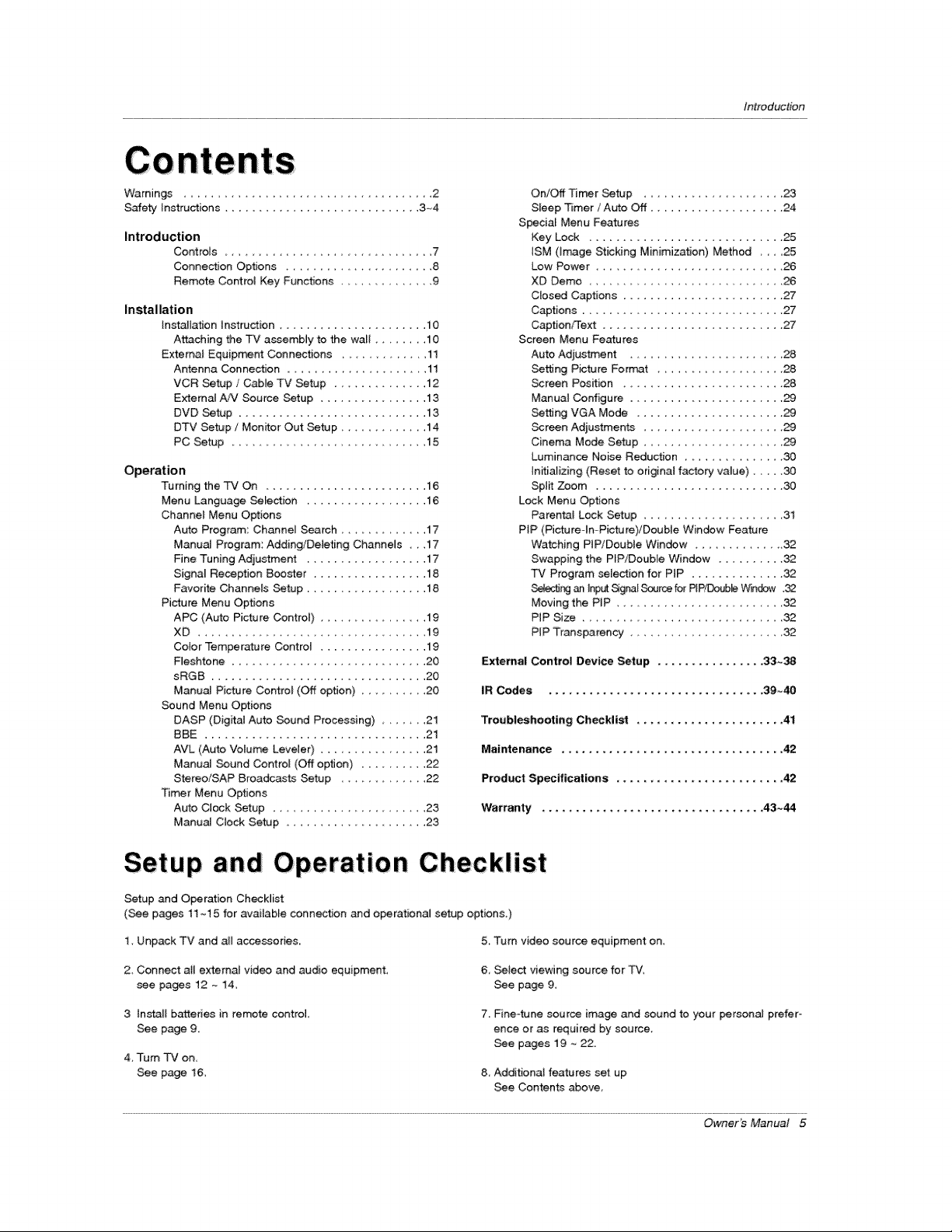
Warnings .................................. 2
Safety Instructions ............................. 3-4
Introduction
Controls .......................... 7
Connection Options .................... 8
Remote Control Key Functions .............. 9
Installation
Installation In.ruction ...................... 10
Attaching the TV assembly to the wal{ ........ 10
External Equip_nt Connections ............ 11
Antenna Connection ................... 11
VCR Setup / Cable TV Setup .............. 12
ExternaJ A/V Source Setup .................. 13
DVD Setup ............................ 13
DTV Setup / Monitor Out Setup ............. 14
PC Setup ....................... 15
Operation
Turning the TV On ....................... 16
Menu Language Selection .................. 16
Channel Menu Options
Auto Program: Channe_ Search ............ 17
Manual Program: Adding/Deleting Channels , , ,17
Fine Tuning Adjustment .................. 17
Signa_ Reception Boosler ................. 18
Favorite Channels Setup .................. 18
Picture Menu Options
APC (Auto Picture Contre{) .......... 19
XD 19
Coior Temperature Control ................ 19
Fleshtone ............................. 20
sRGB ................................ 20
Manual Picture Control (Off option) .......... 20
Sound Menu Options
DASP (Digita_ Auto Sound Processing) .... 21
BBE ................................ 21
_VL (Auto Volume Leveler) ................ 21
Manual Sound Control (Off option) .......... 22
Stereo/SAP Broadcaste Setup .............. 22
Timer Menu Options
Aoto C_ock Setup ....................... 23
Manual Clock Setup ...................... 23
On/Off Timer Setup .................. 23
Steep Timer / Auto Off .................... 24
Specia_ Menu Features
Key Lock ............................. 25
ISM (image Sticking Minimization) Method 25
Low Power ........................ 26
XD Demo .............................. 26
Closed Captions ........................ 27
Captions ................................. 27
Caption/Text ........................... 27
Screen Menu Features
Auto Adjus_ent .................... 28
Setting Picture Format ..................... 28
Screen Position ........................ 28
Manual Configure ........................ 29
setting VGA Mode ...................... 29
Screen Adjustments ................... 29
Cinema Mode Setup ................... 29
Luminance Noise Reduction .............. 30
Initializing (Reset to original factory va_ue) ..... 30
Sp_ Zoom ............................ 30
Lock Menu Options
ParentaJ Lock Setup .................... 3t
PiP (Piotu re-In- Pictu re}/Double Window Feature
Watching PiP/Double Window ............. 32
Swapping the PIP/Double Window .......... 32
TV Program selection for PiP .............. 32
_r_ a_ Inp_ Signal Source for PIP/Doub_ Windily .32
Moving the PIP ....................... 32
PIP Size ............................. 32
PIP Transparenc!/ ..................... 32
External Control Device Setup ................ 33._38
IR Codes ................................. 39~40
Troubleshooting Ch_klist ...................... 41
Maintenance ................................. 42
Product Specifications ......................... 42
Warranty ................................. 43--44
Setup and Operation Checklist
Setup and Operation Checklist
(see pages 11 -,15 for available connection and operational setup options.)
1. Unpack TV and a_l accessories,, 5. Turn video source equipment on,
2, Connect ati external video and audio equipment,
see pa_s 12 _ 14,
6 Select viewing source for TV,
See page 9,
3 In_'_ll batteries in remote control,
See page 9.
4,-rum TVon,
See page 16,
7. Fine-tune source image and sound to your personal prefer-
ence or as required by source,
See pages 19 ~ 22.
8 Additional features set up
_e Contents above,
Owner's Manual 5
/nlroduction
!
Ion
What is a Plasma Display Panel (PDP)?
A plasma display panel is the latest display technology. [tis currently the best way to achieve f_ panel displays with excellent
image quality and large screen sizes, that are easily viewabie. The PDP can be thought of as a_scendant of the neon [_p and
itcan be also beviewed as asenes of fluorescent lamps.
How does it work?
PDP is an array of cells_ known as pixe_s,whi_ are comprised of 3 sub pixels,corresponding to the colors red, green, and btue.
Gas ina plasmastate isused to react w_thphosphors ineach sub-pixel to produce colored light (red, green, or blue). These phos-
phors are the same types used in Catho_ Ray Tube (CRT) devices such as televisions and common computer monitors.
You get the dch, dyn_ic colors that you expecL Each sub=pixe[ is individually contre1_ed by advanced electronics to produce over
16 million different colors. All of this means that you get perfect images that are easily viewable in a display that is _ess than 5
inches thick.
160 ° - Wide ang|e range of vision
Your flat panel plasma screen offers an exceptionally broad viewing angle --over 160 degrees. This means that the display [s
c_ear and visible to viewers anywhere inthe room whocan see the screen.
Wide Screen
The screen of the Plasma Display isso wide that your viewing experience is as ifyou are in atheater
Multimedia
Connect your plasma display to a PC and you can use itfor conferencing, games, and _nternet browsing. The Picture4n_Picture
feature allows you to view your PC and video images simul_neously.
Versatile
The lightweight and thin size makes iteasy to in_ll your plasma display inavariety of locations where conventional TVs will not
The PDP Manufacturing Process: a feet minute colored dots may be present on the PDP s_creen
The PDP (Plasma Display Pane[), which is the display device of this product is composed of 0.g to 2_2 million ceils A few cell
defects wi[[ nora-.airy occur in the PDP manufacturing process, Several tiny, minute colored dots visible on the screen should be
acceptable, This also occurs in other PDP manufacturers products The tiny dots appearing d_s not mean that this PDP is defec-
tive, Thus a few cell defects are not sufficient cause for the PDP to be exchanged or returned Our production technology mini °
mizes these ceil defects during the manufacture and operation of this product
Cooling Fan Noise (RU-50PX10/11/20 only)
[n the same way that a fan is used in a PC computer to keep the CPU (Centram Processing Unit) cool, the PDP is equipped with
cooling fans to cool the Monitor and improve its reliability, Therefore, a ced_n leve_ of noise could occur while the fans are operat-
ing and cooling the PDP,
The fan noise doesn't have any negative effect on the PDP's efficiency or re_iabimity: The noise from these fans is norma_ during the
operation of this product 'We hope you understand that a certain _evel of noise from the cooting fans is acceptable and is not suffi-
cient cause for the PDP to _ exchanged or returned.
6 Plasma TV
Introduction
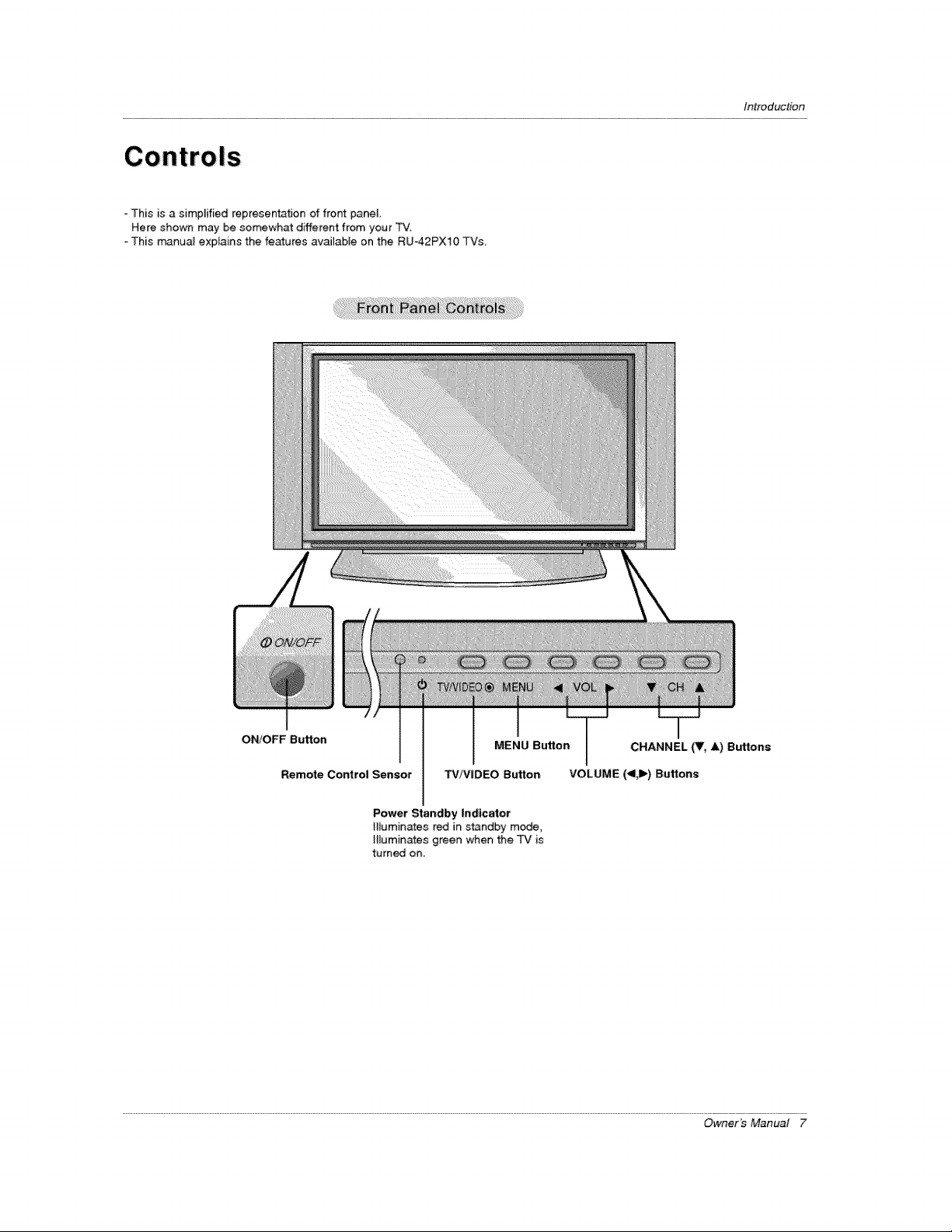
This is a simplified representation of front panel.
Here shown may be somewhat different from your "FV.
oThis m_nua_ explains the features avaJ_abJe on the RU42PX10 TVs,
ON/OFF Button
Remote Control Sensor
MENU Button CHANNEL (Y, A) Buttons
TV/VIDEO Button VOLUME (_l,ll_)Buttons
Power Standby Indicator
Illuminates red in standby mode,
H_uminates green when the TV is
turned on,
Owner's Manual 7
tnlroduction
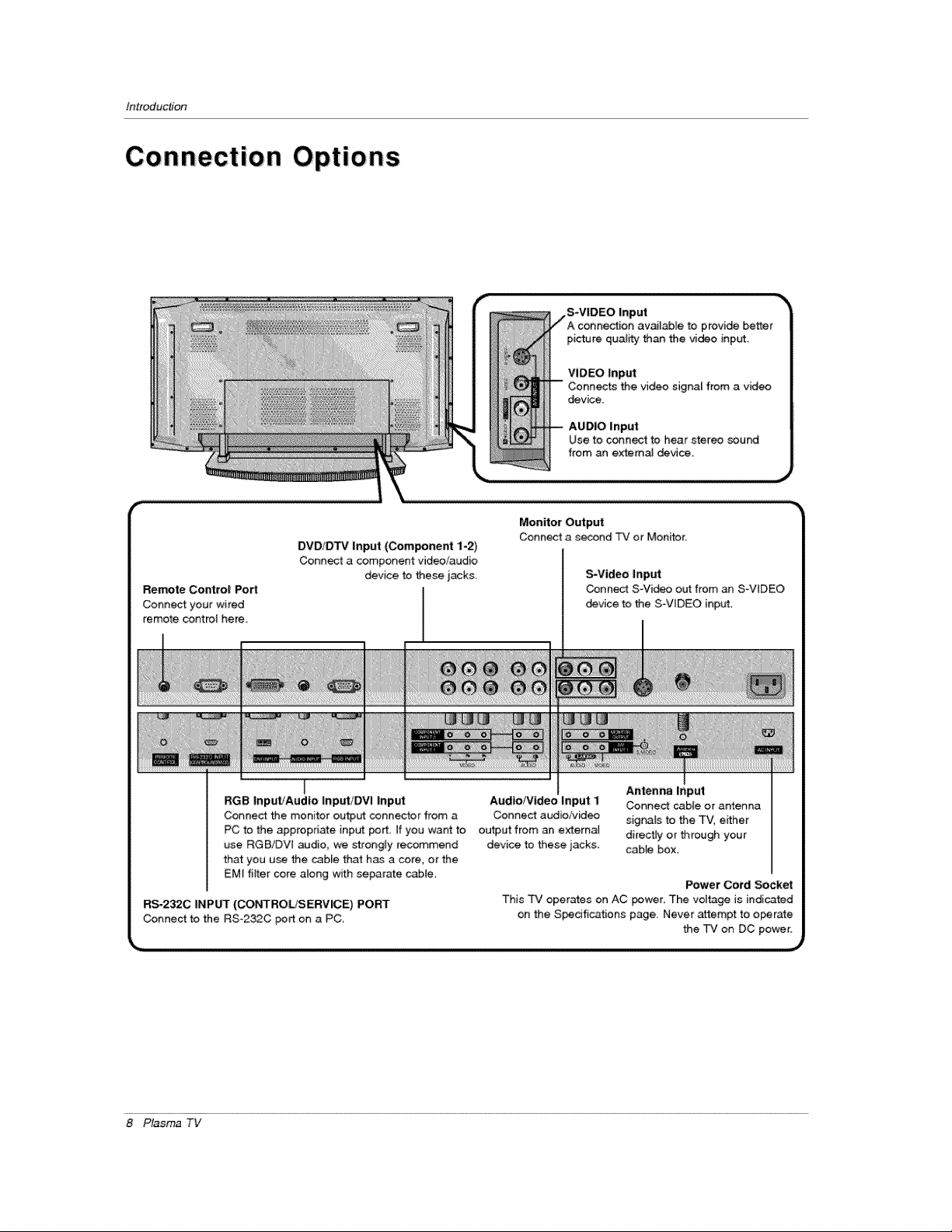
Remote Control Port
Connect your wired
remote control here,
DVD/D'FV Input (Component 1-2)
Connect a component video/audio
device to these jacks
,S-VIDEO
picture qual_¢ than the video input
VIDEO Input
device.
AUDIO input
Use to connect to hear stereo sound
from an extema_ device.
Monitor Out:put
Connect asecond TV or Monffor.
S-Video Input
Connect S-Video out from an S-VIDEO
device to the S_VIDEO input.
RGB InputfAudIo input/DVl Inp_
Connect the monitor output connector from a
PC to the appropriate input port. If you want to
use RGB/DW audio, we strongly recommend
that you use the cable that has a core, orthe
EMt filter core along wffh separate cable_
RS-232C INPUT (CONTROLtSERVICE) PORT
Connect to the RSo232C port on a PC,
Audio/Video Input i
Connect audio!video
output from an external
device to these jacks.
Antenna _nput
Connect cable or antenna
signals to the TV, effher
directFy or through your
cable box.
Power Cord Socket
This rv operates on AC power. The vol_ge isindicated
on the S_dfications page. Never attempt to o_rate
the TV on DC power.
8 Plasma TV
Introduction
Remote Contro! Key Functions
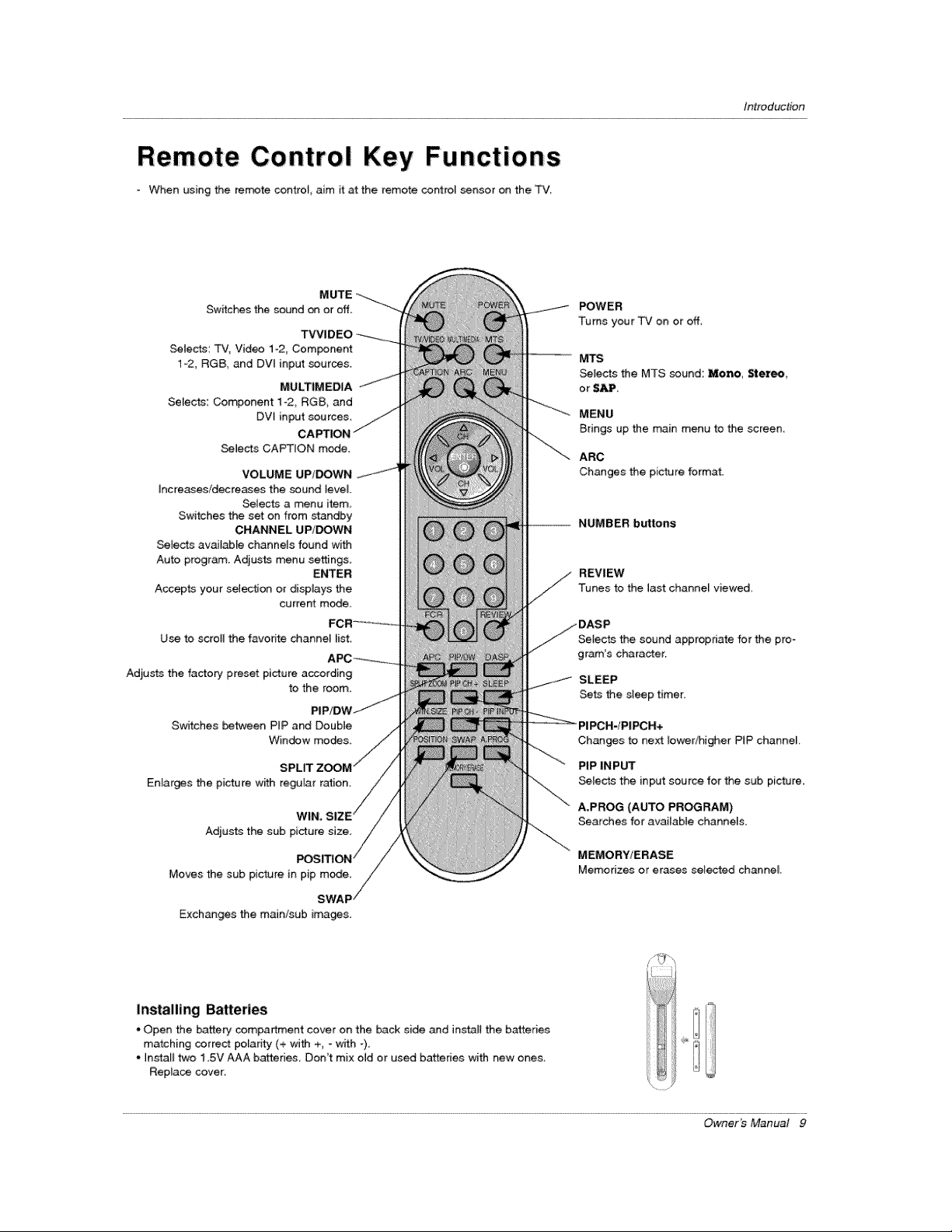
- When using the remote contrel_ aim it at the remote control sensor on the T'v'_
MUTE
Switches the sound on oroff.
TVVIDEO
SeWects: TV, Video 1-2, Com_nent
1-2, RGB, and DVt input sources.
MULTIMEDIA
Selects: Component 1-2, RGB, and
DVt input sources
Selects CAPTION mode.
VOLUME UP/DOWN
Increases/decreases the sound level
Selects a menu item_
Switches the set on from standby
CHANNEL UP/DOWN
Selects available channels found with
Auto program. Adjusts menu settings
ENTER
Accepts your selection or displays the
current mode,
Use to scrotl the favorite channei _ist,
Adjusts the factory preset picture according
to the room,
Switches between PtP and Doubte
Window modes.
SPLIT
Enlarges the picture with regufar ration.
WIN,
Adju_s the sub
Moves the sub picture in pip mode.
SWAF
Exchanges the main/sub images.
POWER
Turns your TV on or off,
' -- M'rs
Selects the MTS sound: Mono, Stereo,
or SAP.
MENU
Brings up the main menu to the screen,
ARC
Changes the picture format.
NUMBER buttons
REVIEW
Tunes to the last channel viewed,
Setects the sound appropriate for the pro-
gram's character.
SLEEP
Sets the sleep timer,
Changes to next Iowedhigher PIP channei.
PIP INPUT
_lects the input source for the sub picture.
A.PROG (AUTO PROGRAM)
Searches for available channels.
MEMORY/ERASE
Memorizes or erases selected channel
Installing Batteries
* Open the battery sempartment cover on the back side and instari the batteries
matching correct polanty (+ _th +, - with -),
* Install two 1,5V AAA batteries Don't mix old or used batteries with new ones
Replace cover:
Owner's Manual 9
installation
I
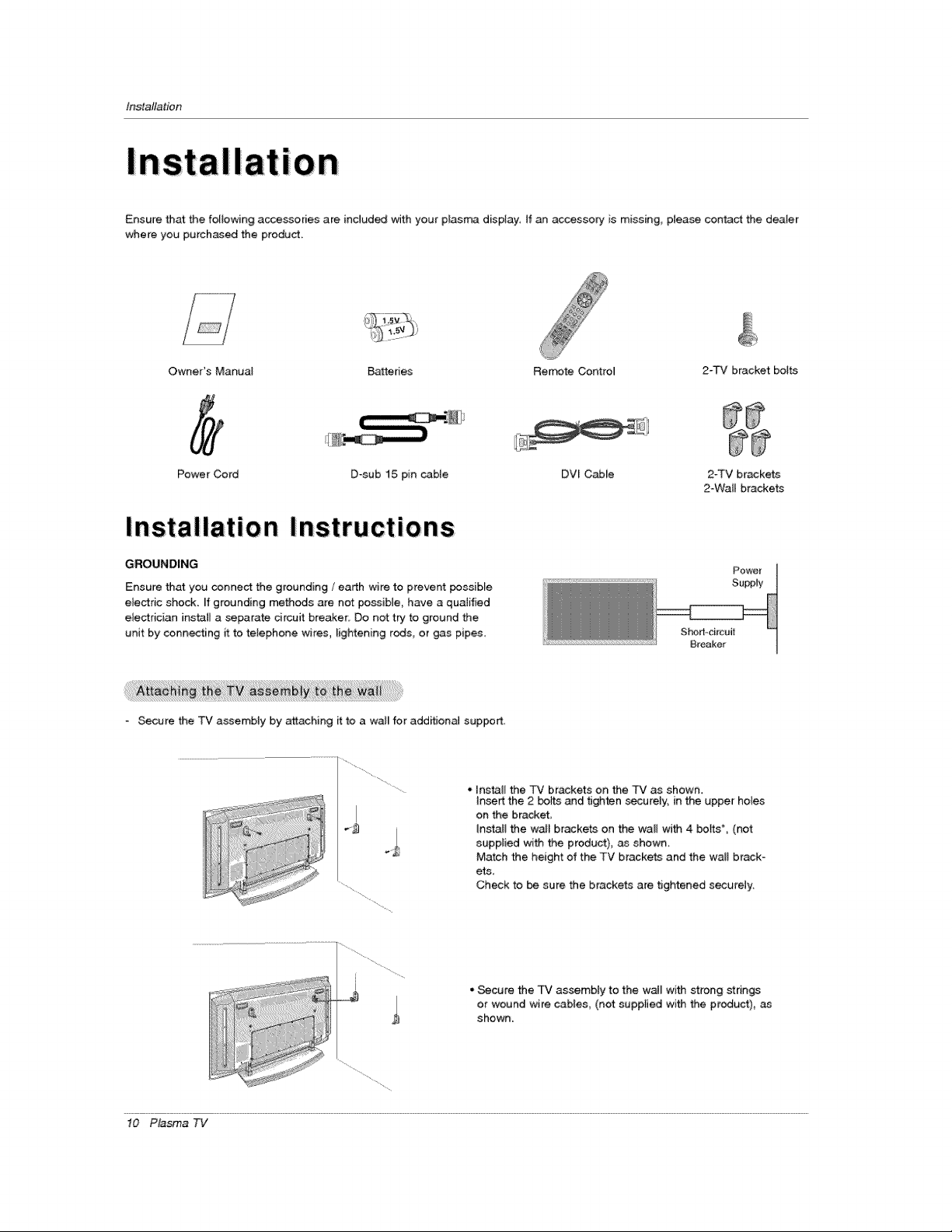
Ensure that the following accessories are indud_ with your plasm_ display, If an accessory is missing, pIease contact the deaIer
where you purchased the product.
Owner's Manual B_eries Remote Control 2-TV bracket botts
Power Cod D-sub 15 pin cable DV[ Cable 2-TV brackets
2-Wall brackets
Insta IIatio n Ins tr uctio ns:
GROUNDING
Ensure that you conne_ the grounding / earth wire to prevent possible
emectric shock, ff grounding methods are not possible, have a qualified
electrician instaJ[ a separate circuit breaker, Do not try to ground the
unit by connecting itto telephone wires, _ightening rods, or gas pipes,
Sho_-circuit
Breaker
Secure the TV assembly by attaching it to a wall for add_ionaJ support,
. In_# the TV brackets on the TV as shown.
insert the 2 bolts and 8ghten _urely, in the upper holes
on the bracket,
Install the wail brackets on the wa[i wi_ 4 bo_s*, (not
supplied with the product), as shown
Match the height of the TV brackets and the wall brack-
ets,
Check to be sure the brackets are tightened secureiy,
•Secure the TV assembly to the w_l with _rong strin_
or wound wire cables, (not: supplied with the product),
shown.
10 Plasma TV
Ins_llation
External Eq uipment Con nections
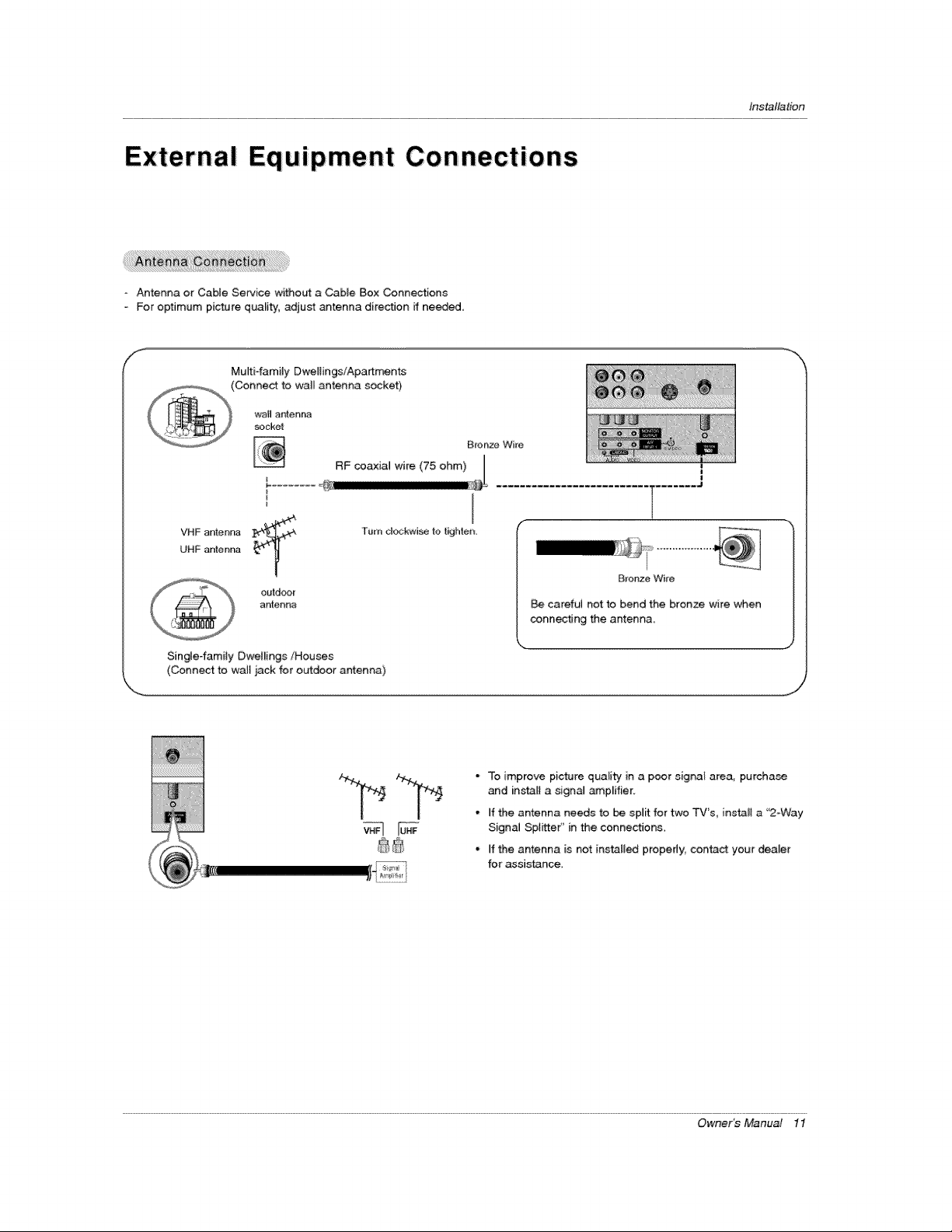
Antenna or Cabte Service without a Cable Box Connections
o For optimum picture quality, adjust antenna direction ff needed.
Mufti-family Dweliings/Apart_nts
(Connect to wallantenna socket)
VHF antenna
UHF anter_r_
I
outdoor
antenna
l........ J
B_onze Wire
careful not to bend the bronze wire when
conn_ing the antenna.
Single-family Dwellings/Houses
(Connect to walt jack for outdoor antenna)
• To improve picture quali_y' in a poor signal area, purchase
and inst_l a signal _p_ifier.
- if the antenna needs to be split for two TV's, install a "2-Way
SignaJ Splitter'' in the connections,
° if the antenna is not installed properly, con_ct your dealer
for assistance
Owner_ Manual 11
installation
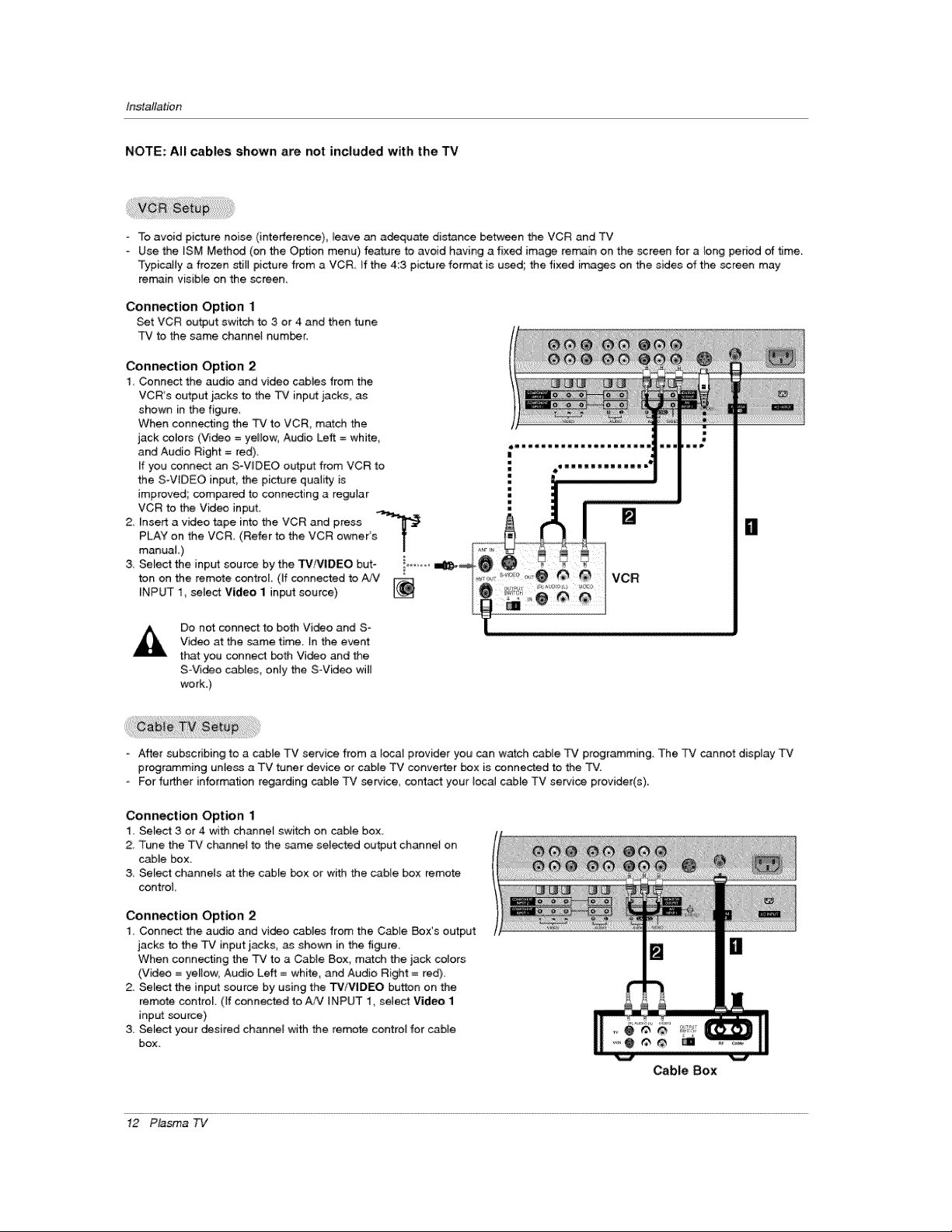
NOTE: All cables shown are not included with the TV
- To avoid picture noise (interfetence)_ _eave an adequate distance between the VCR and TV
Use the ISM Method (on the Option menu) feature to avoid having a fixed image remain on the _reen for a _ong pedod of t_me,
Typically a frozen stiB picture from a VCR if the 4:3 picture format is used the fixed images on the sides of the screen may
remain visible on the screen,
Connection Option 1
Set VCR output switch to 3 or 4 and then tune
TV to the same channel humor,
Connection Option 2
1, Connect the audio and video cables from the
VCR's output: jacks to the 3_# input jacks, as
shown in the figure,
When connecting the TV to VCR, match the
jack colors (Vi_o = yellow, Audio Left = white,
and Audio Right = red),
If you conn_ an S-WDEO output from VCR to
the S-WDEO input_ the picture quality is
improved; compared to connecting a regular
VCR to the Video input
2, Insert a video tape into the VCR and press .....
PLAY on the VCR (Refer to the VCR owner's T
manual,)
/
3, Select the input souroe by the TViVIDEO but- i......
ton on the remote control (If connected to A._"
INPUT 1_ select Vid_eo 1 input source)
Do not connect to both Vi_o and S-
Video at the same time. }n the event
that you connect both Video and the
SVi_o cables, only the SVideo wil_
work.)
|
- After subscribing to a cable TV service from a [_al provider you can watch cable q2¢ programming. The TV cannot display TV
programming unless a TV tuner device or cable TV converter box is connected to the TV.
- For fu_er information regarding cable TV service, contact your local c_le TV service provider(s),,
Connection Option 1
1, Select 3 or 4 with channef switch on cable box_
2, Tune the TV channet to the same selected output channe} on
cable box_
3 Select channets at the cabte box or with the cable box remote
control
Connection Option 2
1. Connect the audio and vi_o cabies from the Cabie Box's output
jacks to the TV input _acks, as shown in the figure.
When connecting the TV to a Cable Box, m_ch the jack colors
(Video = yeBow_ Audio Left = white, and Audio Right = red).
2. Select the input source by using the W/VIDEO button on the
remote control. (If connected to AA/INPUT 1, select Video 1
input source)
3. Select your desired channel with the remote control for cable
box.
il
Cable Box
12 Plasma TV
Installation
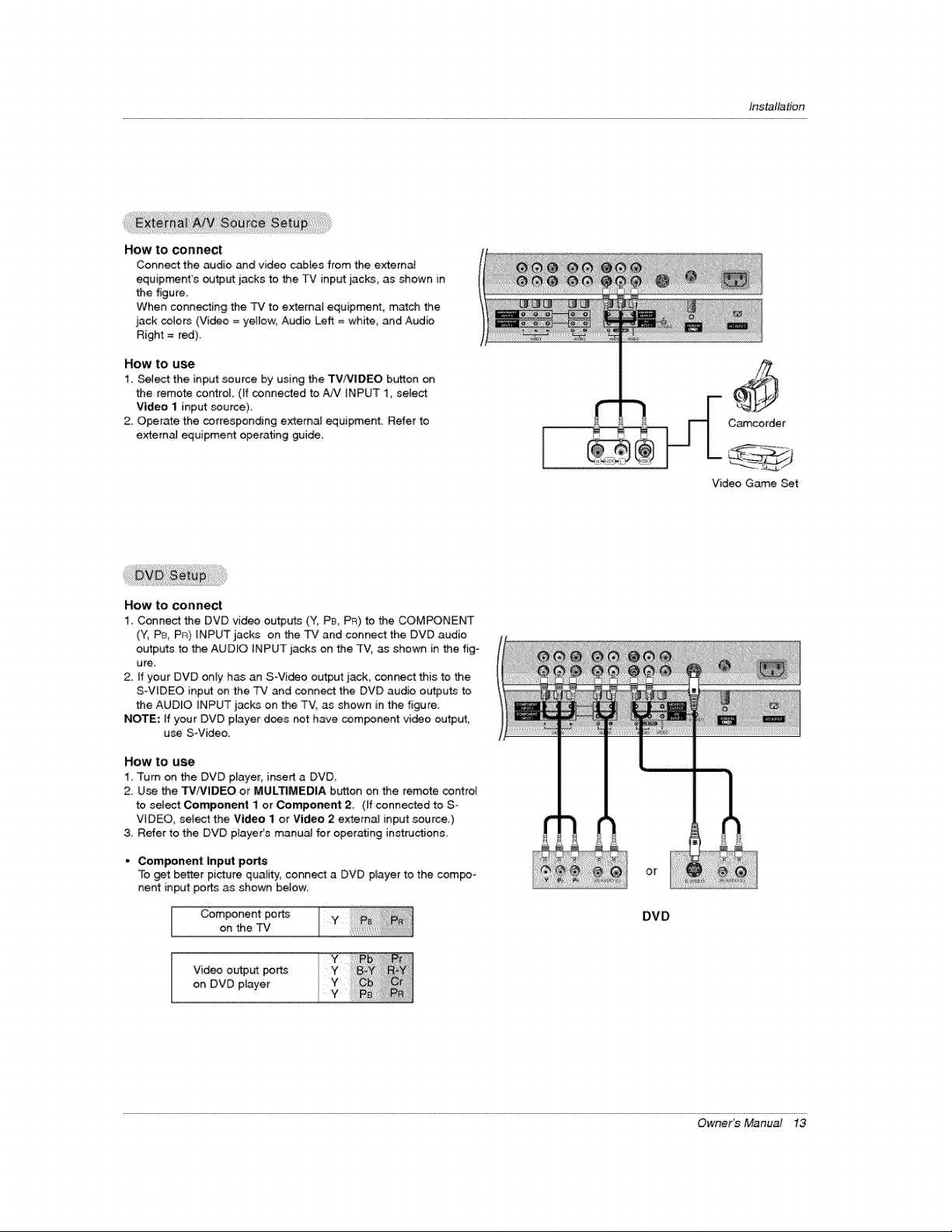
How to connect
Connect the audio and video cab[es from the external
equipment's output jacks to the P,./input jacks, as shown in
the figure.
When coRRecting the TV to external equipment, match the
jack colors (Video = yetlow, Audio Left = Site, _d Audio
Right = red).
How to use
1. Select the input source by using the TV/VlDEO button on
the remote control (if connected to _ iNPUT 1, select
Video 1 input source).
2, Operate the corresponding extema_ equipment Refer to
extern_ equipment operating guide
Camcorder
Video Game Set
How to connect
1. Connect the DVD video outpul_s (Y, PB, PR) to the COMPONENT
(Y, P& PR) iNPUT jacks on the TV and connect the DVD audio
ob_tputs to the AUDIO iNPUT jacks on the TV, as shown in the fig-
ure.
2. If your DVD only has an S-Video output jack, connect this to the
S-ViDEO input on the TV and connect the DVD audio outputs to
the AUDIO INPUT jacks on the TVl as shown in the figure.
NOTE: ff your DVD pmayerd_s not have component video output,
use SWideo.
HOW tO U_
1, Turn on the DVD player, insert a DVD_
2_ Use the TViVIDEO or MULTIMEDIA button on the remote control
to select Component I or Component 2, (if connected to S*
VIDEO, select the Video I or Video 2 external input source.)
& Refer to the DVD p_ayer's manua_ for operating instructions,
• Component Input po_s
To _t better picture quality, connect a DVD player to the compo-
nent input po_ as shown betow
Component po rt_s
on the TV
or
DVD
Video output ports
on DVD player
Owner's Manual 13
ir_ta_tion
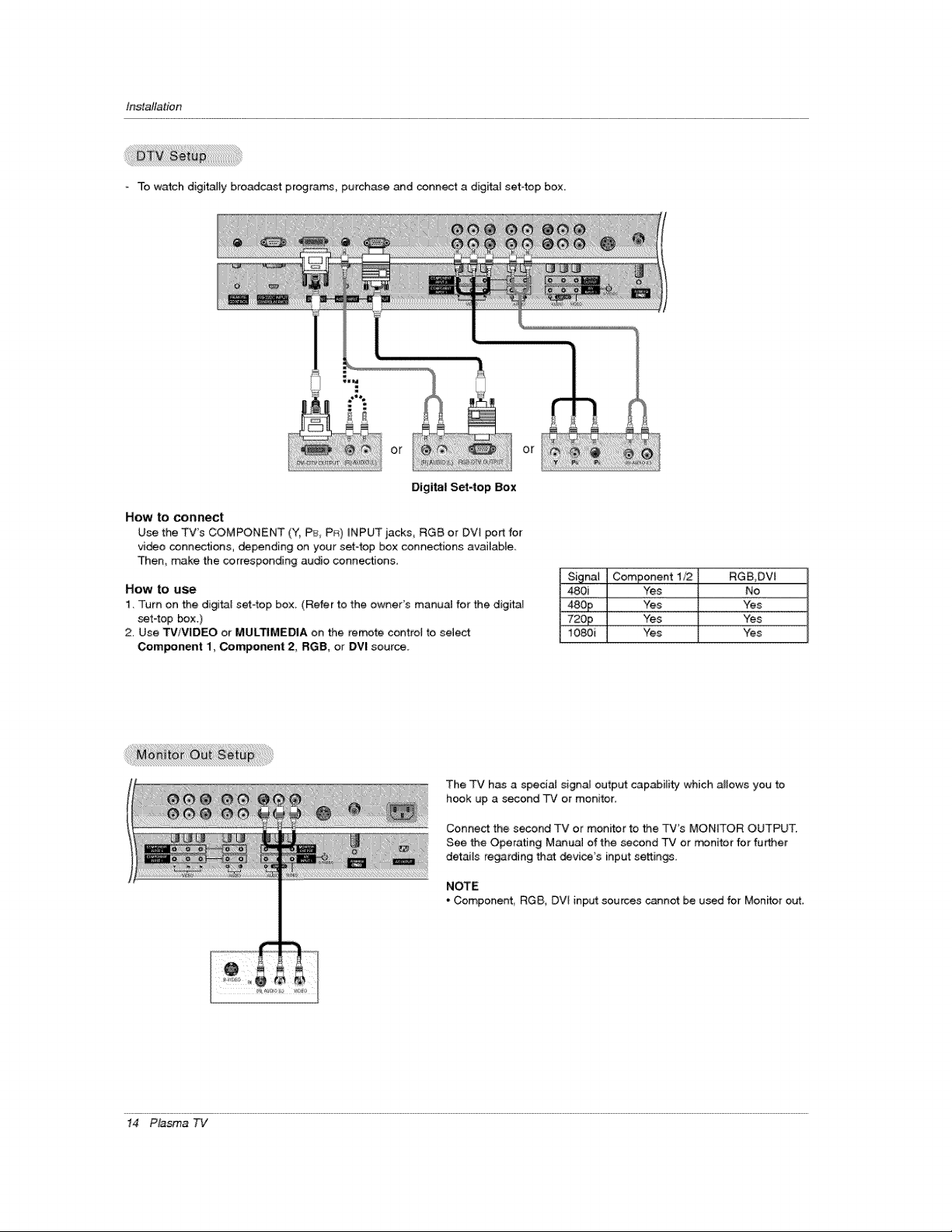
To watch digitally broadcast programs, purchase and connect a digffal set4op box.
::: or
or
Digital Set4op Box
How to conn_t
Use the TV's COMPONENT (Y,PE_,PR)_NPUTjacks, RGB or DVI portfor
vi_o connections, depending on your set-top box connections avai_ab_e_
Then, make the corresponding audio connections,
How to use
1. Turn on the di@tat sef4op box. (Refer to the owner's manual for the digitaq
set4op _x.)
2. Use TViV|DEO or MULTIMEDIA on the remote control to select
Com_nent 1, Component 2, RGB, or DVI source.
480i Yes No
_££ Yes Yes
72op Yes Yes
1080i Yes Yes
The TV has a speciaJ signal output capabilit_y which allows you to
hook up a second TV or monitor,
Conne_ the second TV or monitor to _e TV's MONITOR OUTPUT.
See the Operating Manual of the second TV or _nitor for fu_er
details regarding that _vice's input settings.
NOTE
- Componenf, RGB, DVt inputsources cannot beused for Monitor out,
14 Plasma TV
Operadon
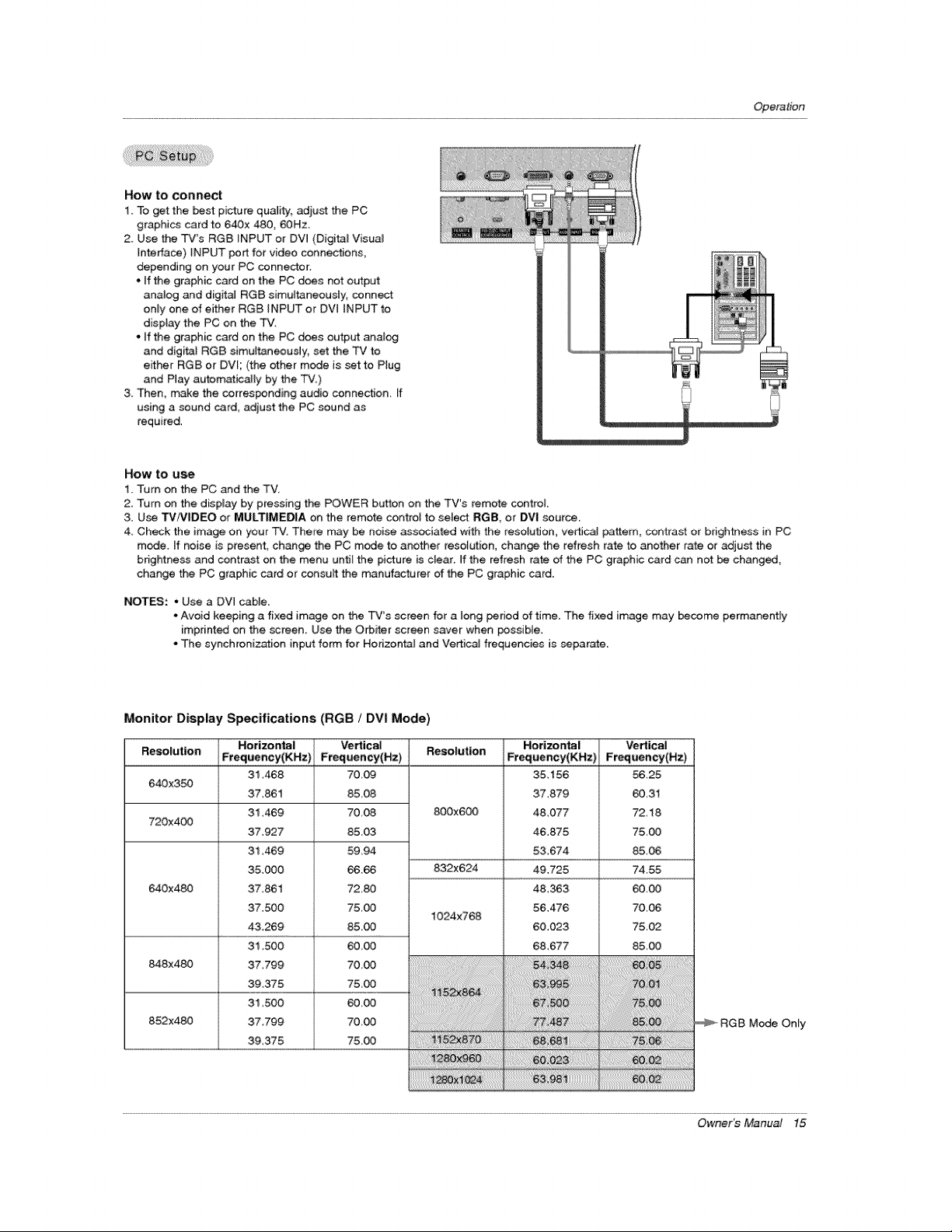
How to connect
1. To get the best picture quality_ adjust the PC
graphi_ card to 640x 480, 60Hz.
2. Use the T'¢'s RGB INPUT or DVl (Digita_ Visua_
Interface) INPUT port for video connections,
depending on your PC connect:
, If the graphic card on the PC does not output
analog and digital RGB simultaneously, connect
only one of either RGB INPUT or DVl INPUT to
display the PC on the TV.
- If the graphic card on the PC d_s output anabg
and digital RGB simultaneously_ set the TV to
e_ther RGB or DVl; (the other mode is set to Plug
and Play autom_icaily by the TV.)
3. Then, make the corresponding audio connection. If
using a sound card, adjust the PC sound as
required.
How to use
!. "rum on the PC and the TV.
2. "rum on the display by pressing the POWER button on the TV's remote control.
3. Use TViVIDEO or MULTIMEDIA on the remote control to select RG& or DVl source.
4. Check the image on your TV. There may be noise associated with the resotulJon, vertic_ pattern, contrast or brightness in PC
mode. If noise is present:, change the PC mode to another resolution, chan_ the refresh rate to another rate or adjust the
brightness and contrast on the menu until the picture is clear. If the refresh rate of the PC graphic card can not be changed,
change the PC graphic card or consult the manufacturer of the PC graphic card.
NOTES: * Use a DVI cable.
• Avoid keeping a fixed image on the TV's screen for a long period of time, The fixed image may become permanently
imprinted on the screen. Use the Orbiter screen saver when possible.
• The synchronization input form for Horizontal and VerticaJ frequencies is separate.
Monitor Display Specifications (RGB / DVI Mode)
ResolutionResolution
640x3_
720x4_
640x480
848x480
852x480
Horizontal
Freq uency(KHz) i
31,468
37,861
31,469
37.927
3i.469
35,000
37,861
37,500
43269
31,500
37399
39,375
31,500
37.799
39,375
Ve_ical
Frequency(Hz)
70,09
85,08
70.08
85.03
59.94
66.66
72.80
75,00
85.00
6&00
70,00
75.00
60,00
70,00
75,00
800x600
832x624
1024x768
i
Horizontal
Frequency(KHz)
3&156
37_879
4&077
46.875
53.674
49.725
48.363
5&476
60.023
6&677
_i_i_i_ii_ii!_iiiiii!_!_!_!i_!!!;!_!i_!i_!i_!i_!i!ii_i!_iii;_i_i_!!!_!!_i_!_i_i_i_i_!!_i!_i!_i_i_i_i_
!iii_ii_ii_ii_ii_ii_ii_ii_ii_ii_ii_ii_ii_ii_ii_ii_ii_ii_ii_ii_ii_i:_i_!_!_i_!_i_i_i_i_i_i_i_i_i_i_i_i_i_i_i_i_i_i_i_i_i_i_i_i_i_
Vertical
Frequency(Hz)
56,25
60,31
72.18
75,00
85.06
74.55
60,00
70.06
75.02
85,00
RGB Mode Only
Owner_Manual 15
Operation
Turning the TV On
* In this rrranual, the OSD (_ _reen D_splay) may be different from your TV's becau_ it is just an
example to help you with the TV o_mtion.
1. Connect power cord correctly.
2. Press the _ ON,OFF button on the TV At this moment, the TV is switched to standby mo_. Press
the TMiVIDEO, OH (A / V) button on the TV or press the POWER, TVNIDEO, MULTIMEDIA,
Number (8 ~ 9)button on the remote control and then the TV w_ll turn on,
1. If the "P# was turned off with the (D ON/O_ button on the TV
, Press the _NIOFF button on the TV to turn the TV on.
2. If the TV was turned off with the remote control and then the (_)ON/O_ button on the TV
. P_ss the _N/OFF button on the TV and; then press the TV!VIDEO, OH (A _'V) button on the TV or
press the _WER, TViVIDEO, MULTIMEDIA, Number (O ~ 9) button on the remote control to turn
the TV on,
NOTE
* ff you intend to _ _way on vacation, di_onnect the power plug from the wall power outlet.
Language Selection
- The menus can be shown on the screen in the selecte_ language. First select your language,
1. Press the MENU button and then use A / V button to select the SP£CI&L menu.
2. Press _e 1_ button and then u_ A / V button to select L_r'_J_e.
3. Press the I_ b_n and th_ use A / V button to seJect your desired language.
From this point on, the on-screen menus will be shown in the language of your
choice.
4. Press the ENTER button to save.
16 Plasma TV
Operation
Channe!
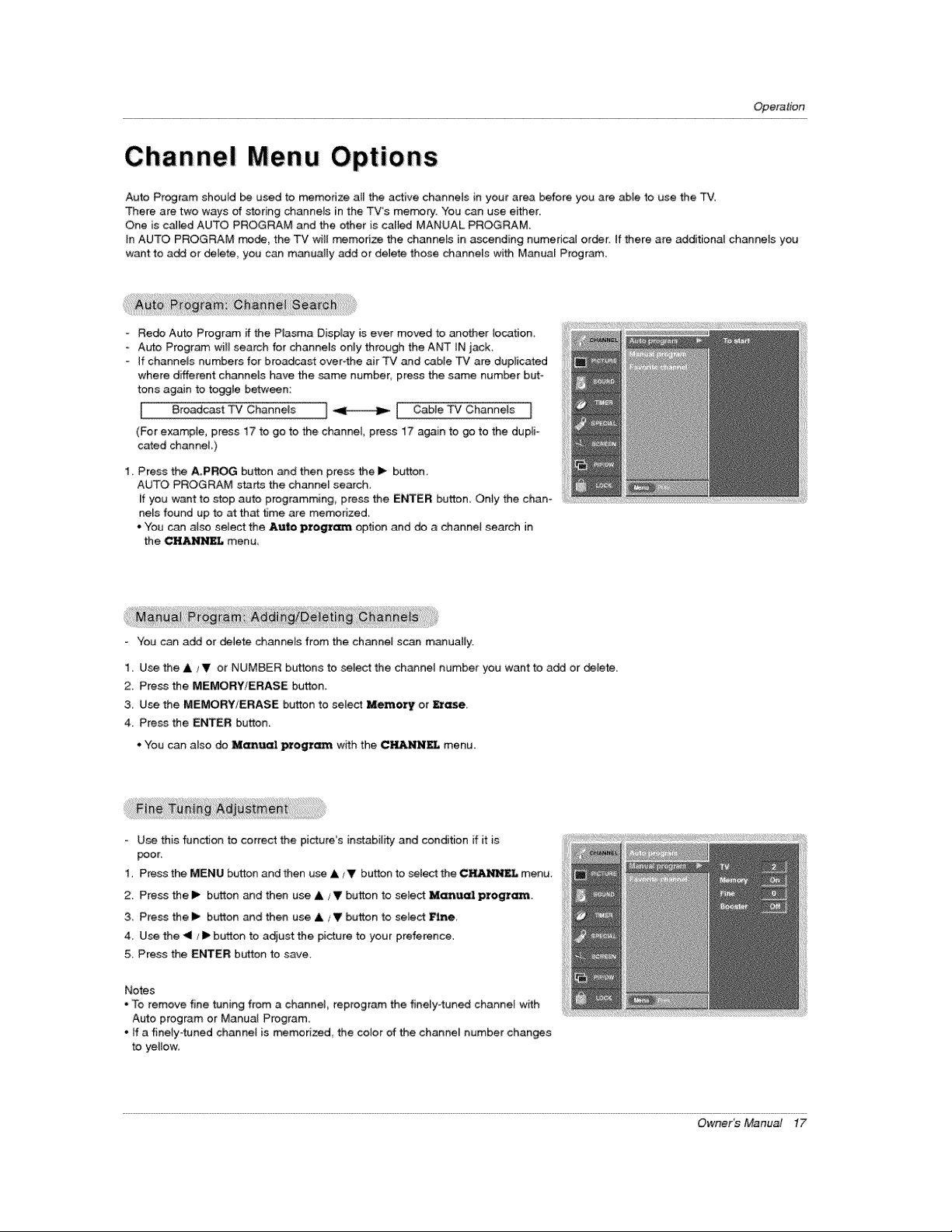
Auto Program should be used to memodze all the active channels in your area before you are able to use the TV.
There are two ways of storing channels in the TV's merr_ry. You can use either.
One is called AUTO PROGRAM and the other is called MANUAL PROGRAM.
In AUTO PROGRAM mode, the TV wH_memodze the channels in ascending numerical order, If there are additional channels you
want to add or delete, you can m_ually add or delete those channels with Manual Program.
- Redo Auto Program if the Plasma Display is ever moved to another location,
Auto Program wil_ search for channels only through the ANT tN jack_
- If channels numbers for broadcast over4he an' _ and cable TV are duplicated
where d_erent channels have the same number, press the same number but-
tons again to toggle between:
i Broadcast TV Channels i _ ! Cable TV Channels i
(For exampte_ press 17 to go to the channel, press 17 again to go to the dupli-
cated channeL)
1 Press the A.PROG button and then press the I_ button
AUTO PROGRAM starts the channer search
if you want to stop auto programming, press the ENTER button, On_y the chan _
nels found up to at that time are me_rized
*You can also seiect the Auto pro_ama option and do a channel search in
the CHANNE T-menu
- You can add or delete channels from the channel scan m_uatly.
1. U_ the A /V or NUMBER buttons to select the channel number you want to add or delete.
2. Press the MEMORY/ERASE button.
3 Use the MEMORYTERASE button to select _mo%y or E%_e,
4, Press the ENTER button.
*You can also do Manual l_togr_ with the C_NNEL menu.
Use this fun_on to correct the pictures instabiiib/and condition if it is
poor_
1. Press the MENU button and then use A _V button to select the C_NNKL menu.
2. Press the I_ b_on and then use A ;V button to select Manual progr_.
3 Press the I_ b_on and then use & j Y button to select Fine.
4. Use the _il / I_ button to adjust the picture to your preferen_.
5. Press the ENTER button to save.
Notes
- To remove fine tuning from a channel reprogram the fine_y4uned channel with
Auto program or Manua_ Program,
° If a finety-_ned channel is memorized, the color of the channe_ number changes
to yellow,
Owner_ Manual 17
Operation
Channel Menu Options continued
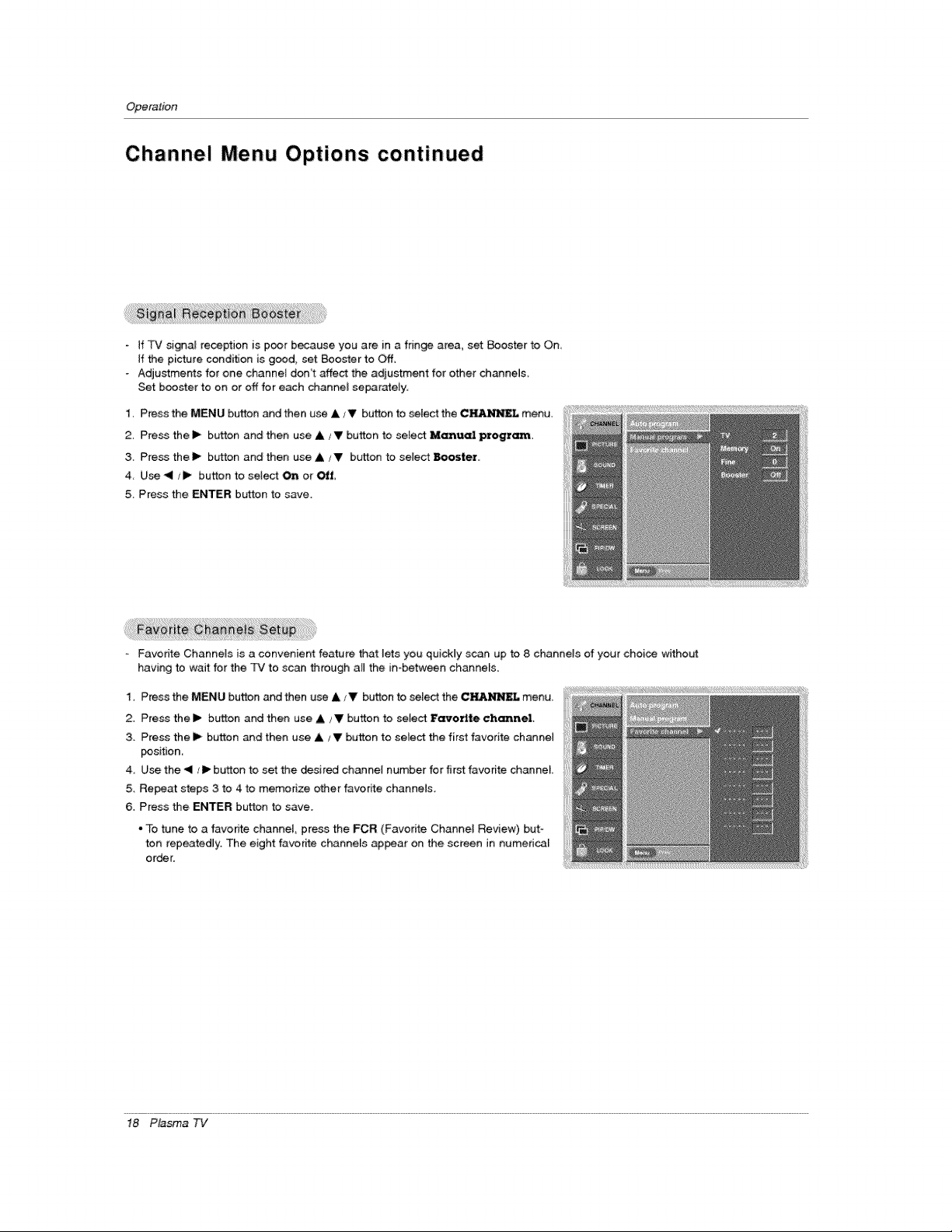
if TV signa_ reception is poor because you are in a fringe area, set Roster to On
ff the picture cond_ion is good set Booster to Off
Adjustments for one channet don't affect the adjustment for other channe_s_
Set booster to on or off for each channel separately.
1. Press the MENU button _d then use A /Y button to setect the CI{&_ menu.
2. Pre_ the i_ bt,_on and then use A _V button to sefect M_rlued program,
3. Press the I_ button and then use A /V bL_on to select Booster.
4 Use <1 iip_ button to setect _ or_
5. Press the ENTER button to save.
Favo_te Channels is a convenient feature that lets you quickly scan up to 8 channels of your choi_ without
having to wait for the TV to scan through aH the in-between channels.
1 Press the MENU button and then use A /V button to se[ect the CHA_ menu_
2. Press the I_ button and then use ,i, /V button to select Favorite channel.
3. Press the I_ button _d then use A _'Y button to sele_ the first favorite ch_nel
_sition
4, Use the < /I1_button to set the _sired channe[ number for first favorite channel
5. Repeat steps 3 to 4 to memodze other favor_e channeJs.
6. Press the ENTER button to save.
-To tune to a favorite channe!, press the FCR (Favorite Channel Review) but-
ton repeatedly. The eight favorite channels _ar on the screen in numedcel
order.
18 Plasma TV
Operation
Picture Menu
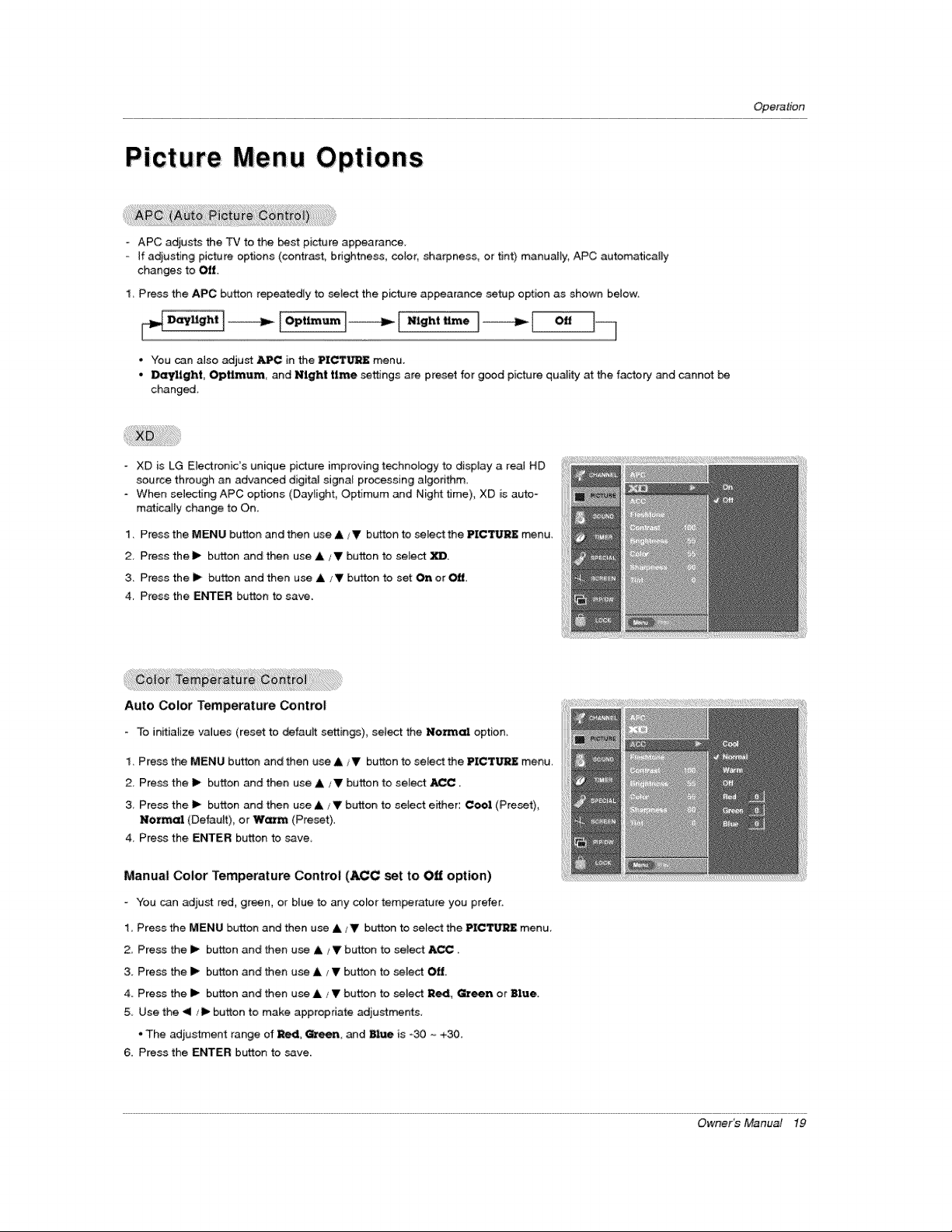
° APC adjusts the TV to the _st picture appearance.
If a_usting picture options (contrast, brightness, color, sharpness, or tint) manuaJly, APC automatically
changes to Off.
1.Pressthe APC button repeatedly to select the picture appearance setup option as shown below.
D_!'gh! I_ I_timum 1_ _ I
• You can also adjust APC in the PICTURE menu.
• Daylight, OptLrnum, and Night time settings are preset for good picture qu_ity at the factory and cannot be
changed.
XD is LG Electronic's unique picture improving technology to display a real HD
source through an advanced digital signal processing algedthm_
- When selecting APC options (Daylight, Optimum and Night time), XD is auto-
matic.a_ty change to On,
1. Press the MENU button and then use & V button to selectthe PICI[_J_J_ menu.
2. Press the lp button and then use A /Y button to select _.
3. Press the I_ button and then use ,Ik,'T button to set On or Off
4, Press the ENTER button to save.
Auto Color Temperature Control
- To initialize values (reset: to defauff settings), select the NO_ option,
1. Press the MENU button and then use &/V button to select the PICTUaR£ menu,
2. Press the lip button and then use A/_11' button to select _C.
3, Press the I_ button and then use ,L/V button to select either: COOl (Preset),
Normal (Default), or Warm (Preset)
4. Press the ENTER button to save
Manual Color Temperatere Control (_C set to Off option)
- You can adjust red, green, or blue to any color temperature you prefer.
1, Press the MENU button and then use A/Y button to select the PIC'_.._RZ menu.
2, Press the 1_ button and then use A /V button to seJect Ar..._.
3. Press the I_ button and then use A / V button to select Off.
4. Press the I_ button and then use & / V button to select Red, Green or Blue.
& Use the < _!_ button to make appropriate adiustments,
, The adjustment range of Red G_een, and Blue is -30 ~ +30.
6. Press the ENTER button to save.
Owner_Manual 19
Operation
Picture Menu Options continued
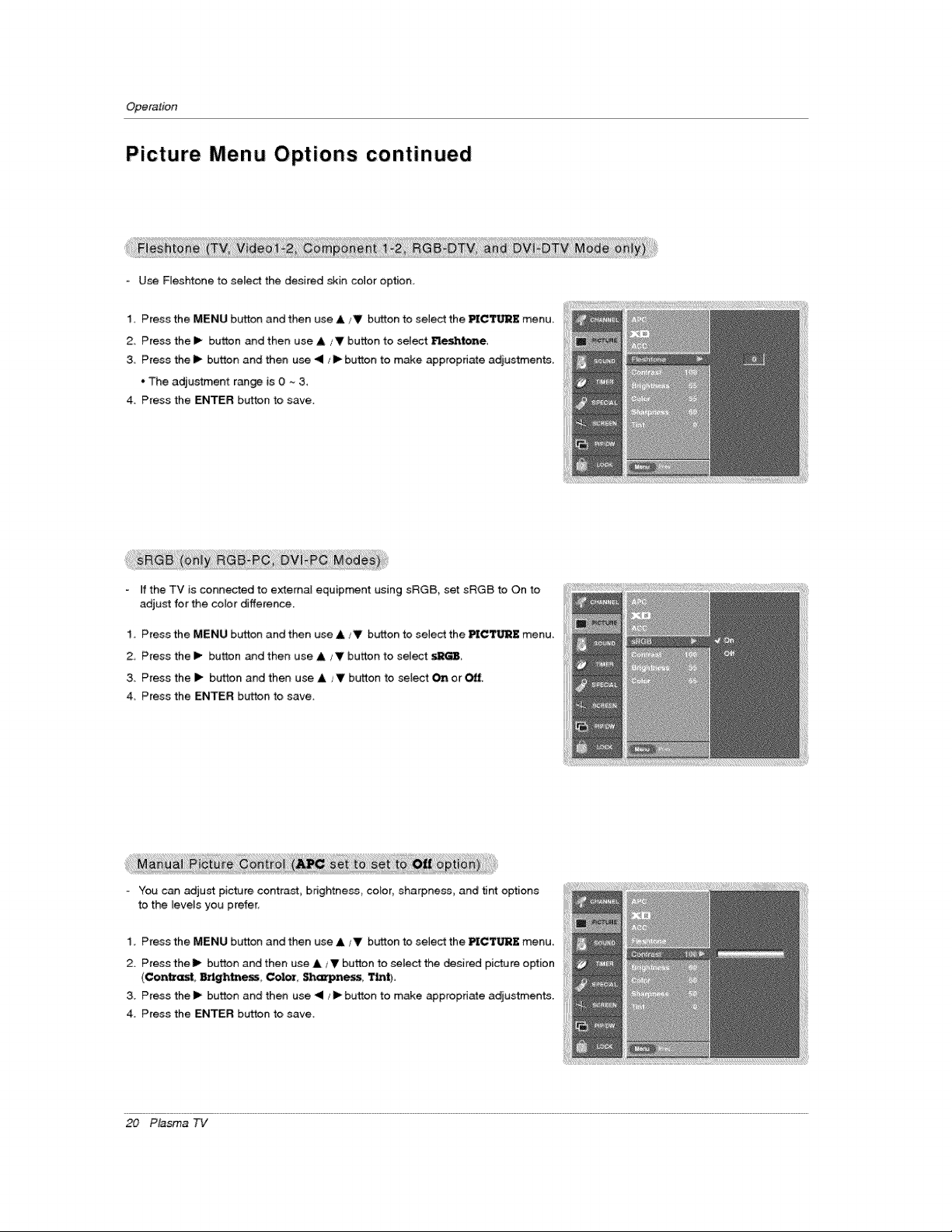
- U_ Fleshtone to select the desired skin color option.
1 Press the MENU button and then use A ,_V button to select the PIC_FIJRE menu
2_ Press the I_ button and then use A _' button to select _tene,
& Press thel_ button and then use 41 _11_button to make appropd_e a_ustments,
* The adjustment range is 0 ~ 3,
4_ Press the ENTER button to save.
If the TV is connected to external equipment using sRGB, set sRGB to On to
adjust for the color difference.
1, Press the MENU button and then use A JV bu_ton to select the PICTURE menu,
2 Press the I_ button _d then use A _II' button to select _GB
3 Press the I_ button and then use & Jr button to select On orOff
4 Press the ENTER button to save,
- You can adjust picture contrast, bdghtne_, color, sharpness, and tint options
to the leveJs you prefer,
1. Press the MENU button and then use A/V button to selec_ the PICTURE menu.
2. Press the I1_button and then use A iV button to _tect the desired pictu re option
(Contrast, Brightness, Color, Sharpness, Tint),
3. Press the tb button and then use < ,_IP button to make appropriate adjustments.
4. Press the ENTER button to save,
20 Plasma TV
Operation
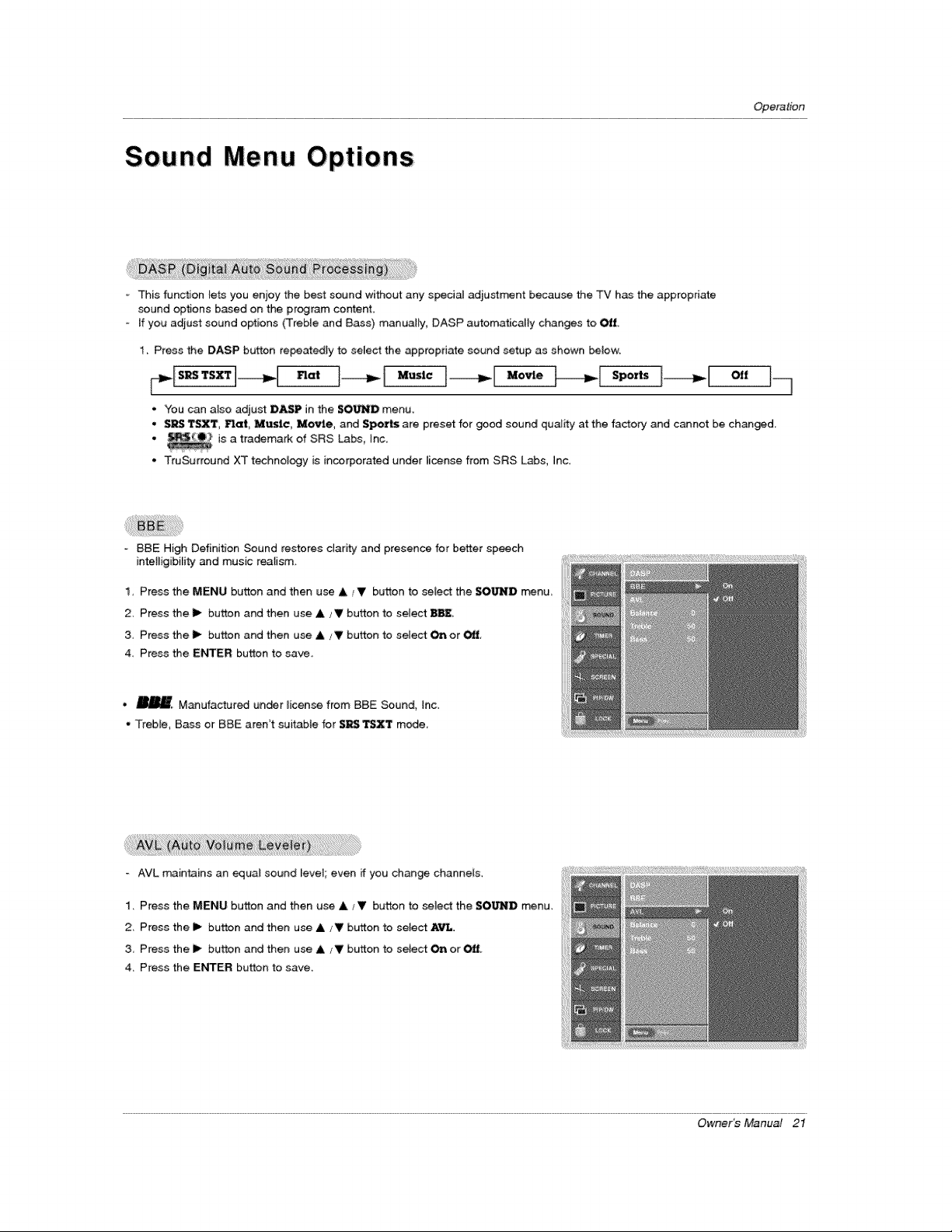
o This function lets you enjoy the best sound without any spe_al adiustment because the TV has the appropriate
sound options based on the program content.
- If you adjust sound options (Treble and Bass) manually; DASP automatically changes to _f.
1. Press the DASP button repeatedly to select the appropriate sound setup as shown _low:
• You can also adjust DASP in the $OL_][_IIDmenu.
. S_ T_T, nat, Music, Movie, and Sports are preset for _od sound quality at the factory and cannot be changed.
. is a trademark of SRS Labs, Inc.
o TruSurround XT technology is incorporated under license from SRS Labs, Inc.
- BBE High Definition Sound restores clarity and presence for better sp_
intelligibility and music realism,
1, Press the MENU button and then use A V button to select the l_l_D rr_nu,
2, Press the _- button and then use A/V button to select _,
3, Press the I_ button and then use A/V button to select On or _,
4, Press the ENTER button to save,
• _ M_ufactured un_r _icense from BBE _und, Inc.
• Treble, Bass or BBE aren't suitable for SIRS"rsxT m_e_
- _VL maintains an equa_ sound _eve['_even if you change channel&
1. Press the MENU button and then use & Jr button to select the $OU.',,I]B menu.
2 Press the i_ button and then use ,I, /V button to select _.
3 Press the I_ button and then use A/V button to seiect On or Ott[
4. Press the ENTER button to save.
Owner_ Manuai 21
Operation
Sound Menu Options continued
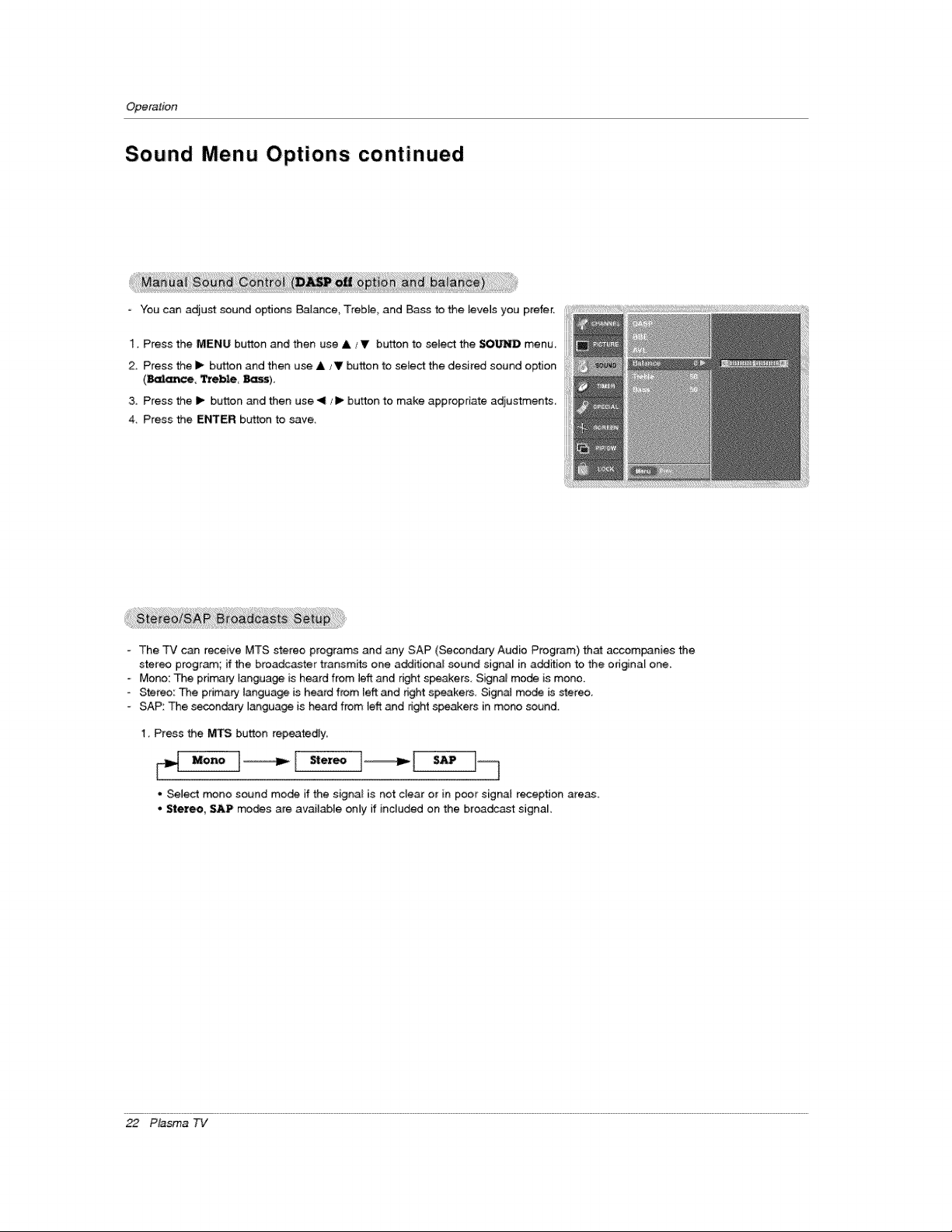
You can adiust _und options Balance, Treble, and Bass to the levels you prefer.
1. Press the MENU button and then use A _,V button to select the SOUND menu.
2, Press the i_ button and then use ,&/V button to select the desired sound option
3, Press the I_ button and then use <It ._1_button to make appropriate adjustments
4 Press the Ef_ER button to save,
- The TV can re_ive MTS stereo programs and any SAP (Secondary Audio Program) that accompanies the
stereo progr_; if the broadcaster transmits one a_itional sound signa_ in addition to the original one.
Mono: The pdmary language is heard from ]eftand right spe_akers. Signal mode Js mono.
- Ste_o: The primary language is heard from [eft and r_ght speakers. Signa_ mode is stereo.
- SAP: The secondary _anguage is heard from left and right spewers in mono sound
1_ Press the MTS button repeatedmy,
o Select _no sound moda if the signa_ is not clear or in poor signai recep_Jon areas.
• Stereo, SAP modes are available only if included on the broadcast signal
22 Plasma TV
Operation
Timer Menu
- Set the time automatically through the PBS broadcast signal,
= ThePBS channel signal ineiudes information for the current time
Set the clock manualiy, if the current time is set incorrectly programed by the auto clock function,
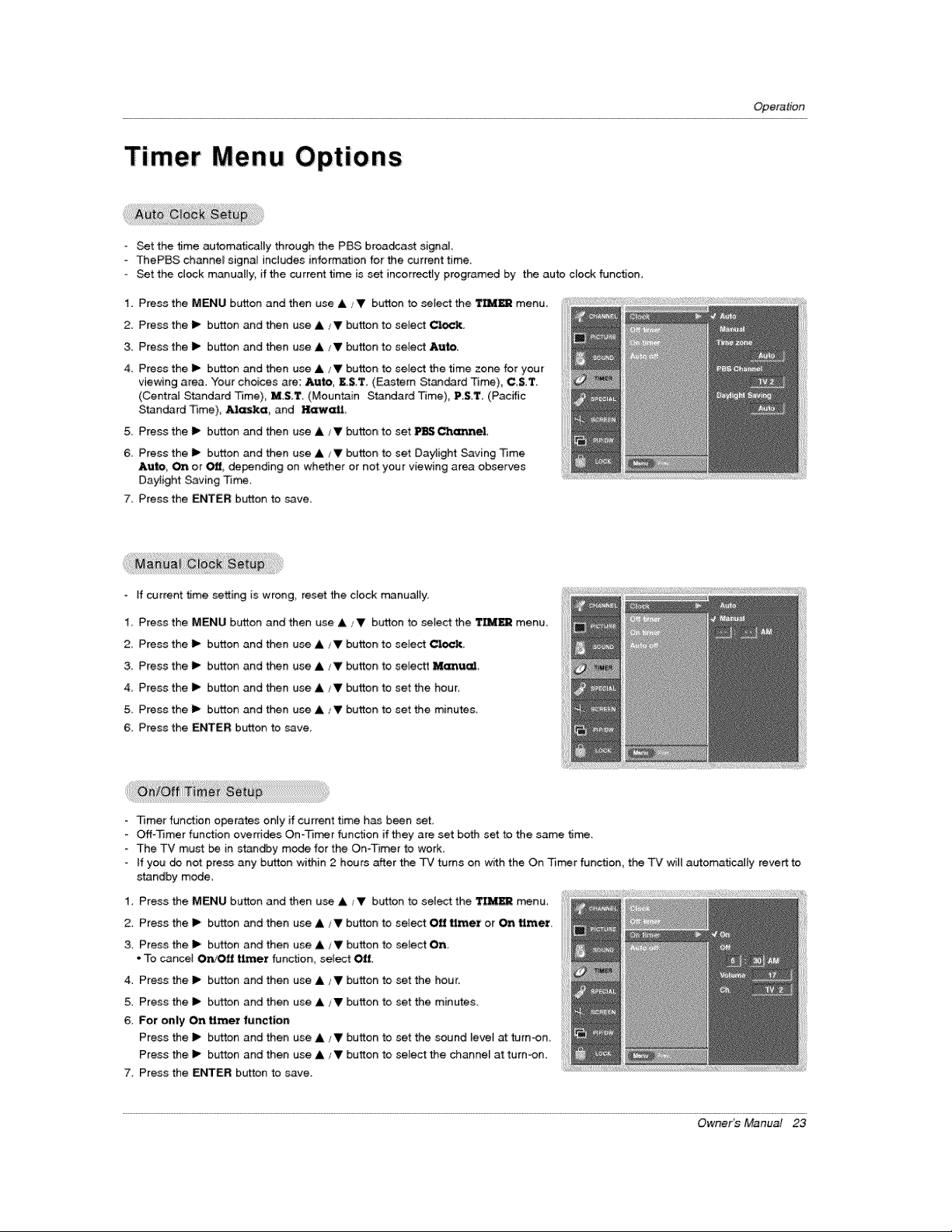
1. Press the MENU button and then use A _V button to select the Tll'd_ menu.
2. Press the 1_ button and then use A !Y button to select Clock,
3. Press the I_ button and then use A iV button to select Auto.
4 Press the I_ button and then use A iV button to select the time zone for your
viewing area. Your choices are: Auto, E.S.T. (F_astern Sta_rd Time), C,ST.
(Central Standard Time), M.S.T. (Mountain Standard Time), P.S.T. (Pacific
Standard Time), Al_ka, and Haw_L
5_ Press the I_ button and then use A/Y button to set PoS C_q_el
6, Press the I1_button and then use A/V button to set Daylight Saving Time
Auto On or _, depending on whether or not your viewing area observes
Daylight Saving Tim.
7. Press the ENTER button to seve_
- If current time setting is wrong, reset the clock manually.
1, Press the MENU button and then use A _V button to select the _ menu,
2, Press the 1_ button and then use A tV button to select _,
& Press the I_ button and then use A/V button to selectt Manu_a_,
4_ Press the i_ button and then use A/V button to set the hour,
5_ Press the i_ button and then use A ,_V button to set the minutes,
& Press the ENTER button to save,
- Timer function operates on_y if current time has been set
- Off_3]mer function overrides On*Tin'rot function if they are set both set to the same ti_,
- The TV must be in standby mode for the On-Timer to work
if you do not press any button within 2 hours after the TV turns on with the On Timer function, the TV will at_omatJeaily revert to
standby me,de,
1. Press the MENU button and then use A/V button to select the TIM_ menu.
2_ Press the I_ button and then use A /V button to select Off Umer or _ timer,
& Press the I_ button and then use & /V button to select On
• To cancel On/Off t_er function select Off
4, Press the I_ button and then use A _Y button to set the hour.
5. Press the I_ button and then use A _V button to set the minutes.
6, For only On _met f_nction
Press the i_ button and then use _ __ button to set the _ound level at turn-on
Press the i_ button and then use _ !V button to select the channe_ at turn-on.
7. Press the ENTER button to save.
Owner_ Manual 23
Operation
Timer
Menu Options continued
The Sleep _mer turns the TV off at the preset time. Note that this s_ng is cleared when the "FV is turned off.
,, z,'
1_ Press the SLEEP button repeatedly to select the number of preset minutes First the _ --__ option appears
on the screen, fo_Eowed by the following sleep timer turn off _mes:
10, 20, 30, 60, _, 120, 180, and 240 minutes.
2. When the number of minutes you want is displayed on the screen press the ENTER button. The timer begins to
count down from the number of minutes se_ecte&
3, To check the rem._ining minutes before the TV _ms off, press the SLEEP butlon once_
z
4, To car_ce__ S4eep _tr_r_ press the SLEEP button repeatedly until !_ n_ _ appears
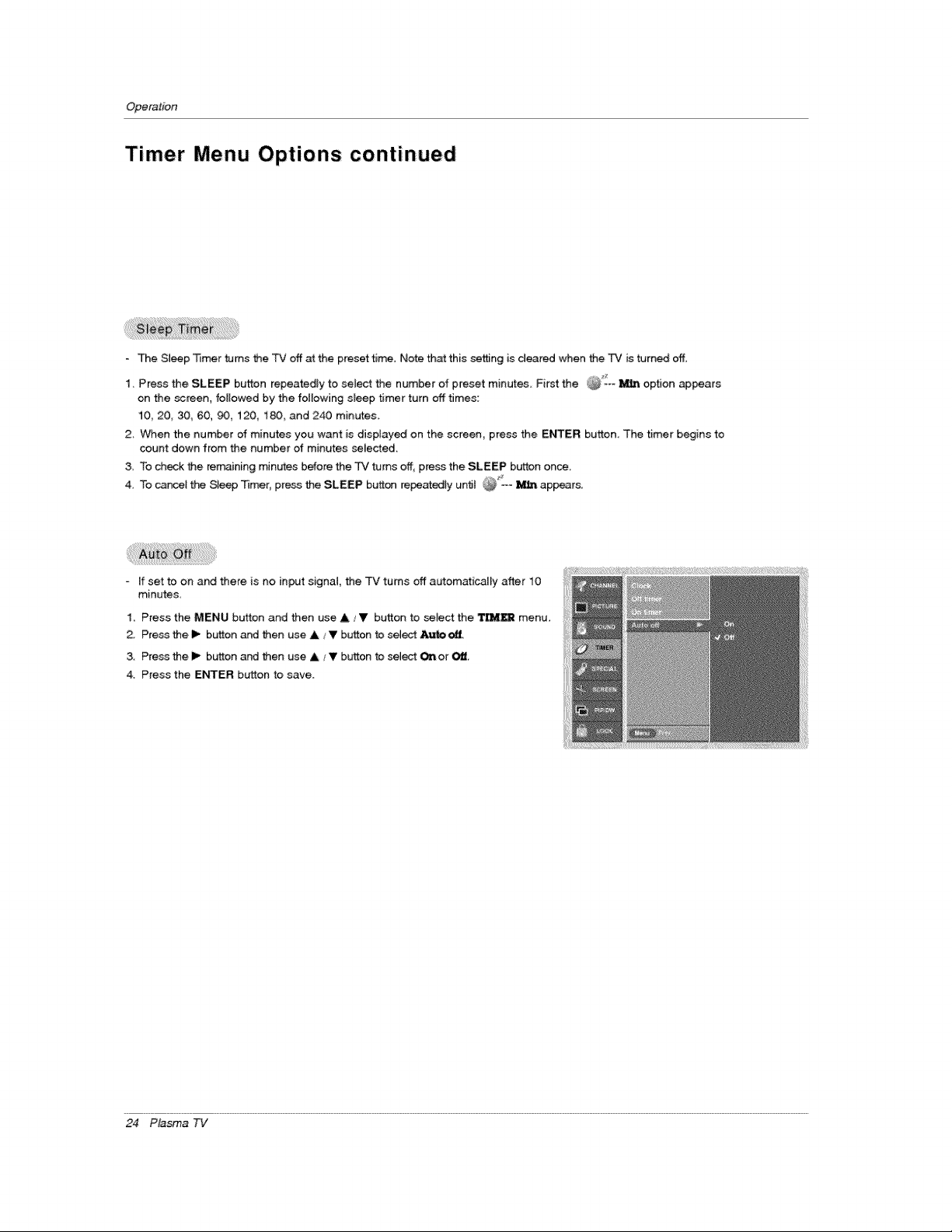
- If set to on and there is no input signal, the TV turns off automatically after 10
minutes
1, Press the MENU button and then use A /V button to seJect the '1'_ menu.
2. Press the I_ button and then use A _V button to selec_ Au_ _.
3. Press the I_ button and then use A f V button to sel_ O_ or Off.
4. Press the ENTER button to save
24 P_sma TV
Operation
Special Menu Options
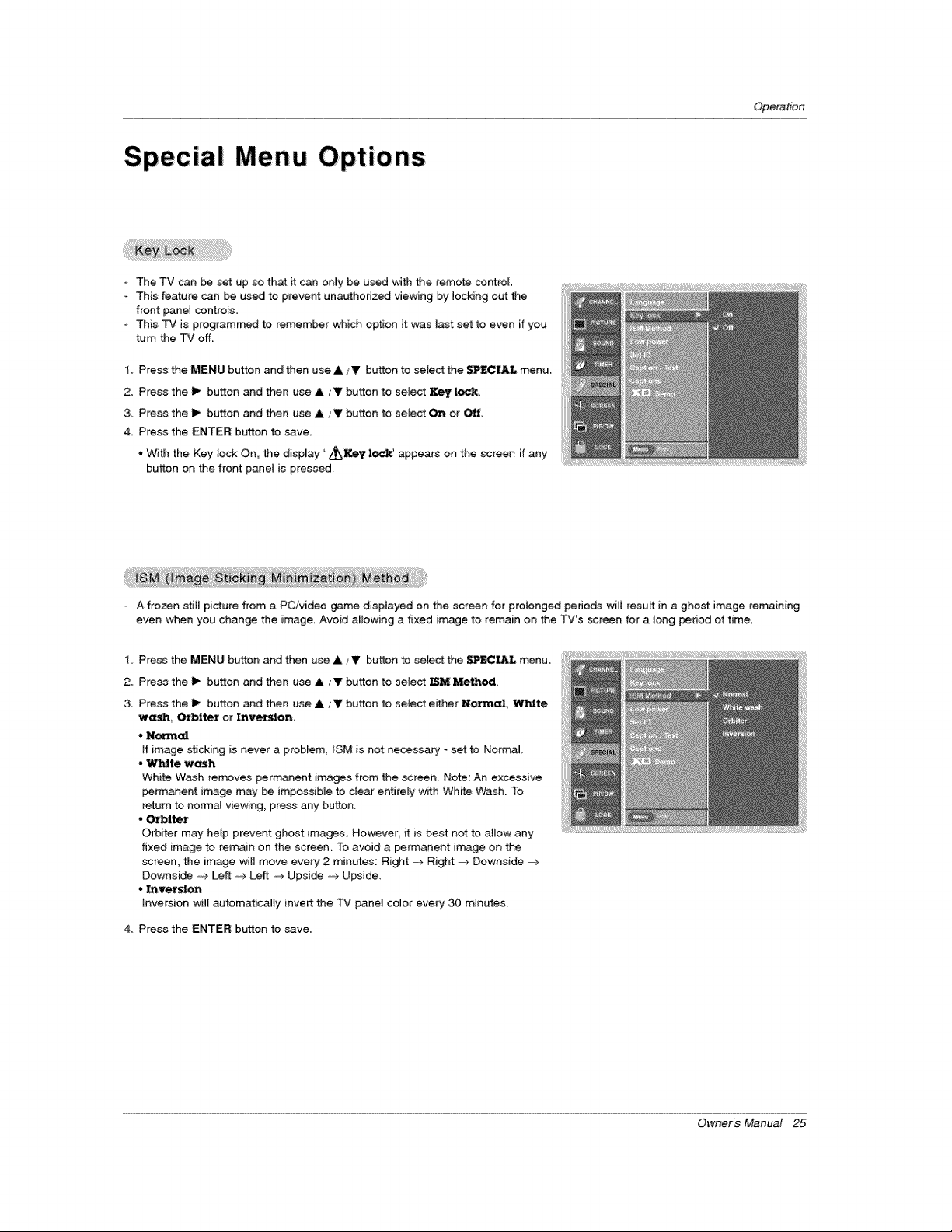
The TV can be set up so that it can only be used with the remote control,
- This feature can be used to preve_ una_horized viewing by locking out the
front panel controls.
- This TV is programmed to remember which option it was I_t set to even if you
turn the TV off.
1. Press the MENU button and then use A iV button to select the SPECIAL menu,
2. Press the I_ button and then use A ,,'V button to select Key lock
3, Press the I_ button and then use A/V button to select On or OfL
4. Press the ENTER button to ave,
• With the Key lock On, the display '_F,,Je¥ lock' appears on the screen if any
button on the front: panel is pressed.
- A frozen still picture from a PC/video game displayed on the screen for prolonged pedods wi_t result in a ghost image remaining
even when you change the image_ Avoid allowing a fixed image to remain on the TV's screen for a _ong period of time.
1. Press the M_U button and then use A/V butfJon to sefect the SPECIAL menu.
2, Press the II_ button and then use A JV button to select ISM Method,
3. Press the 1_ button and then use A/V button to select e_ther Normal, White
wash_ Oxblter or Invers_n
, Norm_
tf image sticking is never a problem, tSM is not necessaq/_ set to Normal,
•Wl'dte wash
White Wash removes p,ermanent im.3ges from the screen_ Note: An excessive
_rmanent image may be impossible to dear entirely with White Wash. To
return to normal viewing, press any button.
• Orbiter
Orbiter may help prevent ghost images However, it is best not to a_ow any
fixed image to remain on the screen To avoid a _rmanent irr_ge on the
screen, the image will move every 2 minutes: Right =_ Right =_ Downside ->
Downside ,,_ Left m, Left _,_Upside .**_Upside.
- Inversion
Inversion will automatically invert the TV panel color every 30 minutes.
4 Press the ENTER button to save.
Owner_ Manual 25
Operation
Special Menu Options continued
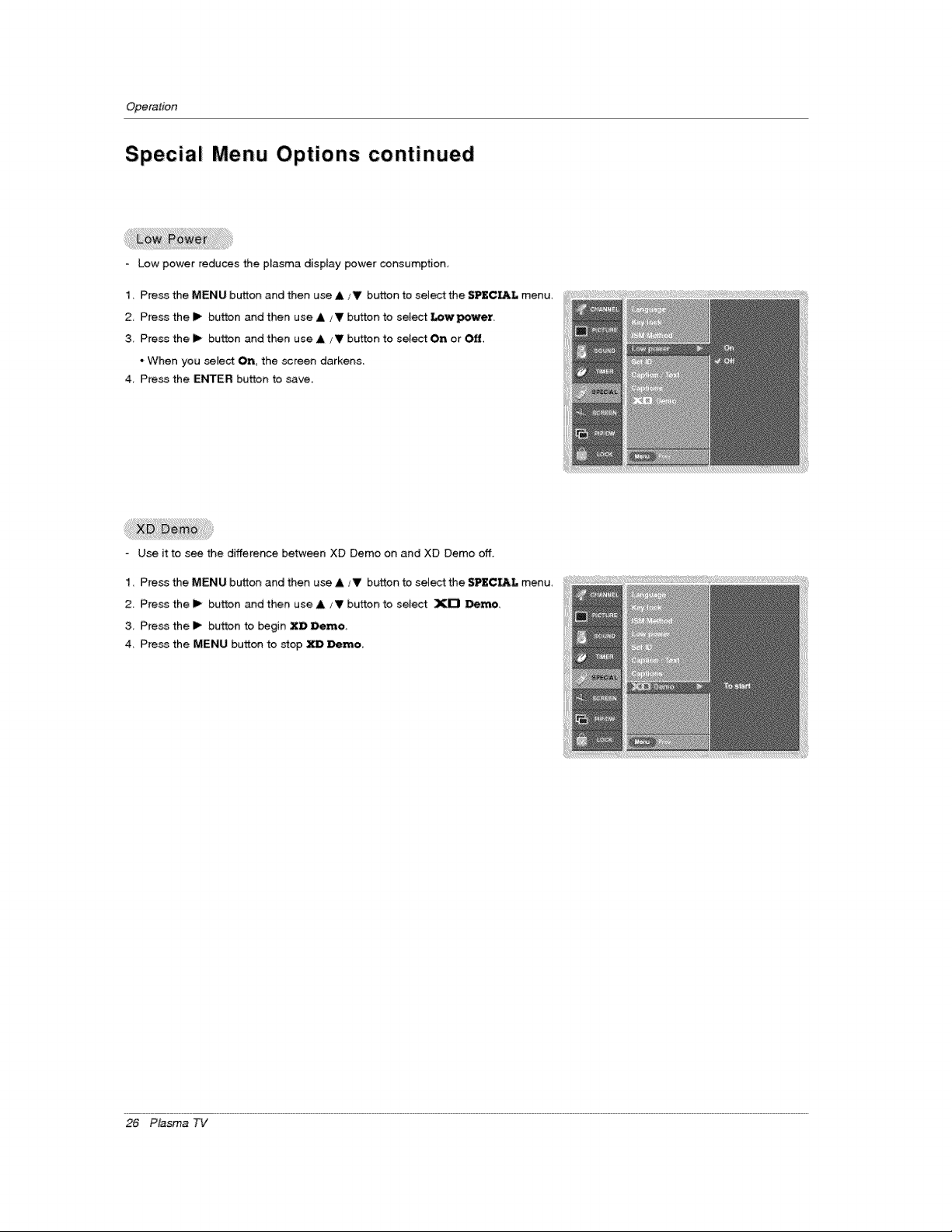
Low power reduces the p$asma display power _nsumption.
1. Press the MENU button and then use &/V button to select the S]PEC_[, menu.
2 Press the I_ button and then use A/V button to select _wpower.
& Press the IP button and then use A/V button to select On or Off.
, When you sele_ On, the screen darkens.
4. Press the ENTER button to save.
Use it to see the difference between XD Demo on and XD Demo off.
1 Press the MENU button and then use A/V button to select the SPECIAl, menu,
2, Press the I_ button and then use A V button to select XD Demo.
3. Press the I_ button to begin XDDemo,
4 Press the MENU button to stop XD Demo
26 Plasma TV
Operation
Closed Captions
Closed ceptioning is a process which converts the audio portion
of a television program into written words which then appear as
subtitles on the television screen. Closed captions allow viewers
to read the dialogue and narration of television programs.
Using Closed Captions
Captions are the subtitles of the dialogue and narration of tele-
vision pr_rams. For prerecorded programs, program dialogue
can be arranged into captions in advance. Its possible to caption
a live program by using a process called reaJ-time captioning,
which creates captions instantly. ReaFtime captioning is nor-
maHy done by professional reporters using a rr_achine shorthand
system and computer for trans-
lation into English.
Captioning is an effective sys-
tem for the hearing-impaired,
and it can also aid in teaching
language skiFIs.
• The picture at [eft shows a
Wpicat caption.
Caption Tips
• Not al_ TV broadcasts inc_u_ c_osed caption signals.
• _mefimes TV stations broadca_ four different caption sig=
nals on the same channel. By selecting CC 1 to CC '_, you
can choose which signa_ you view. CC 11is usually the signal
with the captions, while Another mode might show demon-
stratJon or programming information.
• Your TV might not receive caption signals normally in the foF
[owing situations.
1, Poorreceptionconditionsare encountered:
• IGNITION:
Picture may flutter_drift suffer from b_ack
spots or horizontal streaking. Usually
caused by interference from automobile
ignition systems, neon lamps, electrical
ddtls, and other electdca_ appliance&
* GHOSTS:
Ghosts are caus_ when the TV signal
splits and fotlows two p_hs, One is the
direct path and the other is reflested off
tall buildings, hills or other objects_
Changing the direction or position of the
antenna may improve reception.
* SNOW:
tf your receiver is located at the weak,
fringe area of a TV signal, your picture
may be marred by smal_ dots. It may be
necessary to instaiJ a specia_ antenna to
improve the picture_
2. An old, bad, or illegally recor_d _e is being played.
3. Strong, random signals from a car or airplane interfere with
the TV signal.
4. The signal from the antenna is weak.
5. The program wasn't captioned when it was produced, trans _
mitred, or taped.
i i iii iiiilililiiii!i!!
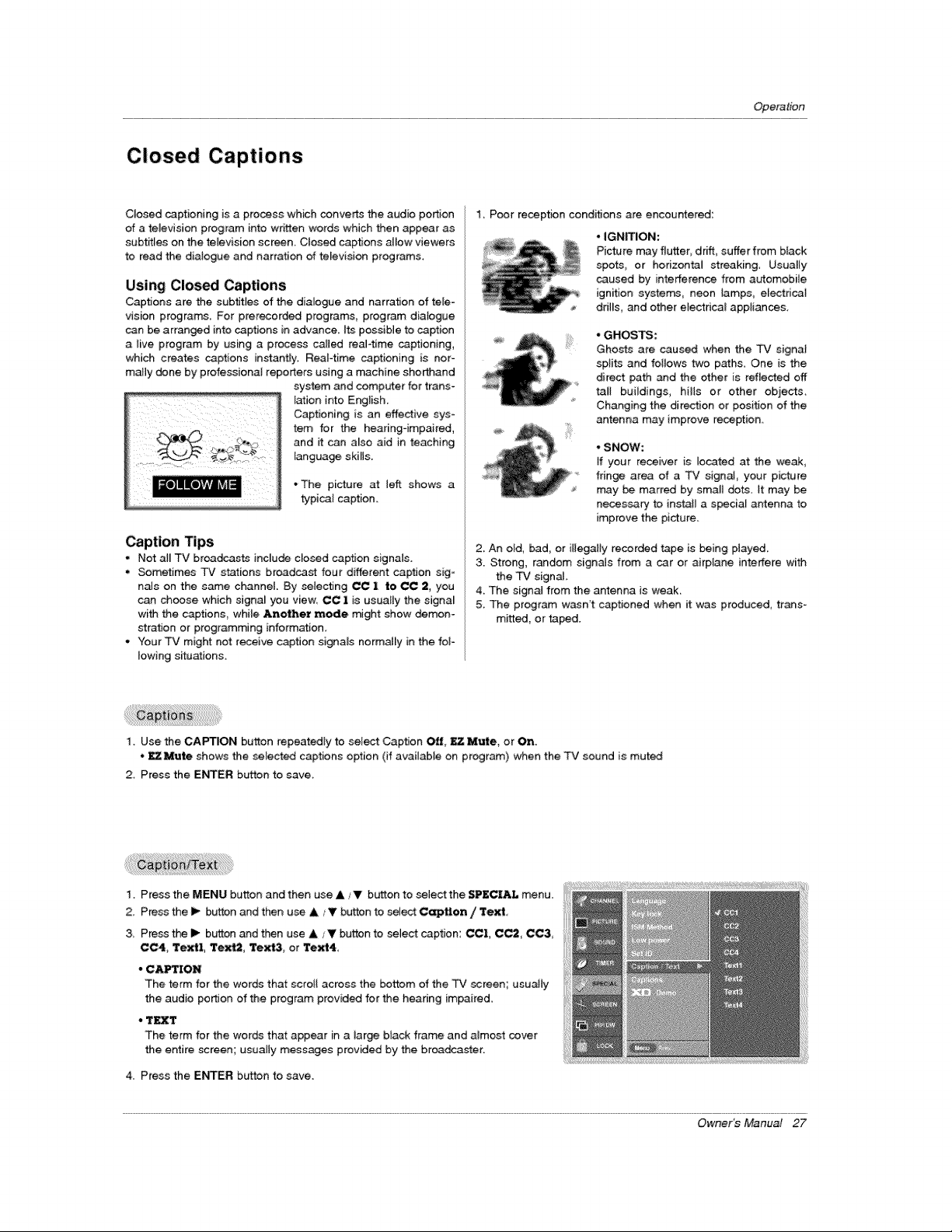
1. Use the CAPTION button repeatedly to select Caption Off, £7- Mute, or 0_.
• _MUte shows the selected captions option (if available on program) when the TV sound is muted
2, Press the ENTER bb_ton to save,
1. Press the MENU button and then use A/_' button to select the SPECIAL menu.
2. Press the I_ button and then use & /T button to select Caption / 'text
& Press the I_ button and t#_n use A / _ button to select caption: CC11, C_ CC&
CC4, "textl, Text2, Text3 or "text4
- CAPTIO_
The term for the words that scroll across the bottom of the TV _reen; usually
the audio portJon of the program provided for the hearing impaired.
. "t_'t
The term for the words that appear in a large b_ack frame and almost cover
the entire screen; usually messages provided by the broa_aster.
4. Press the ENTER button to save.
Owner's Manual 27
Operation
Screen Menu Options
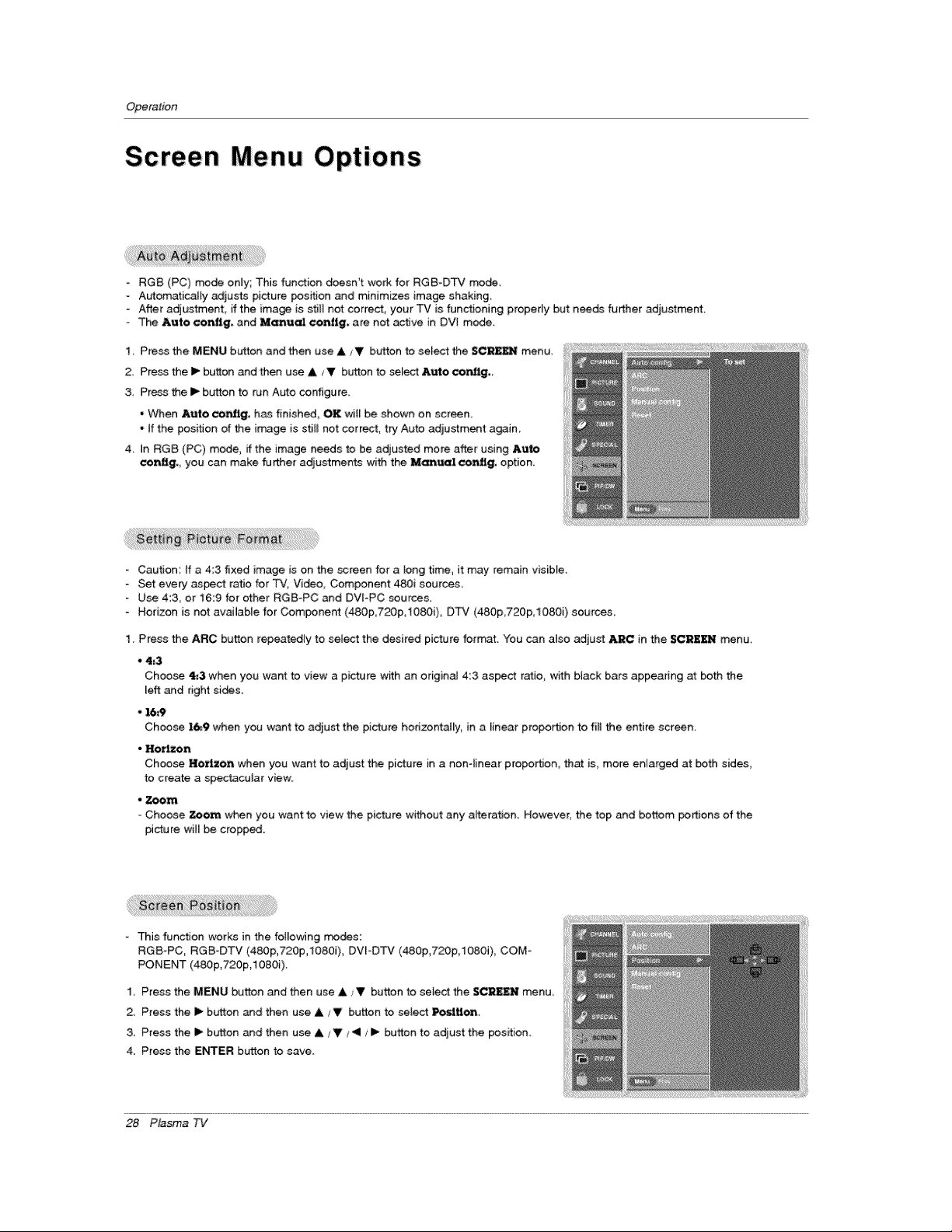
RG8 (PC) rr#de on_y; This function doesn't work for RGB-DTV mode
- Automatically adjusts picture posffion and minimizes image shaking.
- After adjustment, if the ima_ is still not correct, your TV is functioning proper_y but needs further adiustment.
- The Auto conflg, and Manucd conJig, are not active in DV_ mode.
1. Press the MENU button and then use A/V button to select the SCRE_ menu.
2 Press the _ button and then use A /V button to select AutO cong.,
3, Press the I_ button to run Auto configure
• When Auto eonflg, h_ finished, OK wii_ be shown on screen.
• tf the position of the image is stil_ not correct, try Auto adjustment again.
4 in RG8 (PC) mode, ffthe image needs to be adjusted more after using Auto
_nflg,, you can make further adjustments with the Manual €on_g, option,
Caution; if a 4:3 fixed image is on the screen for a tong time, it may remain visible.
Set every aspect ratio for TV, Video Component 480i sources
Use 4:3, or 16:9 for other RGB-PC and DVFPC sources.
Horizon is not available for Component (480p,720p,108Oi), DTV (480p,720p,1080i) sources_
1. Press the ARC button repeatedly to select the desired picture format. You can also adjust ARC in the SCRE_ menu
• 4=3
Choose _3when you want to view a picture with an originai 43 as_ct ratio, with b_ack bars appearing at both the
meft_d right sides.
• 16_9
Choose 16_9 when you want to adjust the picture horizontally in a linear proportion to fill the entire screen
- Hot.on
Choose Hot.on when you want to adjust the picture in a nonqinear proportion_ that is_ more enlarged at both sides_
to create a spectacular view:
• Zoom
- Choose Zoom when you want to view the picture without any alteration However, the top and bottom portions of the
picture wi_ be cropped.
This function works in the following modes:
RGS°PC, RGB DTV (480p,720p,1080i), DVI-DTV (480p,720p 1080i), COM
PONENT (480p,720p,1080i)
1, Press the MENU button and then use A _V button to select the SC_N menu
2. Press the I_ button and then use & _V button to select Pos4U_.
3, Press the I_ button and then use & / Y < / I_ button to adjust the position
4. Press the ENTER button to save.
28 Plasma TV
Operation
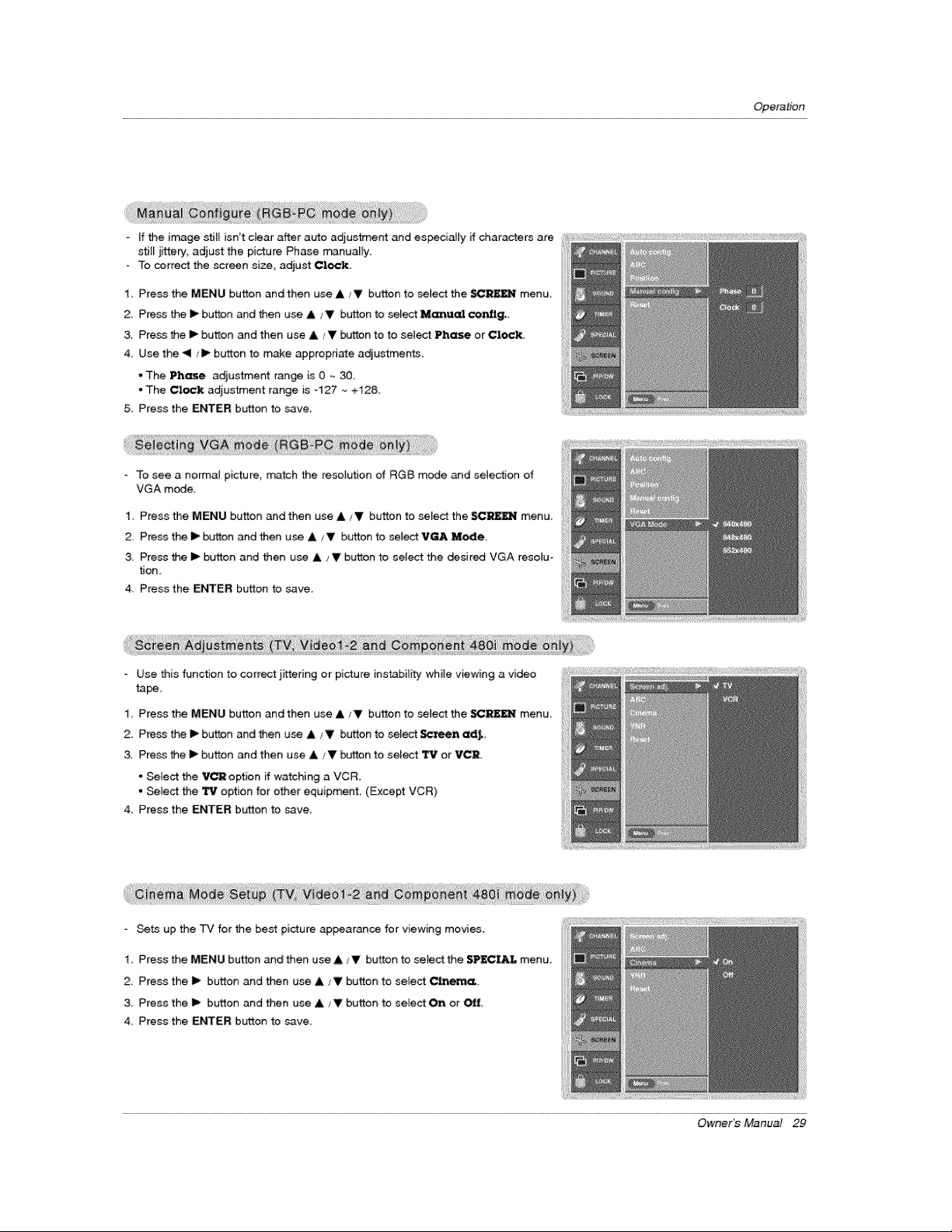
- if the image still isn't dear after auto adjustmer_ and espedaJly if characters are
still jittery, adjust the picture Phase manually.
o To correct the screen size, adjust Clock.
1. Press the MENU burn and then use A / V button to select the _REEN menu
2. Press the I_ button and then use A / V button to select Manual conflg,.
3. Press the i1_button and then use A/V button to to select Phase or Clock.
4. Use the _1., I1_buffton to make appropriate adjustments.
*The Phase a_ustment range is 0 - 30.
-The Crock a_ustment range is =127 _ +128
5. Press the ENTER button to save,
To see a normal picture, match the resolution of RGB mode and selection of
VGA mode,
1. Press the MENU button and then use & / V button to select the SCP_ menu.
2, Press the I_ button and then use &/V button to seJect V_ Me_e,
3. Press the I_ button and then use A !V button to select the desired VGA rasolu-
tion.
4. Press the ENTER bu_ton to save.
Use this function to correct jittering or picture instability vTnile viewing a video
ta_.
1 Press the MENU button and then use A iV button to semectthe _REF,_.N menu
2, Press the I_ button and then use A JV button to select Screen adJ,,
3. Press the I_ button and then use A/V button to select _# or VCR
* Select the V_ option if watching a VCR.
o Select the _ option for other equipment. (Except VCR}
4. Press the ENTER button to save.
Sets up the TV for the be_ picture appearance for viewing movies.
1_ Press the MENU button and then use & /V button to sefect the SPECIAL menu_
2, Press the I_ bufton and then use A/V button to select C_'J_
3_ Press the I_ button and then use & ,,'V button to select On or _f,
4, Press the ENTER button to seve_
Owner_ Manual 29
Operation
Screen Menu Options continued
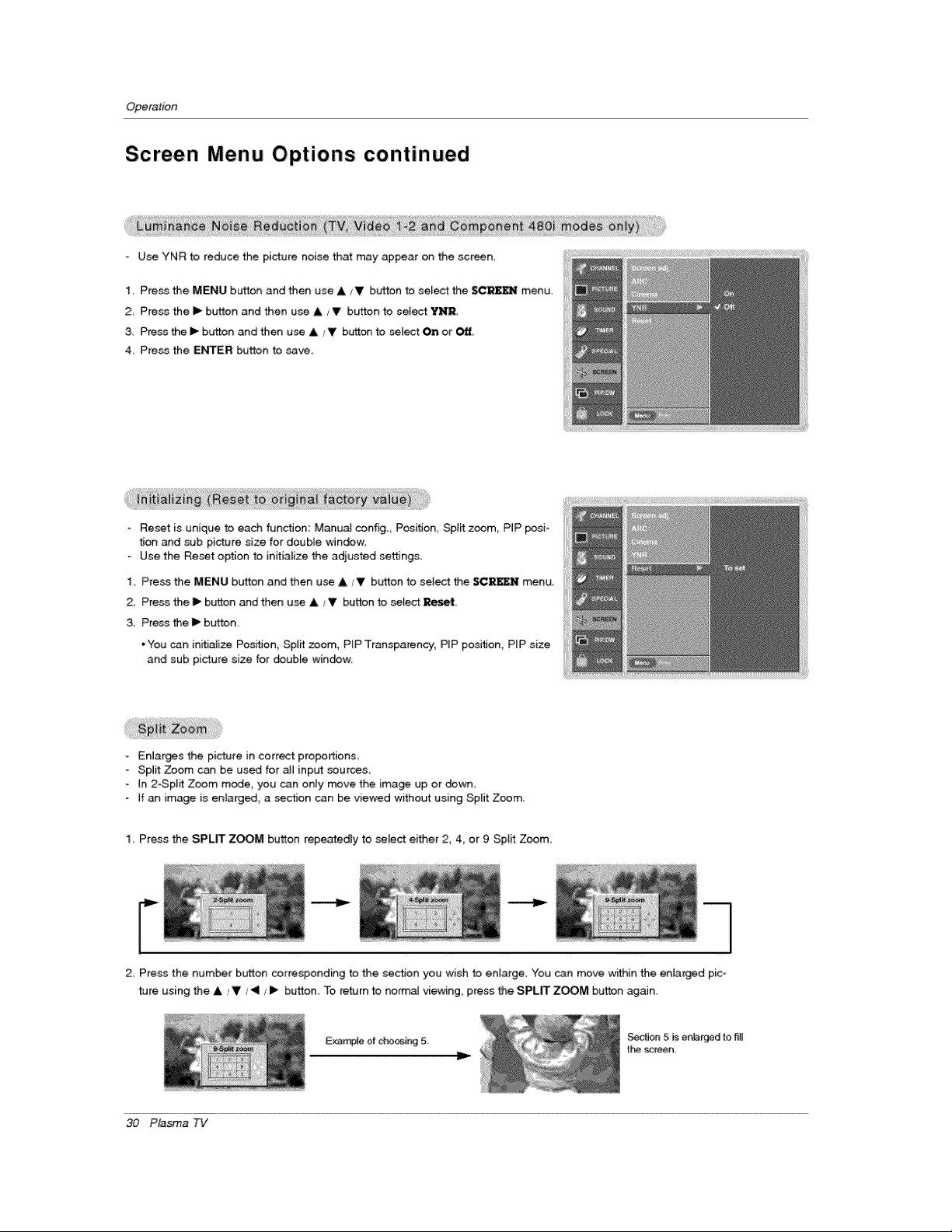
Use YNR to reduce the picture noise that may appear on the screen,
1. Pre_ the MENU button and then use &/V button to se_e_ the SC_E_ menu.
2 Press the I_ button and then use &/T button to se_ YDIR.
3, Press the I_ button and then use A/V button to select On or
4. Press the ENTER button to save.
Reset is unique to each function: Manual config., Position, Split zoom, P_P posi-
tion and sub picture size for double window.
Use the Reset option to initialize the adjusted settings.
1. Press the MENU button and then use A iV button to se}ect the SCRF,ZN menu
2, Pre_ the I_ button and then use & ._Y button to select ]Reset.
3. Press the I_ button.
*You can initiaJize Position, Spt_ zoom, PIP Transparency, P_Pposition, PIP size
and sub picture size for double win_w.
Enlarges the picture in correct proportions
Spiit Zoom can be used for aJl input sources,
In 2oSplit Zoom mode, you can only move the image up or down.
If an image is enlarge, a section can be viewed without using Split Zoom,
1. Press the SPLFr ZOOM button repeatedly to select either 2, 4, or 9 SpJit Zoom.
2. Press the number button corresponding to the section you wish to enlarge. You can move within the enlarged pic-
ture using the A / V / <1 / I_ button. To return to no_al viewing, press the SPLIT ZOOM button again.
Exam_31e of cho_[r_ 5
Section 5 is entarged to fill
30 Plasma TV
Operation
Lock Menu Options
Parental Control can be used to block specific channels, ratings and other viewing sources.
The Parental Control Function (V-Chip) is used to b{ock pro-
gram viewing based on the ratings sent by the broadcasting
station. "The default se_ng is to allow al_programs to be
viewed, Viewing can be blocked by the type of program and by
the categories chosen to be blocked, It is also poccible to block
aJl program viewing for a time period. To use this function, the
following must be done :
1, Set ratings and categories to be b_ocke,d
2, Specify a password
3_ Enable the tock
V-Chip rating and categories
Rating gui_lines are provi_d by broadcasting stations Most
television programs and television movies can be blocked by
TV Rating and/or Individua_ Categories Movies that have been
shown at the theaters or diract4o-vi_o movies use the Movie
R_ing System (MPAA) enty.
Ratings for Movies previously shown in theaters:
Movie Ratings :
• Blocking Off (Permits all programs)
• G (General audience)
• PG (Parenta_ guidance suggested)
• PG-13 (Parents strongty cautioned)
• R (Restristed)
• NC-17 (No one 17 and under admitted)
• X (Adult only)
ffyou set PG°13 : G and PG movies will be available, PG-13,
R, NC-17 and X wimlbe blocked.
Ratings for Television programs including made4or-TV
movies :
General TV Ratings:
• Blocking Off
•TV-G (genera_ audience) (individua_ categories do not apply)
- TV:PG (parental gui_nce suggested)
-TV-14 (14 years and olde 0
- TV-MA (mature audience)
Children TV Ratings:
" Blocking Off
- TVoy (youth) (individual corffent categories de not apply)
TV-Y7 (youth, 7 years and up)
Content Categories:
. Dialog - sexual dialogue (applies to TV-PG, TV-14)
. Language - adult Ianguage (applies to TV-PG, TV-14, _-MA)
. Sex scenes - sexuaJ skuations (applies to TV-PG, TV-14, TV-
MA)
•Violence (applies to T_,_PG, TV-14, TV-MA)
. F Violence - fantasy vio{ence (applies only to TV-Y7)
Aux, Block
• Video 1, 2 (On, Off)
. Component 1,2 (On, Off}
- RGB, DW (On, Off)
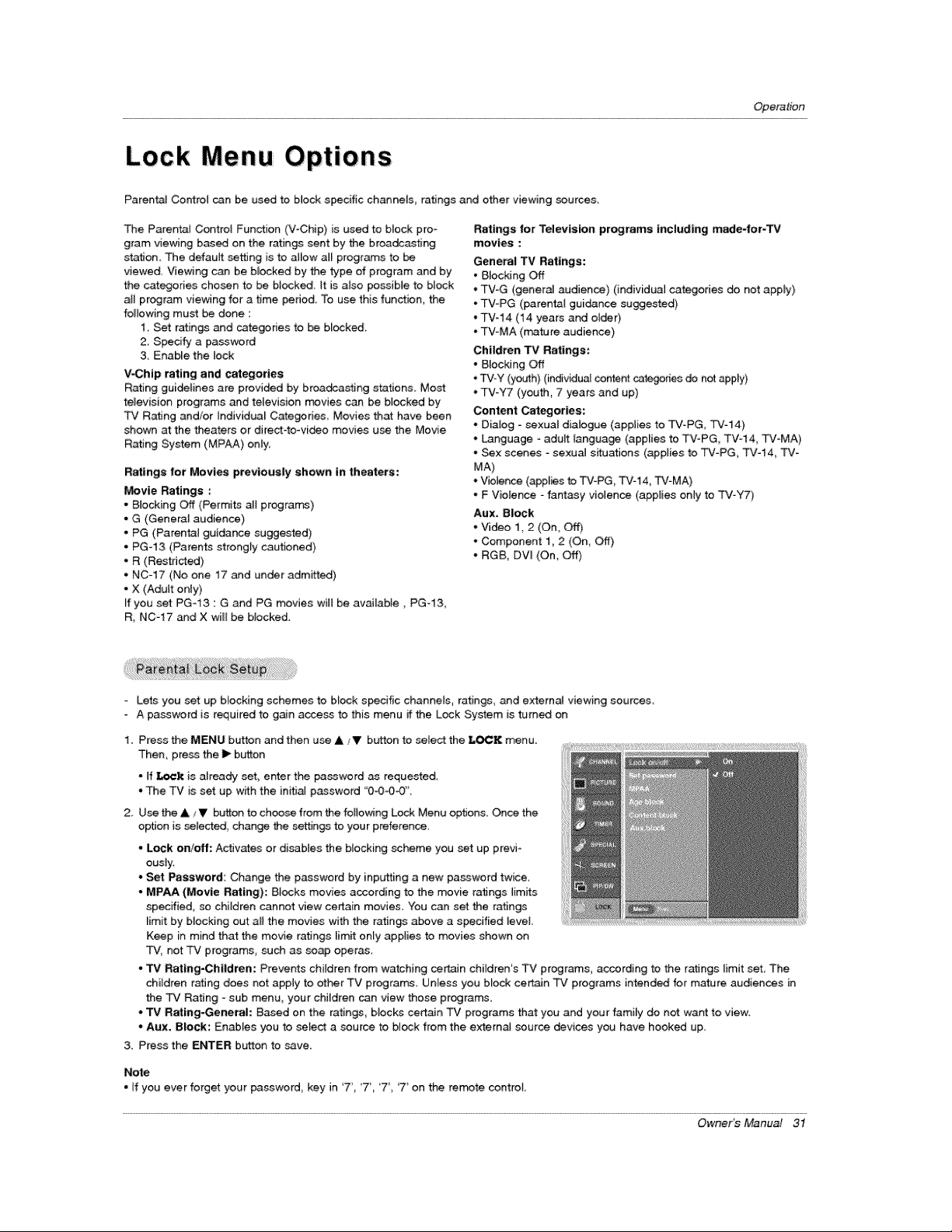
Lets you set up blocking schemes to Mock specific channels, ratings, and external viewing source&
A password is required to gain access to this menu if the Lock System is turned on
1. Press the MENU button and then use A ,¥' b_.rttonto select the LOCK menu.
"Then, press the I_ button
* ff I,_¢k is already set, enter the password as requested_
-The TV is set up with the initiaJ password "0-O43-0".
2 Use the & /V button to choose from the following Lock Menu options Once the
option is selected, change the settings to your preference.
, Lock on!off: Activates or disables the Mocking scheme you set up previ-
ously.
*Set Password: Change the password by inputting a new password twice.
, MPAA {Movie Rating): B_ocks movies according to the movie ratings limits
specified, so children cannot view certain movies You can set the ratings
_imit by blocking out aH the movies with the ratings a_ve a s_dfied level
Keep in mind that the movie ratings limit only applies to movies shown on
"TV_not TV programs, such as soap operas
- TV Rating-Children: Prevents children from watching certain children's TV programs, according te the ratings limit set, The
children rating does net apply to other TV programs. Unless you block ce_n TV programs intended for mature audienses in
the TV Rating - sub menu, your children can view those programs.
*TV Rating-Generah Based on the ratings, blocks cert_n TV programs that you and your family do not want to view:
° Aux. Block; Enables you to seiect a source to b_eck from the externaJ source devices you have hooked up.
3. Press the ENTER button to save.
Note
• ifyou ever forget your password_ key in'7', 7'_ _7','7' on the remote contro_
Owner_ Manual 31
Operation
"- . . /
PIP (Pzcture In Picture) Double Window Feature
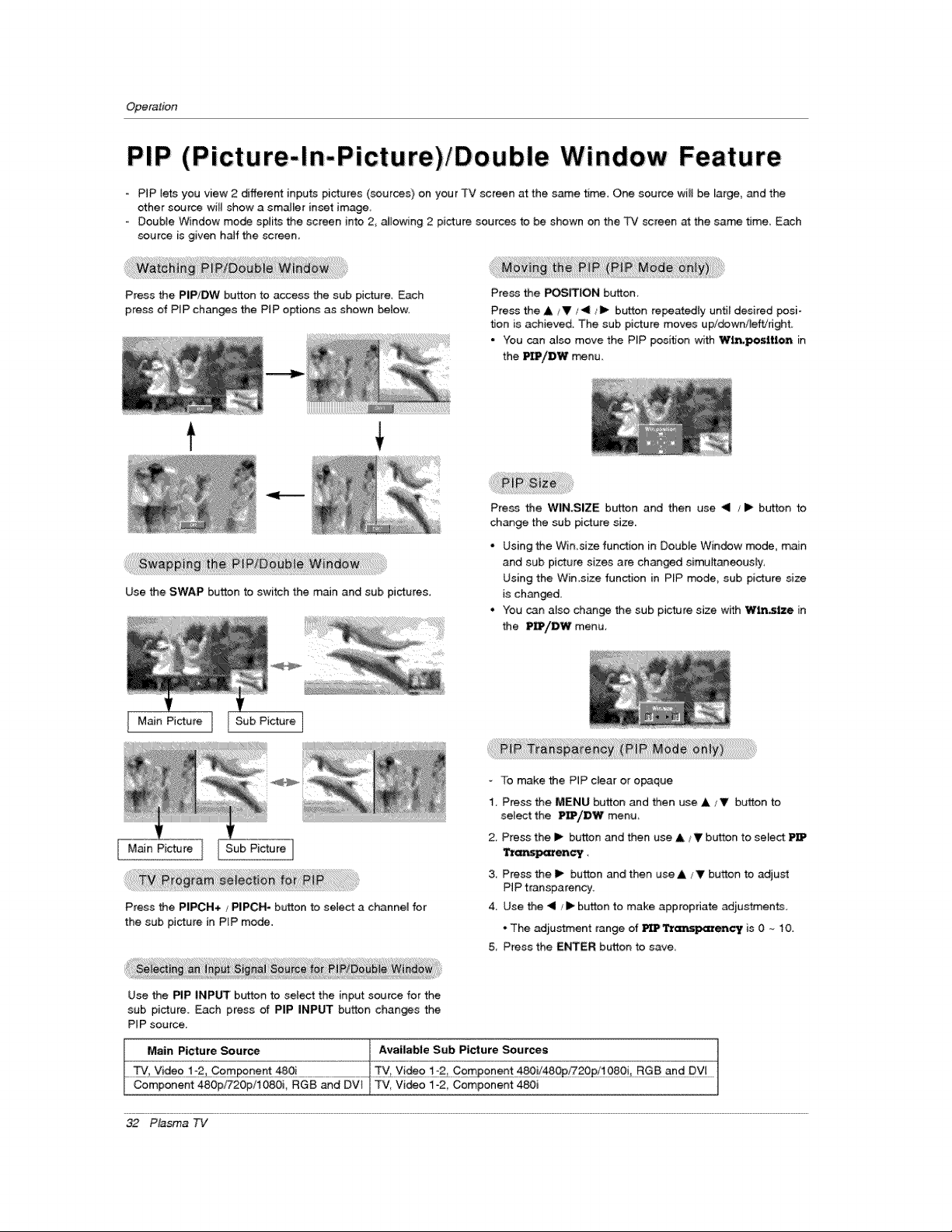
PIP lets you view 2 different inputs pictures (sources) on your TV screen at the same time, One source wiB be _arge, and the
other source wi_I show a smalier inset image
Double Window mode splits the screen into 2, allowing 2 picture sources to be shown on the TV screen _ the same time Each
source is given haft the screen
Press the PIP/DW button to access the sub picture, Each
_ress of PIP ch_ges the PIP options as shown below.
Press the POSITION button
Press the A /V/4 i lp button relatedly until desired posi-
tion is achieved. The sub picture moves upidowrJleftidght
• You can also move the PIP posi_on with W_pot4tlon in
the _/DW menu,
Use the SWAP button to switch the main and sub pictures.
Pre_ the WIN31ZE button and then use _1 /I_ button to
change the sub picture size.
- Using the Win,size function in Double Window m_3de, main
and sub picture sizes are changed simultaneously:
Using the Wimsize function in PIP mode, sub picture size
is ch_ged.
. You can also change the sub picture size with W_stze in
the P_,/DW menu.
Main Picture 1 Sub Picture
Main Picture Sub Picture
Press the PIPCH+ / PIPCH- button to select a channel for
the sub picture in PIP mode.
- To make the PIP clear or opaque
1 Press the MENU button and then use & _T button to
select the PIP/DW menu
2 Press the II_ button and then use &/_' button to select
Transparency
3. Press the I1_button _d then useA/V button to adju_
PIP transparency.
4. Use the "41/ i_ button to make appropriate adiustments.
•The ad}ustment range of _ Tr_rency is 0 ~ 10.
5 Press the ENTER button to save,
Use the PIP INPUT button to select the input source for the
sub picture. Each press of PIP INPUT button changes the
PIP source.
Main Picture Source Available Sub Picture Sources
Component 480p_20p/1080i, RGB _d DV_ TV, Vi_o 1-2, Component 480i
32 P_sma TV
Extema!ControlDeviceSetup
Externa! Contro! Device Setup
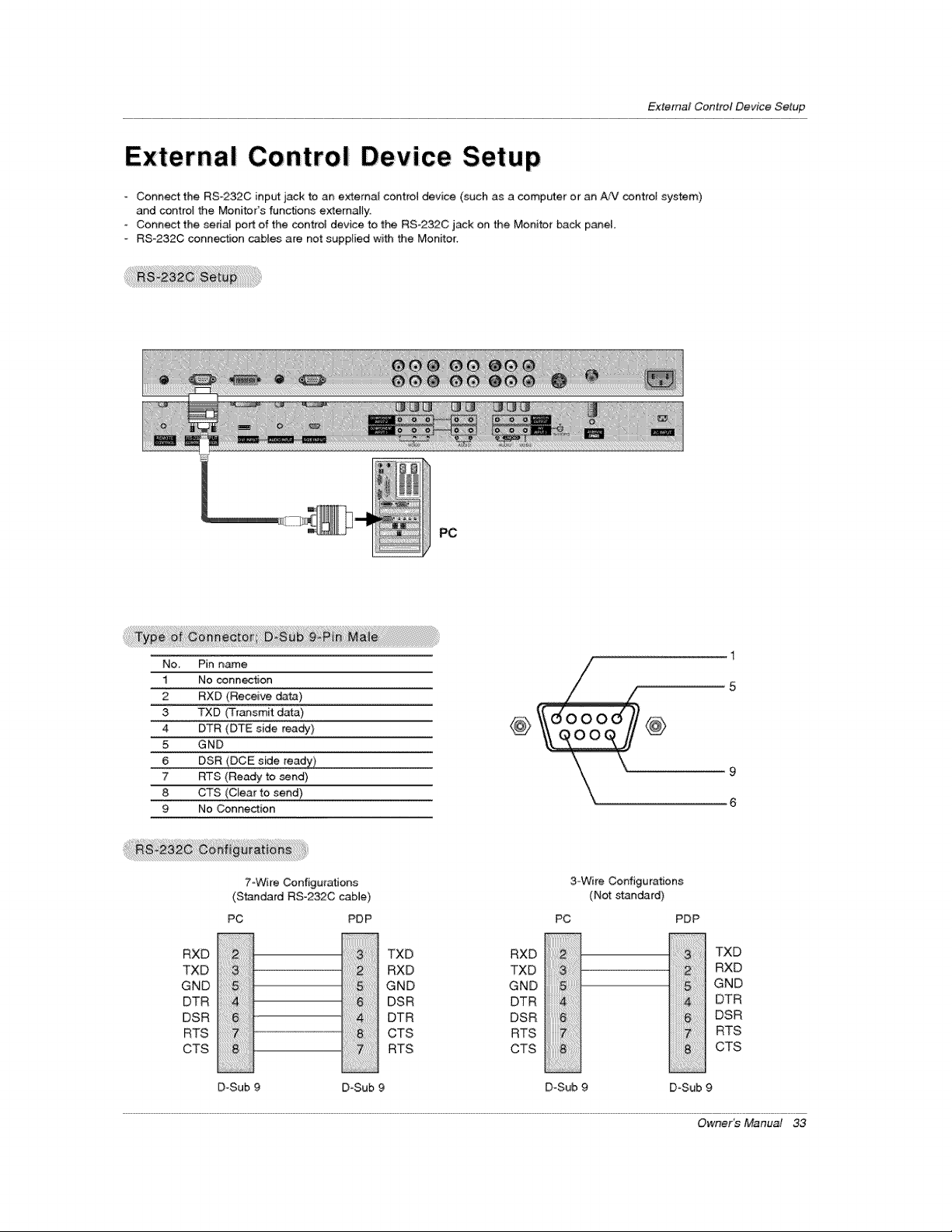
- Connect the RS_232C input jack _ an external control device (such as a computer or an AN control system)
and control the Monitor's functions externally.
Connect the sedaJ port of the control device to the RS-232C jack on the Monitor back panel.
RS-232C connection cabtes are not supplied with the Monitor.
PC
1
No. Pin name
1 No connection 5
2 RXD (Receive da_)
3 TXD (Transmit data ) (,__( _oO_]]_, :
4 DTR (DTE side ready) @
5 GND
6
9
7 RTS (Ready to send)
8 CTS(C!eartOsend)
9 No Connection
7=Wire Configurations 3-Wire Configurations
(Standard RS=232C cable) (Not standard)
PC PD P PC
RXD
TXD ;;
GND
DTR ;;
DSR
RTS
CTS
D-Sub
TXD RXD
::::::;_; RXD TXD
GND GND
6 DSR DTR 4::::::::::
DTR DSR
.........................................................................CTS RTS
RTS CTS
PDP
TXD
RXD
GND
DTR
DSR
.......................RTS
8:'} CTS
D-Sub 9 D-Sub 9 D-Sub 9
Owner_ Manual 33
ExternalControlDeviceSetup
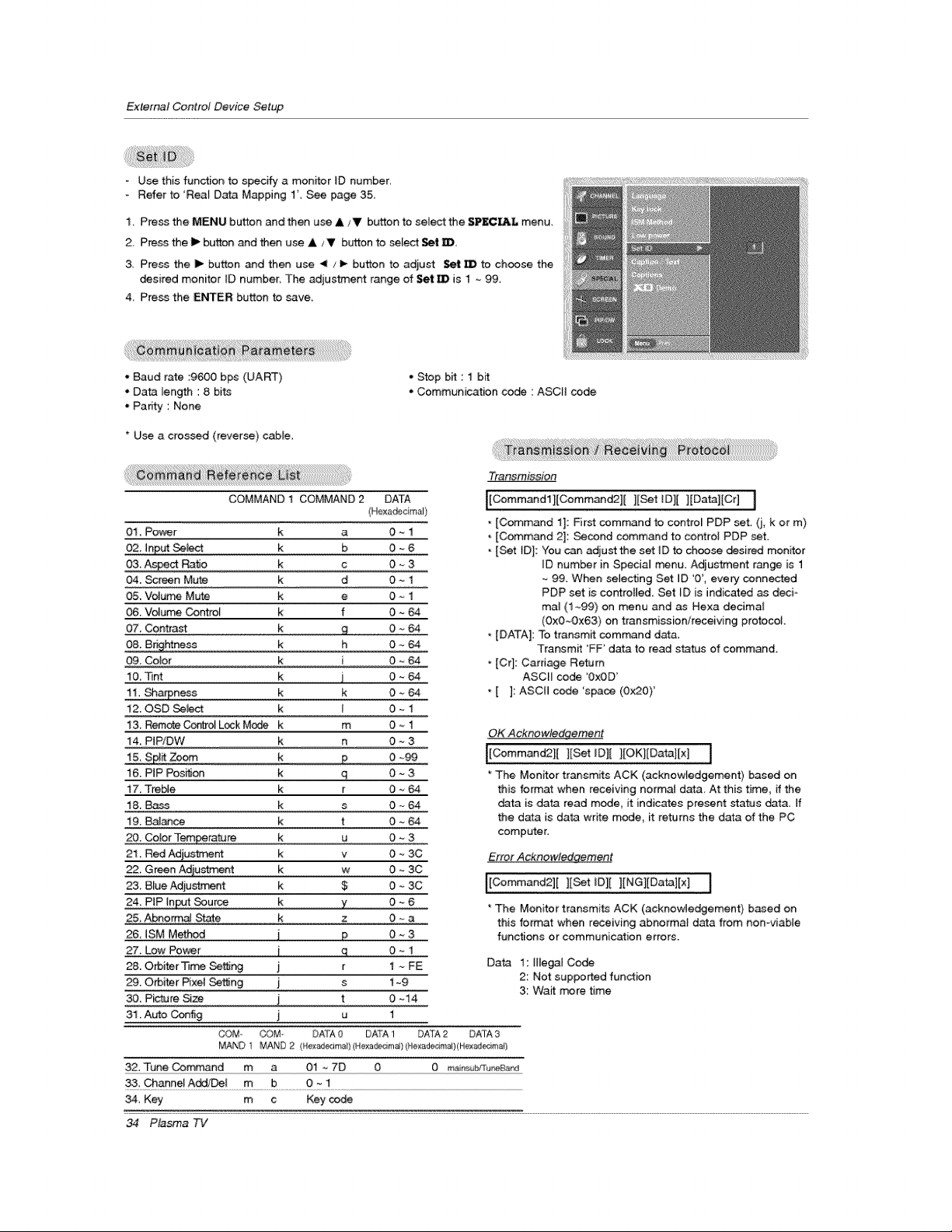
Use this function to specify a monitor JD number,
Refer to 'Rea_ Data Mapping 1' See page 35,
1. Press the MENU button and then use &/V button to select the SPECL&L menu.
2. Press the Ip button and then use &/T button to select _,
3 Press the _ butch and then use _ zI_ button to adiust Set _B to ch_se the
desired monitor _D number. The adjustment range of Set m is 1 ~ 99
4, Press the ENTER button to save,
. Baud rate :9600 bps (UART)
* Data mength : 8 bi_
oParity : None
* Use a crossed (reverse) cable,
• Stop bit : 1 bit
• Communication cede : ASCH code
COMMAND 1 COMMAND 2
01, Power
02, input _
03 Aspect Ratio
04. Screen Mute
05. VoJu_ Mute
06. Vdurr, e _ntrot
07. Contrast
QS.B[_htness
09. CoJor
10 Tvnt
11, Sharpness
12, OSD Se_:_-t
13 Remote Contro_Lock M_
14 PtP/DW
!5, SP__om
16 PiP Pos_
17. Tre_e
18. Ms
19. BaJ_ce
20. Color Tem_rature
21. Red Adju_nt
22 Green Adju_
23, Blue Adjustment
24. PIP _nput Source
25, Abnorm_ State
26, _SM Method
27, Low Po_r
28. Orbiter _rr_ Se_
29. Orbiter P{xel _tflng
30. Picture Si_
31. Auto Config
COM
_Transr_Jssie_
l[Commandl][Comman_][ ][Set ID][ ][Datal[Cr] 1
[Command 1]: First command to contro_ PDP set. (j, k or m)
* [Command 2]: Second command to control PDP set.
[Set }D]: You can adjust the set ID to choose desired monitor
JD number in Speciam menu. Adjustment range is 1
99. When selecting Set ID '0', every connected
PDP set is cor_roHed, Set _D is indicated as deci-
mal (1~99) on menu and as Hexa decimal
(OxO-Ox63) on transmission/receiving protocol
* [DATA]: To transmit command data.
Transmit 'FF' data to read status of command.
* [Cr]: Carriage Return
ASCH code 'OxOD'
* [ ]: ASCH _e 'space (Ox20)'
OK Acknowle_
[[Command2][ ][Set ID][ ][OKl[Da_][x] ]
The Monitor transmits ACK (acknowledgement) based on
this format when receiving norma_ data. At this time, if the
data is data read mode, it indicates present status data. If
the data is data write mode, it returns the data of the PC
computer.
Error Acknowledgement
I[Commane2][][Set iDl[ ][NG][Data][x] I
* The Monitor transmi_ ACK (acknowledgement} based on
this format when receiving abnorma_ data from nomviabte
functions or communication errors.
Data 1: IrlegaJ Code
2: Not supported functien
3: Wait more time
DATA
(Hexa_cimal}
k a 0~1
k b 0-_6
k c 0_3
k d 0--1
k e 0~1
k f 0_
k _ 0_
k h 0~64
k i 0 _-64
k i 0--64
k k 0 ~ 64
k I 0~1
k m 0~1
k n 0~3
k R 0 ~99
k q 0~3
k r 0~_
k s 0--64
k t 0~_
k u 0--3
k v O_ 3C
k w 0 _ 3C
k $ 0 ~ 3C
k y 0~6
k z O~a
i p 0_3
j r 1 ~ FE
j s _g
j t 0 ~14
j u 1
OOM DATA0 DATA1 DATA2 DATA3
MAND 1 MAND2 {Nexad_ma_}(N_;,xa_em_{kiex_de_mal)(Hex_e_m_i)
32, Tune_mmand m a 01 *-7D 0 0 rrain_b!Tu_nd
3& Channel Add/Del m b 0 ~ 1
34, Key m c Key code
34 Plasma TV
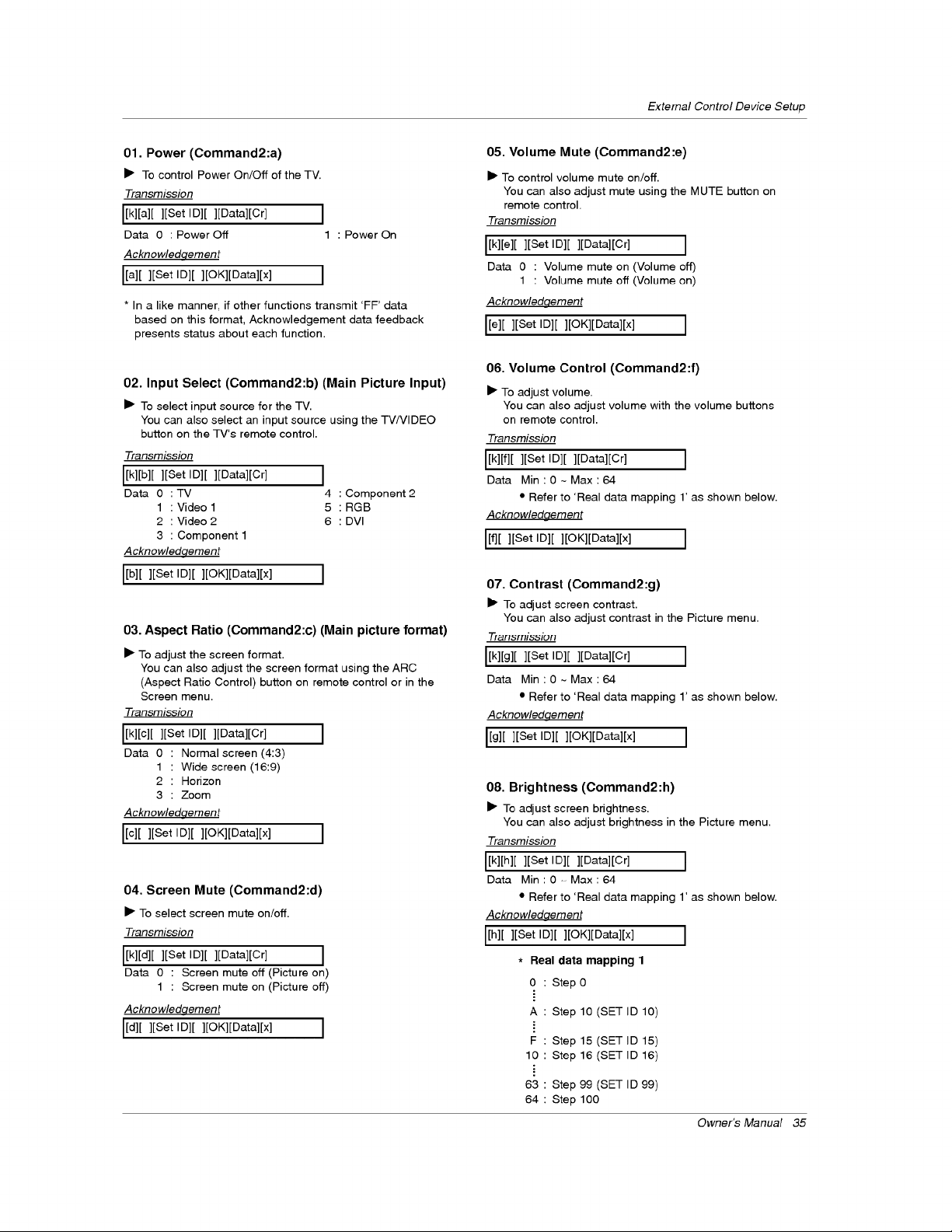
01. Power (Command2:a)
• To control PowerOn/Off of the TV.
Transmission
[[k][a][ ][Set In][ ][gata][Cr] ]
Data 0 :Power Off 1
Acknowledqement
[[a][ ][Set In][ ][OK][gata][x] J
: Power On
* In a like manner, if other functions transmit 'FF' data
based on this format, Acknowledgement data feedback
presents status about each function.
02. Input Select (Command2:b) (Main Picture Input)
• Toselect input source for the TV.
You can also select aninput source using the TV/VlDEO
button on the TV's remote control.
Transmission
[[k][b][ ][Set In][ ][Data][Cr] ]
Data 0 :TV 4 :Component2
1 :Video1 5 :RGB
2 :Video2 6 :DVI
3 : Component 1
Acknowledqement
[[b][ ][Set ID][ ][OK][Data][x] ]
03. Aspect Ratio (Command2:c) (Mainpicture format)
• To adjust the screen format.
You can also adjust the screen format using the ARC
(Aspect Ratio Control) button on remote control or in the
Screen menu.
Transmission
[[k][c][ ][Set ID][ ][Data][Cr] ]
Data 0 : Normal screen (4:3)
1 : Wide screen (16:9)
2 : Horizon
3 : Zoom
Acknowledaement
[[c][ ][Set In][ ][OK][Data][x] ]
04. Screen Mute (Command2:d)
• To select screen mute on/off.
Transmission
[[k][d][ ][Set In][ ][Data][Cr] ]
Data 0 : Screen mute off (Picture on)
1 : Screen mute on (Picture off)
Acknowledqernent
[[d][ ][Set In][ ][OK][Data][x] ]
External Control Device Setup
05. Volume Mute (Command2:e)
• To control volume mute on/off.
You can also adjust mute using the MUTE button on
remote control.
Transmission
IN[e][ ][Set In][ ][Data][Cr] ]
Data 0 : Volume mute on (Volume off)
1 : Volume mute off (Volume on)
Acknowledqement
I[e][ ][Set In][ ][OK][Data][x] ]
06. Volume Control (Command2:f)
• To adjust volume.
You can also adjust volume with the volume buttons
on remote control.
Transmission
J[kl[f][][Set ID][ ][Datal[Cr] ]
Data Min:0-Max:64
• Refer to 'Real data mapping 1' as shown below.
Acknowledgement
J[f][ ][Set In][ ][OK][Data][x] J
07. Contrast (Command2:g)
• To adjust screen contrast.
You can also adjust contrast inthe Picture menu,
T1ansmissi_n
I[kl[g][][setID][ ][Data][Cr] ]
Data Min:0~Max:64
• Refer to 'Real data mapping 1' as shown below.
Acknowledqement
[[g][ ][Set In][ ][OK][Data][x] ]
08. Brightness (Command2:h)
• To adjust screen brightness.
You can also adjust brightness in the Picture menu.
Transmission
J[k][h][ ][Set In][ ][Data][Cr] J
Data Min:O_Max:64
• Refer to 'Real data mapping 1' as shown below.
Acknowledqement
[[h][ ][Set In][ ][OK][Data][x] I
* Real data mapping 1
0 Step 0
A Step 10 (SET ID 10)
F Step 15 (SET ID 15)
10 Step 16 (SET ID 16)
63 Step 99 (SET ID 99)
64 Step 100
Owner_ Manual 35
ExternalControlDeviceSetup
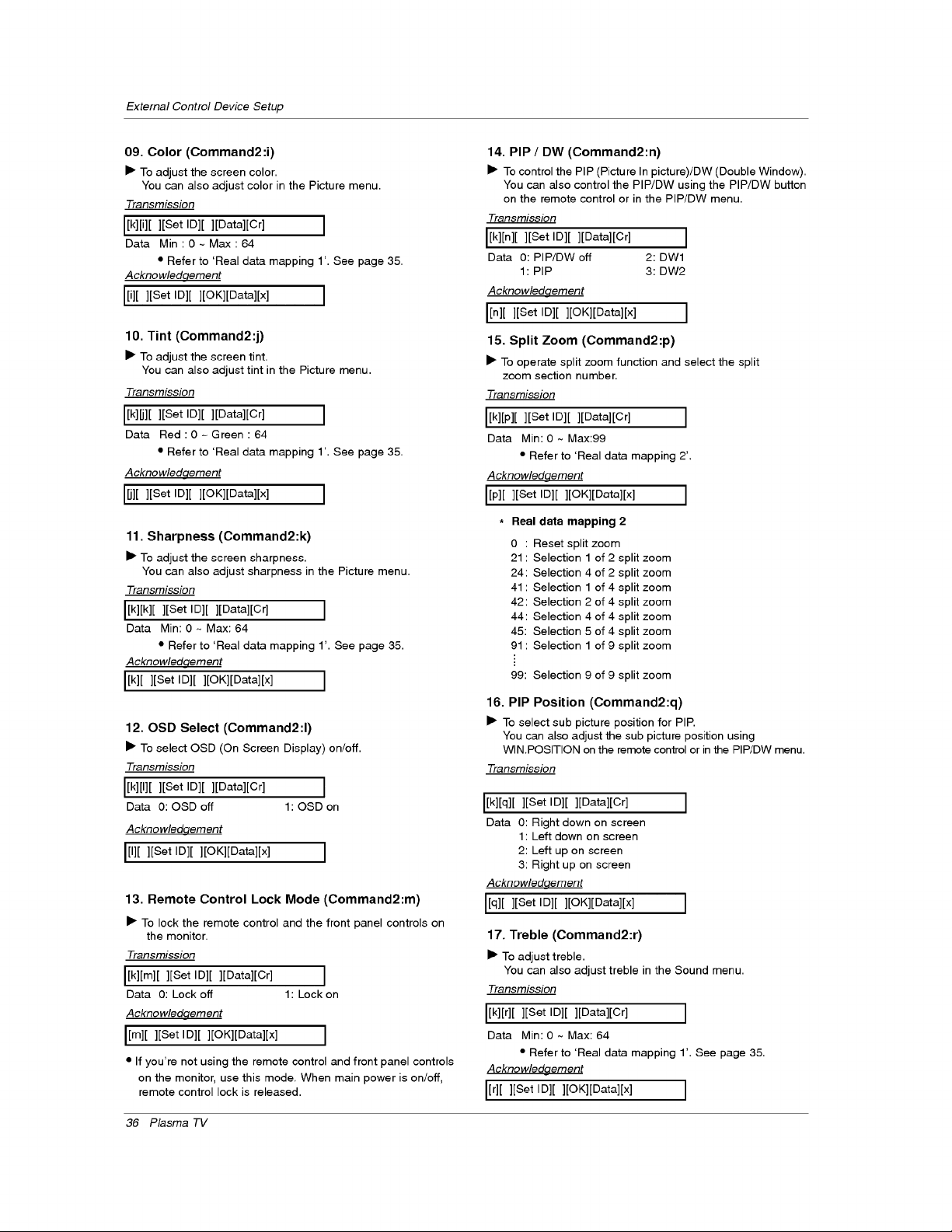
09. Color (Command2:i)
• To adjust the screen color.
You can also adjust color inthe Picture menu.
Transmission
[[k][i][ l[Set ID][ l[Datal[Cr] ]
Data Min:0~ Max:64
• Refer to 'Real data mapping 1'. See page 35.
A ckno wledqement
[[i][ ][Set ID][ ][OK][Data][x] ]
10. Tint (Command2:j)
• To adjust the screen tint.
You can also adjust tint in the Picture menu.
Transmission
[[k][j][ ][Set ID][ ][Data][Cr] I
Data Red:0-Green:64
• Refer to 'Real data mapping 1'. See page 35,
A ckno wledqement
[fi][ ][Set ID][ ][OKl[Datal[x] ]
11. Sharpness (Command2:k)
• To adjust the screen sharpness.
You can also adjust sharpness in the Picture menu.
Transmission
[[k][k][ ][Set ID][ ][Data][Cr] ]
Data Min: 0 - Max: 64
• Refer to 'Real data mapping 1'. See page 35.
Acknowledqement
[[k][ ][Set ID][ ][OK][Data][x] J
12. OSD Select (Command2:l)
• To select OSD (On Screen Display) on/off.
Transmission
I[k][I][ ][Set ID][ ][Data][Cr] ]
Data 0: OSD off 1: OSD on
Acknowledqement
[[I][ ][Set ID][ ][OK][Data][x] ]
13. Remote Control Lock Mode (Command2:m)
• To lock the remote control and the front panel controls on
the monitor.
Transmission
L[k][m][][Set ID][ ][Data][Cr] J
Data 0: Lock off 1: Lock on
Acknowledqement
[[m][ ][Set ID][ ][OK][Data][x] ]
• If you're not using the remote control and front panel controls
on the monitor, use this mode, When main power is on/off,
remote control lock is released.
14. PIP / DW (Command2:n)
• Tocontrolthe PIP(Picture Inpicture)/DW (Double Window),
You can also controlthe PIP/DW usingthe PIP/DW button
on the remotecontrol or inthe PIP/DW menu.
Transmission
[[k][n][ ][Set ID][ ][Data][Cr]
Data 0: PIP/DW off
1: PIP
Acknowledqement
[In][ ][Set ID][ ][OK][Data][x]
J
2:DW1
3:DW2
15. Split Zoom (Command2:p)
• To operate split zoom function and select the split
zoom section number.
Transmission
[[k][p][ ][Set ID][ ][Data][Cr] ]
Data Min: 0 ~ Max:99
• Refer to 'Real data mapping 2'.
Acknowledqement
[[p][ ][Set ID][ ][OK][Data][x] ]
* Real data mapping 2
0 : Reset split zoom
21 : Selection 1 of 2 split zoom
24 : Selection 4 of 2 split zoom
41 : Selection 1 of 4 split zoom
42 : Selection 2 of 4 split zoom
44 : Selection 4 of 4 split zoom
45: Selection 5 of 4 split zoom
91 : Selection 1 of 9 split zoom
!
99: Selection 9 of 9 split zoom
16. PIP Position (Command2:q)
• Toselect sub picture position for PIP.
You can alsoadjust the sub picture position using
WIN.POSITION onthe remote controlorin the PIP/DW menu.
Transmission
[[k][q][ ][Set ID][ ][Data][Cr]
Data 0: Right down on screen
1: Left down on screen
2: Left up on screen
3: Right up on screen
Acknowledqement
[[q][ ][Set ID][ ][OK][Data][x]
17. Treble (Command2:r)
• To adjust treble.
You can also adjust treble in the Sound menu.
Transmission
[[k][r][ ][Set Ig][ ][gata][Cr] J
Data Min: 0 ~ Max: 64
• Refer to 'Real data mapping 1'. See page 35.
Acknowledgement
[[r][ ][Set ID][ ][OK][Data][x] J
36 Plasma TV
18. Bass (Command2:s)
I_ Toadjust bass.
You can also adjust bass in the Sound menu.
Transmission
[[k][s][ ][Set ID][ ][Data][Cr] J
Data Min: 0 ~ Max: 64
• Refer to 'Real data mapping 1'. See page 35.
Acknowledaement
[[s][ ][Set ID][ ][OK][Data][x] J
19. Balance (Command2:t)
I_ To adjust balance.
You can also adjust balance in the Sound menu.
Transmission
[[k][t][ ][Set ID][ ][Data][Cr] ]
Data Min: 0 ~ Max: 64
• Refer to 'Real data mapping 1'. See page 35.
Acknowledqement
[[t][ ][Set ID][ ][OK][Data][x] ]
20. Color Temperature (Command2:u)
I_ To adjust color temperature,
You can also adjust ACC in the Picture menu.
Transmission
[[k][u][ ][Set ID][ ][Data][Cr] ]
Data 0: Cool 1: Normal 2: Warm 3: Off
Acknowledqement
[[u][ ][Set ID][ ][OK][Data][x] ]
21. Red Adjustment (Command2:v)
I_ To adjust red in color temperature.
Transmission
[[k][v][ ][Set ID][ ][Data][Cr] J
Data Min: 0 - Max: 3C
• Refer to 'Real data mapping 3' as shown right.
Acknowledqement
[[v][ ][Set ID][ ][OK][Data][x] J
22. Green Adjustment (Command2:w)
I_ To adjust green in color temperature.
Transmission
[[k][w][ ][Set ID][ ][Data][Cr] ]
Data Min: 0 ~ Max: 3C
• Refer to 'Real data mapping 3' as shown right.
Acknowledqement
[[w][ ][Set ID][ ][OK][Data][x] J
External Control Device Setup
23. Blue Adjustment (Command2:$)
I_ To adjust blue incolor temperature.
Transmission
[[k][$][ ][Set ID][ ][Data][Cr] J
Data Min: 0 - Max: 3C
• Refer to 'Real data mapping 3' as shown below,
Acknowledqement
[[$][ ][Set ID][ ][OK][Data][×] ]
* Real data mapping 3
0 :-30
1 :-29
2 :-28
1E:0
i
3A : +28
3B : +29
3C : +30
24. PIP Input Select (Command2:y)
I_ To select inputsource forsub picture in PiP mode.
Transmission
L[k][y][ ][Set ID][ ][Data][Cr] ]
Data 0 :TV 4 :Component2
1 :Video 1 5 : RGB
2 :Video2 6 : DVl
3 : Component 1
Acknowledaement
L[y][ ][Set ID][ ][OK][Data][x] ]
25. Abnormal State (Command2:z)
I_ To recognize an abnormal state,
Transmission
[[k][z][ ][Set ID][ ][FF][Cr] J
Data FF:Read
Acknowledqement
L[z][ ][Set Ig][ ][OK][gata][x] ]
Data 0: Normal (Power on and signal exist)
1: No signal (Power on).
2: Turn the monitor off with remote control.
3: Turn the monitor off with Sleep Time function,
4: Turn the monitor off with RS-232C function,
5: 5V down.
6: AC down.
7: Turn the monitor off with Fan Alarm function,
8: Turn the monitor off with Off Time function.
9: Turn the monitor off with Auto Off function.
a: Turn the monitor off with On Time function.
(If you do not press any button within 2 hours after
the TV turns on with the On Timer function, the TV will
automatically revert to standby mode.)
Owner's Manual 37
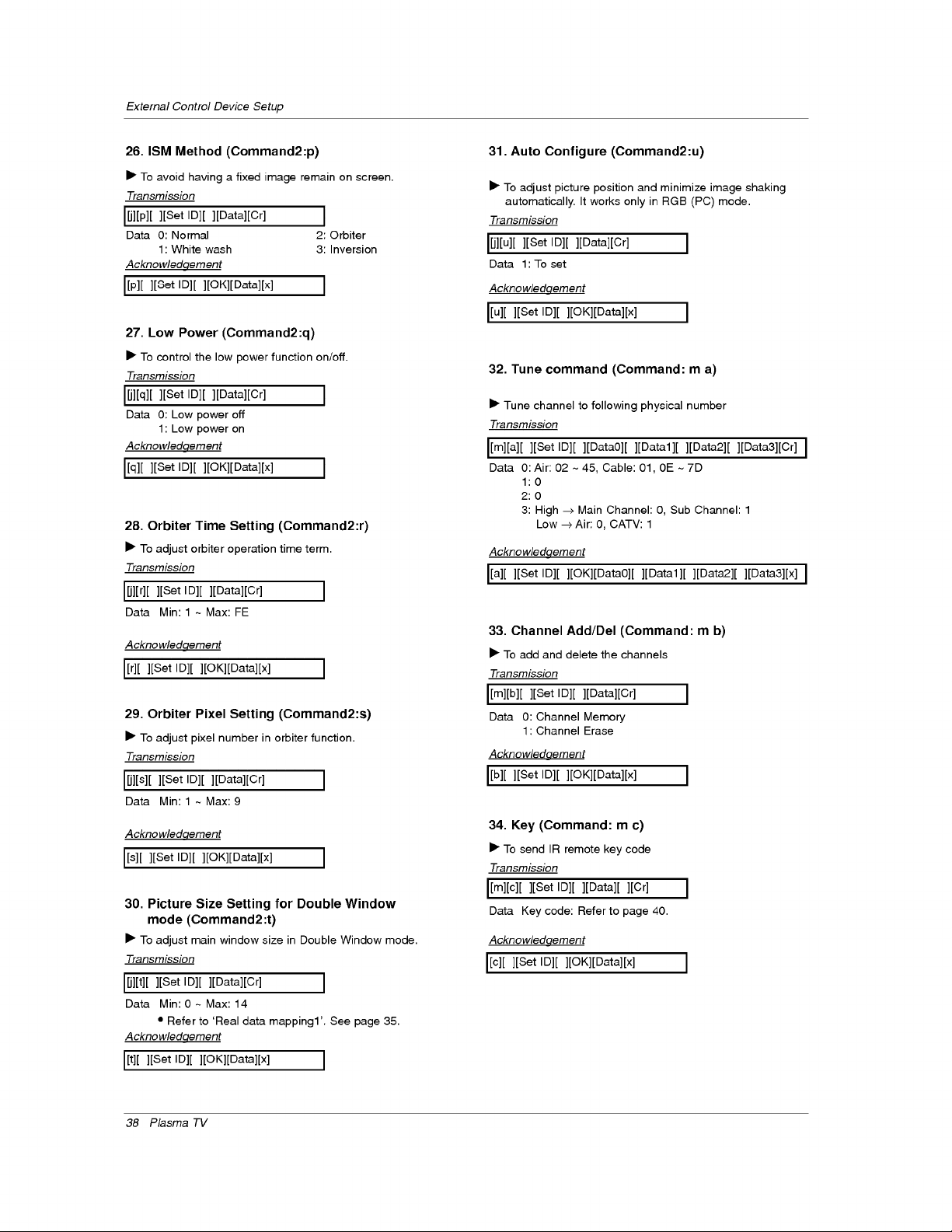
ExternalControlDeviceSetup
26. ISM Method (Command2:p)
• To avoid having a fixed image remain on screen.
Transmission
I[j][p][ ][Set Ig][ ][gata][Cr] ]
Data 0: Normal 2: Orbiter
1: White wash 3: Inversion
Acknowledqement
I[p] [ ][Get ID][ ][OK][gata][x] ]
27. Low Power (Command2:q)
• To control the low power function on/off.
Transmission
I[i][q][ ][Set Ig][ ][gata][Cr] ]
Data 0: Low power off
1: Low power on
Acknowledqement
I[q] [ ][Set ID][ ][OK][gata][x] ]
28. Orbiter Time Setting (Command2:r)
• To adjust orbiter operation time term.
Transmission
I[j][r][ ][Set ID][ ][gata][Cr] ]
Data Min: 1 ~ Max: FE
A ckno wledqement
I[r][ ][Set ID][ ][OK][Data][x] ]
29. Orbiter Pixel Setting (Command2:s)
• To adjust pixel number in orbiter function.
Transmission
I[j][s][ ][Set ID][ ][Data][Cr] ]
Data Min:l ~ Max:9
A ckno wledqement
I[s][ ][Set Ig][ ][OK][gata][x] ]
30. Picture Size Setting for Double Window
mode (Command2:t)
• To adjust main window size in Double Window mode.
Transmission
[[jl[t][ ][Set ID][ ][Datal[Crl ]
Data Min: 0 ~ Max: 14
• Refer to 'Real data mapping1'. See page 35.
A ckno wledqement
[[t][ ][Set ID][ ][OK][gata][x] ]
38 Plasma TV
31. Auto Configure (Command2:u)
• To adjust picture position and minimize image shaking
automatically. It works only in RGB (PC) mode.
Transmission
[[j][u][ ][Set ID][ ][Datal[Cr] ]
Data 1: To set
Acknowledqement
I[u][ ][Set ID][ ][OK][Data][x]
32. Tune command (Command: m a)
• Tune channel to following physical number
Transmission
[[m][a][ ][Set ID][ ][Data0][ ][Data1][ ][Data2][ ][Data3][Cr] J
Data 0: Air: 02 ~ 45, Cable: 01, 0E ~ 7D
1:0
2:0
3: High --> Main Channel: O, Sub Channel: 1
Low -->Air: 0, CATV: 1
Acknowledqement
[[a][ ][Set ID][ ][OK][Data0][ ][Data1][ ][Data2][ ][Data3][x] J
33. Channel Add/Del (Command: m b)
• To add and delete the channels
Transmission
[[m][b][ ][Set ID][ ][gata][Cr] ]
Data 0: Channel Memory
1: Channel Erase
Acknowledaement
[[b][ ][Set ID][ ][OK][Data][x] ]
34. Key(Command: m c)
• To send IR remote key code
Transmission
[[m][c][ ][Set ID][ ][Data][ ][Cr]
Data Key code: Refer to page 40.
Acknowledqement
[[c][ ][Set ID][ ][OK][Data][x]
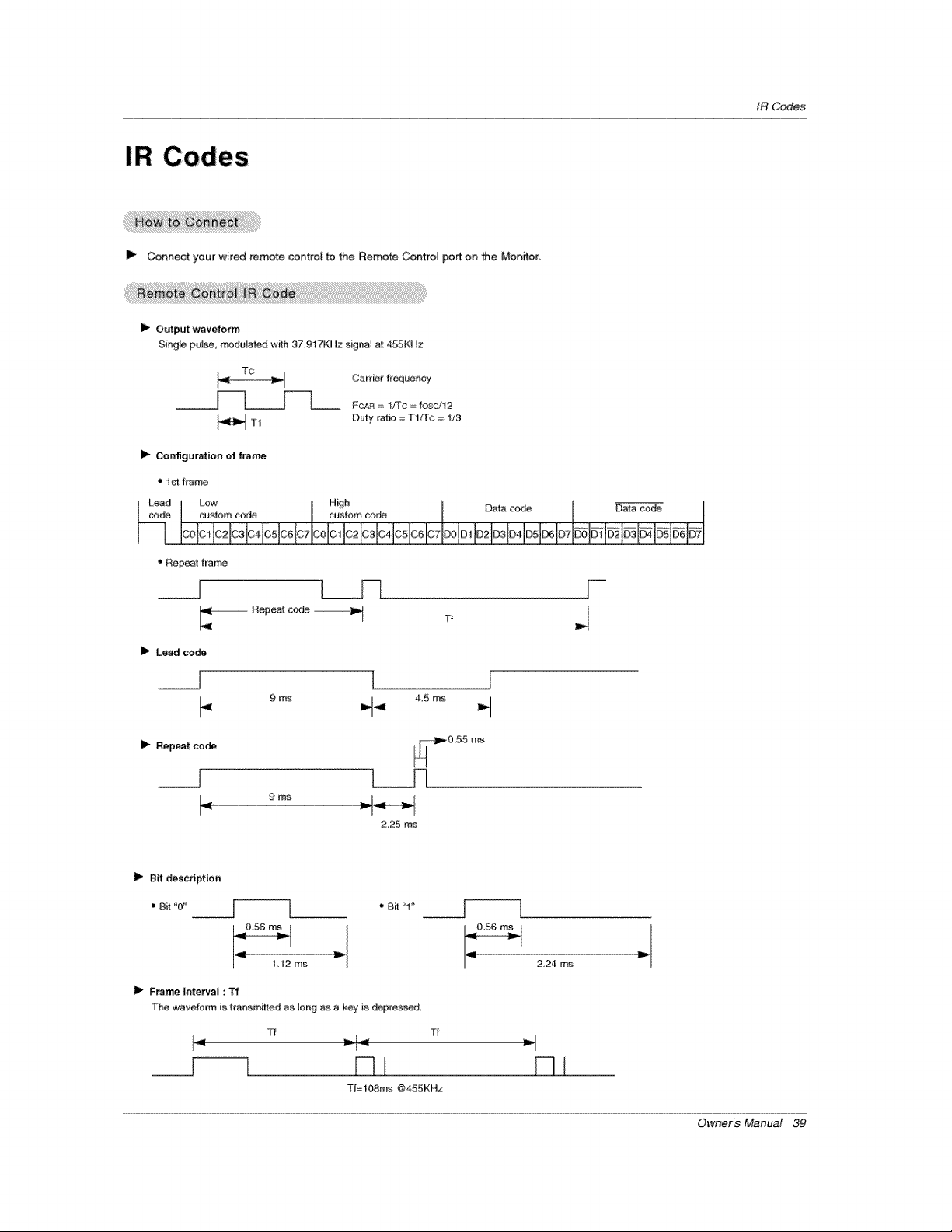
tR Codes
IR Codes
I_ Conned your wired remote contsol to the Remote Control port on the Monitor.
I_ Output waveform
Sit_gle pui_, moduiated w_h 37 917KHz signal at 4_SKHz
TC
I_ Configuration of tram
• 1St Irame
Carrier #eqaency
FCA_ = 1/TC = fosc/12
Duty ratio = T1/Tc = 1/3
aLead Low H_h Data cor_,
Iooic@bio@@IoqcoHo@bIo@Ic#qoIIo@bio@b,_l_lI_I_I_PI
Repeat frame
_ R_eal c_ Tf
I_ Lead ce_
__J L J
i_ Repeat code
2.25 ms
I_ Bit description
* Bi_"0_'
t
P" ;:;_mo
Bit "1"
II_ Frame inteP, tal : Tf
lhe wavefo_m is lransmllted as long as a key is depressed,
Tf T_
DI
Tf=lOSms @455KHz
2,24
Owner's Manual 39
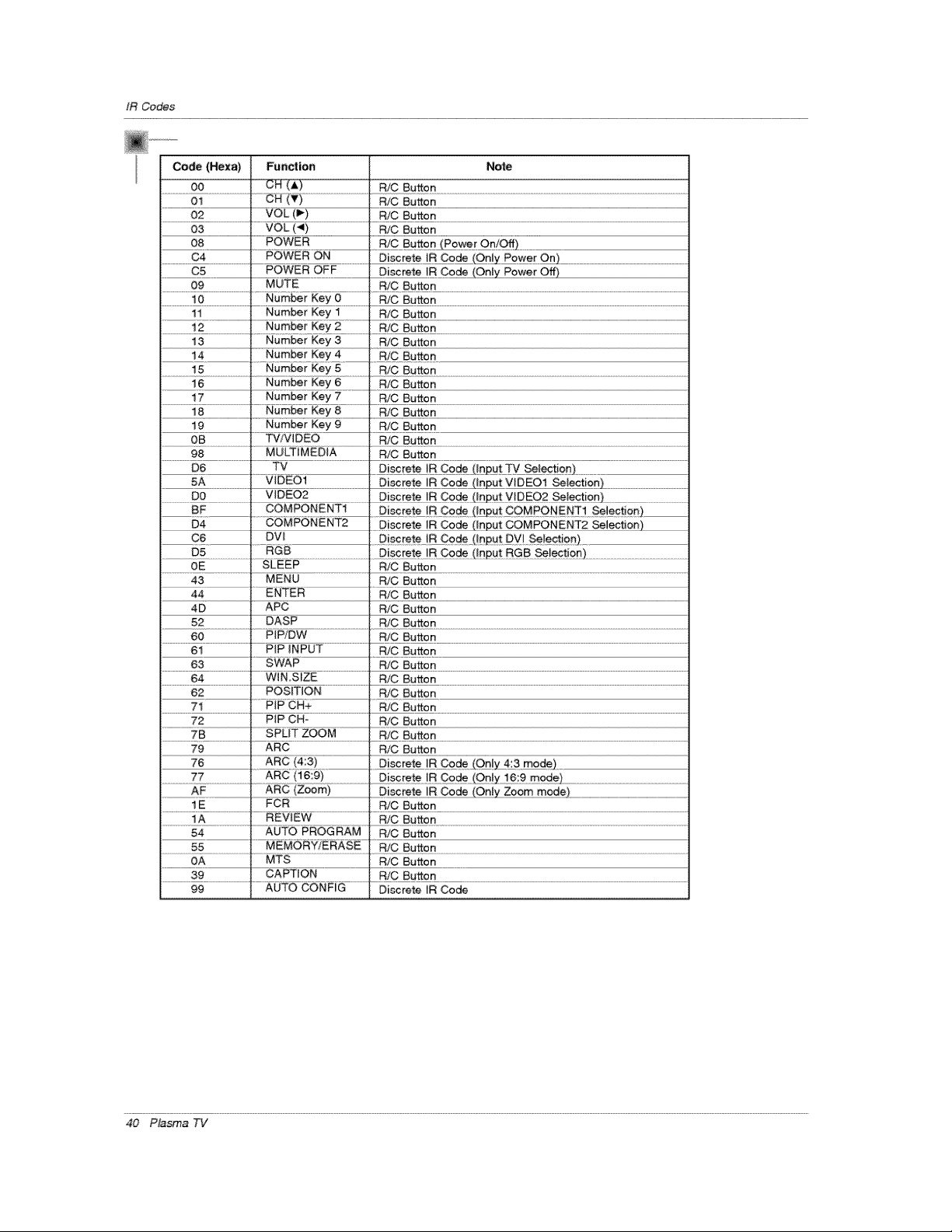
tR Codes
Code (Hexa) Function Note
O0 OH (A) R/C Button
.............................oW..............................................cn iv)........................................................................................................................................................................................................................................................................................................
02 . VOL_(I*) R/C Button
03 VOL (,ql) R/C Button
08 POWER R!C Button _we[ OoiOff_
C4 POWER ON Discrete tR Code (Only Pg_e[On) ................................................................................................................................
................................_:5...................................................................._O!_ R C£d# (Only P£we[ .....
09 MUTE.... RtCButtoo
..........................!0 .......................................................Numbe[ Ke_ £................................RtC B#tton .................................................................................................................................................................................................................................
11 Number Key 1 R/C Button
12 Number Key 2 RiC Button
13 Number Key 3 R/C Button
14 Number Key 4 RiC Button
15 Number Key 5 RiC Button
16 Number Key 6 RtC Button
17 Number Key 7 RiC Button
19 Number Key 9 R/C Button
OB TV!W DEO RiC Button
98 MULTIMEDIA R/C Button
D6 TV ....Discrete IR €odeL!nput "FV Selection)
....................................5_ ....................................................VIDEO1 ....................................................IR C£de (hput VIDE01 SeJection) ..........................................................................
DO VIDE02
.................................................................................................................................................................................................................................oi_m_e!RCgde ...............................................................................
BF COMPONENT1 Discrete IR Code (_n_outCOMPONENT1 Selection),
D4 COMPONENT2 Discrete JR Code (hput COMPONENT2 Selection[
C6 DVI Discrete tR Code (!£put DVl Selection).
D5 RGB
OE SLEEP R/C Button
43 MENU RiC Button
44 ENTER R/C Button
4D APC R/C Button
........................................5_.............................................................OASP.....................................................................................R!C8utto .................................................................................................................................................................................................................................
60 PIP/DW RtC Button
61 PIP iNPUT R/C Button
63 SWAP R/C Button
64 WIN,SIZE R/C Button
62 POStTION RiC Button
71 PIP CH+ RiC Button
72 PIP CH- R/C Button
7B . SPUTZOOM . R/CButton
79 ARC RiC Button
76 ARC (4:3) Discrete IR Code (On!y 4:3 mode)
.............................7Z_...................................................AR .............................................. 9de (Only 16:9 mode) ...............................................................................................................
AF ARC (Zoom) Discrete IR Code .............................................................................................................................................................
1E FCR R/C Button
1A REVIEW R/C Button
54 AUTO PROGRAM RiC Button
55 MEMORY!ERASE RiC Button
OA MTS RiC Button
39 CAPTION R/C Button
99 AUTO CONFIG Discrete IR Code
40 Plasma TV
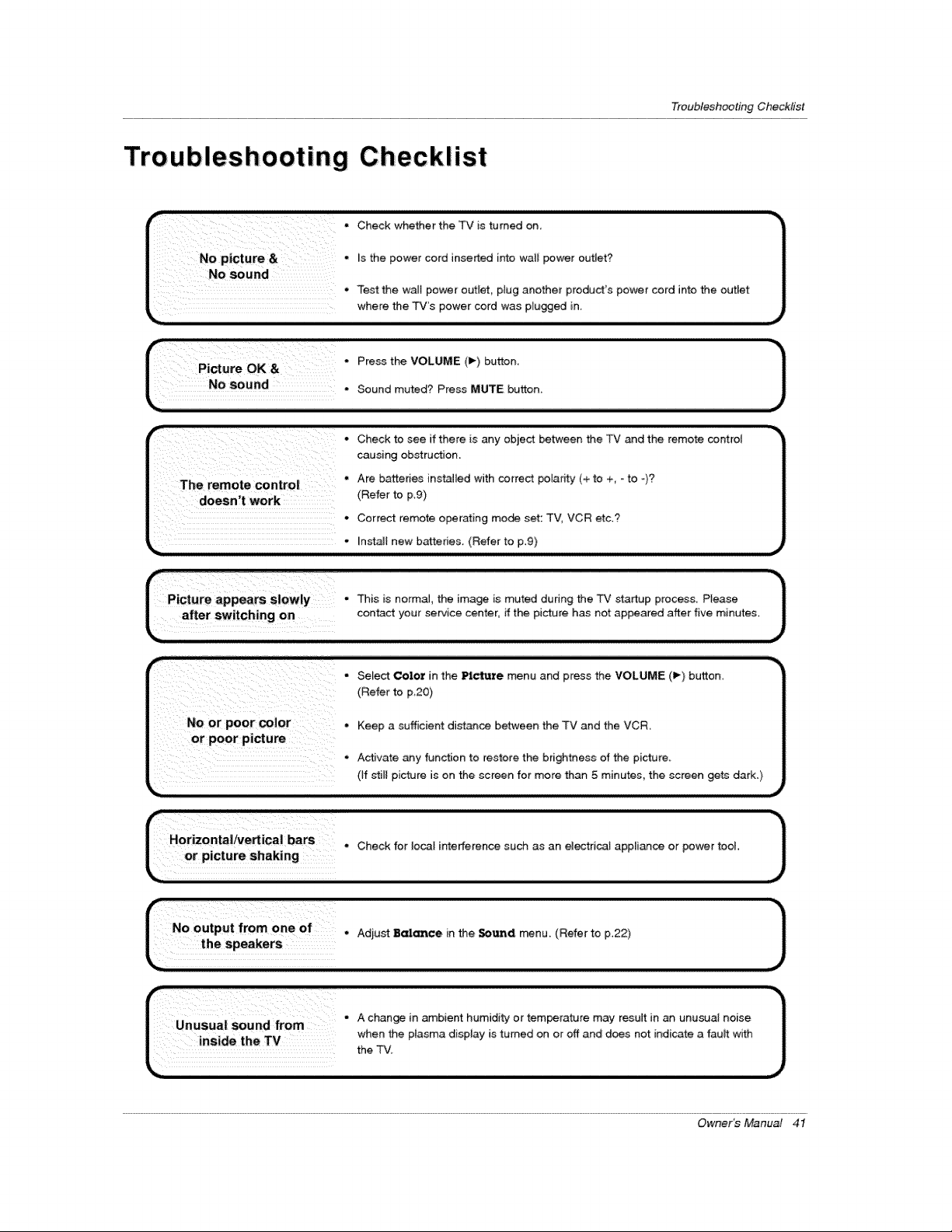
TroubleshootingChecklist
Troubleshooting Checklist
. Check whether the TV is turned on,
/ No picture & • _sthe power cord inserted into wall _wer outJet?
/ sound .
Test tfhe walt power outlet, plug another product's power cord into the outlet
L. where the TV's power cord was pruned in.
doesn,t work (Refer to p,9)
• Correct remote operating mo_ set: TV, VCR etc.?
_,, • _ns_l new batteries. (Refer to p.9)
f_P!ctare appearsSlowry.
I% after switching on
This is normal, Me image is muted during the TV stattup process. Please
contact your _rvice _nter, ff the picture has not appeared after five minutes,
No or poor color • Keep a sufficient distanc_ between the TV and the VCR,
or poor picture
Activate any function to restore the brightness of the picture.
(If stiEIpicture is on the screen for more than 5 minutes, the screen gets dark.)
Owner's Manual 41
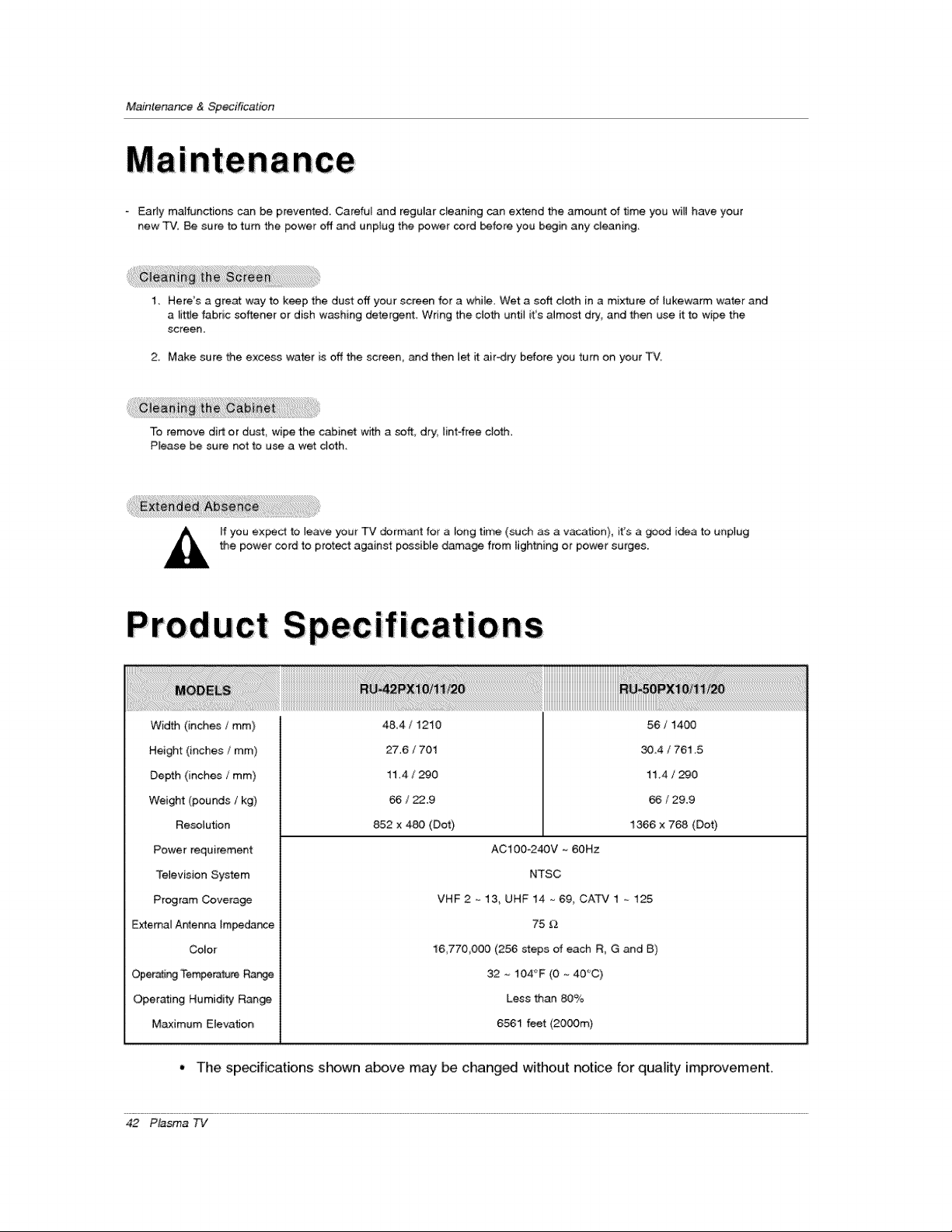
MainIenar_ce&SpecifiCation
nance
F_3rly malfunctions can be prevented. Careful and regular cleaning _n extend the amount of _me you wilt have your
new TV. Be sure to turn the _wer off and unp{ug the _wer cord before you begin any cleaning.
1, Here's a great way to keep the dust off your screen for a while, Wet a soft cloth in a mixture of lukewarm water and
a little fabric softener or dish washing detergent, Wring the cloth until it's aJmost dry, and then use it to wipe the
screen,
2_ Make sure the excess water is off the screen_ and then let it air-dry before you turn on your TV,
To remove diet or dust, wipe the cabinet wffh a soft, dry, lint4ree cloth.
Please be sure not to use a wet cloth.
If you expect to leave your TV dormant for a long time (such as a vacation) it's a good i_a to unplug
the power cord to protect against possiMe damage from lightning or power surges.
Width (inches / ram}
Height (inches / ram)
Depth (inches / mm)
Weight (pounds / kg)
Resolution
Power requirement
Television System
Program Coverage
ExtemaJ Antenna Impedance
Co_or
Oper_ing Temperature Range
Operating Humidity Range
Maximum Eievaflon
484 / 1210
27.6 / 701
11,4 / 290
56 / 22.9
852 x 480 (Dot)
56 / 1400
30.4 / 761.5
11,4 / 290
56 / 29.9
1366 x 768 (Dot)
AClOO_240V _ 60Hz
NTSC
VHF 2 _ l& UHF 14 ~ 69, CATV 1 ~ 125
75 _
16,770,000 (256 steps of each R, G and B)
32 _ 104_'F (0 ~ 40_:C)
Less than 80%
6561 feet (2000m)
• The specifications shown above may be changed without notice for quality improvement.
42 Plasma TV
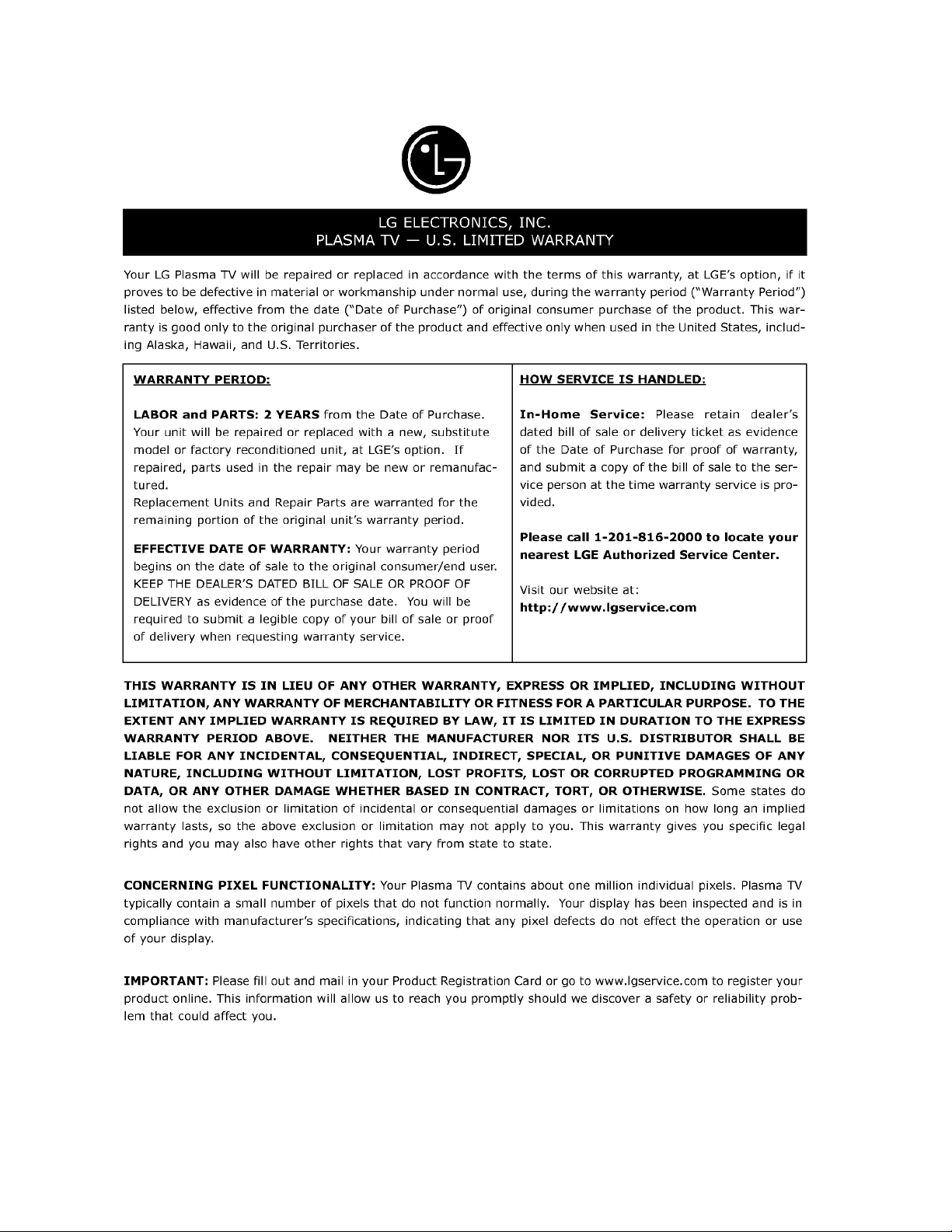
Your LG Plasma TV will be repaired or replaced in accordance with the terms of this warranty, at LGE's option, if it
proves to be defective in material or workmanship under normal use, during the warranty period ("Warranty Period")
listed below, effective from the date ("Date of Purchase") of original consumer purchase of the product. This war-
ranty is good only to the original purchaser of the product and effective only when used in the United States, includ-
ing Alaska, Hawaii, and U.S. Territories.
WARRANTY PERIOD:
LABOR and PARTS: 2 YEARS From the Date of Purchase.
Your unit will be repaired or replaced with a new, substitute
model or factory reconditioned unit, at LGE's option. If
repaired, parts used in the repair may be new or remanufac-
tured.
Replacement Units and Repair Parts are warranted for the
remaining portion of the original unit's warranty period.
EFFECTIVE DATE OF WARRANTY: Your warranty period
begins on tile date of sale to the original consumer/end user.
KEEP THE DEALER'S DATED BILL OF SALE OR PROOF OF
DELIVERY as evidence of the purchase date. You will be
required to submit a legible copy of your bill of sale or proof
of delivery when requesting warranty service.
HOW SERVICE IS HANDLED:
In-Home Service: Please retain dealer's
dated bill of sale or delivery ticket as evidence
of the Date of Purchase for proof of warranty,
and submit a copy of the bill of sale to the ser-
vice person at the time warranty service is pro-
vided.
Please call 1-201-816-2000 to locate your
nearest LGE Authorized Service Center.
Visit our website at:
http://www.lgservice.com
THIS WARRANTY IS IN LIEU OF ANY OTHER WARRANTY, EXPRESS OR IMPLIED, INCLUDING WITHOUT
LIMITATION, ANY WARRANTY OF MERCHANTABILITY OR FITNESS FOR A PARTICULAR PURPOSE. TO THE
EXTENT ANY IMPLIED WARRANTY IS REQUIRED BY LAW, IT IS LIMITED IN DURATION TO THE EXPRESS
WARRANTY PERIOD ABOVE. NEITHER THE MANUFACTURER NOR ITS U.S. DISTRIBUTOR SHALL BE
LIABLE FOR ANY INCIDENTAL, CONSEQUENTIAL, INDIRECT, SPECIAL, OR PUNITIVE DAMAGES OF ANY
NATURE, INCLUDING WITHOUT LIMITATION, LOST PROFITS, LOST OR CORRUPTED PROGRAMMING OR
DATA, OR ANY OTHER DAMAGE WHETHER BASED IN CONTRACT, TORT_ OR OTHERWISE. Some states do
not allow the exclusion or limitation of incidental or consequential damages or limitations on how long an implied
warranty lasts, so the above exclusion or limitation may not apply to you. This warranty gives you specific legal
rights and you may also have other rights that vary from state to state.
CONCERNING PIXEL FUNCTIONALITY: Your Plasma TV contains about one million individual pixels. Plasma TV
typically contain a small number of pixels that do not function normally. Your display has been inspected and is in
compliance with manufacturer's specifications, indicating that any pixel defects do not effect the operation or use
of your display.
IMPORTANT: Please fill out and mail in your Product Registration Card or go to www.lgservice.com to register your
product online. This information will allow us to reach you promptly should we discover a safety or reliability prob-
lem that could affect you.
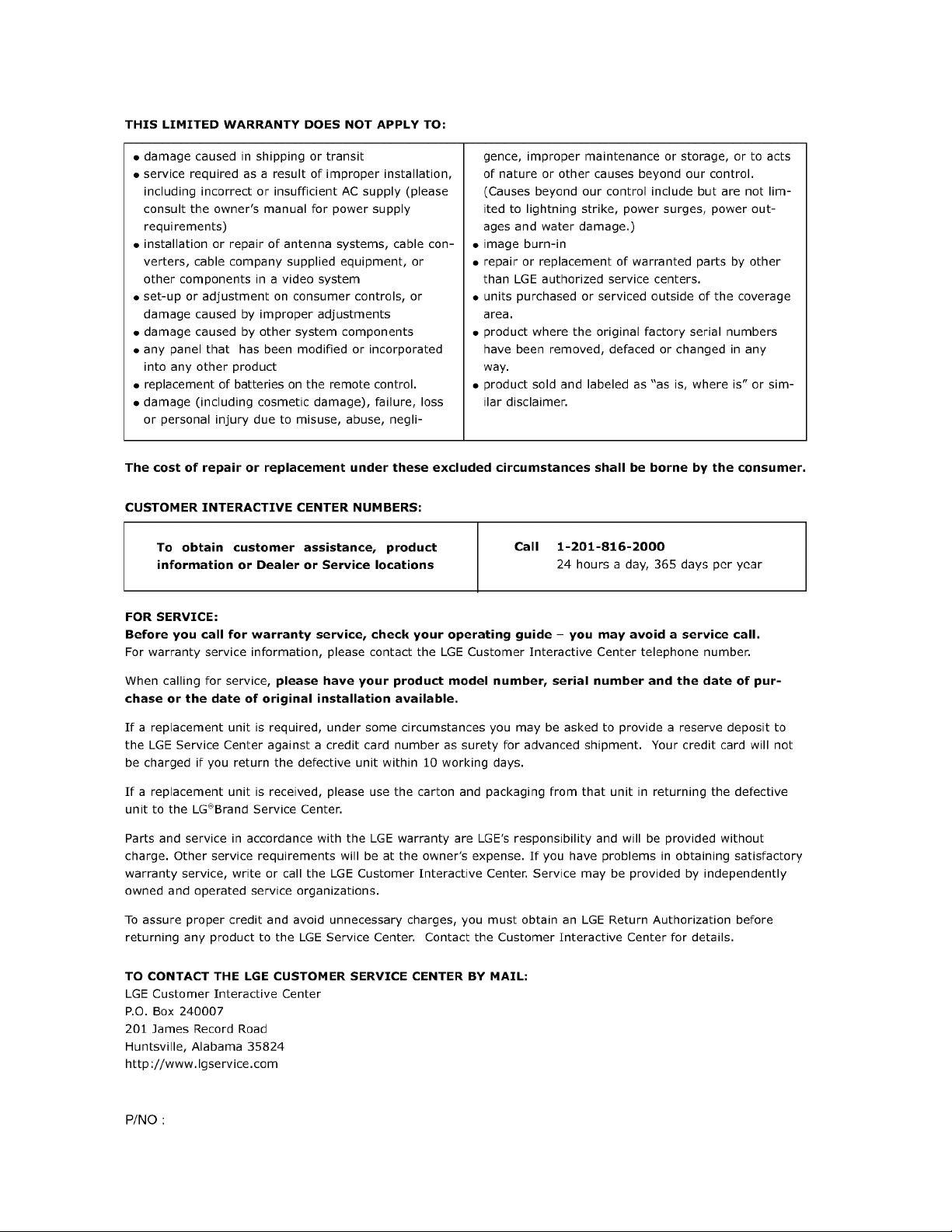
THIS LIMITED WARRANTY DOES NOT APPLY TO:
• damage caused in shipping or transit
• service required as a result of improper installation,
including incorrect or insufficient AC supply (please
consult the owner's manual for power supply
requirements)
• installation or repair of antenna systems, cable con-
verters, cable company supplied equipment, or
other components in a video system
• set-up or adjustment on consumer controls, or
damage caused by improper adjustments
• damage caused by other system components
• any panel that has been modified or incorporated
into any other product
• replacement of batteries on the remote control.
• damage (including cosmetic damage), failure, loss
or personal injury due to misuse, abuse, negli-
gence, improper maintenance or storage, or to acts
of nature or other causes beyond our control.
(Causes beyond our control include but are not lim-
ited to lightning strike, power surges, power out-
ages and water damage.)
• image burn-in
• repair or replacement of warranted parts by other
than LGE authorized service centers.
• units purchased or serviced outside of the coverage
area.
• product where the original factory serial numbers
have been removed, defaced or changed in any
way.
• product sold and labeled as "as is, where is" or sim-
ilar disclaimer.
The cost of repair or replacement under these excluded circumstances shall be borne by the consumer.
CUSTOMER INTERACTIVE CENTER NUMBERS:
To obtain customer assistance, product Call 1-201-816-2000
information or Dealer or Service locations 24 hours a day, 365 days per year
FOR SERVICE:
Before you call for warranty service, check your operating guide - you may avoid a service call.
For warranty service information, please contact the LGE Customer Interactive Center telephone number.
When calling for service, please have your product model number, serial number and the date of pur-
chase or the date of original installation available.
If a replacement unit is required, under some circumstances you may be asked to provide a reserve deposit to
the LGE Service Center against a credit card number as surety for advanced shipment. Your credit card will not
be charged if you return the defective unit within 10 working days.
If a replacement unit is received, please use the carton and packaging from that unit in returning the defective
unit to the LG®Brand Service Center.
Parts and service in accordance with the LGE warranty are LGE's responsibility and will be provided without
charge. Other service requirements will be at the owner's expense. If you have problems in obtaining satisfactory
warranty service, write or call the LGE Customer Interactive Center. Service may be provided by independently
owned and operated service organizations.
To assure proper credit and avoid unnecessary charges, you must obtain an LGE Return Authorization before
returning any product to the LGE Service Center. Contact the Customer Interactive Center for details.
TO CONTACT THE LGE CUSTOMER SERVICE CENTER BY MAIL:
LGE Customer Interactive Center
P.O. Box 240007
201 James Record Road
Huntsville, Alabama 35824
http ://www.lgservice.com
P/NO :

