
÷
Contact SAMSUNG WORLD WIDE
If you have any questions or comments relating to Samsung products, please contact the SAMSUNG
customer care center_
SERIES
6 50
CANADA , !-800-SAMSUNG Samsung E!ectronics Canada !nc. 2050
Derry Road West, Mississauga, Ontario
_v_samsung.com!ca=fri LSN0B9 Canada
U_S_A !-800-SAMSUNG _v_samsung_com!us! Samsung Electronics America, Inc_85
support Challenger Road Ridgefieid Park, NJ
07660
KEYPAD
@ 2014 Samsung Electronics Co., Ltd. All rights reserved.
BN68-06501A-01
[HU6900-ZA]BN68-06501A-01ENG.indb 1 _ 2014-07-10 [_ 10:19:30
÷
Contact SAMSUNG WORLD WIDE
If you have any questions or comments relating to Samsung products, please contact the SAMSUNG
customer care center_
SERIES
6 50
CANADA , !-800-SAMSUNG Samsung E!ectronics Canada !nc. 2050
Derry Road West, Mississauga, Ontario
_v_samsung.com!ca=fri LSN0B9 Canada
U_S_A !-800-SAMSUNG _v_samsung_com!us! Samsung Electronics America, Inc_85
support Challenger Road Ridgefieid Park, NJ
07660
KEYPAD
@ 2014 Samsung Electronics Co., Ltd. All rights reserved.
BN68-06501A-01
[HU6900-ZA]BN68-06501A-01ENG.indb 1 _ 2014-07-10 [_ 10:19:30
CAUTION
® m il De !t O"
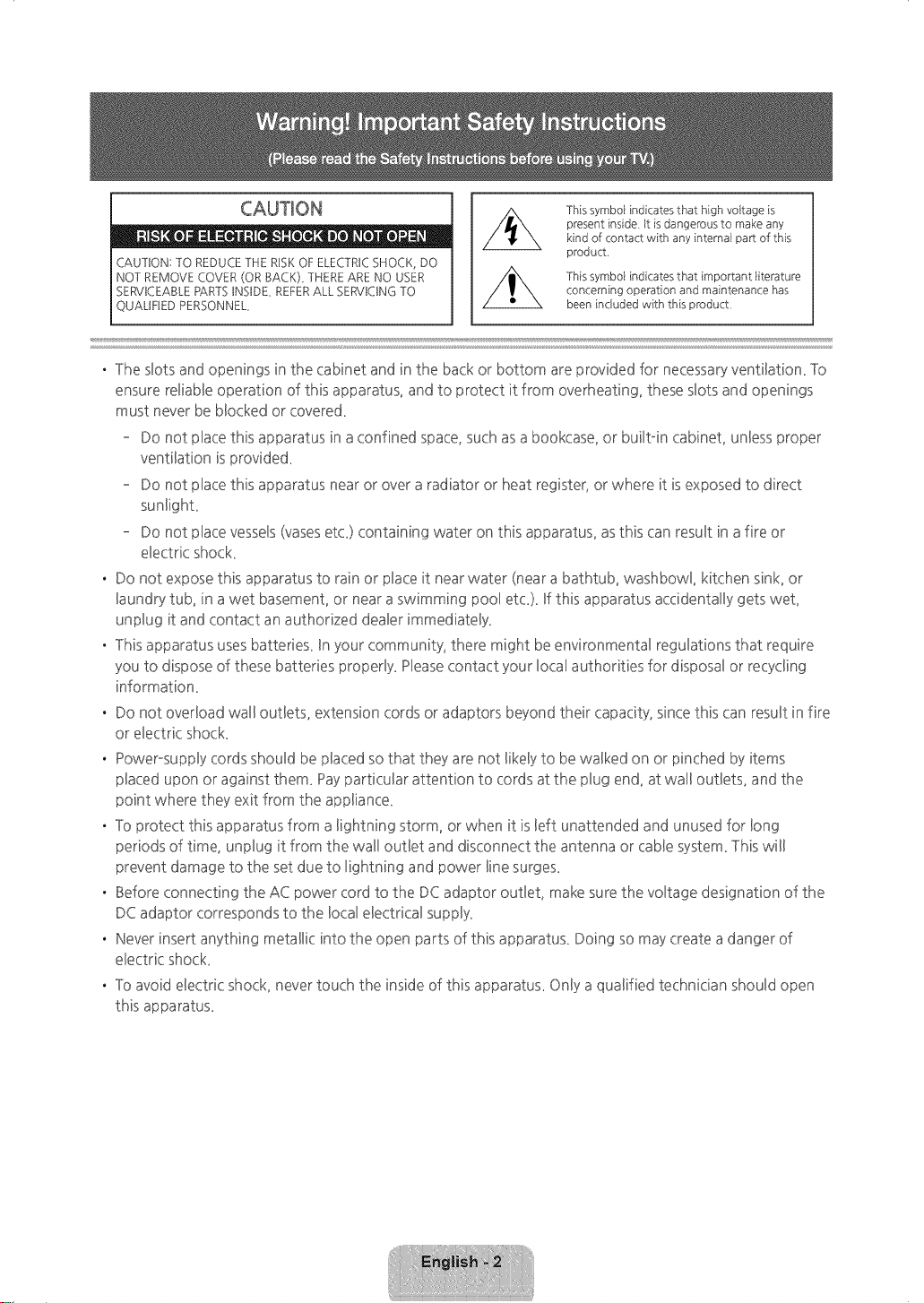
CAUTION: TO REDUCE THE RISKOF ELECTRICSHOCK, DO
NOT REMOVE COVER (OR BACK). THERE ARE NO USER
SERVICEABLE PARTSINSIDE. REFERALL SERVICINGTO
QUALIFIED PERSONNEL.
This symboi indicates that high voitage is
present inside It is dangerous to make any
kind of contact with any intemai part of this
product,
This symboi indicates that important iiterature
concerning operation and maintenance has
been included with this product,
. The slots and openings in the cabinet and in the back or bottom are provided for necessaryventilation. To
ensure re!iable operation of this apparatus, and to protect it from overheating, these slots and openings
must never be blocked or covered.
Do not place this apparatus in a confined space, such as abookcase, or built-in cabinet, unless proper
ventilation is provided.
Do not place this apparatus near or over a radiator or heat register, or where it is exposed to direct
sunlight.
Do not place vessels(vasesetc.) containing water on this apparatus, asthis can result in a fire or
electric shock.
. Do not expose this apparatus to rain or place it near water (near a bathtub, washbowl, kitchen sink, or
laundry tub, in awet basement, or near a swimming pool etc.). Ifthis apparatus accidentally gets wet,
unplug it and contact an authorized dealer immediately.
. This apparatus uses batteries. In your community, there might be environmental regulations that require
you to dispose of these batteries properly. Pleasecontact your local authorities for disposal or recycling
information.
. Do not overload wall outlets, extension cords or adaptors beyond their capacity, since this can result in fire
or electric shock.
, Power-supply cords should be placed so that they are not likely to be walked on or pinched by items
placed upon or against them. Payparticular attention to cords at the plug end, at wall outlets, and the
point where they exit from the appliance.
, -1oprotect this apparatus from alightning storm, or when it is left unattended and unused for long
periods of time, unplug it from the wall outlet and disconnect the antenna or cable system. -lhis will
prevent damage to the set due to lightning and power line surges.
, Before connecting the AC power cord to the DC adaptor outlet, make sure the voltage designation of the
DC adaptor corresponds to the local electrical supply.
, Never insert anything metallic into the open parts of this apparatus. Doing so may create a danger of
electric shock.
, -1oavoid electric shock, never touch the inside of this apparatus. Only aqualified technician should open
this apparatus.
[HU6900-ZA]BN68-06501A-01ENG.Indb 2 2014-07-10 _10:19:31
. Make sure to plug the power cord in until it isfirmly seated_When unpBugging the power cord from awal!
outBet,always pull on the power cord"s pBug_Never unpBugby pulling on the power cord_Do not touch the
power cord with wet hands_
. ff this apparatus does not operate normally ° in particuBar,if there are any unusual sounds or smells coming
from it ° unpBugit immediateBy and contact an authorized deaBeror service center_
. Be sureto pull the power plug out of the outlet if the TV isto remain unused or if you are to Beavethe
house for an extended period of time (especially when children, eMedy or disabBedpeopBewill be left
alone in the house)_
Accumulated dust can cause an electric shock, an electric leakage or afire by causing the power cord
to generate sparks and heat or the insulation to deteriorate_
. Be sure to contact an authorized service center for information if you intend to install your TV in alocation
with heavydust, high or low temperatures, high humidity, chemical substances, or where it wil! operate
24 hours aday such asin an airport, atrain station, et< Failing to do so may lead to serious damage to
your TV_
. Use only a properly grounded plug and wall outleL
An improper ground may causeelectric shock or equipment damage_ (ClassI Equipment only_)
. lo turn this apparatus off completely, you must disconnect it from the wall outleL Consequently, the wall
outlet and power plug must be readily accessibleat all times_
. Do not allow children to hang onto the producL
. Store the accessories (battery, et<) in a location safely out of the reach of children_
. Do not install the product in an unstable location such asa shaky self, a slanted floor, or a location
exposed to vibration_
. Do not drop or strike the producL If the product isdamaged, disconnect the power cord and contact a
service center_
. lo clean this apparatus, unplug the power cord from the wal! outlet and wipe the product using a soft,
dry doth_ Do not use any chemicals such as wax, benzene, alcohol, thinners, insecticide, air fresheners,
lubricants, or detergenL lhese chemicals can damage the appearance of the -IV or erase the printing on
the producL
. Do not expose this apparatus to dripping or spbshing_
. Do not dispose of batteries in afire_
. Do not short-circuit, disassemble, or overheat the batteries_
. lhere isdanger of an explosion if you replace the batteries used in the remote with the wrong type of
battery_ Replace only with the same or equivalent type_
. WARNING -lO PREVEN11HE SPREADOF FIRE,KEEPCANDLES OROTHERFIEMSWRH OPENFLAMES
AWAY FROM1HIS PRODUC1A1 ALL -IIMES_
" This product contains chemicals known to the State of California to cause cancer and
reproductive toxicity.
. Use care when touching the TV after it has been on for some time. Some parts can be
warm to the touch.
@
[HU6900-ZAlBN68-06501A-01ENG.indb 3 2(114-(17-1(I _10:19:31
Intemet Security
Samsung takes a number of steps to protect its InternetocompatibBeSmart TVs against unauthorized incursions
and hacking_ ForexampBe,certain sensitive communications between the -IV and the Unternetservers
are encrypted_ Unaddition, the 1V's operating system has adopted controBsto prevent the installation of
unauthorized appBications_
Although we take steps to protect your 5martlV and information, no Internet-connected device or
transmission iscompBetelysecure_We therefore encourage you to take additional steps to safeguard your -l'_{
secure your Internet connection, and minimize the riskof unauthorized access_lhese steps are listed below:
, When 5amsung releases software updates to improve the security on your 1V, you should promptly install
these updates_lo automatically receive these updates, turn on "Auto Update" in the 1V's menu (Support
> Software Update >Auto Update)_ When an update isavailable, apopup messageappears on the -IV
screen_Accept the software download and update byselecting YESwhen prompted_ Takesteps to secure
your wireless router and network_ Your router's manual should provide additional details about how to
implement the following measures:
, Secure your wireless router's management settings with a unique password to prevent unauthorized
changes to security related settings_
, Implement standard encryption (e_g_,WPA2 encryption) on your wireless router to secure your
wireless network sign&
, Secure accessto your wireless network with a hard-to-guess password_
, Confirm your router's firewall setting isenabled (if so equipped)_
, Make sure all your Internet connected devices are behind your network's firewdk
, If your router or modem has a standby mode button, use it to disconnect your home network from the
Internet when it is not in use_
, Use strong passwords for all your Internet accounts (Netflix, Facebook, 5kype, etc_)_If your -IV hasa
camera, recessthe camera into the 1V's bezel when it is not in use_Recessing the camera makes it
inoperative_
, If any unexpected messages appear on your -IVscreen requesting permission to link a device or enable a
remote session, do NOT accept_
, Do not visit suspicious web sites and do not install any suspicious programs_ We recommend users install
only those authorized apps provided by 5amsung through 5amsung Smart Hub_
[HU6900-ZA]BN68-06501A-01ENG.Indb 4 2014-07-10 _10:19:31
÷
Figuresand illustrations in this User Manual are provided for reference only and may differ from the actual
product appearance_Product design and specifications may change without notice_
Featuresof your new TV
SMART HUB
Your TVfeatures Smart Hub, a multkpurpose entertainment and family center_With Smart Hub, you can surf
the web, download applications, and stay in touch with family and friends through social networking services_
In addition, you can view or play photo, video, and music files stored on external storage devices_
Pressthe _ button to open the FirstScreen,and select the Panelicon_ Youwill move to the Panelscreen_
Choose a service using the icons displayed in the top part of the screen_
Smart Hub servicesand functionality include:
Games: You can view all game apps provided by Smart Hub and download and play games you select_
SAMSUNG APPS:Samsung Apps offers an extensive collection of free and for-pay news, sports, weather,
and gaming content you can download directly to and enjoy on your TV,
On TV: View a listing of programs that are currently airing or are scheduled to air_Select a program to
watch_
MOVIES & TV SHOWS: Purchaseand stream movies and series directly from the Internet_
MULTIMEDIA: Playback photo, video, and music files from an external storage device_
Anynet+ (HDMkCEC)
Letsyouto control allconnectedSamsungdevicesthat supportAnynet+with yourSamsungTV'sremote_
e-Manual
Providesa detailed,on-screenuser'smanualbuilt into yourTV(page20)_
SMART Interaction
Accessand control menu options and functions using motions_To use Smart Interaction, connect the SMART
TV camera (sold separately) to the TV,
Device Manager
UsetheTVfeatureswith a USBor Bluetoothkeyboardand mouse_
MHL & Screen Mirroring
Displaysmobiledevicescreenson theTVusinga wiredor wirelessconnection.
[HU6900-ZA]BN68-06501A-01ENG.indb 5 _ 2014-07-10 _10:19:31
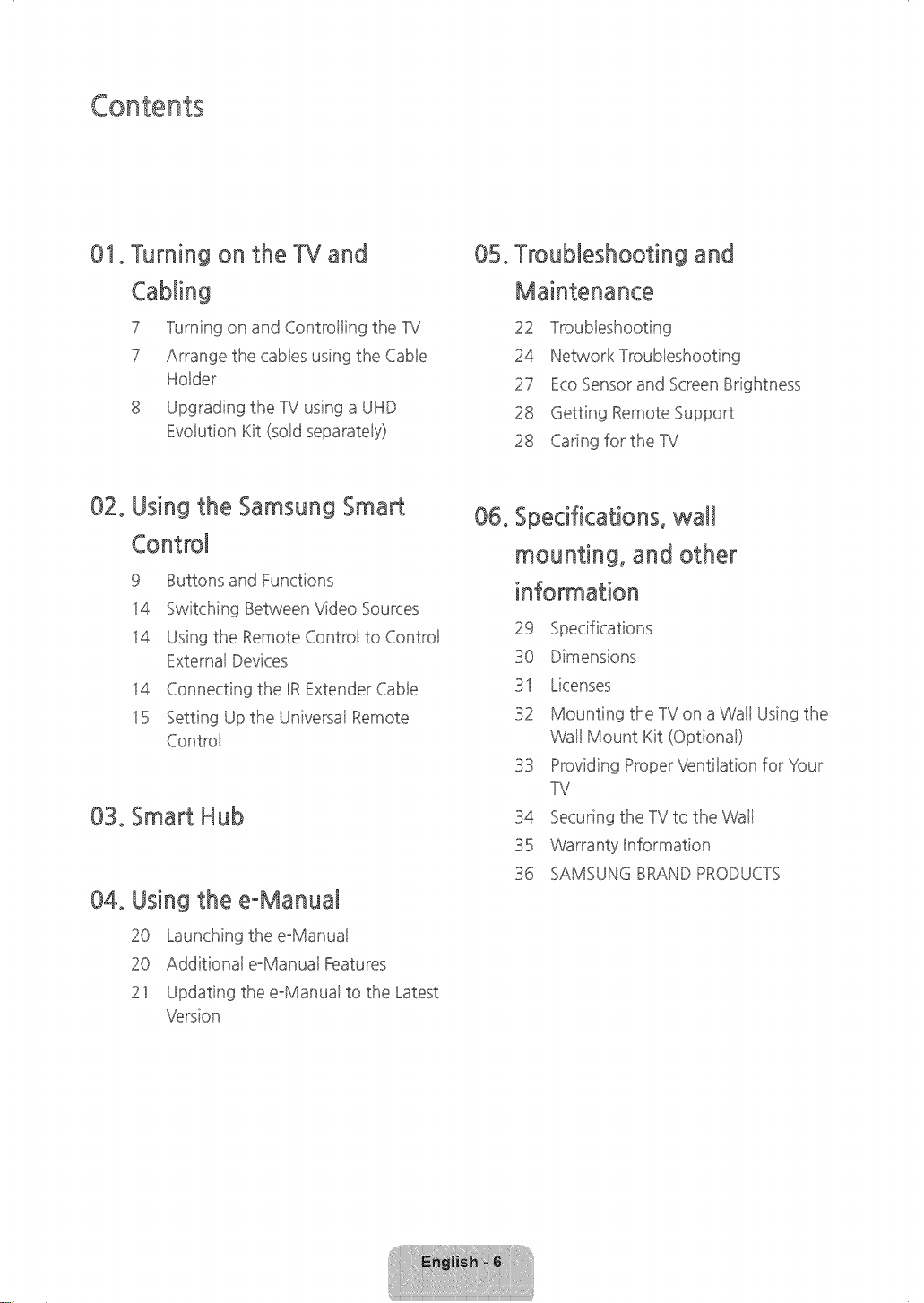
01. Turning on the TV and
Cabling
7 Turning on and Controiling the TV
7 Arrange the cabies using the Cabie
Holder
8 Upgrading the TV using a UHD
Evoiution Kit (sold separateiy)
05.
Troubleshooting and
Maintenance
22
24 Network Troubieshooting
27 EcoSensor and ScreenBrightness
28 Getting Remote Support
28 Caring for theTV
02.
Using the Samsung Smart
Control
9 Buttons and Functions
14 Switching Between Video Sources
14 Using the Remote Controi to Control
External Devices
14 Connecting the IRExtender Cabie
15 Setting Up the Universal Remote
Controi
03. Smart Hub
04. Using the e-Manual
20 Launching the e-Manual
20 Additional e-Manual Features
21 Updating the e-Manual to the Latest
Version
06. Specifications, wall
mounting, and other
information
29
30 Dimensions
31 Licenses
32 Mounting the TVon aWall Using the
Wall Mount Kit (Optional)
33 Providing Proper Ventilation for Your
TV
34 Securing the TVto the Wall
35 Warranty Information
36 SAMSUNG BRANDPRODUCTS
[HU6900-ZA]BN68-O6501A-O1ENG.ilIdb 6 2014-07-10 NNlO:19:31

S°Turning on the TV an
Cabli
Turning on and Controlling the TV
You can turn on the 1V using the Samsung Smart Control or the 1V's Controller, asmall joystick-Bikebutton on
the back of the 1V in its bwerqeft corner. You can also use the 1V"sController to operate the 1V without the
Samsung Smart Control
Open Smart Hub°
f
Open the menu SeJectasource°
Turn off the T_L
When you use the Samsung Smart Controk the
standby LEDdoes not Bight,except when you
pressthe Q) button.
Arrange the cables using the Cable Holder
Make sure you havethe correct cable before plugging it in_Illustrations of common plugs and ports areshown
below_
Cable Mu% Ports
HDMI
USB
Optical
'X Do not plug cables in upside down_
Besure to check the orientation of the
Warning plug before plugging it in_
[HU6900-ZA]BN68-06501A-01EN(}.indb 7 2014-07-10 _10:19:33

Upgrading the TV using a UHD Evolution Kit (sold
separately)
No need to buy a new IV. Connecting UHD Evolution Kit (sold separateBy)to a Samsung IV will allow you to
enjoy the latest features and content without having to purchase a new 1V.Experience the btest features and
servicesoffered by Samsung Electronics via UHD EvoButionKiL
- Ufyou connect aOne Connect that did not come with your Samsung Smart 1V modeB,the One Connect
will not work_
UHD Evolution Kit
(soldseparately)
TV
lhe 1V stand type
depends on the model_
UHD Evolution Kit is sold separately_Purchasing aUHD Evolution Kit allows you to upgrade the UHD Evolution
Kit's software to the version from the year in which your UHD Evolution Kit was released_Not supported on all
model
[HU6900-ZA]BN68-06501A-01EN(}.indb 8 2(114-(17-1(I _10:19:33
÷
02oUsin9
Co
@
Samsung
Smart
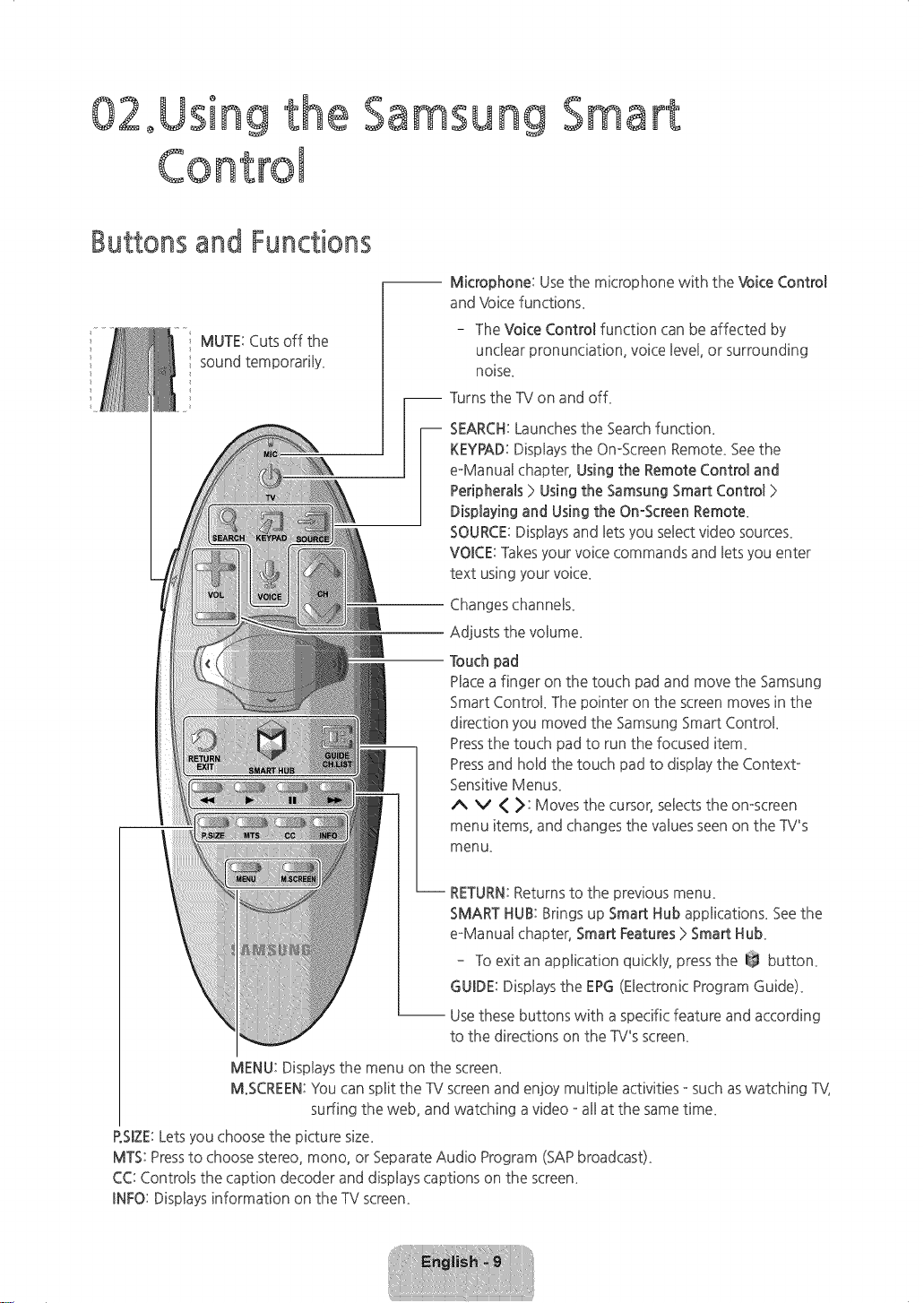
Buttons and Functions
MUTE: Cuts off the
sound temporarHy_
-- Microphone: Usethe microphone with the Voke Control
and Vbke functions_
The Voke Control function can be affected by
unclear pronunciation, voice Bevel,or surrounding
noise_
-- Turns the TV on and off_
i EARCH: Launchesthe Search function_
KEYPAD:Displays the On-Screen Remote_Seethe
eManual chapter, Using the Remote Control and
Peripherals > Usingthe Samsung Smart Control >
Displaying and Using the On-Screen Remote_
SOURCE:Disphys and Betsyou select video sourcek
VOICE: Takesyour voice commands and Betsyou enter
text using your voke_
Changes channel
Adjusts the voBume_
Touch pad
Placea finger on the touch pad and move the Samsung
Smart Control The pointer on the screen moves in the
direction you moved the Samsung Smart Control
Pressthe touch pad to run the focused item_
Pressand hold the touch pad to display the Context-
SensitiveMenu£
A V < >: Moves the cursor, selects the omscreen
menu items, and changes the values seen on the TV's
menu_
-- RETURN:Returns to the previous menu_
SMART HUB:Brings up Smart Hub applications_ Seethe
eManud chapter, Smart Features> Smart Hub
To exit an application quickly, pressthe @ button_
GUIDE:Displays the EPG(Electronic Program Guide)_
-- Usethese buttons with aspecific feature and according
to the directions on the TV's screen_
MENU: Displays the menu on the screen_
M.SCREEN:You can split the TV screen and enjoy multiple activities - such aswatching TV,
surfing the web, and watching a video - all at the sametime_
P.SIZE:Letsyou choose the picture size_
MTS: Pressto choose stereo, mono, or Separate Audio Program (SAPbroadcast)_
CC: Controls the caption decoder and displays captions on the screem
INFO: Displaysinformation on the TVscreem
[HU6900-ZA]BN68-06501A-01ENG.indb 9 _ 2014-07-10 _10:19:34
÷
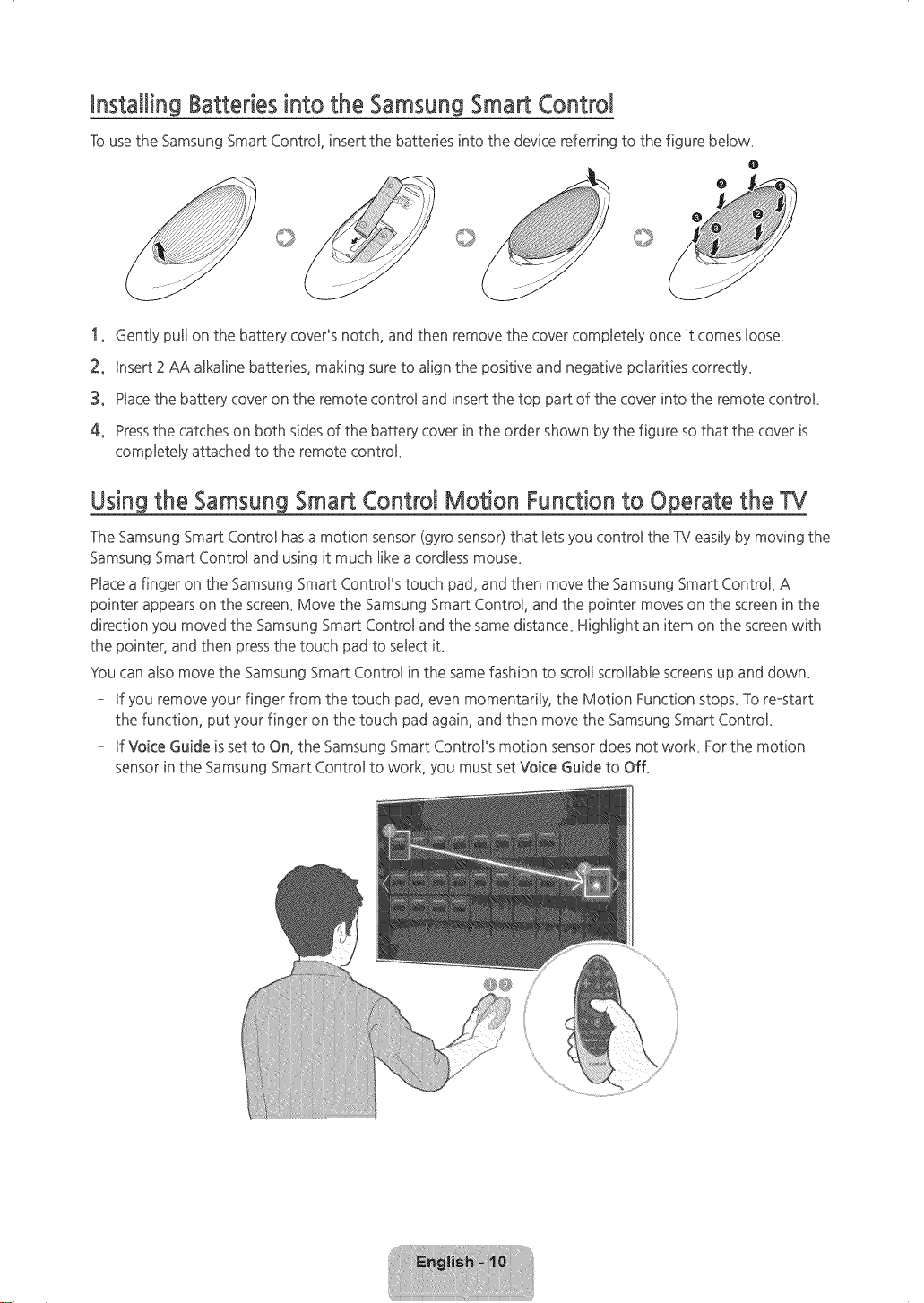
Installing Batteries into the Samsung Smart Control
Tousethe Samsung Smart Control insert the batteries into the device referring to the figure beBow_
o
o
o
1, GentBypuHon the battery cover's notch, and then remove the cover compBeteByonce it comes loose.
2, Insert 2 AA alkaline batteries, making sure to align the positive and negative polarities correctly_
3, Place the battery cover on the remote control and insert the top part of the cover into the remote control
4, Pressthe catches on both sides of the battery cover in the order shown bythe figure sothat the cover is
completely attached to the remote control
Using the Samsung Smart Control Motion Function to Operate the TV
The Samsung Smart Control hasa motion sensor (gyro sensor) that lets you control the TV easilyby moving the
Samsung Smart Control and using it much like a cordless mouse_
Placea finger on the Samsung Smart Control's touch pad, and then move the Samsung Smart Control A
pointer appears on the screen_Move the Samsung Smart Control, and the pointer moves on the screen in the
direction you moved the Samsung Smart Control and the same distance_ Highlight an item on the screen with
the pointer, and then pressthe touch pad to se!ect it_
You can also move the Samsung Smart Control in the same fashion to scroll scrollable screensup and down_
- If you remove your finger from the touch pad, even momentarily, the Motion Function stops_Toreostart
the function, put your finger on the touch pad again, and then move the Samsung Smart Control
- If Voice Guide is set to On, the Samsung Smart Control's motion sensor does not worL For the motion
sensor in the Samsung Smart Control to work, you must set Voice Guide to OfL
[HU6900-ZA]BN68-06501A-01ENG.indb 10 _ 2014-07-10 _10:19:34
÷
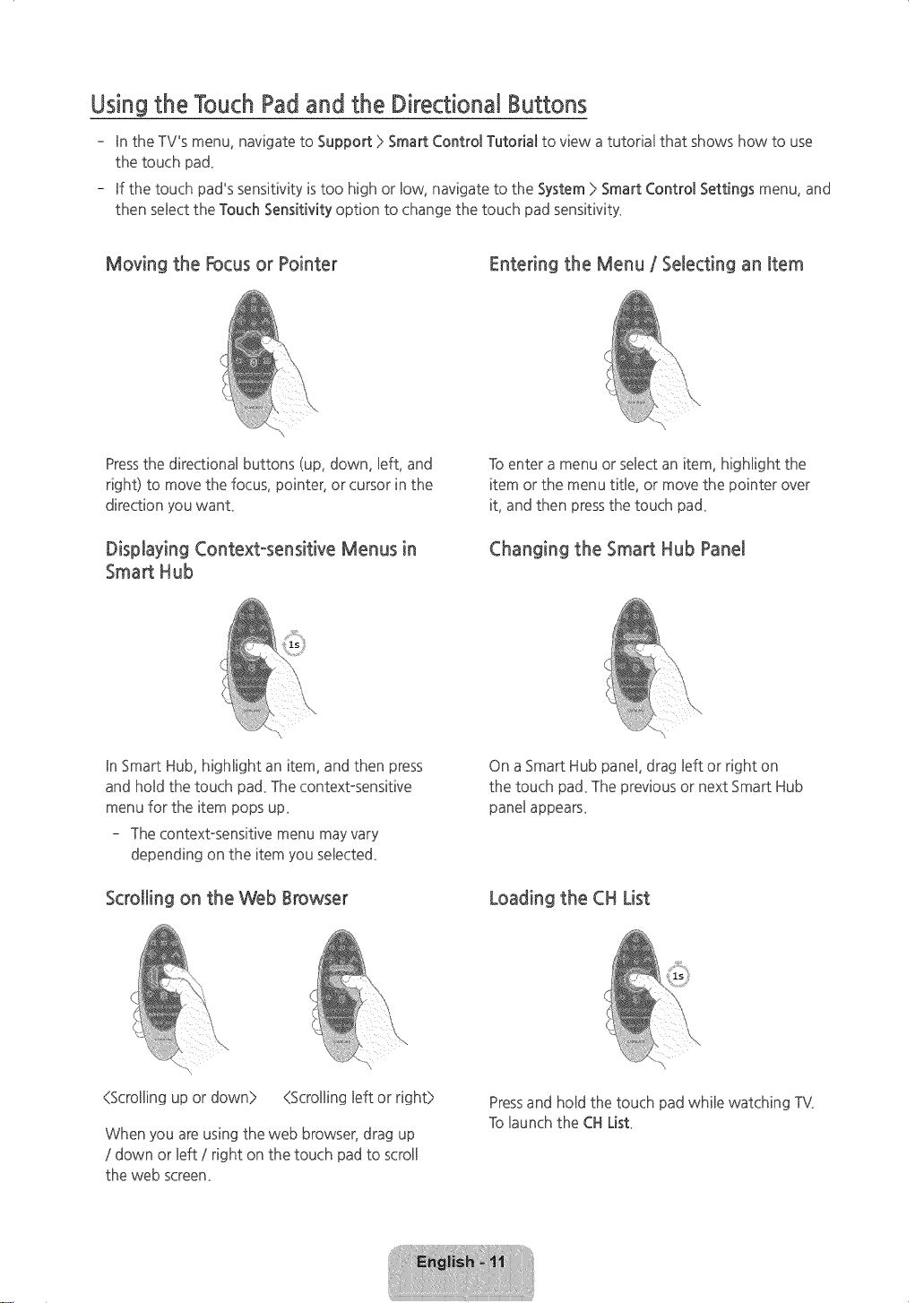
Using the Touch Pad and the Directional Buttons
- In the TV's menu, navigate to Support > Smart Control Tutorial to view a tutorial that shows how to use
the touch pad_
- If the touch pad's sensitivity istoo high or Bow,navigate to the System> Smart Control Settings menu, and
then seBectthe Touch Sensitivity option to change the touch pad sensitivity_
Moving the Focus or Pointer Entering the Menu / Selecting an Item
Pressthe directional buttons (up, down, Beft,and
right) to move the focus, pointer, or cursor in the
direction you want_
Displaying Context-sensitive Menus in
Smart Hub
Toenter a menu or select an item, higHight the
item or the menu title, or move the pointer over
it, and then pressthe touch pad_
Changing the Smart Hub Panel
In Smart Hub, highlight an item, and then press
and hold the touch pad_The contextosensitive
menu for the item pops up_
The contextosensitive menu may vary
depending on the item you selected_
Scrolling on the Web Browser
On a Smart Hub panel, drag left or right on
the touch pad_The previous or next Smart Hub
panel appears_
Loading the CH List
(Scrolling up or down> {Scrolling left or right>
When you are using the web browser, drag up
/ down or left / right on the touch pad to scroll
the web screen_
Pressand hold the touch pad while watching TV,
Tolaunch the CHList
[HU6900-ZA]BN68-06501A-01ENG.indb 11 _ 2014-07-10 _10:19:35
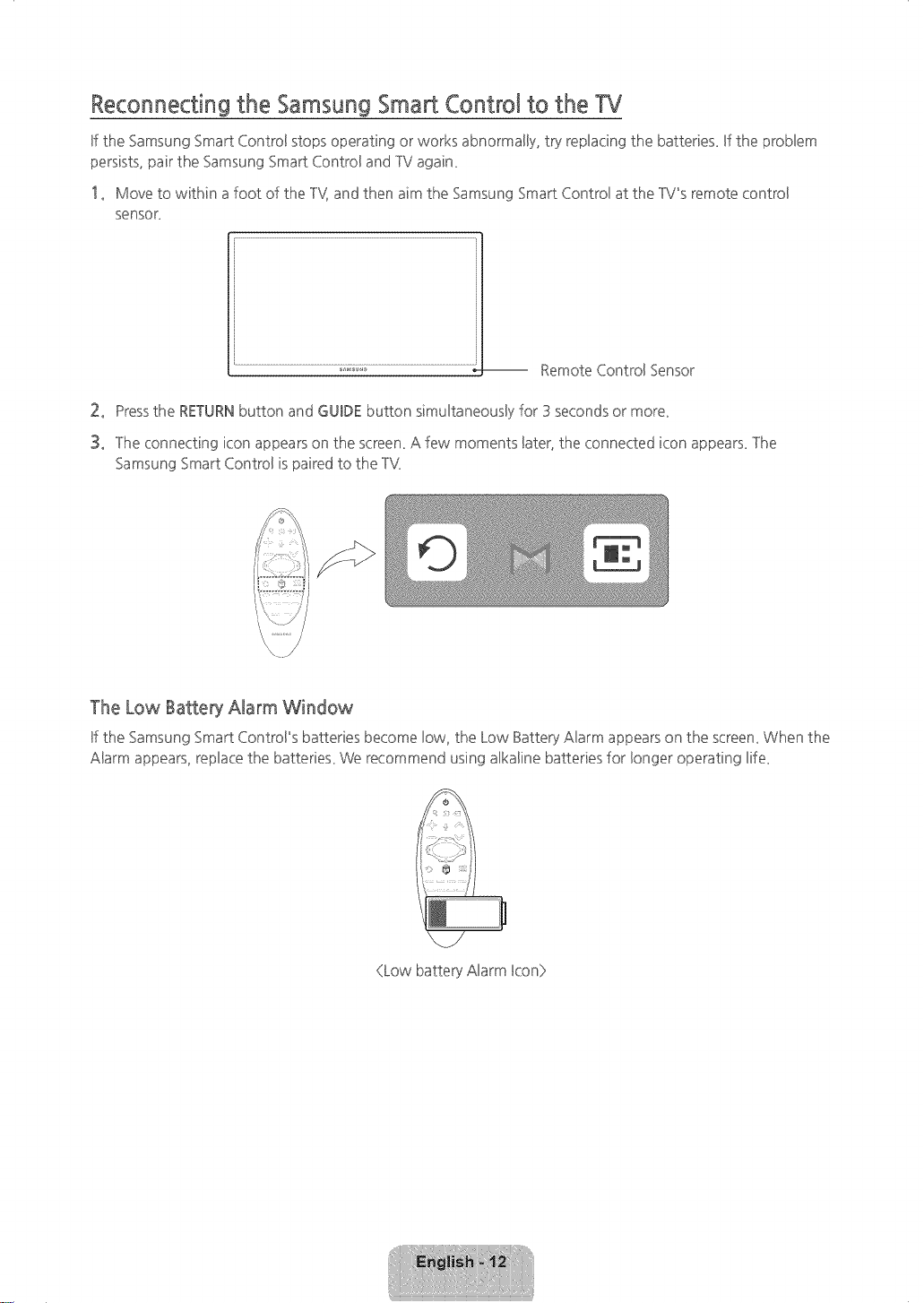
Reconnecting the Samsung Smart Control to the W
ff the Samsung Smart Control stops operating or works abnormally, try repbcing the batteries_ ff the probBem
persists, pair the Samsung Smart ControBand TV again_
1o Move to within a foot of the %{ and then aim the Samsung Smart ControBat the TV_sremote controB
sensor_
.................................................................................;;:;_':..............................................................................._-- Remote ControBSensor
2° Pressthe RETURNbutton and GUIDE button simultaneously for 3 seconds or more_
3° ]he connecting icon appears on the screen_A few moments later, the connected icon appears_]he
Samsung Smart Control is paired to the IV.
The Low Battery Alarm Window
If the Samsung Smart ControPs batteries become low. the Low Battery Alarm appears on the screemWhen the
Alarm appears, replace the batteries_ We recommend using alkaline batteries for longer operating life_
/
®
(Low battery Alarm Icon}>
[HU6900-ZA]BN684)6501A4)lENG.indb 12 2014-07-1(1 NN 10:19:35
÷
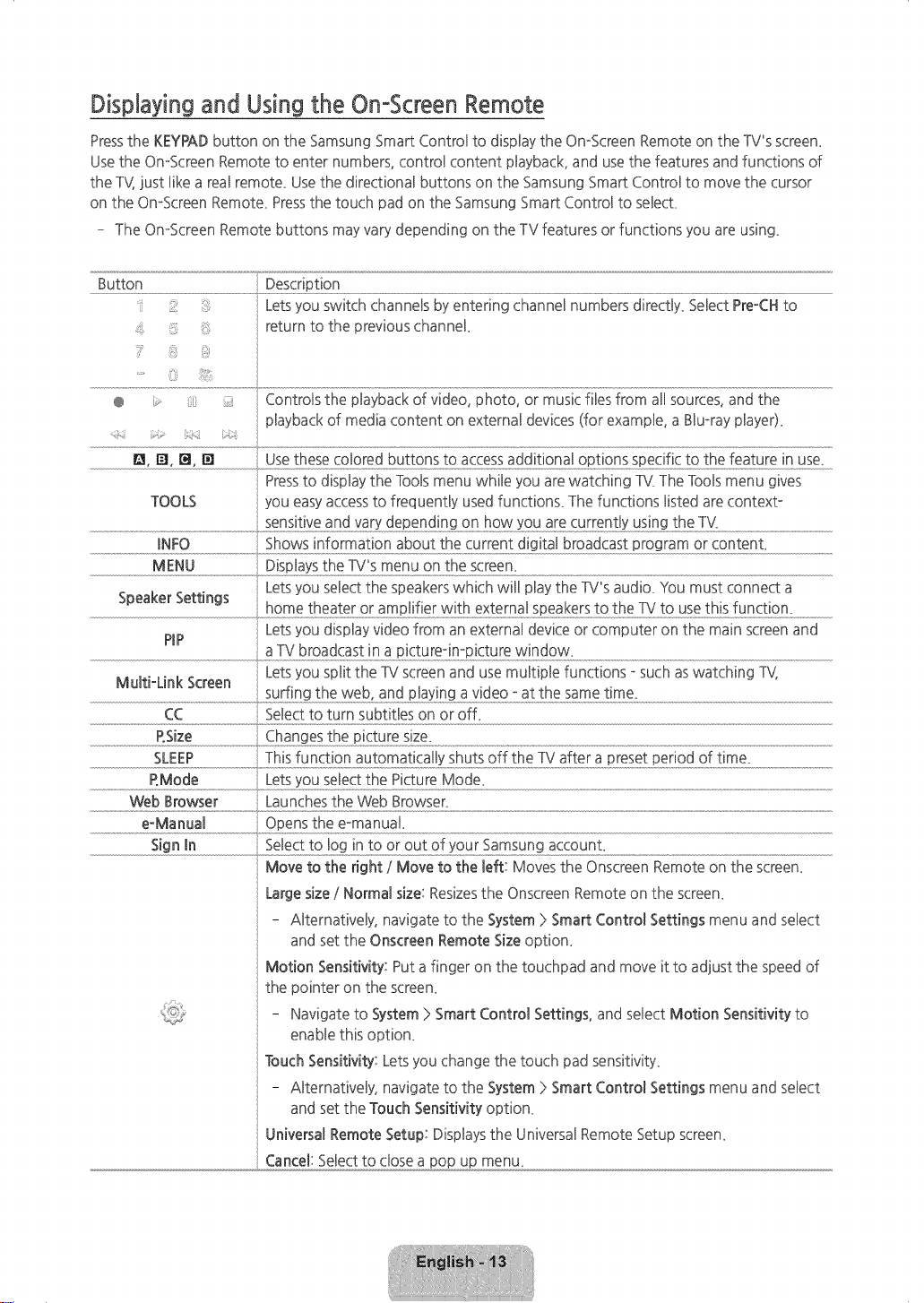
Displaying and Using the OnoScreenRemote
Pressthe KEYPADbutton on the Samsung Smart Control to display the On-Screen Remote on the TV's screen.
Use the On-Screen Remote to enter numbers, control content playback, and usethe features and functions of
the TV}just like a real remote. Use the directional buttons on the Samsung Smart Control to move the cursor
on the On-Screen Remote. Pressthe touch pad on the Samsung Smart Control to select
- The On-Screen Remote buttons may vary depending on the TV features or functions you are using.
......Button..........................................................................................Desc;!.pt!on..............................................................................................................................................................................................................................................................................................................................................................................
::: : Letsyou switch channels byentering channel numbers direcdy. Select Pre-CHto
!_ :i return to the previous channel.
® > Controls the playback of video, photo, or music files from all sources, and the
playback of media content on external devices (for example, a Blu-ray player).
p_
_, r_,r_,[] .......
Pressto display the Tools menu while you are watching TV.The Toolsmenu gives
TOOLS you easyaccessto frequently usedfunction£ The functions listed are context-
................................................................................................................................sens!t!veandvardeeenq!.nqo o re;urrent!yus!ng.theTV:.........................................................................................
MENU
Letsyou select the speakers which will play the TV's audio. You must connect a
Speaker Settings
PiP Letsyou display video from an external device or computer on the main screenand
Letsyou split the TVscreen and use multiple functions - such aswatching TV,
Multi-Link Screen
surfing the web, and playing a video - at the same time.
CC Select to turn subtitles on or off_
P.Size Changes the picture size.
RMode Letsyou select the Picture Mode.
.........................Webmowse(
e-Manual Opens the e-manuaL
S_gnm ....
Move to theright/Move to theleft:Moves theOnscreenRemote on thescreen.
Largesize/Normalsize:ResizestheOnscreenRemote on thescreen.
- Alternatively,navigatetotheSystem> SmartControlSettingsmenu and select
and set the Onscreen Remote Sizeoption.
Motion Sensitivity: Put a finger on the touchpad and move it to adjust the speed of
the pointer on the screen.
- Navigate to System >Smart Control Settings, and select Motion Sensitivity to
enable this option.
Touch Sensitivity: Lets you change the touch pad sensitivity.
- Alternatively, navigate to the System> Smart Control Settings menu and select
and set the Touch Sensitivity option.
Universal Remote Setup: Displays the Universal Remote Setup screen.
, Cancel: Selectto close a pop up menu.
[HU6900-ZA]BN68-06501A-01ENG.indb 13 _ 2014-07-10 _10:19:35
Switching BetweenVideo Sources
Pressthe SOURCEbutton to switch between external devices connected to the IV. _r example, to switch to
a game console connected to the second HDMI connector, pressthe SOURCEbutton_ ]he Source List appears
acrossthe top of the screen_Fromthe Source Bist,seBectMDMIZ
- ]he connector names may vary depending on the producL
Using the Remote Control to Control External Devices
MENU > System > Universa! Remote Setup
The universal remote control feature Betsyou control cabBeboxes, glu°ray pBayers,home theaters, and other
third-party externaBdevices connected to the ]°Vusing the ]°V_sremote control Foreach external device you
want to control, you must run the universaBremote set up process_]°he first step in the process isconnecting
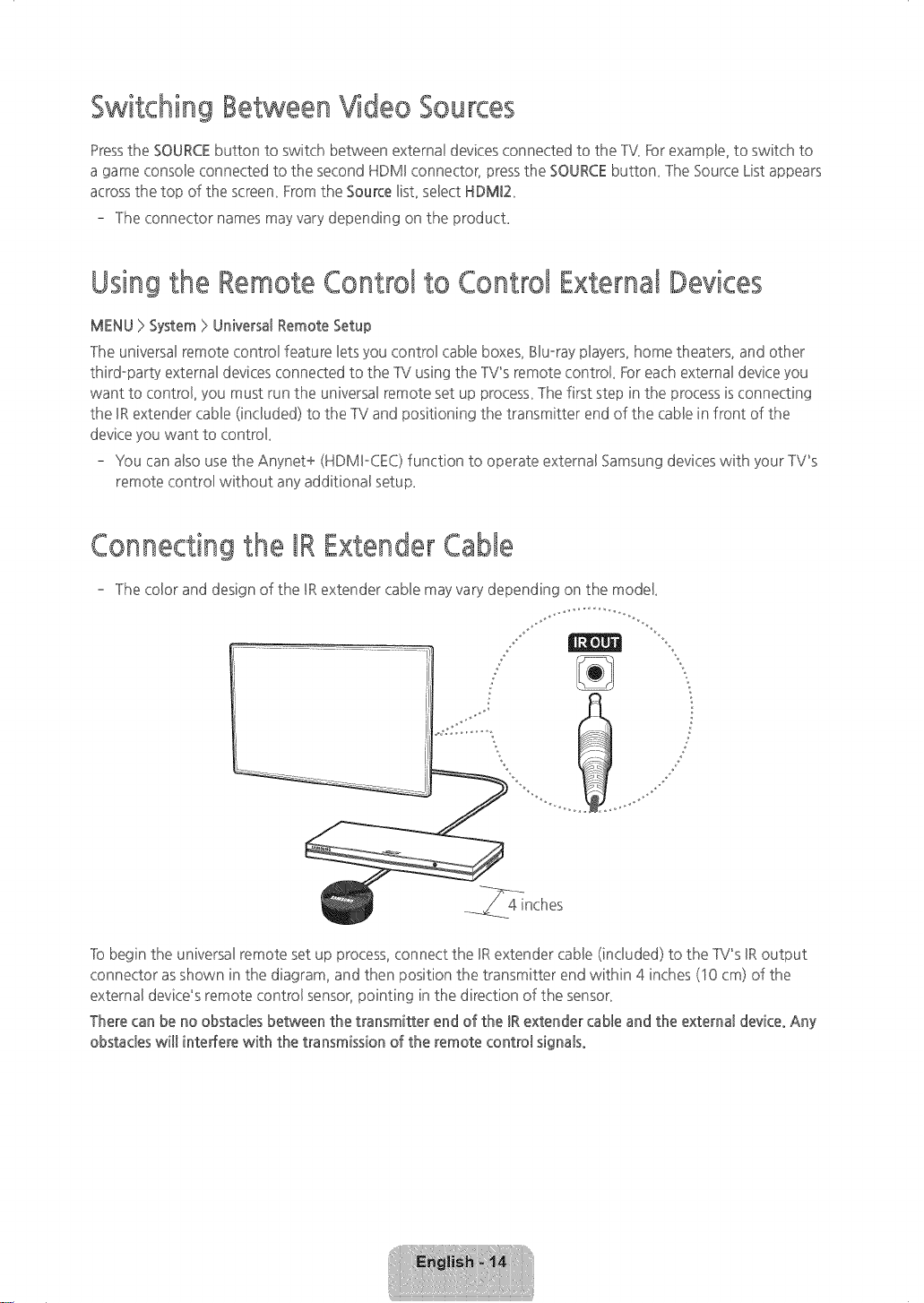
the IRextender cabBe(included) to the ]°Vand positioning the transmitter end of the cable in front of the
device you want to control_
- You can also use the Anynet+ (HDMIoCEC) function to operate external Samsung devices with your ]°V_s
remote control without any additional setup_
Connecting the IRExtenderCable
- The color and design of the IRextender cable may vary depending on the model
]b begin the universal remote set up process, connect the IRextender cable (included) to the ]°V_sIRoutput
connector asshown in the diagram, and then position the transmitter end within 4 inches (10 cm) of the
external device's remote control sensor,pointing in the direction of the sensor_
There can be no obstacles between the transmitter end of the IRextender cable and the externa! device° Any
obstacles will interfere with the transmission of the remote control signalSo
[HU6900-ZAlBN684)6501A4)lENG.indb 14 2014-07-1(1 _ 10:19:36
Setting Up the Universal Remote Control
- Ufyou want to control a setotop-box, you need to have your zip code and your cable provideCs name and
Bocation on hand before you begin_ Ufyou want to controBa BBuoraypbyer or home theater_ you need the
manufactureCs name and modeBnumber_
1o lurn on the external device you want to controBwith the universal remote function_
2° Pressthe SOURCEbutton on your remote to bring up the Source screen_
3° SeBectthe Universa_Remote Setup icon_
You can also start UniversaBRemote Setup through the TV"s menu. Navigate to System}>Universa_
Remote Setup.
4° The TVchecks if the URextender cabBeis connected. Ufit confirms the connection, pressthe touch pad.
5° SeBectthe type of device you want to controB-set-top-box, BBu-raypbyer, or home theater.
6° Follow the directions on the screen to complete the set up and register the device. The directions will be
different, depending on the device you want to control.
7° Once set up is complete and you have confirmed that you can use the TV remote to control the device,
disconnect the IRextender cable from the TV and set it aside. You can now control the device directly with
your remote.
Controlling an External Device with the TV Remote
During the universal remote set up process, the TV registers the connector (source) the external device is
connected to_ lb control a registered external device with your TV_sremote, select the external device on the
Source LisL
1o Pressthe SOURCEbutton on your remote_
2° Selectthe source the device isconnected to (HDMI1, HDMI2, et<)
3° Control the devicewith the remote_Forexample, if the device is aset-top-box, pressthe channel buttons
on the remote to change the channel_
Forinformation on additional functions, see "Controlling External Deviceswith the -IV Remote - Using the
Universal Remote" in the e-Manual_
[HU6900-ZA]BN68-06501A-01ENG.indb 15 2014-07-10 _10:19:36
03°
rt Hub
Smart Hub is the controBcenter of the TV.Through Smart Hub you can view TV program scheduBesand select
shows to watch, download and install apps and games, select and stream movies and IV shows, and playback
photo, video, and music flies bcated on BBu-ra},,pb},,ers,USBdevices, smart phones and tabBets,},,ourcomputer,
and the UnterneL
Smart Hub has five main panels: Games, SAMSUNG APPS,On TV, MOVIES & TV SHOWS,and MULTIMEDIA_
]b move from panel to panel, seBectone of the icons at the top of the screen_You can also swipe Beltor right
acrossthe touch pad to display the previous or next pane!_Each panel givesyou accessto additionaBscreens_]b
open the additional screens, seBectitems on the paneBor select an icon or hotspot on the screen_
- The TV must be connected to the Internet to accessSmart Hub_
Games Panel
]he Games panel displays games you can download to and play on your TV.You can also update or delete
downloaded games_The Games panel hastwo sub-panels: AHGames and My Page_AHGames displays all the
games available through Smart Hub_My Page displaysthe games you have down!oaded_ Most games listed on
the Games panel arefree, while some require a fee_]b download a for-pay game, you must have a Samsung
Account with aregistered credit card_
Basic Games Panel Functions
In the My Pageor AHGames panel, move the focus to a game, and then pressand hold the touch pad_An
Options drop down list appears with the following functions_
. Download/Delete: Downloads games to the TV or removes games from the TV_
, View detai_:Displays detailed information about the selected game_
Quickly Downloading and Installing a Game
Select a game, and then press and hold the touch pad_When the Options drop down list appears, select
Download from the lisL Ifthe game isfree, the game you selected isinstalled on the TV_If the game is not free,
follow the directions on the screen to pay for and download the game_
SAMSUNG APPS Panel
The SAMSUNGAPPS panel displays avariety of free and for pay news, sports, weather, and gaming apps_
The Samsung Apps panel has a number of sub-paneB including Most Popular, What's new, and Categorie£
Default apps install automatically when Smart Hub isfirst bunched_ The default apps may differ depending on
your region_ Most apps listed on the SAMSUNGAPPSpanel are free, but some apps require afee_]b download
these, you must havea Samsung Account with a registered credit card_
[HU6900-ZA]BN684)6501A4)lENG.indb 16 2014-07-10 _10:19:36
SAMSUNG APPS Panel Functions
Move the focus to an app, and then pressand hoBdthe touch pad. An Options drop down Bistappears with the
following functions.
Move: Rebcates an app on the screen.
Delete: Removes aselected app from your TV.
Multi Delete: RemovesmuBtipBeapps from the TV.
View DetaiB: Displays detailed information about a selected app.
Change View: Changes how the apps are sorted on the screen, byCustom view or Most Pbyed.
LockiUnbck: Locks or unlocks apps. Locked apps cannot be accessed.
Update Apps: Displays a list of apps that have updates available. You can select which apps to update.
The SAMSUNG APPSPanelfunctions are conte×t°sensitive. The functions that appear may differ depending on
the app you selecL
Downloading and installing an App
1° On the SAMSUNG APPSpanel, select Most Popular, What"s new, or Categories.
2o Move the focus to an app, and then pressand hold the touch pad. When the Options drop down list
appears, select Downbad from the lisL If the app isfree, the app you selected is installed on the TV.If the
app is not free, follow the directions on the screen to payfor and download the app.
On TV Panel
On TV dispbys your current program live in asmall window, a list of recommended programs currently on
other channels, and a list of recommended programs that will air laten Use these liststo change the channel,
view more information about recommended programs running later, including how much time isleft until they
ain YOUcan alsoset up a Schedule '_@wingof aprogram that hasn't aired yeL
lb view aprogram recommended by On TV, select the image.
lhe On TV panel hasthe following main subpanels:
, Guide: Displaysthe program schedule of each digital channel You can check the program schedule and
set up a Schedule Viewing.
, Time_ineView: Displays program recommendations for different times of the day.
, Trending: Displayswhat isthe most trendy or popular content on Twitter, You can set up aSchedule
Viewing to view.
On TV Panel Functions
Move the focus to a program, and then pressand hold the touch pad. An Options drop down list appears with
the following functions.
. View detaiB: Displays detailed information about the selected program.
. Schedule: Sets up a Schedule for the selected program.
[HU6900-ZA]BN68-06501A-01ENG.indb 17 2014-07-10 _10:19:36
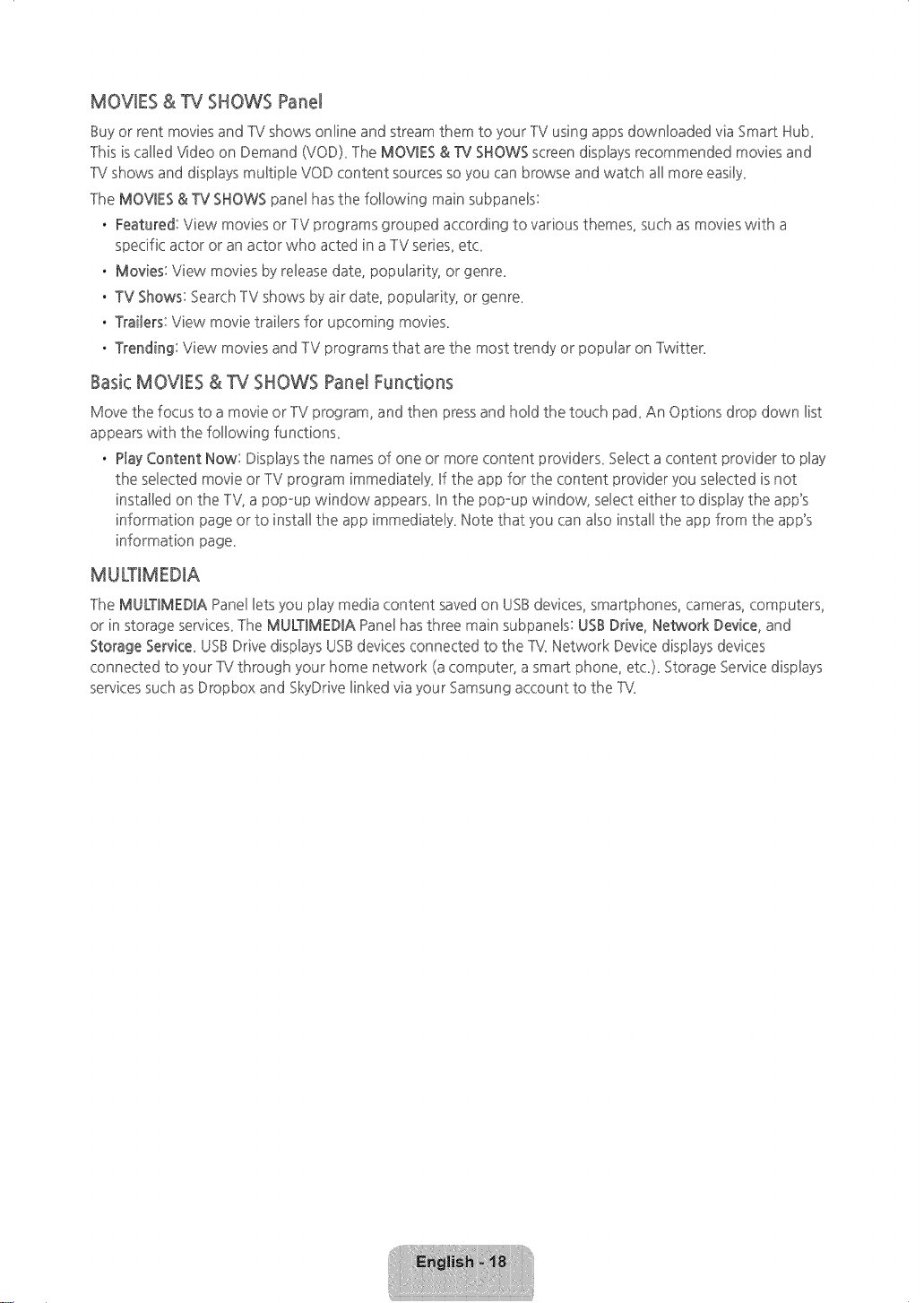
MOVIES & TV SHOWS Panel
Buy or rent movies and TV shows online and stream them to your TV using apps downloaded via Smart Hub_
lhis iscalled Video on Demand (VOD)_lhe MOVIES & TV SHOWSscreen dispbys recommended movies and
1V shows and dispbys muBtiple VOD content sources so you can browse and watch aHmore easiBy_
lhe MOVIES &TV SHOWS panel hasthe following main subpaneBs:
. Featured: View movies or 1V programs grouped according to various themes, such asmovies with a
specific actor or an actor who acted in a1V series,et<
. Movies: View movies by release date, popularity, or genre_
. TV Shows: Search1V shows by air date, popularity, or genre_
. Trailers: View movie trailers for upcoming movies_
. Trending: View movies and 1V programs that are the most trendy or popular on Twitter_
Basic MOVIES & TV SHOWS Panel Functions
Move the focus to a movie or TV program, and then pressand hold the touch pad_An Options drop down list
appears with the following functions_
. PlayContent Now: Displays the names of one or more content providers_ Select a content provider to play
the selected movie or 1V program immediately_ If the app for the content provider you selected isnot
installed on the 1V, a pop-up window appears_In the pop-up window, select either to display the app's
information page or to install the app immediately_ Note that you can also install the app from the app's
information page_
MULTIMEDIA
The MULTIMEDIA Panellets you play media content saved on USBdevices, smartphones, cameras, computers,
or in storage services_lhe MULTIMEDIA Panel hasthree main subpanels: USB Drive, Net_¢ork Device, and
Storage Service_USBDrive displays USBdevices connected to the IV. Network Device displays devices
connected to your 1V through your home network (a computer, a smart phone, et<)_ Storage Servicedisplays
servicessuch asDropbox and SkyDrive linked via your Samsung account to the 1V.
[HU6900-ZA]BN68-06501A-01ENG.indb 18 2014-07-10 _10:19:36
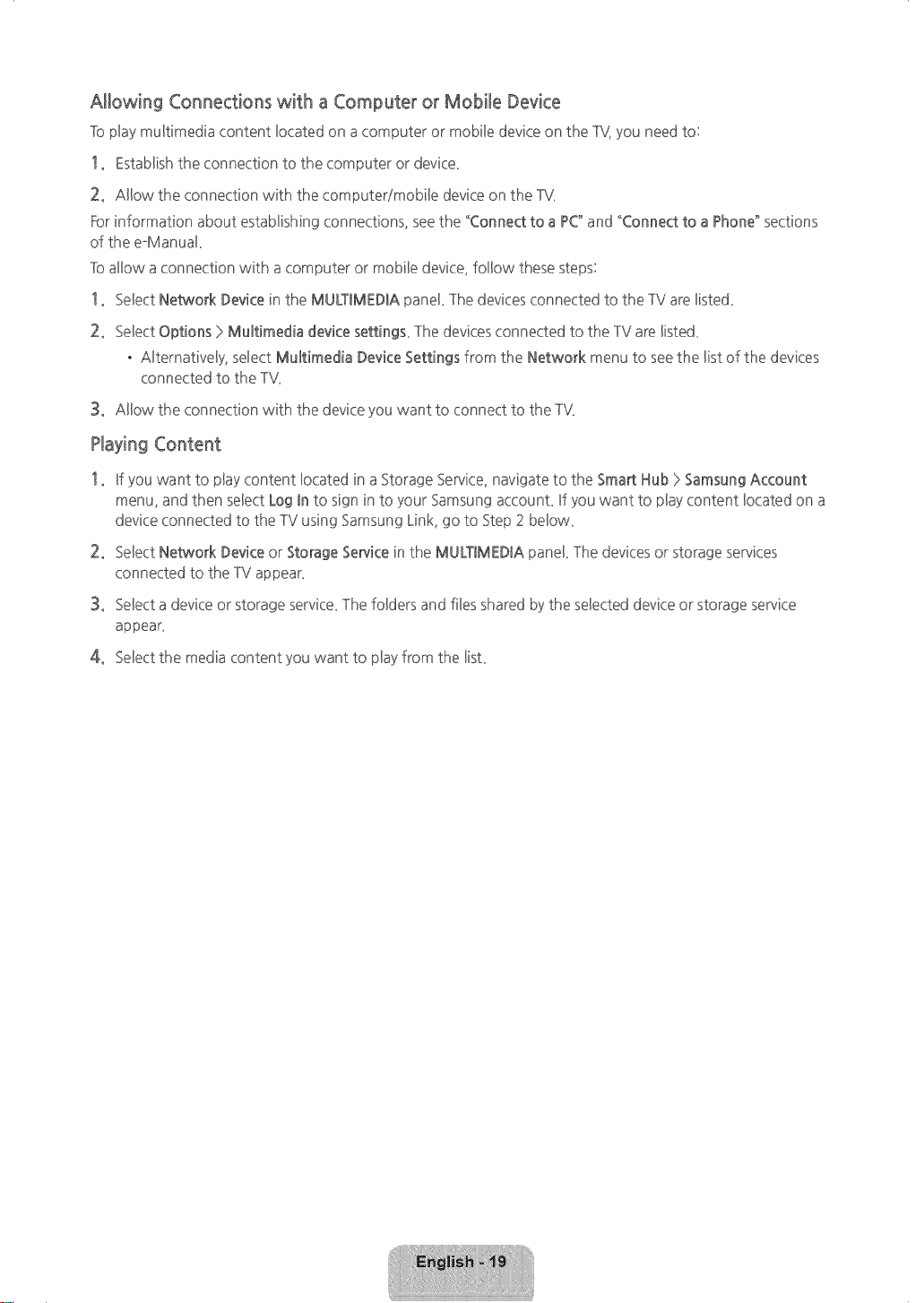
Allowing Connections with a Computer or Mobile Device
lb pby muBtimedia content bcated on acomputer or mobile device on the 1%you need to:
1. Establish the connection to the computer or device
2. AHow the connection with the computer/mobile device on the 1V
For information about establishing connections, seethe "Connect to a PC"and "Connect to a Phone" sections
of the e°Manuak
lb allow aconnection with a computer or mobile device, follow these steps:
1. SeBectNetwork Device in the MULTIMEDIA panel lhe devices connected to the -IV are listed
2. Select Options ) MuRimedia device setting£ lhe devices connected to the -IV are listed
. Alternatively, select MuRimedia Device Settings from the Network menu to see the list of the devices
connected to the -IV
3. Allow the connection with the device you want to connect to the 1V
Playing Content
1. If you want to play content located in aStorage Service, navigate to the Smart Hub >Samsung Account
menu, and then select Log In to sign in to your Samsung accounL If you want to play content located on a
device connected to the -IVusing Samsung Link, go to Step 2 below
2. Select Netcqork Device or Storage Servicein the MULTIMEDIA panel, lhe devices or storage services
connected to the -IV appear
3. Select a device or storage service lhe folders and filesshared bythe selected device or storage service
appear
4. Select the media content you want to play from the list
[HU6900-ZA]BN68-06501A-01ENG.indb 19 2014-07q0 _10:19:36
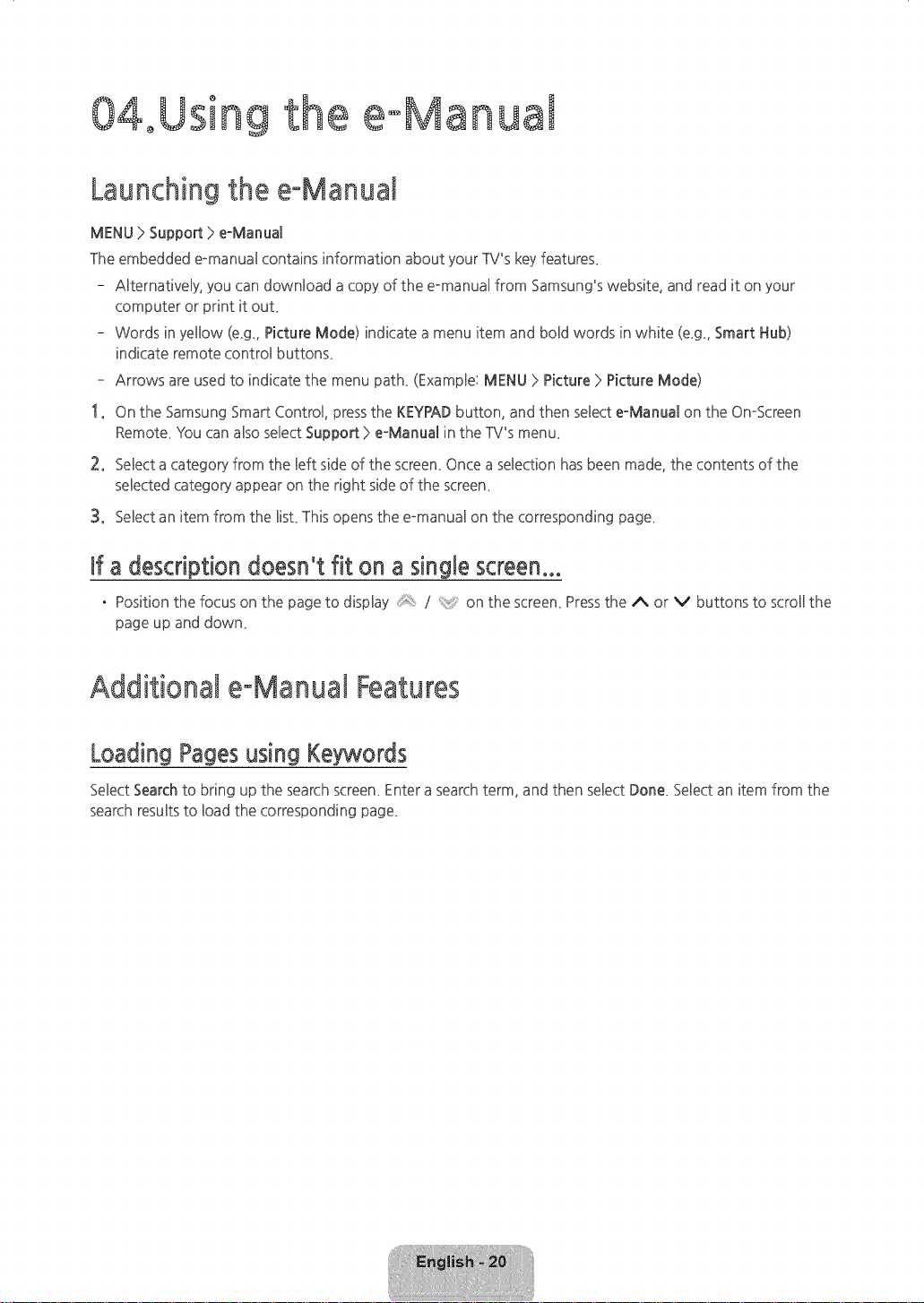
÷
04oUsing
e eoManua!
Launchingthe eoManual
MENU > Support > e-Manual
The embedded Pmanual contains information about your TV's keyfeature£
- ABternatively,you can downbad a copy of the e_manual from Samsung's website, and read it on your
computer or print it out_
- Words in yellow (e_g. Picture Mode) indicate a menu item and boBdwords in white (e_g. Smart Hub)
indicate remote controBbutton£
- Arrows are used to indicate the menu path_ (ExampBe:MENU ) Picture ) Picture Mode)
1. On the Samsung Smart Control pressthe KEYPADbutton, and then seBecte-Manual on the OmScreen
Remote_You can also select Support ) e-Manual in the TV's menu_
2. SeBecta category from the Beftside of the screen_Once a selection has been made, the contents of the
seBectedcategory appear on the right sideof the screen_
3. SeBectan item from the Bist_This opens the e_manual on the corresponding page_
if a description doesn't fit on a single screen...
• Position the focus on the page to display *_: / on the screen_Press the A or v buttons to scroll the
page up and down_
Additional eoManuat Features
Loading Pages using Keywords
Select Searchto bring up the search screen_Enter a search term, and then select Done_Select an item from the
search results to load the corresponding page_
[HU6900-ZA]BN68-06501A-01ENG.indb 20 _ 2014-07-10 _10:19:37

÷
Loading Pagesfrom the Index Page
SeBectIndex to bring up the index screen. SeBecta keyword from the Bistto navigate to the relevant page.
Using History to Load Previously Read Pages
SeBectOpened page_A Bistof previously read pages is shown_ SeBecta page_The PManud jumps to the
seBectedpage_
Accessing the Menu from the eoManual
SeBectO (TryNow) from the right side of a featureodescription page to accessthe corresponding menu item
and try out the feature right away_ If you want to read the e_Manud entry on a specific screen menu feature:
• On the Samsung Smart Control press the KEYPADbutton, and then select eoManual on the OmScreen
Remote to bad the corresponding e_Manud page_
- The e_Manud cannot be accessed from some menu screen£
Loading Reference Pages
SeBect_ (Link) from the right side of a featurPdescription page to accessthe corresponding reference page.
Updating the eoManuat to the Latest Version
You can update the PManud in the sameway you update app£
1o Select eoManua_item in the SAMSUNGAPPSscreen_
2o On the Samsung Smart Control, pressand hold the touch pa& A popoup menu appear£
3o Select Update Apps from the pop_up menu_ A pop_up window appear£
Update Apps appears on the screen only when an update isavaibble_
4o Select eoManual in the popup window, and then select Update_
Configuring Auto Update
MENU > Smart Hub > Apps Settings
Toupdate the Pmanud automatically, navigate to the Smart Hub >Apps Settings menu and set the Auto
Update option to On_The Pmanual is updated automatically when an update becomes avaibble_
[HU6900-ZA]BN68-06501A-01ENG.indb 21 _ 2014-07-10 _10:19:37
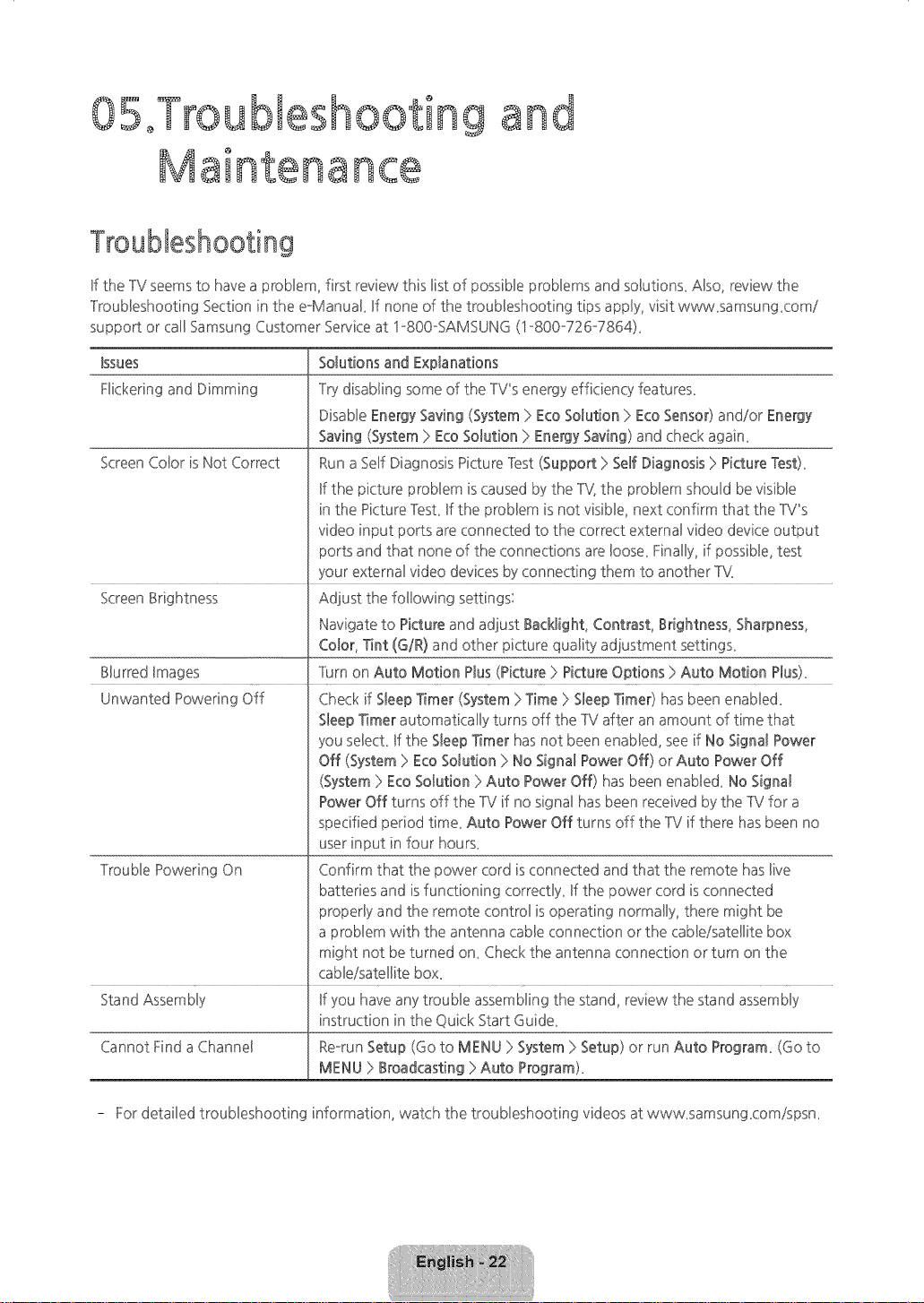
5oTroubles
aintenance
ng and
Troubleshooting
Ufthe TV seems to have a problem, first review this list of possible proNems and soButions_Also. review the
Troubleshooting Section in the e-Manud_ If none of the troubleshooting tips apNy, visit www_samsungxomi
support or call Samsung Customer Serviceat 1-800-SAMSUNG (1-800W26-7864)_
Bsues Solutions and Explanations
Flickering and Dimming Try disaNing some of the TV%energy efficiency features_
Disable Energy Saving (System) EcoSolution ) Eco Sensor) and/or Energy
Saving (System) Eco Solution ) Energy Saving) and check again_
ScreenColor is Not Correct Runa Self Diagnosis Picture l%st (Support >SerfDiagnosis > Picture Test)_
Ifthe picture problem is caused by the 1V,the problem should be visible
in the Picture Test If the problem is not visible, next confirm that the 1V%
video input ports are connected to the correct external video device output
ports and that none of the connections are loose Finally, if possible, test
your external video devices byconnecting them to another TV.
ScreenBrightness Adjust the following settings:
Navigate to Picture and adjust Back_ight,Contrast, Brightness, Sharpness,
Color, _nt (G/R) and other picture quality adjustment settings_
Blurred Images Turn on Auto Motion P_us(Picture > Picture Options > Auto Motion P_us).
Unwanted Powering Off Check if S_eepT_mer(System > Time > S_eepTimer) has been enaNed_
SJeepTimer automatically turns off the TV after an amount of time that
you select If the S_eepTimer has not been enabled, see if No Signa_Power
Off (System > Eco Solution > No Signa_Power Off) or Auto Power Off
(System> EcoSolution >Auto Power Off) hasbeen enaNed_ No Signa_
Power Off turns off the TV if no signal has been received bythe TVfor a
specified period time Auto Power Off turns off the TV if there has been no
userinput in four hours_
lrouNe Powering On Confirm that the power cord is connected and that the remote haslive
batteries and isfunctioning correctly_ If the power cord is connected
properly and the remote control is operating normally, there might be
a problem with the antenna cable connection or the cable/satellite box
might not be turned on_ Check the antenna connection or turn on the
cable/satellite box.
Stand Assembly Ifyou have any trouble assembling the stand, review the stand assembly
instruction in the Quick Start Guide_
Cannot Find aChannel Re-run Setup (Go to MEHU ) System ) Setup) or run Auto Program (Go to
MEHU > Broadcasting >Auto Program)_
- For detailed troubleshooting information, watch the troubleshooting videos at www_samsungxomispsn_
[HU6900-ZA]BN68-06501A-01EN(}.indb 22 2014-07d0 _10:19:37

Issues
TheTV won't turn on_
]here is no pictureivideo_
]he remote controBdoes not
work
]he cabBeisettop box remote
control doesn't turn the
TV on or off or adjust the
voBume_
Solutions and Explanations
Make sure the AC power cord is secureBypBuggedin to the wall ouSet and
the ]V.
Make sure the wall oudet isworking_
Try pressing the O button on the TV to make sure the probBemisnot the
remote_If the TV turns on, refer to "Remote control does not work" be!ow_
Check the cabBeconnections_ Remove and reconnect aHcabBesconnected
to the TVand externaBdevices_
Set the video outputs of your external devices (Cable/Sat Box, DVD, Blu°
ray etc) to match the TV_sinput connections_ Forexample, if an external
device's output isHDMI, it should be connected to an HDMI input on the
]V.
Make sure your connected devices are powered on_
Besureto select the correct input source_
Reboot the connected device byunplugging it, and then reconnecting the
device's power cable_
Replacethe remote control batteries_ Make sure the batteries are installed
with their poles (+/-) in the correct direction_
Clean the sensor'stransmission window on the remote_
Try pointing the remote directly at the TV from 5,-6 feet away_
Program the Cable/Set remote control to operate the ]'_( Referto the
CableiSet°]bp°Box user manual for the SAMSUNG TV code_
- ]his TFTLEDpanel is made up of sub pixels which require sophisticated technology to produce_ ]here
may be, however, a few bright or dark pixeg on the screen_These pixelswill have no impact on the
performance of the producL
- To keep your TV in optimum condition, upgrade to the latest software_ Usethe Update Now or Auto
Update functions on the TV_smenu (Screen MENU >Support > Software Update > Update now or Screen
MENU > Support > Software Update >Auto Update)_
[HU6900-ZA]BN68-06501A-01ENG.indb 23 2014-07-10 _10:19:37
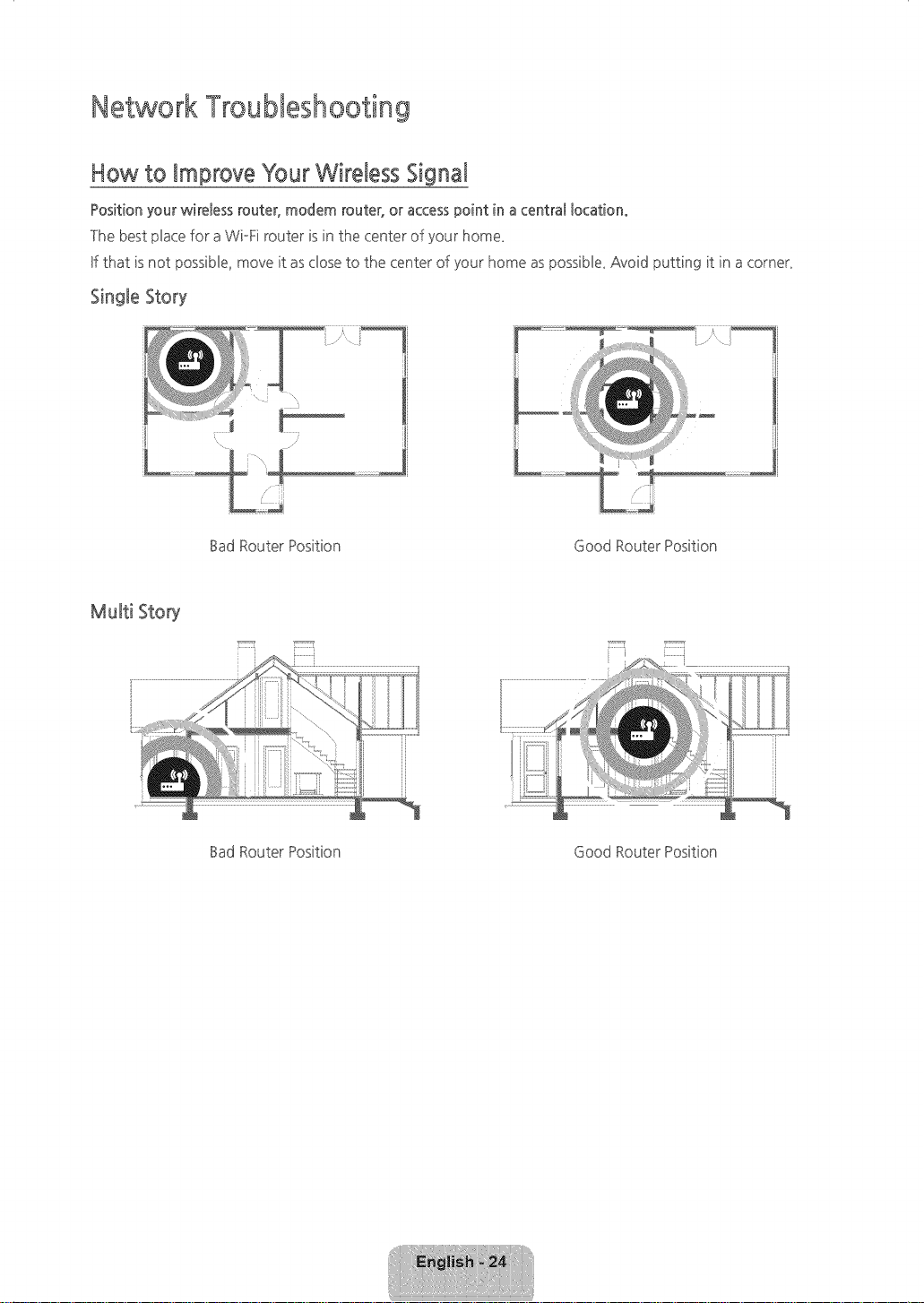
NetworkTroubleshooting
How to Improve Your Wireless Signal
Position your wireless router, modem router, or accesspoint in a centra__ocatiOno
The best pbce for aWi°Fi router is in the center of your home_
Ufthat isnot possibBe,move it asdose to the center of your home aspossibBe_Avoid putting it in acorner_
Single Story
Bad Router Position Good Router Position
Multi Story
i I P,,,,,,,,,,,,i
Bad Router Position Good Router Position
[HU6900-ZA]BN68-06501A-01EN(}.indb 24 2014-07-10 _10:19:38
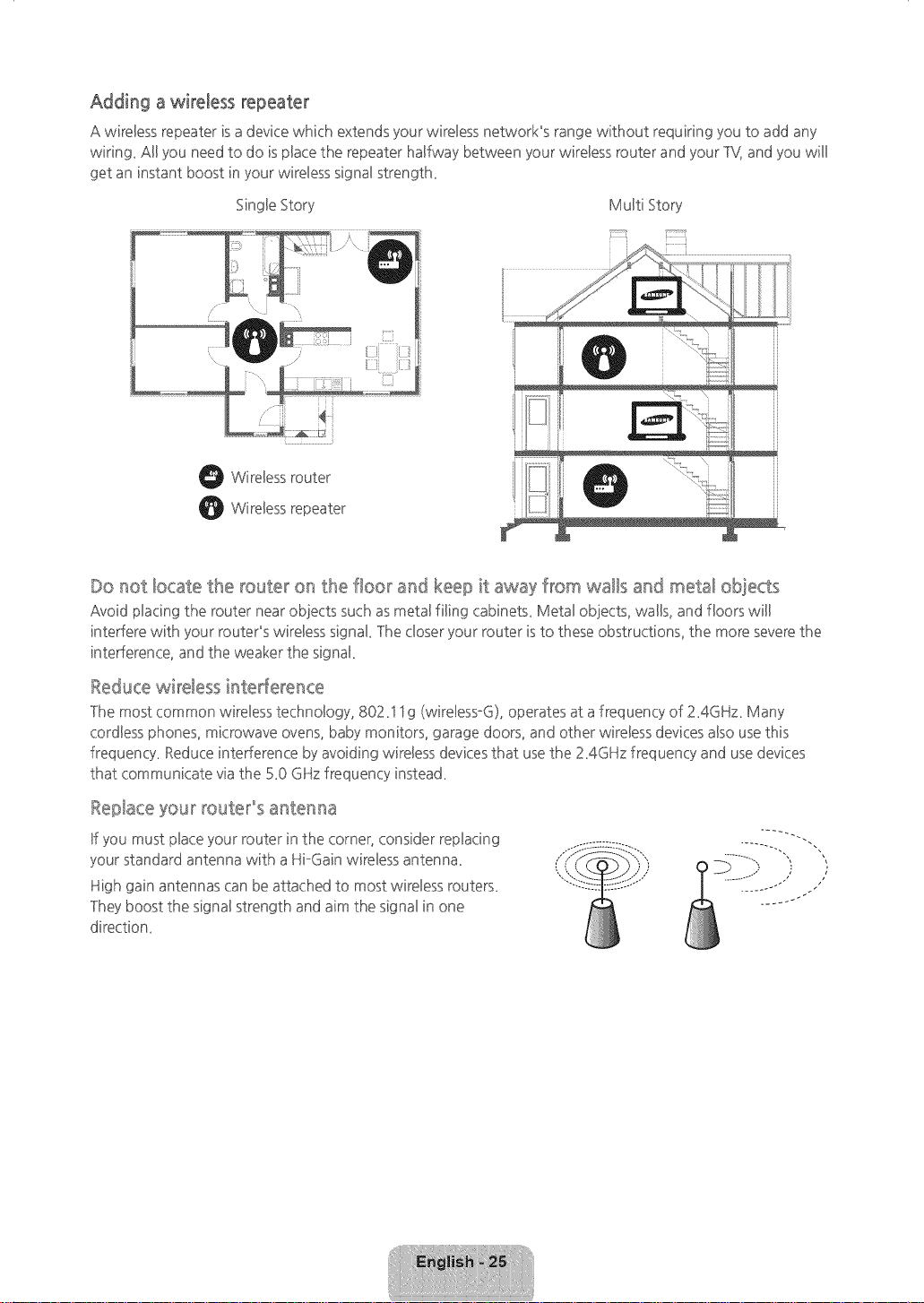
Adding a wireless repeater
A wireless repeater is adevice which extends your wireless network_s range without requiring you to add any
wiring. Al! you need to do is pbce the repeater halfway between your wireBessrouter and your ]'_{ and you will
get an instant boost in your wireBesssignal strength.
Single Story MuBtiStory
O WireBessrouter
WireBessrepeater
Do not locate the router on the floor and keep it away from walls and metal obiects
Avoid placing the router near ob]ects such asmetal filing cabinets. Metal ob]ects, walls, and floors wil!
interfere with your routePs wireless signak ]he closer your router is to these obstructions, the more severethe
interference, and the weaker the signak
Reducewireless interference
]he most common wireless technology, 802.S Sg (wireless°G), operates at afrequency of 2.4GHz. Many
cordless phones, microwave ovens, baby monitors, garage doors, and other wireless devices also use this
frequency. Reduce interference by avoiding wireless devicesthat use the Z4GHz frequency and use devices
that communicate via the 5.0 GHz frequency instead.
Replace your route_'°s a_ttermaa
If you must place your router in the corner, consider replacing
your standard antenna with a HioGainwireless antenna.
High gain antennas can be attached to most wireless routers.
]hey boost the signal strength and aim the signal in one
direction.
[HU6900-ZA]BN68-06501A-01EN(].indb 25 2014-07-10 NN10:19:39
Intermittent Wi_Fi
. Check the distance between the Modem/Router and the 1V_lhe distance shouM not exceed 5Oft (15_2
m)_
. Verify that there are no obstacles between your 1V and the ModemiRouter_
(AppBiances,cordBessphones, stone waHsifirepbces, etc_decrease Wi°Fi strengths)
. Check the cabBethat connects the Modem to the Router (if you use aseparate Modem and Router) to see
if it isin good condition_ ff it is not, repbce the cabBe_
. Connect the 1V to your Modem/Router using a CA17 cabBe,and then try to set up awired network
connection_ (MENU > Network }>Network Settings)_
. Check Network Status (MENU }>Network }>Network Status) to see if the UPaddress is invalid, for exampBe,
169_x_x_x_ff it is, canyour ISPto get avalid IPaddress, and then ask them to check the connection
between your Modem and Router and the connection between the Modem / Router and the Internet_
. If you see a valid Mac address, call your ISPand askthem to reset your network circuit to re-register the
Mac addresses of your new Modem/Router and the TV_
Netflix problems
. Verify that your Modem/Router is no more than 50 ft (15_2m) away from the TV_
. Change the DNSto 8£_&& Select MENU }>Network }>Network Status }>DNSServer }>Select Manually }>
DNS :>enter 8_&&8 :>OK
. Verify that the ESNfor Netflix isvalid_(Go to MENU } Support } Contact Samsung)
Reset Netflix byselecting MENU }>Smart Hub }>Smart Hub Reset_
Smart Hub Error Messages
. Verify that the distance between the 1V and the Modem/Router does not exceed 50 ft (15_2m)_
. Verify that the 1V isconnected to the network by checking the Network Status (MENU } Network }
Network Status)_
. Reset Smart Hub by selecting the MENU }>Smart Hub }>Smart Hub Reset_
. Update the 1V's software (MENU :>Support :>Software Update)_
. Wait 2 to 3 days for the issueto resolve itself_
[HU6900-ZA]BN68-06501A-01ENG.indb 26 2014-07-10 _10:19:39

EcoSensorandScreenBrightness
Eco Sensormeasures the light inyour room and optimizes the brightness of the IV automatically to reduce
power consumption_ lhis causesthe 1V to brighten and dim automaticaHy_Ufyou want to turn this off_ go to
MENU }>System }>EcoSolution }>EcoSensor_
Do not bbck the sensor with any object° It can decrease picture brightness°
Preventingburnqno
Avoid keeping a still picture or a picture with static elements (black bars, black borders, !ogos, etc_)on your
1V for more than two hours at atime_ If that isunavoidable, change the picture or change to another channel
for a minute or two every couple of hours_Reducing the brightness and contrast of the screen when it is
displaying static elements will also heb_
[HU6900-ZA]BN68-06501A-01EN(}.indb 27 2(114-(17-1(I _10:19:39
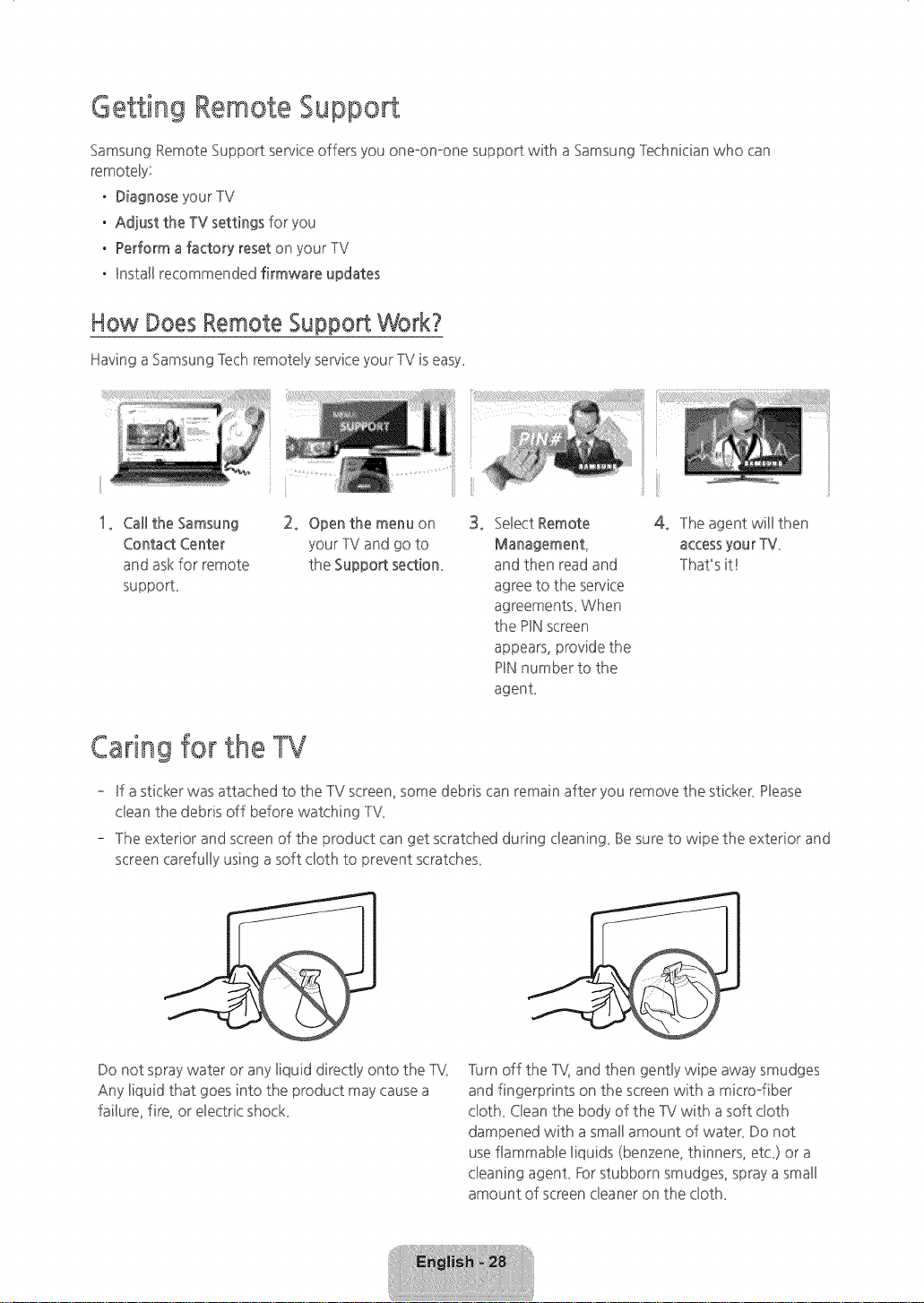
Getting Remote Support
Samsung Remote Support serviceoffers you one-on-one support with a Samsung Technician who can
remotely:
. Diagnose your TV
. Adjust the TV settings for you
. Perform a factory reset on your TV
. UnstaHrecommended firmware updates
How Does Remote Support Work?
Having a Samsung Tech remoteByserviceyour TV is easy_
1, Call the Samsung 2, Open the menu on
Contact Center your IM and go to
and askfor remote the Support section_
supporL
3, Select Remote
Management,
and then read and
agree to the service
agreements_ When
the PINscreen
appears, provide the
PINnumber to the
agenL
4, The agent will then
accessyour TV_
That's it!
Caring for the TV
- Ufasticker was attached to the TV screen, some debris can remain after you remove the sticker_Hease
dean the debris off before watching TV_
- The exterior and screen of the product can get scratched during deaning_ Besure to wipe the exterior and
screen carefully using a soft cloth to prevent scratches_
Do not spray water or any liquid directly onto the TV_
Any liquid that goes into the product may causea
failure, fire, or electric shock
]urn off the TV,and then gently wipe away smudges
and fingerprints on the screen with a microffiber
doth_ Clean the body of the -IV with asoft cloth
dampened with a small amount of water_ Do not
use flammable liquids (benzene, thinners, etc_)or a
cleaning agenL Forstubborn smudges, spray asmall
amount of screen cleaner on the doth_
[HU6900-ZA]BN68-06501A-01EN(}.indb 28 2(114-(17-1(I _10:19:40

06oSpecifi
and other
wall mounting
information
Specifications
Display Resolution
EnvironmentaBConsiderations
Operating Temperature
Operating Humidity
Storage Temperature
Storage Humidity
Stand Swivel (Left / Right)
3840 x 2160
50°F to 104°F (10°C to 40°C)
10% to 80%, non-condensing
o4°Fto 113°F (o20°Cto 45°C)
5% to 95%, nomcondensing
0o
Model Name UN40HU6900 / UN40HU6950 UN50HU6900 / UN50HU6950
ScreenSize 40" Class 50" Class
(Diagonal) (4G0 measured diagonally) (493 measured diagonally)
Sound 20W
(Output) (Left lOW, Right 10W)
Dimensions (W x Hx D)
Body
With stand
3£0 x 21_1x Z6 inches
(91£9 x 53&4 x 6&4 mm)
3£0 x 23_0x 1G1 inches
(91£9 x 585_9 x 25&0 mm)
44A x 25_8 x 2_7inches
(1127_9x 6573 x 69_0 mm)
44_4x 2Z6x 1G8 inches
(112Z9x 703_1 x 275_1 mm)
Weight
Without Stand 19_1bs (&7 kg) 3G8 bs (14_0kg)
With Stand 25_1 Ibs(11_4 kg) 3Z4 Ibs (1Z0 kg)
Model Name UN55HU6900 / UN55HU6950
ScreenSize 55" Class
(Diagonal) (54_6measured diagonally)
Sound 20W
(Output) (Left lOW, Right lOW)
Dimensions (W x Hx D)
Body
4&8 x 283 x Z7 inches
With stand
Weight
Without Stand
With Stand
(1239g x 7192 x 69_0mm)
4&Sx 3G1 x 1G8 inches
(1239g x 765_0 x 275_1 mm)
3ZO Ibs (1£8 kg)
43_6 Ibs (19_8kg)
[HU6900-ZA]BN68-06501A-01EN(}.indb 29 2(114-(17-1(I _10:19:40
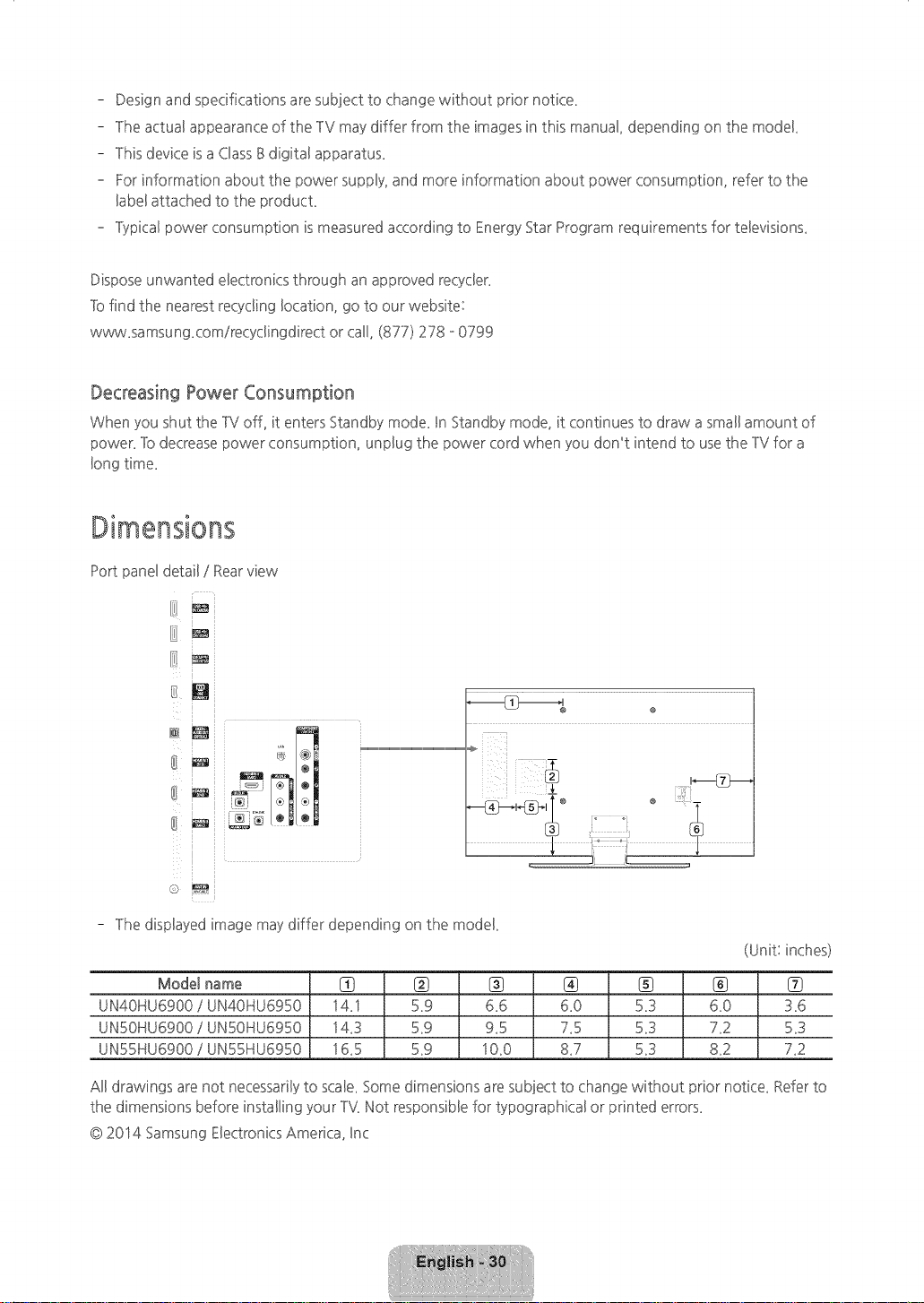
- Design and specifications are subject to change without prior notice_
- The actual appearance of the TV may differ from the images in this manual, depending on the model
- This device is a ClassB digital apparatus_
- For information about the power suppBy,and more information about power consumption, refer to the
BabeBattached to the producL
- Typical power consumption is measured according to Energy Star Program requirements for teBevisions_
Dispose unwanted electronics through an approved recyder_
]b find the nearest recycling location, go to our website:
www_samsung£omirecydingdirect or call, (877) 278 o0799
Decreasing Power Consumption
When you shut the TV off, it enters Standby mode_In Standby mode, it continues to draw asmall amount of
power_ ]b decrease )ower consumption, unplug the power cord when you don_t intend to usethe TV for a
long time_
Port panel detail / Rearview
- ]he displayed image may differ depending on the model
(Unit: inches)
Mode[ name {_ {_
UN40HU6900 / UN40HU6950 14_1 5_9
UN50HU6900 / UN50HU6950 143 5_9
UN55HU6900 / UN55HU6950 16_5 5_9
6.6 6.0 53
9.5 7.5 53
1G0 &7 53
®
6_0
72
82
3.6
53
73
Al! drawings are not necessarilyto scale. Some dimensions are subject to change without prior notice. Refer to
the dimensions before installing your TV.Not responsible for typographical or printed errors.
@2014 Samsung Electronics America, Inc
[HU6900-ZA]BN68-06501A-01ENG.indb 3(I 2014-07q(1 _10:19:40

Licenses
DIGITAL PLUS PremiumSound15.1 Studio Sound
DlVXo @
HD
-,,MHL
H m|
The terms HDMUand HDMI High-Definition MuBtimedia Untefface,and the HDMI Logo are trademarks or
registered trademarks of HDMULicensing LLCin the United States and other countries.
Still image warning
Avoid dispby[ng still images (such asjpeg picture files), still image elements (such asTV channel !ogos, stock
or news crawB at the screen bottom etc.), or programs in panorama or 4:3 image format on the screen.
Constantly displaying still pictures can cause image burn-in on the LEDscreen, which will affect image quality.
]b reduce the riskof this effect occurring, pleasefollow the recommendations below:
, Avoid displaying the same -IV channel for long periods.
, Always try to display any image in full screen. Usethe -IVset's picture format menu for the best possible
match.
, Reduce brightness and contrast to avoid the appearance of after°images.
• Use all -IV features designed to reduce image retention and screen burn. Referto the eoManud for detail
[HU6900-ZAlBN68-06501A-01EN(}.indb 31 2014-07-10 _10:19:41
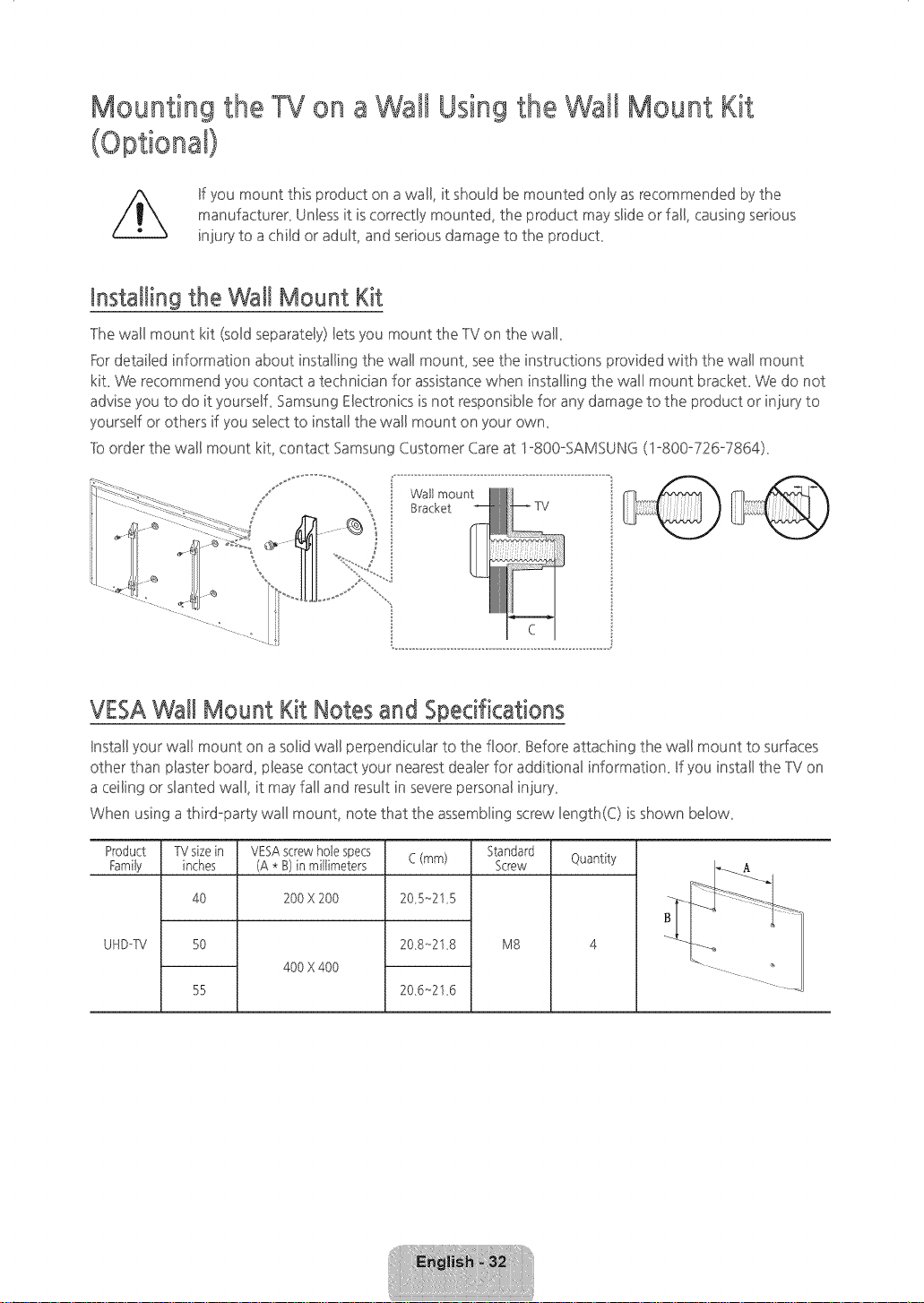
Mounting the TVon aWattUsingthe Wal! Mount Kit
(Optional}
ff you mount this product on awall. it should be mounted only asrecommended by the
manufacturen Unlessit is correctly mounted, the product may sBideor fall. causing serious
injury to a child or aduBLand serious damage to the producL
Installing the Wall Mount Kit
The wall mount kit (soBdseparateBy)Betsyou mount the TV on the wall
Fordetailed information about installing the wal! mounL see the instructions _rovided with the wall mount
kiL We recommend you contact atechnician for assistancewhen installing the wall mount brackeL We do not
advise you to do it yourselL Samsung Electronics isnot responsible for any damage to the product or injury to
yourself or others if you select to install the wall mount on your owm
]b order the wall mount kit, contact Samsung Customer Care at lo800oSAMSUNG (1o800o726°7864)_
Watt mount
Bracket
VESAWall Mount Kit Notes and Specifications
Install your wal! mount on a solid wall perpendicular to the floon Before attaching the wall mount to surfaces
other than plaster board, pleasecontact your nearest dealer for additional information_ If you install the TV on
a ceiling or slanted wall, it may fall and result insevere personal injury_
When using a third-party wall mount, note that the assembling screw length(C) isshown below_
Product
Family
UHDoW
TVsizein
inches
4O
5O
55
VESAscrewhole specs
(A * B)in millimeters
200X200
400X400
C (mm)
20 5_215
208_218
206_216
Standad
Screw
M8
Quantity
[HU6900-ZA]BN68-06501A-01EN(}.indb 32 2(114-(17-1(I _10:19:42
//_ DonotinstallyourWallMount Kitwhi_eyourTVisturnedon. It mayresultin persona_injuryfrom
e_ectri¢shock.
- Standard dimensions for wall mount kits areshown in the table_
- Samsung wall mount kits contain a detaiBedinstallation manual, and aHparts necessary for assembByare
provided_
- Do not use screws that do not compBywith VESA standard screw specifications_
- Do not use screws that are bnger than the standard Bengthor do not compBywith VESA standard screw
specifications_ Screwsthat are too bng may cause damage to the inside of the -IV seL
- For wal! mounts that do not comply with the VESAstandard screw specifications, the length of the screws
may differ depending on the wall mount specifications_
- Do not fasten the screws too firmly_lhis may damage the product or cause the product to fall, leading to
personal injury_Samsung is not liable for these kinds of accidents_
- Samsung is not liable for product damage or personal injury when a non°VESA or non-specified wall
mount isused or the consumer fails to follow the product installation instructions_
- Do not mount the -IV at more than a 15 degree till
- Always have two people mount the -IV on to awall
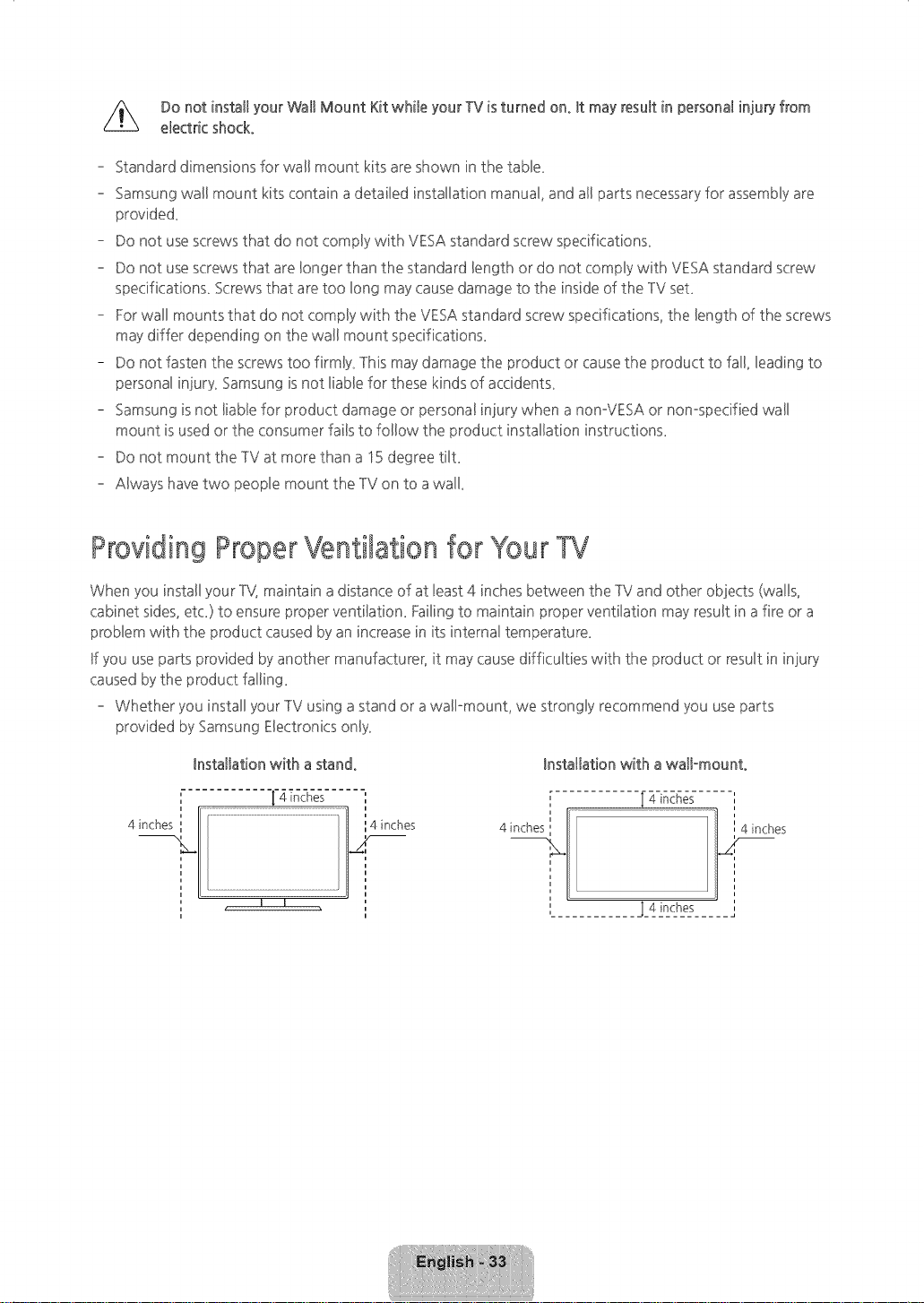
ProvidingProperVentilation for YourTV
When you install your T'%maintain adistance of at least 4 inches between the TV and other objects (walls,
cabinet sides, etc_)to ensure proper ventibtion_ Failingto maintain proper ventilation may result in a fire or a
problem with the product caused by an increase in its internal temperature_
If you use parts provided byanother manufacturer, it may causedifficulties with the product or result in injury
caused bythe product falling_
- Whether you install your TV using a stand or awall-mount, we strongly recommend you use parts
provided by Samsung Electronics only_
installation with a stand°
4 inches
Installation with a wall-mount.
[ 4 inches _4 inches
nhes
, I I ,
r
i
4 inches,,._/
]_4 inches
[HU6900-ZAlBN68-06501A-01EN(}.indb 33 2014-07-10 _10:19:42
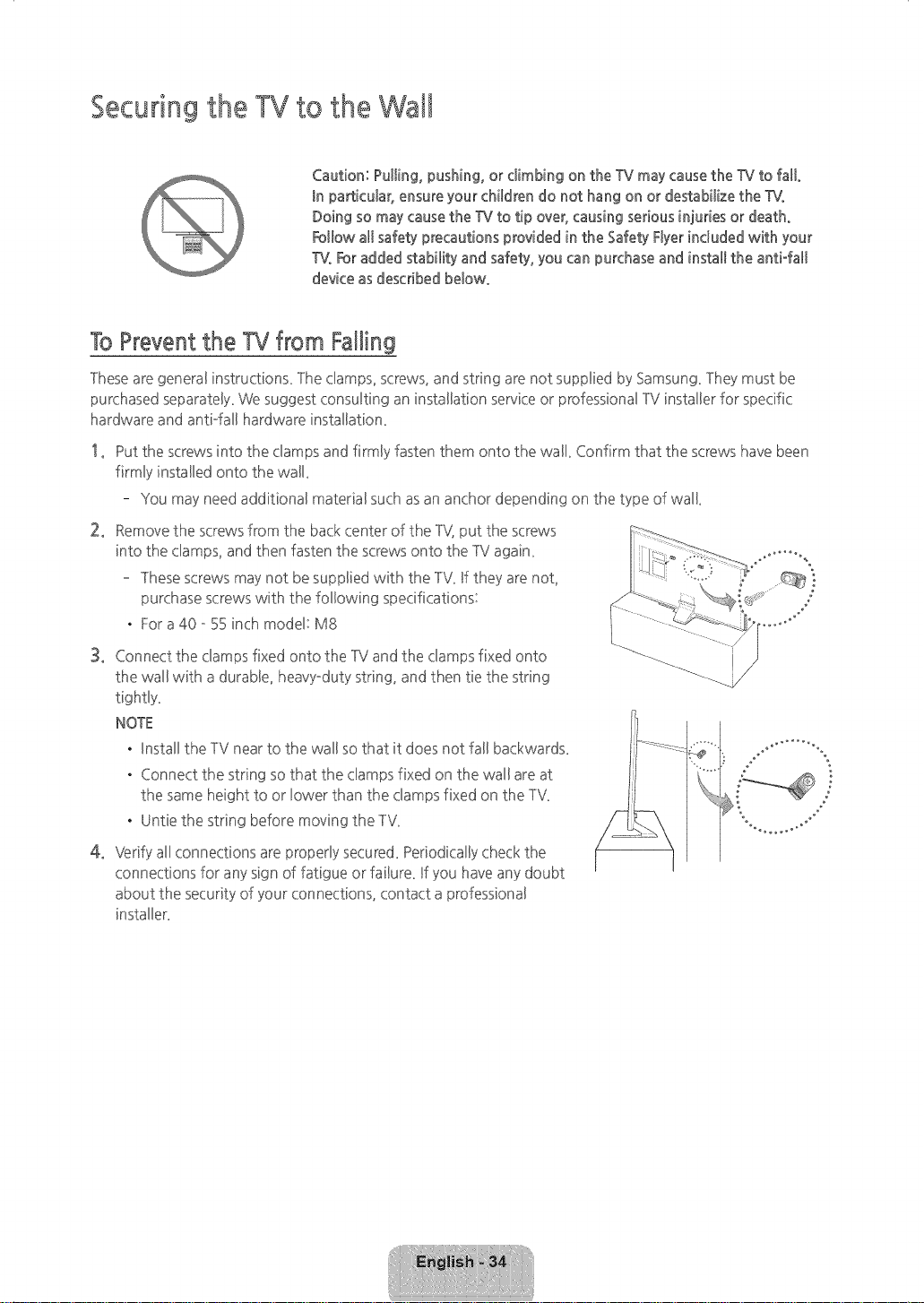
Securingthe TVto the Wal!
Caution: Pulling, pushing, or climbing on the TV may cause the W to fal!o
In particular, ensure your children do not hang on or destabilize the %L
Doing so may causethe W to tip over, causing serious injuries or death°
Foltow a!tsafety precautions provided in the Safety Flyerincluded with your
%L Foradded stability and safety, you can purchase and install the anti-fa!t
device as described be_owo
ToPreventthe W from Falling
These are general instructions_ ]he clamps, screws, and string are not supplied by Samsung_]hey must be
purchased separately_We suggest consulting an installation service or professional TVinstaller for specific
hardware and anti-fall hardware instalbtion_
2_
3_
Put the screws into the clamps and firmly fasten them onto the wall_ Confirm that the screws have been
firmly installed onto the wall_
You may need additional material such as an anchor depending on the type of wall
Remove the screws from the back center of the TV put the screws
into the clamps, and then fasten the screws onto the TV again_
These screws may not be supplied with the TV_If they are not,
purchase screws with the following specifications:
. For a40- 55 inch model: M8
Connect the clamps fixed onto the TV and the clamps fixed onto
the wall with a durable, heavy-duty string, and then tie the string
tightly_
NOTE
. Install the TV near to the wall so that it does not fall backwards_
. Connect the string so that the clamps fixed on the wall are at
the same height to or lower than the clamps fixed on the TV_
. Untie the string before moving the TV_
4o Verify all connections are properly secured_Periodically check the
connections for any sign of fatigue or failure_ If you have any doubt
about the security of your connections, contact a professional
installer_
[HU6900-ZA]BN68-06501A-01EN(}.indb 34 2(114-(17-1(I _10:19:42
Warranty Information
FederalCommunication Commission
Wnte_fefence Statement
lhis equipment has been tested and found to
comply with the Bimitsfor a ClassBdigital device,
pursuant to Part 15 of the FCCR@es_lhese limits are
designed to provide reasonable protection against
harmful interference in a residential instalbtion_ lhis
equipment generates, uses and can radiate radio
frequency enemy and, if not installed and used in
accordance with the instructions, may cause harmful
interference to radio communications_ However,
there is no guarantee that interference will not occur
in a particular insta!lation_ If this equipment does
cause harmful interference to radio or television
reception, which can be determined byturning the
equipment off and on, the user isencouraged to try
to correct the interference byone of the following
measures:
, Reorient or relocate the receiving antenna_
, Increase the separation between the equipment
and receiver_
, Connect the equipment into an outlet on a
circuit different from that to which the receiver is
connecte&
, Consult the dealer or an experienced radioNV
technician for heb_
FCCCaution: Any changes or modifications not
expresslyapproved bythe party responsible for
compliance could void the user's authority to operate
this equipment
lhis device complies with Part 15 of the FCCR@es_
Operation issub]ect to the following two conditions:
(1) lhis device may not cause harmful interference,
and (2) this device must accept any interference
received, including interference that may cause
undesired operation_
For product available in the USA/Canada market, only
channel S,-11 can be operated_ Selection of other
channels is not possible
lhis device and its antenna(s) must not be co-located
or operation in con]unction with any other antenna
or transmitter_
FCCRadiation Exposure Statement;
lhis equipment complies with FCCradiation exposure
limits set forth for an uncontrolled environment lhis
equipment should be installed and operated with
minimum distance 20cm between the radiator &
your body_
IMPORTAHT WARRAHW IHFORM_/_°IOH REGARDIH6 TELEVISION FORM_:_° VIEWIH6
- See the warranty card for more information on
warranty terms_
Wide screen format LEDDisplays (with 16:9 aspect
ratios, the ratio of the screenwidth to height) are
primarily designed to view wide screen format f@R
motion video_lhe images displayed on them should
primarily be in the wide screen, 16:9 ratio format,
or expanded to fill the screen, if your model offers
this feature, with the images constantly in motion_
Displaying stationary graphics and images on the
screen, such as the dark sidebars on non°expanded
standard format television video and programming,
should be limited to no more than 5% of the total
television viewing time per week_
Additionally, viewing other stationary images and
text such asstock market crawls, video game
dispbys, station !ogos, web sites or computer
graphics and patterns, should be limited asdescribed
above for all televisions_
Displaying stationary images that exceed the above
guidelines can cause uneven aging of LEDDisplays
that leavesubtle, but permanent burnedoin ghost
images in the LEDpicture lb avoid this, vary the
programming and images, and primarily display full
screen moving images, not stationary patterns or
dark bars_On LEDmodels that offer picture sizing
features, use these controls to view different formats
asa full screen picture
[HU6900-ZAlBN68-06501A-01ENG.indb 35 2014-07d0 _10:19:43
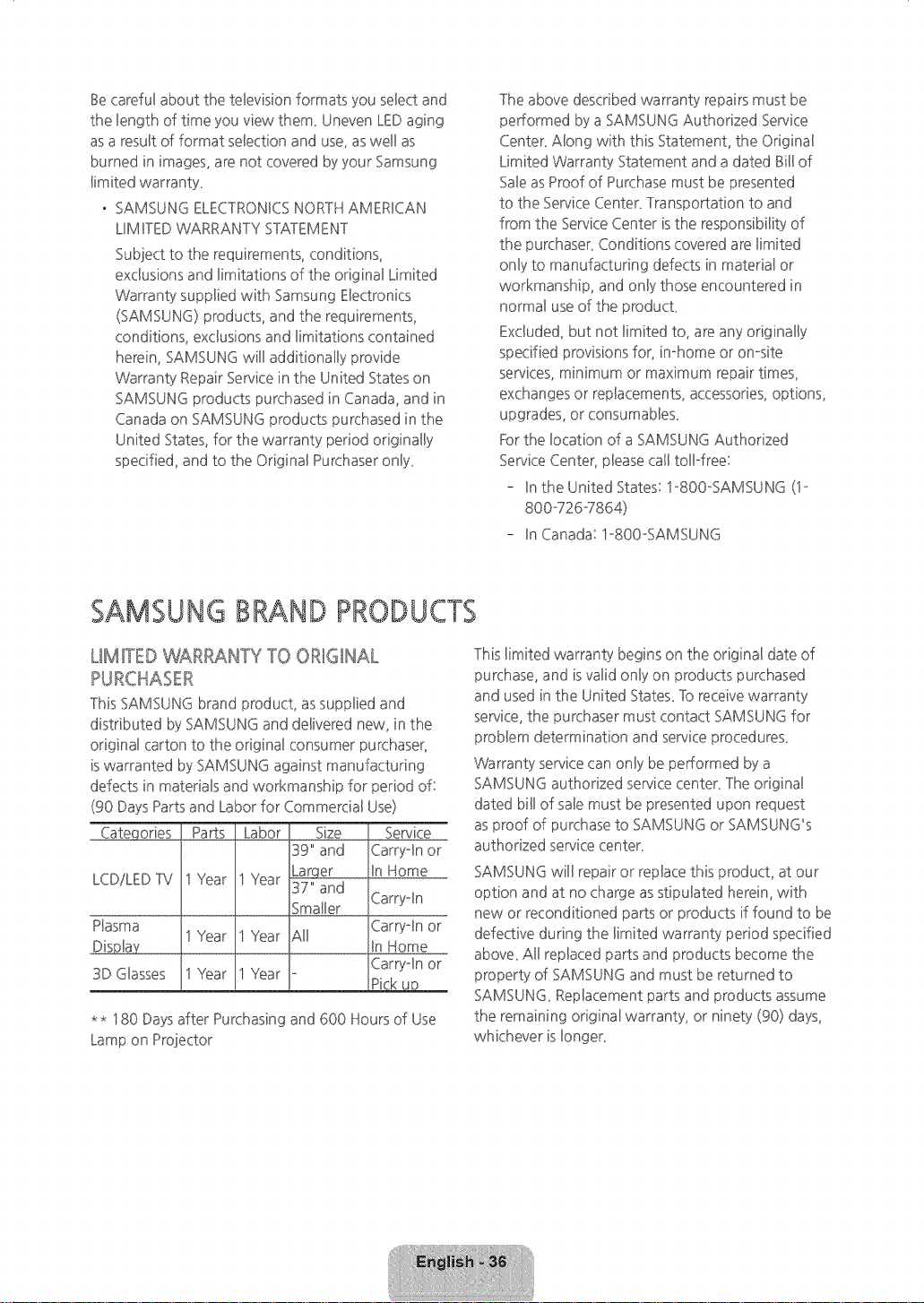
Be carefuBabout the television formats you seBectand
the length of time you view them_ Uneven LEDaging
asa resuBtof format seBectionand use, aswel! as
burned in images, are not covered byyour Samsung
Bimitedwarranty_
, SAMSUNG ELEC]RONICS NORTHAMERUCAN
LIMFIEDWARRAN] Y STA]EMEN]
Subject to the requirements, conditions,
exclusions and limitations of the original Limited
Warranty suppBiedwith Samsung Electronics
(SAMSUNG) products, and the requirements,
conditions, exclusions and Bimitations contained
herein, SAMSUNG wil! additionally provide
Warranty RepairService in the United States on
SAMSUNG products purchased in Canada, and in
Canada on SAMSUNG products purchased in the
United States,for the warranty period originally
specified, and to the Original Purchaseronly_
The above described warranty repairs must be
performed by a SAMSUNGAuthorized Service
Center_Along with this Statement, the Original
Limited Warranty Statement and a dated Bil! of
Sale asProof of Purchase must be presented
to the ServiceCenter_] ransportation to and
from the ServiceCenter is the responsibility of
the purchaser_Conditions covered are limited
only to manufacturing defects in material or
workmanship, and only those encountered in
normal use of the producL
Excluded, but not limited to, are any originally
specified provisions for, in-home or on-site
services, minimum or maximum repair times,
exchanges or replacements, accessories, options,
upgrades, or consumables_
Forthe location of a SAMSUNG Authorized
ServiceCenter, please call tollffree:
- Inthe United States: I°800oSAMSUNG (1-
800°726-7864)
- In Canada: I°800oSAMSUNG
SAMSUNG BRAND PRODUCTS
LIMITED %¢£RANTY TO OR_IGFIAL
Pt,,_RC_qA,:_ER
This SAMSUNG brand product, as supplied and
distributed bySAMSUNG and delivered new, in the
original carton to the original consumer purchaser,
iswarranted by SAMSUNG against manufacturing
defects in materials and workmanship for period of:
(90 Days Partsand Labor for Commercial Use)
J Parts Labor Size
39" and
i
i
LCDiLEDTV jl Year 1Year Larqer..............
37" and
i
i Smaller
Plasma il Year 1Year All
1
3D Glasses jl Year 1Year o
i
Service
Carryoln or
In Home
Carryoln
Carryoln or
tn Home
Carryoln or
Pick up
** 180 Days after Purchasing and 600 Hours of Use
Lamp on Projector
]his limited warranty begins on the original date of
purchase, and isvalid only on products purchased
and used in the United States_]b receivewarranty
service,the purchaser must contact SAMSUNGfor
problem determination and service procedures_
Warranty servicecan only be performed by a
SAMSUNG authorized service center_]he original
dated bill of sale must be presented upon request
asproof of purchase to SAMSUNG or SAMSUNG_s
authorized service center_
SAMSUNG will repair or replace this product, at our
option and at no charge asstipulated herein, with
new or reconditioned parts or products if found to be
defective during the limited warranty period specified
above_All replaced parts and products become the
property of SAMSUNG and must be returned to
SAMSUNG_Replacement parts and products assume
the remaining original warranty, or ninety (90) days,
whichever isIonger_
[HU6900-ZA]BN684)6501A4)lENG.indb 36 2(114-(17-1(I _10:19:43
Certain products are eBigiblefor In-home service at
Samsung's discretiom ]b receive in-home service,
the product must be unobstructed and accessibleto
servicepersonne!_ If during in-home service, repair
cannot not be compBeted,it may be necessaryto
remove, repair and return the producL Ufin-home
serviceis unavailable, SAMSUNG may elect, at our
option, to provide for transportation of our choice
to and from aSAMSUNG authorized service center_
Otherwise, and for 37" and smaller LCDiLEDIV,
transportation to and from the SAMSUNG authorized
servicecenter isthe responsibility of the purchaser_
]°hislimited warranty covers manufacturing defects
in materials and workmanship encountered in
normal, and except to the extent otherwise expressly
provided for in this statement, noncommercial
use of this product, and shall not apply to the
following, including, but not limited to: damage
which occurs in shipment; delivery and installation;
applications and usesfor which this product was
not intended; altered product or serial numbers;
cosmetic damage or exterior finishes; accidents,
abuse, neglect, fire, water, lightning or other acts of
nature; use of products, equipment, systems, utilities,
services,parts, supplies, accessories,applications,
installations, repairs, external wiring or connectors
not supplied or authorized by SAMSUNG which
damage this product or result in service problems;
incorrect electrical line voltage, fluctuations and
surges; customer adjustments and failure to follow
operating instructions, cleaning, maintenance
and environmental instructions that are covered
and prescribed in the instruction book; reception
problems and distortion related to noise, echo,
interference or other signal transmission and delivery
problems; brightness related to normal aging, or
burned-in images_SAMSUNG does not warrant
uninterrupted or error-free operation of the producL
]HERE ARENO EXPRESSWARRAN]IES OTHER
]HAN ]HOSE LIS]EDAND DESCRIBEDABOVE,
AND NO WARRAN]IES WHE']HER EXPRESSOR
IMPLIED, INCLUDING, BUTNOT LIMFFEDTO, ANY
IMPLIEDWARRANTIESOF MERCHANTABILFFYOR
FFFNESSFORA PARTICULARPURPOSE,SHALLAPPLY
AR"ER]"HE EXPRESSWARRANTYPERIODSSTATED
ABOVE, AND NO O]HER EXPRESSWARRAN]Y
OR GUARAN]°Y GIVENBY ANY PERSON,FIRMOR
CORPORATIONWFFHRESPECTTO THISPRODUC]°
SHALLBEBINDINGON SAMSUNG_SAMSUNG
SHALLNOT BELIABLEFORLOSSOF REVENUEOR
PROFFFS,EAEURE]O REALIZES,&qNGSOR OTHER
BENEFFFS,ORANY OTHERSPECIAL,INCIDENTAL
OR CONSEQUENTIALDAMAGES CAUSEDBYTHE
USE,MISUSEOR INABILFFY]O USETHISPRODUCT,
REGARDLESSOFTHE LEGAL]HEORY ON WHICH
]HE CLAIM ISBASED,AND EVENIFSAMSUNG
HAS BEENADVISEDOF]HE POSSBILFIYOF SUCH
DAMAGES. NOR SHALLRECOVERYOFANY KIND
AGAINS] SAMSUNG BEGREA]ER IN AMOUN]
]HAN ]HE PURCHASEPRICEOF]HE PRODUC]
SOLDBYSAMSUNG AND CAUSING]HE ALLEGED
DAMAGE WRHOU] LIMFIING]HE FOREGOING,
PURCHASERASSUMESALL RISKAND LIABILFIY
FORLOSS,DAMAGE OR INJURY]O PURCHASER
AND PURCHASER'SPROPERTYAND ]O OTHERS
AND THEIRPROPERTYARISINGOUT OF THEUSE,
MISUSEOR INABILFFYTO USETHIS PRODUCT
SOLDBYSAMSUNG NOTCAUSED DIRECTLYBY
]HE NEGLIGENCEOF SAMSUNG_THISLIMFFED
WARRAN]Y SHALLNOTEX] END]O ANYONE
OTHER]HAN ]HE ORIGINAL PURCHASEROF]HIS
PRODUC], ISNON] RANSFERABLEAND STA]ES
YOUR EXCLUSIVEREMEDY.
Some states do not allow limitations on how long an
implied warranty lasts, or the exclusion or limitation
of incidental or consequential damages, so the above
limitations or exclusions may not apply to you. ]his
warranty gives you specific legal rights, and you may
also have other rights which vary from state to state.
]b obtain warranty service, please contact SAMSUNG
at:
Samsung Electronics America, Inc.
85 Challenger Road
Ridgefield Park, NJ07660-2112
1-800GAMSUNG 726-7864 - www.samsung£om
1-800W49-0260: Projectors only
]he benefits of this Limited Warranty extend only
to the original purchaser of Samsung products
from an authorized Samsung rese!ler_THISLIMFFED
WARRANTYSHALL NOTAPPLY]"O ANY SAMSUNG
PRODUC]"SPURCHASEDFROM UNAUTHOREED
RESELLERSOR RE]AEERS,EXCEPTIN STATESWHERE
SUCHRES]RIC]ION MAY BEPROHBFIED_For a list
of Samsung authorized retailers, please go to: http:ii
www.samsung£omiusipeaceofmindiauthorized
resellers.html.
[HU6900-ZA]BN68-06501A-01ENG.indb 37 2014-07-1(1 _10:19:43
