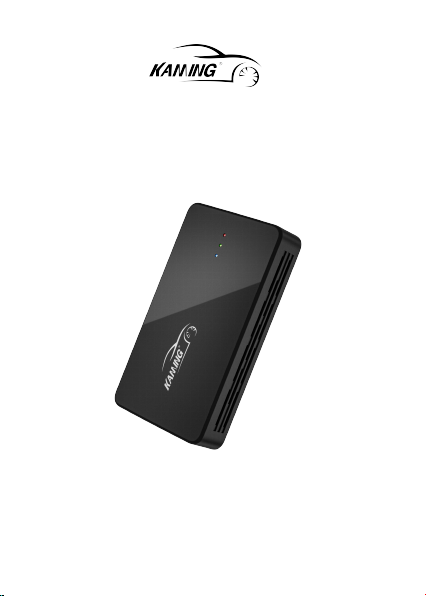
Wireless Carplay Adapter
Product Introduction
Feature
Condition of Use
Device Parameters
Package Contains
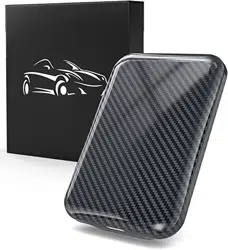
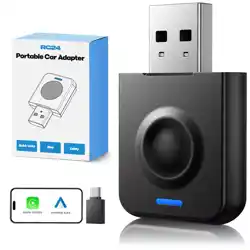
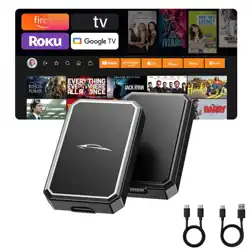
KAMING wireless CarPlay box convert wired Apple CarPlay and Android Auto
to wireless. It can perfectly connect iOS and Android system to the car central
control system. It also supports multimedia systems for watching video in
Netflix, Youtube and more apps. Allow you to safely use what you love on
your Phone while you drive.
1. Connects seamlessly to your Phone every time you get in the car, much
convenient than wired CarPlay, supports both Apple CarPlay and Android Auto.
2. Connects mobile hotspot, you can watch your favorite videos on Youtube
or Netflix, and you can install more APPs , such as Tiktok, Hulu, Spotify,
Disney+, Prime video etc.
3. It supports to play video and music from U disk.
4. Wireless CarPlay makes it easy to play music, get navigation and use Siri
or other voice assistant wire-free!
KAMING wireless CarPlay box is only compatible with the car supports wired
carplay after 2015. The iPhone must be iOS 9+, Phone must be Android 10+.
Tips: If the product cannot be paired with your car, please contact us with your
car model.
Size:
3.5 in x 2 in x1.5 in
4core
Wireless adapter
USB C adapter
USB A to C cable
User manual
Working voltage:
5V1A
Working temperature: -20°C—70°C
1
3
2
4
CPU:
How does lights work when pairing ?
Product Display
1. During pairing : Blue light is on, green light is off, red light flashes
(every 4 seconds) slowly
2. Pair successed: Blue light is on, green light is off, red light flashes
(every 0.5 seconds) rapidly
3. Pair failed: Blue light is on, green light is off, red light is off.
Note: The product will be slightly hot during use, this is a normal heat
dissipation phenomenon.
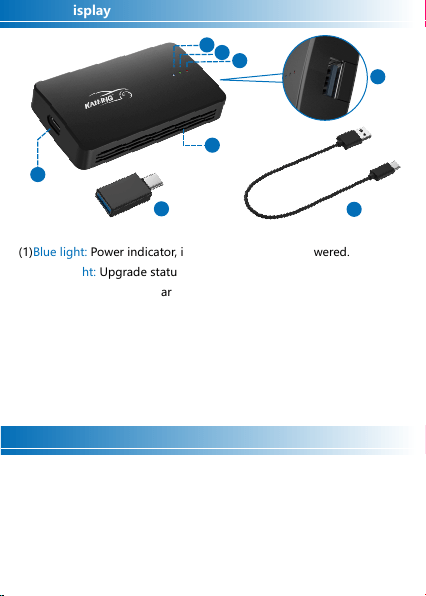
(1)Blue light: Power indicator, it will always on once powered.
(2)Green light: Upgrade status indicator
(3)Red light: Upgrade or Carplay system pairing status indicator
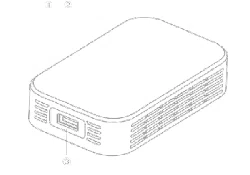
(4)Type-C USB Port: For connecting to Carplay adapter.
(5)Type-A USB Port: For connecting your personal U disk.
(6)Heat Dissipation Hole: used to accelerate the heat dissipation of the
device
(7)USB A to C cable
(8)USB C adapter
4
8
7
1
2
3
6
5
Connection Method
1. Device Connection
Apple iPhone Carplay Home Page
Android Phone Auto Home Page
Car
Type-C
Type-C
Type-A
Type-C
Carplay adapter
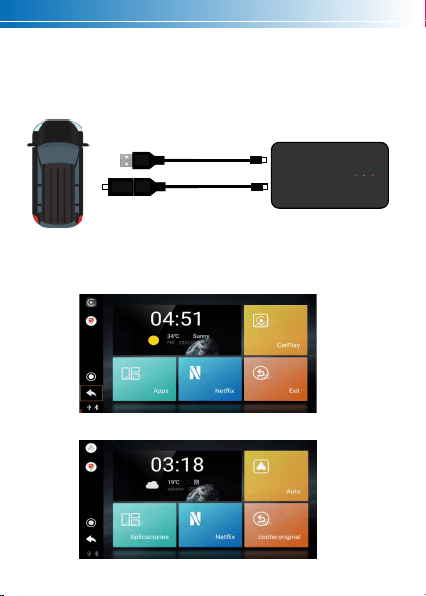
(1) Plug the USB-C end of the cable into the adapter's type-c port and the other
end into the car's Type-A port. If your car's data transmission port is Type-C,
please use an adapter. After the connection is successful, the blue power light
stays on.
(2) After the connection is successful, the car's screen will automatically jumpto
the below interface.
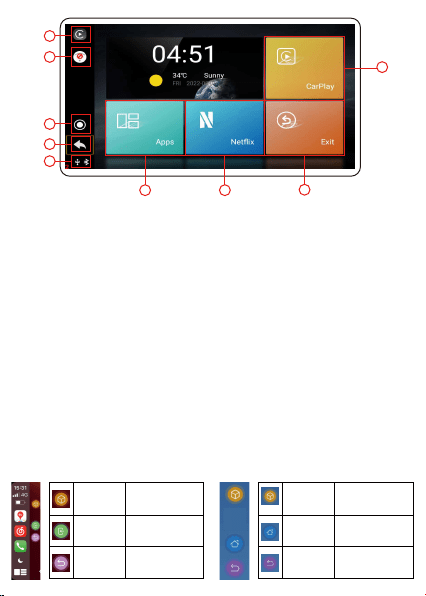
① Carplay system connection status
② Wifi connection status
③ Home button
④ Return button: Back to previous step
⑤ USB/Bluetooth connection status
⑥ Features or software that comes with the device: Setting, Netflix, Youtube,
Video, Music.
⑦ Used to open the software directly, it can be customized to your favorite or
commonly used software through the setting function.
⑧ Retun to the original car system.
⑨ Enter the carplay interface.
(3) Touch assistant Introduction
6
2
3
4
5
7
8
9
1
Wireless CarPlay interface Application interface
Touch assistant
It will be displayed in
the third-party APP
Click to exit CarPlay
Click to go back to
the previous level
Escape key
Return key
Touch assistant
It will be displayed in
the third-party APP
Back to Home page
Click to go back to
the previous level
Home button
Return key
2. Wireless CarPlay & Android Auto Connection
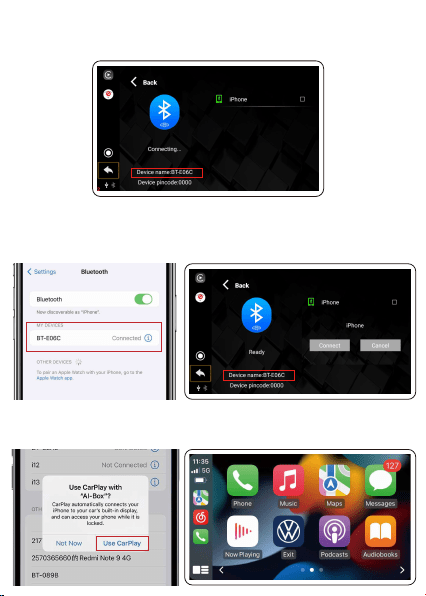
(1) Click the “CarPlay” (or Auto) button to enter the connection interface, find
the device's name: BT-E06C.
(2) Turn on your phone's WLAN, Hotspot, Bluetooth, then connect your phone's
Bluetooth to Carplay adapter's Bluetooth: BT-E06C.
Important Tips:When turning on Bluetooth, please also allow the device
to turn on the mobile Wifi.
(3) After the bluetooth connection is successful, your mobile phone will pop up
a "Use CarPlay" window, please click “Use CarPlay” button to enter Carplay
(or Auto) interface.
1. Play online videos
How to Play Online or Local Video ?
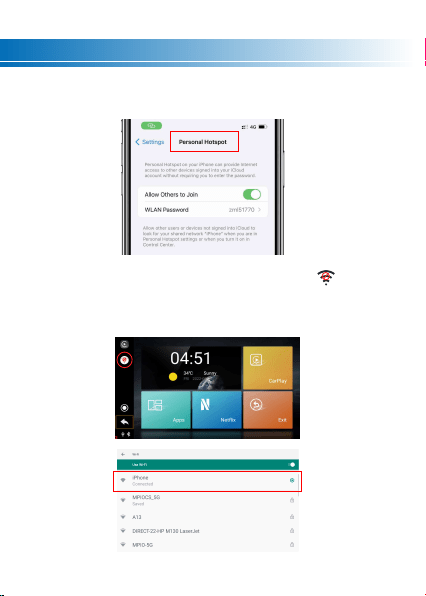
(1) Turn on your phone's hotspot.
(2) Return to home page and then click the “wifi” button to choose your
phone's hotspot and enter the password. For the first time connection, you need
to connect your car with your phone's hotspot. (Tips: After connection, the
wireless carplay box will auto connect with phone's hotspot every time.)
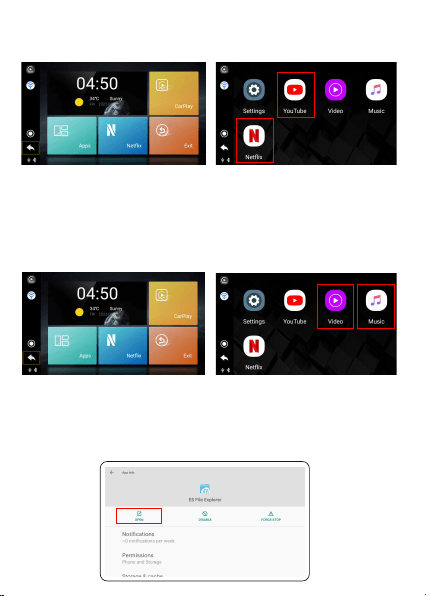
(3) Return to home page, then click the “Apps” button to enter apps interface.
(4) Put down your phone and start your driving journey with Carplay Adapter.
2. Play personal U disk’s videos (or music)
3. How to Download More Apps?
(1) Download the video or music you want to your personal U disk
(2) Plug your personal U disk into the Carplay Adapter's USB port.
(3) Return to home page, then click “Apps” button to apps interface.
(4) Click “Video” or “Music” button to play your U disk's video or music.
(1) Open “ES File Explorer” Steps:
Apps→Settings→more settings→storage→other applications→ES File Explorer
→Open
(4) Click “Youtube” or “Netflix” button to watch online videos.
(Tips: If you want to watch other Apps, please check “(3)How to Download
More Apps?”operation steps)
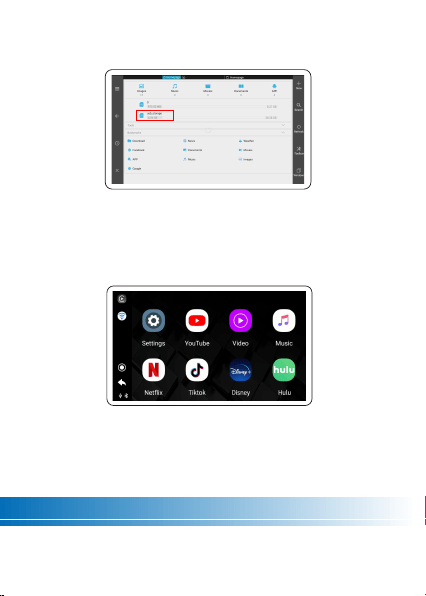
(2) Insert the U disk with the downloaded APK file into the USB-A port of the
CarPlay adapter, wait for the system to recognize the U disk, and then click your
U disk's name to enter.
(3) Select the APK file to be installed, such as Hulu, Tiktok, Disney+. Click
“Install” and wait for the installation to complete, then return to the main
interface of the application to check the installed software.
Note: Please make sure the App is APK for Android Download, not support
to download from Google Play or App Store
's apps.
How to Upgrade System ?
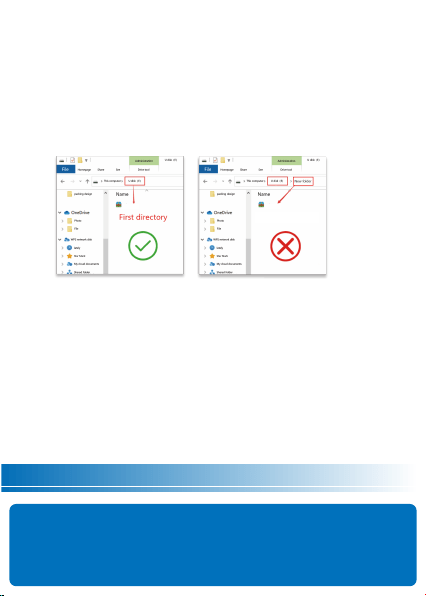
1. Contact us to get the latest version of the upgrade installation package.
2. Download the upgrade package to your personal U disk and do not
decompress it.
Important Tips: The Z2 product is a closed system. It is recommended to
install at most 1-3 common software, because installing too many software
will occupy the system memory excessively, which will easily cause lag or
delay, which will affect the experience.
Troubleshooting
Why doesn't it turn on?
Please check the USB port you are connecting to and make sure it is
connected to a USB port that supports wired CarPlay. The correct USB port
may be labeled with the CarPlay logo or an image of a smartphone.
Tips1:
1. Do not power off during the upgrade process.
2. After the upgrade is complete, please delete the files in the U disk
3. To check if it is new software, click Device: Settings - Version Information
Tips2:
How does the green and red lights work when upgrading?
1. During upgrade: the green light flashes slowly and the red light goes out
2. Upgrade succeed: the green light and the red light flash rapidly at the
same time
3. Upgrade failed: the green light and the red light are always on.
4. No software detected: the green and red lights are off.
3. Make sure the carplay box is connected to your car.
4. Plug your personal U disk into the USB-A port of the Carplay device.
5. Your phone will pop up a prompt window to update the Carplay system,
click "Update" button to start the update.
6. During the update process, the car screen
's interface will return to its
original page, do not touch it.
7. After 8 minutes, the green light and the red light flash rapidly at the same
time, please unplug the U disk, then the upgrade is complete.
Iinkbox
Iinkbox
Other directories

How to watch the video when the carplay is connected?
You need to return to home page, connect to phone
's hotspot, then you
could watch videos. But Carplay will be disconnected.
The Carplay system can’t connect to your phone.
·Turn on the phone WiFi and bluetooth, both choose BT-E06C
·When phone pops up "Use Carplay", please click "Confirm"
·Restart the phone and try again.
The Carplay box cannot connect with car.
·Cancel the Bluetooth pairing between the phone and car, then unplug
the carplay box, plug it again and pair the Bluetooth again.
·The blue light is always on during normal operation. If the blue light is
off, that maybe your car's USB port is not getting enough power. Please
contact us for a extra cable.
·Restart the car central control system and try again.
The sound is obviously stuck, there is a rustling sound
Settings - Factory Settings (0789) - Sound Mode - Sound Mode 1, Sound
Mode 2, Sound Mode 3.
Note: Please select one and unplug the box to test, until the sound mode is
suitable for your car.
The carplay box is very laggy
Settings - More Settings - System - Reset Options - Erase All Data
Tips1:
After reset, the version may be different from the previous version, please
contact us to re-upgrade the installation package.
Tips2:
After reset, only the factory-set Apps are left, please re-download other
Apps you need.
Important Note: This wireless CarPlay has not been tested on all models, if it
does not work with your car, please write to us with your order ID, Car model
and Picture or Video, we will help you within 24 hours.
Hassle Free Service
Our Warranty
90-day money back guarantee
366-day free replacement
:
1.The product you received does not meet your need?
Tell us, we will fully refund you in advance.
2.Received defective / damage product?
Writing to us with your order ID, we will ship you a replacement within 24
hours.
3.Unable to operate the product you received?
Write us a message , our 24-hour stand-by service team will help you.

Changes or modifications not expressly approved by the party responsible
for compliance could void the user’s authority to operatethe equipment.
This equipment has been tested and found to complywith the limits for a
Class B digital device, pursuant to Part 15 of theFCC Rules. These limits are
designed to provide reasonable protectionagainst harmful interference in
a residential installation.This equipment generates uses and can radiate
radio frequency energy and, if not installed and used in accordance with
the instructions, may causeharmful interference to radio communications.
However, there is no guarantee that interference will not occur in a
particular installation. If this equipment does cause harmful interference to
radio or television reception, which can be determined by turning the
equipment off and on, the user is encouraged to try to correct the
interference by one or more of the following measures:
- - Reorient or relocate the receiving antenna.
- - Increase the separation between the equipment and the receiver.
- - Connect the equipment into an outlet on a circult different from that to
which the receiver is connected.
- - Consult the dealer or an experienced radio/TV technician for help.
This device complies with part 15 of the FCC Rules. Operation issubject to
the following two conditions:
(1) This device may not cause harmful interference.
(2) This device must accept any interference received, including
interference that may cause undesired operation.
RF Exposure Statement To maintain compliance with FCC's RF Exposure
Guidelines.
This equipment should be installed and operated at a minimum distance
of 20cm from the radiator of your body. This device and its antenna(s)
must not be co-located or operated in conjunction with any other antenna
or transmitter.
FCC Warning Statement