BabyMonitorFirmwareUpgradeManual
【
ForMac
】
STEP1Downloadthelatest
fi
rmware
Pleasefollowthelinkbelowto
fi
ndthelatestavailable
fi
rmwareversion:
https://www.eufylife.com/support/5505/spaceview-baby-monitor
STEP2Unzipthefolder
Unzipthefolderandyou'll
fi
ndtwo
fi
lesnamedCamera.binandMonitor.bin.
STEP3Upgradethemonitor
1)Connectthemonitortoyourcomputerviathedatacable(Ifyoudon'thaveadatatransfercable,please
contacteufycustomersupport).Therewillbeaharddrivenamed
“
SN93701PU
”
displayedonyour
desktop.
2)
Copy(donotopen)
thedownloaded
fi
lenamedMonitor.binandtransferittothe"SN93701PU"hard
drive.Thetransferprocesstakesabout5-6mins.
Note:Pleasekeepthemonitorscreenonduringtheentireconnectionprocesswhilethemonitorpairs
withyourcomputer.Ifthemonitorscreenturnso
ff
,theconnectionwillbebroken.
STEP4MonitorUpgradeveri
fi
cation
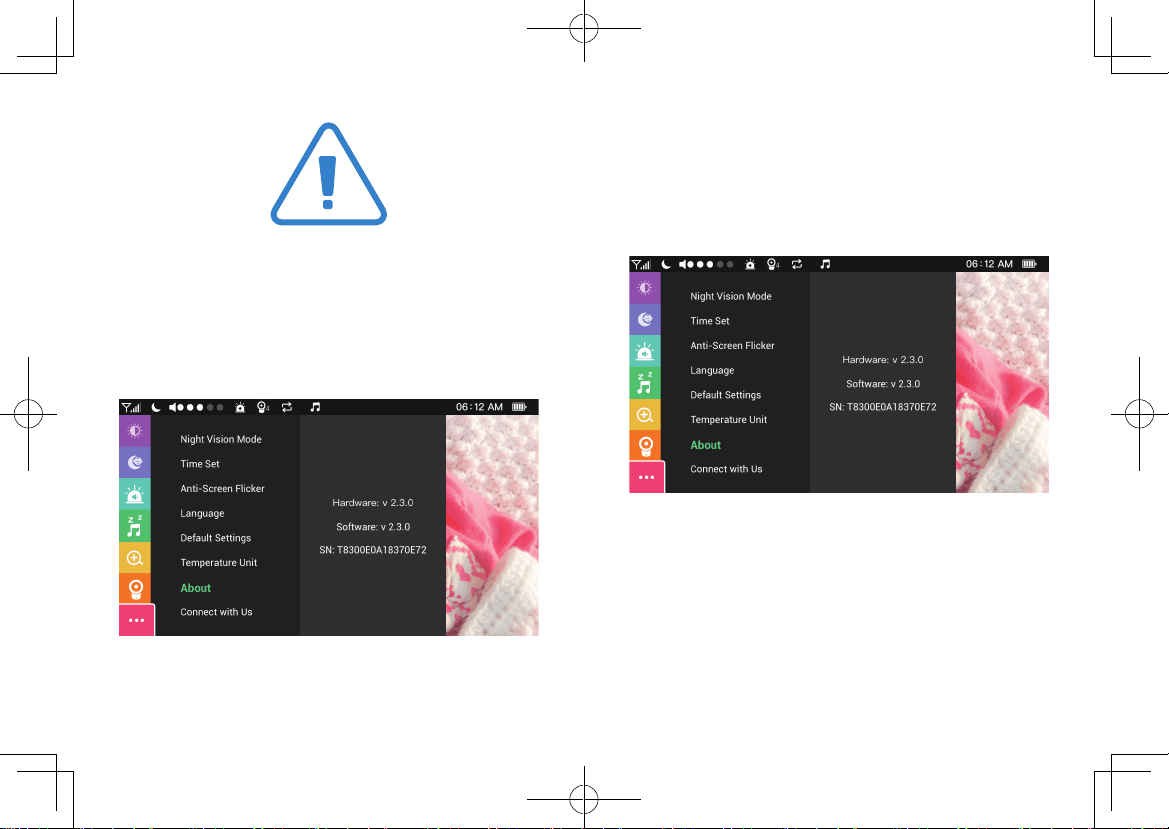
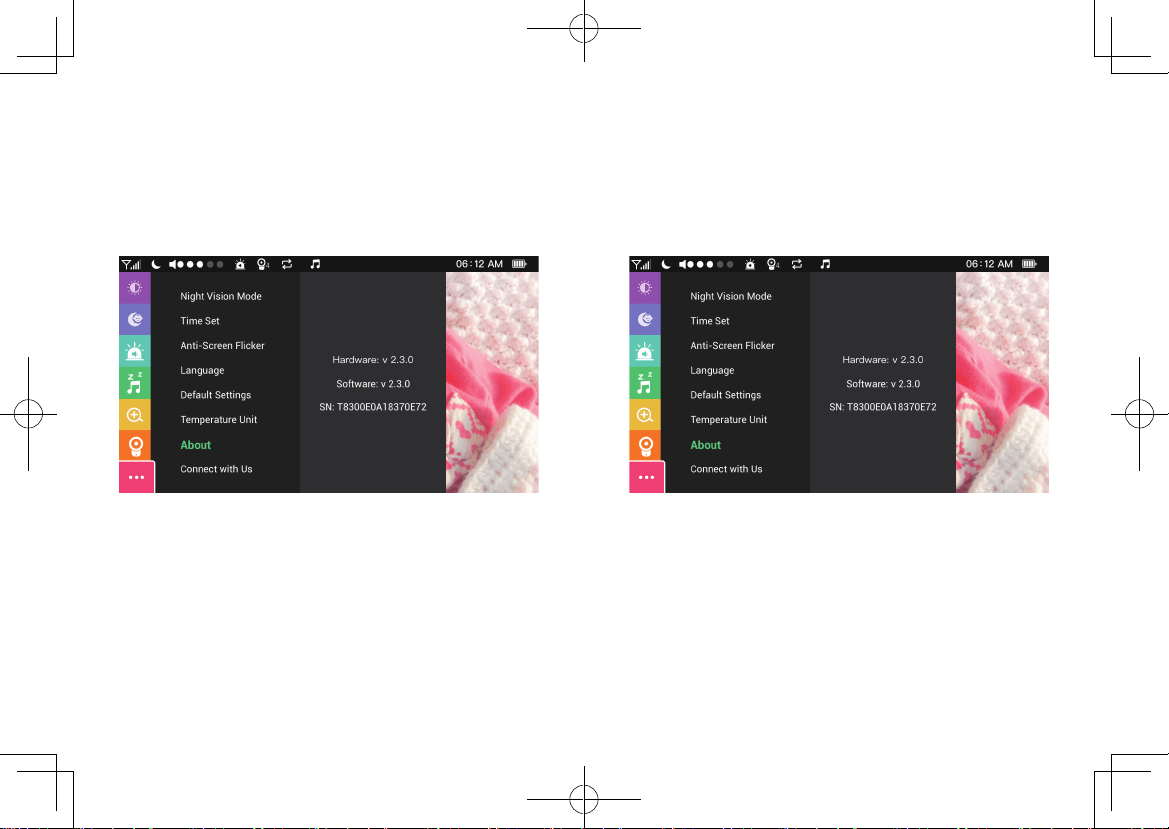
Youcancheckthatyourmonitorhasbeenupgradedtothelatestversionbygoingto"..."andthen
“
ConnectwithUs
”
onthemonitormenu.Makesurethatthemonitor
’
sversionnumberisconsistent
withtheversionyoudownloaded.
STEP5Upgradethecamera
1)Connectthecameratoyourcomputerviayourdatacable.Youwillseeaharddrivenamed
“
SN93700BU
”
onyourdesktop.
2)Openthe"SN93700BU"harddriveandtransferthedownloaded
fi
lesnamedCamera.bintothe
"SN93700BU"harddrive.Thetransmissionprocesstakesabout20-30s.
3)Afterthe
fi
letransferiscompleted,thecamerawillautomaticallyrestart.Ifthecamerarestarts,this
indicatesthatCamera.bin
fi
letransferwassuccessful.
STEP6CameraUpgradeveri
fi
cation
Youcancheckthatyourcamerahasbeenupgradedtothelatestversionbygoingto"..."andthen
“
ConnectwithUs
”
onthemonitormenu.Makesurethatthemonitor
’
sversionnumberisconsistent
withtheversionyoudownloaded.
【
ForWindows
】
STEP1Downloadthelatest
fi
rmware
Pleasefollowthelinkbelowto
fi
ndthelatestavailable
fi
rmwareversion:
https://www.eufylife.com/support/5505/spaceview-baby-monitor
STEP2Unzipthefolder
Unzipthefolderandyou'll
fi
ndtwo
fi
lesnamedCamera.binandMonitor.bin.
STEP3Upgradethemonitor
1)Connectthemonitortoyourcomputerviathedatacable(Ifyoudon'thaveadatatransfercable,please
contacteufycustomersupport).Therewillbeaharddrivenamed
“
SN93701PU
”
displayedonyour
desktop.
2)
Copy(donotopen)
thedownloaded
fi
lenamedMonitor.binandtransferittothe"SN93701PU"hard
drive.Thetransferprocesstakesabout5-6mins.
Note:Pleasekeepthemonitorscreenonduringtheentireconnectionprocesswhilethemonitorpairs
withyourcomputer.Ifthemonitorscreenturnso
ff
,theconnectionwillbebroken.
STEP4MonitorUpgradeveri
fi
cation
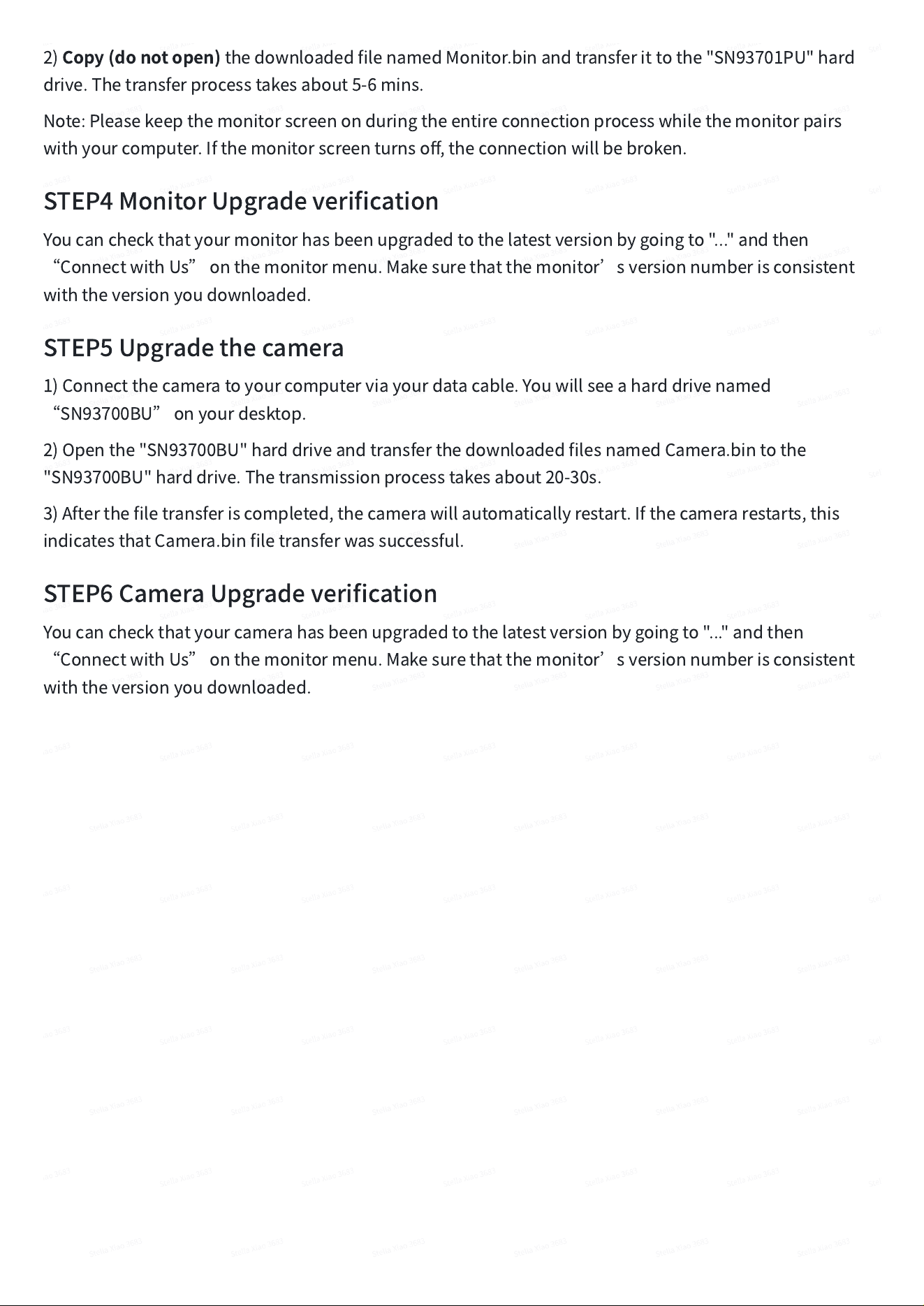
Youcancheckthatyourmonitorhasbeenupgradedtothelatestversionbygoingto"..."andthen
“
ConnectwithUs
”
onthemonitormenu.Makesurethatthemonitor
’
sversionnumberisconsistent
withtheversionyoudownloaded.
STEP5Upgradethecamera
1)Connectthecameratoyourcomputerviayourdatacable.Youwillseeaharddrivenamed
“
SN93700BU
”
onyourdesktop.
2)Openthe"SN93700BU"harddriveandtransferthedownloaded
fi
lesnamedCamera.bintothe
"SN93700BU"harddrive.Thetransmissionprocesstakesabout20-30s.
3)Afterthe
fi
letransferiscompleted,thecamerawillautomaticallyrestart.Ifthecamerarestarts,this
indicatesthatCamera.bin
fi
letransferwassuccessful.
STEP6CameraUpgradeveri
fi
cation
Youcancheckthatyourcamerahasbeenupgradedtothelatestversionbygoingto"..."andthen
“
ConnectwithUs
”
onthemonitormenu.Makesurethatthemonitor
’
sversionnumberisconsistent
withtheversionyoudownloaded.
