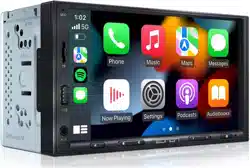

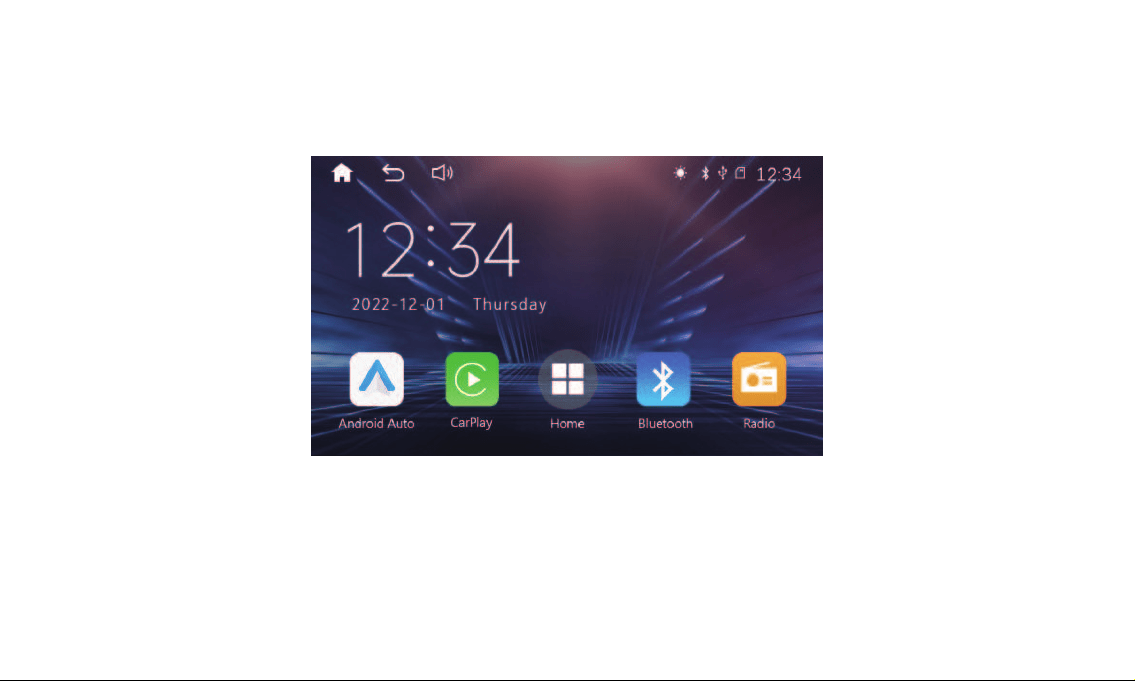
User Manual
Contents
Precautions 01
Front Side 02
How to Install or Remove the Stereo Trim? 04
Wiring Diagram 05
Accessories 06
Wired Android Auto Setup Steps 20
Wireless Android Auto Setup Steps 21
Wired CarPlay Setup Steps 23
Wireless CarPlay Setup Steps 24
Setup Steps of Wired MirrorLink for Android 25
Setup Steps of Wireless MirrorLink for Android 26
Setup Steps of Wired MirrorLink for iPhone 27
AirPlay 28
Product Overview 02-06
Music Playback 16
Video Playback 17
Picture 19
USB/SD 16-19
Bluetooth 11-15
Home Screen
07-08
Radio
09-10
Connections 20-28
Settings 29-31
Specifications 32
FAQ 33-34
01
Precautions
Please seek professional help. Installation or servicing of this product by persons without training and experience in electronic equipment and
automotive accessories may be dangerous and could expose you to the risk of electric shock, injury or other hazards.
This product is only suitable for vehicles with 12V DC Power system. Do not install it on vehicles whose power supply is not 12V DC, or it may
damage the product or cause a fire due to overvoltage.
Do not allow this product to come into contact with liquids. Otherwise it may result in electrical shock or product damage.
Please turn off the car and disconnect the positive battery terminal before installation to prevent product damage or fires caused by short circuits.
All wires should be insulated after installation to prevent product damage or fires caused by short circuits.
Please do not use the car audio after the engine is turned off for a long time, or it will drain the battery power.
If this product is exposed to water damage or foreign matter is discovered in the product while you’re driving, please park your vehicle in a safe
place, turn off the ignition switch(ACC OFF) immediately and consult your dealer or Eonon customer service. Do not use this product in this
condition because doing so may result in a fire, electric shock, or other failure.
If smoke, strange noises or unusual odorsoccur during normal use, or any other abnormal signs appear on the LCD screen, please turn off the
power immediately and consult your dealer or Eonon customer service. Do not use this product in this condition because doing so may result in a
fire, electric shock, or other failure.
Do not disassemble or modify this product. For interior inspection, adjustment or maintenance, please consult your dealer or Eonon customer service.
Please use this product in accordancewith traffic laws.
Keep this manual handy as a reference for operating procedures and safety information.
We reserve the right of final explanation.
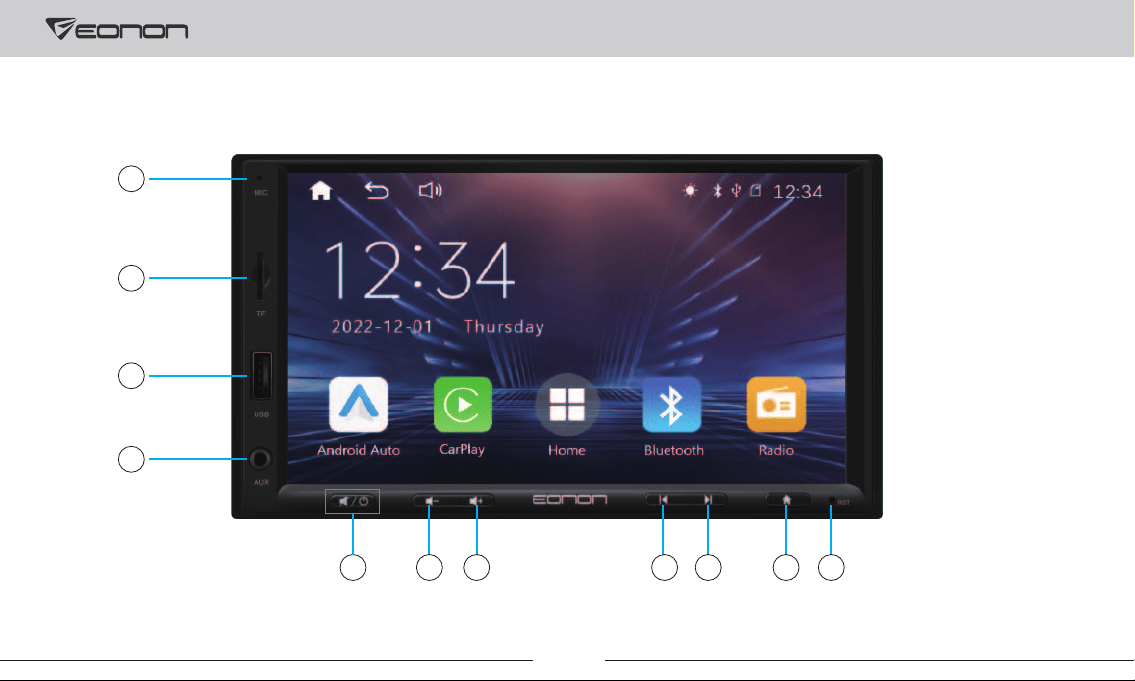
02
1
2
3
4
567891011
Front Side
03
1. Built-in microphone
2. MicroSD card slot
3. USB port (For CarPlay, Android Auto and a USB flash drive)
4. 3.5mm AUX input
5. Tap to mute, tap and hold to turn off the unit
6. Volume-
7. Volume+
8. Previous
9. Next
10. Home screen
11. RST button
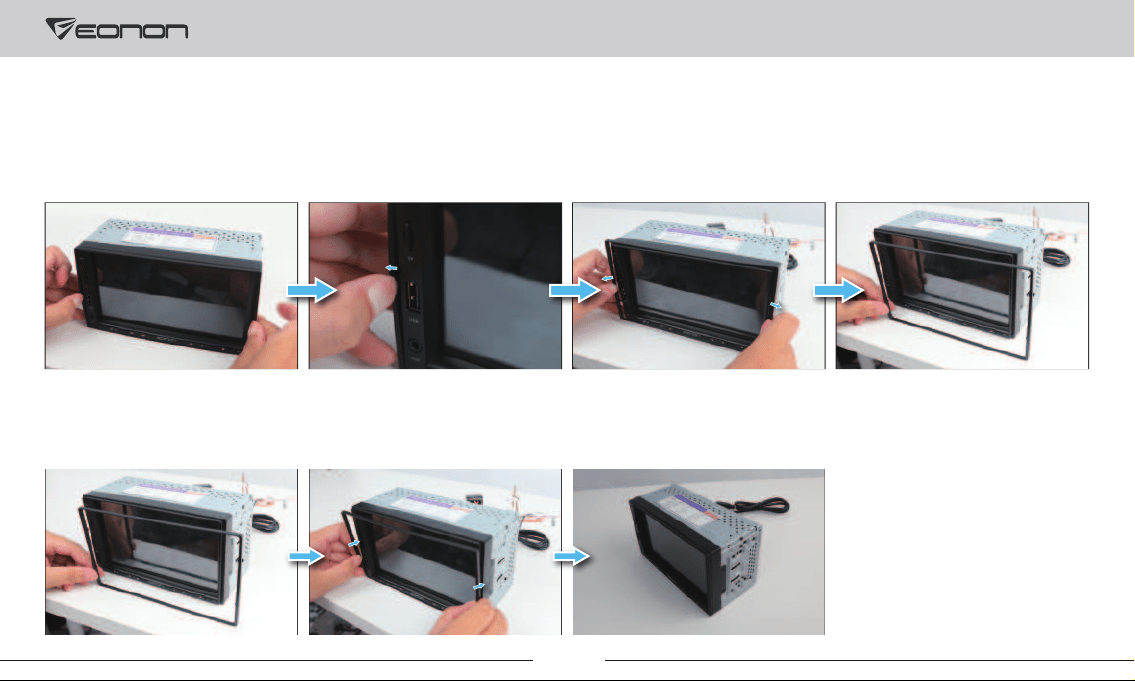
04
To remove the trim:
In the middle of stereo trim, use your fingernails to pull it out about 3mm. You can remove the trim once the buckles
that secure it are completely loosened.
To install the trim:
Align the trim with the panel and press it gently until it’s secured with the buckles on both sides.
How to Install or Remove the Stereo Trim?
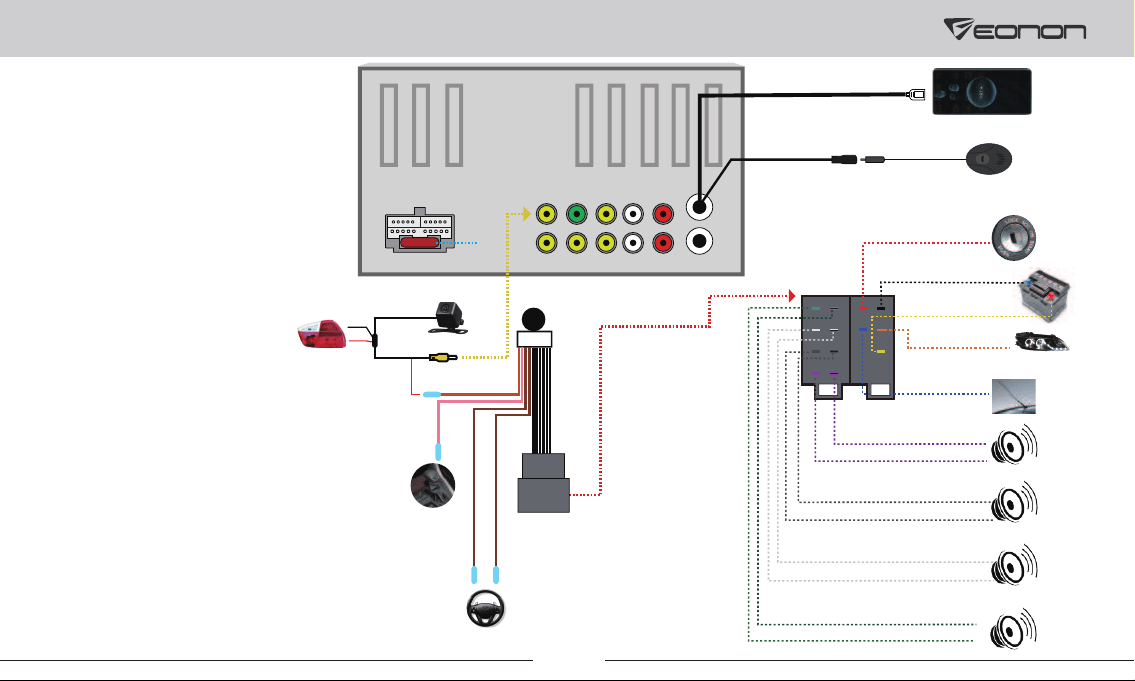
Reversing Light
05
A
12345
67891011
12
External Microphone
USB port (Only for charging)
Wiring Diagram
ISO Port
BATT
Illumination Wire
Auto Antenne
GND
ACC
Rear Speaker L -
Front Speaker L +
Rear Speaker L +
Front Speaker L -
Front Speaker R +
Front Speaker R -
Rear Speaker R +
Rear Speaker R -
Reverse Wire
Brake Wire
Key 1
Key 2
ISO Port
A
1. Backup Camera Input
2. Subwoofer Output
3. Video Input
4. Audio Input L
5. Audio Input R
6. Front Camera Input
7. Video Output 2
8. Video Output 1
9. Audio Output L
10. Audio Output R
1 1. Radio Antenna Input
12. Car Stereo Fuse
Brake
Steering wheel
headlight
Rear Camera
06
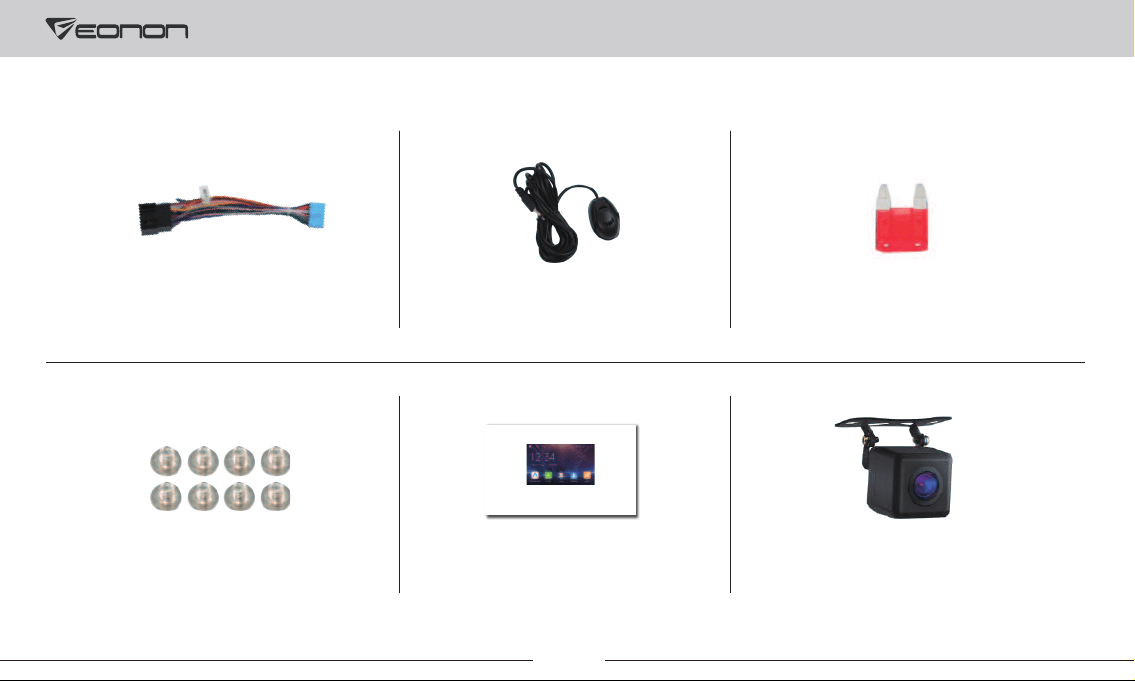
Accessories
Power Cable *1
A0125 Backup Camera *1
External Microphone *1 10A Fuse *1
User Manual *1 Screw *8
User Manual
07
789101116
17
18
19
12123456131415
Home Screen

08
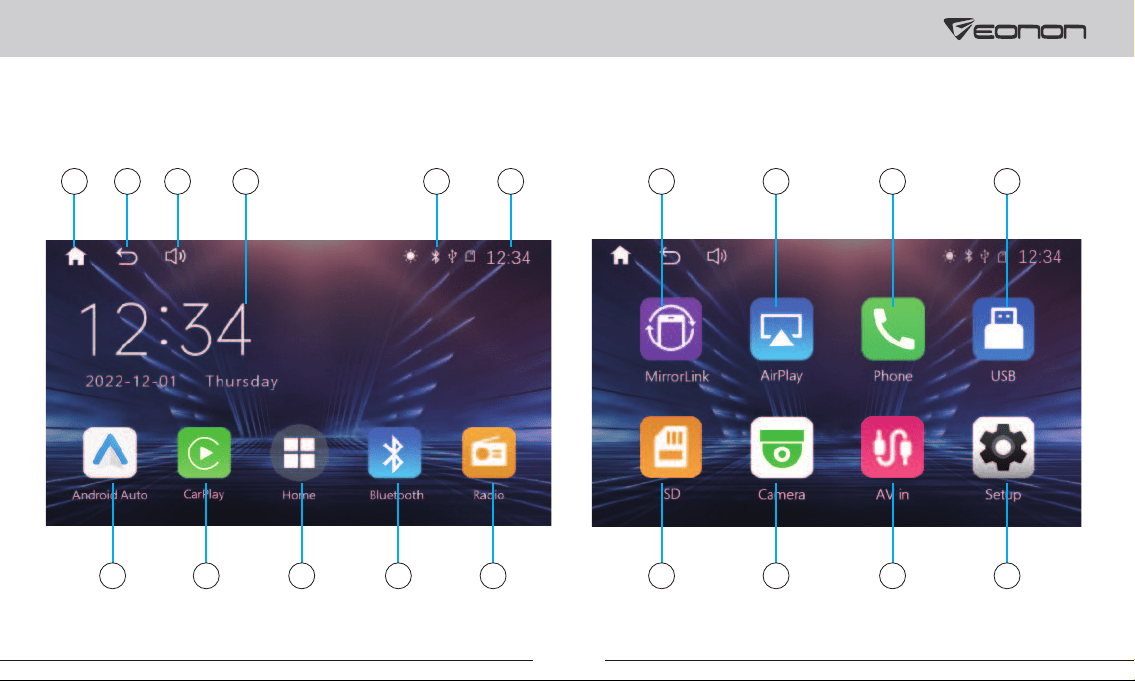
1. Tap to go to the home screen
2. Tap to go back to the previous page
3. Tap to adjust the volume
16. Tap to view the files from the SD card
17. Tap to display the front camera image
Note: Backup camera image can only be displayed
when in reverse.
18. Tap to view the audio transmitted through the
AUX input
19. Tap to go to the setup menu
4. Display time and date
5. Display the connection status of Bluetooth and USB
6. Display the current time
7. Tap to turn on Android Auto
8. Tap to turn on CarPlay
9. Tap to go to the home screen
10. Tap to turn on Bluetooth
11. Tap to turn on the radio app
12. Tap to turn on MirrorLink
13. Tap to turn on AirPlay
14. Tap to enable the Bluetooth call function
Note: Please connect to Bluetooth first
15. Tap to view the files from the USB
09
Radio
1
8
910
23456
7
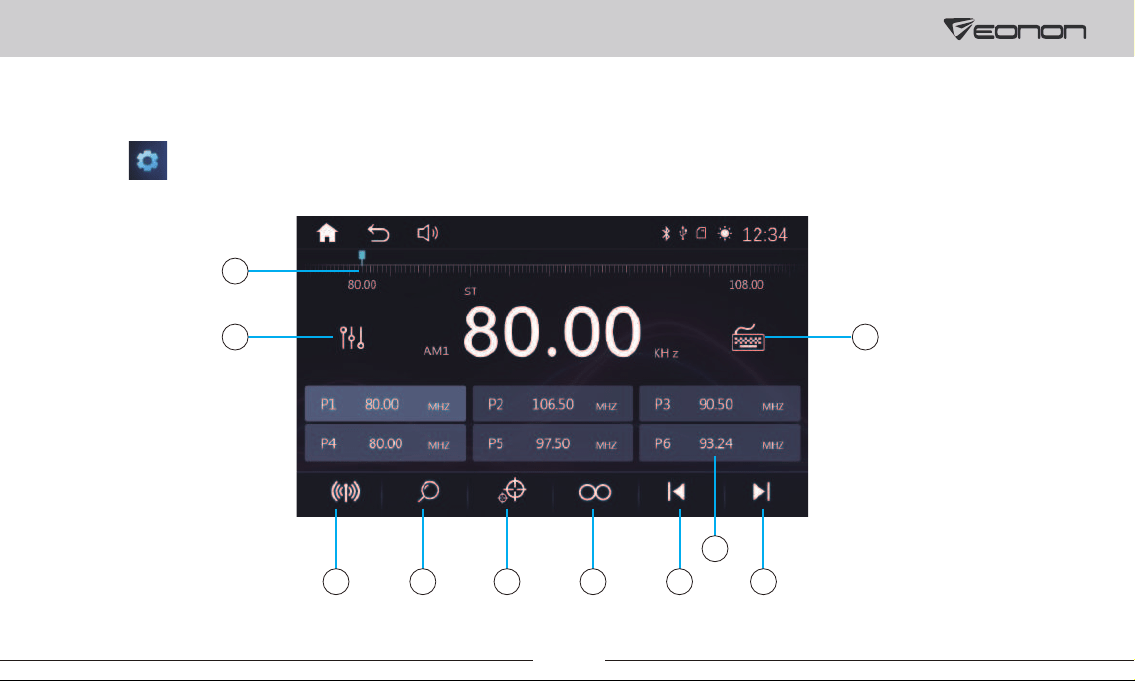
Please set the time zone for the radio after installing this product:
Setup---> --->Radio Area

10
1. FM/AM switch.
2. Automatically search and save radio stations. Click to search for radio stations automatically from the lowest frequency to the
highest frequency and it will save the searched stations in turn. Click again to stop searching.
3. LOC/DX switch. It’s in LOC mode when the radio displays “LOC”, meaning only radio signals within ashort distance can be received.
4. Tap to switch between stereo/mono mode.
5. Switch to the previous radio station.
6. Switch to the next radio station.
7. Prestored radio stations.
A total of 30(18 FM, 12 AM) radio stations can be prestored. Press and hold the prestored radio button for 2 seconds to store the
current radio station in the corresponding position.
8. Drag to change the radio frequency.
9. Sound effects.
10. Tune into a radio station by manually entering its radio frequency.
11
Bluetooth
Note: This product only supports calls via Bluetooth and Bluetooth music by connecting the Bluetooth on your phone.
CAUTION:For your safety, please avoid talking on the phone as much as possible while driving.
Connection method:
Search for the device of the car stereo (Device Name:Eonon) through Bluetooth on your phone to connect it.
Note:
• The operation of different mobile phone types may differ. For detailed instructions, please refer to the user manual of your phone.
• It is not guaranteed that all mobile phones with Bluetooth wireless technology can be connected.
• The distance between this product and your phone must be less than 5 meters when using Bluetooth.
• If your phone supports wireless Android Auto/CarPlay, and it is set correspondingly in the “Smart phone” setting, the unit will
automatically access Android Auto/CarPlay after connecting to Bluetooth, but the Bluetooth will not be available at this time.
If you want to use Bluetooth, you need to turn off Android Auto/CarPlay on the phone or change the settings in “Smart phone”
setting.
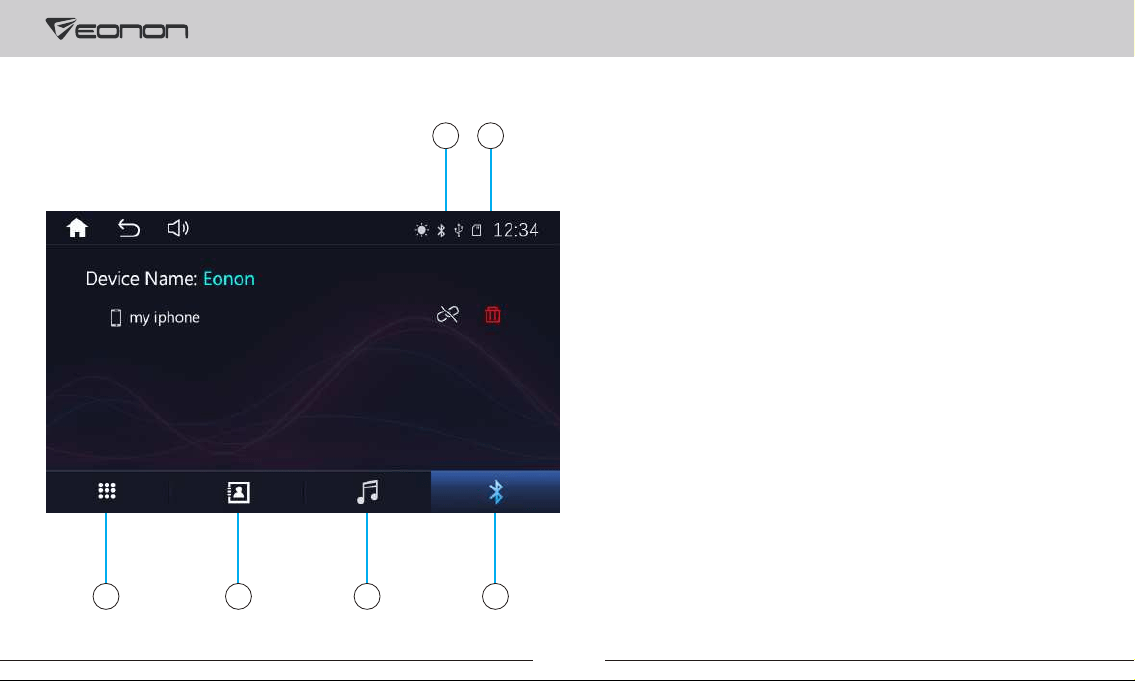
12
1. Calling interface
2. Bluetooth phonebook
3. Bluetooth music
4. Bluetooth connection
5. Tap to connect or disconnect a paired phone device
6. Tap to delete a pairing record
1234
65
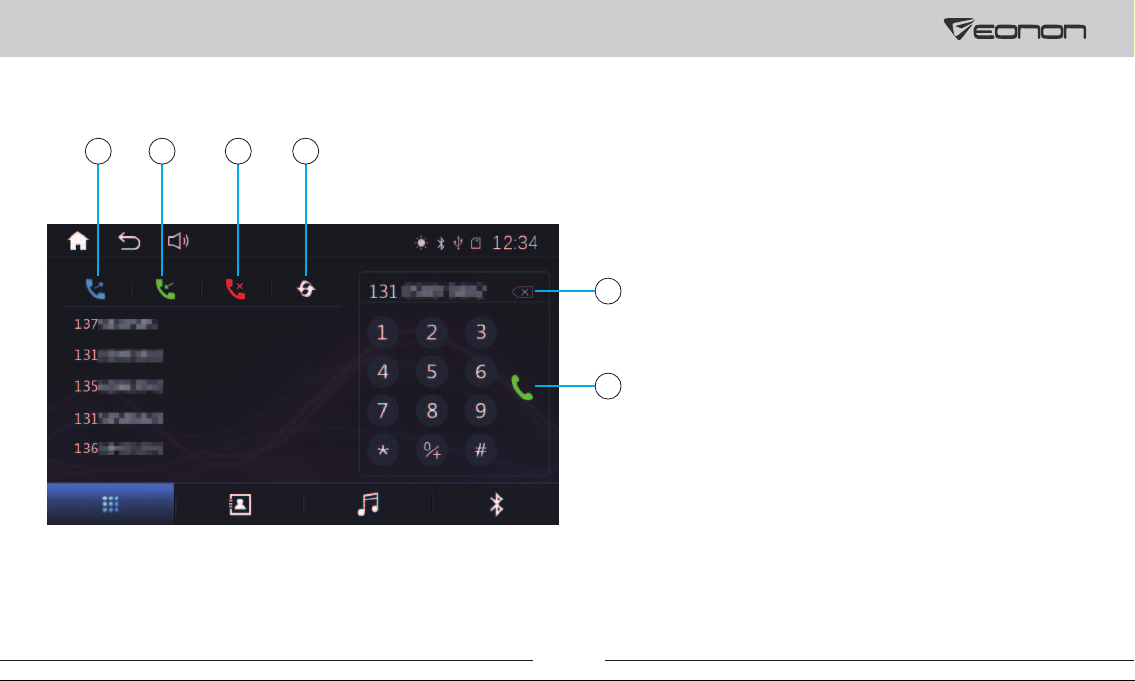
13
1. Received calls
2. Dialed calls
3. Missed calls
4. Tap to refreash the call history
5. Delete
6. Make a call
234
5
6
1
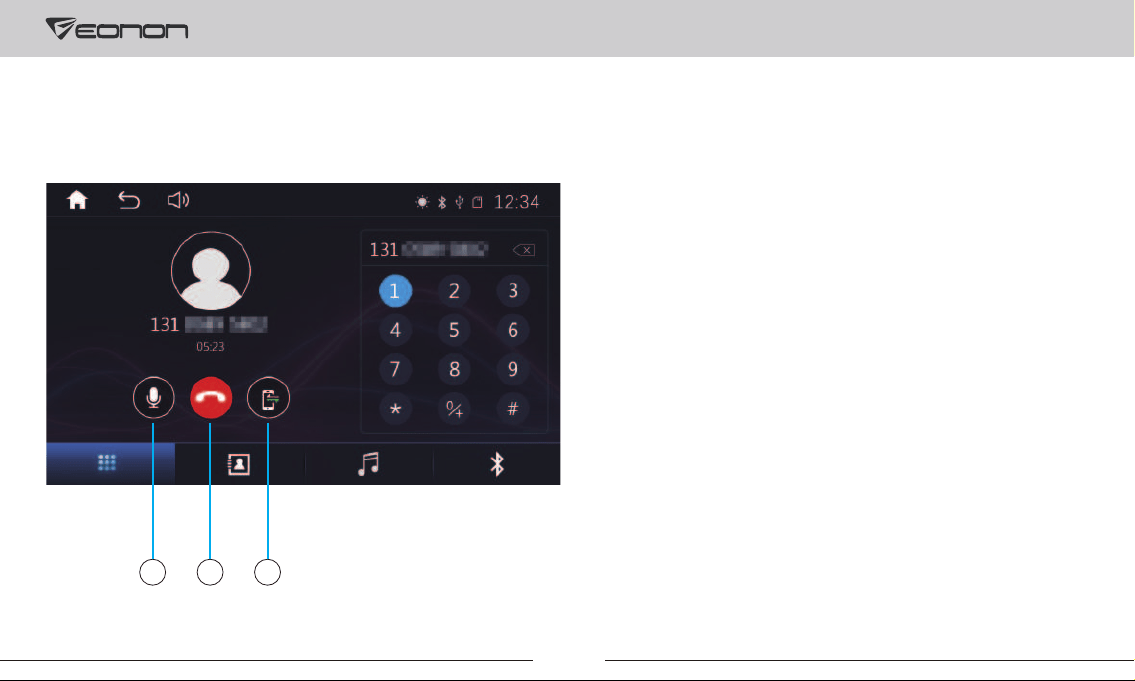
14
1. Mute the microphone
2. End a call
3. Answer calls via car stereo /mobile phone
123
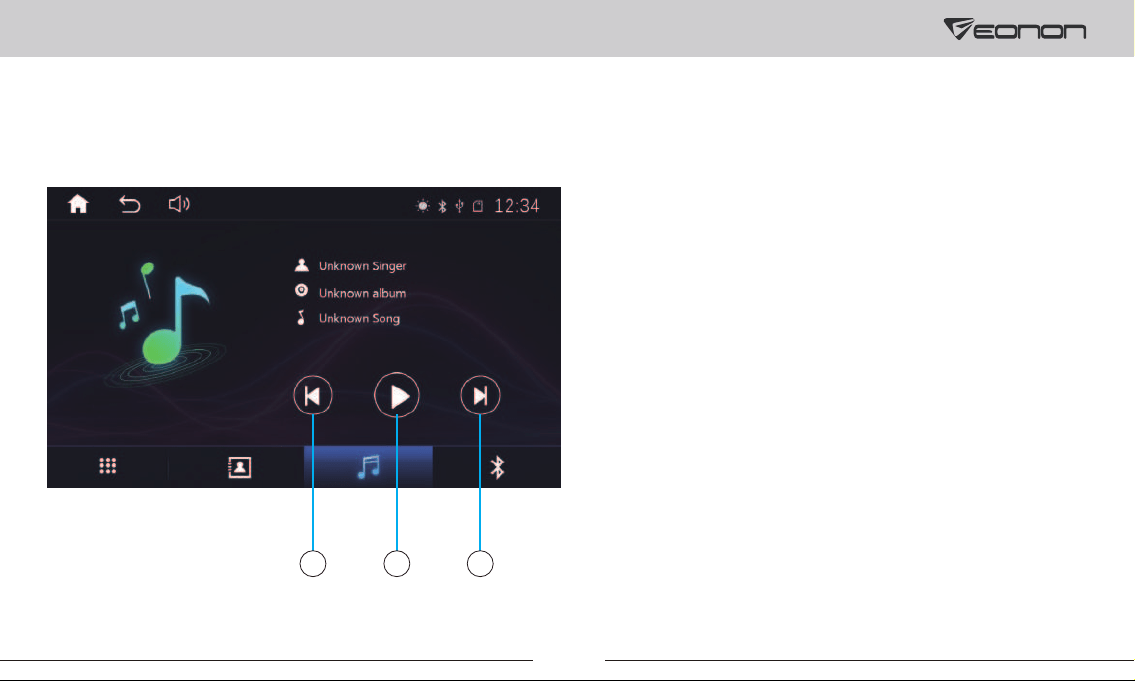
15
1. Previous
2. Play/Pause
3. Next
Note:
• Resume playback is not supported as the music that
Bluetooth device plays is not from the head unit.
• Please avoid using your phone as much as possible
when you’re playing music via Bluetooth.
• The music will stop playing during a Bluetooth call.
123
16
USB/SD
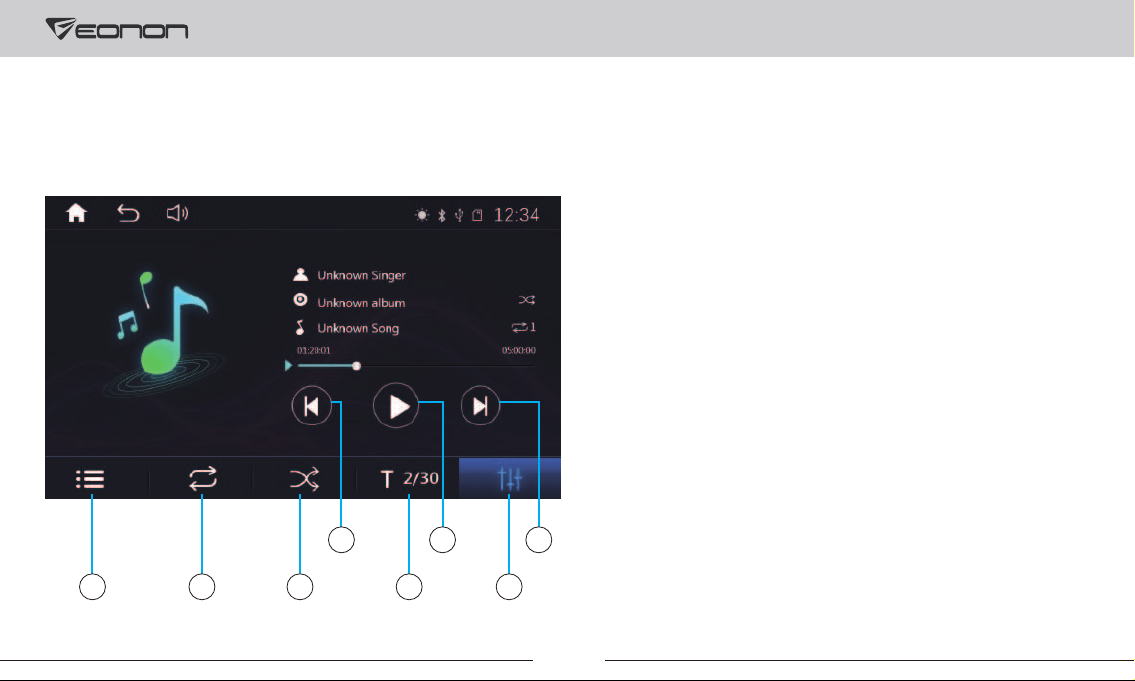
1. View playlist
2. Switch among loop single/ loop all/shuffle loop
3. Shuffle
4. Previous
5. Enter a number of a song to play it
6. Pause/Play
7. Audio settings
8. Next
1. Music Playback
Support audio formats like MP3, WMA, WAV, OGG, FLAC, etc.
123
468
57
17
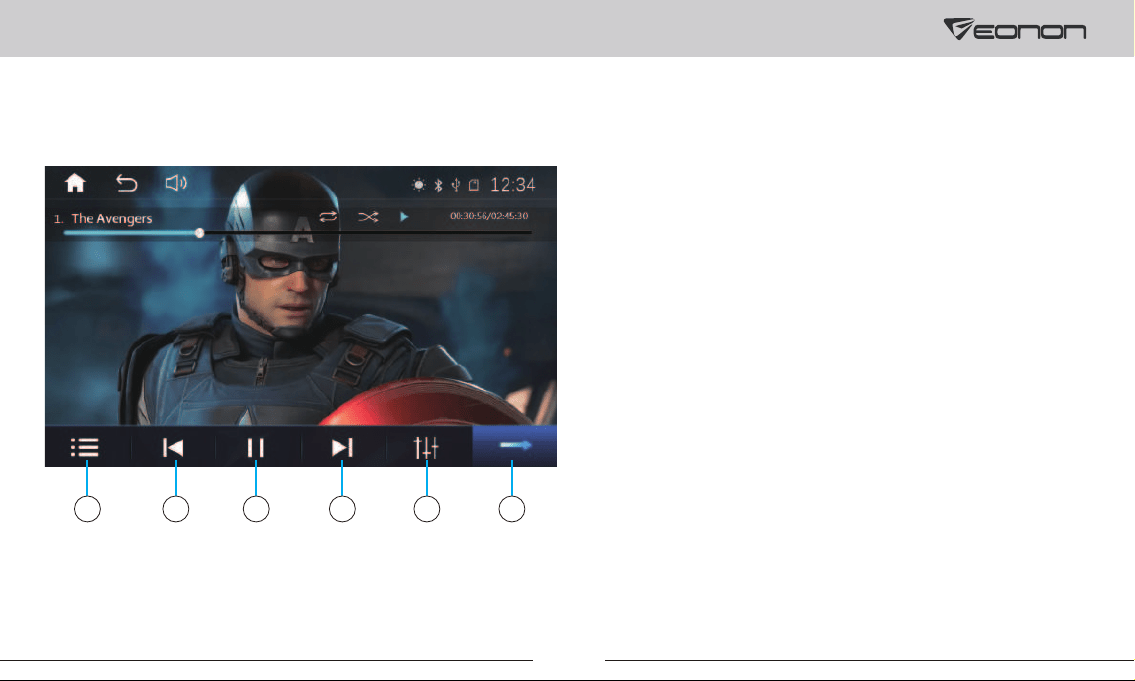
1. View playlist
2. Previous
3. Play/Pause
4. Next
5. Audio settings
6. Next page
2. Video Playback
Support video formats like AVI, MKV, MP4, WMV, RMVB, MPG, etc.
123456
18
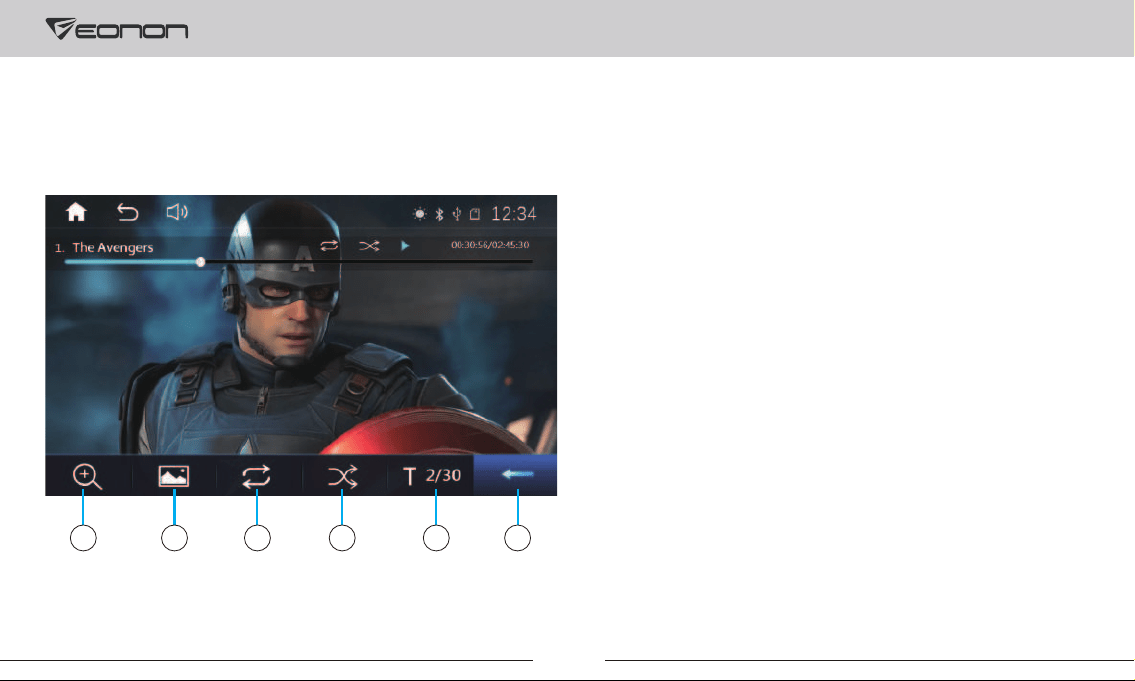
7. Change the aspect ratio
8. Display settings
9. Switch among loop single/ loop all/shuffle loop
10. Shuffle
11. Enter a number of a video to play it
12. Previous page
789101112
19
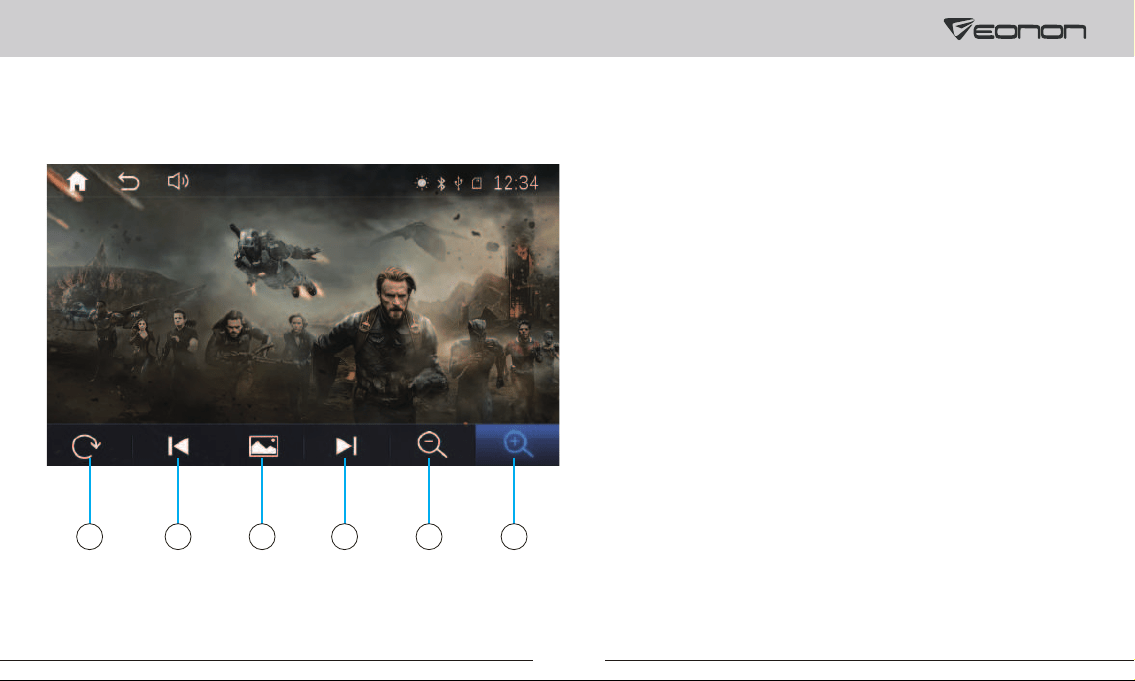
1. Rotate the picture
2. Previous
3. Play/Pause
4. Next
5. Zoom out the picture
6. Zoom in the picture
3. Picture
Support formats including JPG/BMP/PNG.
123456
20
Connections
1. Android Auto
Wired Android Auto setup steps:
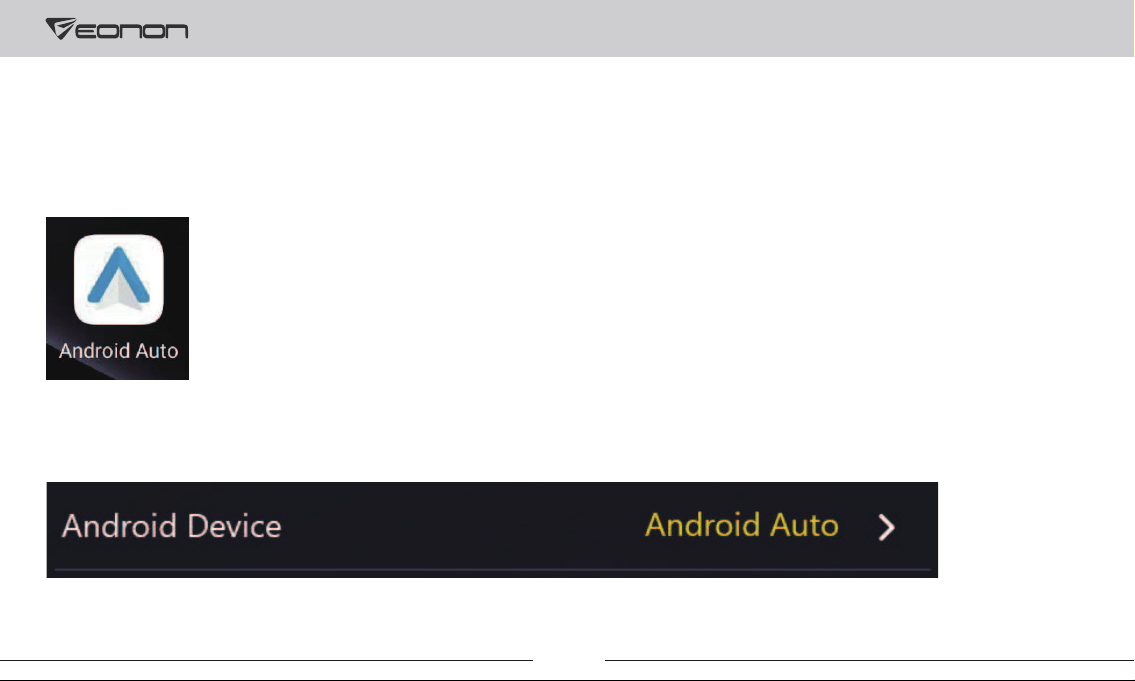
① GotothePlayStoreanddownloadtheAndroidAutoApponyourphone (as shown below).
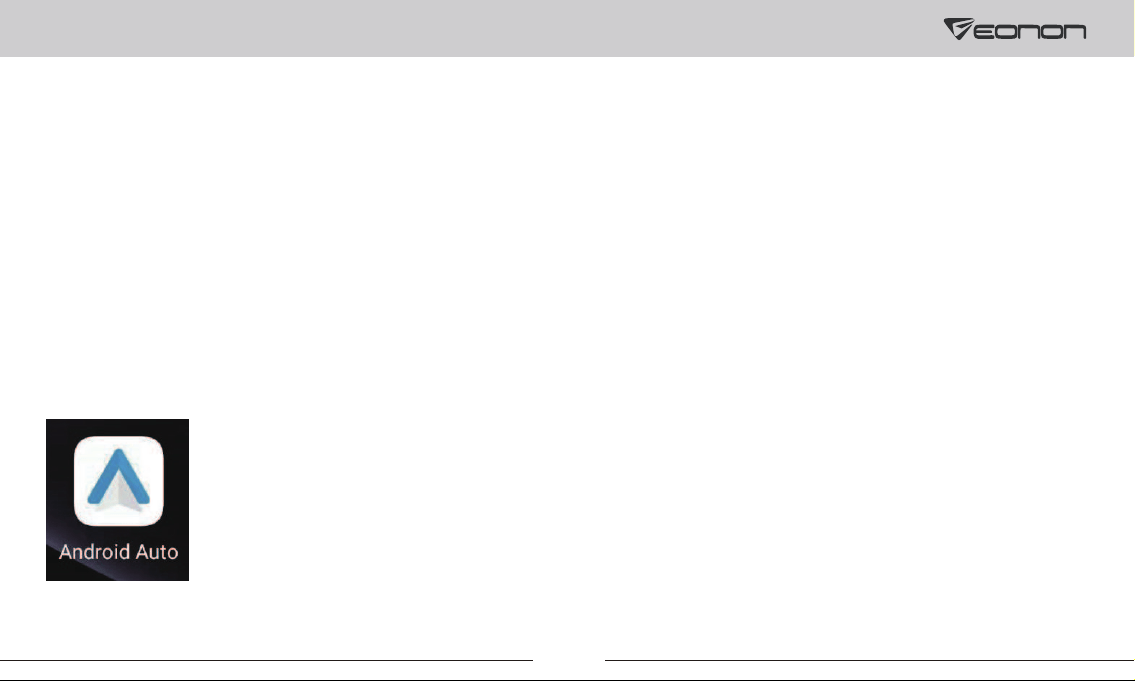
② Go to “Setup-->Phone-->Smart phone-->Android Device” and select “Android Auto” on the car stereo.
21
③ Connect the USB cable of your phone to the USB data port of the unit.
Note:
• Please make sure that your phone supports Google services and Android Auto.
• Please be sure to connect to the USB data port of the unit, or Android Auto will not be available.
Wireless Android Auto setup steps:
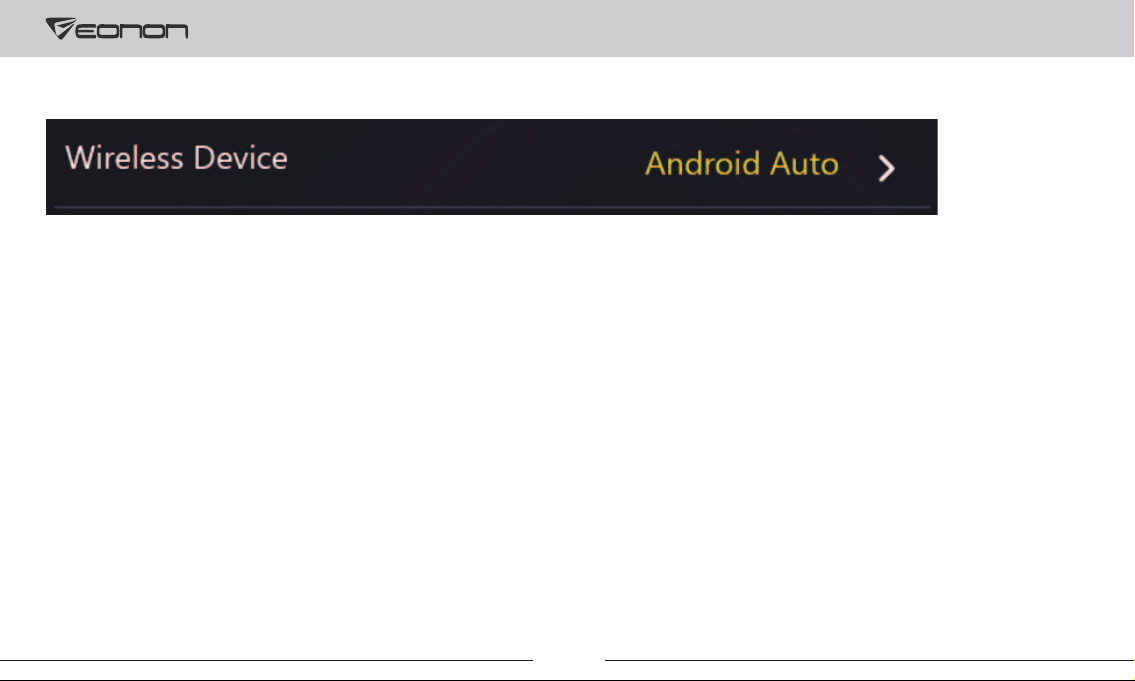
① GotothePlayStoreanddownloadtheAndroidAutoApponyourphone (as shown below).
22
② Go to “Setup-->Phone-->Smart phone-->Wireless Device” and select “Android Auto” on the car stereo.
③ Turn on WiFi and Bluetooth of your phone.
④ Find Bluetooth of the head unit (Bluetooth name: Eonon; password: 88888888) and connect to it.
⑤ It will turn on Android Auto automatically after connecting to Bluetooth successfully.
Note:
Please make sure that your phone supports Google services and wireless Android Auto.
23
Note:
Please be sure to connect to the USB data port of the unit, or Apple CarPlay will not be available.
2. CarPlay
Wired CarPlay setup steps:
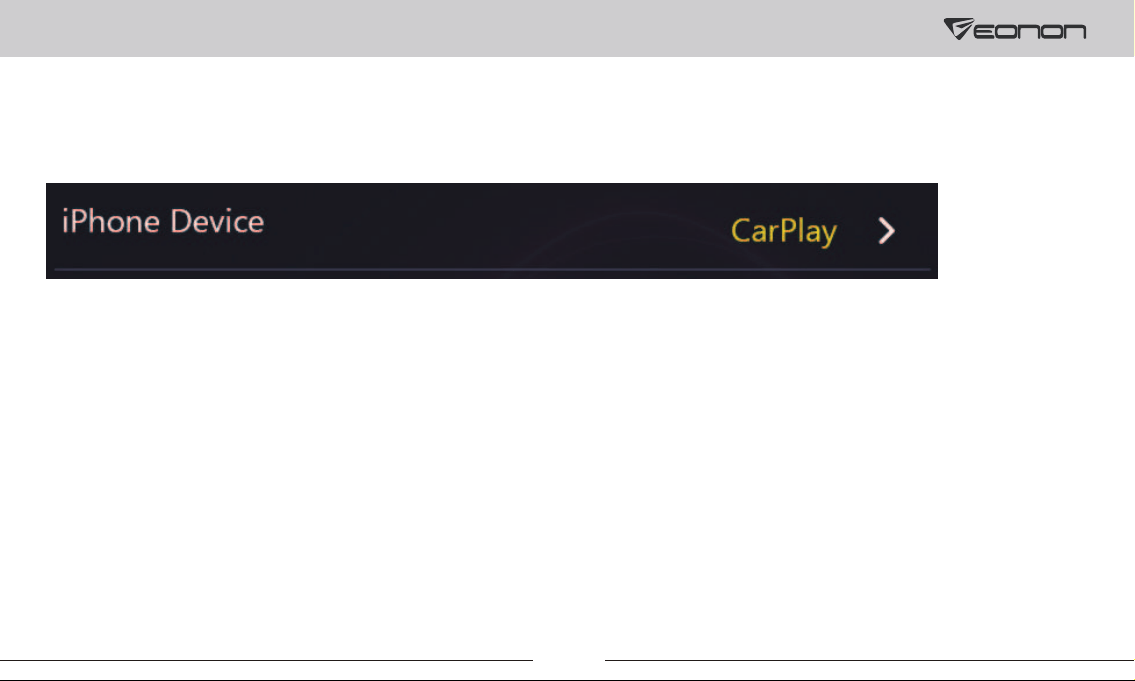
① Go to “Setup-->Phone-->Smart phone-->iPhone Device” and select “CarPlay” on the car stereo.
② Connect the USB cable of your iPhone to the USB data port of the head unit.
24
Wireless CarPlay setup steps:
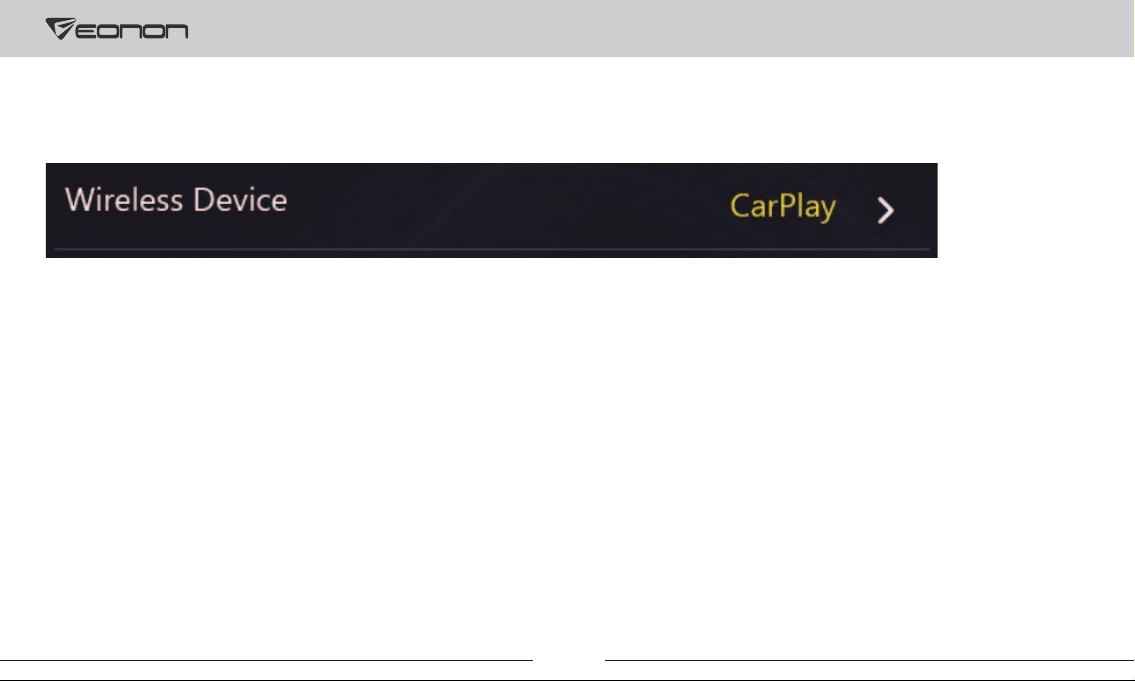
① Go to “Setup-->Phone-->Smart phone-->Wireless Device” and select “CarPlay” on the car stereo.
② Turn on WiFi and Bluetooth of your iPhone.
③ Find Bluetooth of the head unit (Bluetooth name: Eonon; password: 88888888) and connect to it.
④ It will turn on CarPlay automatically after connecting to Bluetooth successfully.
25
Note:
Please be sure to connect to the USB data port of the unit, or screen mirroring will not be available.
3. Screen Mirroring
Setup steps of wired MirrorLink for Android:
① Scan the QR code on the unit with your phone and download the AutoLink Pro app.
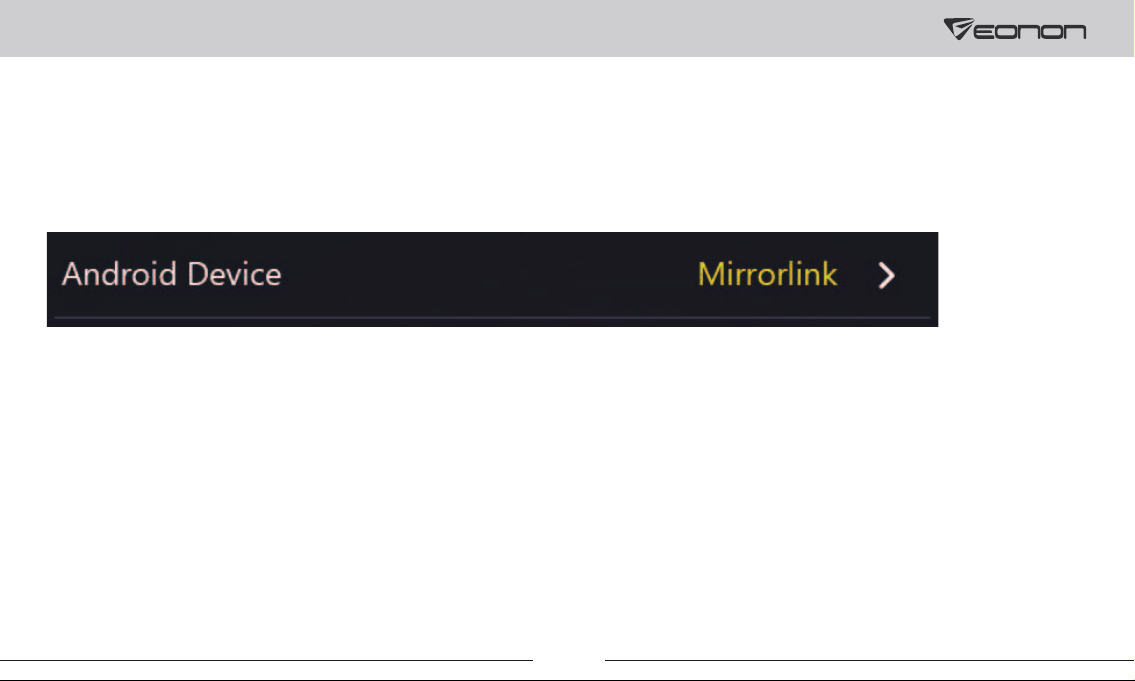
② Go to “Setup-->Phone-->Smart phone-->Android Device” and select “MirrorLink” on the car stereo.
③ Connect the USB cable of your phone to the USB data port of the head unit.
26
Setup steps of wireless MirrorLink for Android:
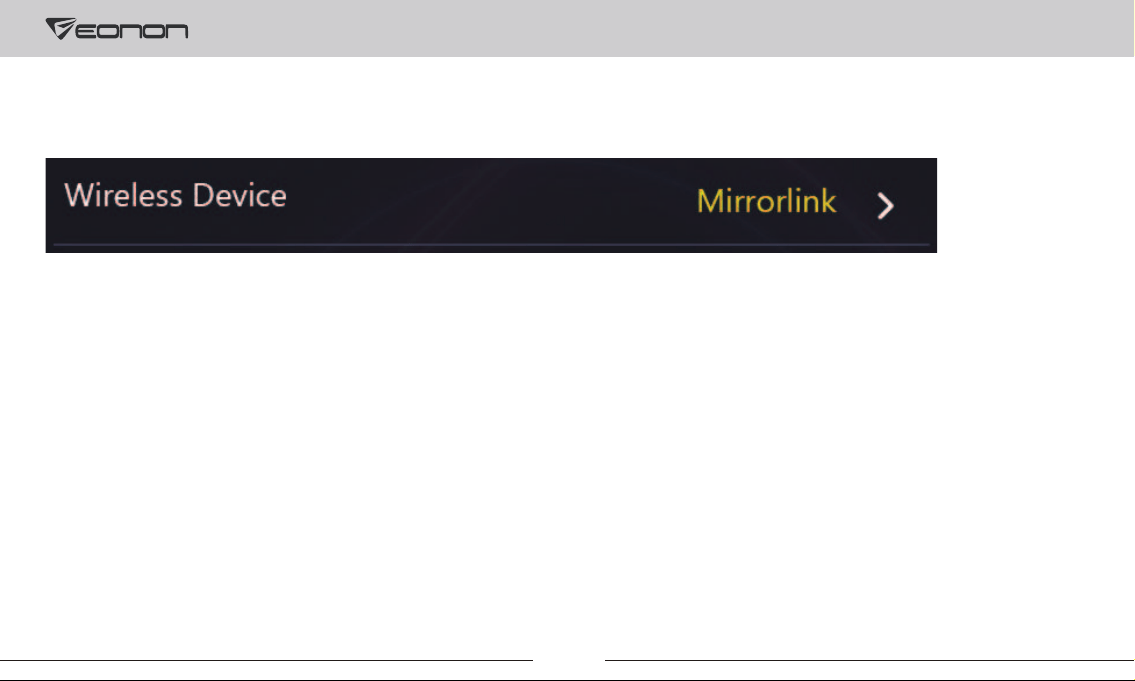
① Go to “Setup-->Phone-->Smart phone-->Wireless Device” and select “MirrorLink” on the car stereo.
② Scan the QR code on the unit with your phone and download the AutoLink Pro app.
③ Turn on the the Autolink Pro app and search for the device to connect it.
27
Note:
Please be sure to connect to the USB data port of the unit, or screen mirroring will not be available.
Setup steps of wired MirrorLink for iPhone:
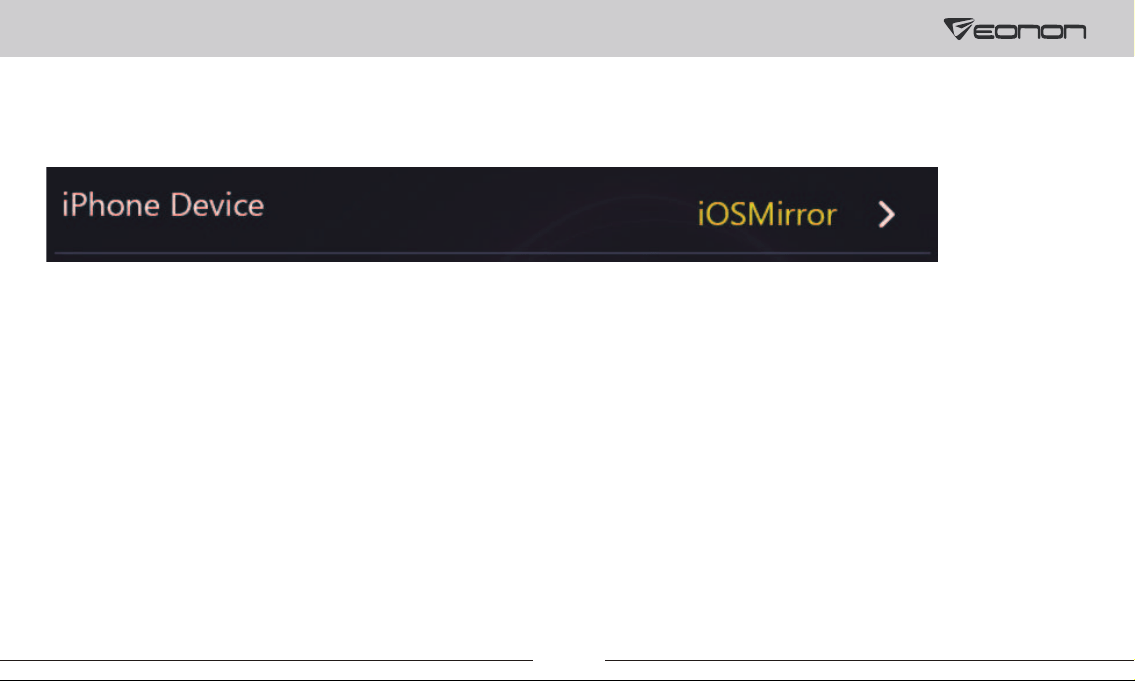
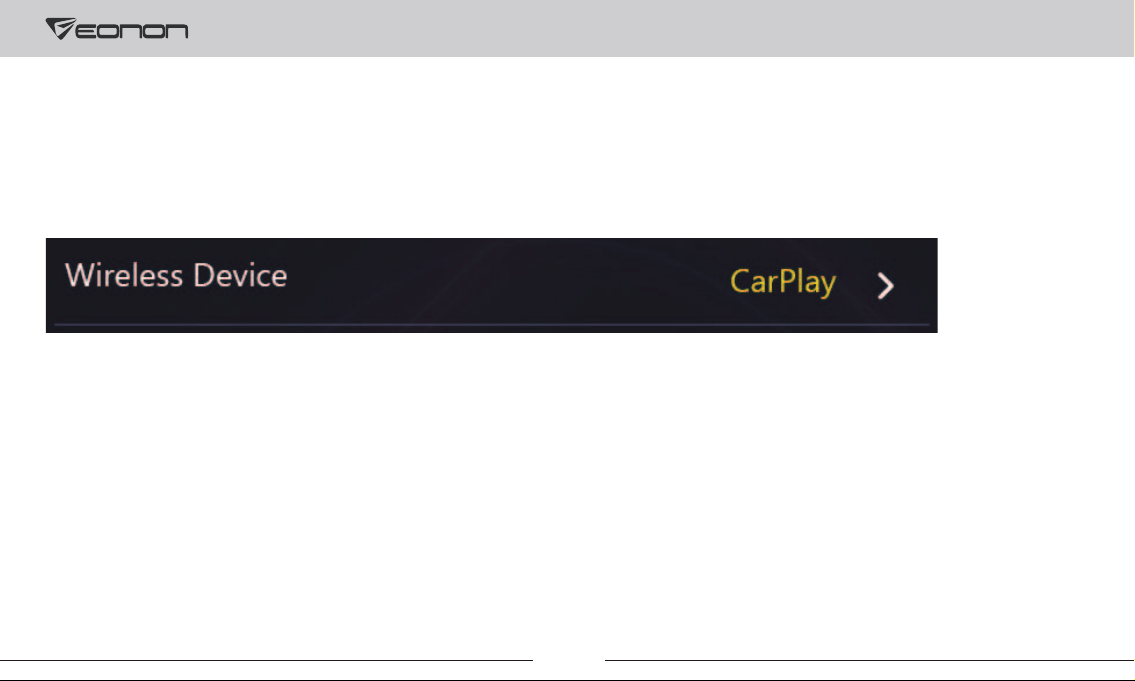
① Go to “Setup-->Phone-->Smart phone-->iPhone Device” and select “IOSMirror” on the car stereo.
② Connect the USB cable of your iPhone to the USB data port of the head unit.
28
4. AirPlay
This app is only applicable to iPhone AirPlay.
Setup steps:
① Go to “Setup-->Phone-->Smart phone-->Wireless Device” and select “CarPlay” on the car stereo.
② Turn on WiFi and Bluetooth of your iPhone.
③ Find WiFi of the head unit (Name: Eonon; password: 88888888) and connect to it.
④ Select Car-AirPlay in AirPlay of iPhone.
29
Settings
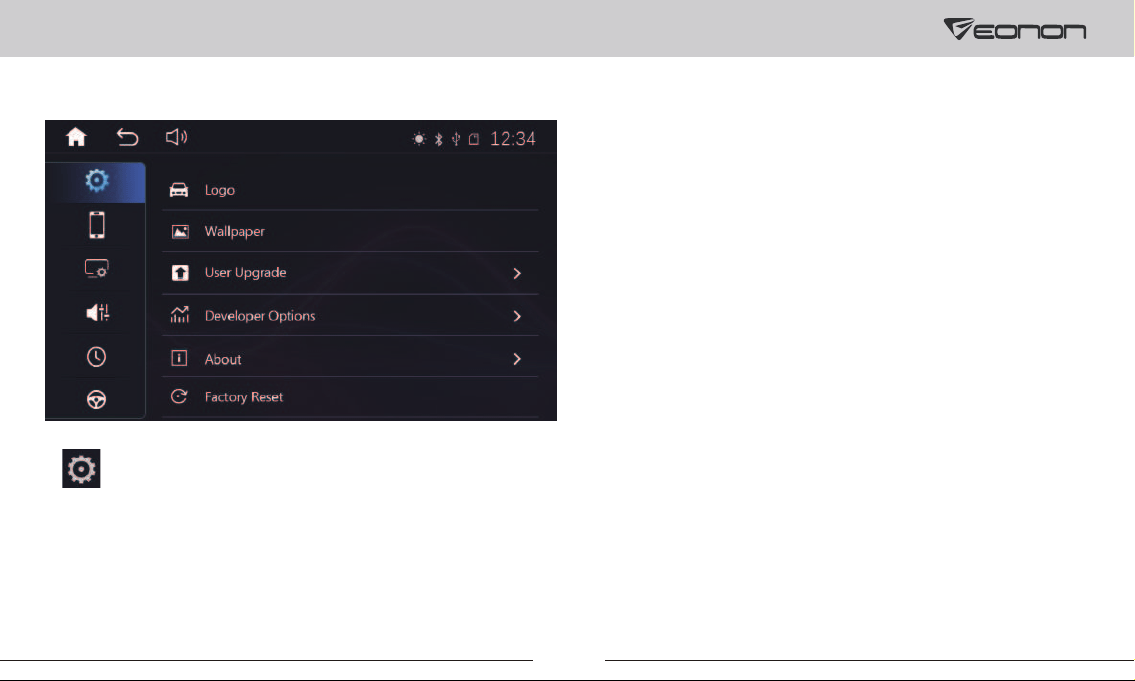
1. General Settings
Language: To change the language.
Beep: To turn on/off the key tone.
Keylight: To set the color of the buttons.
Brake Detection: After turning this setting on, the system
will check whether the car is in motion or not through
brake-in wire. If the parking brake is working, the screen
can display the video image, otherwise the screen can't
display the video image.
Reversing Mute: After turning this setting on, the music
will be turned off when in reverse.
Reversing Mirror: After turning this setting on, you can
mirror the reverse camera image.
Radio Area: To select the radio area.
Panel: For setting the brightness of the display and
touch calibration.
Volume: To adjust the volume.
Wallpaper: To set the wallpaper.
About: To view the system information.
Factory Reset: To factory reset the unit.
30
2. Phone Settings
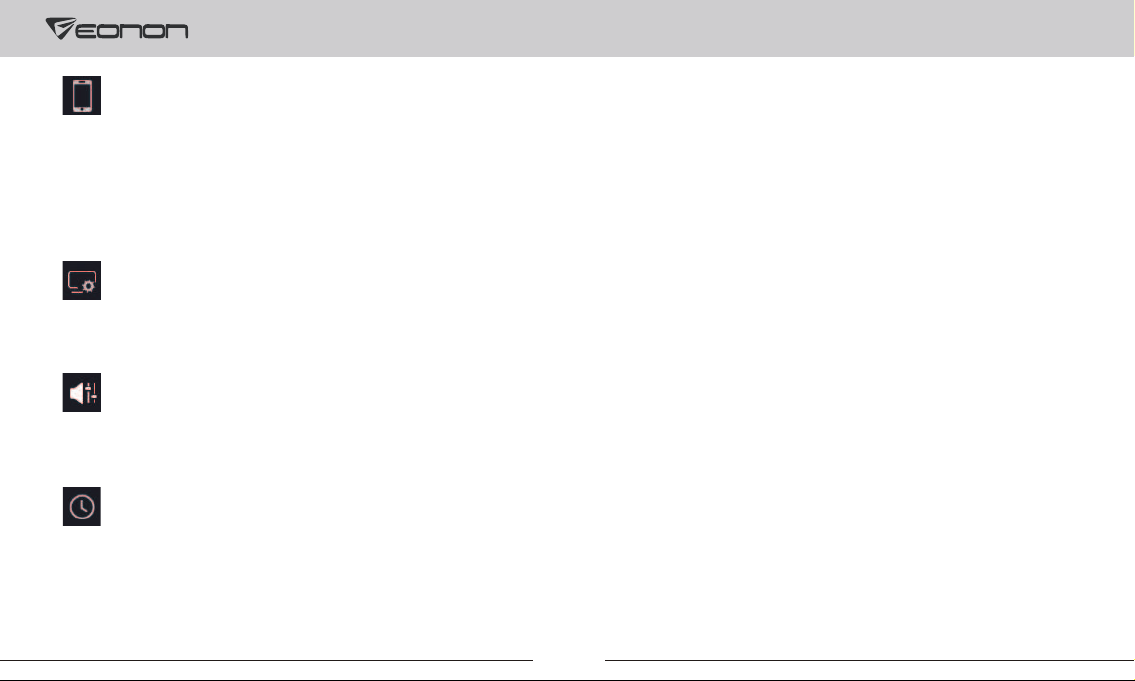
Smart Phone: To set the functions connected through the phone.
Wifi Device: To view WiFi name and password.
To change the parameters of the display.
To set audio settings such as sound field, EQ modes, etc.
To set the system time.
CarPlay Menu On Right: If your driver's seat is on the right, you can turn on this setting to change the sidebar of the CarPlay to
the right.
3. Display Settings
4. Audio Settings
5. Time Setting
31
6. Steering Wheel Control Settings
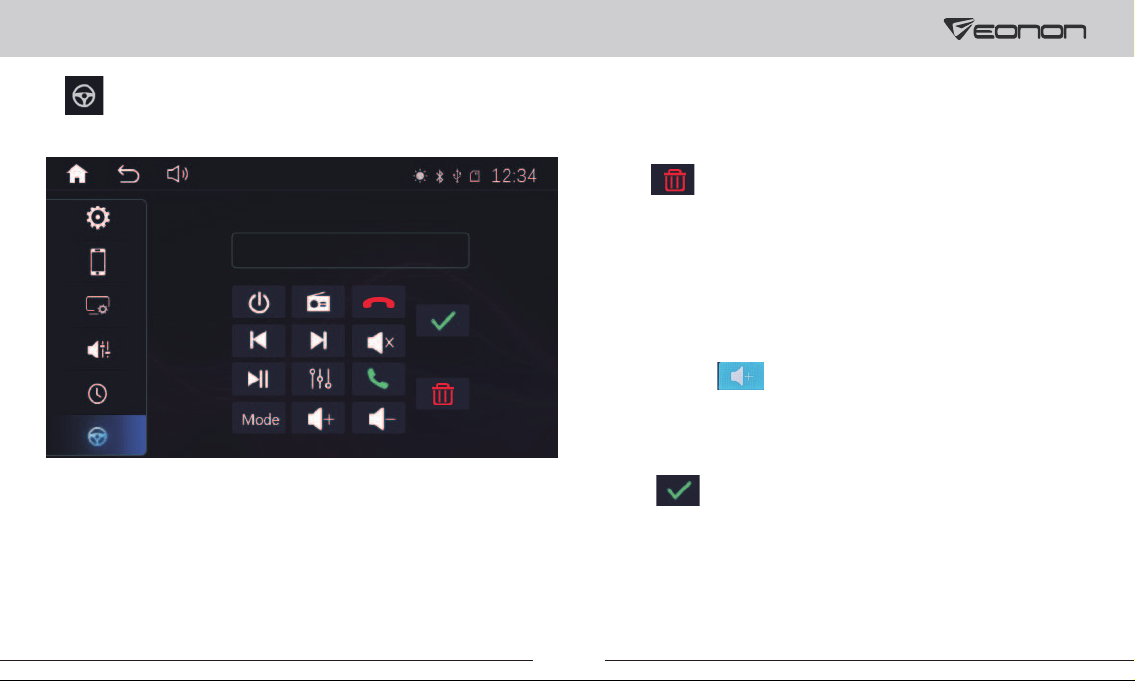
Please set button functions on the steering wheel according to the following steps.
① Connect SWC wires KEY1-5V/KEY2-5V of the car stereo to
your car SWC wires.
② Tap to erase all data.
③ Press the button that needs to be set on the steering wheel.
④ Tap the button corresponding to the function on the car
stereo screen.
⑥ Repeat 3-5 times to complete the settings of all buttons.
⑦ Tap to finish the settings.
⑤ It’s set successfully once the button color on the car stereo
turns blue (like ).
Note: The SW control function of this car stereo is controlled
by analog signal. If your car is controlled by digital signal,
then a SW control adapter cable is needed to transfer the
digital signal to analog signal.
32
Specifications
Maximum Operating Current
Operating Voltage
Operating Temp
Storage Temp
Operating Humidity
Storage Humidity
DC12V
≤10A
-20℃+ 60℃
-30℃+ 70℃
45% - 80%(Relative humidity)
39% - 80%(Relative humidity)
33
FAQ
Blank screen/Can’t power on:
1. Please press the RST button of the car stereo.
2. Please check if the car stereo has stable DC12V voltage.
Radio is not working properly:
1. Please check if the radio area is set correctly.
2. Please check if the radio antenna is connected properly and reconnect it to have a try.
3. Please check if the car stereo fuse is burnt out.
4. Please reconnect the BATT+/ACC/GND wires of the car stereo to the BATT+/ACC/GND wires of the original car.
Bluetooth is connected but not working:
It should be that the phone automatically turns on Android Auto/CarPlay after connecting to Bluetooth. To use Bluetooth,
please disconnect Android Auto/CarPlay on the phone and then turn on Bluetooth again. Generally, you can disconnect
Android Auto/CarPlay by turning off the WiFi of the phone.
No sound:
1. Please reconnect the 4 sets of speaker output wires in ISO PORT with the interface of the original car speaker.
2. Please make sure that the amplifier control wire (REM) of the original car is properly connected to the ANT wire of the car stereo.

34
Images do not automatically change while reversing:
Please connect the reverse control wire of the car stereo to the backup camera trigger wire.
Android Auto is not working:
1. Please make sure that your phone supports Google services and Android Auto. Please note that some mobile phones don’t
support Android Auto, and some mobile phones only support wired Android Auto but not wireless Android Auto.
2. If your phone supports Android Auto, please install Android Auto APP from the Play store before using it.
3. To use wired Android Auto, please use the original data cable and connect it to the USB data port of the head unit.
CarPlay is not working:
1. To use wired CarPlay, please use the original data cable and connect it to the USB data port of the head unit.
2. To use wireless CarPlay, please turn on WiFi and Bluetooth of your iPhone and connect your phone’s Bluetooth to the head unit’s
Bluetooth. Please note that you only need to connect Bluetooth; you don’t need to connect WiFi.
3. To use wireless Android Auto, please turn on WiFi and Bluetooth of your iPhone and connect your phone’s Bluetooth to the head
unit’s Bluetooth. Please note that you only need to connect Bluetooth; you don’t need to connect WiFi.
