
User Manual
ANKEWAY
Light Box
How to Connect for the Wireless CarPlay
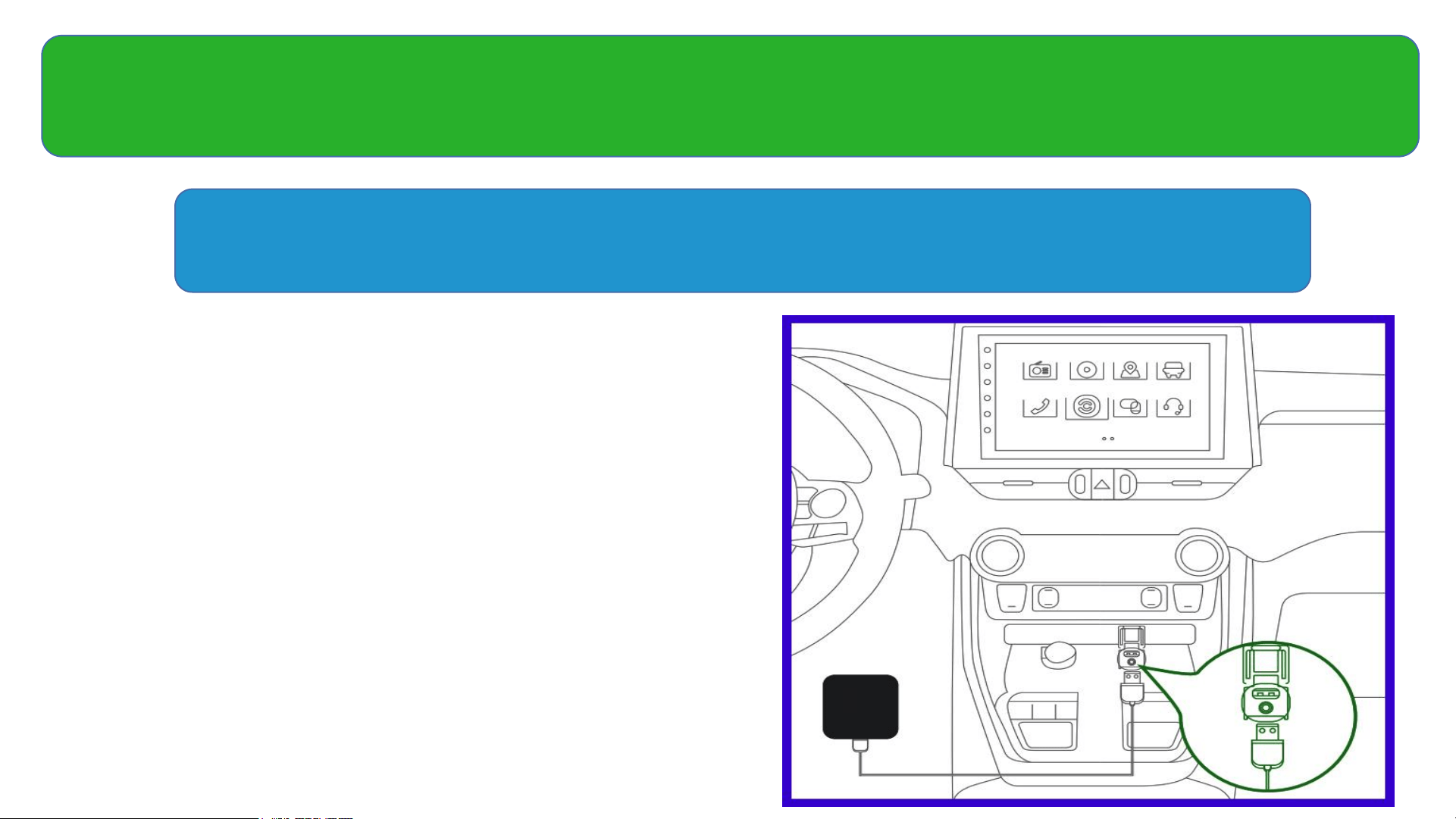
• Start your car and insert the Light
Box into the USB or Type-C port of
the original car.
• Make sure that The Light Box is
connected to the USB or Type-C
interface of the original car screen
with the iPhone interconnection
function.
Step 1, Connect the Light Box with Your Car
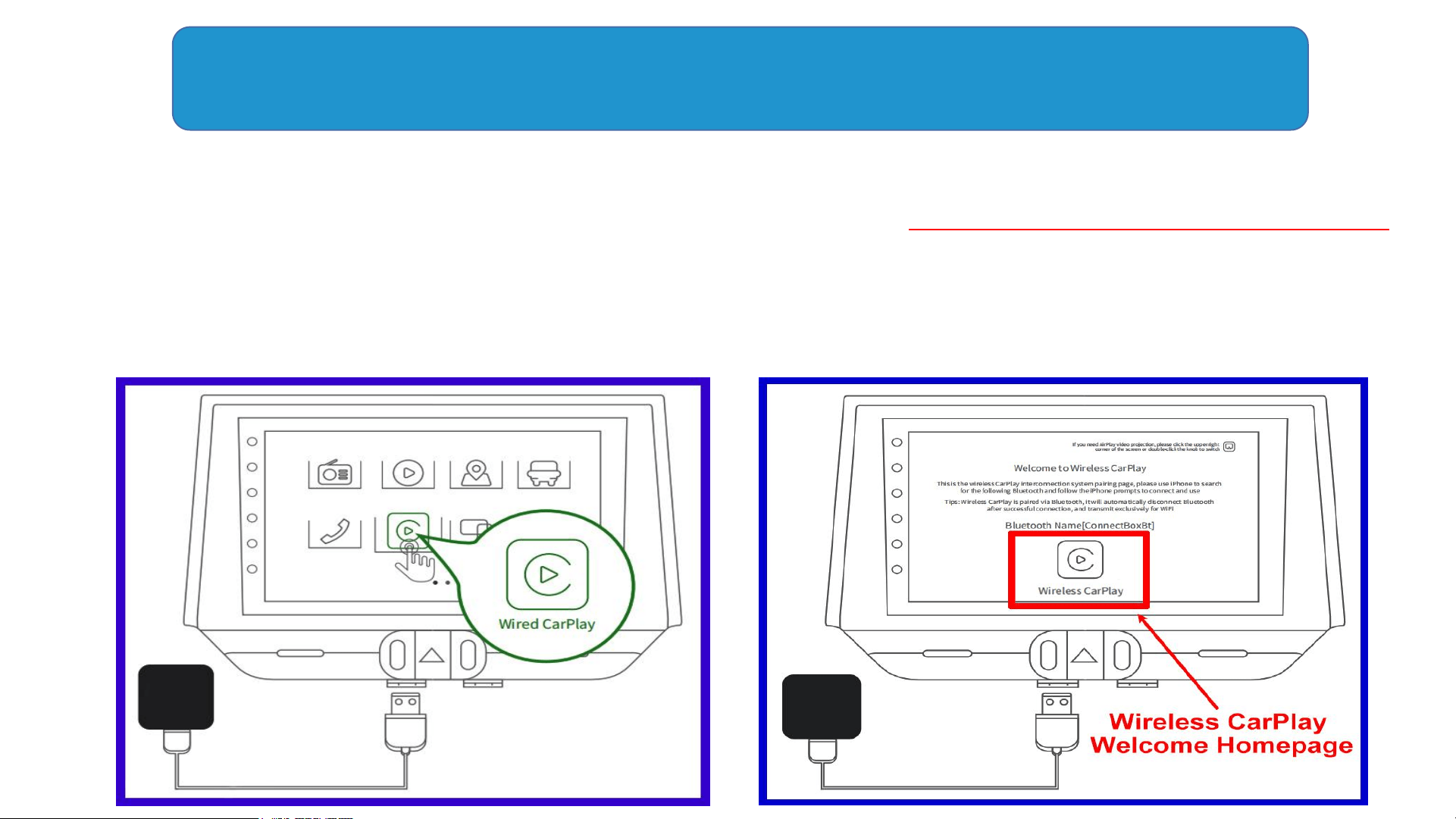
• Click the wired CarPlay icon on the car screen to enter the CarPlay function to
identify the Light Box, then you will see the page "Welcome to Wireless CarPlay".
• If the welcome page is not displayed, it may need to be upgraded or it is not
compatible with your car. Please contact ANKEWAY Team for a perfect solution.
Step 2, Identify the Light Box
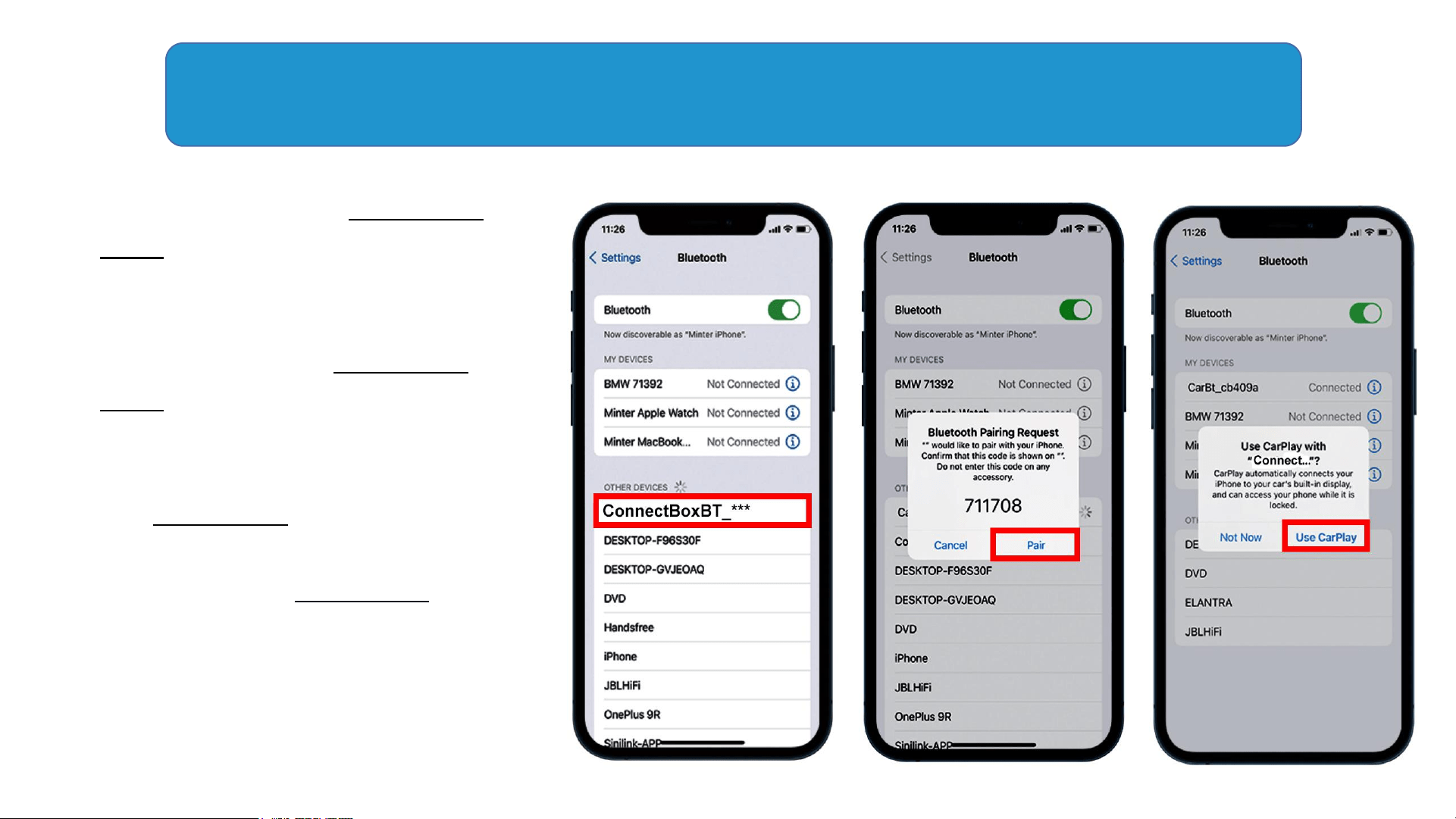
• Turn on both the Bluetooth and
WiFi on your iPhone after you
see the "Welcome to Wireless
CarPlay".
• Disconnect the Bluetooth and
WiFi between your iPhone and
car before pairing.
• Use your iPhone to search for
the Bluetooth
"ConnectBoxBT_***" for
pairing (Only Bluetooth, Not
WiFi). It usually takes 5-15
seconds (It depends on your
iPhone and car). Just enjoy the
wireless CarPlay after the only
one-time pairing.
Step 3, Bluetooth Pairing

• Before the Light Box is paired and used, Make sure to
disconnect the Bluetooth and WiFi between your iPhone
and the original car screen to avoid interference.
• Please use your iPhone search "ConnectBoxBt_***" for
Bluetooth pairing, and follow the iPhone prompts to
connect. (Only Bluetooth, Not WiFi)
• If you have any questions about connecting this Light
Box, please contact ANKEWAY technical support team
for a solution.
Special Note
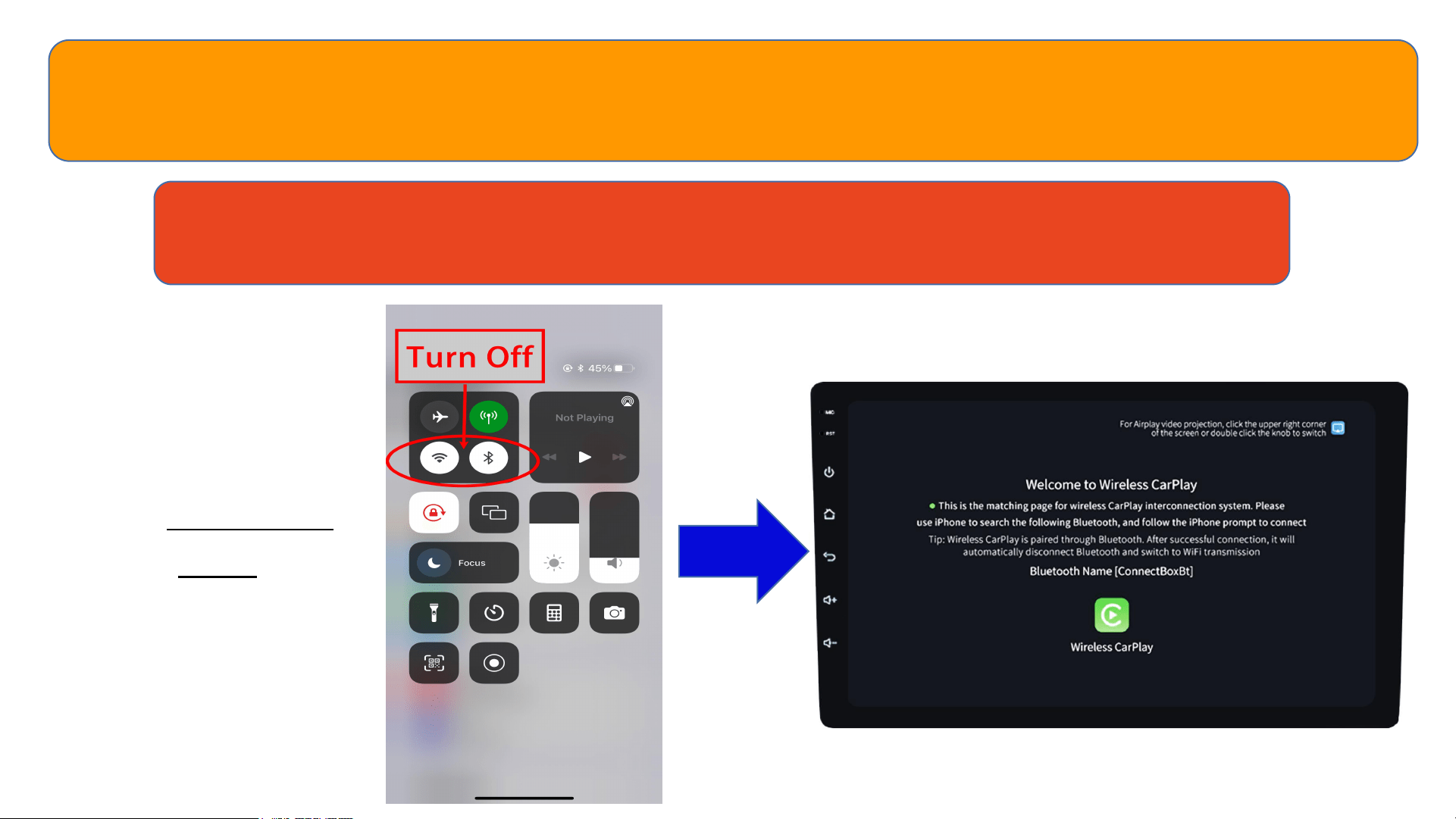
How to Connect for the Wireless AirPlay
• First of all,
turn off both
the Bluetooth
and WiFi on
your iPhone to
exit CarPlay
work mode.
Step 1, Turn Off Bluetooth & WiFi On Your iPhone
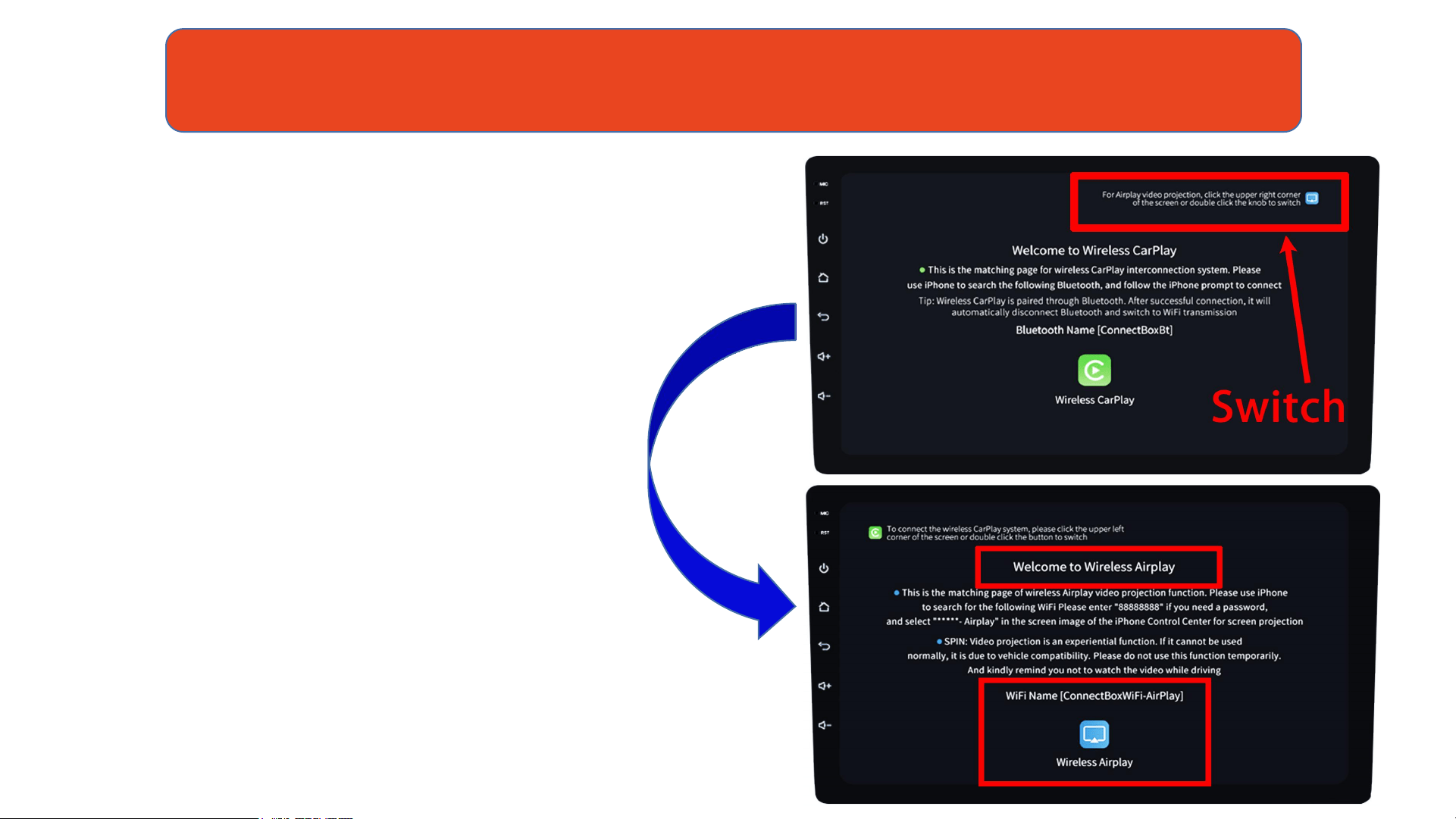
• Click the icon in the upper right
corner of the welcome page on
the car screen to switch to
" Welcome to Wireless AirPlay ".
Step 2, Switch to "Welcome to Wireless AirPlay"
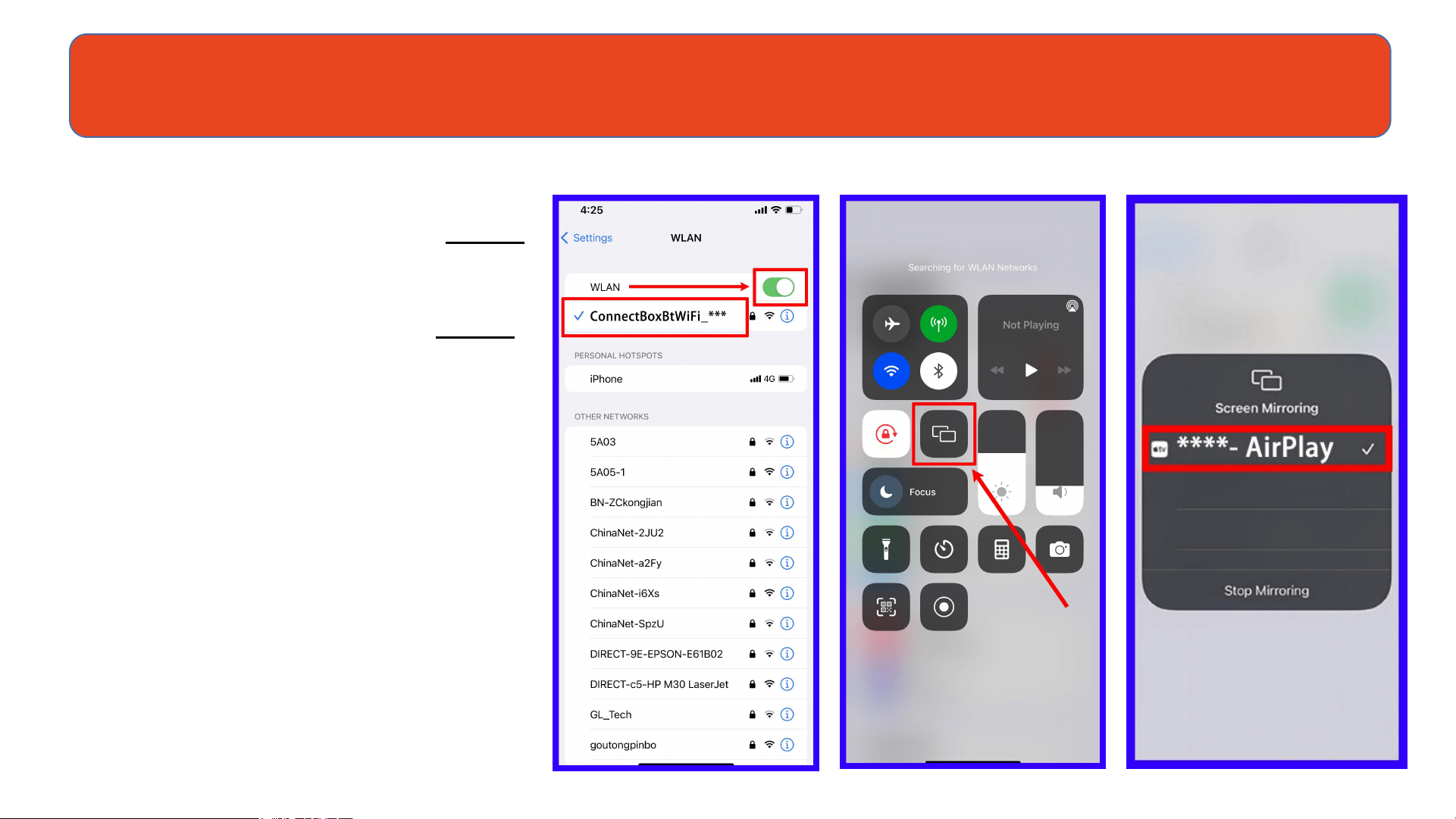
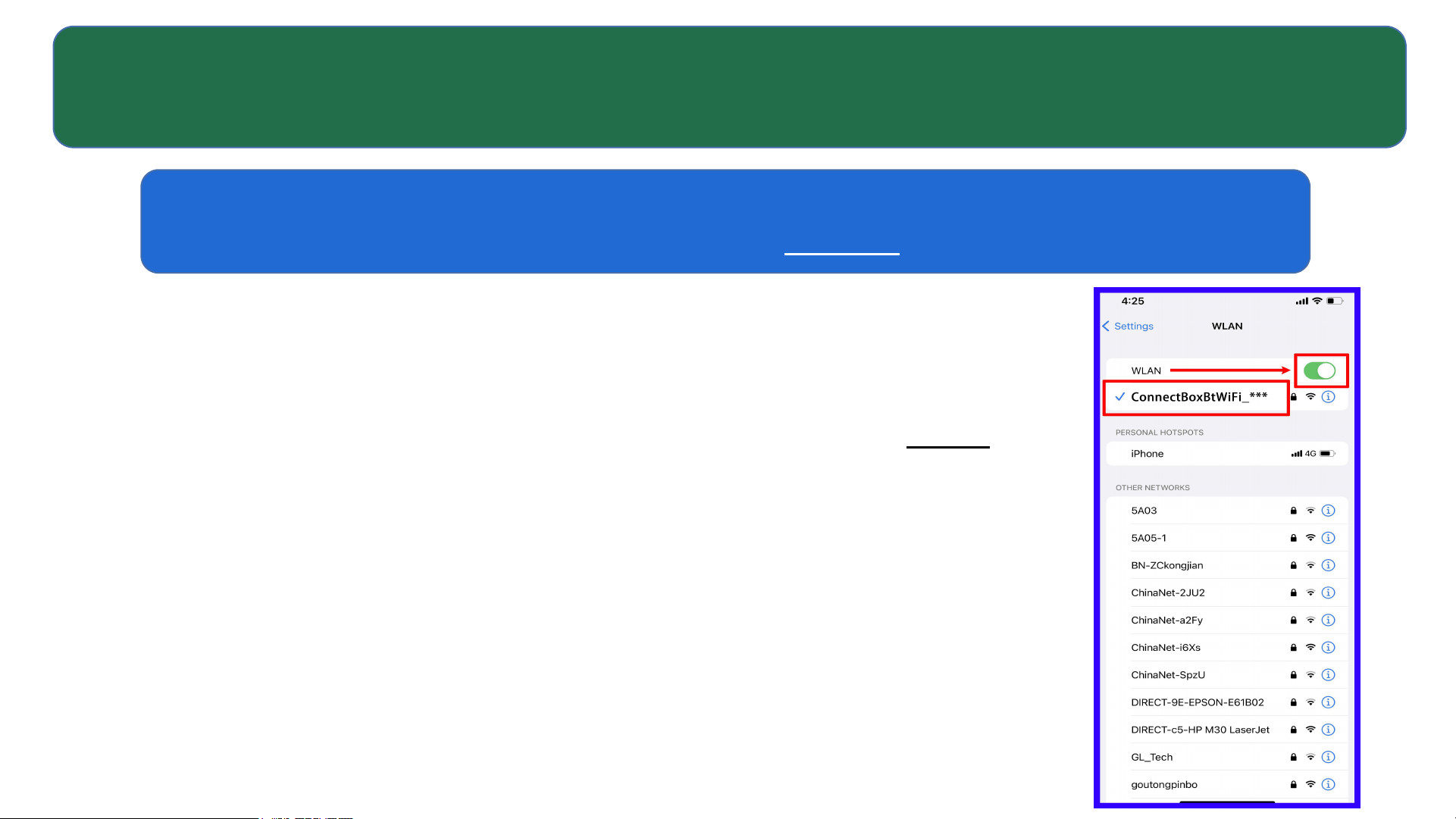
• Turn on the iPhone WiFi
again, and Connect it to
the Light Box(Only WiFi).
WiFiName:
ConnectBoxBtWiFi_***
Password:
88888888.
• It usually takes 5-15
seconds.It depends on
your iPhone and car,
then you can enjoy the
Wireless Video AirPlay.
Step 3, Connect iPhone to the Light Box via WiFi Only

• The Wireless AirPlay is an experience function. If the
screen cannot be cast or the screen is black, it is a
compatibility issue. Please don’t use this function for now.
• You can also contact ANKEWAY technical support team for
solutions such as upgrades.
• Do Not Watch Videos While Driving.
Special Note
OTA Online Upgrade Method
• Before the OTA upgrade in the car, make sure that
the wireless connection function of the Light Box and
your iPhone is normal (that is make sure the WiFi is
connected between iPhone and the Light Box).
• You can also upgrade the Light Box even at home,
only a phone charger is needed to power the Light
Box, then connect your iPhone WiFi with the Light
Box. (WiFi Name: ConnectBoxBtWiFi_***,
Password: 88888888).
Step 1, Make Sure the WiFi Is Connected
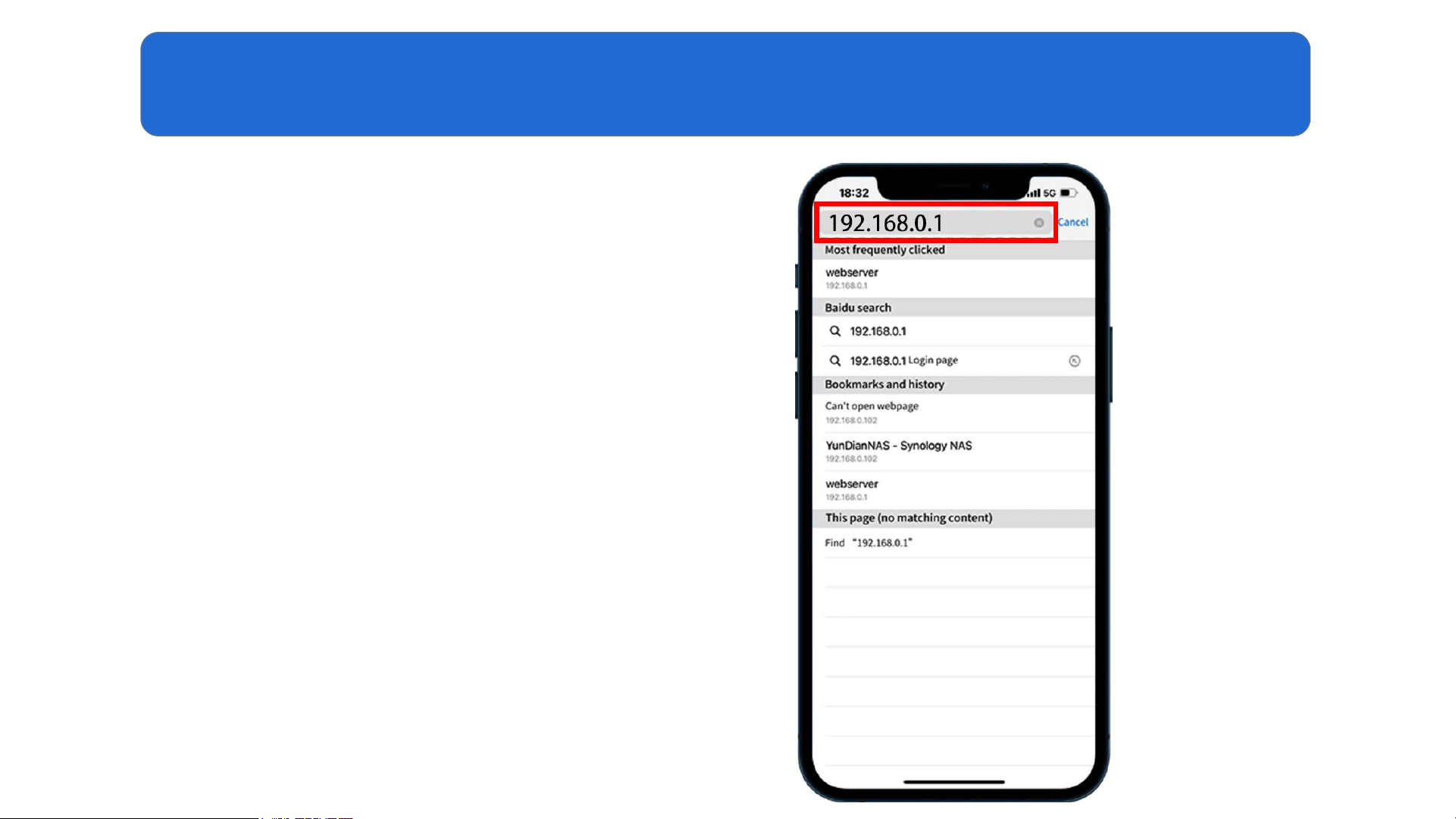
• Enter the IP address
192.168.0.1 in your iPhone
browser, and press Enter to
the upgrade page.
Step 2, Enter the Upgrade Page

• Click the"Get the latest version" on the upgrade page
to check whether there is a new version to upgrade.
Just click "one-click upgrade" to upgrade automatically
if found a new version. There is no need any other
operation until the Light Box to restart.
Step 3, Check the Latest Version and Upgrade
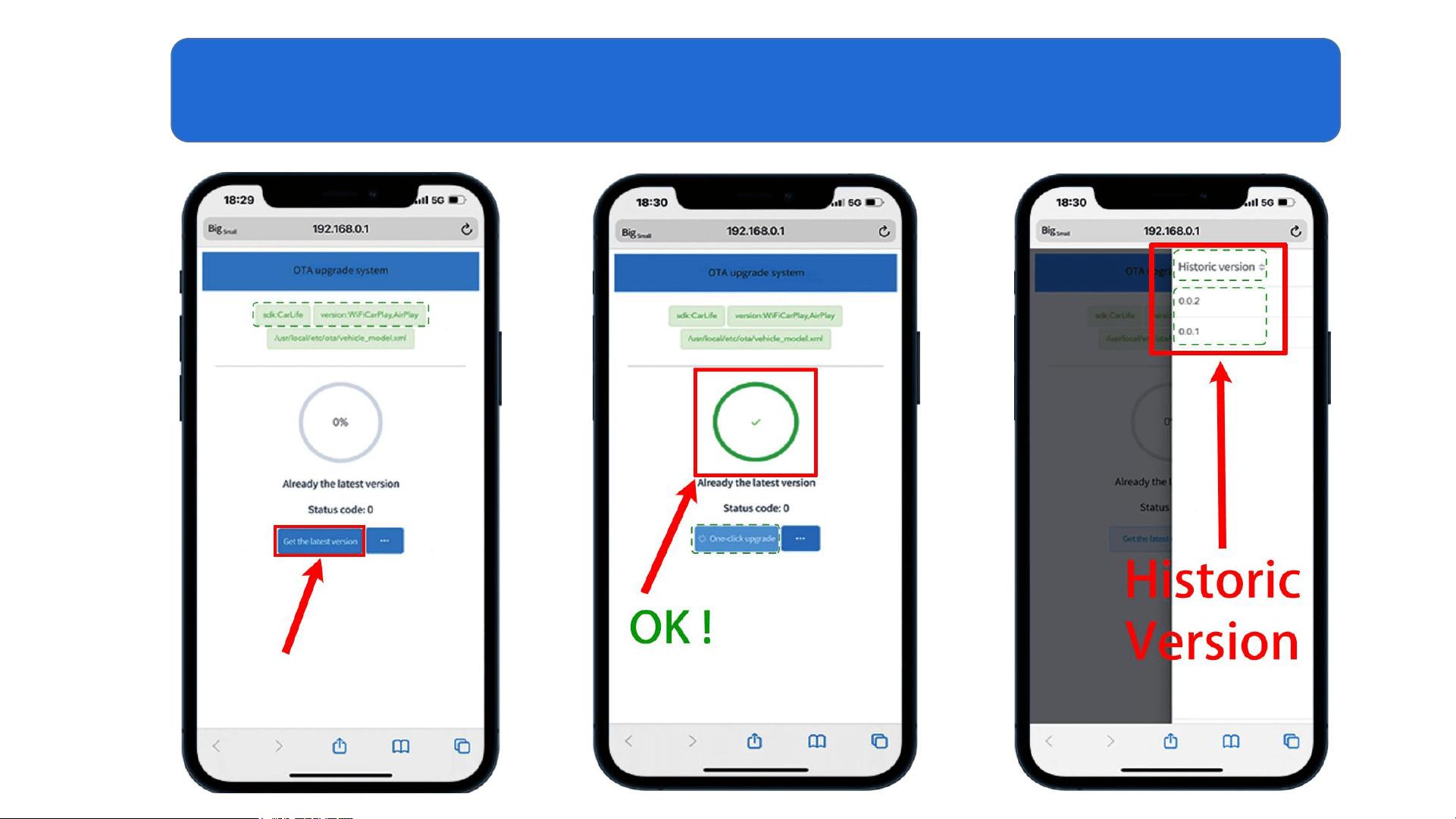
Step 3, Check the Latest Version and Upgrade

Special Note
• Do not turn off your car or unplug the Light Box during the upgrade.
• If the upgrade is abnormal, it is recommended to turn off the car,
then restart the car, and unplug & plug the Light Box to upgrade
again.
• If you have any questions about connecting, using and
upgrading this device, please contact ANKEWAY technical
support team to get a solution.