OWNER'S MANUAL
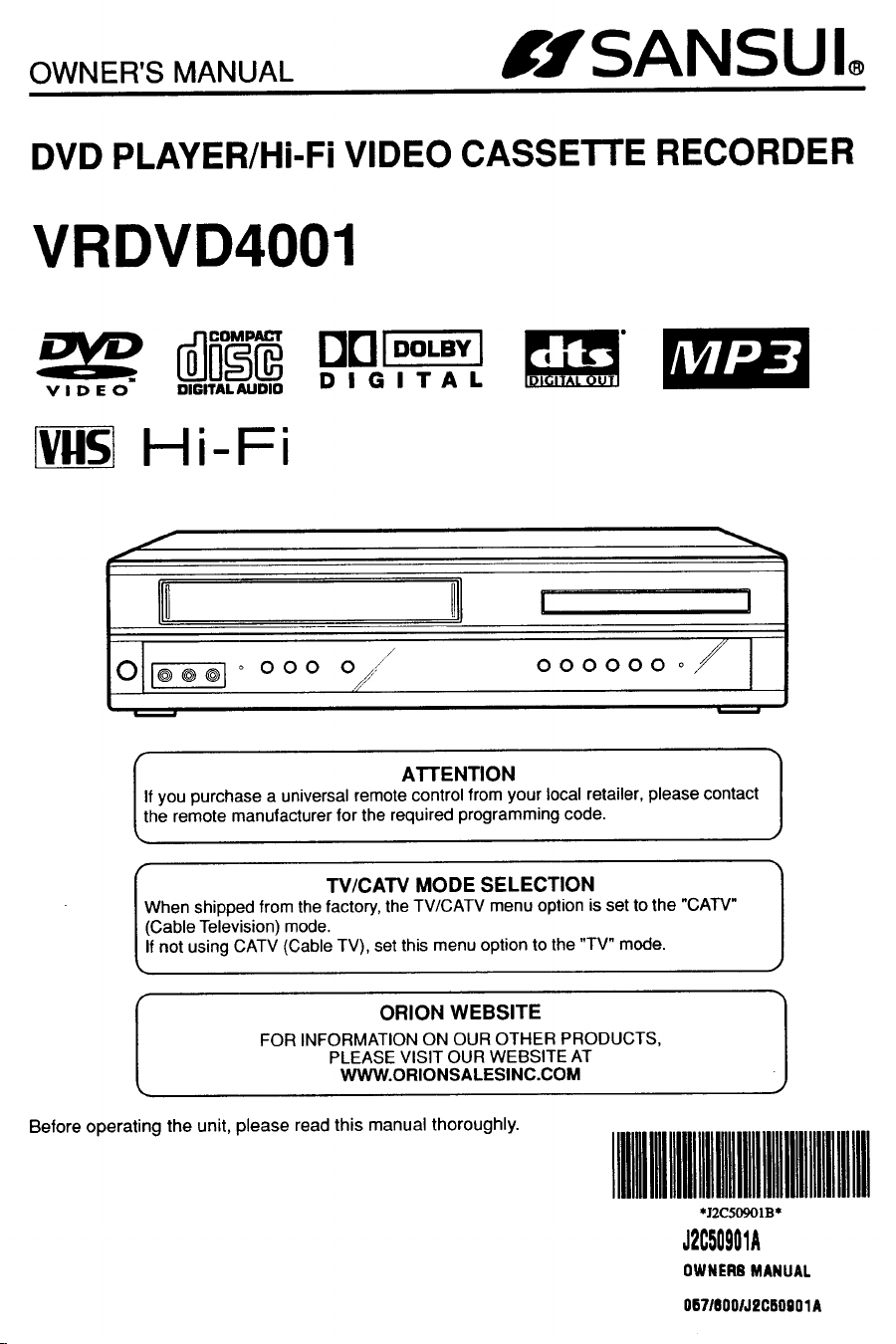
fISANSUIo
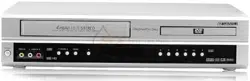
DVD PLAYER/Hi-Fi VIDEO CASSETTE RECORDER
VRDVD4001
V I D E O DIGITAL AUDIO
Hi-Fi
OOIDOLBvl
DIGITAL
/
o I1-_-_7,_
i w
000
j_
0 :/
//
HI
I
000000o/
w
f ATTENTION
f you purchase a universal remote control from your local retailer, please contact
he remote manufacturer for the required programming code.
I_ W/CAW MODE SELECTION
hen shipped from the factory, the TV/CATV menu option is set to the "CAW"
Cable Television) mode.
f not using CATV (Cable TV), set this menu option to the "TV" mode.
ORION WEBSITE
FOR INFORMATION ON OUR OTHER PRODUCTS,
PLEASE VISIT OUR WEBSITE AT
WWW.ORIONSALESINC.COM
Before operating the unit, please read this manual thoroughly.
IIIIllllMlllllllllllllllIMlllllllllllllllllll
*12C50901B*
J2C50901A
OWNER8 MANUAL
06718001J2CB0901A
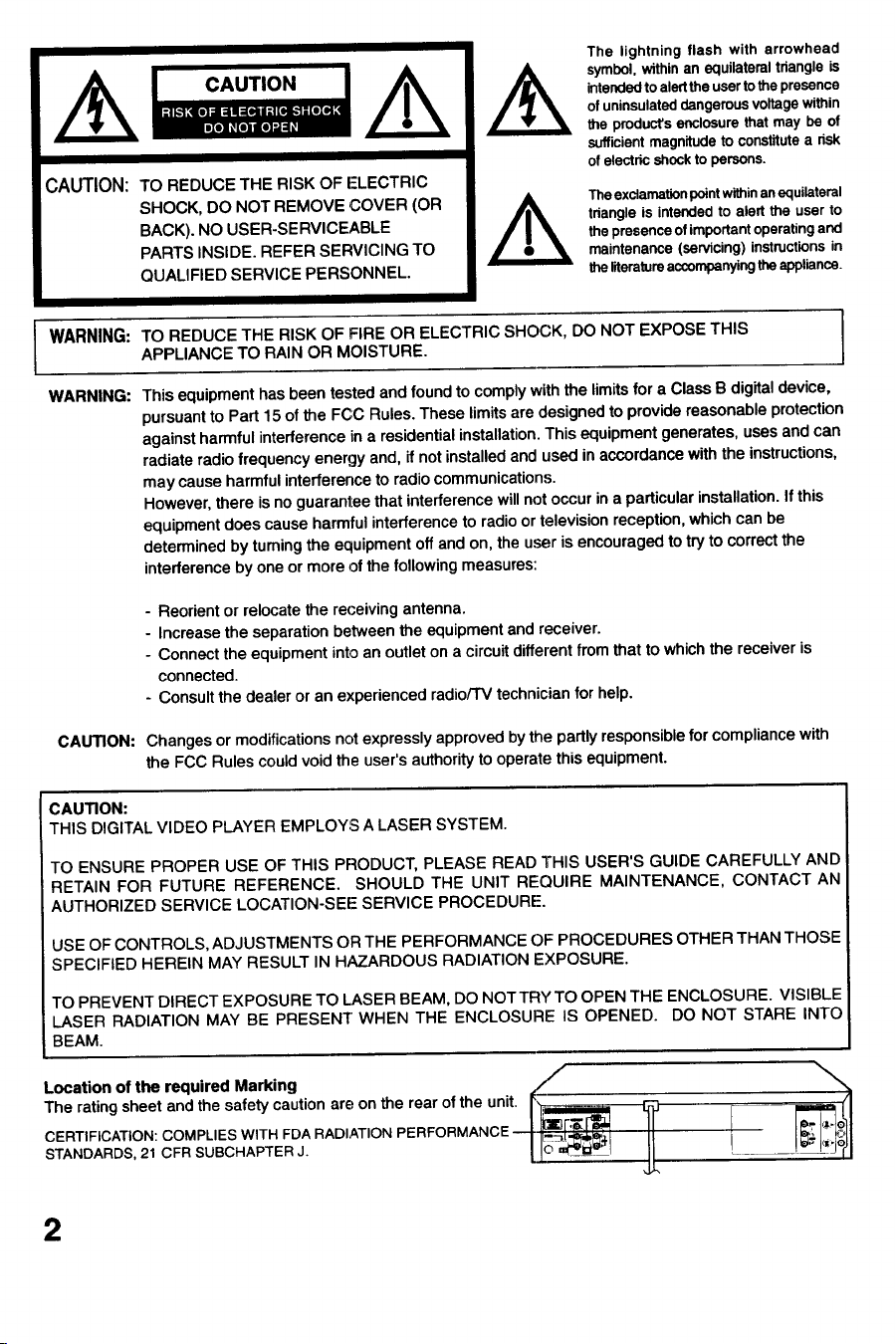
CAUTION: TO REDUCE THE RISK OF ELECTRIC
SHOCK, DO NOT REMOVE COVER (OR
BACK). NO USER-SERVICEABLE
PARTS INSIDE. REFER SERVICING TO
QUALIFIED SERVICE PERSONNEL.
The lightning flash with arrowhead
symbol, within an equilateral triangle is
intended to alert the user to the presence
of uninsulated dangerous voltage within
the product's enclosure that may be of
sufficient magnitude to constitute a risk
of electric shock to persons.
The exclamation point within an equilateral
tdangle is intended to alert the user to
the presence of important operating and
maintenance (servicing) instnJctions in
the literature accompanying the appliance.
WARNING:
WARNING:
TO REDUCE THE RISK OF FIRE OR ELECTRIC SHOCK, DO NOT EXPOSE THIS
APPLIANCE TO RAIN OR MOISTURE.
I
This equipment has been tested and found to comply with the limits for a Class B digital device,
pursuant to Part 15 of the FCC Rules. These limits are designed to provide reasonable protection
against harmful interference in a residential installation. This equipment generates, uses and can
radiate radio frequency energy and, if not installed and used in accordance with the instructions,
may cause harmful interference to radio communications.
However, there is no guarantee that interference will not occur in a particular installation. If this
equipment does cause harmful interference to radio or television reception, which can be
determined by turning the equipment off and on, the user is encouraged to try to correct the
interference by one or more of the following measures:
- Reorient or relocate the re(-eiving antenna.
- Increase the separation between the equipment and receiver.
- Connect the equipment into an outlet on a circuit different from that to which the receiver is
connected.
- Consult the dealer or an experienced radio/TV technician for help.
CAUTION: Changes or modificationsnot expressly approvedbythe partly responsiblefor compliance with
the FCC Rules couldvoidthe user'sauthorityto operate thisequipment.
CAUTION:
THIS DIGITAL VIDEO PLAYER EMPLOYS A LASER SYSTEM.
TO ENSURE PROPER USE OF THIS PRODUCT, PLEASE READ THIS USER'S GUIDE CAREFULLY AND
RETAIN FOR FUTURE REFERENCE. SHOULD THE UNIT REQUIRE MAINTENANCE, CONTACT AN
AUTHORIZED SERVICE LOCATION-SEE SERVICE PROCEDURE.
USE OF CONTROLS, ADJUSTMENTS OR THE PERFORMANCE OF PROCEDURES OTHER THAN THOSE
SPECIFIED HEREIN MAY RESULT IN HAZARDOUS RADIATION EXPOSURE.
TO PREVENT DIRECT EXPOSURE TO LASER BEAM, DO NOTTRY TO OPEN THE ENCLOSURE. VISIBLE
LASER RADIATION MAY BE PRESENT' WHEN THE ENCLOSURE IS OPENED. DO NOT STARE INTO
BEAM.
/
Location of the required Marking ,/"
The rating sheet and the safety caution are on the rear of the unit.
CERTIFICATION: COMPLIES WITH FDA RADIATION PERFORMANCE -- -_r._
STANDARDS, 21 CFR SUE]CHAPTER J.
\
2
IMPORTANT SAFEGUARDS
i
1. READ INSTRUCTIONS
All the safety and operating instructions should be read before the unit is operated.
2. RETAIN INSTRUCTIONS
The safety and operating instructions should be retained for future reference.
3. HEED WARNINGS
All wamings on the unit and in the operating instructions should be adhered to.
4. FOLLOW INSTRUCTIONS
All operating and use instructions should be followed.
5. CLEANING
Unplug this unit from the wall outlet before cleaning. Do not use liquid cleaners or aerosol cleaners.
Use a damp cloth for cleaning the exterior cabinet only.
6. ATTACHMENTS
The manufacturer of this unit does not make any recommendations for attachments, as they may cause
hazards.
7, WATER AND MOISTURE
Do not use this unit near water. For example, near a bathtub, washbowl, kitchen sink, laundry tub, in a wet
basement, or near a swimming pool. PORTABLECARTWARNING
8. ACCESSORIES (symb_providedbyRETAC)
Do not place this unit on an unstable cart, stand, tripod, bracket, or table.
The unit may fall, causing serious injury, and serious damage to the unit.
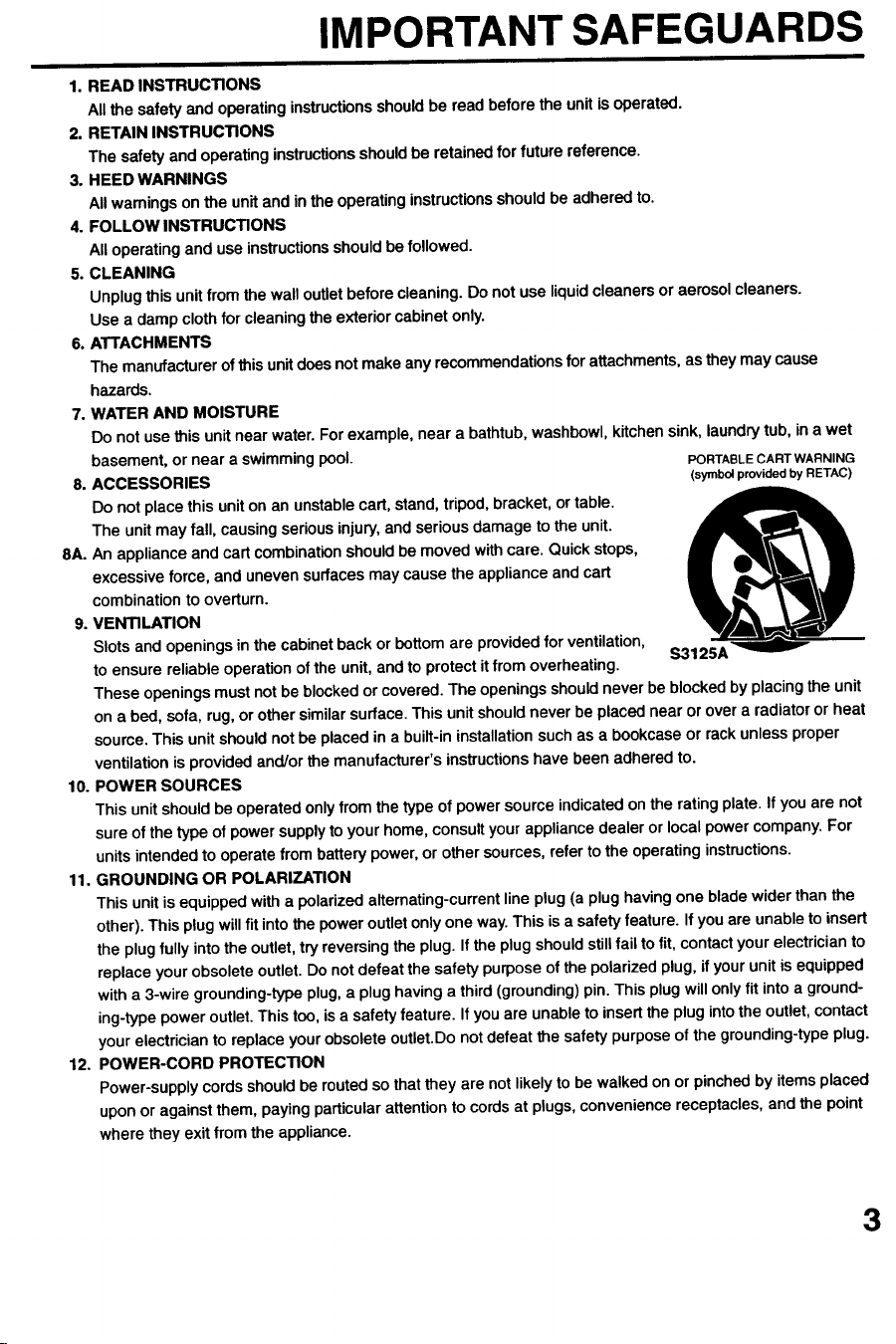
8A. An appliance and cart combination should be moved with care. Quick stops,
excessive force, and uneven surfaces may cause the appliance and cart
combination to overturn.
9. VENTILATION
Slots and openings in the cabinet back or bottom are provided for ventilation,
$3125A
to ensure reliable operation of the unit, and to protect it from overheating.
These openings must not be blocked or covered. The openings should never be blocked by placing the unit
on a bed, sofa, rug, or other similar surface. This unit should never be placed near or over a radiator or heat
source. This unit should not be placed in a built-in installation such as a bookcase or rack unless proper
ventilation is provided and/or the manufacturer's instructions have been adhered to.
10. POWER SOURCES
This unit should be operated only from the type of power source indicated on the rating plate. If you are not
sure of the type of power supply to your home, consult your appliance dealer or local power company. For
units intended to operate from battery power, or other sources, refer to the operating instructions.
11. GROUNDING OR POLARIZATION
This unit is equipped with a polarized alternating-current line plug (a plug having one blade wider than the
other). This plug will fit into the power outlet only one way. This is a safety feature. If you are unable to insert
the plug fully into the outlet, try reversing the plug. If the plug should still fail to fit, contact your electrician to
replace your obsolete outlet. Do not defeat the safety purpose of the polarized plug, if your unit is equipped
with a 3-wire grounding-type plug, a plug having a third (grounding) pin. This plug will only fit into a ground-
ing-type power outlet. This too, is a safety feature. If you are unable to insert the plug into the outlet, contact
your electrician to replace your obsolete outlet.Do not defeat the safety purpose of the grounding-type plug.
12. POWER-CORD PROTECTION
Power-supply cords should be routed so that they are not likely to be walked on or pinched by items placed
upon or against them, paying particular attention to cords at plugs, convenience receptacles, and the point
where they exit from the appliance.
3
IMPORTANT SAFEGUARDS
i i
13. LIGHTNING
To protect your unit from a lightning storm, or when it is left unattended and unused for long periods of time,
unplug it from the wall outlet and disconnect the antenna or cable system. This will prevent damage to the
unit due to lightning and power line surges.
14. POWER LINES
An outside antenna system should not be located in the vicinity of overhead power lines or other electric
light or power circuits; or where it can fall into such power lines or circuits. When installing an outside
antenna system, extreme care should be taken to keep from touching such power lines or circuits, as
contact with them might be fatal.
15. OVERLOADING
Do not overload wall outlets and extension cords, as this can result in a risk of fire or electric shock.
16. OBJECT AND LIQUID ENTRY
Do not push objects through any openings in this unit, as they may touch dangerous voltage points or short
out parts that could result in fire or electric shock. Never spill or spray any type of liquid into the unit.
17. OUTDOOR ANTENNA GROUNDING
If an outside antenna or cable system is connected to the unit, be sure the antenna or cable system is
grounded to provide some protection against voltage surges and built-up static charges, Section 810 of the
National Electrical Code, ANSI/NFPA 70, provides information with respect to proper grounding of the mast
and supporting structure, grounding of the lead-in wire to an antenna discharge unit, size of grounding
conductors, location of antenna discharge unit, connection to grounding electrodes, and requirements for
the grounding electrode.
18. SERVICING
Do not attempt to service this unit yourself as opening or removing covers may expose you to dangerous
voltage or other hazards. Refer all servicing to qualified service personnel.
19, DAMAGE REQUIRING SERVICE
Unplug this unit from the wall outlet and refer servicing to qualified service personnel under the following
conditions:
a. When the power-supply cord or plug is damaged.
b. If liquid has been spilled, or objects have fallen into the unit.
c. If the unit has been exposed to rain or water.
d. If the unit does not operate normally by following the operating instructions. Adjust onlythose
controls that are covered by the operating instructions, as an improper adjustment of other controls
may result in damage and will often require extensive work by a qualified technician to restore the
unit to its normal operation.
e. If the unit has been dropped or the cabinet has been damaged.
f. When the unit exhibits a distinct change in performance, this indicates a need for service.
20. REPLACEMENT PARTS
When replacement parts are required, be sure the service technician uses replacement parts specified by
the manufacturer or those that have the same characteristics as the original part.
Unauthorized substitutions may result in fire, electric shock or other hazards.
21. SAFETY CHECK
Upon completion of any service or repairs to this unit, ask the service technician to perform safety checks to
determine that the unit is in proper operating condition.
22. HEAT
The product should be situated away from heat sources such as radiators, heat registers, stoves, or other
products (including amplifiers) that produce heat.
23. DISC TRAY
Keep your fingers well clear of the di_; tray as it is closing. It may cause serious personal injury.
24. CONNECTING
When you connect the product to other equipment, turn off the power and unplug all of the equipment from
the wall outlet. Failure to do so may cause an electric shock and serious personal injury. Read the owner's
manual of the other equipment carefully and follow the instructions when making any connections.
4
IMPORTANT SAFEGUARDS / Power Source
25. LASER BEAM
Donot look intothe openingof the disctray or ventilationopeningof the productto see the sourceof the
laser beam. It may cause sight damage.
26. DISC
Do not use a cracked,deformed,or repaireddisc.These discsare easily brokenand maycause serious
personalinjuryand product malfunction.
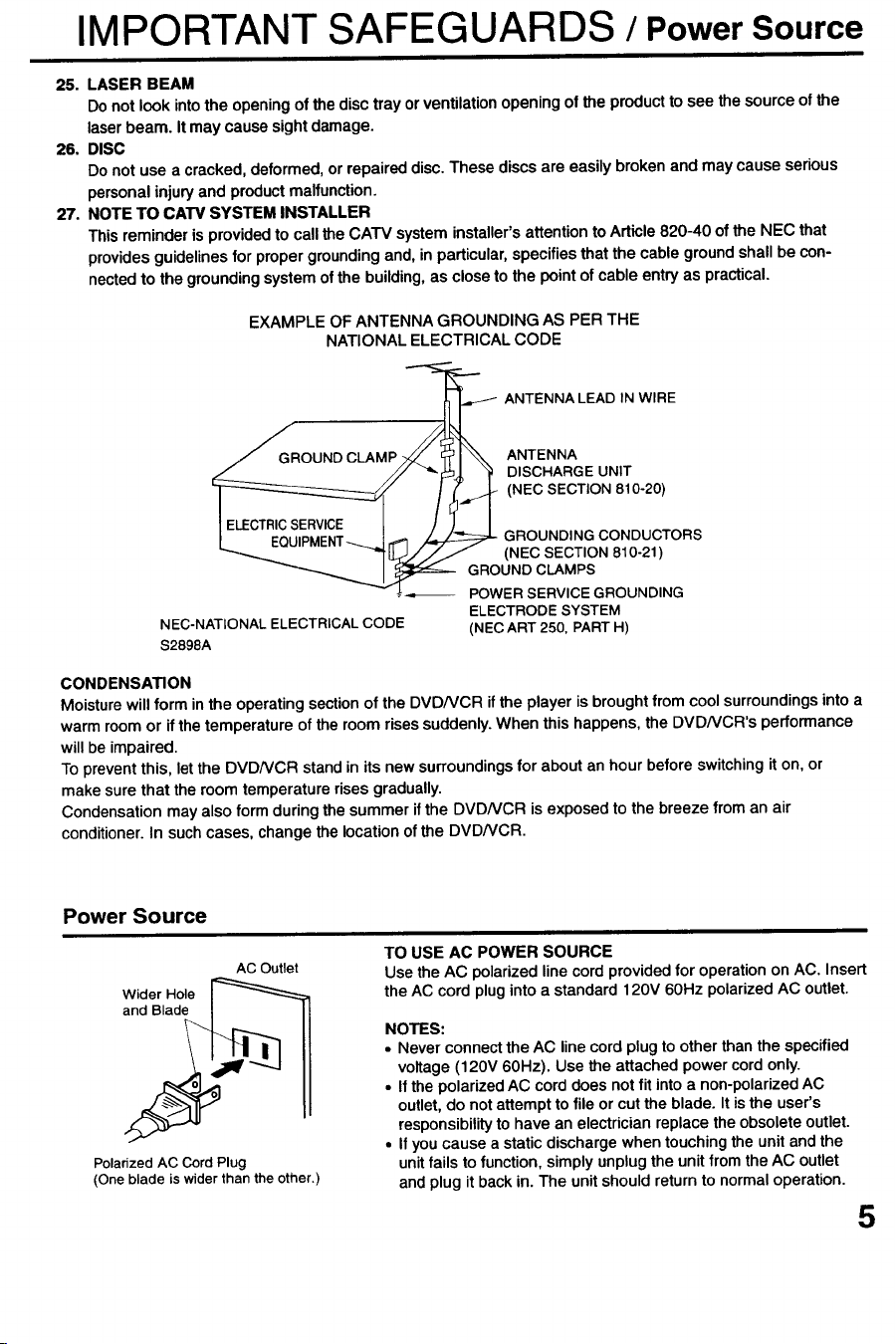
27. NOTE TO CATV SYSTEM INSTALLER
Thisreminderis providedto callthe CATV systeminstaller'sattentionto Article820-40 of the NEC that
providesguidelinesfor propergroundingand, inparticular,specifiesthat the cable groundshall be con-
nectedto the groundingsystemof the building,as closeto the pointof cable entryas practical.
EXAMPLE OF ANTENNA GROUNDING AS PER THE
NATIONAL ELECTRICAL CODE
_ ANTENNA LEAD IN WlRE
._G_ROUND CLAMP /_' ' ANTENNA
1_ (NEOSEOTION810-20)
__ _4[ _ D'SOHARGEUN'T
__G RO U(G_D_UstN_._DCMIN_ NCO1NOD'Ut(_TORS
POWER SERVICE GROUNDING
ELECTRODE SYSTEM
NEC-NATIONAL ELECTRICAL CODE (NEC ART 250, PART H)
S2898A
CONDENSATION
Moisturewill form in the operatingsectionof the DVDNCR if the player is broughtfrom cool surroundingsinto a
warm room or if the temperatureof the roomrisessuddenly.When this happens,the DVDNCR's performance
will be impaired.
To preventthis, letthe DVDNCR stand in its new surroundingsfor about an hour beforeswitchingit on, or
makesure that the room temperaturerisesgradually.
Condensation may also form during thesummerif the DVDNCR is exposedto the breeze from an air
conditioner.In suchcases, change the locationof the DVDNCR.
Power Source
AC Outlet
TO USE AC POWER SOURCE
Use the AC polarized line cord provided for operation on AC. Insert
the AC cord plug into a standard 120V 60Hz polarized AC outlet.
Wider Hole _====_
Polarized AC Cord Plug
(One blade is wider than the other.)
NOTES:
• Never connect the AC line cord plug to other than the specified
voltage (120V 60Hz). Use the attached power cord only.
• If the polarized AC cord does not fit into a non-polarized AC
outlet, do not attempt to file or cut the blade. It is the user's
responsibility to have an electrician replace the obsolete outlet.
• If you cause a static discharge when touching the unit and the
unit fails to function, simply unplug the unit from the AC outlet
and plug it back in. The unit should return to normal operation.
5
Features
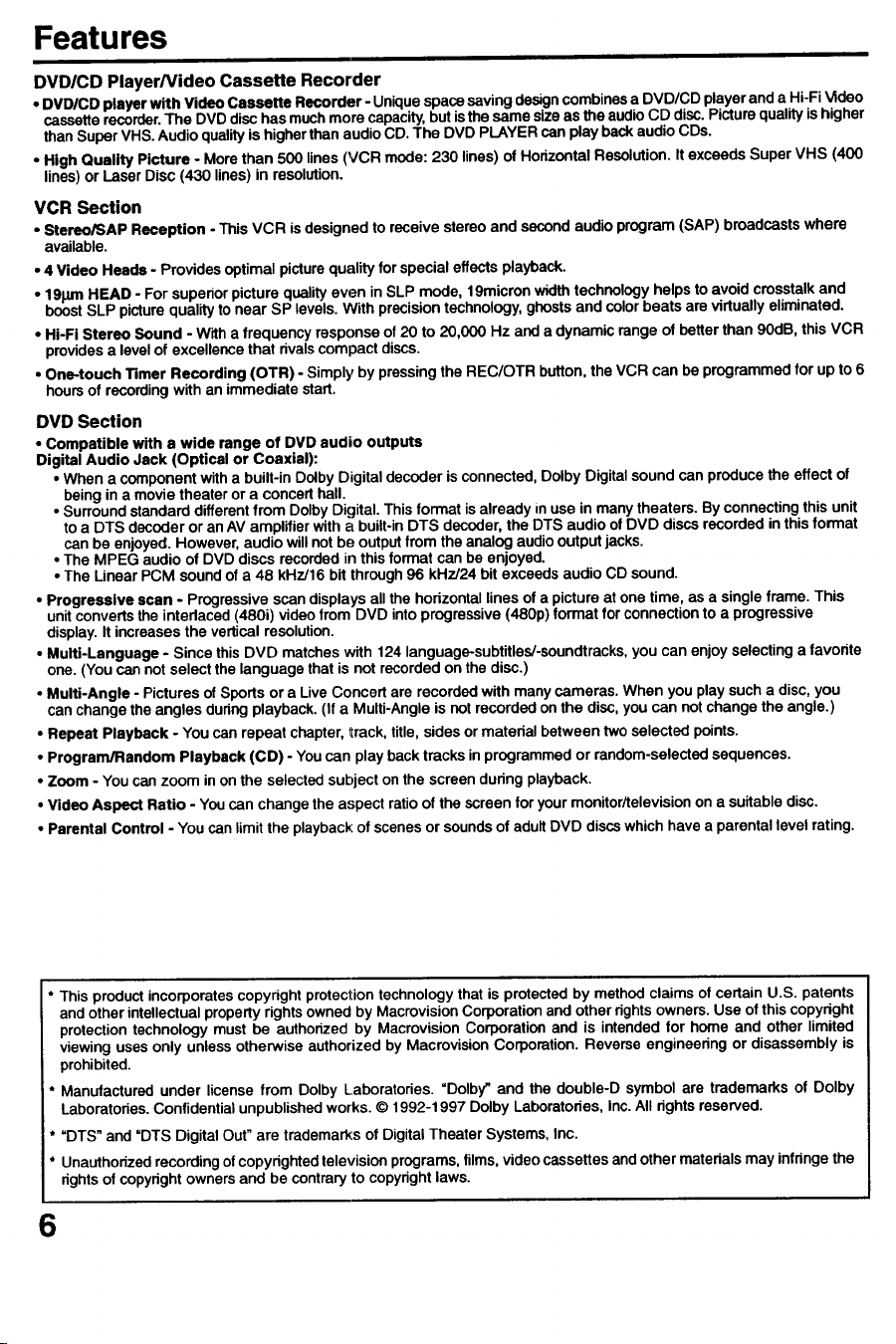
DVD/CD Player/Video Cassette Recorder
• DVDICD player with Video Cassette Recorder- Unique space saving desk.n combines a DVD/CD player and a Hi-Fi V_deo
cassette recorder.The DVD disc has much more capacity, but isthe same stze as the audio CD disc. Picture quality is higher
than Super VHS. Audio qualityis higher than audio CD. The DVD PLAYER can play back audio CDs.
• High Quality Picture - More than 500 lines (VCR mode: 230 lines) of Horizontal Resolution. It exceeds Super VHS (400
lines) or Laser Disc (430 lines) in resolution.
VCR Section
• Stereo/SAP Reception - This VCR is designed to receive stereo and second audio program (SAP) broadcasts where
available.
• 4 Video Heads - Provides optimal picture quality for special effects playback.
• 191JmHEAD - For supenor picture quality even in SLP mode, 19micron width technology helps to avoid crosstalk and
boost SLP picture quality to near SP levels. With precision technology, ghosts and color beats are virtually eliminated.
• Hi-Fi Stereo Sound - With a frequency response of 20 to 20,000 Hz and a dynamic range of better than 90dB, this VCR
providesa level of excellence that rivalscompact discs.
° One-touch Timer Recording (OTR) - Simply by pressing the REC/OTR button, the VCR can be programmed for up to 6
hoursof recording with an immediate start.
DVD Section
• Compatible with a wide range of DVD audio outputs
Digital Audio Jack (Optical or Coaxial):
• When a component with a built-in Dolby Digital decoder is connected, Dolby Digital sound can produce the effect of
being in a movie theater or a concert hall.
• Surround standard different from Dolby Digital. This format is already in use in many theaters. By connecting this unit
to a DTS decoder or an AV amplifier with a built-inDTS decoder, the DTS audio of DVD discs recorded in this format
can be enjoyed. However, audio will not be output from the analog audio output jacks.
• The MPEG audio of DVD discs recorded in this format can be enjoyed,
• The Linear PCM sound of a 48 kHz/16 bit through 96 kHz/24 bit exceeds audio CD sound.
• Progressive scan - Progressive scan displays all the horizontal lines of a picture at one time, as a single frame. This
unit converts the interlaced (480i) video from DVD into progressive (480p) format for connection to a progressive
display. It increases the vertical resolution.
• Multi-Language - Since this DVD matches with 124 language-subtitles/-soundtracks, you can enjoy selecting a favorite
one. (You can not select the language that is not recorded on the disc.)
• Multi-Angle - Pictures of Sports or a Live Concert are recorded with many cameras. When you play such a disc, you
can change the angles during playback. (If a Multi-Angle is not recorded on the disc, you can not change the angle.)
• Repeat Playback - You can repeat chapter, llrack, title, sides or material between two selected points.
• Program/Random Playback (CD) - You can play back tracks in programmed or random-selected sequences.
• Zoom - You can zoom in on the selected subject on the screen during playback.
• Video Aspect Ratio - You can change the aspect ratio of the screen for your monitor/television on a suitable disc.
• Parental Control - You can limit the playback: of scenes or sounds of adult DVD discs which have a parental level rating.
This product incorporates copyright protection technology that is protected by method claims of certain U.S. patents
and other intellectual property rights owned by Macrovision Corporation and other rights owners. Use of this copyright
protection technology must be authorized by Macrovision Corporation and is intended for home and other limited
viewing uses only unless otherwise authorized by Macrovision Corporation. Reverse engineering or disassembly is
prohibited.
Manufactured under license from Dolby Laboratories. "Dolby" and the double-D symbol are trademarks of Dolby
Laboratories. Confidential unpublished works. © 1992-1997 Dolby Laboratories, Inc. All fights reserved.
* "DTS" and "DTS Digital Out" are trademarks of Digital Theater Systems, Inc.
• Unauthorized recording of copyrighted television programs, films, video cassettes and other materials may infringe the
rightsof copyright owners and be contrary to copyright laws.
6
Contents
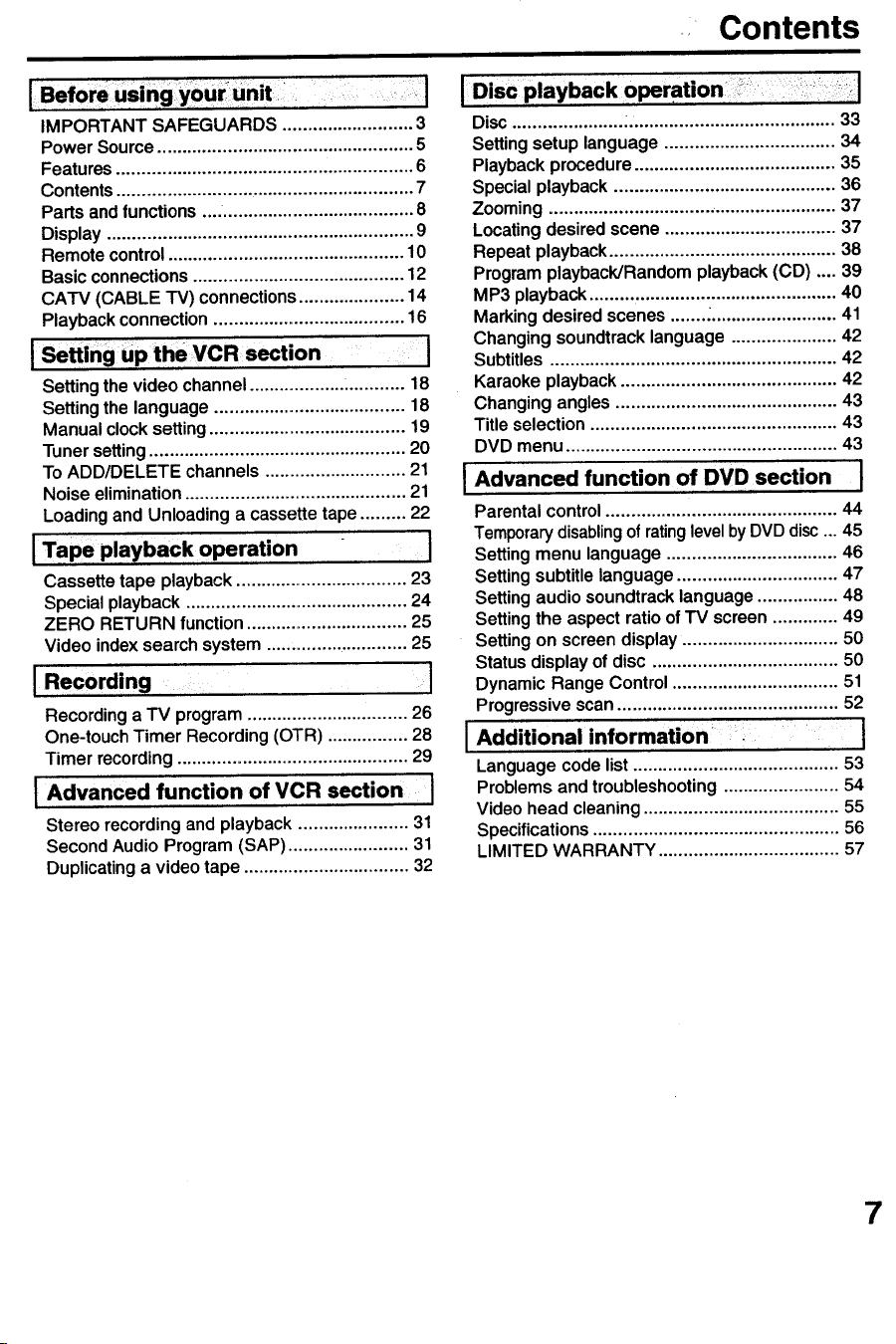
! Bef°reusingY0urunit i, ,,,: ,1
IMPORTANT SAFEGUARDS .......................... 3
Power Source ................................................... 5
Features ........................................................... 6
Contents ............................................................ 7
Parts and functions .... ...................................... 8
Display .............................................................. 9
Remote control ............................................... 10
Basic connections .......................................... 12
CATV (CABLE TV) connections ..................... 14
Playback connection ...................................... 16
! Setting UP the vcR secti°n I
Setting the video channel ................... ............ 18
Setting the language ...................................... 18
Manual clock setting ....................................... 19
Tuner setting ................................................... 20
To ADD/DELETE channels ............................ 21
Noise elimination ............................................ 21
Loading and Unloading a cassette tape ......... 22
IT ape playback operation I
Cassette tape playback ................................... 23
Special playback ............................................. 24
ZERO RETURN function ................................. 25
Video index search system ............................ 25
I Recording I
Recording a TV program ................................. 26
One-touch Timer Recording (OTR) ................ 28
Timer recording .............................................. 29
[ Advanced function of VCR section J
Stereo recording and playback ...................... 31
Second Audio Program (SAP) ........................ 31
Duplicating a video tape ................................. 32
Disc ...................... :......................................... 33
Setting setup language .................................. 34
Playback procedure ........................................ 35
Special playback ............................................ 36
Zooming .......................................................... 37
Locating desired scene .................................. 37
Repeat playback ............................................. 38
Program playback/Random playback (CD) .... 39
MP3 playback ................................................. 40
Marking desired scenes ....... :......................... 41
Changing soundtrack language ..................... 42
Subtitles ......................................................... 42
Karaoke playback ........................................... 42
Changing angles ............................................ 43
Title selection ................................................. 43
DVD menu ...................................................... 43
[ Advanced function of DVD section J
Parental control ................ i............................. 44
Temporarydisablingof ratinglevel byDVD disc ... 45
Setting menu language .................................. 46
Setting subtitle language ................................ 47
Setting audio soundtrack language ................ 48
Setting the aspect ratio of "IV screen ............. 49
Setting on screen display ............................... 50
Status display of disc ..................................... 50
Dynamic Range Control ................................. 51
Progressive scan ............................................ 52
[ Additional information :: J
Language code list ......................................... 53
Problems and troubleshooting ....................... 54
Video head cleaning ....................................... 55
Specifications ................................................. 56
LIMITED WARRANTY .................................... 57
7
Parts and functions
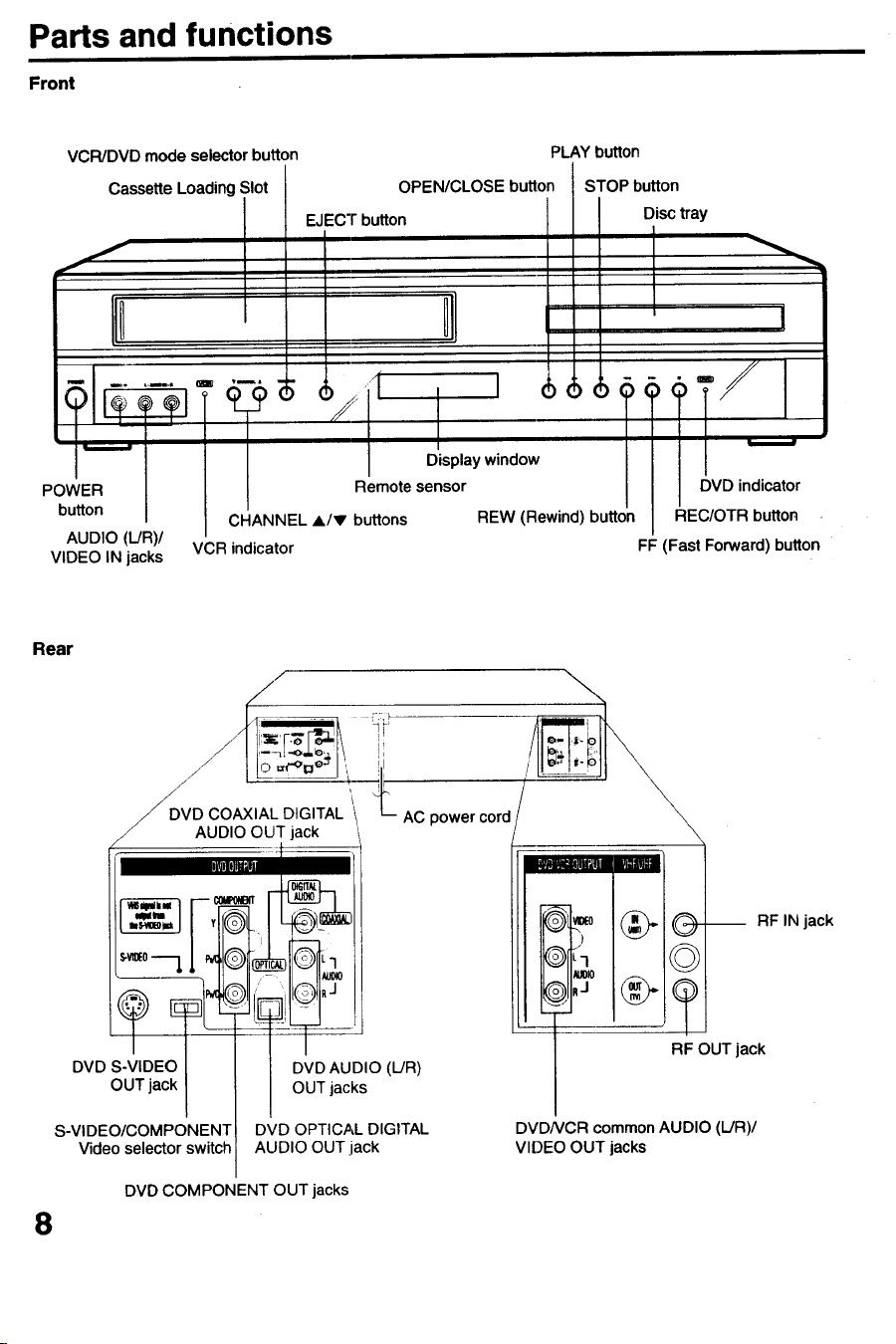
Front
VCR/DVD mode selector button PLAY button
Cassette LoadingSlot
AUDIO (L/R)/
VIDEO IN jacks VCR indicator
OPEN/CLOSE button
EJECT button
/
CHANNEL A/V buttons
J, i
Display window
Remote sensor
REW (Rewind) button
STOP button
Disc tray
FF
T/
DVD indicator
REC/OTR button
Fast Forward) button
Rear
DVD COAXIAL DIGITAL
AUDIO OUT jack
im....
DVD S-VIDEO {
OUT jack I
S-VIDEO/COMPONENT
Video selector switch
lllll I_,I.
| DVDAUDIO (LIR)
OUT jacks
DVD OPTICAL DIGITAL
AUDIO OUT jiack
AC power cord
niBml m
ID_ ,° (_
ll/il_10
I[-®)ll"J (_
zz
_--- RF IN jack
©l
Q_
i
RF OUT jack
DVDNCR common AUDIO (L/R)/
VIDEO OUT jacks
8
DVD COMPONENT OUT jacks
Display window
• "0 0
(il 'LI0"0 LI''
Display
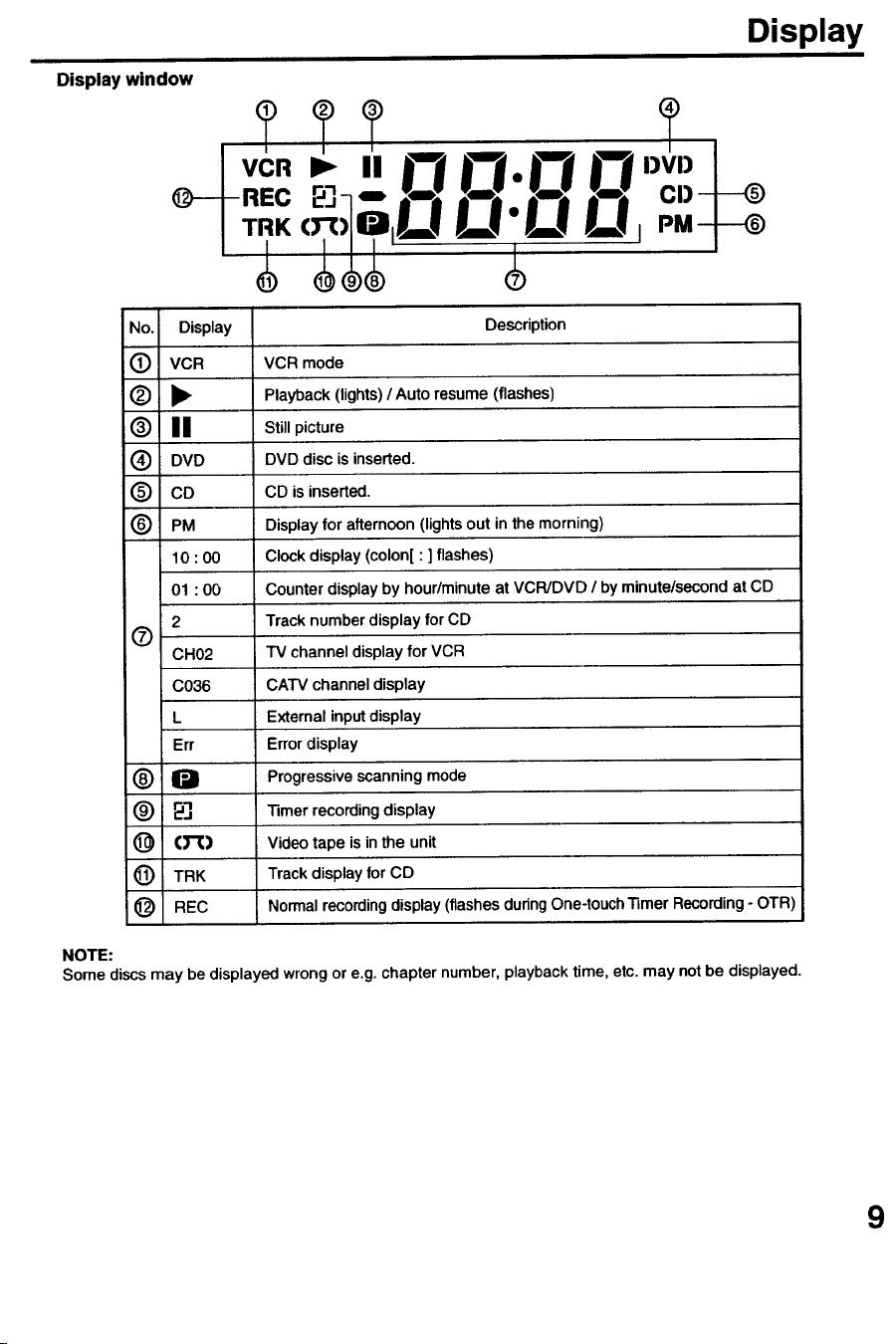
No. Display Description
(_ VCR VCR mode
(_) _b" Playback (lights) / Auto resume (flashes)
® II Stillpicture
(_ DVD DVD disc is inserted.
(3) CD CD is inserted.
(3) PM Display for afternoon (lights out in the morning)
10 : 00 Clock display (colon[ : ] flashes)
01 : O0 Counter display by hour/minute at VCR/DVD / by minute/second at CD
2 Track number display for CD
®
CH02 TV channel display for VCR
C036 CATV channel display
L External input display
Err Error display
(_) I_ Progressive scanning mode
(_) _] "l]mer recording display
(_ (_1_) Video tape is in the unit
(_) TRK Track display for CD
O REC Normal recording display (flashes during One-touch "rimer Recording - OTR)
NOTE:
Some discsmay be displayed wrongor e.g. chapter number, playback time, etc. may not be displayed.
9
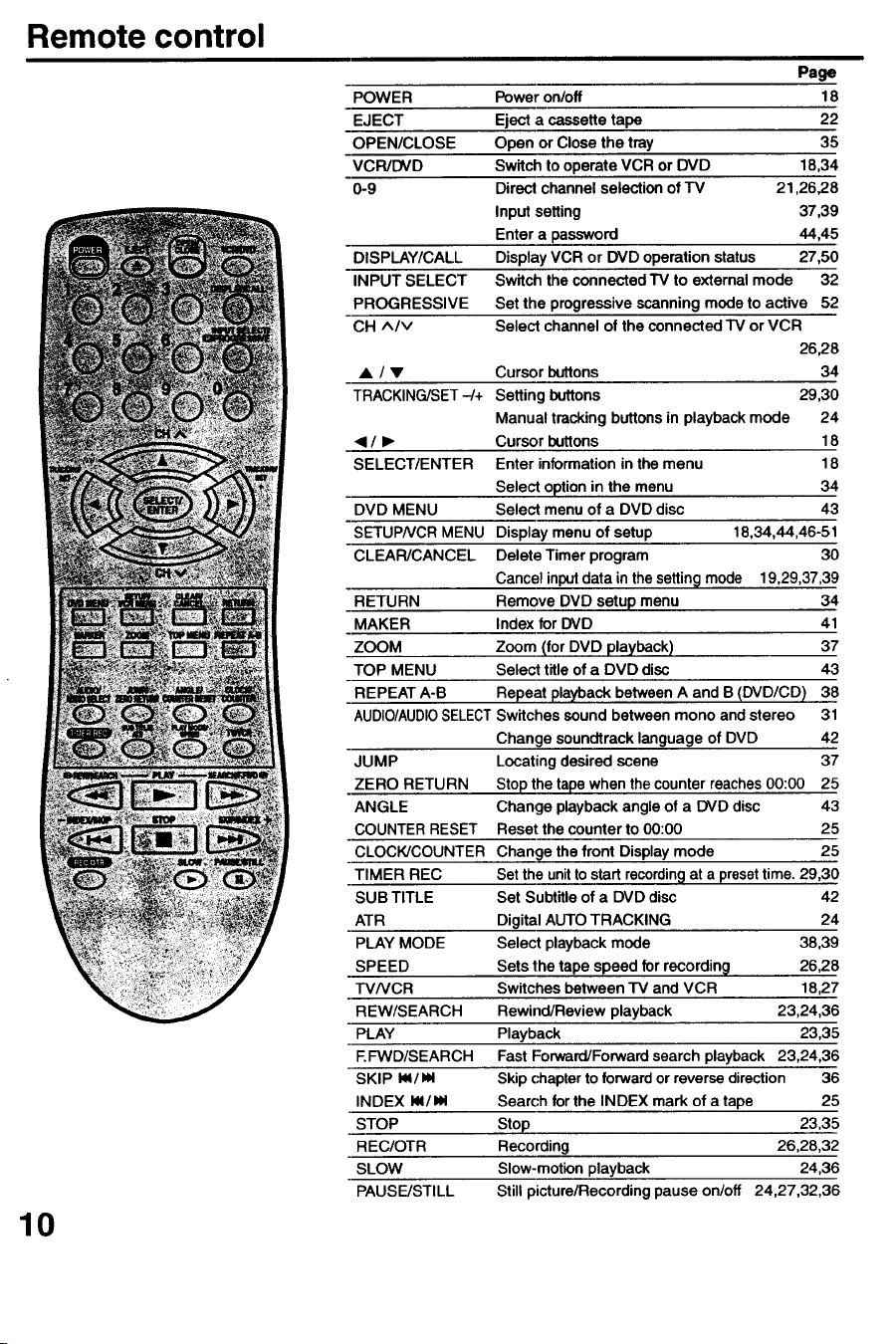
Remote control
POWER
EJECT
OPEN/CLOSE
VCR/DVD
O-9
DISPLAY/CALL
INPUT SELECT
PROGRESSIVE
CH ^Iv
A/v
TRACKING/SET -/+
_/,
SELECT/ENTER
DVD MENU
SETUPNCR MENU
CLEAR/CANCEL
RETURN
MAKER
ZOOM
TOP MENU
REPEAT A-B
AUDIO/AUDIOSELECT
JUMP
ZERO RETURN
ANGLE
COUNTER RESET
CLOCK/COUNTER
TIMER REC
SUB TITLE
ATR
PLAY MODE
SPEED
TVNCR
REW/SEARCH
PLAY
EFWD/SEARCH
SKIP _/_
INDEX _/_
STOP
REC/OTR
SLOW
PAUSE/STILL
Page
Power on/off 18
Eject a cassette tape 22
Open or Close the tray 35
Switch to operate VCR or DVD 18,34
Direct channel selection of TV 21,26,28
Input setting 37,39
Enter a password 44,45
Display VCR or DVD operation status 27,50
Switch the connected TV to external mode 32
Set the progressive scanning mode to active 52
Select channel of the connected TV or VCR
26,28
Cursor buttons 34
Setting buttons 29,30
Manual tracking buttons in playback mode 24
Cursor buttons 18
Enter information in the menu 18
Select option in the menu 34
Select menu of a DVD disc 43
Display menu of setup 18,34,44,46-51
Delete Timer program 30
Cancel input data in the setting mode 19,29,37,39
Remove DVD setup menu 34
Index for DVD 41
Zoom (for DVD playback) 37
Select title of a DVD disc 43
Repeat playback between A and B (DVD/CD) 38
Switches sound between mono and stereo 31
Change soundtrack language of DVD 42
Locating desired scene 37
Stop the tape when the counter reaches 00:00 25
Change playback angle of a DVD disc 43
Reset the counter to 00:00 25
Change the front Display mode 25
Set the unit to start recordingat a preset time. 29,30
Set Subtitle of a DVD disc 42
Digital AUTO TRACKING 24
Select playback mode 38,39
Sets the tape speed for recording 26,28
Switches between TV and VCR 18,27
Rewind/Review playback 23,24,36
Playback 23,35
Fast Forward/Forward search playback 23,24,36
Skip chapter to forward or reverse direction 36
Search for the INDEX mark of a tape 25
Stop 23,35
Recording 26,28,32
Slow-motion playback 24,36
Still picture/Recording pause on/off 24,27,32,36
10
Remote control
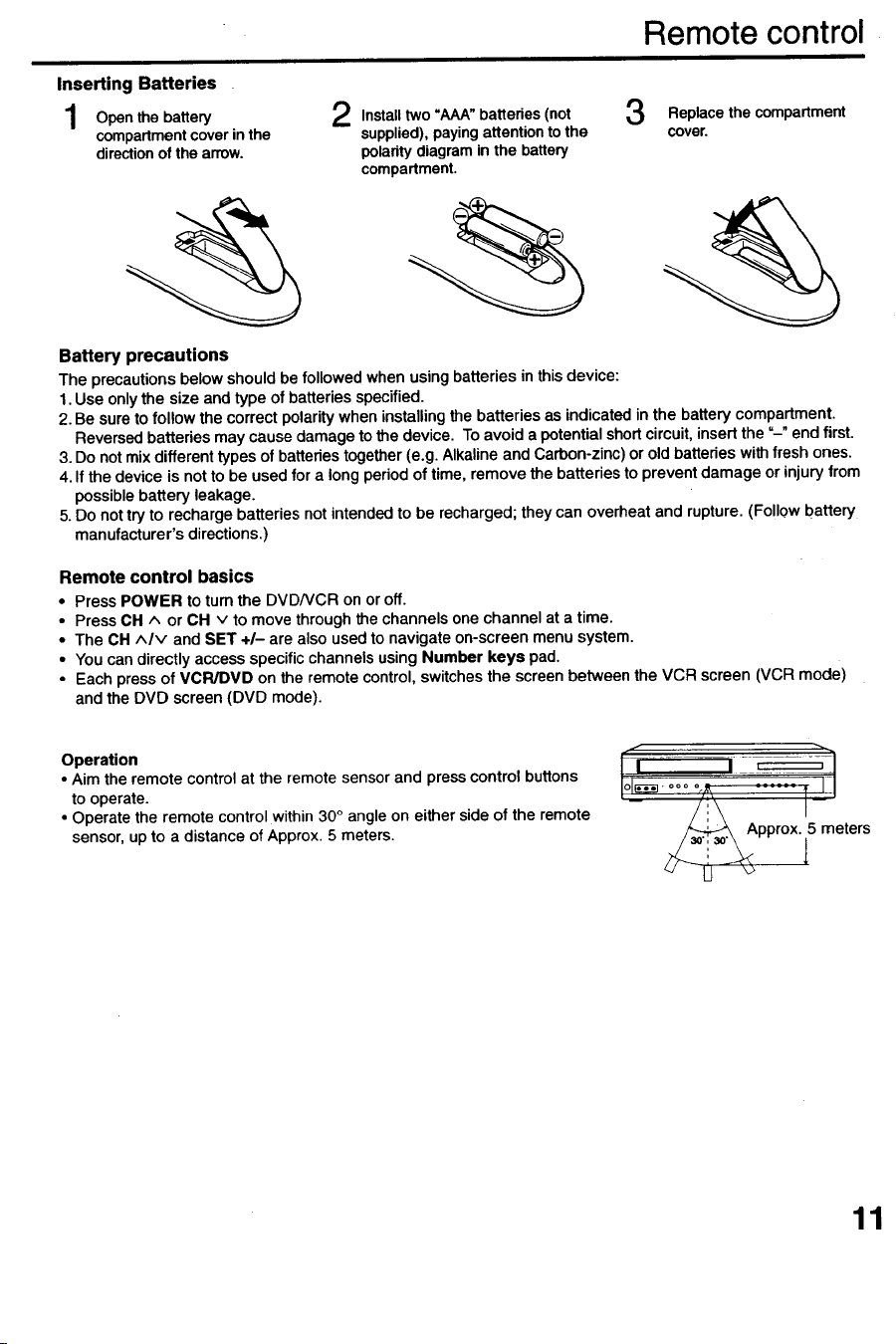
Inserting Batteries
1 Open the battery 2 Install two "AAA"batteries (not 3 Replace the compartment
compartment cover in the supplied), paying attention to the cover.
directionof the arrow, polarity diagram in the battery
compartment.
Battery precautions
The precautionsbelow shouldbe followed when usingbatteriesin this device:
1.Use onlythe size andtype of batteriesspecified.
2. Be sure to fotlow the correctpofadty when installing the batteriesas indicated in the batterycompartment.
Reversedbatteriesmay cause damageto the device. To avoid a potentialshortcircuit,insertthe =-" endfirst.
3. Do notmix differenttypes of batteriestogether(e.g. Alkalineand Carbon-zinc)or old batterieswith freshones.
4. If the device is notto be used for a longperiodof time, remove the batteriesto prevent damage or injuryfrom
possible battery leakage.
5. Do nottry to rechargebatteriesnotintendedto be recharged;they can overheat and rupture.(Follow battery
manufacturer'sdirections.)
Remote control basics
• Press POWER to turn the DVD/VCR on or off.
• Press CH ^ or CH v to move through the channels one channel at a time.
• The CH ^Iv and SET +/- are also used to navigate on-screen menu system.
• You can directly access specific channels using Number keys pad.
• Each press of VCR/DVD on the remote control, switches the screen between the VCR screen (VCR mode)
and the DVO screen (DVD mode).
Operation
• Aim the remote control at the remote sensor and press control buttons
to operate.
• Operate the remote control within 30 ° angle on either side of the remote
sensor, up to a distance of Approx. 5 meters.
Approx. 5 meters
11
Basic connections
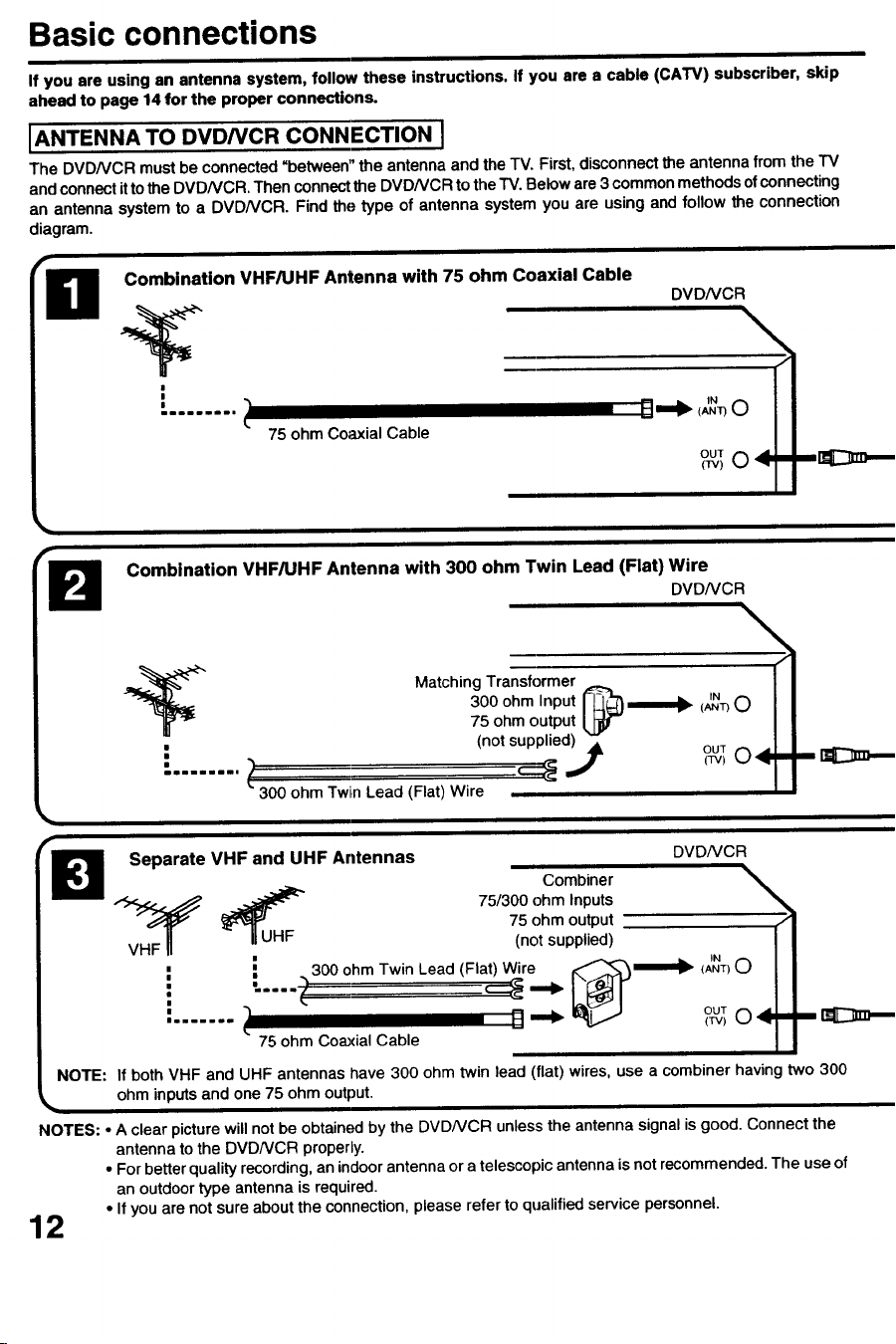
If you are using an antenna system, follow these instructions. If you are a cable (CA'IV) subscriber skip
ahead to page 14 for the proper connections.
IA"TE""AToDvDNc.co..ECT,O.I
The DVD/VCR must be connected =between" the antenna and the TV. First, disconnect the antenna from the TV
and connect it to the DVD/VCR. Then connect the DVD/VCR to the TV. Below are 3 common methods of connecting
an antenna system to a DVD/VCR. Find the type of antenna system you are using and follow the connection
diagram.
Combination VHFAJHF Antenna with 75 ohm Coaxial Cable
' 1mDimmllll
75 ohm Coaxial Cable
B
DVDNCR
OUT _ _11_
Combination VHF/UHF Antenna with 300 ohm Twin Lead (Flat) Wire
DVD/VCR
Matching Transformer [_
300 ohm Input .==m===ll_IN(ANT) O
75 ohm output
(not supplied_l _ out
......... l _ (_v)
300 ohm Twin Lead (Fiat) Wire
Separate VHF and UHF Antennas DVD/VCR
Combiner
VH_F _UHF 75/300 ohm Inputs
75 ohm output
(not supplied)
i : 300 ohm Twin Lead (Flat) Wire ,_ (ANT) 0
.....
OUT"'''''= (TV)
75 ohm Coaxial Cable
NOTE: If both VHF and UHF antennas lhave 300 ohm twin lead (flat) wires, use a combiner having two 300
ohm inputs and one 75 ohm output.
NOTES: • A clear picture will not be obtained by the DVDNCR unless the antenna signal is good. Connect the
antenna to the DVDNCR properly.
• For better quality recording, an indoor antenna or a telescopic antenna is not recommended. The use of
an outdoor type antenna is required.
• If you are not sure about the connection, please refer to qualified service personnel.
12
Basic connections
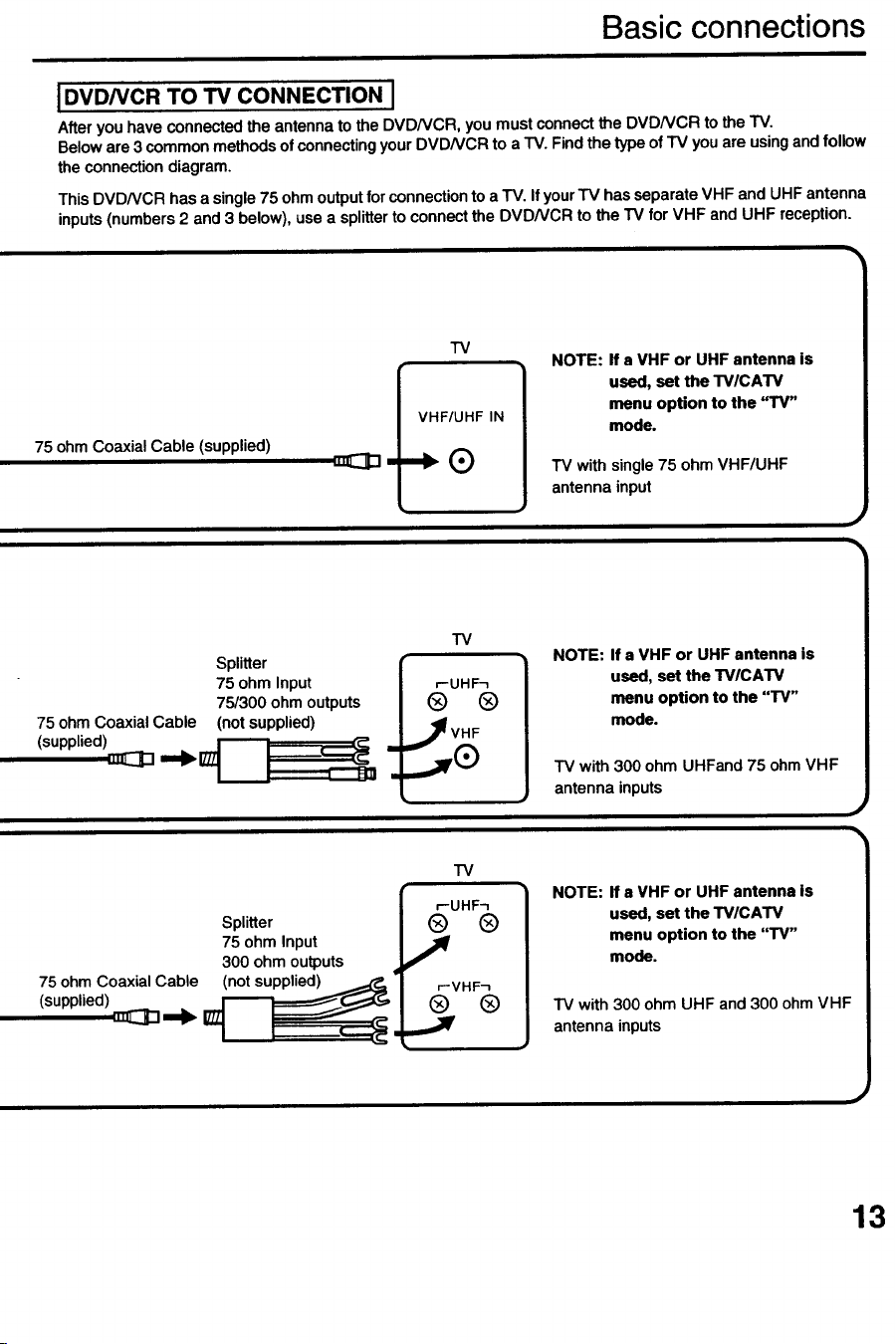
I DVD/VCR TO TV CONNECTION I
After you have connected the antenna to the DVD/VCR, you must connect the DVDNCR to the TV
Below are 3 common methods of connecting your DVDNCR to a TV Find the type of TV you are using and follow
the connection diagram
This DVDNCR has a single 75 ohm output for connection to a TV. If your TV has separate VHF and UHF antenna
inputs (numbers 2 and 3 below), use a splitter to connect the DVDNCR to the TV for VHF and UHF reception.
75 ohm Coaxial Cable (supplied)
TV
VHF/UHF IN
...®
NOTE: If a VHF or UHF antenna is
used, set the TV/CATV
menu option to the "TV"
mode.
TV with single 75 ohm VHF/UHF
antenna input
Splitter
75 ohm Input
75/300 ohm outputs
75 ohm Coaxial Cable (not supplied)
(supplied)_ ==_ IZ_ ',. '_PU"
TV
r-UHF_
® ®
JVHF
NOTE: If a VHF or UHF antenna is
used, set the TV/CATV
menu option to the "TV"
mode.
IV with 300 ohm UHFand 75 ohm VHF
antenna inputs
Splitter
75 ohm Input
300 ohm outputs
75 ohm Coaxial Cable (not supplied) _,
[------'
TV
r--VHF_
® ®
....x
NOTE: If a VHF or UHF antenna is
used, set the TVICATV
menu option to the "TV"
mode,
TV with 300 ohm UHF and 300 ohm VHF
antenna inputs
13
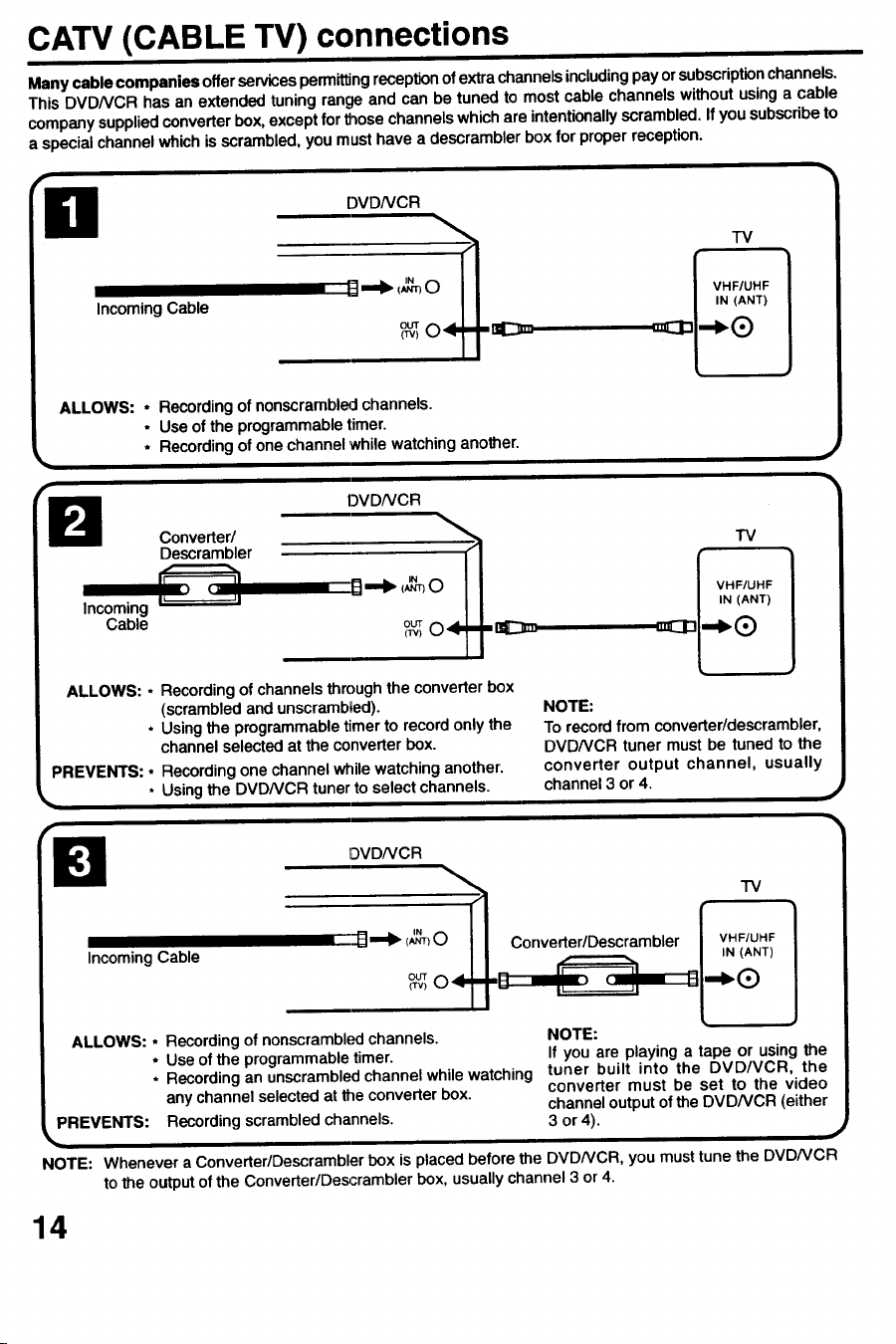
CATV (CABLE TV) connections
Many cable companies offer services permitting reception of extra channels including pay or subscription channels.
This DVDNCR has an extended tuning range and can be tuned to most cable channels without using a cable
company supplied converter box, except for those channels which are intentionally scrambled. If you subscribe to
a special channel which is scrambled, you must have a descrambler box for proper reception.
Incoming Cable
DVDNCR
[_1_111_ (J_) { VHF/UHF
/ IN (ANT)
r
ALLOWS: * Recordingof nonscrambled channels.
• Use of the programmabletimer.
• Recordingof one channel while watchinganother.
Cable
Converted
Descrambler
DVDNCR
II
ALLOWS: * Recording of channels through the converter box
(scrambled and unscrambled).
• Using the programmable timer to record only the
channel selected at the converter box.
TV
I VHF/UHF
iN (ANT)
PREVENTS: • Recording one channel while watching another.
• Using the DVDNCR tuner to select channels.
NOTE:
To record from converter/descrambler,
DVDNCR tuner must be tuned to the
converter output channel, usually
channel 3 or 4.
r- _,q
[)VDNCR
TV
3...-Ib (,_"rr)O Corwerter/Descrambler VHF/UHF
Incoming Cable IN (ANT)
OUT
(TV)
ALLOWS: * Recording of nonscrambled channels. NOTE:
• Use of the programmable timer. If you are playing a tape or using the
, Recording an unscrambled channel while watching tuner built into the DVD/VCR, the
any channel selected at the converter box. converter must be set to the video
channel output of the DVDNCR (either
PREVENTS: Recording scrambled channels. 3 or 4).
NOTE: Whenever a Converter/Descrambler box is placed before the DVD/VCR, you must tune the DVD/VCR
to the output of the Converter/Descrambler box, usually channel 3 or 4.
14
CATV (CABLE TV) connections
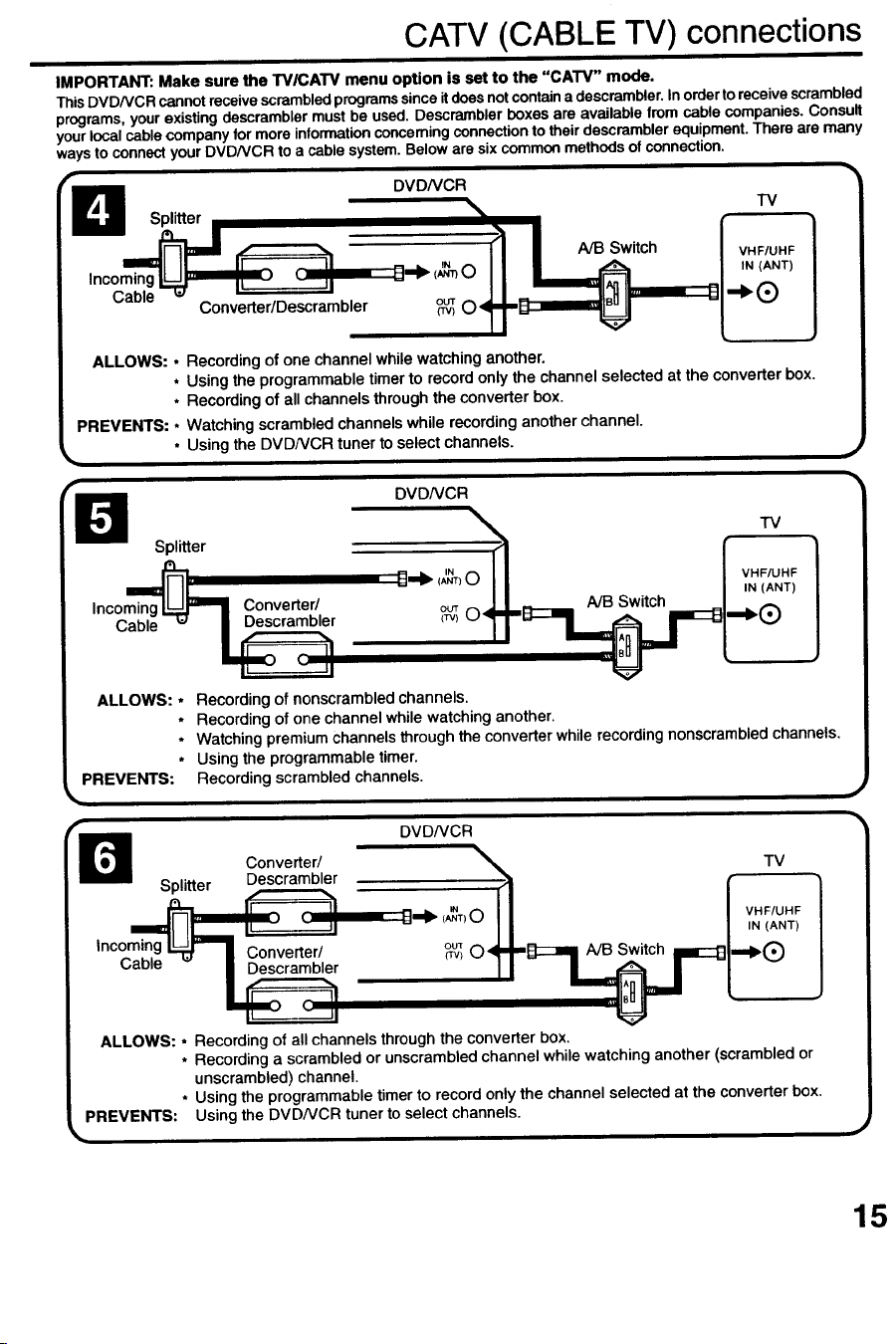
IMPORTANT: Make sure the TV/CATV menu option is set to the "CA'rV" mode.
This DVD/VCR cannot receive scrambled programssince itdoes not contain a descrambler. In order to receive scrambled
programs, your existing descrambler must be used. Descrambler boxes are available from cable companies. Consult
your local cable company for more information concerning connection to their descrambler equipment. There are many
ways to connect your DVDNCR to a cable system. Below are six common methods of connection.
Splitter
i!
Inco C i
Cable "_ ' '
Converter/Descrambler
DVDNCR
• TV
_11 I NB Switch , VHF/UHF
ii , IN(ANT)
ALLOWS: * Recordingof one channelwhilewatchinganother.
• Usingthe programmabletimerto recordonly the channelselectedat the converterbox.
• Recordingof all channelsthroughthe converterbox.
PREVENTS: * Watchingscrambledchannelswhile recordinganotherchannel.
• Usingthe DVDNCR tuner to selectchannels.
Splitter
Incoming
Cable
DVDNCR
Descrambler (w)
A/B Switch
TV
VHF/UHF
IN (ANT)
ALLOWS: * Recording of nonscrambled channels.
• Recording of one channel while watching another.
• Watching premium channels through the converter while recording nonscrambled channels.
• Using the programmable timer.
PREVENTS: Recording scrambled channels.
r_ Converter/
Splitter Descrambler
_,,
.--_1IL_ ,' _ _ ',
Incoming
_nlng _ Converter/
DVDNCR
i TM
O_ (AN_T) VHF/UHF
JI / ,N(ANT)
_) O A/B Switch ..,,_
ALLOWS: * Recording of all channels through the converter box.
• Recording a scrambled or unscrambled channel while watching another (scrambled or
unscrambled) channel.
• Using the programmable timer to record only the channel selected at the converter box.
PREVENTS: Using the DVDNCR tuner to select channels.
15
Playback connections
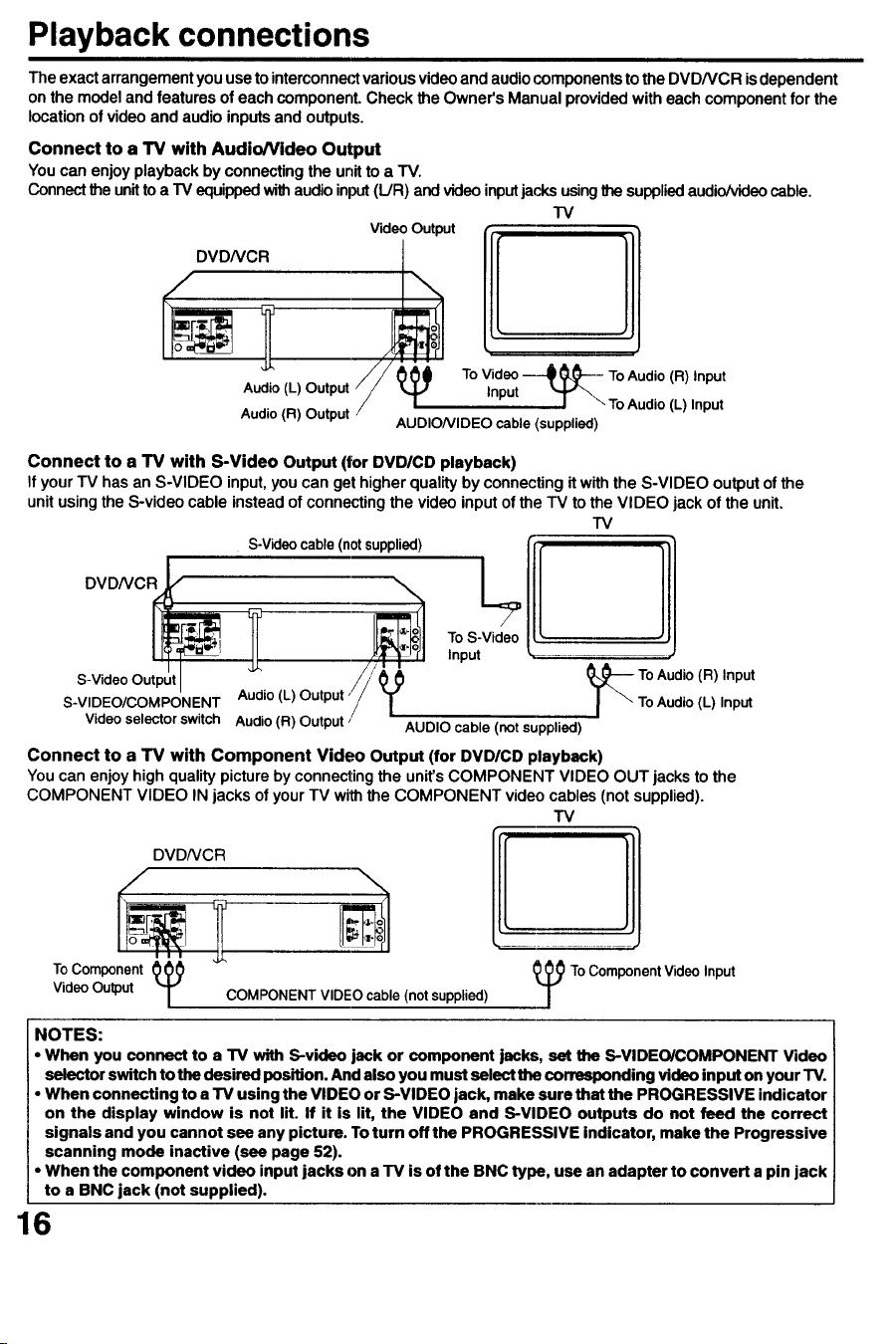
Theexactarrangementyouuseto interconnectvariousvideoand audiocomponentsto the DVD/VCR isdependent
on the modeland featuresof each component.Check theOwner'sManual providedwitheachcomponentfor the
locationof video and audio inputsand outputs.
Connect to a I"V with Audio/Video Output
Youcan enjoy playback byconnectingthe unitto a TV.
Connectthe unitto a TV equippedwithaudioinput(L/R) and videoinputjacksusingthe suppliedaudio/videocable.
"IV
Video Output
_°_ lDVDNCR
Audio (L) Output
Audio (R) Output
To Video ----_ _L_-- ToAudio (R)Input
Input _ \\ ToAudio (L) Input
AUDIONIDEO cable (supplied)
Connect to a TV with S-Video Output (for DVD/CD playback)
If your TV has an S-VIDEO input, you can get higher quality by connecting it with the S-VIDEO output of the
unit using the S-video cable instead of connecting the video input of the "IV to the VIDEO jack of the unit.
TV
S-Video cable (not supplied)Vid_eo 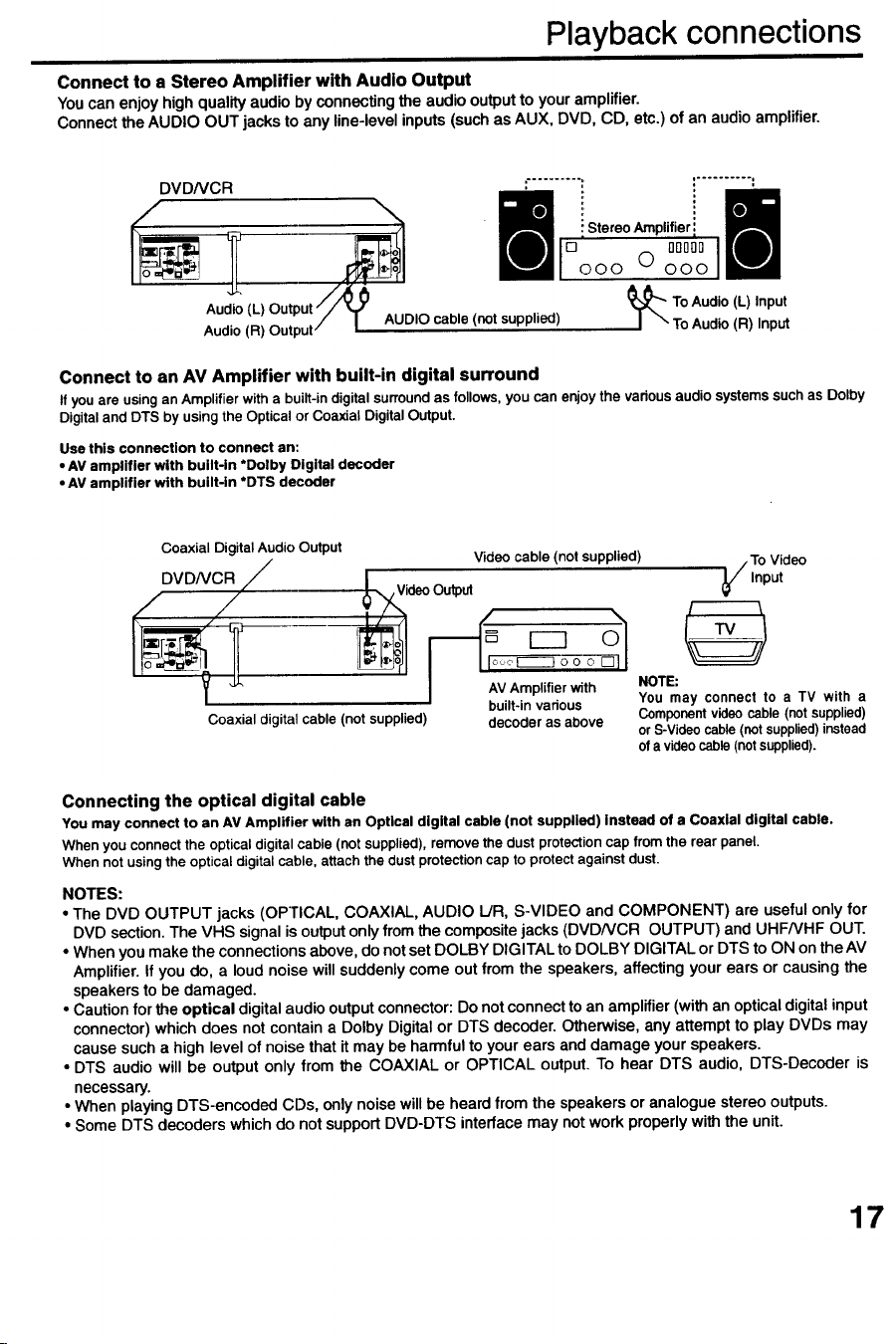
Playback connections
Connect to a Stereo Amplifier with Audio Output
Youcan enjoy high quality audio byconnectingthe audiooutputto youramplifier.
Connect the AUDIO OUT jacksto any line-levelinputs(suchas AUX, DVD, CD, etc.) of an audioamplifier.
DVDNCR ,".................... :
: StereoAmplifier
o o 00°00
ooo 0 ooo
ToAudio (L) Input
DIO cable (not supplied) I "" To Audio(R) Input
Connect to an AV Amplifier with built-in digital surround
Ifyou are usingan Amplifierwitha built-indigitalsurroundas follows,you can enjoythe variousaudio systemssuch as Dolby
Digitaland DTS by using the Optical or Coaxial DigitalOutput.
Use this connection to connect an:
• AV amplifier with built-in *Dolby Digital decoder
• AV amplifier with built-in *DTS decoder
Coaxial Digital Audio Output
DVDNCR /
Coaxial digital cable (not supplied)
Video cable (not supplied) /To Video
¥,nput
deo Output
I AVAmplifier with NOTE:
' built-invarious You may connect to a TV with a
Componentvideo cable(not supplied)
decoderas above or S-Videocable(notsupplied)instead
ofa videocable(notsupplied).
Connecting the optical digital cable
You may connect to an AV Amplifier with an Optical digital cable (not supplied) Instead of a Coaxial digital cable.
When you connectthe opticaldigitalcable (not supplied),remove the dust protectioncap from the rear panel.
When not usingthe opticaldigitalcable, attachthe dust protectioncap to protectagainst dust.
NOTES:
• The DVD OUTPUT jacks (OPTICAL COAXIAL, AUDIO L/R, S-VIDEO and COMPONENT) are useful only for
DVD section. The VHS signal is output only from the composite jacks (DVDNCR OUTPUT) and UHFNHF OUT.
• When you make the connections above, do not set DOLBY DIGITAL to DOLBY DIGITAL or DTS to ON on the AV
Amplifier. If you do, a loud noise will suddenly come out from the speakers, affecting your ears or causing the
speakers to be damaged.
• Caution for the optical digital audio output connector: Do not connect to an amplifier (with an optical digital input
connector) which does not contain a Dolby Digital or DTS decoder. Otherwise, any attempt to play DVDs may
cause such a high level of noise that it may be harmful to your ears and damage your speakers.
• DTS audio will be output only from the COAXIAL or OPTICAL output. To hear DTS audio, DTS-Decoder is
necessary.
• When playing DTS-encoded CDs, only noise will be heard from the speakers or analogue stereo outputs.
• Some DTS decoders which do not support DVD-DTS interface may not work properly with the unit.
17
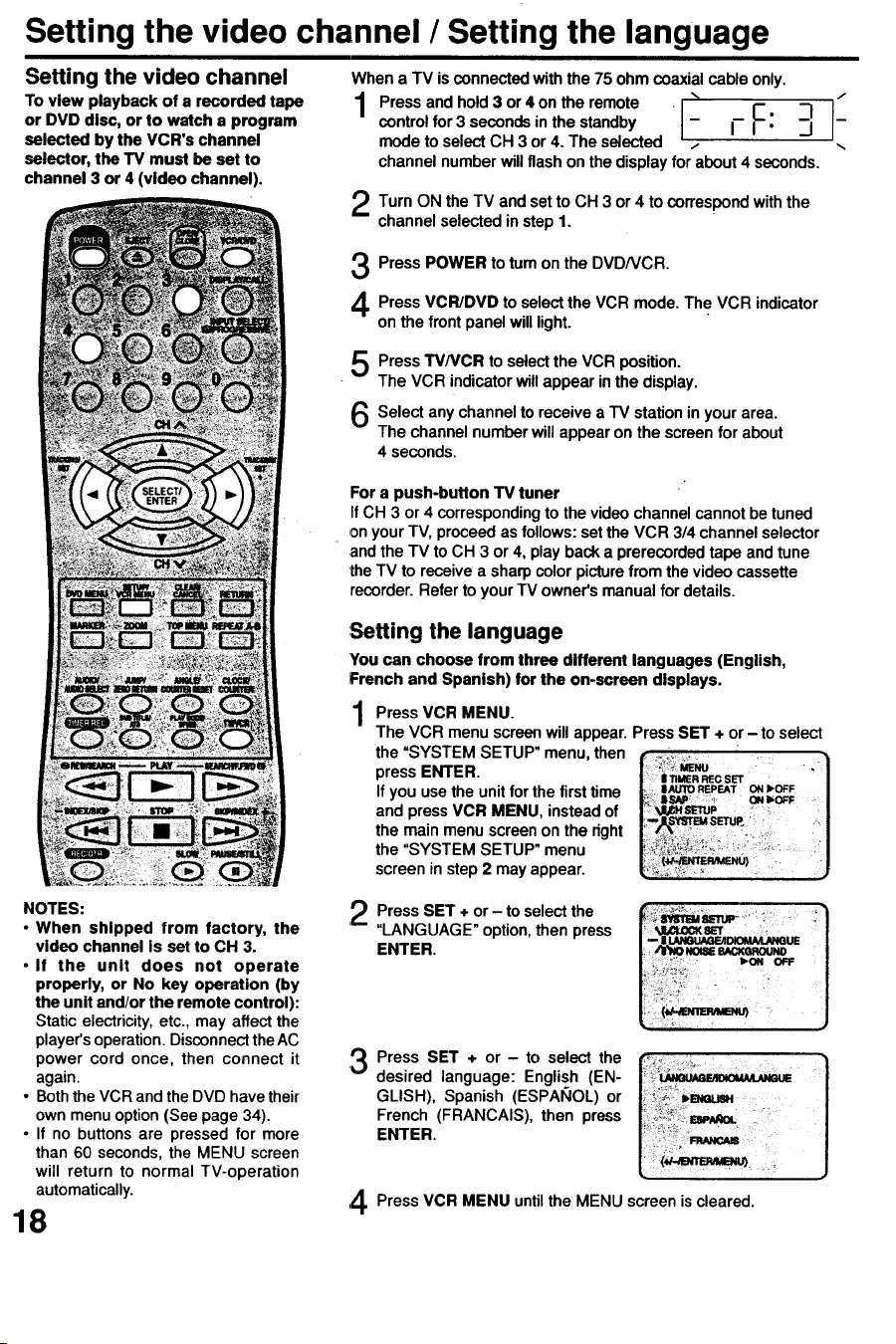
Setting the video channel / Setting the language
Setting the video channel
To view playback of a recorded tape
or DVD disc, or to watch a program
selected by the VCR's channel
selector, the TV must be set to
channel 3 or 4 (video channel).
When a TV is connected with the 75 ohm coaxial cable only.
1 Pressandh°ld3°r4°ntherem°te I "_ F -_ "control for 3 seconds in the standby - I'- "
mode to select CH 3 or 4. The selected .. ..
channel number will flash on the display for about 4 seconds.
Turn ON the TV and setto CH 3 or 4 to withthe
correspond
channel selectedin step 1.
Press POWER to tum on the DVDNCR.
Press VCR/DVD to selectthe VCR mode. The VCR indicator
on the front panel will light.
Press TV/VCR to selectthe VCR position.
The VCR indicator willappear in the display.
Select channelto receive a TV stationin area.
any
your
The channel numberwill appear on the screen for about
4 seconds.
For a push-button TV tuner
If CH 3 or 4 corresponding to the video channel cannot be tuned
,onyour TV, proceed as follows: set the VCR 3/4 channel selector
and the TV to CH 3 or 4, play back a prerecorded tape and tune
the TV to receive a sharp color picture from the video cassette
recorder. Refer to your TV owner's manual for details.
,Setting the language
You can choose from three different languages (English,
French and Spanish) for the on-screen displays.
Press VCR MENU.
The VCR menu screen will appear. Press SET + or - to select
the =SYSTEM SETUP" menu, then
press ENTER.
If you use the unit for the first time wJusroREPEATONIbOFF
and press VCR MENU, instead of
the main menu screen on the right
the "SYSTEM SETUP" menu
screen in step 2 may appear.
NOTES:
• When shipped from factory, the
video channel is set to CH 3.
• If the unit does not operate
properly, or No key operation (by
the unit and/or the remote control):
Static electricity, etc., may affect the
player's operation. Disconnect the AC
power cord once, then connect it
again.
• Both the VCR and the DVD have their
own menu option (See page 34).
• If no buttons are pressed for more
than 60 seconds, the MENU screen
will return to normal TV-operation
automatically.
18
'_) Press SET + or - to select the
"LANGUAGE" option, then press
ENTER.
i_r'_ Press SET + or - to select the
desired language: English (EN-
GLISH), Spanish (ESPAI_IOL) or
French (FRANCAIS), then press
ENTER.
Press VCR MENU until the MENU screen is cleared.
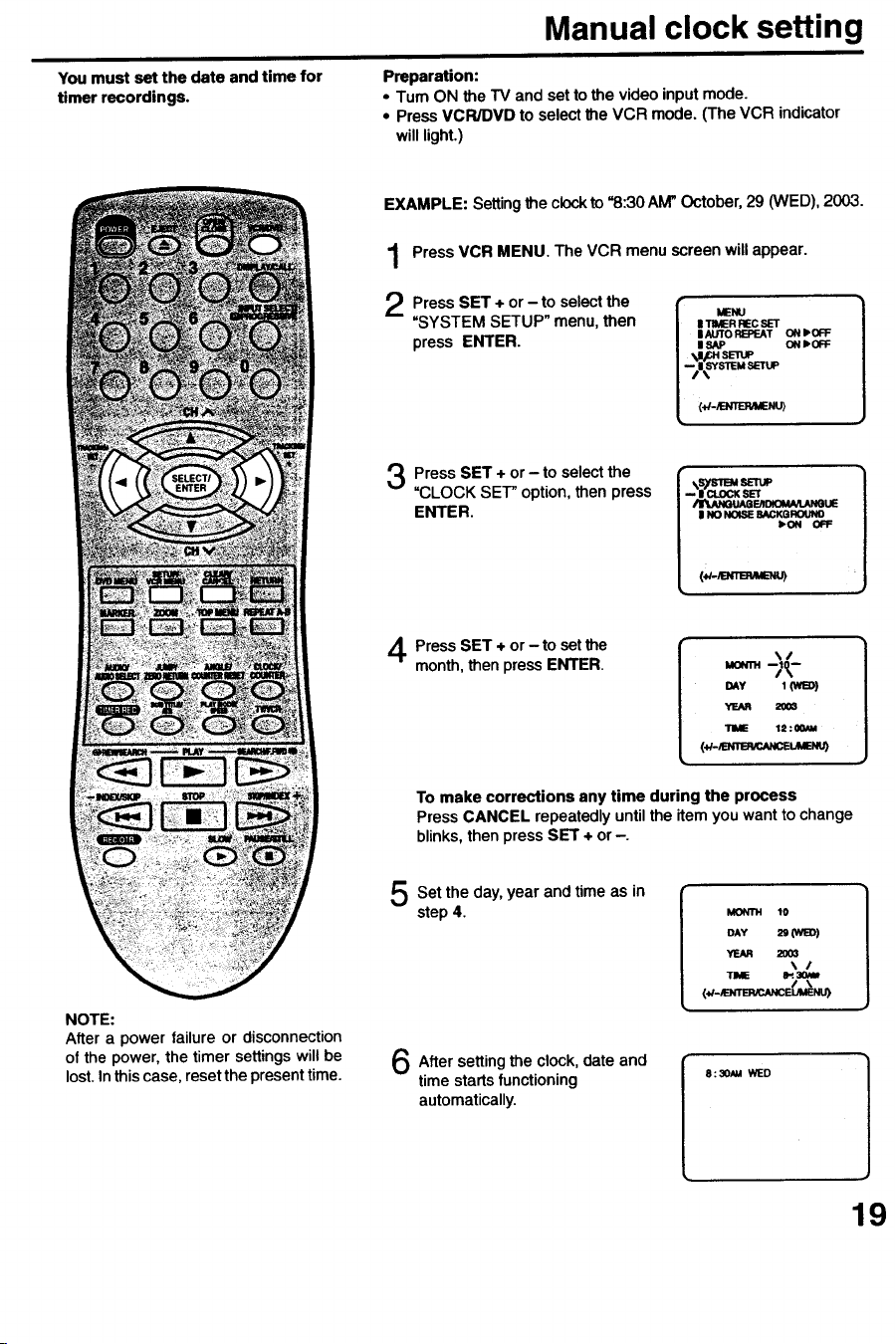
Youmustsetthedateandtimefor
timerrecordings.
Manual clock setting
Preparation:
• Turn ON the TV and set to the video input mode.
• Press VCR/DVD to select the VCR mode. (The VCR indicator
will light.)
EXAMPLE: Setting the clock to =8:30 AM" October, 29 (WED), 2003.
Press VCR MENU. The VCR menu screen will appear.
Press SET + or- to selectthe
=SYSTEM SETUP" menu,then
press ENTER.
I_/__IFS_jpMSETUpITIMERMEI_c
l AUTO RB:f.AT ON IpOFF
IISAP ONIbOFF
Press SET + or - to selectthe
"CLOCK SET" option, then press
ENTER.
\sys-mu SETUP
- mcux_sEr
_E_D_M/Ut./U_eUE
I NONOISEBACKGROUNO
_.ON OFF
Press SET + or - to setthe
month,thenpressENTER.
DAY 1(WB))
YEAR 20_
TIME 12 : 00AM
To make corrections any time during the process
Press CANCEL repeatedly until the item you want to change
blinks, then press SET + or -.
NOTE:
After a power failure or disconnection
of the power, the timer settings will be
lost. In this case, reset the present time.
Set the day, and time as in
year
step 4.
After the clock, date and
setting
time starts functioning
automatically.
I MONTH 10
\ /
8 : 30_1 WED
19
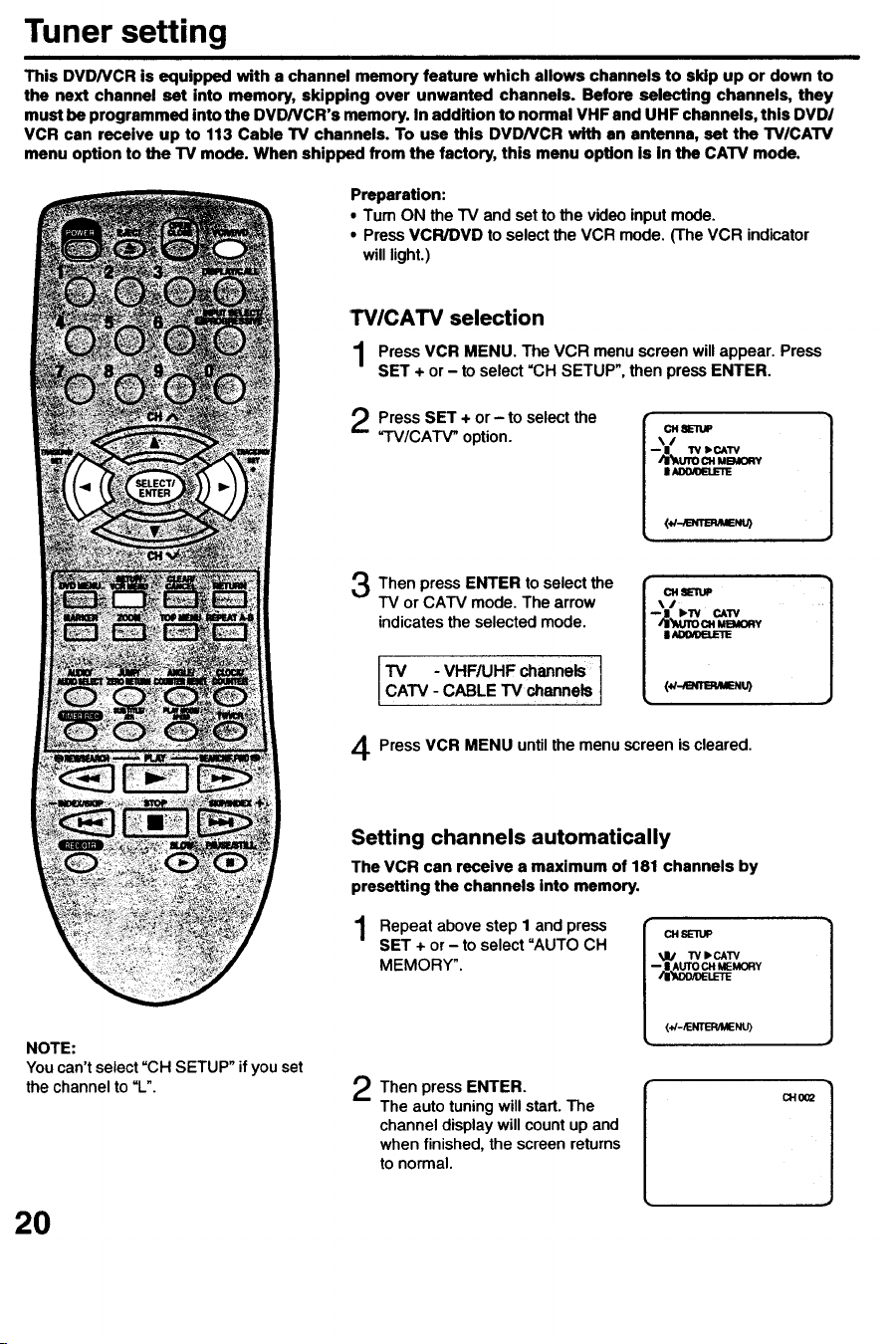
Tuner setting
This DVD/VCR is equipped with a channel memory feature which allows channels to sldp up or down to
the next channel set into memory, skipping over unwanted channels. Before selecting channels, they
must be programmed into the DVDNCR's memory. In addition to normal VHF and UHF channels, this DVDI
VCR can receive up to 113 Cable TV channels. To use this DVDNCR with an antenna, set the TVICATV
menu option to the TV mode. When shipped from the factory, this menu option is in the CATV mode.
Preparation:
.Tum ON the TV and set to the video input mode.
• Press VCR/DVD to select the VCR mode. (The VCR indicator
will light.)
I"V/CATV selection
Press VCR MENU. The VCR menu screen will appear. Press
SET + or - to select =CH SETUP", then press ENTER.
Press SET + or - to select the
=TV/CATV _ option.
C14m_UP
\/
--I W IbcA'rv
/_um cHMBUO_W
IE
(_-_BUMENU)
Then ENTER to select the
press
TV or CATV mode. The arrow
indicatesthe selected mode.
cT_Tv- VHF/UHF channels I
CABLE TV channels t
Press VCR MENU until the menu screen is cleared.
2O
NOTE:
You can't select =CH SETUP" if you set
the channel to =L".
Setting channels automatically
The VCR can receive a maximum of 181 channels by
presetting the channels into memory.
1
Repeat above step I and press
SET + or - to select =AUTOCH
MEMORY".
(+/-/E_NU)
Then press ENTER.
The auto tuning will start. The
channel display will count up and
when finished, the screen returns
to normal.
CHOO2
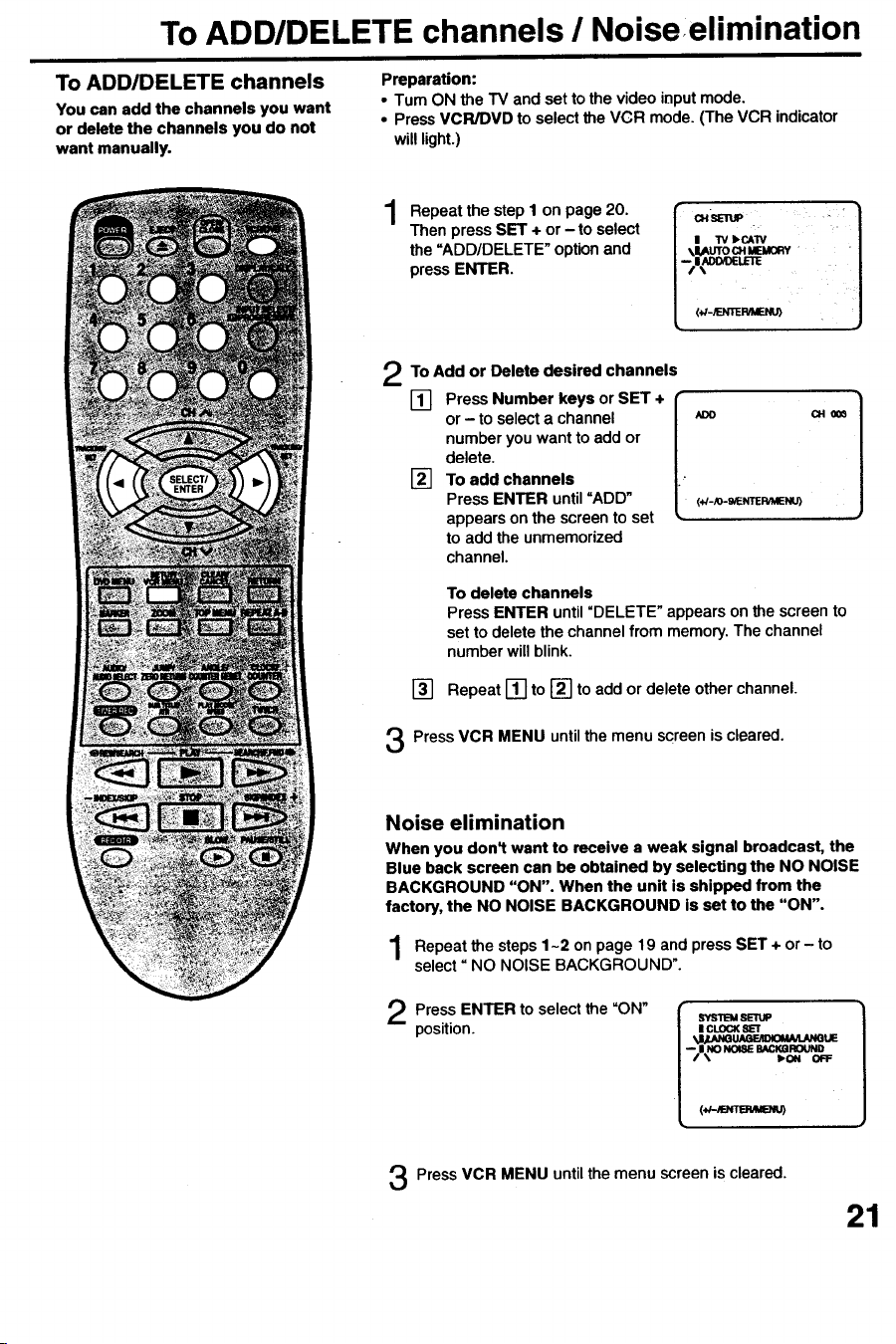
To ADD/DELETE channels / Noise:elimination
To ADD/DELETE channels
You can add the channels you want
or delete the channels you do not
want manually.
Preparation:
•Tum ON the TV and set to the video input mode.
• Press VCR/DVD to select the VCR mode. (The VCR indicator
will light.)
1
Repeat the step 1 on page 20.
Then pressSET + or - to select
the =ADD/DELETE" optionand
press ENTER.
To Add or Delete desired channels
[] Press Number keys or SET + L(-I
or - to selecta channel ADO
numberyou wantto add or
delete.
[] To add channels
Press ENTER until=ADD" (*_-J0-_NTER_ENU)
appearson the screento set
to add the unmemorized
channel.
CHOO_
To delete channels
Press ENTER until =DELETE"appears on the screento
set to deletethe channelfrom memory.The channel
numberwill blink.
[] Repeat [] to [] to add or delete otherchannel.
Press VCR MENU until the menu screen is cleared.
Noise elimination
When you don_ want to receive a weak signal broadcast, the
Blue back screen can be obtained by selecting the NO NOISE
BACKGROUND "ON". When the unit is shipped from the
factory, the NO NOISE BACKGROUND is set to the "ON".
the 1-2 on 19 and SET + or - to
Repeat steps page press
select" NO NOISE BACKGROUND".
Press ENTER to selectthe =ON"
position.
SYSTEMSL=llUP
/ I CLOO( 8b"r
/ _U_eUAeEaBOM_LANeUE
PressVCR MENU untilthe menu screen is cleared.
21
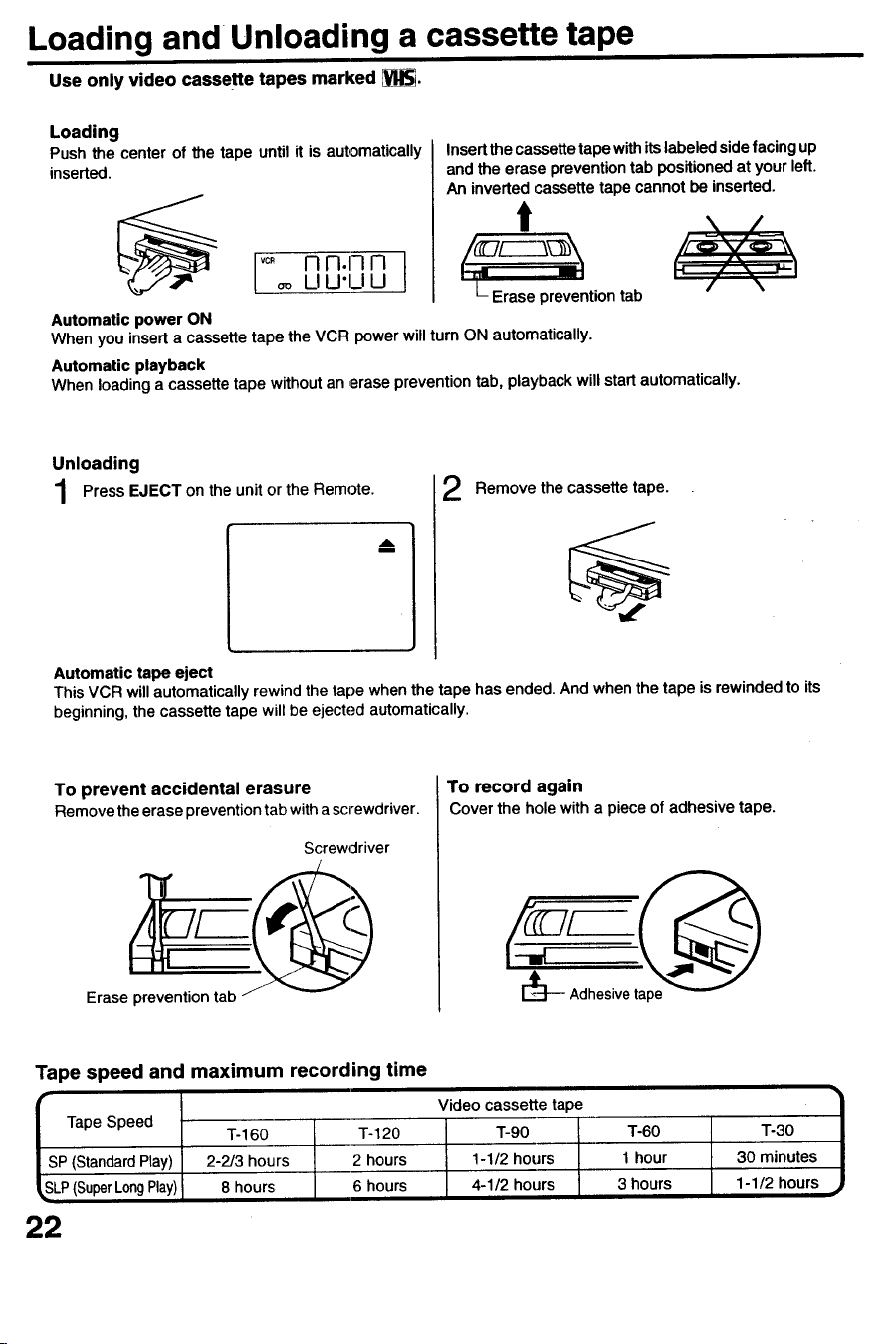
Loading and Unloading a cassette tape
Use only video cassette tapes marked _.
Loading
Push the center of the tape until it is automatically
inserted.
Insertthe cassettetapewithitslabeledsidefacingup
andthe erase preventiontab positionedat your left.
An inverted cassettetape cannot be inserted.
t
L Erase preventiontab
Automatic power ON
When you inserta cassettetape theVCR powerwillturn ON automatically.
Automatic playback
When loadinga cassette tape withoutan erase preventiontab, playbackwill startautomatically.
Unloading
PressEJECTontheunitor theRemote.
A
m
2
Remove thecassette tape.
Automatic tape eject
This VCR will automatically rewind the tape when the tape has ended. And when the tape is rewinded to its
beginning, the cassette tape will be ejected automatically.
To prevent accidental erasure
Removetheerase preventiontab withascrewdriver.
Screwdriver
Erase prevention tab
To record again
Cover the hole with a pieceof adhesive tape.
[_ Adhesivetape
Tape speed and maximum recording time
F
Tape Speed
T-160 T-120
SP (StandardPlay) 2-2/3 hours 2 hours
,SLP(SuperLongPlay) 8 hours 6 hours
Video cassette tape
T-90
1-1/2 hours
4-1/2 hours
T-60
1 hour
3 hours
T-30
30 minutes
1- 1/2 hours
22
Cassette tape playback
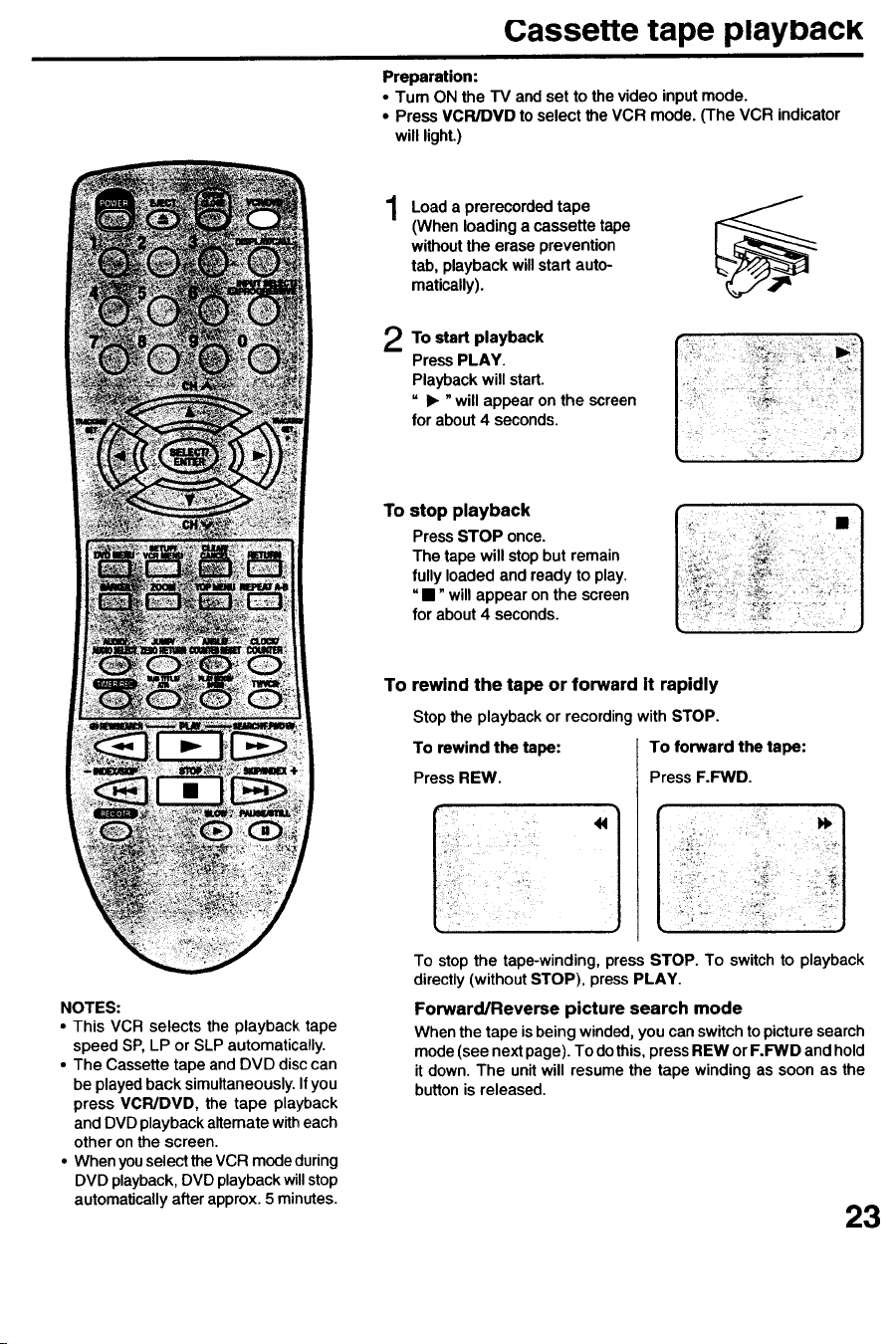
Preparation:
•Tum ON the TV and set to the video input mode.
• Press VCR/DVD to select the VCR mode. (The VCR indicator
will light.)
2
Loada prerecordedtape
(When loadinga cassette tape
withoutthe erase prevention
tab, playbackwill startauto-
matically).
To start playback
Press PLAY.
Playback will start.
= II_ "will appear on the screen
for about 4 seconds.
To stop playback
PressSTOP once.
The tape will stopbut remain
fullyloaded and ready to play.
=•" willappear on the screen
for about 4 seconds.
NOTES:
• This VCR selects the playback tape
speed SP, LP or SLP automatically.
• The Cassette tape and DVD disc can
be played back simultaneously. If you
press VCR/DVD, the tape playback
and DVD playback altemate with each
other on the screen.
• When you select the VCR mode during
DVD playback, DVD playback willstop
automatically after approx. 5 minutes.
To rewind the tape or forward it rapidly
Stopthe playbackor recordingwith STOP.
To rewind the tape:
Press REW.
"1
To forward the tape:
Press F.FWD.
To stop the tape-winding, press STOP. To switch to playback
directly (without STOP), press PLAY.
Forward/Reverse picture search mode
When the tape is being winded, you can switch to picture search
mode (see next page). To do this, press REW or F.FWD and hold
it down. The unit will resume the tape winding as soon as the
button is released.
23
Special playback
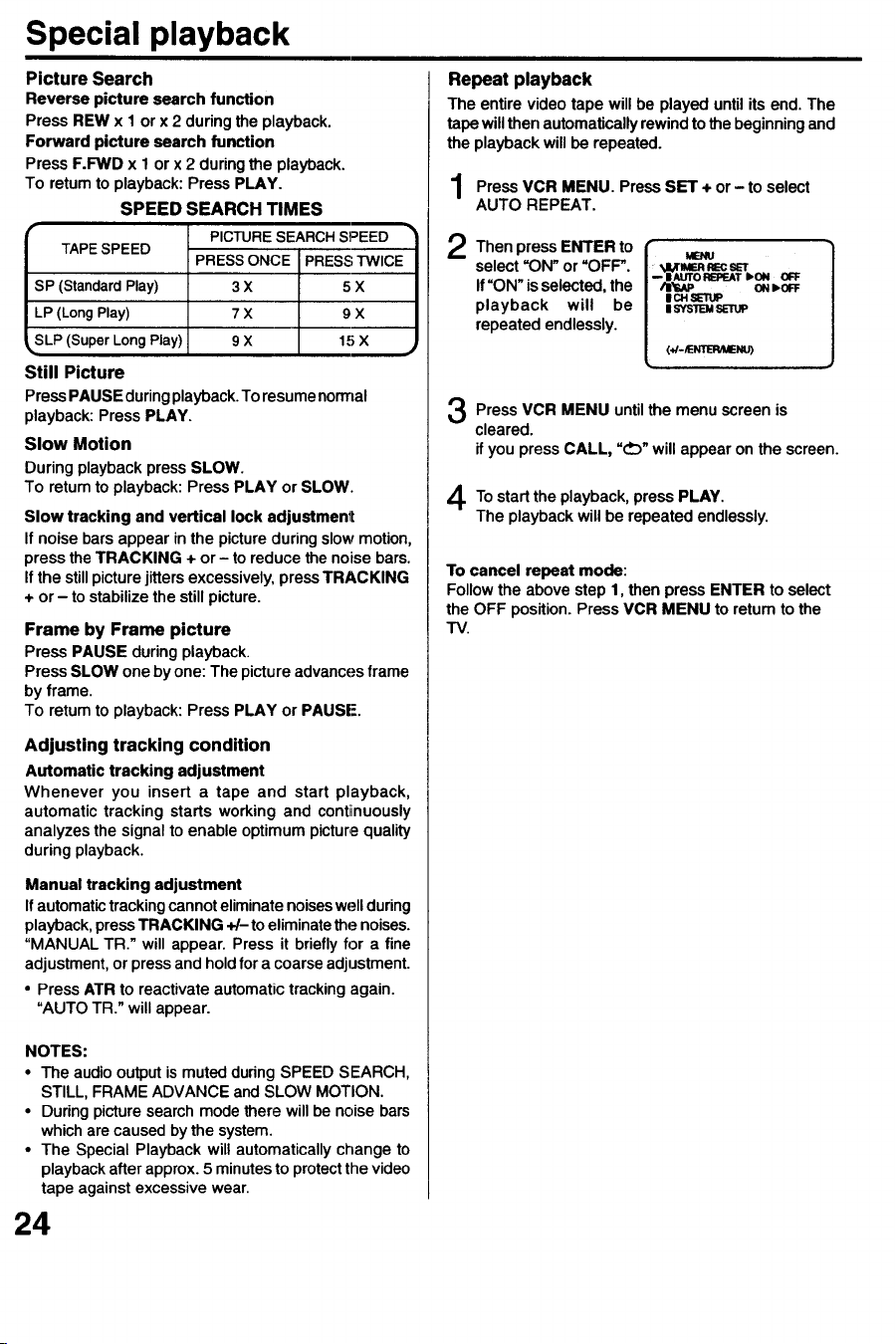
Picture Search
Reverse picture search function
Press REW x 1 or x 2 during the playback.
Forward picture search function
Press F.FWD x 1 or x 2 during the playback.
To retum to playback: Press PLAY.
SPEED SEARCH TIMES
PICTURE SEARCH SPEED
i_r_ _r_
PRESS ONCE PRESS;TWICE
SP (Standard Play) 3 X 5 X
LP (Long Play) 7 X 9 X
SLP (SuperLong Play) 9 X 15 X .,
Still Picture
Press PAUSE during playback. To resume normal
playback: Press PLAY.
Slow Motion
During playback press SLOW.
To return to playback: Press PLAY or SLOW.
Slow tracking and vertical lock adjustmenlt
If noise bars appear in the picture during slow motion,
press the TRACKING + or - to reduce the noise bars.
If the still picture jitters excessively, press TRACKING
+ or - to stabilize the still picture.
Frame by Frame picture
Press PAUSE during playback.
Press SLOW one by one: The picture advances frame
by frame.
To return to playback: Press PLAY or PAUSE.
Adjusting tracking condition
Automatic tracking adjustment
Whenever you insert a tape and start playback,
automatic tracking starts working and continuously
analyzes the signal to enable optimum picture quality
during playback.
Manual tracking adjustment
If automatic tracking cannot eliminate noises well during
playback, press TRACKING +/- to eliminate the noises.
"MANUAL TR." will appear. Press it briefly for a fine
adjustment, or press and hold for a coarse adjustment.
• Press ATR to reactivate automatic tracking again.
"AUTO TR." will appear.
NOTES:
• The audio output is muted during SPEED SEARCH,
STILL, FRAME ADVANCE and SLOW MOTION.
• During picture search mode there will be noise bars
which are caused by the system.
• The Special Playback will automatically change to
playback after approx. 5 minutes to protect the video
tape against excessive wear.
24
Repeat playback
The entire video tape will be played until its end. The
tape will then automatically rewind to the beginning and
the playback will be repeated.
Press + or- to select
Press VCR MENU. SET
AUTO REPEAT.
Then press to
ENTER
select =ON"or "OFF'.
If=ON"isselected,the
playback will be
repeated endlessly.
MENU
_JI_nMER REC sE'r
-- I AUTO RB_¢AT IbON
AI_AP ON D.OFF
I CH SEltJP
1SYSTEM SETUP
(+/-/ENTER'MENU)
To cancel repeat mode:
Follow the abovestep 1, then press ENTER to select
the OFF position.PressVCR MENU to return to the
TV.
To start the PLAY.
playback, press
The playback will be repeated endlessly.
Press VCR MENU until the is
menu screen
cleared.
if you press CALL, =_" will appear on the screen.
ZERO RETURN function / Video index search system
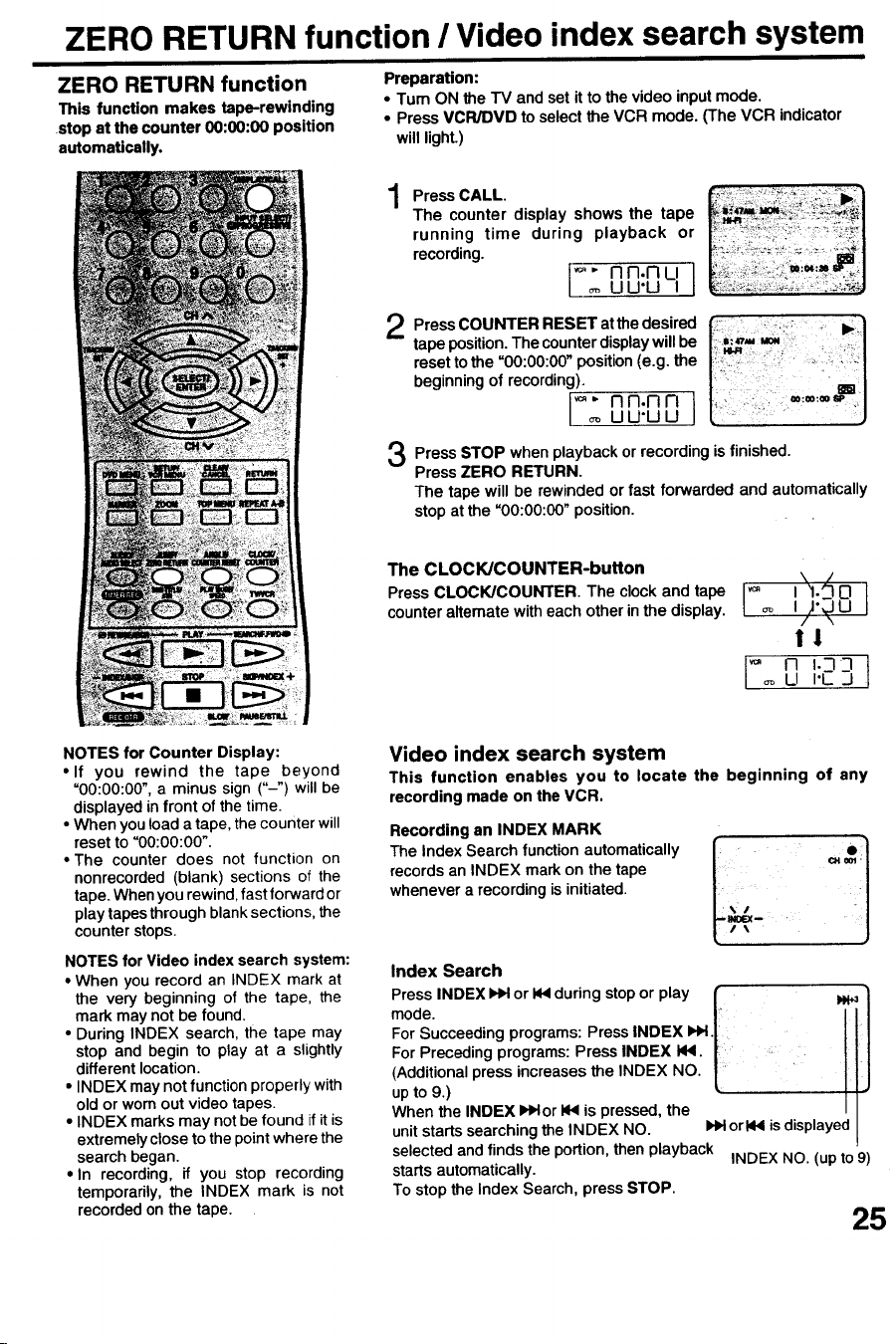
ZERO RETURN function
This function makes tape-rewinding
stop at the counter 00:00:00 position
automatically.
Preparation:
• Turn ON the TV and set it to the video input mode.
• Press VCR/DVD to select the VCR mode. (The VCR indicator
will light.)
1
2
3
Press CALL.
The counter display shows the tape
running time during playback or
recording.
UU'U I
P, .t edes,red[
tape position. The counter display will be =_,= Mo.
reset to the "00:00:00" position (e.g. the r ....
beginning of recording).
I_- nn.nn 1
[ _ uu.uu j
Press STOP when playback or recording is finished.
Press ZERO RETURN.
The tape will be rewinded or fast forwarded and automatically
stop at the "00:00:00" position.
The CLOCK/COUNTER-button
Press CLOCK/COUNTER. The clock and tape
counter alternate with each other in the display.
o ,',,._4o
/',4u
I1
"_ 0 I.-1-1I.C .,3 I
NOTES for Counter Display:
• If you rewind the tape beyond
=00:00:00", a minus sign ("-") will be
displayed in front of the time.
• When you load a tape, the counter will
reset to =00:00:00".
• The counter does not function on
nonrecorded (blank) sections of the
tape. When you rewind, fast forward or
play tapes through blank sections, the
counter stops.
NOTES for Video index search system:
• When you record an INDEX mark at
the very beginning of the tape, the
mark may not be found.
• During INDEX search, the tape may
stop and begin to play at a slightly
different location.
• INDEX may not function properly with
old or worn out video tapes.
• INDEX marks may not be found if it is
extremely close to the point where the
search began.
• In recording, if you stop recording
temporarily, the INDEX mark is not
recorded on the tape.
Video index search system
This function enables you to locate the beginning of any
recording made on the VCR.
Recording an INDEX MARK
The Index Search functionautomatically
recordsan INDEX mark on thetape
whenever a recordingis initiated.
Index Search
Press INDEX _ or 144during stop or play f _'1
mode. !"
For Succeeding programs: Press INDEX Hid.|
Press INDEX 144.
For
Preceding
programs:
increases the INDEX NO. "|
(Additional press
E
up to 9.)
When the INDEX IHHor 144is pressed, the I I
unit starts searching the INDEX NO. HH orNI4 is displayed
I
selected and finds the portion, then playback INDEX NO. (up to 9)
starts automatically.
To stop the index Search, press STOP.
25
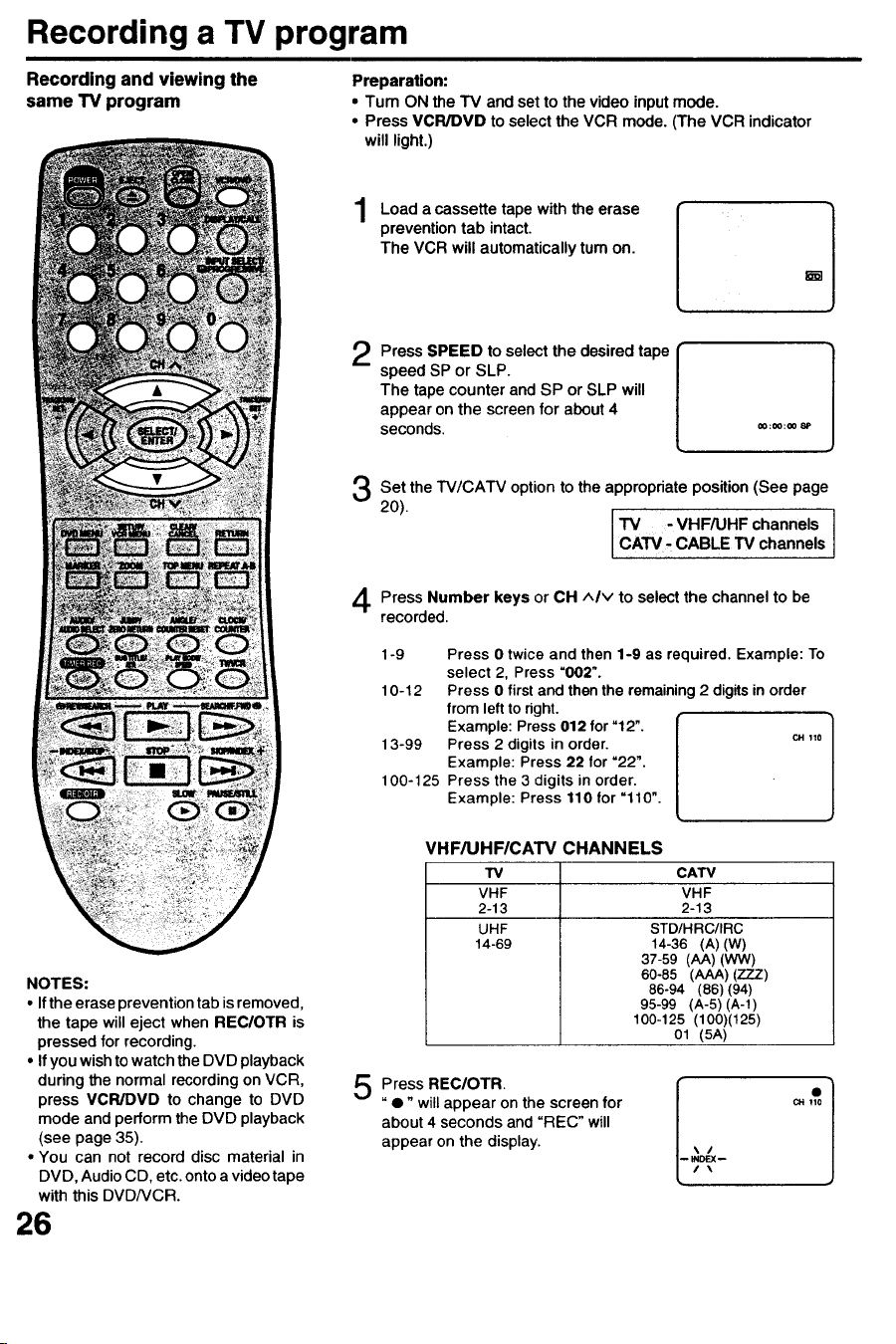
Recording a TV program
Recording and viewing the
same TV program
Preparation:
• Turn ON the "IV and set to the video input mode.
• Press VCR/DVD to select the VCR mode. (The VCR indicator
will light.)
Loada cassette withthe
tape
erase
preventiontab intact.
The VCR will automaticallytum on.
Press SPEED to select the desired tape
speed SP or SLP.
The tape counter and SP or SLP will
appear on the screen for about 4
seconds.
Set the TV/CATV option to the appropriate position (See page
20). TM - VHF/UHF channels
CATV, CABLE TV channe s
Press Number keys or CH AIM to selectthe channel to be
recorded.
1-9 Press 0 twice and then 1-9 as required. Example: To
select 2, Press "002".
10-12 Press 0 first and then the remaining 2 digits in order
from left to right.
Example: Press 012 for "12".
13-99 Press 2 digits in order, c, 11o
Example: Press 22 for "22".
100-125 Press the 3 digits in order.
Example: Press 110 for =110".
NOTES:
• Ifthe erase prevention tab is removed,
the tape will eject when REC/OTR is
pressed for recording.
• If you wish to watch the DVD playback
during the normal recording on VCR,
press VCR/DVD to change to DVD
mode and perform the DVD playback
(see page 35).
• You can not record disc material in
DVD, Audio CD, etc. onto a video tape
with this DVD/VCR.
26
VHF/UHFICATV CHANNELS
TV
VHF
2-13
UHF
14-69
CATV
VHF
2-13
STD/HRC/IRC
14-36 (A) (W)
37-59 (hA) (WW)
60-85 (AAA) (777)
86-94 (86) (94)
95-99 (A-5) (A-l)
100-125 (100)(125)
01 (5A)
Press REC/OTR
"•" will appear on the screen for
about 4 seconds and "REC" will
appear on the display.
e
CH tlO
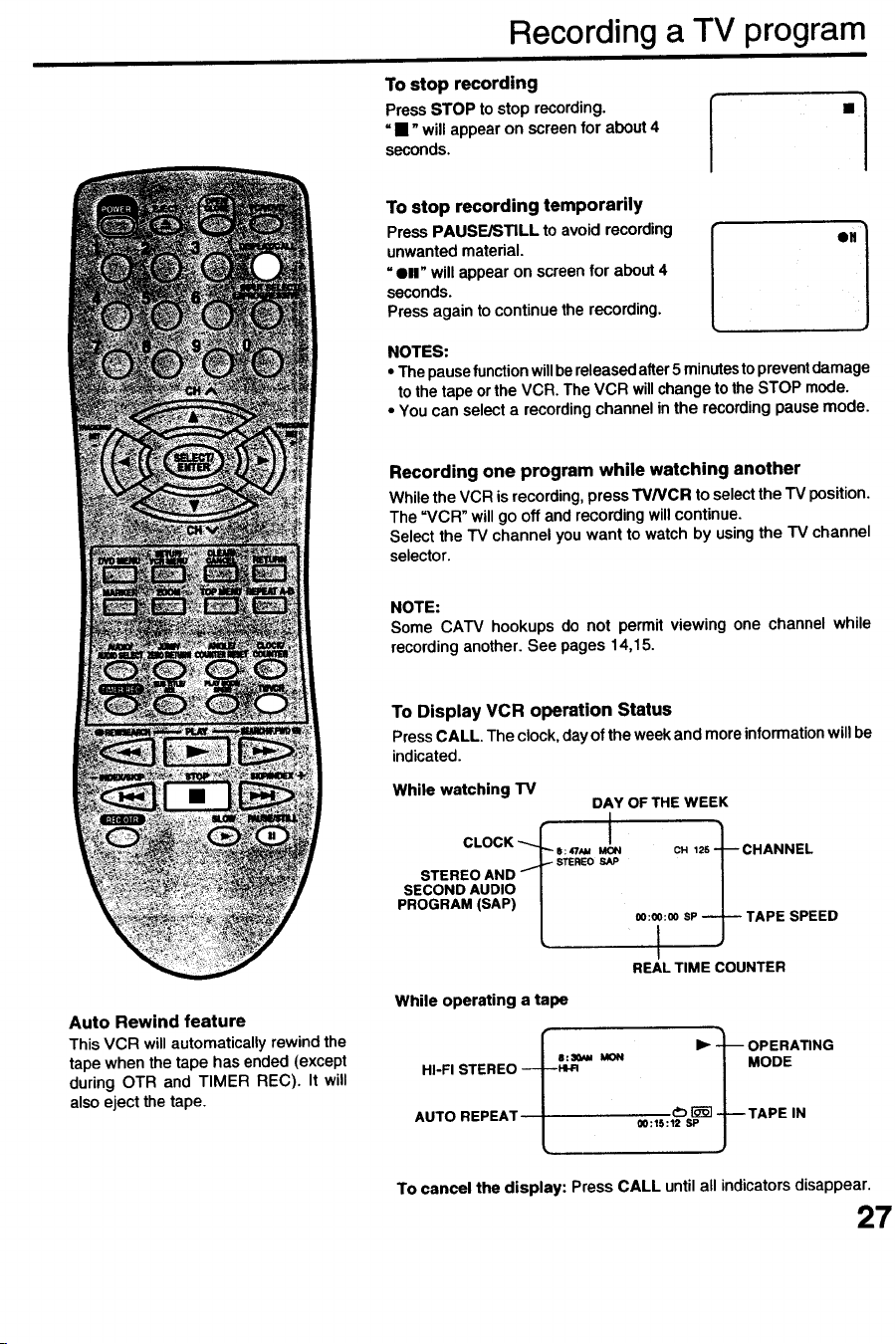
Recording a TV program
To stop recording
Press STOP to stop recording.
= •" will appear on screen for about 4
seconds.
To stop recording temporarily
Press PAUSE/STILL to avoid recording
unwanted material.
"ell" will appear on screen for about 4
seconds.
Press again to continue the recording.
NOTES:
• Thepausefunctionwillbereleasedafter5 minutestopreventdamage
tothe tape or the VCR.The VCR willchange tothe STOP mode.
• You can select a recordingchannelinthe recordingpausemode.
Recording one program while watching another
While the VCR is recording, press TVNCR to select the TV position.
The =VCR" will go off and recording will continue.
Select the "IV channel you want to watch by using the TV channel
selector.
NOTE:
Some CATV hookups do not permit viewing one channel while
recordinganother. See pages 14,15.
Auto Rewind feature
This VCR will automatically rewind the
tape when the tape has ended (except
during OTR and TIMER REC). It will
also eject the tape.
To Display VCR operation Status
Press CALL, The clock, day of the week and more information will be
indicated.
While watching "IV
DAY OF THE WEEK
'"°°"'M'"'/ ,.T,,T,,,..s,.o
REAL TIME COUNTER
While operating a tape
II =_u ICON
HI-FI STEREO ----_H_R
AUTO REPEAT oo:_s:12sP
-- OPERATING
MODE
--TAPE IN
To cancel the display: Press CALL until all indicators disappear.
27
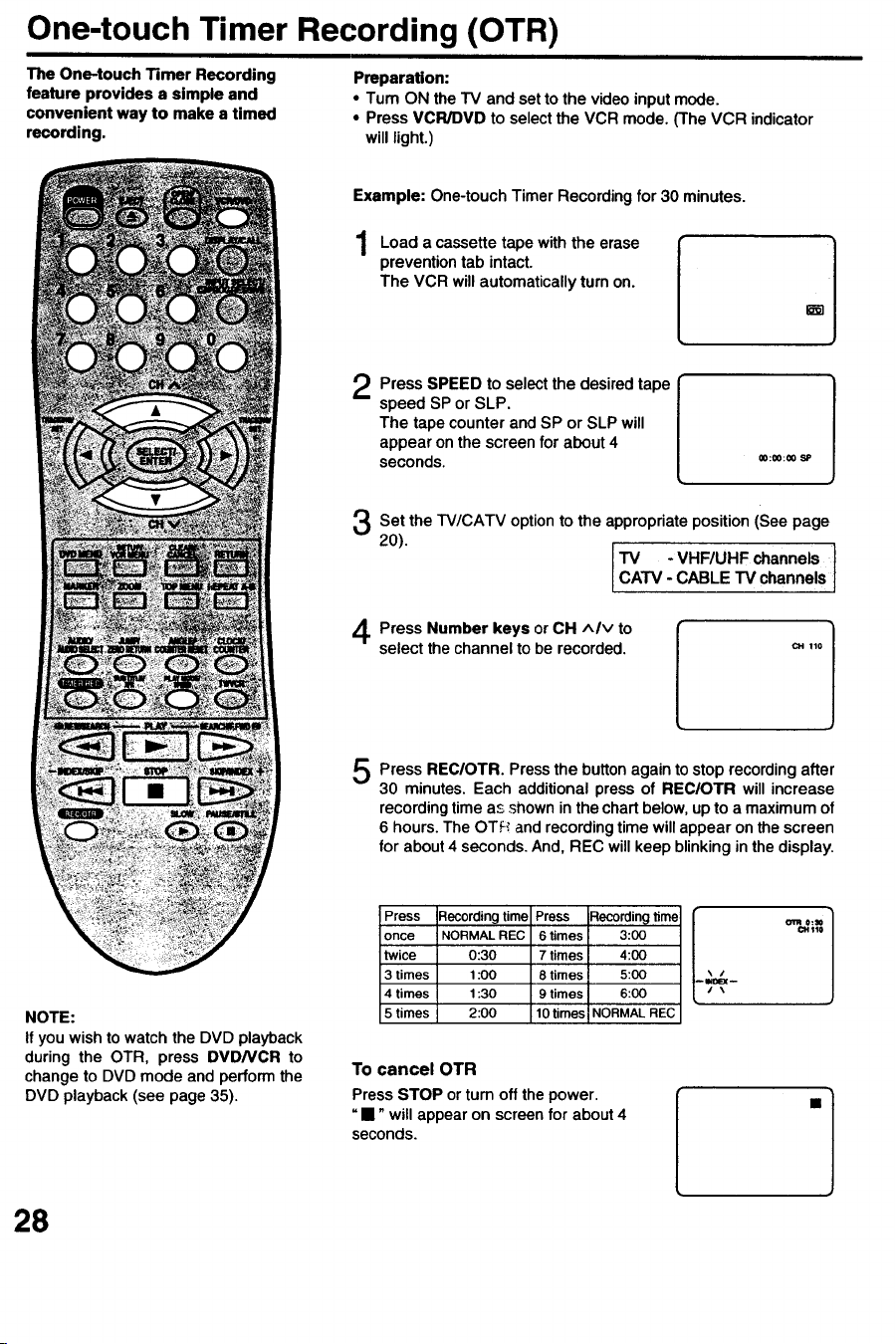
One-touch Timer Recording (OTR)
The One-touch Timer Recording
feature provides e simple and
convenient way to make a timed
recording.
Preparation:
• Turn ON the TV and set to the video inputmode.
• Press VCR/DVD to select the VCR mode. (The VCR indicator
will light.)
Example: One-touchTimer Recordingfor 30 minutes.
Load a cassettetape with the erase
preventiontab intact.
The VCR willautomaticallyturnon.
Press SPEED to select the desiredtape
speed SP or SLP.
The tape counterand SP or SLP will
appear on the screen for about 4
seconds.
Set the TV/CATV option to the appropriateposition (See page
20). [TV -VHFIUHF channels )
[CATV- CABLE TV channels J
Press Number keys or CH ^Iv to
select the channelto be recorded.
Press REC/OTR. Press the buttonagain to stop recordingafter
30 minutes. Each additionalpress of REClOTR will increase
recordingtime as shown in the chartbelow,up to a maximumof
6 hours.The OTf,_.andrecordingtime will appearon the screen
for about4 seconds.And, REC willkeep blinkinginthe display.
NOTE:
If you wish to watch the DVD playback
during the OTR, press DVDNCR to
change to DVD mode and perform the
DVD playback (see page 35).
Press
once
twice
3 times
4 times
5 times
Recording time Press iRecordin_ time
NORMALREC 6times 3:00
0:30 7 times 4:00
1:00 8 times 5:00
1:30 9 times 6:00
2:00 10 times NORMAL REC
To cancel OTR
Press STOP or turn off the power.
"•" will appear on screen for about 4
seconds.
28
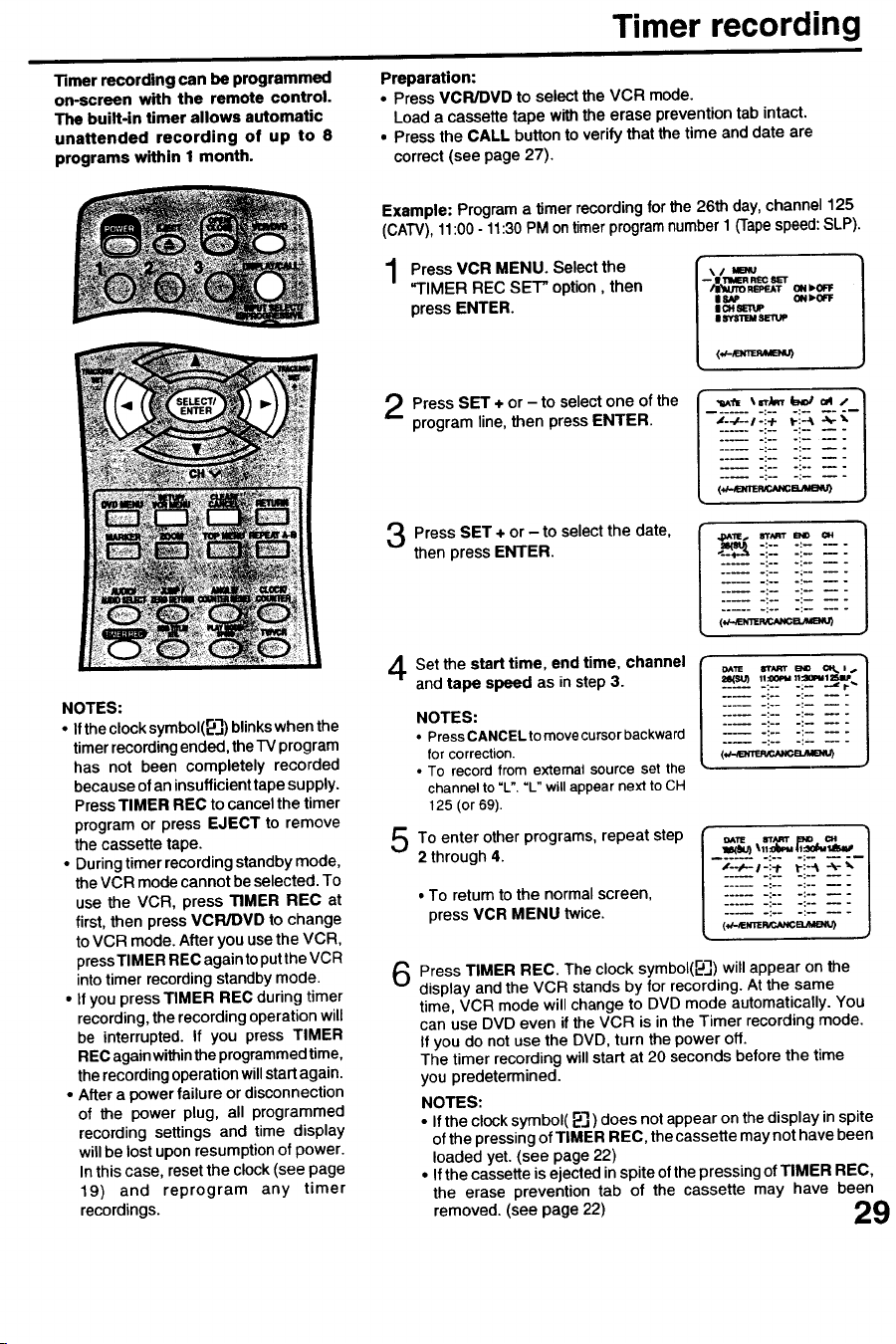
Timer recording
Timer recording can be programmed
on-screen with the remote control.
The built-in timer allows automatic
unattended recording of up to 8
programs within I month.
Preparation:
• Press VCR/DVD to selectthe VCR mode.
Load a cassette tape with the erase prevention tab intact,
• Pressthe CALL button to verifythat thetime anddate are
correct(see page 27).
NOTES:
• If the clock symbol(_']) blinkswhen the
timer recording ended, the "IV program
has not been completely recorded
because of an insufficient tape supply.
Press TIMER REC to cancel the timer
program or press EJECT to remove
the cassette tape.
• During timer recording standby mode,
the VCR mode cannot be selected. To
use the VCR, press TIMER REC at
first, then press VCPJDVD to change
to VCR mode. After you use the VCR,
press TIMER REC again to put the VCR
into timer recording standby mode.
• If you press TIMER REC during timer
recording, the recording operation will
be interrupted. If you press TIMER
REC again within the programmed time,
the recording operation willstart again.
• After a power failure or disconnection
of the power plug, all programmed
recording settings and time display
will be lost upon resumption of:power.
In this case, reset the clock (see page
19) and reprogram any timer
recordings.
Example: Programa timerrecordingfor the 26th day,channel125
(CATV),11:00- 11:30PM ontimerprogramnumber1 (Tapespeed:SLP).
1
Press VCR MENU. Select the
"TIMER REC SET" option, then
pressENTER.
|'riMER REC 8ET
RBPF.AT ON I_0FF
II&_' ON _OFF
|CH EIUP
II sYs11_sE'n._
Press SET ÷ or- to selectone ofthe
program line, then press ENTER.
Press SET + or - to selectthe date,
then pressENTER.
I-e-"-.' :-l
sl"Nq'r END _1
..... :-. .; ....
-:-----"7- :7 --
Set the start time, end time, channel
and tape speed as in step 3.
NOTES:
• Press CANCEL to move cursor backward
for correction.
• To record from external source set the
channel to =L'. "L" will appear next to CH
125 (or 69).
To enter other repeat
programs, step
2 through 4.
6
• To return to the normal screen,
press VCR MENU twice.
-ili ii-!
__-:.¢L_-it t:::3 ___ /
/
Press TIMER REC. The clock symbol(_.']) will appear on the
display and the VCR stands by for recording. At the same
time, VCR mode will change to DVD mode automatically. You
can use DVD even if the VCR is in the Timer recording mode.
If you do not use the DVD, turn the power off.
The timer recording will start at 20 seconds before the time
you predetermined.
NOTES:
• If the clock symbol( _'], ) does not appear on the display in spite
of the pressing of TIMER REC, the cassette may not have been
loaded yet. (see page 22)
• Ifthe cassette is ejected in spite of the pressing of TIMER REC,
the erase prevention tab of the cassette may have been
removed. (see page 22) _J)(31
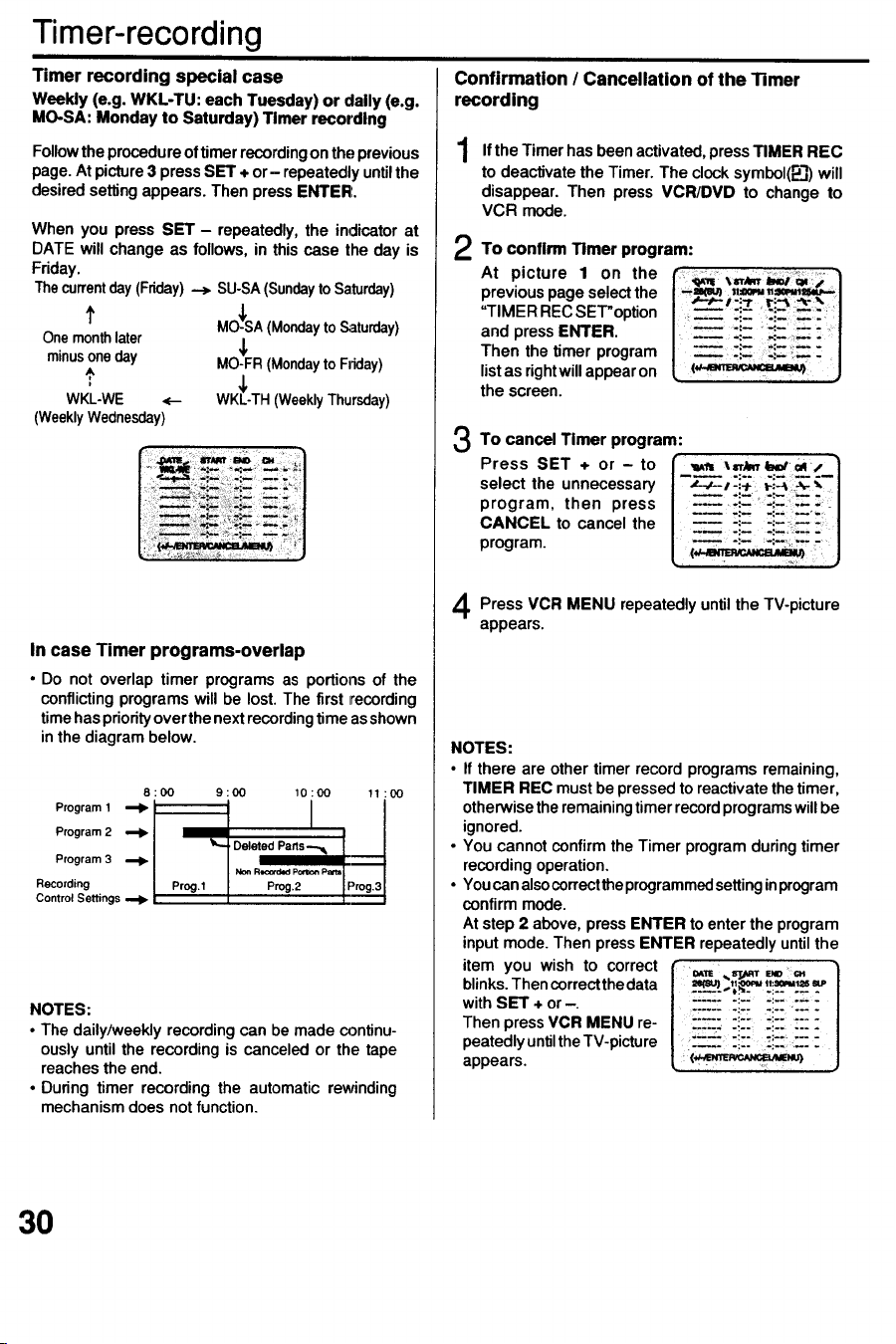
Timer-recording
Timer recording special case
Weekly (e.g. WKL-TU: each Tuesday) or dally (e.g.
MO-SA: Monday to Saturday) Timer recording
Followthe procedureoftimerrecordingon the previous
page.At picture3 pressSET + or- repeatedlyuntilthe
desiredsettingappears. Then pressENTER.
f
Onemonthlater
minusoneday
WKL-WE _-
(WeeklyWednesday)
When you press SET- repeatedly,the indicatorat
DATE will change as follows, in this case the day is
Friday.
Thecurrentday (Friday)--_ SU-SA(Sundayto Saturday)
/
MO-_SA(Mondayto_turday)
MO-FR(MondaytoFriday)
WK_k-TH(WeeklyThursday)
In case Timer programs-overlap
• Do not overlap timer programs as portions of the
conflictingprogramswill be lost.The first recording
timehaspriorityoverthenextrecordingtime asshown
inthe diagrambelow.
8:00 9:00 10:00 11:00
Program 1
I
Program 2
'q_-, Deleted Patls--_
Program 3 _
Non Rl.=_d.d Po_on Part=
Recording Prog. 1 Prog.2 Prog.3
Control Settings
NOTES:
• The daily/weekly recording can be made continu-
ously until the recording is canceled or the tape
reachesthe end.
• During timer recording the automatic rewinding
mechanismdoes notfunction.
Confirmation / Cancellation of the Timer
recording
1 If the Timer has been activated,pressTIMER REC
to deactivate the Timer. The clocksymbol(P_..])will
disappear. Then press VCR/DVD to change to
VCR mode.
To confirm TImer program:
At picture 1 on the
previous page select the
"TIMER REC SET"option
and press ENTER.
Then the timer program
list as right will appear on
the screen.
3 To cancel Timer program:
Press SET + or- to
select the unnecessary
program, then press
CANCEL to cancel the
program.
I
LI :_--i-: lJ
Press VCR MENU repeatedlyuntil the
TV-picture
appears.
NOTES:
• If there are other timer record programs remaining,
TIMER REC mustbe pressedto reactivatethe timer,
otherwisetheremainingtimerrecordprogramswillbe
ignored.
• You cannot confirm the Timer programduringtimer
recordingoperation.
• Youcanalsocorrecttheprogrammedsettinginprogram
confirm mode.
At step 2 above, pressENTER to enter the program
inputmode. Then pressENTER repeatedlyuntilthe
item you wish to correct f" ,_ _ _,o =
blinks.Thencorrectthedata [ _,.,i_ii_i!i 1
with SET ÷ or -.
Then pressVCR MENU re-
appears.peatedlyunlJltheTV'picture[ :(__.. j
30
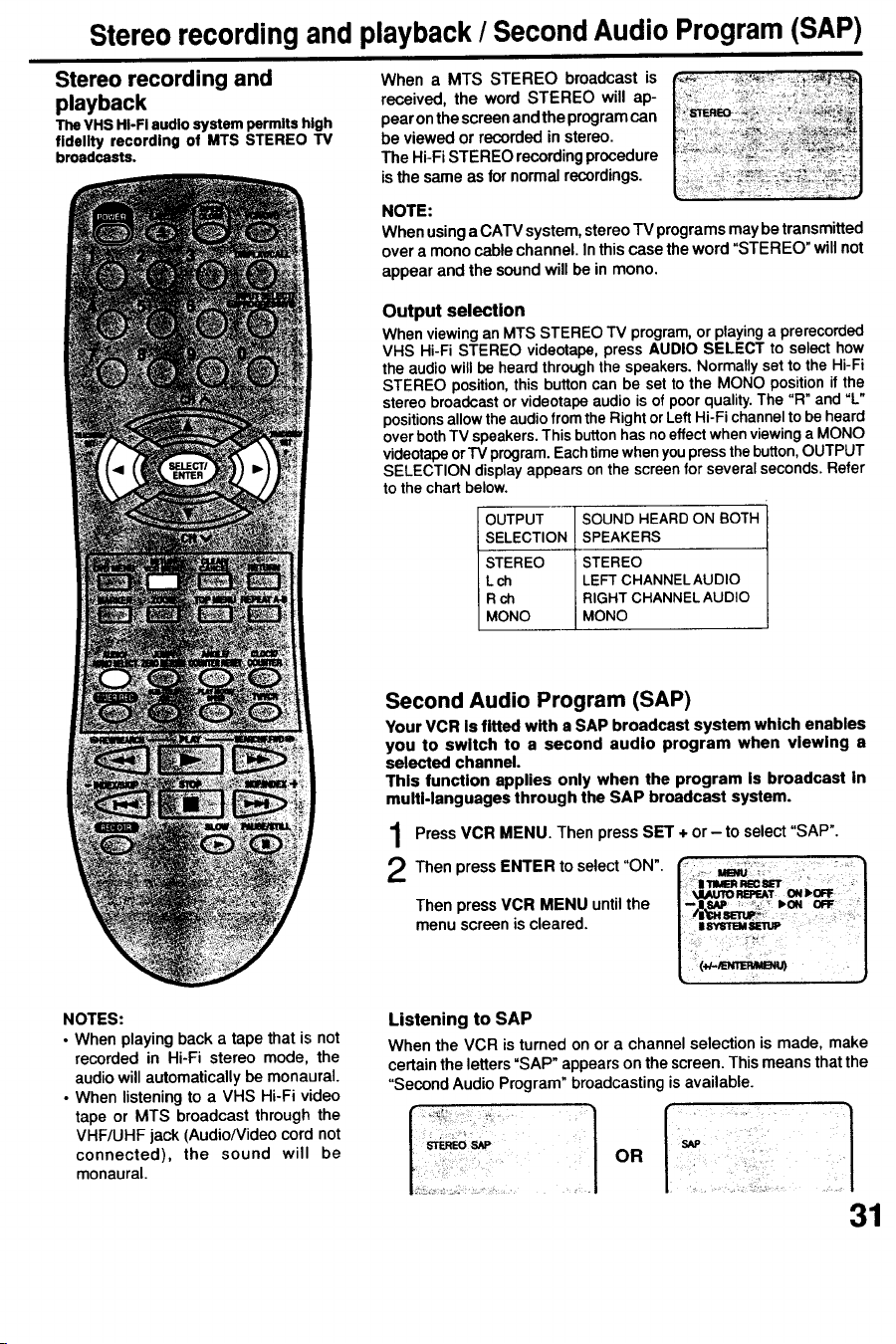
Stereo recording and playback / Second Audio Program (SAP)
Stereo recording and
playback
The VHS HI-FI audio system permits high
fJde|JP/recording of MTS STEREO "IV
broadcasts.
|
When a MTS STEREO broadcast is
received, the word STEREO will ap-
pear on the screen and the program can
be viewed or recorded in stereo.
The Hi-Fi STEREO recording procedure
is the same as for normal recordings.
NOTE:
When usingaCATV system,stereoTV programsmay be transmitted
over a rnonocable channel. In this case the word "STEREO" willnot
appear and the soundwill be in mono.
Output selection
When viewing an MTS STEREO "IV program, or playing a prerecorded
VHS Hi-Fi STEREO videotape, press AUDIO SELECT to select how
the audio will be heard through the speakers. Normally set to the Hi-Fi
STEREO position, this button can be set to the MONO position if the
stereo broadcast or videotape audio is of poor quality. The "R" and "L"
positions allow the audio from the Right or Left Hi-Fi channel to be heard
over both TV speakers. This button has no effect when viewing a MONO
videotape or "IV program. Each timewhen youpress the button, OUTPUT
SELECTION display appears on the screen for several seconds. Refer
to the chart below.
OUTPUT SOUND HEARD ON BOTH
SELECTION SPEAKERS
STEREO STEREO
L ch LEFT CHANNEL AUDIO
R ch RIGHT CHANNEL AUDIO
MONO MONO
Second Audio Program (SAP)
Your VCR is fitted with a SAP broadcast system which enables
you to switch to a second audio program when viewing a
selected channel.
This function applies only when the program is broadcast in
multi-languages through the SAP broadcast system.
Press VCR MENU. Then press SET + or- to select "SAP".
Then pressENTER to select "ON".
Then press VCR MENU unfit the
menu screen is cleared.
NOTES:
• When playing back a tape that is not
recorded in Hi-Fi stereo mode, the
audio will automatically be monaural.
• When listening to a VHS Hi-Fi video
tape or MTS broadcast through the
VHF/UHF jack (Audio/Video cord not
connected), the sound will be
monaural.
Listening to SAP
When the VCR is turned on or a channel selection is made, make
certain the letters "SAP" appears on the screen. This means that the
"Second Audio Program" broadcasting is available.
o.
31
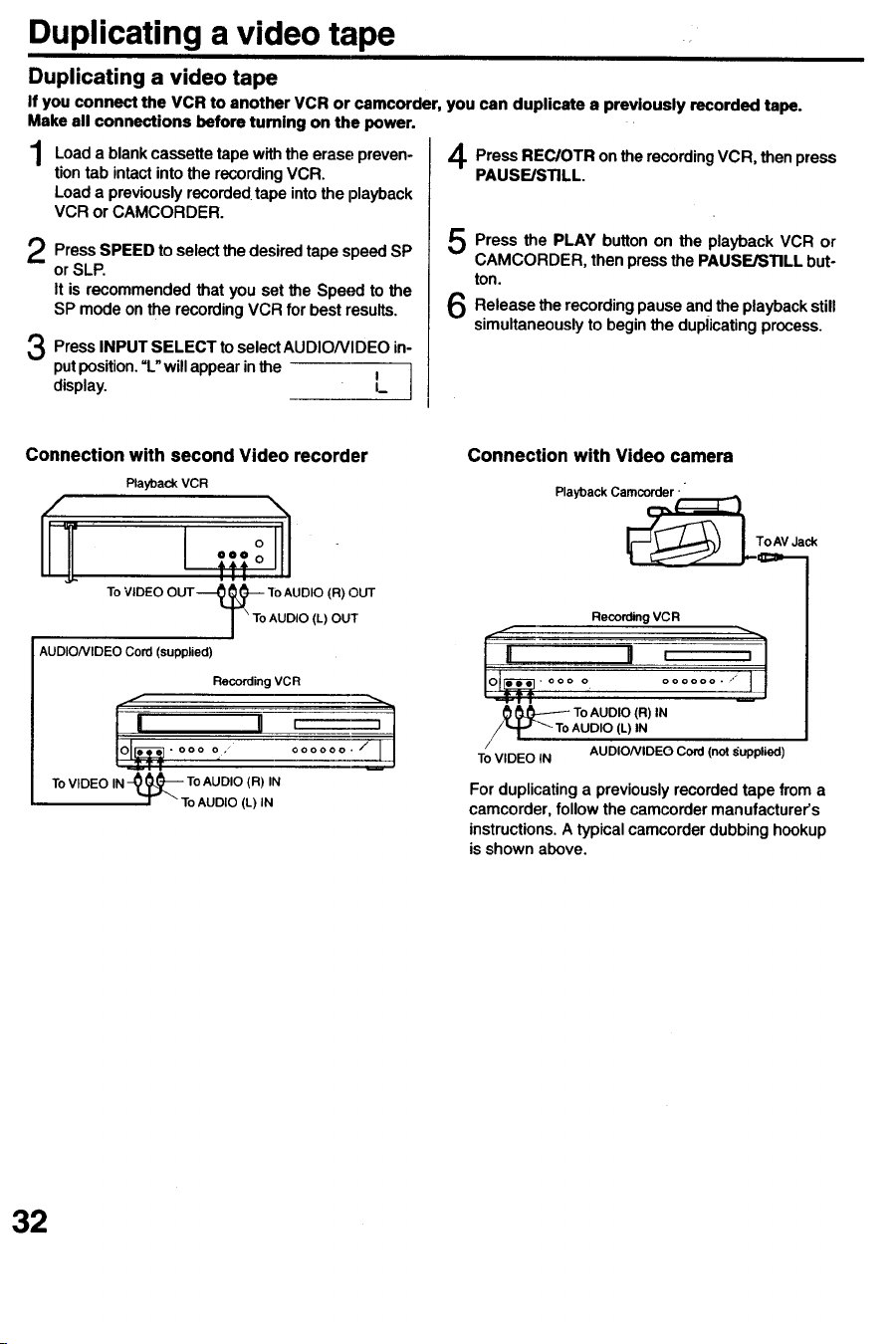
Duplicating a video tape
Duplicating a video tape
If you connect the VCR to another VCR or camcorder, you can duplicate a previously recorded tape.
Make all connections before turning on the power.
Loada blankcassette tape with the erase preven-
tiontab intactintothe recordingVCR.
Loada previouslyrecordedtape intothe playback
VCR or CAMCORDER.
Press to select the desired tape speed SP
SPEED
or SLP.
It is recommended that you set the Speed to the
SP mode on the recording VCR for best results.
PressINPUT SELECT to selectAUDIONIDEO in-
putposition.=L"willappearinthe }display. L
Press on the recordingVCR, then press
REC/OTR
PAUSE/STILL
Press on playback VCR or
the PLAY
button the
CAMCORDER, then press the PAUSE/STILL but-
ton.
Release the recordingpause and the playbackstill
simultaneouslyto beginthe duplicatingprocess.
Connection with second Video recorder
To VIDEO OUT-_._ TO AUDIO (R) OUT
I "ToAUDIO (L) OUT
AUDIONIDEO Cord (supplied)
Recording VCR
• ooo o / oooooo,
To VIDEO IN _} (_)-_ To AUDIO (R) IN
I "To AUDIO (L) IN
Connection with Video camera
Playback Camc_:ler _.,_
Recording VCR
II I ;
• ooo o oooooo, ,"
_00::-- ToAUDIO(R)IN
"I" _ ToAUDIO(UIN
TO VIDEO IN AUDIONIDEO Cord (not supplied)
For duplicatinga previouslyrecordedtape froma
camcorder,followthe camcordermanufacturer's
instructions.A typicalcamcorderdubbing hookup
is shown above.
32
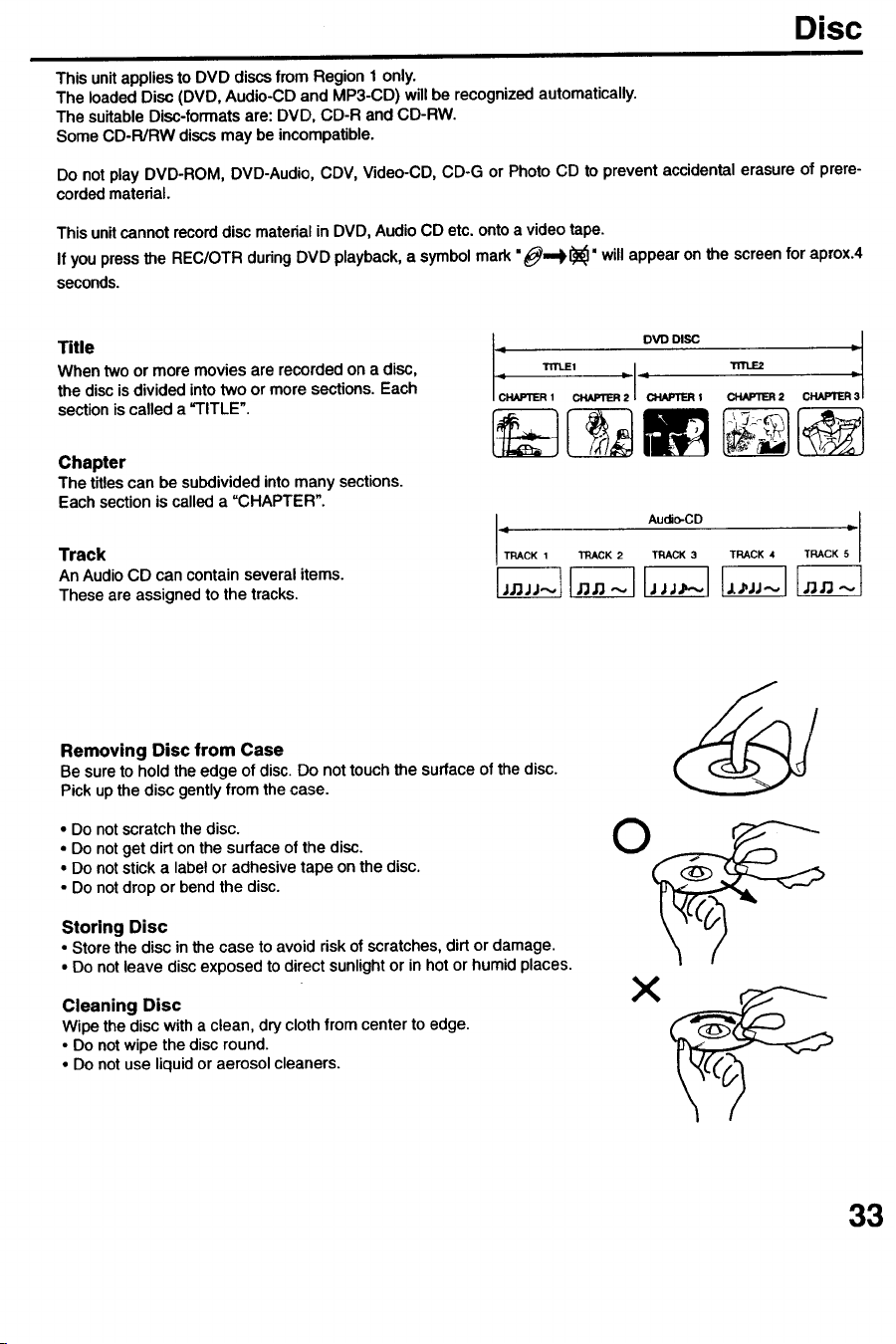
Disc
This unitappliesto DVD discsfrom Region 1 only.
The loaded Disc (DVD, Audio-CDand MP3-CD) willbe recognizedautomatically.
The suitableDisc-formatsare: DVD, CD-R and CD-RW.
Some CD-R/RW discsmay be incompatible.
Do not play DVD-ROM, DVD-Audio,CDV, Video-CD,CD-G or Photo CD to prevent accidentalerasure of prere-
cordedmaterial.
Thisunitcannotrecorddiscmaterialin DVD, AudioCD etc. ontoa videotape.
If youpressthe REC/OTR duringDVD playback,a symbolmark "_.,,_1_" will appear on the screenfor aprox.4
seconds.
Title
When two or more movies are recorded on a disc,
the disc is dividedintotwo or more sections.Each
sectionis called a "TITLE".
Chapter
The titlescan be subdividedintomany sections.
Eachsection is calleda "CHAPTER".
Track
An Audio CD can contain several items.
These are assigned to the tracks,
• DVD DISC =,
• Tm.E1 L I_ Tm.E2
CH,_m_R, CK,U,TER;I-ouU__J_, CH,_'ER2 CPUU_R:
4TRACK Audio-CD TRACK 5='
1 TRACK 2 TRACK 3 TRACK 4
Removing Disc from Case
Be sure to hold the edge of disc, Do not touch the surface of the disc.
Pick up the disc gently from the case.
• Do not scratch the disc.
• Do not get dirt on the surface of the disc.
• Do not stick a label or adhesive tape on the disc.
• Do not drop or bend the disc.
Storing Disc
• Store the disc in the case to avoid risk of scratches, dirt or damage.
• Do not leave disc exposed to direct sunlight or in hot or humid places.
Cleaning Disc
Wipe the disc with a clean, dry cloth from center to edge.
• Do not wipe the disc round.
• Do not use liquid or aerosol cleaners.
33
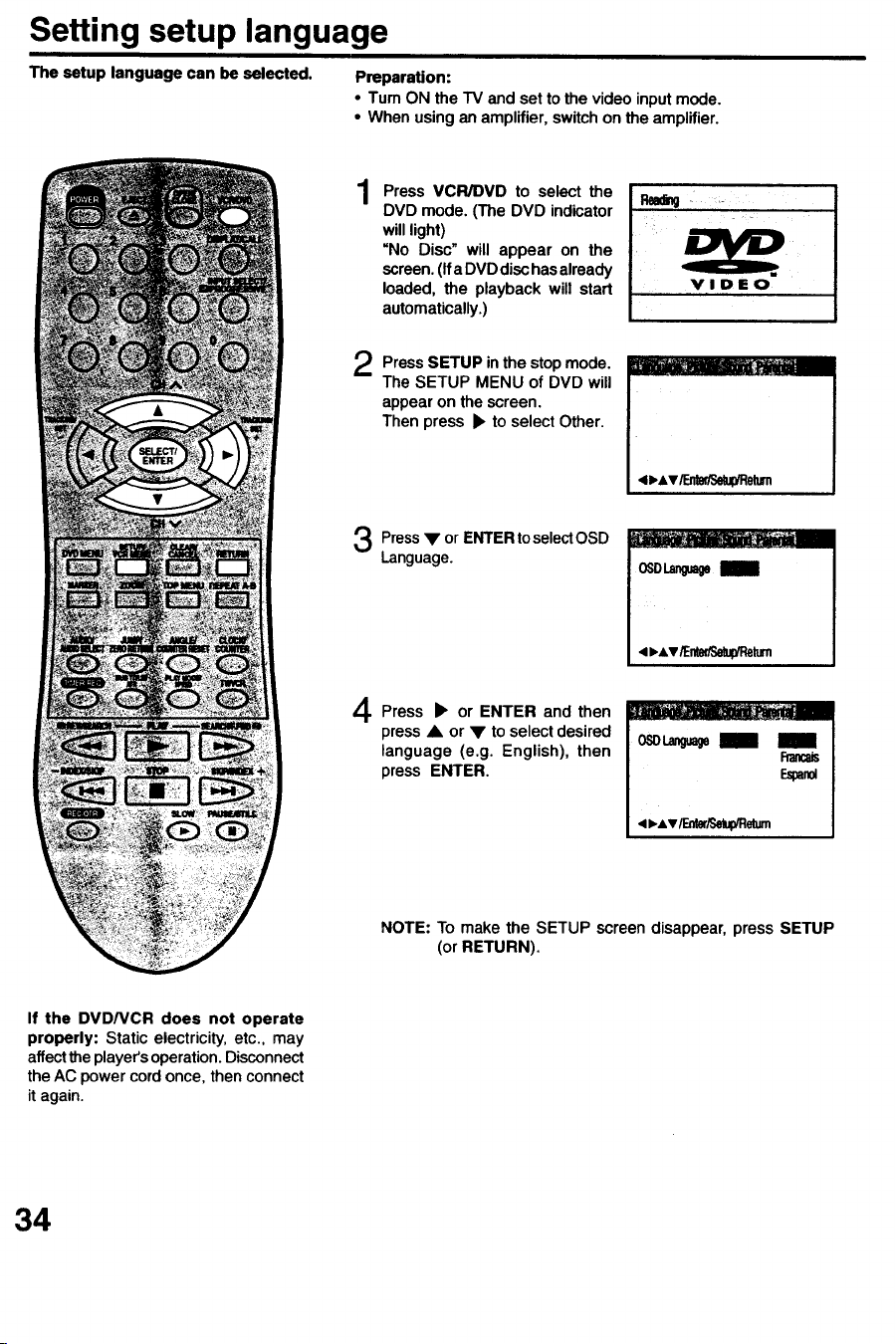
Setting setup language
The setup language can be selected. Preparation:
• Tum ON the TV and set to the video input mode.
• When using an amplifier, switch on the amplifier.
1
2
Press VCR/DVD to select the I Rea_g -
DVD mode. (The DVD indicator
will light) i
"No Disc" will appear on the
screen. (If a DVD disc has already
loaded, the playback will start
automatically.)
Press SETUP in the stop mode.
The SETUP MENU of DVD will
appear on the screen.
Then press • to select Other.
4 p.Av/Enta'Foetup/Return
Press• or ENTERtoselect OSD
Language.
0SDL=_ m
4_Av_nter/Setup_turn
Press • or ENTER and then
pressA or • to select desired
language (e.g. English), then
press ENTER.
m
< p,Av/F.nter_upiReturn
NOTE: To make the SETUP screen disappear, press SETUP
(or RETURN).
If the DVD/VCR does not operate
properly: Static electricity, etc., may
affect the player's operation. Disconnect
the AC power cord once, then connect
it again.
34
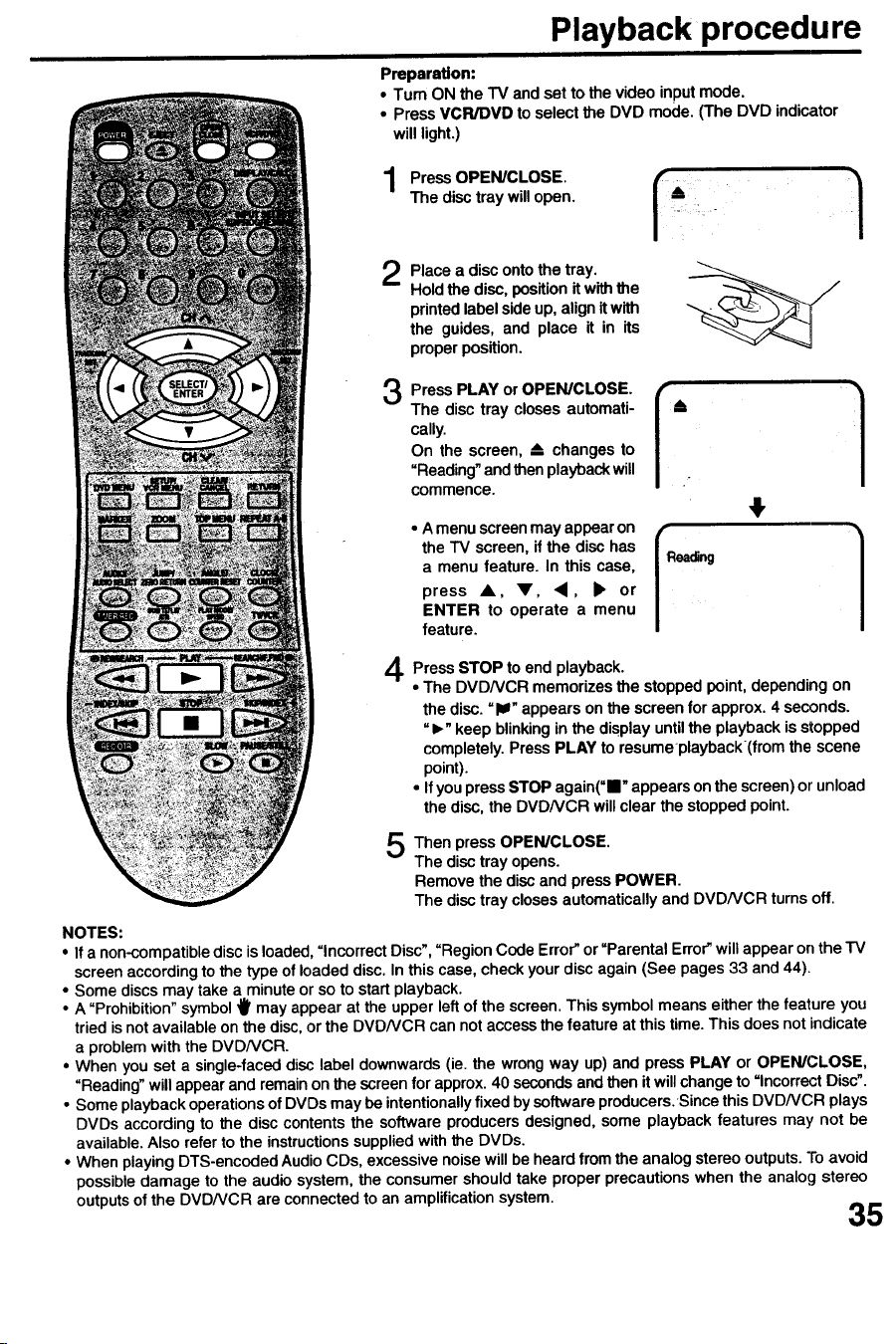
Playback procedure
Preparation:
• Tum ON the TV and set to the video input mode.
• Press VCR/DVD to select the DVD mode. (The DVD indicator
will light.)
Pre=o, c os
The disc tray will open.
2
Place a disc onto the tray,
Hold the disc, position it with the
printed label side up, align it with
the guides, and place it in its
proper position.
3
Press PLAY or OPEN/CLOSE. /"
The disc tray closes automati- /
cally.
On the screen, _ changes to
=Reading"andthenplaybackwill
commence. "
• A menuscreenmayappearon [
the "IV screen, if the disc has IReading
a menu feature. In this case,
press A, V, 4, • or
ENTER to operate a menu
feature.
4
4
Press STOP to end playback.
• The DVDNCR memorizesthe stoppedpoint, depending on
the disc.=I_" appears on the screen for approx.4 seconds.
"I_" keep blinkingin the displayuntilthe playbackisstopped
completely.Press PLAY to resumeplayback(from the scene
point).
• IfyoupressSTOP again("=="appears onthe screen)orunload
the disc,the DVDNCR will clear the stoppedpoint.
5
Then press OPEN/CLOSE.
The disctray opens.
Removethe discand pressPOWER.
The disctray closes automaticallyand DVDNCR turnsoff.
NOTES:
• If a non-compatible disc is loaded, "Incorrect Disc", "Region Code Error" or =Parental Error" will appear on the TV
screen according to the type of loaded disc. In this case, check your disc again (See pages 33 and 44).
• Some discs may take a minute or so to start playback.
• A "Prohibition" symbol "_ may appear at the upper left of the screen. This symbol means either the feature you
tried is not available on the disc, or the DVDNCR can not access the feature at this time. This does not indicate
a problem with the DVDNCR.
• When you set a single-faced disc, label downwards (ie. the wrong way up) and press PLAY or OPEN/CLOSE,
"Reading" will appear and remain on the screen for approx. 40 seconds and then it will change to "Incorrect Disc".
• Some playback operations of DVDs may be intentionally fixed by software producers. Since this DVDNCR plays
DVDs according to the disc contents the software producers designed, some playback features may not be
available. Also refer to the instructions supplied with the DVDs.
• When playing DTS-encoded Audio CDs, excessive noise will be heard from the analog stereo outputs. To avoid
possible damage to the audio system, the consumer should take proper precautions when the analog stereo
outputs of the DVD/VCR are connected to an amplification system. 35
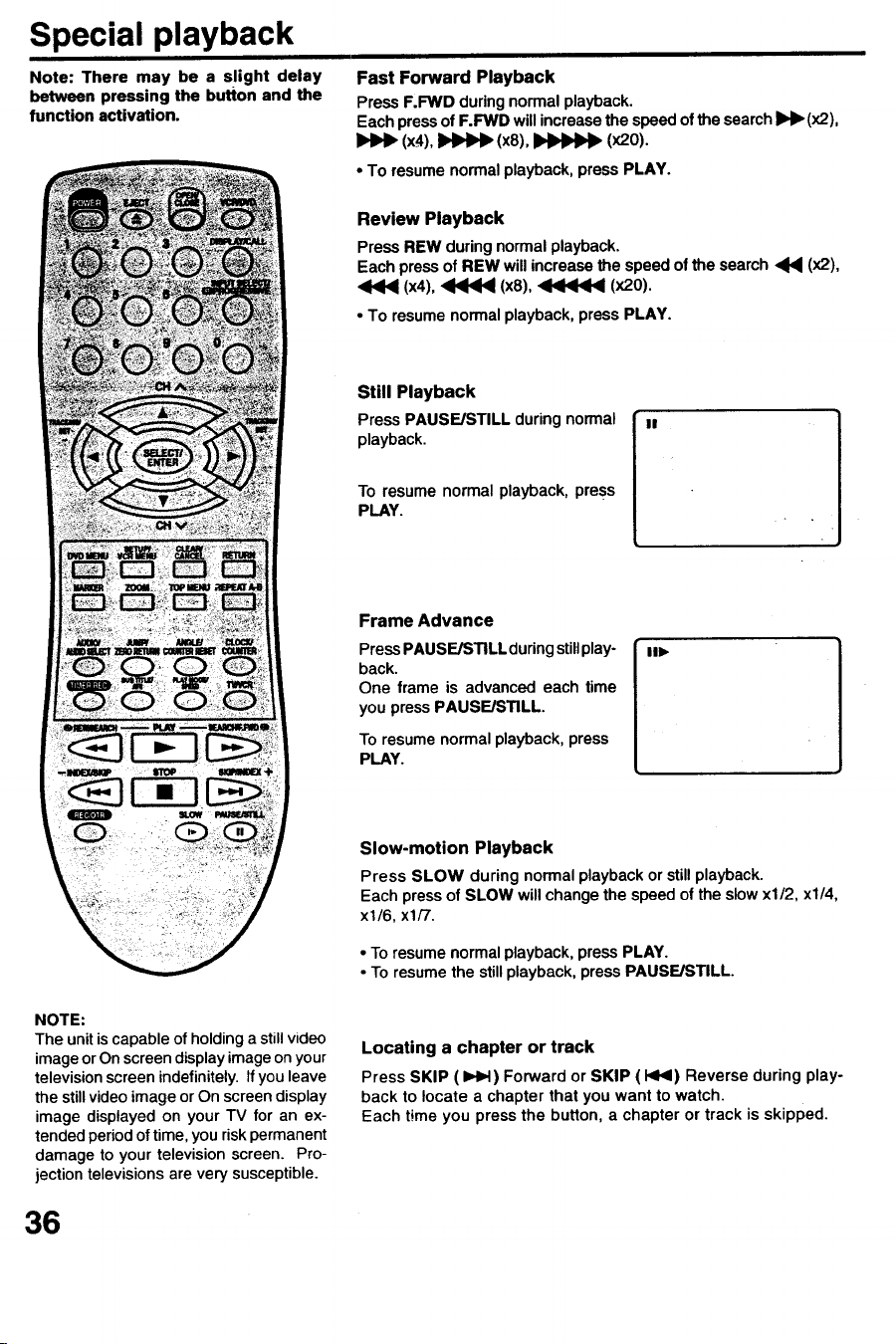
Special playback
Note: There may be a slight delay
between pressing the button and the
function activation.
Fast Forward Playback
Press F.FWD duringnormal playback.
Eachpressof F.FWD will increasethe speedofthe seamhIb_l_(x2),
(x_4),)4HI_ (xS),_ (x20).
• To resume normal playback, press PLAY.
Review Playback
Press REW during normal playback.
Each press of REW will increase the speed of the search _1_ (x2),
(x4), _ (x8), _1_ (x20).
• To resume normalplayback,press PLAY.
Still Playback
Press PAUSE/STILL during normal
playback.
To resume normal playback, press
PLAY.
Frame Advance
Press PAUSE/STILL during stillplay-
back.
One frame is advanced each time
you press PAUSE/STILL
To resume normalplayback,press
PLAY.
III,
NOTE:
The unit is capable of holding a still video
image or On screen display image on your
television screen indefinitely. If you leave
the still video image or On screen display
image displayed on your TV for an ex-
tended period of time, you risk permanent
damage to your television screen. Pro-
jection televisions are very susceptible.
Slow-motion Playback
Press SLOW during normalplaybackor still playback.
Each pressof SLOW will change the speed of the slowx1/2, x1/4,
xl/6, xl/7.
• To resumenormalplayback,pressPLAY.
• To resumethe stillplayback,pressPAUSE/STILL
Locating a chapter or track
Press SKIP (_) Forward or SKIP (I<1<1)Reverse during play-
back to locate a chapter that you want to watch.
Each time you press the button, a chapter or track is skipped.
36
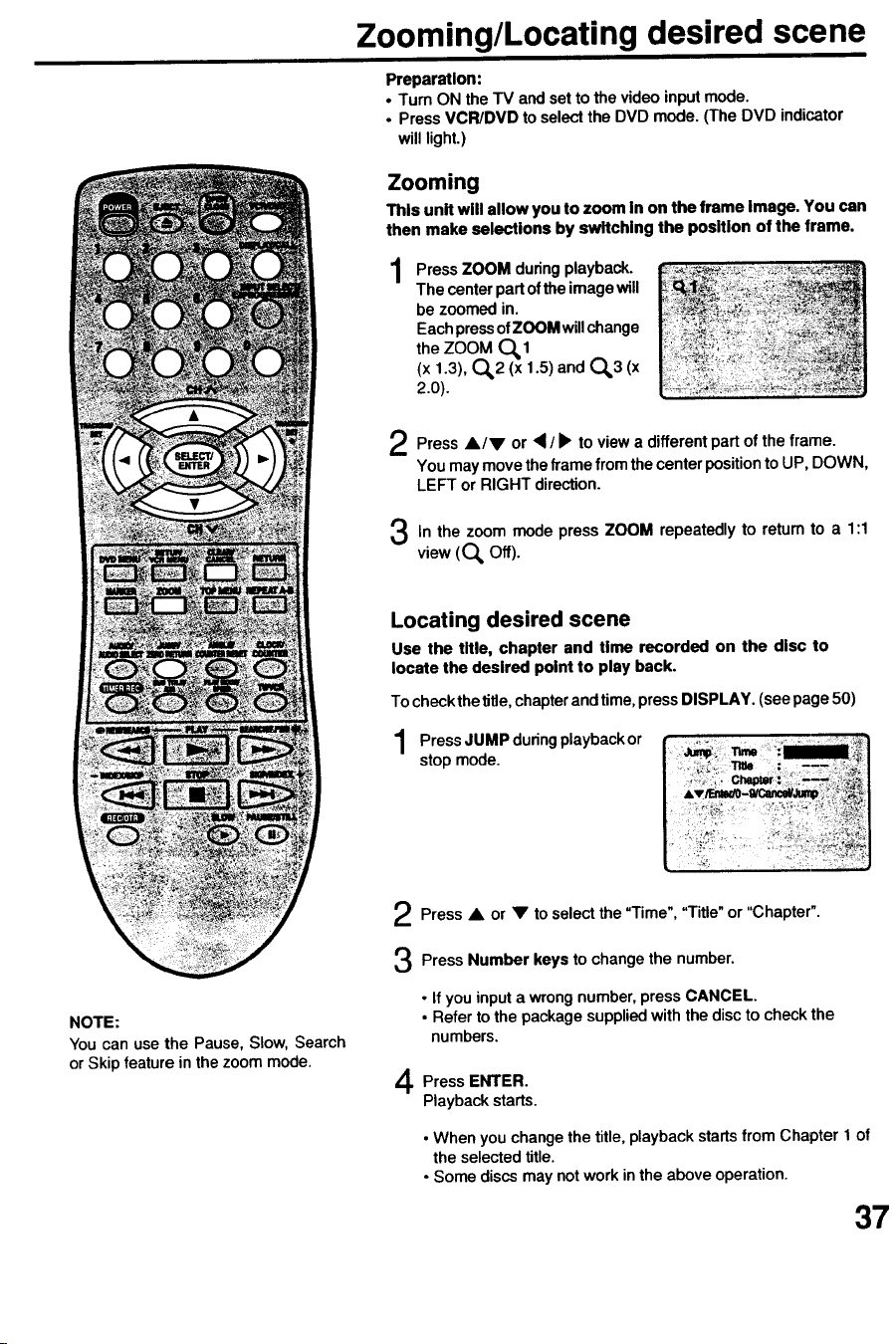
Zooming/Locating desired scene
Preparation:
• Turn ON the TV and set to the video input mode.
• Press VCR/DVD to select the DVD mode. (The DVD indicator
wJJJJJght.)
Zooming
This unit will allow you to zoom in on the frame image. You can
then make selections by switching the position of the frame.
Press ZOOM duringplayback.
The centerpartof the imagewill
be zoomedin.
EachpressofZOOM willchange
the ZOOM O_1
(x 1.3), O_2 (x 1.5) and O_3 (x
2.0).
2
3
Press •/V or • / • to viewa differentpart of the frame.
Youmay move theframe from the centerpositiontoUP, DOWN,
LEFT or RIGHT direction.
In the zoom mode press ZOOM repeatedly to return to a 1:1
view (O_ Off).
NOTE:
You can use the Pause, Slow, Search
or Skip feature in the zoom mode.
Locating desired scene
Use the title, chapter and time recorded on the disc to
locate the desired point to play back.
To checkthe title,chapterandtime,pressDISPLAY. (seepage50)
duringplaybackor
PressJUMP
stop mode.
Press • or to selectthe "Time","Title" or "Chapter".
V
Press Number keys to change the number.
• If you inputa wrongnumber,press CANCEL.
• Refer to the packagesuppliedwith the disc to check the
numbers.
Press ENTER.
Playbackstarts.
• When you change the title, playback starts from Chapter 1 of
the selected title.
• Some discs may not work in the above operation.
37
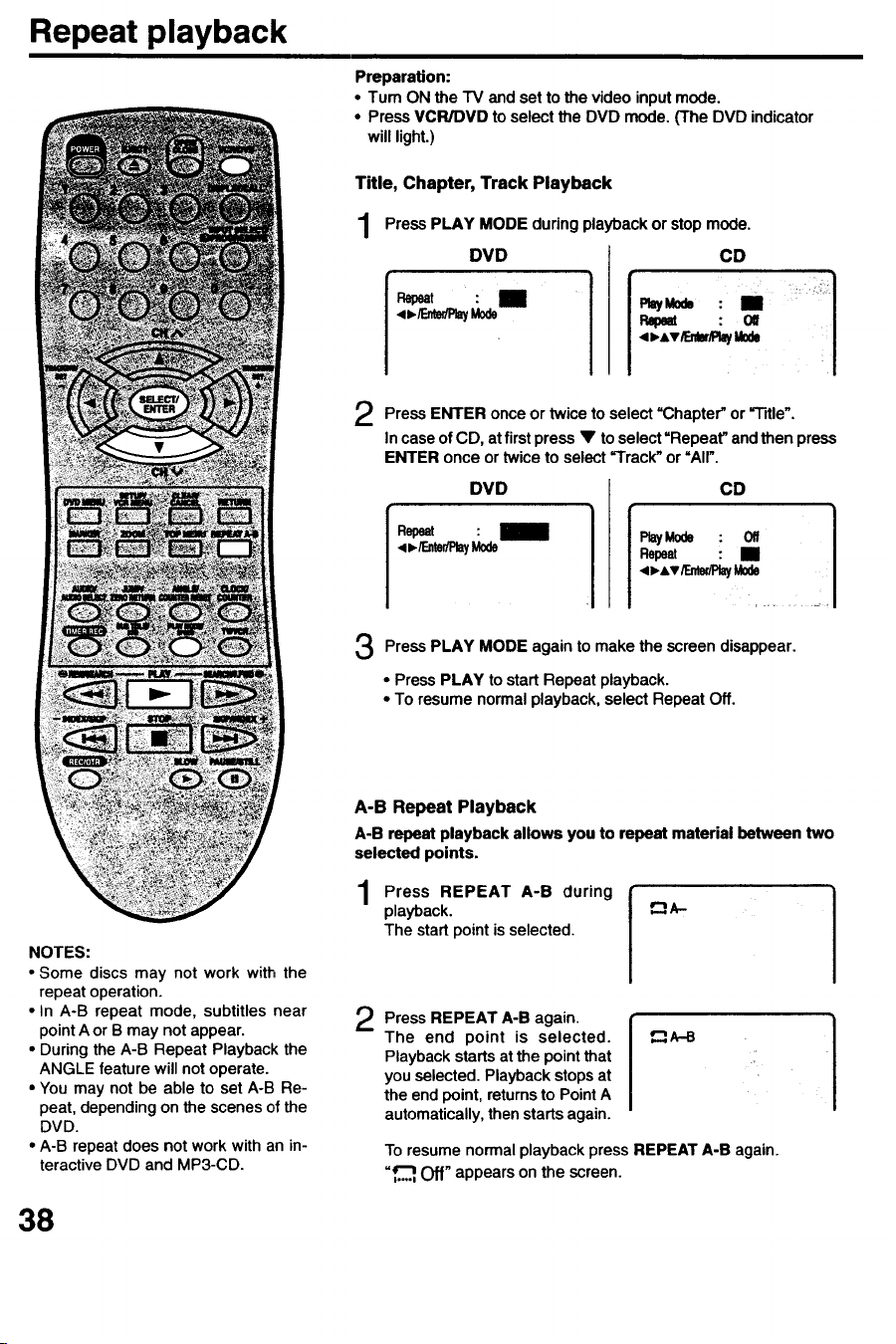
Repeat playback
Preparation:
•Tum ON the TV and set to the video input mode.
• Press VCR/DVD to select the DVD mode. (The DVD indicator
will light.)
Title, Chapter, Track Playback
1
Press PLAY MODE duringplaybackor stop mode.
DVD
Repeat : I
oFr.n_ M0de
I
CD
P=pe= : Off
4 =,Av/Emr,1_ayMode
onceor to =Chapter" or
Press ENTER twice select ='13tle".
Incase ofCD, at first press • to select'Repeat" andthen press
ENTER once or twice to select "Track" or =All".
DVD
Repeat :
<_/Emr/PlayM0de
CD
I
P_yMode: Off I
Repeat : • I
I
Press PLAY MODE to make the
again
screen
disappear.
• Press PLAY to startRepeat playback.
• To resume normalplayback,select Repeat Off.
NOTES:
• Some discs may not work with the
repeat operation.
• In A-B repeat mode, subtitles near
point A or B may not appear.
• During the A-B Repeat Playback the
ANGLE feature will not operate.
• You may not be able to set A-B Re-
peat, depending on the scenes of the
DVD.
• A-B repeat does not work with an in-
teractive DVD and MP3-CD.
38
A-B Repeat Playback
A-B repeat playback allows you to repeat material between two
selected points.
Press REPEAT A-B
during
playback.
The startpointis selected.
r-__A_
Press REPEAT A-B
again.
The end point is selected.
Playback starts at the point that
you selected. Playback stops at
the end point, returns to Point A
automatically, then starts again.
To resume normal playback press REPEAT A-B again.
=*'--= Off" appears on the screen.
I,,,,I
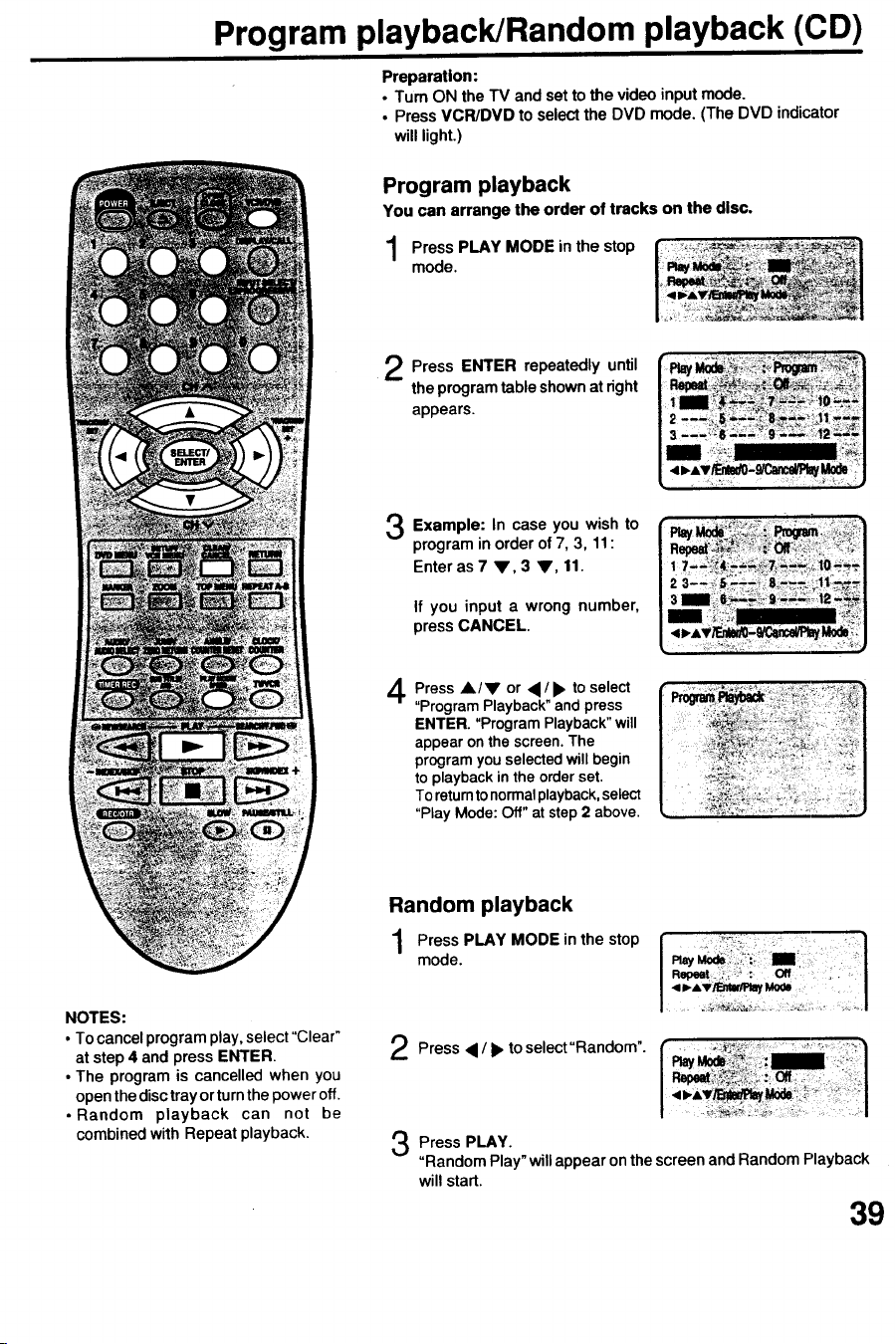
Program playback/Random playback (CD)
Preparation:
• Turn ON the TV and set to the video input mode.
• Press VCR/DVD to select the DVD mode, (The DVD indicator
will light.)
Program playback
You can arrange the order of tracks on the disc.
Press PLAY MODE inthe stop
mode.
Press ENTER repeatedly until
the programtableshownat right
appears.
3
4
Example: In case you wish to
program in order of 7, 3, 11:
Enter as 7 V, 3 V, 11.
If you input a wrong number,
pressCANCEL.
Press A/V or ,/I_ to select
"Program Playback" and press
ENTER. "Program Playback" will
appear on the screen. The
program you selected will begin
to playback in the order set.
To retum to normal playback, select
"Play Mode: Off" at step 2 above.
Random playback
Press PLAY MODE in the stop
mode.
NOTES:
• To cancel program play, select "Clear"
at step 4 and press ENTER.
• The program is cancelled when you
open the disc tray or turn the power off.
• Random playback can not be
combined with Repeat playback.
Press • / _, to select"Random".
Press PLAY.
"Random Play" will appear on the screen and Random Playback
will start.
39
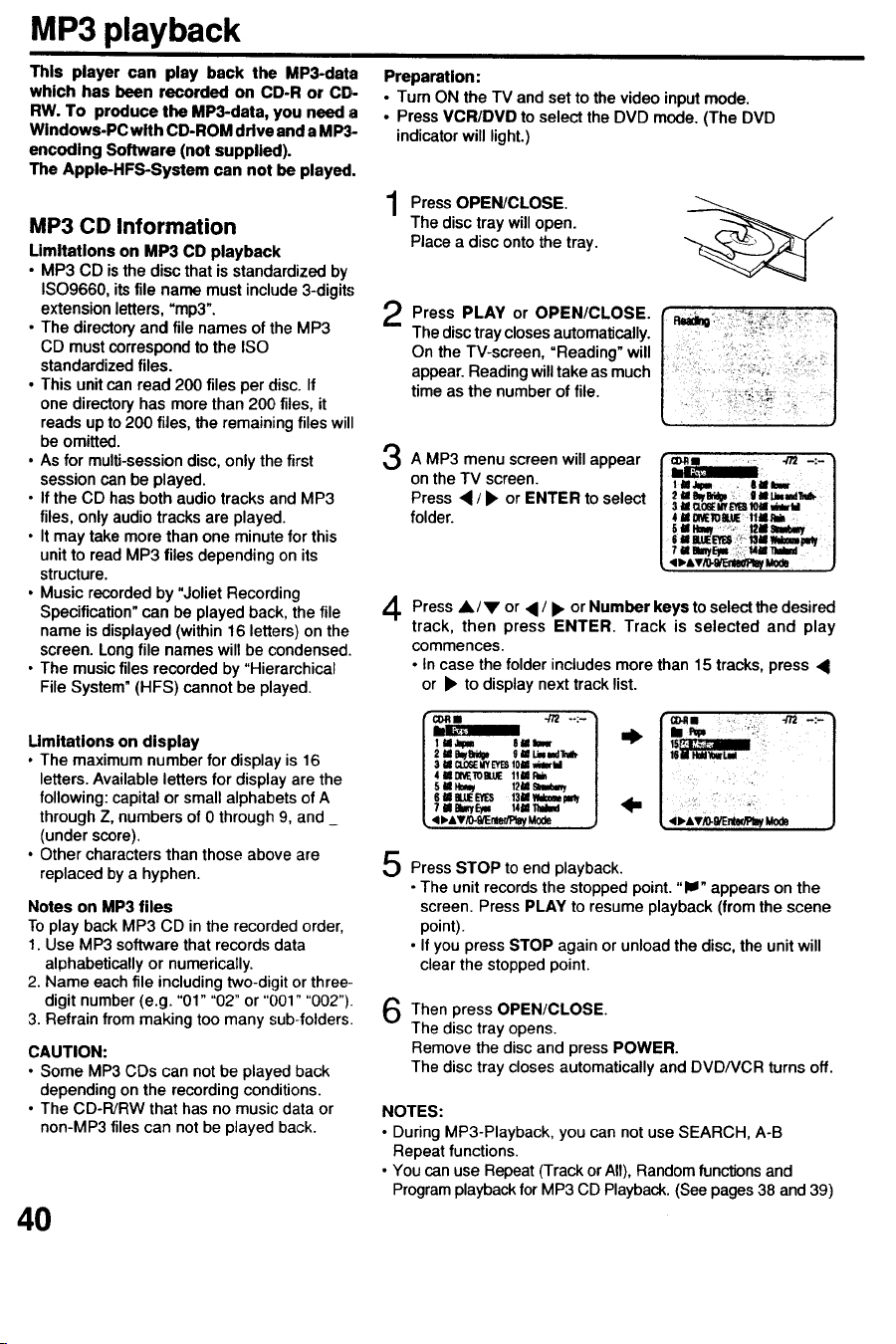
MP3 playback
This player can play back the MP3-data
which has been recorded on CD-R or CD-
RW. To produce the MP3-data, you need a
Windows-PC with CD-ROM drive and a M P3-
encoding Software (not supplied).
The Apple-HFS-System can not be played.
MP3 CD Information
Limitations on MP3 CD playback
• MP3 CD is the disc that is standardized by
ISO9660, its file name must include 3-digits
extension letters, "mp3".
• The directory and file names of the MP3
CD must correspond to the ISO
standardized files.
• This unit can read 200 files per disc. If
one directory has more than 200 files, it
reads up to 200 flies, the remaining files will
be omitted.
• As for multi-session disc, only the first
session can be played.
• If the CD has both audio tracks and MP3
files, only audio tracks are played.
• It may take more than one minute for this
unit to read MP3 files depending on its
structure.
• Music recorded by "Joliet Recording
Specification" can be played back, the file
name is displayed (within 16 letters) on the
screen. Long file names wilt be condensed.
• The music files recorded by "Hierarchical
File System" (HFS) cannot be played.
Preparation:
• Turn ON the TV and set to the video input mode.
• Press VCR/DVD to select the DVD mode. (The DVD
indicator will light.)
Press OPEN/CLOSE.
The disctray willopen.
Place a disc ontothe tray.
Press PLAY OPEN/CLOSE.
or
The disctray closesautomalJcally.
On the TV-screen, "Reading" will
appear.Readingwilltakeas much
time as the numberof file.
A MP3 menu screen will appear
on the TV screen.
Press • / • or ENTER to select
folder.
4
Press•/• or • / • or Number keys to selectthe desired
track, then press ENTER. Track is selected and play
commences.
• in case the folder includesmorethan 15 tracks,press •
or • to displaynexttrack list.
Umitations on display
• The maximumnumberfor displayis 16
letters.Availablelettersfor displayare the
following: capitalor smallalphabetsof A
throughZ, numbersof 0 through9, and_
(under score).
• Other charactersthan those aboveare
replacedby a hyphen.
Notes on MP3 files
To play back MP3 CD in the recorded order,
1. Use MP3 software that records data
alphabetically or numerically.
2. Name each file including two-digit or three-
digit number (e.g. "01" "02" or "001" "002")
3. Refrain from making too many sub-folders
CAUTION:
• Some MP3 CDs can not be played back
depending on the recording conditions.
• The CD-PJRW that has no music data or
non-MP3 files can not be played back.
40
...." ] ,e. f :,%, -n,,:. l
'"'-' I i
/ s = CLO__'ES t01 m_o,'U /
i 4iOM_TOB.tJE 11MRm J
| 511_ 12N 61m_ |
| 6iBUJEEYES 131Wd=empmy |
1 7 Ineimye_w_4i_0_ / _m
Press STOP to end playback.
• The unit records the stopped point. "li" appears on the
screen. Press PLAY to resume playback (from the scene
point).
• If you press STOP again or unload the disc, the unit will
clear the stopped point.
Then press OPEN/CLOSE
The disc tray opens.
Remove the disc and press POWER.
The disc tray closes automatically and DVD/VCR turns off.
NOTES:
• During MP3-Playback, you can not use SEARCH, A-B
Repeat functions.
• You can use Repeat (Track or All), Random functions and
Program playback for MP3 CD Playback. (See pages 38 and 39)
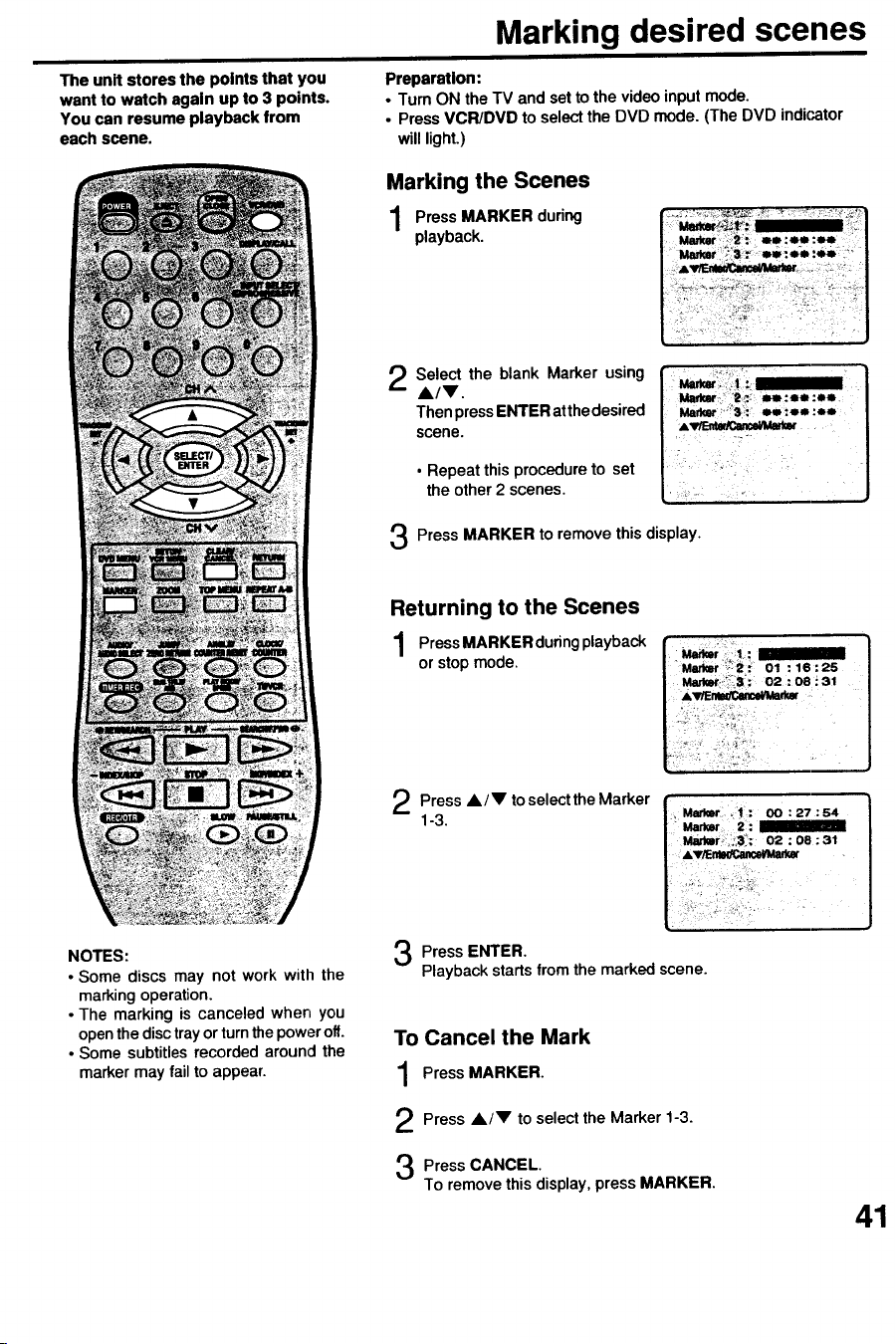
Marking desired scenes
The unit stores the points that you
want to watch again up to 3 points.
You can resume playback from
each scene.
Preparation:
• Turn ON the TV and set to the video input mode.
• Press VCR/DVD to selectthe DVD mode. (The DVD indicator
will light.)
Marking the Scenes
Press MARKER during
playback.
Select the blank Marker using
A/V.
ThenpressENTERatthedesired
scene.
• Repeat this procedureto set
the other2 scenes.
Press MARKER to remove thisdisplay.
Returning to the Scenes
PressMARKERduringplayback
or stop mode.
NOTES:
• Some discs may not work with the
marking operation.
• The marking is canceled when you
openthedisctrayorturnthepoweroff.
• Some subtitlesrecorded aroundthe
markermay fail to appear.
Press A/V toselectthe Marker
1-3.
Press ENTER.
Playback starts from the marked scene.
To Cancel the Mark
Press MARKER.
Press A/V to selectthe Marker 1-3.
Press CANCEL.
To removethis display,press MARKER,
41
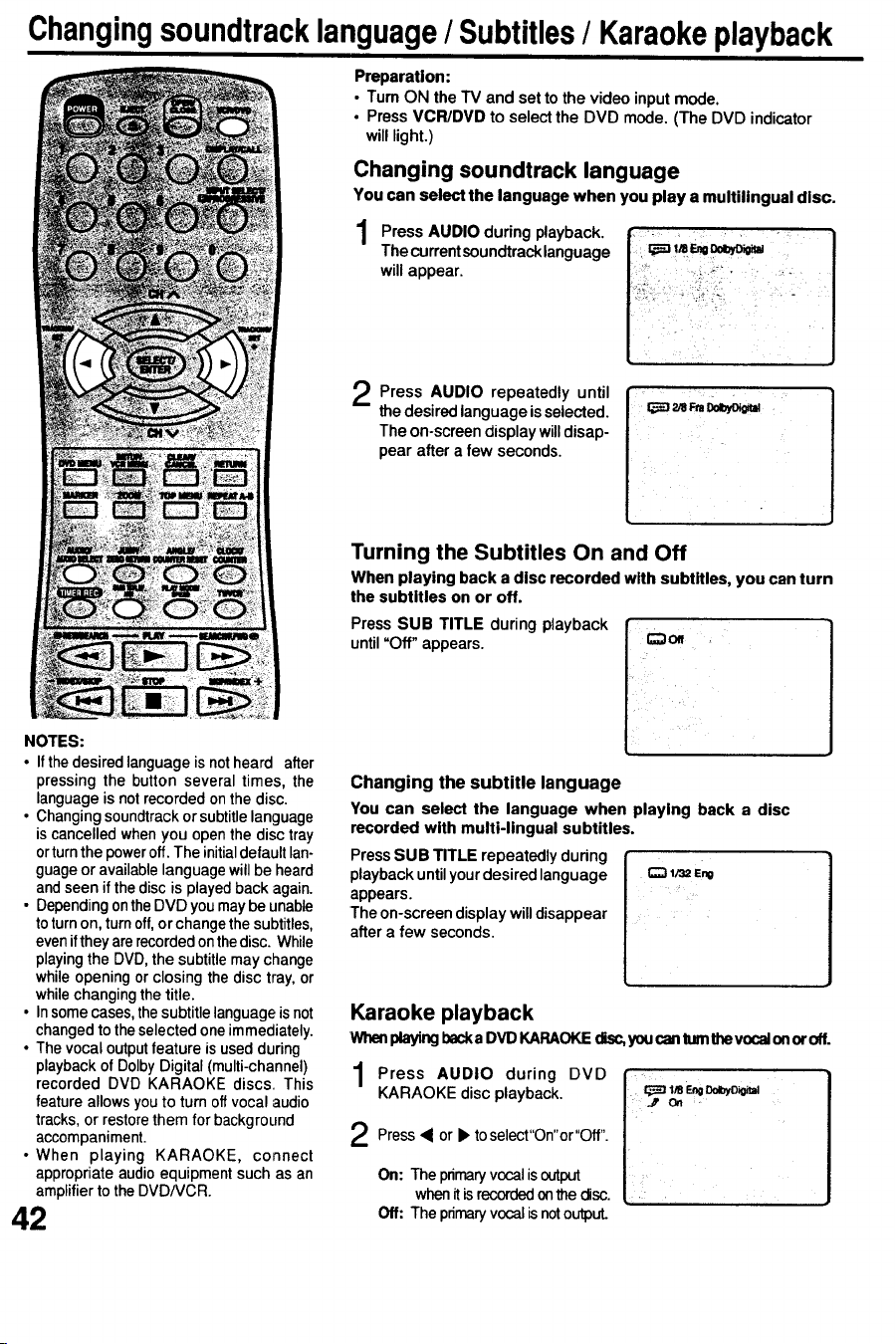
Changingsoundtracklanguage/ Subtitles/ Karaokeplayback
Preparation:
• Tum ON the TV and set to the video inputmode.
• PressVCPJDVD to selectthe DVD mode. (The DVD indicator
will light.)
Changing soundtrack language
You can select the language when you play a multilingual disc.
during playback.
Press AUDIO
The current soundtracklanguage
will appear.
Press AUDIO until
repeatedly
the desired language is selected.
The on-screen display will disap-
pear after a few seconds.
NOTES:
• If the desired language is not heard after
pressing the button several times, the
language is not recorded on the disc.
• Changing soundtrack or subtitle language
is cancelled when you open the disc tray
orturn the poweroff. The initialdefault lan-
guage or available language willbe heard
and seen if the disc is played back again.
• Depending onthe DVD you may be unable
to turn on, turn off, or change the subtitles,
even if they are recorded on the disc. While
playing the DVD, the subtitle may change
while opening or closing the disc tray, or
while changing the title.
• In some cases, thesubtitle language is not
changed to the selected one immediately.
• The vocal output feature is used during
playback of Dolby Digital (multi-channel)
recorded DVD KARAOKE discs. This
feature allows you to turn off vocal audio
tracks, or restore them for background
accompaniment.
• When playing KARAOKE, connect
appropriate audio equipment such as an
amplifier to the DVD/VCR.
42
Turning the Subtitles On and Off
When playing back a disc recorded with subtitles, you can turn
the subtitles on or off.
Press SUB TITLE during playback I i;_on
until "Off" appears.
Changing the subtitle language
You can select the language when playing back a disc
recorded with multi-lingual subtitles.
PressSUB TITLE repeatedly during
playbackuntil your desired language
appears.
'Theon-screendisplaywilldisappear
aftera few seconds.
Karaoke playback
When playing back a DVD KARAOKE (Jsc, youcan tum the vocal on or off.
1Press AUDIO during DVD
KARAOKE disc playback. __
i
2 Press _ or k" toselect"On"or"Off".
On: The primary vocal is output
when it is recorded on _e disc.
Off: The primary vocal is notoutpuL
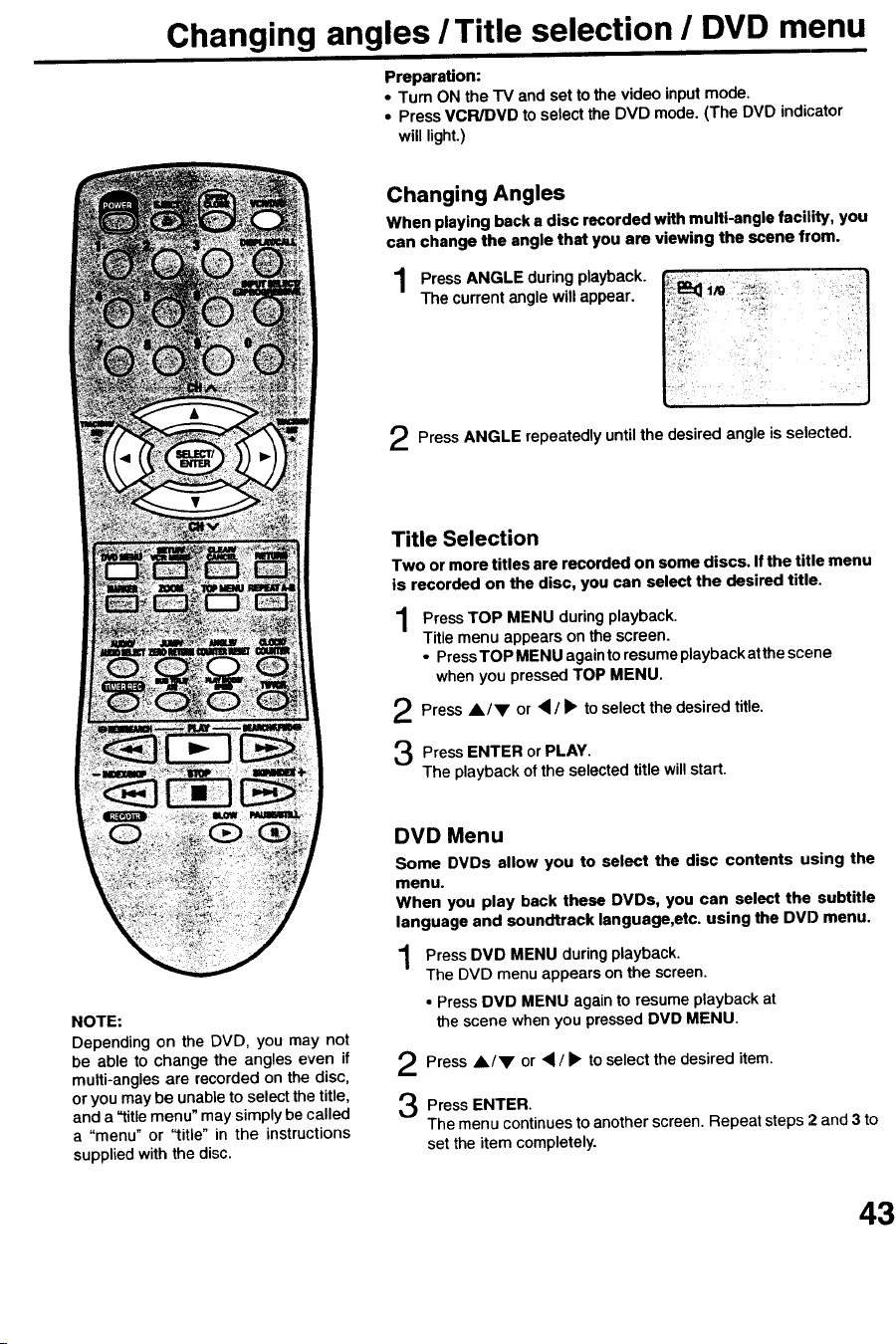
Changing angles /Title selection / DVD menu
Preparation:
• Turn ON the TV and set to the video input mode.
• Press VCR/DVD to select the DVD mode. (The DVD indicator
will light.)
Changing Angles
When playing back a disc recorded with multi-angle facility, you
can change the angle that you are viewing the scene from.
during playback.
Press ANGLE
The currentangle will appear.
Press ANGLE repeatedly until the desired angle is selected.
Title Selection
Two or more titles are recorded on some discs. If the title menu
is recorded on the disc, you can select the desired title.
PressTOP MENU
during playback.
Title menu appears on the screen.
• Press TOP MENU again to resume playback at the scene
when you pressed TOP MENU.
Press _k,/V or to select the desired title.
/
Press ENTER PLAY.
or
The playback of the selected title will start.
NOTE:
Depending on the DVD, you may not
be able to change the angles even if
multi-angles are recorded on the disc,
or you may be unable to select the title,
and a "title menu" may simply be called
a "menu" or "title" in the instructions
supplied with the disc.
DVD Menu
Some DVDs allow you to select the disc contents using the
menu.
When you play back these DVDs, you can select the subtitle
language and soundtrack language,etc, using the DVD menu.
Press DVD MENU
during playback.
The DVD menu appears on the screen.
• Press DVD MENU again to resume playback at
the scene when you pressed DVD MENU.
Press A/V • / • to select the desired item.
or
Press ENTER.
The menu continues to another screen. Repeat steps 2 and 3 to
set the item completely.
43
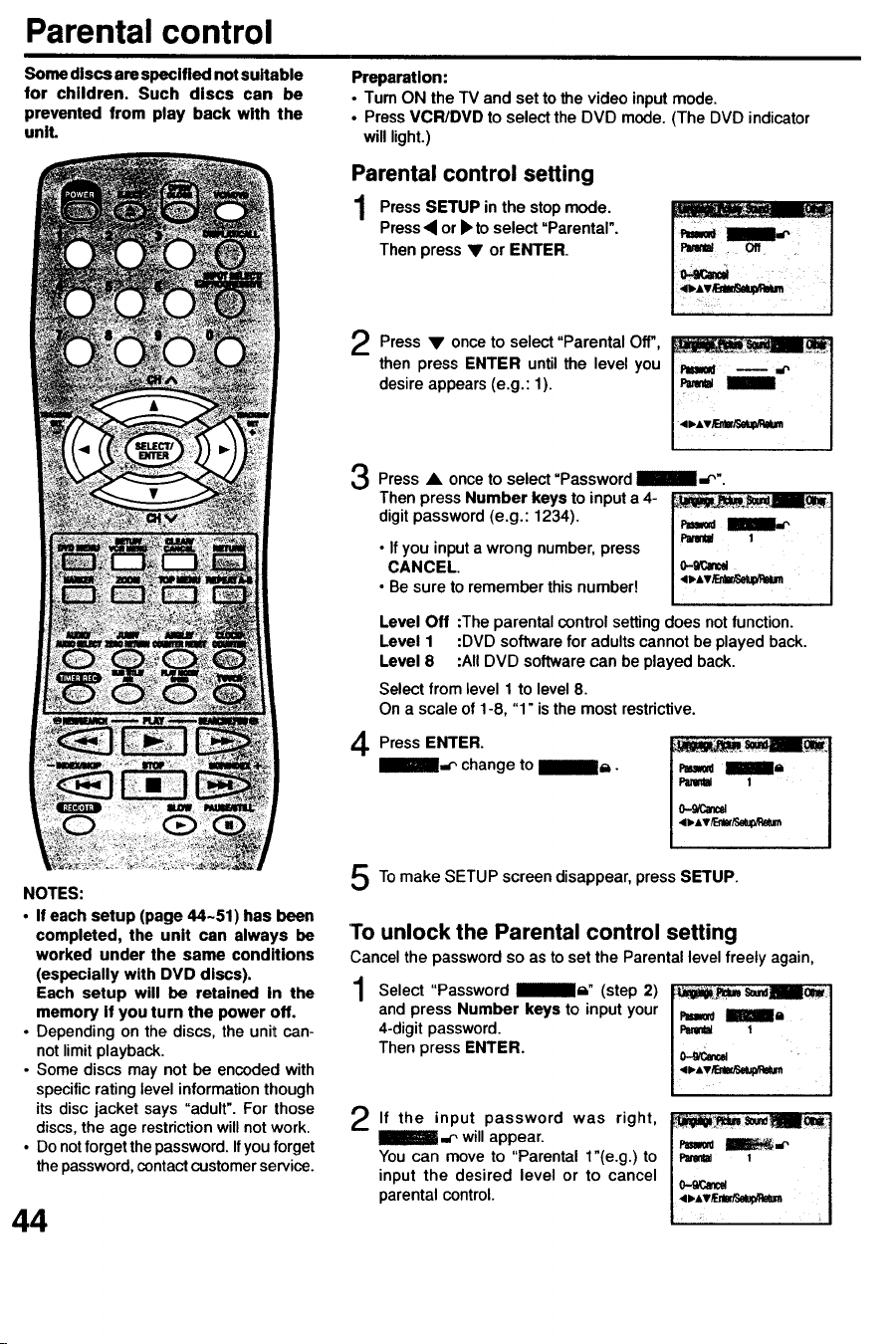
Parental control
Some discs are specified not suitable
for children. Such discs can be
prevented from play back with the
uniL
Preparation:
•Tum ON the TV and set to the video input mode.
• Press VCR/DVD to select the DVD mode. (The DVD indicator
will light.)
Parental control setting
Press SETUP in the mode.
stop
Press • or • to select =Parental".
Then press • or ENTER.
Press to select"Parental Off",
once
then press ENTER untilthe level you
desireappears (e.g.: 1).
Press • once to select "Password i- _".
Then press Number keys to input a 4- I
digit password (e.g.: 1234).
• If you input a wrong number, press I _ 1i_'O_ I
°'"c°" I I
• Be sure to remember this number!
Level Off :The parental control setting does not function.
Level 1 :DVD software for adults cannot be played back.
Level 8 :All DVD software can be played back.
Select from level 1 to level 8.
On a scale of 1-8, "1" is the most restrictive.
4 Press ENTER.
InlBli.p change to nllli_.
PmK_ Ha
ParmW 1
4WATF_I_
NOTES:
• If each setup (page 44-51) has been
completed, the unit can always be
worked under the same conditions
(especially with DVD discs).
Each setup will be retained in the
memory if you turn the power off.
• Depending on the discs, the unit can-
not limit playback.
• Some discs may not be encoded with
specific rating level information though
its disc jacket says "adult". For those
discs, the age restriction will not work.
• Do not forget the password. If you forget
the password, contact customer service.
44
To make SETUP screen disappear, press SETUP.
and press Number keys to input your
4-digit password.
Then press ENTER.
To unlock the Parental control setting
Cancel the password so as to set the Parental level freely again,
Select "Password lil_l,=- (step 2) _ _/_
I-='-
input password was right,
If the
I_Uli-¢' will appear.
You can move to "Parental 1"(e.g.) to
input the desired level or to cancel
parental control.
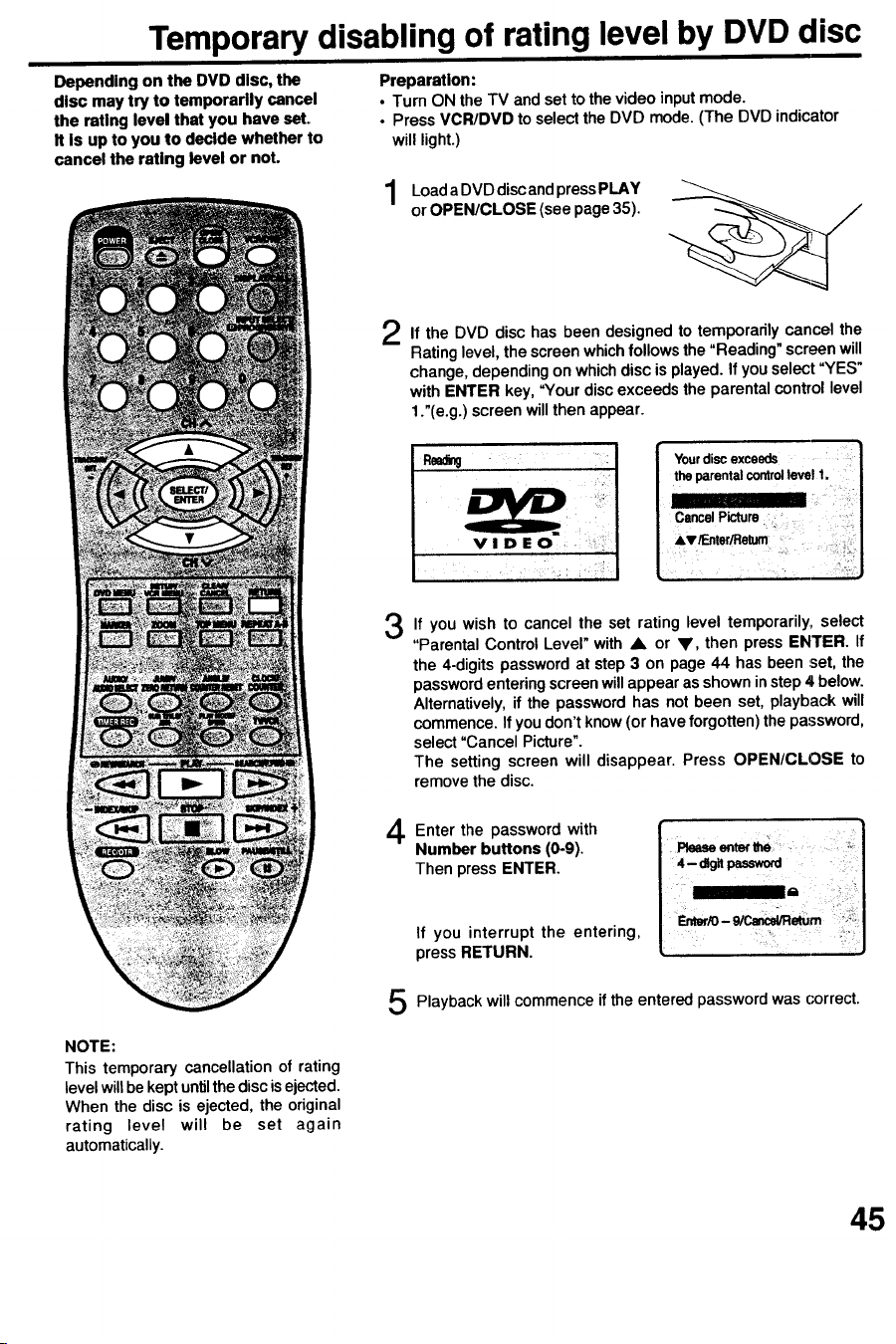
Temporary disabling of rating level by DVD disc
ii]
Depending on the DVD disc, the Preparation:
disc may try to temporarily cancel • Turn ON the TV and set to the video input mode.
the rating level that you have set. • Press VCR/DVD to select the DVD mode. (The DVD indicator
It is up to you to decide whether to will light.)
cancel the rating level or not.
LoadaDVD discandpressPLAY
or OPEN/CLOSE (see page35).
If the DVD disc has been designed to temporarily cancel the
Rating level, the screen which follows the "Reading" screen will
change, depending on which disc is played. If you select "YES"
with ENTER key, "Your disc exceeds the parental control level
1 ."(e.g.) screen will then appear.
I
I
3
If you wish to cancel the set rating level temporarily, select
"Parental Control Level" with • or V, then press ENTER. If
the 4-digits password at step 3 on page 44 has been set, the
password entering screen will appear as shown in step 4 below.
Alternatively, if the password has not been set, playback will
commence. If you don't know (or have forgotten) the password,
select "Cancel Picture".
The setting screen will disappear. Press OPEN/CLOSE to
remove the disc.
4
Enter the password with l. Pleaseenter_
Number buttons (0-9).
Then press ENTER. J 4- dtgitpassword
press RETURN. t i
NOTE:
This temporary cancellation of rating
level will be kept until the disc is ejected.
When the disc is ejected, the original
rating level will be set again
automatically.
5 Playback will commence if the entered password was (-orrect.
45
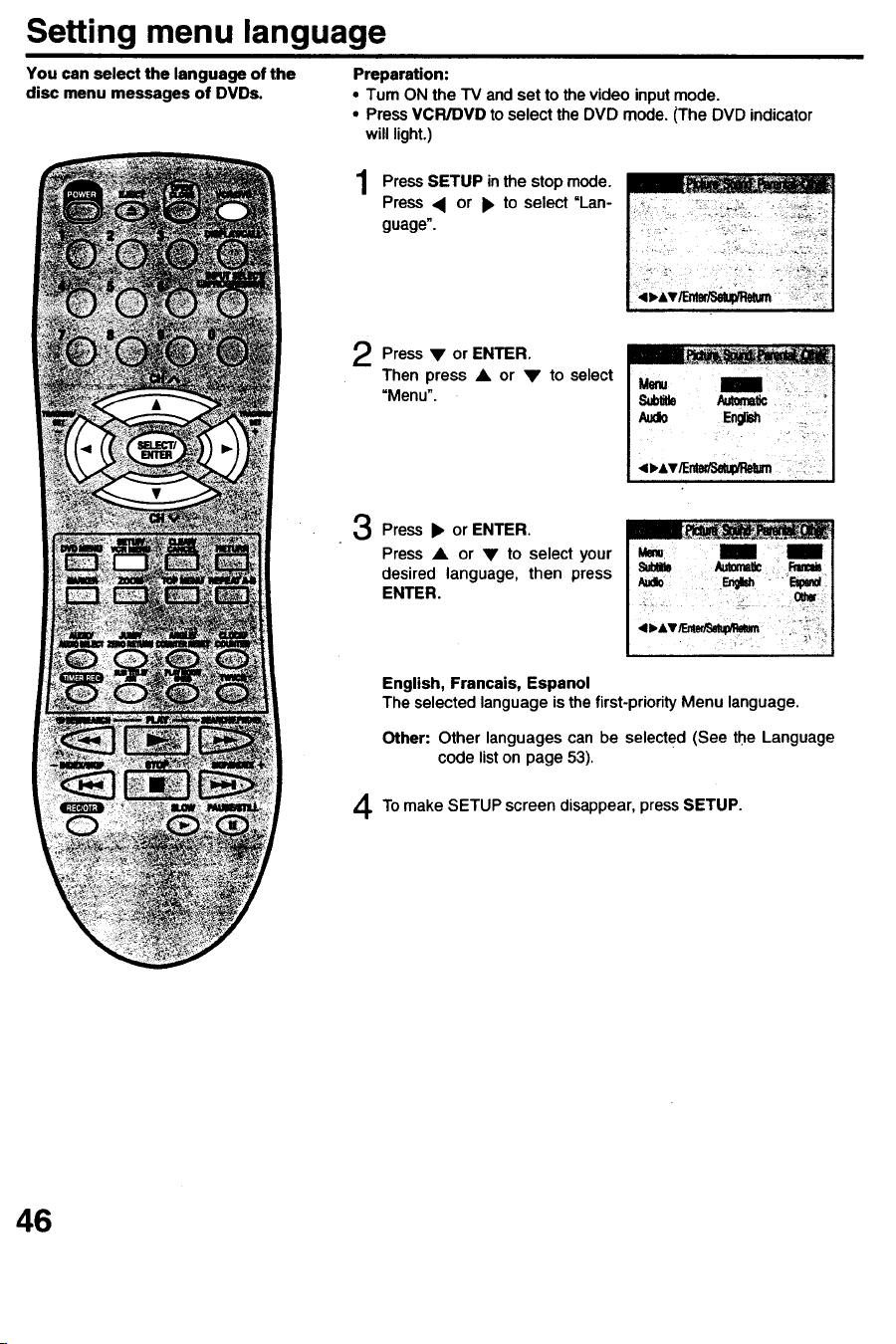
Setting menu language
You can select the language of the
disc menu messages of DVDs.
Preparation:
•Tum ON the TV and set to the video input mode.
• Press VCR/DVD to select the DVD mode. (The DVD indicator
will light.)
PressSETUP inthe mode.
stop
Press < or • to select "Lan-
guage".
Press • or ENTER.
Then press • or • to select
=Menu".
Press • or ENTER,
Press • or • to select your
desired language, then press
ENTER.
English, Francais, Espanol
The selected language is the first-priority Menu language.
Other: Other languagescan be selected (See the Language
code liston page 53).
To make SETUP screen disappear, press SETUP.
46
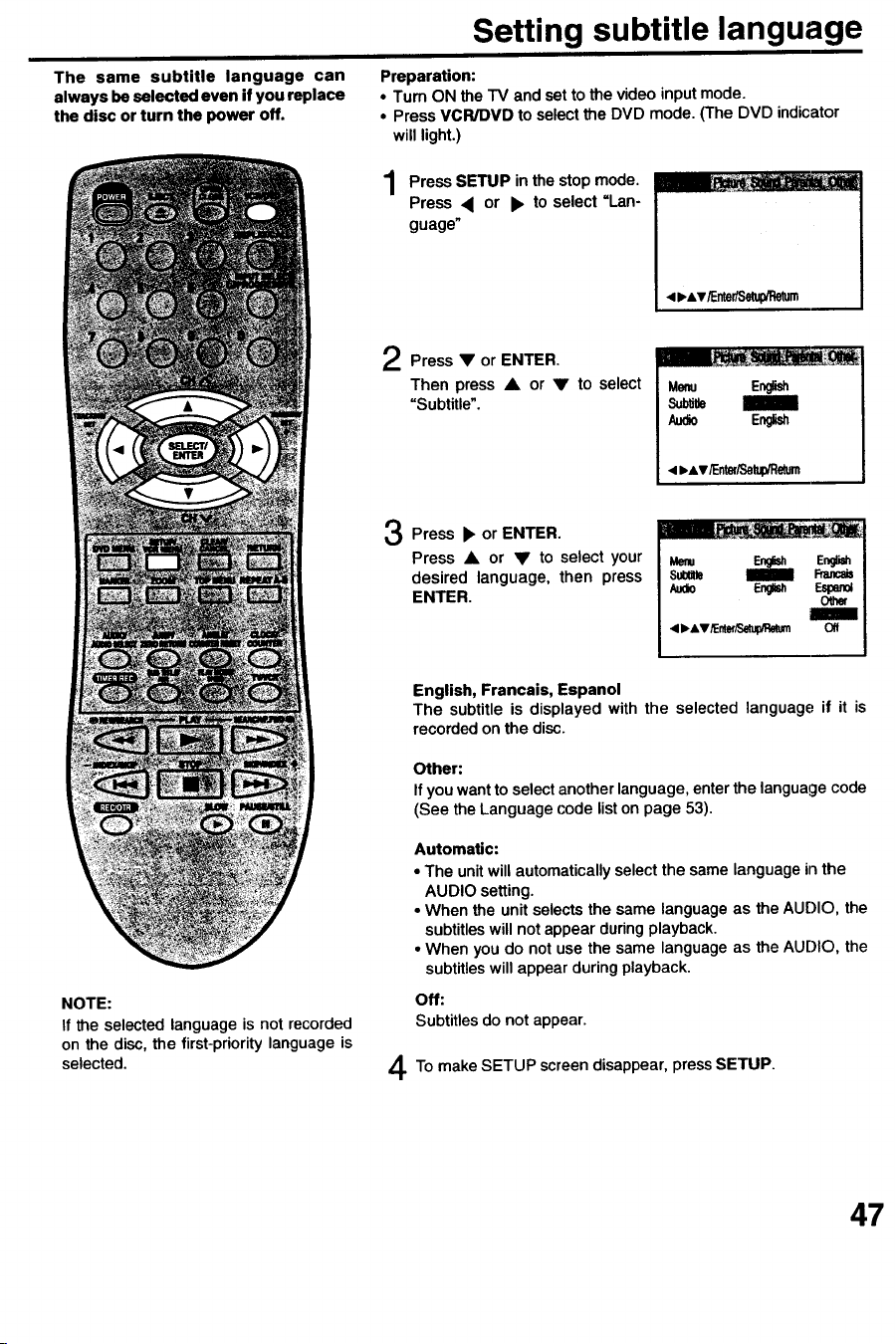
Setting subtitle language
The same subtitle language can
always be selected even if you replace
the disc or turn the power off.
Preparation:
• Turn ON the TV and set to the video input mode.
• Press VCR/DVD to select the DVD mode, (The DVD indicator
will light.)
Press SETUP in the stop mode.
Press < or • to select =Lan-
guage"
4_Av_e_etu_Retum
Press • or ENTER.
Then press • or • to select
=Subtitle".
Menu English
Sub_
Audo Eng_h
< ••v/EnteriSetul_Re_urn
NOTE:
If the selected language is not recorded
on the disc, the first-priority language is
selected.
Press • or ENTER.
Press • or • to select your
desired language, then press
ENTER.
i_,s-- --
i O_/Emer/Setup/Retum Off
English, Francais, Espanol
The subtitle is displayed with the selected language if it is
recorded on the disc.
Other:
If you want to select another language, enter the anguage code
(See the Language code list on page 53).
Automatic:
• The unitwill automaticallyselectthe same languagein the
AUDIO setting.
• When the unit selects the same languageas the AUDIO, the
subtitleswill not appear duringplayback.
• When you do not use the same language as the AUDIO, the
subtitleswill appear during playback.
Off:
Subtitlesdo not appear.
To make SETUP screen disappear,press SETUP.
47
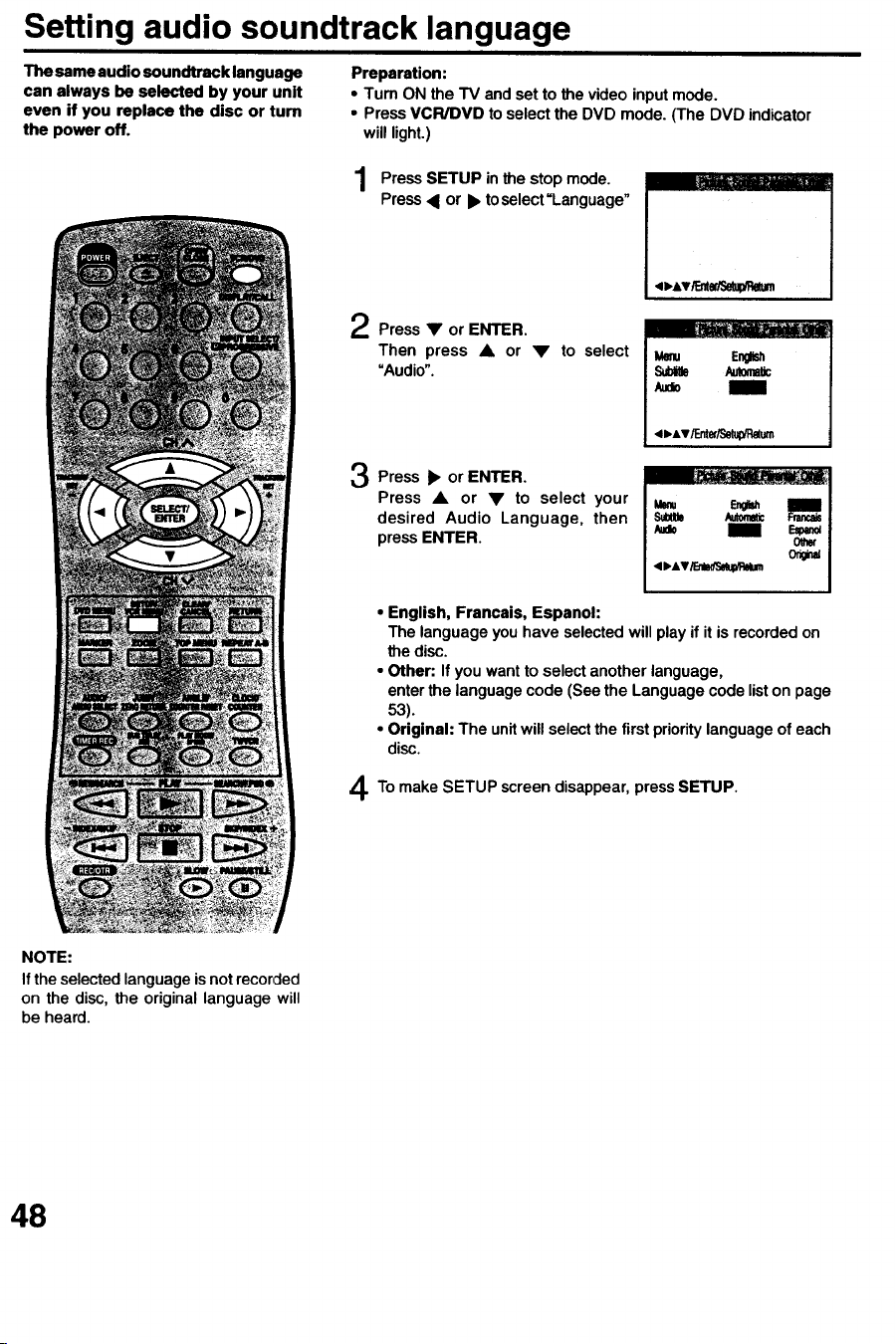
Setting audio soundtrack language
The same audio soundtreck language
can always be selected by your unit
even if you replace the disc or turn
the power off.
Preparation:
• Turn ON the TV and set to the video input mode.
• Press VCR/DVD to select the DVD mode. (The DVD indicator
will light.)
PressSETUP in the mode.stop
Press• or • toselect=Language"
oAv_=nt_
Press • or ENTER.
Then press • or • to select
=Audio".
Ma.,u Ero_
Sub_ h,tem_
<,&v/Entef/Setu;_
_._ Press • or ENTER.
Press • or • to select your
desired Audio Language, then
pressENTER.
• English, Francais, Espanoh
_tp,,Av_on'se_tp_t0_m I
The language youhave selectedwill play if it is recordedon
the disc.
• Other: If youwant to select anotherlanguage,
enterthe language code (See the Languagecode liston page
53).
• Original: The unitwillselectthe first prioritylanguageof each
disc.
To make SETUP screen disappear,pressSETUP.
NOTE:
If the selectedlanguageis notrecorded
on the disc, the original language will
be heard.
48
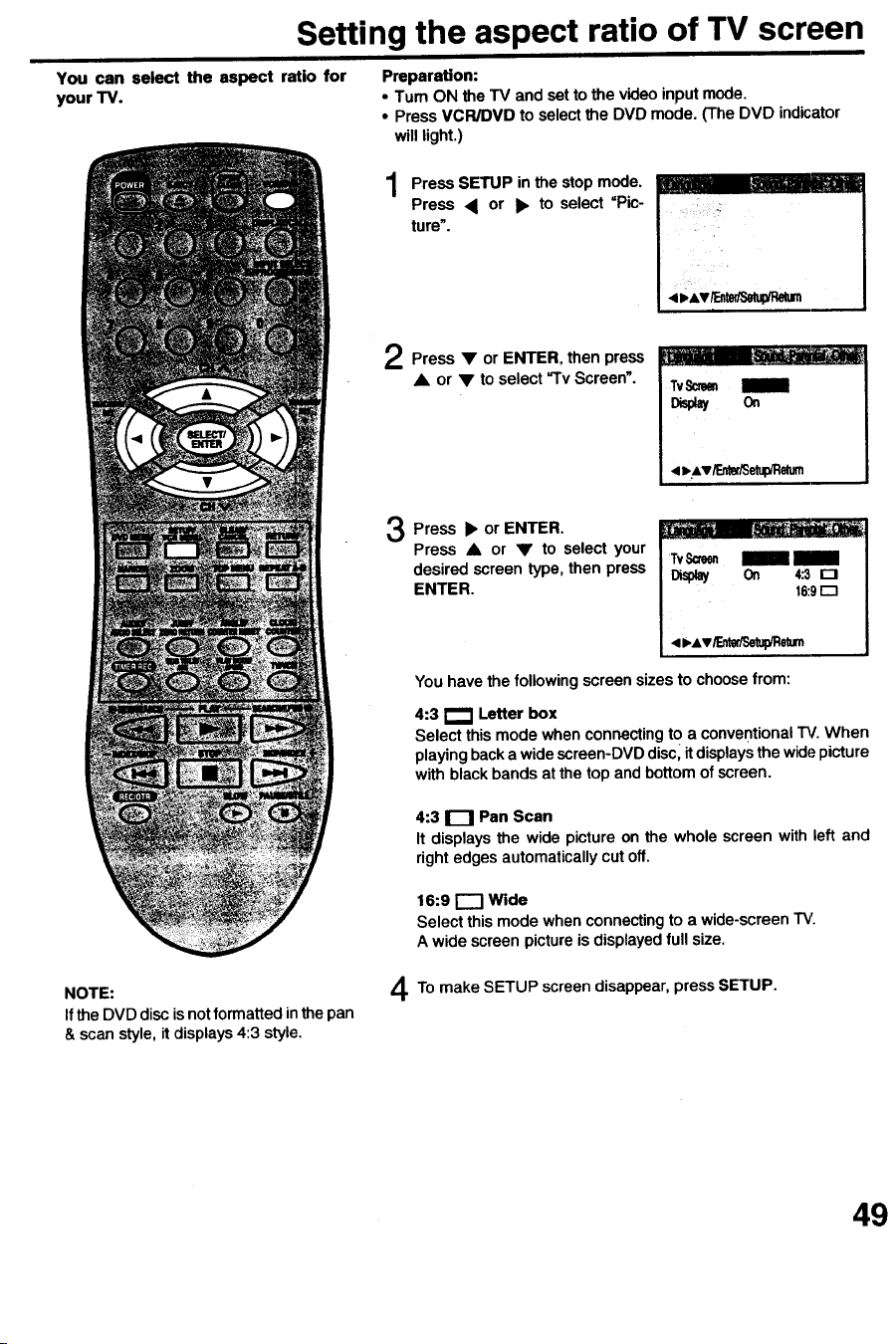
Setting the aspect ratio of TV screen
You can select the aspect ratio for
your TV.
Preparation:
• Turn ON the TV and set to the video inputmode.
• Press VCR/DVD to selectthe DVD mode. (The DVD indicator
willlight.)
Press SETUP in the stopmode.
Press < or I_ to select =Pic-
ture". ....
Press • or ENTER, then press
• or • to select =TvScreen'.
Press • ENTER.
or
Press • or • to select your
desired screen type, then press
ENTER.
Tv_
Display On 4:3 r'-t
16:9E]
4 =.Av/F._/Setupine=m
Youhave the following screen sizesto choosefrom:
4:3 1"1 Letter box
Select this mode when connectingto a conventional_/. When
playingbacka wide screen-DVD disc,it displaysthe widepicture
with black bandsat the top andbottom of screen.
4:3 D Pan Scan
It displays the wide picture on the whole screen with left and
right edges automatically cut off.
16:9 r"-I Wide
Select this mode when connectingto a wide-screen TV.
A wide screen pictureis displayedfull size.
NOTE:
If the DVD disc is not formatted in the pan
& scan style, it displays 4:3 style.
To make SETUP screen disappear, press SETUP.
49
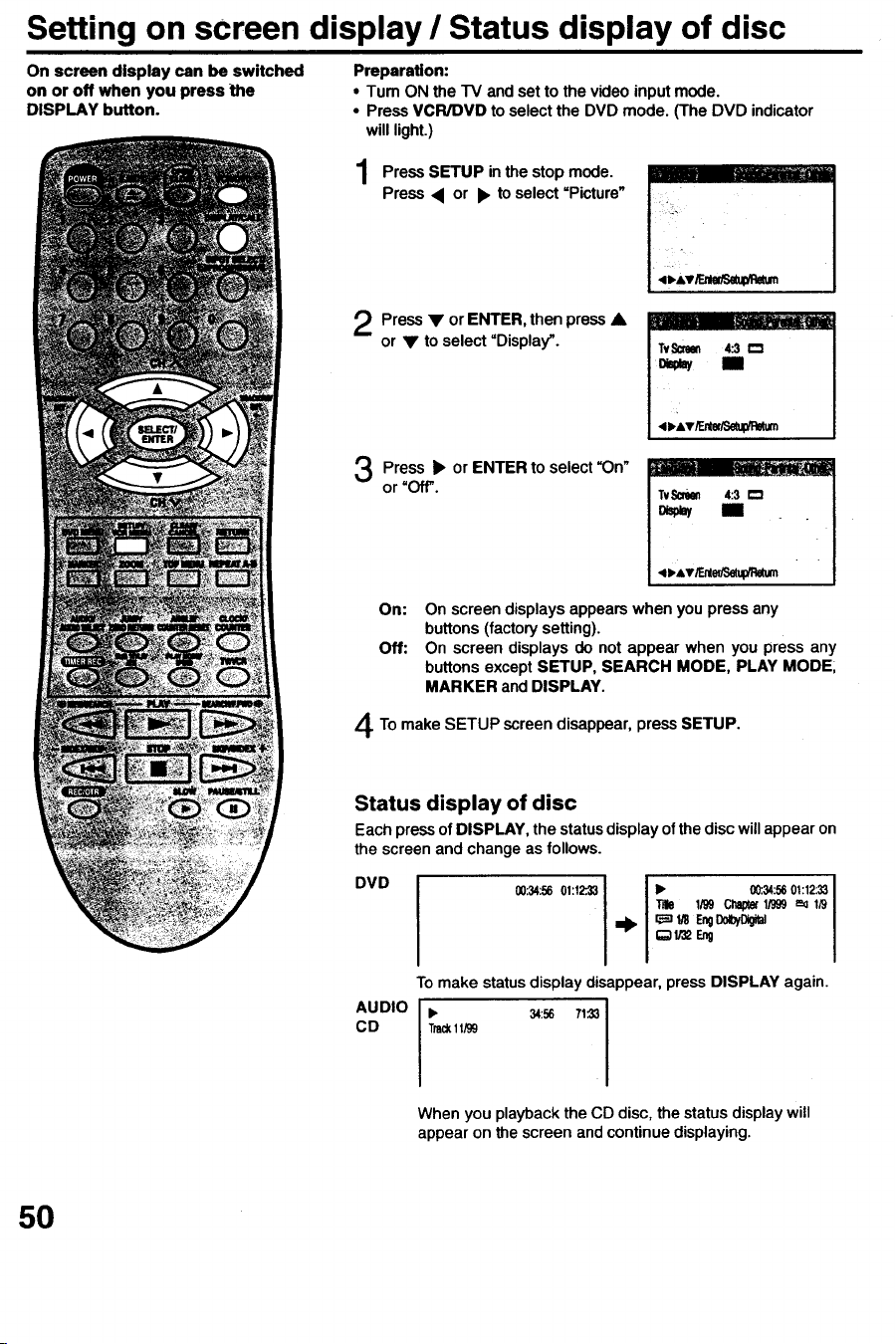
Setting on screen display / Status display of disc
On screen display can be switched
on or off when you press the
DISPLAY button.
Preparation:
• Tum ON the "IV and set to the video input mode.
• Press VCR/DVD to select the DVD mode. (The DVD indicator
will light.)
Press SETUP stop
in the mode.
Press • or • to select =Picture"
Press • or ENTER, then press•
or • to select =Display'.
Press • or ENTER to select =On"
or =Off'.
•-
I 4 _,&v/F.U/Selup_aum
_ = :T; .....
TvScNm 4:3 Pm
[7,spW/ II
On: On screen displays appears when you press any
buttons(factorysetting).
Off: On screen displaysdo not appear when you press any
buttonsexceptSETUP, SEARCH MODE, PLAY MODEl
MARKER and DISPLAY.
To make SETUP screen disappear,press SETUP.
Status display of disc
Each press of DISPLAY, the status display of the disc will appear on
the screen and change as follows.
DVD
AUDIO
CD
00:34:5601:12:33
iD' 00:34:5601:12:33
"rdle 1/99Chapter1/999_ 1/9
I;;)lr_ Eng
To make status display disappear, press DISPLAY again.
• 34:56 71:33
Trad_11R9
When you playback the CD disc, the status display will
appear on the screen and continue displaying.
50
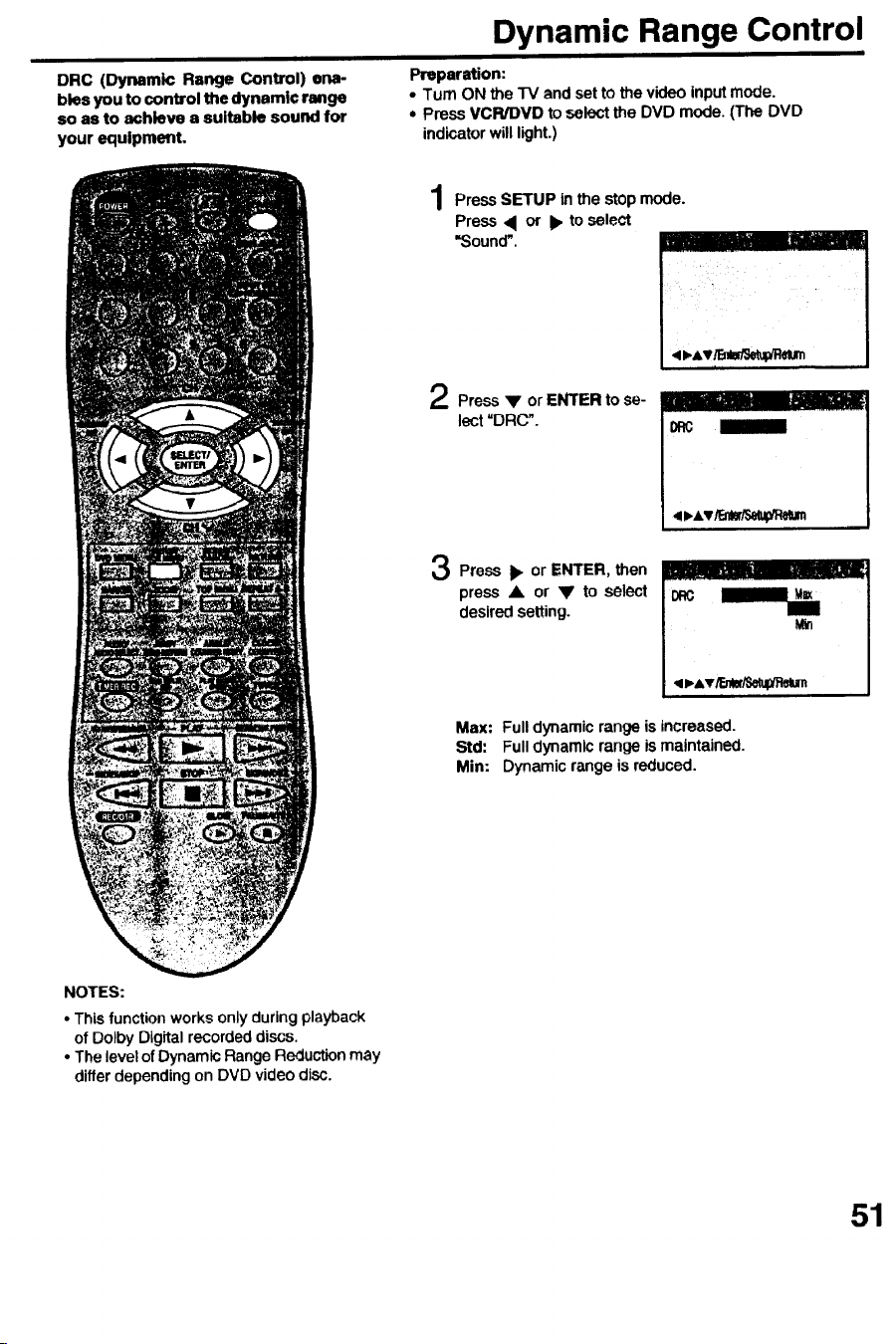
DRC (Dynamic Range Control) ona-
bles you to control the dynamic range
so as to achieve a suitable sound for
your equipme_t.
Dynamic Range Control
Preparation:
• Turn ON the TV and set to the videoinputmode.
* Press VCR/DVD to selectthe DVD mode. (The DVD
indicatorwill light.)
1
Press SETUP in the stop mode.
Press • or I_ to select
=Sound".
Press V or ENTER to se-
lect =DRC".
Press )_ or ENTER, then
press • or '_' to select
desired setting.
Max: Full dynamic range is increased.
Std: Full dynamic range ismaintained.
Min: Dynamic range is reduced.
NOTES:
• This function works only during playback
of Dolby Digital recorded discs.
• The level of Dynamic Range Reduction may
differ depending on DVD video disc.
51
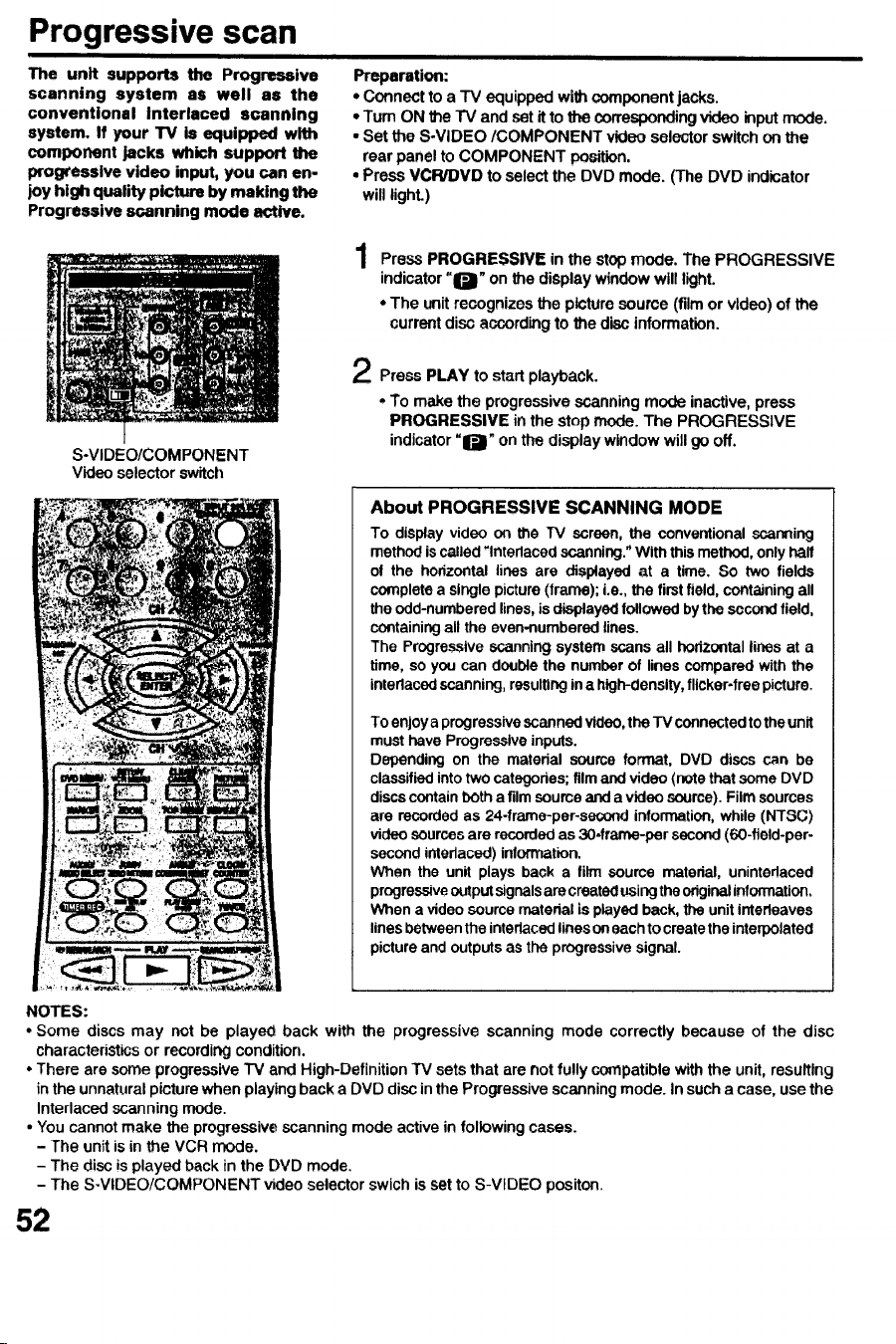
Progressive scan
The unit supports the Progressive
scanning system as well as the
conventional Interlaced scanning
system. If your TV is equipped with
component jacks which support the
Ixogresslve video input, you can en-
joy high quality picture by making the
Progressive scanning mode active.
S-VIDEO/COMPONENT
Videoselector switch
Preparation:
• Connectto a TV equippedwithcomponentjacks.
•Tum ON the -IV andset it to the correspondingvideo inputmode.
• Set the S-VIDEO/COMPONENT video solec'torswitchon the
rear panel to COMPONENT position.
• Press VCR/DVD to select the DVD mode. (The DVD indicator
will lighL)
Press PROGRESSIVE in the stopmode. The PROGRESSIVE
indicator"1_" on the displaywindowwill light.
• The unitrecognizesthe picturesource(film or video)of the
current disc accordingto the disc information.
Press PLAY to startplayback.
• To make the progressivescanningmode inactive,press
PROGRESSIVE in the stop mode.The PROGRESSIVE
indicator=1]_" on the display windowwillgo off.
About PROGRESSIVE SCANNING MODE
To display video on the "IV screen, the conventional scanning
method is called "Interlaced scanning." With this method, only half
of the horizontal lines are displayed at a time. So two fields
complete a single picture (frame); i.e., the firstfield, containing all
the odd-numbered lines, is displayed followed by the second field,
containing all the even-numbered lines.
The Progressive scanning system scans all hodzontal lines at a
time, so you can double the number of lines compared with the
interlaced scanning, resulting ina high-density, flicker*free picture.
To enjoya progressive scanned video,the TV connected to the unit
must have Progressive inputs.
Depending on the material source format, DVD discs can be
classified into two categories; film and video (note that some DVD
discs contain both a film source and a video source). Film sources
are recorded as 24-frame-per-secor_l information, while (NTSC)
video sources are recorded as 30-frame-per second (60-field-per-
second interlaced) information.
When the unit plays back a film source material, unintedaced
progressiveoutputsignalsare created usingthe originalinformation,
When a video source material is played back, the unit interleaves
lines between the interlaced lineson each to create the interpolated
picture and outputs as the progressive signal.
NOTES:
• Some discs may not be played back with the progressive scanning mode correctly because of the disc
characteristics or recording condition.
° There are some progressive "IV and High-Definition TV sets that are not fully compatible with the unit, resulting
in the unnatural picture when playing back a DVD disc inthe Progressive scanning mode. In such a case, use the
Interlaced scanning mode.
• You cannot make the progressive scanning mode active in following cases.
- The unit is in the VCR mode.
- The disc is played back in the DVD mode.
- The S-VIDEO/COMPONENT video selector swich is set to S-VIDEO positon.
52
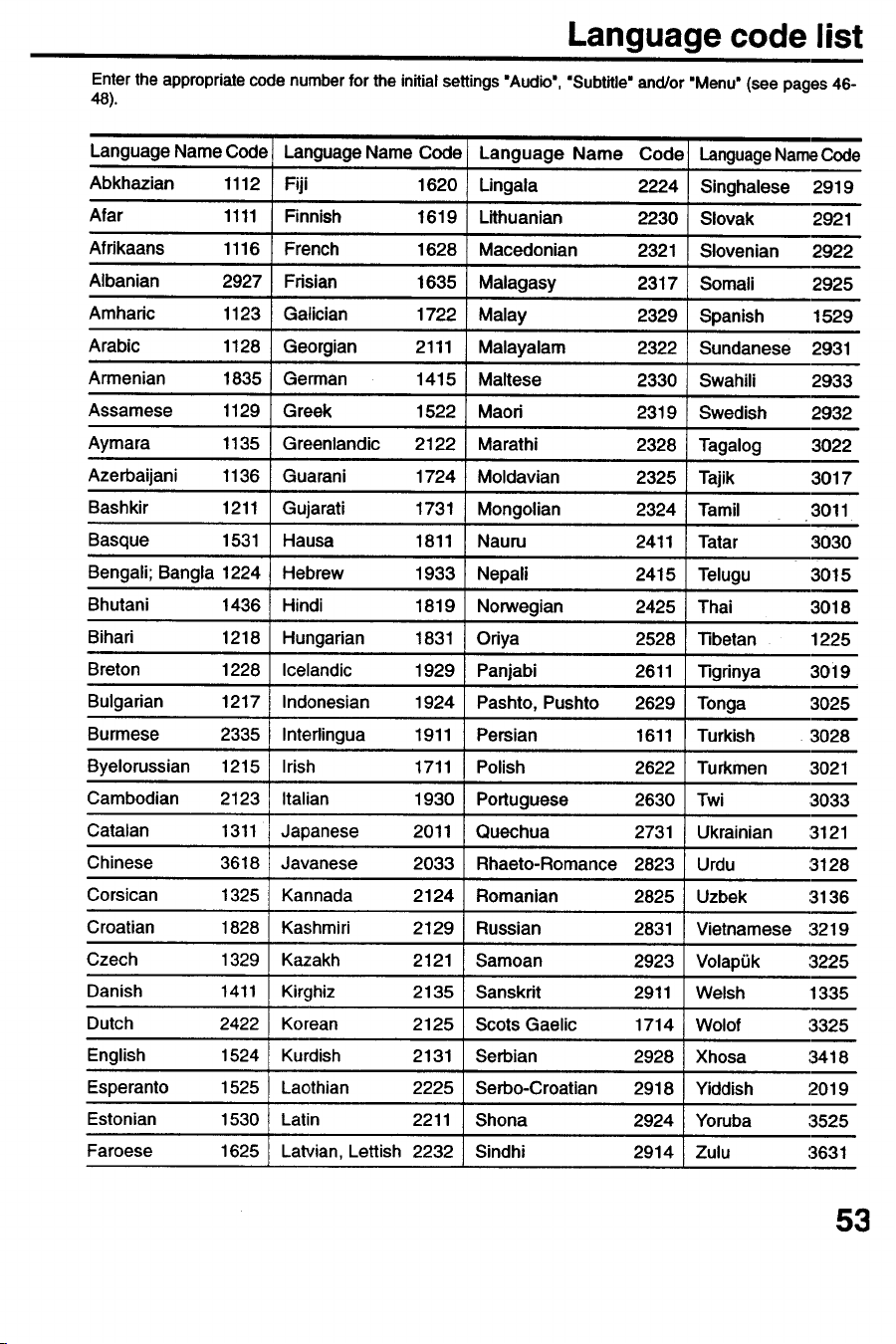
Language code list
Entertheappropriatecodenumberfor theinitialsettings"Audio',"Subtitle"and/or"Menu"(seepages46-
48)
Language Name Code Language Name Code Language Name Code LanguageName Code
Abkhazian 1112 Fiji 1620 Lingala 2224 Singhalese 2919
Afar 1111 Finnish 1619 Lithuanian 2230 Slovak 2921
Afrikaans 1116 French 1628 Macedonian 2321 Slovenian 2922
Albanian 2927 Frisian 1635 Malagasy 2317 Somali 2925
Amharic 1123 Gatician 1722 Malay 2329 Spanish 1529
Arabic 1128 Georgian 2111 Malayalam 2322 Sundanese 2931
Armenian 1835 German 1415 Maltese 2330 Swahili 2933
Assamese 1129 Greek 1522 Maori 2319 Swedish 2932
Aymara 1135 Greenlandic 2122 Marathi 2328 Tagalog 3022
Azerbaijani 1136 Guarani 1724 Moldavian 2325 Tajik 3017
Bashkir 1211 Gujarati 1731 Mongolian 2324 Tamil 3011
Basque 1531 Hausa 1811 Nauru 2411 Tatar 3030
Bengali; Bangla 1224 Hebrew 1933 Nepali 2415 Telugu 3015
Bhutani 1436 Hindi 1819 Norwegian 2425 Thai 3018
Bihari 1218 Hungarian 1831 Oriya 2528 Tibetan 1225
Breton 1228 Icelandic 1929 Panjabi 2611 "ngrinya 30i9
Bulgarian 1217 Indonesian 1924 Pashto, Pushto 2629 Tonga 3025
Burmese 2335 Interlingua 1911 Persian 1611 Turkish 3028
Byelorussian 1215 Irish 1711 Polish 2622 Turkmen 3021
Cambodian 2123 Italian 1930 Portuguese 2630 Twi 3033
Catalan 1311 Japanese 2011 Quechua 2731 Ukrainian 3121
Chinese 3618 Javanese 2033 Rhaeto-Romance 2823 Urdu 3128
Corsican 1325 Kannada 2124 Romanian 2825 Uzbek :3136
Croatian 1828 Kashmiri 2129 Russian 2831 Vietnamese :3219
Czech 1329 Kazakh 2121 Samoan 2923 Volap(Jk :3225
Danish 1411 Kirghiz 2135 Sanskrit 2911 Welsh 1335
Dutch 2422 Korean 2125 Scots Gaelic 1714 Wolof :3325
English 1524 Kurdish 2131 Serbian 2928 Xhosa :3418
Esperanto 1525 Laothian 2225 Serbo-CroaUan 2918 Yiddish ;2019
Estonian 1530 Latin 2211 Shona 2924 Yoruba :3525
Faroese 1625 Latvian, Lettish 2232 Sindhi 2914 Zulu :3631
53
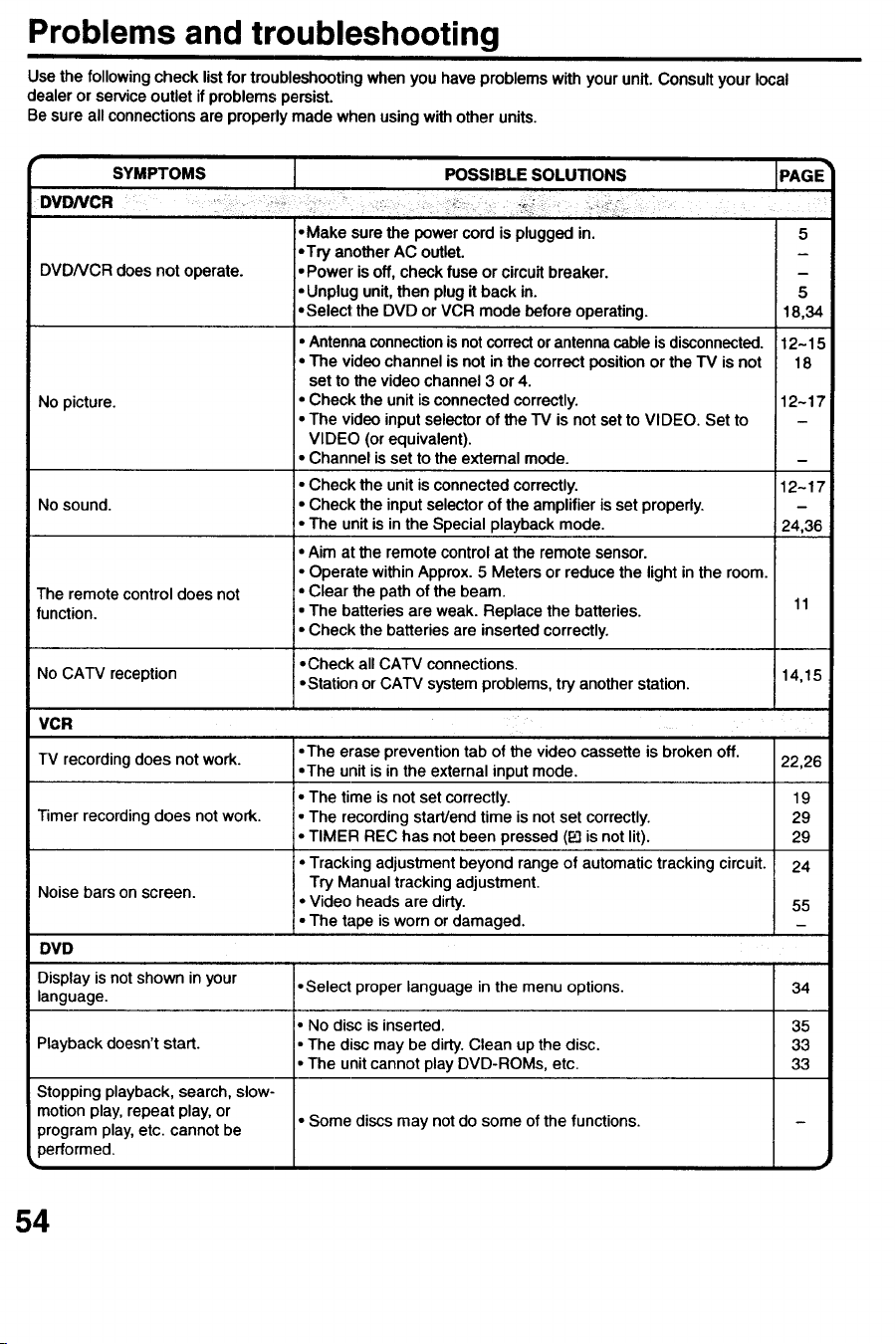
Problems and troubleshooting
Use the followingcheck listfor troubleshootingwhenyou have problemswith yourunit. Consult your local
dealer or serviceoutlet if problems persist.
Be sure all connectionsare properlymade whenusingwith other units.
SYMPTOMS
DVDNCR _
I
POSSIBLE SOLUTIONS
DVDNCR does not operate.
No picture.
No sound.
The remote control does not
function.
No CATV reception
• Make surethe powercord is plugged in.
• Try anotherAC outlet.
• Power is off,check fuse or circuitbreaker.
• Unplugunit,then plug it back in.
• Select:the DVD or VCR mode beforeoperating.
• Antennaconnectionisnotcorrector antennacableis disconnected.
• The video channelis not inthe correct position or the TV is not
set to the videochannel3 or4.
• Checkthe unit isconnectedcorrectly. 12-17
• The video inputselectorof the TV is not set to VIDEO. Set to
VIDEO (orequivalent).
i Channel isset to the extemal mode.
Check the unitis connectedcorrectly. 12-17
_Check the inputselectorof the amplifieris set properly.
The unit is in the Special playbackmode. 24,36
• Aim at the remote controlat the remotesensor.
I" OperatewithinApprox.5 Metersor reducethe light in the room.
• Clearthe path of the beam.
,• The batteriesareweak. Replace the batteries. 11
=oCheckthe batteriesare insertedcorrectly.
• Check all CATV connections.
: •Station or CATV system problems, try another station.
PAGE_
5
5
16,34
12-15
18
14,15
VCR
TV recording does not work.
Timer recording does not work.
Noise bars on screen.
DVD
•The erase prevention tab of the video cassette is broken off.
•The unit is in the external input mode. 22,26
• The time is not set correctly. 19
• The recording start/end time is not set correctly. 29
• TIMER REC has not been pressed (P.9is not lit). 29
• Tracking adjustment beyond range of automatic tracking circuit. 24
Try Manual tracking adjustment.
,. Video heads are dirty. 55
• The tape is worn or damaged.
Display is not shown in your
language.
Playback doesn't start.
Stopping playback, search, slow-
motionplay, repeat play, or
program play, etc. cannot be
performed.
• Select proper language in the menu options.
• No disc is inserted.
i, The disc may be dirty. Clean up the disc.
• The unit cannot play DVD-ROMs, etc.
• Some discs may not do some of the functions.
34
35
33
33
54
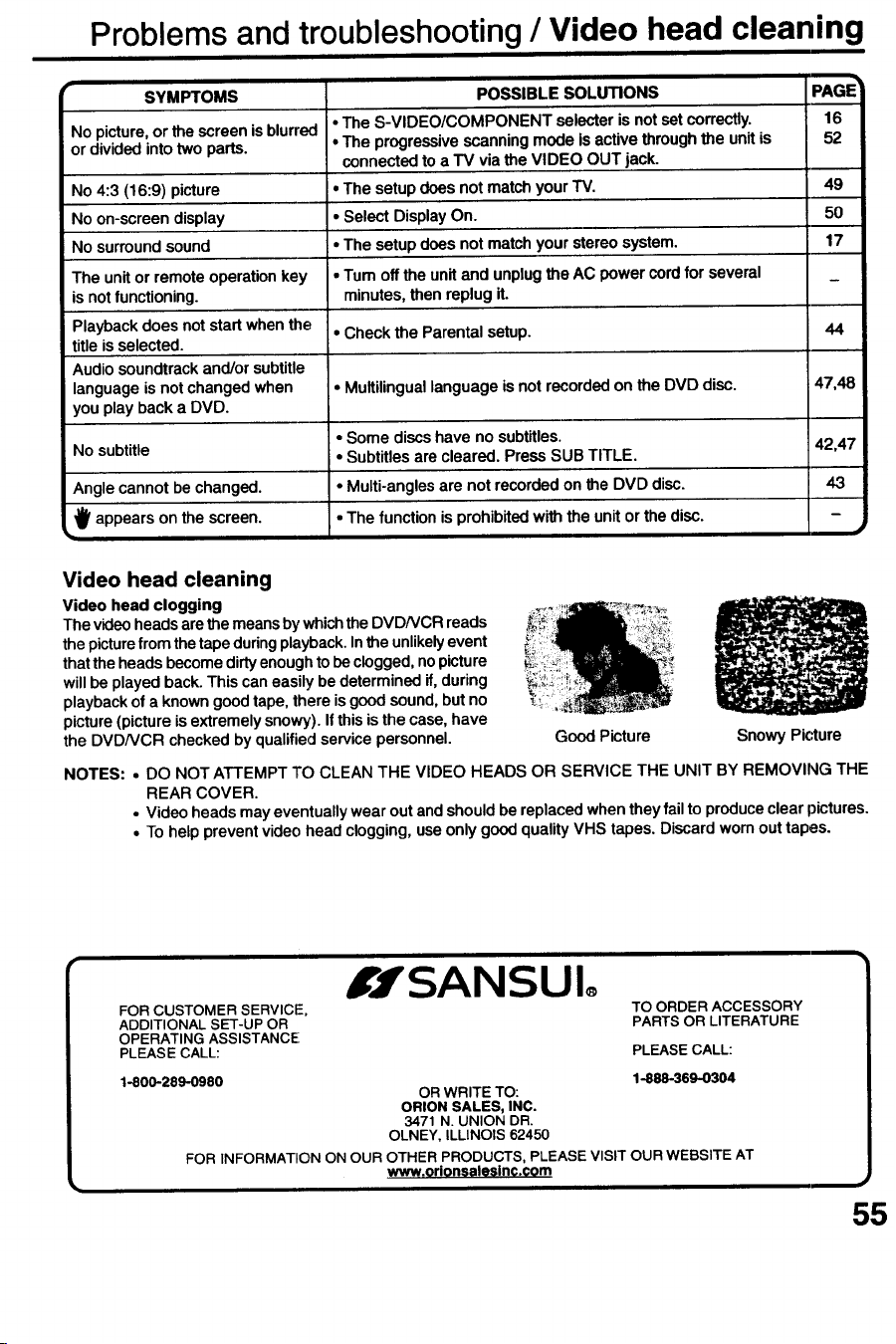
Problems and troubleshooting / Video head cleaning
SYMPTOMS
No picture, or the screen is blurred
or divided into two parts.
No 4:3 (16:9) picture
No on-screen display
No surroundsound
The unitor remoteoperationkey
is notfunctioning.
Playbackdoes not startwhenthe
titleis selected.
Audiosoundtrack and/or subtitle
languageis not changedwhen
you play backa DVD.
No subtitle
Angle cannot be changed.
_ appears on the screen.
POSSIBLE SOLUTIONS
• The S-VIDEO/COMPONENT selecteris notset correctly. 16
• The progressivescanningmode is active through the unitis 52
connectedto a TV via the VIDEO OUT jack.
• The setupdoes not matchyour TV. 49
• Select DisplayOn. 50
• The setup does not matchyour stereo system. 17
• Tum offthe unitand unplugthe AC powercordfor several
minutes,then replug it.
• Check the Parentalsetup.
PAGE _
44
• Multilingual language is not recordedon the DVD disc. 47,48
• Some discs have no subtitles.
• Subtitles are cleared. Press SUB TITLE.
• Multi-anglesare not recordedon the DVD disc.
• The function is prohibitedwiththe unitor thedisc.
42,47
43
Video head cleaning
Video head clogging
Thevideoheadsarethe meansbywhichthe DVDNCR reads
the picturefromthetapeduringplayback.Inthe unlikelyevent
thatthe heads becomedirtyenoughto beclogged,no picture
will be playedback.This can easilybe determinedif,during
playbackof a knowngoodtape,there isgoodsound,butno
picture(pictureisextremelysnowy,).If thisisthe case,have
the DVDNCR checkedby qualifiedservicepersonnel.
Good Picture Snowy Picture
NOTES: • DO NOT ATTEMPT TO CLEAN THE VIDEO HEADS OR SERVICE THE UNIT BY REMOVING THE
REAR COVER.
• Video heads may eventuallywear out andshouldbe replacedwhentheyfail to produceclear pictures.
• To help preventvideohead clogging,useonly goodquality VHS tapes. Discardwomout tapes.
/'jr SANSUIo
FOR CUSTOMER SERVICE,
ADDITIONAL SET-UP OR
OPERATING ASSISTANCE
PLEASE CALL:
TO ORDER ACCESSORY
PARTS OR LITERATURE
PLEASE CALL:
1-800-289-0980 1-888-369-0304
OR WRITE TO:
ORION SALES, INC.
3471 N. UNION DR.
OLNEY, ILLINOIS 62450
FOR INFORMATION ON OUR OTHER PRODUCTS, PLEASE VISIT OUR WEBSITE AT
www.orionsalesinc.com
55
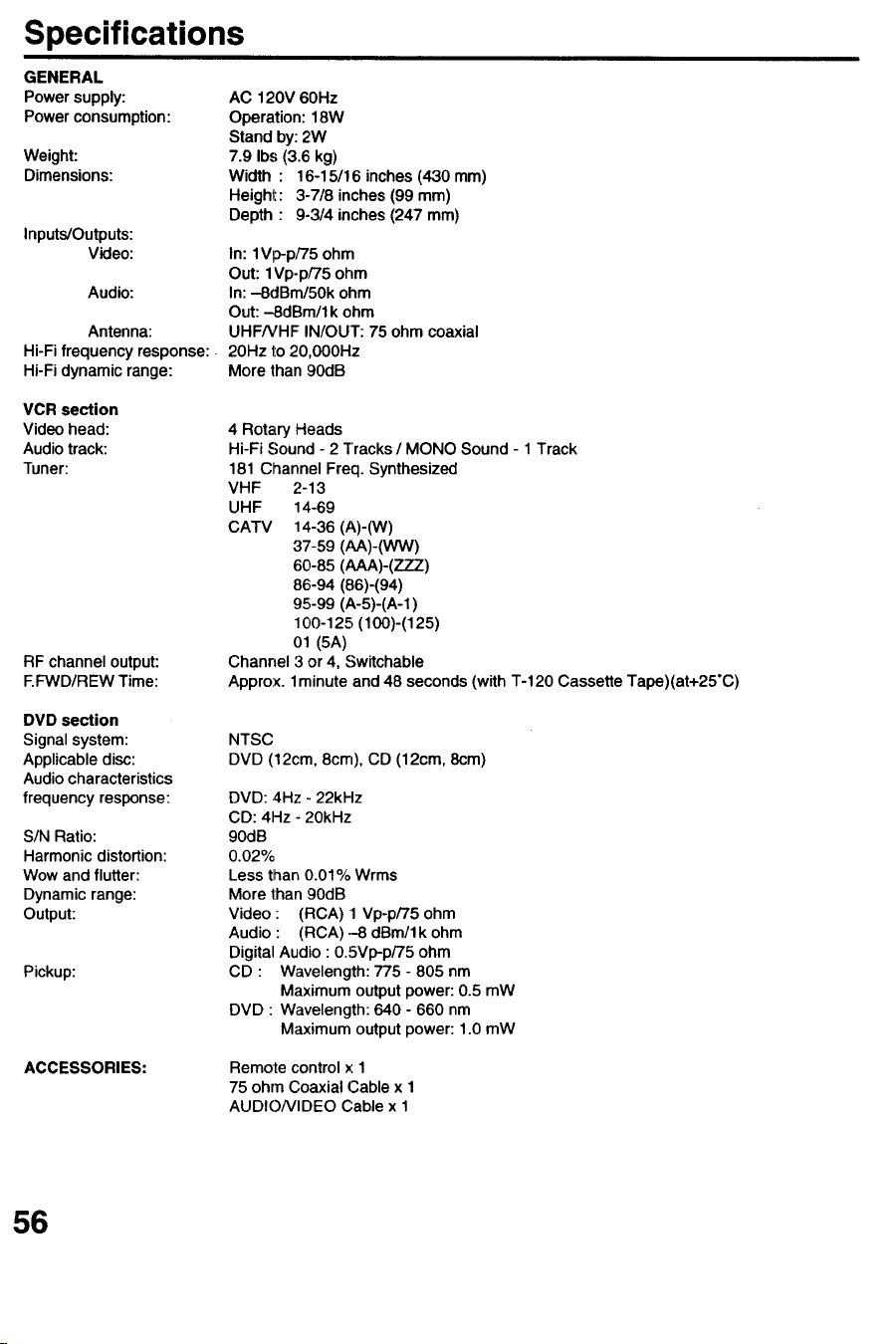
Specifications
GENERAL
Power supply:
Power consumption:
Weight:
Dimensions:
Inputs/Outputs:
Video:
Audio:
Antenna:
Hi-Fifrequency response:
Hi-Fidynamicrange:
AC 120V 60Hz
Operation: 18W
Stand by: 2W
7.9 Ibs (3.6 kg)
Width : 16-15/16 inches (430 mm)
Height: 3-7/8 inches (99 mm)
Depth : 9-3/4 inches (247 mm)
In: 1Vp-p/75 ohm
Out: 1Vp-p/75 ohm
In: -8dBm/50k ohm
Out: -SdBm/1 k ohm
UHFNHF IN/OUT: 75 ohm coaxial
20Hz to 20,000Hz
More than 90dB
VCR section
Video head:
Audio track:
Tuner:
RF channel output:
F.FWD/REW Time:
4 Rotary Heads
Hi-Fi Sound - 2 ]'racks / MONO Sound - 1 Track
181 Channel Freq. Synthesized
VHF 2-13
UHF 14-69
CATV 14-36 (A)-(W)
37-59 (AA)-(WW)
60-85 (AAA)-(ZZZ)
86-94 (86)-(94)
95-99 (A-5)-(A-1)
100-125 (100)-(125)
01 (5A)
Channel 3 or 4, Switchable
Approx. 1 minute and 48 seconds (with T-120 Cassette Tape)(at+25"C)
DVD section
Signal system:
Applicabledisc:
Audiocharacteristics
frequency response:
S/N Ratio:
Harmonic distortion:
Wow and flutter:
Dynamic range:
Output:
Pickup:
NTSC
DVD (12cm, 8cm), CD (12cm, 8cm)
DVD: 4Hz - 22kHz
CD: 4Hz - 20kHz
90dB
0.02%
Less than 0.01% Wrms
More than 90dB
Video : (RCA) t Vp-p/75 ohm
Audio : (RCA)-8 dBm/lk ohm
Digital Audio : 0.SVp-p/75 ohm
CD : Wavelength: 775 - 805 nm
Maximum output power: 0.5 mW
DVD : Wavelength: 640 - 660 nm
Maximum output power: 1.0 mW
ACCESSORIES: Remote control x 1
75 ohm Coaxial Cable x 1
AUDIONIDEO Cable x 1
56
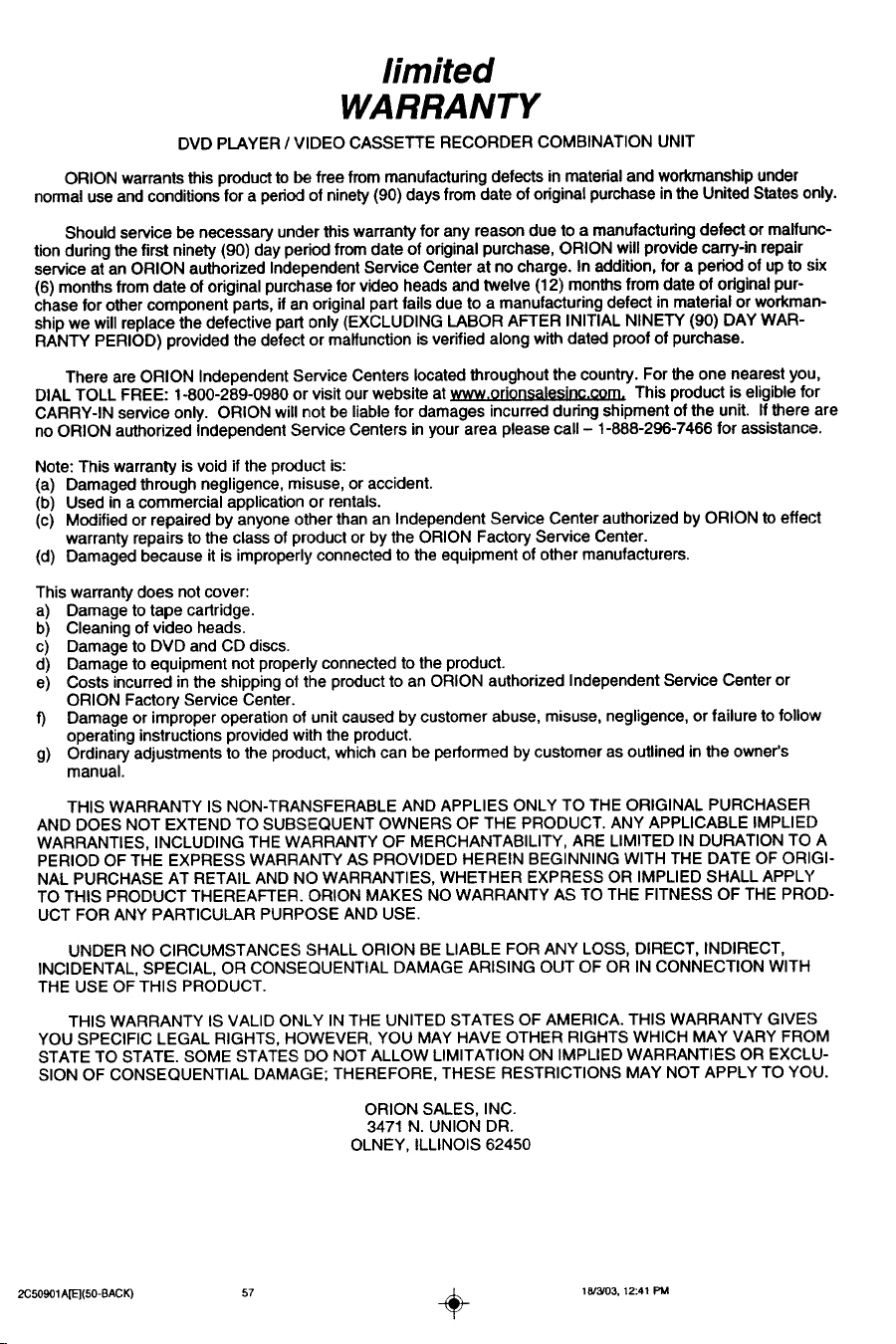
÷
limited
WARRANTY
DVD PLAYER / VIDEO CASSETTE RECORDER COMBINATION UNIT
ORION warrantsthisproductto L_ free from manufacturingdefectsinmaterialand workmanshipunder
normaluse andconditionsfor a periodof ninety(90) days from date oforiginalpurchaseinthe United Statesonly.
Shouldservicebe necessaryunderthiswarrantyfor any reasondue to a manufacturingdefector malfunc-
tionduringthe first ninety(90) day periodfrom date of originalpurchase,ORION will providecarry-inrepair
serviceat an ORION authorizedIndependentService Center at no charge. In addition,for a periodof up to six
(6) monthsfromdate of originalpurchasefor video headsand twelve (12) monthsfrom date of originalpur-
chase for othercomponentparts, if an originalpart fails due to a manufacturingdefect inmaterial or workman-
shipwe will replacethe defectivepart only(EXCLUDING LABOR AFTER INITIAL NINETY (90) DAY WAR-
RANTY PERIOD) providedthedefect ormalfunctionis verifiedalongwithdated proofof purchase.
There are ORION IndependentServiceCenters locatedthroughout the country.For the one nearest you,
DIAL TOLL FREE: 1-800-289-0980 or visitourwebsite atWWw.orionsalesinc.com.This productis eligiblefor
CARRY-IN serviceonly. ORION willnot be liablefor damages incurredduringshipmentof the unit. If there are
no ORION authorizedIndependentService Centers in yourarea pleasecall - 1-888-296-7466 for assistance.
Note: Thiswarranty isvoid if the productis:
(a) Damaged throughnegligence,misuse, or accident.
(b) Used in a commercialapplicationor rentals.
(c) Modifiedorrepaired by anyoneotherthan an IndependentServiceCenter authorizedbyORION to effect
warranty repairsto the classof productor by the ORION FactoryService Center.
(d) Damaged because it is improperlyconnectedto the equipmentof other manufacturers.
This warrantydoes notcover:
a) Damage to tape cartridge.
b) Cleaning of video heads.
c) Damage to DVD and CD discs.
d) Damage to equipment not properly connected to the product.
e) Costs incurred in the shipping ot the product to an ORION authorized Independent Service Center or
ORION Factory Service Center.
f) Damage or improper operation of unit caused by customer abuse, misuse, negligence, or failure to follow
operating instructions provided with the product.
g) Ordinary adjustments to the product, which can be performed by customer as outlined in the owner's
manual.
THIS WARRANTY IS NON-TRANSFERABLE AND APPLIES ONLY TO THE ORIGINAL PURCHASER
AND DOES NOT EXTEND TO SUBSEQUENT OWNERS OF THE PRODUCT. ANY APPLICABLE IMPLIED
WARRANTIES, INCLUDING THE WARRANTY OF MERCHANTABILITY, ARE LIMITED IN DURATION TO A
PERIOD OF THE EXPRESS WARRANTY AS PROVIDED HEREIN BEGINNING WITH THE DATE OF ORIGI-
NAL PURCHASE AT RETAIL AND NO WARRANTIES, WHETHER EXPRESS OR IMPLIED SHALL APPLY
TO THIS PRODUCT THEREAFTER. ORION MAKES NO WARRANTY AS TO THE FITNESS OF THE PROD-
UCT FOR ANY PARTICULAR PURPOSE AND USE.
UNDER NO CIRCUMSTANCES SHALL ORLON BE LIABLE FOR ANY LOSS, DIRECT, INDIRECT,
INCIDENTAL, SPECIAL, OR CONSEQUENTIAL DAMAGE ARISING OUT OF OR IN CONNECTION WITH
THE USE OF THIS PRODUCT.
THIS WARRANTY IS VALID ONLY IN THE UNITED STATES OF AMERICA. THIS WARRANTY GIVES
YOU SPECIFIC LEGAL RIGHTS, HOWEVER, YOU MAY HAVE OTHER RIGHTS WHICH MAY VARY FROM
STATE TO STATE. SOME STATES DO NOT ALLOW LIMITATION ON IMPLIED WARRANTIES OR EXCLU-
SION OF CONSEQUENTIAL DAMAGE; THEREFORE, THESE RESTRICTIONS MAY NOT APPLY TO YOU.
ORLON SALES, INC.
3471 N. UNION DR.
OLNEY, ILLINOIS 62450
÷
2C50901A[E](50-BACK) 57 _ 18/3/03, 12:41 PM
MEMO
58
MEMO
59

J2C50901B []
03/06 Printed in Thailand