Model:
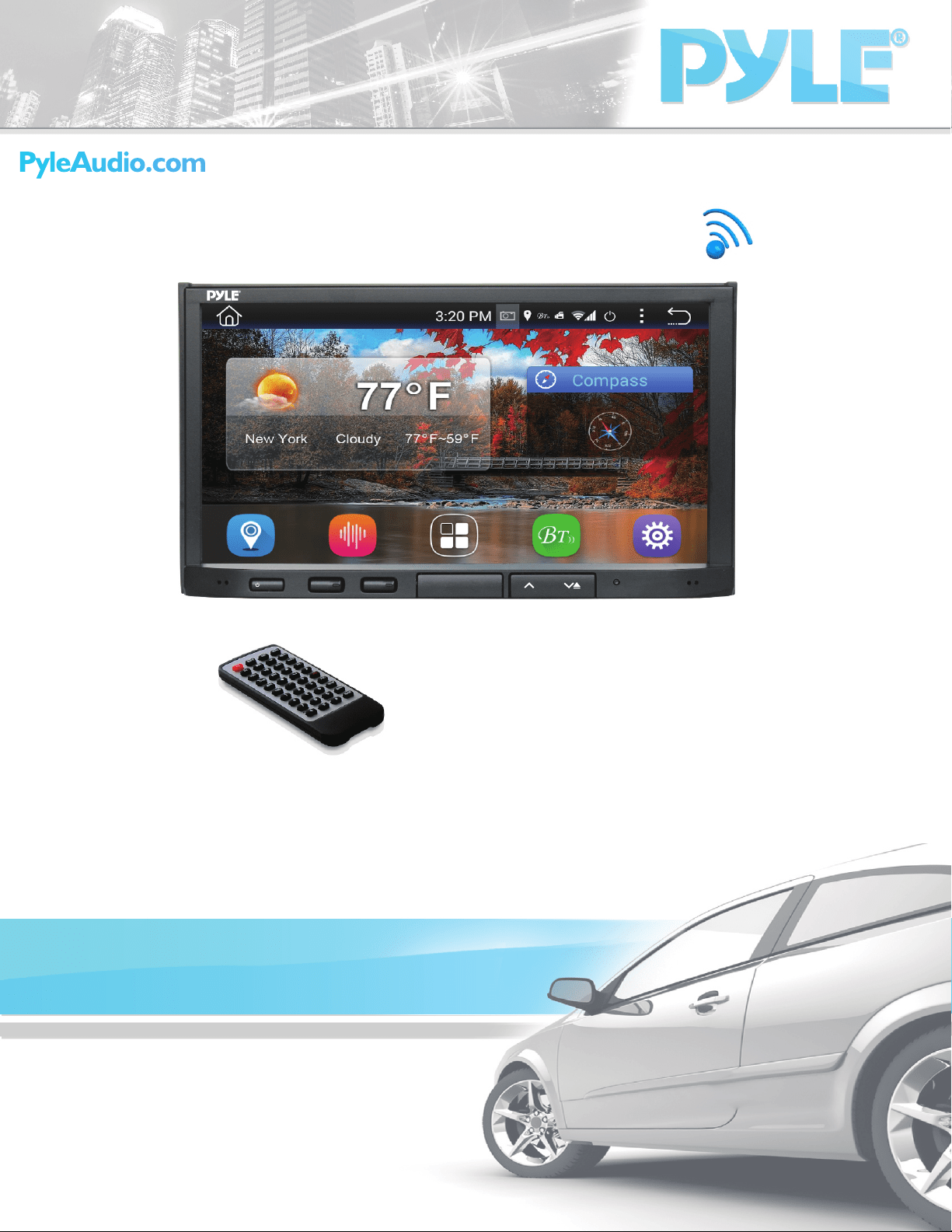
7" Touchscreen Double DIN
Stereo Receiver Headunit
PyleAudio.com
PyleAudio.comPyleAudio.com
PLDNAND692
PLDNAND692
HO ME
RE S
IR
NAV I
MI C
VOL - VOL +
/M UT E
PLDNAND692
Note:ThisunitisbasedonAnroid4.4.4platform.BesidesthestandardAppsweprovidedwiththeunit,
youcanalsodownloadthousandsofAppsandinstallitonourplatform.PleasekindlynoteNOTallApps
arecompatiblewiththisplatform.Ifyouhaveanycompatibilityproblemwitha3rdpartyApp,please
contactyourAppprovider.Fortheoperationinstructionofacertain3rdpartyApp,pleasealsocontact
yourAppprovider.Wearenotreponsibleforanyproblemwithyour3rdpartyApps.
Toenjoyoftheunit'sfeatures,alongwithproperandsafeoperation,pleasebesuretoreadthroughthismanual
beforeuse.Itisespeciallyimportanttothoroughlyunderstandandfollowallsystemwarningsandprecautions.Keep
themanualinasafelocationforfuturereferencewhennecessary.Contactyourdealerorthenearestauthorized
repaircenterforanyservice,repairortechnicalsupportassistance.
ThankyouforchoosingPyleAudio!
Note:PyleAudioisconstantlyaimingtoimprovethecustomerexperienceandyourreceiver'sfeaturesand
speciicationsarecontinuallychangingforthebetter,withimprovementstotheuserinterfaceexperience,
software updates, bug ixes, etc. System descriptions and features relected as herein stated by this user
manualservestoexpressthe PyleAudioHeadunitReceiverfeaturesatthecurrentproductionperiod.We
reservetherighttochangetermsandconditionsofsystemspeciications,featuresanddescriptionsatany
time,aswecontinuetoimproveandprovideourcustomerswithupgradesinsafety,performanceandsystem
operationingeneral.Forquestions,commentsandconcerns,visitPyleAudio.comformoreinformation.
visit forthelatestproducts&up-to-datemodelspeciicinformationwww.PyleAudio.com
Precauons
Installaon Guide
Installing Steering Wheel Control
Remote Control
Front Panel and Buons
Turning Power On
Graphics User Interface
Sengs
Set Time
Sound
Aux
Calendar
Calculator
EQ
Radio
SD
USB
Video
Wallpaper
Wheel
Third Party Apps
Trouble Shoong
Wiring
DVD Playback
Bluetooth
How to access internet
2
3
3
4
5
5
6
7
7
7
7
8
8
8
9
9
9
9
9
10
10
10
12
14
15
16

Compatibility
Thisunitisastandard“DoubleDin”sizedradio.Checktoseethatyourvehicleacceptsadoubledinsizedradio.This
unitconformstothestandardsizeanddimensionsofadoubledinradio.Yourvehiclemayrequireavehiclespeciic
or3rdpartydoubledininstallationkit.
Precautions&Warnings
Pleasetakeamomenttoreadthroughthisinformationbookletandheedallprecautionstoensureapositive
userexperience.
Foryoursafety,youmustnotoperatetheheadunit’scontrolswhiledriving.Makesureyouhavethevolume
settoalevelwhereexternalsoundsarestillaudible.
Donotwatchthemonitor,orattempttooperateanyofthemultimediafeatureswhiledriving.Iftheparking
brakeisnotengagedvideoplaybackwillbedisabledforyoursafety.
Cleaning
CleantheLCDwithaslightlydampcloth.Keepthescreencleanandfreeofanydebris.
Donotusesolventssuchasalcohol,benzene,thinner,commerciallyavailablecleanersorantistaticspray.
Whenwipingthescreenbesurenottoscratchthesurface.
Temperature
Incold weather,check for condensation onthe disc. If found, wipe themoisturefromthediscanddo not
operateyourplayerforanhouruntilcondensationdisappearsfromtheunit’sopticalreader.
SystemHandling
Screenmaynotbeclearifthetemperatureofthevehicleistoocoldortoohot.Thepicturewillreturnasthe
car’s temperature returns to normal. Never touch the screen, or operate the touch screen, withanything
besides youringer(s). When the display is subjectto direct sunlight and glare, the unitmay become hot
resultinginpossibledamagetotheLCDdisplay.Avoidexposingthedisplaytoexcessivesunlightasmuchas
possible.
Note:
Drivingonroughterrainmaycausethedisctoskipduringplayback.
Intheeventofamalfunction,neveropentheunit’scasingorlubricateanyparts.ContactSoundAroundUSA
for repair information. If liquid or any other foreign substances enter the unit, turn the power off
immediatelyandconsultyourdealerorthenearestauthorizedrepaircenter.Ifyounoticesmoke,irregular
noises or smells coming from the unit, power off immediately and consult your dealer or the nearest
authorizedrepaircenter.Donotattempttodisassembleormodifytheunitastherearesensitiveandhigh
voltageelectroniccomponentswhichcancausedamagetotheunit,ortoone'sself,ifhandledimproperly.
Be sure to consult your dealer or the nearest authorized repair center for any technical assistance.
ThisequipmenthasbeentestedandfoundtocomplywiththelimitsofaClassBdigitaldevice,pursuantto
Part15oftheFCCrulesandregulations.Theselimitsaredesignedtoprovidereasonableprotectionagainst
anyharmfulinterferenceinaresidentialinstallation.Thisequipmentgenerates,uses,andcanradiateradio
frequencyenergy.Ifnotinstalledandusedinaccordancewiththeinstructions,theunitmaycauseharmful
interference to radio communications. If the unit is found to cause harmful interference the user is
encouragedtoconsultanexperiencedradiotechnician.
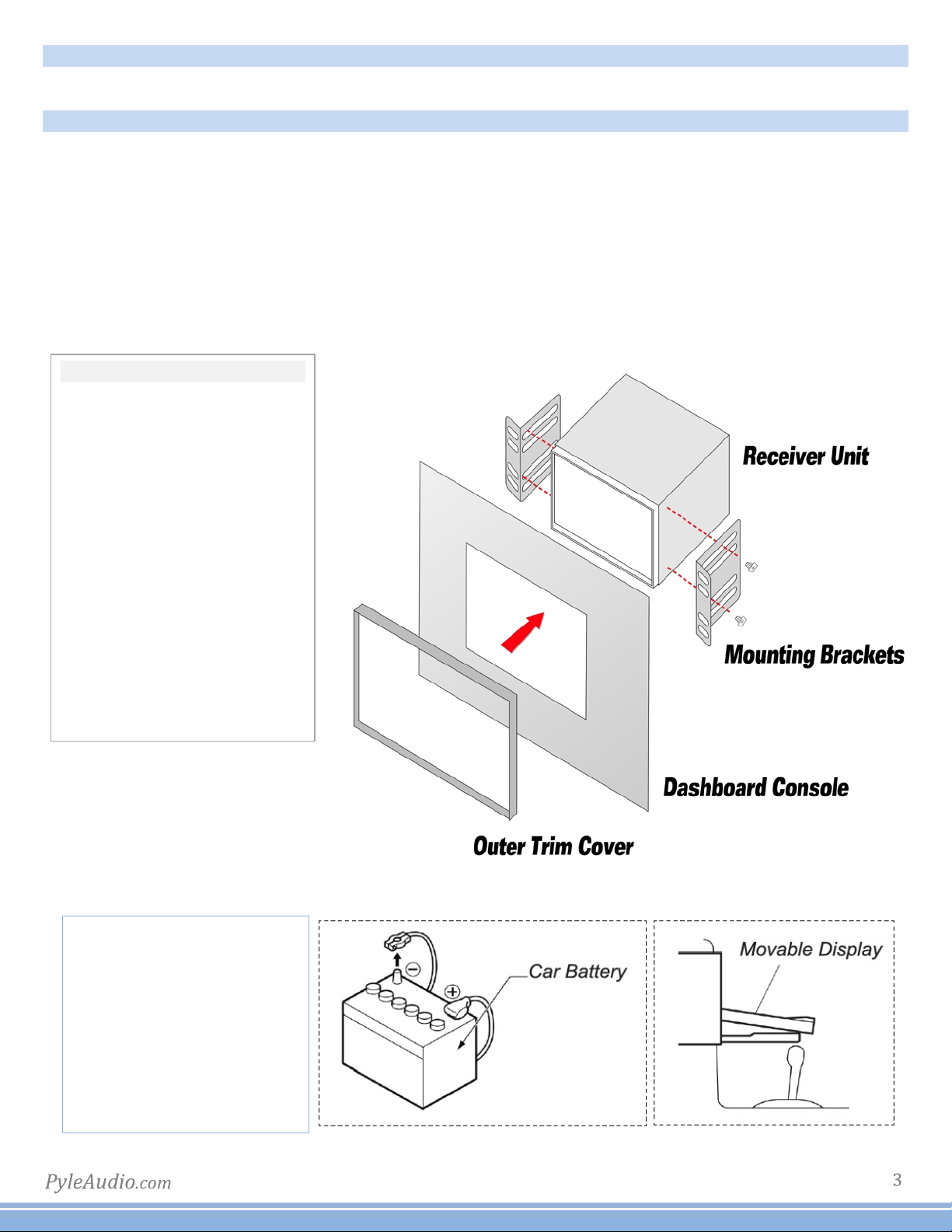
SystemInstallation:
Beforestarting:Topreventshortcircuits,besuretodisconnectthebatteryterminalbeforestarting.
InstallationGuide-DoubleDinFitting:
Caution:
1)Thisscreenopensup.Installtheunitwithin30degreesofthehorizontalplane.Checkthatthescreenhasenough
roomtofullyopen.Restrictingscreenmovementwillcausedamagetothemechanism.
2)Consultyourvehicledealershipbeforemakinganymodiicationstoyourcar’sbody(ex.Drillingholes)
3)Useincludedscrewsininstallation.Improperhardwaremayresultindamage.
Donotinstallunitinanyareawhere:
-Itmayobstructthesteeringwheelandgearshiftleveroperations
-Itmayobstructtheoperationofsafetydevicessuchasairbags
-Itmayobstructvisibility
Installation kits:
This unit conforms to the
standardsizeanddimensions
ofadoubledinradio.
Your vehicle may require a
vehicle speciic or 3 party
doubledininstallationkit.
Consult your dealer or the
nearest authorized repair
center for any technical
assistance.
*Mounting Sleeve Bracket not
included
*Ensure that the opening or
closing of the in-dash unit,
when mounted, so as it will
notinterferewithanyofyour
vehicle's interior panels,
consoles, gear shifts, etc.
Ensure not to use elongated
screws when installing /
securing your unit to the in-
dashconsoletoavoiddamage.
HOME
AMS
HOME
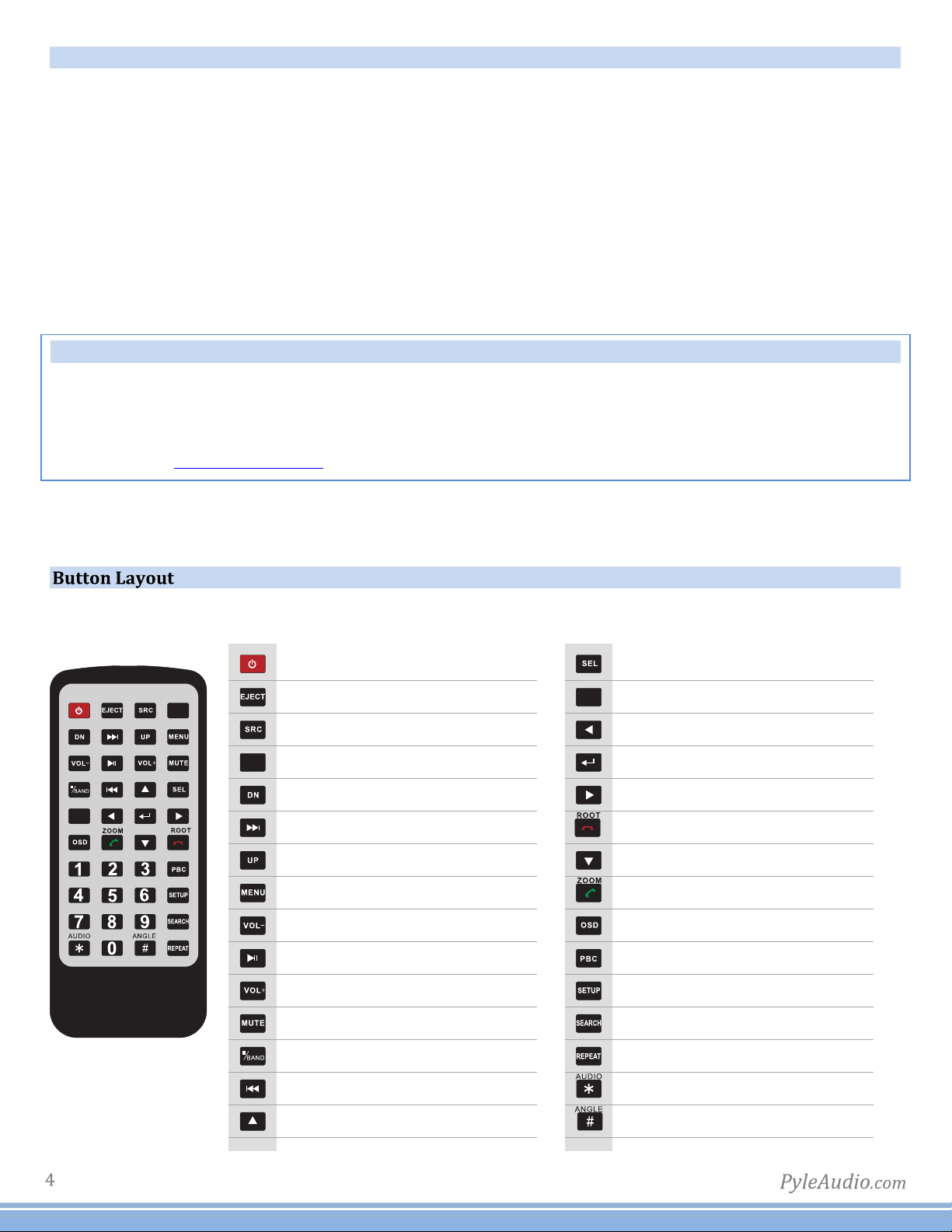
PowerON/OFF
OpenstheMotorizedUnit/EjectsCD
InputSourceSelection/AUX-in
HomeScreen/Menuinterface
Downward/MotorizedScreenTiltAdjustment
Next/HoldforFastForward(CD/DVD)
Upward/MotorizedScreenTiltAdjustment
MainMenu(CD/DVD)
Volume-
Play/Pause
Volume+
Mute
Stop(CD/DVD)/SwitchesAM/FM
Previous/HoldforRewind(CD/DVD)
Up(...toNavigateSelections)
AMS
Select(CD/DVD)
AMS-AutomaticSearch(RadioStations)
Left(...toNavigateSelections)
Enter/Conirm(...toNavigateSelections)
Right(...toNavigateSelections)
EndCall/HangUp(...inBluetoothInterface)
Down(...toNavigateSelections)
Call/DialNumber(...inBluetoothInterface)
FileInformation(CD/DVD-ifcompatible)
PlaylistKeyList(CD/DVD-ifcompatible)
Options/Settings
CD/DVDMenuControl
RepeatModes(CD/DVD-MediaPlayback)
Left/Right/StereoAudioSelection
CD/DVDAngleAdjustment(ifcompatible)
InstallingSteeringWheelControl
Noteoncompatibility:ThisunitisadualwirecodelearningSteeringwheelinterface,adaptabletoany
vehiclewithexistingsteeringwheelcontrols.Thisunithastheabilitytowiredirectlytoyourvehicle’s
steeringwheelcolumnanddoesnot,butmay,requirea3partysteeringwheelcontrolinterface.Pyle
AudioTechnicalsupportcanassistyouininterfacingintovehicleswithexistingsteeringwheelcontrols.
Foradditionalhelp,contactPyleTechnicalSupportandbesuretosupplyYearMakeModelandoptionsof
vehiclesothatproperinstructionscanbesupplied.
Key1andKey2wiresareusedforsettingupsteeringwheelcontrols.Thelocationoftheattachment
wiresinthesteeringwheelcolumnvariesbetweendifferentvehiclemakesandmodels.
RemoteControl
Factorybatteriesaresometimesdepletedfromextendedstoragetime.Replacethebatteriesiftheunit
doesnotrespondtotheremote.AlsonotethatPyleReceiverRemotesareuniversalandusedbetween
multipleradiomodels,whichmayormaynot,havesomebuttons/functionsthatdonotworkorprovide
otherfunctionalitywithyourreceiverheadunit.Ifsomefunctionsrespondyourremoteisnotdefective.
Contactpartsat .Goto“contactus”-“parts”ifyoubelieveyourremoteisdefective.www.PyleAudio.com
HO ME
RE S
IR
NAVI
MI C
VO L- VO L+
/M UT E
PLDNAND692
Tips:Navi----Youmighthaveseveralmapsinthisdevice,bypressingNavibutton,youwillenterintothemapwhich
yousetasdefaultintheNavipath,ifyouwanttochangethenavipathtoanothermap,pleasegotosettingtochangeit
SettingCarsettingNavisetting.
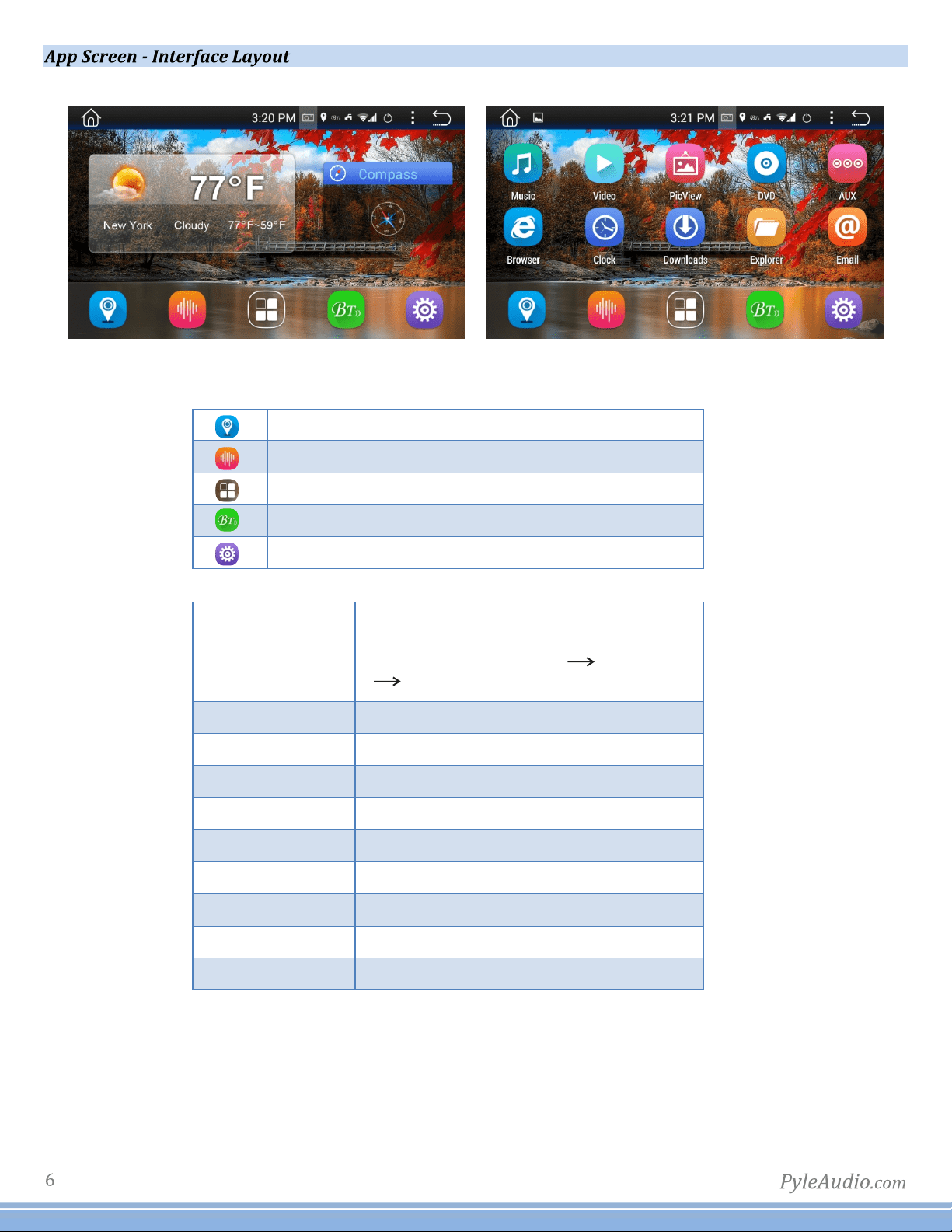
Home
Timedisplay
Screenshot
Bluetooth
Location
DVR
Wiisignal
Functionset
Return
3G
DisplayOn/Off
TurningPowerOn
1)Turnontheenginekeytothe“ACC”or“ON”position
2)Pressandholdthepowerbuttonfor3seconds
-Whentheenginekeyisturnedtotheoffpositiontheunitisturnedoff
StatusBar(Alongtopofradioscreenandappscreen)youcanswipedownformore.
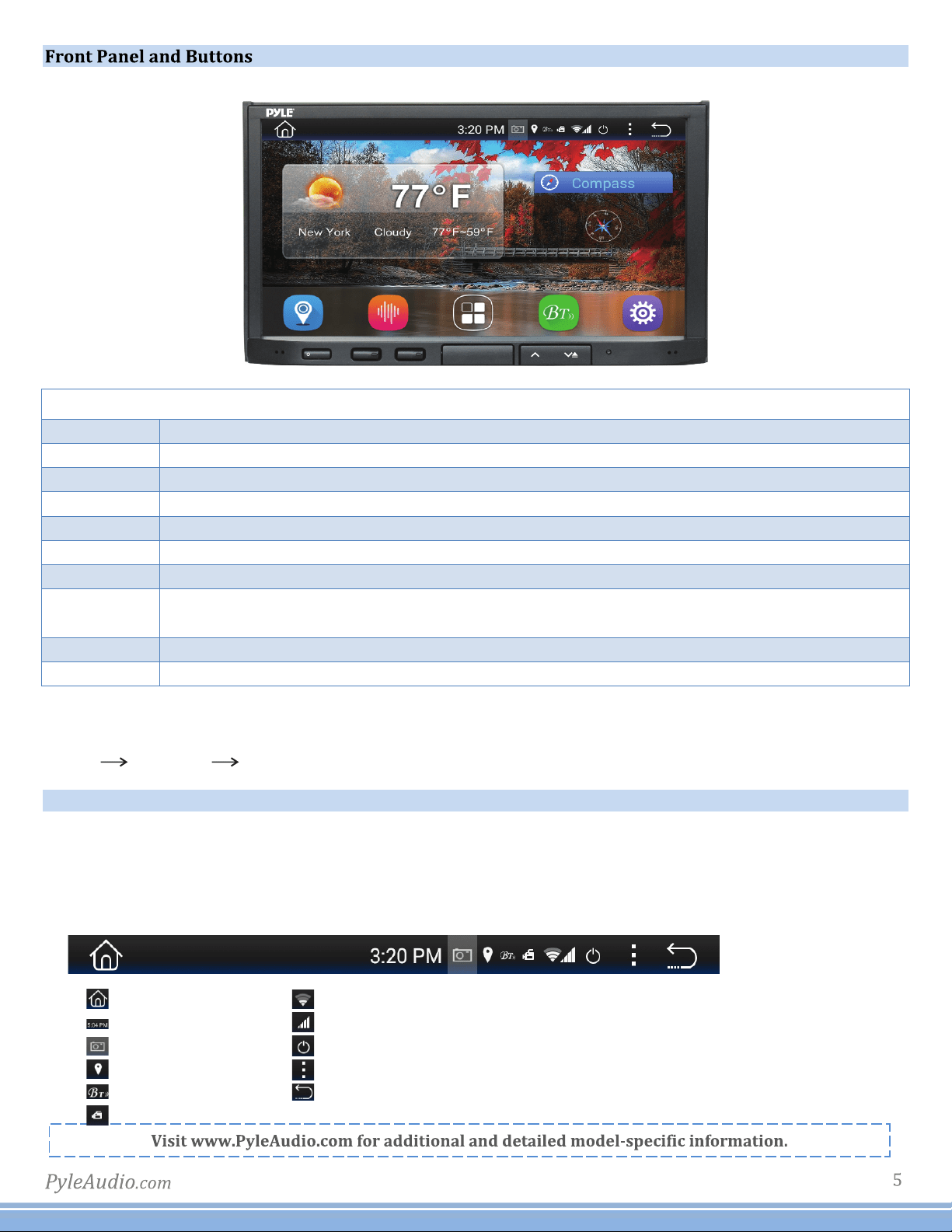
Buon & Feature Layout
Mic Microphoneport
Power/MuteHoldtopowerup/shutdownunit.Shortpresswhileunitisontomutethevolumeoutput
HomeSwitchbetweenapps/radiointerface,PresswhileinGPSinterfacetoreturntoradioapps
Navi PresstoloadGPSsoftwarefromSDmapcard
VOL- Volumedown
VOL+ Volumeup
˄ Positionscreentiltupward
˅/Eject Positionscreentiltupward
Holdtoopenscreenandejectdisk.
RES Useapintoinsertintoresetporttotriggerunitreset.(Holdfor20secs.toreset)
IR IRremotereceiverport
Navigation
Radio
BT
Navi
Radio
Bluetooth
AUX
DVD
DVR
Clock
Calculator
Clearcache
Easyconnected
DVR
ShortcuttoTimeSetting
ClearCache
PhoneLink
AllAppslist
LoadsNavigationsoftware(ifyouhave
severalmapsinthisdevice,youcanset
thedefaultmap.SettingCarsetting
Navisetting.)
*PleaseNote:GPS-NavigationandCD/DVDoptionsandapplicationsmayonlybefoundinselectheadunit
receiverstereosystems,whichincludethese,andother,additional/specialfeatures--notallPylestereo
modelscomeequippedwithGPSNavigationand/orCD/DVDplayers.
Visit formoredetailedinformationandmoreproductspeciicinformation.www.PyleAudio.com
Settings
AM/FMTuner
Bluetooth
AuxiliaryAudioVideoInput
DVD/Multi-mediaDiscPlayer
OpensCalendarapp
Swipeleft/righttoaccessmoreapps
Settings
1)Scrolling
Usetheredbartoscrollthroughthelistofallavailableoptions.
2)Turnon/off
Manysettingscanbetoggledonoroffinthisscreen
*Note:Factorysetupisnotadjustablebyuser.Donotattempttoenterthissetupmenu.
SetTime
1)TimeOptions
YoucanselectusingGPStoprovidepositioningtimeorusingnetwork-providedtime.
2)DateandTime
Usetheupanddownarrowstosetthedateandtimeaccordingly.
Sound
1)Fade/Balance
Holdanddragleft,rightupordowntocontrolthefadeandbalanceofyouraudiooutput.
Aux
Auxiliaryinput(rearRCAjacks)allowaudioandvideofromexternaldevicestobedisplayedorplayed
throughtheunit.Auxiliaryoutput(rearRCAjacks)allowaudioandvideotobesentouttoexternaldevices.
1)Customization–Usethesettingstoadjustandoptimizethedisplayquality.
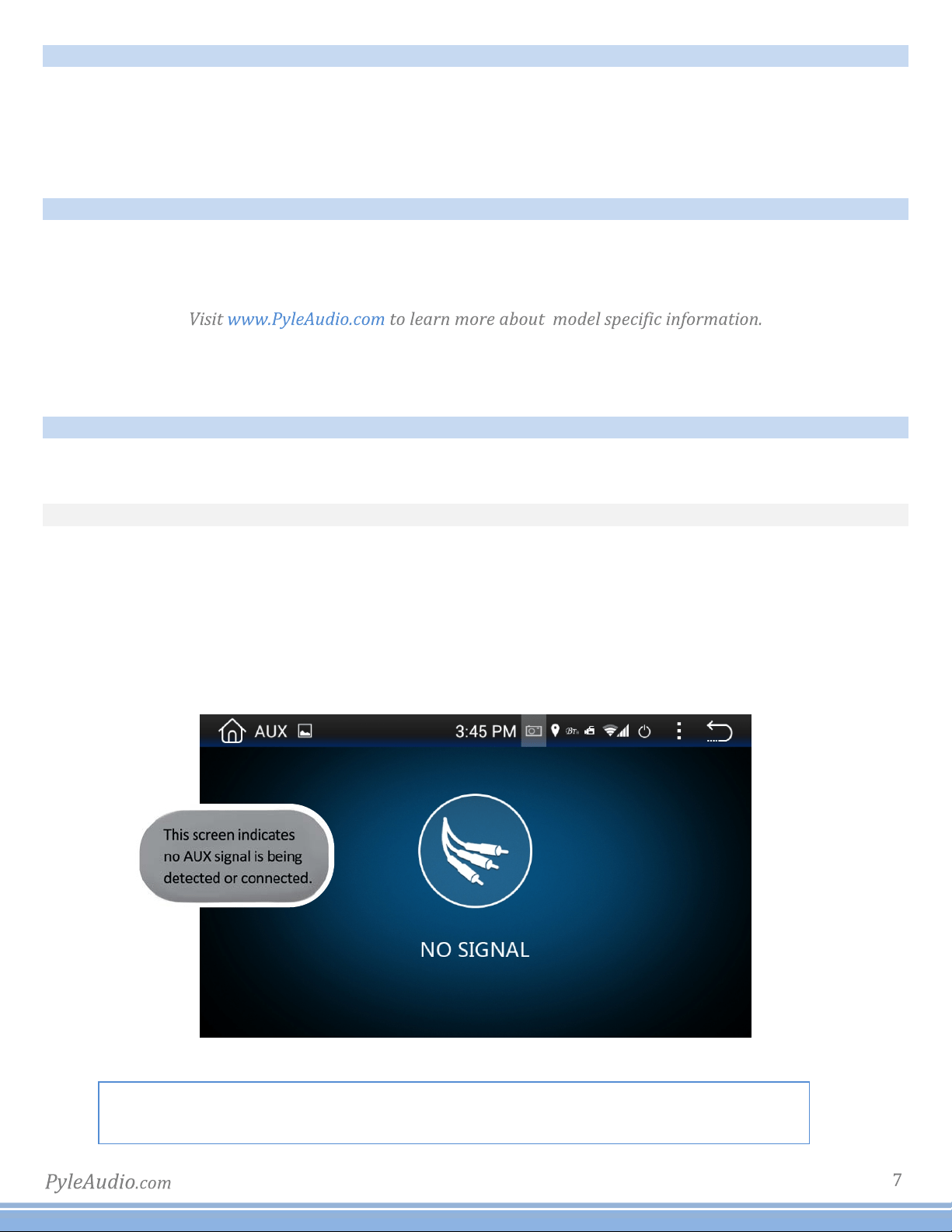
Note:auxiliaryappwilldisplay“NoSignal”ifnovideosignalisconnected.Screencontrolswillnot
becomeactiveuntilexternalvideosignalisdetected.
*TheParkingbrakewillneedtobewiredtoagroundingtriggertoallowvideopass
throughorawarningmessagewillappearsayingwarningvideodisabledwhiledriving.
Calendar
Displaystheday,monthandyear.
Useforwardandbackarrowstheviewpastorfuturemonths.
Selecteddatesarehighlightedinblue
Note: Calendar does not allow entry of
appointments.Datemustbesetwithin
systemsettings
Calculator
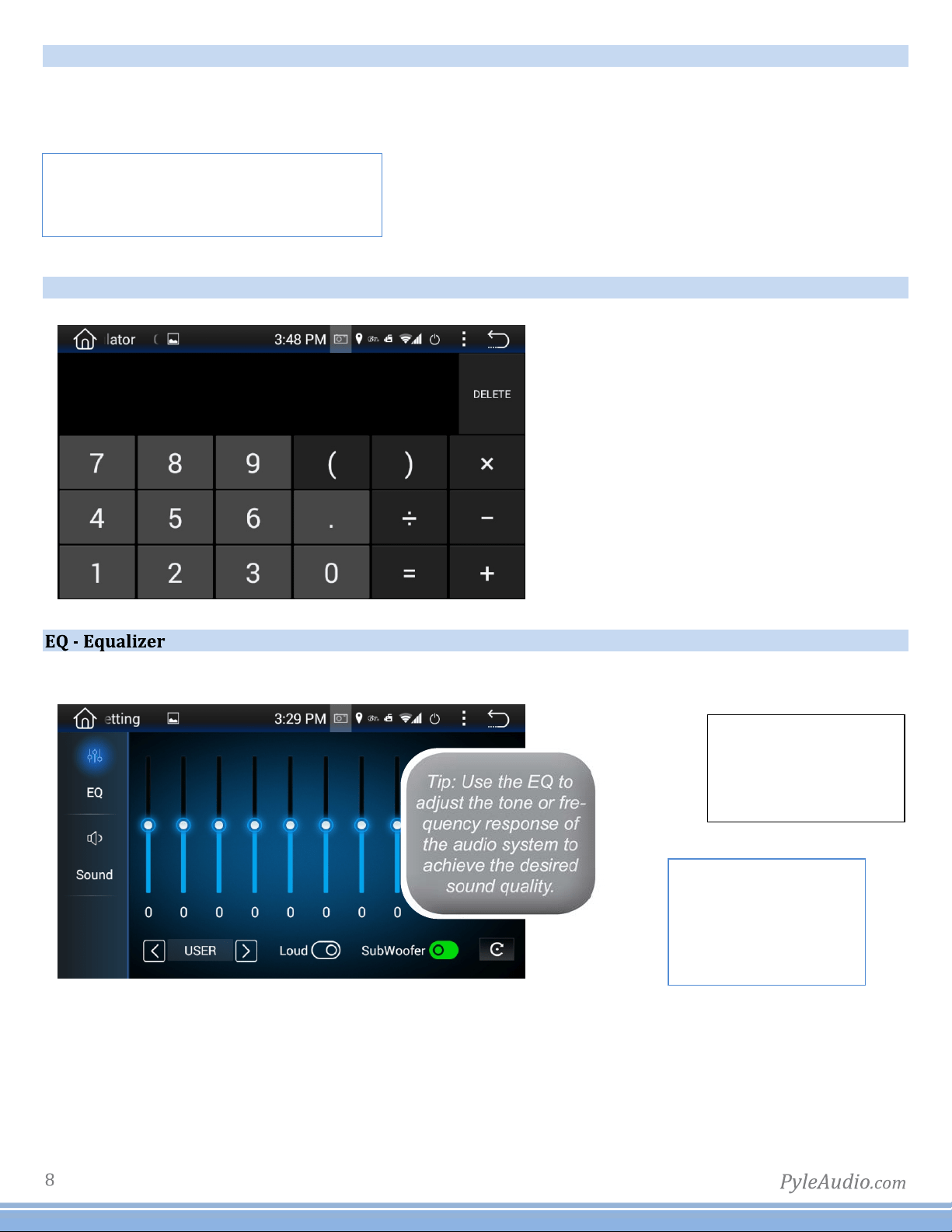
Ahandylittleappforsimplecalculations
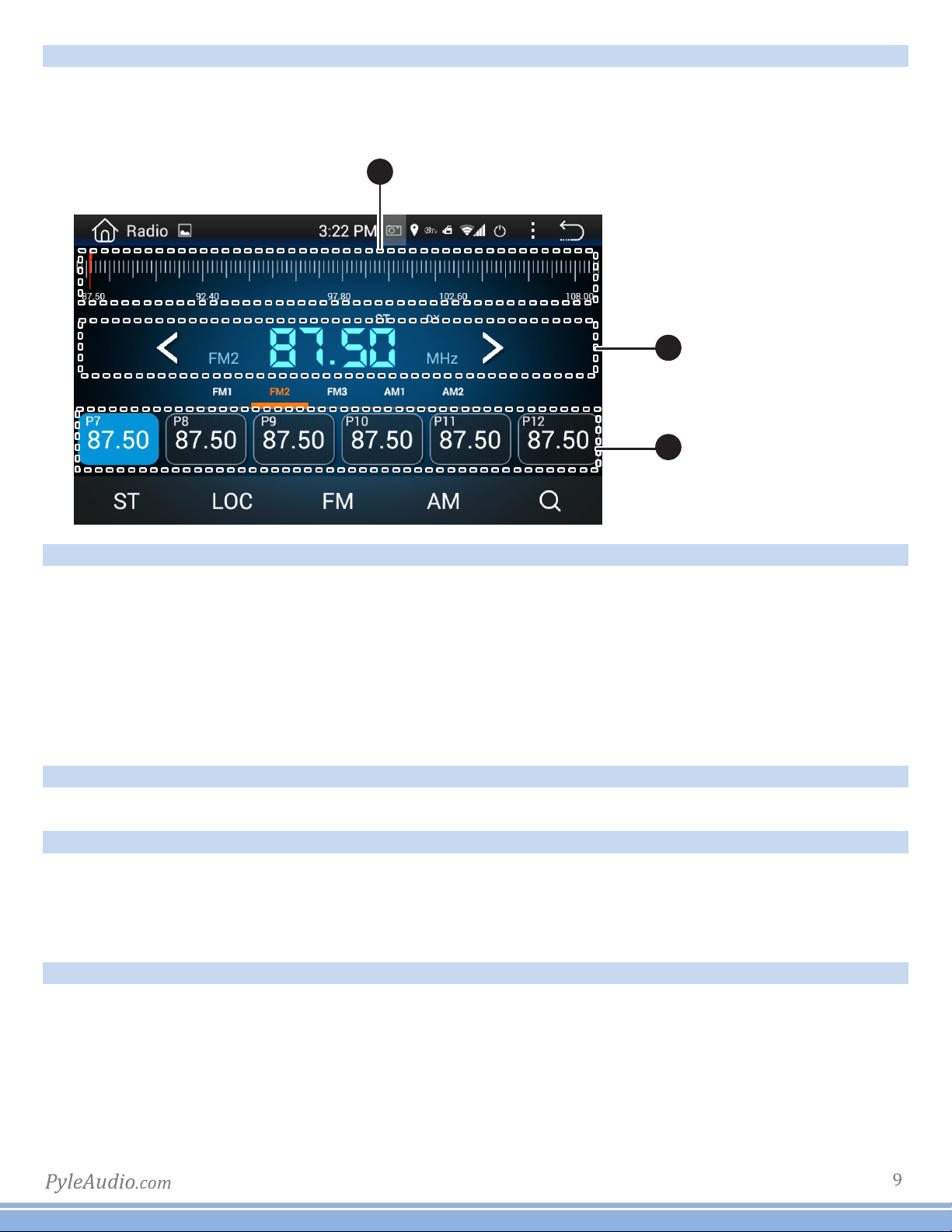
Presets
Selectoneto
automaticallyadjust
theequalizer
Adjustments
Holdanddragupor
downtomanually
adjusttheEQbyeach
frequencyband
2
3
1
Radio
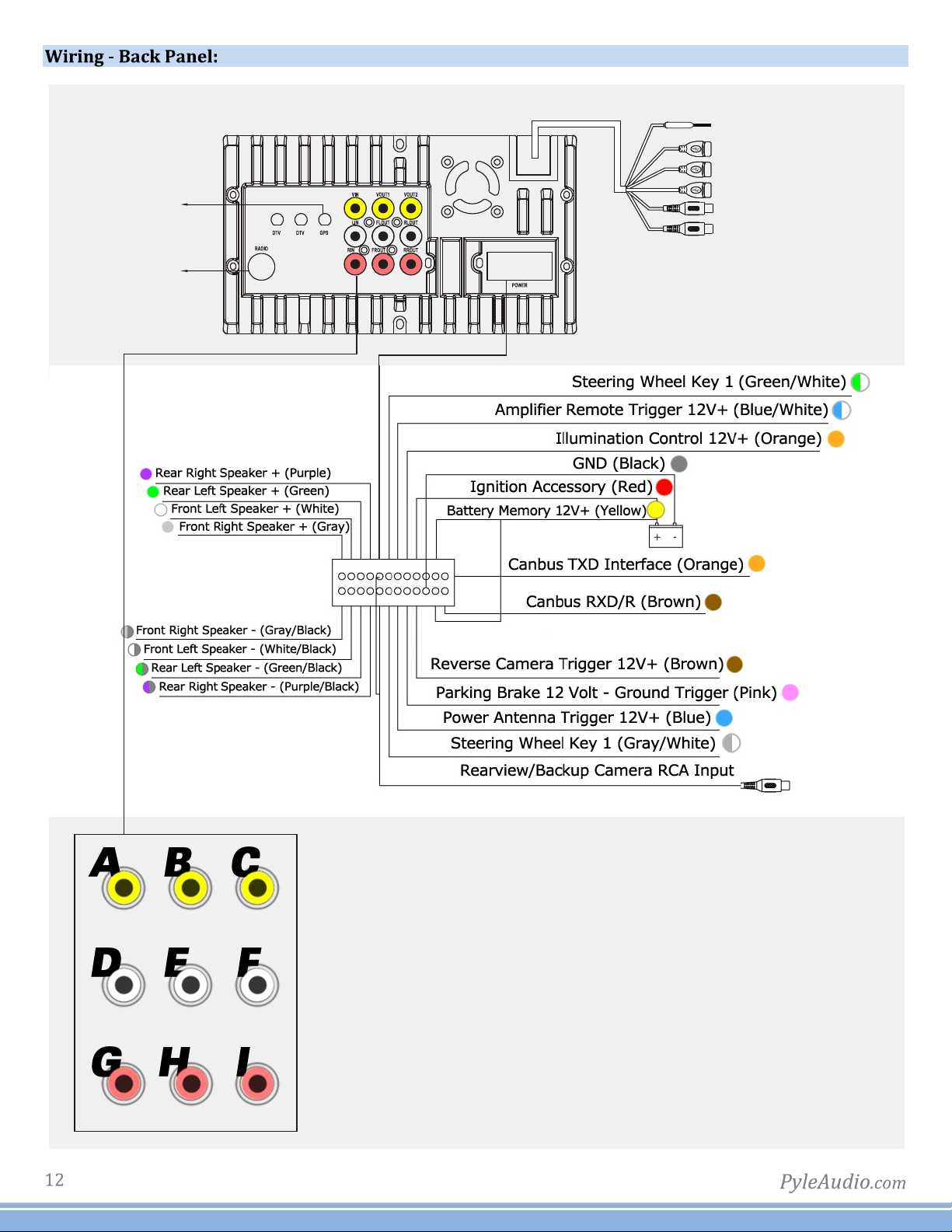
1)Scanning:Press,hold,anddragtheslidertoquicklytunetheradio.
2)CurrentStation:Thecurrentlyselectedstationwillbedisplayedinthecenter.
Presstheforwardandbackarrowstochangethecurrentstation.
3)FavoriteStations:Pressandholdoneofthesixpresetslotstosetandsaveaselectionforlater.
SD-FlashMemoryFileBrowsing
Warning:Donotattempttobrowseileswhileoperatingthevehicle
1)BrowsingFiles
Filelocationisdisplayed.
Use“BackArrow”toreturntothepreviousfolder
2)SelectingFiles
Theilesandfoldersofyourstoragemediaaredisplayed.
Oncethedesiredfolderislocated,selectitandpress“checkicon”toopen
USB-FlashMemoryFileBrowsing
Pluginlashdrivestoaccessmusicvideoandphotos.
Video
1)Brightness,Contrast,Hue
Press,holdanddragtoadjustthebrightness,contrastandhueofthedisplay.
2)Presets
Selecttoautomaticallyadjustthedisplaysettings.
WallPaper
Note:WallpaperscanbeimportedfromalashdriveorSDcard.Checkformatsheetonlineforspecsonformats.
1)Browse-Useleftandrightarrowstoselectthedesiredwallpaper
2)Select-PressOKtoselectthewallpaper

TroubleShooting
Q:Unitdoesn’tpowerup
A:Useamulti-metertocheckfor12v+toredandyellowwires.CheckforproperGroundontheBlackwire.
Q:Myvideodoesnotplay
A:Attach“PARK”wiretoparkingbreak.Whenthiswireisgroundedthevideowillplay(Groundingtriggeroftheparkingbrake)
Q:Reversecameradoesnotcomeuponthescreen
A:Attach“BACKUPCAMERA”wiretoreversetaillight12v+(Makesurecameraisandsendingvideosignal)
Q:CanIsetupsteeringwheelcontrol?
A:Key1andKey2wiresneedtobewiredtoyourvehicle’ssteeringwheelcolumn
Q:ThetimeIsetisnotsavedafterdevicereboot
A:Areothersettingsaved?Ifnot:Checkthatyellowmemorywireisattachedto12v+constant
A:turnoffGPSautoupdate
-Gotoradiosettings>SetTime>switchoffautoupdate
Q:MyGPSgetsnoreception.
A:Checkantennaisconnectedproperly
A:MountAntennadirectlytoyourvehicle(GPSantennaistobemagneticallymounted,itwillboostGPSreceptionwhenattached)
A:Checkalternateantennaplacementtotestforinterference
Q:HowdoIturnupGPSinstructionvolume(ICan’thearitovermusic)
A:ChangeGPSsoundsettings
GotoNavi>Settings>Sounds>SetGPSvoiceleveltomax>Setradiovolumetomin(Adjustaccordingly)
Q:HowdoIupdatemymapcard.
A:Theradiowillnotifyyouwhenamapupdatebecomesavailable.Wewillneedtosendoutanewmapcardfromourparts
department.Logonto andopenapartsticketunder“contactus”requestingthemapupdate.www.pyleaudio.com
Q:WherecanIdownloadirmwareupdates?
A:Thisunit’shardwaredoesnotallowittobeupdatedwithnewOSorirmware.
ThirdPartyApps
Forthedetailedoperationinstructionforacertain3rdpartyApp,suchasGooglemap,Youtubeetc.,please
contactyour3rdpartyAppproviderforfurtherservice.Thankyou.
Wheel
1)SteeringWheelControls
Selectthecommandintheapplication,thenpressthecorrespondingbuttononthewheeltoteachtheunit
howtobehavewhensteeringwheelcontrolsareused.Toenterthesteeringwheelmenuitwillpromptyou
fora4digitpasscodeyouwillneedtoenter'0000'.Thenyoucanmanuallyprogrameachdesiredoption
followingtheonscreeninstructions.(Note:Thisfeatureisnotcompatiblewithallvehicletypes).
Q:HowtoIsetthetime?
A:Systemsetting,settime

TroubleShooting
Q:HowdoIuse/set-upRDS?
A:(*TraficandweatherfeatureonlyavailableinEurope)
Q:MyBluetoothmicrophoneisnotworkingasexpected
A:-Checkthatnothingiscoveringmicrophoneport.
-Checktoseeifcloserproximitytothemicaffectsitspickup
-Checkthatphoneconnectionisgood
-Makesurethecallrecipienthasspeakervolumesettoanappropriatelevel
-Checkthatthemicisnotpickinguptoomuchbackgroundnoise
Note:Thebuilt-inmiccannotbechanged,replacedorupgraded.
Q:IamhavingtroublesettingupBluetooth
A:CheckthatyourdeviceisBluetoothcompatible4.0+
-CheckifyouareabletopairwithalternatedevicesviaBluetooth
-ClearoutyourdevicehistoryinyourBluetoothsettingmenuandattempttopair/connectagain
Q:MyMapcardnolongerloads(COCKPITERRORDISPLAYED)
A:Thisiscausedbybuginmapsoftware.PleasecontactTechSupport:Pyle, gotothe“contactus”page.www.pyleaudio.com
A:Youmaybeabletoixthesoftwareonyourown
-InsertGPScardintocomputer
-OpentextileunderPrimo\save\proiles\01\system.ini
-Edittheiletoreturnthecockpittypeto“1”
*Deletingtheproilefolderwilldefaulttheunit'ssettingsbacktocockpitnumber1
Q:HowdoIplayvideoiles?Myunitcannotreadmydigitalvideoiles.
A:MakesureSDcardiscompatible
A:Checkileformatofyourile(Youmayneedtoconvertyourvideoiletoanalternateileformat)
Q:Myunitshows5circlesandwillnotload
A:Yourunitrequirestouchscreencalibration.
Youhaveenteredthe'TouchScreenCalibrationMenu'.Foroptimumtouchscreenperformance,thisfeatureenablesyoutoenjoy
thebestfunctionalityofyourdevice'stouchscreen.Tocompletethetouchscreencalibration,an"X"willappearinthecircleson
thescreeninnumberedorder,continuetopressthecenterofthe"X"asitpassesthrougheachnumberedcircle.
(Incirclenumberone,youwillseean"X",touchthecenterofthe"X",thenthe"X"willmovetocirclenumbertwo.Continuetotouch
thecenterofthe"X"asitwillmovetotheothercirclesinnumberedorder.Ifcalibrationsensesanerror,theprocessmayrestart;
Repeatifnecessary.)
A.VideoInput
B.VideoOutput1
C.VideoOutput2
D.LeftAudioInput
E.FrontLeftAudioOutput
F.RearLeftAudioOutput
G.RightAudioInput
H.FrontRightAudioOutput
I.RearRightAudioOutput
3G/USB/DVR
3G/USB/DVR
3G/USB/DVR
BT/MIC
SUBWOOFEROUTPUT
WIFIANTENNA
GPSANT
RADIOANT
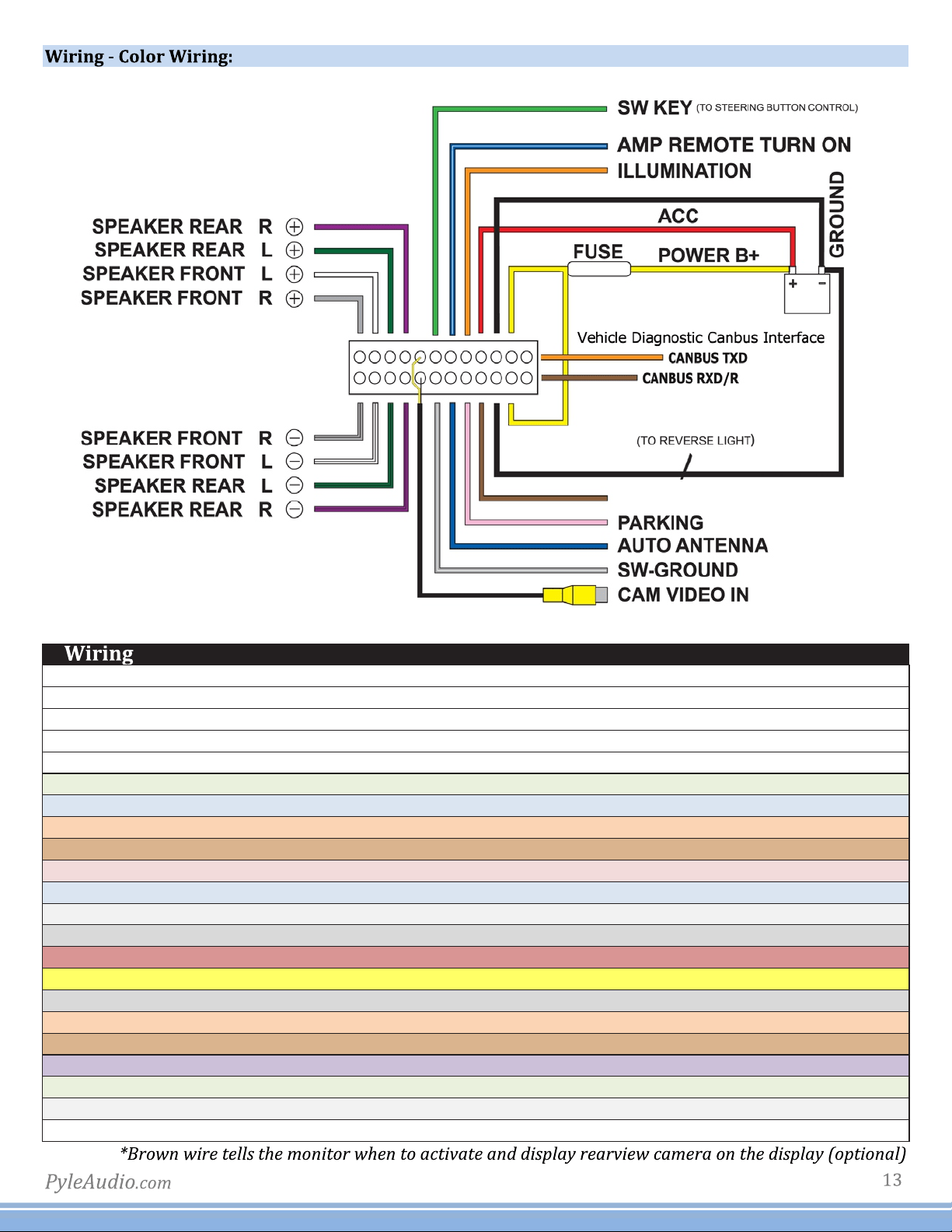
BACK UP CAMERA
GROUND
RadioAntennaRadioantennareceptacle
SubwooferOutputPreampsubwooferoutput(5V)
Audio/VideoInputAuxiliaryinputforexternalhardware
Audio/VideoOutput1Connecttoheadrestdisplay(Optional)
Audio/VideoOutput2Connecttoheadrestdisplay(Optional)
Green/WhiteSWKEYSteeringwheelcontrolKey1interfacewire
Blue/WhiteAMPREMOTETURNONDC12+VoltRemoteturnontriggerforexternalampliier
OrangeILLUMINATION12volt+triggerdashboardillumination
BrownBACKUPCAMERA12volt+triggerfromreverselights
PinkPARKINGConnecttoparkingbrakeground.Disablesvideoplayunlessgrounded
BlueAUTOANTENNA12volt+triggeroutput
Gray/WhiteSW-GROUNDSteeringwheelcontrolKey2interfacewire
Black(RCA)CAMVIDEOINCameraRCAvideoinputforusewithrearviewcamera
RedACCIgnitionAccessory12V+
YellowFUSE/POWERB+Connectto(+)sideofcarbattery
BlackGROUNDConnectto(–)sideofcarbattery
OrangeCANBUSINTERFACETXD-VehicleDiagnosticCANBUSInterface
BrownCANBUSINTERFACERXD/R-VehicleDiagnosticCANBUSInterface
PurpleSpeakerRearRRearrightspeakerPurple(+)Purple/Black(-)
GreenSpeakerRearLRearleftspeakerGreen(+)Green/Black(-)
GraySpeakerFrontRFrontrightspeakerGray(+)Gray/Black(-)
WhiteSpeakerFrontLFrontleftspeakerWhite(+)White/Black(-)
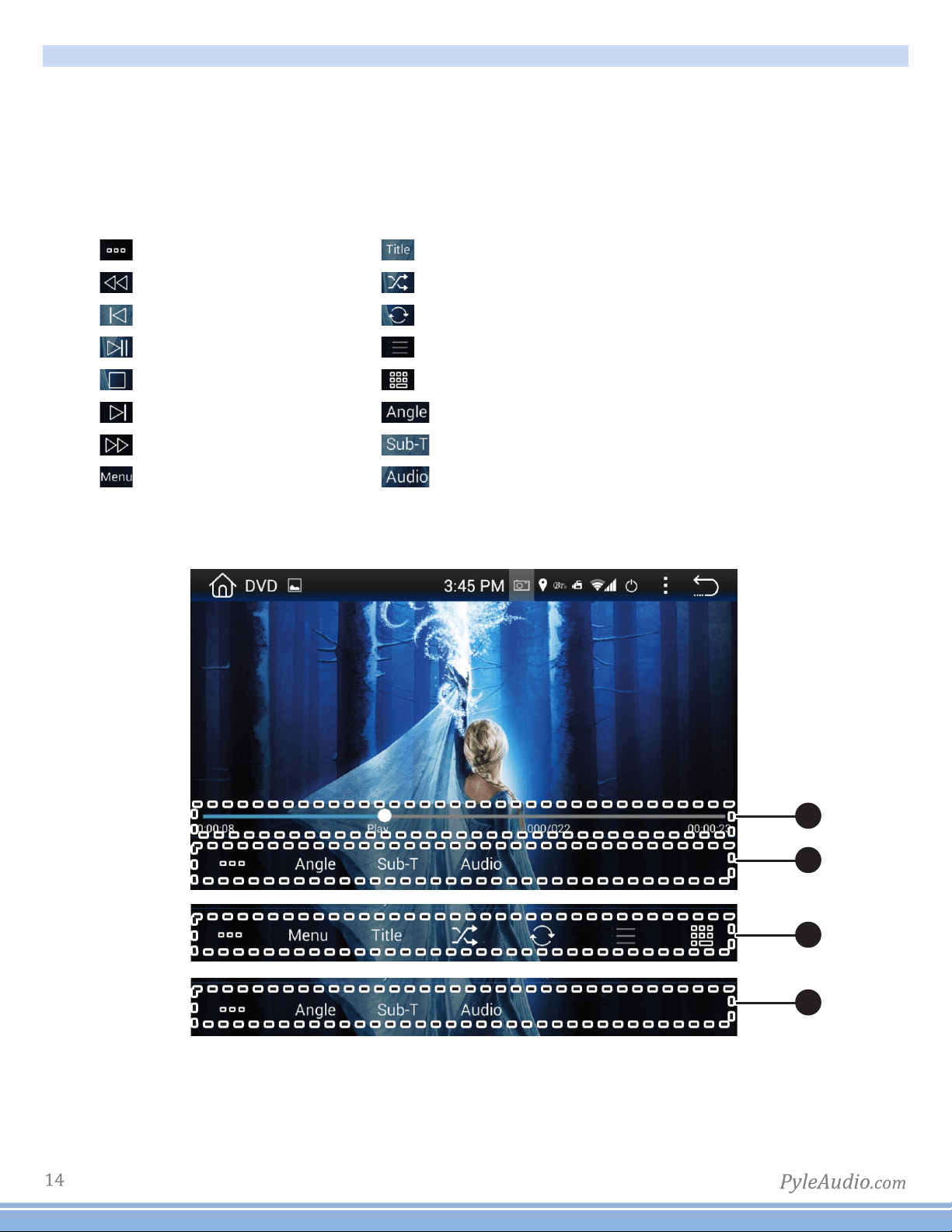
2
2
1
Subtitleswitch
FastBackward
StoptheDVD
Play/Pause
FastForward
Submenu
Number
RandomPlay
Repeatall
Playlist
Rootmenu
Playnextchannel
Playpreviouschannel
2
Turnsubtitleson/off
Audio
Angle
DVD
DVDappwillonlyopenifacompatibleDVDdiscisdetected.
1)Scrubbing
PressanddragalongthetimelinetoquicklyskipthroughDVDtimesline.
(Note:DVDformattingdoesnotallowscrubbingthroughpreviewsandwarnings)
2)Menuoptions&controls:
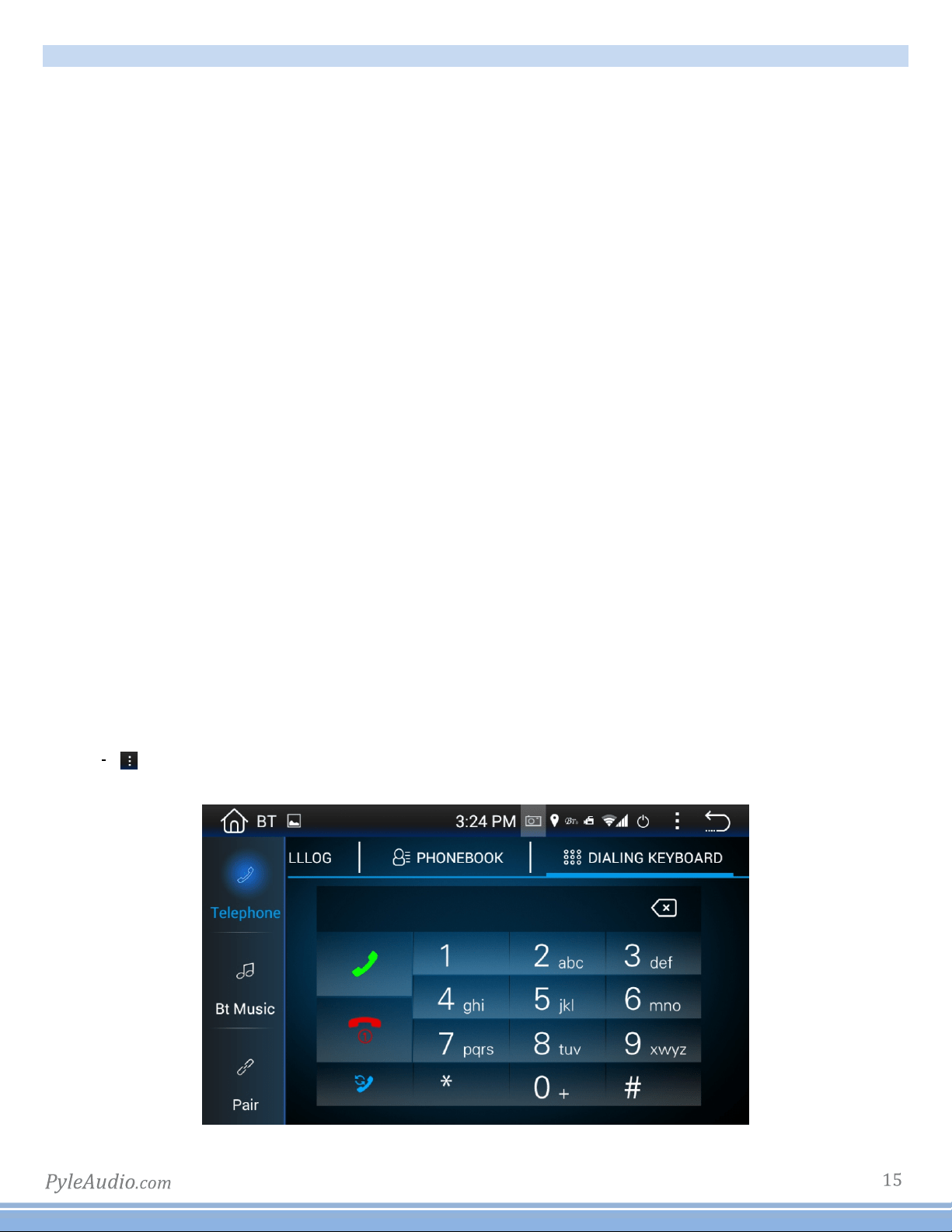
Bluetooth
BluetoothappallowsBluetoothpairingwithcompatibledevicesformakingcallsandmusicplayback.To
pairyourphone,ensureBluetoothisenabledinyourphone’ssystemsettingsandthatyouaredisconnected
fromallotherdevices.
IntheBluetoothappofyourradio,pressthe“Gear”iconintheleftcolumntoaccessBluetoothsettings.Next,
pressthe“Magnifyingglass”icontosettheradiointopairmode.Theradiowillthendisplay“searching”and
showallnearbycompatibleBluetoothdevices:
-Selectyourphonefromthelist,andtapasecondtimetoinitiatepairing.
-Yourphoneshouldnowdisplayapinpadwhereyouwillenter“0000”
-Checkthatdevicenamed“CAR_KITT”showsasconnectedonyourphone.
Note:Onceyourphoneispaired,youcanusetheotherfunctionswithintheradio’sBluetoothapp.
Lefthandcolumn:
-Selectthe“Keypad”icontodialoutusingtheradio’snumberpad
-Selectthe“addressbook”icontodisplayyourphone’scontactlist.Youwillneedtoimportyour
contactlistusingthe“download”iconlocatedintherightcolumnoftheBluetoothapp.
-Selectthe“phone”icontoseealogofincomingandoutgoingcalls
-Selectthe“gear”iconforphonepairingandselectionoptions
-Selectthe“headphones”iconformusicplaybackcontrols
Righthandcolumn:
-“Trash”deletecurrentlyselectedentry
-“Download”Usetodownloadcontactdatatoaddressbook
-“Speakerselection”Switchbetweencarspeaker/micandphonespeaker/mic
“”Pressthisfunctioniconforsearch/disconnect/connect/delete

Howtoaccessinternet?
Youcanhavethreewaystoaccessinternet.
1.Usea3Gdongle
InsertUSBtype3GdongletooneoftherearUSBport,waitforfewseconds,then3Gsignaliconwillbeshown
onstatusbar,andyoucanaccessinternetnow.
2.Useyoursmartphoneashotspot
Pleaseturnonyoursmartphonehotspot,thengotothiscarAndroidunitandturnonwii,indoutyour
smartphonehotspotandconnectit,nowyoucanaccessinternet.
3.Usecarwiirouteroranyotherportablewiirouter
Youcanalsousecarwiirouteroranyotherportablewiirouterasahotspotforinternetaccess.
Howtoaccessinternet
16
PhoneLinkSoftware
UserManual
Thisphonelinksoftwareisdevelopedbya3rdpartyAppsdeveloper,whichweprovidedtoourvalued
customersfreeofcharge.Asmobilephonesmanufacturersarekeepingonupgradingtheirsystem,this
devicemaynotbecompatiblewiththeirupgradedoperatingsystem,wewillnotberesponsibleforthese
incompatibility.yourkindunderstandingishighlyappreciated.
2
3
3
3
5
5
6
6
6
7
7
8
9
10
10
10
12
12
13
13
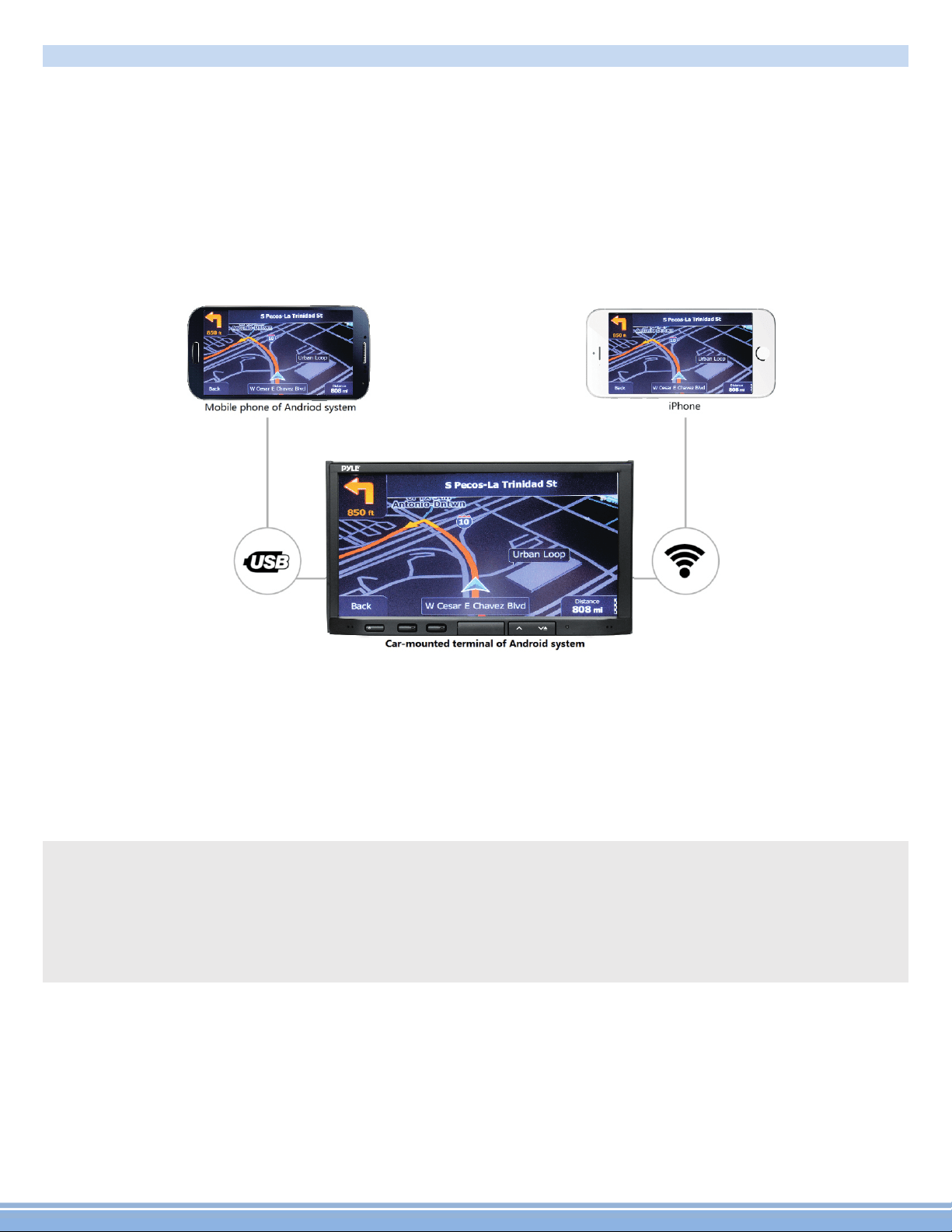
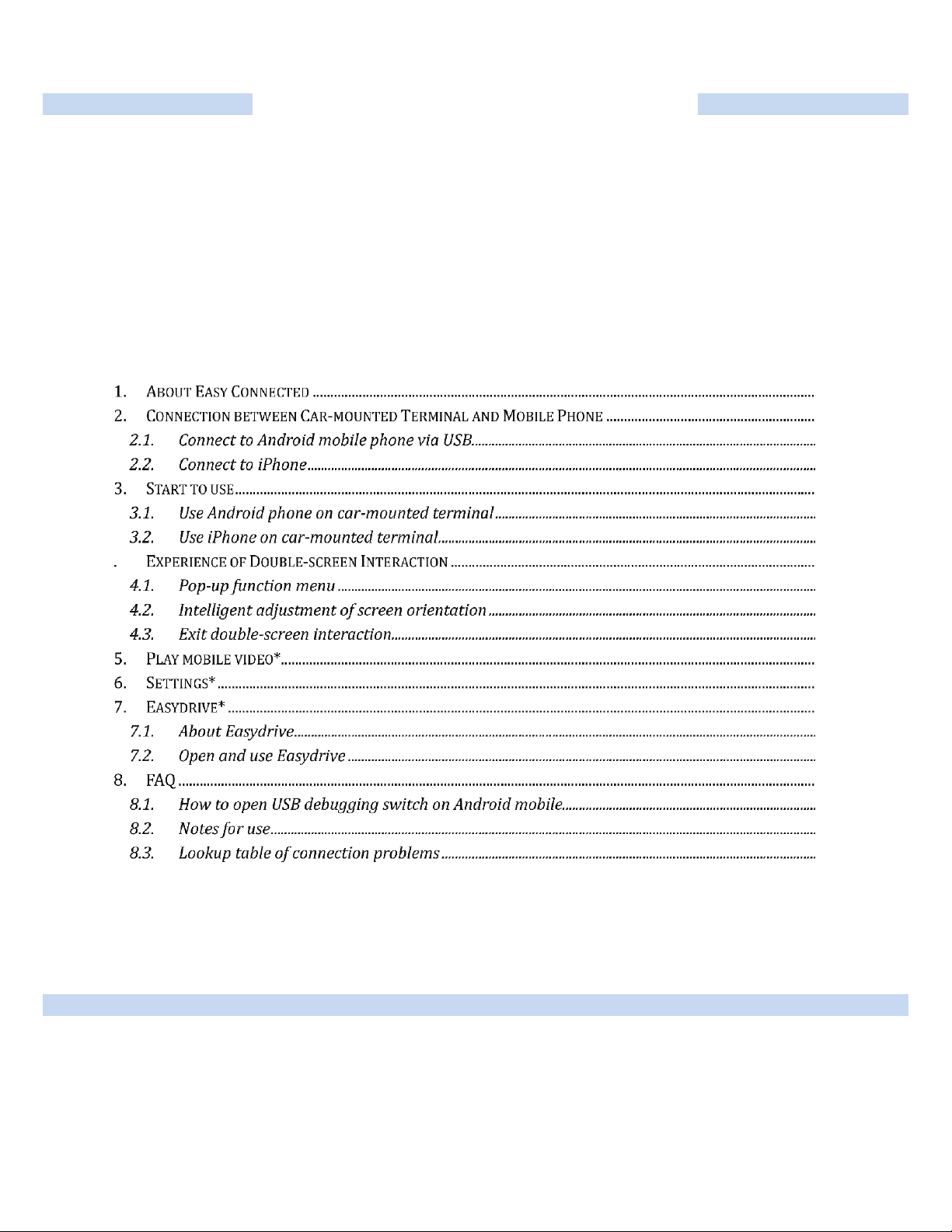
1.AboutEasyConnected
WelcometouseEasyConnectedproducts.EasyConnectedisasoftwareinter-connectingthemobilephoneandcar-
mountedterminalscreen,whichisdevelopedbythirdpartyAppsdeveloperCarbitInformationTechnologyCo.,Ltd.
(hereinafterreferredtoasCarbit).Thiscar-mountedterminalsupportsAndroid,WinCEandQNXplatforms,whilethe
mobilephoneterminalsupportsAndroidandiOSsystems.Thedouble-screeninterconnectionbetweenthemobilephone
andcar-mountedterminalcanbeachievedviastandardUSBinterfaceorwirelessconnection,i.e.themobilephonescreen
canbeprojectedonthecar-mountedterminalandbidirectionaloperationisavailable(themobilephoneofiOSsystem
currentlyonlysupportsscreenprojection,whilebidirectionaloperationisnotavailableyet).
ConnectiondiagramofEasyConnected
EasyConnectedispre-installedonAndroidcar-mountedterminal,supportstheconnectionbetweenthecar-
mountedterminalandAndroidmobilephones&iPhone,wherethemethodofconnectingAndroidmobilephonewith
thecar-mountedterminalisthestandardUSBinterfaceorwirelesshotspot,whiletheconnectingmethodbetween
iPhoneandthecar-mountedterminalisonlythewirelesshotspot.
※NotesduringuseofEasyConnectedsoftware:
Thisversionappliestothecar-mountedterminalsofspeciiedOEMbrands.Carbitwillnotbearanyresponsibility
foranyproblemscausedbyusingthissoftwareontheterminalsofothersystems.
Donotoperatethissoftwareduringdriving.Thissoftwarecanonlybeusedwhentransportationsafetyisensuredto
avoidanydangers.Otherwise,theusershallberesponsibleforanyproblemscausedbytheroadaccidentorother
accidentduetoabovereasons,andCarbitwillnotbearanyresponsibility.
2
PLDNA ND692
HOM E
RE S
IR
NAVI
MI C
VO L- VO L+
/MU TE
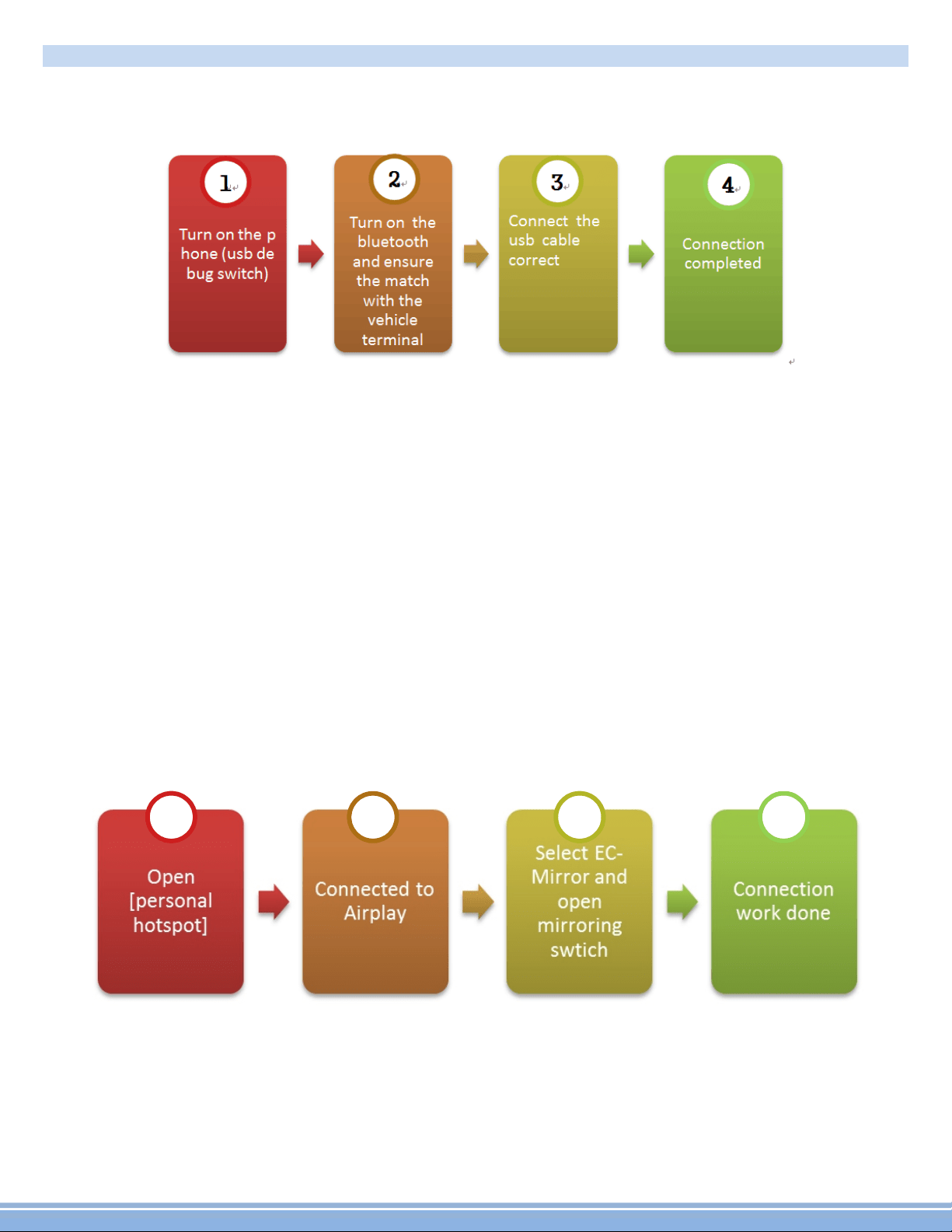
①The[USBdebuggingswitch]onthemobilephoneshallbeenabledbeforeconnection.Afterinishsetting,
pleaseunplugtheUSBconnectoronmobilephoneendandthenplugitagain.SeerelevantinformationinSection8.1
abouthowtoenable[USBdebuggingswitch]onAndroidmobilephones.
②AfterestablishBluetoothconnectionbetweenthemobilephoneandthecar-mountedterminal,theuserwill
beabletoanswerandmakecallsconvenientlyduringusingthissoftware.Meanwhile,theusercanalsotransmitthe
audioonmobilephonestothecar-mountedterminalviaA2DPprotocol,whichcanbeplayedbythecaraudiospeaker.
TheBluetoothconnectionshallbeestablishedbetweenthemobilephoneandthecar-mountedterminal,andsee
InstructionManualofCar-mountedTerminalfordetailedsteps.
③PleaseconnectthephonewiththeUSBinterfaceofcar-mountedterminalagainafterinishingabovesetting.
Congratulations!YouhaveinishedirsttimeofconnectionviaEasyConnected.Youonlyneedtoconnect
themobilephonewiththecar-mountedterminalviaUSBcableeverytimeyoudrivingaslongasthesettingof
mobilephoneandcar-mountedterminalisnotchanged.
2.2.ConnecttoiPhone
Ensurefollowingoperationhasbeendonebeforeconnectingtoyourmobilephonefortheirsttime:
1
2
3
4
①OpenphoneSettings>PersonalHotspottoopeniPhonehotspot,andrecordthenameandpasswordofthe
hotspot.
2.ConnectionbetweenCar-mountedTerminalandMobilePhone
2.1.ConnecttoAndroidmobilephoneviaUSB
Ensurefollowingoperationhasbeendonebeforeconnectingtoyourmobilephonefortheirsttime:
3
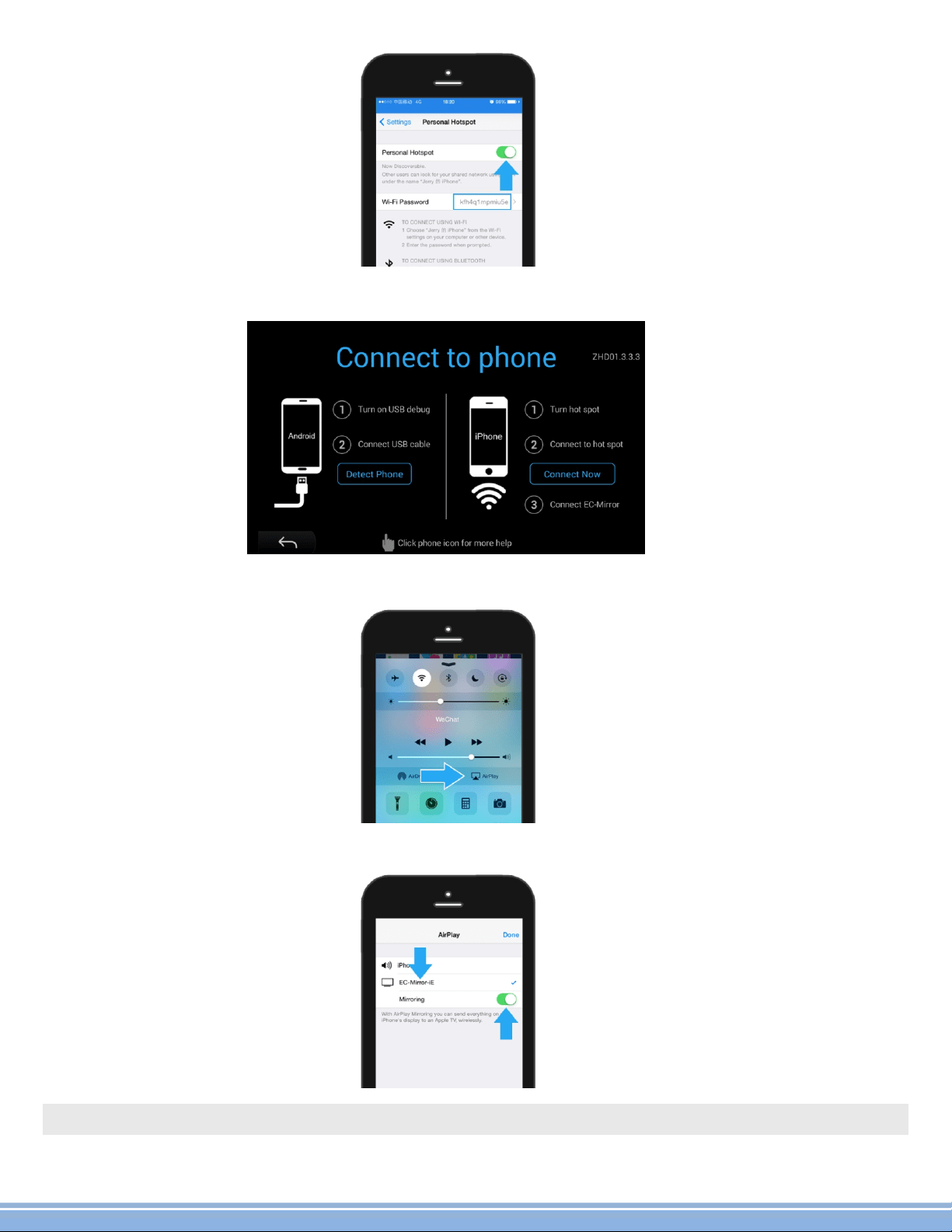
Afterconnectedtothehotspotofmobilephone,openthequickcontrolbarofphoneandselectAirplay:
③SelectEC-Mirrorandopenmirroringswitch,thentheconnectionisdonesuccessfully:
※Note:SupportiPhonesofiPhone4S&iOS7.0andaboveversions;
② Click the button [Connect Now] on the car-mounted terminal to connect the mobile phone hotspot:
4
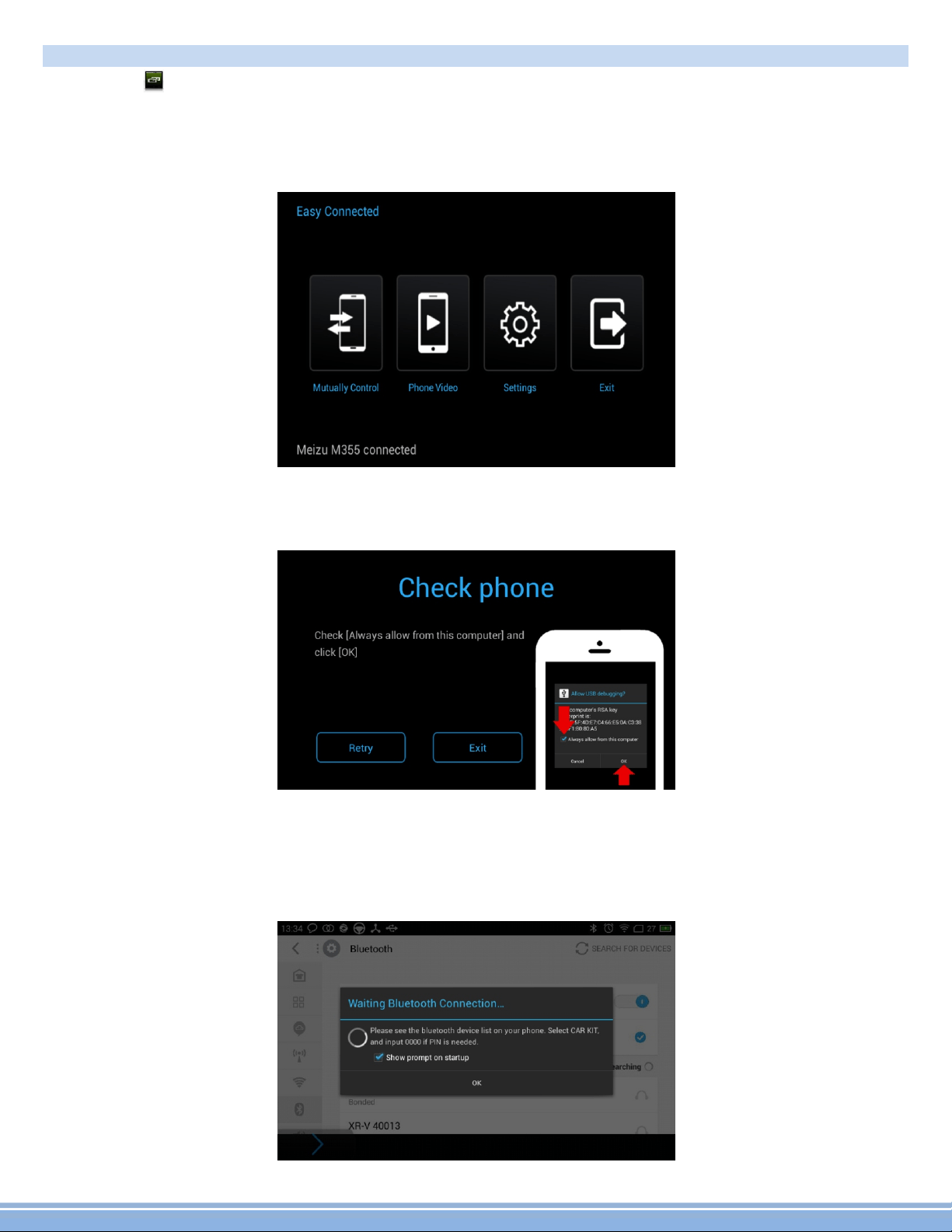
3.Starttouse
Clicktheicononthecar-mountedterminaltostartthissoftware,andpayattentiontothatthemobileisnotat
lock-screenstateduringconnection.
3.1.UseAndroidphoneoncar-mountedterminal
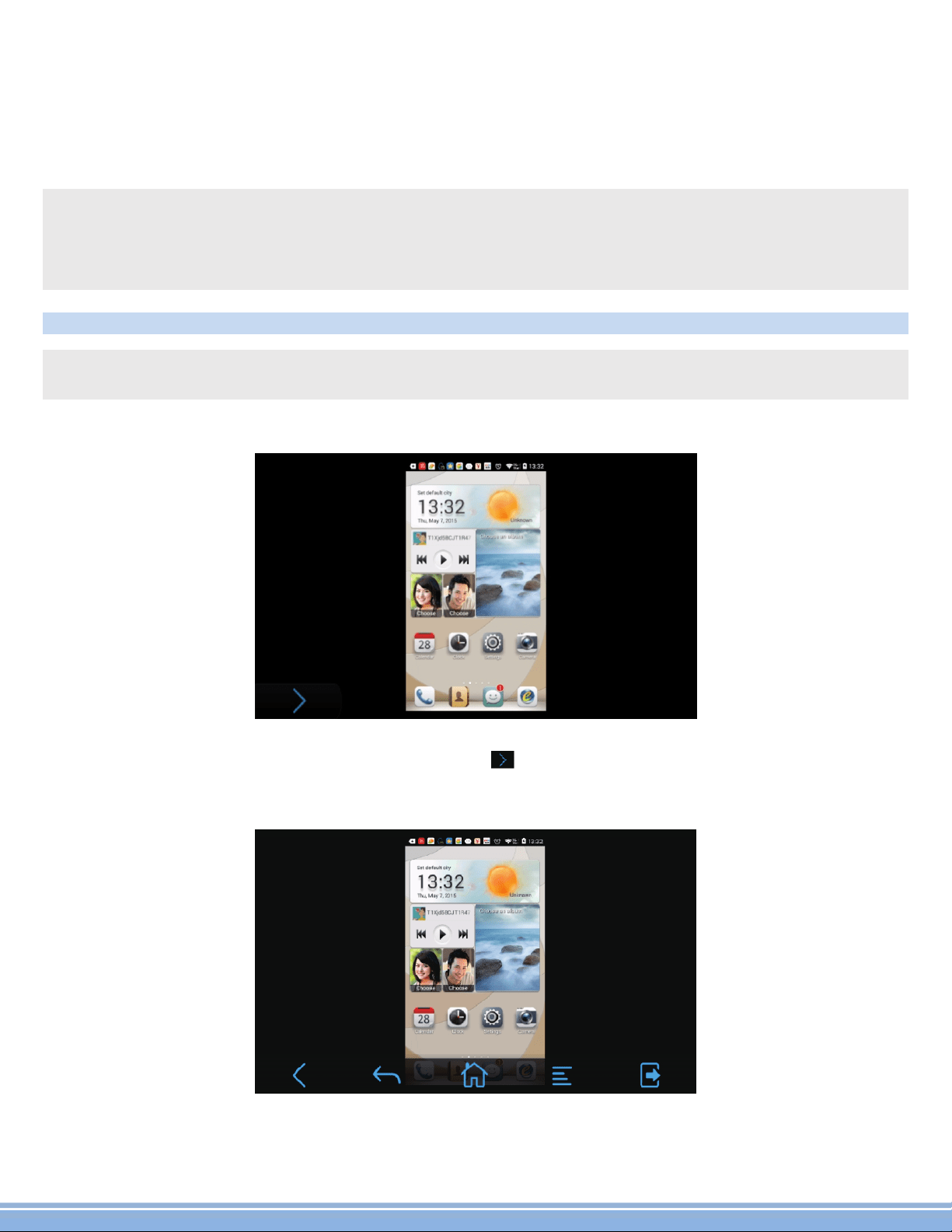
Aftersuccessfulconnection,followinginterfacewillappearononboardscreen,andthemodelofthephone
connectedwillbedisplayedatthetopofscreen,asshowninfollowingigure.
Clickthebuttonof[Double-screeninteraction]ononboardscreentoprojectthescreenofmobilephoneintothe
screenofcar-mountedterminalscreen,andachievethebidirectionaloperationofbothscreens.
Followingpromptwillappearduringtheconnectionofphonesofsomemodels:
Atthistime,theusershallcheckthescreenofmobilephone,tick“Alwaysallowdebuggingfromthiscomputer”,
andthenclick“OK”.
IftheuserfailstoconnecttheBluetoothcorrectly,thissoftwarewillgivepromptandassisttheusertoconnect
thephonewithonboardsystemviatheBluetooth.Theusercanrefertothescreenonthecar-mountedterminalto
searchBluetoothdeviceonthephoneandconnectthedevice.
5
3.2.UseiPhoneoncar-mountedterminal
Afterconnectedwiththecar-mountedterminalsuccessfully,theiPhonescreenwillbeprojectedtothescreenofthe
car-mountedterminalduringoperationoniPhone.
※Note:
Thedouble-screeninteractionfunctionafterconnectingiPhonewiththescreenofcar-mountedterminalscreenis
notavailable,whichmeanstheusercanonlyoperateonthephonescreen,notthescreenofthecar-mounted
terminal;
4.ExperienceofDouble-screenInteraction
Note:
Double-screeninteractionfunctionisnotsupportedwhenthecar-mountedterminalisconnectedwithiPhone.
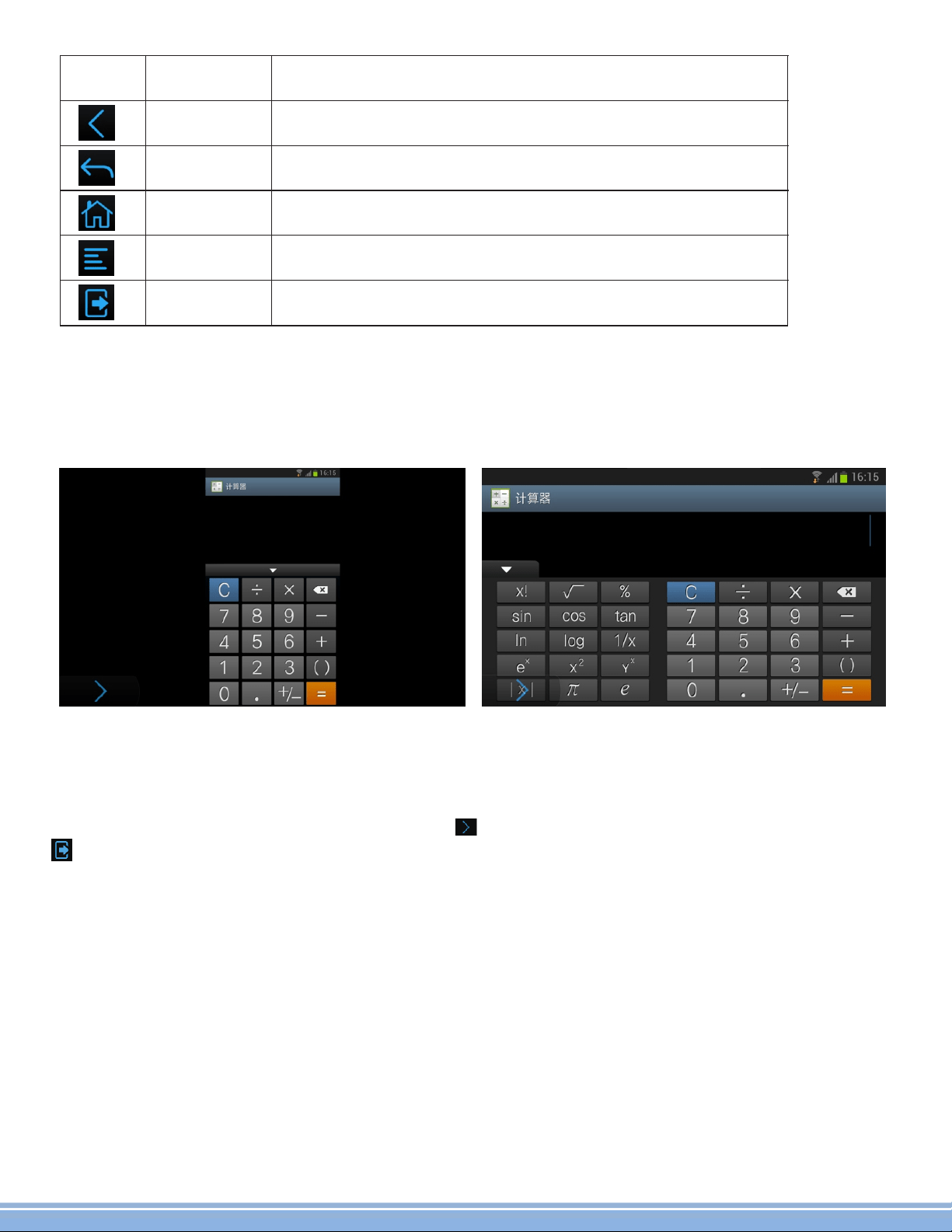
4.1.Pop-upfunctionmenu
Thefunctionmenuwillpopupbyclickingthearrowbutton()onleftbottomofthescreen,andthedefinitionof
functionkeysisasfollows:
The user can also click “Cancel” not to connect phone Bluetooth with the onboard system, and close this
prompt in the option of settings.
6
Interface
icon
Name Function
RetractkeyRetractthepop-upfunctionmenu
Returnkey
Homekey
Optionkey
Offkey
Popupthemenuofavailableoptionsofthissoftware,same
astheOptionkeyonAndroidmobilephones
Returntothehomescreen,sameastheHomekeyon
Androidmobilephones
Backtothepreviouslevel,sameastheReturnkeyon
Androidmobilephones
Closethissoftwareanddisconnectthedouble-screen
interactionwiththemobilephone
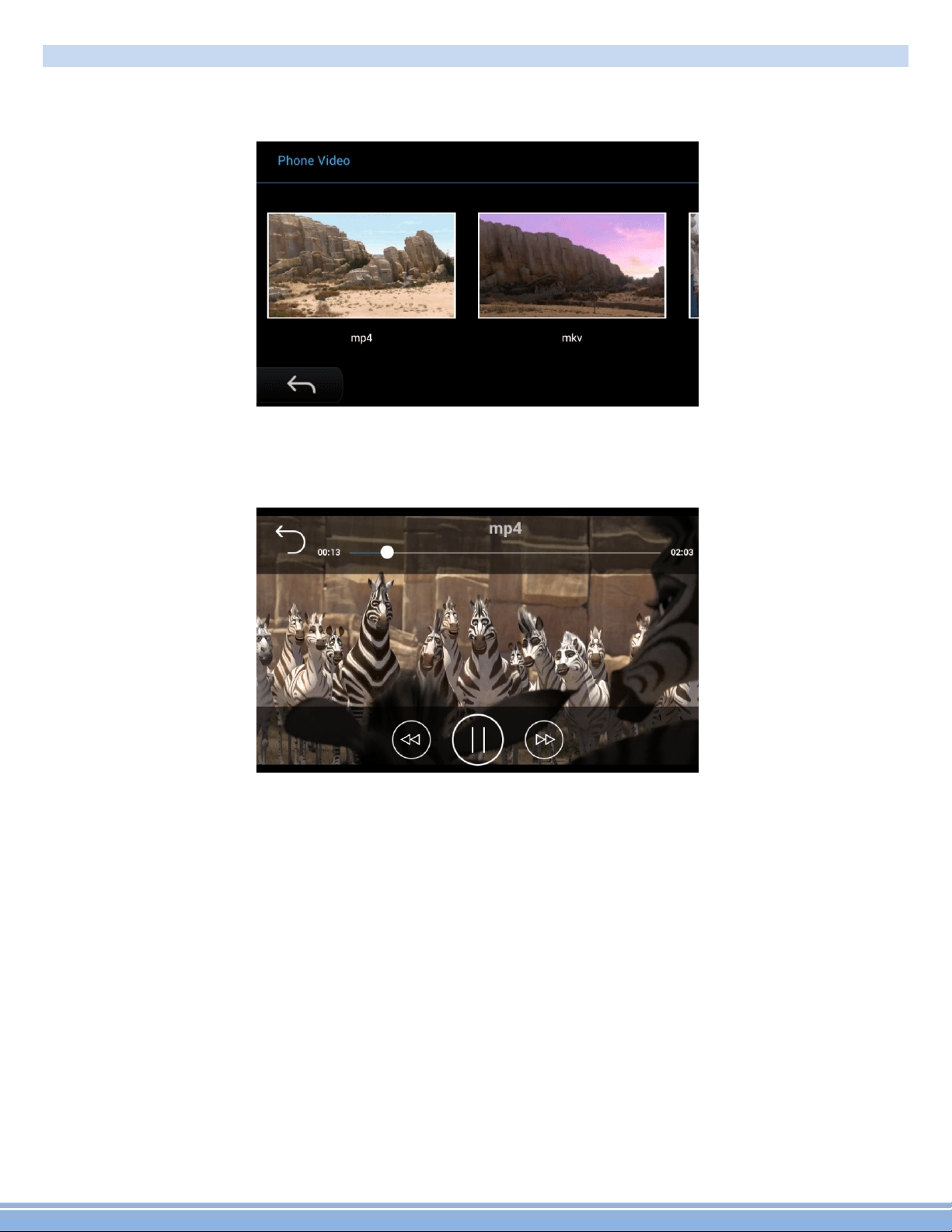
4.2.Intelligentadjustmentofscreenorientation
4.3.Exitdouble-screeninteraction
Toensurebestservicestatus,itisrecommendedtoenablethefunctionofAutoScreenRotation.
Extendthefunctionmenubyclickingthearrowbutton()onleftbottomofthescreen,andthenclicktheExitkey
()toexitthefunctionofdouble-screeninteraction.
Whenthescreenofphoneswitchingfromverticaltohorizontal,thedisplayscreenofthecar-mountedterminalwill
alsoadjusttheorientationtokeepconsistencywiththephonescreen,asshowninfollowingfigure:
Calculator Calculator
7
5.Playmobilevideo*
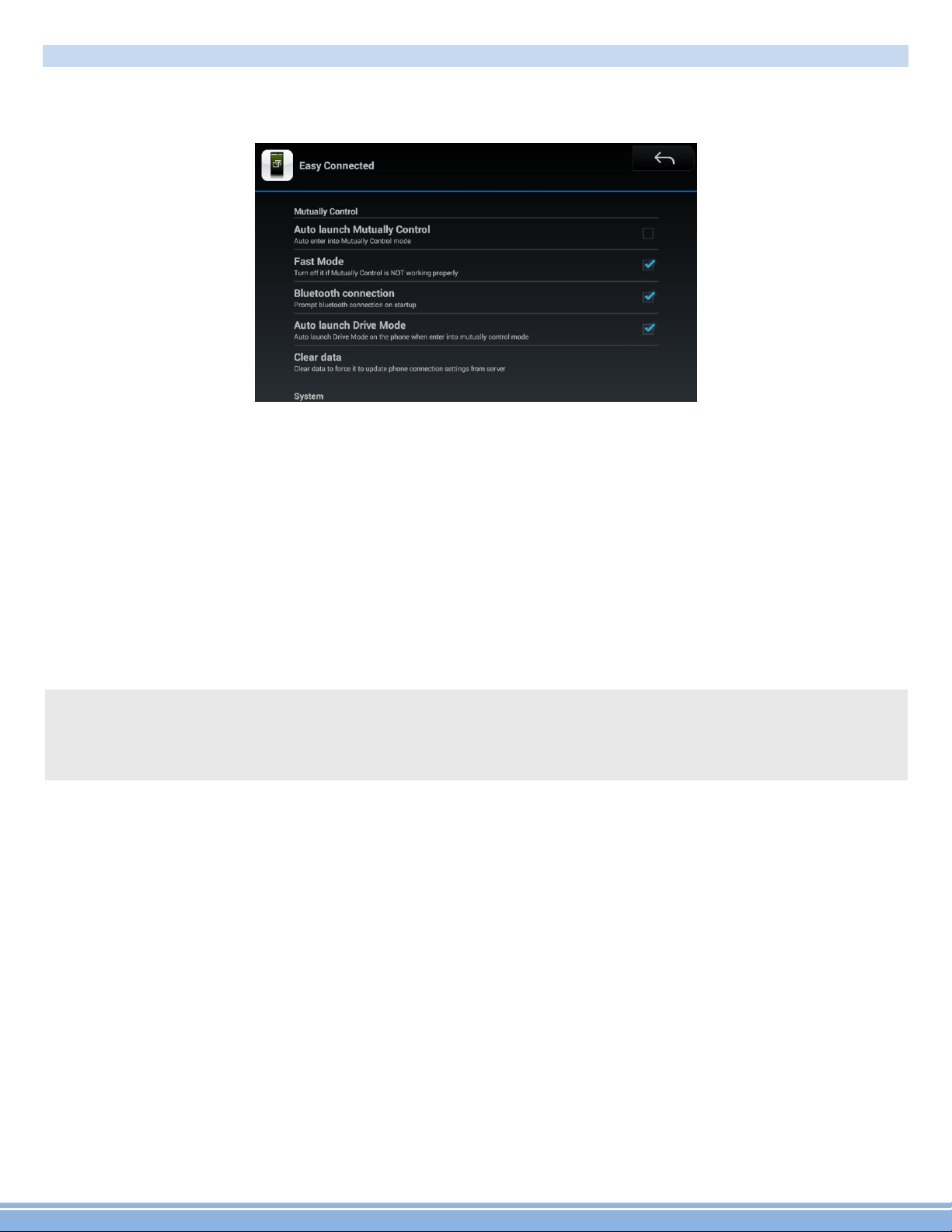
Theusercanclickthefunctionof“mobilevideo”onthemaininterfacetoentertheinterfaceofmobilevideo
function,whichwillenablethevideostoredinthemobilephonetobeplayedonthecar-mountedterminaldirectly.
Theusercanslidethescreenleftandrighttocheckthevideothumbnailandilename,andclickthethumbnailto
playthevideo.
8
6.Settings*
Clickthe“Setting”buttononthemaininterfacetoentertheinterfaceoffunctionsetting;
lEnterintodouble-screeninteractionautomatically:enteringintodouble-screeninteractionstateafterstartingthis
software.
lWhetherenableBluetoothconnectionduringstarting:duringthestartofthissoftware,whetheritwillgiveprompt
andguidetheusertoconnectwhendetectthatthecar-mountedterminalisnotconnectedwithPhoneBluetooth
correctly.
lStartEasydriveautomatically:starttheinterfaceofEasydriveautomaticallyafterconnectingEasyConnected.
lCleardata:whenthereisnoresponsefromoperationoftouchscreenindouble-screeninteraction,pleaseselectthis
optiontoclearthedataandre-connectthephone.
lAbout:theversion,copyrightandlegalprovisionsaboutthissoftware.
※Note:Donotusethisfunctionduringdriving.Thissoftwareisonlyforassistanceinbrowsingthephonevideoin
thecar.Asthesupportingformatof“MediaGallery”ofphoneandthe“Video”ofcar-mountedterminaldiffers,not
allvideoilescopiesintothephonecanbeidentiiedandplayed.Asthefunctionofdevicediffers,notthevideoiles
ofallformatscanbeplayedonthecar-mountedterminalsmoothly.
9
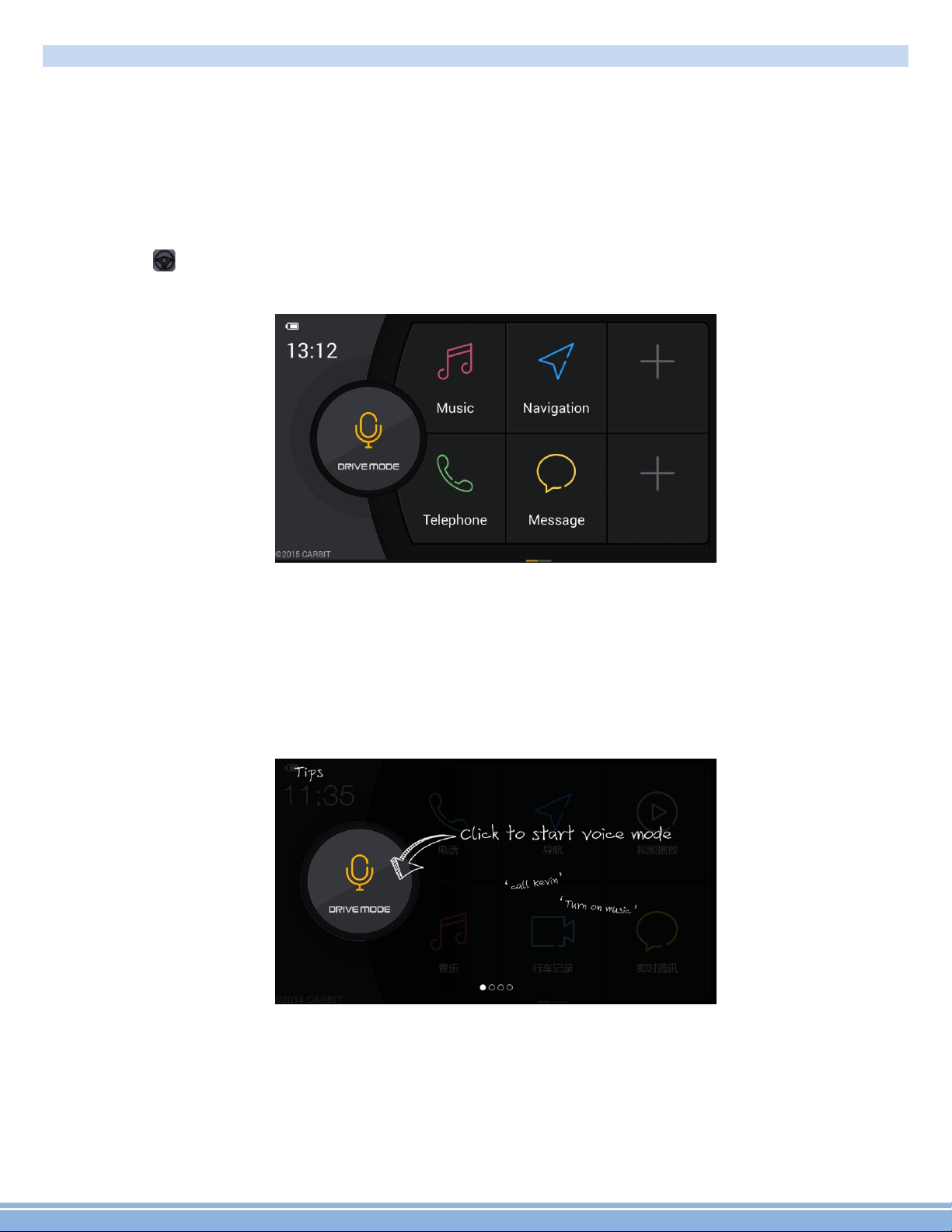
Voiceservice:click[DRIVEMODE]buttontostartVoiceAssistant.Voiceserviceneedinternetsupport.Commands
supportedbyvoicecurrently:
1.Openapplications,standardvoicecommands:“OpenXXX”or“StartXXX”,XXXindicatingthenameofapplication;
2.Makecalls,standardvoicecommands:“MakeacalltoXXX”or“CallXXX”,XXXindicatingthenameinContacts;
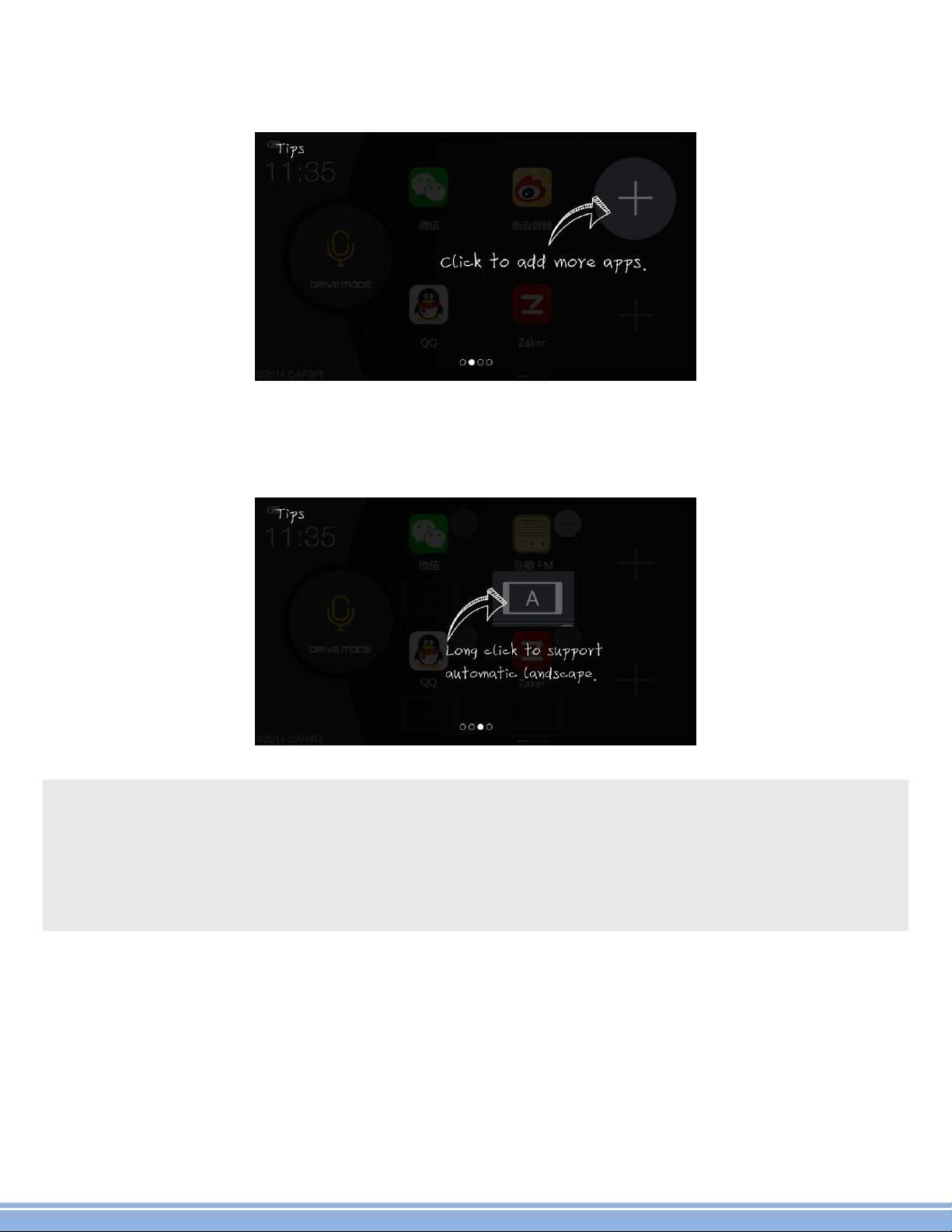
Applicationaddition:click[+]buttontoaddtheapplicationinthephoneintothemaininterfaceofEasydrive,as
showninfollowingfigure:
7.2.OpenanduseEasydrive
7.Easydrive*
7.1.AboutEasydrive
EasydriveisanAPPautomaticallypushedbyEasyConnectedandinstalledonAndroidmobilephone,throughwhich
userscanaddandopenAPPsinthephoneconveniently.ThoseAPPsinthephonecanbeswitchedintoonboard
modeviathehorizontalscreentechnologytoobtainsoundhuman-machineinteractionexperience.
Afterenteringintodouble-screeninteractionbyconnectingthephonewiththeCentralMultimedia,openEasydrive
onthephone(),andopenthemaininterfaceofEasydrive:
10
※NotesduringuseofEasydrive:
ThisapplicationdoesnotsupportiPhonecurrently.
Thisapplicationcanonlybeusedwhentransportationsafetyisensuredtoavoidanydangers.Otherwise,theuser
shallberesponsibleforanyproblemscausedbytheroadaccidentorotheraccidentduetoabovereasons,and
Carbitwillnotbearanyresponsibility.
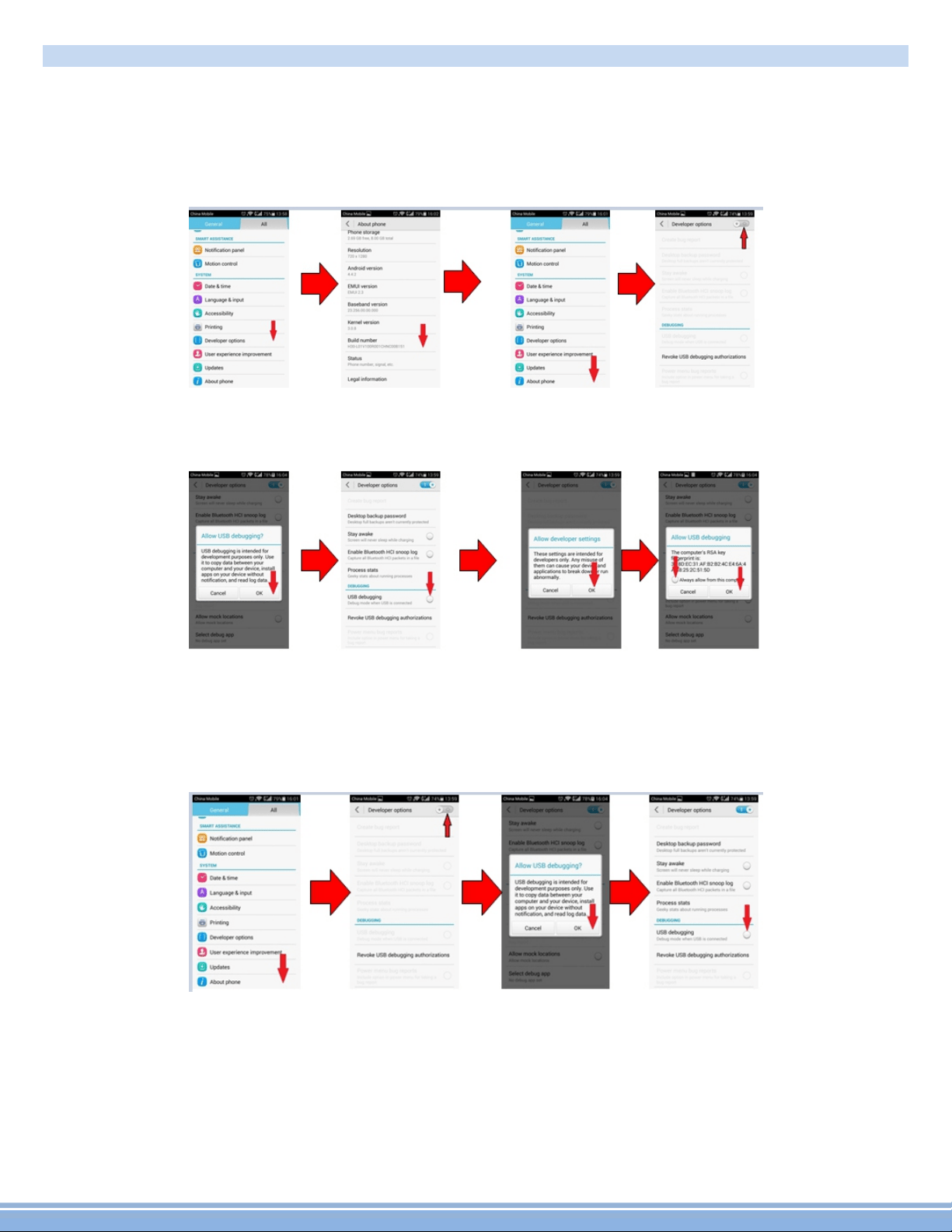
Horizontalscreenmode:touchandholdtheiconofapplicationandlighton[A],andtheapplicationwilloperatein
horizontalscreenmodeautomatically,asshowninfollowingfigure:
11
↑Android4.0-4.1system
↑Android4.2-4.4system
12
8.1.HowtoopenUSBdebuggingswitchonAndroidmobile
ThemethodofopeningUSBdebuggingswitchonthephonediffersduetodifferentversionsofAndroidsystem.Please
selectproperconnectionwizardaccordingtoyourphonesystemversion,andoperateonthephoneinorder.
8.FAQ

8.3.Lookuptableofconnectionproblems
Phone
type
Problem
phenomenon
Causeanalysis
Solution
Android
mobile
No connection
process occurs
after inserting
into the phone
and entering
EasyConnected
Somethingwrongwiththe
adaption of environment
files
Performenvironmentdetection,andsee
instruction of Easy Connected Adaption
and Installation, or contact the
manufacturerofrelevantbrand
TheiconofUSB
debugging does
not appear on
the phone
screen
USB physical connection
fails.
1. Check that whether the [USB
debugging mode] is enabled on the
phone
2.CheckandreplaceUSBcable
3. Check USB port on car-mounted
terminal
4.Plugandunplugthephoneagain
TheiconofUSB
debugging
appears on the
phone screen,
but the phone
cannot be
connected.
1. The phone is not
compatible
2. Easy Connected service
isblocked
Allow installation and starting of Easy
Connected service in the software such
asPhoneAssistant.
iPhone
Airplay button
doesnotappear
onthephone
Wifi of the phone and
car-mounted terminal is
notconnected
CheckwhethertheWifiofcar-mounted
terminal is connected with the phone
hotspot
Click mirroring
button, and
blank screen
occurs to the
car-mounted
terminal
Wifisignalisnotstable Turnoffandstartagain.
13
8.2.Notesforuse
lForphonesofAndroidsystem,as“versionsplit”istheinherentproblemofAndroidsystemandthephone
manufacturerofeachbrandwillprovidesomepersonalizemodificationtoAndroidsystem,itisnotensuredthatthis
productcanbeconnectedwithallAndroidphonesnormally.SeeListofEasyConnectedVerifiedPhonesfordetails
aboutthesupportphonemodels.
lAsthesystemsofAndroid2.3.Xandlowerlackforrelevantsupport,somefunctionswillnotbeavailablewhen
connectingthisproductwithphonesofsuchsystem,forexample:thefunctionofplayingthevideointhephonevia
double-screeninteractionwillnotbeusednormally.
lAstheperformanceofmobilephonedatacabledifferssignificantly,itisstronglyrecommendedthatuseoriginalUSB
cableforconnection;otherwise,pleaseusetheUSBcablewithscreeningfunctionforconnectionaspossibletoensure
stableconnection.
lAstheperformanceofthephonediffers,theconnectionperformancealsovarieswhendifferentphonesareusedfor
connection.

Enterintotheinterfaceof
phonesettings,find“Verify
appsviaUSB”onthe
interfaceofsafetysetting
(ortheinterfaceofUSB
debuggingsetting),and
eliminatethetickedstateif
thisoptionisavailableand
ticked.
No
Reference
code
Meaning
Solutions
0x11
1
EasyConnectedcannot
findthephone
2
0x12
Plugandunplugthe
phoneagainandkeep
thephonescreennot
locked,andtick“Always
allow”whenthe
debuggingdialogpops
up
3 0x13
4
0x14
5
0x15
EasyConnectedcannot
findthephone
6 0x03
EasyConnectedcannot
obtaintheversion
numberofthephone
Phoneinitializationisnot
finished,oritisblockedby
PhoneGuardian
7
0x04/0x05/0x08
/0x63
/0x64/0x200/
0x204
Failingtopushthe
servicetothephone
Phonememoryisnot
enough,oritisblockedby
PhoneGuardian
8 0x20
Failingtopushthe
servicetothephone
Clickthereferencecodefor
7times,runenvironmental
detectionapplication,and
excludetheproblemof
environment
configuration.Ifthereisno
problemofenvironment
configuration,following
reasonsmaybepossible
1.USBdeviceisnotstable
2.orduetoUSBcable
3.TheCentralMultimedia
doesnothave
/data/.android/directory,
orthepermissionofadb
(adb-EasyConnected)is
notroot(seeadaption
instructions)
Checkwhetherthe
USBdebuggingof
phoneisopen;check
whetherthe
debuggingicon
appearsonthe
notiicationbar;if
not,itisoftendueto
powersupplyfrom
USBinterfaceisnot
stableorthecapacity
ofresisting
disturbanceofUSB
cableispoor.The
usercantry
replacingUSBcable
(theUSBcableofCE-
Linkis
recommended),or
strengthenpower
supplybyaddinga
USBpoweredhub
betweenthecar-
mountedterminal
andthephone.
14