V:1L-V:2L
1
Thank you for choosing BOSS Audio Systems!
Sign up for Boss Audio Systems News and Promos by visiting us on
the web at www.bossaudio.com.
Be part of our community! Join us by signing up on the web at
www.bossinsiders.com
IMPORTANT! Complete the information below and keep for your records.
Model
Serial Number
Date of Purchase
Note: Serial number is located on the packaging and the top of the product chassis.

2
Table of Contents
Important Information 4
About this Manual...................................................... 4
Operation Warnings .................................................. 4
Installation Warnings ................................................ 4
Screen Care ................................................................... 5
Notice ............................................................................. 5
Basic Operation 6
What Comes in the Box ............................................ 6
Control Panel................................................................ 7
First Time Setup .......................................................... 8
Home Menu Description ......................................... 9
FM/AM Radio 10
Radio Home Screen ................................................... 10
Tune to a Radio Station ............................................ 10
Auto Store Radio Stations ....................................... 10
Preset a Radio Station .............................................. 10
Search via Frequency Input .................................... 10
FM Local and Distant ................................................. 10
FM Stereo and Mono ................................................. 10
SiriusXM® Radio 11
Preparation ................................................................... 11
SiriusXM Home Screen ............................................. 11
Select a Channel ......................................................... 12
Preset a Channel ......................................................... 12
Artist & Song Alerts.................................................... 12
Set Artist & Song Alerts ............................................ 12
Parental Control .......................................................... 13
Apple CarPlay 14
Apple CarPlay Introduction .................................... 14
Connect your iPhone ................................................ 14
Arrange your CarPlay Apps ..................................... 15
Disable CarPlay Apps ................................................ 15
Android Auto 16
Android Auto Introduction ..................................... 16
Connect your Android Device ............................... 16
Bluetooth 17
First Time Connection ............................................... 17
Audio Streaming ......................................................... 17
Make a Call .................................................................... 18
Operation During a Call ........................................... 18
Sync Phonebook and History................................. 18
Search a Contact ......................................................... 18
Browse Call History .................................................... 18
View Connection Status ........................................... 18
Voice Assistant (Push-To-Talk) ................................ 18
USB 19
USB Playback ................................................................ 19
Audio/Video/Photo Play Switching ..................... 19
Audio Playback ............................................................ 19
Video Playback ............................................................ 19
Photo Playback ............................................................ 19
Other External Devices 20
Audio/Video Input ..................................................... 20
Playback ......................................................................... 20
Audio Input ................................................................... 20
Video Input ................................................................... 20
Manual Camera Trigger ............................................ 20
Automatic Camera Trigger ...................................... 20

3
Table of Contents
Set Sound Eects 21
Sound Mode and Equalizer Setting ..................... 21
Volume Balance Setting ........................................... 21
Crossover Frequency Setting ................................. 21
Time Alignment Setting ........................................... 21
General Settings 22
System Tone and Shutdown Delay ...................... 22
Set Date and Time Manually ................................... 22
Set Date and Time Automatically ......................... 22
Language Setting ....................................................... 22
Steering Wheel Control Retention ....................... 22
Audio Settings 23
Loudness and Sound Eect Setting .................... 23
Startup Volume Setting ............................................ 23
Initial Volume Setting for Other Sources ........... 23
Customization of a Source Volume ...................... 23
Display Settings 24
Wallpaper Setting ....................................................... 24
Screen Setting ............................................................. 24
Automatic Dimming Control ................................. 24
Panel Button Light Setting ..................................... 24
Bluetooth Settings 24
Radio Settings 25
Radio Region Selecting ............................................ 25
RDS/RBDS Activation ................................................ 25
RDS/RBDS Information Display ............................. 25
RDS/RBDS Trac Announcement ........................ 25
RDS/RBDS Alternative Frequency ......................... 25
Camera Settings 25
Camera Trigger Control ............................................ 25
Parking Assist Guidelines Setting ......................... 26
System Information 26
Firmware Version Information ............................... 26
Firmware Update ........................................................ 26
Resetting the Unit ...................................................... 26
Unit Installation 27
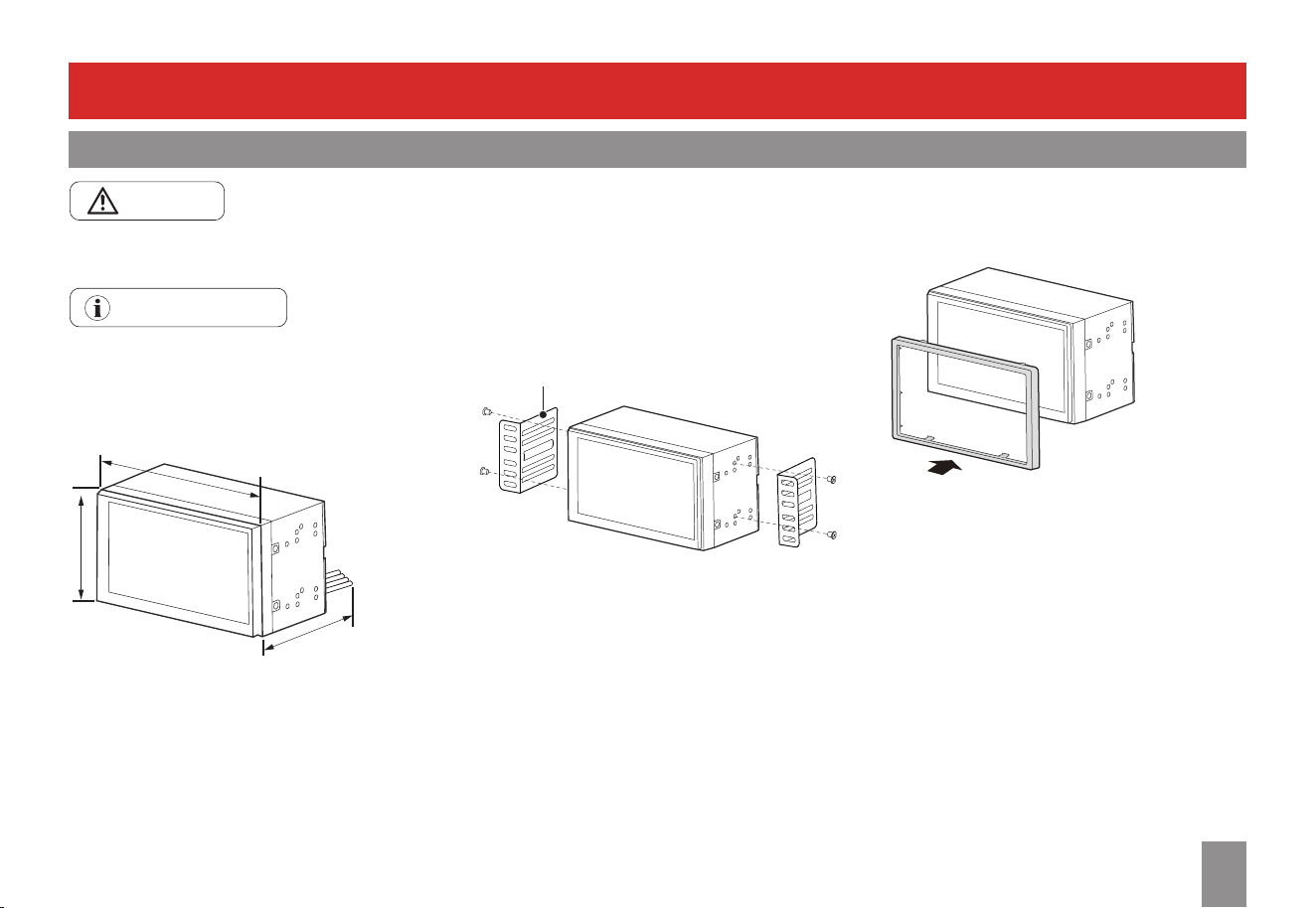
Installation Dimensions ........................................... 27
Double DIN Opening Installation ......................... 27
Connections 28
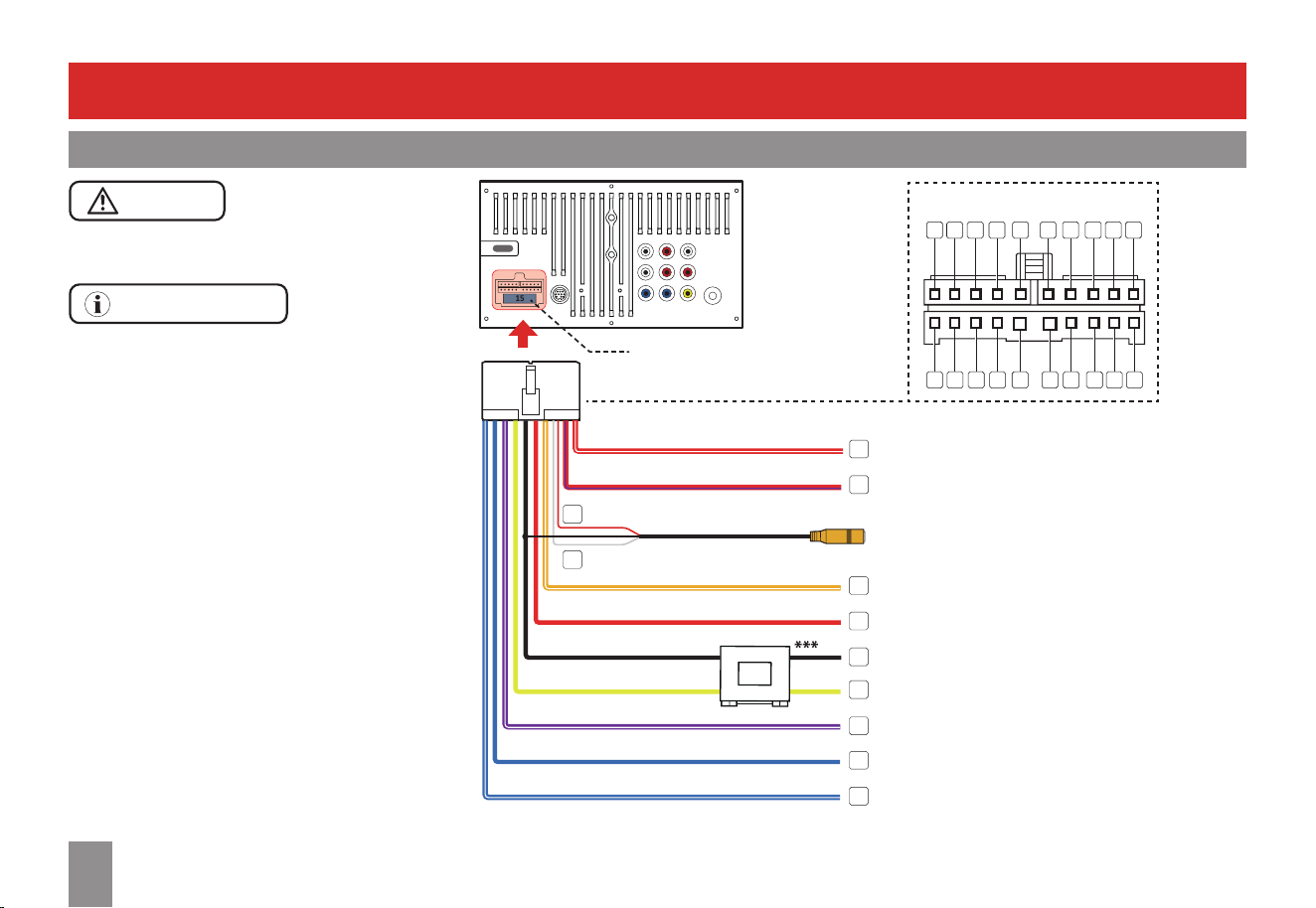
Power and SWC Input Wiring ................................. 28
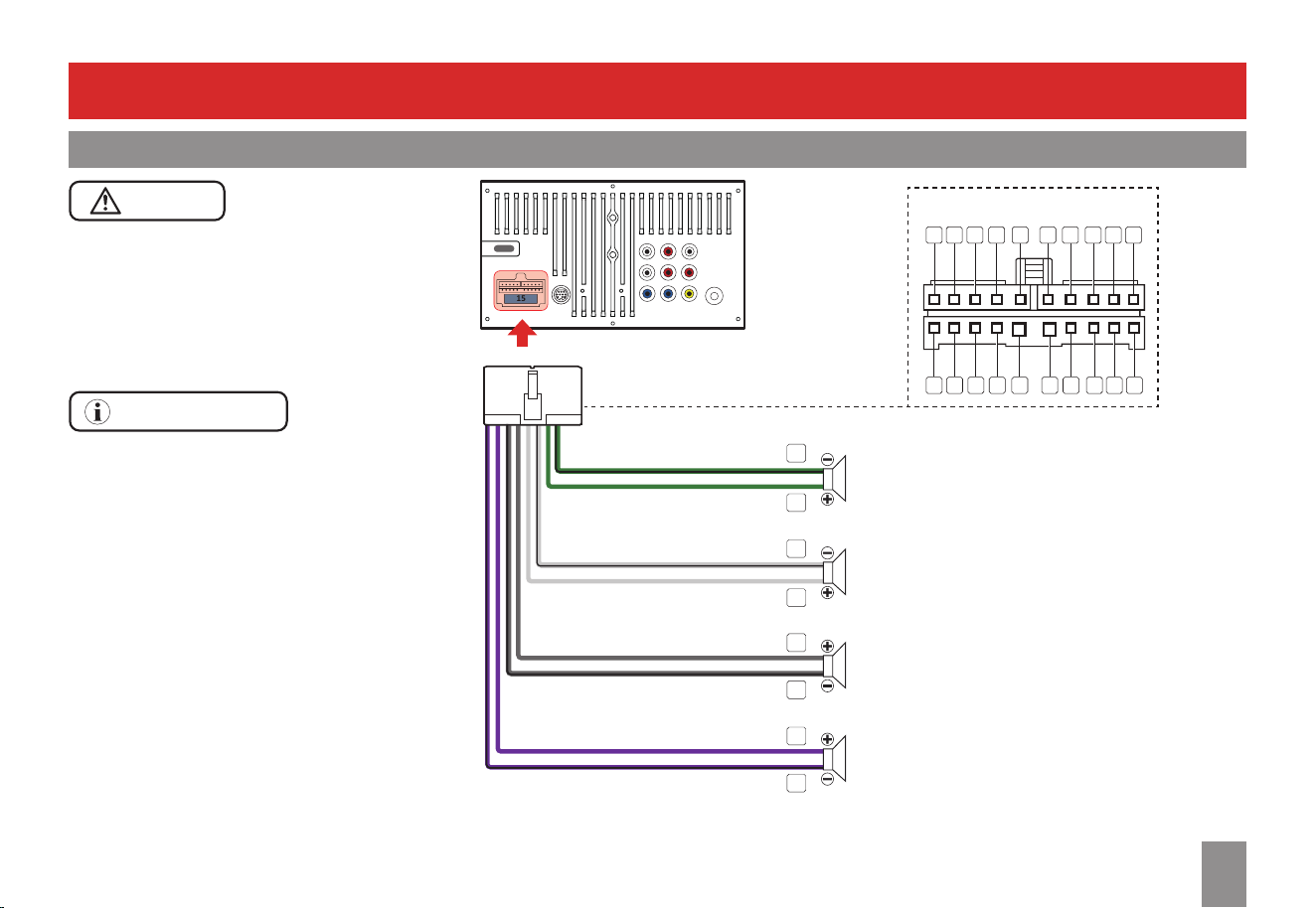
Speaker Wiring ............................................................ 29
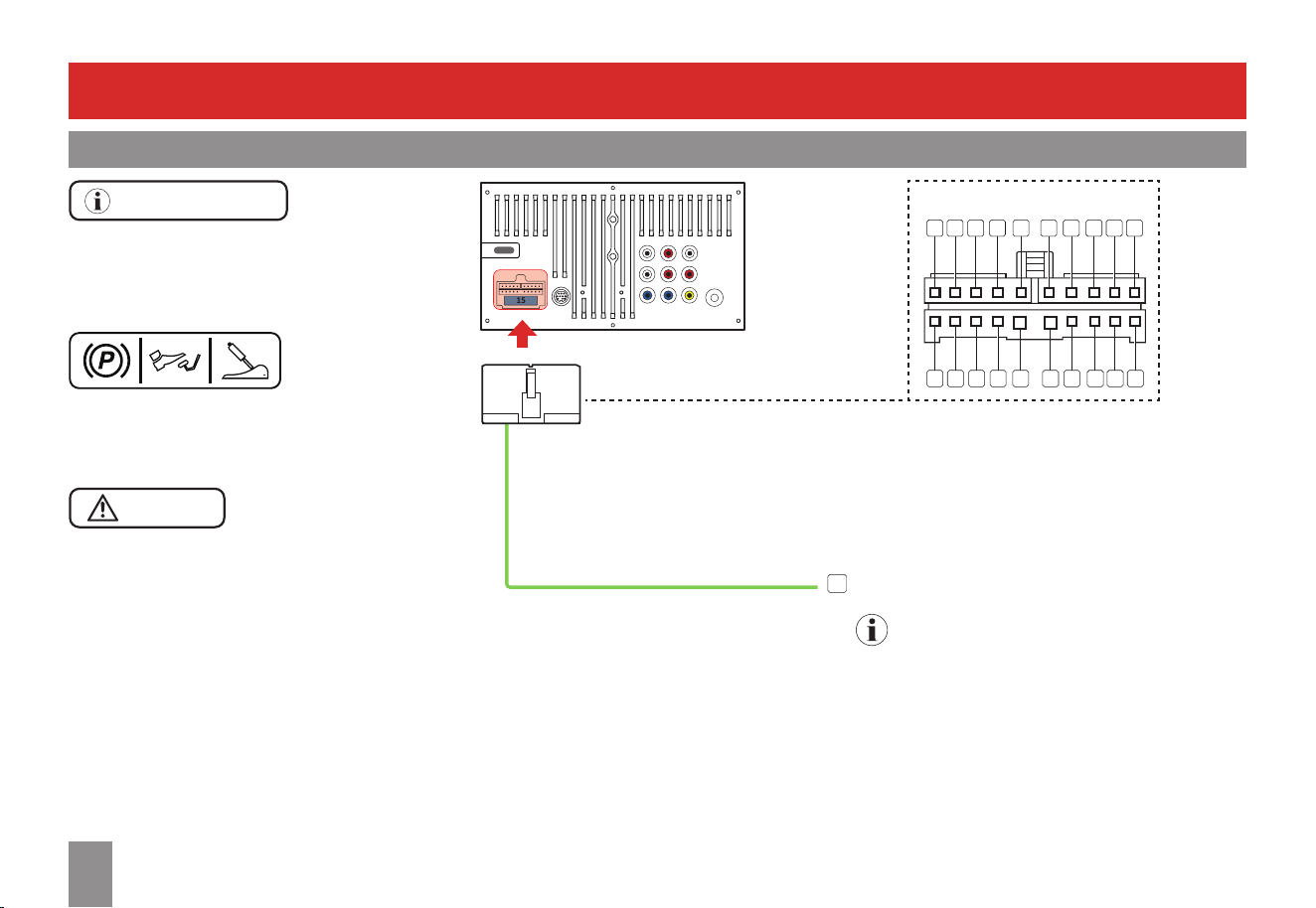
Parking Brake Wiring ................................................. 30
SiriusXM/AV/Radio ..................................................... 31
Mic/Camera/CarPlay/Android Auto ..................... 32
Hands-Free Mic Installation .................................... 33
Troubleshooting 34
Specications 36
4
Important Information
About this Manual
To understand how to properly use your new
BOSS Audio Systems product, it is recommended
to read this user manual in its entirety, and keep
it in a safe place for future reference.
This manual uses illustrations to show you
how to use this product safely and alert you
to potential dangers resulting from improper
connections and operation. It is important to
fully understand the meaning of each one of
these illustrations in order to use this manual
and system properly.
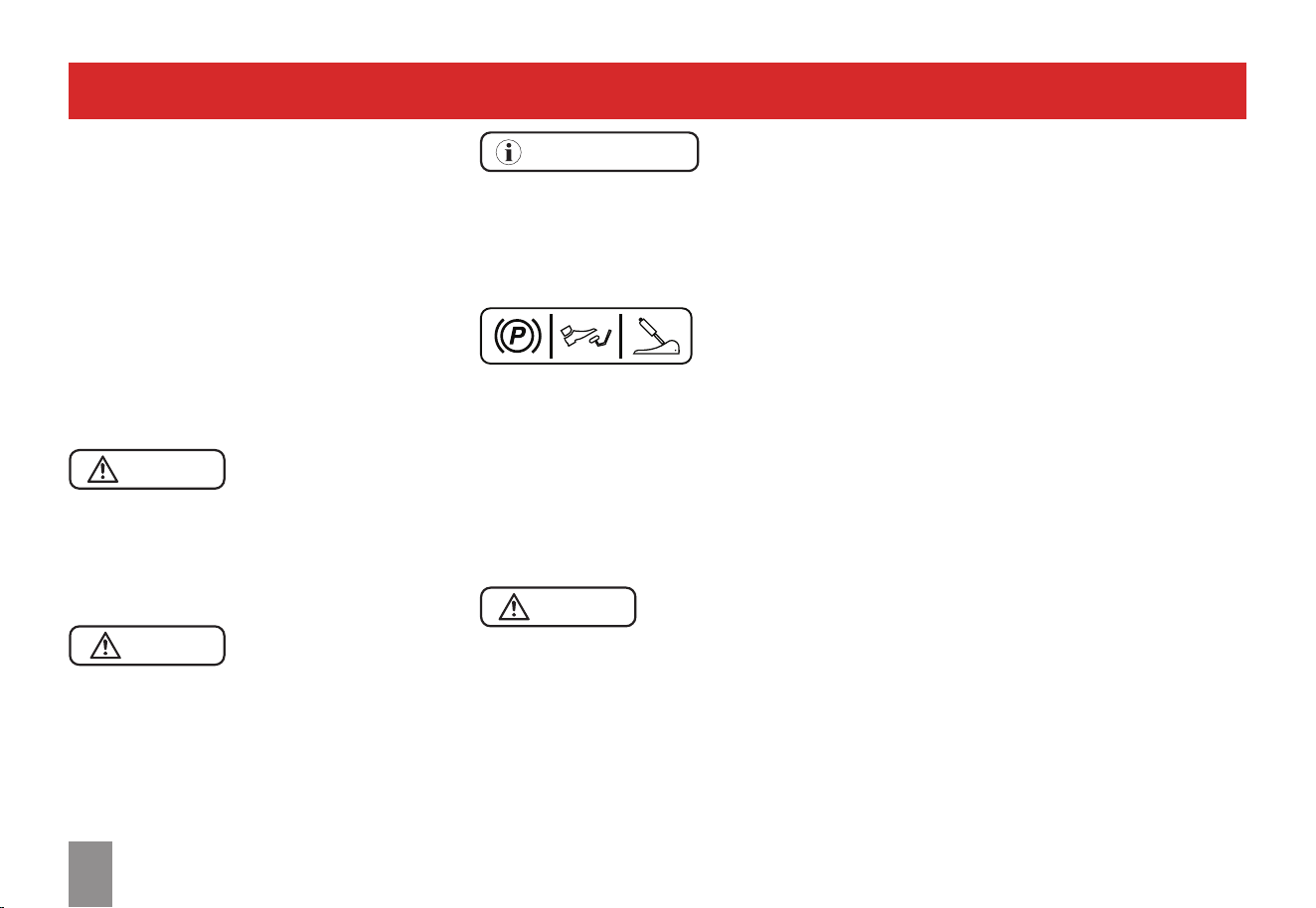
WARNING
The WARNING illustration denotes very
important instructions. Failure to follow them
can result in damage to equipment, serious
injury or death.
CAUTION
The CAUTION illustration denotes important
instructions. Failure to follow them can result in
injury or material property damage.
IMPORTANT NOTE
The IMPORTANT NOTE illustration denotes
important instructions for product features and
limitations. Failure to follow them will result in
product misuse and/or unexpected behavior.
The PARKING BRAKE illustration denotes
features that can only be used with vehicle not
in motion and parking brake engaged. Failure to
follow them will result in product misuse and/or
unexpected behavior.
Operation Warnings
WARNING
OPERATION OF THIS PRODUCT WHILE
DRIVING IS DANGEROUS.
Users should come to a complete stop and in
a safe location before using any feature that
requires extended periods of time.
PAY ATTENTION TO ROAD CONDITIONS.
Avoid operating product under dangerous
road conditions and abide by regulations over
information contained on the map display.
Follow trac restrictions and circumstances
while driving.
Familiarize yourself with your local and state
laws regarding mobile devices. Certain functions
of the mobile phones might be prohibited and
or illegal while driving in your location.
OPERATE AT SAFE VOLUME LEVELS.
Excessive volume levels may obstruct sounds
such as emergency vehicle sirens or road
warning signals; can be dangerous and may
result in an accident. Listening at high volume
levels can also cause hearing damage.
DO NOT WATCH VIDEO WHILE DRIVING.
Watching video content may distract the driver
from looking ahead of the vehicle and can
potentially cause an accident.
Installation Warnings
CERTIFIED PROFESSIONAL INSTALLATION.
Installation and service repair of this product
by anyone without professional training and
experience in consumer electronics and mobile
vehicle accessories may be dangerous and result
in electric shock, injury or other hazards.
5
Important Information
DISCONNECT BATTERY.
To avoid potential shorts in the electrical system,
be sure to disconnect the NEGATIVE (-) terminal
cable before beginning this product installation.
Failure to do so may result in electric shock, re,
damage to product and/or property damage.
DO NOT DISASSEMBLE OR ALTER PRODUCT.
Disassembly of product may result in an
accident, re or electric shock.
REPLACE FUSE WITH THE CORRECT RATING.
Failure to do so may result in re or property
damage.
PARKING BRAKE INSTALLATION WIRING.
Installing this product incorrectly may enable
the user to watch video while driving. This may
cause distraction, preventing the driver to focus
on the road and potentially cause an accident.
The driver and passengers can be severely
injured.
Screen Care
USE
This head unit utilizes a Capacitive Touchscreen,
the same type that is used on high-end mobile
devices. It should be used for and cared for like
that type of device. As with all capacitive type
technology, if your ngers are wet or sweaty, it
will not function properly.
Do not allow any sharp objects to come in
contact with the screen.
CLEANING
To clean the screen, use a dry or slightly damp
micro ber type cloth to clean. Do not use
ammonia, window cleaner, or any other type
of household chemicals to clean the screen.
Abrasives should never be used.
Best to clean the screen when the unit is
powered o, cool and not in direct sunlight.
Notice
Apple CarPlay is a trademark of Apple Inc.
iPhone® is a trademark of Apple Inc., registered
in the U.S. and other countries.
Use of the Apple CarPlay logo means that
this user interface meets Apple performance
standards.
Apple is not responsible for the operation of
this device or its compliance with safety and
regulatory standards.
Android Auto is a trademark of Google LLC.
®
SiriusXM and all related marks and logos are
trademarks of Sirius XM Radio, Inc. All rights
reserved.
The Bluetooth® word mark and logos are
registered trademarks owned by Bluetooth SIG,
Inc. and any use of such marks by BOSS Audio
Systems is under license. Other trademarks
and trade names are those of their respective
owners.
6
Basic Operation
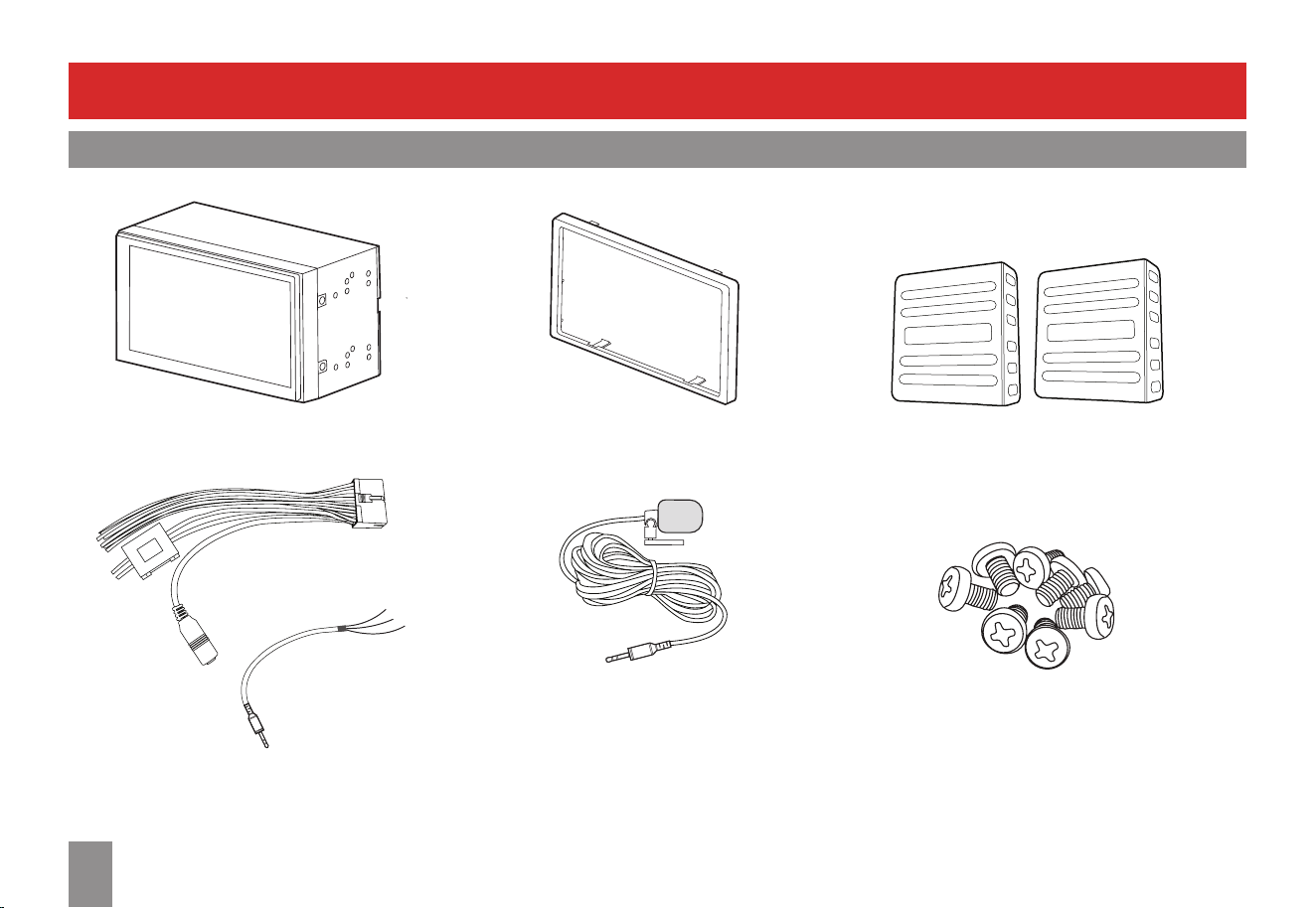
What Comes in the Box
Head Unit Trim Ring 2x Mounting L-Brackets
Microphone with 3.5mm Plug and Sticky Base 8x Bolts (M5 x 6mm)
Wiring Harness
(with a noise lter box)
3.5mm SWC Cable
7
Basic Operation
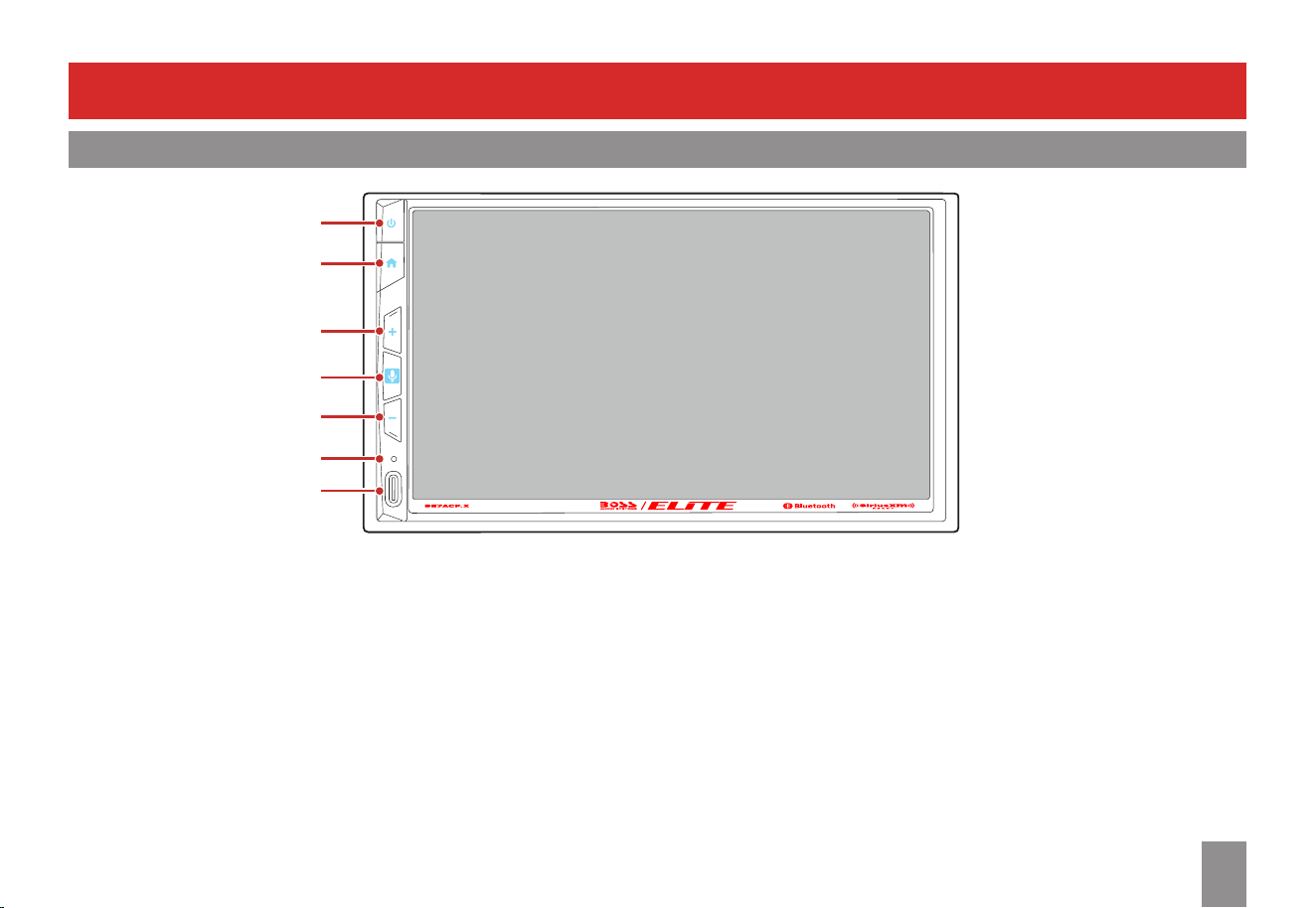
Control Panel
USB-C
1
2
3
4
5
6
7
1
Power/Mute button
• Press to power on the unit.
• Press and hold to power o the unit.
• Press to mute or restore the volume when
powered on.
2
Home button
• Press to switch between the home menu
and the last selected source.
• When powered on, press and hold to turn
the screen o.
3
Volume up button
4
Voice assistant (Push-To-Talk)
Press to activate voice assistant.
Enable Apple CarPlay, Android Auto or
Bluetooth connection to use voice assistant.
5
Volume down button
6
Reset button
Use a needle or pin to press the button. Reset
the unit if the unit fails to function normally.
7
USB-C port (1.5A charging port)
Media audio, video or picture input from a
USB ash drive.
If needed, use a USB-C adapter to t your USB
ash drive into the USB-C port.
TIP:
When the unit is powered o, touch the screen
to turn on or o time/date display.
8
Basic Operation
First Time Setup
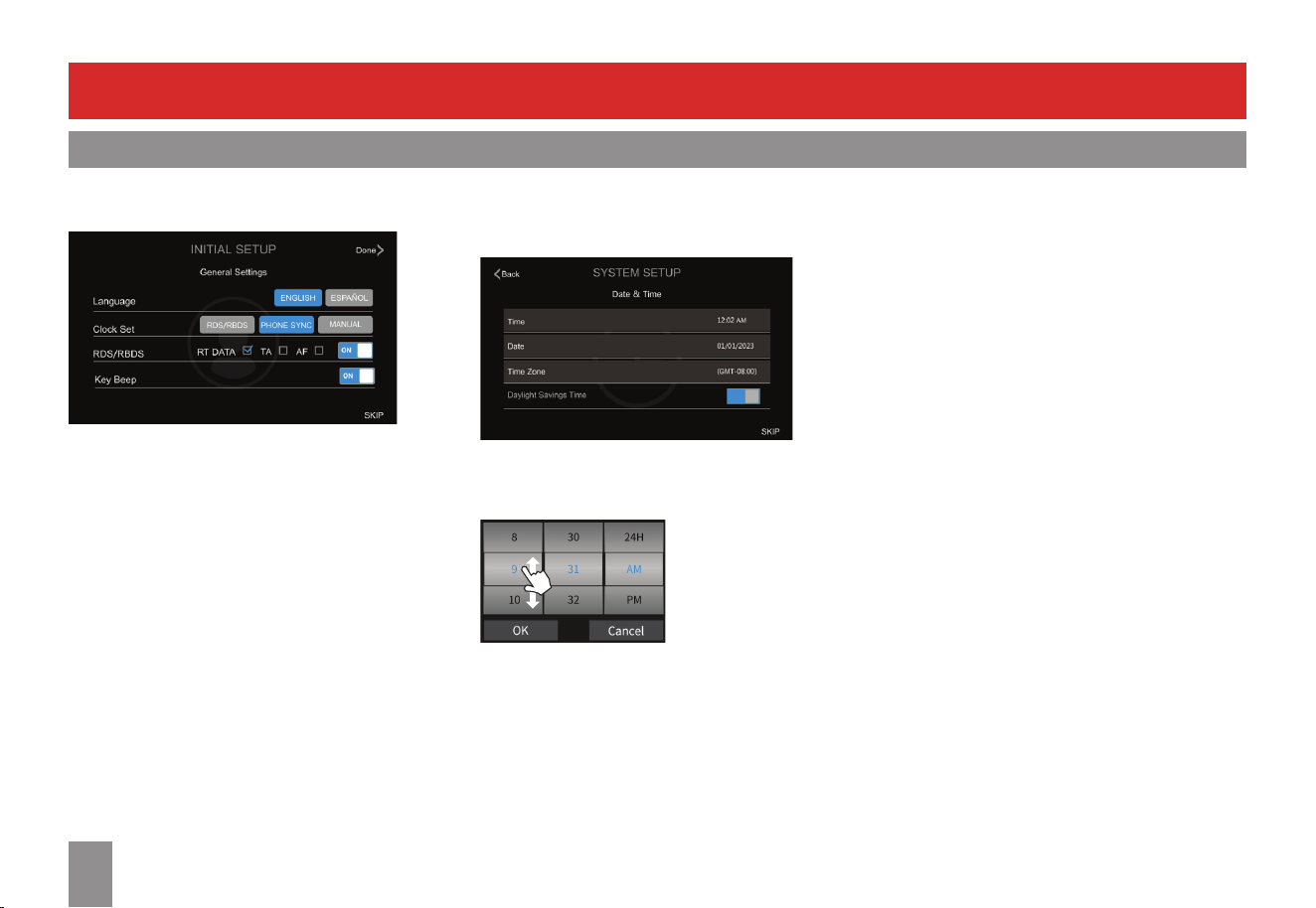
When you turn on the unit for the rst time or
reset the unit, the initial setup page will appear.
Set Language
[Language]: Select English or Spanish as a
display language for menu.
You can set language later. From the home menu,
select [SETTINGS] > [General] > [Language].
Set Clock
[RDS/RBDS]: Automatically set date and time
from RDS/RBDS broadcast.
[PHONE SYNC]: Automatically set date and time
from Apple CarPlay.
[MANUAL]: Set date and time manually.
Set date and time manually
Select [MANUAL] to access time, date and time
zone settings.
[Time]: Access time setting screen. Swipe up
and down to set hours, minutes, and AM/PM or
24 hour format respectively.
[Date]: Access date setting screen. Swipe up and
down to set year, month, and day respectively.
[Time Zone]: Select a time zone in your current
location.
[Daylight Savings Time]: Enable to adjust
daylight savings time automatically.
You can set date and time later. From the home
menu, select [SETTINGS] > [General] > [Date &
Time].
Set RDS/RBDS Radio
The RDS/RBDS (Radio Broadcast Data System)
enables FM stations to send additional
information when broadcasting radio.
[RT DATA]: Enable/disable display of RDS/RBDS
information (i.e. station name, program type or
other dynamic/static message).
[ TA]: Enable/disable trac announcement (TA).
[AF]: Enable/disable switching to alternative
frequency (AF) for the same tuning program.
When enabled, the unit will automatically locate
the same tuning program on other stations
and select the strongest signal of those being
broadcast.
[ON]/[OFF]: Enable/disable RDS/RBDS features.
You can set RDS/RBDS later. From the home
menu, select [SETTINGS] > [Radio] > [RDS/
RBDS].
Enable/Disable System Tone
[Key Beep]: When O is selected, sound will not
be made when touching a button or option on
the screen.
9
Basic Operation
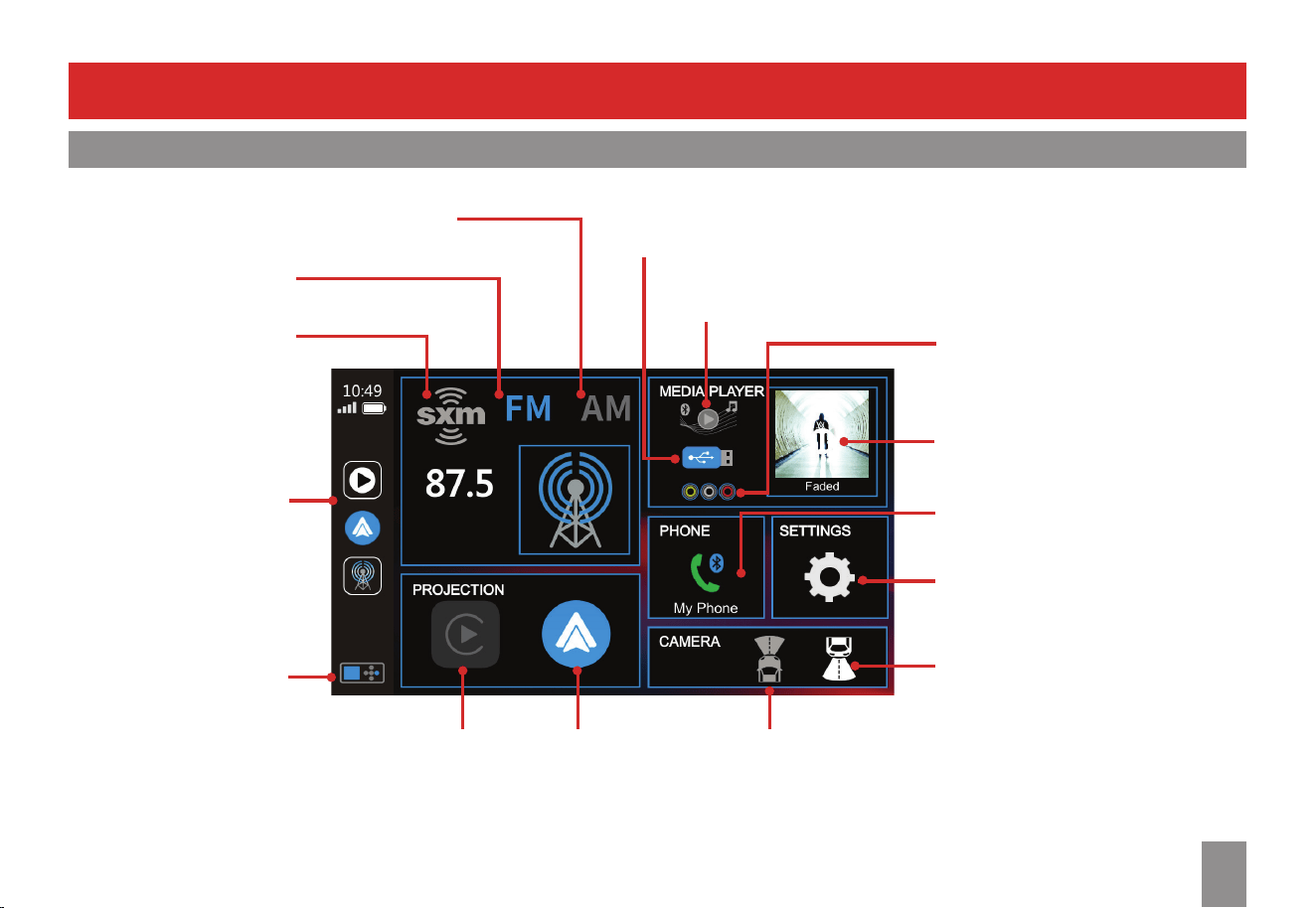
Home Menu Description
SiriusXM radio button
Switch to SiriusXM
radio service
FM button
Switch to FM radio
AM button
Switch to AM radio
Bluetooth button
Switch to Bluetooth audio
streaming from a mobile phone
AUX/AV-IN button
Switch to audio/video playback
from an external playback device
Play/Pause button
Start or pause media playback
Hands-free call button
Access Bluetooth phone call interface
System settings button
Access system settings menu
Rear camera button
Access the rear camera view
USB button
Switch to audio/video/photo
playback from a USB ash drive
Status bar
Touch an icon for quick
access to a recently
accessed source
Home menu button
Return to home menu
from other sources or
menu navigation
Android Auto button
Switch to Android Auto home
Front camera button
Access the front camera view
Apple CarPlay button
Switch to CarPlay home
10
FM/AM Radio
Using FM/AM
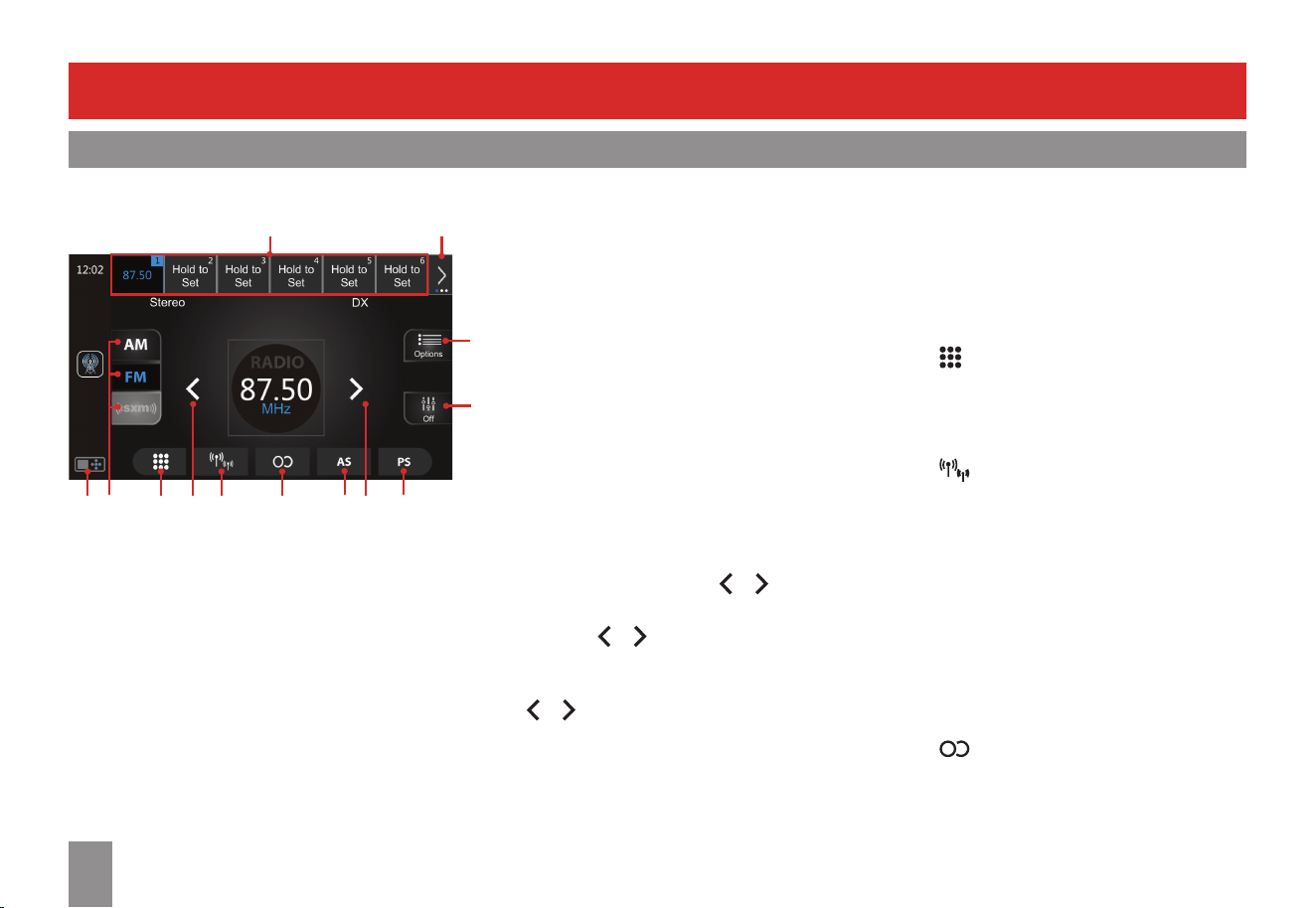
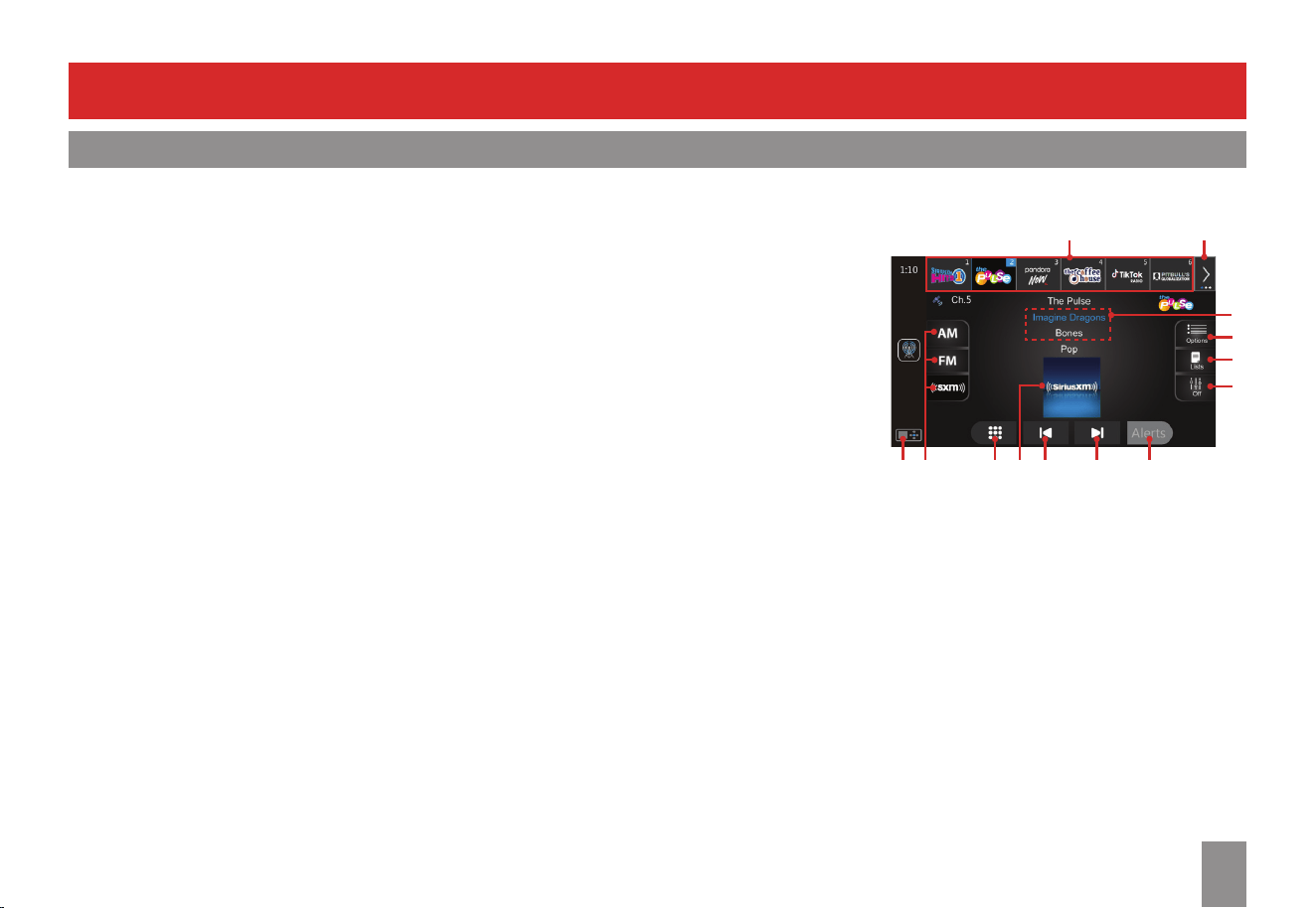
Radio Home Screen
1 3 5 6
7 9
10
4
2
8
11
12
13
1
Return to the home menu.
2
Switch between AM, FM and SiriusXM radio.
3
Search for a radio station by frequency input.
4
Touch to tune to a station in auto seek mode.
Touch and hold to switch between auto and
manual seek mode.
5
Switch between local and distant station
reception (only applicable to FM).
6
Switch between Stereo and Mono reception
(only applicable to FM).
7
AS (Auto Scan): Search and store FM or AM
stations.
8
Touch to tune to a station in auto
seek mode. Touch and hold to switch
between auto and manual seek mode.
9
PS (Preset Scan): Preview each stored
station for ve seconds. Touch the
button again to stop the scan.
10
Select a preset sound mode.
11
Access radio settings (e.g. RDS/RBDS
options). (P.25)
12
Access more stored stations.
13
Select a preset station. Touch and
hold to save the current station as a
preset.
Tune to a Radio Station
In auto seek mode, touch briey or to tune
to a station.
Touch and hold
or to switch between auto
and manual seek mode.
To ne tune a station, in manual seek mode,
touch
or to change frequencies in steps.
Auto Store Radio Stations
Touch [AS] on the display. Up to 18 FM or 12 AM
stations will be stored.
Preset a Radio Station
Touch and hold a preset number in the top bar
of the display. The current station will be stored
as a preset.
Search via Frequency Input
Touch to display a numeric keypad. Input a
station frequency to nd your station.
FM Local and Distant
Touch to select local or distant station
reception. "LOC" display indicates local
reception, "DX" display for distant reception.
Select "DX" when most FM stations are weak
(e.g. in the countrysides). Stations with both
strong and weak signals will be received.
Select "LOC" when most FM stations are strong
enough (e.g. in urban areas). Only the stations
with strong signal will be received.
FM Stereo and Mono
Touch to select Stereo or Mono reception.
When FM signal is weak, select Mono to improve
sound quality (stereo will be lost).
11
SiriusXM is where moments happen. It brings
you ultimate entertainment.
• The widest, deepest variety of music, ad-free.
• More games, more sports, more coverage
than anywhere.
• The most extensive entertainment, complete
news coverage and every kind of comedy.
• Listen in your car, on your phone, online and
at home.
A SiriusXM-Connect Vehicle Tuner and
subscription are required. For more information,
visit www.siriusxm.com.
Preparation
1.
Connect a SiriusXM-Connect Vehicle Tuner
(not included) to the SiriusXM-Ready®
connector on the back of this unit. (P.31)
After installing your SiriusXM-Connect
Vehicle Tuner and antenna, power on the
head unit and select SiriusXM mode. You
should be able to hear the SiriusXM preview
channel on Channel 1.
If you cannot hear the preview channel,
please check the installation instructions to
make sure your SiriusXM-Connect Tuner is
properly installed.
SiriusXM Radio
Using SiriusXM Radio
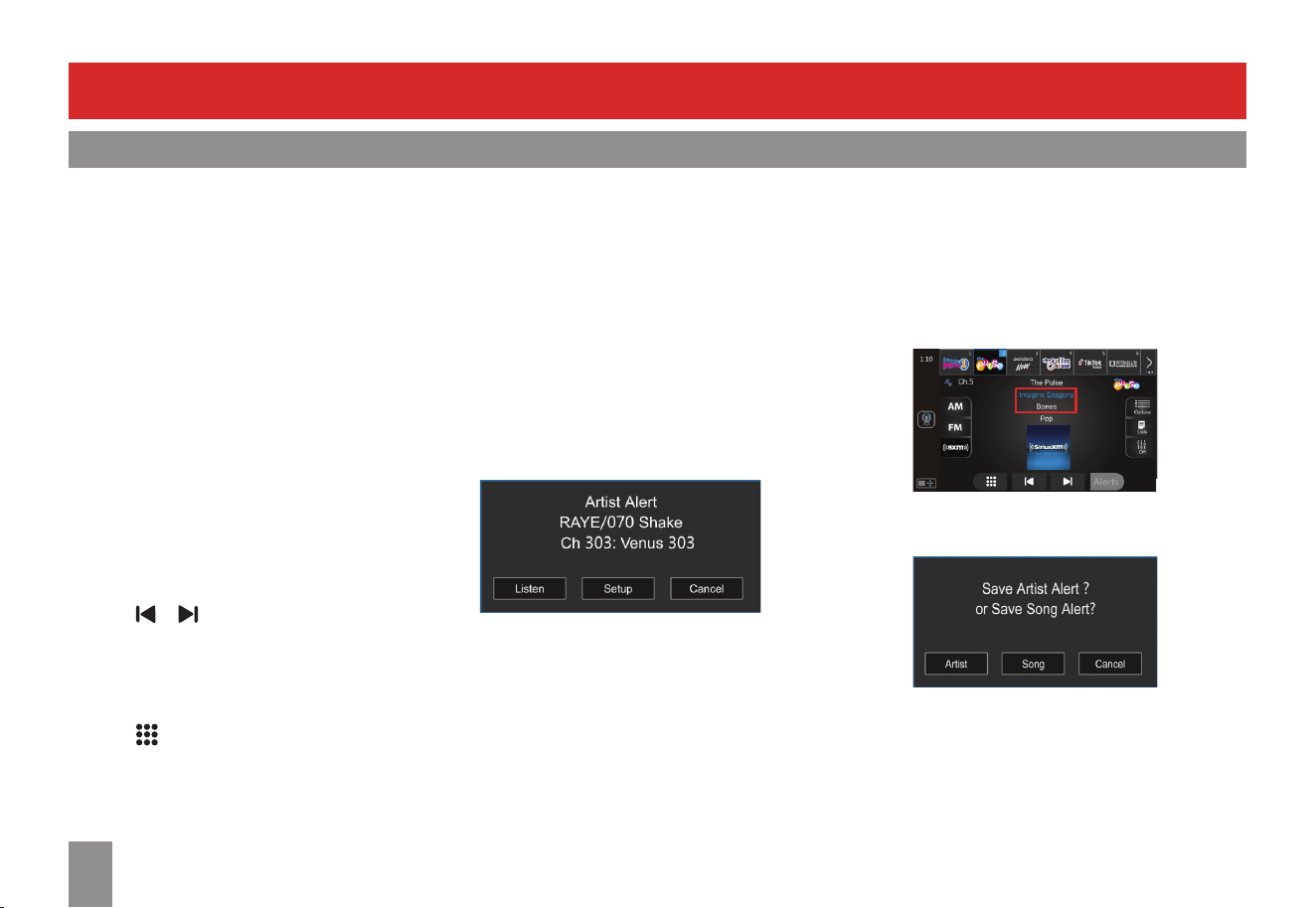
SiriusXM Home Screen
1 2 43 5 6
12
13
8
7
9
10
11
1
Return to the home menu.
2
Switch between AM, FM and SiriusXM radio.
3
Search a channel by input of channel number
4
Album Art: Display the image that represents
the current music channel. When Album art
image is not available, the channel logo or
SiriusXM logo will be displayed.
Compatible with SXV200 or later (SiriusXM
Vehicle Tuner). Not all music channels contain
album art images.
5
Select the previous channel.
6
Select the next channel.
7
View the alerts list for the saved artist names
and song titles.
2.
Check your Radio ID for activation.
The SiriusXM Radio ID is required for
activation and can be found by tuning to
Channel 0 as well as by looking on the label
found on the SiriusXM Vehicle Tuner and its
packaging.
• The Radio ID does not include the letters I, O,
S or F.
3.
Activate the subscription.
For users in the U.S.A.:
Visit www.siriusxm.com/activatenow, or call
SiriusXM Listener Care at 1-866-635-2349
For users in Canada:
Visit www.siriusxm.ca/activate, or call
SiriusXM Customer Care at 1-888-539-7474
4.
Conrm the activation.
As part of the activation process, the SiriusXM
satellites will send an activation message
to your SiriusXM Vehicle Tuner. When your
head unit detects that the Tuner has received
the activation message, your head unit will
display [Subscription Updated].
Once subscribed, you can tune to channels in
your subscription plan. Note, the activation
process usually takes 10 to 15 minutes, but
may take up to an hour. Your head unit will
need to be powered on and receive the
SiriusXM signal to obtain the activation
message.
12
SiriusXM Radio
Using SiriusXM Radio
8
Select a preset sound mode.
9
Access alerts/category/channel list to enable
alert or select a channel.
10
Access SiriusXM radio settings.
11
Artist/song name display zone (touch the
zone to save the current artist name or song
title as alert).
12
Access more channel presets.
13
Select a stored channel; touch and hold to
preset the current channel.
Channel Logos: Display SiriusXM channel
logos to allow for a graphical representation
of the current channel identier.
Select a Channel
You can select a channel via one of the
followings.
• Touch
or to select the previous or next
channel.
• Touch [Lists] to access the channel and
category lists. Find a channel by category, or
artist, song or content info.
• Touch
to display the numeric keypad.
Input a channel number.
• Touch a channel logo at the top of the home
screen to select a preset channel.
Preset a Channel
Touch and hold a preset number in the top bar
of the screen. The current channel will be stored
as a preset. Repeat the step to preset more
channels.
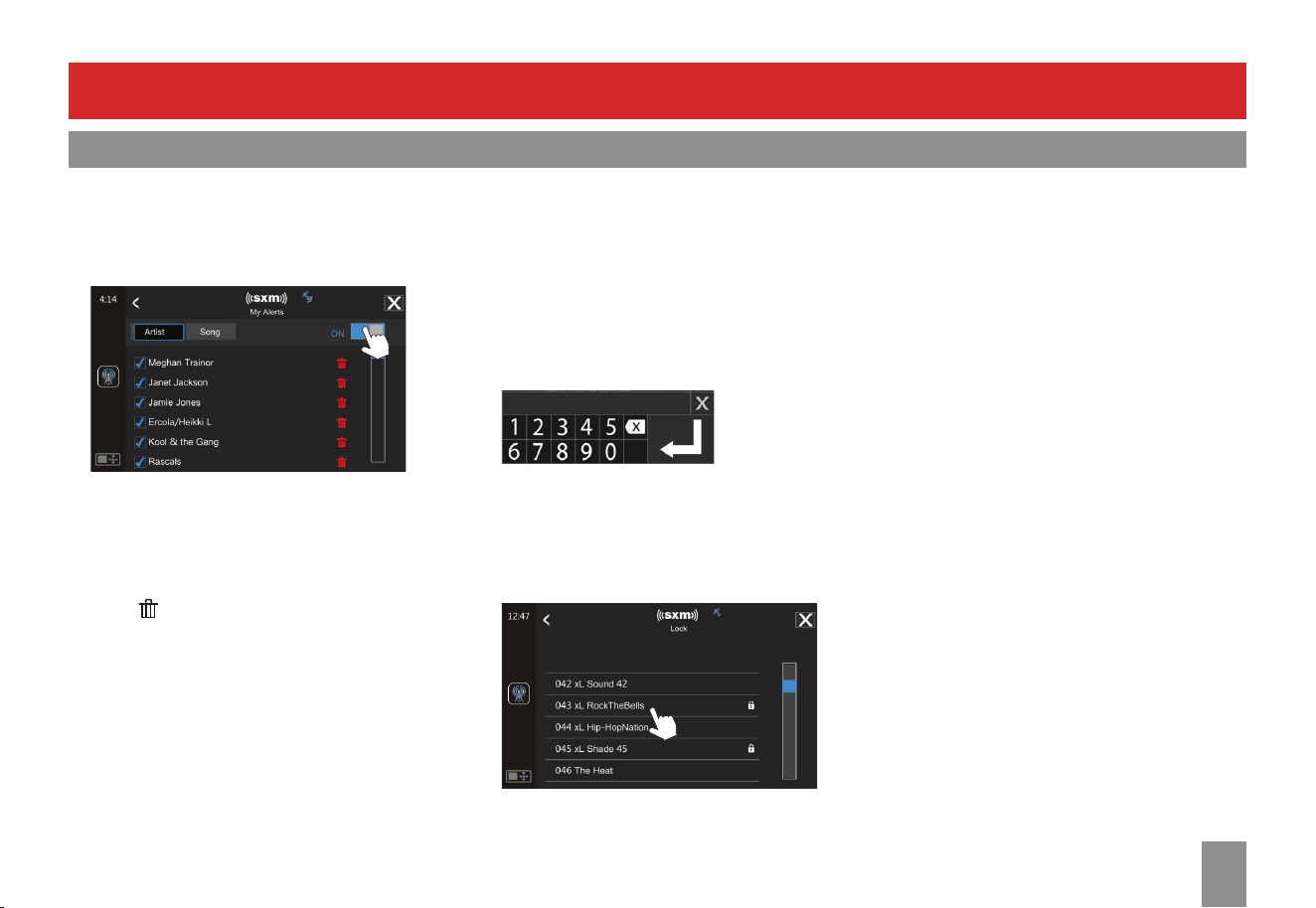
Artist & Song Alerts
When your favorite artist or song is broadcast on
another channel, an alert message will appear
to let you switch the current channel to the
relevant channel.
[Listen]: Switch to the channel where your set
artist or song is being broadcast.
[Setup]: Display the alerts setting menu in case
of deactivating alert feature.
[Cancel]: Skip the alert and stay tuned to the
current channel.
Set Artist & Song Alerts
Step 1: Save as Alerts
1.
When listening to your favorite artist/song,
touch the artist/song name display zone on
the home screen, as shown in the red box
below.
2.
An prompt is displayed for you to set artist or
song alert.
3.
Touch [Artist] or [Song] from the prompt.
The artist name or song title will be saved
into the alert list.
Up to 50 artist/song alerts can be saved.
13
SiriusXM Radio
Using SiriusXM Radio
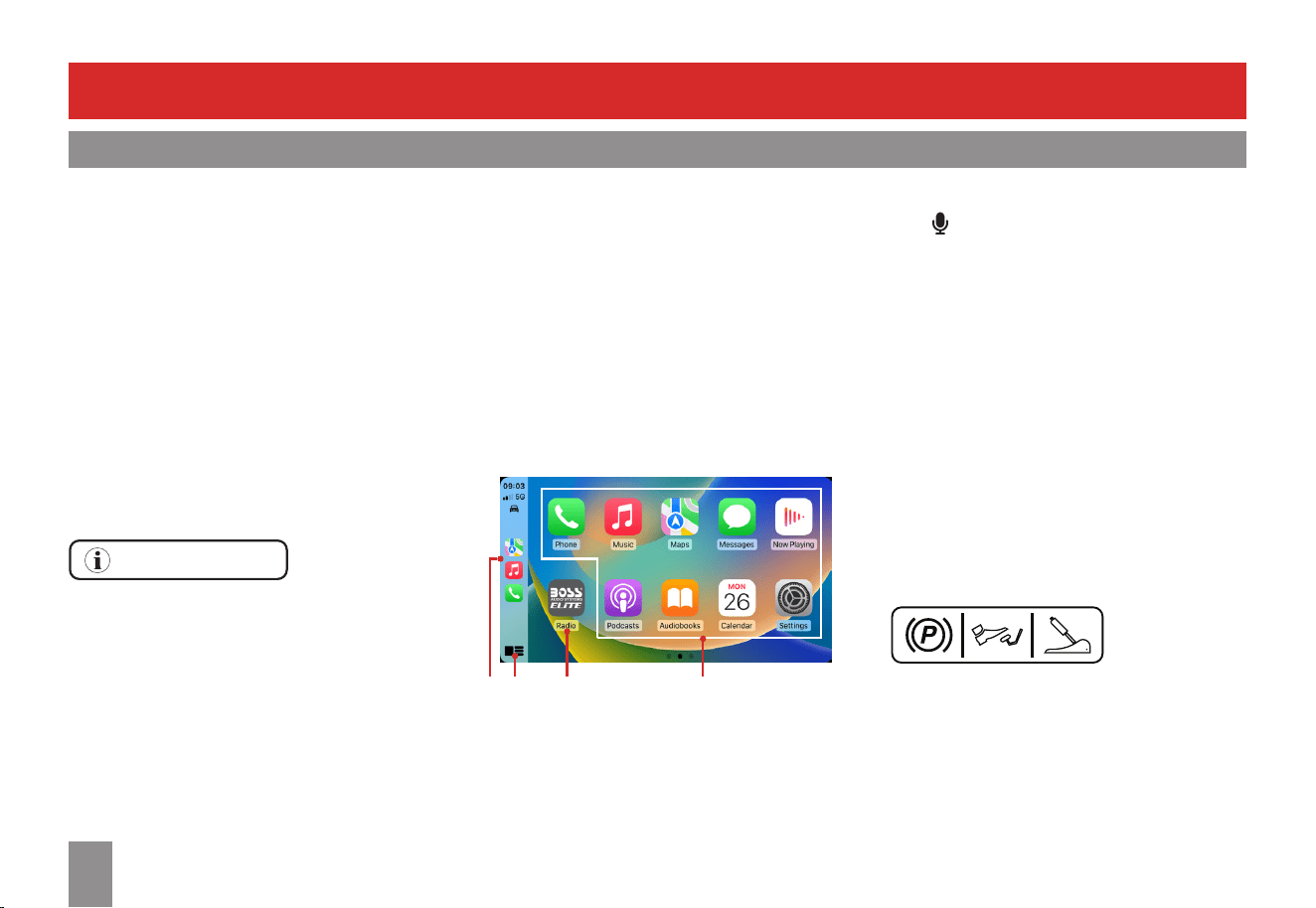
Step 2: Enable Alerts
1.
From the SiriusXM home screen, touch [Lists]
> [My Alerts] to access the alert list where
the artist names and song titles are saved.
2.
Touch [Artist] or [Song] tab, and select each
artist or song from the alert list.
A check mark appears beside the selected
item.
To delete an artist or song from the alert list,
touch
.
3.
Enable alert function. Touch [ON/OFF] switch
on the alert list.
Parental Control
This feature allows you to restrict access to any
SiriusXM channels, including those with mature
content. A password is required to tune to a
locked channel.
1.
From the SiriusXM home screen, touch
[Options] > [Parental Control]. A numeric
keypad is displayed.
Please Enter Passcode
2.
Enter 4-digit password (0000 as default) to
access the channel list.
3.
In the channel list, select a channel to lock.
When a channel is locked, a lock icon is
displayed beside the locked channel name.
Change Your Password
You can change the password for the parental
control.
From the SiriusXM home screen, touch [Options]
> [Change Passcode], enter your current 4-digit
password (0000 as default), then enter your new
password.
14
Apple CarPlay Introduction
CarPlay provides a smarter, safer way to use your
iPhone while driving. The apps on your iPhone
can be loaded and displayed on the screen of
this unit. Thus, you can navigate, call, control
you music and so more with hands-free control
on your mobile phone.
For more details about Apple CarPlay, visit
http://www.apple.com/ios/carplay.
Compatible iPhones
CarPlay works with iPhone 5 and all the way up
to the most recent versions.
IMPORTANT NOTE
When CarPlay is enabled, hands-free calls and
streaming through Bluetooth is disabled.
You can make hands-free calls and streaming
through the CarPlay app.
Apple CarPlay
Using CarPlay
Connect your iPhone
USB cable connection will enable CarPlay
feature. iPhone pairing is not needed.
1.
Connect your iPhone to the "Apple CarPlay"
USB port, using an Apple-certied lightning
cable with factory length or shorter (not
included). (P.32)
The apps from the iPhone will be loaded
onto the unit.
Touch the Apple CarPlay icon on the unit's
home menu to access the loaded apps for
navigation, phone and music, etc.
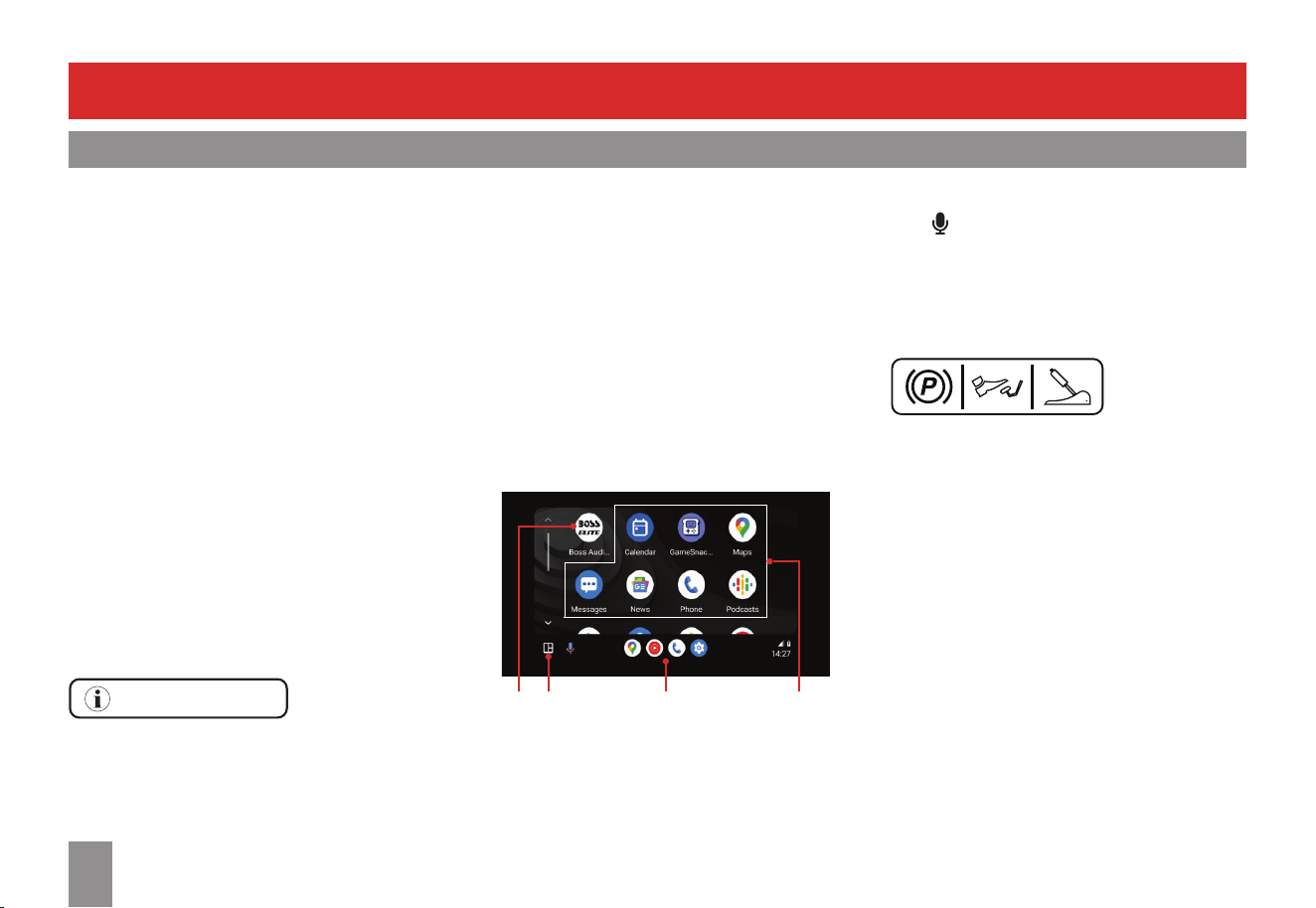
1. Menu bar: Touch an app icon for quick access.
2. CarPlay Home button: Return to the CarPlay
home screen.
3. Unit's Home button: Exit the CarPlay screen
and return to the unit's home menu.
4. Apps loaded from the iPhone.
1 2
3
4
Use Voice Assistant
Press
on the unit's front panel to activate
voice assistant, then speak your command.
Make sure the supplied external microphone is
connected to the unit. (P.32)
Change Menu Bar Position
For driving seat convenience, you can change
the menu bar from the let side to the right side
of the screen and vice versa.
1.
From the unit's home menu, select
[SETTINGS] > [General] > [Right Hand Drive].
2.
Enable or disable the option to change the
position of the menu bar. Restart the unit to
make the change eective.
For your safety, park your vehicle in a safe place
and engage the parking brake when you make
any setup which requires extended time.
15
Apple CarPlay
Using CarPlay
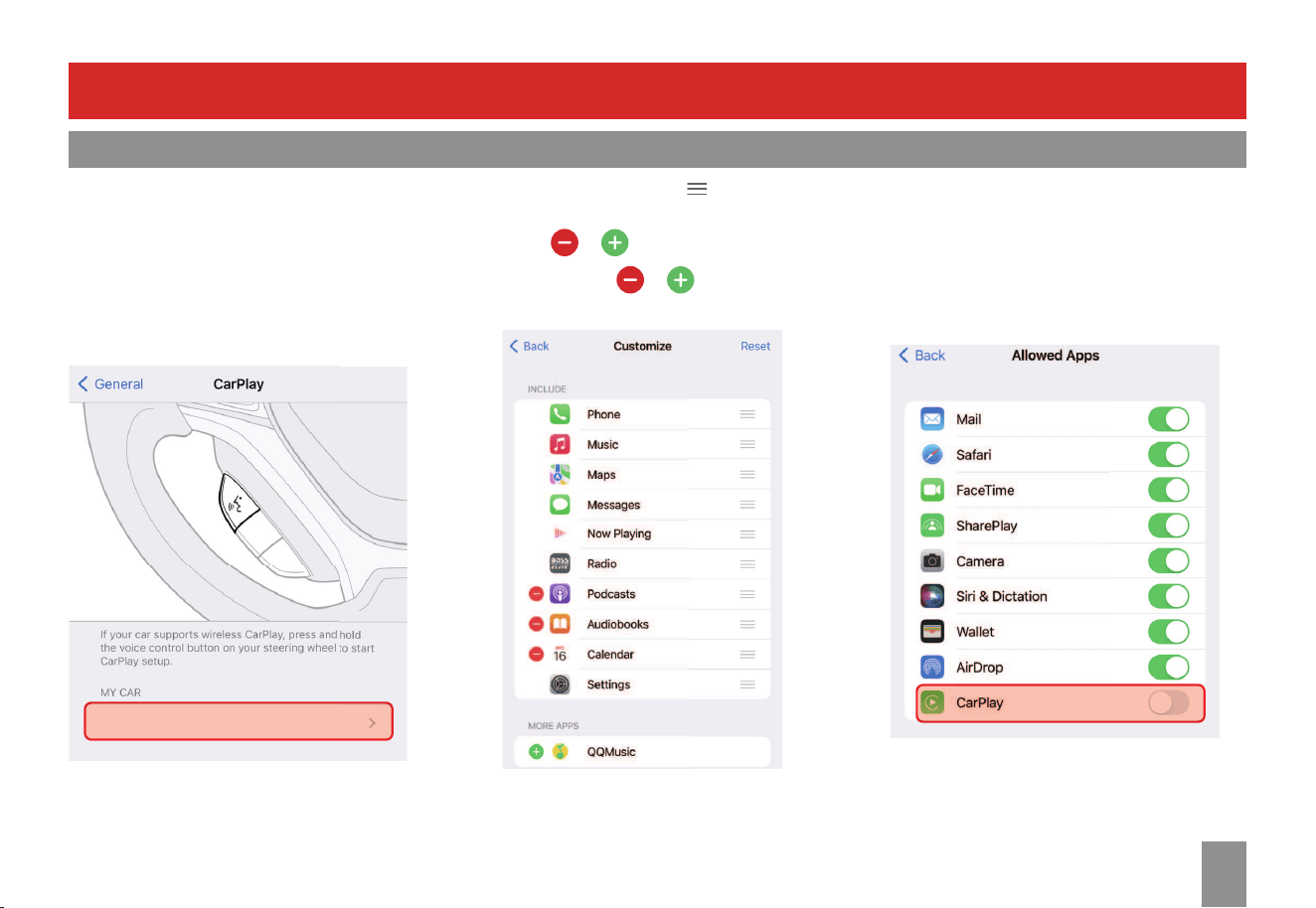
Arrange your CarPlay Apps
You can add, remove, or arrange the order of the
apps on the CarPlay screen of the unit.
1.
On your iPhone, go to Settings > General
> CarPlay, select this unit's name from
the device list (shown below). Then select
Customize to access CarPlay apps.
BOSS AUDIO BE7ACP.X
2.
Touch and drag an app (
) to change the
order of the app.
Touch
or to remove and add apps.
Only apps with
or can be removed
from CarPlay or added in CarPlay.
Disable CarPlay Apps
You can disable all CarPlay apps to restrict
CarPlay use on this unit.
On your iPhone, go to Settings > Screen Time
> Contents & Privacy Restrictions > Allowed
Apps > CarPlay.
16
Android Auto
Using Android Auto
Android Auto Introduction
Android Auto allows the apps on your Android
phone to be loaded and displayed on the screen
of this unit. Thus, you can navigate, call, control
you music and so more with hands-free control
on your mobile phone.
For more details about Android Auto, visit
http://www.android com/auto.
Compatible Android Phones
Android Auto works with phones running
Android 6.0 and later.
Android Auto App
• Phones with Android 9.0 and earlier needs
Android Auto app downloaded from Google
Play Store.
• Phones with Android 10 and above do not
need to download Android Auto app.
IMPORTANT NOTE
When Android Auto is enabled, hands-free calls
and streaming through Bluetooth is disabled.
You can make hands-free calls and streaming
through the Android Auto app.
Connect your Android Device
USB cable connection will enable Android Auto
feature. Bluetooth pairing is automatically
between the unit and your phone.
1.
Connect your Android phone to the "Android
Auto" USB port, using a certied cable with
factory length or shorter (not included).
(P.32)
The apps from the Android device will be
loaded onto the unit.
Touch the Android Auto icon on the unit's
home menu to access the loaded apps for
navigation, phone and music, etc.
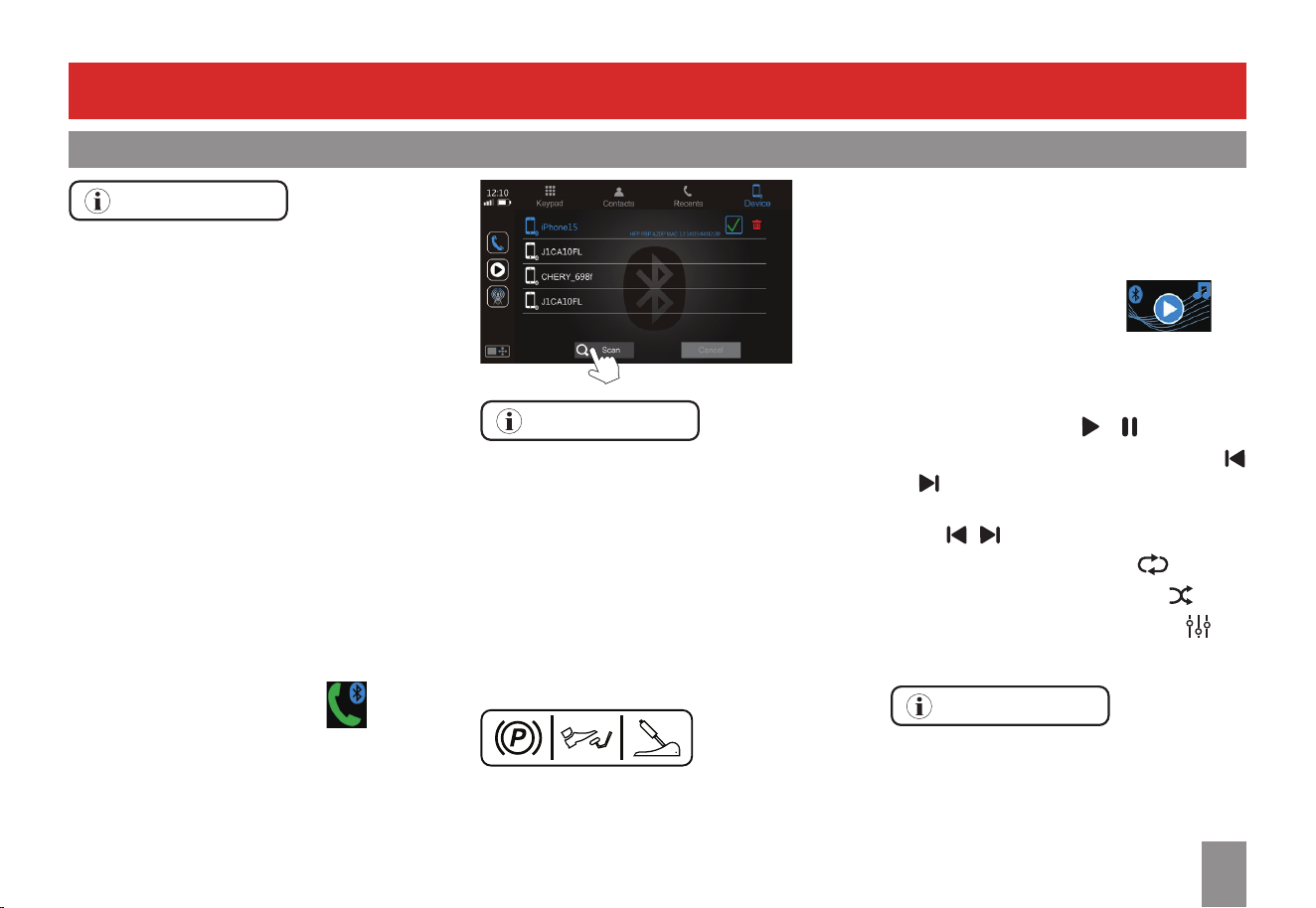
1
Unit's Home button: Exit the Android Auto
screen and return to the unit's home menu.
2
Menu bar: Touch an app icon for quick access.
3
Android Auto Home button: Return to the
Android Auto home screen.
4
Apps loaded from the Android Phone.
2 3 4
1
Use Voice Assistant
Press
on the unit's front panel to activate
voice assistant, then speak your command.
Make sure the supplied external microphone is
connected to the unit. (P.32)
For your safety, park your vehicle in a safe place
and engage the parking brake when you make
any setup which requires extended time.
17
Bluetooth
IMPORTANT NOTE
Bluetooth on the unit is enabled only when
CarPlay or Android Auto is not connected.
Make sure your CarPlay or Android Auto is
disconnected for Bluetooth use.
Compatibility with all mobile devices is not
guaranteed.
First Time Connection
When you connect your Bluetooth device to this
unit for the rst time, pair the device via either
of the options below.
Make sure Bluetooth on your device is enabled.
Option 1
On your mobile device, go to Settings >
Bluetooth, and select this unit's name (BOSS
AUDIO BE7ACP.X) to pair.
Option 2
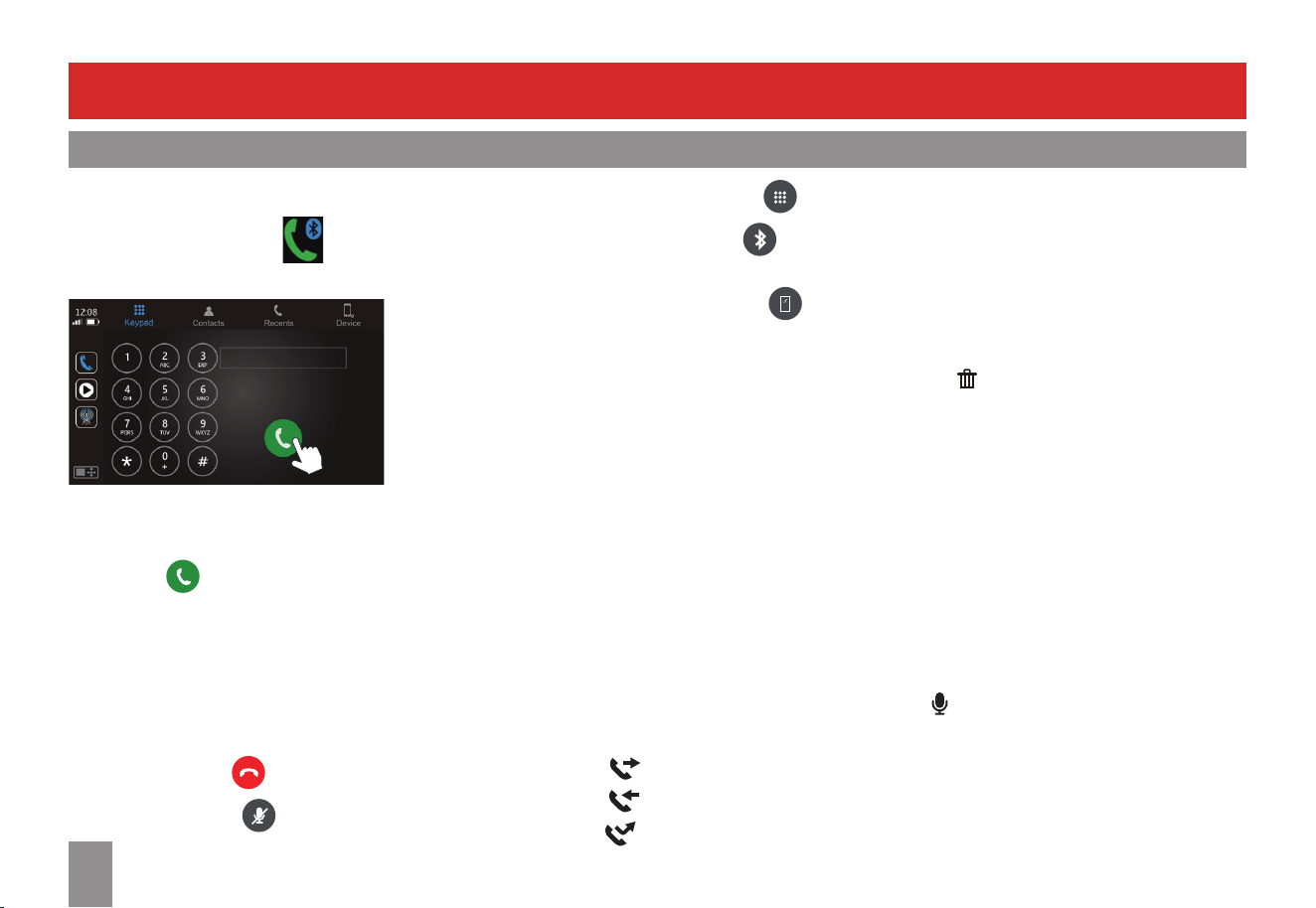
From the unit's home menu, touch
.
The Bluetooth interface is displayed.
Touch [Device] tab, then [Scan] to search for
available Bluetooth devices, and select your
Bluetooth device name to pair.
IMPORTANT NOTE
When prompted during pairing, select "Allow"
on your mobile phone so that your phonebook
and call history can be downloaded and
displayed on the screen of this unit.
Bluetooth Reconnection
After your mobile device is paired with the unit,
the two will automatically reconnect each time
they are turned on.
For your safety, park your vehicle in a safe place
and engage the parking brake when you make
any setup which requires extended time.
Connection Streaming
Audio Streaming
Before you can stream audio from your mobile
device to this unit, make sure Bluetooth
connection is made.
1.
From the home menu, touch
.
The music from the device plays automatically.
Playback Control
• To play or pause, touch
or .
• To skip to the previous or next track, touch
/
.
• To search fast backward or forward, touch and
hold
/ .
• To select a repeat mode, touch
.
• To turn on or o shue play, touch
.
• To select a preset sound mode, touch
.
IMPORTANT NOTE
For best performance, your mobile device
volume should be set to maximum.
All volume adjustment should be controlled
from the unit.
18
Bluetooth
Hands-free Call
Make a Call
From the home menu, touch .
The calling interface is displayed.
3 Options to Dial a Bluetooth Call
• Input a phone number on the virtual keypad,
and touch
.
• Touch [Contacts] tab to access your contact
list, then touch a contact.
• Touch [Recents] tab to access your call
history, then touch a number.
Operation During a Call
• To end a call, touch .
• To mute a call, touch .
• To use a keypad during a call, touch
.
• To switch to private mode, touch
. The
call will move to your mobile device.
• To return to hands-free mode, touch
.
The call will move back to the unit.
Sync Phonebook and History
Touch [Contacts] or [Recents] tab, then
[Download].
The phonebook and call history from your
mobile phone will be displayed on the unit.
Search a Contact
Touch [Contacts] tab, then [Search]. The
alphanumeric keypad is displayed. Enter a
contact name for search.
Browse Call History
Touch [Recents] tab to display the call history.
Outgoing call
Incoming call
Missed call
View Connection Status
Touch [Device] tab to display the paired devices.
• A check mark indicates the currently
connected device.
• To connect a paired device, simply touch the
paired device name.
• To delete a paired device from the memory,
touch
.
Voice Assistant (Push-To-Talk)
You can access smartphone voice assistant
through the unit.
Before you Start
• Enable Bluetooth connection between your
smartphone and the unit, or enable Apple
CarPlay/Android Auto.
• Make sure the hands-free microphone is
connected to the Microphone Input of the
unit for audio input. (P.32)
Press
on the unit's front panel to activate
voice assistant, then speak your command.
Voice Assistant (Push-To-Talk)
19
USB
USB Playback
You can play audio, video and photos stored on
a USB ash drive. Make sure your USB ash drive
is connected to the front USB-C port or rear
USB-A port.
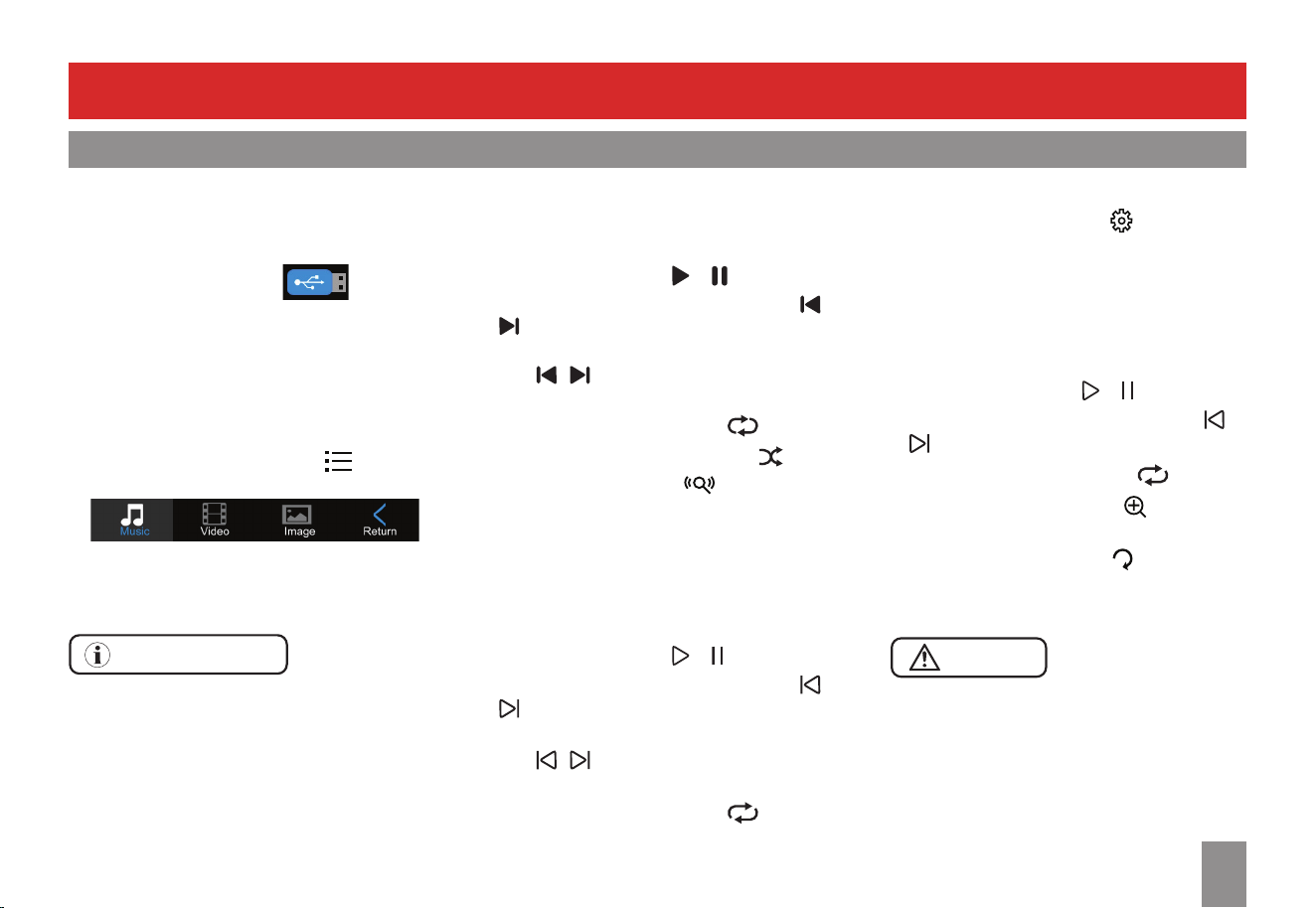
From the home menu, touch
.
Music from the device plays automatically.
If there are audio, video and photo les in the
USB, audio les will play rst.
Audio/Video/Photo Play Switching
1.
In the playback interface, touch
. The le
browser bar is displayed.
2.
Touch [Music], [Video], or [Image] tab to
select an audio, video or picture le to play.
IMPORTANT NOTE
Video and photo cannot not be viewed while
driving. The vehicle must be stationary and the
parking brake applied to enable viewing.
To activate viewing, also make sure the parking
brake switch wire (Light green) is properly
connected to your vehicle. (P.30)
Audio Playback
In the audio playback interface, playback control
is displayed.
• To play or pause, touch
or .
• To skip to the previous or next le, touch /
.
• To search fast backward or forward, touch and
hold
/ until a speed number appears
then touch repeatedly to select a search speed.
• To select a repeat mode, touch
.
• To turn on or o shue play, touch
.
• To search for a le, touch
then enter a
number on the virtual numeric keypad.
Video Playback
In the video playback interface, touch the screen
to display playback control.
• To play or pause, touch
or .
• To skip to the previous or next le, touch
/
.
• To search fast backward or forward, touch and
hold / until a speed number appears
then touch repeatedly to select a search speed.
• To select a repeat mode, touch
.
Video Settings
During video playback, touch
to access the
Brightness / Contrast / Color settings.
Photo Playback
In the photo playback interface, touch the
screen to display playback control.
• To play or pause, touch
or .
• To select the previous or next le, touch
/
.
• To select a repeat mode, touch
.
• To enlarge the picture, touch
then drag
the magnifying slider.
• To rotate the picture, touch
.
WARNING
Watching video or photo while driving is against
Federal, State, and Local laws.
Do not use features of this unit if it cannot be
operated safely and legally in your location.
20
Other External Devices
Playback
From the home menu, touch .
Audio and video input screen is displayed.
Audio Input
You can listen to an audio device (e.g. a mobile
phone or MP3 player) through this unit.
Audio Cable Connection
Connect the RCA inputs ("L-IN" and "R-IN") on
the unit's back to the audio output on your
device. (P.31)
If your device does not have an RCA, use the
following audio cable (not included).
• For a device with 3.5mm headphone jack, use
a 3.5mm to RCA audio cable.
• For a device with USB-C port, use a USB-C to
RCA audio cable.
Video Input
You can play video from a playback device (e.g.
a CD/DVD, etc.).
AV Cable Connection
Using audio/video cables (not included), connect
the RCA inputs ("L-IN", "R-IN" and "V-IN") on the
unit's back to the RCA outputs (yellow/white/
red) on your playback device. (P.31)
IMPORTANT NOTE
Use the controls on the external device for
playback control.
Video and photo cannot not be viewed while
driving. The vehicle must be stationary and the
parking brake applied to enable viewing.
To activate viewing, also make sure the parking
brake switch wire (Light green) is properly
connected to your vehicle. (P.30)
WARNING
Never rely solely on the backup camera; always
check your surroundings before backing up.
Images may appear reversed if your camera is
not properly installed or set up.
Do not use features of this unit if it cannot be
operated safely and legally in your location.
Make sure front/rear camera connection is
correctly made. (P.32)
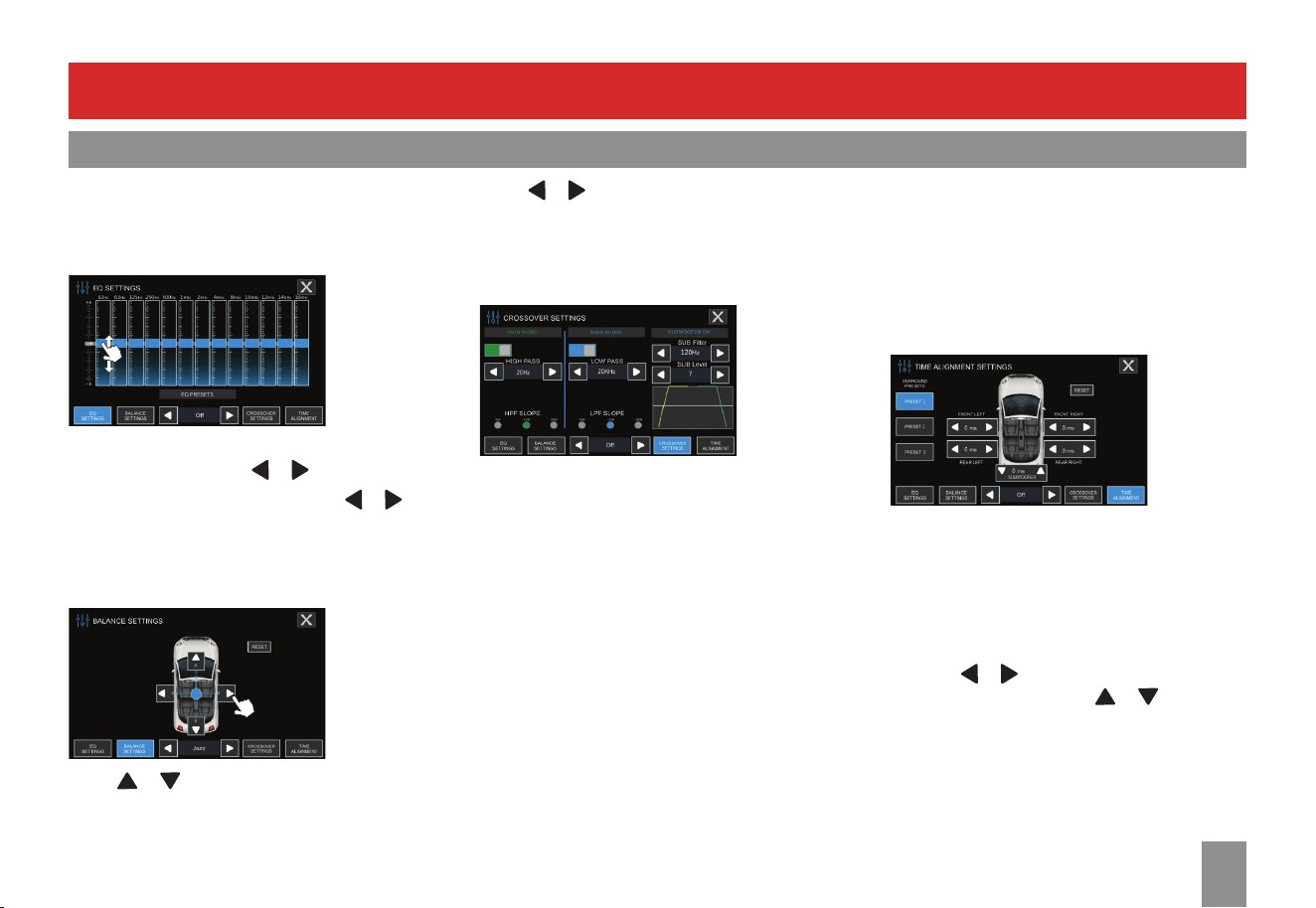
Manual Camera Trigger
From the home menu, touch the rear camera
icon (
) or the front camera icon ( ) to
display the camera view.
Note: If the camera icon is grayed out, enable
the camera input. From the home menu, touch
[SETTINGS] > [Camera].
On the camera view screen, touch the camera
icon to switch between front and rear camera
view.
Automatic Camera Trigger
When the vehicle is put into reverse gear, the
rear camera view will turn on automatically.
The front camera view is not accessible when
reversing.
IMPORTANT NOTE
For automatic rear camera trigger, make sure
the purple/white wire (labeled "REVERSE") is
connected to the reverse light. (P.28)
Audio/Video Input Camera
21
Sound Settings
Set Sound Eects
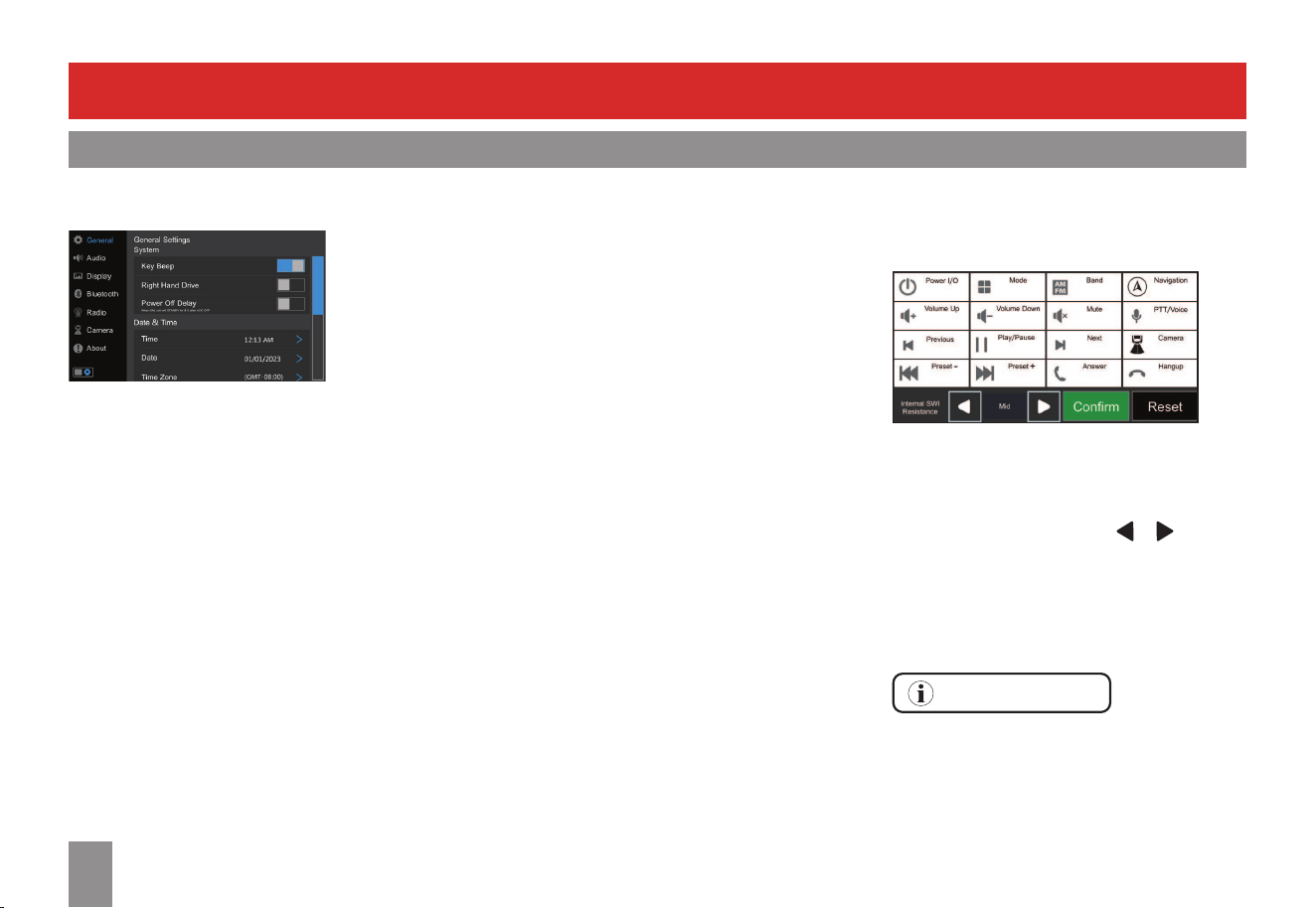
From the home menu, touch [SETTINGS] >
[Audio] > [EQ] to access sound settings.
Sound Mode and Equalizer Setting
To select a preset sound mode (Jazz, HipHop,
Pop, Rock or R&B), touch
or .
To customize equalizer setting, touch
or
until [Custom] appears then swipe up or down
each frequency bar to adjust decibel output.
Volume Balance Setting
Touch or to adjust front and rear volume
balance until the sound has a satisfying depth.
Touch
or to adjust right and left volume
balance until you are pleased with the sound
and a suitable balance is found.
Crossover Frequency Setting
[HIGH PASS]: Adjust High Pass Filter (HPF)
for main audio (radio and media play). Only
the frequencies above the one you set will be
received to reproduce sound.
[LOW PASS]: Adjust Low Pass Filter (LPF) for
main audio (radio and media play). Only the
frequencies below the one you set will be
received to reproduce sound.
[HPF SLOPE]: Set a high pass lter slope in
decibels. An HPF slope determines the rate that
attenuates the frequencies below the set one.
[LPF SLOPE]: Set a low pass lter slope in
decibels. A LPF slope determines the rate that
attenuates the frequencies above the set one.
[SUB Filter]: Adjust the cuto frequency for the
subwoofer. Only the frequencies below the one
you set will be received to reproduce sound.
[SUB Level]: Adjust volume output for the
subwoofer.
Time Alignment Setting
Adjust sound delay time so that sound
from all the speakers arrives at the listener
simultaneously.
1.
Touch a preset button for settings as a
listening position. Total three presets can be
stored as dierent listening positions.
2.
Touch
or to set delay time for front and
rear speakers, and touch
or for the
subwoofer.
Experiment with dierent time values to nd
the optimal settings for you.
To clear the set values, touch [RESET].
22
System Settings
General Settings
From the home menu, touch [SETTINGS] >
[General] to access general settings.
System Tone and Shutdown Delay
[Key Beep]: Enable or disable touch sound.
[Right Hand Drive]: Change the Apple CarPlay
menu bar from the left side to the right side of
the screen and vice versa. Restart your vehicle to
make the change eective.
[Power O Delay]: Enable to keep the unit
on for three seconds after accessory power or
vehicle is turned o.
Enable shutdown delay if the unit restarts
during vehicle's crank to start.
Set Date and Time Manually
[Time]: Touch to access time setting screen.
Swipe the time eld up and down to set hours,
minutes, and 12/24 hour format respectively.
[Date]: Touch to access date setting screen.
Swipe the date eld up and down to set year,
month, and day respectively.
[Time Zone]: Select a time zone in your current
location.
[Daylight Savings Time]: Enable to adjust
Daylight Saving automatically.
Set Date and Time Automatically
[Projection Clock Sync]: Enable to automatically
set date and time from Apple CarPlay.
[Set Automatically by RDS/RBDS]: Enable to set
date and time from RDS/
RBDS radio broadcast.
Language Setting
Select English or Spanish as menu language.
Steering Wheel Control Retention
The unit allows you to retain your steering
wheel controls (SWC), via A) connection to a
steering wheel interface (not included) or B)
directly to your steering wheel control harness
if compatible with the SWC Learning Setup.
(P.28)
[SWC Fixed Settings]: Select this option if your
vehicle needs a steering wheel interface (not
included). (P.28)
Follow the instructions of your steering wheel
interface to program the unit's audio and video
functions on your steering wheel controls.
[SWC Learning Setup]: Select this option to
access function programming if your vehicle
does not need a steering wheel interface for
SWC connection. (P.28)
1.
Touch [Reset] to enable programming mode.
2.
Touch a function from the mapping chart,
then hold down a button on the steering
wheel to set the function.
If programming fails, touch
or to
try low, mid or high resistance option for
programming success.
3.
Repeat Step 2 to program the other
functions. After all mappings complete,
touch [Conrm].
IMPORTANT NOTE
The mapping tool with resistance options is not
compatible with all vehicles.
If programming fails after trying low, mid and
high resistance options, your vehicle needs a
steering wheel interface (not included) for SWC
retention.
23
System Settings
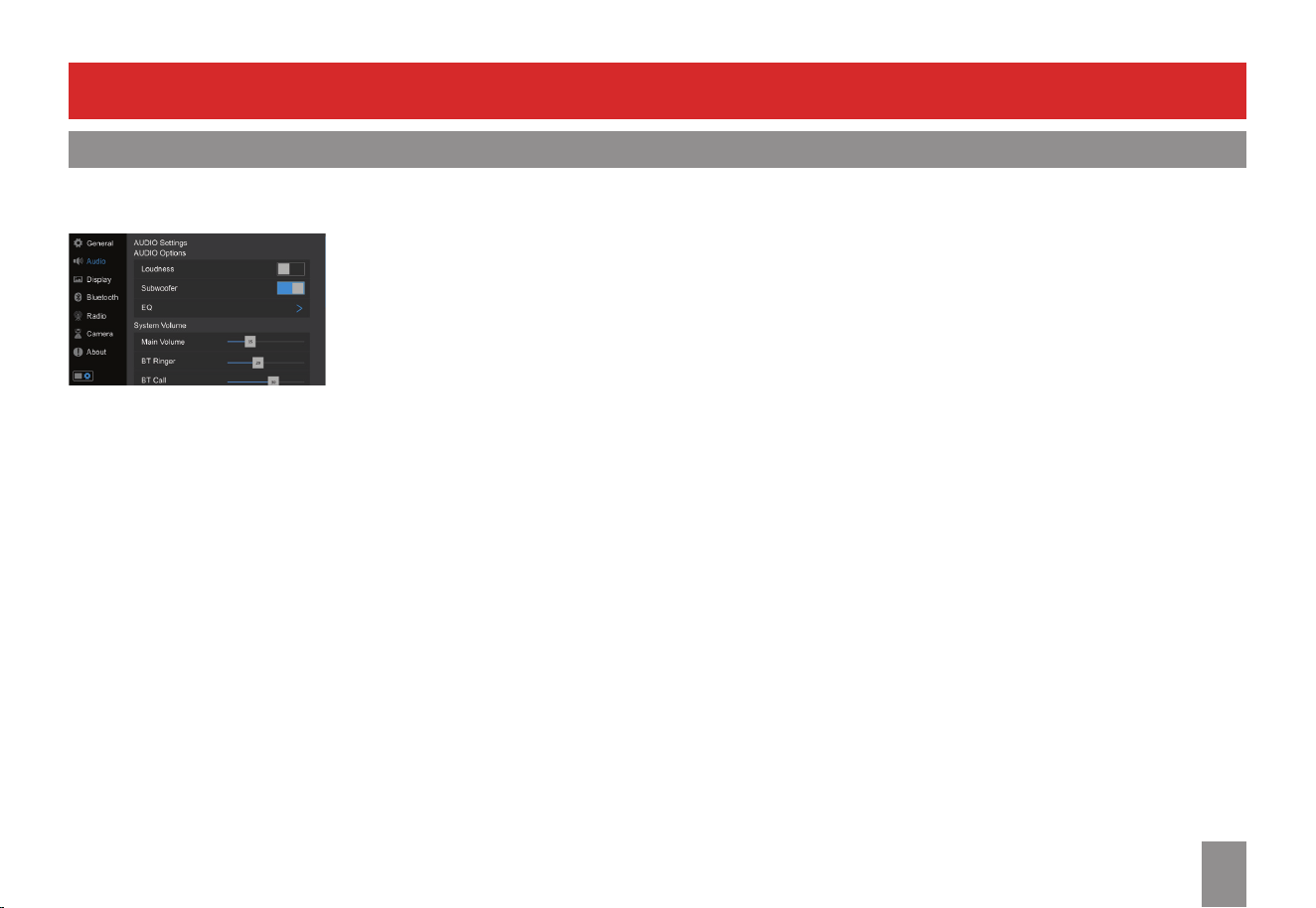
Audio Settings
From the home menu, touch [SETTINGS] >
[Audio] to access audio settings.
Loudness and Sound Eect Setting
[Loudness]: Enable to boost output of low and
high frequencies.
[Subwoofer]: Enable or disable subwoofer
output.
[EQ]: Touch to access the following sound eects
settings. (P.21)
• Sound Mode and Equalizer
• Volume Balance
• Crossover Frequency
• Time Alignment
Startup Volume Setting
[Main Volume]: Set a desired volume for main
audio (radio and media play) when the unit
starts up with main audio.
1.
Adjust the slider to set a new volume value.
2.
Startup volume will be the set volume if the
set volume is less than the last shutdown
volume (as main audio).
Startup volume will be the last shutdown
volume if the set volume is greater than the
last shutdown volume (as main audio).
Initial Volume Setting for Other
Sources
You can set desired initial volumes for the
following sources.
• [BT Ringer]: Bluetooth ringtone volume.
• [BT Call]: Bluetooth call volume.
• [Navi]: Navigation volume.
• [Voice]: Voice assistant volume.
1.
Adjust the respective slider to set a new
volume value.
2.
Initial volume will be the set volume if the set
volume is less than the last used volume.
Initial volume will be the last used volume if
the set volume is greater than the last used
volume.
Customization of a Source Volume
You can increase or decrease one of the
following source volumes, without aecting
volume of other sources:
• [Radio]: Adjust radio volume alone.
• [USB]: Adjust USB playback volume alone.
• [BT Audio]: Adjust Bluetooth streaming
volume alone.
• [AV IN]: Adjust audio input volume alone for
RCA connection.
• [Apple CarPlay]: Adjust CarPlay volume alone.
• [Android Auto]: Adjust Android Auto volume
alone.
24
System Settings
Display Settings Bluetooth Settings
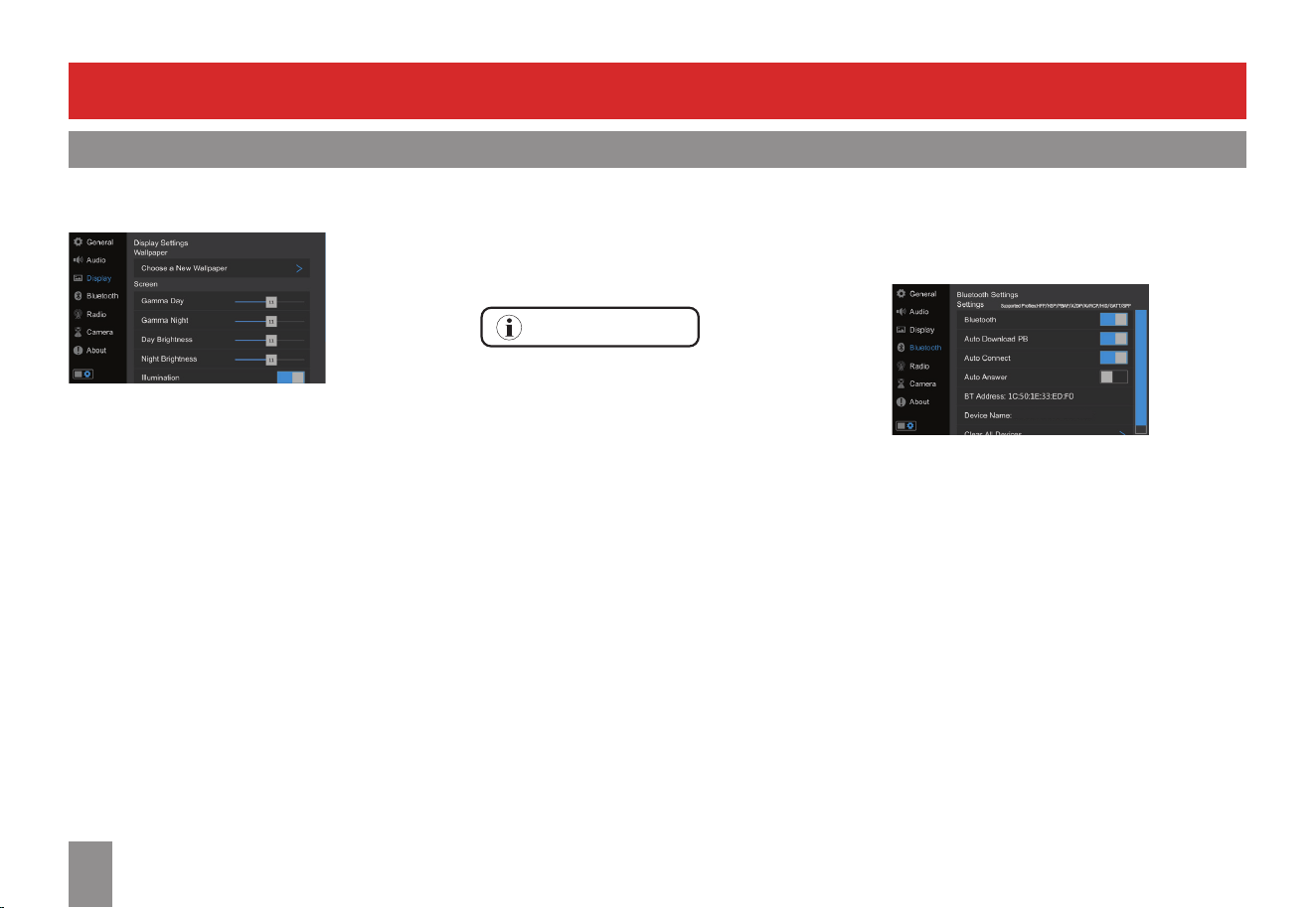
From the home menu, touch [SETTINGS] >
[Display] to access display settings.
Wallpaper Setting
[Choose a New Wallpaper]: Change a wallpaper
for home, radio, or media playback screen.
Screen Setting
[Gamma Day]: Change the dierences between
dark and light area. Applicable when your
vehicle light is turned o.
[Gamma Night]: Change the dierences
between dark and light area. Applicable when
your vehicle light is turned on.
[Day Brightness]: Adjust screen brightness.
Applicable when your vehicle light is turned o.
[Night Brightness]: Adjust screen brightness.
Applicable when your vehicle light is turned on.
Automatic Dimming Control
[Auto Dimming Control]: When enabled and the
vehicle light is turned on, the screen brightness
and panel button lights will automatically dim.
IMPORTANT NOTE
To enable night detection and auto dimming,
make sure the orange/white wire (labeled
"DIMMER INPUT") is connected to your vehicle's
parking light. (P.28)
Panel Button Light Setting
[Preset Color]: Select one of six colors for panel
button lights. Make sure [Animation Eect]
option is disabled to make the feature active.
[Animation Eect]: Enable to automatically
cycle the panel button lights through six
dierent colors.
Make sure CarPlay or Android Auto is not
connected to enable unit's Bluetooth.
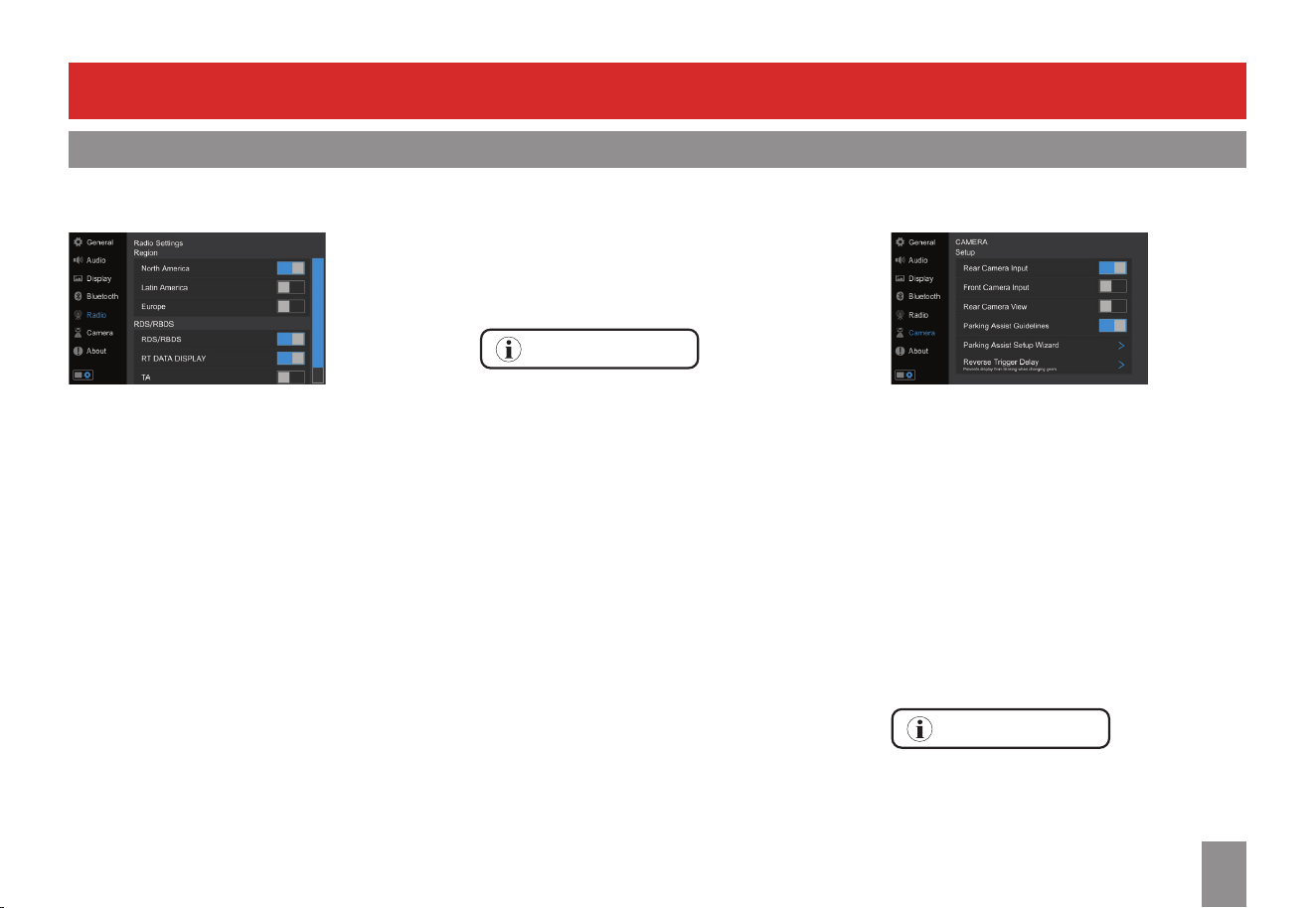
From the home menu, touch [SETTINGS] >
[Bluetooth] to access Bluetooth settings.
XXXXXXXX
[Bluetooth]: Enable or disable Bluetooth
function.
[Auto Download PB]: Enable to download the
phonebook from the connected mobile phone.
[Auto Connect]: Enable to automatically
connect the paired Bluetooth device.
[Auto Answer]: Enable to automatically answer
an incoming call.
[BT Address]: Show the unit’s Bluetooth address.
[Device Name]: Show the unit’s Bluetooth
name.
[Clear All Devices]: Clear all the paired
Bluetooth devices from the unit’s memory.
25
System Settings
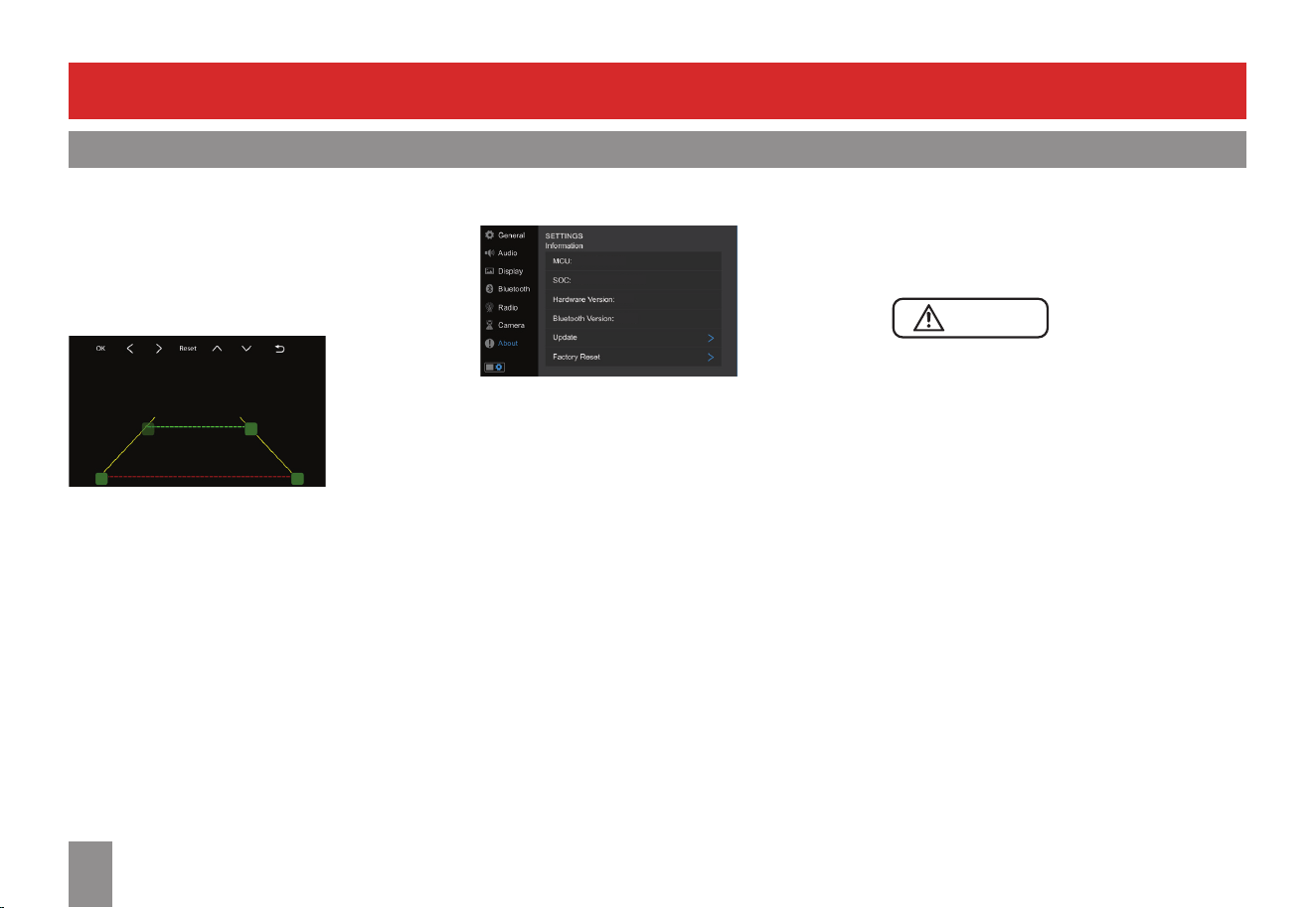
From the home menu, touch [SETTINGS] >
[Radio] to access radio settings.
Radio Region Selecting
Select a radio region where your unit is in.
[North America]: Enable if your are in this area.
Tuner spacing
:
FM (200 kHz), AM (10 kHz)
[Latin America]: Enable if you are in this area.
Tuner spacing: FM (100 kHz), AM (10 kHz)
[Europe]: Enable if you are in this area.
Tuner spacing: FM (50 kHz), AM (9 kHz)
RDS/RBDS Activation
[RDS/RBDS]: Enable or disable RDS/RBDS
function.
When disabled, the unit will not receive RDS/
RBDS service carried by FM radio signals.
RDS/RBDS Information Display
[RT DATA DISPLAY]: Enable or disable a service
that allows FM stations to display additional
information (i.e. station name, program type or
other dynamic/static message).
IMPORTANT NOTE
Not all FM stations will have or display RDS/
RBDS information.
RDS/RBDS Trac Announcement
[ TA]: When enabled, the unit will automatically
tune in to trac information broadcast despite
the media source you are currently in.
Once the trac announcement ends, the
original source will automatically resume.
RDS/RBDS Alternative Frequency
[AF]: When enabled, the unit will automatically
locate the same tuning program on other
stations and select the strongest signal of those
being broadcast.
This feature is most useful on long trips when
your car goes out of the range of a radio station.
Radio Settings Camera Settings
From the home menu, touch [SETTINGS] >
[Camera] to access camera settings.
Camera Trigger Control
[Rear Camera Input]: Enable or disable rear
camera signal input.
[Front Camera Input]: Enable or disable front
camera signal input.
[Rear Camera View]: When enabled, the rear
camera view will be laterally (left/right) inverted.
[Reverse Trigger Delay]: Delay trigger of rear
camera view by a set time. A proper time setting
prevents the unit's screen from blinking when
shifting gears.
IMPORTANT NOTE
For automatic rear camera trigger, make sure
the purple/white wire (labeled "REVERSE") is
connected to the reverse light. (P.28)
26
System Settings
Camera Settings System Information
Parking Assist Guidelines Setting
[Parking Assist Guidelines]: Disable the parking
assist guidelines built in the unit if your rear
camera view has its own parking assist guides.
[Parking Assist Setup Wizard]: Adjust the
parking assist guidelines built in the unit.
Touch and drag a square icon to reposition the
related guideline. Repeatedly touch an arrow
icon to ne tune positioning of the related guide
line. Touch [OK] to conrm the adjustment.
To reset to the default positioning of the guide
lines, touch [Reset].
From the home menu, touch [SETTINGS] >
[About] to access system information.
XXXX-XXXXXX
XXXXXX-XXXXXX
X.X.X
X.X.X
Firmware Version Information
Version information starts with MCU, SOC,
Hardware Version, or Bluetooth Version.
Firmware Update
We continually try to improve our product. The
product can be updated if needed.
[Update]: Touch to prompt rmware update.
Make sure a USB ash drive with a newer
rmware is connected to the unit’s rear USB
port (not the front USB-C port). The rmware le
must be saved in the root directory of the USB
ash drive. Unzip the le and make sure the le
name shows "BIN" extension after zipping.
Resetting the Unit
[Factory Reset]: Reset the unit to the factory
settings.
CAUTION
Reset the unit only when the unit fails to
function normally. All your settings will be
erased after resetting.
27
Unit Installation
Dash Mounting
WARNING
See the section "Installation Warnings". (P.4)
IMPORTANT NOTE
Before you mount the unit into the dash,
complete the wiring connection (P. 28 to 33).
Installation Dimensions
A
B
C
Mounting hole (A x B):
4.00" x 7.01" (101.5 x 178 mm)
Mounting depth (C): 4.57" (116 mm)
Double DIN Opening Installation
This unit is designed to be installed in the
double DIN dash opening (4" x 7").
1.
Attach the two supplied L-brackets to the
both sides of the unit, using the supplied
bolts and the screw holes on both sides of
the unit.
L shaped bracket
2.
Slide the unit into the dash opening. Then x
the unit by fastening the L-brackets around
the dash opening with proper screws (not
included).
Consult a professional installer on whether
screw hole drilling is required.
Attach the Trim Ring
After the unit is mounted into the dash, attach
the trim ring to the unit's front panel.
28
Connections
Power and Steering Wheel Control (SWC) Input Wiring
WARNING
See the section "Installation Warnings". (P.4)
IMPORTANT NOTE
Unused input/output wires need to be insulated
with tape, heat shrink, or crimp connectors.
Never use wire nuts.
Always replace the faulty fuse with the same
type and rating (15A).
"DIMMER INPUT" wire (Orange/white) must
be connected to the parking light for night
detection and auto dimming in screen and
panel button lights.
"REVERSE" wire (Purple/white) must be
connected to the reverse light wire for
automatic rear camera trigger when the gear is
changed to reverse.
* Power output is max. 500mA, 12V. It is
recommended to use a relay if additional power
is required.
** Consult a professional installer for a correct
steering wheel interface or the supplied 3.5mm
SWC cable wiring. Follow the instructions of the
steering wheel interface to complete wiring.
*** Noise lter box.
Front View
10 9 8 7 6 5 4 3 2 1
20 19 18 17 16 15 14 13 12 11
SXM
15
SUB2SUB1
FL
RL RR
R-IN
V-IN
FR L-IN
RADIO
15A ATO Fuse
REAR CAM PWR OUT (Red/white)
To rear camera for power supply *
ACC (Red)
To ignition key switch (+12V)
To vehicle’s metal frame/car chassis
To positive car battery terminal (+12V)
FRONT CAM PWR OUT (Red/purple)
SWI (3.5 mm)
DIMMER INPUT (Orange/white)
GND (Black)
BATTERY (Yellow)
REVERSE (Purple/white)
P. ANTENNA (Blue)
REMOTE TURN-ON (Blue/white)
To front camera for power supply *
To a steering wheel interface (not included), or
to your steering wheel control harness via the
supplied 3.5mm SWC cable **
To vehicle's parking light
To reverse light for rear camera trigger
To car antenna (not included) for power control *
To an amplier (not included) for power control *
Red
White
20
18
17
16
15
14
12
11
9
19
10
29
Connections
Speaker Wiring
CAUTION
Do not chassis ground any speaker wire leads.
Only use 4-8 Ω speakers.
DO NOT use 1-3 Ω
speakers.
Do not bridge any of the channels. They are only
to be wired in stereo mode.
IMPORTANT NOTE
Unused speaker wires need to be insulated with
tape, heat shrink, or crimp connectors to avoid
damage to the unit. Never use wire nuts.
Double check speaker polarity when making
connections.
Front View
10 9 8 7 6 5 4 3 2 1
20 19 18 17 16 15 14 13 12 11
SXM
15
SUB2SUB1
FL
RL RR
R-IN
V-IN
FR L-IN
RADIO
FRONT L- (White/black)
FRONT L+ (White)
FRONT R+ (Gray)
FRONT R- (Gray/black)
REAR L- (Green/black)
REAR L+ (Green)
REAR R+ (Purple)
REAR R- (Purple/black)
To rear left speaker
To front left speaker
To front right speaker
To rear right speaker
8
7
6
5
4
3
2
1
30
Connections
Parking Brake Wiring
IMPORTANT NOTE
Video and photo playback can be enabled
only when the parking brake switch wire is
connected to your vehicle, and the vehicle's
parking brake is engaged.
Park your vehicle in a safe place and engage the
parking brake to view video and photo.
WARNING
Improper connection or use of the parking
brake switch wire (e.g. defeating the safety
feature) violates Federal, State, and Local laws.
This may lead to injury, property damage, and/
or death.
Watching videos or photos while driving is
against Federal, State, and Local laws.
13
PARKING SW (Light green)
Front View
10 9 8 7 6 5 4 3 2 1
20 19 18 17 16 15 14 13 12 11
SXM
15
SUB2SUB1
FL
RL RR
R-IN
V-IN
FR L-IN
RADIO
To vehicle’s parking brake switch
Note
Parking brake switch location varies from vehicles.
Consult a professional installer.
Parking brake switch wire
31
Connections
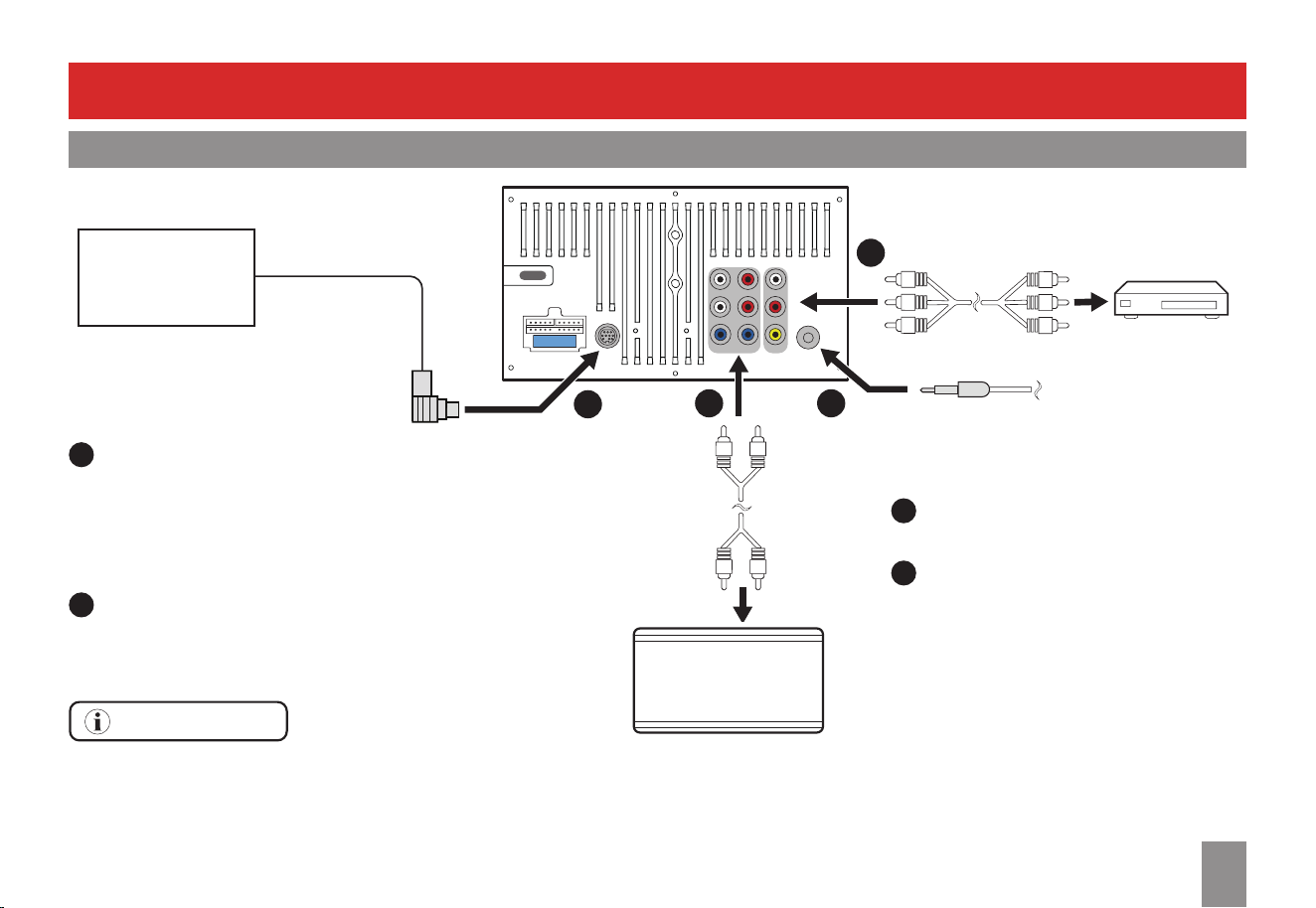
SiriusXM/AV/Radio
SXM
15
SUB2SUB1
FL
RL RR
R-IN
V-IN
FR L-IN
RADIO
SiriusXM-Connect
Vehicle Tuner
Multi-channel/
monoblock amplier
Pre-amp audio output
Front out (FL & FR)
Rear out (RL & RR)
Subwoofer out (SUB1 & SUB2)
AV input
Audio in (L-IN & R-IN)
Video in (V-IN)
External AV source
FM/AM antenna (not included)
4
1
2 3
1
Connect a SiriusXM-Connect Vehicle Tuner
(not included) before you can activate and
receive satellite radio.
For more information on how to install the
SiriusXM Vehicle Tuner, consult the SiriusXM
Vehicle Tuner Installation Guide.
2
Using RCA audio cables (not included),
connect the audio output on the unit to an
external amplier (not included).
IMPORTANT NOTE
Subwoofer pre-amp is a non-fading mono output.
Always run signal wires away from power cables
to reduce the possibility of noise.
3
Connect an FM/AM antenna (not included)
for better radio reception.
4
Using RCA audio cables (not included),
connect the audio input ("L-IN" and "R-
IN") on the unit to the audio output on an
external AV source.
Or using an RCA to 3.5mm/USB-C/lightning
adapter (not included), connect the audio
input ("L-IN" and "R-IN") to the audio output
on your mobile phone.
Using a yellow RCA cable (not included),
connect the video input ("V-IN") on the unit
to the video output on an external AV source.
32
Connections
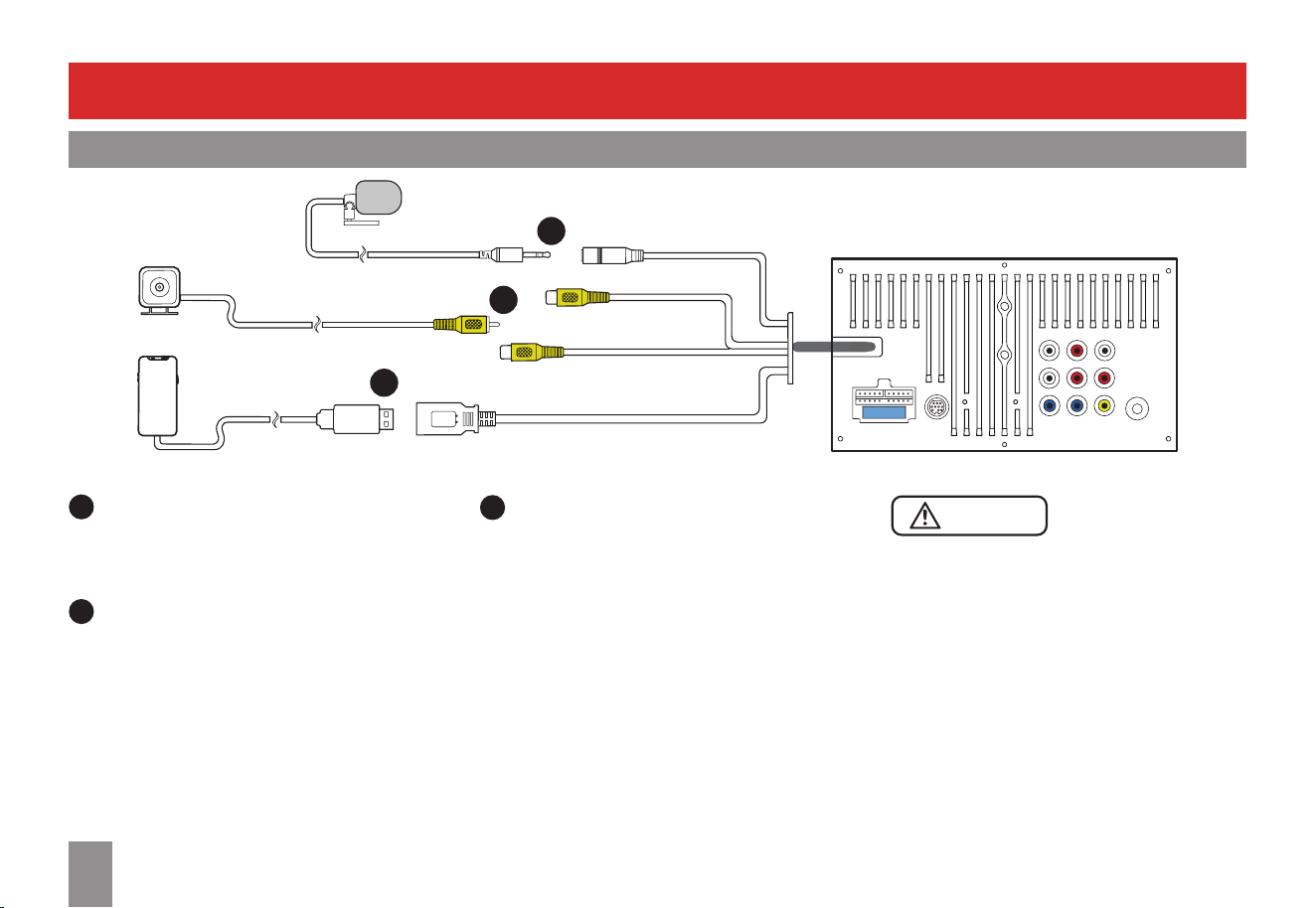
Mic/Camera/CarPlay/Android Auto
1
Connect the 3.5mm plug of the supplied
hands-free microphone for sound input
when using phone call or voice assistance
through Bluetooth or CarPlay/Android Auto.
2
Connect the RCA plug of your camera for
video signal input.
To operate your rear camera, you also need
to connect camera power and reverse signal.
(P.28)
3
Connect the lightning cable or USB cable of
your iPhone or Android device to enable use
of CarPlay or Android Auto.
You may also connect a USB ash drive for
media playback
.
WARNING
Never rely solely on the backup camera. Always
check your surroundings before backing up.
Images may appear reversed if your camera is
not properly installed or set up.
Do not use features of this unit if it cannot be
operated safely and legally in your location.
SXM
15
SUB2SUB1
FL
RL RR
R-IN
V-IN
FR L-IN
RADIO
Apple CarPlay
Android Auto
Rear Camera Input
Front Camera Input
Microphone Input
1
2
3
33
Connections
Hands-Free Mic Installation
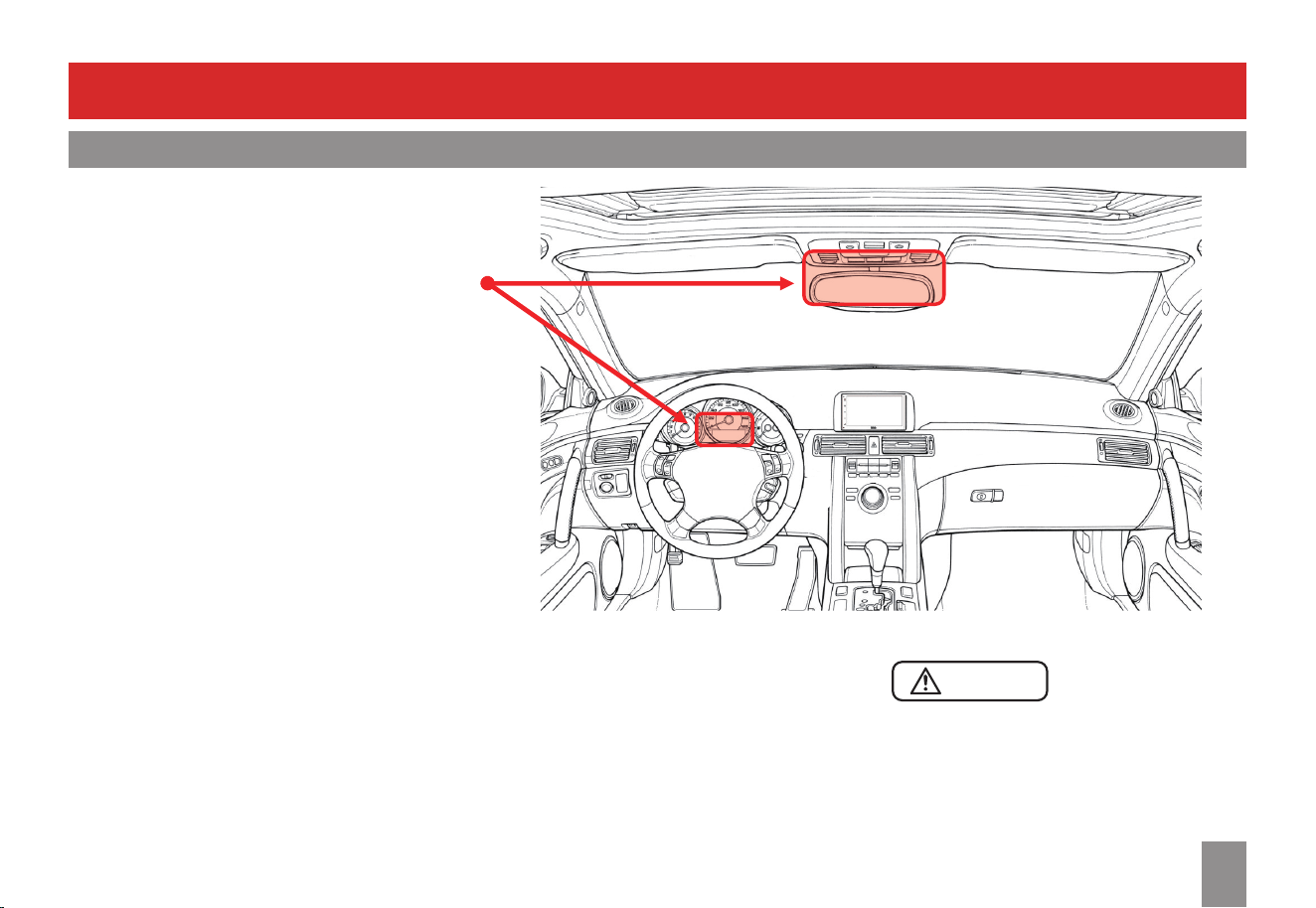
Placement
The unit comes with a hands-free microphone
with sticky base and 10ft wire.
The location of the microphone can vary
from dierent vehicles due to layout, interior
materials, etc.
The
Red shaded areas are the recommended
locations for best microphone performance.
Items to look for before placement:
• Do not place in front of air vents.
• If the vehicle has tweeters placed on sail
panel, do NOT locate the microphone on
steering column area.
• The front of the microphone must not be
blocked.
• Microphone should be rmly attached to
mounting location.
• Do not cover the grille openings surrounding
the microphone.
• To avoid excessive wind noise, do not place
near the sunroof opening.
WARNING
Run the microphone wire where it will NOT
impede with the operation of any safety items
(e.g. airbags, knee airbags, etc.)
Attach the Microphone
1.
Clean the mounting surface.
2.
Remove the backing paper from the
microphone base, then stick the base onto
the mounting surface.
3.
Route and secure the microphone wire
properly.

34
Troubleshooting
General
No response from the unit.
• Restart the unit by turning o the vehicle for
ten seconds, then turning the vehicle back on.
No sound from the unit.
• The unit is muted. Adjust the volume.
• Select the correct audio source on the unit.
USB
Cannot play a media le.
• The le format on the USB ash drive is not
supported by the unit. Change media les.
• The le system of the USB ash drive is not
supported by the unit. Change the USB drive.
No video playback or picture display.
• Video or picture display is enabled only
when the parking brake is engaged, and the
parking brake switch wire is connected to
your vehicle. (P.30)
Apple CarPlay/Android Auto
Cannot start Apple CarPlay/Android Auto
• Bad USB cable. Replace the cable.
• The mobile phone is locked. Unlock it.
• CarPlay/Android Auto is frozen. Unplug the
mobile phone, close all apps and plug the
phone in again.
Bluetooth
Cannot stream via Bluetooth.
• Make sure your mobile phone is within
Bluetooth range.
• Pair and connect your mobile phone. (P.17)
• CarPlay or Android Auto is being connected.
Unplug your mobile phone from the unit to
enable Bluetooth connection.
• Delete the paired device on both your phone
and the unit. Make the connection again.
Poor hands-free phone call quality.
• Check signal strength on your mobile phone.
• Check that the microphone is rmly attached
and plugged in. Or relocate the microphone
for noise reduction. (P.33)
Cannot make Bluetooth connection.
• CarPlay/Android Auto connection disables
Bluetooth on the unit. Unplug CarPlay
or Android Auto from the unit to enable
Bluetooth connection.
• The unit is already connected to a mobile
device. Disconnect the current Bluetooth
connection before connecting to another
Bluetooth device.
• Delete the paired device on both your phone
and the unit. Make the connection again.
FM/AM Radio
Poor radio reception.
• FM/AM antenna is not connected or
extended. Connect and secure an FM/AM
antenna (not included). (P.31)
• The antenna output wire is not connected.
Connect the wire. (P.28)
• Turn o RDS/RBDS, TA and AF. (P.25)
Important!
If you have checked the points described in the list and the problem persists, turn o the vehicle for ten seconds then turn it back on again.
If the problem still persists after restarting the unit, reset the unit by using a small pin to press the reset button on the front panel.
If you still have problems after applying suggestions above, please contact our Customer Service for further assistance.

35
Troubleshooting
SiriusXM Radio
"Check Antenna" appears.
• Check that the antenna cable is connected to
the SirirusXM-Connect Vehicle Tuner.
• Check the antenna cable for damage and
kinks. Replace the antenna cable if damaged.
SiriusXM products are available at your local
car audio retailer or online at
https://shop.siriusxm.com/all-parts/.
"Check Tuner" appears.
• Check that SiriusXM-Connect Vehicle Tuner
is securely connected to the unit (P.31), or
the Tuner is damaged.
"Subscription Updated" appears.
• Your subscription is updated. Press the
appropriate button to clear the message.
"Channel Unavailable" appears.
• The selected channel is not available. For
more information about SiriusXM channel
lineup, visit www.siriusxm.com.
"No Signal" appears.
• Verify that your vehicle is outdoors with a
clear view of the sky.
• Verify that the SiriusXM magnetic base
antenna is mounted on a metal surface on
the outside of the vehicle.
• Move the SiriusXM antenna away from any
obstructions.
• Check the antenna cable for damage and
kinks.
• Consult the SiriusXM-Connect Vehicle Tuner
installation manual for more information on
antenna installation.
"Channel Unsubscribed" appears.
• The selected channel is not subscribed.
If you have questions about your subscription
package or would like to subscribe to this
channel, in the USA, visit www.siriusxm.com
or call 1-866-635-2349; in Canada, visit www.
siriusxm.ca/activate or call 1-888-539-7474.
"Channel Locked" appears.
• The selected channel is locked by the Parental
Control feature. Enter the correct password to
unlock. (P.13)

36
Specications
General
Input voltage.............................................8.5 – 18 VDC
14.4 VDC (Nominal)
Current consumption .................................Max. 15 A
Fuse .....................................................15 A (ATO, blade)
Mounting hole (H x W)...........................4.00" x 7.01"
Mounting depth ....................................................4.57"
Unit weight ........................................................ 1.73 lbs.
Operational temperature ......................... -4 – 140°F
Display
Screen size ..................................................................... 7"
Aspect ration .............................................................16:9
Resolution ..................................................... 1024 x 600
Screen type.............................TFT-LED Active Matrix
Audio
Max power .........................................................85 W x 4
Speaker impedance ...........................................4 – 8 Ω
Preset EQ....................Jazz, HipHop, Pop, Rock, R&B
EQ bands (Adjustable).......32/63/125/250/500 Hz
1/2/4/8/10/12/14/16 kHz
EQ boost/cut .......................................................... ±6 dB
High pass lter (HPF)............20/60/80/160/250 Hz
Low pass lter (LPF)......................2/8/10/16/20 kHz
HPF/LPF slope .........................................-6/-12/-18 dB
Sub lter.......................................... 50/80/120/160 Hz
Sub level ....................................................+1 to +14 dB
Pre-amp output..................2x Front (4V, full range)
2x Rear (4V, full range)
2x Sub (mono, 4V, LPF)
Audio input............................... 2x RCA, 1 Vp-p/75 Ω
Video
Signal system .................................................NTSC/PAL
Video input (RCA).....................1x RCA, 1 Vp-p/75 Ω
Radio
Frequency range...................... 87.5 – 108 MHz (FM)
522 – 1710 kHz (AM)
Frequency step (FM)............................200 kHz (USA)
100 kHz (Latam)
50 kHz (Europe)
RDS/RBDS..............................................RT data , TA, AF
Apple CarPlay
Device support .................................iPhone 5 or later
iOS ............................................................ iOS 7.1 or later
Android Auto
Android .......................................................... 6.0 or later
USB
Front USB port ...................................................... USB-C
Media/Charging (1.5A)
Rear USB port.....................USB-A (2.0, High Speed)
CarPlay/Android Auto
Charging (1.5A)
Supported USB device ...............................Max. 32GB
File system...............................................................FAT32
Audio playback................................MP3, WMA, WAV,
FLAC (192kHz/24bit)
Video playback ....................................AVI, MKV, WMV
Picture playback.................................. JPG, PNG, BMP
Note: Not all listed media les are guaranteed
to play due to dierent creation methods or
le contents.
Bluetooth
Bluetooth version ....................................... V5.2 + EDR
Transmission range............33ft/10m (line of sight)
Bluetooth proles.........................A2DP, AVRCP, HFP,
PBAP, HSP, HID, GATT, SPP
Specications are subject to change without notice.
0724