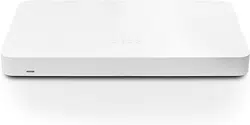
GX50 Installation Guide
This document describes how to install and set up the GX50 VPN Firewall. Additional reference
documents are available online at www.meraki.com/library/products which may help supplement
this material if necessary.
GX50 Overview
The Meraki Go GX50 is a VPN Firewall built for small business deployments that require remote
administration. It is ideal for network administrators who demand both ease of deployment and a
state-of-the-art feature set for managing retail locations or small businesses. A full overview of
the appliances' features can be found in the GX50 overview and features page.
Package Contents
In addition to the GX50 device, the following are provided:
Power Adapter (No Power Cable)
1x CAT5 Ethernet Cables
Wall Screws and Anchors
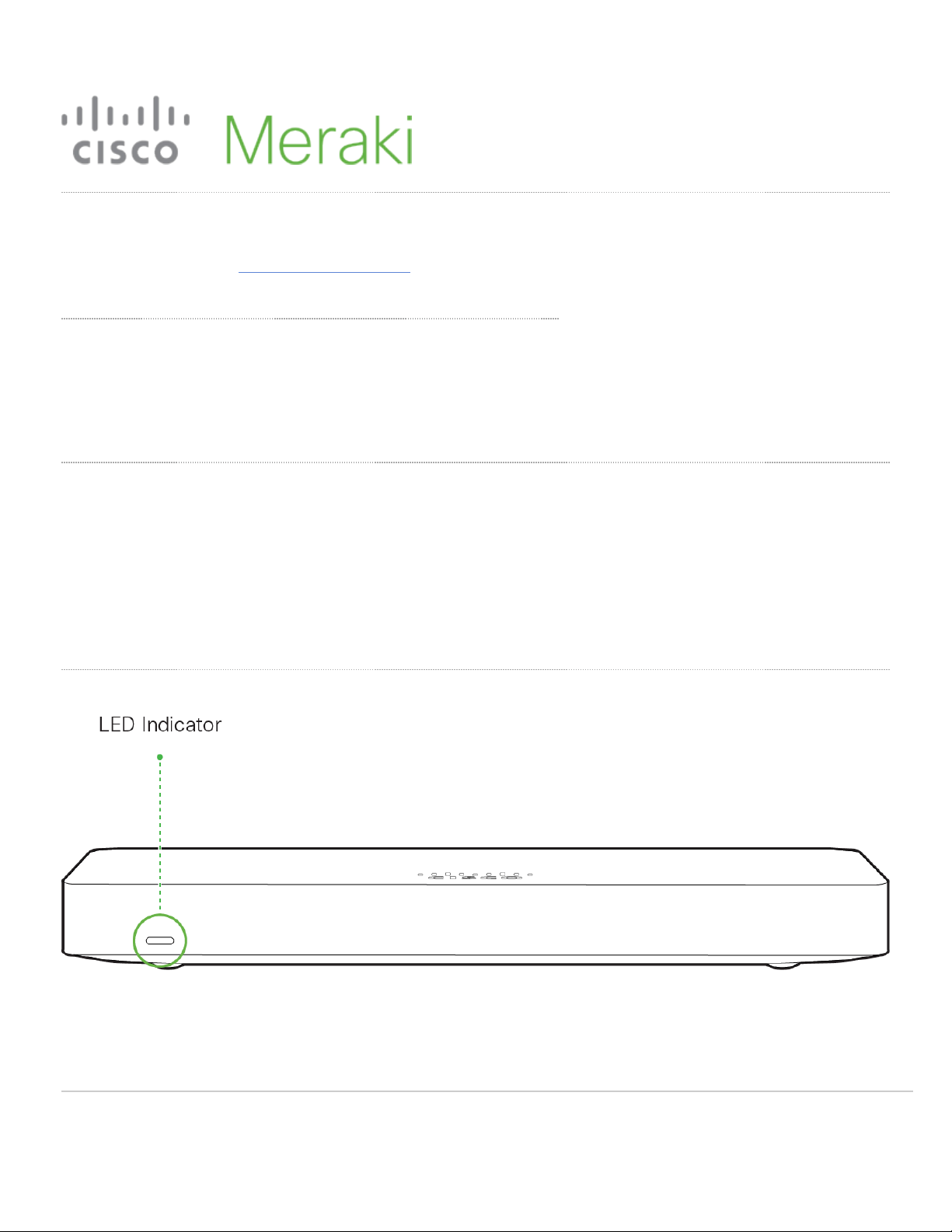
Front Panel
1

Status Indicator
The GX50 series devices uses an LED to inform the user of the device's status. LED patterns and their meanings are described below.
LED Status Meaning
Solid orange
Power is applied but the appliance is not connected to the Meraki Cloud
Controller
Rainbow Colors The appliance is attempting to connect to Meraki Cloud Controller
Flashing White Firmware upgrade in progress
Solid White
Fully operational/connected, uplink actively using wired WAN
2

Back Panel
GX50 Back Panel Functions
Additional functions on the back panel are described below, from left to right.
USB port Powered USB for charging devices.
WAN / Internet port This port provides connectivity to/from the Internet.
LAN ports
These 4 ports provide connectivity to computers, printers, access points, or
Ethernet switches.
A steady green LED indicates bidirectional connectivity, and flashing green
indicates traffic.
Power input Designed for use only with the unit’s power supply.
Reset button
Insert a paper clip if a reset is required.
Press for 1 second to delete a downloaded configuration and reboot.
Press and hold for more than 10 seconds to force a full factory reset.
3
Bottom Panel
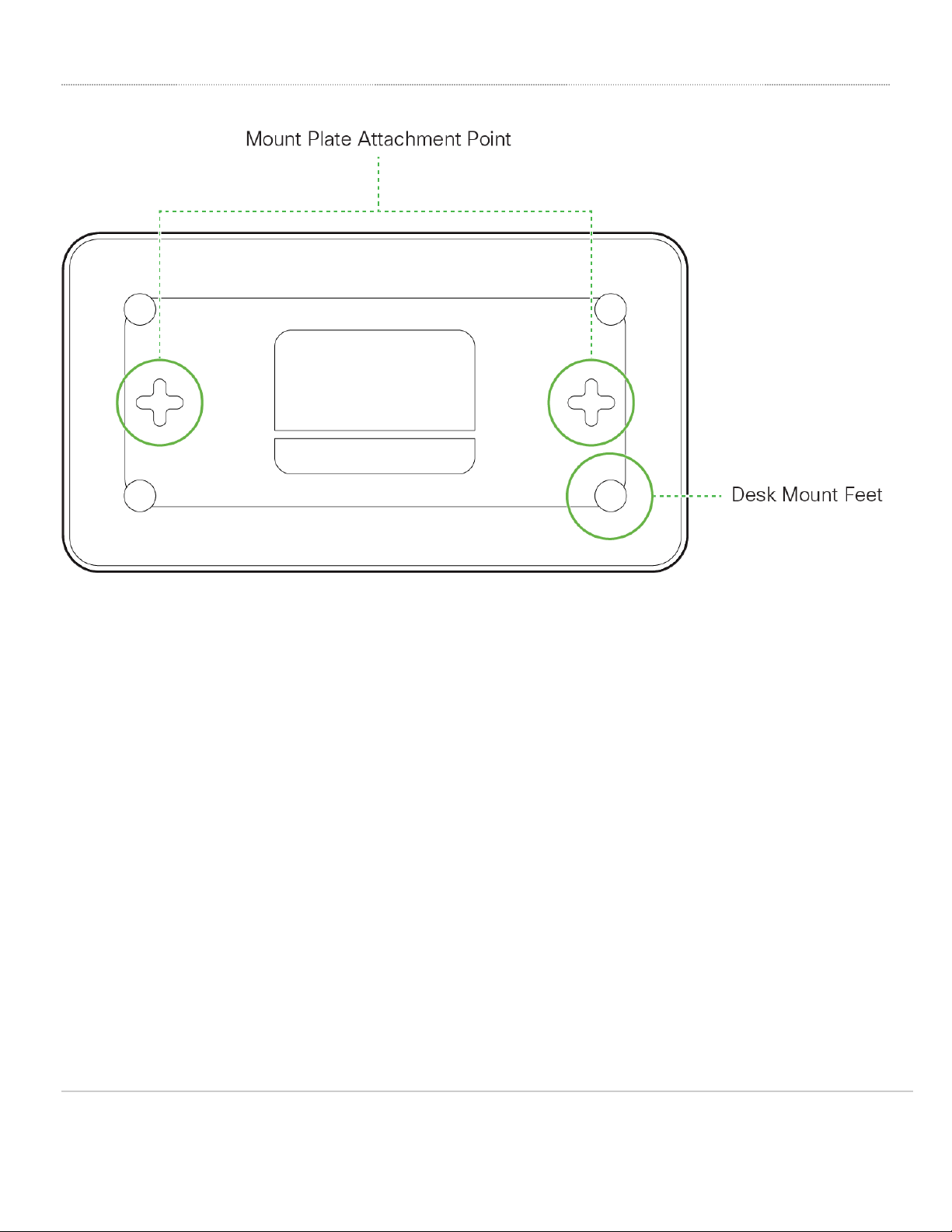
Please note that the serial number is located on the product label at the bottom panel of the GX50.
Mounting Hardware
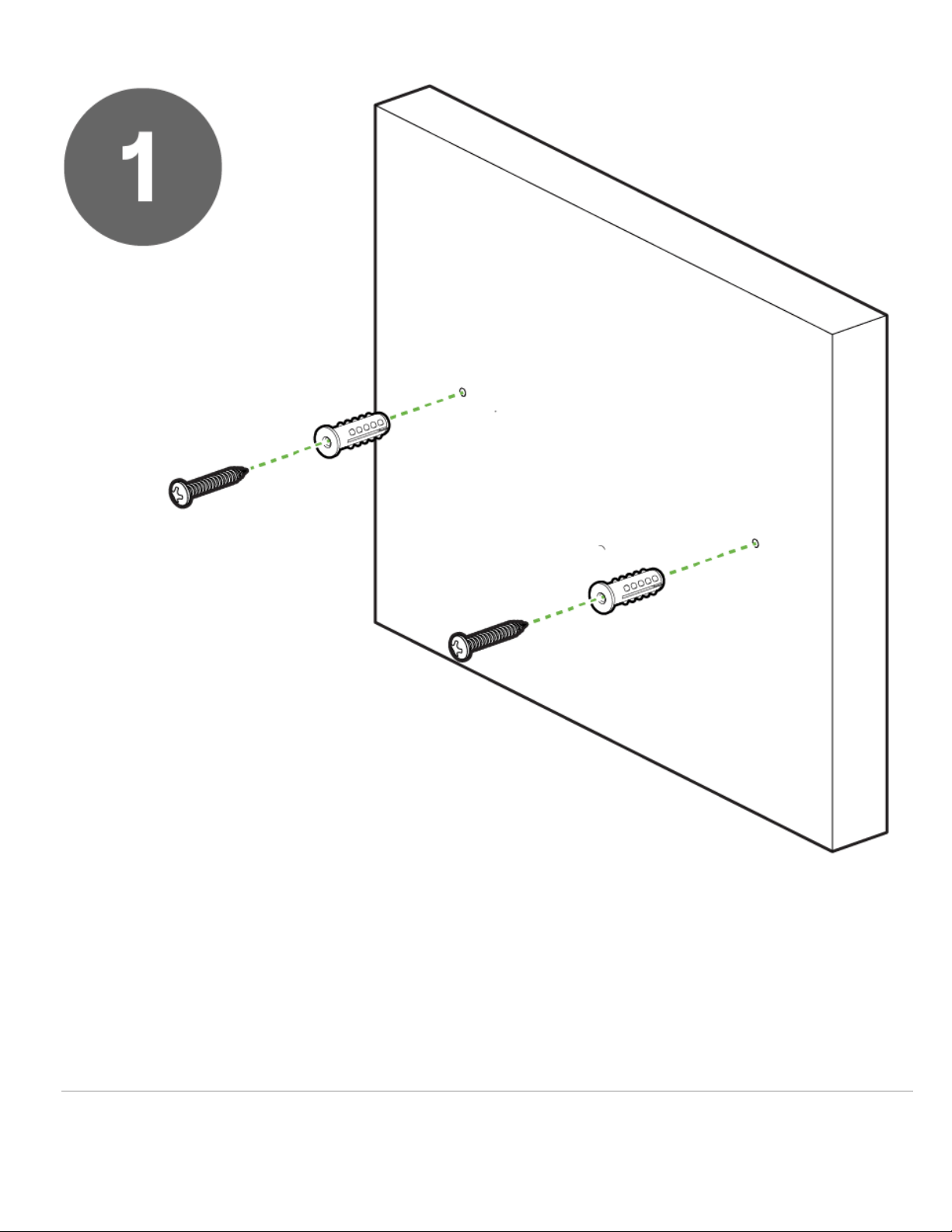
The supplied wall screws and anchors allow you to mount the appliance on a drywall surface, either vertically or horizontally. The distance between the holes
you drill should be 5-1/8 inches (13 cm).
• For mounting on drywall, use a ¼-in drill bit, then insert the plastic and screw assemblies.
• For mounting on wood or a similar surface, use only the screws.
• Allow the heads of the screws to stick out far enough to be inserted securely into the back of the appliance.
4
5

6

7
Connecting to WAN
All Meraki Go GX devices must have an IP address. This section describes how to configure your local area network before you deploy it. A local management
web service, running on the appliance, is accessed through a browser running on a client PC. This web service is used for configuring and monitoring basic ISP/
WAN connectivity.
Setting up a Static IP Address
Do the following to configure basic connectivity and other networking parameters:
1. Using a client machine such as a laptop, connect to one of the LAN ports of the GX.
2. Using a browser on the client machine, access the appliance's built-in web service by browsing to
http://setup.meraki.com. (You do not have to be connected to the Internet to reach this address)
3. Click Uplink configuration under the Local status tab. The default credentials use the device serial number as
the username, with a blank password field.
4. Choose Static for the IP Assignment option.
5. Enter the IP address, subnet mask, default gateway IP and DNS server information.
Setting up a DHCP IP Address
By default all GX devices are configured to DHCP from upstream WAN / ISP servers. Simply plug the GX WAN / Internet port to your upstream modem or ISP
device and wait a few minutes for the unit to negotiate a DHCP address.
Additional Settings
Setting VLANs
If your Internet/WAN uplink is on a trunk port, choose VLAN tagging > Use VLAN tagging and enter the appropriate value for VLAN ID for your network.
Setting PPPoE
PPPoE authentication may be required if you are connecting GX device to a DSL circuit. You need to know your authentication option and credentials (supplied
by your ISP) in order to complete these steps.
• Choose Connection Type > PPPoE.
Computers tend to avoid connections without working internet. Disabling other network connections helps make sure this step works.
To ensure that the client PC is redirected to the local web service in the following step, you must disable all other network services (eg: wi-fi) on your
client machine.
When the Internet connection is fully enabled, Internet LED 1 will turn green.
Please note that all these settings below are accessible only via the local management console.
8
• Select your Authentication option.
• If you select Use authentication, enter appropriate values for Username and Password.
Web Proxy Settings
These settings take effect if the GX device has to fall back to using HTTP to contact the Cloud Controller. By default, web proxy is disabled. To enable web
proxy, do the following:
• Choose Web proxy > Yes.
• Enter values as appropriate for Hostname or IP and Port.
• If you require authentication, choose Authentication > Use authentication, and enter appropriate values for
Username and Password.
Configuring Physical Link Settings
To configure physical link settings on the Ethernet ports, click Local status > Ethernet configuration. You can enable half duplex, full duplex, and
autonegotiation, as well as set 10- or 100-Mbps data rates.
To apply all configuration settings to the appliance, be sure to click Save Settings at the bottom of the page.
9
