
Version 1.00 | 01/07/2022
User Manual
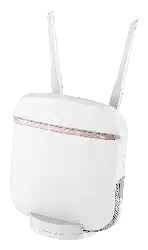
DWR-978
5G AC2600 Wi-Fi Router

iD-Link DWR-978 User Manual
D-Link reserves the right to revise this publication and to make changes in thke content hereof without obligation to notify
any person or organization of such revisions or changes.
Manual Revisions
Trademarks
D-Link and the D-Link logo are trademarks or registered trademarks of D-Link Corporation or its subsidiaries in the United
States or other countries. All other company or product names mentioned herein are trademarks or registered trademarks of
their respective companies.
Copyright © 2022 by D-Link Corporation.
All rights reserved. This publication may not be reproduced, in whole or in part, without prior expressed written permission
from D-Link Corporation.
Revision Date Description
1.00 January 07, 2022 • Initial release
Preface

iiD-Link DWR-978 User Manual
Table of Contents
Product Overview ..............................................................1
Package Contents .........................................................................1
System Requirements .................................................................1
Hardware Overview .....................................................................2
Front View ................................................................................2
Side View ..................................................................................4
Installation ......................................................................... 5
Before You Begin ...........................................................................5
Wireless Installation Considerations ......................................6
Conguration .....................................................................7
Getting Started ..............................................................................7
Settings ............................................................................................ 8
SMS
Device ..............................................8
SMS (U)SIM ..............................................................................9
SMS Settings ......................................................................... 10
USSD ........................................................................................11
Main Wi-Fi ..............................................................................12
Guest Wi-Fi ............................................................................14
Network (LAN) .....................................................................15
Network (WAN) IPv4 ..........................................................17
Network (WAN) IPv6 ..........................................................19
Management ................................................................................ 28
System Time .......................................................................... 28
Schedule ................................................................................29
System Log ............................................................................30
System & Reboot ................................................................. 31
Administration .....................................................................32
Firmware Upgrade ..............................................................33
Statistics .................................................................................34
Advanced Settings .....................................................................35
Firewall Settings ..................................................................35
IPv4 Rules ...............................................................................36
IPv6 Rules ...............................................................................38
Port Forwarding ..................................................................40
Virtual Server ........................................................................42
Website Filter ........................................................................44
Static Routes IPv4 ...............................................................45
Static Routes IPv6 ...............................................................47
Dynamic DNS .......................................................................49
Connect a Wireless Client to your Router ......................51
WPS Button ...................................................................................51
Windows® 10 ................................................................................52
Windows® 8 ................................................................................... 54
WPA/WPA2 ............................................................................54
Windows® 7 ................................................................................... 56
WPA/WPA2 ............................................................................56
WPS ..........................................................................................59
Windows Vista® ............................................................................63
WPA/WPA2 ............................................................................64
Windows® XP ................................................................................ 66
WPA/WPA2 ............................................................................67
Troubleshooting ..............................................................69
Table of Contents

iiiD-Link DWR-978 User Manual
Table of Contents
Wireless Basics .................................................................73
What is Wireless? ......................................................................... 74
Tips ...................................................................................................76
Wireless Modes ............................................................................77
Networking Basics ...........................................................78
Check your IP address ...............................................................78
Statically Assign an IP address ...............................................79
Wireless Security ............................................................80
What is WPA? ...................................................................80
Technical Specications ..................................................81
Regulatory Information ..................................................83
1D-Link DWR-978 User Manual
Section 1 - Product Overview
Product Overview
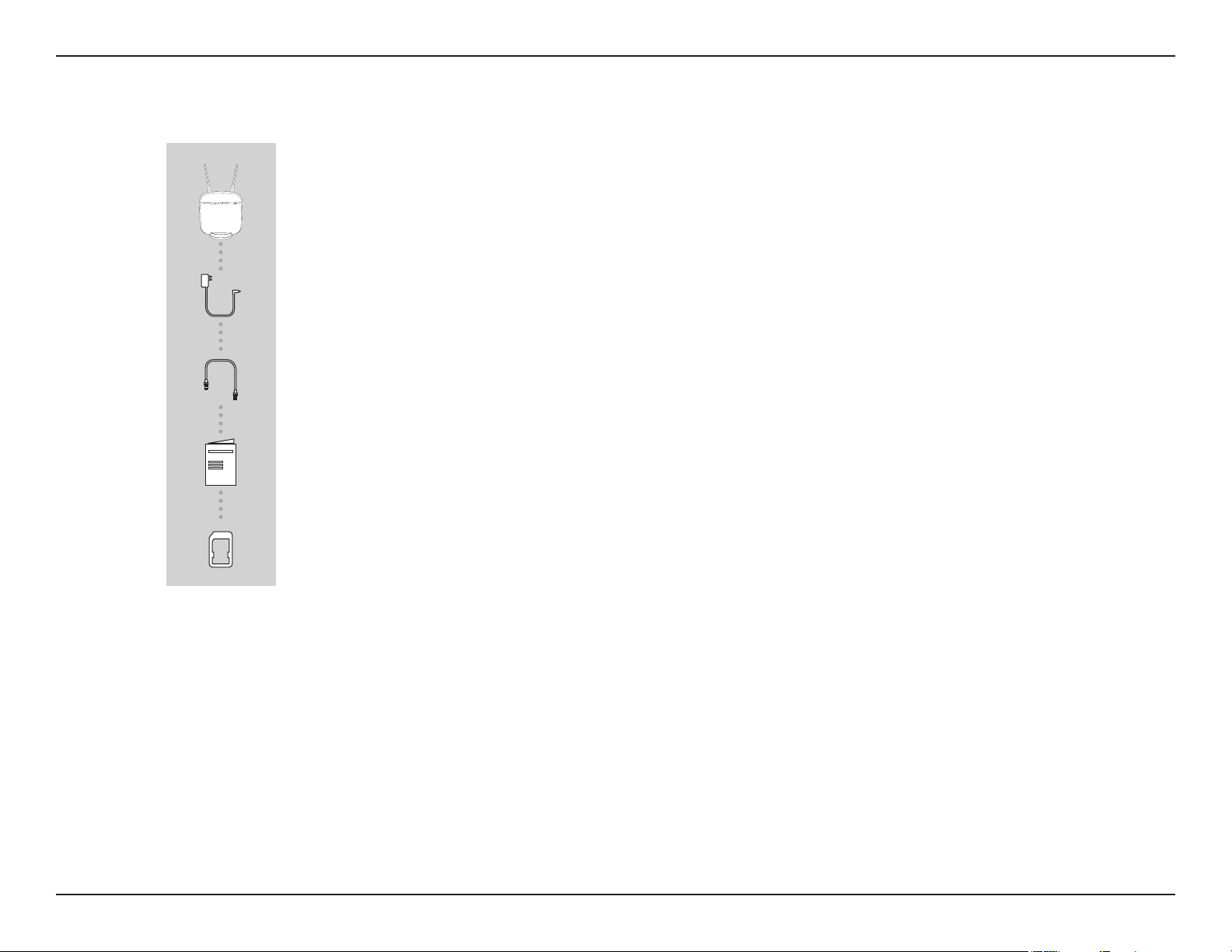
Package Contents
System Requirements
* Subject to services and service terms available from your carrier.
• Computer or mobile device with 802.11ac/n/g wireless adapter
• Internet Explorer® 9, Firefox® 12, Chrome™ 20, or Safari 5
• Mini SIM card
• Subscription with a mobile Internet Service Provider
5G AC2600 Wi-Fi RouteR
DWR-978
12 V 4 A PoWeR ADAPteR
etHeRNet CABLe
QuiCK iNStALL GuiDe AND WARRANtY DoCuMeNtS
SiM CARD ADAPteR
2D-Link DWR-978 User Manual
Section 1 - Product Overview
Hardware Overview
Front View
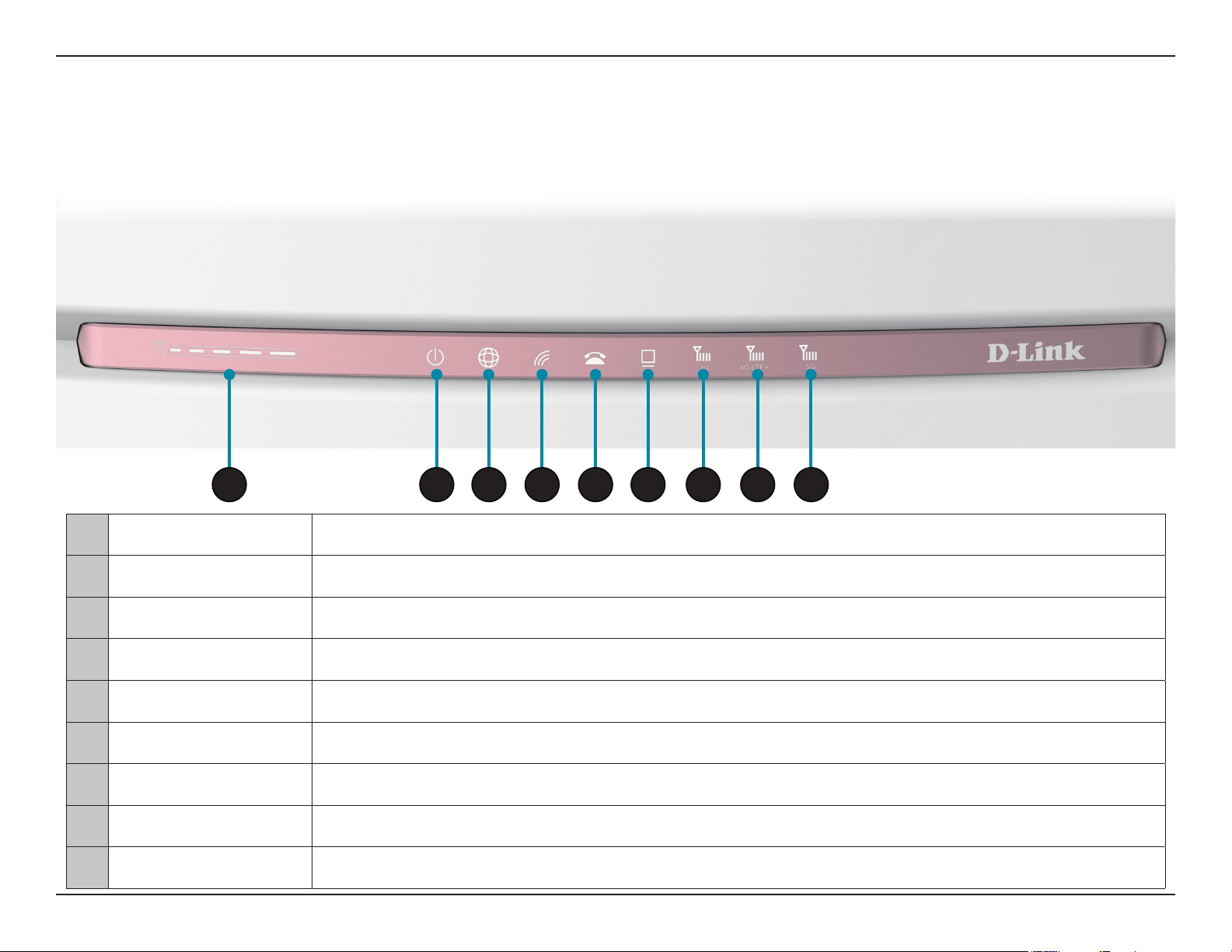
1 Signal Strength LED Indicates Wi-Fi signal strength with bars. More bars indicates a stronger signal.
2 Power LED Will be lit green if the device is powered on and working. Turns red if there is an error.
3 WAN Will be lit if an Ethernet WAN connection is established, and will blink when data is being transferred.
4 Wi-Fi/WPS Will be lit if the wireless function is enabled, blinks when data is transferred or during WPS pairing.
5 Phone Will be lit if the phone function is enabled, blinks when data is transferred.
6 LAN Will be lit if an Ethernet LAN connection is established, and will blink when data is being transferred.
7 3G Will be lit if a 3G connection established.
8 4G/LTE+ Will be lit if a 4G/LTE+ connection is established.
9 5G Will be lit if a 5G connection is established.
1 2 3 4 5 6 7 8 9
3D-Link DWR-978 User Manual
Section 1 - Product Overview
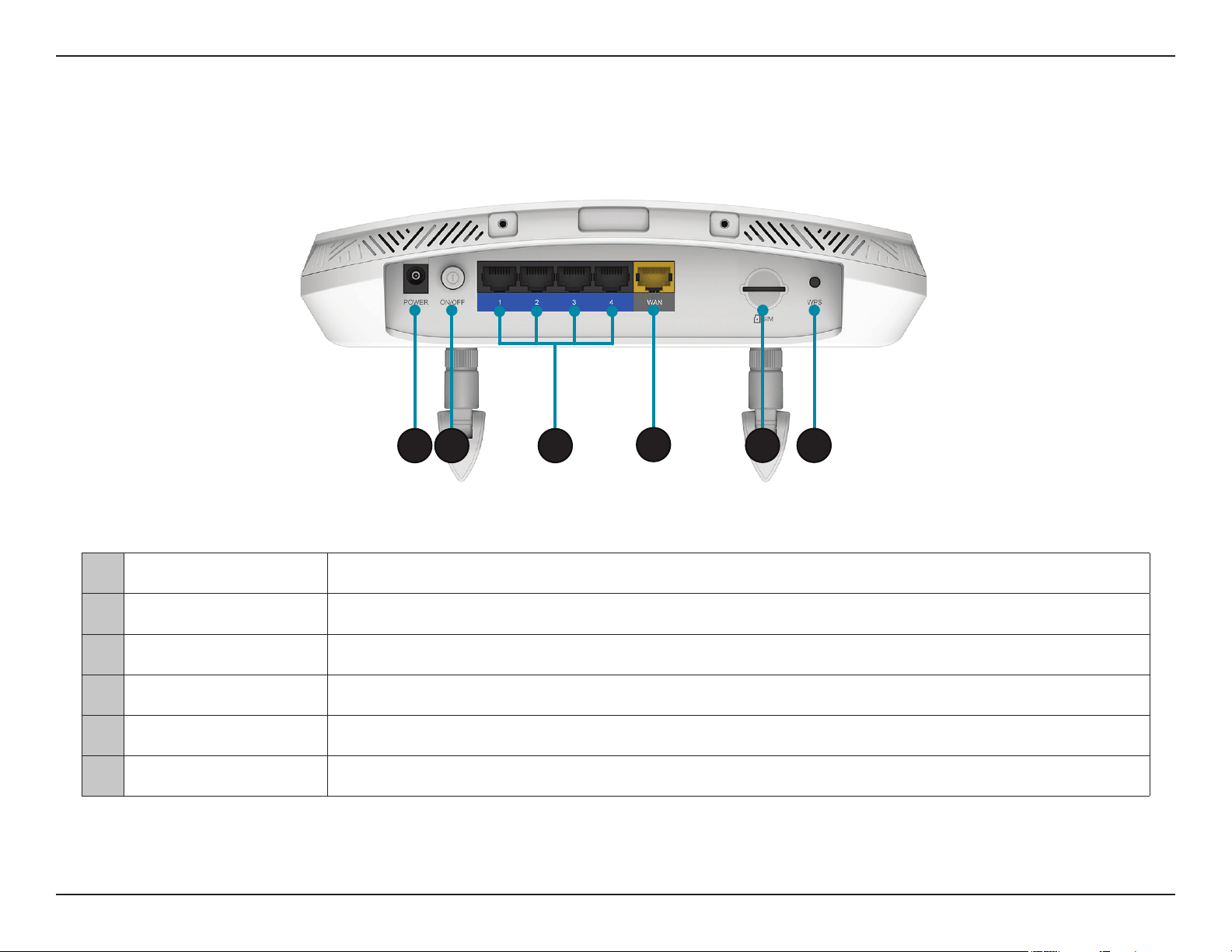
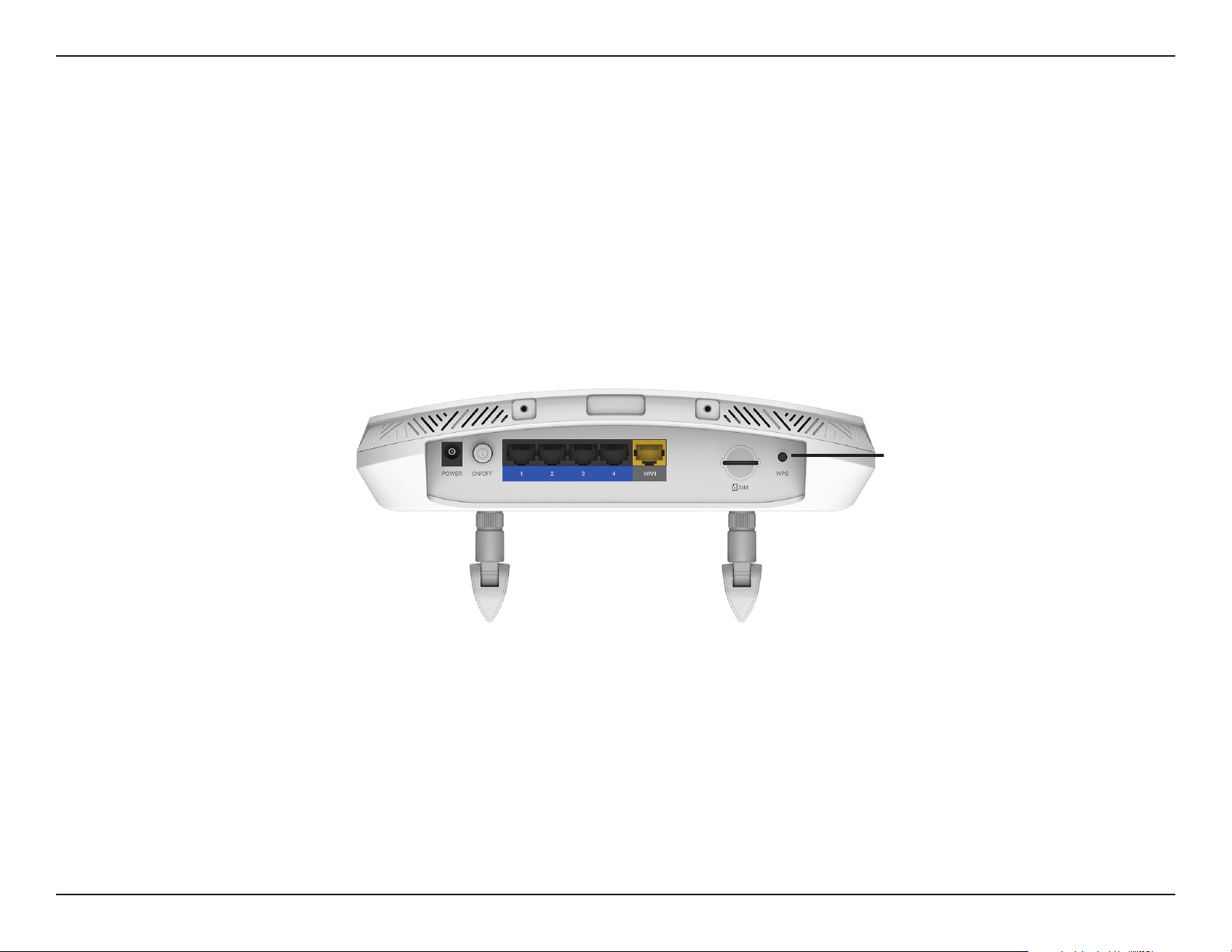
1 Power Connector Connects to the included power adapter.
2 Power Button Turns the device on or o.
3 Ethernet LAN Ports For connection to a network-enabled desktop or notebook computer.
4 Ethernet WAN Port For connection to a DSL/cable modem or router.
5 SIM card slot For mobile network connections.
6 WPS Button For WPS pairing with wireless devices.
1 2
3
4
5 6
4D-Link DWR-978 User Manual
Section 1 - Product Overview
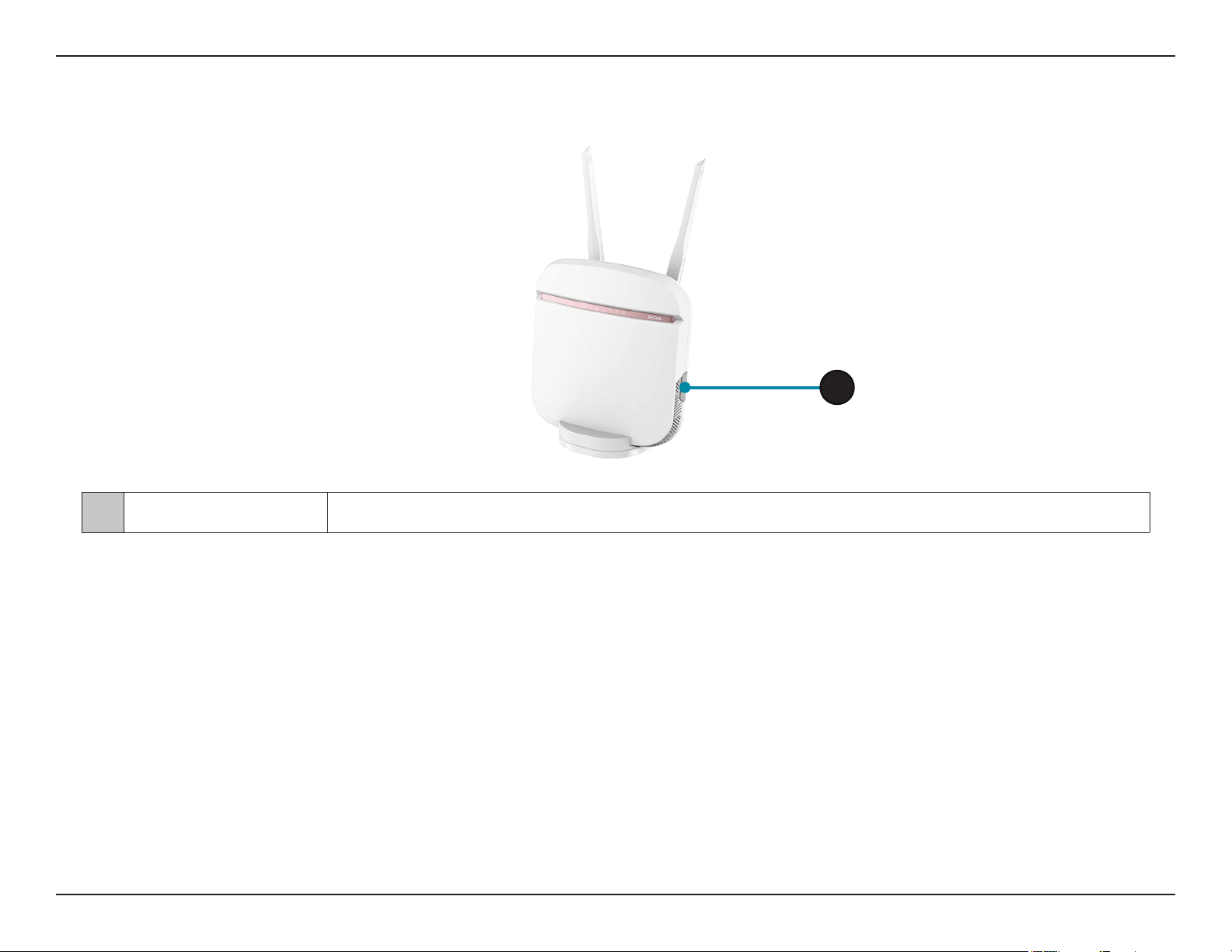
1 USB Port USB port 2.0 for media or external devices.
Side View
1

5D-Link DWR-978 User Manual
Section 2 - Installation
Before You Begin
Installation
This section will guide you through the installation process. Placement of the router is very important. Do not place the router in an enclosed area
such as a closet, cabinet, or in an attic or garage.
Ensure that your DWR-978 5G AC2600 Wi-Fi Router is disconnected and powered o before performing the steps below..
1. Verify that your SIM/UICC card is installed and has been activated by your carrier.
Caution: Always unplug/power down the router before installing or removing the SIM/UICC card. Never insert or remove the SIM/UICC card while
the router is in use.
2. Attach the included antennas to the back of the router, screwing them in clockwise. Arrange them so that they point upward.
3. Connect the power adapter to the socket on the back panel of your DWR-978. Plug the other end of the power adapter into a wall outlet or
power strip. Make sure the power button is in the “On” position.
a. The Power LED will light up to indicate that power is being supplied to the router and the router is turned on.
b. The LEDs on the front panel will ash on and o as the DWR-978 Mobile Router performs initialization and Internet connection processes.
c. After a few moments, if a connection has been established, the following LEDs will turn solid green: Power, Network, WiFi (if enabled), LAN
(if connected), WAN (if connected), and Signal Strength.
Note: By default, the DWR-978 uses the mobile network as the sole Internet connection. If you wish to use your mobile connection as a backup to
a wired connection, or you wish to use a wired connection exclusively, you must use the Optional Advanced Setup procedure.
4. Connect via Wi-Fi using the SSID and password printed on the bottom of the router, or through Ethernet via one of the LAN ports on the back
of your DWR-978.

6D-Link DWR-978 User Manual
Section 2 - Installation
Wireless Installation Considerations
The DWR-978 can be accessed using a wireless connection from anywhere within the operating range of your wireless network. Keep in mind that
the quantity, thickness, and location of walls, ceilings, or other objects that the wireless signals must pass through may limit the range of the wireless
signal. Ranges vary depending on the types of materials and background RF (radio frequency) noise in your home or oce. The key to maximizing
the wireless range is to follow these basic guidelines:
1. Minimize the number of walls and ceilings between the D-Link router and other network devices. Each wall or ceiling can reduce your adapter’s
range from 3 to 90 feet (1 to 30 meters).
2. Be aware of the direct line between network devices. A wall that is 1.5 feet thick (0.5 meters), at a 45-degree angle appears to be almost 3 feet
(1 meter) thick. At a 2-degree angle it looks over 42 feet (14 meters) thick. Position devices so that the signal will travel straight through a wall
or ceiling (instead of at an angle) for better reception.
3. Try to position access points, wireless routers, and computers so that the signal passes through open doorways and drywall. Materials such as
glass, metal, brick, insulation, concrete, and water can aect wireless performance. Large objects such as sh tanks, mirrors, le cabinets, metal
doors, and aluminum studs may also have a negative eect on range.
4. If you are using 2.4 GHz cordless phones, make sure that the 2.4 GHz phone base is as far away from your wireless device as possible. The base
transmits a signal even if the phone is not in use. In some cases, cordless phones, X-10 wireless devices, and electronic equipment such as ceiling
fans, uorescent lights, and home security systems may dramatically degrade wireless connectivity.
7D-Link DWR-978 User Manual
Section 3 - Conguration
Conguration
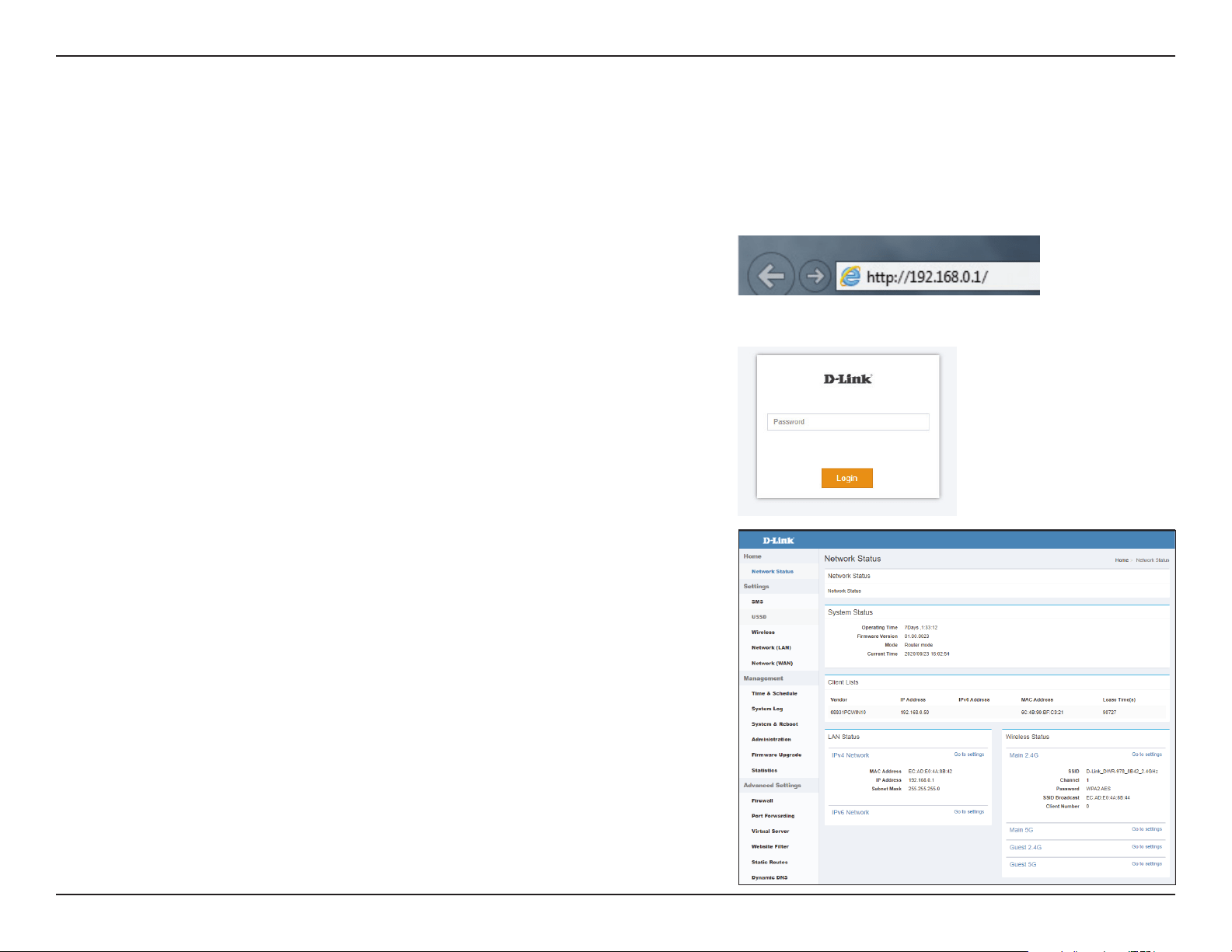
To access the conguration utility, open a web browser such as Internet Explorer and
enter the address of the router (192.168.0.1 by default).
To log in to the conguration utility, the default password is left blank.
Note: If you get a Page Cannot be Displayed error, please refer to the Troubleshooting
section for assistance.
Once you have successfully logged in, you will see the Home page. On this page
you can view information about your Internet connection, the wireless/LAN status,
and system information.
At the top of the page is a menu. Clicking on one of these icons will take you to the
appropriate conguration section.
Getting Started

8D-Link DWR-978 User Manual
Section 3 - Conguration
Settings
SMS Device
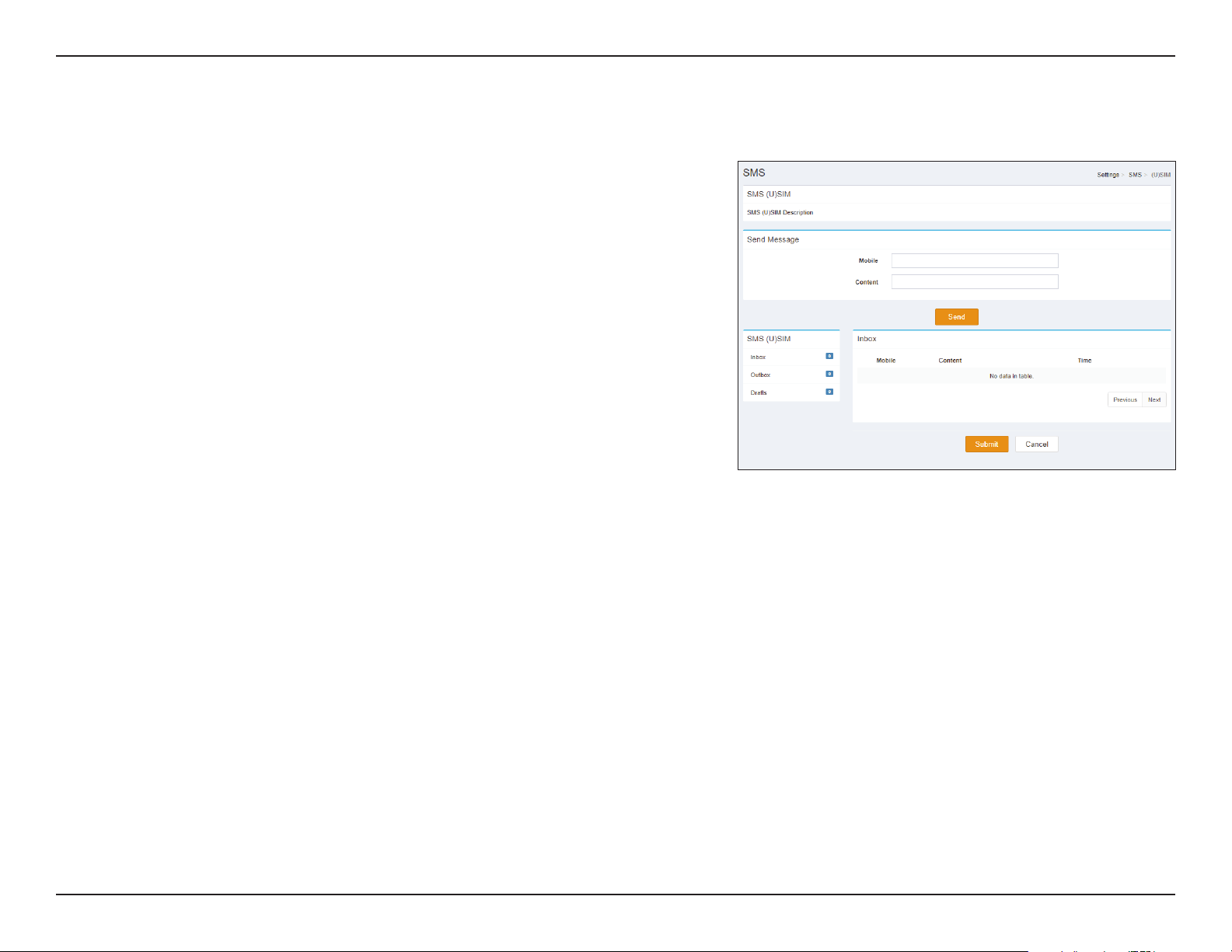
On the Short Messages Settings page you can organize, send and receive Short Message Service (SMS) messages by selecting between a Setup,
Inbox and Drafts tab. These messages can either be saved to the router’s internal memory or on the SIM/UICC card itself.
Send Message
Mobile: Enter the mobile number to send the message to.
Content: Enter the content you wish to send.
Click Send to send your message.
Inbox
Mobile: (Optional) Specify a password.
Content: (Optional) Should you have specied a password above, verify your
password one more time.
Time: Specify number to dial.
Click Submit to save your settings, or Cancel to revert to your previous settings.
9D-Link DWR-978 User Manual
Section 3 - Conguration
SMS (U)SIM
Send Message
Mobile: Enter the mobile number to send the message to.
Content: Enter the content you wish to send.
Click Send to send your message.
Inbox
Mobile: (Optional) Specify a password.
Content: (Optional) Should you have specied a password above, verify your
password one more time.
Time: Specify number to dial.
Click Submit to save your settings, or Cancel to revert to your previous settings.
10D-Link DWR-978 User Manual
Section 3 - Conguration
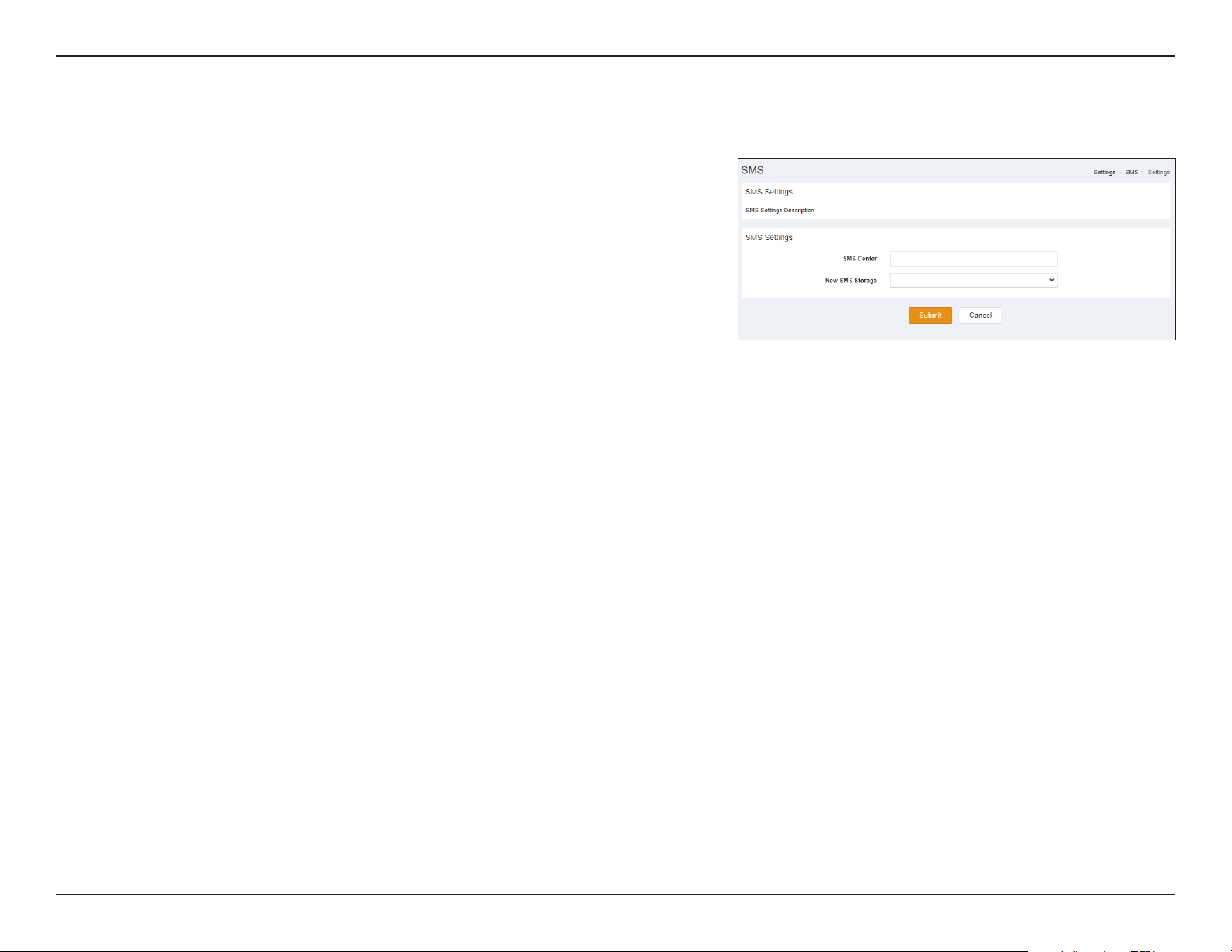
SMS Settings
SMS Settings
SMS center: Enter the name of the SMS center.
New SMS
Storage:
Select the new SMS storage.
Click Submit to save your settings, or Cancel to revert to your previous settings.
11D-Link DWR-978 User Manual
Section 3 - Conguration
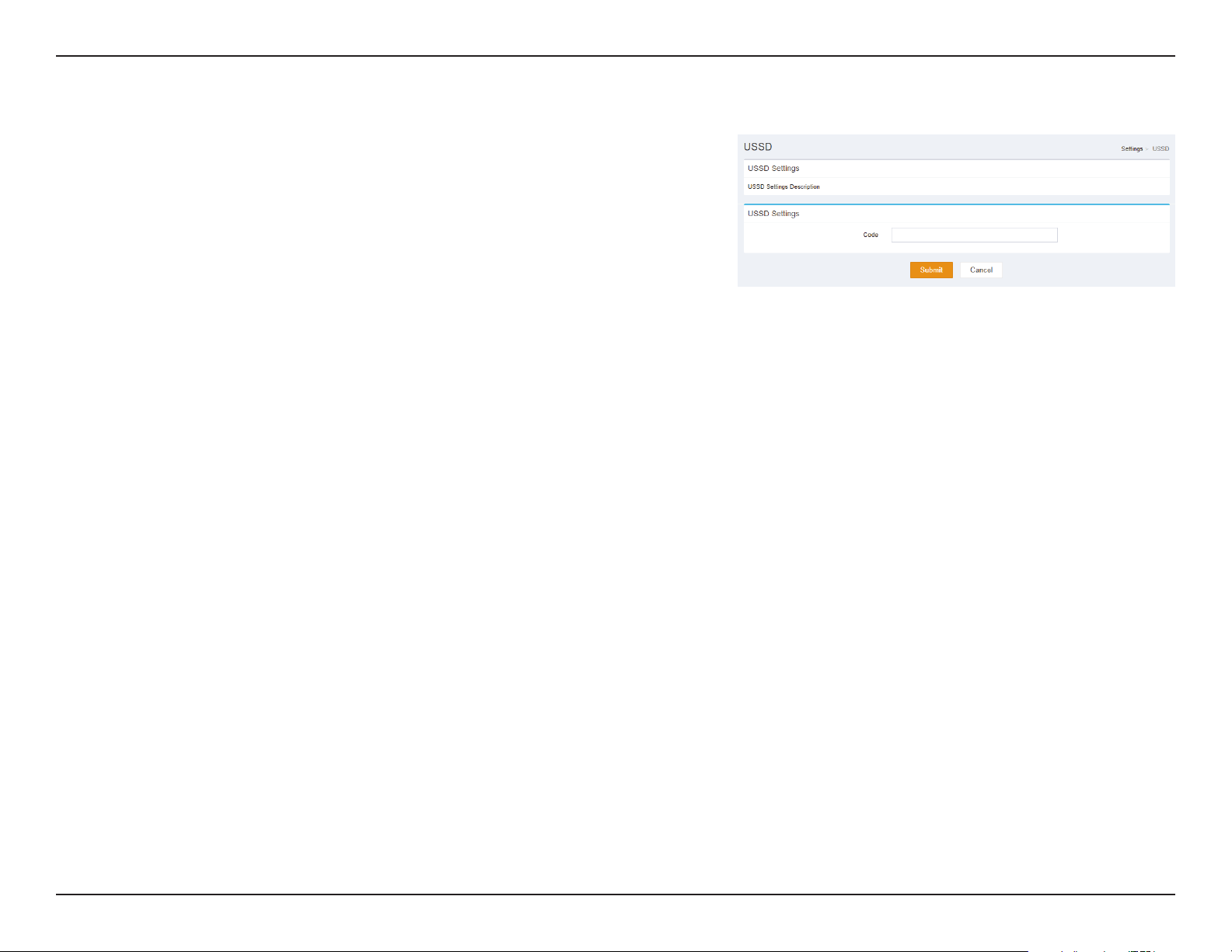
USSD
USSD Settings
Code: Enter USSD code.
Click Submit to save your settings, or Cancel to revert to your previous settings.
12D-Link DWR-978 User Manual
Section 3 - Conguration
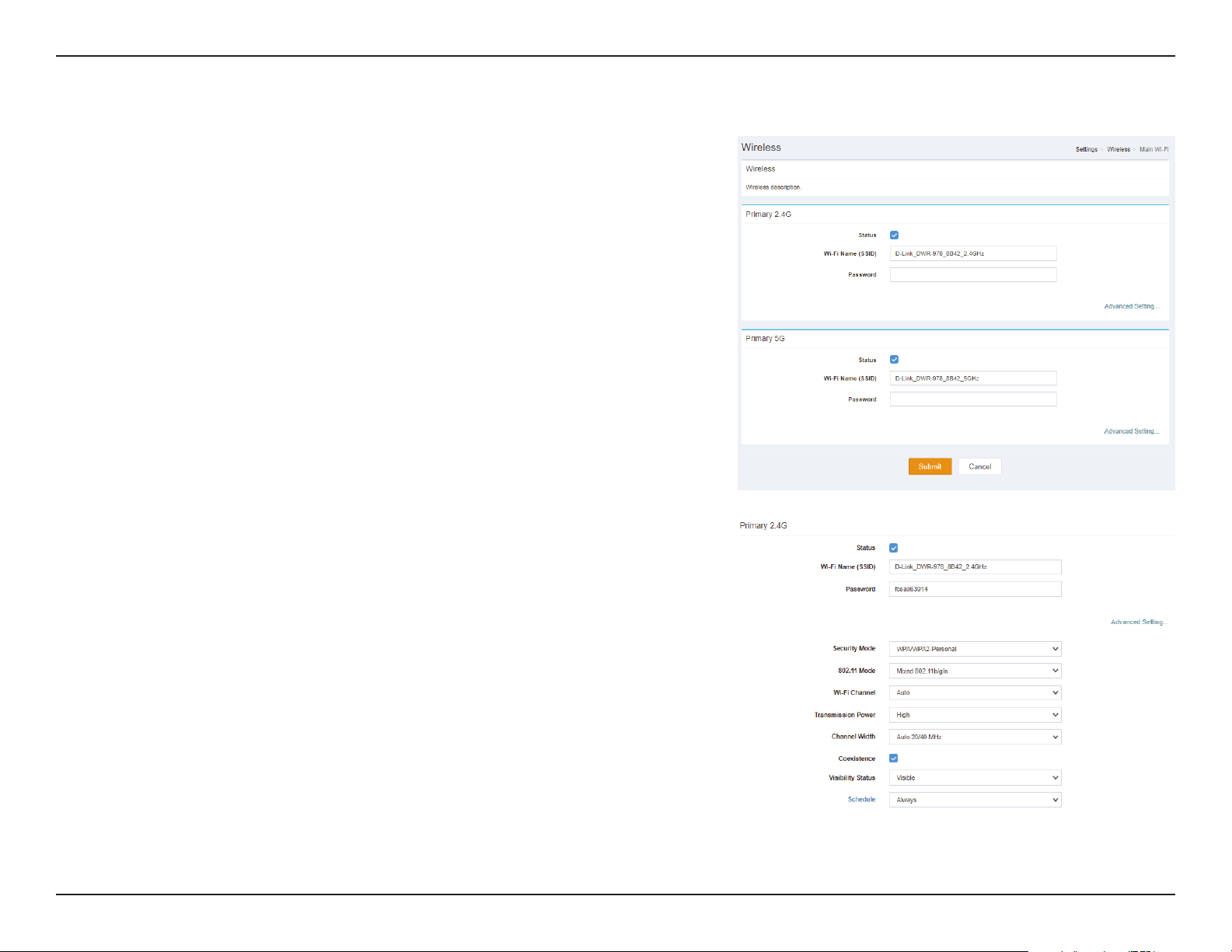
Main Wi-Fi
Primary 2.4G Advanced Setting
Status: Indicates whether the connection is Enabled or Disabled.
Wi-Fi Name
(SSID):
Indicates the name of the connection.
Password: Indicates the password of the connection.
Security
Mode:
Indicates the Security Mode of the connection. By default WPA/
WPA2-Personal is selected, you may also select None.
802.11 Mode: Indicates the wireless mode of the connection. By default Mixed
802.11b/g/n is selected, you may also select Mixed 802.11g/n or
802.11n only.
Wi-Fi
Channel:
Select the Wi-Fi channel. By default Auto is selected, you can choose
manually between channel 1-13.
Transmission
Power:
Indicates the Transmission Power of the connection. By default
High is selected, you may also select Medium or Low.
Channel
Width:
Indicates the Channel Width of the connection. By default Auto
20/40 MHz is selected, you may also select 20 MHz.
Coexistence: Indicates whether Coexistence is Enabled or Disabled.
Visibility
Status:
Indicates whether the Wi-Fi network is Visible or Invisible.
Schedule: Indicates whether the Wi-Fi network is part of a schedule. Click on
Schedule to access the schedule menu “Schedule” on page 29.
Click Submit to save your settings, or Cancel to revert to your previous settings.
13D-Link DWR-978 User Manual
Section 3 - Conguration
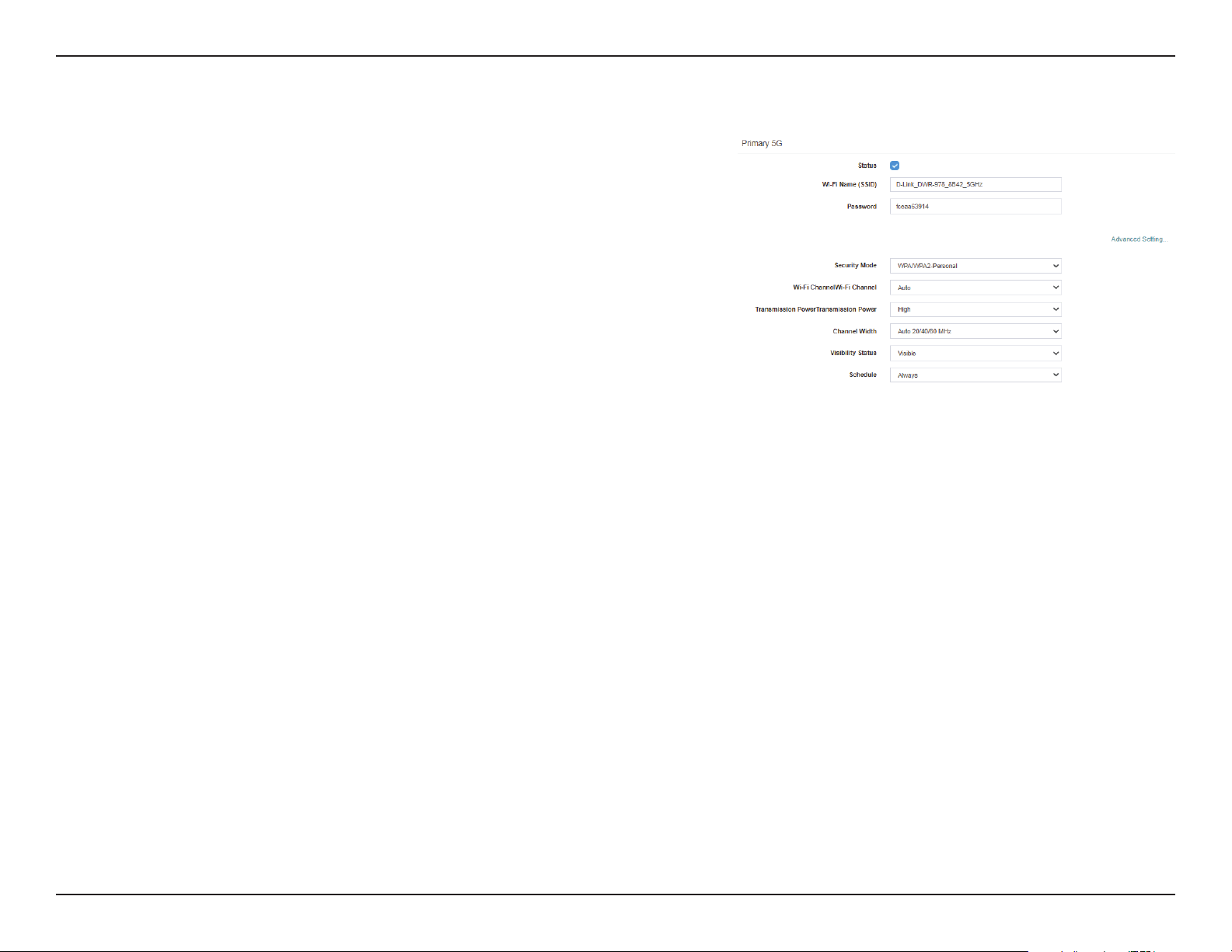
Primary 5G Advanced Setting
Status: Indicates whether the connection is Enabled or Disabled.
Wi-Fi Name
(SSID):
Indicates the name of the connection.
Password: Indicates the password of the connection.
Security
Mode:
Indicates the Security Mode of the connection. By default WPA/
WPA2-Personal is selected, you may also select None.
Wi-Fi
Channel:
Select the Wi-Fi channel. By default Auto is selected, you can choose
manually between channel 1-13.
Transmission
Power:
Indicates the Transmission Power of the connection. By default
High is selected, you may also select Medium or Low.
Channel
Width:
Indicates the Channel Width of the connection. By default Auto
20/40 MHz is selected, you may also select 20 MHz.
Visibility
Status:
Indicates whether the Wi-Fi network is Visible or Invisible.
Schedule: Indicates whether the Wi-Fi network is part of a schedule. Click
on Schedule to access the schedule menu “Schedule” on page
29.
Click Submit to save your settings, or Cancel to revert to your previous settings.
14D-Link DWR-978 User Manual
Section 3 - Conguration
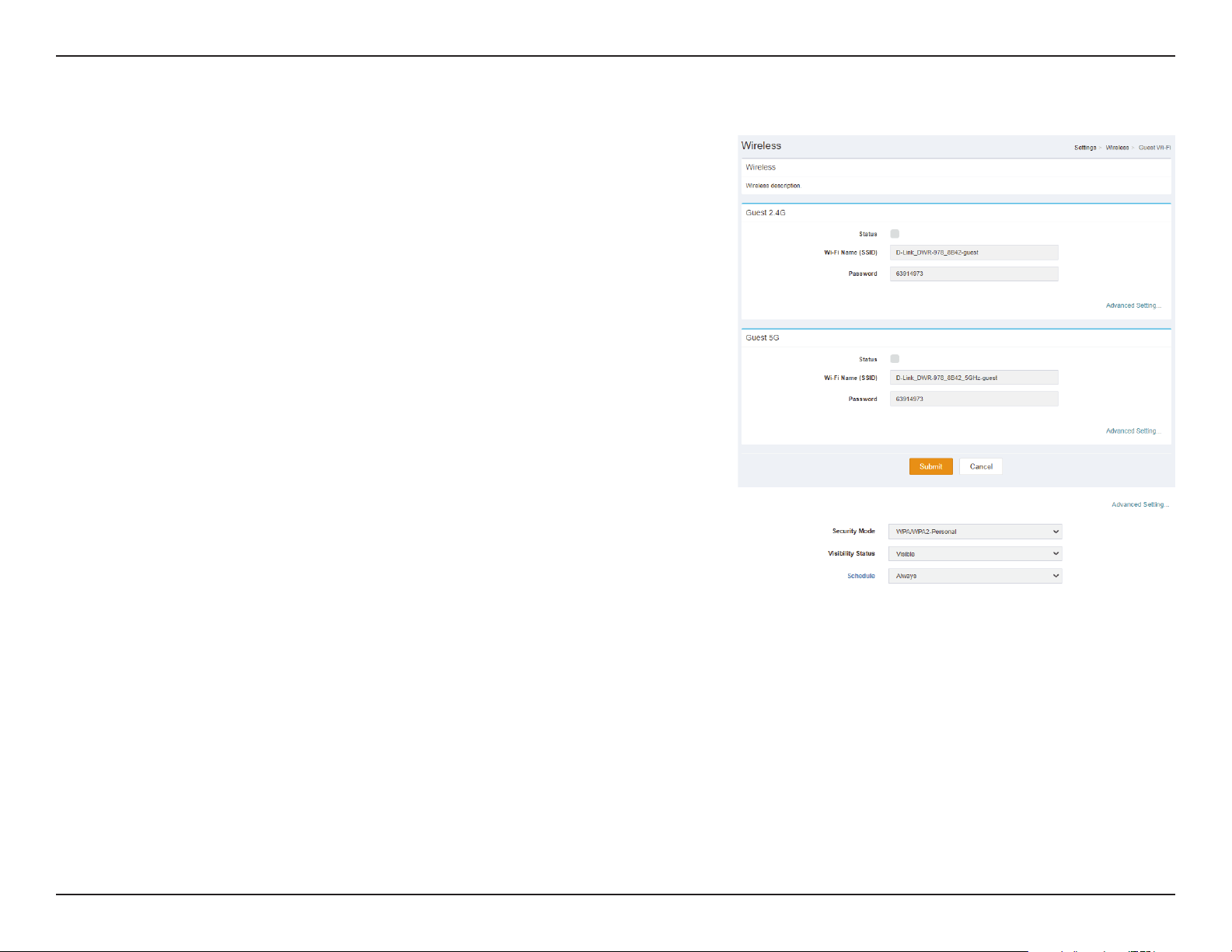
Guest Wi-Fi
Guest 2.4G/5G Advanced Setting
Status: Indicates whether the connection is Enabled or Disabled.
Wi-Fi Name
(SSID):
Indicates the name of the connection.
Password: Indicates the password of the connection.
Security
Mode:
Indicates the Security Mode of the connection. By default WPA/
WPA2-Personal is selected, you may also select None.
Visibility
Status:
Indicates whether the Wi-Fi network is Visible or Invisible.
Schedule: Indicates whether the Wi-Fi network is part of a schedule. Click on
Schedule to access the schedule menu “Schedule” on page 29.
Click Submit to save your settings, or Cancel to revert to your previous settings.
15D-Link DWR-978 User Manual
Section 3 - Conguration
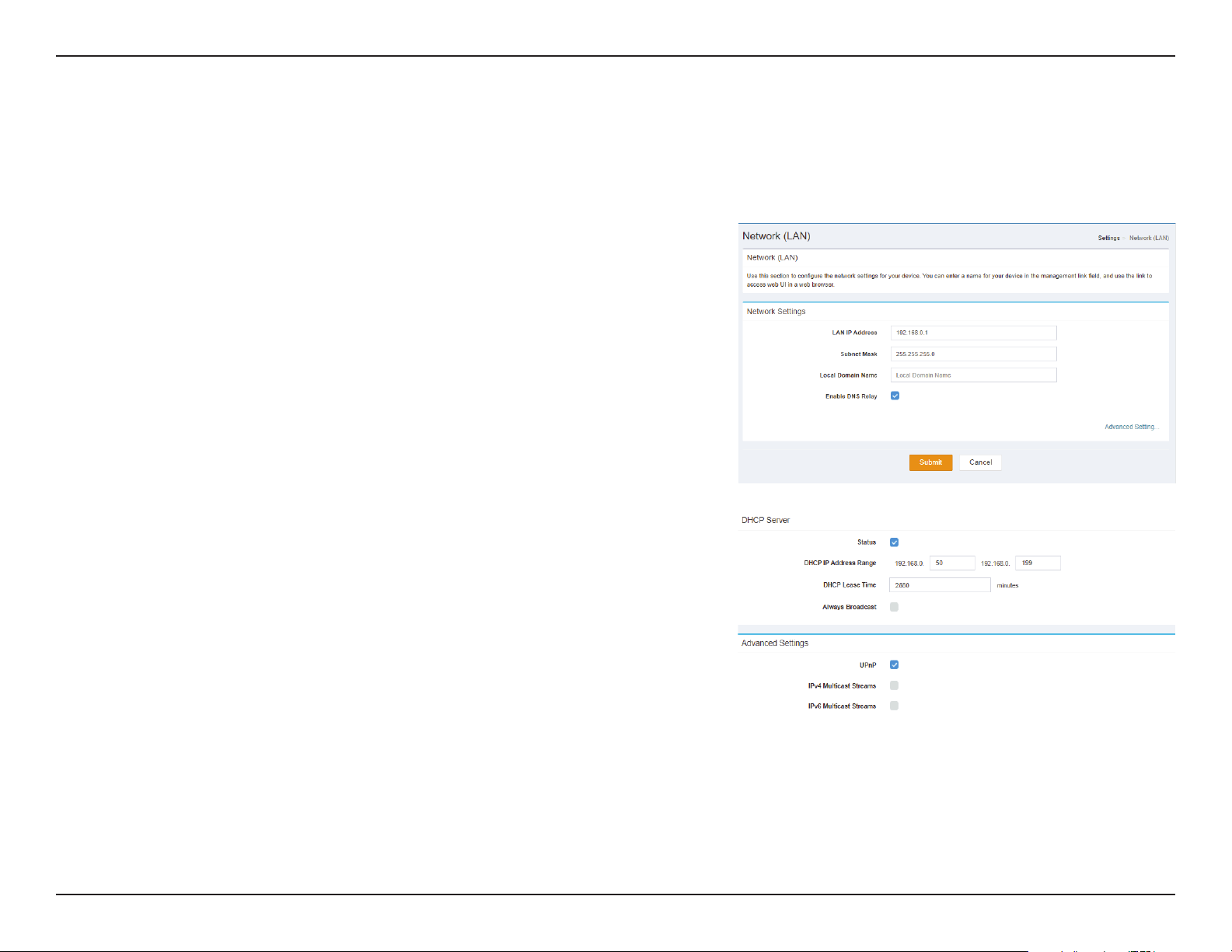
Network (LAN)
Network Settings
LAN IP
Address:
Enter the IP address you want to use for the router. The default
IP address is 192.168.0.1. If you change the IP address, you will
need to enter the new IP address in your browser to get into the
conguration utility.
Subnet Mask: Enter the subnet mask of the router. The default subnet mask is
255.255.255.0
Local Domain
Name:
Enter the local domain name for your network. (Optional)
Enable DNS
Relay:
Disable to transfer the DNS server information from your ISP to
your computers. If enabled, your computers will use the router
for a DNS server.
Click Submit to save your settings, or Cancel to revert to your previous settings.

16D-Link DWR-978 User Manual
Section 3 - Conguration
DHCP Server
Status: Indicates whether DHCP server is Enabled or Disabled.
DHCP IP
Address
Range:
Enter the DHCP IP Address Range of the router. The default is
192.168.0.50 - 192.168.0.199.
DHCP Lease
Time:
The lease time determines the period that the host retains the
assigned IP addresses before the IP addresses change.
Always
Broadcast:
Indicates whether Always Broadcast is Enabled or Disabled.
Advanced Settings
UPnP: Indicates whether UPnP is Enabled or Disabled.
IPv4 Multicast
Streams:
Indicates whether IPv4 Multicast Streams is Enabled or
Disabled.
IPv6 Multicast
Streams:
Indicates whether DHCP server is Enabled or Disabled.
17D-Link DWR-978 User Manual
Section 3 - Conguration
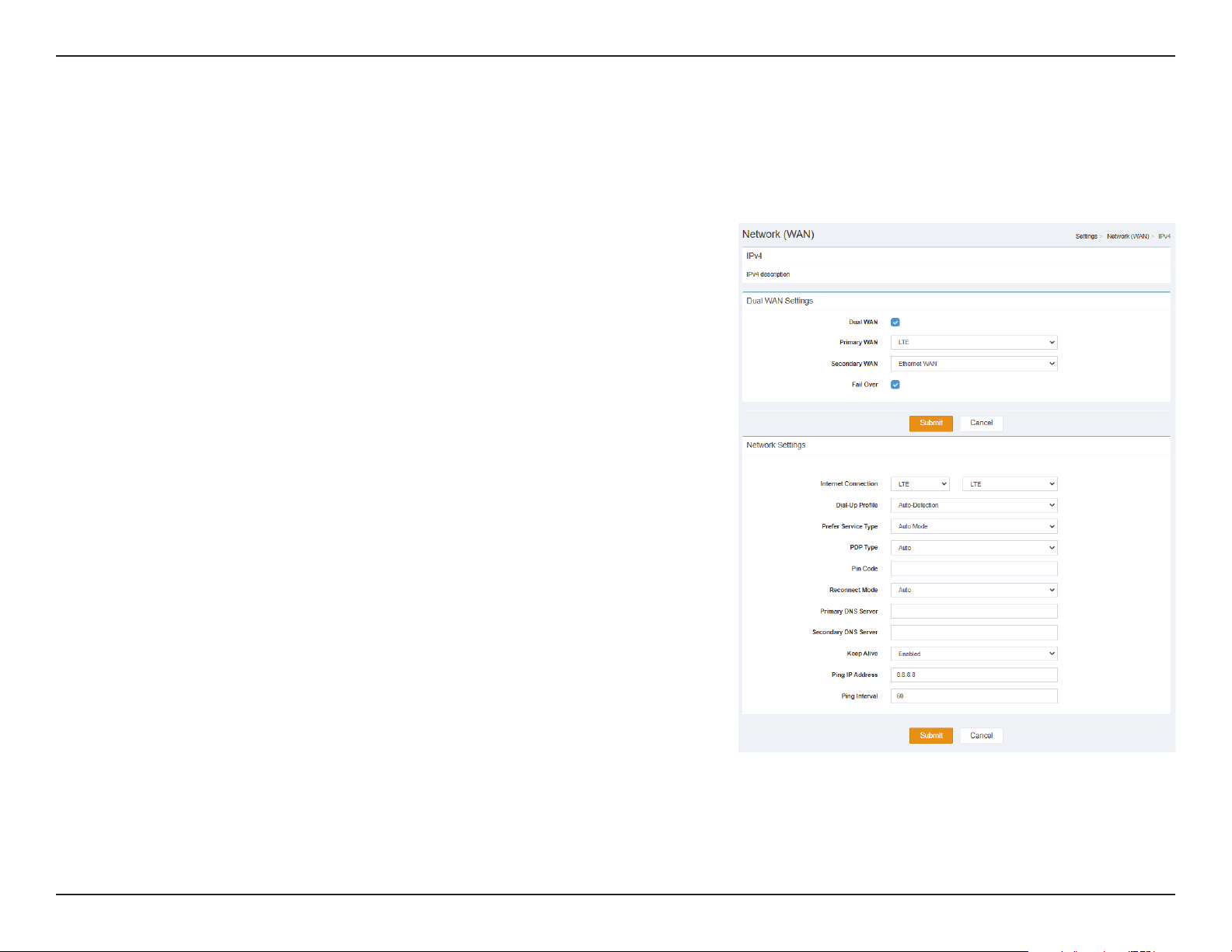
Network (WAN) IPv4
Dual WAN Settings
Dual WAN: Indicates whether Dual WAN is Enabled or Disabled.
Primary WAN: Select connection type of the primary WAN.
Secondary
WAN:
Select connection type of the Secondary WAN.
Fail Over: Indicates whether Fail Over is Enabled or Disabled.
Click Submit to save your settings, or Cancel to revert to your previous settings.

18D-Link DWR-978 User Manual
Section 3 - Conguration
Network Settings
Internet
Connection:
Select the Internet Connection type of the IPv4 WAN.
Dial-Up
Prole:
Select the Dial-Up Prole to be Auto-Detection or Manual.
PDP Type: Select the PDP Type to be Auto, IPv4 or IPv6.
Pin Code: Indicates the Pin Code of the connection.
Reconnect
Mode:
Select Reconnect Mode to be Auto or Manual.
Primary DNS
Server:
Enter the primary DNS IP address that will be assigned to DHCP
clients.
Secondary
DNS Server:
Enter the secondary DNS IP address that will be assigned to
DHCP clients.
Keep Alive: Indicates whether Keep Alive is Enabled or Disabled.
Ping IP
Address:
Enter Ping IP Address to ping test the connection.
Ping Interval: Indicates the Ping Interval.
Click Submit to save your settings, or Cancel to revert to your previous settings.
19D-Link DWR-978 User Manual
Section 3 - Conguration
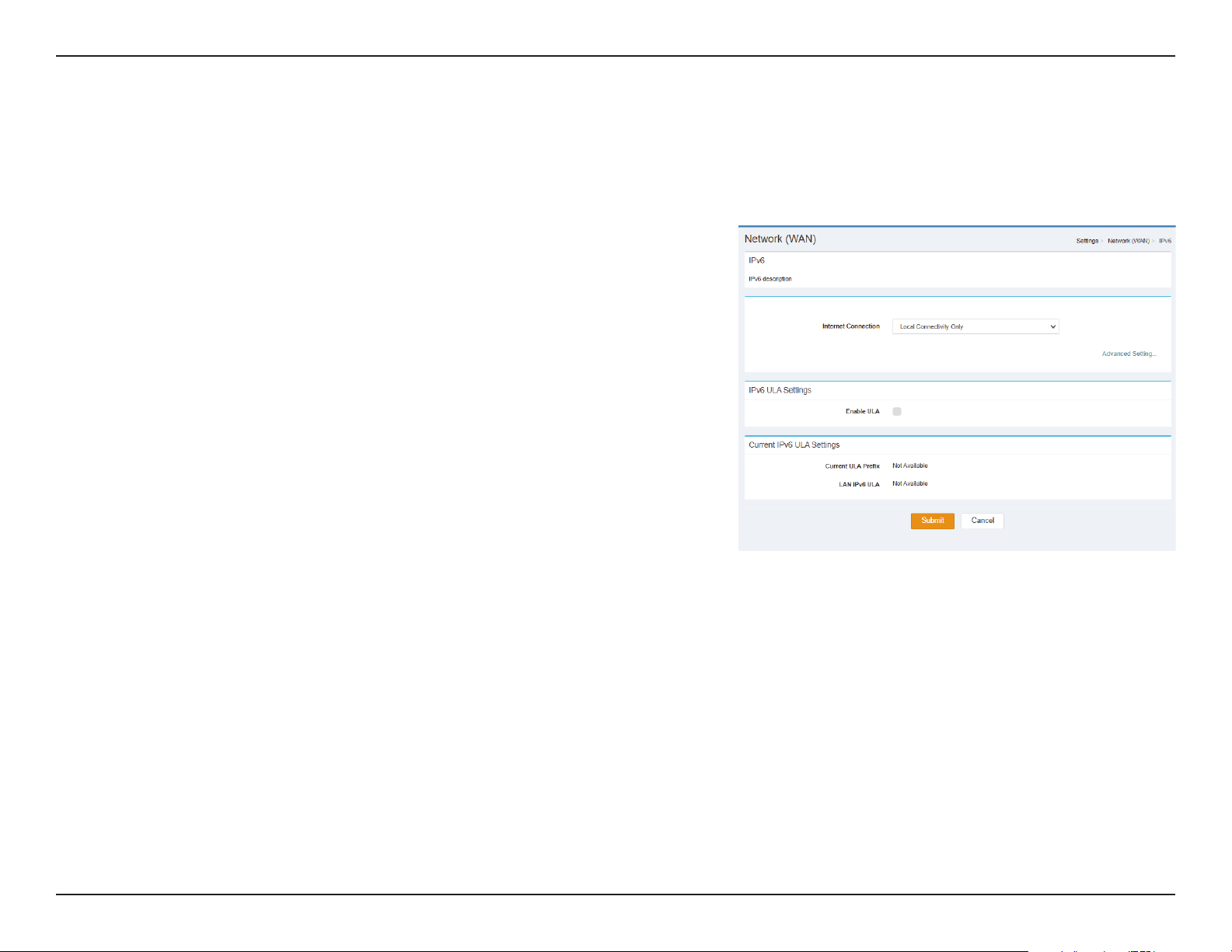
Network (WAN) IPv6
Local Connectivity Only IPv6 Advanced Setting
Internet
Connection:
Specify the type of IPv6 connection your ISP uses. Choose from
Local Connectivity Only, Static IPv6, Auto Conguration
(Stateless/DHCPv6), PPPoE, 6rd.
IPv6 ULA Settings
Enable ULA: Indicates whether Enable ULA is Enabled or Disabled.
Current IPv6 ULA Settings
Current ULA
Prex:
Indicates the Current ULA Prex.
LAN IPv6
ULA:
Indicates the LAN IPv6 ULA.
Click Submit to save your settings, or Cancel to revert to your previous settings.
20D-Link DWR-978 User Manual
Section 3 - Conguration
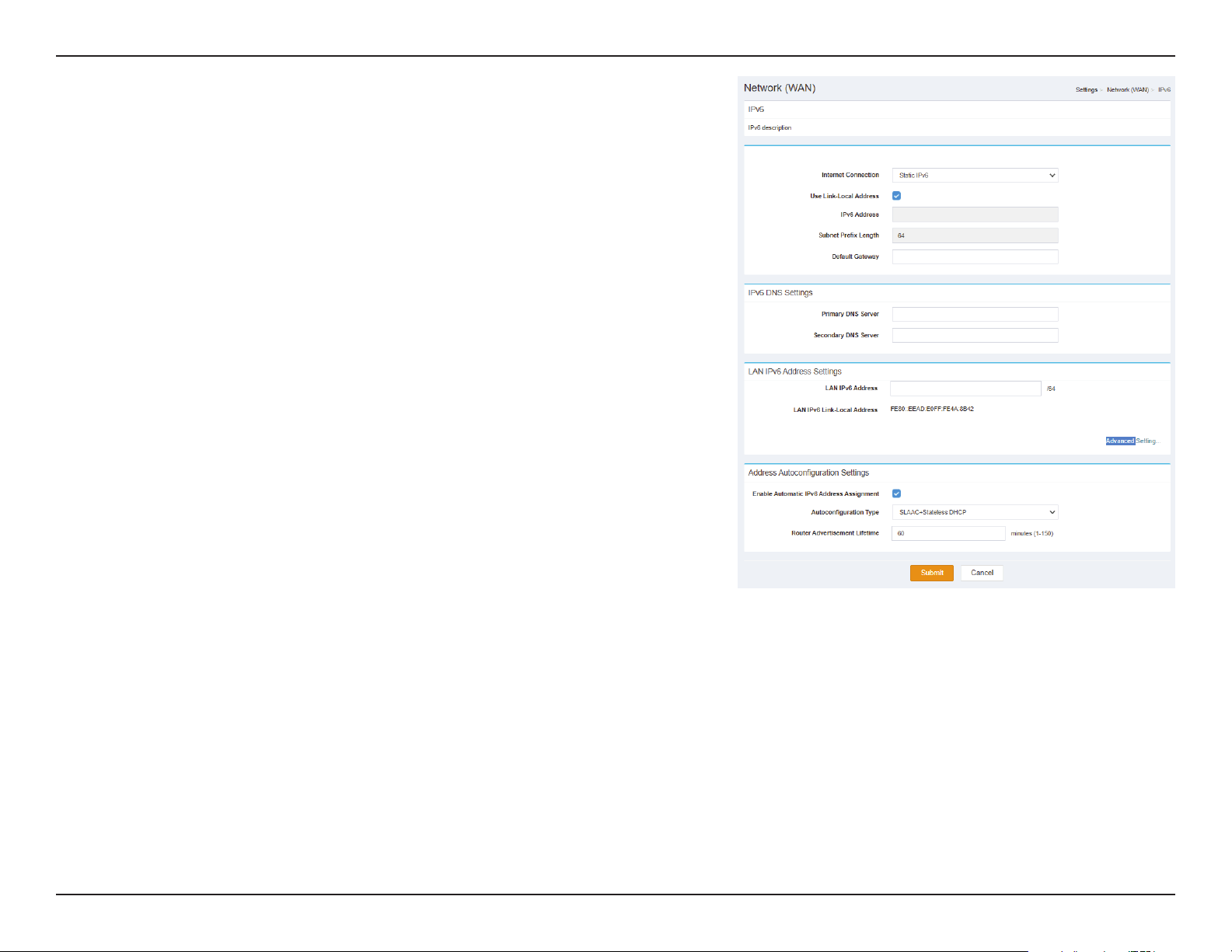
Static IPv6 Advanced Setting
Internet
Connection:
Specify the type of IPv6 connection your ISP uses. Choose from
Local Connectivity Only, Static IPv6, Auto Conguration
(Stateless/DHCPv6), PPPoE, 6rd.
Use Link-Local
Address:
Indicates whether Use Link-Local Address is Enabled or
Disabled.
IPv6 Address: If Use Link-Local Address is Disabled, enter the IPv6 Address.
Subnet Prex
Length:
If Use Link-Local Address is Disabled, enter the Subnet Prex
Length.
Default Gateway: Enter the Default Gateway used by this connection.
IPv6 DNS Settings
Primary DNS
Server:
Enter the primary DNS IP address that will be assigned to DHCP
clients.
Secondary DNS
Server:
Enter the secondary DNS IP address that will be assigned to
DHCP clients.
LAN IPv6 Address Settings
LAN IPv6 Address: Specify the LAN IPv6 Address.
LAN IPv6 Link-
Local Address:
Indicates the LAN IPv6 Link-Local Address.

21D-Link DWR-978 User Manual
Section 3 - Conguration
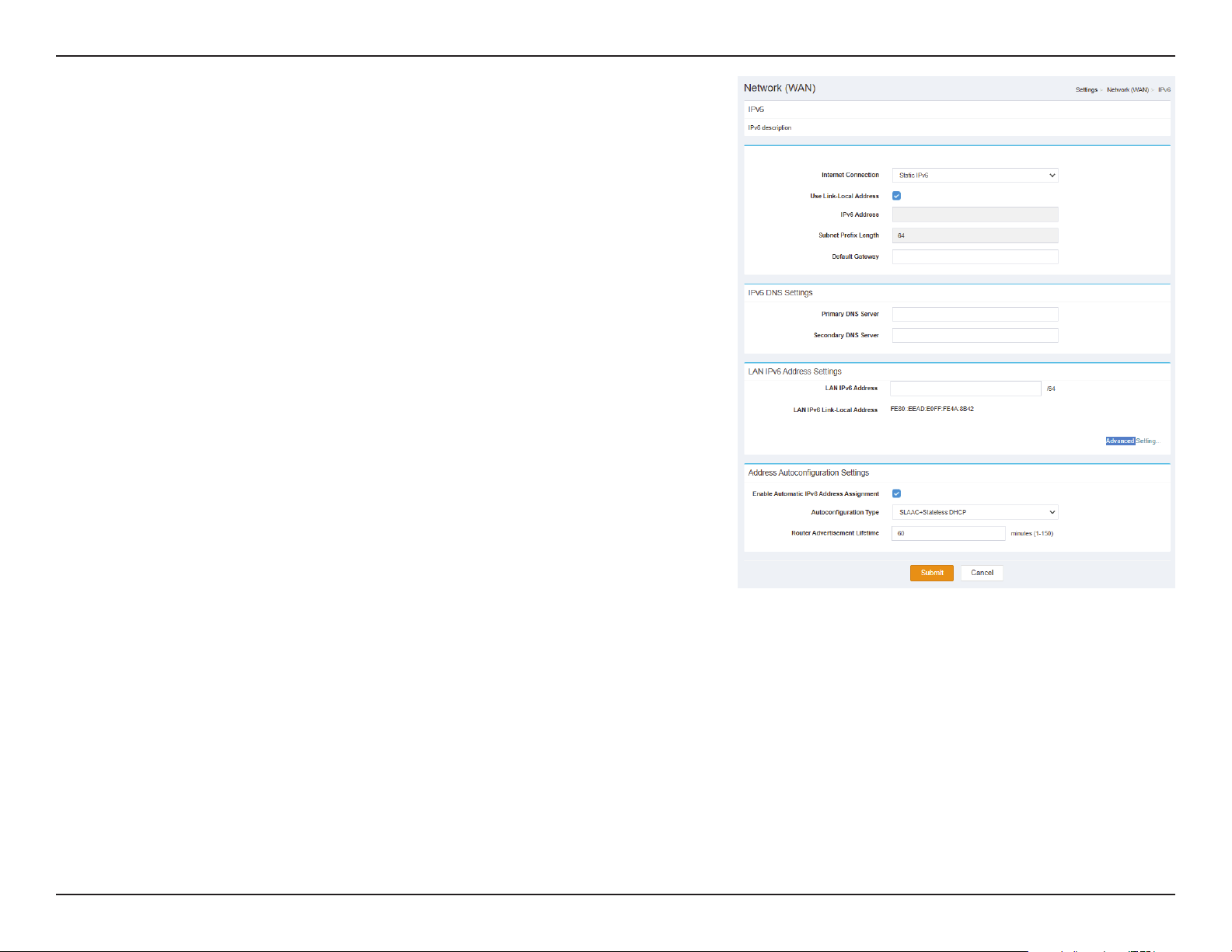
Address Autoconguration Settings
Enable Automatic
IPv6 Address
Assignment:
Indicates whether Enable Automatic IPv6 Address Assignment is
Enabled or Disabled.
Autoconguration
Type:
Specify the Autoconguration Type. Choose from
SLAAC+RDNSS, SLAAC+Stateless DHCP or Stateful DHCPv6.
Router
Advertisement
Lifetime:
Specify the Router Advertisement Lifetime from minutes (1-
150).
Click Submit to save your settings, or Cancel to revert to your previous settings.
22D-Link DWR-978 User Manual
Section 3 - Conguration
Autoconguration (SLAAC/DHCPv6) Advanced Setting
Internet
Connection:
Specify the type of IPv6 connection your ISP uses. Choose from
Local Connectivity Only, Static IPv6, Auto Conguration
(Stateless/DHCPv6), PPPoE, 6rd.
IPv6 DNS Settings
DNS Type: Specify the DNS Type. Choose from Obtain a DNS server
address automatically or Use the following DNS address.
Primary DNS
Server:
Enter the primary DNS IP address that will be assigned to DHCP
clients.
Secondary DNS
Server:
Enter the secondary DNS IP address that will be assigned to
DHCP clients.
LAN IPv6 Address Settings
Enable DHCP-PD: Indicates whether Use Link-Local Address is Enabled or
Disabled.
LAN IPv6 Link-
Local Address:
Indicates the LAN IPv6 Link-Local Address.

23D-Link DWR-978 User Manual
Section 3 - Conguration
Address Autoconguration Settings
Enable Automatic
IPv6 Address
Assignment:
Indicates whether Enable Automatic IPv6 Address Assignment is
Enabled or Disabled.
Enable Automatic
DHCP-PD in LAN:
Indicates whether Enable Automatic DHCP-PD in LAN is Enabled
or Disabled.
Autoconguration
Type:
Specify the Autoconguration Type. Choose from
SLAAC+RDNSS, SLAAC+Stateless DHCP or Stateful DHCPv6.
Router
Advertisement
Lifetime:
Specify the Router Advertisement Lifetime from minutes (1-
150).
Click Submit to save your settings, or Cancel to revert to your previous settings.
24D-Link DWR-978 User Manual
Section 3 - Conguration
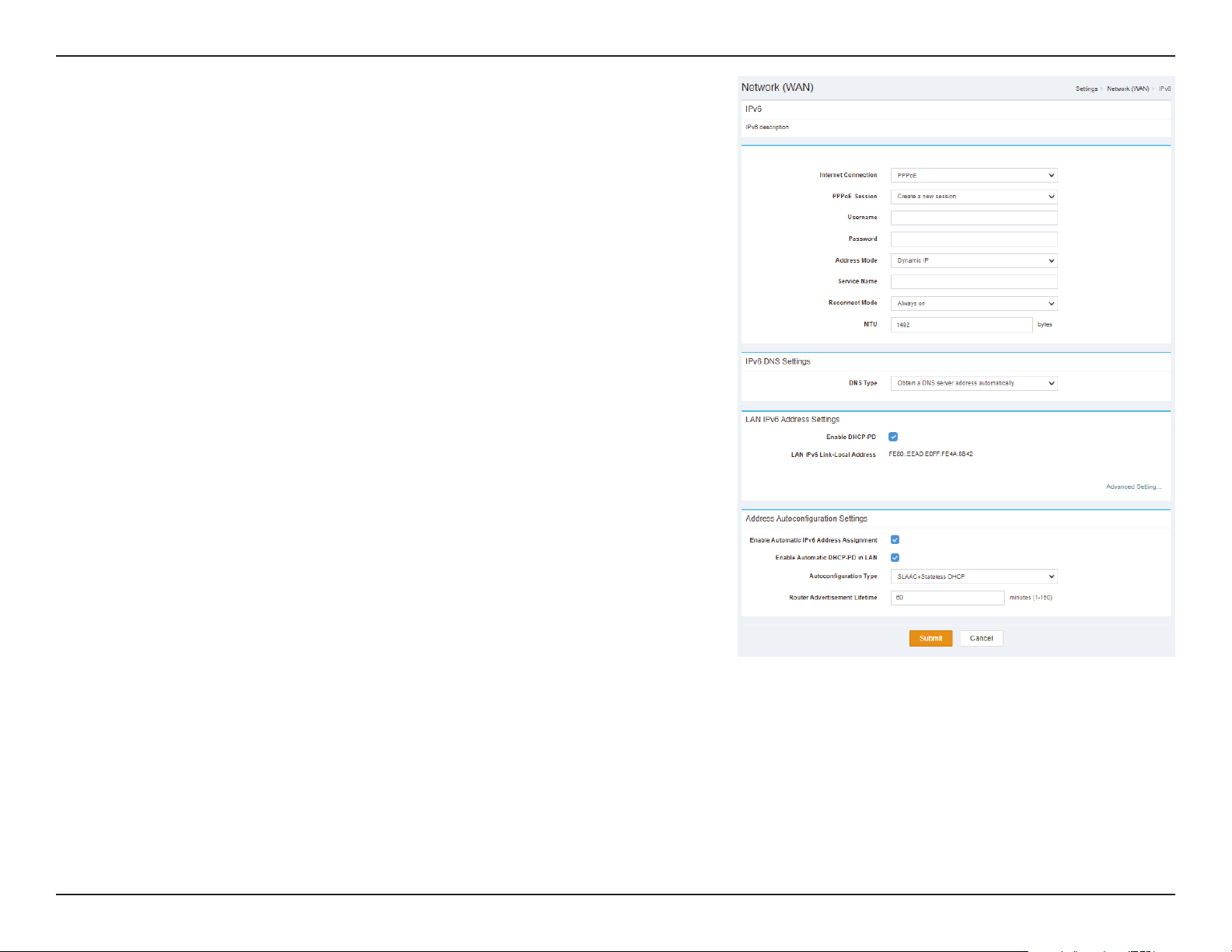
PPPoE Advanced Setting
Internet
Connection:
Specify the type of IPv6 connection your ISP uses. Choose from
Local Connectivity Only, Static IPv6, Auto Conguration
(Stateless/DHCPv6), PPPoE, 6rd.
PPPoE Session: Select the PPPoE Session to create or edit.
Username: Specify the Username.
Password: Specify the Password.
Address Mode: Specify the Reconnect Mode. Choose from Dynamic IP or Static
I P.
Service Name: Specify the Service Name.
Reconnect Mode: Specify the Reconnect Mode. Choose from Always on or
Manual.
MTU: Specify the MTU in bytes.
IPv6 DNS Settings
DNS Type: Specify the DNS Type. Choose from Obtain a DNS server
address automatically or Use the following DNS address.
Primary DNS
Server:
Enter the primary DNS IP address that will be assigned to DHCP
clients.
Secondary DNS
Server:
Enter the secondary DNS IP address that will be assigned to
DHCP clients.

25D-Link DWR-978 User Manual
Section 3 - Conguration
LAN IPv6 Address Settings
Enable DHCP-PD: Indicates whether Use Link-Local Address is Enabled or
Disabled.
LAN IPv6 Link-Local
Address:
Indicates the LAN IPv6 Link-Local Address.
Address Autoconguration Settings
Enable Automatic
IPv6 Address
Assignment:
Indicates whether Enable Automatic IPv6 Address Assignment is
Enabled or Disabled.
Enable Automatic
DHCP-PD in LAN:
Indicates whether Enable Automatic DHCP-PD in LAN is Enabled
or Disabled.
Autoconguration
Type:
Specify the Autoconguration Type. Choose from
SLAAC+RDNSS, SLAAC+Stateless DHCP or Stateful DHCPv6.
Router
Advertisement
Lifetime:
Specify the Router Advertisement Lifetime from minutes (1-
150).
Click Submit to save your settings, or Cancel to revert to your previous settings.
26D-Link DWR-978 User Manual
Section 3 - Conguration
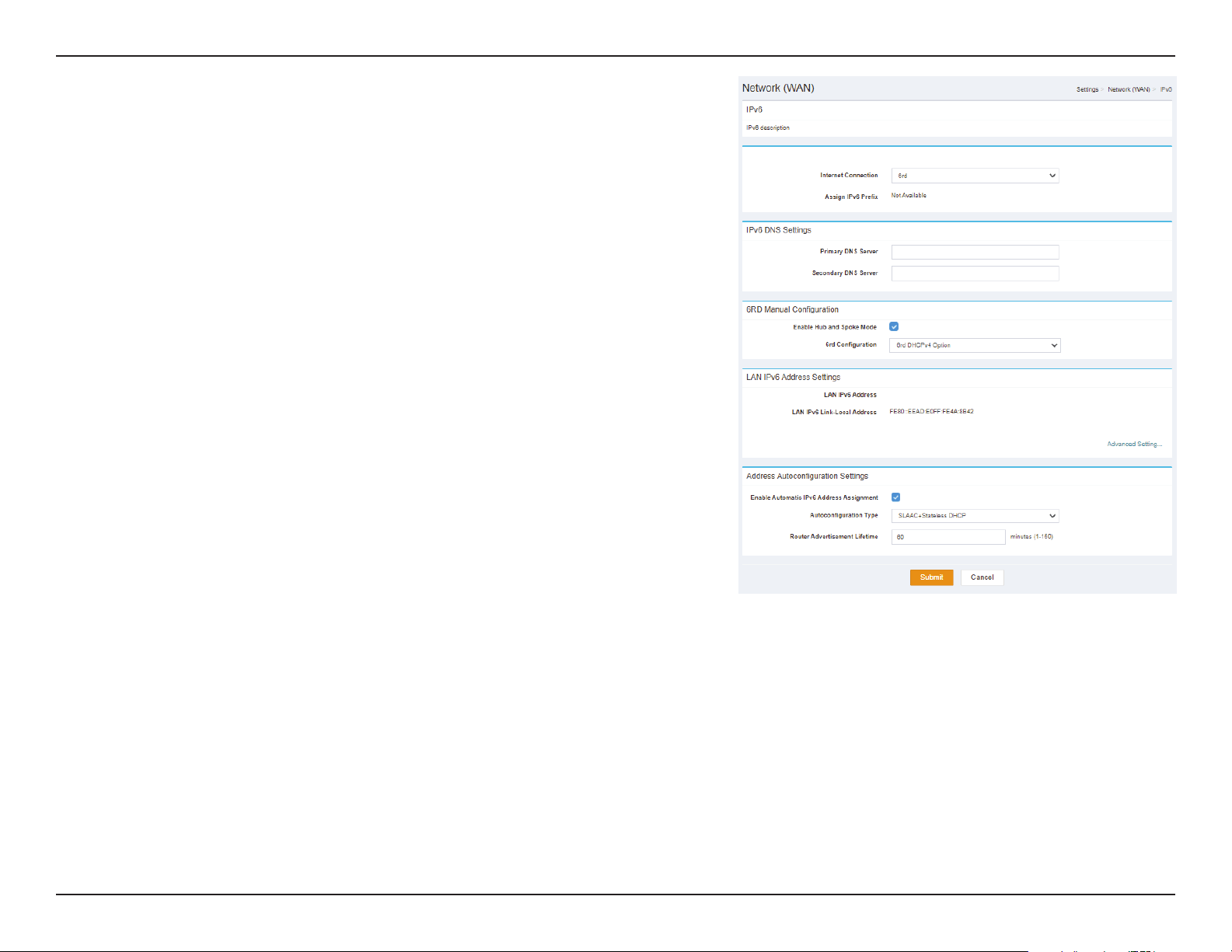
6rd Advanced Setting
Internet
Connection:
Specify the type of IPv6 connection your ISP uses. Choose from
Local Connectivity Only, Static IPv6, Auto Conguration
(Stateless/DHCPv6), PPPoE, 6rd.
Assign IPv6 Prex: Indicates the Assign IPv6 Prex.
IPv6 DNS Settings
DNS Type: Specify the DNS Type. Choose from Obtain a DNS server
address automatically or Use the following DNS address.
Primary DNS
Server:
Enter the primary DNS IP address that will be assigned to DHCP
clients.
Secondary DNS
Server:
Enter the secondary DNS IP address that will be assigned to
DHCP clients.
LAN IPv6 Address Settings
Enable DHCP-PD: Indicates whether Use Link-Local Address is Enabled or
Disabled.
LAN IPv6 Link-Local
Address:
Indicates the LAN IPv6 Link-Local Address.

27D-Link DWR-978 User Manual
Section 3 - Conguration
Address Autoconguration Settings
Enable Automatic
IPv6 Address
Assignment:
Indicates whether Enable Automatic IPv6 Address Assignment is
Enabled or Disabled.
Autoconguration
Type:
Specify the Autoconguration Type. Choose from
SLAAC+RDNSS, SLAAC+Stateless DHCP or Stateful DHCPv6.
Router
Advertisement
Lifetime:
Specify the Router Advertisement Lifetime from minutes (1-
150).
Click Submit to save your settings, or Cancel to revert to your previous settings.
28D-Link DWR-978 User Manual
Section 3 - Conguration
Management
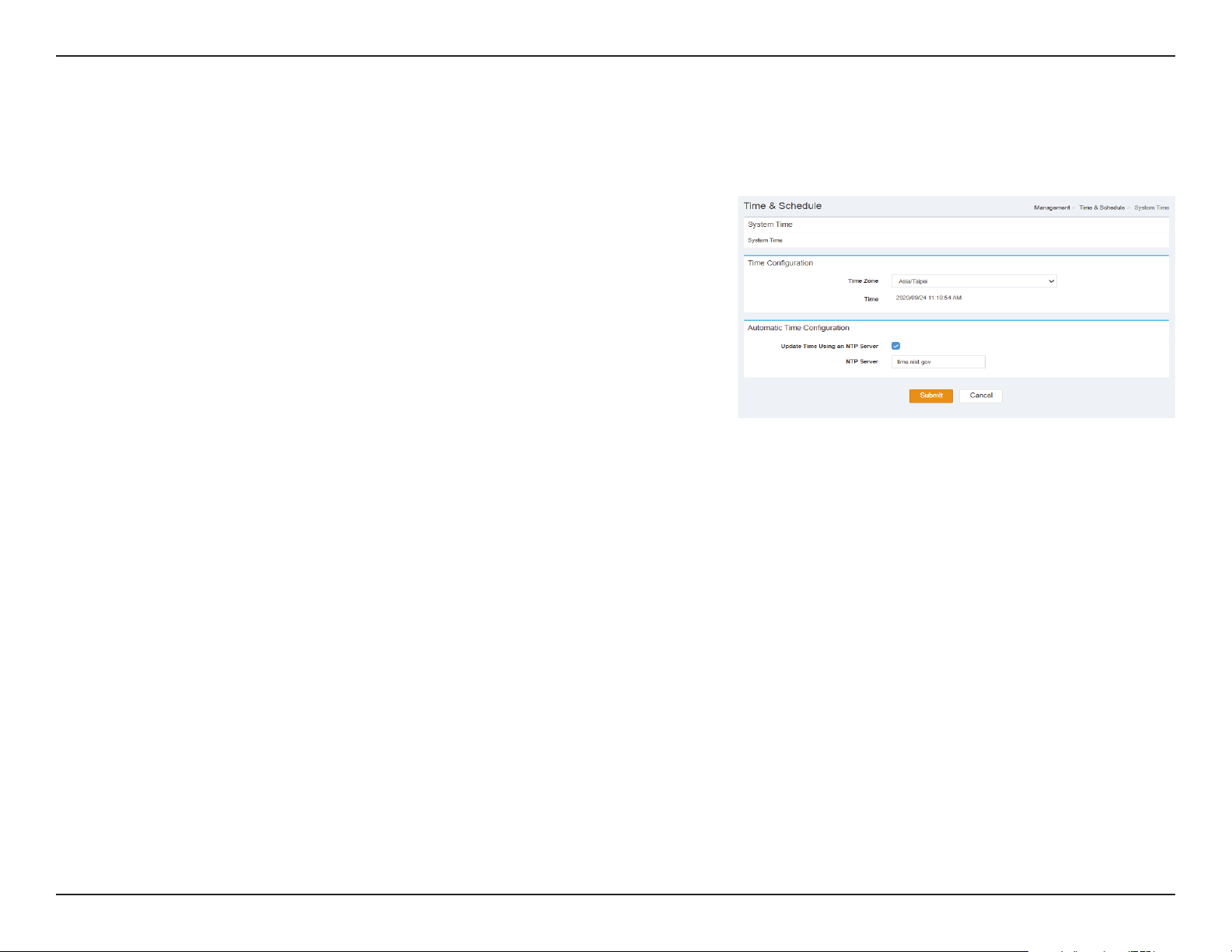
System Time
Time Conguration
Time Zone: Specify Time Zone of your device.
Time: Specify Time of your device.
Automatic Time Conguration
Update Time
Using an NTP
Server:
Indicates whether Update Time Using an NTP Server is Enabled
or Disabled.
NTP Server: Specify NTP Server of your device.
Click Submit to save your settings, or Cancel to revert to your previous settings.
29D-Link DWR-978 User Manual
Section 3 - Conguration
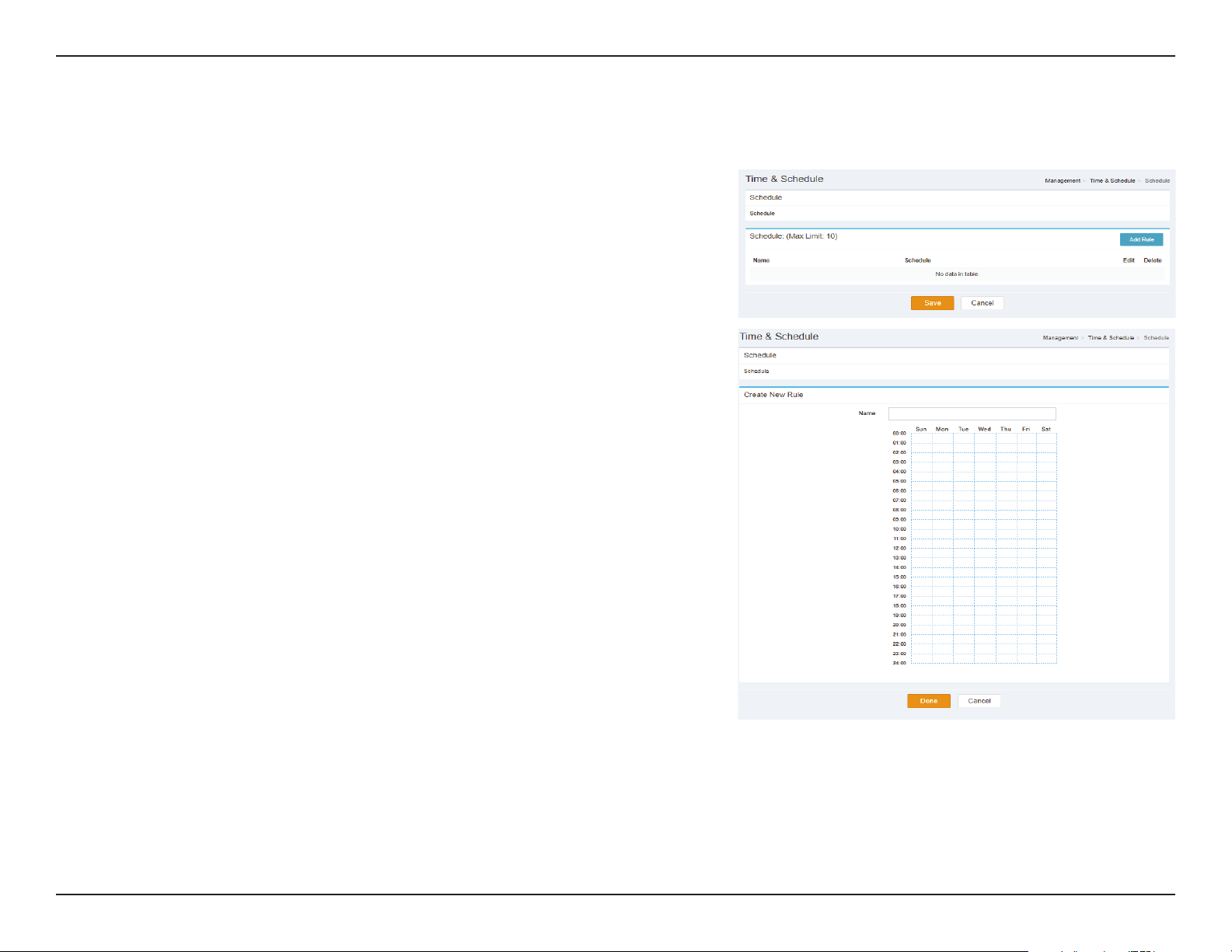
Schedule
Name Indicates the name of the schedule.
Schedule: Indicates the schedule.
Edit: When a schedule is selected, click this button to edit the
schedule.
Delete: When a schedule is selected, click this button to delete the
schedule.
Click Save to save your settings, or Cancel to revert to your previous settings.
Create New Rule
Name Enter a name for your new schedule
Schedule: Drag and select the times that you wish to be included as part of
the new schedule.
Click Save to save your settings, or Cancel to revert to your previous settings.
30D-Link DWR-978 User Manual
Section 3 - Conguration
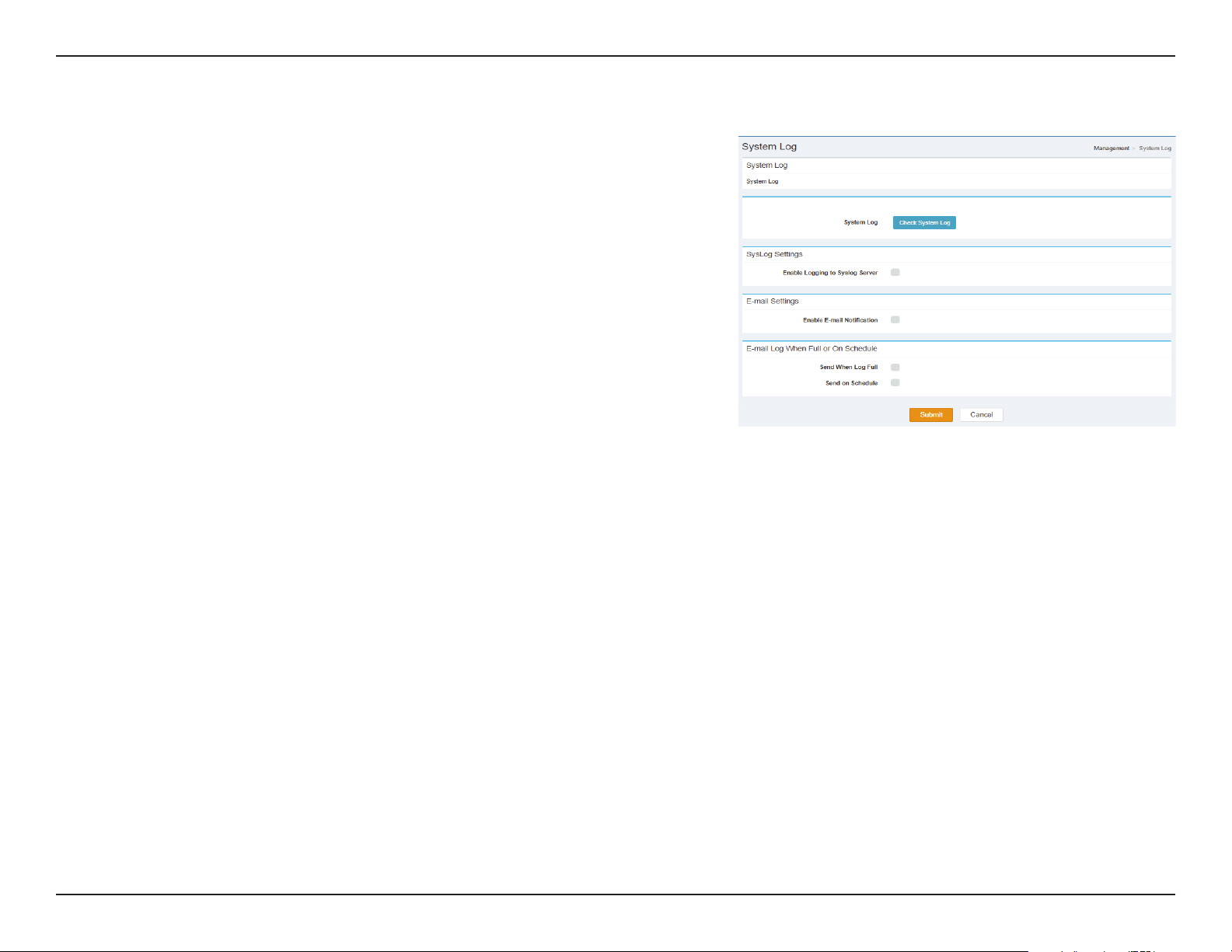
System Log
System Log: Click this button to download the system log.
SysLog Settings
Enable
Logging to
Syslog Server:
Indicates whether Enable Logging to Syslog Server is Enabled or
Disabled.
E-mail Settings
Enable E-mail
Notication:
Indicates whether Enable E-mail Notication is Enabled or
Disabled.
E-mail Log When Full or On Schedule
Send When
Log Full:
Indicates whether Send When Log Full is Enabled or Disabled.
Send on
Schedule:
Indicates whether Send on Schedule is Enabled or Disabled.
Click Submit to save your settings, or Cancel to revert to your previous settings.
31D-Link DWR-978 User Manual
Section 3 - Conguration
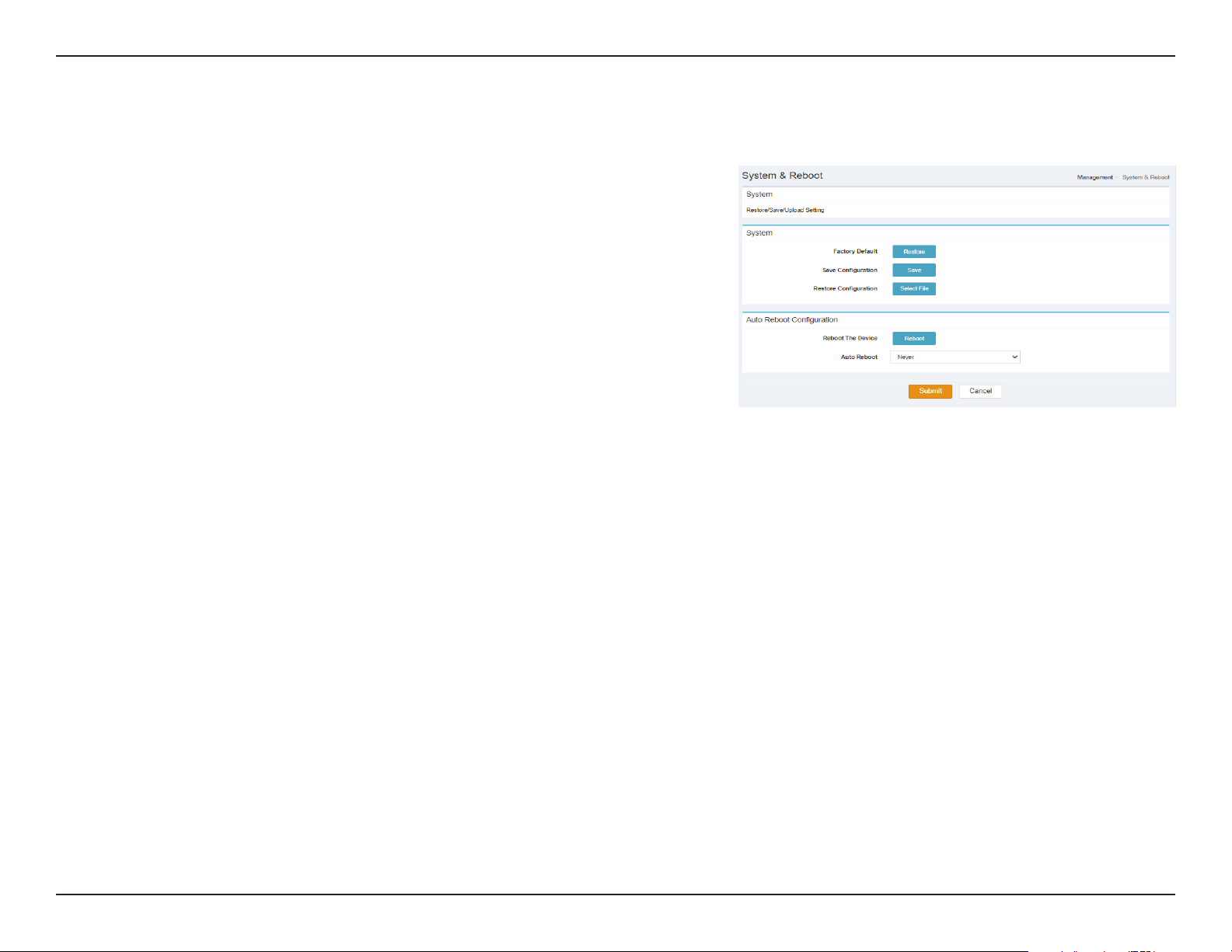
System & Reboot
System
Factory
Default:
Click this button to reset this device back to Factory Default.
Save
Conguration:
Click this button to Save Conguration
Restore
Conguration:
Click this button to select File to Restore Conguration
Auto Reboot Conguration
Reboot The
Device:
Click this button to Reboot The Device
Auto Reboot Specify an Auto Reboot time of your device.
Click Submit to save your settings, or Cancel to revert to your previous settings.
32D-Link DWR-978 User Manual
Section 3 - Conguration
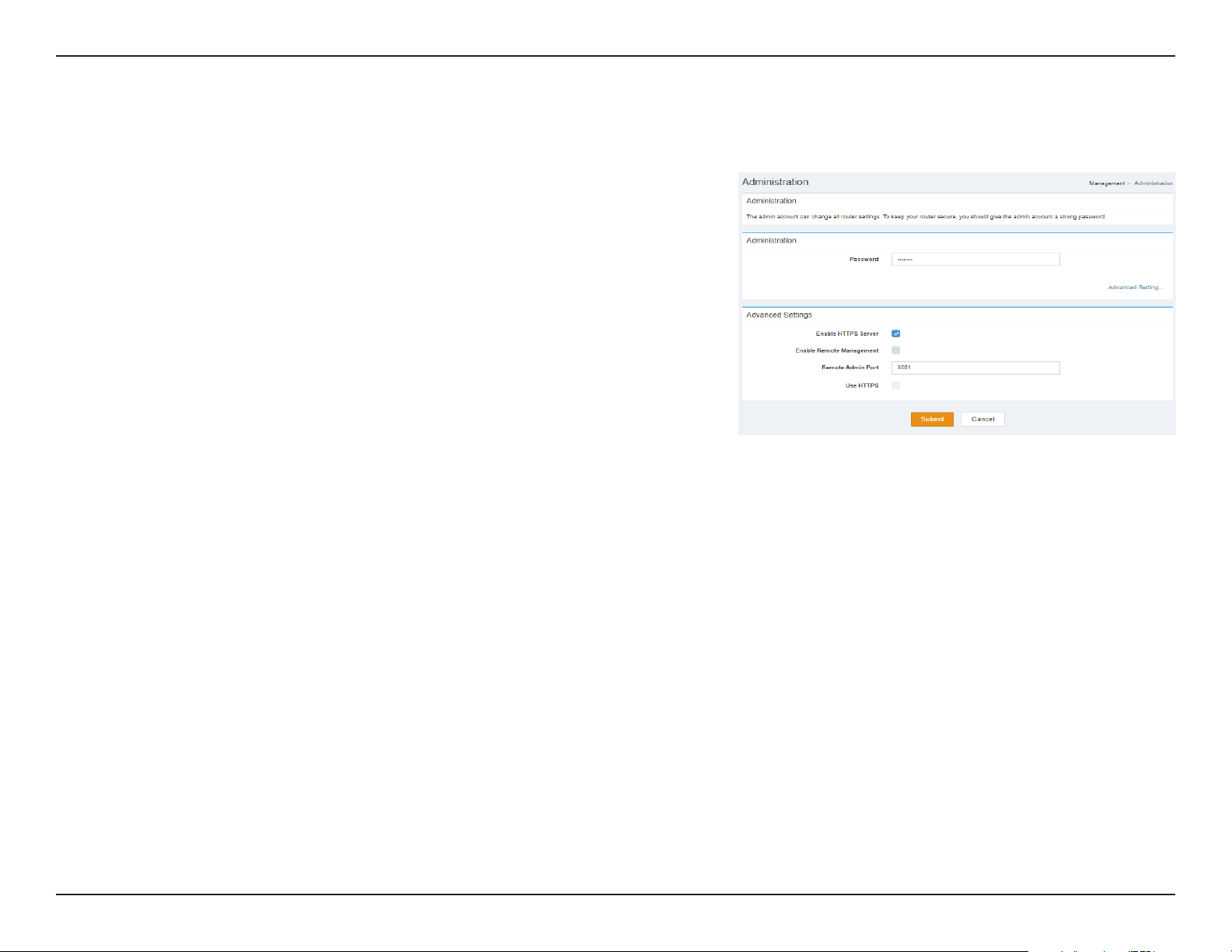
Administration
Administration Advanced Settings
Password: Specify Administration Password of your device.
Advanced Settings
Enable HTTPS
Server:
Indicates whether Enable HTTPS Server is Enabled or Disabled.
Enable
Remote
Management:
Indicates whether Enable Remote Management is Enabled or
Disabled.
Remote
Admin Port:
Specify Remote Admin Port of your device
Use HTTPS: Indicates whether Use HTTPS is Enabled or Disabled.
Click Submit to save your settings, or Cancel to revert to your previous settings.
33D-Link DWR-978 User Manual
Section 3 - Conguration
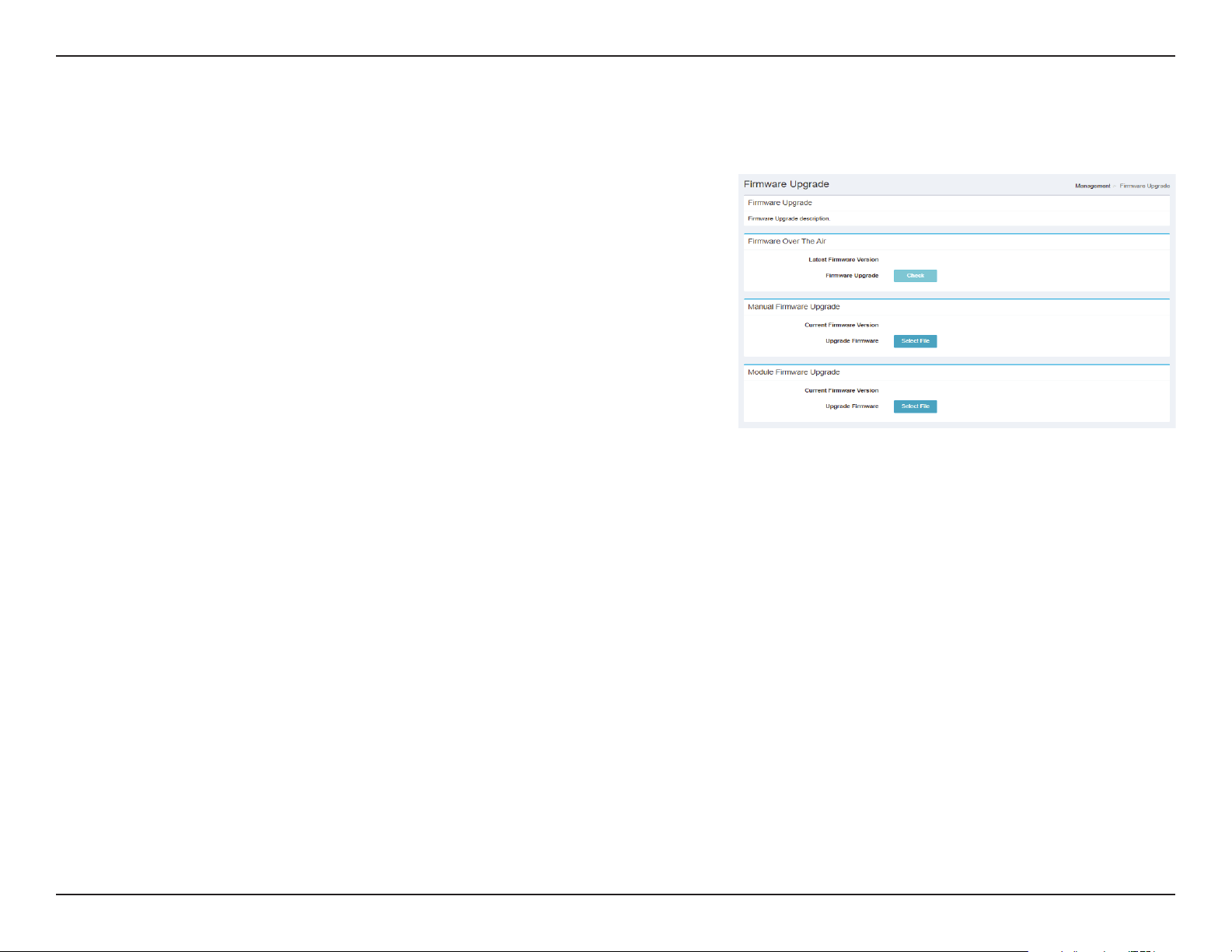
Firmware Upgrade
Firmware Over The Air
Latest
Firmware
Version:
Indicates The Latest Firmware Version.
Firmware
Upgrade:
Click Check to begin the Firmware Over the Air (FOTA) upgrade
process. Note that this requires an active Internet connection.
Manual Firmware Upgrade
Current
Firmware
Version:
Indicates the Current Firmware Version.
Upgrade
Firmware:
After you have downloaded a new rmware, click Select File to
locate the rmware on your computer, then click Apply to start
the rmware upgrade.
Module Firmware Upgrade
Current
Firmware
Version:
Indicates the Current Firmware Version.
Upgrade
Firmware:
After you have downloaded a new rmware, click Select File to
locate the rmware on your computer, then click Apply to start
the rmware upgrade.
34D-Link DWR-978 User Manual
Section 3 - Conguration
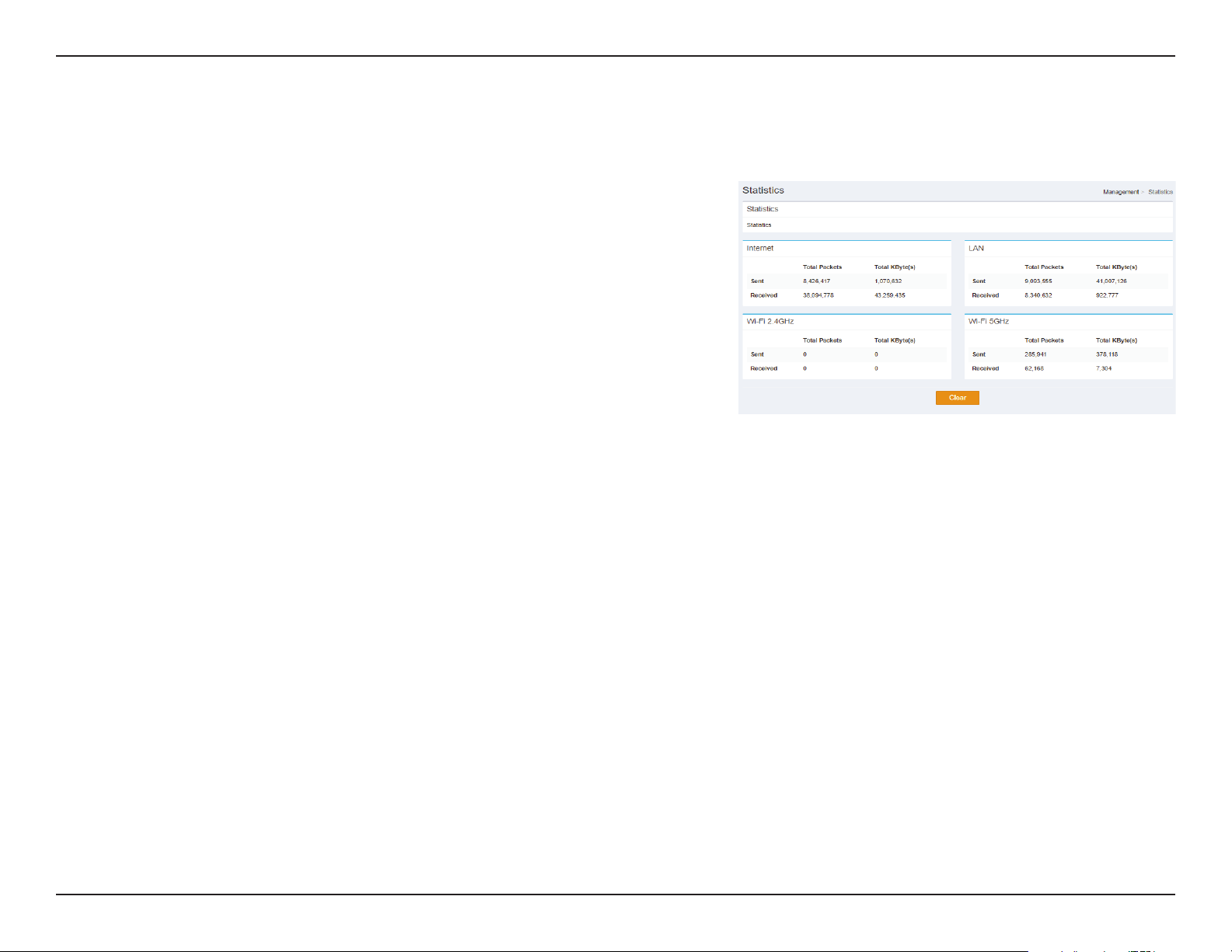
Statistics
Internet/ LAN/ Wi-Fi 2.4GHz/ Wi-Fi 5GHz
Sent Displays the Sent Statistics of the connection.
Received Displays the Received Statistics of the connection.
Total
Packets:
Displays the Total Packets Statistics of the connection.
Total
KByte(s):
Displays the Total KByte(s) Statistics of the connection.
Click Clear to clear all Statistics.
35D-Link DWR-978 User Manual
Section 3 - Conguration
Advanced Settings
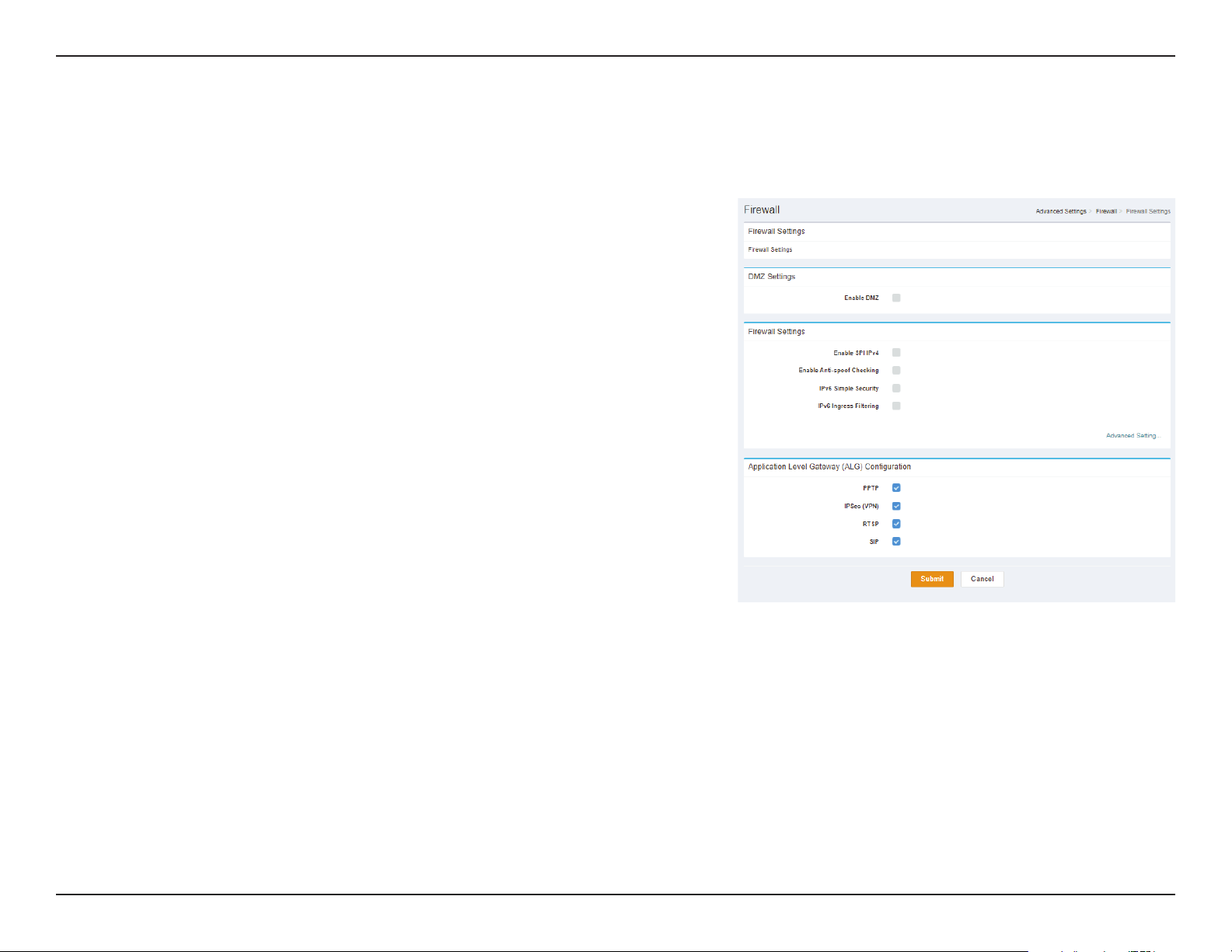
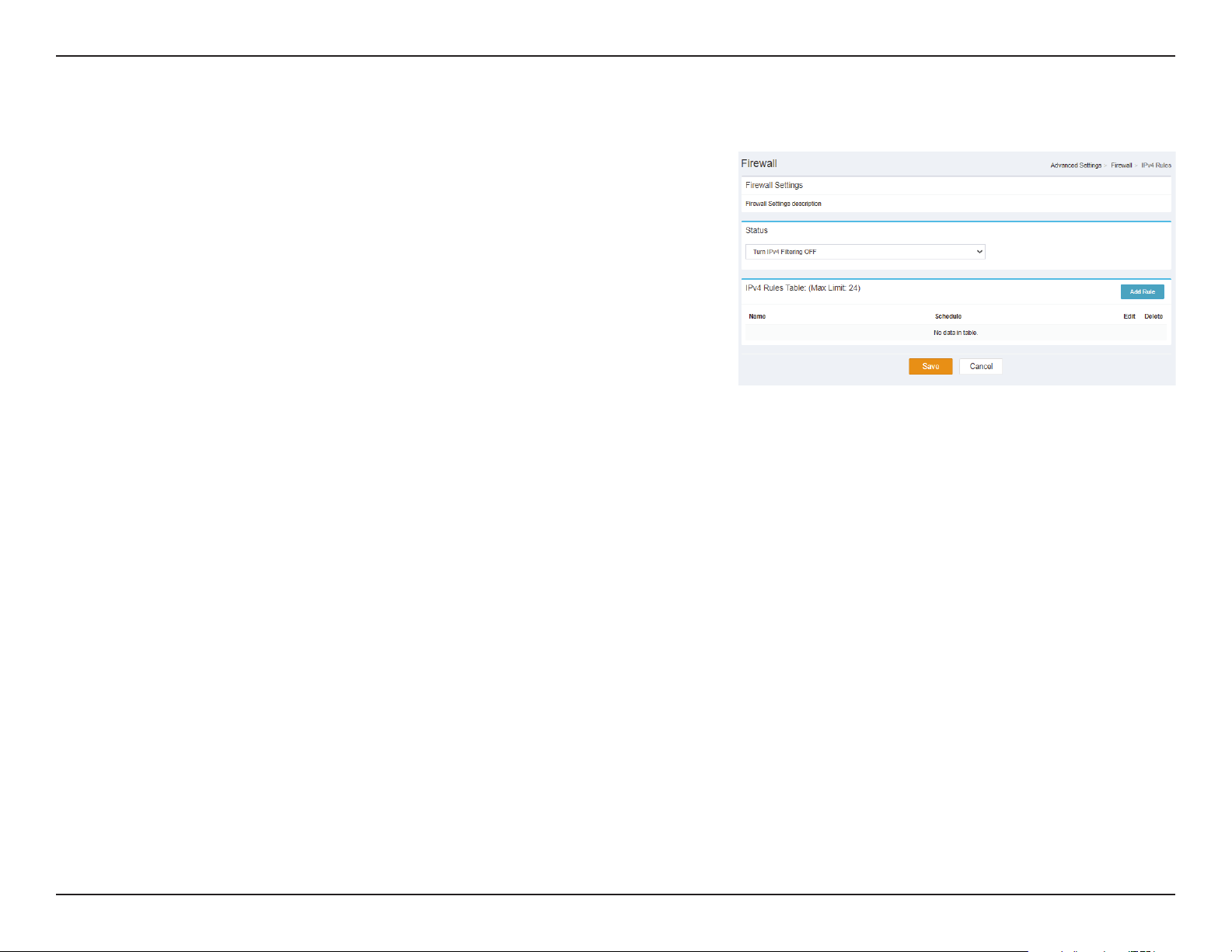
Firewall Settings
DMZ Settings
Enable DMZ: Indicates whether Enable DMZ is Enabled or Disabled.
Firewall Advanced Settings
Enable SPI
IPv4:
Indicates whether Enable SPI IPv4 is Enabled or Disabled.
Enable
Anti-spoof
Checking:
Indicates whether Enable Anti-spoof Checking is Enabled or
Disabled.
IPv6 Simple
Security:
Indicates whether IPv6 Simple Security is Enabled or Disabled.
IPv6 Ingress
Filtering:
Indicates whether IPv6 Ingress Filtering is Enabled or Disabled.
Application Level Gateway (ALG) Conguration
PPTP: Indicates whether PPTP is Enabled or Disabled.
IPSec (VPN): Indicates whether IPSec (VPN) is Enabled or Disabled.
RTSP: Indicates whether RTSP is Enabled or Disabled.
SIP: Indicates whether SIP is Enabled or Disabled.
Click Submit to save your settings, or Cancel to revert to your previous settings.
36D-Link DWR-978 User Manual
Section 3 - Conguration
IPv4 Rules
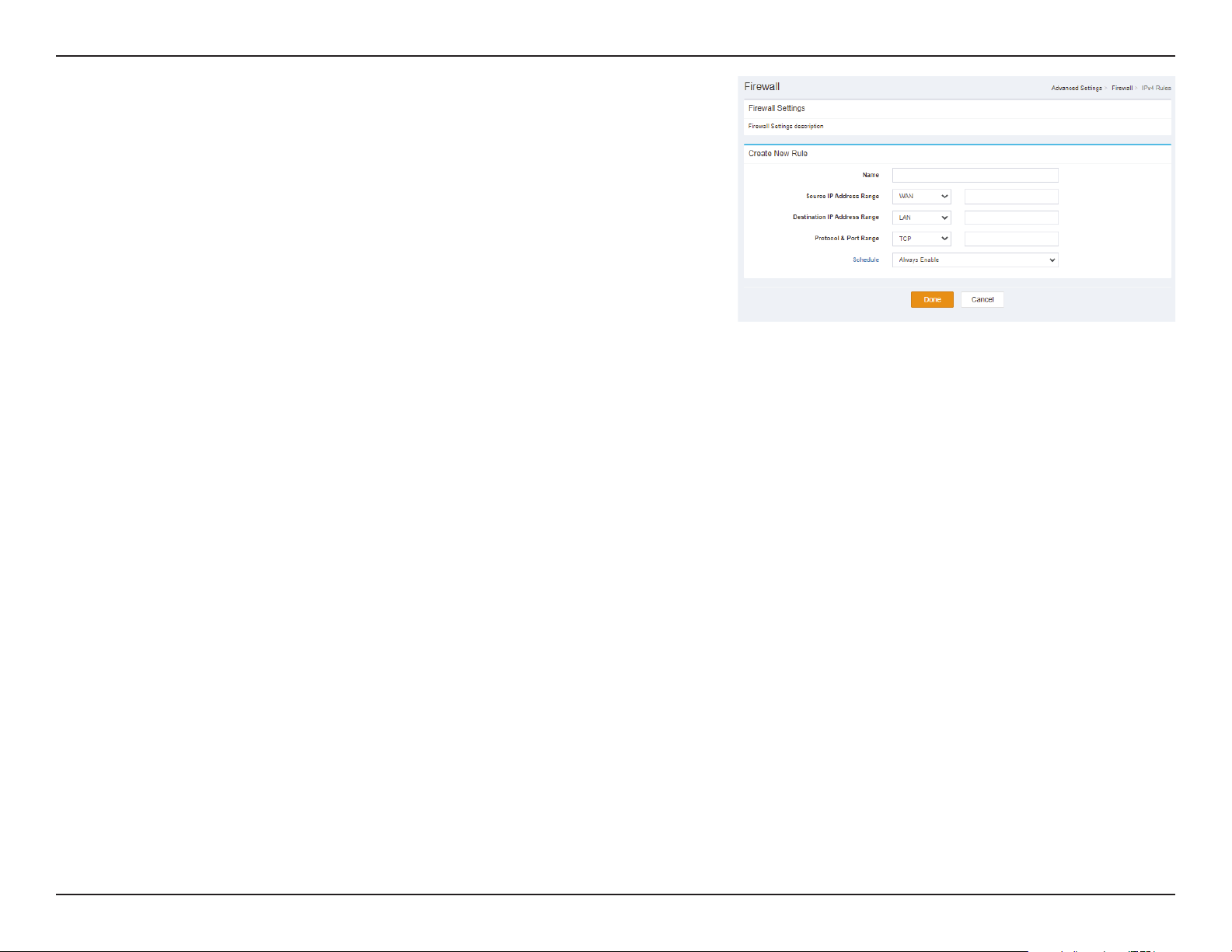
Status
Status: Select Turn IPv4 Filtering OFF, Turn IPv4 Filtering ON and
ALLOW rules listed. or Turn IPv4 Filtering ON and DENY rules
listed.
IPv4 Rules Table: (Max Limit: 24)
Name Indicates the name of the schedule.
Schedule: Indicates the schedule.
Edit: When a schedule is selected, click this button to edit the
schedule.
Delete: When a schedule is selected, click this button to delete the
schedule.
37D-Link DWR-978 User Manual
Section 3 - Conguration
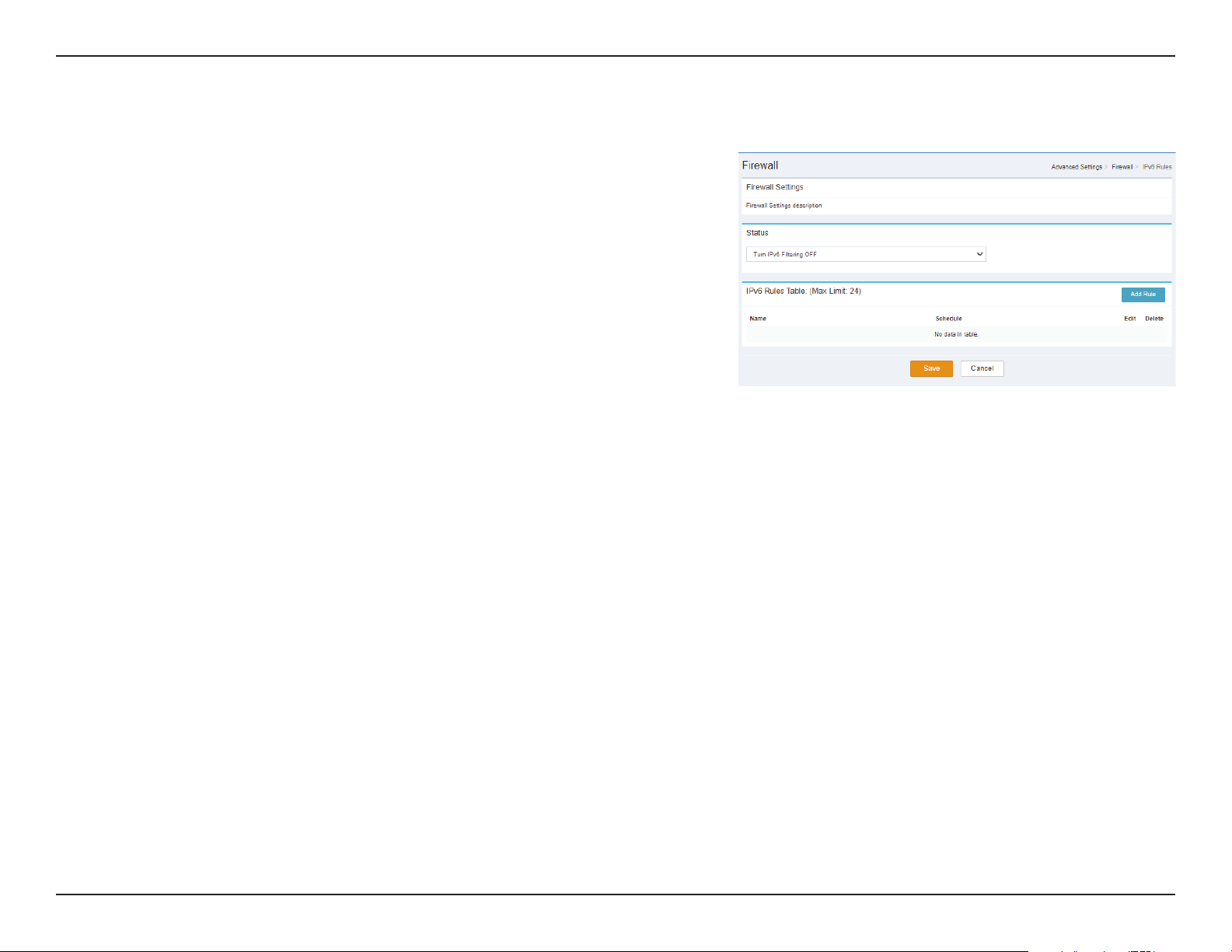
Create New Rule
Name Indicates the name of the New Rule.
Source IP
Address
Range:
Indicates the source IP or IP range to which the rule will apply.
Destination
IP Address
Range:
Indicates the Destination IP or IP range to which the rule will
apply.
Protocol &
Port Range:
Indicates protocol types and port range aected by the lter.
Schedule: Indicates whether the Wi-Fi network is part of a schedule. Click
on Schedule to access the schedule menu “Schedule” on page
29.
Click Submit to save your settings, or Cancel to revert to your previous settings.
38D-Link DWR-978 User Manual
Section 3 - Conguration
IPv6 Rules
Status
Status: Select Turn IPv6 Filtering OFF, Turn IPv6 Filtering ON and
ALLOW rules listed. or Turn IPv6 Filtering ON and DENY rules
listed.
IPv4 Rules Table: (Max Limit: 24)
Name Indicates the name of the schedule.
Schedule: Indicates the schedule.
Edit: When a schedule is selected, click this button to edit the
schedule.
Delete: When a schedule is selected, click this button to delete the
schedule.
39D-Link DWR-978 User Manual
Section 3 - Conguration
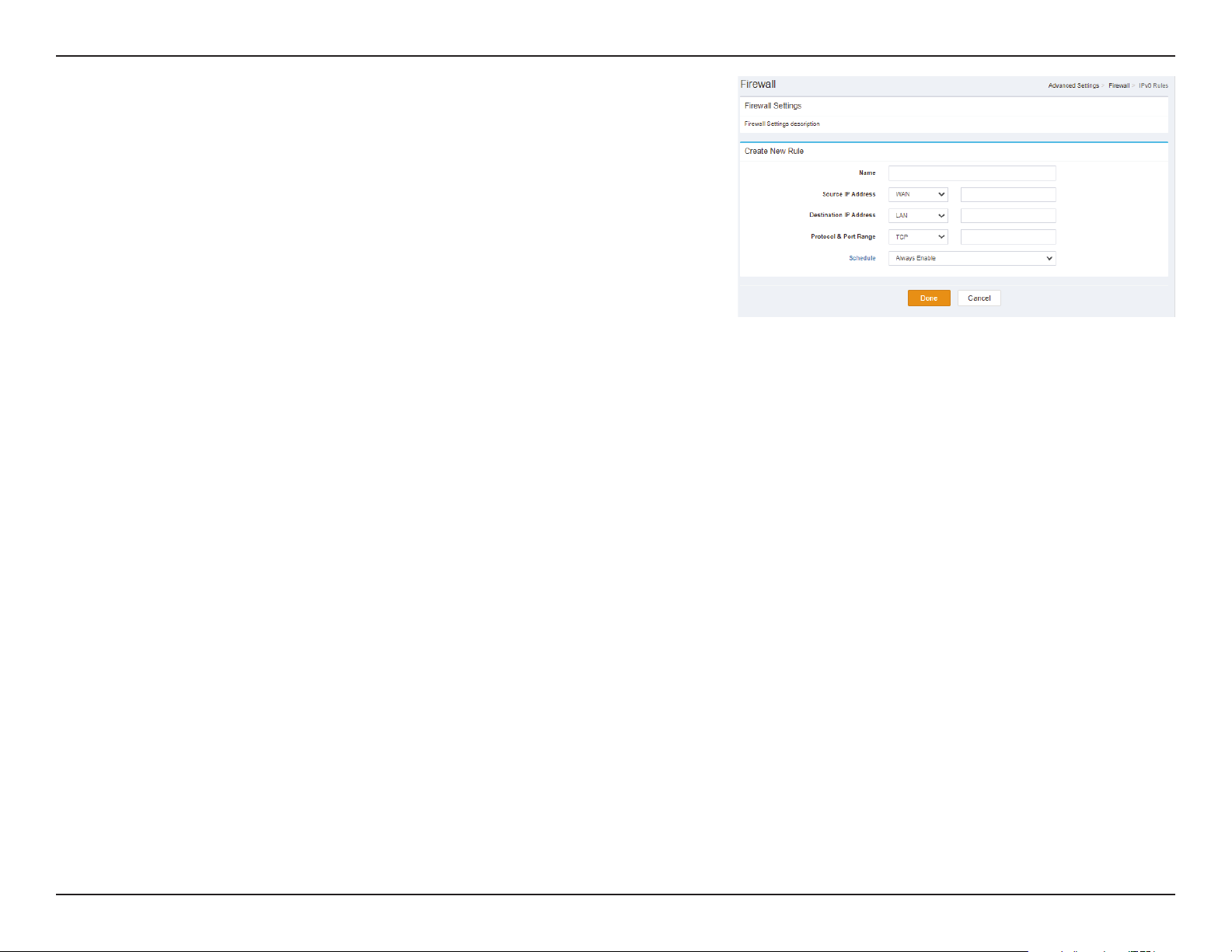
Create New Rule
Name Indicates the name of the New Rule.
Source IP
Address
Range:
Indicates the source IP or IP range to which the rule will apply.
Destination
IP Address
Range:
Indicates the Destination IP or IP range to which the rule will
apply.
Protocol &
Port Range:
Indicates protocol types and port range aected by the lter.
Schedule: Indicates whether the Wi-Fi network is part of a schedule. Click
on Schedule to access the schedule menu “Schedule” on page
29.
Click Submit to save your settings, or Cancel to revert to your previous settings.
40D-Link DWR-978 User Manual
Section 3 - Conguration
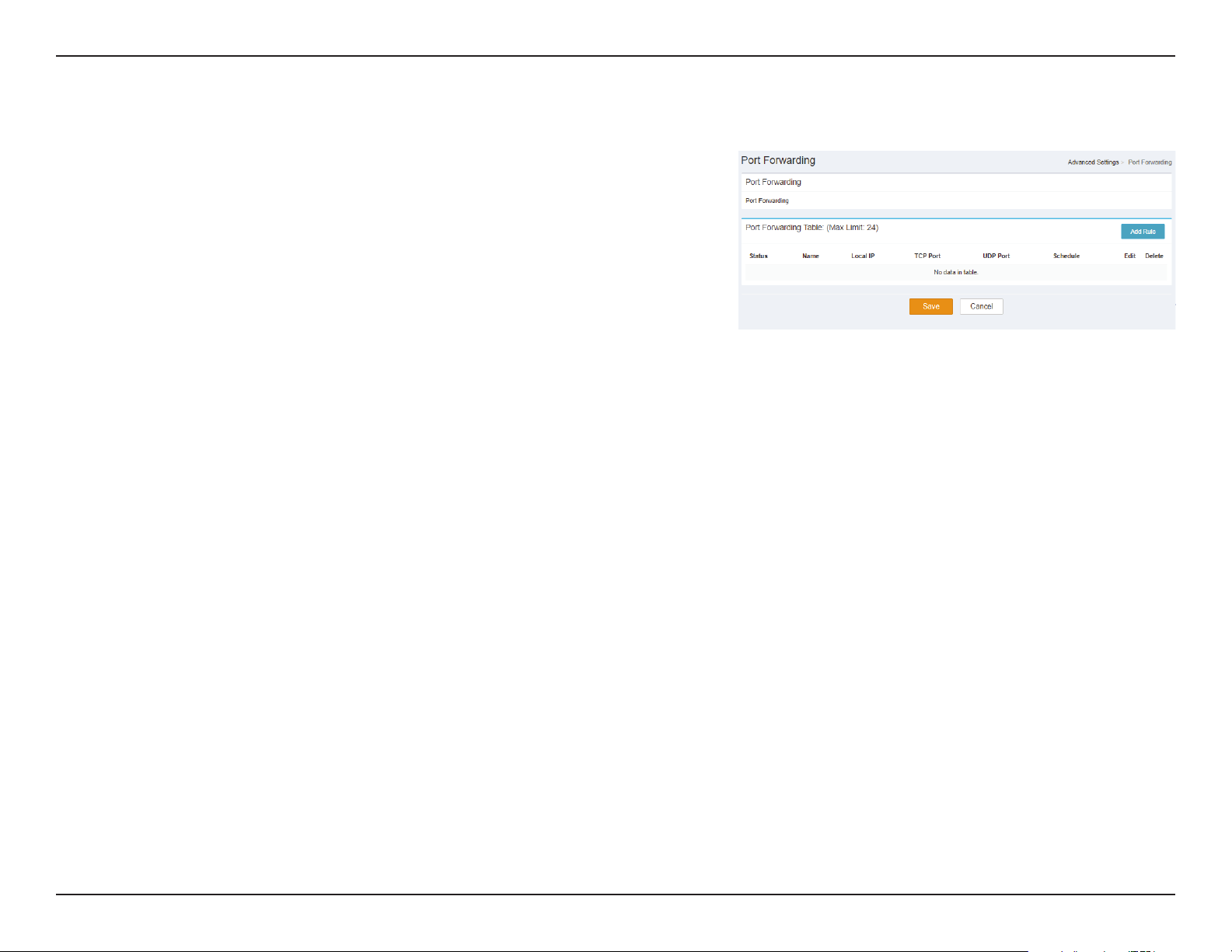
Port Forwarding
Port Forwarding Table: (Max Limit: 24)
Status: Indicates the Status.
Name: Indicates the Name.
Local IP: Indicates the Local IP.
TCP Port: Indicates the TCP Port.
UDP Port: Indicates the UDP Port.
Schedule: Indicates the schedule.
Edit: When a schedule is selected, click this button to edit the
schedule.
Delete: When a schedule is selected, click this button to delete the
schedule.
Click Save to save your settings, or Cancel to revert to your previous settings.
41D-Link DWR-978 User Manual
Section 3 - Conguration
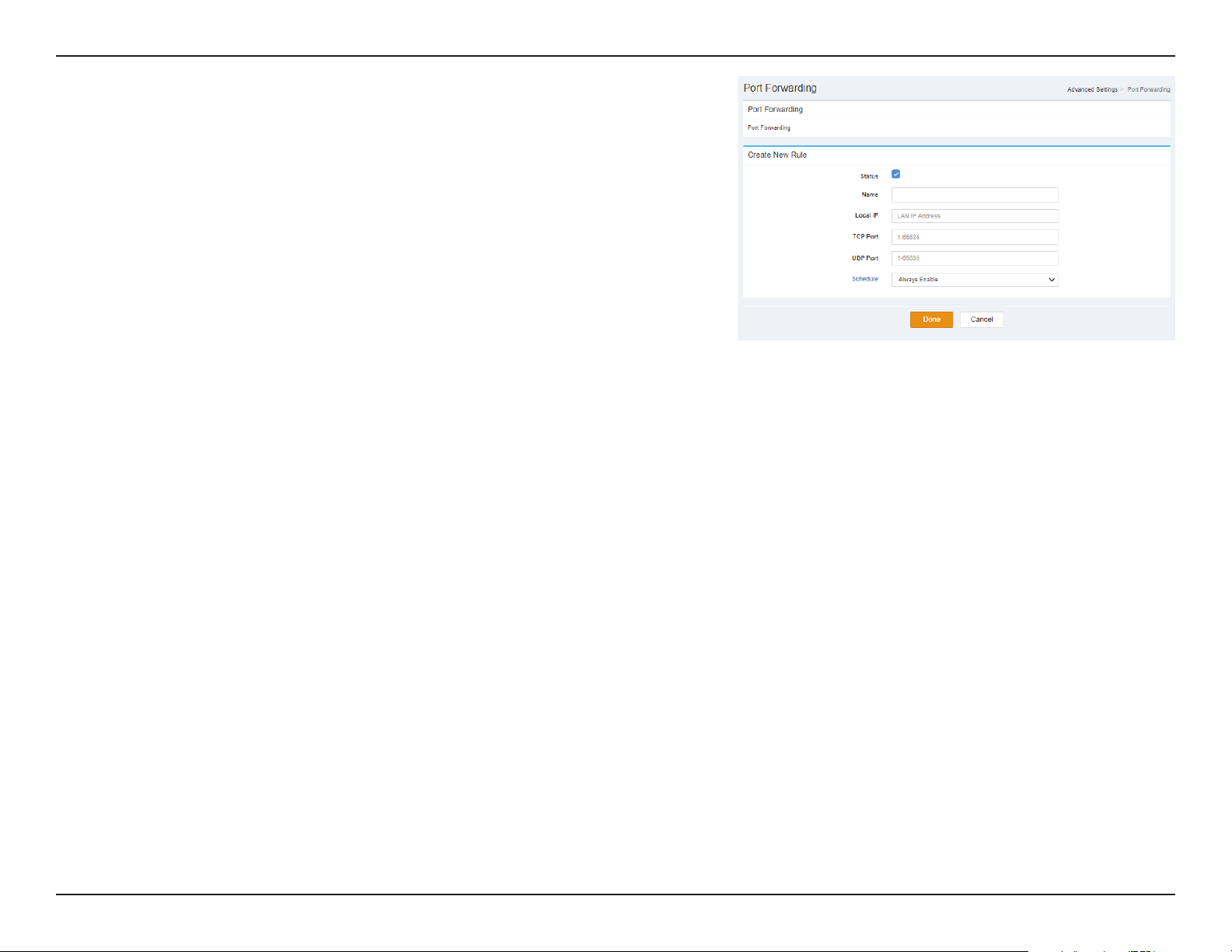
Create New Rule
Name Indicates the name of the New Rule.
Local IP: Indicates the Local IP of the New Rule.
TCP Port: Indicates the TCP Port of the New Rule.
UDP Port: Indicates the UDP Port of the New Rule.
Schedule: Indicates whether the Wi-Fi network is part of a schedule. Click
on Schedule to access the schedule menu “Schedule” on page
29.
Click Done to save your settings, or Cancel to revert to your previous settings.
42D-Link DWR-978 User Manual
Section 3 - Conguration
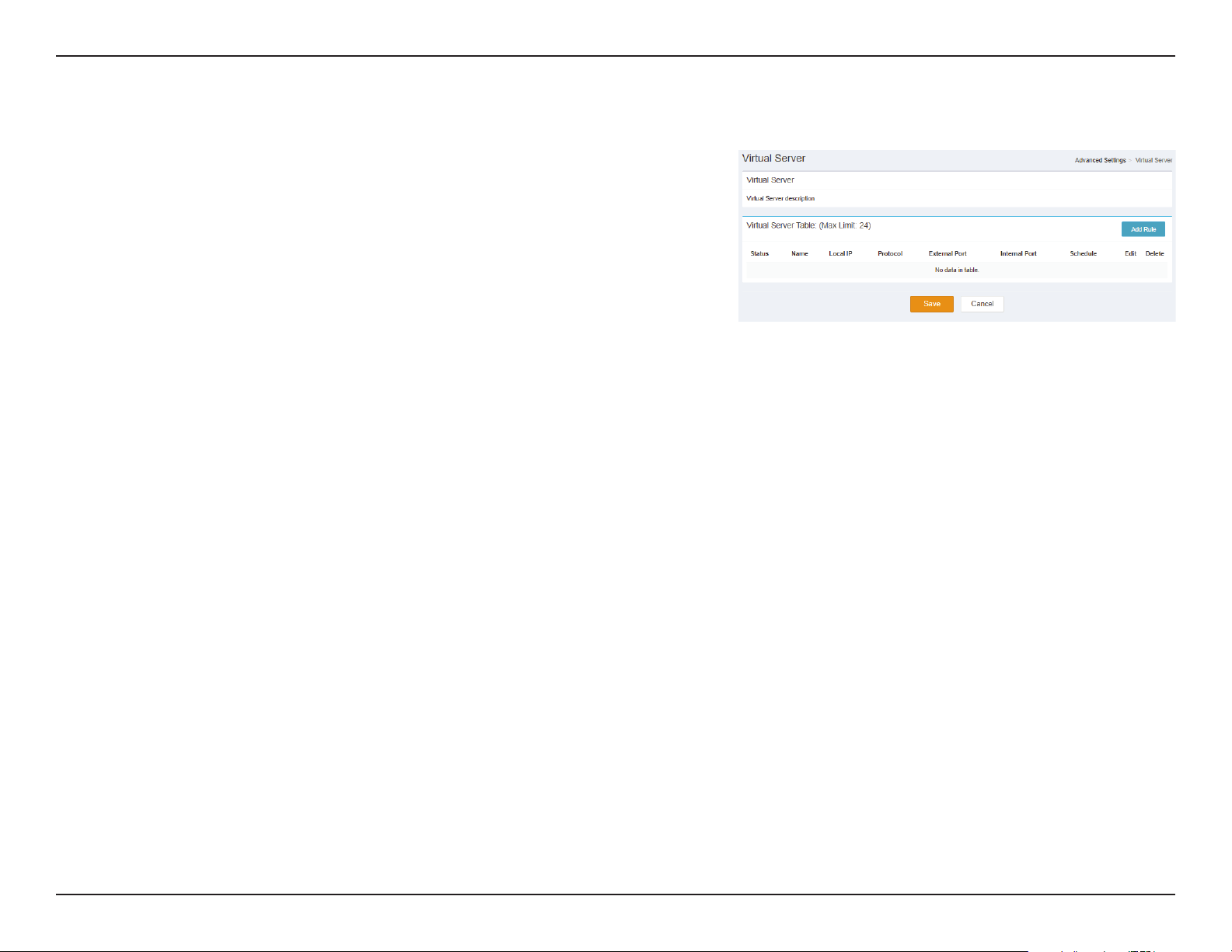
Virtual Server
Virtual Server Table: (Max Limit: 24)
Status: Indicates the Status.
Name: Indicates the Name.
Local IP: Indicates the Local IP.
Protocol: Indicates the Protocol type.
External Port: Indicates the External Port.
Internal Port: Indicates the Internal Port.
Schedule: Indicates the schedule.
Edit: When a schedule is selected, click this button to edit the
schedule.
Delete: When a schedule is selected, click this button to delete the
schedule.
Click Save to save your settings, or Cancel to revert to your previous settings.
43D-Link DWR-978 User Manual
Section 3 - Conguration
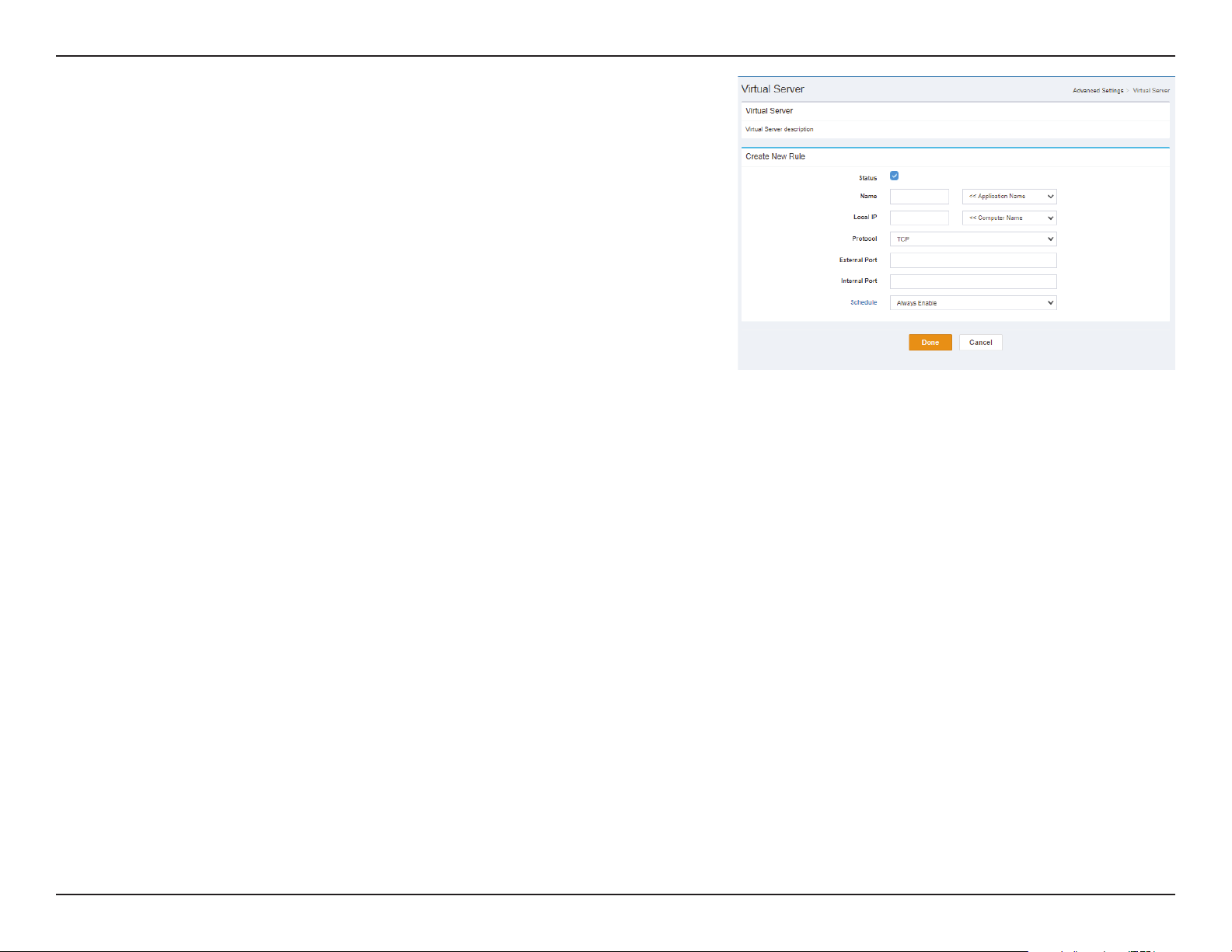
Create New Rule
Status: Indicates the status of the New Rule
Name Indicates the name and specify which Application Name of the
New Rule
Local IP: Indicates the Local IP and specify which Computer Name of the
New Rule
Protocol: Indicates the Protocol type of the New Rule.
External Port: Indicates the External Port of the New Rule.
Internal Port: Indicates the Internal Port of the New Rule.
Schedule: Indicates whether the Wi-Fi network is part of a schedule. Click
on Schedule to access the schedule menu “Schedule” on page
29.
Click Done to save your settings, or Cancel to revert to your previous settings.

44D-Link DWR-978 User Manual
Section 3 - Conguration
Website Filter
Status
Status: Select DENY clients access to ONLY these sites or ALLOW clients
access to ONLY these sites.
Website Filter Table: (Max Limit: 24)
Website URL/
Domain:
Indicates the Website URL/Domain.
Delete: Delete the selected Website URL/Domain.
Add Rule: Specify the website to be ltered.
Click Save to save your settings, or Cancel to revert to your previous settings.
45D-Link DWR-978 User Manual
Section 3 - Conguration
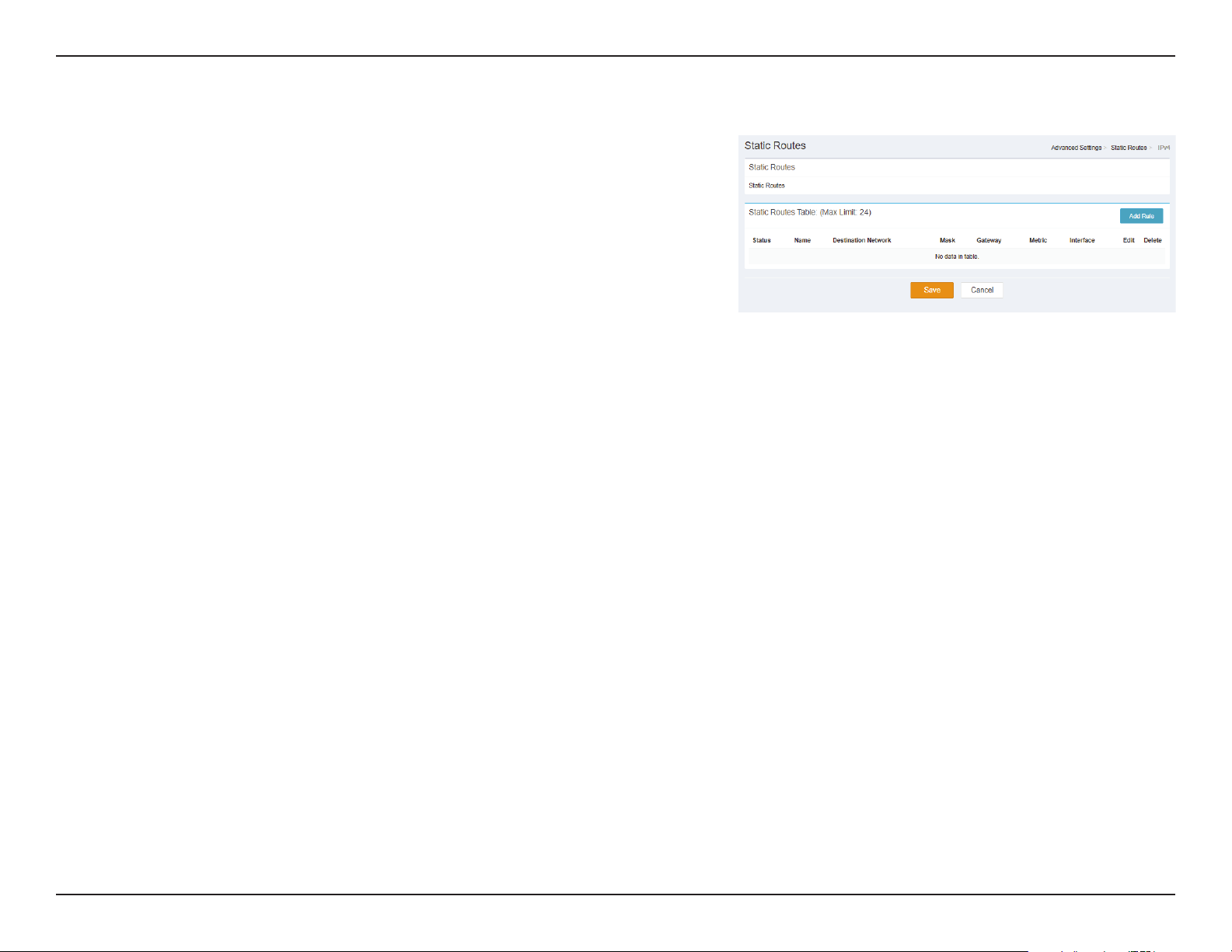
Static Routes IPv4
Static Routes Table: (Max Limit: 24)
Status: Indicates the Status.
Name: Indicates the name.
Destination
Network:
Indicates the Destination Network.
Mask: Indicates the Mask.
Gateway: Indicates the Gateway.
Metric: Indicates the Metric.
Interface: Indicates the Interface.
Edit: Delete the selected Static Route.
Delete: Delete the selected Static Route.
Click Save to save your settings, or Cancel to revert to your previous settings.
46D-Link DWR-978 User Manual
Section 3 - Conguration
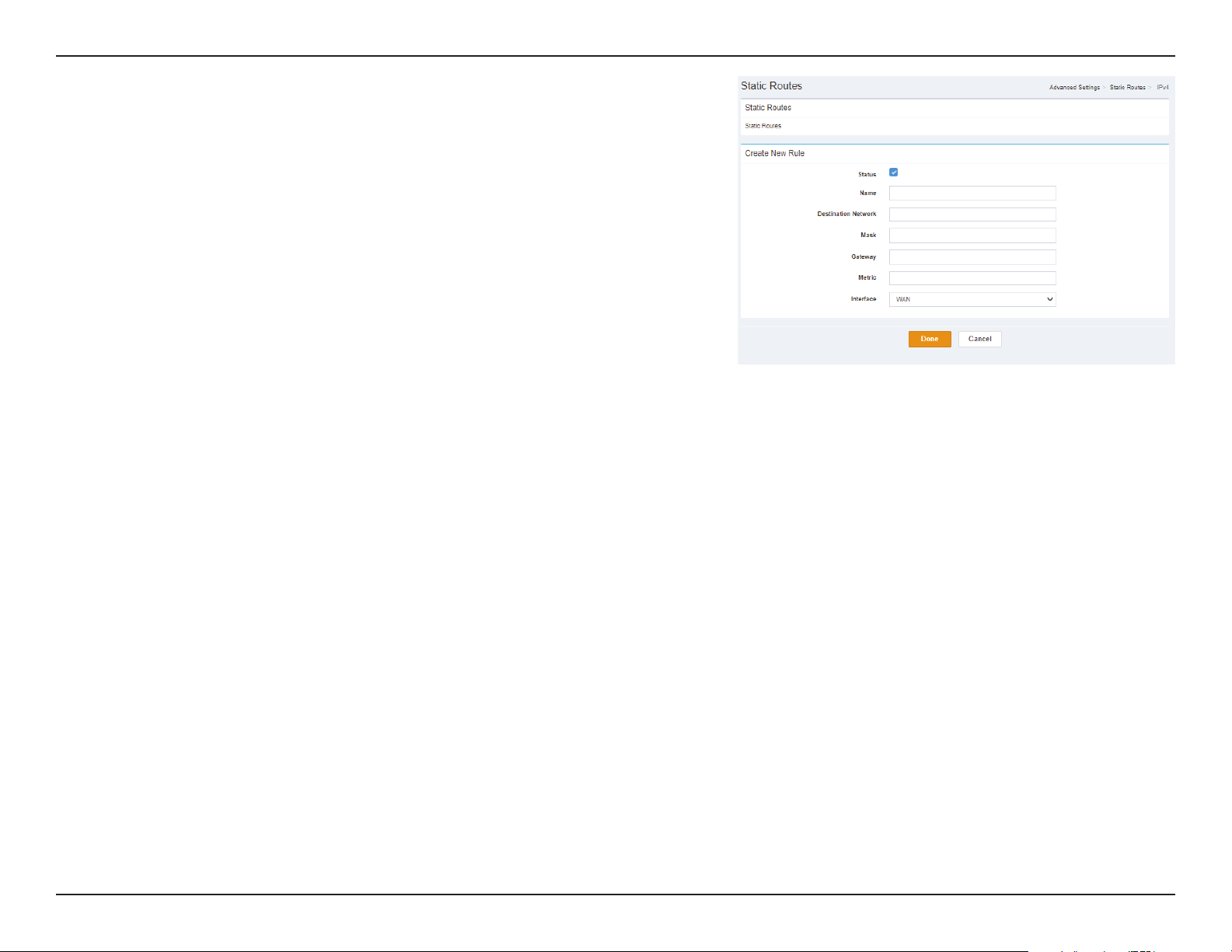
Create New Rule
Status: Indicates the status of the New Rule
Name Indicates the name and specify which Application Name of the
New Rule
Destination
Network
Indicates the Destination Network of the New Rule
Mask: Indicates the Mask of the New Rule.
Gateway: Indicates the Gateway of the New Rule.
Metric: Indicates the Metric of the New Rule.
Interface: Indicates the Interface of the New Rule.
Click Done to save your settings, or Cancel to revert to your previous settings.
47D-Link DWR-978 User Manual
Section 3 - Conguration
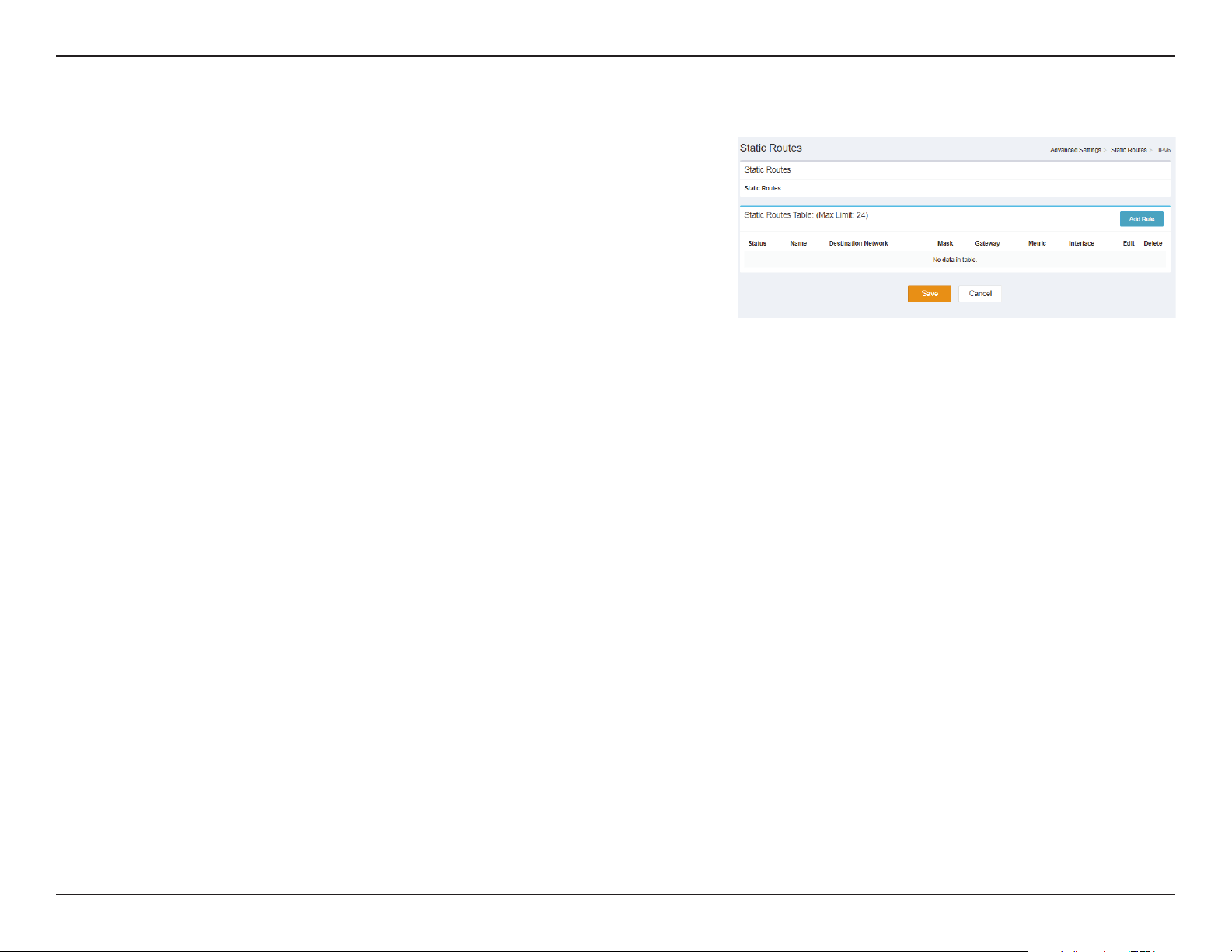
Static Routes IPv6
Static Routes Table: (Max Limit: 24)
Status: Indicates the Status.
Name: Indicates the name.
Destination
Network:
Indicates the Destination Network.
Mask: Indicates the Mask.
Gateway: Indicates the Gateway.
Metric: Indicates the Metric.
Interface: Indicates the Interface.
Edit: Delete the selected Static Route.
Delete: Delete the selected Static Route.
Click Save to save your settings, or Cancel to revert to your previous settings.
48D-Link DWR-978 User Manual
Section 3 - Conguration
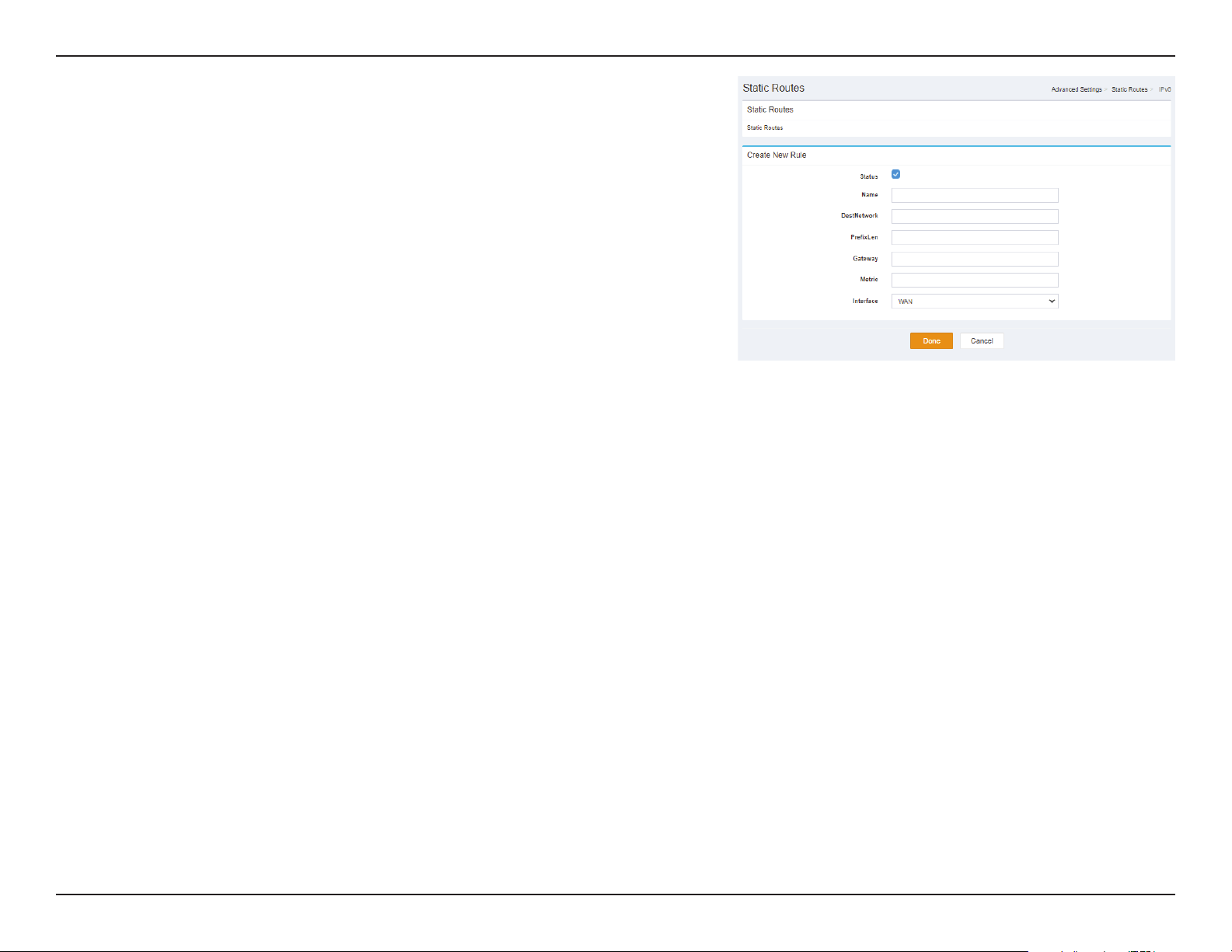
Create New Rule
Status: Indicates the status of the New Rule
Name Indicates the name and specify which Application Name of the
New Rule
Destination
Network
Indicates the Destination Network of the New Rule
PrexLen Indicates the PrexLen of the New Rule.
Gateway: Indicates the Gateway of the New Rule.
Metric: Indicates the Metric of the New Rule.
Interface: Indicates the Interface of the New Rule.
Click Done to save your settings, or Cancel to revert to your previous settings.
49D-Link DWR-978 User Manual
Section 3 - Conguration
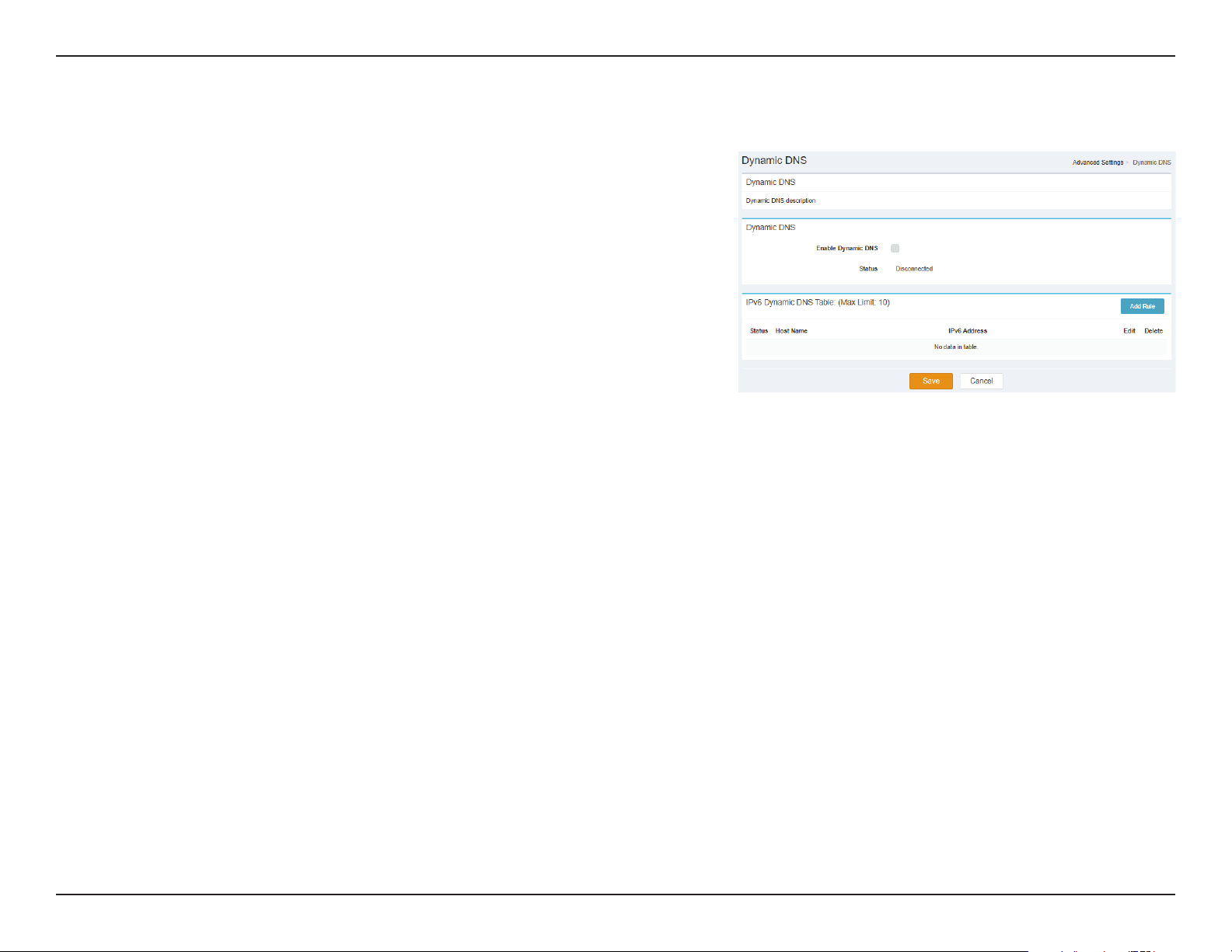
Dynamic DNS
Dynamic DNS
Enable
Dynamic
DNS:
Indicates whether Enable Dynamic DNS is Enabled or Disabled.
Status: Indicates the status.
IPv6 Dynamic DNS Table: (Max Limit: 10)
Status: Indicates the Status.
Host Name: Indicates the Host Name.
IPv6 Address: Indicates the IPv6 Address.
Edit: Delete the selected IPv6 Dynamic DNS.
Delete: Delete the selected IPv6 Dynamic DNS.
Click Save to save your settings, or Cancel to revert to your previous settings.
50D-Link DWR-978 User Manual
Section 3 - Conguration
Create New Rule
Status: Indicates the status of the New Rule.
Host Name: Indicates the Host Name of the New Rule.
IPv6 Address: Indicates the IPv6 Address and specify which Computer Name of
the New Rule.
Click Done to save your settings, or Cancel to revert to your previous settings.
51D-Link DWR-978 User Manual
Section 4 - Connecting to a Wireless Network
Connect a Wireless Client to your Router
WPS Button
Step 2 - Within 2 minutes, press the WPS button on your wireless client (or launch the software utility and start the WPS process).
The easiest way to connect your wireless devices to the router is with WPS (Wi-Fi Protected Setup). Most wireless devices such as wireless adapters,
media players, Blu-ray DVD players, wireless printers and cameras will have a WPS button (or a software utility with WPS) that you can press to
connect to the DWR-978 router. Please refer to your user manual for the wireless device you want to connect to make sure you understand how to
enable WPS. Once you know, follow the steps below:
Step 1 - Press the WPS button on the DWR-978 for about 6 seconds. The WLAN LED on the front will start to blink.
Step 3 - Allow up to 1 minute for your connection to be congured. Once the Internet light stops blinking, you will be connected and your wireless
connection will be encrypted with WPA2.
WPS Button
52D-Link DWR-978 User Manual
Section 4 - Connecting a Wireless Client
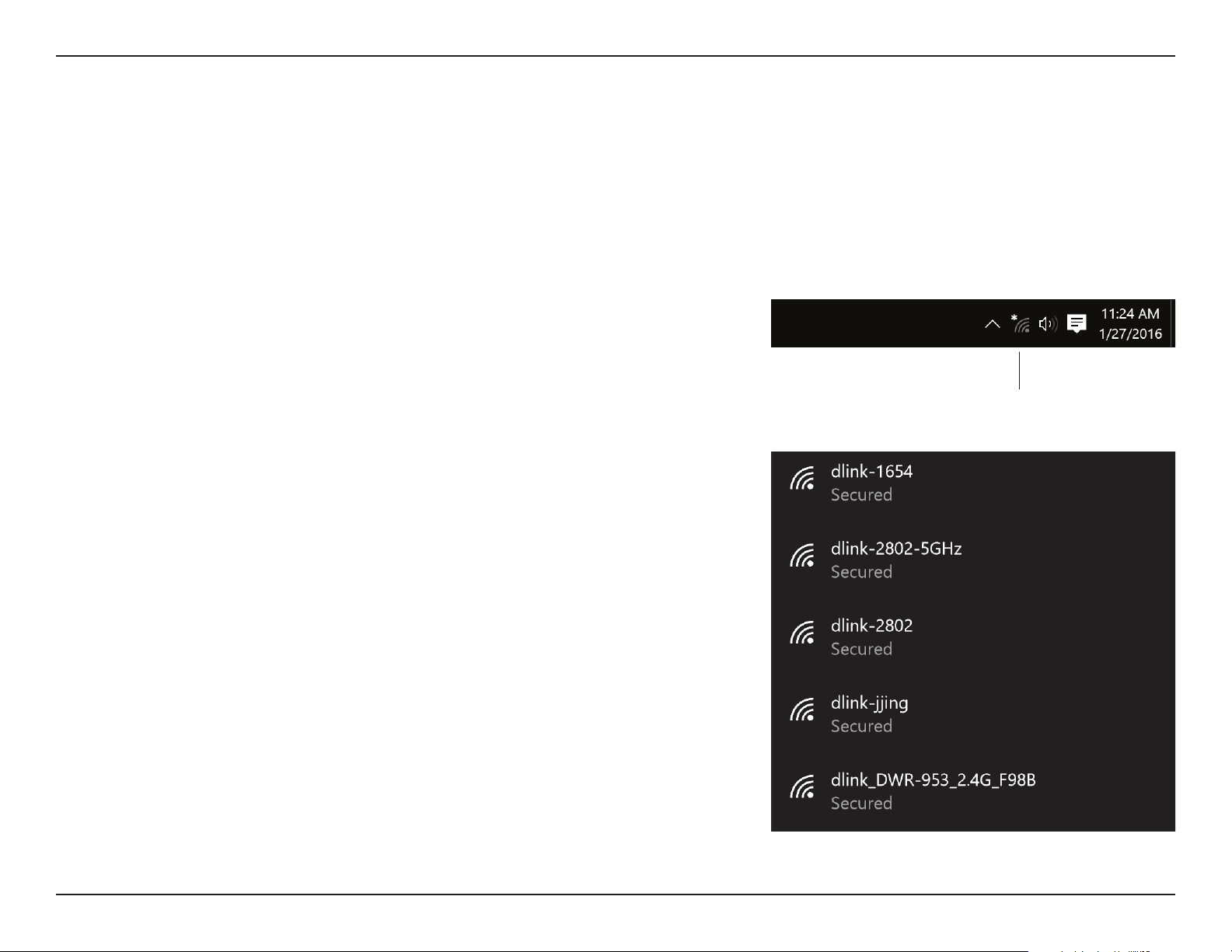
To connect to a wireless network using Windows 10, you will need to know the wireless network name (SSID) and Wi-Fi password
(security key) of the device you are connecting to.
To join an existing network, locate the wireless network icon in the taskbar,
next to the time display and click on it.
Wireless Icon
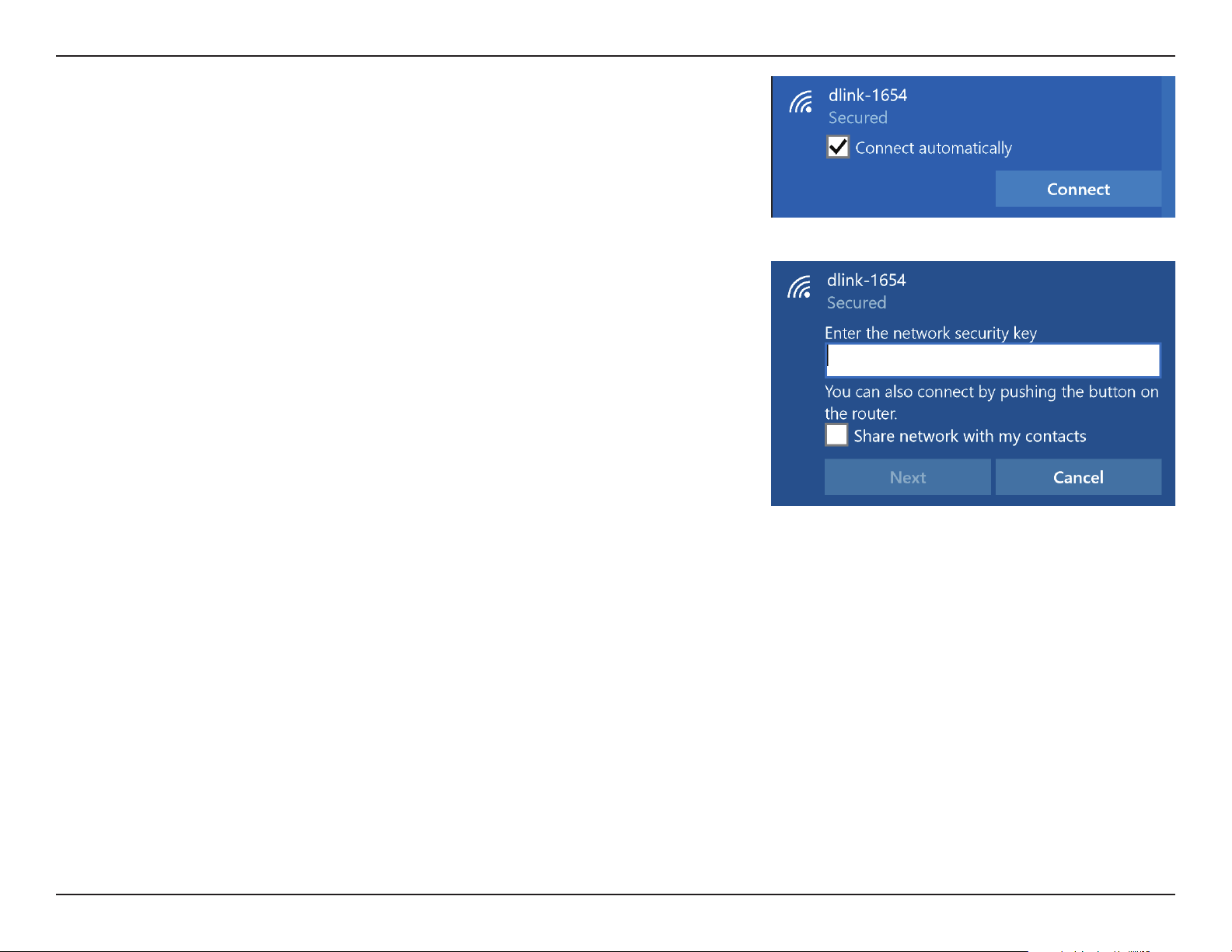
Clicking on this icon will display a list of wireless networks which are within
range of your computer. Select the desired network by clicking on its SSID.
Connecting to a Wireless Network
Windows® 10
53D-Link DWR-978 User Manual
Section 4 - Connecting a Wireless Client
To connect to the network, click Connect.
To automatically connect when your device is in range, click the Connect
Automatically check box. Your computer will now automatically connect to
this wireless network whenever it is detected.
You will then be prompted to enter the Wi-Fi password (network security key)
for the wireless network. Enter the password into the box and click Next to
connect to the network.
You can also use Wi-Fi Protected Setup (WPS) to connect to the wireless network.
Press the WPS button on your device and you will be automatically connected.
It may take 20-30 seconds to connect to the wireless network. If the connection
fails, please verify that the security settings are correct. The key or passphrase
must be exactly the same as the one on the wireless router.
54D-Link DWR-978 User Manual
Section 4 - Connecting to a Wireless Network
Windows® 8
WPA/WPA2
It is recommended that you enable wireless security (WPA/WPA2) on your wireless router or access point before conguring
your wireless adapter. If you are joining an existing network, you will need to know the security key (Wi-Fi password) being used.
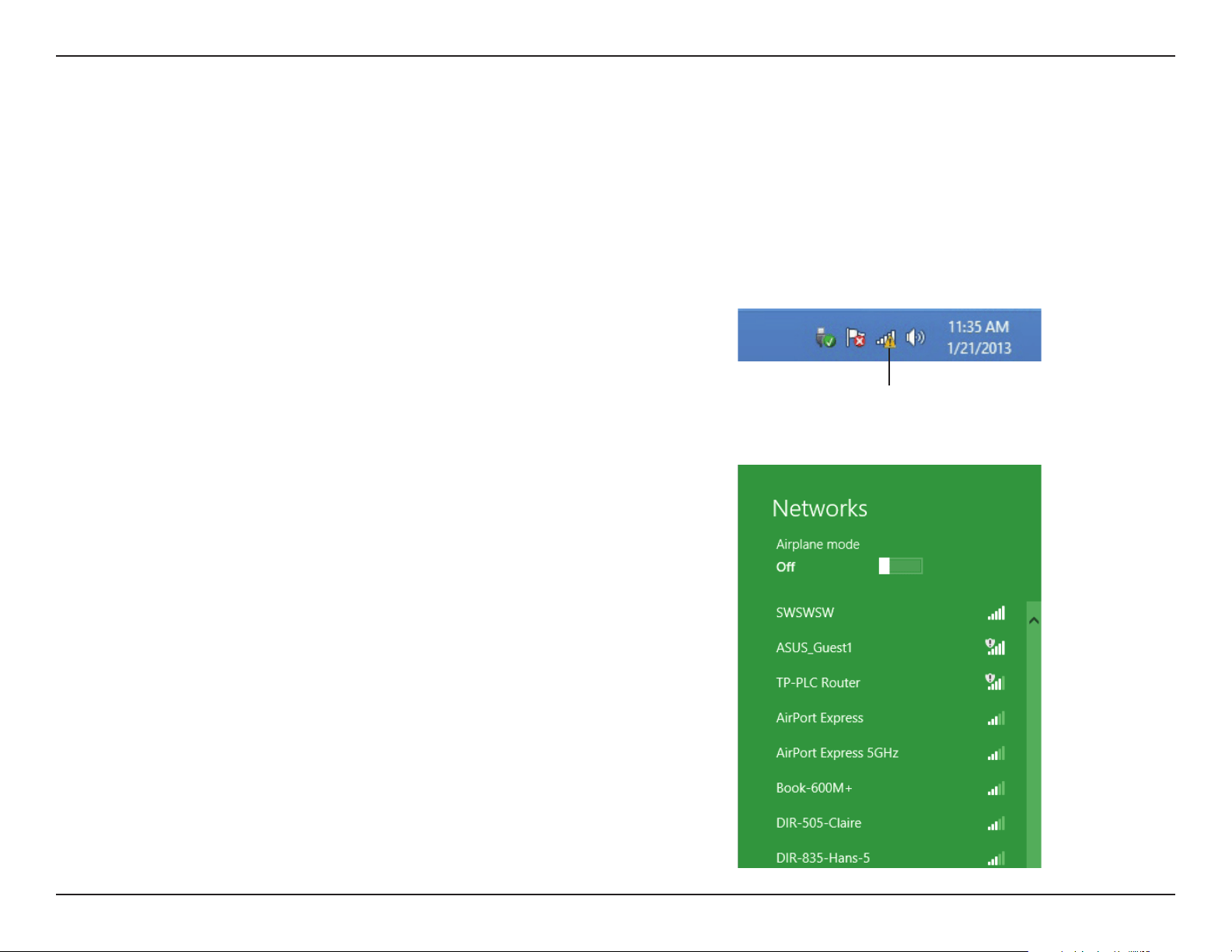
To join an existing network, locate the wireless network icon in the
taskbar next to the time display.
Wireless Icon
Clicking on this icon will display a list of wireless networks that are within
connecting proximity of your computer. Select the desired network by
clicking on the network name.
55D-Link DWR-978 User Manual
Section 4 - Connecting to a Wireless Network
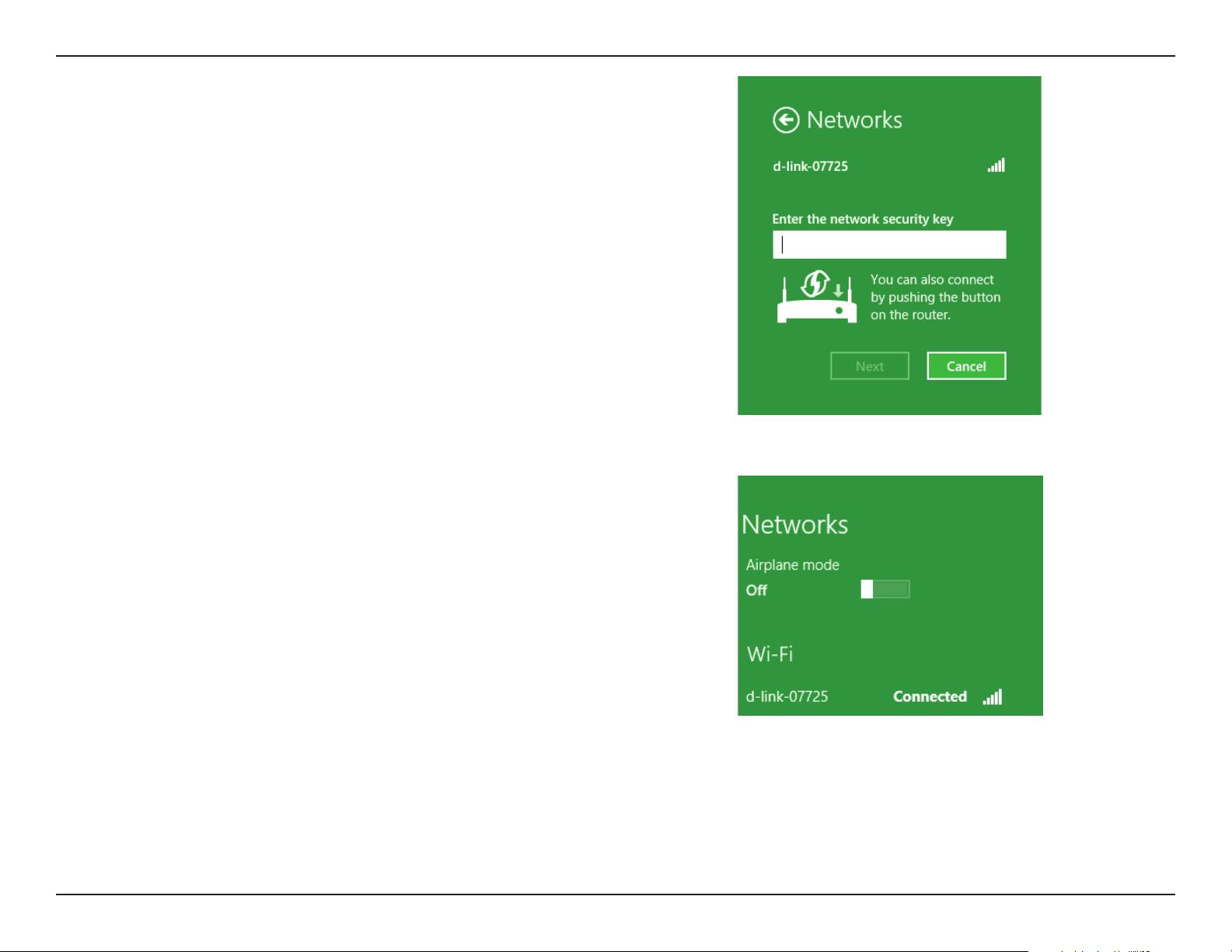
You will then be prompted to enter the network security key (Wi-Fi
password) for the wireless network. Enter the password into the box
and click Next.
If you wish to use Wi-Fi Protected Setup (WPS) to connect to the router,
you can also press the WPS button on your router during this step to
enable the WPS function.
When you have established a successful connection to a wireless network,
the word Connected will appear next to the name of the network to
which you are connected to.
56D-Link DWR-978 User Manual
Section 4 - Connecting to a Wireless Network
Windows® 7
It is recommended that you enable wireless security (WPA/WPA2) on your wireless router or access point before conguring
your wireless adapter. If you are joining an existing network, you will need to know the security key or passphrase being used.
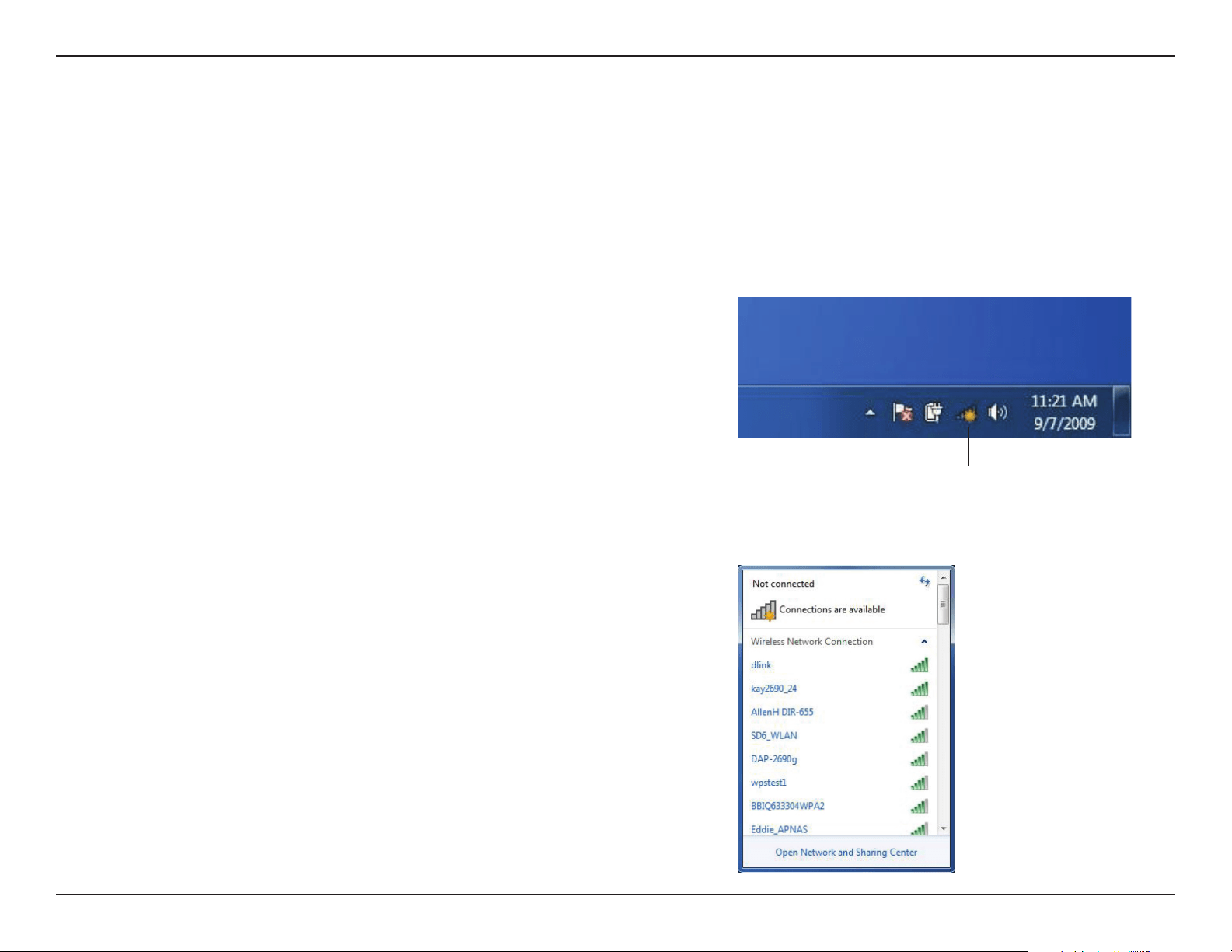
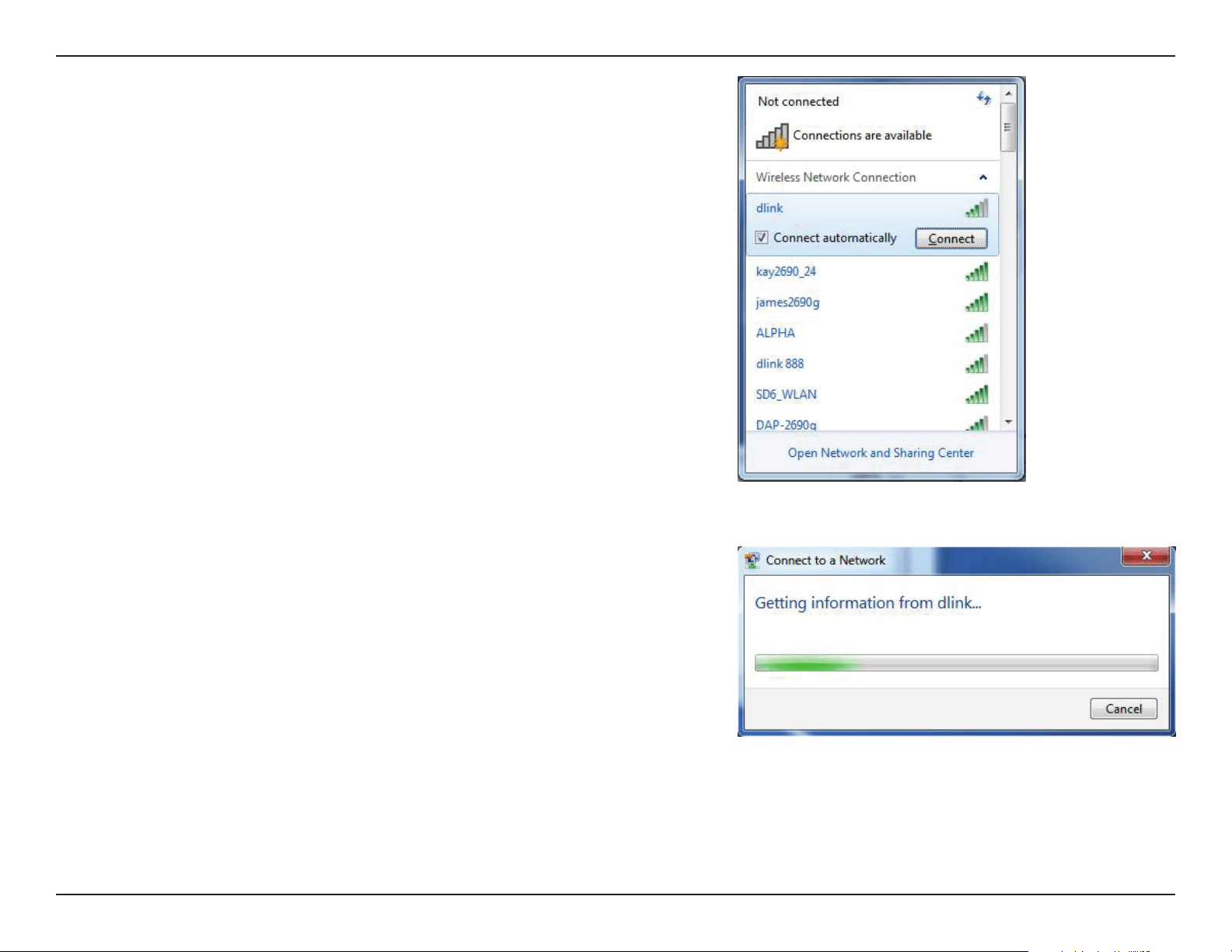
1. Click on the wireless icon in your system tray (lower-right corner).
2. The utility will display any available wireless networks in your area.
Wireless Icon
WPA/WPA2
57D-Link DWR-978 User Manual
Section 4 - Connecting to a Wireless Network
3. Highlight the wireless connection with Wi-Fi name (SSID) you would
like to connect to and click the Connect button.
If you get a good signal but cannot access the Internet, check your
TCP/IP settings for your wireless adapter. Refer to Networking Basics
on page 78 for more information.
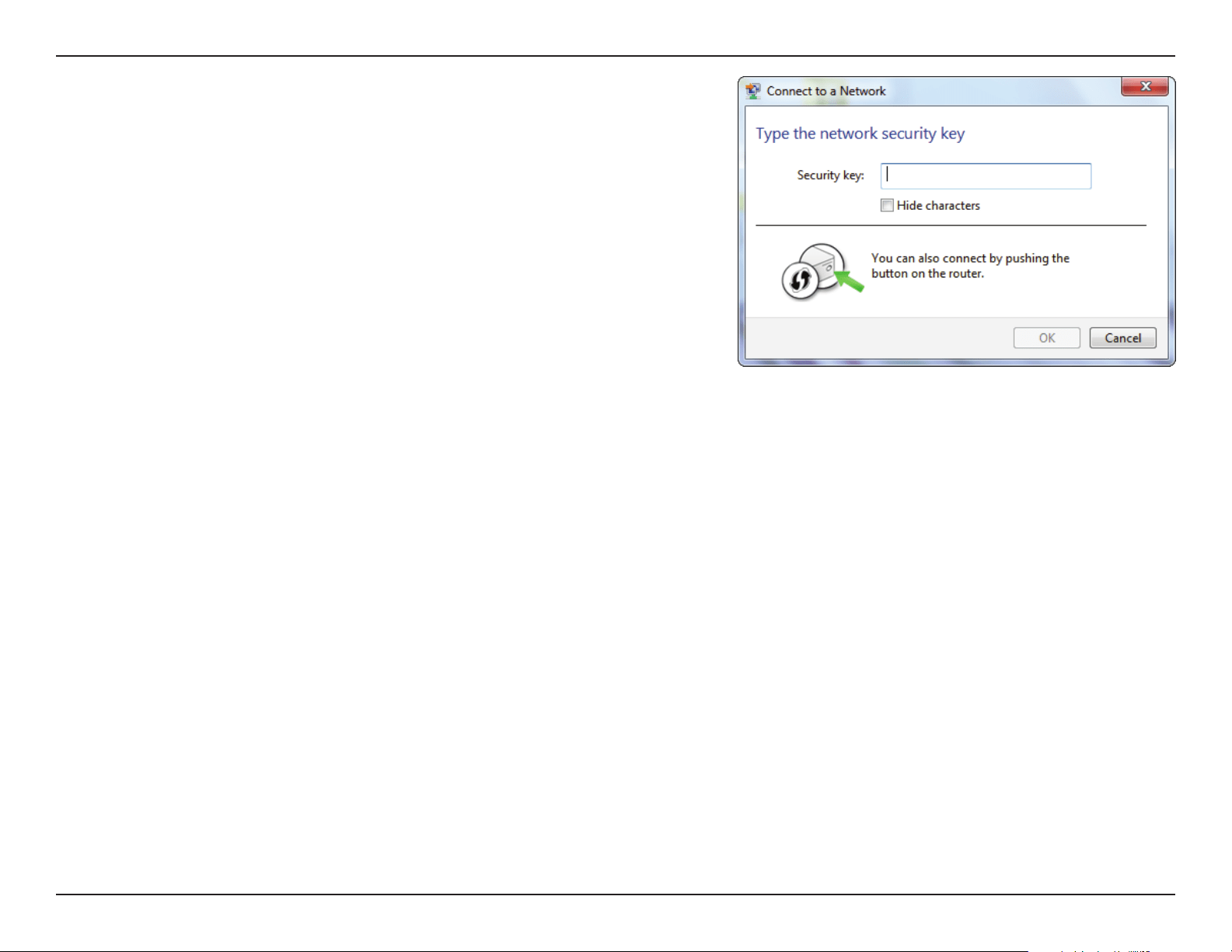
4. The following window appears while your computer tries to connect
to the router.
58D-Link DWR-978 User Manual
Section 4 - Connecting to a Wireless Network
5. Enter the same security key or passphrase (Wi-Fi password) that is on
your router and click Connect. You can also connect by pushing the
WPS button on the router.
It may take 20-30 seconds to connect to the wireless network. If the
connection fails, please verify that the security settings are correct. The
key or passphrase must be exactly the same as the one on the wireless
router.

59D-Link DWR-978 User Manual
Section 4 - Connecting to a Wireless Network
WPS
The WPS feature of the DWR-978 can be congured using Windows® 7. Carry out the following steps to use Windows® 7 to
congure the WPS feature:
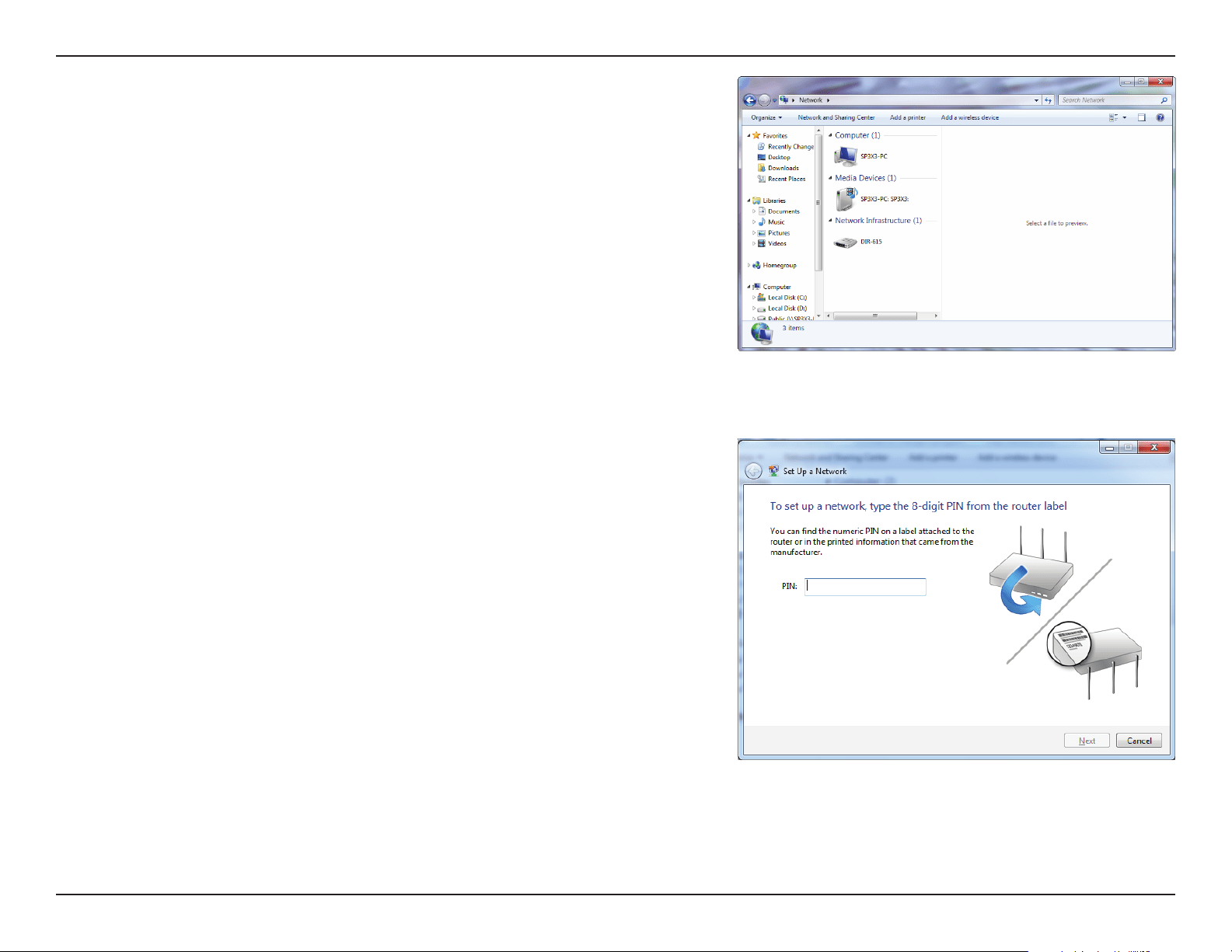
1. Click the Start button and select Computer from the Start menu.
2. Click Network on the left side.
60D-Link DWR-978 User Manual
Section 4 - Connecting to a Wireless Network
3. Double-click the DWR-978.
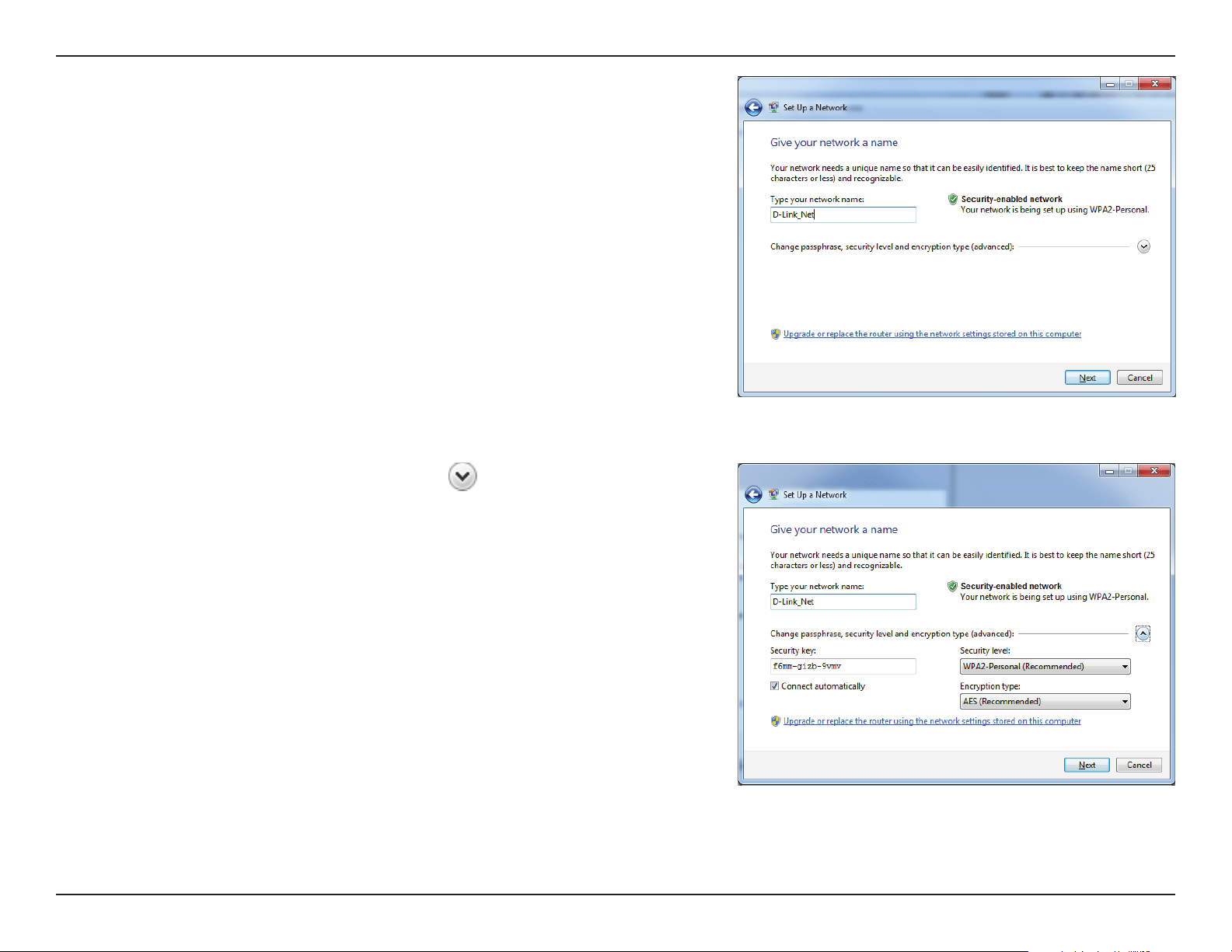
4. Input the WPS PIN number (on the router label) in the Setup > Wireless
Setup menu in the Router’s Web UI) and click Next.
61D-Link DWR-978 User Manual
Section 4 - Connecting to a Wireless Network
5. Type a name to identify the network.
6. To congure advanced settings, click the
icon.
Click Next to continue.
62D-Link DWR-978 User Manual
Section 4 - Connecting to a Wireless Network
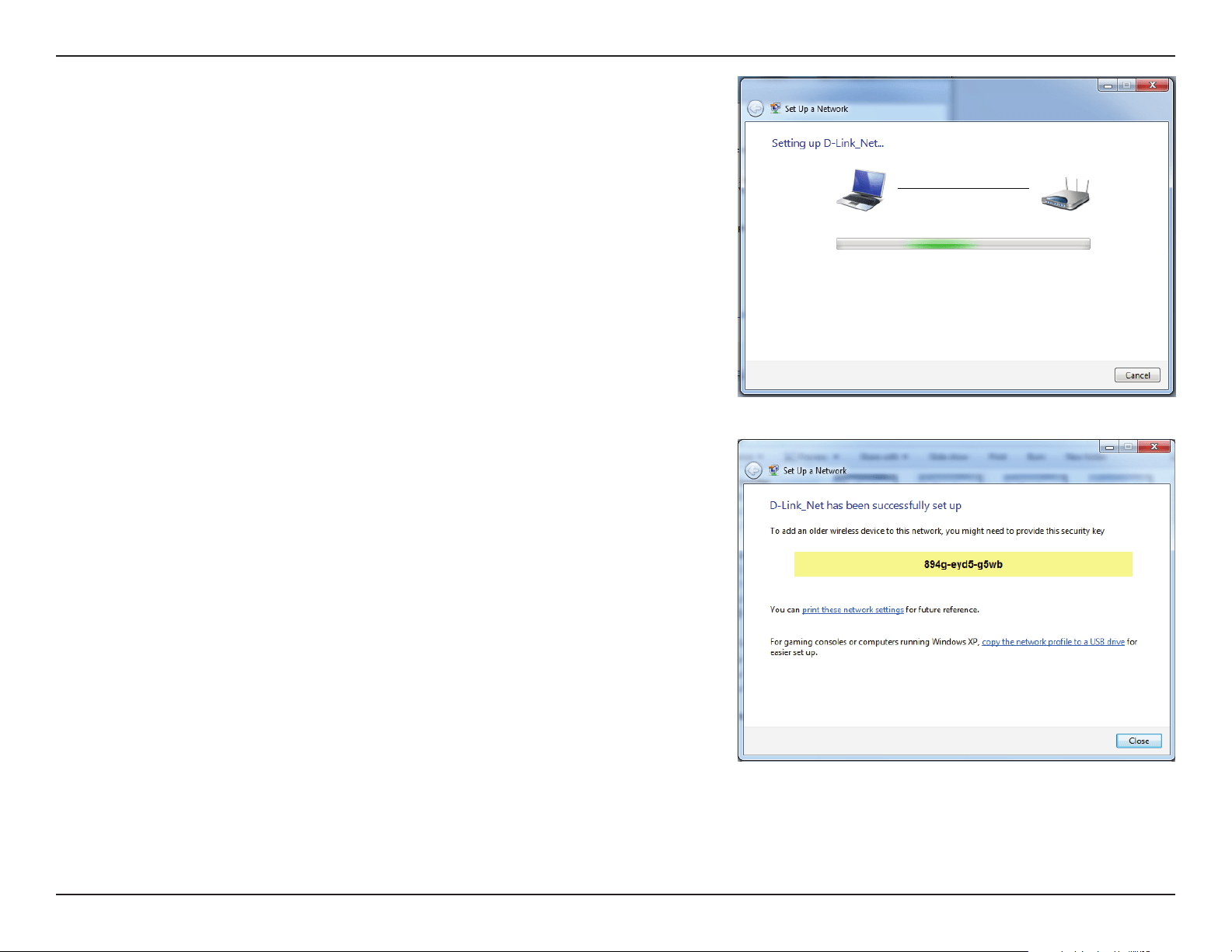
7. The following window appears while the router is being congured.
Wait for the conguration to complete.
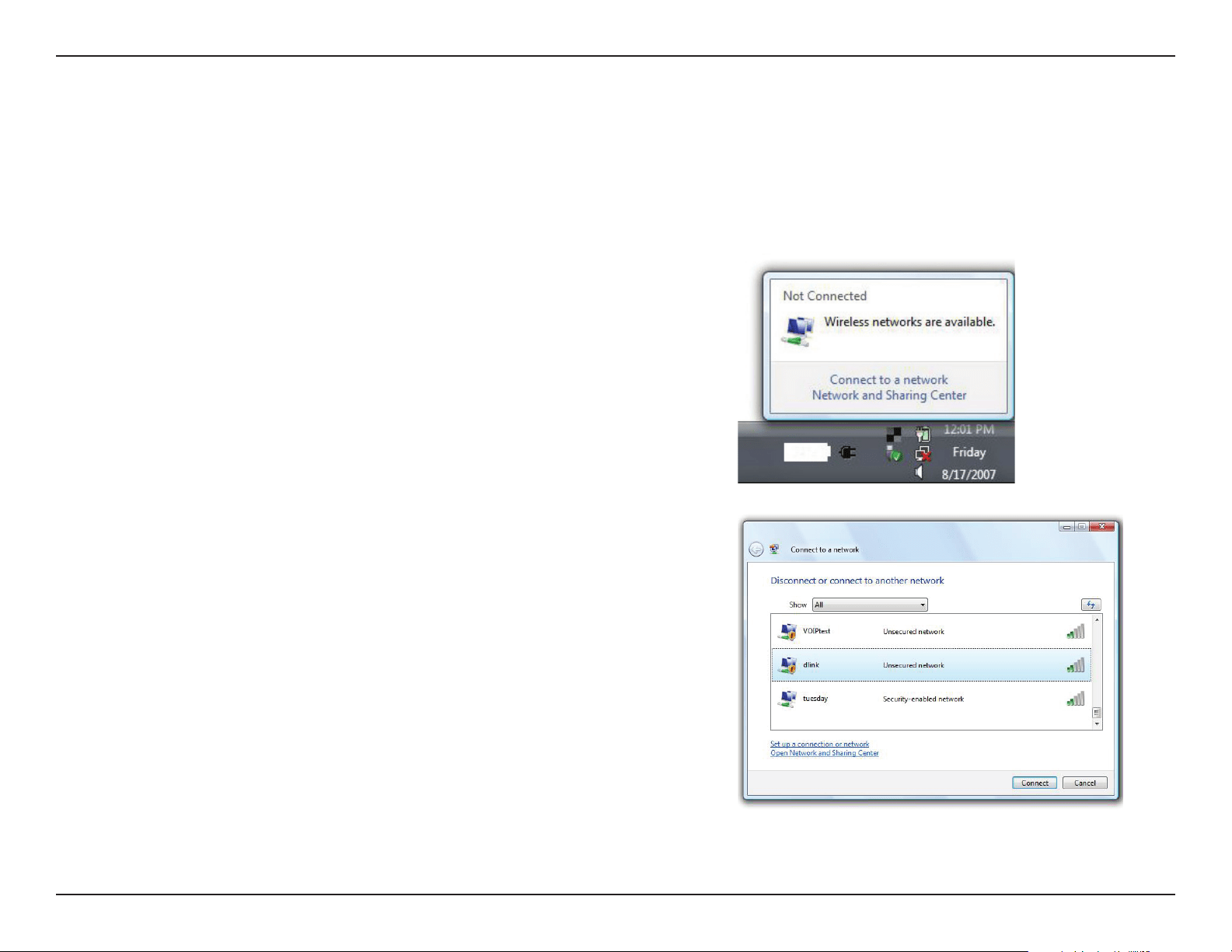
8. The following window informs you that WPS on the router has been
set up successfully.
Make a note of the security key as you may need to provide this security
key if adding an older wireless device to the network in the future.
9. Click Close to complete WPS setup.
63D-Link DWR-978 User Manual
Section 4 - Connecting to a Wireless Network
Windows Vista®
Windows Vista® users may use the built-in wireless utility. If you are using another company’s wireless utility, please refer to the
user manual of your wireless adapter for help connecting to a wireless network. Most wireless utilities will have a “site survey”
option similar to the Windows Vista® utility as seen below.
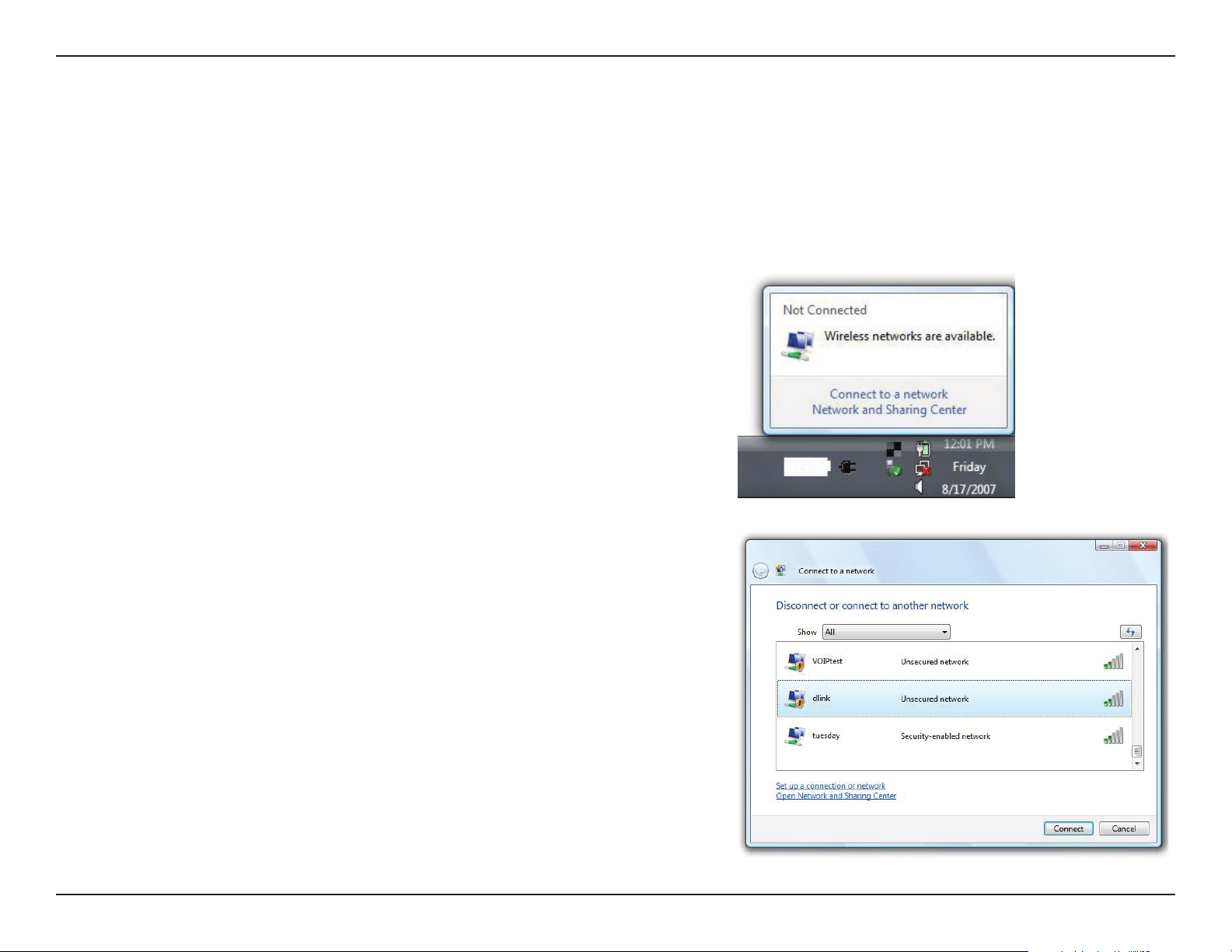
Right-click on the wireless computer icon in your system tray (lower-right
corner next to the time). Select Connect to a network.
If you receive the Wireless Networks Detected bubble, click on the
center of the bubble to access the utility.
or
The utility will display any available wireless networks in your area. Click
on a network (displayed using the SSID) and click the Connect button.
If you get a good signal but cannot access the Internet, check you
TCP/IP settings for your wireless adapter. Refer to the Networking Basics
section in this manual for more information.
64D-Link DWR-978 User Manual
Section 4 - Connecting to a Wireless Network
WPA/WPA2
It is recommended that you enable wireless security (WPA/WPA2) on your wireless router or access point before conguring
your wireless adapter. If you are joining an existing network, you will need to know the security key or passphrase being used.
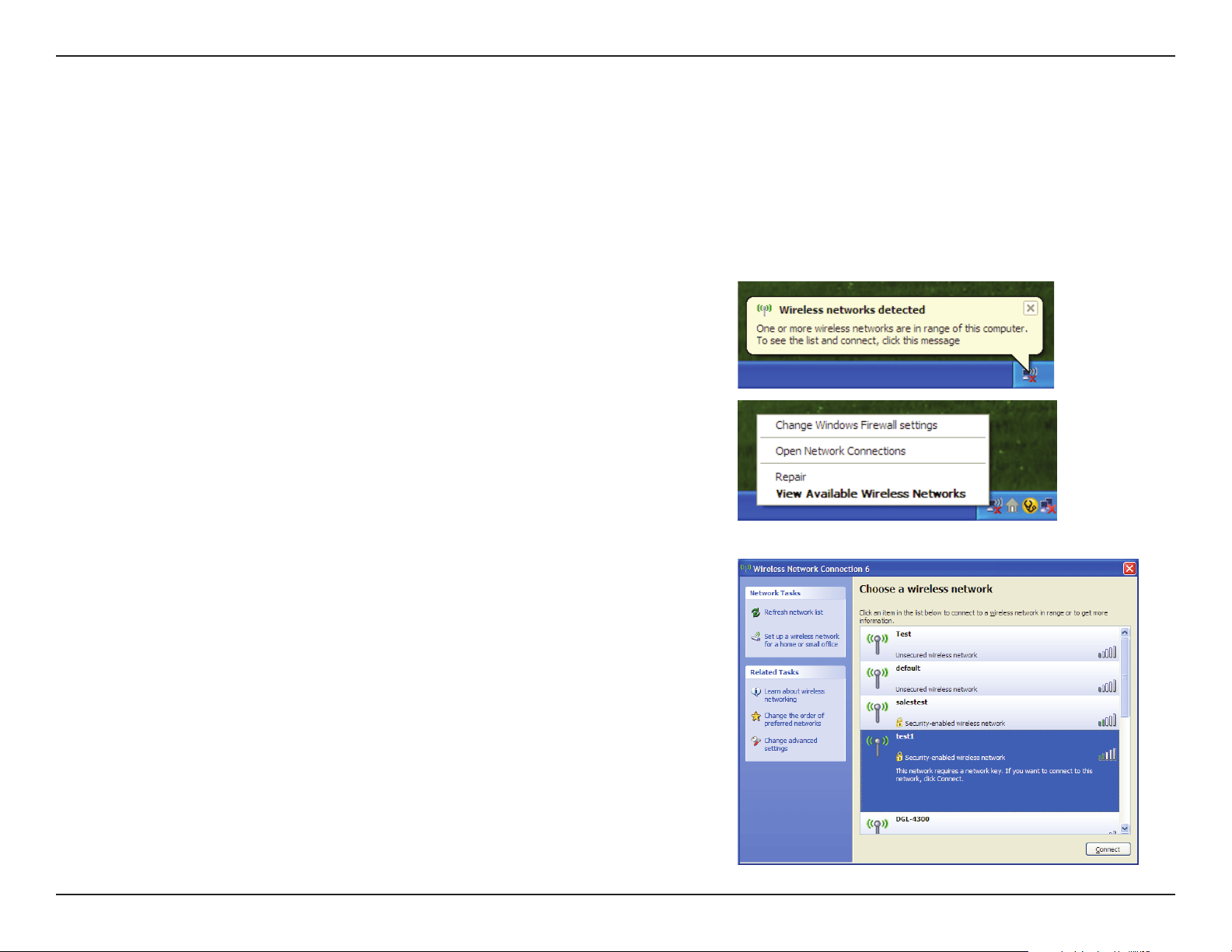
2. Highlight the Wi-Fi name (SSID) you would like to connect to and
click Connect.
1. Open the Windows Vista® Wireless Utility by right-clicking on the
wireless computer icon in your system tray (lower right corner of
screen). Select Connect to a network.

65D-Link DWR-978 User Manual
Section 4 - Connecting to a Wireless Network
3. Enter the same security key or passphrase (Wi-Fi password) that is on
your router and click Connect.
It may take 20-30 seconds to connect to the wireless network. If the
connection fails, please verify that the security settings are correct. The
key or passphrase must be exactly the same as the one on the wireless
router.
66D-Link DWR-978 User Manual
Section 4 - Connecting to a Wireless Network
Windows® XP
Windows® XP users may use the built-in wireless utility (Zero Conguration Utility). The following instructions are for Service
Pack 2 users. If you are using another company’s utility, please refer to the user manual of your wireless adapter for help with
connecting to a wireless network. Most utilities will have a “site survey” option similar to the Windows® XP utility as seen below.
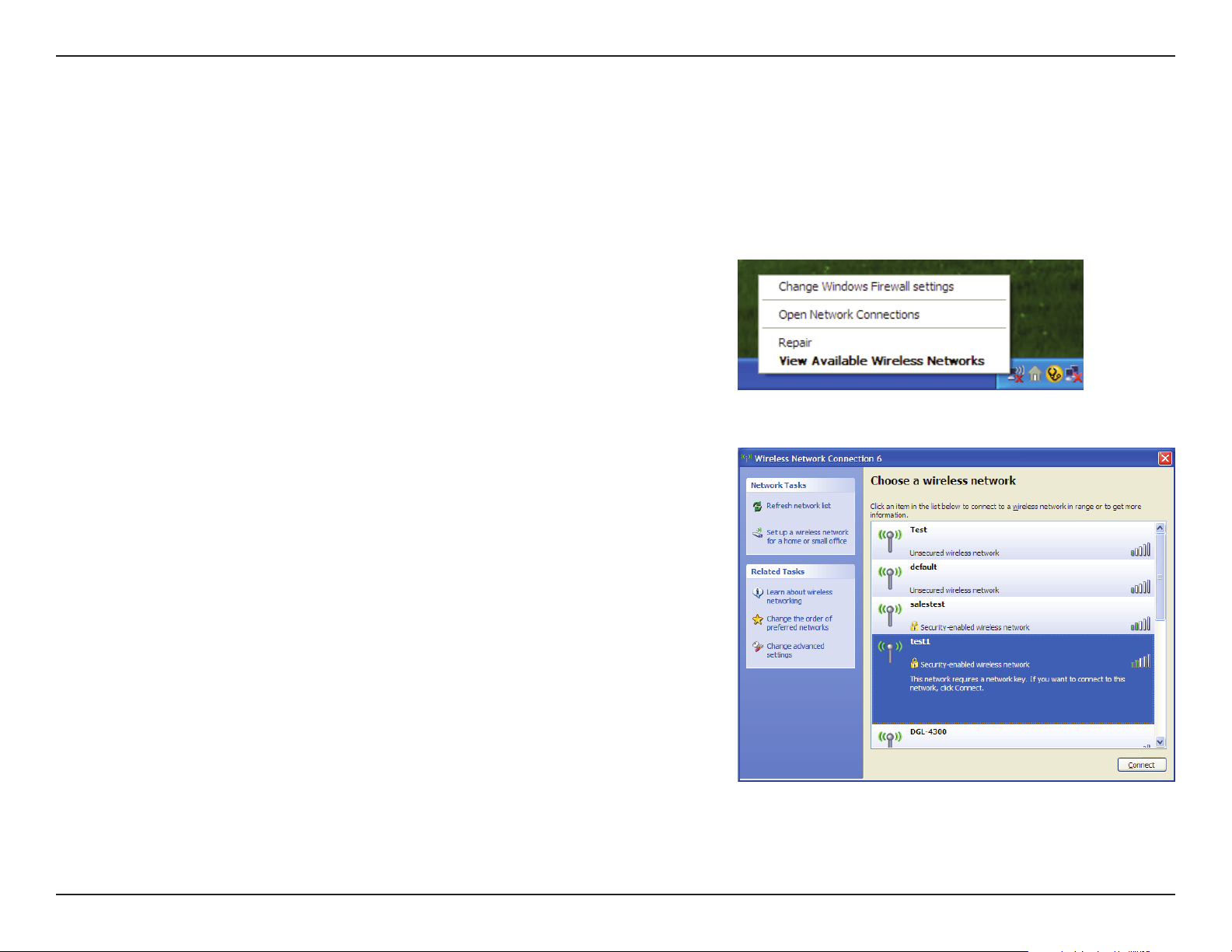
Right-click on the wireless computer icon in your system tray (lower-right
corner next to the time). Select View Available Wireless Networks.
If you receive the Wireless Networks Detected bubble, click on the
center of the bubble to access the utility.
or
The utility will display any available wireless networks in your area. Click
on a Wi-Fi network (displayed using the SSID) and click the Connect
button.
If you get a good signal but cannot access the Internet, check you
TCP/IP settings for your wireless adapter. Refer to the Networking Basics
section in this manual for more information.
67D-Link DWR-978 User Manual
Section 4 - Connecting to a Wireless Network
It is recommended to enable WPA on your wireless router or access point before conguring your wireless adapter. If you are
joining an existing network, you will need to know the WPA key being used.
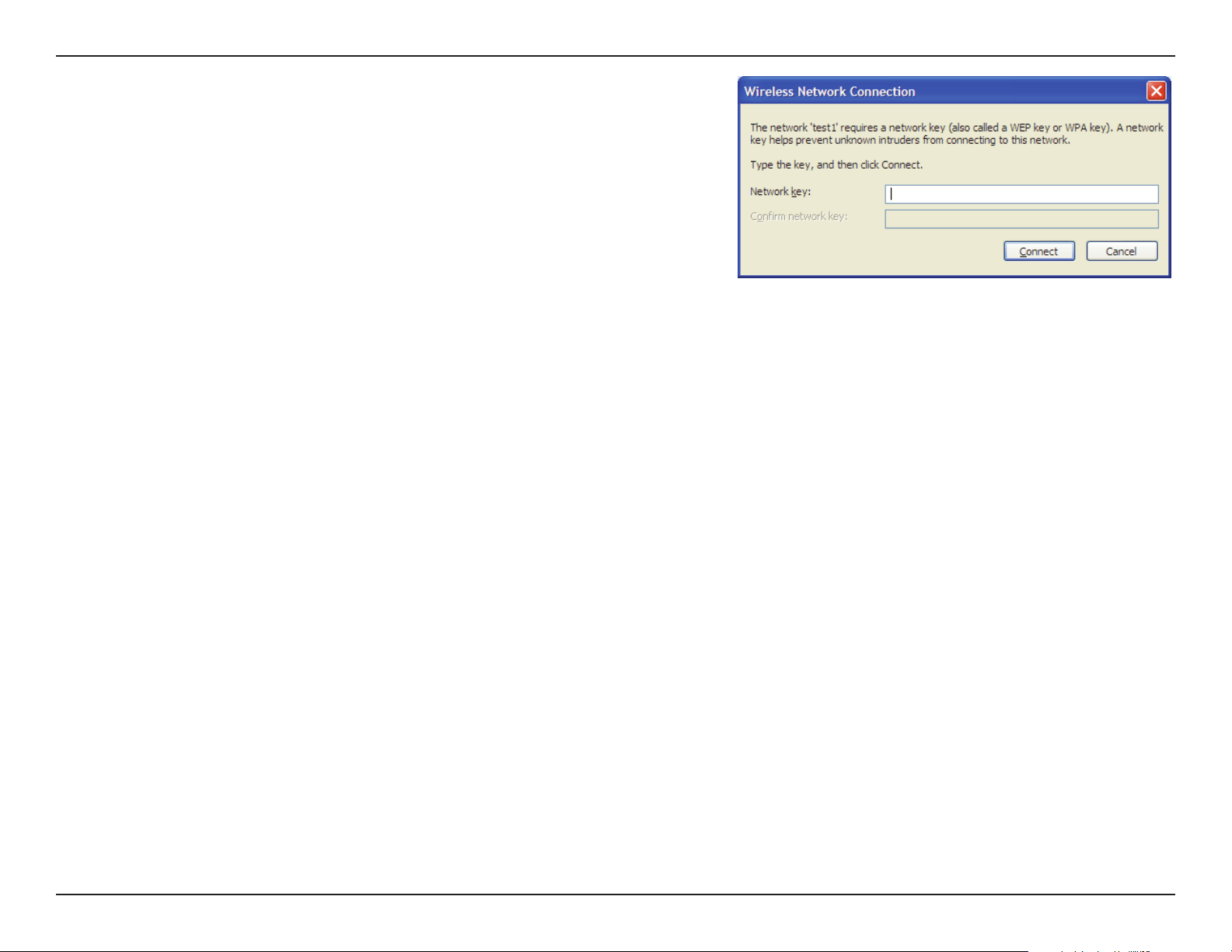
2. Highlight the Wi-Fi network (SSID) you would like to connect to and
click Connect.
1. Open the Windows® XP Wireless Utility by right-clicking on the wireless
computer icon in your system tray (lower-right corner of screen). Select
View Available Wireless Networks.
WPA/WPA2
68D-Link DWR-978 User Manual
Section 4 - Connecting to a Wireless Network
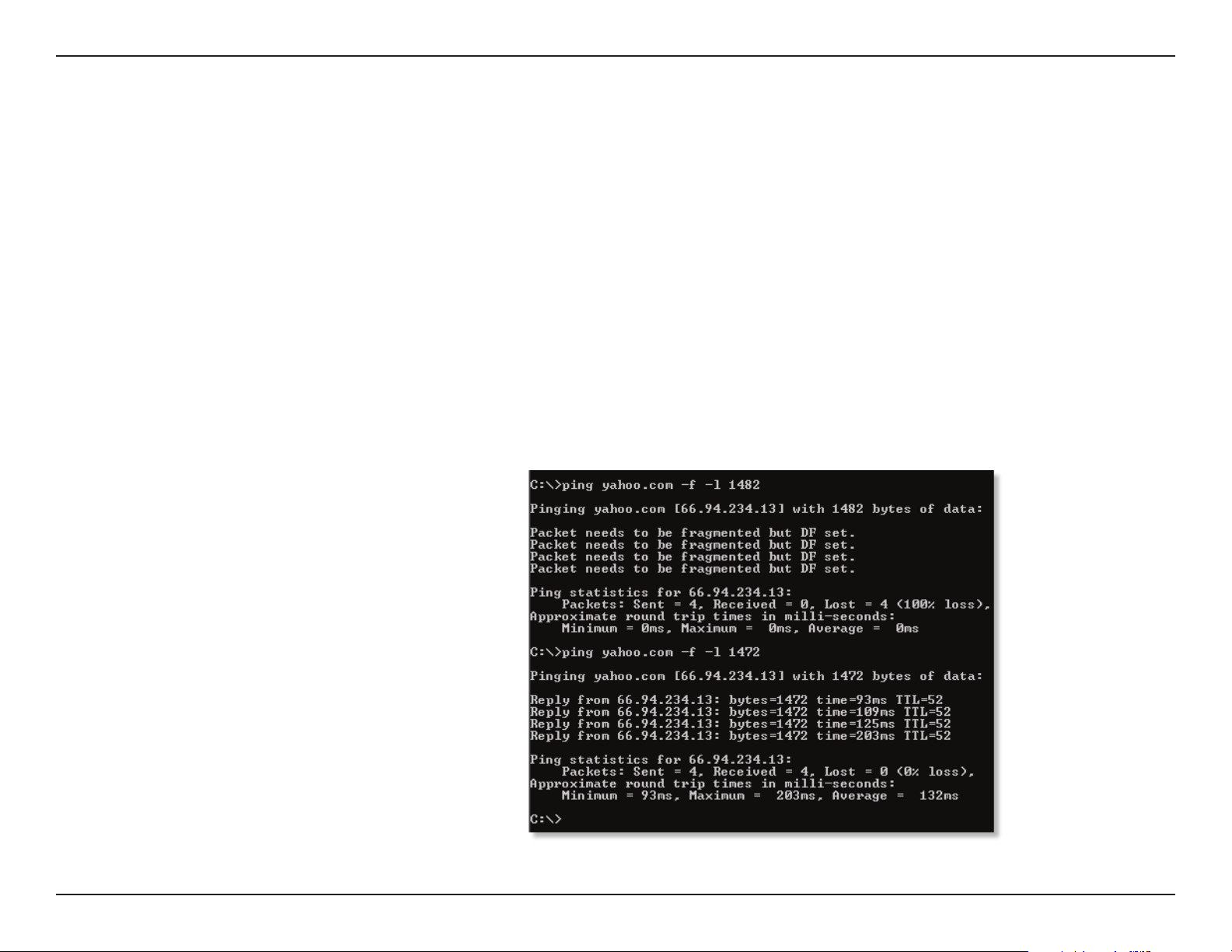
3. The Wireless Network Connection box will appear. Enter the WPA-
PSK Wi-Fi password and click Connect.
It may take 20-30 seconds to connect to the wireless network. If the
connection fails, please verify that the WPA-PSK settings are correct. The
Wi-Fi password must be exactly the same as on the wireless router.

69D-Link DWR-978 User Manual
Section 5 - Troubleshooting
Troubleshooting
This chapter provides solutions to problems that can occur during the installation and operation of the DWR-978. Read the
following descriptions if you are having problems. The examples below are illustrated in Windows® XP. If you have a dierent
operating system, the screenshots on your computer will look similar to these examples.
1. Why can’t I access the web-based conguration utility?
When entering the IP address of the D-Link router (192.168.0.1 for example), you are not connecting to a website, nor do you
have to be connected to the Internet. The device has the utility built-in to a ROM chip in the device itself. Your computer must
be on the same IP subnet to connect to the web-based utility.
• Make sure you have an updated Java-enabled web browser. We recommend the following:
- Microsoft Internet Explorer® 7 or higher
- Mozilla Firefox 3.5 or higher
- Google™ Chrome 8 or higher
- Apple Safari 4 or higher
• Verify physical connectivity by checking for solid link lights on the device. If you do not get a solid link light, try using a
dierent cable, or connect to a dierent port on the device if possible. If the computer is turned o, the link light may not
be on.
• Disable any Internet security software running on the computer. Software rewalls such as ZoneAlarm, BlackICE, Sygate,
Norton Personal Firewall, and Windows
®
XP rewall may block access to the conguration pages. Check the help les included
with your rewall software for more information on disabling or conguring it.

70D-Link DWR-978 User Manual
Section 5 - Troubleshooting
• Congure your Internet settings:
• Go to Start > Settings > Control Panel. Double-click the Internet Options Icon. From the Security tab, click
the button to restore the settings to their defaults.
• Click the Connection tab and set the dial-up option to Never Dial a Connection. Click the LAN Settings button.
Make sure nothing is checked. Click OK.
• Go to the Advanced tab and click the button to restore these settings to their defaults. Click OK three times.
• Close your web browser (if open) and open it.
• Access the web management. Open your web browser and enter the IP address of your D-Link router in the address bar. This
should open the login page for your web management.
• If you still cannot access the conguration, unplug the power to the router for 10 seconds and plug back in. Wait about 30
seconds and try accessing the conguration. If you have multiple computers, try connecting using a dierent computer.
2. What can I do if I forgot my password?
If you forgot your password, you must reset your router. This process will change all your settings back to the factory defaults.
To reset the router, locate the reset button (hole) on the rear panel of the unit. With the router powered on, use a paperclip
to hold the button down for 10 seconds. Release the button and the router will go through its reboot process. Wait about 30
seconds to access the router. The default IP address is 192.168.0.1. When logging in, leave the password box empty.
71D-Link DWR-978 User Manual
Section 5 - Troubleshooting
3. Why can’t I connect to certain sites or send and receive emails when connecting through my router?
If you are having a problem sending or receiving email, or connecting to secure sites such as eBay, banking sites, and Hotmail,
we suggest lowering the MTU in increments of ten (Ex. 1492, 1482, 1472, etc).
To nd the proper MTU Size, you’ll have to do a special ping of the destination you’re trying to go to. A destination could be
another computer, or a URL.
• Click on Start and then click Run.
• Windows® 95, 98, and Me users type in command (Windows® NT, 2000, XP, Vista®, and 7 users type in cmd) and
press Enter (or click OK).
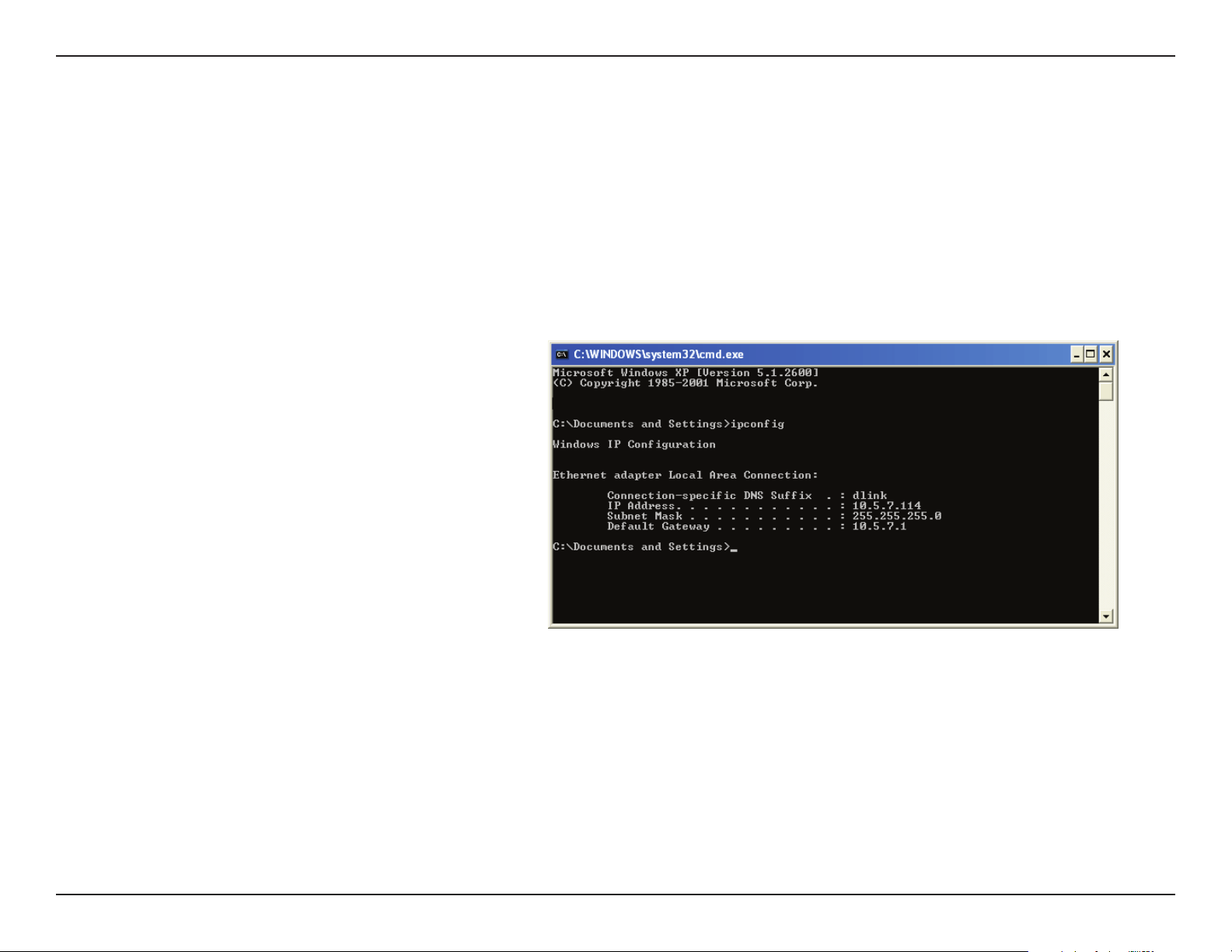
• Once the window opens, you’ll need to do a special ping. Use the following syntax:
ping [url] [-f] [-l] [MTU value]
Example: ping yahoo.com -f -l 1472

72D-Link DWR-978 User Manual
Section 5 - Troubleshooting
You should start at 1472 and work your way down by 10 each time. Once you get a reply, go up by 2 until you get a fragmented
packet. Take that value and add 28 to the value to account for the various TCP/IP headers. For example, lets say that 1452 was the
proper value, the actual MTU size would be 1480, which is the optimum for the network we’re working with (1452+28=1480).
Once you nd your MTU, you can now congure your router with the proper MTU size.
To change the MTU rate on your router follow the steps below:
• Navigate to the conguration page.
• To change the MTU, enter the number in the MTU eld and click Apply to save your settings.
• Test your email. If changing the MTU does not resolve the problem, continue changing the MTU in increments
of ten.

73D-Link DWR-978 User Manual
Appendix A - Wireless Basics
D-Link wireless products are based on industry standards to provide easy-to-use and compatible high-speed wireless
connectivity within your home, business, or public access wireless networks. Strictly adhering to the IEEE standard, the D-Link
wireless family of products will allow you to access the data you want, when, and where you want it. You will be able to enjoy
the freedom that wireless networking delivers.
A wireless local area network (WLAN) is a cellular computer network that transmits and receives data with radio signals instead
of wires. Wireless LANs are used increasingly in both home and oce environments, and public areas such as airports, coee
shops and universities. Innovative ways to utilize WLAN technology are helping people work, and communicate more eciently.
Increased mobility and the absence of cabling and other xed infrastructure have proven to be benecial for many users.
Wireless users can use the same applications they use on a wired network. Wireless adapter cards used on laptop and desktop
systems support the same protocols as Ethernet adapter cards.
Under many circumstances, it may be desirable for mobile network devices to link to a conventional Ethernet LAN in order to
use servers, printers or an Internet connection supplied through the wired LAN. A wireless router is a device used to provide
this link.
Wireless Basics

74D-Link DWR-978 User Manual
Appendix A - Wireless Basics
What is Wireless?
Wireless or Wi-Fi technology is another way of connecting your computer to the network without using wires. Wi-Fi uses radio
frequency to connect wirelessly so you have the freedom to connect computers anywhere in your home or oce network.
Why D-Link Wireless?
D-Link is the worldwide leader and award winning designer, developer, and manufacturer of networking products. D-Link
delivers the performance you need at a price you can aord. D-Link has all the products you need to build your network.
How does wireless work?
Wireless works similarly to how cordless phones work, through radio signals that transmit data from one point A to point B.
But wireless technology has restrictions as to how you can access the network. You must be within the wireless network range
area to be able to connect your computer. There are two dierent types of wireless networks: Wireless Local Area Network
(WLAN), and Wireless Personal Area Network (WPAN).
Wireless Local Area Network (WLAN)
In a wireless local area network, a device called an Access Point (AP) connects computers to the network. The access point
has a small antenna attached to it, which allows it to transmit data back and forth over radio signals. With an indoor access
point the signal can travel up to 300 feet. With an outdoor access point the signal can reach out up to 30 miles to serve places
like manufacturing plants, industrial locations, university and high school campuses, airports, golf courses, and many other
outdoor venues.

75D-Link DWR-978 User Manual
Appendix A - Wireless Basics
Wireless Personal Area Network (WPAN)
Bluetooth is the industry standard wireless technology used for WPAN. Bluetooth devices in WPAN operate in a range up to
30 feet away.
Compared to WLAN, the speed and wireless operation range are both less than WLAN, but in return it doesn’t use nearly as
much power. This makes it ideal for personal devices, such as mobile phones, PDAs, headphones, laptops, speakers, and other
devices that operate on batteries.
Who uses wireless?
Wireless technology as become so popular in recent years that almost everyone is using it, whether it’s for home, oce, business,
D-Link has a wireless solution for it.
Home Uses/Benets
• Gives everyone at home broadband access
• Surf the web, check email, instant message, etc.
• Gets rid of the cables around the house
• Simple and easy to use
Small Oce and Home Oce Uses/Benets
• Stay on top of everything at home as you would at oce
• Remotely access your oce network from home
• Share Internet connection and printer with multiple computers
• No need to dedicate oce space

76D-Link DWR-978 User Manual
Appendix A - Wireless Basics
Where is wireless used?
Wireless technology is expanding everywhere, not just at home or oce. People like the freedom of mobility and it’s becoming
so popular that more and more public facilities now provide wireless access to attract people. The wireless connection in public
places is usually called “hotspots”.
Using a D-Link CardBus Adapter with your laptop, you can access the hotspot to connect to the Internet from remote locations
like: airports, hotels, coee shops, libraries restaurants, and convention centers.
Wireless network is easy to setup, but if you’re installing it for the rst time it could be quite a task not knowing where to start.
That’s why we’ve put together a few setup steps and tips to help you through the process of setting up a wireless network.
Tips
Here are a few things to keep in mind, when you install a wireless network.
Centralize your router or access point
Make sure you place the router/access point in a centralized location within your network for the best performance. Try to
place the router/access point as high as possible in the room, so the signal gets dispersed throughout your home. If you have
a two-story home, you may need a repeater to boost the signal to extend the range.
Eliminate interference
Place home appliances such as cordless telephones, microwaves, and televisions as far away as possible from the router/access
point. This would signicantly reduce any interference that the appliances might cause since they operate on same frequency.

77D-Link DWR-978 User Manual
Appendix A - Wireless Basics
Security
Turn on WPA2 encryption on the router to help protect your wireless network from unwanted access by people close to your
network, such as neighbors or intruders. Refer to the product manual for detailed information on how to set it up.
There are basically two modes of networking:
• Infrastructure – All wireless clients will connect to an access point or wireless router.
• Ad hoc – Directly connecting to another computer for peer-to-peer communication using wireless network
adapters on each computer, such as two or more wireless network adapters.
An Infrastructure network contains an access point or wireless router. All the wireless devices, or clients, will connect to the
wireless router or access point.
An ad hoc network contains only clients, such as laptops with wireless adapters. All the adapters must be in ad hoc mode to
communicate.
Wireless Modes
78D-Link DWR-978 User Manual
Appendix B - Networking Basics
Networking Basics
Check your IP address
After you install your new D-Link adapter, by default, the TCP/IP settings should be set to obtain an IP address from a DHCP
server (i.e. wireless router) automatically. To verify your IP address, please follow the steps below.
Click on Start > Run. In the run box type cmd and click OK. (Windows® 10/7/Vista® users type cmd in the Start Search box.)
At the prompt, type ipcong and press Enter.
This will display the IP address, subnet mask, and the
default gateway of your adapter.
If the address is 0.0.0.0, check your adapter installation,
security settings, and the settings on your router.
Some rewall software programs may block a DHCP
request on newly installed adapters.
79D-Link DWR-978 User Manual
Appendix B - Networking Basics
Statically Assign an IP address
If you are not using a DHCP capable gateway/router, or you need to assign a static IP address, please follow the steps below:
Step 1
Windows® 7 - Click on Start > Control Panel > Network and Internet > Network and Sharing Center.
Windows Vista® - Click on Start > Control Panel > Network and Internet > Network and Sharing Center > Manage Network
Connections.
Windows® XP - Click on Start > Control Panel > Network Connections.
Windows® 2000 - From the desktop, right-click My Network Places > Properties.
Step 2
Right-click on the Local Area Connection which represents your network adapter and select Properties.
Step 3
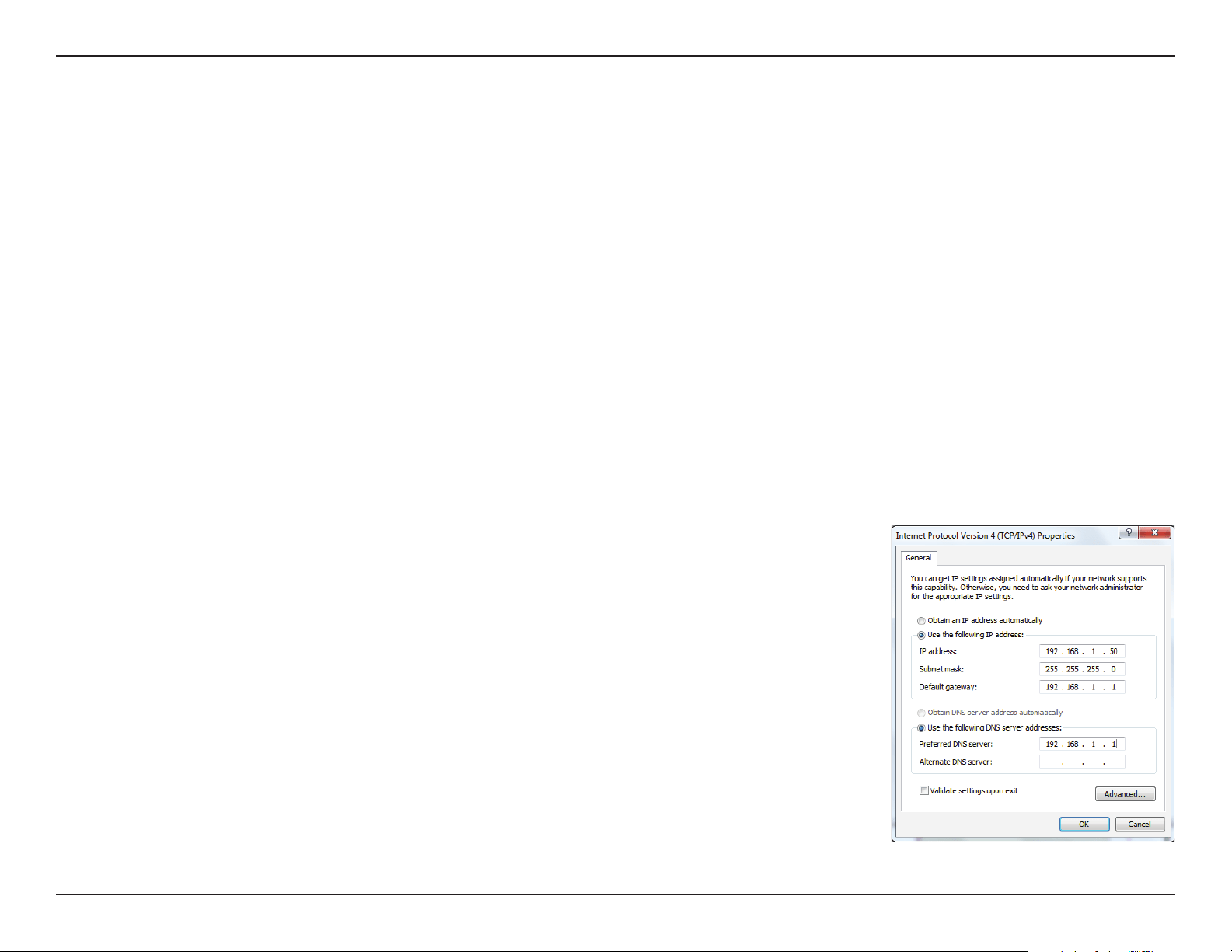
Highlight Internet Protocol Version 4 (TCP/IPv4) and click Properties.
Step 4
Click Use the following IP address and enter an IP address that is on the same subnet as
your network or the LAN IP address on your router.
Example: If the router´s LAN IP address is 192.168.0.1, make your IP address 192.168.1.X
where X is a number between 2 and 99. Make sure that the number you choose is not in
use on the network. Set the Default Gateway the same as the LAN IP address of your router
(I.E. 192.168.0.1).
Set Primary DNS the same as the LAN IP address of your router (192.168.0.1). The Alternate
DNS is not needed or you may enter a DNS server from your ISP.
Step 5
Click OK twice to save your settings.

80D-Link DWR-978 User Manual
Appendix B - Networking Basics
Wireless Security
This section will show you the dierent levels of security you can use to help protect your data from intruders. The DWR-978 oers the
following types of security:
• WPA2 (Wi-Fi Protected Access 2) • WPA2-PSK (Pre-Shared Key)
• WPA (Wi-Fi Protected Access) • WPA-PSK (Pre-Shared Key)
What is WPA?
WPA (Wi-Fi Protected Access), is a Wi-Fi standard that was designed to improve the security features of WEP (Wired Equivalent Privacy).
The 2 major improvements over WEP:
• Improved data encryption through the Temporal Key Integrity Protocol (TKIP). TKIP scrambles the keys using a hashing
algorithm and by adding an integrity-checking feature. WPA2 is based on 802.11i and uses Advanced Encryption Standard
(AES) instead of TKIP.
• User authentication, which is generally missing in WEP, which is encorporated through the extensible authentication
protocol (EAP). WEP regulates access to a wireless network based on a computer’s hardware-specic MAC address, which
is relatively simple to be snied out and stolen. EAP is built on a stronger public-key encryption system so that only
authorized network users should be able to access the network.
WPA-PSK/WPA2-PSK uses a passphrase or key to authenticate your wireless connection. The key is an alpha-numeric password between
8 and 63 characters long. The password can include symbols (!?*&_) and spaces. This key must be the exact same key entered on your
wireless router or access point. This is the technique typically used on home networks.
WPA/WPA2 incorporates user authentication through the Extensible Authentication Protocol (EAP). EAP is built on an even stronger key
encryption system to make it much more dicult for unauthorized network users to access the network. EAP is often used in corporate
or university environments.
81D-Link DWR-978 User Manual
Appendix C - Technical Specications
Technical Specications
General
Device Interfaces 4 x 10/100/1000 Gigabit Ethernet LAN Ports, 1 x 10/100/1000 Mbps Gigabit Ethernet WAN port,
1 x USB 2.0 Port, 1 x LTE SIM/USIM Slot, 1 x Reset Button, 1 x WPS Button, 1 x Power Port
LED Power, WAN, WLAN, Phone, LAN, 3G, 4G, LTE 5GNR
Antenna Type 2 x 2.4G WLAN Internal Antenna, 2 x 5G WLAN Internal Antenna, 2 x 2 LTE External Antenna, 2 x 2 LTE Internal Antenna
Wi-Fi Data Rate 2.4 GHz Up to 1732Mbps, 5 GHz Up to 800Mbps
Wireless IEEE Standard IEEE 802.11 ac/n/g/b/k/v/r
Data Signal Rate 5G NR/LTE to GE LAN max data rate up to 900Mbps, 5G NR/LTE to 2.4G WLAN max data
rate up to 500Mbps, 5G NR/LTE to 5Ghz WLAN max data rate up to 600Mbps, 2.4Ghz WLAN
to GE LAN max up to 600Mbps, 5Ghz WLAN to GE LAN max up to 1Gbps
WAN Interface DHCP, Static IP, PPPoE (PPPoE Pass-through), PPTP, L2TP, IPsec (VPN Pass-through), DS-Lite, Support Dual Access
PPPoE, L2TP, PPTP for Russia, Support 802.1p & 802.1p VLAN tagging and Priority bit, Concurrent session: 32000
Functionality
Security Protocol WEP (128bits), 802.11i 128-bit TKIP/AES
Firewall DoS , Stateful Packet Inspection , Anti-spoofing Checking, IP/MAC Address Filtering , DMZ
Mesh D-Link EasyMesh
QoS D-Link Intelligent QoS Technology
SpeedTest Ookla SpeedTest
Software
Device Management
Mobile app (iOS and Android), Web UI
Physical
Hardware version A1
Size 234.5 x 245 x 55.25 mm (9.23 x 9.64 x 2.18 in)
Weight 920 g (2.03 lbs)
Power Input 12 V 4 A
Operating Temperature 0 to 40 °C (32 to 104 °F)
Storage Temperature -10 to 70 °C (14 to 158 °F)
Operating Humidity 10% to 90% non-condensing
Storage Humidity 5% to 95% non-condensing
Certifications CE , FCC , PTCRB, EMC, Safety , RoHS
82D-Link DWR-978 User Manual
Appendix C - Technical Specications
Bandwidth
5GNR Sub6Ghz n1, n2, n3, n5, n7, n8, n12, n20, n28, n41, n66, n71,n77,n78, n79
LTE Cat20 FDD B1, B2, B3, B4, B5, B7, B8, B12, B13, B14, B17, B18, B19, B20, B25, B26, B28, B29, B30, B32, B66, B71
LTE Cat20 TDD B34, B38, B39, B40, B41, B42, B43, B46, B48
WCDMA B1, B2, B3/9, B4, B5/6/19, B8
1
Mobile broadband speeds will vary and are dependent on a range of factors including network conguration, network capacity, signal strength, and the conditions of your mobile broadband subscription.
2
Maximum wireless signal rate derived from IEEE Standard 802.11 specications. Actual
data throughput will vary. Network conditions and environmental factors, including volume of network trac, building materials and construction, as well as network overhead, can lower actual data throughput rate. Environmental factors will adversely aect wireless signal range.
3
Requires subscription with a mobile Internet service provider (not included).

83D-Link DWR-978 User Manual
Appendix D - Regulatory Information
Regulatory Information
Federal Communication Commission Interference Statement
This equipment has been tested and found to comply with the limits for a Class B digital device, pursuant to Part 15 of the FCC Rules. These limits
are designed to provide reasonable protection against harmful interference in a residential installation. This equipment generates, uses and
can radiate radio frequency energy and, if not installed and used in accordance with the instructions, may cause harmful interference to radio
communications. However, there is no guarantee that interference will not occur in a particular installation. If this equipment does cause harmful
interference to radio or television reception, which can be determined by turning the equipment o and on, the user is encouraged to try to
correct the interference by one of the following measures:
—Reorient or relocate the receiving antenna.
—Increase the separation between the equipment and receiver.
—Connect the equipment into an outlet on a circuit dierent from that to which the receiver is connected.
—Consult the dealer or an experienced radio/TV technician for help.
Non-modication Statement:
Any changes or modications not expressly approved by the party responsible for compliance could void the user’s authority to operate this
equipment.
Caution:
This device complies with Part 15 of the FCC Rules. Operation is subject to the following two conditions:
(1) This device may not cause harmful interference, and (2) this device must accept any interference received, including interference that
may cause undesired operation.
For product available in the USA/Canada market, only channel 1~11 can be operated. Selection of other channels is not possible.
Note:
The country code selection is for non-USA models only and is not available to all USA models. Per FCC regulations, all WiFi product marketed in
the USA must be xed to USA operational channels only.

84D-Link DWR-978 User Manual
Appendix D - Regulatory Information
Important Notice:
FCC Radiation Exposure Statement
This equipment complies with FCC radiation exposure limits set forth for an uncontrolled environment. This equipment should be installed and
operated with minimum distance 20 cm between the radiator and your body.
85D-Link DWR-978 User Manual
Appendix D - Regulatory Information
CE EMI Class B Warning
This equipment is compliant with Class B of CISPR 32. In a residential environment this equipment may cause radio interference.
Frequency Band(s)
Frequenzband
Fréquence bande(s)
Bandas de Frecuencia
Frequenza/e
Frequentie(s)
Max. Output Power (EIRP)
Max. Output Power
Consommation d’énergie max.
Potencia máxima de Salida
Potenza max. Output
Max. Output Power
5 G
5.15 – 5.25 GHz 200 mW
5.25 – 5.35 GHz 200 mW
5.47 – 5.725 GHz 1 W
2.4 G 2.4 – 2.4835 GHz 100 mW
Appendix D - Regulatory Information
86D-Link (Insert Model Number) User Manual
European Community Declaration of Conformity:
Česky [Czech]
Tímto D-Link Corporation prohlašuje, že tento produkt, jeho příslušenství a software jsou v souladu se směrnicí
2014/53/EU. Celý text ES prohlášení o shodě vydaného EU a o rmwaru produktu lze stáhnout na stránkách k
produktu www.dlink.com.
Dansk [Danish]
D-Link Corporation erklærer herved, at dette produkt, tilbehør og software er i overensstemmelse med direktiv
2014/53/EU. Den fulde tekst i EU-overensstemmelseserklæringen og produktrmware kan wnloades fra
produktsiden hos www.dlink.com.
Deutsch [German]
Hiermit erklärt die D-Link Corporation, dass dieses Produkt, das Zubehör und die Software der Richtlinie 2014/53/
EU entsprechen. Der vollständige Text der Konformitätserklärung der Europäischen Gemeinschaft sowie die
Firmware zum Produkt stehen Ihnen zum Herunterladen von der Produktseite im Internet auf www.dlink.com zur
Verfügung.
Eesti [Estonian]
Käesolevaga kinnitab D-Link Corporation, et see toode, tarvikud ja tarkvara on kooskõlas direktiiviga 2014/53/EL.
Euroopa Liidu vastavusdeklaratsiooni täistekst ja toote püsivara on allalaadimiseks saadaval tootelehel www.dlink.
com.
English
Hereby, D-Link Corporation, declares that this product, accessories, and software are in compliance with directive
2014/53/EU. The full text of the EU Declaration of Conformity and product rmware are available for download
from the product page at www.dlink.com
Español [Spanish]
Por la presente, D-Link Corporation declara que este producto, accesorios y software cumplen con las directivas
2014/53/UE. El texto completo de la declaración de conformidad de la UE y el rmware del producto están
disponibles y se pueden descargar desde la página del producto en www.dlink.com.
Ελληνική [Greek]
Με την παρούσα, η D-Link Corporation δηλώνει ότι αυτό το προϊόν, τα αξεσουάρ και το λογισμικό
συμμορφώνονται με την Οδηγία 2014/53/ΕΕ. Το πλήρες κείμενο της δήλωσης συμμόρφωσης της ΕΕ και το
υλικολογισμικό του προϊόντος είναι διαθέσιμα για λήψη από τη σελίδα του προϊόντος στην τοποθεσία www.dlink.
com.
Français [French]
Par les présentes, D-Link Corporation déclare que ce produit, ces accessoires et ce logiciel sont conformes aux
directives 2014/53/UE.Le texte complet de la déclaration de conformité de l'UE et le icroprogramme du produit
sont disponibles au téléchargement sur la page des produits à www.dlink.com.
Italiano [Italian]
Con la presente, D-Link Corporation dichiara che questo prodotto, i relativi accessori e il software sono conformi
alla direttiva 2014/53/UE. Il testo completo della dichiarazione di conformità UE e il rmware del prodotto sono
disponibili per il download dalla pagina del prodotto su www.dlink.com.
Appendix D - Regulatory Information
87D-Link (Insert Model Number) User Manual
Latviski [Latvian]
Ar šo uzņēmums D-Link Corporation apliecina, ka šis produkts, piederumi un programmatūra atbilst direktīvai
2014/53/ES. ES atbilstības deklarācijas pilno tekstu un produkta aparātprogrammatūru var lejupielādēt attiecīgā
produkta lapā vietnē www.dlink.com.
Lietuvių [Lithuanian]
Šiuo dokumentu „D-Link Corporation“ pareiškia, kad šis gaminys, priedai ir programinė įranga atitinka direktyvą
2014/53/ES. Visą ES atitikties deklaracijos tekstą ir gaminio programinę aparatinę įrangą galima atsisiųsti iš gaminio
puslapio adresu www.dlink.com.
Nederlands [Dutch]
Hierbij verklaart D-Link Corporation dat dit product, accessoires en software voldoen aan de richtlijnen 2014/53/
EU. De volledige tekst van de EU conformiteitsverklaring en productrmware is beschikbaar voor download van de
productpagina op www.dlink.com.
Malti [Maltese]
Bil-preżenti, D-Link Corporation tiddikjara li dan il-prodott, l-aċċessorji, u s-software huma konformi mad-Direttiva
2014/53/UE. Tista’ tniżżel it-test sħiħ tad-dikjarazzjoni ta’ konformità tal-UE u l-rmware tal-prodott mill-paġna tal-
prodott fuq www.dlink.com.
Magyar [Hungarian]
Ezennel a D-Link Corporation kijelenti, hogy a jelen termék, annak tartozékai és szoftvere megfelelnek a 2014/53/
EU sz. rendeletek rendelkezéseinek. Az EU Megfelelőségi nyilatkozat teljes szövege és a termék rmware a termék
oldaláról tölthető le a www.dlink.com címen.
Polski [Polish]
D-Link Corporation niniejszym oświadcza, że ten produkt, akcesoria oraz oprogramowanie są zgodne z
dyrektywami 2014/53/EU. Pełen tekst deklaracji zgodności UE oraz oprogramowanie sprzętowe do produktu
można pobrać na stronie produktu w witrynie www.dlink.com.
Português [Portuguese]
Desta forma, a D-Link Corporation declara que este produto, os acessórios e o software estão em conformidade
com a diretiva 2014/53/UE. O texto completo da declaração de conformidade da UE e do rmware
Slovensko[Slovenian]
Podjetje D-Link Corporation s tem izjavlja, da so ta izdelek, dodatna oprema in programnska oprema skladni z
direktivami 2014/53/EU. Celotno besedilo izjave o skladnosti EU in vdelana programska oprema sta na voljo za
prenos na strani izdelka na www.dlink.com.
Slovensky [Slovak]
Spoločnosť D-Link týmto vyhlasuje, že tento produkt, príslušenstvo a softvér sú v súlade so smernicou 214/53/
EÚ. Úplné znenie vyhlásenia EÚ o zhode a rmvéri produktu sú k dispozícii na prevzatie zo stránky produktu www.
dlink.com.
Suomi [Finnish]
D-Link Corporation täten vakuuttaa, että tämä tuote, lisävarusteet ja ohjelmisto ovat direktiivin 2014/53/EU
vaatimusten mukaisia. Täydellinen EU-vaatimustenmukaisuusvakuutus samoin kuin tuotteen laiteohjelmisto ovat
ladattavissa osoitteesta www.dlink.com.
Appendix D - Regulatory Information
88D-Link (Insert Model Number) User Manual
Svenska[Swedish]
D-Link Corporation försäkrar härmed att denna produkt, tillbehör och programvara överensstämmer med
direktiv 2014/53/EU. Hela texten med EU-försäkran om överensstämmelse och produkt-rmware kan hämtas från
produktsidan på www.dlink.com.
Íslenska [Icelandic]
Hér með lýsir D-Link Corporation því yr að þessi vara, fylgihlutir og hugbúnaður eru í samræmi við tilskipun
2014/53/EB. Sækja má ESB-samræmisyrlýsinguna í heild sinni og fastbúnað vörunnar af vefsíðu vörunnar á www.
dlink.com.
Norsk [Norwegian]
Herved erklærer D-Link Corporation at dette produktet, tilbehøret og programvaren er i samsvar med direktivet
2014/53/EU. Den fullstendige teksten i EU-erklæring om samsvar og produktets fastvare er tilgjengelig for
nedlasting fra produktsiden på www.dlink.com.
Warning Statement:
The power outlet should be near the device and easily accessible.

Appendix D - Regulatory Information
89D-Link (Insert Model Number) User Manual
NOTICE OF WIRELESS RADIO LAN USAGE IN THE EUROPEAN COMMUNITY FOR WIRELESS PRODUCT ONLY:
• This device is restricted to indoor use when operated in the European Community using channels in the 5.15-5.35 GHz band to reduce the
potential for interference.
• This device is a 2.4 GHz wideband transmission system (transceiver), intended for use in all EU member states and EFTA countries. This
equipment may be operated in AL, AD, BE, BG, DK, DE, FI, FR, GR, GW, IS, IT, HR, LI, LU, MT, MK, MD, MC, NL, NO, AT, PL, PT, RO, SM, SE, RS, SK, ES,
CI, HU, and CY.
Usage Notes:
• To remain in conformance with European National spectrum usage regulations, frequency and channel limitations will be applied on the
products according to the country where the equipment will be deployed.
• This device is restricted from functioning in Ad-hoc mode while operating in 5 GHz. Ad-hoc mode is direct peer-to-peer communication
between two client devices without an Access Point.
• Access points will support DFS (Dynamic Frequency Selection) and TPC (Transmit Power Control) functionality as required when operating in
5 GHz band within the EU.
• Please refer to the product manual or datasheet to check whether your product uses 2.4 GHz and/or 5 GHz wireless.
HINWEIS ZUR VERWENDUNG VON DRAHTLOS-NETZWERK (WLAN) IN DER EUROPÄISCHEN GEMEINSCHAFT ( NUR FÜR
EIN DRAHTLOSES PRODUKT )
• Der Betrieb dieses Geräts in der Europäischen Gemeinschaft bei Nutzung von Kanälen im 5,15-5,35 GHz Frequenzband ist ausschließlich auf
Innenräume beschränkt, um das Interferenzpotential zu reduzieren.
• Bei diesem Gerät handelt es sich um ein zum Einsatz in allen EU-Mitgliedsstaaten und in EFTA-Ländern - ausgenommen Frankreich. Der
Betrieb dieses Geräts ist in den folgenden Ländern erlaubt: AL, AD, BE, BG, DK, DE, FI, FR, GR, GW, IS, IT, HR, LI, LU, MT, MK, MD, MC, NL, NO, AT,
PL, PT, RO, SM, SE, RS, SK, ES, CI, HU, CY
Gebrauchshinweise:
• Um den in Europa geltenden nationalen Vorschriften zum Nutzen des Funkspektrums weiterhin zu entsprechen, werden Frequenz und
Kanalbeschränkungen, dem jeweiligen Land, in dem das Gerät zum Einsatz kommt, entsprechend, auf die Produkte angewandt.
• Die Funktionalität im Ad-hoc-Modus bei Betrieb auf 5 GHz ist für dieses Gerät eingeschränkt. Bei dem Ad-hoc-Modus handelt es sich um eine
Peer-to-Peer-Kommunikation zwischen zwei Client-Geräten ohneeinen Access Point.
• Access Points unterstützen die Funktionen DFS (Dynamic Frequency Selection) und TPC (Transmit Power Control) wie erforderlich bei Betrieb
auf 5 GHz innerhalb der EU.
• Bitte schlagen Sie im Handbuch oder Datenblatt nach nach, ob Ihr Gerät eine 2,4 GHz und / oder 5 GHz Verbindung nutzt.

Appendix D - Regulatory Information
90D-Link (Insert Model Number) User Manual
AVIS CONCERNANT L'UTILISATION DE LA RADIO SANS FIL LAN DANS LA COMMUNAUTÉ EUROPÉENNE (UNIQUEMENT
POUR LES PRODUITS SANS FIL)
• Cet appareil est limité à un usage intérieur lorsqu'il est utilisé dans la Communauté européenne sur les canaux de la bande de 5,15 à 5,35 GHz
an de réduire les risques d'interférences.
• Cet appareil est un système de transmission à large bande (émetteur-récepteur) de 2,4 GHz, destiné à être utilisé dans tous les États-
membres de l'UE et les pays de l'AELE. Cet équipement peut être utilisé dans les pays suivants : AL, AD, BE , BG, DK, DE, FI, FR, GR, GW, IS, IT,
HR, LI, LU, MT , MK, MD, MC, NL, NO, AT, PL, PT, RO, SM, SE, RS, SK, ES, CI, HU, CY
Notes d'utilisation:
• Pour rester en conformité avec la réglementation nationale européenne en matière d'utilisation du spectre, des limites de fréquence et de
canal seront appliquées aux produits selon le pays où l'équipement sera déployé.
• Cet appareil ne peut pas utiliser le mode Ad-hoc lorsqu'il fonctionne dans la bande de 5 GHz. Le mode Adhoc fournit une communication
directe pair à pair entre deux périphériques clients sans point d'accès.
• Les points d'accès prendront en charge les fonctionnalités DFS (Dynamic Frequency Selection) et TPC (Transmit Power Control) au besoin lors
du fonctionnement dans la bande de 5 GHz au sein de l'UE.
• Merci de vous référer au guide d'utilisation ou de la che technique an de vérier si votre produit utilise 2.4 GHz et/ou 5 GHz sans l.
AVISO DE USO DE LA LAN DE RADIO INALÁMBRICA EN LA COMUNIDAD EUROPEA (SOLO PARA EL PRODUCTO
INALÁMBRICO)
• El uso de este dispositivo está restringido a interiores cuando funciona en la Comunidad Europea utilizando canales en la banda de 5,15-5,35
GHz, para reducir la posibilidad de interferencias.
• Este dispositivo es un sistema de transmisión (transceptor) de banda ancha de 2,4 GHz, pensado para su uso en todos los estados miembros
de la UE y en los países de la AELC. Este equipo se puede utilizar en AL, AD, BE, BG, DK, DE, FI, FR, GR, GW, IS, IT, HR, LI, LU, MT, MK, MD, MC, NL,
NO, AT, PL, PT, RO, SM, SE, RS, SK, ES, CI, HU, CY
Notas de uso:
• Para seguir cumpliendo las normas europeas de uso del espectro nacional, se aplicarán limitaciones de frecuencia y canal en los productos
en función del país en el que se pondrá en funcionamiento el equipo.
• Este dispositivo tiene restringido el funcionamiento en modo Ad-hoc mientras funcione a 5 Ghz. El modo Ad-hoc es la comunicación directa
de igual a igual entre dos dispositivos cliente sin un punto de acceso.
• Los puntos de acceso admitirán la funcionalidad DFS (Selección de frecuencia dinámica) y TPC (Control de la potencia de transmisión) si es
necesario cuando funcionan a 5 Ghz dentro de la UE.
• Por favor compruebe el manual o la cha de producto para comprobar si el producto utiliza las bandas inalámbricas de 2.4 GHz y/o la de 5
GHz.

Appendix D - Regulatory Information
91D-Link (Insert Model Number) User Manual
AVVISO PER L’USO DI LAN RADIO WIRELESS NELLA COMUNITÀ EUROPEA (SOLO PER PRODOTTI WIRELESS)
• Nella Comunità europea, l’uso di questo dispositivo è limitato esclusivamente agli ambienti interni sui canali compresi nella banda da 5,15 a
5,35 GHz al ne di ridurre potenziali interferenze. Questo dispositivo è un sistema di trasmissione a banda larga a 2,4 GHz (ricetrasmittente),
destinato all’uso in tutti gli stati membri dell’Unione europea e nei paesi EFTA.
• Questo dispositivo può essere utilizzato in AL, AD, BE, BG, DK, DE, FI, FR, GR, GW, IS, IT, HR, LI, LU, MT, MK, MD, MC, NL, NO, AT, PL, PT, RO, SM,
SE, RS, SK, ES, CI, HU, CY
Note per l’uso
• Al ne di mantenere la conformità alle normative nazionali europee per l’uso dello spettro di frequenze, saranno applicate limitazioni sulle
frequenze e sui canali per il prodotto in conformità alle normative del paese in cui il dispositivo viene utilizzato.
• Questo dispositivo non può essere attivato in modalità Ad-hoc durante il funzionamento a 5 Ghz. La modalità Ad-hoc è una comunicazione
diretta peer-to-peer fra due dispositivi client senza un punto di accesso.
• I punti di accesso supportano le funzionalità DFS (Dynamic Frequency Selection) e TPC (Transmit Power Control) richieste per operare a 5 Ghz
nell’Unione europea.
• Ti invitiamo a fare riferimento al manuale del prodotto o alla scheda tecnica per vericare se il tuo prodotto utilizza le frequenze 2,4 GHz e/o
5 GHz.
KENNISGEVING VAN DRAADLOOS RADIO LAN-GEBRUIK IN DE EUROPESE GEMEENSCHAP (ALLEEN VOOR
DRAADLOOS PRODUCT)
• Dit toestel is beperkt tot gebruik binnenshuis wanneer het wordt gebruikt in de Europese Gemeenschap gebruik makend van kanalen in de
5.15-5.35 GHz band om de kans op interferentie te beperken.
• Dit toestel is een 2.4 GHz breedband transmissiesysteem (transceiver) dat bedoeld is voor gebruik in alle EU lidstaten en EFTA landen. Deze
uitrusting mag gebruikt worden in AL, AD, BE, BG, DK, DE, FI, FR, GR, GW, IS, IT, HR, LI, LU, MT, MK, MD, MC, NL, NO, AT, PL, PT, RO, SM, SE, RS, SK,
ES, CI, HU, CY
Gebruiksaanwijzingen:
• Om de gebruiksvoorschriften van het Europese Nationale spectrum na te leven, zullen frequentie- en kanaalbeperkingen worden toegepast
op de producten volgens het land waar de uitrusting gebruikt zal worden.
• Dit toestel kan niet functioneren in Ad-hoc mode wanneer het gebruikt wordt in 5 GHz. Ad-hoc mode is directe peer-to-peer communicatie
tussen twee klantenapparaten zonder een toegangspunt.
• Toegangspunten ondersteunen DFS (Dynamic Frequency Selection) en TPC (Transmit Power Control) functionaliteit zoals vereist bij gebruik
in 5 GHz binnen de EU.
• Raadpleeg de handleiding of de datasheet om te controleren of uw product gebruik maakt van 2.4 GHz en/of 5 GHz.

Appendix D - Regulatory Information
92D-Link (Insert Model Number) User Manual
SAFETY INSTRUCTIONS
The following general safety guidelines are provided to help ensure your own personal safety and protect your product from potential damage.
Remember to consult the product user instructions for more details.
• Static electricity can be harmful to electronic components. Discharge static electricity from your body (i.e. touching grounded bare metal)
before touching the product.
• Do not attempt to service the product and never disassemble the product. For some products with a user replaceable battery, please read
and follow the instructions in the user manual.
• Do not spill food or liquid on your product and never push any objects into the openings of your product.
• Do not use this product near water, areas with high humidity, or condensation unless the product is specically rated for outdoor application.
• Keep the product away from radiators and other heat sources.
• Always unplug the product from mains power before cleaning and use a dry lint free cloth only.
SICHERHEITSVORSCHRIFTEN
Die folgenden allgemeinen Sicherheitsvorschriften dienen als Hilfe zur Gewährleistung Ihrer eigenen Sicherheit und zum Schutz Ihres Produkts.
Weitere Details nden Sie in den Benutzeranleitungen zum Produkt.
• Statische Elektrizität kann elektronischen Komponenten schaden. Um Schäden durch statische Auadung zu vermeiden, leiten Sie
elektrostatische Ladungen von Ihrem Körper ab,
(z. B. durch Berühren eines geerdeten blanken Metallteils), bevor Sie das Produkt berühren.
• Unterlassen Sie jeden Versuch, das Produkt zu warten, und versuchen Sie nicht, es in seine Bestandteile zu zerlegen. Für einige Produkte mit
austauschbaren Akkus lesen Sie bitte das Benutzerhandbuch und befolgen Sie die dort beschriebenen Anleitungen.
• Vermeiden Sie, dass Speisen oder Flüssigkeiten auf Ihr Produkt gelangen, und stecken Sie keine Gegenstände in die Gehäuseschlitze oder
-önungen Ihres Produkts.
• Verwenden Sie dieses Produkt nicht in unmittelbarer Nähe von Wasser und nicht in Bereichen mit hoher Luftfeuchtigkeit oder Kondensation,
es sei denn, es ist speziell zur Nutzung in Außenbereichen vorgesehen und eingestuft.
• Halten Sie das Produkt von Heizkörpern und anderen Quellen fern, die Wärme erzeugen.
• Trennen Sie das Produkt immer von der Stromzufuhr, bevor Sie es reinigen und verwenden Sie dazu ausschließlich ein trockenes fusselfreies
Tuch.

Appendix D - Regulatory Information
93D-Link (Insert Model Number) User Manual
CONSIGNES DE SÉCURITÉ
Les consignes générales de sécurité ci-après sont fournies an d’assurer votre sécurité personnelle et de protéger le produit d’éventuels
dommages. Veuillez consulter les consignes d’utilisation du produit pour plus de détails.
• L’électricité statique peut endommager les composants électroniques. Déchargez l’électricité statique de votre corps (en touchant un objet
en métal relié à la terre par exemple) avant de toucher le produit.
• N’essayez pas d’intervenir sur le produit et ne le démontez jamais. Pour certains produits contenant une batterie remplaçable par l’utilisateur,
veuillez lire et suivre les consignes contenues dans le manuel d’utilisation.
• Ne renversez pas d’aliments ou de liquide sur le produit et n’insérez jamais d’objets dans les orices.
• N’utilisez pas ce produit à proximité d’un point d’eau, de zones très humides ou de condensation sauf si le produit a été spéciquement
conçu pour une application extérieure.
• Éloignez le produit des radiateurs et autres sources de chaleur.
• Débranchez toujours le produit de l’alimentation avant de le nettoyer et utilisez uniquement un chion sec non pelucheux.
INSTRUCCIONES DE SEGURIDAD
Las siguientes directrices de seguridad general se facilitan para ayudarle a garantizar su propia seguridad personal y para proteger el producto
frente a posibles daños. No olvide consultar las instrucciones del usuario del producto para obtener más información.
• La electricidad estática puede resultar nociva para los componentes electrónicos. Descargue la electricidad estática de su cuerpo (p. ej.,
tocando algún metal sin revestimiento conectado a tierra) antes de tocar el producto.
• No intente realizar el mantenimiento del producto ni lo desmonte nunca. Para algunos productos con batería reemplazable por el usuario,
lea y siga las instrucciones del manual de usuario.
• No derrame comida o líquidos sobre el producto y nunca deje que caigan objetos en las aberturas del mismo.
• No utilice este producto cerca del agua, en zonas con humedad o condensación elevadas a menos que el producto esté clasicado
especícamente para aplicación en exteriores.
• Mantenga el producto alejado de los radiadores y de otras fuentes de calor.
• Desenchufe siempre el producto de la alimentación de red antes de limpiarlo y utilice solo un paño seco sin pelusa.

Appendix D - Regulatory Information
94D-Link (Insert Model Number) User Manual
ISTRUZIONI PER LA SICUREZZA
Le seguenti linee guida sulla sicurezza sono fornite per contribuire a garantire la sicurezza personale degli utenti e a proteggere il prodotto da
potenziali danni. Per maggiori dettagli, consultare le istruzioni per l’utente del prodotto.
• L’elettricità statica può essere pericolosa per i componenti elettronici. Scaricare l’elettricità statica dal corpo (ad esempio toccando una parte
metallica collegata a terra) prima di toccare il prodotto.
• Non cercare di riparare il prodotto e non smontarlo mai. Per alcuni prodotti dotati di batteria sostituibile dall’utente, leggere e seguire le
istruzioni riportate nel manuale dell’utente.
• Non versare cibi o liquidi sul prodotto e non spingere mai alcun oggetto nelle aperture del prodotto.
• Non usare questo prodotto vicino all’acqua, in aree con elevato grado di umidità o soggette a condensa a meno che il prodotto non sia
specicatamente approvato per uso in ambienti esterni.
• Tenere il prodotto lontano da caloriferi e altre fonti di calore.
• Scollegare sempre il prodotto dalla presa elettrica prima di pulirlo e usare solo un panno asciutto che non lasci lacce.
VEILIGHEIDSINFORMATIE
De volgende algemene veiligheidsinformatie werd verstrekt om uw eigen persoonlijke veiligheid te waarborgen en uw product te beschermen
tegen mogelijke schade. Denk eraan om de gebruikersinstructies van het product te raadplegen voor meer informatie.
• Statische elektriciteit kan schadelijk zijn voor elektronische componenten. Ontlaad de statische elektriciteit van uw lichaam (d.w.z. het
aanraken van geaard bloot metaal) voordat uhet product aanraakt.
• U mag nooit proberen het product te onderhouden en u mag het product nooit demonteren. Voor sommige producten met door de
gebruiker te vervangen batterij, dient u de instructies in de gebruikershandleiding te lezen en te volgen.
• Mors geen voedsel of vloeistof op uw product en u mag nooit voorwerpen in de openingen van uw product duwen.
• Gebruik dit product niet in de buurt van water, gebieden met hoge vochtigheid of condensatie, tenzij het product speciek geclassiceerd is
voor gebruik buitenshuis.
• Houd het product uit de buurt van radiators en andere warmtebronnen.
• U dient het product steeds los te koppelen van de stroom voordat u het reinigt en gebruik uitsluitend een droge pluisvrije doek.
Appendix D - Regulatory Information
95D-Link (Insert Model Number) User Manual
Disposing of and Recycling Your Product
ENGLISH EN
This symbol on the product or packaging means that according to local laws and regulations this product should be not be disposed
of in household waste but sent for recycling. Please take it to a collection point designated by your local authorities once it has
reached the end of its life, some will accept products for free. By recycling the product and its packaging in this manner you help to
conserve the environment and protect human health.
D-Link and the Environment
At D-Link, we understand and are committed to reducing any impact our operations and products may have on the environment. To minimise
this impact D-Link designs and builds its products to be as environmentally friendly as possible, by using recyclable, low toxic materials in both
products and packaging.
D-Link recommends that you always switch o or unplug your D-Link products when they are not in use. By doing so you will help to save energy
and reduce CO2 emissions.
To learn more about our environmentally responsible products and packaging please visit www.dlinkgreen.com.
DEUTSCH DE
Dieses Symbol auf dem Produkt oder der Verpackung weist darauf hin, dass dieses Produkt gemäß bestehender örtlicher Gesetze
und Vorschriften nicht über den normalen Hausmüll entsorgt werden sollte, sondern einer Wiederverwertung zuzuführen ist. Bringen
Sie es bitte zu einer von Ihrer Kommunalbehörde entsprechend amtlich ausgewiesenen Sammelstelle, sobald das Produkt das Ende
seiner Nutzungsdauer erreicht hat. Für die Annahme solcher Produkte erheben einige dieser Stellen keine Gebühren. Durch ein auf
diese Weise durchgeführtes Recycling des Produkts und seiner Verpackung helfen Sie, die Umwelt zu schonen und die menschliche
Gesundheit zu schützen.
D-Link und die Umwelt
D-Link ist sich den möglichen Auswirkungen seiner Geschäftstätigkeiten und seiner Produkte auf die Umwelt bewusst und fühlt sich verpichtet,
diese entsprechend zu mindern. Zu diesem Zweck entwickelt und stellt D-Link seine Produkte mit dem Ziel größtmöglicher Umweltfreundlichkeit
her und verwendet wiederverwertbare, schadstoarme Materialien bei Produktherstellung und Verpackung.
D-Link empehlt, Ihre Produkte von D-Link, wenn nicht in Gebrauch, immer auszuschalten oder vom Netz zu nehmen. Auf diese Weise helfen
Sie, Energie zu sparen und CO2-Emissionen zu reduzieren.
Wenn Sie mehr über unsere umweltgerechten Produkte und Verpackungen wissen möchten, nden Sie entsprechende Informationen im Internet
unter www.dlinkgreen.com.
Appendix D - Regulatory Information
96D-Link (Insert Model Number) User Manual
FRANÇAIS FR
Ce symbole apposé sur le produit ou son emballage signie que, conformément aux lois et règlementations locales, ce produit ne
doit pas être éliminé avec les déchets domestiques mais recyclé. Veuillez le rapporter à un point de collecte prévu à cet eet par les
autorités locales; certains accepteront vos produits gratuitement. En recyclant le produit et son emballage de cette manière, vous
aidez à préserver l’environnement et à protéger la santé de l’homme.
D-Link et l’environnement
Chez D-Link, nous sommes conscients de l'impact de nos opérations et produits sur l'environnement et nous engageons à le réduire. Pour limiter
cet impact, D-Link conçoit et fabrique ses produits de manière aussi écologique que possible, en utilisant des matériaux recyclables et faiblement
toxiques, tant dans ses produits que ses emballages.
D-Link recommande de toujours éteindre ou débrancher vos produits D-Link lorsque vous ne les utilisez pas. Vous réaliserez ainsi des économies
d’énergie et réduirez vos émissions de CO2.
Pour en savoir plus sur les produits et emballages respectueux de l’environnement, veuillez consulter le www.dlinkgreen.com.
ESPAÑOL ES
Este símbolo en el producto o el embalaje signica que, de acuerdo con la legislación y la normativa local, este producto no se debe
desechar en la basura doméstica sino que se debe reciclar. Llévelo a un punto de recogida designado por las autoridades locales una
vez que ha llegado al n de su vida útil; algunos de ellos aceptan recogerlos de forma gratuita. Al reciclar el producto y su embalaje
de esta forma, contribuye a preservar el medio ambiente y a proteger la salud de los seres humanos.
D-Link y el medio ambiente
En D-Link, comprendemos y estamos comprometidos con la reducción del impacto que puedan tener nuestras actividades y nuestros productos
en el medio ambiente. Para reducir este impacto, D-Link diseña y fabrica sus productos para que sean lo más ecológicos posible, utilizando
materiales reciclables y de baja toxicidad tanto en los productos como en el embalaje.
D-Link recomienda apagar o desenchufar los productos D-Link cuando no se estén utilizando. Al hacerlo, contribuirá a ahorrar energía y a reducir
las emisiones de CO2.
Para obtener más información acerca de nuestros productos y embalajes ecológicos, visite el sitio www.dlinkgreen.com.
Appendix D - Regulatory Information
97D-Link (Insert Model Number) User Manual
ITALIANO IT
La presenza di questo simbolo sul prodotto o sulla confezione del prodotto indica che, in conformità alle leggi e alle normative locali,
questo prodotto non deve essere smaltito nei riuti domestici, ma avviato al riciclo. Una volta terminato il ciclo di vita utile, portare il
prodotto presso un punto di raccolta indicato dalle autorità locali. Alcuni questi punti di raccolta accettano gratuitamente i prodotti
da riciclare. Scegliendo di riciclare il prodotto e il relativo imballaggio, si contribuirà a preservare l'ambiente e a salvaguardare la
salute umana.
D-Link e l'ambiente
D-Link cerca da sempre di ridurre l'impatto ambientale dei propri stabilimenti e dei propri prodotti. Allo scopo di ridurre al minimo tale impatto,
D-Link progetta e realizza i propri prodotti in modo che rispettino il più possibile l'ambiente, utilizzando materiali riciclabili a basso tasso di
tossicità sia per i prodotti che per gli imballaggi.
D-Link raccomanda di spegnere sempre i prodotti D-Link o di scollegarne la spina quando non vengono utilizzati. In questo modo si contribuirà
a risparmiare energia e a ridurre le emissioni di anidride carbonica.
Per ulteriori informazioni sui prodotti e sugli imballaggi D-Link a ridotto impatto ambientale, visitate il sito all'indirizzo www.dlinkgreen.com.
NEDERLANDS NL
Dit symbool op het product of de verpakking betekent dat dit product volgens de plaatselijke wetgeving niet mag worden weggegooid
met het huishoudelijk afval, maar voor recyclage moeten worden ingeleverd. Zodra het product het einde van de levensduur heeft
bereikt, dient u het naar een inzamelpunt te brengen dat hiertoe werd aangeduid door uw plaatselijke autoriteiten, sommige
autoriteiten accepteren producten zonder dat u hiervoor dient te betalen. Door het product en de verpakking op deze manier te
recyclen helpt u het milieu en de gezondheid van de mens te beschermen.
D-Link en het milieu
Bij D-Link spannen we ons in om de impact van onze handelingen en producten op het milieu te beperken. Om deze impact te beperken, ontwerpt
en bouwt D-Link zijn producten zo milieuvriendelijk mogelijk, door het gebruik van recycleerbare producten met lage toxiciteit in product en
verpakking.
D-Link raadt aan om steeds uw D-Link producten uit te schakelen of uit de stekker te halen wanneer u ze niet gebruikt. Door dit te doen bespaart
u energie en beperkt u de CO2-emissies.
Breng een bezoek aan www.dlinkgreen.com voor meer informatie over onze milieuverantwoorde producten en verpakkingen.
Appendix D - Regulatory Information
98D-Link (Insert Model Number) User Manual
POLSKI PL
Ten symbol umieszczony na produkcie lub opakowaniu oznacza, że zgodnie z miejscowym prawem i lokalnymi przepisami
niniejszego produktu nie wolno wyrzucać jak odpady czy śmieci z gospodarstwa domowego, lecz należy go poddać procesowi
recyklingu. Po zakończeniu użytkowania produktu, niektóre odpowiednie do tego celu podmioty przyjmą takie produkty
nieodpłatnie, dlatego prosimy dostarczyć go do punktu zbiórki wskazanego przez lokalne władze. Poprzez proces recyklingu i
dzięki takiemu postępowaniu z produktem oraz jego opakowaniem, pomogą Państwo chronić środowisko naturalne i dbać o
ludzkie zdrowie.
D-Link i środowisko
D-Link podchodzimy w sposób świadomy do ochrony otoczenia oraz jesteśmy zaangażowani w zmniejszanie wpływu naszych działań i produktów
na środowisko naturalne. W celu zminimalizowania takiego wpływu rma D-Link konstruuje i wytwarza swoje produkty w taki sposób, aby były
one jak najbardziej przyjazne środowisku, stosując do tych celów materiały nadające się do powtórnego wykorzystania, charakteryzujące się
małą toksycznością zarówno w przypadku samych produktów jak i opakowań.
Firma D-Link zaleca, aby Państwo zawsze prawidłowo wyłączali z użytku swoje produkty D-Link, gdy nie są one wykorzystywane. Postępując w
ten sposób pozwalają Państwo oszczędzać energię i zmniejszać emisje CO2.
Aby dowiedzieć się więcej na temat produktów i opakowań mających wpływ na środowisko prosimy zapoznać się ze stroną Internetową www.
dlinkgreen.com.
ČESKY CZ
Tento symbol na výrobku nebo jeho obalu znamená, že podle místně platných předpisů se výrobek nesmí vyhazovat do komunálního
odpadu, ale odeslat k recyklaci. Až výrobek doslouží, odneste jej prosím na sběrné místo určené místními úřady k tomuto účelu.
Některá sběrná místa přijímají výrobky zdarma. Recyklací výrobku i obalu pomáháte chránit životní prostředí i lidské zdraví.
D-Link a životní prostředí
Ve společnosti D-Link jsme si vědomi vlivu našich provozů a výrobků na životní prostředí a snažíme se o minimalizaci těchto vlivů. Proto své
výrobky navrhujeme a vyrábíme tak, aby byly co nejekologičtější, a ve výrobcích i obalech používáme recyklovatelné a nízkotoxické materiály.
Společnost D-Link doporučuje, abyste své výrobky značky D-Link vypnuli nebo vytáhli ze zásuvky vždy, když je nepoužíváte. Pomůžete tak šetřit
energii a snížit emise CO2.
Více informací o našich ekologických výrobcích a obalech najdete na adrese www.dlinkgreen.com.
Appendix D - Regulatory Information
99D-Link (Insert Model Number) User Manual
MAGYAR HU
Ez a szimbólum a terméken vagy a csomagoláson azt jelenti, hogy a helyi törvényeknek és szabályoknak megfelelően ez a termék
nem semmisíthető meg a háztartási hulladékkal együtt, hanem újrahasznosításra kell küldeni. Kérjük, hogy a termék élettartamának
elteltét követően vigye azt a helyi hatóság által kijelölt gyűjtőhelyre. A termékek egyes helyeken ingyen elhelyezhetők. A termék és
a csomagolás újrahasznosításával segíti védeni a környezetet és az emberek egészségét.
A D-Link és a környezet
A D-Linknél megértjük és elkötelezettek vagyunk a műveleteink és termékeink környezetre gyakorolt hatásainak csökkentésére. Az ezen hatás
csökkentése érdekében a D-Link a lehető leginkább környezetbarát termékeket tervez és gyárt azáltal, hogy újrahasznosítható, alacsony károsanyag-
tartalmú termékeket gyárt és csomagolásokat alkalmaz.
A D-Link azt javasolja, hogy mindig kapcsolja ki vagy húzza ki a D-Link termékeket a tápforrásból, ha nem használja azokat. Ezzel segít az energia
megtakarításában és a széndioxid kibocsátásának csökkentésében.
Környezetbarát termékeinkről és csomagolásainkról további információkat a www.dlinkgreen.com weboldalon tudhat meg.
NORSK NO
Dette symbolet på produktet eller forpakningen betyr at dette produktet ifølge lokale lover og forskrifter ikke skal kastes sammen
med husholdningsavfall, men leveres inn til gjenvinning. Vennligst ta det til et innsamlingssted anvist av lokale myndigheter når
det er kommet til slutten av levetiden. Noen steder aksepteres produkter uten avgift. Ved på denne måten å gjenvinne produktet
og forpakningen hjelper du å verne miljøet og beskytte folks helse.
D-Link og miljøet
Hos D-Link forstår vi oss på og er forpliktet til å minske innvirkningen som vår drift og våre produkter kan ha på miljøet. For å minimalisere denne
innvirkningen designer og lager D-Link produkter som er så miljøvennlig som mulig, ved å bruke resirkulerbare, lav-toksiske materialer både i
produktene og forpakningen.
D-Link anbefaler at du alltid slår av eller frakobler D-Link-produkter når de ikke er i bruk. Ved å gjøre dette hjelper du å spare energi og å redusere
CO2-utslipp.
For mer informasjon angående våre miljøansvarlige produkter og forpakninger kan du gå til www.dlinkgreen.com.
Appendix D - Regulatory Information
100D-Link (Insert Model Number) User Manual
DANSK DK
Dette symbol på produktet eller emballagen betyder, at dette produkt i henhold til lokale love og regler ikke må bortskaes som
husholdningsaald, mens skal sendes til genbrug. Indlever produktet til et indsamlingssted som angivet af de lokale myndigheder,
når det er nået til slutningen af dets levetid. I nogle tilfælde vil produktet blive modtaget gratis. Ved at indlevere produktet og dets
emballage til genbrug på denne måde bidrager du til at beskytte miljøet og den menneskelige sundhed.
D-Link og miljøet
Hos D-Link forstår vi og bestræber os på at reducere enhver indvirkning, som vores aktiviteter og produkter kan have på miljøet. For at minimere
denne indvirkning designer og producerer D-Link sine produkter, så de er så miljøvenlige som muligt, ved at bruge genanvendelige materialer
med lavt giftighedsniveau i både produkter og emballage.
D-Link anbefaler, at du altid slukker eller frakobler dine D-Link-produkter, når de ikke er i brug. Ved at gøre det bidrager du til at spare energi og
reducere CO2-udledningerne.
Du kan nde ere oplysninger om vores miljømæssigt ansvarlige produkter og emballage på www.dlinkgreen.com.
SUOMI FI
Tämä symboli tuotteen pakkauksessa tarkoittaa, että paikallisten lakien ja säännösten mukaisesti tätä tuotetta ei pidä hävittää
yleisen kotitalousjätteen seassa vaan se tulee toimittaa kierrätettäväksi. Kun tuote on elinkaarensa päässä, toimita se lähimpään
viranomaisten hyväksymään kierrätyspisteeseen. Kierrättämällä käytetyn tuotteen ja sen pakkauksen autat tukemaan sekä ympäristön
että ihmisten terveyttä ja hyvinvointia.
D-Link ja ympäristö
D-Link ymmärtää ympäristönsuojelun tärkeyden ja on sitoutunut vähentämään tuotteistaan ja niiden valmistuksesta ympäristölle mahdollisesti
aiheutuvia haittavaikutuksia. Nämä negatiiviset vaikutukset minimoidakseen D-Link suunnittelee ja valmistaa tuotteensa mahdollisimman
ympäristöystävällisiksi käyttämällä kierrätettäviä, alhaisia pitoisuuksia haitallisia aineita sisältäviä materiaaleja sekä tuotteissaan että niiden
pakkauksissa.
Suosittelemme, että irrotat D-Link-tuotteesi virtalähteestä tai sammutat ne aina, kun ne eivät ole käytössä. Toimimalla näin autat säästämään
energiaa ja vähentämään hiilidioksiidipäästöjä.
Lue lisää ympäristöystävällisistä D-Link-tuotteista ja pakkauksistamme osoitteesta www.dlinkgreen.com.
Appendix D - Regulatory Information
101D-Link (Insert Model Number) User Manual
SVENSKA SE
Den här symbolen på produkten eller förpackningen betyder att produkten enligt lokala lagar och föreskrifter inte skall kastas i
hushållssoporna utan i stället återvinnas. Ta den vid slutet av dess livslängd till en av din lokala myndighet utsedd uppsamlingsplats,
vissa accepterar produkter utan kostnad. Genom att på detta sätt återvinna produkten och förpackningen hjälper du till att bevara
miljön och skydda människors hälsa.
D-Link och miljön
På D-Link förstår vi och är fast beslutna att minska den påverkan våra verksamheter och produkter kan ha på miljön. För att minska denna påverkan
utformar och bygger D-Link sina produkter för att de ska vara så miljövänliga som möjligt, genom att använda återvinningsbara material med
låg gifthalt i både produkter och förpackningar.
D-Link rekommenderar att du alltid stänger av eller kopplar ur dina D-Link produkter när du inte använder dem. Genom att göra detta hjälper
du till att spara energi och minska utsläpp av koldioxid.
För mer information om våra miljöansvariga produkter och förpackningar www.dlinkgreen.com.
PORTUGUÊS PT
Este símbolo no produto ou embalagem signica que, de acordo com as leis e regulamentações locais, este produto não deverá ser
eliminado juntamente com o lixo doméstico mas enviado para a reciclagem. Transporte-o para um ponto de recolha designado pelas
suas autoridades locais quando este tiver atingido o m da sua vida útil, alguns destes pontos aceitam produtos gratuitamente. Ao
reciclar o produto e respectiva embalagem desta forma, ajuda a preservar o ambiente e protege a saúde humana.
A D-Link e o ambiente
Na D-Link compreendemos e comprometemo-nos com a redução do impacto que as nossas operações e produtos possam ter no ambiente.
Para minimizar este impacto a D-Link concebe e constrói os seus produtos para que estes sejam o mais inofensivos para o ambiente possível,
utilizando meteriais recicláveis e não tóxicos tanto nos produtos como nas embalagens.
A D-Link recomenda que desligue os seus produtos D-Link quando estes não se encontrarem em utilização. Com esta acção ajudará a poupar
energia e reduzir as emissões de CO2.
Para saber mais sobre os nossos produtos e embalagens responsáveis a nível ambiental visite www.dlinkgreen.com.