] _l_@ 50HM67 EN.book Page 1 Thm-sday, March 29, 2007 11:28 AI_,I
TOSHIBA
INSTRUMENTS
iiiiiiiiiiiiiiiiiiiililililiiii!ii!!!!iiii
Foranoverviewofste)sforsettingupyournewTV,seepage10,
NoteiTodisplaya HighDefinitionpicture,theTVmustbereceivinga
HighDefinitionsignal(suchasanover-the-airHighDefinition!V
broadcast,aHighDefinitiondigitalcableprogram,or aNighDefinition
digitalsatelliteprogram).Fordetails,pleasecontactyourTVantenna
installer,cableprovider,or satelliteprovider.
Note:!ftheTVis poweredoffandthenquicklyonagainwhenthe
lampunitis hot,it rnaytakeseveralminutesforthepictureto appear
on-screen.Thisis apropertyof DLP¢_ lamptechnologyandis NO]
asignof malfunction.Fordetails,see!IIMPORTANTNOTICEABOUT
HOTLAMPRESTART"onpage6.

_ 50HM67 EN book Page 2 Thursday March 29, 2007 t t:28 AM
Dear Customer,
Thank you for purchasing this Toshiba TV. This manual will
help you use the many exciting features of your new TV. Before
operating the TV, please read this manual completely, and
keep it nearby for future reference.
Safety Precautions
WARNING: TO REDUCE THE RISK OF FIRE OR
ELECTRIC SHOCK, DO NOT EXPOSE THIS APPLIANCE
TO RAIN OR MOISTURE.
WARNING
WARNING:TO REDUCETHE RISKOF ELECTRICSHOCK,
DONOT REMOVECOVER(ORBACK),NO USER-
SERVICEABLEPARTSINSIDE, REFERSERVICINGTO
QUALIFIEDSERVICEPERSONNEL.(Thisdoesnotapplyto"Lamp
unitreplacementandcare"inChapter9.)
The lightning flash with arrowhead symbol, within an
equilateral triangle, is intended to alert the user to the
presence of uninsulated "dangerous voltage" within
the product's enclosure that may be of sufficient
magnitude to constitute a risk of electric shock to
persons.
The exclamation point within an equilateral triangle is
intended to alert the user to the presence of important
operating and maintenance (servicing) instructions in
the literature accompanying the appliance.
CAUTION:
HOT SURFACE!
Touching the lamp before it has cooled will result in severe
burns, ALLOW THE LAMP TO COOL FOR AT LEAST ONE (1)
HOUR BEFORE REPLACING iT.
The lamp in this product has a limited service life. The length
of service life varies depending on product use and user
settings. If you use the lamp beyond its service life:
• you may notice a reduction in the colors and/or brightness
of the picture, at which time you should replace the lamp
unit; and
• the strength of the quartz glass in the lamp will be reduced
and the lamp may rupture. If the lamp ruptures, the TV will
not operate until the lamp unit is replaced.
Dispose of the used lamp unit by the approved method for
your area.
See "Lamp unit replacement and care"
in Chapter 9.
z_x Note: The lamp unit contains mercury.
Disposal of mercury may be regulated due to
environmental considerations. For disposal or recycling
information, contact your local authorities or the Electronic
Industries Alliance (www.eiae.org).
CAUTION: This television is for use only with
the Toshiba stand indicated below. Use with other
carts or stands is capable of resulting in
instability, causing possible injury.
Television Stand Model
50HM67 ST 5067
57HM167 ST 57167
65HM167 ST 65167
NOTETO CATV INSTALLERSIN THE U.S.A.
This is a reminder to call the CATV system installer's attention
to Article 820-40 of the U.S. NEC, which provides guidelines for
proper grounding and, in particular, specifies that the cable
ground shall be connected to the grounding system of the building,
as close to the point of cable entry as practical. For additional
antenna grounding information, see items 28 and 29 on page 4.
ChildSafety
It Makes A Difference
Where YourTV Stands
Congratulationson your purchase!
As you enjoyyournew TV, keep these safetytips in mind:
The Issue
E3 If you are like most consumers, you have a TV in your home.
Many homes, in fact, have more than one TV.
EJ The home theater entertainment experience is a growing trend,
and larger TVs are popular purchases; however, they are not
always supported on the proper TV stands.
O Sometimes TVs are improperly secured or
inappropriately situated on dressers, bookcases,
shelves, desks, audio speakers, chests, or carts.
As a result, TVs may fall over, causing
unnecessary injury.
Toshiba Cares!
O The consumer electronics industry
is committed to making home
entertainment enjoyable and safe.
EJ The Consumer Electronics Association
formed the Home Entertainment Support
Safety Committee, comprised of TV and
consumer electronics furniture manufacturers, to
advocate children's safety and educate consumers
and their families about television safety.
rune Into Safety
EJ One size does NOT fit all! Use appropriate furniture large
enough to support the weight of your TV (and other electronic
components).
E3 Use appropriate angle braces, straps, and anchors to secure your
furniture to the wall (but never screw anything directly into the TV).
EJ Carefully read and understand the other enclosed
instructions for proper use of this product.
E3 Do not allow children to climb on or play with furniture and TVs.
E3 Avoid placing any item on top of your TV (such as a VCR, remote
control, or toy) that a curious child may reach for.
EJ Remember that children can become excited while watching
a program and can potentially push or pull a TV over.
EJ Share our safety message about this hidden hazard of the home
with your family and friends. Thank you!
2500Wilson Blvd.
Arlington,VA 22201 U.S.A.
www.CE.org
CEAis the Sponso_Producerand
Managerof tile International CES
HM67 (E/F) Web 213:276
_ 50HM67 EN book Page 3 Thursday March 29, 2007 t t:28 AM
Important Safety Instructions
1) Read these instructions.
2) Keep these instructions.
3) Heed all warnings.
4) Follow all instructions.
5) Do not use this apparatus near water.
6) Clean only with dry cloth.
7) Do not block any ventilation openings. Install in
accordance with the manufacturer's instructions.
8) Do not install near any heat sources such as radiators,
heat registers, stoves, or other apparatus (including
amplifiers) that produce heat.
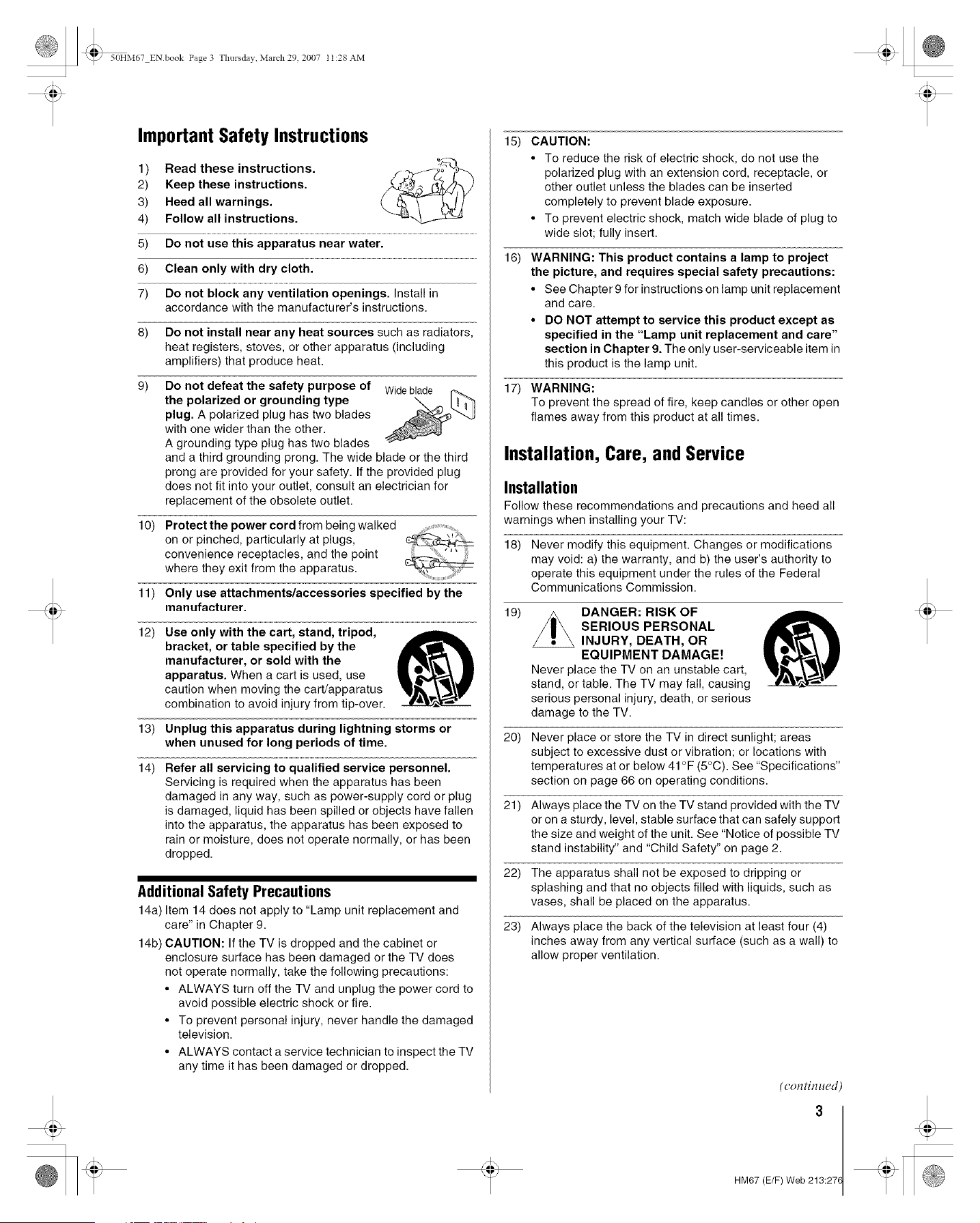
9) Do not defeat the safety purpose of Wideblade
the polarized or grounding type
plug. A polarized plug has two blades
with one wider than the other.
A grounding type plug has two blades
and a third grounding prong. The wide blade or the third
prong are provided for your safety. If the provided plug
does not fit into your outlet, consult an electrician for
replacement of the obsolete outlet.
10)
11)
Protect the power cord from being walked
on or pinched, particularly at plugs,
convenience receptacles, and the point
where they exit from the apparatus.
Only use attachments/accessories specified by the
manufacturer.
12) Use only with the cart, stand, tripod,
bracket, or table specified by the
manufacturer, or sold with the
apparatus. When a cart is used, use
caution when moving the cart/apparatus
combination to avoid injury from tip-over.
13) Unplug this apparatus during lightning storms or
when unused for long periods of time.
14) Refer all servicing to qualified service personnel.
Servicing is required when the apparatus has been
damaged in any way, such as power-supply cord or plug
is damaged, liquid has been spilled or objects have fallen
into the apparatus, the apparatus has been exposed to
rain or moisture, does not operate normally, or has been
dropped.
Additional Safety Precautions
14a) Item 14 does not apply to "Lamp unit replacement and
care" in Chapter 9.
14b) CAUTION: If the TV is dropped and the cabinet or
enclosure surface has been damaged or the TV does
not operate normally, take the following precautions:
• ALWAYS turn off the TV and unplug the power cord to
avoid possible electric shock or fire.
• To prevent personal injury, never handle the damaged
television.
• ALWAYS contact a service technician to inspect the TV
any time it has been damaged or dropped.
15) CAUTION:
• To reduce the risk of electric shock, do not use the
polarized plug with an extension cord, receptacle, or
other outlet unless the blades can be inserted
completely to prevent blade exposure.
• To prevent electric shock, match wide blade of plug to
wide slot; fully insert.
16) WARNING: This product contains a lamp to project
the picture, and requires special safety precautions:
• See Chapter 9 for instructions on lamp unit replacement
and care.
• DO NOT attempt to service this product except as
specified in the "Lamp unit replacement and care"
section in Chapter 9. The only user-serviceable item in
this product is the lamp unit.
17) WARNING:
To prevent the spread of fire, keep candles or other open
flames away from this product at all times.
Installation, Care, andService
Installation
Follow these recommendations and precautions and heed all
warnings when installing your TV:
18) Never modify this equipment. Changes or modifications
may void: a) the warranty, and b) the user's authority to
operate this equipment under the rules of the Federal
Communications Commission.
19)
20)
21)
DANGER: RISK OF
SERIOUS PERSONAL
INJURY, DEATH, OR
EQUIPMENT DAMAGE!
Never place the TV on an unstable cart,
stand, or table. The TV may fall, causing
serious personal injury, death, or serious
damage to the TV.
Never place or store the TV in direct sunlight; areas
subject to excessive dust or vibration; or locations with
temperatures at or below 41 °F (5°C). See "Specifications"
section on page 66 on operating conditions.
Always place the TV on the TV stand provided with the TV
or on a sturdy, level, stable surface that can safely support
the size and weight of the unit. See "Notice of possible TV
stand instability" and "Child Safety" on page 2.
22) The apparatus shall not be exposed to dripping or
splashing and that no objects filled with liquids, such as
vases, shall be placed on the apparatus.
23) Always place the back of the television at least four (4)
inches away from any vertical surface (such as a wall) to
allow proper ventilation.
HM67 (E/F) Web 213:27(
_ 50HM67 EN book Page 4 Thursday March 29, 2007 t t:28 AM
24) Never block or cover the slots or openings in the TV
cabinet back, bottom, and sides. Never place the TV:
• on a bed, sofa, rug, or similar surface;
• too close to drapes, curtains, or walls; or
• in a confined space such as a bookcase, built-in
cabinet, or any other place with poor ventilation.
The slots and openings are provided to protect the TV
from overheating and to help maintain reliable operation of
the TV.
25) Never allow anything to rest on or roll over the power cord,
and never place the TV where the power cord is subject to
wear or abuse.
26) Never overload wall outlets and extension cords.
27) Always operate this equipment from a 120 VAC, 60 Hz
power source only.
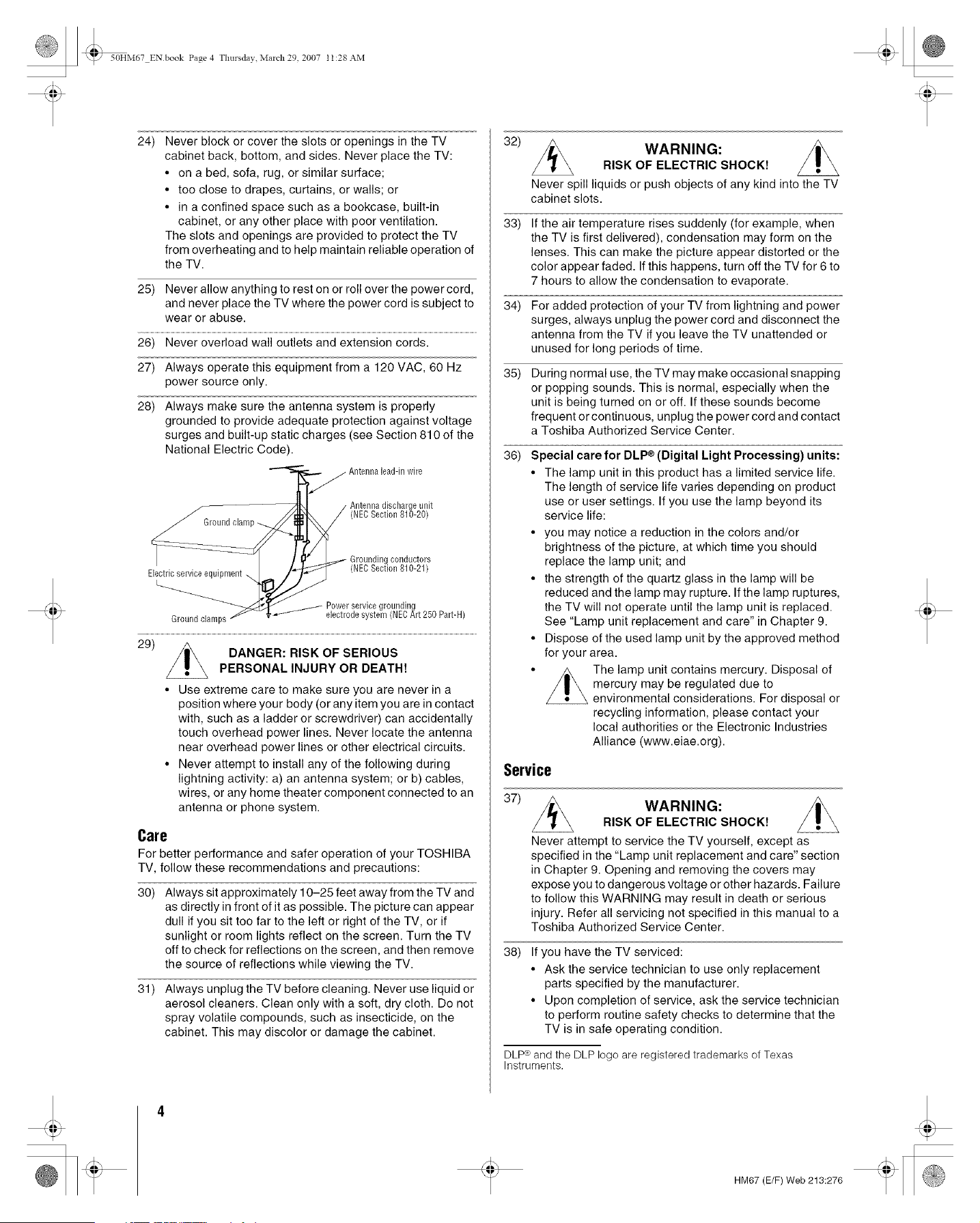
28) Always make sure the antenna system is properly
grounded to provide adequate protection against voltage
surges and built-up static charges (see Section 810 of the
National Electric Code).
lead-inwire
Ground
Antennadischarge unit
(NECSection 810-20)
Electric service equipment
Grounding conductors
(NECSection 810-21)
jrounding
Ground clamps electrode system (NECArt 250 Part-H)
29)
DANGER: RISK OF SERIOUS
PERSONAL INJURY OR DEATH!
• Use extreme care to make sure you are never in a
position where your body (or any item you are in contact
with, such as a ladder or screwdriver) can accidentally
touch overhead power lines. Never locate the antenna
near overhead power lines or other electrical circuits.
• Never attempt to install any of the following during
lightning activity: a) an antenna system; or b) cables,
wires, or any home theater component connected to an
antenna or phone system.
Care
For better performance and safer operation of your TOSHIBA
TV, follow these recommendations and precautions:
30)
31)
Always sit approximately 10-25 feet away from the TV and
as directly in front of it as possible. The picture can appear
dull if you sit too far to the left or right of the TV, or if
sunlight or room lights reflect on the screen. Turn the TV
off to check for reflections on the screen, and then remove
the source of reflections while viewing the TV.
Always unplug the TV before cleaning. Never use liquid or
aerosol cleaners. Clean only with a soft, dry cloth. Do not
spray volatile compounds, such as insecticide, on the
cabinet. This may discolor or damage the cabinet.
32)
WARNING:
RISK OF ELECTRIC SHOCK!
Never spill liquids or push objects of any kind into the TV
cabinet slots.
33)
34)
35)
If the air temperature rises suddenly (for example, when
the TV is first delivered), condensation may form on the
lenses. This can make the picture appear distorted or the
color appear faded. If this happens, turn off the TV for 6 to
7 hours to allow the condensation to evaporate.
For added protection of your TV from lightning and power
surges, always unplug the power cord and disconnect the
antenna from the TV if you leave the TV unattended or
unused for long periods of time.
During normal use, the TV may make occasional snapping
or popping sounds. This is normal, especially when the
unit is being turned on or off. If these sounds become
frequent or continuous, unplug the power cord and contact
a Toshiba Authorized Service Center.
36) Special care for DLP ® (Digital Light Processing) units:
• The lamp unit in this product has a limited service life.
The length of service life varies depending on product
use or user settings. If you use the lamp beyond its
service life:
• you may notice a reduction in the colors and/or
brightness of the picture, at which time you should
replace the lamp unit; and
• the strength of the quartz glass in the lamp will be
reduced and the lamp may rupture. If the lamp ruptures,
the TV will not operate until the lamp unit is replaced.
See "Lamp unit replacement and care" in Chapter 9.
• Dispose of the used lamp unit by the approved method
for your area.
• The lamp unit contains mercury. Disposal of
mercury may be regulated due to
environmental considerations. For disposal or
recycling information, please contact your
local authorities or the Electronic Industries
Alliance (www.eiae.org).
Service
37)
WARNING:
RISK OF ELECTRIC SHOCK!
Never attempt to service the TV yourself, except as
specified in the "Lamp unit replacement and care" section
in Chapter 9. Opening and removing the covers may
expose you to dangerous voltage or other hazards. Failure
to follow this WARNING may result in death or serious
injury. Refer all servicing not specified in this manual to a
Toshiba Authorized Service Center.
38) If you have the TV serviced:
• Ask the service technician to use only replacement
parts specified by the manufacturer.
• Upon completion of service, ask the service technician
to perform routine safety checks to determine that the
TV is in safe operating condition.
DLP® and the DLP logo are registered trademarks of Texas
Instruments.
HM67 (E/F) Web 213:276
_ 50HM67 EN book Page 5 Thursday March 29, 2007 t t:28 AM
39) When the TV reaches the end of its useful life, ask a
qualified service technician to properly dispose of the TV.
Note: The lamp unit contains mercury. Disposal of
mercury may be regulated due to environmental
considerations. Dispose of the used lamp unit by the
approved method for your area.
For disposal or recycling information, please contact your
local authorities or the Electronic Industries Alliance
(www.eiae.org).
FCCDedamtion of Conformity
Compliance Statement
(part15):
The Toshiba 50HM67, 57HM167, and 65HM167 Televisions
comply with Part 15 of the FCC rules.
Operation is subject to the following two conditions: (1) this
device may not cause harmful interference, and (2) this device
must accept any interference received, including interference that
may cause undesired operation.
The party responsible for compliance to these rules is:
Toshiba America Consumer Products, L.L.C.
82 Totowa Rd. Wayne, NJ 07470.
Ph: 1-800-631-3811
Note: This equipment has been tested and found to comply
with the limits for a Class B digital device, pursuant to Part 15
of the FCC rules. These limits are designed to provide
reasonable protection against harmful interference in a
residential installation. This equipment generates, uses, and
can radiate radio frequency energy and, ff not installed and
used in accordance with the instructions, may cause harmful
interference to radio communications. However, there is
no guarantee that interference will not occur in a particular
installation, tf this equipment does cause harmful interference
to radio or television reception, which can be determined by
removing and applying power to the equipment, the user is
encouraged to try to correct the interference by one or more of
the following measures:
• Reorient or relocate the receiving antenna.
• Increase the separation between the equipment and the
receiver.
• Connect the equipment into an outlet on a circuit different
from that to which the receiver is connected.
• Consult the dealer or an experienced radio/TV technician for
help.
Caution: Changes or modifications to this equipment not
expressly approved by Toshiba could void the user's authority
to operate this equipment.
HM67 (E/F) Web 213:27(
_ 50HM67 EN book Page 6 Thursday March 29, 2007 t t:28 AM
importantnotesabout your
BLFeprojection TiT
7)
1) The light source for this TV is a projection lamp unit with a
limited service life. When the lamp wears out, the picture
may become dark or black or the lamp may fail, at which time
you must replace the lamp unit (g¢ "Lamp unit replacement
and care" on pages 63-65).
2) When the lamp mode is set to Low Power, every time the
TV is powered on, the lamp will initially be in High Bright
mode but will switch to Low Power mode after a short
period of time. You may notice a change in screen brightness
when this happens. This is normal and is not a sign of
malfunction (re page 57 for details).
3) Every time the TV is powered on, it may take several minutes
for the picture to obtain full brightness (g¢ "IMPORTANT
NOTICE ABOUT HOT LAMP RESTART," at right).
4) The TV's display is manufactured using an extremely high
level of precision technology; however, an occasional pixel
(dot of light) may show constantly on the screen. This is a
structural property of DLP _2(Digital Light Processing ¢2)
technology and is not a sign of malfunction. Such pixels are
not visible when the picture is viewed from a normal viewing
distance.
5) Always sit approximately 10-25 feet away from the TV and
as directly in front of it as possible. The picture quality may
be affected by your viewing position and length of viewing
time. If you sit too closely to the TV for too long, you may
suffer from eye fatigue. See item 30 under "Care" on page 4.
6) Depending on the media you are viewing, it is possible,
although unlikely, that a limited number of viewers may see
a "rainbow effect" on the screen, which can, in rare instances,
result in eye fatigue. This is a rare occurrence related to
DLP _")technology and is not a sign of TV malfunction.
This TV contains several cooling fans to moderate
the internal temperature. You may be able to hear
the fans for several minutes after the TV is turned
off. This is a function of the Power-On Mode
feature and is not a sign of TV malfunction. You can set
the Power-On Mode feature to stop the fans as soon as the
TV is powered off. See "Setting the Power-On Mode
feature" (g_ page 35).
8) The yellow and blue LED lights at the bottom center of the
TV front indicate your TV's current status. If either light
flashes, see "LED indications" (g_ page 62).
9) Every time the TV power cord is plugged in, the yellow LED
will blink until the TV enters standby mode (plugged in but
not powered on). This is normal and is not a sign of
malfunction.
"Voice announce" feature
When certain non-standard conditions occur, the LEDs
on the TV will blink and the TV will play a recorded
"voice announcement" describing the condition (see the
LED indication table on page 62 for the specific conditions
that include a voice announcement).
To repeat the voice announcement and hear additional
information, press the MENU button on the TV while the
LEDs are blinking.
IMPORTANTNOTICEABOUTHOTLAMP RESTART
When the TV has been powered on long enough for the lamp
unit to get hot, it may take several minutes for the picture to
appear in the following situations:
• When the Power-On Mode feature is set to Power-
Saving and you turn the TV off and then on again
within a few minutes; or
• If the TV is on when a short-term power failure, power
surge, or other similar power failure occurs, such that
the TV loses and regains power within a few minutes,
This is a property of DLP ® TV lamp technology and is
NOT a sign of malfunction.
If this occurs, the yellow LED on the TV front panel will blink
(and the blue LED will be lit solid) until the TV is finished
restarting the lamp and the normal picture appears. If both
LEDs are blinking, you will need to turn the TV off and then
on again to restart the lamp.
TrademarkInformation
• WOW, SRS and (O) symbol are trademarks of SRS Labs, Inc.
WOW technology is incorporated under license from SRS Labs, Inc.
• Manufactured under license from Dolby Laboratories.
Dolby and the double-D symbol are registered trademarks of Dolby
Laboratories.
• HDMI, the HDMI logo and High-Definition Multimedia Interface are
trademarks or registered trademarks of HDMI Licensing LLC.
• DLP ® and the DLP logo are registered trademarks of Texas
Instruments.
HM67 (E/F) Web 213:276
_ 50HM67 EN book Page 7 Thursday March 29, 2007 t t:28 AM
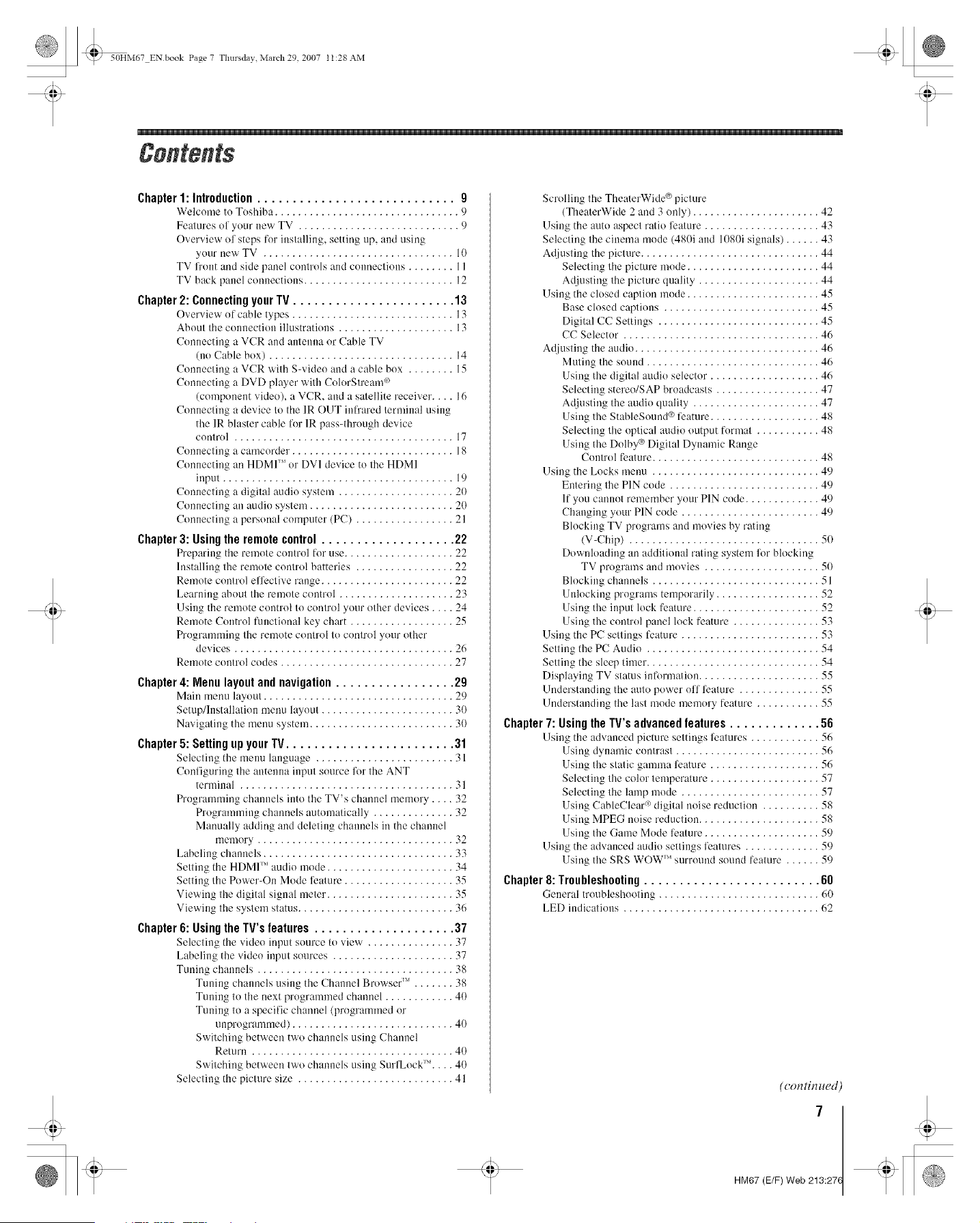
Chapter1: Introduction............................ 9
Welcome to Toshiba ................................ 9
Features of your new TV ............................ 9
Overview of steps for iustalling, setting up, attd using
your new TV ................................. 10
TV l?'ont and side panel controls and counections ........ 11
TV back panel connections .......................... 12
Chapter 2: Connecting your TV ....................... 13
Overview of cable types ............................ 13
About the conuection illustrations .................... 13
Connecting a VCR and antenna or Cable TV
(no Cable box) ................................ 14
Connecting a VCR with S-video attd a cable box ........ 15
Connecting a DVD player with ColorStream _°
(component video), a VCR, attd a satellite receiver .... 16
Connecting a device to the IR OUT in[]'ared terminal using
the IR blaster cable for 1R pass-through device
control ...................................... 17
Connecting a camcorder ............................ 18
Connecting an HDMI '_' or DV1 device to the HDMI
input ........................................ 19
Connecting a digital audio system .................... 20
Connecting at} audio system ......................... 20
Connecting a personal computer (PC) ................. 21
Chapter3: Usingthe remotecontrol................... 22
Prepm:ing the remote control for use ................... 22
Installing the remote control batteries ................. 22
Remote comrol effective range ....................... 22
Learning about the remote control .................... 23
Using the remote control to control your other devices .... 24
Remote Control functional key chart .................. 25
Progrmnming the remote coutrol to control your other
devices ...................................... 26
Remote control codes .............................. 27
Chapter 4: Menu layout and navigation ................. 29
Main menu layout ................................. 29
Setup/Installation menu layout ....................... 30
Navigating the menu system ......................... 30
Chapter5: SettingupyourTV........................ 31
Selecting the menu language ........................ 31
Conliguring the atttenna input source for the ANT
terminal ..................................... 31
Programmiug channels into the TV's channel memory .... 32
Programming channels automatically .............. 32
Manually adding and deleting channels in the channel
memory .................................. 32
Labeling channels ................................. 33
Setting the HDMI _"audio mode ...................... 34
Setting the Power-On Mode leature ................... 35
Viewing the digital signal meter ...................... 35
Viewing the system status ........................... 36
Chapter 6: Using the lV's features .................... 37
Selectiug the video iuput source to view ............... 37
Labeling the video input sources ..................... 37
Tuning channels .................................. 38
Tuning channels using the Channel Browser" ....... 38
Tuning to the uext programmed channel ............ 40
Tuuing to a specific channel (programmed or
unprogrammed) ............................ 40
Switching between two channels using Channel
Return ................................... 40
Switching between two channels usiug Surf Lock _".... 40
Selecting the picture size ........................... 41
Scrolling the TheaterWide ® picture
(TheaterWide 2 and 3 only) ...................... 42
Using the auto aspect ratio leature .................... 43
Selecting the cinema mode (480i and 1080i signals) ...... 43
Adjusting the picture ............................... 44
Selecting the picture mode ....................... 44
Adjustiug the picture quality ..................... 44
Using the closed caption mode ....................... 45
Base closed captious ........................... 45
Digital CC Settings ............................ 45
(C Selector .................................. 46
Adjusting the audio ................................ 46
Muting the sound .............................. 46
Using the digital audio selector. .................. 46
Selecting stereo/SAP broadcasts .................. 47
Adjustiug the audio quality ...................... 47
Using the StableSound ® feature ................... 48
Selecting the optical audio output format ........... 48
Using the Dolby ® Digital Dynamic Range
Control feature ............................. 48
Using the Locks meuu ............................. 49
Entering the PIN code .......................... 49
If you cannot remember your PIN code ............. 49
Changiug your PIN code ........................ 49
Blocking TV programs and movies by rating
(V-Chip) ................................. 50
Downloading an additional rating system lor blocking
TV programs and movies .................... 50
Blocking chanuels ............................. 51
Unlocking programs temporarily .................. 52
Usiug the input lock feature ...................... 52
Using the coutrol panel lock feature ............... 53
Using the PC settings feature ........................ 53
Setting the PC Audio .............................. 54
Setting the sleep timer .............................. 54
Displaying TV status informatiou ..................... 55
Understandiug the auto power off leature .............. 55
Understanding the last mode memory feature ........... 55
Chapter7:Usingthe TV'sadvancedfeatures............. 56
Using the adv:mced picture settings features ............ 56
Usiug dynamic contrast ......................... 56
Using the static gamma leature ................... 56
Selecting the color temperature ................... 57
Selecting the lamp mode ........................ 57
Usiug CableClear °°digital noise reduction .......... 58
Using MPEG uoise reduction ..................... 58
Using the Game Mode leature .................... 59
Using the advanced audio settings features ............. 59
Using the SRS WOW '_' surround sound feature ...... 59
Chapter 8: Troubleshooting ......................... 60
General troubleshooting ............................ 60
LED indications .................................. 62
(con tin ued)
7
HM67 (E/F) Web 213:27(
_ 03TO( fin Page 8 Tlmrsdav, March29 2007 1:51 PM
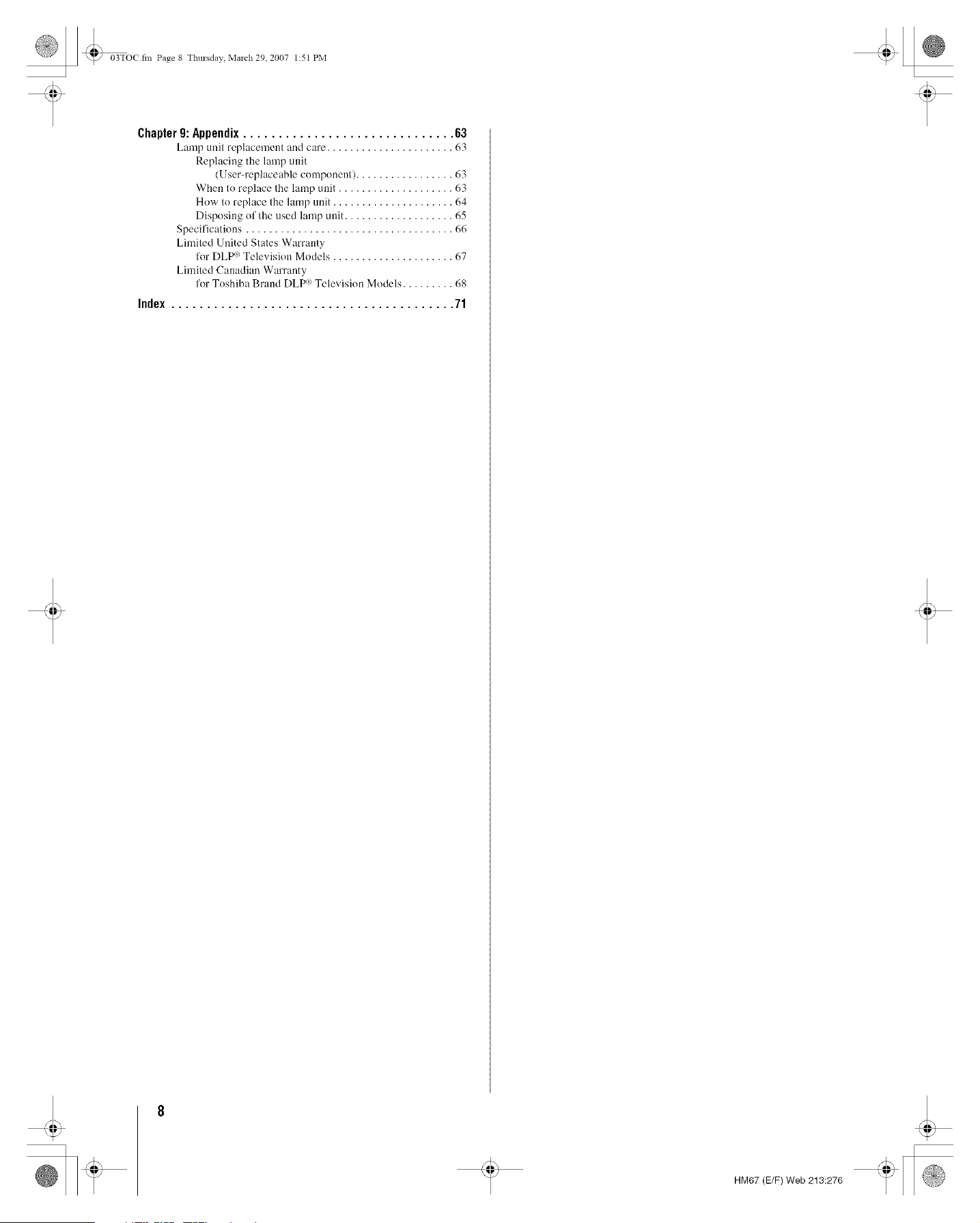
Chapter g: Appendix .............................. 63
Lamp unit replacement and care ...................... 63
Replacing the lamp unit
(User-replaceable component) ................. 63
When to replace the lamp unit .................... 63
How to replace the lamp uuit ..................... 64
Disposing ol the used lamp unit ................... 65
Specifications .................................... 66
Limited United States Warranty
ti)r DLP <_)Television Models ..................... 67
Limited Canadian Warranty
for Toshiba Braud DLP<_)Television Models ......... 68
Index ........................................ 71
HM67 (E/F) Web 213:276
_ 50HM67 EN book Page 9 Thursday March 29, 2007 t t:28 AM
NOTICEOFPOSSIBLETVSTANDINSTABILITY
DANGER: RISK OF SERIOUS PERSONAL
INJURY OR DEATH! Use this TV only with
the TOSHIBA TV stand listed in the
"Specifications" section of this manual. Use with other
stands may result in instability, causing possible injury or
death.
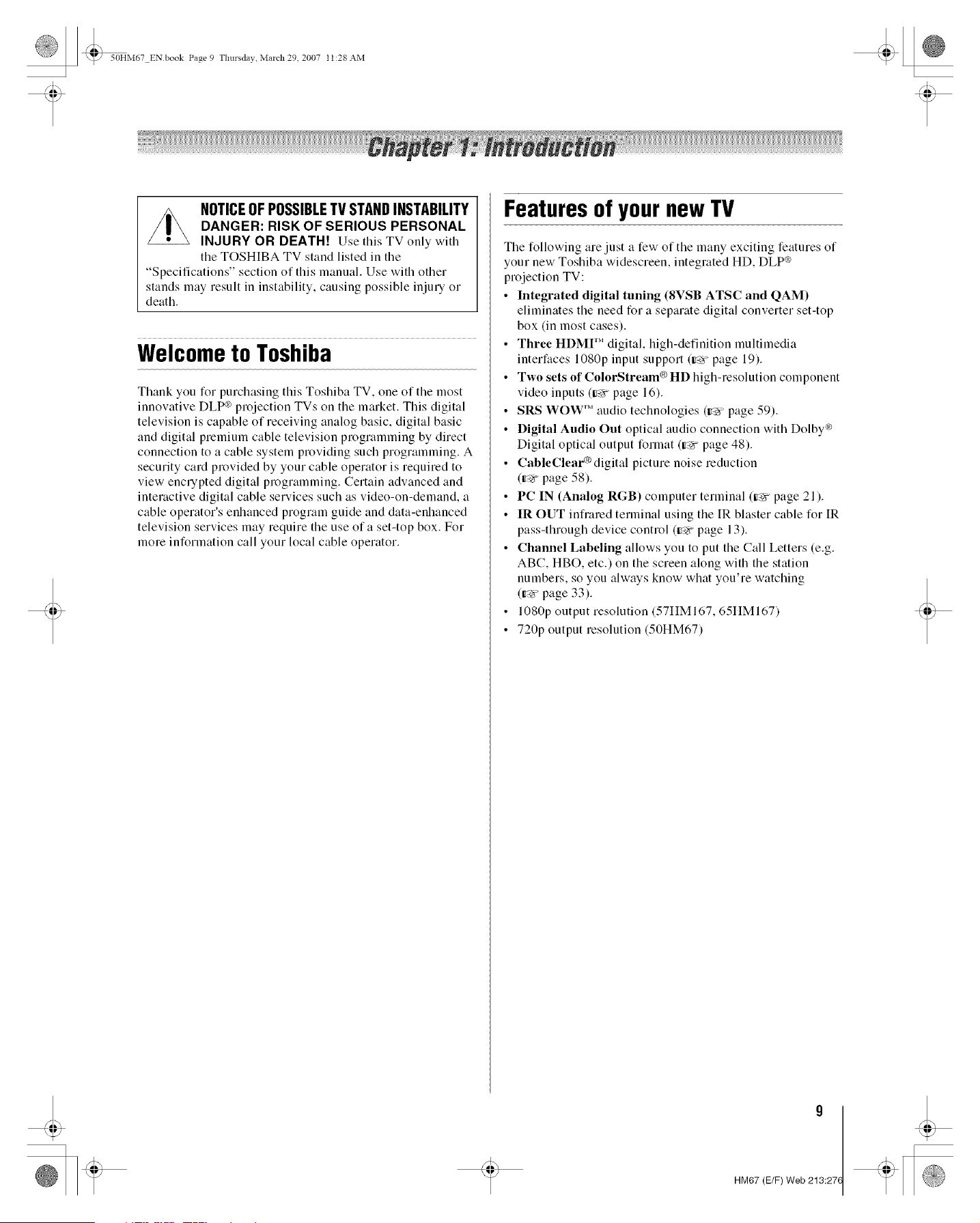
Welcometo Toshiba
Thank you for purchasing this Toshiba TV, one of the most
innovative DLP _) projection TVs on the market. This digital
television is capable of receiving analog basic, digital basic
and digital premium cable television programming by direct
connection to a cable system providing such programming. A
security card provided by your cable operator is required to
view encrypted digital programming. Certain advanced and
interactive digital cable services such as video-on-demand, a
cable operator's enhanced program guide and data-enhanced
television services may require the use of a set-top box. For
more information call your local cable operator.
Featuresof yournewTV
The following are just a few of the many exciting features of
your new Toshiba widescreen, integrated HD, DLP _*_
projection TV:
• Integrated digital tuning (SVSB ATSC and QAM)
eliminates the need for a separate digital converter set-top
box (in most cases).
• Three HDMI'" digital, high-definition multimedia
interfaces 1080p input support (g_ page 19).
• Two sets of ColorStream® HD high-resolution component
video inputs (_ page 16).
• SRS WOW 'Maudio technologies (g_ page 59).
• Digital Audio Out optical audio connection with Dolby _
Digital optical output format (g_ page 48).
• CableClear®digital picture noise reduction
(r_r page 58).
• PC IN (Analog RGB) computer terminal (_ page 21).
• IR OUT infrared terminal using the [R blaster cable for IR
pass-through device control (_ page 13).
• Channel Labeling allows you to put the Call Letters (e.g.
ABC, HBO, etc.) on the screen along with the station
numbers, so you always know what you're watching
(_ page 33).
• 1080p output resolution (57IIM167, 65IIM167)
• 720p output resolution (50HM67)
HM67 (E/F) Web 213:27(
_ 50HM67 ENbook Page 10 Tlmrsdav March29 2007 11:28AM
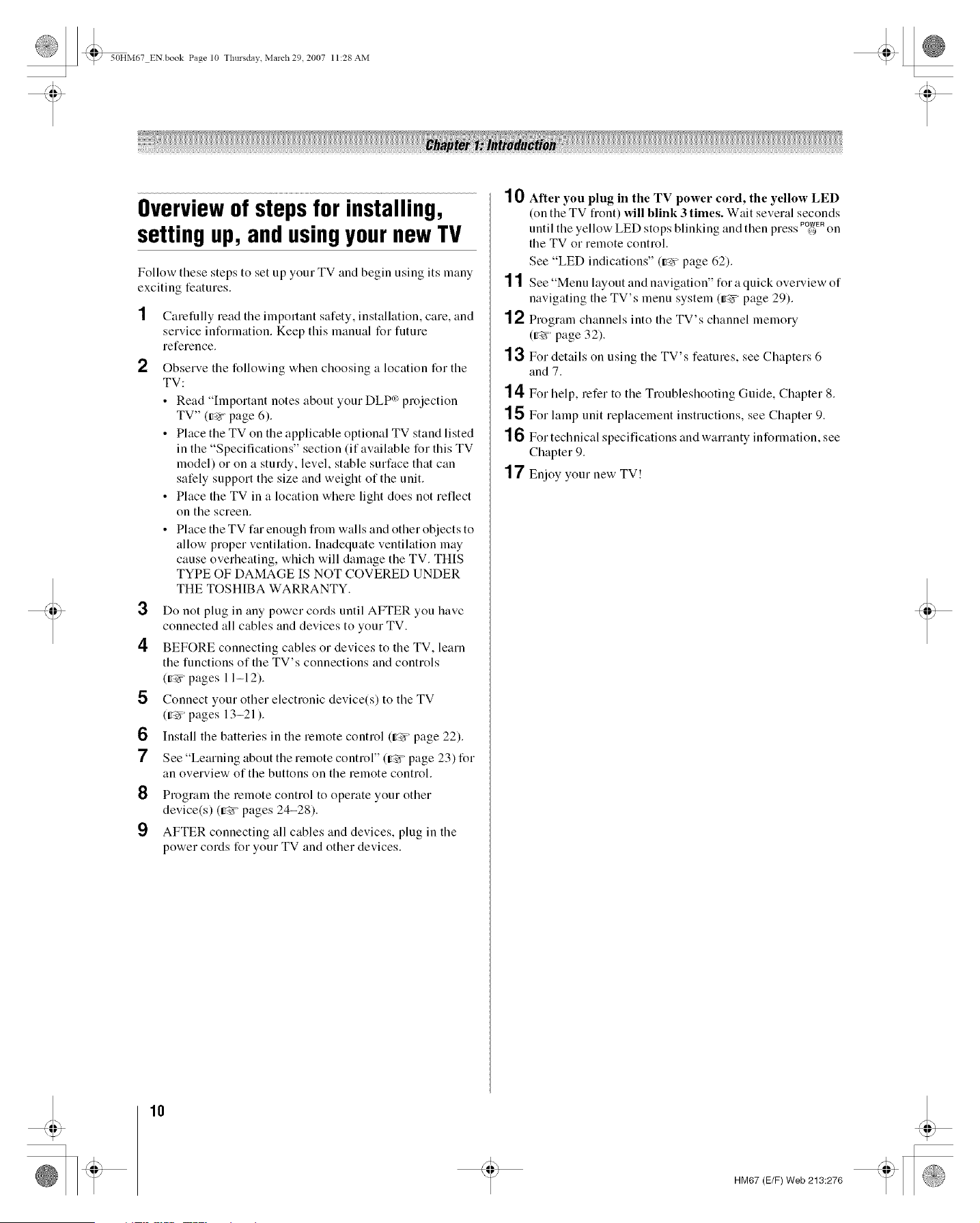
Overviewofstepsfor installing,
settingup, andusingyournewTV
Follow these steps to set up your TV and begin using its many
exciting features.
2
3
4
5
6
7
8
9
Carefully read tile important safety, installation, care, and
service information. Keep this manual for future
reference.
Observe the following when choosing a location for the
TV:
• Read "Important notes about your DLP °_projection
TV" (_y page 6).
• Place the TV on the applicable optional TV stand listed
in the "Specifications" section (if available for this TV
model) or on a sturdy, level, stable surface that can
safely support the size and weight of the unit.
• Place the TV in a location where light does not reflect
on the screen.
• Place the TV far enough fiom walls and other objects to
allow proper ventilation. Inadequate ventilation may
cause overheating, which will damage the TV. THIS
TYPE OF DAMAGE IS NOT COVERED UNDER
THE TOSHIBA WARRANTY.
Do not plug in any powcr coMs until AFTER you havc
connected all cables and devices to your TV.
BEFORE connecting cables or devices to the TV, learn
the functions of the TV's connections and controls
(_ pages 11-12).
Connect your other electronic device(s) to the TV
(_' pages 13-21 ).
Install the batteries in the remote control (_' page 22).
See "Learning about the remote control" (_ page 23) for
an overview of the buttons on the remote control.
Program the remote control to operate your other
device(s) (_ pages 24-28).
AFTER connecting all cables and devices, plug in the
power cords for your TV and other devices.
10
11
12
13
14
15
16
17
After you plug in the TV power cord, the yellow LED
(on the TV front) will blink 3 times. Wait several seconds
• . . POWER
until the yellow LED stops bhnkmg and then press _) on
the TV or remote control.
See "LED indications" (_-x page 62).
See "Menu layout and navigation" for a quick overview of
navigating the TV's menu system (_' page 29).
Program channels into the TV's channel memory
(try. page 32).
For details on using the TV's features, see Chapters 6
and 7.
For help, refer to the Troubleshooting Guide, Chapter 8.
For lamp unit replacement instructions, see Chapter 9.
For technical specifications and warranty information, see
Chapter 9.
Enjoy your new TV!
10
HM67 (E/F) Web 213:276
_ 50HM67 ENbook Page 11 Tlmrsdav March29 2007 11:28AM
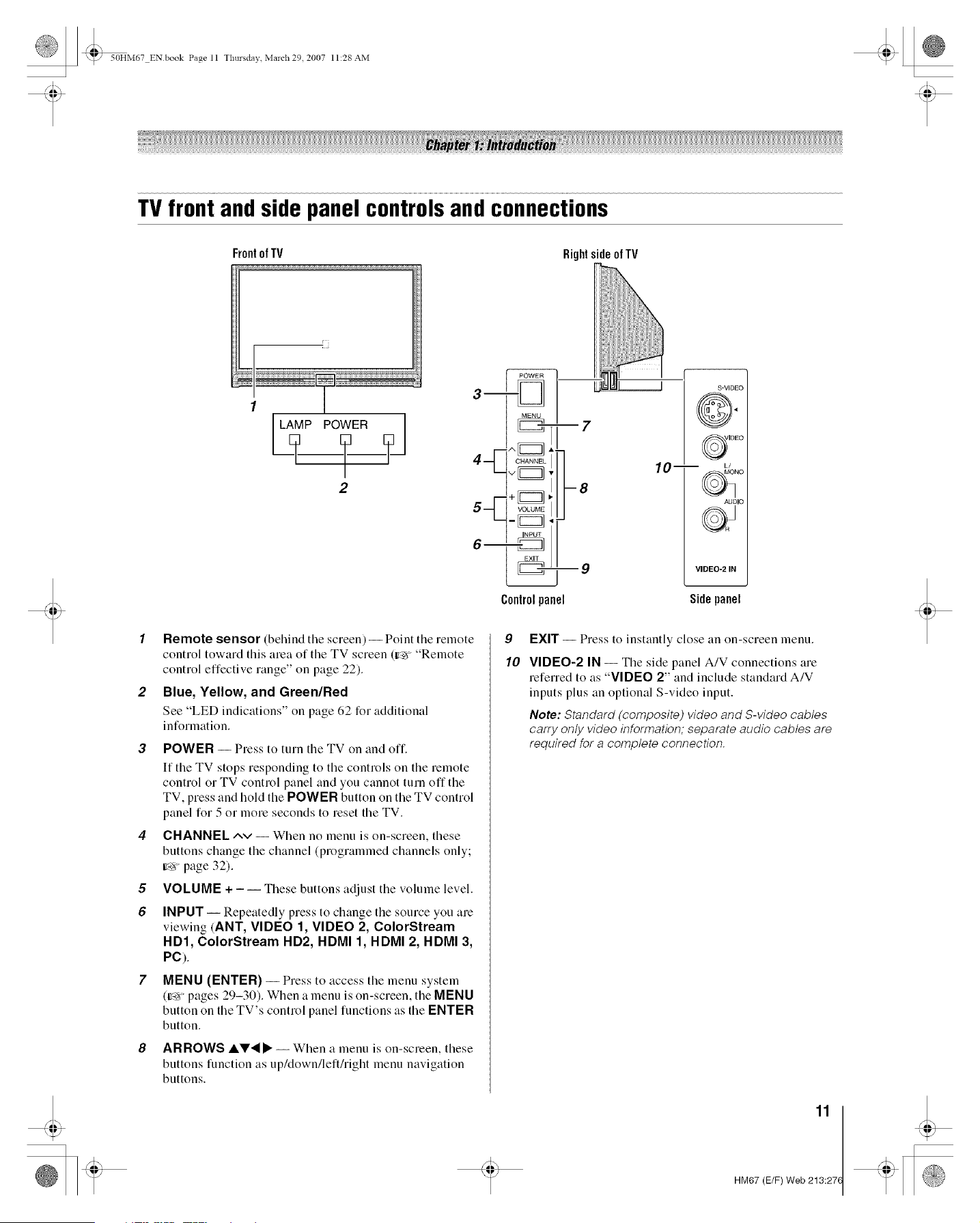
TVfront andside panelcontrolsandconnections
Frontof TV Rightside ofTV
L[_]ELAMP POWER 1
2
5--+_
-D H
Controlpanel
9
S-VIDEO
©.
QIDEO
10-- _No
AUDIO
VIDEO-2 IN
Side panel
1 Remote sensor (behind the screen)-- Point the remote
control toward this area of the TV screen (_ "Remote
control effective range" on page 22).
2 Blue, Yellow, and Green/Red
See "LED indications" on page 62 for additional
information.
3 POWER -- Press to turn the TV on and off.
If the TV stops responding to the controls on the remote
control or TV control panel and you cannot turn off the
TV, press and hold the POWER button on the TV control
panel for 5 or more seconds to reset the TV.
4 CHANNEL ^v-- When no menu is on-screen, these
buttons change the channel (programmed channels only;
g_ page 32).
5 VOLUME + - -- These buttons adjust the volume level.
6 INPUT-- Repeatedly press to change the source you are
viewing (ANT, VIDEO 1, VIDEO 2, ColorStream
HD1, ColorStream HD2, HDMI 1, HDMI 2, HDMI 3,
PC).
7 MENU (ENTER) -- Press to access the menu system
(r_ pages 29-30). When a menu is on-screen, the MENU
button on the TV's control panel functions as the ENTER
button.
ARROWS AVlI_ -- When a menu is on-screen, these
buttons function as up/down/left/right menu navigation
buttons.
9
10
EXIT -- Press to instantly close an on-screen menu.
VIDEO-2 IN -- The side panel A/V connections are
referred to as "VIDEO 2" and include standard A/V
inputs plus an optional S-video input.
Note: Standard (composite) video and S-video cables
carry only video information; separate audio cables are
required for a complete connection.
11
HM67 (E/F) Web 213:27(
@ 50HM67 ENbook Page 12 Thursdav March 29 2007 11:28 AM
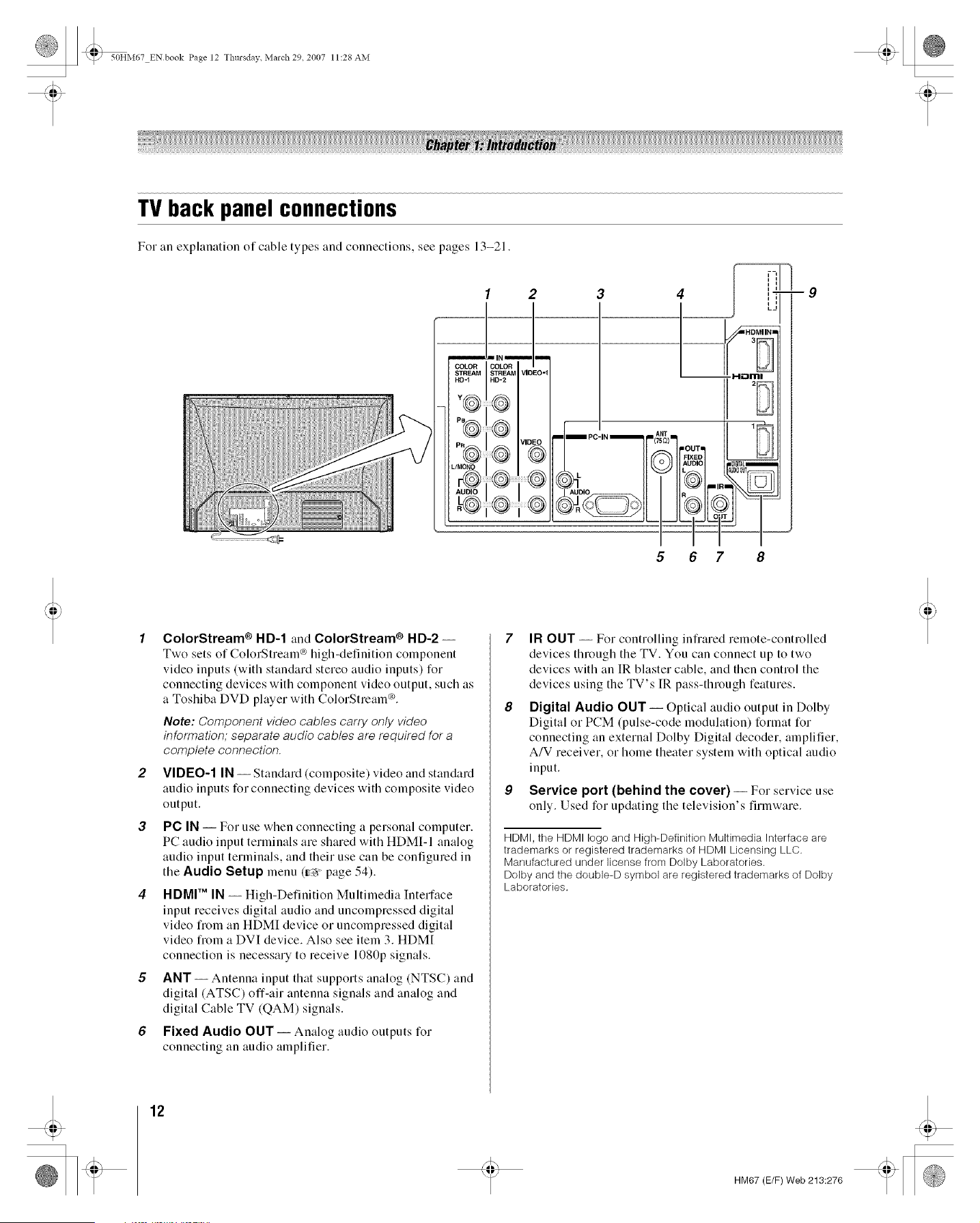
TVbackpanel connections
For an explanation of cable types and connections, see pages 13-21.
1 2
v,o
PRQ EO
--9
1 ColorStream ® HD-1 and ColorStream ® HD-2--
Two sets of ColorStream _ high-definition component
video inputs (with standard stereo audio inputs) for
connecting devices with component video output, such as
a Toshiba DVD player with ColorStream _.
Note: Component video cables carry only video
information; separate audio cables are required for a
complete connection.
2 VIDEO-1 IN-- Standard (composite) video and standard
audio inputs for connecting devices with composite video
output.
3 PC IN -- For use when connecting a personal computer.
PC audio input terminals are shared with HDMI-I analog
audio input terminals, and their use can be configured in
the Audio Setup menu (Iror page 54).
4 HDMI 'M IN -- High-Definition Multimedia Interface
input receives digital audio and uncompressed digital
video from an HDMI device o1 uncompressed digital
video from a DVI device. Also see item 3. HDM[
connection is necessary to receive 1080p signals.
5 ANT-- Antenna input that supports analog (NTSC) and
digital (ATSC) off-air antenna signals and analog and
digital Cable TV (QAM) signals.
6 Fixed Audio OUT-- Analog audio outputs for
connecting an audio amplifier.
7 IR OUT-- For controlling infrared remote-controlled
devices through the TV. You can connect up to two
devices with an IR blaster cable, and then control the
devices using the TV's IR pass-through features.
8 Digital Audio OUT-- Optical audio output in Dolby
Digital or PCM (pulse-code modulation) format for
connecting an external Dolby Digital decoder, amplifier,
A/V receiver, or home theater system with optical audio
input.
9 Service port (behind the cover)-- For service use
only. Used for updating the television's firmware.
HDMI, the HDMI logo and High-Definition Multimedia Interface are
trademarks or registered trademarks of HDMI Licensing LLC.
Manufactured under license from Dolby Laboratories.
Dolby and the double-D symbol are registered trademarks of Dolby
Laboratories.
12
HM67 (E/F) Web 213:276
_ 50HM67 ENbook Page 13 Tlmrsdav March29 2007 11:28AM
Overviewof cabletypes
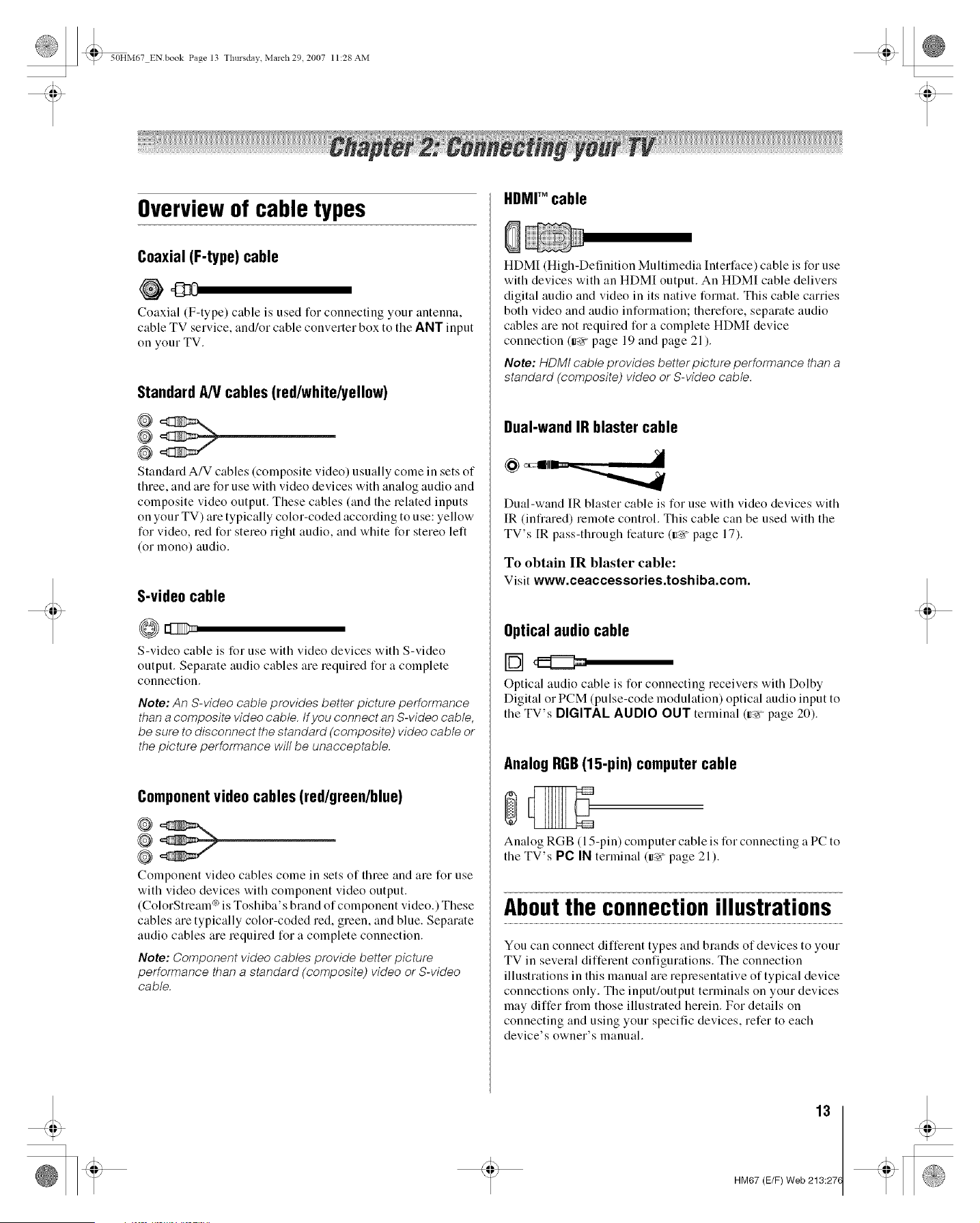
Coaxial (F-type) cable
Coaxial (F-type) cable is used for connecting your antenna,
cable TV service, and/or cable converter box to the ANT input
on your TV.
Standard A/V cables (red/white/yellow)
@
@
Standard A/V cables (composite video) usually come in sets of
three, and are for use with video devices with analog audio and
composite video output. These cables (and the related inputs
on your TV) are typically color-coded according to use: yellow
for video, red for stereo right audio, and white for stereo left
(or mono) audio.
S-video cable
S-video cable is for use with video devices with S-video
output. Separate audio cables are required for a complete
connection.
Note: An S-video cable provides better picture performance
than a composite video cable, tf you connect an S-video cable,
be sure to disconnect the standard (composite) video cable or
the picture performance will be unacceptable.
Componentvideo cables (red/green/blue)
@
@
Component video cables come in sets of three and are for use
with video devices with component video output.
(ColorStream °_is Toshiba's bland of component video.) These
cables are typically color-coded red, green, and blue. Separate
audio cables are required for a complete connection.
Note: Component video cables provide better picture
performance than a standard (composite) video or S-video
cable.
HDMrMcable
HDMI (High-Definition Multimedia Interface) cable is for use
with devices with an HDMI output. An HDMI cable delivers
digital audio and video in its native format. This cable carries
both video and audio information; therefore, separate audio
cables are not required for a complete HDMI device
connection (_ page 19 and page 21 ).
Note: HDMt cable provides better picture performance than a
standard (composite) video or S-video cable.
Dual-wand IR blaster cable
Dual-wand IR blaster cable is for use with video devices with
IR (infrared) remote control. This cable can be used with the
TV's [R pass-through feature (_ page 17).
To obtain IR blaster cable:
Visit www.ceaccessories.toshiba.com.
Optical audio cable
rb--lo
Optical audio cable is for connecting receivers with Dolby
Digital or PCM (pulse-code modulation) optical audio input to
the TV's DIGITAL AUDIO OUT terminal (g-x page 20).
Analog RGB(15-pin) computer cable
Analog RGB (15-pin) computer cable is for connecting a PC to
the TV's PC IN terminal (r_ page 21).
Aboutthe connectionillustrations
You can connect different types and brands of devices to your
TV in several different configurations. The connection
illustrations in this manual are representative of typical device
connections only. The input/output terminals on your devices
may differ from those illustrated herein. For details on
connecting and using your specific devices, refer to each
device's owner's manual.
13
HM67 (E/F) Web 213:27(
_ 50HM67 ENbook Page 14 Tlmrsdav Marcl',29 2007 11:28AM
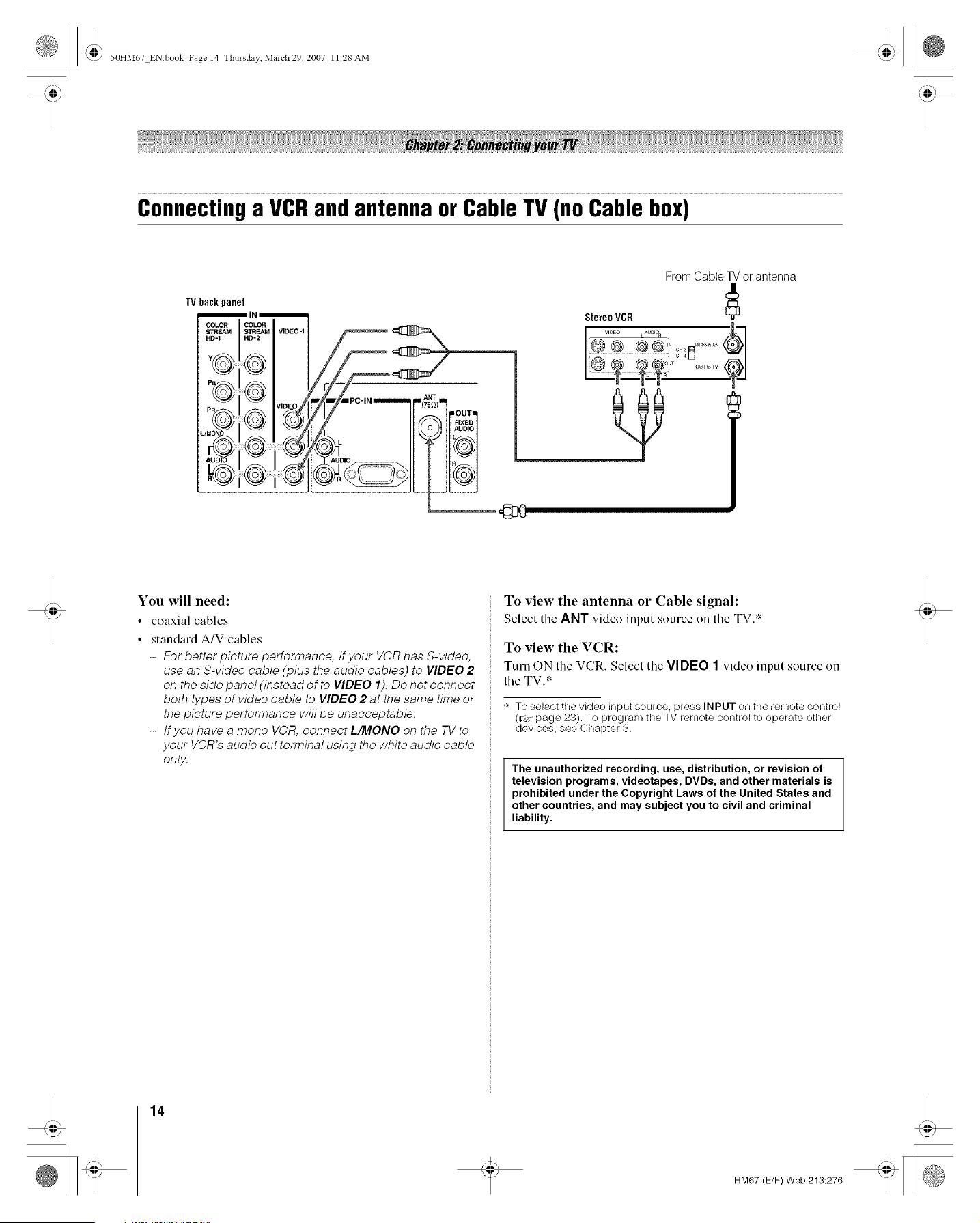
Connectinga VCRand antenna or Cable TV (no Cable box)
TVbackpanel
_IN_
COLOR
N_
%
/MON
.%
_o_v,o0o.,
iiiiiiiii_i_iii_ii!iiiiiiiii_
From Cable TV or antenna
StereoVCR
i_1 FN fromANT o
I©® ®® o _1
CH4 LJ _1
You will need:
• coaxial cables
• standardA/V cables
- For better picture performance, if your VCR has S-video,
use an S-video cable (plus the audio cables) to VIDEO 2
on the side panel (instead of to VIDEO I). Do not connect
both types of video cable to VIDEO 2 at the same time or
the picture performance will be unacceptable.
- tfyou have a mono VCR, connect L/MONO on the TV to
your VCR's audio out terminal using the white audio cable
only.
To view the antenna or Cable signal:
Select tile ANT video input source on tile TV.*
To view the VCR:
Turn ON tile VCR. Select the VIDEO 1 video input source on
the TV.*
' To select the video input source, press INPUT on the remote control
(_' page 23). To program the TV remote control to operate other
devices, see Chapter 3.
The unauthorized recording, use, distribution, or revision of
television programs, videotapes, DVDs, and other materials is
prohibited under the Copyright Laws of the United States and
other countries, and may subject you to civil and criminal
liability.
14
HM67 (E/F) Web 213:276
_ 50HM67 ENbook Page 15 Tlmrsdav Marcl',29 2007 11:28AM
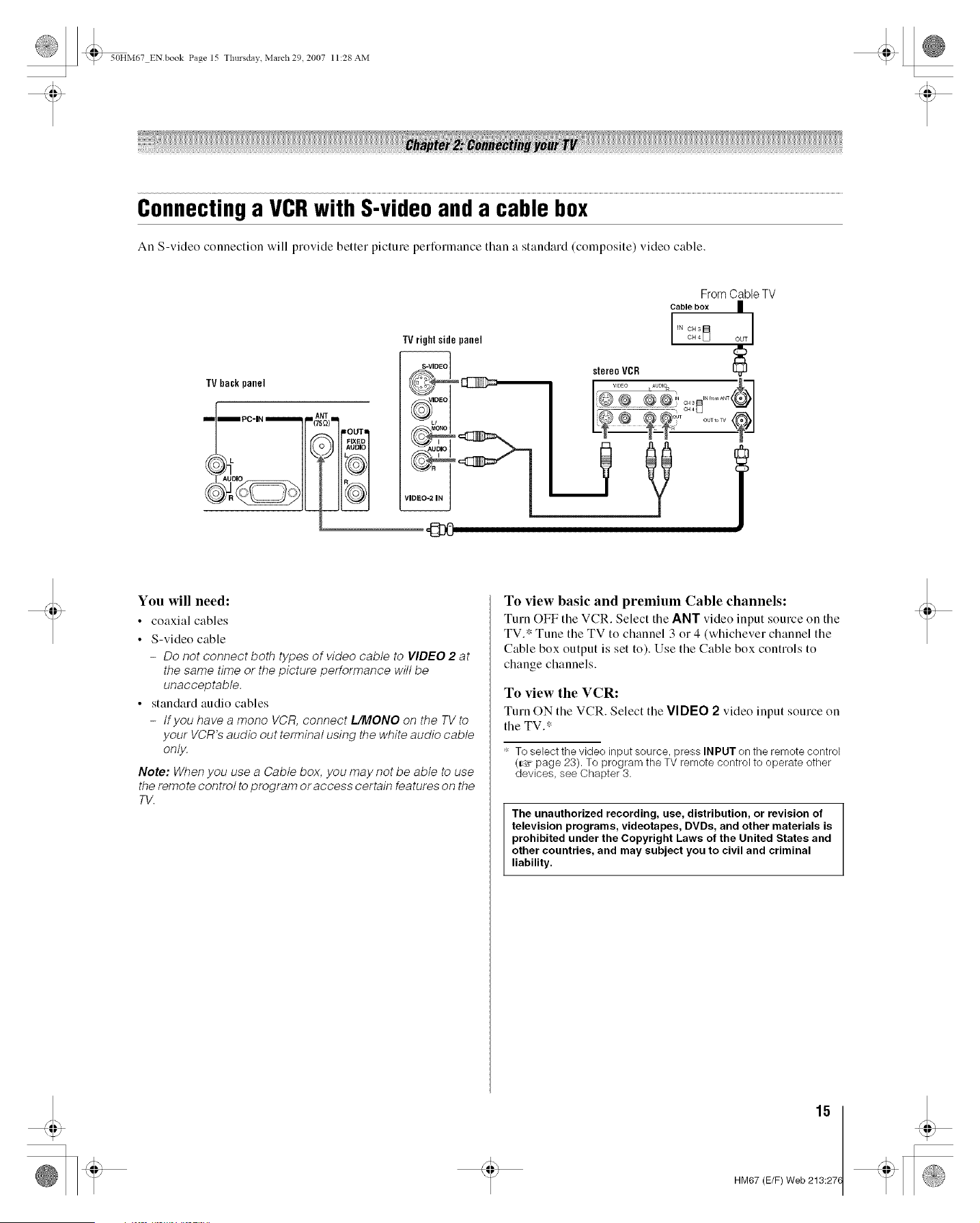
Connectinga VCRwith S-videoanda cable box
An S-video connection will provide better picture performance than a standard (composite) video cable.
TVbackpanel
_) OUT
FIXED
JN
TVrightsidepanel
From Cable TV
Cable box
I CH 3IN CH4_
OUT
stereoVCR
@ (_ @ (_ li OH3= .......... @1
You will need:
• coaxial cables
• S-video cable
- Do not connect both types of video cable to VIDEO 2 at
the same time or the picture performance will be
unacceptable.
• standard audio cables
- tfyou have a mono VCR, connect L/MONO on the TV to
your VCR's audio out terminal using the white audio cable
only.
Note: When you use a Cable box, you may not be able to use
the remote control to program or access certain features on the
TV.
To view basic and premium Cable channels:
Turn OFF the VCR. Select the ANT video input source on the
TV.* Tune the TV to channel 3 or 4 (whichever channel the
Cable box output is set to). Use the Cable box controls to
change channels.
To view the VCR:
Turn ON tile VCR. Select tile VIDEO 2 video input source on
the TV.*
* To select the video input source, press INPUT on the remote control
(_' page 23). To program the TV remote control to operate other
devices, see Chapter 3.
The unauthorized recording, use, distribution, or revision of
television programs, videotapes, DVDs, and other materials is
prohibited under the Copyright Laws of the United States and
other countries, and may subject you to civil and criminal
liability.
.¢
15
HM67 (E/F) Web 213:27(
_ 50HM67 ENbook Page 16 Tlmrsdav March29 2007 11:28AM
anda satellite receiver
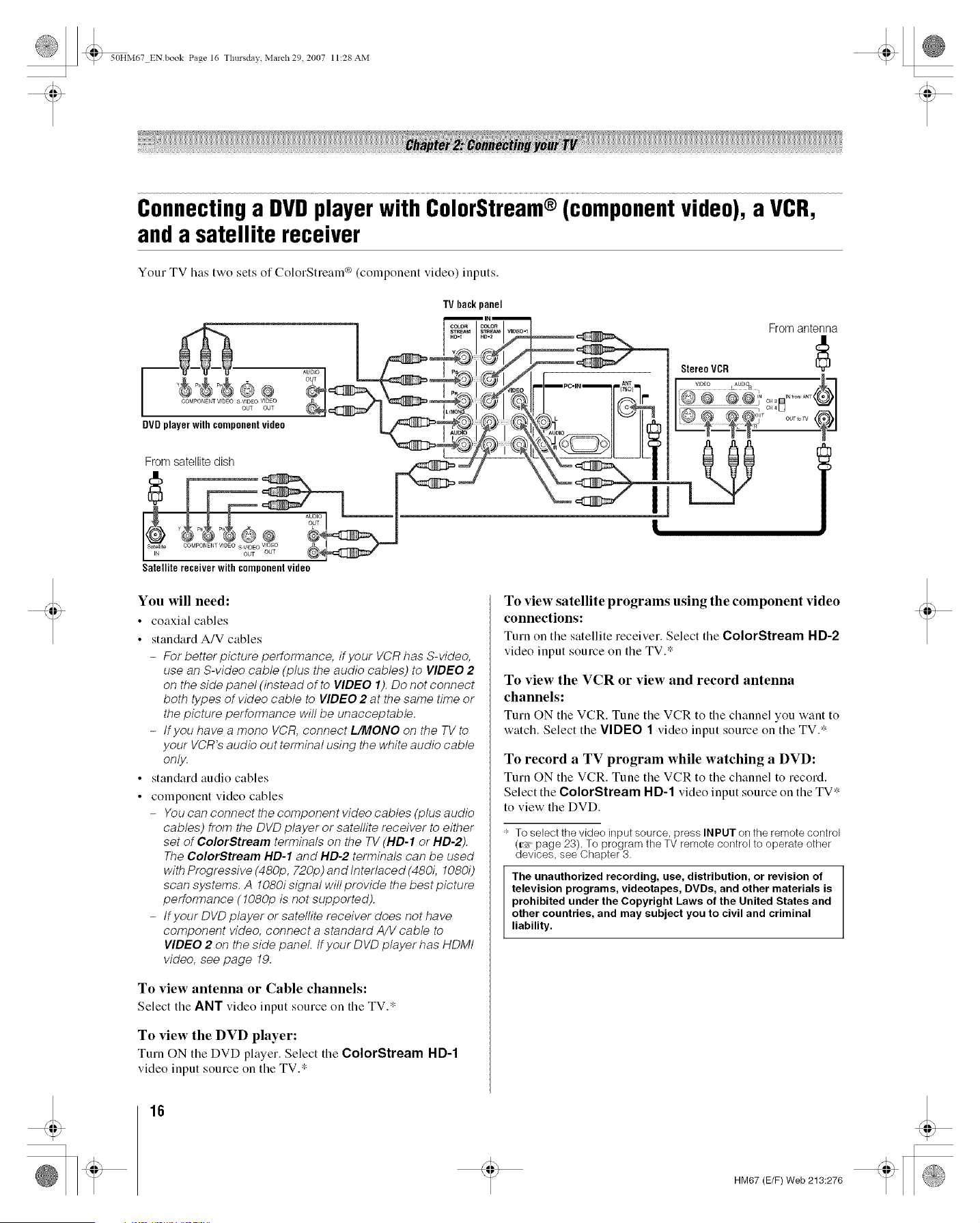
Your TV has two sets of ColorStream _ (component video) inputs.
TVbackpanel
i 'i_ >_% _ _ _-._-'W _a_ _ _o I --_-"_r'@_
/oo%._%_,_%_% _1___._ (_o_,cr_,__' _1 ti_ir
0v0p,a 0,withcempeaeetvi,ee I |1 IIN
AUDIO _" J _ AUDIO ti II
Satellitereceiverwithcomponentvideo
From antenna
StereoVCR
I.@ @ @@__,_ @1
O_T o.....
You will need:
• coaxial cables
• standardA/V cables
- For better picture performance, if your VCR has S-video,
use an S-video cable (plus the audio cables) to VIDEO 2
on the side panel (instead of to VIDEO I). Do not connect
both types of video cable to VIDEO 2 at the same time or
the picture performance will be unacceptable.
- tfyou have a mono VCR, connect L/MONO on the TV to
your VCR's audio out terminal using the white audio cable
only.
• standard audio cables
• component video cables
- You can connect the component video cables (plus audio
cables) from the DVD player or satellite receiver to either
set of ColorStream terminals on the TV (HD-I or HD-2).
The ColorStream HD-I and HD-2 terminals can be used
with Progressive (480p, 720p) and Interlaced (480i, 1080i)
scan systems. A 1080i signal will provide the best picture
performance (1080p is not supported).
- tfyour DVD player or satellite receiver does not have
component video, connect a standard A/V cable to
VIDEO 2 on the side panel, tf your DVD player has HDMt
video, see page 19.
To view antenna or Cable channels:
Select the ANT video input source on the TV.*
To view the DVD player:
Turn ON the DVD player. Select the ColorStream HD-1
video input source on the TV.*
To view satellite programs using the component video
connections:
Turn on the satellite receiver. Select the ColorStream HD-2
video input source on the TV.*
To view the VCR or view and record antenna
channels:
Turn ON the VCR. Tune the VCR to the channel you want to
watch. Select the VIDEO 1 video input source on the TV.*
To record a TV program while watching a DVD:
Turn ON the VCR. Tune the VCR to the channel to record.
Select the ColorStream I-ID-1 video input source on the TV*
to view the DVD.
_- To select the video input source, press INPUT on the remote control
(_, page 23). To program the TV remote control to operate other
devices, see Chapter 3.
The unauthorized recording, use, distribution, or revision of
television programs, videotapes, DVDs, and other materials is
prohibited under the Copyright Laws of the United States and
other countries, and may subject you to civil and criminal
liability.
16
HM67 (E/F) Web 213:276
_ 50HM67 ENbook Page 17 Tlmrsdav March29 2007 11:28AM
Connectinga deviceto the IR OUT
infraredterminalusingthe IR
blastercable for IR pass-through
devicecontrol
You can use the TV's IR O0T terminal (infiared pass-
through) to remotely operate (through the TV) many infrared
remote-controlled devices (such as Toshiba infrared remote-
controlled VCRs or DVD players) enclosed within an
entertainment center or similar cabinet. Without the IR O0T
connection, the device typically would need to be visible to
operate it remotely.
You will need:
• dual-wand IR blaster cable (_ page 13)
• other audio/video cables as required to connect the device(s)
to the TV (r_ pages 14-19)
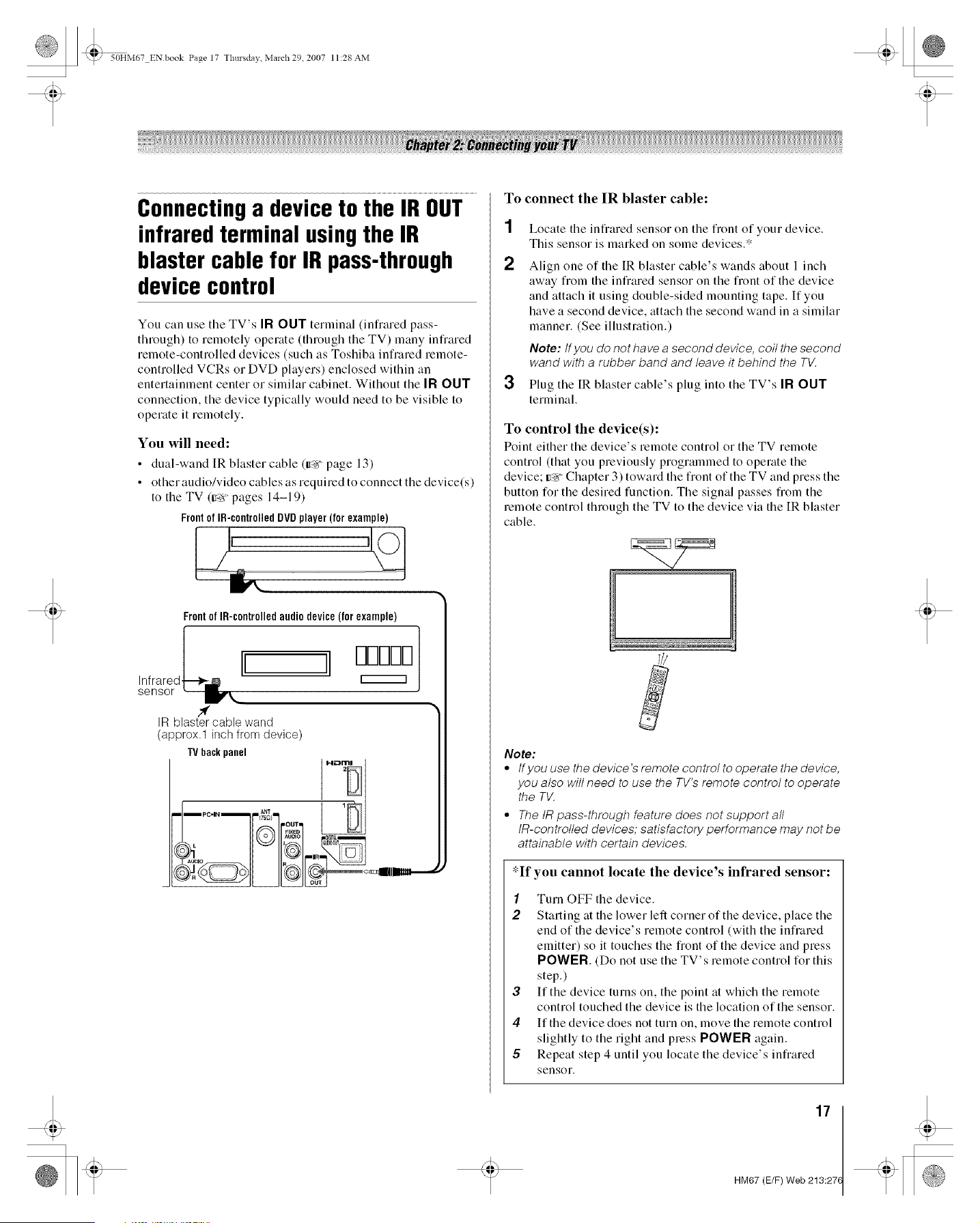
Frontof IR-controlledDVDplayer(forexample)
Frontof IR-controlledaudiodevice(forexample)
,n r re , I ]1 mmDl
sensor
IR blaster cable wand
(approx.1 inch from device)
TV backpanel
To connect the IR blaster cable:
1
2
3
Locate the infiared sensor on the front of your device.
This sensor is marked on some devices.*
Align one of the [R blaster cable's wands about l inch
away from the infrared sensor on the front of the device
and attach it using double-sided mounting tape. If you
have a second device, attach the second wand in a similar
manner. (See illustration.)
Note: tf you do not ha vea second device, coil the second
wand with a rubber band and leave it behind the TV.
Plug the [R blaster cable's plug into the TV's IR OUT
terminal.
To control the device(s):
Point either the device's remote control or the TV remote
control (that you previously programmed to operate the
device; _<r Chapter 3) toward the front of the TV and press the
button for the desired function. The signal passes from the
remote control through the TV to the device via the IR blaster
cable.
Note:
• tfyou use the device's remote control to operate the device,
you also will need to use the TV's remote control to operate
the TV.
° The tR pass-through feature does not support all
tR-controlled devices; satisfactory performance may not be
attainable with certain devices.
*If yon cannot locate the device's infrared sensor:
1 Turn OFF the device.
2 Starting at the lower left corner of the device, place the
end of the device's remote control (with the infrared
emitter) so it touches the front of the device and press
POWER. (Do not use the TV's remote control for this
step.)
3 If the device turns on, the point at which the remote
control touched the device is the location of the sensor.
4 If the device does not turn on, move the remote control
slightly to the right and press POWER again.
5 Repeat step 4 until you locate the device's infrared
sensor.
17
.¢
HM67 (E/F) Web 213:27(
_ 50HM67 ENbook Page 18 Tlmrsdav Marcl',29 2007 11:28AM
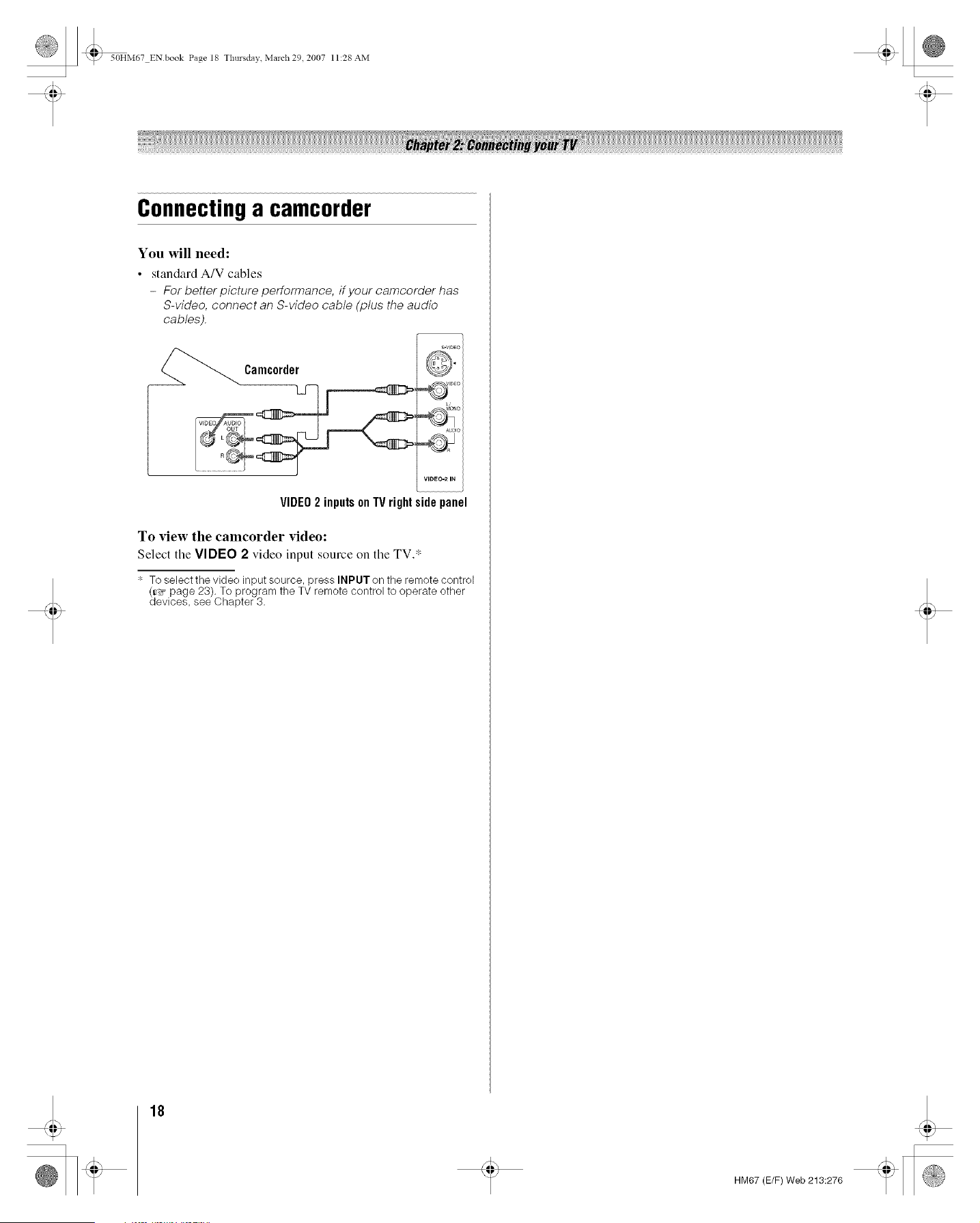
Connectinga camcorder
You will need:
• standardA/V cables
- For better picture performance, if your camcorder has
S-video, connect an S-video cable (plus the audio
cables).
VIDEO2 inputs on TVright side panel
To view the camcorder video:
Select tile VIDEO 2 video input source on tile TV.*
_- To select the video input source, press INPUT on the remote control
(_ page 23). To program the TV remote control to operate other
devices, see Chapter 3.
18
HM67 (E/F) Web 213:276
_ 50HM67 ENbook Page 19 Tlmrsdav March29 2007 11:28AM
ConnectinganHDMrMorDVIdevice
to the HDMIinput
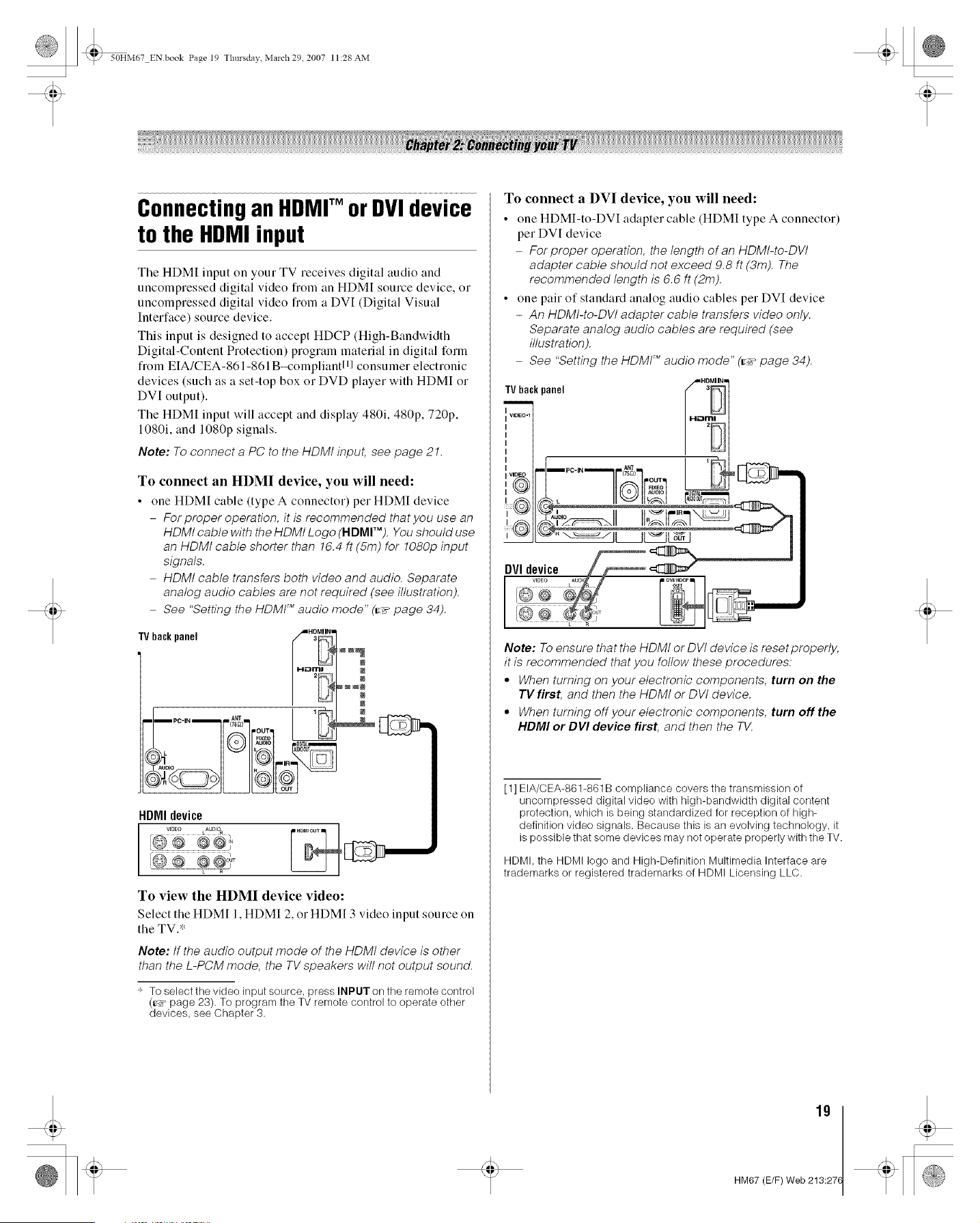
The HDMI input on your TV receives digital audio and
uncompressed digital video from an HDMI source device, or
uncompressed digital video from a DVI (Digital Visual
Interface) source device.
This input is designed to accept HDCP (High-Bandwidth
Digital-Content Protection) program material in digital form
from EIA/CEA-861-861B-compliantlll consumer electronic
devices (such as a set-top box or DVD player with HDMI or
DVI output).
The HDM[ input will accept and display 480i, 480p, 720p,
1080i, and 1080p signals.
Note: To connect a PC to the HDMt input, see page 21.
To connect an HDMI device, you will need:
• one HDM[ cable (type A connector) per HDMI device
- Forproper operation, it is recommended thatyou use an
HDMt cable with the HDMt Logo (HDMr). You should use
an HDMt cable shorter than 16.4 ft (5m) for 1080p input
signals.
- HDMt cable transfers both video and audio. Separate
analog audio cables are not required (see illustration).
- See "Setting the HDMt TM audio mode" (l:_" page 34).
HDMIIN=
TVbackpanel f_m_
N
N
N
_NNN
N
N
11,
HDMI device
,,!_o ,,_D,o_.
2u_
To view the HDMI device video:
Select the HDM[ 1, HDMI 2, or HDM[ 3 video input source on
the TV.*
Note: If the audio output mode of the HDMt device is other
than the L-PCM mode, the TV speakers will not output sound.
: To select the video input source, press INPUT on the remote control
(_' page 23). To program the TV remote control to operate other
devices, see Chapter 3.
To connect a DVI device, you will need:
• one HDMI-to-DVI adapter cable (HDMI type A connector)
per DVI device
- Forproper operation, the length of an HDMt-to-DVt
adapter cable should not exceed 9.8 ft (3m). The
recommended length is 6.6 ft (2m).
• one pair of standard analog audio cables per DVI device
- An HDMt-to-DVt adapter cable transfers video only.
Separate analog audio cables are required (see
illus tra don).
- See "Setting the HDMP _audio mode" (_-_"page 34).
TVbackpanel £H3D_]1
I OUT _lt i
DVI device
Note: To ensure that the HDMt or DVt device is reset properly,
it is recommended that you follow these procedures:
• When turning on your electronic components, turn on the
TV first, and then the HDMt or DVt device.
• When turning off your electronic components, turn off the
HDMI or DVI device first, and then the TV.
[1 ] EIA/CEA-881-861 B compliance covers the transmission of
uncompressed digital video with high-bandwidth digital content
protection, which is being standardized for reception of high-
definition video signals. Because this is an evolving technology, it
is possible that some devices may not operate properly with the TV.
HDMI, the HDMI logo and High-Definition Multimedia Interface are
trademarks or registered trademarks of HDMI Licensing LLC.
19
HM67 (E/F) Web 213:27(
_ 50HM67 ENbook Page 20 Tlmrsdav March 29 2007 11:28 AM
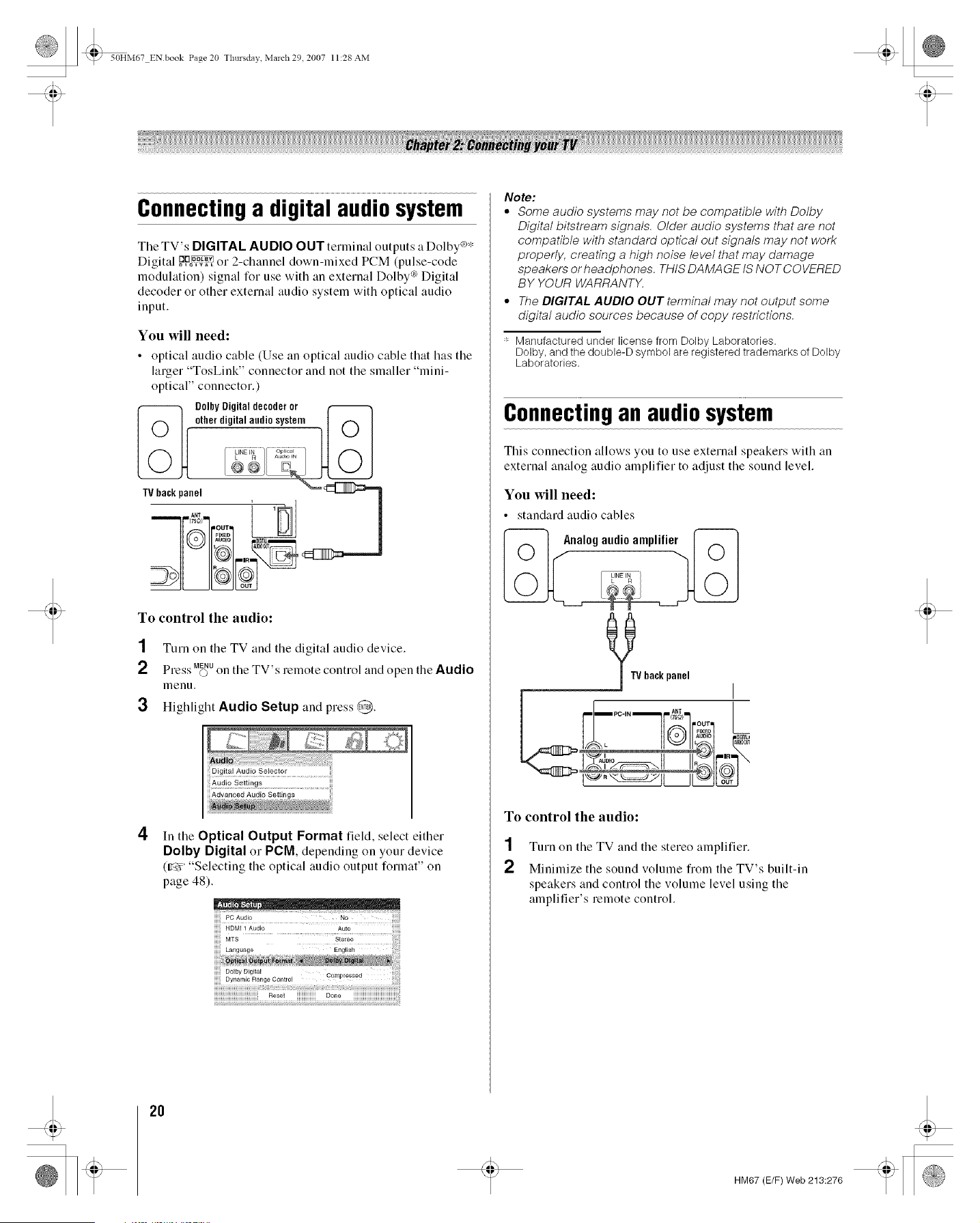
Connectinga digital audiosystem
The TV's DIGITAL AUDIO OUTterminal outputs a Dolby _*
Digital _ or 2-channel down-mixed PCM (pulse-code
modulation) signal for use with an external Dolby _¢Digital
decoder or other external audio system with optical audio
input.
You will need:
• optical audio cable (Use an optical audio cable that has tile
larger "TosLink" connector and not the smaller "mini-
optical" connector.)
U1 U]
To control the audio:
1 Turn on the TV and tile digital audio device.
SS MENU
Press O on the TV's remote control and open the Audio
menu.
3 Highlight Audio Setup and press (/_.
4
In the Optical Output Format field, select either
Dolby Digital Ol-PCM, depending on your device
(try, "Selecting the optical audio output format" on
page 48).
PC Audio No
HDMI 1 Audio Auto
NNNNNNNNNNNNNNNNNNIIReset iiiiiiiiiiiiiiii Done iiiiiiiiiiiiiiiiiiiiiiiiiiiiiiiiiiii;!i
Note:
• Some audio systems may not be compatible with Dolby
Digital bitstream signals, Older audio systems that are not
compatible with standard optical out signals may not work
properly, creating a high noise level that may damage
speakers orheadphones. THIS DAMAGE IS NOTCOVERED
BY YOUR WARRANTX
• The DIGITAL AUDIO OUT terminal may not output some
digital audio sources because of copy restrictions.
_- Manufactured under license from Dolby Laboratories.
Dolby, and the double-D symbol are registered trademarks of Dolby
Laboratories.
Connectingan audiosystem
Tiffs connection allows you to use external speakers with an
external analog audio amplifier to adjust the sound level.
You will need:
• standard audio cables
-_ Analogaudio amplifier _-_
_TV backpanel
To control the audio:
1 Turn on the TV and the stereo amplifier.
2 Minimize the sound volume from the TV's built-in
speakers and control the volume level using the
amplifier's remote control.
2O
HM67 (E/F) Web 213:276
_ 50HM67 ENbook Page 21 Tlmrsdav March 29 2007 11:28 AM
Connectinga personalcomputer
(PC)
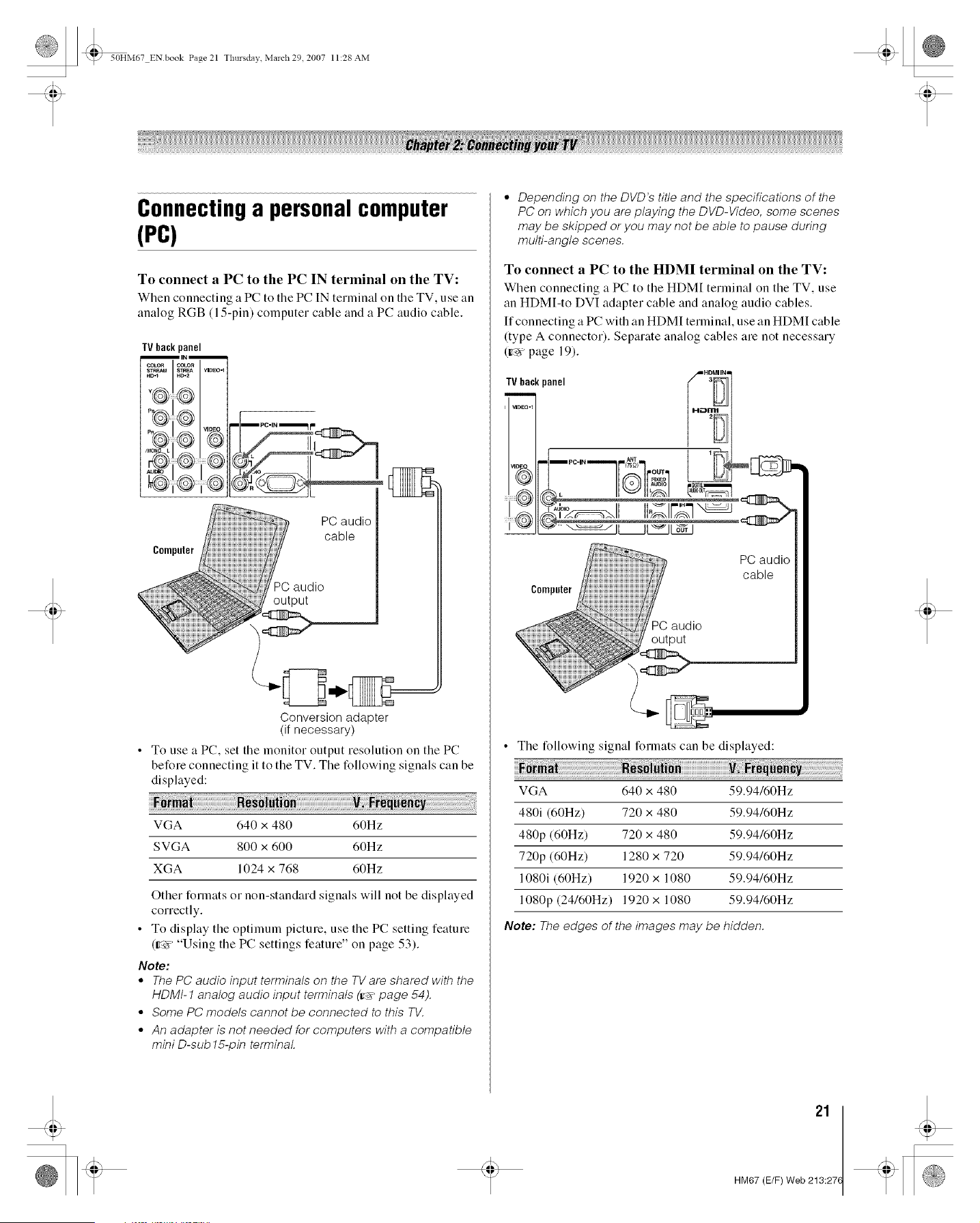
To connect a PC to the PC IN terminal on the TV:
When connecting a PC to tile PC IN terminal on the TV, use an
analog RGB (15-pin) computer cable and a PC audio cable.
TVback_anel
IINI
COLOR I COLOR
STREAM I STREA VIDEO'1
"6
Computer
PC audio
cable
PC audio
output
Conversion adapter
(if necessary)
To use a PC, set the monitor output resolution on the PC
before connecting it to the TV. The following signals can be
displayed:
VGA 640 x 480 60Hz
SVGA 800 x 600 60Hz
XGA 1024 x 768 60Hz
Other formats or non-standard signals will not be displayed
correctly.
• To display the optimum picture, use the PC setting feature
(try. "Using the PC settings feature" on page 53).
Note:
• The PC audio input terminals on the TVare shared with the
HDMt-1 analog audio input terminals (_" page 54),
• Some PC models cannot be connected to this TV,
• An adapter is not needed for computers with a compatible
mini D-sub 15-pin terminal
• Depending on the DVD's title and the specifications of the
PC on which you are playing the DVD-Video, some scenes
may be skipped or you may not be able to pause during
multi-angle scenes.
To connect a PC to the HDMI terminal on the TV:
When connecting a PC to the HDM[ terminal on the TV, use
an HDM[-to DVI adapter cable and analog audio cables.
If connecting a PC with an HDMI terminal, use an HDMI cable
(type A connector). Separate analog cables are not necessary
(Ir_r page 19).
TVbackpanel _'Ha_ "
I VIDEO'1 |_IH£i_H_lrn!
,vl O IPC'IN IA5NT) ii _
1 51:I
Computer
PC audio
cable
PC audio
output
• The following signal formats can be displayed:
VGA 640 x 480 59.94/60Hz
480i (60Hz) 720 x 480 59.94/60Hz
480p (60Hz) 720 x 480 59.94/60Hz
720p (60Hz) 1280 x 720 59.94/60Hz
1080i (60Hz) 1920 x 1080 59.94/60Hz
1080p (24/60Hz) 1920 x 1080 59.94/60Hz
Note: The edges of the images may be hidden.
21
HM67 (E/F) Web 213:27(
_ 50HM67 ENbook Page 22 Tlmrsdav March 29 2007 11:28 AM
Preparingthe remotecontrol
for use
Your TV remote control can operate your TV and many other
devices such as cable converter boxes, satellite receivers,
VCRs, DVD players, and HTIBs (home theater in a box), even
if they are different brands.
If you have a Toshiba device:
Your TV remote control is preprogrammed to operate most
Toshiba devices (w_ page 26).
If you have a non-Toshiba device or a Toshiba device
that the remote control is not preprogrammed to
operate:
You can program tile TV remote control so it will operate tile
other device (g_ pages 24-28).
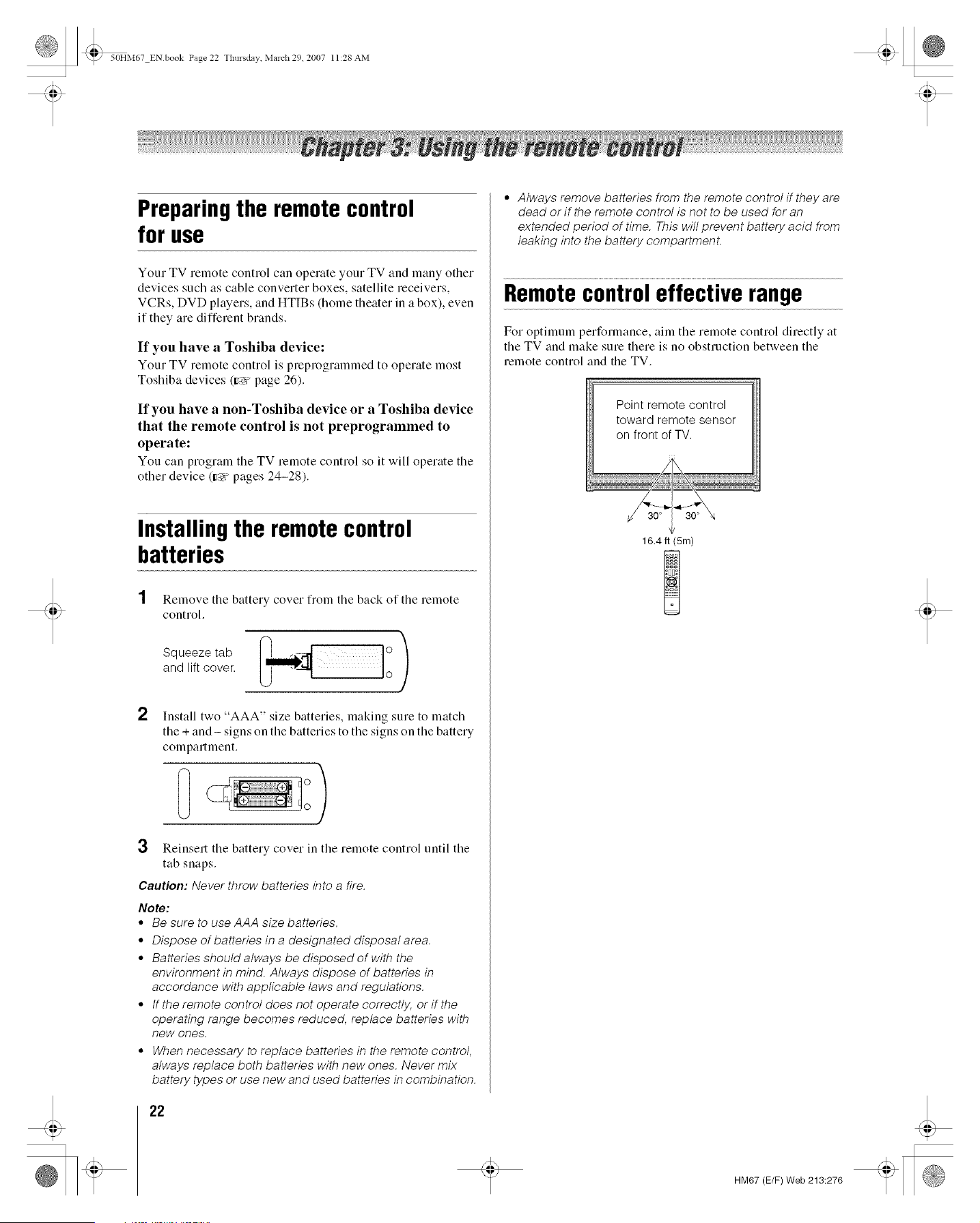
Installingthe remotecontrol
batteries
1 Remove the battery cover from tile back of tile remote
control.
2
Install two AAA .;ize batteries, making sure to match
the + and- signs on the batteries to the signs on the battery
compartment.
3 Reinsert the battery cover in the remote control until the
tab snaps.
Caution: Never throw batteries into a fire.
Note:
• Be sure to use AAA size batteries.
° Dispose of batteries in a designated disposal area.
• Batteries should always be disposed of with the
environment in mind. Always dispose of batteries in
accordance with applicable laws and regulations.
• If the remote control does not operate correctly, or if the
operating range becomes reduced, replace batteries with
new ones.
• When necessary to replace batteries in the remote control,
always replace both batteries with new ones. Never mix
battery types or use new and used batteries in combination.
22
° Always remove batteries from the remote control if they are
dead or if the remote control is not to be used for an
extended period of time. This will prevent battery acid from
leaking into the battery compartment.
Remotecontroleffective range
For optimum performance, aim the remote control directly at
the TV and make sure there is no obstruction between the
remote control and the TV.
Point remote control
toward remote sensor
on front of TV.
16.4 ft (5m)
HM67 (E/F) Web 213:276
_ 50HM67 ENbook Page 23 Tlmrsdav March 29 2007 11:28 AM
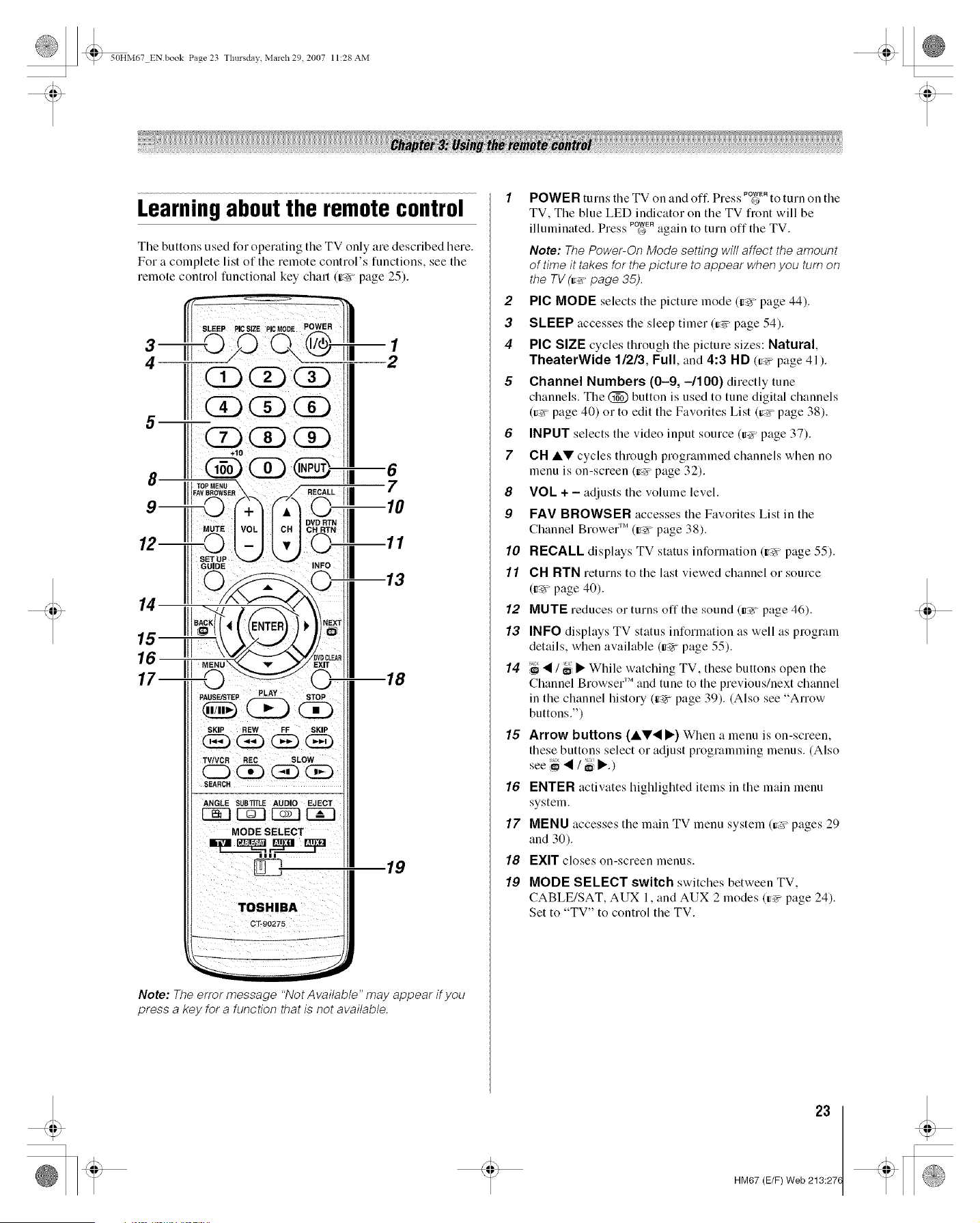
Learningaboutthe remotecontrol
Tile buttons used for operating tile TV only are described here.
For a complete list of the remote control's functions, see the
remote control functional key chart (_> page 25).
3
4
5
15
17
8 Ill
9m LI II
PAUSE/STEP PLAY STOP
TV/VCR REC SLOW
SEARCH
ANGLE
MODE SELECT
6
10
.11
.13
.18
19
Note: The error message "Not Available" may appear if you
press a key for a function that is not available.
" " POWER
POWER turns the TV on and off. Press O to turn on the
TV, The blue LED indicator on the TV front will be
illuminated. Press P_ER again to turn off the TV.
Note: The Power-On Mode setting wi// affect the amount
of time it takes for the picture to appear when you turn on
the TV (r_ page 35).
2 PIC MODE selects the picture mode (¢_r" page 44).
3 SLEEP accesses the sleep timer (try, page 54).
4 PIC SIZE cycles through the picture sizes: Natural,
TheaterWide 11213, Full, and 4:3 HD (_# page 41).
5 Channel Numbers (0-9, --/100) directly tune
channels. The @ button is used to tune digital channels
(_# page 40) or to edit the Favorites List (_-_ page 38).
6 INPUT selects the video input source (_# page 37).
7 CH AV cycles through programmed channels when no
menu is on-screen (_-_ page 32).
8 VOL + - adjusts the volume level.
9 FAV BROWSER accesses the Favorites List in the
Channel Brewer 'M(¢_ page 38).
10 RECALL displays TV status information (ir_ page 55).
11 CH RTN returns to the last viewed channel or source
(ir_ page 40).
12 MUTE reduces or turns off the sound (_" page 46).
13 INFO displays TV status information as well as program
details, when available (Ir_r page 55).
14 "_ • / _i • While watching TV, these buttons open the
Channel Browser 'Mand tune to the previous/next channel
in the channel history (_÷r page 39). (Also see "Arrow
buttons.")
15 Arrow buttons (AT• •) When a menu is on-screen,
these buttons select or adjust programming menus. (Also
see i_ • / _i •.)
16 ENTER activates highlighted items in the main menu
system.
17 MENU accesses the main TV menu system (_-#"pages 29
and 30).
18 EXIT closes on-screen menus.
19
MODE SELECT switch switches between TV,
CABLE/SAT, AUX 1, and AUX 2 modes (_' page 24).
Set to [ [o control the TV.
23
HM67 (E/F) Web 213:27(

_ 50HM67 ENbook Page 24 Tlmrsdav March 29 2007 11:28 AM
Usingthe remotecontrolto control
yourother devices
If you have a non-Toshiba device or a Toshiba device that the
remote control is not preprogrammed to operate, you must first
program the remote control to recognize the device (if you
have not aheady done so) (g_ pages 26-28).
To use your TV remote control to operate a:
• Cable converter box or satellite receiver, set the MODE
SELECT switch to CABLE/SAT.
• VCR, set the MODE SELECT switch to AUX 1.
• DVD player or HTIB, set the MODE SELECT switch to
AUX 2.
Note: Even after the TVremote control is programmed, it may
not operate certain features on any other devices. If this
happens and you wish to use those features, you will need to
use the device's original remote control.
Point the remote control
directly at the device.
1 POWER Turns the selected device on and off.
2 Channel Numbers (0-9) Press to directly access
channels (as opposed to _ _).
3 +10 Press to directly access DVD chapters higher than 10.
4 TOP MENU Accesses a DVD's top menu.
5 CH •• For channels programmed into the channel
memory (=r_ page 40):
• selects the next higher channel.
• selects the next lower channel.
6 GUIDE Displays the channel guide in the CABLE/SAT
mode.
SET UP Accesses a DVD's setup menu in the AUX
mode.
7' INFO Displays TV status information on-screen.
8 ••'_ • Press to navigate DVD menus (may not work on
some DVD players).
9 ENTER Required by some satellite receivers and DVD
players to activate certain functions.
10 DVD CLEAR Press to reset the title and chapter number.
11 PLAY Begins playback of a tape or DVD.
12 PAUSE Press during play or record mode to pause the
picture; press again to restart.
13 STOP Stops the tape or DVD.
14 SKIP _ Skips forward to locate later DVD chapters.
15 FF Fast-forwards the tape or DVD. (Press during play
mode to view the picture moving rapidly forward.)
16 SKIP _ Skips back to beginning of current DVD
chapter, o1 locates previous chapters.
17 REW Rewinds/reverses the tape or DVD. (Press during
play mode to view the picture moving rapidly backward.)
18 TV/VCR To view one program while recording another,
press to select TV mode.
SEARCH selects a specific DVD chapter, title or time.
19 REC Starts tape recording.
20 MODE SELECT switch Set to "TV" to control the TV;
"CABLE/SAT" to control a cable converter box or
satellite receiver; "AUX 1" to control a VCR; "AUX 2" to
control a DVD player or HTIB.
24
HM67 (E/F) Web 213:276
_ 50HM67 ENbook Page 25 Tlmrsdav March 29 2007 11:28 AM
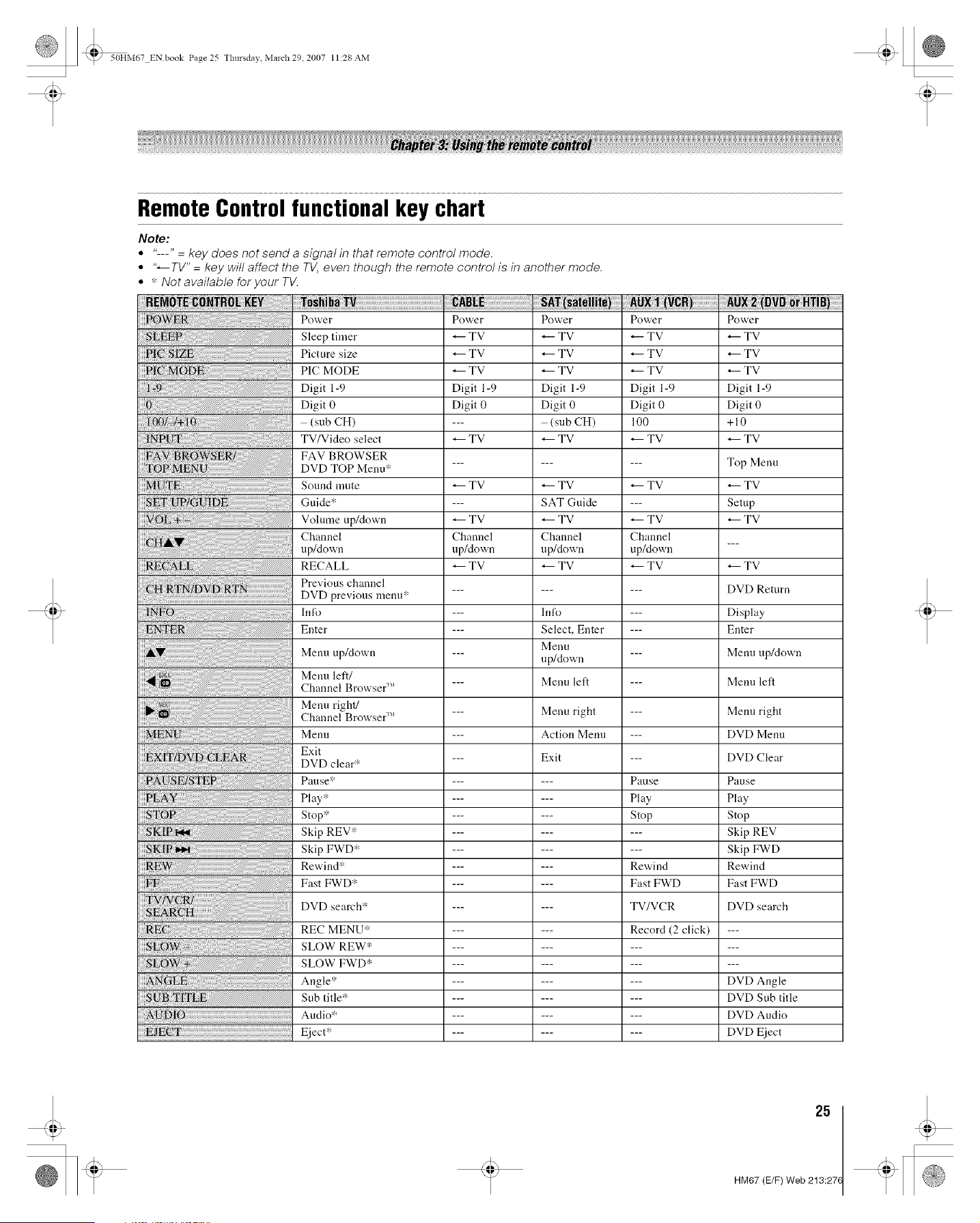
Remote Controlfunctional key chart
Note:
• "---" = key does not send a signal in that remote control mode.
° "_TV" = key will affect the TV, even though the remote control is in another mode.
° * Notavailable foryour TV.
Power Power
Sleep timer
Picture size
PIC MODE
Digit 1-9
Digit 0
(sub CH)
TV/Video select
FAV BROWSER
DVD TOP Menu*
Sound mute
Guide*
Volume up/down
Channel
up/down
RECALL
Previous channel
DVD previous menu*
Info
Enter
Menu up/down
Menu left/
Channel Browser rM
Menu right/
Channel Browser _'
Menu
Exit
DVD clear":
Pause*
Play",:
Stop*
Skip REV*
Skip FWD*
Rewind*
Fast FWD*
DVD search*
REC MENU*
SLOW REW*
SLOW FWD*
Angle*
Sub title*
Audio*
Eject*
TV
TV
TV
Digit 1-9
Digit 0
TV
TV
TV
Channel
up/down
TV
Power
TV
TV
TV
Digit 1-9
Digit 0
(sub CH)
TV
TV
SAT Guide
TV
Channel
up/down
TV
lnfo
Select, Enter
Menu
up/down
Menu left
Menu right
Action Menu
Exit
Power Power
TV _ TV
TV _ TV
TV _ TV
Digit 1-9 Digit 1-9
Digit 0 Digit 0
100 +10
TV _ TV
--- Top Menu
TV _ TV
--- Setup
TV _ TV
Channel
up/down
TV
Pause
Play
Stop
Rewind
Fast FWD
TV/VCR
Record (2 click)
TV
DVD Return
Display
Enter
Menu up/down
Menu left
Menu right
DVD Menu
DVD Clear
Pause
Play
Stop
Skip REV
Skip FWD
Rewind
Fast FWD
DVD search
DVD Angle
DVD Sub title
DVD Audio
DVD Eject
25
HM67 (E/F) Web 213:27(
_ 50HM67 ENbook Page 26 Tlmrsda;, March 29 2007 11:28 AM
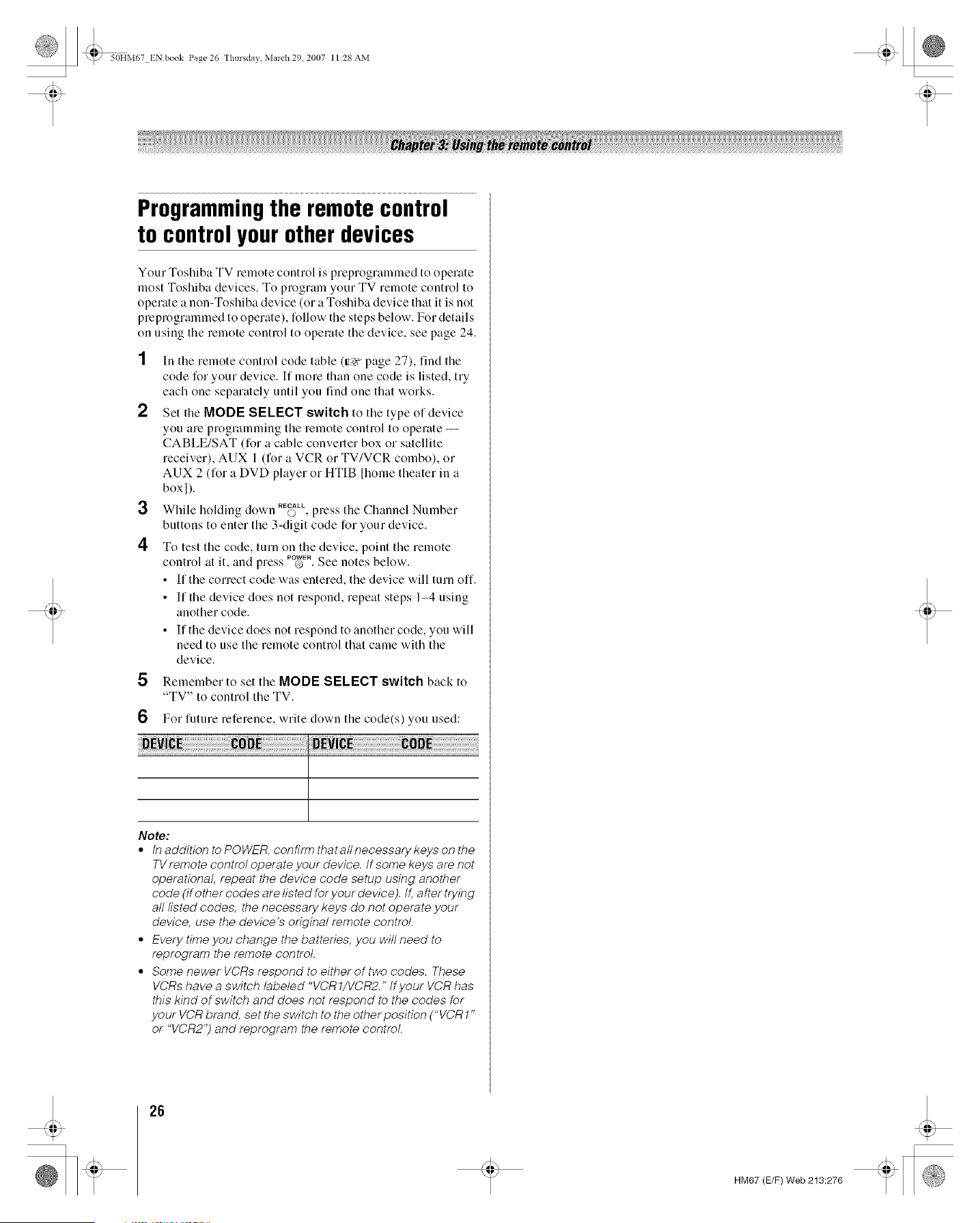
Programmingthe remote control
to control your other devices
Your Toshiba TV remote control is preprogrammed to operate
most Toshiba devices. To program your TV remote control to
operate a non-Toshiba device (or a Toshiba device that it is not
preprogrammed to operate), follow the steps below. For details
on using the remote control to opelate the device, see page 24.
2
3
4
In the remote control code table (_ page 27), find the
code for your device. If more than one code is listed, try
each one separately until you find one that works.
Set the MODE SELECT switch to the type of device
you are programming the remote control to operate --
CABLE/SAT (for a cable converter box or satellite
receiver), AUX 1 (for a VCR or TV/VCR combo), or
AUX 2 (for a DVD player or HTIB [home theater in a
boxl).
While holding down RE_LL,press the Channel Number
buttons to enter the 3-digit code for your device.
To test the code, turn on the device, point the remote
control at it, and press _ER See notes below.
• If the correct code was entered, the device will turn off.
• If the device does not respond, repeat steps 1-4 using
another code.
• If the device does not respond to another code, you will
need to use the remote control that came with the
device.
5 Remember to set the MODE SELECT switch back to
_ g_T to control the TV.
6 For future reference, write down the code(s) you used:
Note:
• tn addition to POWER, confirm thatallnecessarykeys on the
TVremote control operate your device, tf some keys are not
operational, repeat the device code setup using another
code (if other codes are listed for your device). If, after trying
all listed codes, the necessary keys do not operate your
device, use the device's original remote control.
• Every time you change the batteries, you will need to
reprogram the remote control.
° Some newer VCRs respond to either of two codes. These
VCRs have a switch labeled "VCR1/VCR2." tf your VCR has
this kind of switch and does not respond to the codes for
your VCR brand, set the switch to the other position ("VCR1"
or "VCR2") and reprogram the remote control.
26
HM67 (E/F) Web 213:276
_ 50HM67 ENbook Page 27 Tlmrsdav March 29 2007 11:28 AM
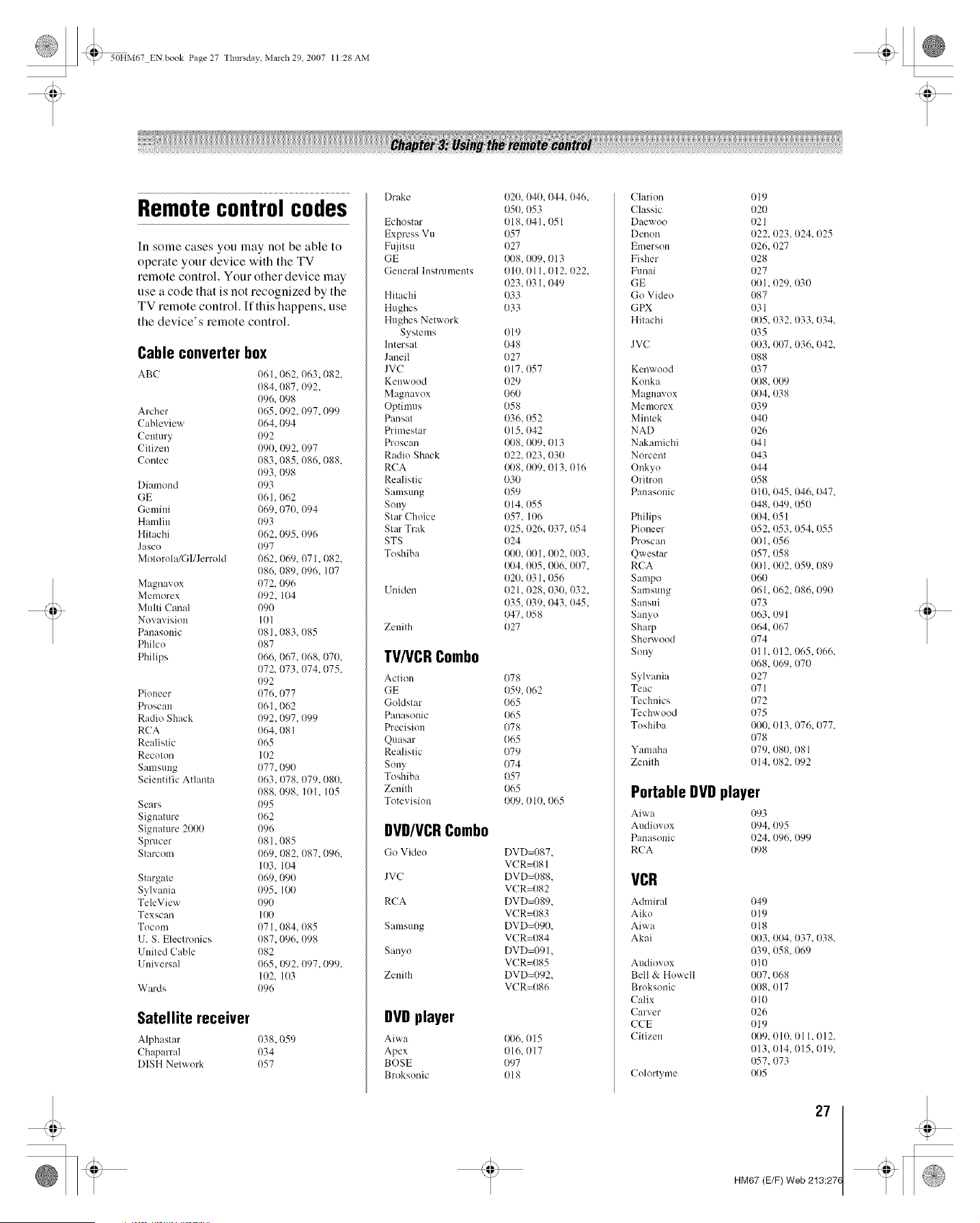
Remotecontrolcodes
In some cases you may not be able to
operate your device with the TV
remote control. Your other device may
use a code that is not recognized by the
TV remote control. If this happens, use
the device's remote control.
Cable converter box
ABC 061. 062. 063. 082,
{)84. 087. 092.
096. 098
Archer {)65. 092. 097.099
Cableview 064, 094
Century 092
Citizen 090. 092. 097
Contec {)83. 085. 086.088.
093. 098
Diamond 093
GE 061,062
Gemini 069.070. 094
Hamliu 093
Hitachi 062.095. {)96
Jasco 097
Motorola/GI/Jerrold 062, 069, 071,082,
I)86, 089, 096, 107
Magnavox 072, 096
Mmnorex {)92, 104
Multi Canal 090
Novavision 101
Pauasouic 081. 083. 085
Philco 087
Philips 066. 067. 068. 070.
072, 073. 074.075.
092
Pioneer 076,077
Proscau 061,062
Radio Shack 092. 097. 099
RCA {)64. 081
Realistic 065
Recoton 102
Samsuug 077,090
Scientific Atlanta 063,078, 079,080,
088. 098. 101. 105
Sears 095
Signature 062
Signature 2000 096
Sprucer 081. 085
Starcom 069. 082. 087.096.
103. 104
Stargate 069.090
Sylvania 095. 100
TeleView 090
Texscan 100
Tocom {)71. 084. 085
13.S. Electronics 087.096. 098
ldnited Cable 082
1Jniversal 065. 092. 097.099.
102. 103
Wards 096
Satellite receiver
Alphastar 038,059
Chaparral 034
DISH Network 057
[)rake 020. 040. 044. 046.
050. 053
Echostar 018.04 I. 051
Express Vu 057
Fujitsu 027
GE 008. 009. 013
General Instru meuts 010. 011.012. 022.
023.03 I. 049
Hitachi 033
Hughes (133
Hughes Network
Systems 019
lntersat 048
Janeil 027
JVC 017, {)57
Keuwood {)29
Magnavox 060
Optinms 058
Pansat 036. 052
Primestar 015. 042
Proscan 008. 009. 013
Radio Shack 022. 023. 030
RCA {}{)8.009. 013. 016
Realistic 030
Samsuug {)59
Sony 014. 055
Star Choice 057. 1{)6
Star Trak 025. 026. 037. (154
STS 024
Toshiba 1}{)0.001. (}{12.003.
I}{)4,005, {}{}6,007,
020, 031,056
Uuideu 021. 028, 030. 032.
035. {)39. {M3. 045.
047,058
Zenith 027
TV/VCR Combo
Action 078
GE 059, 062
Goklstar 065
Panasonic 065
Precision 078
Quasar 065
Realistic 079
Sony 074
Toshiba 057
Zenith 065
Totevision 009. 010. 065
DVD/VCRCombo
Go Vide() DVD=087
VCR=08 I
JVC DVD=088
VCR=082
RCA DVD=089
VCR=083
Samsuug DVD=090
VCR=084
Sanyo DVD=091
VCR=085
Zenith DVD=092
VCR=086
DVDplayer
Aiwa {}{}6,{)15
Apex 016. 017
BOSE 097
Broksouic 018
Clarion 019
Classic 020
Daewoo 021
Denon 022. 023. 024. {)25
Emerson 026. 027
Fisher 028
Fuuai 027
GE 001. 029. 030
Go Video 087
G PX 031
Hitachi 005, 032, 033, 034,
035
JVC 003. 007. 036. 042.
088
Kenwood 037
Konka 008, 009
Maglmvox 0{)4. 038
Memorex 039
Mintek 040
NAD 026
Nakamichi 041
Norcent 043
Oukyo 044
Oritron 058
Pauasonic 011}.{)45. 046. 047.
048. 049, 050
Philips 004. 051
Pioneer 052. 053. 054. 055
Proscan 001. 056
Qwestar 057. 058
RCA 001. 002. 059. 089
Sampo 060
Samsuug 061,062, 086, 090
Sausui 073
Sauyo {}63.09 l
Sharp 064. 067
Sherwood 074
Sony 01 l, 012, 065,066,
068, 069, 070
Sslvauia 027
Te:.c 071
Technics 072
Techwood 075
Toshiba 000. 013. 076. 077.
078
Yamaha 079. 080. 081
Zenith 014. 082. (192
Portable DVDplayer
Aiwa 093
Audiovox 094. 095
Pauasonic 024. 096. 099
RCA 098
VCR
Admiral
Aiko
Aiwa
Akai
Audiovox
Bell & Howell
Broksouic
Calix
Carver
CCE
Citizen
Colortyme
049
019
018
003, 004, 037, {)38,
039, 058, 069
01 o
007.068
008.017
010
026
019
{}{)9,010, 011,012,
013. 014. 015. {)19.
057. 073
005
27
HM67 (E/F) Web 213:27(
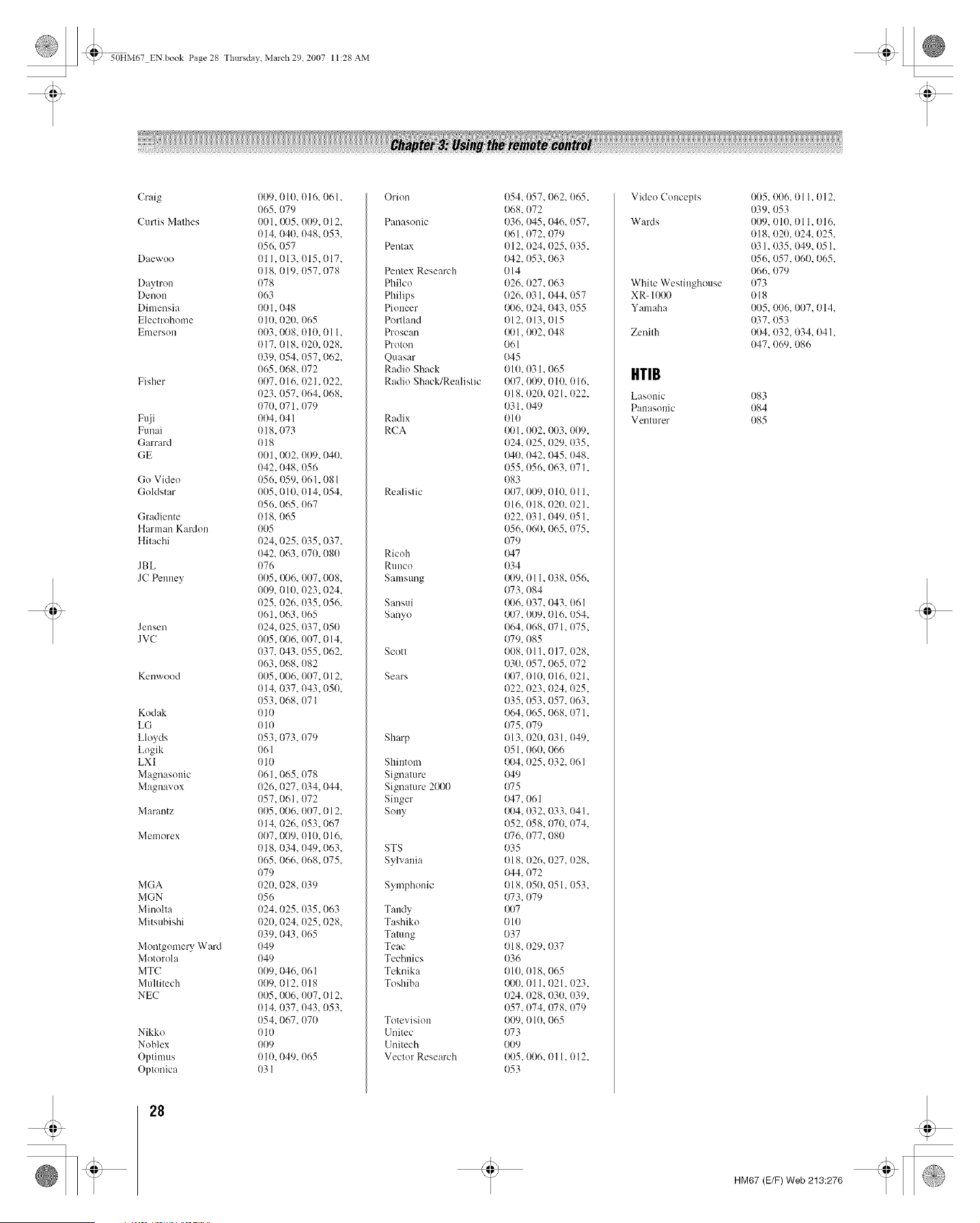
_ 50HM67 ENbook Page 28 Tlmrsdav March 29 2007 11:28 AM
Craig 009,010, 016, 061,
065, 079
Curtis Mathus 001, {}{)5,009, 012,
014, 040, 048,053,
056, 057
Daewoo 01 I, 013, 015, (}17,
018, 019, {)57,078
Daytron 078
Denou 063
Dimensia 001,048
Electrohome 01{1,020, 065
Emerson 003,008, 010, 011,
017, 018, 020, 028,
039, 054, 057,062,
065,068, 072
Fisher (}07, 016, 021, (}22,
023, 057, {t64, 068,
070, 071, {179
Fuji 004, 041
Funai 018,073
Garrard 018
GE 001,002, 009,040,
042,048, {156
Go Video 056, 059, 061,081
Goldstar 005, 010, 014,054,
056,065,067
Gradiente 018, 065
Harman Kardon 005
Hitachi 024, 025, 035,037,
042, 063,070, 080
JBL 076
JC Peuuey 005,006, 007,008,
0(./9, 010, 023,024,
025, 026, 035,056,
061,063,065
Jensen 024, 025, 037,050
J VC 005,006, {t07,014,
037, 043,055,062,
063,068, {182
Kenwood 005,006, 007,012,
014, 037, 043,050,
053,068, 07 I
Kodak 010
LG o 1o
Lloyds 053,073,079
Logik 061
LXI 010
Magnasonic 061,065, 078
Magnavox 026,027, 034, 044,
057,061,072
Marantz 005,006, 007, 012,
014, 026, 053,067
Memorex 007,009, 01(-1,016,
018, 034, 049,063,
065, 066, 068,075,
079
MGA 02(-1,028, 039
MGN {156
Minolta 024,025, 035,063
Mitsubishi 020, 024, 025,028,
039,043, {)65
Montgomery Ward 049
Motorola 1)49
MTC {t09,046, 06 l
Multitech 009, 012, 018
NEC 005,006, 0(-17,012,
014, 037, 043, 053,
054,067, 070
Nikko 010
Noblex 009
Optimus 0 ]0, 049, 065
Optonica 031
28
Orion
Panasonic
Pentax
Pentex Research
Philco
Philips
Pioneer
Portland
Proscan
Proton
Quasar
Radio Shack
Radio Shack/Realistic
Radix
RCA
Realistic
Ricoh
RUUCO
Samsung
Sansui
Sanyo
Scott
Sears
Sharp
Shiutom
Signature
Signature 2000
Singer
Sony
STS
Sylvania
Symphonic
Taudy
Tashiko
Tatung
Teac
Technics
Teknika
Toshiba
Totevision
Unitec
Unitech
Vector Research
054, 057, 062, 065,
068, {172
036, 045,046, 057,
061,072, 079
012, 024, 025, 035,
042, 053,063
014
026, 027, 063
026, 031, IM4, 057
006, 024, (M3, 055
012,013,015
OOl, 01t2, {}48
061
(}45
010, 1t31, 1165
{)07,009, 01(.1,016,
018, 020, 021, 022,
031, 049
010
001, 002, 003, 009,
024, 025,029, 035,
I)40, 042, 045, 048,
055, 1t56, 1t63, 071,
083
007,009, {t10, Ol 1,
016, 018, 02(}, 021,
022, 031, {}49,051,
056, {)6{),{)65, 075,
079
{}47
034
{}{}9,011, 038, 056,
073, {184
{}{}6,037, {)43, (}61
{}{}7,009, 016, 054,
064, 068, 071, 075,
{}79,085
008, 011,017, 028,
030, {)57, {t65, 072
{}{}7,010, 016, 021,
022, 023,024, 025,
035, 053,057, 063,
064, 065,068, 071,
075, 079
013, 020, 031,049,
051,060, 066
{}{}4,025,032, 061
{M9
075
{}47,061
{}{}4,{)32, {)33, 041,
{)52, 058, 070, 074,
{}76,077, 080
035
018, 026, 027, 028,
{)44, {172
018, (}5{t,051, 053,
{}73,079
{}{}7
010
037
Ol 8, 029, 037
036
010, {)18, {165
{}{}0,011,021,023,
024, {)28, {)30, 039,
057, 074, 078, 079
009, 010, 065
{}73
009
005,006, 011, 012,
053
Vide() Concepts
Wards
White Westinghouse
XR- 101}{)
Yamaha
Zenith
HTIB
Lasonic
Pauasonic
Venturer
005, 006, 011, 012,
039, 053
(}09, 010, 011, 016,
018, 020, 024, 025,
031, 035, 049, 051,
(}56, 057, 060, 065,
066, 079
073
018
005, {t06, 007, 014,
037, 053
004, 032, 034, 041,
047, 069, 086
083
084
085
HM67 (E/F) Web 213:276
>4_J
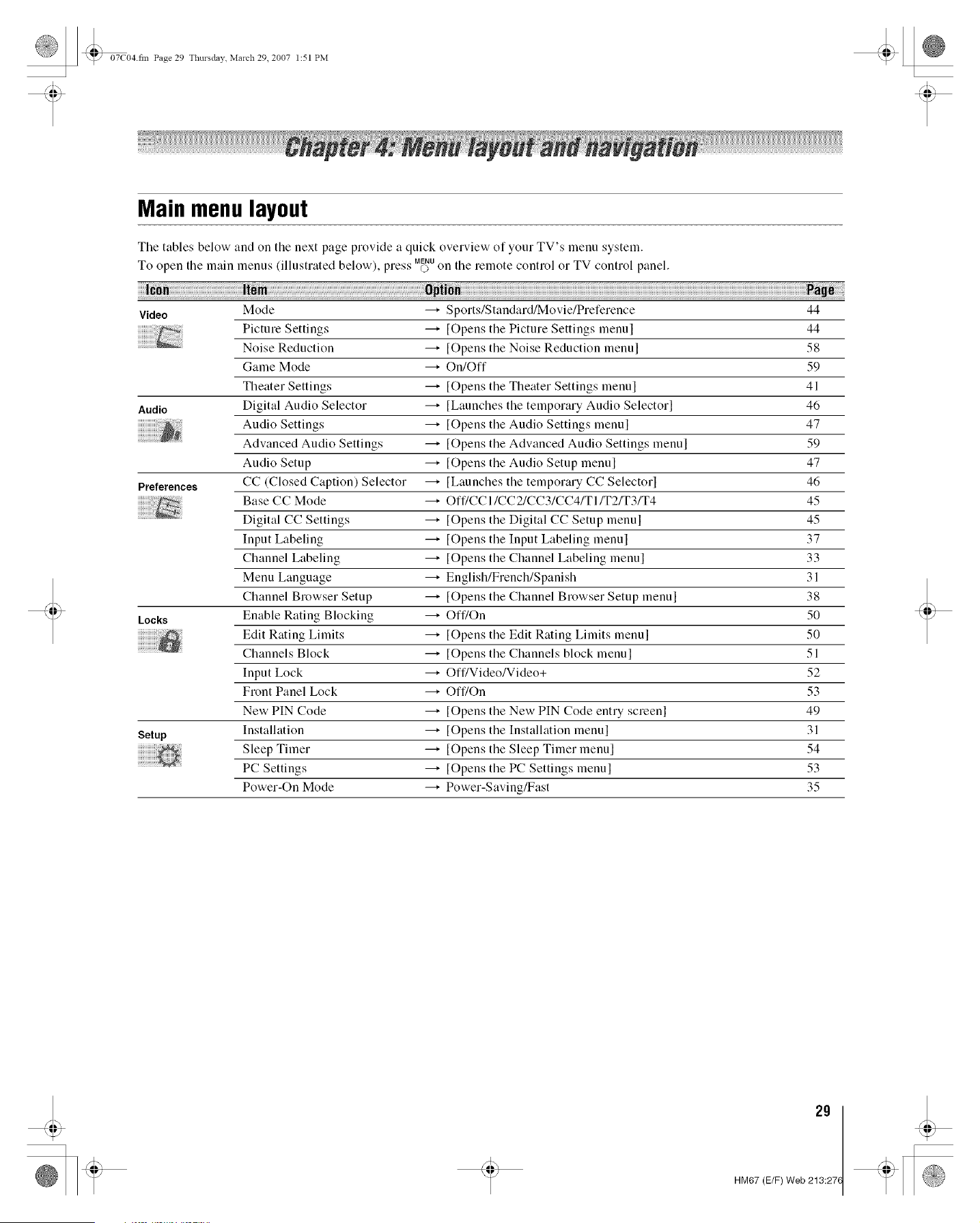
07C04 fin Page 29 Tlmrsdav March 29. 2007 1:51 PM
Main menulayout
The tables below and on the next page provide a quick overview of your TV's menu system.
To open the main menus (illustrated below), " ss MENU
pie.. O on the remote control o1 TV control panel.
Video Mode _ Sports/Standard/Movie/Preference 44
Picture Settings _ [Opens the Picture Settings menul 44
Noise Reduction _ [Opens the Noise Reduction menul 58
Game Mode _ On/Off 59
Theater Settings _ [Opens the Theater Settings menul 41
Audio Digital Audio Selector _ [Launches the temporary Audio Selectorl 46
Audio Settings _ [Opens the Audio Settings menul 47
Advanced Audio Settings _ [Opens the Advanced Audio Settings menul 59
Audio Setup _ [Opens the Audio Setup menul 47
Preferences CC (Closed Caption) Selector _ [Launches the temporary CC Selectorl 46
Base CC Mode _ Off/CCI/CC2/CC3/CC4/TI/T2/T3/T4 45
Digital CC Settings _ [Opens the Digital CC Setup menul 45
Input Labeling _ [Opens the Input Labeling menul 37
Channel Labeling _ [Opens the Channel Labeling menul 33
Menu Language _ English/French/Spanish 31
Channel Browser Setup _ [Opens the Channel Browser Setup menul 38
Leeks Enable Rating Blocking _ Off/On 50
Edit Rating Limits _ [Opens the Edit Rating Limits menul 50
Channels Block _ [Opens the Channels block menul 51
Input Lock _ Off/Video/Video+ 52
Front Panel Lock _ Off/On 53
New PIN Code _ [Opens the New PIN Code entry screenl 49
Setup Installation _ [Opens the Installation menul 31
Sleep Timer _ [Opens the Sleep Timer menul 54
PC Settings _ [Opens the PC Settings menul 53
Power-On Mode _ Power-Saving/Fast 35
29
HM67 (E/F) Web 213:27(
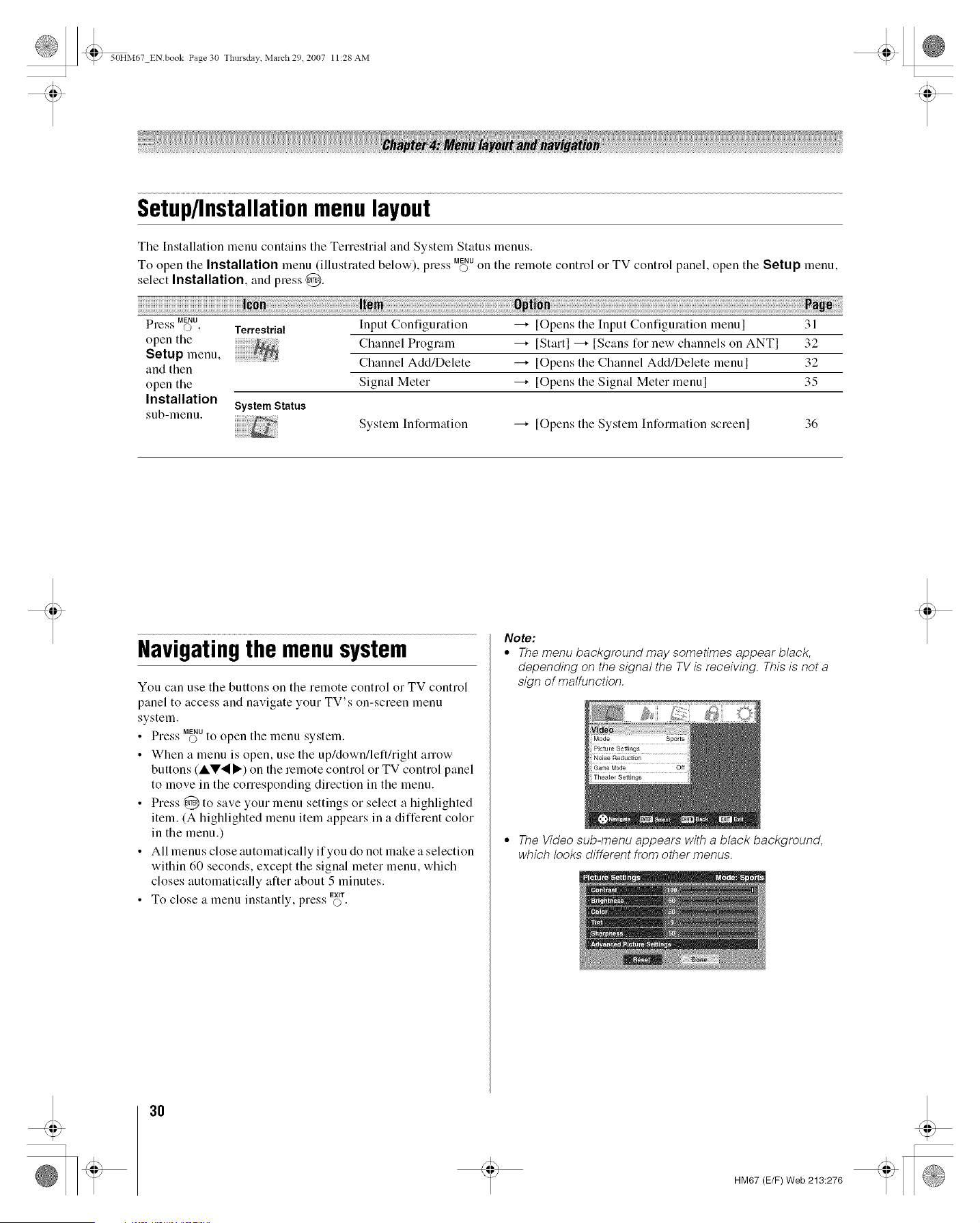
_ 50HM67 ENbook Page 30 Tlmrsdav March 29 2007 11:28 AM
Setup/Installationmenulayout
Tile Installation menu contains tile Terrestrial and System Status menus.
To open the Installation menu (illustrated below), press M_Uon the remote control o1 TV control panel, open the Setup menu,
select Installation, and press @.
SS MENU
Press O, Terrestrial
open the
Setup menu,
and then
open the
Installation
System Status
sub-lnenu.
Input Configuration
Channel Program
Channel Add/Delete
Signal Meter
[Opens the Input Configuration menu[ 31
[Startl _ [Scans for new channels on ANTI 32
[Opens the Channel Add/Delete menul 32
[Opens the Signal Meter menul 35
System Information _ [Opens tile System Information screenl 36
Navigatingthe menusystem
You can use tile buttons on tile remote control o1 TV control
panel to access and navigate your TV's on-screen menu
system.
• Press M_Uto open the menu system.
• When a menu is open, use the up/down/left/right arrow
buttons (AV'_I_') on tile remote control o1TV control panel
to move in the corresponding direction in the menu.
• Press @ to save your menu settings o1 select a highlighted
item. (A highlighted menu item appears in a different color
in tile menu.)
• All menus close automatically if you do not make a selection
within 60 seconds, except tile signal meter menu, which
closes automatically after about 5 minutes.
• To close a menu instantly, press EX,¢_.
Note:
* The menu background may sometimes appear black,
depending on the signal the TV is receiving. This is not a
sign of malfunction.
• The Video sub-menu appears with a black background,
which looks different from other menus.
3O
HM67 (E/F) Web 213:276
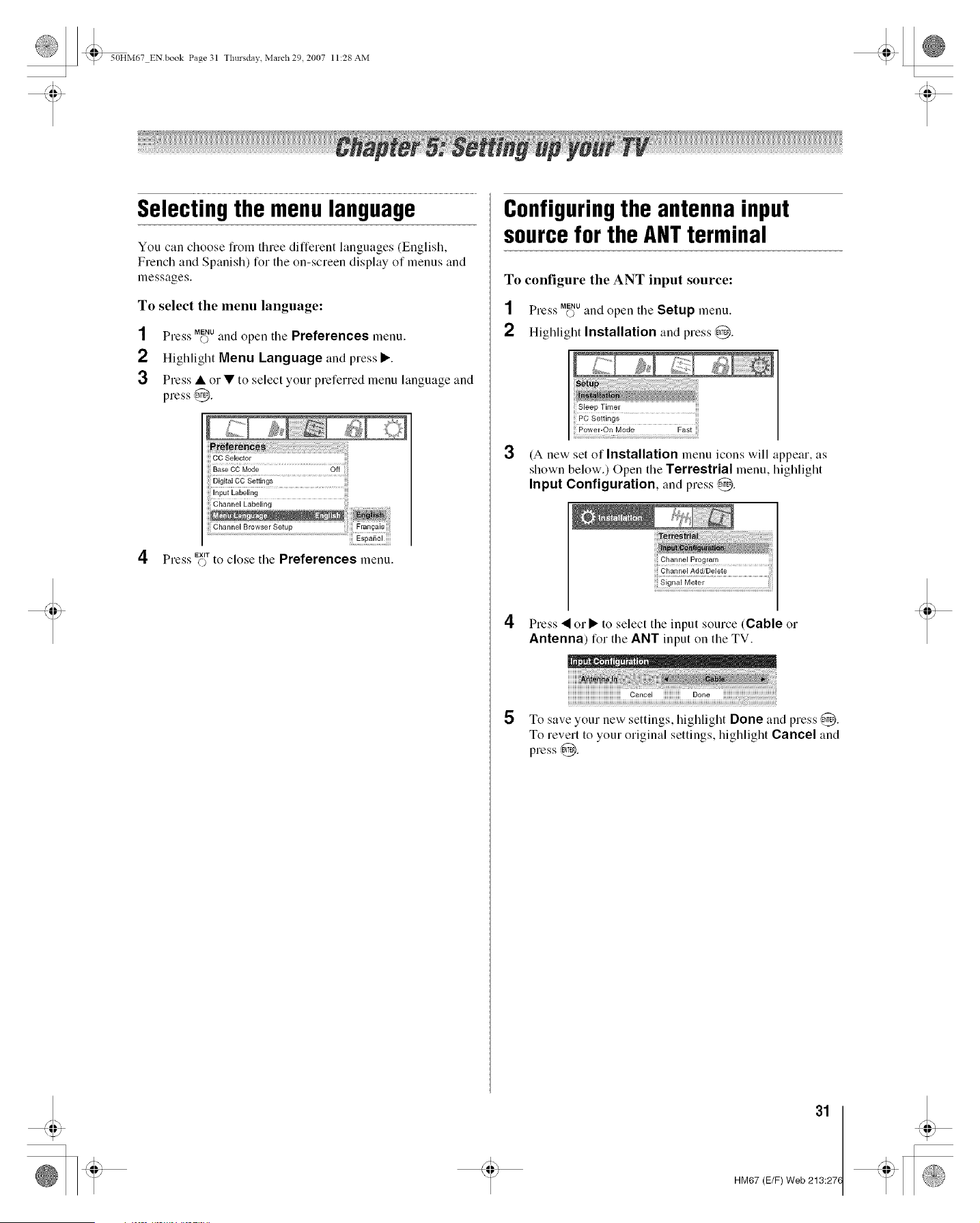
_ 50HM67 EN book Page 31 Tlmrsdav March 29 2007 11:28 AM
Selectingthe menulanguage
You can choose from three different languages (English,
French and Spanish) for the on-screen display of menus and
messages.
To select the menu language:
SS MENU
Press O and open tile Preferences menu.
2 Highlight Menu Language and press •.
3 Press • or • to select your preferred menu language and
press @.
4 Press
CC Selector
iiliEspaSol i!i!i!i!
_rto close tile Preferences menu.
Configuringthe antennainput
sourcefor the ANTterminal
To configure the ANT input source:
1 Press M_Uand open tile Setup menu.
2 Highlight Installation and press @.
3
(A new set of Installation menu icons will appear, as
shown below.) Open the Terrestrial menu, highlight
Input Configuration. and press ,@.
Channel Program
Channel Add/Delete
Signal Meter
4 Press • or • to select tile input source (Cable or
Antenna) for tile ANT input on tile TV.
5 To save your new settings, highlight Done and press @.
To revert to your original settings, highlight Cancel and
press @.
31
HM67 (E/F) Web 213:27(
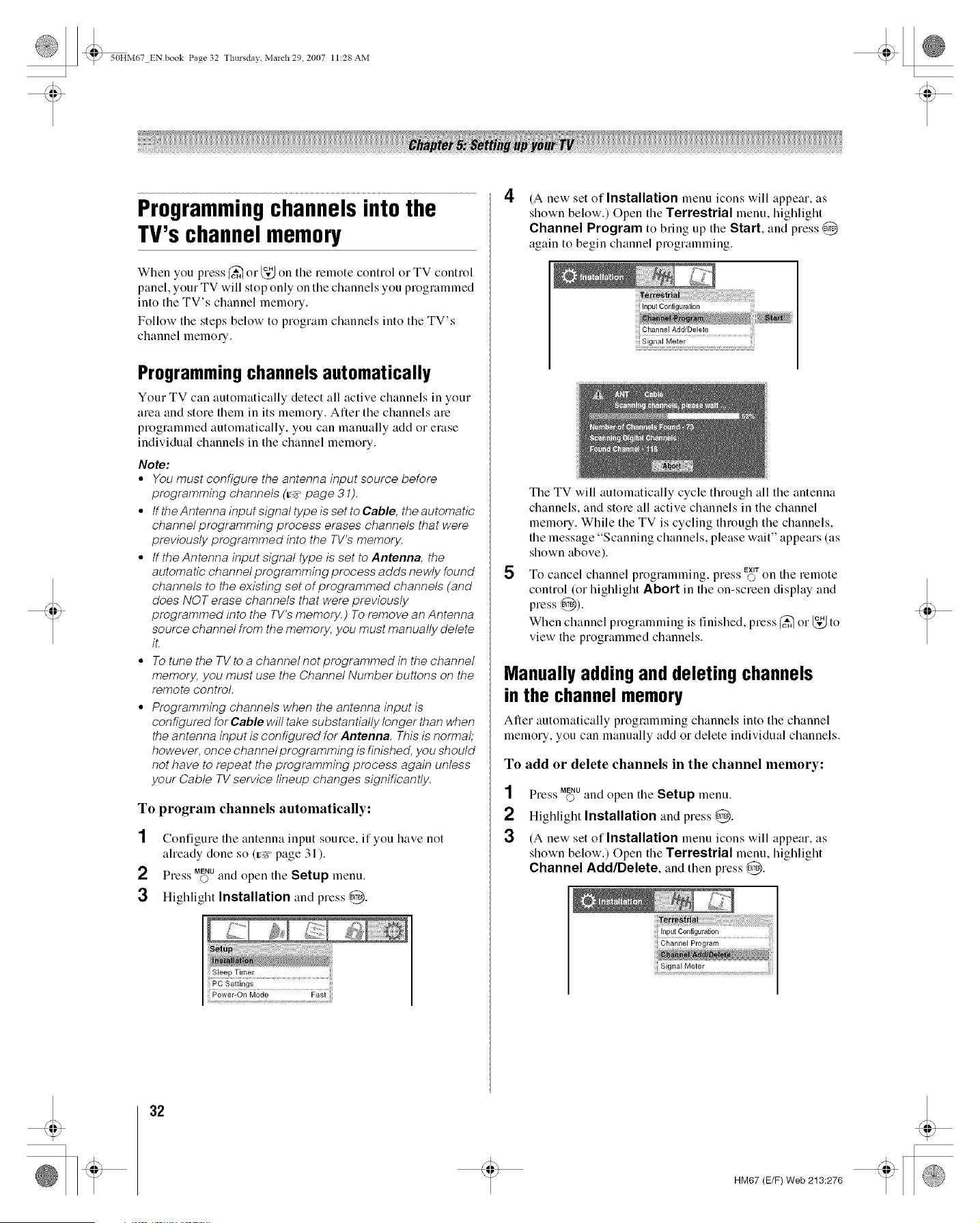
_ 50HM67 ENbook Page 32 Thursdav March 29 2007 11:28 AM
Programmingchannelsintothe
TV'schannelmemory
When you press _ or _ on the remote control or TV control
panel, your TV will stop only on the channels you programmed
into the TV's channel memory.
Follow the steps below to program channels into the TV's
channel memory.
Programmingchannels automatically
Your TV can automatically detect all active channels in your
area and store them in its memory. Alter the channels are
programmed automatically, you can manually add or erase
individual channels in the channel memory.
Note:
• You must configure the antenna input source before
programming channels (_" page 31).
° If the Antenna input signal type is set to Cable, the automatic
channel programming process erases channels that were
previously programmed into the TV's memory.
° tf the Antenna input signal type is set to Antenna, the
automatic channel programming process adds newly found
channels to the existing set of programmed channels (and
does NOT erase channels that were previously
programmed into the TV's memory.) To remove an Antenna
source channel from the memory, you must manually delete
iL
° To tune the TV to a channel not programmed in the channel
memory, you must use the Channel Number buttons on the
remote control.
° Programming channels when the antenna input is
configured for Cable will take substantially longer than when
the antenna input is configured for Antenna. This is normal,
however, once channel programming is finished, you should
not have to repeat the programming process again unless
your Cable TV service lineup changes significantly.
To program channels automatically:
1 Configure the antenna input source, if you have not
aheady done so (_:;_ page 31 ).
SS MENU
Ple._'s O and open the Setup menu.
3 Highlight Installation and press @.
4
(A new set of Installation menu icons will appear, as
shown below.) Open the Terrestrial menu, highlight
Channel Program to bring up the Start, and press @
again to begin channel programming.
5
The TV will automatically cycle through all the antenna
channels, and store all active channels in the channel
memory. While the TV is cycling through the channels,
the message "Scanning channels, please wait" appears (as
shown above).
To cancel . EXITon the relllote
channel programming, press O
control (or highlight Abort in the on-screen display and
press @).
When channel programming is finished, press _ or _ to
view the programmed channels.
Manually adding and deleting channels
in the channel memory
After automatically programming channels into the channel
memory, you can manually add o1 delete individual channels.
To add or delete channels in the channel memory:
1
2
3
Press M_Uand open the Setup menu.
Highlight Installation and press @.
(A new set of Installation menu icons will appear, as
shown below.) Open the Terrestrial menu, highlight
Channel Add/Delete, and then press @.
!nputConlig_r_ion........................
Channel Program
Signal Meter
32
HM67 (E/F) Web 213:276
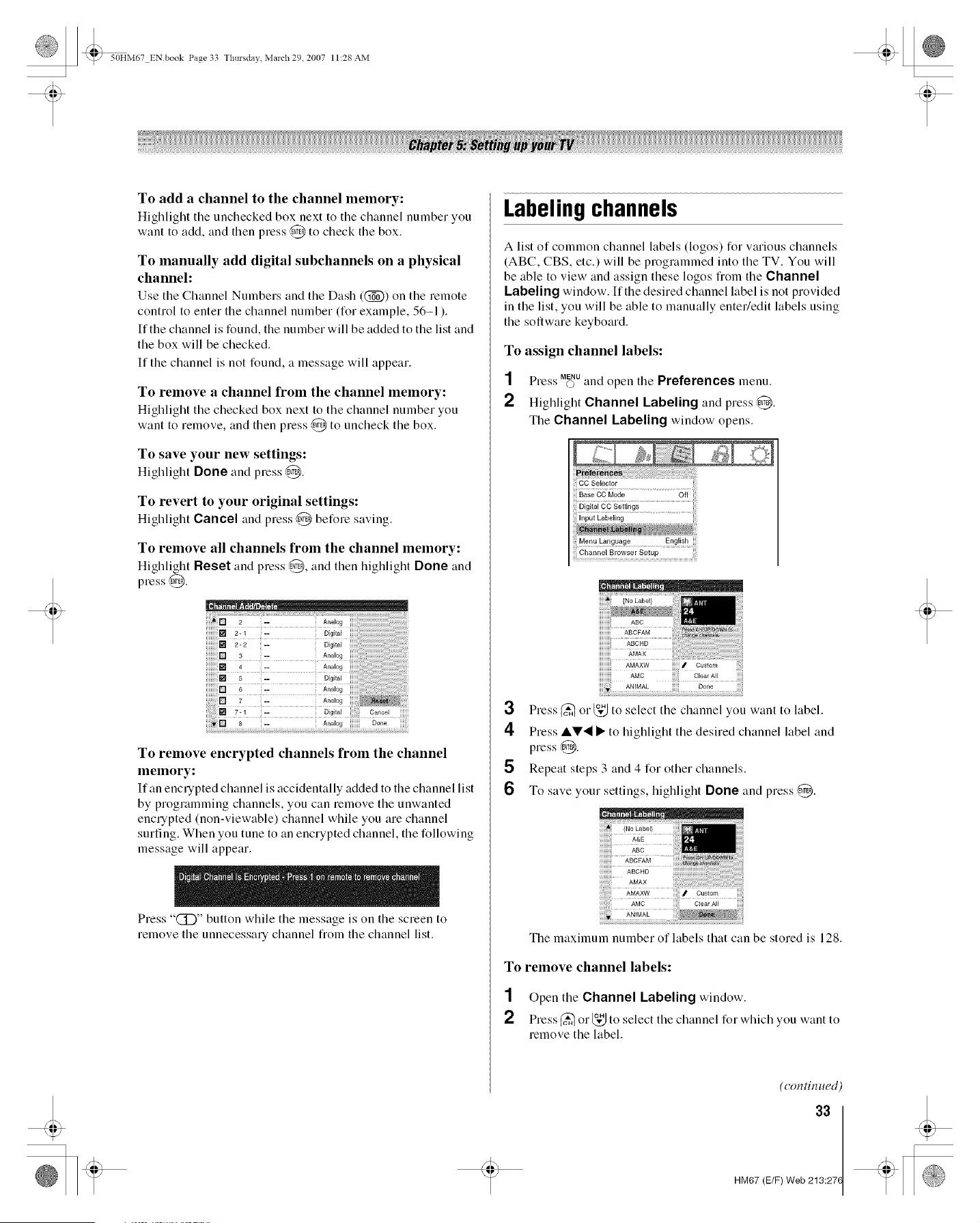
_ 50HM67 ENbook Page 33 Thursdav March 29 2007 11:28 AM
To add a channel to the channel memory:
Highlight the unchecked box next to the channel number you
want to add, and then press @ to check the box.
To manually add digital subchannels on a physical
channel:
Use the Channel Numbers and the Dash ((_)) on the remote
control to enter the channel number (for example, 56-1 ).
If the channel is found, the number will be added to the list and
the box will be checked.
If the channel is not found, a message will appear.
To remove a channel from the channel memory:
HigMight the checked box next to the channel number you
want to remove, and then press @ to uncheck the box.
To save your new settings:
Highlight Done and press ,@.
To revert to your original settings:
Highlight Cancel and press @ before saving.
To remove all channels from the channel memory:
Highlight Reset and press @, and then highlight Done and
press @.
To remove encrypted channels from the channel
memory:
If an encrypted channel is accidentally added to the channel list
by programming channels, you can remove the unwanted
encupted (non-viewable) channel while you are channel
surfing. When you tune to an encrypted channel, the following
message will appear.
Press "(_D" button while the message is on the screen to
remove the unnecessa U channel from the channel list.
Labelingchannels
A list of common channel labels (logos) for various channels
(ABC, CBS, etc.) will be programmed into the TV. You will
be able to view and assign these logos from the Channel
Labeling window. If the desired channel label is not provided
in the list, you will be able to manually enter/edit labels using
the software keyboard.
To assign channel labels:
1 Press M_Uand open the Preferences menu.
2 Highlight Channel Labeling and press @.
The Channel Labeling window opens.
CC Selector
Base CO Mode Off
Digital CO Settings
in_iGh;ii,,_ ......................
Menu Language English
Channel B...... Setup
iiiiiiiiiii
iiiiiiiiii
iiiiiiiiiii
iiiiiiiiii
iiiiiiiiiii AMAXW iiiiii_ Custom
3 Press _ or _ to select the channel you want to label.
4 Press AV._ • to highlight the desired channel label and
press @.
Repeat steps 3 and 4 for other channels.
6 To save your settings, highlight Done and press @.
The maximum number of labels that can be stored is 128.
To remove channel labels:
1 Openthe Channel Labeling window.
_) Press _ o1_," to select the channel for which you want to
remove the label.
(con tin ued)
33
HM67 (E/F) Web 213:27(
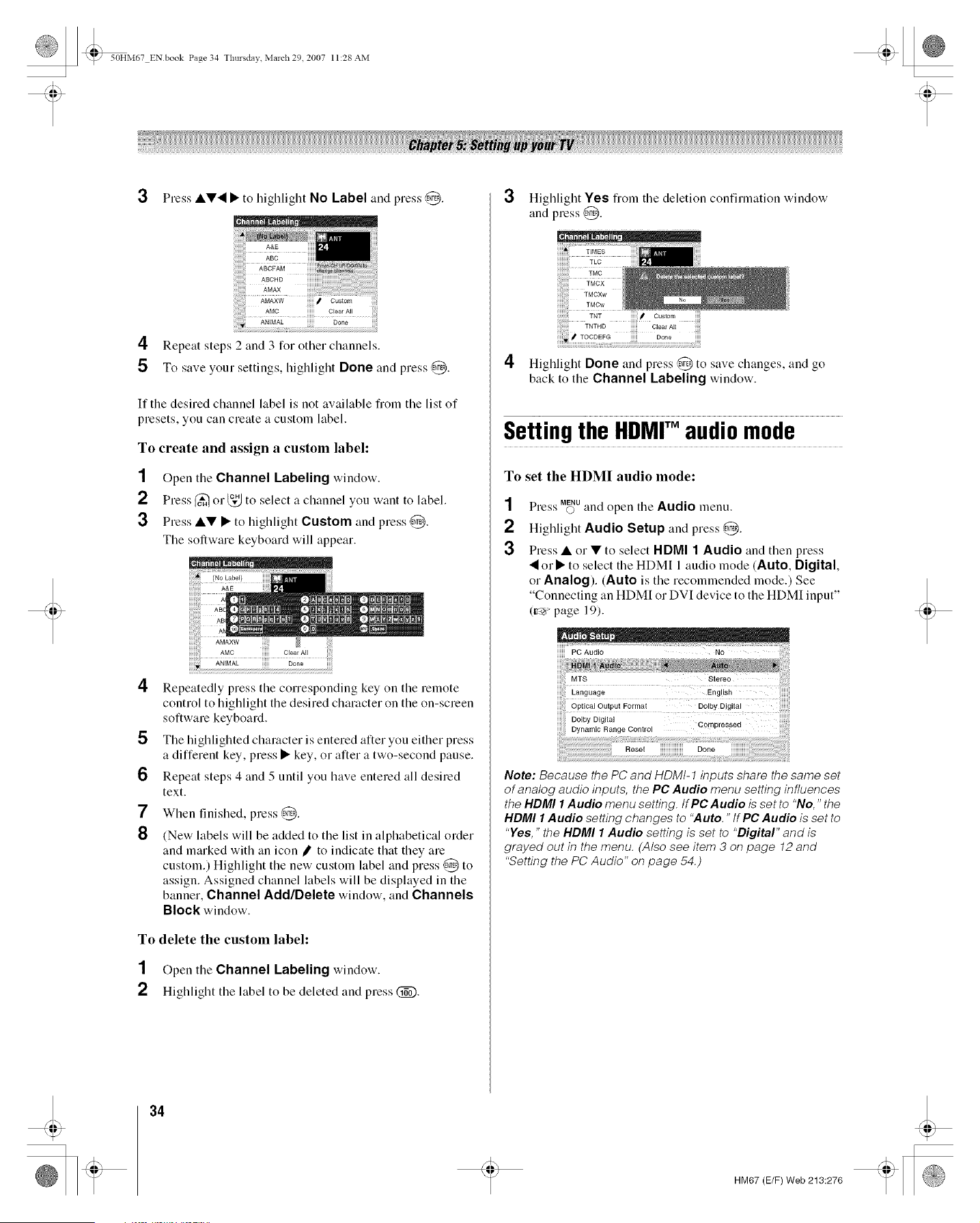
_" 50HM67 ENbook Page 34 Thursdav March 29 2007 11:28 AM
3 Press ••'_ • to highlight No Label and press @. 3
4 Repeat steps 2 and 3 for other channels.
5 To save your settings, highlight Done and press @.
If the desired channel label is not available fiom the list of
presets, you can create a custom label.
To create and assign a custom label:
1 Open the Channel Labeling window.
2 Press _ o1"_ to select a channel you want to label.
3 Press •• • to highlight Custom and press ,@.
The software keyboard will appear.
4
5
6
7
8
Repeatedly press the corresponding key on the remote
control to highlight the desired character on the on-screen
software keyboard.
The highlighted character is entered after you either press
a different key, press • key, or after a two-second pause.
Repeat steps 4 and 5 until you have entered all desired
text.
When finished, press @.
(New labels will be added to the list in alphabetical order
and marked with an icon _ to indicate that they are
custom.) Highlight the new custom label and press @ to
assign. Assigned channel labels will be displayed in the
banner, Channel AddIDelete window, and Channels
Block window.
To delete the custom label:
1 Open the Channel Labeling window.
2 Highlight the label to be deleted and press (_.
Highlight Yes fl'om the deletion confirmation window
and press @.
4 Highlight Done and press @ to save changes, and go
back to the Channel Labeling window.
Settingthe HDMF audiomode
To set the HDMI audio mode:
1
2
3
Press u_u and open the Audio menu.
Highlight Audio Setup and press @.
Press • or • to select HDMI 1 Audio and then press
"_o1• to select the HDM[ 1 audio mode (Auto, Digital,
or Analog). (Auto is the recommended mode.) See
"Connecting an HDM[ or DVI device to the HDMI input"
(v_ page 19).
iiiiiiiPOA0dio
Compressed
Note: Because the PC and HDMt-1 inputs share the same set
of analog audio inputs, the PC Audio menu setting influences
the HDMI 1 Audio menu setting, tf PC Audio is set to "No," the
HDMI I Audio setting changes to "Auto," tf PC Audio is set to
"Yes," the HDMI I Audio setting is set to "Digital" and is
grayed out in the menu, (Also see item 3 on page 12 and
"Setting the PC Audio" on page 54.)
34
HM67 (E/F) Web 213:276
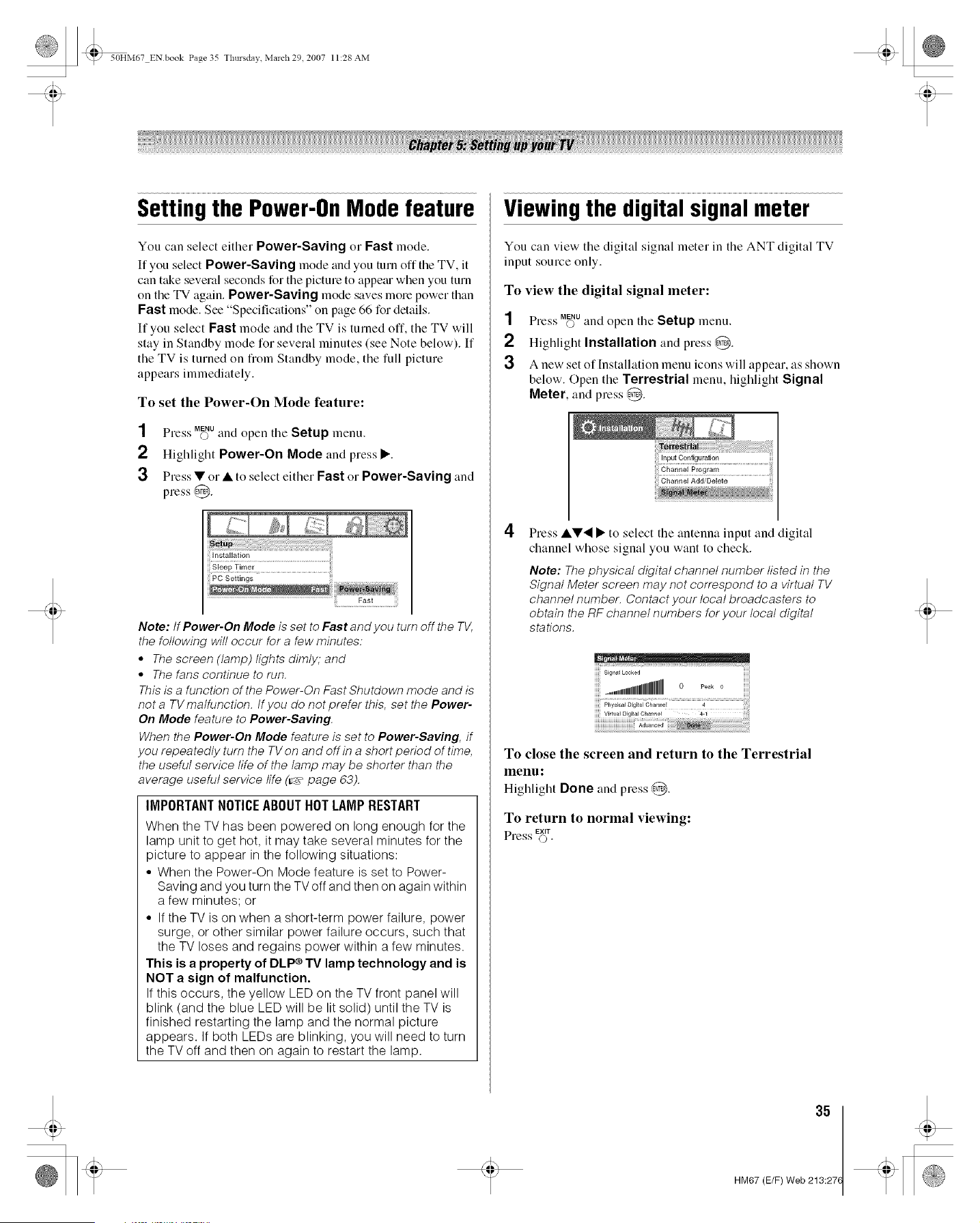
_ 50HM67 ENbook Page 35 Tlmrsdav March 29 2007 11:28 AM
Settingthe Power-OnModefeature
You can select either Power-Saving or Fast mode.
If you select Power-Saving mode and you turn off the TV, it
can take sevelal seconds for the picture to appetu when you turn
on the TV again. Power-Saving mode saves more power than
Fast mode. See "Specifications" on page 66 for details.
If you select Fast mode and the TV is turned off, the TV will
stay in Standby mode for several minutes (see Note below). If
the TV is turned on from Standby mode, the full picture
appears immediately.
To set the Power-On Mode feature:
SS MENU
Ple._'s O and open the Setup menu.
2 Highlight Power-On Mode and press •.
3 Press • or • to select either Fast or Power-Saving and
press @.
Note: tf Power-On Mode is set to Fast and you turn off the TV,
the following will occur for a few minutes:
• The screen (lamp) lights dimly; and
• The fans continue to run.
This is a function of the Power-On Fast Shutdown mode and is
not a TV malfunction, tf you do not prefer this, set the Power-
On Mode feature to Power-Saving,
When the Power-On Mode feature is set to Power-Saving, if
you repeatedly turn the TV on and off in a short period of time,
the useful service life of the lamp may be shorter than the
average useful service life (_" page 63).
IMPORTANTNOTICEABOUTHOT LAMPRESTART
When the TV has been powered on long enough for the
lamp unit to get hot, it may take several minutes for the
picture to appear in the following situations:
° When the Power-On Mode feature is set to Power-
Saving and you turn the TVoff and then on again within
a few minutes: or
° If the TV is on when a short-term power failure, power
surge, or other similar power failure occurs, such that
the TV loses and regains power within a few minutes.
This is a property of DLP ® TV lamp technology and is
NOT a sign of malfunction.
If this occurs, the yellow LED on the TV front panel will
blink (and the blue LED will be lit solid) until the TV is
finished restarting the lamp and the normal picture
appears. If both LEDs are blinking, you will need to turn
the TV off and then on again to restart the lamp.
Viewingthe digitalsignalmeter
You can view the digital signal meter in the ANT digital TV
input source only.
To view the digital signal meter:
1
2
3
Press Mff_Uand open the Setup menu.
Highlight Installation and press @.
A new set of Installation menu icons will appear, as shown
below. Open the Terrestrial menu, highlight Signal
Meter, and press @.
4
Channel Pmgram
Press ••,I • to select the antenna input and digital
channel whose signal you want to check.
Note: The physical digital channel number listed in the
Signal Meter screen may not correspond to a virtual TV
channel number. Contact your local broadcasters to
obtain the RF channel numbers for your local digital
stations.
To close the screen and return to the Terrestrial
menu:
Highlight Done and press @.
To return to normal viewing:
Press EXIT(._).
35
HM67 (E/F) Web 213:27(
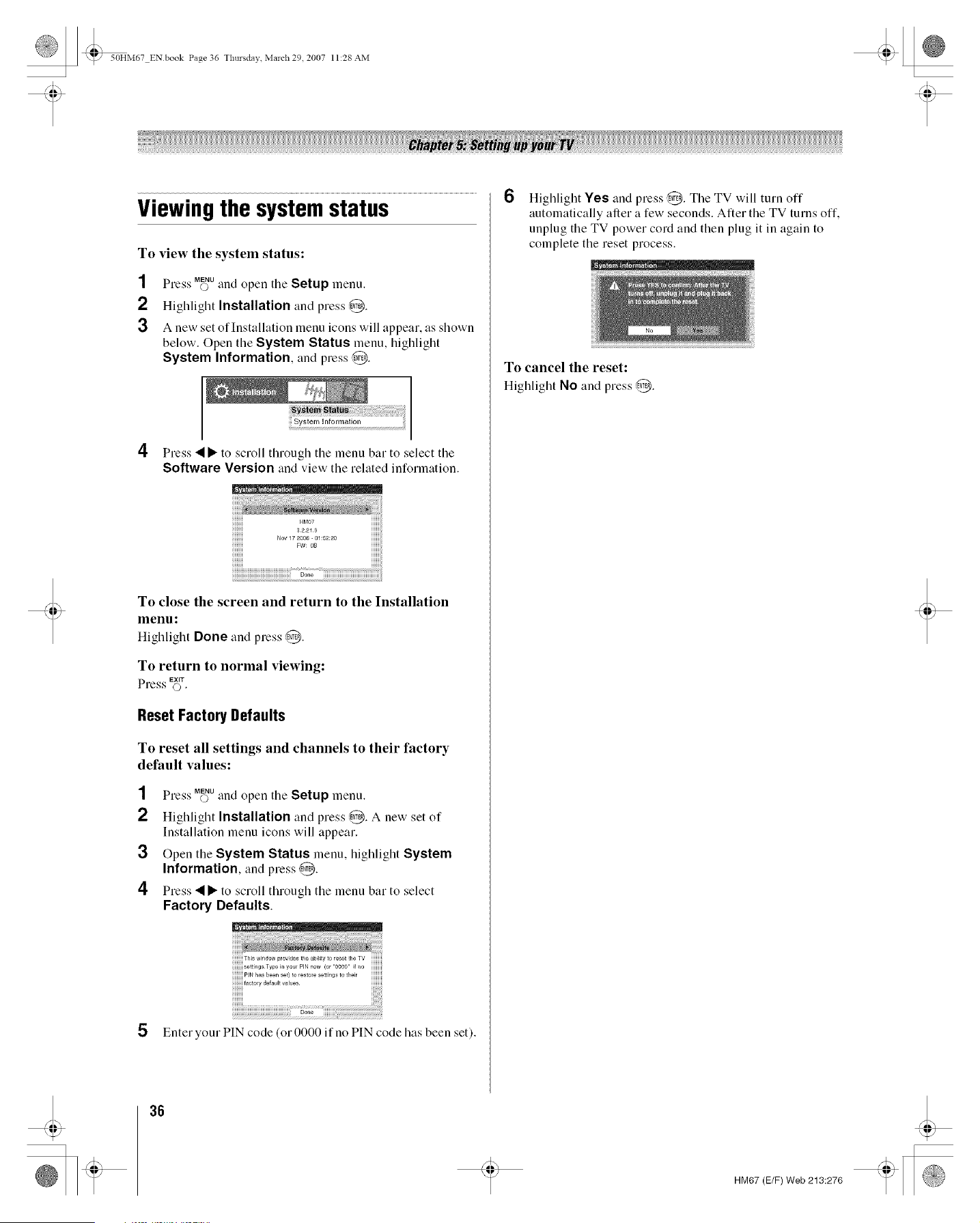
_ 50HM67 ENbook Page 36 Tlmrsdav March 29 2007 11:28 AM
Viewing the system status
To view the system status:
1
2
3
SS MENU
Press O and open the Setup menu.
Highlight Installation and press @.
A new set of Installation menu icons will appear, as shown
below. Open the System Status menu, highlight
System Information, and press @.
4
...................................
Press• • to scroll through the menu bar to select the
Software Version and view the related information.
!iiiiiiiiiiiiiiiiiiiiiiii! Do_e iiiiiiiiiiiiiiiiiiiiiiiiiiiiiiiiiiiiiiiiiiiiii
To close the screen and return to the Installation
menu:
Highlight Done and press @.
To return to normal viewing:
EXIT
Press ©.
Reset Factory Defaults
To reset all settings and channels to their factory
default values:
SS MENU
Ple._'s © and open the Setup menu.
2 Highlight Installation and press @. A new set of
Installation menu icons will appear.
3 Open the System Status menu, highlight System
Information, and press 0.
4 Press • • to scroll through the menu bar to select
Factory Defaults.
faoto/y default values
5 Enter your PIN code (o1 0000 if no PIN code has been set).
6
Highlight Yes and press ,@. The TV will turn off
automatically after a few seconds. After the TV turns off,
unplug the TV power cord and then plug it in again to
complete the reset process.
To cancel the reset:
Highlight No and press @.
36
HM67 (E/F) Web 213:276
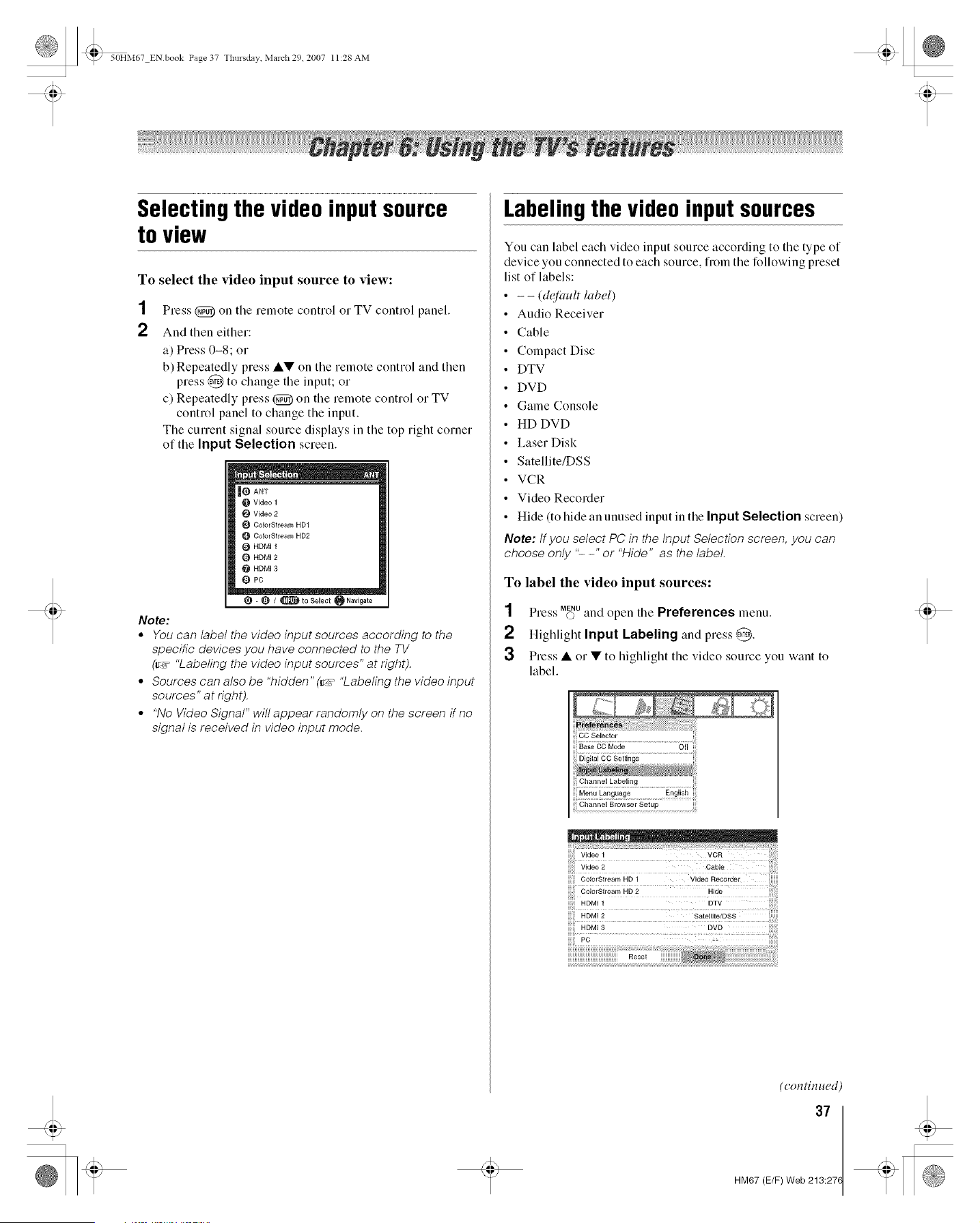
_ 50HM67 ENbook Page 37 Tl',ursdav March 29 2007 11:28 AM
Selectingthe videoinputsource
to view
To select the video input source to view:
1 Press _) on the remote control or TV control panel.
2 And then either:
a) Press 0-8; or
b) Repeatedly press •• on the remote control and then
press @ to change the input; o1
c) Repeatedly press @ on the remote control or TV
control panel to change the input.
The current signal source displays in the top right corner
of the Input Selection screen.
Video 1
Video 2
_P CNorStream HD1
CNorStream HD2
_l HDMIt
HDMI 2
HDMI 3
Q PC
O - O / _ to Select _ Navigate
Note:
• You can label the video input sources according to the
specific devices you have connected to the TV
(r,_ "Labeling the video input sources" at right).
• Sources can also be "hidden" (_-_""Labeling the video input
sources" at right).
° "No Video Signal" will appear randomly on the screen ff no
signal is received in video input mode.
Labelingthe videoinputsources
You can label each video input source according to the type of
device you connected to each source, from the following preset
list of labels:
- - (de¢ault label)
Audio Receiver
Cable
Compact Disc
DTV
DVD
Game Console
HD DVD
Laser Disk
Satellite/DSS
VCR
Video Recorder
Hide (to hide an unused input in the Input Selection screen)
Note: tf you select PC in the Input Selection screen, you can
choose only "- -" or "Hide" as the label.
To label the video input sources:
1 Press M_Uand open the Preferences menu.
2 Highlight Input Labeling and press,d'_.
3 Press • or • to highlight the video source you want to
label.
Base CC Mode Off
HDMI 3 DVD
(con tin ued)
37
HM67 (E/F) Web 213:27(

_ 50HMe7 ENbook Page 38 Tlmrsdav March 29 2007 11:28 AM
4
5
Press • or • to select the desired label for that input
source. [f a particular input is not used, you can select
Hide as the label, which will cause that input to be
"grayed out" in the Input Selection screen and skipped
over when you press @ on the remote control.
To save the new input labels, highlight Done and
press @.
To revert to the factory default labels, highlight Reset
and press @.
Input labeling example:
The screen below left shows the default Input Selection
screen (with none of the inputs labeled as a specific device).
The screen below right is an example of how you could label
the inputs if you connected a VCR to VIDEO 1, Cable TV to
VIDEO 2, a video recorder to ColorStream HDI, a DTV set-
top box to HDMI 1, a satellite/DSS set-top box to HDMI 2, and
a DVD player to HDMI 3. Also note that the ColorStream HD2
input is labeled "Hidden," which means that input will be
skipped over when @ is pressed.
I_ Video 1
t_ Video 2
t_ Co_orStream HD1
Q Co_oiStream HD2
HDMI1
HDMI 2
NDMI 3
O PC
- _]_ / _toSelect _Navigate
Input Selection screenwith
no inputs labeled.
O VCR
CaNe
Video Recorder
_4_ ColerStrearn ND2 (Hidden}
O DTV
Satellite/DSS
@ DVS
O PC
I_ - _ / _ to Select _ Navigate
Input Selection screenwith
all inputs labeledexceptinput 4,
which hasbeenhidden.
To clear the input labels:
SS MENU
Ple._'s O and open the Preferences menu.
2 Highlight Input Labeling and press @.
3 HigMight Reset and press @.
Tuningchannels
Tuning channels using the
Channel BrowserTM
The Channel Browser 'Mprovides an easy navigation interface
for all your channels and inputs. This feature allows you to:
• Navigate the contents of all of your inputs.
• Keep a list of your favorite channels (see "Favorites
Browser," below).
• Keep a history of the last 32 channels or inputs viewed.
• Quickly surf and tune your recently viewed channels/inputs
from the Channel Browser 'MHistory List (illustrated on the
next page).
• Surf via Browse mode (to immediately tune channels as you
highlight them in the Channel Browser _M)or Select mode (to
surf over channels in the Channel Browser 'Mbefore you
select one to tune).
• Quickly change inputs from the Inputs List.
Favorites Browser
The Favorites Browser allows you to quickly set up a favorite
channels/inputs list that is integrated into the Channel Browser _'.
To add a favorite channel/input:
1 Tune to the channel 01input.
2 Press and hold FAV_)R_TEfor 3 seconds.
Note: Additions are added to the beginning of the Favorites list
TM
on the left side of the Channel Browser .
To delete a favorite channel/input:
1 Press FAVO)NITEto open the Favorites browser list.
2 Highlight the channel or input to delete by pressing
3 Press and hold (_) for 3 seconds. The channel/input will
be removed flom the Favorites list.
To set up the Channel Browser'S':
1 Press M_Uand open the Preferences menu.
2 Highlight Channel Browser Setup and press @.
3 Press • to l'ligl'dight Navigation, and then press • o1•
to select either Browse Mode o1 Select Mode.
.....i History List Power Off Clear (On)
i ANT List
iiiiii [nputsList On
!!!!!! Favorites List On
38
HM67 (E/F) Web 213:276
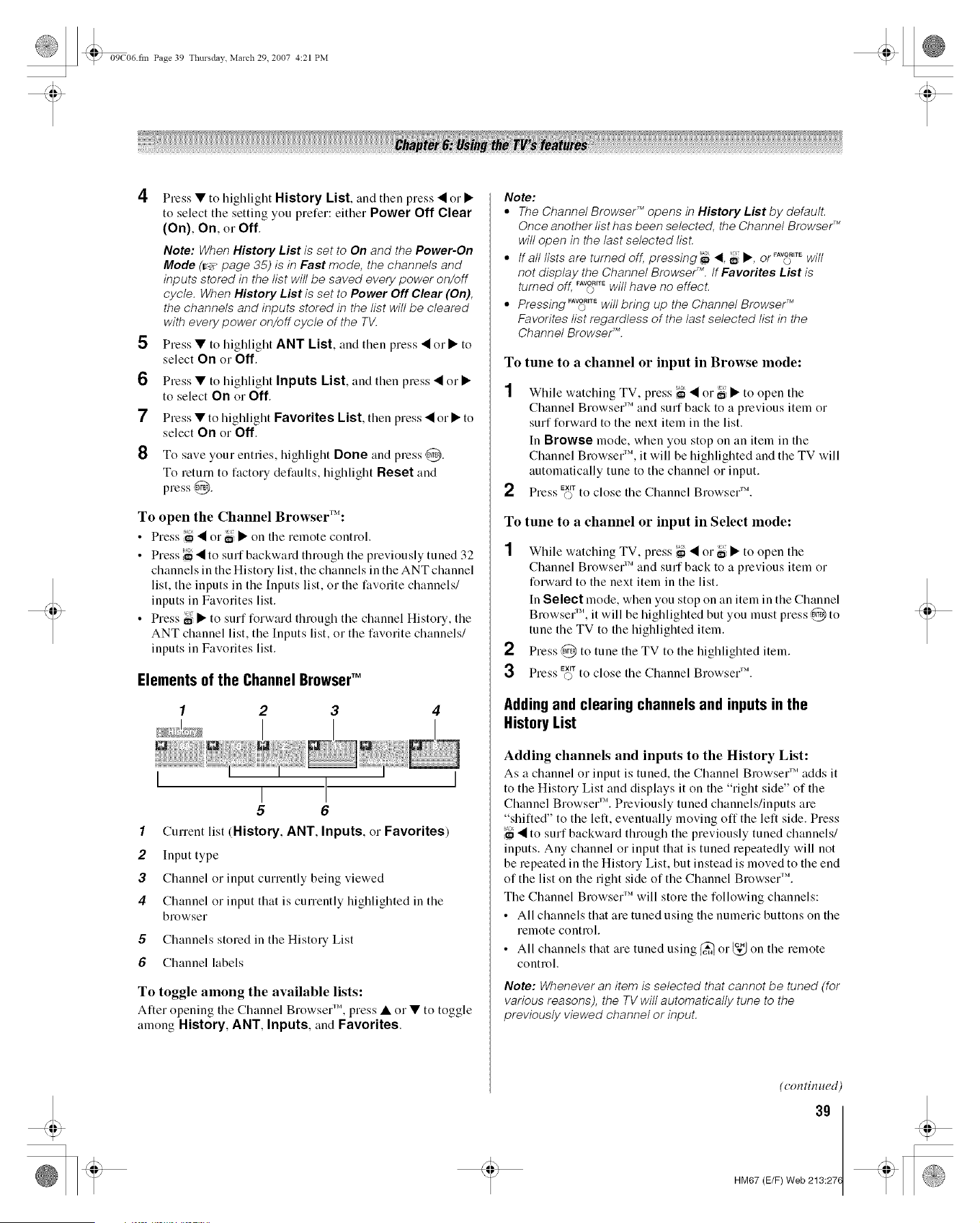
09C06 fin Page 39 Tlmrsdav March 29. 2007 4:21 PM
4
5
6
7
8
Press • to highlight History List, and then press • or •
to select the setting you prefer: either Power Off Clear
(On), On, or Off.
Note: When History List is set to On and the Power-On
Mode (r_ page 35) is in Fast mode, the channels and
inputs stored in the list will be saved every power on/off
cycle. When History List is set to Power Off Clear (On),
the channels and inputs stored in the list will be cleared
with every power on/off cycle of the TV.
Press • to highlight ANT List, and then press • or • to
select On o1 Off,
Press • to highlight Inputs List, and then press • or •
to select On or Off.
Press • to highlight Favorites List, then press • or • to
select On or Off,
To save your entries, highlight Done and press ,@.
To return to factory defaults, highlight Reset and
press @.
To open the Channel BrowserT_':
• Press '_ • or _i • on the remote control.
• Press _ •to surf backward through the previously tuned 32
channels in the History list, the channels in the ANT channel
list, the inputs in the [nputs list, o1 the favorite channels/
inputs in Favorites list.
• Press _i • to surf forward through the channel History, the
ANT channel list, the [nputs list, o1 the favorite channels/
inputs in Favorites list.
Elements of the Channel BrowserTM
I
I
5 6
1 Cunent list (History, ANT, Inputs, or Favorites)
2 Input type
3 Channel or input currently being viewed
4 Channel or input that is currently highlighted in the
browser
5 Channels stored in the History List
6 Channel labels
To toggle among the available lists:
After opening the Channel Blowser 'M,press • o1 • to toggle
among History, ANT, Inputs, and Favorites.
Note:
• The Channel Browser _ opens in History List by default.
Once another list has been selected, the Channel Browser _
will open in the last selected lisL
• if all lists are turned off, pressing ,_ _1,_ •, or_"_ "_ will
not display the Channel Browse/M. tf Favorites List is
turned off, FA_R'_Ewill have no effect.
' FAVORITE
• Pressing o will bring up the Channel Browse/"
Favorites list regardless of the last selected list in the
Channel Browse/E
To tune to a channel or input in Browse mode:
1 While watching TV, press ;_ • or igl • to open the
Channel Browser 'Mand surf back to a previous item or
surf forward to the next item in the list.
In Browse mode, when you stop on an item in the
Channel Browser 'M,it will be highlighted and the TV will
automatically tune to the channel or input.
2 Press E(X_Tto close the Channel Blo ws,'el'M.
To tune to a channel or input in Select mode:
1 While watching TV, press ;_ • or _i • to open the
Channel Browse1 :'Mand surf back to a previous item or
forward to the next item in the list.
In Select mode, when you stop on an item in the Channel
Blowser _M,it will be highlighted but you must press ,@ to
tune the TV to the highlighted item.
2 Press @ to tune the TV to the highlighted item.
3 Press E_ffto close the Channel Brows,'er'M.
Adding and clearing channels and inputs in the
HistoryList
Adding channels and inputs to the History List:
As a channel o1 input is tuned, the Channel Browser 'Madds it
to the History List and displays it on the "right side" of the
Channel Browser 'M. Previously tuned channels/inputs are
"shifted" to the left, eventually moving off the left side. Press
'_ • to surf backward through the previously tuned channels/
inputs. Any channel o1 input that is tuned repeatedly will not
be repeated in the History List, but instead is moved to the end
of the list on the right side of the Channel Browser 'M.
The Channel Blowser 'Mwill store the following channels:
• All channels that are tuned using the numeric buttons on the
relnote control.
• All channels that are tuned using (_ or_, _ on the remote
control.
Note: Whenever an item is selected that cannot be tuned (for
various reasons), the TV will automatically tune to the
previously viewed channel or input.
(con tin ued)
3g
HM67 (E/F) Web 213:27(
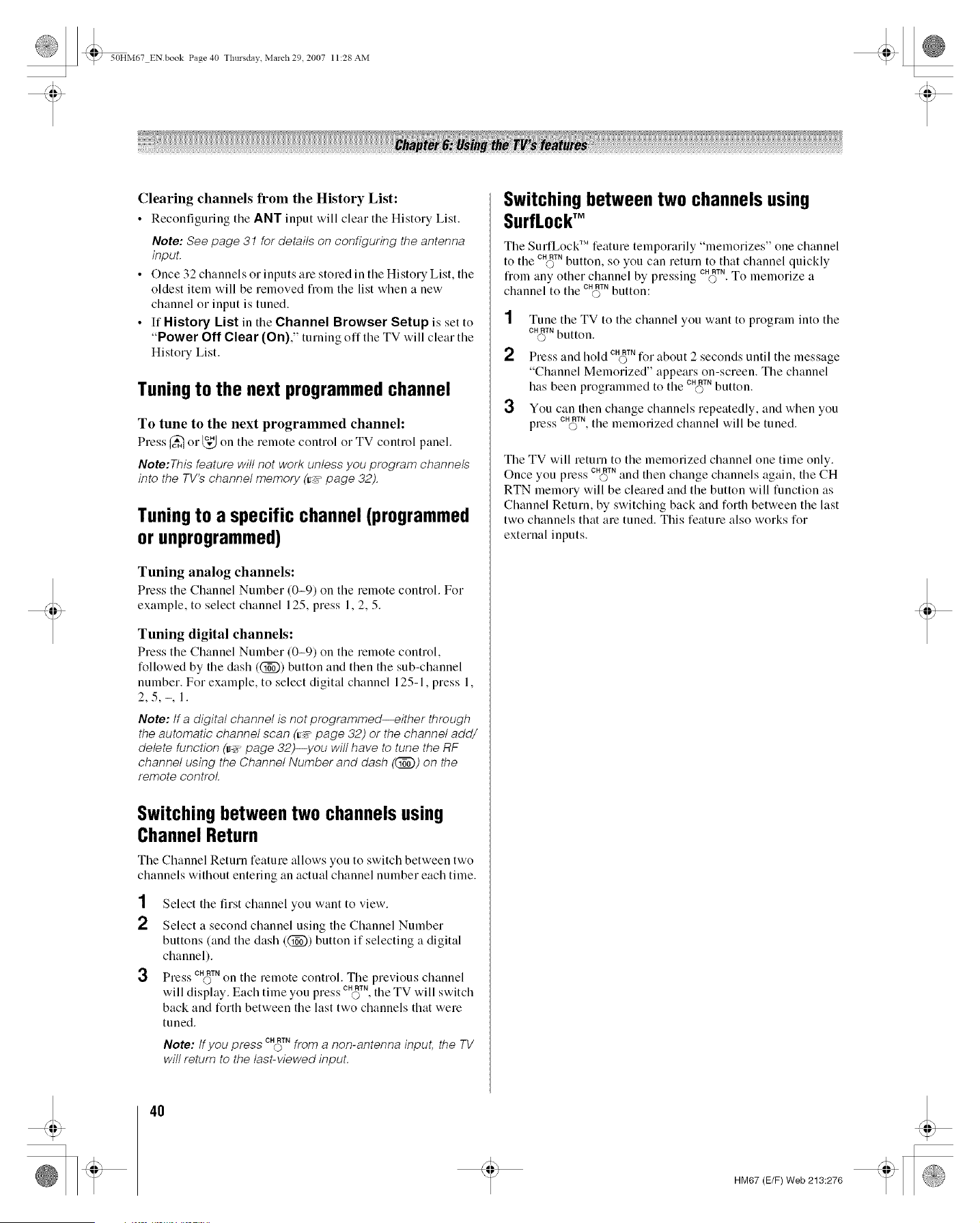
_ 50HM67 ENbook Page 40 Tlmrsdav March 29 2007 11:28 AM
Clearing channels from the History List:
• Reconfiguring the ANT input will clear the History List.
Note: See page 31 for details on configuring the antenna
input.
• Once 32 channels or inputs are stored in the History List, the
oldest item will be removed fiom the list when a new
channel or input is tuned.
• If History List in the Channel Browser Setup is set to
"Power Off Clear (On)," turning off the TV will clear the
History List.
Tuning to the next programmed channel
To tune to the next programmed channel:
Press (_) or _." on the remote control o1 TV control panel.
Note:Thisfeature will not work unless you program channels
into the TV's channel memory (_47"page 32).
Tuningto a specific channel(programmed
or unprogrammed)
Tuning analog channels:
Press the Channel Number (0-9) on the remote control. For
example, to select channel 125, press 1, 2, 5.
Tuning digital channels:
Press the Channel Number (0-9) on the remote control,
followed by the dash ((_)) button and then the sub-channel
number. For example, to select digital channel 125-1, press 1,
2,5,-,1.
Note: tf a digital channel is not programmed--either through
the automatic channel scan (_-_"page 32) or the channel add/
delete function (_v page 32)--you will have to tune the RF
channel using the Channel Number and dash ((_) on the
remote control
Switching between two channels using
Channel Return
The Channel Return feature allows you to switch between two
channels without entering an actual channel number each time.
1 Select the first channel you want to view.
2 Select a second channel using the Channel Number
buttons (and the dash ((_)) button if selecting a digital
channel).
SS CH RTN
Pre.i'.i' (3 on the remote control. The previous channel
will display. Each time you press CN_rNthe TV will switch
back and forth between the last two channels that were
tuned.
Note: tf you press CN_rNfrom a non-antenna input, the TV
will return to the last-viewed input.
Switching between two channels using
SurfLockTM
The SulfLock _Mfeature temporarily "memorizes" one channel
to the churn button, so you can return to that channel quickly
fiom any other channel by pressing churn To memorize a
channel to the churn button:
1 Tune the TV to the channel you want to program into the
CN(_TNbutton.
2 Press and hold CN_TNfor about 2 seconds until the message
"Channel Memorized" appears on-screen. The channel
has been programmed to the CN(_TNbutton.
3
You can then change channels repeatedly, and when you
press CN_TN,the memorized channel will be tuned.
The TV will return to the memorized channel one time only.
NN CH RTN
Once you press (3 and then change channels again, the CH
RTN memory will be cleared and the button will function as
Channel Return, by switching back and forth between the last
two channels that are tuned. This feature also works for
external inputs.
4O
HM67 (E/F) Web 213:276
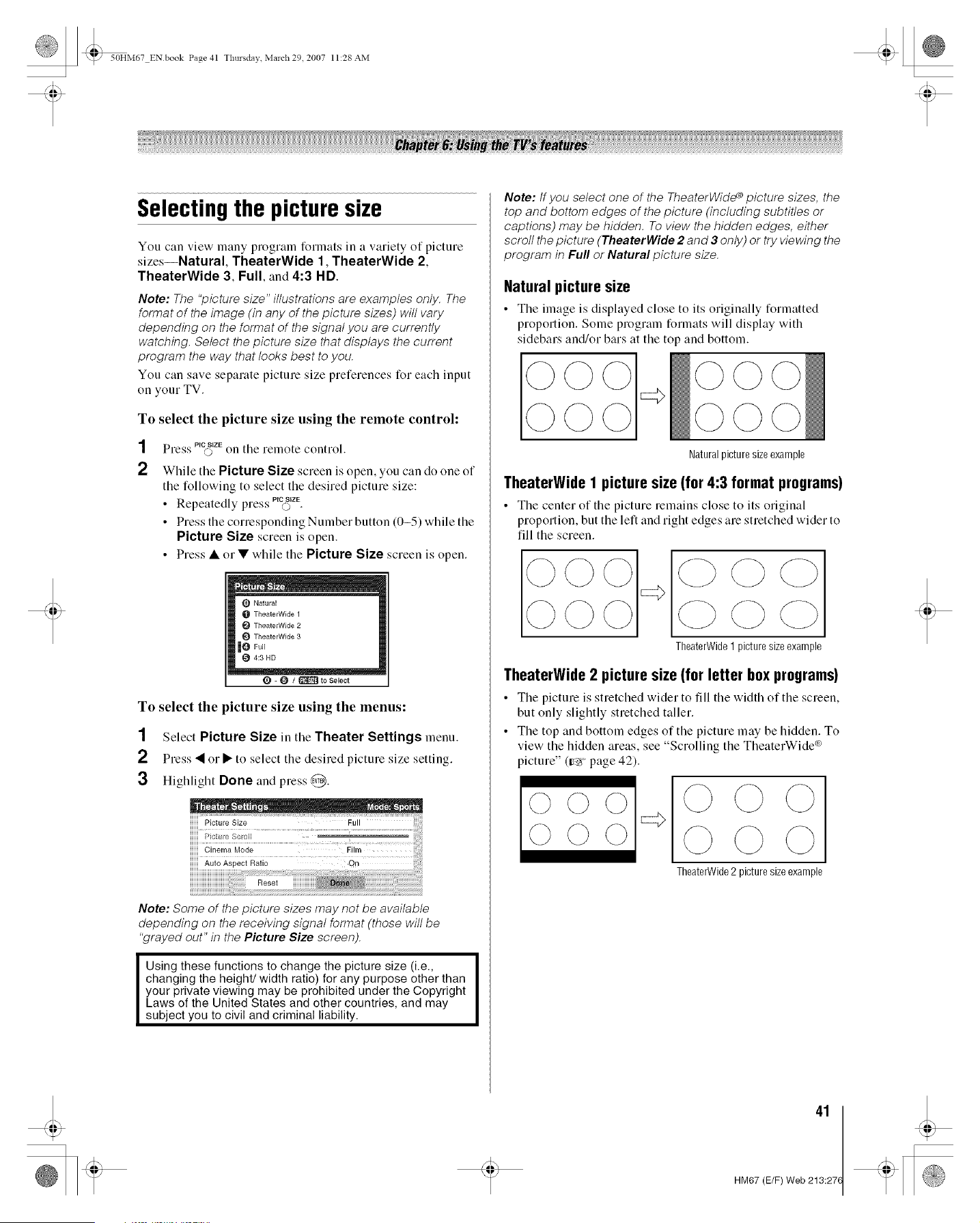
_ 50HM67 ENbook Page 41 Tlmrsdav March 29 2007 11:28 AM
Selectingthe picturesize
You can view many program formats in a variety of picture
sizesiNatural, TheaterWide 1, TheaterWide 2,
TheaterWide 3, Full, and 4:3 HD.
Note: The "picture size" illustrations are examples only. The
format of the image (in any of the picture sizes) will vary
depending on the format of the signal you are currently
watching. Select the picture size that displays the current
program the way that looks best to you.
You can save separate picture size preferences for each input
on your TV.
To select the picture size using the remote control:
1
2
_S PIQfStZE
Pre.v o on the remote control.
While the Picture Size screen is open, you can do one of
the following to select the desired picture size:
SS PICSIZE
• Repeatedly press O .
• Press the conesponding Number button (0-5) while the
Picture Size screen is open.
• Press • orV while the Picture Size screen is open.
O Natural
O TheaterWide 1
TheaterWide 2
TheaterWide 3
|0 Foil
@ 4:3 HD
O - _ / _ to Select
To select the picture size using the menus:
1 Select Picture Size in the Theater Settings menu.
2 Press • or • to select the desired picture size setting.
3 Highlight Done and press,d_.
iiiiiii PictureSize FUN
iiiiiii Ci ...... Mode Film
iiiiiii AutoAspectRatio On
Note: Some of the picture sizes may not be available
depending on the receiving signal format (those will be
"grayed out" in the Picture Size screen).
Using these functions to change the picture size (i.e.,
changing the height/width ratio) for any purpose other than
your private viewing may be prohibited under the Copyright
Laws of the United States and other countries, and may
subject you to civil and criminal liability.
Note: tf you select one of the TheaterWide _ picture sizes, the
top and bottom edges of the picture (including subtitles or
captions) may be hidden. To view the hidden edges, either
scroll the picture (TheaterWide 2 and 3 only) or try viewing the
program in Full or Natural picture size.
Natural picture size
• The image is displayed close to its originally fonnatted
propollion. Some program formats will display with
sidebars and/or bars at the top and bottom.
Natural picture sizeexample
TheaterWide I picture size (for 4:3 format programs)
• The center of the picture remains close to its original
proportion, but the left and right edges are stretched wider to
fill the screen.
TheaterWide1 picture size example
TheaterWide 2 picture size (for letter box programs)
• The picture is stretched wider to fill the width of the screen,
but only slightly stretched taller.
• The top and bottom edges of the picture may be hidden. To
view the hidden areas, see "Scrolling the TheaterWide *_
_icture" (¢_ page 42).
OOO
QQQ
TheaterWide2 picture sizeexample
.¢
41
HM67 (E/F) Web 213:27(
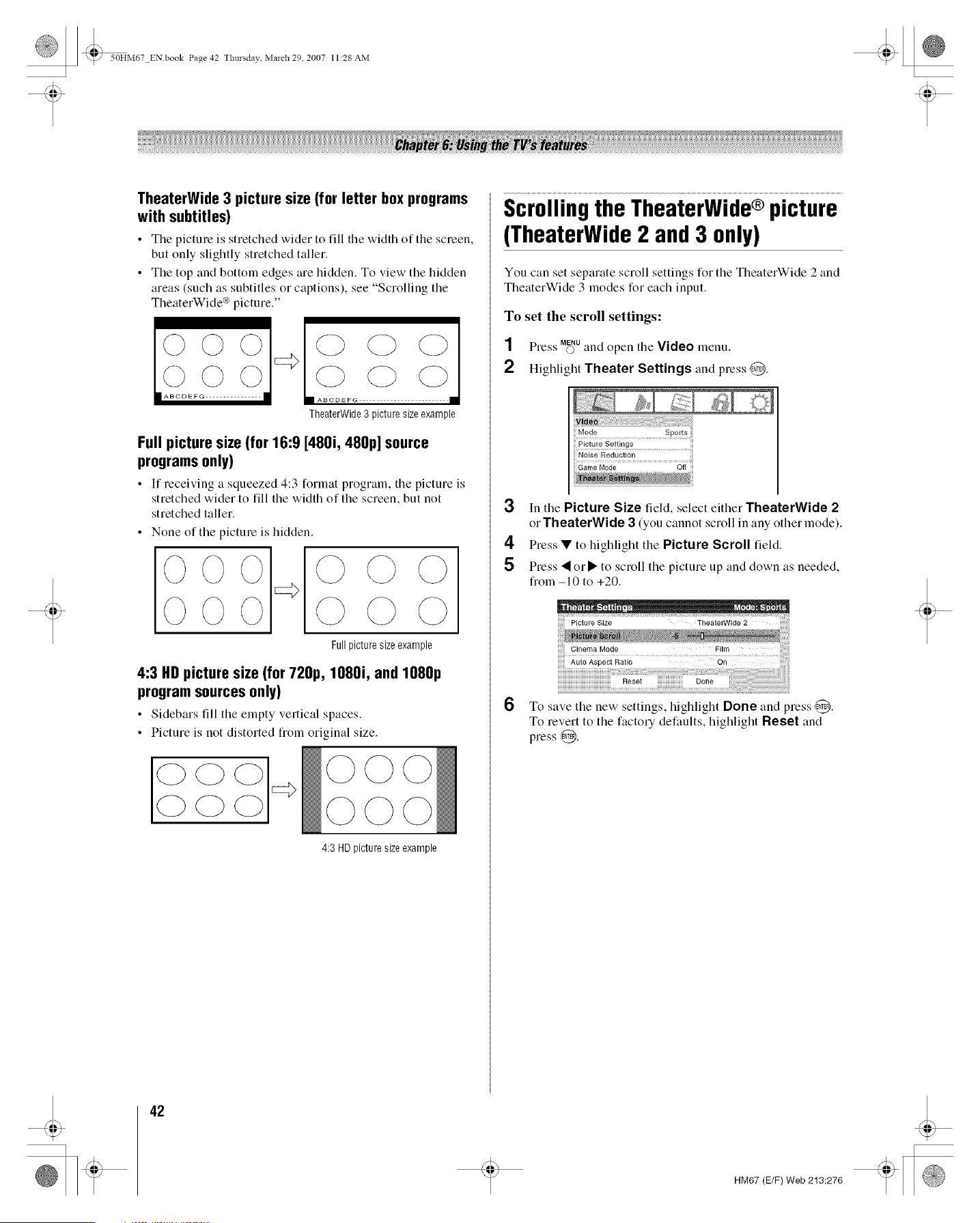
_ 50HM67 ENbook Page 42 Tlmrsdav March 29 2007 11:28 AM
TheaterWide 3 picture size (for letter box programs
with subtitles)
• Tile picture is stretched wider to fill tile width of the screen,
but only slightly stretched taller.
• The top and bottom edges are hidden. To view the hidden
areas (such as subtitles or captions), see "Scrolling the
TheatelWide _ picture."
C) C) C-)
C5 C)
m ABCDEFG - - - •
TheaterWide3 picturesizeexample
Full picture size (for 16:9 [480i, 480p] source
programs0nly)
• If receiving a squeezed 4:3 forlnat program, tile picture is
stretched wider to fill the width of the screen, but not
stretched taller.
• None of the picture is hidden.
Fullpicturesizeexample
4:3 HD picture size (for 720p, 1080i, and 1080p
programsources 0nly)
• Sidebars fill the elnpty vertical spaces.
• Picture is not distorted fi'om original size.
©
4:3 HDpicture sizeexample
ScrollingtheTheaterWide® picture
(TheaterWide2 and3 only)
You can set separate scroll settings for the TheaterWide 2 and
TheaterWide 3 modes for each input.
To set the scroll settings:
1 Press M_u and open the Video menu.
2 Highlight Theater Settings and press @.
[[ Picture Settings
i_iliNoise FledLiction
3 In the Picture Size field, select either TheaterWide 2
or TheaterWide 3 (you cannot scroll in any other mode).
4 Pre88 • to highlight the Picture Scroll field.
5 Press • or • to scroll the picture up and down as needed,
from -10 to +20.
6
Cinema Mode
Auto Aspect Ratio
Reset Done
To save the new settings, highlight Done and press @.
To revert to the facto17 defaults, highlight Reset and
press @.
42
HM67 (E/F) Web 213:276
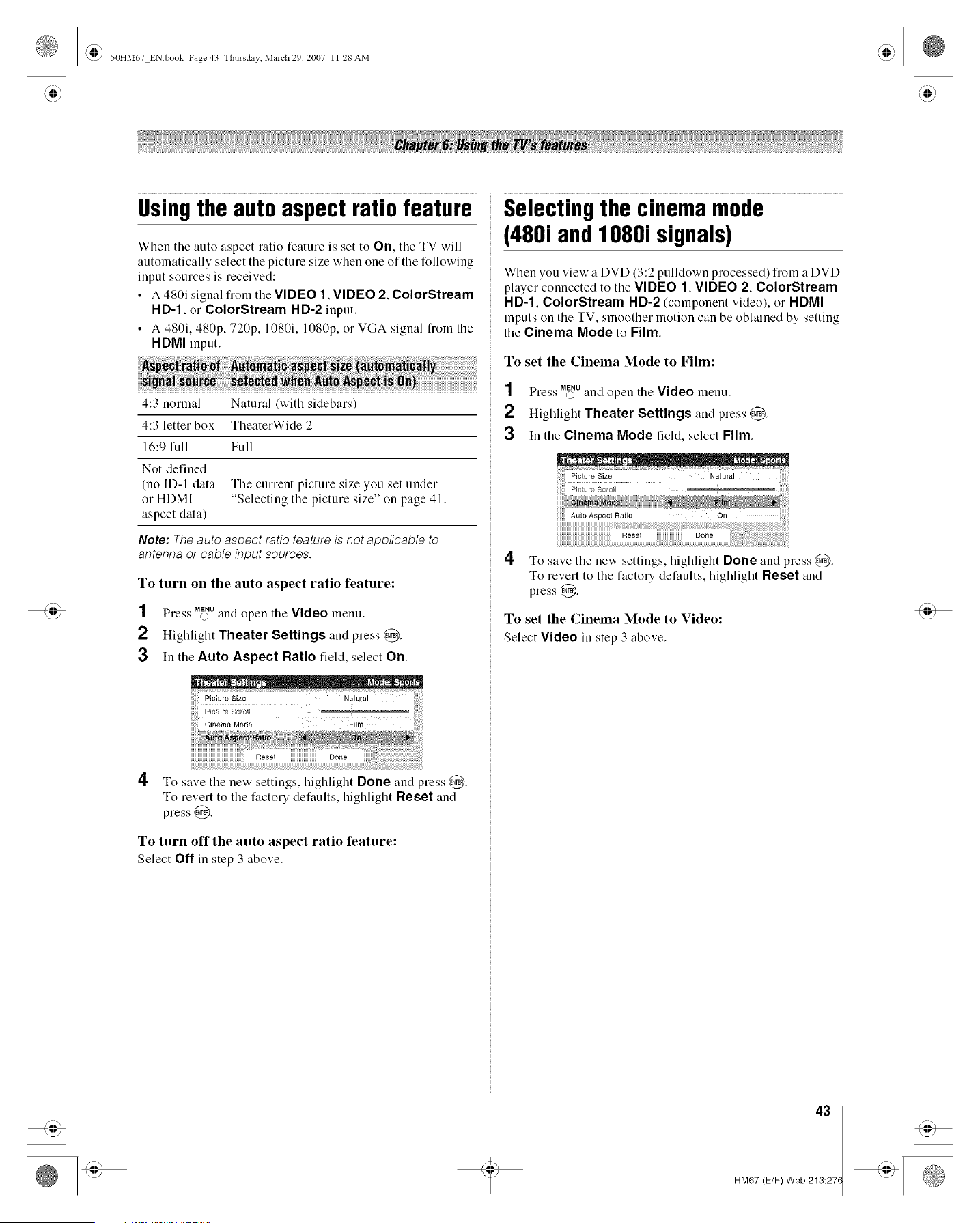
_ 50HM67 ENbook Page 43 Tlmrsdav March 29 2007 11:28 AM
Usingthe autoaspectratiofeature
When the auto aspect ratio feature is set to On, the TV will
automatically select the picture size when one of the following
input sources is received:
• A 480i signal from the VIDEO 1, VIDEO 2, ColorStream
HD-1, or ColorStream HD-2 input.
• A 480i, 480p, 720p, 1080i, 1080p, (>1VGA signal fi'oln the
HDMI input.
4:3 normal Natural (with sidebars)
4:3 letter box TheaterWide 2
16:9 full Full
Not defined
(no ID-I data The current picture size you set under
or HDMI "Selecting the picture size" on page 41.
aspect data)
Note: The auto aspect ratio feature is not applicable to
antenna or cable input sources.
To turn on the auto aspect ratio feature:
NN MENU
Ple._'s O and open the Video lnenu.
2 Highlight Theater Settings and press @.
3 In the Auto Aspect Ratio field, select On.
Cinema Mode
4
To save tile new settings, highlight Done and press @.
To revert to the factory defaults, highlight Reset and
press @.
To turn off the auto aspect ratio feature:
Select Off in step 3 above.
Selectingthe cinemamode
(480i andlO8Oisignals)
When you view a DVD (3:2 pulldown processed) from a DVD
player connected to the VIDEO 1, VIDEO 2, ColorStream
HD-1, ColorStream HD-2 (component video), or HDMI
inputs on the TV, smoother motion can be obtained by setting
the Cinema Mode to Film.
To set the Cinema Mode to Film:
1 Press M_u and open the Video lnenu.
2 Highlight Theater Settings and press @.
3 In the Cinema Mode field, select Film.
4 To save the new settings, higMight Done and press @.
To revert to the factory defaults, highlight Reset and
press @.
To set the Cinema Mode to Video:
Select Video in step 3 above.
43
HM67 (E/F) Web 213:27(

_ 50HM67 ENbook Page 44 Tlmrsda;, March 29 2007 11:28 AM
Adjustingthe picture
Selecting the picture mode
You can select your desired picture settings from four different
modes, as described below.
Sports Bright and dynamic picture (factory setting)
Standard Standard picture settings (factory setting)
Lower contrast for darkened room (factory
Movie
setting)
Preference Your personal preferences
To select the picture mode:
S_ Pie MODE
Pre:: O on the remote control.
The following popup menu appears on-screen.
Press • o1• to select the picture mode you prefer and
press @.
To select the picture mode using the menu system:
SS MENU
Ple._'s O and open the Video menu.
2 Highlight Mode and press @.
3 Press • o1• to select the picture mode you prefer and
press @.
Note: The picture mode you select affects the current
input only. You can select a different picture mode for
each input.
Adjusting the picture quality
You can adjust the picture quality (Contrast, Brightness, Color,
Tint, and Sharpness) to your personal preferences.
Contrast lower higher
Brightness darker lighter
Color paler deeper
Tint reddish greenish
Sharpness softer sharper
To adjust the picture quality:
1 Press Mff_uand open the Video menu.
2 Highlight Picture Settings and press @.
3
Press • o1• to select the picture quality you want to
adjust (Contrast, Brightness, Color, Tint, Ol-
Sharpness), and then press • o1 • to adjust the setting,
as described in the table above.
Sharpness 50
4
To save the new settings, highlight Done and press @.
You can use any of the picture modes (_" "Selecting the
picture mode," above left) as a starting point for adjusting
the picture settings.
To revert back to the base mode that you began adjusting
the picture settings from, highlight Reset and press ,@.
The picture qualities you adjusted are automatically saved in
the Preference mode (_-',, "Selecting the picture mode,"
above left) until Reset is selected.
44
HM67 (E/F) Web 213:276
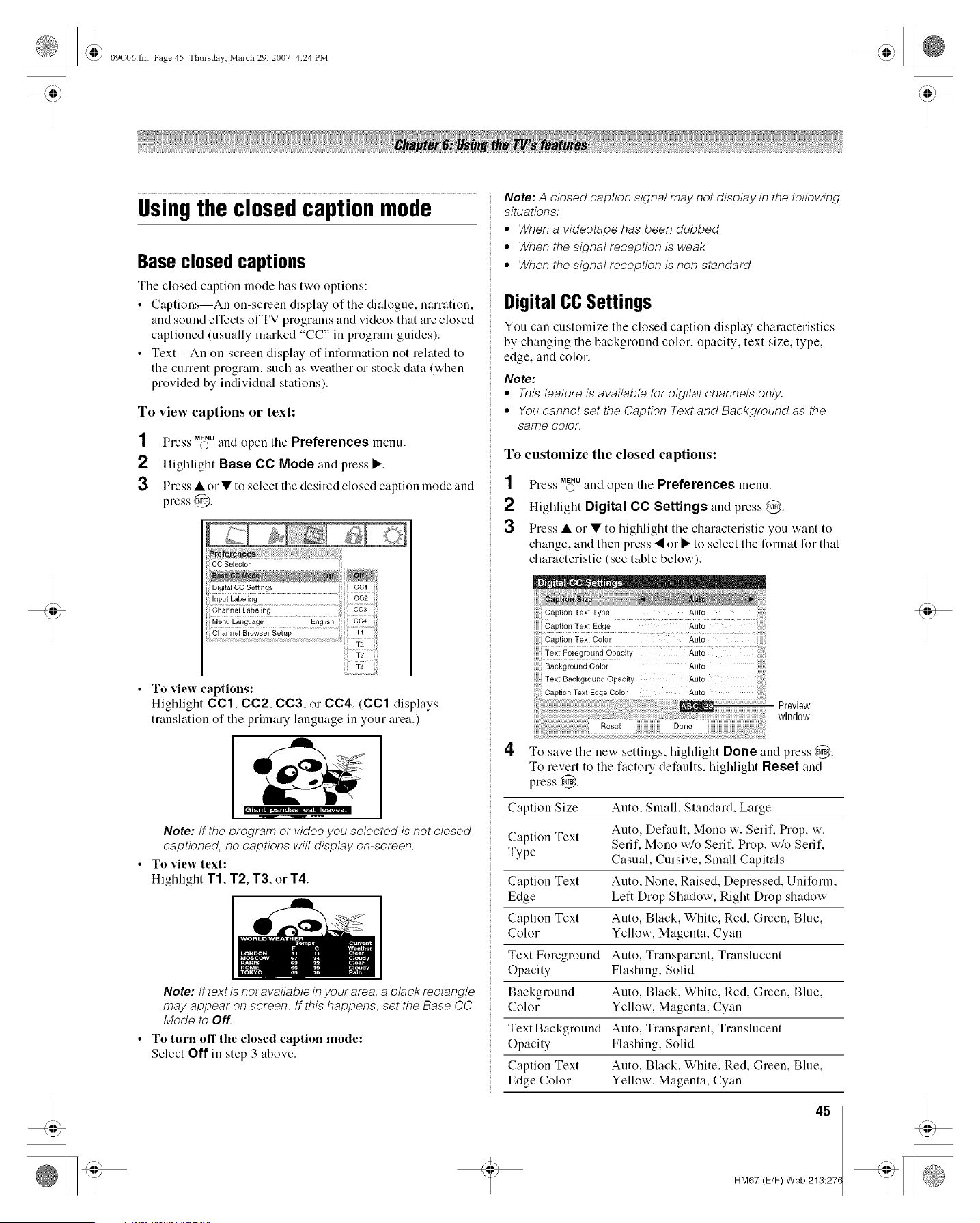
09C06 fin Page 45 Tlmrsdav March 29. 2007 4:24 PM
Usingthe closedcaptionmode
Base closed captions
Tile closed caption mode has two options:
• Captions--An on-screen disphty of the dialogue, narration,
and sound effects of TV programs and videos that are closed
captioned (usually marked "CC" in program guides).
• Text--An on-screen display of information not related to
the cunent program, such as weather or stock data (when
provided by individual stations).
To view captions or text:
SS MENU
Press O and open the Preferences menu.
2 Highlight Base CC Mode and press •.
3 Press • or• to select the desired closed caption mode and
press @.
CC Selector
i T3 iii
To view captions:
Highlight CC1, CC2, CC3, or CC4. (CC1 displays
translation of the primary language in your area.)
Note: tf the program or video you selected is not closed
captioned, no captions will display on-screen.
To view text:
Highlight T1, T2, T3, or T4.
Note: tf text is not available in your area, a black rectangle
may appear on screen, tf this happens, set the Base CC
Mode to Off
To turn off the closed caption mode:
Select Off in step 3 above.
Note: A closed caption signal may not display in the following
situations:
• When a videotape has been dubbed
• When the signal reception is weak
• When the signal reception is non-standard
Digital CC Settings
You can customize the closed caption display characteristics
by changing the background color, opacity, text size, type,
edge, and color.
Note:
• This feature is available for digital channels only.
• You cannot set the Caption Text and Background as the
same color.
To customize the closed captions:
1 Press Mff_Uand open the Preferences menu.
Highlight Digital CC Settings and press @.
3 Press • or • to highlight the characteristic you want to
change, and then press • or • to select the format for that
characteristic (see table below).
Caption Text Type
Caption Text Edge
Auto
4
Background Color Auto
Text Background Opacity Auto
Caption Text Edge Colo_ Auto
window
To save the new settings, higMigl'lt Done and press @.
To revert to the factory defaults, highlight Reset and
press @.
Caption Size Auto, Small, Standard, Large
Caption Text Auto, Default, Mono w. Serif. Prop. w.
Serif, Mono w/o Serif, Prop. w/o Serif,
Type Casual, Cursive, Small Capitals
Caption Text Auto, None, Raised, Depressed, Uniform,
Edge Left Drop Shadow, Right Drop shadow
Caption Text Auto, Black, White, Red, Green, Blue,
Color Yellow, Magenta, Cyan
Text Foreground Auto, Transparent, Translucent
Opacity Flashing, Solid
Background Auto, Black, White, Red, Green, Blue,
Color Yellow, Magenta, Cyan
Text Background Auto, Transparent, Translucent
Opacity Flashing, Solid
Caption Text Auto, Black, White, Red, Green, Blue,
Edge Color Yellow, Magenta, Cyan
45
HM67 (E/F) Web 213:27(
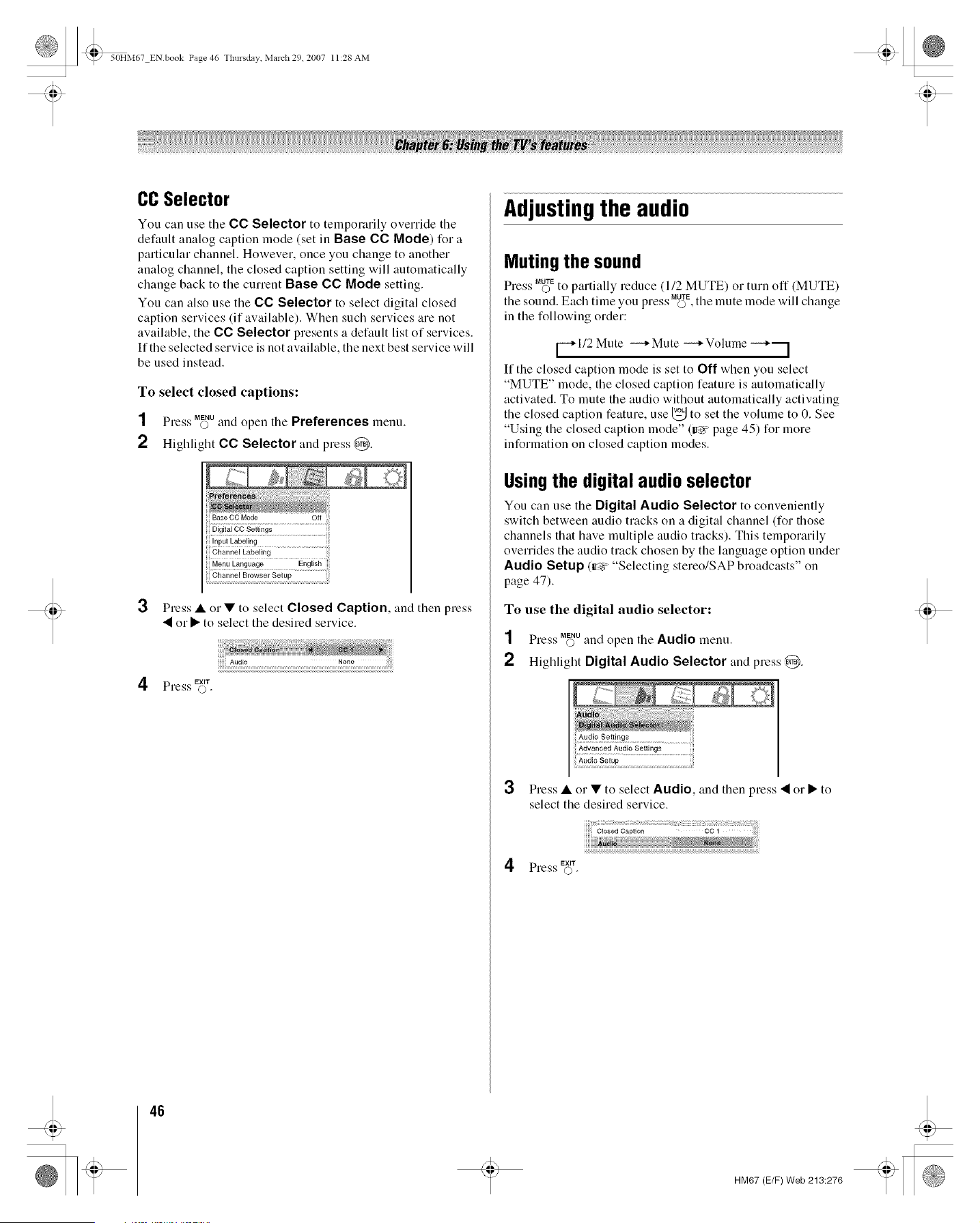
_ 50HM67 ENbook Page 46 Tlmrsdav March 29 2007 11:28 AM
CCSelector
You can use the CC Selector to temporarily override the
default analog caption mode (set in Base CC Mode) for a
particular channel. However, once you change to another
analog channel, the closed caption setting will automatically
change back to the current Base CC Mode setting.
You can also use the CC Selector to select digital closed
caption services (if available). When such services are not
available, the CC Selector presents a default list of services.
If the selected service is not available, the next best service will
be used instead.
To select closed captions:
SS MENU
Ple._'s o and open the Preferences menu.
2 Highlight CC Selector and press @.
3
Press • or • to select Closed Caption, and then press
• o1"• to select the desired service.
EXIT
Press ©.
Adjustingthe audio
Muting the sound
Pre88 M_Eto partially reduce (1/2 MUTE) or turn off (MUTE)
S " S S MUTE
the sound. Each tune you press ©, the mute mode will change
in the following order:
[--+112 Mute --.-.+Mute -.-.+Volume
/
If the closed caption mode is set to Off when you select
"MUTE" mode, the closed caption feature is automatically
activated. To mute the audio without automatically activating
the closed caption feature, use _ to set the volume to 0. See
"Using the closed caption mode" (_ page 45) for more
information on closed caption modes.
Using the digital audio selector
You can use the Digital Audio Selector to conveniently
switch between audio tracks on a digital channel (for those
channels that have multiple audio tracks). This temporarily
overrides the audio track chosen by the language option under
Audio Setup (_ "Selecting stereo/SAP broadcasts" on
page 47).
To use the digital audio selector:
1 Press M_Uand open the Audio menu.
2 Highlight Digital Audio Selector and press,@.
3
4
Press • o1 • to select Audio and then press • o1 • to
select the desired service.
Closed Caption CC 1
}
Press EX,To.
46
HM67 (E/F) Web 213:276
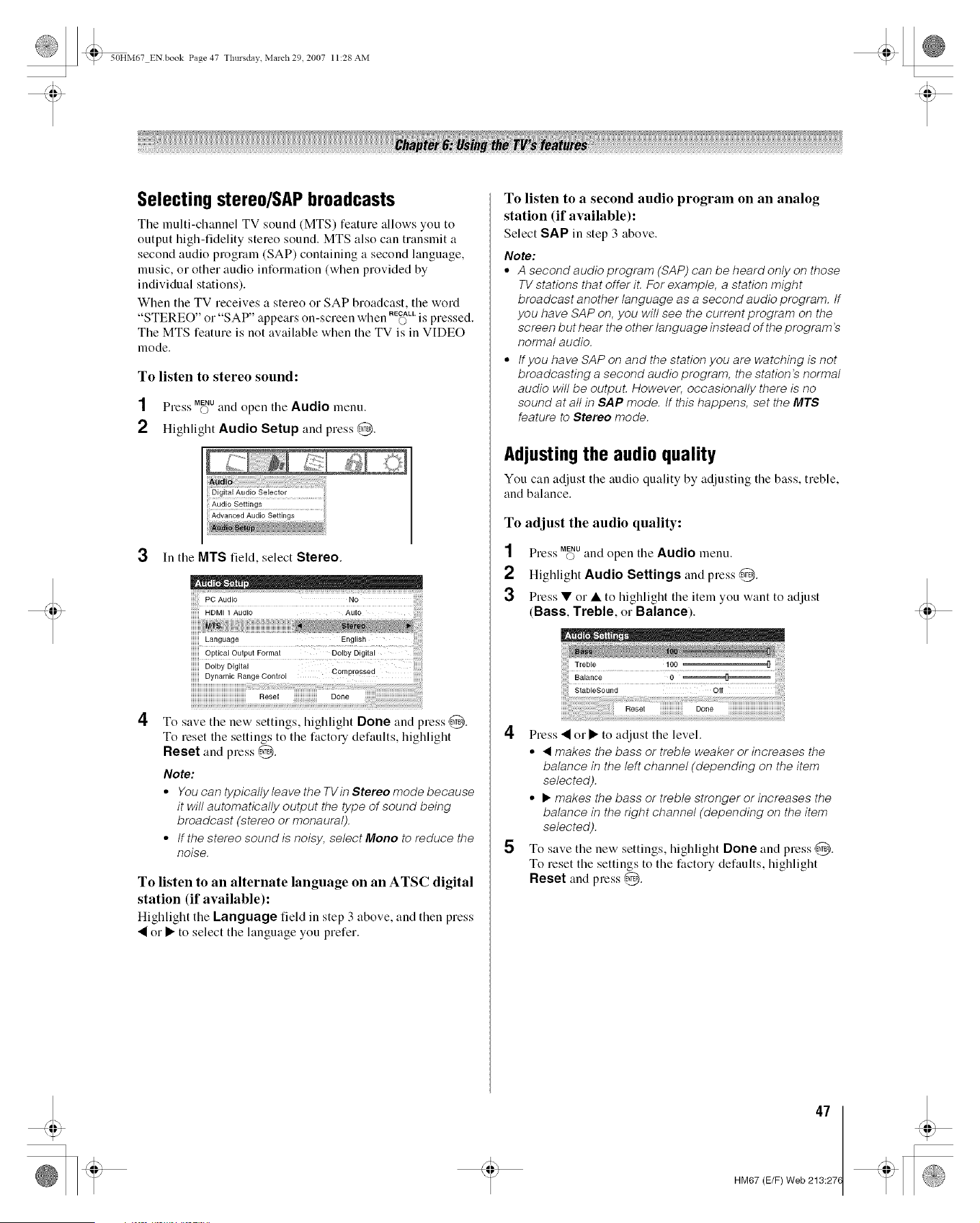
_ 50HM67 ENbook Page 47 Tlmrsdav March 29 2007 11:28 AM
Selecting stereo/SAP broadcasts
Tile multi-channel TV sound (MTS) feature allows you to
output high-fidelity stereo sound. MTS also can transmit a
second audio program (SAP) containing a second language,
music, o1 other audio information (when provided by
individual stations).
When the TV receives a stereo o1 SAP broadcast, the word
_ _ _ _ _ S S W RECALL
STEREO Ol SAP appeal, on-. cleen hen © is pressed.
The MTS feature is not available when the TV is in VIDEO
mode.
To listen to stereo sound:
SS MENU
Press O and open the Audio menu.
2 Highlight Audio Setup and press @.
3 In the MTS field, select Stereo.
i !
4
Re_ot Done
To save the new settings, highlight Done and press @.
To reset the settings to the factory defaults, highlight
Reset and press @.
Note:
• You can typically leave the TVin Stereo mode because
it will automatically output the type of sound being
broadcast (stereo or monaural).
• tf the stereo sound is noisy, select Mono to reduce the
noise.
To listen to an alternate language on an ATSC digital
station (if available):
Highlight the Language field in step 3 above, and then press
• or • to select the language you prefer.
To listen to a second audio program on an analog
station (if available):
Select SAP in step 3 above.
Note:
• A second audio program (SAP) can be heard only on those
TV stations that offer iL For example, a station might
broadcast another language as a second audio program, tf
you have SAP on, you will see the current program on the
screen but hear the other language instead of the program's
normal audio.
• tfyou have SAP on and the station you are watching is not
broadcasting a second audio program, the station's normal
audio will be outpuL However, occasionally there is no
sound at all in SAP mode. tf this happens, set the MTS
feature to Stereo mode.
Adjusting the audio quality
You can adjust the audio quality by adjusting the bass, treble,
and balance.
To adjust the audio quality:
1 Press M_uand open the Audio menu.
2 Highlight Audio Settings and press @.
3 Press • o1"• to highlight the item you want to adjust
(Bass, Treble, Ol-Balance).
4
5
Press • o1"• to adjust the level.
• <1makes the bass or treble weaker or increases the
balance in the left channel (depending on the item
selected).
• • makes the bass or treble stronger or increases the
balance in the right channel (depending on the item
selected).
To save the new settings, highlight Done and press ,@.
To reset the settings to the factory defaults, highlight
Reset and press @.
47
HM67 (E/F) Web 213:27(
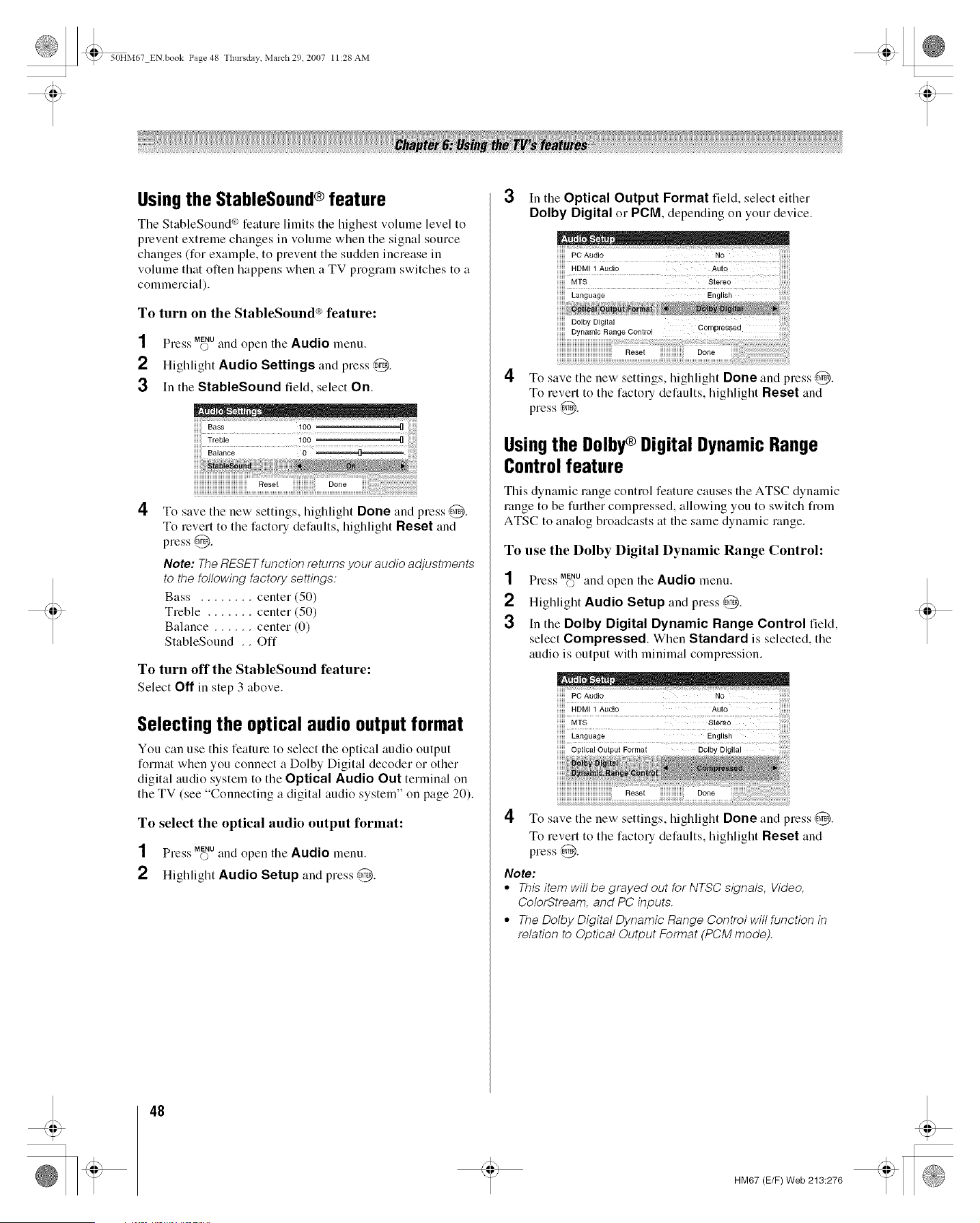
_ 50HM67 ENbook Page 48 Tlmrsdav March 29 2007 11:28 AM
Usingthe StableSound® feature
Tile StableSound _gfeature limits tile highest volume level to
prevent extreme changes in volume when the signal source
changes (for example, to prevent the sudden increase in
volume that often happens when a TV program switches to a
commercial).
To turn on the StableSound _ feature:
SS MENU
Press O and open tile Audio menu.
2 Highlight Audio Settings and press @.
3 In the StableSound field, select On.
4
To save the new settings, highlight Done and press @.
To revert to the factory defaults, highlight Reset and
press @.
Note: The RESEr function returns your audio adjustments
to the following factory settings:
Bass ........ center (50)
Treble ....... center (50)
Balance ...... center (0)
StableSound .. Off
To turn off the StableSound feature:
Select Off in step 3 above.
Selecting the optical audio output format
You can use this feature to select the optical audio output
format when you connect a Dolby Digital decoder or other
digital audio system to the Optical Audio Out terminal on
the TV (see "Connecting a digital audio system" on page 20).
To select the optical audio output format:
SS MENU
Ple._'s O and open the Audio menu.
2 Highlight Audio Setup and press @.
3
In the Optical Output Format field, select either
Dolby Digital Ol-PCM, depending on your device.
iiiiiii HDMI 1 AUdiO Auto ii;;;;;;;i
iiiiiii MTS Stereo iiiiiiiill
iiiiiii Language English iiiililililililil
4
iiiiiii Dynamic Range Control
iiiiiiiiiiiiiiiiiiiiiiiiiiiiiiiiiiiiiiiiiiiiiiiReset iiiiiiiiiiiiiiiiiiiii Done
To save the new settings, highlight Done and press @.
To revert to the factory defaults, highlight Reset and
press @.
Usingthe Dolby_ Digital Dynamic Range
Control feature
This dynamic range control feature causes the ATSC dynamic
range to be further compressed, allowing you to switch from
ATSC to analog broadcasts at the same dynamic range.
To use the Dolby Digital Dynamic Range Control:
1 Press M_Uand open the Audio menu.
2 Highlight Audio Setup and press @.
3 In the Dolby Digital Dynamic Range Control field,
select Compressed. When Standard is selected, the
audio is output with minimal compression.
Reset Done
4 To save the new settings, highlight Done and press @.
To revert to the factory defaults, highlight Reset and
press @.
Note:
• This item will be grayed out for NTSC signals, Video,
ColorStream, and PC inputs.
• The Dolby Digital Dynamic Range Control will function in
relation to Optical Output Format (PCM mode).
48
t
HM67 (E/F) Web 213:276
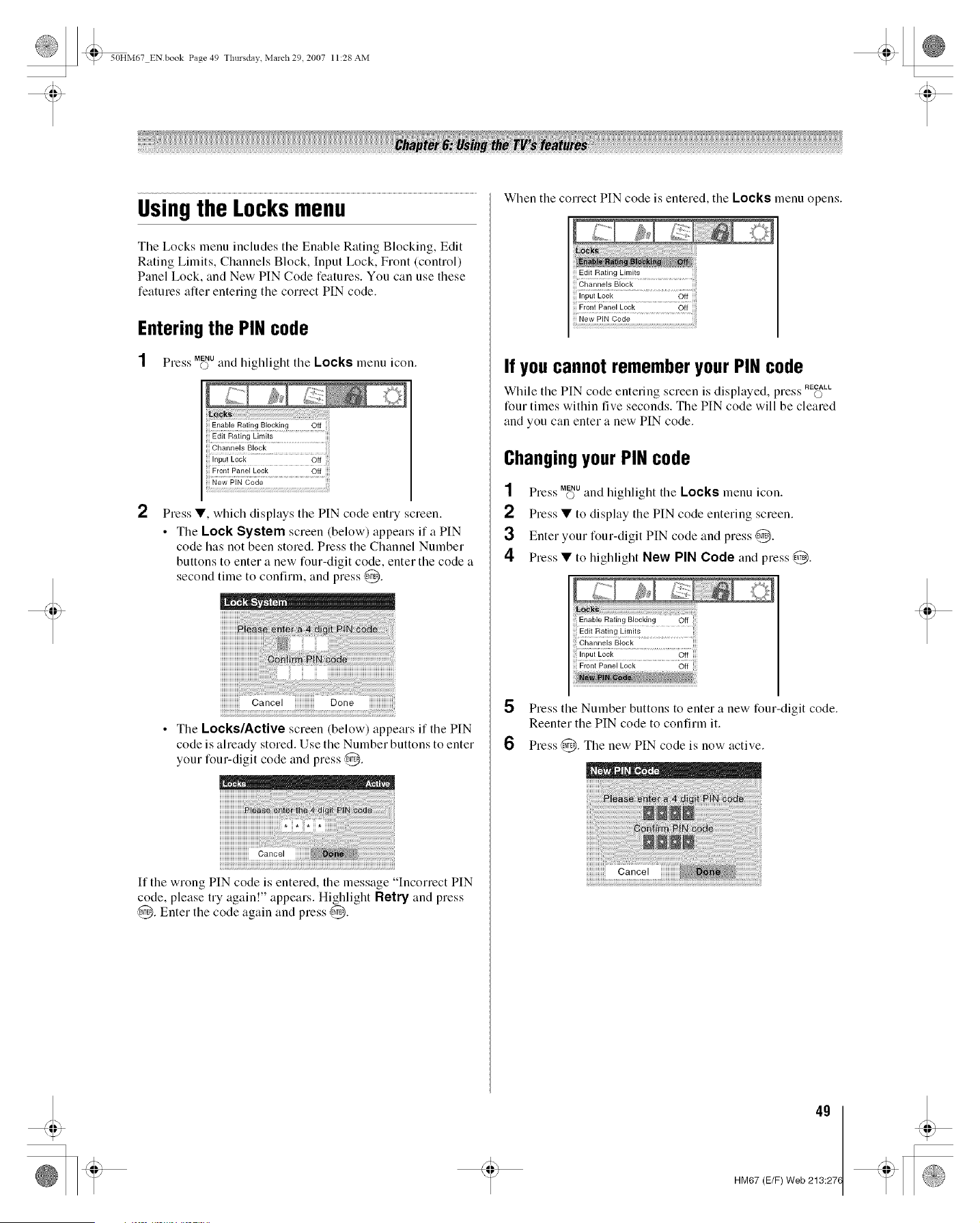
_ 50HM67 ENbook Page 49 Tlmrsdav March 29 2007 11:28 AM
Usingthe Locksmenu
The Locks menu includes the Enable Rating Blocking, Edit
Rating Limits, Channels Block, Input Lock, Front (control)
Panel Lock, and New PIN Code features. You can use these
features alter entering the correct PIN code.
Entering the PIN code
SS MENU
Press O and highlight tile Locks menu icon.
2
Press •, which displays tile PIN code entry screen.
• The Lock System screen (below) appears if a PIN
code has not been stored. Press the Channel Number
buttons to enter a new four-digit code, enter the code a
second time to confirm, and press @.
N
Cancel Done
• The Locks/Active screen (below) appears if the PIN
code is aheady stored. Use the Number buttons to enter
your four-digit code and press @.
If the wrong PIN code is entered, tile me::age Incorrect PIN
code, please try again!" appears. Highlight Retry and press
@. Enter the code again and press @.
Wllen tile correct PIN code is entered, tile Locks menu opens.
Edit Rating Limits
Channels Block
Front Pane[ Lock Off
New PIN Code
If you cannot remember your PIN code
"S "S SS RECALL
While tile PIN code entering screen v' displayed, pless O
four times within five seconds. Tile PIN code will be cleared
and you can enter a new PIN code.
Changingyour PIN code
1 Press MffffUand lligllligllt tile Locks menu icon.
Press • to display the PIN code entering screen.
3 Enter your four-digit PIN code and press @.
Press • to highlight New PIN Code and press @.
5
6
;;i Input Lock Off iiii
! Front Panel Lock Off
{_i_i ....
Press tile Number buttons to enter a new four-digit code.
Reenter the PIN code to confirm it.
Press @. The new PIN code is now active.
Cancel
49
HM67 (E/F) Web 213:27(

_ 50HM67 ENbook Page 50 Tlmrsdav March 29 2007 11:28 AM
Blocking TV programs and movies
byrating (V-Chip)
Some TV proglanls and movies include signals that classify
the content of the proglam (violence, sex, dialog, language).
The V-Chip feature in this TV detects the signals and blocks
the programs according to the ratings you select. (For rating
descriptions, see the tables on the next page.)
Note: Rating blocking is a function of the V-Chip feature in this
TV, which supports the U.S. V-Chip system only.
To block and unblock TV programs and movies:
NN MENU
Ple._'s O and highlight tile Locks menu icon.
2 Press • to display the PIN code entering screen.
3 Enter your four-digit PIN code and press @.
4 Press • to highlight Enable Rating Blocking.
5 Press • and • to select On, and then press @.
6 Press • to highlight Edit Rating Limits and press ,4_.
The Edit Rating Limits screen (below) appears.
7 Press &•• • and then press ,g_ to select the level of
blocking you prefer. A box with an "X" is a rating that will
be blocked. As you highlight a rating, a definition for the
rating appears at the bottom of the screen.
8 When done selecting the ratings you want to block,
highlight Done and press ,@.
, -. ®
Downloading an additional rating system
for blocking TV programs and movies
In tile future, an additional rating system may becolne
available for use in selectively blocking programs.
Note: The currently tuned station must be receiving a digital
signal before an additional rating system can be downloaded.
To download the additional rating system
(if available):
1 Press Mff_Uand lliglllight tile Locks menu icon.
2 Press • to display the PIN code entering screen.
3 Enter your four-digit PIN code and press ,g_.
4 Press • to highlight Enable Rating Blocking.
5 Press • and • to select On, and press @.
6 Press • to highlight Edit Rating Limits and press @.
The Edit Rating Limits screen appears.
7 Highlight Air RS and press @. The Edit Alternate
Ratings screen will appear.
Note:
• The AIt RS button will only be available if an additional
rating system is currently available.
• It may take several minutes for the TV to download the
additional rating system.
• The information displayed in the Alternate Ratings
screen will depend on the configuration of the
additional rating system available at the time of
download.
8 Press • • • • and then press @ to select the level of
blocking you prefer. A box with an "X" is a rating that will
be blocked.
9 When you are finished selecting the ratings you want to
block, highlight Done and press @.
10 In the Edit Rating Limits screen, highlight Done and
press @.
Note:
• The additional rating system can only be downloaded one
time. You will not be able to download any updates to the
rating system should such updates become available.
• The additional rating system is not designed, transmitted, or
controlled by the TV or Toshiba, nor is the availability of an
additional rating system determined or controlled by
Toshiba. Similarly, the rating of programs in an additional
rating system is not determined, transmitted, or controlled
by the TV or Toshiba.
• The additional rating system is an evolving technology;
therefore, availability, content, and format may vary.
5O
HM67 (E/F) Web 213:276
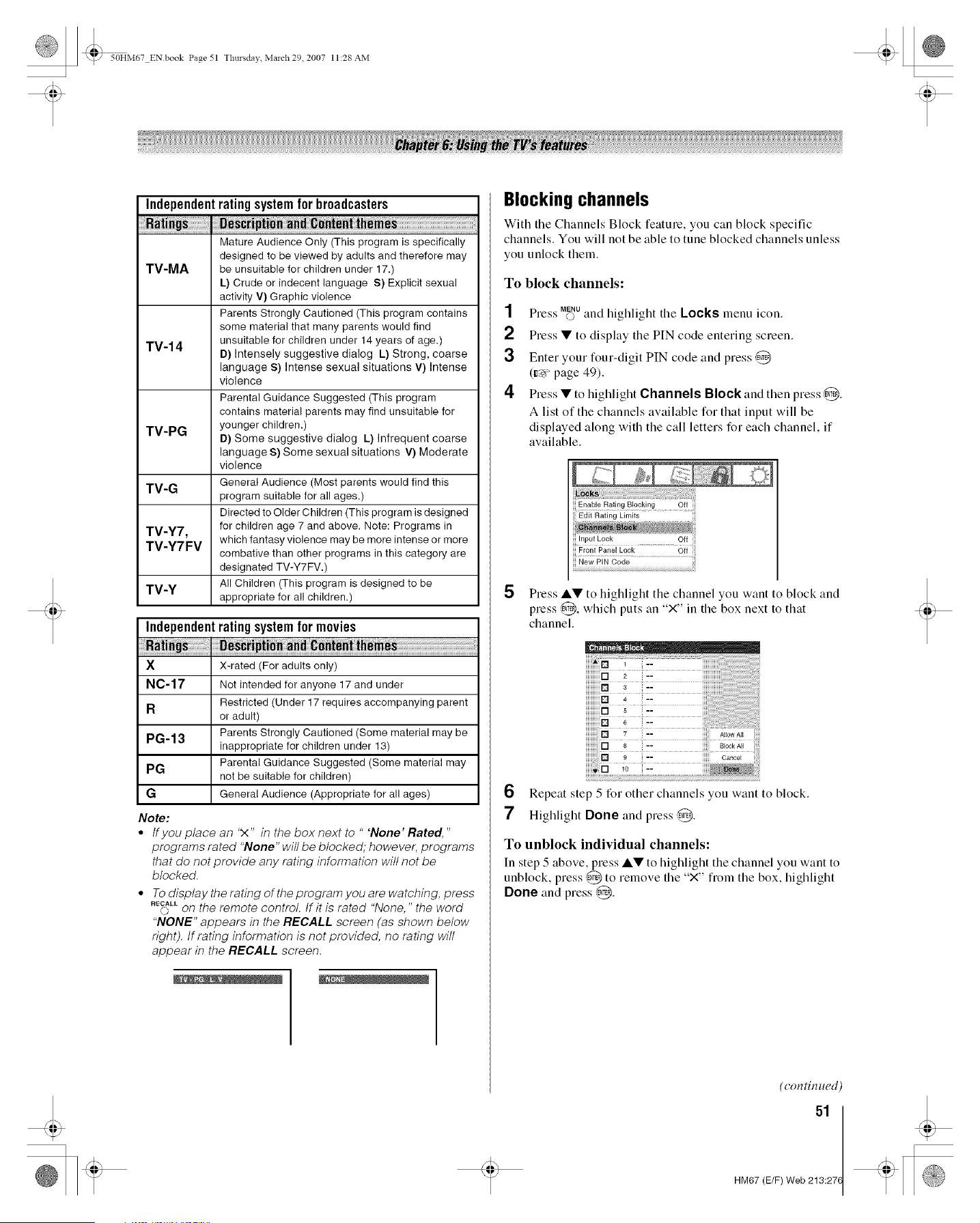
_ 50HM67 EN book Page 51 Tlmrsdav March 29 2007 11:28 AM
Independentratingsystemfor broadcasters
Mature Audience Only (This program is specifically
designed to be viewed by adults and therefore may
TV-MA be unsuitable for children under 17.)
L) Crude or indecent language S) Explicit sexual
activity V) Graphic violence
Parents Strongly Cautioned (This program contains
some material that many parents would find
TV-14 unsuitable for children under 14 years of age.)
B) Intensely suggestive dialog L) Strong, coarse
language S) Intense sexual situations V) Intense
violence
Parental Guidance Suggested (This program
contains material parents may find unsuitable for
TV-PG younger children.)
D) Some suggestive dialog L) Infrequent coarse
language S) Some sexual situations V) Moderate
violence
General Audience (Most parents would find this
TV-G
program suitable for all ages.)
Directed to Older Children (This program is designed
TV-Y7, for children age 7 and above. Note: Programs in
TV-Y7 FV which fantasy violence may be more intense or more
combative than other programs in this category are
designated TV-Y7FV.)
TV-Y All Children (This program is designed to be
appropriate for all children.)
Independentratingsystemfor movies
X X-rated (For adults only)
NC-17 Not intended for anyone 17 and under
Restricted (Under 17 requires accompanying parent
R
or adult)
PG-13 Parents Strongly Cautioned (Some material may be
inappropriate for children under 13)
PG Parental Guidance Suggested (Some material may
not be suitable for children)
G General Audience (Appropriate for all ages)
Note:
• tfyou place an 'X" in the box next to " "None" Rated,"
programs rated "None" will be blocked; however, programs
that do not provide any rating information will not be
blocked.
• To display the rating of the program you are watching, press
RE_LLon the remote control. If it is rated "None," the word
"NONE" appears in the RECALL screen (as shown below
right). If rating information is not provided, no rating will
appear in the RECALL screen.
Blocking channels
With tile Channels Block feature, you can block specific
channels. You will not be able to tune blocked channels unless
you unlock them.
To block channels:
1 Press Mff_uand highlight tile Locks menu icon.
2 Press • to display the PIN code entering screen.
3 Enter your four-digit PIN code and press @
(=r_>page 49).
4 Press • to highlight Channels Block and then press @.
A list of the channels available for that input will be
displayed along with the call letters for each channel, if
available.
5 Press A• to highlight tile channel you want to block and
press @, which puts an "X" in tile box next to that
channel.
iiiiiiiiiiiiO
iiiiiiiiiiiiD
iiiiiiiiiiiiD
iiiiiiiiiiiiO
iiiiiiiiiiiiD
6 Repeat step 5 for other channels you want to block.
7 Highlight Done and press,@.
To unblock individual channels:
In step 5 above, press A• to highlight tile channel you want to
unblock, press ,@ to remove the "X" from the box, highlight
Done and press @.
(con tin ued)
51
HM67 (E/F) Web 213:27(
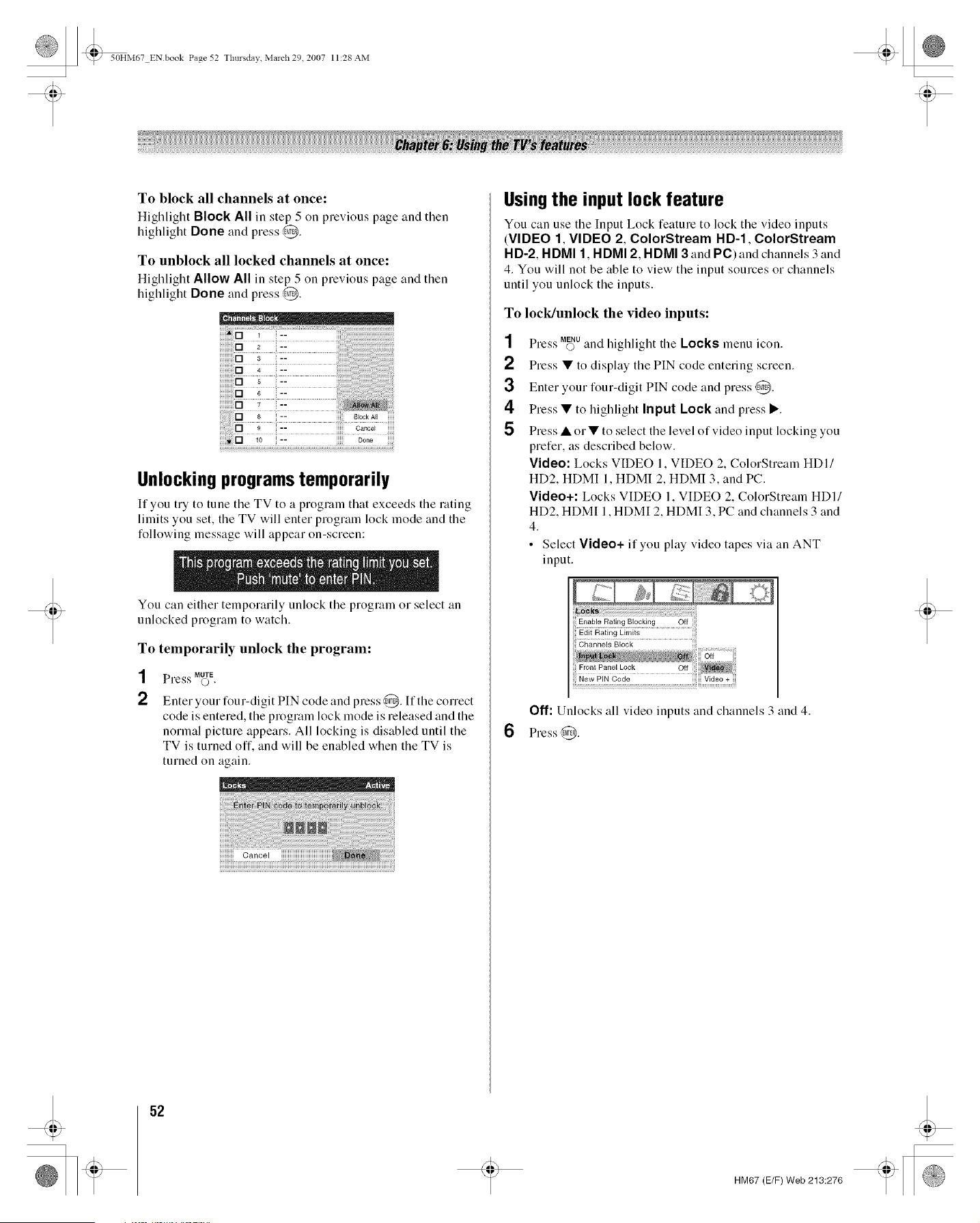
_ 50HM67 ENbook Page 52 Tlmrsdav March 29 2007 11:28 AM
To block all channels at once:
Highlight Block All in step 5 on previous page and then
highlight Done and press @.
To unblock all locked channels at once:
Highlight Allow All in step 5 on previous page and then
highlight Done and press @.
iiiiiiiiiii _ i
! "" !!if!! !i!i!i!i!i
iiiiiiiiiiiiiiiiO8 i-- iiiiiiiii BlOCkAN iiiiii
; i :: iiiiiiic&_;i iiiiii
Unlocking programstemporarily
If you try to tune the TV to a program that exceeds the rating
limits you set, the TV will enter program lock mode and the
following message will appear on-screen:
You can either temporarily unlock the program o1 select an
unlocked program to watch.
To temporarily unlock the program:
1
2
SS MUTE
Pre._'s ©.
Enter your four-digit PIN code and press ,@. If the correct
code is entered, the program lock mode is released and the
normal picture appears. All locking is disabled until the
TV is turned off, and will be enabled when the TV is
turned on again.
Usingthe input lock feature
You can use the Input Lock feature to lock the video inpnts
(VIDEO 1, VIDEO 2, ColorStream HD-1, ColorStream
HD-2, HDMI 1, HDMI 2, HDMI 3 and PC) and channels 3 and
4. You will not be able to view the input sources or channels
until you unlock the inputs.
To lock/unlock the video inputs:
1
2
3
4
5
Press M_Uand highlight the Locks menu icon.
Press • to display the PIN code entering screen.
Enter your four-digit PIN code and press @.
Press • to highlight Input Lock and press I1_.
Press • or • to select the level of video input locking you
prefer, as described below.
Video: Locks VIDEO 1, VIDEO 2, ColorStream HDI/
HD2, HDMI 1, HDMI 2, HDMI 3, and PC.
Video+: Locks VIDEO 1, VIDEO 2, ColorStream HDI/
HD2, HDMI 1, HDMI 2, HDMI 3, PC and channels 3 and
4.
• Select Video+ if you play video tapes via an ANT
input.
Off: Unlocks all video inputs and channels and 4.
6 Press 0.
52
t
HM67 (E/F) Web 213:276
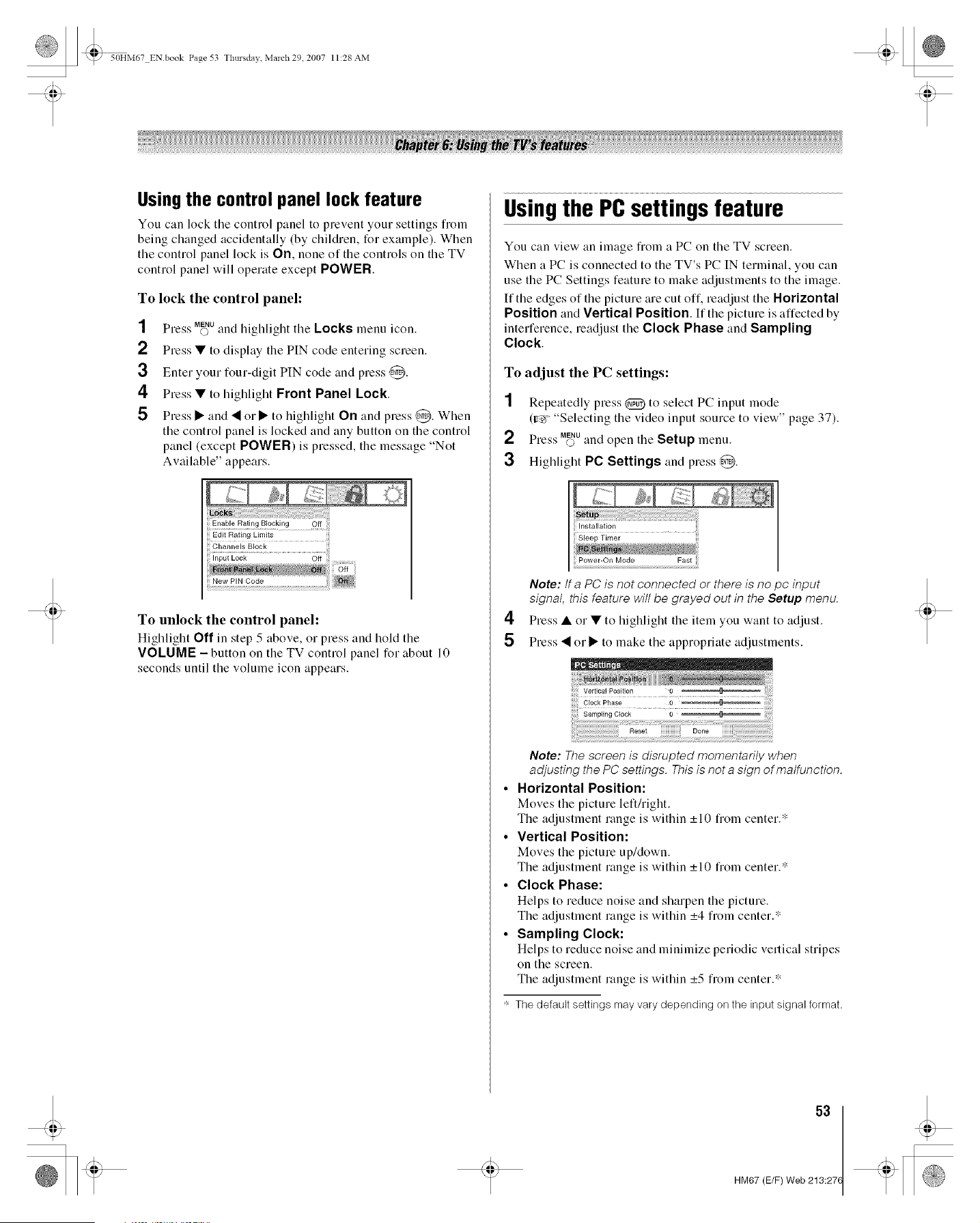
_ 50HM67 ENbook Page 53 Tlmrsdav March 29 2007 11:28 AM
Usingthe control panel lock feature
You can lock the control panel to prevent your settings from
being changed accidentally (by children, for example). When
the control panel lock is On, none of the controls on the TV
control panel will operate except POWER.
To lock the control panel:
SS MENU
Press O and highlight tile Locks menu icon.
2 Press • to display the PIN code entering screen.
3 Enter your four-digit PIN code and press @.
4 Press • to highlight Front Panel Lock.
5 Press • and • or • to highlight On and press @. When
the control panel is locked and any button on the control
panel (except POWER) is pressed, the message "Not
Available" appears.
To unlock the control panel:
Highlight Off in step 5 above, or press and hold the
VOLUME -button on the TV control panel for about 10
seconds until the volume icon appears.
Usingthe PCsettingsfeature
You can view an image fiom a PC on the TV screen.
When a PC is connected to the TV's PC IN terminal, you can
use the PC Settings feature to make adjustments to the image.
If the edges of the picture are cut off, readjust the Horizontal
Position and Vertical Position. If the picture is affected by
interference, readjust the Clock Phase and Sampling
Clock.
To adjust the PC settings:
1 Repeatedly press @ to select PC input mode
(_> "Selecting the video input source to view" page 37).
2 Press M_Uand open the Setup menu.
3 Highlight PC Settings and press @.
4
5
; Sleep Timer
p..... onMode Fa_
Note: tf a PC is not connected or there is no pc input
signal, this feature will be grayed out in the Setup menu.
Press • or • to highlight the item you want to adjust.
Press • o1"• to make the appropriate adjustments.
Vertical Position 0
Clock Phase
Note: The screen is disrupted momentarily when
adjusting the PC settings. This is not a sign of malfunction.
• Horizontal Position:
Moves the picture left/right.
The adjustment range is within -+10 from center.*
• Vertical Position:
Moves the picture up/down.
The adjustment range is within _+10 from center.*
• Clock Phase:
Helps to reduce noise and sharpen the picture.
The adjustment range is within _+4from center.*
• Sampling Clock:
Helps to reduce noise and nfinimize periodic vertical stripes
on the screen.
The adjustment range is within _+5from center.*
The default settings may vary depending on the input signal format.
53
HM67 (E/F) Web 213:27(
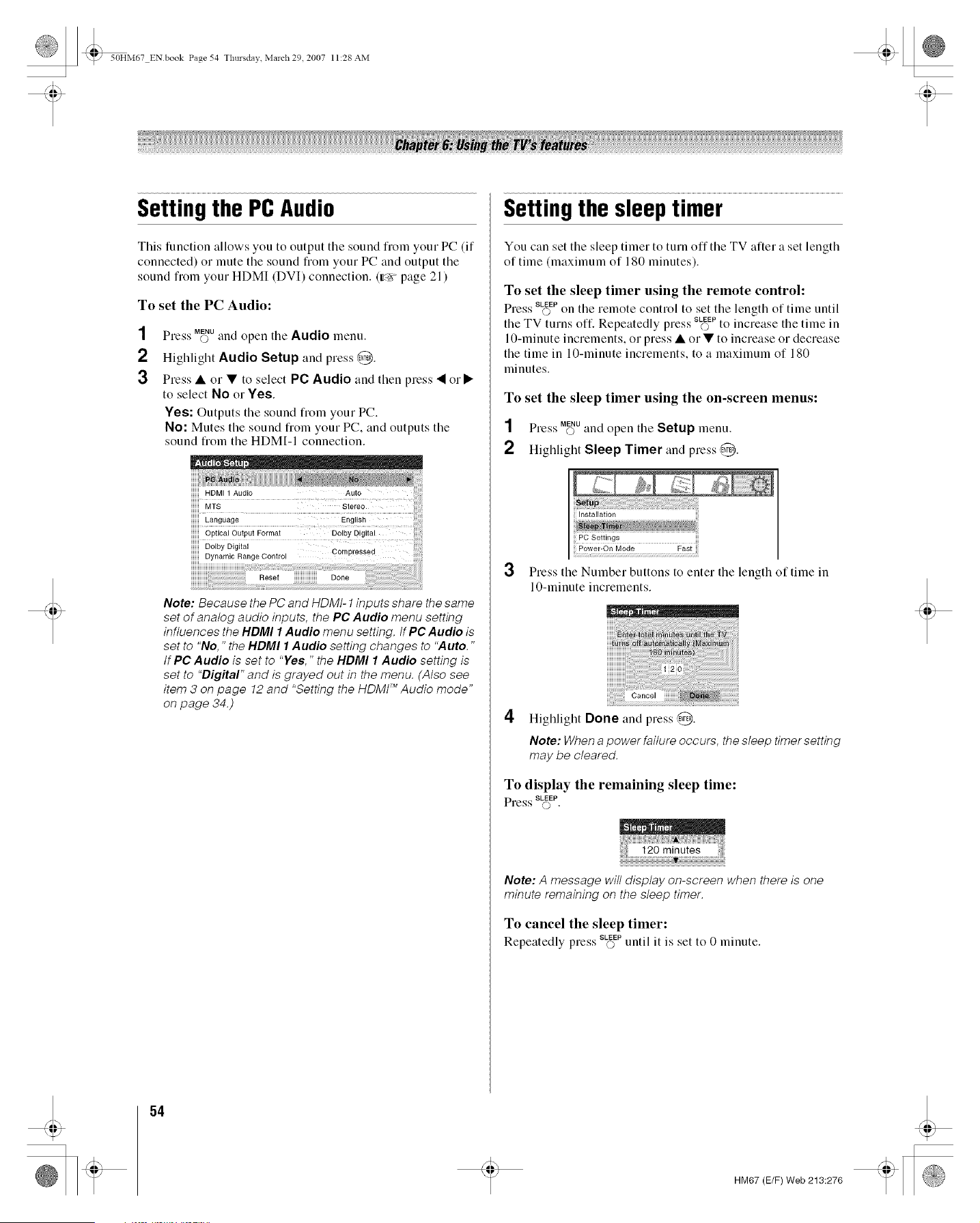
_ 50HM67 ENbook Page 54 Tlmrsdav March 29 2007 11:28 AM
Settingthe PCAudio
This function allows you to output the sound from your PC (if
connected) o1 mute the sound from your PC and output the
sound fiom your HDMI (DVI) connection. (w_ page 21 )
To set the PC Audio:
1
2
3
SS MENU
Press O and open tile Audio menu.
Highlight Audio Setup and press @.
Press • or • to select PC Audio and then press • or •
to select No or Yes.
Yes: Outputs the sound froln your PC.
No: Mutes the sound from your PC, and outputs the
sound from the HDM[-I connection.
Auto
Stereo
English
Doll
Cornpres#ed
iiiiii_
Note: Because the PC and HDMt- 1inputs share the same
set of analog audio inputs, the PC Audio menu setting
influences the NDMI 1Audio menu setting, tf PC Audio is
set to "No," the NDMI 1 Audio setting changes to "Auto,"
tf PC Audio is set to "Yes," the NDMI 1 Audio setting is
set to "Digital" and is grayed out in the menu, (Also see
item 3 on page 12 and "Setting the HDMI TM Audio mode"
on page 34.)
Setting the sleep timer
You can set the sleep timer to turn off the TV after a set length
of time (maximum of 180 minutes).
To set the sleep timer using the remote control:
SLfEEP
Press o on the remote control to set the length of time until
S SLfEEP
the TV turns off. Repeatedly press o to increase the time in
10-minute increments, or press • or• to increase or decrease
the time in 10-minute increments, to a maximum of 180
minutes.
To set the sleep timer using the on-screen menus:
1 Press M_Uand open the Setup menu.
2 HigMight Sleep Timer and press,@.
3
4
PC Settings
Power-On Mode Fast
Press the Number buttons to enter the length of time in
10-minute increments.
iiiiiii!_i%!!i!_i_!_i%i!_!ii!iiii_ii_i_!_!!_!_!i!iiiiiiiiiiiiiiiiiiiiiiii_ii_iiiiii_iii_iii_iiiii__!_i%ii_ii_ii_ii_!i_!_!i_i_i_ii_ii_iiiiiiiiiiiiiiiiiiiiiii_ii_ii_i_
Highlight Done and press @.
Note: When a power failure occurs, the sleep timer setting
may be cleared.
To display the remaining sleep time:
Press SLEEPer),
120minutes
Note: A message will display on-screen when there is one
minute remaining on the sleep timer.
To cancel the sleep timer:
SS SLfEEP . .
Repeatedly press o untd _t is set to 0 minute.
54
HM67 (E/F) Web 213:276
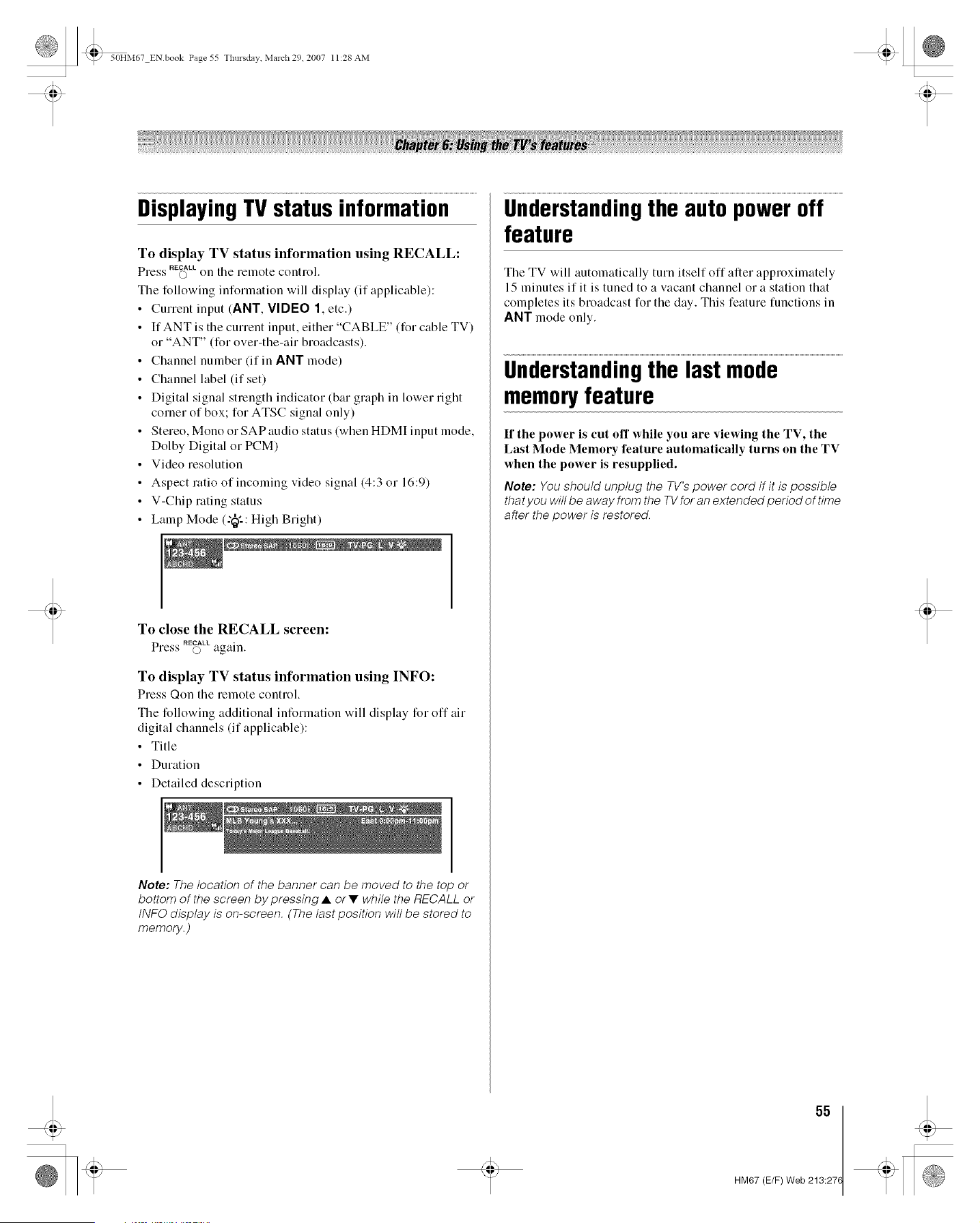
_ 50HM67 ENbook Page 55 Tlmrsdav March 29 2007 11:28 AM
DisplayingTV status information
To display TV status information using RECALL:
S_ RECALL
Pre.v © on the remote control.
The following information will display (if applicable):
• Current input (ANT, VIDEO 1, etc.)
• If ANT is the current input, either "CABLE" (for cable TV)
or "ANT" (for over-the-air broadcasts).
• Channel number (if in ANT mode)
• Channel label (if set)
• Digital signal strength indicator (bar graph in lower right
corner of box; for ATSC signal only)
• Stereo, Mono or SAP audio status (when HDMI input mode,
Dolby Digital or PCM)
• Video resolution
• Aspect ratio of incoming video signal (4:3 or 16:9)
• V-Chip lating status
• Lamp Mode (2_'-: High Bright)
To close the RECALL screen:
Press RE_LLagain.
To display TV status information using INFO:
Press Qon the remote control.
The following additional information will display for off air
digital channels (if applicable):
• Title
• Duration
• Detailed description
Note: The location of the banner can be moved to the top or
bottom of the screen by pressing • or • while the RECALL or
tNFO display is on-screen. (The last position will be stored to
memory.)
Understandingthe auto power off
feature
Tile TV will automatically turn itself off after approximately
15 minutes if it is tuned to a vacant channel o1 a station that
completes its broadcast for the day. This feature functions in
ANT mode only.
Understandingthe last mode
memory feature
If the power is cut off while you are viewing the TV, the
Last Mode Memory feature automatically turns on the TV
when the power is resupplied.
Note: You should unplug the TV's power cord if it is possible
that you will be away from the TVfor an extended period of time
after the power is restored.
55
HM67 (E/F) Web 213:27(
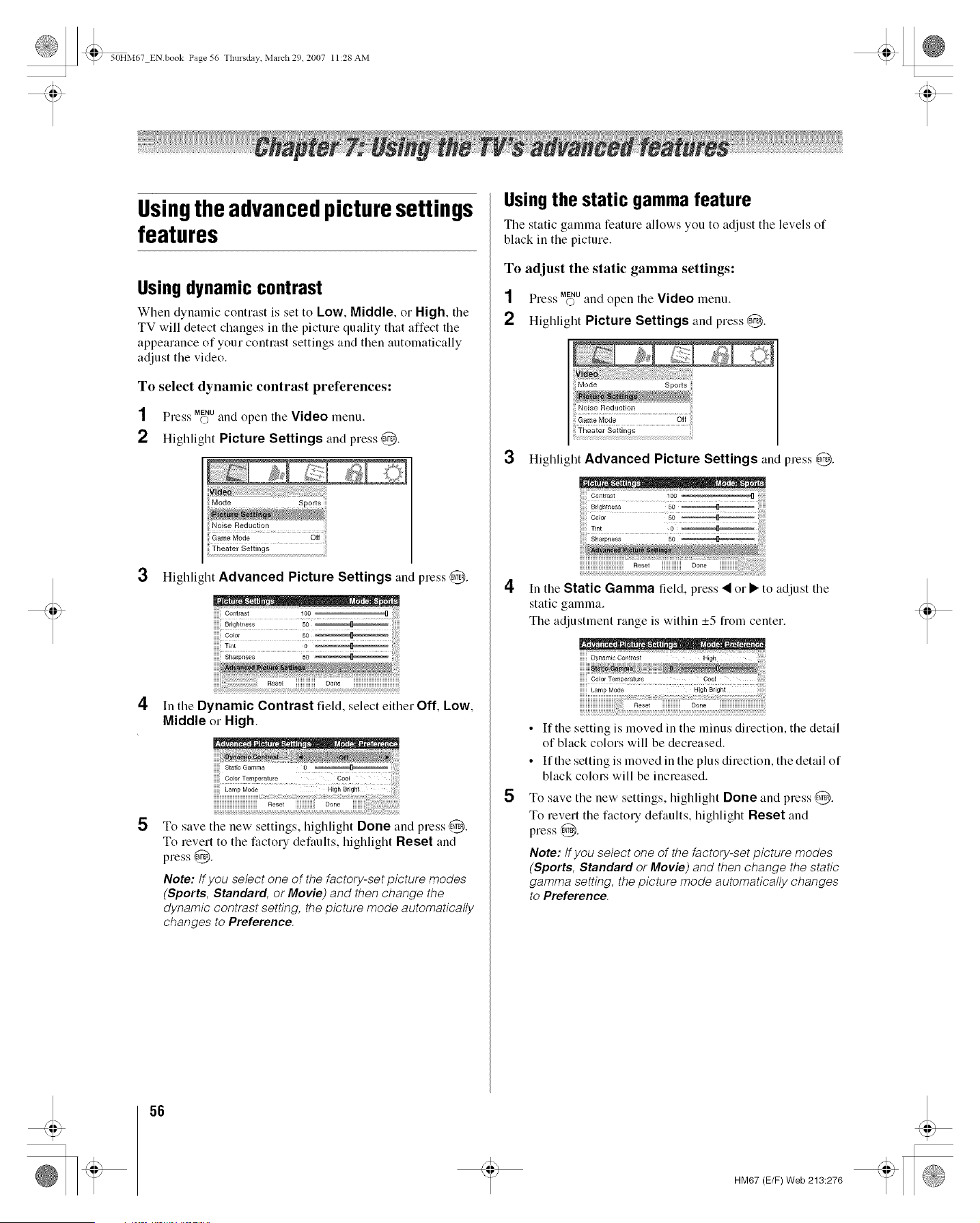
_ 50HM67 ENbook Page 56 Tlmrsdav March 29 2007 11:28 AM
Usingtheadvancedpicturesettings
features
Using dynamic contrast
When dynamic contrast is set to Low, Middle, or High, the
TV will detect changes in the picture quality that affect the
appearance of your contrast settings and then automatically
adjust the video.
To select dynamic contrast preferences:
NN MENU
Press © and open tile Video menu.
2 Highlight Picture Settings and press,@.
3 HigMight Advanced Picture Settings and press @.
4 In the Dynamic Contrast field, select either Off, Low,
Middle or High.
5
Static Gamma
iiiiii Color Temperature Cool
Lamp Mode High Bdgh!
Re,e, Dooe
To save tile new settings, highlight Done and press @.
To revert to the factory defaults, higMight Reset and
press @.
Note: tf you select one of the factory-set picture modes
(Sports, Standard, or Movie) and then change the
dynamic contrast setting, the picture mode automatically
changes to Preference.
Usingthe static gamma feature
The static gamma feature allows you to adjust the levels of
black in the picture.
To adjust the static gamma settings:
1 Press M_Uand open the Video menu.
2 Highlight Picture Settings and press,@.
3 Highlight Advanced Picture Settings and press @.
4
In the Static Gamma field, press • or • to adjust the
static gamma.
The adjustment range is within _+5 from center.
Lamp Mode H!ohBrioht
5
• If the setting is moved in the minus direction, the detail
of black colors will be decreased.
• If the setting is moved in the plus direction, the detail of
black colors will be increased.
To save the new settings, highlight Done and press @.
To revert the factory defaults, highlight Reset and
press @.
Note: tf you select one of the factory-set picture modes
(Sports, Standard or Movie) and then change the static
gamma setting, the picture mode automatically changes
to Preference.
56
HM67 (E/F) Web 213:276
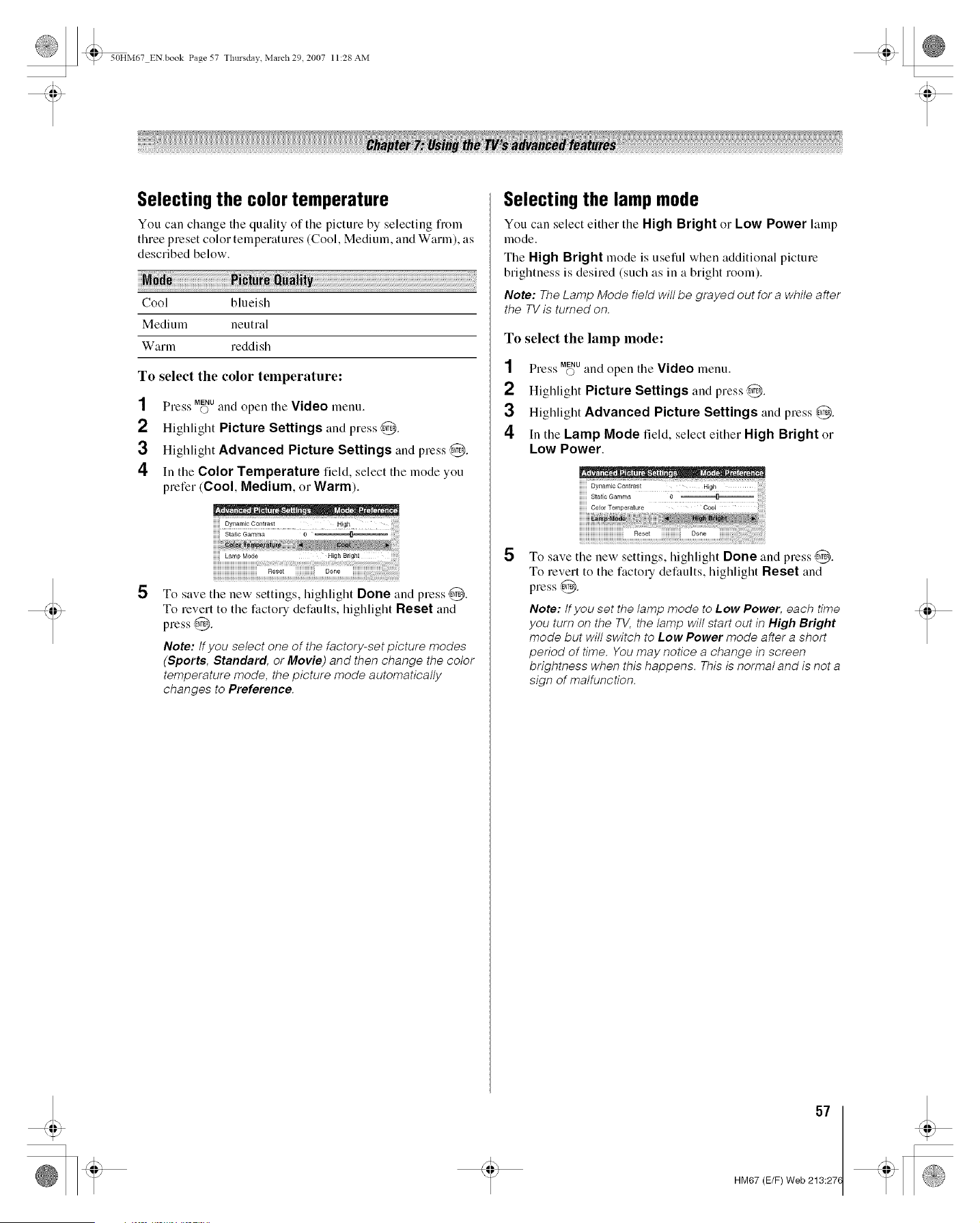
_ 50HM67 ENbook Page 57 Tlmrsdav March 29 2007 11:28 AM
Selecting the color temperature
You can change tile quality of tile picture by selecting from
three preset color temperatures (Cool, Medium, and Warm), as
described below.
Cool blueish
Medium neutral
Warm reddi sh
To select the color temperature:
SS MENU
Press O and open tile Video menu.
2 Highlight Picture Settings and press @.
3 Highlight Advanced Picture Settings and press @.
4 In the Color Temperature field, select the mode you
prefer (Cool, Medium, Ol-Warm).
5
Lamp Mode
To save the new settings, highlight Done and press @.
To revert to the factory defaults, highlight Reset and
press @.
Note: tf you select one of the factory-set picture modes
(Sports, Standard, or Movie) and then change the color
temperature mode, the picture mode automatically
changes to Preference.
Selecting the lamp mode
You can select either the High Bright or Low Power hunp
mode.
The High Bright mode is useful when additional picture
brightness is desired (such as in a bright room).
Note: The Lamp Mode field will be grayed out for a while after
the TV is turned on.
To select the lamp mode:
1 Press Mff_Uand open the Video menu.
2 Highlight Picture Settings and press @.
3 Highlight Advanced Picture Settings and press @.
4 in the Lamp Mode field, select either High Bright or
Low Power.
Static Gamma
5
To save the new settings, highlight Done and press ,@.
To revert to the factory defaults, highlight Reset and
press @.
Note: tf you set the lamp mode to Low Power, each time
you turn on the TV, the lamp will start out in High Bright
mode but will switch to Low Power mode after a short
period of time. You may notice a change in screen
brightness when this happens. This is normal and is not a
sign of malfunction.
57
HM67 (E/F) Web 213:27(
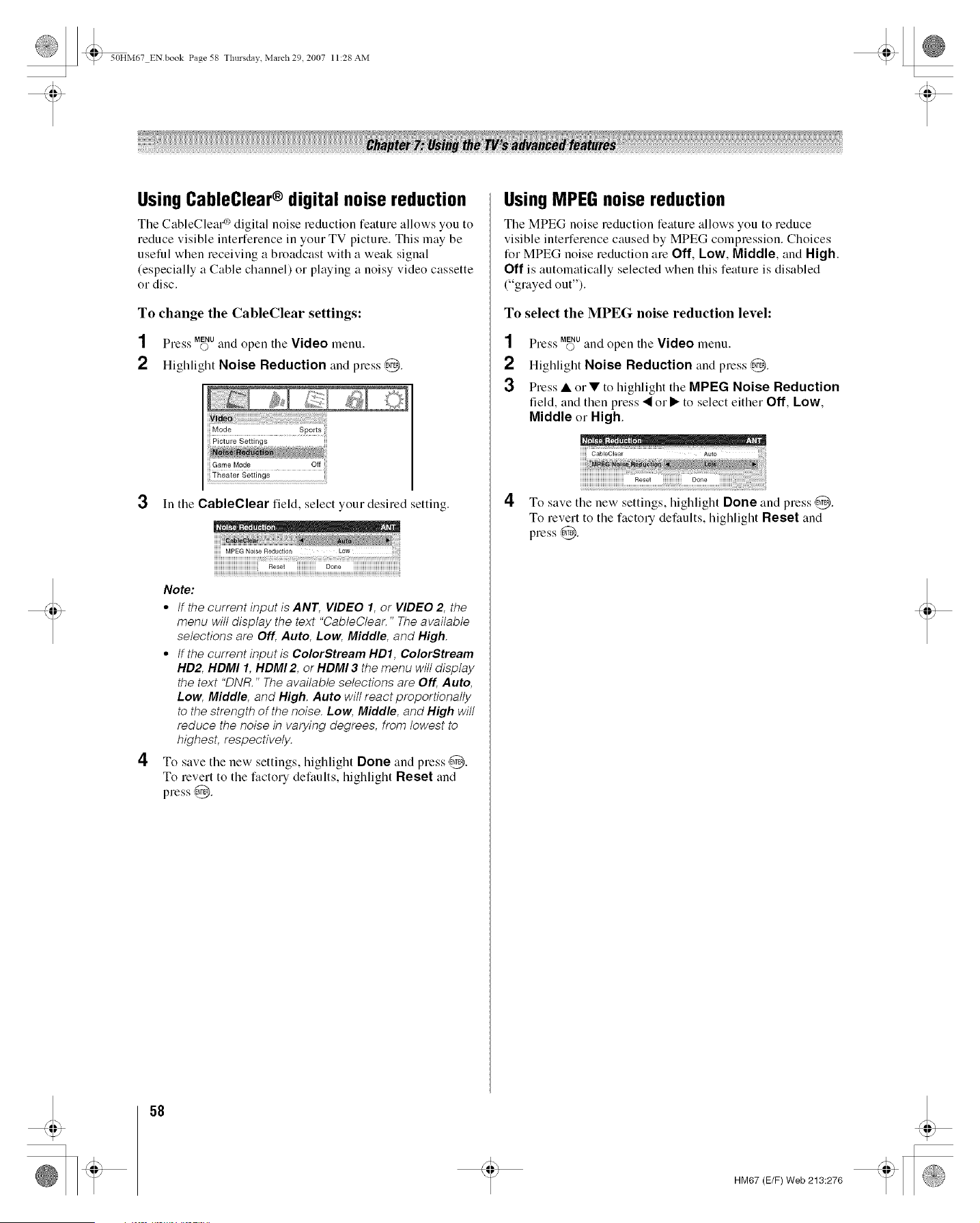
_ 50HM67 ENbook Page 58 Tlmrsdav March 29 2007 11:28 AM
Using CableClear® digital noise reduction
Tile CableClear _/digital noise reduction feature allows you to
]educe visible interference in you] TV picture. This ]nay be
useful when receiving a broadcast with a weak signal
(especially a Cable channel) or playing a noisy video cassette
or disc.
To change the CableClear settings:
SS MENU
Press 0 and open tile Video menu,
2 Highlight Noise Reduction and press @.
3 In tile CableClear field, select you] desired setting.
4
Note:
• tf the current input is ANT, VIDEO 1, or VIDEO 2, the
menu will display the text "CableClear, " The available
selections are Off, Auto, Low, Middle, and High,
• If the current input is ColorStream HD1, ¢olorStream
HD2, HDMI 1, HDMI 2, or HDMI 3 the menu will display
the text "DNR," The available selections are Off, Auto,
Low, Middle, and High, Auto will react proportionally
to the strength of the noise, Low, Middle, and High will
reduce the noise in varying degrees, from lowest to
highest, respectively.
To save the new settings, highlight Done and press @.
To revert to the factory defaults, highlight Reset and
press @.
Using MPEG noise reduction
The MPEG noise reduction feature allows you to ]'educe
visible interference caused by MPEG compression. Choices
for MPEG noise ]eduction are Off, Low, Middle, and High.
Off is automatically selected when this feature is disabled
("grayed out").
To select the MPEG noise reduction level:
1
2
3
Press M_Uand open tile Video menu.
Highlight Noise Reduction and press @.
Press • orV to higlllight tile MPEG Noise Reduction
field, and then press • or • to select either Off, Low,
Middle or High.
4 To save tile new settings, lligMigra Done and press @.
To revert to tile facto]"/defaults, highlight Reset and
press @.
58
HM67 (E/F) Web 213:276
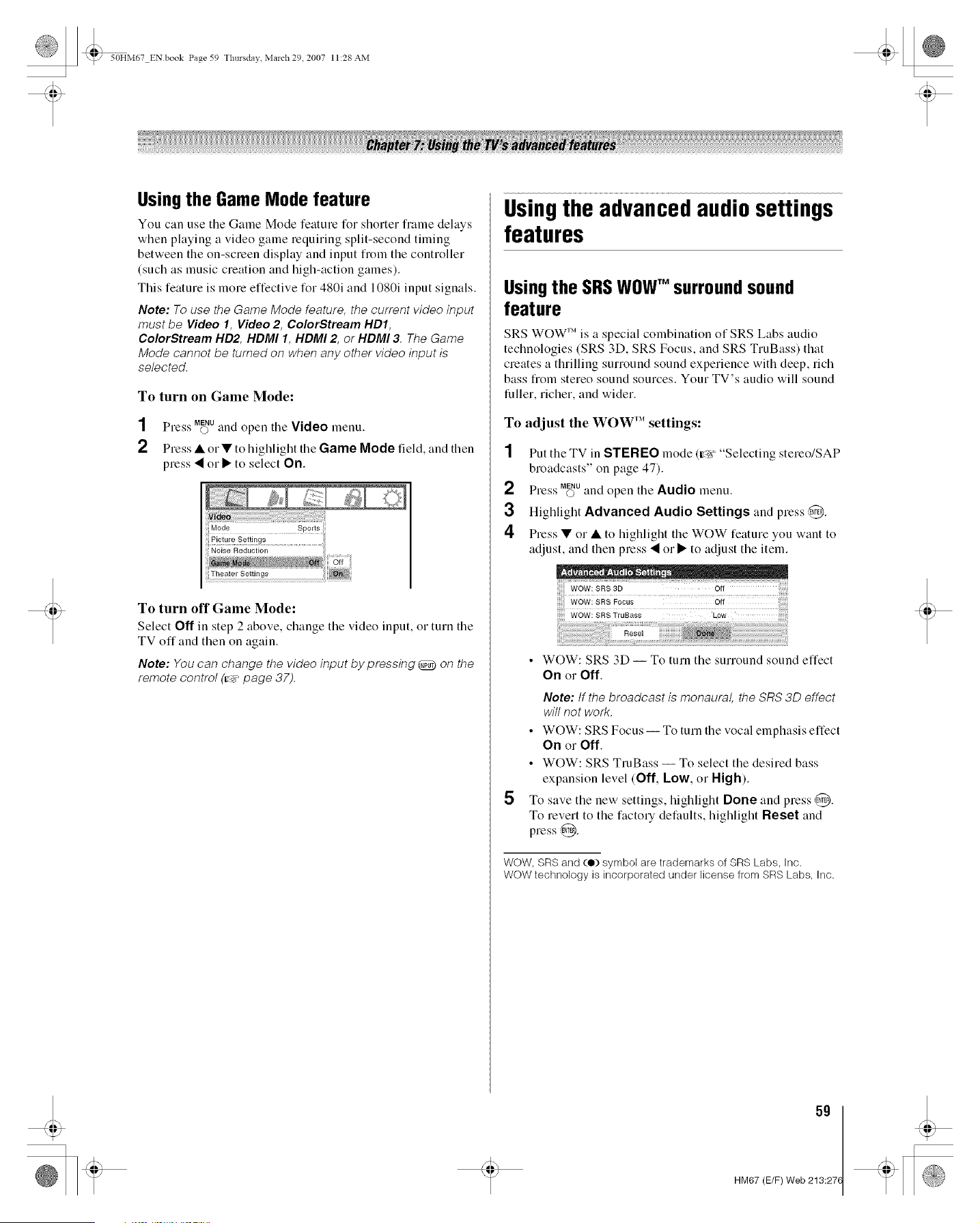
_ 50HM67 ENbook Page 59 Tlmrsdav March 29 2007 11:28 AM
Usingthe Game Mode feature
You can use tile Game Mode feature for shorter fralne delays
when playing a video game requiring split-second timing
between the on-screen display and input from the controller
(such as music creation and high-action games).
This feature is more effective for 480i and 1080i input signals.
Note: To use the Game Mode feature, the current video input
must be Video 1, Video 2, ColorStream HD1,
ColorStream HD2, HDMI 1, HDMI 2, or HDMI 3. The Game
Mode cannot be turned on when any other video input is
selected.
To turn on Game Mode:
SS MENU
Ple._'s O and open tile Video menu.
2 Press • or• to highlight the Game Mode field, and then
press • o1 • to select On.
To turn off Game Mode:
Select Off in step 2 above, change the video input, or turn the
TV off and then on again.
Note: You can change the video input by pressing @D on the
remote control (_-_,page 37).
Usingthe advancedaudiosettings
features
Usingthe SRSWOWTM surround sound
feature
SRS WOW 'Mis a special combination of SRS Labs audio
technologies (SRS 3D, SRS Focus, and SRS TruBass) that
creates a thrilling surround sound experience with deep, rich
bass from stereo sound sources. Your TV's audio will sound
fuller, richer, and wider.
To adjust the WOW'" settings:
2
3
4
Put the TV in STEREO mode (ir_ "Selecting stereo/SAP
broadcasts" on page 47).
Press M_Uand open the Audio menu.
Highlight Advanced Audio Settings and press @.
Press • or • to highlight the WOW feature you want to
adjust, and then press • or • to adjust the item.
5
WOW: SRS TruBass Low
Reset
• WOW: SRS 3D -- To turn the surround sound effect
On or Off.
Note: tf the broadcast is monaural, the SRS 3D effect
will not work.
• WOW: SRS Focus -- To turn the vocal emphasis effect
On or Off.
• WOW: SRS TruBass -- To select the desired bass
expansion level (Off, Low, or High).
To save the new settings, highlight Done and press ,@.
To revert to the factory defaults, highlight Reset and
press @.
WOW, SRS and (O) symbol are trademarks of SRS Labs, Inc.
WOW technology is incorporated under license from SRS Labs, Inc.
59
HM67 (E/F) Web 213:27(
_ 50HM67 ENbook Page 60 Tlmrsdav March 29 2007 11:28 AM
Generaltroubleshooting
Before calling a service technician, please check this chapter
fora possible cause of the problem and some solutions you can
try,
Black box on-screen
• The closed caption feature is set to one of the Text modes
(T1, T2, T3, or T4). Set the closed caption feature to Off
(r_ page 45).
TV stops responding to controls
• If the TV stops responding to the controls on the remote
control or TV control panel and you cannot turn off the
TV, press and hold the POWER button on the TV control
panel for 5 or more seconds to reset the TV.
Other problems
• If your TV's problem is not addressed iu this
Troubleshooting section or the recommended solution
has not worked, use the Restore Factory Defaults
procedure (r_ page 36).
TV will not turn on
Make sure the power cord is plugged in, and theu press
POWER
@ .
The remote coutrol batteries may be dead. Replace the
batteries or try the control panel buttons.
If you have recently replaced the lamp unit, make sure the
lamp unit and lamp unit door are installed properly
(g_ pages 63 65).
The lamp unit may need to be replaced (g_ pages 63 65).
Also see "LED indications" (g_ page 62).
If the TV is powered off and then quickly on again when
the lamp unit is hot, it may take several minutes for the
picture to appear on-screen. This is a property of DLP °v
TV lamp technology and is NOT a sign of malfunction.
For details, see "IMPORTANT NOTICE ABOUT HOT
LAMP RESTART" (r_ page 6).
Picture problems
General picture problems
• Check the auteuua/cable couuectious (_ Chapter 2).
• tS"ess @ on the remote control or TV and select a valid
video input source (g_ page 37). If no device is
connected to a particular input on the TV, no picture will
display when you select that particular input source. For
device connection details, see Chapter 2.
• Antenna reception may be poor. Use a highly directional
outdoor antenna (if applicable).
• The station may have broadcast difficulties. Try another
channel.
• Adjust the picture qualities (g_ page 44).
• If you are using a VCR, make sure I on the remote
control is set correctly (g_ page 24).
• Do not connect both a standard video cable and an
S-video cable to the VIDI:O 2 input at the same time
(r_ page 15).
Noisy picture
• If you are watchiug an analog chauuel (off-air broadcast
or Cable TV), you can set the CableClear®/DNR
feature to AUTO to reduce visible interference in the TV
picture (g_ page 58).
Video Input Selection problems
• If the Input Selection wiudow does uot appear wheu
you press _) on the remote control or TV, press _) a
second time, which will change to the next video input
source and display the input Selection window.
Cannot view external signals or channel 3 or 4
• If you cannot view signals froln exterual devices
connected to VIDEO 1, VIDEO 2, ColorStream ®,
HDMI 1, HDMI 2, HDMI 3, PC, or froln chauuels 3 or 4,
make sure the Input Lock is set to Off (r_ page 52).
Poor color or no color
• The station may have broadcast difficulties. Try another
channel.
• Adjust the Tint and/or Color (r_ page 44).
Picture brightness changes soon after turning on TV
• If you set the lamp mode to Low Power, each time you
turn on the TV, the lamp will start out in High Bright
mode but will switch to Low Power mode after a short
period of time. You may notice a change in screen
brightness when this happens. This is normal and is not a
sign of malfunction (_ page 57).
Poor composite or S-video picture
• If the TV is connected to an external A/V device (e.g.,
DVD player, video game system, set-top box, etc.) try
using a ColorStream or HDMI video connection
instead.
Picture and sound are out of sync
• As with all products that coutaiu a digital display, in rare
instances, when viewing certain content (e.g.. television
broadcasts, video games, DVDs), you may notice that the
sound and picture are slightly out of sync. This
phenomenon can be caused by various factors including,
without limitation, video processing within the TV, video
processing in an attached gaming system, and video
processing or different compression rates used by
broadcasters in their programming. You may want to try
one or more of the following suggestions, which may
help to reduce the effect of this phenomenon:
- If the TV is connected to an A/V receiver that has a
programmable audio delay feature, use this feature to
help synchronize the sound to the picture.
If you notice this phenomenon only on certain TV
channels, please contact your local broadcast, cable, or
satellite provider to inform them of this issue.
LED indications while in reboot from standby
• Wheu you plug the power cord in, the yellow LED will
blink until the TV enters standby mode, (plugged in but
not powered on). This is normal and is not a sign of
malfunction.
Sound problems
• Check the auteuua/cable couuectious (_ Chapter 2).
• The station may have broadcast difficulties. Try another
channel.
6O
.¢
HM67 (E/F) Web 213:276
_ 50HM67 ENbook Page 61 Tlmrsdav March 29 2007 11:28 AM
• The sound may be muted. Press VOLUME.
• If you hear no sound, try setting the MTS feature to
Stereo mode (r_ page 47).
• If you are not receiving a second audio program from a
known SAP source, make sure the MTS feature is set to
SAP mode (g_ page 47).
• If you hear audio that seems "incorrect" for the program
you are watching (such as music or a foreign language),
the SAP mode may be on. Set the MTS feature to Stereo
mode (r_ page 47).
• When using all external audio amplifier, if you connect
the amplifier to the FIXI::D AUDIO OUT terminals, the
volume of the amplifier must be set above 0 or you will
not hear any sound (g_ page 20).
Remote
control problems
Make sure the remote control is set to the correct device
mode (t_ page 23).
Remove all obstructions between the remote control and
the TV.
The remote control batteries may be dead. Replace the
batteries (t_ page 22).
Your TV remote control may not operate certain features
on your external device. Refer to the owuer>s manual for
your other device to detennine its available features. If
your TV remote control does not operate a specific
feature on another device, use the remote control that
came with the device (r_ pages 24-28).
If the TV still does not act as expected, use the Reset
Factory Defaults procedure (t_ page 36).
Channel tuning problems
• Make sure the remote control is set to the correct device
mode (g_ page 23).
• The channel may have been erased from the channel
memory by the Channel Add/Delete feature. Add the
channel to the channel memory (r_ page 32).
• The channel may be blocked by the Channels Block
feature. Uublock the channel (g_ page 51).
• If you are unable to tune digital channels, check the
antenna configuration (g_ page 31). If you are still
unable to tune digital channels, clear all channels from
the channel list (g_ page 33) and reprogram channels
into the channel memory (g_ page 32). If you are still
unable to tune digital channels, use the Reset Factory
Defaults procedure (l:?r page 36). Also see "TV stops
responding to controls'> and "Other problems"
(g_ page 60).
Closed caption problems
• If the progrmn or video you selected is uot closed-
captioned, no captious will display (r_ page 45).
• If text is not available, a black rectangle may appear.
If this happens, turn off the closed caption feature (t_
page 45).
• A closed-caption signal may not display correctly in the
following situations: a) when a videotape has been
dubbed: b) when the signal reception is weak: or c) when
the signal reception is nonstandard (r_ page 45).
Rating blocking (V-Chip) problems
• If you forget your PIN code: While the PIN code entering
RECALL - + * * *
screeu is displayed, press © tom tmles within 5
seconds. The PIN code you previously stored will be
cleared (t_ page 49).
• The V-Chip feature is available for the U.S. V-Chip
system only (t_ page 50).
.¢
61
HM67 (E/F) Web 213:27(
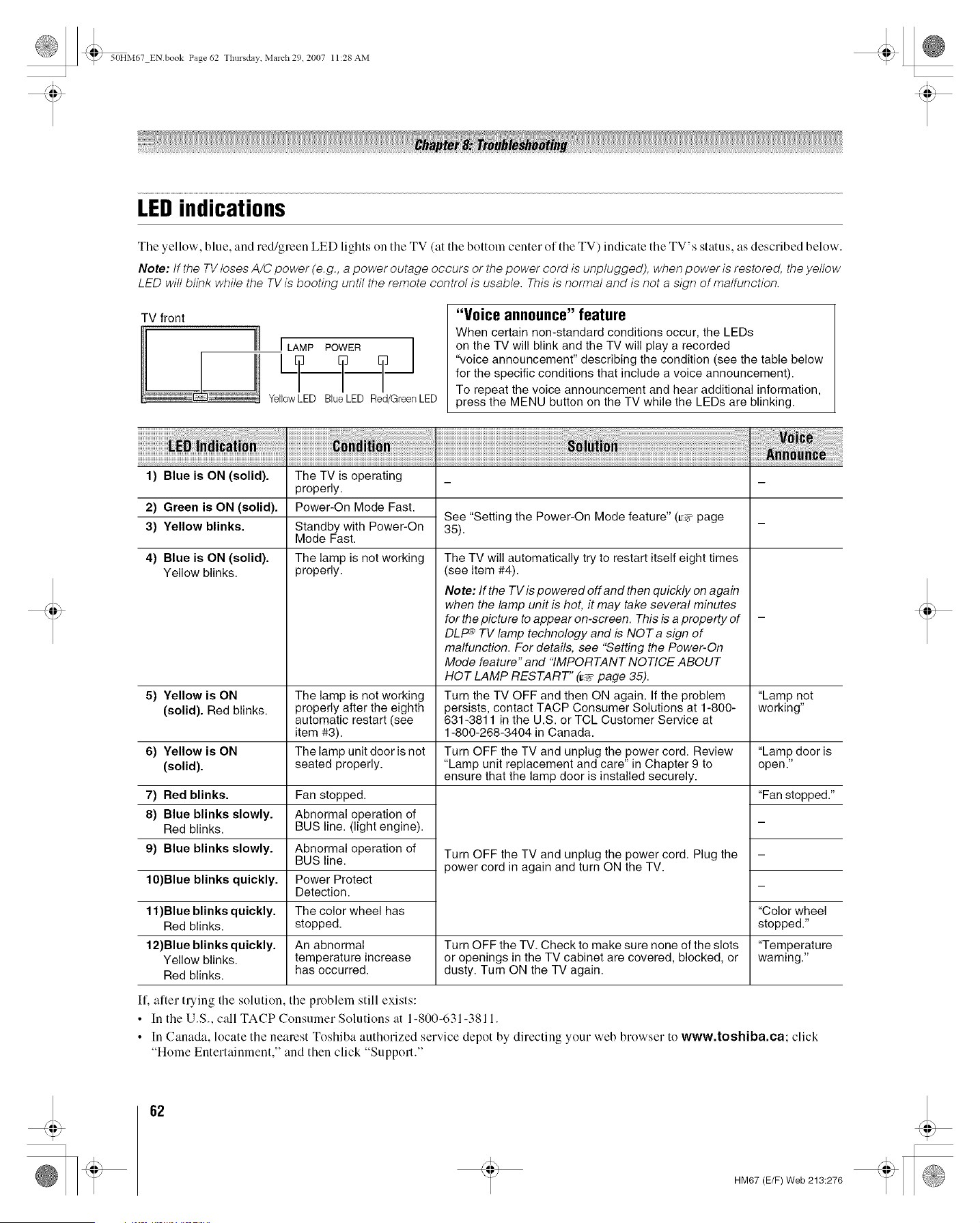
_ 50HM67 ENbook Page 62 Thursda;, March 29 2007 11:28 AM
LEDindications
The yellow, blue, and red/green LED lights on the TV (at the bottom center of the TV) indicate the TV's status, as described below.
Note: tf the TV loses A/C power (e.g., a power outage occurs or the power cord is unplugged), when power is restored, the yellow
LED will blink while the TV is booting until the remote control is usable. This is normal and is not a sign of malfunction.
TV front
Iiil
_E
I LAMP POWER
L?--T T
YellowLED BlueLED RedlGreenLED
"Voice announce" feature
When certain non-standard conditions occur, the LEDs
on the TV will blink and the TV will play a recorded
"voice announcement" describing the condition (see the table below
for the specific conditions that include a voice announcement).
To repeat the voice announcement and hear additional information,
press the MENU button on the TV while the LEDs are blinking.
1) Blue is ON (solid). The TV is operating
2) Green is ON (solid).
3) Yellow blinks.
4) Blue is ON (solid).
Yellow blinks.
properly.
Power-On Mode Fast.
Standby with Power-On
Mode Fast.
The lamp is not working
properly.
See "Setting the Power-On Mode feature" (=r_,page
35).
5) Yellow is ON The lamp is not working "Lamp not
(solid). Red blinks, properly after the eighth working"
automatic restart (see
item #3).
The lamp unit door is not
seated properly.
6) Yellow is ON
(solid).
7) Red blinks.
8) Blue blinks slowly.
Red blinks.
9) Blue blinks slowly.
10)Blue blinks quickly.
Fan stopped.
Abnormal operation of
BUS line. (light engine).
Abnormal operation of
BUS line.
Power Protect
Detection.
The color wheel has
stopped.
An abnormal
temperature increase
has occurred.
The TV will automatically try to restart itself eight times
(see item #4).
Note: If the TV is powered off and then quickly on again
when the lamp unit is hot, it may take several minutes
for the picture to appear on-screen. This is a property of
DLP e TV lamp technology and is NOT a sign of
malfunction. For details, see "Setting the Power-On
Mode feature" and "IMPORTANT NOTICE ABOUT
HOT LAMP RESTART" (_;_"page 35).
Turn the TV OFF and then ON again. If the problem
persists, contact TACP Consumer Solutions at 1-800-
631-3811 in the U.S. or TCL Customer Service at
1-800-268-3404 in Canada.
Turn OFF the TV and unplug the power cord. Review
"Lamp unit replacement and care" in Chapter 9 to
ensure that the lamp door is installed securely.
Turn OFF the TV and unplug the power cord. Plug the
power cord in again and turn ON the TV.
11)Blue blinks quickly.
Red blinks.
12)Blue blinks quickly. Turn OFF the TV. Check to make sure none of the slots
Yellow blinks, or openings in the TV cabinet are covered, blocked, or
Red blinks, dusty. Turn ON the TV again.
"Lamp door is
open."
"Fan stopped."
"Color wheel
stopped."
"Temperature
warning."
If, after trying the solution, the problem still exists:
• In the U.S., call TACP Consumer Solutions at 1-800-631-3811.
• In Canada, locate the nearest Toshiba authorized service depot by directing your web browser to www,toshiba,ea; click
"Home Entertainment," and then click "Support."
62
t
HM67 (E/F) Web 213:276
_ 50HM67 ENbook Page 63 Tlmrsdav March 29 2007 11:28 AM
Lampunit replacementandcare
Replacing the lamp unit
(User-replaceable component)
WARNING:RISK OF ELECTRIC
SHOCK!
TO REDUCE THE RISK OF ELECTRIC
SHOCK, NEVER REMOVE TV COVERS, EXCEPT AS
SPECIFIED HEREIN. REFER ALL SERVICING NOT
SPECIFIED IN THIS MANUAL TO QUALIFIED SERVICE
PERSONNEL. Failure to follow this WARNING may result in
death or serious injury.
The light source for this TV is a mercury lamp with internal
atmospheric pressure that increases during use. The lamp has a
limited service life that varies depending on product use and
user settings.
As is generally the case with all projection TVs that use
projection lamps as a light source, the brightness of the lamp
in this TV may vary somewhat over the expected service life
and will generally decrease over time. Because of the many
variables that can affect the useful service life of the lamp, your
experience may vary from other users.
Note : The lamp is warranted only for the periods and to the
extent set forth in the Limited Warranty applicable to this set.
See "Limited United States Warranty" (_ page 67) or "Limited
Canadian Warranty" (_-_"page 68), as applicable.
If you use the lamp beyond its service life:
• you may notice a reduction in tile colors and/or brightness of
the picture; and
• the strength of the quartz glass in the lamp will be reduced
and the lamp may rupture (often making a loud noise when
this happens). If the lamp ruptures, the TV will not operate
until the lamp unit is replaced.
CAUTION:Always handle the lamp unit
with care.
The lamp unit in this TV was designed for safe
replacement by consumers; however, if the lamp unit is
subjected to intentional abuse (such as excessive
mechanical abuse or handling by children or pets), the unit
may break, exposing sharp edges or pinch points.
When to replace the lamp unit
You should replace the lamp unit:
• if tile picture darkens and/or colors fade;
• if the screen (lamp) does not light (LED indieation #4,
ty_ page 62); or
• if you hear a loud noise and the picture goes black, which
may indicate a lamp rupture (LED indication #4,
_ page 62).
To obtain a replacement lamp unit:
Visit www.tacp.toshiba.com/service Ol-
I_ warranO,: call toll-free 1-800-631-3811.
Visit www.ceaccessories.toshiba.com or
consult your consumer electronics dealer.
Locate a Toshiba parts distributor by visiting
www.toshiba.ca. Click "Home Entertainment" and then
click "Support."
Always replace the lamp unit with the model
currently recommended by Toshiba.
For more information, please contact us at the
telephone numbers or websites listed above, as
applicable.
Using any lamp other than those recommended by
Toshiba may cause damage to the TV and/or lamp.
SUCH DAMAGE IS NOT COVERED UNDER YOUR
TOSHIBA WARRANTY.
63
HM67 (E/F) Web 213:27(
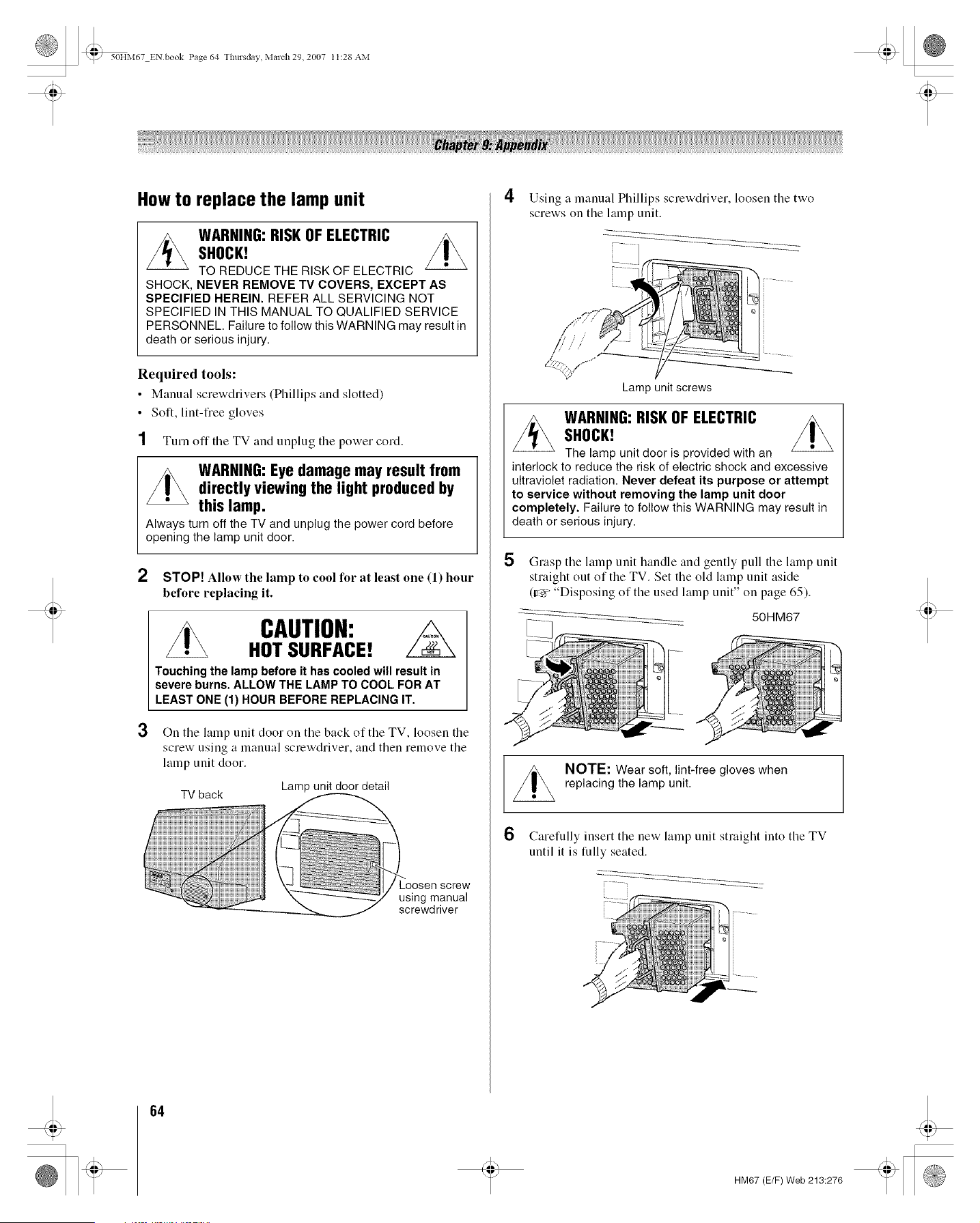
J_'_ 50HM67 EN book Page 54 Thursday, Malch 29, 2007 I 1:28 AM
How to replace the lamp unit
WARNING:RISK OF ELECTRIC
SHOCK!
TO REDUCE THE RISK OF ELECTRIC
SHOCK, NEVER REMOVE TV COVERS, EXCEPT AS
SPECIFIED HEREIN. REFER ALL SERVICING NOT
SPECIFIED IN THIS MANUAL TO QUALIFIED SERVICE
PERSONNEL. Failure to fellow this WARNING may result in
death or serious injury.
Required tools:
• Manual screwdrivers (Phillips and slotted)
• Soft, lint-free gloves
1 Turn off the TV and unplug the power cord.
WARNING:Eye damage may result from
directly viewing the light produced by
this lamp.
Always turn off the TV and unplug the power cord before
opening the lamp unit door.
2 STOP! Allow the lamp to cool for at least one (1) hour
before replacing it.
3
CAUTION:
HOT SURFACE!
Touching the lamp before it has cooled will result in
severe burns. ALLOW THE LAMP TO COOL FOR AT
LEAST ONE (1) HOUR BEFORE REPLACING IT.
On the lamp unit door on the back of the TV, loosen the
screw using a manual screwdriver, and then remove the
lamp unit door.
Lamp unit door detail
TV back
using manual
screwdriver
4
5
6
Using a manual Phillips screwdriver, loosen the two
screws on the lamp unit.
/
Lamp unit screws
WARNING:RISK OF ELECTRIC
SHOCK!
The lamp unit door is provided with an
interlock to reduce the risk of electric shock and excessive
ultraviolet radiation. Never defeat its purpose or attempt
to service without removing the lamp unit door
completely. Failure to follow this WARNING may result in
death or serious injury.
Grasp the lamp unit handle and gently pull the lamp unit
straight out of the TV. Set the old lamp unit aside
(_ "Disposing of the used lamp unit" on page 65).
50HM67
NOTE: Wear soft, lint-free gloves when
replacing the lamp unit.
Carefully insert the new lamp unit straight into the TV
until it is fully seated.
64
.9
HM67 (E/F) Web 213:276
®
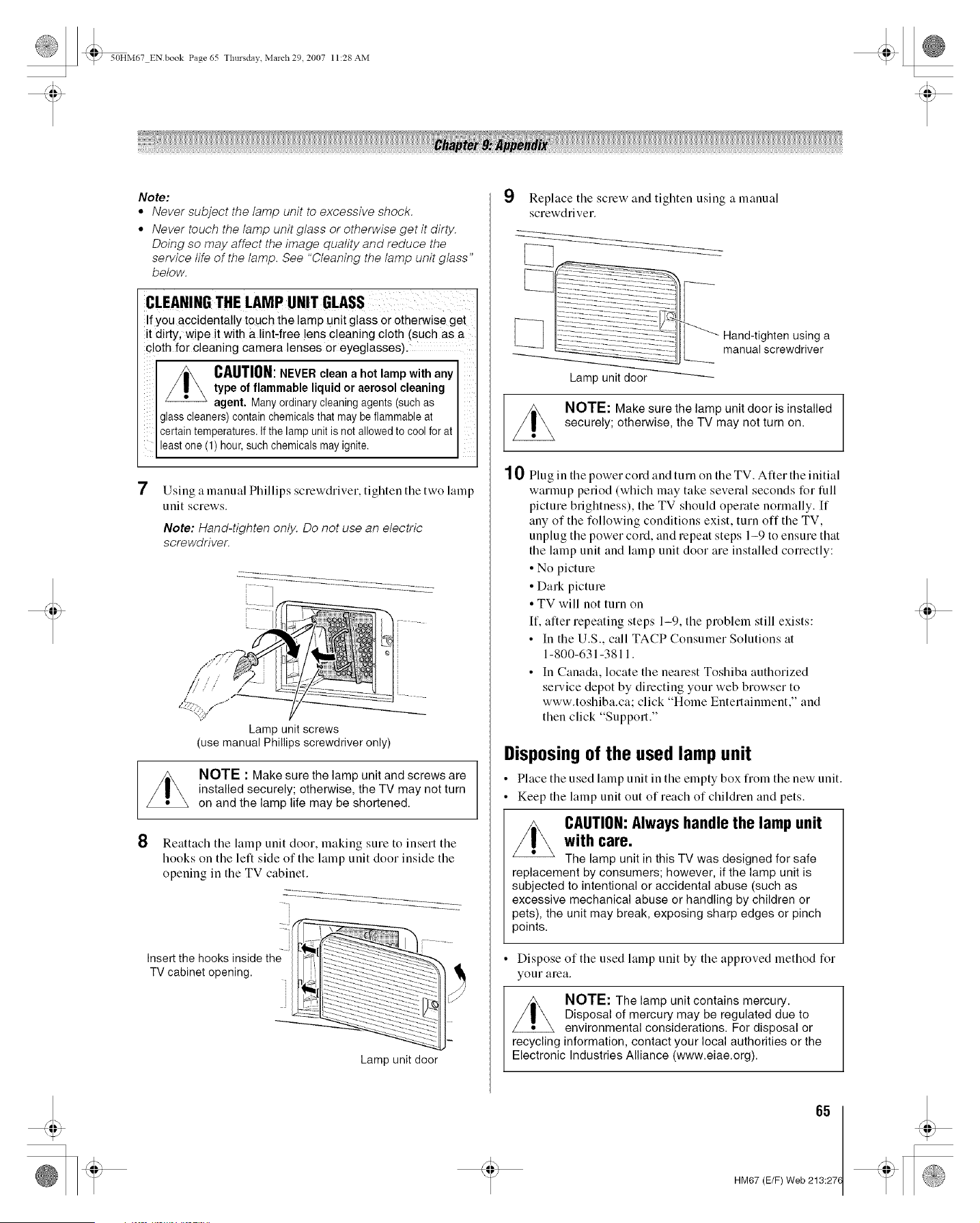
_ 50HM67 ENbook Page 65 Tlmrsdav March 29 2007 11:28 AM
Note:
* Never subject the lamp unit to excessive shock.
° Never touch the lamp unit glass or otherwise get it dirty.
Doing so may affect the image quality and reduce the
service life of the lamp. See "Cleaning the lamp unit glass"
below.
CLEANINGTHE LAMP UNITGLASS
If you accidentally touch the lamp unit glass or otherwise get
it dirty, wipe it with a lint-free lens cleaning cloth (such as a
cloth for cleaning camera lenses or eyeglasses).
CAUTION:NEVER clean a hot lamp with any
type of flammable liquid or aerosol cleaning
agent. Manyordinary cleaningagents (suchas
glasscleaners) containchemicalsthat may be flammableat
certaintemperatures.If the lamp unit is not allowedto coolfor at
least one (1) hour,such chemicalsmayignite.
7
Using a manual Phillips screwdriver, tighten tile two lamp
unit screws.
Note: Hand-tighten only. Do not use an electric
screwdriver.
/¢ / /
/,
,/_::,:. / ........
Lamp unit screws
(use manual Philli 3s screwdriver only)
NOTE : Make sure the lamp unit and screws are
installed securely; otherwise, the TV may not turn
on and the lamp life may be shortened.
8 Reattach the lamp unit door, making sure to insert the
hooks on the lelt side of the lamp unit door inside the
opening in the TV cabinet.
Insert the hooks inside the-
TV cabinet opening. _lk
Lamp unit door
9
10
Rephlce tile screw and tighten using a manual
screwdriver.
[_] Hand-tighten using a
manual screwdriver
Lamp unit door
NOTE: Make sure the lamp unit door is installed
securely; otherwise, the TV may not turn on.
Plug in the power cord and turn on the TV. Alter the initial
warmup period (which may take several seconds for full
picture brightness), the TV should operate normally. [f
any of the following conditions exist, turn off the TV,
unplug the power cord, and repeat steps 1-9 to ensure that
the lamp unit and lamp unit door are installed correctly:
• No picture
• Dark picture
• TV will not turn on
If, alter repeating steps 1-9, the problem still exists:
• In the U.S., call TACP Consumer Solutions at
1-800-631-3811.
• In Canada, locate the nearest Toshiba authorized
service depot by directing your web browser to
www.toshiba.ca; click "Home Entertainment," and
then click "Support."
Disposingof the used lamp unit
• Phtce the used lamp unit in the empty box from the new unit.
• Keep the lamp unit out of reach of children and pets.
CAUTION:Always handle the lamp unit
with care.
The lamp unit in this TV was designed for safe
replacement by consumers; however, if the lamp unit is
subjected to intentional or accidental abuse (such as
excessive mechanical abuse or handling by children or
pets), the unit may break, exposing sharp edges or pinch
points.
• Dispose of the used lamp unit by the approved method for
your area.
NOTE: The lamp unit contains mercury.
Disposal of mercury may be regulated due to
environmental considerations. For disposal or
recycling information, contact your local authorities or the
Electronic Industries Alliance (www.eiae.org).
65
HM67 (E/F) Web 213:27(
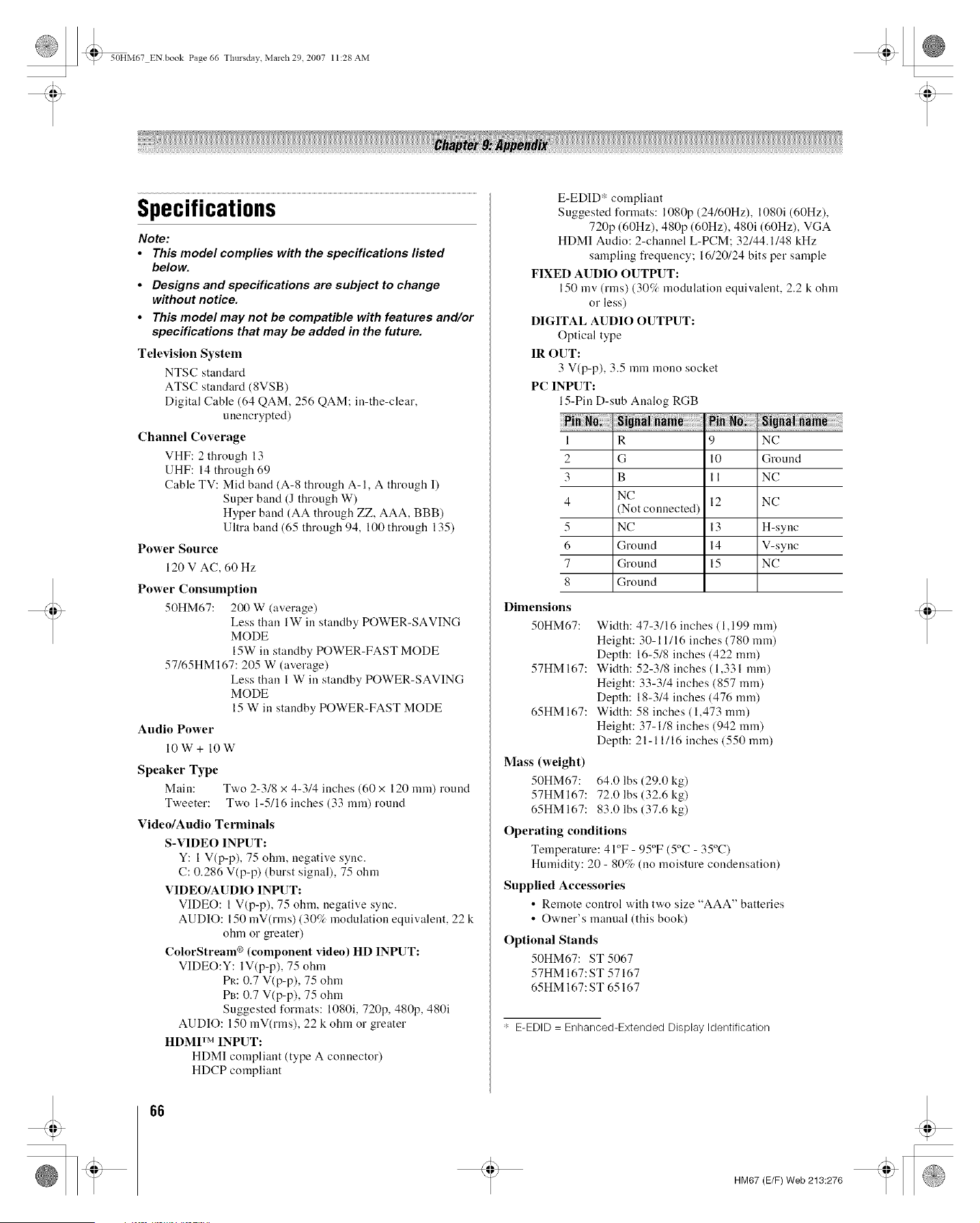
_ 50HM67 ENbook Page 66 Tlmrsdav March 29 2007 11:28 AM
Specifications
Note:
• This model complies with the specifications listed
below.
• Designs and specifications are subject to change
without notice.
• This model may not be compatible with features and/or
specifications that may be added in the future.
Television System
NTSC standard
ATSC standard (8VSB)
Digital Cable (64 QAM, 256 QAM: in-the-clear,
unencrypted)
Channel Coverage
VHF: 2 through 13
UHF: 14 through 69
Cable TV: Mid band (A-8 through A-l, A through I)
Super band (J through W)
Hyper band (AA through ZZ, AAA, BBB)
Ultra band (65 through 94, 100 through 135)
Power Source
120 V AC, 60 Hz
Power Consumption
50HM67: 200 W (average)
Less than 1W ill standby POWER-SAVING
MODE
15W in standby POWER-FAST MODE
57/65HM 167:205 W (average)
Less than 1 W ill standby POWER-SAVING
MODE
15 W ill standby POWER-FAST MODE
Audio Power
lOW+ lOW
Speaker Type
Main: Two 2-3/8 x 4-3/4 inches (60 x 120 ram) round
Tweeter: Two 1-5/16 inches (33 ram) round
Video/Audio Terminals
S-VIDEO INPUT:
Y: 1 V(p-p), 75 ohm, negative sync.
C: 0.286 V(p-p) (burst signal), 75 ohm
VIDEO/AUDIO INPUT:
VIDEO: 1 V(p-p), 75 ohm, negative sync.
AUDIO: 150 mV(rms) (30% modulation equivalent, 22 k
ohm or greater)
ColorStream _ (component video) HD INPUT:
VIDEO:Y: 1V(p-p), 75 ohm
PR: 0.7 V(p-p), 75 ohm
Pm 0.7 V(p-p), 75 ohm
Suggested formats: 1080i, 720p, 480p, 480i
AUDIO: 150 mV(rms), 22 k ohm or greater
HDMP MINPUT:
HDMI compliant (type A connector)
HDCP compliant
E-EDID* compliant
Suggested forlnats: 1080p (24160Hz), 1080i (60Hz),
720p (60Hz), 480p (60Hz), 480i (60Hz), VGA
HDMI Audio: 2-channel L-PCM; 32/44.1/48 kHz
sampling frequency; 16/20/24 bits per sample
FIXED AUDIO OUTPUT:
150 mv (rms) (30% modulation equivalent, 2.2 k ohm
or less)
DIGITAL AUDIO OUTPUT:
Optical type
IR OUT:
3 V(p-p), 3.5 mm mouo socket
PC INPUT:
15-Pin D-sub Analog RGB
1
2
3
4
5
6
7
8
R 9 NC
G 10 Ground
B 11 NC
NC
12 NC
(Not connected)
NC 13 H-syuc
Ground 14 V-syuc
Ground 15 NC
Ground
Dimensions
50HM67:
57HM 167:
65HM 167:
Mass (weight)
50HM67:
57HM 167:
65HM 167:
Width: 47-3/16 inches ( 1,199 ram)
Height: 30-11/16 inches (780 mln)
Depth: 16-5/8 inches (422 lnm)
Width: 52-3/8 inches ( 1,331 ram)
Height: 33-3/4 inches (857 ram)
Depth: 18-3/4 inches (476 mln)
Width: 58 inches ( 1,473 lnm)
Height: 37-1/8 inches (942 lnm)
Depth: 21-11/16 inches (550 ram)
64.0 lbs (29.0 kg)
72.0 lbs (32.6 kg)
83.0 lbs (37.6 kg)
Operating conditions
Temperature: 4 I°F - 95_'F (5°C - 35°C)
Humidity: 20 - 80% (no moisture condensation)
Supplied Accessories
• Remote control with two size "AAA" batteries
• Owner's manual (this book)
Optional Stands
50HM67: ST 5067
57HM 167: ST 57167
65HM 167: ST 65167
' E-EDID = Enhanced-Extended Display Identification
66
HM67 (E/F) Web 213:276
_ 50HM67 ENbook Page 67 Tlmrsdav March 29 2007 11:28 AM
LimitedUnitedStatesWarranty
for DLP® Television Models
Toshiba America Consumer Products, L.L.C. ("TACP") makes the
following limited warranties to original consumers in the United States.
THESE LIMITED WARRANTIES EXTEND TO THE ORIGINAL
CONSUMER PURCHASER OR ANY PERSON RECEIVING THIS DLP®
TELEVISION AS A GIFT FROM THE ORIGINAL CONSUMER
PURCHASER AND TO NO OTHER PURCHASER OR TRANSFEREE.
DLP¢ TELEVISIONS PURCHASED iN THE U.S.A. AND USED
ANYWHERE OUTSIDE OF THE U.S.A., INCLUDING, WITHOUT
LIMITATION, CANADA AND MEXICO, ARE NOT COVERED BY THESE
WARRANTIES.
DLP¢ TELEVISIONS PURCHASED ANYWHERE OUTSIDE OF THE
U.S.A., INCLUDING, WITHOUT LIMITATION, CANADA AND MEXICO,
AND USED iN THE U.S.A., ARE NOT COVERED BY THESE
WARRANTIES.
Limited One (t) Year Warranty on Parts and Labor
TACP warrants this DLP®Television and its parts against defects in
materials or workmanship for a period of one (1) year after the date of
original retail purchase. DURING THIS PERIOD, TACP WILL, AT TACP'S
OPTION, REPAIR OR REPLACE A DEFECTIVE PART WITH A NEW OR
REFURBISHED PART WITHOUT CHARGE TO YOU FOR PARTS OR
LABOR. During this period, TACP Authorized Service Station personnel
will come to your home when warranty service is required. Depending on
the type of repair required, the service will either be performed in your
home or the DLP® Television will be taken to a TACP Authorized Service
Station for repair and returned to your home at no cost to you.
Limited One (1) Year Warranty on Lamp Unit
TACP warrants the original lamp unit contained in this DLF_ Television
against defects in materials or workmanship for a period of one (1) year
after the date of original retail purchase. DURING THIS PERIOD, TACP
WILL, AT TACP'S OPTION, EXCHANGE A DEFECTIVE LAMP UNIT
WITH A NEW OR REFURBISHED LAMP UNIT WITHOUT CHARGE TO
YOU. LABOR CHARGES FOR LAMP UNIT REPLACEMENTARE YOUR
RESPONSIBILITY AND ARE NOT COVERED UNDER THIS
WARRANTY. The lamp unit is a user-replaceable component.
Rental Units
The warranty for DLP® Television rental units begins on the date of the first
rental or thirty (30) days after the date of shipment to the rental firm,
whichever comes first.
Limited Warranty for Commercial Units
TACP warrants DLP® Televisions, including the lamp units contained
therein, that are sold and used for commercial purposes as follows: all
parts are warranted against defects in materials or workmanship for a
period of ninety (90) days after the date of original retail purchase.
DURING THIS PERIOD, TACP WILL, AT TACP'S OPTION, REPAIR OR
REPLACE A DEFECTIVE PART WITH A NEW OR REFURBISHED PART
WITHOUT CHARGE TO YOU.
Owner's Manual and Product Registration Card
Read this owner's manual thoroughly before operating this DLP®
Television.
Complete and mail the enclosed product registration card or register your
DLP®Television online at www.tacp.toshiba.com/service as soon as
possible. By registering your DLP® Television you will enable TACP to bring
you new products specifically designed to meet your needs and help us to
contact you inthe unlikely event a safety notification is required under the
U.S. Consumer Product Safety Act. Failure to complete and return the
product registration card does not diminish your warranty rights.
Your Responsibility
THE ABOVE WARRANTIES ARE SUBJECT TO THE FOLLOWING
CONDITIONS:
(1) You must retain your original bill of sale or provide other proof of
purchase.
(2) All warranty servicing of this DLP® Television must be performed by
an Authorized TACP Service Station.
(3) The warranties from TACP are effective only if this DLFe Television is
purchased and operated in the Continental U.S.A. or Puerto Rico.
(4) Labor service charges for set installation, setup, adjustment of
customer controls, and installation or repair of antenna systems are
not covered by this warranty. Reception problems caused by
inadequate antenna systems, misaligned satellite dishes, cable
television distribution, VCRs, DVD players/recorders, personal
computer level IEEE 1394 devices, and any other connected signal
source device are your responsibility.
(5) Warranties extend only to defects in materials or workmanship as
limited above, and do not extend to any DLP® Television or parts that
have been lost or discarded by you or to damage to the DLP®
Television or parts caused by fires, misuse, accident, Acts of God
(such as lightning or fluctuations in electric power), improper
installation, improper maintenance, or use in violation of instructions
furnished by TACP; use or malfunction through simultaneous use of
this DLP® Television and connected equipment; or to units that have
been modified or had the serial number removed, altered, defaced,
or rendered illegible.
How to Obtain Warranty Service
If, after following all of the operating instructions in this manual and
reviewing the section entitled "Troubleshooting," you find that service is
needed:
(1) To find the nearest TACP Authorized Service Station, visit TACP's
website at www.tacp.toshiba.com/service or contact TACP's
Consumer Solution Center toll free at 1-800-631-3811.
(2) You must present your original bill of sale or other proof of purchase
to the TACP Authorized Service Station.
For additional information, visit TACP's website:
www.tacp.toshiba.com.
ALL WARRANTIES IMPLIED BY THE LAW OF ANY STATE OF THE
U.S.A., INCLUDING THE IMPLIED WARRANTIES OF
MERCHANTABILITY AND FITNESS FOR A PARTICULAR PURPOSE,
ARE EXPRESSLY LIMITED TO THE DURATION OF THE LIMITED
WARRANTIES SET FORTH ABOVE. WITH THE EXCEPTION OF ANY
WARRANTIES IMPLIED BY THE LAW OF ANY STATE OF THE U.S.A.
AS HEREBY LIMITED, THE FOREGOING WARRANTY IS EXCLUSIVE
AND iN LIEU OF ALL OTHER WARRANTIES, GUARANTEES,
AGREEMENTS, AND SIMILAR OBLIGATIONS OF TACP WITH
RESPECT TO THE REPAIR OR REPLACEMENT OF ANY PARTS. iN NO
EVENT SHALL TACP BE LIABLE FOR CONSEQUENTIAL OR
INCIDENTAL DAMAGES (INCLUDING, BUT NOT LIMITED TO, LOST
PROFITS, BUSINESS INTERRUPTION, OR MODIFICATION OR
ERASURE OF RECORDED DATA CAUSED BY USE, MISUSE OR
INABILITY TO USE THIS DLP® TELEVISION).
No person, agent, distributor, dealer, or company is authorized to change,
modify, or extend the terms of these warranties in any manner whatsoever.
The time within which an action must be commenced to enforce any
obligation of TACP arising under the warranty or under any statute or law
of the United States or any state thereof is hereby limited to ninety (90)
days from the date you discover, or should have discovered, the defect.
This limitation does not apply to implied warranties arising under the law
of any state of the U.S.A.
THIS WARRANTY GIVES YOU SPECIFIC LEGAL RIGHTS AND YOU
MAY ALSO HAVE OTHER RIGHTS WHICH MAY VARY FROM STATE
TO STATE IN THE U.S.A. SOME STATES OF THE U.S.A. DO NOT
ALLOW LIMITATIONS ON THE DURATION OF AN IMPLIED
WARRANTY, WHEN AN ACTION MAY BE BROUGHT, OR THE
EXCLUSION OR LIMITATION OF INCIDENTAL OR CONSEQUENTIAL
DAMAGES. THEREFORE, THE ABOVE PROVISIONS MAY NOT APPLY
TOYOU UNDER SUCH CIRCUMSTANCES. 05
67
HM67 (E/F) Web 213:27(
_ 50HM67 ENbook Page 68 Tlmrsdav March 29 2007 11:28 AM
Limited CanadianWarranty
for Toshiba Brand DLP® Television Models
Toshiba of Canada Limited ("TCL") makes the following limited warranties
to original consumers in Canada. THESE LIMITED WARRANTIES
EXTEND TO THE ORIGINAL CONSUMER PURCHASER OR ANY
PERSON RECEIVING THIS TOSHIBA BRAND DLP® TELEVISION
MODEL (the "TELEVISION(S)" or "Television(s)") AS A GIFT FROM THE
ORIGINAL CONSUMER PURCHASER AND TO NO OTHER
PURCHASER OR TRANSFEREE.
TELEVISIONS PURCHASED IN CANADA, AND USED ANYWHERE
OUTSIDE OF CANADA INCLUDING, WITHOUT LIMITATION, THE
UNITED STATES AND MEXICO, ARE NOT COVERED BY THESE
WARRANTIES.
TELEVISIONS PURCHASED ANYWHERE OUTSIDE OF CANADA,
INCLUDING, WITHOUT LIMITATION, THE UNITED STATES AND
MEXICO, AND USED IN CANADA, ARE NOT COVERED BY THESE
WARRANTIES.
Limited One (1) Year Warranty on Parts and Labour
Subject to the more limited warranty if the Television is used for any
commercial or business purposes as set out below, TCL warrants the
Television and its parts, excluding the lamp unit, against material defects
in materials or workmanship that result in the Television failing for a period
of one (1) year after the date of original retail purchase. DURING THIS
PERIOD, TCL WILL, AT TCL'S OPTION, REPAIR OR REPLACE A
DEFECTIVE PART WITH A NEW OR REFURBISHED PART WITHOUT
CHARGE TO YOU FOR PARTS OR LABOR. During this period, TCL
Television authorized service provider ("ASP") personnel will come to
your home when warranty service is required. Depending on the type of
repair required, the service will either be performed in your home or the
Television will be taken to an ASP for repair and returned to your home at
no cost to you. IN-HOME SERVICE ONLY APPLIES WITHIN 100
KILOMETERS OF AN ASP. IF YOU ARE NOT WITHIN 100
KILOMETERS OF AN ASP, YOU MUST DELIVER THE ENTIRE
TELEVISION TO AN ASP. YOU MUST PAY FOR ALL
TRANSPORTATION AND INSURANCE CHARGES FOR THE
TELEVISION TO AND FROM THE ASP.
Limited One (1) Year Warranty on the Lamp Unit
TCL warrants the lamp unit in this Television against material defects in
materials or workmanship for a period of one (1) year after the date of
original retail purchase. DURING THIS PERIOD, TCL WILL, AT TCL'S
OPTION, REPAIR OR REPLACE THE DEFECTIVE LAMP UNIT WITH A
NEW OR REFURBISHED LAMP UNIT WITHOUT CHARGE TO YOU
FOR THE LAMP UNIT. YOU MUST DELIVER THE ENTIRE LAMP UNIT
TO AN ASP. YOU MUST PAY FOR ALL TRANSPORTATION AND
INSURANCE CHARGES FOR THE LAMP UNIT TO AND FROM THE
ASP.
Limited Warranty for Commercial Units
TCL warrants Televisions that are used for any commercial or business
purposes as follows: all parts are warranted against material defects in
materials or workmanship that result in the Television failing for a period of
ninety (90) days after the date of original retail purchase. DURING THIS
PERIOD, TCL WILL, AT TCL'S OPTION, REPAIR OR REPLACE THE
DEFECTIVE PART WITH A NEW OR REFURBISHED PART WITHOUT
CHARGE TO YOU. ON-SITE SERVICE ONLY APPLIES WITHIN 100
KILOMETERS OFAN ASP. IF YOU ARE NOT WITHIN 100 KILOMETERS
OF AN ASP, YOU MUST DELIVER THE ENTIRE TELEVISION TO AN
ASP. YOU MUST PAY FOR ALL TRANSPORTATION AND INSURANCE
CHARGES FOR THE TELEVISION TO AND FROM THE ASP.
Rental Units
The warranty for Television rental units begins with the date of first rental
or thirty (30) days from the date of shipment to the rental firm, whichever
comes first.
Your Responsibility
THE ABOVE WARRANTIES ARE SUBJECT TO THE FOLLOWING
CONDITIONS:
(1) You must provide your bill of sale or other proof of purchase.
(2) All warranty servicing of this Television must be performed by an ASP.
(3) The warranties from TCL are effective only if the Television is (i)
purchased as new and unopened from TCL or from TCL's authorized
distributors, dealers or resellers ("ADR's") and (ii) located/operated
in Canada.
(4) Labour charges for set installation, setup, adjustment of customer
controls, and installation or repair of antenna systems are not covered
by these warranties. Reception problems caused by inadequate
antenna systems are your responsibility.
(5) Warranties extend only to material defects in materials or
workmanship as limited above, and do not extend to:
a) Service, repairs or replacement made necessary by accident,
misuse, abuse, moisture, liquids, dust, dirt, neglect, accident,
damage, 24/7 applications, improper installation, improper
operation, improper cleaning, improper maintenance, normal
wear and tear, or any other external cause or event, act or
omission outside the control of TCL, including fire, theft, acts of
God, alteration, power failures, power surges or power shortages,
lightning, other electrical faults, or repairs, modifications or
replacements by persons other than those authorized by TCL to
service the Television;
b) Replacement of missing, discarded or lost parts, the provision of
retrofits, or preventive maintenance;
c) Repair of damage that is cosmetic only or does not affect the
Television functionality, such as wear and tear, scratches and
dents;
d) Service on Toshiba-branded accessory items (such accessory
items may be covered by their own warranty);
e) Service on third party products or service made necessary by
use of incompatible third party products;
f) Service made necessary by the simultaneous use of this
Television and connected equipment;
g) Modifications to the Television not approved in writing by TCL,
and service made necessary by the use or installation of non-
Toshiba modifications to the Television;
h) Service of aTelevision on which the TOSHIBA label or logo, rating
label or serial number have been defaced or removed;
i) On-site service and repair of the Television; and
j) Damage to the Television caused by failure to follow the
specifications, User manuals or guides as to usage and/or
storage.
Disclaimer and Limitation of Remedy
TO THE EXTENT NOT PRECLUDED BY LAW, ALL OTHER EXPRESS
AND IMPLIED WARRANTIES, CONDITIONS AND REPRESENTATIONS
FOR THIS TELEVISION, INCLUDING THE IMPLIED WARRANTIES,
CONDITIONS AND REPRESENTATIONS OF MERCHANTABILITY AND
FITNESS FOR A PARTICULAR PURPOSE, ARE HEREBY DISCLAIMED
AND EXCLUDED. IF THE APPLICABLE LAW, STATUTORY OR
OTHERWISE, PRECLUDES THE EXCLUSION OF ANY IMPLIED
WARRANTIES, CONDITIONS AND REPRESENTATIONS THEN SUCH
IMPLIED WARRANTIES, CONDITIONS AND REPRESENTATIONS ARE
OTHERWISE LIMITED IN DURATION TO THE TERM OF THIS
EXPRESS WRITTEN LIMITED WARRANTY. TO THE EXTENT NOT
PRECLUDED BY LAW, STATUTORY OR OTHERWISE, THIS WRITTEN
WARRANTY SUPERCEDES AND SPECIFICALLY DISCLAIMS ANY
OTHER WARRANTY, CONDITION OR REPRESENTATION NOT
STATED IN THIS WARRANTY, WHETHER MADE BY TCL, TOSHIBA
CORPORATION, THEIR AFFILIATES, ADRs AND ASPs AND
WHETHER MADE ORALLY OR IN WRITING (INCLUDING ANY
STATEMENT IN ANY BROCHURE, PRESS RELEASE,
ANNOUNCEMENT, ADVERTISEMENT, POINT OF SALE DISPLAY,
ETC.).
68
HM67 (E/F) Web 213:276
_ 50HM67 ENbook Page 69 Tlmrsdav March 29 2007 11:28 AM
YOUMUSTREADANDFOLLOWALL SET-UPAND USAGE
INSTRUCTIONSIN THEAPPLICABLEUSERGUIDESAND/OR
MANUALS.IF YOUFAILTO DOSO, THISTELEVISIONMAYNOT
FUNCTIONPROPERLYAND YOUMAYSUFFERDAMAGE.THIS
WARRANTYWILL NOT COVERANY SERVICETHAT IS REQUIRED,IN
PARTORINWHOLE,AS A RESULTOFANY FAILURETO FOLLOWTHE
SET-UPAND USAGEINSTRUCTIONS.THISWARRANTYDOESNOT
APPLYAND SHALLBE VOIDAND UNENFORCEABLEIFTHE
TELEVISIONISOPENED,SERVICED,OR REPAIREDBY PERSONS
OTHERTHANTHOSEAUTHORIZEDBY TCL TOSERVICEORREPAIR
THE TELEVISION.
IFTHETELEVISIONFAILSTO WORKAS WARRANTEDABOVE,YOUR
SOLEAND EXCLUSIVEREMEDYSHALLBEREPAIROR REPLACEMENT
OFTHE DEFECTIVEPART.IN NO EVENTWILLTCL,TOSHIBA
CORPORATION,THEIRAFFILIATES,ADRs OR ASPs(THE"RELATED
PARTIES")BE LIABLETOYOU OR ANYTHIRDPARTYFORANY
DAMAGES,MONEY,REIMBURSEMENT,COSTSOR EXPENSES.THIS
LIMITATIONAPPLIESTODAMAGES,MONEY,REIMBURSEMENT,
COSTSOR EXPENSESOF ANY KIND WHATSOEVERINCLUDINGANY
DIRECTOR INDIRECTDAMAGES,DAMAGETO PROPERTYOR
PERSON,LOST PROFITS,LOSTSAVINGS,INCONVENIENCEOR
OTHERSPECIAL,INCIDENTAL,EXEMPLARYOR CONSEQUENTIAL
DAMAGES,WHETHERFORBREACHOFWARRANTY,BREACHOF
CONTRACT,TORT(INCLUDINGNEGLIGENCE),UNDERA STATUTEOR
UNDERANYOTHERLAWOR FORMOR ACTION,OR WHETHER
ARISINGOUTOF THE USEOFOR INABILITYTOUSETHETELEVISION,
EVENIF ANY OF THERELATEDPARTIESHAS BEENADVISEDOFTHE
POSSIBILITYOF SUCH DAMAGESOR OFANY CLAIM BYANY OTHER
PARTY.
No person, agent, distributor, dealer or company is authorized to change,
modify or extend the terms of these warranties in any manner whatsoever.
Arbitration and Dispute Resolution
To the extent not precluded by law, any claim, dispute, controversy or
disagreement (whether for breach of warranty, breach of contract, tort
(including negligence), under a statute or under any other law or form of
action) against any of the Related Parties arising out of, or otherwise
relating to: (i) this warranty; (ii) the Television; (iii) any oral or written
representations, statements, brochures, press releases, advertising,
announcement, point of sale display, or promotional material relating to the
Television; (iv) the relationships that result from this warranty, (the
foregoing claims, disputes controversies and disagreements are
collectively referred to as the "Dispute"), shall be referred to and resolved
by final and binding arbitration (to the exclusion of the courts). To the
extent not precluded by law, you agree to waive any right that you may
have to commence or participate in any representative or class proceeding
against the Related Parties relating to any Dispute. If and where applicable
and to the extent not precluded by law, you further agree to opt out of any
such representative or class proceedings. Arbitration of any Dispute will
be conducted in the forum and in the manner as agreed to between you
and TCL. Failing such agreement, the arbitration will be conducted by one
arbitrator pursuant to the laws and rules relating to arbitration generally in
force in the jurisdiction in which you reside at the time that the Dispute
arises. To the extent not precluded by law, no claim, dispute, controversy
or disagreement of any other person may be joined or combined with any
Dispute by you, without the prior written consent of TCL
CriticalApplications
The Televisionyou have purchasedis not designed for any "critical
applications." "Criticalapplications" meanslife support systems,medical
applications, connectionsto implanted medical devices, commercial
transportation,nuclear facilities or systemsor any other applications
where Televisionfailure could leadto injuryto personsor loss of life or
catastrophic property damage.
IFTHECUSTOMERUSESTHETELEVISIONIN ANY CRITICAL
APPLICATION,THE CUSTOMER- AND NOTTCL, ITSAFFILIATES,ADRs
OR ASPs-ASSUMESOLEAND FULLRESPONSIBILITYFORSUCHUSE.
TCL RESERVESTHE RIGHTTO REFUSETO SERVICEANYTELEVISION
USEDINA CRITICALAPPLICATION.TCL, ITSAFFILIATES,ADRsAND
ASPs HEREBYDISCLAIMANYAND ALL LIABILITY,DAMAGESAND
CONSEQUENCESARISINGOUT OF THESERVICEOR REFUSALTO
SERVICESUCHTELEVISIONAND FURTHERDISCLAIMANY AND ALL
LIABILITY,CONSEQUENCESAND DAMAGESTHATMAYARISEOR
RESULTFROMTHE USEOF THETELEVISIONIN ANY CRITICAL
APPLICATIONS.
General Provisions
If and to the extent that any provision of this limited warranty should
generally be found to be unenforceable, the unenforceable provision shall
be severed from the warranty and deemed not to form part of the warranty.
The remaining provisions of this warranty shall be and remain valid and
enforceable. If and to the extent that any provision of this limited warranty
as it relates to any of the Related Parties is found to be invalid or
unenforceable in respect of that party (the "Excluded Party"), the
Excluded Party shall be deemed to be severed or excluded from the
provision, and the provision shall remain valid, enforceable and
applicable in respect of the other or remaining Related Parties.
To the extent permitted by law, this limited warranty shall be governed and
construed in accordance with the laws of Ontario.
If there is any inconsistency between this limited warranty, on the one
hand, and any statement in the packaging of the Television or in any other
document enclosed with, or used in the context of the promotion or sale
of, the Television, on the other hand, the provisions of this limited warranty
shall prevail.
How to Obtain Warranty Services
If, after following all of the operating instructions in this manual and
checking the "Troubleshooting" section, you find that service is needed:
(1) To find the nearest ASP, visit TCL's web site at www.toshiba.ca, or
call toll free 1-800-268-3404
(2) Present your bill of sale or other proof of purchase to the ASP.
For additional information, visit TCL's website at www.toshiba.ca
6g
HM67 (E/F) Web 213:27(
_ 50HM67 ENbook Page 70 Tlmrsdav March 29 2007 11:28 AM
A copy of the GPL source code in this product may be obtained by
contacting Toshiba Consumer Solutions at (800)631-3811. There will be
a charge to cover the costs of providing the source code.
A copy of the LGPL source code in this product may be obtained by
contacting Toshiba Consumer Solutions at (800)631-3811. There will be
a charge to cover the costs of providing the source code.
USB Protocol Copyright © 2005 The NetBSD Foundation, Inc. All rights
reserved.
Redistribution and use in source and binary forms, with or without
modification, are permitted provided that the following conditions are met:
(1) Redistributions of source code must retain the above copyright
notice, this list of conditions and the following disclaimer.
(2) Redistributions in binary form must reproduce the above copyright
notice, this list of conditions and the following disclaimer in the
documentation and/or other materials provided with the distribution.
(3) Neither the name of The NetBSD Foundation nor the names of its
contributors may be used to endorse or promote products derived
from this software without specified prior written permission.
THIS SOFTWARE IS PROVIDED BY THE NETBSD FOUNDATION, INC.
AND CONTRIBUTORS "AS IS" AND ANY EXPRESS OR IMPLIED
WARRANTIES, iNCLUDING, BUT NOT LIMITED TO, THE IMPLIED
WARRANTIES OF MERCHANTABILITY AND FITNESS FOR A
PARTICULAR PURPOSE ARE DISCLAIMED. IN NO EVENT SHALL
THE FOUNDATION OR CONTRIBUTORS BE LIABLE FOR ANY
DIRECT, INDIRECT, INCIDENTAL, SPECIAL, EXEMPLARY, OR
CONSEQUENTIAL DAMAGES (INCLUDING, BUT NOT LIMITED TO,
PROCUREMENT OF SUBSTITUTE GOODS OR SERVICES; LOSS OF
USE, DATA, OR PROFITS; OR BUSINESS INTERRUPTION) HOWEVER
CAUSED AND ON ANY THEORY OF LIABILITY, WHETHER IN
CONTRACT, STRICT LIABILITY, OR TORT (INCLUDING NEGLIGENCE
OR OTHERWISE) ARISING IN ANY WAY OUT OF THE USE OF THIS
SOFTWARE, EVEN IF ADVISED OF THE POSSIBILITY OF SUCH
DAMAGE.
This product includes software developed by the OpenSSL Project for use
in the OpenSSL Toolkit (http://www.openssl.org).
This product includes cryptographic software written by Eric Young
OpenSSL 0.9.7d Copyright © 1998-2000 the OpenSSL Project. All Rights
reserved. Redistribution and use in source and binary forms, with or
without modification, are permitted provided that the following conditions
are met:
(1) Redistributions of source code must retain the above copyright
notice, this list of conditions and the following disclaimer.
(2) Redistributions in binary form must reproduce the above copyright
notice, this list of conditions and the following disclaimer in the
documentation and/or other materials provided with the distribution.
(3) All advertising materials mentioning features or use of this software
must display the following acknowledgement: This product includes
software developed by the OpenSSL Project for use in the OpenSSL
Toolkit (http://openssl.org).
(4) The names "OpenSSL Toolkit" and "Open SSL Project" must not be
used to endorse or promote products derived from this software
without prior written permission. For written permission, please
(5) Products derived from this software may not be called "OpenSSL" nor
may "Open SSL" appear in their names without prior written
permission of the OpenSSL Project.
(6) Redistributions of any form whatsoever must retain the following
acknowledgement: "This product includes software developed by the
OpenSSL Project for use in the OpenSSL Toolkit (http://
www.openssl.org)."
THIS SOFTWARE IS PROVIDED BY THE OpenSSL PROJECT "AS IS"
AND ANY EXPRESSED OR IMPLIED WARRANTIES, INCLUDING, BUT
NOT LIMITED TO, THE IMPLIED WARRANTIES OF
MERCHANTABILITY AND FITNESS FOR A PARTICULAR PURPOSE
ARE DISCLAIMED. IN NO EVENT SHALL THE OpenSSL PROJECT OR
CONTRIBUTORS BE LIABLE FOR ANY DIRECT, INDIRECT,
INCIDENTAL, SPECIAL, EXEMPLARY, OR CONSEQUENTIAL
DAMAGES (INCLUDING, BUT NOT LIMITED TO, PROCUREMENT OF
SUBSTITUTE GOODS OR SERVICES; LOSS OF USE, DATA, OR
PROFITS; OR BUSINESS INTERRUPTION) HOWEVER CAUSED AND
ON ANY THEORY OF LIABILITY, WHETHER IN CONTRACT, STRICT
LIABILITY, OR TORT (INCLUDING NEGLIGENCE OR OTHERWISE)
ARISING IN ANY WAY OUT OF THE USE OF THIS SOFTWARE, EVEN
IF ADVISED OF THE POSSIBILITY OF SUCH DAMAGE. This product
includes cryptographic software written by Eric Young
Hudson (tjh @cryptsoft.com).
reserved. This package is an SSL implementation written by Eric Young
with Netscapes SSL. This library is free for commercial and non-
commercial use so long as the following conditions are adhered to. The
following conditions apply to all code found in this distribution, be it the
RC4, RSA, Ihash, DES, etc., code; not just the SSL code. The SSL
documentation included with this distribution is covered by the same
Copyright remains Eric Young's, and as such any Copyright notices in
the code are not to be removed. If this package is used in a product, Eric
Young should be given attribution as the author of the parts of the library
used. This can be in the form of a textual message at program startup
or in documentation (online or textual) provided with the package.
Redistribution and use in source and binary forms, with or without
modification, are permitted provided that the following conditions are met:
(1) Redistributions of source code must retain the copyright notice, this
list of conditions and the following disclaimer.
(2) Redistributions in binary form must reproduce the above copyright
notice, this list of conditions and the following disclaimer in the
documentation and/or other materials provided with the distribution.
(3) All advertising materials mentioning features or use of this software
must display the following acknowledgement: "This product includes
The word 'cryptographic' can be left out if the routines from the library
being used are not cryptographic related.
(4) If you include any Windows specific code (or derivative thereof) from
the apps directory (application code) you must include an
acknowledgement: "This product includes software written by Tim
THIS SOFTWARE IS PROVIDED BY ERIC YOUNG "AS IS" AND ANY
EXPRESS OR IMPLIED WARRANTIES, INCLUDING, BUT NOT LIMITED
TO, THE IMPLIED WARRANTIES OF MERCHANTABILITY AND
FITNESS FOR A PARTICULAR PURPOSE ARE DISCLAIMED. IN NO
EVENT SHALL THE AUTHOR OR CONTRIBUTORS BE LIABLE FOR
ANY DIRECT, INDIRECT, INCIDENTAL, SPECIAL, EXEMPLARY, OR
CONSEQUENTIAL DAMAGES (INCLUDING, BUT NOT LIMITED TO,
PROCUREMENT OF SUBSTITUTE GOODS OR SERVICES; LOSS OF
USE, DATA, OR PROFITS; OR BUSINESS INTERRUPTION) HOWEVER
CAUSED AND ON ANY THEORY OF LIABILITY, WHETHER IN
CONTRACT, STRICT LIABILITY, OR TORT (INCLUDING NEGLIGENCE
OR OTHERWISE) ARISING IN ANY WAY OUT OF THE USE OF THIS
SOFTWARE, EVEN IF ADVISED OF THE POSSIBILITY OF SUCH
DAMAGE. The license and distribution terms for any publicly available
version or derivative of this code cannot be changed, i.e. this code cannot
simply be copied and put under another distribution license (including the
GNU Public License).
78
HM67 (E/F) Web 213:276
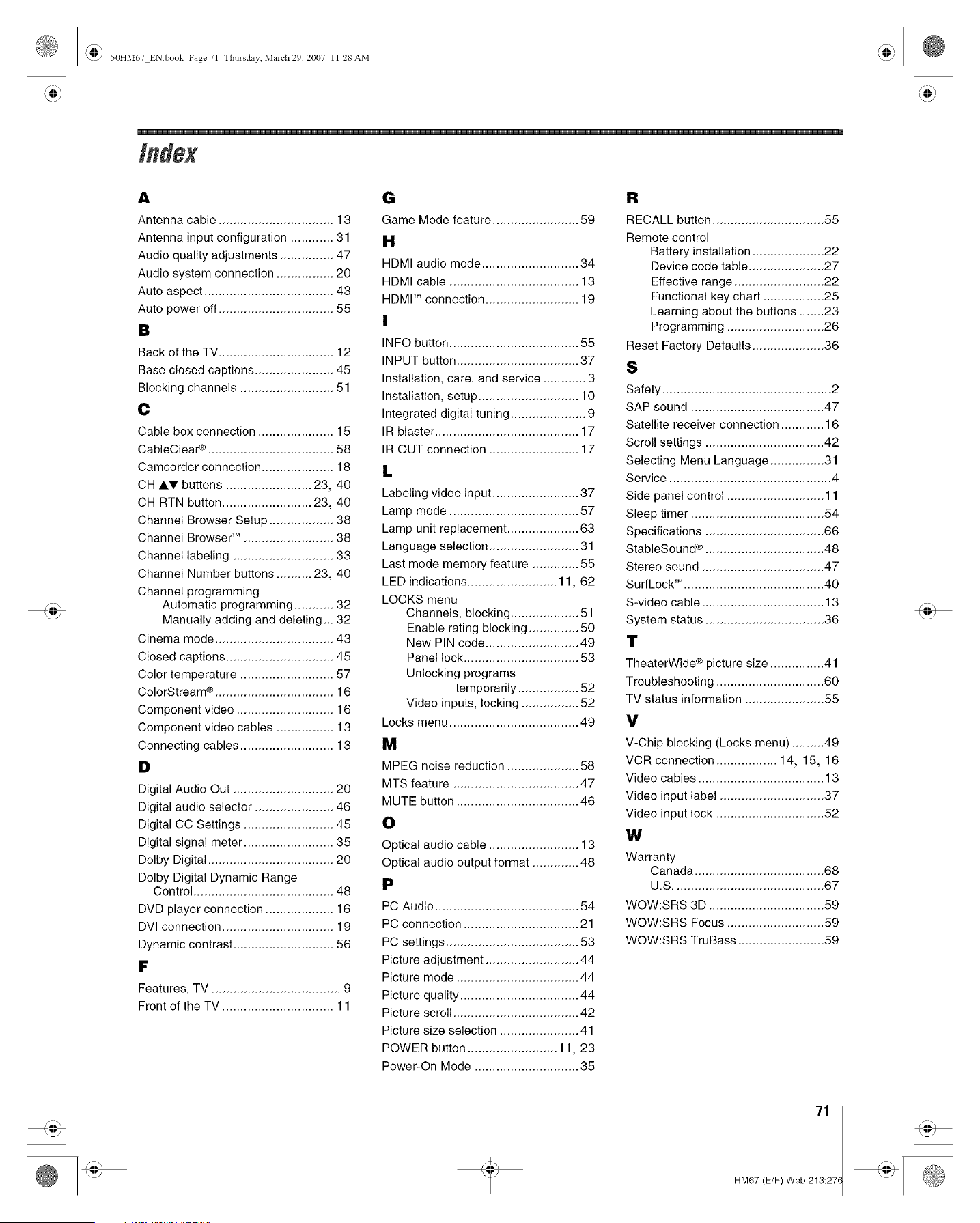
_ 50HM67 ENbook Page 71 Tlmrsdav March 29 2007 11:28 AM
A
Antenna cable ................................ 13
Antenna input configuration ............ 31
Audio quality adjustments ............... 47
Audio system connection ................ 20
Auto aspect .................................... 43
Auto power off ................................ 55
B
Back of the TV ................................ 12
Base closed captions ...................... 45
Blocking channels .......................... 51
C
Cable box connection ..................... 15
CableClear ¢ ................................... 58
Camcorder connection .................... 18
CH AT buttons ........................ 23, 40
CH RTN button ......................... 23, 40
Channel Browser Setup .................. 38
Channel Browser TM ......................... 38
Channel labeling ............................ 33
Channel Number buttons .......... 23, 40
Channel programming
Automatic programming ........... 32
Manually adding and deleting... 32
Cinema mode ................................. 43
Closed captions .............................. 45
Color temperature .......................... 57
ColorStream ® ................................. 16
Component video ........................... 16
Component video cables ................ 13
Connecting cables .......................... 13
B
Digital Audio Out ............................ 20
Digital audio selector ...................... 46
Digital CC Settings ......................... 45
Digital signal meter ......................... 35
Dolby Digital ................................... 20
Dolby Digital Dynamic Range
Control ....................................... 48
DVD player connection ................... 16
DVl connection ............................... 19
Dynamic contrast ............................ 56
F
Features, TV .................................... 9
Front of the TV ............................... 11
G
Game Mode feature ........................ 59
It
HDMI audio mode ........................... 34
HDMI cable .................................... 13
HDMI TM connection .......................... 19
I
INFO button .................................... 55
INPUT button .................................. 37
Installation, care, and service ............ 3
Installation, setup ............................ 10
Integrated digital tuning ..................... 9
IR blaster ........................................ 17
IR OUT connection ......................... 17
L
Labeling video input ........................ 37
Lamp mode .................................... 57
Lamp unit replacement .................... 63
Language selection ......................... 31
Last mode memory feature ............. 55
LED indications ......................... 11, 62
LOCKS menu
Channels, blocking ................... 51
Enable rating blocking .............. 50
New PIN code .......................... 49
Panel lock ................................ 53
Unlocking programs
temporarily ................. 52
Video inputs, locking ................ 52
Locks menu .................................... 49
M
MPEG noise reduction .................... 58
MTS feature ................................... 47
MUTE button .................................. 46
O
Optical audio cable ......................... 13
Optical audio output format ............. 48
P
PC Audio ........................................ 54
PC connection ................................ 21
PC settings ..................................... 53
Picture adjustment .......................... 44
Picture mode .................................. 44
Picture quality ................................. 44
Picture scroll ................................... 42
Picture size selection ...................... 41
POWER button ......................... 11, 23
Power-On Mode ............................. 35
R
RECALL button ............................... 55
Remote control
Battery installation .................... 22
Device code table ..................... 27
Effective range ......................... 22
Functional key chart ................. 25
Learning about the buttons ....... 23
Programming ........................... 26
Reset Factory Defaults .................... 36
S
Safety ............................................... 2
SAP sound ..................................... 47
Satellite receiver connection ............ 16
Scroll settings ................................. 42
Selecting Menu Language ............... 31
Service ............................................. 4
Side panel control ........................... 11
Sleep timer ..................................... 54
Specifications ................................. 66
StableSound ® ................................. 48
Stereo sound .................................. 47
Surf Lock TM. ...................................... 40
S-video cable .................................. 13
System status ................................. 36
T
TheaterWide ® picture size ............... 41
Troubleshooting .............................. 60
TV status information ...................... 55
V
V-Chip blocking (Locks menu) ......... 49
VCR connection ................. 14, 15, 16
Video cables ................................... 13
Video input label ............................. 37
Video input lock .............................. 52
W
Warranty
Canada .................................... 68
U.S .......................................... 67
WOW:SRS 3D ................................ 59
WOW:SRS Focus ........................... 59
WOW:SRS TruBass ........................ 59
71
HM67 (E/F) Web 213:27(
_ 50HM67 ENbook Page 72 Tlmrsdav March 29 2007 11:28 AM
72
HM67 (E/F) Web 213:276
_ 50HM67 ENbook Page 73 Tlmrsdav March 29 2007 11:28 AM
73
HM67 (E/F) Web 213:27(

_ 50HM67 ENbook Page 74 Thursday March 29 2007 11:28 AM
TOSHIBA AMERICA CONSUMER PROOUCTS, L.L.C.
CorporateHeadquarters:82 TOTOWAROAD,WAYNE,NJ 07470,U.S.A.
NATIONALSERVICEDIVISION:1420-BTOSHIBADRIVE,LEBANON,TN37087,U.S.A.
TOSHIBA OF CANAOA LTO.
HEAD OFFICE: 191 McNABB STREET,MARKHAM, ONTARIO, L3R 8H2, CANADA - TEL: (905) 470-5400
SERVICECENTERS:
TORONTO: 191 McNABB STREET,MARKHAM, ONTARIO L3R 8H2, CANADA - TEL: (905) 470- 5400
MONTREAL: 18050 TRANS CANADA, KIRKLAND, QUEBEC, H9J 4A1, CANADA - TEL: (514) 390-7766
VANCOUVER:13551 COMMERCEPARKWAY,SUITE 110, RICHMOND, B.C., V6V 2L1, CANADA TEL: (604) 303-2500
MANUFACTUREDBY
TOSHIBA AMERICA CONSUMER PROOUCTS, L.L.C.
CableClear, ColorStream, StableSound, and TheaterWide are registered trademarks of Toshiba America Consumer Products, L.L.C.
Channel Browser and SurfLock are trademarks of Toshiba America Consumer Products, L.L.C.
DLP®and the DLP logo are registered trademarks of Texas Instruments.
PRINTED IN USA
(07-03)
TOSHIBA
HM67 (E/F) Web 213:276