Parent’s Guide
91-003342-035
US
2
INTRODUCTION
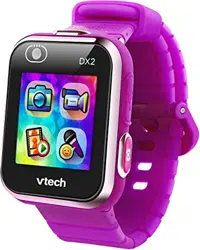
Thank you for purchasing KidiZoom
®
Smartwatch DX2 by VTech
®
!
This great smartwatch features two cameras that allow your child to
capture everything from action videos to seles. Then, play games and
tell time with customizable clock faces.
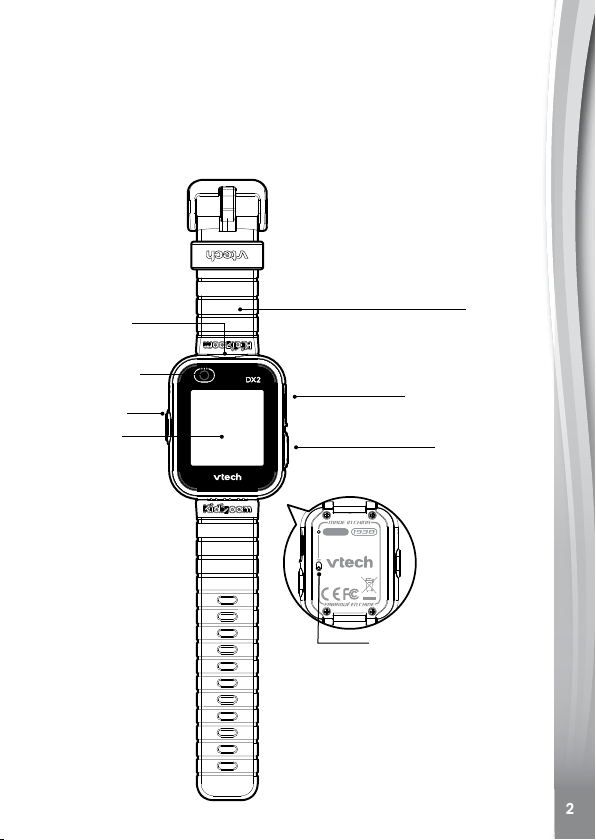
Product Layout and Buttons
Side Camera
Sele Camera
Home Button
Micro-USB Port
Shutter Button
Master Power Switch
1.44" Touch
Screen
Wristband
3
Shutter Button
Press this button to launch the camera and to take photos and videos.
Home Button
From Clock Mode:
Press this button to display the home menu to choose other activities.
Hold down this button for 2 seconds to turn the screen off.
From the Home Menu:
Press this button to display the Clock screen.
In other activities:
Press this button to return to the previous screen.
Smart Wake Up
Double tap the screen to wake up the watch and see the current time.
For best results, we recommend tapping the screen with the pad of your
nger and not your nger nail.
Micro-USB Port
Connect to your computer with the included Micro-USB Cable to
transfer les and charge the watch.
INCLUDED IN THIS PACKAGE
• One KidiZoom
®
Smartwatch DX2
• One micro-USB cable
• One parent's guide
WARNING: All packing materials such as tape, plastic sheets,
packaging locks, removable tags, cable ties and
packaging screws are not part of this toy, and should
be discarded for your child’s safety.
NOTE: Please keep this parent's guide as it contains
important information.
ATTENTION : Pour la sécurité de votre enfant, débarrassez-vous
de tous les produits d’emballage tels que rubans
adhésifs, feuilles de plastique, attaches, étiquettes et
vis d’emballage. Ils ne font pas partie du jouet.
NOTE : Il est conseillé de conserver ce guide des parents car
il comporte des informations importantes.
The battery in this product must not be disposed of with household
waste. This battery is recyclable. Please follow your local recycling
regulations. Battery is not replaceable.
The LCD label covering the LCD screen of the product is packing
material, please remove this label before use.
4
PRODUCT SPECIFICATION
Display 1.44" color touch screen
Supported Languages US English
Photo Resolution 640 X 480 (0.3 MP)
Video Resolution 320 X 240 or 160 X 120
Video Length Limit Per File 60 seconds
Focus Range 1.5 feet - ∞
Internal Memory
256 MB built-in memory (shared
with program data, actual memory
available for user storage will be
less)
Storage Capacity
Indoor Typical Conditions:
Photos: 1520
Videos: 10 minutes at 320 x 240
22 minutes at 160 x 120
Note: The storage capacity is
an approximation, the actual
amount depends on the shooting
environment.
File Format
Photos: Standard Baseline JPEG
Video: AVI (Motion JPEG)
Connectivity
Micro-USB 2.0 cable (included) for
connection to computer
Battery Li-ion Polymer battery (not replaceable)
Optimum Operating and
Charging Temperature
32°F - 104°F (0°C - 40°C)
5
WARNING:
Prolonged wear of any watch can cause skin irritation for some people.
Clean the watch band regularly by wiping it with a damp towel. Be
careful not to get the watch wet, as this could damage the unit. Do not
use soaps or household cleaners, as they can get trapped under the
band and irritate the skin. Always dry the band before putting it back on.
Irritation can also occur if the band is too tight or too loose. If redness,
swelling, itchiness, or any other irritation occurs, remove the watch and
consult a physician.
GETTING STARTED
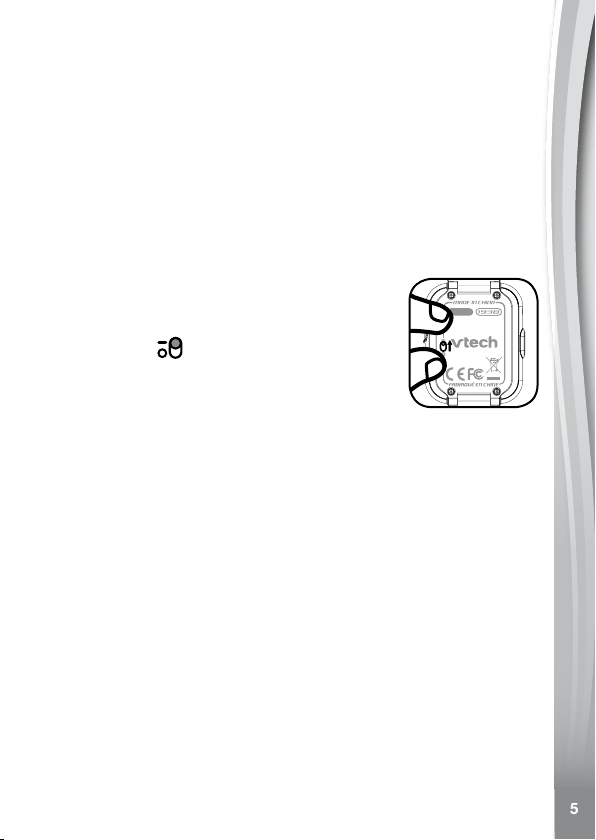
Master Power Switch
When you use KidiZoom
®
Smartwatch DX2 for the
rst time, you will need to slide the Master Power
Switch (located on the underside of the watch) to
the ON position
. You may need a small tool
such as a paper clip to move the switch to the on
position. Then, fully charge the watch before rst
use. A full charge will take about 3 hours.
When the Master Power Switch is set to the OFF position, the unit will
not function and the battery will not charge. Only move the switch to the
OFF position when the watch will not be used for an extended period
of time.
Note: It is not necessary to switch off the watch in daily use. Once the
master power switch is off, the watch will stop functioning and after it is
turned on again, the time and date has to be reset.
BATTERY RECHARGING
Note: Adult operation required.
To charge KidiZoom
®
Smartwatch DX2, the watch needs to be
connected to a computer with the included Micro-USB Cable. To do so
correctly, please follow these steps:
• Make sure that the Master Power Switch is set to the ON position
before charging.
• Pull up the rubber cover of the Micro-USB Port on the side of the
watch.
• Insert the Micro-USB Cable (small end) into the Micro-USB Port on
the watch.
6
• Insert the large end of the Micro-USB Cable into a USB port on your
computer. A USB port is usually marked with this symbol: .
• Once the connection is successful, you will see a battery recharging
symbol appear on the watch screen.
• Check the charging progress regularly throughout recharging.
• When the battery is fully charged, a message will display on the
screen for a while before the screen automatically turns off. You may
then disconnect your fully charged watch from the computer.
Note: It will take approximately 3 hours to fully charge the battery. The
actual charging time depends on the charging current, the remaining
charge in the battery prior to recharging, and the ambient temperature.
The optimum ambient temperature is 32°F - 104°F (0°C to 40°C).
BATTERY LIFE
The time the battery lasts between charges depends on play. Like other
electronic devices, more frequent usage will drain the battery more
quickly. Some activities are more demanding on the battery, such as
taking photos and videos. The remaining battery capacity will appear
in the top right corner of the screen. When the battery level is low, it
is recommended to recharge the battery before further use. When the
battery level is too low, the watch will not turn on until it is charged.
Battery Time for Reference
Condition Battery Time
Low Usage 2 weeks
Typical Usage 2-3 days
Heavy Usage 1 day
Note: The above battery time assumptions are based on the screen
display set to turn off when not in use.
Battery Maintenance
Charge the battery regularly to keep it operating at optimum performance,
even when the watch isn’t regularly in use. For example, charge the
watch at least once every six months. Move the Master Power Switch
to the ON position before recharging the battery. Move the Master
Power Switch to the OFF position if the watch will not be in use for an
extended period of time.

7
BATTERY NOTICE
Misuse of batteries can lead to them bursting, causing a re or chemical
burns. Please read the following precautions:
• Do not disassemble.
• Do not crush and do not expose the battery to any shock or force such
as hammering, dropping or stepping on it.
• Do not short circuit.
• Do not expose to high temperatures or place near a heat source. Do
not leave in direct sunlight for any length of time.
• Do not dispose of in a re.
• Do not handle damaged or leaking batteries.
• Keep the battery out of the reach of children.
• Keep the battery dry.
• If you nd the time between charges is considerably shortened with
no change in usage, the battery could be nearing the end of its life.
The battery life varies from battery to battery depending on storage,
operating conditions and environment.
• Examine the charging cord periodically for conditions that may result
in the risk of re, electric shock, or injury to persons such as damage
to the cord, housing, or other parts. In the event of such conditions,
the cord should not be used until properly repaired or replaced.
Charging Warning:
Only charge this device using the included micro USB cable connected
to a computer. Do not charge using a third party adapter. Before use,
inspect the cord to conrm that it is in good condition and that there
are no breaks or exposed wires. Ensure there are no particles or liquid
(water, juice, etc.) in either of the connectors before plugging in either
end of the cable. The device should be completely dry with no debris
in the cable connectors when charging. Plug in the cable securely, in
the correct orientation. If the device is on when plugged in, a dialog box
may open on your computer to allow you to access the device's drive.
Never leave the device unattended while charging. Do not charge your
device on soft surfaces, as they can trap heat around the device. Typical
charging time is approximately 3 hours if the battery is fully depleted.
Disconnect the device when it is fully charged. Do not leave the device
charging for more than 4 hours.
SPLASH PROOF FOR EvERYDAY PLAY
• Do not put under running water.
• Do not submerge in water, not suitable for showering, bathing or
swimming.
• Keep the rubber cover over the Micro-USB Port closed tightly while it
is not in use in order to prevent any water getting in the watch.
8
TO BEGIN USING
KIDIzOOM
®
SMARTWATCH DX2
Make sure the Master Power Switch is set to the ON position and
that the battery is fully charged before using the watch.
To wake the watch, either press the Home Button
, Shutter
Button , or double-tap the screen.
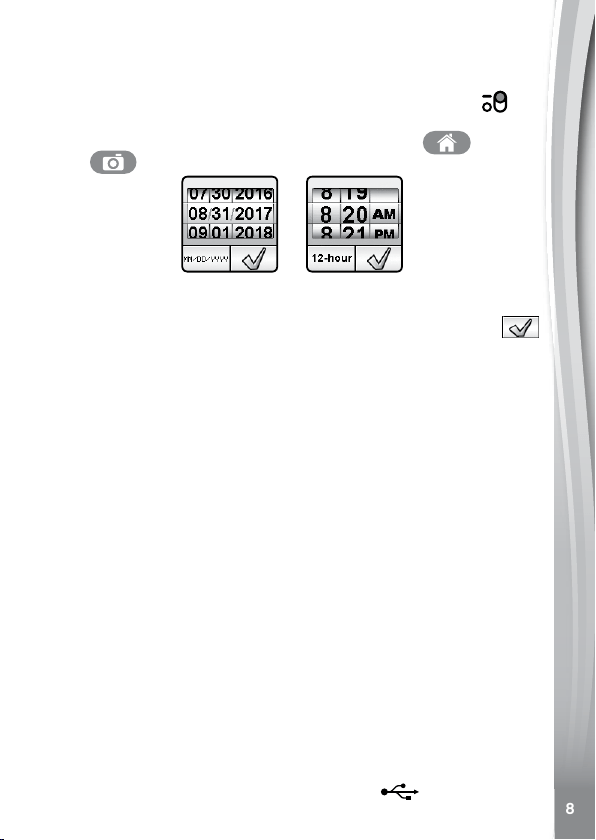
When turning on the watch for the rst time, the date and time setting
screen will display rst. Swipe up or down over the month, day, year, hours
and minutes to set the current date and time. Tap the check icon
when you're done.
When the clock appears on screen, press the Home Button to go to
the Home Menu. Press the Shutter Button to take photos and videos.
AUTOMATIC SCREEN OFF
To preserve battery life, the screen will automatically shut off after a
short period of time when in Clock Mode.
Note: The auto screen off time can be adjusted in Settings / Advanced /
Auto Screen Off. Please refer to the Settings section in this guide. From
other activities, the watch screen will return to Clock Mode automatically
if there is no input for 1 minute. When it is in Camera Mode, it will auto-
exit after 3 minutes of inactivity. When in Slideshow Mode, the auto-exit
time is approximately 15 minutes.
CONNECTING TO A COMPUTER
You can connect KidiZoom
®
Smartwatch DX2 to a PC or Mac computer
using the included Micro-USB Cable. To transfer les between your
watch and computer, follow these steps:
• Pull up the rubber cover of the Micro-USB Port on the side of your
watch.
• Insert the Micro-USB Cable (small end) into the Micro-USB Port on
the watch.
• Insert the larger end of the cable into a USB port on your computer.
A USB port is usually marked with this symbol
.
9
• You will see a removable drive called VTech 1938A, please use this
to transfer les to and from the watch. There is another removable
drive called VT SYSTEM, which is for storage of system data and
should not be accessed by users.
Note: Once the watch is connected to your computer, do not disconnect
the watch while les are transferring. Only when your watch completes
transferring les should you eject it from your computer. Once ejected,
you can then physically disconnect the watch from your computer.
To Backup Photos or Videos Taken with KidiZoom
®
Smartwatch DX2:
• Locate and open the DCIM folder on the removable drive VTech
1938A.
• Copy and paste the photo and/or video les to a location on your
computer.
To Backup Sounds Recorded with KidiZoom
®
Smartwatch DX2:
• Locate and open the VOICE folder on the removable drive VTech
1938A.
• Drag and drop the les to a location on your computer.
To Transfer Photos or Videos to KidiZoom
®
Smartwatch DX2:
• First, select the photo or video les you would like to download from
your computer.
• Locate and open the DOWNLOAD folder on the removable drive
VTech 1938A and drag and drop the photo or video les into the
PHOTO or VIDEO subfolders.
Note: Do not transfer photo or video les created by other cameras
(except for KidiZoom camera photo or video les) to KidiZoom
®
Smartwatch DX2, as these les may not be compatible.
SYSTEM REQUIREMENTS FOR
COMPUTER CONNECTION
Microsoft
®
Windows
®
8 or Windows
®
10 Operating System or a Macintosh
Computer with macOS X 10.10 to 10.11, macOS 10.12 to 10.15.
Microsoft
®
and Windows logos are trademarks of Microsoft Corporation
in the United States and other countries. Macintosh and Mac logos are
trademarks of Apple Inc. in the United States and other countries. All
other trademarks are the property of their respective owners.
10
ACTIvITIES
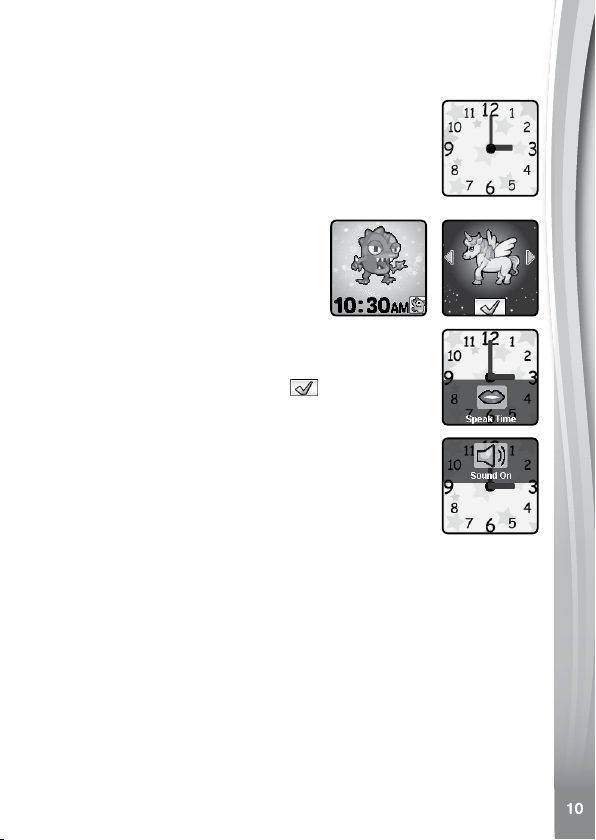
Clock Display
When the screen is off, press the Home Button to show
the clock screen.
• Tilt the watch in different angles to experience the 3D
clock faces. You can turn the 3D effect off in Settings.
• Tap the center of the screen to switch the clock face
between analog and digital displays.
• From the Monster Clock face, tap the
icon in the bottom right corner to
display the Monster Clock face menu.
From here you can go to the Monster
Catcher game quickly or select
another monster from your collection
to display on the clock face. From the
Monster Selection Menu, tap the left
or right arrow icons to select a
monster, then tap the Check icon
to conrm.
• Swipe left or right to see more clock faces.
• Swipe up from the bottom of the screen to display the
Speak Time Menu and tap the mouth icon to hear the
current time. Swipe down to hide this menu.
• Swipe down from the top of screen to display the
Sound On/Off Menu. Tap the speaker icon to mute or
unmute the sound. Swipe up to hide this menu.
Press the Home Button again to go to the Home Menu and select other
activities.
Press the Shutter Button to enter Camera Mode.
Note: Hold the Home Button for approximately 1-2 seconds to turn off
the screen.
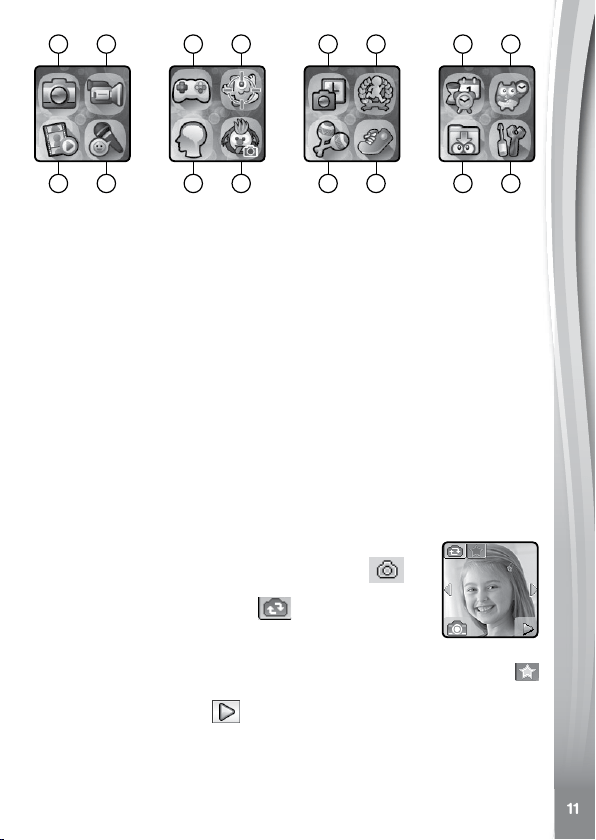
Home Menu
When the screen is off, press the Home Button to show the clock
screen. When the watch shows a clock face, press the Home Button
again to display the Home Menu and choose an activity. Swipe left
or right to scroll through the menu pages and tap an icon to enter the
activity.
11
1. Camera
Press the Shutter Button to enter Camera Mode.
• Press the Shutter Button or Shutter icon
to
take a photo.
• Tap the Camera Switch icon
to switch between
the Side Camera and Sele Camera.
• To explore the different photo effects, tap the Star icon, then swipe or
tap on the left or right arrows to choose an effect. Tap the Star icon
again to turn off the photo effect.
• Tap the Playback icon
to view your photos.
Note: If games are turned off in Settings / Advanced / Parental Control,
the Games, Monster Catcher and Noodle Booster icons will not appear
in the Home Menu. The icon arrangement will be different so that
Alarms, Timer, Stopwatch and Calendar will not be grouped together
in Timing Tools.
1
3
2
4
5
7
6
8
9 10
11 12
15
13
16
14
1. Camera
2. Video
3. Playback
4. Voice Recorder
5. Games
6. Monster Catcher
7. Noodle Booster
8. Funny Face Studio
9. Photo Clock Faces Maker
10. Action Challenges
11. Sound Shakers
12. Pedometer
13. Timing Tools
(Alarm, Timer,
Stopwatch, Calender)
14. Time Master
15. Downloads
16. Settings

12
2. Video
Tap the Video icon from the Home Menu to go to Video
Mode.
• Press the Shutter Button or Record icon
to start
recording.
• To stop, either press the Shutter Button again or the
Stop icon
.
• Tap the Video Switch icon
to switch between the Side Camera
and Sele Camera.
• To explore the different video effects, tap the Star icon, then swipe or
tap on the left or right arrows to choose an effect. Tap the Star icon
again to turn off the video effect.
• Tap the Playback icon to view your videos.
When you nish recording a video, the playback screen will appear.
• Tap the Play icon
to play the last recorded video.
• Tap the Trash Can icon
to display the Delete Menu.
Note: Each video can be a maximum of 1 minute long.
3. Playback
Here you can view your photos and videos.
• The most recently captured photo or video will be shown rst. Tap the
arrow icons or swipe to see others.
• Tap the Slideshow icon
to view the photos in a slideshow.
• Tap the Play icon to play a video.
• Tap the Trash Can icon to display the Delete Menu.
Note: To delete all photos and videos, tap the Down Arrow icon on the
Delete Menu and then follow the instructions to continue.
While playing a video, tap the Fast Rewind
or Fast Forward icons
to toggle the fast rewind / forward functions at 1X, 2X and 4X speeds.
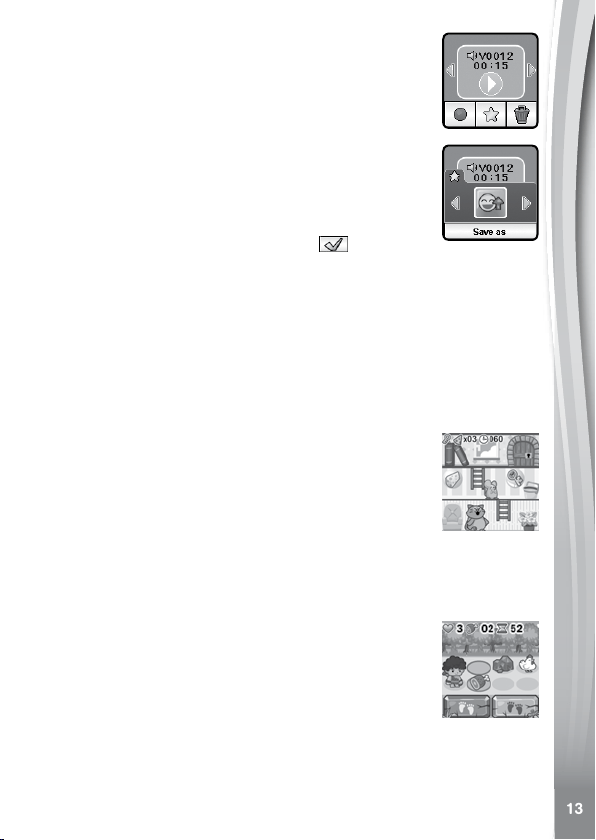
4. Voice Recorder
The Voice Recorder allows you to record your own
voice for up to 60 seconds per recording and apply fun
voice-changing effects.
Tap the Record icon to start recording. When you're
nished, tap the Stop icon.
13
Swipe left or right to review the previous or next
recording. Tap the Star icon to display the Voice Effects
screen.
There are ve built-in voice effects. On the Voice Effect
screen, tap the left or right icon to preview the different
effects. Tap the Save As icon to save the recording
with the selected effect as a separate le. To exit the
voice effects screen, tap the Star icon again or press
the Home Button.
To delete a recording, tap the Trash Can icon to display
the Delete Menu and tap the Check icon
to conrm.
5. Games
There are 3 built-in games on the KidiZoom
®
Smartwatch DX2.
• Mousy Maze
• Ancient Adventure
• Puzzle Swap
Swipe left or right to choose the game you want to play.
Mousy Maze
The mouse is trapped! Help it collect cheese and nd
the key to escape. Eat as many cheese wedges as you
can to set a new high score.
Control: Tap an object on the current oor to direct the
mouse to that location. Tap cheese to eat them, and tap
the key to grab it. Tap a ladder on the current oor and
the mouse will climb up or down. Tap the door when you reach it to exit
and beat the level.
Ancient Adventure
Life is hard when animals are trying to eat you! Help
the caveman avoid the obstacles and bring food home
for his family. Run as fast as possible for a high score.
Control: Tap the red or blue footprints to choose the
next circle on the path. Avoid animals, stones and traps
along the way. To get to the next round, collect the
target number pieces of meat and reach the end of the
level before time runs out.
14
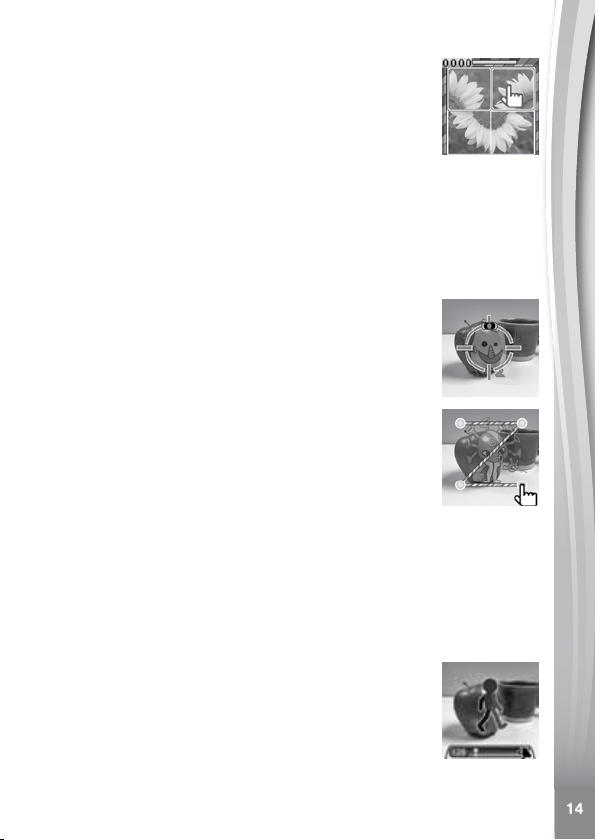
Puzzle Swap
Help, these photos don't make any sense! Solve the
puzzle to see the beautiful pictures. In higher levels,
you'll even see some of your own photos made into
puzzles.
Control: Tap one puzzle piece and then another to
swap their positions.
6. Monster Catcher
There are invisible monsters hiding all around us. Use the Monster
Catcher on your watch to nd and capture monsters. Level up as you
gain experience and special awards on your way to nding all 80
+
monsters.
Hunting Mode
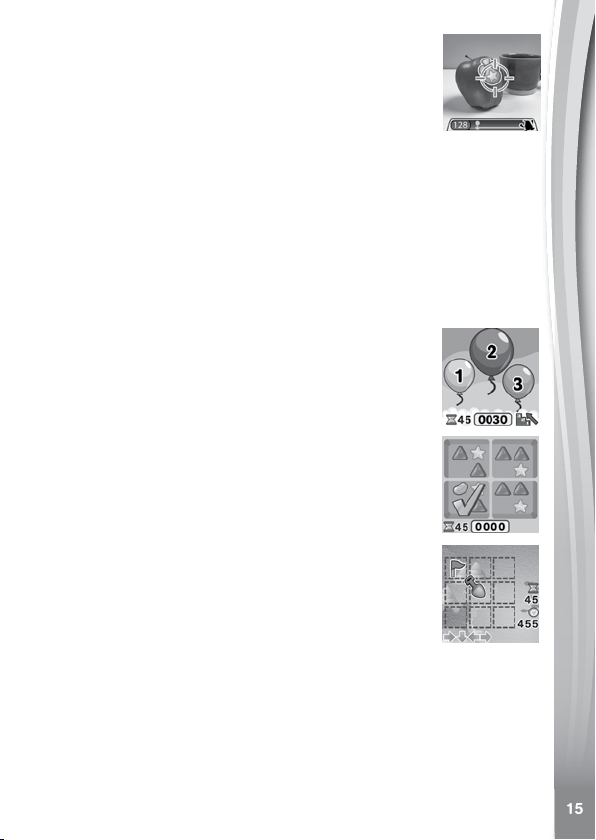
When you rst enter hunting mode, the world seen
through the watch's Side Camera will appear in black
and white. Walking around powers up the watch and
enables it to see evidence of the nearest monster.
Just aim the watch camera at a large collection of the
colored monster particles and tap on the screen to take
a sample. Now the monster can be fully revealed and
captured! Continue tapping until the monster's energy
is gone.
For some monsters to appear you will need to cast a
spell by connecting the dots on the screen. Connect
the dots to form the shape shown and the monster will
appear.
Every time you capture a monster your Experience Points (XP) and
Magic Power (MP) will increase.
Note: We suggest playing this game with natural light or in white lighting.
Some lighting conditions, like uorescent or yellow lights may affect the
camera's ability to accurately detect colors.
Exploration Mode
When you see the walking man icon, keep walking to
reach the next monster. You can see the distance to
reach the monster on the bottom of the screen. Pay
attention along the way, as some magic items may
appear as you travel to increase your MP and XP.
The next three modes can be found from the Monster Catcher Main
Menu:
15
Monster Book – Learn everything there is to know
about all the monsters you've discovered.
Monster Album – Review the photos taken when you
captured all the monsters.
Levels and Awards – Here you can see your XP, MP,
current level and all the medals you've earned.
7. Noodle Booster
Train your brain with these three fun, progressive logic games! Each one
gets harder as you get more correct answers.
• Balloon Numbers
• Odd One Out
• Treasure Hunt
Balloon Numbers
As the balloons appear, tap them in ascending or
descending order according to the direction of the arrow
above the stairs. See how many sets you can order
correctly before time runs out.
Odd One Out
The four images may look similar, but look closely and
you'll see one is different! Pay attention to the shapes,
quantity, colors, and conguration of the candies to tap
on the set that's different as fast as you can.
Treasure Hunt
Help nd the buried treasure! Follow the sequence of
arrows at the bottom of the screen to count the squares
from the ag to the hidden treasure. Pay close attention,
as some directions may even have you retrace your
steps backwards. Think fast and see how much treasure
you can collect before time runs.
8. Funny Face Studio
(A) Silly Yourself
Take a normal sele or photo of a friend and let the watch make it into a
silly face! Follow these instructions to create some memorable laughs:
• Tap the Camera Switch icon to switch between the Side and Sele
Cameras.
16
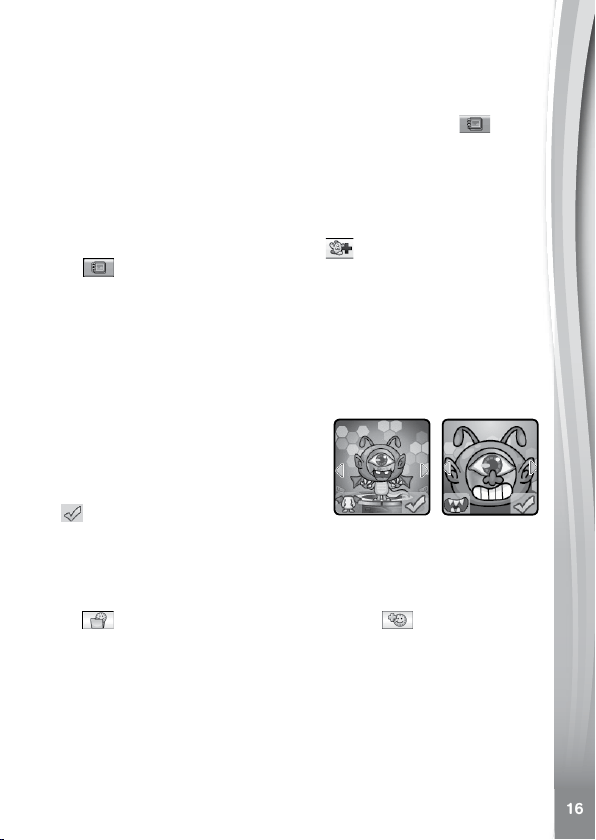
• Carefully align your face or your friend's so it ts within the face outline
on the watch. Try moving both the watch and your face to get it just
right.
• The watch will randomly choose a silly effect to put on the image.
Once you've made some silly faces, tap on the Gallery icon
to see
all the silly faces you created.
(B) Monster Yourself
Create your own monsters with your face or a friend's face. The monsters
you create here will be unleashed in the Monster Catcher game for you
to nd and capture.
• From the Monster Yourself menu, tap
to create a new monster.
Tap to view or delete monsters you already created.
To create a new monster, rst you will need to take a photo. Align your
face to ll the outlined area and when you're ready, tap the Camera icon
to take the picture. To use the side camera, tap the Camera Switch icon.
You can also tap the arrow icons to use pictures you've taken before in
this app.
Once the monster face photo is ready, a monster with random features
will be created. Tap the Feature Type icon (in the bottom left corner) to
switch between different features like
head, eyes, mouth, body and sound
effect. Then, tap the arrow icons to select
your favorite option for each feature.
Once you nish creating your monster,
tap
to save the monster and transfer
it to the world of Monster Catcher.
9. Photo Clock Faces Maker
With Photo Clock Faces Maker you can create custom clock faces from
your own photos. From the main menu, either select a saved clock face
to edit or choose to create a new clock face .
Take a New Photo
• From the Create a New Photo Clock Face menu, rst tap on the
Capture icon on the left.
• Next, swipe left or right or tap on the arrow icons to select a clock face
style.
• Position the watch so it's pointing at the image you'd like to capture
and tap the Camera icon in the lower-left corner to take a picture.
You can also choose to use the Sele camera by tapping the Camera
Switch icon in the upper-left corner.
17
• After you take a picture it will freeze on the screen. If you're happy
with the image, tap the green Check icon in the lower-right corner to
create the new clock face. To re-take the picture, tap the red X icon in
the lower-left corner.
• After you save the clock face you will enter the Gallery. See below for
instructions on browsing the gallery and editing existing photo clock
faces. Press the Home Button to return to the main Photo Clock
Faces menu.
Use a Photo from the Camera Roll
• From the Create a New Photo Clock Face menu, rst tap the Album
icon on the right.
• Next, swipe left or right or tap on the arrow icons to select the photo
you would like to use. Tap the green Check icon to select an image.
• Next, swipe left or right or tap on the arrow icons to select the clock
face style you would like to use with the selected photo. Tap the green
Check icon to create the clock face.
• After you create the clock face you will enter the Gallery. See below
for instructions on browsing the gallery and editing existing photo
clock faces. Press the Home Button to return to the main Photo
Clock Faces menu.
Photo Clock Faces Gallery
• Tap the arrow icons to see all the clock faces you've created.
• Tap the Trash icon to display the Delete Menu.
• Tap the Pencil icon to enter Edit mode and select a different clock
style to use with the same image.
Note: Saved photo clock faces will appear on the Clock Display mode
automatically.
10. Action Challenge
Action Challenge is a fun and active way to challenge yourself. It
includes three activities that count your movement during a period of
time: Racing Run, Crazy Dance and Funky Jump.
Swipe left or right or tap on the arrows to choose a challenge.
A. Racing Run
Tap the Stopwatch icon to set an amount of time and
start running as fast as you can. While you run, the
character on the screen runs. The character will try his
best to run as fast as you can. Don’t worry if he can’t
keep up with you. Tap the stopwatch icon to choose

18
different times, swipe the screen to choose different characters and then
press the go button and start running. When the time is up, it will show
your score.
B. Crazy Dance
Tap the Music Note icon to select a song and start
dancing. While you dance, the character on the screen
dances. The character will try his best to dance as well
as you can. Don’t worry if his moves aren’t as cool as
yours. Tap the song icon to choose a song, swipe the
screen to choose different characters and then press
the go button and start dancing.
C. Funky Jump
Tap the Stopwatch icon to set an amount of time and
start jumping as many times as you can. While you
jump, the character on the screen jumps. The character
will try his best to jump as much as you can. Don’t worry
if he can’t keep up. You can also swipe left or right to
choose different characters to compete against. Press
the green Play icon to start jumping. When the time is
up, it will show how many times you jumped.
11. Sound Shaker
Walk like a dinosaur or run like a race car! Choose from 10 different sound
effects and then shake your hand with the KidiZoom
®
Smartwatch
DX2 to play.
12. Pedometer
This is a basic pedometer to count your movements.
The watch should be worn on the wrist for greatest
accuracy.
• Tap the Start icon to start the pedometer, and it will
automatically stop at the end of the day, or when you
tap the Stop icon.
• Tap the History graph icon to look at your past movement.
• Tap the Goal icon to set a goal and challenge yourself
or your friends.
Once the pedometer is running:
• Tap the Stop Button to stop the counter.
• Tap the Reset Button to reset the counter to zero.

19
Note: This kid-friendly pedometer is just for fun and is not as accurate
as a commercial pedometer for adults. The pedometer only counts
movement when it is in the Pedometer Activity or Clock Mode. Entering
other activities will suspend the counter. The pedometer will only count
movement if it is worn on the arm that is moving.
13. Timing Tools
From the Timing Tools menu, tap the arrow icons or swipe to select an
activity, then tap the screen to make a selection.
Alarm
Set an alarm by choosing from a selection of alarm tones
and animations. You can also record your own voice to
use as an alarm.
• Tap the Time or Alarm icons to change the alarm time.
• Tap the Bell icon to toggle the alarm ON or OFF.
To set the Alarm Time:
• Select the hour and minute by swiping up or down on
the hours, minutes and AM/PM.
• Tap the Tone icon to display the Alarm Tone Selection
menu. There are nine built-in alarm sounds and one
voice recording alarm. Swipe left or right to preview
the different tones and animations. Tap the Check
icon to conrm your selection.
• To make your own voice alarm, tap the Record icon to start recording.
While recording, tap the Stop icon to end the recording, or it will
stop automatically after three seconds. Tap the Play icon to play the
recorded voice.
• Once you choose an alarm, tap the green Check icon to conrm.
Note: If the battery level is too low, the alarm will need to be set again.
Timer
Use this app to set a countdown timer.
• Tap the Play icon to start the timer immediately.
• Tap the Style icon or swipe left or right to change the timer style. There
are ve different timers for you to try out.
• Tap the time to enter Timer Settings. Swipe up or down on the minutes
and seconds to change the time. Once set, tap the green Check to
conrm.
20
• While the timer is running, tap the Pause icon to pause the countdown
and tap it again to resume. Tap the Timer Reset icon to stop the
countdown and reset the timer.
Stopwatch
• Tap the Play icon to start the stopwatch.
• Tap the Style icon or swipe left or right to change the stopwatch style.
There are 5 fun stopwatch styles to try!
• While the stopwatch is running, tap the Pause icon to pause the timer.
Tap it again to resume. Tap the Timer Reset icon to stop the timer and
reset the time to zero.
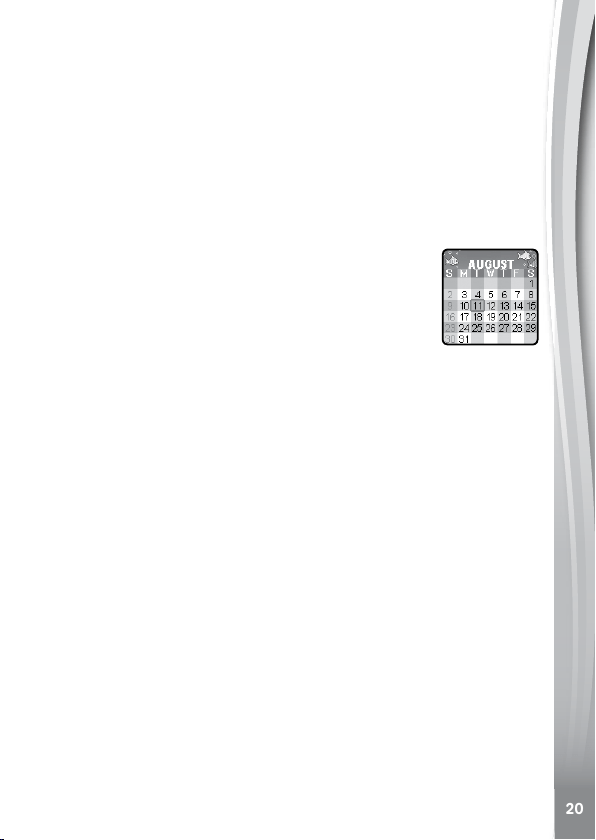
Calendar
Explore the Calendar by swiping left or right to see the
previous or next month. Swipe up or down to see the
previous or next year.
Time Master
This activity will help you learn how to tell time.
• Tap on the clock or the owl to hear the time spoken. The owl tells the
time in both analog and digital modes.
• Tap the Hour icon or Minute icon to select the time you want the owl to
say.
• Tap the Plus or Minus icon to adjust the time by one hour or minute.
Downloads
Downloads is where the Download Manager and any content downloaded
from Learning Lodge
®
will appear. To access downloadable content you
rst have to register an account with VTech's Learning Lodge
®
.
Downloading Learning Lodge
®
Content
Follow these steps to download Learning Lodge
®
content:
1. Connect KidiZoom
®
Smartwatch DX2 to a computer using the
included Micro-USB Cable.
2. Click the Download Website link in the drive VTECH 1938A that
appears on your computer, or visit vtechkids.com/download.
3. Download and install the correct Learning Lodge
®
software for your
operating system.
4. Launch the Learning Lodge
®
application and nd all the great extra
content for your KidiZoom
®
Smartwatch DX2!

21
Note: For further details about downloading content from the Learning
Lodge
®
, please refer to the online help section at vtechkids.com/support.
Download Manager
Here you can view the memory size of each download or delete
unwanted content to free up memory.
To delete downloads, scroll up or down to select the application to
remove and then tap the Delete icon to display the Delete Menu.
Note: If the downloadable content is accidentally deleted, you may
connect to the Learning Lodge
®
to re-download the applications.
16. Settings
Swipe left or right to scroll through the options:
Volume
• Tap the Up or Down icons to set the system volume.
Brightness
• Tap the Up or Down icons to set the screen's brightness.
Date
• Swipe up or down on the month, day and year to set the date.
• Tap the Date Format icon to change the date format (DD/MM/YYYY
or MM/DD/YYYY).
• Tap the green Check icon to save.
Time
• Swipe up or down on the hours, minutes, or AM/PM to set the time.
• Tap the green Check icon to save.
3D Effects
• Tap On/Off to enable or disable the 3D effects feature.
Note: If the watch enters Power Saving Mode, the screen will dim and
the 3D effect may not be shown.
Smart Wake Up
• When Smart Wake Up is enabled, you can double-tap on the screen
to wake up the watch.
• Tap On/Off to enable or disable this feature.
Wallpaper
• Tap the left or right arrow icons to change the wallpaper.
• Tap the green Check icon to save your selection.

22
Advanced Settings
• Memory
See a summary of memory usage or reformat the memory.
Note: Formatting will erase all data in the memory, including all photos,
videos, voice les, photo clock faces and downloaded apps.
• Image Display (Aspect Ratio)
All photos and videos are saved at 4:3 ratio, but you can select from
two different aspect ratios for displaying the image in the preview and
playback screens:
Cropped: Image appears to fully ll the screen with the left and right
sides cut off.
Fit Screen: Image scaled to t the screen, with the whole image
displayed.
• Video Resolution
There are two resolution options:
160 X 120: The video size is smaller and you can record and save
more videos.
320 X 240: The video quality is better and takes up more memory, so
fewer videos can be saved.
• Auto Screen Off
Allows you to set an Auto Screen Off timer. Tap the left and the right
arrows to set the time, then tap the green Check icon to conrm.
Selecting Disable Auto Screen Off will not turn off the screen, but the
screen will dim if there is no input for 30 seconds in Clock Display Mode
to save power. At this time, operation of the watch will be limited to
showing the time. No other functions will be operational, including 3D
clock face effects, until the watch wakes up.
Tip: If the Auto Screen Off time is set to one of the longer options, battery
consumption will increase and the time the battery lasts will decrease.
• Indoor Light Frequency
Use this setting to set the AC power frequency when traveling. If this
is not set correctly, you may see ickering on the preview screen and
photos and videos captured in indoor environments.
• Parental Control
Access these settings to either disable games or set a daily time limit.
By default there is no time limit set, you can choose a limit of 15, 30, 60
or 90 minutes per day. Once a time limit is reached, games will not be

23
accessible until the following day. When games are disabled, icons will
appear in the Main Menu in a slightly different conguration.
Tip: This feature is designed for parents of children who cannot yet
read, as access to the setting is granted by following simple, on-screen
instructions.
Note: The time limit will reset if the date or time settings are changed.
• Factory Reset
Factory Reset will erase content stored in the memory and reset all
system settings to factory defaults.
• FCC Compliance Statement
This page conrms that this product complies with FCC regulations.
Care & Maintenance
1. Keep the rubber cover over the Micro-USB Port closed tightly when
not in use in order to prevent dust or water from getting in.
2. Keep the watch clean by wiping it with a slightly damp cloth.
3. Keep the watch out of direct sunlight and away from direct heat
sources.
4. Do not drop the watch on a hard surface, expose it to moisture, or
immerse it in water.
5. Keep the lens clean. If the pictures taken are blurry, it could be
because there is dust or dirt on the lens. You can clean the lens by:
• Blowing on the lens.
• Gently wiping the lens with a dry cloth.
WARNING
A very small percentage of the public, due to an existing condition, may
experience epileptic seizures or momentary loss of consciousness when
viewing certain types of ashing colors or patterns.
While KidiZoom
®
Smartwatch DX2 does not contribute to any
additional risks, we do recommend that parents supervise their children
while they play games. If your child experiences dizziness, altered vision,
disorientation, or convulsions, discontinue use immediately and consult
your doctor. Please note that focusing on at close range and handling
a KidiZoom
®
Smartwatch DX2 as a game controller for a prolonged
period of time may cause fatigue or discomfort. We recommend that
children take a 15-minute break for every hour of play.
24
TROUBLESHOOTING
Check this section if you experience difculty operating KidiZoom
®
Smartwatch DX2.
Problem
Correction
The watch
has stopped
working
1. Turn the Master Power Switch OFF for 30 seconds.
2. Turn the Master Power Switch ON again and then
press the Home Button to turn the watch on. It
should now work properly.
3. If the watch doesn't work, recharge the battery and
repeat steps 1 and 2.
(Refer to the battery recharging section for details)
Screen is
not working
correctly
1. Turn the Master Power Switch OFF for 30 seconds.
2. Turn the Master Power Switch ON again and then
press the Home Button to turn the watch on. The
screen should now function normally.
Image
taken is not
clear
1. Make sure the lighting conditions of the shooting
environment are good.
2. Check to see if the camera lens is clean. If you nd
some dust or dirt on it, please see the steps to clean
the lens in Care and Maintenance.
Cannot
connect the
watch to a
computer
1. Check the connections on the cable between the
watch and the computer and review the Connecting
to a Computer section of this guide.
2. Turn the Master Power Switch OFF for 30 seconds.
Turn the Master Power Switch ON and reconnect
the watch and computer.
Cannot
view videos
or photos
loaded from
a computer
Check if the les are in the correct directories on the
KidiZoom
®
Smartwatch DX2. Photos should be put in
the DOWNLOAD\PHOTO folder, and videos should be
put in the DOWNLOAD\VIDEO folder on KidiZoom
®
Smartwatch DX2 when it is connected to a computer.
KidiZoom
®
Smartwatch DX2 only supports the
formats below:
• Photos in Standard Baseline JPEG
• Video in AVI (motion JPEG) created by KidiZoom
®
Smartwatch DX2
25
DISCLAIMER AND LIMITATION OF LIABILITY
VTech
®
Electronics North America, L.L.C. and its suppliers assume no
responsibility for any damage or loss resulting from the use of this guide.
VTech
®
Electronics North America, L.L.C. and its suppliers assume no
responsibility for any loss or claims by third parties that may arise through
the use of this product. VTech
®
Electronics North America, L.L.C. and
its suppliers assume no responsibility for any damage or loss caused by
deletion of data as a result of malfunction, dead battery, or repairs.
Company: VTech
®
Electronics North America, L.L.C.
Address: 1156 W. Shure Drive, Suite 200, Arlington Heights, IL 60004 USA
Phone: 1-800-521-2010 in the U.S. or 1-877-352-8697 in Canada
IMPORTANT NOTE:
Creating and developing VTech
®
products is accompanied by a
responsibility that we at VTech
®
take very seriously. We make every
effort to ensure the accuracy of the information, which forms the value
of our products. However, errors sometimes can occur. It is important
for you to know that we stand behind our products and encourage
you to call our Consumer Services Department at 1-800-521-2010 in
the U.S. or 1-877-352-8697 in Canada, or by going to our website at
vtechkids.com and lling out our Contact Us form located under the
Customer Support link with any problems and/or suggestions that you
might have. A service representative will be happy to help you.
Note:
This equipment has been tested and found to comply with the limits for
a Class B digital device, pursuant to Part 15 of the FCC Rules. These
limits are designed to provide reasonable protection against harmful
interference in a residential installation. This equipment generates, uses
and can radiate radio frequency energy and, if not installed and used
in accordance with the instructions, may cause harmful interference to
radio communications. However, there is no guarantee that interference
will not occur in a particular installation. If this equipment does cause
harmful interference to radio or television reception, which can be
determined by turning the equipment off and on, the user is encouraged
to try to correct the interference by one or more of the following measures:
• Reorient or relocate the receiving antenna.
• Increase the separation between the equipment and receiver.
• Connect the equipment into an outlet on a circuit different from that to
which the receiver is connected.
• Consult the dealer or an experienced radio / TV technician for help.
26
Supplier's Declaration of Conformity
Trade Name: VTECH
®
Model: 1938
Product name: KidiZoom
®
Smartwatch DX2
Responsible Party: VTech Electronics North America, LLC
Address: 1156 W. Shure Drive, Suite 200,
Arlington Heights, IL 60004
Website: vtechkids.com
THIS DEVICE COMPLIES WITH PART 15 OF THE FCC
RULES. OPERATION IS SUBJECT TO THE FOLLOWING TWO
CONDITIONS: (1) THIS DEVICE MAY NOT CAUSE HARMFUL
INTERFERENCE, AND (2) THIS DEVICE MUST ACCEPT ANY
INTERFERENCE RECEIVED, INCLUDING INTERFERENCE
THAT MAY CAUSE UNDESIRED OPERATION.
To access the above compliance statement from the product software:
1. From the Main Menu, choose the Settings icon
or .
2. Go to the "Advanced" screen
, tap "Set".
3. Choose FCC Compliance Statement
to see the statement.
CAN ICES-3 (B)/NMB-3(B)
Caution : Changes or modications not expressly approved by the party
responsible for compliance could void the user’s authority to operate the
equipment.
Shielded cables must be used with this unit to ensure compliance with
the Class B FCC limits.

TM & © 2017 VTech Holdings Limited.
All rights reserved.
Printed in China.
91-003342-035
US
Visit our website for more
information about our products,
downloads, resources and more.
vtechkids.com
Read our complete warranty policy online at
vtechkids.com/warranty