
91-003090-043
US
Parent’s Guide
2
INTRODUCTION
Kidizoom
®
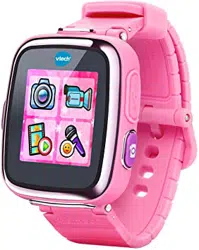
Smartwatch DX is a great wearable gadget for children! In
addition to showing the time, you can also take photos, shoot videos,
record your voice and play games! Additional fun activities are included.
Connect to VTech's Learning Lodge
®
to download more fantastic clock
faces and photo effects in different themes, as well as other new games
and applications.
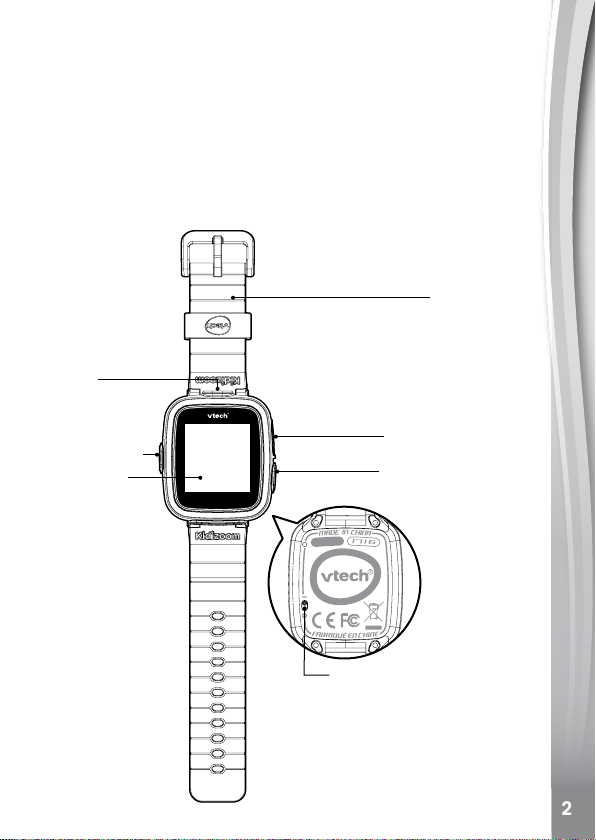
FEATURES (PRODUCT LAYOUT AND BUTTONS )
CAMERA
HOME BUTTON
MICRO USB PORT
SHUTTER BUTTON
MASTER POWER SWITCH
1.44" TOUCH
SCREEN
WRISTBAND
3
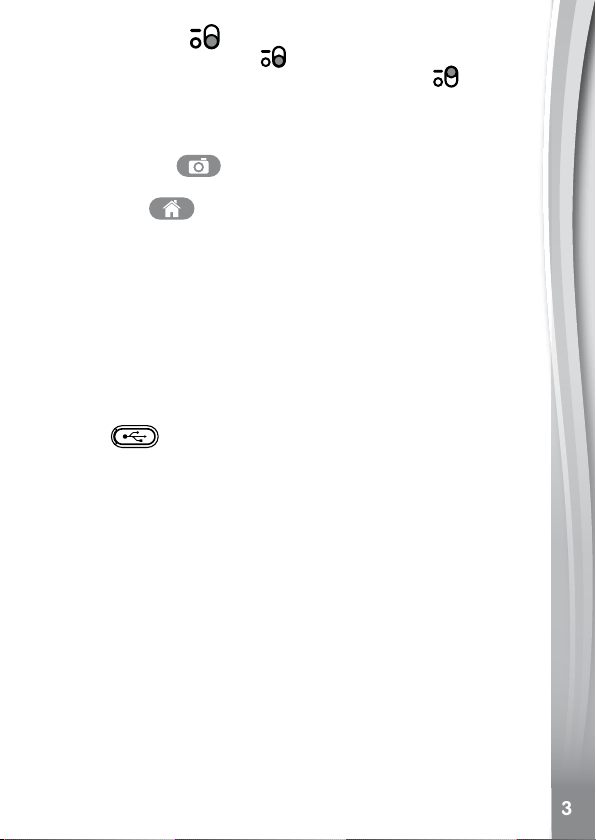
Master Power Switch
When the switch is down (OFF) , the battery will be disconnected
and the watch will not function. Slide the switch up (ON)
to enable
the watch.
Note: It is not necessary to switch off the watch in daily use. Once the
master power switch is off, the watch will stop functioning and after it is
turned on again, the time and date has to be reset.
SHUTTER BUTTON
Press this button to launch the camera and to take photos.
HOME BUTTON
Clock mode - When the screen is off, press the HOME BUTTON to wake up the
watch and see the time.
Home Menu - Press the HOME BUTTON again when it is in clock mode to enter
the home menu, or if it is in another activity, pressing the HOME
BUTTON will take you back to the previous menu.
Turn Off Screen - When the clock is displayed, hold this button down for one
second to turn the display off.
Smart Wake up
This Kidizoom Smartwatch DX allows you to double tap the screen
to wake up the watch and view the current time. For best results, we
recommend tapping the screen with the pad of your nger and not your
nger nail or other tools.
Micro USB
Connect to the computer with the included micro USB cable to transfer
les to a computer and to charge the watch.
INCLUDED IN THIS PACKAGE
• 1 Kidizoom
®
Smartwatch DX (with built-in Li-ion polymer battery*)
• 1 micro USB cable
• 1 parent's guide
* Battery is not replaceable.
WARNING: All packing materials such as tape, plastic sheets,
packaging locks, removable tags, cable ties and
packaging screws are not part of this toy, and should
be discarded for your child’s safety.
NOTE: Please keep this parent's guide as it contains
important information.
ATTENTION: Pour la sécurité de votre enfant, débarrassez-vous
de tous les produits d’emballage tels que rubans
adhésifs, feuilles de plastique, attaches, étiquettes et
vis d’emballage. Ils ne font pas partie du jouet.
NOTE: Il est conseillé de conserver ce guide des parents car
il comporte des informations importantes.
4
The battery in this product must not be disposed of with household waste.
This battery is recyclable. Please follow your local recycling regulations.
The LCD label covering the LCD screen of the product is packing
material, please remove this label before use.
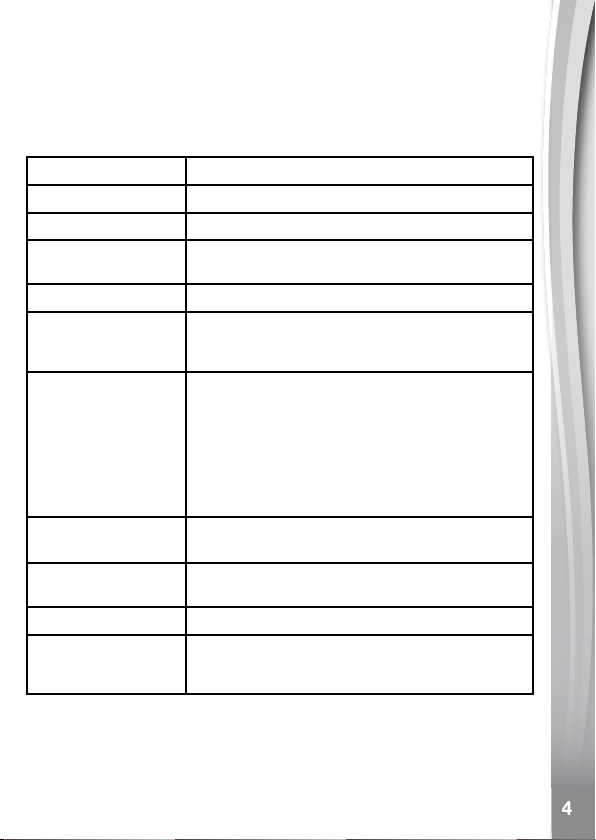
PRODUCT SPECIFICATION
Display 1.44" color touch screen
Photo Resolution 640 X 480 (0.3 MP)
Video Resolution 320 X 240 pixel or 160 X 120 pixel
Video Length limit
per le
60 seconds
Focus Range 1.5 feet - ∞
Internal Memory
256 MB built-in memory (shared with program
data, actual memory available for user storage
will be less)
Storage capacity
Photos: approx. 1600
Videos: approx. 11 minutes at 320 x 240 pixels,
approx. 23 minutes at 160 X 120 pixels
(Indoor typical condition. Video length
limited to 1 minute per le.)
Note: The storage capacity is an
approximation, the actual amount depends on
the shooting environment.
File Format
Photos: Standard Baseline JPEG
Video: AVI (Motion JPEG)
Connectivity
Micro USB 2.0 cable (included) for connection
to computer
Battery Li-ion Polymer battery (battery is not replaceable)
Optimum Operating
and Charging
Temperature
32°F - 104°F (0°C - 40°C)
5
WEARING THE SMARTWATCH
People with very sensitive skin may notice some irritation after wearing
the Kidizoom
®
Smartwatch DX for extended periods of time. The skin
may become irritated when moisture, sweat, soap, or other irritants get
trapped under the watch band and are left in contact with the skin. To
prevent this, we suggest children remove the watch before going to bed
for the night, take the watch off if it's feeling uncomfortable, and keep
their wrist and the band clean and dry.
In addition, wearing the watch too tightly may also cause irritation. Make
sure the t is good - tight enough so the watch stays in place but not so
tight that it's uncomfortable. If you notice any redness, swelling, or other
irritation, you may want to consult a doctor before wearing the watch
again.
GETTING STARTED
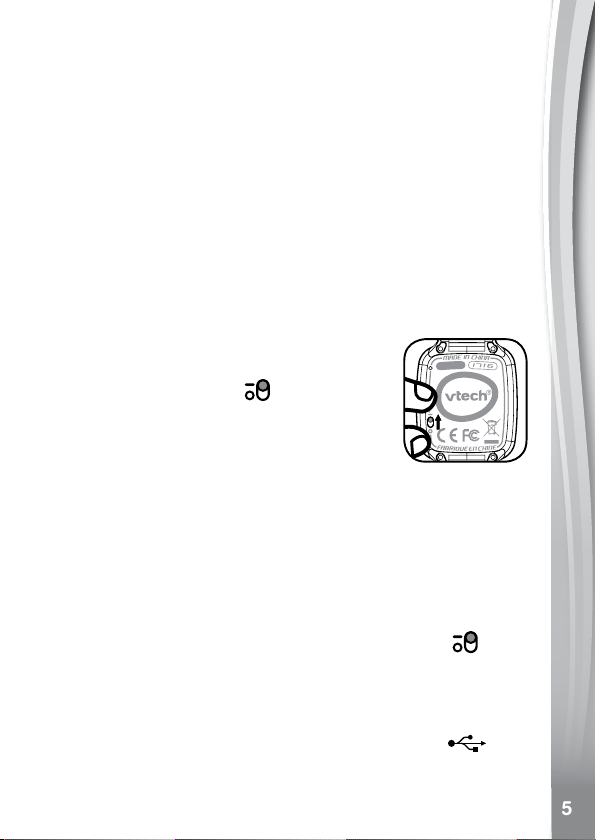
Switch on the MASTER POWER SWITCH when
using for the rst time. The MASTER POWER
SWITCH is located on the back of the watch face.
Slide the switch up to turn ON
and fully charge
the Kidizoom
®
Smartwatch DX before use.
When the watch is switched OFF, it will not be
possible to charge the watch or play any activities.
Note: It is not necessary to switch the Master Power
Switch to off during daily use.
We recommend a full charge before playing. A full charge will take about
3 hours.
BATTERY RECHARGING
Note: Adult operation needed.
Connect the watch to a computer with the included micro USB cable to
charge the battery.
• Make sure the master power switch is turned ON ( - )
before
recharging.
• Pull up the rubber cover of the micro USB port at the side of your watch.
• Insert the micro USB cable (small end) into the micro USB port on the watch.
• Insert the larger end of the micro USB cable into a USB port on the
computer. A USB port is usually marked with this symbol
.
• Once the connection is successful, you will see the battery recharging
symbol displayed on the watch screen.

6
• Check charging progress regularly throughout the process.
• When the battery is fully charged, a message will be displayed on the
screen for a while, and the screen will turn off. Disconnect the watch
from the computer.
Note: It will take approximately 3 hours to fully charge the battery. The actual
charging time depends on the power supply, the remaining charge and the
ambient temperature of the charging environment. The optimum ambient
temperature is 32°F - 104°F (0°C - 40°C). If your watch needs longer than 3
hours to fully charge, please try charging from a different USB power source.
BATTERY LIFE
The time the battery lasts between charges depends on play. Like other
electronic devices, more frequent usage will drain the battery more
quickly. Some activities will be more demanding on the battery, such as
taking photos and videos.
Battery time for reference
Condition Battery Time
Low Usage 2 weeks
Typical Usage 2-3 days
Heavy Usage 1 day
Note: The above battery time assumption is based on the screen display
set to turn off when not in use.
Battery Maintenance
• Charge the battery regularly to keep it at optimum performance, even
when the watch isn't in use. For example, fully charge the watch at
least every 6 months.
• Slide the Master Power Switch down to turn the watch OFF (0)
, only
when the watch isn't in use for an extended period of time. Slide the
switch up to switch on the watch (-) before charging the battery.
BATTERY NOTICE
Misuse of batteries can lead to them bursting, causing a re or chemical
burns. Please read the below precautions:
• Do not disassemble.
• Do not crush and do not expose the battery to any shock or force such
as hammering, dropping or stepping on it.
• Do not short circuit.
7
• Do not expose to high temperatures or place near a heat source. Do
not leave in direct sunlight for any length of time.
• Do not dispose of in re.
• Do not handle damaged or leaking batteries.
• Keep the battery out of the reach of children.
• Keep the battery dry.
• If you nd the time between charges is considerably shortened with
no change in usage, the battery could be nearing the end of its life.
The battery life varies from battery to battery depending on storage,
operating conditions and environment.
• Examine the charging cord periodically for conditions that may result
in the risk of re, electric shock, or injury to persons such as damage
to the cord, housing, or other parts. In the event of such conditions,
the cord should not be used until properly repaired or replaced.
SPLASH PROOF FOR EvERYDAY PLAY
• Do not put under running water.
• Do not submerge and not suitable for showering, bathing and swimming.
• Keep the rubber cover of the micro USB port closed tightly while it is
not in use in order to prevent raindrops or tap water from getting in the
micro USB port.
TO BEGIN USING
KIDIzOOM
®
SMARTWATCH DX
Make sure the MASTER POWER SWITCH is ON. Slide the MASTER
POWER SWITCH up to switch the watch ON (-) and charge the
battery before starting.
Note: It is not necessary to switch the MASTER POWER SWITCH to
off during daily use.
Press the HOME BUTTON
or SHUTTER BUTTON to
wake the watch up or double tap on the screen to wake it up.
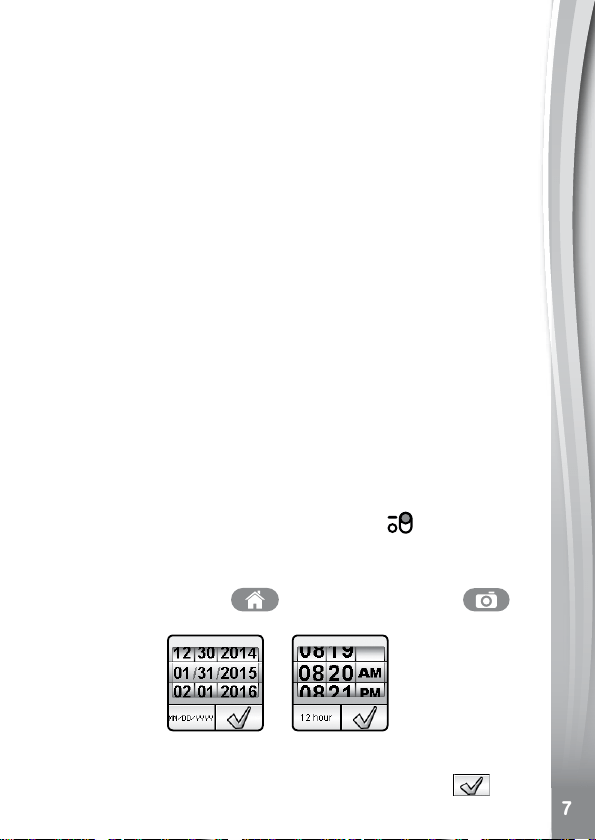
When switching on the watch for the rst time, the date and time setting
screen will be displayed rst. Swipe up or down over the month, day, year,
hours and minutes to change the current date and time. Tap the
when
you're done.
8
When the clock is displayed on screen, press the HOME BUTTON
to go to the home menu. Press the SHUTTER BUTTON
to take photos and videos.
Note:
• When the battery level is low, most functions on the watch may not be
activated, except for the clock display. It is recommended to recharge
the battery as soon as possible before further use.
• If the battery level is extremely low the watch may not work properly.
Recharge the battery as soon as possible and set the time and date
again after recharging.
AUTOMATIC SCREEN OFF
To preserve battery life, the screen will automatically shut off after a
short period of time when in clock mode.
Note: The auto screen off time can be adjusted in Settings / Advanced
/ Auto Screen Off. Please refer to the Settings section in this manual.
In other activities, it will return to clock mode automatically if there is
no input for 1 minute. When it is in camera mode, it will auto-exit after
3 minutes. When in slideshow, the auto-exit time is around15 minutes.
If you have a timer running, it will return to the timer screen instead of watch
mode. The watch will not shut off automatically when the timer is running.
BATTERY STATUS
The remaining battery capacity will be displayed on the main menu screen.
When the battery level is low, most functions on the watch may not be
accessible, except for the clock display. It is recommended to recharge the
battery as soon as possible before further use.
If the battery level is extremely low the watch may not work properly.
Recharge the battery as soon as possible and set the time and date again
after recharging.
CONNECT TO A COMPUTER
FOR FILE TRANSFER
You can connect Kidizoom
®
Smartwatch DX to a PC or Mac computer
using the included micro USB cable. Once connected, you can transfer
les between the watch and computer. Please follow the following steps
to make the connection:
• Pull up the rubber cover of the micro USB port on the side of your watch.

9
• Insert the micro USB cable (small end) into the micro USB port on the watch.
• Insert the larger end of the micro USB cable into a USB port on the
computer. A USB port is usually marked with this symbol
.
• You will see a removable drive called VTech 1716, please use this to
transfer les to and from the watch. There is another removable drive
called VT SYSTEM, which is for storage of system data and should
not be accessed by users.
Note: Once the watch is connected to your computer, do not disconnect
the watch while les are uploading or downloading. After you have
nished, remove the watch by following the steps to safely remove
hardware from your computer. You can then physically unplug the watch
from the computer.
To avoid any potential damage to your Kidizoom
®
Smartwatch DX,
ensure the micro USB rubber cover is fully covering the micro USB port
of the watch when it is not connected to the cable.
To back up photo or video les taken by Kidizoom
®
Smartwatch DX:
• Locate and open the DCIM folder in the removable drive VTech 1716.
• Your photo and video les will be placed in a subfolder. Drag and drop
the les to a location on your computer to back them up.
To back up voice les recorded by Kidizoom
®
Smartwatch DX:
• Locate and open the VOICE folder in the removable drive VTech
1716.
• Drag and drop the recorded voice les to a location on your computer
for backup.
To transfer photo or video les to Kidizoom
®
Smartwatch DX:
• Select the photo or video les you would like to upload from your
computer rst.
• Locate and open the DOWNLOAD folder in the removable drive
VTech 1716, drag and drop the photo les into the PHOTO subfolder,
or VIDEO subfolder for video les.
Note: Do not transfer photo or video les created by other cameras
(except for Kidizoom camera photo or video les) to Kidizoom
®
Smartwatch DX, as these le formats may not be compatible.
Minimum System Requirements
PC Hardware Requirements:
CPU: Pentium
®
4 or above
Memory: 256MB RAM
10
300MB Hard disk space
Monitor Resolution: 1024 x 768
USB Port required
PC Software Requirements:
Microsoft
®
Windows
®
XP, Windows Vista
®
, Windows
®
7 or Windows
®
8
Operating System, Adobe
®
Flash
®
Player 10 – Other Browsers Version
Macintosh Hardware Requirements:
Macintosh Computer with an Intel processor
Memory: 512 MB RAM
300 MB Hard disk space
USB Port required
Macintosh Software Requirements:
Mac OS X version 10.6, 10.7, 10.8, 10.9 or 10.10, Adobe
®
Flash
®
Player
10 – Other Browsers Version
*Internet connection required for Internet enabled functions on both PC
and Macintosh computers.
Microsoft
®
and Windows logos are trademarks of Microsoft Corporation
in the United States and other countries. Adobe
®
, the Adobe logo,
Flash
®
are trademarks of Adobe Systems Incorporated in the United
States and other countries. Intel
®
, Pentium
®
are trademarks of Intel
Corporation in the United States and other countries. Macintosh and
Mac logos are trademarks of Apple Inc. in the United States and other
countries. All other trademarks are the property of their respective
owners. THIS PRODUCT IS NOT ENDORSED OR SPONSORED BY
ADOBE SYSTEMS INCORPORATED, PUBLISHER OF FLASH.
ACTIvITIES
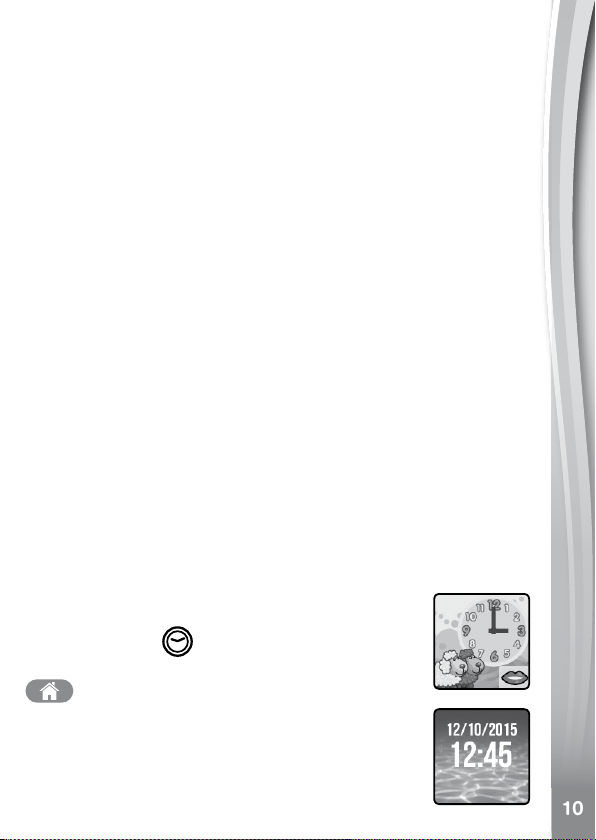
Clock Display
When the screen is off, press the HOME BUTTON
to show a clock screen.
• Tilt the watch in different angles to experience the “3D”
clock faces. You may turn the 3D effect off in Settings.
• Tap the center of the screen to switch the clock face
between analog and digital.
• Swipe left or right on the screen to see more clock
11
faces.
• If there is a mouth icon displayed on the clock face, tap the mouth icon
to hear the current time.
Press the HOME BUTTON
again to go to the home menu where
you can select other activities.
Press the SHUTTER BUTTON
to enter camera mode.
Hints: In the clock display screen, swipe down from the top of the
clock screen to get to the timer. Swipe up from the bottom to go to the
stopwatch screen. For more details about the timer and stopwatch,
please refer to pages 17 and 18.
Note: Hold the HOME BUTTON
for approximately 1-2 seconds
to turn off the screen.
Home Menu
When the screen is off, press the HOME BUTTON to show a clock
screen.
When it shows a clock screen, press the HOME BUTTON
again
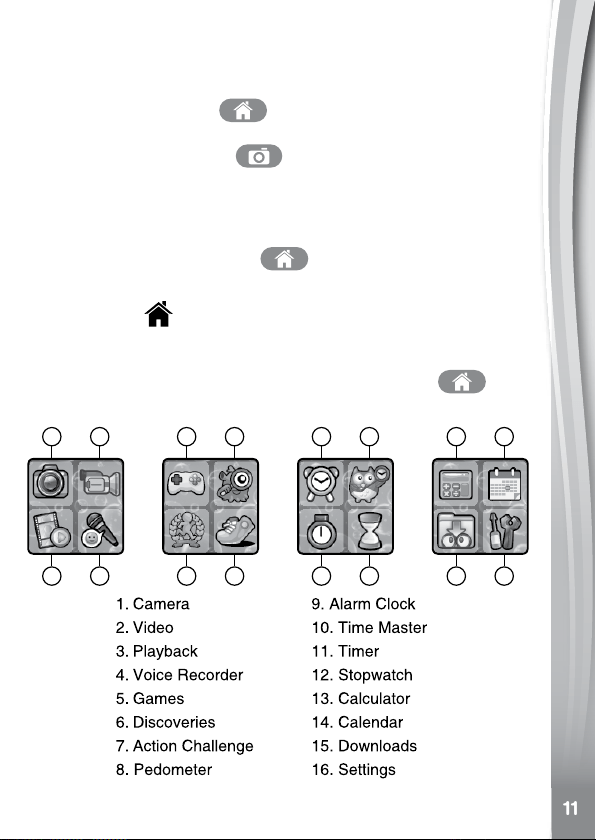
to display the home menu. There are 12 types of activities to choose
from.
1
3
2
4
5
7
6
8
9 10
11 12 15
13
16
14
12
• Tap the icon to enter the activity.
• Swipe left or right to scroll through the menu pages.
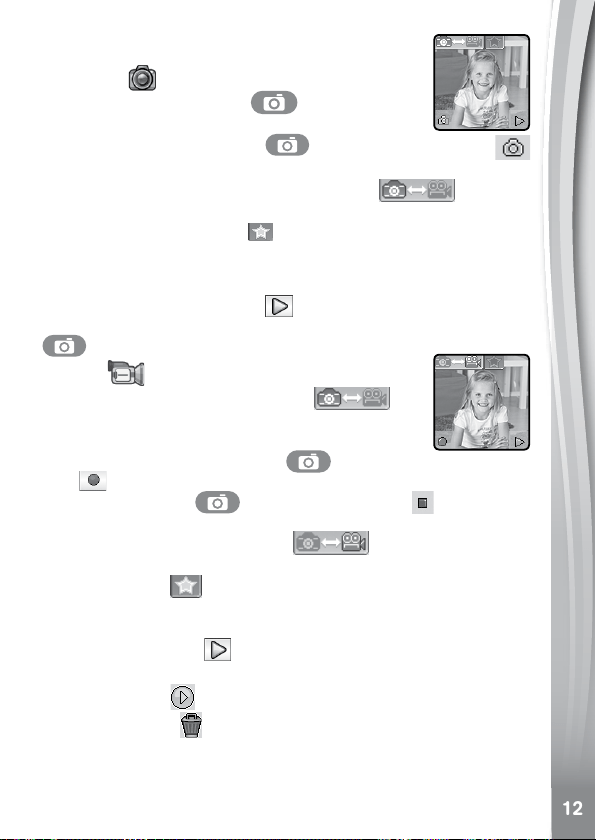
1. Camera
Press the SHUTTER BUTTON to enter camera
mode. You can also switch to video mode here.
• Press the SHUTTER BUTTON
or shutter icon on screen
to take a photo.
• Tap the Camera & Video mode icon on screen
to change
to video mode.
• Tap the Star icon on screen
to preview with a photo effect, then
press the left or right arrow icons or swipe the screen to go through
different photo effects. Tap the Star icon again to turn off the photo
effect.
• Tap the playback icon on screen
to view the taken photos or videos.
Photos will show on screen for 2 seconds. Press the SHUTTER BUTTON
or tap the screen to exit playback and return to camera mode.
2. Video
Tap the Camera & Video mode icon on
screen when in camera mode at any time to go to video
mode. The time limit per video le is 1 minute.
• Press the SHUTTER BUTTON
or Record
icon
on screen to start recording. While recording, press the
SHUTTER BUTTON
again or the Stop icon on screen to
stop.
• Tap the Camera & Video mode icon
on screen to change to
camera mode.
• Tap the Star icon
on screen to preview with a video effect, then
press the left or right arrow icons or swipe the screen to go through
different video effects.
• Tap the Playback icon
on screen to view videos.
When you nish recording a video, the playback screen will be shown.
• Tap the Play icon
on screen to play the last recorded video.
• Tap the Trash Can
on screen to display the delete menu.
13
Note: Each video records up to a 1 minute le.
3. Voice Recorder
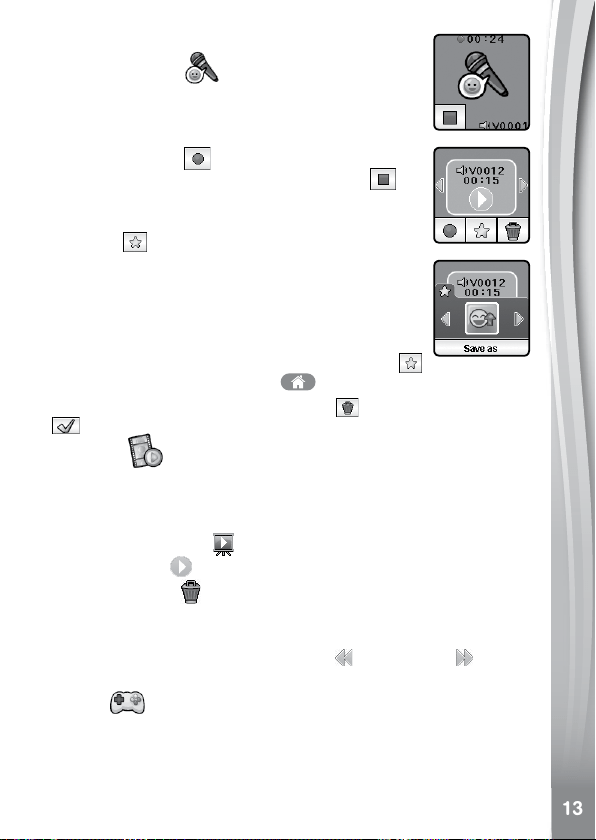
The Voice Recorder allows you to record your own voice
for up to 60 seconds per le and apply some fun voice
changing effects to the recorded voice.
Tap the Record icon
on screen to start the voice
recording. While recording, tap the stop icon on
screen to stop.
Swipe the screen to see the previous or next le. Tap
the Star icon
on screen to display the voice effects
screen.
There are 5 built-in voice effects. On the voice effect
screen, tap the left or right icon on screen to preview the
different voice effects. Tap the “save as” icon to save the
voice with the selected voice effect as a separate voice
le. To exit the voice effects screen, tap the Star icon
again or press the HOME BUTTON .
To delete the voice, tap the Trash Can icon
on screen to delete and
tap to conrm.
4. Playback
Here you can browse the captured photos or play the recorded videos.
• The latest le will be shown rst. Tap the arrow icons or swipe the
screen to see the previous or next le.
• Tap the Slideshow icon
to view the photos in slideshow.
• Tap the Play icon
on screen to play the video.
• Tap the Trash Can
on screen to display the delete menu.
Note: To delete all photos and videos, press the down button on screen
and then follow the instructions to continue.
While playing a video, tap the Fast Rewind
Fast Forward icon on
screen to toggle the fast rewind / forward function at 1X, 2X and 4X speed.
5. Games
There are 5 built-in games in Kidizoom
®
Smartwatch DX.
• Jumping Egg
• Music Town
• Tic-Tac-Toe
14
• Super Snowboard
• Super Boarder
Swipe the screen to see the game icons and then tap to play.
A. Jumping Egg
Lead the jumping egg to the destination cloud as quickly as you can.
Then you will discover what interesting creature will hatch!
B. Music Town
The music pot exploded and all the music notes are on the loose. Help
the song wizard collect them by touching the music notes when they fall
down. Watch out for the wrong items.
C. Tic-Tac-Toe
Time to play a classic game of tic-tac-toe! Place your marks in the grid to
get three marks in a row and you win. Choose from a variety of cool marks
and test your skills against the virtual opponent or challenge a friend! It's
tic-tac-toe time!
D. Super Snowboard
Meow Cat has joined the snowboarding competition! Help him glide down
the mountain and collect golden sh to gain points and win a trophy!
E. Super Boarder
See if you have what it takes to win the wake board competition! Touch
the screen to jump up in the air and avoid the obstacles in the water.
6. Discoveries
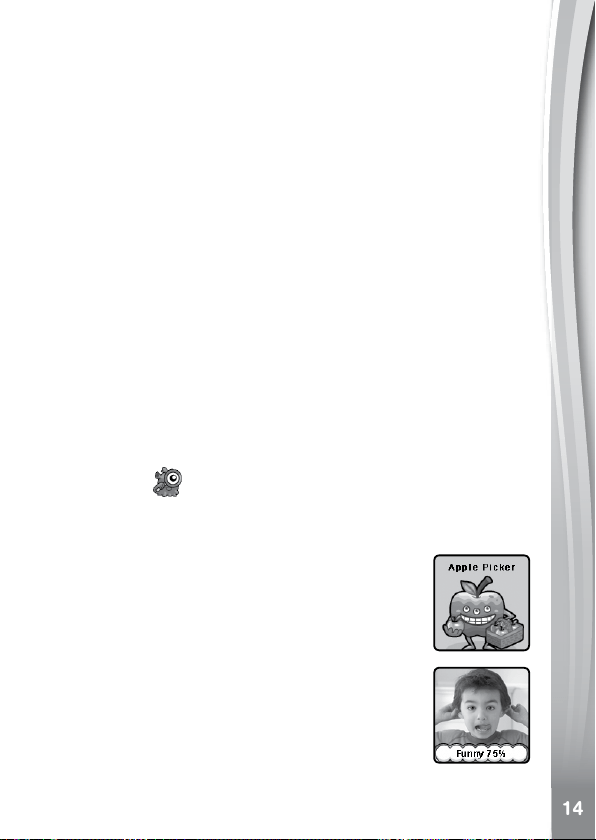
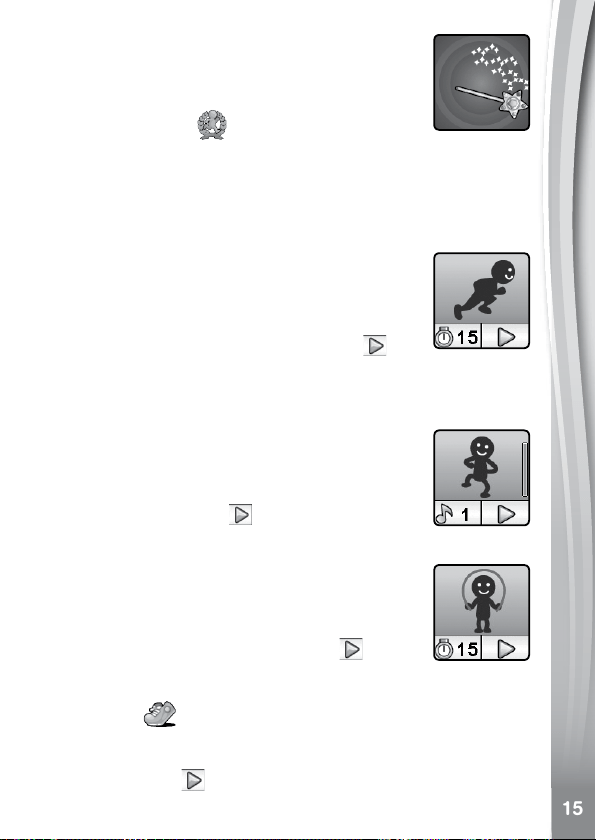
There are 3 funny games in the Discoveries menu - Monster Identity, Silly
Face Detector and Sound Shakers. Swipe the screen to choose and then
tap one to play.
A. Monster Identity
Ever wonder what kind of monster you would be? Place
a nger on the screen and the Kidizoom
®
Smartwatch
DX will scan your monster identity!
B. Funny Face Detector
How funny can you make your face? Line up your face
with the mask on the screen and then take a picture to
nd out!
15
C. Sound Shaker
Walk like a dinosaur and run like a racecar! Choose from
10 different sound effects and then Shake your hand with
the Kidizoom
®
Smartwatch DX to play.
7. Action Challenge
Action Challenge is a fun and active way to challenge yourself. It includes
3 activities which count your movement during a period of time: Racing
Run, Crazy Dance and Funky Jump.
Swipe the screen to choose and tap to play.
A. Racing Run
Set an amount of time and start running as fast as you
can. While you run, the character on the screen runs. The
character will try his best to run as fast as you can. Don’t
worry if he can’t keep up with you. Tap the timer icon
to choose different times, swipe the screen to choose
different characters and then press the go button
and
start running. When the time is up, it will show how many
steps you ran!
B. Crazy Dance
Select a song and start dancing. While you dance, the
character on the screen dances. The character will try his
best to dance as well as you can. Don’t worry if his moves
aren’t as cool as yours. Tap the song icon to choose a
song , swipe the screen to choose different characters
and then press the go button
and start dancing.
C. Funky Jump
Set an amount of time and start jumping as many times
as you can. While you jump, the character on the screen
jumps. The character will try his best to jump as much
as you can. Don’t worry if he can’t keep up. Tap the
timer icon to choose a time, swipe the screen to choose
different characters and press the go button
to start
jumping. When the time is up, it will show how many
times you jumped
8. Pedometer
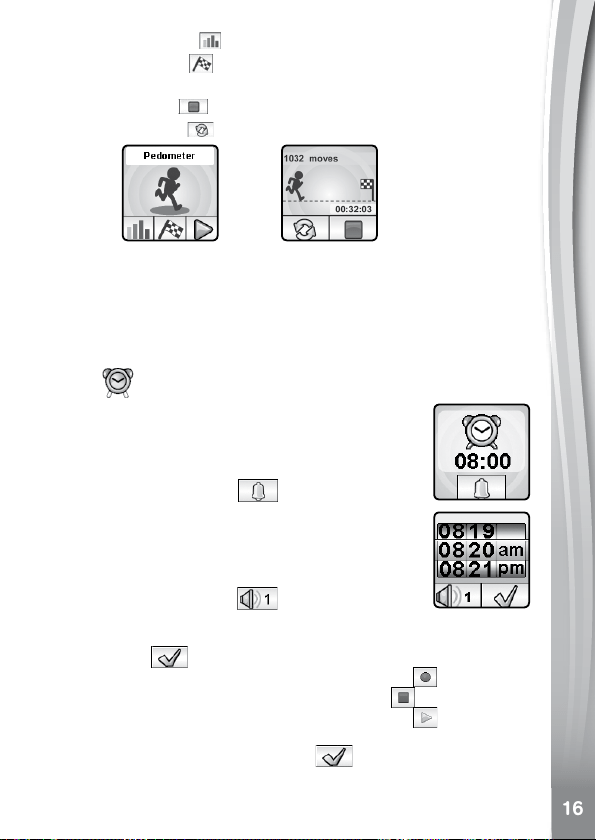
This is a simple pedometer to count your steps or any movement. The
watch should be worn on the wrist for counting accuracy.
• Tap the Start Button
to start the pedometer, and it will automatically
stop when it reaches the next day, or when you tap the stop button.
16
• Tap this History Button to look at the past history.
• Tap the Goal Button
to set a goal and challenge yourself or your
friends.
• Tap the Stop Button
to stop the step counter.
• Tap the Reset Button
to reset the step counter to zero.
Note: This kid-friendly version of a pedometer is just for fun and this toy
is not as accurate as a commercial pedometer for adults. The pedometer
only counts movement when it is in the pedometer activity or in clock
mode. Playing other activities will suspend the counter.
The pedometer will only count movement if it is worn on the arm that is
moving.
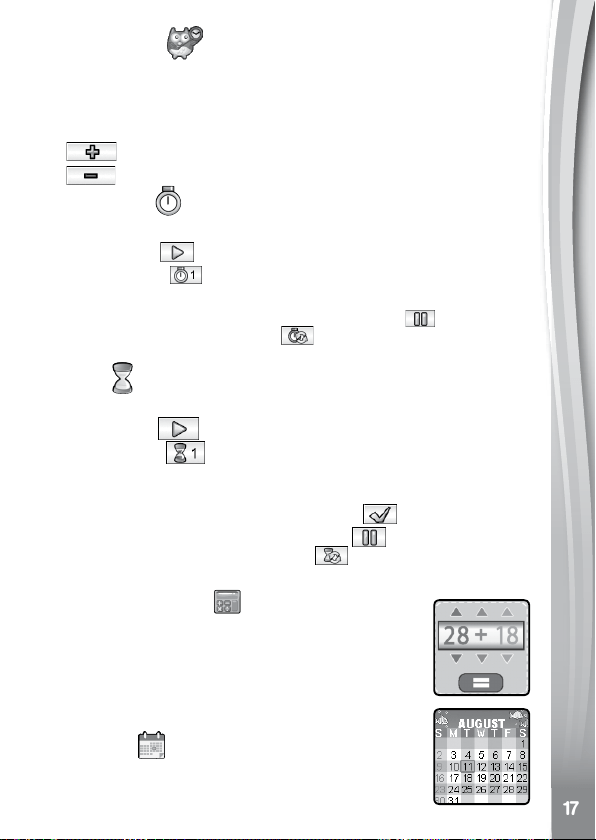
9. Alarm
You can set an alarm by choosing from a selection of
alarm tones and animations. You can also record your
own voice to use as an alarm.
• Tap the Time or Alarm icon to change the alarm time.
• Tap the Bell icon on screen
to toggle the alarm
on or off.
To change the alarm time:
• Select the hour and minute by swiping up or down on
the hours, minutes or AM/PM.
• Tap the Tone icon on screen
to display the alarm
tone selection menu. There are 9 built-in alarm sounds and one voice
recording alarm. Swipe left or right to preview the different tones and
animations. Tap to conrm the selection.
• To make your own voice alarm. Tap the Record icon
on screen to
start recording. While recording tap the Stop icon to stop or it will
stop automatically after 3 seconds. Tap the Play icon on screen to
play the recorded voice.
• Once you've chosen your alarm, tap the
icon to conrm.
Note: If the battery level is too low, the alarm will need to be set again.
17
10. Time Master
This activity will help you learn how to tell time. Tap on the clock or the owl
to hear the time. The owl tells the time in both analog and digital.
• Tap the Hour icon or Minute icon to select the time you want the owl to
say.
• Tap
to increase an hour / minute.
• Tap
to decrease an hour / minute.
11. Stopwatch
This activity functions as a traditional stopwatch.
• Tap the Play icon
on screen to start the stopwatch.
• Tap the Style icon
or swipe the screen left or right to change the
stopwatch style. There are 5 fun stopwatch styles to select!
• While the stopwatch is running, tap the Pause icon
to pause the
timer. Tap it again to resume. Tap to stop the timer and reset the
stopwatch to zero.
12. Timer
Use this activity to set a countdown timer.
• Tap the play icon
on screen to start the timer immediately.
• Tap the style icon
or swipe the screen left or right to change the
timer style. There are 5 different timers for you to try out.
• Tap the time to enter the timer settings. Swipe up or down on the minutes
and seconds to change the time. Once set, tap
to conrm.
• While the timer is running, tap the pause icon
to pause the
countdown. Tap it again to resume. Tap to stop the countdown
and reset the timer.
13. Simple Calculator
This simple calculator helps you to work out addition,
subtraction, multiplication and division problems for any
two 2-digit numbers. Tap the arrow buttons to set the
value and arithmetic operator. Tap the Equals icon sign
to get the result. Swipe the screen left or right to change
the look of the calculator.
14. Calendar
Explore the Calendar by swiping the screen left or right to
see the previous or next month. Or swipe up or down to
see the previous or next year.
18
15. Downloads
There are two functions in the Downloads menu: Download Manager
and How To Download. To access downloadable content, you rst have
to register with VTech's Learning Lodge
®
After registering an account and downloading the VTech's Learning
Lodge
®
software, you can connect your Kidizoom
®
Smartwatch DX to
your computer to download more content. All downloaded contents can
be accessed by selecting the download icon from the main menu.
When there are no downloads in your Kidizoom
®
Smartwatch DX, you
will see the steps you need to take to connect you to the Learning Lodge
®
.
• Tap the screen or swipe the screen to the left to display the next step.
• Swipe the screen to the right to display the previous step.
• Press the HOME BUTTON or tap the screen when it is in the last step to
exit How to Download and return to the download menu.
A. How To Download
Follow these steps to download the Learning Lodge
®
software:
1. Connect Kidizoom
®
Smartwatch DX to a computer using the included
micro USB cable.
2. Click the Download Website link in the drive VTECH 1716 that appears
on your computer, or visit this link directly: www.vtechkids.com/
download
3. Download and install the Learning Lodge
®
software.
4. Run the software and download extra features for your Kidizoom
®
Smartwatch DX!
Note: For details about downloading content from the Learning Lodge
®
,
please refer to the online help section.
B. Download Manager
In the Download Manager, you can view the memory size of each
download, or you can delete any unwanted downloads to free up memory.
To delete the downloads, scroll up or down to select the application and
then tap the delete icon to display the delete menu. Select
again to
conrm the delete command.
Note: If the downloadable content is accidentally deleted, you may connect
to the Learning Lodge
®
to download the applications to the watch again.
19
16. Settings
In Settings swipe left or right on the screen to scroll though different
setting options. The following have options for adjustment:
(A) Volume
• Tap to increase the volume.
• Tap
to decrease the volume.
(B) Brightness
• Tap to increase the LCD brightness.
• Tap
to decrease the LCD brightness.
(C) Date
• Tap the Set icon to enter the date setup screen.
• On the date setup screen, swipe up or down on the month, day and
year to scroll through the options.
• Tap the date format icon on screen to change the date format
(DD/MM/YYYY or MM/DD/YYYY).
• Tap
to save.
(D) Time
• Tap the Set icon to enter the time setup screen.
• On the time setup screen, swipe up or down on the hours, minutes,
or AM/PM to scroll through the options.
• Tap
to save.
20
(E) Wallpaper
• Tap the Set icon to choose the wallpaper for the home menu.
• Tap the left or right arrow icon on screen to change the wallpaper.
• Tap
to save.
(F) 3D Clock Face
• Tap YES to enable the 3D clock face style.
• Tap NO to disable the 3D clock face style.
Note: If the watch enters to the power saving mode, the screen dims and
the 3D effect may not be shown.
(G) Smart Wake Up
When Smart Wake Up is enabled, users can double tap on the screen
to wake up the watch.
• Tap YES to enable the smart wake up. When Smart Wake Up is set
to on, users can double tap on the screen to wake up the watch.
• Tap NO to disable the smart wake up.
(H) Advanced
(i) Memory
Here you can see the free memory remaining or choose to format the
memory. Follow the instructions on screen if you would like to format
the memory.
Note: Formatting will erase all data in the memory, including all
photos, videos and voice les.
(ii) Image Display (Aspect Ratio)
As the saved photos and videos are in 4:3 ratio, you can select 2
different aspect ratio for displaying the image in the preview screen
and playback screen:
Fit Image: Image displayed to actual scale with the left and right side
of the image unseen.
Fit Screen: Image scaled to t the screen, whole image displayed.
(iii) Video Resolution
There are 2 options here:
160 X 120: The video size is smaller and you can record and save
more videos.
320 X 240: The video quality is better and takes up more memory, so
less video can be recorded and saved.
21
(iv) Auto Screen Off
Allows you to set the Auto Screen Off timer. Tap the left and the right
arrow for selection, Tap the Tick icon to conrm.
The selection of Disable Auto Screen Off will not turn off the screen,
but the screen will become dim if there is no input for 10 seconds
in clock display mode to save power. At this time, operation of the
watch will be limited to showing the time. No other function will be
operational including 3D clock face effects. After the watch wakes up,
everything will return to normal.
Tips: If the Auto Screen Off off time is set to one of the longer times,
the battery consumption will increase and the time the battery lasts
will become shorter.
(v) Indoor Light Frequency
Here you can set the A.C. power frequency according to the region
you're in when traveling. If it is not set correctly, you may see some
ickering on the camera/video’s preview screen and the captured
photos and videos when you are in an indoor environment.
(vi) Parental Control
Parents can set the game time limit per day for their children. This
Parental Control is mainly designed for those younger kids that cannot
read. Parents need to follow the instructions to enter the menu.
There are a few options for the game time limit per day.
After a time limit is set, the time spent playing the game will be counted.
Once the time limit is reached, your child will be unable to enter the
games until the next day.
Note: The time limit will be reset if the date or time settings are
changed.
(vii) Factory Reset
Factory Reset will erase the contents stored in the memory and reset
all system settings to factory default, e.g le index, frequency, video
resolution, game level and clock face. Follow the instructions on
screen to conrm the action.
Care & Maintenance
1. Keep the rubber cover of the micro USB port closed tightly while it is not in
use in order to prevent dust or water from getting into the micro USB port.
2. Keep the watch clean by wiping it with a slightly damp cloth.
3. Keep the watch out of direct sunlight and away from any direct heat source.
22
4. Do not drop the watch on a hard surface and do not expose it to
moisture or immerse it in water.
5. Keep the lens clean. If the pictures taken are blurry, it could be
because there is dust or dirt on the lens. You can clean the lens by:
• Blowing on the lens.
• Gently wiping the lens with a dry cloth.
Wearing the Smartwatch
Wearing the watch for extended periods of time may trap moisture
between the band and the wrist and cause irritation. In order to prevent
this, we suggest children remove the watch before going to bed for the
night, take the watch off if it's feeling uncomfortable, and keep their wrist
and the band clean and dry.
WARNING
A very small percentage of the public, due to an existing condition, may
experience epileptic seizures or momentary loss of consciousness when
viewing certain types of ashing colors or patterns.
While Kidizoom
®
Smartwatch DX does not contribute to any additional
risks, we do recommend that parents supervise their children while
they play games. If your child experiences dizziness, altered vision,
disorientation, or convulsions, discontinue use immediately and consult
your doctor. Please note that focusing on at close range and handling a
Kidizoom
®
Smartwatch DX as a game controller for a prolonged period
of time may cause fatigue or discomfort. We recommend that children
take a 15-minute break for every hour of play.
TROUBLESHOOTING
Go through this section if you experience difculty in operating
Kidizoom
®
Smartwatch DX.
Problem Solution
The watch
has stopped
working
1. Turn the master power switch off for 30 seconds.
2. Turn the master power switch on again and then
press the HOME BUTTON
to turn it on. It
should now work properly.
3. If it doesn't work, try to recharge the battery and
try again.
(Refer to the battery recharging section for details)
23
Screen
display is
abnormal
1. Turn the master power switch off for 30 seconds.
2. Turn the master power switch on again and then
press the HOME BUTTON
to turn it on. The
screen display should be normal again.
Image taken
is not clear
1. Make sure the lighting conditions of the shooting
environment are good.
2. Check to see if the camera lens is clean. If you
nd some dust or dirt on it, please see the steps to
clean the lens in Care and Maintenance.
Cannot
connect to
computer
• Check the connections on the USB cable between
the watch and the computer and review the
appropriate connection procedures in this manual.
• Turn the master power switch off for 30 seconds.
Turn the master power switch on and connect to
the computer again.
Can’t view the
downloaded
video or photo
les
Check if the downloaded les are in the correct
directory in the Kidizoom
®
Smartwatch DX. Photos
should be put in the DOWNLOAD/PHOTO folder,
videos should be put in the DOWNLOAD/VIDEO
folder in Kidizoom
®
Smartwatch DX when it is
connected to a computer.
Kidizoom
®
Smartwatch DX only supports the
below formats:
Photos in Standard Baseline JPEG and Videos in AVI
(Motion JPEG) created by Kidizoom
®
Smartwatch
DX.
TECHNICAL SUPPORT
If you have a problem that cannot be solved by using this manual, we
encourage you to visit us online or contact our Consumer Services
Department with any problems and/or suggestions that you might have.
A support representative will be happy to assist you. Before requesting
support, please be ready to provide or include the information below:
• The name of your product or model number (the model number is
located on the back of the display panel).
• The actual problem you are experiencing.
• The actions you took right before the problem started.
Internet : www.vtechkids.com
Phone : 1-800-521-2010 in the U.S. or 1-877-352-8697 in Canada

24
KIDIzOOM
®
SMARTWATCH DX FREqUENTLY
ASKED qUESTIONS
Question 1:
I have bought a Kidizoom
®
Smartwatch DX, but it will not work with
my PC, my PC is looking for a driver. I have searched the internet and
cannot nd a VTech
®
Kidizoom
®
Smartwatch DX driver. What can I
do?
Answer:
There is no separate driver needed for the Kidizoom
®
Smartwatch
DX. It uses a standard USB mass storage device driver. Such a driver
comes standard on all Windows
®
operating systems starting with
Windows
®
2000 Service Pack 3 (including Windows
®
XP, Vista and
upwards) and Mac OS
®
9.0 or above. If your computer meets these
OS requirements and is still looking for a driver, please contact your PC
manufacturer for further assistance. For earlier operating systems that
do not support mass storage, a system upgrade or mass storage device
driver may be available. Again, please check with your PC manufacturer.
Question 2:
What is the ISO value (light sensitivity) of the Kidizoom
®
Smartwatch
DX?
Answer:
The Kidizoom
®
Smartwatch DX uses an auto-ISO value. It auto
adjusts the exposure time and light sensitivity depending on the lighting
environment.
Question 3:
Why won't my Kidizoom
®
Smartwatch DX turn on?
Answer:
Please make sure the master power switch is on and the battery is charged.
Question 4:
Why are my pictures sometimes grainy and fuzzy? Is there anything I
can do to improve the picture quality?
Answer:
In a poorly lit environment, the frame rate (shutter speed) drops to allow
for a longer exposure time. The downside of this is that any movement
in the frame, or of the hand holding the camera, can result in greater
blur. Furthermore, the camera sensor will soften the edges in low light
to counteract the darkness by reducing the image noise. This too can
sometimes result in a blurred picture. Try to improve the lighting to get
better results.

25
Question 5:
Why are the videos grainy and fuzzy when viewing on the computer screen?
Answer:
Please check if the video player of your computer is set to display the
actual resolution and scale of your videos. Viewing the videos on a
enlarged screen will result in a poor display quality.
Also, you can set the video resolution of Kidizoom
®
Smartwatch DX
to 320 X 240. The video quality of this option is better than 160 X 120.
Question 6:
Can you delete a group of pictures at one time, or do they have to be
deleted one at a time on the camera?
Answer:
If you connect Kidizoom
®
Smartwatch DX to your computer and access
it as an external drive, you can select multiple pictures to delete at any one
time.
Question 7:
If you accidentally delete the pictures by reformatting, is there any way
to get them back?
Answer:
Unfortunately, if you delete the pictures by formatting the internal
storage memory, there’s no way to retrieve them. There is third party
software that can help recover deleted data from storage, but we do not
recommend using this.
Question 8:
I am trying to transfer my pictures to my computer. I connected per
the instructions (connecting the micro USB cable to the watch and
computer) and the new drive appears. However, no pictures are
automatically downloading. Is there something I need to do at startup to
get the pictures downloaded and saved?
Answer:
The picture transfer operation does not start by itself. After you have
connected the micro USB cable to your computer and the drive appears
ready, you can open the drive, look under the folder DCIM and you
should nd the images you captured with the Kidizoom
®
Smartwatch
DX. Moreover, if you wish to upload images to be viewed on Kidizoom
®
Smartwatch DX, you can do so by moving the JPEG image les into the
folder DOWNLOAD/PHOTO.
Note: Do not transfer photo or video les created by other cameras
to Kidizoom
®
Smartwatch DX, as these le formats may not be
compatible.

26
DISCLAIMER AND LIMITATION OF LIABILITY
VTech
®
Electronics North America, L.L.C. and its suppliers assume no
responsibility for any damage or loss resulting from the use of this handbook.
VTech
®
Electronics North America, L.L.C. and its suppliers assume no
responsibility for any loss or claims by third parties that may arise through
the use of this product. VTech
®
Electronics North America, L.L.C. and
its suppliers assume no responsibility for any damage or loss caused by
deletion of data as a result of malfunction, dead battery, or repairs.
Company: VTech
®
Electronics North America, L.L.C.
Address: 1156 W. Shure Drive, Suite 200, Arlington Heights, IL 60004 USA
Phone: 1-800-521-2010 in the U.S. or 1-877-352-8697 in Canada
IMPORTANT NOTE:
Creating and developing VTech
®
products is accompanied by a
responsibility that we at VTech
®
take very seriously.
We make every effort to ensure the accuracy of the information
which forms the value of our products. However, errors sometimes
can occur. It is important for you to know that we stand behind
our products and encourage you to call our Consumer Services
Department at 1-800-521-2010 in the U.S., or 1-877-352-8697
in Canada with any problems and/or suggestions that you might
have. A service representative will be happy to help you.
Note:
This equipment has been tested and found to comply with the limits for
a Class B digital device, pursuant to Part 15 of the FCC Rules. These
limits are designed to provide reasonable protection against harmful
interference in a residential installation. This equipment generates, uses
and can radiate radio frequency energy and, if not installed and used
in accordance with the instructions, may cause harmful interference to
radio communications. However, there is no guarantee that interference
will not occur in a particular installation. If this equipment does cause
harmful interference to radio or television reception, which can be
determined by turning the equipment off and on, the user is encouraged
to try to correct the interference by one or more of the following measures:
• Reorient or relocate the receiving antenna.
• Increase the separation between the equipment and receiver.
• Connect the equipment into an outlet on a circuit different from that to
which the receiver is connected.
27
• Consult the dealer or an experienced radio / TV technician for help.
THIS DEVICE COMPLIES WITH PART 15 OF THE FCC
RULES. OPERATION IS SUBJECT TO THE FOLLOWING TWO
CONDITIONS: (1) THIS DEVICE MAY NOT CAUSE HARMFUL
INTERFERENCE, AND (2) THIS DEVICE MUST ACCEPT ANY
INTERFERENCE RECEIVED, INCLUDING INTERFERENCE THAT
MAY CAUSE UNDESIRED OPERATION.
CAN ICES-3 (B)/NMB-3(B)
Caution : Changes or modications not expressly approved by the party
responsible for compliance could void the user’s authority to operate the
equipment.
Shielded cables must be used with this unit to ensure compliance with
the Class B FCC limits.

Register your product online at vtechkids.com/warranty.
PRODUCT WARRANTY
This Warranty is applicable only to the original purchaser,
is non-transferable and applies only to “VTech” products or
parts. This product is covered by a 3-month Warranty from
the original purchase date, under normal use and service,
against defective workmanship and materials. This Warranty does not apply
to (a) consumable parts, such as batteries; (b) cosmetic damage, including
but not limited to scratches and dents; (c) damage caused by use with non-
VTech products; (d) damage caused by accident, misuse, unreasonable use,
immersion in water, neglect, abuse, battery leakage, or improper installation,
improper service, or other external causes; (e) damage caused by operating
the product outside the permitted or intended uses described by VTech in the
owner’s manual; (f) a product or part that has been modified (g) defects caused
by normal wear and tear or otherwise due to the normal aging of the product; or
(h) if any VTech serial number has been removed or defaced.
Prior to returning a product for any reason, please notify the VTech Consumer
Services Department by going to our web site at www.vtechkids.com, filling
out our Contact Us form located under the Customer Support link or calling
1-800-521-2010.
If the service representative is unable to resolve the issue, you will be provided
instructions on how to return the product and have it replaced under Warranty.
Return of the product under Warranty must adhere to the following rules: If
VTech believes that there may be a defect in the materials or workmanship of the
product and can confirm the purchase date and location of the product, we will
at our discretion replace the product with a new unit or product of comparable
value. A replacement product or parts assumes the remaining Warranty of the
original product or 30 days from the date of replacement, whichever provides
longer coverage.
THIS WARRANTY AND THE REMEDIES SET FORTH ABOVE ARE EXCLUSIVE AND
IN LIEU OF ALL OTHER WARRANTIES, REMEDIES AND CONDITIONS, WHETHER
ORAL, WRITTEN, STATUTORY, EXPRESS OR IMPLIED. IF VTECH CANNOT
LAWFULLY DISCLAIM STATUTORY OR IMPLIED WARRANTIES THEN TO THE
EXTENT PERMITTED BY LAW, ALL SUCH WARRANTIES SHALL BE LIMITED TO
THE DURATION OF THE EXPRESS WARRANTY AND TO THE REPLACEMENT
SERVICE AS DETERMINED BY VTECH IN ITS SOLE DISCRETION.
To the extent permitted by law, VTech will not be responsible for direct, special,
incidental or consequential damages resulting from any breach of Warranty.
This Warranty is not intended to persons or entities outside the United States
of America. Any disputes resulting from this Warranty shall be subject to the
final and conclusive determination of VTech.

Visit our website for more
information about our products,
downloads, resources and more.
vtechkids.com
TM & © 2015 VTech Holdings Limited.
All rights reserved.
Printed in China.
91-003090-043
US