Panasonic
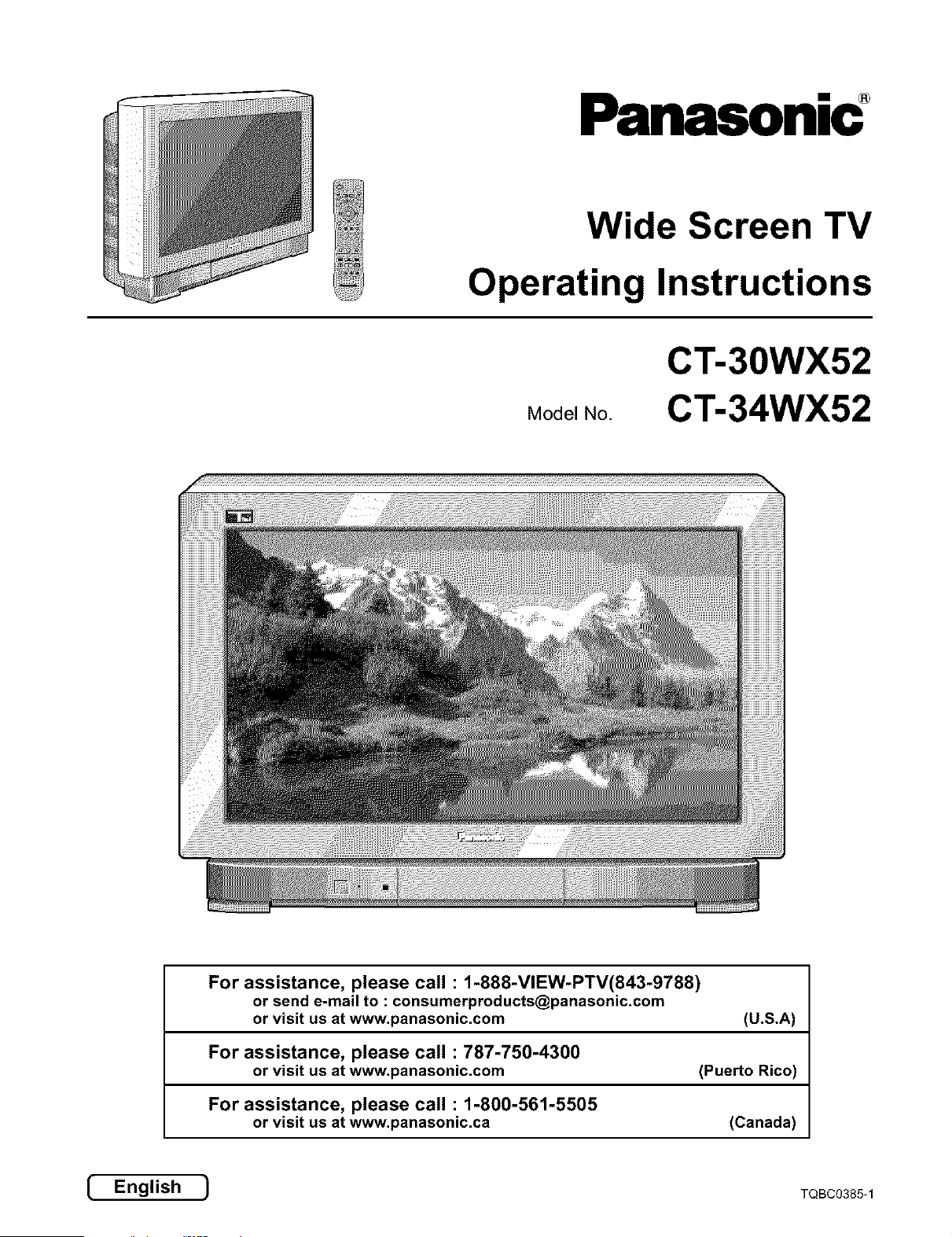
Wide Screen TV
Operating Instructions
Model No.
CT-30WX52
CT-34WX52
For assistance, please call : 1-888-VIEW-PTV(843-9788)
or visit us at www.panasonic.com (U.S.A)
For assistance, please call : 787-750-4300
or visit us at www.panasonic.com (Puerto Rico)
For assistance, please call : 1-800-561-5505
or visit us at www.panasonic.ca (Canada)
[ English ) TQBC0385-1
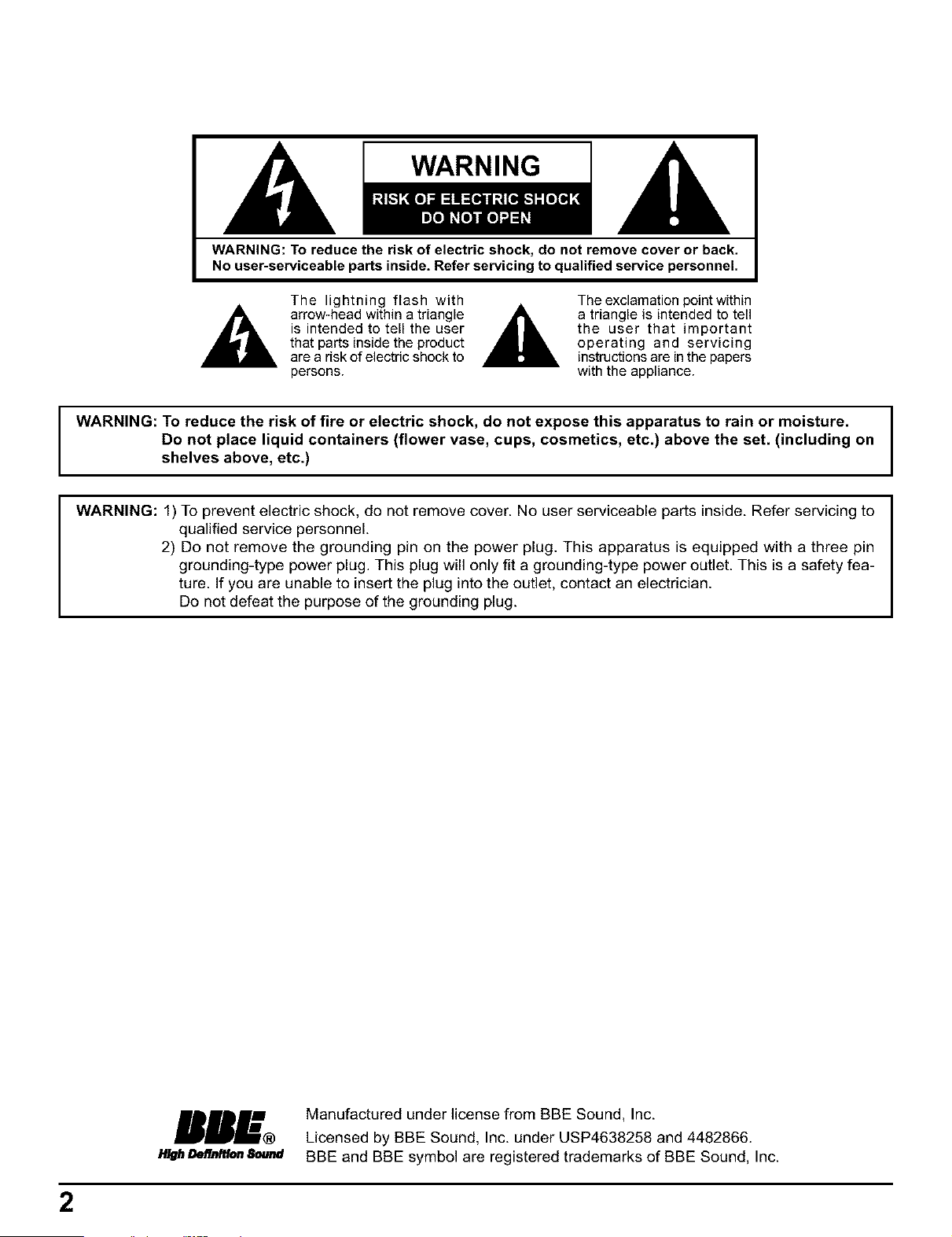
WARNING
WARNING: To reduce the risk of electric shock, do not remove cover or back.
No user-serviceable parts inside, Refer servicing to qualified service personnel.
The lightning flash with
arrow-head within a triangle
is intended to tell the user
that parts inside the product
are a risk of electric shock to
persons.
The exclamation point within
a triangle is intended to tell
the user that important
operating and servicing
instructions are in the papers
with the appliance.
WARNING: To reduce the risk of fire or electric shock, do not expose this apparatus to rain or moisture.
Do not place liquid containers (flower vase, cups, cosmetics, etc.) above the set. (including on
shelves above, etc.)
WARNING: 1) To prevent electric shock, do not remove cover. No user serviceable parts inside. Refer servicing to
qualified service personnel.
2) Do not remove the grounding pin on the power plug. This apparatus is equipped with a three pin
grounding-type power plug. This plug will only fit a grounding-type power outlet. This is a safety fea-
ture. If you are unable to insert the plug into the outlet, contact an electrician.
Do not defeat the purpose of the grounding plug.
mDBmmm-m® Manufactured under license from BBE Sou nd, lnc.
Licensed by BBE Sound, Inc. under USP4638258 and 4482866.
H/gh_ S_t_ BBE and BBE symbol are registered trademarks of BBE Sound, Inc.
2
I Important Safety Instructions
1) Read these instructions.
All the safety and operating instructions should be read before the appliance is operated.
2) Keep these instructions.
The safety and operating instructions should be retained for future reference.
3) Heed all warnings.
All warnings on the appliance and in the operating instructions should be adhered to.
4) Follow all instructions.
All operating and use instructions should be followed.
5) Do not use this apparatus near water.
For example, near a bathtub, wash bowl, kitchen sink, or laundry tub, in a wet basement, or near a swimming pool, and
the like.
6) Clean only with dry cloth.
Do not use liquid cleaners or aerosol cleaners. Use a dry cloth for cleaning.
7) Do not block any ventilation openings. Install in accordance with the manufacturer's instructions.
Slots and Openings in the cabinet are provided for ventilation and to ensure reliable operation of the product and to
protect it from overheating. The openings should never be blocked by placing the product on a bed, sofa, rug, or other
similar surface.
8) Do not install near any heat sources such as radiators, heat registers, stoves, or other apparatus (including amplifiers)
that produce heat.
This product should not be placed in a built-in installation such as a bookcase or rack unless proper ventilation is
provided or the manufacturer's instructions have been adhered to.
g) Do not defeat the safety purpose of the polarized or grounding-type plug. A polarized plug has two blades with one wider
than the other. A grounding type plug has two blades and a third grounding prong. The wide blade or the third prong are
provided for your safety. If the provided plug does not fit into your outlet, consult an electrician for replacement of the
obsolete outlet.
10) Protect the power cord from being walked on or pinched particularly at plugs, convenience receptacles, and the point
where they exit from the apparatus.
11) Only use attachments / accessories specified by the manufacturer.
12) Use only with the cart, stand, tripod, bracket, or table specified by the manufacturer, or sold with the
apparatus. When a cart is used, use caution when moving the cart / apparatus combination to avoid
injury from tip-over.
Quick stops, excessive force, and uneven surfaces may cause the appliance and cart combination
to overturn.
®
13) Unplug this apparatus during lightning storms or when unused for long periods of time.
This will prevent damage to the product due to lightning and power-line surges.
14) Refer all servicing to qualified service personnel. Servicing is required when the apparatus has been damaged in any
way, such as power-supply cord or plug is damaged, liquid has been spilled or objects have fallen into the apparatus,
the apparatus has been exposed to rain or moisture, does not operate normally, or has been dropped.
I CAUTION : This TV set is intended to be used with the following TV stand: model TY-S30WX52 for the CT-30WX52,
and TY-S34WX52 for the CT-34WX52. Use with other stands may result in the TV set becoming unstable,
possibly causing injury.
3
Dear Panasonic Customer
Welcome to the Panasonic family of customers. We hope that you will have many years of en]oyment
._'om your new color television set.
To obtain maximum benefit _vm your set, please read these Instructions before making any adjustments,
and retain them for future reference,
Retain your purchase receipt also, and record the model number and serial number of your set in the
space provided on the back cover of these instructions.
Visit our Panasonic Web Site f!)r USA
for Puerto Rico
._r Canada
www.panasonic,com
www.panasonic,com
www.panasonic, ca
For assistance, please call : 1-888-VIEW-PTV(843-9788)
or visit us at www.panasonic.com (U.S.A)
For assistance, please call : 787-750-4300
or visit us at www.panasonic.com (Puerto Rico)
For assistance, please call : 1-800-561-5505
or visit us at www.panasonic.ca (Canada)
Note:
This product utilizes both a Cathode Ray Tube (CRT) and other components that contain lead. Disposal of these
materials may be regulated in your community due to environmental considerations. For disposal or recycling information
please contact your local authorities, or the Electronics Industries Alliance: <http://www.eiae.org.>
FCC CAUTION:
Pursuant to 47CFR, Part 15.21 of the FCC rules, any changes or modifications to this TV not expressly approved by
Matsushita Electric Corporation of America could result in harmful interference and would void the user's authority to
operate this device.
4
I Table of Contents
Important Safety Instructions ....................................... 3
Installation ...................................................................... 6
Receiver Location ......................................................... 6
Optional External Equipment ........................................ 6
AC Power Supply Cord ................................................. 6
Safety Precaution .......................................................... 6
Remote Control Battery Installation ............................. 7
Cable Connection ........................................................... 8
Connecting the Aerial cable to the RF In Terminal ........ 8
Connecting Headphones / Earphones .......................... 9
Optional Equipment Connections ................................. 9
Cable Box Connection .......................................... 9
VCR Connection ................................................. 10
VCR and Cable Box Connection ......................... 12
DigitalTV - Set-TopBox (DTV-STB)or DVDConnection .. 14
Amplifier Connection (TO AUDIO AMP) ............... 14
Program Out Connection (PROG OUT) .............. 15
Front Control Panel .............................................. 15
Location of Controls .................................................... 16
Illuminated Remote Control ........................................ 16
Power ON / OFF ............................................................ 18
Connecting the Plug to the Wall Outlet ....................... 18
How to Turn the Power On .......................................... 18
Menu Language Selection .......................................... 18
VHF, UHF and CATV ..................................................... 19
Roller Guide Menu Navigation ..................................... 20
SET UP Operation ........................................................ 22
SET UP ....................................................................... 22
MENU Languages ....................................................... 22
MODE Selection ......................................................... 23
ANTENNA Selection ................................................... 23
AUTO PROGRAM ....................................................... 24
MANUAL PROGRAM .................................................. 24
AUTO POWER ............................................................ 25
CHAN BANNER .......................................................... 25
Closed Captions ............................................................ 26
[_ ON MUTE ............................................................. 26
[_ MODE ................................................................... 27
Geomagnetic correction (Adjusting skewing of images) ,, 28
PICTURE Adjustment ................................................... 29
PICTURE MODE ........................................................ 29
COLOR / TINT / BRIGHTNESS / PICTURE /
SHARPNESS / NORMAL ............................... 30
COLOR TEMP (Temperature) / NATURAL COLOR /
VIDEO / NR / 3D Y/C FILTER ......................... 31
COLOR MATRIX ......................................................... 32
VM (Velocity Modulation) ............................................ 32
FREEZE ...................................................................... 33
CHANNEL SCAN .......................................................... 34
CAPTION ....................................................................... 36
PRESET CAPTION ..................................................... 36
MANUAL CAPTION .................................................... 37
INPUT LABEL ............................................................. 37
Selecting STEREO/SAP/MONO ................................... 38
Audio Adjustment ........................................................ 39
Selecting BASS / TREBLE / BALANCE / NORMAL.... 39
AI SOUND / BBE ........................................................ 40
SURROUND ............................................................... 40
SPEAKERS ................................................................. 41
Picture in Picture Operation ........................................ 42
Split Screen ................................................................... 44
ASPECT Controls ......................................................... 46
Cable TV ........................................................................ 47
TIMER ............................................................................ 48
CLOCK SET ................................................................ 48
SLEEP ........................................................................ 49
TIMER1 and TIMER2 .................................................. 50
LOCK Feature ............................................................... 52
V-CHIP Menu OPERATION ............................................ 55
US. TV PROGRAMS ................................................... 56
U.S. MOVIES .............................................................. 58
Canadian English ........................................................ 59
Canadian French ........................................................ 60
Blocking Message ....................................................... 61
Operating peripheral equipment
using the remote control .............................. 62
Programming The Illuminated Remote Control
Using Access Codes ....................................... 62
Programming Without A Code
(When the code is not known) ........................ 63
Infrared Codes Index .................................................. 64
Mode Operational Key Chart ...................................... 67
Troubleshooting Chart ................................................. 69
Cleaning ........................................................................ 70
Specifications ............................................................... 71
5
I Installation
Receiver Location
This unit is intended to be used with an optional stand or entertainment center. Consult your dealer for available options.
Locate for comfortable viewing. Avoid placing where sunlight or other bright light (including reflections) will fall on the
screen.
Use of some types of fluorescent lighting can reduce remote control transmitter range.
Adequate ventilation is essential to prevent internal component failure. Keep away from areas of excessive heat or moisture.
To ensure optimum color purity do not position magnetic equipment (motors, fans, other speakers, etc.) nearby.
Optional External Equipment
The Video/Audio connection between components can be made with shielded video and audio cables. For best performance,
video cables should utilize 75 ohm coaxial shielded wire. Cables are available from your dealer or electronic supply store.
Before you purchase any cables, be sure you know what type of output and input connectors your various components
require. Also determine the length of cable you will need.
AC Power Supply Cord
CAUTION: To prevent electric shock, match wide blade of plug to wide slot of AC outlet and fully insert. Do not use this
(polarized) plug with a receptacle or other outlet unless the blade can be fully inserted to prevent blade exposure.
Safety Precaution
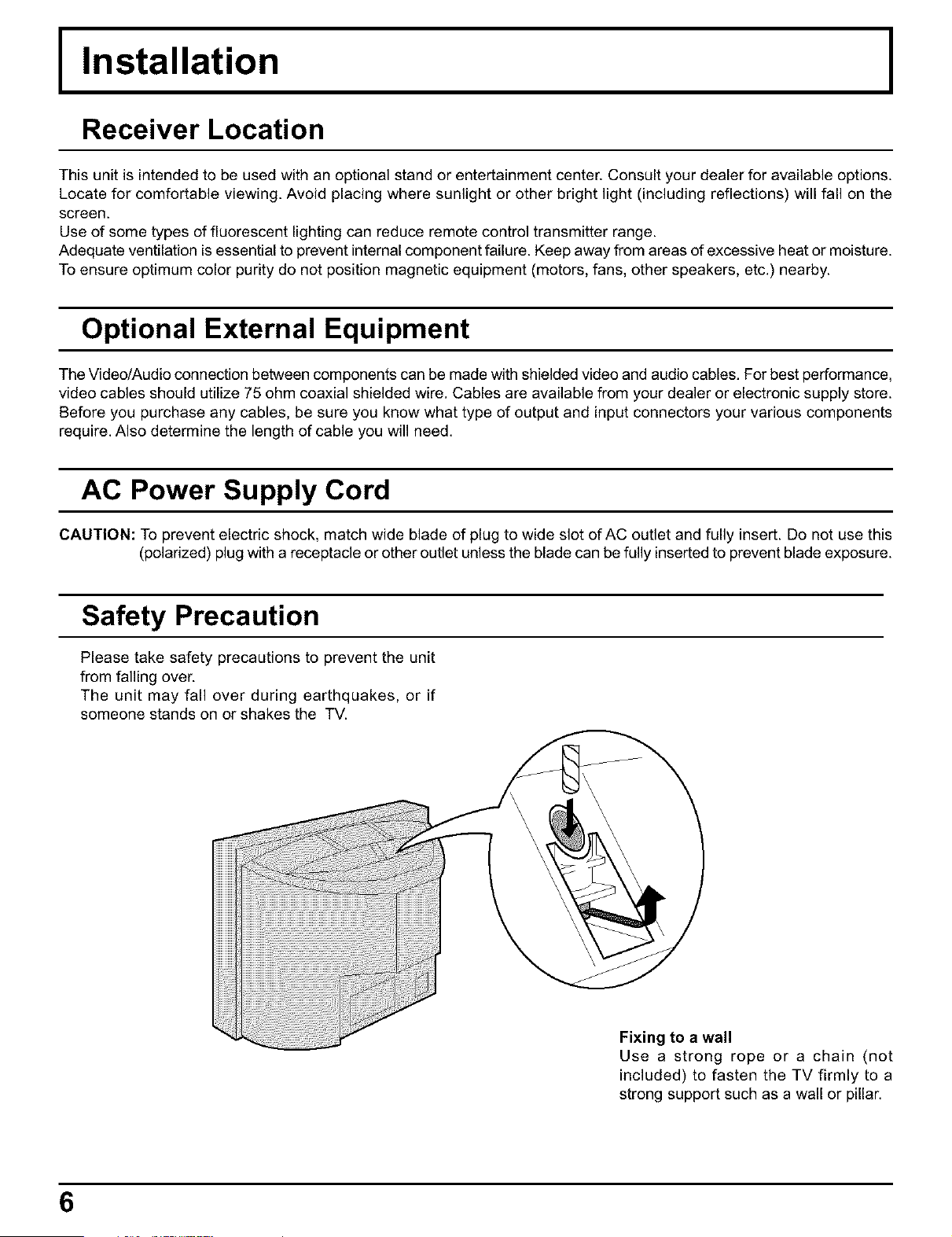
Please take safety precautions to prevent the unit
from falling over.
The unit may fall over during earthquakes, or if
someone stands on or shakes the TV.
Fixing to a wall
Use a strong rope or a chain (not
included) to fasten the TV firmly to a
strong support such as a wall or pillar.
6
I Remote Control Battery Installation
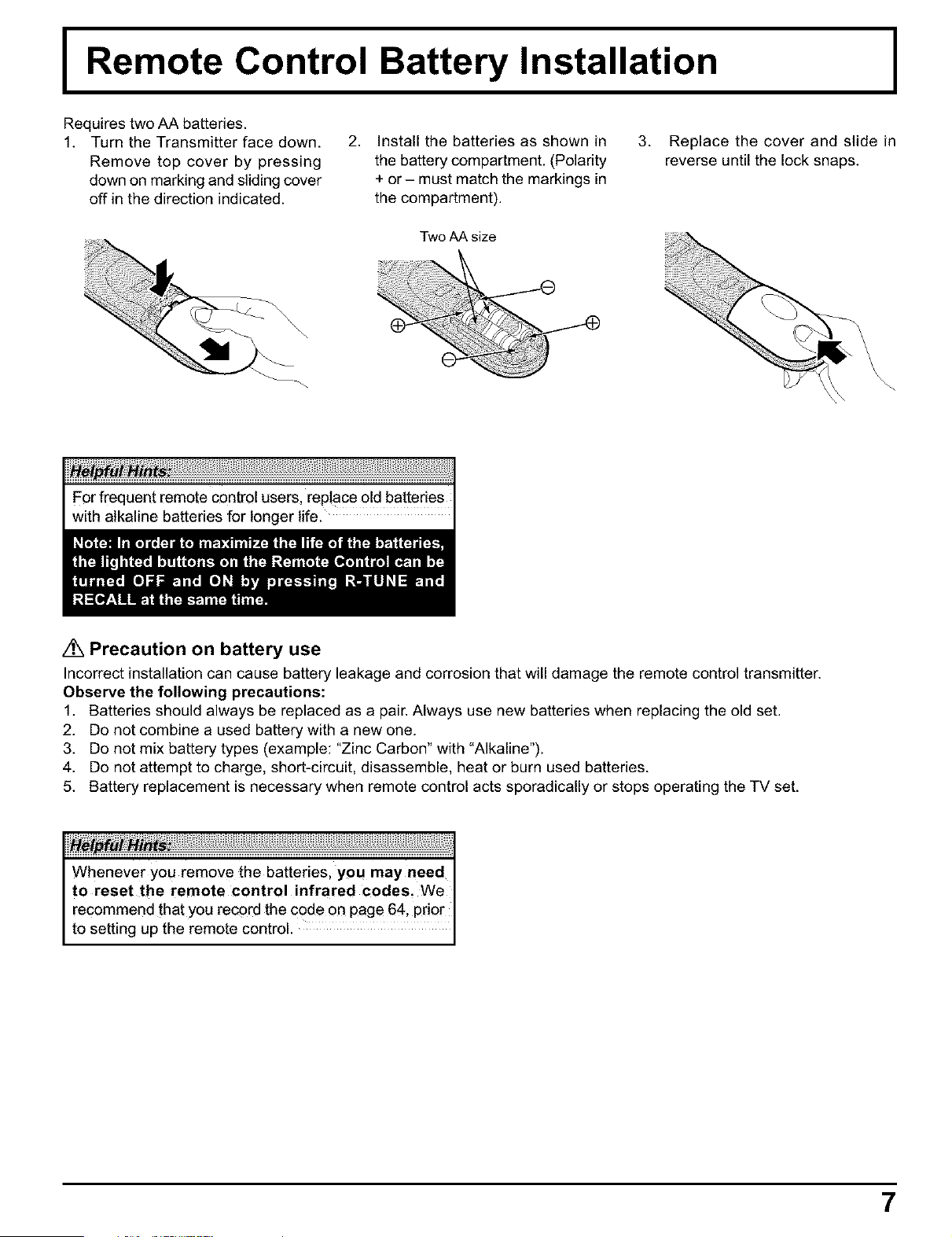
Requires two AA batteries.
1. Turn the Transmitter face down.
Remove top cover by pressing
down on marking and sliding cover
off in the direction indicated.
2. Install the batteries as shown in
the battery compartment. (Polarity
+ or- must match the markings in
the compartment).
3. Replace the cover and slide in
reverse until the lock snaps.
Two AA size
/_ Precaution on battery use
Incorrect installation can cause battery leakage and corrosion that will damage the remote control transmitter.
Observe the following precautions:
1. Batteries should always be replaced as a pair. Always use new batteries when replacing the old set.
2. Do not combine a used battery with a new one.
3. Do not mix battery types (example: "Zinc Carbon" with "Alkaline").
4. Do not attempt to charge, short-circuit, disassemble, heat or burn used batteries.
5. Battery replacement is necessary when remote control acts sporadically or stops operating the TV set.
Whenever you remove the batteries, yoU may need
to reset the remote control infrared codes. We
recommend that you record the code on page 64, pdor
to setting up the remote controL.
7
I Cable Connection
Connecting the Aerial cable to the RF In Terminal
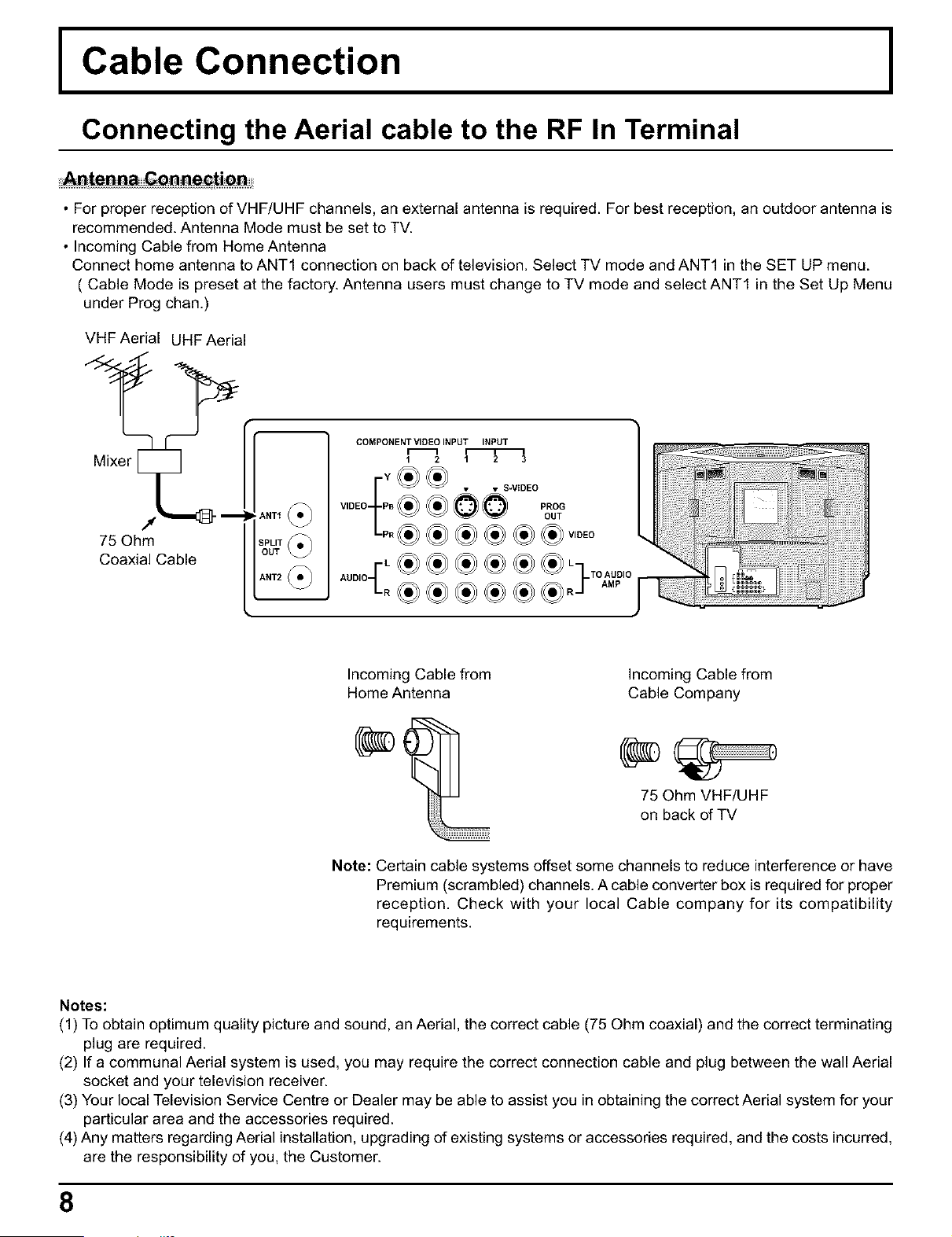
• For proper reception of VHF/UHF channels, an external antenna is required. For best reception, an outdoor antenna is
recommended. Antenna Mode must be set to TV.
• Incoming Cable from Home Antenna
Connect home antenna to ANT1 connection on back of television. Select TV mode and ANT1 in the SET UP menu.
( Cable Mode is preset at the factory. Antenna users must change to TV mode and select ANT1 in the Set Up Menu
under Prog chan.)
VHF Aerial UHF Aerial
Mixer _ m
75 Ohm
Coaxial Cable
ANTI
SPLIT
OUT
ANT2
COMPONENT VIDEO INPUT INPUT
1 2 1 2 3
,OEO
Incoming Cable from
Home Antenna
Incoming Cable from
Cable Company
75 Ohm VHF/UHF
on back of TV
Note: Certain cable systems offset some channels to reduce interference or have
Premium (scrambled) channels. A cable converter box is required for proper
reception. Check with your local Cable company for its compatibility
requirements.
Notes:
(1) To obtain optimum quality picture and sound, an Aerial, the correct cable (75 Ohm coaxial) and the correct terminating
plug are required.
(2) If a communal Aerial system is used, you may require the correct connection cable and plug between the wall Aerial
socket and your television receiver.
(3) Your local Television Service Centre or Dealer may be able to assist you in obtaining the correct Aerial system for your
particular area and the accessories required.
(4) Any matters regarding Aerial installation, upgrading of existing systems or accessories required, and the costs incurred,
are the responsibility of you, the Customer.
8
Cable Connection
Connecting Headphones / Earphones
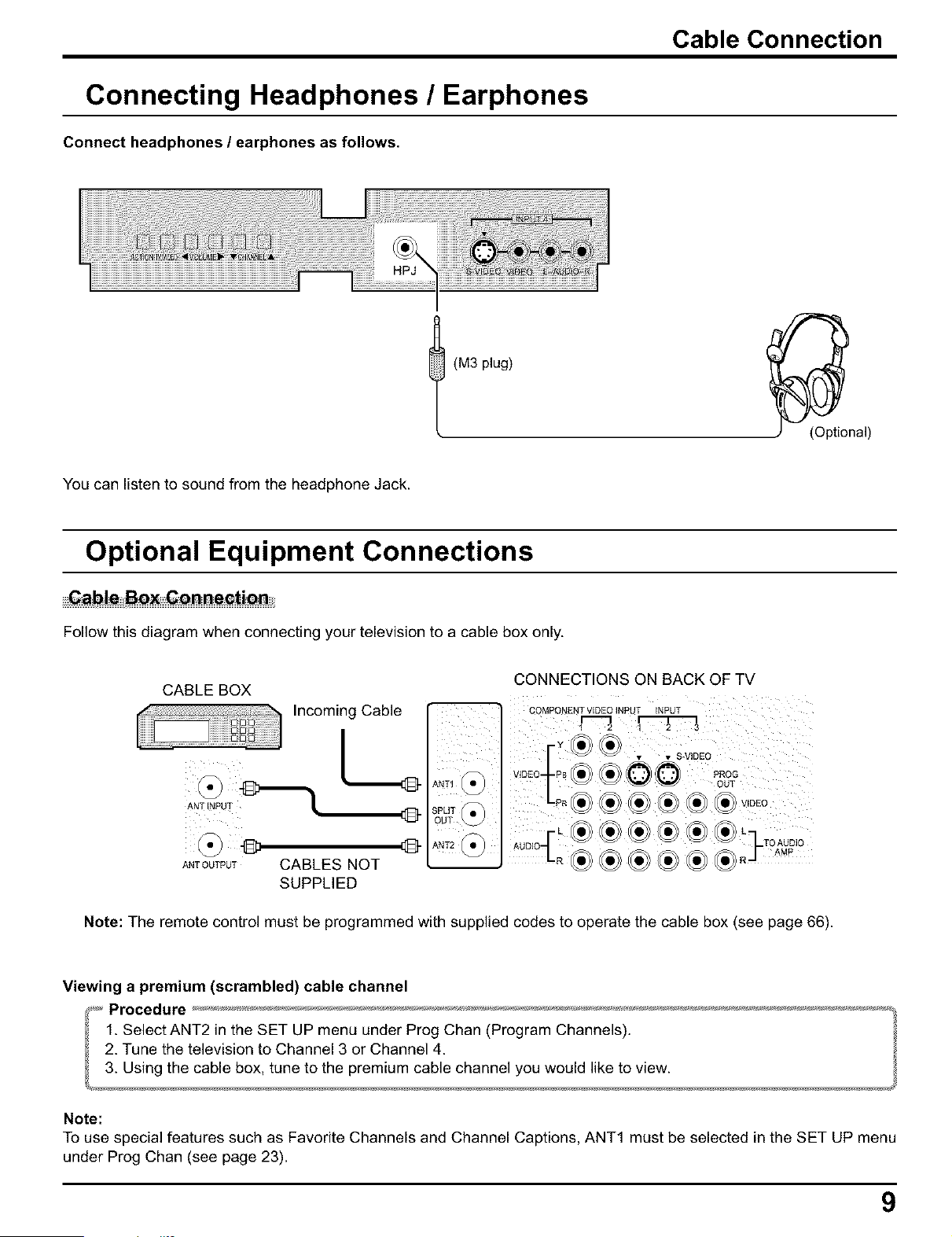
Connect headphones / earphones as follows.
(M3 plug)
You can listen to sound from the headphone Jack.
Optional Equipment Connections
Follow this diagram when connecting your television to a cable box only.
CONNECTIONS ON BACK OF TV
CABLE BOX
COMPONENT VIDEO INPUT NPUT
Incoming Cable _
2 3
ANT OUTPUT CABLES NOT
SUPPLIED
VEDEC
Note: The remote control must be programmed with supplied codes to operate the cable box (see page 66).
Viewing a premium (scrambled) cable channel
Note:
To use special features such as Favorite Channels and Channel Captions, ANT1 must be selected in the SET UP menu
under Prog Chan (see page 23).
9
Cable Connection
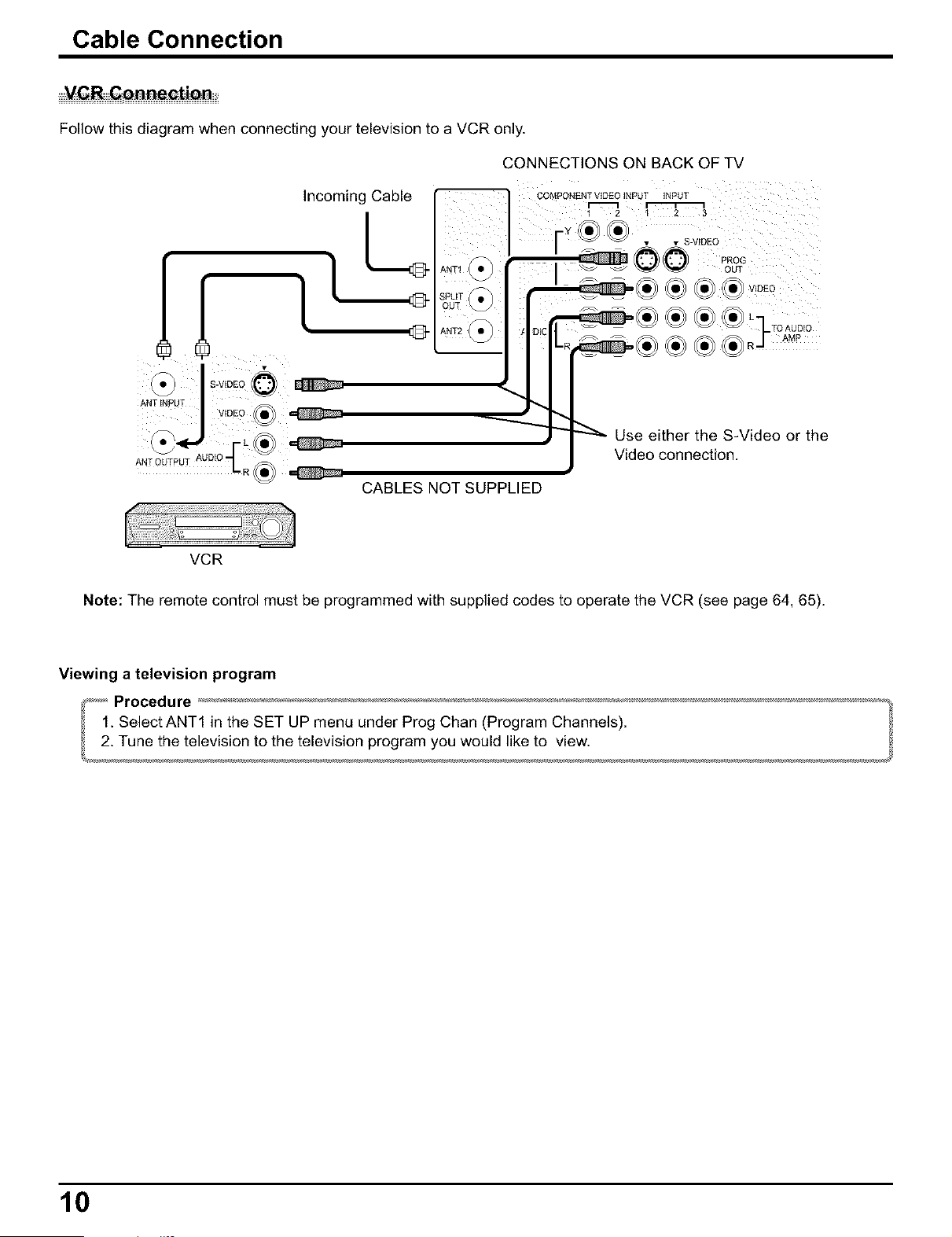
Follow this diagram when connecting your television to a VCR only.
Incoming Cable
½
L
CONNECTIONS ONBACKOFTV
COMPONENTVIDEOiNPUT
ANT (_
NPUT
• S-V_DEO
PROG
OUT
VIDEO
_ _ Use either the S-Video or the
Video connection.
_ii ¸i;iiiii¸ii¸iiii;i¸i!¸ !i ;iiiii¸iii;Ji;i;i¸i¸iii;il
CABLES NOT SUPPLIED
VCR
Note: The remote control must be programmed with supplied codes to operate the VCR (see page 64, 65).
Viewing a television program
10
Cable Connection
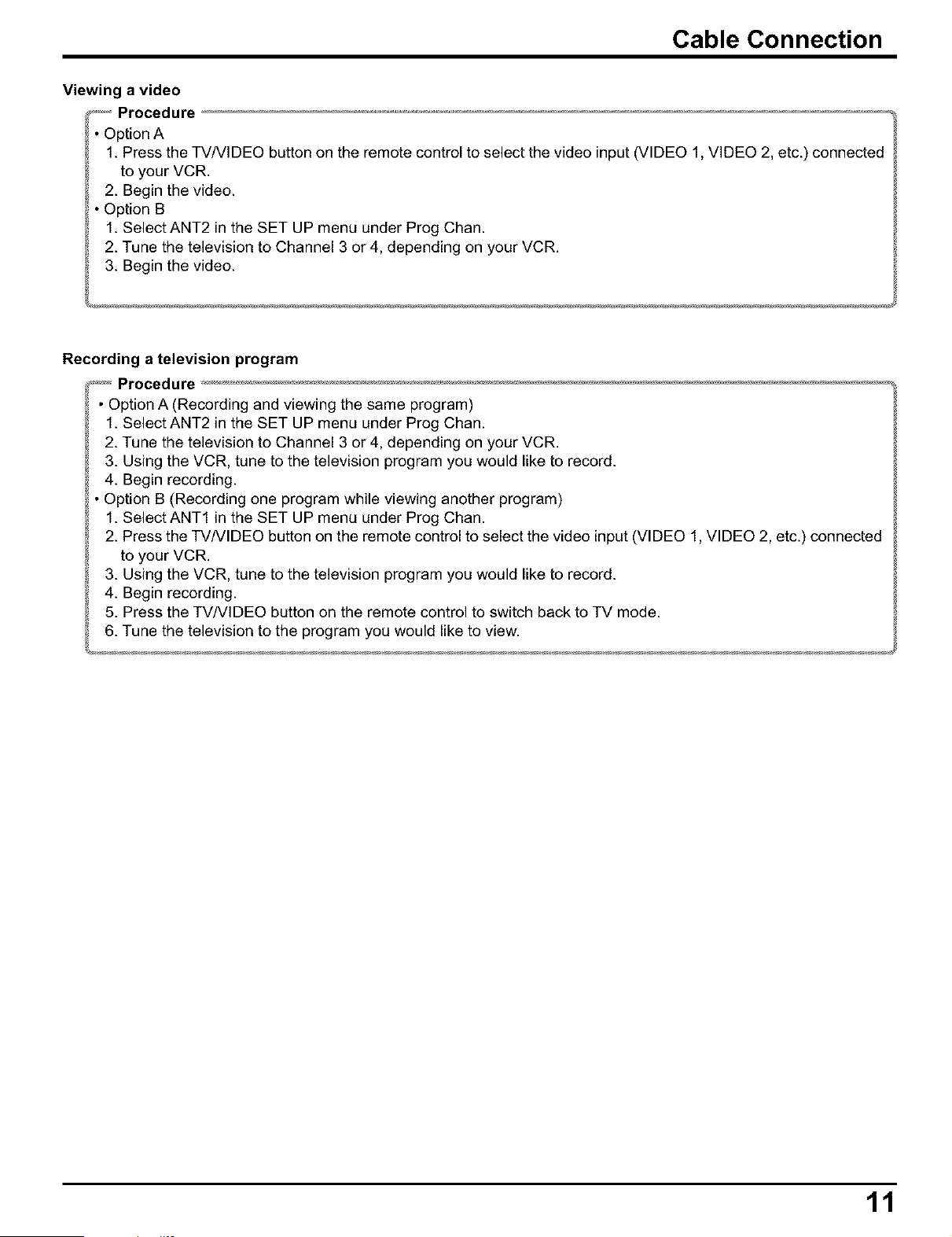
Viewing a video
,_-_'_,Procedure
Option A
1. Press the TV/VIDEO button on the remote control to select the video input (VIDEO 1, VIDEO 2, etc.) connected
to your VCR.
2. Begin the video.
Option B
1. Select ANT2 in the SET UP menu under Prog Chan.
2. Tune the television to Channel 3 or 4, depending on your VCR.
3. Begin the video.
Recording a television program
_ Procedure
• Option A (Recording and viewing the same program)
1. Select ANT2 in the SET UP menu under Prog Chan.
2. Tune the television to Channel 3 or 4, depending on your VCR.
3. Using the VCR, tune to the television program you would like to record.
4. Begin recording.
Option B (Recording one program while viewing another program)
1. Select ANT1 in the SET UP menu under Prog Chan.
2. Press the TVNIDEO button on the remote control to select the video input (VIDEO 1, VIDEO 2, etc.) connected
to your VCR.
3. Using the VCR, tune to the television program you would like to record.
4. Begin recording.
5. Press the TV/VIDEO button on the remote control to switch back to TV mode.
6. Tune the television to the program you would like to view.
11
Cable Connection
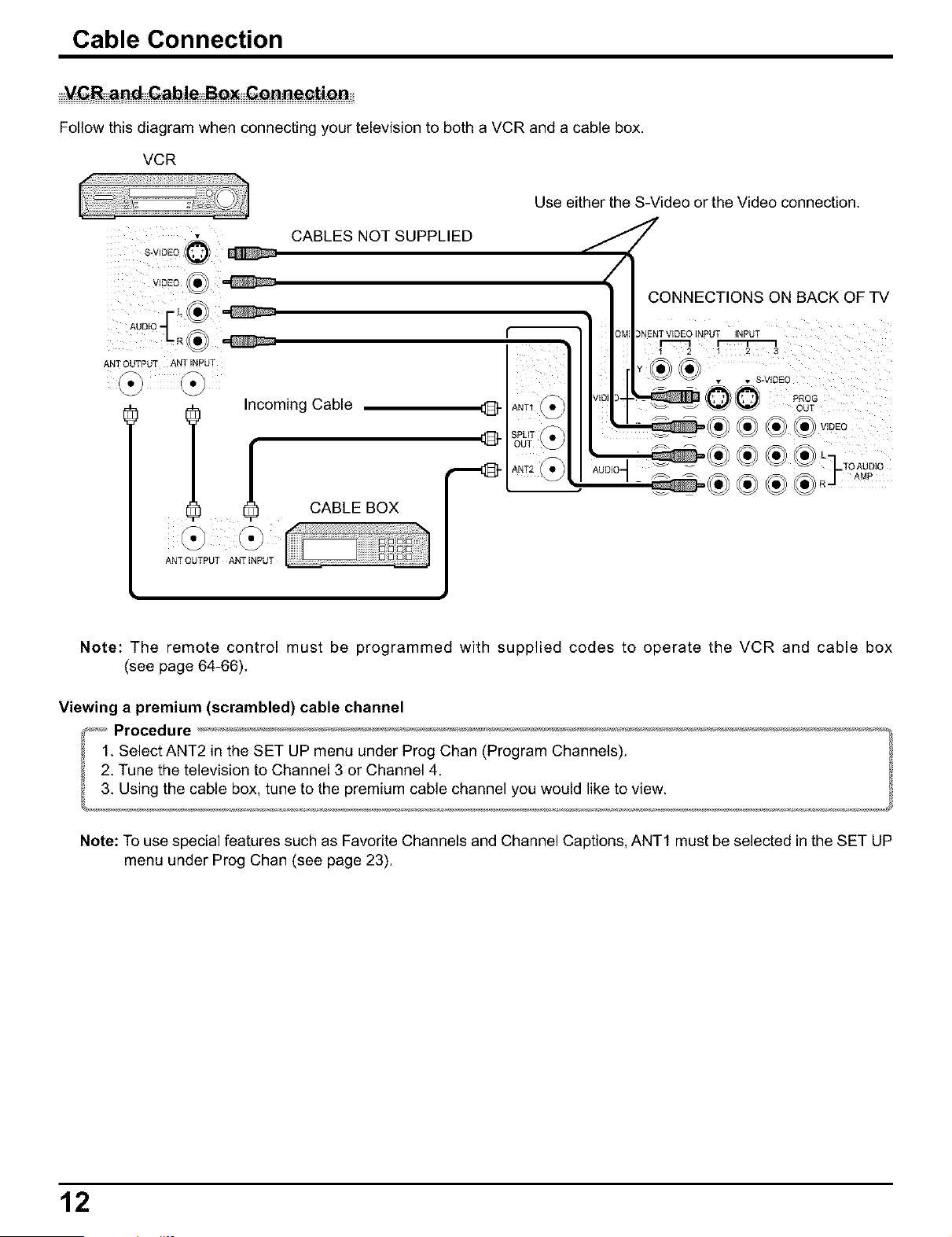
Follow this diagram when connecting your television to both a VCR and a cable box.
VCR
ANT OUTPUT ANT INPUT
CABLES NOT SUPPLIED
l Inioming Cable Q
Q
CABLE BOX
Use either the S-Video or the Video connection.
CONNECTIONS ON BACK OF TV
OM 3NENT V_DEO _NPUT INPUT
ANT_/ • v,D,l_4_ _ _ P_oG
SPLIT • ___ _ OUT
OUT_Pl _® _ _ v,oEo
ANT2.__® _L-LToAUO'O
Note: The remote control must be programmed with supplied codes to operate the VCR and cable box
(see page 64-66),
Viewing a premium (scrambled) cable channel
Note: To use special features such as Favorite Channels and Channel Captions, ANT1 mast be selected in the SET UP
menu under Prog Chan (see page 23).
12
Cable Connection
Recording a premium (scrambled) cable channel
_,_J_',_Procedure
1. Select ANT2 in the SET UP menu under Prog Chan.
2. Press the TVNIDEO button on the remote control to select the video input (VIDEO 1, VIDEO 2, etc.) connected
to your VCR.
3. Turn the VCR ON.
4. Tune the VCR to Channel 3 or 4, depending on the switch setting on the back of VCR.
5. Using your cable box, tune to the premium cable channel you would like to record.
6. Begin recording.
Note: To view a different channel while recording:
• Select ANT1 in the SET UP menu under Prog Chan.
• Press the TVNIDEO button on the remote control to TV mode.
• Tune the television to a program (except another premium cable channel).
Notes:
(1) Similar connections are available at the INPUT 1, 2, 3, 4 input terminals.
Input 4 is located on the front of the unit.
Select the desired VIDEO input position by pressing the TVNIDEO button. (See page 17)
(2) When connecting video cables, priodty is given to the S-Video cable when the S-Video input terminal and the video
input terminal are connected at the same time.
13
Cable Connection
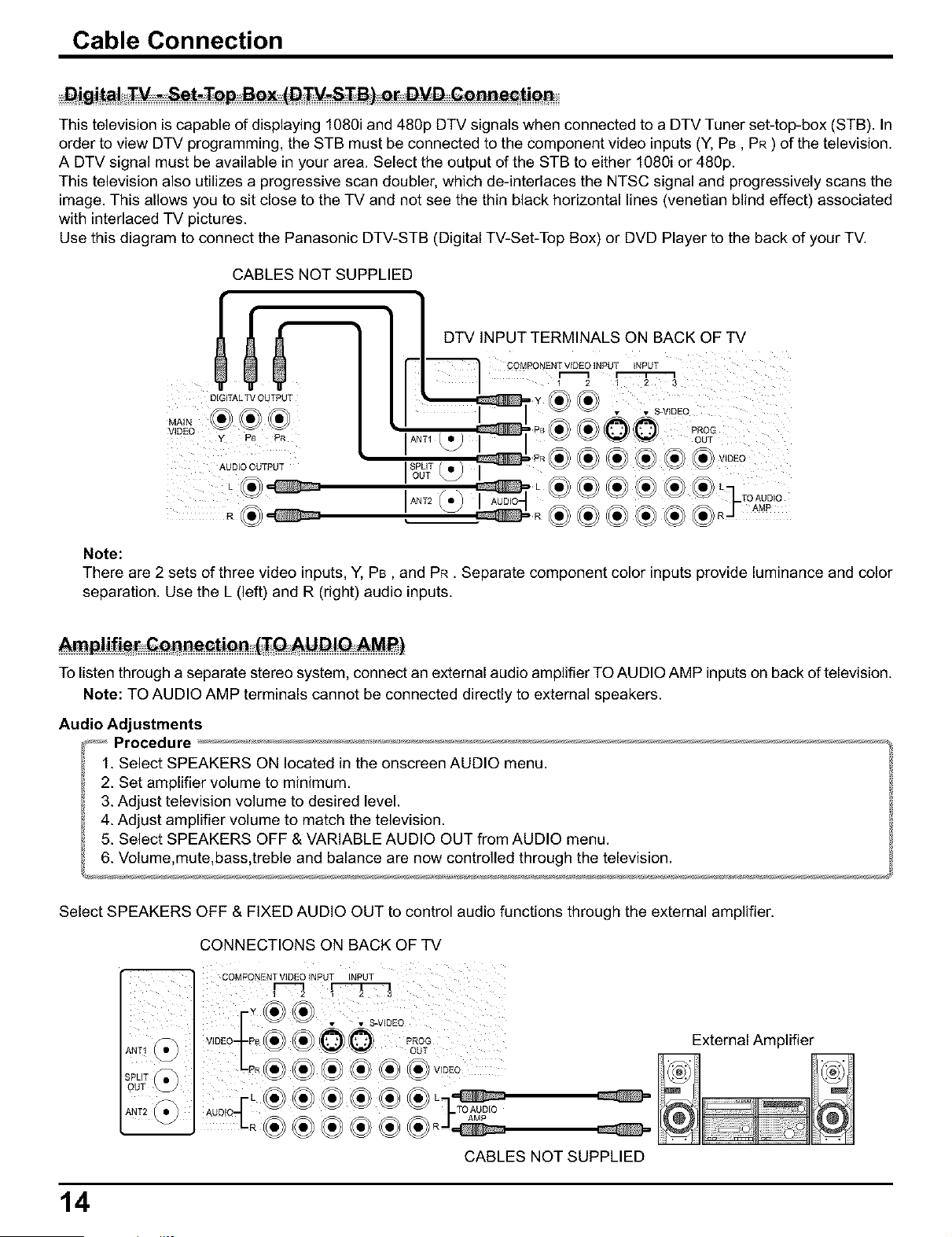
This television is capable of displaying 1080i and 480p DTV signals when connected to a DTV Tuner set-top-box (STB). In
order to view DTV programming, the STB must be connected to the component video inputs (Y, PB, PR ) of the television.
A DTV signal must be available in your area. Select the output of the STB to either 1080i or 480p.
This television also utilizes a progressive scan doubler, which de-interlaces the NTSC signal and progressively scans the
image. This allows you to sit close to the TV and not see the thin black horizontal lines (venetian blind effect) associated
with interlaced TV pictures.
Use this diagram to connect the Panasonic DTV-STB (Digital TV-Set-Top Box) or DVD Player to the back of your TV.
MAIK
VIDEO
CABLES NOT SUPPLIED
DIGITAL TV OL FPUT
PB PR
ALD_O OUTPUT
IANT2
Note:
There are 2 sets of three video inputs, Y, PB, and PR. Separate component color inputs provide luminance and color
separation. Use the L (left) and R (right) audio inputs.
To listen through a separate stereo system, connect an external audio amplifier TO AUDIO AMP inputs on back of television.
Note: TO AUDIO AMP terminals cannot be connected directly to external speakers.
Audio Adjustments
_'_ Procedure
1. Select SPEAKERS ON located in the onscreen AUDIO menu.
2. Set amplifier volume to minimum.
3. Adjust television volume to desired level.
4. Adjust amplifier volume to match the television.
5. Select SPEAKERS OFF & VARIABLE AUDIO OUT from AUDIO menu.
6. Volume,mute,bass,treble and balance are now controlled through the television.
Select SPEAKERS OFF & FIXED AUDIO OUT to control audio functions through the external amplifier.
CONNECTIONS ON BACK OF TV
COMPONENT VIDEO iNPUT INPUT
VIoE0- 0
L _ _ OUT
CABLES NOT SUPPLIED
External Amplifier
14
Cable Connection
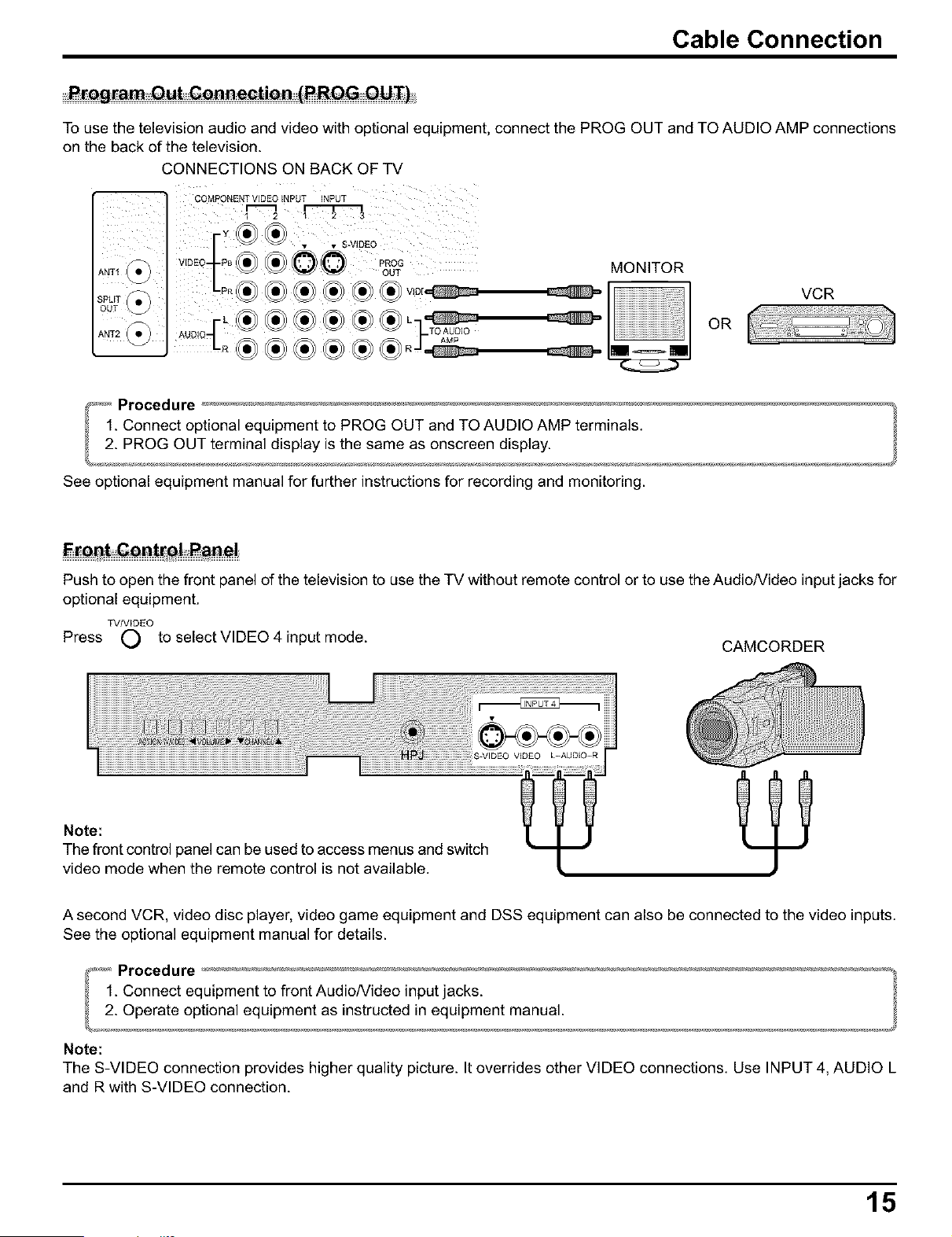
To use the television audio and video with optional equipment, connect the PROG OUT and TO AUDIO AMP connections
on the back of the television.
CONNECTIONS ON BACK OF TV
COMPONENTV_DEOINPUT NPUT
r ..s_v,oEo
SPLIT L _ _ OUT
MONITOR
OR
VCR
See optional equipment manual for further instructions for recording and monitoring.
Push to open the front panel of the television to use the TV without remote control or to use the Audio/Video input jacks for
optional equipment.
TV/VIDEO
Press O to selectVIDEO 4 input mode. CAMCORDER
Note:
The front control panel can be used to access menus and switch
video mode when the remote control is not available.
A second VCR, video disc player, video game equipment and DSS equipment can also be connected to the video inputs.
See the optional equipment manual for details.
Note:
The S-VIDEO connection provides higher quality picture. It overrides other VIDEO connections. Use INPUT 4, AUDIO L
and R with S-VIDEO connection.
15
I Location of Controls
Illuminated Remote Control
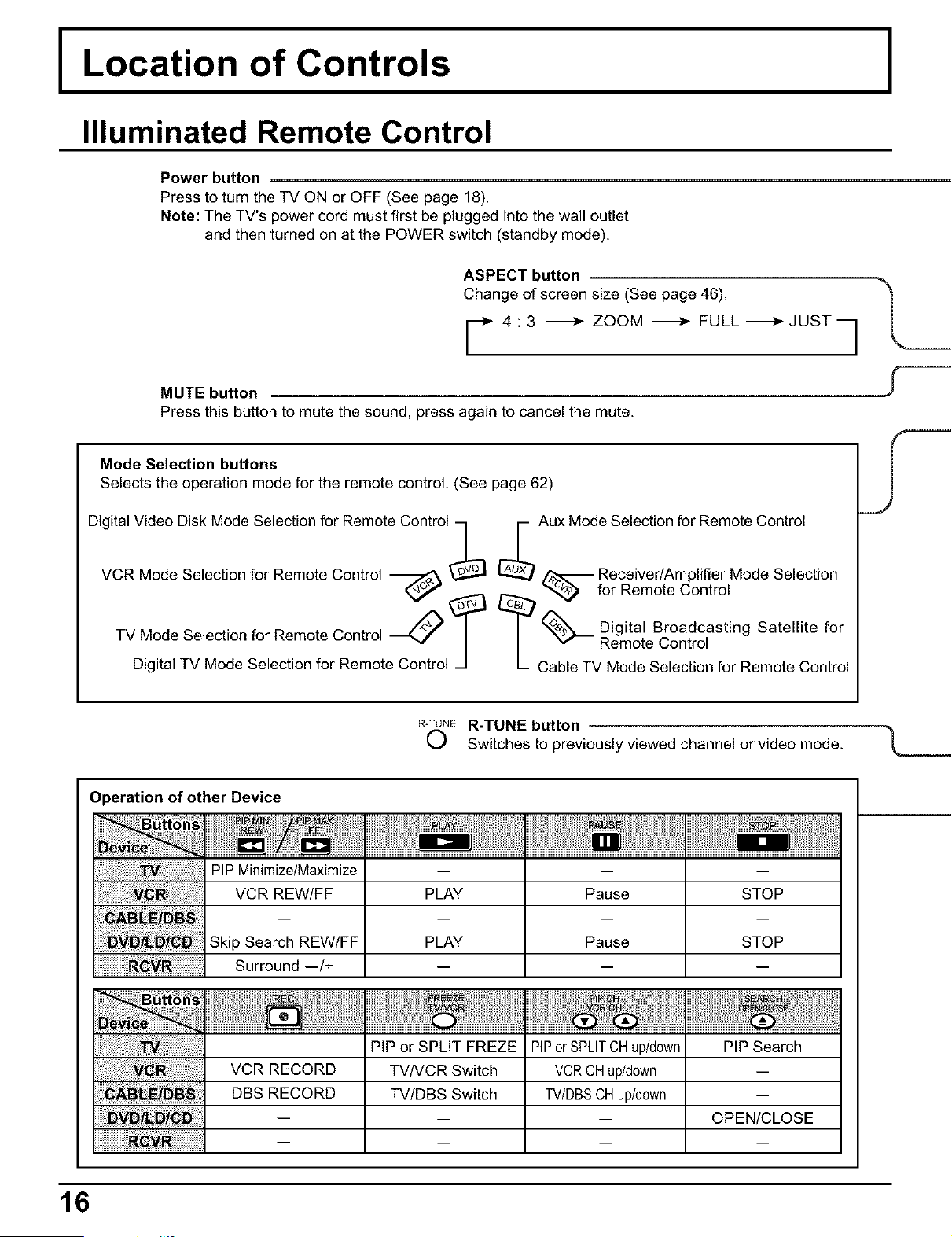
Power button
Press to turn the TV ON or OFF (See page 18).
Note: The TV's power cord must first be plugged into the wall outlet
and then turned on at the POWER switch (standby mode).
ASPECT button
Change of screen size (See page 46).
F 4:3 -_ ZOOM -_ FULL-_JUSTq
C-----
MUTEbutton --
Press this button to mute the sound, press again to cancel the mute.
Mode Selection buttons
Selects the operation mode for the remote control. (See page 62)
Digital Video Disk Mode Selection for Remote Control_ r_ Aux Mode Selection for Remote Control
VCR Mode Selection for Remote Control -_ _ __ _ forReceiver/AmplifierRemoteControIM°de Selection
L_ Digital Broadcasting Satellite for
TV Mode Selection for Remote Control -_ |
Digital TVModeSelectionforRemoteControl-I/ L ca_,eTVRM:d_sC/::t_o°lnforRemoteControl
R-TUNER-TUNE button
(,-) Switches to previously viewed channel or video mode.
Operation of other Device
PIP Minimize/Maximize -- -- --
VCR REW/FF PLAY Pause STOP
Skip Search REW/FF PLAY Pause STOP
Surround --/+ -- -- --
VCR RECORD
DBS RECORD
PIP or SPLIT FREZE
TV/VCR Switch
TV/DBS Switch
PIPorSPLIT CHup_own PIP Seamh
VCRCHuddown
TV/DBSCHup_own
-- OPEN/CLOSE
16

Location of Controls
TVNIDEO button
The input mode changes each time this button is pressed.
'TV _ COMPONENT 1 -_ COMPONENT 2 "_
VIDEO 4 _ VIDEO 3 _ VIDEO 2 _ VIDEO 1
SAP button
Selects Audio mode (See page 38).
r STEREO -_ SAP -_ MONO q
Lights the remote control buttons. --
The selected button blinks when lit.
Turning the remote control illumination
ON and OFF.
R-TUNERemote control illumination
_) can be turned ON and OFF
+ by pressing the RECALL
Rt_,_L button while pressing the
R-TUNE button.
Changes to the next channel up
Moves cursor upward during menu mode.
Reduces volume
Moves cursor to the
left during menu
mode.
Increases volume
Moves cursor to
the right during
menu mode.
Displays menu \ Press to display
Press to access \ channel,
DTV, DBS or DVD \r-,. sleep timer and
menus. _"-J other options.
During TV mode press
to select BBE ON or Changes to the next channel down
BBE OFF. Moves cursor downward during menu mode.
Page up/down for DBS, [ I [_ GUIDE button
skip +/- for DVD & CD. EXF PAGE GUIDE for DBS.
I
Returns to normal viewing from the MENU screen.
Previous item in MENU.
Direct program number
selection buttons
PROG
(_) PROG dash button
Program dash channel numbers for DTV and DBS.
Swap pictures in Split Screen and Picture in Picture operation
(See page 42, 45).
Move PIP frame in Picture in Picture Operation (See page 43).
Split Screen (see page 44)
Picture in Picture Operation (see page 42)
17
I Power ON / OFF
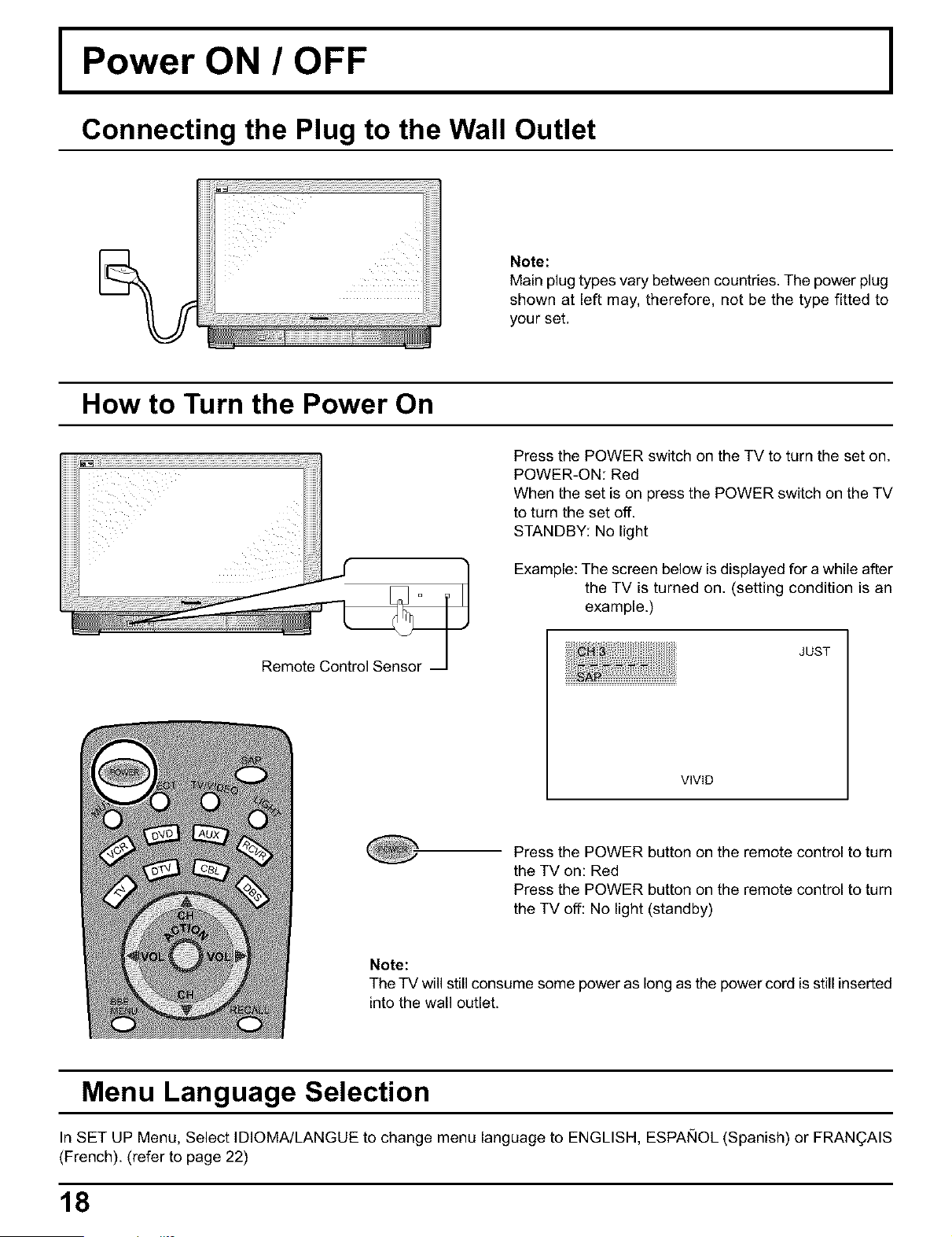
Connecting the Plug to the Wall Outlet
Note:
Main plug types vary between countries. The power plug
shown at left may, therefore, not be the type fitted to
your set.
How to Turn the Power On
Remote Control Sensor
Press the POWER switch on the TV to turn the set on.
POWER-ON: Red
When the set is on press the POWER switch on the TV
to turn the set off.
STANDBY: No light
Example: The screen below is displayed for a while after
the TV is turned on, (setting condition is an
example.)
JUST
VIVID
Press the POWER button on the remote control to turn
the TV on: Red
Press the POWER button on the remote control to turn
the TV off: No light (standby)
Note:
The TV will still consume some power as long as the power cord is still inserted
into the wall outlet.
Menu Language Selection
In SET UP Menu, Select IDIOMA/LANGUE to change menu language to ENGLISH, ESPANOL (Spanish) or FRAN_AIS
(French). (refer to page 22)
18
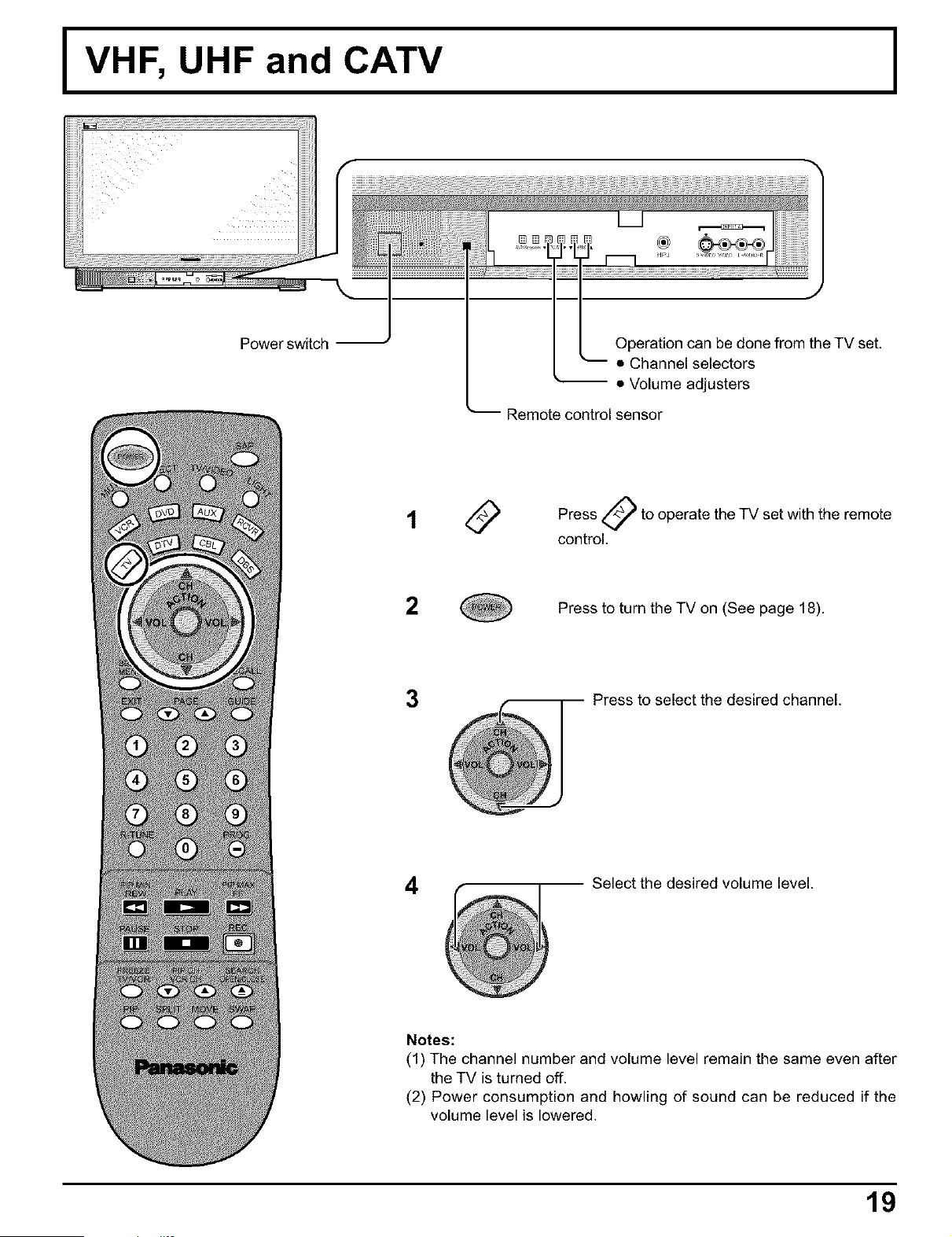
I VHF, UHF and CATV
Power switch
Operation can be done from the TV set.
• Channel selectors
• Volume adjusters
Remote control sensor
t
0
A
Press _/_" to operate the TV set with the remote
control.
2
Press to turn the TV on (See page 18).
3
Press to select the desired channel.
4
Select the desired volume level.
Notes:
(1) The channel number and volume level remain the same even after
the TV is turned off.
(2) Power consumption and howling of sound can be reduced if the
volume level is lowered.
19
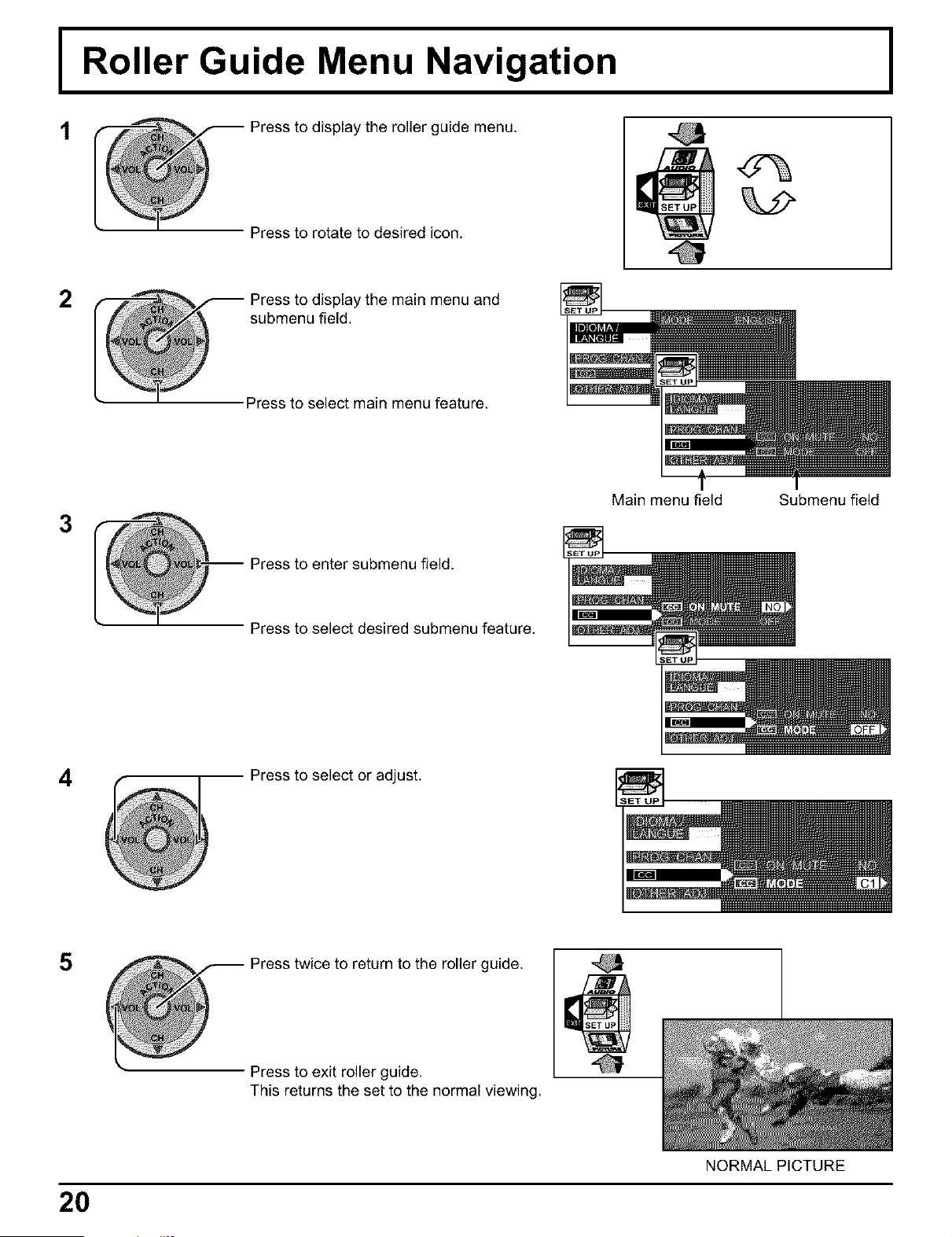
I Roller Guide Menu Navigation
1
@ ress to display the roller guide menu.
Press to rotate to desired icon.
2
Press to display the main menu and
submenu field.
Press to select main menu feature.
3
Press to enter submenu field.
t
Main menu field Submenu field
Press to select desired submenu feature.
4
Press to select or adjust.
Press twice to return to the roller guide.
Press to exit roller guide.
This returns the set to the normal viewing.
20
NORMAL PICTURE
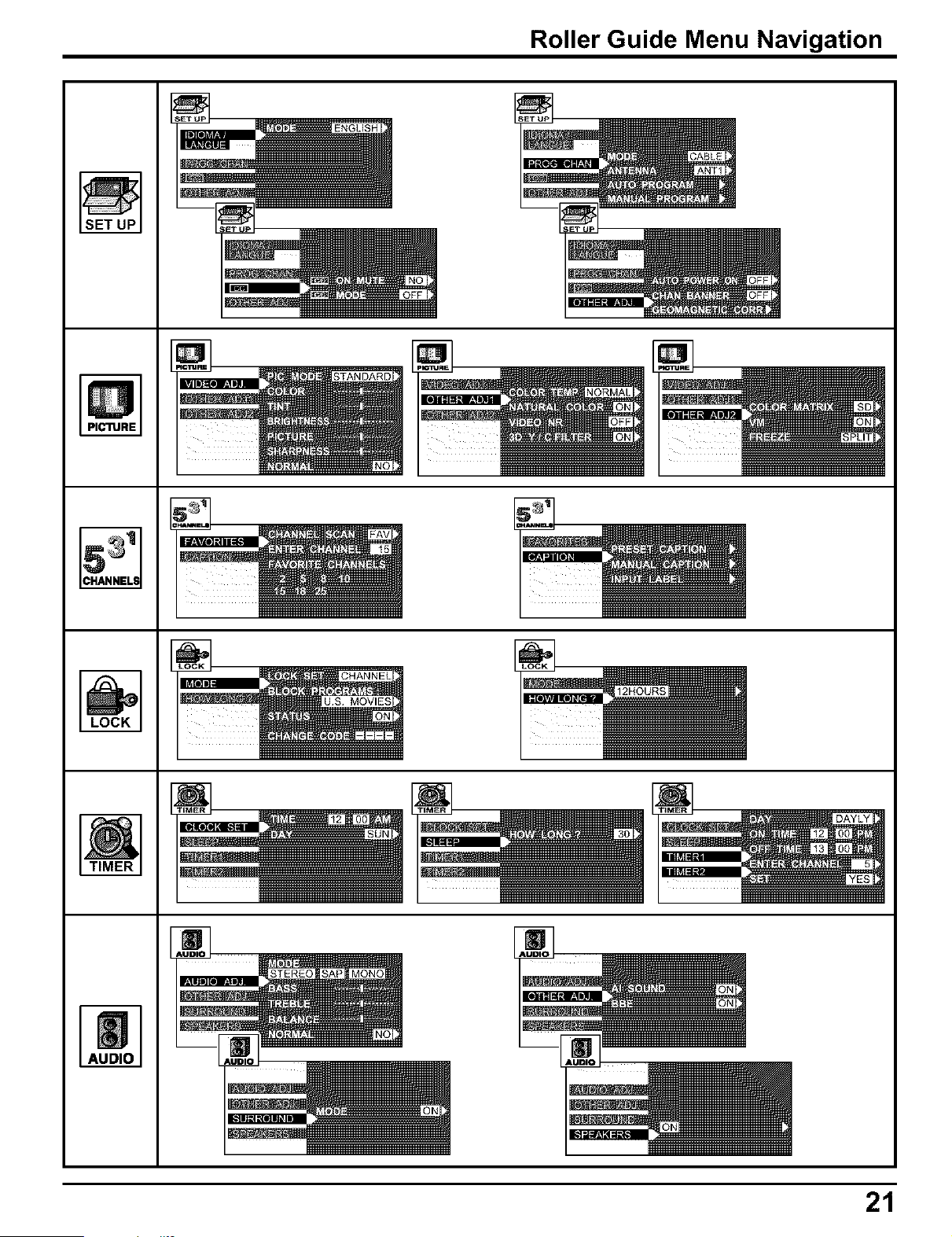
Roller Guide Menu Navigation
CHANNEL!
LOCK
m
M
m
AUDIO
MOVIES
21
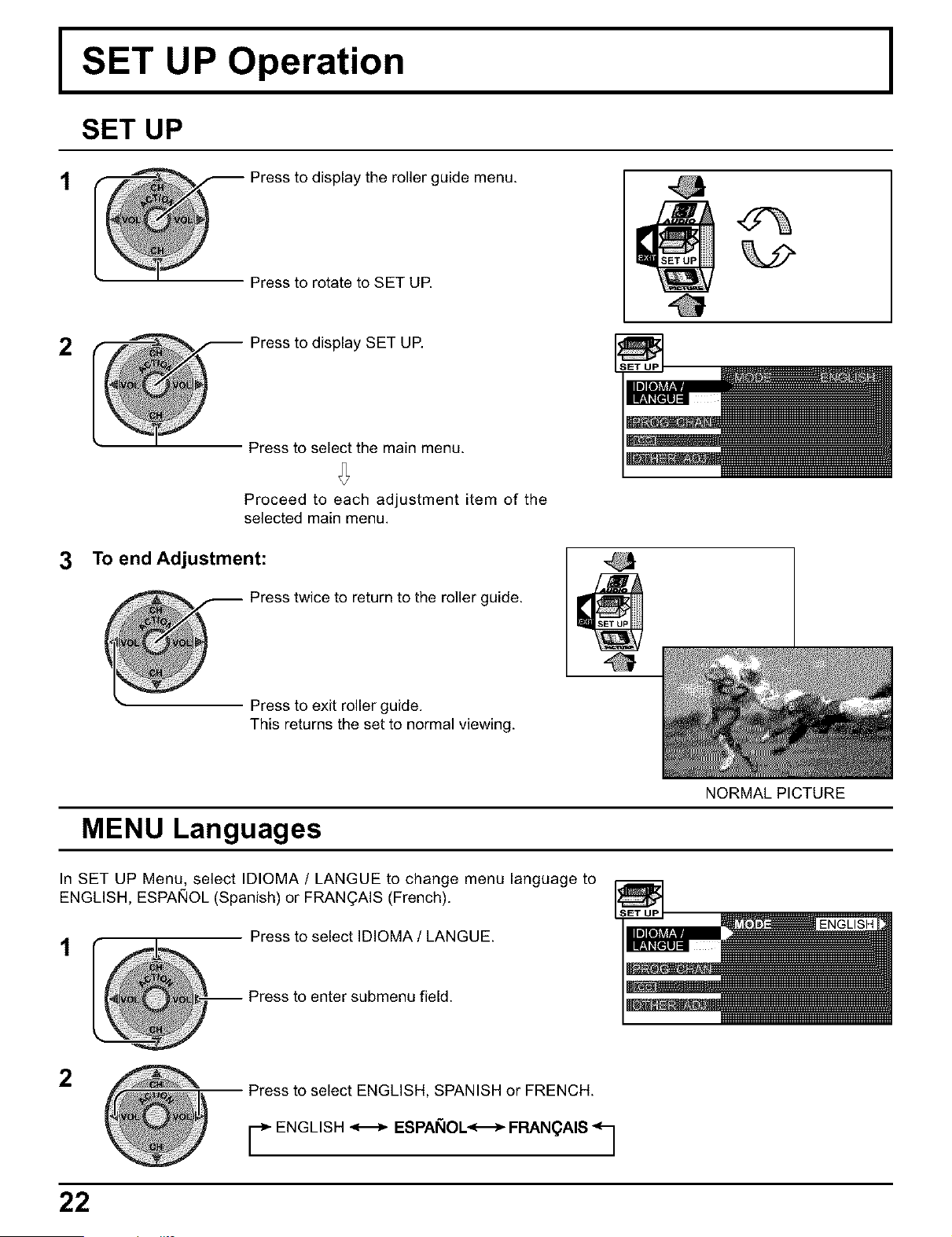
I SET UP Operation
SET UP
t
@ ress to display the roller guide menu.
Press to rotate to SET UP.
2
Press to display SET UP.
Press to select the main menu.
Proceed to each adjustment item of the
selected main menu.
3 Toend Adjustment:
Press twice to return to the roller guide.
Press to exit roller guide.
This returns the set to normal viewing.
NORMAL PICTURE
MENU Languages
In SET UP Menu, select IDIOMA / LANGUE to change menu language to
ENGLISH, ESPAi_OL (Spanish) or FRANOAIS (French).
t
Press to select IDIOMA / LANGUE.
-- Press to enter submenu field.
2
Press to select ENGLISH, SPANISH or FRENCH.
r ENGLISH _ ESPAI_IOL<-_ FRAN(_AIS q
22
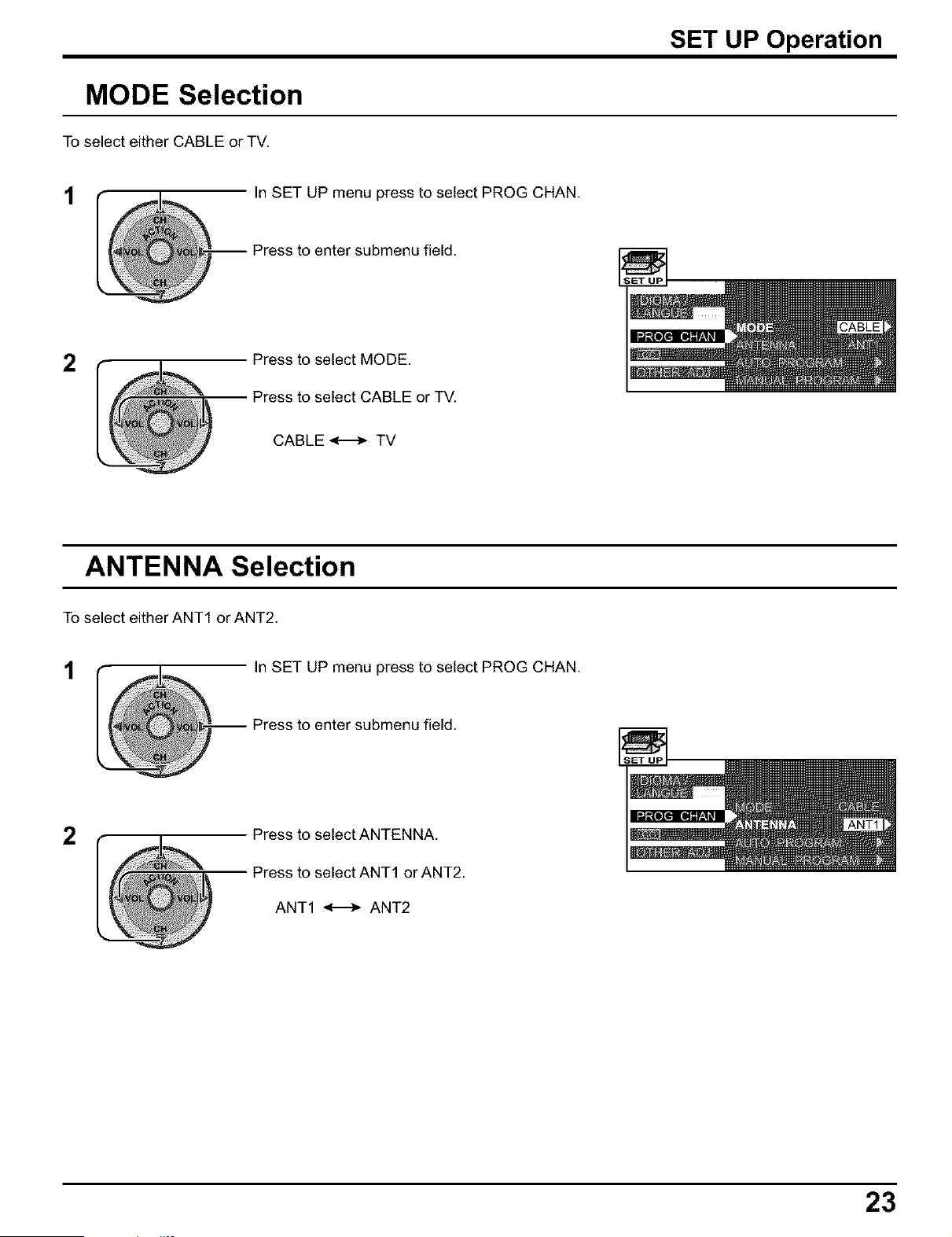
SET UP Operation
MODE Selection
To select either CABLE or TV.
In SET UP menu press to select PROG CHAN.
2
Press to select MODE.
Press to select CABLE or TV.
CABLE<-_TV
ANTENNA Selection
To select either ANT1 or ANT2.
t In SET UP menu press to select PROG CHAN.
-- Press to enter submenu field.
2
Press to select ANTENNA.
Press to select ANT1 or ANT2.
ANT1 _ ANT2
23
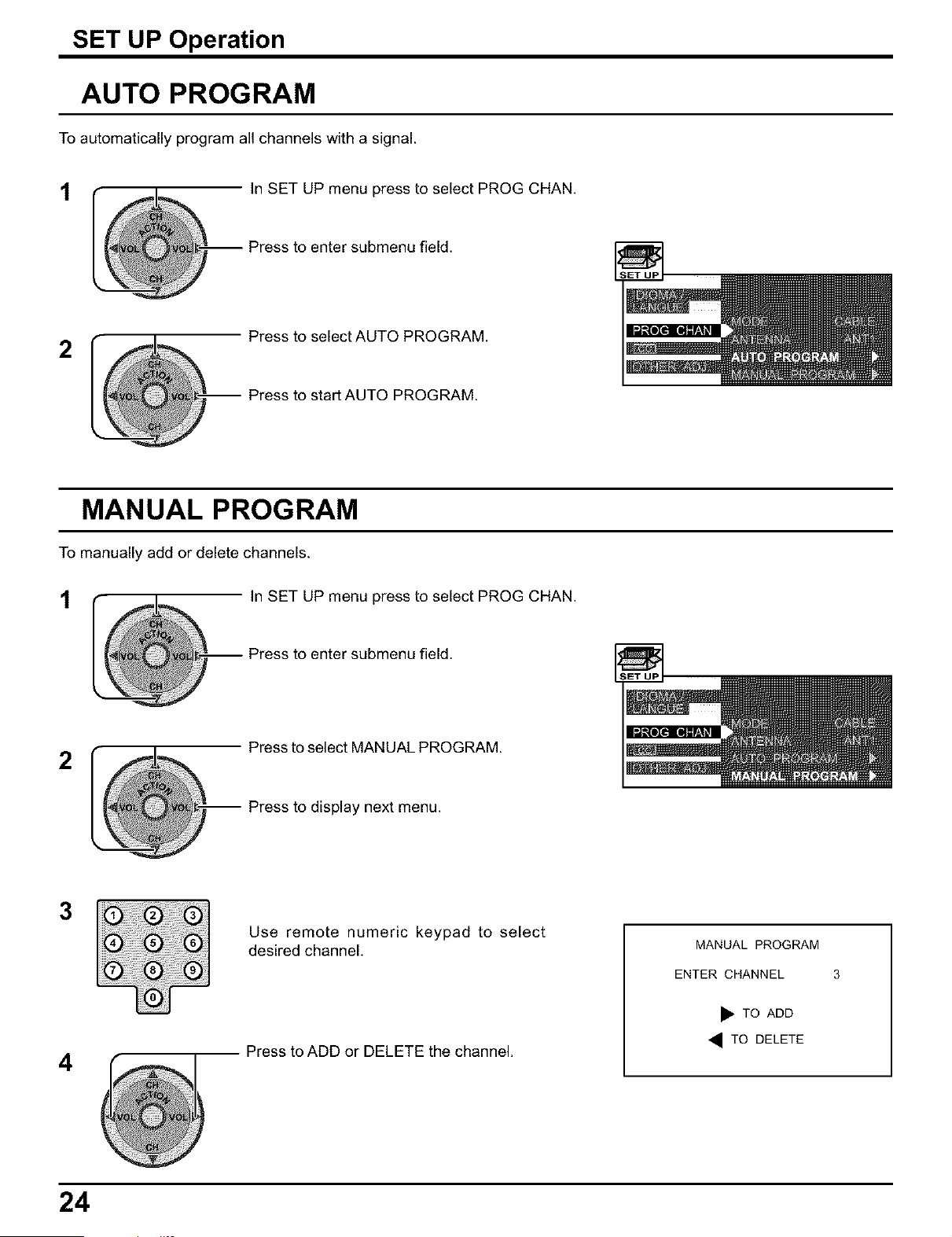
SET UP Operation
AUTO PROGRAM
To automatically program all channels with a signal.
t
In SET UP menu press to select PROG CHAN.
-- Press to enter submenu field.
2
Press to select AUTO PROGRAM.
-- Press to start AUTO PROGRAM.
MANUAL PROGRAM
To manually add or delete channels.
t In SET UP menu press to select PROG CHAN.
-- Press to enter submenu field.
2
Press to select MANUAL PROGRAM.
-- Press to display next menu.
3
4
Use remote numeric keypad to select
desired channel.
Press to ADD or DELETE the channel,
MANUAL PROGRAM
ENTER CHANNEL 3
m_TO ADD
• TO DELETE
24
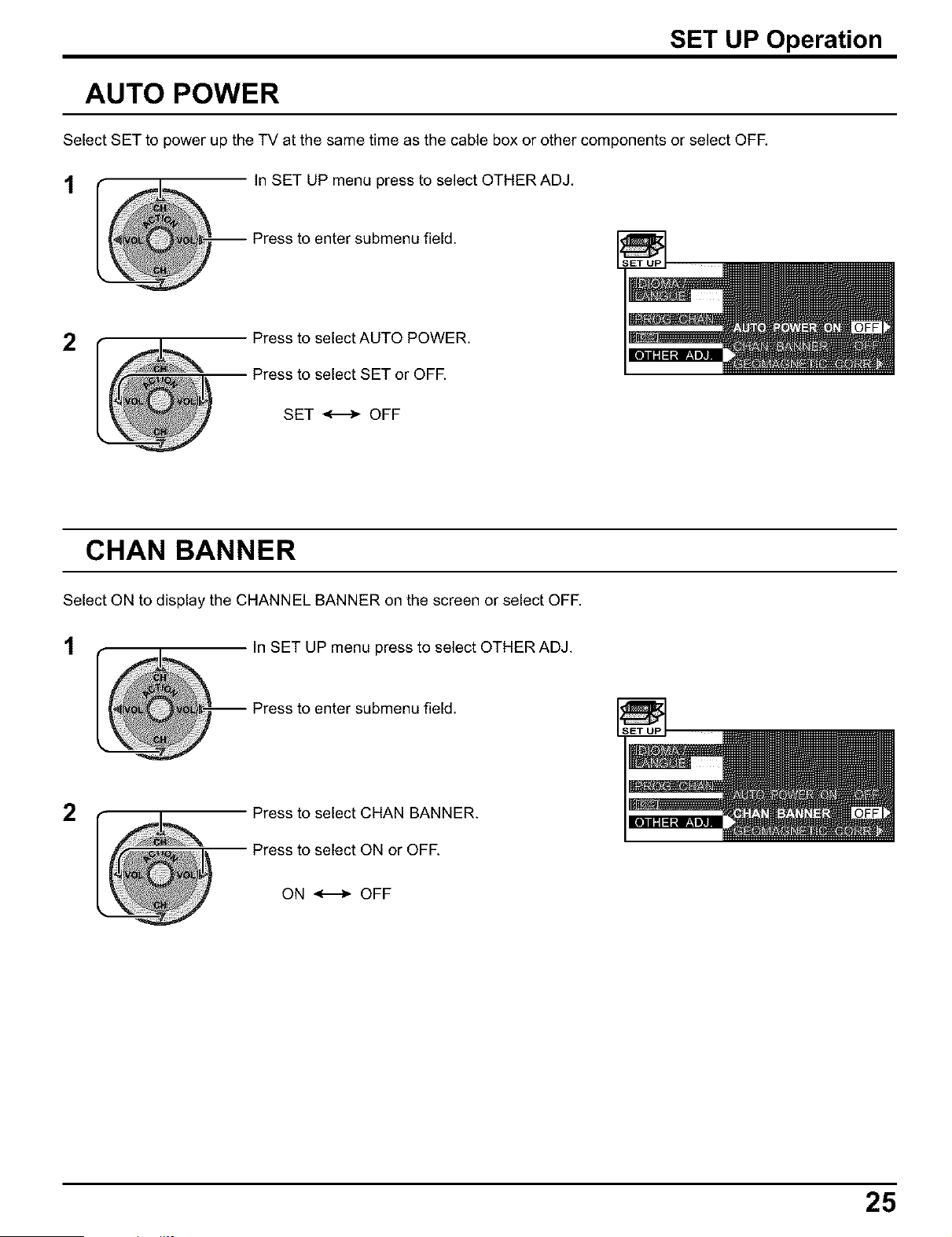
SET UP Operation
AUTO POWER
Select SET to power up the TV at the same time as the cable box or other components or select OFF.
t In SET UP menu press to select OTHER ADJ.
2
Press to select AUTO POWER.
Press to select SET or OFF.
SET _ OFF
CHAN BANNER
Select ON to display the CHANNEL BANNER on the screen or select OFF.
t In SET UP menu press to select OTHER ADJ.
-- Press to enter submenu field.
2
Press to select CHAN BANNER.
ON _ OFF
25
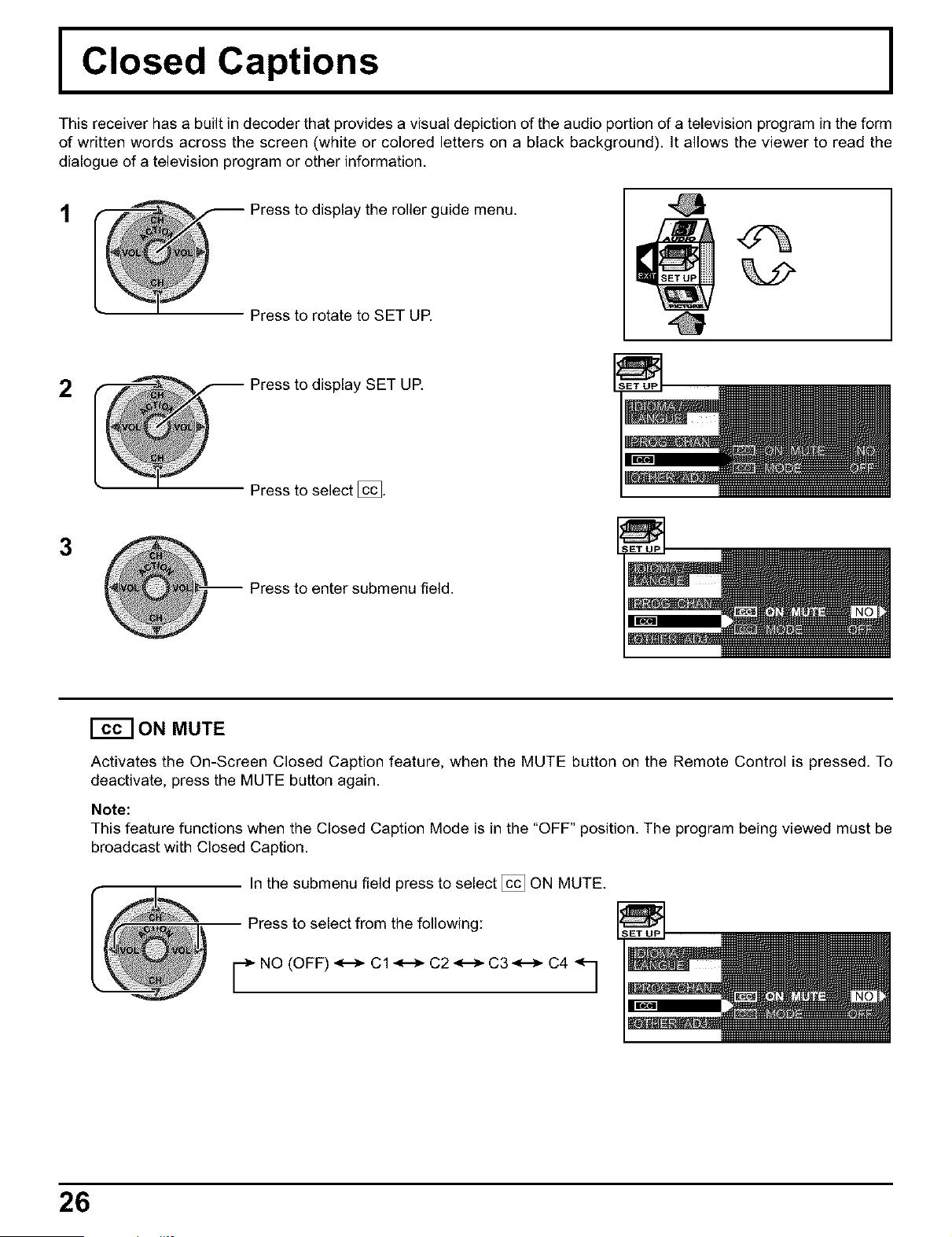
I Closed Captions
This receiver has a built in decoder that provides a visual depiction of the audio portion of a television program in the form
of written words across the screen (white or colored letters on a black background). It allows the viewer to read the
dialogue of a television program or other information.
t
Press to display the roller guide menu.
Press to rotate to SET UP.
Presstod,sp,aySETUP.
Press to select [_.
3
-- Press to enter submenu field.
ON MUTE
Activates the On-Screen Closed Caption feature, when the MUTE button on the Remote Control is pressed. To
deactivate, press the MUTE button again.
Note:
This feature functions when the Closed Caption Mode is in the "OFF" position. The program being viewed must be
broadcast with Closed Caption.
In the submenu field press to select [_ ON MUTE.
Press to select from the following:
F NO (OFF) _--_ Cl _--_ C2 _--_ C3 _ C4 q
26
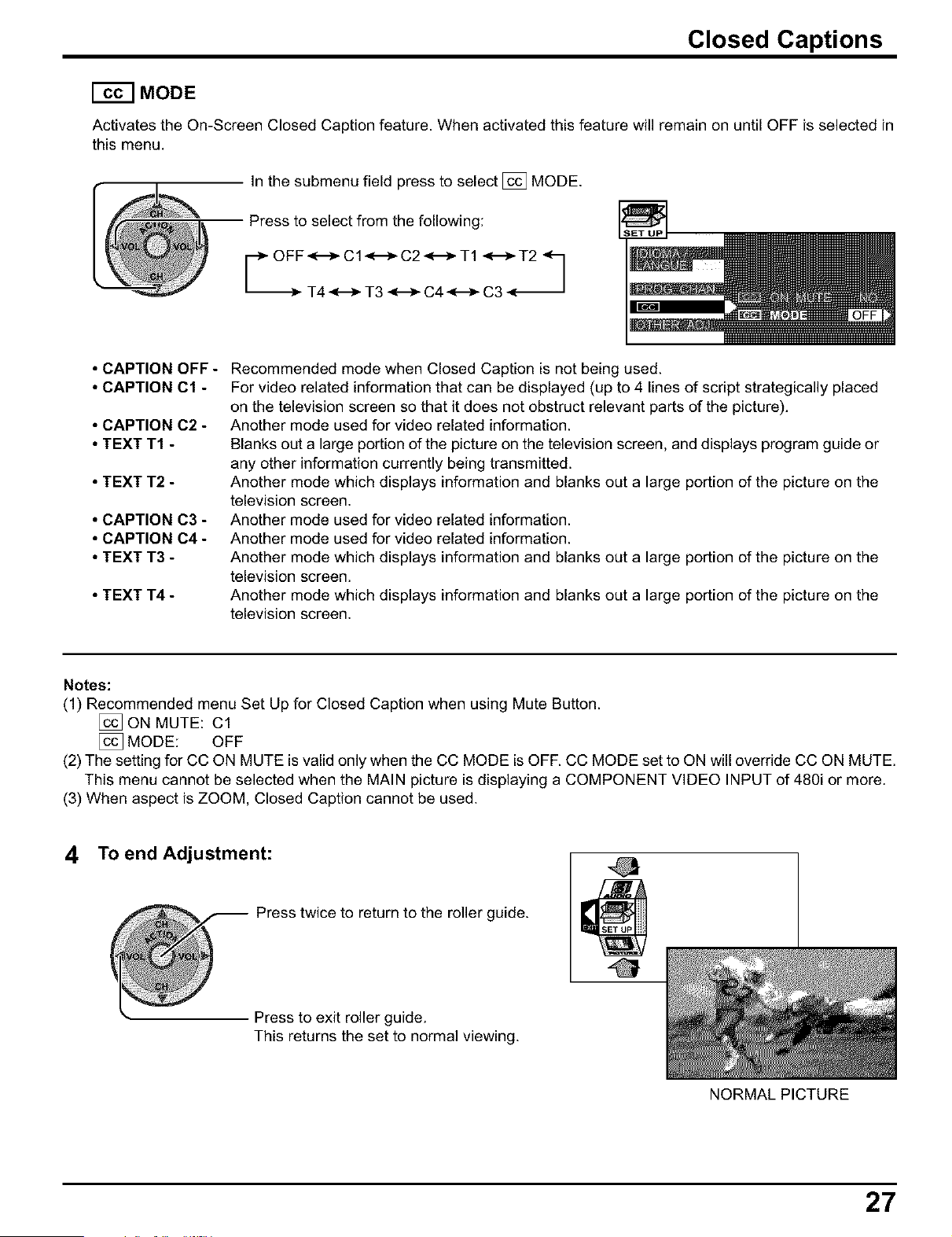
Closed Captions
[_] MODE
Activates the On-Screen Closed Caption feature. When activated this feature will remain on until OFF is selected in
this menu.
In the submenu field press to select [_ MODE.
Press to select from the following:
rO FT4OIT302 4TIzT "q
• CAPTION OFF -
• CAPTION C1 -
• CAPTION C2 -
• TEXT T1 -
• TEXT T2-
• CAPTION C3 -
• CAPTION C4 -
• TEXT T3 -
• TEXT T4-
Recommended mode when Closed Caption is not being used.
For video related information that can be displayed (up to 4 lines of script strategically placed
on the television screen so that it does not obstruct relevant parts of the picture).
Another mode used for video related information.
Blanks out a large portion of the picture on the television screen, and displays program guide or
any other information currently being transmitted.
Another mode which displays information and blanks out a large portion of the picture on the
television screen.
Another mode used for video related information.
Another mode used for video related information.
Another mode which displays information and blanks out a large portion of the picture on the
television screen.
Another mode which displays information and blanks out a large portion of the picture on the
television screen.
Notes:
(1) Recommended menu Set Up for Closed Caption when using Mute Button.
[_ ON MUTE: Cl
[_ MODE: OFF
(2) The setting for CC ON MUTE is valid only when the CC MODE is OFF. CC MODE set to ON will override CC ON MUTE.
This menu cannot be selected when the MAIN picture is displaying a COMPONENT VIDEO INPUT of 480i or more.
(3) When aspect is ZOOM, Closed Caption cannot be used.
4 Toend Adjustment:
Press twice to return to the miler guide.
Press to exit roller guide.
This returns the set to normal viewing.
NORMAL PICTURE
27
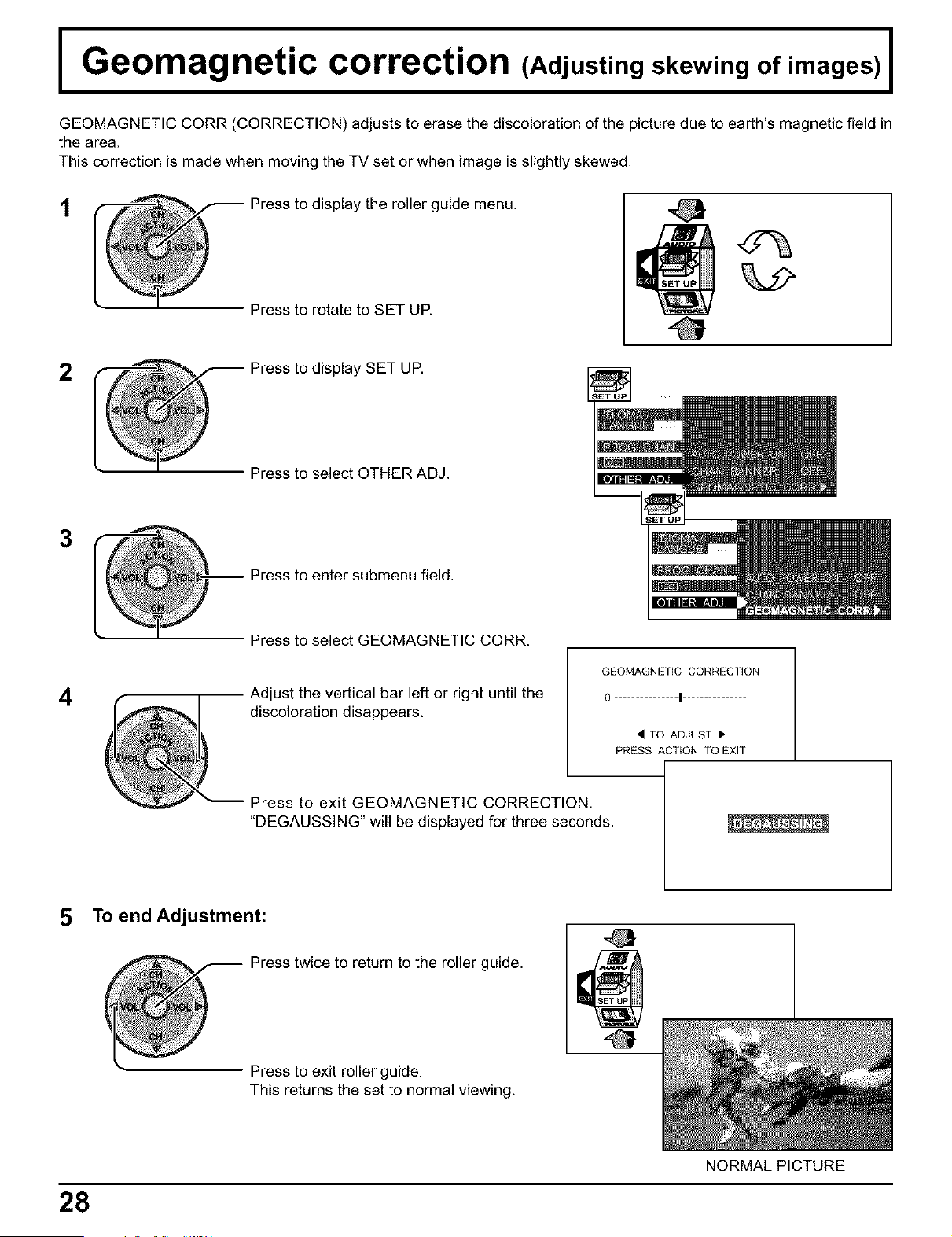
I Geomagnetic correction (Adjusting skewing of images) I
GEOMAGNETIC CORR (CORRECTION) adjusts to erase the discoloration of the picture due to earth's magnetic field in
the area.
This correction is made when moving the TV set or when image is slightly skewed.
t
Press to display the roller guide menu.
Press to rotate to SET UP.
2 @ Press to display SET UP.
Press to select OTHER ADJ.
3
4
Press to enter submenu field.
Press to select GEOMAGNETIC CORR.
Adjust the vertical bar left or right until the
discoloration disappears.
GEOMAGNETIC CORRECTION
0 ............... | ...............
< TO ADJUST I_
PRESS ACTION TO EXIT
Press to exit GEOMAGNETIC CORRECTION.
"DEGAUSSING" will be displayed for three seconds.
To end Adjustment:
Press twice to return to the roller guide.
Press to exit roller guide.
This returns the set to normal viewing.
28
NORMAL PICTURE
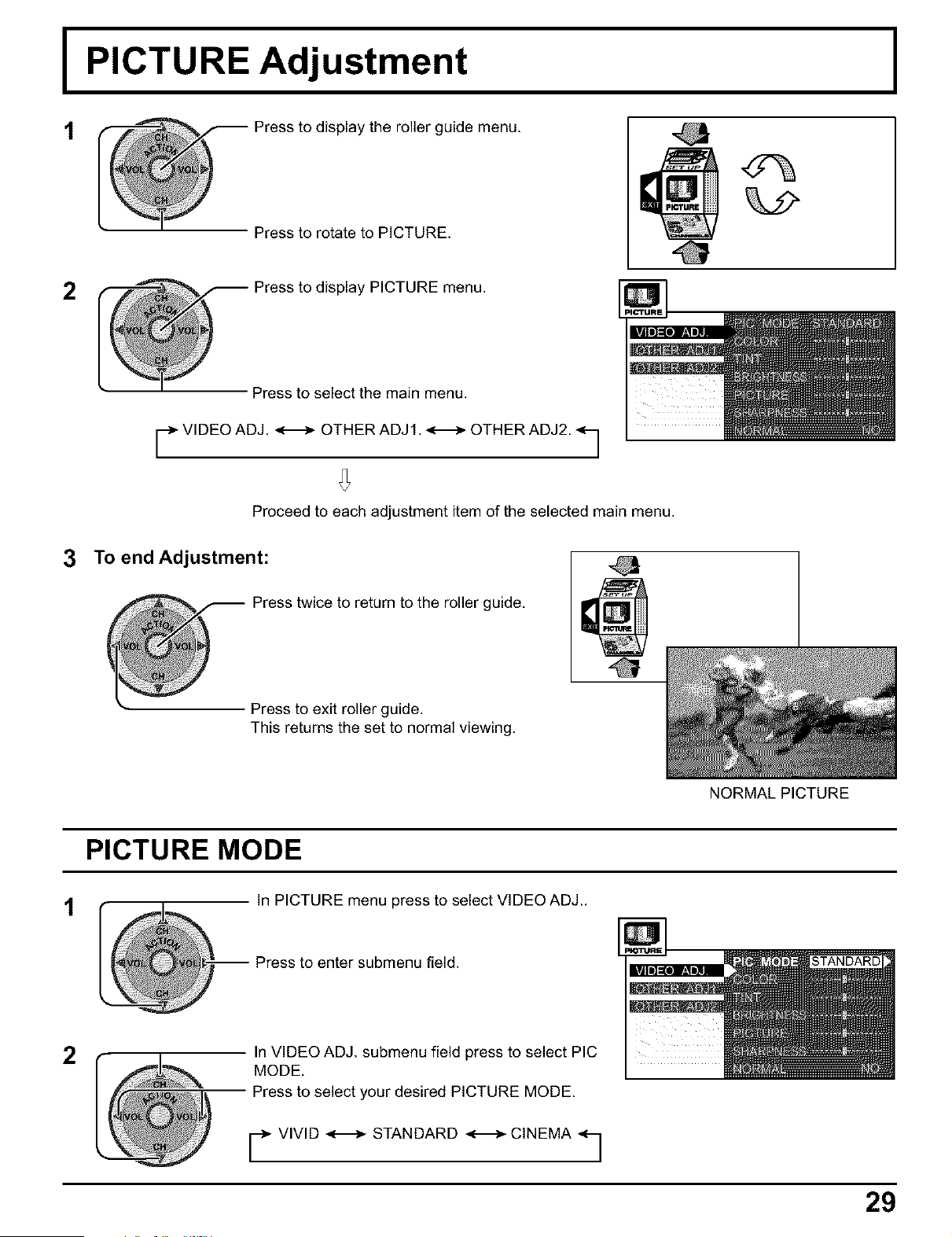
I PICTURE Adjustment
t Press to display the roller guide menu.
2
Press to rotate to PICTURE.
Press to display PICTURE menu.
3
Press to select the main menu.
r VIDEO ADJ. _ OTHER ADJ1. <-_ OTHER ADJ2. q
Proceed to each adjustment item of the selected main menu.
To end Adjustment:
Press twice to return to the roller guide.
Press to exit roller guide.
This returns the set to normal viewing.
@
2
PICTURE MODE
In PICTURE menu press to select VIDEO ADJ..
Press to enter submenu field.
In VIDEO ADJ. submenu field press to select PIC
MODE.
Press to select your desired PICTURE MODE.
r VIVID _ STANDARD _ CINEMA q
NORMAL PICTURE
STANDARD
29

PICTURE Adjustment
COLOR / TINT / BRIGHTNESS / PICTURE / SHARPNESS / NORMAL
t
In PICTURE menu press to select VIDEO ADJ..
-- Press to enter submenu field.
2
In VIDEO ADJ. submenu field press to select each
submenu (COLOR / TINT / BRIGHTNESS /
PICTURE / SHARPNESS / NORMAL).
Press to adjust the desired level by looking at the
picture behind the menu,
Adjusts desired color intensity.
Adjusts natural flesh tones.
Adjusts dark areas of picture.
Adjusts white areas of picture.
Adjusts clarity of outline detail.
Resets all picture adjustments to factory default settings.
30
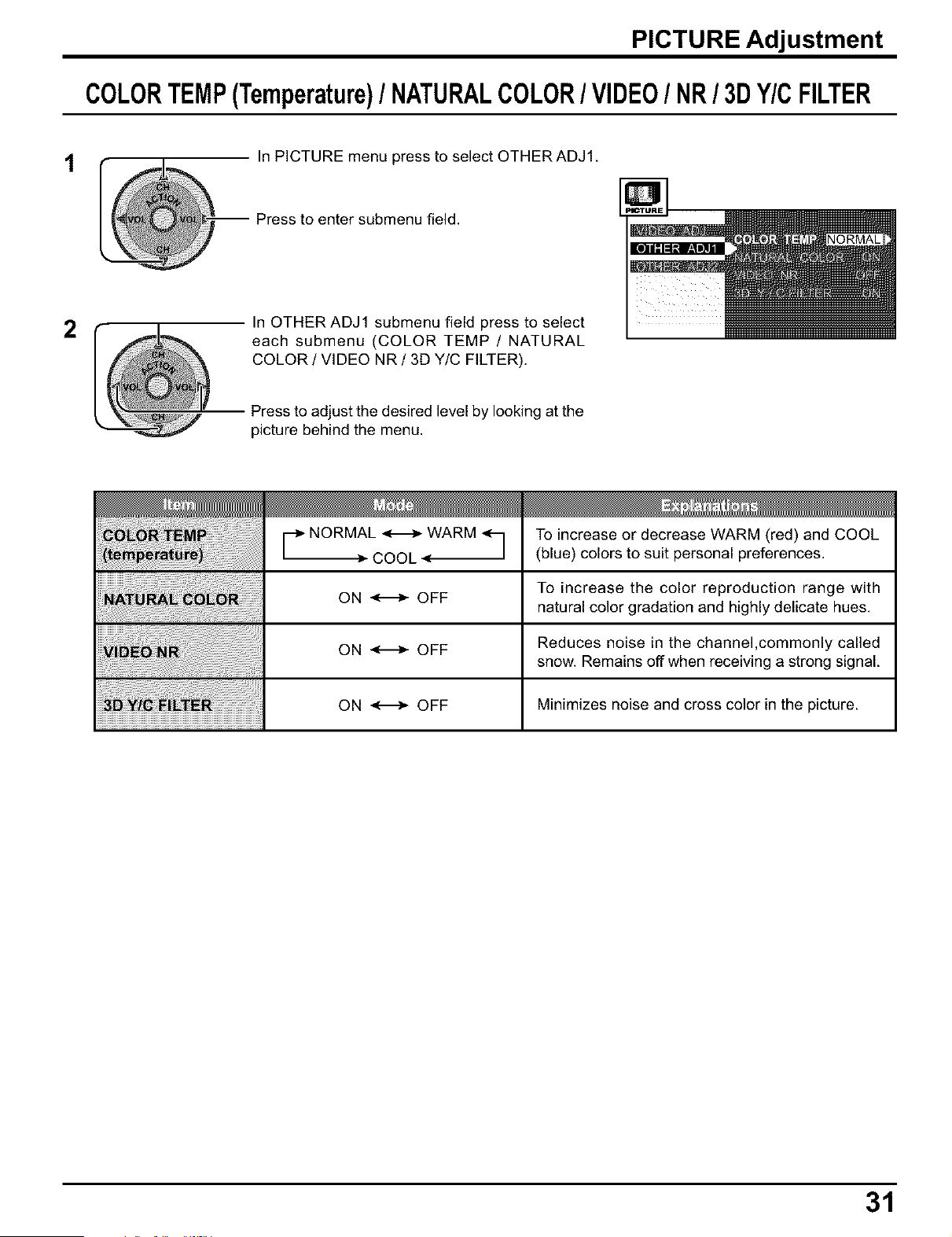
PICTURE Adjustment
COLORTEMP(Temperature)/ NATURALCOLOR/ VIDEO/ NR/ 3DY/C FILTER
t
In PICTURE menu press to select OTHER ADJ1.
Press to enter submenu field.
2
In OTHER ADJ1 submenu field press to select
each submenu (COLOR TEMP / NATURAL
COLOR / VIDEO NR / 3D Y/C FILTER),
Press to adjust the desired level by looking at the
picture behind the menu,
ijil !!!!i¸Iiil iiil;i!;!i;i ;i;i;i!!!!!!i! i;i;i;!!iiiiii
_N_._L _ WARM <--I
COOL
ON _ OFF
ON _ OFF
ON _ OFF
To increase or decrease WARM (red) and COOL
(blue) colors to suit personal preferences.
To increase the color reproduction range with
natural color gradation and highly delicate hues.
Reduces noise in the channel,commonly called
snow. Remains off when receiving a strong signal.
Minimizes noise and cross color in the picture.
31
PICTURE Adjustment
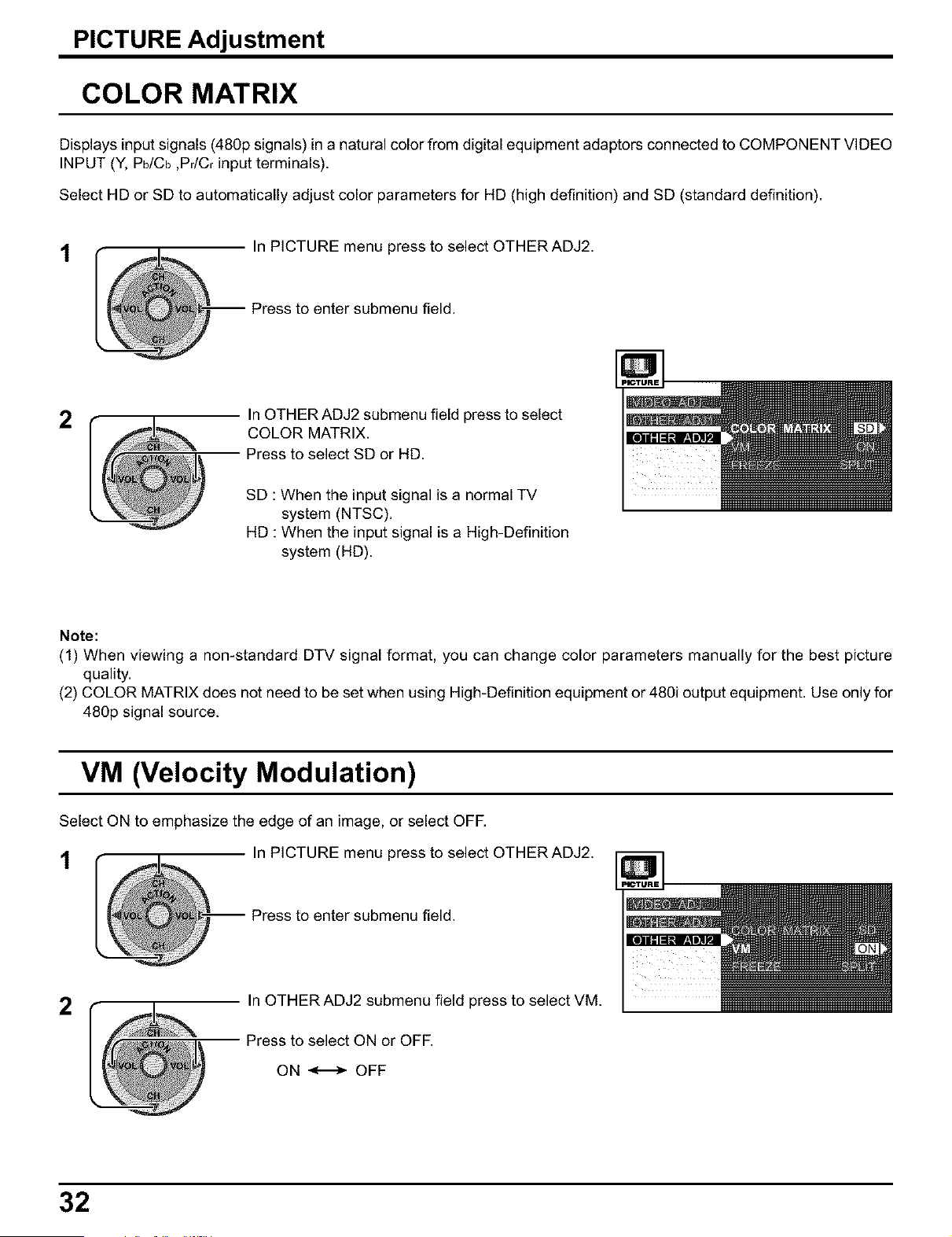
COLOR MATRIX
Displays input signals (480p signals) in a natural color from digital equipment adaptors connected to COMPONENT VIDEO
INPUT (Y, Pb/Cb ,Pr/Cr input terminals).
Select HD or SD to automatically adjust color parameters for HD (high definition) and SD (standard definition).
t
In PICTURE menu press to select OTHER ADJ2.
-- Press to enter submenu field.
2
In OTHER ADJ2 submenu field press to select
COLOR MATRIX.
Press to select SD or HD.
SD : When the input signal is a normal TV
system (NTSC).
HD : When the input signal is a High-Definition
system (HD).
Note:
(1) When viewing a non-standard DTV signal format, you can change color parameters manually for the best picture
quality.
(2) COLOR MATRIX does not need to be set when using High-Definition equipment or 480i output equipment. Use only for
480p signal source.
VM (Velocity Modulation)
Select ON to emphasize the edge of an image, or select OFF.
1 In PICTURE menu press to select OTHER ADJ2.
-- Press to enter submenu field.
2
In OTHER ADJ2 submenu field press to select VM.
Press to select ON or OFF.
ON _ OFF
32
PICTURE Adjustment
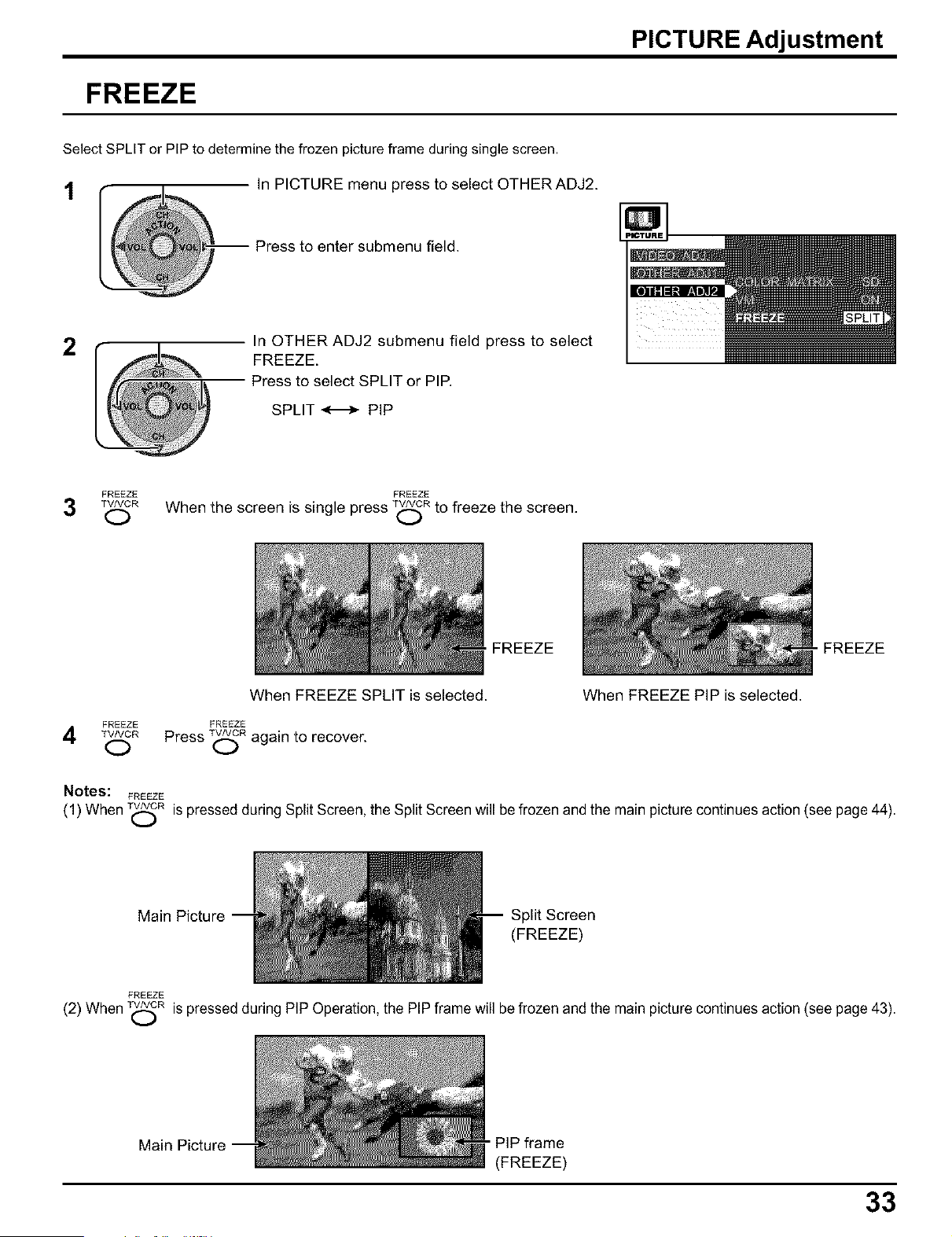
FREEZE
Select SPLIT or PIP to determine the frozen picture frame during single screen.
t In PICTURE menu press to select OTHER ADJ2.
Press to enter submenu field.
2
In OTHER ADJ2 submenu field press to select
FREEZE.
Press to select SPLIT or PIP.
SPLIT _ PIP
FREEZE FREEZE
3 _R When the screen is single press _R to freeze the screen,
,FREEZE "FREEZE
FREEZE
TVNCR
O
When FREEZE SPLIT is selected.
FREEZE
Press T_R again to recover.
When FREEZE PIP is selected.
Notes: FREEZE
(1) When T_Z,_R is pressed during Split Screen, the Split Screen will be frozen and the main picture continues action (see page 44).
Main Picture
Split Screen
(FREEZE)
FREEZE
(2) When T_R is pressed during PIP Operation, the PIP frame will be frozen and the main picture continues action (see page 43).
Main Picture
- PIP frame
(FREEZE)
33
I CHANNEL SCAN
t
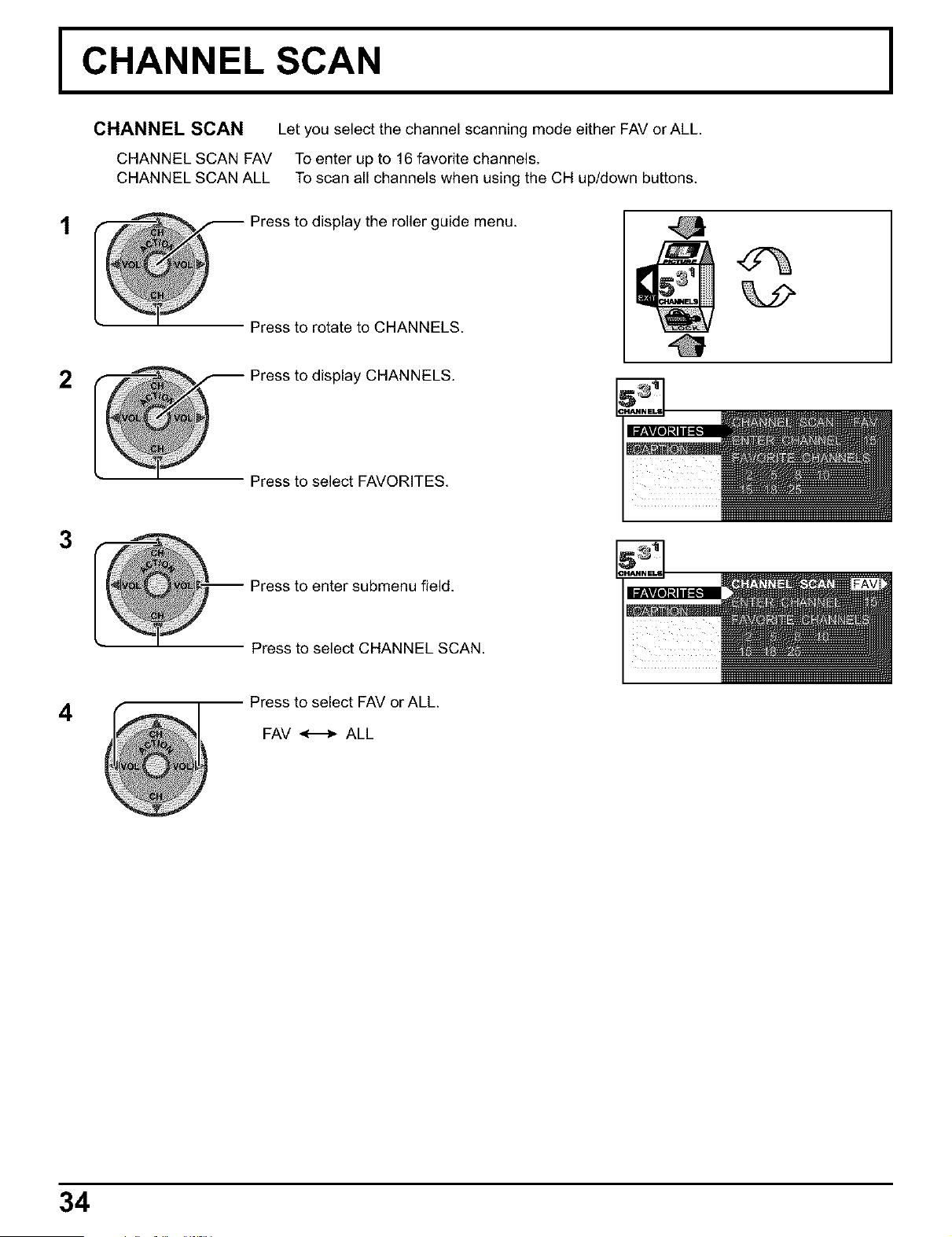
CHANNEL SCAN Let you select the channel scanning mode either FAV or ALL.
CHANNEL SCAN FAV To enter up to 16 favorite channels.
CHANNEL SCAN ALL To scan all channels when using the CH up/down buttons.
@ Press to display the roller guide menu.
Press to rotate to CHANNELS.
2 @ Press to display CHANNELS.
Press to select FAVORITES.
3
Press to enter submenu field.
Press to select CHANNEL SCAN.
4
Press to select FAV or ALL.
FAV _ ALL
34
CHANNELSCAN
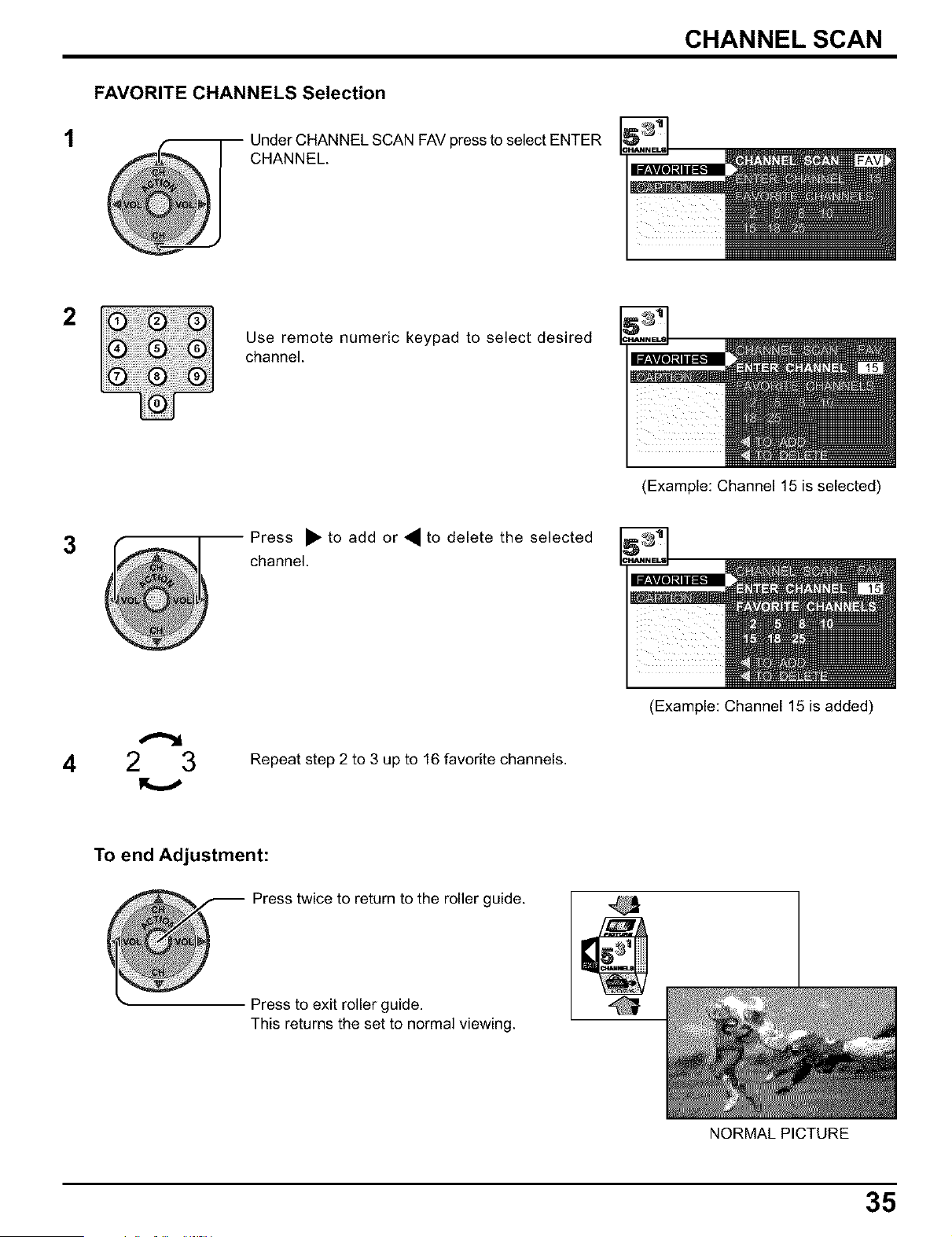
FAVORITE CHANNELS Selection
1 Under CHANNEL SCAN FAV press to select ENTER
CHANNEL.
2
Use remote numeric keypad to select desired
channel.
(Example: Channel 15 is selected)
3
Press • to add or • to delete the selected
channel.
4 2,..3
Repeat step 2 to 3 up to 16 favorite channels.
(Example: Channel 15 is added)
To end Adjustment:
Press twice to return to the roller guide.
Press to exit roller guide.
This returns the set to normal viewing.
NORMAL PICTURE
35
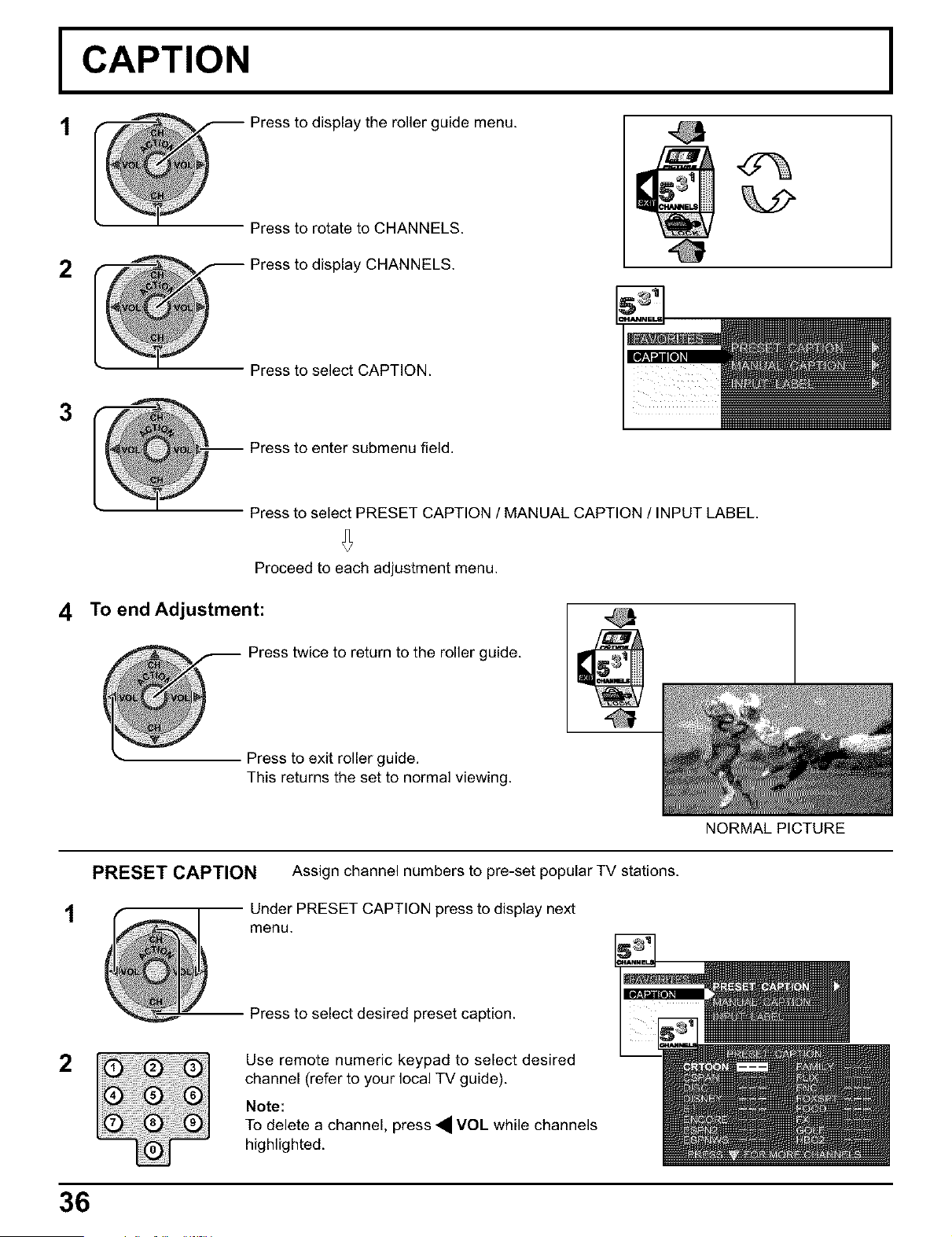
I CAPTION
t
@ ress to display the roller guide menu.
Press to rotate to CHANNELS.
2 _ Press to display CHANNELS.
Press to select CAPTION.
3
-- Press to enter submenu field.
Press to select PRESET CAPTION / MANUAL CAPTION / INPUT LABEL.
4
Proceed to each adjustment menu.
TO end Adjustment:
Press twice to return to the roller guide.
Press to exit roller guide.
This returns the set to normal viewing.
t
PRESET CAPTION Assign channel numbers to pre-set popular TV stations.
Under PRESET CAPTION press to display next
menu.
Press to select desired preset caption.
2
Use remote numeric keypad to select desired
channel (refer to your local TV guide).
Note:
To delete a channel, press • VOL while channels
highlighted.
36
NORMAL PICTURE
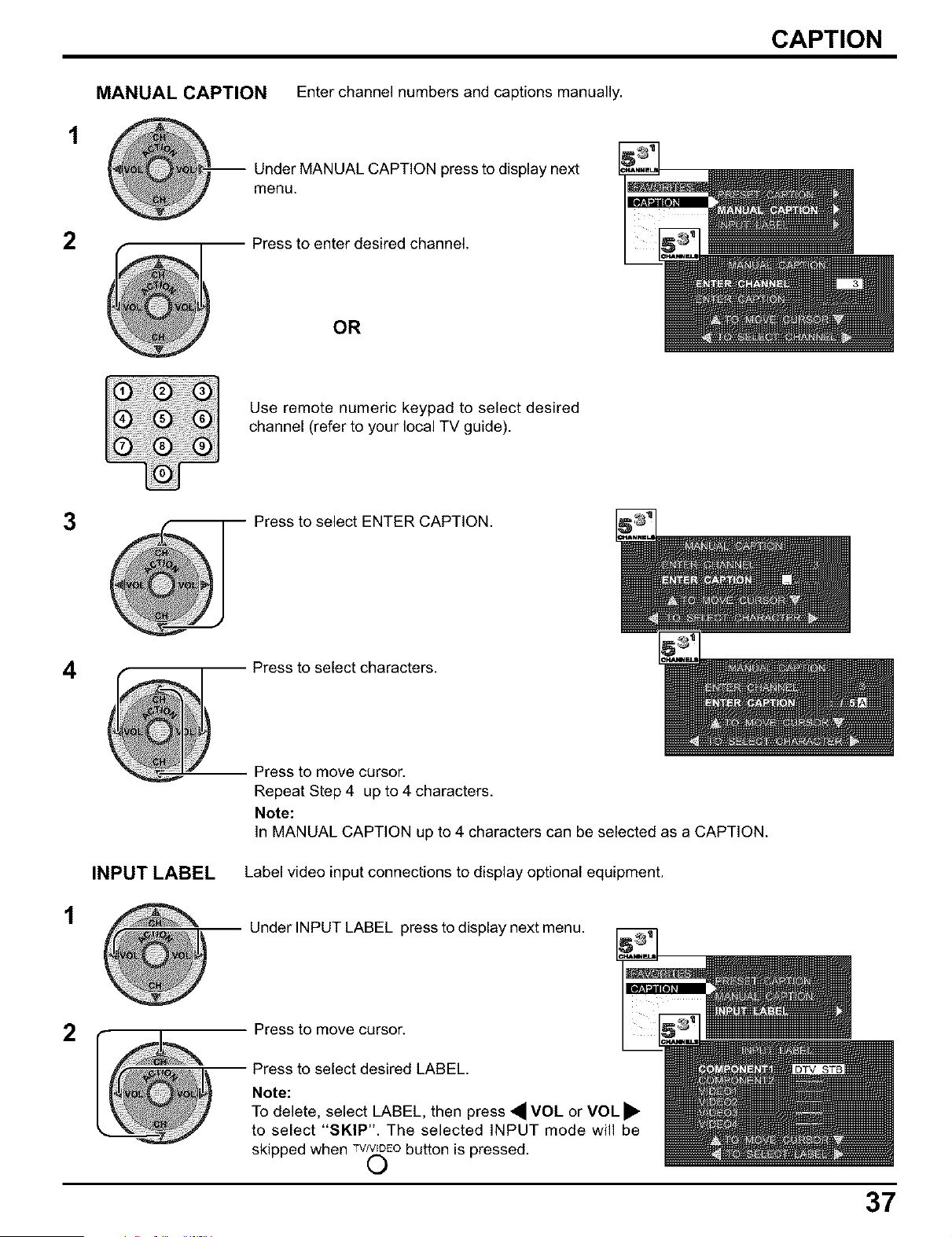
CAPTION
MANUAL CAPTION Enter channel numbers and captions manually.
-- Under MANUAL CAPTION press to display next
menu.
2
Press to enter desired channel.
OR
Use remote numeric keypad to select desired
channel (refer to your local TV guide).
3
Press to select ENTER CAPTION.
4
INPUT LABEL
Pressto move cursor.
Repeat Step 4 up to 4 characters.
Note:
In MANUAL CAPTION up to4 characters can be selected as a CAPTION.
Label video input connections to display optional equipment.
Under INPUT LABEL press to display next menu.
2
Press to move cursor.
Press to select desired LABEL.
Note:
To delete, select LABEL, then press • VOL or VOL •
to select "SKIP". The selected INPUT mode will be
skipped when 7V/V.L=DFObutton is pressed.
(.)
37
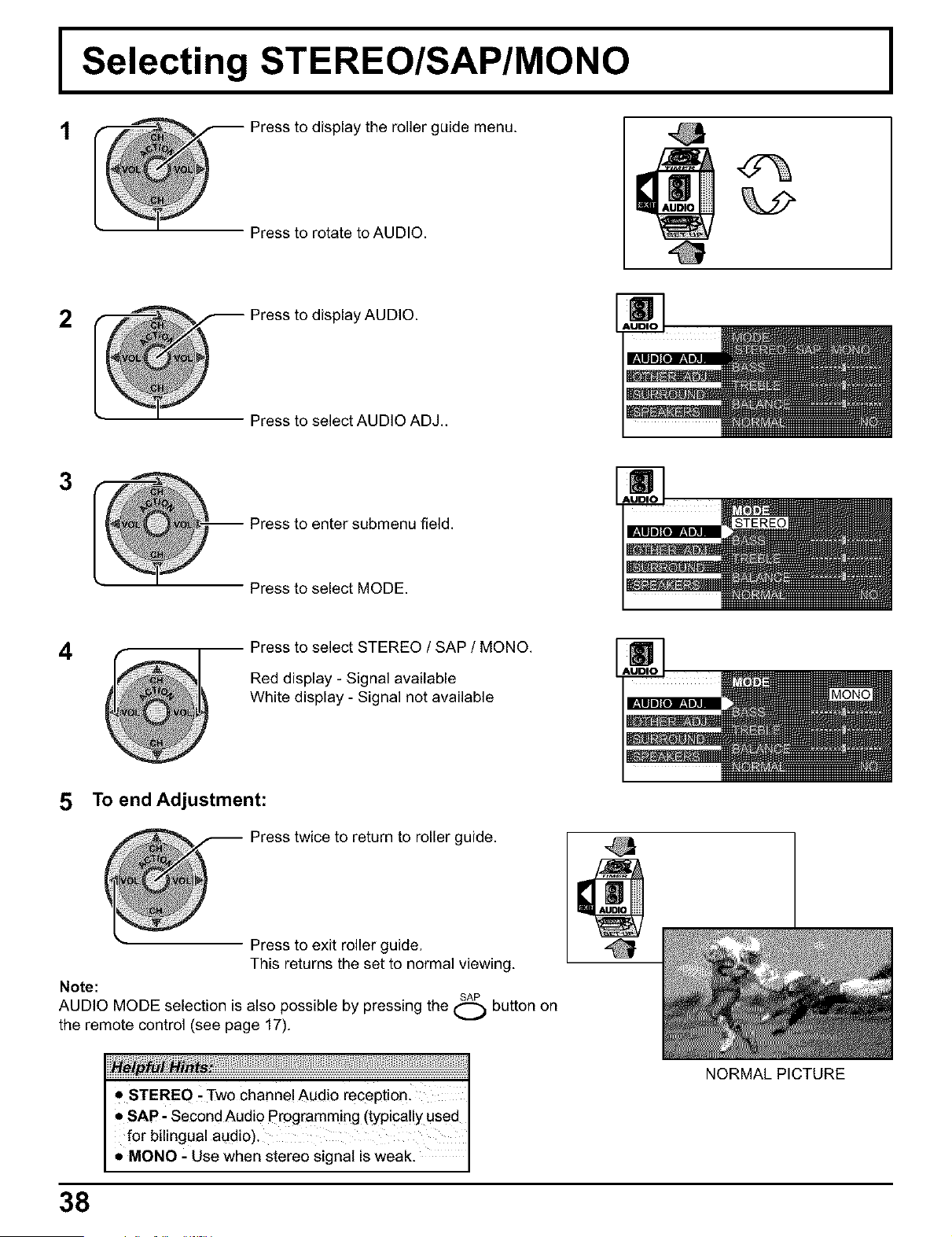
I Selecting STEREO/SAP/MONO
t
@ ress to display the roller guide menu.
Press to rotate to AUDIO.
2 _ Press to display AUDIO.
Press to select AUDIO ADJ..
3
-- Press to enter submenu field.
Press to select MODE.
4
Press to select STEREO / SAP / MONO.
Red display - Signal available
White display - Signal not available
To end Adjustment:
Press twice to return to roller guide.
Press to exit roller guide.
This returns the set to normal viewing.
Note:
AUDIO MODE selection is also possible by pressing the _ button on
the remote control (see page 17).
• STEREO - Two channel Audio reception.
SAP: Second Audio Programming (typically used
for bilingual audio).
• MONO - Use when stereo signal is weak.
38
NORMAL PICTURE
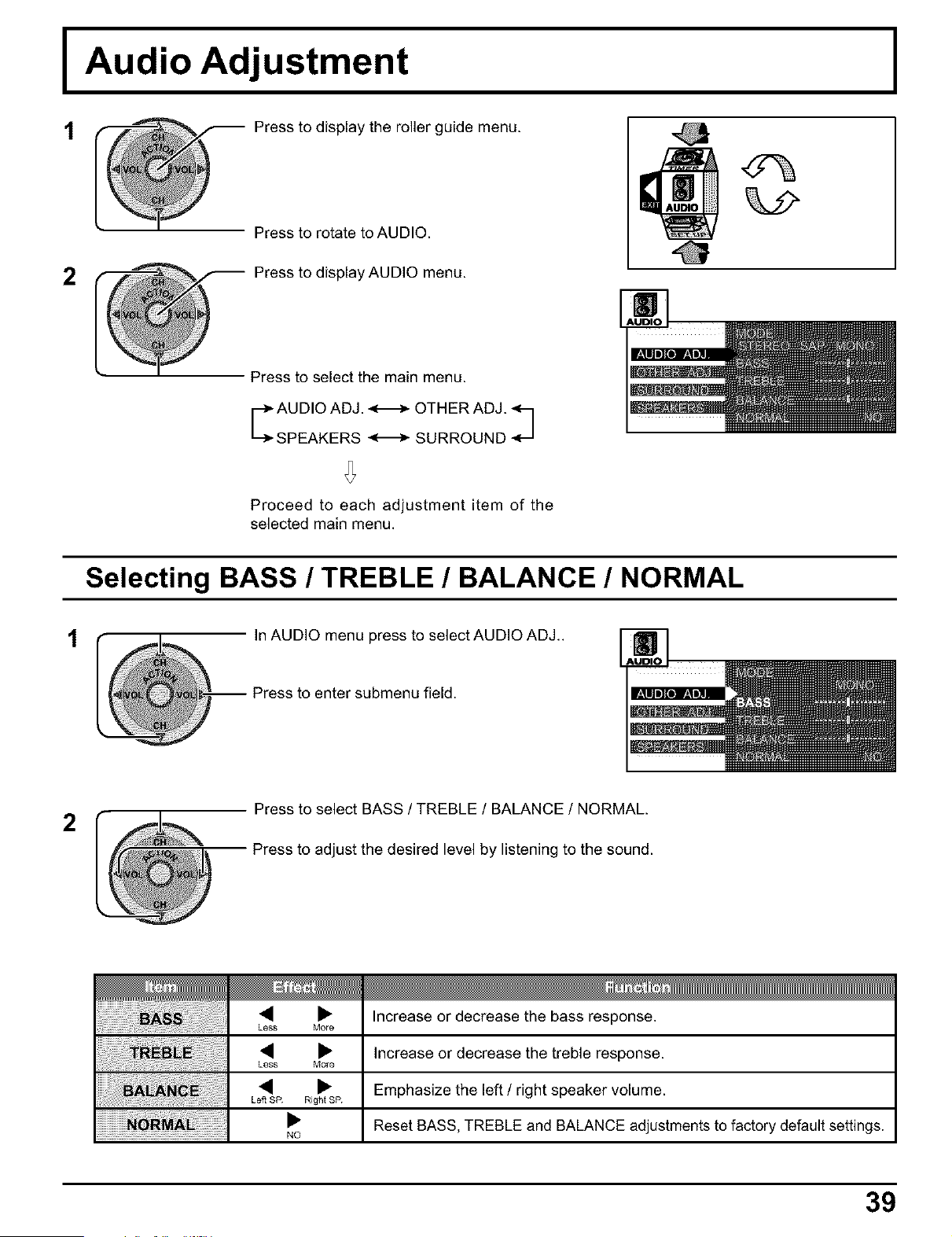
I Audio Adjustment
2
Press to display the roller guide menu.
Press to rotate to AUDIO.
Press to display AUDIO menu.
Press to select the main menu.
_ AUDIO ADJ. <--> OTHER ADJ. q
SPEAKERS _ SURROUND <-_
Proceed to each adjustment item of the
selected main menu.
Selecting BASS / TREBLE / BALANCE / NORMAL
In AUDIO menu press to select AUDIO ADJ..
-- Press to enter submenu field.
2
Press to select BASS / TREBLE / BALANCE / NORMAL.
Press to adjust the desired level by listening to the sound.
iiiiiiiiiiiiiiiiiiiiiiiiiiiiiiii_!_i_!_!_!_!_!_!_!_!_!_!_!_!_!)_!)!_!
< •
Less More
Increase or decrease the bass response.
Less More
Increase or decrease the treble response.
Left SP Right SP
NO
Emphasize the left / right speaker volume.
Reset BASS, TREBLE and BALANCE adjustments to factory default settings.
39
Audio Adjustment
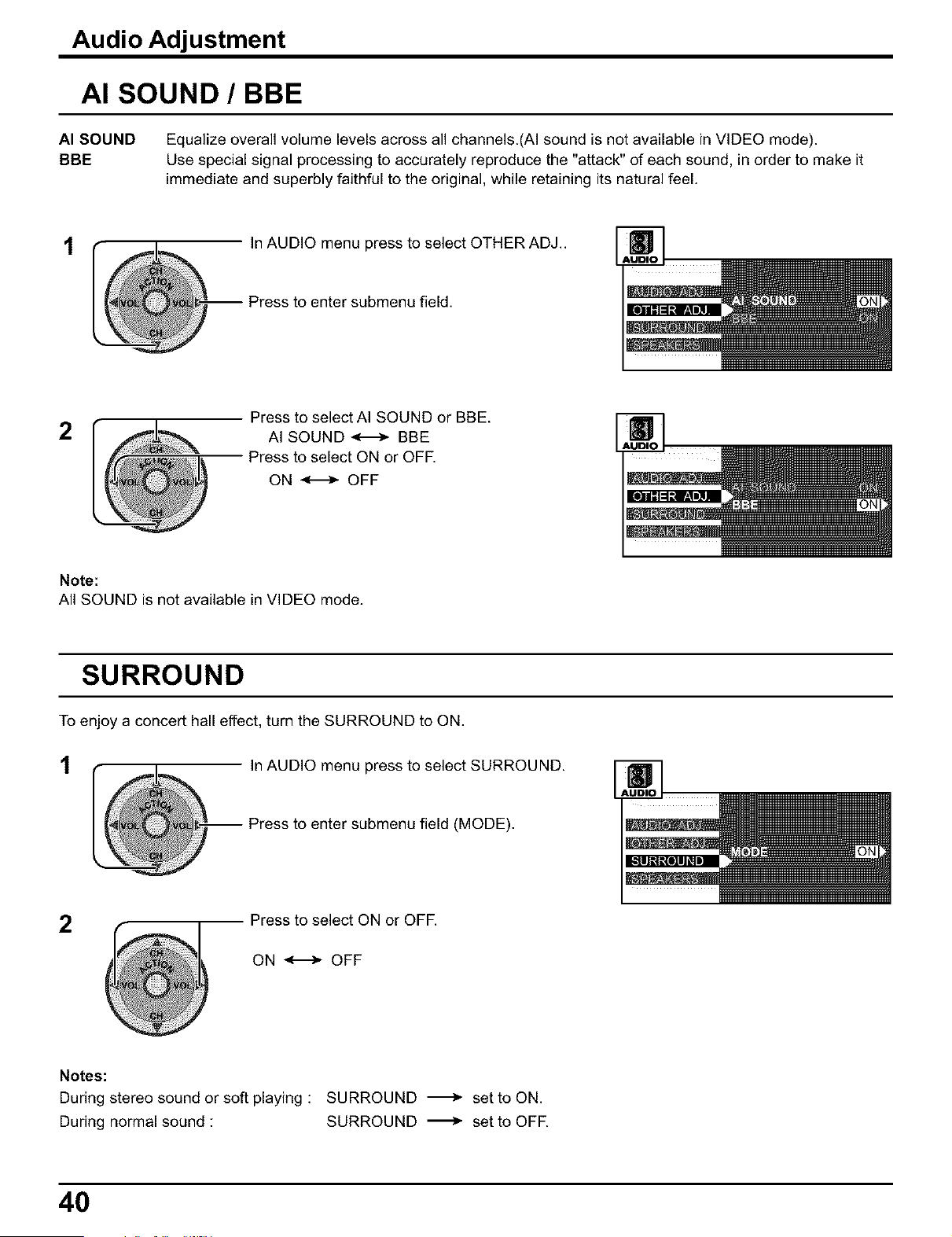
AI SOUND / BBE
AI SOUND Equalize overall volume levels across all channels.(AI sound is not available in VIDEO mode).
BBE Use special signal processing to accurately reproduce the "attack" of each sound, in order to make it
immediate and superbly faithful to the original, while retaining its natural feel.
In AUDIO menu press to select OTHER ADJ..
-- Press to enter submenu field.
2
Press to select AI SOUND or BBE.
AI SOUND _ BBE
Press to select ON or OFE
ON _ OFF
Note:
All SOUND is not available in VIDEO mode.
SURROUND
To enjoy a concert hall effect, turn the SURROUND to ON.
t In AUDIO menu press to select SURROUND.
-- Press to enter submenu field (MODE).
2
Press to select ON or OFF.
ON _ OFF
Notes:
During stereo sound or soft playing : SURROUND _ set to ON.
During normal sound : SURROUND -_ set to OFF.
40
SPEAKERS
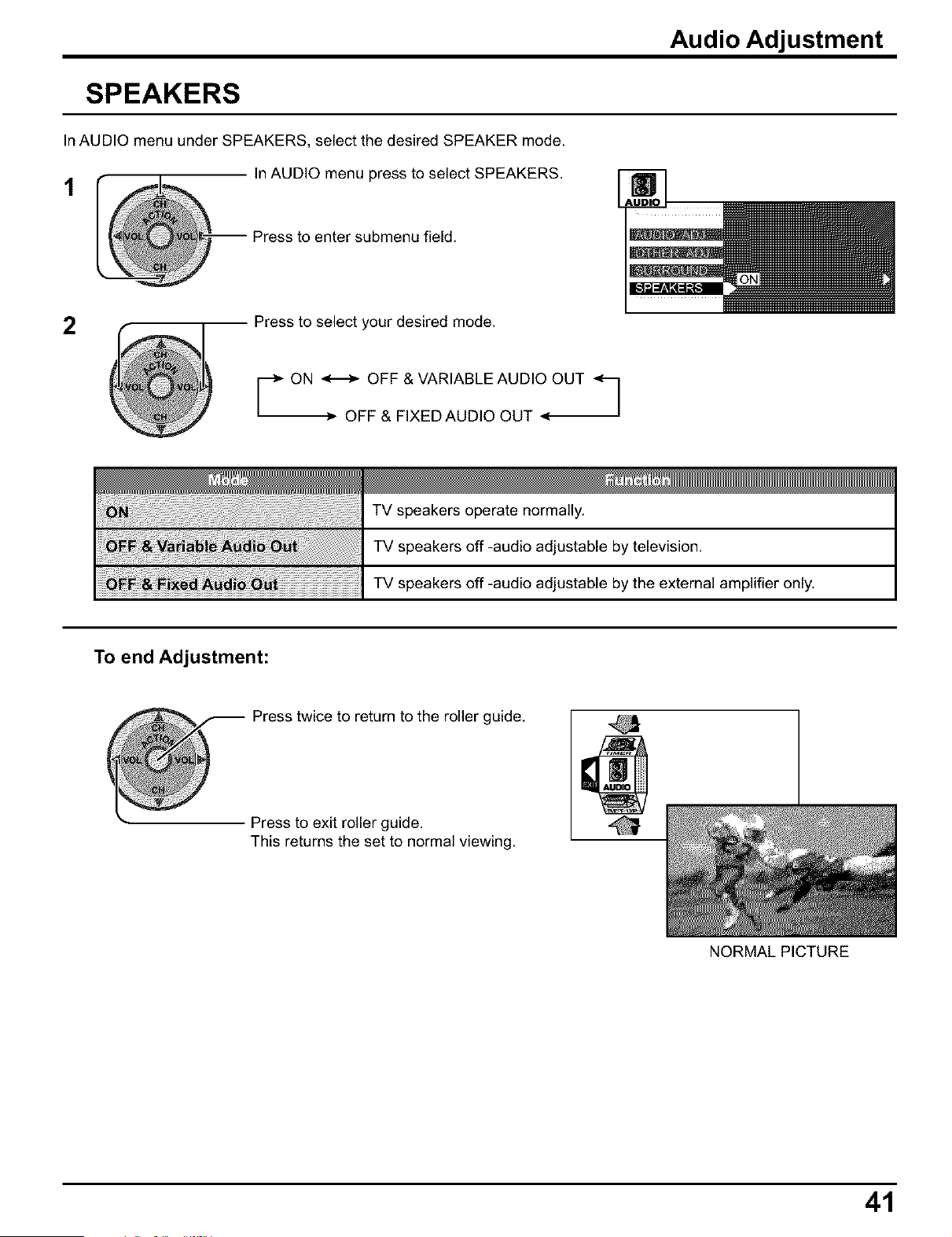
In AUDIO menu under SPEAKERS, select the desired SPEAKER mode.
In AUDIO menu press to select SPEAKERS.
2
Audio Adjustment
Press to select your desired mode.
r 7OFC:CCZu ;° _T_T_
TV speakers operate normally.
TV speakers off -audio adjustable by television.
TV speakers off -audio adjustable by the external amplifier only.
To end Adjustment:
Press twice to return to the roller guide.
Press to exit roller guide.
This returns the set to normal viewing.
NORMAL PICTURE
41
I Picture in Picture Operation
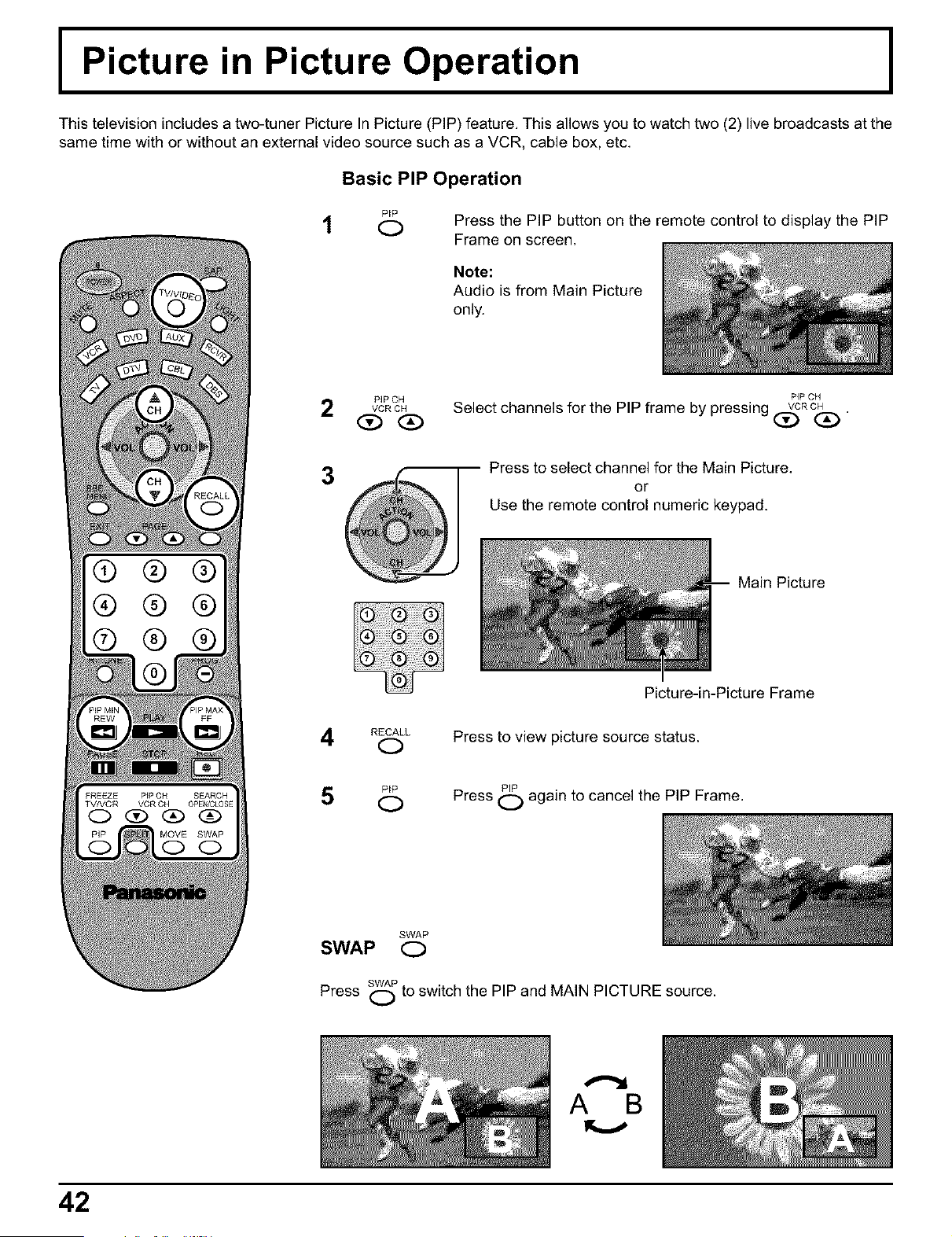
This television includes a two-tuner Picture In Picture (PIP) feature. This allows you to watch two (2) live broadcasts at the
same time with or without an external video source such as a VCR, cable box, etc.
Basic PIP Operation
®
® ® ®
® ® ®
TVNCR VCR OH 0PE_CLOSE
MOVE SWAP
(DO
P_P
1 o
PiP CH
VCR OH
3
RECALL
O
P_P
O
SWAP
SWAP O
Press the PIP button on the remote control to display the PIP
Frame on screen.
Note:
Audio is from Main Picture
only.
PIP CH
Select channels for the PIP frame by pressing (_m C(_.
Press to select channel for the Main Picture.
or
Use the remote control numeric keypad.
Main Picture
Picture-in-Picture Frame
Press to view picture source status.
PIP
Press O again to cancel the PIP Frame.
SWAP
Press O to switch the PIP and MAIN PICTURE source.
42
Picture in Picture Operation
PIP MIN PIP MAX
PIP MIN, PIP MAX REw FF
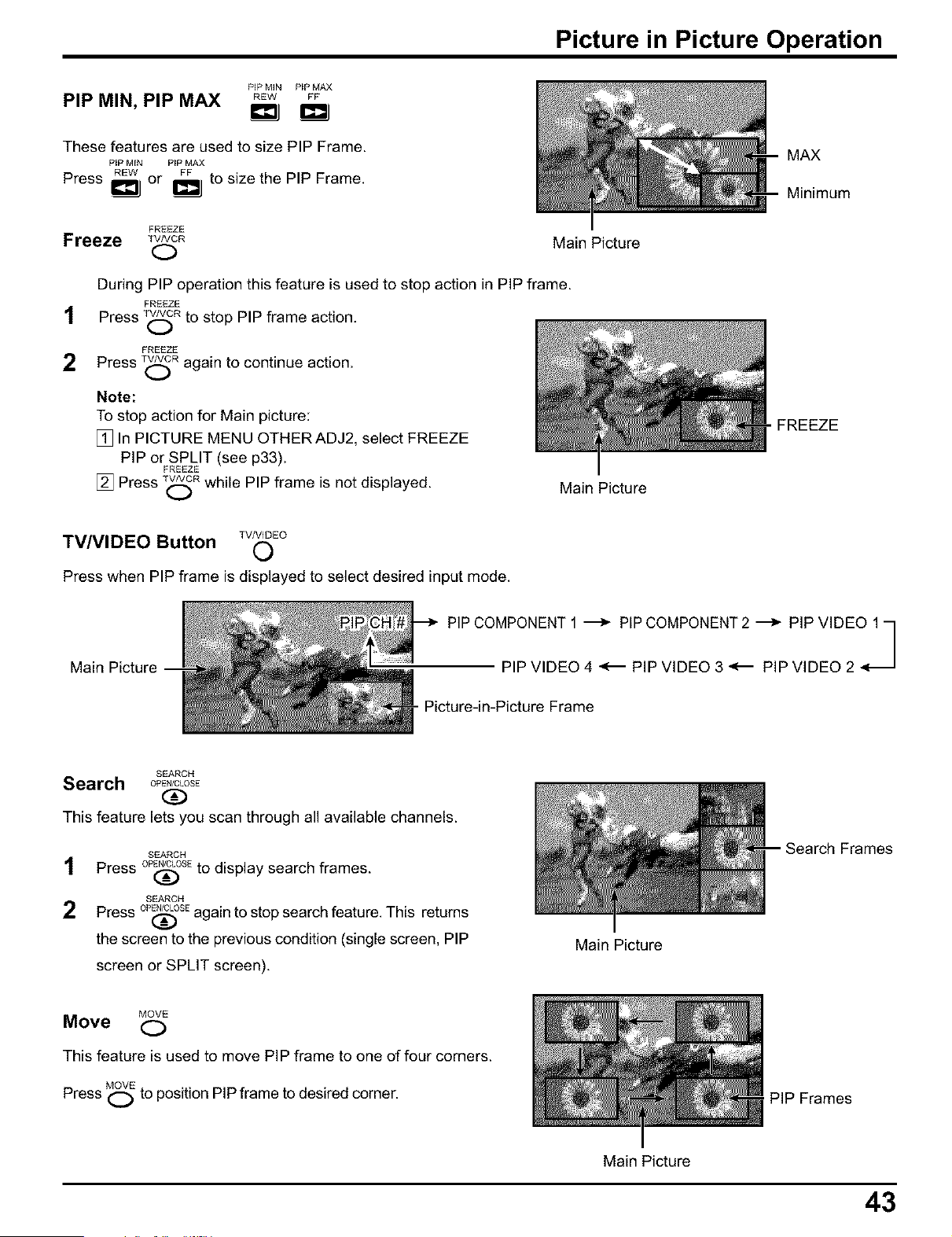
These features are used to size PIP Frame.
PIP MIN PiP MAX
Press REW,or FF, to size the PIP Frame.
FREEZE
Freeze wJvoR
O
t
2
Main Picture
During PIP operation this feature is used to stop action in PIP frame.
FREEZE
Press T(_R to stop PIP frame action.
FREEZE
Press _R again to continue action.
Note:
To stop action for Main picture:
[] In PICTURE MENU OTHER ADJ2, select FREEZE
PIP or SPLIT (see p33).
FREEZE
[] Press T,YL-_Rwhile PIP frame is not displayed.
Main Picture
MAX
Minimum
FREEZE
TVNIDEO
TVNIDEO Button O
Press when PIP frame is displayed to select desired input mode.
Main Picture
c°:c::22v:2T112o:0 :°j
. Picture-in-Picture Frame
SEARCH
Search 0PE./CL0SE
(D
This feature lets you scan through all available channels.
t
2
SEARCH
Press oppose to display search frames.
SEARCH
Press OPPOSEagain to stop search feature. This returns
the screen to the previous condition (single screen, PiP
screen or SPLIT screen).
Main Picture
Main Picture
-- Search Frames
MOVE
Move O
This feature is used to move PIP frame to one of four corners.
MOVE .,
Press O to pos_t_onPIP frame to desired corner.
PIP Frames
43

I Split Screen
This feature lets you watch two different channels side by side with or without an external video source.
The audio is from the Main picture only (left side).
Split screen enables you to search other channels on the right screen or check video recording status.
Splitting the screen
® ® ®
® ® ®
® ® ®
FREEZE pip OH
TVNCR VCR OH
O
t Press _ to display Split screen.
Main Picture
(The previously selected screen appears.)
2 Returning to one screen.
SPLIT
Press O again to return.
)lit Screen
Freezing pictures Main Picture
During Split Screen this feature is used to stop action in SPLIT screen,
FREEZE
TV/VCR
O
FREEZE
Press T_R to stop action in SPLIT screen,
FREEZE
2 Press T_R again to recover.
Note:
To stop action for Main picture:
[] In PICTURE MENU OTHER ADJ2, select FREEZE
PIP or SPLIT (see p33).
FREEZE
[] Press _(_F_ while SPLIT frame is not displayed.
Notes:
(1) Sound from the left screen is output from the speakers on the TV set (and earphone jacks).
(2) When the screen is split, signals of the left screen are output from the rear monitor output terminal.
FREEZE
(3) The left and right screen are processed by individual circuits, and therefore, may have slight variation in sound and
image quality.
(4) Split screen returns to single screen when the TV is turned off.
(5) The right and left screens cannot display the same picture at the same time.
(6) Use the right screen when playing video games on a split screen (to avoid distortion of images).
44
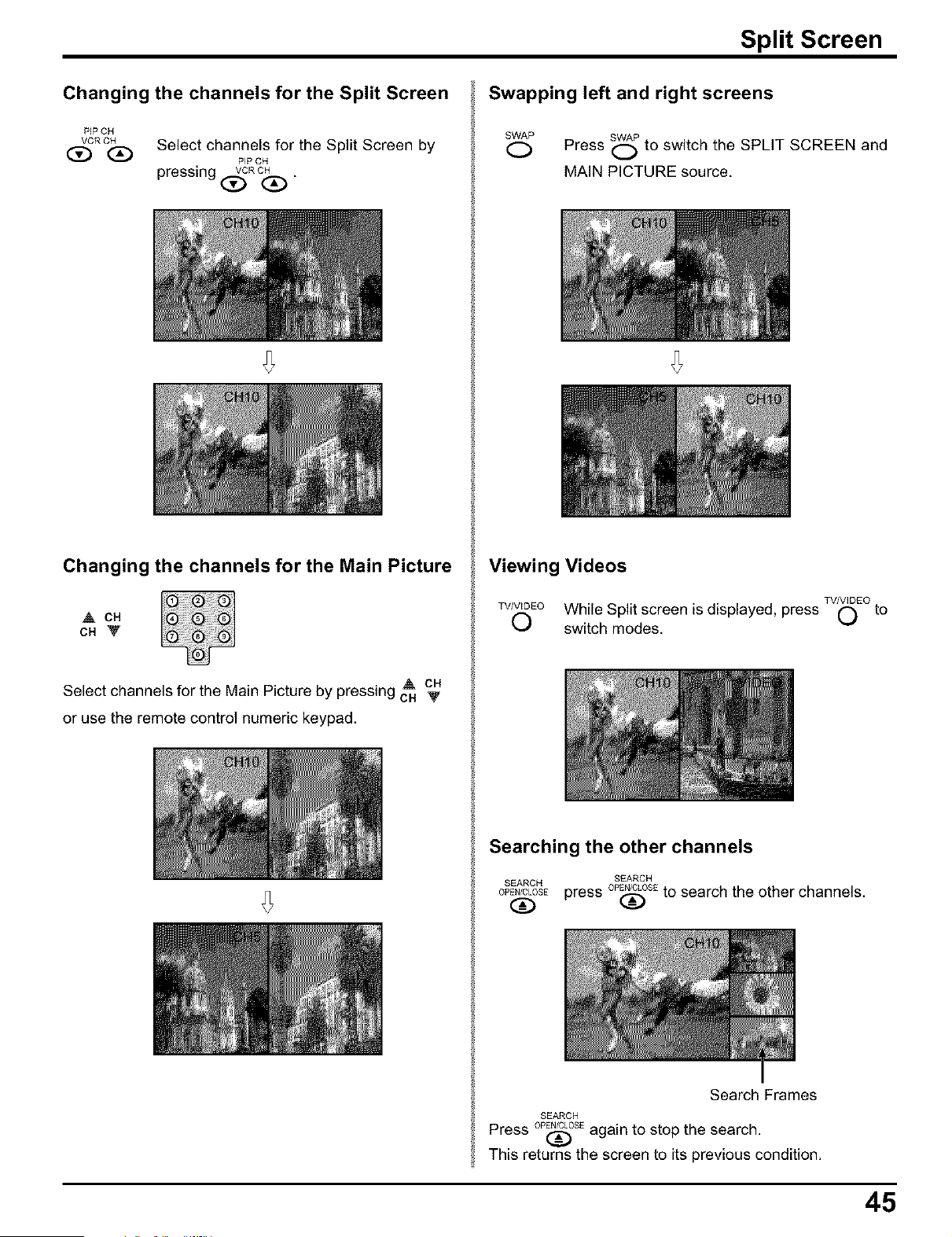
Split Screen
Changing the channels for the Split Screen
PIPCH
VCR CH
(D(D
Select channels for the Split Screen by
PIP CH
pressing (_R c(_ •
Changing the channels for the Main Picture
OH
CH V
Select channels for the Main Picture by pressing A ca
CH V
or use the remote control numeric keypad.
Swapping left and right screens
SWAP
O
SWAP
Press (-_ to switch the SPLIT SCREEN and
MAIN PICTURE source.
Viewing Videos
TV/VIDEO
TWWDEOWhile Split screen is displayed, press O to
O switch modes.
Searching the other channels
SEARCH SEARCH
OPEN/CLOSE
OPEN/CLOSEpress _ to search the other channels.
Search Frames
SEARCH
Press 0PEN/CL0SEagain to stop the search.
This returns the screen to its previous condition.
45

I ASPECT Controls
The color monitor will allow you to enjoy viewing the picture at its maximum size, including wide screen cinema format
picture.
ASPECT ASPECT button
£J The aspect mode changes each time the ASPECT button is pressed.
4 : 3 -_ ZOOM -_ FULL -_ JUST q
Notes:
(1) For a 480p signal input during component input signal mode, the
mode will change as follows:
r FULL -_4:3 -_ZOOM q
(2) When a 1080i signal is being received, the mode is setto FULL, and
aspect switching is not possible.
(3) During PIP operation, ASPECT Controls are available only in the
main picture according to the receiving signal of the main picture.
(4) During SPLIT Screen, ASPECT Controls are not available.
I_ 4 _1
3
ol
I_ 4 _1 1_16_
I_ 4 _1 1_16_
I_ 4 _1 1_16_
:o:I-o bo°l
4 : 3 will display a 4:3 picture at its standard 4:3 size.
ZOOM mode magnifies the central section of the
picture.
FULL will display the picture at its maximum size but
with sight elongation.
JUST mode will display a 4:3 picture at its maximum
size but with aspect correction applied to the sides
of the screen so that elongation is only apparent at
the left and right edges of the screen. The size of the
picture will depend on the original signal.
Notes:
(1) The S-VIDEO terminal on this set can detect specially encoded signals that are compatible with a wide screen monitor.
When a full image from the S-VIDEO terminal of specially encoded video is detected by the set, the screen size is
automatically set to FULL mode.
(2) The screen size also changes if ID-1 is detected.
(3) The screen size will also change if $1 detection has been set.
46
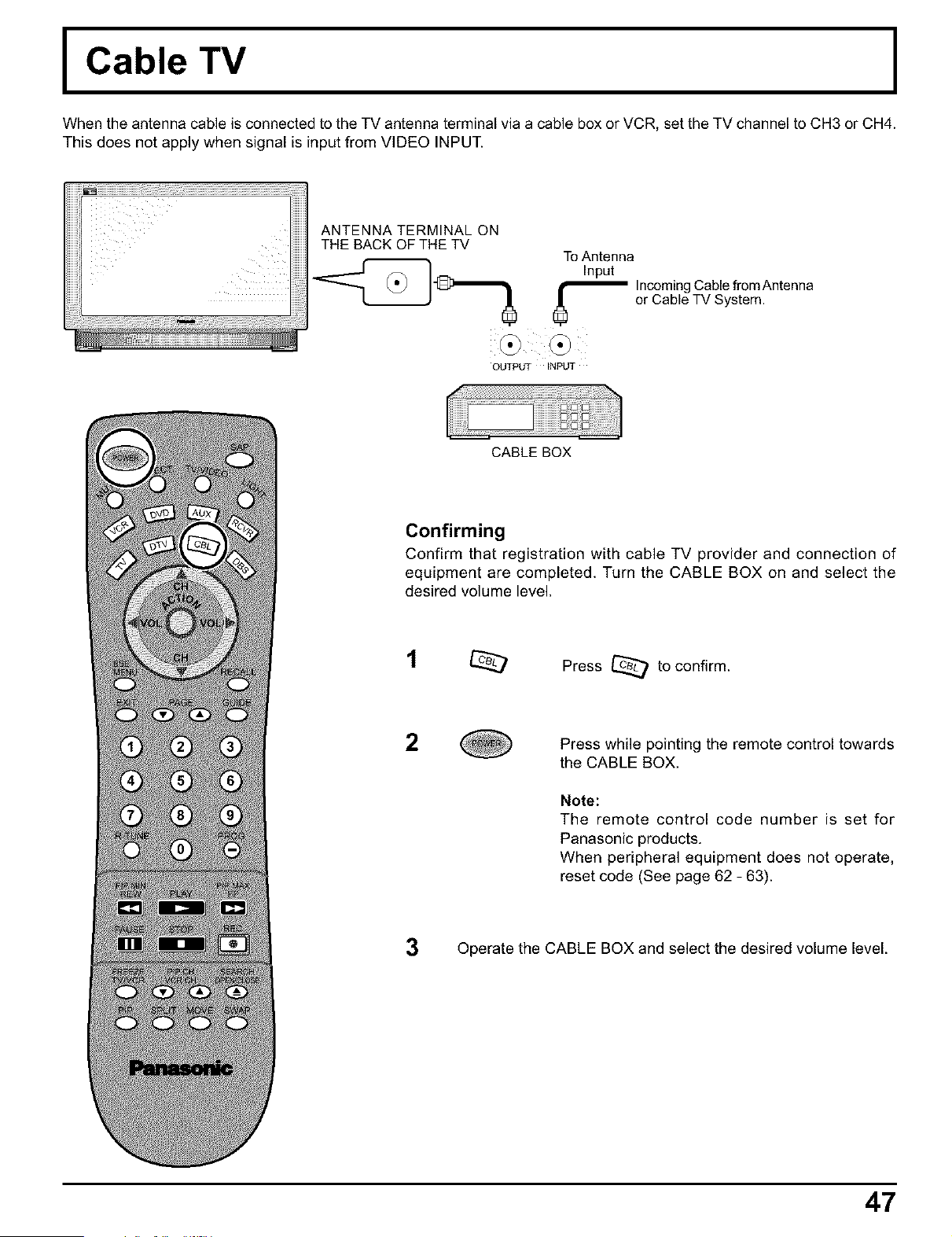
I Cable TV
When the antenna cable is connected to the TV antenna terminal via a cable box or VCR, set the TV channel to CH3 or CH4.
This does not apply when signal is input from VIDEO INPUT.
ANTENNA TERMINAL ON
THE BACK OF THE TM
To Antenna
Input
'_ ncoming Cable from Antenna
or Cable TV System.
OUTPUT INPUT
41ili iiiiiiiiiiiiiiiiiiii ii!ii!iiiiiii
CABLE BOX
Confirming
Confirm that registration with cable TV provider and connection of
equipment are completed. Turn the CABLE BOX on and select the
desired volume level.
Press _ to confirm.
2
Press while pointing the remote control towards
the CABLE BOX.
Note:
The remote control code number is set for
Panasonic products.
When peripheral equipment does not operate,
reset code (See page 62 - 63).
3 Operate the CABLE BOX and select the desired volume level.
47
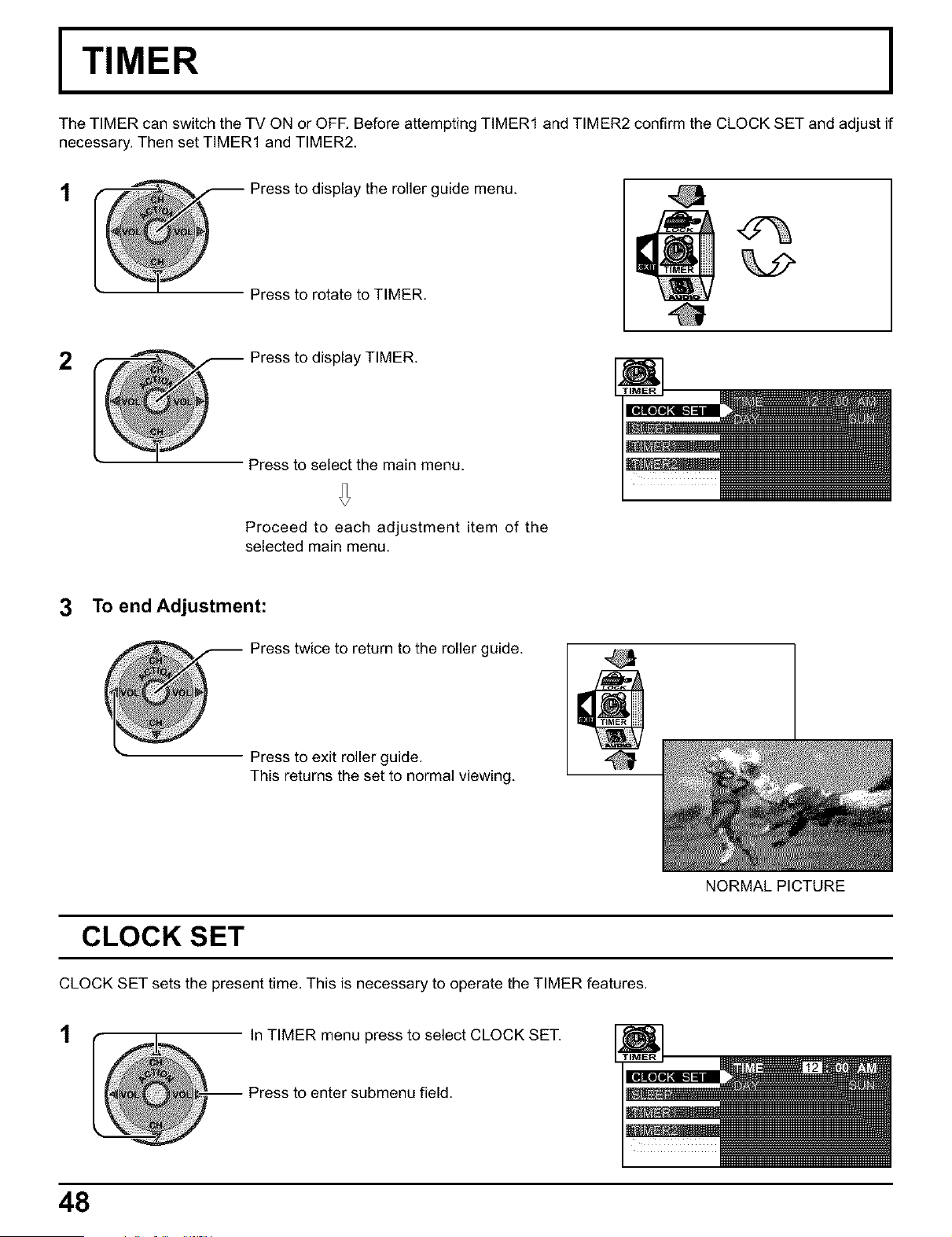
I TIMER
The TIMER can switch the TV ON or OFF. Before attempting TIMER1 and TIMER2 confirm the CLOCK SET and adjust if
necessary. Then set TIMER1 and TIMER2.
t
_ ress to display the roller guide menu.
Press to rotate to TIMER.
2
Press to display TIMER.
Press to select the main menu.
Proceed to each adjustment item of the
selected main menu.
3 To end Adjustment:
Press twice to return to the roller guide.
Press to exit roller guide.
This returns the set to normal viewing.
@
CLOCK SET
CLOCK SET sets the present time. This is necessary to operate the TIMER features.
t
In TIMER menu press to select CLOCK SET.
-- Press to enter submenu field.
48
NORMAL PICTURE
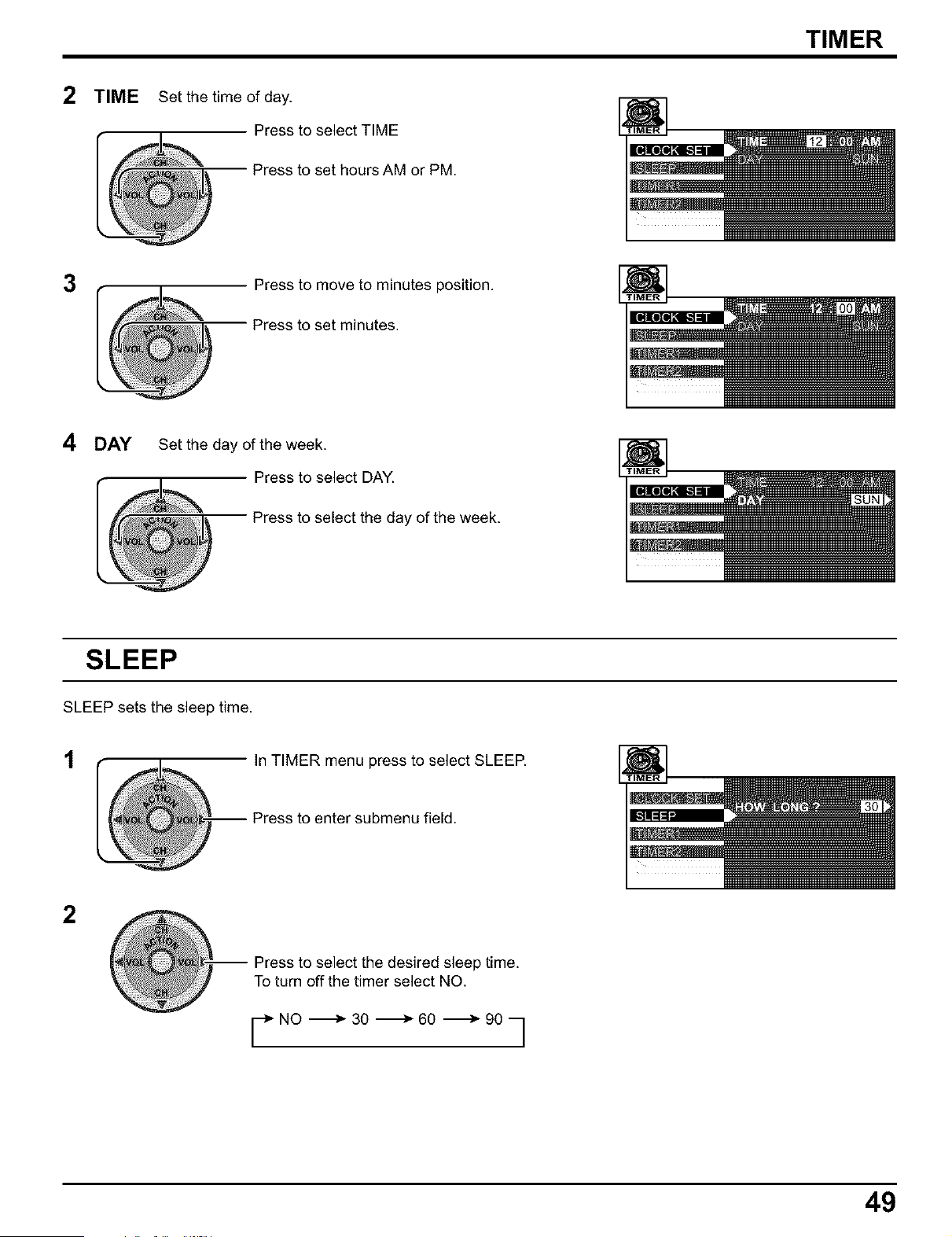
2 TIME
Set the time of day.
Press to select TIME
Press to set hours AM or PM.
TIMER
3
Press to move to minutes position,
Press to set minutes.
4 DAY
Set the day of the week.
Press to select DAY.
Press to select the day of the week.
SLEEP
SLEEP sets the sleep time.
t In TIMER menu press to select SLEEP.
2
-- Press to select the desired sleep time.
To turn off the timer select NO.
r NO -_ 30 -_ 60 _ 90 q
49

TIMER
Timer1 and Timer2
In TIMER menu, select one or both timers to turn the television on and off at selected times, on selected channels, and on
selected days.TIME must be entered in CLOCK SET to operate the TIMER features.
In TIMER menu press to select TIMER1 orTIMER2.
-- Press to enter submenu field.
DAY Set the day of the week.
Press to select DAY.
Press to set the day of the week.
(select day or days)
ON TIME
Set the time of day.
Press to select ON TIME.
Press to set hours AM or PM.
2
Press to move to minutes position.
Press to set minutes.
OFF TIME Set the time of day.
Press to select OFF TIME.
Press to set hours AM or PM.
2
Press to move to minutes position.
Press to set minutes.
50
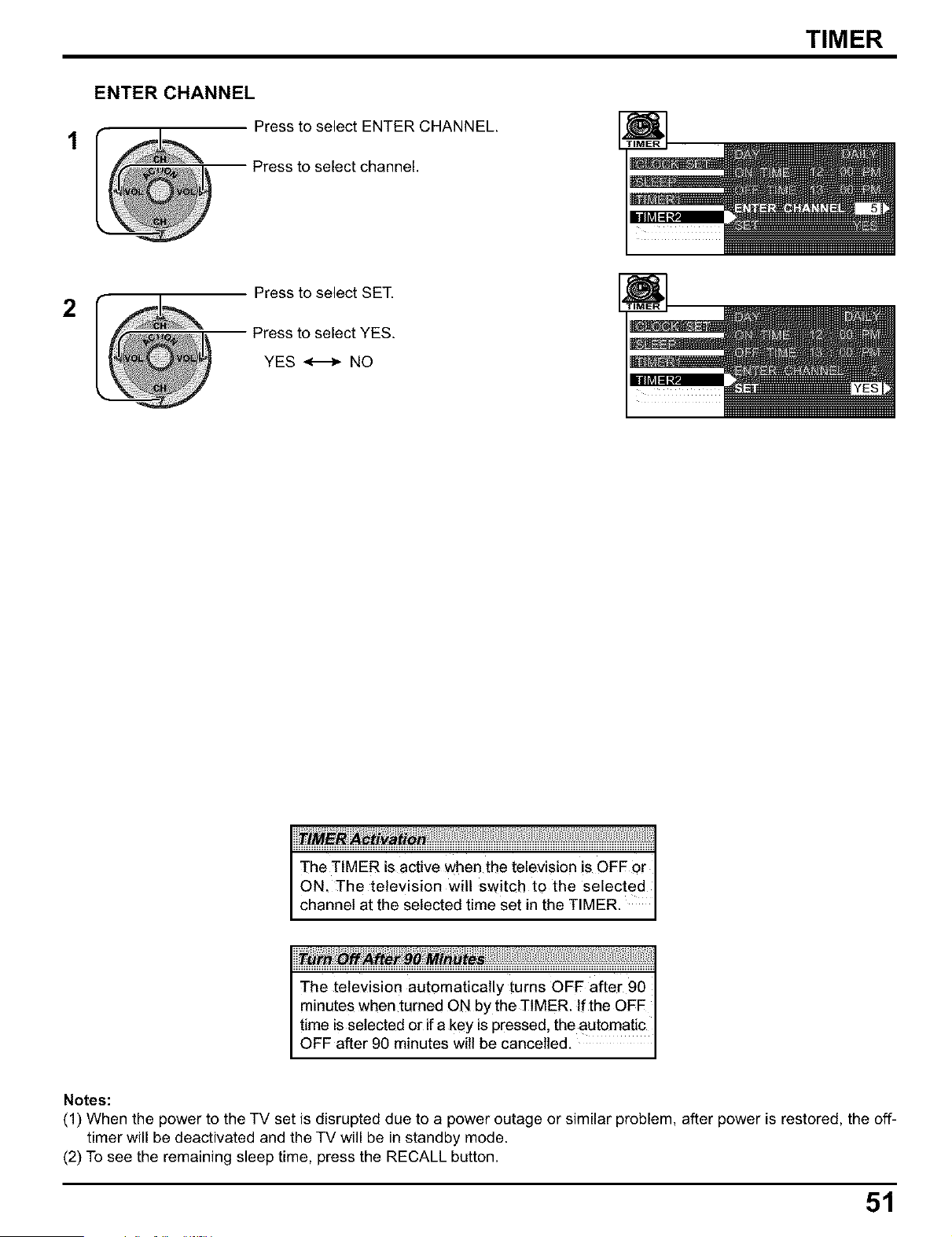
TIMER
ENTER CHANNEL
Press to select ENTER CHANNEL.
Press to select channel.
2
Press to select SET.
Press to select YES.
YES _ NO
The television automatically turns OFF after 90
minutes when turned ON by the TIMER. If the OFF
time is selected or if a key is pressed, the automatic
OFF after 90 minutes will be cancelled.
Notes:
(1) When the power to the TV set is disrupted due to a power outage or similar problem, after power is restored, the off-
timer will be deactivated and the TV will be in standby mode.
(2) To see the remaining sleep time, press the RECALL button.
51
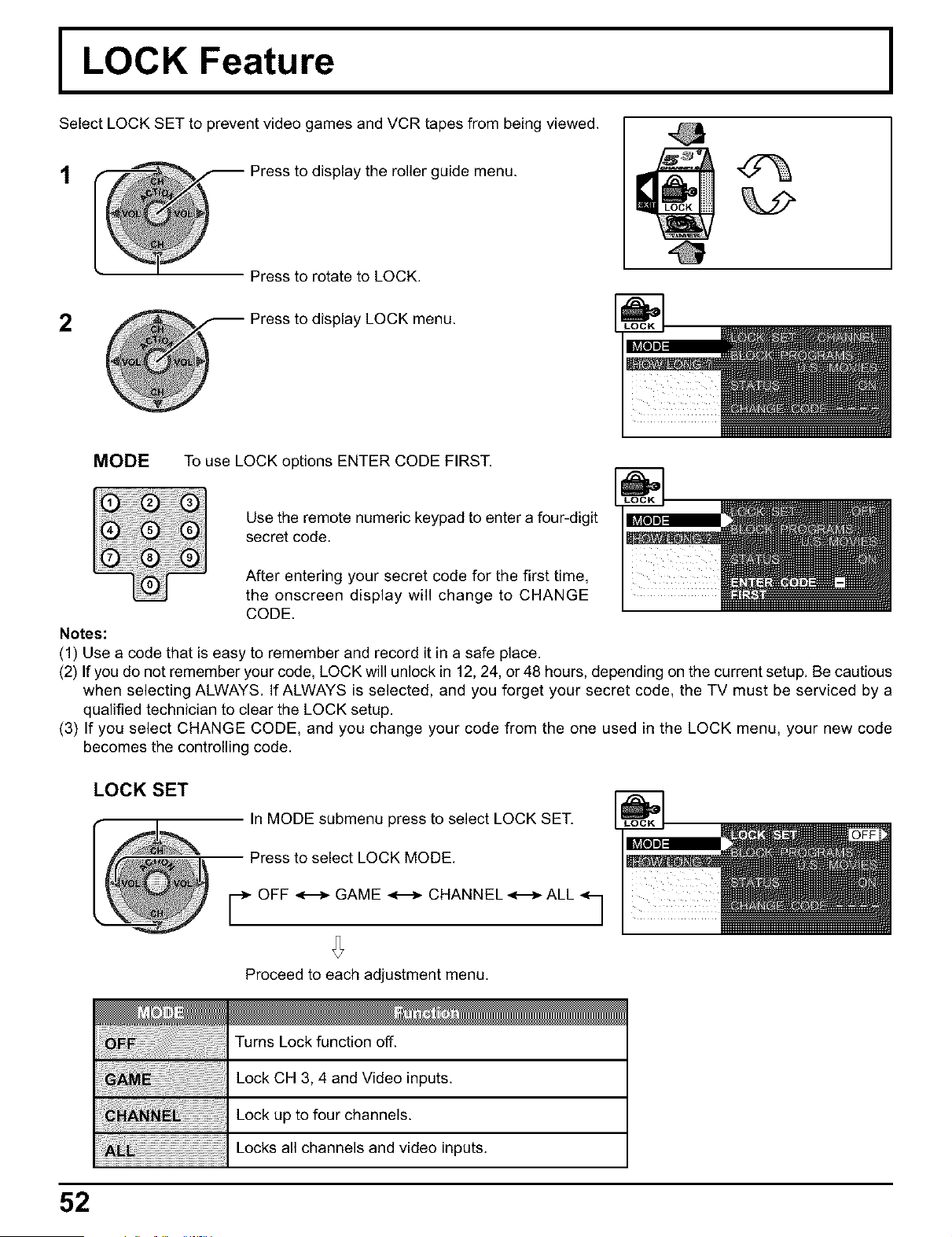
I LOCK Feature
Select LOCK SET to prevent video games and VCR tapes from being viewed.
t
Press to display the roller guide menu.
Press to rotate to LOCK.
2
Press to display LOCK menu.
MODE To use LOCK options ENTER CODE FIRST.
Use the remote numeric keypad to enter a four-digit
secret code.
After entering your secret code for the first time,
the onscreen display will change to CHANGE
CODE.
Notes:
(1) Use a code that is easy to remember and record it in a safe place.
(2) If you do not remember your code, LOCK will unlock in 12, 24, or 48 hours, depending on the current setup. Be cautious
when selecting ALWAYS. If ALWAYS is selected, and you forget your secret code, the TV must be serviced by a
qualified technician to clear the LOCK setup.
(3) If you select CHANGE CODE, and you change your code from the one used in the LOCK menu, your new code
becomes the controlling code.
LOCK SET
In MODE submenu press to select LOCK SET.
Press to select LOCK MODE.
r OFF _ GAME _ CHANNEL-_--_- ALL q
Proceed to each adjustment menu.
iiii i ii!i !iii ii ii ii ii ii ii ii ii ii ii ii ii ii ii ii ii ii ii ii ii ii ii ii ii ii ii ii ii ii ii ii ii ii ii ii ii ii ii ii ii ii ii ii ii ii ii ii ii ii ii !;!
Turns Lock function off.
Lock CH 3, 4 and Video inputs.
Lock up to four channels.
Locks all channels and video inputs.
52
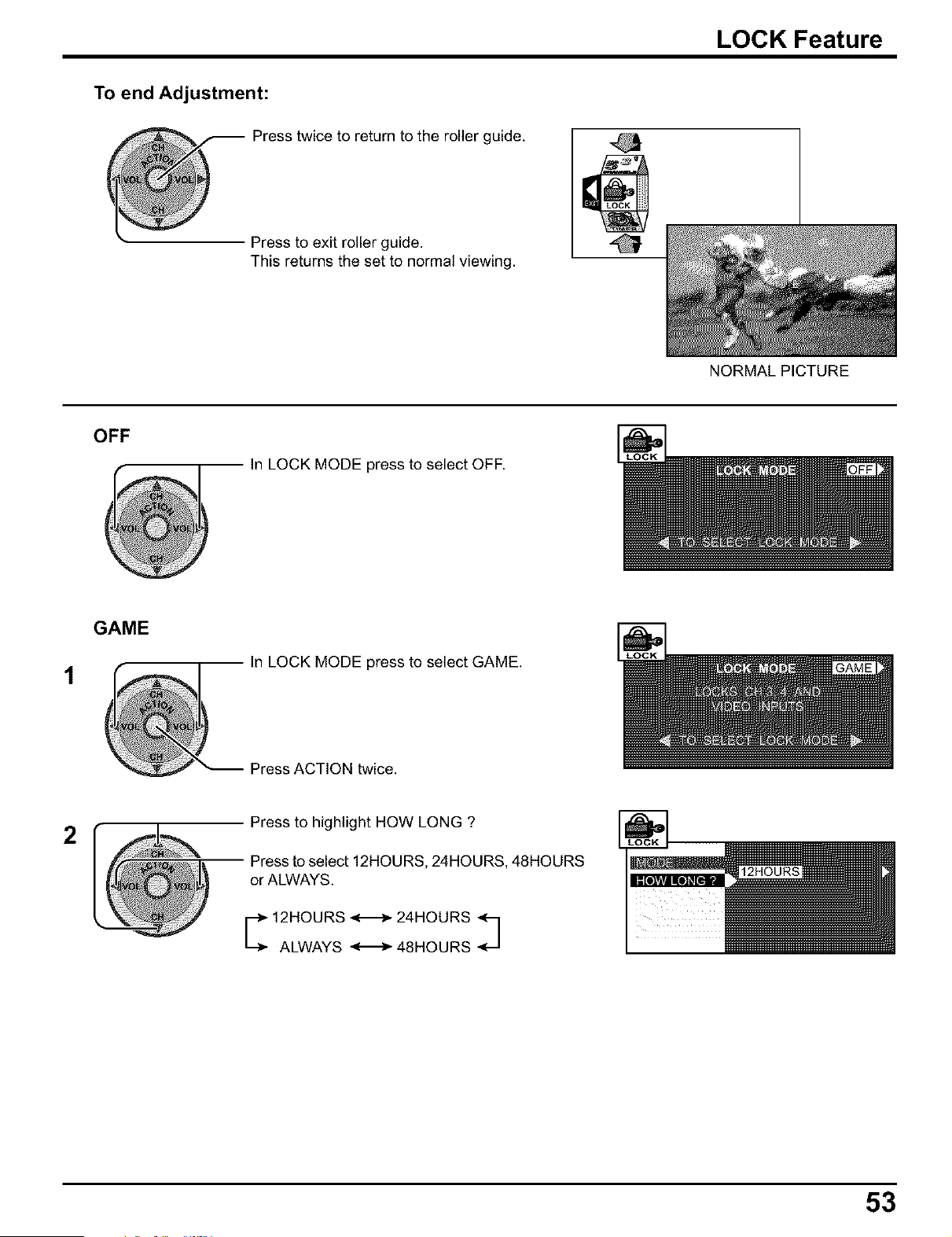
LOCK Feature
To end Adjustment:
Press twice to return to the roller guide.
Press to exit roller guide.
This returns the set to normal viewing.
OFF
In LOCK MODE press to select OFF.
GAME
In LOCK MODE press to select GAME.
Press ACTION twice.
2
Press to highlight HOW LONG ?
Press to select 12HOURS, 24HOURS, 48HOURS
or ALWAYS.
_ 12HOURS ._- 24HOURS _
ALWAYS _ 48HOURS
NORMAL PICTURE
53
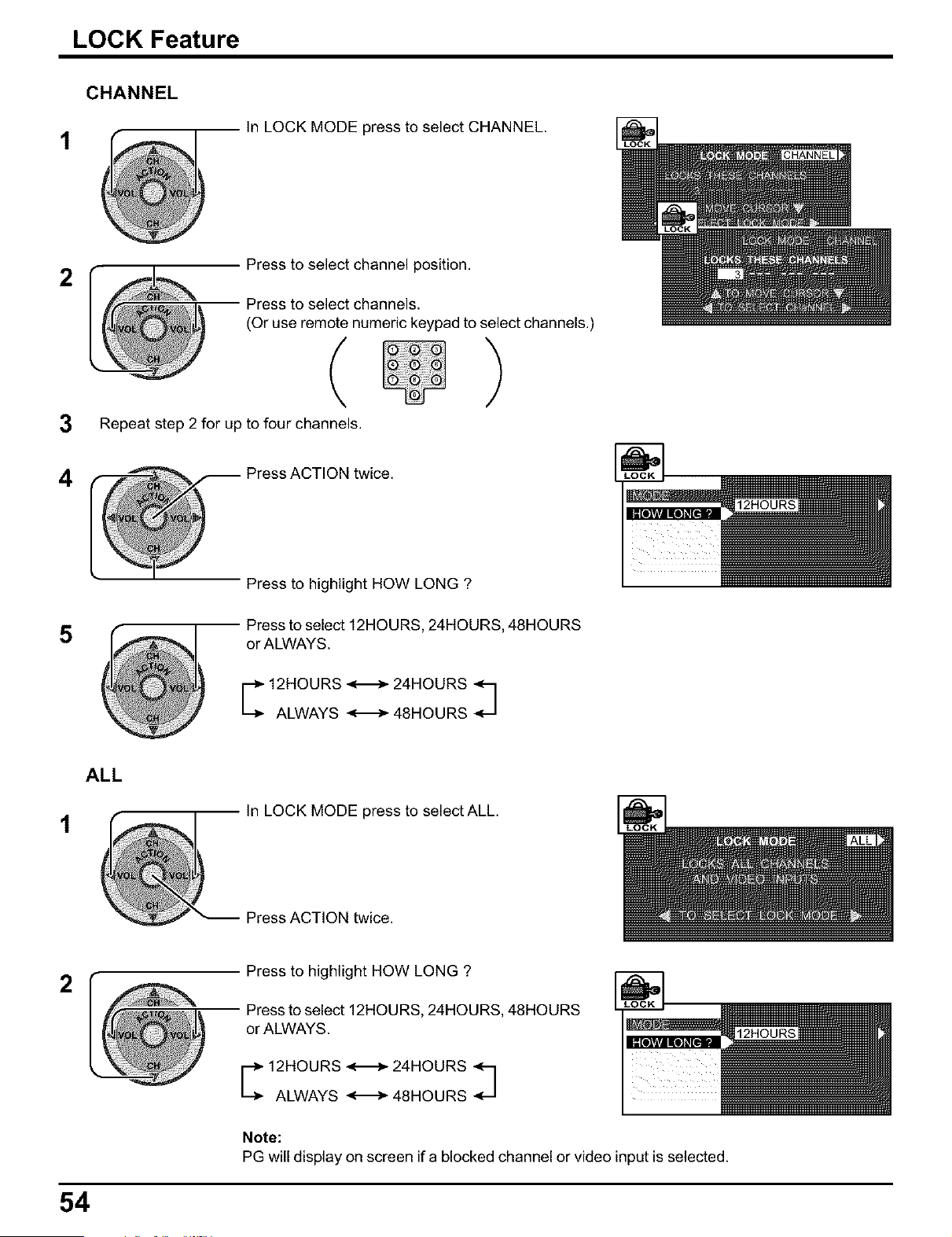
LOCK Feature
CHANNEL
1
In LOCK MODE press to select CHANNEL.
2
3
Press to select channel position.
Press to select channels.
(Or use remote numeric keypad to select channels.)
( )
Repeat step 2 for up to four channels.
4
Press ACTION twice.
Press to highlight HOW LONG ?
Press to select 12HOURS, 24HOURS, 48HOURS
or ALWAYS.
_ 12AHLOUAyRS_ 24_O;_ _
t
ALL
In LOCK MODE press to select ALL.
Press ACTION twice.
2
Press to highlight HOW LONG ?
Press to select 12HOURS, 24HOURS, 48HOURS
or ALWAYS.
_ 12AHLwOUAyRS____ 24_O_ _
Note:
PG will display on screen if a blocked channel or video input is selected.
54
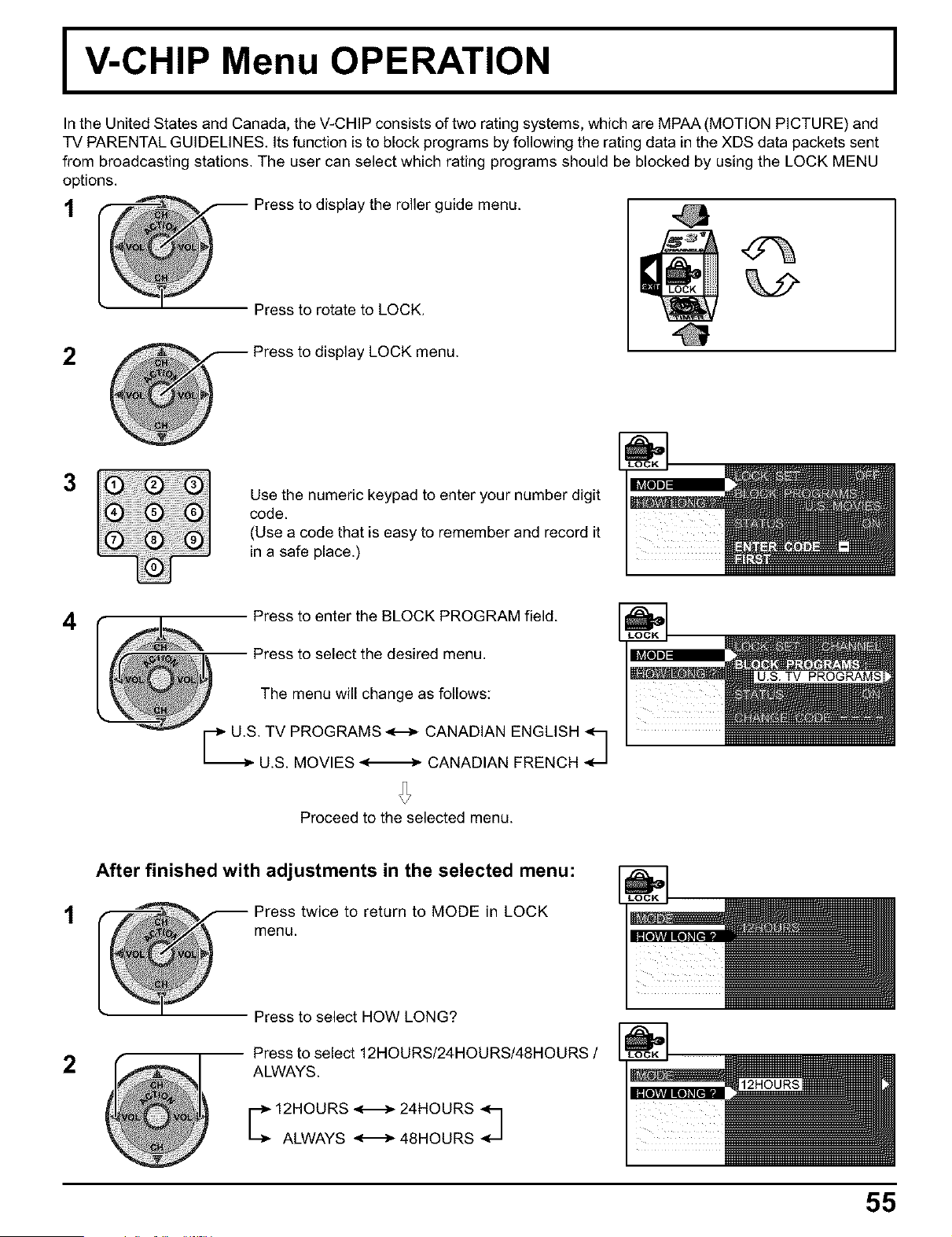
IV-CHIP Menu OPERATION
In the United States and Canada, the V-CHIP consists of two rating systems, which are MPAA (MOTION PICTURE) and
TV PARENTAL GUIDELINES. Its function is to block programs by following the rating data in the XDS data packets sent
from broadcasting stations. The user can select which rating programs should be blocked by using the LOCK MENU
options.
Press to display the roller guide menu.
Press to rotate to LOCK.
2
Press to display LOCK menu.
3
Use the numeric keypad to enter your number digit
code.
(Use a code that is easy to remember and record it
in a safe place.)
4
Press to enter the BLOCK PROGRAM field.
Press to select the desired menu.
The menu will change as follows:
. TV PROGRAMS <---_ CANADIAN ENGLISH q
U.S. MOVIES _ CANADIAN FRENCH _-_
Proceed to the selected menu.
After finished with adjustments in the selected menu:
1 Press twice to return to MODE in LOCK
menu.
2
Press to select HOW LONG?
Press to select 12HOURS/24HOURS/48HOURS /
ALWAYS.
_ 12HOURS -<_- 24HOURS _
ALWAYS _ 48HOURS
55
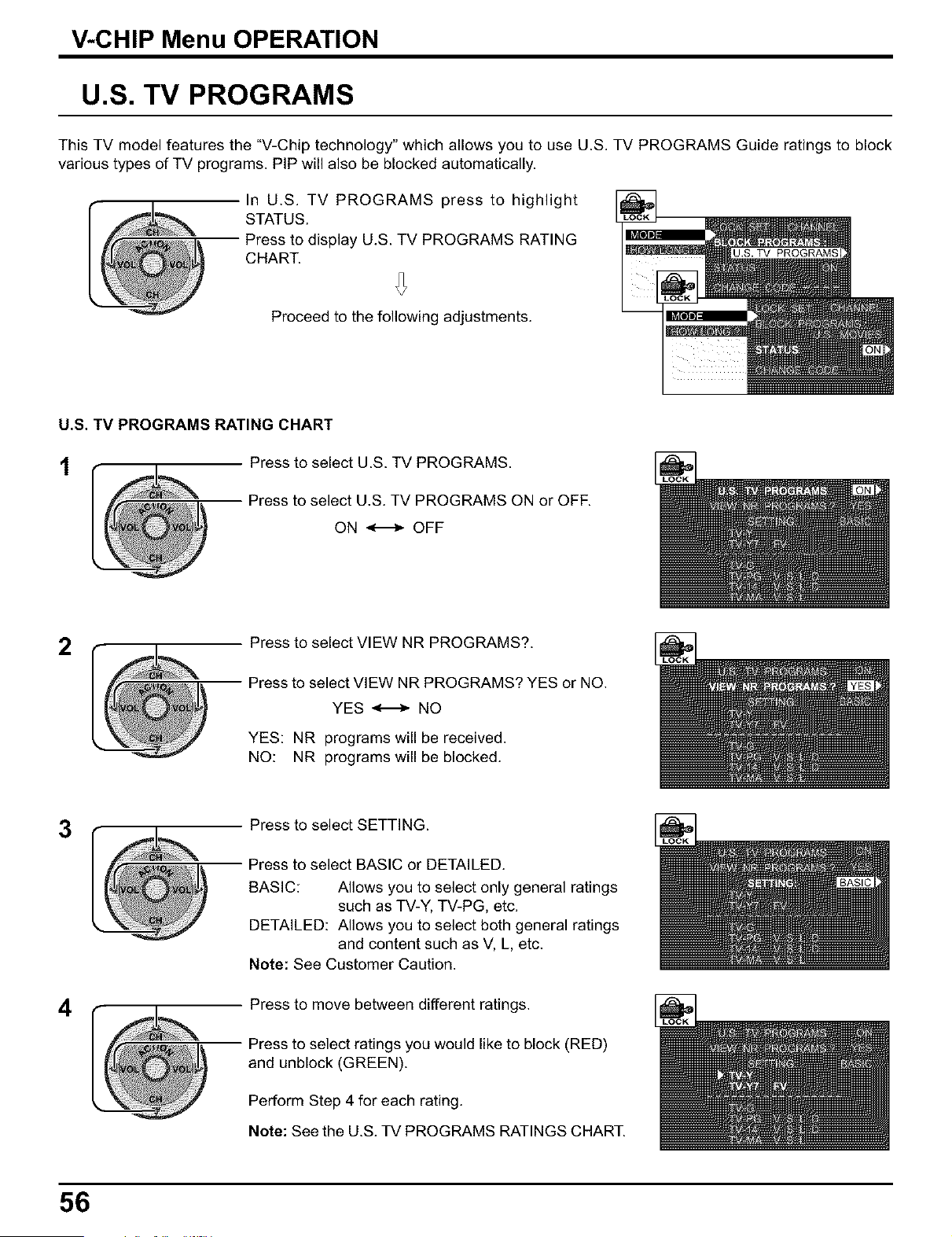
V-CHIP Menu OPERATION
U.S. TV PROGRAMS
This TV model features the "V-Chip technology" which allows you to use U.S. TV PROGRAMS Guide ratings to block
various types of TV programs. PIP will also be blocked automatically.
In U.S. TV PROGRAMS press to highlight
STATUS.
Presstodisplay U.S. TV PROGRAMS RATING
CHART
Proceed to the following adjustments.
U.S. TV PROGRAMS RATING CHART
1 Press to select U.S. TV PROGRAMS.
Press to select U.S. TV PROGRAMS ON or OFF.
ON _ OFF
2
Press to select VIEW NR PROGRAMS?.
Press to select VIEW NR PROGRAMS? YES or NO.
YES _ NO
YES: NR programs will be received.
NO: NR programs will be blocked.
3
4
Press to select SETTING.
Press to select BASIC or DETAILED.
BASIC: Allows you to select only general ratings
such as TV-Y, TV-PG, etc.
DETAILED: Allows you to select both general ratings
and content such as V, L, etc.
Note: See Customer Caution.
Press to move between different ratings.
Press to select ratings you would like to block (RED)
and unblock (GREEN).
Perform Step 4 for each rating.
Note: See the U.S. TV PROGRAMS RATINGS CHART.
56
V-CHIP Menu OPERATION
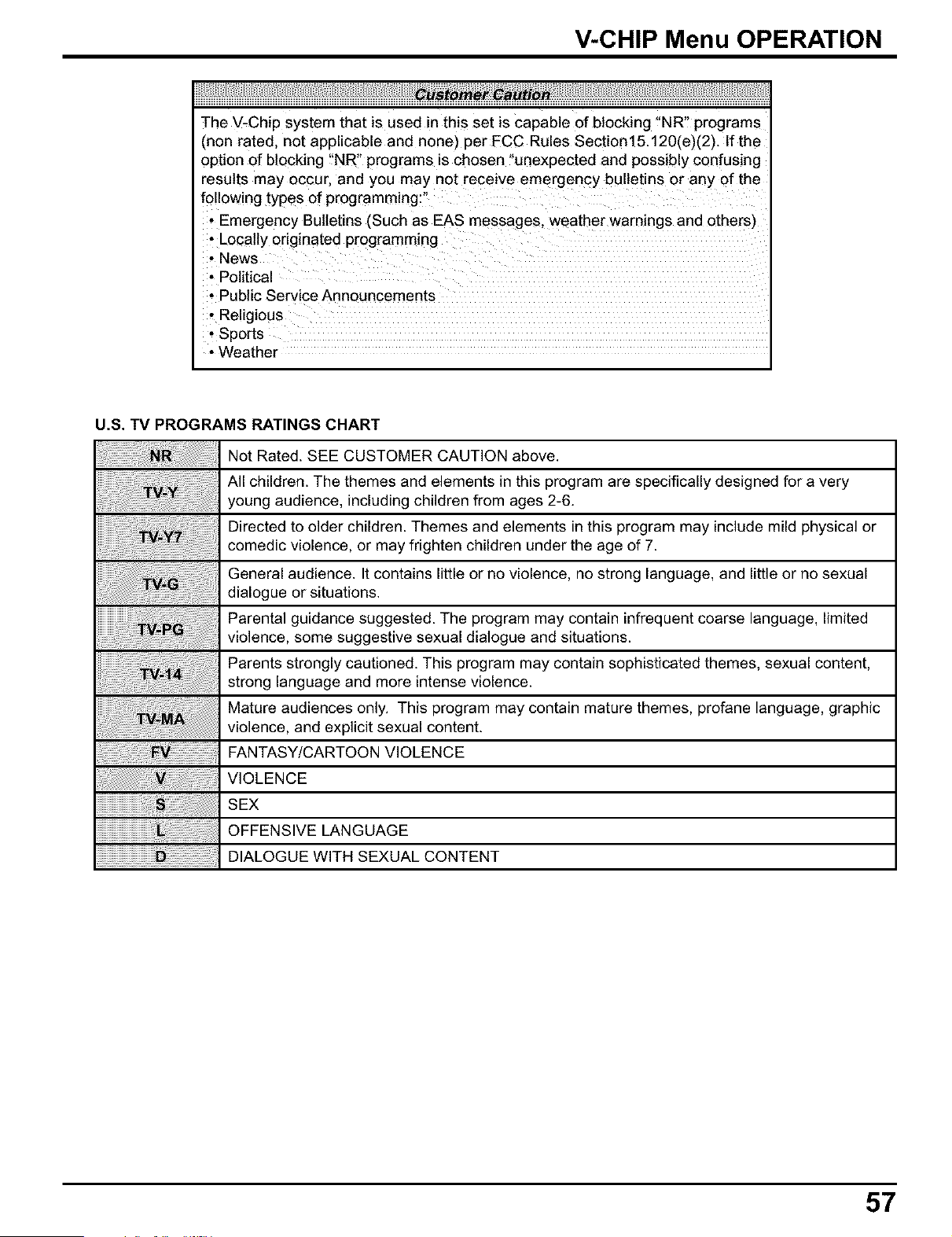
The V-Chip system that is used in this set is capable of blocking "NR" programs
(non rate_ not applicable and none) per FCC Rules Section15.120(e;,(2). If the
option of blocking "NR" programs is chosen "unexpected and possibly confusing
results may occur, and you may not receive emergency bulletins or any of the
'ollowing types of programming:
• Emergency Bulletins (Such as EAS messages, weather warnings and others)
• Locally originated programming
• News
* Political
• Public Service Announcements
• Religious
• Sports
• Weather
U.S. TV PROGRAMS RATINGS CHART
Not Rated. SEE CUSTOMER CAUTION above.
All children. The themes and elements in this program are specifically designed for a very
young audience, including children from ages 2-6.
Directed to older children. Themes and elements in this program may include mild physical or
cemedic violence, or may frighten children under the age of 7.
General audience. It contains little or no violence, no strong language, and little or no sexual
dialogue or situations.
Parental guidance suggested. The program may contain infrequent coarse language, limited
violence, some suggestive sexual dialogue and situations.
Parents strongly cautioned. This program may contain sophisticated themes, sexual content,
strong language and more intense violence.
Mature audiences only. This program may contain mature themes, profane language, graphic
violence, and explicit sexual content.
FANTASY/CARTOON VIOLENCE
VIOLENCE
SEX
OFFENSIVE LANGUAGE
DIALOGUE WITH SEXUAL CONTENT
57
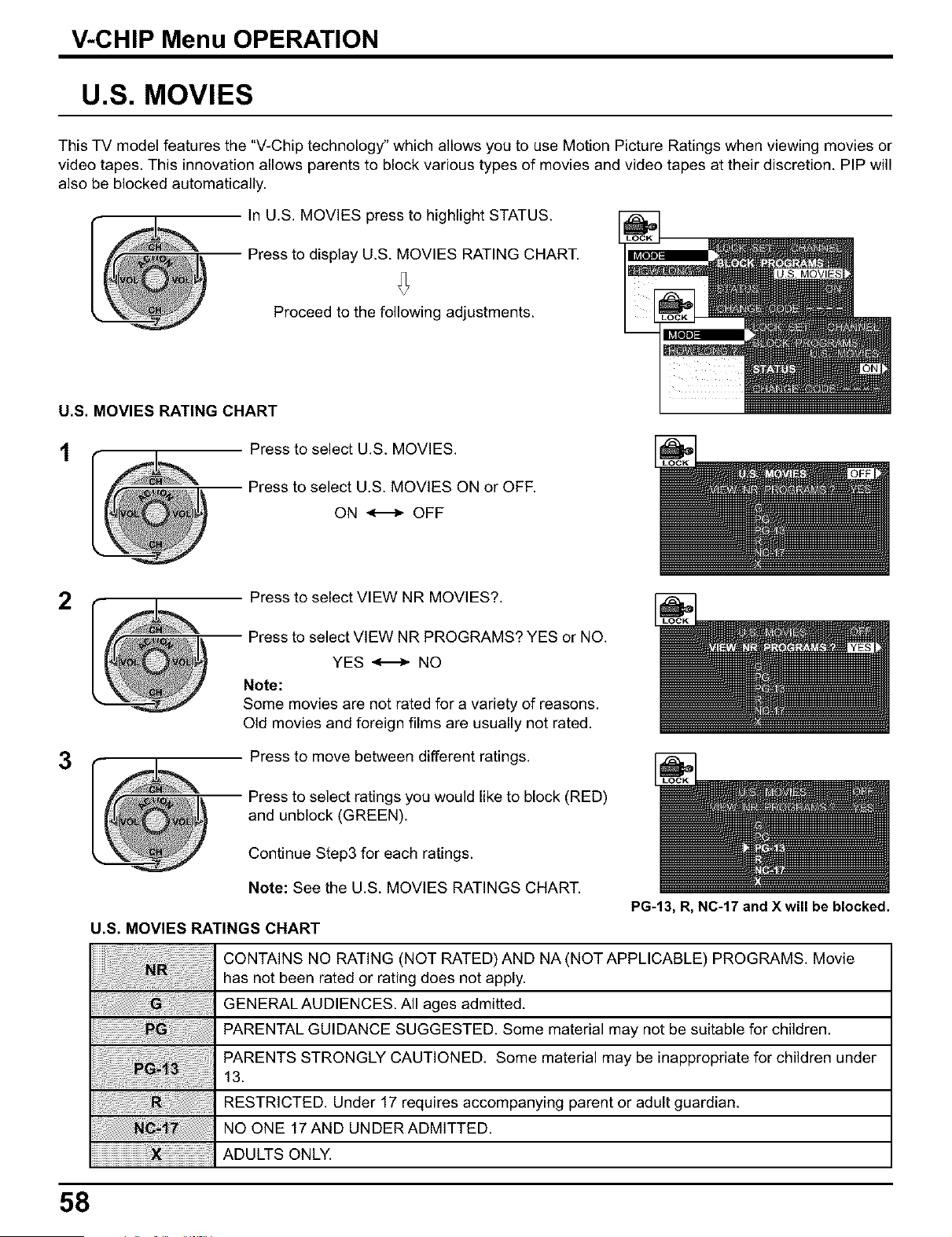
V-CHIP Menu OPERATION
U.S. MOVIES
This TV model features the "V-Chip technology" which allows you to use Motion Picture Ratings when viewing movies or
video tapes. This innovation allows parents to block various types of movies and video tapes at their discretion. PIP will
also be blocked automatically.
In U.S. MOVIES press to highlight STATUS.
Press to display U.S. MOVIES RATING CHART.
Proceed to the following adjustments.
U.S. MOVIES RATING CHART
1 Press to select U.S. MOVIES.
Press to select U.S. MOVIES ON or OFF.
ON _ OFF
2
3
Press to select VIEW NR MOVIES?.
Press to select VIEW NR PROGRAMS? YES or NO.
YES _ NO
Note:
Some movies are not rated for a variety of reasons.
Old movies and foreign films are usually not rated.
Press to move between different ratings.
Press to select ratings you would like to block (RED)
and unblock (GREEN).
Continue Step3 for each ratings.
Note: See the U.S. MOVIES RATINGS CHART.
U.S. MOVIES RATINGS CHART
PG-13, R, NC-17 and Xwill be blocked.
CONTAINS NO RATING (NOT RATED)AND NA (NOT APPLICABLE) PROGRAMS. Movie
has not been rated or rating does not apply.
GENERALAUDIENCES. All ages admitted.
PARENTAL GUIDANCE SUGGESTED. Some material may not be suitable for children.
PARENTS STRONGLY CAUTIONED. Some material may be inappropriate for children under
13.
RESTRICTED. Under 17 requires accompanying parent or adult guardian.
NO ONE 17 AND UN DER ADMITTED.
ADULTS ONLY.
58
V-CHIP Menu OPERATION
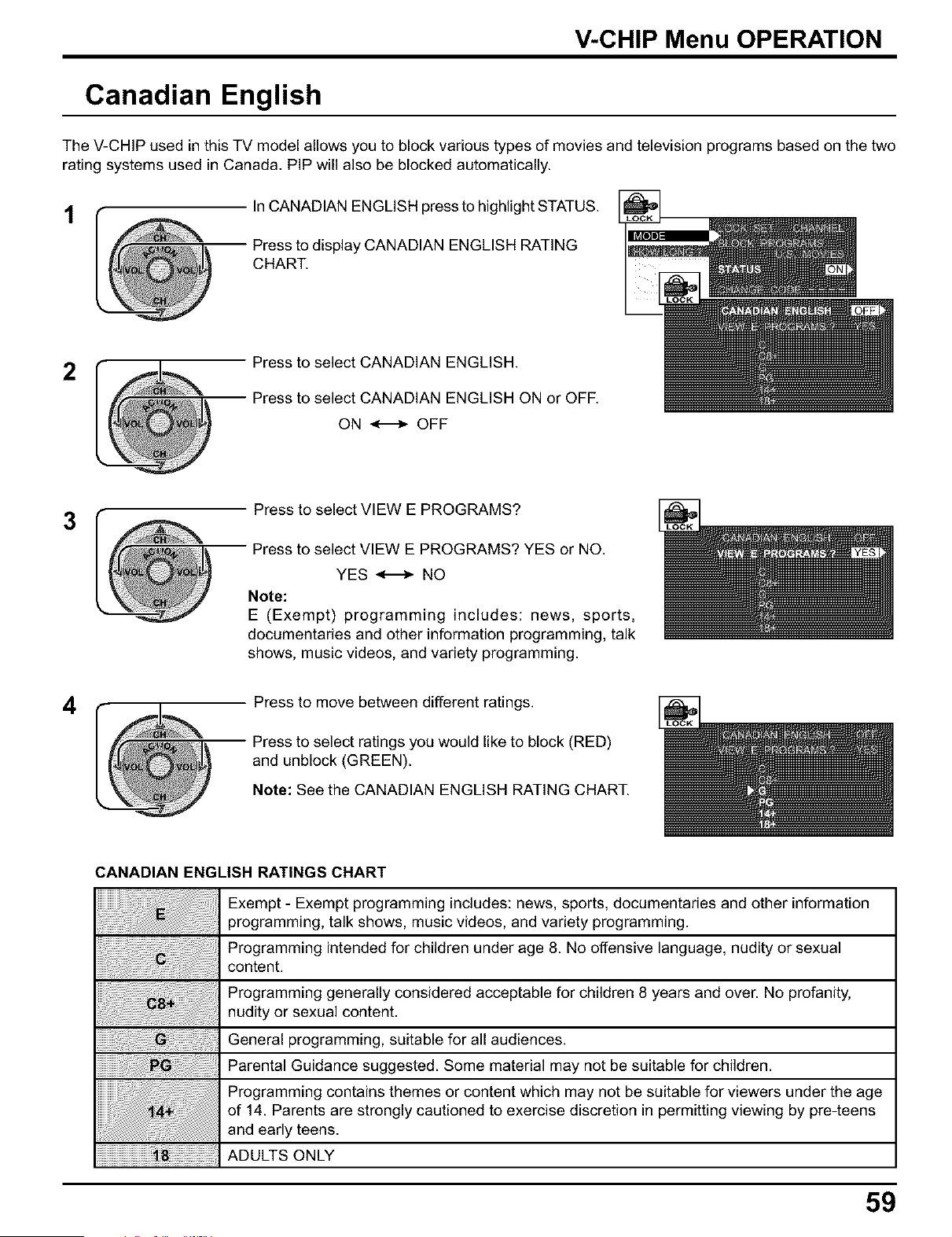
Canadian English
The V-CHIP used in this TV model allows you to block various types of movies and television programs based on the two
rating systems used in Canada. PIP will also be blocked automatically.
1 In CANADIAN ENGLISH press to highlight STATUS.
display CANADIAN ENGLISH RATING
CHART.
2
Press to select CANADIAN ENGLISH.
Press to select CANADIAN ENGLISH ON or OFF.
ON _ OFF
3
Press to select VIEW E PROGRAMS?
Press to select VIEW E PROGRAMS? YES or NO.
YES _ NO
Note:
E (Exempt) programming includes: news, sports,
documentaries and other information programming, talk
shows, music videos, and variety programming.
4
Press to move between different ratings.
Press to select ratings you would like to block (RED)
and unblock (GREEN).
Note: See the CANADIAN ENGLISH RATING CHART.
CANADIAN ENGLISH RATINGS CHART
Exempt - Exempt programming includes: news, sports, documentaries and other information
programming, talk shows, music videos, and variety programming.
Programming intended for children under age 8. No offensive language, nudity or sexual
content.
Programming generally considered acceptable for children 8 years and over. No profanity,
nudity or sexual content.
General programming, suitable for all audiences.
Parental Guidance suggested. Some material may not be suitable for children.
Programming contains themes or content which may not be suitable for viewers under the age
of 14. Parents are strongly cautioned to exercise discretion in permitting viewing by pre-teens
and early teens.
ADULTS ONLY
59
V-CHIP Menu OPERATION
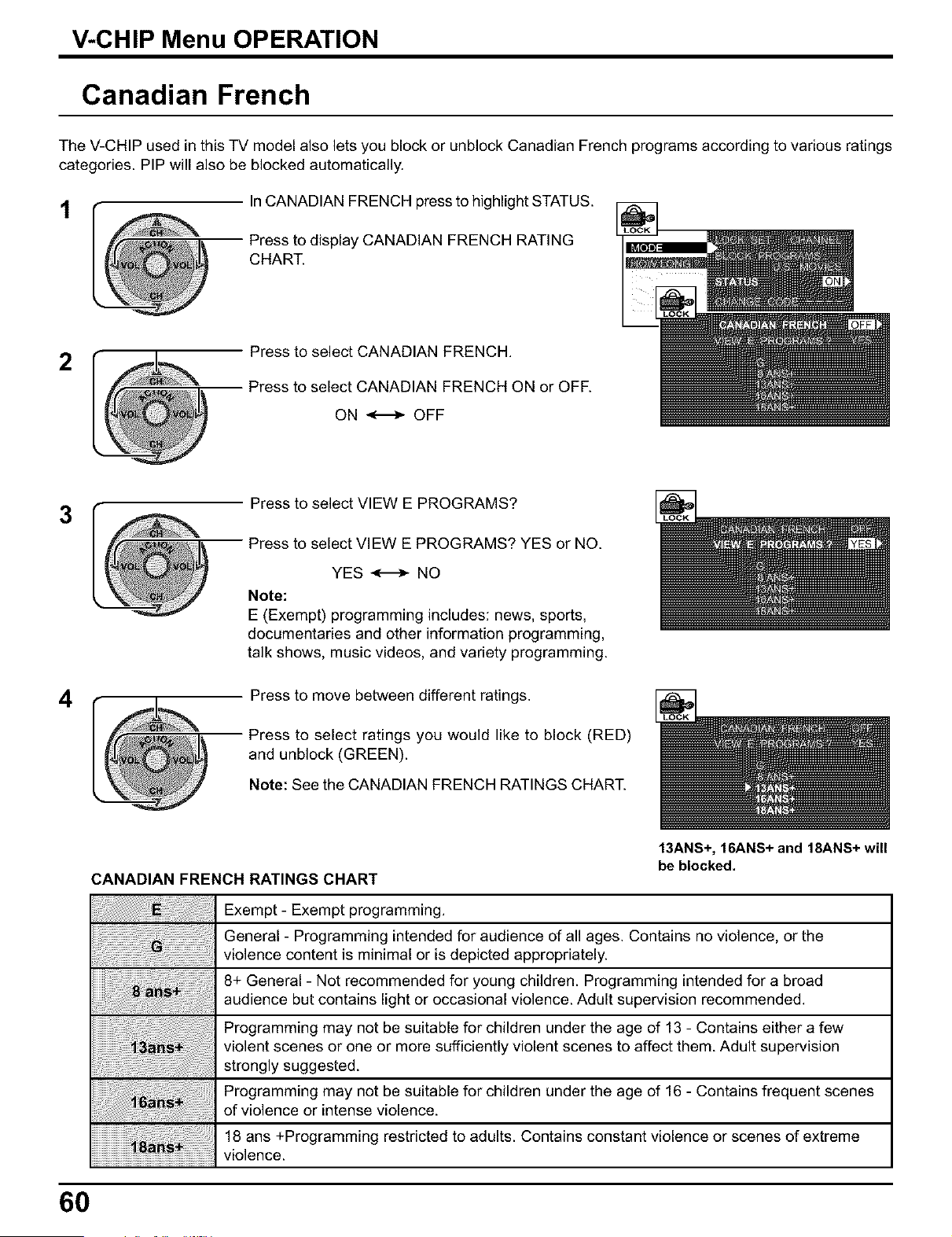
Canadian French
The V-CHIP used in this TV model also lets you block or unblock Canadian French programs according to various ratings
categories. PIP will also be blocked automatically.
t
In CANADIAN FRENCH press to highlight STATUS.
Press to display CANADIAN FRENCH RATING
CHART.
2
Press to select CANADIAN FRENCH.
Press to select CANADIAN FRENCH ON or OFF.
ON _ OFF
3
4
Press to select VIEW E PROGRAMS?
Press to select VIEW E PROGRAMS? YES or NO.
YES _ NO
Note:
E (Exempt) programming includes: news, sports,
documentaries and other information programming,
talk shows, music videos, and variety programming.
Press to move between different ratings.
Press to select ratings you would like to block (RED)
and unblock (GREEN).
Note: See the CANADIAN FRENCH RATINGS CHART.
13ANS+, 16ANS+ and 18ANS+ will
be blocked.
CANADIAN FRENCH RATINGS CHART
Exempt - Exempt programming.
General - Programming intended for audience of all ages. Contains no violence, or the
violence content is minimal or is depicted appropriately.
8+ General - Not recommended for young children. Programming intended for a broad
audience but contains light or occasional violence. Adult supervision recommended.
Programming may not be suitable for children under the age of 13 - Contains either a few
violent scenes or one or more sufficiently violent scenes to affect them. Adult supervision
strongly suggested.
Programming may not be suitable for children under the age of 16 - Contains frequent scenes
of violence or intense violence.
18 ans +Programming restricted to adults. Contains constant violence or scenes of extreme
violence.
60
V-CHIP Menu OPERATION
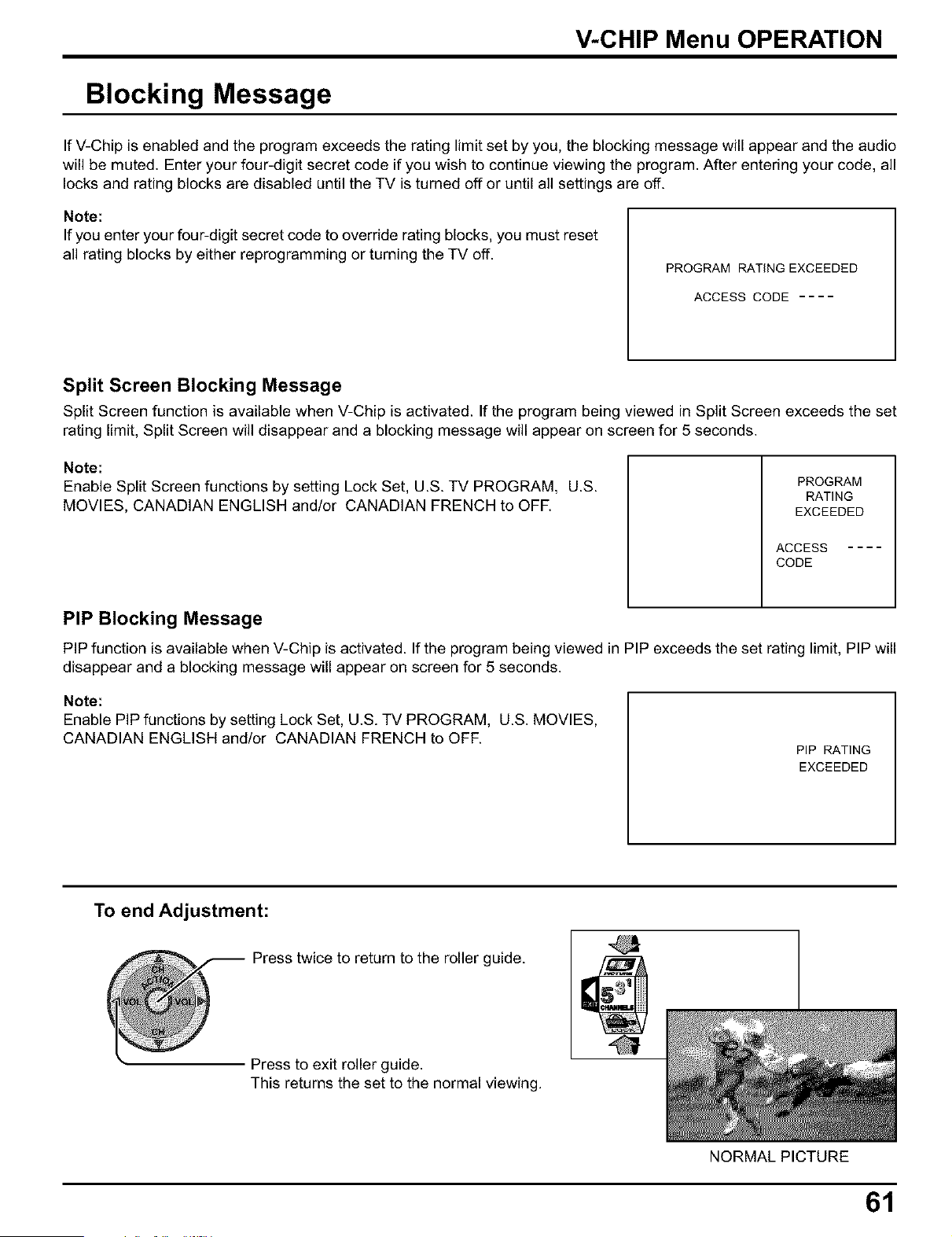
Blocking Message
If V-Chip is enabled and the program exceeds the rating limit set by you, the blocking message will appear and the audio
will be muted. Enter your four-digit secret code if you wish to continue viewing the program. After entering your code, all
locks and rating blocks are disabled until the TV is turned off or until all settings are off.
Note:
If you enter your four-digit secret code to override rating blocks, you must reset
all rating blocks by either reprogramming or turning the TV off.
PROGRAM RATING EXCEEDED
ACCESS CODE ....
Split Screen Blocking Message
Split Screen function is available when V-Chip is activated. If the program being viewed in Split Screen exceeds the set
rating limit, Split Screen will disappear and a blocking message will appear on screen for 5 seconds.
Note:
Enable Split Screen functions by setting Lock Set, U.S. TV PROGRAM, U.S.
MOVIES, CANADIAN ENGLISH and!or CANADIAN FRENCH to OFR
PROGRAM
RATING
EXCEEDED
ACCESS ....
CODE
PIP Blocking Message
PIP function is available when V-Chip is activated. If the program being viewed in PIP exceeds the set rating limit, PIP will
disappear and a blocking message will appear on screen for 5 seconds.
Note:
Enable PIP functions by setting Lock Set, U.S. TV PROGRAM, U.S. MOVIES,
CANADIAN ENGLISH and/or CANADIAN FRENCH to OFF.
PIP RATING
EXCEEDED
To end Adjustment:
Press twice to return to the roller guide.
Press to exit roller guide.
This returns the set to the normal viewing.
NORMAL PICTURE
61

I Operatingperipheralequipmentusingthe remotecontrolI
ProgrammingThe Illuminated Remote Control UsingAccess Codes
The Universal Remote Control can be programmed to operate many manufacturers' components, using the component
function buttons for VCR, DVD, AUX, RCVR, TV, DTV CABLE or DBS. Follow the procedures for programming your
Remote Control with or without a code for the component.
Determine the manufacturer of the component and look in the table for the code.
t Confirm that the external component is plugged in and operating.
2 Turn the component off.
3
Press POWER and ACTION together, for at least 5 seconds.
After 5 seconds, all the illuminated mode keys will begin to flash.
Release the POWER and ACTION keys.
Press the mode key.
The mode key will illuminate steadily, all others will go out.
Enter the 3-digit component code using the Remote Control numeric keypad.
6
Press the Remote Control (
the component will turn on.
Default Modes For Remote Control
to test the component. If the procedure is successful,
TV (Panasonic Only)
DTV (Panasonic Only)
CABLE (Preset)
DBS (Preset)
VCR (Preset)
DVD and CD (Preset)
Personal Video Recorders,
Tape and VCR2
Audio Receiver (Preset)
Panasonic TV Codes
Panasonic DTV Codes
Panasonic CABLE Codes
Panasonic DBS Codes
Panasonic VCR Codes
Panasonic DVD Codes
Panasonic Personal Video
Recorders Code
Panasonic RCVR Code
If the component does not operate with the Remote
Control, repeat the procedure using another code.
(Some brands have multiple codes).
!f an incorrect code is entered, or if the procedure takes
longer than 30 seconds,the programming will fail.
62
Operating peripheral equipment using the remote control
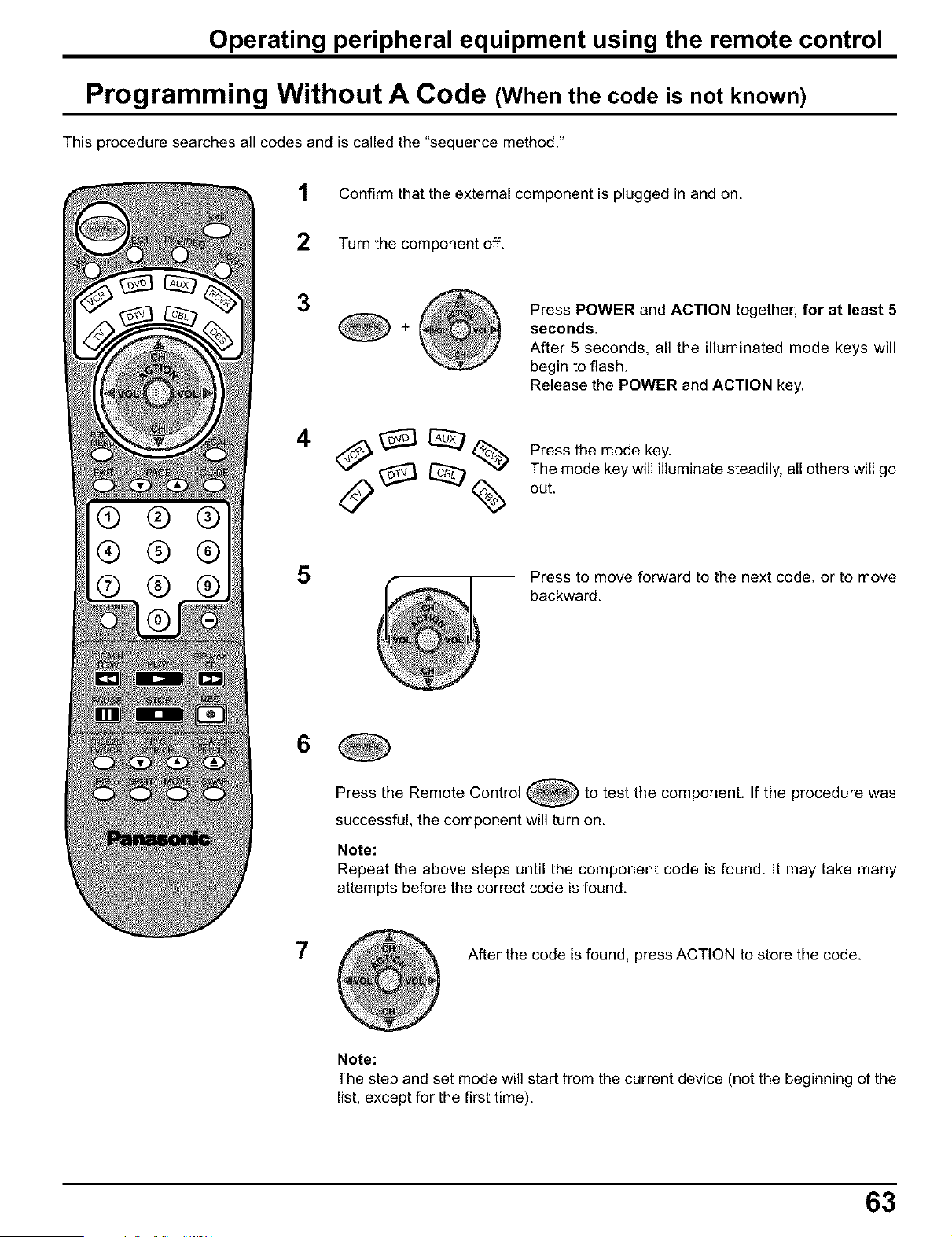
Programming Without A Code (When the code is not known)
This procedure searches all codes and is called the "sequence method."
®
®
®
1 Confirm that the external component is plugged in and on.
2 Turn the component off.
3
+
Press POWER and ACTION together, for at least 5
seconds.
After 5 seconds, all the illuminated mode keys will
begin to flash.
Release the POWER and ACTION key.
4 <_ _,_ Press the mode key.
0 _ _ _ ThLmode key willilluminatesteadily, all otherswillgo
Press to move forward to the next code, or to move
backward.
6
Press the Remote Control to test the component. If the procedure was
successful, the component will turn on.
Note:
Repeat the above steps until the component code is found. It may take many
attempts before the correct code is found.
After the code is found, press ACTION to store the code.
Note:
The step and set mode will start from the current device (not the beginning of the
list, except for the first time).
63
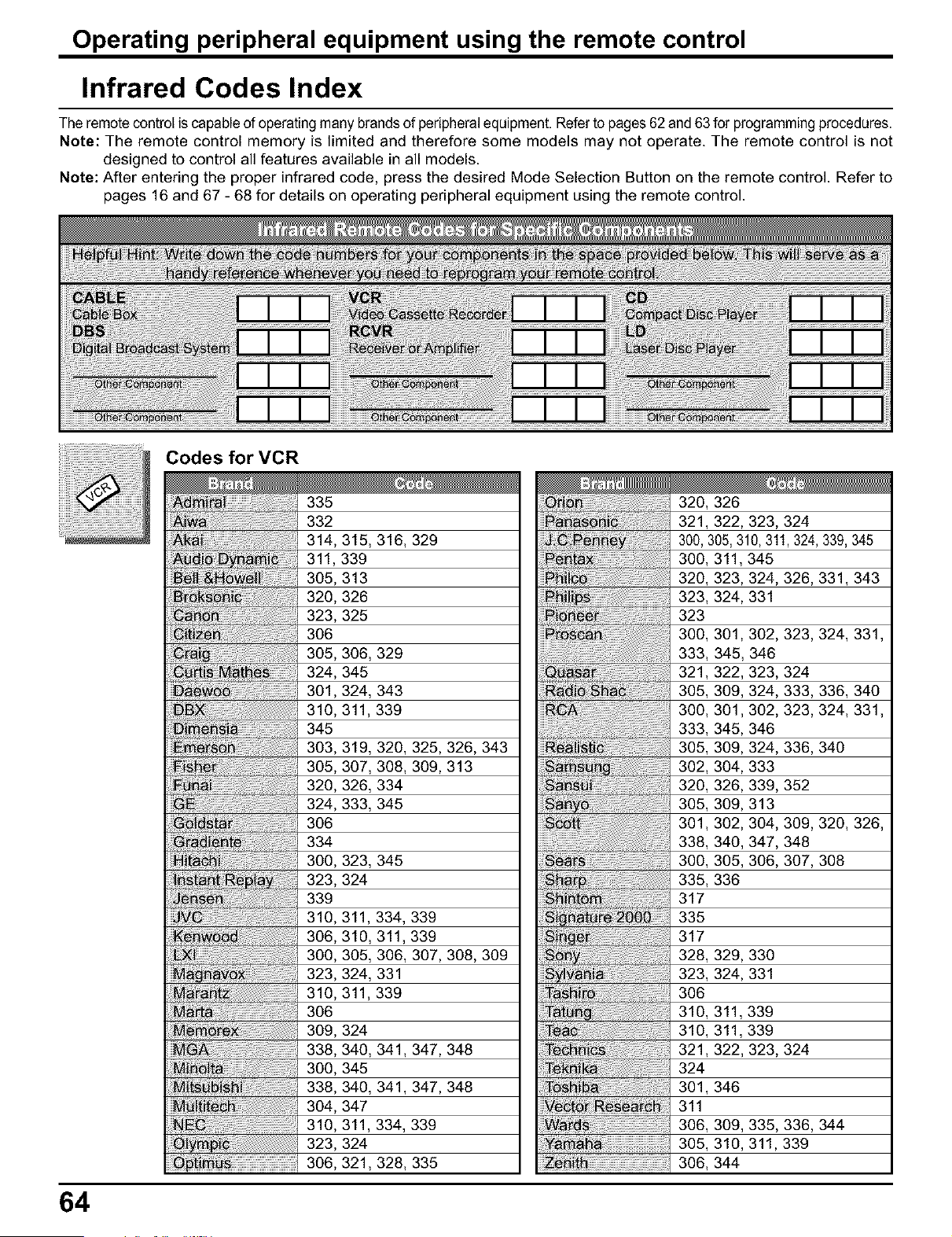
Operating peripheral equipment using the remote control
Infrared Codes Index
The remotecontrol is capable of operating many brands of peripheralequipment. Refer to pages 62 and 63 for programming procedures.
Note: The remote control memory is limited and therefore some models may not operate. The remote control is not
designed to control all features available in all models.
Note: After entering the proper infrared code, press the desired Mode Selection Button on the remote control. Refer to
pages 16 and 67 - 68 for details on operating peripheral equipment using the remote control.
Codes for VCR
64
335
332
314,315, 316, 329
311,339
305,313
320,326
323,325
306
305,306, 329
324,345
301,324, 343
310,311,339
345
303,319, 320, 325,326,343
305,307, 308, 309,313
320,326, 334
324,333, 345
306
334
300,323, 345
323,324
339
310,311,334, 339
306,319, 311,339
300,305, 306, 307,308,309
323,324, 331
310,311,339
306
309,324
338,340, 341,347,348
300,345
338,340, 341,347,348
304,347
310,311,334, 339
323,324
306,321,328, 335
320, 326
321,322,323,324
300, 305,310,311,324, 339,345
300, 311,345
320, 323,324,326,331,343
323, 324,331
323
300, 301,302,323,324, 331,
333, 345, 346
321,322,323,324
305, 309,324,333,336, 340
300, 301,302,323,324, 331,
333, 345,346
305, 309,324,336,340
302, 304,333
320, 326,339,352
305, 309,313
301,302,304,309,320, 326,
338, 340,347,348
300, 305,306,307,308
335, 336
317
335
317
328, 329,330
323, 324,331
306
319, 311,339
319, 311,339
321,322,323,324
324
301,346
311
306, 309,335,336,344
305, 319,311,339
306, 344
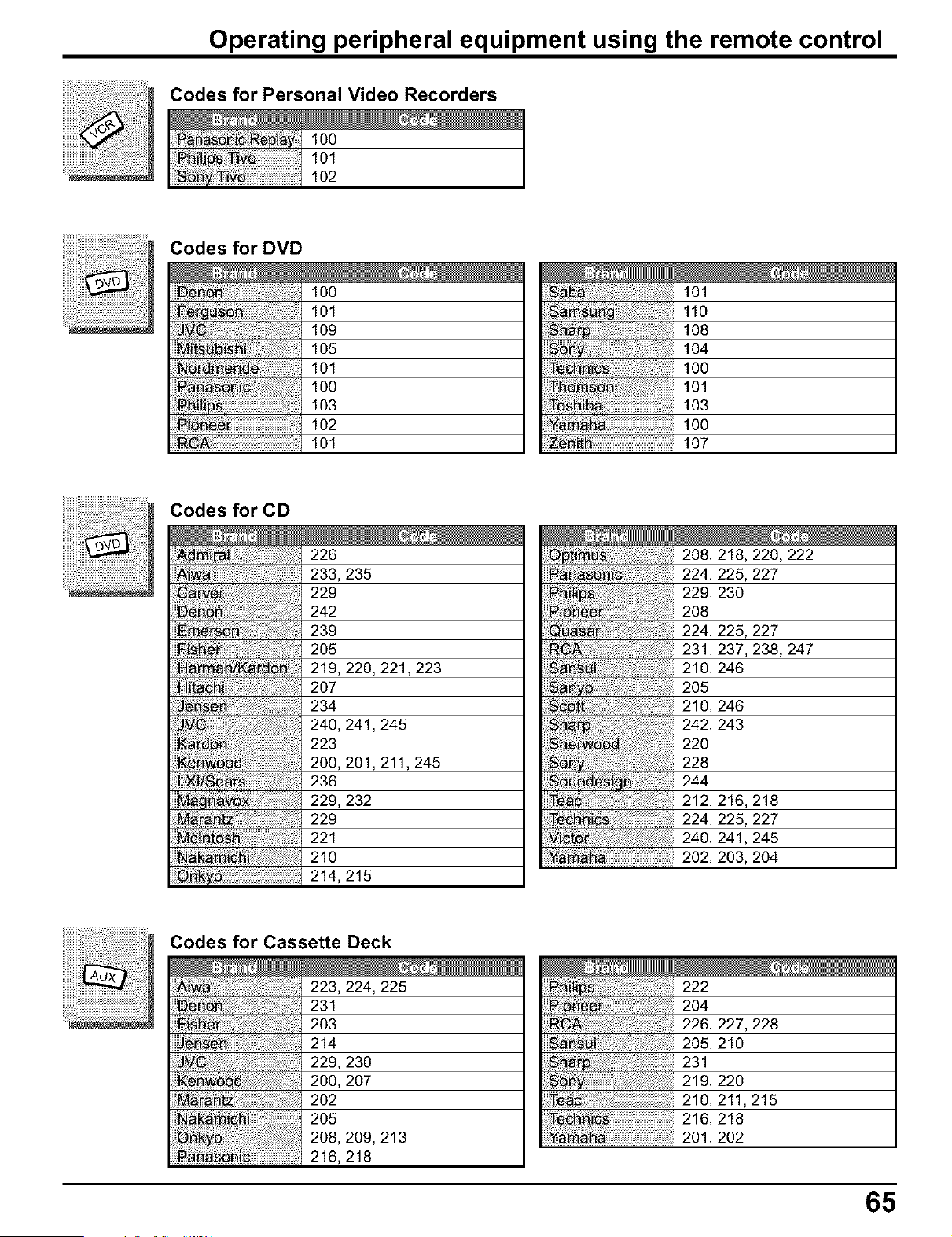
Operating peripheral equipment using the remote control
Codes for Personal Video Recorders
100
101
102
Codes for DVD
lOO
lol
lO9
lO5
lol
lOO
lO3
lO2
1o1
101
110
108
104
IO0
101
103
IO0
ii_i_ii_:_!_i!_i!_i!_i!_i!_i!_i!_i!_i!_i!_i!_i!_i!_i!_i!_i!_i!_i!_i!_i!_i!_i!_i!_i!_i!_i!_i!_i!_i!_i!_i!_i!_i!_i!_i!_i!_i!_i!_i!_i!_i!_i!_i!_i!_i!_i!107
208,218,220,222
224,225,227
229,230
208
224,225,227
231,237,238,247
210,246
205
210,246
242,243
220
228
244
212,216,218
224,225,227
240,241,245
202, 203, 204
Codes for CD
226
233,235
229
242
239
205
219,220,221,223
207
234
240,241,245
223
200,201,211,245
236
229,232
229
221
210
214,215
Codes for Cassette Deck
223,224, 225
231
203
214
229,230
200,207
202
205
208,209, 213
216, 218
222
2O4
226,227,228
205,210
231
219,220
210,211,215
216,218
201,202
65
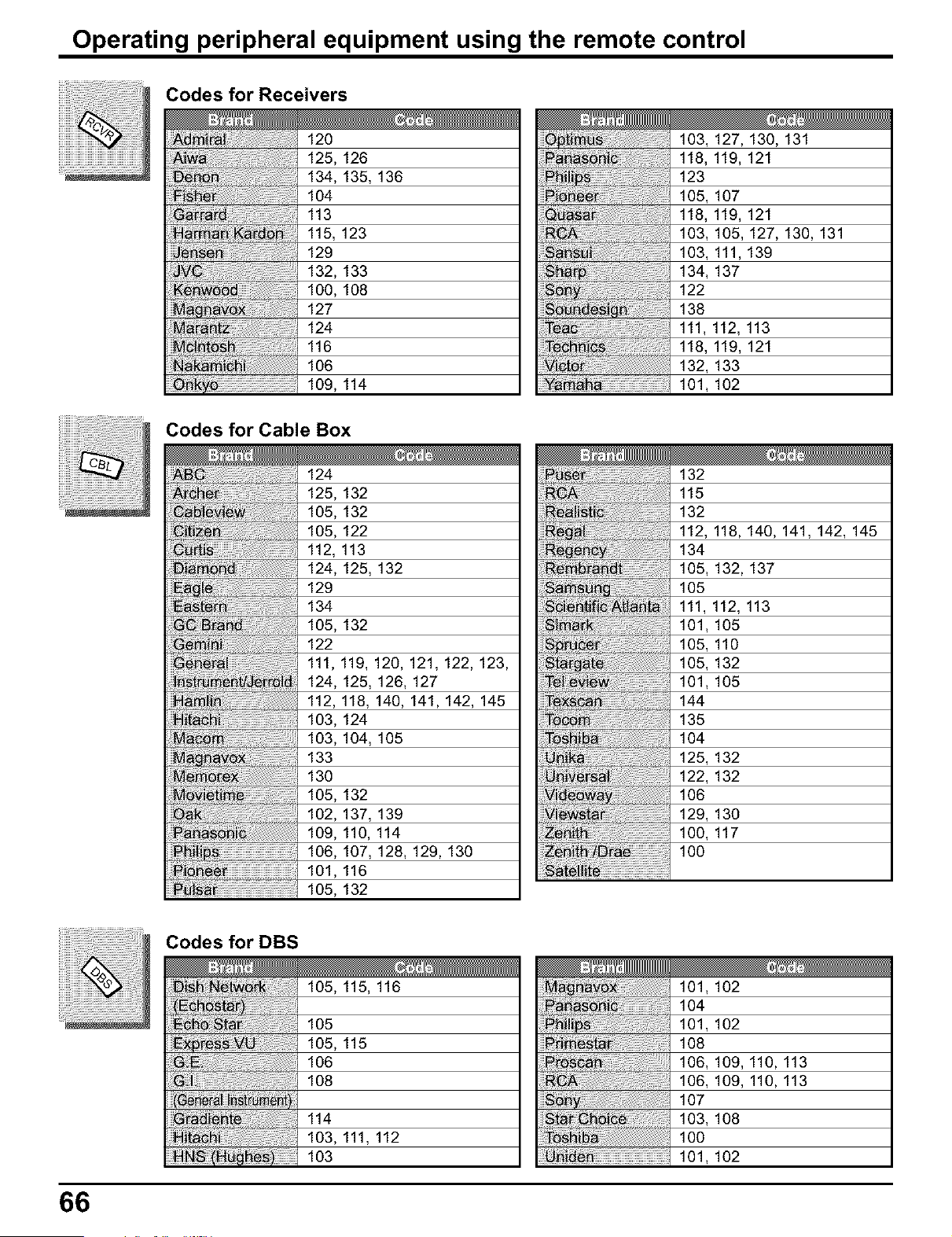
Operating peripheral equipment using the remote control
Codes for Receivers
120
125,126
134,135,136
104
113
115, 123
129
132,133
100,108
127
124
116
106
109,114
103,127,130,131
118,119,121
123
105,107
118,119,121
103,105,127,130,131
103,111,139
134,137
122
138
111,112,113
118,119,121
132,133
101,102
Codes for Cable Box
Codes for DBS
105, 115, 116
105
105, 115
106
108
114
103, 111, 112
103
124
125,132
105,132
105,122
112,113
124,125,132
129
134
105,132
122
111,119,120,121,122,123,
124,125,126,127
112,118,140,141,142,145
103,124
103,104,105
133
130
105,132
102,137,139
109,110,114
106,107,128,129,130
101,116
105,132
_i_!_i_i_;_i!ii!ii!ii!ii!ii!ii!ii!ii!ii!ii!ii!ii!ii!ii!ii!iiiiiiiiiiiiiiiiiiiiiiiiiiiiiiiiiiiiiii!i!_
132
115
132
112,118,140,141,142,145
134
105,132,137
105
111,112,113
101,105
105,110
105,132
101,105
144
135
104
125,132
122,132
106
129,130
100,117
IO0
101, 102
104
101, 102
108
106, 109, 110, 113
106, 109, 110, 113
107
103, 108
100
101, 102
66
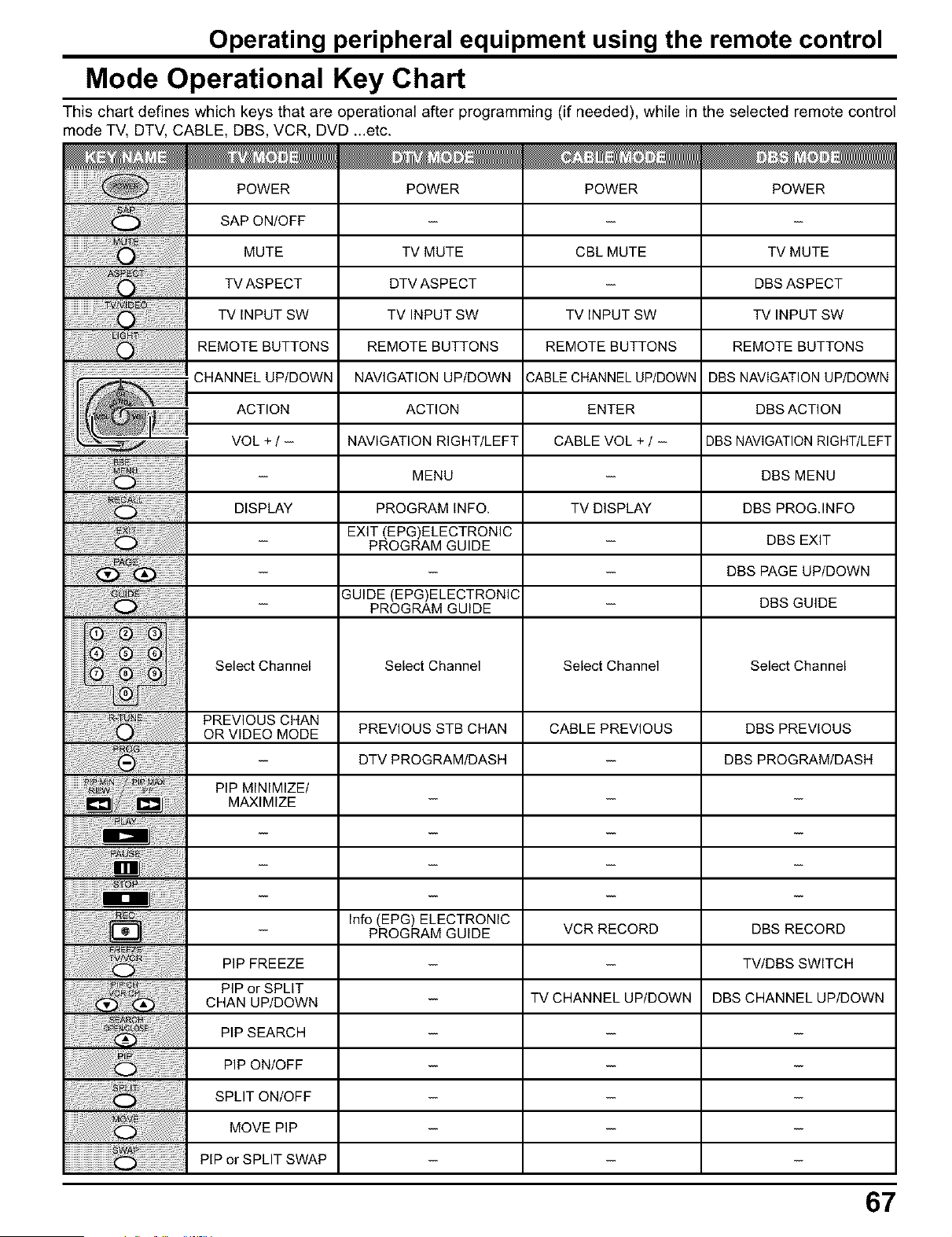
Operating peripheral equipment using the remote control
Mode Operational Key Chart
This chart defines which keys that are operational after programming (if needed), while in the selected remote control
mode TV, DTV, CABLE, DBS, VCR, DVD ...etc.
POWER
SAP ON/OFF
MUTE
TV ASPECT
TV INPUT SW
REMOTE BUTTONS
CHANNEL UP/DOWN
ACTION
VOL+I-
DISPLAY
TV MUTE
DTV ASPECT
TV INPUT SW
REMOTE BUTTONS
NAVIGATION UP/DOWN
ACTION
NAVIGATION RIGHT/LEFT
MENU
PROGRAM INFO.
EXIT (EPG)ELECTRONIC
PROGRAM GUIDE
GUIDE (EPG)ELECTRONIC
PROGRAM GUIDE
CBL MUTE
TV iNPUT SW
REMOTE BUTTONS
CABLE CHANNEL UP/DOWN
ENTER
CABLE VOL + / -
TV DISPLAY
TV MUTE
DBS ASPECT
TV INPUT SW
REMOTE BUTTONS
DBS NAVIGATION UP/DOWN
DBS ACTION
DBS NAVIGATION RIGHT/LEFT
DBS MENU
DBS PROG.INFO
DBS EXIT
DBS PAGE UP/DOWN
DBS GUIDE
Select Channel Select Channel Select Channel Select Channel
PREVIOUS CHAN
..............................................OR VIDEO MODE PREVIOUS STB CHAN CABLE PREVIOUS DBS PREVIOUS
- DTV PROGRAMIDASH - DBS PROGRAM/DASH
m
PiP MINIMIZE/
MAXIMIZE -- -- --
iiiiiiiiiiiiii
Info (EPG) ELECTRONIC
-- PROGRAM GUIDE VCR RECORD DBS RECORD
PIP FREEZE -- -- TVIDBS SWITCH
..........................PIP or SPLIT
...........CHAN UPIDOWN -- TV CHANNEL UPIDOWN DBS CHANNEL UPIDOWN
PIP SEARCH -- -- --
PIP ONIOFF -- -- --
SPLITON/OFF - - -
...................... MOVE PIP - - -
PIP or SPLIT SWAP - - -
67
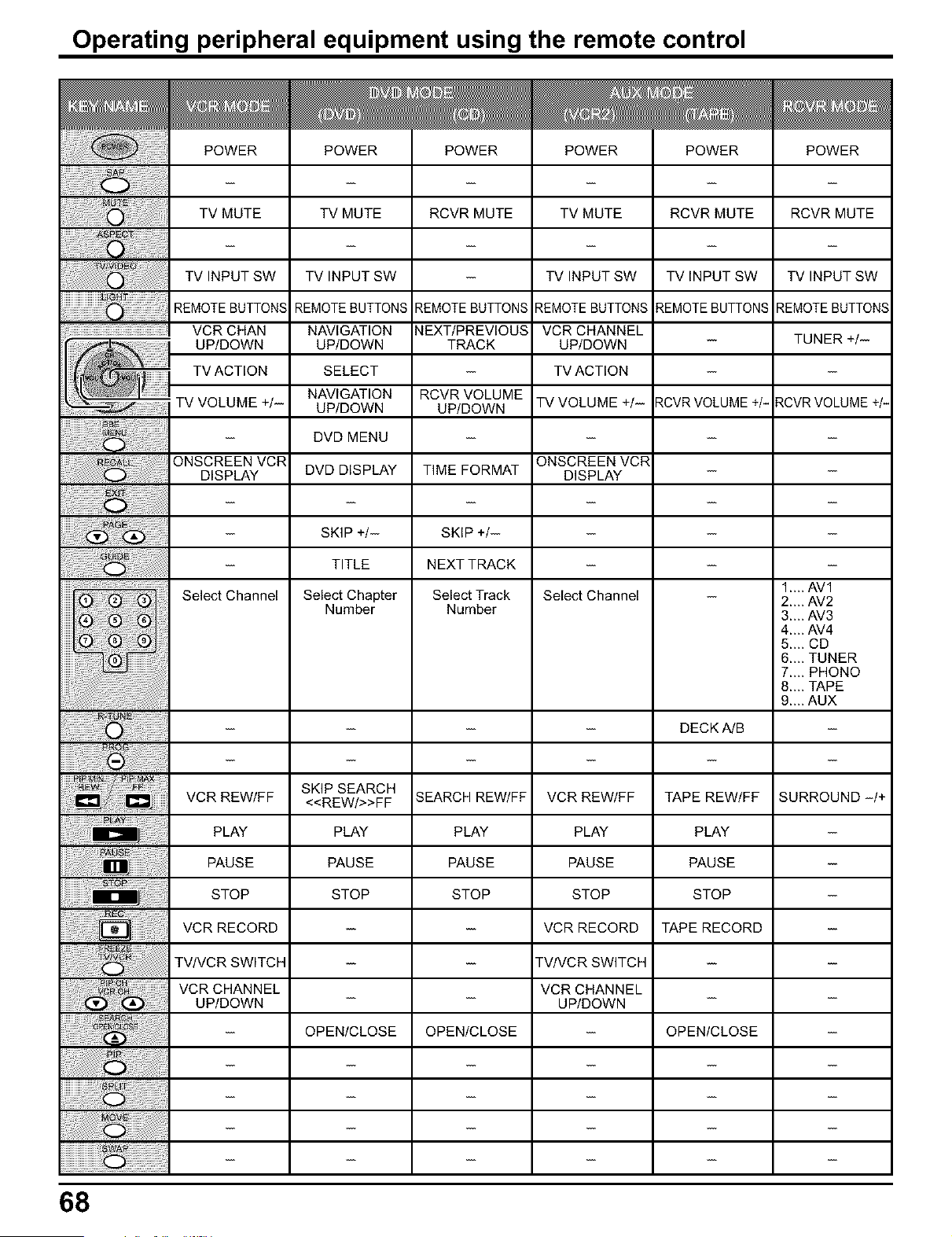
Operating peripheral equipment using the remote control
TV MUTE TV MUTE
TVINPUT SW
REMOTEBUTTONS
...................................................._ VCRCHAN
68
ONSCREEN VCR
DISPLAY DVD DISPLAY
Select Channel
TV INPUT SW
REMOTEBUTTONS
NAVIGATION
UP/DOWN
SELECT
NAVIGATION
UP/DOWN
DVD MENU
SKIP +/-
TITLE
Select Chapter
Number
RCVR MUTE
REMOTE BUTTONS
NEXT/PREVIOUS
TRACK
RCVR VOLUME
UP/DOWN
TIME FORMAT
SKIP +/-
NEXT TRACK
Select Track
Number
TV MUTE
TV INPUT SW
REMOTEBUTTONS
VCR CHANNEL
UP/DOWN
TV ACTION
TV VOLUME +/-
ONSCREEN VCR
DISPLAY
Select Channel
RCVR MUTE
TVINPUTSW
REMOTEBUTTONS
RCVRVOLUME+/-
.... DECK A/B
SKIP SEARCH
VCR REW/FF <<REW/>>FF SEARCH REW/FF VCR REW/FF TAPE REW/FF
PLAY PLAY PLAY PLAY PLAY
PAUSE PAUSE PAUSE PAUSE PAUSE
STOP STOP STOP STOP STOP
VCR RECORD - - VCR RECORD TAPE RECORD
TV/VCR SWITCH - - TV/VCR SWITCH -
VCR CHANNEL VCR CHANNEL
UP/DOWN - - UP/DOWN -
- OPEN/CLOSE OPEN/CLOSE - OPEN/CLOSE
RCVR MUTE
TV INPUT SW
REMOTEBUTTON
TUNER +/-
RCVR VOLUME +
1....AVl
2....AV2
3....AV3
4....AV4
5....CD
6....TUNER
7....PHONO
8....TAPE
9....AUX
SURROUND-/
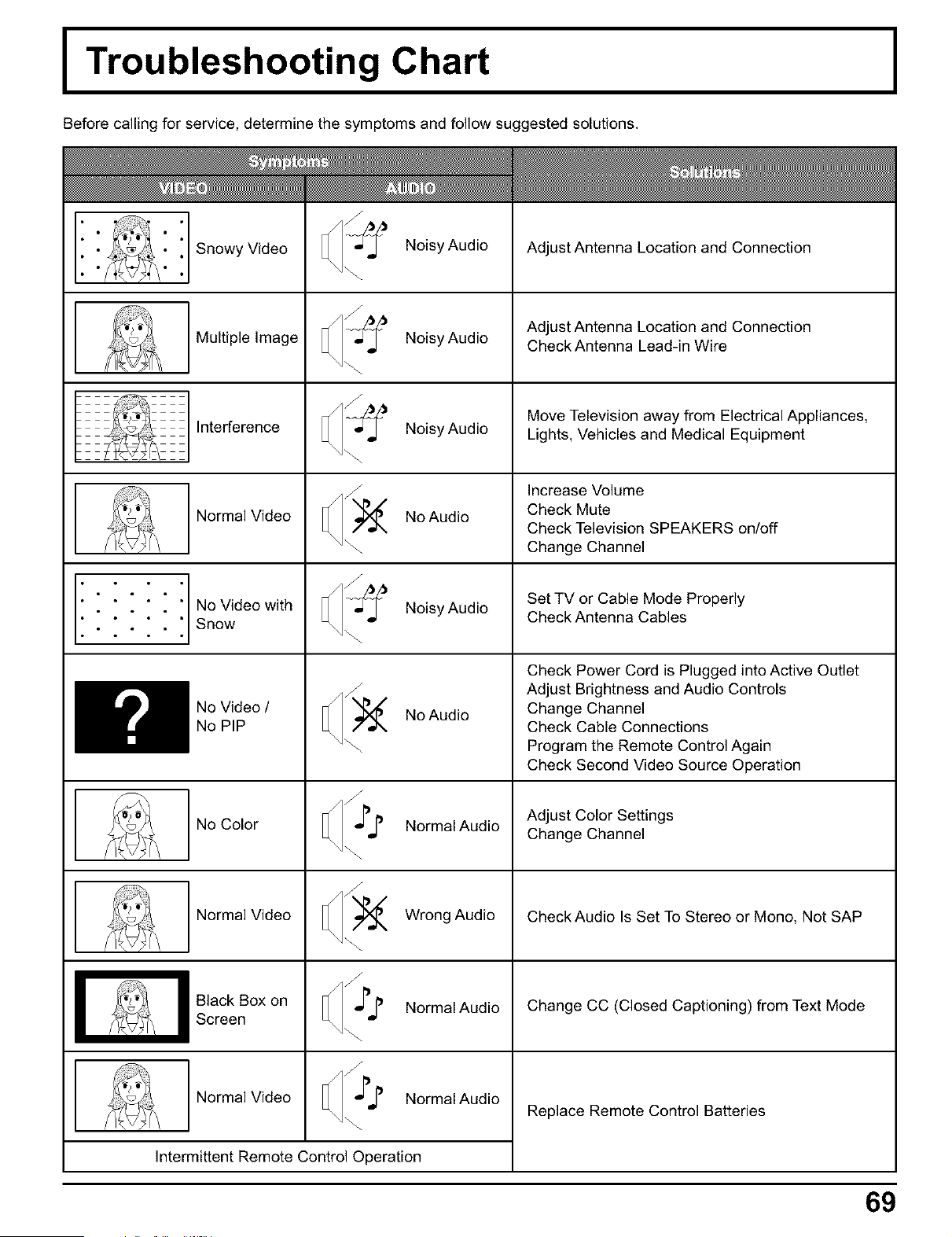
I Troubleshooting Chart
Before calling for service, determine the symptoms and follow suggested solutions.
Snowy Video
Multiple Image
Interference
Normal Video
f " " t No Video with
Snow
No Video /
No PIP
No Color
Normal Video
Black Box on
Screen
Normal Video
Noisy Audio
Noisy Audio
Noisy Audio
No Audio
Noisy Audio
No Audio
Normal Audio
Wrong Audio
Normal Audio
Normal Audio
Intermittent Remote Control Operation
Adjust Antenna Location and Connection
Adjust Antenna Location and Connection
Check Antenna Lead-in Wire
Move Television away from Electrical Appliances,
Lights, Vehicles and Medical Equipment
Increase Volume
Check Mute
Check Television SPEAKERS on/off
Change Channel
Set TV or Cable Mode Properly
Check Antenna Cables
Check Power Cord is Plugged into Active Outlet
Adjust Brightness and Audio Controls
Change Channel
Check Cable Connections
Program the Remote Control Again
Check Second Video Source Operation
Adjust Color Settings
Change Channel
Check Audio Is Set To Stereo or Mono, Not SAP
Change CC (Closed Captioning) from Text Mode
Replace Remote Control Batteries
69
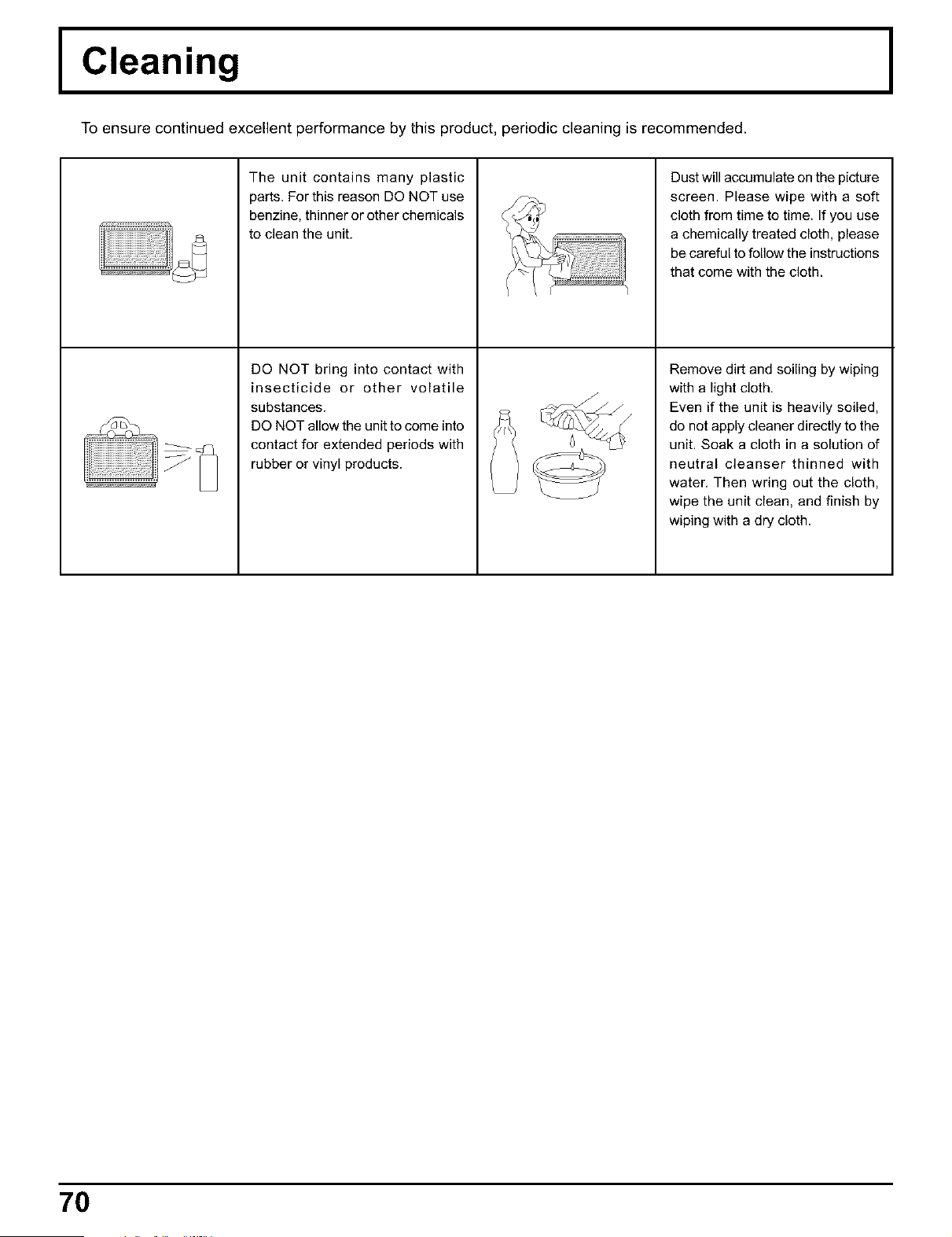
I Cleaning
To ensure continued excellent performance by this product, periodic cleaning is recommended.
The unit contains many plastic
parts. For this reason DO NOT use
benzine, thinner or other chemicals
to clean the unit.
DO NOT bring into contact with
insecticide or other volatile
substances.
DO NOT allow the unit to come into
contact for extended periods with
rubber or vinyl products.
Dust will accumulate on the picture
screen. Please wipe with a soft
cloth from time to time. If you use
a chemically treated cloth, please
be careful to follow the instructions
that come with the cloth.
Remove dirt and soiling by wiping
with a light cloth,
Even if the unit is heavily soiled,
do not apply cleaner directly to the
unit. Soak a cloth in a solution of
neutral cleanser thinned with
water, Then wring out the cloth,
wipe the unit clean, and finish by
wiping with a dry cloth.
70
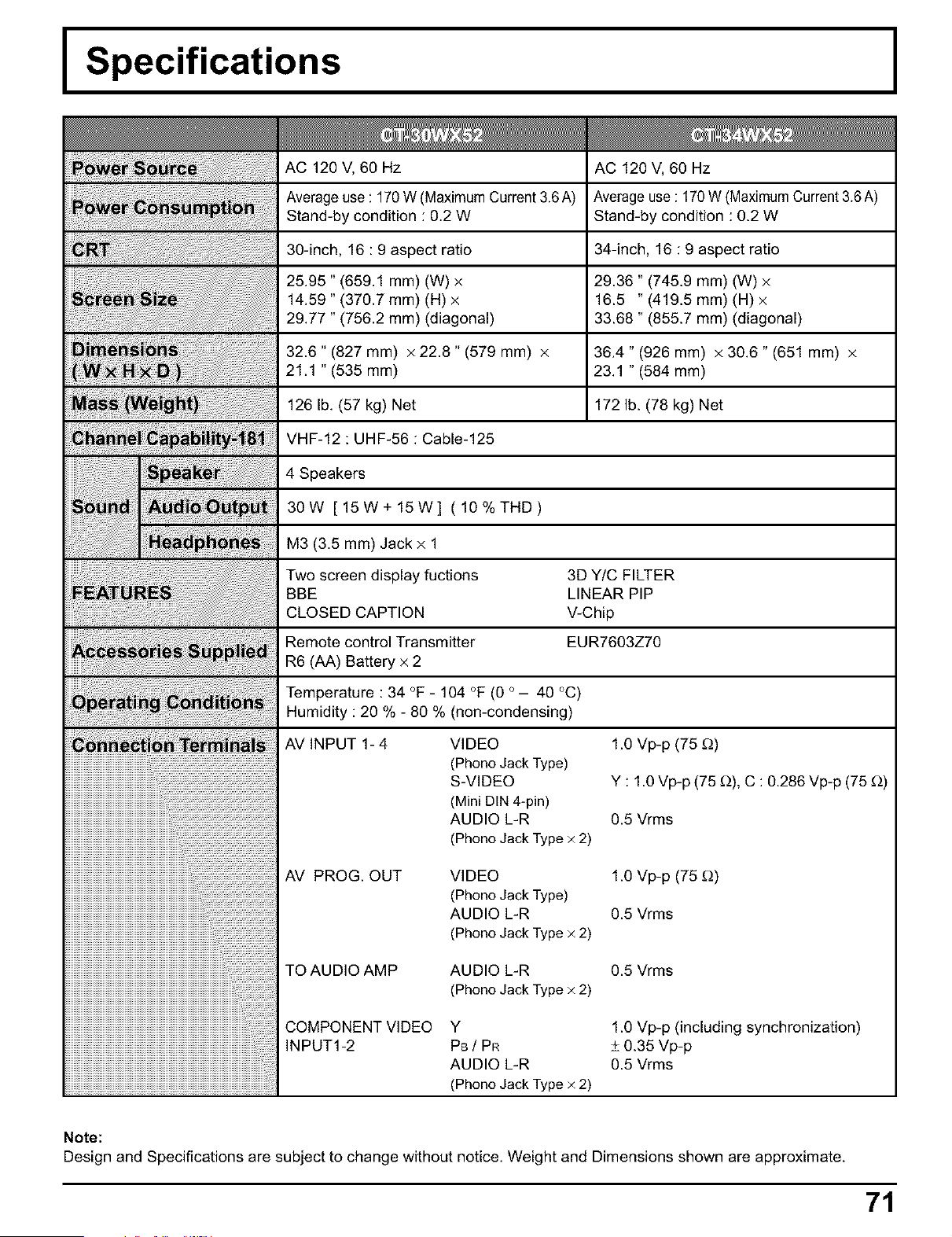
I Specifications
AC 120 V, 60 Hz AC 120 V, 60 Hz
Average use : 170 W (Maximum Current 3.6 A) Average use : 170 W (Maximum Current 3.6 A)
Stand-by condition : 0.2 W Stand-by condition : 0.2 W
30-inch, 16 : 9 aspect ratio 34-inch, 16 : 9 aspect ratio
25.95" (659.1 mm) (W) x 29.36" (745.9 mm) (W) x
14.59" (370.7 mm) (H) x 16.5 " (419.5 mm) (H) x
29.77" (756.2 ram) (diagonal) 33.68" (855.7 mm) (diagonal)
32.6" (827 mm) x 22.8" (579 mm) x 36.4" (926 mm) x 30.6" (651 mm) x
21.1 "(535 mm) 23.1 " (584 ram)
126 lb. (57 kg) Net 172 lb. (78 kg) Net
VHF-12 : UHF-56 : Cable-125
4 Speakers
30W [15W+lSW] (10%THD)
M3 (3.5 mm) Jack x 1
Two screen display fuctions 3D Y/C FILTER
BBE LINEAR PIP
CLOSED CAPTION V-Chip
Remote control Transmitter EUR7603Z70
R6 (AA) Battery x 2
Temperature : 34 °F - 104 °F (0 ° - 40 °C)
Humidity : 20 % - 80 % (non-condensing)
AV INPUT 1- 4 VIDEO 1.0 Vp-p (75 _)
(Phono Jack Type)
S-VIDEO Y : 1.0 Vp-p (75 £_),C : 0.286 Vp-p (75 £_)
(Mini DIN 4-pin)
AUDIO L-R 0.5 Vrms
iiiiiiiiiiiiiiiiiiiiiiiiiiiiiiiiiiiiiiiiiiiiiiiiiii
iiiiiiiiiiiiiiiiiiiiiiiiiiiiiiiiiiiiiiiiiiiiiiiiiiiiiiiiiii
iiiiiiiiiiiiiiiiiiiiiiiiiiiiiiiiiiiiiiiiiiiiiiiiiiiiiiiiiiiiiiiiiii
iiiiiiiiiiiiiiiiiiiiiiiiiiiiiiiiiiiiiiiiiiiiiiiiiiiiiiiiiiiiiiiiiiiiiiiiiii
AV PROG. OUT
iiiiiiiiiiiiiiiiiiiiiiiiiiiiiiiiiiiiiiiiiiiiiiiiiiiiiiiiiiiiiiiiiiiiiiiiiiiiiiiiiiiiiiii
TO AUDIO AMP
iiiiiiiiiiiiiiiiiiiiiiiiiiiiiiiiiiiiiiiiiiiiiiiiiiiiiiiiiiiiiiiiiiiiiiiiiiiiiiiiiiiiiiiiiiiiiiii
(Phono Jack Type × 2)
VIDEO
(Phono Jack Type)
AUDIO L-R
(Phono Jack Type × 2)
1.0 Vp-p (75 _)
0.5 Vrms
AUDIO L-R 0.5 Vrms
(Phono Jack Type × 2)
COMPONENT VIDEO
INPUT1-2
Y
PB / PR
AUDIO L-R
(Phono Jack Type × 2)
1.0 Vp-p (including synchronization)
_+0.35 Vp-p
0.5 Vrms
Note:
Design and Specifications are subject to change without notice. Weight and Dimensions shown are approximate.
71
Customer's Record
The model number and serial number of this product can be found on its back cover. You should note this
serial number in the space provided below and retain this book, plus your purchase receipt, as a permanent
record of your purchase to aid in identification in the event of theft or loss, and for Warranty Service purposes.
Model Number Serial Number
Panasonic Consumer Electronics
Company, Division of Matsushita
Electric Corporation of America
One Panasonic Way Secaucus,
New Jersey 07094
Panasonic Sales Company,
Division of Matsushita Electric
of Puerto Rico Inc. ("PSC")
Ave. 65 de Infanteria, Km 9.5
San Gabriel Industrial Park,
Carolina, Puerto Rico 00985
Panasonic Canada Inc.
5770 Ambler Drive
Mississauga, Ontario
L4W 2T3
Pdnted in Japan
MBS0402S1052(MS)