High Definition Plasma Display
TH-42PHD6
TH-50PHD6
Operating Instructions
Progressive Wide Plasma Display
TH-37PWD6
TH-42PWD6
Model No.
PLASMA DISPLAY
R
-
S
T
A
N
D
B
Y
G
P
O
W
E
R
O
N
I
N
P
U
T
M
E
N
U
+
E
N
T
E
R
–
V
O
L
P
O
W
E
R
/
Before connecting, operating or adjusting this product, please read these instructions completely. Please keep this manual
for future reference.
English
TQBC0570
®
Model No.
2
WARNING: To reduce the risk of electric shock, do not remove cover or back.
No user-serviceable parts inside. Refer servicing to qualified service personnel.
The lightning flash with
arrow-head within a triangle
is intended to tell the user
that parts inside the product
are a risk of electric shock to
persons.
The exclamation point within
a triangle is intended to tell
the user that important
operating and servicing
instructions are in the papers
with the appliance.
WARNING
RISK OF ELECTRIC SHOCK
DO NOT OPEN
WARNING: 1) To prevent electric shock, do not remove cover. No user serviceable parts inside. Refer servicing to
qualified service personnel.
2) Do not remove the grounding pin on the power plug. This apparatus is equipped with a three pin
grounding-type power plug. This plug will only fit a grounding-type power outlet. This is a safety feature.
If you are unable to insert the plug into the outlet, contact an electrician.
Do not defeat the purpose of the grounding plug.
WARNING: To prevent damage which may result in fire or shock hazard, do not expose this apparatus to rain
or moisture.
Do not place containers with water (flower vase, cups, cosmetics, etc.) above the set.
(including on shelves above, etc.)
3
Important Safety Instructions
1) Read these instructions.
All the safety and operating instructions should be read before the appliance is operated.
2) Keep these instructions.
The safety and operating instructions should be retained for future reference.
3) Heed all warnings.
All warnings on the appliance and in the operating instructions should be adhered to.
4) Follow all instructions.
All operating and use instructions should be followed.
5) Do not use this apparatus near water.
For example, near a bathtub, wash bowl, kitchen sink, or laundry tub, in a wet basement, or near a swimming pool, and
the like.
6) Clean only with dry cloth.
Do not use liquid cleaners or aerosol cleaners. Use a dry cloth for cleaning.
7) Do not block any ventilation openings. Install in accordance with the manufacturer’s instructions.
Slots and Openings in the cabinet are provided for ventilation and to ensure reliable operation of the product and to
protect it from overheating. The openings should never be blocked by placing the product on a bed, sofa, rug, or other
similar surface.
8) Do not install near any heat sources such as radiators, heat registers, stoves, or other apparatus (including amplifiers)
that produce heat.
This product should not be placed in a built-in installation such as a bookcase or rack unless proper ventilation is
provided or the manufacturer’s instructions have been adhered to.
9) Do not defeat the safety purpose of the polarized or grounding-type plug. A polarized plug has two blades with one wider
than the other. A grounding type plug has two blades and a third grounding prong. The wide blade or the third prong are
provided for your safety. If the provided plug does not fit into your outlet, consult an electrician for replacement of the
obsolete outlet.
10) Protect the power cord from being walked on or pinched particularly at plugs, convenience receptacles, and the point
where they exit from the apparatus.
11) Only use attachments / accessories specified by the Manufacturer.
12) Use only with the cart, stand, tripod, bracket, or table specified by the manufacturer, or sold with the
apparatus. When a cart is used, use caution when moving the cart / apparatus combination to avoid
injury from tip-over.
Quick stops, excessive force, and uneven surfaces may cause the appliance and cart combination to
overturn.
13) Unplug this apparatus during lightning storms or when unused for long periods of time.
This will prevent damage to the product due to lightning and power-line surges.
14) Refer all servicing to qualified service personnel. Servicing is required when the apparatus has been damaged in any
way, such as power-supply cord or plug is damaged, liquid has been spilled or objects have fallen into the apparatus,
the apparatus has been exposed to rain or moisture, does not operate normally, or has been dropped.
15) To prevent electric shock, ensure the grounding pin on the AC cord power plug is securely connected.

4
Table of Contents
Dear Panasonic Customer
Welcome to the Panasonic family of customers. We hope that you will have many years of enjoyment
from your new Plasma Display.
To obtain maximum benefit from your set, please read these Instructions before making any adjustments,
and retain them for future reference.
Retain your purchase receipt as well, and record the model number and serial number of your set in
the space provided on the rear cover of these instructions.
Important Safety Instructions ....................................... 3
FCC STATEMENT ........................................................... 5
Safety Precautions......................................................... 6
Accessories .................................................................... 8
Accessories Supplied.................................................... 8
Remote Control Batteries.............................................. 8
Connections ................................................................... 9
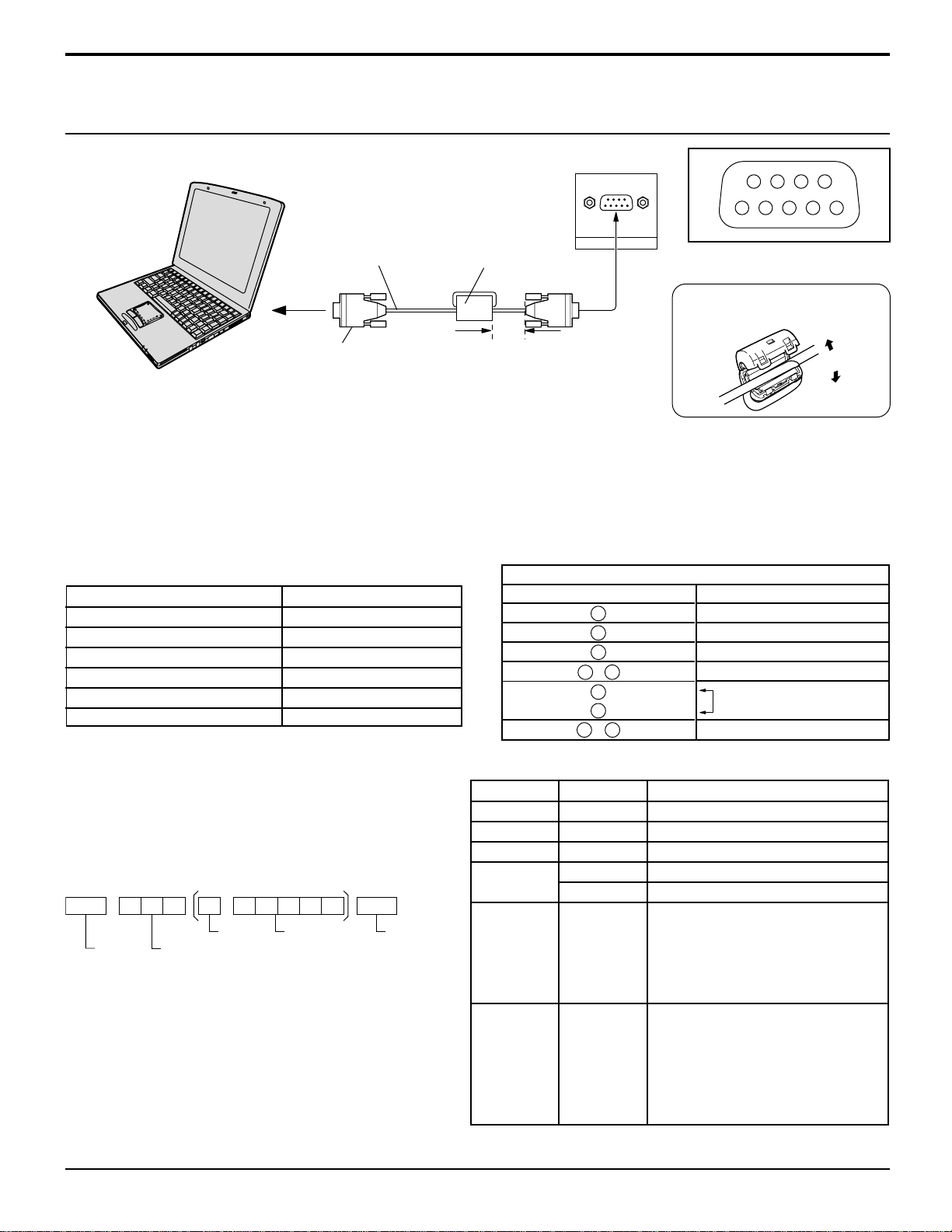
PC Input Terminals connection ................................... 10
SERIAL Terminals connection..................................... 11
AV & COMPONENT connection ................................. 12
RGB signal (R, G, B, HD, VD) .................................... 12
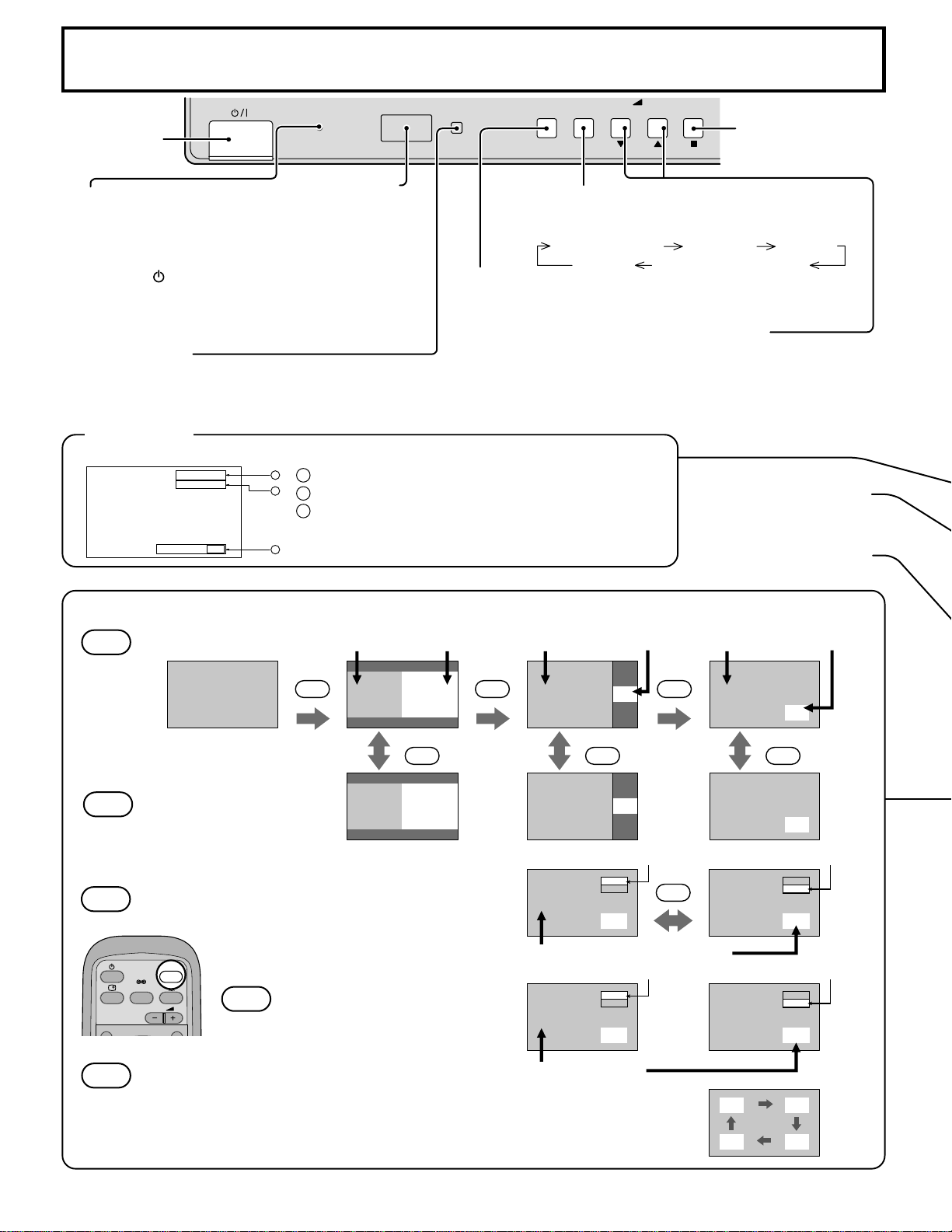
Power ON/OFF.............................................................. 13
AC cord conncection................................................... 13
Power ON/OFF ........................................................... 13
Basic Controls.............................................................. 14
On-Screen Menu Displays........................................... 16
Input Signal Selection.................................................. 18
Select the Input Signal ................................................ 18
Selecting the ON-Screen Menu Language ................. 18
ASPECT Controls......................................................... 19
Adjusting PICTURE POSITION/SIZE........................... 20
SOUND Adjustment ..................................................... 21
MUTE ..........................................................................21
PICTURE Adjustments................................................. 22
ADVANCED SETTINGS ............................................. 23
PRESENT TIME SETUP/SET UP TIMER ..................... 24
PRESENT TIME SETUP............................................. 24
SET UP TIMER ........................................................... 25
SCREENSAVER (For preventing after-images) ......... 26
Setup of SCREENSAVER Time .................................. 27
Reduces screen after-image....................................... 27
SIDE BAR ADJUST .................................................... 28
Digital Zoom ................................................................. 29
Reduces power consumption ..................................... 30
Customizing the Input labels....................................... 30
SET UP for MULTI DISPLAY ........................................ 31
How to setup MULTI DISPLAY.................................... 31
How to set the Display location number for each Plasma Display............
32
SET UP for Input Signals............................................. 33
COMPONENT/RGB IN SELECT ................................ 33
3D Y/C FILTER – For NTSC Video images ............................... 33
COLOR SYSTEM / Panasonic AUTO ......................... 34
3:2 PULLDOWN.......................................................... 34
SYNC ..........................................................................35
H-FREQ. (kHz)/V-FREQ. (Hz) .................................... 35
Troubleshooting ........................................................... 36
VIDEO/COMPONENT/RGB/PC input signals ............. 37
Specifications............................................................... 38
5
FCC STATEMENT
This equipment has been tested and found to comply with the limits for a Class A digital device, pursuant to part 15 of
the FCC Rules. These limits are designed to provide reasonable protection against harmful interference when the
equipment is operated in a commercial environment.
This equipment generates, uses, and can radiate radio frequency energy and, if not installed and used in accordance
with the instruction manual, may cause harmful interference to radio communications. Operation of this equipment in
a residential area is likely to cause harmful interference in which case the user will be required to correct the interference
at his own expense.
FCC CAUTION:
Pursuant to 47CFR, Part 15.21 of the FCC rules, any changes or modifications to this monitor not expressly
approved by Matsushita Electric Corporation of America could cause harmful interference and would void the
user’s authority to operate this device.
Attach the ferrite core:
The ferrite cores provided as a supplied accessory must be used when connecting this Plasma Display to video
equipment. (see page 10, 11)
FCC STATEMENT
FCC CAUTION:
To assure continued compliance and possible undesirable interference, the provided ferrite cores must be
used when connecting this plasma display to video equipment; and maintain at least 40 cm of spacing from
other peripheral devices. Refer to instructions on pages 10, and 11.
Note:
Do not allow a still picture to be displayed for an extended period, as this can cause permanent after-image
to remain on the Plasma Display.
Examples of still pictures include logos, video games, computer images, teletext and images displayed in
4:3 mode.
Trademark Credits
•
VGA is a trademark of International Business Machines Corporation.
•
Macintosh is a registered trademark of Apple Computer, USA.
•
S-VGA is a registered trademark of the Video Electronics Standard Association.
Even if no special notation has been made of company or product trademarks, these trademarks have been fully
respected.
CANADIAN NOTICE:
This Class A digital apparatus complies with Canadian ICES-003.

6
Safety Precautions
WARNING
Set up
Do not place the Plasma Display on sloped or unstable surfaces.
•
The Plasma Display may fall off or tip over.
Do not place any objects on top of the Plasma Display.
•
If water spills onto the Plasma Display or foreign objects get inside it, a short-circuit may occur which could result in fire
or electric shock. If any foreign objects get inside the Plasma Display, please consult an Authorized Service Center.
Do not cover the ventilation holes.
•
Doing so may cause the Plasma Display to overheat, which can cause fire or damage to the Plasma Display.
If using the pedestal (optional accessory), leave a space of 3
15
/
16
” (10 cm) or more at the top, left and right, 2
3
/
8
”
(6
cm) or more at the bottom, and 2
3
/4” (7 cm) or more at the rear. If using some other setting-up method, leave a
space of 3
15
/16” (10 cm) or more at the top, bottom, left and right, and
3
/4” (1.9 cm) or more at the rear.
Avoid installing this product near electronic equipment that easily receives electromagnetic waves.
•
It may cause interference in image, sound, etc. In particular, keep video equipment away from this product.
AC Power Supply Cord
The Plasma Display is designed to operate on 120 V AC, 50/60 Hz.
Securely insert the power cord plug as far as it will go.
•
If the plug is not fully inserted, heat may be generated which could cause fire. If the plug is damaged or the wall socket
plate is loose, they should not be used.
Do not handle the power cord plug with wet hands.
•
Doing so may cause electric shocks.
Do not do anything that might damage the power cable. When disconnecting the power cable, hold the plug, not
the cable.
•
Do not make any modifications, place heavy objects on, place near hot objects, heat, bend, twist or forcefully pull the
power cable. Doing so may cause damage to the power cable which can cause fire or electric shock. If damage to the
cable is suspected, have it repaired at an Authorized Service Center.
If the Plasma Display will not be used for a long period of time, unplug the power cord from the wall outlet.
If problems occur during use
If a problem occurs (such as no picture or no sound), or if smoke or an abnormal odor is detected from the Plasma
Display, unplug the power cord immediately.
•
Continuous use of the Display under these conditions might cause fire or permanent damage to the unit. Have the
Display evaluated at an Authorized Service Center. Services to the Display by any unauthorized personnel are strongly
discouraged due to its high voltage dangerous nature.
If water or foreign objects get inside the Plasma Display, if the Plasma Display is dropped, or if the cabinet
becomes damaged, disconnect the power cord plug immediately.
•
A short may occur, which could cause fire. Contact an Authorized Service Center for any repairs that need to be made.

7
CAUTION
This Plasma Display is for use only with the following optional accessories. Use with any other type of optional
accessories may cause instability which could result in the possibility of injury.
(All of the following accessories are manufactured by Matsushita Electric Industrial Co., Ltd.)
•
Speakers ............................................................. TY-SP37P5W-K (TH-37PWD6),
TY-SP42P5W-K (TH-42PWD6, TH-42PHD6),
TY-SP50P5W-K (TH-50PHD6)
•
Pedestal .............................................................. TY-ST05-K
•
Wall stand............................................................ TY-ST42PW1
•
Mobile stand........................................................ TY-ST42PF3 (TH-42PWD6, TH-42PHD6, TH-50PHD6)
•
Wall-hanging bracket (vertical)............................ TY-WK37PV3 (TH-37PWD6),
TY-WK42PV1(TH-42PWD6, TH-42PHD6, TH-50PHD6)
•
Wall-hanging bracket (angled) ............................ TY-WK42PR1 (TH-42PWD6, TH-42PHD6, TH-50PHD6)
•
Wall-hanging bracket (drawer type) .................... TY-WK42DR1 (TH-42PWD6, TH-42PHD6, TH-50PHD6)
•
Ceiling unit ........................................................... TY-CE42PS1
•
BNC Component Video Terminal Board................ TY-42TM6A
•
BNC Composite Video Terminal Board ................. TY-42TM6B
•
RCA Component Video Terminal Board............... TY-42TM6Z
•
RCA Composite Video Terminal Board ................ TY-42TM6V
•
RGB (Digital) Terminal Board.............................. TY-42TM6D
•
RGB Active Through Terminal Board .................. TY-42TM6G
•
PC Input Terminal Board ...................................... TY-42TM6P
Always be sure to ask a qualified technician to carry out set-up.
When using the Plasma Display
Do not bring your hands, face or objects close to the ventilation holes of the Plasma Display.
•
Top of the Plasma Display is usually very hot due to the high temperature of exhaust air being released through the
ventilation holes. Burns or personal injuries can happen if any body parts are brought too close. Placing any object near the
top of the display could also result in heat damages to the object as well as to the Display if its ventilation holes are blocked.
Be sure to disconnect all cables before moving the Plasma Display.
•
Moving the Display with its cables attached might damage the cables which, in turn, can cause fire or electric shock.
Disconnect the power plug from the wall outlet as a safety precaution before carrying out any cleaning.
•
Electric shocks can result if this is not done.
Clean the power cable regularly to prevent it from becoming dusty.
•
Built-up dust on the power cord plug can increase humidity which might damage the insulation and cause fire. Unplug
the cord from the wall outlet and clean it with a dry cloth.
This Plasma Display radiates infrared rays, therefore it may affect other infrared communication equipment.
Install your infrared sensor in a place away from direct or reflected light from your Plasma Display.
Cleaning and maintenance
The front of the display panel has been specially treated. Wipe the panel surface gently using only a cleaning
cloth or a soft, lint-free cloth.
•
If the surface is particularly dirty, soak a soft, lint-free cloth in a weak detergent solution and then wring the cloth to
remove excess liquid. Use this cloth to wipe the surface of the display panel, then wipe it evenly with a dry cloth, of the
same type, until the surface is dry.
•
Do not scratch or hit the surface of the panel with fingernails or other hard objects. Furthermore, avoid contact with volatile
substances such as insect sprays, solvents and thinner, otherwise the quality of the surface may be adversely affected.
If the cabinet becomes dirty, wipe it with a soft, dry cloth.
•
If the cabinet is particularly dirty, soak the cloth in a weak detergent solution and then wring the cloth dry. Use this cloth
to wipe the cabinet, and then wipe it dry with a dry cloth.
•
Do not allow any detergent to come into direct contact with the surface of the Plasma Display.
If water droplets get inside the unit, operating problems may result.
•
Avoid contact with volatile substances such as insect sprays, solvents and thinner, otherwise the quality of the cabinet
surface may be adversely affected or the coating may peel off. Furthermore, do not leave it for long periods in contact
with articles made from rubber or PVC.
Note:
Do not allow a still picture to be displayed for an extended period, as this can cause a permanent after-image to remain on the Plasma Display.
Examples of still pictures include logos, video games, computer images, teletext and images displayed in 4:3 mode.
Safety Precautions
8
Requires two AA batteries.
1. Turn the transmitter face down.
Press and slide off the battery
cover.
2. Install the batteries as shown in the
battery compartment.
(Polarity + or – must match the
markings in the compartment.)
Two "AA" size
Helpful Hint:
For frequent remote control users, replace old batteries with
Alkaline batteries for longer life.
Precaution on battery use
Incorrect installation can cause battery leakage and corrosion that will damage the remote control transmitter.
Observe the following precautions:
1. Batteries should always be replaced as a pair. Always use new batteries when replacing the old set.
2. Do not combine a used battery with a new one.
3. Do not mix battery types (example: “Zinc Carbon” with “Alkaline”).
4. Do not attempt to charge, short-circuit, disassemble, heat or burn used batteries.
5. Battery replacement is necessary when the remote control acts sporadically or stops operating the Plasma Display.
3. Replace the cover and slide in
reverse until the lock snaps.
PLASMA DISPLAY
INPUT
SURROUND
VOL
NR
PICTURE
SOUND
SET UP
ASPECT
PICTURE
POS. /SIZE
OFF TIMER
PC
MULTI
PIP
SWAP SELECT
ZOOM
MOVE
Accessories
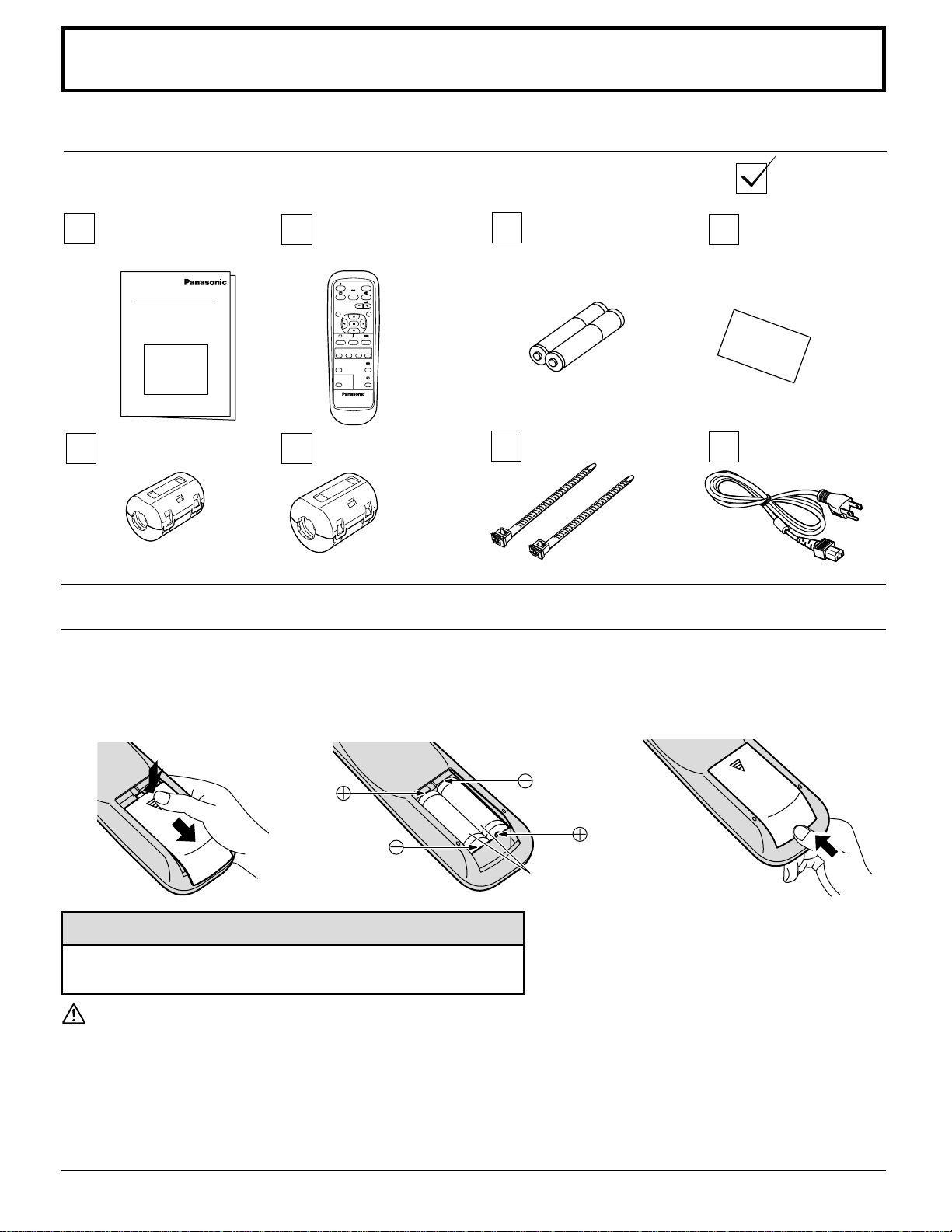
Accessories Supplied
Check that you have the Accessories and items shown
Operating
Instruction book
Remote Control
Transmitter
EUR646529
Warranty
AC cord
Fixing bands
Batteries for the Remote
Control Transmitter
(AA Battery × 2)
Ferrite core (small size) Ferrite core (large size)
Remote Control Batteries
9
1
2
SERIALPC IN
AUDIO
SLOT1
S VIDEO IN
VIDEO IN
VD HD
PR/CR/R PB/CB/B
Y/G
COMPONENT/RGB IN
AV
SLOT2 SLOT3
R AUDIO L
IN
R AUDIO L
VIDEO OUT
1
2
1
2
Connections
SPEAKERS
Terminals (R)
SPEAKERS
Terminals (L)
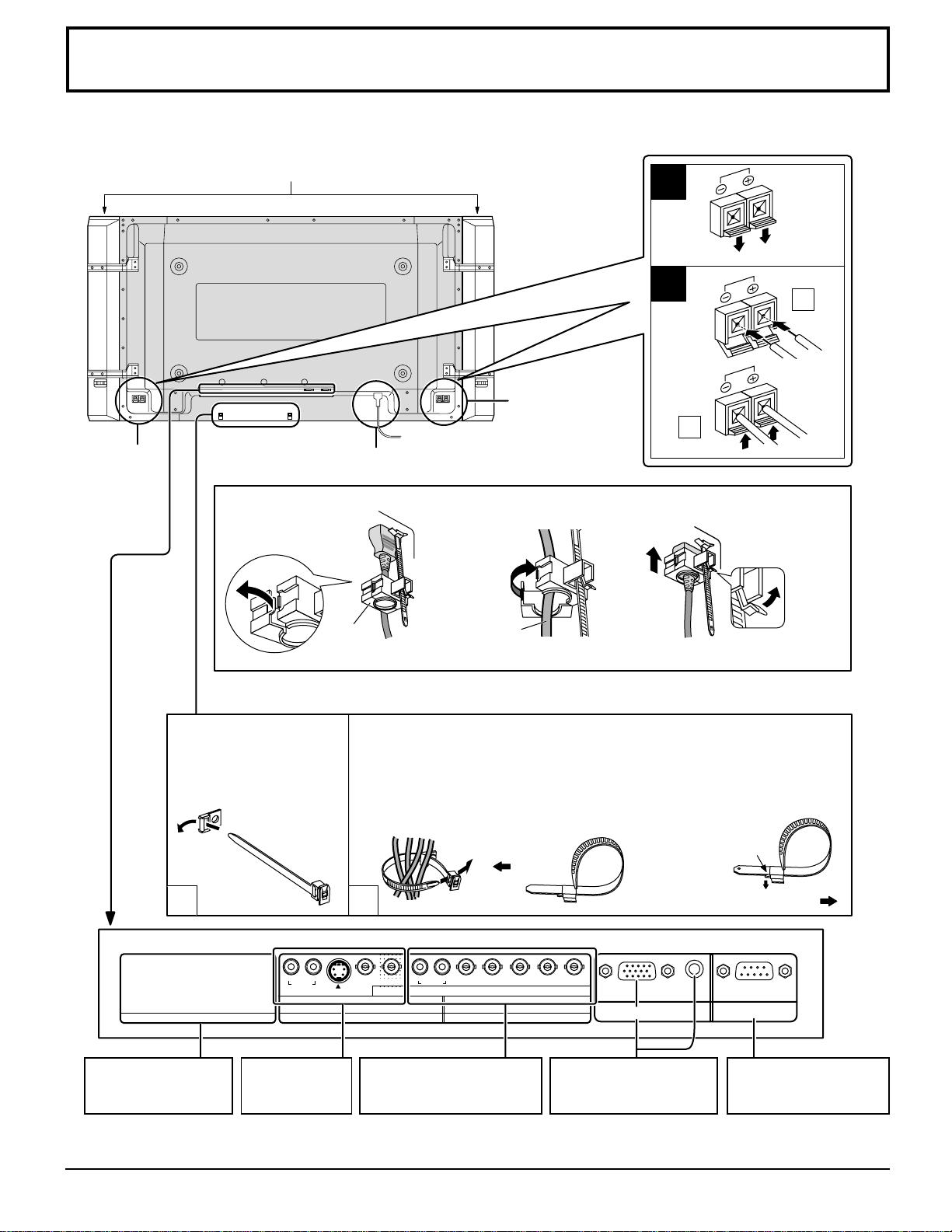
– Cable fixing bands
Secure any excess cables with bands as required.
When connecting the speakers, be sure to use only the optional accessory speakers.
Refer to the speaker’s Installation Manual for details on speaker installation.
Speakers (Optional accessories)
Pass the attached
cable fixing band
through the clip as
shown in the figure.
To secure cables connected to Terminals, wrap the cable fixing band
around them then pass the pointed end through the locking block, as
shown in the figure.
While ensuring there is sufficient slack in cables to minimize stress
(especially in the power cord), firmly bind all cables with the
supplied fixing band.
From SERIAL
Terminal on Computer
(see page 11)
From EXTERNAL
monitor terminal on
Computer (see page 10)
AC cord connection (see page 13)
Optional Terminal
Board Insert Slot
(covered)
COMPONENT/RGB IN
and Audio IN Terminals
(see page12)
AV Terminals
(see page12)
To tighten:
To loosen:
Pull
Pull
Push the
catch
3. Slide up the clamper and fix
the AC cord plug securely.
2. Insert the AC cord and
close the clamper
securely.
1. Open the clamper.
Clamper
AC cord
Note: The power plug in the illustration may not be the type fitted to your set.
When loosen
the clamper:
Note: At factory shipment, Terminal boards are installed in SLOT 2 and SLOT 3.
TH-37PWD6 has 2 SLOTs only.
– AC cord fixing
(Example : TH-42PWD6)
10
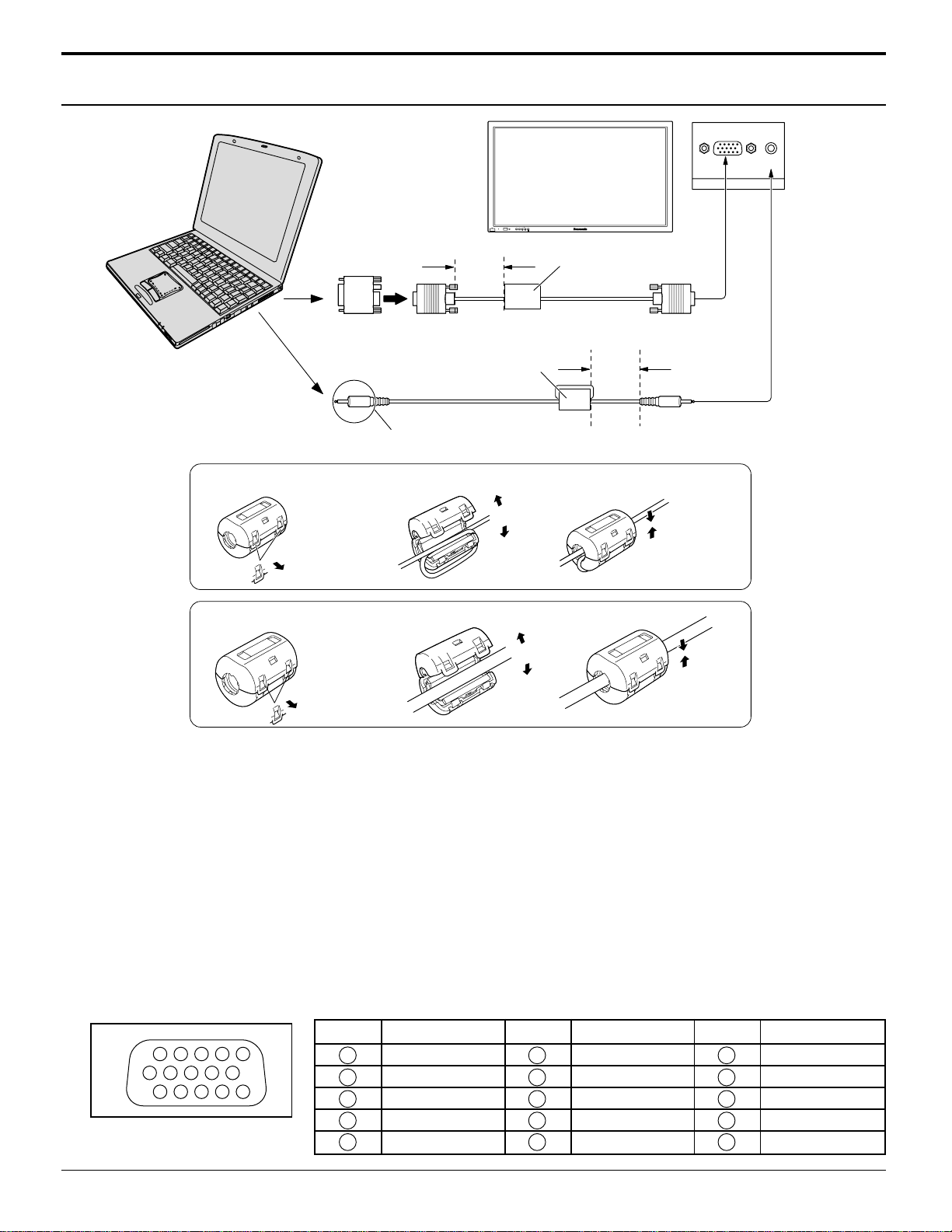
PC Input Terminals connection
Notes:
(1) Computer signals which can be input are those with a horizontal scanning frequency of 15 to 110 kHz and vertical
scanning frequency of 48 to 120 Hz. (However, the image will not be displayed properly if the signals exceed 1,200 lines.)
(2) The display resolution is a maximum of 640 × 480 dots (TH-37PWD6, TH-42PWD6), 768 × 768 dots (TH-42PHD6),
1,024 × 768 dots (TH-50PHD6) when the aspect mode is set to “4:3”, and 852 × 480 dots (TH-37PWD6, TH-42PWD6),
1,024 × 768 dots (TH-42PHD6), 1,366 × 768 dots (TH-50PHD6) when the aspect mode is set to “16:9”. If the display
resolution exceeds these maximums, it may not be possible to show fine detail with sufficient clarity.
(3) The PC input terminals are DDC1/2B-compatible. If the computer being connected is not DDC1/2B-compatible, you will
need to make setting changes to the computer at the time of connection.
(4) Some PC models cannot be connected to the set.
(5) There is no need to use an adapter for computers with DOS/V compatible D-sub 15P terminal.
(6) The computer shown in the illustration is for example purposes only.
(7) Additional equipment and cables shown are not supplied with this set.
(8) Do not set the horizontal and vertical scanning frequencies for PC signals which are above or below the specified
frequency range.
(9) Component Input is possible with the pin 1,2,3 of the D-sub 15P Connector.
AUDIO
PC IN
COMPUTER
Conversion adapter
(if necessary)
RGB
D-sub 15p
Stereo plug
PC cable
Connect a cable which matches
the audio output terminal on the computer.
Less than
3"
15
/
16
(10 cm)
Ferrite core (small size)
(supplied)
Ferrite core (large size)
(supplied)
Audio
Less than
3"
15
/
16
(10 cm)
R - STANDBY
G POWER ON
INPUT MENU ENTER
– +
VOL
Installing the ferrite core (Small size)
Pull back the tabs
(in two places)
Open
Press the cable
through and close
1
2
3
Installing the ferrite core (Large size)
Pull back the tabs
(in two places)
Open
Press the cable
through and close
1
2
3
1
678
3
9
45
10
1514131211
2
Signal Names for D-sub 15P Connector
Pin Layout for PC Input
Terminal
Pin No.
1
2
3
4
5
Pin No.
6
7
8
9
10
Pin No.
11
12
13
14
15
Signal Name
R (P
R
/C
R
)
G(Y)
B(P
B
/C
B
)
GND (Ground)
GND (Ground)
Signal Name
GND (Ground)
GND (Ground)
GND (Ground)
NC (not connected)
GND (Ground)
Signal Name
GND (Ground)
SDA
HD/SYNC
VD
SCL
Connections
11
Connections
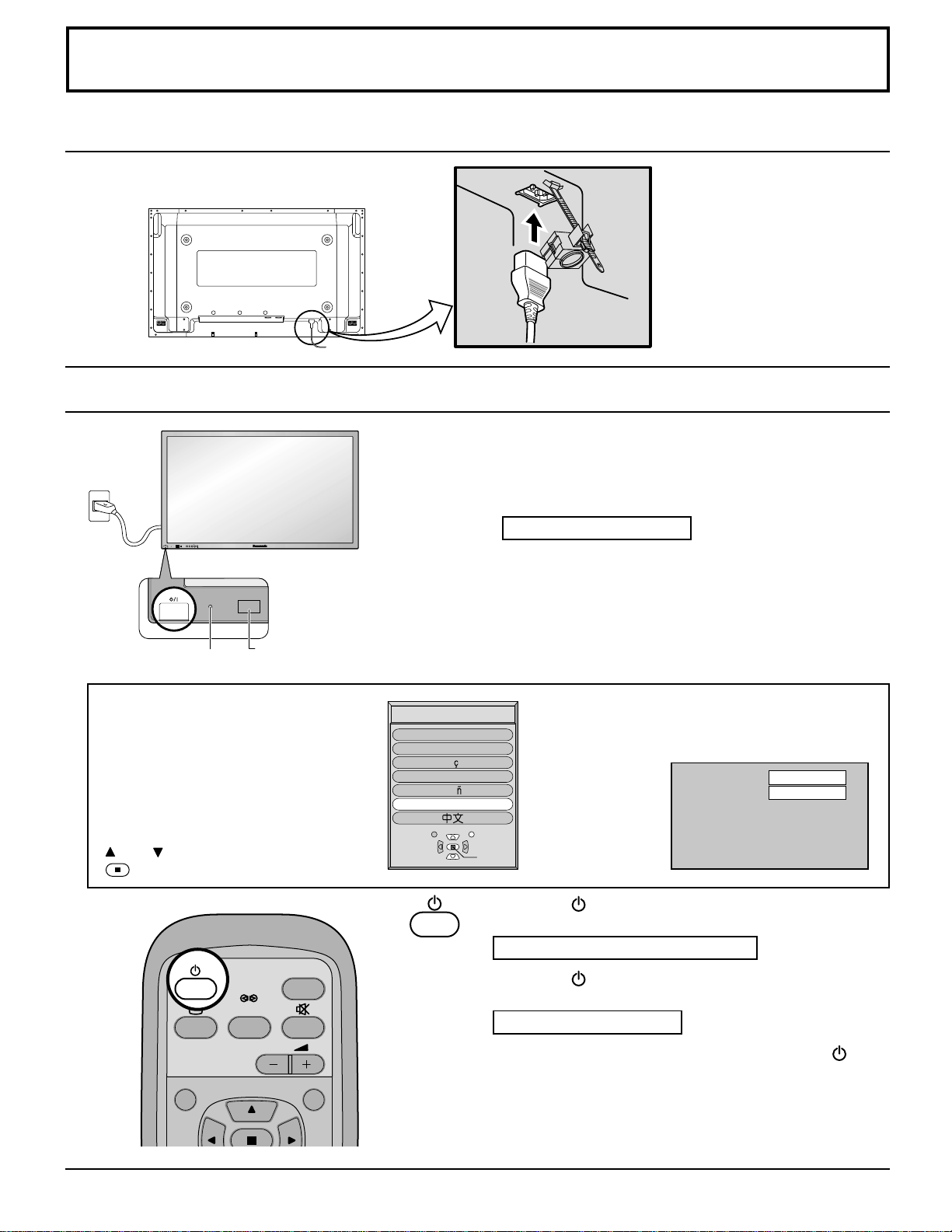
SERIAL Terminals connection
Notes:
(1) Use the RS-232C cable to connect the computer to the Plasma Display.
(2) The computer shown is for example purposes only.
(3) Additional equipment and cables shown are not supplied with this set.
SERIAL
RS-232C
Straight cable
D-sub 9p
COMPUTER
Less than
3"
15
/16
(10 cm)
Ferrite core
(large size)
(supplied)
The SERIAL terminal is used when the Plasma Display is controlled by a computer.
The SERIAL terminal conforms to the RS-232C interface specification, so that the Plasma Display can be controlled by a
computer which is connected to this terminal.
The computer will require software which allows the sending and receiving of control data which satisfies the conditions
given below. Use a computer application such as programming language software. Refer to the documentation for the
computer application for details.
9876
53214
Pin layout for RS-232C
Signal level
Synchronization method
Baud rate
Parity
Character length
Stop bit
Flow control
RS-232C compliant
Asynchronous
9600 bps
None
8 bits
1 bit
–
Communication parameters
RS-232C Conversion cable
D-sub 9-pin female
2
3
5
4 • 6
7
8
1 • 9
Details
R X D
T X D
GND
Non use
Shorted
NC
Command
PON
POF
AVL
AMT
IMS
DAM
Control details
Power ON
Power OFF
Volume 00 - 63
Audio MUTE OFF
Audio MUTE ON
Input select (toggle)
Slot1 input
Slot2 input
Slot3 input
PC input
Screen mode select (toggle)
NORMAL (4:3)
ZOOM
FULL
JUST
Panasonic AUTO
Parameter
None
None
**
0
1
None
SL1
SL2
SL3
PC1
None
NORM
ZOOM
FULL
JUST
SELF
Command
Basic format for control data
The transmission of control data from the computer starts
with a STX signal, followed by the command, the
parameters, and lastly an ETX signal in that order. If there
are no parameters, then the parameter signal does not need
to be sent.
Notes:
(1) If multiple commands are transmitted, be sure to wait
for the response for the first command to come from
this unit before sending the next command.
(2) If an incorrect command is sent by mistake, this unit will
send an “ER401” command back to the computer.
STX
Start
(02h)
ETX:C2C1 C3 P2P1 P3 P4 P5
Colon Parameter(s)
(1 - 5 bytes)
End
(03h)
3-character
command (3 bytes)
With the power off, this display responds to PON command only.
Open
Installing the ferrite core
(Large size)

12
Connections
PC IN
AUDIO
SLOT1
S VIDEO IN
VIDEO IN
VD HD
PR/CR/R PB/CB/B
Y/G
COMPONENT/RGB IN
AV
SLOT2 SLOT3
R AUDIO L
IN
R AUDIO L
VIDEO OUT
VIDEO
OUT
VIDEO IN
S VIDEO
OUT
AUDIO
OUT
R
L
AUDIO
OUT
Y, P
B
,
P
R
,
OUT
R
R
P
B
Y
L
R
COMPONENT VIDEO OUT
DVD
VIDEO IN
VD HD
PR/CR/R PB/CB/B
Y/G
COMPONENT/RGB IN
AV
R AUDIO L
VIDEO OUT
Computer
RGB Camcorder
or
Notes:
(1) Change the “Component/RGB-in” setting in the “Setup” menu to “Component”. (see page 33)
(2) Additional equipment, cables and adapter plugs shown are not supplied with this set.
Notes:
(1) Change the “Component/RGB-in” setting in the “Setup” menu to “RGB”. (see page 33)
(2) Additional equipment, cables and adapter plugs shown are not supplied with this set.
S VIDEO VCR
CAMCORDER
VCR
MONITOR
RCA-BNC
adapter
plug
Example of input signal source
Example of input signal source
Digital TV-SET-TOP-BOX
(DTV-STB)
AV & COMPONENT Connection
RGB signal (R, G, B, HD, VD)
13
INPUT
SURROUND
VOL
NR
SELECT
OSD LANGUAGE
SET
En
g
lish
(
UK
)
Deutsch
Fran ais
Italiano
Es
p
a ol
ENGLISH
(
US
)
R - STANDBY
G POWER ON
R - STANDBY
G POWER ON
TH-42PWD6
INPUT MENU ENTER
– +
VOL
PC
NORMAL
Power ON/OFF
Press the
button on the remote control to turn the
Plasma Display off.
Power Indicator: Red (STAND-BY)
Press the
button on the remote control to turn the
Plasma Display on.
Power Indicator: Green
To turn the power for the Plasma Display off, press the
switch
on the Plasma Display, when the Plasma Display is on or in
standby mode.
Power ON/OFF
When the POWER is turned on for the
first time, the LANGUAGE selection
screen is displayed.
From the second time on, language
selection can be done from the setup
menu. (see page 18)
Select the desired language using the
and
keys and press the ACTION
button.
Remote Control Sensor
Power Indicator
Connecting the plug to the Wall Outlet
Press the POWER switch on the Plasma Display to turn
the set on : POWER-ON.
Power Indicator : Green
Example: The screen below is displayed for a while after
the Plasma Display is turned on. (setting
condition is an example.)
AC cord connection
Connecting the AC cord plug to the Plasma Display.
From the second time on, the screen shown
below is displayed for a while (setting
condition is an example).
Note: During operation of the power management function, the power
indicator turns orange in the power off state.
Fix the AC cord plug
securely to the Plasma
Display with the clamper.
(See page 9)
14
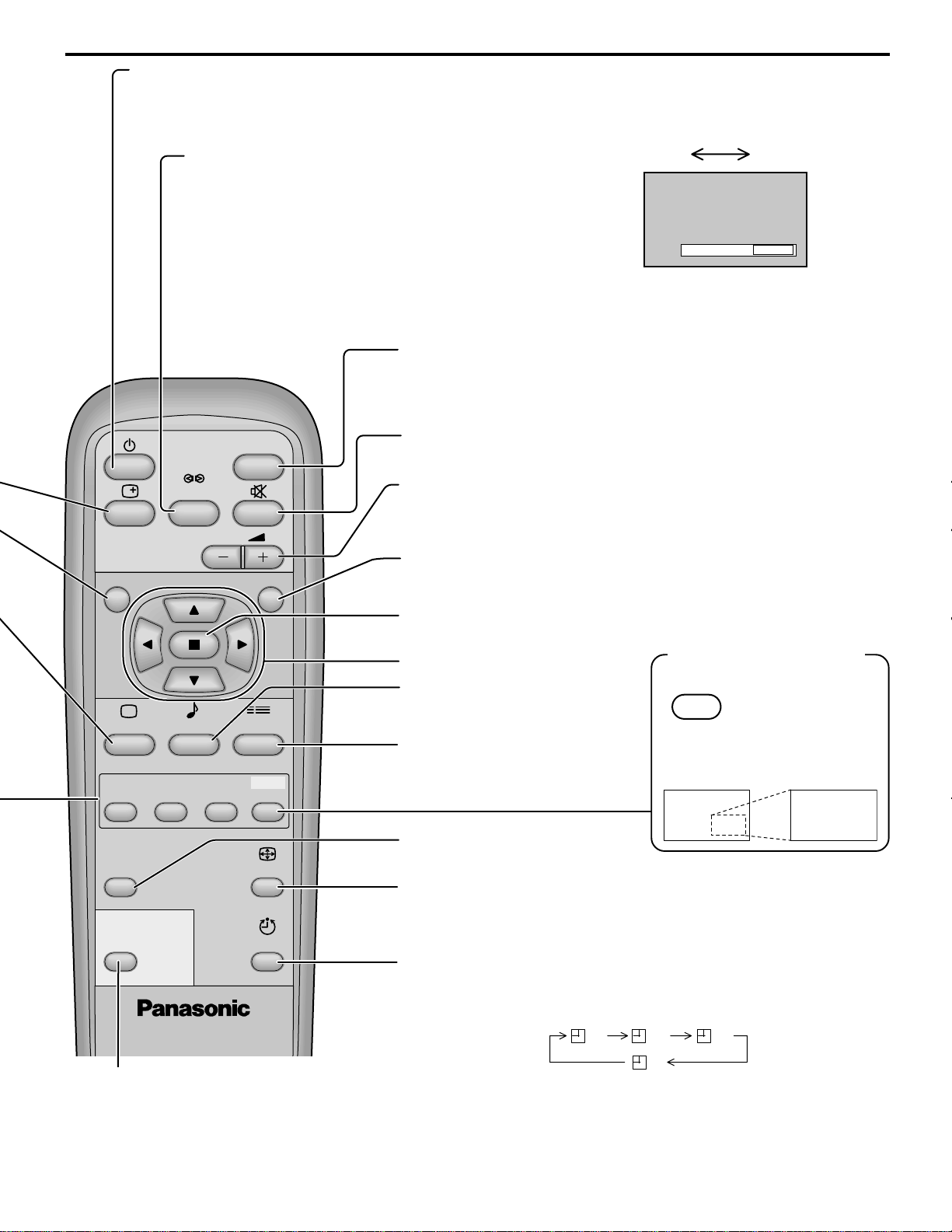
Basic Controls
N button
(see page 20, 21, 22, 23)
PICTURE button
(see page 22)
Press the “Status” button to display the current system status.
OFF TIMER 90
1
2
3
PC
NORMAL
1
Input label
2
Aspect mode (see page 19)
3
Off timer
The off timer indicator is displayed only when the off
timer has been set.
Each time pressing this button main picture and sub picture will be displayed as follows bellow.
Main picture Sub picture
[Picture out Picture]
Main picture Sub picture
[Picture and Picture]
Main picture
Sub picture
R - STANDBY
G POWER ON
INPUT MENU ENTER
– +
TH-42PWD6
VOL
Main Power
On/Off Switch
Enter/Aspect button
(see page 16, 19)
INPUT button
(INPUT1, INPUT2, INPUT3 and PC IN Selection)
(see page 18)
C.A.T.S sensor
Plasma C.A.T.S (Contrast Automatic Tracking System)
Plasma C.A.T.S automatically senses the ambient light conditions and
adjusts the brightness and gradation accordingly, to optimise contrast.
(Effective when Picture mode is set to Auto.)
MENU Screen ON/OFF
Each time the MENU button is pressed, the menu
screen will switch. (see page 16)
Volume Adjustment
Volume Up “+” Down “–”
When the menu screen is displayed.
“+”: press to move the cursor up
“–”: press to move the cursor down
(see page 16)
Normal Viewing PICTURE SET UP
SOUND PICTURE POS./ SIZE
MULTI
PIP
MULTI
PIP
MULTI
PIP
MULTI
PIP
AB
A
B
A
B
BA
B
A
B
A
PC1
VIDEO1
SELECT
SWAP SWAP SWAP
PC1
VIDEO1
VIDEO2
VIDEO1
PC1
VIDEO3
A
A
A
C
B
B
B
D
Input modes switching is possible
SELECT
ZOOM
MOVE
Press the SELECT button
Under main Picture and sub picture
display, select the picture which you
would like to change input modes.
Press the MOVE button
Each time the location of the sub picture will be
moved.
Notes: (1) This button is effective only in the picture in picture.
(2) The sub picture may be hidden by the on screen display,
depending on its position.
Note: Sound output is from the main picture.
SWAP
press to swap main
picture and sub picture.
Status button
MULTI PIP
Normal
Viewing
Power Indicator
The Power Indicator will light.
•
Power-OFF .. Indicator not illuminated (The unit will
still consume some power as long as the power cord
is still inserted into the wall outlet.)
•
Stand-by
....Red
•
Power-ON .....Green
•
DPMS............Orange
[With PC input signal and
during operation of PC’s screensaver.]
[Picture in Picture]
Remote control
sensor
[Example] Main picture label is bright Sub picture label is bright
Picture is changed
Main picture label is changed Sub picture label is changed
Press to change input signal.
INPUT
SURROUND
VOL
NR
INPUT
15
PLASMA DISPLAY
INPUT
SURROUND
VOL
NR
PICTURE
SOUND
SET UP
ASPECT
PICTURE
POS. /SIZE
OFF TIMER
PC
MULTI
PIP
SWAP SELECT
ZOOM
MOVE
ZOOM
Basic Controls
SURROUND Button
The benefits of surround sound are enormous. You can be
completely enveloped in sound; just as if you were at a concert
hall or cinema.
The surround setting switches on and off each time the
SURROUND button is pressed.
Note:
The surround settings are memorized separately for
each Sound mode (Normal, Auto).
PC button
Press the “PC” input mode selection button to select the PC
input mode.
This button is used to switch directly to PC input mode.
INPUT button
(
INPUT1, INPUT2, INPUT3 and PC IN
Selection)
Press to select INPUT1, INPUT2, INPUT3 and PC IN
input SLOTS sequentially. (see page 18)
Sound mute On/Off (see page 21)
Volume Adjustment
Press the Volume Up “+” or Down “–” button to increase or decrease
the sound volume level.
ACTION button
Press to make selections.
ASPECT button
Press to adjust the aspect.
(see page 19)
SOUND button (see page 21)
Press to adjust the SOUND.
SET UP button (see page 16)
POSITION buttons
R button (see page 20-21)
Press the R button to return to previous menu screen.
Stand-by (ON/OFF) button
The Plasma Display must first be plugged into the wall outlet and turned on at the power switch (see page 13).
Press this button to turn the Plasma Display On, from Standby mode. Press it again to turn the Plasma
Display Off to Standby mode.
PICTURE POS./SIZE button
(see page 20)
OFF TIMER button
The Plasma Display can be preset to switch to stand-by after a fixed
period. The setting changes to 30 minutes, 60 minutes, 90 minutes and
0 minutes (off timer cancelled) each time the button is pressed.
30 60
0
90
When three minutes remain, “Off timer 3” will flash.
The off timer is cancelled if a power interruption occurs.
ON OFF
ON
SURROUND
Note: In 2 screen display, the same input mode cannot be selected for the main picture and sub picture.
Digital Zoom(see page 29)
Press to access
Digital Zoom.
This displays an
enlargement of the
designated part of
the displayed image.
ZOOM
MOVE
16
PLASMA DISPLAY
INPUT
SURROUND
VOL
NR
PICTURE
SOUND
SET UP
ASPECT
PICTURE
POS. /SIZE
OFF TIMER
PC
MULTI
PIP
SWAP SELECT
ZOOM
MOVE
SET UP 1/2
SIGNAL
SCREENSAVER
INPUT LABEL
COMPONENT/RGB-IN SELECT
RGB
RGB1
OSD LANGUAGE
ENGLISH
(
US
)
POWER SAVE
OFF
STANDBY SAVE
ON
POWER MANAGEMENT
OFF
On-Screen Menu Displays
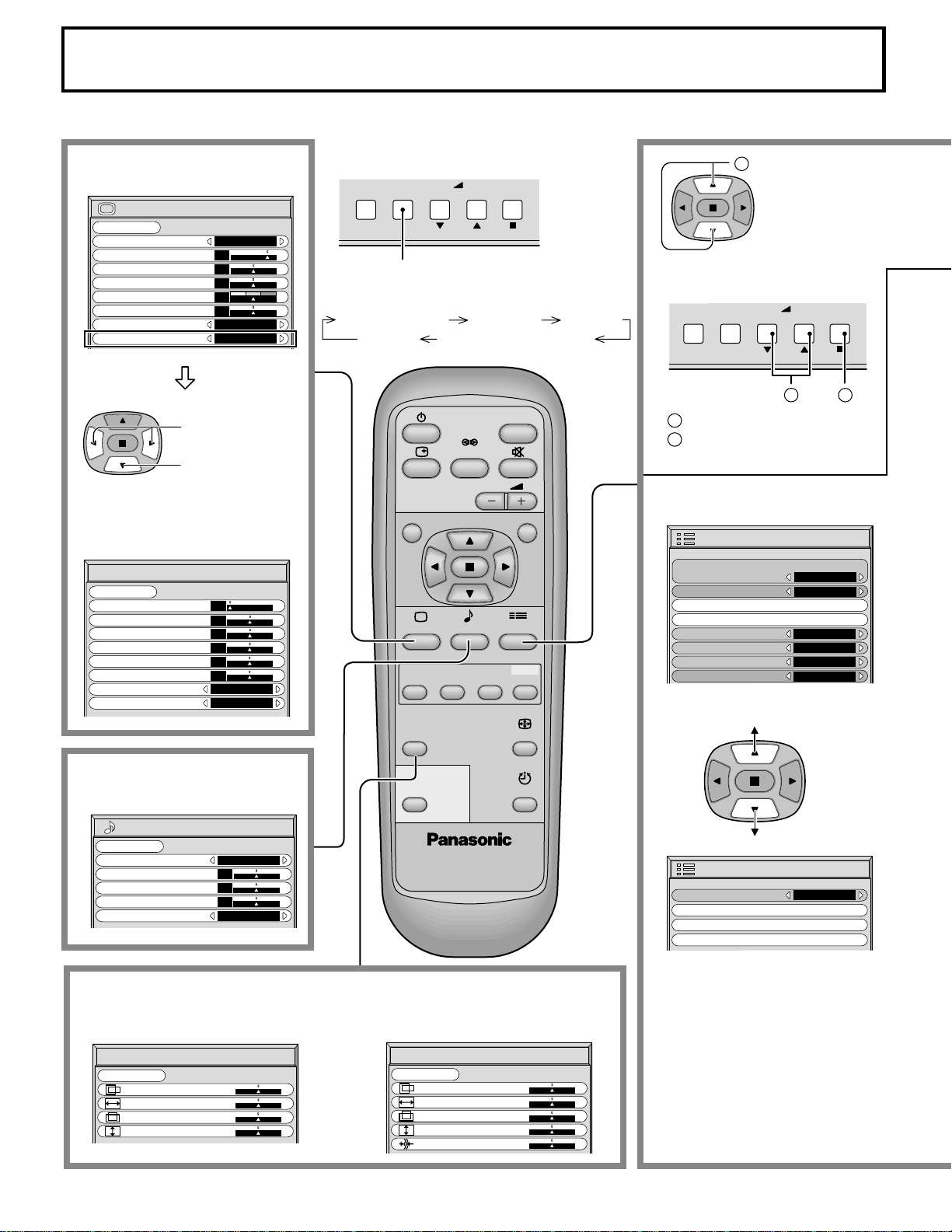
To PICTURE adjust menu
(see page 22)
To ADVANCED SETTINGS
(see page 22, 23)
During “VIDEO (S VIDEO)” and
“COMPONENT” input signal.
1
Press to select .
PICTURE
NORMALIZE
PICTURE MENU
BRIGHTNESS
COLOR
STANDARD
0
0
TINT
COLOR TEMP
NORMAL
ADVANCED SETTINGS
ON
PICTURE
25
0
0
SHARPNESS
NORMAL
NORMAL
ADVANCED SETTINGS
NORMALIZE
BLACK EXTENSION
W/B HIGH R
W/B HIGH B
0
0
0
0
INPUT LEVEL
0
0
W/B LOW R
GAMMA
2. 2
AGC
OFF
0
W/B LOW B
SOUND
NORMALIZE
AUDIO MENU
BASS
TREBLE
STANDARD
OFF
0
0
0
BALANCE
SURROUND
NORMAL
NORMAL
PICTURE POS./SIZE
NORMALIZE
H-POS
H-SIZE
V-POS
V-SIZE
To SOUND adjust menu
(see page 21)
During “RGB/PC” and “DVI”
input signal .
NORMAL
PICTURE POS./SIZE
NORMALIZE
H-POS
H-SIZE
V-POS
V-SIZE
CLOCK PHASE
SET UP 2/2
AUTO POWER OFF
OFF
MULTI DISPLAY SETUP
SET UP TIMER
PRESENT TIME SETUP
Press to select
“ON”.
Press to enter
ADVANCED
SETTINGS.
INPUT MENU ENTER
– +
VOL
The MENU button on the unit can also
be pressed.
Each time the MENU button is pressed,
the menu screen will switch.
Normal Viewing PICTURE SET UP
SOUND PICTURE POS./ SIZE
To PICTURE POS./SIZE adjust menu (see page 20)
INPUT MENU ENTER
1
2
– +
VOL
1
Press to select.
2
Press to access each adjust
screen.
[ from the unit ]
17
On-Screen Menu Display from Remote Control
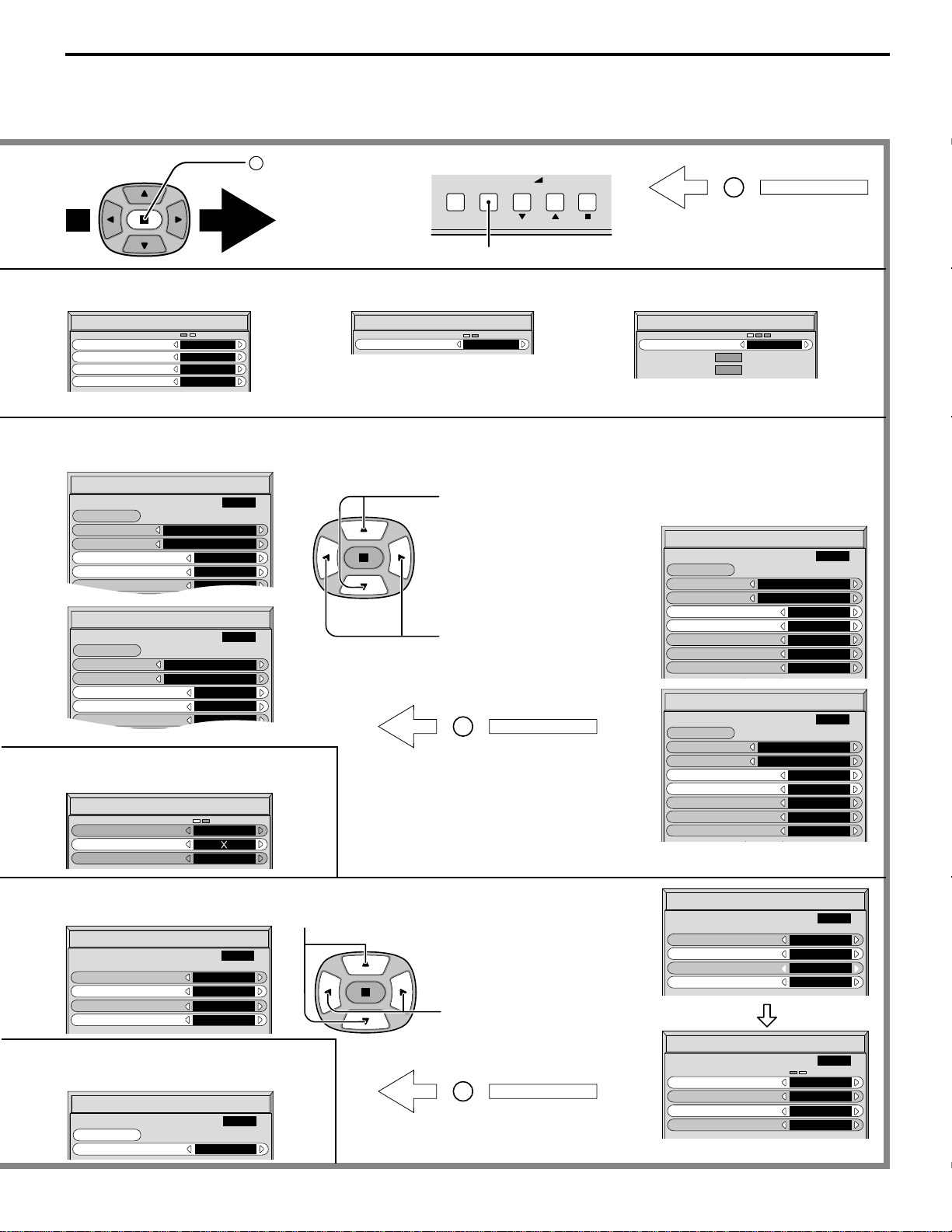
Note: “SIGNAL” setup menu displays a different setting condition for each input signal. (see page 18)
To SIGNAL screen for RGB
and DVI (see page 35)
To SIGNAL screen for VIDEO
(S VIDEO) (see page 33, 34)
To SIGNAL screen for
COMPONENT (see page 34)
2
Press to access
each adjust
screen.
R
Press the R button to return
to previous menu.
R
Press the R button to return
to “SET UP TIMER” menu.
SET UP TIMER
POWER ON FUNCTION
OFF
0 : 00
POWER ON TIME
POWER OFF FUNCTION
POWER OFF TIME
0 : 00
OFF
2 : 30
PRESENT TIME OF DAY
3D Y/C FILTER
(
NTSC
)
COLOR SYSTEM
Panasonic AUTO
(
4:3
)
ON
AUTO
NORMAL
3:2 PULLDOWN
OFF
SIGNAL
[
VIDEO
]
SIGNAL
[
COMPONENT
]
3:2 PULLDOWN
OFF
SIGNAL
[
RGB
]
SYNC
H
-
FREQ. kHz
V
-
FREQ. Hz
H & V
31.5
60.0
R
Press the R button to return
to “SCREENSAVER” menu.
Press to select START
TIME/ FINISH TIME (When
TIME OF DAY is selected).
Press to select SHOW
DURATION/ SAVER
DURATION (When
INTERVAL is selected).
Press to set up.
Press to select POWER ON
TIME / POWER OFF TIME.
Press to set up POWER ON
TIME/ POWER OFF TIME.
To SET UP TIMER selection
screen.(see page 24-25)
To setup SCREENSAVER
(See page 26-28)
PRESENT TIME SETUP
PRESENT TIME OF DAY
10 : 00
SET
10 : 00
PRESENT TIME OF DAY
MULTI DISPLAY SETUP
MULTI DISPLAY SETUP
ARRANGEMENT
ON
2 2
LOCATION
A1
To setup MULTIDISPLAY screen.
(See page 31)
SCREENSAVER
FUNCTION
MODE
WHITE BAR SCROLL
TIME OF DAY
START TIME
7 : 00
8 : 00
SIDE BAR ADJUST
BRIGHT
WOBBLING
OFF
PEAK LIMIT
OFF
FINISH TIME
START
PRESENT TIME OF DAY
10 : 00
SCREENSAVER
FUNCTION
MODE
WHITE BAR SCROLL
INTERVAL
SHOW DURATION
1 : 00
0 : 15
SIDE BAR ADJUST
BRIGHT
WOBBLING
OFF
PEAK LIMIT
OFF
SAVER DURATION
START
PRESENT TIME OF DAY
10 : 00
To PRESENT TIME SET UP.
(see page 24)
SET UP TIMER
POWER ON FUNCTION
OFF
6 : 00
POWER ON TIME
POWER OFF FUNCTION
POWER OFF TIME
23 : 15
OFF
2 : 30
PRESENT TIME OF DAY
SET UP TIMER
POWER ON FUNCTION
ON
6 : 00
POWER ON TIME
POWER OFF FUNCTION
POWER OFF TIME
23 : 15
ON
2 : 30
PRESENT TIME OF DAY
INPUT MENU ENTER
– +
VOL
Press to return to previous menu screen.
[ from the unit ]
SCREENSAVER
FUNCTION
MODE
WHITE BAR SCROLL
INTERVAL
SHOW DURATION
0 : 00
0 : 00
SIDE BAR ADJUST
BRIGHT
SAVER DURATION
START
PRESENT TIME OF DAY
10 : 00
SCREENSAVER
FUNCTION
MODE
WHITE BAR SCROLL
TIME OF DAY
START TIME
0 : 00
0 : 00
SIDE BAR ADJUST
BRIGHT
FINISH TIME
START
PRESENT TIME OF DAY
10 : 00
18
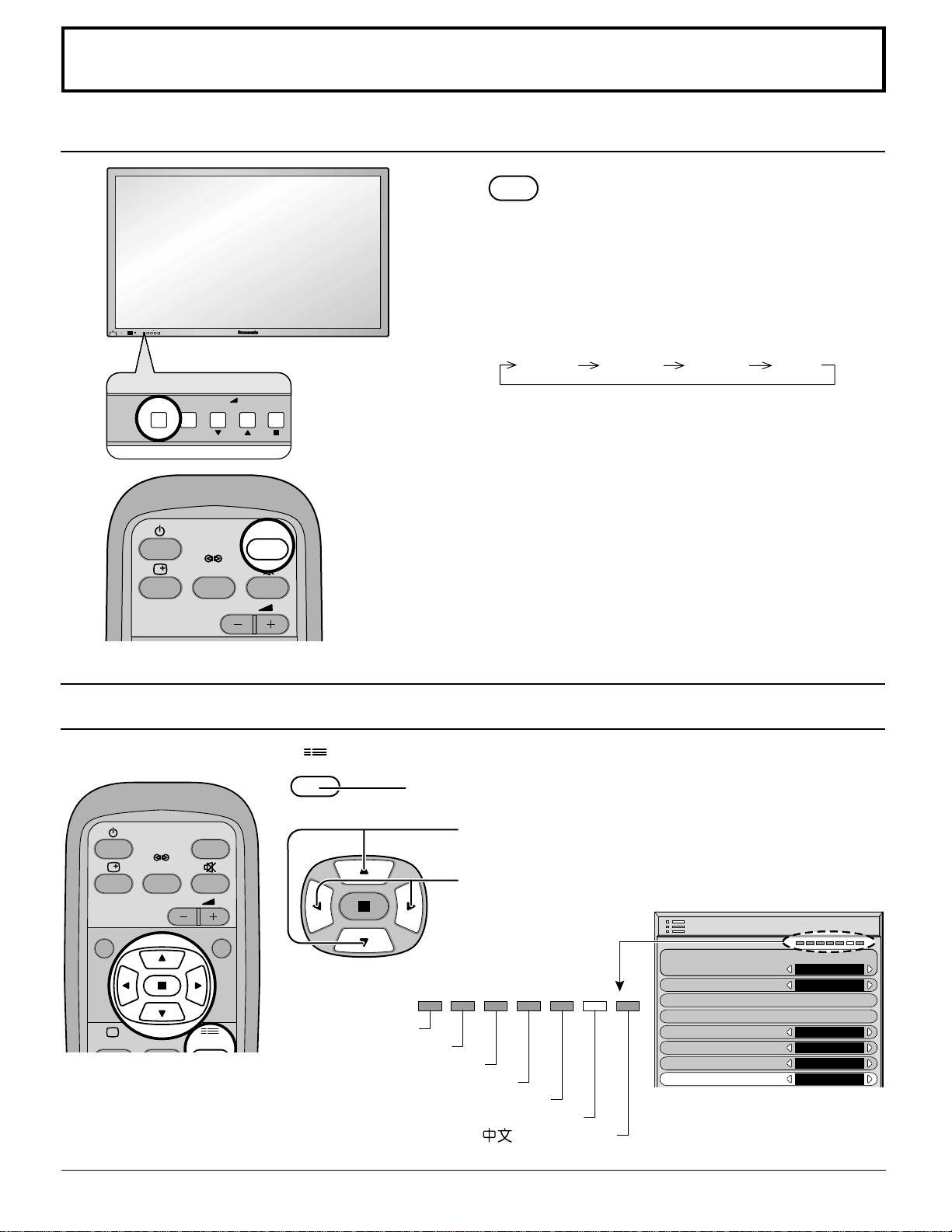
Selecting the On-Screen Menu Language
Select the Input Signal
R - STANDBY
G POWER ON
INPUT MENU ENTER
–+
VOL
MENU ENTER
–+
VOL
INPUT
SURROUND
VOL
NR
INPUT
INPUT
Input signals will change as follows:
SET UP 1/2
SIGNAL
SCREENSAVER
INPUT LABEL
COMPONENT/RGB-IN SELECT
RGB
RGB1
OSD LANGUAGE
ENGLISH
(
US
)
POWER SAVE
OFF
STANDBY SAVE
ON
POWER MANAGEMENT
OFF
press to display the SET UP menu.
press to select your preferred language.
Selectable languages
ENGLISH(UK)
Deutsch
Français
Italiano
Español
ENGLISH(US)
.......
(Chinese)
INPUT
SURROUND
VOL
N
PICTURE
SOUND
R
SET UP
press to select OSD LANGUAGE.
SET UP
Notes:
(1) Input terminal will not be selected if the terminal board is not installed
into the SLOT.
(2) Select to match the signals from the source connected to the
component/RGB input terminals. (see page 33)
(3) In 2 screen display, the same input mode cannot be selected for
the main picture and sub picture.
PC ININPUT1 INPUT2 INPUT3
Input Signal Selection
Press the INPUT button to select the input signal
to be played back from the equipment which has
been connected to the Plasma Display.
19
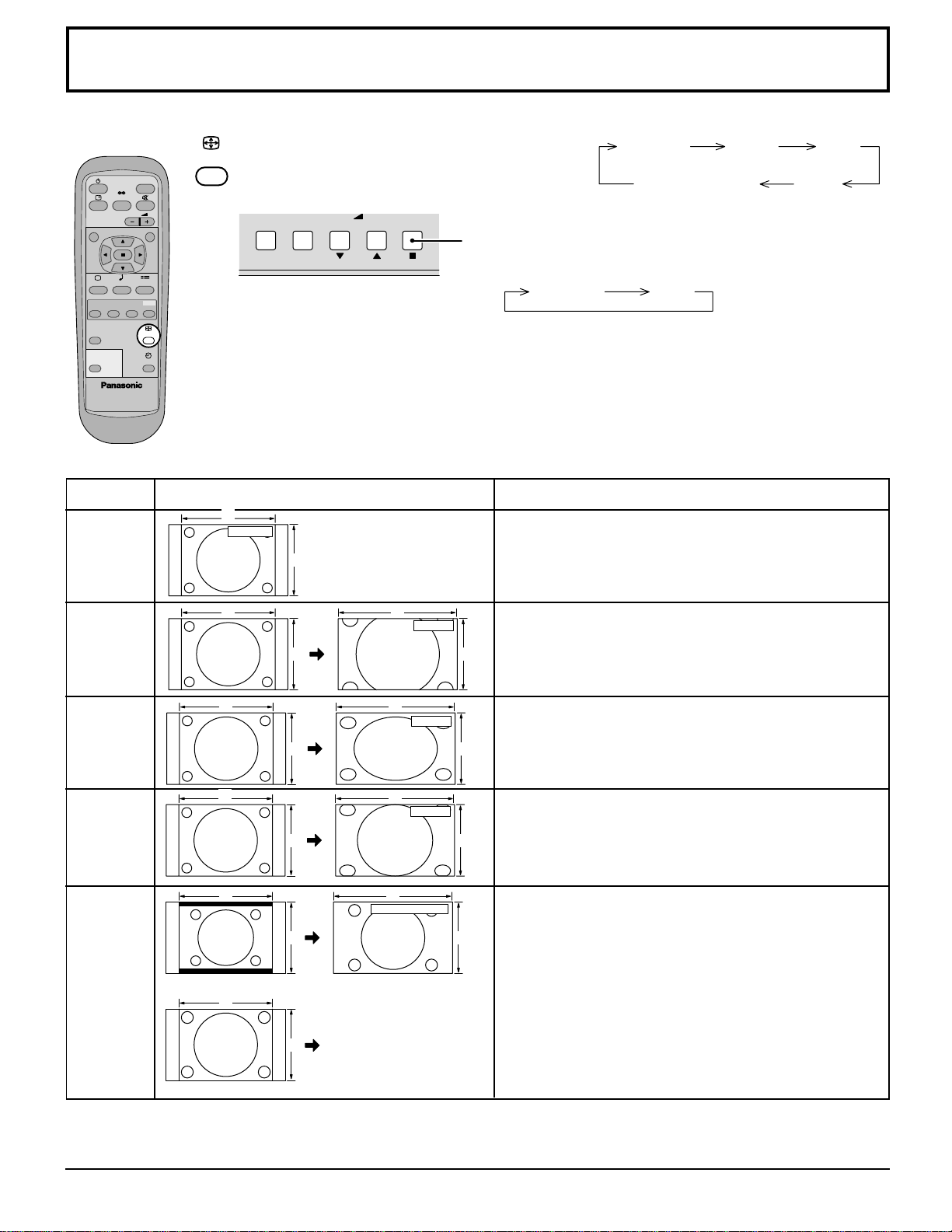
Mode
NORMAL
ZOOM
FULL
JUST
Panasonic
AUTO
Explanation
NORMAL will display a 4:3 picture at its standard 4:3
size.
ZOOM mode magnifies the central section of the picture.
16:9 will display the picture at its maximum size but
with slight elongation.
JUST mode will display a 4:3 picture at its maximum
size but with aspect correction applied to the center of
the screen so that elongation is only apparent at the
left and right edges of the screen. The size of the picture
will depend on the original signal.
NORMAL
3
4
ZOOM
4
3
16
9
FULL
4
3
16
9
4
3 9
16
JUST
Picture
The display will automatically become enlarged
(depending on the picture source), allowing you to view
the picture at its maximum size.
Note:
Panasonic AUTO mode is designed to automatically
adjust the aspect ratio to handle a mix of 16:9 and 4:3
program material. Certain 4:3 program material, such
as stock market data screens, may occasionally cause
the image size to change unexpectedly. When viewing
such programs, it is recommended that the ASPECT
be set to NORMAL.
Panasonic AUTO
For an elongated image
For a 4:3 image
Image is expanded
416
39
4
3
Changes in accordance
with the Panasonic
AUTO mode setting (see
page 34).
ASPECT Controls
The Plasma Display will allow you to enjoy viewing the picture at its maximum size, including wide screen cinema format picture.
PLASMA DISPLAY
INPUT
SURROUND
VOL
NR
PICTURE
SOUND
SET UP
ASPECT
PICTURE
POS. /SIZE
OFF TIMER
PC
MULTI
PIP
SWAP SELECT MOVE
ZOOM
ASPECT button
The aspect mode changes each time the
ASPECT button is pressed.
NORMAL ZOOM FULL
Panasonic AUTO JUST
ASPECT
Notes:
(1) For PC signal input,
the mode switches between “NORMAL”, “ZOOM” and “FULL” only.
(2)
For a 1125 (1080) / 60i · 50i · 24p · 24sF, 1250 (1080) / 50i, 750 (720) / 60p · 50p signal input during
“COMPONENT”
, “RGB” and “DVI” input signal mode, the mode is set to “FULL” mode, and switching is
not possible.
Panasonic Auto can be selected only during Video signal input.
(3)
The aspect mode is memorized separately for each input terminal (INPUT1, INPUT2 , INPUT3 and PC IN).
Note:
Do not allow the picture to be displayed in 4:3 mode for an extended period, as this can cause a permanent after-image to
remain on the Plasma Display Panel.
INPUT MENU ENTER
– +
VOL
The aspect mode changes each time the ENTER
button is pressed.
[During MULTI PIP Operations]
(1)
Picture and Picture, Picture in Picture
:
(2) Others : Aspect switching is not possible.
[from the unit]
NORMAL 16 : 9
20
H-POS
H-SIZE
V-POS
V-SIZE
CLOCK PHASE
(RGB/PC in Mode)
When the Position Right
“ ”
button is pressed
When the Position Right
“ ”
button is pressed
When the Position Right
“ ”
button is pressed
When the Position Right
“ ”
button is pressed
When the Position Left
“ ”
button is pressed
When the Position Left
“ ”
button is pressed
When the Position Left
“ ”
button is pressed
When the Position Left
“ ”
button is pressed
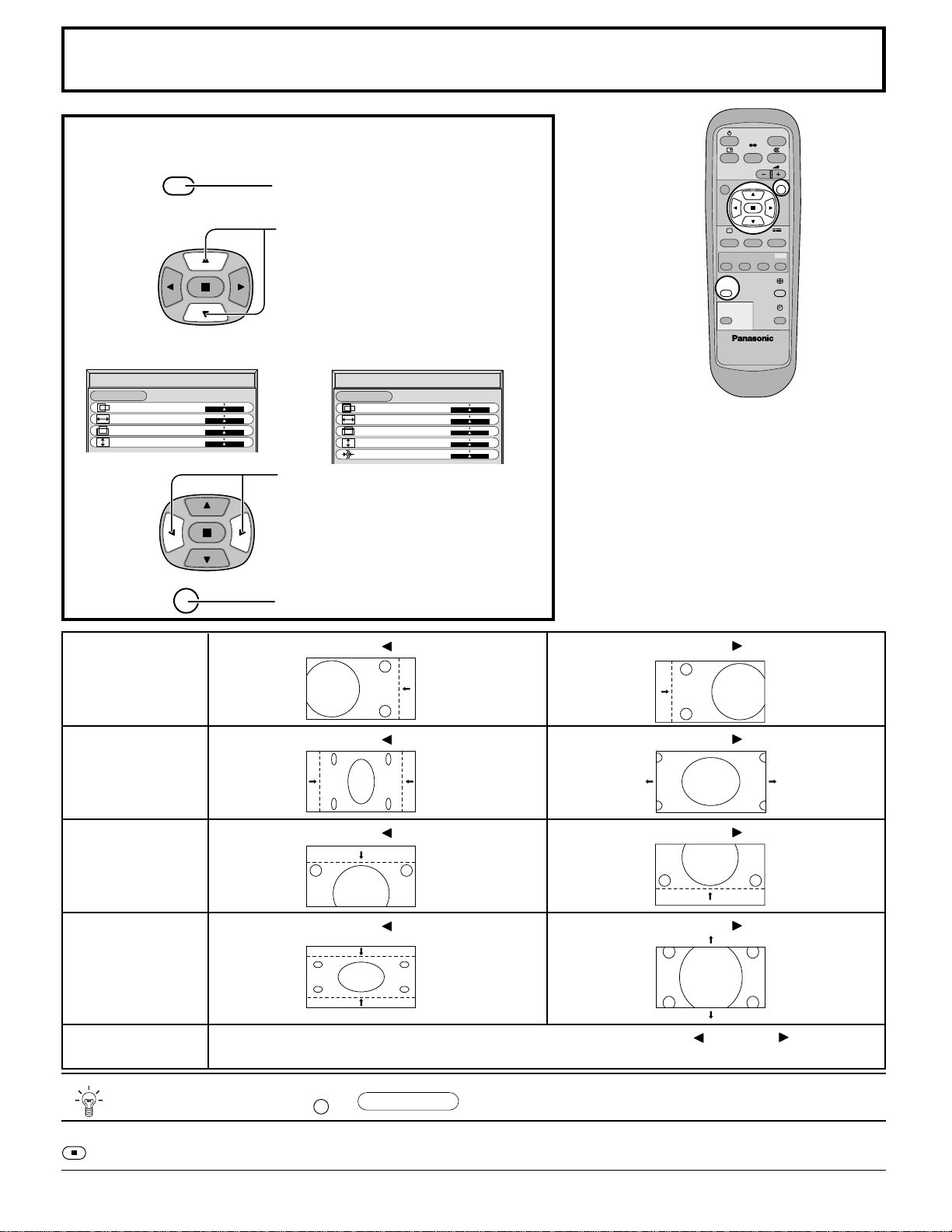
Helpful Hint ( /
NORMALIZE
Normalization)
While the PICTURE POS./SIZE display is active, if either the N button on the remote control is pressed at any time or the
(ACTION button) is pressed during “NORMALIZE”, then all adjustment values are returned to the factory settings.
N
Adjusting PICTURE POSITION/SIZE
PLASMA DISPLAY
N R
INPUT
SURROUND
VOL
PICTURE
SOUND
SET UP
ASPECT
PICTURE
POS. /SIZE
OFF TIMER
PC
MULTI
PIP
SWAP SELECT MOVE
ZOOM
Adjusting screen
PICTURE
POS. /SIZE
Press to display the PICTURE POS./
SIZE menu.
NORMAL
PICTURE POS./SIZE
NORMALIZE
H-POS
H-SIZE
V-POS
V-SIZE
NORMAL
PICTURE POS./SIZE
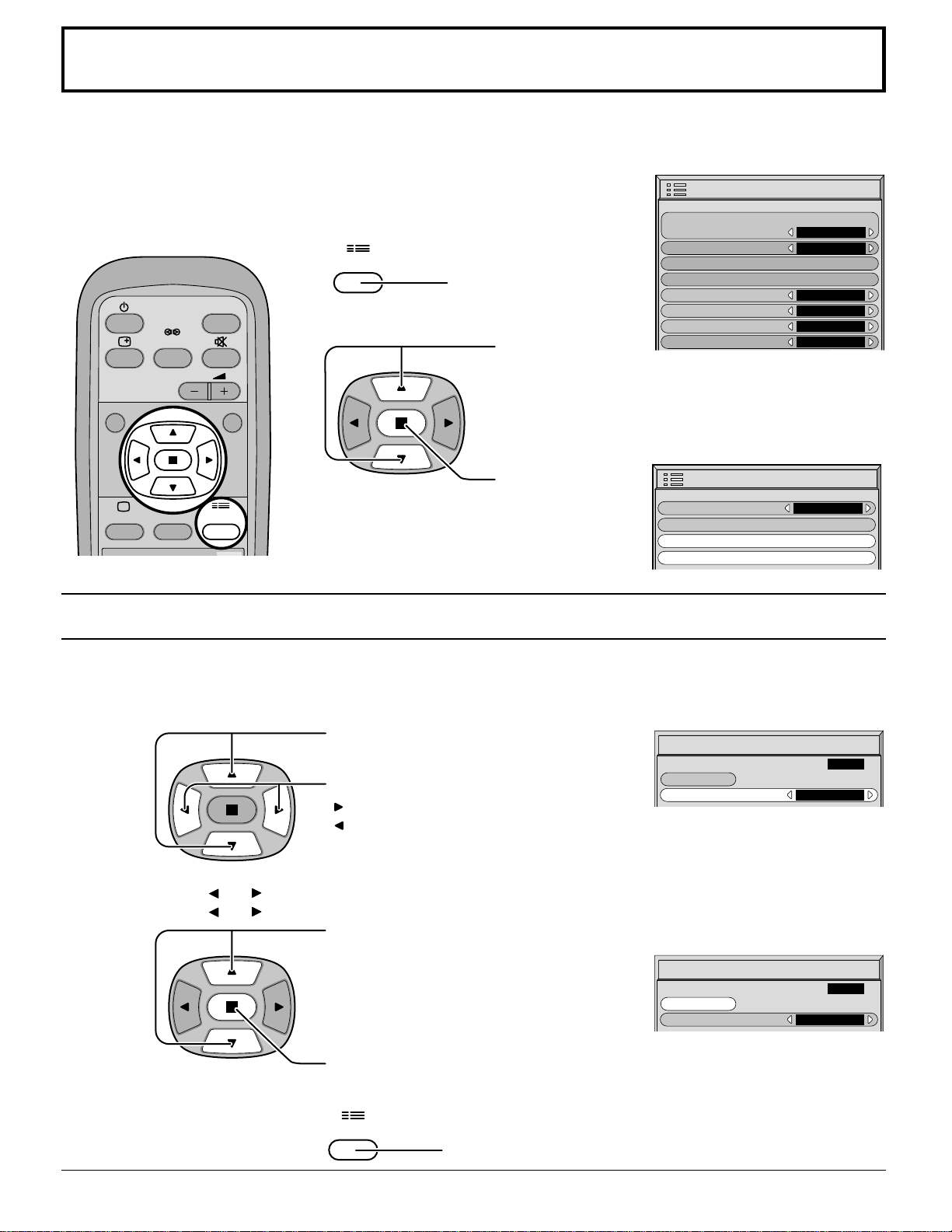
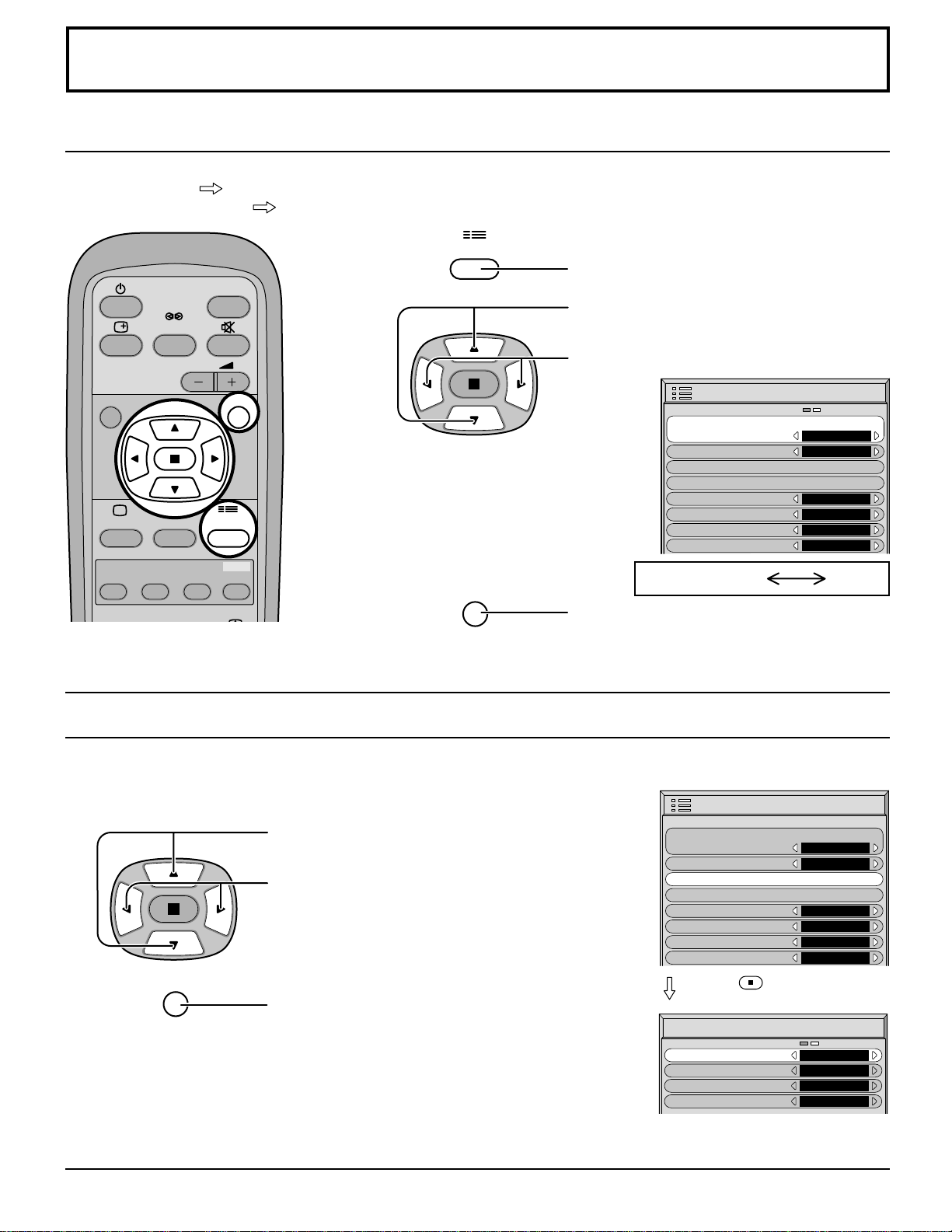
NORMALIZE
H-POS
H-SIZE
V-POS
V-SIZE
CLOCK PHASE
Press to adjust POS./SIZE.
R
Press to exit from adjust mode.
Press to select H-POS/H-SIZE/V-POS/
V-SIZE/CLOCK PHASE.
During “VIDEO (S VIDEO)” and
“COMPONENT” input signal.
During “RGB/PC” and “DVI”
input signal.
1
3
2
Notes:
(1)
Adjustment details are memorized separately
for different input signal formats (Adjustments
for component signals are memorized for 525
(480) / 60i · 60p, 625 (575) / 50i · 50p, 1125
(1080) / 60i · 50i · 24p · 24sF, 1250 (1080) /
50i, 750 (720) / 60p · 50p each, and RGB/PC/
DVI signals are memorized for each frequency.)
(2) If a “Cue” or “Rew” signal from a VCR or DVD
player is received, the picture position will
shift up or down. This picture position
movement cannot be controlled by the
PICTURE POS./SIZE function.
Flickering and distortion can be eliminated by using the Position Left
“ ”
or Right
“ ”
button to
carry out adjustment.
21
MUTE
SOUND
NORMALIZE
AUDIO MENU
BASS
TREBLE
STANDARD
OFF
0
0
0
BALANCE
SURROUND
NORMAL
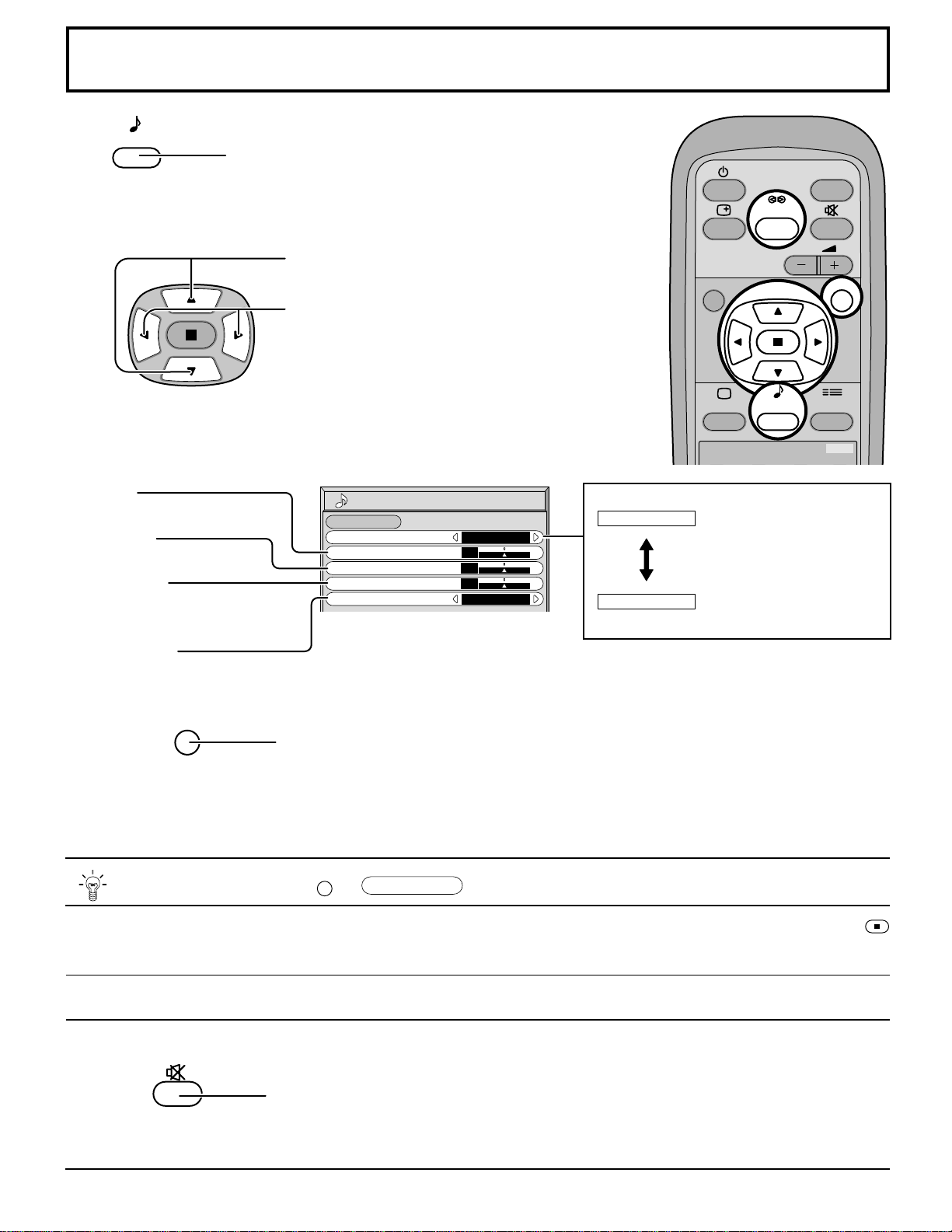
SOUND Adjustment
1
2
Select to adjust each item.
Press to select the desired adjustment menu.
Select the desired level by listening to the sound.
Automatically controls
proper volume level.
Emits the original sound.
BASS
Adjusts low sounds
TREBLE
Adjusts high sounds
BALANCE
Adjusts left and right
volumes
SURROUND
Press the R button
Useful when answering the phone or receiving visitors.
Press this button to mute the sound.
Press again to reactivate sound. Sound is also reactivated when power is turned off or
volume level is changed.
N R
MULTI
PIP
SWAP SELECT MOVE
INPUT
SURROUND
VOL
PICTURE
SOUND
SET UP
ZOOM
AUTO
STANDARD
R
While the “SOUND” menu is displayed, if either the N button on the remote control is pressed at any time or the
(ACTION button) is pressed during “NORMALIZE”, then all adjustment values are returned to the factory settings.
Helpful Hint ( /
NORMALIZE
Normalization)
N
•
To end adjustments
Note:
Press the SURROUND button to directly turn the surround effect ON and OFF. (see page 15)
BASS, TREBLE and SURROUND settings are memorized separately for each SOUND mode (STANDARD, AUTO).
Select ON or OFF
SOUND
Press to display the Sound menu.
22
PICTURE
NORMALIZE
PICTURE MENU
BRIGHTNESS
COLOR
STANDARD
0
0
TINT
COLOR TEMP
NORMAL
ADVANCED SETTINGS
ON
PICTURE
25
0
0
SHARPNESS
NORMAL
Helpful Hint ( /
NORMALIZE
Normalization)
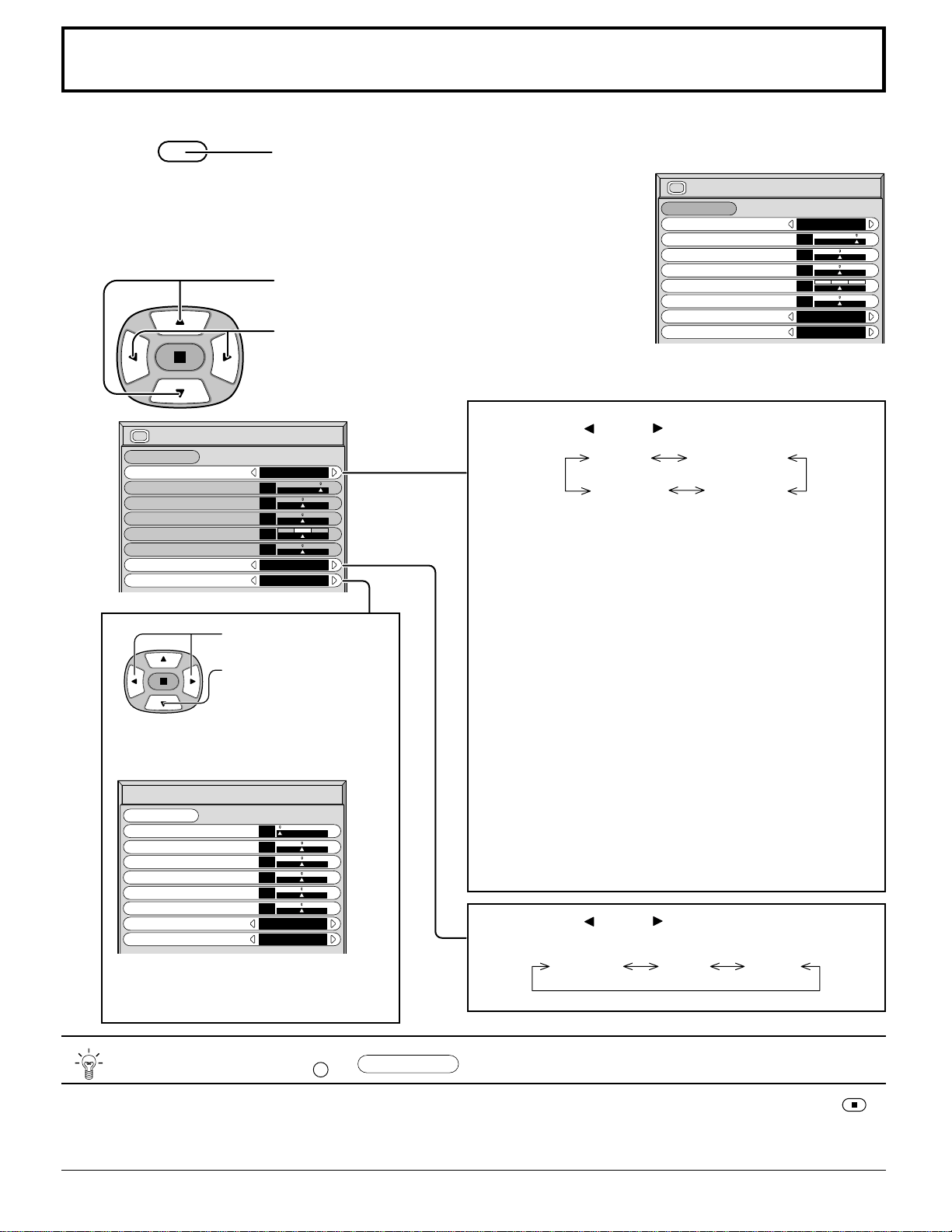
ADVANCED SETTINGS ON
Enables fine picture adjustment at a
professional level (see next page).
ADVANCED SETTINGS OFF
Displays images with settings of the
PICTURE menu.
PICTURE Adjustments
1
2
Press to display the PICTURE menu.
Select to adjust each item.
Press to select the menu to adjust.
Select the desired level by looking at the picture
behind the menu.
PICTURE
AUTO STANDARD
CINEMA DYNAMIC
Press the left
or right
button to switch between
modes.
STANDARD
For viewing in standard (evening lighting) environments.
This menu selects the normal levels of BRIGHTNESS
and PICTURE.
DYNAMIC
For viewing in brighter environments.
This menu selects higher than normal levels of
BRIGHTNESS and PICTURE.
CINEMA
Ideal for movies.
Press the left
or right
button to switch between
modes.
NORMAL COOL WARM
While the “PICTURE” menu is displayed, if either the N button on the remote control is pressed at any time or the
(ACTION button) is pressed during “NORMALIZE”, then all adjustment values are returned to the factory settings.
Note:
If you would like to change the picture and color of the
selected PICTURE menu to something else, adjust using
the items in the PICTURE menu. (see next page)
N
PICTURE
NORMALIZE
PICTURE MENU
BRIGHTNESS
COLOR
STANDARD
0
0
TINT
COLOR TEMP
NORMAL
ADVANCED SETTINGS
OFF
PICTURE
25
0
0
SHARPNESS
NORMAL
NORMAL
ADVANCED SETTINGS
NORMALIZE
BLACK EXTENSION
W/B HIGH R
W/B HIGH B
0
0
0
0
INPUT LEVEL
0
0
W/B LOW R
GAMMA
2. 2
AGC
OFF
0
W/B LOW B
AUTO
Automatically selects the mode that best suits the
brightness of the environment.
Press to select “ON”.
Press to enter
Advanced Settings.
23
ADVANCED SETTINGS
Helpful Hint ( /
NORMALIZE
Normalization)
Note:
In PICTURE, there is nor a noticeable change even when contrast is increased with a bright picture or reduced with a dark
picture.
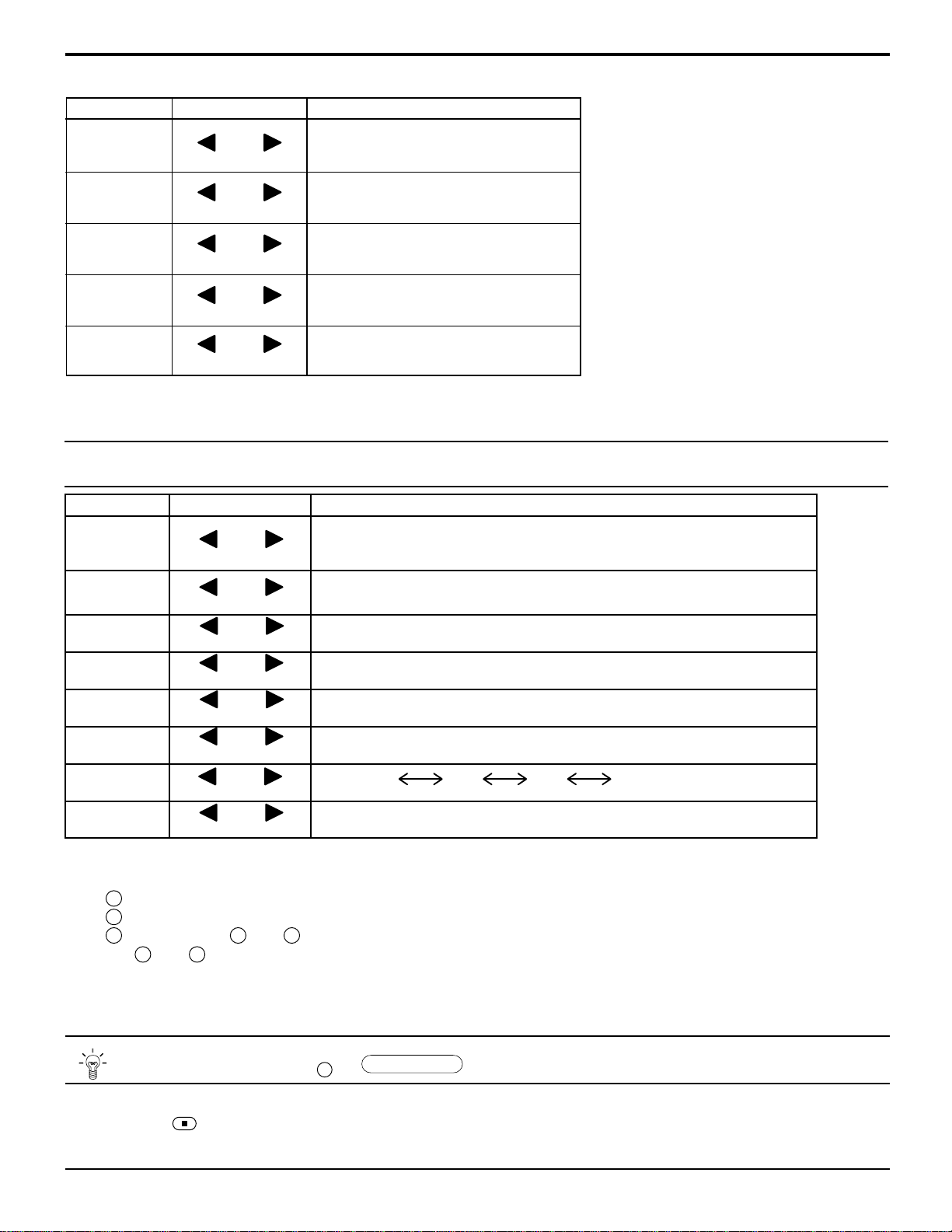
PICTURE Adjustments
Item
PICTURE
BRIGHTNESS
COLOR
TINT
SHARPNESS
Effect Adjustments
Less More
Darker Brighter
Reddish Greenish
Adjusts the proper picture contrast.
Adjusts for easier viewing of dark pictures
such as night scenes and black hair.
Adjusts color saturation.
Adjust for natural flesh tones.
Adjusts picture sharpness.
Notes:
(1)
“COLOR” and “TINT”
settings cannot
be adjusted for “RGB/PC” and “DVI”
input signal.
(2) You can change the level of each
function (PICTURE, BRIGHTNESS,
COLOR, TINT, SHARPNESS) for each
PICTURE menu.
(3) The setting details for STANDARD,
DYNAMIC and CINEMA respectively
are memorized separately for each
input mode (INPUT1, INPUT2 ,
INPUT3 and PC IN).
(4) The “TINT” setting can be adjusted for
NTSC signal only during “VIDEO
(S VIDEO)” input signal.
Less More
Less More
N
Item
BLACK
EXTENSION
INPUT LEVEL
W/B HIGH R
W/B HIGH B
W/B LOW R
W/B LOW B
GAMMA
AGC
Effect
On the remote control unit, while the “ADVANCED SETTINGS” menu is displayed, if either the N button is pressed at
any time or the
(ACTION button) is pressed during “NORMALIZE”, then all adjustment values are returned to the
factory settings.
Notes:
(1) Carry out “W/B” adjustment as follows.
A Adjust the white balance of the bright sections using the “W/B HIGH R” and “W/B HIGH B” settings.
B Adjust the white balance of the dark sections using the “W/B LOW R” and “W/B LOW B” settings.
C Repeat steps A and B to adjust.
Steps A and B affect each other’s settings, so repeat each step in turn to make the adjustment.
(2) The adjustment values are memorized separately for each input mode (INPUT1, INPUT2 , INPUT3 and PC IN).
(3) The adjustment range values should be used as an adjustment reference.
Less More
Less More
Less More
Less More
Down Up
Less More
Less More
OFF ON
Details
Adjusts the dark shades of the image in gradiation.
Adjustment of parts which are extremely bright and hard to see.
Adjusts the white balance for light red areas.
Adjusts the white balance for light blue areas.
Adjusts the white balance for dark red areas.
Adjusts the white balance for dark blue areas.
S CURVE 2.0
2.2
2.5
Increases the brightness of dark signal automatically.
(This cannot be adjusted when the input signal is RGB or DVI.)
24
PRESENT TIME SETUP
PRESENT TIME SETUP/SET UP TIMER
The timer can switch the Plasma Display ON or OFF.
Before attempting Timer Set, confirm the PRESENT TIME OF DAY and
adjust if necessary. Then set POWER ON TIME/POWER OFF TIME.
SET UP
INPUT
SURROUND
VOL
N
PICTURE
SOUND
R
MULTI
SET UP
ZOOM
Press to display the
SETUP menu screen.
Press to select
SET UP TIMER or
PRESENT TIME
SETUP.
Press to display the
SET UP TIMER
screen or PRESENT
TIME SETUP screen.
1
2
1
2
SET UP 2/2
AUTO POWER OFF
OFF
MULTI DISPLAY SETUP
SET UP TIMER
PRESENT TIME SETUP
SET UP 1/2
SIGNAL
SCREENSAVER
INPUT LABEL
COMPONENT/RGB-IN SELECT
RGB
RGB1
OSD LANGUAGE
ENGLISH
(
US
)
POWER SAVE
OFF
STANDBY SAVE
ON
POWER MANAGEMENT
OFF
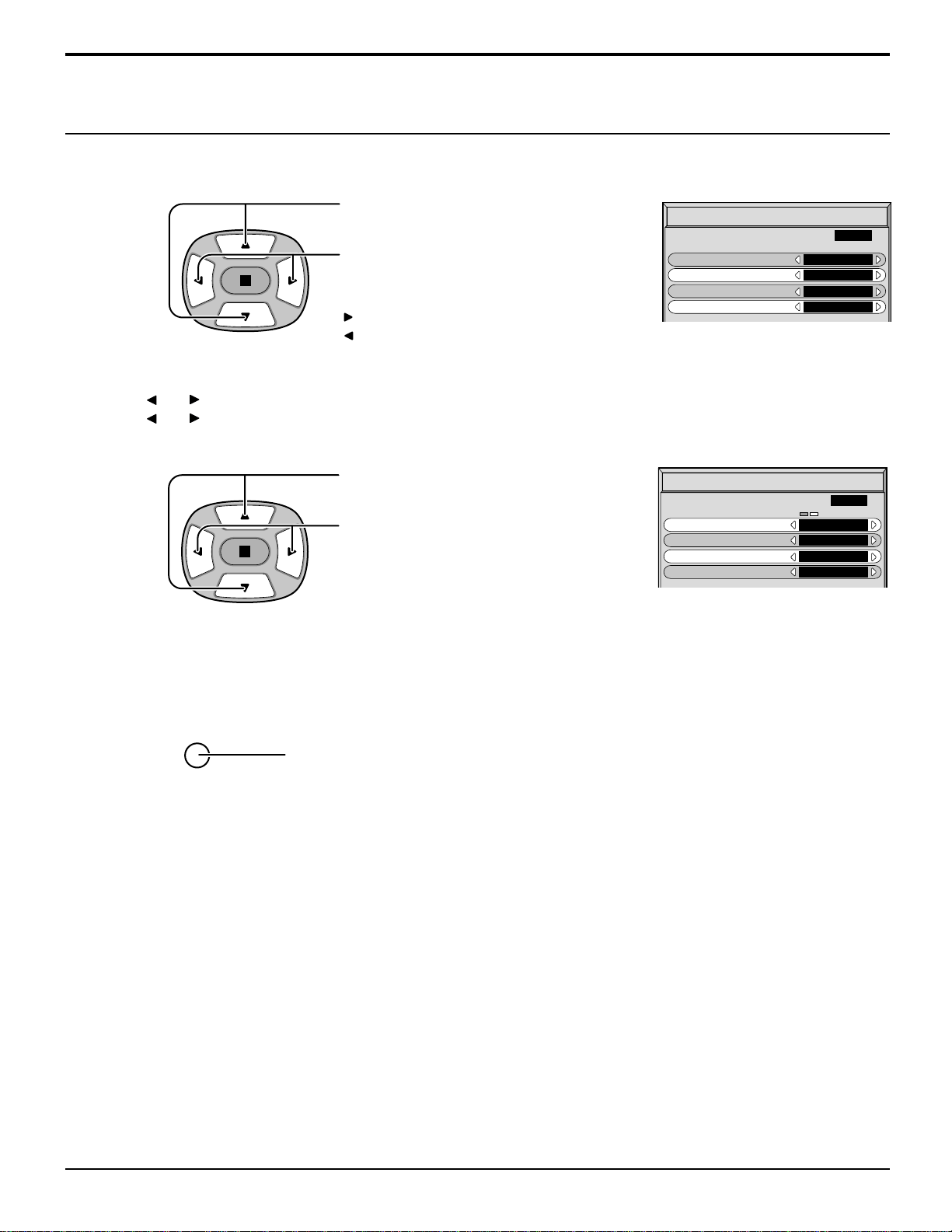
Display the PRESENT TIME SETUP screen.
To set up PRESENT TIME, follow the procedure described below.
Press to select PRESENT TIME OF DAY.
Press to select Set.
Press to store PRESENT TIME SETUP.
Press to set up PRESENT TIME OF DAY.
button: Forward
button: Back
Note:
Set cannot be selected unless PRESENT TIME OF DAY is set.
Press to exit from PRESENT TIME SETUP.
SET UP
PRESENT TIME SETUP
PRESENT TIME OF DAY
0 : 00
SET
0 : 00
PRESENT TIME OF DAY
PRESENT TIME SETUP
PRESENT TIME OF DAY
10 : 00
SET
10 : 00
PRESENT TIME OF DAY
Notes:
• Pressing
“ ”
or
“ ”
button once changes PRESENT TIME OF DAY 1minute.
• Pressing
“ ”
or
“ ”
button continuously changes PRESENT TIME OF DAY by 15 minutes.
25
SET UP TIMER
Press to set up POWER ON TIME/
POWER OFF TIME.
Press to select
POWER ON TIME/POWER OFF TIME.
1
Press to select POWER ON FUNCTION/
POWER OFF FUNCTION.
Press to select ON.
3
2
Press twice to exit from SETUP.
R
PRESENT TIME SETUP/SET UP TIMER
Note:
Timer function will not work unless “PRESENT TIME OF DAY” is set.
SET UP TIMER
POWER ON FUNCTION
OFF
0 : 00
POWER ON TIME
POWER OFF FUNCTION
POWER OFF TIME
0 : 00
OFF
2 : 30
PRESENT TIME OF DAY
SET UP TIMER
POWER ON FUNCTION
ON
6 : 00
POWER ON TIME
POWER OFF FUNCTION
POWER OFF TIME
23 : 15
ON
2 : 30
PRESENT TIME OF DAY
Notes:
• Pressing
“ ”
or
“ ”
button once changes POWER ON TIME / POWER OFF TIME 1minute.
• Pressing
“ ”
or
“ ”
button continuously changes POWER ON TIME / POWER OFF TIME by 15 minutes.
Display the SET UP TIMER SCREEN.
button: Forward
button: Back

26
SCREENSAVER (For preventing after-images)
2
3
1
4
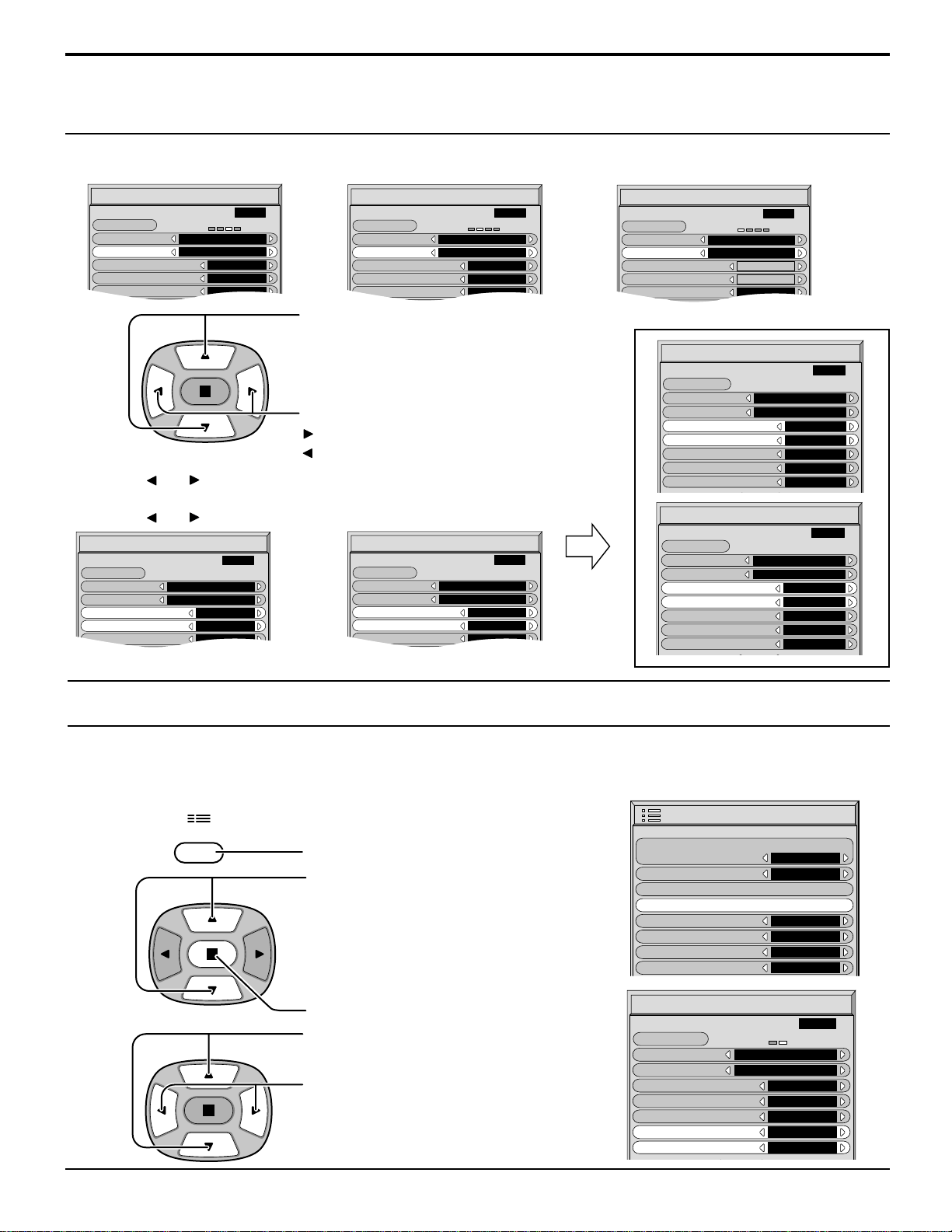
Press to display the SETUP menu screen.
SET UP
Press to select the SCREENSAVER.
Press to select the SCREENSAVER screen.
Press to select the FUNCTION.
Press to select the desired function.
Press to select the MODE.
Press to select each mode items.
Do not display a still picture, especially in 4:3 mode, for any length of time.
If the display must remain on, a SCREENSAVER should be used.
MODE selection
NEGATIVE / SCROLL selection
WHITE BAR SCROLL : A white bar will scroll from left to right.
NEGATIVE : A negative image will be displayed on the screen.
TIME OF DAY : Operates when START TIME and FINISH TIME are set up and those
times arrive.
INTERVAL : Operates when SHOW DURATION and SAVER DURATION are set
up and those times arrive.
OFF
WHITE BAR SCROLL NEGATIVE
ON : Operates when START is selected and the (ACTION) is pressed.
SET UP 1/2
SIGNAL
SCREENSAVER
INPUT LABEL
COMPONENT/RGB-IN SELECT
RGB
RGB1
OSD LANGUAGE
ENGLISH
(
US
)
POWER SAVE
OFF
STANDBY SAVE
ON
POWER MANAGEMENT
OFF
SCREENSAVER
FUNCTION
MODE
WHITE BAR SCROLL
OFF
0 : 00
0 : 00
SIDE BAR ADJUST
BRIGHT
WOBBLING
OFF
PEAK LIMIT
OFF
START
10 : 00
PRESENT TIME OF DAY
START TIME
FINISH TIME
SCREENSAVER
FUNCTION
MODE
WHITE BAR SCROLL
OFF
0 : 00
0 : 00
SIDE BAR ADJUST
BRIGHT
WOBBLING
OFF
PEAK LIMIT
OFF
START
10 : 00
PRESENT TIME OF DAY
START TIME
FINISH TIME
START setting
5
When the Mode is set to ON, press
to select START.
Press to start SCREENSAVER.
The menu screen will disappear and the SCREENSAVER will be activated. To
stop the SCREENSAVER under ON, press the
R
button.
SCREENSAVER
FUNCTION
MODE
WHITE BAR SCROLL
ON
0 : 00
0 : 00
SIDE BAR ADJUST
BRIGHT
WOBBLING
OFF
PEAK LIMIT
OFF
START
10 : 00
PRESENT TIME OF DAY
START TIME
FINISH TIME
27
Setup of SCREENSAVER Time
Press to select START TIME/ FINISH TIME
(When TIME OF DAY is selected).
Press to select SHOW DURATION/ SAVER
DURATION (When INTERVAL is selected).
Press to set up.
button: Forward
button: Back
Note: Timer function will not work unless “PRESENT TIME OF DAY” is set.
SCREENSAVER
FUNCTION
MODE
WHITE BAR SCROLL
INTERVAL
SHOW DURATION
0 : 00
0 : 00
SIDE BAR ADJUST
BRIGHT
SAVER DURATION
START
PRESENT TIME OF DAY
10 : 00
After selecting TIME OF DAY or INTERVAL, the relevant SET UP TIME will become available for selection and
the OPERATING TIME may be set. (Time cannot be set when “MODE” is “ON” or “OFF.”)
SCREENSAVER
FUNCTION
MODE
WHITE BAR SCROLL
INTERVAL
SHOW DURATION
0 : 00
0 : 00
SIDE BAR ADJUST
BRIGHT
SAVER DURATION
START
10 : 00
PRESENT TIME OF DAY
SCREENSAVER
FUNCTION
MODE
WHITE BAR SCROLL
OFF
0 : 00
0 : 00
SIDE BAR ADJUST
BRIGHT
WOBBLING
ON
START
PRESENT TIME OF DAY
10 : 00
START TIME
FINISH TIME
SCREENSAVER
FUNCTION
MODE
WHITE BAR SCROLL
TIME OF DAY
START TIME
0 : 00
0 : 00
SIDE BAR ADJUST
BRIGHT
FINISH TIME
START
PRESENT TIME OF DAY
10 : 00
Notes:
• Pressing
“ ”
or
“ ”
button once changes the TIME 1minute.
[However, switching occurs every 15 minutes when Periodic Time is selected.]
• Pressing
“ ”
or
“ ”
button continuously changes the TIME by 15 minutes.
SCREENSAVER
FUNCTION
MODE
WHITE BAR SCROLL
TIME OF DAY
START TIME
7 : 00
8 : 00
SIDE BAR ADJUST
BRIGHT
WOBBLING
OFF
PEAK LIMIT
OFF
FINISH TIME
START
PRESENT TIME OF DAY
10 : 00
SCREENSAVER
FUNCTION
MODE
WHITE BAR SCROLL
TIME OF DAY
START TIME
0 : 00
0 : 00
SIDE BAR ADJUST
BRIGHT
FINISH TIME
START
10 : 00
PRESENT TIME OF DAY
SCREENSAVER
FUNCTION
MODE
WHITE BAR SCROLL
INTERVAL
SHOW DURATION
1 : 00
0 : 15
SIDE BAR ADJUST
BRIGHT
WOBBLING
OFF
PEAK LIMIT
OFF
SAVER DURATION
START
PRESENT TIME OF DAY
10 : 00
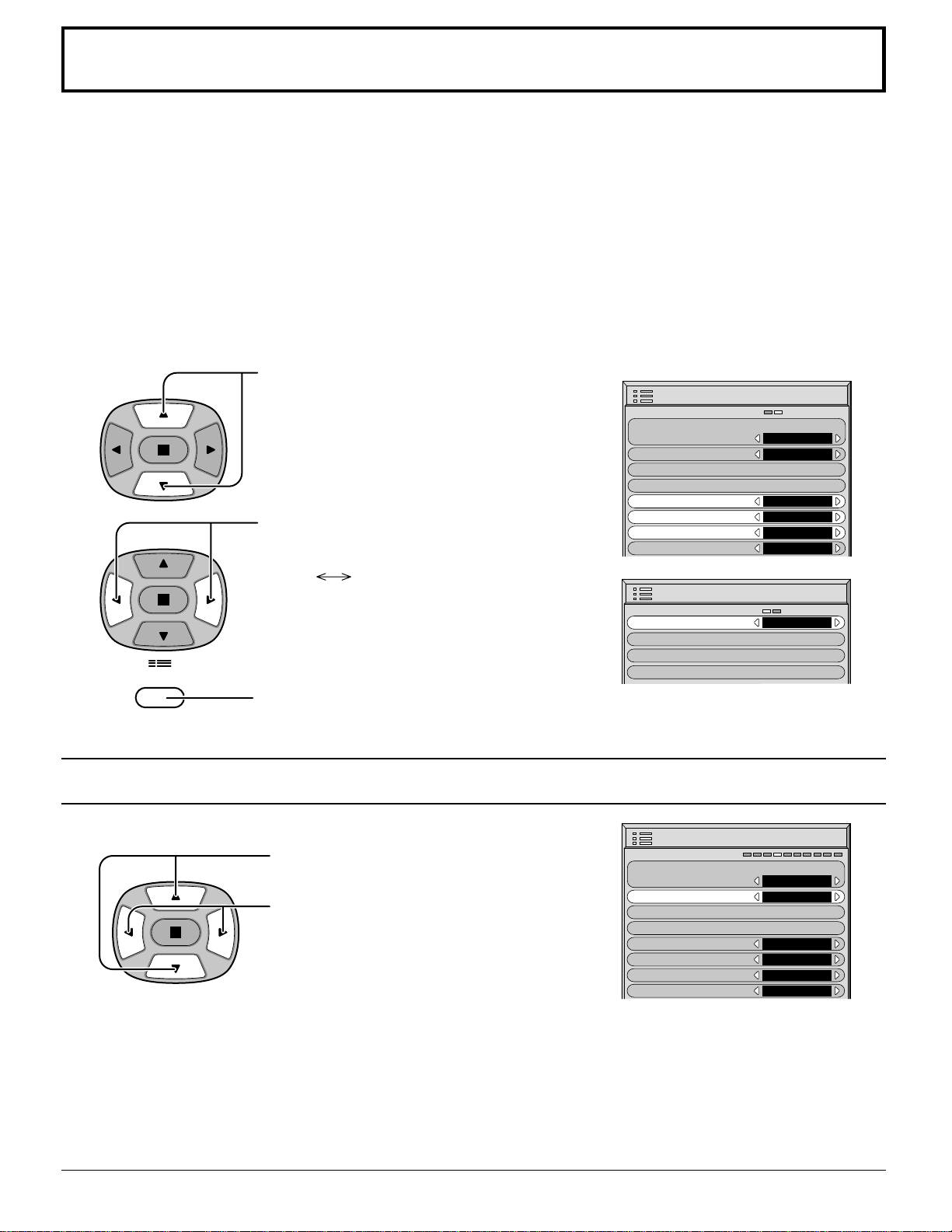
Reduces screen after-image
These functions prevent the occurrence of an "after image" on the display when turned ON.
WOBBLING : Automatically shifts the display image at a dot level pitch (therefore unnoticeable to the eye) over
time to prevent after image of sharper contour of image.
PEAK LIMIT : Suppresses image contrast (peak brightness).
Press to select “SCREENSAVER”.
Press to display SCREENSAVER menu.
Press to select “WOBBLING” or
“PEAK LIMIT”.
Press to select “ON” or “OFF”.
2
3
1
Press to display the SET UP menu screen.
SET UP
SET UP 1/2
SIGNAL
SCREENSAVER
INPUT LABEL
COMPONENT/RGB-IN SELECT
RGB
RGB1
OSD LANGUAGE
ENGLISH
(
US
)
POWER SAVE
OFF
STANDBY SAVE
ON
POWER MANAGEMENT
OFF
SCREENSAVER
FUNCTION
MODE
WHITE BAR SCROLL
OFF
START TIME
0 : 00
0 : 00
SIDE BAR ADJUST
BRIGHT
WOBBLING
OFF
PEAK LIMIT
OFF
FINISH TIME
START
PRESENT TIME OF DAY
10 : 00
SCREENSAVER (For preventing after-images )
28
SCREENSAVER (For preventing after-images )
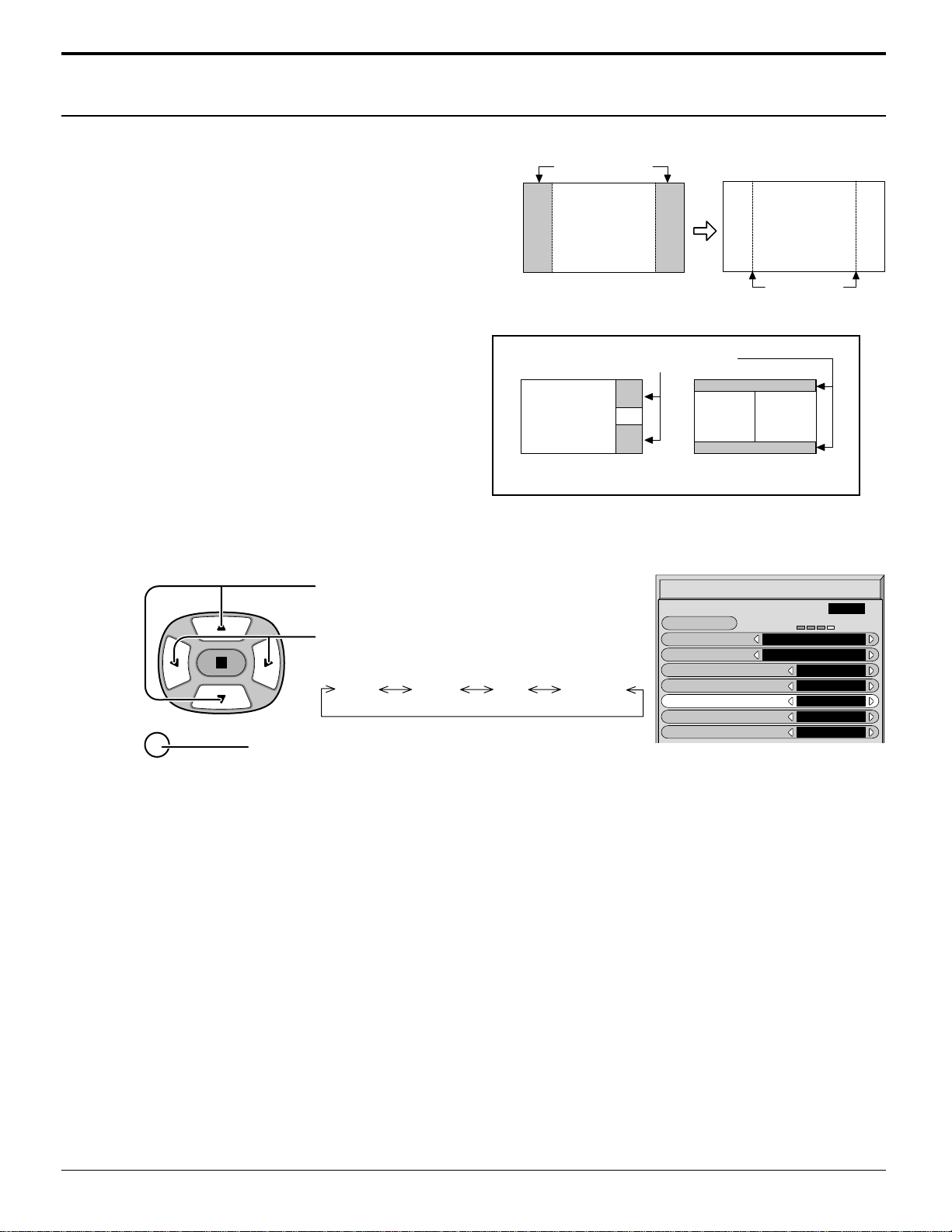
SIDE BAR ADJUST
2
Press to select the
SIDE BAR ADJUST.
Press to select
OFF, DARK, MID, BRIGHT.
OFF DARK MID BRIGHT
1
Do not display a picture in 4:3 mode for an extended period, as
this can cause an after-image to remain on the side bars on
either side of the display field.
To prevent the appearance of such an after-image, change the
brightness of the side bars.
To display the SCREENSAVER screen.
(Refer to the previous page, operation guide steps 1 and 2)
side bars
4:3
Screen Display
after-images
SCREENSAVER
FUNCTION
MODE
WHITE BAR SCROLL
TIME OF DAY
0 : 00
0 : 00
SIDE BAR ADJUST
BRIGHT
WOBBLING
OFF
PEAK LIMIT
OFF
START
10 : 00
PRESENT TIME OF DAY
START TIME
FINISH TIME
R
Press to exit from SCREENSAVER.
3
Notes:
• Setting the side bar to bright mode for an extended period may result in occurence of after-images.
• The side bar may flash (alternate black/white) depending on the picture being shown on the screen. In such
an occurrence, use the Cinema mode.
AB
Picture out Picture Picture and Picture
Non picture area
This function may be applicable to the non-picture area.
29
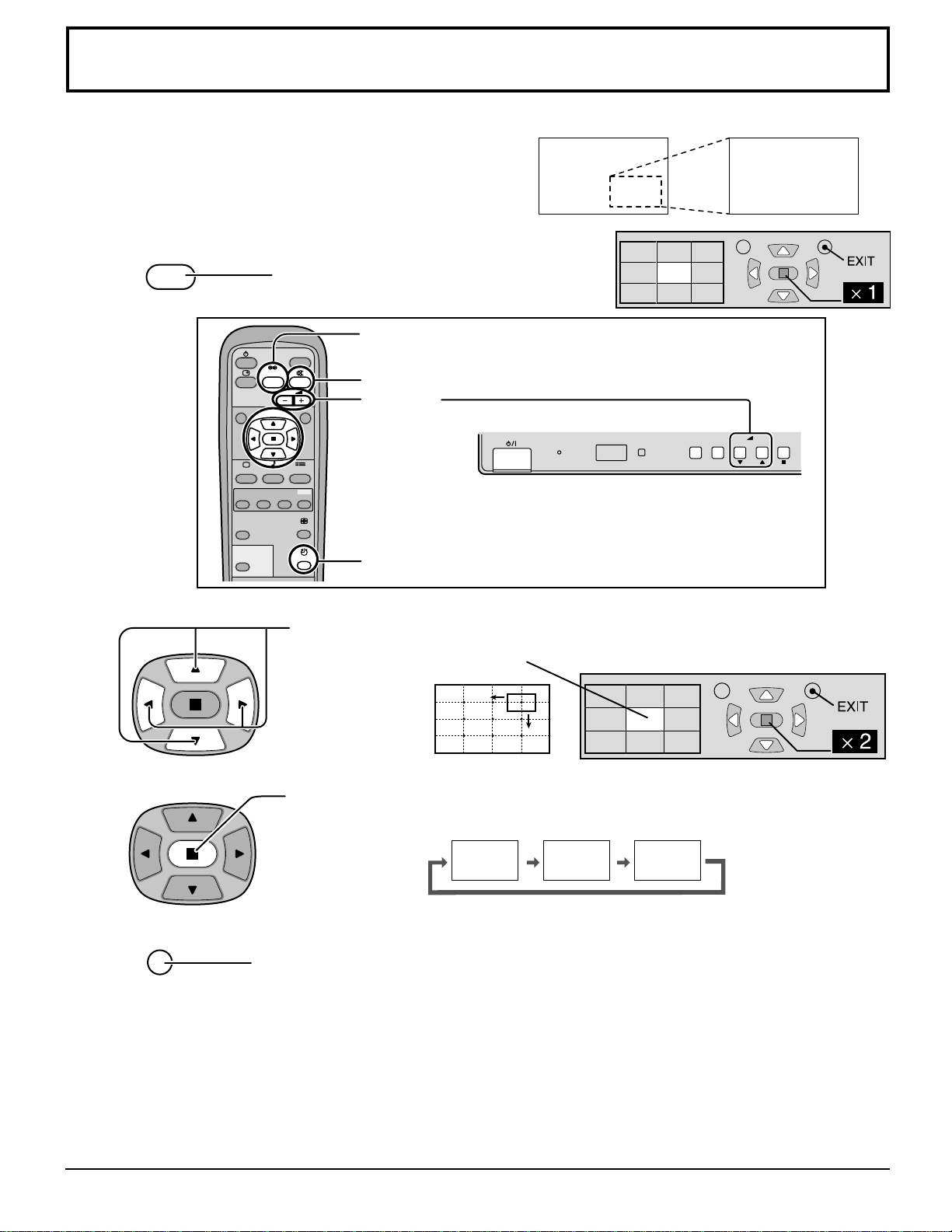
Digital Zoom
1
3
2
4
This displays an enlargement of the designated part of the displayed image.
Display the "Operation Guide".
Press to access Digital Zoom.
Select the area of the image to be enlarged.
The "Operation Guide" will be displayed.
Press on the enlargement location to select.
ZOOM
MOVE
The cursor will move.
Return to normal display (quit Digital Zoom).
(1) When power goes OFF (including “Off Timer” operation), Digital Zoom terminates.
(2) The Digital Zoom function cannot be selected while in the following operation states:
• “Multi-screen” (MULTI DISPLAY).(see page 31)
• “Multi-viewer” (Picture in Picture, Picture out Picture, Picture and Picture) operation. (see page 14)
(3) While Digital Zoom is in operation, "Adjusting Picture Pos./Size" cannot be used.
(4) For RGB/PC input signals, normal multi-display magnification is only available at the VGA, SVGA and XGA resolution.
(5) The Digital Zoom capability is functional for the following component signals:
525 (480) / 60i · 60p, 625 (575) / 50i · 50p, 1125 (1080) / 60i · 50i · 24sF, 750 (720) / 60p · 50p, 1250 (1080) / 50i
(6) The Digital Zoom capability is functional for the following composite signals:
NTSC, PAL, SECAM
R
Press to exit from the Digital Zoom.
Notes:
×1 ×2 ×3
Select the magnification required for the enlarged display.
Each time this is pressed, the magnification factor
changes. This is shown in the image being displayed.
N R
MULTI
PIP
SWAP SELECT MOVE
INPUT
VOL
PICTURE
SOUND
SET UP
ASPECT
PICTURE
POS. /SIZE
OFF TIMER
PC
SURROUND
ZOOM
R - STANDBY
G POWER ON
INPUT MENU ENTER
– +
VOL
TH-42PWD6
SURROUND
button
MUTE button
VOL button
OFF TIMER button
• During Digital Zoom, only the
following keys can be operated.
30
Press to select “ON” or “OFF”.
Press to select
“POWER SAVE”
“STANDBY SAVE”
“POWER MANAGEMENT”
“AUTO POWER OFF”.
Reduces power consumption
• POWER SAVE: When this function is turned ON, luminous level of the plasma display is suppressed,
so power consumption is reduced.
• STANDBY SAVE: When this function is turned ON, power consumption of the microcomputer is reduced
during power supply standby (see page 13,14,15), so standby power of the set is
reduced.
• POWER MANAGEMENT: The unit power supply is turned ON or OFF depending on whether or not there is a
signal during PC input mode.
This function is enabled when it is turned ON. (Only during input from PC(Mini D-sub)
terminal)
• AUTO POWER OFF: Equipment power supply is turned OFF when there is no signal.
When this is set to On, the power supply of the unit goes Off 10 minutes after the input
signals stop.
This function is effective for input signals except input from PC (Mini D-sub) terminal.
SET UP
Press to exit from SETUP.
Press to select INPUT LABEL.
Press to change the INPUT LABEL.
Customizing the Input labels
This function can change the label of the Input signal to be displayed.
Notes:
While selecting a Input signal through Optional Terminal Board connected to Slot 1 to Slot 3, the Input label will depend
on each Optional Terminal Board.
INPUT LABELS for Slot 1 to Slot 3 and miniD-sub:
[Slot1 Input] INPUT1/VIDEO1/COMPONENT1/RGB1/RGB1(digital)/PC1/DVD1/CATV1/VCR1/STB1
[Slot2 Input] INPUT2/VIDEO2/COMPONENT2/RGB2/RGB2(digital)/PC2/DVD2/CATV2/VCR2/STB2
[Slot3 Input] INPUT3/VIDEO3/COMPONENT3/RGB3/PC3/DVD3/CATV3/VCR3/STB3
[PC (MiniD-sub) input] PC/COMPONENT/RGB/DVD/STB
SET UP 1/2
SIGNAL
SCREENSAVER
INPUT LABEL
COMPONENT/RGB-IN SELECT
RGB
RGB1
OSD LANGUAGE
ENGLISH
(
US
)
POWER SAVE
OFF
STANDBY SAVE
ON
POWER MANAGEMENT
OFF
SET UP 2/2
AUTO POWER OFF
OFF
MULTI DISPLAY SETUP
SET UP TIMER
PRESENT TIME SETUP
SET UP 1/2
SIGNAL
SCREENSAVER
INPUT LABEL
COMPONENT/RGB-IN SELECT
RGB
RGB1
OSD LANGUAGE
ENGLISH
(
US
)
POWER SAVE
OFF
STANDBY SAVE
ON
POWER MANAGEMENT
OFF
ON OFF
Note:
“POWER MANAGEMENT” and “AUTO POWER OFF” are effective during normal viewing (one picture screen) only.
31
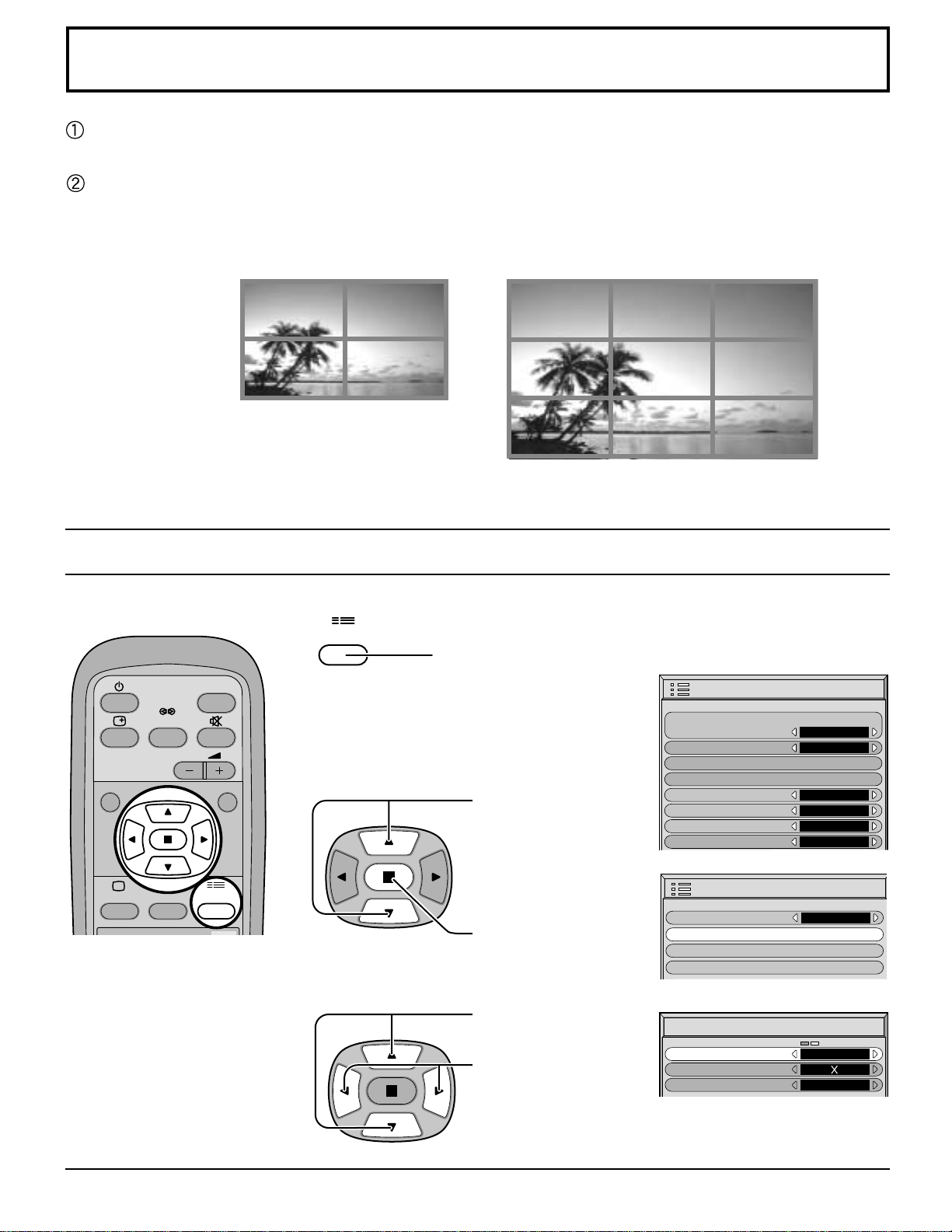
Setup for MULTI DISPLAY
By lining up Plasma Displays in groups of 4 or 9 as illustrated below, an enlarged picture may be displayed across all
screens.
For this mode of operation, each plasma display has to be set up with a DISPLAY number to determine its location.
Press to display the SETUP menu screen.
Press to display the
“MULTI DISPLAY
SETUP” menu.
Press to select the
MULTI DISPLAY SETUP.
1
2
3
Press to select the
MULTI DISPLAY SETUP.
Press to select “ON”
or “OFF”.
How to setup MULTI DISPLAY
INPUT
SURROUND
VOL
N
PICTURE
SOUND
R
MULTI
SET UP
ZOOM
SET UP
MULTI DISPLAY SETUP
MULTI DISPLAY SETUP
ARRANGEMENT
ON
2 2
LOCATION
A1
group of 4 (2×2) group of 9 (3×3)
SET UP 1/2
SIGNAL
SCREENSAVER
INPUT LABEL
COMPONENT/RGB-IN SELECT
RGB
RGB1
OSD LANGUAGE
ENGLISH
(
US
)
POWER SAVE
OFF
STANDBY SAVE
ON
POWER MANAGEMENT
OFF
SET UP 2/2
AUTO POWER OFF
OFF
MULTI DISPLAY SETUP
SET UP TIMER
PRESENT TIME SETUP
32
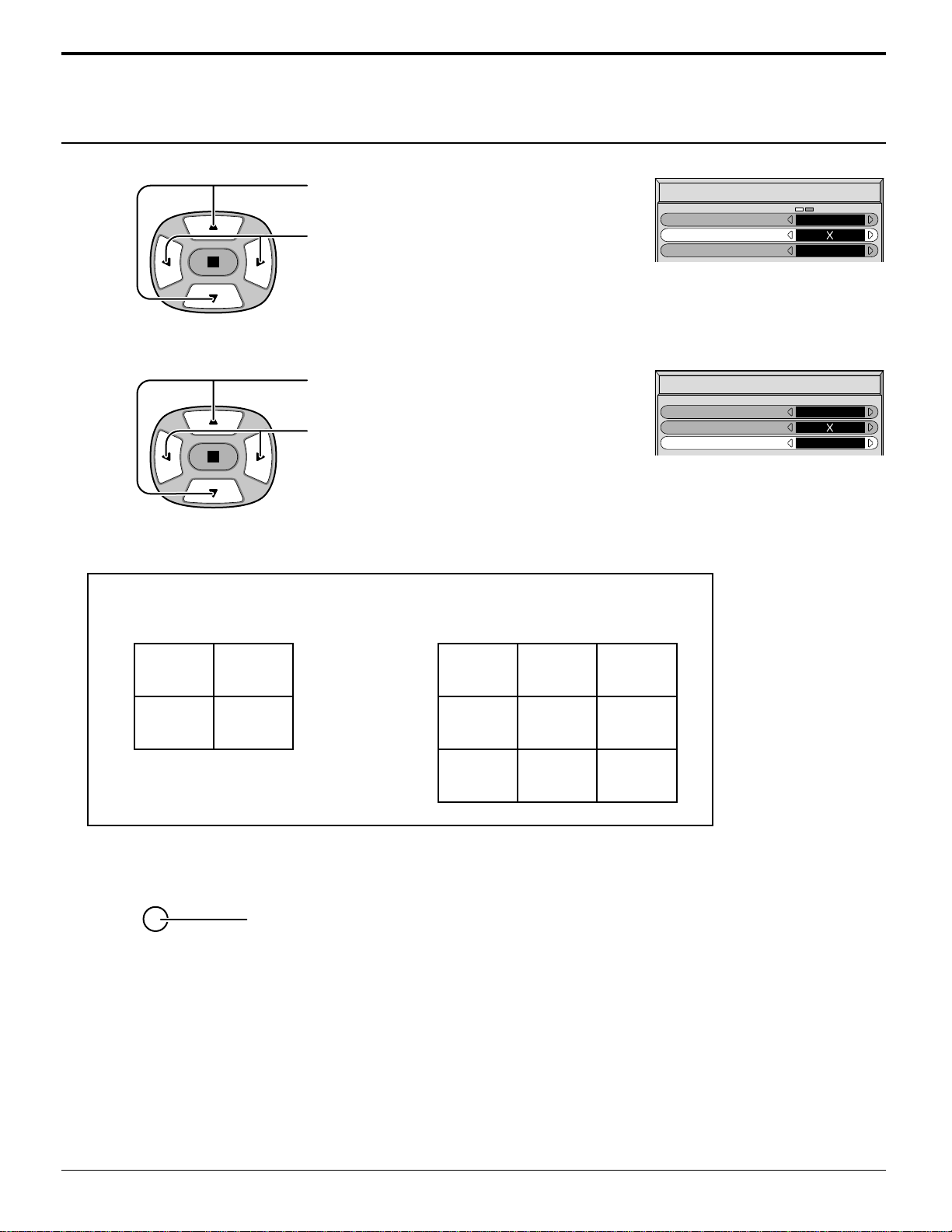
Setup for MULTI DISPLAY
Press to select ARRANGEMENT (2nd step).
Press to select “2×2”, “3×3”.
How to set the Display location number for each Plasma Display
Press to select LOCATION.
Press to select the required arrangement
number. (A1-C3 : Refer to the following)
4
5
DISPLAY NUMBER locations for each arrangement.
(2×2) (3×3)
A1 A2
B1 B2
A1 A2 A3
B1 B2 B3
C1 C2 C3
6
Press twice to exit from SETUP.
MULTI DISPLAY SETUP
MULTI DISPLAY SETUP
ARRANGEMENT
ON
2 2
LOCATION
A1
MULTI DISPLAY SETUP
MULTI DISPLAY SETUP
ARRANGEMENT
ON
2 2
LOCATION
B1
R
Notes:
(1) For RGB/PC input signals, normal multi-display magnification is only available at the VGA, SVGA and XGA resolution.
(2) The multi-display capability is functional for the following component signals:
525 (480) / 60i · 60p, 625 (575) / 50i · 50p, 1125 (1080) / 60i · 50i · 24sF, 750 (720) / 60p · 50p, 1250 (1080) / 50i
(3) The multi-display capability is functional for the following composite signals:
NTSC, PAL, SECAM
(4) The MultiDisplay (multiskærmdisplay) function does not display certain input signals from the terminals of the installed
option boards listed below:
• Digital RGB input signals from the DVI terminal of RGB (Digital) Terminal Board (TY-42TM6D)
33
3D Y/C FILTER – For NTSC Video images
SET UP for Input Signals
COMPONENT/RGB IN SELECT
Select to match the signals from the source connected to the COMPONENT/RGB input terminals.
Y, P
B
, P
R
signals
“COMPONENT”
R, G, B, HD, VD signals
“RGB”
INPUT
SURROUND
VOL
NR
PICTURE
SOUND
SET UP
MULTI
PIP
SWAP SELECT MOVE
ZOOM
SET UP
1
2
Press to display the SET UP menu screen.
Press to select the “COMPONENT/RGB IN
SELECT”.
Press to select the desired mode.
R
Press to exit from adjust mode.
Select “SIGNAL” from the “SET UP” menu during VIDEO (S VIDEO) input signal mode.
(“SIGNAL [VIDEO]” menu is displayed.)
3D Y/C FILTER
(
NTSC
)
COLOR SYSTEM
Panasonic AUTO
(
4:3
)
ON
AUTO
NORMAL
3:2 PULLDOWN
OFF
SIGNAL
[
VIDEO
]
Press to select the “3D Y/C FILTER (NTSC)”.
Press to set ON/OFF.
R
Press to exit from adjust mode.
Press
(ACTION) button
Note:
When ON, this setting only affects NTSC input signals.
SET UP 1/2
SIGNAL
SCREENSAVER
INPUT LABEL
COMPONENT/RGB-IN SELECT
RGB
RGB1
OSD LANGUAGE
ENGLISH
(
US
)
POWER SAVE
OFF
STANDBY SAVE
ON
POWER MANAGEMENT
OFF
COMPONENT RGB
SET UP 1/2
SIGNAL
SCREENSAVER
INPUT LABEL
COMPONENT/RGB-IN SELECT
RGB
RGB1
OSD LANGUAGE
ENGLISH
(
US
)
POWER SAVE
OFF
STANDBY SAVE
ON
POWER MANAGEMENT
OFF
Note:
Selection may not be possible, depending on which optional board is installed.
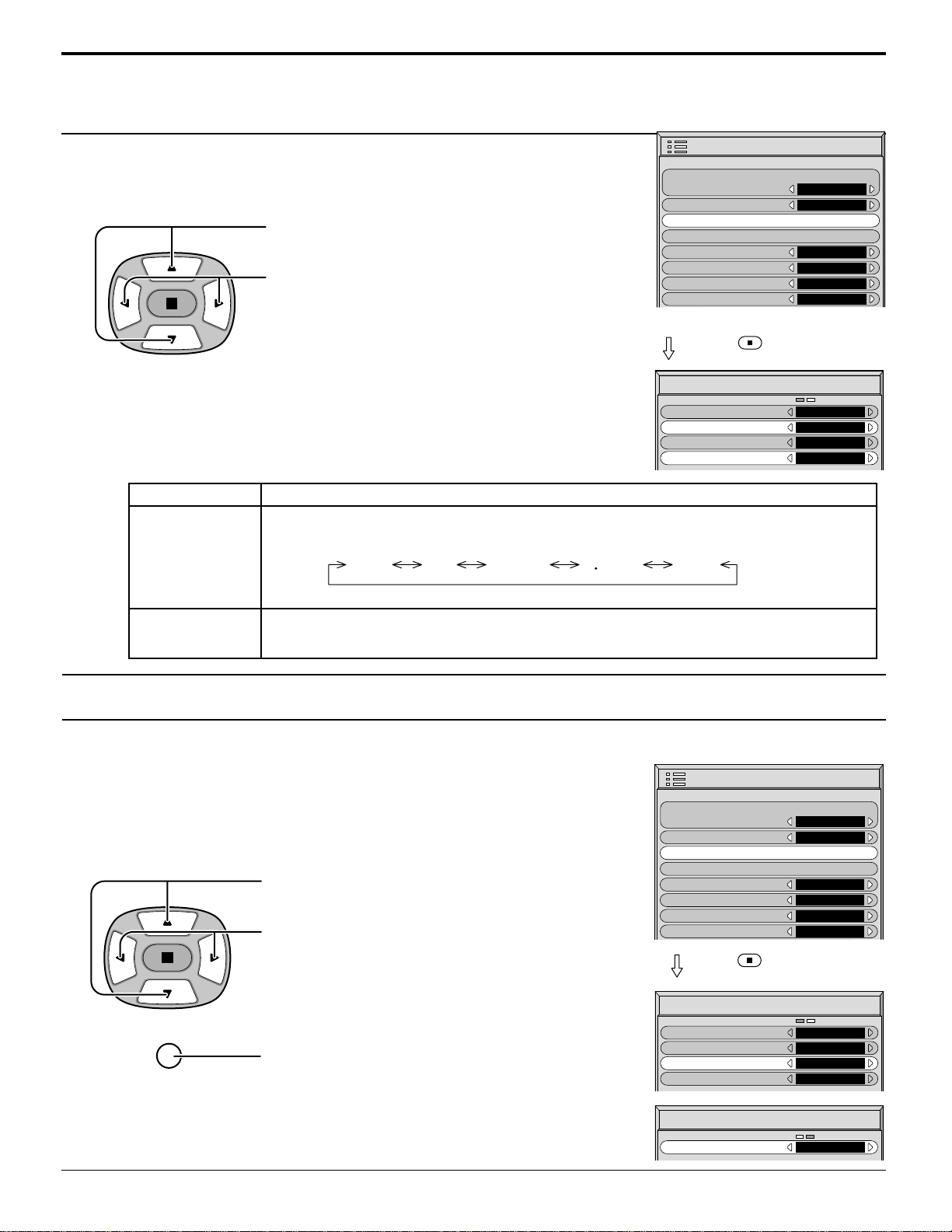
34
SET UP for Input Signals
COLOR SYSTEM / Panasonic AUTO
Select SIGNAL from the “SET UP” menu during VIDEO (S VIDEO) input
signal mode.(“SIGNAL [VIDEO]” menu is displayed.)
Press to select the “COLOR SYSTEM” or
“Panasonic AUTO”.
Press to select each function.
3D Y/C FILTER
(
NTSC
)
COLOR SYSTEM
Panasonic AUTO
(
4:3
)
ON
AUTO
NORMAL
3:2 PULLDOWN
OFF
SIGNAL
[
VIDEO
]
Press
(ACTION) button
If the image becomes unstable:
With the system set on Auto, under conditions of
low level or noisy input signals the image may in
rare cases become unstable. Should this occur,
set the system to match the format of the input
signal.
Mode
COLOR SYSTEM
Panasonic
AUTO (4:3)
Function
Set the color system to match the input signal. If set to “AUTO”, the color system is
determined automatically.
Set to “NORMAL” to view 4:3 images in an unchanged format when Panasonic AUTO
is selected. If you would like to view 4:3 images in Just format, set to “JUST”.
AUTO PAL SECAM M NTSC NTSC
3:2 PULLDOWN
Select “SIGNAL” from the “SET UP” menu during VIDEO (S VIDEO) or
COMPONENT input signal.(“SIGNAL [VIDEO]” or “SIGNAL [COMPONENT]” menu
is displayed.)
Press to select 3:2 PULLDOWN.
Press to set ON/OFF.
Press to exit from adjust mode.
Note:
When ON, this setting only affects the following signal input:
• NTSC / PAL signal input during “VIDEO (S VIDEO)” input signal.
• 525i(480i) signal input during “COMPONENT” input signal.
When ON, the display attempts to reproduce a more natural interpretation of sources such as movie pictures, which
are recorded at 24 frames per second.
If the picture is not stable, turn the setting to OFF.
R
Press
(ACTION) button
3D Y/C FILTER
(
NTSC
)
COLOR SYSTEM
Panasonic AUTO
(
4:3
)
ON
AUTO
NORMAL
3:2 PULLDOWN
OFF
SIGNAL
[
VIDEO
]
SIGNAL
[
COMPONENT
]
3:2 PULLDOWN
OFF
SET UP 1/2
SIGNAL
SCREENSAVER
INPUT LABEL
COMPONENT/RGB-IN SELECT
RGB
RGB1
OSD LANGUAGE
ENGLISH
(
US
)
POWER SAVE
OFF
STANDBY SAVE
ON
POWER MANAGEMENT
OFF
SET UP 1/2
SIGNAL
SCREENSAVER
INPUT LABEL
COMPONENT/RGB-IN SELECT
RGB
RGB1
OSD LANGUAGE
ENGLISH
(
US
)
POWER SAVE
OFF
STANDBY SAVE
ON
POWER MANAGEMENT
OFF
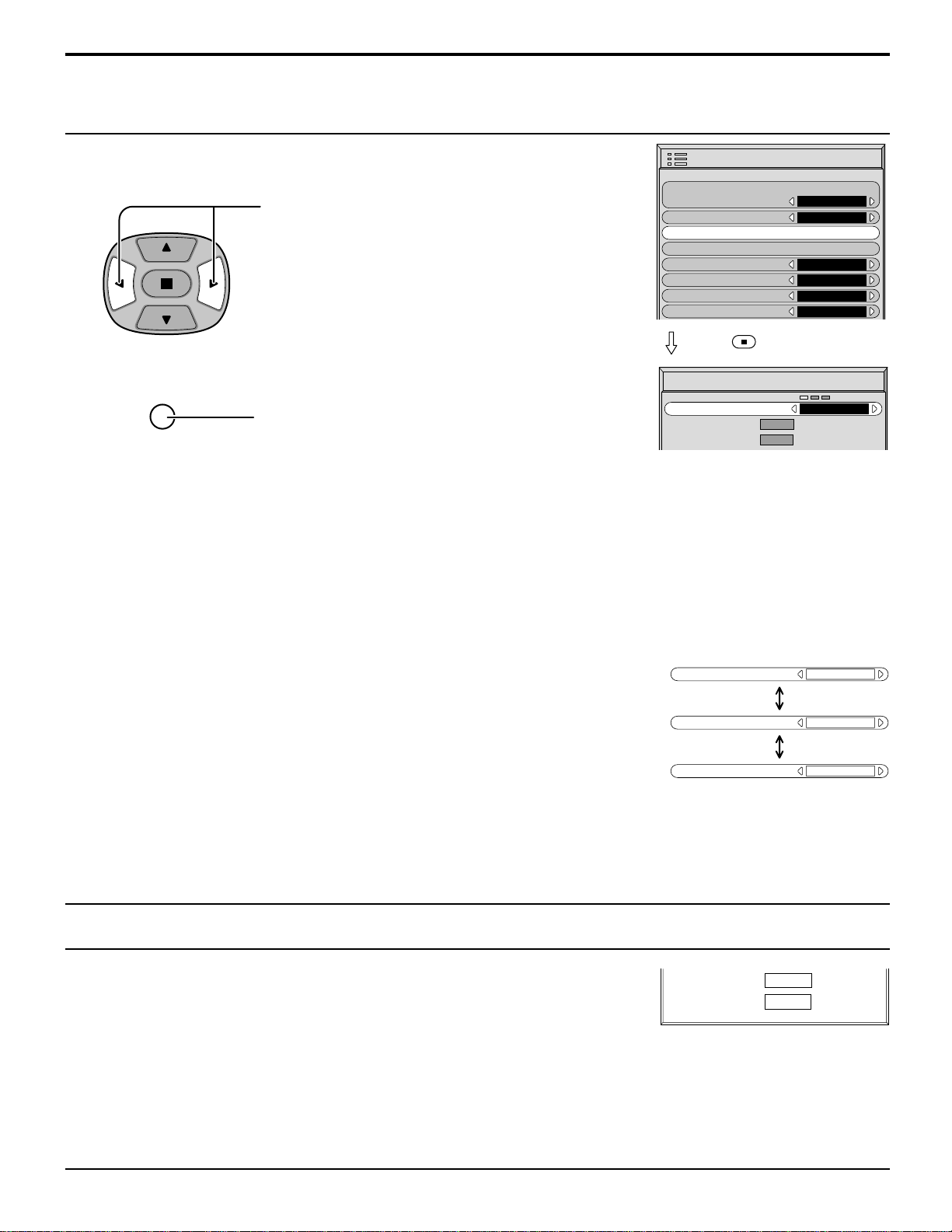
35
Select SIGNAL from the “SET UP” menu during RGB input signal.
Press to select each item.
SIGNAL
[
RGB
]
SYNC
H
-
FREQ. kHz
V
-
FREQ. Hz
H & V
31.5
60.0
SYNC
SYNC
H & V
SYNC
CS
SYNC
ON G
Setting RGB sync signal
Confirm that the input is set to RGB INPUT (this setting is valid only for RGB INPUT
signal).
H & V:
The H and V sync signals are input from the HD/VD connector.
ON G: Uses a synchronized signal on the Video G signal, which is input
from the G connector.
CS: Uses a synchronized signal of Composite Sync input.
Displays the H (Horizontal)/V (Vertical) frequencies.
This display is valid only for RGB/PC and DVI input signal.
Display range:
Horizontal 15 - 110 kHz
Vertical 48 - 120 Hz
H-FREQ. (kHz)/V-FREQ. (Hz)
H
-
FREQ. kHz
V
-
FREQ. Hz
31.5
60.0
SET UP for Input Signals
Press to exit from adjust mode.
R
Press
(ACTION) button
SET UP 1/2
SIGNAL
SCREENSAVER
INPUT LABEL
COMPONENT/RGB-IN SELECT
RGB
RGB1
OSD LANGUAGE
ENGLISH
(
US
)
POWER SAVE
OFF
STANDBY SAVE
ON
POWER MANAGEMENT
OFF
Note:
Sync cannot be adjusted while a DVI signal is being applied.
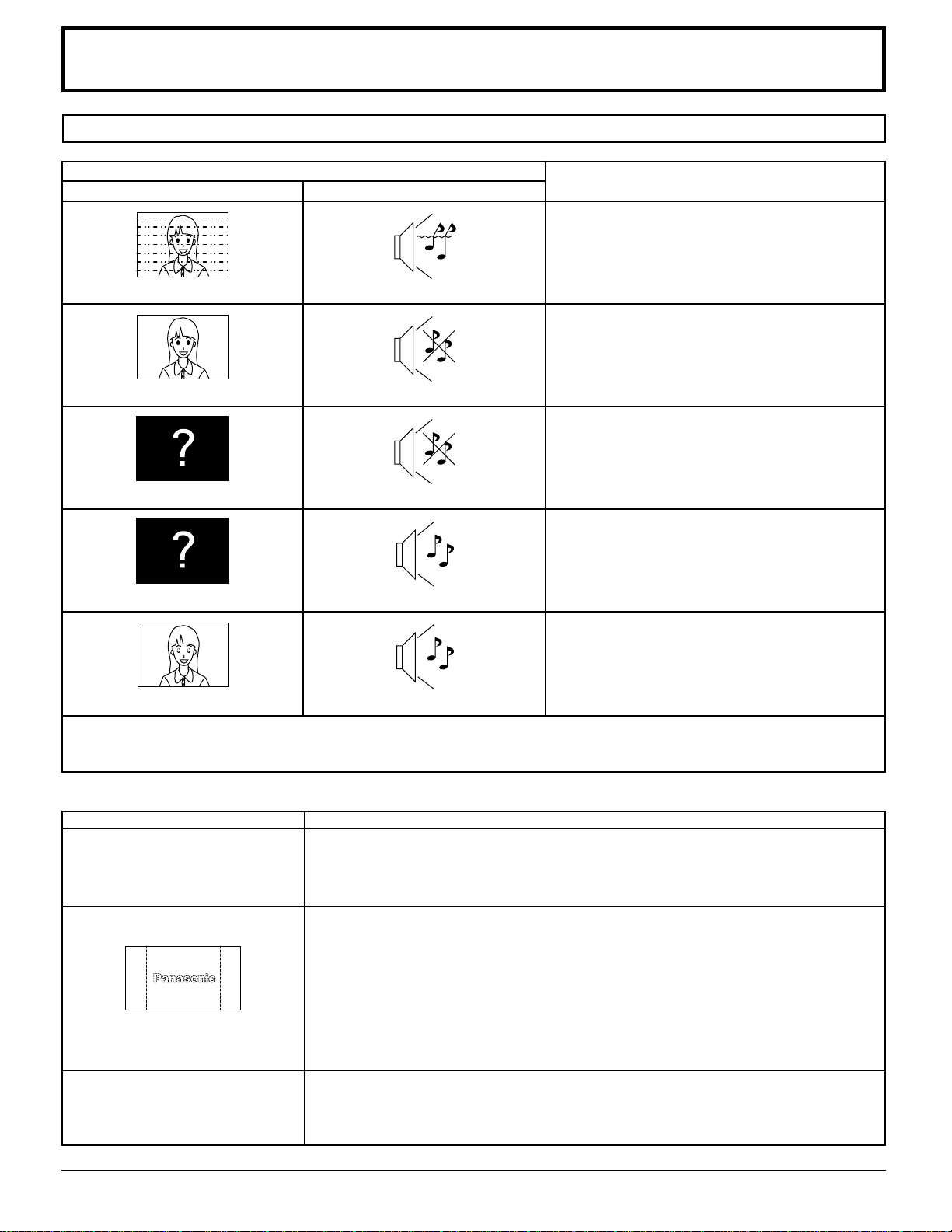
36
Troubleshooting
Before you call for service, determine the symptoms and make a few simple checks as shown below.
Symptoms
Some parts of the screen do not
light up.
After-images appear
[for TH-42PHD6, TH-50PHD6]
Whirring sounds can be heard
from the display unit.
Plasma Display panel
Check
The plasma display panel is manufactured using an extremely high level of precision
technology, however, sometimes some parts of the screen may be missing picture
elements or have luminous spots. This is not a malfunction.
Do not allow a still picture to be displayed for an extended period, as this can
cause a permanent after-image to remain on the Plasma Display.
Examples of still pictures include logos, video games, computer images, teletext
and images displayed in 4:3 mode.
Note:
The permanent after-image on the Plasma Display resulting from fixed image use
is not an operating defect and as such is not covered by the Warranty.
This product is not designed to display fixed images for extended periods of time.
The display unit is fitted with a cooling fan to dissipate heat generated during normal
use.The whirring sound is caused by rotation of the fan and is not a malfunction.
Symptoms
Checks
Electrical Appliances
Cars/Motorcycles
Fluorescent light
Volume
(Check whether the mute function has been
activated on the remote control.)
Not plugged into AC outlet
Not switched on
PICTURE and BRIGHTNESS/Volume setting
(Check by pressing the power switch or
stand-by button on the remote control.)
If a signal with a non-applicable color system
format, or frequency is input, only the input
terminal indication is displayed.
Color controls set at minimum level.
(see page 22, 23)
COLOR SYSTEM (see page 34)
Picture
Interference
Normal Picture
No Picture
No Picture
No Color
Sound
Noisy Sound
No Sound
No Sound
Normal Sound
Normal Sound
This Plasma Display uses special image processing. Hence a slight time lag may occur between image and audio,
depending on the type of input signal. However, this is not a malfunction.
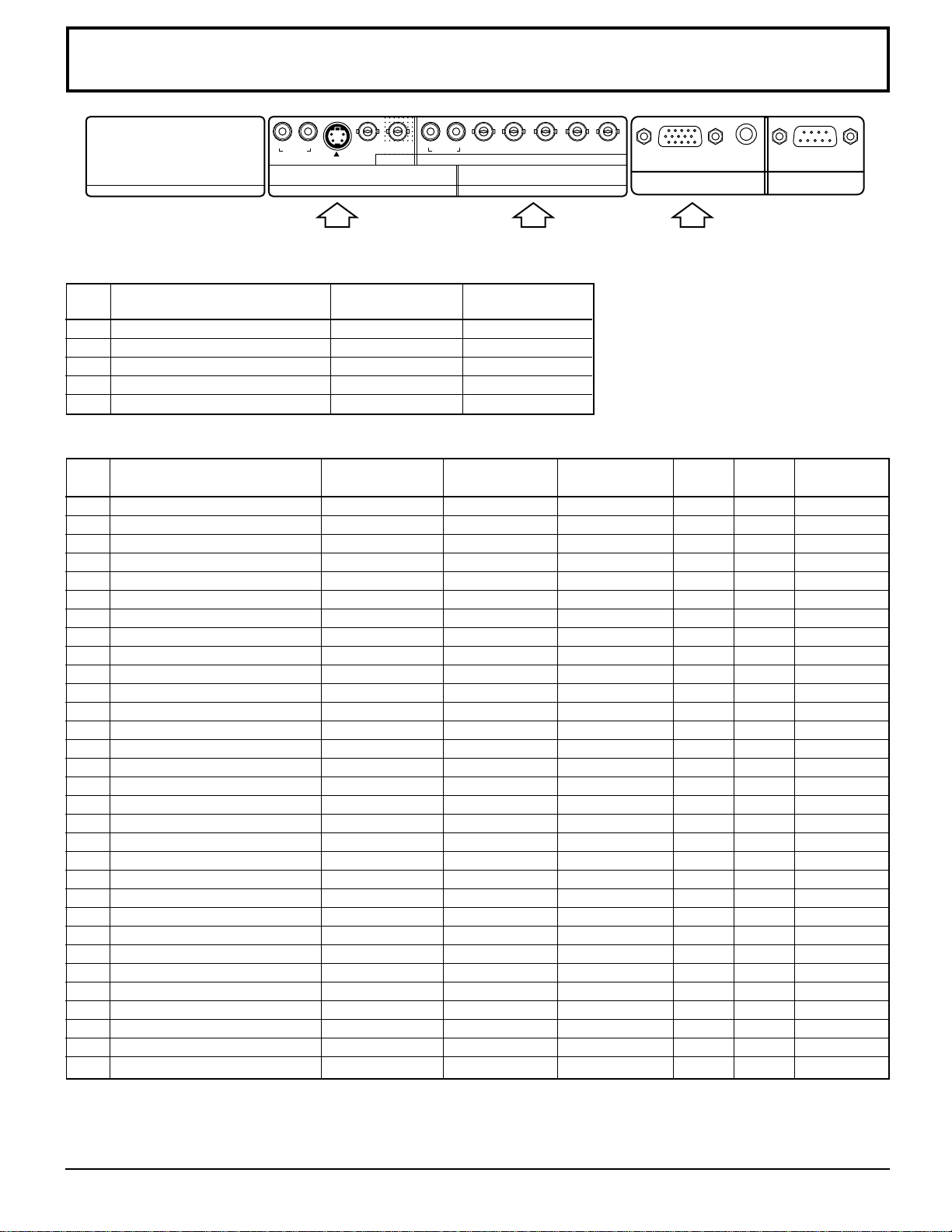
37
VIDEO/COMPONENT/RGB/PC input signals
COMPONENT/RGB input
PC RGB/COMPONENT input
Applicable input signals for PC Input (D-sub 15P) (
∗ Mark)
VIDEO input [Applicable when Multi Screen and Digital Zoom]
VIDEO input
SERIALPC IN
AUDIO
SLOT1
S VIDEO IN
VIDEO IN
VD HD
P
R
/C
R
/R P
B
/C
B
/B
Y/G
COMPONENT/RGB IN
AV
SLOT2 SLOT3
R AUDIO L
IN
R AUDIO L
VIDEO OUT
Note: Signals without above specification may not be displayed properly.
Signal name
Horizontal Vertical
frequency(kHz) frequency(Hz)
1 NTSC 15.73 59.94
2 PAL 15.63 50.00
3 PAL60 15.73 59.94
4 SECAM 15.63 50.00
5 Modified NTSC 15.73 59.94
Signal name
Horizontal Vertical
COMPONENT RGB PC
When Multi Screen
frequency(kHz) frequency(Hz)
and Digital Zoom
1 525 (480) /60i 15.73 59.94
∗∗∗∗
2 525 (480) /60p 31.47 59.94
∗∗∗∗
3 625 (575) /50i 15.63 50.00
∗∗∗∗
4 625 (575) /50p 31.25 50.00
∗∗∗∗
5 750 (720) /60p 45.00 60.00
∗∗∗∗
6 750 (720) /50p 37.50 50.00
∗∗∗∗
7 1,125 (1,080) /60i 33.75 59.94
∗∗∗∗
8 1,125 (1,080) /50i 28.13 50.00
∗∗∗∗
9 1,125 (1,080) /24p 27.00 24.00
∗∗∗
10 1,125 (1,080) /24sF 27.00 48.00
∗∗∗∗
11 1,250 (1,080) /50i 31.25 50.00
∗∗∗∗
12 640 × 400 @70 31.47 70.00
∗∗ ∗
13 640 × 480 @60 31.47 59.94
∗∗ ∗
14 Macintosh13” (640 × 480) 35.00 66.67
∗∗ ∗
15 640 × 480 @75 37.50 75.00
∗∗ ∗
16 852 × 480 @60 31.50 60.00
∗∗ ∗
17 800 × 600 @60 37.88 60.32
∗∗ ∗
18 800 × 600 @75 46.88 75.00
∗∗ ∗
19 800 × 600 @85 53.67 85.06
∗∗ ∗
20 Macintosh16” (832 × 624) 49.73 74.55
∗∗ ∗
21 1,024 × 768 @60 48.36 60.00
∗∗ ∗
22 1,024 × 768 @70 56.48 70.07
∗∗ ∗
23 1,024 × 768 @75 60.02 75.03
∗∗ ∗
24 1,024 × 768 @85 68.68 85.00
∗∗ ∗
25 Macintosh21” (1,152 × 870) 68.68 75.06
∗∗
26 1,280 × 1,024 @60 63.98 60.02
∗∗
27 1,280 × 1,024 @75 79.98 75.03
∗∗
28 1,280 × 1,024 @85 91.15 85.02
∗∗
29 1,600 × 1,200 @60 75.00 60.00
∗∗
30 1,067 × 600 @60 37.88 60.32
∗∗ ∗
31 1,366 × 768 @60 48.36 60.00
∗∗ ∗
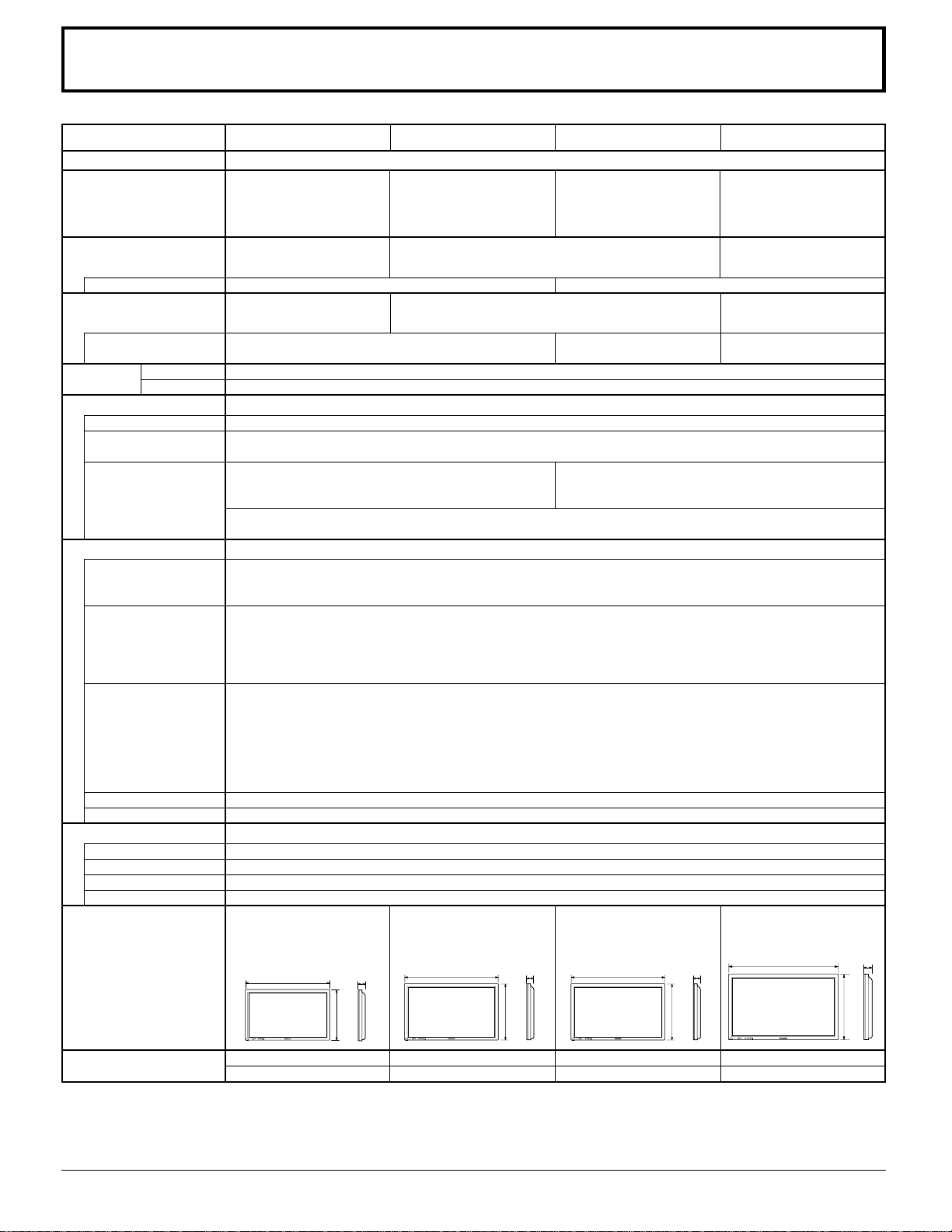
38
(HIGH-DENSITY D-SUB 15PIN) R,G,B/0.7 Vp-p (75-ohm)
Component
Y : 1.0 Vp-p (75-ohm : include sync)
PB/CB : ± 0.35 Vp-p (75-ohm)
PR/CR : ± 0.35 Vp-p (75-ohm)
HD, VD/1.0 - 5.0 Vp-p (high impedance)
AUDIO IN (M3 JACK) 0.5 Vrms (high impedance)
EXTERNAL CONTROL TERMINAL (D-SUB 9PIN) RS-232C COMPATIBLE
16W [8 W + 8 W] (10 % THD)
EUR646529
2 × AA Size
(TMME203 or TMME 187) × 2
J0KF00000018 × 1, J0KG00000054 × 2
approx. 53.9 lbs (main unit only) approx. 64.6 lbs (main unit only) approx. 66.1 lbs (main unit only) approx. 97.0 lbs (main unit only)
approx. 63.3 lbs (with speakers) approx. 73.9 lbs (with speakers) approx. 75.4 lbs (with speakers) approx. 107.1 lbs (with speakers)
120 V AC, 50/60 Hz
325 W 395 W max. Amps. 5 A max. Amps. 5.5 A
Save OFF 1.5W, Save ON 0.6W Save OFF 1.5W, Save ON 0.6W Save OFF 1.6W, Save ON 0.9W Save OFF 1.6W, Save ON 0.9W
0.4 W 0.4 W 0.2 W 0.2 W
Drive method : AC type 37-inch,
Drive method : AC type 42-inch,
Drive method : AC type 50-inch,
16:9 aspect ratio
16:9 aspect ratio
16:9 aspect ratio
4000 : 1 3000 : 1
818 mm (W) × 461 mm (H), 920 mm (W) × 518 mm (H),
1,106 mm (W) × 622 mm (H),
939 mm (diagonal) 1,056 mm (diagonal) 1,269 mm (diagonal)
408,960 (852 (W) × 480 (H))
786,432 (1,024 (W) × 768 (H))
1,049,088 (1,366 (W) × 768 (H))
[2,556 × 480 dots]
[3,072 × 768 dots] [4,098 × 768 dots]
32 °F - 104 °F (0 °C - 40 °C)
20 % - 80 %
Power Source
Power Consumption
Maximum
Stand-by condition
Power off condition
Plasma Display panel
Contrast Ratio
Screen size
(No.of pixels)
Operating
Temperature
condition Humidity
Applicable signals
Color System
Scanning format
PC signals
Connection terminals
AV
COMPONENT/RGB
PC
SERIAL
SPEAKERS (6 Ω)
Accessories Supplied
Remote Control Transmitter
Batteries
Fixing bands
Ferrite core
Dimensions
(W
××
××
× H
××
××
× D)
Mass (Weight)
Note:
Design and specifications are subject to change without notice. Mass and dimensions shown are approximate.
Specifications
1.0 Vp-p (75-ohm or high impedance)
Y: 1 Vp-p (75-ohm), C: 0.286 Vp-p (75-ohm)
0.5 Vrms (high impedance)
1.0 Vp-p/composite (75-ohm)
0.7 Vp-p/non-composite (75-ohm)
0.7 Vp-p (75-ohm)
1.0 - 5.0 Vp-p (high impedance)
0.5 Vrms (high impedance)
NTSC, PAL, PAL60, SECAM, Modified NTSC
525 (480) / 60i · 60p, 625 (575) / 50i · 50p, 750 (720) / 60p · 50p, 1125 (1080) / 60i · 50i · 24p · 24sF ····
SMPTE274M, 1250 (1080) / 50i
VGA display XGA display
VGA VGA, SVGA, XGA
SVGA, XGA, SXGA, UXGA ······ (compressed) SXGA, UXGA ······ (compressed)
Horizontal scanning frequency 15 - 110 kHz
Vertical scanning frequency 48 - 120 Hz
VIDEO IN/OUT (BNC)
S VIDEO IN (MINI DIN 4PIN)
AUDIO IN (RCA PIN JACK × 2)
Y/G (BNC)
PB/B (BNC), PR/R (BNC)
HD (BNC), VD (BNC)
AUDIO IN (RCA PIN JACK × 2)
24" (610 mm)
40.2" (1,020 mm)
3.5"
(89 mm)
R - STANDBY
G POWER ON
INPUTMENU ENTER
– +
VOL
21.7" (550 mm)
36.2" (920 mm)
3.5"
(89 mm)
R - STANDBY
G POWER ON
INPUTMENU ENTER
– +
VOL
TH-37PWD6 TH-42PWD6 TH-42PHD6 TH-50PHD6
28.5" (724 mm)
47.6" (1,210 mm)
3.7"
(95 mm)
R - STANDBY
G POWER ON
INPUT MENU ENTER
— +
VOL
24" (610 mm)
40.2" (1,020 mm)
3.5"
(89 mm)
R - STANDBY
G POWER ON
INPUTMENU ENTER
– +
VOL
40.2” (1,020 mm) × 24” (610 mm)
× 3.5” (89 mm)
47.6” (1,210 mm) × 28.5” (724 mm)
× 3.7” (95 mm)
40.2” (1,020 mm) × 24” (610 mm)
× 3.5” (89 mm)
36.2” (920 mm) × 21.7” (550 mm)
× 3.5” (89 mm)

Printed in Japan
MBS0703S0
Panasonic Broadcast & Television Systems Company
Unit of Matsushita Electric Corporation of America
Executive Office :
One Panasonic Way 4E-7, Secaucus, NJ 07094 (201) 348-7000
EASTERN ZONE : One Panasonic Way 4E-7 Secaucus, NJ 07094 (201) 348-7621
Mid-Atlantic/New England : One Panasonic Way 4E-7 Secaucus, NJ 07094 (201) 348-7621
Southeast Region : 1225 Northbrook Parkway, Ste 1-160 Swanee GA 30024 (770)338-6835
Central Region : 1707 N Randall Road E1-C-1, Elgin, IL 60123 (847)468-5200
WESTERN ZONE : 3330 Cahuenga Blvd W., Los Angeles, CA 90068 (323) 436-3500
Dallas Region : 6226 Abington Way, Houston, TX 77008 (713) 802-2726
No. CA/Northwest Region : 5870 Stone Ridge, #3, Pleasanton, CA (925) 416-5108
Government Marketing Department : 52 West Gude Drive, Rockville, MD 20850 (301) 738-3840
Customer’s Record
The model number and serial number of this product can be found on its back cover. You should note this serial
number in the space provided below and retain this book, plus your purchase receipt, as a permanent record of
your purchase to aid in identification in the event of theft or loss, and for Warranty Service purposes.
Model Number Serial Number