Panasonic
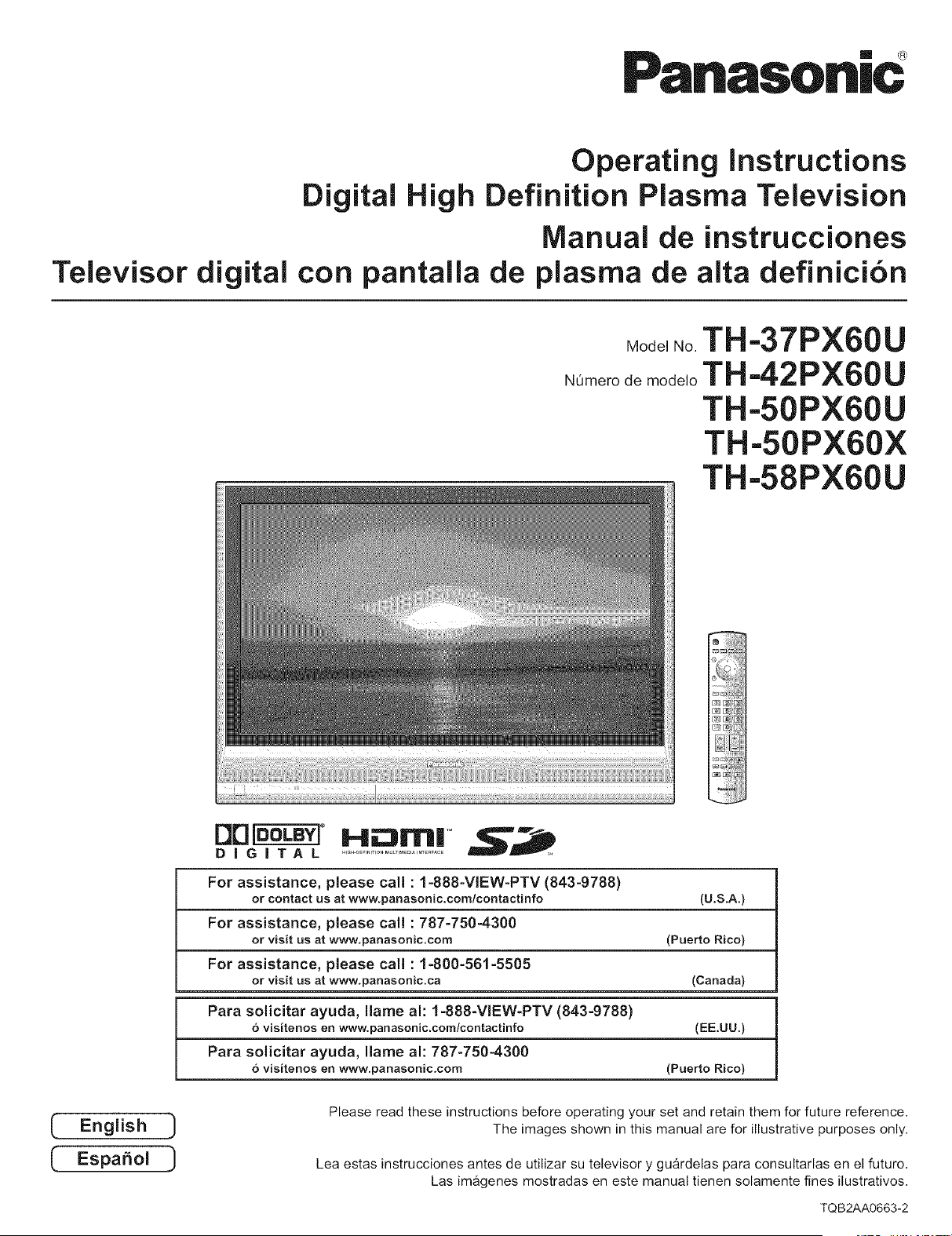
Operating instructions
Digital High Definition Plasma Television
Manual de instrucciones
Televisor digital con pantalla de plasma de alta definici6n
Mode,No.TH'37PX60U
N0morodeme_e,oTH'42PX60U
TH'50PX60U
TH'50PX60X
TH'58PX60U
IEnglish
C Espan°l 1
DiGiTAL ..................................
W_i_J
For assistance, please call :1-888-VIEW-PTV (843-9788)
or contact us at www.panasonic.com/contactinfo (U.S.A.)
For assistance, please call : 787-750-4300
or visit us at www.panasonic.com (Puerto Rico)
For assistance, please call : 1-800-561-5505
or visit us at www.panasonic.ca (Canada)
Para solicitar ayuda, llame al: 1-888-VIEW-PTV (843-9788)
6visitenos en www.panasonic.com/contactinfo (EE.UU.)
Para solicitar ayuda, llame al: 787-750-4300
6visitenos en www.panasonic.com (Puerto Rico)
Please read these instructions before operating your set and retain them for future reference.
The images shown in this manual are for illustrative purposes only.
Lea estas instrucciones antes de utilizar su televisor y guardelas para consultarlas en el futuro.
Las imagenes mostradas en este manual tienen solamente fines ilustrativos.
TQB2AA0663-2
Turn your own living room into a movie theater!
Experience an amazing level of multimedia
"L _,ll=
!_XL;I ILt_||I_ Ill I,
2
rlrl_ °
DIGITAL
Manufactured under license from Dolby Laboratories.
"Dolby" and the double-D symbols are trademarks of
Dolby Laboratories.
m IM_l_ m TM
MW| | |!
HDMI, the HDMI logo and High-Definition
Multimedia Interface are trademarks
or registered trademarks of HDMI Licensing LLC.
SD Logo is a
trademark.
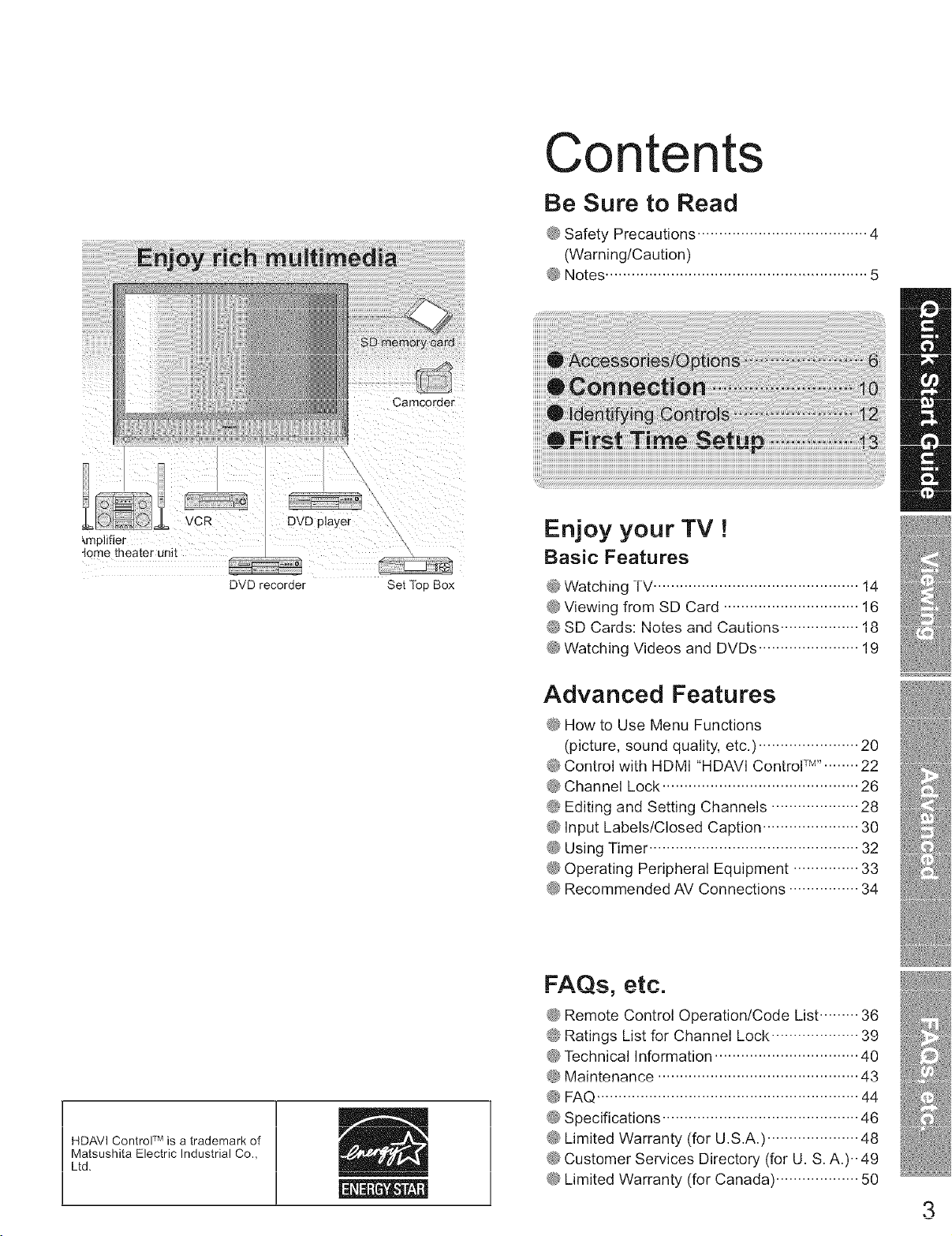
\\
DVD player
_,mpiifier
4ome theater unit
uvu recoraer
Camcoraer
Se[ TODBOX
Contents
Be Sure to Read
@ Safety Precautions ....................................... 4
(Warning/Caution)
@ Notes ............................................................ 5
Eniov your TV !
1- -& -- j J
Basic Features
@ Watching TV ............................................... i4
@ Viewing from SD Card ............................... 16
4_ Ol_ bdlUb. I_UL_4_b dllU bdULIUIIb IU
@ Watching Videos and DVDs ....................... 19
Advanced Features
@ How to Use Menu Functions
(picture, sound quality, etc.) ....................... 20
_d_bon[rol wl[n I1UtVll I1U,_Vl L, on[rol ............ zz
@ Channel Lock ............................................. 26
_ 1_,41fin,-_ _nr4 q_,_finr_ Ph_nn_le .................... 9.q
@ Input Labels/Closed Caption ...................... 30
@ Using Timer ................................................ 32
@ Operating Peripheral Equipment ............... 33
@ Recommended AV Connections ................ 34
m
I/
IS
II
HDAVI ControF M is a trademark of
Matsushita Electric Industrial Co.,
Ltd.
I I
@ Remote Control Operation/Code List ......... 36
_4_ I_LIII_ L-I_L I_1 _11_1111_1 L-UblX _c_
@ Technical Information ................................. 40
@ Maintenance .............................................. 43
@ FAQ ............................................................ 44
@ Specifications ............................................. 46
@ Limited Warranty (for U.S.A.) ..................... 48
@ Customer Services Directory (for U. S. A.).. 49
@ Limited Warranty (for Canada) ................... 50
3
Safety Precautions
CAUTION
WARNING: To reduce the risk of electric shock, do not remove cover or back.
No user-serviceable parts inside. Refer servicing to qualified service personnel.
WARNING:
,_The flghtning flash with
arrow-head within a triangle
is intended to tell the user
that parts inside the product
are a risk of electric shock to
persons.
The exclamation point within
a triangle is intended to
tell the user that important
operating and servicing
instructions are in the papers
with the appliance.
To reduce the risk of fire or electric shock, do not expose this apparatus to rain or moisture.
Do not place liquid containers (flower vase, cups, cosmetics, etc.) above the set
(including on shelves above, etc.).
1) Read these instructions.
2) Keep these instructions.
3) Heed all warnings.
4) Follow all instructions.
5) Do not use this apparatus near water.
6) Clean only with dry cloth.
7) Do not block any ventilation openings. Install in accordance
with the manufacturer's instructions.
8) Do not install near any heat sources such as radiators, heat
registers, stoves, or other apparatus (including amplifiers)
that produce heat.
9) Do not defeat the safety purpose of the polarized or
grounding-type plug. A polarized plug has two blades with
one wider than the other. A grounding type plug has two
blades and a third grounding prong. The wide blade or the
third prong are provided for your safety. If the provided
plug does not fit into your outlet, consult an electrician for
replacement of the obsolete outlet.
10)Protect the power cord from being walked on or pinched
particularly at plugs, convenience receptacles, and the
point where they exit from the apparatus.
11 ) Only use attachments /accessories specified by the
manufacturer.
12) Use only with the cart, stand, tripod,
bracket, or table specified by the
manufacturer, or sold with the
apparatus. When a cart is used,
use caution when moving the cart /
apparatus combination to avoid injury
from tip-over.
13)Unplug this apparatus during lightning
storms or when unused for long periods of time.
14)Refer all servicing to qualified service personnel. Servicing
is required when the apparatus has been damaged in any
way, such as power-supply cord or plug is damaged, liquid
has been spilled or objects have fallen into the apparatus,
the apparatus has been exposed to rain or moisture, does
not operate normally, or has been dropped.
15)To prevent electric shock, ensure the grounding pin on the
AC cord power plug is securely connected.
This equipment has been tested and found to comply with the limits for an Other Class B digital device, pursuant to Part 15 of the
FCC Rules. These limits are designed to provide reasonable protection against harmful interference in a residential installation.
This equipment generates, uses and can radiate radio frequency energy and, if not installed and used in accordance with the
instructions, may cause harmful interference to radio communications. However, there is no guarantee that interference will not
occur in a particular installation. If this equipment does cause harmful interference to radio or television reception, which can be
determined by turning the equipment off and on, the user is encouraged to try to correct the interference by one of the following
measures:
• Reorient or relocate the receiving antenna.
• Increase the separation between the equipment and receiver.
• Connect the equipment into an outlet on a circuit different from that to which the receiver is connected.
• Consult the Panasonic Service Center or an experienced radio/TV technician for help.
FCC Caution:
To assure continued compliance, use only shielded interface cables when connecting TV to peripheral devices.
Any changes or modifications not expressly approved by responsible party may cause harmful interference and could
void the user's authority to operate this device.
Responsible Party:
Contact Source:
email:
Panasonic Corporation of North America
One Panasonic Way, Secaucus, NJ 07094
Panasonic Consumer Electronics Company
1-888-VlEW-PTV (843-9788)
4
CANADIAN NOTICE:
For Models TH-37PX60U, TH-42PX60U, TH-50PX60U, TH-50PX60X, TH-58PX60U
This Class B digital apparatus complies with Canadian ICES-003.
Z_ WARNING
SMALL PARTS CAN PRESENT CHOKING HAZARD iF
ACCIDENTALLY SWALLOWED.
KEEP SMALL PARTS AWAY FROM YOUNG CHILDREN.
DISCARD UNNEEDED SMALL PARTS AND OTHER
OBJECTS, iNCLUDiNG PACKAGING MATERIALS AND
PLASTIC BAGS/SHEETS TO PREVENT THEM FROM BEING
PLAYED WiTH BY YOUNG CHILDREN, CREATING THE
POTENTIAL RiSK OF SUFFOCATION.
[] Set up
Do not place the Plasma TV on sloped or unstable surfaces.
_ The Plasma TV may fall off or tip over.
Do not place any objects on top of the Plasma TV.
_ If water spills onto the Plasma TV or foreign objects get inside
it, a short-circuit may occur which could result in fire or electric
shock. If any foreign objects get inside the Plasma TV, please
consult an Authorized Service Center.
This Plasma TV is for use only with the following
optional accessories. Use with any other type of optional
accessories may cause instability which could result in the
possibility of injury.
(All of the following accessories are manufactured by
Matsushita Electric Industrial Co., Ltd.)
• Wall-hanging bracket (Vertical):
TY-WK42PV3U (TH-37PX60U, TH-42PX60U,
TH-50PX60U, TH-50PX60X, TH-58PX60U)
• Wall-hanging bracket (Angled):
TY-WK42PR2U, TY-WK42PR3U (TH-37PX60U,
TH-42PX60U, TH-50PX60U, TH-50PX60X)
Always be sure to ask a qualified technician to carry out set-up.
mAC Power Supply Cord
The Plasma TV is designed to operate on 120 VAC, 50/60 Hz
(TH-37PX60U, TH-42PX60U, TH-50PX60U, TH-58PX60U) or on
110 - 127 V AC, 50/60 Hz (TH-50PX60X). Securely insert the
power cord plug as far as it will go.
® If the plug is not fully inserted, heat may be generated which
could cause fire. If the plug is damaged or the wall socket
plate is loose, they should not be used.
Do not handle the power cord plug with wet hands.
® Doing so may cause electric shocks.
Do not do anything that might damage the power cable.
When disconnecting the power cable, hold the plug, not the
cable.
® Do not make any modifications to, place heavy objects on, place
near hot objects, heat, bend, twist or forcefully pull the power cable.
Doing so may cause damage to the power cable which can cause
fire or electric shock. If damage to the cable is suspected, have it
repaired at an Authorized Service Center.
[] if problems occur during use
If a problem occurs (such as no picture or no sound), or if
smoke or an abnormal odor is detected from the Plasma
TV, unplug the power cord immediately.
® Continued use of the TV under these conditions might cause
fire or permanent damage to the unit. Have the TV evaluated
at an Authorized Service Center. Servicing of the TV by any
unauthorized personnel is strongly discouraged due to its high
voltage dangerous nature.
if water or foreign objects get inside the Plasma TV, if the
Plasma TV is dropped, or if the cabinet becomes damaged,
disconnect the power cord plug immediately.
® A short may occur, which could cause fire. Contact an
Authorized Service Center for any repairs that need to be
made.
]
Do not cover the ventilation holes.
@ Doing so may cause the Plasma TV to overheat, which can
cause fire or damage to the Plasma TV.
If using the pedestal, leave a space of 3 15/16" (10 cm) or
more at the top, left and right, 2 3/8" (6 cm) or more at the
bottom, and 2 3/4" (7 cm) or more at the rear.
•When using the Plasma TV
Be sure to disconnect all cables before moving the Plasma
TV.
® Moving the TV with its cables attached might damage the
cables which, in turn, can cause fire or electric shock.
Disconnect the power plug from the wall outlet as a safety
precaution before carrying out any cleaning.
® Electric shocks can result if this is not done.
Clean the power cable regularly to prevent it from
becoming dusty.
_; Built-up dust on the power cord plug can increase humidity
which might damage the insulation and cause fire. Unplug the
cord from the wall outlet and clean it with a dry cloth.
This Plasma TV radiates infrared rays; therefore, it may
affect other infrared communication equipment.
install your infrared sensor in a place away from direct or
reflected light from your Plasma TV.
Do not climb up onto the television or use it as a step.
(Young children should be made particularly aware of this
caution.)
® If the unit falls over or becomes damaged through misuse,
injury may result.
The TV will still consume some power as long as the power
cord is inserted into the wall outlet,
otes
[] Do not display a still picture for a long time
This causes the image to remain on the plasma screen
("after image"). This is not considered a malfunction and is
not covered by the warranty.
Typical still images
® Channel number and other Iogos
@Image displayed in 4:3 mode
® SD Card photo ® Video game ® Computer image
To prevent after image,
the screen saver is
automatically activated after
a few minutes if no signals
are sent or no operations
are performed. (p. 45)
[] Setup
® Do not place the unit where it's exposed to sunlight or other
bright light (including reflections).
@Use of some types of fluorescent lighting may reduce the remote
control's transmission range.
5
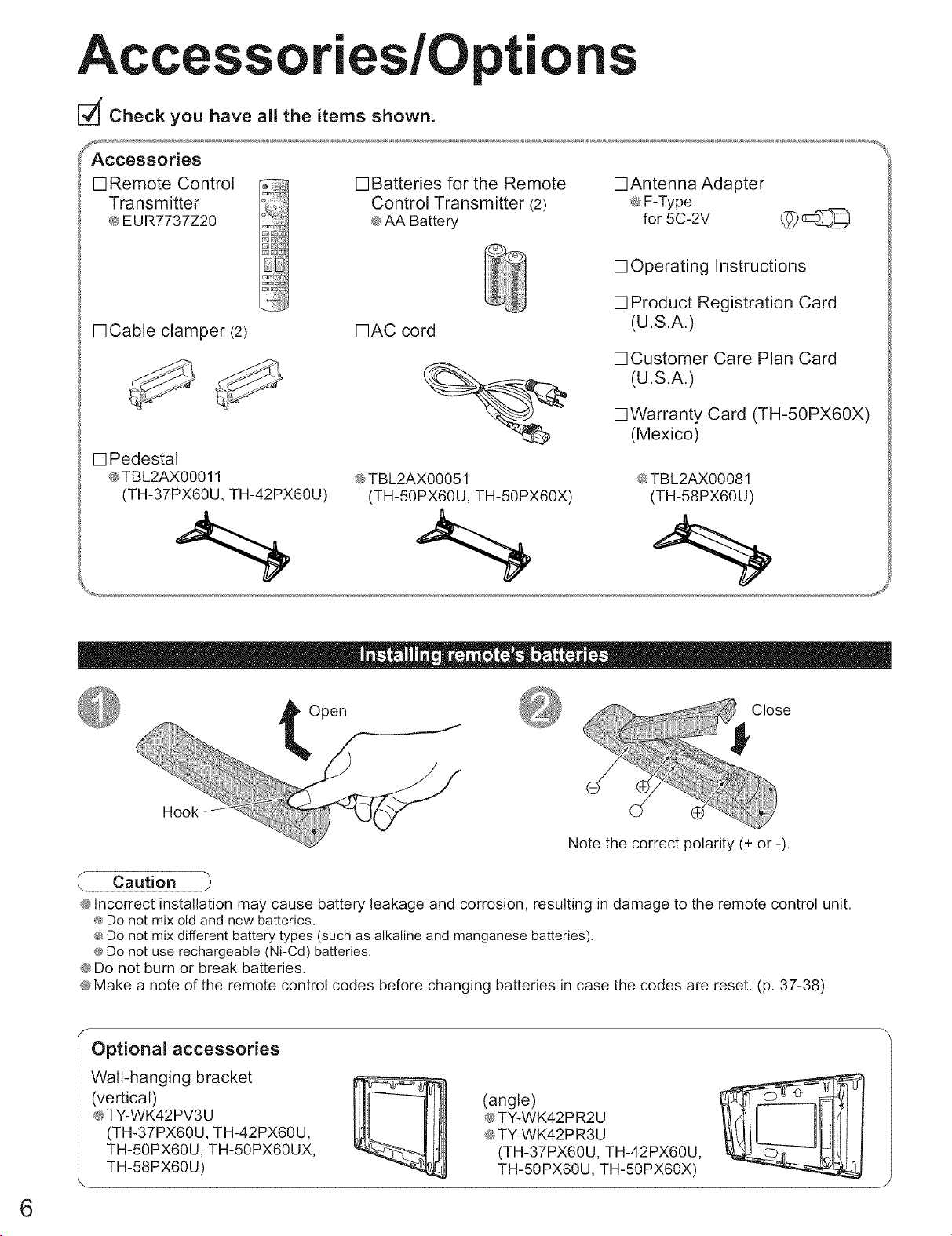
Accessories/O
Check you have all the items shown.
tions
[] Remote Control
Transmitter
® EUR7737Z20
[] Batteries for the Remote
Control Transmitter (2)
® AA Battery
[]Antenna Adapter
® F-Type
for 5C-2V (_
[]Cable clamper (2)
[] Pedestal
®TBL2AX00011
(TH-37PX60U, TH-42PX60U)
[]AC cord
® TBL2AX00051
(TH-50PX60U, TH-50PX60X)
[] Operating Instructions
[] Product Registration Card
(U.S.A.)
[]Customer Care Plan Card
(U.S.A.)
[]Warranty Card (TH-50PX60X)
(Mexico)
®TBL2AX00081
(TH-58PX60U)
Note the correct polarity (+ or -).
® Incorrect installation may cause battery leakage and corrosion, resulting in damage to the remote control unit.
e Do not mix old and new batteries.
® Do not mix different battery types (such as alkaline and manganese batteries).
e Do not use rechargeable (Ni-Cd) batteries.
® Do not burn or break batteries.
®Make a note of the remote control codes before changing batteries in case the codes are reset. (p. 37-38)
6
f
Optional accessories
Walt-hanging bracket
(vertical)
® TY-WK42PV3U
(TH-37PX60U, TH-42PX60U,
TH-50PX60U, TH-50PX60UX,
TH-58PX60U)
(angle)
® TY-WK42PR2U
® TY-WK42 PR3U
(TH-37PX60U, TH-42PX60U,
TH-50PX60U, TH-50PX60X)
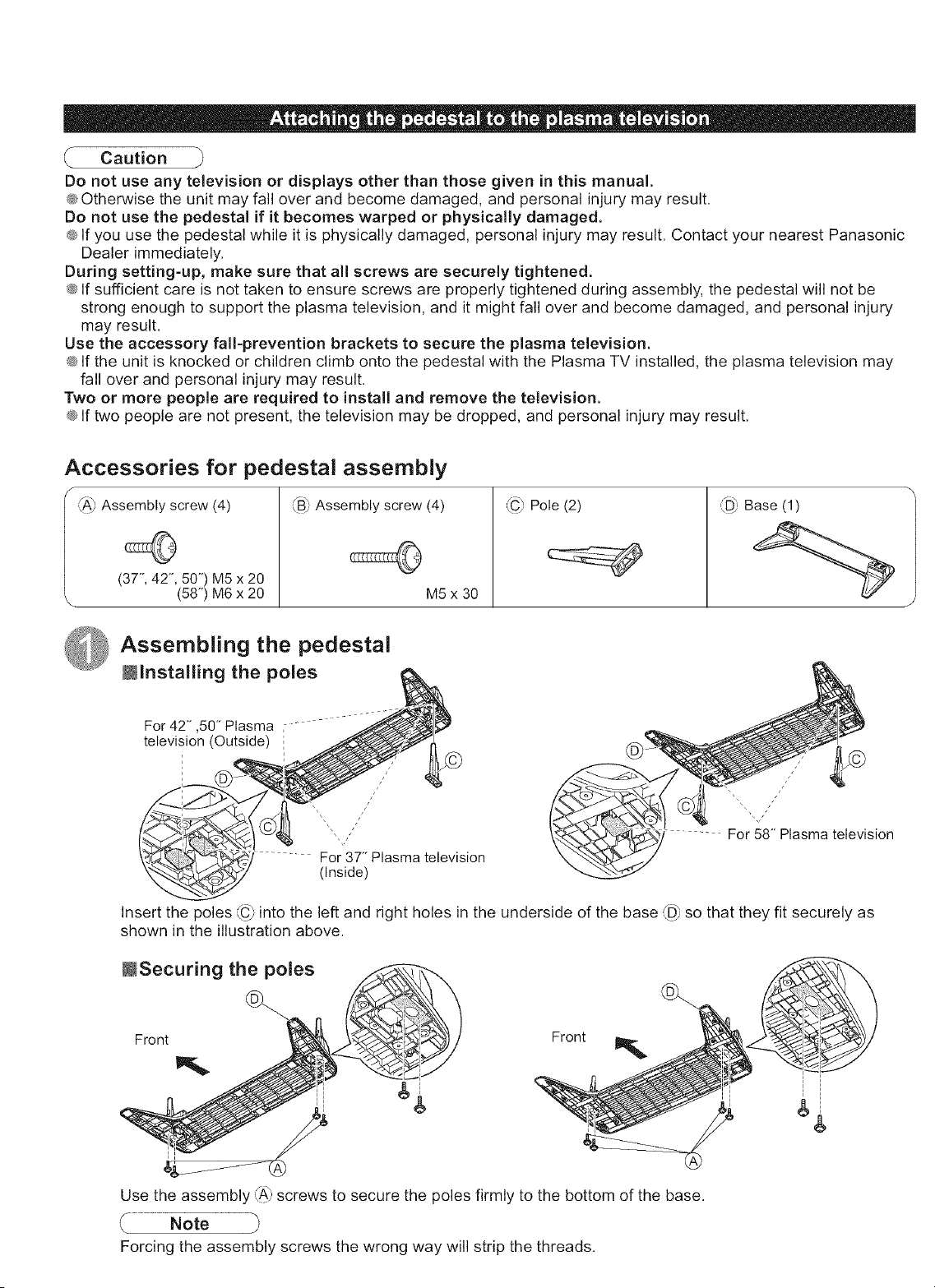
Caution
Donot use any television or displays other than those given in this manual.
®Otherwise the unit may fall over and become damaged, and personal injury may result.
Do not use the pedestal if it becomes warped or physically damaged.
® If you use the pedestal while it is physically damaged, personal injury may result. Contact your nearest Panasonic
Dealer immediately.
During setting-up, make sure that all screws are securely tightened.
® If sufficient care is not taken to ensure screws are properly tightened during assembly, the pedestal will not be
strong enough to support the plasma television, and it might fall over and become damaged, and personal injury
may result.
Use the accessory fall-prevention brackets to secure the plasma television.
® If the unit is knocked or children climb onto the pedestal with the Plasma TV installed, the plasma television may
fall over and personal injury may result.
Two or more people are required to install and remove the television.
® If two people are not present, the television may be dropped, and personal injury may result.
Accessories for pedestal assembly
s crew
:_A)As (4) _B)Assembly screw (4)
J (3T', 42"',50") M5 x 20
(58"') M6 x 20 M5 x 30
LC_Pole (2) (_ Base (1)
Assembling the pedestal
Mlnstalling the poles
For 42- ,50" Plasma -
television (Outside)
For 37" Plasma television
(Inside)
J
For 58" Plasma television
Insert the poles _C_into the left and right holes in the underside of the base (D_,so that they fit securely as
shown in the illustration above.
MSecuring the poles
<.
Front Front
Use the assembly _A_'screws to secure the poles firmly to the bottom of the base.
Forcing the assembly screws the wrong way will strip the threads.
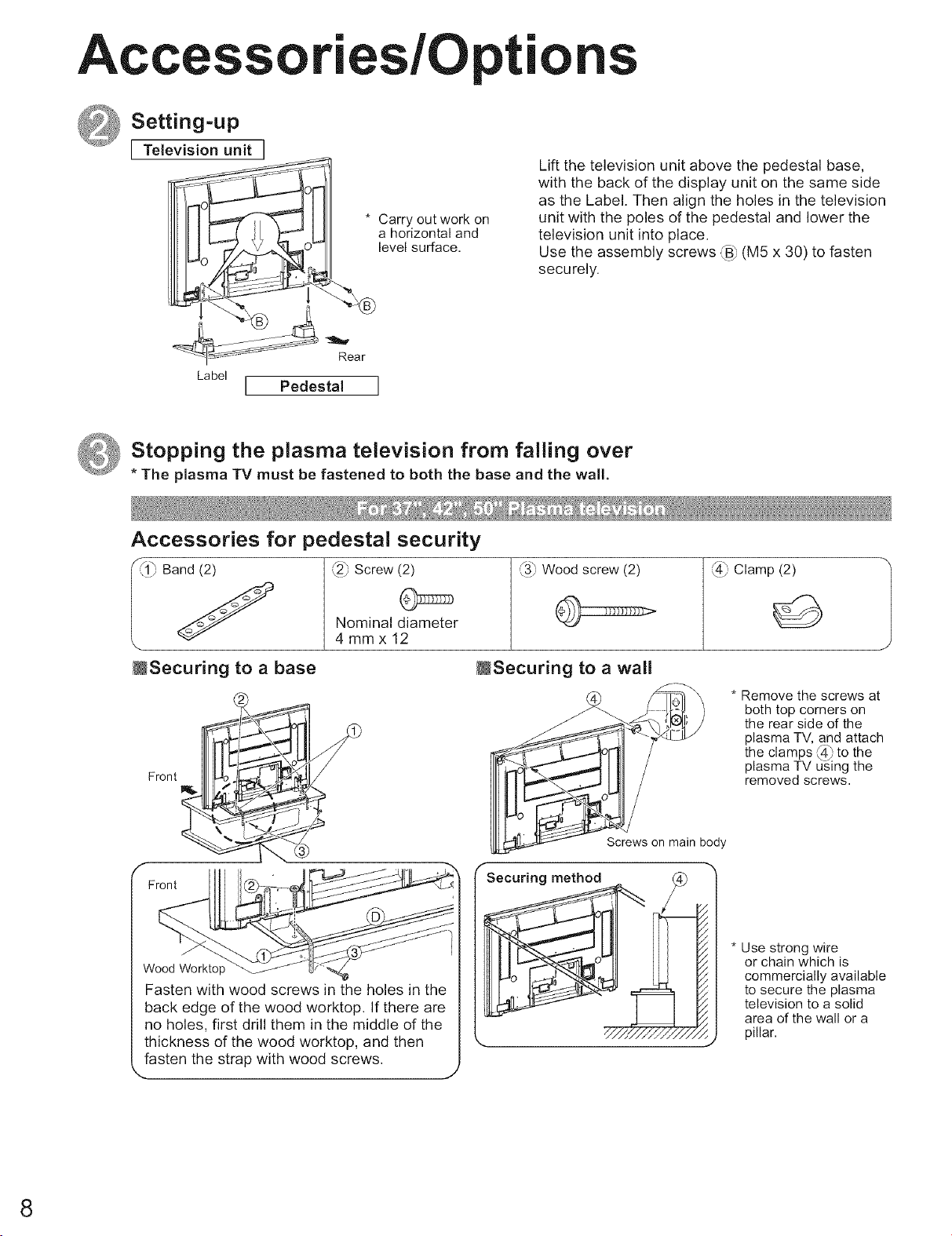
Accessories/O tions
_Setting-up
I Television unit I
........... * Carry out work on
IIIII I_J :L L _ .U:I ahorizontaland
I1[Uo-___--_1 levelsun'ace
Rear
Label I Pedestal ]
Lift the television unit above the pedestal base,
with the back of the display unit on the same side
as the Label. Then align the holes in the television
unit with the poles of the pedestal and lower the
television unit into place.
Use the assembly screws _13}(MS x 30) to fasten
securely.
Stopping the plasma television from falling over
*The plasma TV must be fastened to both the base and the wall.
Accessories for pedestal security
, Band (2) _2_,Screw (2)
Nominal diameter
4mmx12
,_3}Wood screw (2) ,F4_Clamp (2)
=, S
J
MSecuring to a base MSecuring to a wall
Front __
Front
Fasten with wood screws in the holes in the
back edge of the wood worktop. If there are
no holes, first drill them in the middle of the
thickness of the wood worktop, and then
fasten the strap with wood screws.
Screws on main body
f
Securing method /
J
J
* Remove the screws at
both top corners on
the rear side of the
plasma TV, and attach
the clamps _4_to the
plasma TV using the
removed screws.
* Use strong wire
or chain which is
commercially available
to secure the plasma
television to a solid
area of the wall or a
pillar.
8
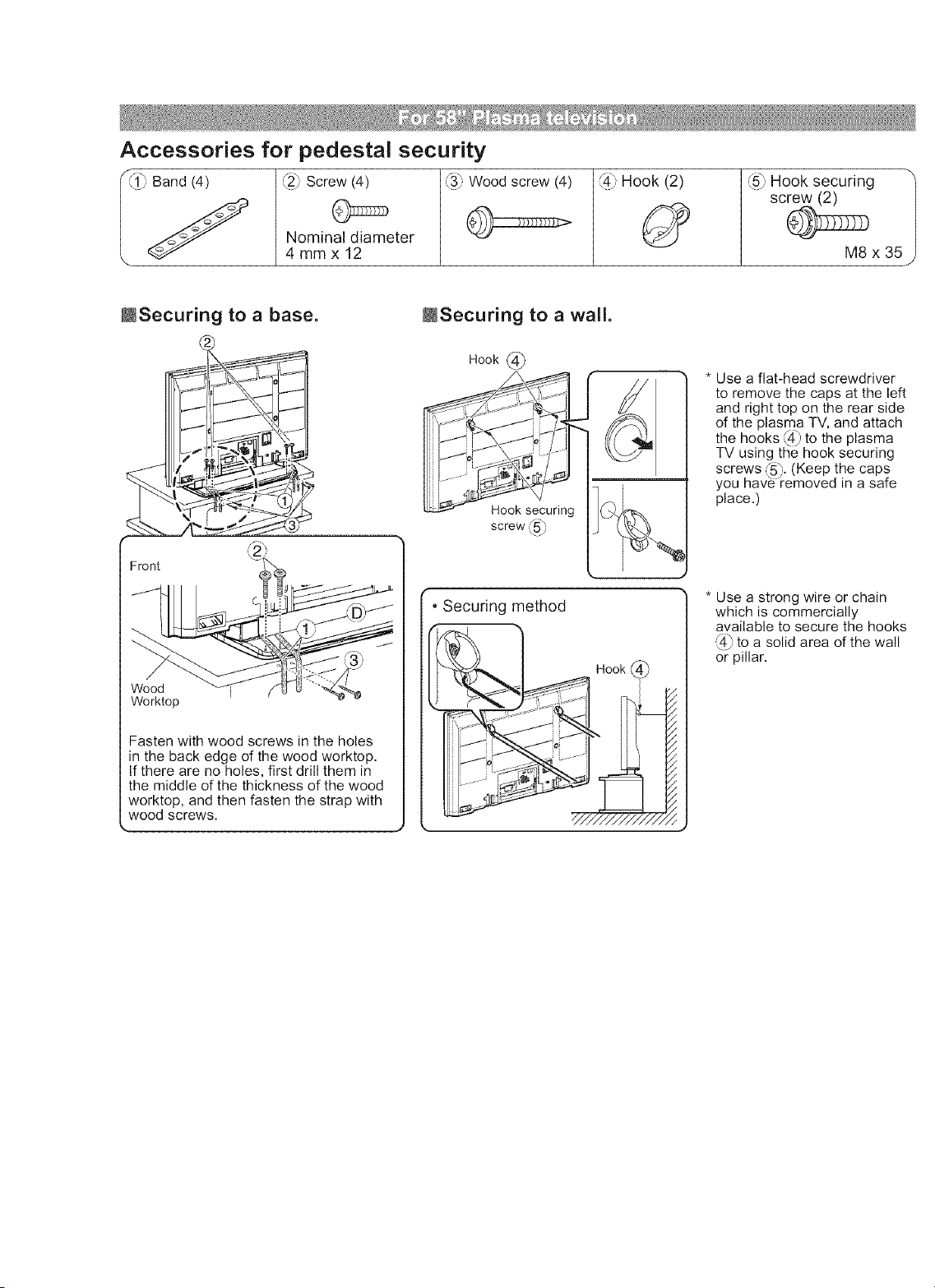
Accessories for pedestal security
_2) Screw (4) @i
Nominal diameter
4mmx12
f.,
,49 Hook (2) '_5_'Hook securing "_
screw (2)
M8 x 35
MSecuring to a base.
Front
Wood
Worktop
Fasten with wood screws in the holes
in the back edge of the wood worktop.
If there are no holes, first drill them in
the middle of the thickness of the wood
worktop, and then fasten the strap with
wood screws.
MSecuring to a wall.
Hook
Hook securing
screw ,_5_,
•Securing method
Hook
* Use a flat-head screwdriver
to remove the caps at the left
and right top on the rear side
of the plasma TV, and attach
the hooks _ to the plasma
TV using the hook securing
screws (5_,.(Keep the caps
,q J
you have removed in a safe
place.)
* Use a strong wire or chain
which is commercially
available to secure the hooks
_ to a solid area of the wall
or pillar.
Cnect"
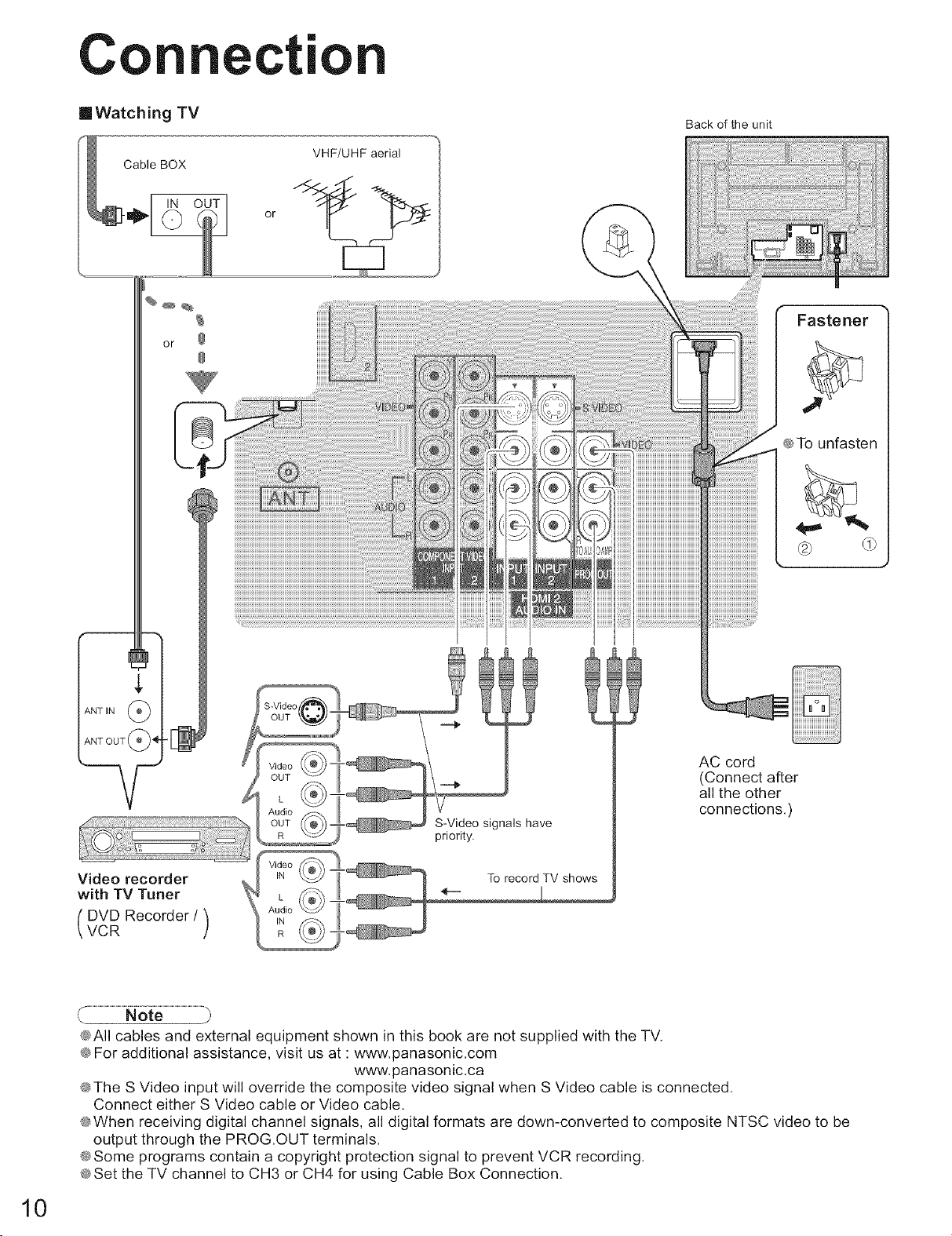
mWatching TV
or
VHF/UHF aerial
/l@l
l!@/
i!iiiiii!!iiiiiiiiiiiiiiiiiiiiiiiiiiiiiiiiiiii
Back of the unit
Fastener
@To unfasten
d)
Video recorder
with TV Tuner
DVD Recorder /VCR )
S-Video signals have
priority.
AC cod
(Connecta_er
allthe other
conneGions.)
10
@All cables and external equipment shown in this book are not supplied with the TV.
@For additional assistance, visit us at : www.panasonic.com
www.panasonic.ca
@The S Video input will override the composite video signal when S Video cable is connected.
Connect either S Video cable or Video cable.
@When receiving digital channel signals, all digital formats are down-converted to composite NTSC video to be
output through the PROG.OUT terminals.
@Some programs contain a copyright protection signal to prevent VCR recording.
@Set the TV channel to CH3 or CH4 for using Cable Box Connection.
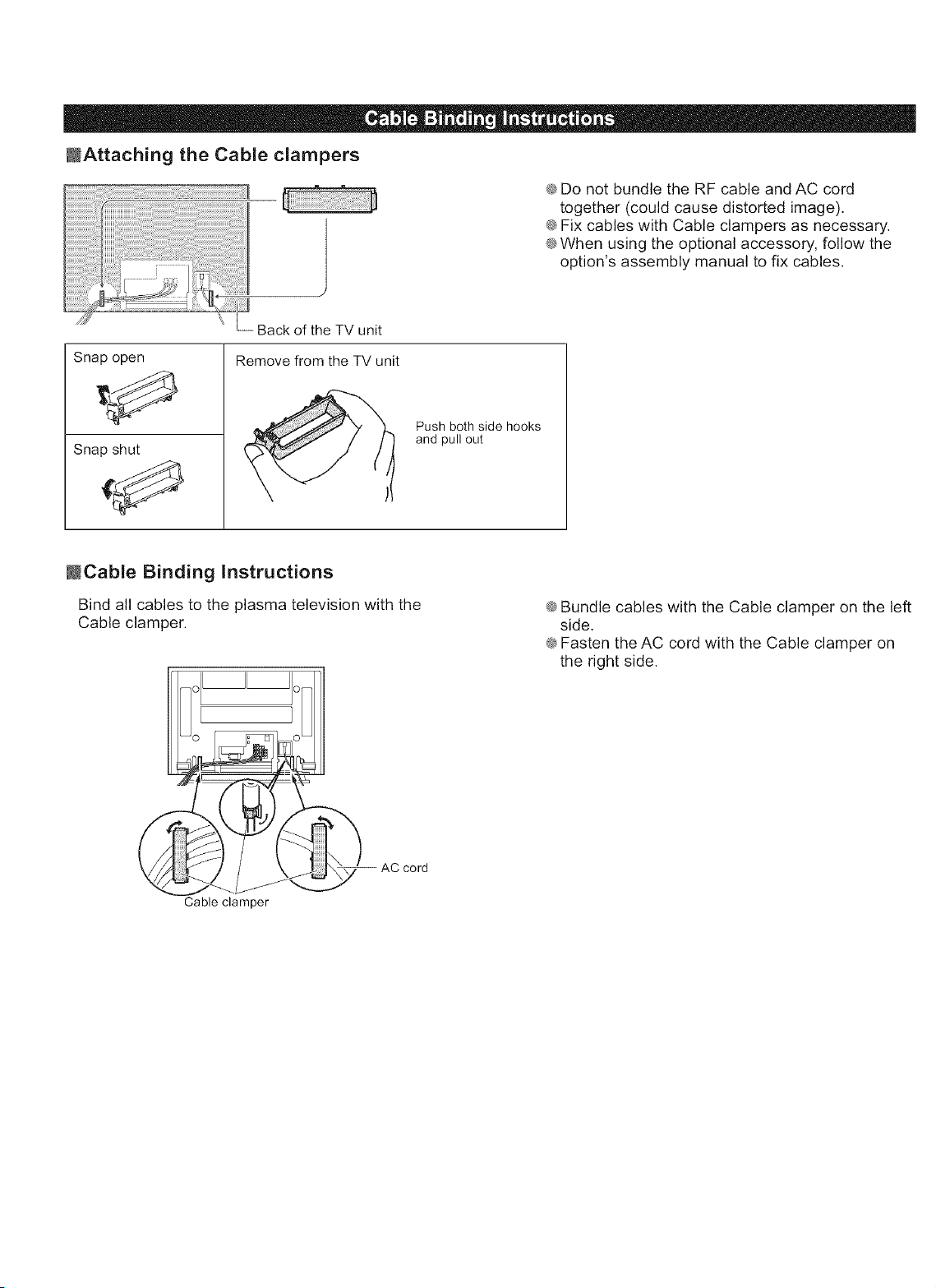
MAttaching the CabLe clampers
@Do not bundle the RF cable and AC cord
together (could cause distorted image).
@Fix cables with Cable clampers as necessary.
@When using the optional accessory, follow the
option's assembly manual to fix cables.
Back of the TV unit
Snap open
Snap shut
Remove from the TV unit
Push both side hooks
and pull out
MCable Binding instructions
Bind all cables to the plasma television with the
Cable clamper.
@Bundle cables with the Cable clamper on the left
side.
@Fasten the AC cord with the Cable clamper on
the right side.
Cable clamper
Identifyi Cont
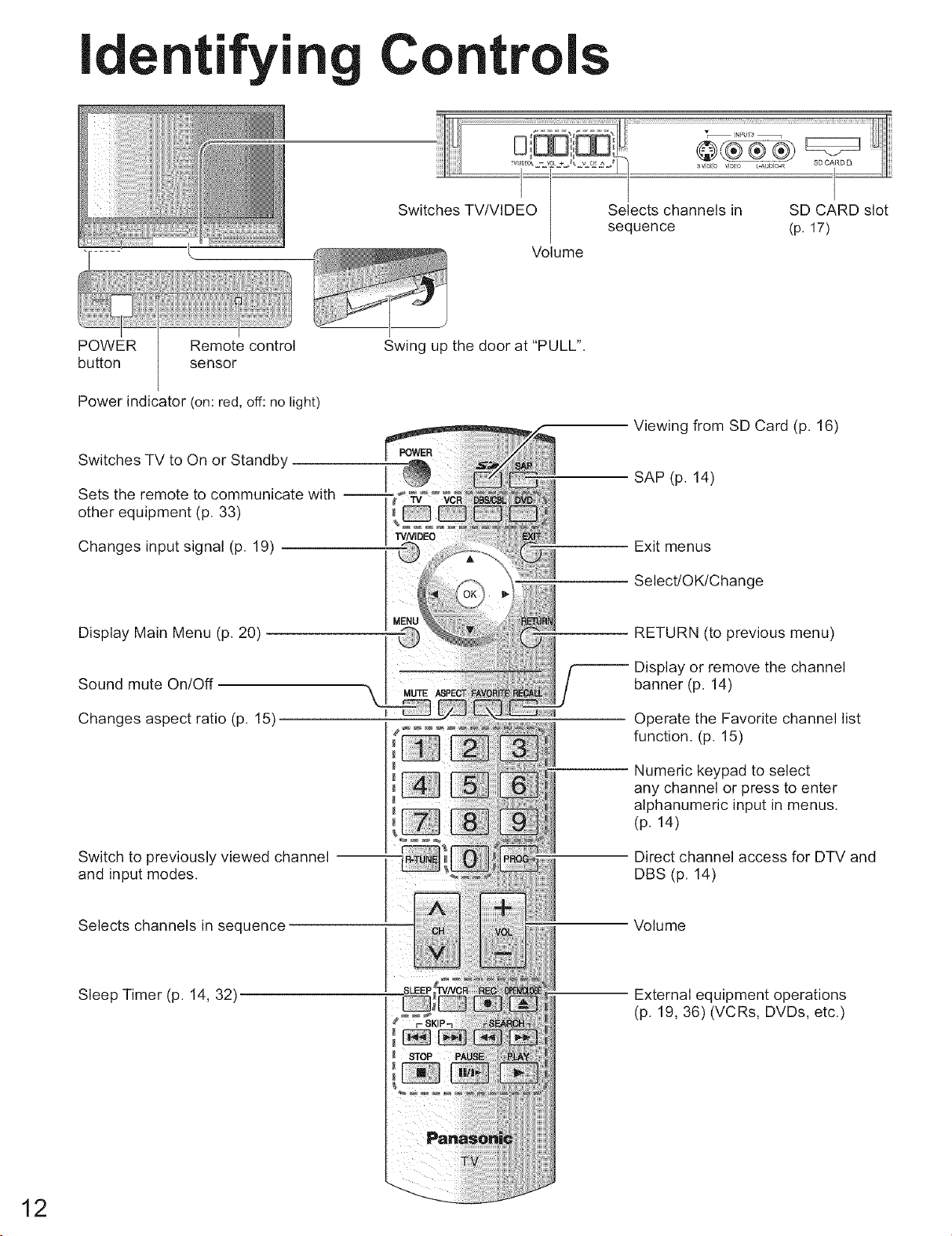
Volume
(p. 17)
POWER Remote control
button sensor
Power indicator (on: red, off: no light)
Swing up the door at "PULL".
Switches TV to On or Standby
Sets the remote to communicate with
other equipment (p. 33)
Changes input signal (p. 19)
Display Main Menu (p. 20)
Sound mute On/Off
Changes aspect ratio (p. 15)
Switch to previously viewed channel
and input modes.
Selects channels in sequence
Sleep Timer (p. 14, 32)
Viewing from SD Card (p. 16)
SAP (p. 14)
Exit menus
Select/OK/Change
RETURN (to previous menu)
Display or remove the channel
banner (p. 14)
Operate the Favorite channel list
function. (p. 15)
Numeric keypad to select
any channel or press to enter
alphanumeric input in menus.
(p. 14)
Direct channel access for DTV and
DBS (p. 14)
Volume
External equipment operations
(p. 19, 36) (VCRs, DVDs, etc.)
12
irst Ti Setu
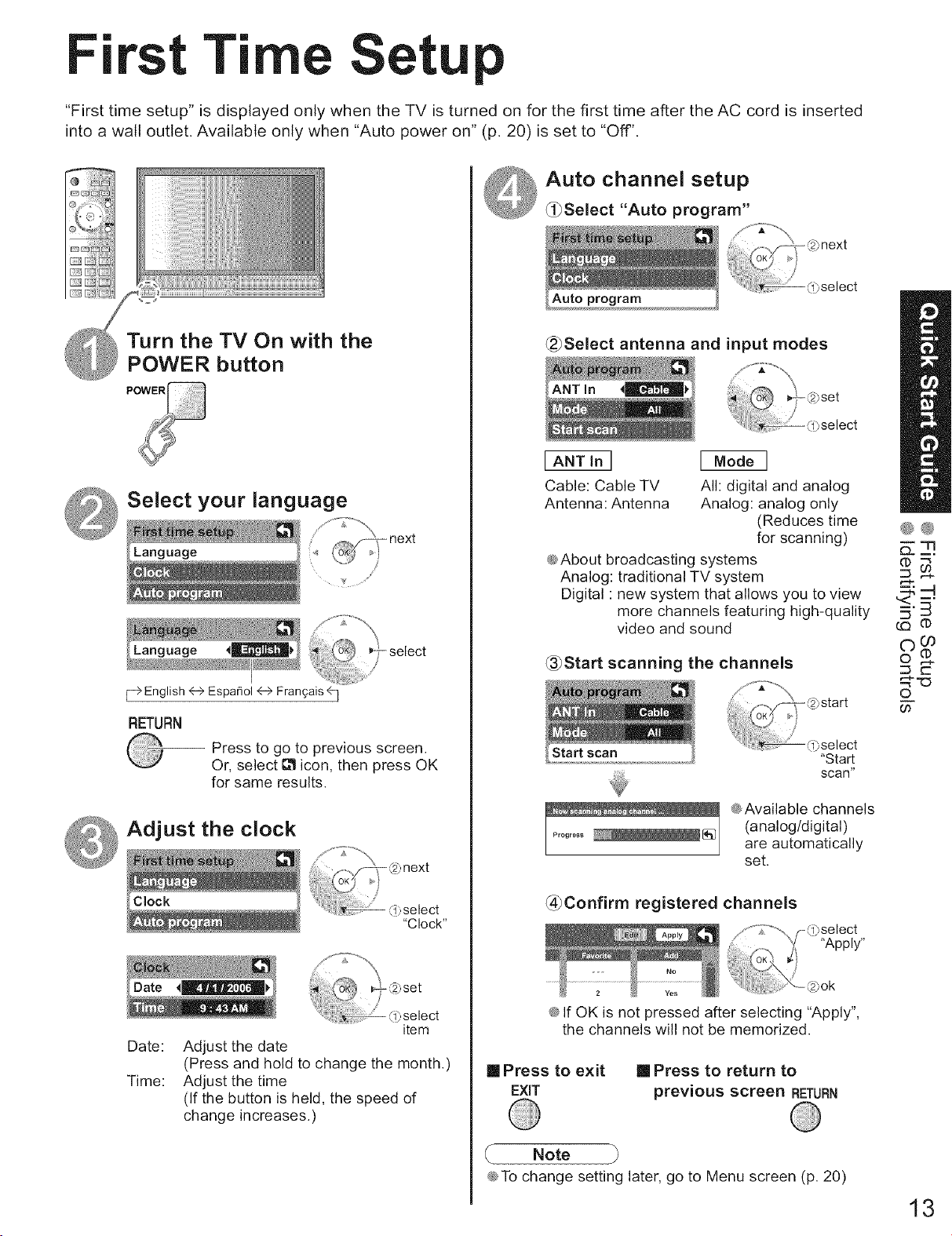
"First time setup" is displayed only when the TV is turned on for the first time after the AC cord is inserted
into a wall outlet. Available only when "Auto power on" (p. 20) is set to "Off".
@
Turn the TV On with the
POWER button
Select your language
RETURN
Press to go to previous screen.
Or, select _ icon, then press OK
for same results.
Adjust the clock
@next
/
%,select
"Clock"
Date:
Time:
item
Adjust the date
(Press and hold to change the month.)
Adjust the time
(If the button is held, the speed of
change increases.)
Auto channel setup
_0Select "Auto program"
_Select antenna and input modes
[ ANT In ]
Cable: Cable TV
Antenna: Antenna
[Mode ]
All: digital and analog
Analog: analog only
(Reduces time
for scanning)
@About broadcasting systems
Analog: traditional TV system
Digital : new system that allows you to view
more channels featuring high-quality
video and sound
_Start scanning the channels
,start
Start scan _}select
"Start
scan"
@Available channels
(analog/digital)
are automatically
set.
@Confirm registered channels
)select
"Apply"
0ok
@If OK is not pressed after selecting "Apply",
the channels will not be memorized.
[] Press to exit
EXIT
[] Press to return to
previous screen RETURN
@To change setting later, go to Menu screen (p. 20)
®®
___-q.
©
c
q'-o
©
0o
13
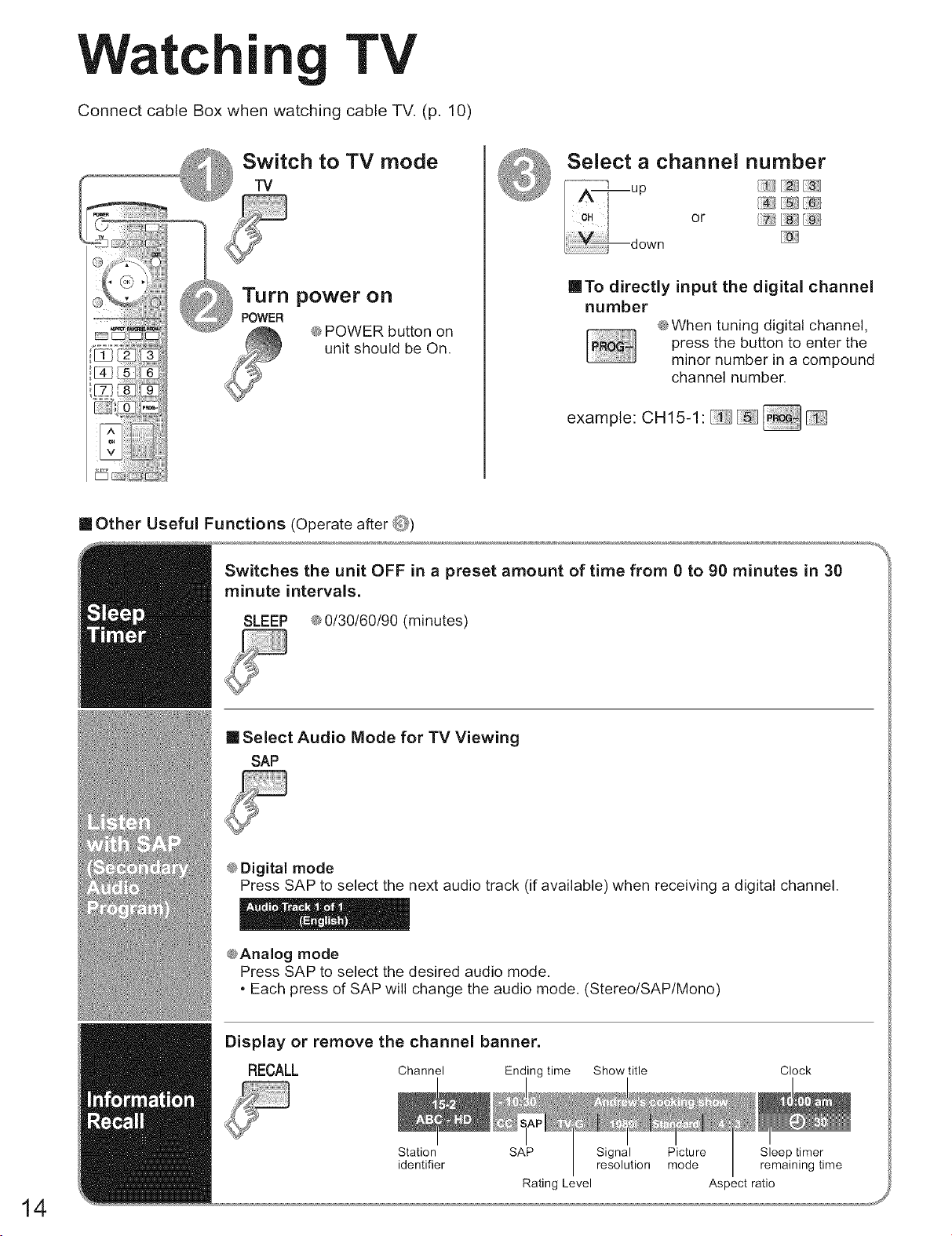
Watt I=
|TV
Connect cable Box when watching cable TV. (p. 10)
@POWER button on
unit should be On.
Select achannel number
down
InTo directly input the digital channel
number
@When tuning digital channel,
press the button to enter the
minor number in a compound
channel number.
example: CH15-1' _ _
[] Other Useful Functions (Operate after @)
Switches the unit OFF in a preset amount of time from 0 to 90 minutes in 30
minute intervals.
SLEEP @0/30/60/90 (minutes)
[] Select Audio Mode for TV Viewing
SAP
@Digital mode
Press SAP to select the next audio track (if available) when receiving a digital channel.
@Analog mode
Press SAP to select the desired audio mode,
• Each press of SAP will change the audio mode. (Stereo/SAP/Mono)
14
Display or remove the channel banner.
RECALL Channel Ending time Show title
Station SAP Signal
identifier resolution
Rating Level
Clock
Picture Sleep timer
mode remaining time
Aspect ratio
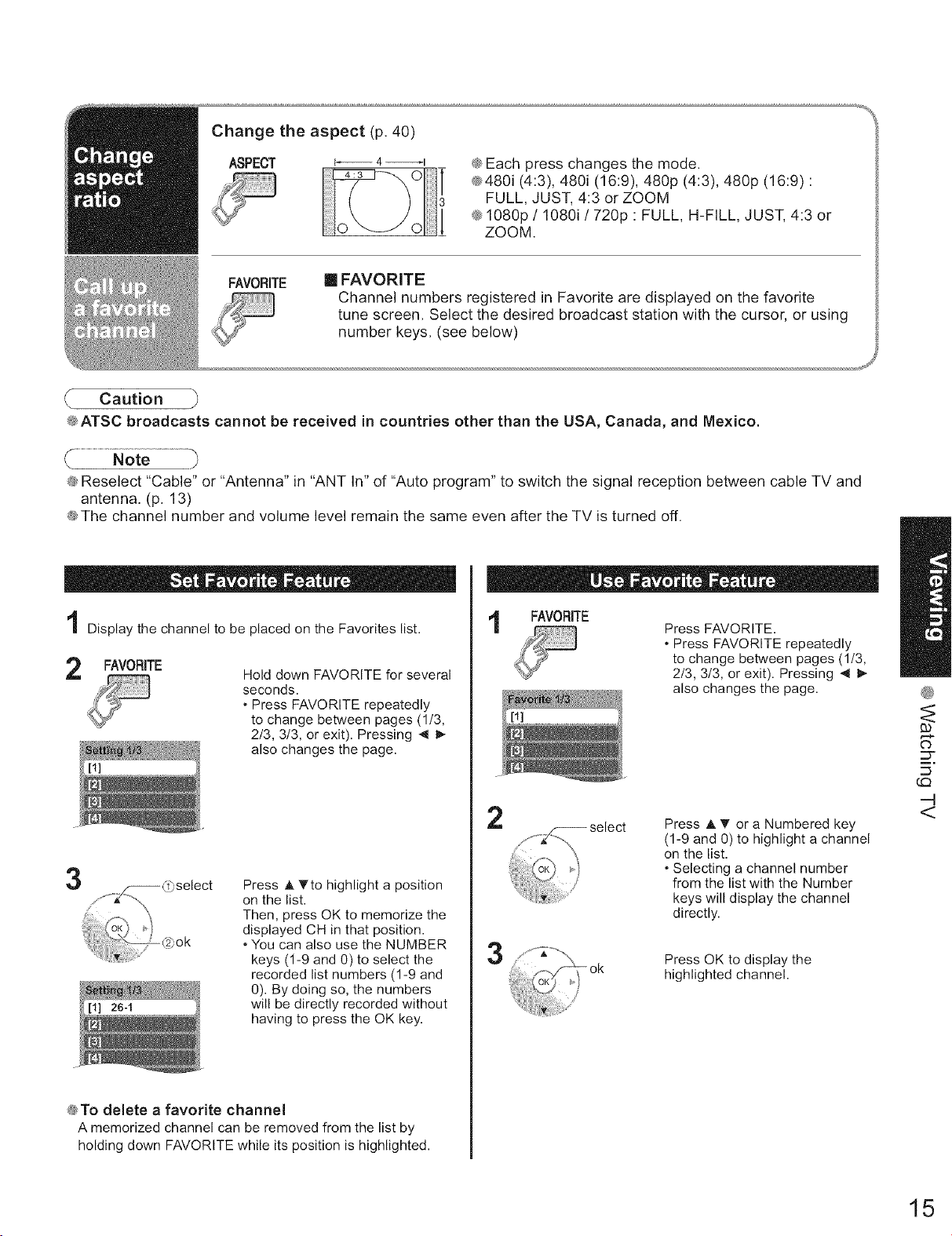
Change the aspect (p. 40)
ASPECT _ 4_l @Each press changes the mode.
@480i (4:3), 480i (16:9), 480p (4:3), 480p (16:9) :
FULL, JUST, 4:3 or ZOOM
@1080p !1080i !720p : FULL, H-FILL, JUST, 4:3 or
ZOOM.
FAVORITE [] FAVORITE
Channel numbers registered in Favorite are displayed on the favorite
tune screen. Select the desired broadcast station with the cursor, or using
number keys. (see below)
J
Caution
@ATSC broadcasts cannot be received in countries other than the USA, Canada, and Mexico.
@Reselect "Cable" or "Antenna" in "ANT In" of "Auto program" to switch the signal reception between cable TV and
antenna. (p. 13)
@The channel number and volume level remain the same even after the TV is turned off.
Display the channel to be placed on the Favorites list.
FAVORITE Hold down FAVORITE for several
seconds.
• Press FAVORITE repeatedly
to change between pages (1/3,
2/3, 3/3, or exit). Pressing _1 _-
also changes the page.
3
S
select
26-1
Press A. Tto highlight a position
on the list.
Then, press OK to memorize the
displayed CH in that position.
• You can also use the NUMBER
keys (1-9 and 0) to select the
recorded list numbers (1-9 and
0). By doing so, the numbers
will be directly recorded without
having to press the OK key.
@To delete a favorite channel
A memorized channel can be removed from the list by
holding down FAVORITE while its position is highlighted.
FAVORITE
Press FAVORITE.
• Press FAVORITE repeatedly
to change between pages (1/3,
2/3, 3/3, or exit). Pressing _1 _-
also changes the page.
2
3
Press A T or a Numbered key
(1-9 and 0) to highlight a channel
on the list.
• Selecting a channel number
from the list with the Number
keys will display the channel
directly.
Press OK to display the
highlighted channel.
¢b
-4
<
15
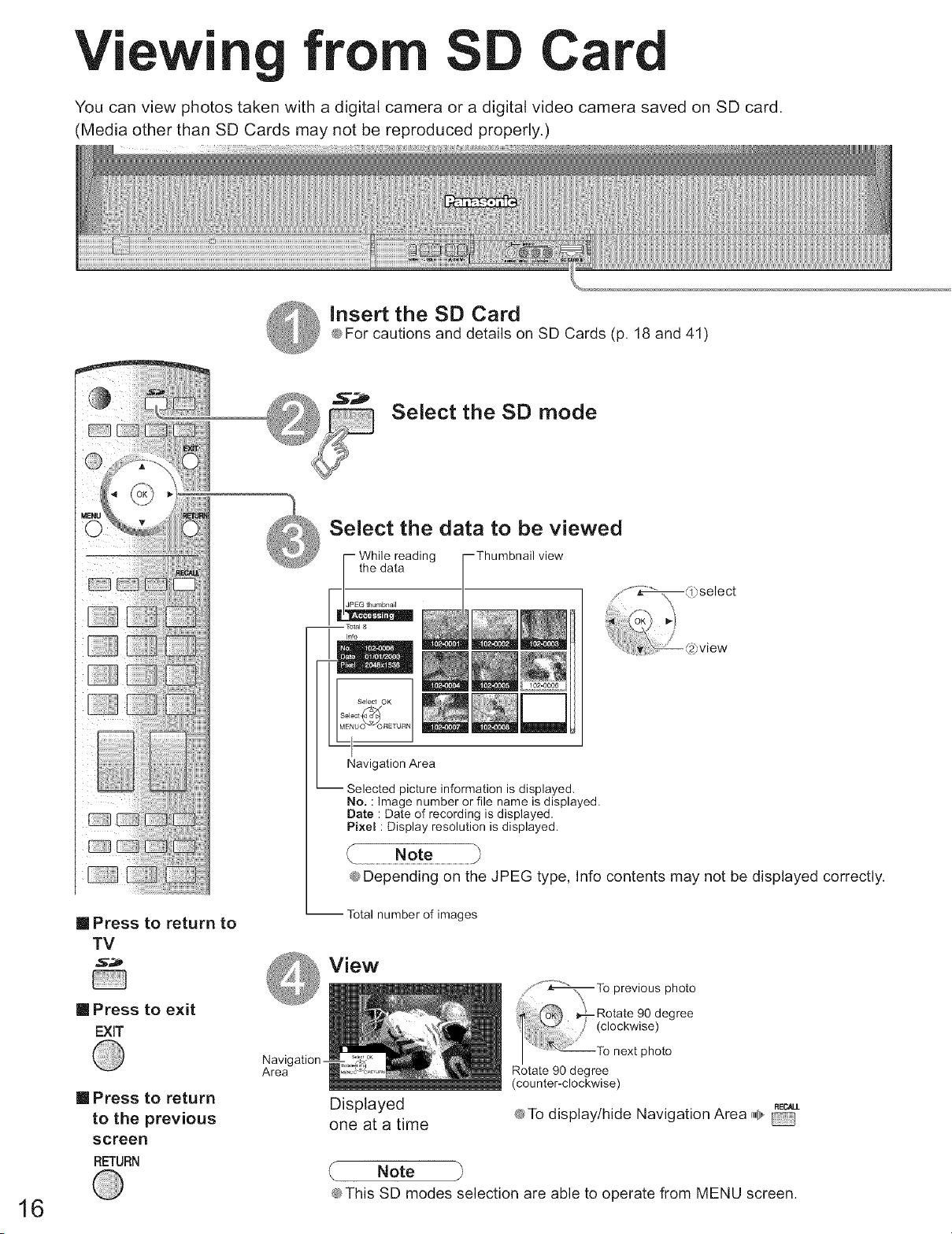
Vi Card
You can view photos taken with a digital camera or a digital video camera saved on SD card.
(Media other than SD Cards may not be reproduced properly.)
Insert the SD Card
@For cautions and details on SD Cards (p. 18 and 41)
Select the SD mode
Select the data to be viewed
While reading view
the data
Into
Select OK
Navigation Area
picture information is displayed,
No. :image number or file name is displayed.
Date : Date of recording is displayed,
Pixel : Display resolution is displayed.
@Depending on the JPEG type, Into contents may not be displayed correctly.
[] Press to return to
TV
-- Total number of images
View
16
[] Press to exit
EXIT
[] Press to return
to the previous
screen
RETURN
Navigation -
Area
Displayed
one at a time
Rotate 90 degree
(counter-clockwise)
RECALL
@To display/hide Navigation Area ,,,_,_
Note
@This SD modes selection are able to operate from MENU screen.
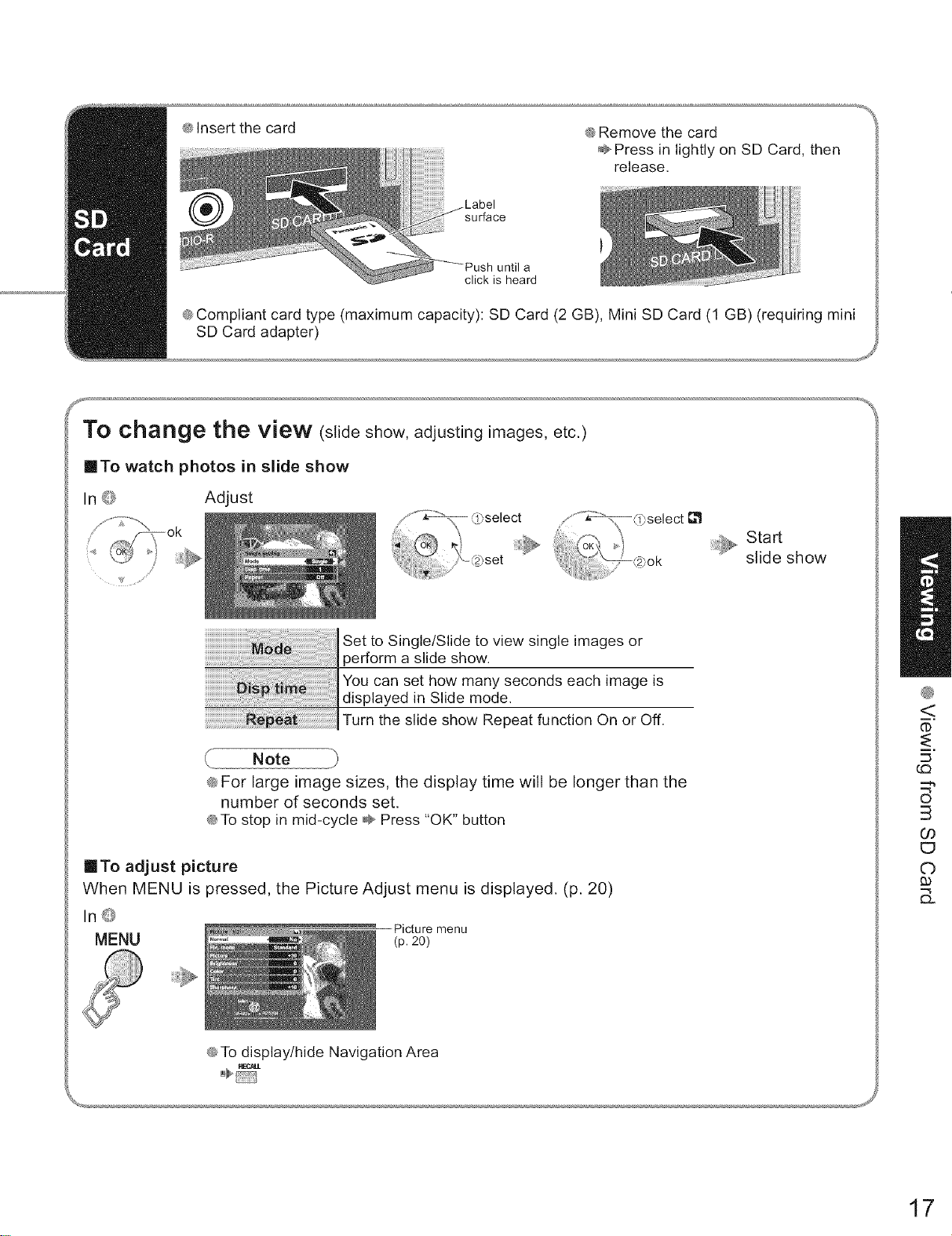
@Insertthecard @Removethecard
Pressin lightlyonSDCard,then
release.
surface
)
until a
click is heard
@Compliant card type (maximum capacity): SD Card (2 GB), Mini SD Card (1 GB) (requiring mini
SD Card adapter)
j,
TO oharlge the view (slide show, adjusting images, etc.)
ITo watch photos in slide show
In Z} Adjust
x,........... _ ry ,/' _d)select
'_ _ L_select ............_ _
*_iiiHi) ¢'\4_jv,.
...._:_iiiii/iiiiiiiiiii!i!iiiii_i_)h......... ....
Set to Single/Slide to view single images or
slide show.
You can set how many seconds each image is
displayed in Slide mode.
Turn the slide show Repeat function On or Off.
Note
@For large image sizes, the display time wilt be longer than the
number of seconds set.
@To stop in mid-cycle _- Press "OK" button
inTo adjust picture
When MENU is pressed, the Picture Adjust menu is displayed. (p. 20)
In_}
MENU Picture menu
(p.20)
@To display/hide Navigation Area
:;:;_, Start
slide show
i,
i,
(,O
©
3
09
©
17
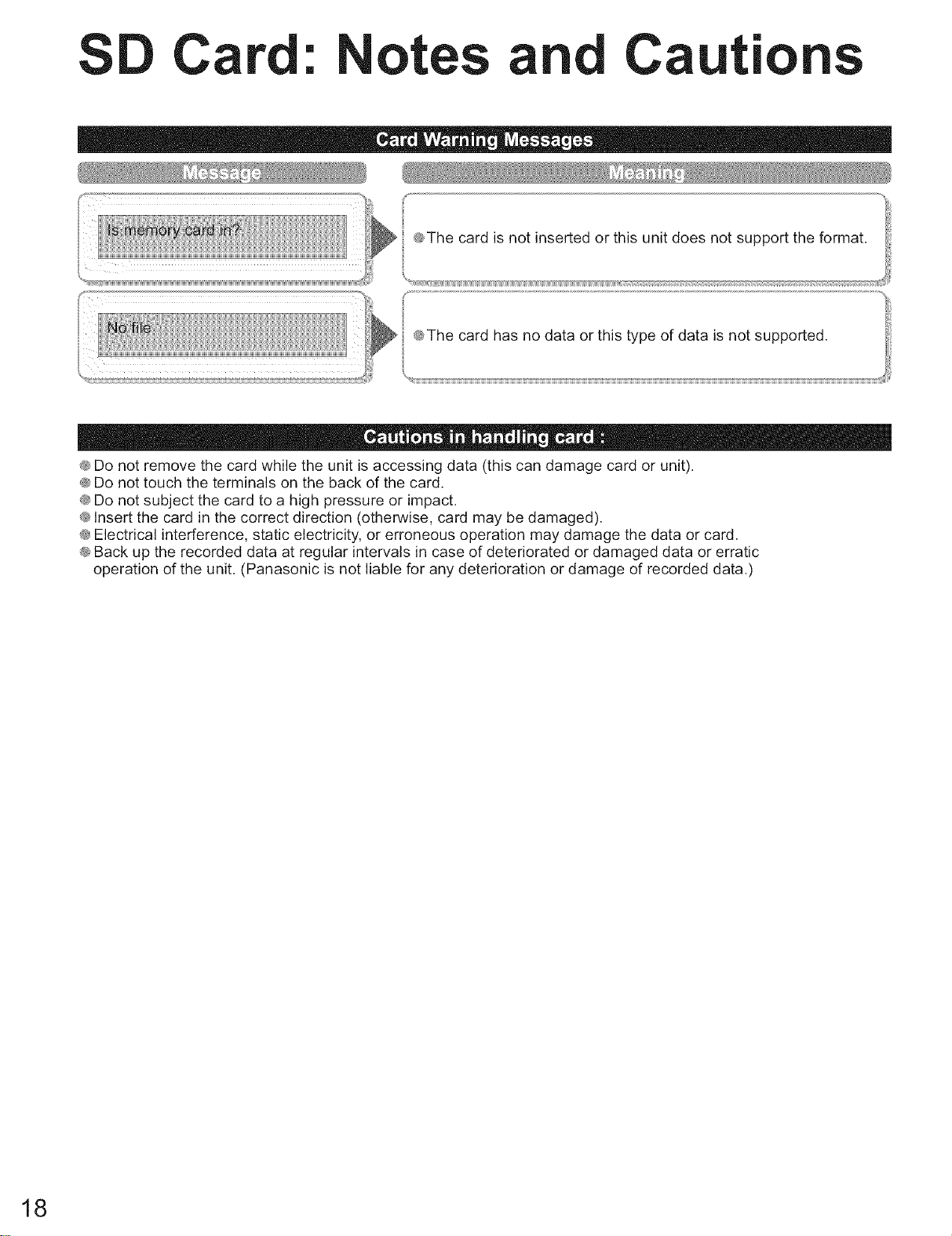
SD Card: Notes and Cautions
® Do not remove the card while the unit is accessing data (this can damage card or unit).
® Do not touch the terminals on the back of the card.
® Do not subject the card to a high pressure or impact.
_ Insert the card in the correct direction (otherwise, card may be damaged).
® Electrical interference, static electricity, or erroneous operation may damage the data or card.
® Back up the recorded data at regular intervals in case of deteriorated or damaged data or erratic
operation of the unit. (Panasonic is not liable for any deterioration or damage of recorded data.)
18
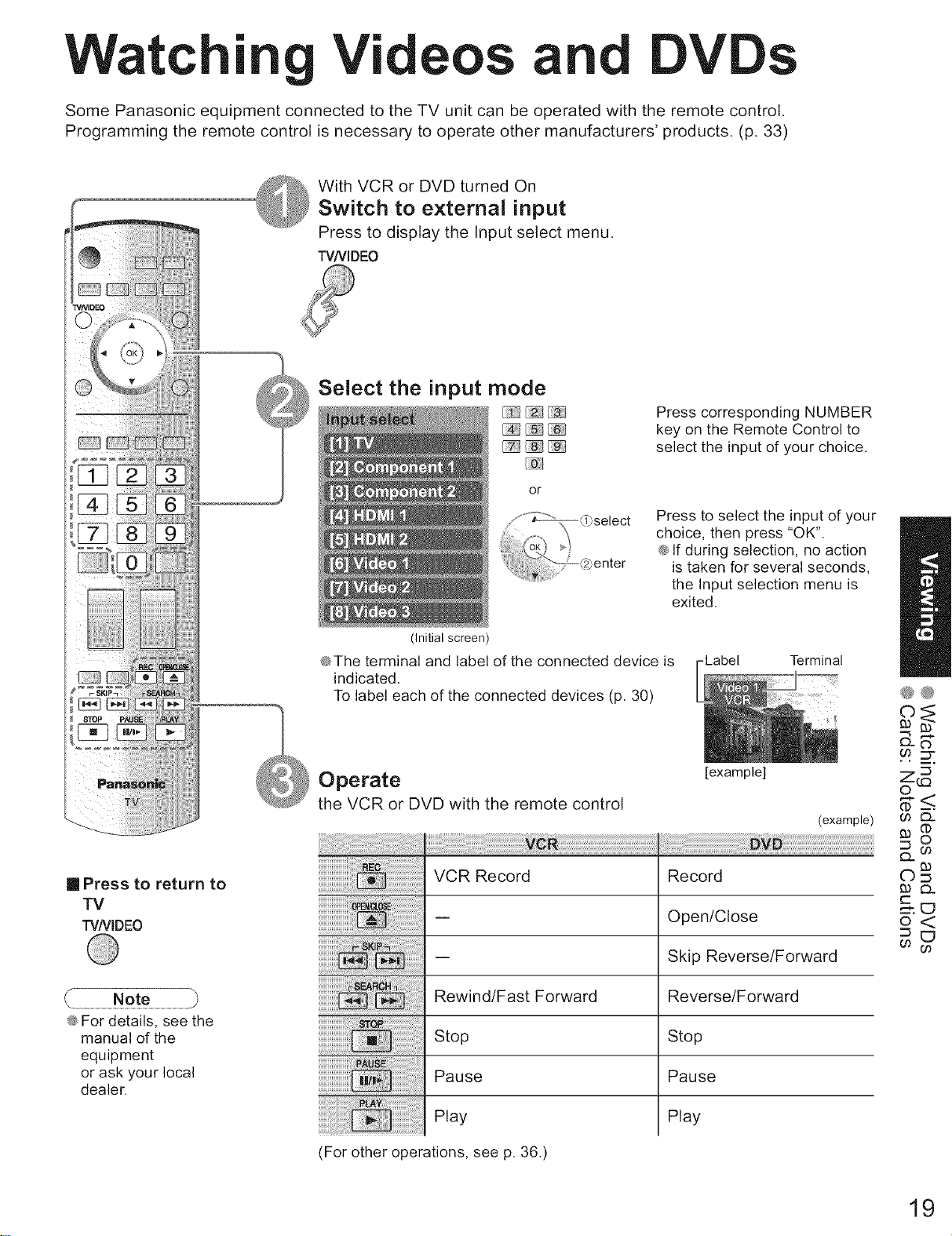
Watchi Vial and DV
Some Panasonic equipment connected to the TV unit can be operated with the remote control.
Programming the remote control is necessary to operate other manufacturers' products. (p. 33)
With VCR or DVD turned On
Switch to external input
Press to display the Input select menu.
TVNIDEO
STOp F
[] Press to return to
TV
TVNIDEO
® For details, see the
manual of the
equipment
or ask your local
dealer.
Select the input mode
(Initial screen)
or
Press corresponding NUMBER
key on the Remote Control to
select the input of your choice.
Press to select the input of your
choice, then press "OK".
® If during selection, no action
is taken for several seconds,
the Input selection menu is
exited.
®The terminal and label of the connected device is
indicated.
To label each of the connected devices (p. 30)
- Label Terminal
Operate
the VCR or DVD with the remote control
[example]
(example)
VCR Record
Rewind/Fast Forward
Stop
Pause
Play
(For other operations, see p. 36.)
Record
Open/Close
Skip Reverse/Forward
Reverse/Forward
Stop
Pause
Play
®®
C)_
0o
za
¢_<.
00 C2.
O_ o0
_3 Q.
t-
_ED
o<
0o 0o
19
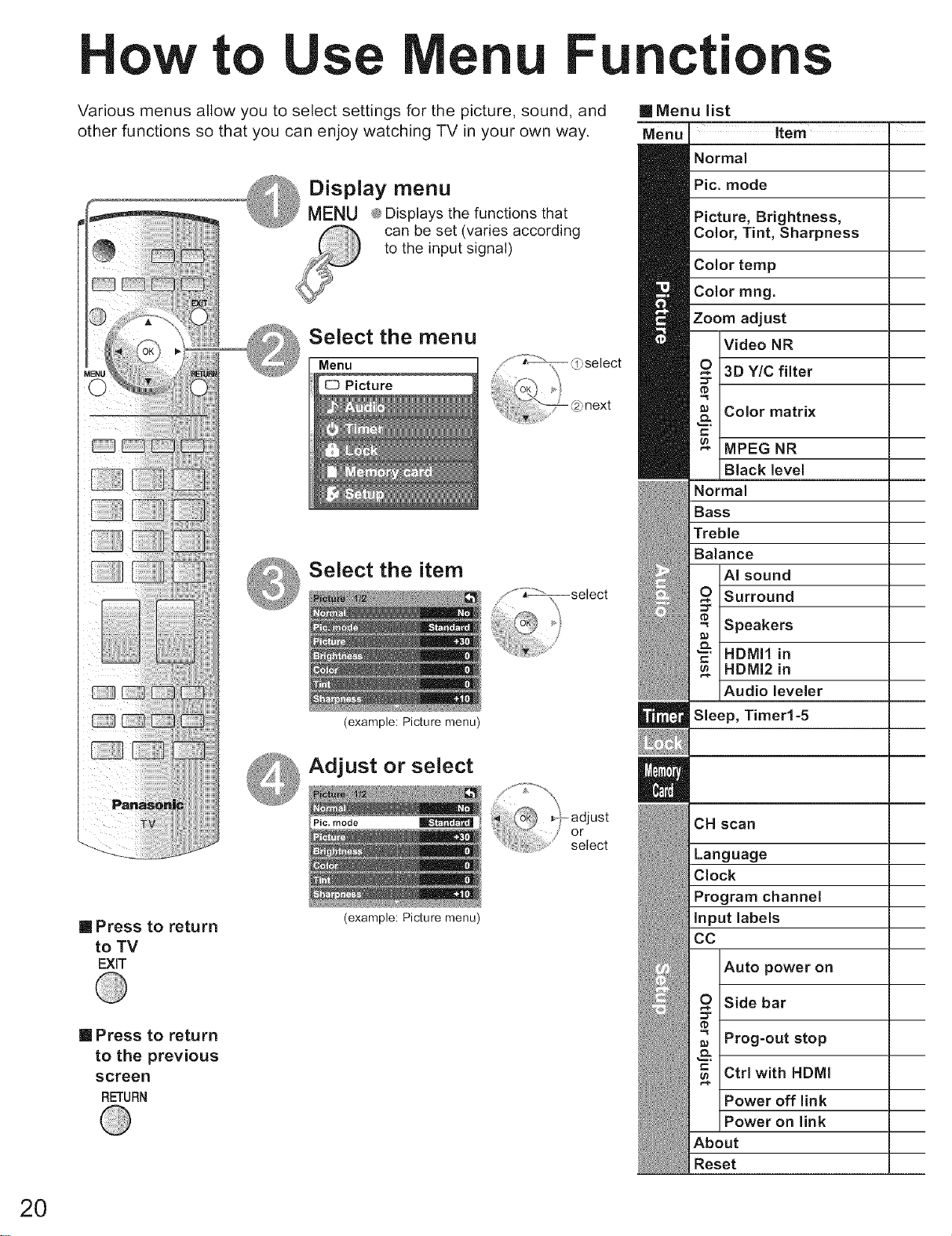
to Fcti
Various menus allow you to select settings for the picture, sound, and
other functions so that you can enjoy watching TV in your own way.
Display menu
MENU ,_ Displays the functions that
can be set (varies according
to the input signal)
Select the menu
Menu
Picture
Select the item
(example: Picture menu)
Q Adjust or select
Pic. mode
[] Press to return
to TV
EXIT
[] Press to return
to the previous
screen
RETURN
(example: Picture menu)
[] Menu list
Menu ffem I
Normal
Pic. mode
Picture, Brightness,
Color, Tint, Sharpness
Color temp
Color rang.
Zoom adjust
Video NR
3D Y/C filter
Color matrix
MPEG NR
Black level
Normal
Bass
Treble
Balance
AI sound
Surround
Speakers
HDMI1 in
HDMI2 in
Audio leveler
Sleep, Timer1-5
CH scan
Language
Clock
Program channel
Input labels
CC
Auto power on
Side bar
Prog-out stop
Ctrl with HDMI
Power off link
Power on link
About
Reset
20
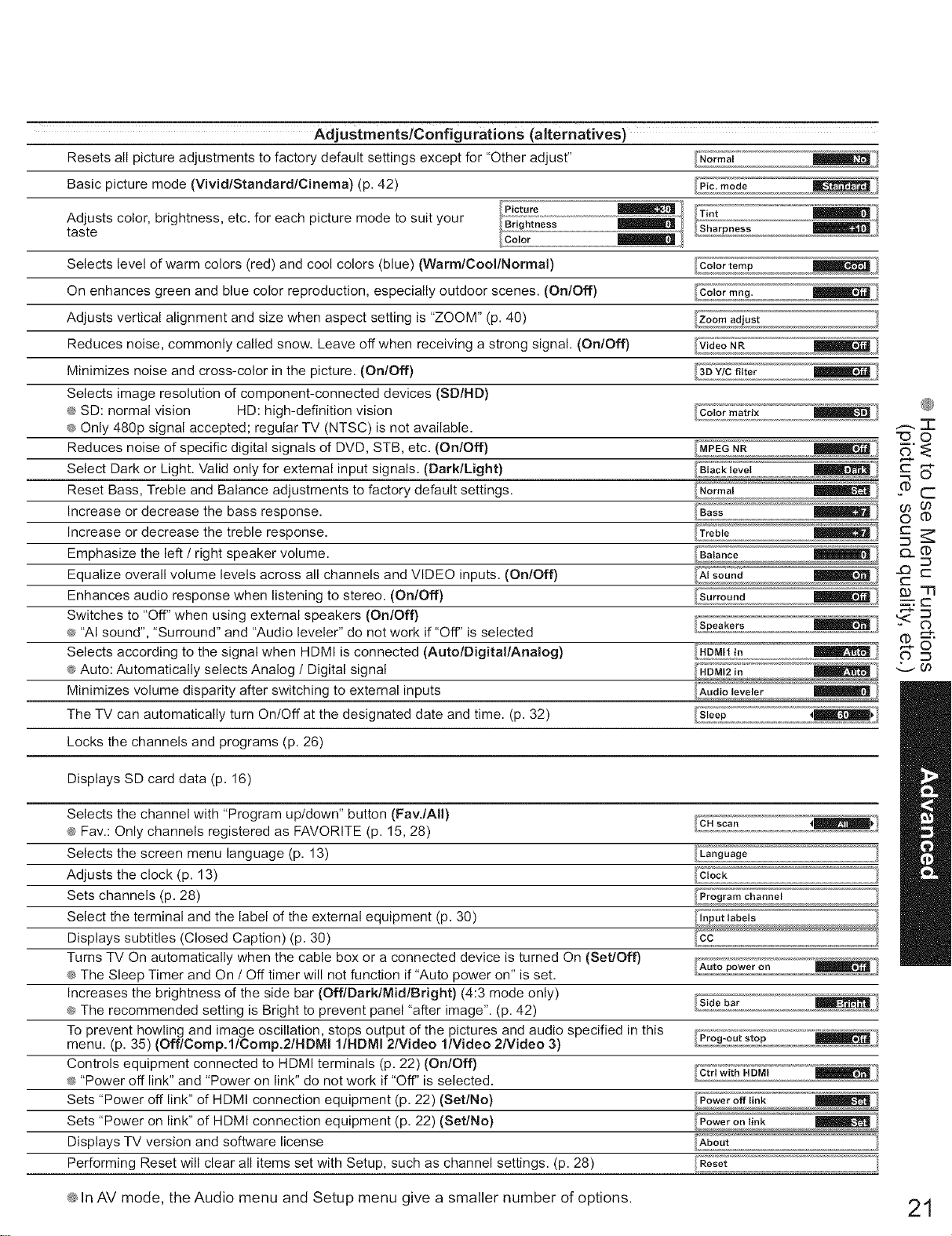
AdjustmentsiC0nfigu rations (alternatives)
Resets all picture adjustments to factory default settings except for "Other adjust"
Basic picture mode (VividlStandardlCinema) (p. 42)
Picture
Adjusts color, brightness, etc. for each picture mode to suit your _1
taste
Selects level of warm colors (red) and cool colors (blue) (Warm/Cool/Normal)
On enhances green and blue color reproduction, especially outdoor scenes. (On/Off)
Adjusts vertical alignment and size when aspect setting is "ZOOM" (p. 40)
Reduces noise, commonly called snow. Leave off when receiving a strong signal. (On/Off)
Minimizes noise and cross-color in the picture. (On/Off)
Selects image resolution of component-connected devices (SD/HD)
® SD: normal vision HD: high-definition vision
® Only 480p signal accepted; regular TV (NTSC) is not available.
Reduces noise of specific digital signals of DVD, STB, etc. (On/Off)
Select Dark or Light. Valid only for external input signals. (Dark/Light)
Reset Bass, Treble and Balance adjustments to factory default settings.
Increase or decrease the bass response.
Increase or decrease the treble response.
Emphasize the left /right speaker volume.
Equalize overall volume levels across all channels and VIDEO inputs. (On/Off)
Enhances audio response when listening to stereo. (On/Off)
Switches to "Off" when using external speakers (On/Off)
@ "AI sound", "Surround" and "Audio leveler" do not work if "Off" is selected
Selects according to the signal when HDMI is connected (Auto/Digital/Analog)
@ Auto: Automatically selects Analog /Digital signal
Minimizes volume disparity after switching to external inputs
The TV can automatically turn On/Off at the designated date and time. (p. 32)
Locks the channels and programs (p. 26)
Displays SD card data (p. 16)
AI sound
HDMI2 in
@
_c
D_
_-r3
v00
Selects the channel with "Program up/down" button (Fav./AII)
®Fav.: Only channels registered as FAVORITE (p. 15, 28) [CHsea,,
Selects the screen menu language (p. 13)
Adjusts the clock (p. 13)
Sets channels (p. 28)
Select the terminal and the label of the external equipment (p. 30)
Displays subtitles (Closed Caption) (p. 30)
Turns TV On automatically when the cable box or a connected device is turned On (Set/Off)
® The Sleep Timer and On /Off timer will not function if "Auto power on" is set.
Increases the brightness of the side bar (OfflDarklMidlBright) (4:3 mode only) />Side bar
@The recommended setting is Bright to prevent panel "after image". (p. 42)
To prevent howling and image oscillation, stops output of the pictures and audio specified in this
menu. (p. 35) (OfflComp.llComp.21HDMI I/HDMI 21Video l/Video 2Nideo 3)
Controls equipment connected to HDMI terminals (p. 22) (On/Off)
@"Power off link" and "Power on link" do not work if "Off' is selected.
Sets "Power off link" of HDMI connection equipment (p. 22) (Set/No)
Sets "Power on link" of HDMI connection equipment (p. 22) (Set/No)
Displays TV version and software license
Performing Reset will clear all items set with Setup, such as channel settings. (p. 28)
m
m
@In AV mode, the Audio menu and Setup menu give a smaller number of options. 21
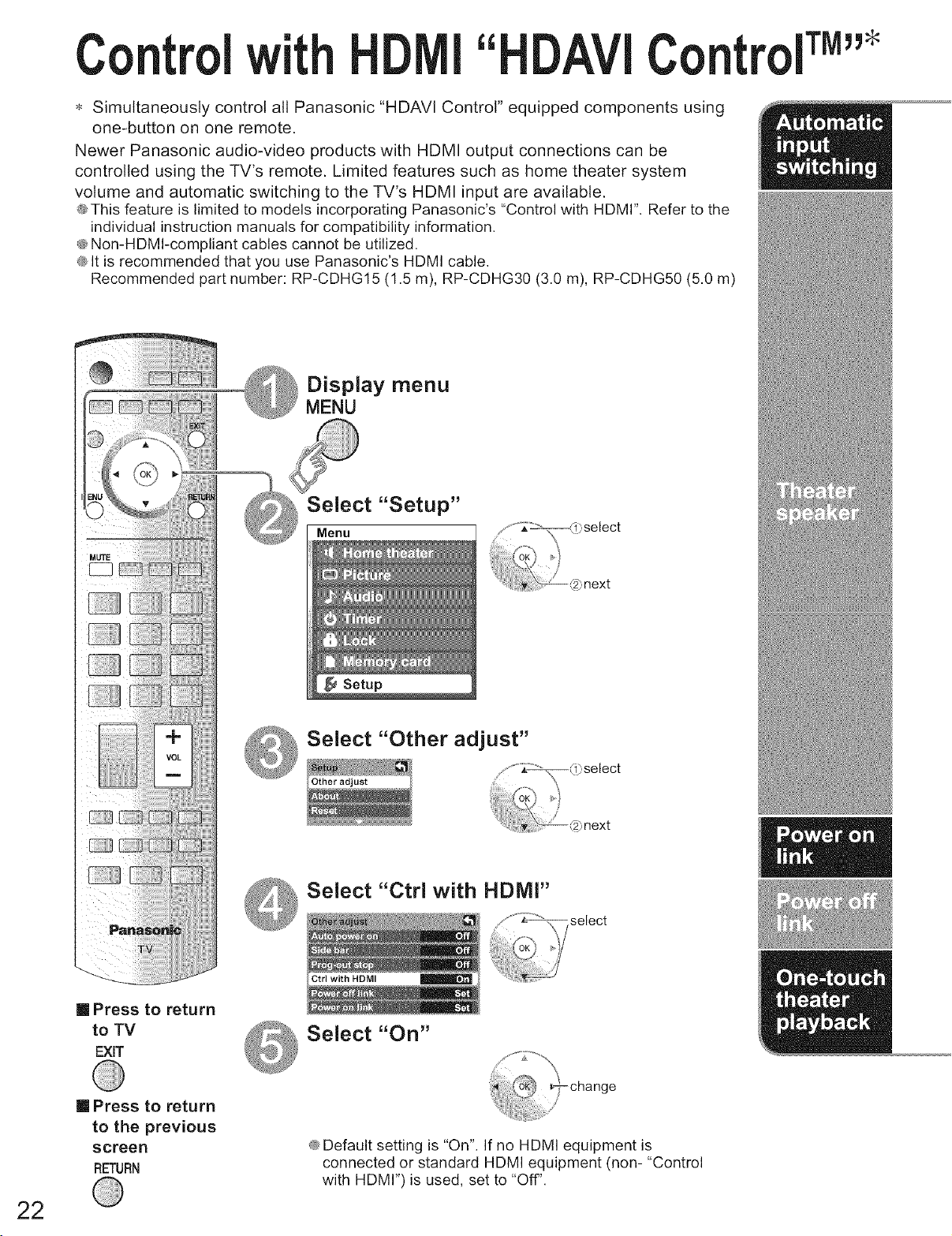
Control with Control TM,,
Simultaneously control all Panasonic "HDAVl Control" equipped components using
one-button on one remote.
Newer Panasonic audio-video products with HDMI output connections can be
controlled using the TV's remote. Limited features such as home theater system
volume and automatic switching to the TV's HDMI input are available.
@This feature is limited to models incorporating Panasonic's "Control with HDMr'. Refer to the
individual instruction manuals for compatibility information.
@Non-HDMI-compliant cables cannot be utilized.
@It is recommended that you use Panasonic's HDMI cable.
Recommended part number: RP-CDHG15 (I.5 m), RP-CDHG30 (3.0 m), RP-CDHG50 (5.0 m)
Display menu
MENU
_ Select
@ _ "Setup"
[] Press to return
to TV
EXIT
Select "Other adjust"
Select "Ctrl with HDMI"
Select "On"
select
22
[] Press to return
to the previous
screen
RETURN
@Default setting is "On". If no HDMI equipment is
connected or standard HDMI equipment (non- "Control
with HDMr') is used, set to "Off'.
Atthestartof DIGA,PlayertheaterorRAMtheaterplayback,theTV'sinputautomaticallyswitchestotheinput
correspondingtotheplaybackequipment.
@ForRAMtheater,thespeakersautomaticallyswitchtotheater.
IfusingDIGAoperation,theTV'sinputautomaticallyswitchesto DIGAandtheDIGAmenuisdisplayed.
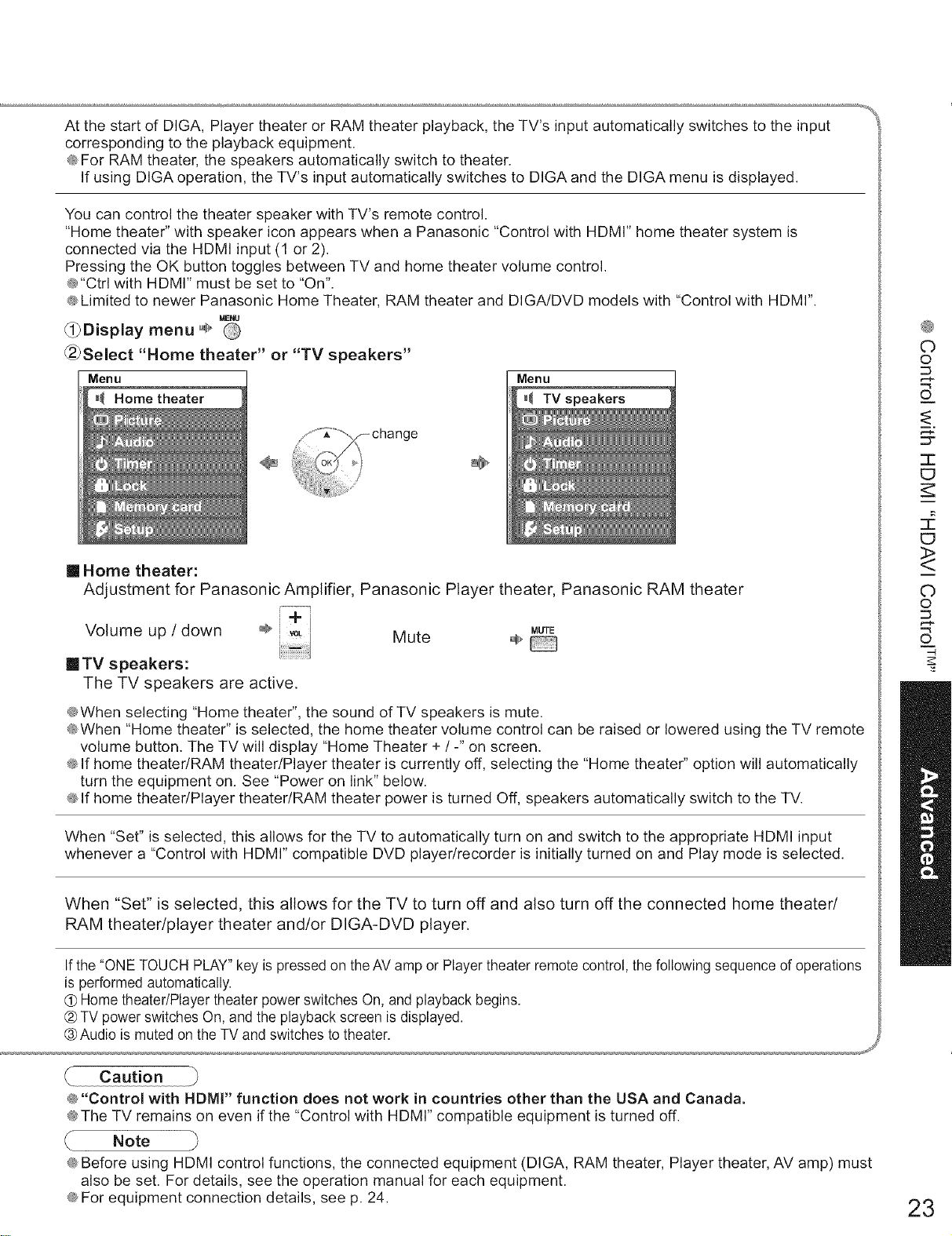
YoucancontrolthetheaterspeakerwithTV'sremotecontrol.
"Hometheater"withspeakericonappearswhena Panasonic"ControlwithHDMI"hometheatersystemis
connectedviatheHDMIinput(1or 2).
PressingtheOKbuttontogglesbetweenTVandhometheatervolumecontrol.
@"CtrlwithHDMI"mustbesetto"On".
@LimitedtonewerPanasonicHomeTheater,RAMtheaterandDIGA/DVDmodelswith"ControlwithHDMI".
MENU
O}Display menu ÷
_2}Select "Home theater" or "TV speakers"
Menu Menu
_( Home theater TV
[] Home theater:
Adjustment for Panasonic Amplifier, Panasonic Player theater, Panasonic RAM theater
MUTE
Volume up /down ÷ Mute ®_
[] TV speakers:
The TV speakers are active.
@When selecting "Home theater", the sound of TV speakers is mute.
@When "Home theater" is selected, the home theater volume control can be raised or lowered using the TV remote
volume button. The TV will display "Home Theater + ! -" on screen.
@If home theater/RAM theater/Player theater is currently off, selecting the "Home theater" option will automatically
turn the equipment on. See "Power on link" below.
@If home theater/Player theater/RAM theater power is turned Off, speakers automatically switch to the TV.
When "Set" is selected, this allows for the TV to automatically turn on and switch to the appropriate HDMI input
whenever a "Control with HDMI" compatible DVD player/recorder is initially turned on and Play mode is selected.
When "Set" is selected, this allows for the TV to turn off and also turn off the connected home theater/
RAM theater/player theater and/or DIGA-DVD player.
If the "ONE TOUCH PLAY"key is pressed on the AV amp or Player theater remote control, the following sequence of operations
is performed automatically.
(_ Home theater/Player theater power switches On, and playback begins.
® TV power switches On, and the playback screen is displayed.
®Audio is muted on the TV and switches to theater.
S
Caution
@"Control with HDMI" function does not work in countries other than the USA and Canada.
@The TV remains on even if the "Control with HDMI" compatible equipment is turned off.
Note
@Before using HDMI control functions, the connected equipment (DIGA, RAM theater, Player theater, AV amp) must
also be set. For details, see the operation manual for each equipment.
@For equipment connection details, see p. 24.
©
©
O
m,
::3=
=1"
ED
ED
<>
C)
©
©
Z
23
Cntrolwith DAVIControlTM''
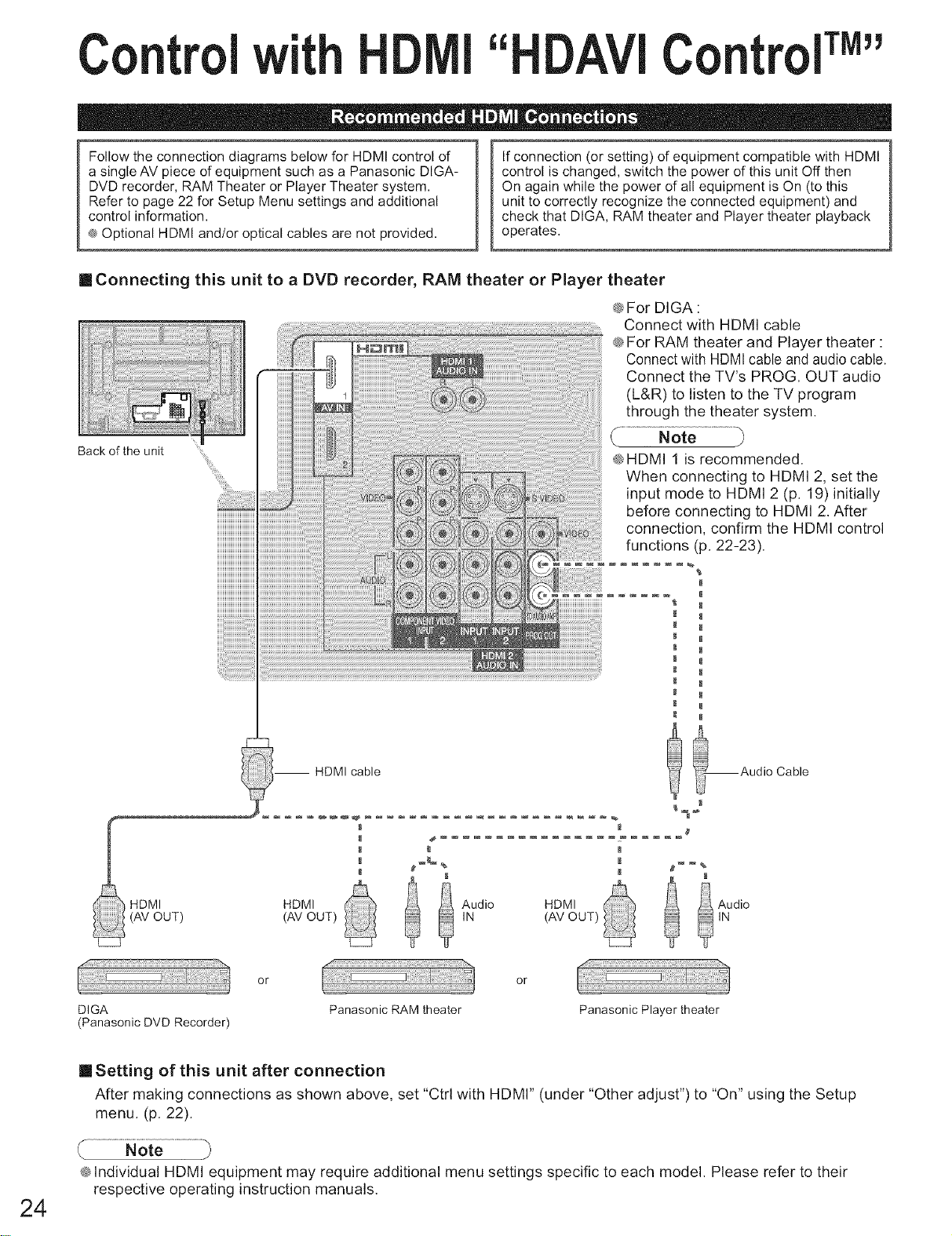
Follow the connection diagrams below for HDMI control of
a single AV piece of equipment such as a Panasonic DIGA-
DVD recorder, RAM Theater or Player Theater system.
Refer to page 22 for Setup Menu settings and additional
control information.
® Optional HDMI and/or optical cables are not provided.
If connection (or setting) of equipment compatible with HDMI
control is changed, switch the power of this unit Off then
On again while the power of all equipment is On (to this
unit to correctly recognize the connected equipment) and
check that DIGA, RAM theater and Player theater playback
operates.
[] Connecting this unit to a DVD recorder, RAM theater or Player theater
® For DIGA:
Connect with HDMI cable
® For RAM theater and Player theater :
Connectwith HDMI cable and audio cable.
Connect the TV's PROG. OUT audio
(L&R) to listen to the TV program
through the theater system.
.... _£_HDMI 1 is recommended.
When connecting to HDMI 2, set the
input mode to HDMI 2 (p. 19)initially
before connecting to HDMI 2. After
connection, confirm the HDMI control
functions (p. 22-23).
Back of the unit
HDMI
(AV OUT)
-- HDMI cable
HDMI
(AV OUT)
_Audio Cable
_ Audio
IN
or
DIGA
(Panasonic DVD Recorder)
Panasonic RAM theater
or
Panasonic Player theater
24
[]Setting of this unit after connection
After making connections as shown above, set "Ctrl with HDMI" (under "Other adjust") to "On" using the Setup
menu. (p. 22).
® Individual HDMI equipment may require additional menu settings specific to each model. Please refer to their
respective operating instruction manuals.
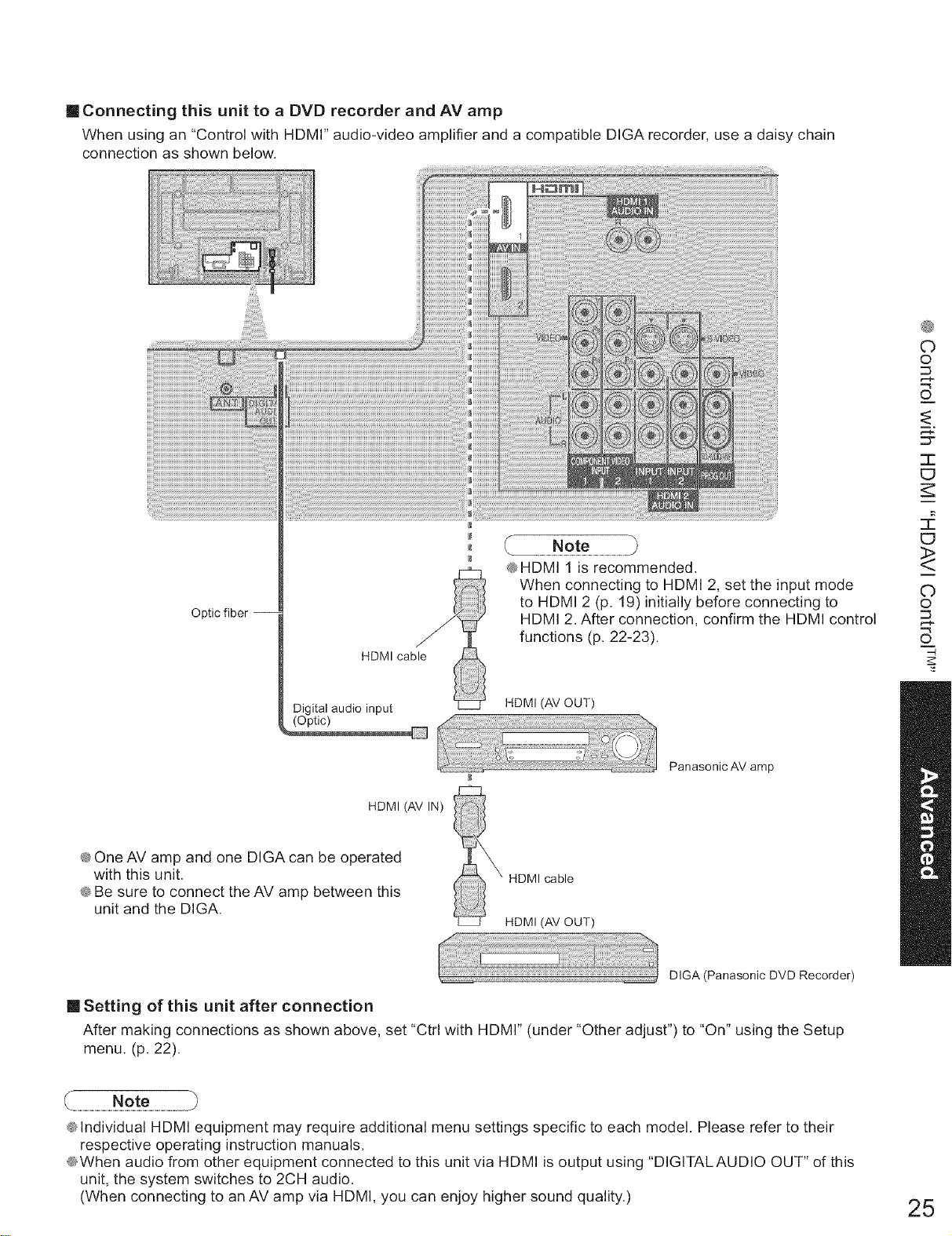
reConnecting this unit to a DVD recorder and AV amp
When using an "Control with HDMI" audio-video amplifier and a compatible DIGA recorder, use a daisy chain
connection as shown below.
Optic fiber --
HDMI cable
@HDMI 1 is recommended.
When connecting to HDMI 2, set the input mode
to HDMI 2 (p. 19)initially before connecting to
HDMI 2. After connection, confirm the HDMI control
functions (p. 22-23).
Digital audio input
(Optic)
HDMI (AV OUT)
Panasonic AV amp
O
O
O
m,
=3"
-r-
E]
E]
<>
O
O
©
Z
HDMI (AV IN)
@One AV amp and one DIGA can be operated
with this unit.
@Be sure to connect the AV amp between this
unit and the DIGA.
[] Setting of this unit after connection
X HDMI cable
HDMI (AV OUT)
D GAIPana on cDVDRocorde0
After making connections as shown above, set "Ctrl with HDMI" (under "Other adjust") to "On" using the Setup
menu. (p. 22).
@Individual HDMI equipment may require additional menu settings specific to each model. Please refer to their
respective operating instruction manuals.
@When audio from other equipment connected to this unit via HDMI is output using "DIGITALAUDIO OUT" of this
unit, the system switches to 2CH audio.
(When connecting to an AV amp via HDMI, you can enjoy higher sound quality.) 25
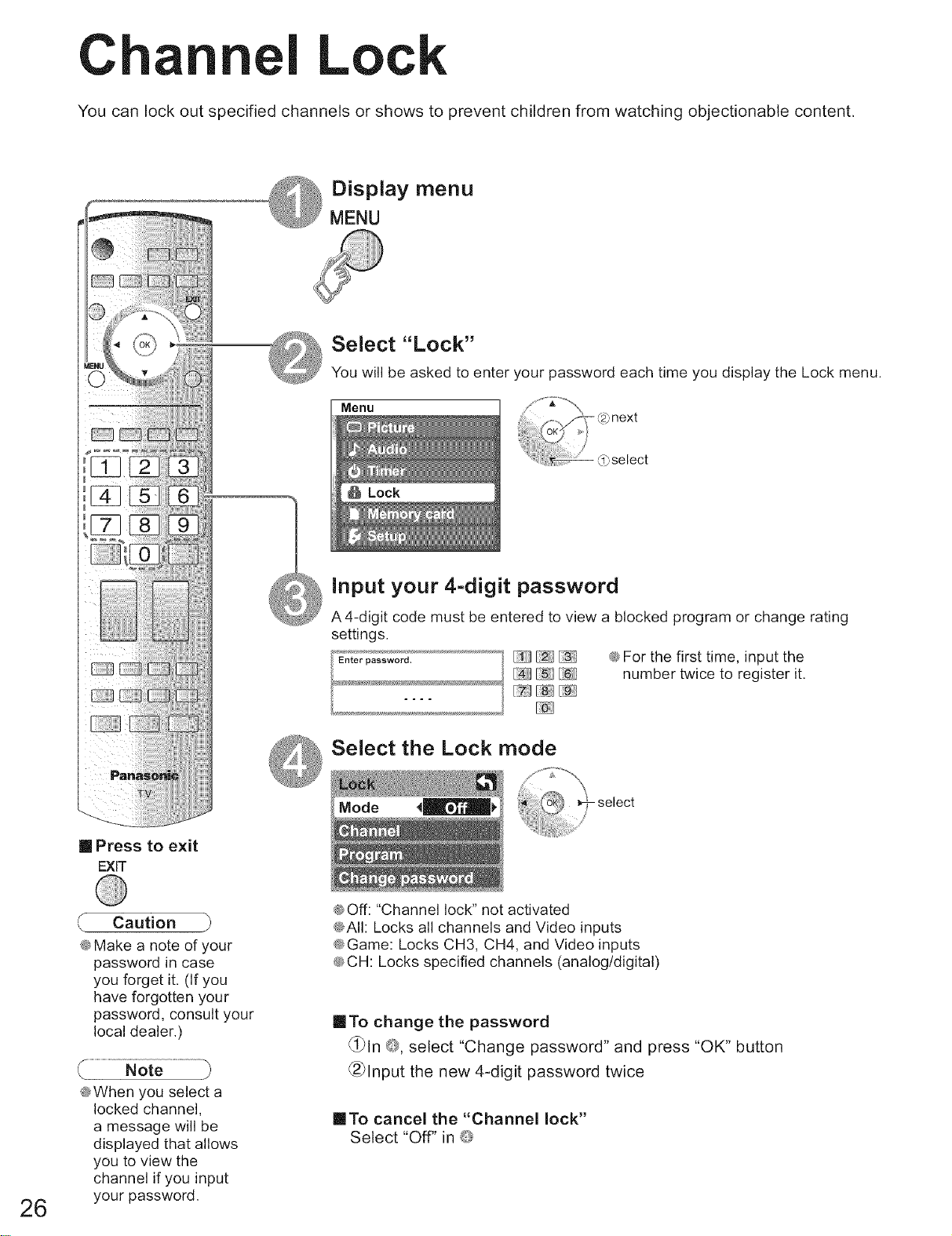
Chart I Lo
You can lock out specified channels or shows to prevent children from watching objectionable content.
[] Press to exit
EXIT
Display menu
MENU
Select "Lock"
You will be asked to enter your password each time you display the Lock menu.
Menu
Input your 4-digit password
A4-digit code must be entered to view a blocked program or change rating
settings.
_ @For the first time, input the
[4:_][-15_][6_] number twice to register it.
Select the Lock mode
- select
26
Caution
@Make a note of your
password in case
you forget it. (If you
have forgotten your
password, consult your
local dealer.)
@When you select a
locked channel,
a message will be
displayed that allows
you to view the
channel if you input
your password.
@Off: "Channel lock" not activated
@All: Locks all channels and Video inputs
@Game: Locks CH3, CH4, and Video inputs
@CH: Locks specified channels (analog/digital)
[]To change the password
_l_ln db, select "Change password" and press "OK" button
_2_lnput the new 4-digit password twice
[]To cancel the "Channel lock"
Select "Off" in _
into select the channel or the rating of the program to be locked
%
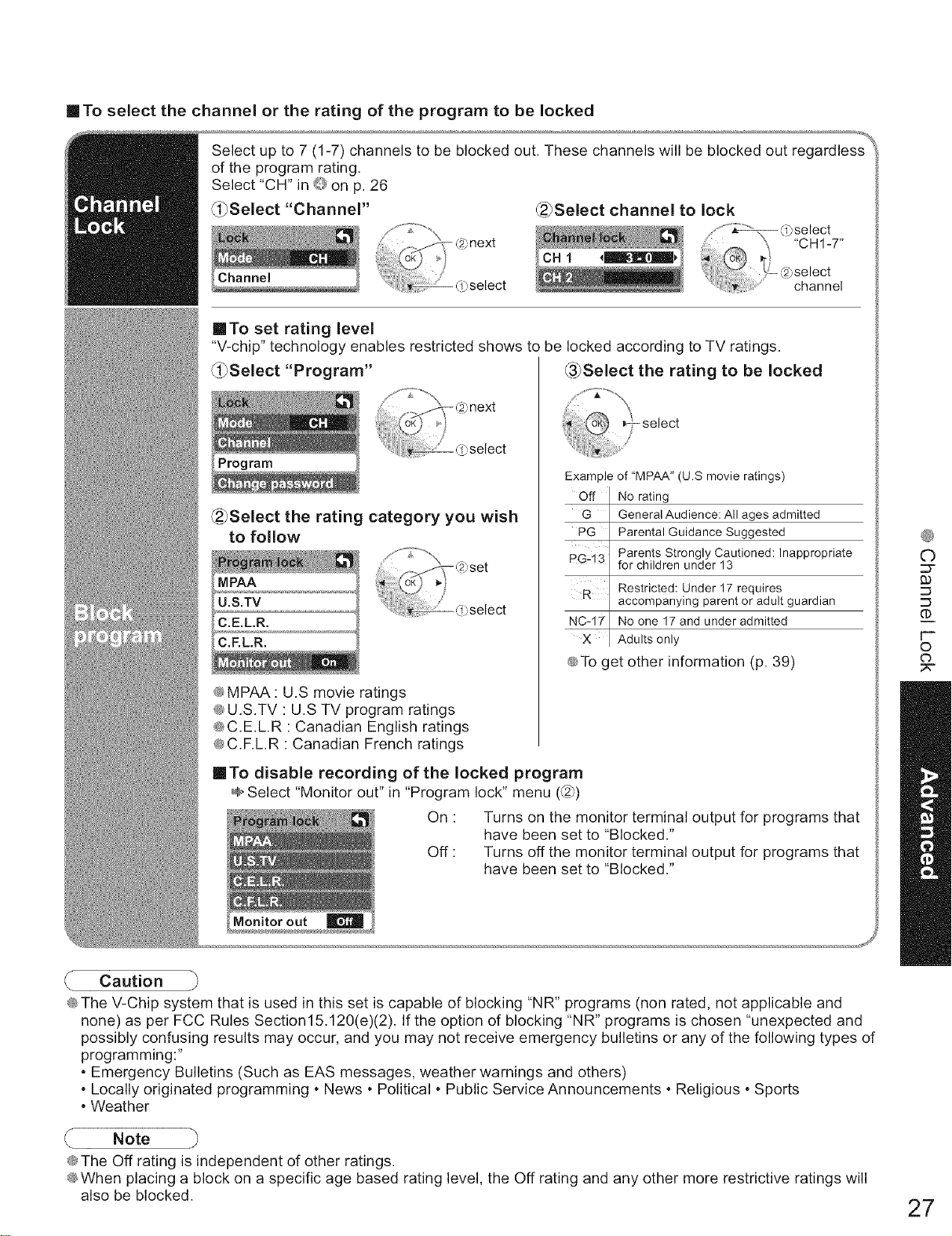
Select up to 7 (1-7) channels to be blocked out. These channels will be blocked out regardless _i
of the program rating.
Select "CH" in ® on p. 26
(_Select "Channel" _Select channel to lock
[]To set rating level
"V-chip" technology enables restricted shows to be locked according to TV ratings.
_l_Select "Program" _3_Select the rating to be locked
_2_Select the rating category you wish
to follow
MPAA
U.S.TV
C.E.L.R.
C.F.L.R.
®MPAA : U.S movie ratings
®U.S.TV : U.S TV program ratings
®C.E.LR : Canadian English ratings
®C.F.LR : Canadian French ratings
Example of "MPAA" (U.S movie ratings)
Off No rating
G General Audience: All ages admitted
PG Parental Guidance Suggested
Parents Strongly Cautioned: Inappropriate
PG-13 for children under 13
Restricted: Under 17 requires
accompanying parent or adult guardian
NC-17 No one 17 and under admitted
X Adults only
®To get other information (p. 39)
inTo disable recording of the locked program
@Select "Monitor out" in "Program lock" menu (_)
On : Turns on the monitor terminal output for programs that
have been set to "Blocked."
Off : Turns off the monitor terminal output for programs that
have been set to "Blocked."
®
©
(D
©
O
• Caution
®The V-Chip system that is used in this set is capable of blocking "NR" programs (non rated, not applicable and
none) as per FCC Rules Section15.120(e)(2). If the option of blocking "NR" programs is chosen "unexpected and
possibly confusing results may occur, and you may not receive emergency bulletins or any of the following types of
programming:"
• Emergency Bulletins (Such as EAS messages, weather warnings and others)
• Locally originated programming • News • Political • Public Service Announcements • Religious • Sports
• Weather
Note
®The Off rating is independent of other ratings.
®When placing a block on a specific age based rating level, the Off rating and any other more restrictive ratings will
also be blocked. 27
ii d Setting C
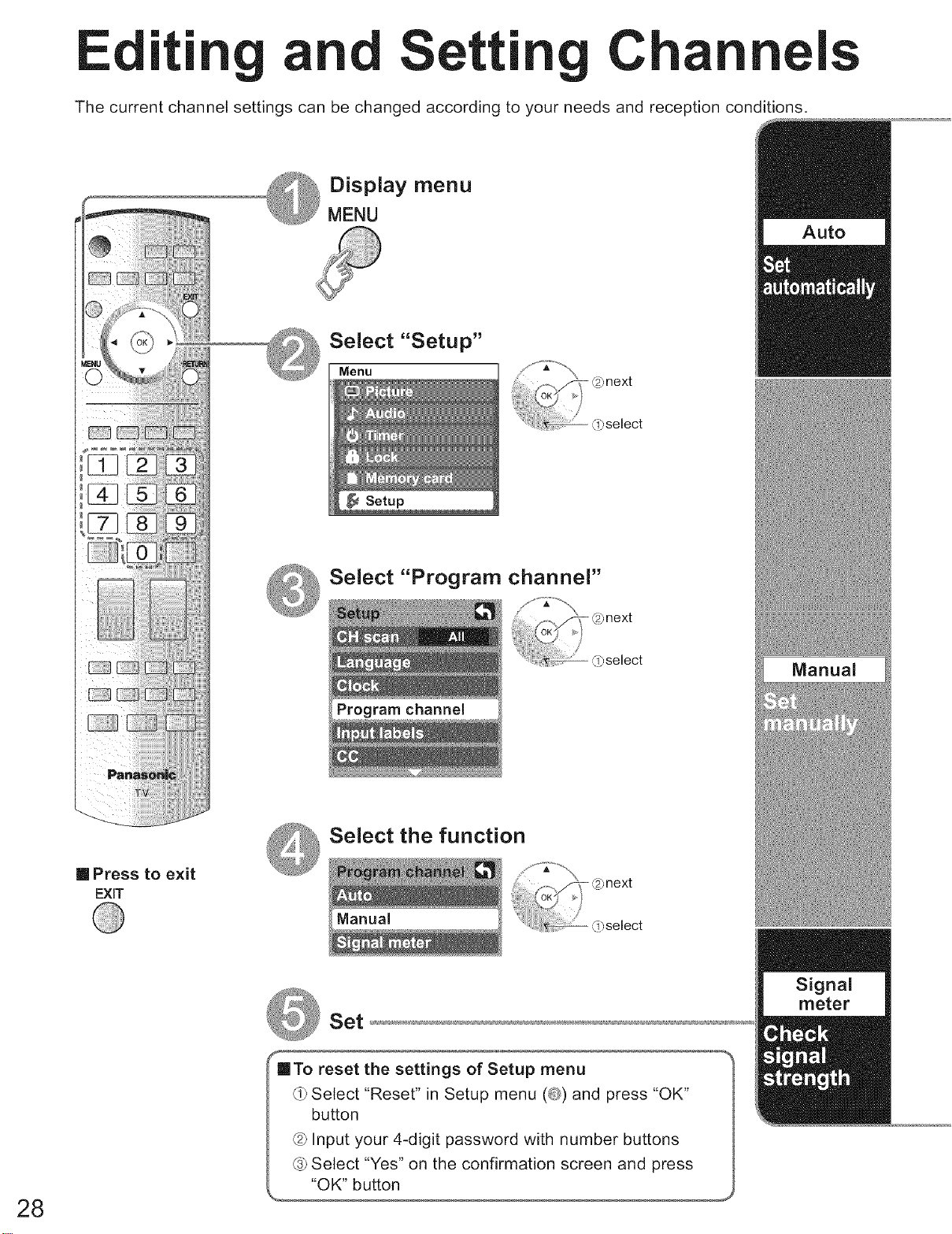
The current channel settings can be changed according to your needs and reception conditions.
I
28
Display menu
MENU
[] Press to exit
EXIT
Select "Setup"
Menu
Select "Program channel"
Program channel
Select the function
Set
•To reset the settings of Setup menu
d>Select "Reset" in Setup menu (_j_¢)and press "OK"
button
6> Input your 4-digit password with number buttons
6>Select "Yes" on the confirmation screen and press
"OK" button
Auto
Manual
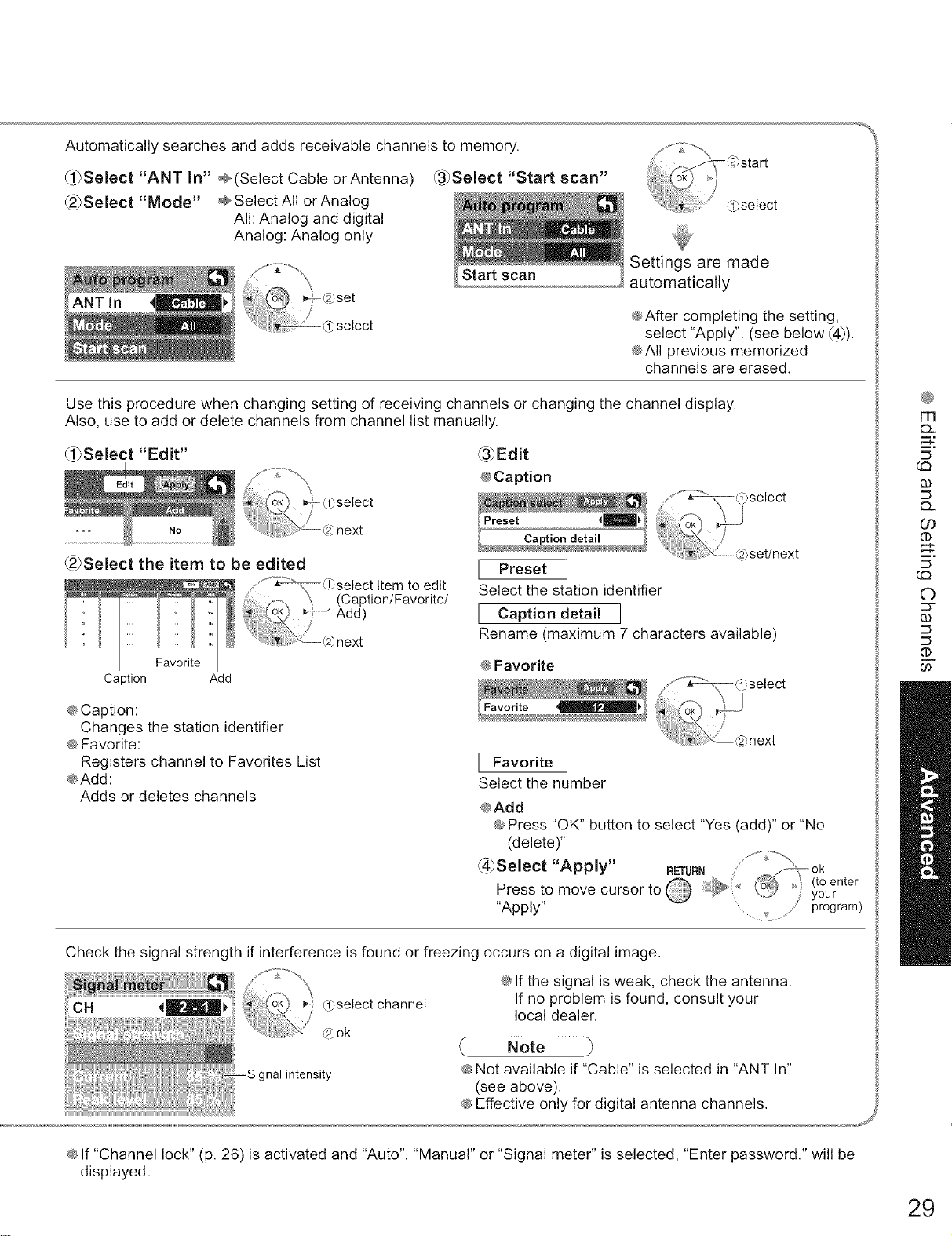
Automatically searches and adds receivable channels to memory.
_l_Select "ANT In" ÷(Select Cable orAntenna
_2_Select "Mode" ÷SelectAII orAnalog
All: Analog and digital
Analog: Analog only
_3_Select "Start scan"
Start scan Settings are made
automatically
@After completing the setting,
select "Apply". (see below _4]).
@All previous memorized
channels are erased.
Use this procedure when changing setting of recewing channels or changing the channel display.
Also, use to add or delete channels from channel list manually.
_-_Select "Edit"
_2_Select the item to be edited
. "%'_',q_select item to edit
......... _ J (Caption/Favorite/
'_ Add)
#
_next
Caption Add
@Caption:
Changes the station identifier
@Favorite:
Registers channel to Favorites List
@Add:
Adds or deletes channels
_3_Edit
@Caption
'"'_bselect
} Caption detail /
...... @set/next
[Preset]
Select the station identifier
[Caption detail ]
Rename (maximum 7 characters available)
@Favorite
[ Favorite ]
Select the number
@Add
@Press "OK" button to select "Yes (add)" or "No
(delete)"
@Select "Apply" RETUaN _ok
Press to move cursor to _ @ _'/ _t°uenter
"Apply" _Jprogram)
Check the signal strength if interference is found or freezing occurs on a digital image.
channel
@If the signal is weak, check the antenna.
If no problem is found, consult your
local dealer.
Note
@Not available if "Cable" is selected in "ANT In"
(see above).
@Effective only for digital antenna channels. j
m
C)_
93
Q.
CO
m,
C)
:3"
93
0O
@If "Channel lock" (p. 26) is activated and "Auto", "Manual" or "Signal meter" is selected, "Enter password." will be
displayed.
29
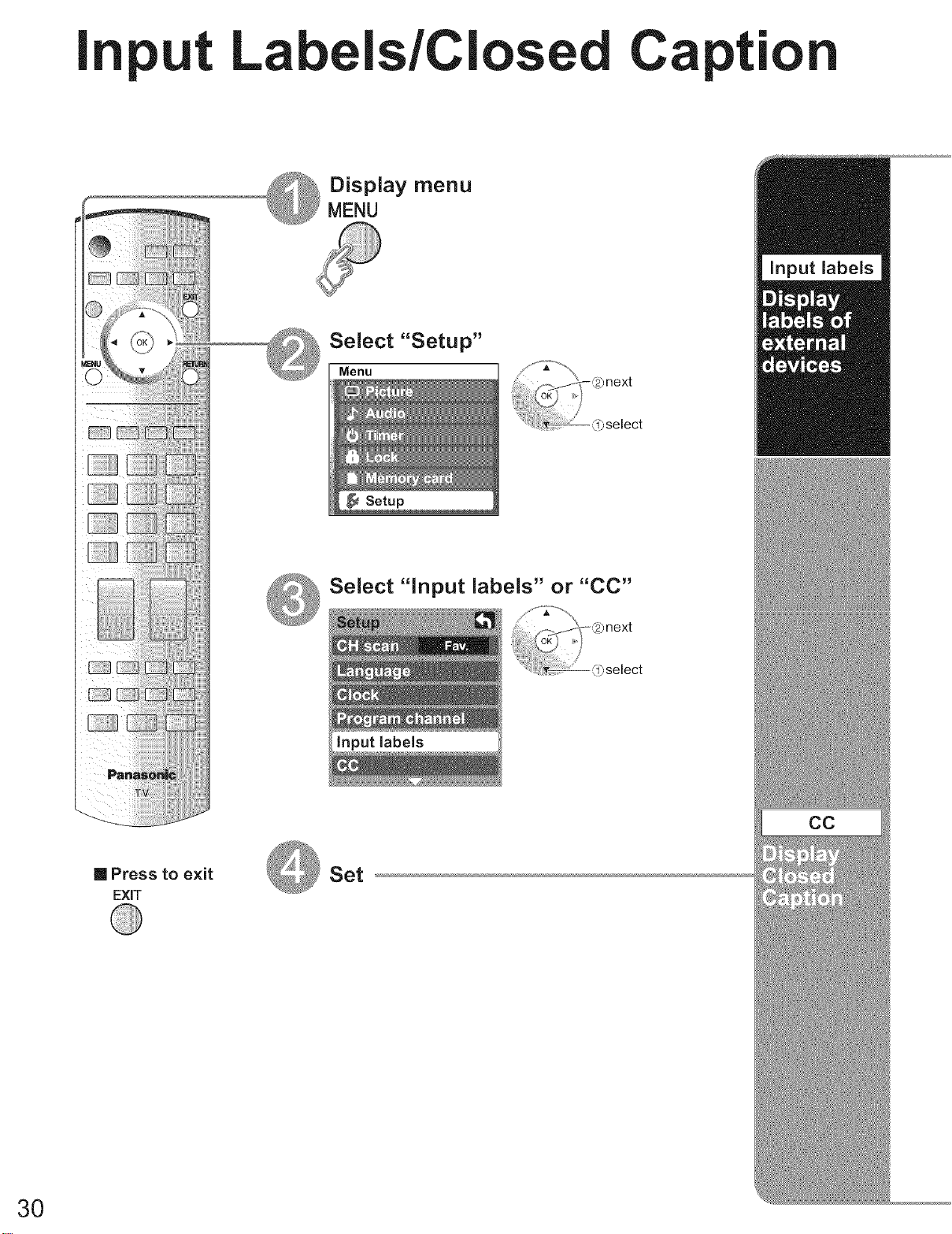
Iput Labels/Cl ed Capt"
Display menu
MENU
}next
!_select
Select "Input labels" or "CC"
input labels
[] Press to exit
EXiT
Set
3O
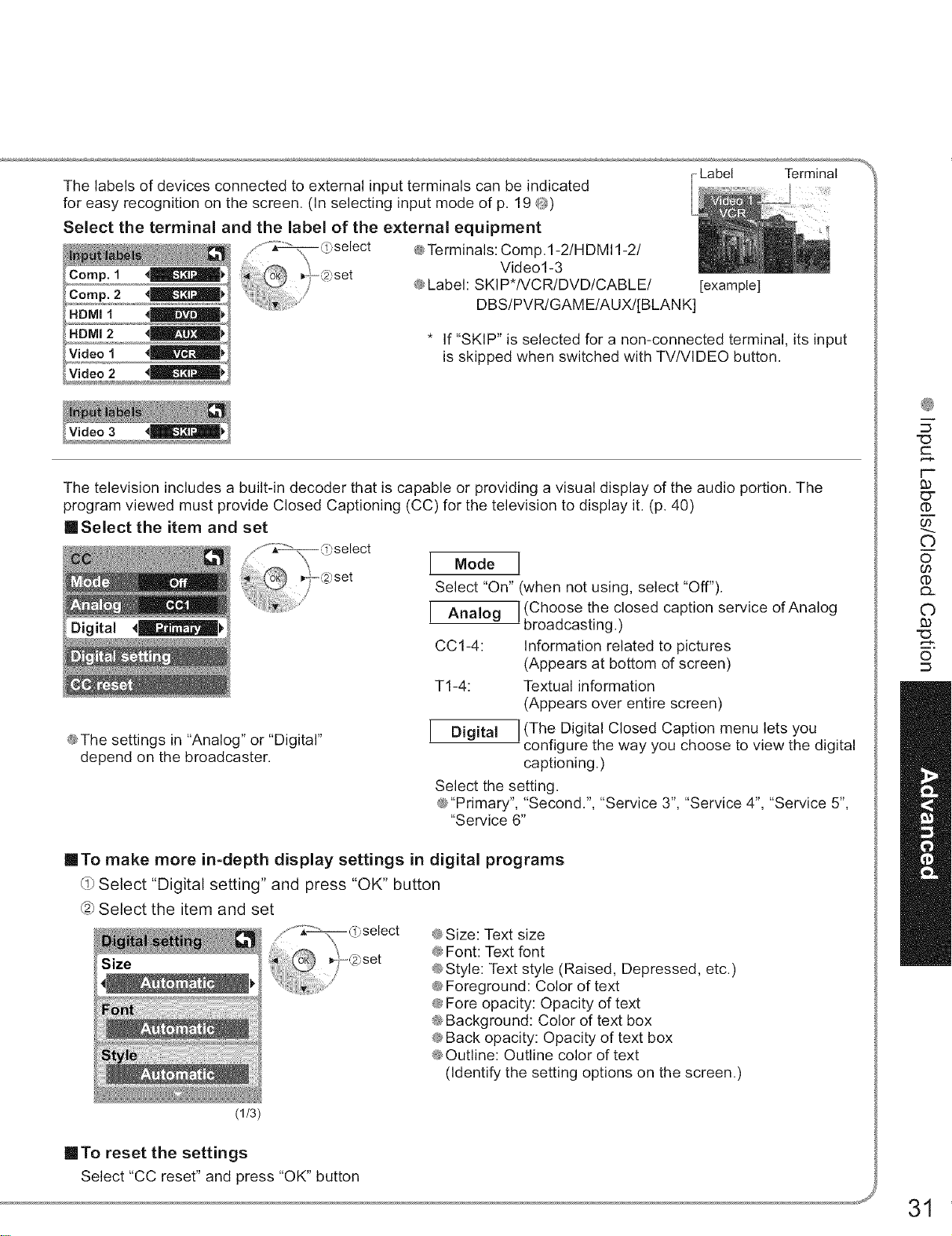
The labels of devices connected to external input terminals can be indicated
for easy recognition on the screen. (In selecting input mode of p. 19 _P!_)
Select the terminal and the label of the external equipment
Comp, 1 4_1,
Comp. 2
HDMI 1 41_)
Video 1
select
set
@Terminals: Comp.I-2/HDMI 1-2/
Video1-3
@Label: SKI P*/VCR/DVD/CABLE/
-Label
D BS/PVR/GAM E/AUX/[BLAN K]
[example]
Terminal
* If "SKIP" is selected for a non-connected terminal, its input
is skipped when switched with TV/VlDEO button.
The television includes a built-in decoder that is capable or providing a visual display of the audio 3ortion. The
program viewed must provide Closed Captioning (CC) for the television to display it. (p. 40)
mSelect the item and set
@The settings in "Analog" or "Digital"
depend on the broadcaster.
Mode ]
Select "On" (when not using, select "Off").
(Choose the closed caption service of AnalogAnalog broadcast ng.)
CC1-4: Information related to pictures
(Appears at bottom of screen)
T1-4: Textual information
(Appears over entire screen)
(The Digital Closed Caption menu lets you
Digital
'configure the way you choose to view the digital
captioning.)
Select the setting.
@"Primary", "Second.", "Service 3", "Service 4", "Service 5",
"Service 6"
nTo make more in-depth display settings in digital programs
db Select "Digital setting" and press "OK" button
_2bSelect the item and set
(1/3)
@Size: Text size
@Font: Text font
@Style: Text style (Raised, Depressed, etc.)
@Foreground: Color of text
@Fore opacity: Opacity of text
@Background: Color of text box
@Back opacity: Opacity of text box
@Outline: Outline color of text
(Identify the setting options on the screen.)
[] To reset the settings
Select "CC reset" and press "OK" button
"O
c
F-
O-
C0
00
C)
©
oo
C)
93
"O
m,
o
31
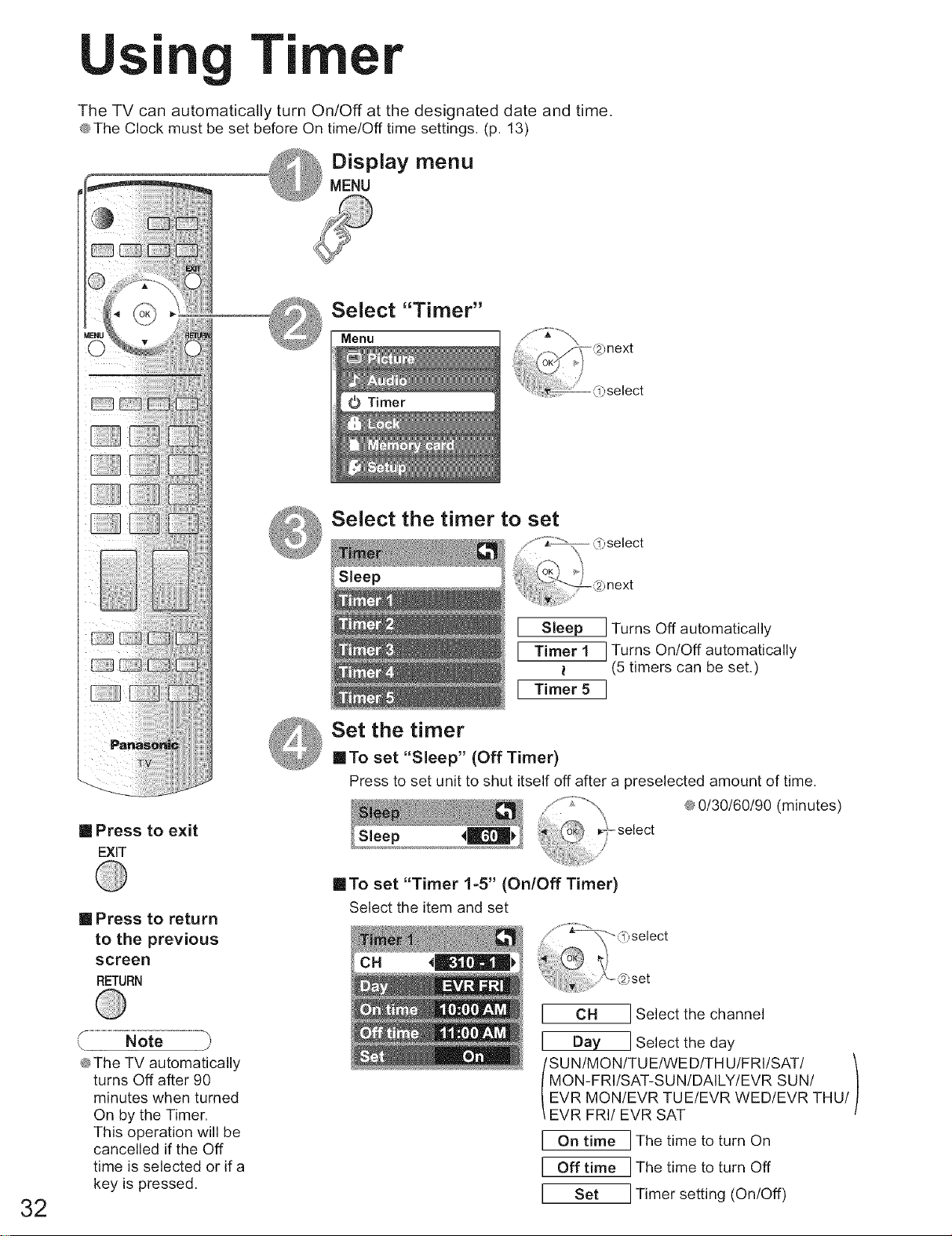
32
Uing Ti r
The TV can automatically turn On/Off at the designated date and time.
@The Clock must be set before On time!Off time settings. (p. 13)
Display menuMENU
Select "Timer"
Menu
Select the timer to set
[] Press to exit
EXIT
[] Press to return
to the previous
screen
RETURN
C.....................................................D
@The TV automatically
turns Off after 90
minutes when turned
On by the Timer.
This operation will be
cancelled if the Off
time is selected or if a
key is pressed.
Set the timer
I
I
Sleep I Turns Off automatically
Timer 1 I Turns On!Off automatically
;t (5 timers can be set.)
Timer 5I
[]To set "Sleep" (Off Timer)
Press to set unit to shut itself off after a preselected amount of time.
'_ _ JD:_\, ®_0/30/60/90 (minutes)
_-_-select
"O_r, .... /
[]To set "Timer 1-5" (On/Off Timer)
Select the item and set
CH Select the channel
Day I Select the day
rTHU/FRI/SAT/
MON-FRI/SAT-SU N/DAILY/EVR SUN/
EVR MON/EVR TUE/EVR WED/EVR THU/
EVR FRI/EVR SAT
On time I The time to turn On
Off time I The time to turn Off
Set I Timer setting (On/Off)
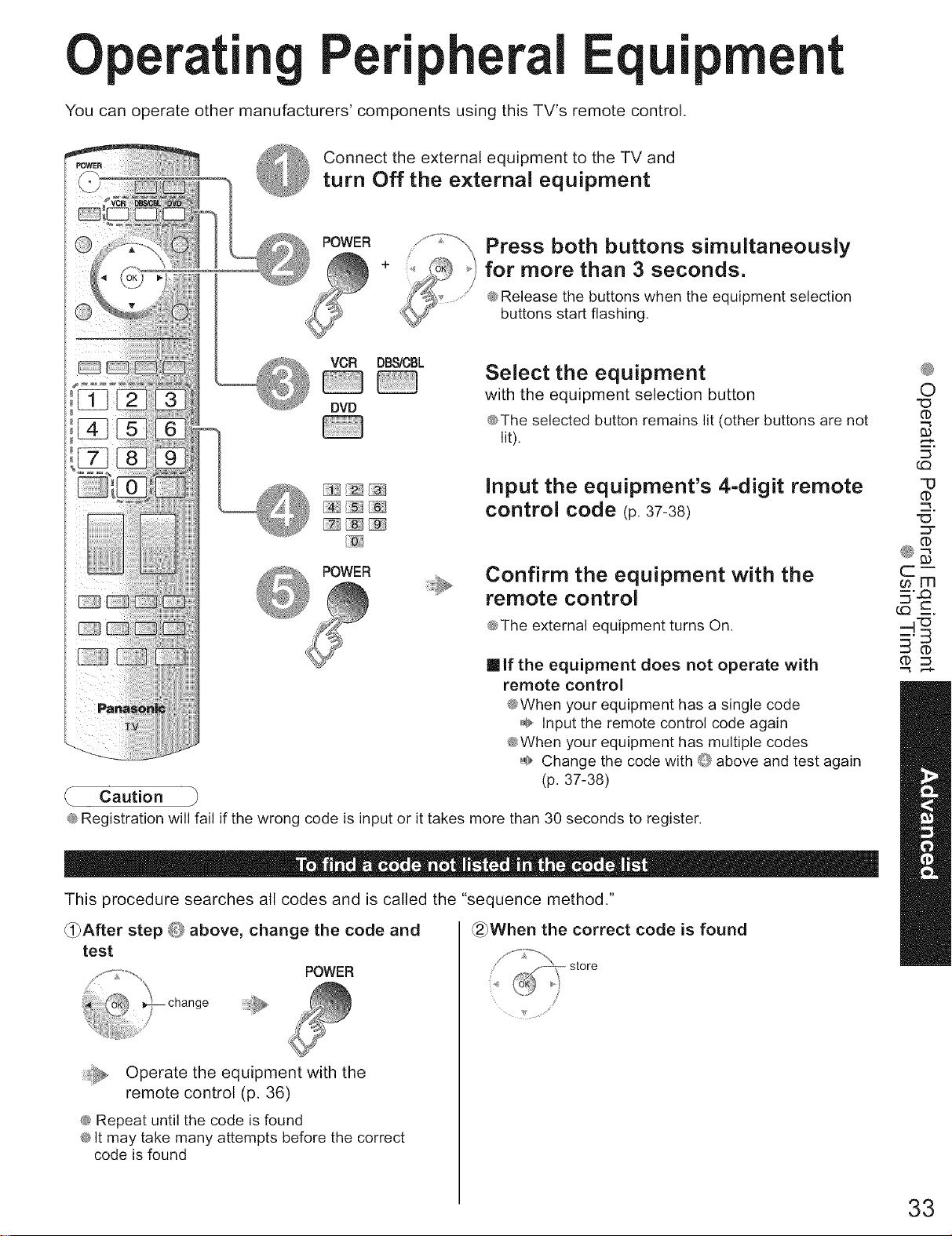
Operati ral Eq ipment
You can operate other manufacturers' components using this TV's remote control.
Connect the external equipment to the TV and
turn Off the external equipment
POWER
+
Press both buttons simultaneously
for more than 3seconds.
@Release the buttons when the equipment selection
buttons start flashing.
VCR DBS/CBL
DVD
Select the equipment
with the equipment selection button
@The selected button remains lit (other buttons are not
lit).
Input the equipment's 4-digit remote
control code (p.37-38)
POWER Confirm the equipment with the
remote control
@The external equipment turns On.
[] If the equipment does not operate with
remote control
@When your equipment has a single code
Input the remote control code again
@When your equipment has multiple codes
_/,,,Change the code with _ above and test again
(p. 37-38)
• Caution
@Registration will fail if the wrong code is input or it takes more than 30 seconds to register.
This procedure searches all codes and is called the "sequence method."
_!_After step @ above, change the code and _2_When the correct code is found
test
POWER
Operate the equipment with the
remote control (p. 36)
@ Repeat until the code is found
@It may take many attempts before the correct
code is found
/
@
O
(D
m,
"O
(D
..._,
"tD
::5"
(f}
_.1"_
33
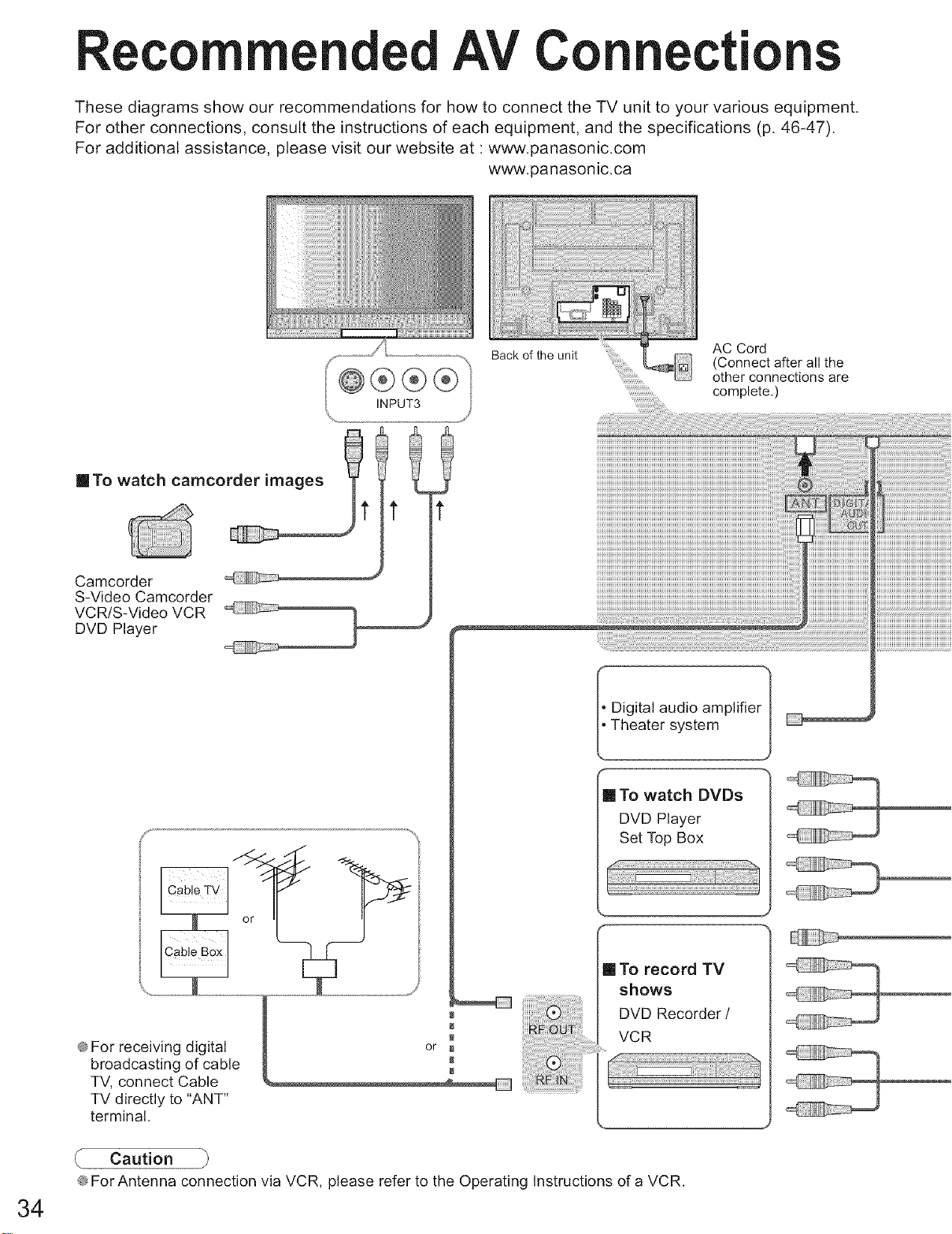
Recommended AV Connections
These diagrams show our recommendations for how to connect the TV unit to your various equipment.
For other connections, consult the instructions of each equipment, and the specifications (p. 46-47).
For additional assistance, please visit our website at : www.panasonic.com
www.panasonic.ca
34
@®®®
INPUT8
inTo watch camcorder images _ 1_ !_
Camcorder
S-Video Camcorder
VCR/S-Video VCR
DVD Player
® For receiving digital
broadcasting of cable
TV, connect Cable
TV directly to "ANT"
terminal.
Back of the unit
....
or0
N
AC Cord
(Connect after all the
other connections are
complete,)
Digital audio amplifier" 1
Theater system J
[] To watch DVDs
DVD Player
Set Top Box
!1 To record TV
shows
DVD Recorder /
VCR
f Caution
L
® ForAntenna connection via VCR, please refer to the Operating Instructions of a VCR.
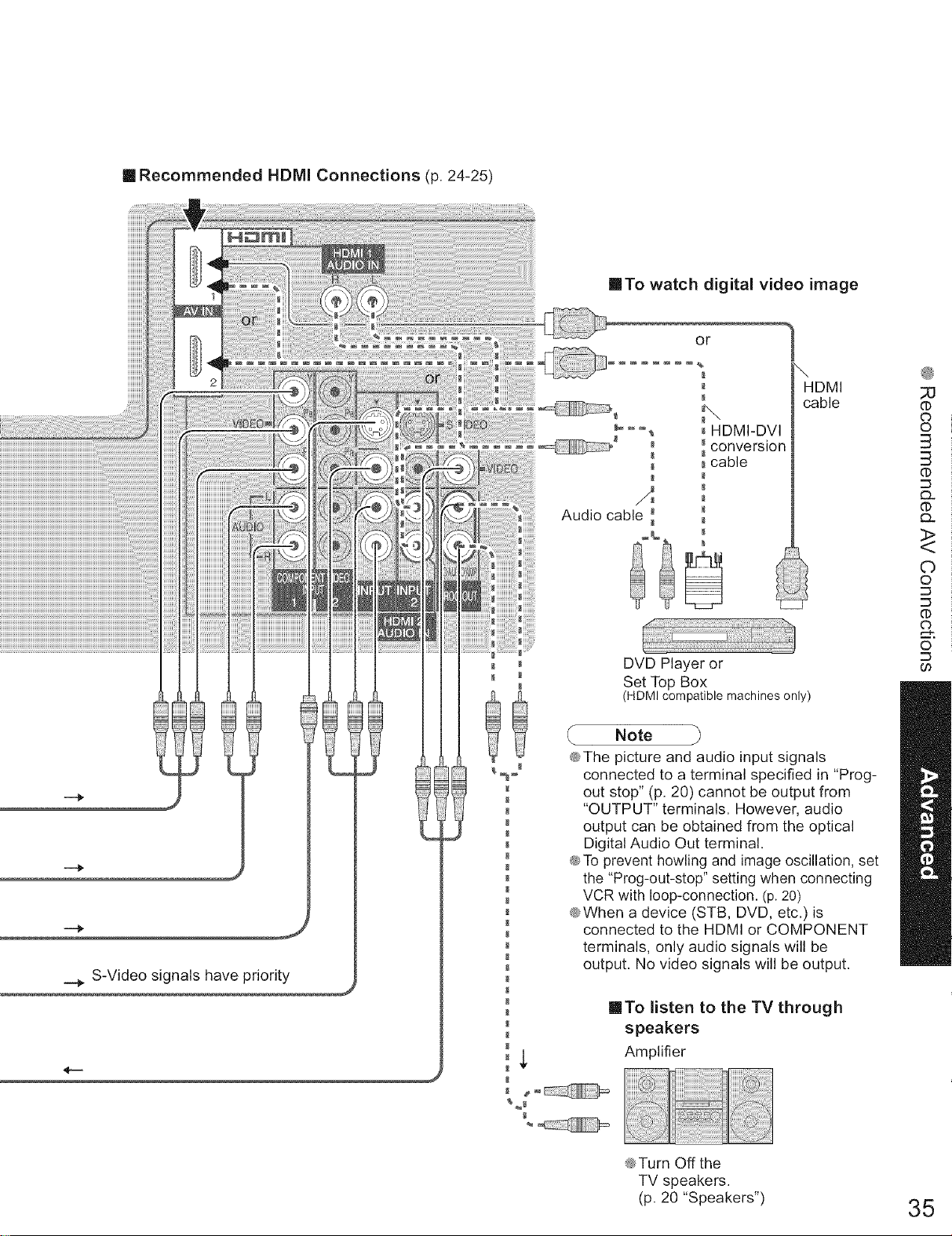
[] Recommended HDMI Connections (p. 24-25)
___ S-Video signals have priority
•To watch digital video image
or
Audio cable
HDMI-DVI
conversion
cable
\
HDMI
cable
DVD Player or
Set Top Box
(HDMI compatible machines only)
Note
@The picture and audio input signals
connected to a terminal specified in "Prog-
out stop" (p. 20) cannot be output from
"OUTPUT" terminals. However, audio
output can be obtained from the optical
Digital Audio Out terminal.
@To prevent howling and image oscillation, set
the "Prog-out-stop" setting when connecting
VCR with loop-connection. (p. 20)
@When a device (STB, DVD, etc.) is
connected to the HDMI or COMPONENT
terminals, only audio signals will be
output. No video signals will be output.
[]To listen to the TV through
speakers
Amplifier
:;U
CO
O
O
3
3
Q.
<>
©
©
co
©
@Turn Off the
TV speakers.
(p. 20 "Speakers") 35
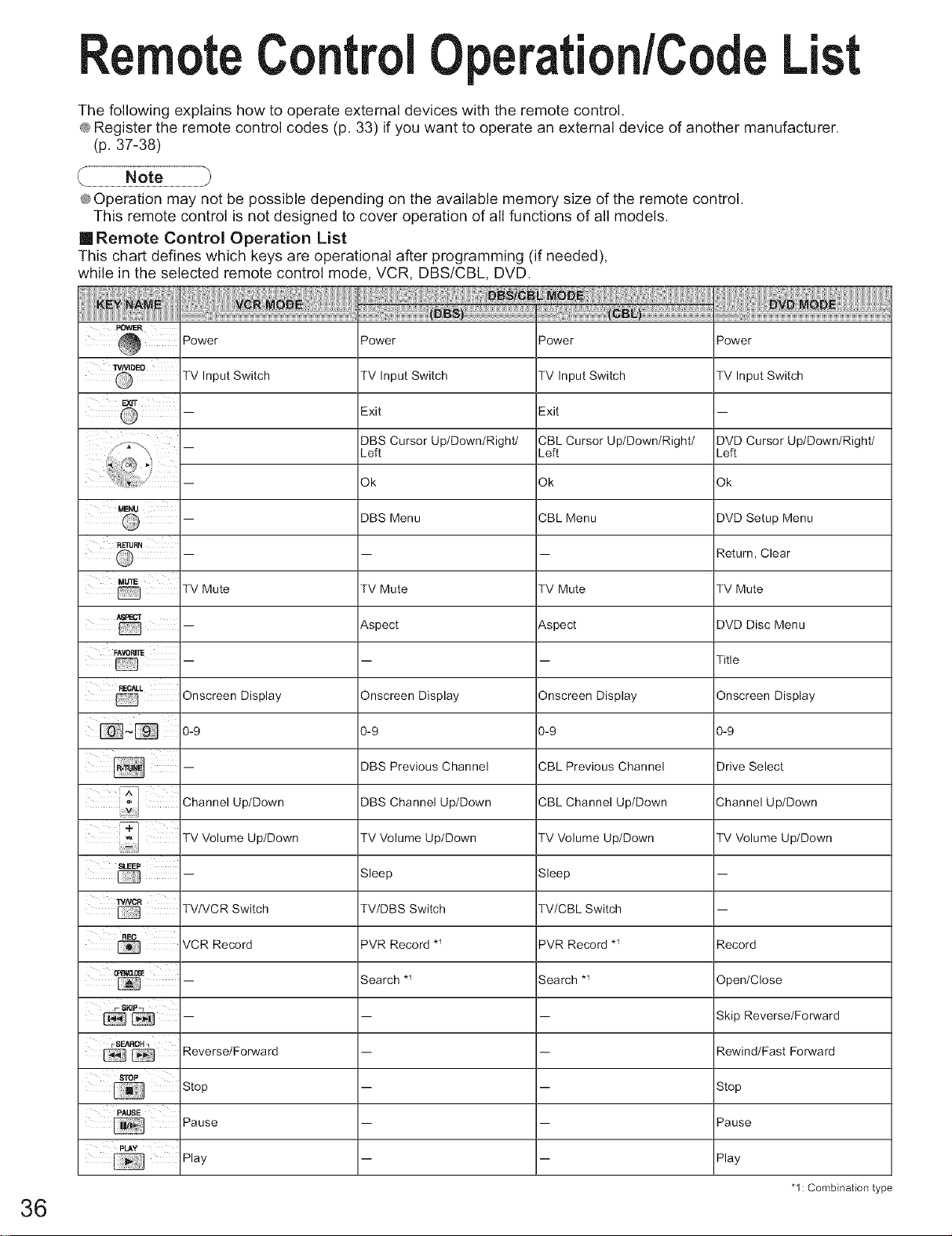
ote Cntrol peration/CodeList
The following explains how to operate external devices with the remote control,
@Register the remote control codes (p. 33) if you want to operate an external device of another manufacturer.
(p. 37-38)
36
@Operation may not be possible depending on the available memory size of the remote control.
This remote control is not designed to cover operation of all functions of all models.
[] Remote Control Operation List
This chart defines which keys are operational after programming (if needed),
while in the selected remote control mode, VCR, DBS/CBL, DVD.
Power
TV Input Switch
POWER
Power
TV Input Switch
Exit
DBS Cursor UplDownlRightl
Left
Ok
DBS Menu
Power
TV Input Switch
Exit
CBL Cursor Up/Down/Right/
Left
Ok
CBL Menu
Power
TV Input Switch
DVD Cursor UplDownlRightl
Left
Ok
DVD Setup Menu
Return, Cleariiii_ i i -- -- --
MUTE
TV Mute TV Mute TV Mute TV Mute
-- Aspect Aspect DVD Disc Menu
FAVOI_I_
.... Title
Onscreen Display Onscreen Display Onscreen Display Onscreen Display
_:_ 0-9 0-9 0-_ 0-_
'-- DBS Previous Channel CBL Previous Channel Drive Select
Channe,Op,Dewn Channe,Op,Dewn Chaone,Op,Dewn Channe,Op,Dewn
TV Volume Up/Down TV Volume Up/Down TV Volume Up/Down TV Volume Up/Down
SLEEP
,-- Sleep Sleep --
TVNCR
TV/VCR Switch TV/DBS Switch TV/CBL Switch --
VCR Record PVR Record .1 PVR Record .1 Record
_E Search *_ Search *_ Open/Close
_SKIF_
_'-- -- -- Skip Reverse/Forward
r, SEAROH 1
_ Reverse/Forward -- -- Rewind/Fast Forward
Step -- -- Step
Pause -- -- Pause
PLAY
Play -- -- Play
"1: Combination type
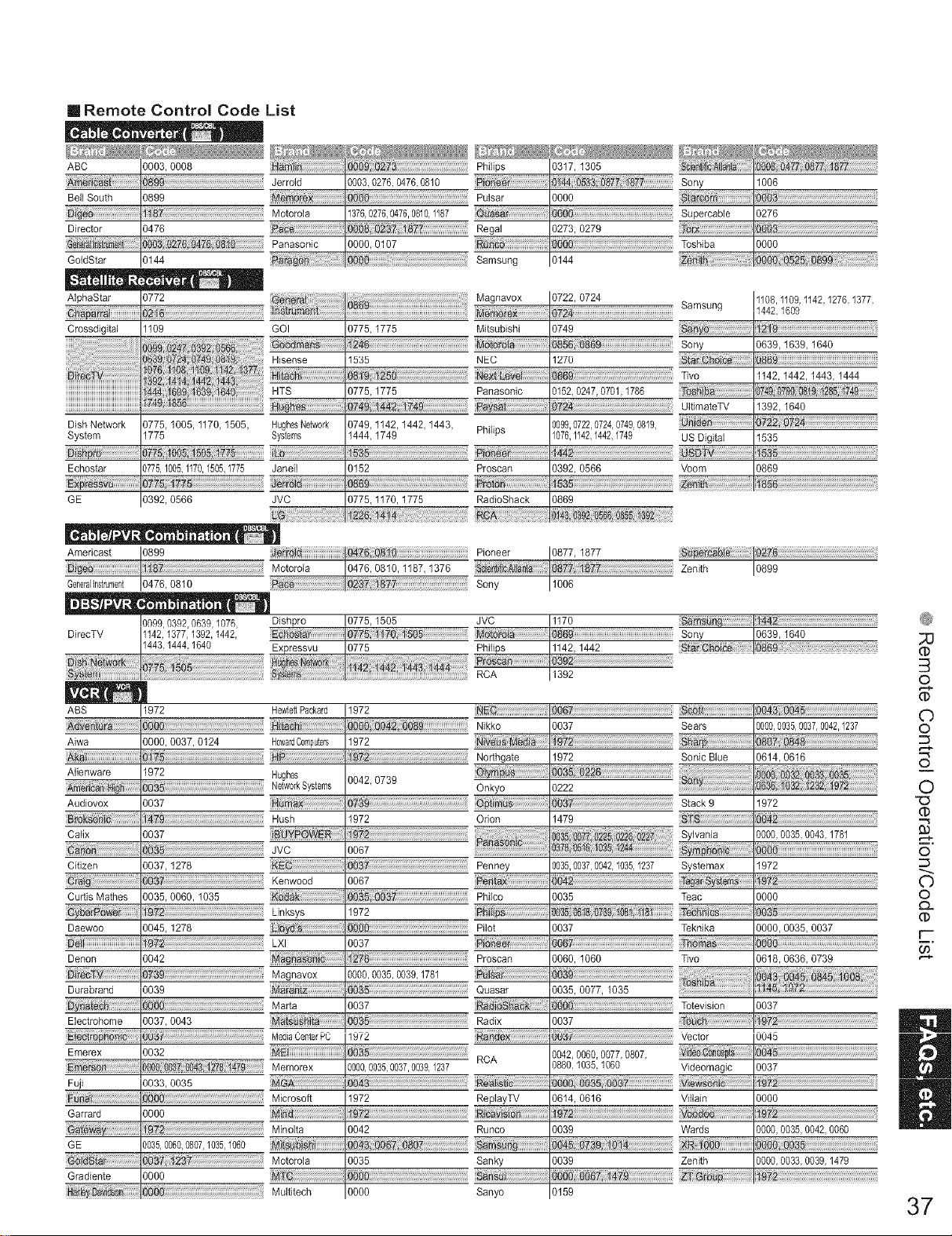
[] Remote Control Code
ABC 0003, 0008
Befl South 0899
Director 0476
GoldStar 0144
List
Jerrold
Motorola
Panasonie
3317, 1305
Sony 1006
Supereable 0276
Tosh!ba.......!0000...........................................
Samsung 3144 Z_ 0:5_5B:
r:!_ _2 .... _ _!#t ¢_ '
ii_!iii_i_ii_ii_ii_ii_ii_ii_ii_ii_ii_ii_ii_ii_ii_ii_ii_ii_ii_ii_ii_ii_ii_ii_ii_ii_ii_ii_ii_i_9_i_!i!_i_!_i1i1i1i1i1i1i1i1i1i1i1i1i1i1i1i1i1i_i1i1i1i1i1i1i1i1i1i1i1i1i1i1i1i1i1i1i1i1i1i1i1i1i1i1i1i1i1i1i1i1i1i1i_Philips
0003, 0276,0476, 0810
1376,0276,0476,0810,1187
0000, 0107
AlphaStar 0772 Magnavox
Crossd_!gi_ta!i_a__________________________________________________!_____________11_9......................................................................i_!!!i_i_i_'_'_i_T_'_T_i_assss_i':!!!!!!!!!!!!!!!!!!!!!!!!!!!!!!!!!!!!!!!!!!!!!!!!!!!!!!!!!!!!!!!!!!!!!!!!!!!!!!!!!!!!!!ei_G_!....... 0775 !775 _ _!!_lsm_sx_uuuuuuuuuu!
Hisense 1535
_ec:t_.....................................................]42 _
iiiiiiiiiiiiiiiiiiiiiiiiiiiiiiiiiiiiiiiiiiiiiiiiiiiiiiii !_9_
HTS 0775, 1775
Dish Network 0775, 1005, 1170, 1505, HughesNetwork 0749, 1142, 1442, 1443,
Systems 1444, 1749
SYS!em !77_
GE 10392, 0566 _ _
3722, 0724 1108,1109.1142.1276.1377.
Samsung _o 4_nn
Nikko
1972
1972......................................................................i_
0042,0739
0739.....................................................................iiiii
1972
0067
Aiwa 0000, 0037, 0124 HowardComputers
Alienware 1972 Hughes
NetworkSystems
Audiovox 0037
Hush
Cafix 0037
JVC
Citizen 0037, 1278
Kenwood
Curtis Mathes 0035, 0060, 1035
hinksys
Daewoo 0045, 1278
LX_
Denon 0042
...........................................................................................................................................Magnavox
3037
Northgate
Onkyo
Orion 1479
Sears 0000,0035,0037,0042,1237
0614,0616
1972
0000,0035,0043,1781
Penney _035,0037,0042,1035,1237 Systemax 1972
0067 ta. T_ st
Phiico 3035 Teac 0000
1972 Te_i_ ,_8
Pilot 3037 Teknika 0000, 0035, 0037
0037 _0_
Proscan 3060, 1060 Tivo 0618, 0636, 0739
0000, 0035,0039,1781
RCA
Fuji 0033, 0035
Garrard 0000
GE 0035,0060,0807,1035,1060
Gradiente 0000
Microsoft
Minolta
Motorola
Multitech
_ __iiiiiiiiiiiiiiiiiiiiiiiiiiiiiiiiiiiii_iiiiiiiiiiiiiiiiiiiiiiiiiiiiiiiii!¸ iiR_i_lli_li_iiiiiiiiiiiiiiiiiiiiiiii
1972 ReplayTV
0042 Runco
0035 Sanky
0000 Sanyo
;u
o
d
O
O
m,
o
©
©
O_
CP
F-
Og
!t!4,o6!6......................................................V!!!a!n.... 0000
_o_................... w_ ...........!oooooo_oo_oo_o
_o_? Zte9............................ ......................
3159 37
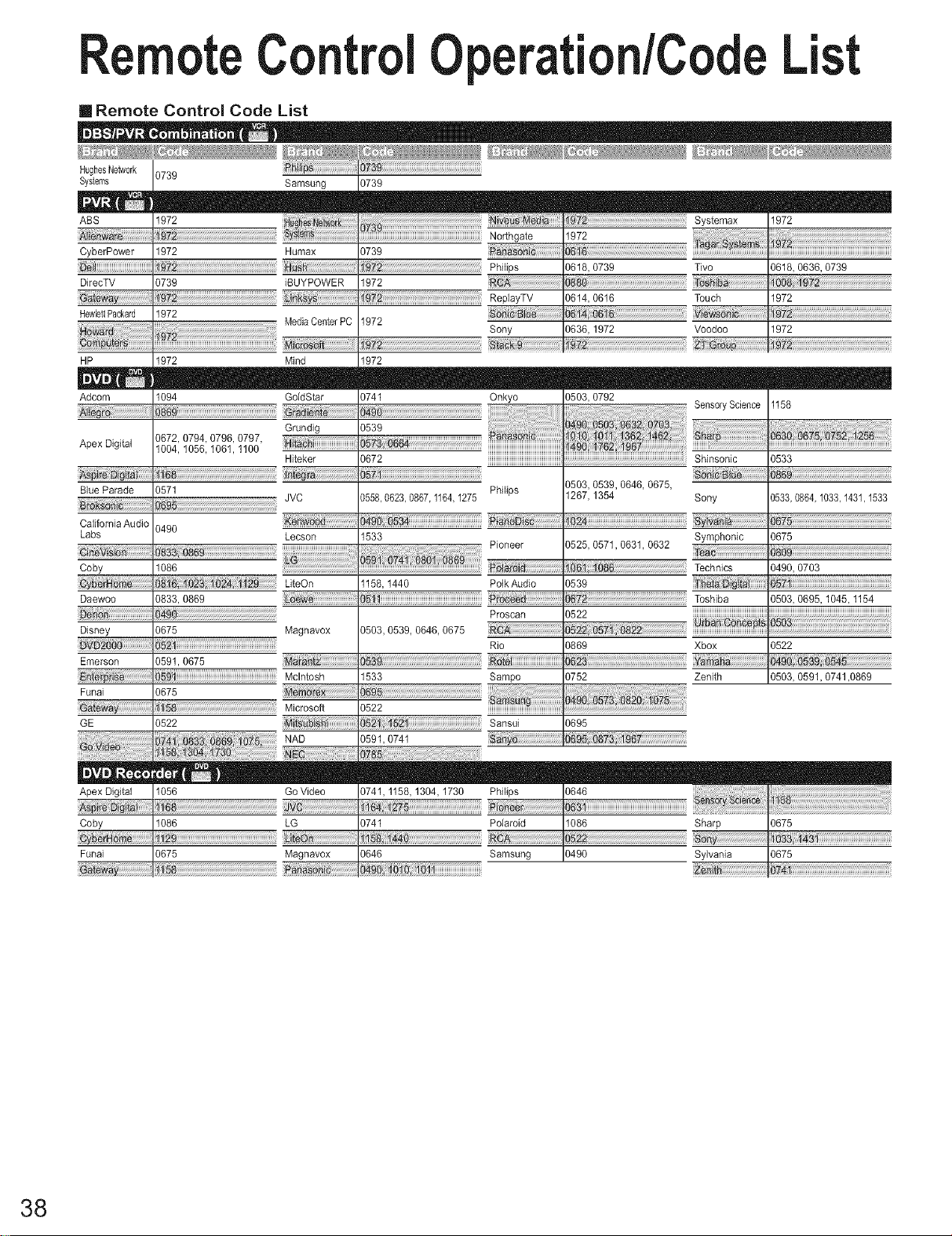
ote C ntrol peration/CodeList
[] Remote Control Code List
HughesNe_,verk 0739
Systems Samsung )739
ABS 1972
Northgate
CyberPower 1972 aumax ?739 _h!,_ o6!6,o7_9 T_o iiii iiii iiii
DirecTV 0739 iBUYPOWER 1972
Rep!ayTV 06!4:06!6 Touch.... ]972 .........................................................................
HewlettPackard ]972 .................. Media CenterPC 1972 Sony 0636:!972 Voodoo .... !972
_e] r,J]]]]]
HP 1972 Mind 1972
Adcom 1094 GddStar )741 Onkyo 0503, 0792
Nii_NN SensoryScience 1158
Apex Digital 9672,1004,0794,1056,0796,1061,0797,1100 j _, :::::
Hiteker ?672 ......................................................,Shinsonic 0533
As j _i_ita
Blue Parade 0571 Philips 0503, 0539, 0646, 0675,
JVC ]558.0623.0867.1164,1275 1267, 1354 Sony 0533.0864.1033.1431.1533
California Audio .....
Labs 0490 Lecson 1533 Symphonic 0675
.................................................................................................Pioneer 0525, 0571,0631, 0632
Coby lO8O .......................................................................
LiteOn 1158, 1440 Polk Audio 0539 _:_ _::
Uaewoo 0833, 0869 _ ........................................................................Toshiba 0503, 0695, 1045, 1154
_ ........................................................................ Proscan 0522
Disney 0675 Magnavox )503, 0539, 0646, 0675 N_,_#B_pt_
Rio 0869 Xbox 0522
Emerson 0591, 0675
Mclntosh 1533 Sampo 0752 Zenith 0503, 0591, 0741,0869
Fanai 0675
_!ew Microsoft ?522
GE 0522 Sansui 0695
Apex Digital
Coby
Funai
NAD ?591,0741
Samsung 0490 0675
38
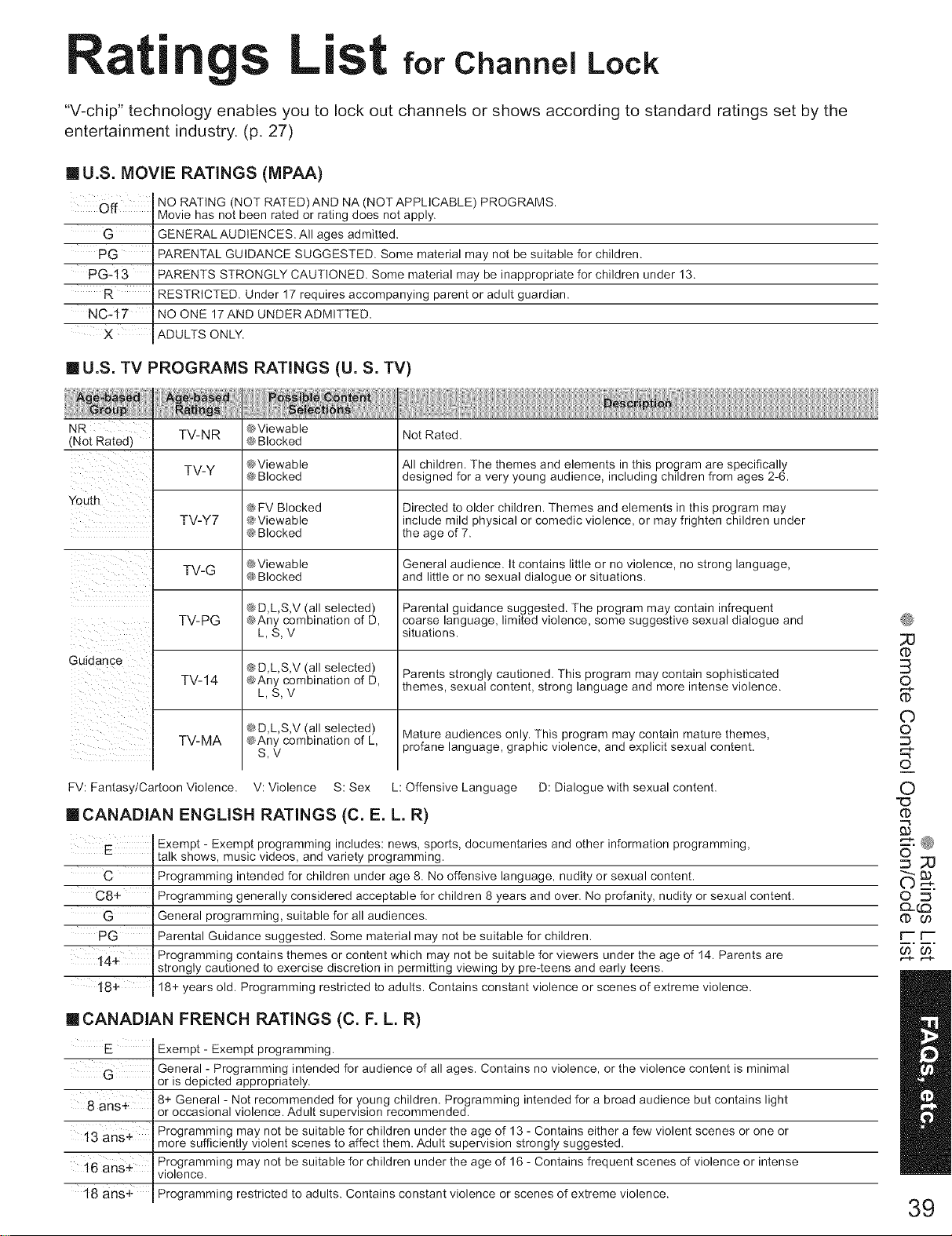
Rati gs L" for Channel Lock
"V-chip" technology enables you to lock out channels or shows according to standard ratings set by the
entertainment industry. (p. 27)
I111U.S. MOVIE RATINGS (MPAA)
Off
PG
PC-13
R
NC-17
X
[] U.S. TV PROGRAMS RATINGS (U. S. TV)
Not Rated.
NO RATING (NOT RATED)AND NA (NOT APPLICABLE) PROGRAMS.
Movie has not been rated or rating does not apply.
GENERAL AUDIENCES. All ages admitted.
PARENTAL GUIDANCE SUGGESTED. Some material may not be suitable for children.
PARENTS STRONGLY CAUTIONED. Some material may be inappropriate for children under 13.
RESTRICTED. Under 17 requires accompanying parent or adult guardian.
NO ONE 17AND UNDERADMITTED.
ADULTS ONLY.
NR TV-NR
(Not Rated)
TV-Y
TV-Y7
TV-G
TV-PG
Guidance
TV-74
TV-MA
@Viewable
@Blocked
@Viewable All children. The themes and elements in this program are specifically
@Blocked designed for a very young audience, including children from ages 2-6.
@FV Blocked Directed to older children. Themes and elements in this program may
@Viewable include mild physical or comedic violence, or may frighten children under
@Blocked the age of 7.
@Viewable General audience. It contains little or no violence, no strong language,
@ Blocked and little or no sexual dialogue or situations.
@ D,LS,V (all selected) Parental guidance suggested. The program may contain infrequent
@Any combination of D, coarse language, limited violence, some suggestive sexual dialogue and
L, S, V situations.
@ D,L,S,V (all selected) Parents strongly cautioned, This program may contain sophisticated
@Any combination of D,
L, S, V themes, sexual content, strong language and more intense violence.
@ D,LS,V (all selected)
@Any combination of L,
S,V
Mature audiences only. This program may contain mature themes,
profane language, graphic violence, and explicit sexual content.
FV: Fantasy/Cartoon Violence. V: Violence S: Sex L: Offensive Language D: Dialogue with sexual content.
•CANADIAN ENGLISH RATINGS (C. E. L. R)
Exempt - Exempt programming includes: news, sports, documentaries and other information programming,
E talk shows, music videos, and variety programming.
C Programming intended for children under age 8. No offensive language, nudity or sexual content.
C8+ Programming generally considered acceptable for children 8 years and over. No profanity, nudity or sexual content.
General programming, suitable for all audiences.
PG Parental Guidance suggested. Some material may not be suitable for children.
14÷ Programming contains themes or content which may not be suitable for viewers under the age of 14. Parents are
strongly cautioned to exercise discretion in permitting viewing by pre-teens and early teens.
18+ 18+ years old. Programming restricted to adults. Contains constant violence or scenes of extreme violence.
•CANADIAN FRENCH RATINGS (C. F. L. R)
E Exempt - Exempt programming.
General - Programming intended for audience of all ages. Contains no violence, or the violence content is minimal
G or is depicted appropriately.
8 ans÷
13 ans÷
16 anse
18 ans+
8+ General - Not recommended for young children. Programming intended for a broad audience but contains light
or occasional violence. Adult supervision recommended.
Programming may not be suitable for children under the age of 13 - Contains either a few violent scenes or one or
more sufficiently violent scenes to affect them. Adult supervision strongly suggested.
Programming may not be suitable for children under the age of 16 - Contains frequent scenes of violence or intense
violence.
Programming restricted to adults. Contains constant violence or scenes of extreme violence.
3
O
©
O
O
O
6.®
F-r--
39
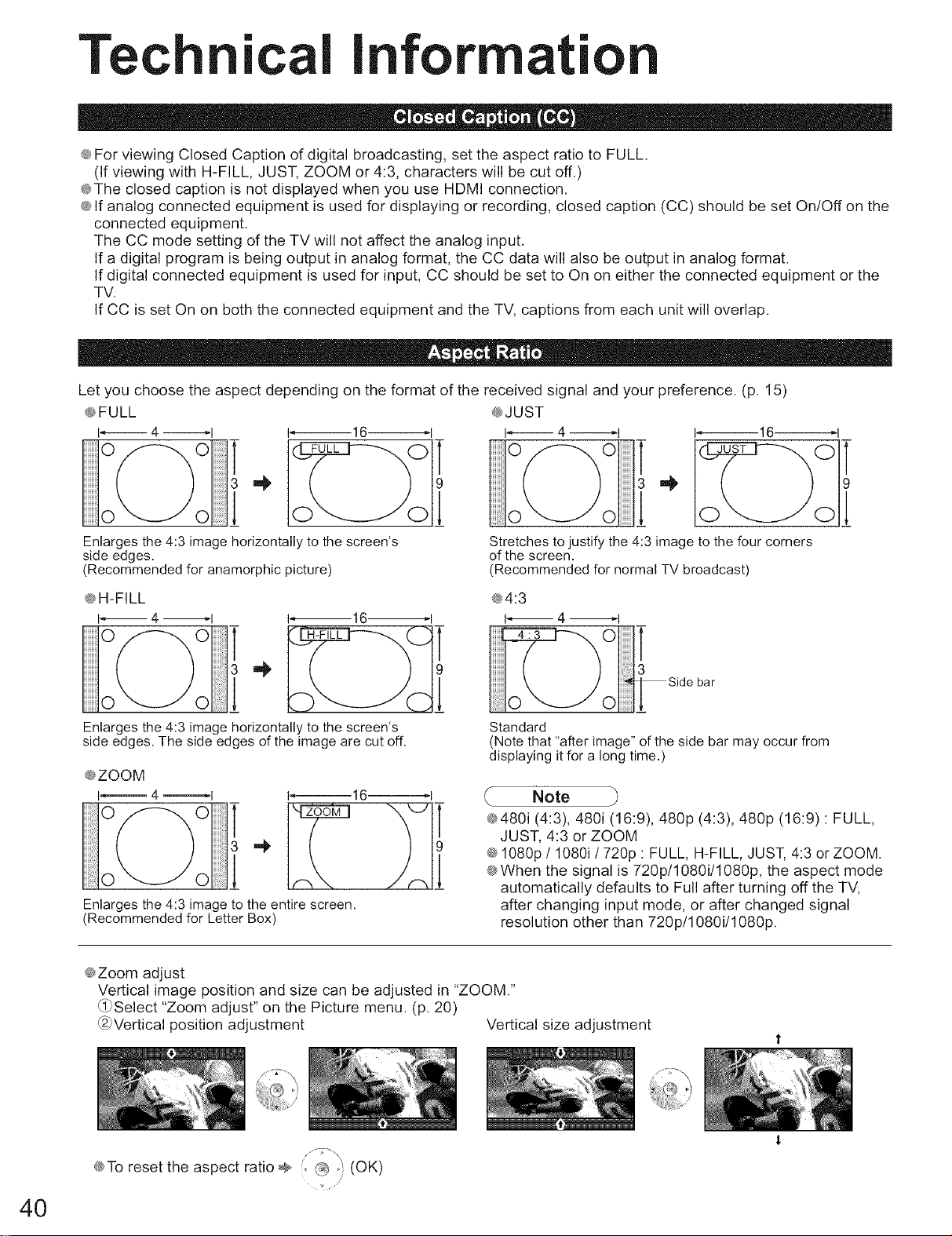
TIn
|Inforrnati
e For viewing Closed Caption of digital broadcasting, set the aspect ratio to FULL.
(If viewing with H-FILL JUST, ZOOM or 4:3, characters will be cut off.)
eThe closed caption is not displayed when you use HDMI connection.
e If analog connected equipment is used for displaying or recording, closed caption (CC) should be set On!Off on the
connected equipment.
The CC mode setting of the TV will not affect the analog input.
If a digital program is being output in analog format, the CC data will also be output in analog format.
If digital connected equipment is used for input, CC should be set to On on either the connected equipment or the
TV.
If CC is set On on both the connected equipment and the TV, captions from each unit will overlap.
Let you choose the aspect depending on the format of the received signal and your preference. (p. 15)
@FULL @JUST
I_ 4 _1 1_16_1 I_ 4 I
o\-_Jo !
Enlarges the 4:3 image horizontally to the screen's
side edges.
(Recommended for anamorphic picture)
I_16-------_1
Stretches to justify the 4:3 image to the four corners
of the screen.
(Recommended for normal TV broadcast)
9
1
ell-FILL e4:3
I 4 ---H I_ 4 _1 T
Enlarges the 4:3 image horizontally to the screen's
side edges. The side edges of the image are cut off.
eZOOM
1_4 I 1_16_1
-r
Enlarges the 4:3 image to the entire screen.
(Recommended for Letter Box)
Standard
(Note that "after image" of the side bar may occur from
displaying it for a long time.)
Note
@480i (4:3), 48@ (16:9), 480p (4:3), 480p (16:9) : FULL,
JUST, 4:3 or ZOOM
e 1080p /108@/720p : FULL, H-FILL JUST, 4:3 or ZOOM.
@When the signal is 720p/1080i/1080p, the aspect mode
automatically defaults to Full after turning off the TV,
after changing input mode, or after changed signal
resolution other than 720p/108@/1080p.
eZoom adjust
Vertical image position and size can be adjusted in "ZOOM."
@)Select "Zoom adjust" on the Picture menu. (p. 20)
@)Vertical position adjustment Vertical size adjustment
40
eTo reset the aspect ratio ÷ ::....... (OK)
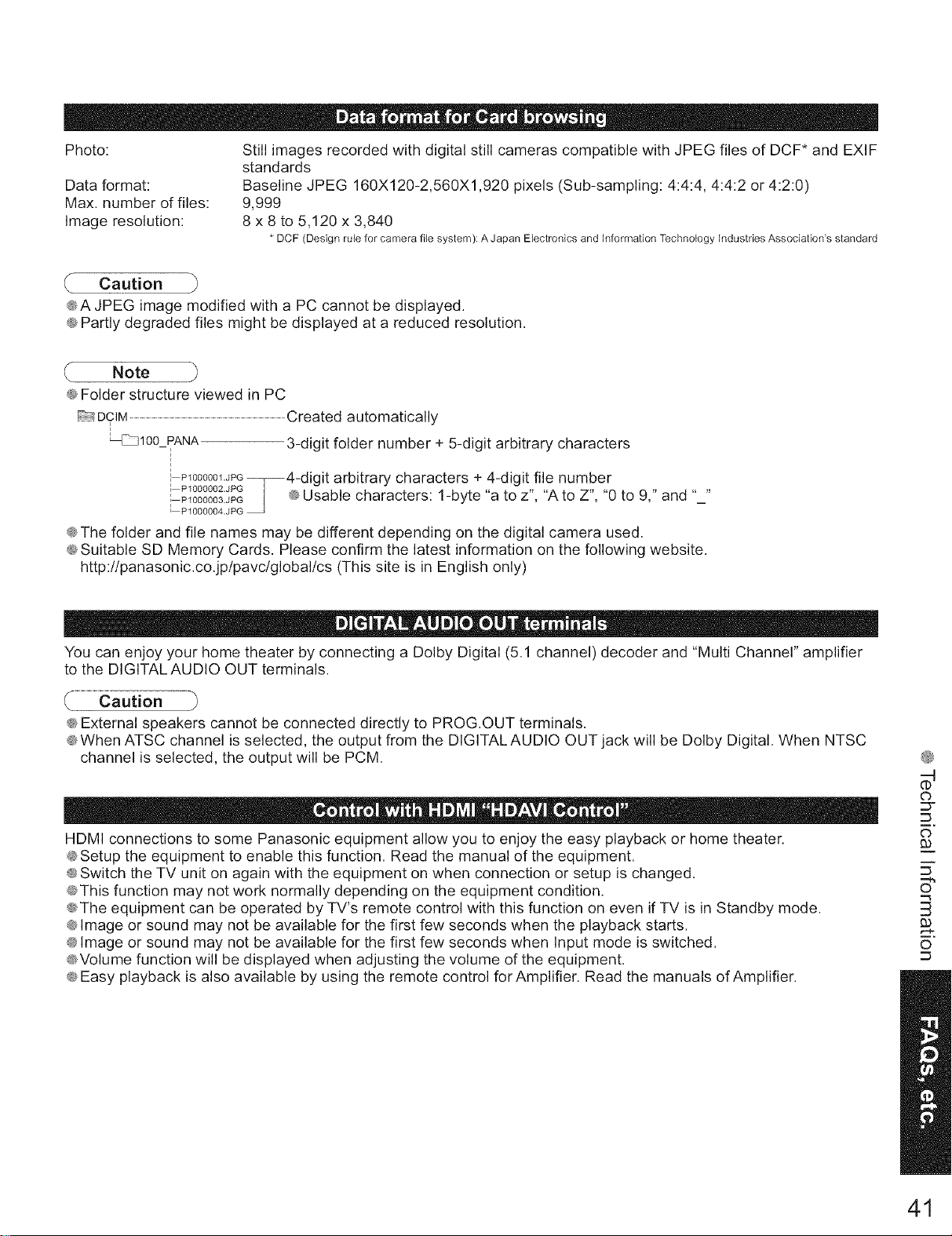
Photo:
Dataformat:
Max.numberoffiles:
Imageresolution:
StillimagesrecordedwithdigitalstillcamerascompatiblewithJPEGfilesof DCF*andEXIF
standards
BaselineJPEG160X120-2,560X1,920pixels(Sub-sampling:4:4:4,4:4:2or4:2:0)
9,999
8x 8to 5,120x 3,840
* DCF (Design rule for camera file system): A Japan Electronics and information Technology industries Association's standard
Caution
@A JPEG image modified with a PC cannot be displayed.
@Partly degraded files might be displayed at a reduced resolution.
Note
@Folder structure viewed in PC
DCIM ..........................................................................................................................................................................Created automatically
_Jl00 PANA 3-digit folder number +5-digit arbitrary characters
P_00000_.JPG_4-digit arbitrary characters + 4-digit file number
l PI000002.JPG _ ____,
i _000003.JPG @Usable characters: 1-byte "a to z", "A to Z" "0 to 9," and
P1000004.JPG
@The folder and file names may be different depending on the digital camera used.
@Suitable SD Memory Cards. Please confirm the latest information on the following website.
http://panasonic.co.jp/pavc/global/cs (This site is in English only)
You can enjoy your home theater by connecting a Dolby Digital (5.1 channel) decoder and '"Multi Channel" amplifier
to the DIGITALAUDIO OUT terminals.
@External speakers cannot be connected directly to PROG.OUT terminals.
@When ATSC channel is selected, the output from the DIGITAL AUDIO OUT jack will be Dolby Digital. When NTSC
channel is selected, the output will be PCM.
HDMI connections to some Panasonic equipment allow you to enjoy the easy playback or home theater.
@Setup the equipment to enable this function. Read the manual of the equipment.
@Switch the TV unit on again with the equipment on when connection or setup is changed.
@This function may not work normally depending on the equipment condition.
@The equipment can be operated by TV's remote control with this function on even if TV is in Standby mode.
@Image or sound may not be available for the first few seconds when the playback starts.
@Image or sound may not be available for the first few seconds when Input mode is switched.
@Volume function will be displayed when adjusting the volume of the equipment.
@Easy playback is also available by using the remote control for Amplifier. Read the manuals of Amplifier.
®
O
O
6"
B
m,
O
41
TII
|Informati
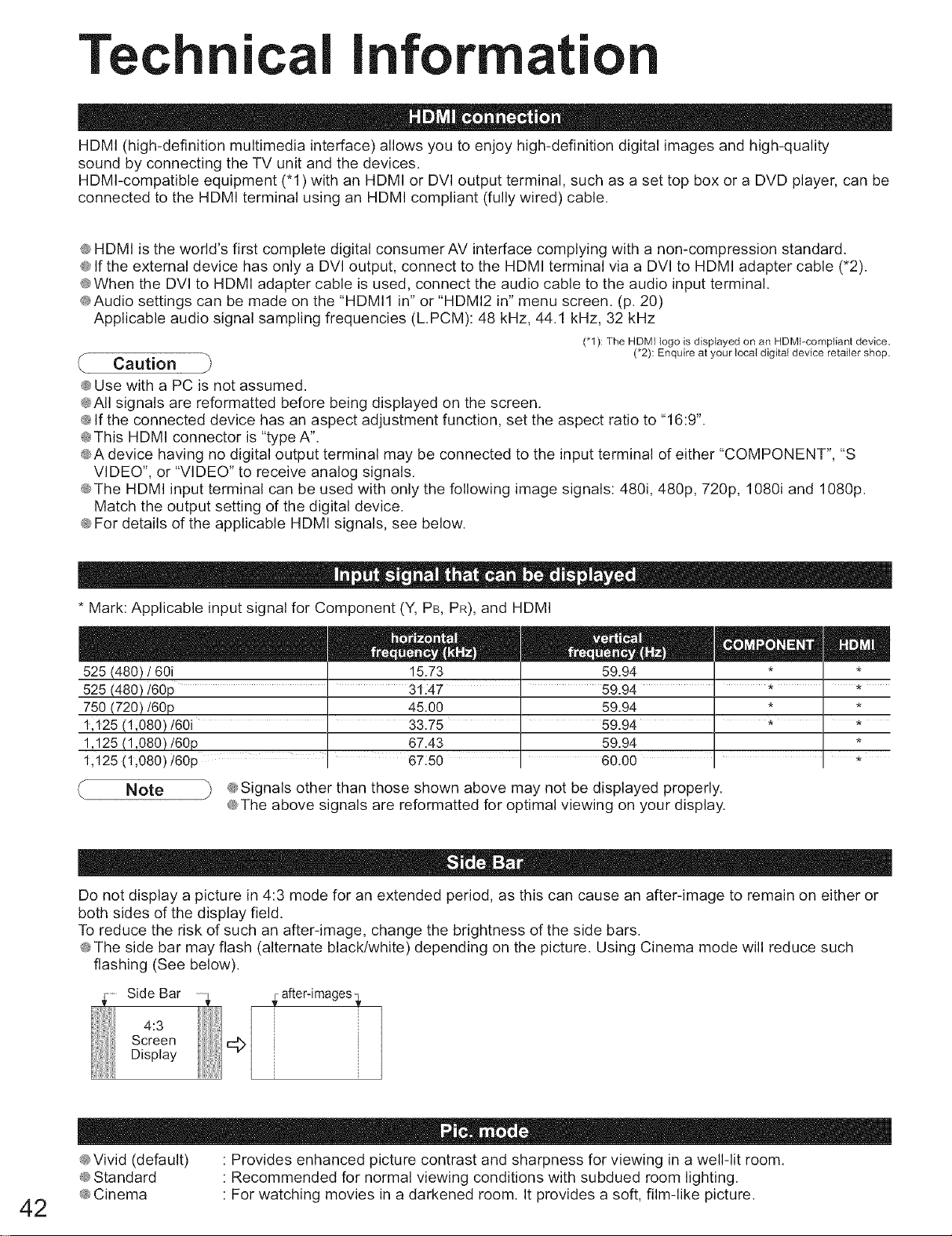
HDMI (high-definition multimedia interface) allows you to enjoy high-definition digital images and high-quality
sound by connecting the TV unit and the devices.
HDMI-compatible equipment ('1) with an HDMI or DVI output terminal, such as a set top box or a DVD player, can be
connected to the HDMI terminal using an HDMI compliant (fully wired) cable.
@HDMI is the world's first complete digital consumer AV interface complying with a non-compression standard.
@If the external device has only a DVI output, connect to the HDMI terminal via a DVI to HDMI adapter cable (*2).
@When the DVI to HDMI adapter cable is used, connect the audio cable to the audio input terminal.
@Audio settings can be made on the "HDMI1 in" or "HDMI2 in" menu screen. (p. 20)
Applicable audio signal sampling frequencies (L.PCM): 48 kHz, 44.1 kHz, 32 kHz
('1): The HDMI logo is displayed on an HDMI-comptiaet device,
Cautior} (*2): Enquire at your bocal digital device retailer shop.
@Use with a PC is not assumed.
@All signals are reformatted before being displayed on the screen.
@If the connected device has an aspect adjustment function, set the aspect ratio to "16:9".
@This HDMI connector is "type A".
@A device having no digital output terminal may be connected to the input terminal of either "COMPONENT", "S
VIDEO", or "VIDEO" to receive analog signals.
@The HDMI input terminal can be used with only the following image signals: 480i, 480p, 720p, 1080i and 1080p.
Match the output setting of the digital device.
@For details of the applicable HDMI signals, see below.
* Mark: Applicable input signal for Component (Y, PB, PR), and HDMI
525 (480) /601 15.73 59.94 * *
525 (480)/60p 31.47 59.94 ' * ' *
750 (720)/60p 45.00 59.94 * *
1,125 (1;080)/60i ' 33.75 ' 59.94 ' * ' *
1,125 (1,080)/60p 67.43 59.94 *
1;125 (1,080) t60p ........ 67:50 60.00 *
Note _ @Signals other than those shown above may not be displayed properly.
@The above signals are reformatted for optimal viewing on your display.
Do not display a picture in 4:3 mode for an extended period, as this can cause an after-image to remain on either or
both sides of the display field.
To reduce the risk of such an after-image, change the brightness of the side bars.
@The side bar may flash (alternate black/white) depending on the picture. Using Cinema mode will reduce such
flashing (See below).
Side Bar after-images}
4:3
Screen
Display
42
@Vivid (default) • Provides enhanced picture contrast and sharpness for viewing in a well-lit room.
@Standard • Recommended for normal viewing conditions with subdued room lighting.
@Cinema • For watching movies in a darkened room. It provides a soft, film-like picture.
inte
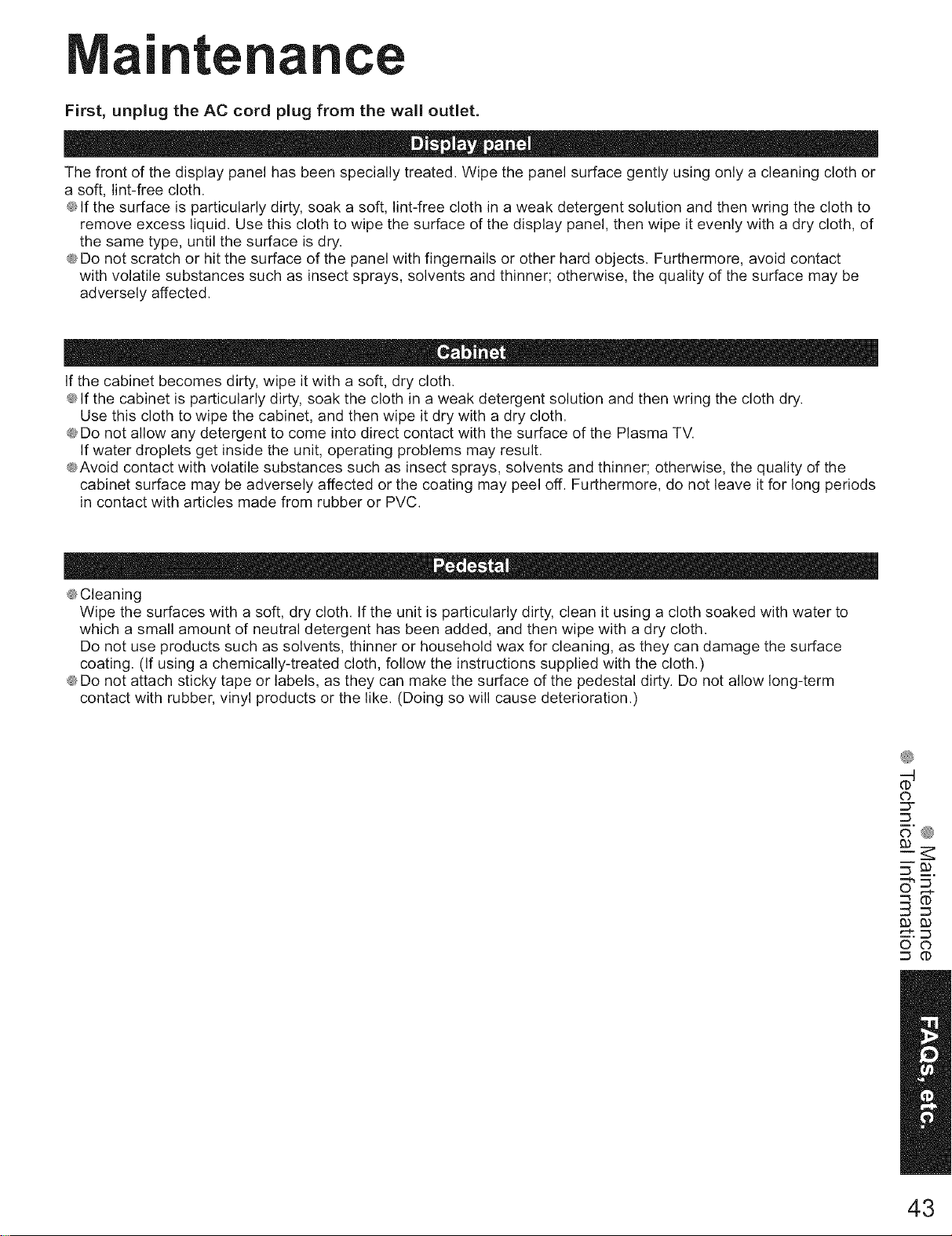
First, unplug the AC cord plug from the wall outlet.
The front of the display panel has been specially treated. Wipe the panel surface gently using only a cleaning cloth or
a soft, lint-free cloth.
@If the surface is particularly dirty, soak a soft, lint-free cloth in a weak detergent solution and then wring the cloth to
remove excess liquid. Use this cloth to wipe the surface of the display panel, then wipe it evenly with a dry cloth, of
the same type, until the surface is dry.
@Do not scratch or hit the surface of the panel with fingernails or other hard objects. Furthermore, avoid contact
with volatile substances such as insect sprays, solvents and thinner; otherwise, the quality of the surface may be
adversely affected.
If the cabinet becomes dirty, wipe it with a soft, dry cloth.
@If the cabinet is particularly dirty, soak the cloth in a weak detergent solution and then wring the cloth dry.
Use this cloth to wipe the cabinet, and then wipe it dry with a dry cloth.
@Do not allow any detergent to come into direct contact with the surface of the Plasma TV.
If water droplets get inside the unit, operating problems may result.
@Avoid contact with volatile substances such as insect sprays, solvents and thinner; otherwise, the quality of the
cabinet surface may be adversely affected or the coating may peel off. Furthermore, do not leave it for long periods
in contact with articles made from rubber or PVC.
@Cleaning
Wipe the surfaces with a soft, dry cloth. If the unit is particularly dirty, clean it using a cloth soaked with water to
which a small amount of neutral detergent has been added, and then wipe with a dry cloth.
Do not use products such as solvents, thinner or household wax for cleaning, as they can damage the surface
coating. (If using a chemically-treated cloth, follow the instructions supplied with the cloth.)
@Do not attach sticky tape or labels, as they can make the surface of the pedestal dirty. Do not allow long-term
contact with rubber, vinyl products or the like. (Doing so will cause deterioration.)
@
O
::3=
_'@
B'__.
43
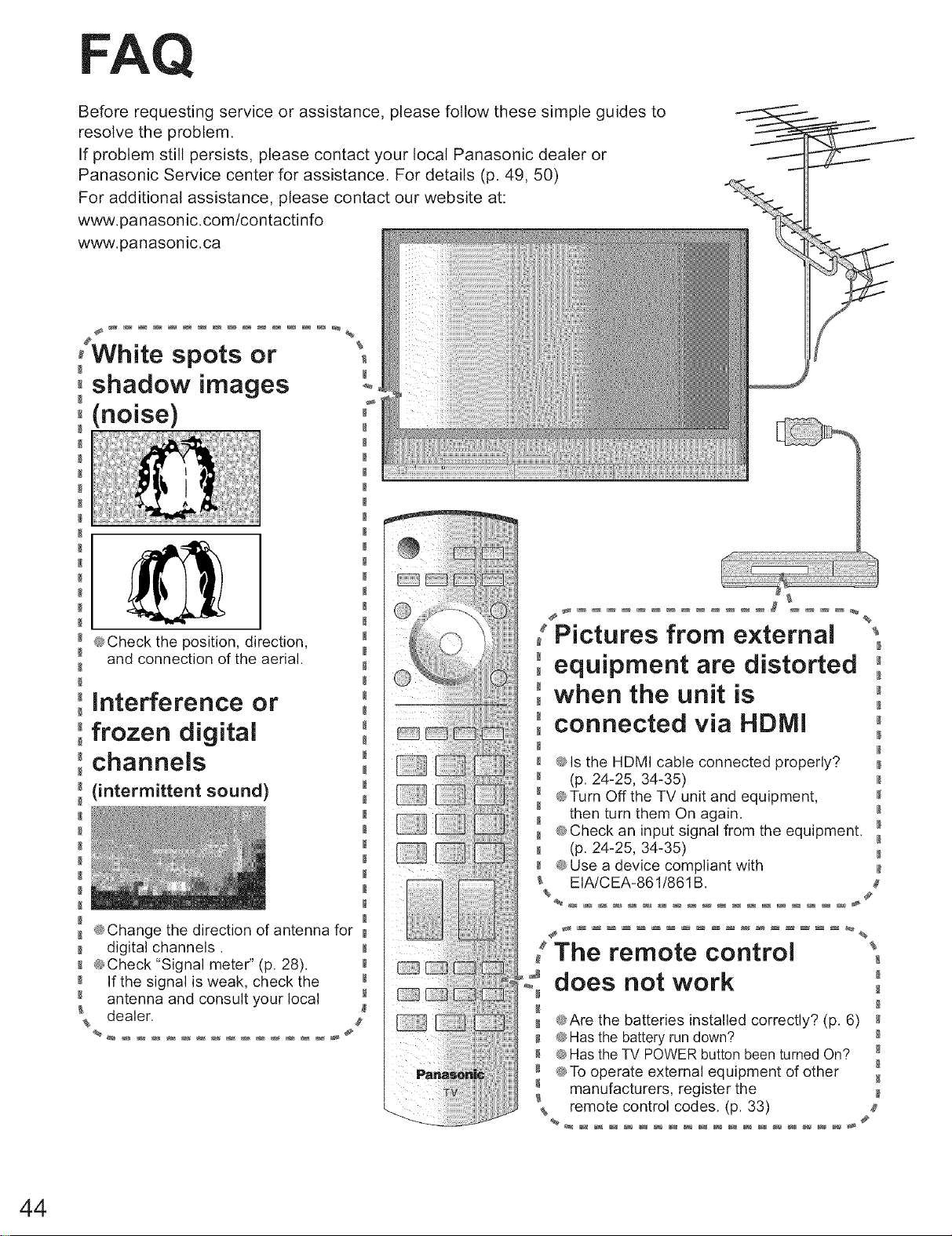
FAQ
Before requesting service or assistance, please follow these simple guides to
resolve the problem.
If problem still persists, please contact your local Panasonic dealer or
Panasonic Service center for assistance. For details (p. 49, 50)
For additional assistance, please contact our website at:
www.panasonic.com/contactinfo
www.panasonic.ca
,White spots or
0shadow images
0(noise)
_ @Check the position, direction,
_ and connection of the aerial.
°Interference or
°°frozen digital
°channels
(intermittent sound)
@Change the direction of antenna for
-"digitalchannels.
@Check "Signal meter" (p. 28).
N If the signal is weak, check the
antenna and consult your local
dealer.
[Pictures from external
equipment are distorted
when the unit is
connected via HDMI
@Is the HDMI cable connected properly?
(p. 24-25, 34-35)
@Turn Off the TV unit and equipment,
%
&
then turn them On again.
@Check an input signal from the equipment. _
(p. 24-25, 34-35)
@Use a device compliant with
EIA/CEA-861!861B.
@Are the batteries installed correctly? (p. 6)
@Has the battery run down?
@Has the TV POWER button been turned On?
@To operate external equipment of other
manufacturers, register the
remote control codes. (p. 33)
[The remote control
does not work °
44
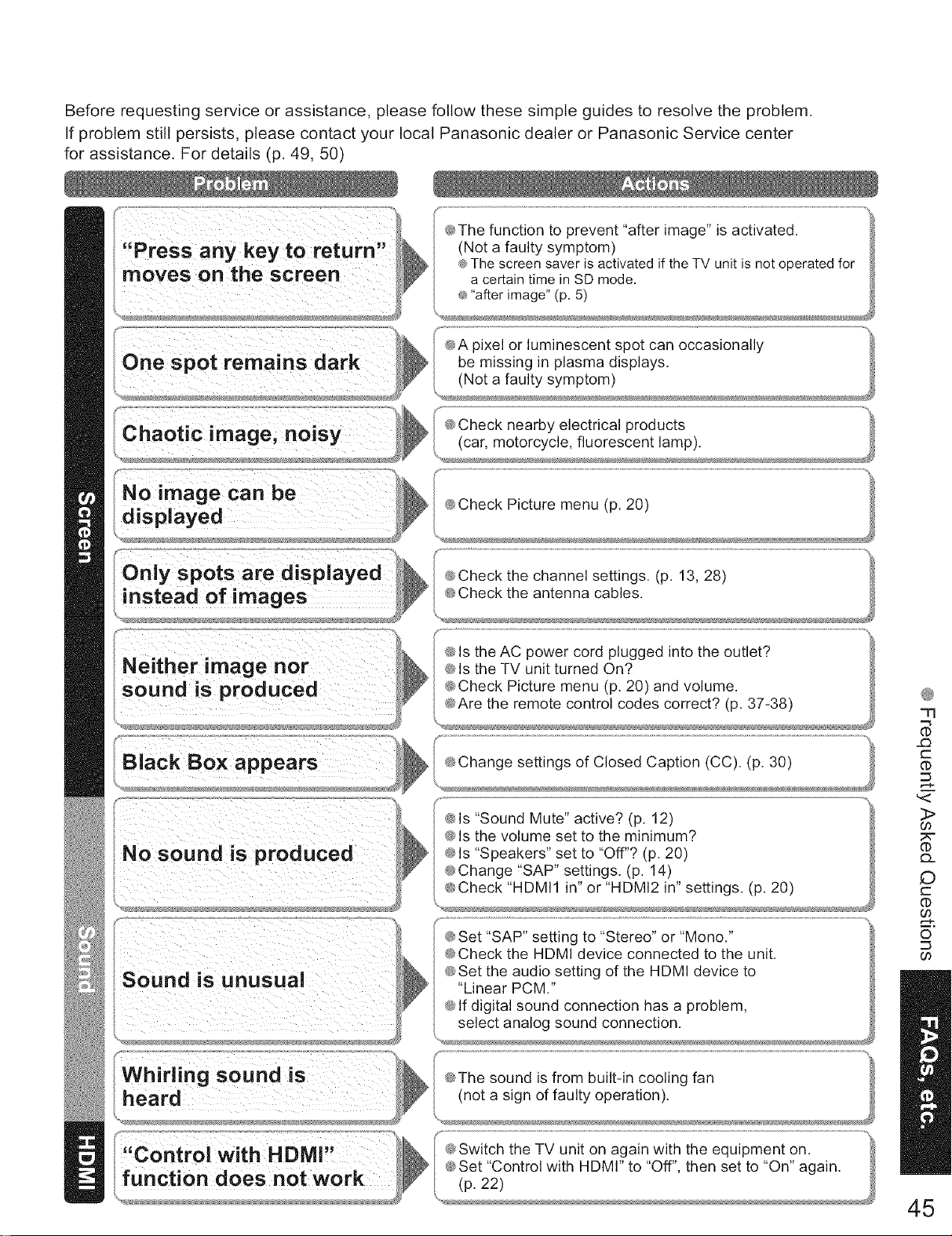
Before requesting service or assistance, please follow these simple guides to resolve the problem.
If problem still persists, please contact your local Panasonic dealer or Panasonic Service center
for assistance. For details (p. 49, 50)
oixel or luminescent spot can occasionally
nearby electrical products
displayed
"Sound Mute actwe. (p. 12)
®
77
_Q
C
(D
:]>
GO
(D
t')
©
c
GO
0
_D
GO
45
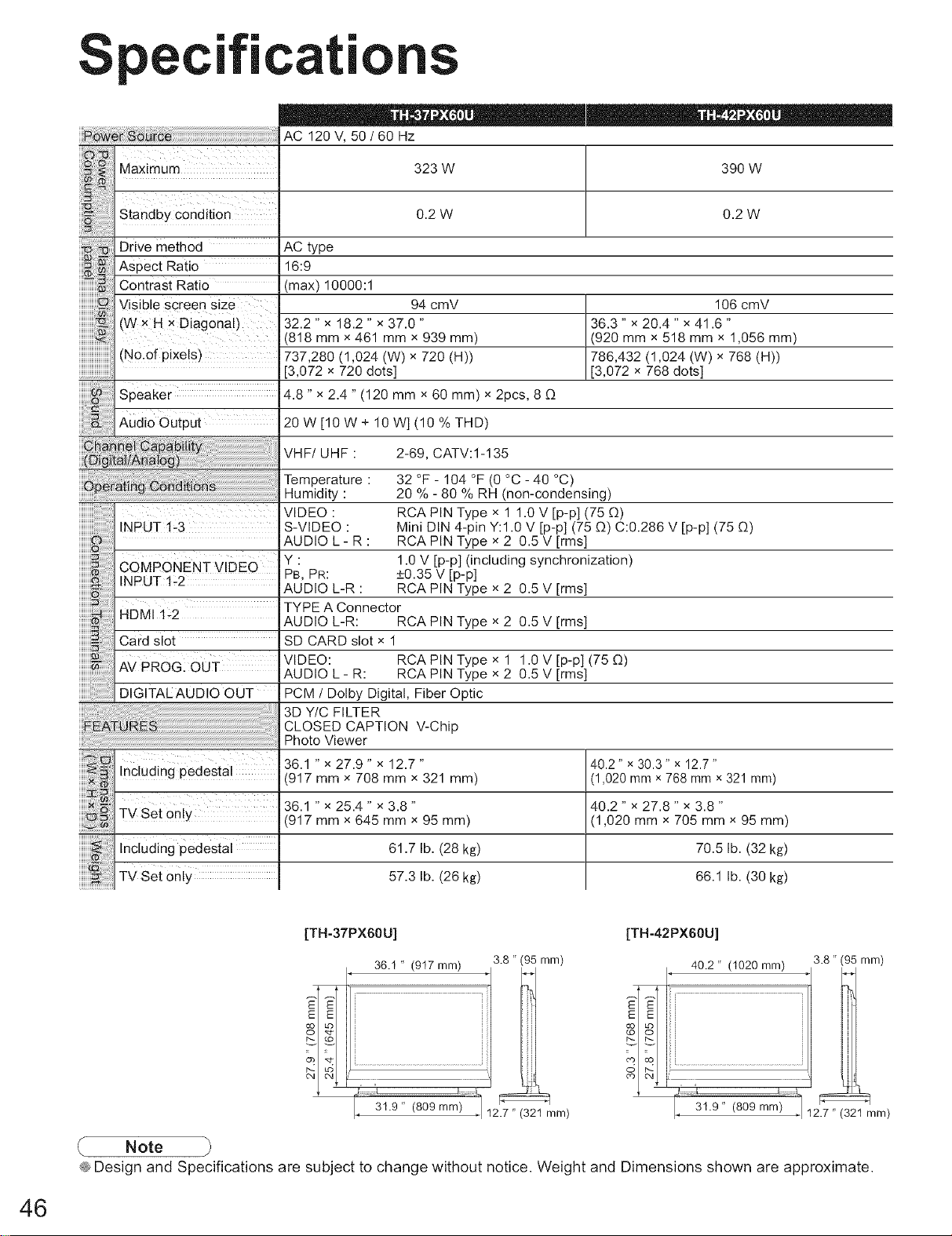
Speci "'cati
323 W 390 W
0.2 W 0.2 W
106 cmV
36.3 " x 20.4 " x 41.6 "
(920 mm x 518 mm x 1,056 mm)
786,432 (1,024 (W) x 768 (H))
[3,072 x 768 dots]
32 °F- 104 °F (0 °C- 40 °C)
20 % - 80 % RH (non-condensing)
RCA PIN Type x 1 1.0 V [p-p] (75 C_)
Mini DIN 4-pin Y:1.0 V [p-p] (75 (!-) C:0.286 V [p-p] (75 (!-)
RCA PIN Type x 2 0.5 V [rms]
1.0 V [p-p] (including synchronization)
+0.35 V [p-p]
RCA PIN Type x 2 0.5 V [rms]
Drive method AC type
Aspect Ratio 16:9
Contrast Ratio (max) 10000:1
Visible Screen size 94 cmV
w x H x Diagonal) 32.2" x 18.2" x 37.0"
818 mm x 461 mm x 939 mm)
No.of pixels) 737,280 (1,024 (W) x 720 (H))
3,072 x 720 dots]
Speaker 4.8" x 2.4" (120 mm x 60 mm) x 2pcs, 8 C_
20 W [10 W + 10 W] (10 % THD)
VHF/UHF : 2-69, CATV:I-135
HHH_
Temperature:
Humidity :
VIDEO :
INPUT 1-3 S-VIDEO :
AUDIO L - R :
COMPONENT VIDEO Y:
PB, PR:
INPUT 1:2 AUDIO L_R :
TYPE A Connector
HDMI 1-2 AUDIO L-R: RCA PIN Type x 2 0.5 V [rms]
Card Slot SD CARD slot x 1
VIDEO: RCA PIN Type x 1 1.0 V [p-p] (75 C_)
AV PROG: OUT AUDIO L- R: RCA PIN Type x 2 0.5 V [rms]
DIGITALAUDIO OUT PCM /Dolby Digital, Fiber Optic
3D Y/C FILTER
CLOSED CAPTION V-Chip
.........................................................................................................................Photo Viewer
36.1" x 27.9" x12.7"
Including pedestal (917 mm x 708 mm x 321 mm)
_6{1" x 25.4 " x 3.8 "TvSet mm x645 mm × 95 mm)
InClUdingpedestal 61.7 lb.(28kg)
TV Set only 57.3 lb. (26 kg)
40.2" × 30.3" x 12.7"
(1,020 mm x 768 mm x 321 mm)
40.2 " x 27.8 " x 3.8 "
(1,020 mm × 705 mm × 95 mm)
70.5 lb. (32 kg)
66.1 lb. (30 kg)
[TH-37PX60U]
36.1 " (917 mm) 3.8 " (95 mm)
IZ 31.9" (809 mm) -,112.7 " (321mm)
[TH-42PX60U]
40.2 " (1020 ram)
_-31.9" (809 mm_
3.8 " (95 mm)
12# " (321 mm)
Note
® Design and Specifications are subject to change without notice. Weight and Dimensions shown are approximate.
46
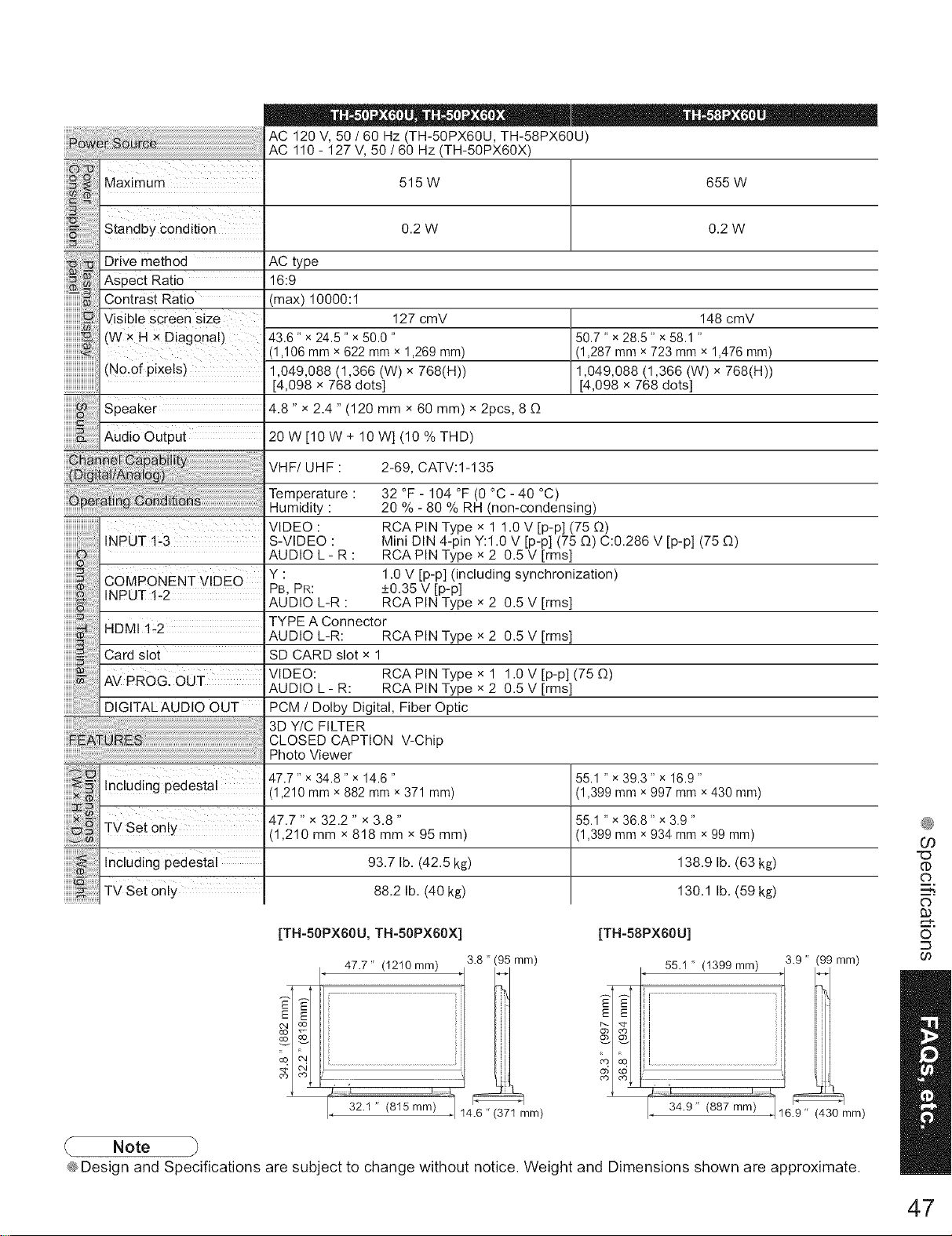
iii'@_!i'ii_
i:i_}3iiii{ililililili
i_ii;i;i£1!
iii:_:_ii!ii!ii!ii!ii!ii!ii!ii!:i!
aaximum
Standby Condition
AC 120 V, 50 /60 Hz (TH-50PX60U, TH-58PX60U)
AC 110- 127 V, 50/60 Hz (TH-50PX60X)
515W
0.2 W
655 W
0.2 W
i!i!ii:ii_iz:i:_iDrive method
iiii_!i!i:_ii!_iii!Aspect Ratio
iiiiii_i!:i ContrastRatio
iiiiiiiiiiiiiivisible Screen size
iiiiiiiiiiiii_(Wx N X Diagonal)
iiiiiiiiiiii_iii
......................No of pixels)
AC type
16:9
(max) 10000:1
127 cmV
43.6" x 24.5" x 50.0 "
(1,106 mm x 622 mm x 1,269 mm)
1,049,088 (1,366 (W) x 768(H))
[4,098 x 768 dots]
speaker 4.8" x 2.4" (120 mm x 60 mm) x 2pcs, 8 [3
Audio Output 20 W[10 W + 10 W] (10 % THD)
JJJJJJJJJ_
iiiiiiiii_
uuuu_
148 cmV
50.7" x 28.5" x 58.1 "
(1,287 mm x 723 mm x 1,476 mm)
1,049,088 (1,366 (W) x 768(H))
[4,098 x 768 dots]
VHF/UHF :
Temperature :
Humidity :
VIDEO :
NPUT 1-3 S-VIDEO :
AUDIO L - R :
CoMPONENT VIDEO Y:
INPUT 1_2 PB, PR:
AUDIO L-R :
2-69, CATV:1-135
32 °F- 104 °F (0 °C- 40 °C)
20 % - 80 % RH (non-condensing)
RCA PIN Type x 1 1.0 V [p-p] (75 [3)
Mini DIN 4-pin Y:1.0 V [p-p] (75 [3) C:0.286 V [p-p] (75 [3)
RCA PIN Type x 2 0.5 V [rms]
1.0 V [p-p] (including synchronization)
+0.35 V [p-p]
RCA PIN Type x 2 0.5 V [rms]
TYPE A Connector
HDMI 1_2 AUDIO L-R: RCA PIN Type x 2 0.5 V [rms]
Card slot
AV PROG: OUT
D, ,TALAUO,OOUT
Including pedestal
TV Set only
SD CARD slot x 1
VIDEO: RCA PIN Type x 1 1.0 V [p-p] (75 [3)
AUDIO L - R: RCA PIN Type x 2 0.5 V [rms]
PCM /Dolby Digital, Fiber Optic
3D Y/C FILTER
CLOSED CAPTION V-Chip
Photo Viewer
47.7" x 34.8" x 14.6 " 55.1 " x 39.3" x 16.9"
(1,210 mm x 882 mm x 371 mm) (1,399 mm x 997 mm x 430 mm)
47.7 " x 32.2 " x 3.8 " 55.1 " x 36.8" x 3.9 "
(1,210 mm x 818 mm x 95 mm) (1,399 mm x 934 mm x 99 mm)
93.7 lb. (42.5 kg) 138.9 lb. (63 kg)
88.2 lb. (40 kg) 130.1 lb. (59 kg)
[TH-50PX60U, TH-50PX60X]
47.7 " (1210 mm) 3.8 " (95 mm)
_32.1 " (815m 14.6"(371 ram)
[TH-58PX60U]
55.1' (t399mm)
co co
34.9 " I_ L
(887 ram)
3.9 " (99 mm)
6.9 " (430 mm)
®
O0
"(D
o
o
93
o
::3
Note
® Design and Specifications are subject to change without notice. Weight and Dimensions shown are approximate.
47
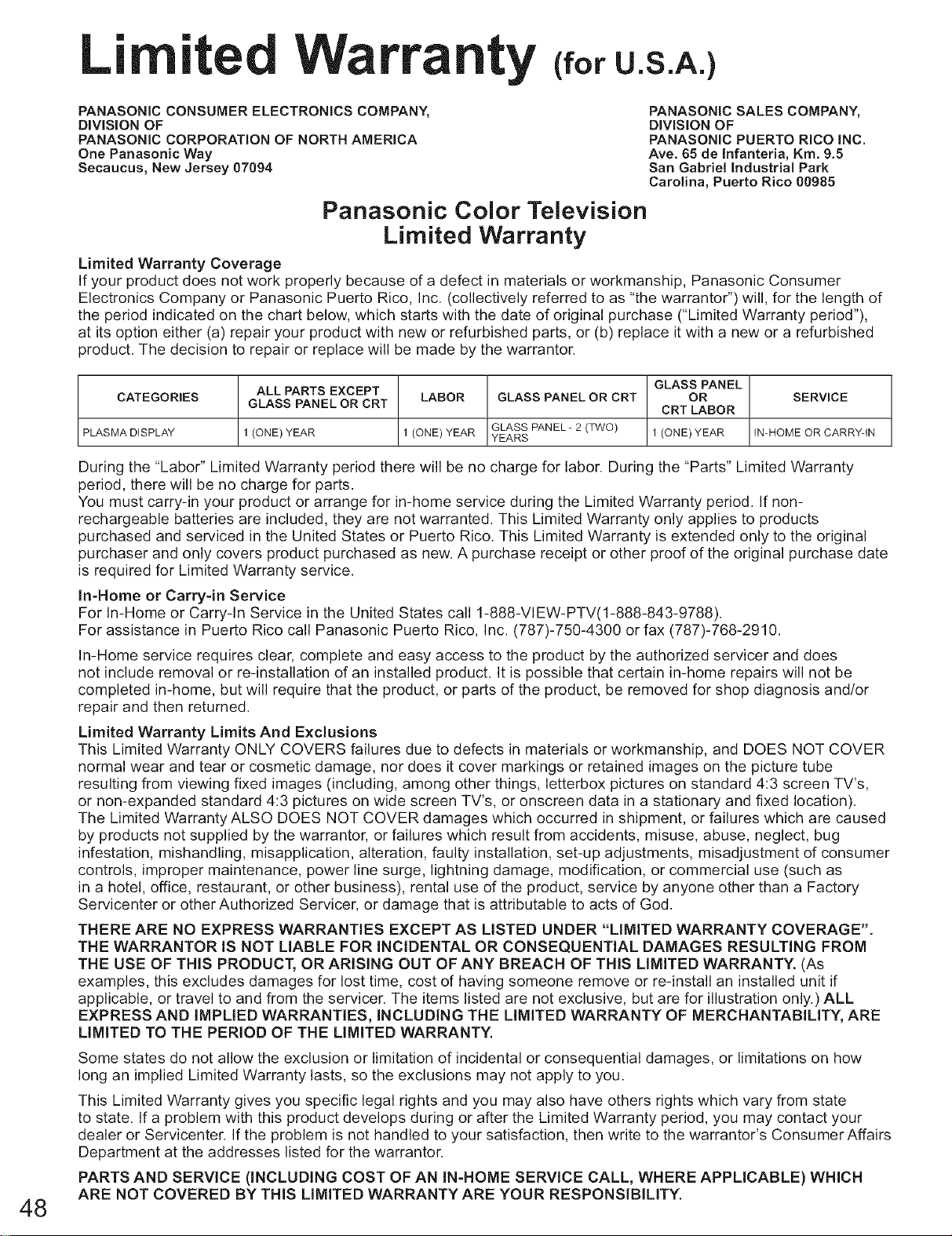
Li ite Wa nty u.s.A.)
PANASONIC CONSUMER ELECTRONICS COMPANY,
DiViSiON OF
PANASON_C CORPORATION OF NORTH AMERICA
One Panasonic Way
Secaucus, New Jersey 07094
PANASONIC SALES COMPANY,
DiViSiON OF
PANASONIC PUERTO RiCO iNC.
Ave. 65 de Infanteria, Kin. 9.5
San Gabriel industrial Park
Carolina, Puerto Rico 00985
Panasonic Color Television
Limited Warranty
Limited Warranty Coverage
If your product does not work properly because of a defect in materials or workmanship, Panasonic Consumer
Electronics Company or Panasonic Puerto Rico, Inc. (collectively referred to as "the warrantor") will, for the length of
the period indicated on the chart below, which starts with the date of original purchase ("Limited Warranty period"),
at its option either (a) repair your product with new or refurbished parts, or (b) replace it with a new or a refurbished
product. The decision to repair or replace will be made by the warrantor.
CATEGORIES
PLASMA DISPLAY
ALL PARTS EXCEPT
GLASS PANEL OR CRT
1 (ONE) YEAR
LABOR
1 (ONE) YEAR
GLASS PANEL OR CRT
GLASS PANEL - 2 (TWO)
YEARS
GLASS PANEL
OR
CRT LABOR
1 (ONE) YEAR
SERVICE
IN-HOME OR CARRY-IN
48
During the "Labor" Limited Warranty period there will be no charge for labor. During the "Parts" Limited Warranty
period, there will be no charge for parts.
You must carry-in your product or arrange for in-home service during the Limited Warranty period. If non-
rechargeable batteries are included, they are not warranted. This Limited Warranty only applies to products
purchased and serviced in the United States or Puerto Rico. This Limited Warranty is extended only to the original
purchaser and only covers product purchased as new. A purchase receipt or other proof of the original purchase date
is required for Limited Warranty service.
In-Home or Carry-in Service
For In-Home or Carry-In Service in the United States call 1-888-VIEW-PTV(1-888-843-9788).
For assistance in Puerto Rico call Panasonic Puerto Rico, Inc. (787)-750-4300 or fax (787)-768-2910.
In-Home service requires clear, complete and easy access to the product by the authorized servicer and does
not include removal or re-installation of an installed product. It is possible that certain in-home repairs will not be
completed in-home, but will require that the product, or parts of the product, be removed for shop diagnosis and/or
repair and then returned.
Limited Warranty Limits And Exclusions
This Limited Warranty ONLY COVERS failures due to defects in materials or workmanship, and DOES NOT COVER
normal wear and tear or cosmetic damage, nor does it cover markings or retained images on the picture tube
resulting from viewing fixed images (including, among other things, letterbox pictures on standard 4:3 screen TV's,
or non-expanded standard 4:3 pictures on wide screen TV's, or onscreen data in a stationary and fixed location).
The Limited Warranty ALSO DOES NOT COVER damages which occurred in shipment, or failures which are caused
by products not supplied by the warrantor, or failures which result from accidents, misuse, abuse, neglect, bug
infestation, mishandling, misapplication, alteration, faulty installation, set-up adjustments, misadjustment of consumer
controls, improper maintenance, power line surge, lightning damage, modification, or commercial use (such as
in a hotel, office, restaurant, or other business), rental use of the product, service by anyone other than a Factory
Servicenter or other Authorized Servicer, or damage that is attributable to acts of God.
THERE ARE NO EXPRESS WARRANTIES EXCEPT AS LISTED UNDER "LIMITED WARRANTY COVERAGE".
THE WARRANTOR IS NOT LIABLE FOR INCIDENTAL OR CONSEQUENTIAL DAMAGES RESULTING FROM
THE USE OF THIS PRODUCT, OR ARISING OUT OF ANY BREACH OF THIS LIMITED WARRANTY. (As
examples, this excludes damages for lost time, cost of having someone remove or re-install an installed unit if
applicable, or travel to and from the servicer. The items listed are not exclusive, but are for illustration only.) ALL
EXPRESS AND iMPLIED WARRANTIES, INCLUDING THE LIMITED WARRANTY OF MERCHANTABILITY, ARE
LIMITED TO THE PERIOD OF THE LIMITED WARRANTY.
Some states do not allow the exclusion or limitation of incidental or consequential damages, or limitations on how
long an implied Limited Warranty lasts, so the exclusions may not apply to you.
This Limited Warranty gives you specific legal rights and you may also have others rights which vary from state
to state. If a problem with this product develops during or after the Limited Warranty period, you may contact your
dealer or Servicenter. If the problem is not handled to your satisfaction, then write to the warrantor's Consumer Affairs
Department at the addresses listed for the warrantor.
PARTS AND SERVICE (INCLUDING COST OF AN IN-HOME SERVICE CALL, WHERE APPLICABLE) WHICH
ARE NOT COVERED BY THIS LIMITED WARRANTY ARE YOUR RESPONSIBILITY.
Custo r Services irectory(fo,u.s.A.)
Obtain Product Information and Operating Assistance; locate your nearest Dealer or Service center;
purchase Parts and Accessories; or make Customer Service and Literature requests by visiting our Web
Site at:
http :flwww.panasonic.comlconsumersupj_ort
or, contact us via the web at:
http://www.panasonic.com/contactinfo
You may also contact us directly at:
1-888-VIEW-PTV (843-9788)
Monday-Friday 9 am-9 pm; Saturday-Sunday 10 am-7 pm, EST.
IIFor hearing or speech impaired TTY users, TTY ' 1-877-833-8855
Purchase Parts, Accessories and Instruction Books on line for all Panasonic Products by visiting our Web
Site at:
http:flwww.pasc.panasonic.com
or, send your request by E-mail to:
You may also contact us directly at:
1-800-332-5368 (Phone) 1-800-237-9080 (Fax Only) (Monday - Friday 9 am to 8 pm, EST.)
Panasonic Services Company
20421 84th Avenue South,
Kent, WA 98032
(We Accept Visa, MasterCard, Discover Card, American Express, and Personal Checks)
IIFor hearing or speech impaired TTY users, TTY ' 1-866-605-1277
Panasonic Puerto Rico, Inc.
Ave. 65 de Infanteria, Km. 9.5, San Gabriel Industrial Park,
Carolina, Puerto Rico 00985
Phone (787)750-4300, Fax (787)768-2910
©
r-
(,o
©
B
(D
@co
F-(D
cc
49
Li ited Warranty ifo,coo dol
Panasonic Canada Inc.
PANASONIC PRODUCT °LIMITED WARRANTY
Panasonic Canada Inc. warrants this product to be free from defects in material and workmanship and agrees to
remedy any such defect for a period as stated below from the date of original purchase.
Plasma TV /Monitor In-home service One (1) year, parts (including Plasma Panel) and labour.
LCD TV (26 in & over) In-home service One (1) year, parts (including LCD Panel) and labour.
LCD TV (25 in & under) Carry-in service only One (1) year, parts (including LCD Panel) and labour.
In-home Service will be carried out only to locations accessible by roads and within 50 km of an authorized
Panasonic service facility.
LIMITATIONS AND EXCLUSIONS
This warranty does not apply to products purchased outside Canada or to any product which has been improperly
installed, subjected to usage for which the product was not designed, misused or abused, damaged during shipping,
or which has been altered or repaired in any way that affects the reliability or detracts from the performance, nor
does it cover any product which is used commercially. Dry cell batteries are also excluded from coverage under this
warranty.
This warranty is extended to the original end user purchaser only. A purchase receipt or other proof of date of original
purchase is required before warranty service is performed.
THIS EXPRESS, LIMITED WARRANTY IS IN LIEU OF ALL OTHER WARRANTIES, EXPRESS OR IMPLIED,
INCLUDING ANY IMPLIED WARRANTIES OF MERCHANTABILITY AND FITNESS FOR A PARTICULAR
PURPOSE. IN NO EVENT WILL PANASONIC CANADA INC. BE LIABLE FOR ANY SPECIAL, INDIRECT OR
CONSEQUENTIAL DAMAGES.
In certain instances, some jurisdictions do not allow the exclusion or limitation of incidental or consequential
damages, or the exclusion of implied warranties, so the above limitations and exclusions may not be applicable.
In-home service requires clear, complete and easy access to the product by the Authorized Servicentre and does not
include removal or re-installation of an installed product. If removal is required to service the product, it will be at the
discretion of the Servicentre and in no event will Panasonic Canada Inc. or the Servicentre be liable for any special,
indirect or consequential damages.
WARRANTY SERVICE
For product operation and information assistance, please contact:
Our Customer Care Centre: Telephone #: (905) 624-5505
1-800 #: 1-800-561-5505
Fax #: (905) 238-2360
Email link: "Customer support" on www.panasonic.ca
FOR PRODUCT REPAIRS, please locate your nearest Authorized Servicentre at www.panasonic.ca :
Link: "Servicentres TM Iocator" under "Customer support"
IF YOU SHIP THE PRODUCT TO A SERVICENTRE
Carefully pack and send prepaid, adequately insured and preferably in the original carton.
Include details of the defect claimed, and proof of date of original purchase.
5O
Customer's Record
The model number and serial number of this product can be found on its back cover. You should note this serial
number in the space provided below and retain this book, plus your purchase receipt, as a permanent record of your
purchase to aid in identification in the event of theft or loss, and for Warranty Service purposes.
Model Number Serial Number
Panasonic Consumer Electronics Company,
Division of Panasonic Corporation of
North America
One Panasonic Way, Secaucus New Jersey
07094 U.S.A.
Panasonic Canada inc.
5770 Ambler Drive Mississauga, Ontario L4W 2T3
CANADA
© 2006 Panasonic Corporation of North America. All Rights Reserved.
Panasonic Puerto Rico inc.
("PSC")
Ave. 65 de Infanteria, Km 9.5 San Gabriel Industrial
Park, Carolina, Puerto Rico 00985
Panasonic De M_xico S.A. De C.V.
Moras No.313, Col. Tlacoquemecatl Del Valle Del.
Benito Juarez
MEXICO, D.F.C.P. 03200
Printed in U.S.A.