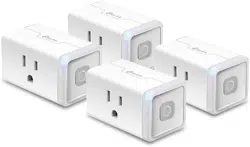

How to make my TP-LINK Smart Plug work
with Amazon Echo?
Kasa is a simple way to manage your home from anywhere. You can link Kasa with Amazon
Echo to control devices like Smart Plugs and Smart Lights with simple voice commands. It’s
easy to link Kasa with your Amazon Echo in Alexa APP and here is the instruction about how to
make my TP-LINK Smart Plug work with Amazon Echo.
Before we start:
1. At first, we need enable Remote Control in Kasa and link your TP-LINK Smart Plug with a
TP-LINK Cloud Account.
Please follow this FAQ if you don’t know the details with TP-LINK Cloud Account setup:
How to create a Cloud Account for my TP-LINK Smart Plug in Kasa to allow Kasa to
control it remotely?
2. You should know the name of your TP-LINK Smart Plug before you use voice commands to
control it via Amazon Echo.
Login Kasa APP and you can see the name of your Smart Plugs.
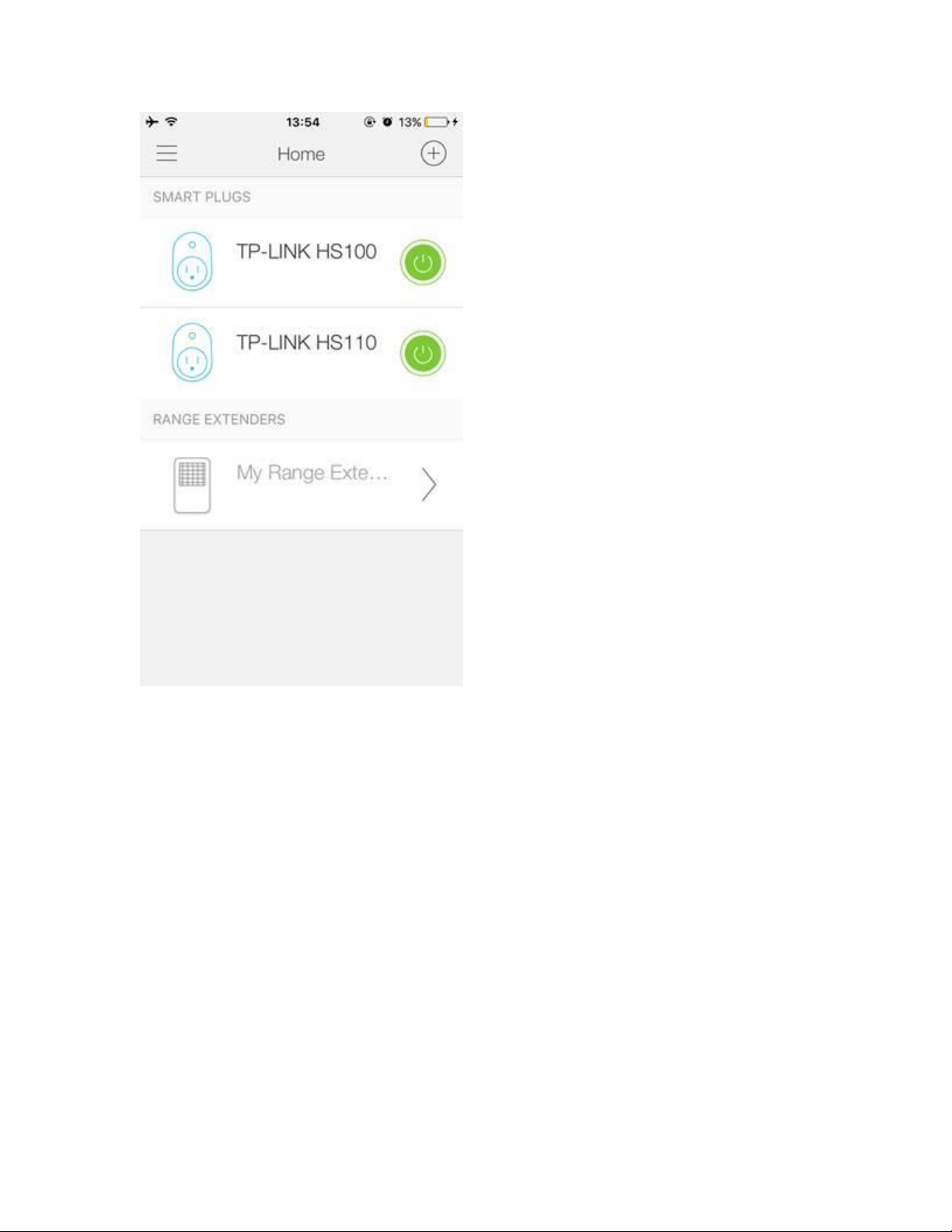
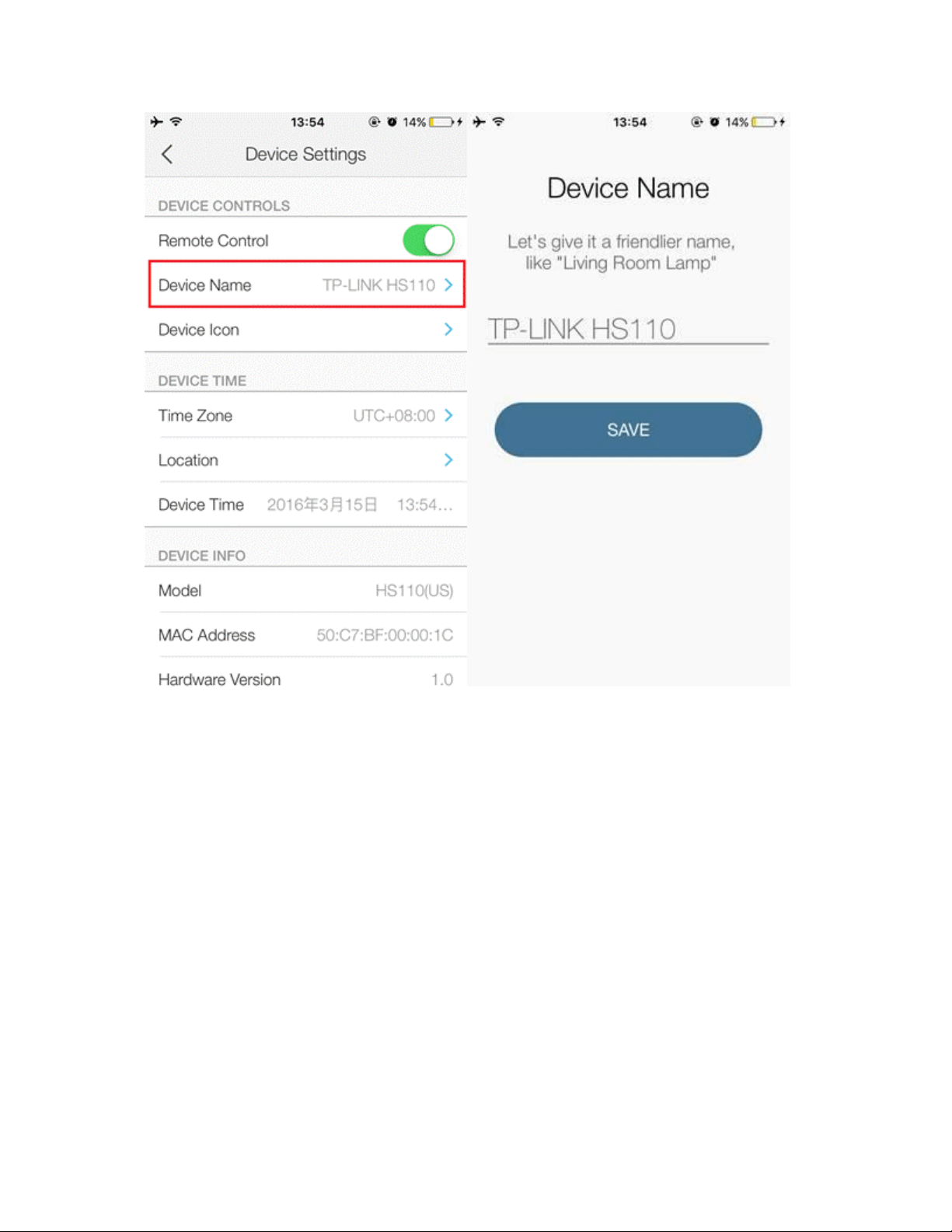
Tap the device you want to change the name.
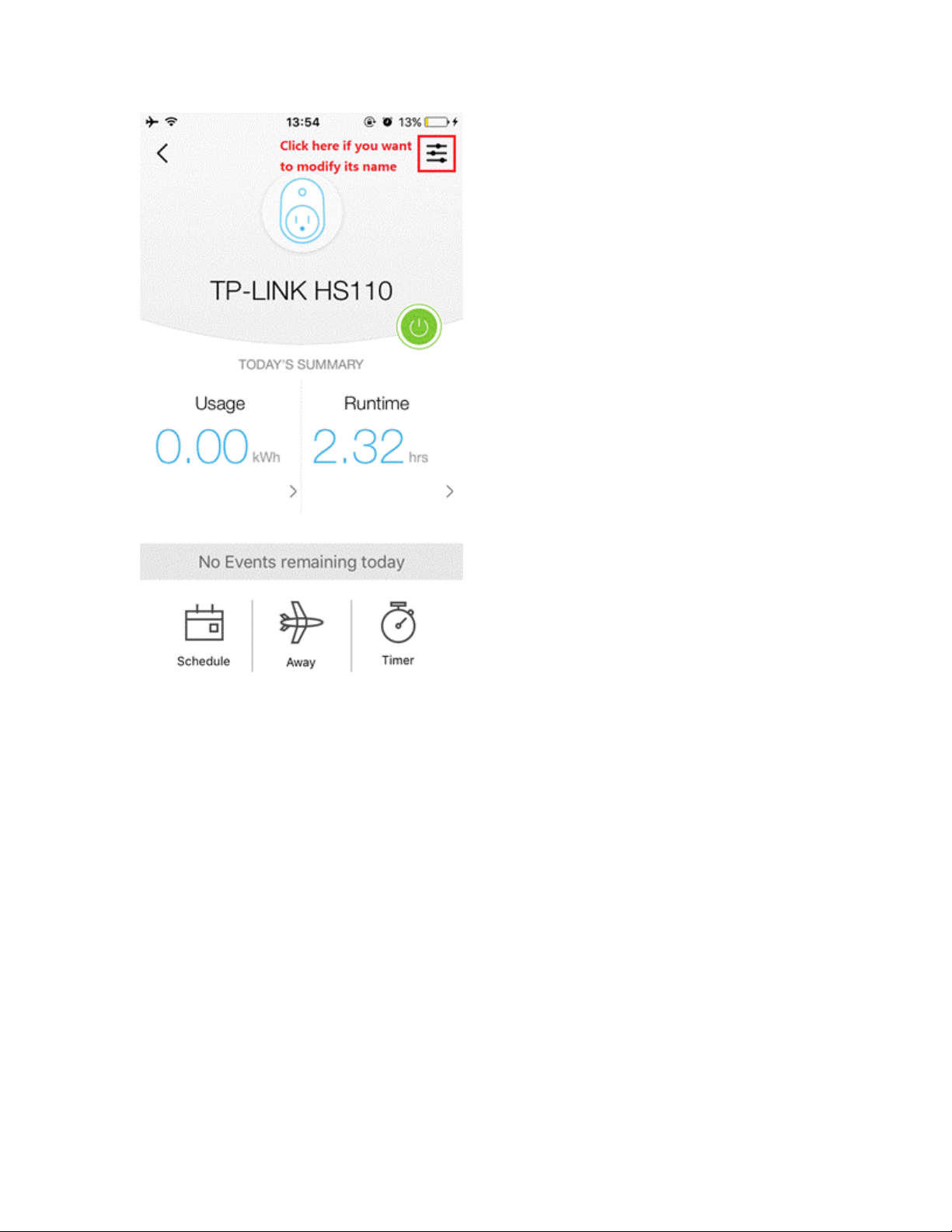
Here I name it as “TP-LINK HS110”.
You can change it whatever you like, such as “My Living Room Light”.
Let’s start:
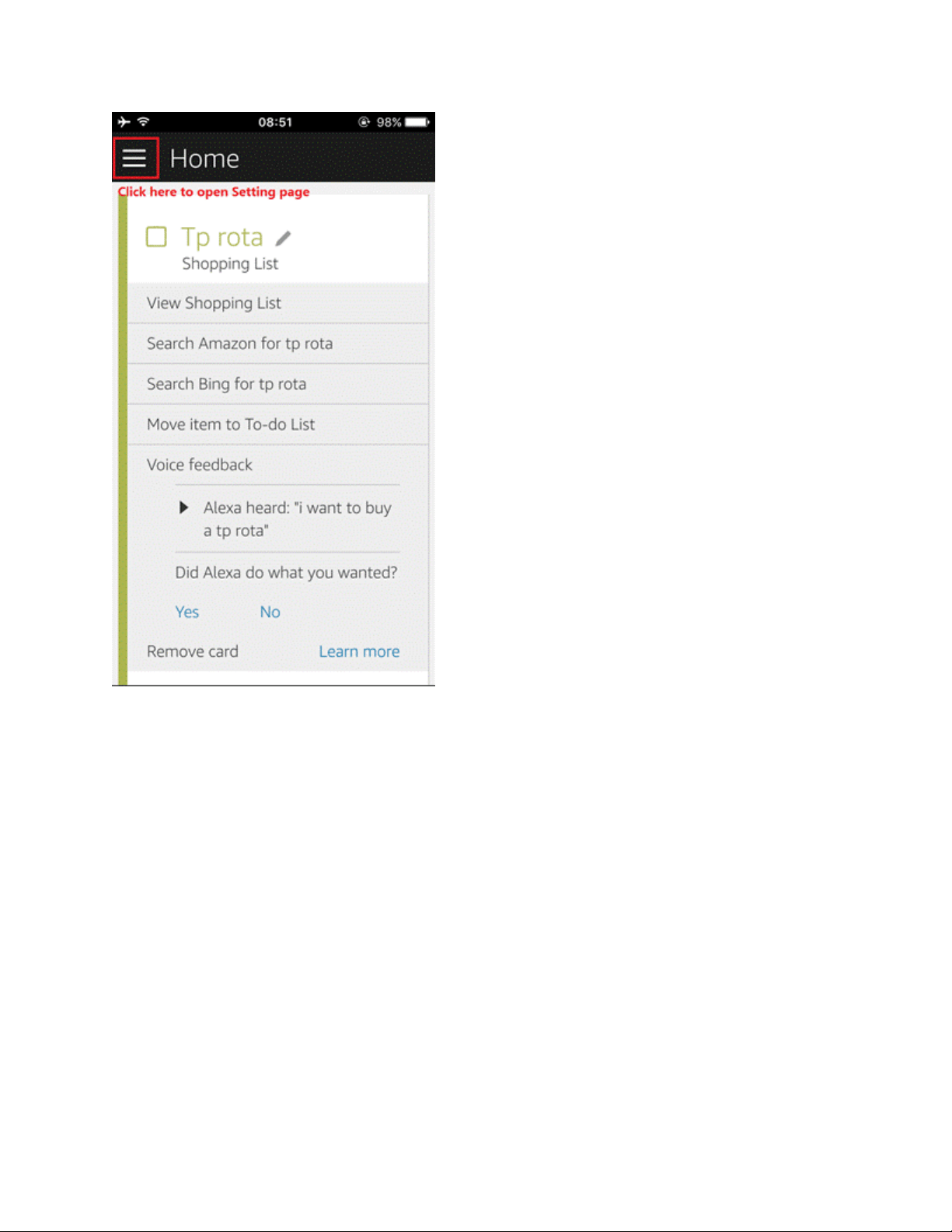
1. Log in Alexa APP, and in Home page, tap setting to go to its Settings page.
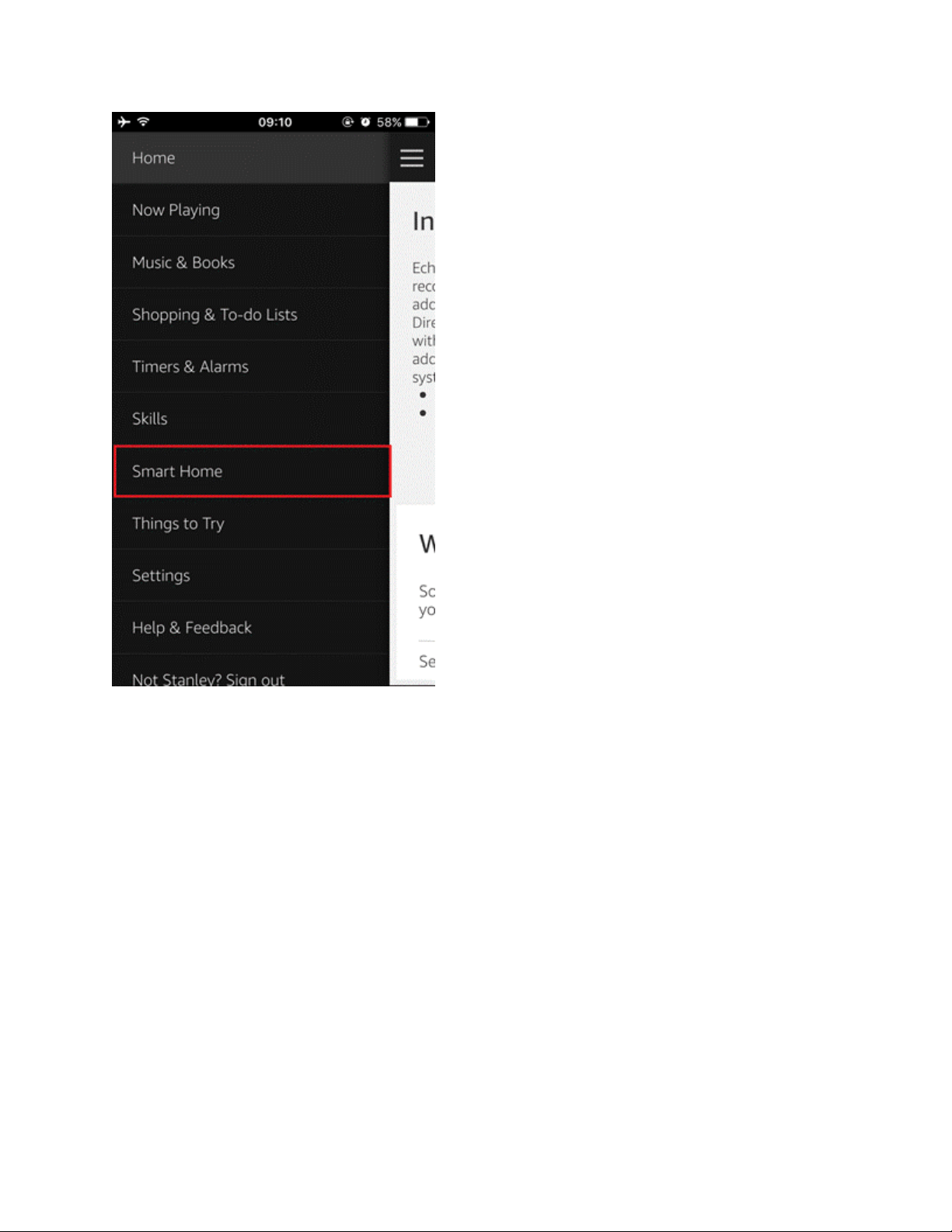
2. Tap “SMART HOME”.
3. In “Device links”, Tap “Link with TP-LINK Kasa” to enable Kasa.
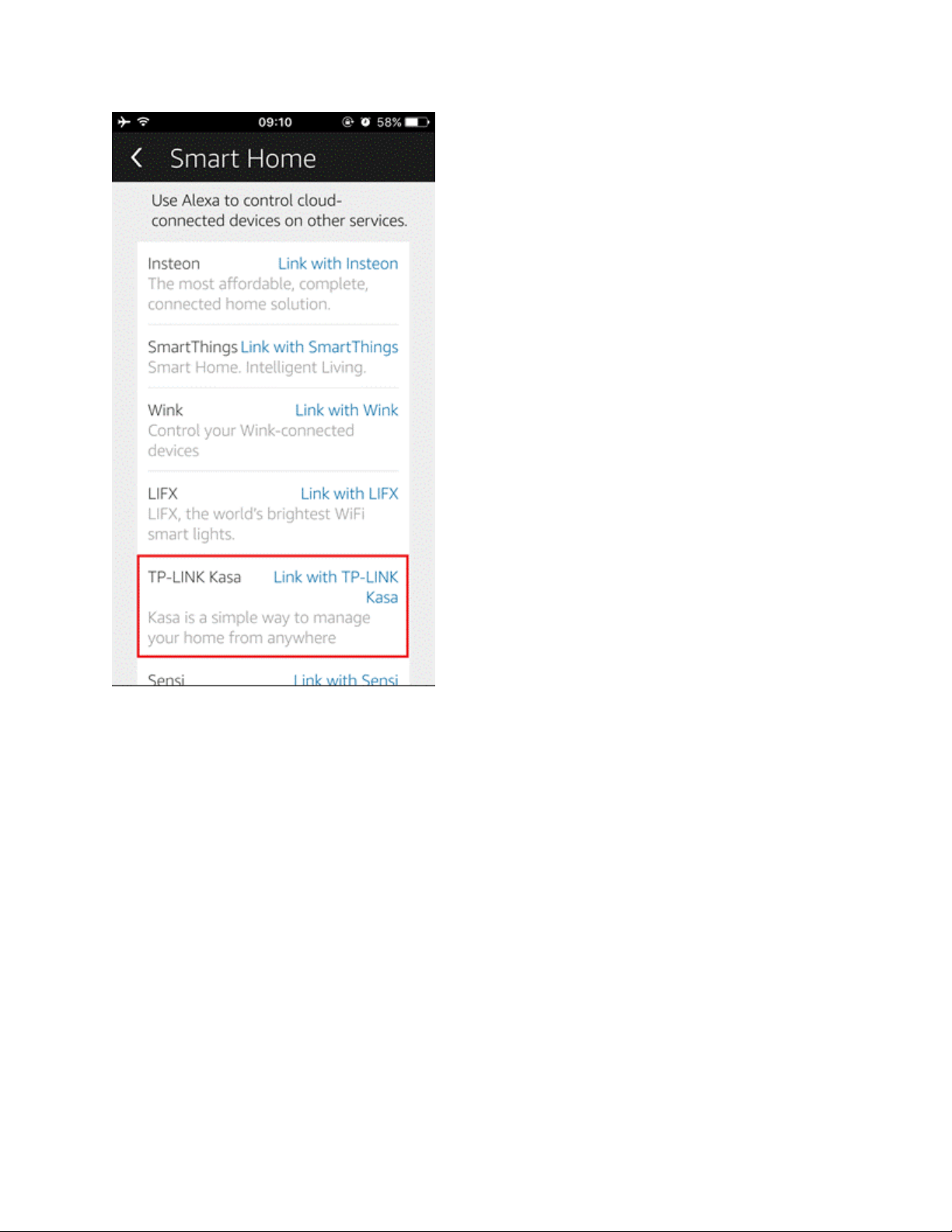
4. Then there will be a pop window in Alexa APP showed as below. Please login with your TP-
LINK Cloud Account which you use in your Kasa APP (It’s your cloud account too).
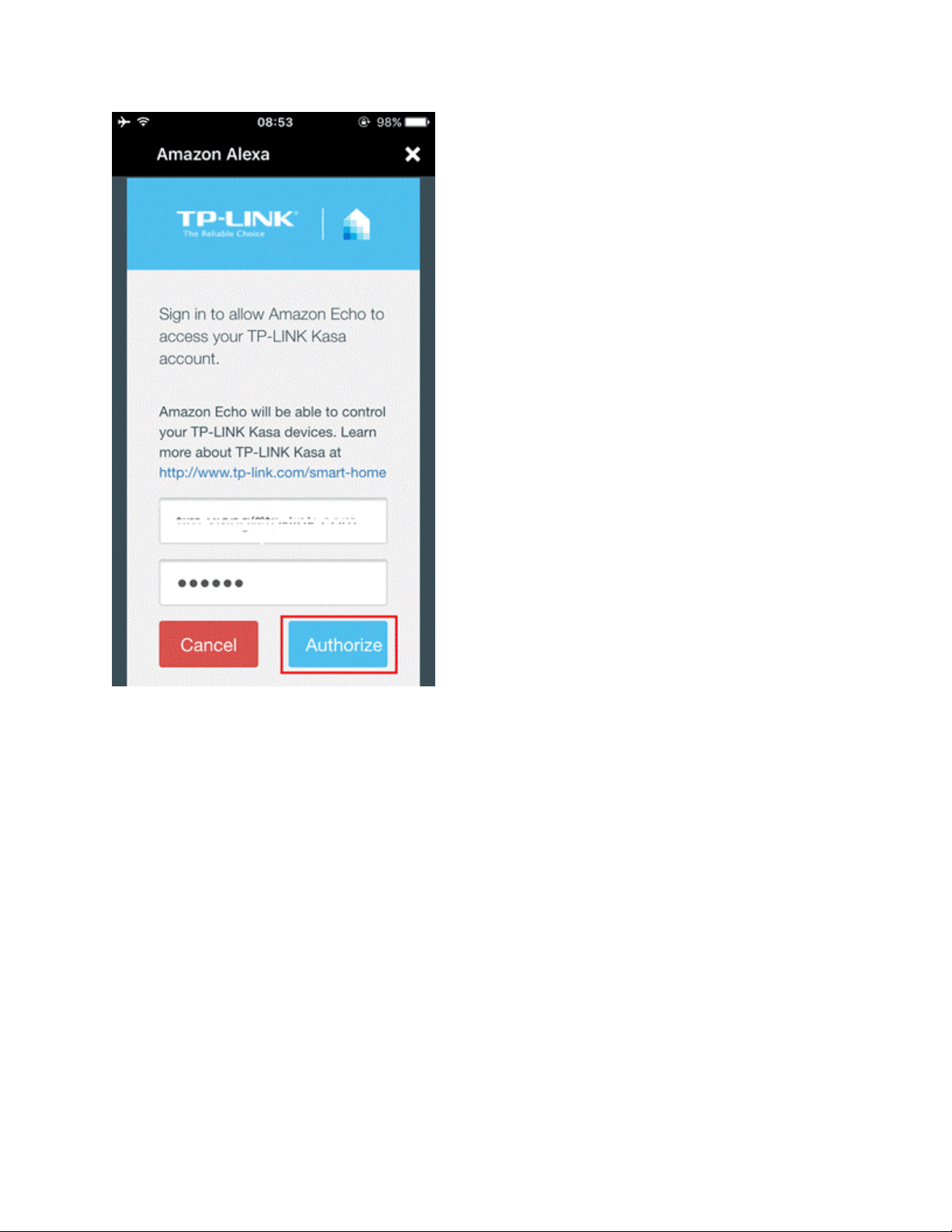
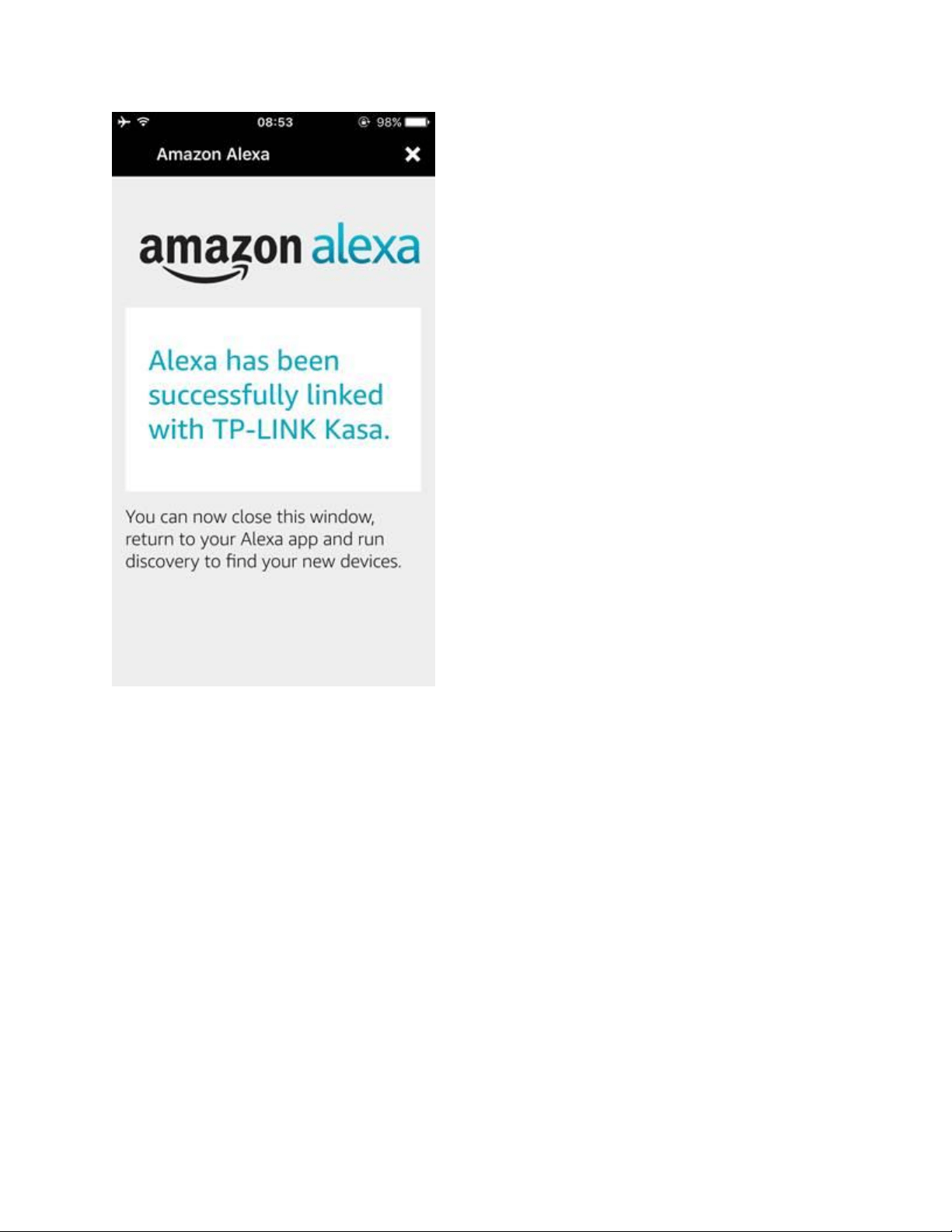
5. Click “Authorize” to link your TP-LINK Cloud Account with Alexa. If you get the
notification showed as below, that means you have already linked them successfully and you can
leave this page.
Note: The TP-LINK Cloud Account you link here must be the same as the one you use in your
Kasa APP.
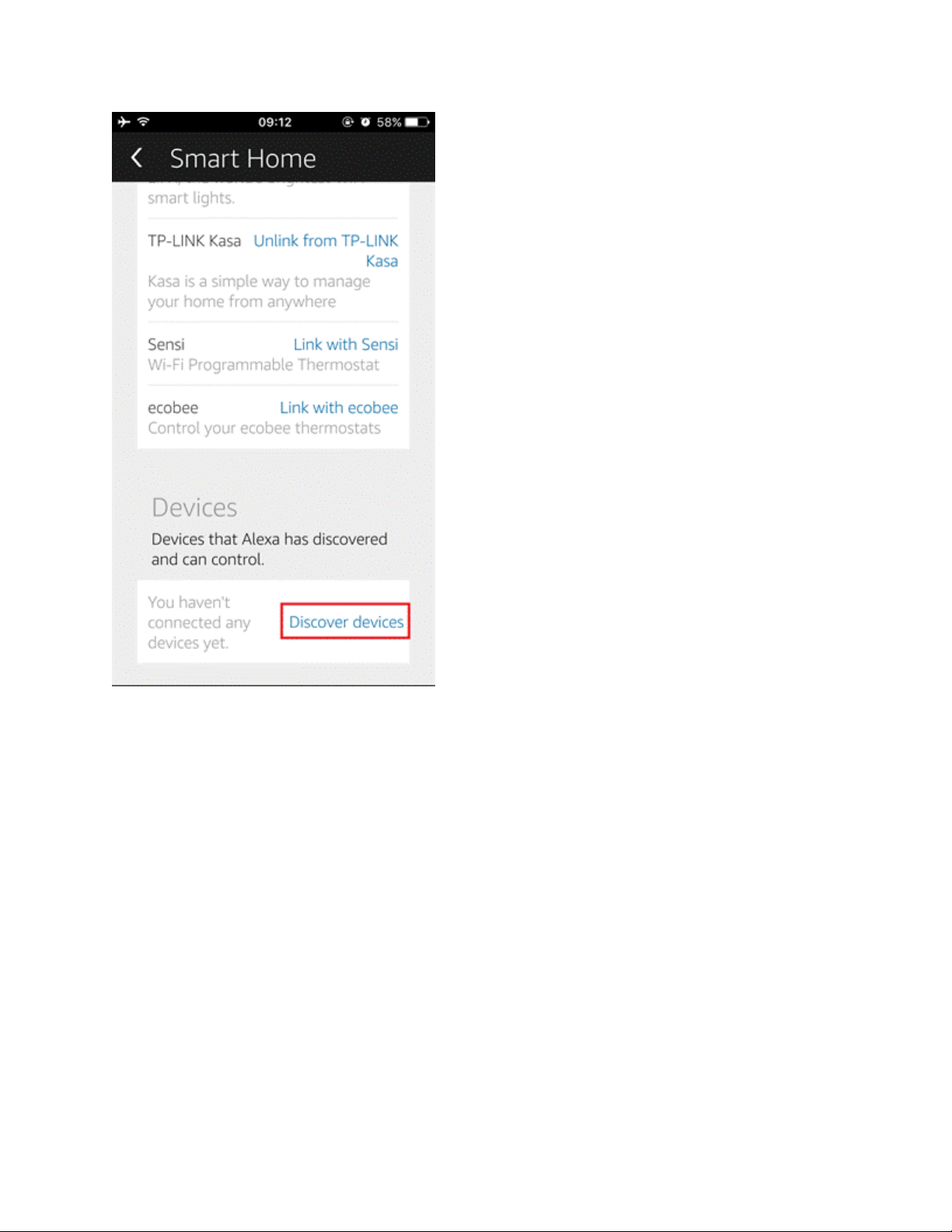
6. Congratulations! Now you will see Kasa APP connected to the Alexa, but we need to do the
last step: Discover devices. Please
tap the button. (Echo can accept both 2.4G and 5G WiFi, our smart plug can only connect to 2.
4G Wifi, but it doen’t matter. If Echo and smart plug both connect to yo ur home network, Alex
a will discover your smart plug)
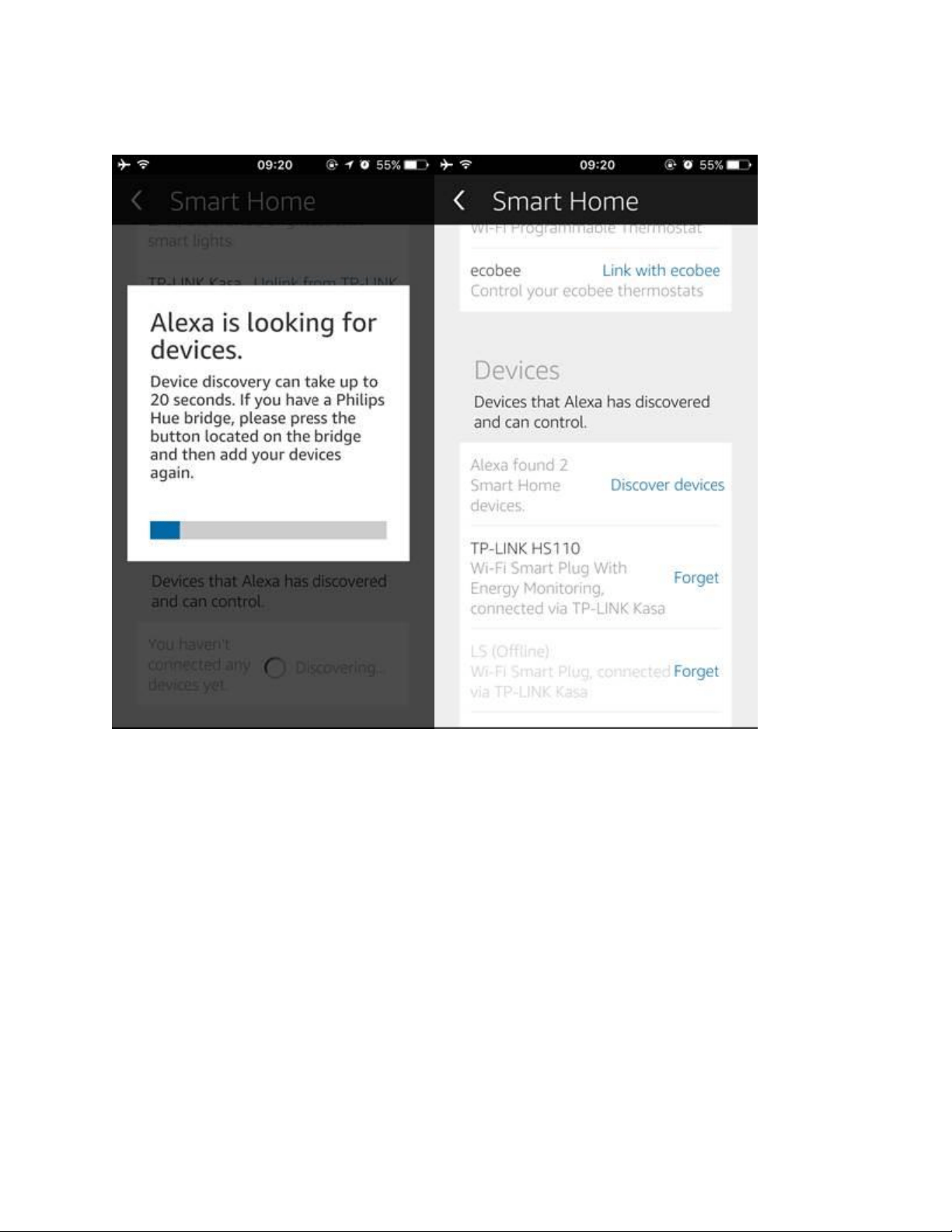
After a few seconds’ finding, your smart plug will be shown in your Devices list, which means
that your smart plug has been successfully connected to your Echo.
Now you can enjoy your smart life:
As the name of my TP-LINK Smart Plug is “TP-LINK HS110”. If I say “Alexa, turn off
my TP-LINK HS110”, Amazon Echo will turn off this Smart Plug.
Note: TP-LINK HS110 is which I named in Before Start step, if you name it as “lamp”, then
you say “Alexa, turn off lamp” , Amazon Echo will turn off this Smart Plug.