Owner’s
Instructions
Register your product at www.samsung.com/global/register
Record your Model and Serial number here for future reference.
· Model __________ · Serial No. ____________
LN-T4061F
LN-T4065F
LN-T4661F
LN-T4665F
LN-T5265F
TFT-LCD TELEVISION
Contact SAMSUNG WORLD-WIDE
If you have any questions or comments relating to Samsung products, please contact the SAMSUNG
customer care center.
Contacte con SAMSUNG WORLD-WIDE
Si tiene alguna pregunta o comentario referente a nuestros productos, por favor contacte con nuestro Servicio de
Atención al Cliente.
Country
Customer Care Center
Web Site Address
CANADA 1-800-SAMSUNG (7267864) www.samsung.com/ca
Samsung Electronics Canada Inc., Customer
Service 55 Standish Court Mississauga,
Ontario L5R 4B2 Canada
Samsung Electronique Canada Inc.,
Service à la Clientèle 55 Standish Court
Mississauga, Ontario L5R 4B2 Canada
U.S.A 1-800-SAMSUNG (7267864) www.samsung.com
Samsung Electronics America, Inc.
105 Challenger Road
Ridgefield Park, NJ 07660-0511
BN68-01178A-00
BN68-01178A-00-Cover.indd 1 2007-02-15 �� 4:34:47
Precautions When Displaying a Still Image
A still image may cause permanent damage to the TV screen
• Do not display a still image on the LCD panel for more than 2 hours as it can cause screen image retention.
This image retention is also known as "screen burn".
To avoid such image retention, reduce the degree of brightness and contrast of the screen when displaying a still image.
• Watching the LCD TV in 4:3 format for a long period of time may leave traces of borders displayed on the
left, right and center of the screen caused by the difference of light emission on the screen.
Playing a DVD or a game console may cause a similar effect to the screen.
Damages caused by the above effect are not covered by the Warranty.
• Displaying still images from Video games and PC for longer than a certain period of time may produce partial after-images.
To prevent this effect, reduce the ‘brightness’ and ‘contrast’ when displaying still images.
© 2007 Samsung Electronics Co., Ltd. All rights reserved.
Précautions à prendre lors de l’affichage d’une image fixe
Une image fixe peut causer des dommages irrémédiables à l’écran du téléviseur.
• N’affichez pas une image fixe sur l’écran LCD plus de 2 heures. Cela pourrait provoquer une rémanence de l’image à l’écran.
Cette rémanence de l’image est également appelée “brûlure de l’écran”. Pour éviter une telle rémanence de l’image à l’écran,
réduisez la luminosité et le contraste de l’écran lorsque vous laissez une image fixe affichée
• Regarder l’écran LCD du téléviseur en format 4:3 pendant une longue période peut laisser des traces de
bordures à gauche, à droite et au centre de l’écran, à cause de la différence d’émission de lumière sur l’écran.
La lecture d’un DVD ou l’utilisation d’une console de jeu peut avoir un effet similaire sur l’écran. Les dommages
provoqués par les effets qui précèdent ne sont pas couverts par la garantie.
• L’affichage d’images fixes de jeux vidéo et d’ordinateurs pendant plus longtemps qu’une période spécifique peut provoquer des
rémanences.Pour éviter cela, réduisez la “luminosité” et le “contraste” lors de l’affichage d’images fixes.
Important Warranty Information Regarding Television Format Viewing
Wide screen format LCD Displays (16:9, the aspect ratio of the screen width to height) are primarily designed to view wide
screen format full-motion video. The images displayed on them should primarily be in the wide screen 16:9 ratio format,
or expanded to fill the screen if your model offers this feature and the images are constantly moving. Displaying stationary
graphics and images on screen, such as the dark side-bars on nonexpanded standard format television video and
programming, should be limited to no more than 5% of the total television viewing per week.
Additionally, viewing other stationary images and text such as stock market reports, video game displays, station logos,
web sites or computer graphics and patterns, should be limited as described above for all televisions. Displaying stationary
images that exceed the above guidelines can cause uneven aging of LCD Displays that leave subtle, but permanent
burned-in ghost images in the LCD picture. To avoid this, vary the programming and images, and primarily display
full screen moving images, not stationary patterns or dark bars.
On LCD models that offer picture sizing features, use these controls to view different formats as a full screen picture.
Be careful in the selection and duration of television formats used for viewing. Uneven LCD aging as a result of format
selection and use, as well as burned-in images, are not covered by your Samsung limited warranty.
U.S.A Only
The product unit accompanying this user manual is licensed under certain intellectual property rights of certain
third parties. In particular, this product is licensed under the following US patents: 5,991,715, 5,740,317, 4,972,484,
5,214,678, 5,323,396, 5,539,829, 5,606,618, 5,530,655, 5,777,992, 6,289,308, 5,610,985, 5,481,643, 5,544,247,
5,960,037, 6,023,490, 5,878,080, and under US Published Patent Application No. 2001-44713-A1.
This license is limited to private non-commercial use by end-user consumers for licensed contents. No rights are
granted for commercial use. The license does not cover any product unit other than this product unit and the license
does not extend to any unlicensed product unit or process conforming to ISO/IEC 11172-3 or ISO/IEC 13818-3 used or
sold in combination with this product unit. The license only covers the use of this product unit to encode and/or decode
audio files conforming to the ISO/IEC 11172-3 or ISO/IEC 13818-3. No rights are granted under this license for product
features or functions that do not conform to the ISO/IEC 11172-3 or ISO/IEC 13818-3.
Other countries
The product unit accompanying this user manual is licensed under certain intellectual property rights of certain third
parties. This license is limited to private non-commercial use by end-user consumers for licensed contents. No rights
are granted for commercial use. The license does not cover any product unit other than this product unit and the license
does not extend to any unlicensed product unit or process conforming to ISO/IEC 11172-3 or ISO/IEC 13818-3 used or
sold in combination with this product unit. The license only covers the use of this product unit to encode and/or decode
audio files conforming to the ISO/IEC 11172-3 or ISO/IEC 13818-3. No rights are granted under this license for product
features or functions that do not conform to the ISO/IEC 11172-3 or ISO/IEC 13818-3.
Still.indd 1 2007-02-15 �� 9:40:25

English - 1
Contents
English
GENERAL INFORMATION
List of Features ..................................................................2
Accessories .......................................................................2
Viewing the Control Panel ................................................3
Viewing the Connection Panel ..........................................4
Remote Control .................................................................5
Installing Batteries in the Remote Control .........................6
CONNECTIONS
Connecting VHF and UHF Antennas .................................6
Connecting Cable TV ........................................................7
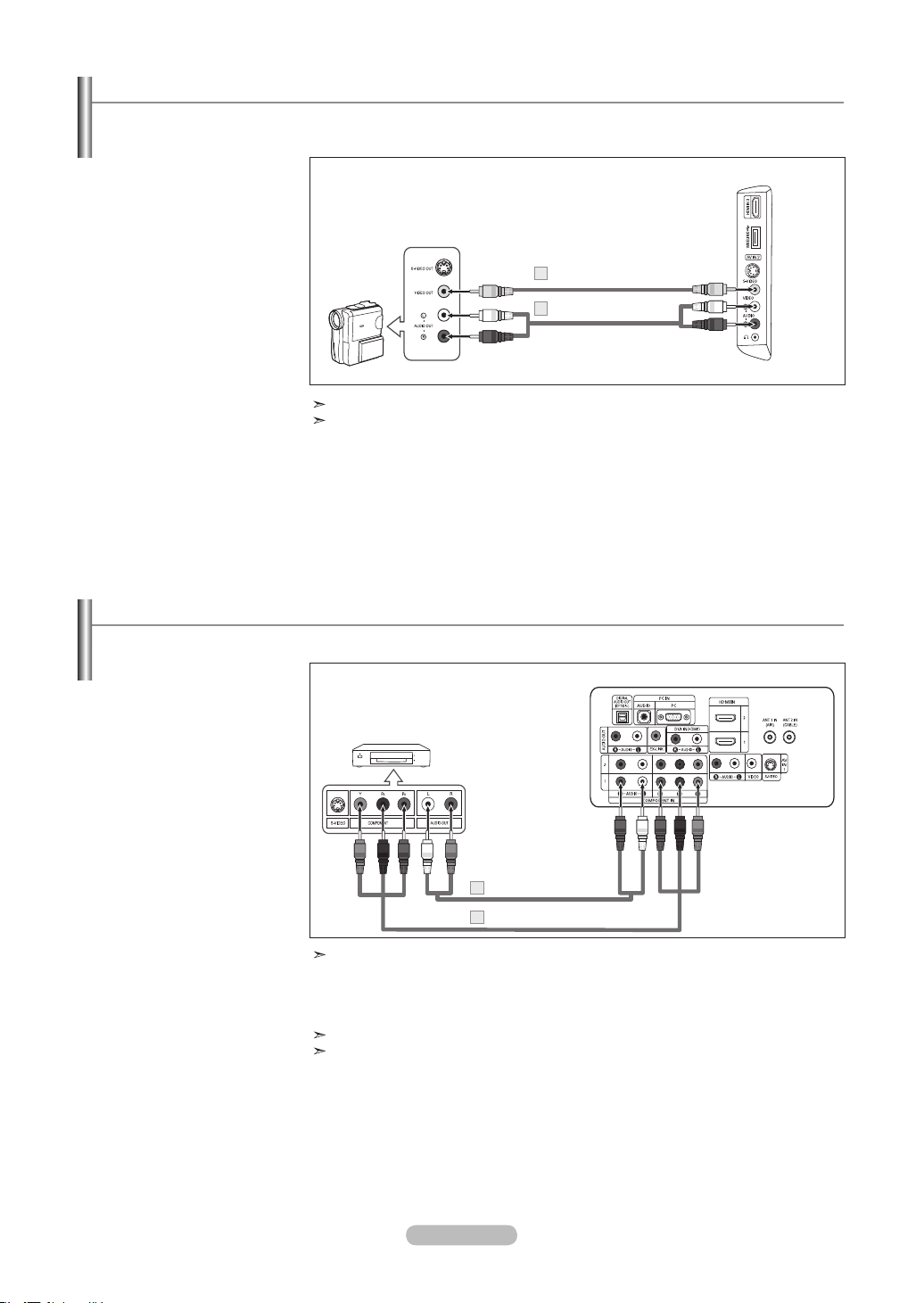
Connecting a VCR .............................................................8
Connecting a Camcorder ..................................................9
Connecting a DVD Player/Set-Top Box .............................9
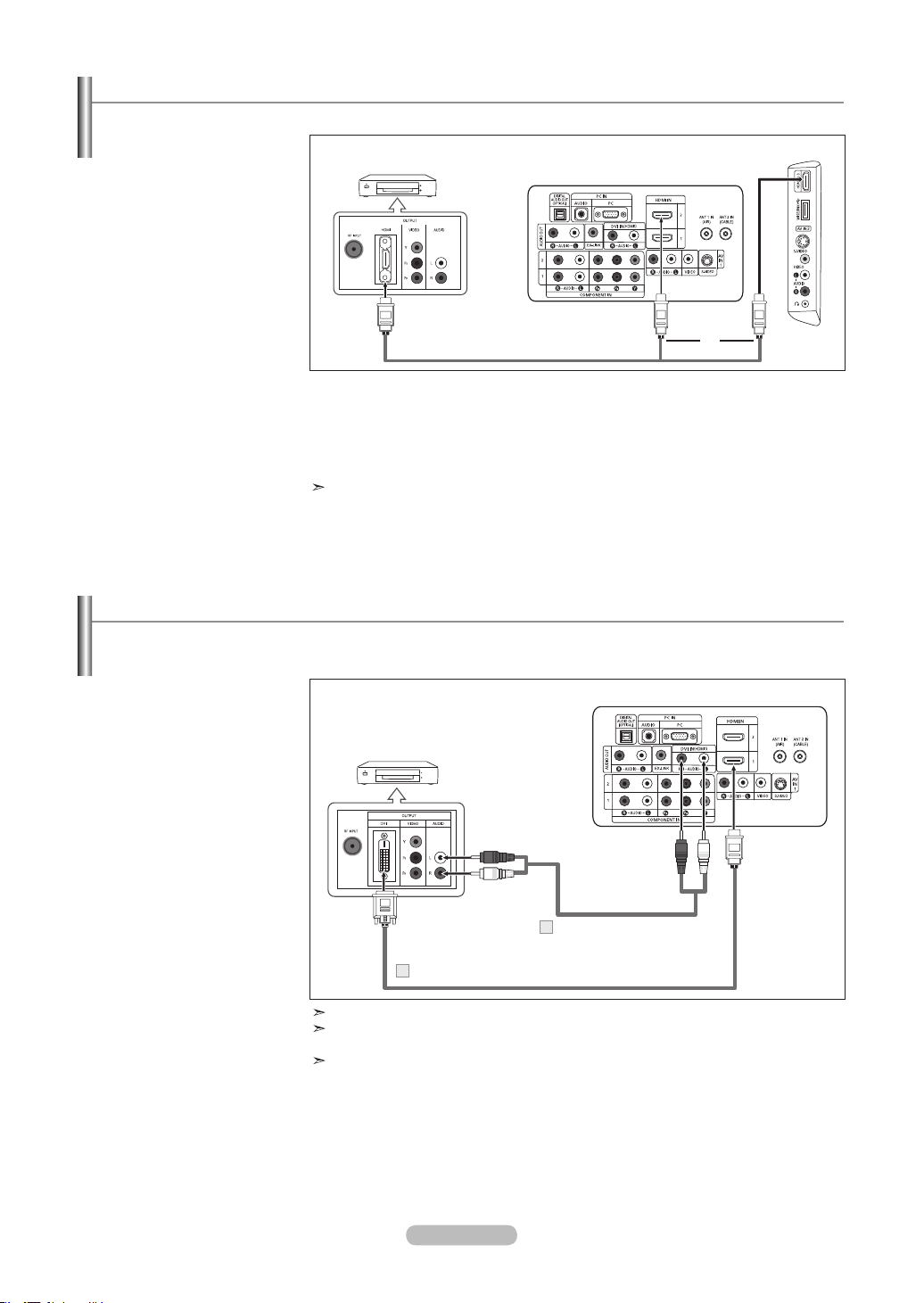
Connecting a DVD Player/Set-Top Box via HDMI ...........10
Connecting a DVD Player/Set-Top Box via DVI ..............10
Connecting a Digital Audio System .................................11
Connecting an Amplier/DVD Home Theater ..................11
Connecting a PC .............................................................11
OPERATION
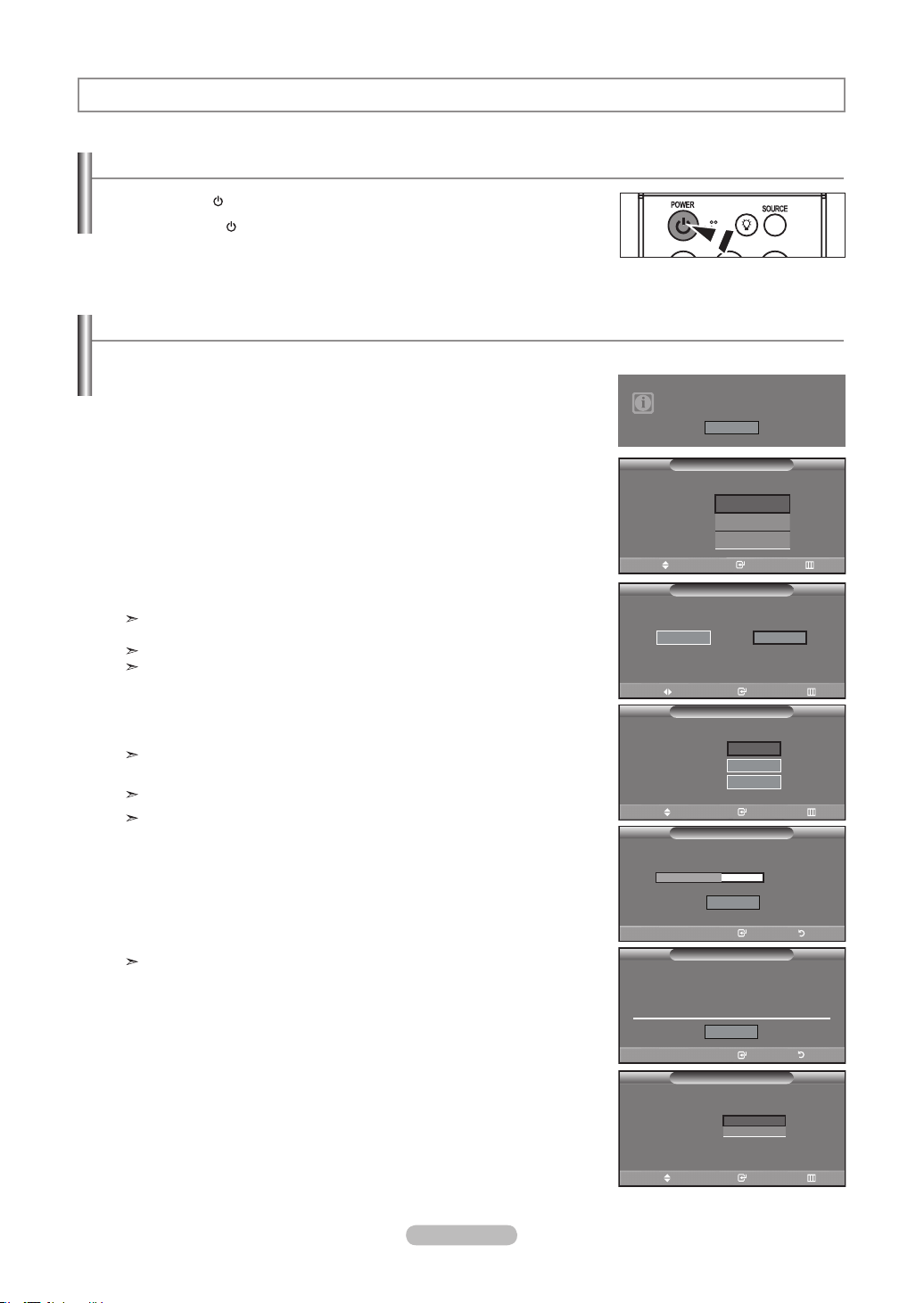
Turning the TV On and Off ..............................................12
Plug & Play Feature .........................................................12
Changing Channels .........................................................13
Adjusting the Volume .......................................................14
Viewing the Display .........................................................14
Viewing the Menus ..........................................................15
Memorizing the Channels ................................................15
Setting Up Your Remote Control .....................................17
Remote Control Codes ....................................................19
To Select the Source .......................................................22
To Edit the Input Source Name .......................................22
PICTURE CONTROL
Using Automatic Picture Settings ....................................23
Adjusting the Color Tone .................................................24
Adjusting the Detailed Settings ........................................25
Changing the Screen Size ...............................................28
Setting the Active Color ...................................................29
DNIe (Digital Natural Image engine) ................................29
Freezing the Picture ........................................................30
Setting the Film Mode ......................................................30
HDMI Black Level ............................................................30
Viewing Picture-in-Picture ...............................................31
SOUND CONTROL
Customizing the Sound ...................................................33
Using Automatic Sound Settings .....................................33
Setting the TruSurround XT .............................................34
Choosing a Multi-Channel Sound (MTS) track - Digital ..34
Choosing a Multi-Channel Sound (MTS) track - Analog .35
Automatic Volume Control ...............................................35
Selecting the Internal Mute ..............................................36
Setting the On/Off Melody ...............................................36
Listening to the Sound of the Sub (PIP) Picture ..............37
Resetting the Sound Settings to the Factory Defaults .....37
Connecting Headphones .................................................37
■
■
■
■
■
■
■
■
■
■
■
■
■
■
■
■
■
■
■
■
■
■
■
■
■
■
■
■
■
■
■
■
■
■
■
■
■
■
■
■
■
■
■
■
■
■
■
■
CHANNEL CONTROL
Selecting the Antenna ......................................................38
Clearing Scrambled Channels - Digital ............................38
Setting the Channel Lists .................................................39
To set-up Your Favorite Channels ...................................40
Using the Channel Lists ...................................................41
Viewing the Channel Lists ...............................................41
Labeling Channels ...........................................................42
LNA (Low Noise Amplier) ...............................................42
Fine Tuning Analog Channels ..........................................43
Checking the Digital-Signal Strength ...............................43
PC DISPLAY
Using Your TV as a Computer (PC) Display ....................44
Display Modes .................................................................44
Setting up the TV with your PC .......................................45
Setting the Home Theater PC .........................................46
TIME SETTING
Setting the Clock.............................................................. 47
FUNCTION DESCRIPTION
Selecting a Menu Language ............................................50
Setting the Blue Screen Mode .........................................51
Using the Game Mode .....................................................51
Viewing Closed Captions
(On-Screen Text Messages) - Analog ..............................52
Viewing Closed Captions
(On-Screen Text Messages) - Digital ...............................53
Menu Transparency Level ...............................................54
Using the Energy Saving Feature ....................................54
Setting the Function Help ................................................55
Digital Noise Reduction ...................................................55
Using the V-Chip ..............................................................56
Setting the Light Effect
(LN-T4065F / LN-T4665F / LN-T5265F) .........................63
Upgrading the Software ..................................................63
WISELINK
WISELINK .......................................................................64
Using the WISELINK Function ........................................64
Using the WISELINK Menu .............................................65
Using the PHOTO (JPEG) List ........................................66
Using the MP3 List ..........................................................73
Using the Setup Menu .....................................................75
About Anynet+
What is Anynet+?.............................................................77
Connecting Anynet+ Devices...........................................77
Setting Up Anynet+ ..........................................................78
Scanning and Switching between Anynet+ Devices ........78
Recording ........................................................................79
Listening through a Receiver (Home theater) ..................80
Check Points before Requesting Service ........................80
APPENDIX
Troubleshooting ...............................................................81
Installing the Stand ..........................................................83
Disconnecting the Stand ..................................................83
Wall-Mount Adjustment (Sold separately)........................84
Wall Mount Kit Specifications (VESA) .............................85
Using the Anti-Theft Kensington Lock .............................86
Specications ..................................................................87
■
■
■
■
■
■
■
■
■
■
■
■
■
■
■
■
■
■
■
■
■
■
■
■
■
■
■
■
■
■
■
■
■
■
■
■
■
■
■
■
■
■
■
■
■
■
■
Symbol Press Important Note One-Touch
Button
BN68-01178A-Eng.indd 1 2007-02-15 �� 9:02:57
English - 2
Accessories
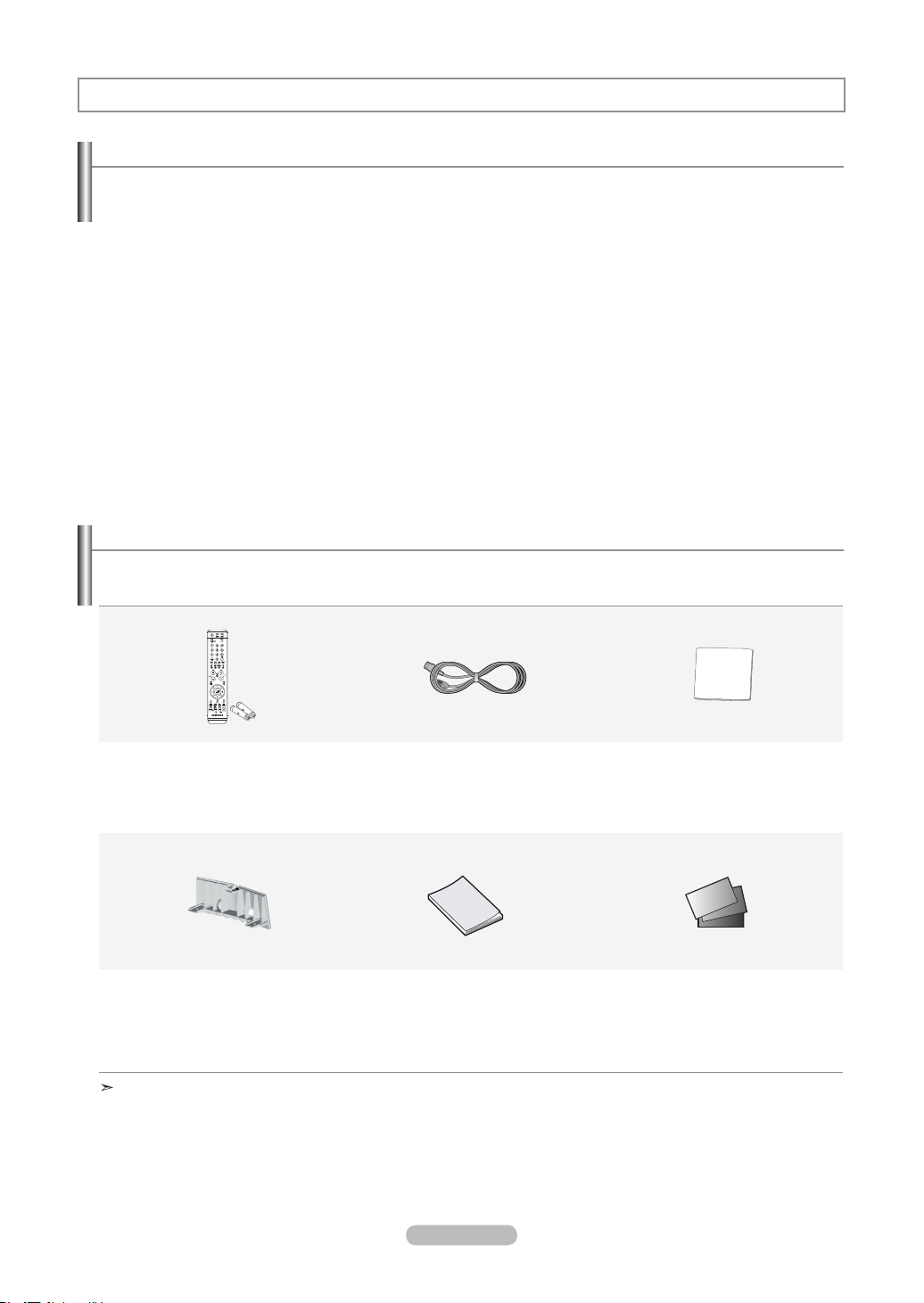
Please make sure the following items are included with your LCD TV.
If any items are missing, contact your dealer.
Remote Control & Batteries (AAA x 2)
(BN59-00599A)
Power Cord
(3903-000144)
Cleaning Cloth
(BN63-01798A)
Cover-Bottom
LN-T4061F : BN63-03031A
LN-T4065F : BN63-03298A
LN-T4661F : BN63-03148A
LN-T4665F / LN-T5265F : BN63-03308A
Owner’s Instructions
Warranty Card / Registration
Card / Safety Guide Manual
(Not available in all locations)
The items color and shape may vary depending on the model.
General Information
List of Features
Adjustable picture settings that can be stored in the TV’s memory.
Automatic timer to turn the TV on and off.
A special sleep timer.
Excellent Digital Interface & Networking :
With a built-in HD digital tuner, non-subscription HD broadcasts can be viewed with no Set-Top/Cable Box needed.
Remote Control
The supplied remote can be used to operate the TV as well as most DVD players, Set-Top boxes,
Cable Boxes and VCRs.
Excellent Picture Quality
- DNIe technology provides life-like clear images.
SRS TruSurround XT
- SRS TruSurround XT provides a virtual Dolby surround system.
BN68-01178A-Eng.indd 2 2007-02-15 �� 8:56:52
English - 3
Viewing the Control Panel
1
1 2 3 4 6
5
2
3
4
567
5
7
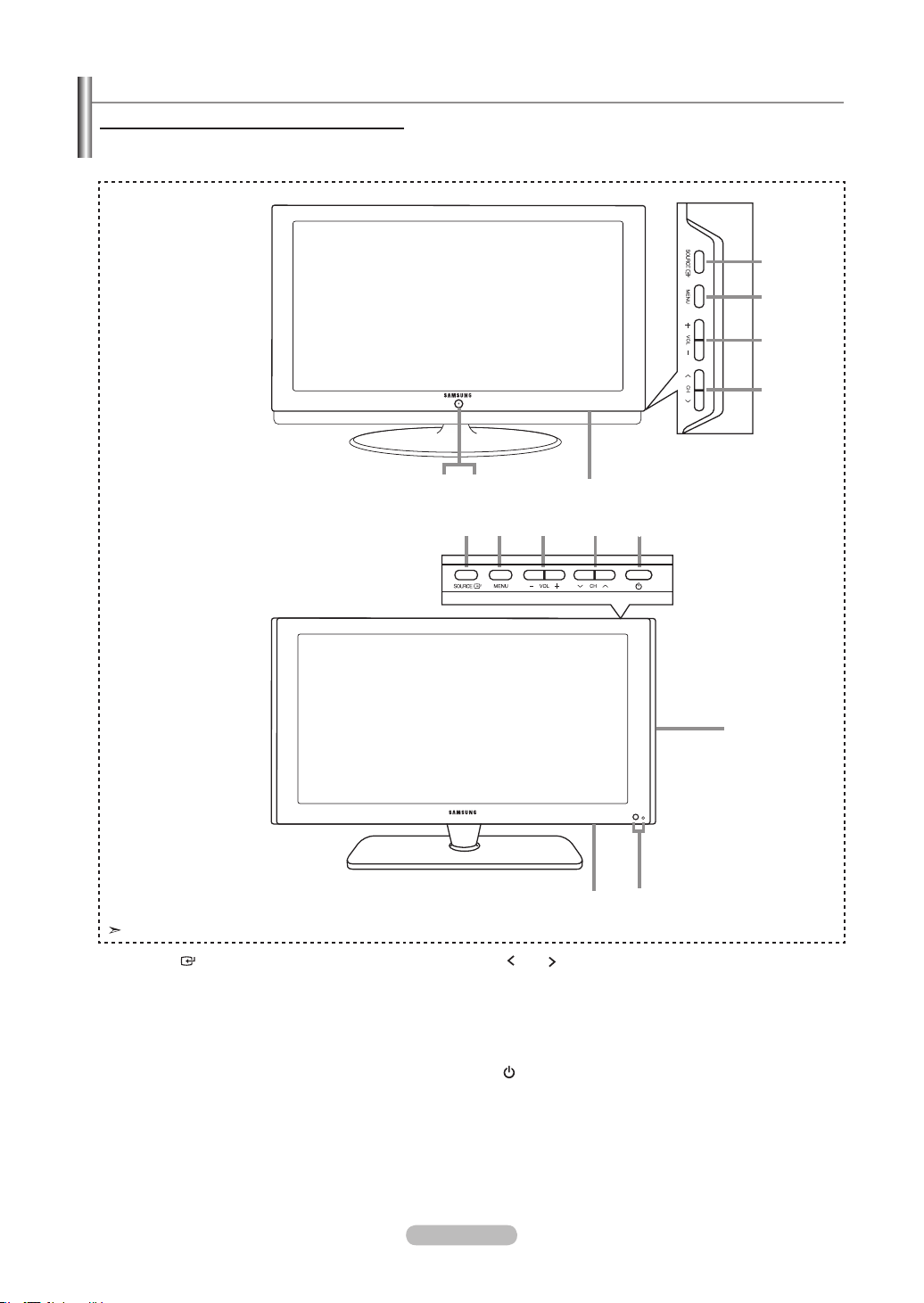
Buttons on the Lower-Right Part of the Panel
The buttons on the lower-right panel control your TV’s basic features, including the on-screen menu.
To use the more advanced features, you must use the remote control.
The product color and shape may vary depending on the model.
1
SOURCE
Toggles between all the available input sources
(TV, AV1, AV2, S-Video1, S-Video2, Component1,
Component2, PC, HDMI1, HDMI2, HDMI3).
In the on-screen menu, use this button as you would
use the ENTER button on the remote control.
2
MENU
Press to see an on-screen menu of your TV’s features.
3
- VOL +
Press to increase or decrease the volume.
In the on-screen menu, use the + VOL - buttons as you
wouldusethe◄and►buttonsontheremotecontrol.
4 CH
Press to change channels.
In the on-screen menu, use the < CH > buttons as you
wouldusethe▲and▼butonsontheremotecontrol.
5
SPEAKERS
6
(POWER)
Press to turn the TV on and off.
7
POWER INDICATOR
Blinks and turns off when the power is on and
lights up in stand-by mode.
REMOTE CONTROL SENSOR
Aim the remote control towards this spot on the TV.
<LN-T4061F / LN-T4661F>
<LN-T4065F / LN-T4665F / LN-T5265F>
BN68-01178A-Eng.indd 3 2007-02-16 �� 1:54:32
English - 4
Viewing the Connection Panel
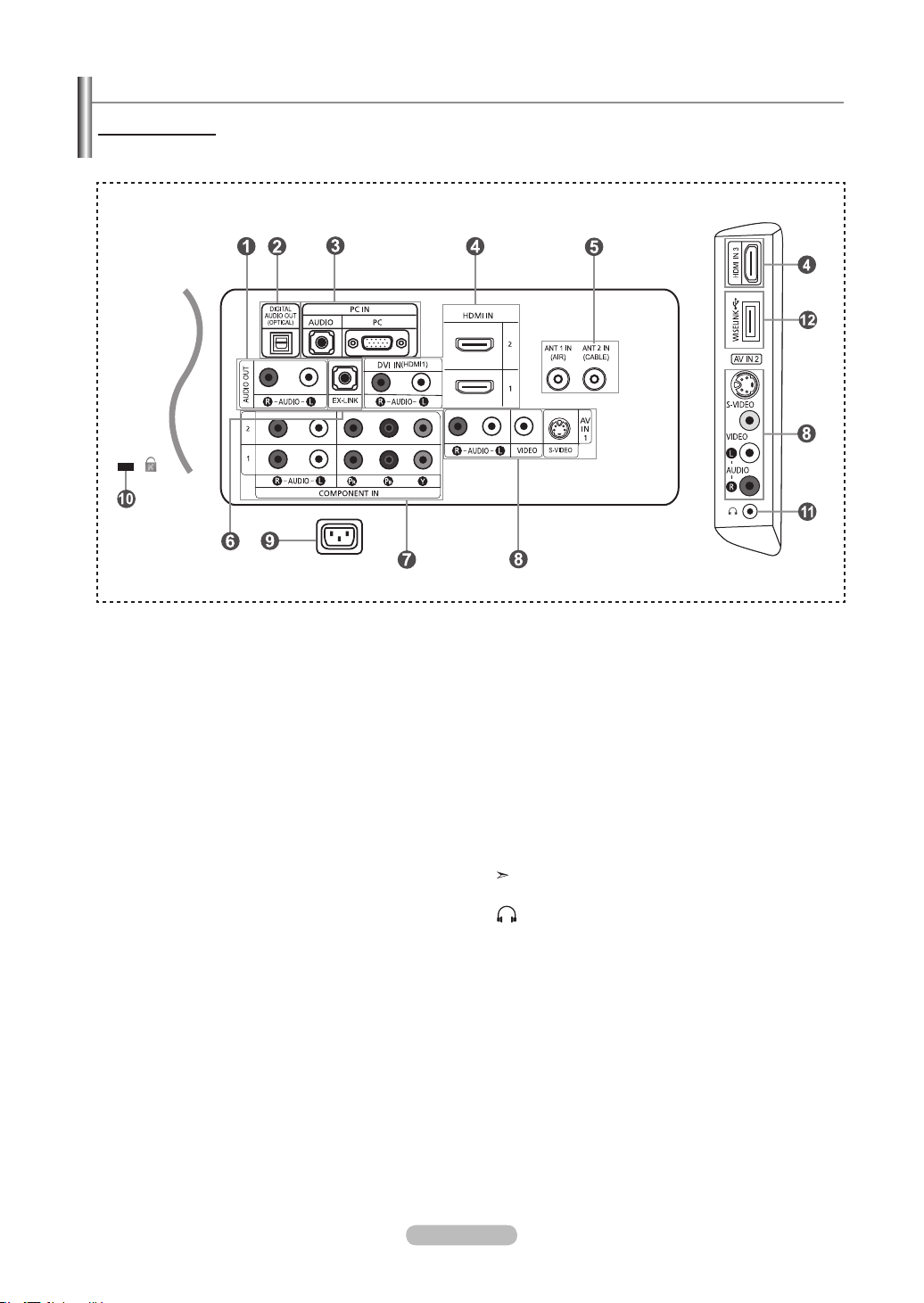
Rear Panel Jacks
Use the rear panel jacks to connect A/V components that will be connected continuously, such as VCR or DVD players.
For more information on connecting equipment, see pages 6-11.
1
AUDIO OUT
Connects to the audio input jacks on your Amplifier/
Home theater.
2
DIGITAL AUDIO OUT (OPTICAL)
Connects to a Digital Audio component.
3
PC IN
Connects to the video and audio output jacks on
your PC.
4
HDMI IN 1,2,3 /DVI IN(HDMI1) (AUDIO R/L)
Connects to the HDMI jack of a device with an HDMI output.
Use the HDMI IN 1 jack for a DVI connection to an
external device.
You should use the DVI to HDMI cable or DVI-HDMI
adapter (DVI to HDMI) for a video connection,and the
DVI IN ‘R-AUDIO-L’ jack for audio.
- The HDMI IN 1 jack does not support PC connection
- No sound connection is needed for an HDMI to HDMI
connection
- When using an HDMI/DVI cable connection, you must use
the HDMI IN 1 jack.
5
ANT 1 IN/ANT 2 IN
Connects to an antenna or cable TV system.
6
EX LINK
Connect this to the jack on the optional wall mount
bracket. This will allow you to adjust the TV viewing angle
using your remote control.
7
COMPONENT IN 1,2
Connects Component video/audio.
8
AV IN 1 / AV IN 2
Video and audio inputs for external devices, such as a
camcorder or VCR.
S-VIDEO
Connects an S-Video signal from a camcorder or VCR.
9
POWER INPUT
Connects the supplied power cord
0
KENSINGTON LOCK
The Kensington lock (optional) is a device used to
physically fix the system when used in a public place.
If you want to use a locking device, contact the dealer
where you purchased the TV.
The place of the Kensington Lock may be different
depending on its model.
!
HEADPHONE
Connects a set of external headphones for private
listening.
@
WISELINK
Connect this to the jack on the optional wall mount
bracket. This will allow you to adjust the TV viewing
angle using your remote control.
[Side Panel Jacks]
BN68-01178A-Eng.indd 4 2007-02-15 �� 8:56:54
English - 5
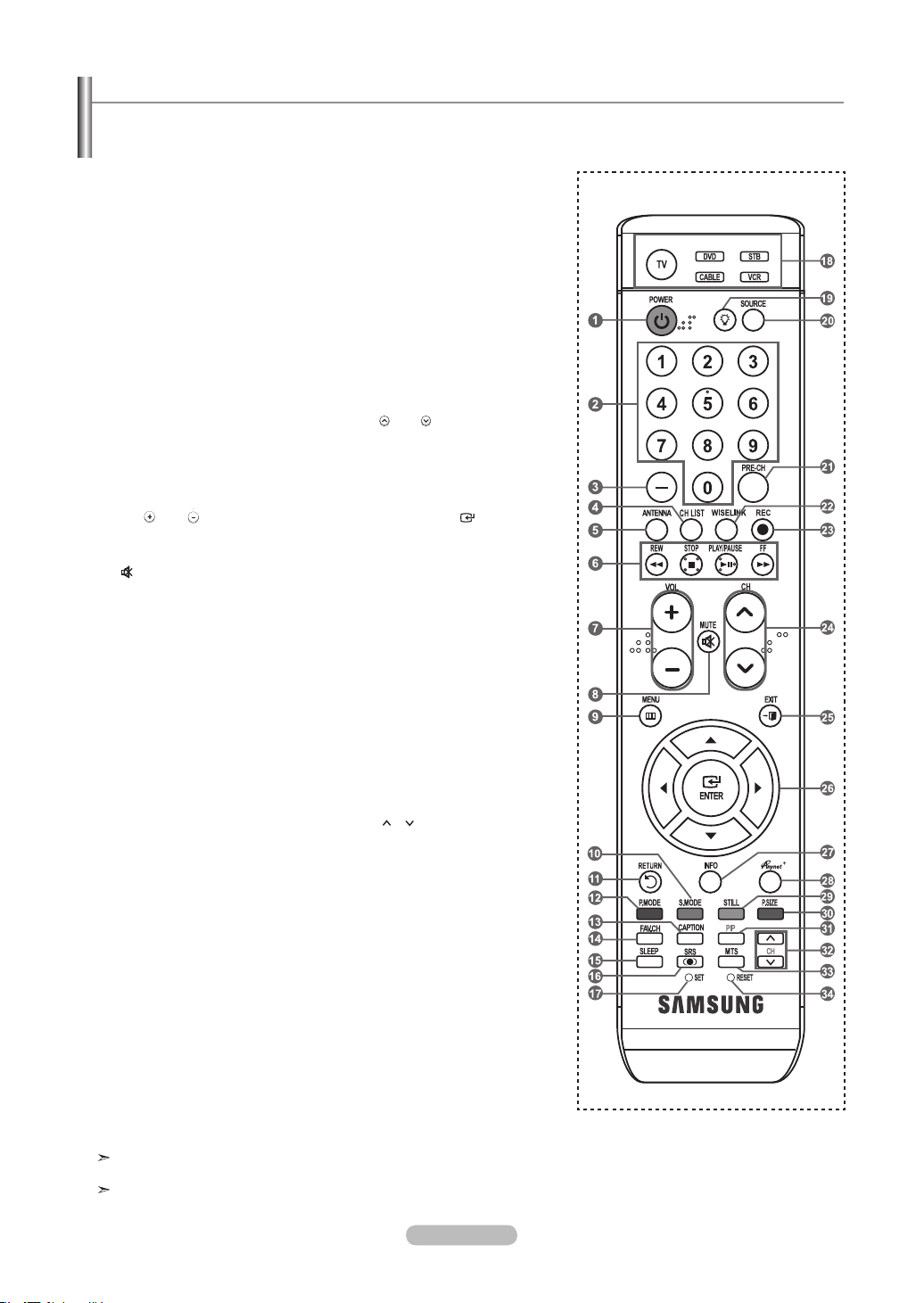
Remote Control
You can use the remote control up to a distance of about 23 feet from the TV. When using the remote, always point it directly at the
TV. You can also use your remote control to operate your VCR, Cable box, DVD player, or Set-Top Box.
This is a special remote control for the visually impaired, and has Braille
points on the Power, Channel, STOP, PLAY/PAUSE and Volume buttons.
The performance of the remote control may be affected by bright light.
1
POWER
Turns the TV on and off.
2
NUMERIC BUTTONS
Press to change the channel.
3
–
Press to select additional channels(digital
and analog) being broadcast by the same
station. For example, to select channel
“54-3”, press “54”, then press “–” and “3”.
4
CH LIST
Used to display Channel Lists on the
screen.
5
ANTENNA
Press to select “AIR” or “CABLE”.
6
VCR/DVD Functions
- Rewind
- Stop
- Play/Pause
- Fast/Forward
7
VOL / VOL
Press to increase or decrease the
volume.
8 (
MUTE)
Press to temporarily cut off the sound.
9
MENU
Displays the main on-screen menu.
0
S.MODE
Press to select the sound mode.
!
RETURN
Returns to the previous menu.
@
P.MODE
Press to select the picture mode.
#
CAPTION
Controls the caption decoder.
$
FAV.CH
Press to switch to your favorite channels.
%
SLEEP
Press to select a preset time interval
for automatic Shut off.
^
SRS
Selects SRS TruSurround XT mode.
&
SET
Sets the remote to control your
TV, VCR, Cable, DVD, or Set-Top Box
*
TV, DVD, STB, CABLE, VCR
Press to operate your TV,DVD, STB,
CABLE (box), or VCR
(See pages 17-21)
(
When pressing this button, a number
of buttons on the remote control (e.g.
TV, DVD, STB, CABLE, VCR,
VOL and CH buttons) light up for a few
seconds and then turn off to save
power. This function is convenient for
using the remote at night or when dark.
)
SOURCE
Press to display all of the available
video sources.
a
PRE-CH
Tunes to the previous channel.
b
WISELINK
This function enables you to view and
play photo (JPEG) and audio files
(MP3) from an external device.
(Refer to page
65)
c
REC
This remote can be used to control
recording on Samsung recorders.
(Refer to page 79)
d
CH
/ CH
Press to change channels.
e
EXIT
Press to exit the menu.
f
UP▲ / DOWN▼ / LEFT◄
/
RIGHT►
/ ENTER
Use to select on-screen menu items
and change menu values.
g
INFO
Press to display information on the TV
screen.
h
Anynet+
Runs the Anynet+ functions and sets
up Anynet devices.
i
STILL
Press to stop the action during a
particular scene.
Press again to resume normal video.
j
P.SIZE
Picture size selection.
k
PIP
Picture-in Picture ON/OFF.
l
CH
/
Displays the available channels in
sequence. (These buttons change
channels in the PIP window only.)
m
MTS
Press to choose stereo, mono or
Separate Audio Program
(SAP broadcast).
n
RESET
When your remote does not work,
change the batteries and press the
RESET button for 2-3 seconds before
use.
BN68-01178A-Eng.indd 5 2007-02-15 �� 8:56:55
English - 6
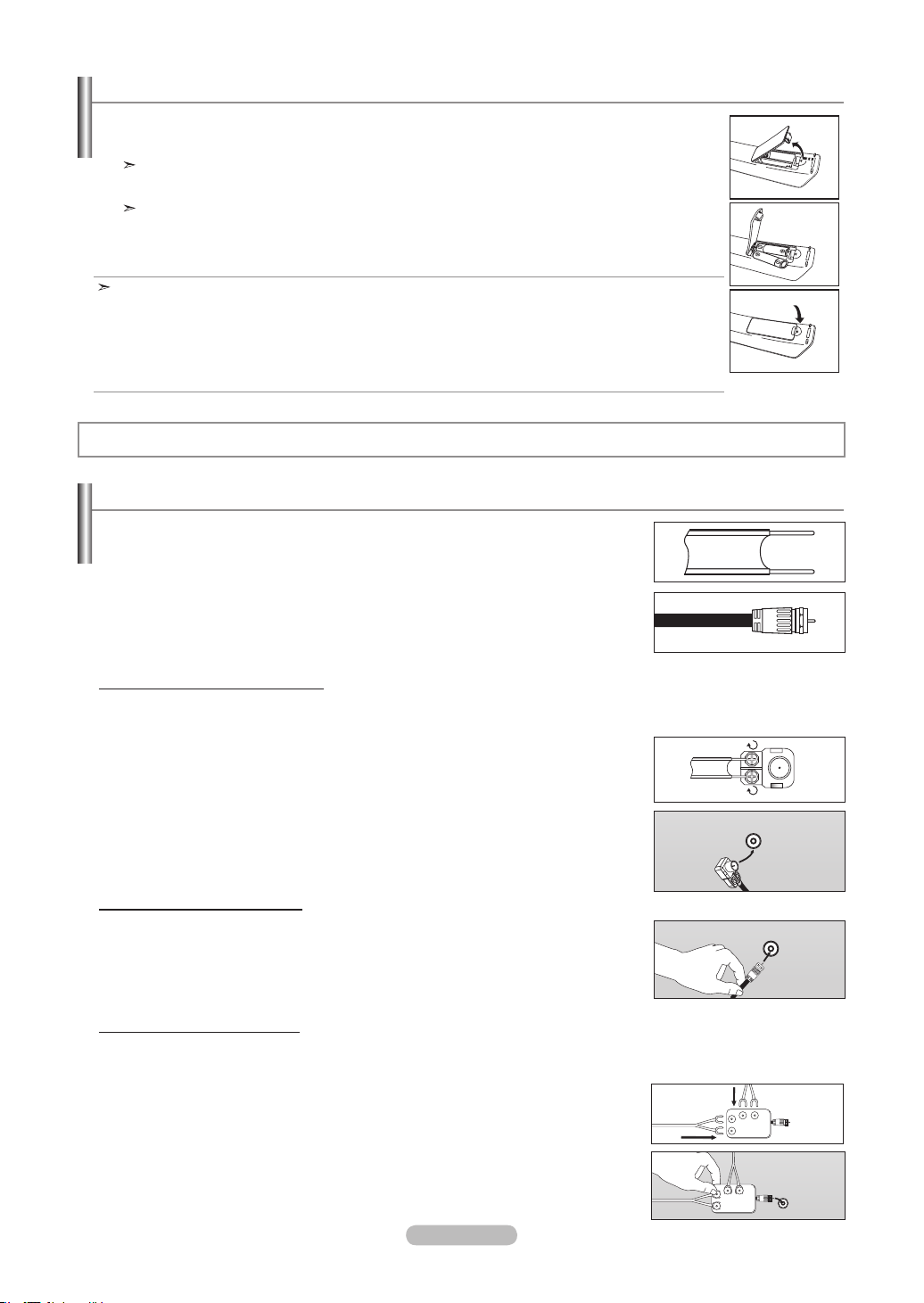
1. Lift the cover at the back of the remote control upward as shown in the figure.
2. Install two AAA size batteries.
Make sure to match the "+" and "–" ends of the batteries with the diagram inside the compartment.
3. Replace the cover.
Remove the batteries and store them in a cool, dry place if you won’t be using the remote control for a
long time.
The remote control can be used up to about 23 feet from the TV.
(Assuming typical TV usage, the batteries should last for about one year.)
If the remote control doesn’t work, check the following:
1. Is the TV power on?
2. Are the plus and minus ends of the batteries reversed?
3. Are the batteries drained?
4. Is there a power outage, or is the power cord unplugged?
5. Is there a special fluorescent light or neon sign nearby?
Installing Batteries in the Remote Control
Connecting VHF and UHF Antennas
If your antenna has a set of leads that look like the diagram to the right, see "Antennas with
300 Ω Flat Twin Leads" below.
If your antenna has one lead that looks like the diagram to the right, see "Antennas with 75
Ω Round Leads".
If you have two antennas, see "Separate VHF and UHF Antennas".
1. Place the wires from the twin leads under the screws on a 300-75 Ω adapter
(not supplied).
Use a screwdriver to tighten the screws.
2. Plug the adaptor into the ANT 2 IN (CABLE) terminal on the back of the TV.
ANT 2 IN
(CALBE)
Antennas with 300 Ω Flat Twin Leads
If you are using an off-air antenna (such as a roof antenna or "rabbit ears") that has 300 Ω twin at leads, follow the directions
below.
1. Plug the antenna lead into the ANT 1 IN (AIR) terminal on the back of the TV.
Antennas with 75 Ω Round Leads
ANT 1 IN
(AIR)
Separate VHF and UHF Antennas
If you have two separate antennas for your TV (one VHF and one UHF), you must combine the two antenna signals before con-
necting the antennas to the TV. This procedure requires an optional combiner-adaptor (available at most electronics shops).
1. Connect both antenna leads to the combiner.
2. Plug the combiner into the ANT 1 IN (AIR) terminal on the bottom of the rear panel.
UHF
VHF
ANT 1 IN
(AIR)
UHF
VHF
Connections
BN68-01178A-Eng.indd 6 2007-02-15 �� 8:56:56
English - 7
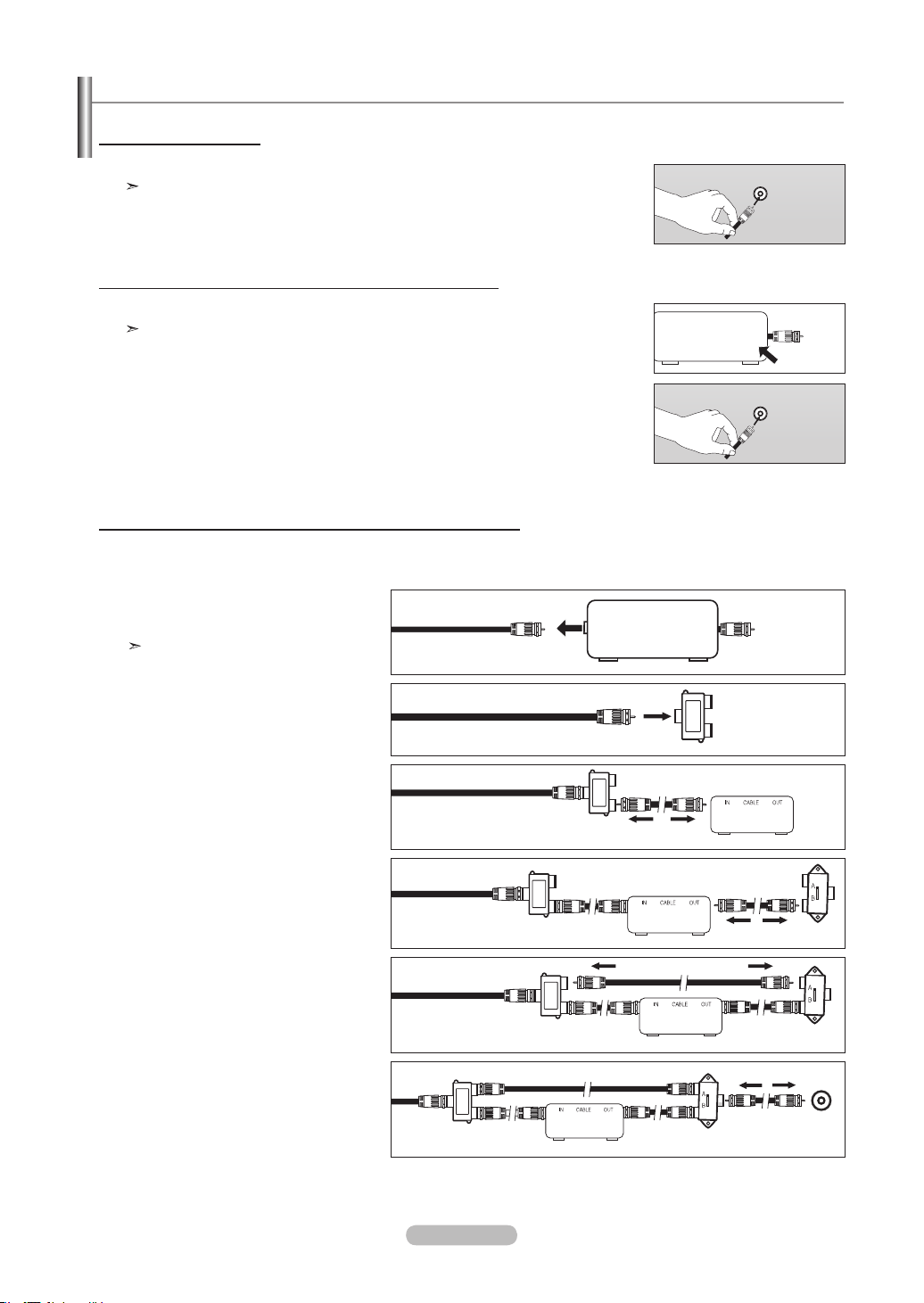
After you have made this connection, set the A/B switch to the "A" position for normal viewing. Set the A/B switch to the "B" position to
view scrambled channels. (When you set the A/B switch to "B", you will need to tune your TV to the cable box’s output channel, which is
usually channel 3 or 4.)
Connecting to a Cable Box that Descrambles Some Channels
If your cable box descrambles only some channels (such as premium channels), follow the instructions below. You will need a two-
way splitter, an RF (A/B) switch, and four lengths of RF cable. (These items are available at most electronics stores.)
2. Connect this cable to a two-way splitter.
3. Connect an RF cable between the OUTPUT
terminal on the splitter and the IN terminal
on the cable box.
4. Connect an RF cable between the
ANT OUT terminal on the cable box and
the B–IN terminal on the RF(A/B) switch.
1. Find and disconnect the cable that is
connected to the ANT IN terminal on your
cable box.
This terminal might be labeled "ANT IN",
"VHF IN" or simply, "IN".
5. Connect another cable between the other
OUT terminal on the splitter and the A–IN
terminal on the RF (A/B) switch.
6. Connect the last RF cable between the
OUT terminal on the RF (A/B) switch and
the ANT IN terminal on the rear of the TV.
Splitter
Incoming
cable
Splitter
Cable Box
Incoming
cable
Splitter
Cable Box
RF (A/B)
Switch
Incoming
cable
ANT IN
Splitter
Cable Box
Incoming
cable
RF (A/B)
Switch
Splitter
Cable Box
Incoming
cable
TV Rear
RF (A/B)
Switch
ANT IN
Connecting Cable TV
To connect to a cable TV system, follow the instructions below.
Cable without a Cable Box
1. Plug the incoming cable into the ANT 2 IN (CABLE) terminal on the back of the TV.
Because this TV is cable-ready, you do not need a cable box to view unscrambled cable channels.
Connecting to a Cable Box that Descrambles All Channels
1. Find the cable that is connected to the ANT OUT terminal on your cable box.
This terminal might be labeled "ANT OUT", "VHF OUT" or simply, "OUT".
2. Connect the other end of this cable to the ANT 2 IN (CABLE) terminal on the back of the TV.
ANT OUT
ANT IN
ANT 2 IN
(CABLE)
ANT 2 IN
(CABLE)
BN68-01178A-Eng.indd 7 2007-02-15 �� 8:56:58
English - 8
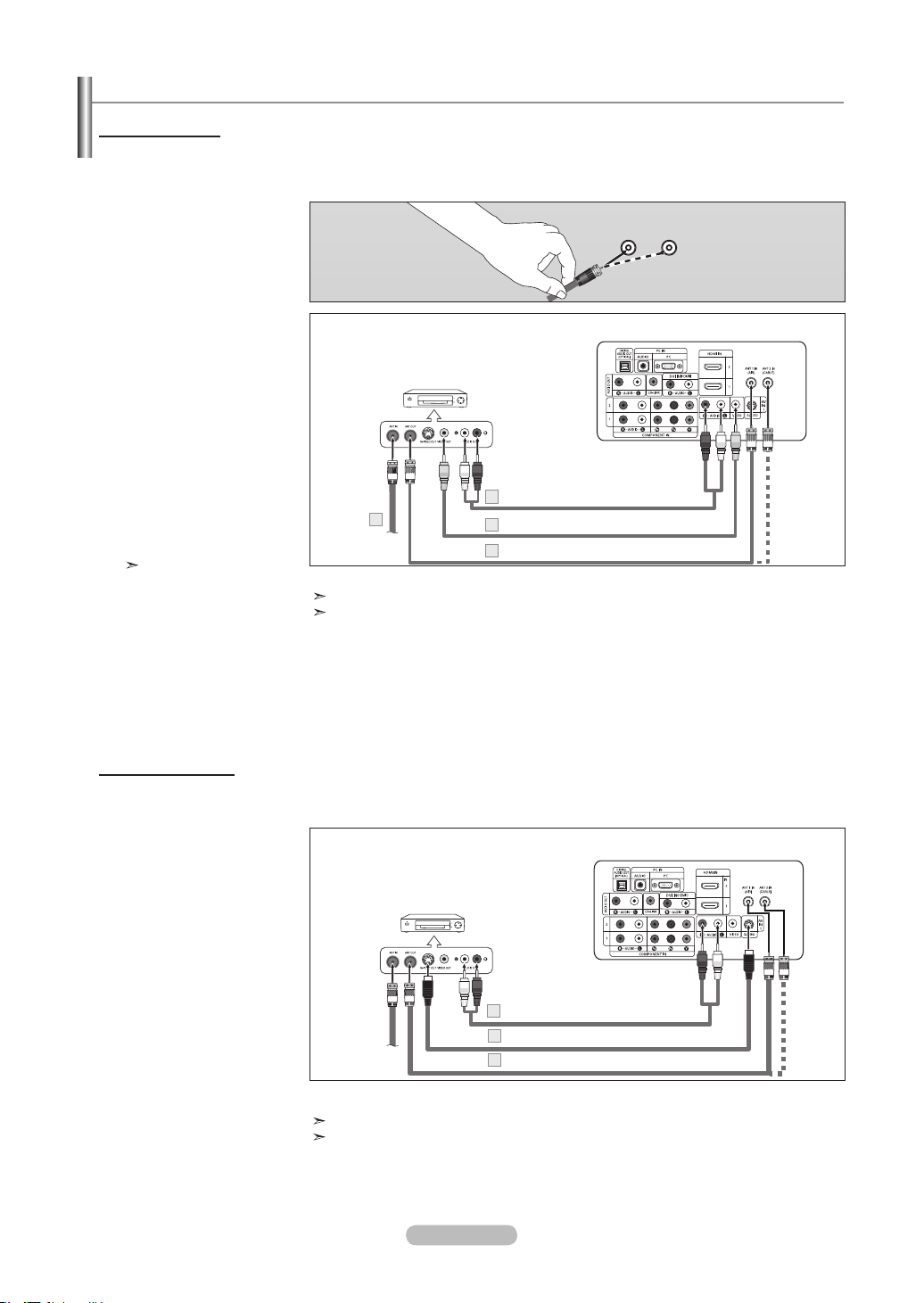
Connecting a VCR
These instructions assume that you have already connected your TV to an antenna or a cable TV system (according to the
instructions on pages 6-7). Skip step 1 if you have not yet connected to an antenna or a cable system.
1. Unplug the cable or antenna
from the back of the TV.
2. Connect the cable or antenna
to the ANT IN terminal on the
back of the VCR.
3. Connect an RF Cable between
the ANT OUT terminal on the
VCR and the ANT 1 IN (AIR) or
ANT 2 IN (CABLE) terminal on
the TV.
4. Connect a Video Cable
between the VIDEO OUT jack
on the VCR and the AV IN 1
(or AV IN 2) [VIDEO] jack on
the TV.
5. Connect Audio Cables
between the AUDIO OUT
jacks on the VCR and the
AV IN 1 (or AV IN 2)
[R-AUDIO-L] jacks on the TV.
If you have a “mono”
(non-stereo) VCR, use a
Y-connector (not supplied)
to hook up to the right
and left audio input jacks
of the TV. If your VCR
is stereo, you must
connect two cables.
Follow the instructions in “Viewing a VCR or Camcorder Tape” to view your VCR tape.
Each VCR has a different back panel configuration.
When connecting a VCR, match the color of the connection terminal to the cable.
TV Rear Panel
RF Cable (Not supplied)
3
VCR Rear Panel
2
Video Cable (Not supplied)
4
Audio Cable (Not supplied)
5
Your Samsung TV can be connected to an S-Video signal from an VCR.
(This connection delivers a better picture as compared to a standard VCR.)
1. To begin, follow steps 1–3
in the previous section to
connect the antenna or
cable to your VCR and
your TV.
2. Connect an S-Video Cable
between the S-VIDEO OUT
jack on the VCR and the
AV IN1 [S-VIDEO] jack on
the TV.
3. Connect Audio Cables
between the AUDIO OUT
jacks on the VCR and the
AV IN1 [R-AUDIO-L] jacks
on the TV.
An S-Video cable may be included with a VCR. (If not, check your local electronics store.)
Each VCR has a different back panel configuration.
When connecting a VCR, match the color of the connection terminal to the cable.
VCR Rear Panel
RF Cable (Not supplied)
1
Audio Cable (Not supplied)
3
TV Rear Panel
S-Video Cable (Not supplied)
2
Video Connection
S-Video Connection
ANT 1 IN
(AIR)
ANT 2 IN
(CABLE)
BN68-01178A-Eng.indd 8 2007-02-15 �� 8:56:59
English - 9
Connecting a DVD Player or Set-Top/Cable Box
The rear panel jacks on your TV make it easy to connect a DVD player or Set-Top/Cable box to your TV.
1. Connect a Component
Cable between the
COMPONENT IN(1 or 2)
[Y, PB, PR] jacks on the TV
and the COMPONENT
[Y, PB, PR] jacks on the
DVD player or Set-Top/Cable
Box.
2. Connect Audio Cables
between the COMPONENT
IN(1 or 2) [R-AUDIO-L]
jacks on the TV and the
AUDIO OUT jacks on the
DVD player or Set-Top/Cable
Box.
Component video separates the video into Y (Luminance (brightness)), Pb (Blue) and
Pr (Red) for enhanced video quality.
Be sure to match the component video and audio connections.
For example, if connecting the video cable to COMPONENT IN, connect the audio cable
to COMPONENT IN also.
Each DVD Player and Set-Top/Cable box has a different back panel configuration.
When connecting a DVD player or Set-Top/Cable box, match the color of the connection
terminal to the cable.
DVD Player or Set-Top/Cable Box
TV Rear Panel
Component Cable (Not supplied)
1
Audio Cable (Not supplied)
2
Connecting a Camcorder
The side panel jacks on your TV make it easy to connect a camcorder to your TV.
They allow you to view the camcorder tapes without using a VCR
1. Connect a Video Cable
between the AV IN2
[VIDEO] jack on the
TV and the VIDEO OUT
jack on the camcorder.
2. Connect Audio Cables
between the AV IN2
[R-AUDIO-L] jacks on the
TV and the AUDIO OUT
jacks on the camcorder.
Camcorder
TV Side Panel
Video Cable (Not supplied)
1
Audio Cable (Not supplied)
2
Each Camcorder has a different back panel configuration.
When connecting a Camcorder, match the color of the connection terminal to the cable.
BN68-01178A-Eng.indd 9 2007-02-15 �� 8:57:00
English - 10
Connecting a DVD Player or Set-Top/Cable Box via HDMI
This connection can only be made if there is an HDMI Output connector on the external device.
DVD Player, Set-Top/Cable Box Rear Panel
TV Rear Panel
HDMI Cable (Not supplied)
What is HDMI?
• HDMI(High-Definition Multimedia Interface), is an interface that
enables the transmission of digital audio and video signals using a single cable
• The difference between HDMI and DVI is that the HDMI device is smaller in size and
has the HDCP (High Bandwidth Digital Copy Protection) coding feature installed
Each DVD player and or Set-Top/Cable box has a different back panel configuration.
Connecting a DVD Player or Set-Top/Cable Box via DVI
This connection can only be made if there is a DVI Output connector on the external device.
Each DVD player and Set-Top/Cable Box has a different back panel configuration.
When connecting a DVD player or Set-Top/Cable Box, match the color of the connection terminal
to the cable.
When using an HDMI/DVI cable connection,you must use the HDMI IN1 jack.
TV Rear Panel
DVD Player, Set-Top Box
Audio Cable (Not supplied)
2
DVI to HDMI Cable (Not supplied)
1
1. Connect an HDMI Cable
between the HDMI IN
(1,2 or 3) jack on the
TV and the HDMI jack
on the DVD player or Set-
Top/Cable Box.
1. Connect a DVI to HDMI
Cable or DVI-HDMI Adapter
between the HDMI IN 1
jack on the TV and
the DVI jack on the
DVD player or Set-Top/Cable
Box.
2. Connect Audio Cables
between the DVI IN (HDMI 1)
[R-AUDIO-L] jack on the
TV and the AUDIO OUT jacks
on the DVD player or
Set-Top/Cable Box.
Side Panel Jacks
or
BN68-01178A-Eng.indd 10 2007-02-15 �� 8:57:01
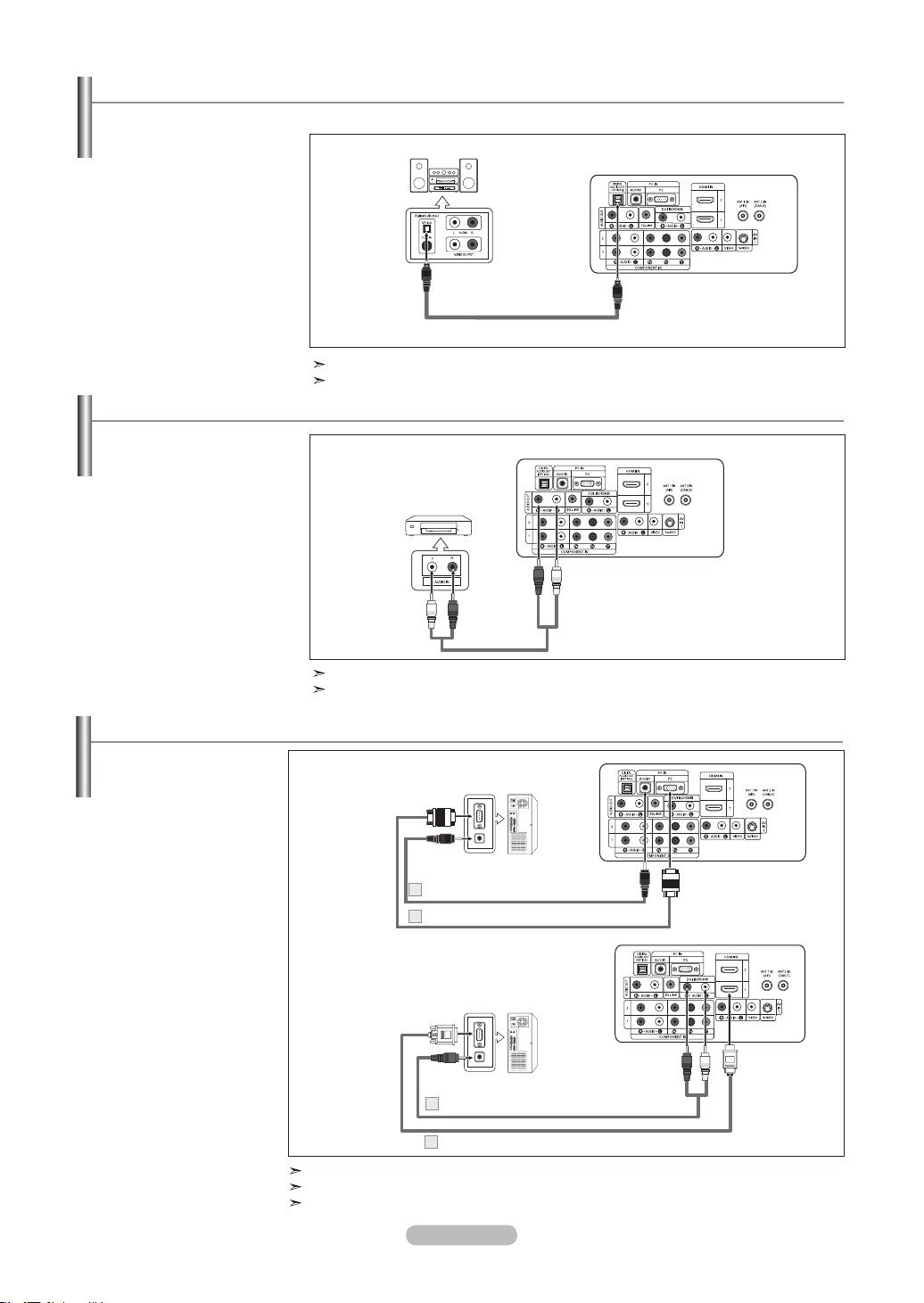
Connecting an Amplier/DVD Home Theater
1. Connect Audio Cables
between the AUDIO OUT
[R-AUDIO-L] on the TV
and AUDIO IN [R-AUDIO-
L] on the Amplifier/DVD
Home Theater.
When an audio amplifier is
connected to the "AUDIO
OUT [L-AUDIO-R]"
terminals: Decrease the
volume of the TV, and adjust
the volume level with the
Amplifier’s volume control.
Amplier/DVD Home Theater
TV Rear Panel
Audio Cable (Not supplied)
Each Amplifier/DVD Home Theater has a different back panel configuration.
When connecting an Amplifier/DVD Home Theater, match the color of the connection
terminal to the cable.
English - 11
Connecting a Digital Audio System
1. Connect an Optical Cable
between the “DIGITAL
AUDIO OUT (OPTICAL)”
jacks on the TV and the
Digital Audio Input jacks on
the Digital Audio System.
When a Digital Audio
System is connected to the
“DIGITAL AUDIO OUT
(OPTICAL)” terminal:
Decrease the volume
of the TV, and adjust the
volume level with the
system’s volume control.
Digital Audio System
TV Rear Panel
Optical Cable (Not supplied)
5.1CH audio is possible when the TV is connected to an external device supporting 5.1CH.
Each Digital Audio System has a different back panel configuration.
The rear panel jacks on your TV make it easy to connect a Digital Audio System to your TV.
Connecting a PC
PC
TV Rear Panel
D-Sub Cable (Not supplied)
1
PC Audio Cable (Not supplied)
2
1. Connect a D-Sub
Cable between PC IN
[PC] connector on
the TV and the PC
output connector on
your computer.
2. Connect a PC Audio
Cable between PC IN
[AUDIO] jack on the
TV and the Audio Out
jack of the sound card
on your computer.
Each PC has a different back panel configuration.
When connecting a PC, match the color of the connection terminal to the cable.
When using an HDMI/DVI cable connection,you must use the HDMI IN1 terminal.
1Streo/2RCA Cable (Not supplied)
2
HDMI/DVI Cable (Not supplied)
1
Using the D-Sub Cable
Using the HDMI/DVI Cable
TV Rear Panel
Using the D-Sub Cable
1.
Connect a HDMI/DVI
cable between the
HDMI1/DVI IN jack on
the TV and the PC output
jack on your computer.
2.
Connect a 1Stereo/2RCA
cable between the DVI
IN [L-AUDIO-R] jack on
the TV and the Audio Out
jack of the sound card on
your computer.
Using the HDMI/DVI Cable
PC
BN68-01178A-Eng.indd 11 2007-02-15 �� 10:31:43
English - 12
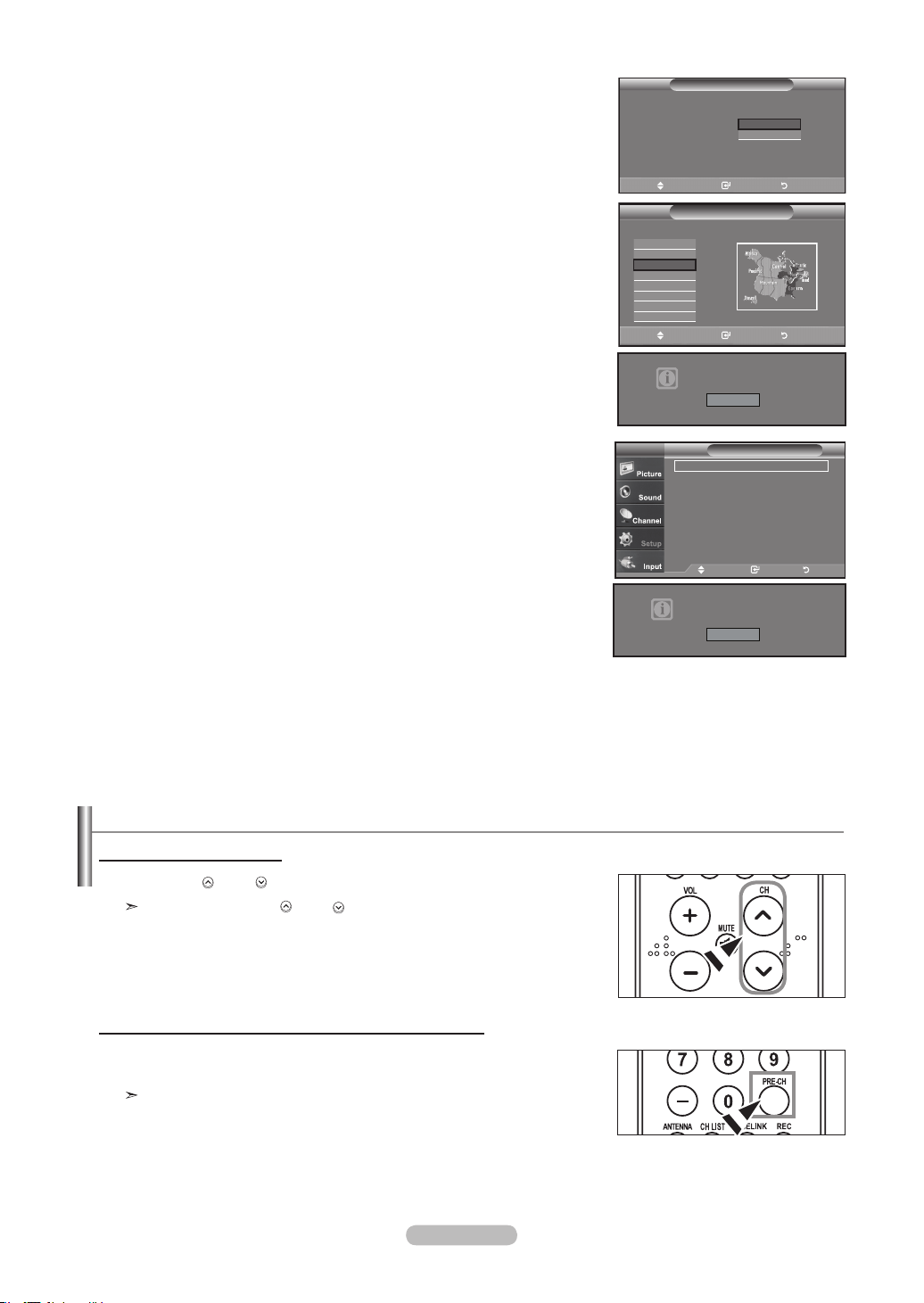
Plug & Play Feature
When the TV is initially powered on, basic settings proceed automatically and subsequently:
1. Press the POWER button on the remote control.
The message “Menu language, Shop Mode, Channels and Time will be set.” is
displayed.
Press the ENTER
button, then “Select the language of the OSD” menu
is automatically displayed.
2. Press the ▲ or ▼ buttons to select language, then press the ENTER button.
The message “Select Home Mode when installing this TV at home.” is displayed.
3. Press the ◄ or ► buttons to select “Shop” or “Home”, then
press the ENTER button.
The message “Select the antennas to memorize.” is displayed.
We recommend setting the TV to Home mode for the best picture in your
home environment.
Shop mode is only intended for use in retail environments.
If the unit is accidentally set to Shop mode and you want to return to Dynamic
(Home) mode, press any Volume button and then hold down the MENU button
for five seconds on the side panel of the TV.
4. Press the ▲ or ▼ buttons to memorize the channels of the selected connection.
Press the ENTER button to select “Start”.
If the antenna is connected to ANT 1(AIR), select “Air” and if it is connected to
ANT 2 (CABLE), select “Cable”.
If both ANT 1 (AIR) and ANT 2 (CABLE) are connected, select the “Air + Cable”.
In Cable mode, you can select the correct signal source among STD, HRC,
and IRC by pressing the ▲ or ▼ button, then press the ENTER button.
Contact your local cable company to identify the type of cable system that
exists in your particular area.
5. The TV will begin memorizing all of the available channels.
After all the available channels are stored, the Auto program menu reappears.
Press the ENTER button when channel memorization is complete.
The message “Select the clock mode.” is displayed.
To stop the search before it has finished, press the ENTER button with stop
selected.
6. Press the ENTER button.
Press the ▲ or ▼ buttons to select “Manual” or “Auto”, then Press the
ENTER button.
The message “Set to daylight savings time.” is displayed.
Turning the TV On and Off
Press the POWER button on the remote control.
You can also use the button on the front of the panel.
Operation
Select Home Mode when installing this TV at home.
Plug & Play
Plug & Play
Clock Set
Menu Language :
Plug & Play
English
Español
Français
Move Enter Skip
Shop
Menu language, Shop Mode,
Channels and Time will be set.
Start
Select the language of the OSD.
Home
Move Enter Skip
Select the antennas to memorize.
Start
Air
Plug & Play
Cable
Air+Cable
Start
Start
Move Enter Skip
Clock Mode :
Move Enter Skip
Select the clock mode.
Plug & Play
Manual
Auto
35%
Stop
Enter Skip
Auto Program in progress.
Air Channel 50
Plug & Play
Auto Program is incomplete.
16 Channels were memorized.
Air : 16, Cable : 0.
Enter Skip
OK
BN68-01178A-Eng.indd 12 2007-02-15 �� 8:57:05
English - 13
7. Press the ▲ or ▼ buttons to select “No” or “Yes”, then press the ENTER button.
The message “Select the time zone in which you live.” is displayed.
8. Press the ▲ or ▼ buttons to highlight the time zone for your local area
Press the ENTER button. If you have received a digital signal, the time will be set
automatically.
If not, see page 48 to set the clock.
9. The message “Enjoy your watching.” is displayed.
When you have finished, press the ENTER button.
Changing Channels
1. Press the CH
or
CH
button to change channels.
When you press the CH
or
CH
button, the TV changes channels in
sequence.
You will see all the channels that the TV has memorized. (The TV must have
memorized at least three channels). You will not see channels that were either
erased or not memorized. See page 16 to memorize channels.
If you want to reset this feature...
1. Press the MENU
button to display the menu.
Press the ▲ or ▼ buttons to select "Setup", then press the ENTER button.
2. Press the ENTER button again, to select "Plug & Play".
3. The message “Menu language, Shop Mode, Channels and Time will be set.”
is displayed.
Using the Channel Buttons
1. Press the PRE-CH button.
The TV will switch to the last channel viewed.
To quickly switch between two channels that are far apart, tune to one
channel, then use the number button to select the second channel. Then
use the PRE-CH button to quickly alternate between them.
Using the PRE-CH Button to select the Previous Channel
Daylight Savings Time :
Set the daylight savings time.
Plug & Play
No
Yes
Select the time zone in which you live.
Plug & Play
Newfoundland
Atlantic
Eastern
Central
Mountain
Pacific
Alaska
Hawaii
Enjoy your watching.
OK
Setup
Plug & Play ►
Language : English ►
Time
►
Game Mode : Off ►
V-Chip ►
Caption ►
Menu TransParency : High ►
▼More
TV
Move Enter Return
Menu language, Shop Mode,
Channels and Time will be set.
Start
Move Enter Exit
Move Enter Exit
BN68-01178A-Eng.indd 13 2007-02-15 �� 8:57:07
English - 14
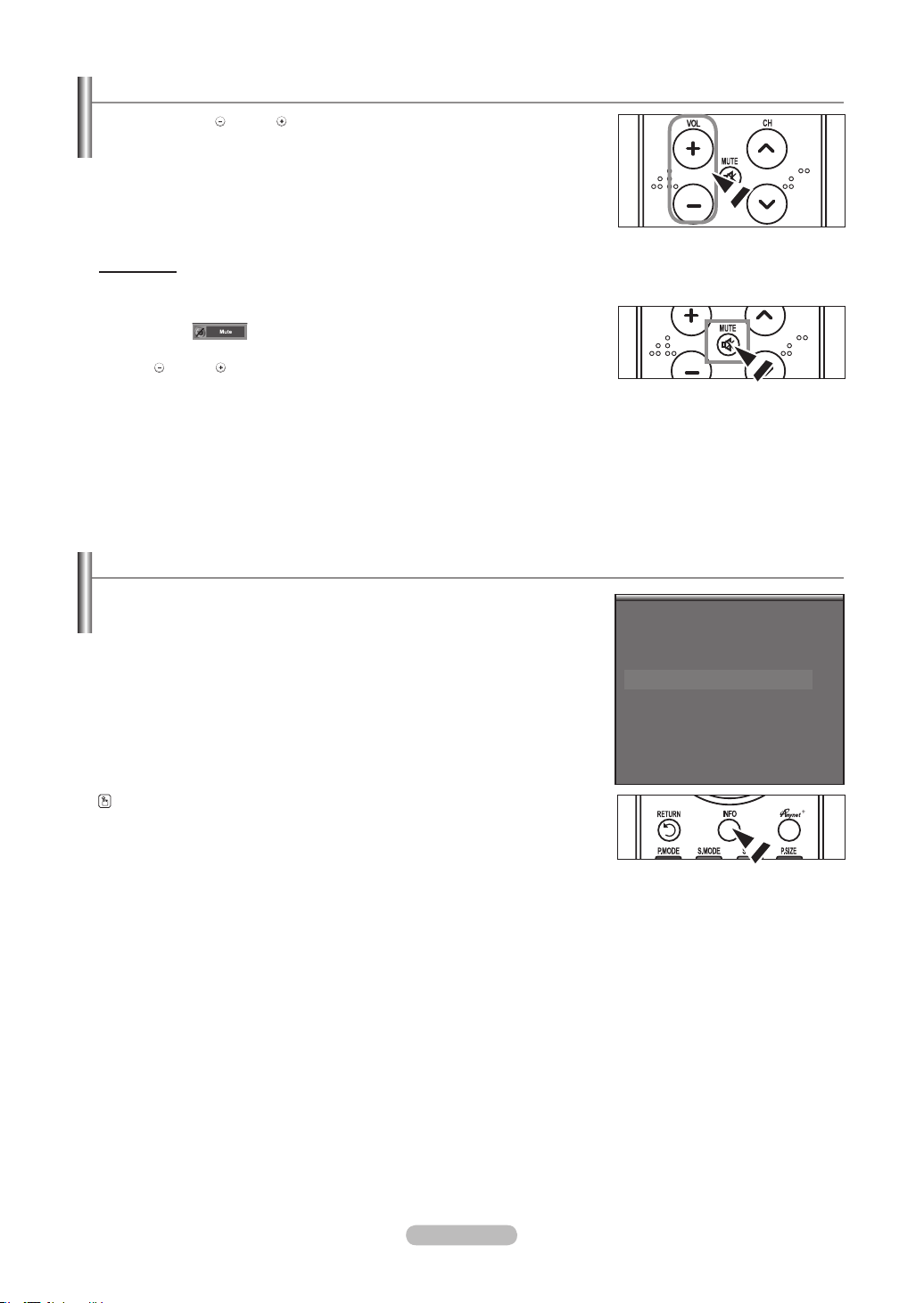
Adjusting the Volume
1. Press the
VOL
or VOL
buttons to decrease or increase the volume.
Using Mute
At any time, you can cut off the sound using the MUTE button.
1. Press MUTE button and the sound cuts off.
The word " " will appear in the lower-left corner of the screen.
2. To turn mute off, press the MUTE button again, or simply press the
VOL
or VOL
buttons.
Viewing the Display
1. Press the INFO button on the remote control.
The TV will display the channel, the type of sound,
and the status of certain picture and sound settings.
Press the INFO button once more or wait approximately 10 seconds and the
display disappears automatically.
The display identies the current channel and the status of certain audio-video settings.
Air 7
Mono
Picture Mode : Dynamic
Sound Mode : Custom
MTS : Stereo
05 : 54 pm
BN68-01178A-Eng.indd 14 2007-02-15 �� 8:57:08
English - 15
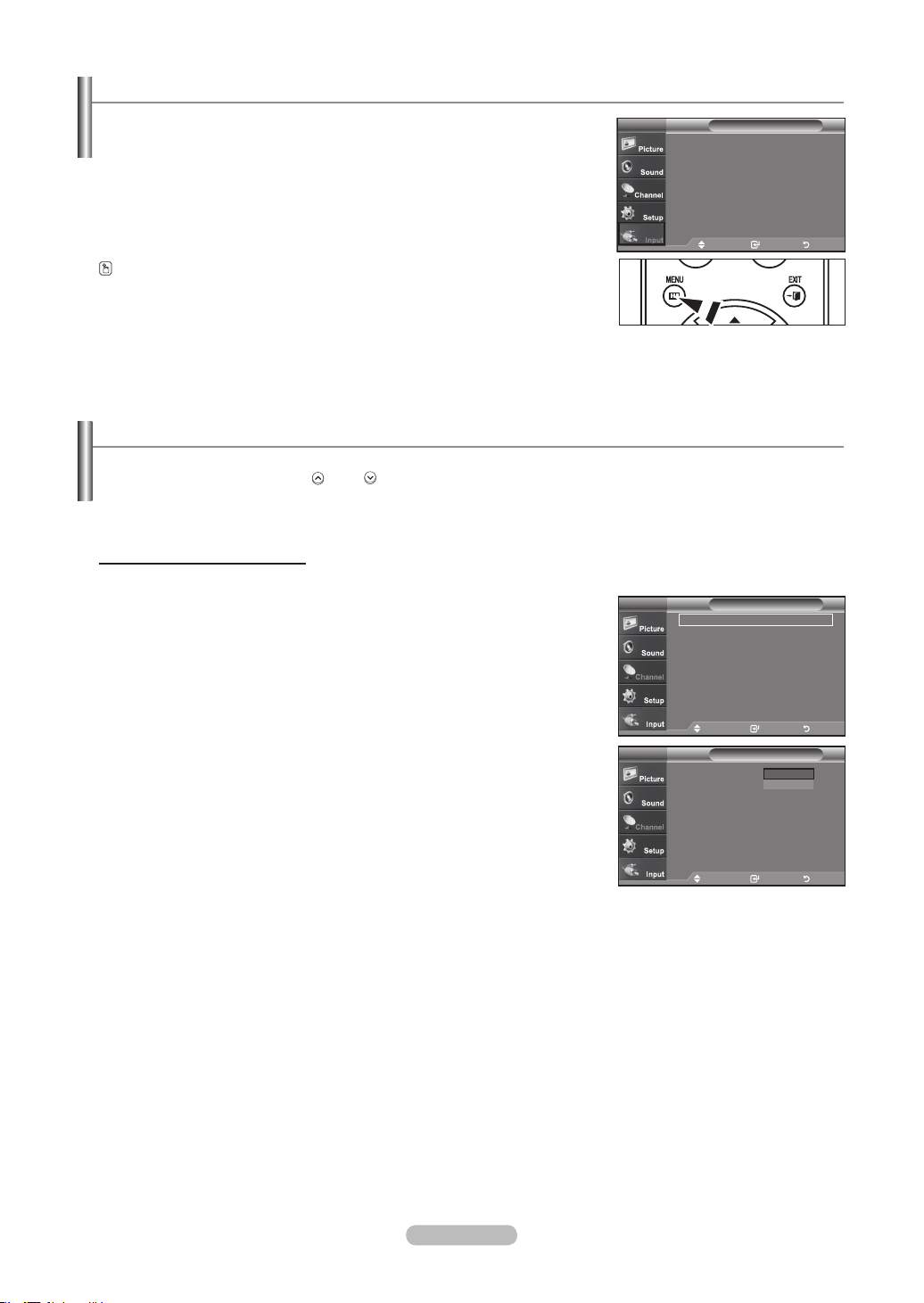
Viewing the Menus
1. With the power on, press the MENU button.
The main menu appears on the screen. The menu’ s left side has five icons:
Picture, Sound, Channel, Setup, Input.
2. Use the ▲ or ▼ buttons to select one of the five icons.
Then press the ENTER
button to access the icon’s sub-menu.
3. Press the EXIT button to exit.
The on-screen menus disappear from the screen after about one minute.
Input
Source List : TV ►
Edit Name
►
WiSELINK
►
Anynet+ (HDMI-CEC)
TV
Move Enter Exit
Memorizing the Channels
Your TV can memorize and store all of the available channels for both "off-air" (Air) and "Cable" channels. After the available
channels are memorized, use the CH
or
CH
buttons to scan through the channels. This eliminates the need to change
channels by entering the channels digits. There are three steps for memorizing channels: selecting a broadcast source,
memorizing the channels (automatic) and adding or deleting channels (Channel Lists).
Selecting the Video Signal-source
Before your television can begin memorizing the available channels, you must specify the
type of signal source that is connected to the TV (i.e. an Air or a Cable system).
1. Press the MENU button to display the menu.
Press the ▲ or ▼ buttons to select "Channel", then press the ENTER
button.
2. Press the ENTER button select “Antenna”.
Press the ▲ or ▼ buttons to select “Air” or “Cable”, then press the ENTER button.
Press the EXIT
button to exit.
Antenna : Air ►
Auto Program
►
Clear Scrambled Channel
►
Channel List
►
Name
►
Fine Tune
►
Signal Strength
►
LNA : On
►
Channel
Move Enter Return
TV
Channel
Move Enter Return
TV
Antenna : Air
Auto Program
Clear Scrambled Channel
Channel List
Name
Fine Tune
Signal Strength
LNA : On
Air
Cable
BN68-01178A-Eng.indd 15 2007-02-15 �� 8:57:10

English - 16
Storing Channels in Memory (Automatic Method)
1. Press the MENU button to display the menu.
Press the ▲ or ▼ buttons to select “Channel”, then press the ENTER button.
2. Press the ▲ or ▼ buttons to select "Auto Program", then press the ENTER
button.
3. Press the ▲ or ▼ buttons to select the antenna connection, then press the
ENTER button.
Air: “Air” antenna signal. / Cable: “Cable” antenna signal. /
Air+Cable: “Air” and “Cable” antenna signals.
4. When selecting the Cable TV system : Press the ENTER button to start the auto
program. By default, the cable TV system is set to “STD”. If you want to select
another type of cable system, press the ▲ or ▼ button to select
“STD”, “HRC” or “IRC”.
STD, HRC and IRC identify various types of cable TV systems. Contact your
local cable company to identify the type of cable system that exists in your
particular area. At this point the signal source has been selected.
Press the ENTER
button to start the auto program.
To stop the search before it has finished, press the ENTER button with stop
selected.
5. After all the available channels are stored, the “Auto Program” menu reappears.
Press the EXIT button to exit.
Move Enter Return
Select the antennas to memorize.
Channel
Move Enter Return
TV
Start
Air
Cable
Air+Cable
Start
Start
Auto Program
Cable Channel 50
50%
Stop
Enter Return
Auto Program in Progress.
Move Enter Return
Selects a cable system.
Auto Program
Move Enter Return
TV
Analog
Start
STD
HRC
IRC
Digital
STD
HRC
IRC
Antenna : Air ►
Auto Program
►
Clear Scrambled Channel
►
Channel List
►
Name
►
Fine Tune
►
Signal Strength
►
LNA : On
►
Channel
Move Enter Return
TV
Plug & Play
Enter Return
Auto Program is complete.
16 Channels were memorized.
Air : 16,
Cable : 0.
OK
BN68-01178A-Eng.indd 16 2007-02-15 �� 8:57:12
English - 17
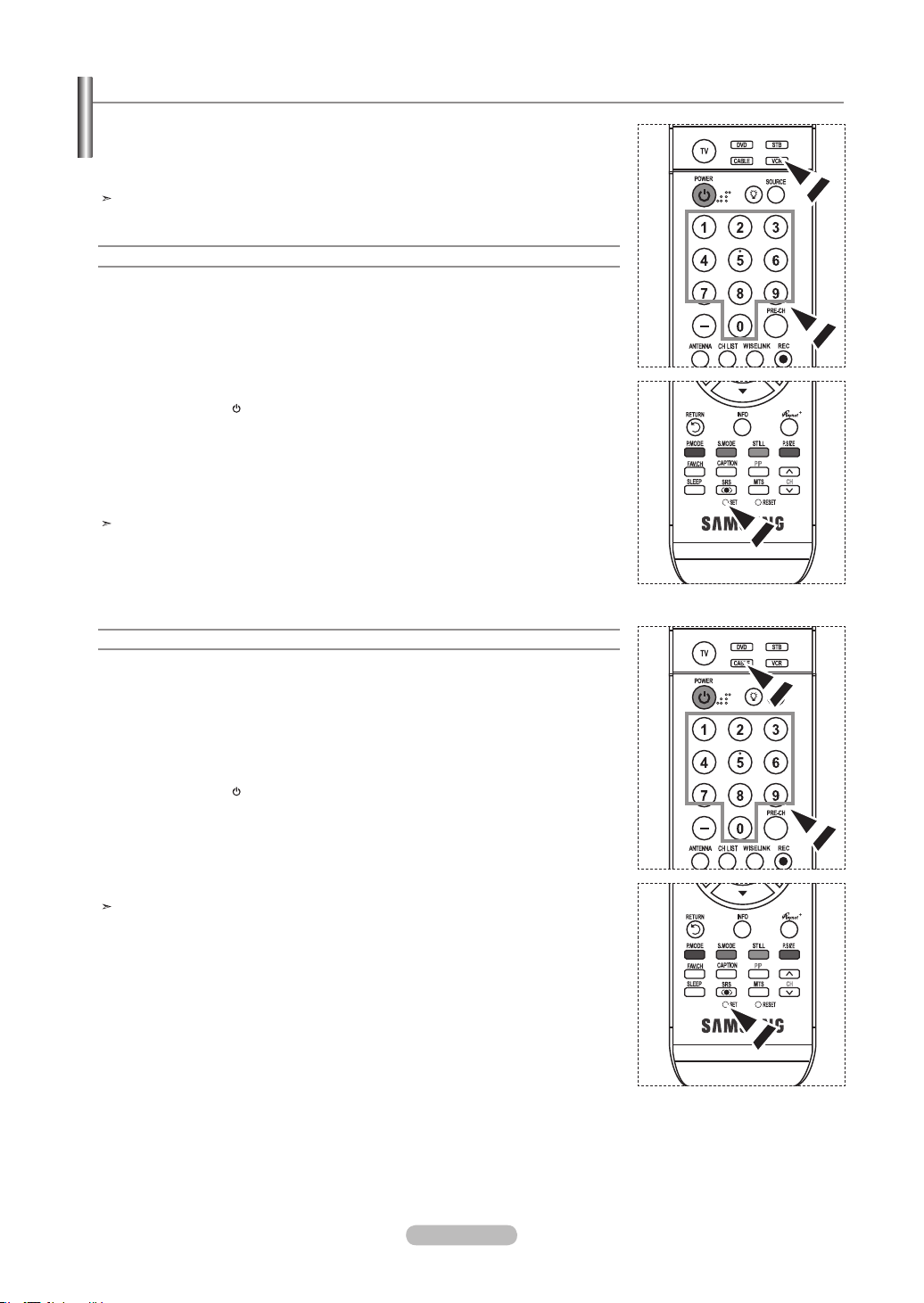
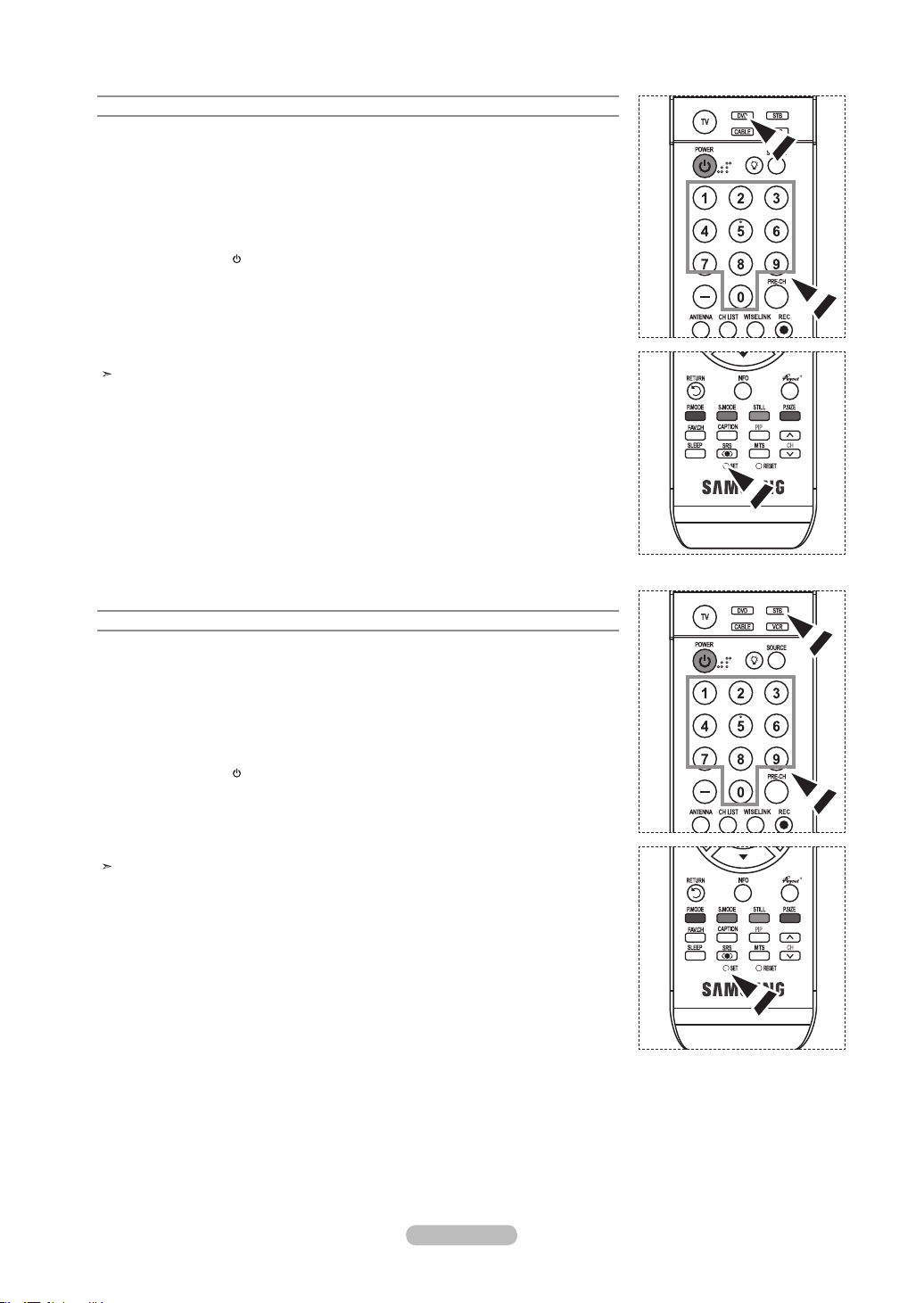
After the television has been set up properly, your remote control can operate in five
different modes: TV, DVD, Cable, Set-Top Box, VCR. Pressing the corresponding button
on the remote control allows you to switch between these modes, and control
whichever piece of equipment you choose.
The remote control might not be compatible with all DVD Players, VCRs, Cable boxes, and
Set-Top Boxes.
Setting Up the Remote to Operate Your VCR
1. Turn off your VCR.
2. Press the VCR
button on your TV’s remote control.
3. Press the SET
button on your TV’s remote control.
4. Using the number buttons on your remote control, enter three digits of the VCR code
listed on page 19 of this manual for your brand of VCR. Make sure you enter three digits
of the code, even if the first digit is a “0”.
(If more than one code is listed, try the first one.)
5. Press the POWER button on the remote control.
Your VCR should turn on if your remote is set up correctly.
If your VCR does not turn on after set up, repeat steps 2, 3, and 4, but try one of the
other codes listed for your brand of VCR.
If no other codes are listed, try each VCR code, 000 through 080.
Note on Using Remote Control Modes: VCR
When your remote control is in “VCR” mode, the volume buttons still control your
TV’s volume.
Setting Up the Remote to Operate Your Cable Box
1. Turn off your cable box.
2. Press the CABLE
button on your TV’s remote control.
3. Press the SET
button on your TV’s remote control.
4. Using the number buttons on your remote control, enter three digits of the cable box code
listed on page 20 of this manual for your brand of cable box. Make sure you enter three
digits of the code, even if the first digit is a “0”. (If there is more than one code listed, try
the first one.)
5. Press the POWER button on the remote control.
Your cable box should turn on if your remote is set up correctly.
If your cable box does not turn on after set up, repeat steps 2, 3, and 4, but try one of the
other codes listed for your brand of cable box. If no other codes are listed, try each code,
000 through 046.
Note on Using Remote Control Modes: Cable Box
When your remote control is in “CABLE” mode, the volume buttons still control your
TV’s volume.
Setting Up Your Remote Control
BN68-01178A-Eng.indd 17 2007-02-15 �� 8:57:13
English - 18
Setting Up the Remote to Operate Your DVD
1. Turn off your DVD.
2. Press the DVD
button on your TV’s remote control.
3. Press the SET
button on your TV’s remote control.
4. Using the number buttons on your remote control, enter three digits of the DVD code
listed on page 20~21 of this manual for your brand of DVD.
Make sure you enter three digits of the code, even if the first digit is a “0”.
(If there is more than one code listed, try the first one.)
5. Press the POWER button on the remote control.
Your DVD should turn on if your remote is set up correctly.
If your DVD does not turn on after set up, repeat steps 2, 3, and 4, but try one of the
other codes listed for your brand of DVD.
If no other codes are list-ed, try each code, 000 through 141.
Note on Using Remote Control Modes: DVD
When your remote control is in “DVD” mode, the volume buttons still control your
TV’s volume.
Setting Up the Remote to Operate Your STB
1. Turn off your STB.
2. Press the STB
button on your TV’s remote control.
3. Press the SET
button on your TV’s remote control.
4. Using the number buttons on your remote control, enter three digits of the STB code
listed on page 21 of this manual for your brand of STB.
Make sure you enter three digits of the code, even if the first digit is a “0”.
(If there is more than one code listed, try the first one.)
5. Press the POWER button on the remote control.
Your STB should turn on if your remote is set up correctly.
If your STB does not turn on after set-up, repeat steps 2, 3 and 4, but try one of the other
codes listed for your brand of STB.
(If no other codes are listed, try each code, 000 through 074.)
Note on Using Remote Control Modes: STB
When your remote control is in “STB” mode, the volume buttons still control your
TV’s volume.
BN68-01178A-Eng.indd 18 2007-02-15 �� 8:57:13

English - 19
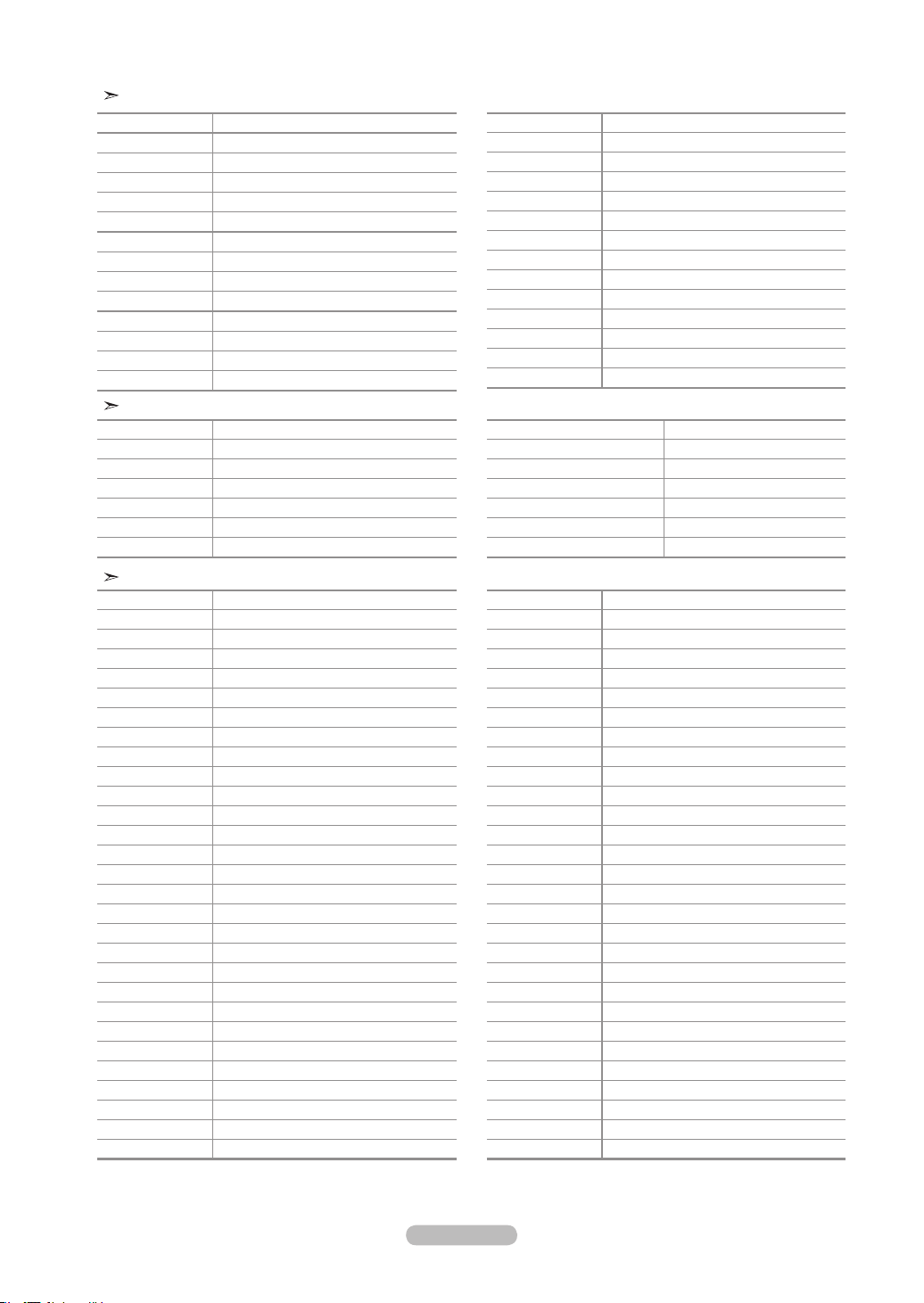
VCR
Brand Code
SAMSUNG 000 001 002 003 004 005 077 078 079
ADMIRAL 020
AIWA 025
AKAI 004 027 032
AUDIO DYNAMICS 007 026
BELL&HOWELL 018
BROKSONIC 022
CANDLE 002 003 006 008 015 055
CANON 021 056
CITIZEN 002 003 006 008 015 055
COLORTYME 007
CRAIG 002 024
CURTIS MATHES 002 007 008 017 021 025 056 064 066
DAEWOO 003 010 011 012 013 014 015 016
DB 007 026
DIMENSIA 017
DYNATECH 025
ELECTROHOME 034
EMERSON
001 003 006 021 022 025 030 032 034 040
047 050 052 060 063 065 066 067 069 073
FISHER 018 024 028 029 048 051 061
FUNAI 025
GENERAL ELECTRIC
002 005 017 021 056
GO VIDEO 002
HARMAN KARDON 007
HITACHI 019 025 041 042 074
INSTANT REPLAY 021
JC PENNEY
002 007 018 019 021 026 037 041 054 056
JCL
007 008 018 021 026 037
JVC
081 082 083
KENWOOD
007 008 018 021 026 037
KLH
070
KONIA
036
LG(Goldstar)
006 007 008 009 010
LIOYD
025
LOGIK
038
LXI
025
MAGNAVOX
021 056 059
MARANTZ
007 008 018 021 026 037 062
MARTA
006
MEI
021
MEMOREX
006 021 024 025
MGA
034
MIDLAND
005
MINOLTA
019 041 075
MITSUBISHI
019 034 041 046
Brand Code
MONTGOMERY WARD
020
MTC 002 025
MULTITECH 002 005 025 038
NEC 007 008 018 026 037 062 064
OPTIMUS 020
ORION 073 074 075 076
PANASONIC 021 056 071 072
PENTAX 019 041 075
PENTEX RESEARCH+
008
PHILCO 021 056 059
PHILIPS 021 080
PIONEER 019 026 039 053
PORTLAND 015 049 055
PROSCAN 017
QUARTZ 018
QUASAR 021 056
RADIO SHACK/
REALISTIC
006 018 020 021 024 025 029 034 048 056
RCA
002 017 019 021 035 041 043 057 068 076
SANSUI 026
SANYO 018 024
SCOTT 003 047 052 067
SEARS 006 018 019 024 028 029 041 048 051
SHARP 020 034 045 015
SHIMTOM 027 033 038 058
SIGNATURE 025
SONY 027 033 044
SYLVANIA 021 025 056 059
SYMPHONIC 025
TANDY 018 025
TASHIKA 006
TATUNG 037
TEAC 025 037 068
TECHNICS 021
TEKNIKA 006 021 025 031
TMK 066
TOSHIBA 003 019 029 051 052
TOTEVISION 002 006
UNITECH 002
VECTOR RESEARCH
007 026
VICTOR 026
VIDEO CONCEPTS 007 026
VIDEOSONIC 002
WARDS
002 003 006 019 020 021 024 025 034 038 041
YAMAHA 007 008 018 026 037
ZENITH 023 027 033
Remote Control Codes
BN68-01178A-Eng.indd 19 2007-02-15 �� 8:57:14
English - 20
CABLE BOX
Brand Code
SAMSUNG 000 001 002 003 004 005 006 007
GI 041
HAMLIN 003 024 031
HITACHI 025 030
JERROLD 038 039
MACOM 025 030
MAGNAVOX 019 023 028
OAK 026
PANASONIC 003 022 027 037 044
PHILIPS 019 021 023 028
PIONEER 004 018 020 044
RCA 014 022 040
REGAL 003
Brand Code
REGENCY 015 023
SA 042 043
SCIENTIFIC ATLAN 042 043
SPRUCER 022
STARGATE 2000 036
SYLVANIA 016
TEXSCAN 016
TOCOM 032
UNIVERSAL 033 034
VIEWSTAR 019 021 023 028
WARNER AMEX 046
ZENITH 017 029 035 037 045
SAMSUNG DVD
Product Code
DVD 000 001 002
DVDR 003 004
BD Record 005 006
VCR COMBO 007 008 009 010 011
VCR Record 012
DHR COMBO 013
Product Code
Home Theater VCR COMBO 014 015 016
HDD Recorder COMBO 017
TWIN TRAY COMBO 018
STB DVD COMBO 019
DVD Receiver 020
AV Receiver 021
DVD
Brand Code
ANAM 030
AUDIOVOX 075
AUDIOLOGIC 085
ANABA 072
APEX DIGITAL 070 071 074 086 083 084 088 111 112
AIWA 114
BROKSONIC 062
BLAUPUNKT 074
B&K 122 123
CURTIS MATHES 027
CYBER HOME 077 078 079 082
CLARION 080 125
CIRRUS 081
CYBER HOME 065
CINEVISION 095
DAEWOO 066
DENON 146
FARENHEIT 067 068
FISHER 090
GPX 060
GO VIDEO 061 089 133 135
GE 069 074
GREENHILL 074
HITACHI 064 113
HITEKER 071
HOYO 073
HARMAN / KARDON
091 110
IRT 089
Brand Code
INTEGRA 092
JBL 091
JVC 022 033 115 116
JATON 073
KENWOOD 051 108 109
KISS 073
KONKA 059 100 106 107
KLH 074 075
LG(Goldstar) 025 031
LOEWE 057
LASONIC 058
MOBILE AUTHORITY
054
MEMOREX 055
MALATA 056
MAGNAVOX 076 093
MINTEK 074 094
MONYKA 073
NORCENT 048 049 050
NEXT BASE 052
NEC 053
NANTAUS 144
NESA 074
OPTOMEDIA ELECTRONICS
105
OPTIVIEW 072
ONKYO 076 092 119
PHILCO 044 045
PRINCETON 046 047
PROSCAN 023
BN68-01178A-Eng.indd 20 2007-02-15 �� 8:57:14
English - 21
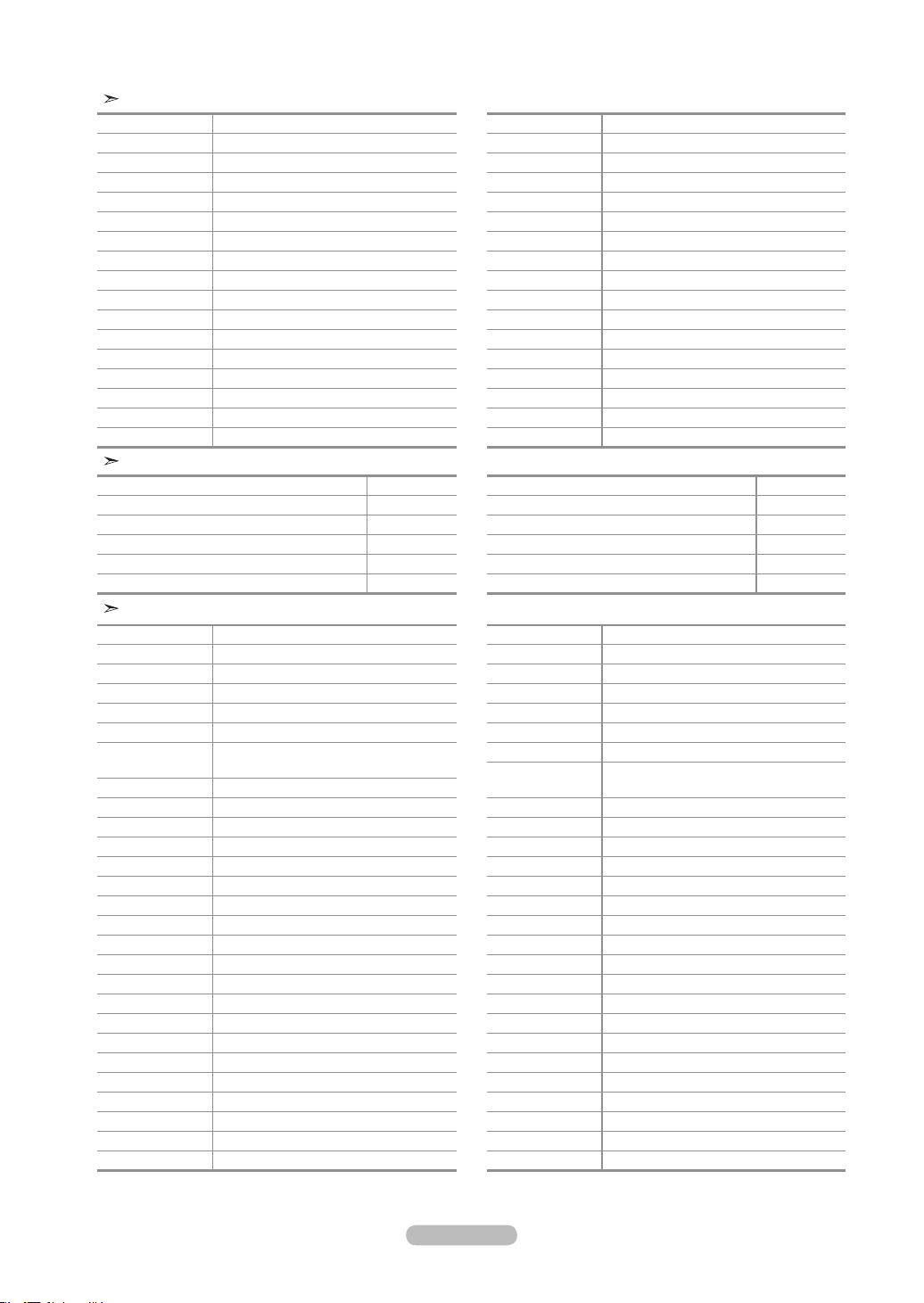
DVD
Brand Code
PANASONIC 024 034 124 134 136 137 138
PHILIPS 036 076
ROTEL 117 118
RIO 120
RCA 023 035 074 075 131 132
RAITE 073
ROWA 038
SAMPO 104
SONY 026 029 126 127 128 129 130 141
SHERWOOD 039 041
SVA 042
SYLVANIA 043 093
SHARP 140
SANSUI 062
SANYO 062 090
SHINSONIC 094
Brand Code
THOMSON 145
TOSHIBA 028 062 076
TECHNICS 139
TVIEW 072
TOKAI 073
TEAC 096
TECHWOOD 097
TREDEX 098 099 101
URBAN CONCEPTS
076
VENTURER 075
VOCOPRO 102
YAMAHA 032 063
YAMAKAWA 040 073
XWAVE 103
ZENITH 076 121
SAMSUNG SET-TOP BOX
Product Code
Satellite STB HDD COMBO Premium 010
CABLE STB HDD COMBO Standard 011
CABLE STB HDD COMBO Premium 012
Ground wave STB HDD COMBO Standard 013
Ground wave STB HDD COMBO Premium 014
Product Code
Ground wave STB 001 002
Satellite STB 003
CABLE STB 004
STB DVD COMBO 008
Satellite STB HDD COMBO Standard 009
SET-TOP BOX
Brand Code
ALPHASTAR 023
ANAM 043
CHANNEL MASTER 018 034
CROSSDIGITAL 019
CHAPARRAL 035
DIRECT TV 015 016 017 019 022 045 060 061 062
065 066 067 068
DAEWOO 074
DISH NETWORK SYSTEM
069 070
DISHPRO 069
DRAKE 018 024 032
DX ANTENNA 027
ECHOSTAR 025 069 070 071
EXPRESSVU 069
GOI 069
GE 065
GENERAL INSTRUMENT
046 047 048 063 064
HTS 069
HOME CABLE 056
HITACHI 022
HUGHES NETWORK
015 017
IQ 020
IQ PRISM 020
JANEIL 059
JERROID 063
JVC 069 070
LG(Goldstar) 044 073
Brand Code
MAGNAVOX 016 021 036 038 039 040 041 042
MEMOREX 016
MOTOROLA 064
MACOM 018
MITSUBISHI 015
NEXT LEVEL 047 048 064
PHILIPS 015 016 017 021 033 036 038 039 040
041 042 067
PRIMESTAR 046 049 050 063
PANASONIC 058 059 061 062
PAYSAT 016
PROSCAN 065 066
RCA 051 052 053 065 066
RADIOSHACK 064
REALISTIC 057
STAR TRAK 026
STS 020 027
SKY 031
SKY LIFE 005 006 007
SHACK 064
STAR CHOICE 064
SONY 054 060
TOSHIBA 015 017 028 029 030 072
ULTIMATE TV 060 066
UNIDEN 016 021 037 055 056 057
ZENITH 024 031 068
BN68-01178A-Eng.indd 21 2007-02-15 �� 8:57:14
English - 22
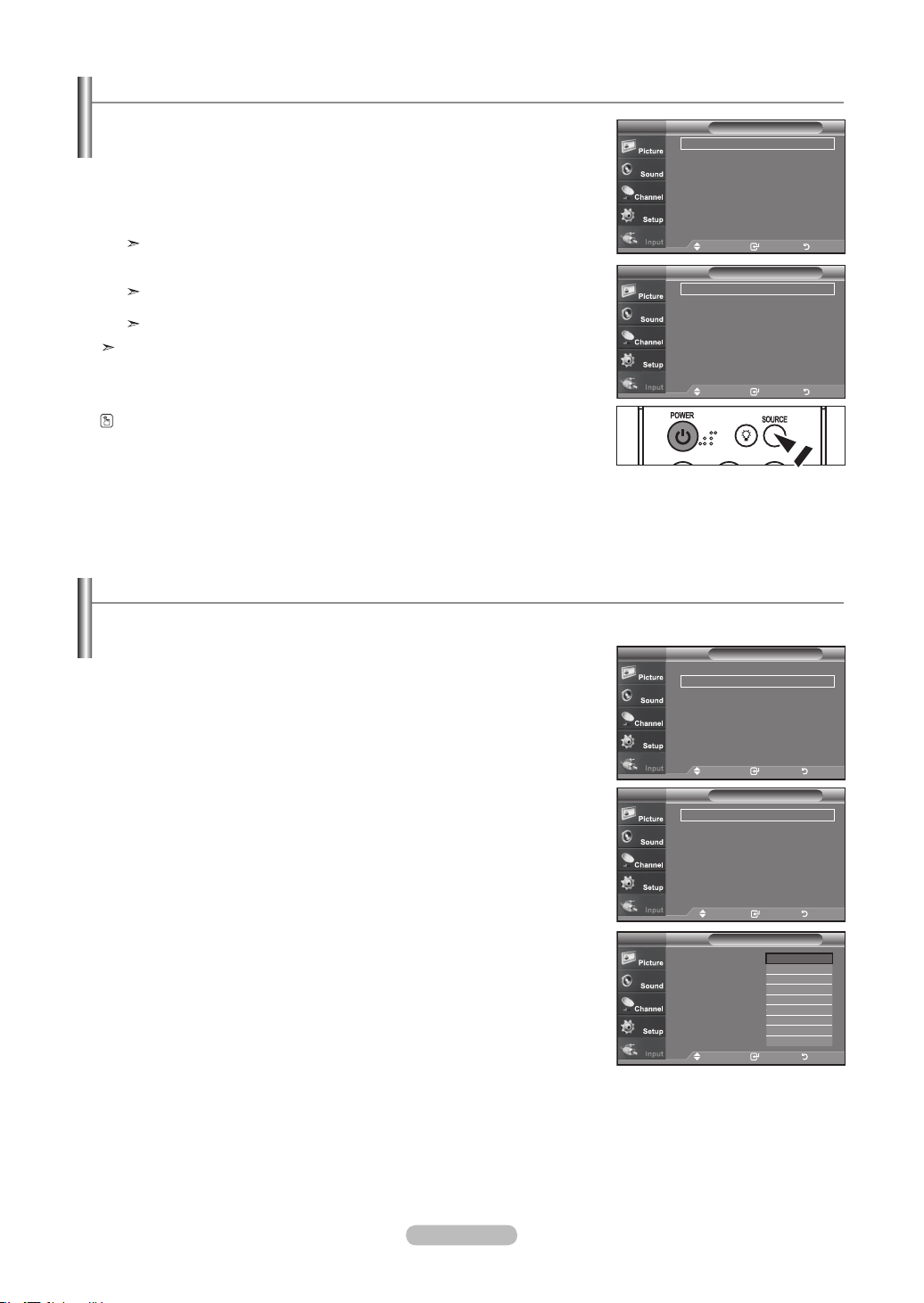
To Select the Source
Use to select TV or other external input sources connected to the TV.
Use to select the input source of your choice.
1. Press the MENU button to display the menu.
Press the▲ or ▼ buttons to select “Input”, then press the ENTER button.
2. Press the ENTER
button to select "Source List".
Press the ▲ or ▼ buttons to select signal source, then press the ENTER
button.
When you connect equipment to the LCD, you can choose between the
following sets of jacks: TV, AV1, AV2, S-Video1, S-Video2, Component1,
Component2, PC, HDMI1, HDMI2, HDMI3 on the TV’s rear panel.
HDMI1, HDMI2, HDMI3 input can only be selected when the external device is
turned on and connected via HDMI.
AV2/S-Video2/HDMI3 is located on the side of the TV.
You can choose only those external devices that are connected to the TV.
Press the SOURCE button on the remote control to view an external signal source.
To Edit the Input Source Name
Name the device connected to the input jacks to make your input source selection easier.
1. Press the MENU button to display the menu.
Press the▲ or ▼ buttons to select “Input”, then press the ENTER button.
Press the ▲ or ▼ buttons to select "Edit Name", then press the ENTER
button.
2. Press the ▲ or ▼ buttons to select "AV1", "AV2", "S-Video1", "S-Video2",
"Component1", "Component2", "PC", "HDMI1", "HDMI2", "HDMI3" input jack, then
press the ENTER
button.
3. Press the ▲ or ▼ buttons to select "VCR", "DVD", "D-VHS", "Cable STB",
"HD STB", "Satellite STB", "PVR STB", "AV Receiver", "DVD Receiver",
"Game", "Camcorder", "DVD Combo", "PC", "VOD STB", "TV" input source, then
press the ENTER
button.
Press the EXIT button to exit.
Input
Source List : TV ►
Edit Name
►
WISELINK
Anynet+ (HDMI-CEC)
TV
Move Enter Return
Source ListTV
Move Enter Return
TV
AV1 : ----
AV2 : ----
S-Video1 : ----
S-Video2 : ----
Component1 : ----
Component2 : ----
▼More
Input
Source List : TV ►
Edit Name
►
WISELINK
Anynet+ (HDMI-CEC)
TV
Move Enter Return
Edit NameTV
Move Enter Return
AV1
: ----
AV2 : ----
S-Video1 : ----
S-Video2 : ----
Component1 : ----
Component2 : ----
▼More
Edit NameTV
Move Enter Return
AV1
: ----
AV2 : ----
S-Video1 : ----
S-Video2 : ----
Component1 : ----
Component2 : ----
▼More
----
VCR
DVD
D-VHS
Cable STB
HD STB
Satellite STB
PVR STB
▼
BN68-01178A-Eng.indd 22 2007-02-15 �� 8:57:17
English - 23
Using Automatic Picture Settings
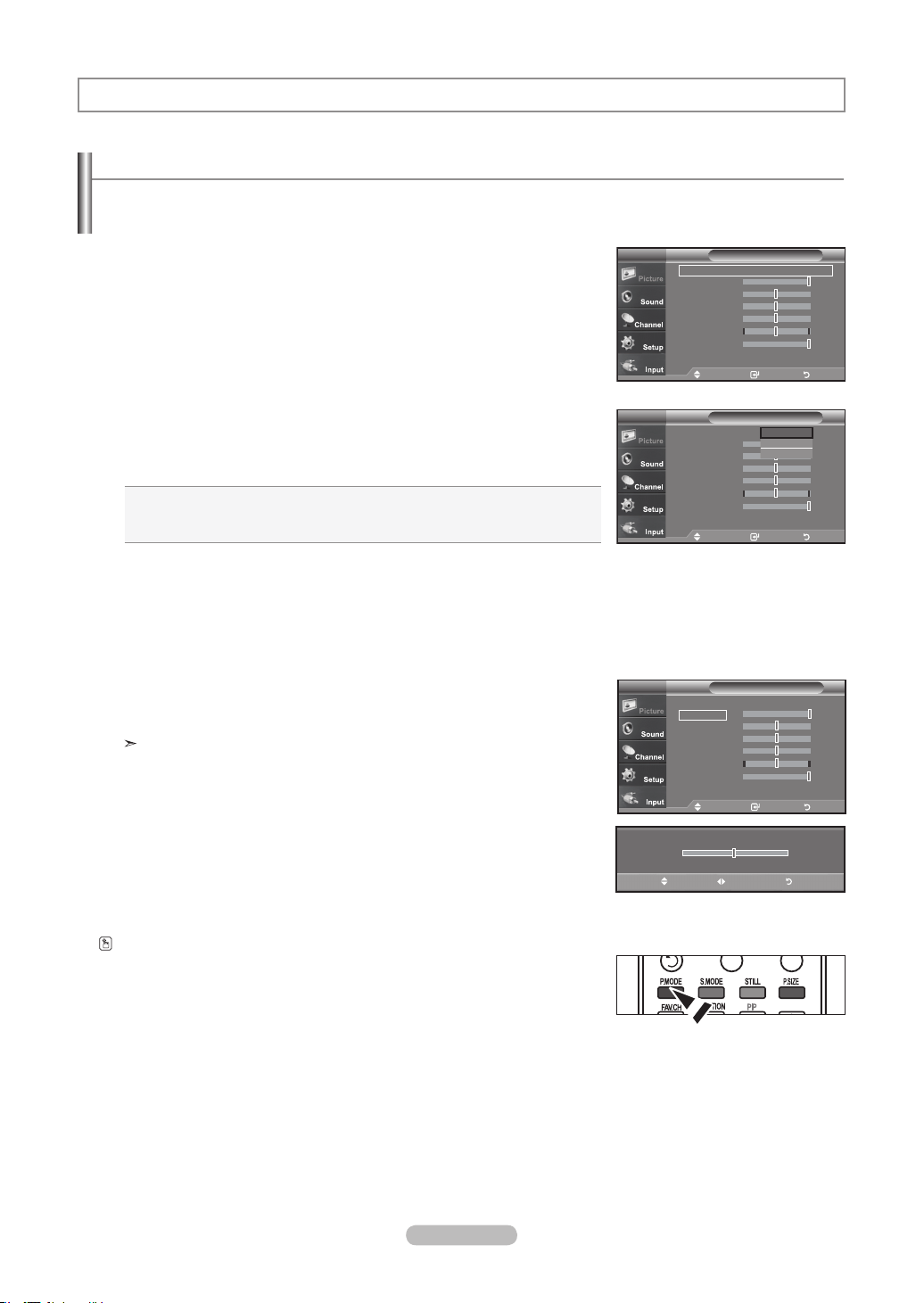
Your TV has Three automatic picture settings ("Dynamic", "Standard", "Movie") that are preset at the factory.
You can activate either Dynamic, Standard, Movie by making a selection from the menu.
1. Press the MENU button to display the menu.
Press the ENTER
button, to select “Picture”.
2. Press the ENTER
button to select "Mode".
Press the ▲ or ▼ buttons to select the "Dynamic", "Standard", "Movie" picture
setting. Press the ENTER
button.
Choose Dynamic to increase the clarity and sharpness of the picture.
Choose Standard for the standard factory settings.
Choose Movie for a natural Image without picture enhancements.
3. Press the ▲ or ▼ buttons to select "Contrast", "Brightness", "Sharpness",
"Color", or "Tint(G/R)", then press the ENTER
button.
4. Press the ◄ or ► buttons to decrease or increase the value of a particular item.
For example, if you select "Contrast", pressing the ► button increases it.
Press the ENTER
button.
Press the EXIT
button to exit.
• When you make changes to Contrast, Brightness, Sharpness, Color, Tint(G/R)
the OSD will be adjusted accordingly.
• When in PC mode, Tint, Sharpness, and Color are not available.
Press the P.MODE button on the remote control repeatedly to select the desired
picture mode.
Picture Control
Move Enter Return
Mode : Dynamic
►
Contrast 100
Brightness 50
Sharpness 85
Color 55
Tint G 50 R 50
Balck light 100
▼More
PictureTV
Move Enter Return
Mode : Dynamic
Contrast 100
Brightness 50
Sharpness 85
Color 55
Tint G 50 R 50
Balck light 10
▼More
PictureTV
Dynamic
Standard
Movie
Move Enter Return
Mode : Dynamic
►
Contrast 100
Brightness 50
Sharpness 85
Color 55
Tint G 50 R 50
Balck light 10
▼More
PictureTV
50
▲
Contrast
▼
Move Adjust Return
BN68-01178A-Eng.indd 23 2007-02-15 �� 8:57:19
English - 24
Adjusting the Color Tone
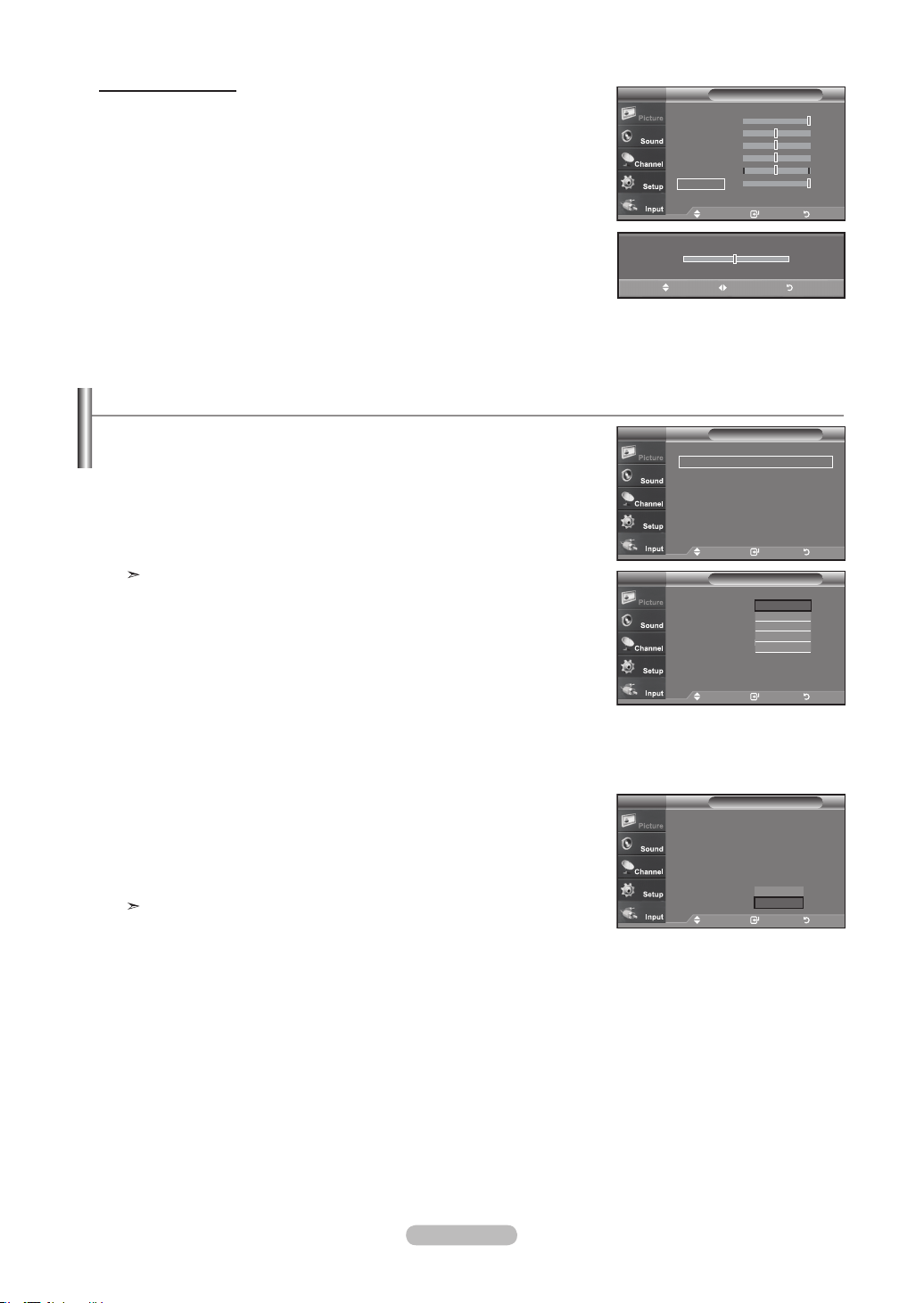
You can change the color of the entire screen according to your preference.
1. Press the MENU button to display the menu.
Press the ENTER
button to select “Picture”.
2. Press the ▲ or ▼ button to select "Color Tone", then press the ENTER
button.
3. Press the ▲ or ▼ button to select "Cool2", "Cool1", "Normal", "Warm1",
or "Warm2".
Press the ENTER
button.
When the picture mode is set to Dynamic or Standard, Warm1 and Warm2
cannot be selected. Movie mode is only available.
Move Enter Return
▲More
Color Tone : Cool2
►
Detailed settings ►
Size : 16 : 9
►
Digital NR : Low
►
Active Color : On
►
DNle : On
►
Reset : OK ►
PictureTV
Move Enter Return
▲More
Color Tone : Cool2
Detailed settings
Size : 16 : 9
Digital NR : Low
Active Color : On
DNle : On
Reset : OK
PictureTV
Cool2
Cool1
Normal
Warm1
Warm2
Activating Backlight
You can adjust the screen brightness by adjusting the LCD backlight brightness. (0~10)
1. Press the MENU button to display the menu.
Press the ENTER button to select “Picture”.
2. Press the ▲ or ▼ button to select “Backlight”, then press the ENTER button.
3. Press the ◄ or ► button to decrease or increase the valueof the backlight
brightness.
Press the ENTER button.
Press the EXIT
button to exit.
Move Enter Return
Mode : Dynamic
►
Contrast 100
Brightness 50
Sharpness 85
Color 55
Tint G 50 R 50
Balcklight 10
▼More
PictureTV
5
▲
Balcklight
▼
Move Adjust Return
Move Enter Return
▲More
Color Tone : Cool2
Detailed settings
Size : 16 : 9
Digital NR : Low
Active Color : On
DNle : Off
Reset : OK
PictureTV
OK
Cancel
Resetting the Picture Settings to the Factory Defaults
1. Press the ▲ or ▼ button to select "Reset", then press the ENTER
button.
Press the ▲ or ▼ button to select “Cancel” or “OK” then press the ENTER button.
Press the EXIT
button to exit.
Each mode can be reset.
BN68-01178A-Eng.indd 24 2007-02-15 �� 8:57:21
English - 25
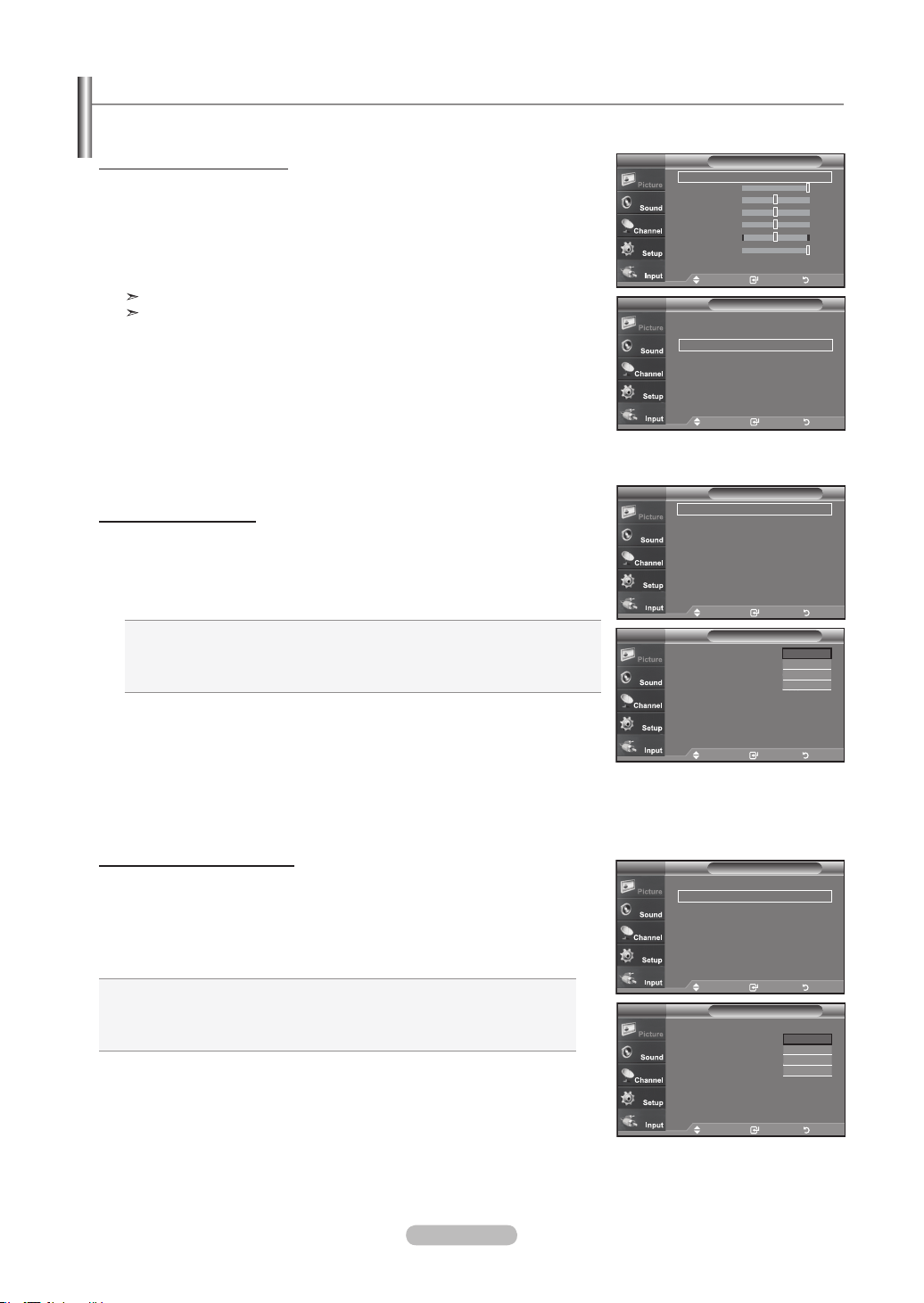
You can set Detailed picture settings.
Activating Detailed Settings
1. Press the MENU button to display the menu.
Press the ENTER button to select “Picture”.
2. Press the ENTER button to select “Mode”
Press the ▲ or ▼ button to select “Movie”, then press the ENTER button.
3. Press the ▲ or ▼ button to select “Detailed settings”, then press the
ENTER button.
Picture Mode is available in Standard or Movie mode.
If DNIe is Off, the Detailed Settings cannot be selected when the Picture mode
is in Standard mode.
Activating Black adjust
You can directly select the black level on the screen to adjust the screen depth.
4. Press the ▲ or ▼ button to select “Black adjust”, then press the ENTER button.
5. Press the ▲ or ▼ button to select “Off”,“Low”,“Medium”,“High”.
Press the ENTER button.
Off: Turns off the black adjustment function.
Low: Sets the black color depth to low.
Medium: Sets the black color depth to medium.
High: Sets the black color depth to high.
Activating Dynamic Contrast
You can adjust the screen contrast so that the optimal contrast is provided.
6. Press the ▲ or ▼ button to select “Dynamic Contrast”, then press the
ENTER button.
7. Press the ▲ or ▼ button to select “Off”,“Low”,“Medium”,“High”.
Press the ENTER button.
Off: Turns off the dynamic contrast adjustment function.
Low: Sets the dynamic contrast to low.
Medium: Sets the dynamic contrast to medium.
High: Sets the dynamic contrast to high.
Adjusting the Detailed Settings
Move Enter Return
Black Adjust : Off
►
Dynamic Contrast : Off
►
Gamma : 0
►
Color Space : Auto ►
White Balance
►
My Color Control
►
Edge Enhancement : Off
►
XV
YCC : Off ►
Detailed SettingsTV
Move Enter Return
Mode : Movie
►
Contrast 100
Brightness 50
Sharpness 85
Color 55
Tint G 50 R 50
Balcklight 10
▼More
PictureTV
Move Enter Return
Black Adjust : Off
Dynamic Contrast : Off
Gamma
: 0
Color Space : Auto
White Balance
My Color Control
Edge Enhancement : Off
XV
YCC : Off
Detailed SettingsTV
Off
Low
Medium
High
Move Enter Return
Black Adjust : Off
►
Dynamic Contrast : Off
►
Gamma : 0
►
Color Space : Auto ►
White Balance
►
My Color Control
►
Edge Enhancement : Off
►
XV
YCC : Off ►
Detailed SettingsTV
Move Enter Return
Black Adjust : Off
Dynamic Contrast : Off
Gamma : 0
Color Space : Auto
White Balance
My Color Control
Edge Enhancement : Off
XV
YCC : Off
Detailed SettingsTV
Off
Low
Medium
High
Move Enter Return
▲More
Color Tone : Cool2
►
Detailed settings
►
Size : 16 : 9
►
Digital NR : Low
►
Active Color : On
►
DNle : On
►
Reset
: OK ►
PictureTV
BN68-01178A-Eng.indd 25 2007-02-15 �� 8:57:23
English - 26
Move Enter Return
R offset 15
G offset 15
B offset 15
R gain 15
G gain 15
B gain 15
Reset
White BalanceTV
Activating Gamma
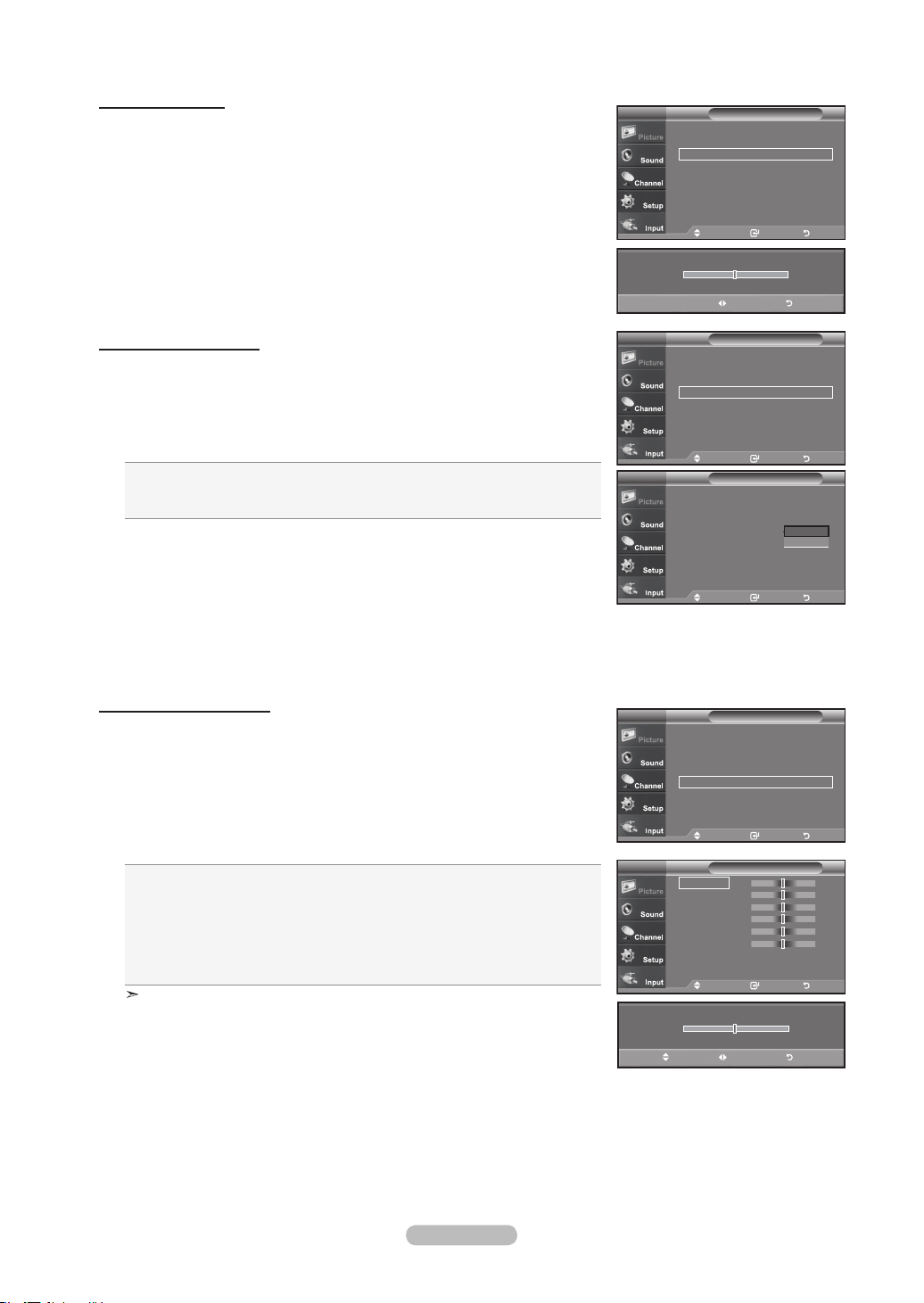
You can adjust the middle brightness of pictures. (-3 ~ 3)
8. Press the ▲ or ▼ button to select “Gamma”, then press the ENTER button.
9. Press the ◄ or ► button to decrease or increase the value of a particular item.
Press the ENTER button.
Changing the Color Space
Color space is a color matrix composed of red, green, and blue colors.
Select your favorite color space to experience the most natural color.
10. Press the ▲ or ▼ button to select “Color Space”, then press the ENTER button.
11. Press the ▲ or ▼ button to select “Auto” or “Wide”.
Press the ENTER button.
Wide : Wide Color Space offers deep and rich color tone.
Auto : Auto Color Space automatically adjusts to the most natural color tone based on
program sources.
Activating White Balance
You can adjust the color temperature for more natural picture colors.
12. Press the ▲ or ▼ button to select “White Balance”, then press the ENTER
button.
13. Select the required option by pressing the ▲ or ▼ button, then press the
ENTER button.
14. Press the ◄ or ► button to decrease or increase the value of a particular item.
Press the ENTER button.
R offset: Adjusts the red color darkness.
G offset: Adjusts the green color darkness.
B offset: Adjusts the blue color darkness.
R gain: Adjusts the red color brightness.
G gain: Adjusts the green color brightness.
B gain: Adjusts the blue color brightness.
Reset: The previously adjusted white balance will be reset to the factory defaults.
Changing the adjustment value will refresh the adjusted screen.
Move Enter Return
Black Adjust : Off
►
Dynamic Contrast : Off
►
Gamma : 0
►
Color Space : Auto ►
White Balance
►
My Color Control
►
Edge Enhancement : Off
►
XV
YCC : Off
Detailed SettingsTV
0
Adjust Return
Gamma
Move Enter Return
Black Adjust : Off
►
Dynamic Contrast : Off
►
Gamma : 0
►
Color Space : Auto ►
White Balance
►
My Color Control
►
Edge Enhancement : Off
►
XV
YCC : Off ►
Detailed SettingsTV
Move Enter Return
Black Adjust : Off
Dynamic Contrast : Off
Gamma : 0
Color Space : Auto
White Balance
My Color Control
Edge Enhancement : Off
XV
YCC : Off
Detailed SettingsTV
Auto
Wide
Move Enter Return
Black Adjust : Off
►
Dynamic Contrast : Off
►
Gamma : 0
►
Color Space : Auto ►
White Balance
►
My Color Control
►
Edge Enhancement : Off
►
XV
YCC : Off ►
Detailed SettingsTV
15
▲
R-Offset
▼
Move Adjust Return
BN68-01178A-Eng.indd 26 2007-02-15 �� 8:57:26
English - 27
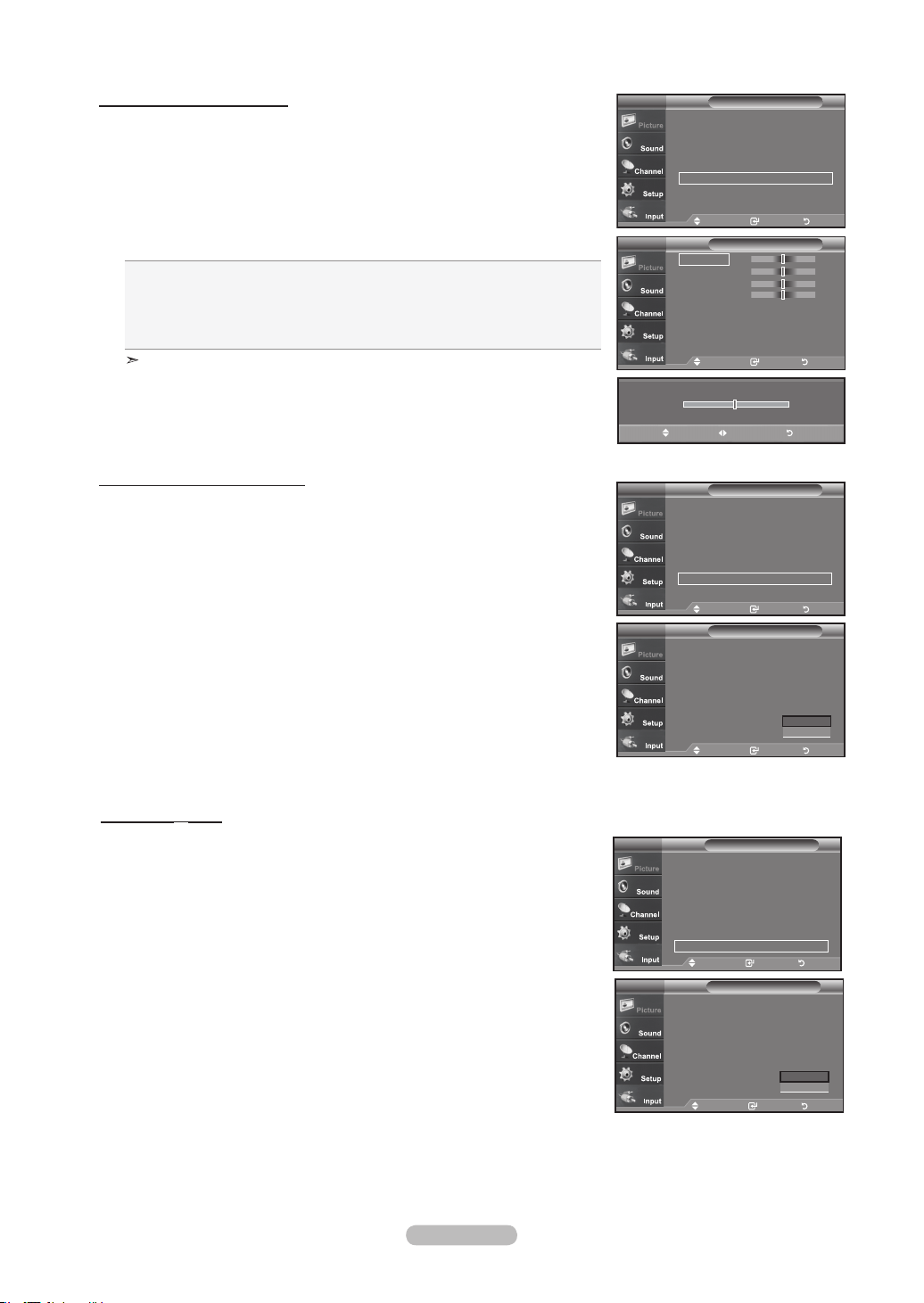
Activating My Color Control
This setting can be adjusted to suit your personal preferences. When using the My Color
Control Feature, the current picture remains in movement.
15. Press the ENTER button to select “My Color Control”.
16. Press the ▲ or ▼ button to select “Pink”,“Green”,“Blue”,“White”,“Reset”.
Press the ENTER button.
17. Press the ◄ or ► button to decrease or increase the value of a particular item.
Press the ENTER button.
Pink: Darkens or lightens the pink color
Green: Darkens or lightens the green color
Blue: Darkens or lightens the blue color
White: Darkens or lightens the white color
Reset: The previously adjusted colors will be reset to the factory defaults.
Changing the adjustment value will refresh the adjusted screen.
Activating Edge Enhancement
You can emphasize object boundaries in the picture.
18. Press the ▲ or ▼ button to select “Edge Enhancement”, then press the
ENTER button.
19. Press the ▲ or ▼ button to select “Off” or “On”.
Press the ENTER button.
Move Enter Return
Pink 15
Green 15
Blue 15
White 15
Reset
My Color ControlTV
Move Enter Return
Black Adjust : Off
►
Dynamic Contrast : Off
►
Gamma : 0
►
Color Space : Auto ►
White Balance
►
My Color Control
►
Edge Enhancement : Off
►
XV
YCC : Off ►
Detailed SettingsTV
15
▲
Pink
▼
Move Adjust Return
Move Enter Return
Black adjust : Off
Dynamic Contrast : Off
Gamma
: 0
Color Space : Auto
White Balance
My Color Control
Edge Enhancement : Off
XV
YCC : Off ►
Detailed SettingsTV
Off
On
Activating XVYCC
The traditional TVs couldn’t clearly implement sharp, solid, and texture images.This TV
can implement those effects using the xvYCC signals, which support extended color
space. The traditional TVs couldn’t also implement part of colors for movie contents.
This TV can implement the same colors as in the films using the xvYCC signals.
Accordingly you can enjoy powerful color presentation of movies with your TV.
20. Press the ▲ or ▼ button to select “
XVYCC
”, then press the ENTER button.
21. Press the ▲ or ▼ button to select “Off” or “On”.
Press the ENTER button.
Press the EXIT
button to exit.
Move Enter Return
Black Adjust : Off
Dynamic Contrast : Off
Gamma
: 0
Color Space : Auto
White Balance
My Color Control
Edge Enhancement : Off
XV
YCC : Off ►
Detailed SettingsTV
Off
On
Black adjust : Off ►
Dynamic Contrast : Off
►
Gamma : 0
►
Color Space : Auto ►
White Balance
►
My Color Control
►
Edge Enhancement : Off
►
XV
YCC : Off ►
Detailed SettingsTV
Move Enter Return
Black Adjust : Off ►
Dynamic Contrast : Off
►
Gamma : 0
►
Color Space : Auto ►
White Balance
►
My Color Control
►
Edge Enhancement : Off
►
XV
YCC : Off ►
Detailed SettingsTV
Move Enter Return
BN68-01178A-Eng.indd 27 2007-02-15 �� 8:57:28
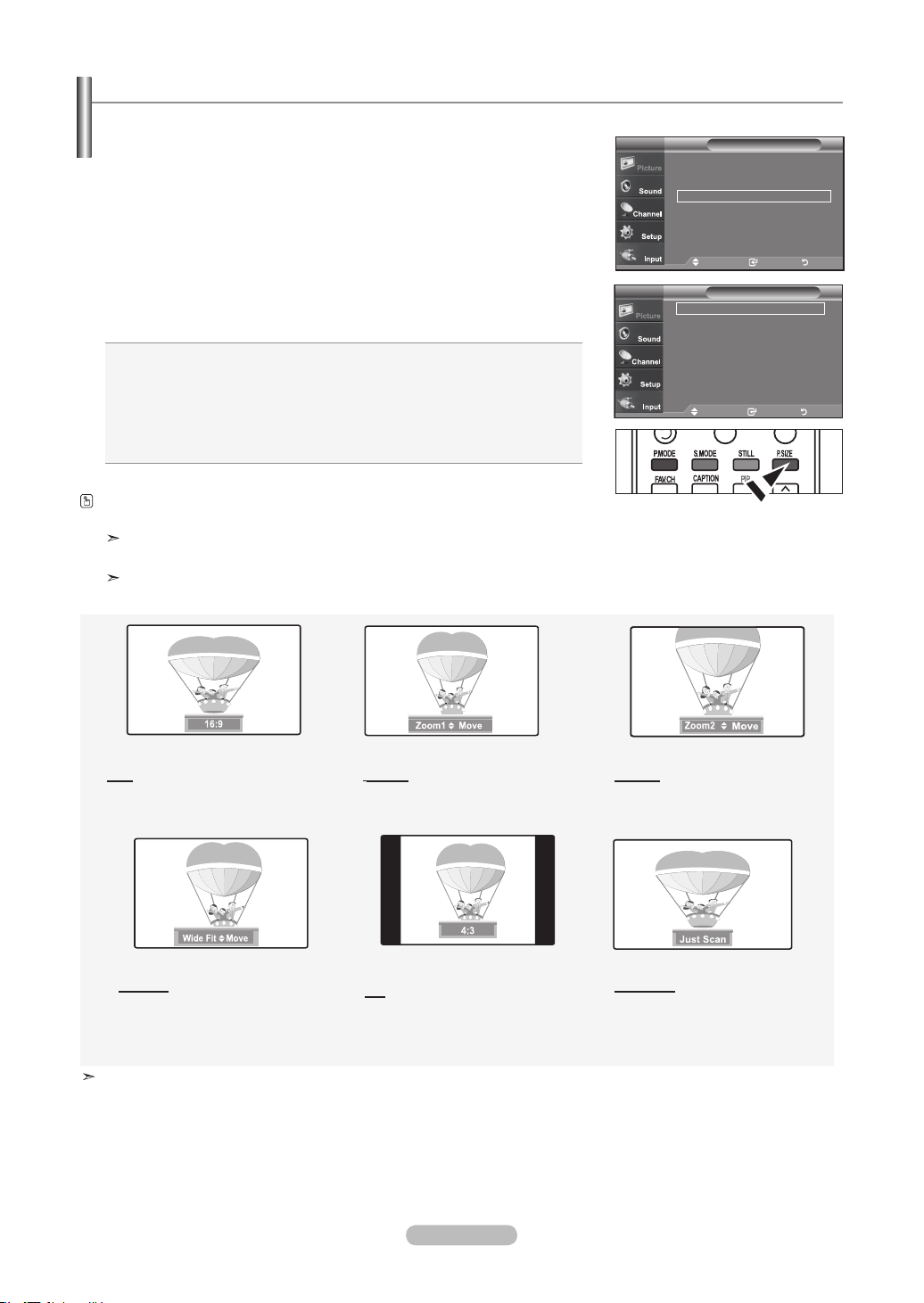
English - 28
Occasionally, you may want to change the size of the image on your screen. Your TV comes with six screen size options, each designed to
work best with specic types of video input. Your cable box or satellite receiver may have its
own set of screen sizes as well.
1. Press the MENU button to display the menu.
Press the ENTER button, to select “Picture”.
2. Press the ▲ or ▼ buttons to select "Size", then press the ENTER
button.
3. Press the ▲ or ▼ buttons to select the screen format you want.
Press the ENTER
button.
Press the EXIT
button to exit.
• 16:9 : Sets the picture to 16:9 wide mode.
• Zoom1 : Magnifies the size of the picture on the screen.
• Zoom2 :Magnifies the size of the picture more than “Zoom1”.
• Wide Fit : Enlarges the aspect ratio of the picture to fit the entire screen.
• 4:3 : Sets the picture to 4:3 normal mode.
• Just Scan : Use the function to see the full image without any cutoff
when HDMI 720p/1080i/1080p signals are input.
Alternately, you can press the P.SIZE button on the remote control repeatedly to
change the picture size.
If you watch a still image or the 4:3 mode for a long time (over 2 hours), an image
may be burned onto the screen. View the TV in 16:9 mode as much as possible.
HD (High Definition)
16:9 - 1080i/1080p (1920x1080), 720P (1280x720)
16:9
Sets the picture to 16:9 wide mode.
Zoom1
The screen size when Wide screen
is vertically enlarged.
Zoom2
The screen size when the Zoom1
screen is vertically enlarged.
Wide Fit
Enlarges the aspect ratio of the
picture to t the entire screen.
4:3
Sets the picture to 4:3
normal mode.
Just Scan
Use the function to see the full image
without any cutoff when HDMI
(
720p/1080i/1080p) or DTV (1080i)
signals
are input.
•
In TV, VIDEO, S-VIDEO, and all COMPONENT (480i, 480p) modes, all screen modes can be selected.
(16:9 • Zoom1 • Zoom2 • 4:3).
•
You can select only the 16:9, 4:3 and Wide Fit screen sizes in the DTV Component (720p, 1080i) or HDMI (720p, 1080i) mode.
• In PC modes, only 16:9 & 4:3 modes can be selected.
•
You must select Zoom with P. Size button on the remote if you want to move the Zoom 1or 2 picture up or down.
•
When watching a DTV’s HD signal, you can use Wide Fit. Horizontal zoom (Wide Fit) sets the optical picture format by
expanding it both horizontally and vertically. For example, you can reset the picture in 4:3 format to 16:9. Wide Fit does not
support all external devices (DVD, VCR etc.).
•
Some cable boxes and satellite receivers have their own set of screen sizes, which may differ from the ones above.
Changing the Screen Size
Move Enter Return
16 : 9
Zoom1
►
Zoom2
►
Wide Fit
►
4 : 3
Just Scan
SizeTV
Move Enter Return
▲More
Color Tone : Cool2
►
Detailed settings
►
Size : 16 : 9
►
Digital NR : Low
►
Active Color : On
►
DNle : On
►
Reset : OK
►
PictureTV
BN68-01178A-Eng.indd 28 2007-02-15 �� 8:57:31
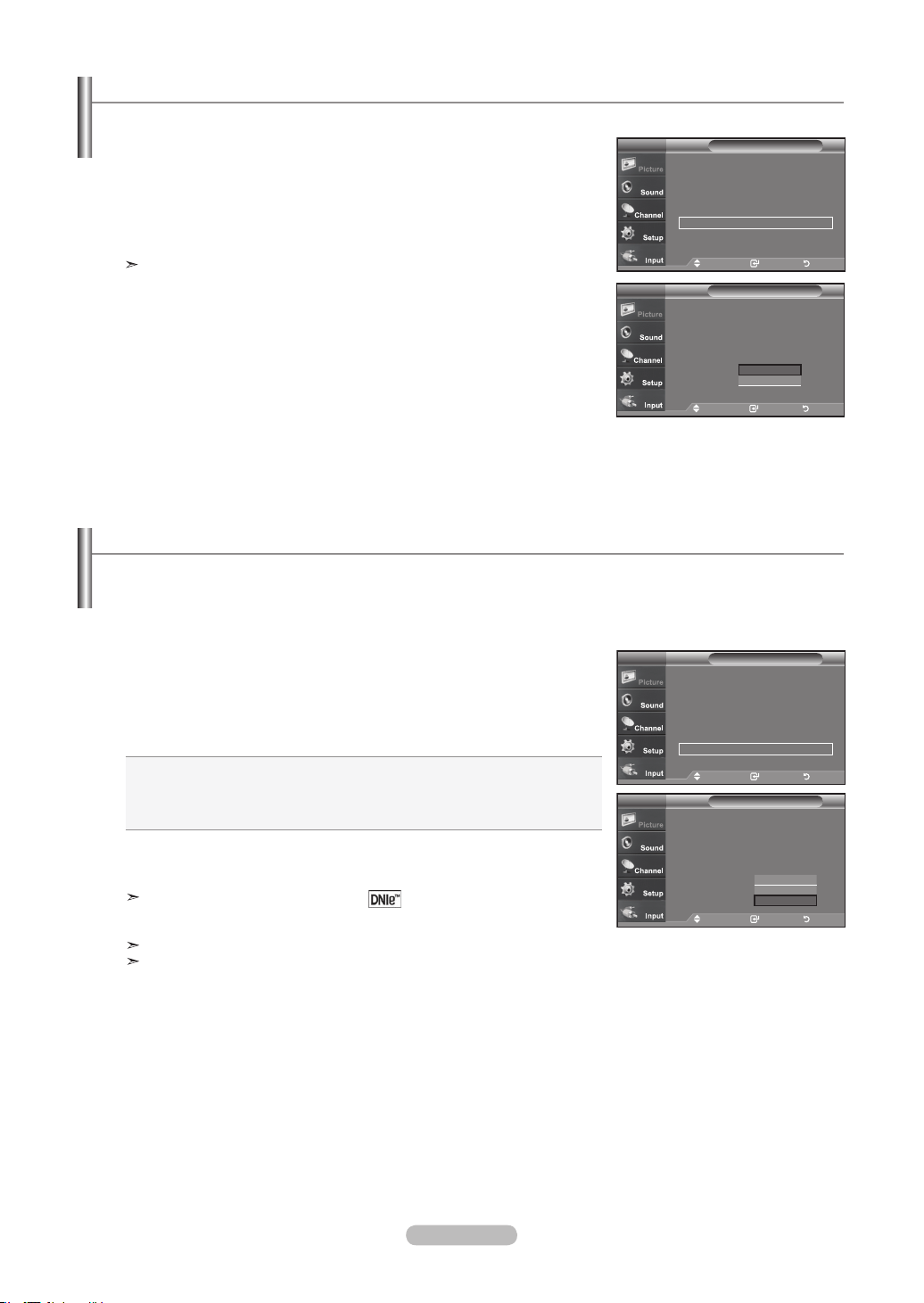
English - 29
1. Press the MENU button to display the menu.
Press the ENTER
button, to select “Picture”.
2. Press the ▲ or ▼ button to select "Active Color", then press the ENTER button.
3. Press the ▲ or ▼ button to select "Off" or "On"
Press the ENTER button.
Press the EXIT
button to exit.
Picture Mode is available only in Dynamic mode.
Setting the Active Color
If you turn on this option, the colors of the sky and grass will be stronger and clearer for a more vivid on-screen picture.
Move Enter Return
PictureTV
Move Enter Return
▲More
Color Tone : Cool2
►
Detailed settings
►
Size : 16 : 9
►
Digital NR : Low
►
Active Color : On
►
DNle : On
►
Reset : OK
►
PictureTV
Move Enter Return
▲More
Color Tone : Cool2
Detailed settings
Size : 16 : 9
Digital NR : Low
Active Color : Off
DNle : Off
Reset
: OK
PictureTV
Off
On
DNIe (Digital Natural Image engine)
This TV includes the the DNIe function to provide high visual quality. If you set DNIe to on, you can view the screen with the
DNIe feature activated. If you set the DNIe to Demo, you can view the applied DNIe and normal pictures on the screen,
for demonstration purposes. Using this function, you can view the difference in the visual quality.
1. Press the MENU button to display the menu.
Press the ENTER
button, to select “Picture”.
2. Press the ▲ or ▼ buttons to select "DNIe", then press the ENTER
button.
3. Press the ▲ or ▼ buttons to select "Off", "Demo" or "On", then press the
ENTER
button.
• Off: Switches off the DNIe mode.
• Demo: The screen before applying DNIe appears on the left screen.
The screen after applying DNIe appears on the right.
• On: Switches on the DNIe mode.
Press the EXIT
button to exit.
DNIe
TM
(Digital Natural Image engine)
This feature brings you a more detailed image with 3D noise reduction and
detailed, contrast and white enhancement.
This function doesn’t work when the Input Source is PC.
The DNle function is not supported in the Movie mode.
Move Enter Return
▲More
Color Tone : Cool2
►
Detailed settings ►
Size : 16 : 9
►
Digital NR : Low
►
Active Color : On
►
DNle : On
►
Reset : OK ►
PictureTV
Move Enter Return
▲More
Color Tone : Cool2
Detailed settings
Size : 16 : 9
Digital NR : Low
Active Color : Off
DNle : Off
Reset : OK
PictureTV
Off
Demo
On
BN68-01178A-Eng.indd 29 2007-02-15 �� 8:57:33
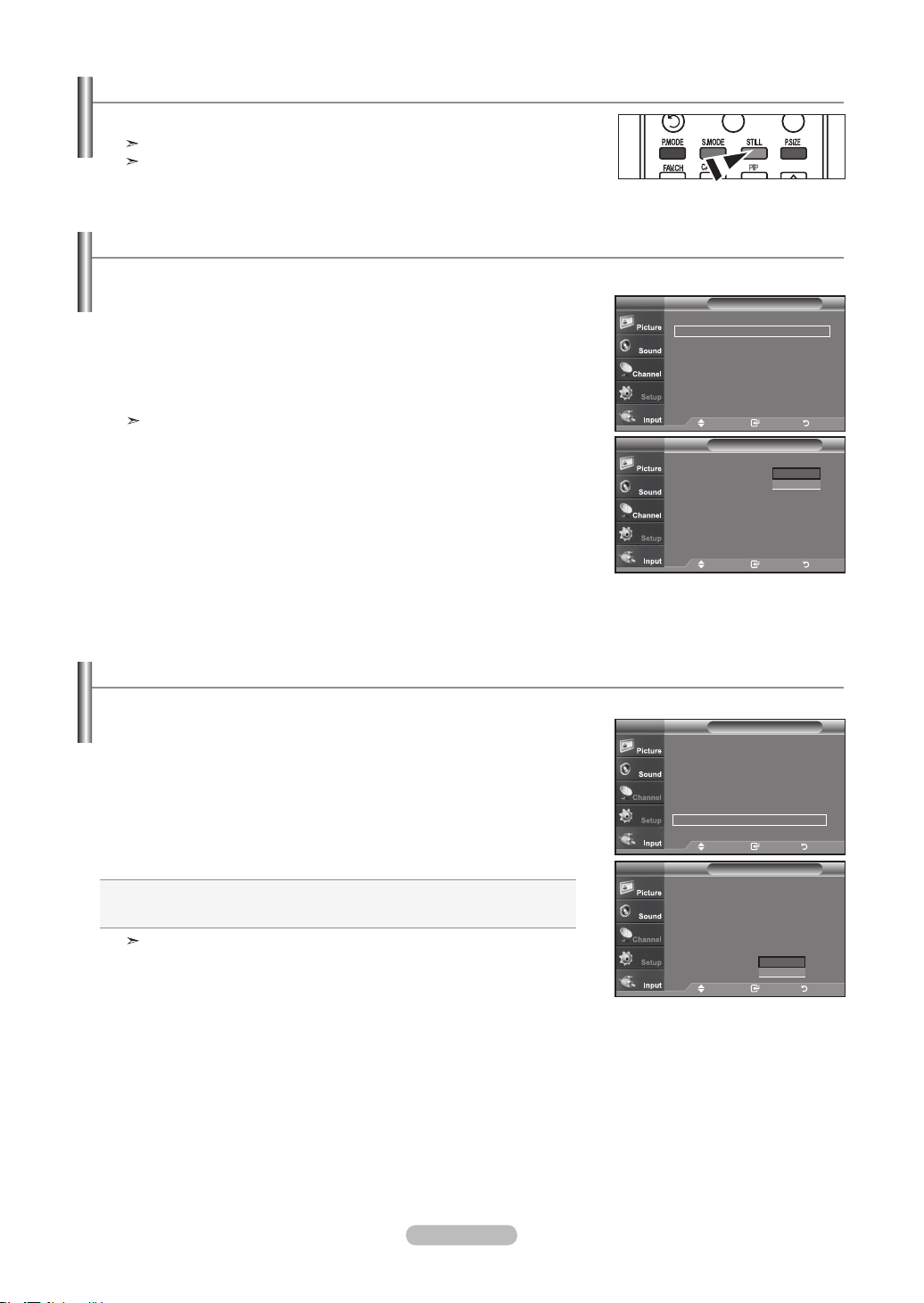
English - 30
Freezing the Picture
1. Press the STILL button to freeze a moving picture.
Normal sound will still be heard. Press again to cancel.
While V-Chip is in operation, the Still function cannot be used.
Setting the Film Mode
You can automatically sense and process lm signals from all sources and adjust the picture for optimum quality.
1. Press the MENU button to display the menu.
Press the ▲ or ▼ buttons to select "Setup", then press the ENTER
button.
2. Press the ▲ or ▼ buttons to select "Film Mode", then press the ENTER
button.
3. Press the ▲ or ▼ buttons to select "On" or "Off", then press the ENTER
button.
Press the EXIT button to exit.
Film mode is supported in TV, VIDEO, S-VIDEO, and COMPONENT480i.
Setup
▲ More
Film Mode : Off ►
Wall-Mount Adjustment ►
PIP ►
Function Help : Off ►
SW Upgrade ►
TV
Move Enter Return
Setup
▲ More
Film Mode : Off
Wall-Mount Adjustment
PIP
Function Help : Off
SW Upgrade
TV
Move Enter Return
Off
On
1. Press the MENU button to display the menu.
Press the
▲ or ▼
buttons to select "Setup", then press the ENTER
button.
2. Press the
▲ or ▼
buttons to select “HDMI Black Level”, then
press the ENTER button.
3. Press the
▲ or ▼
button to select “Normal”, “Low ”, then press
the ENTER button.
• Normal: The screen gets brighter.
• Low:
The screen gets darker.
This function is active only when an external device
(DVD player, STB etc.) is connected to the TV via HDMI(RGB Signal).
Press the EXIT
button to exit.
HDMI Black Level
You can select the black level on the screen to adjust the screen depth.
Setup
▲More
Blue Screen : Off ►
Melody : Off ►
PC
Home theater PC : Off ►
Energy Saving : Off ►
HDMI Black Level :Normal ►
▼ More
TV
Move Enter Return
Setup
▲More
Blue Screen : Off
Melody : Off
PC
Home theater PC : Off
Energy Saving : Off
HDMI Black Level :Normal
▼ More
TV
Move Enter Return
Normal
Low
BN68-01178A-Eng.indd 30 2007-02-15 �� 8:57:35
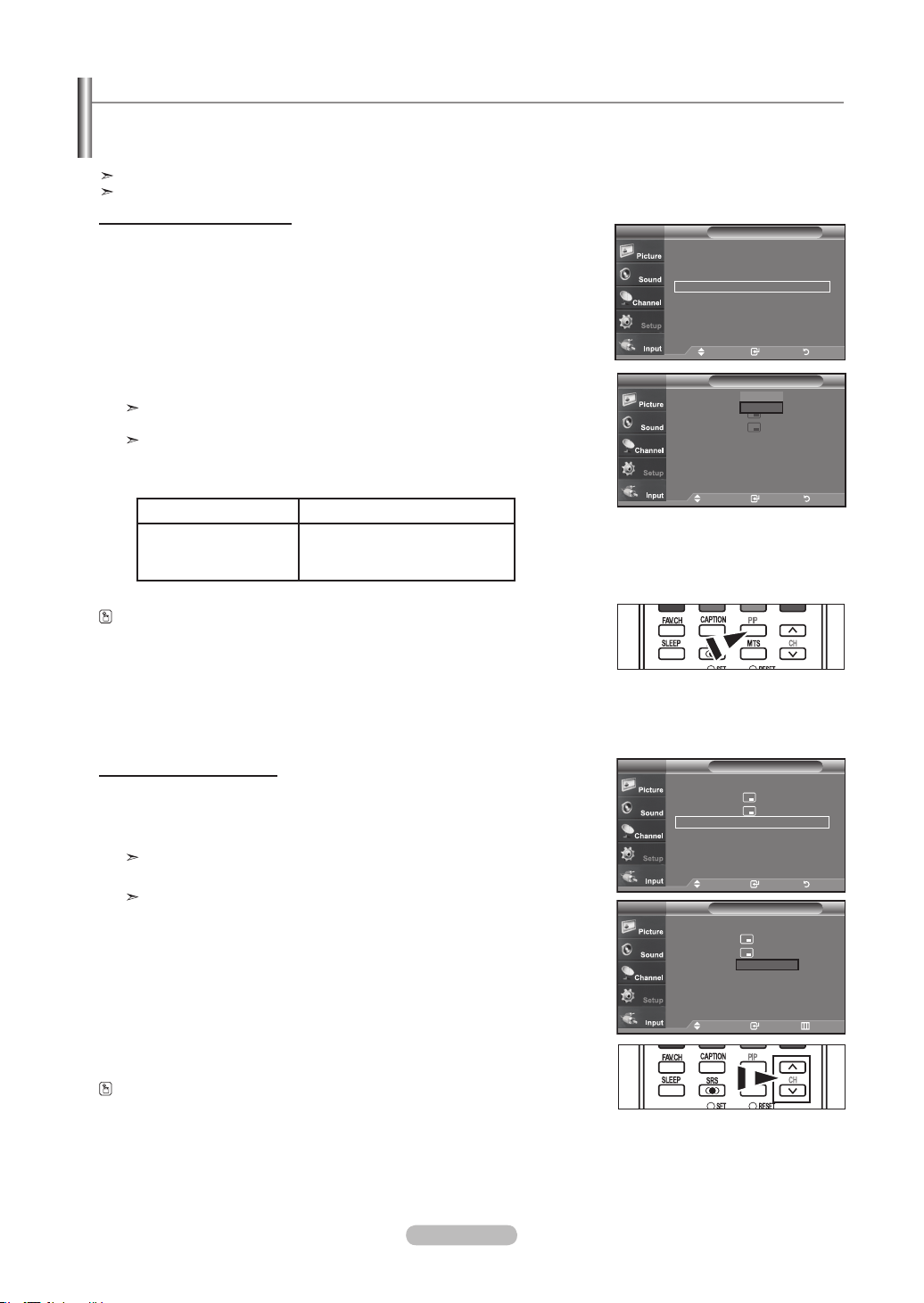
English - 31
Viewing Picture-in-Picture
This product has one built-in tuner, which does not allow PIP to function in the same mode. For example, you cannot watch one TV
channel in the main screen, and a different one in the PIP screen. Please see ‘PIP Settings’below for detaileds. You can use the
PIP feature to simultaneously watch two video sources. (See page 38 to select the PIP picture sound.)
While V-Chip (See page 56) is in operation, the PIP function cannot be used.
While xvYCC (See page 27) is in operation, the PIP function cannot be used.
Activating Picture-in-Picture
1. Press the MENU button to display the menu.
Press the ▲ or ▼ buttons to select “Setup”, then press the ENTER button.
Press the ▲ or ▼ buttons to select "PIP", then press the ENTER
button.
2. Press the ENTER
button again.
Press the▲ or ▼ buttons to select "On", then press the ENTER
button.
If you turn the TV off while watching in PIP mode and turn it on again, the PIP
window will disappear.
You can view Analog TV broadcasts on the PIP screen (sub-picture) when the
main picture is from an external device connected to HDMI1,2,3,
Component1,2, or PC
Main picture Sub picture
Component 1,2
HDMI 1,2,3
PC
Analog TV broadcasts only
Alternately, you can press the PIP button on the remote control repeatedly to activate or
deactivate the PIP.
Move Enter Return
PIP
:
Size :
Position :
Channel : Cable 3
PIPTV
Off
On
Changing the PIP Channel
3. Press the ▲ or ▼ buttons to select “Channel”, then press the ENTER button.
Press the ▲ or ▼ buttons to select the desired channel in the PIP window.
Press the ENTER
buttons.
MAIN: PC / HDMI 1,2,3 / Component 1,2
PIP: TV(Analog)
The channel can be active when the sub picture is set to TV.
Press the PIP Channel buttons on the remote control.
Move Enter Return
PIP : On
►
Size : ►
Position : ►
Channel : Cable 3 ►
PIPTV
Move Enter Return
PIP : On
Size :
Position :
Channel : Cable 3
PIPTV
▲
3
▼
Setup
▲ More
Film Mode : Off ►
Wall-Mount Adjustment
►
PIP ►
Function Help : Off ►
SW Upgrade
►
TV
Move Enter Return
BN68-01178A-Eng.indd 31 2007-02-15 �� 8:57:38
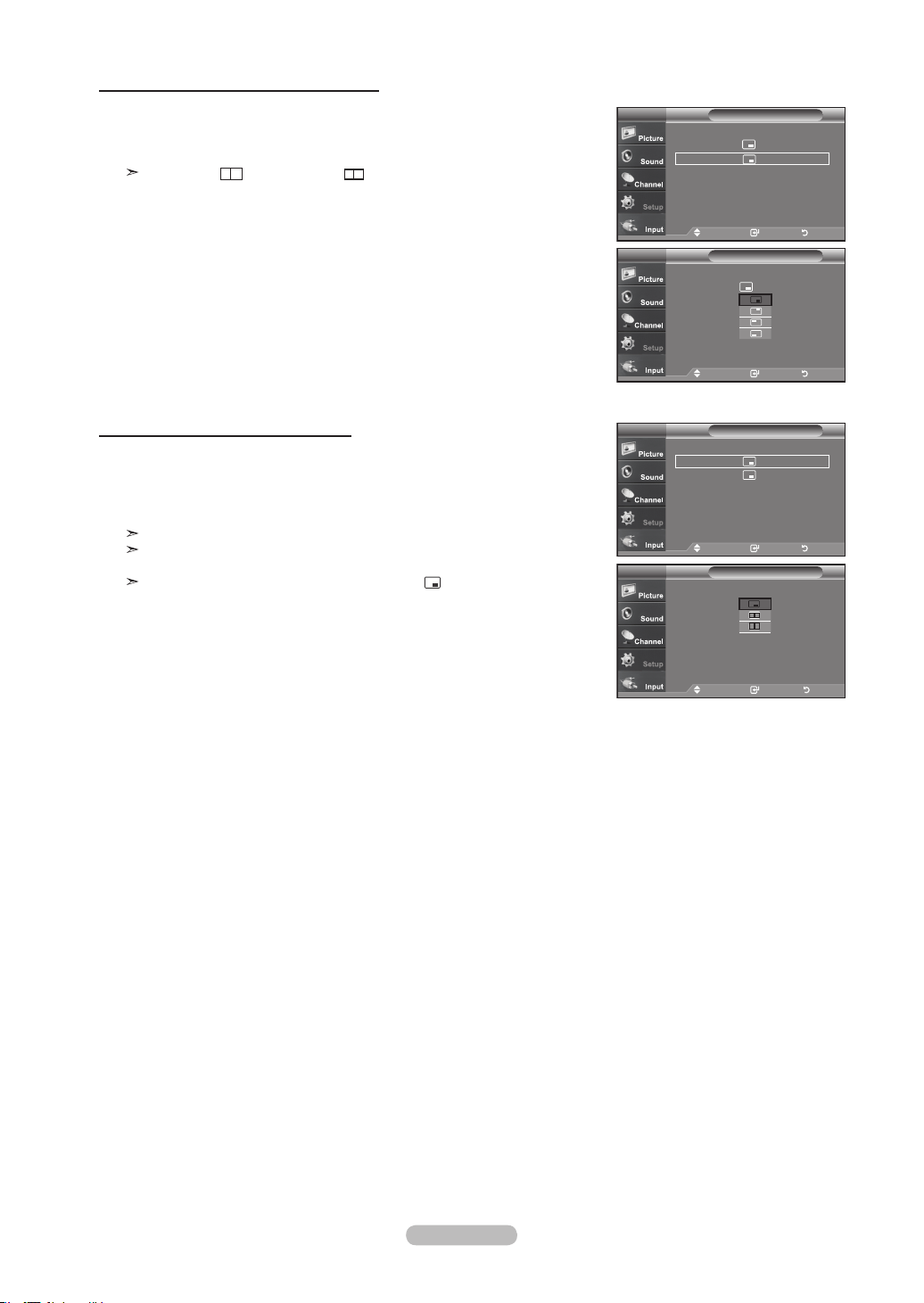
English - 32
Changing the Position of the PIP Window
Changing the Size of the PIP Window
Move Enter Return
PIP : On
Size :
Position :
Channel : Cable 3
PIPTV
Move Enter Return
PIP : On
►
Size : ►
Position : ►
Channel : Cable 3 ►
PIPTV
Move Enter Return
PIP : On
►
Size : ►
Position : ►
Channel : Cable 3 ►
PIPTV
4. Press the ▲ or ▼ buttons to select “Position”, then press the ENTER button.
Press the ▲ or ▼ buttons to select the desired channel in the PIP window.
Press the ENTER
buttons.
The Double ( ), Double Wide ( ) mode cannot be selected in
Position mode.
5. Press the ▲ or ▼ buttons to select “Size”, then press the ENTER button.
Press the ▲ or ▼ buttons to select the desired channel in the PIP window.
Press the ENTER buttons.
Press the EXIT
button to exit.
If the main picture is in PC and HDMI 1 mode, Size is not available.
You may notice that the picture in the PIP window becomes slightly unnatural
when you use the main screen to view a game or karaoke.
You can adjust picture position only by using the size menu.
Move Enter Return
PIP : On
Size :
Position :
Channel : Cable 3
PIPTV
BN68-01178A-Eng.indd 32 2007-02-15 �� 8:57:39
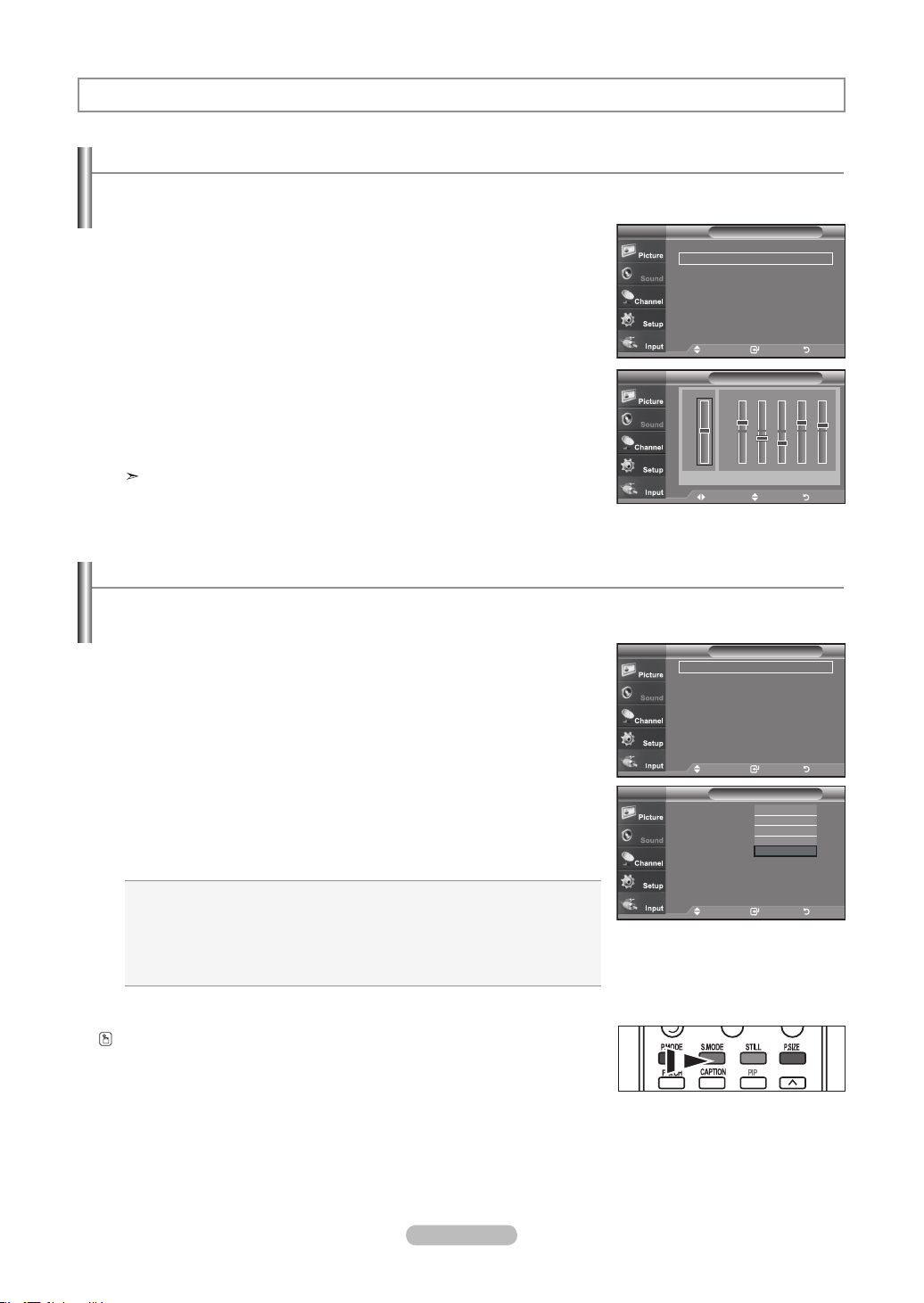
English - 33
Customizing the Sound
The sound settings can be adjusted to suit your personal preference.
(Alternatively, you can use one of the "automatic" settings.)
1. Press the MENU button to display the menu.
Press the ▲ or ▼ buttons to select "Sound", then press the ENTER
button.
2. Press the ▲ or ▼ buttons to select "Equalizer", then press the ENTER
button.
3. Press the ◄ or ► buttons to select a particular frequency to adjust.
Press the ▲ or ▼ buttons to increase or decrease the level of the particular frequency.
Press the ENTER
button.
Press the EXIT
button to exit.
• L/R Sound Balance Adjustment :
To adjust the sound balance of the L/R speakers.
• Bandwidth Adjustment (100Hz, 300Hz, 1K, 3K, 10K) :
: To adjust the level of different bandwidth frequencies.
Using Automatic Sound Settings
Your TV has automatic sound settings ("Standard", "Music", "Movie", "Speech", and "Custom") that are preset at the factory.
Or, you can select "Custom", which automatically recalls your personalized sound settings.
1. Press the MENU button to display the menu.
Press the
▲ or ▼
buttons to select "Sound", then press the ENTER
button.
2. Press the ENTER
button to select "Mode".
Press the
▲ or ▼
buttons to select "Standard", "Music", "Movie", "Speech",
or "Custom" sound setting, then press the ENTER
button.
Press the EXIT
button to exit.
• Choose Standard for the standard factory settings.
• Choose Music when watching music videos or concerts.
• Choose Movie when watching movies.
• Choose Speech when watching a show that is mostly dialog (i.e., news).
• Choose Custom to recall your personalized settings
(see “Customizing the Sound”).
Press the S.MODE button on the remote control repeatedly to select one of the sound
settings.
Sound Control
Move Adjust Return
EqualizerTV
R
L
100Hz
+
-
0
300Hz 1K 3K 10KBalance
Move Enter Return
Mode : Custom ►
Equalizer
►
SRS TruSurround XT
: Off ►
Multi-Track Options ►
Auto Volume : Off
►
Internal Mute : Off
►
Sound Select : Main ►
Reset
SoundTV
Move Enter Return
Mode : Custom ►
Equalizer
►
SRS TruSurround XT
: Off ►
Multi-Track Options ►
Auto Volume : Off
►
Internal Mute : Off
►
Sound Select : Main ►
Reset
SoundTV
+
-
0
Move Enter Return
Mode : Custom
Equalizer
SRS TruSurround XT
: Off
Multi-Track Options
Auto Volume : Off
Internal Mute : Off
Sound Select : Main ►
Reset
SoundTV
Standard
Music
Movie
Speech
Custom
BN68-01178A-Eng.indd 33 2007-02-15 �� 8:57:42
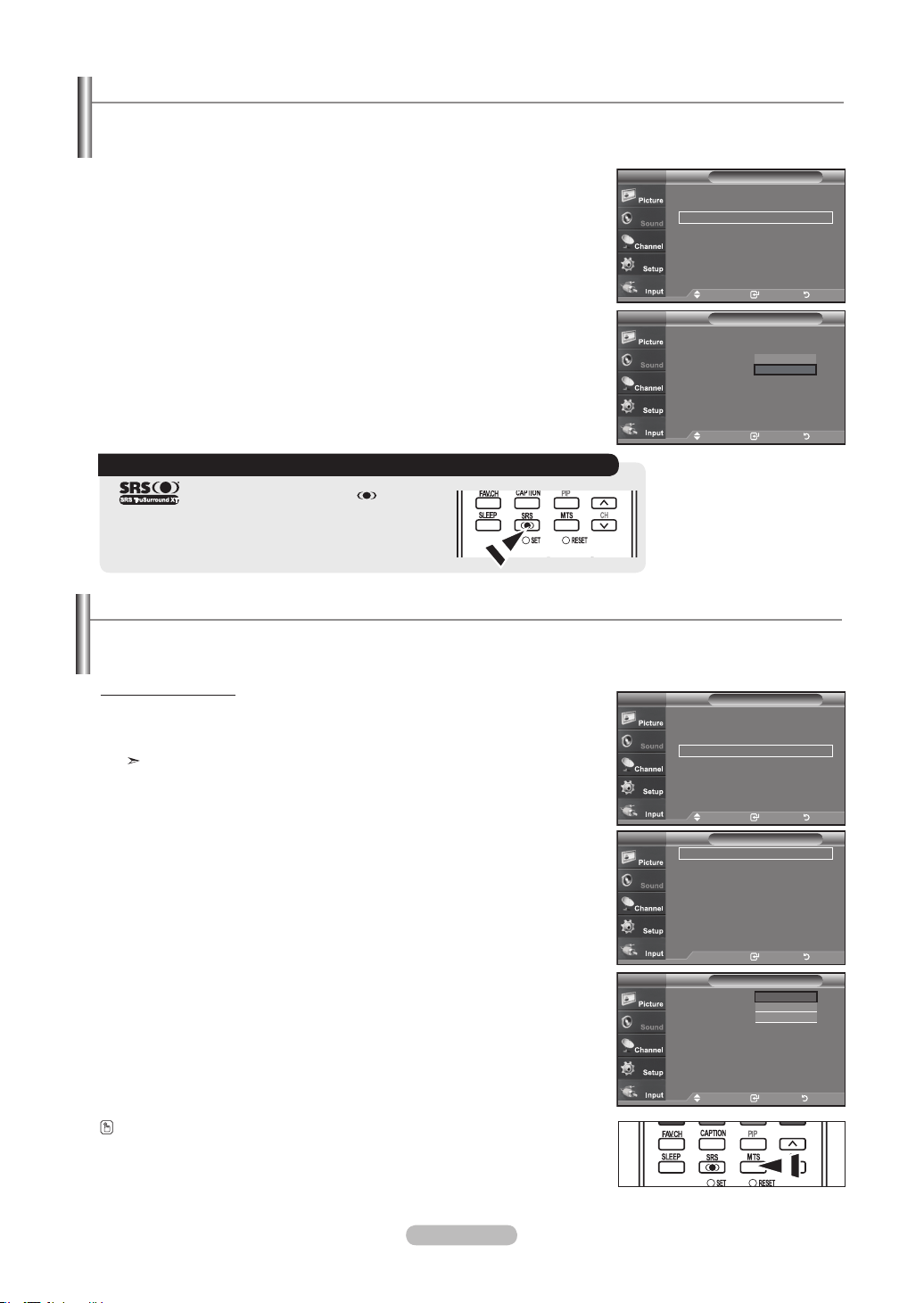
English - 34
Setting the TruSurround XT
TruSurround XT is a patented SRS technology that solves the problem of playing 5.1 multichannel content over two speakers.
TruSurround delivers a compelling, virtual surround sound experience through any two-speaker playback system, including internal
television speakers. It is fully compatible with all multichannel formats.
1. Press the MENU button to display the menu.
Press the ▲ or ▼ buttons to select "Sound", then press the ENTER
button.
2. Press the ▲ or ▼ buttons to select "SRS TruSurround XT", then press the
ENTER
button.
3. Press the ▲ or ▼ buttons to select "On" or "Off", then press the ENTER
button.
Press the EXIT
button to exit.
1. Press the MENU button to display the menu.
Press the ▲ or ▼ buttons to select "Sound", then press the ENTER
button.
Quick way to access the MTS menu: Just press the “MTS” button on the
remote control. You can listen in a language other than your chosen language
by pressing the MTS button.
2. Press the ▲ or ▼ buttons to select "“Multi-Track Options", then press the ENTER
button.
3. Press the ENTER button to select “Preferred Language”.
Press the ▲ or ▼ buttons to choose the language (English, Spanish or French) you
want, then press the ENTER button.
Press the EXIT
button to exit.
You can listen in a language other than the favorite language by pressing
the MTS button on the remote control.
Preferred Language
Choosing a Multi-Channel Sound (MTS) track - Digital
The digital-TV transmission system is capable of simultaneous transmission of many audio tracks (for example, simultaneous
translations of the program into foreign languages). The availability of these additional “multitracks” depends upon the program.
TRADEMARK & LABEL LICENSE NOTICE
TruSurround XT, SRS and
Symbol are
trademarks of SRS Labs, Inc.
TruSurround XT technology is incorporated
under license from SRS Labs, Inc.
Move Enter Return
Mode : Custom ►
Equalizer
►
SRS TruSurround XT
: On ►
Multi-Track Options ►
Auto Volume : Off
►
Internal Mute : Off
►
Sound Select : Main ►
Reset
SoundTV
Move Enter Return
Mode : Custom
Equalizer
SRS TruSurround XT
: Off
Multi-Track Options
Auto Volume : Off
Internal Mute : Off
Sound Select : Main
Reset
SoundTV
Off
On
Move Enter Return
Mode : Custom ►
Equalizer
►
SRS TruSurround XT
: On ►
Multi-Track Options ►
Auto Volume : Off
►
Internal Mute : Off
►
Sound Select : Main ►
Reset
SoundTV
Move Enter Return
Preferred Language
: English
Multi-Track Sound : Stereo
Multi-Track OptionsTV
English
Spanish
French
Enter Return
Preferred Language
: English ►
Multi-Track Sound : Stereo
►
Multi-Track OptionsTV
BN68-01178A-Eng.indd 34 2007-02-15 �� 8:57:44
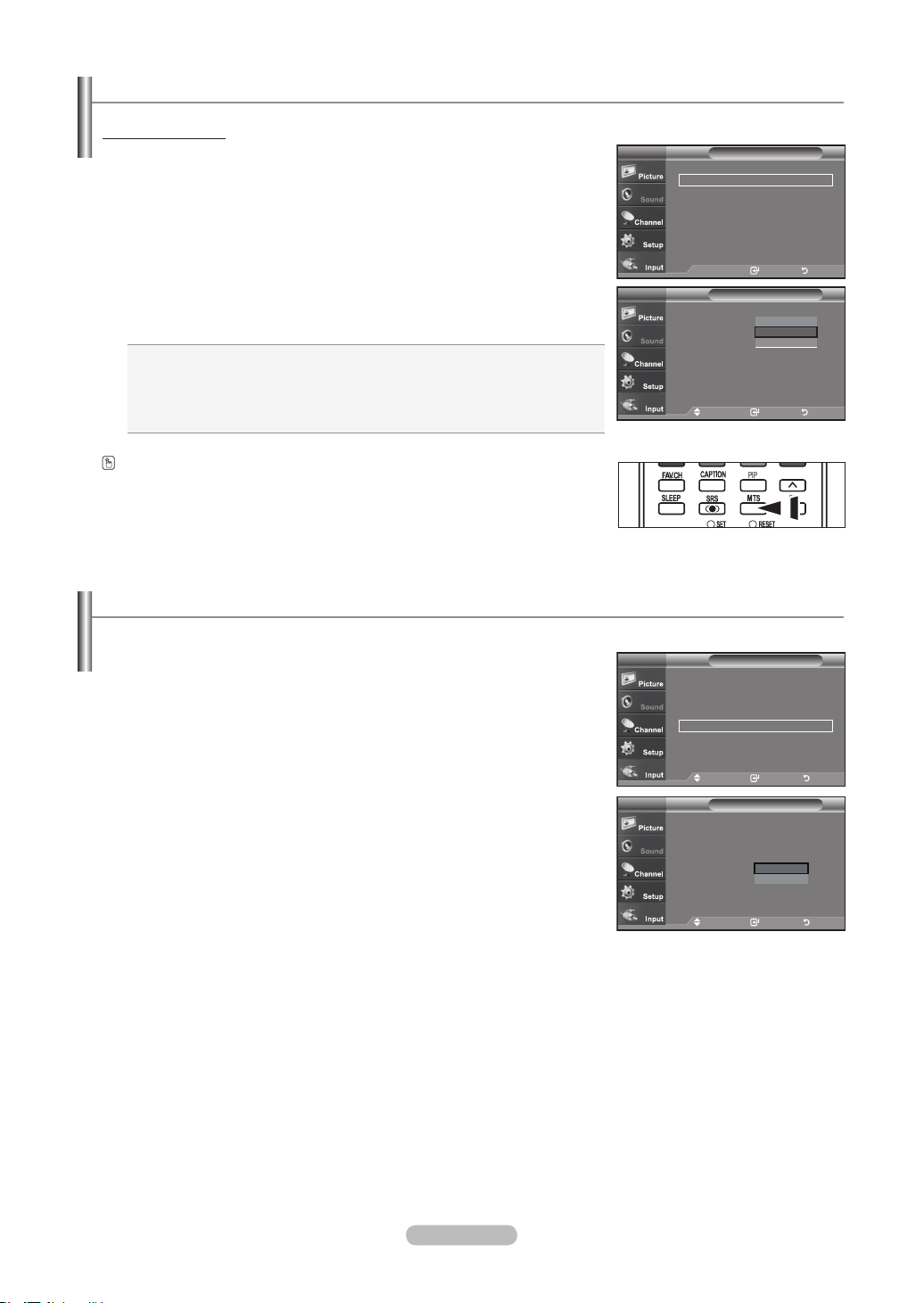
English - 35
Automatic Volume Control
1. Press the MENU button to display the menu.
Press the ▲ or ▼ buttons to select "Sound", then press the ENTER
button.
2. Press the ▲ or ▼ buttons to select "Auto Volume", then press the ENTER
button.
3. Press the ▲ or ▼ buttons to set Auto Volume "On" or "Off" then press the
ENTER
button.
Press the EXIT
button to exit.
Reduces the differences in volume level among broadcasters.
1. Press the MENU button to display the menu.
Press the ▲ or ▼ buttons to select "Sound", then press the ENTER
button.
2. Press the ▲ or ▼ buttons to select "“Multi-Track Options", then press the
ENTER
button.
3. Press the ▲ or ▼ buttons to select “Multi-Track Sound”, then press the ENTER button.
Press the ▲ or ▼ buttons to select a setting you want, then press the ENTER button.
Press the EXIT button to exit.
• Choose Mono for channels that are broadcasting in mono, or if you are having
difficulty receiving a stereo signal.
• Choose Stereo for channels that are broadcasting in stereo.
• Choose SAP to listen to the Separate Audio Program, which is usually a
foreign-language translation.
Press the MTS buttons on the remote control repeatedly to select “Mono”,
“Stereo”, or “SAP”.
Multi-Track Sound
Choosing a Multi-Channel Sound (MTS) track - Analog
Move Enter Return
Preferred Language
: English
Multi-Track Sound : Stereo
Multi-Track OptionsTV
Mono
Stereo
SAP
Enter Return
Preferred Language
: English ►
Multi-Track Sound : Stereo
►
Multi-Track OptionsTV
Move Enter Return
Mode : Custom ►
Equalizer
►
SRS TruSurround XT
: On ►
Multi-Track Options ►
Auto Volume : Off
►
Internal Mute : Off
►
Sound Select : Main ►
Reset
SoundTV
Move Enter Return
Mode : Custom
Equalizer
SRS TruSurround XT
: On
Multi-Track Options
Auto Volume : Off
Internal Mute : Off
Sound Select : Main
Reset
SoundTV
Off
On
BN68-01178A-Eng.indd 35 2007-02-15 �� 8:57:46
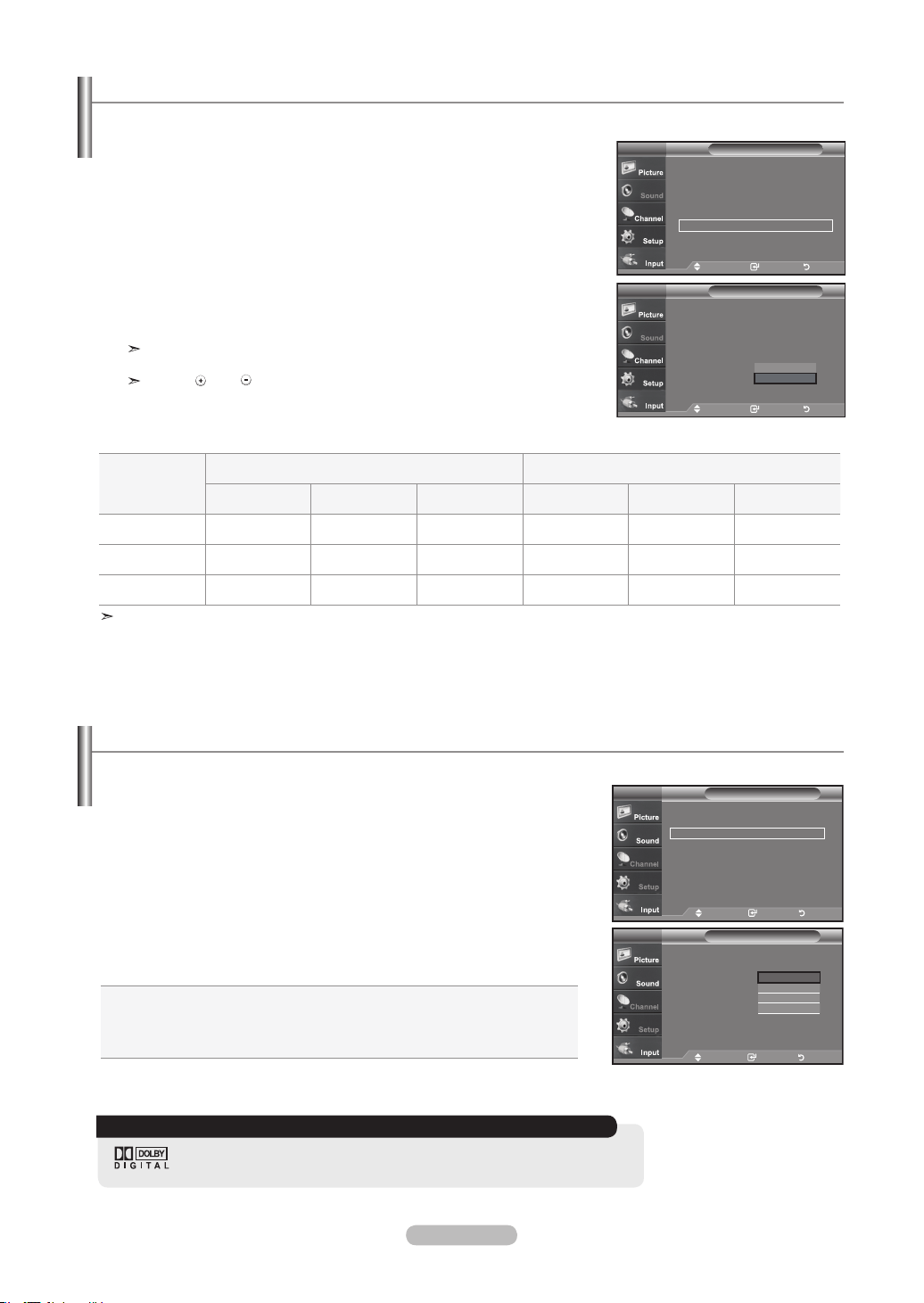
English - 36
Selecting the Internal Mute
1. Press the MENU button to display the menu.
Press the ▲ or ▼ buttons to select "Sound", then press the ENTER
button.
2. Press the ▲ or ▼ buttons to select "Internal Mute", then press the ENTER
button.
3. Press the ▲ or ▼ buttons to select “On”, then press the ENTER button.
Press the EXIT
button to exit.
When Internal Mute is set to “On”, Sound menus except Multi-track Options
cannot be adjusted.
The VOL , VOL
and MUTE buttons do not operate when the Internal Mute
is set to On.
Sound output from the TV speakers is muted.
Move Enter Return
Mode : Custom ►
Equalizer
►
SRS TruSurround XT
: On ►
Multi-Track Options ►
Auto Volume : Off
►
Internal Mute : Off
►
Sound Select : Main ►
Reset
SoundTV
Move Enter Return
Mode : Custom
Equalizer
SRS TruSurround XT
: On
Multi-Track Options
Auto Volume : Off
Internal Mute : Off
Sound Select : Main
Reset
SoundTV
Off
On
TV'S Internal Speakers Audio Out (Optical, L/R Out) to Sound System
RF AV, S-Video
Component, PC, HDMI
RF AV, S-Video
Component, PC, HDMI
Internal Mute Off
Speaker Output Speaker Output Speaker Output Sound Output Sound Output Sound Output
Internal Mute On
Mute Mute Mute Sound Output Sound Output Sound Output
Video No Signal
Mute Mute Mute Mute Mute Mute
When “Internal mute” is set to “On”, Sound menus except “Multi-Track Options” cannot be adjusted.
Setting the On/Off melody
1. Press the MENU button to display the menu.
Press the ▲ or ▼ buttons to select "Setup", then press the ENTER
button.
2. Press the ▲ or ▼ buttons to select "Melody", then press the ENTER
button.
3. Press the ▲ or ▼ buttons to select “Off”, “Low”, “Medium”, “High”, then press
the ENTER button.
• Off : Turns off the melody function.
• LOW : Sets the melody volume to low.
• Medium : Sets the melody volume to medium.
• High : Sets the melody volume to high.
Press the EXIT
button to exit.
A melody sound can be set to come on when the TV is powered On or Off.
TRADEMARK & LABEL LICENSE NOTICE
Manufactured under license from Dolby Laboratorories.
"Dolby" and the double-D symbol are trademarks of Dolby Laboratories.
Setup
▲More
Blue Screen : Off ►
Melody : Off ►
PC
Home Theater PC : Off ►
Energy Saving : Off ►
HDMI Black Level :Normal ►
▼ More
TV
Move Enter Return
Setup
▲More
Blue Screen : Off
Melody : Off
PC
Home Theater PC : Off
Energy Saving : Off
HDMI Black Level :Normal
▼ More
Off
Low
Medium
High
Move Enter Return
TV
BN68-01178A-Eng.indd 36 2007-02-15 �� 8:57:48
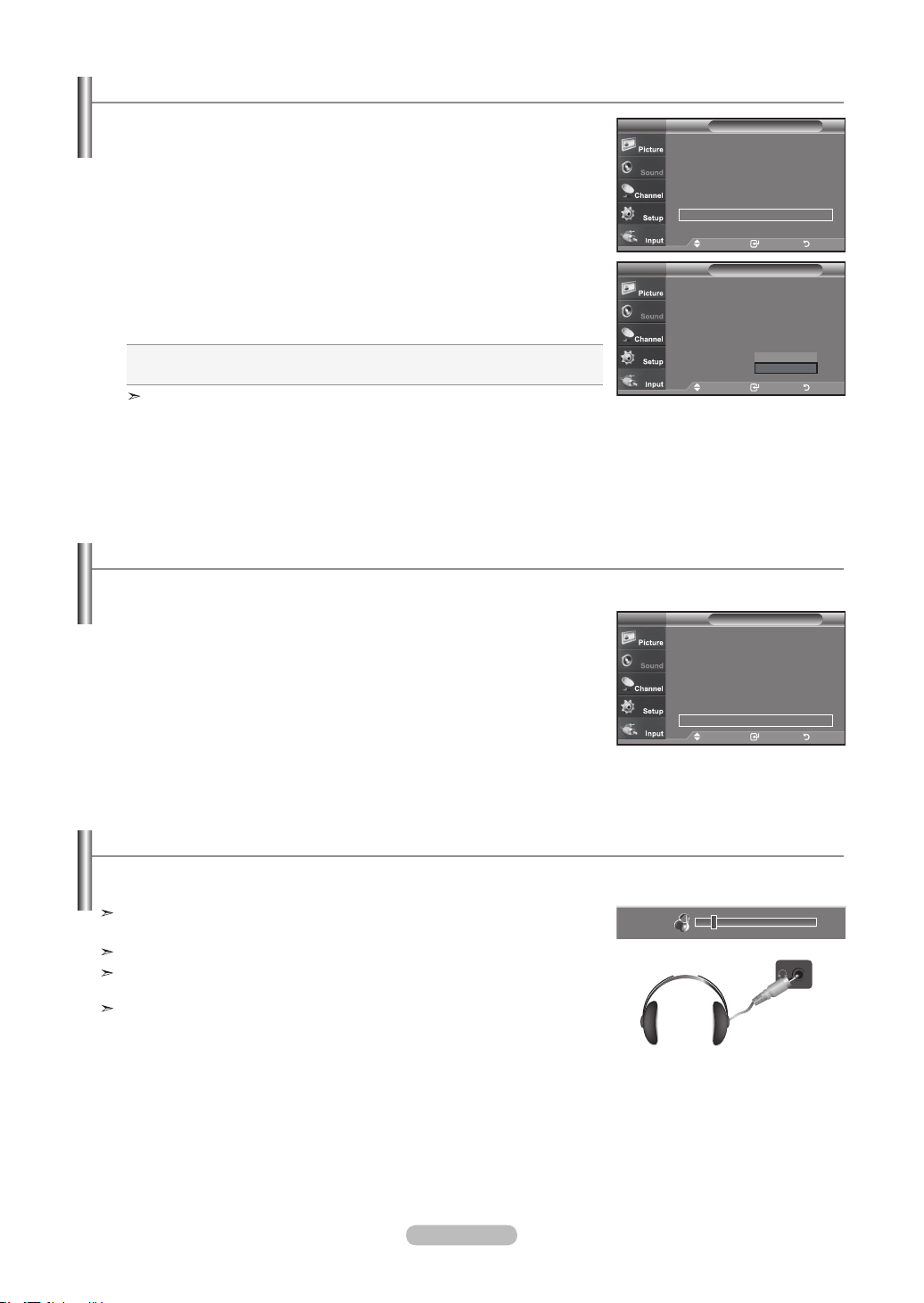
English - 37
Resetting the Sound Settings to the Factory Defaults
1. Press the MENU button to display the menu.
Press the ▲ or ▼ button to select "Sound", then press the ENTER
button.
2. Press the ▲ or ▼ button to select "Reset”, then press the ENTER
button.
Press the EXIT
button to exit.
If Game Mode is On, the Reset Sound function is activated. Selecting the Reset function resets the equalizer setting to the factory
defaults.
You can connect a set of headphones to your set if you wish to watch a TV program without disturbing the other people in the
room.
Connecting Headphones
When you insert the head set jack into the corresponding port, you can operate
only “Multi track option” in Sound menu.
Prolonged use of headphones at a high volume may damage your hearing.
You will not receive sound from the speakers when you connect headphones
to the system.
The headphone volume and TV volume are adjusted separately.
10
Move Enter Return
Mode : Custom ►
Equalizer
►
SRS TruSurround XT
: On ►
Multi-Track Options ►
Auto Volume : Off
►
Internal Mute : Off
►
Sound Select : Main ►
Reset
SoundTV
Listening to the Sound of the Sub (PIP) Picture
1. Press the MENU button to display the menu.
Press the ▲ or ▼ buttons to select "Sound", then press the ENTER
button.
2. Press the ▲ or ▼ buttons to select "Sound Select”, then press the ENTER
button.
3. Press the ▲ or ▼ buttons to select “Main” or “Sub”, then press the ENTER button.
Press the EXIT
button to exit.
• Main: Used to listen to the sound of the main picture..
• Sub: Used to listen to the sound of the sub picture.
You can select this option when “PIP” is set to “On”.
When the PIP feature is activated, you can listen to the sound of the sub (PIP) picture.
Move Enter Return
Mode : Custom ►
Equalizer
►
SRS TruSurround XT
: On ►
Multi-Track Options ►
Auto Volume : Off
►
Internal Mute : Off
►
Sound Select : Main ►
Reset
SoundTV
Move Enter Return
Mode : Custom
Equalizer
SRS TruSurround XT
: On
Multi-Track Options
Auto Volume : Off
Internal Mute : Off
Sound Select : Main
Reset
SoundTV
Main
Sub
BN68-01178A-Eng.indd 37 2007-02-15 �� 8:57:50
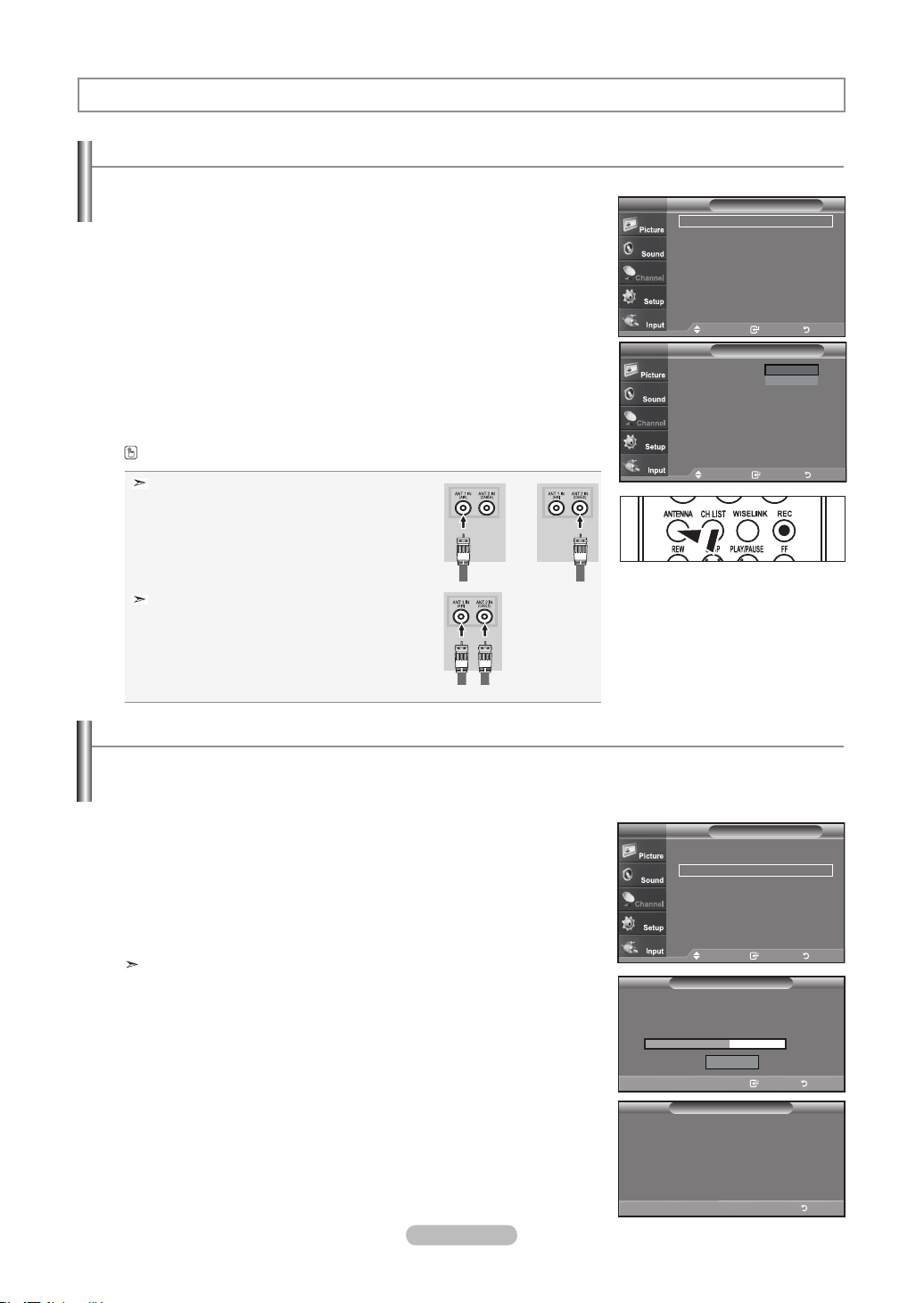
English - 38
Channel Control
Selecting the Antenna
1. Press the MENU button to display the menu.
Press the ▲ or ▼ buttons to select "Channel", then press the ENTER
button.
2. Press the ENTER button to select “Antenna”.
Press the ▲ or ▼ buttons to select “Air” or “Cable”,then press the
ENTER button.
Press the EXIT
button to exit.
Press the ANTENNA button on the remote control.
If the antenna is connected to ANT 1 IN (AIR),
select “Air” and if it is connected to ANT 2 IN
(CABLE), select “Cable”.
If both ANT 1 IN (AIR) and ANT 2 IN (CABLE)
are connected, select the antenna input you want.
If the antenna input is not selected properly, noise
may appear on the screen.
Antenna : Air ►
Auto Program
►
Clear Scrambled Channel
►
Channel List
►
Name
►
Fine Tune
►
Signal Strength
►
LNA : On
►
Channel
Move Enter Return
TV
Channel
Move Enter Return
TV
Antenna : Air
Auto Program
Clear Scrambled Channel
Channel List
Name
Fine Tune
Signal Strength
LNA : On
Air
Cable
or
Clearing Scrambled Channels - Digital
1. Press the MENU button to display the menu.
Press the ▲ or ▼ buttons to select "Channel", then press the ENTER
button.
2. Press the ▲ or ▼ button to select "Clear Scrambled Channel", then press the
ENTER button.
It searches scrambled channels, which are to be removed from the list.
To stop searching scrambled channels;
Press the ▼ button to select Stop, then press the ENTER button.
Press the ◄ button to select Yes, then press the ENTER button.
3. When the scrambled channel searching is completed, press the ENTER button.
Press the EXIT
button to exit.
The Clear Scrambled Channel function is used to lter out scrambled channels after Auto Program is completed.
It removes the scrambled channels from the list by tuning the digital cable channels. This process may take up to 20~30 minutes.
Clear Scrambled Channel
Stop
Removing scrambled channel.
DTV Cable 3-1
50%
Enter Return
Clear Scrambled Channel
Scrambled Channel Searching is completed.
0 Channels are deleted.
Return
Antenna : Air ►
Auto Program
►
Clear Scrambled Channel
►
Channel List
►
Name
►
Fine Tune
►
Signal Strength
►
LNA : On
►
Channel
Move Enter Return
TV
BN68-01178A-Eng.indd 38 2007-02-15 �� 8:57:52
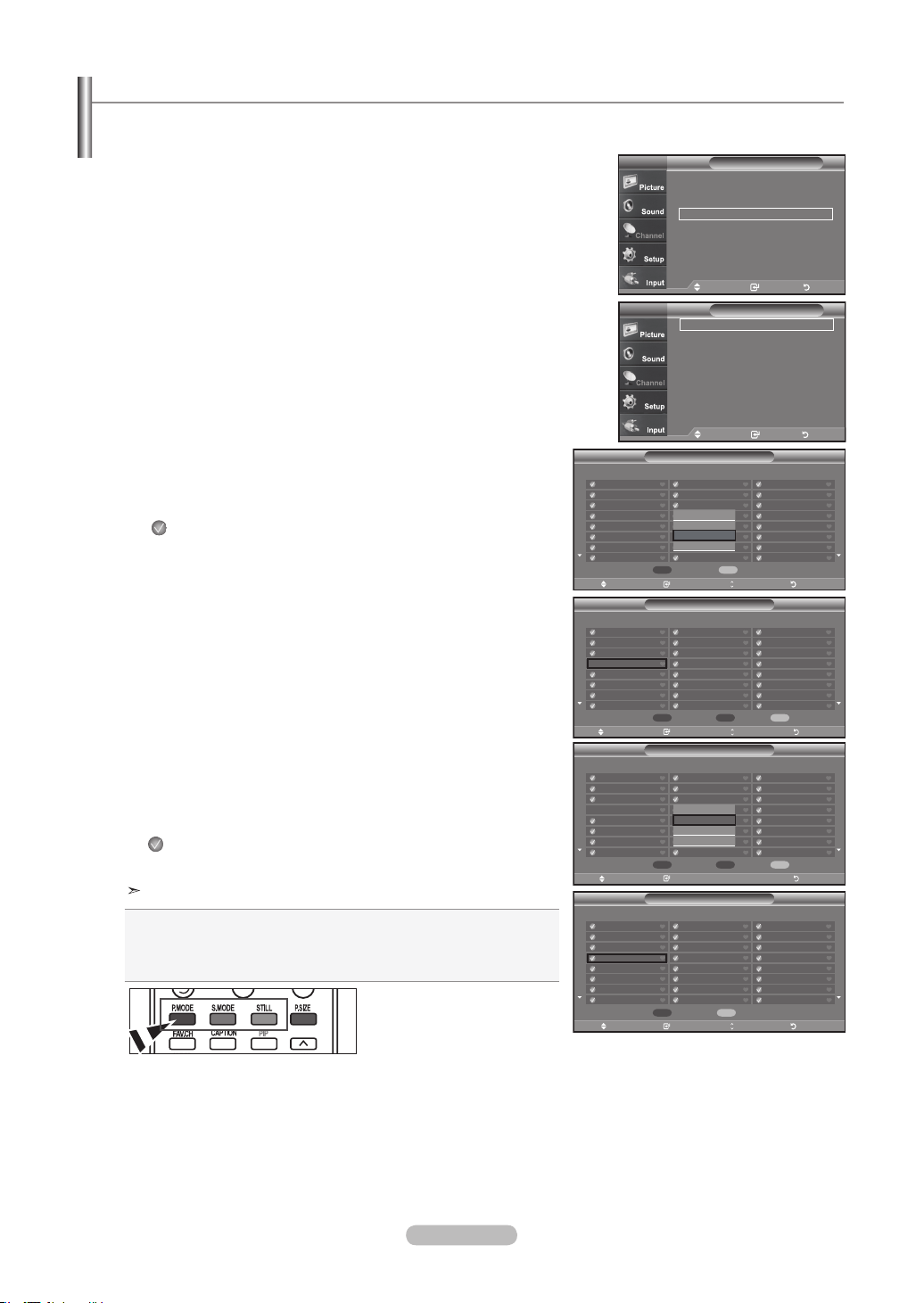
English - 39
Setting the Channel Lists
You can add or delete a channel so only channels you want are displayed.
All
Added
Favorite
Default List Mode : All ►
Channel List
Move Enter Return
TV
CH
Channel List / All
Move Enter Page Return
DTV Air 2-1
Air3
Air4
Air 5
Air 6
Air 7
DTV Air 7-1
Air 8
Air 9
Air 10
DTV Air 10-1
DTV Air 10-2
DTV Air 10-3
DTV Air 10-1
DTV Air 10-2
DTV Air 10-3
DTV Air 10-1
DTV Air 10-2
DTV Air 10-3
Air 12
DTV Air 13-1
DTV Air 13-2
DTV Air 13-3
DTV Air 13-4
List Mode
Delete All
Air 5 1 / 2
Watch
Add
Delete
Favorite
CH
Channel List / All
Move Enter Page Return
DTV Air 2-1
Air3
Air4
Air 5
Air 6
Air 7
DTV Air 7-1
Air 8
Air 9
Air 10
DTV Air 10-1
DTV Air 10-2
DTV Air 10-3
DTV Air 10-1
DTV Air 10-2
DTV Air 10-3
DTV Air 10-1
DTV Air 10-2
DTV Air 10-3
Air 12
DTV Air 13-1
DTV Air 13-2
DTV Air 13-3
DTV Air 13-4
List Mode
Delete All
Air 5 1 / 2
Add All
CH
Channel List / All
Move Enter Page Return
DTV Air 2-1
Air3
Air4
Air 5
Air 6
Air 7
DTV Air 7-1
Air 8
Air 9
Air 10
DTV Air 10-1
DTV Air 10-2
DTV Air 10-3
DTV Air 10-1
DTV Air 10-2
DTV Air 10-3
DTV Air 10-1
DTV Air 10-2
DTV Air 10-3
Air 12
DTV Air 13-1
DTV Air 13-2
DTV Air 13-3
DTV Air 13-4
List Mode
Delete All
Air 5 1 / 2
Channel List / All
Move Enter Return
DTV Air 2-1
Air3
Air4
Air 5
Air 6
Air 7
DTV Air 7-1
Air 8
Air 9
Air 10
DTV Air 10-1
DTV Air 10-2
DTV Air 10-3
DTV Air 10-1
DTV Air 10-2
DTV Air 10-3
DTV Air 10-1
DTV Air 10-2
DTV Air 10-3
Air 12
DTV Air 13-1
DTV Air 13-2
DTV Air 13-3
DTV Air 13-4
Air 5 1 / 2
Watch
Add
Delete
Favorite
List Mode
Delete AllAdd All
1. Press the MENU button to display the menu.
Press the ▲ or ▼ buttons to select "Channel", then press the ENTER
button.
2. Press the ▲ or ▼ buttons to select "Channel List", then press the
ENTER
button.
3. Press the ENTER button to select “All”.
4. Press the ▲ or ▼ buttons to select a channel to delete, then press the
ENTER button.
Press the ▲ or ▼ buttons to select “Delete”, then press the ENTER
button to
delete the channel.
The mark will disappear.
5. Press the ▲ or ▼ buttons to select a channel to add,then press the
ENTER button.
Press the ▲ or ▼ buttons to select “Add”, then press the ENTER
button to
add the channel.
The mark will appear and the channel will be added.
Press the EXIT
button to exit.
All selected channels will be shown on “Added menu”.
• P.MODE (Red) button: Press repeatedly to select “All”, “Added”, or
“Favorite”.
• S.MODE (Green) button: Press to add all channels deleted.
• STILL (Yellow) button: Press to delete all channels memorized.
Antenna : Air ►
Auto Program
►
Clear Scrambled Channel
►
Channel List
►
Name
►
Fine Tune
►
Signal Strength
►
LNA : On
►
Channel
Move Enter Return
TV
BN68-01178A-Eng.indd 39 2007-02-15 �� 8:57:55
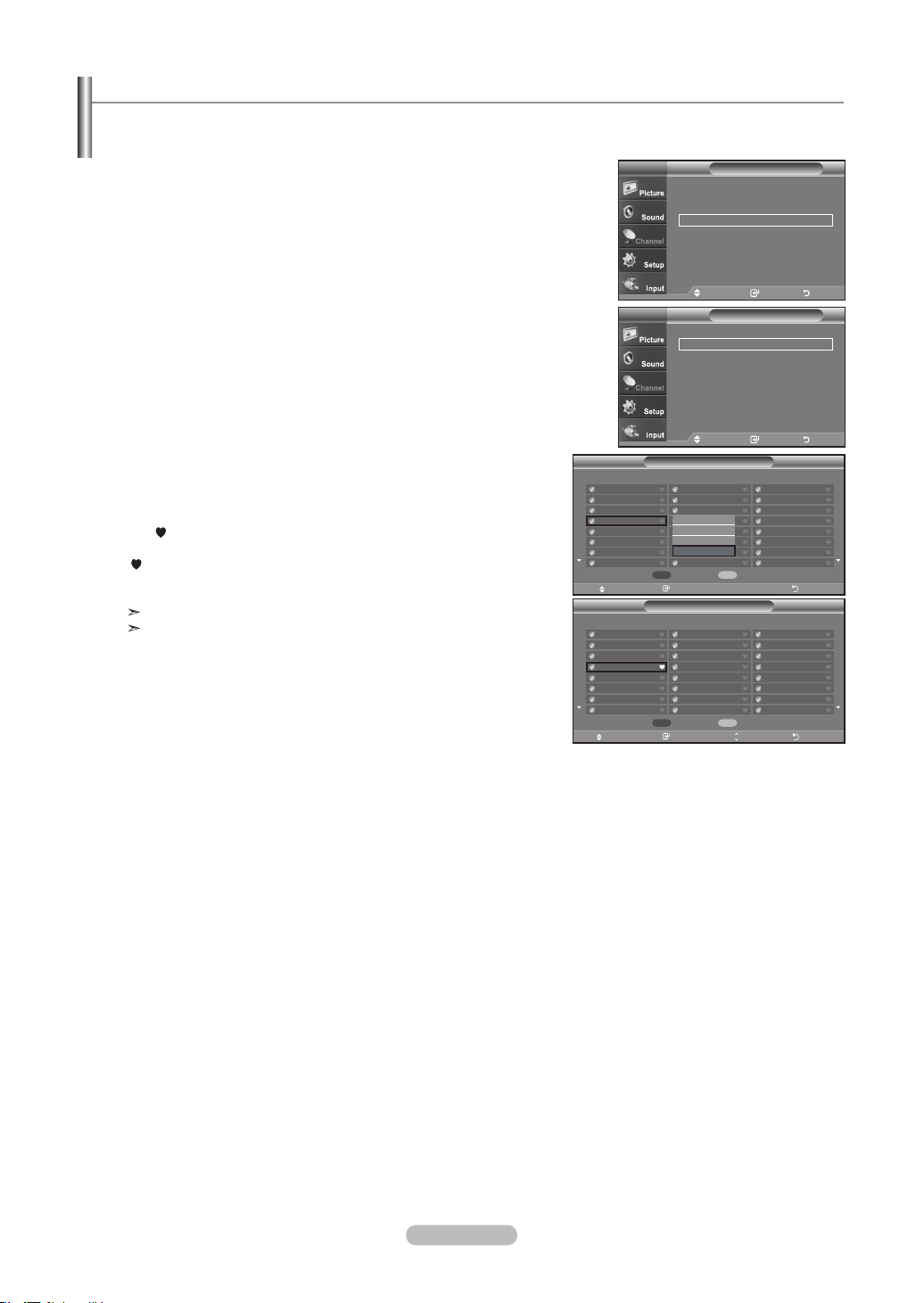
English - 40
To Set-Up Your Favorite Channels
1. Press the MENU button to display the menu.
Press the ▲ or ▼ buttons to select "Channel", then press the ENTER
button.
2. Press the ▲ or ▼ buttons to select "Channel List", then press the
ENTER
button
.
3. Press the ▲ or ▼ buttons to select “Added”, then press the ENTER button.
4. Press the ▲ or ▼ buttons to select your favorite channels to watch among the
labeled channels. Then press the ENTER button.
Press the ▲ or ▼ buttons to select “Favorite”, then press the ENTER
button.
The " " symbol will be highlighted and the channel will be set as a Favorite.
To cancel your Favorite channel selection, press the ENTER button until the
" " symbol is no longer highlighted.
Press the EXIT
button to exit.
Only memorized channels can be set as favorite channels.
All favorite channels will be shown in the “Favorite” menu.
You can set channels you watch frequently as favorites.
All
Added
Favorite
Default List Mode : All ►
Channel List
Move Enter Return
TV
CH
Channel List / All
Move Enter Page Return
DTV Air 2-1
Air3
Air4
Air 5
Air 6
Air 7
DTV Air 7-1
Air 8
Air 9
Air 10
DTV Air 10-1
DTV Air 10-2
DTV Air 10-3
DTV Air 10-1
DTV Air 10-2
DTV Air 10-3
DTV Air 10-1
DTV Air 10-2
DTV Air 10-3
Air 12
DTV Air 13-1
DTV Air 13-2
DTV Air 13-3
DTV Air 13-4
List Mode
Delete All
Air 5 1 / 2
Channel List / Added
DTV Air 2-1
Air3
Air4
Air 5
Air 6
Air 7
DTV Air 7-1
Air 8
Air 9
Air 10
DTV Air 10-1
DTV Air 10-2
DTV Air 10-3
DTV Air 10-1
DTV Air 10-2
DTV Air 10-3
DTV Air 10-1
DTV Air 10-2
DTV Air 10-3
Air 12
DTV Air 13-1
DTV Air 13-2
DTV Air 13-3
DTV Air 13-4
List Mode
Delete All
Air 5 1 / 2
Watch
Add
Delete
Favorite
Antenna : Air ►
Auto Program
►
Clear Scrambled Channel
►
Channel List
►
Name
►
Fine Tune
►
Signal Strength
►
LNA : On
►
Channel
Move Enter Return
TV
Move Enter Return
BN68-01178A-Eng.indd 40 2007-02-15 �� 8:57:57
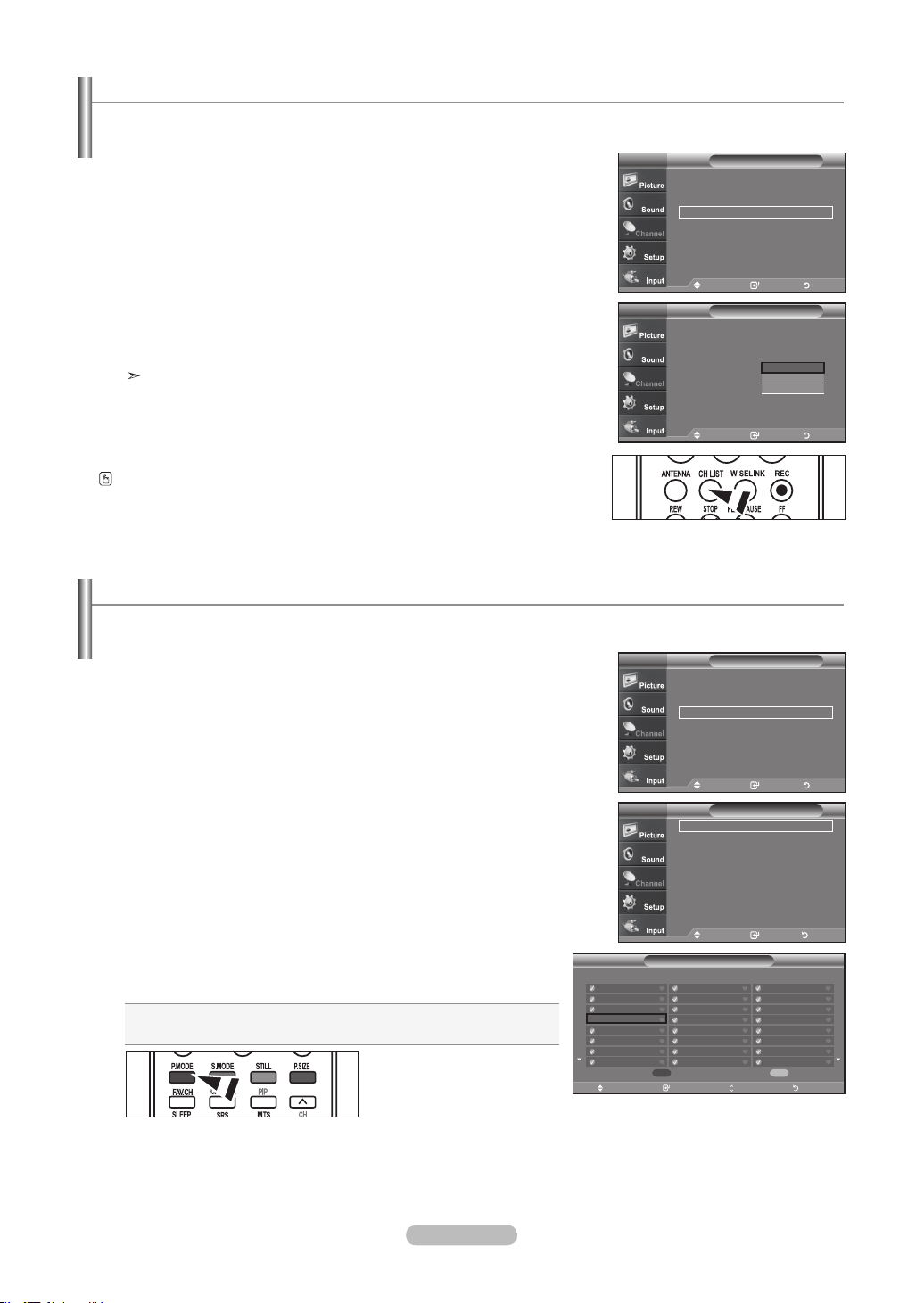
English - 41
Using the Channel Lists
1. Press the MENU button to display the menu.
Press the ▲ or ▼ buttons to select "Channel", then press the ENTER
button.
2. Press the ▲ or ▼ buttons to select "Channel List", then press the
ENTER
button.
3. Press the ▲ or ▼ buttons to select “Default List Mode” (the CH.List you want to
appear when you press CH.LIST) then press the ENTER button.
Press the ▲ or ▼ buttons to select “All”, “Added”, or “Favorite” then press the
ENTER button.
The CH.List you have chosen will now be set.
Press the EXIT button to exit.
Alternately, press the CH LIST button on the remote control to bring up the Channel Lists.
Displays the channel list automatically when you press CH LIST button on the remote. (Choose All, Added, or Favorite)
Viewing the Channel Lists
1. Press the MENU button to display the menu.
Press the ▲ or ▼ buttons to select "Channel", then press the ENTER
button.
2. Press the ▲ or ▼ buttons to select "Channel List", then press the
ENTER
button.
3. Press the ▲ or ▼ buttons to select “All”, “Added” or “Favorite”, then press the
ENTER button.
4. Press the ▲ or ▼ buttons to select “Channel”, then press the ENTER button.
To toggle between your all channels, add channels, or favorite channels,
use the red (P.Mode) button on the remote control.
• P.MODE (Red) button: Press repeatedly to select “All”, “Added”, or
“Favorite”
You can display a list of all channels, added channels or your favorite channels.
All
Added
Favorite
Default List Mode : All ►
Channel List
Move Enter Return
TV
All
Added
Favorite
All
Added
Favorite
Default List Mode : All ►
Channel List
Move Enter Return
TV
CH
Channel List / All
Move Enter Page Return
DTV Air 2-1
Air3
Air4
Air 5
Air 6
Air 7
DTV Air 7-1
Air 8
Air 9
Air 10
DTV Air 10-1
DTV Air 10-2
DTV Air 10-3
DTV Air 10-1
DTV Air 10-2
DTV Air 10-3
DTV Air 10-1
DTV Air 10-2
DTV Air 10-3
Air 12
DTV Air 13-1
DTV Air 13-2
DTV Air 13-3
DTV Air 13-4
List Mode
Delete All
Air 5 1 / 2
Antenna : Air ►
Auto Program
►
Clear Scrambled Channel
►
Channel List
►
Name
►
Fine Tune
►
Signal Strength
►
LNA : On
►
Channel
Move Enter Return
TV
Antenna : Air ►
Auto Program
►
Clear Scrambled Channel
►
Channel List
►
Name
►
Fine Tune
►
Signal Strength
►
LNA : On
►
Channel
Move Enter Return
TV
BN68-01178A-Eng.indd 41 2007-02-15 �� 8:57:59
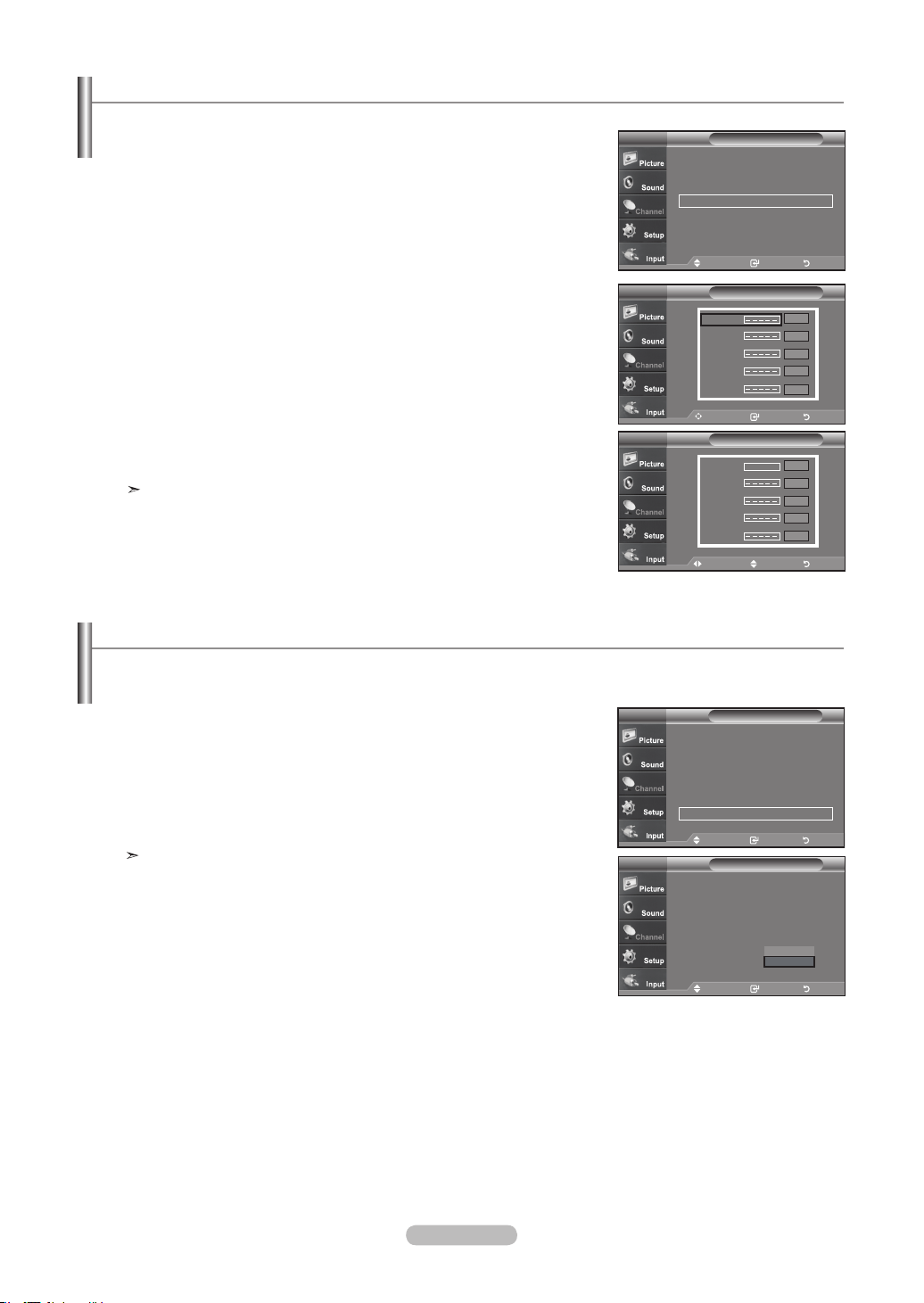
English - 42
Labeling Channels
1. Press the MENU button to display the menu.
Press the ▲ or ▼ buttons to select “Channel”, then press the ENTER button.
Press the ▲ or ▼ buttons to select “Name”, then press the ENTER button.
2. Press the ▲ or ▼ buttons to select the channel to be assigned a new name,
then press the ENTER button.
Press the ▲ or ▼ buttons to select a letter, a number or a blank (Results in this
sequence: A...Z, 0...9, +, -, *, /, blank).
Press the ► button to switch to the next field, which will be selected.
Select a second letter or digit by pressing the ▲ or ▼ buttons, as above.
Repeat the process to select the last three digits. When you have finished,
press the ENTER button to assign the new name.
To erase the assigned new name, select "Clear" by pressing the ◄ or ► button,
then press the ENTER button.
Press the EXIT
button to exit.
The names of digital broadcasting channels are automatically assigned and
thus cannot be assigned by users.
Name
Move Enter Return
TV
Air 2
Air 3
Air 4
Air 5
Air 6
Clear
Clear
Clear
Clear
Clear
Name
Move Adjust Return
TV
Air 2
Air 3
Air 4
Air 5
Air 6
Clear
Clear
Clear
Clear
Clear
A
▲
▼
LNA (Low Noise Amplier)
1. Press the MENU button to display the menu.
Press the ▲ or ▼ buttons to select “Channel”, then press the ENTER button.
2. Press the ▲ or ▼ buttons to select “LNA”, then press the ENTER
button.
3. Press the▲ or ▼ buttons to select “On”, then press the ENTER button.
Press the EXIT
button to exit.
LNA functions when the antenna is set to Air or Cable. Settings will be stored
separately in each channel. (See “Selecting the antenna.” on page 38)
If the TV is operating in a weak-signal area, sometimes the LNA function can improve the reception (a low-noise preamplier
boosts the incoming signal).
Channels can be labeled so that their call letters appear whenever the channel is selected.
Antenna : Air ►
Auto Program
►
Clear Scrambled Channel
►
Channel List
►
Name
►
Fine Tune
►
Signal Strength
►
LNA : On
►
Channel
Move Enter Return
TV
Antenna : Air ►
Auto Program
►
Clear Scrambled Channel
►
Channel List
►
Name
►
Fine Tune
►
Signal Strength
►
LNA : On
►
Channel
Move Enter Return
TV
Antenna : Air
Auto Program
Clear Scrambled Channel
Channel List
Name
Fine Tune
Signal Strength
LNA : On
Channel
Move Enter Return
TV
Off
On
BN68-01178A-Eng.indd 42 2007-02-15 �� 8:58:02
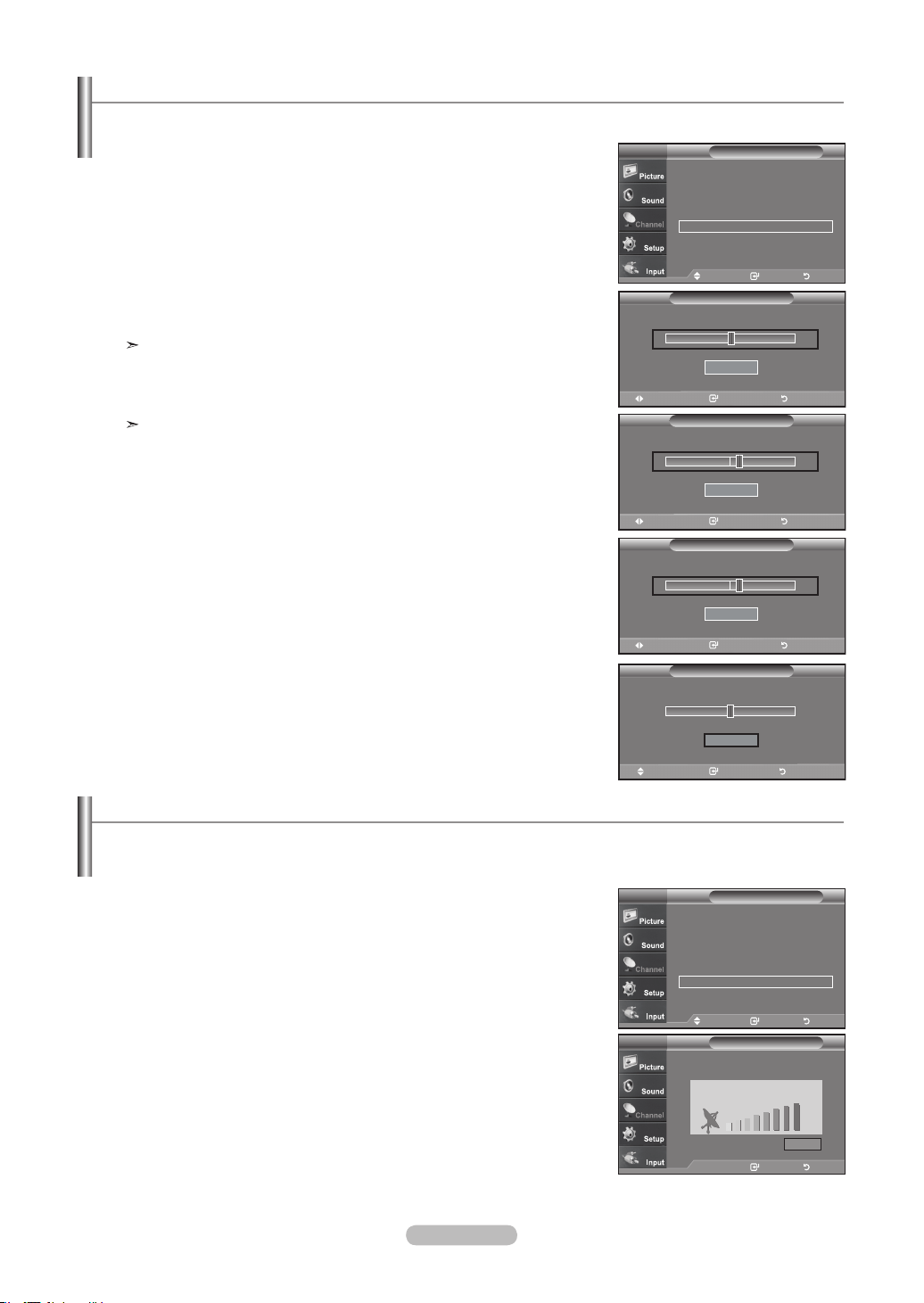
English - 43
Fine Tuning Analog Channels
1. Press the MENU button to display the menu.
Press the ▲ or ▼ buttons to select "Channel", then press the ENTER
button.
2. Press the ▲ or ▼ buttons to select "Fine Tune", then press the ENTER
button.
3. Press the ◄ or ► buttons to adjust the fine tuning.
To store the fine tuning setting in the TV’s memory, press the ENTER
button.
If you do not store the fine-tuned channel in memory, adjustments are not saved.
4. To reset the fine tuning setting, press the ▼ button to select "Reset",
then press the ENTER
button.
Press the EXIT
button to exit.
"
*
" will appear next to the name of fine-tuned channels.
Use ne tuning to manually adjust a particular channel for optimal reception.
Checking the Digital-Signal Strength
1. Press the MENU button to display the menu.
Press the ▲ or ▼ buttons to select “Channel”, then press the ENTER button.
2. Press the ▲ or ▼ buttons to select “Signal Strength”, then press the ENTER
button.
If the signal strength meter indicates that the signal is weak, physically adjust your
antenna to increase the signal strength.
Continue to adjust the antenna until you find the best position with the strongest
signal.
Press the EXIT
button to exit
Unlike analog channels, which can vary in reception quality from “snowy” to clear, digital (HDTV) channels have either perfect
reception quality or you will not receive them at all. So, unlike analog channels, you cannot ne tune a digital channel. You can,
however, adjust your antenna to improve the reception of available digital channels.
Signal Strength
Enter Return
TV
OK
Adjust Save Return
Fine Tune
Air 24
0
Reset
Adjust Save Return
Fine Tune
Air 24
+3
Reset
Move Enter Return
Fine Tune
Air 24
0
Reset
Antenna : Air ►
Auto Program
►
Clear Scrambled Channel
►
Channel List
►
Name
►
Fine Tune
►
Signal Strength
►
LNA : On
►
Channel
Move Enter Return
TV
Antenna : Air ►
Auto Program
►
Clear Scrambled Channel
►
Channel List
►
Name
►
Fine Tune
►
Signal Strength
►
LNA : On
►
Channel
Move Enter Return
TV
Adjust Save Return
Fine Tune
Air 24 *
+3
Reset
Fine Tuned
BN68-01178A-Eng.indd 43 2007-02-15 �� 8:58:05
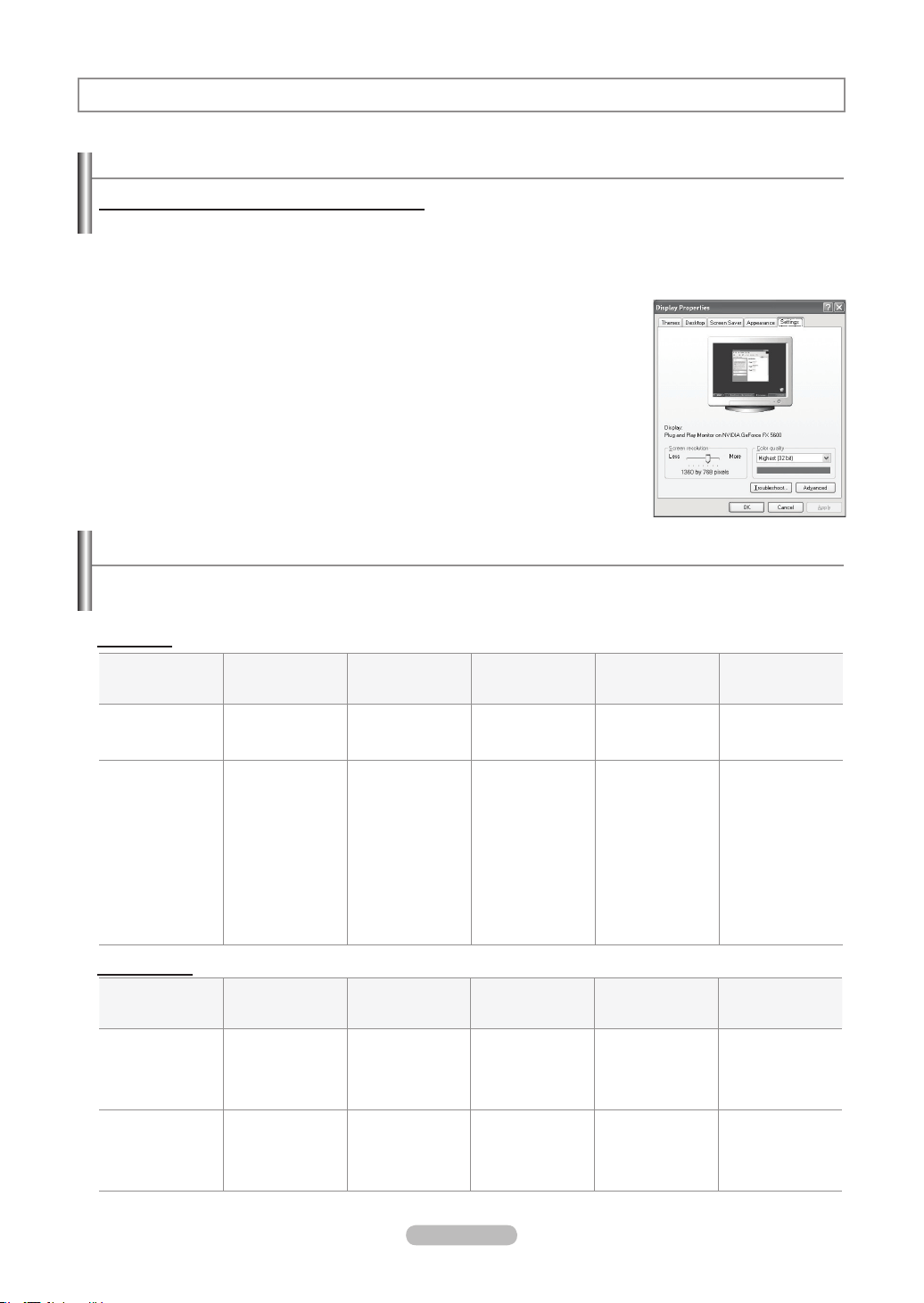
English - 44
Using Your TV as a Computer (PC) Display
Setting Up Your PC Software (Based on Windows XP)
The Windows display-settings for a typical computer are shown below. The actual screens on your PC will probably be different,
depending upon your particular version of Windows and your particular video card. However, even if your actual screens look
different, the same basic set-up information will apply in almost all cases. (If not, contact your computer manufacturer or Samsung
Dealer.)
1. First, click on "Control Panel" on the Windows start menu.
2. When the control panel window appears, click on "Appearance and Themes" and a
display dialog-box will appear.
3. When the control panel window appears, click on "Display" and a display dialog-box
will appear.
4. Navigate to the "Settings" tab on the display dialog-box.
The correct size setting (resolution)
Optimum: 1920 X 1080 pixels
If a vertical-frequency option exists on your display settings dialog box,
the correct value is "60" or "60 Hz". Otherwise, just click "OK" and exit the dialog box.
PC Display
Display Modes
If the signal from the system equals the standard signal mode, the screen is adjusted automatically. If the signal from the system
doesn’t equal the standard signal mode, adjust the mode by referring to your videocard user guide; otherwise there may be no
video. For the display modes listed below, the screen image has been optimized during manufacturing.
Mode Resolution
Horizontal
Frequency (kHz)
Vertical
Frequency (Hz)
Pixel Clock
Frequency (MHz)
Sync Polarity
(H/V)
IBM
720 X 400
640 X 480
31.469
31.469
70.087
59.940
28.322
25.175
- / +
- / -
VESA
640 x 480
640 x 480
800 x 600
800 x 600
800 x 600
800 x 600
1024 x 768
1024 x 768
1024 x 768
1280 x 1024
1920 x 1080
37.861
37.500
35.156
37.879
48.077
46.875
48.363
56.476
60.023
79.976
66.500
72.809
75.000
56.250
60.317
72.188
75.000
60.004
70.069
75.029
75.025
60.000
31.500
31.500
36.000
40.000
50.000
49.500
65.000
75.000
78.750
123.000
138.500
- / -
- / -
+ /+
+ /+
+ /+
+ /+
- / -
- / -
+ /+
+ /+
- / +
Mode Resolution
Horizontal
Frequency (kHz)
Vertical
Frequency (Hz)
Pixel Clock
Frequency (MHz)
Sync Polarity
(H/V)
IBM
640 X 350
720 X 400
640 X 480
31.469
31.469
31.469
70.086
70.087
59.940
25.175
28.322
25.175
+ /-
- / +
- / -
VESA
800 x 600
1024 x 768
1280 x 1024
1920 x 1080
37.879
48.364
63.981
66.587
60.317
60.000
60.020
59.934
40.000
65.000
108.000
138.500
+ /+
- / -
+ /+
+ /-
D-Sub Input
HDMI/DVI Input
BN68-01178A-Eng.indd 44 2007-02-15 �� 8:58:05

English - 45
1. Press the MENU button to display the menu.
Press the ▲ or ▼ buttons to select "Setup", then press the ENTER
button.
Press the ▲ or ▼ buttons to select "PC", then press the ENTER
button.
Change to the PC mode first.
2. Press the ▲ or ▼ buttons to select "Auto Adjustment", then press the ENTER
button.
Press the EXIT
button to exit.
How to Auto Adjust
Use the Auto Adjust function to have the TV set automatically adjust the video signals the monitor receives.
The function also automatically ne-tunes the settings and adjusts the frequency values and positions.
This function does not work in DVI-Digital mode.
Setting up the TV with your PC
1. Press the MENU button to display the menu.
Press the ▲ or ▼ buttons to select "Setup", then press the ENTER
button.
Press the ▲ or ▼ buttons to select "PC", then press the ENTER
button.
Change to the PC mode first.
2. Press the ENTER
button to select "Image Lock".
3. Press the ▲ or ▼ buttons to select "Coarse" or "Fine", then press the ENTER
button.
Press the ◄ or ► buttons to adjust the screen quality.
Vertical stripes may appear or the picture may be blurry.
Press the ENTER
button.
Press the EXIT
button to exit.
Adjusting the Screen Quality
The purpose of the picture quality adjustment is to remove or reduce picture noise. If the noise is not removed by fine tuning
alone, then do the frequency adjustments to the utmost and fine tune again(See page 44). After the noise has been reduced,
re-adjust the picture so that it is aligned on the center of the screen.
PC
Image Lock ►
Position
►
Auto Adjustment
►
Image Reset ►
TV
Move Enter Return
PC
Image Lock ►
Position ►
Auto Adjustment ►
Image Reset ►
TV
Move Enter Return
Auto Adjustment in Progress. Please Wait
Setup
▲More
Blue Screen : Off ►
Melody : Off ►
PC
Home theater PC : Off ►
Energy Saving : Off ►
HDMI Black Level :Normal ►
▼ More
TV
Move Enter Return
Image Lock
Coarse 50
Fine 0
TV
Move Enter Return
50
▲
Coarse
▼
Move Adjust Return
BN68-01178A-Eng.indd 45 2007-02-15 �� 8:58:08
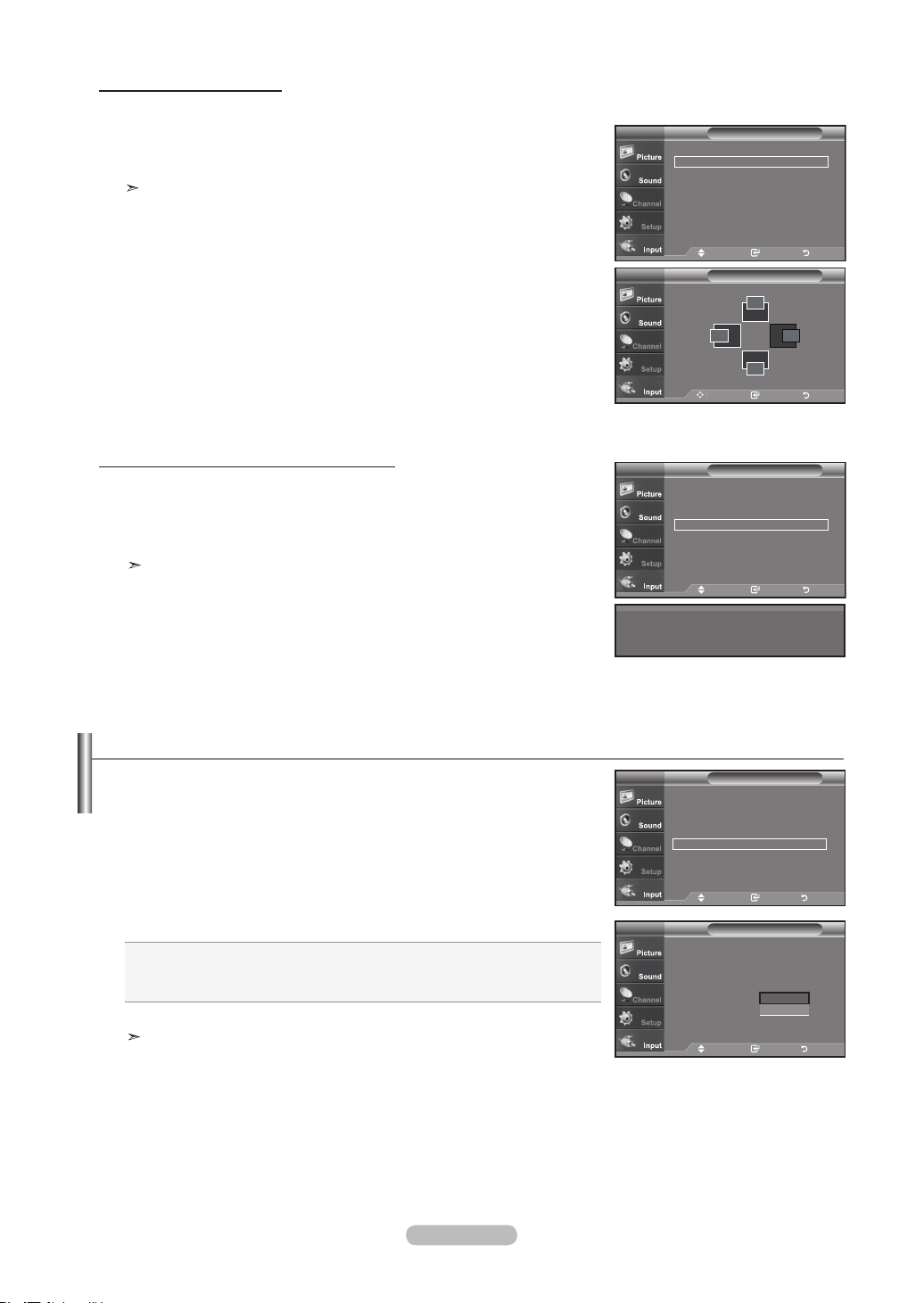
English - 46
Changing the Screen Position
1. Press the MENU button to display the menu.
Press the ▲ or ▼ button to select "Setup", then press the ENTER
button.
Press the ▲ or ▼ button to select "PC", then press the ENTER
button.
Change to the PC mode first.
2. Press the ▲ or ▼ button to select "Position", then press the ENTER
button.
3. Press the ▲ or ▼ button to adjust the V-Position.
Press the ◄ or ► button to adjust the H-Position.
Press the ENTER
button.
Press the EXIT
button to exit.
Initializing the Screen Position or Color Settings
You can replace all image settings with the factory default values.
1. Press the MENU button to display the menu.
Press the ▲ or ▼ button to select "Setup", then press the ENTER
button.
Press the ▲ or ▼ button to select "PC", then press the ENTER
button.
Change to the PC mode first.
2. Press the ▲ or ▼ button to select "Image Reset", then press the ENTER
button.
Press the EXIT
button to exit.
PC
Image Lock ►
Position
►
Auto Adjustment
►
Image Reset ►
TV
Move Enter Return
TV
Adjust Enter Return
Position
▲
▲
▲
▲
PC
Image Lock ►
Position ►
Auto Adjustment ►
Image Reset ►
TV
Move Enter Return
Image Reset is completed.
1. Press the MENU button to display the menu.
Press the
▲ or ▼
button to select "Setup", then press the ENTER
button.
2. Press the
▲ or ▼
button to select “Home Theater PC”, then press the ENTER
button.
3. Press the ▲ or ▼ button to select “On” or "Off", then press the ENTER button.
Off: Turns off the settings for screen-related functions in PC input mode.
On: Turns on the settings for screen-related functions in PC input mode to provide more
dynamic scenes.
Press the EXIT button to exit.
This function is available only in PC mode.
Setting the Home Theater PC
This function enables you to view higher quality pictures while in PC Mode.
After setting the Home Theater PC function to On, you can go into the Detailed Settings
menu and make adjustments without affecting settings in the regular TV mode.
Setup
▲More
Blue Screen : Off ►
Melody : Off ►
PC
Home theater PC : Off ►
Energy Saving : Off ►
HDMI Black Level :Normal ►
▼ More
TV
Move Enter Return
Setup
▲More
Blue Screen : Off
Melody : Off
PC
Home theater PC : Off
Energy Saving : Off
HDMI Black Level :Normal
▼ More
TV
Move Enter Return
Off
On
BN68-01178A-Eng.indd 46 2007-02-15 �� 8:58:10
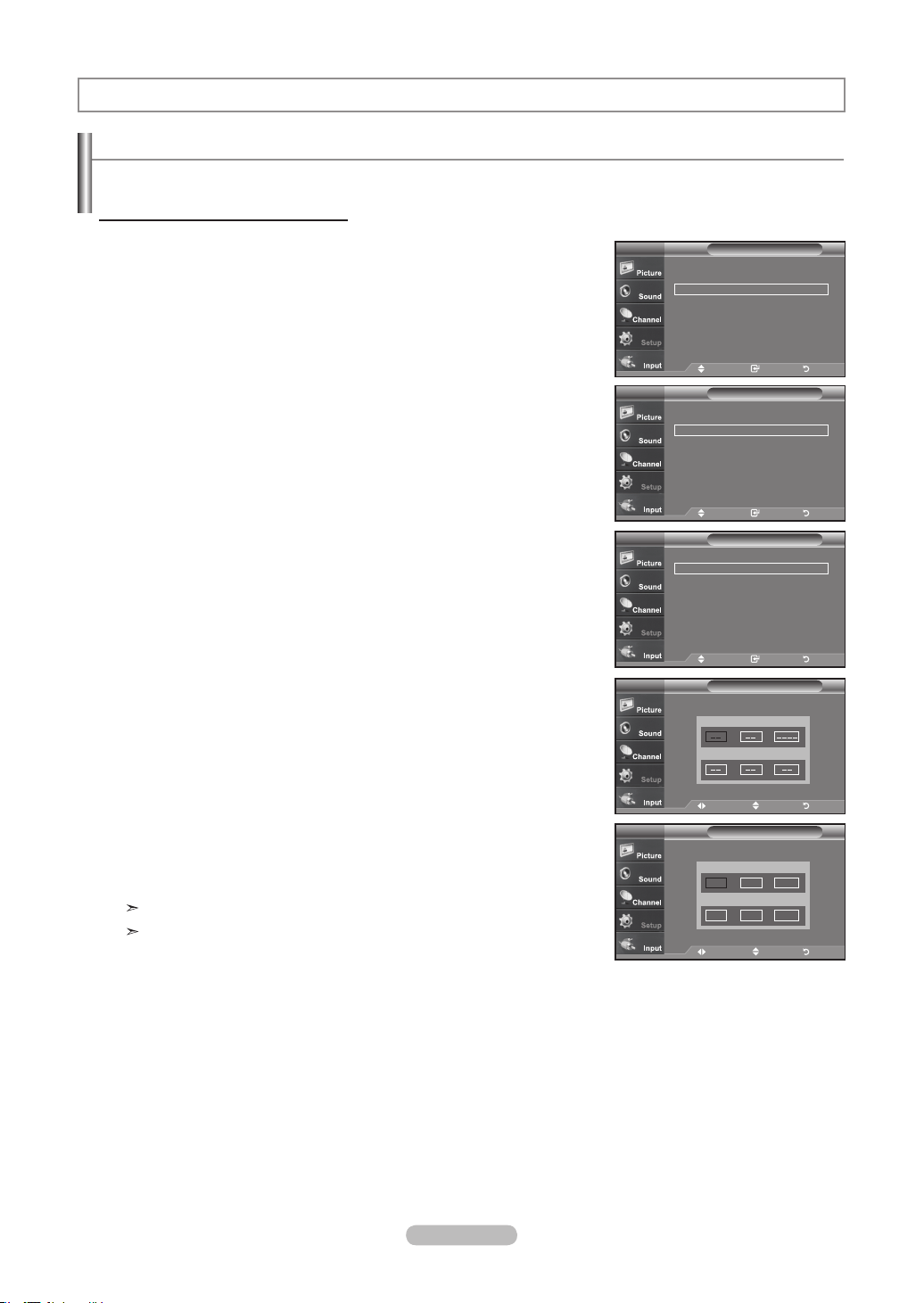
English - 47
Setting the Clock
Setting the clock is necessary in order to use the various timer features of the TV.
Also, you can check the time while watching the TV. (Just press the INFO button.)
Option 1: Setting the Clock Manually
1. Press the MENU button to display the menu.
Press the
▲ or ▼
buttons to select "Setup", then press the ENTER button.
Press the
▲ or ▼
buttons to select "Time", then press the ENTER button.
2. Press the ENTER button to select "Clock".
3. Press the ENTER button to select “Clock Mode”.
Press the
▲ or ▼
buttons to select “Manual”, then press the ENTER button.
4. Press the
▲ or ▼
buttons to select “Clock Set”, then press the ENTER button.
5. Press the ◄ or ► buttons to move to “Month”, “Day”, “Year”, “Hour”, “Minute”,
or “am/pm”. Set the date and time you want by pressing the
▲ or ▼
buttons,
then press the ENTER button.
Press the EXIT
button to exit.
The current time will appear every time you press the INFO button.
You can set the month, day, year, hour, and minute directly by pressing the
number buttons on the remote control.
Time Setting
Time
Clock ►
Sleep Timer : Off ►
Timer 1 : Inactivated ►
Timer 2 : Inactivated ►
Timer 3 : Inactivated ►
TV
Move Enter Return
- - / - - / - - - - / - - : - - - -
Clock
Clock Mode : Manual ►
Clock Set
►
Time Zone ►
DST ►
TV
Move Enter Return
Clock Set
Set Current date adn time.
TV
Move Adjust Return
Month
▲
▼
Day Year
Hour
Minute am/pm
Clock Set
Set current data and time.
TV
Month
▲
▼
Day Year
Hour
Minute am/pm
1 1 2007
12 00 am
Move Adjust Return
Setup
Plug & Play ►
Language : English ►
Time ►
Game Mode : Off
►
V-Chip
►
Caption ►
Menu TransParency : High ►
▼More
TV
Move Enter Exit
BN68-01178A-Eng.indd 47 2007-02-15 �� 8:58:12
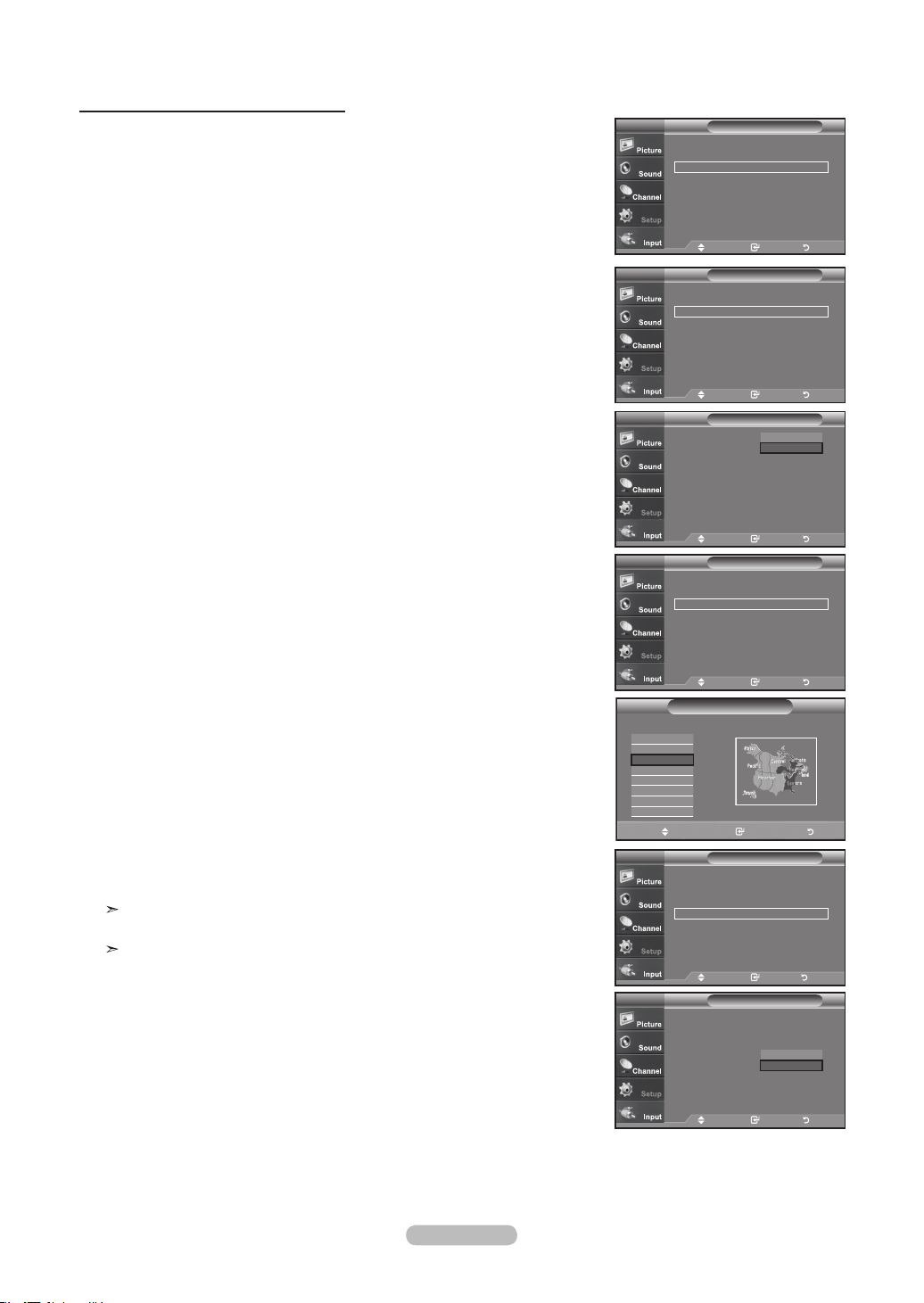
English - 48
Option 2: Setting the Clock Automatically
1. Press the MENU button to display the menu.
Press the
▲ or ▼
buttons to select "Setup", then press the ENTER button.
Press the
▲ or ▼
buttons to select "Time", then press the ENTER button.
2. Press the ENTER button to select "Clock".
3. Press the ENTER button to select “Clock Mode”.
Press the
▲ or ▼
buttons to select “Auto”, then press the ENTER button.
4. Press the
▲ or ▼
buttons to select “Time Zone”, then press the ENTER
button.
5. Press the ▲ or ▼ buttons to highlight the time zone for your local area,
then press the ENTER button.
6. Press the
▲ or ▼
buttons to select “DST” (Daylight Saving Time), then press
the ENTER button.
Press the
▲ or ▼
buttons to select “On” or “Off”, then press the ENTER button.
Press the EXIT
button to exit.
Depending on the broadcast station and signal, the auto time may not be
set correctly. If this occurs, set the time manually.
The Antenna or cable must be connected in order to set the time automatically.
Time
Clock ►
Sleep Timer : Off ►
Timer 1 : Inactivated ►
Timer 2 : Inactivated ►
Timer 3 : Inactivated ►
TV
Move Enter Return
- - / - - / - - - - / - - : - - - -
Clock
Clock Mode : Manual ►
Clock Set ►
Time Zone
DST : Off
TV
Move Enter Return
Manual
Auto
Clock
Clock Mode : Auto ►
Clock Set ►
Time Zone ►
DST : Off ►
TV
Move Enter Return
Move Enter Skip
Select the time zone in which you live.
Time Zone
Newfoundland
Atlantic
Eastern
Central
Mountain
Pacific
Alaska
Hawaii
Clock
Clock Mode : Auto ►
Clock Set ►
Time Zone ►
DST : Off ►
TV
Move Enter Return
Clock
Clock Mode : Auto
Clock Set
Time Zone
DST : Off
TV
Move Enter Return
On
Off
Setup
Plug & Play ►
Language : English ►
Time ►
Game Mode : Off ►
V-Chip ►
Caption ►
Menu TransParency : High ►
▼More
TV
Move Enter Return
BN68-01178A-Eng.indd 48 2007-02-15 �� 8:58:15
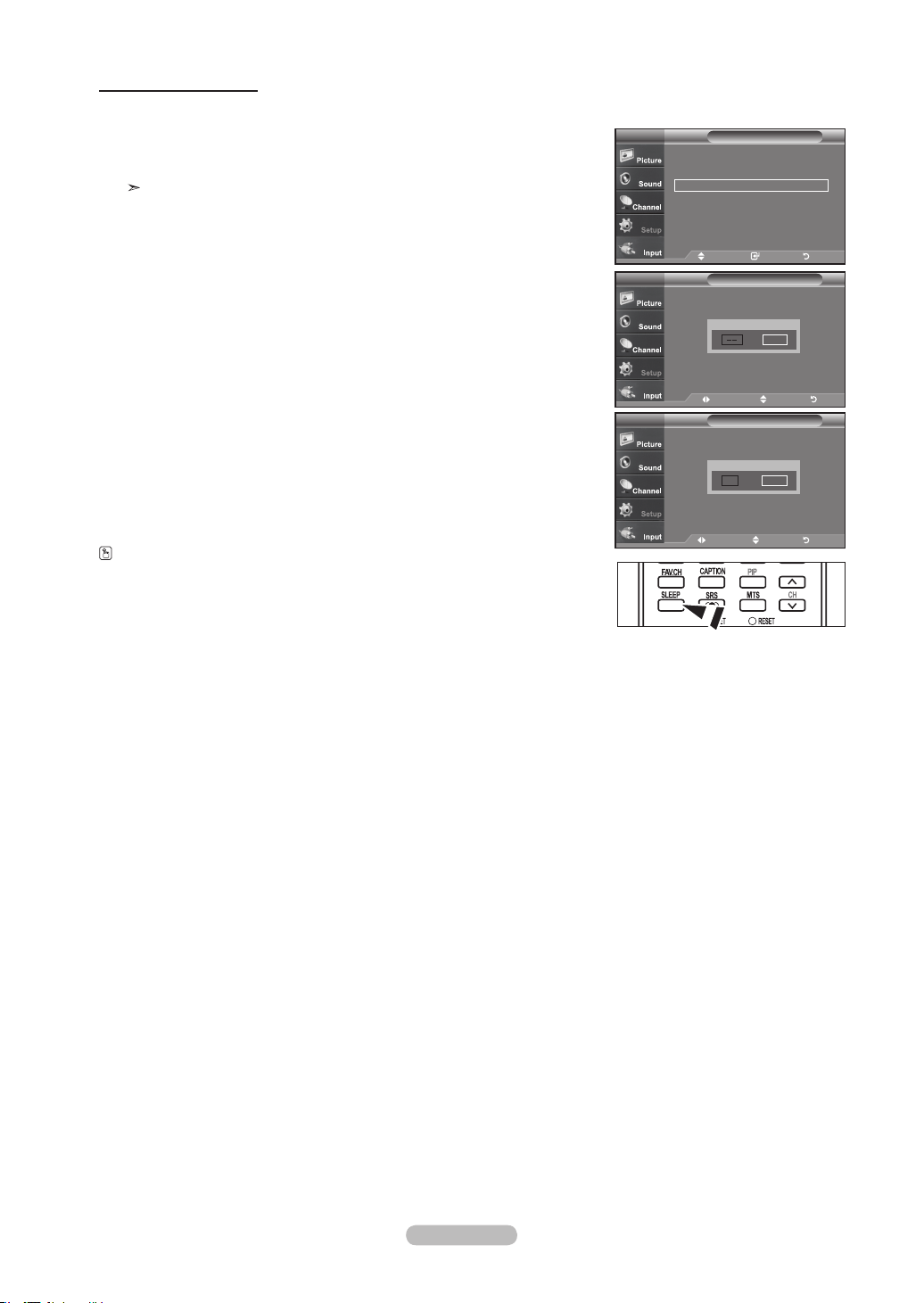
English - 49
Setting the Sleep Timer
The sleep timer automatically shuts off the TV after a preset time (from 30 to 180 minutes).
1. Press the MENU button to display the menu.
Press the ▲ or ▼ buttons to select "Setup", then press the ENTER
button.
Press the ▲ or ▼ buttons to select "Time", then press the ENTER
button.
Quick way to access the sleep timer setting: Simply press the “SLEEP”
button on the remote control.
2. Press the ▲ or ▼ buttons to select "Sleep Timer", then press the ENTER button.
3. Press the ▲ or ▼ buttons to adjust “Minute”.
4. Press the
►
button to select “Activation”.
Press the ▲ or ▼ buttons to select “On”, then press the ENTER button.
Press the EXIT
button to exit.
Simply press the SLEEP button on the
remote control for a Quick way to access the sleep timer setting.
Time
Clock ►
Sleep Timer : Off
►
Timer 1 : Inactivated
►
Timer 2 : Inactivated ►
Timer 3 : Inactivated
►
TV
Move Enter Return
1/ 1/ 2007/ 12 : 00 am
Sleep Timer
Set Sleep Timer.
TV
Move Adjust Return
Minute
▲
▼
Activation
30
On
Sleep Timer
Set Sleep Timer.
TV
Move Adjust Return
Minute
▲
▼
Activation
Off
BN68-01178A-Eng.indd 49 2007-02-15 �� 8:58:16
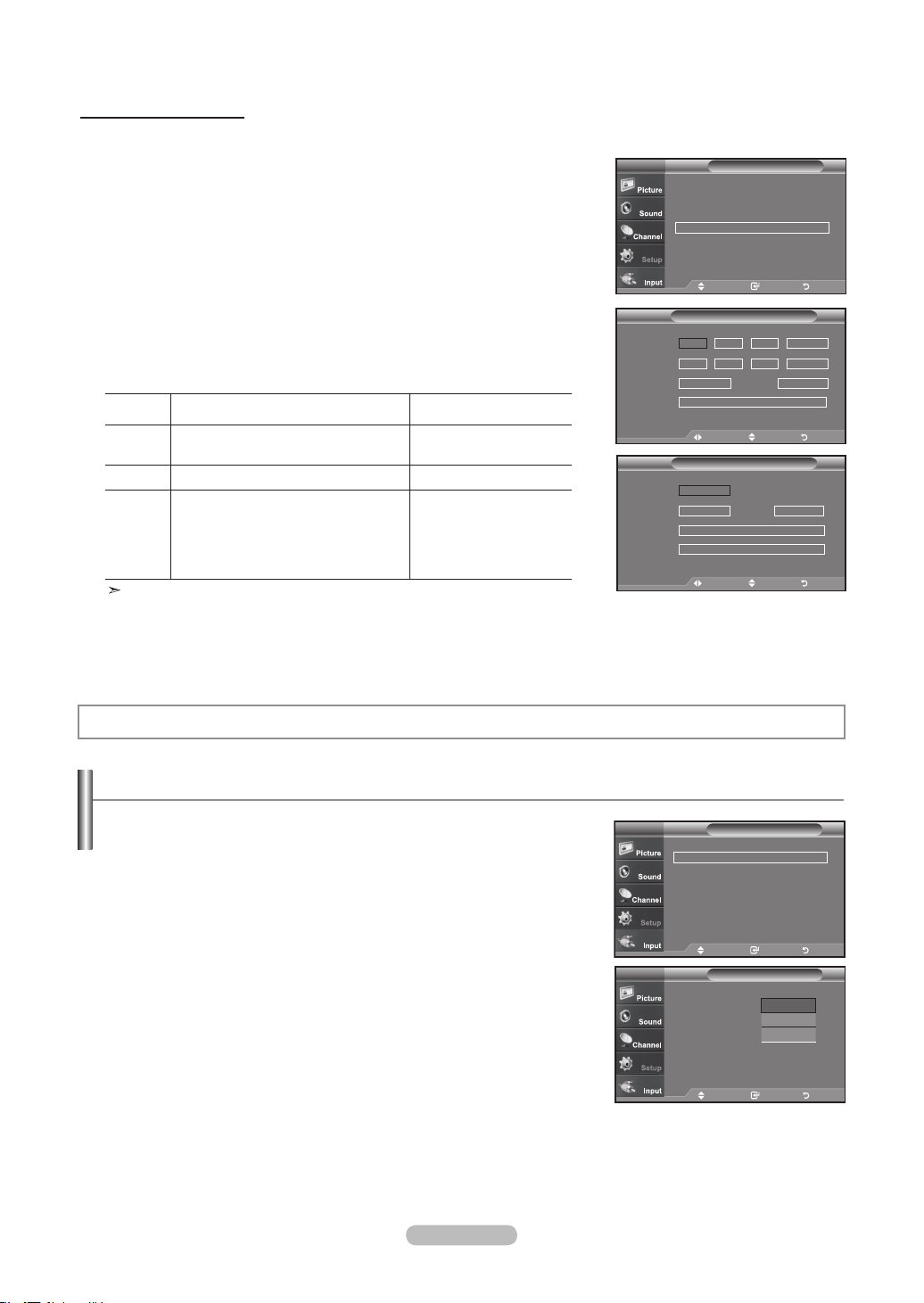
English - 50
1. Press the MENU button to display the menu.
Press the ▲ or ▼ buttons to select "Setup", then press the ENTER button.
Press the ▲ or ▼ buttons to select "Time", then press the ENTER button.
2. Press the ▲ or ▼ buttons to select "Timer 1,Timer 2,Timer 3 ", then press the
ENTER-button.
3. Press the ▲ or ▼ buttons to adjust “Hour”, then press the
►
button to move to
the next step.
Set other items using the same method as above.
Activate or Inactivate Press the ▲or▼ button
Repeat Select Once, Everyday, Mon-Fri, Mon-
Sat, Sat-Sun
Press the ▲or▼ button
Volume Select the required volume level. Press the ▲or▼ button
Contents When the On Timer is active, you can
turn on a specific channel or play back
contents such as photo or audio files.
(Make sure that an USB device is
connected to your TV.)
Press the ▲or▼ button
When finished, press the RETURN button to return.
• The current time will appear every time you press the INFO button.
• You can set the hour, minute, and channel by pressing the number
buttons on the remote control.
Press the EXIT button to exit.
Setting the On/Off Timer
Time
Clock ►
Sleep Timer : Off ►
Timer 1 : Inactivated ►
Timer 2 : Inactivated ►
Timer 3 : Inactivated ►
TV
1/ 1/ 2007/ 12 : 00 am
Move Enter Return
Selecting a Menu Language
1. Press the MENU button to display the menu.
Press the ▲ or ▼ buttons to select "Setup", then press the ENTER
button.
Press the ▲ or ▼ buttons to select "Language", then press the ENTER
button.
2. Press the ▲ or ▼ buttons to select “English”, “Español”, or “Français”.
Press the ENTER
button.
Press the EXIT
button to exit.
Function Description
Setup
Plug & Play ►
Language : English ►
Time ►
Game Mode : Off ►
V-Chip
►
Caption ►
Menu TransParency : High ►
▼More
TV
Move Enter Return
Timer 1TV
On Timer
▲
▼
12 00 am
Inactivate
Off Timer
12 00 am
Inactivate
Repeat
Once
Contents
Volume
10
TV Air 3
:
:
Move Adjust Return
ContentsTV
Source
▲
▼
TV
Antenna
Music
Photo
Air
Channel
3
Move Adjust Return
Setup
Plug & Play
Language : English
Time
Game Mode : Off
V-Chip
Caption
Menu TransParency : High
▼More
TV
Move Enter Return
English
Español
Français
BN68-01178A-Eng.indd 50 2007-02-15 �� 8:58:19
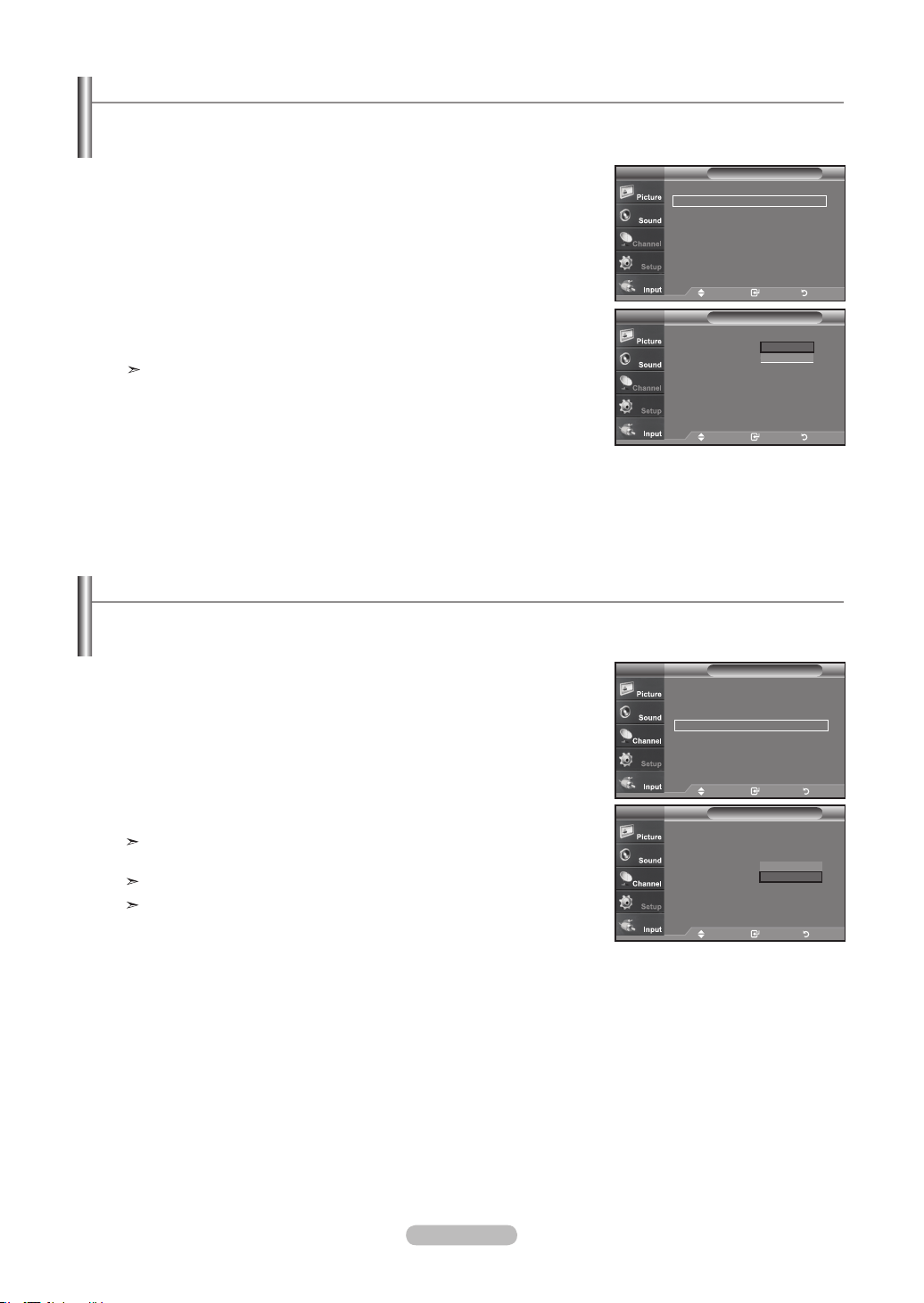
English - 51
Using the Game Mode
When connecting to a game console such as PlayStation
TM
or Xbox
TM
, you can enjoy a more realistic gaming experience by
selecting Game mode.
1. Press the MENU button to display the menu.
Press the ▲ or ▼ buttons to select "Setup", then press the ENTER
button.
2. Press the ▲ or ▼ buttons to select "Game Mode", then press the ENTER
button.
3. Select "On" or "Off" by pressing the ▲ or ▼ buttons, then press the ENTER
button.
4. Press the EXIT button to exit.
To disconnect the game console and connect another external device, cancel game mode
in the Setup menu.
If you display the TV menu in Game mode, the screen shakes slightly.
Game Mode is not available in TV mode.
Setup
Plug & Play ►
Language : English ►
Time ►
Game Mode : On
►
V-Chip ►
Caption ►
Menu TransParency : High ►
▼More
TV
Move Enter Return
Setup
Plug & Play
Language : English
Time
Game Mode : Off
V-Chip
Caption
Menu TransParency : High
►
▼More
TV
Move Enter Return
Off
On
Setting the Blue Screen Mode
If no signal is being received or the signal is very weak, a blue screen automatically replaces the noisy picture background.
If you wish to continue viewing the poor picture, you must set the "Blue Screen" mode to "Off"
1. Press the MENU button to display the menu.
Press the ▲ or ▼ buttons to select "Setup", then press the ENTER
button.
2. Press the ▲ or ▼ buttons to select "Blue Screen", then press the ENTER
button.
3. Press the ▲ or ▼ buttons to select "On" or "Off" then press the ENTER
button.
Press the EXIT
button to exit.
Pressing the ▲ or ▼ buttons will alternate between “On” or “Off”
Setup
▲More
Blue Screen : Off
►
Melody : Off ►
PC
Home theater PC : Off ►
Energy Saving : Off ►
HDMI Black Level :Normal ►
▼ More
TV
Move Enter Return
Setup
▲More
Blue Screen : Off
Melody : Off
PC
Home theater PC : Off
Energy Saving : Off
HDMI Black Level :Normal
▼ More
TV
Move Enter Return
Off
On
BN68-01178A-Eng.indd 51 2007-02-15 �� 8:58:20
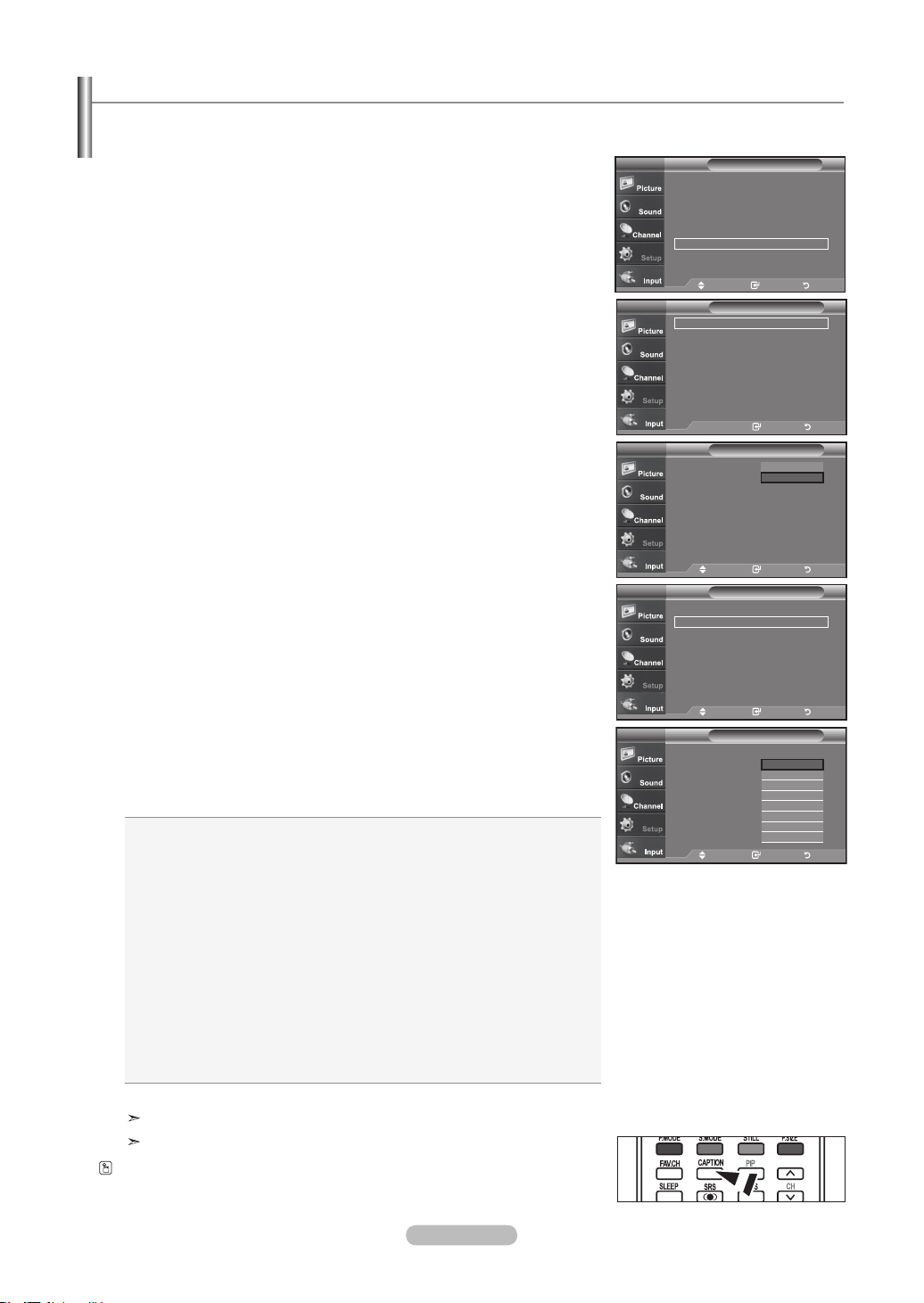
English - 52
The Analog Caption function operates when watching regular analog channels or when you have an analog external component
(such as a VCR) connected.
1. Press the MENU button to display the menu.
Press the ▲ or ▼ buttons to select “Setup”, then press the ENTER button.
2. Press the ▲ or ▼ buttons to select “Caption”, then press the ENTER button.
3. Press the ENTER button to select “Caption”.
Press the ▲ or ▼ buttons to select “On”, then press the ENTER button.
4. Press the ▲ or ▼ buttons to select “Caption Mode”, then press the ENTER button.
Press the ▲ or ▼ buttons to select submenu (Default, CC1~CC4 or Text1~Text4)
you want, the press the ENTER button.
Press the EXIT
button to exit.
• The default is “CC1”.
• CC1: The Primary Synchronous Caption Service. These are captions in the
primary language that must be in sync with the sound, preferably
matched to a specific frame.
• CC2: The Special Non-Synchronous Use Captions.
This channel carries data that is intended to augment information carried
in the program.
• CC3: Secondary Synchronous Caption Service.
Alternate program-related caption data, typically second language
captions.
• CC4: Special Non-Synchronous Use Captions. Similar to CC2.
• Text1: First Text Service. This may be various non-program related data.
• Text2: Second Text Service. Additional data, usually not program related.
• Text3/Text4: Third and Fourth Text Services.
These data channels should be used only if Text1 and Text2 are
not sufficient.
The Caption feature doesn’t work in COMPONENT, HDMI or PC modes.
The availability of captions depends on the program being broadcast.
Press the CAPTION button on the remote control to select "On" or " Off".
Viewing Closed Captions (On-Screen Text Messages) - Analog
Caption
Caption : Off
Caption Mode : Default
Caption Options
TV
Move Enter Return
Off
On
Caption
Caption : Off ►
Caption Mode : Default ►
Caption Options ►
TV
Enter Return
Caption
Caption : On ►
Caption Mode : Default ►
Caption Options ►
TV
Move Enter Return
Caption
Caption : On
Caption Mode : Default
Caption Options : Off
TV
Move Enter Return
Default
CC1
CC2
CC3
CC4
Text1
Text2
▼
Setup
Plug & Play ►
Language : English
►
Time
►
Game Mode : On ►
V-Chip ►
Caption ►
Menu TransParency : High
►
▼More
TV
Move Enter Return
BN68-01178A-Eng.indd 52 2007-02-15 �� 8:58:23
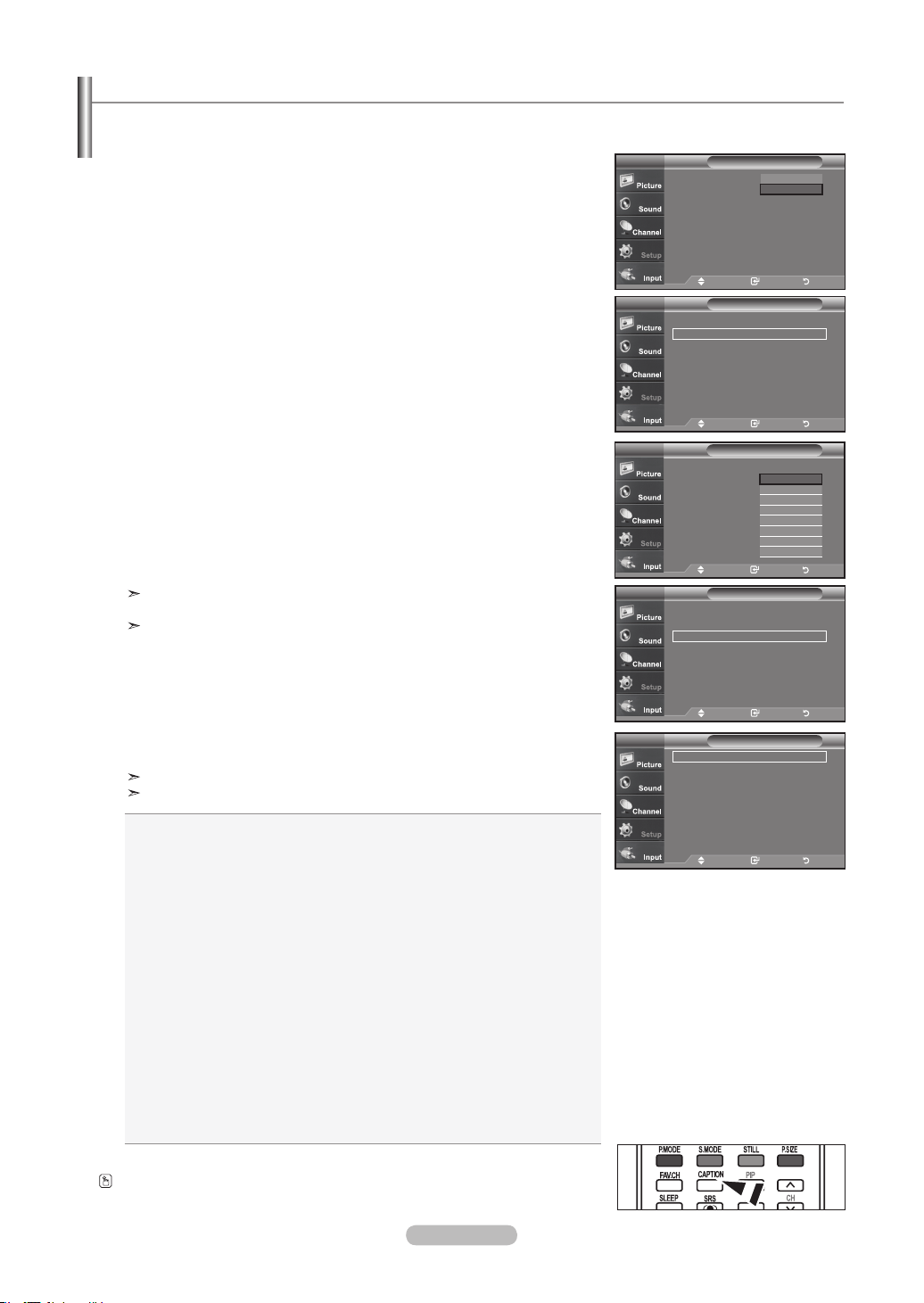
English - 53
The Digital Captions function operates on digital channels.
1. Press the MENU button to display the menu.
Press the ▲ or ▼ buttons to select “Setup”, then press the ENTER button.
2. Press the ▲ or ▼ buttons to select “Caption”, then press the ENTER button.
3. Press the ENTER button to select “Caption”.
Press the ▲ or ▼ buttons to select “On”, then press the ENTER button.
4. Press the ▲ or ▼ buttons to select “Caption Mode”, then press the ENTER button.
Press the ▲ or ▼ buttons to select submenu (Default, Service1~Service6,
CC1~CC4, or Text1~Text4) you want, then press the ENTER button.
5. Press the ▲ or ▼ buttons to select “Caption Options”, then press the ENTER
button.
“Caption Options” are available only when “Service1~Service6” can be
selected in “Caption Mode”.
Service1~6 in digital caption mode may not be available depending on the
broadcast.
6. Press the ▲ or ▼ buttons to select “Size”, then press the ENTER button.
Press the ▲ or ▼ buttons to select the desired Caption option, then press the
ENTER button.
Press the ▲ or ▼ button to select the desired sub-menu options
(see options below), then press ENTER .
Press the EXIT
button to exit.
The availability of captions depends on the program being broadcast.
“Default” means to follow the standard set by the broadcaster.
• Size: This option consists of “Default”, “Small”, “Standard”, and “Large”. The
default is “Standard”.
• Font Style: This option consists of “Default”, “Style0 ~ Style 7”. You can
change the font you want. The default is “Style 0”.
• Foreground Color: This option consists of “Default”, “White”, “Black”, “Red”,
“Green”, “Blue”, “Yellow”, “Magenta”, and “Cyan”. You can
change the color of the letter. The default is “White”.
• Background Color: This option consists of “Default”, “White”, “Black”, “Red”,
“Green”, “Blue”, “Yellow”, “Magenta”, and “Cyan”. You can
change the background color of the caption. The default is
“Black”.
• Foreground Opacity: This option consists of “Default”, “Transparent”,
“Translucent”, “Solid”, and “Flashing”. You can change
the opacity of the letter.
• Background Opacity: This option consists of “Default”, “Transparent”,
“Translucent”, “Solid”,and “Flashing”. You can change
the background opacity of the caption.
• Return to Default: This option sets each of “Size”, “Font Style”, “Foreground
Color”, “Bakcground color”, “Foreground Opacity”, and
“Background Opacity” to its default.
Press the CAPTION button on the remote control to select "On" or " Off".
Viewing Closed Captions (On-Screen Text Messages) - Digital
Caption
Caption : Off
Caption Mode : Default
Caption Options
TV
Move Enter Return
Off
On
Caption
Caption : On ►
Caption Mode : Default ►
Caption Options ►
TV
Move Enter Return
Caption
Caption : On
Caption Mode : Default
Caption Options : Off
TV
Move Enter Return
Default
Service1
Service2
Service3
Service4
Service5
Service6
▼
Caption
Caption : On ►
Caption Mode : Default ►
Caption Options ►
TV
Move Enter Return
Caption Options
Size : Default ►
Font Style : Default ►
Foreground Color : Default ►
Background Color : Default ►
Foreground Opacity : Default ►
Background Opacity : Default ►
Return to Default
TV
Move Enter Return
BN68-01178A-Eng.indd 53 2007-02-15 �� 8:58:25
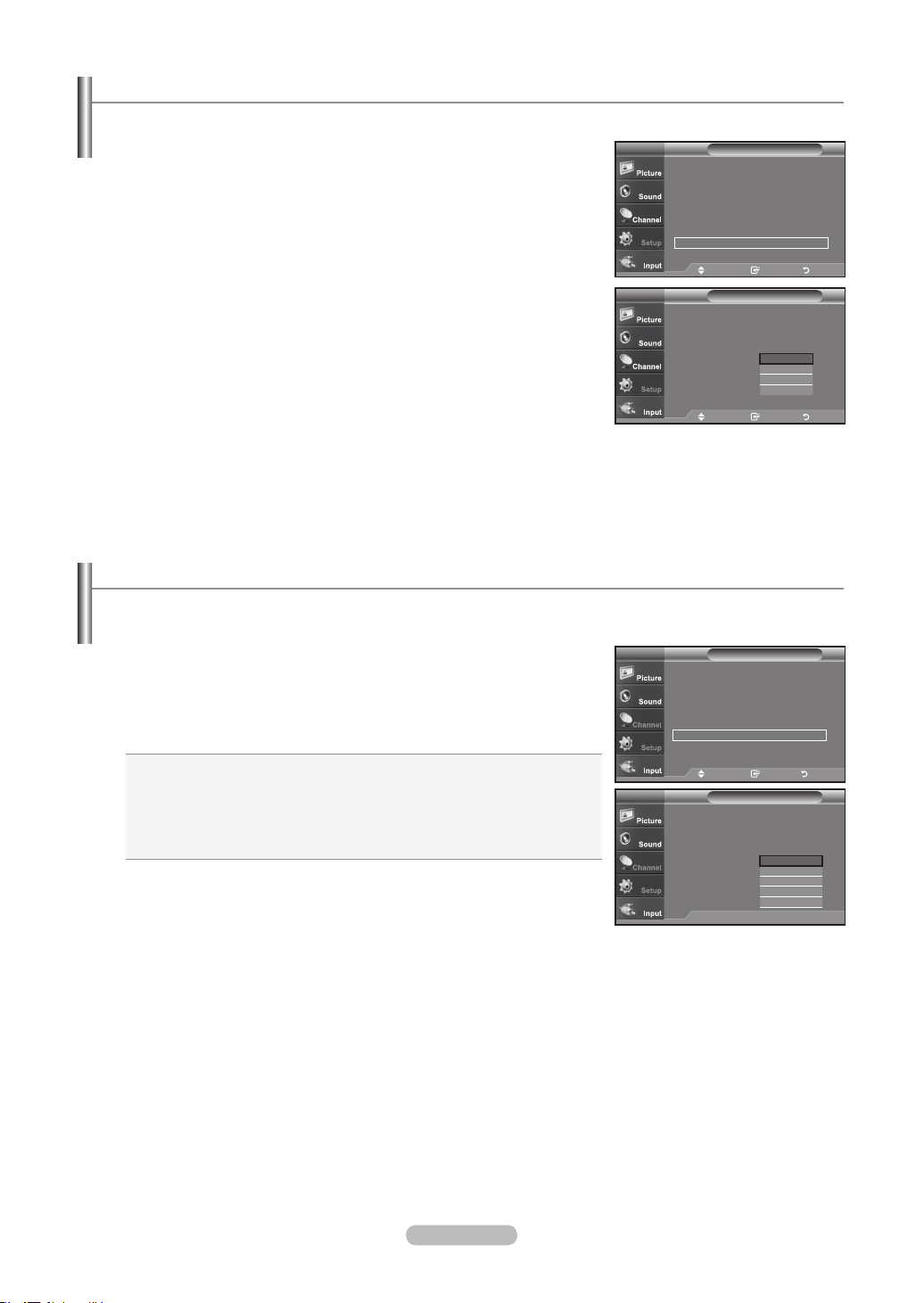
English - 54
Menu Transparency Level
Adjusts the transparency of the menu screen.
1. Press the MENU button to display the menu.
Press the ▲ or ▼ buttons to select "Setup", then press the ENTER
button.
2. Press the ▲ or ▼ buttons to select “Menu Transparency”, then press the ENTER
button.
3. Press the ▲ or ▼ buttons to select level, then press the ENTER button.
Press the EXIT button to exit.
Setup
Plug & Play ►
Language : English ►
Time ►
Game Mode : Off ►
V-Chip ►
Caption ►
Menu TransParency : High ►
▼More
TV
Move Enter Return
Setup
Plug & Play
Language : English
Time
Game Mode : Off
V-Chip
Caption
Menu TransParency : Medium
▼More
TV
Move Enter Return
High
Medium
Low
Opaque
Using the Energy Saving Feature
This feature adjusts the brightness of the TV in order to reduce power consumption. When watching TV at night, set the
"Energy Saving " mode option to "High" to reduce eye fatigue as well as power consumption.
1. Press the MENU button to display the menu.
Press the ▲ or ▼ buttons to select "Setup", then press the ENTER
button.
2. Press the ▲ or ▼ buttons to select "Energy Saving", then press the ENTER
button.
Select the required option (Off, Low, Medium, High, Auto) by pressing the ▲ or ▼ button.
Press the ENTER
button.
• Off: Turns off the energy saving function.
• Low: Sets the TV to low energy saving mode.
• Medium: Sets the TV to medium energy saving mode.
• High: Sets the TV to high energy saving mode.
• Auto: Automatically adjusts the brightness of the TV screen in accordance
with the scenes.
Press the EXIT button to exit.
Setup
▲More
Blue Screen : Off ►
Melody : Off ►
PC
Home Theater PC : Off ►
Energy Saving : Off ►
HDMI Black Level :Normal ►
▼ More
TV
Move Enter Return
Move Enter Return
TV Setup
▲More
Blue Screen : Off
Melody : Off
PC
Home Theater PC : Off
Energy Saving : Off
HDMI Black Level :Normal
▼ More
Off
Low
Medium
High
Auto
BN68-01178A-Eng.indd 54 2007-02-15 �� 8:58:27
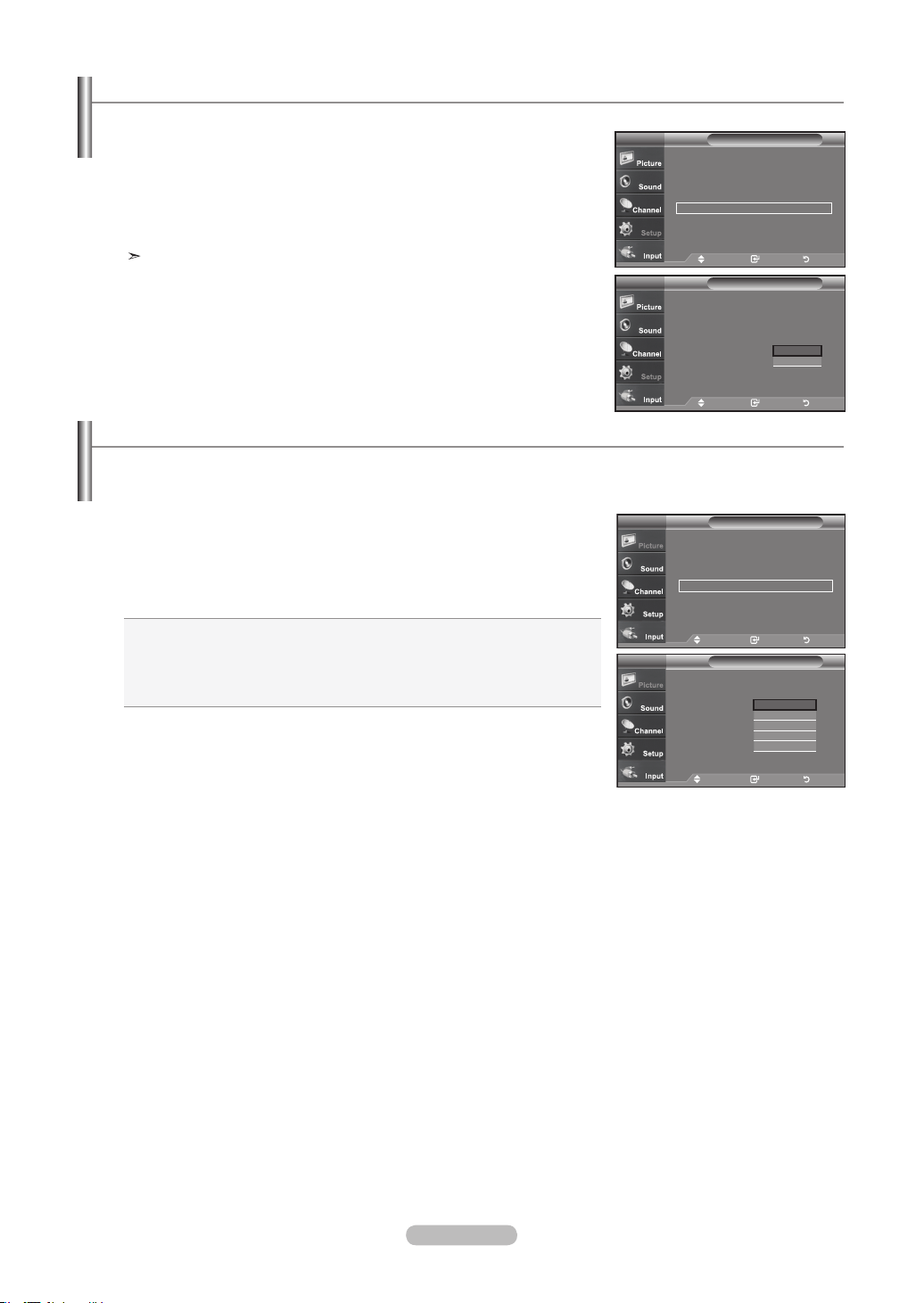
English - 55
If the broadcast signal received by your TV is weak, you can activate the Digital Noise Reduction feature to help reduce any static
and ghosting that may appear on the screen.
1. Press the MENU button to display the menu.
Press the ENTER button to select “Picture”.
2. Press the
▲ or ▼ button to select "Digital NR", then press the ENTER button.
3. Press the
▲ or ▼ button to select "Off", "Low", "Medium", "High", "Auto".
Press the ENTER button.
Off: Turns the screen noise reduction function off.
Low: Reduces screen noise at a low level.
Medium: Reduces screen noise at a medium level.
High: Reduces screen noise at a high level.
Auto: Automatically recognizes and reduces screen noise.
Press the EXIT button to exit.
Digital Noise Reduction
Move Enter Return
▲More
Color Tone : Cool2
►
Detailed settings
►
Size : 16 : 9
►
Digital NR : Low
►
Active Color : On
►
DNle : On
►
Reset
: OK ►
PictureTV
Move Enter Return
▲More
Color Tone : Cool2
Detailed settings
Size : 16 : 9
Digital NR : Off
Active Color : Off
DNle : Off
Reset
: OK
PictureTV
Off
Low
Medium
High
Auto
1. Press the MENU button to display the menu.
Press the
▲ or ▼
buttons to select "Setup", then press the ENTER
button.
2. Press the
▲ or ▼
buttons to select “Function Help”, then press the ENTER button.
3. Press the ▲ or ▼ buttons to select “On”, then press the ENTER button.
Press the EXIT
button to exit.
The predetermined value of the function help is On.
Setting the Function Help
Displays help on the menu functions.
Setup
▲ More
Film Mode : Off ►
Wall-Mount Adjustment ►
PIP ►
Function Help : Off ►
SW Upgrade ►
TV
Move Enter Return
Setup
▲ More
Film Mode : Off
Wall-Mount Adjustment
PIP
Function Help : Off
SW Upgrade
TV
Move Enter Return
Off
On
BN68-01178A-Eng.indd 55 2007-02-15 �� 8:58:29
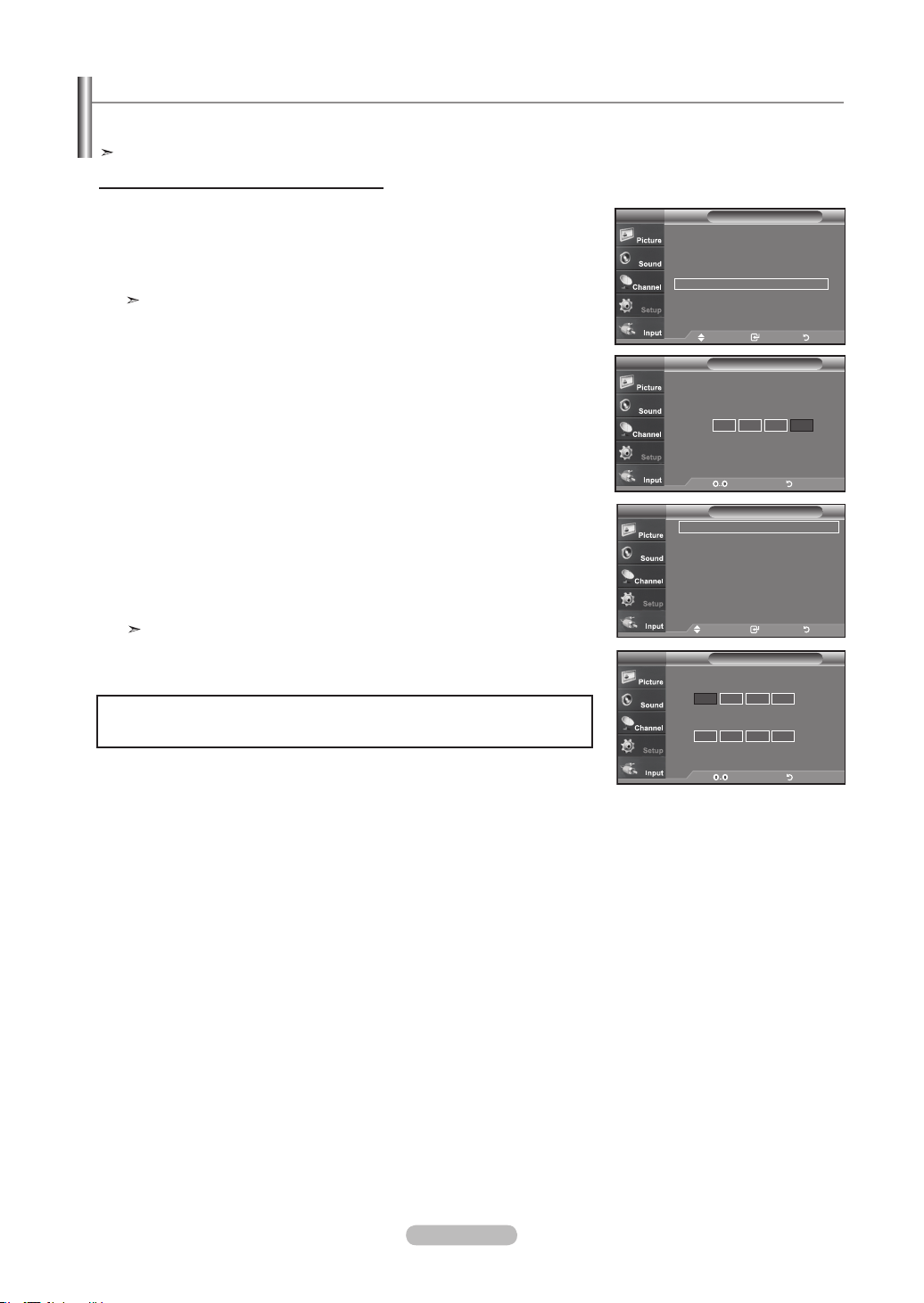
English - 56
1. Press the MENU button to display the menu.
Press the
▲ or ▼
buttons to select "Setup", then press the ENTER
button.
2. Press the
▲ or ▼
buttons to select “V-Chip”, then press the ENTER button.
The message “Enter PIN” will appear. Enter your 4 digit PIN number.
The default PIN number of a new TV set is “0-0-0-0”.
3. The “V-Chip” screen will appear.
Press the ▲ or ▼ buttons to select “Change PIN”, then press the ENTER button.
The Change PIN screen will appear. Choose any 4 digits for your PIN and enter
them. As soon as the 4 digits are entered, the “Confirm new PIN” screen appears.
Re-enter the same 4 digits. When the Confirm screen disappears, your PIN has
been memorized.
Press the EXIT
button to exit.
If you forget the PIN, press the remote-control buttons in the following
sequence, which resets the pin to 0-0-0-0 : Power Off. → Mute → 8 → 2 →
4 → Power On.
Using the V-Chip
The V-Chip feature automatically locks out programs that are deemed inappropriate for children. The user must enter a PIN
(personal ID number) before any of the V-Chip restrictions are set up or changed.
When the V-chip feature is activated, the PIP features do not function.
Setting Up Your Personal ID Number (PIN)
U.S.A Only
This product is covered by the following U.S.patents :US4,930,158,US4,930,160
Move Enter Return
V-Chip Lock : Off
►
TV Parental Guidelines ►
MPAA Rating ►
Canadian English ►
Canadian French ►
Downloadable U.S. Rating ►
Change PIN ►
V-ChipTV
V-Chip
Enter PIN
TV
* * * *
Enter New PIN
Confirm New PIN
Change PINTV
Enter PIN Return
Setup
Plug & Play ►
Language : English ►
Time ►
Game Mode : Off
►
V-Chip
►
Caption ►
Menu TransParency : High ►
▼More
TV
Move Enter Return
Enter PIN Return
BN68-01178A-Eng.indd 56 2007-02-15 �� 8:58:31
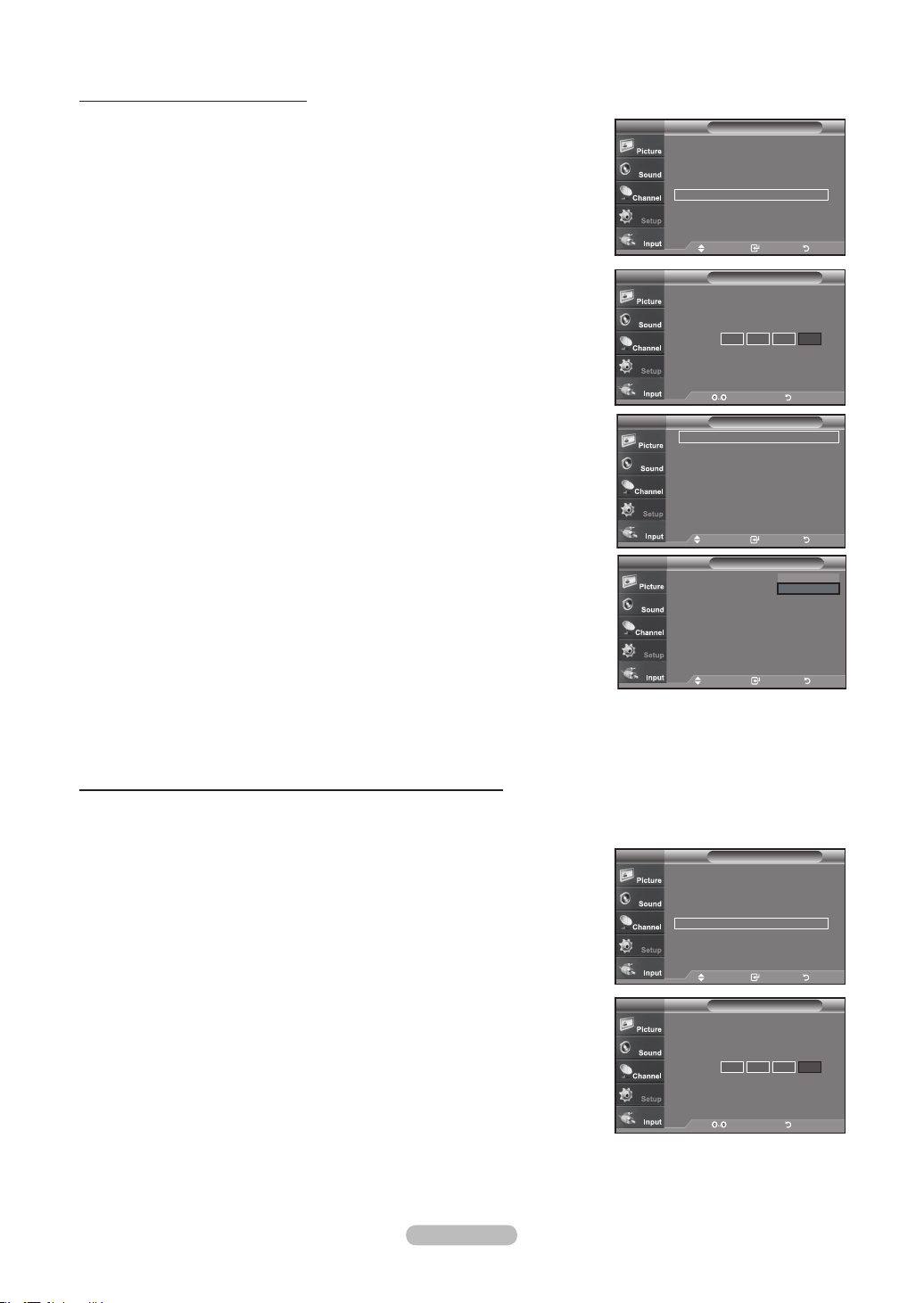
English - 57
1. Press the MENU button to display the menu.
Press the
▲ or ▼
buttons to select "Setup", then press the ENTER
button.
2. Press the
▲ or ▼
buttons to select “V-Chip”, then press the ENTER button.
The message “Enter PIN” will appear. Enter your 4 digit PIN number.
3. The “V-Chip” screen will appear.
To enable the V-Chip feature, press the ENTER button so that the “V-Chip Lock”
field is “On”. (Pressing the ▲ or ▼ buttons will alternate between “On” and “Off”.)
Press the ENTER
button.
Press the EXIT
button to exit.
How to Enable/Disable the V-Chip
Move Enter Return
V-Chip Lock : off
TV Parental Guidelines
MPAA Rating
Canadian English
Canadian French
Downloadable U.S. Rating
Change PIN
V-ChipTV
Off
On
1. Press the MENU button to display the menu.
Press the
▲ or ▼
buttons to select “Setup”, then press the ENTER button.
2. Press the
▲ or ▼
buttons to select “V-Chip”, then press the ENTER button.
The message “Enter PIN” will appear. Enter your 4 digit PIN number.
How to Set up Restrictions Using the “TV Parental Guidelines”
First, set up a personal identification number (PIN), and enable the V-Chip. (See previous section.)
Parental restrictions can be set up using either of two methods: The TV guidelines or the MPAA rating.
V-Chip
Enter PIN
TV
* * * *
V-Chip
Enter PIN
TV
* * * *
Setup
Plug & Play ►
Language : English ►
Time ►
Game Mode : Off ►
V-Chip ►
Caption ►
Menu TransParency : High ►
▼More
TV
Move Enter Return
Move Enter Return
V-Chip Lock : On
►
TV Parental Guidelines ►
MPAA Rating ►
Canadian English ►
Canadian French
►
Downloadable U.S. Rating
►
Change PIN ►
V-ChipTV
Enter PIN Return
Setup
Plug & Play ►
Language : English ►
Time ►
Game Mode : Off ►
V-Chip ►
Caption ►
Menu TransParency
: High ►
▼More
TV
Move Enter Return
Enter PIN Return
BN68-01178A-Eng.indd 57 2007-02-15 �� 8:58:33
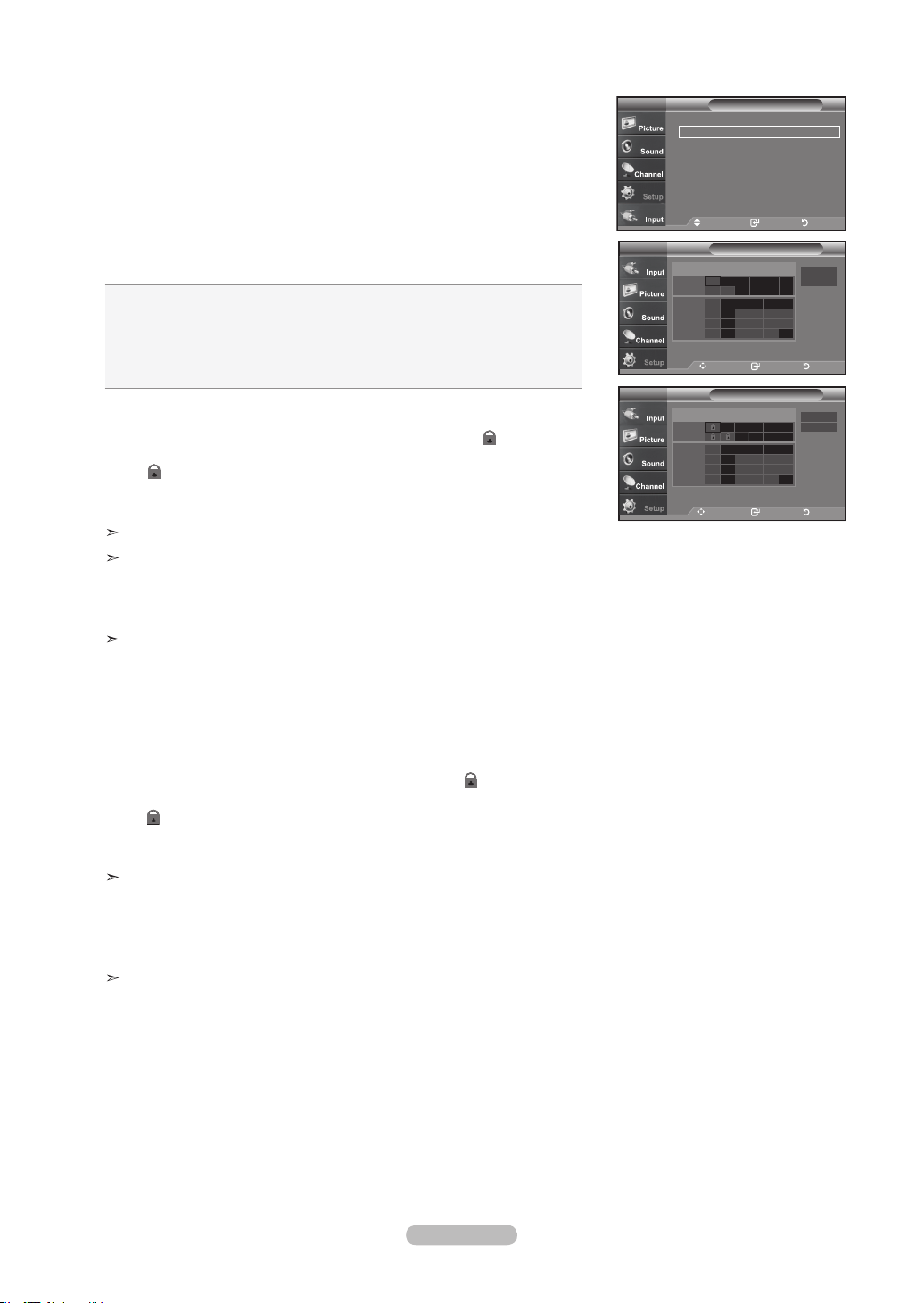
English - 58
3. The “V-Chip” screen will appear. Press the
▲ or ▼
buttons to select “TV Parental
Guidelines”, then press the ENTER button.
4. The “TV Parental Guidelines” screen will appear.
Press the
▲ or ▼
buttons to select one of the six aged based categories:
• TV-Y: Young children
• TV-Y7: Children 7 and over
• TV-G: General audience
• TV-PG: Parental guidance
• TV-14: Viewers 14 and over
• TV-MA: Mature audience
5. At this point, one of the TV-Ratings is selected.
Press the ENTER button. Depending on your existing setup, the “ ” symbol will
be selected. (Blank = Unblocked, = Blocked)
While “ ” is selected, press the ENTER button to block or unblock the category.
To select a different TV-Rating, press the
▲ or ▼
buttons and then repeat the
process.
Allow all: Press to unlock all TV ratings. / Block all: Press to lock all TV ratings.
The TV-Y, TV-Y7, TV-G, TV-PG, TV-14 and TV-MA have additional options.
See the next step to change any of the following sub-ratings:
FV: Fantasy violence / D: Sexually Suggestive Dialog / L: Adult Language /
S: Sexual situation / V: Violence
The V-Chip will automatically block certain categories that are “more
restrictive”. For example, if you block “TV-Y” category, then TV-Y7 will auto
matically be blocked. Similarly, if you block the TV-G category, then all the cat
egories in the “young adult” group will be blocked (TV-G, TV-PG, TV-14, and
TV-MA). The sub-ratings (D, L, S, V) work together similarly.
(See next section.)
6. How to set the FV, D, L, S and V sub-ratings.
First, select one of these TV-Ratings: TV-Y, TV-Y7, TV-G, TV-PG, TV-14, or TV-MA
(See Step 4, on previous page), and press the
►
button. The “ ”symbol will be
displayed for each sub-rating.
While “ ” is selected, press the ENTER button to go to a sub rating.
Press ENTER to block the sub rating. To select a different TV-Rating, press the
▲ or ▼
buttons and then repeat the process.
The V-chip will automatically block certain categories that are “More restrictive”.
For example, if you block “L” sub-rating in TV-PG, then the “L” sub-ratings in
TV-14 and TV-MA will automatically be blocked.
7. Press the EXIT button to clear all the screens. (Or proceed to the next section,
and set up additional restrictions based on the MPAA codes.)
These categories consist of two separate groups: TV-Y and TV-Y7 (young
children through age 7), and TV-G through TV-MA (everybody else).
The restrictions for these two groups work independently: If a household
includes very young children as well as young adults, the TV guidelines must
be set up separately for each age group. (See next step.)
Move Enter Return
V-Chip Lock : On
►
TV Parental Guidelines ►
MPAA Rating ►
Canadian English ►
Canadian French ►
Downloadable U.S. Rating ►
Change PIN ►
V-ChipTV
Move Enter Return
TV-Y
TV-Y7
TV Parental GuidelinesTV
TV-G
TV-PG
TV-14
TV-MA
ALL FV V S L D
Allow All
Block All
Move Enter Return
TV-Y
TV-Y7
TV Parental GuidelinesTV
TV-G
TV-PG
TV-14
TV-MA
ALL FV V S L D
Allow All
Block All
BN68-01178A-Eng.indd 58 2007-02-15 �� 8:58:35
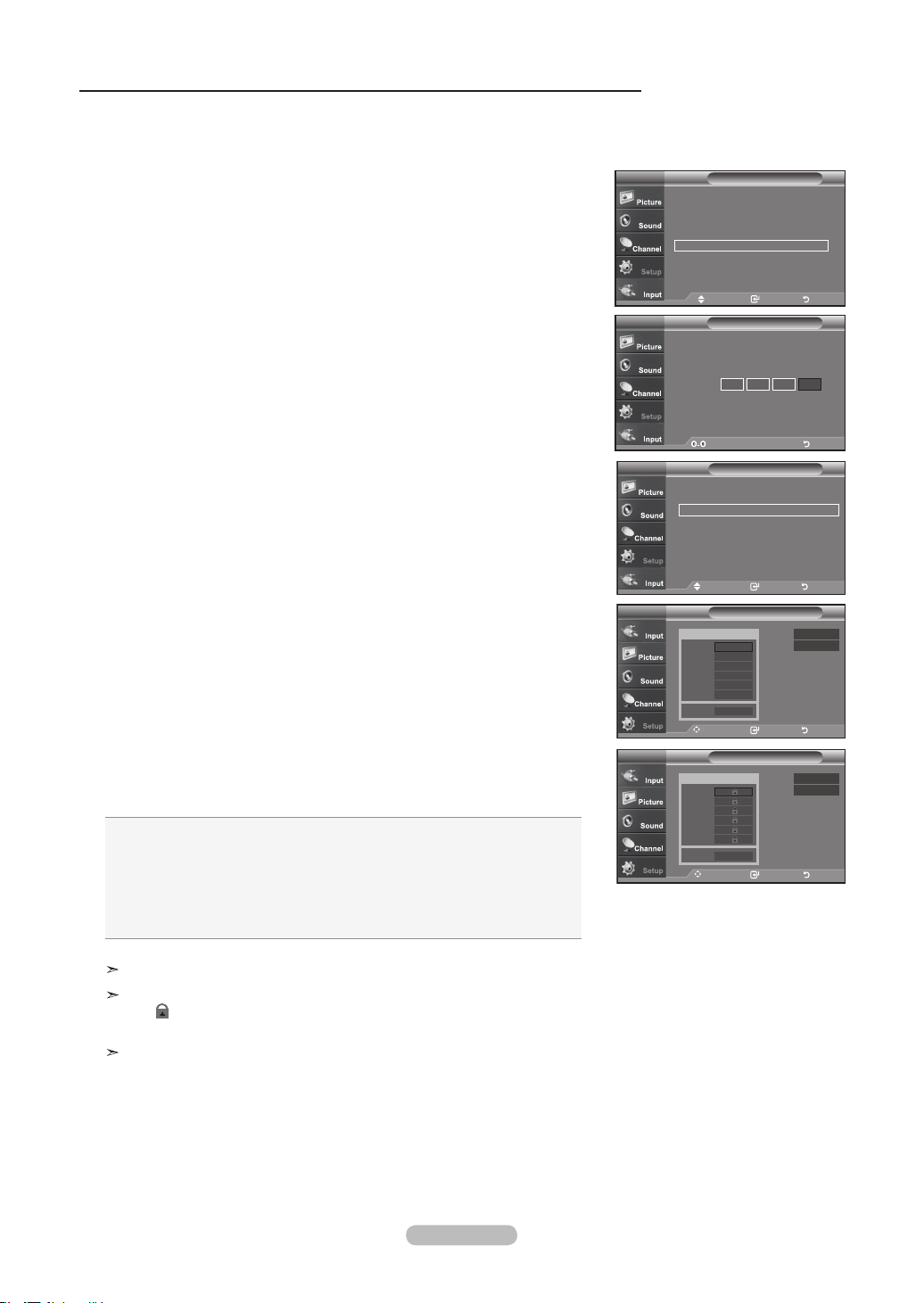
English - 59
How to Set up Restrictions Using the MPAA Ratings: G, PG, PG-13, R, NC-17, X, NR
The MPAA rating system uses the Motion Picture Association of America (MPAA) system, and its main application is for movies.
When the V-Chip lock is on, the TV will automatically block any programs that are coded with objectionable ratings
(either MPAA or TV-Ratings).
1. Press the MENU button to display the menu.
Press the
▲ or ▼
buttons to select “Setup”, then press the ENTER button.
2. Press the
▲ or ▼
buttons to select “V-Chip”, then press the ENTER button.
The message “Enter PIN” will appear. Enter your 4 digit PIN number.
3. The “V-Chip” screen will appear. Press the
▲ or ▼
buttons to select
“MPAA Rating”, then press the ENTER button.
4. The “MPAA Rating” screen will appear. Repeatedly press the
▲ or ▼
buttons to
select a particular MPAA category. Pressing the
▲ or ▼
buttons will cycle through
the MPAA categories:
• G: General audience (no restrictions).
• PG: Parental guidance suggested.
• PG-13: Parents strongly cautioned.
• R: Restricted. Children under 17 should be accompanied by an adult.
• NC-17: No children under age 17.
• X: Adults only.
• NR: Not rated.
Allow all: Press to unlock all TV ratings. / Block all: Press to lock all TV ratings.
While a particular category is selected, press the ENTER button to activate it.
The “ ” symbol will be displayed. Press the ENTER button to block or
unblock the category.
The V-Chip will automatically block any category that is “more restrictive”.
For example, if you block the “PG-13” category, then “R”, “NC-17” and “X” will
automatically be blocked also.
Press the EXIT button to exit.
Move Enter Return
V-Chip Lock : On
►
TV Parental Guidelines ►
MPAA Rating ►
Canadian English ►
Canadian French ►
Downloadable U.S. Rating ►
Change PIN ►
V-ChipTV
Move Enter Return
MPAA RatingTV
G
PG
PG-13
R
NC-17
X
NR
Block
Allow All
Block All
Move Enter Return
MPAA RatingTV
G
PG
PG-13
R
NC-17
X
NR
Block
Allow All
Block All
V-Chip
Enter PIN
TV
* * * *
Enter PIN Return
Setup
Plug & Play ►
Language : English ►
Time ►
Game Mode : Off ►
V-Chip ►
Caption ►
Menu TransParency : High ►
▼More
TV
Move Enter Return
BN68-01178A-Eng.indd 59 2007-02-15 �� 8:58:38
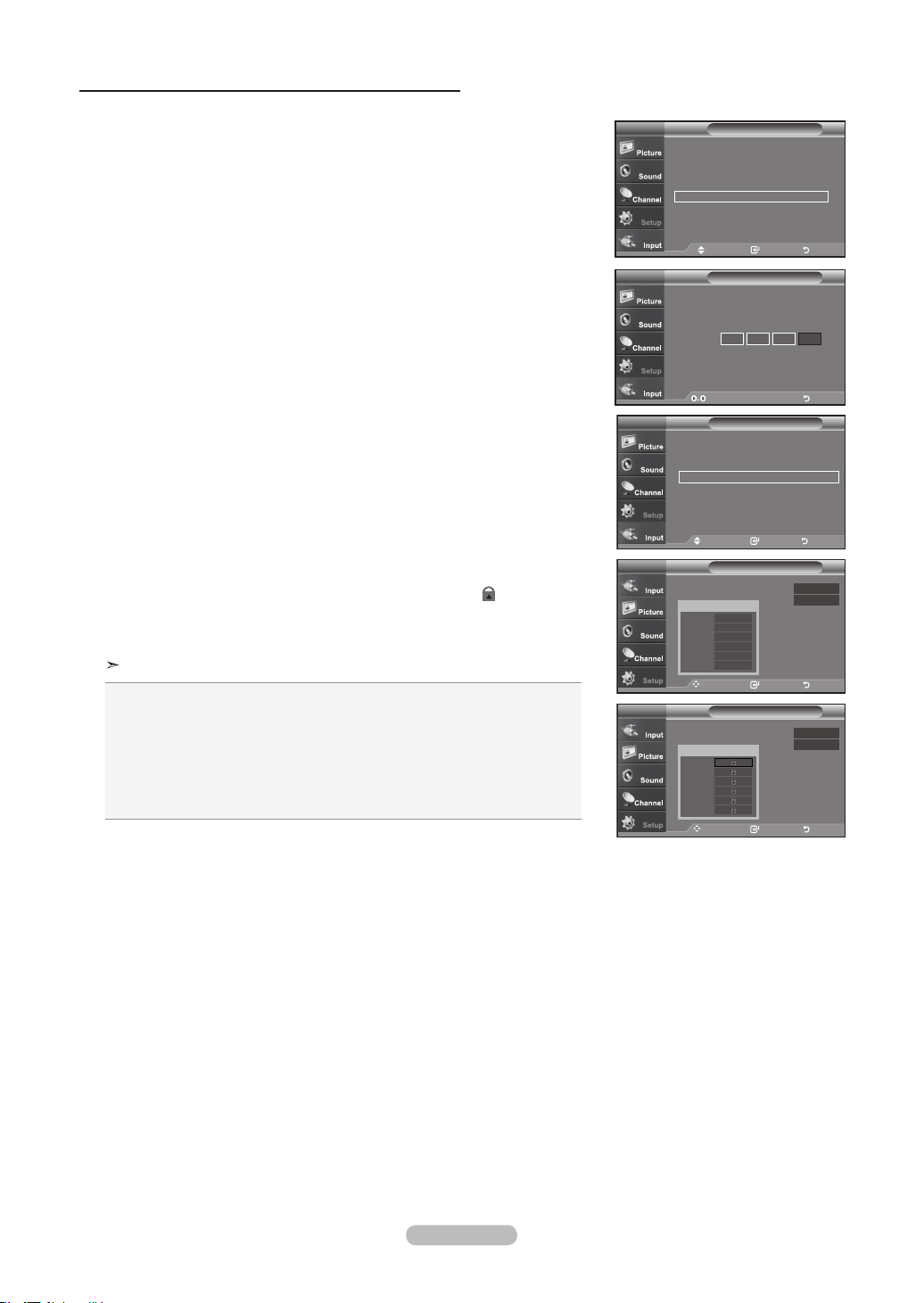
English - 60
How to Set up Restrictions Using the ‘Canadian English’
1. Press the MENU button to display the menu.
Press the
▲ or ▼
buttons to select “Setup”, then press the ENTER button.
2. Press the
▲ or ▼
buttons to select “V-Chip”, then press the ENTER button.
The message “Enter PIN” will appear. Enter your 4 digit PIN number.
3. The “V-Chip” screen will appear. Press the
▲ or ▼
buttons to select
“Canadian English”, then press the ENTER button.
4. Press the
▲ or ▼
buttons to select a appropriate restriction.
Press the ENTER button to activate the restriction selected. The “ ” symbol is
indicated.
Press the EXIT
button to exit.
Allow all: Press to unlock all TV ratings. / Block all: Press to lock all TV ratings.
• C: Programming intended for children under age 8.
• C8+: Programming generally considered acceptable for children 8 years and
over to watch on their own.
• G: General programming, suitable for all audiences.
• PG: Parental Guidance.
• 14+: Programming contains themes or content which may not be suitable for
viewers under the age of 14.
• 18+: Adult programming.
Move Enter Return
V-Chip Lock : On
►
TV Parental Guidelines
►
MPAA Rating ►
Canadian English ►
Canadian French ►
Downloadable U.S. Rating
►
Change PIN
►
V-ChipTV
Move Enter Return
Canadian EnglishTV
C
C8+
G
PG
14+
18+
Block
Allow All
Block All
Move Enter Return
Canadian EnglishTV
C
C8+
G
PG
14+
18+
Block
Allow All
Block All
V-Chip
Enter PIN
TV
* * * *
Enter PIN Return
Setup
Plug & Play ►
Language : English ►
Time ►
Game Mode : Off ►
V-Chip ►
Caption ►
Menu TransParency : High ►
▼More
TV
Move Enter Return
BN68-01178A-Eng.indd 60 2007-02-15 �� 8:58:40
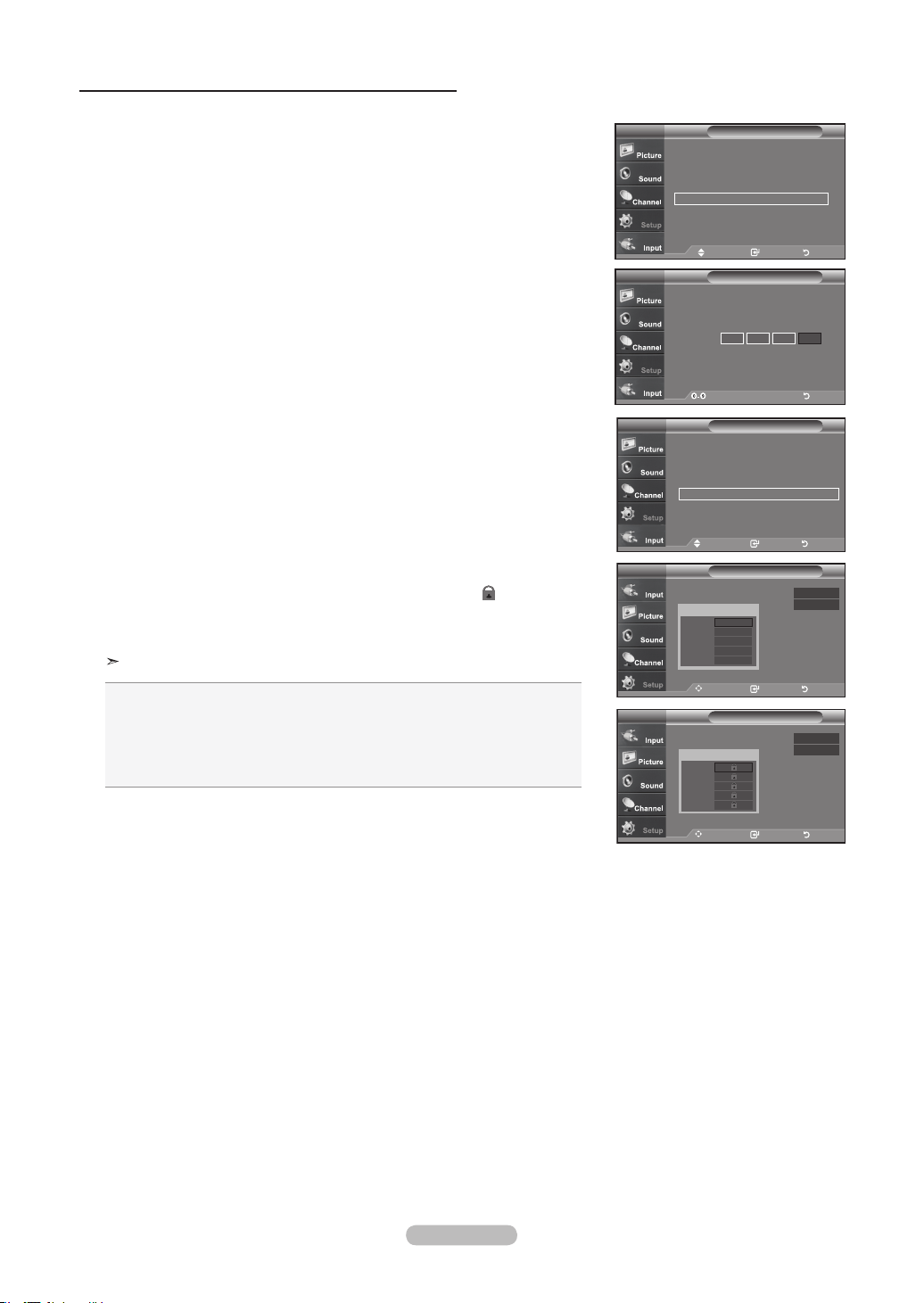
English - 61
How to Set up Restrictions Using the ‘Canadian French’
1. Press the MENU button to display the menu.
Press the
▲ or ▼
buttons to select “Setup”, then press the ENTER button.
2. Press the
▲ or ▼
buttons to select “V-Chip”, then press the ENTER button.
The message “Enter PIN” will appear. Enter your 4 digit PIN number.
3. The “V-Chip” screen will appear. Press the
▲ or ▼
buttons to select
“Canadian French”, then press the ENTER button.
4. Press the
▲ or ▼
buttons to select an appropriate restriction.
Press the ENTER button to activate the restriction selected. The “ ” symbol is
indicated.
Press the EXIT
button to exit.
Allow all: Press to unlock all TV ratings. / Block all: Press to lock all TV ratings.
• G: General
• 8 ans+: Programming generally considered acceptable for children 8 years
and over to watch on their own.
• 13 ans+: Programming may not be suitable for children under the age of 13.
• 16 ans+: Programming is not suitable for children under the age of 16.
• 18 ans+: Programming restricted to adults.
Move Enter Return
V-Chip Lock : On
►
TV Parental Guidelines ►
MAPP Rating ►
Canadian English ►
Canadian French ►
Downloadable U.S. Rating ►
Change PIN ►
V-ChipTV
Move Enter Return
Canadian FrenchTV
G
8 ans+
13 ans+
16 ans+
18 ans+
Block
Allow All
Block All
Move Enter Return
Canadian FrenchTV
G
8 ans+
13 ans+
16 ans+
18 ans+
Block
Allow All
Block All
V-Chip
Enter PIN
TV
* * * *
Enter PIN Return
Setup
Plug & Play ►
Language : English
►
Time ►
Game Mode : Off
►
V-Chip
►
Caption ►
Menu TransParency
: High ►
▼More
TV
Move Enter Return
BN68-01178A-Eng.indd 61 2007-02-15 �� 8:58:43
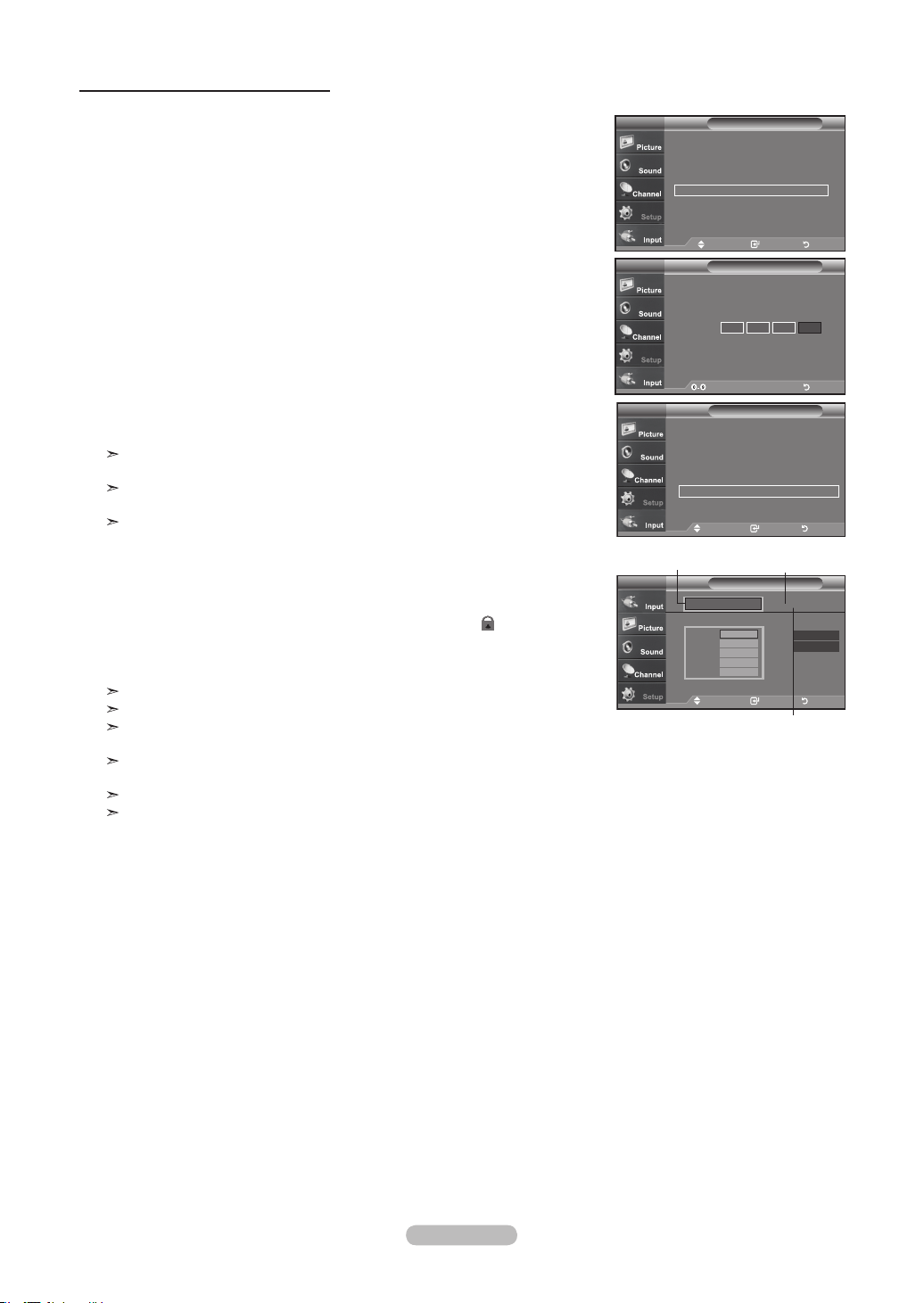
English - 62
1. Press the MENU button to display the menu.
Press the
▲ or ▼
buttons to select “Setup”, then press the ENTER button.
2. Press the
▲ or ▼
buttons to select “V-Chip”, then press the ENTER button.
The message “Enter PIN” will appear. Enter your 4 digit PIN number.
3. The “V-Chip” screen will appear. Press the
▲ or ▼
buttons to select
“Downloadable U.S. Rating”, then press the ENTER button.
If information is not downloaded from the broadcasting station, the
Downloadable U.S. rating menu is deactivated.
Parental restriction information is automatically downloaded while watching
DTV channels. It may take several seconds.
The Downloadable U.S. rating menu is available for use after information is
downloaded from the broadcasting station. However, depending on the infor
mation from the broadcasting station, it may not be available for use.
4. Press the
▲ or ▼
buttons to select a appropriate restriction.
Press the ENTER button to activate the restriction selected. The “ ” symbol is
indicated.
Press the EXIT
button to exit.
Allow all: Press to unlock all TV ratings. / Block all: Press to lock all TV ratings.
Parental restriction levels differ depending on the broadcasting station.
The default menu name and Downloadable US rating changes depending on
the downloaded information.
Even if you set the On-screen display to your desired language, the
"Downloadable U.S. Rating" menu will appear in English only.
The rating will automatically block certain categories that are more restrictive.
The rating titles(For example: Humor Level..etc) and TV ratings(For example:
DH,MH,H..etc) may differ depending on the broadcasting station.
Using the V-Chip for Digital channels
Parental restriction information can be used while watching DTV channels.
Move Enter Return
Downloadable U.S. Rating
TV
DH
MH
H
VH
EH
Humor Level
Allow All
Block All
41/2
RAting title
The number of
current rating
title
The nimber of
all rating title
V-Chip
Enter PIN
TV
* * * *
Enter PIN Return
Setup
Plug & Play ►
Language : English ►
Time ►
Game Mode : Off ►
V-Chip ►
Caption ►
Menu TransParency : High ►
▼More
TV
Move Enter Return
Move Enter Return
V-Chip Lock : On
►
TV Parental Guidelines
►
MPAA Rating ►
Canadian English ►
Canadian French ►
Downloadable U.S. Rating ►
Change PIN ►
V-ChipTV
BN68-01178A-Eng.indd 62 2007-02-15 �� 8:58:45
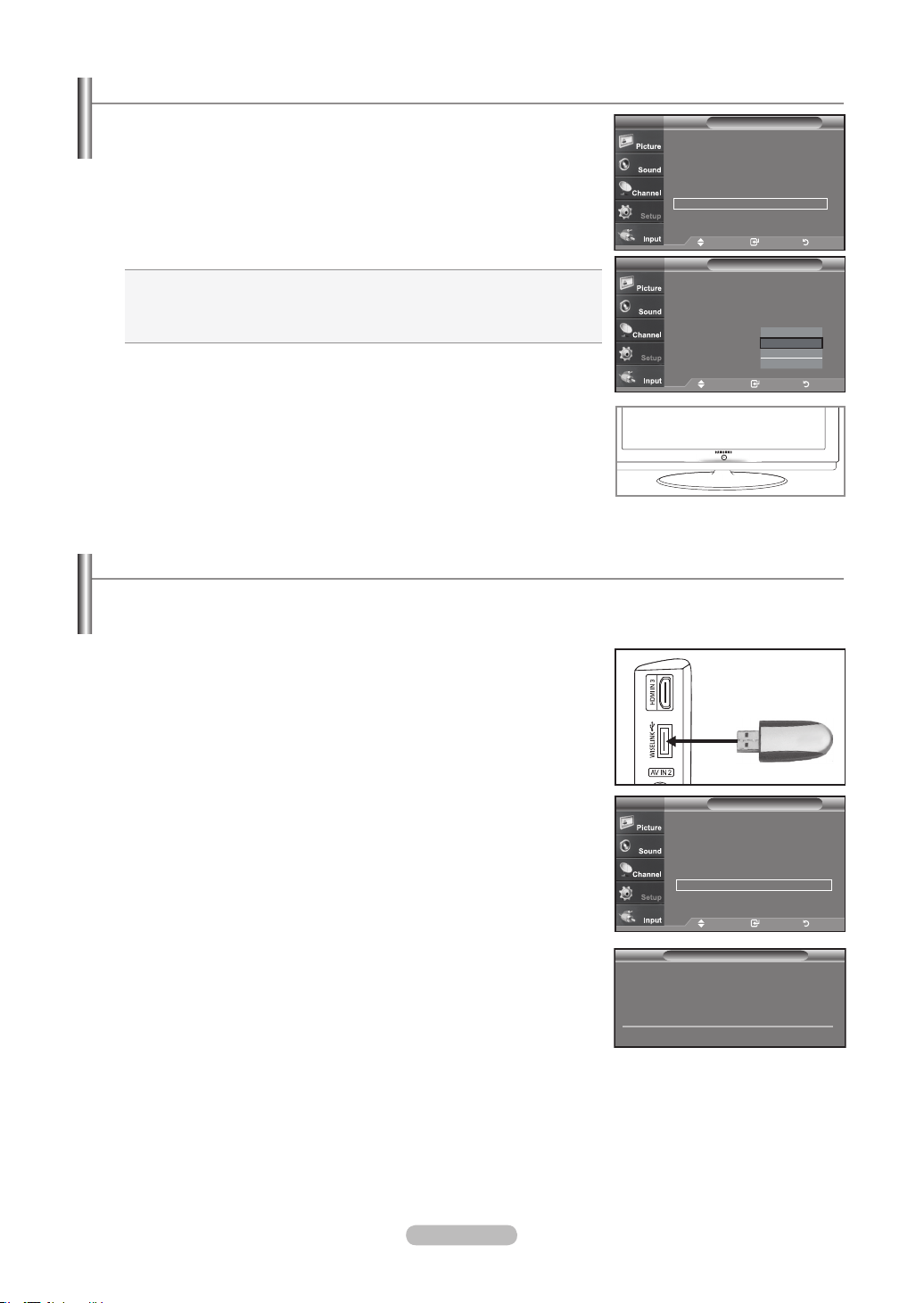
English - 63
1. Insert a USB drive containing the firmware upgrade into the WISELINK port on
the side of the TV.
2. Press the MENU button to display the menu.
Press the ▲ or ▼ button to select Setup, then press the ENTER button.
3. Press the ▲ or ▼ button to select Software upgrade, then press the ENTER button.
4. Press the ▲ or ▼ button to select USB Upgrade, then press the ENTER button.
The message Scanning for USB... It may take up to 30 seconds. is displayed.
Please be careful to not disconnect the power or remove the USB drive while
upgrades are being applied. The TV will shut off and turn on automatically after
completing the firmware upgrade. Please check the firmware version after the
upgrades are complete.
Upgrading the Software
Samsung may offer upgrades for TV's firmware in the future. Please contact the Samsung call center at 1-800-SAMSUNG
(726-7864) to receive information about downloading upgrades and using a USB drive. Upgrades will be possible by connecting a
USB drive to the USB port located on located on the side of your TV.
SW Upgrade
Scanning for USB...
It may take up to 30 seconds.
Setup
▲ More
Film Mode : Off ►
Wall-Mount Adjustment ►
PIP ►
Function Help : Off ►
SW Upgrade ►
TV
Move Enter Return
TV Side Panel
USB Drive
1. Press the MENU button to display the menu.
Press the
▲ or ▼
buttons to select “Setup”, then press the ENTER
button.
2.
Press the
▲ or ▼
buttons to select “Light Effect”, then press the ENTER
button.
3.
Press the
▲ or ▼
button to select “Off”, “In Standby”, “In Watching TV” or “Always”,
then press the ENTER button.
• Off: LED will not come on.
• In Standby: Turns the LED on in standby mode.
• In Watching TV: Turns the LED on while watching TV.
• Always: LED will come on after you turn the TV off.
Press the EXIT button to exit.
Setting the Light Effect (LN-T4065F / LN-T4665F / LN-T5265F)
You can turn on/off the blue LED on the front of TV.
Setup
▲More
Blue Screen : On ►
Melody : Off ►
PC
►
Home Theater PC : Off ►
Light Effect :
In Watching TV
►
Energy Saving : Off ►
▼ More
TV
Move Enter Return
Setup
▲More
Blue Screen : On
Melody : Off
PC
Home Theater PC : Off
Light Effect :
Watching Mode On
Energy Saving : Off
▼ More
TV
Move Enter Return
Off
In Standby
In Watching TV
Always
BN68-01178A-Eng.indd 63 2007-02-15 �� 8:58:47
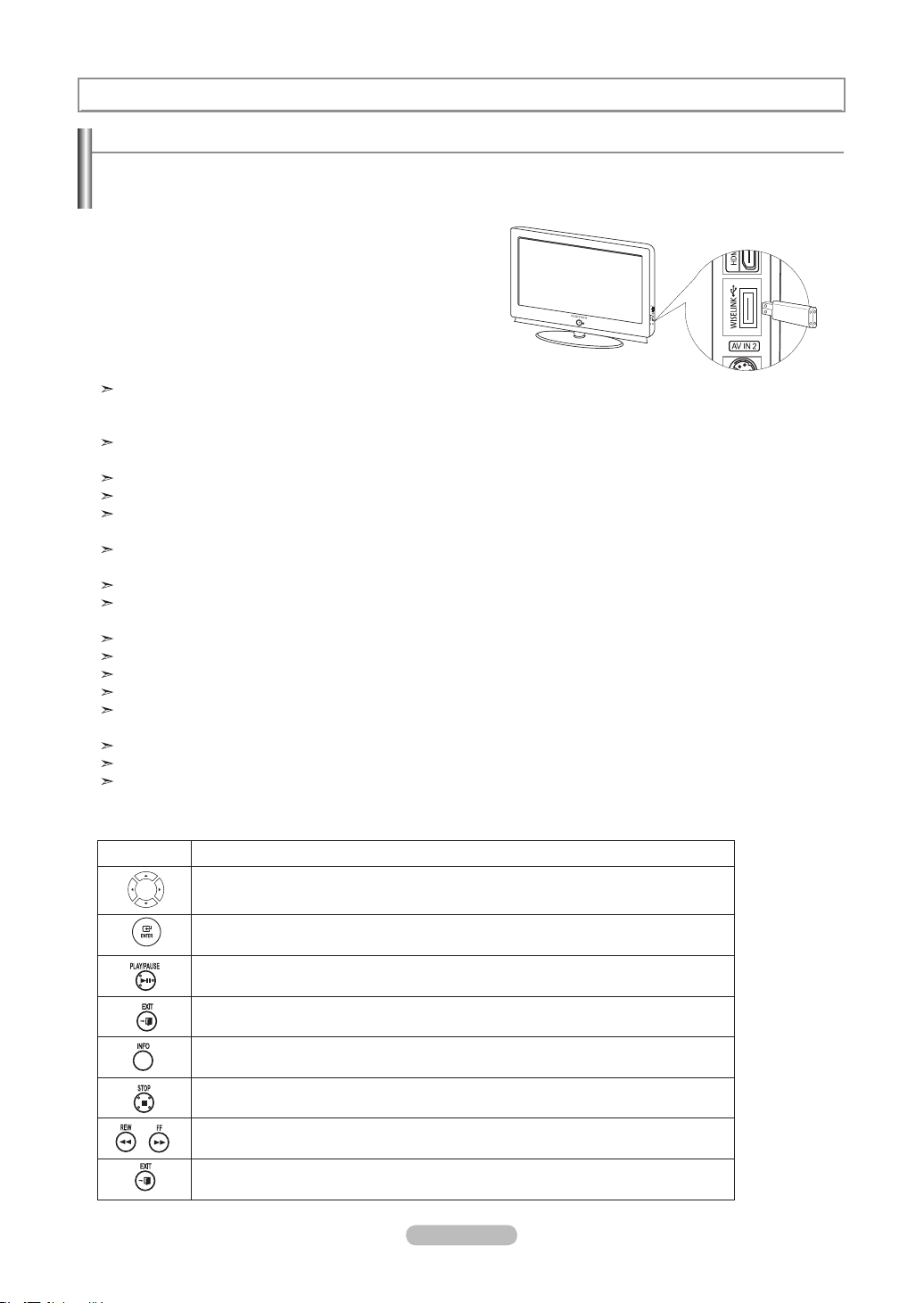
English - 64
WISELINK
Using the WISELINK Function
This function enables you to view and listen to photo (JPEG) and audio files (MP3) saved on a USB Mass Storage Class
(MSC) device.
Press the POWER button on the remote control or front
panel. Connect a USB device containing JPEG and/or
MP3 files to the WISELINK jack (USB jack) on the
side of the TV.
TV Side Panel
Example
Using the Remote Control Button in WISELINK Menu
Button Operations
Move the cursor and select an item
Select the currently selected item.
Play or pause the Slide Show or MP3 file.
Return to the previous menu
Run various functions from the Photo and Music menus.
Stop the current slide show or MP3 file.
Page Up or Down (file list item)
Stop the current function and return to the previous high-level menu.
If you enter the WISELINK mode with no USB device connected the message “There is no device connected” will appear.
In this case, insert the USB device, exit the screen by pressing the WISE LINK button on the remote control and enter the
WISELINK screen again.
Photo and audio files must be named in English, French, or Spanish. If not, the files can not be played. Change the file
names to English, French,or Spanish if necessary.
The file system only supports FAT16/32 (The NTFS file system is not supported)
Certain types of USB devices may not be compatible with this TV.
Wiselink only supports the USB Mass Storage Class device (MSC). MSC is a Mass Storage Class Bulk-Only Transport
device. Examples of MSC are Thumb drives and Flash Card Readers (Both USB HDD and HUB are not supported.)
Before connecting your device to the TV, please back up your files to prevent them from damage or loss of data.
SAMSUNG is not responsible for any data file damage or data loss.
Recommended image resolution for Wiselink is 600 mega pixels.
Please connect directly to the USB port of your TV. If you are using a separate cable connection, there may be a USB
Compatibility problem.
Only MP3 and JPEG file formats are supported.
We recommend the sequential jpeg format. Progressive jpeg uses a lot of memory and decoding may fail.
Do not disconnect the USB device while it is “loading.”
Neither PTP (Picture Transfer Protocol) nor MTP (Media Transfer Pprotocol) is supported.
The playing duration of an mp3 file may be displayed as ‘00:00:00’ if its playing time information is not found
at the start of the file
The higher the resolution of the image, the longer it takes to display on the screen.
If the horizontal resolution of an image is higher than 5000, it cannot be decoded.
If the vertical resolution of an image is higher than 4000, it cannot be decoded.
BN68-01178A-Eng.indd 64 2007-02-15 �� 8:58:48
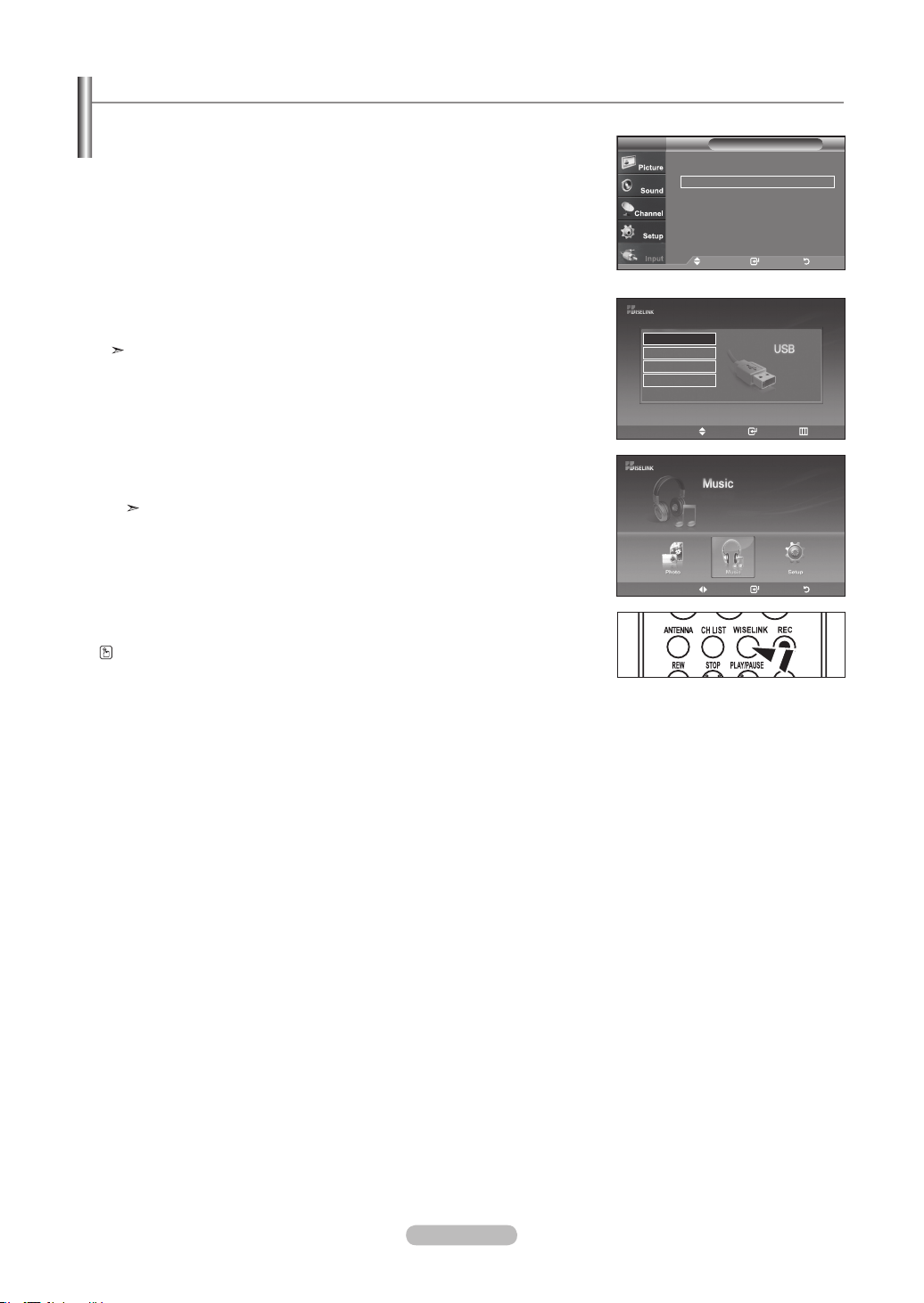
English - 65
1. Press the MENU button. Press the ▲ or ▼ buttons to select “Input”,
then press the ENTER button.
2. Press the
▲ or ▼
button to select “WISELINK”, then press the ENTER button.
3. Press the ▲ or ▼ button to select the corresponding USB Memory Device, then
press the ENTER button.
The WISELINK menu differs depending on the USB Memory Device
connected to TV.
4. Press the ◄ or ► button to move to an icon, then press the ENTER button.
To exit WISELINK mode, press the WISELINK button on the remote control.
Press the WISELINK button on the remote control to display a WISELINK menu.
Using the WISELINK Menu
Input
Source List : TV ►
Edit Name
►
WISELINK
►
Anynet+ (HDMI-CEC)
►
TV
Move Enter Return
XTICK
861MB/994MB Free
Move Enter Return
Move Enter Exit
Generio
STORAGE DEVICE
STORAGE DEVICE
STORAGE DEVICE
STORAGE DEVICE
BN68-01178A-Eng.indd 65 2007-02-15 �� 8:58:50
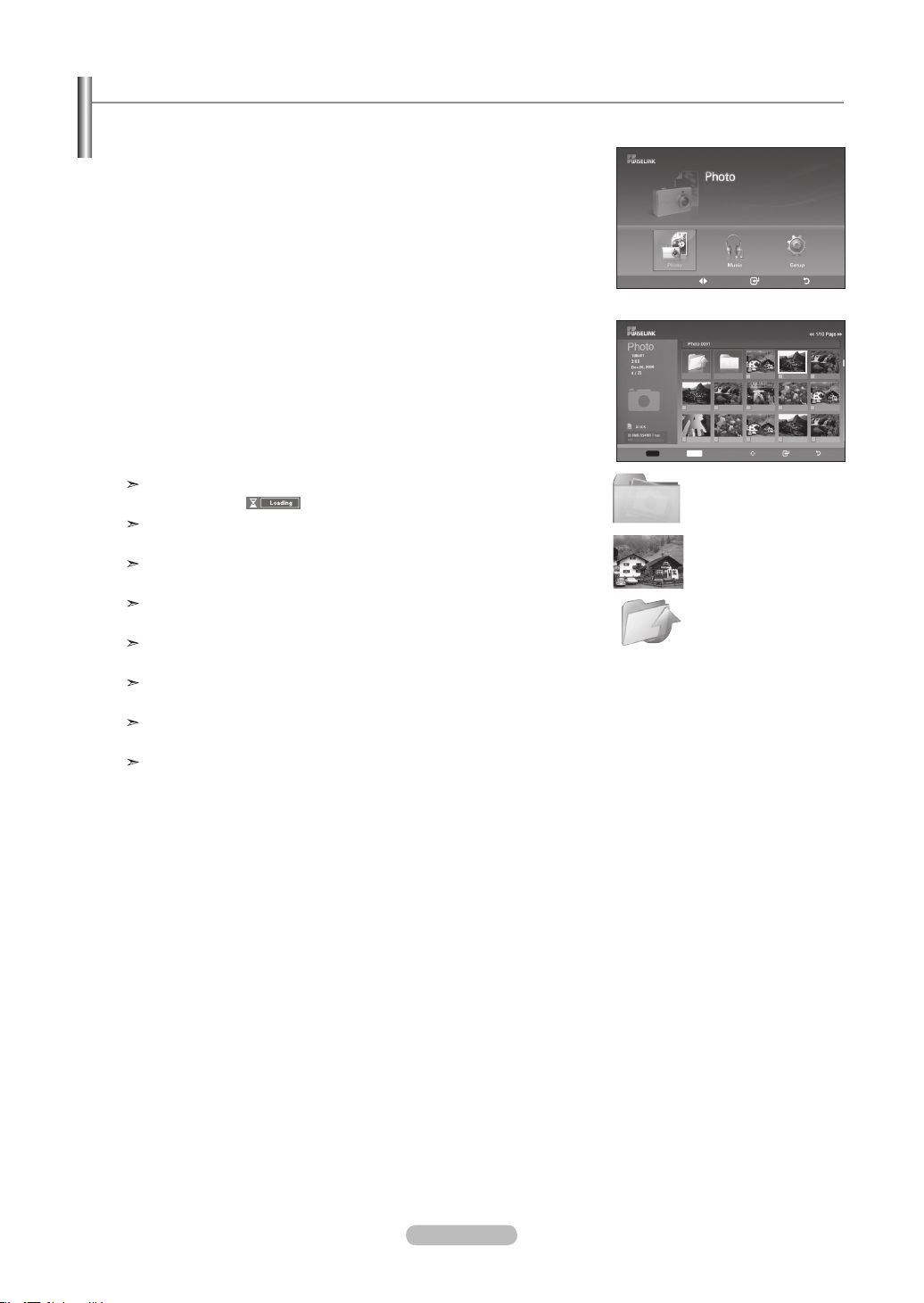
English - 66
1. Complete Steps 1 to 3 of “Using the WISELINK Menu”. (Refer to page 65)
2. Press the
◄ or ►
button to move to “Photo”, then press the ENTER button.
The saved file information is displayed as a folder or file.
3. Press the ▲, ▼, ◄ and ► buttons to select a file, then press the ENTER button.
• Pressing the ENTER button over a photo icon shows the currently selected photo
in full screen.
• Pressing the ENTER button over a folder icon shows the JPEG files included in
the folder.
To exit WISELINK mode, press the WISELINK button on the remote control.
Moving to a photo may take a few seconds to load the file.
At this point, the
icon will appear at the top left of the screen.
This menu only shows files whose file extension is jpg. Files of other formats
such as bmp or tiff will not be displayed.
The files are displayed on a page. 15 thumbnail photos are displayed per
page.
The thumbnails are numbered from left to right and from top to bottom, from 1
to 15.
Certain types of USB Digital camera and audio devices may not be compatible
with this TV.
Folders are displayed first and they are followed by all JPEG files in the current
folder. The folders and JPEG files are sorted in alphabetical order.
If the photo is displayed in full screen, you can zoom in and out or rotate the
photo on the screen.
It takes time to show JPEG files as Thumbnail images.
Using the PHOTO (JPEG) List
This menu shows JPEG files and folders saved on an USB memory device.
: Folder icon
: Photo icon
: Move to the previous
folder stage icon
Select
INFO
Photo menu Move View Return
Up Folder
Forder1
Photo 0001 Photo 0001 None
File 4 File 5 File 6 File 7 File 8
File 9 File 10 File 11 File 12 File 13
Move Enter Return
XTICK
861MB/994MB Free
BN68-01178A-Eng.indd 66 2007-02-15 �� 8:58:51

English - 67
Selecting a Photo and Slide Show
1. Complete Steps 1 to 3 of “Using the WISELINK Menu”. (Refer to page 65)
2. Press the
◄ or ►
button to move to “Photo”, then press the ENTER button.
The saved file information is displayed as a folder or file.
3. Press the INFO button to display “Slide Show” or “Cancel the Selected file”.
4. Press the ▲ or ▼ button to select “Slide Show”, then press the ENTER button.
During the slide show, files are displayed in order from the currently shown file.
MP3 files can be automatically played during the Slide Show if the Default
Background Music is set to On. To enable this function, MP3 files and other
photo files must be located in the same folder on the USB Memory Device.
5. Press the INFO button during “Slide Show” to set the option (Slide show Speed,
Background Music, Background Music Setting, List).
Press the ▲ or ▼ button to select the option, then press the ENTER
button.
• After setting the option press the ENTER button to make a change.
Move Enter Return
XTICK
861MB/994MB Free
Up Folder
Forder1
Photo 0001 Photo 0001 None
File 4 File 5 File 6 File 7 File 8
File 9 File 10 File 11 File 12 File 13
INFO
Exit
Slide Show
Cancel the Selected file
INFO
Exit
Slide show Speed
Background Music
Background Music Setting
List
BN68-01178A-Eng.indd 67 2007-02-15 �� 8:58:53
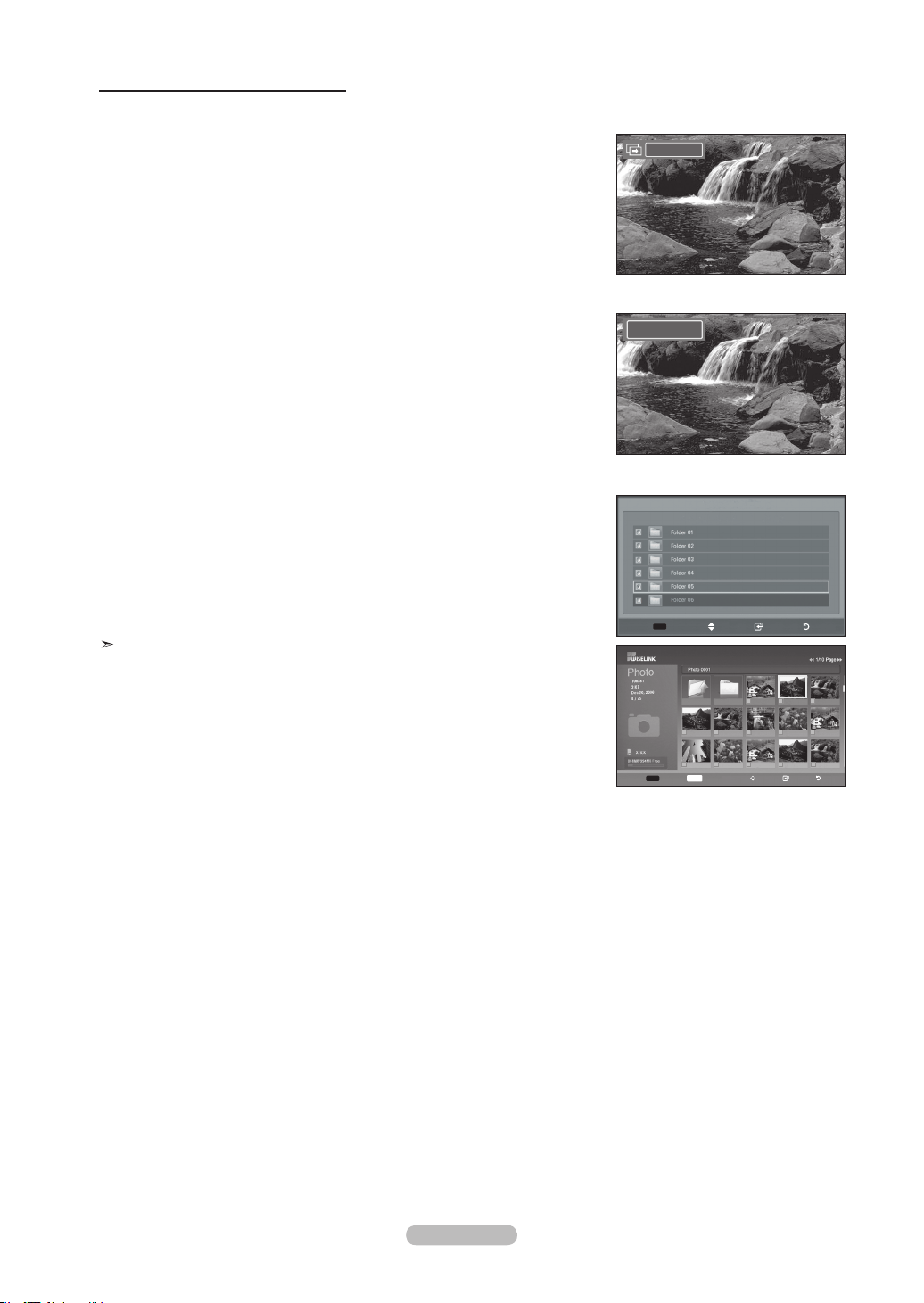
English - 68
Using the Menu during a Slide Show
Slide Show Speed:
Select to control the slide show speed.
You can select Slow, Normal, or Fast.
Background Music:
Select to choose whether you want to play an MP3 file during a slide show.
You can select Music "ON" or "OFF".
Background Music Setting:
While the slide show is in progress, MP3 files and folders under the same directory
are displayed.
Select a folder using the ▲ or ▼ buttons and press the ENTER button.
The selected folder will be highlighted.
Press the RETURN button again to return to the slide show screen.
The selected background music is played.
If you turn Off the Background Music, even if the Background Music Settings have
been set up, the background music will not be played.
List:
The file information is displayed as a folder or JPEG file.
To exit WISELINK mode, press the WISELINK button on the remote control.
OFF
Fast
Select
INFO
Photo menu Move View Return
Up Folder
Forder1
Photo 0001 Photo 0001 None
File 4 File 5 File 6 File 7 File 8
File 9 File 10 File 11 File 12 File 13
Select Move Enter Return
◄◄ 1/1/Page ►►
Background Music Setting
Choose les for background music
BN68-01178A-Eng.indd 68 2007-02-15 �� 8:58:55
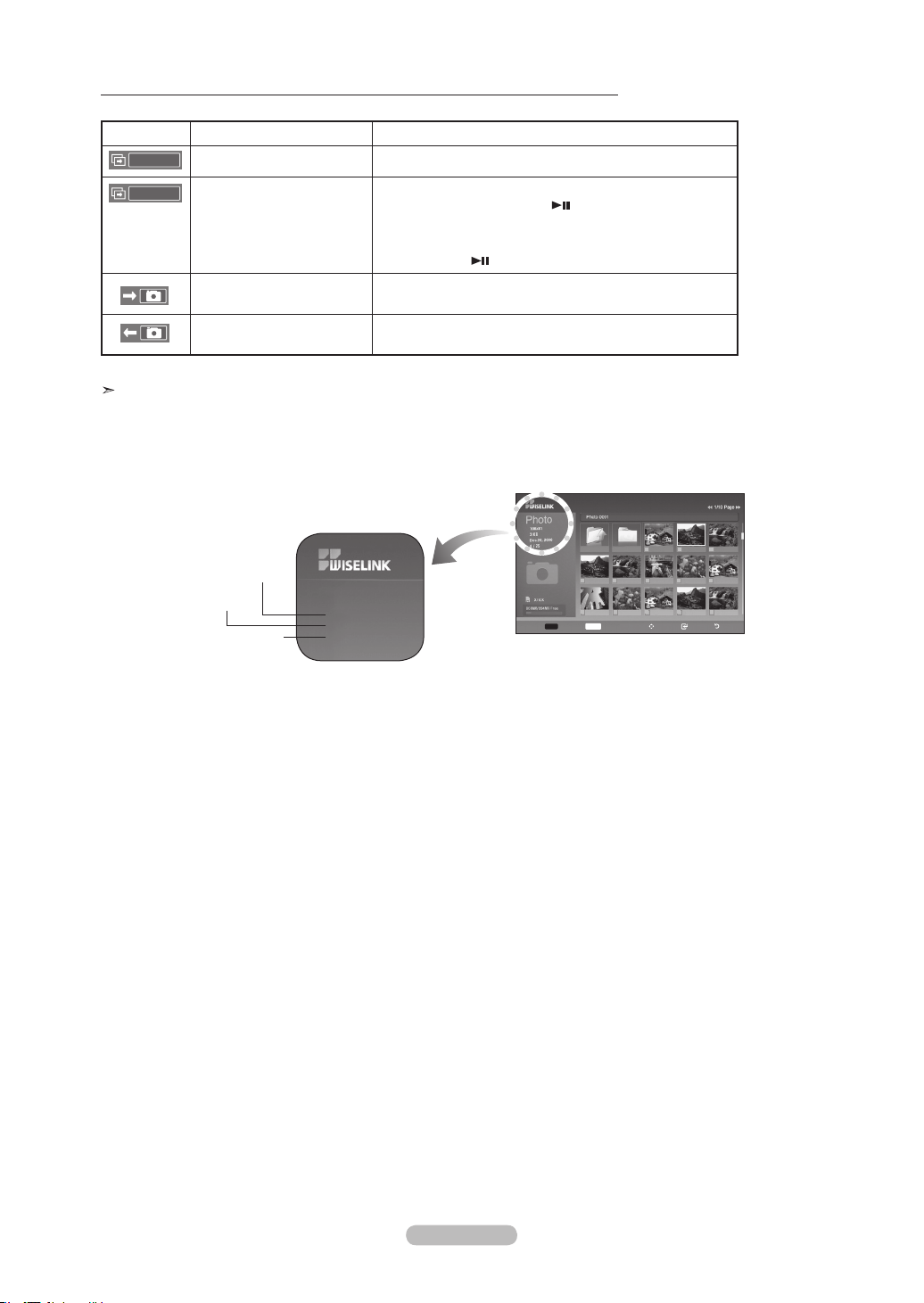
English - 69
Slideshow function information icon (Displayed at the top left of the screen).
Icon Current OSD Function
(Photo) SlideShow Photo SlideShow is in progress.
Photo Pause
You are able to pause a SlideShow and Music by
pressing the PLAY/PAUSE button on the remote
control during a SlideShow.
To resume the SlideShow, press the
PLAY/PAUSE button on the remote control again.
Move to Next Photo
Pressing the (right) direction button on the remote
control allows you to move to the next photo.
Move to Previous Photo
Pressing the (left) direction button on the remote
control allows you to move to the previous photo
When selecting a photo file, the photo file information is displayed on the left side of the TV screen,
such as the resolution, the date modified and the order of the file in the current directory (e.g. 10th out of 15).
Photo
108 x 81
Dec20. 2006
4/25
Such as the resolution
Order of the file in the
current directory
Date modified
Select
INFO
Photo menu Move View Return
Up Folder
Forder1
Photo 0001 Photo 0001 None
File 4 File 5 File 6 File 7 File 8
File 9 File 10 File 11 File 12 File 13
Play
Pause
BN68-01178A-Eng.indd 69 2007-02-15 �� 8:58:56
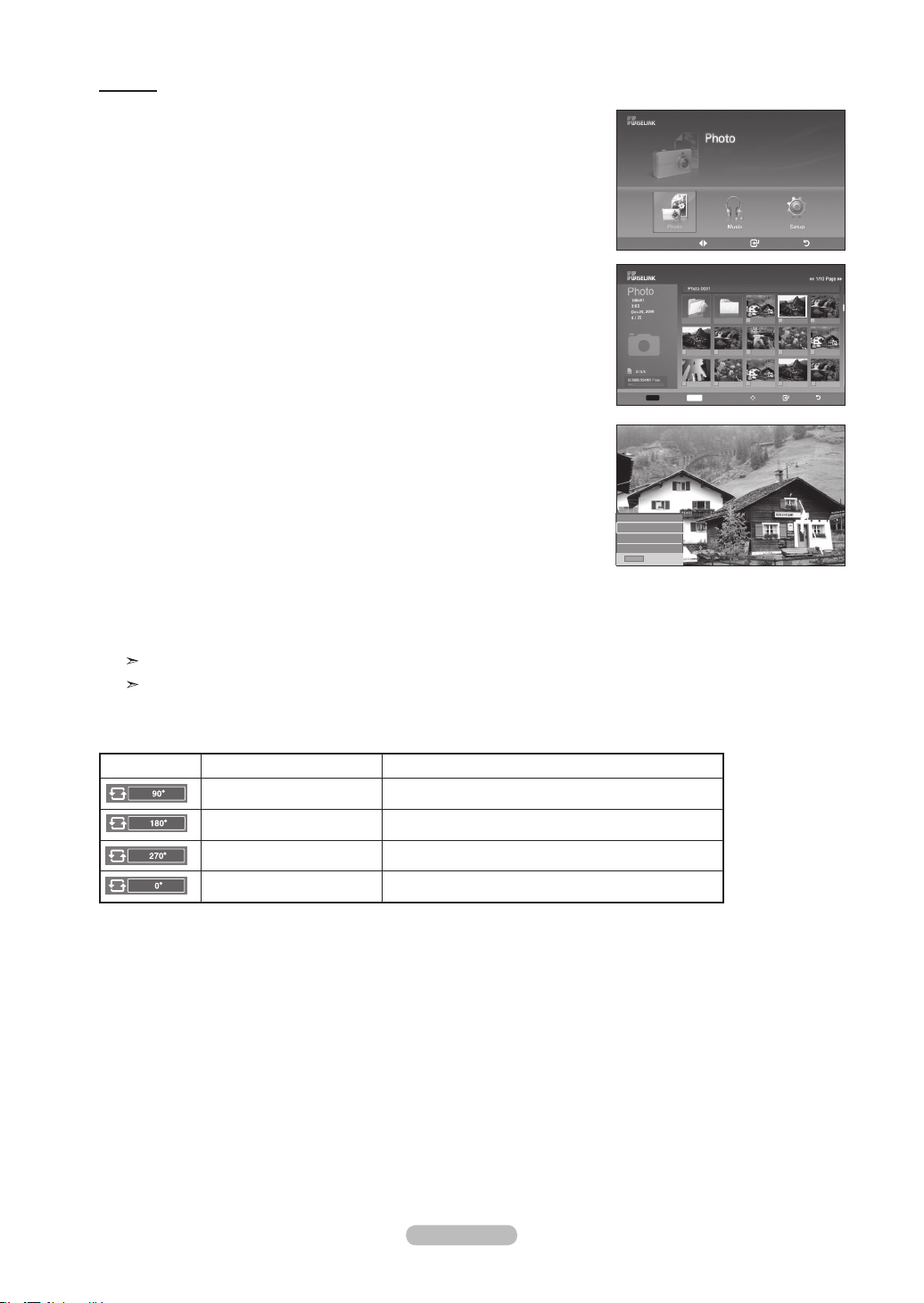
English - 70
Rotating
1. Complete Steps 1 to 3 of “Using the WISELINK Menu”. (Refer to page 65)
2. Press the
◄ or ►
button to move to “Photo”, then press the ENTER button.
The saved file information is displayed as a folder or file.
3. Press the ▲, ▼, ◄ and ► buttons to select a file, then press the ENTER button.
Pressing the button over a photo thumbnail displays the photo in full screen.
4. Press the INFO button to display the option(Slide Show, Rotate, Zoom, List).
Press the ▲ or ▼ button to select “Rotate”, then press the ENTER
button.
• The INFO button, the Rotate option and Enter must be pressed each time you
want to rotate the picture. For example, from 90 to 180 degrees.
To rotate a photo, press the INFO button to open the options window, select the
“Rotate” option and press the ENTER button.
Whenever you do this, the photo on the screen is rotated. (90°, 180°, 270°, 0°)
To exit WISELINK mode, press the WISELINK
button on the remote control.
The rotated file is not saved.
The Zoom/Slide Show option is disabled when the Rotate option is selected.
The Rotating function information icon (Displayed at the top left of the screen).
Icon Current OSD Function
Rotating (90°) This rotates a photo by 90 degrees
Rotating (180°) This rotates a photo by 180 degrees
Rotating (270°) This rotates a photo by 270 degrees
Rotating (0°) This rotates a photo to its original position
Move Enter Return
XTICK
861MB/994MB Free
INFO
Exit
Slide Show
Rotate
Zoom
List
Select
INFO
Photo menu Move View Return
Up Folder
Forder1
Photo 0001 Photo 0001 None
File 4 File 5 File 6 File 7 File 8
File 9 File 10 File 11 File 12 File 13
BN68-01178A-Eng.indd 70 2007-02-15 �� 8:58:58
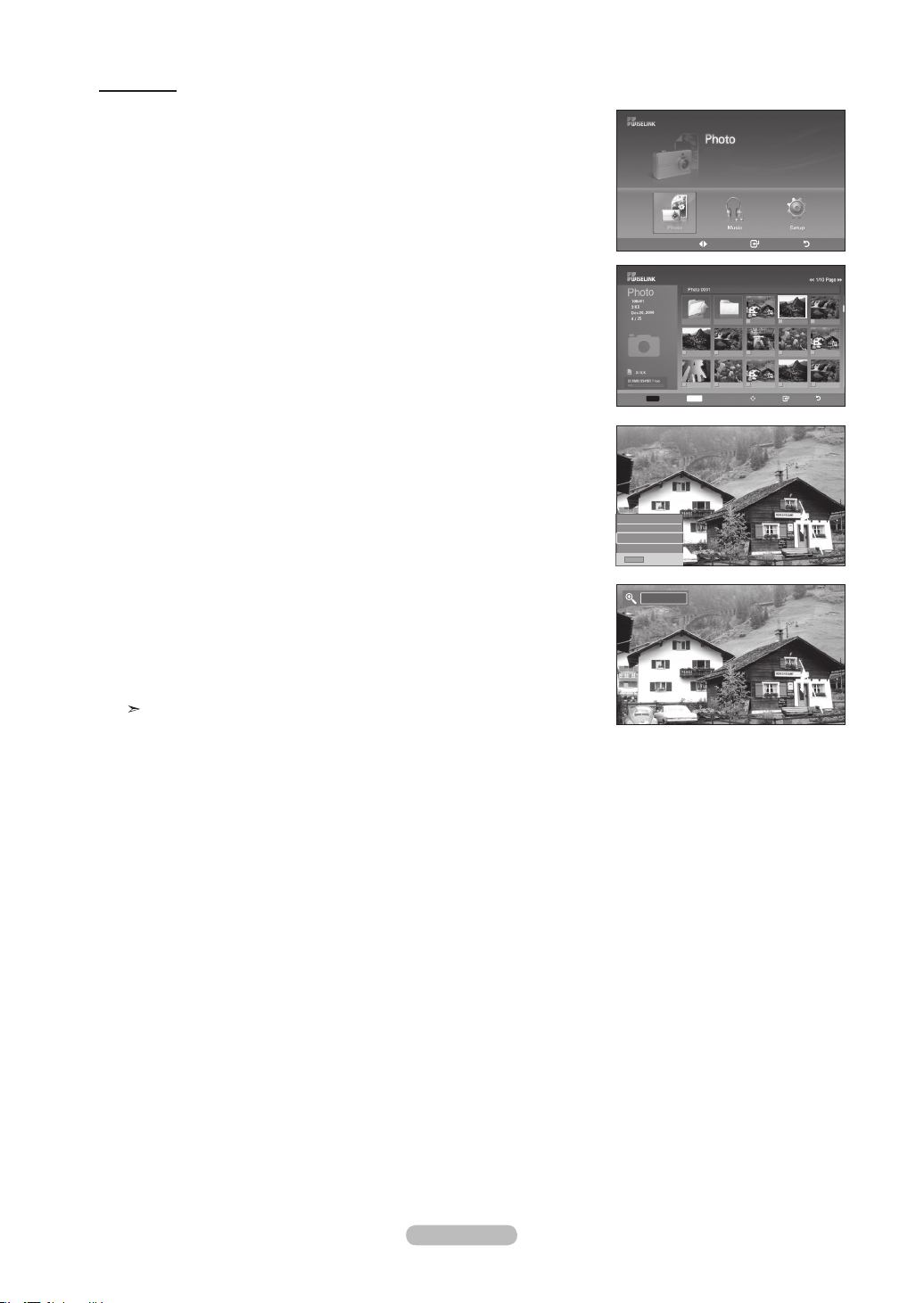
English - 71
Zooming-in
1. Complete Steps 1 to 3 of “Using the WISELINK Menu”. (Refer to page 65)
2. Press the
◄ or ►
button to move to “Photo”, then press the ENTER button.
The saved file information is displayed as a folder or file.
3. Press the ▲, ▼, ◄ and ► buttons to select a file, then press the ENTER button.
Pressing the button over a photo thumbnail displays the photo in full screen.
4. Press the INFO button to display the option(Slide Show, Rotate, Zoom, List).
Press the ▲ or ▼ button to select “Zoom”, then press the ENTER
button.
The enlarged photo image appears on the screen.
To enlarge a displayed photo, press the INFO button to open the Options window,
select the “Zoom” option and press the ENTER
button.
Whenever you do this, the following zoom options are applied in sequence.
• The INFO button, the Rotate option and Enter must be pressed each time you
want to Zoom the picture. For example, from x 2 to x 4.
• Zoom(x 2): Zoom-in to the photo x2.
• Zoom(x 4): Zoom-in to the photo x4.
• Zoom(x 1): Restore the photo to its original size.
To pan up/down/left/right, press the ▲, ▼, ◄ and ► buttons.
Images with a resolution larger than 1280 X 720 are not supported.
To exit WISELINK mode, press the WISELINK
button on the remote control.
Move Enter Return
XTICK
861MB/994MB Free
INFO
Exit
Slide Show
Rotate
Zoom
List
Select
INFO
Photo menu Move View Return
Up Folder
Forder1
Photo 0001 Photo 0001 None
File 4 File 5 File 6 File 7 File 8
File 9 File 10 File 11 File 12 File 13
x 1
BN68-01178A-Eng.indd 71 2007-02-15 �� 8:58:59
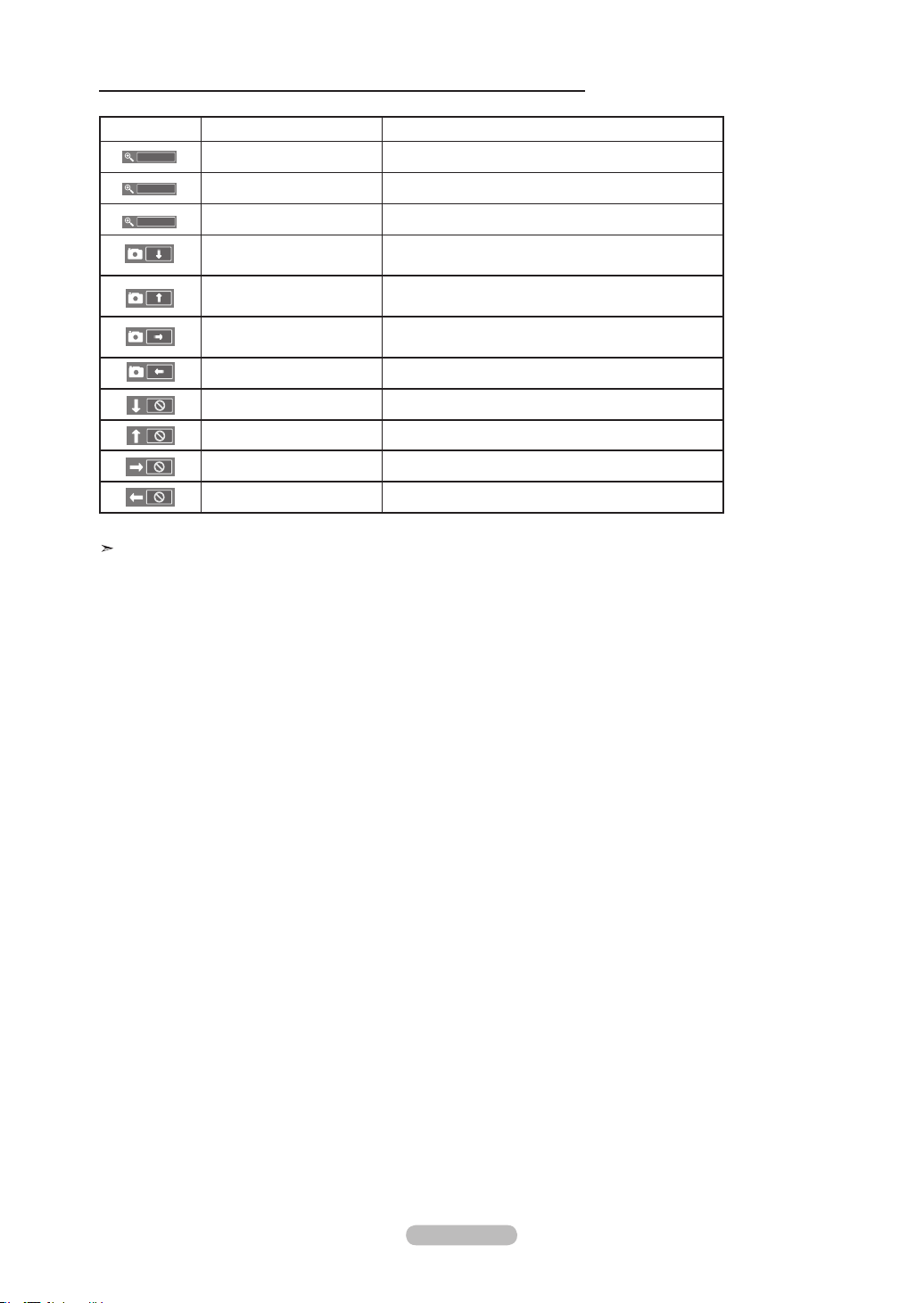
English - 72
Zoom function information icon (Displayed at the top left of the screen).
Icon Current OSD Function
Zoom (x 2) Zoom-in to a photo x2.
Zoom (x 4) Zoom-in to a photo x4.
Zoom (x 1) Restore a photo to its original size.
Pan Down Pan down to view the lower part of a zoomed-in
photo.
Pan Up Pan up to view the upper part of a zoomed-in
photo.
Pan Right Pan right to view the right side of a zoomed-in
photo.
Pan Left Pan left to view the left side of a zoomed-in photo.
Pan Down (END) Pan to the bottom of a zoomed-in photo.
Pan Up (END) Pan to the top of a zoomed-in photo.
Pan Right (END) Pan to the right-most part of a zoomed-in photo.
Pan Left (END) Pan to the left-most part of a zoomed-in photo.
The Rotate/Slide show option is disabled when the Zoom option is selected.
x 1
x 4
x 2
BN68-01178A-Eng.indd 72 2007-02-15 �� 8:59:01
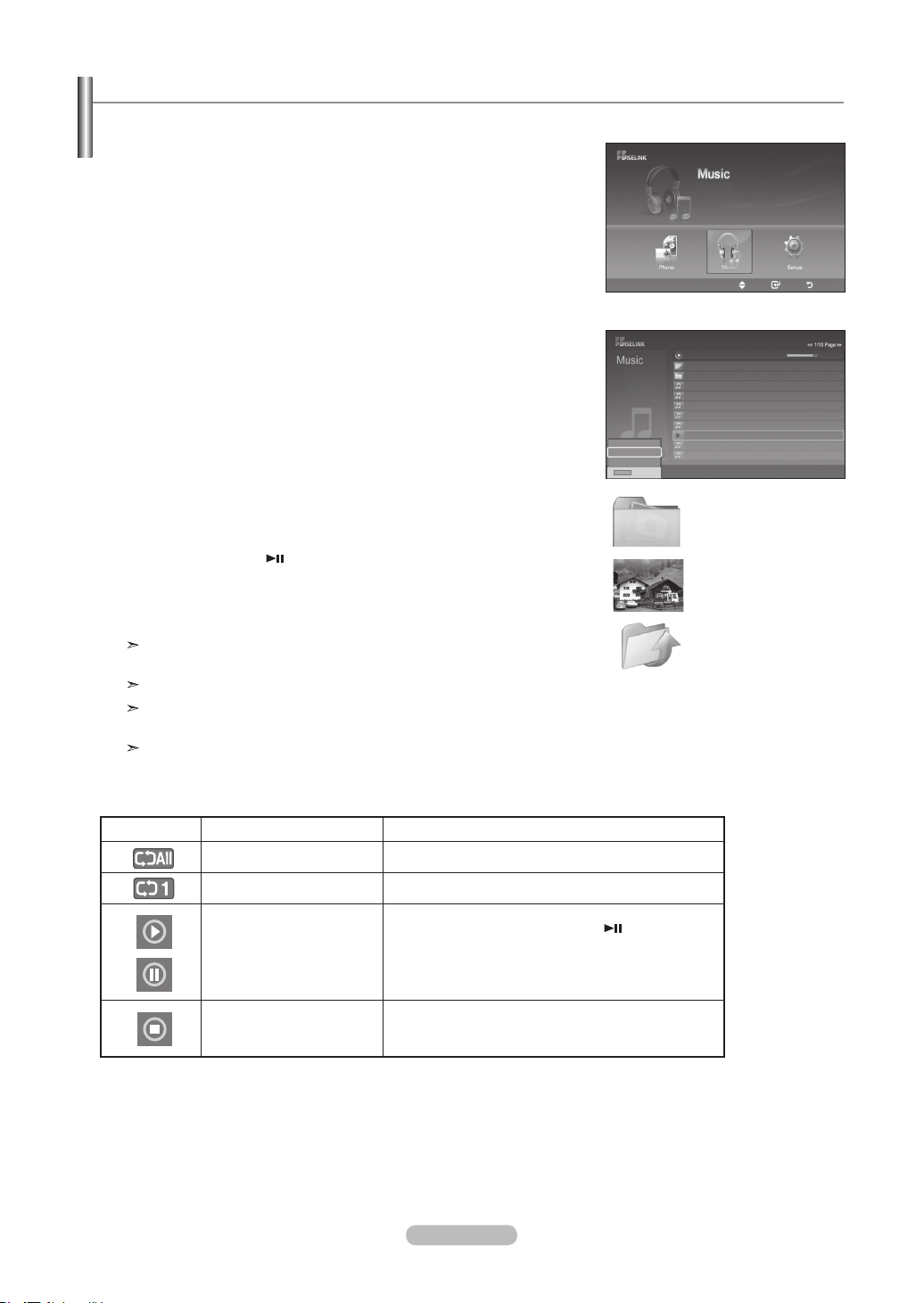
English - 73
Using the MP3 List
This menu shows MP3 files from among the files saved on a USB memory device.
Move Enter Return
: Folder icon
: Photo icon
: Move to the previous
folder stage icon
1. Complete Steps 1 to 3 of “Using the WISELINK Menu”. (Refer to page 65)
2. Press the
◄ or ►
button to move to “Photo”, then press the ENTER button.
The saved file information is displayed as a folder or file.
3. Press the ▲ or ▼ button to select a file, then press the ENTER button.
To select all files or a file, press the INFO button to display the Music menus.
Press the ENTER button to select “Play”, “Music Repeat”, or “Cancel the selected
file”.
• Pressing the ENTER button over a musical note icon immediately plays the
music file.
• Pressing the ENTER button over a folder icon shows the music files included in
the folder.
To select a file on the next page, press the REW ◄◄ or FF ►► button to move
to the next page.
4. Press the PLAY/PAUSE button while playing an MP3 file to pause the file.
Press the STOP button
▄
to exit Play mode.
To exit WISELINK mode, press the WISELINK
button on the remote control.
This menu only shows files with the MP3 file extension. Files with other file
extensions are not displayed,even if they are saved on the same USB device.
The selected file is displayed on the top with its playing time.
To adjust the music volume, press the VOL+ or VOL- button on the remote
control. To mute the sound, press the MUTE button on the remote control.
FF ►► /REW ◄◄ Key does not function during the play.
Music function information icon (Displayed at the top left of the screen).
Icon Current OSD Function
(Music) All When all music les are being played.
(Music) One When a music le is being played.
(Music) Play/Pause
When pressing the PLAY/PAUSE button on the
remote control while music is playing. The music
stops and the ‘Play’ text appears at the top of the
screen.
(Music) Stop When pressing the STOP
▄
button on the remote
control when music is stopped. The music resumes
and the ‘Stop’ text appears at the top of the screen.
Upper Folder
00:04:01
00:04:28
00:04:12
00:05:39
00:04:30
00:04:30
00:03:54
00:05:25
Folder 1
001 Swan Song feat.TBNY
002 Beatles-Yesterday
003 Fall in Love
004 Tom Waits-Time
005 Chuk Mangione-Feel So good
007 Ryuichi Sakamoto-Rain
008 Bon jovi-This ain’t a love song
006 Nat King Cole-Fly me to the moon
Nat King Cole-Fly me to the moon
00:04:00
Exit
Exit
Play
Music Repeat
Cancel the selected file
Exit
INFO
BN68-01178A-Eng.indd 73 2007-02-15 �� 8:59:02
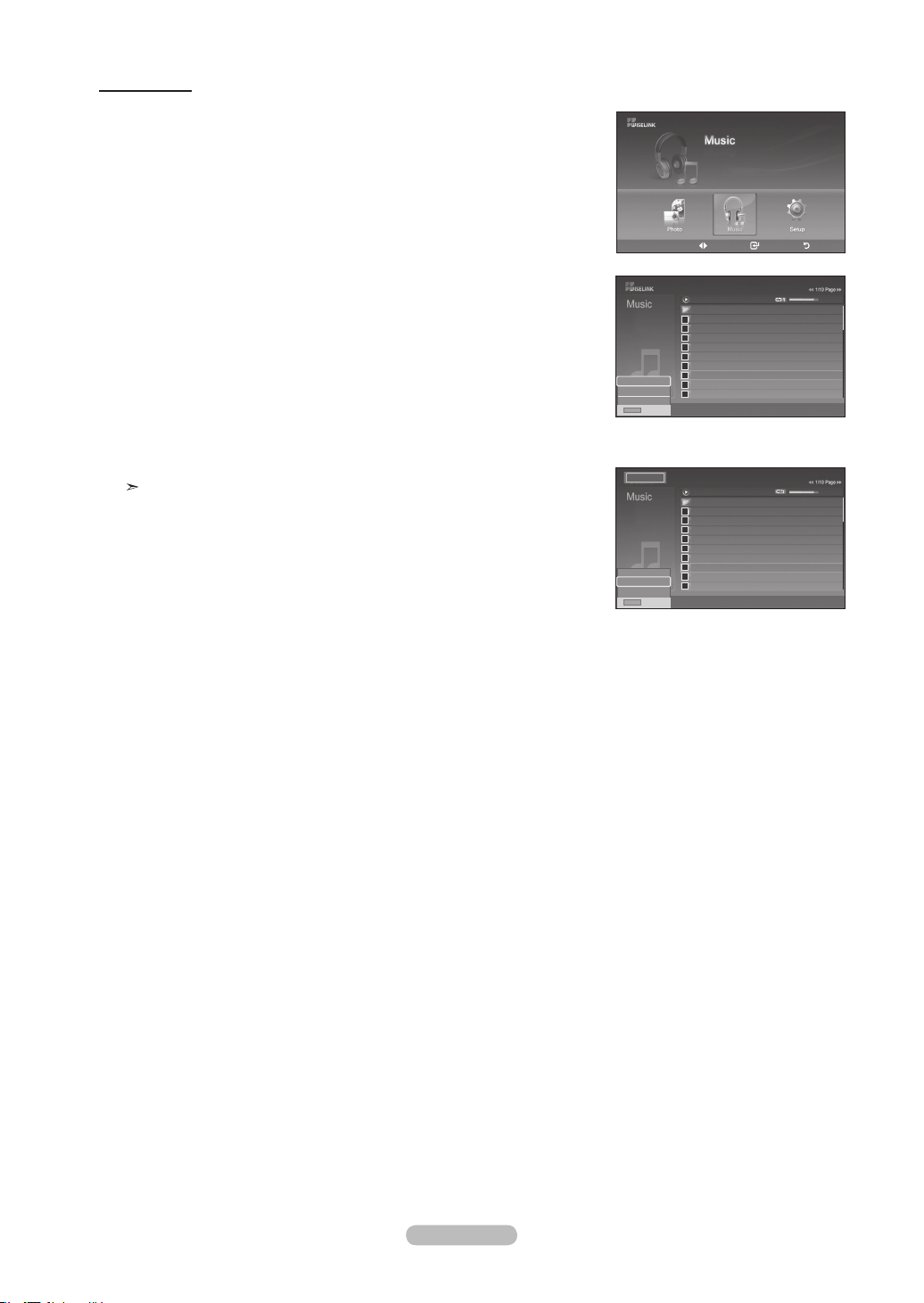
English - 74
Music Repeat
1. Complete Steps 1 to 3 of “Using the WISELINK Menu”. (Refer to page 65)
2. Press the
◄ or ►
button to move to “Music”, then press the ENTER button.
The saved file information is displayed as a folder or file.
3. Press the ▲ or ▼ button to select a file, then press the ENTER button.
To select all files or a file, press the INFO
button to display the Music menus.
Press the ENTER button to select “Play”, “Music Repeat”, or “Cancel the selected
file”.
4. Press the ENTER button to select “Music Repeat”.
Select to repeatedly play MP3 files in the current folder.
You can select On or Off
• On: Plays back a music file or all music files repeatedly
• Off: Doesn’t play back the music files repeatedly.
To exit WISELINK mode, press the WISELINK
button on the remote control.
Upper Folder
00:04:01
00:04:28
00:04:12
00:05:39
00:04:30
00:04:30
00:03:54
00:05:25
Folder 1
001 Swan Song feat.TBNY
002 Beatles-Yesterday
003 Fall in Love
004 Tom Waits-Time
005 Chuk Mangione-Feel So good
007 Ryuichi Sakamoto-Rain
008 Bon jovi-This ain’t a love song
006 Nat King Cole-Fly me to the moon
Nat King Cole-Fly me to the moon
00:04:00
Exit
Play
Music Repeat
Cancel the selected file
Exit
INFO
Move Enter Return
XTICK
861MB/994MB Free
Upper Folder
00:04:01
00:04:28
00:04:12
00:05:39
00:04:30
00:04:30
00:03:54
00:05:25
Folder 1
001 Swan Song feat.TBNY
002 Beatles-Yesterday
003 Fall in Love
004 Tom Waits-Time
005 Chuk Mangione-Feel So good
007 Ryuichi Sakamoto-Rain
008 Bon jovi-This ain’t a love song
006 Nat King Cole-Fly me to the moon
Nat King Cole-Fly me to the moon
00:04:00
Exit
Play
Music Repeat
Cancel the selected file
Exit
INFO
On
BN68-01178A-Eng.indd 74 2007-02-15 �� 8:59:03
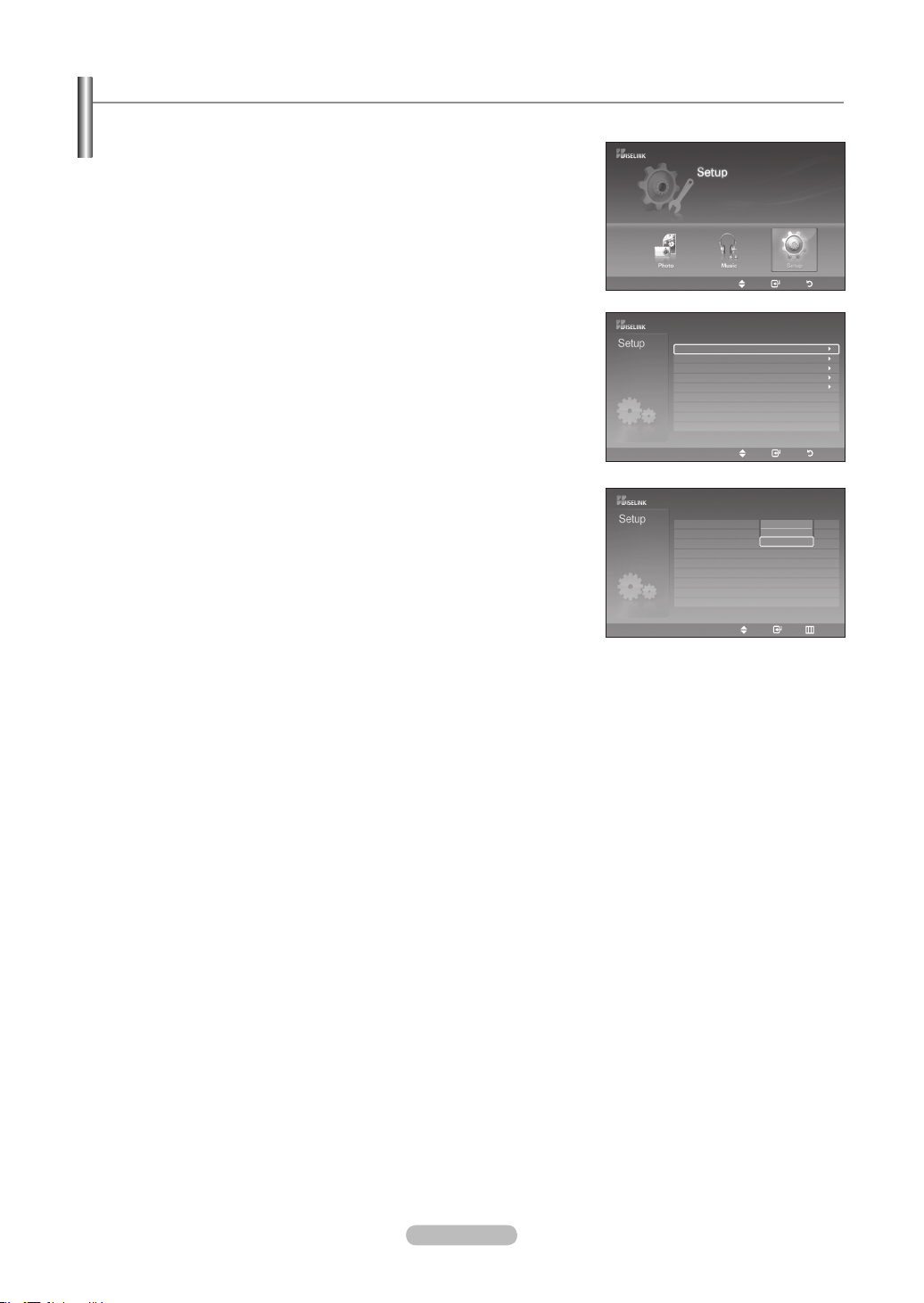
English - 75
1. Complete Steps 1 to 3 of “Using the WISELINK Menu”. (Refer to page 65)
2. Press the
◄ or ►
button to move to “Setup”, then press the ENTER button.
3. Press the ▲ or ▼ button to select a file, then press the ENTER button.
4. Press the ▲ or ▼ button to select the option, then press the ENTER button.
continued...
Using the Setup Menu
Setup displays the user settings of the WISELINK menu.
Slide Show Speed : Fast
Slide Show Repeat : Off
Background Music On/Off : On
Music Repeat : On
Screen Saver : 5 min
Slow
Normal
Fast
Move Enter Return
Move Enter Return
Slide Show Speed : Fast
Slide Show Repeat : Off
Background Music On/Off : On
Music Repeat : On
Screen Saver : 5 min
Move Enter Return
BN68-01178A-Eng.indd 75 2007-02-15 �� 8:59:04
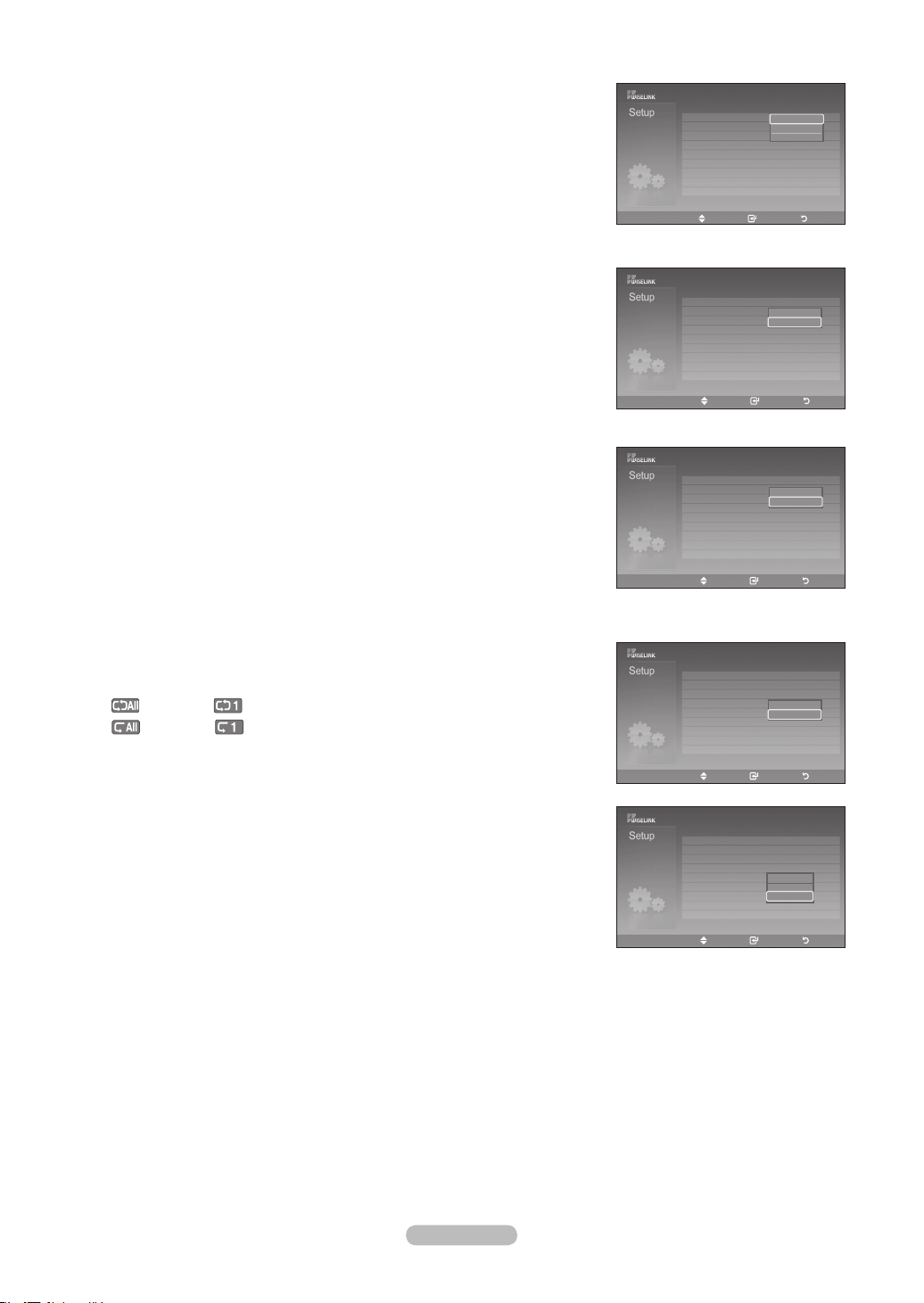
English - 76
Slide Show Speed:
Select to control the slide show speed. You can select Slow, Normal or Fast.
Background Music :
Select to determine whether to play an MP3 file during a slide show.
You can select Music On or Music Off.
Background Music Setting:
You can select the background music to play during a slide show. You can also
select the background music while a slide show is playing by pressing the
INFO button and selecting the “Background Music Setting” menu.
Music Repeat:
Select to repeatedly play MP3 files in the current folder.
You can select "On" or "Off".
On: (Music) All,
(Music) One
Off: (Music) All,
(Music) One
Screen Saver:
Select to set the waiting time before the screen saver appears.
The screensaver will appear when no button is pressed for 1, 3 or 5 minutes.
To exit WISELINK mode, press the WISELINK button on the remote control.
Move Enter Return
Slide Show Speed : Fast
Background Music : Off
Background Music Setting
Music Repeat : On
Screen Saver : Off
Fast
Normal
Slow
Move Enter Return
Slide Show Speed : Fast
Background Music : Off
Background Music Setting
Music Repeat : On
Screen Saver : Off
On
Off
Slide Show Speed : Fast
Background Music : Off
Background Music Setting
Music Repeat : On
Screen Saver : Off
Move Enter Return
On
Off
◄◄ 1/1/Page ►►
Slide Show Speed : Fast
Background Music : Off
Background Music Setting
Music Repeat : On
Screen Saver : Off
Move Enter Return
On
Off
Slide Show Speed : Fast
Background Music : Off
Background Music Setting
Music Repeat : On
Screen Saver : Off
Move Enter Return
Move Enter Return
Move Enter Return
1 min.
3 min.
5 min.
BN68-01178A-Eng.indd 76 2007-02-15 �� 8:59:06
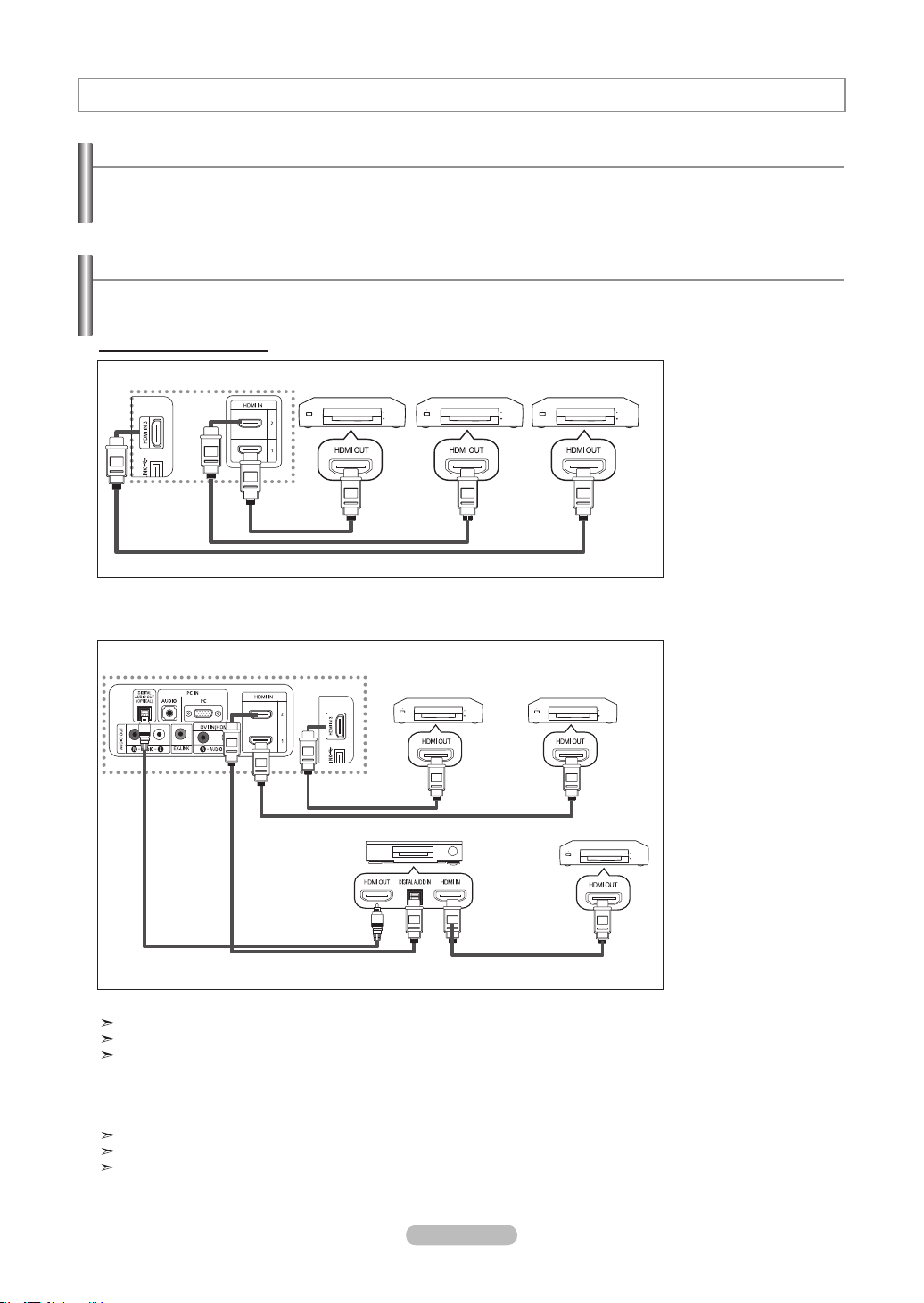
English - 77
What is Anynet
+
?
Anynet+ is an AV network system that enables you to control all connected Samsung AV devices with the TV's remote.
Connecting Anynet
+
Devices
The Anynet+ system can be used only with Samsung AV devices that have the Anynet+ feature.
To be sure your Samsung AV device has this feature, check if there is an Anynet+ mark on it.
To directly connect to TV
Connect the [HDMI 1],
[HDMI 2] or [HDMI 3] jack on
the TV and the HDMI OUT
jack of the corresponding
Anynet+ device using the
HDMI cable.
To connect to Home Theater
1. Connect the [HDMI 1],
[HDMI 2] or [HDMI 3]
jack on the TV and the
HDMI OUT jack of the
corresponding Anynet+
device using the HDMI
cable.
2. Connect the HDMI IN jack
of the home theater and
the HDMI OUT jack of the
corresponding Anynet+
device using the HDMI
cable.
Connect the Optical cable between [Digital Audio Out (Optical)] on your TV and Digital Audio Input on the Home Theater.
Connect only one Home Theater.
You can listen to 5.1 channel sound through the home theater’s speakers. Otherwise, you can only listen to 2 channel stereo
sound in other cases. Make sure to connect the Digital Audio IN (Optical) of the home theater and the TV correctly to listen
to TV sound through the home theater. However, you cannot listen to sound from the BD recorder that is sent to the home
theater via the TV in 5.1 channel sound because the TV outputs only 2 channel stereo sound. Please see the manual for the
home theater.
You can connect an Anynet+ device using the HDMI 1.3 cable. Some HDMI cables may not support Anynet+ functions.
Anynet+ works when the AV device supporting Anynet+ is in the Standby or On status.
Anynet+ supports up to 12 AV devices in total.
About Anynet
+
TV
Anynet
+
Device 1 Anynet
+
Device 2 Anynet
+
Device 3
HDMI 1.3 Cable
HDMI 1.3 Cable
HDMI 1.3 Cable
TV
Anynet
+
Device 1 Anynet
+
Device 2
Anynet
+
Device 3
HDMI 1.3 Cable
HDMI 1.3 Cable
HDMI 1.3 Cable
Optical Cable
Home Theater
HDMI 1.3 Cable
BN68-01178A-Eng.indd 77 2007-02-15 �� 8:59:07
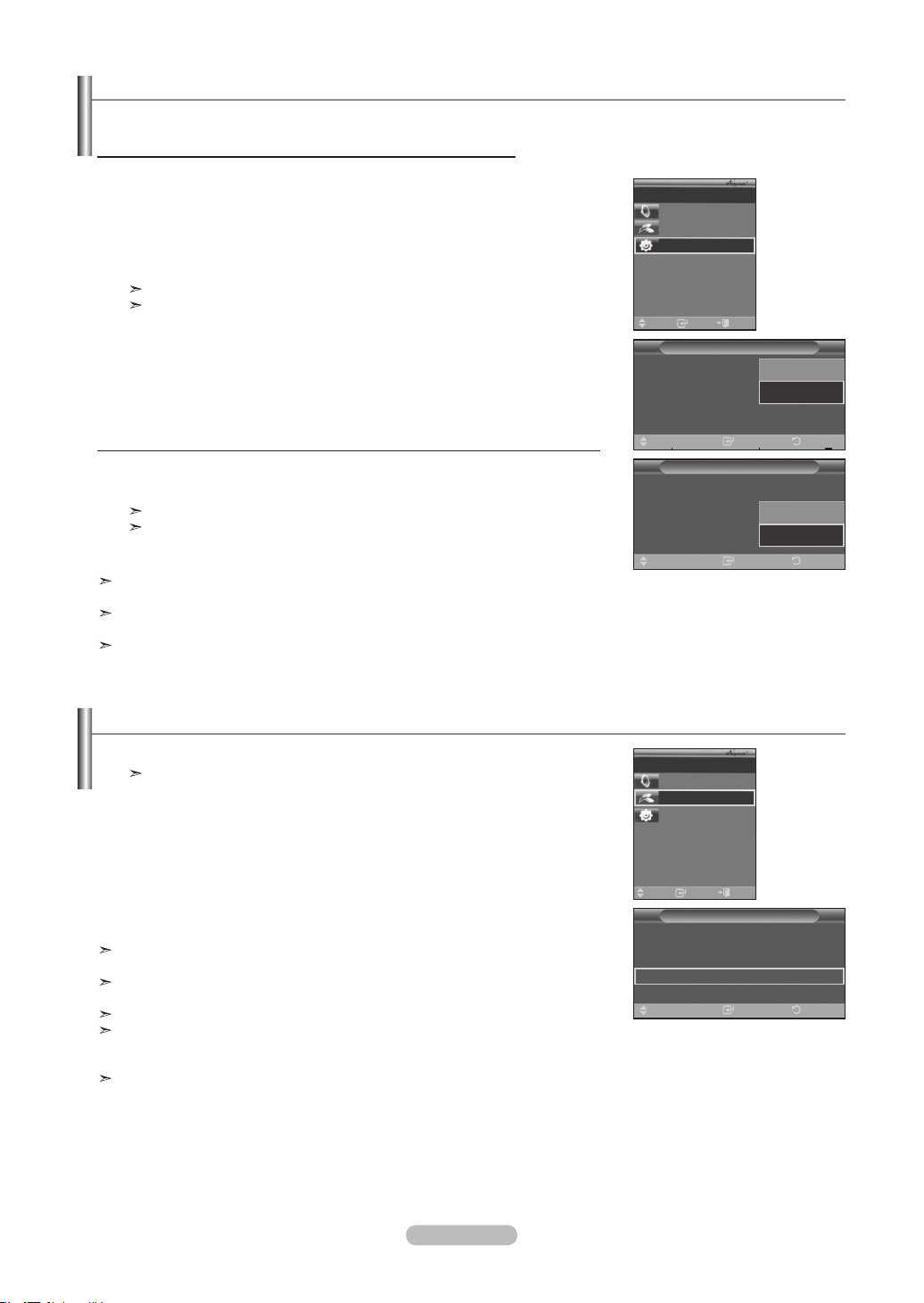
English - 78
Setting Up Anynet
+
The following settings are to use Anynet
+
functions.
To use the Anynet+ Function, HDMI Control must be set to On
1. Press the Anynet
+
button.
Press the ▲ or ▼ button to select Setup, then press the ENTER button.
2. Press the ENTER
button to select Anynet
+
(HDMI-CEC), then press the ENTER
button.
3,
Press the ▲ or ▼ button to select On, then press the ENTER button.
The Anynet+ (HDMI-CEC) function is enabled.
If you select Off, Anynet
+
(HDMI-CEC) is disabled.
Setting an Anynet+ Device to turn Off Automatically when the TV is Turned Off
2. Press the ▲ or ▼ button to select Auto Turn Off, then press the ENTER button.
3. Press the ▲ or ▼ button to select On, then press the ENTER
button.
The Auto turn off function is enabled.
If you select Off, the Auto turn off function is canceled.
Press the EXIT button to exit.
The Select Device setting of the TV remote control is to be set to TV to use the
Anynet
+
function.
If you set Auto Turn Off to On, connected external devices are also turned off when the TV is turned off.
However, if the device is recording, it may not be turned off.
When the Anynet
+
(HDMI-CEC) function is disabled, all the Anynet
+
related operations are deactivated.
Scanning and Switching between Anynet+ Devices
1. Press the Anynet
+
button.
Anynet
+
devices connected with the TV are listed.
2. Press the ▲ or ▼ button to select to a particular device and press the ENTER button.
It is switched to the selected device.
3. If you cannot find a device you want, press the ▲ or ▼ button to select Searching
Connections, then press the ENTER button.
The meassage Configuring Anynet+ connection... is displayed.
When searching devices completes, the connected devices are listed in the Anynet
+
menu.
Switching to the selected devices may take up to 2 minutes. You cannot cancel the
operation during the switching operation.
The time required to scan for devices is determined by the number of connected
devices.
When the device scan is complete, the number of found devices is not displayed.
Although the TV automatically scans devices when it is turned on using the POWER button, devices connected when the TV
is on or under a specific circumstance are not displayed in the device list. Therefore select Searching Connections menu to
search devices.
If you have selected external input mode by pressing the SOURCE button, you cannot use the Anynet
+
function. Make sure to
switch to an Anynet
+
device by using the Anynet
+
button.
Setup
HDMI Control
: Off
Auto Turn Off
: Off
Searching Connections
Enter ReturnMove
Off
On
Enter
Move
Recevier: On
Connect Recorder
Setup
Air 28
Exit
Setup
HDMI Control
: On
Auto Turn Off
: Off
Searching Connections
Enter ReturnMove
No
Yes
Enter Exit
Move
Recevier: On
Connect Recorder
Setup
Air 28
Setup
HDMI Control
: On ►
Auto Turn Off
: Yes ►
Searching Connections
►
Enter ReturnMove
BN68-01178A-Eng.indd 78 2007-02-15 �� 8:59:07
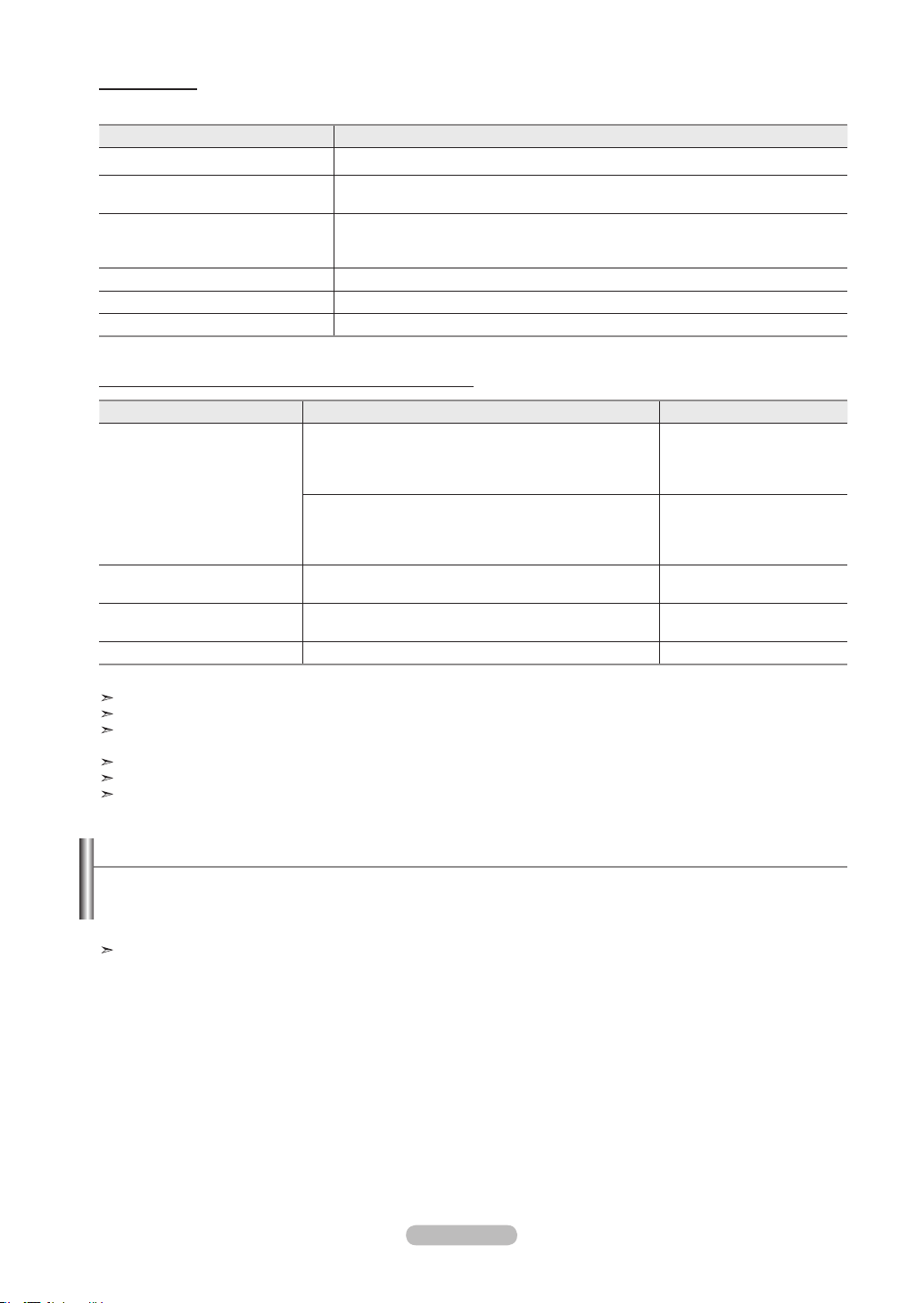
English - 79
Anynet+ Menu
The Anynet+ menu changes depending on the type and status of the Anynet+ devices connected to the TV.
Anynet
+
Menu Description
Watch TV
Switches from Anynet
+
to TV broadcast mode.
(Device_Name) Menu
Shows the menu of the connected device.
Example. When a DVD Recorder is connected, the DVD Recorder’s title menu appears.
(Device_Name) Operation
Shows the play control menu of the connected device.
Example. When a DVD Recorder is connected, the play control menu of the DVD
Recorder appears.
Connected to (Device_Name) Your TV connects to the corresponding device.
Receiver Sound is output through the receiver.
Setup You can set the environment for using Anynet
+
.
TV Remote Control Buttons Available in Anynet+ Mode
Device Type Operating Status Available Buttons
Anynet
+
Device
After switching to the device, when the menu of the
corresponding device is displayed on the screen.
Numeric buttons
▲/▼/◄/►/ENTER buttons
Color buttons
EXIT button
After switching to the device, while playing a file
◄◄ (Backward search)
►►(Forward search)
(Stop)
►
(Play/Pause)
Device with built-in Tuner
After switching to the device, when you are watching a TV
program
CH ▲/▼ button
Audio Device
When Receiver is activated
VOL +/- button
MUTE button
Anyview2
When watching TV ►
(Play/Pause)
The Anynet
+
function only works when the remote control is set to TV.
The REC button works only in Watch TV status.
You cannot control Anynet
+
devices using the buttons on the side of the TV. You can control Anynet
+
devices only using the
TV remote control.
The TV remote control may not work under certain conditions. In this case, re-select the Anynet
+
device.
The Anynet+ functions do not work withother manufacturers' products.
In Anynet+ mode, the color buttons may not work properly.
Recording
You can make a recording of a TV program using a recorder.
Press the REC button.
Recording begins. (Only when the Anynet
+
enabled recording device is connected.)
The current TV program is recorded in the Watching TV status. If you are watching
video from another device, the video from the device is recorded.
BN68-01178A-Eng.indd 79 2007-02-15 �� 8:59:07
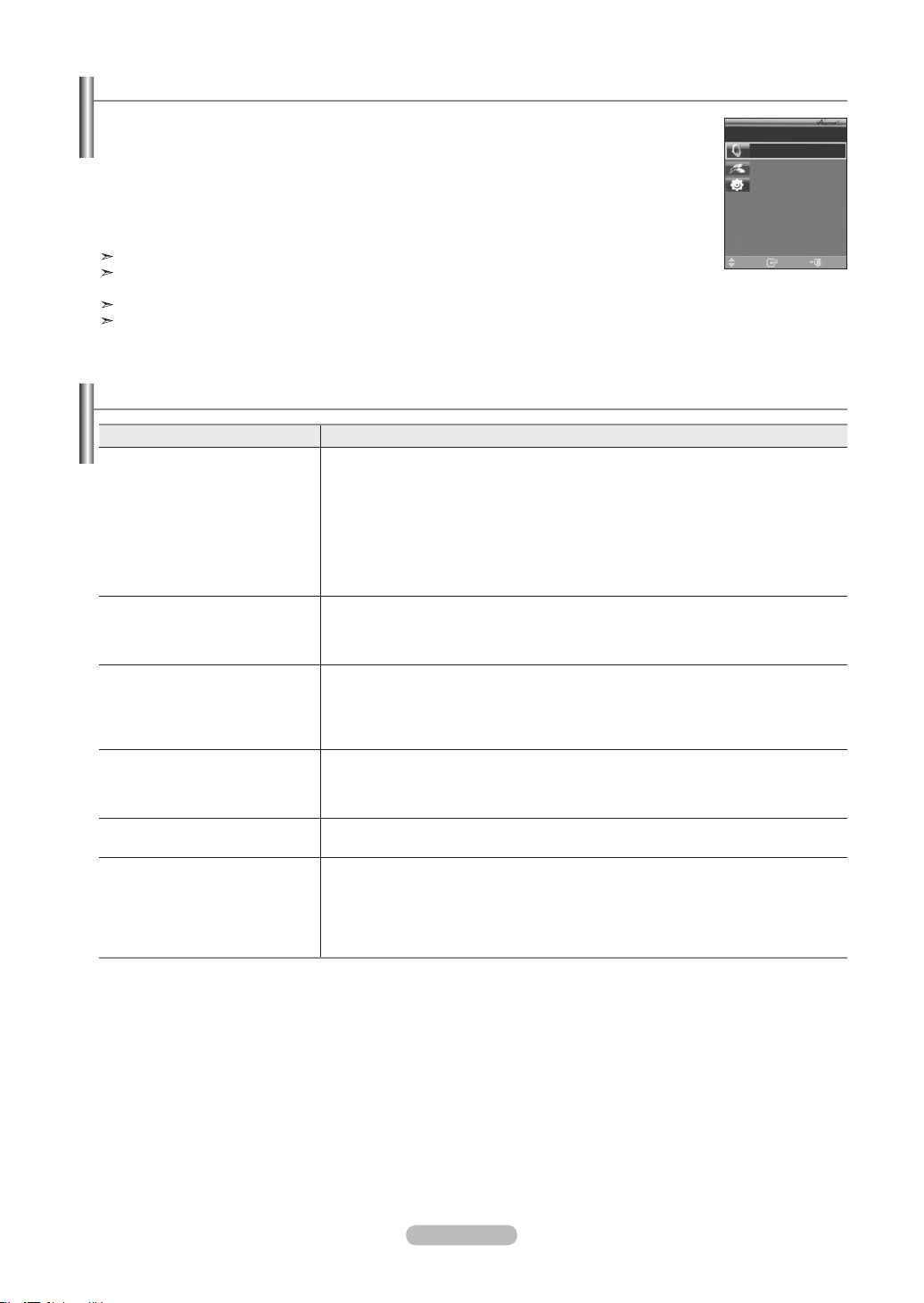
English - 80
Listening through a Receiver (Home theater)
You can listen to sound through a receiver instead of the TV speaker.
1. Press the Anynet+
button.
Press the ▲ or ▼ button to select Receiver, then press the ENTER button.
2. Press the ◄ or ► button to select to On, then press the ENTER
button.
Now you can listen to sound through the receiver.
3. Press the EXIT
button to exit.
When the receiver is set to On, you can listen to the TV sound through the 2-channel receiver.
If the receiver is exclusively for a home theater only (supporting audio only), it may not appear in the
device list.
Only when you have connected the optical jack of the TV and the receiver properly, does Receiver work.
In case of a content with copyright problem, listening through the receiver may not properly operate.
Check Points before Requesting Service
Symptom Solution
Anynet
+ does not work. ■ Check if the device is an Anynet+ device. The Anynet+ system supports Anynet+
devices only.
■ Connect only one receiver (home theater).
■ Check if the Anynet+ device power cord is properly connected.
■ Check the Anynet+ device’s Video/Audio/HDMI 1.3 cable connections.
■ Check whether the TV remote control is in TV mode.
■ Check whether it is Anynet+ exclusive remote control.
■ Anynet+ doesn’t work at a certain condition. (Searching channels, Operating
WISELINK)
I want to start Anynet
+. ■ Check if the Anynet+ device is properly connected to the TV and check if the Anynet+
(HDMI-CEC) is set to On in the Anynet+ Setup menu.
■ Press the TV button on the TV remote control to switch to TV. Then press the
Anynet+ button to show the Anynet+ menu and select a menu you want.
I want to exit Anynet
+. ■ Select Watch TV in Anynet+ menu.
■ Press the SOURCE button on the TV remote control and select a device other than
Anynet+ devices.
■ Press CH, CH LIST, PRE-CH, etc. to change to the TV mode. (Note that the channel
button operates only when a tuner-embedded Anynet+ device is not connected.)
The Connecting to Anynet+
device... message appears on the
screen.
■ You cannot use the remote control when you are configuring Anynet+ or switching to a
view mode.
■ Use the remote control when the Anynet+ setting or switching to view mode is
complete.
The Anynet
+ device does not play. You cannot use the play function when an auto channel scan is in progress or in
WISELINK mode. Stop the currently running function.
The connected device is not
displayed.
■ Check whether or not the device supports Anynet+ functions.
■ Check whether or not the HDMI 1.3 cable is properly connected.
■ Check whether HDMI Control is set to On in the Anynet+ setup menu.
■ Search Anynet+ devices again.
■ You can connect an Anynet+ device using the HDMI 1.3 cable only. Some HDMI
cables may not support Anynet+ functions.
Enter Exit
Move
Recevier: On
Connect Recorder
Setup
Air 28
BN68-01178A-Eng.indd 80 2007-02-15 �� 8:59:07
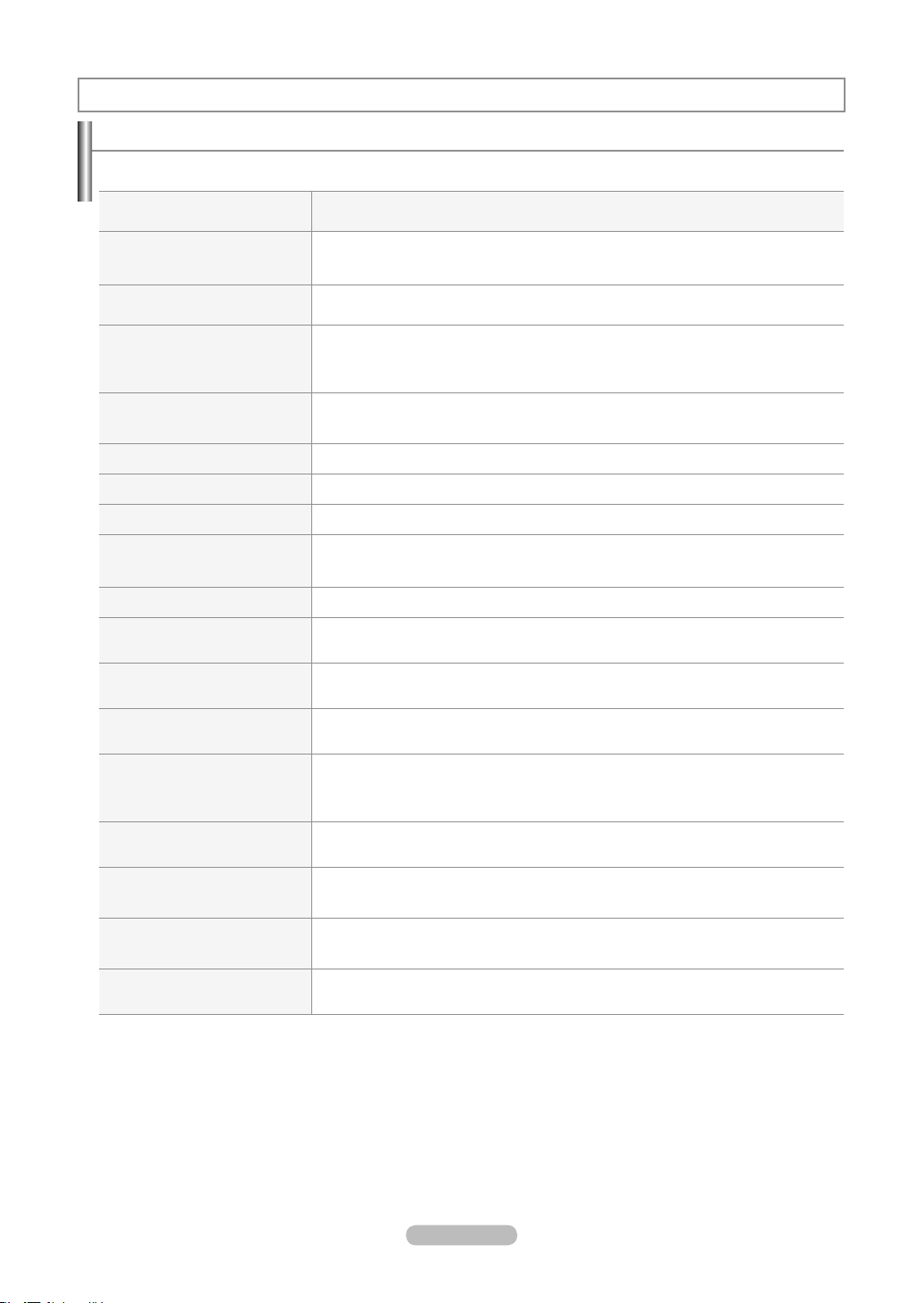
English - 81
Troubleshooting
If the TV seems to have a problem, rst try this list of possible problems and solutions.
If none of these troubleshooting tips apply, call your nearest Samsung service center.
Problem Possible Solution
Poor picture Try another channel.
Adjust the antenna.
Check all wire connections.
Poor sound quality. Try another channel.
Adjust the antenna.
No picture or sound. Try another channel.
Press the SOURCE button.
Make sure the TV is plugged in.
Check the antenna connections.
No sound or sound is too low at
maximum volume.
First, check the volume of units connected to your TV (digital broadcasting receiver, DVD,
cable broadcasting receiver, VCR, etc.). Then, adjust the TV volume accordingly.
Picture rolls vertically. Check all wire connections.
The TV operates erratically. Unplug the TV for 30 seconds, then try operating it again.
The TV won’t turn on. Make sure the wall outlet is working.
Remote control malfunctions Replace the remote control batteries.
Clean the upper edge of the remote control (transmission window).
Check the battery terminals.
“Check signal cable” message. Ensure that the signal cable is firmly connected to the PC source.
“Not Supported Mode” message. Check the maximum resolution and the frequency of the Video Adapter.
Compare these values with the data in the Display Modes.
Digital broadcasting screen
problem.
Please check the digital signal strength and input antenna.
The image is too light or too dark. Adjust the Brightness and Contrast.
Adjust the Fine tuning.
Black bars on the screen. Make sure the broadcast you’re receiving is High Definition (HD).
HD channels sometimes broadcast Standard Definition (SD) programming, which can
cause black bars.
Set your cable/satellite box to stretch or widescreen mode to eliminate the bars.
Picture has a Red/Green or
Pink tint.
Make sure the Component cables are connected to the correct jacks.
Closed Captioning not working. If you are using a Cable/Satellite box, you must set Closed Captioning on the box,
not your TV.
Snowy picture Your cable box may need a firmware upgrade. Please contact your Cable company.
Ghosting on picture This is sometimes caused by compatibility issues with your cable box.
Try connecting Component cables instead.
Appendix
BN68-01178A-Eng.indd 81 2007-02-15 �� 8:59:08
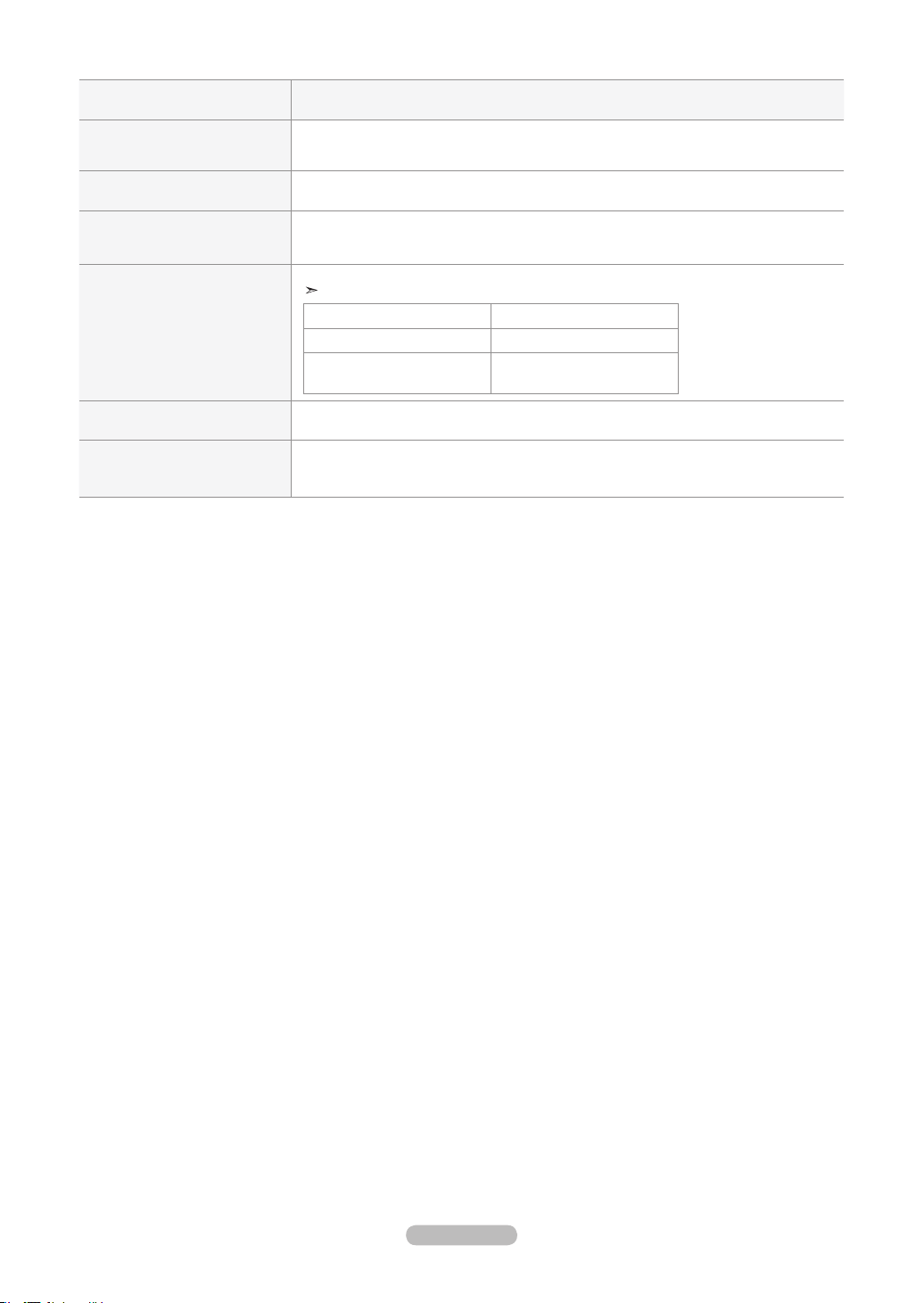
English - 82
Problem Possible Solution
Horizontal bars appear to flicker,
jitter or shimmer on the image.
Adjust the Coarse tuning and then adjust the Fine tuning.
Vertical bars appear to flicker,
jitter or shimmer on the image.
Adjust the Coarse tuning and then adjust the Fine tuning.
Screen is black and power
indicator light blinks steadily.
On your computer check: Power, Signal Cable.
The TV is using its power management system.
Move the computer's mouse or press any key on the keyboard.
Image is not stable and may
appear to vibrate when you have
a computer connected to the PC
input.
If the setting is not correct, use your computer utility program to change the display settings.
Your TV supports multiscan display functions within the following frequency domain:
Horizontal frequency (kHz)
30~60
Vertical frequency (Hz) 60~75
PC Maximum refresh rate
(at 60 Hz)
1920 X 1080
Image is not centered on the
screen.
Adjust the horizontal and vertical position.
The screen position must be adjusted on the output source (i.e. STB) with a digital signal.
If a still image is displayed for
an extended period of time, residual
images or blurring may appear.
When you need to leave the monitor unused for an extended period of time, adjust the
settings so that the monitor automatically goes into energy saving mode or activates the
screen saver to display moving images..
The TFT LCD panel uses a panel consisting of sub pixels (3,147,264) which require sophisticated technology to produce. How-
ever, there may be few bright or dark pixels on the screen. These pixels will have no impact on the performance of the product.
BN68-01178A-Eng.indd 82 2007-02-15 �� 8:59:08
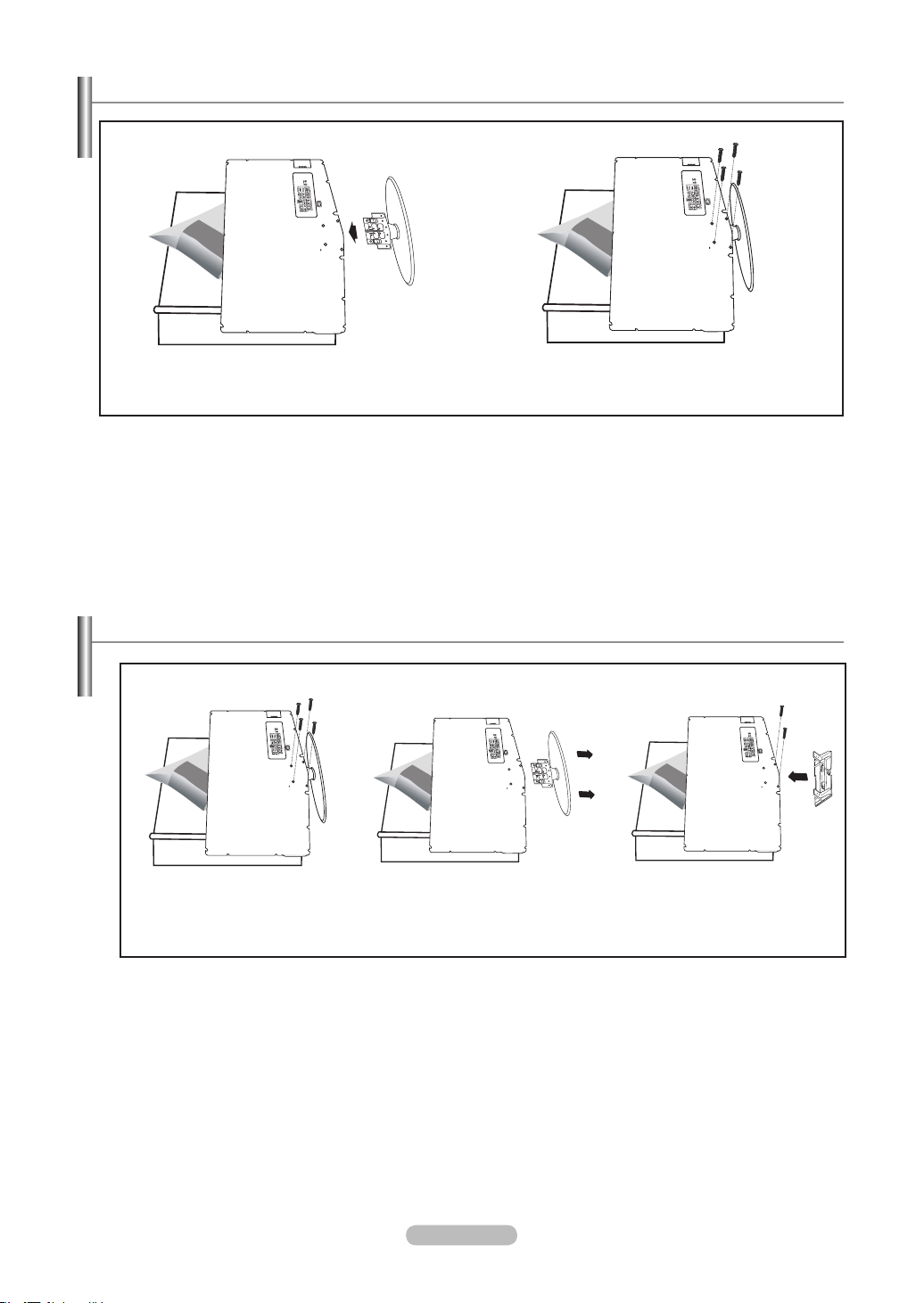
English - 83
Installing the Stand
< 2 > < 3 >
1. Place the TV face down on a soft cloth or cushion on a table.
2. Put the stand into the hole at the bottom of the TV.
3. Insert screw into the hole indicated and tighten.
Disconnecting the Stand
< 2 > < 3 > < 4 >
1. Place the TV face down on a soft cloth or cushion on a table.
2. Remove four screws from the back of the TV.
3. Separate the stand from the TV.
4. Cover the bottom hole with a cap.
BN68-01178A-Eng.indd 83 2007-02-15 �� 8:59:10
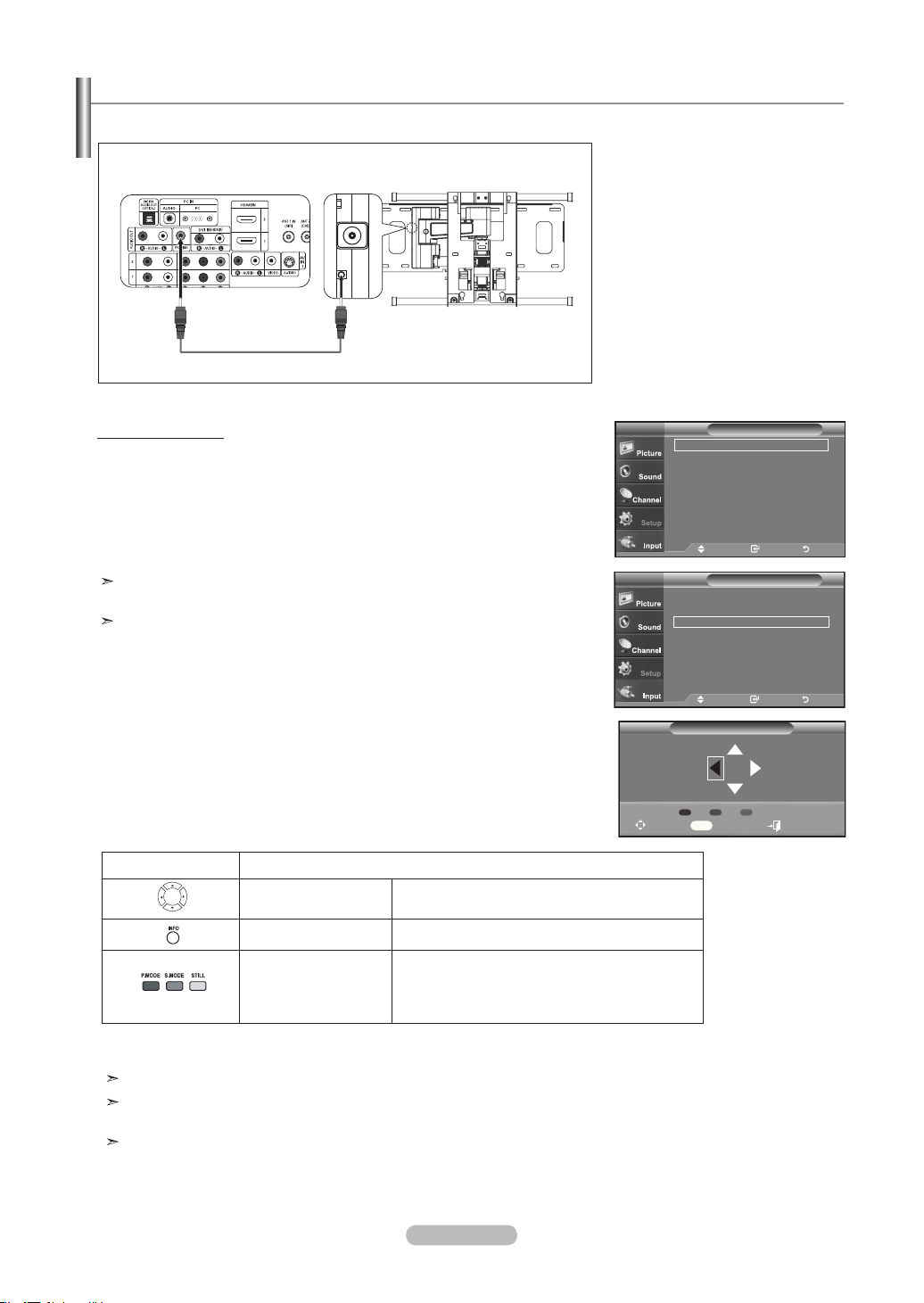
English - 84
Tras instalar el montaje en la pared, puede ajustar fácilmente la posición del televisor.
Using the Remote Control Buttons
For installation, refer to the Installation Manual provided.
For product installation and the installation and moving of the wall mount, make sure to consult a
specialized installation company.
This installation manual is to be used when attaching the wall mount to a wall.
When attaching to other building materials, please contact your nearest dealer
Button Operations
Wall-mount angle
adjustment
Tilt Up, Tilt Down, Move right, Move left
Reset Moves to the initial installation position
Remembering the
position and moving
to the remembered
position
Remembers 3 positions with the Red, Green and
Yellow buttons.
Moves to the remembered position using these 3
color buttons.
Wall-Mount Adjustment (Sold separately)
Wall Mount Adjusment
Position1
Adjust Center Exit
INFO
Position 1 2 3
Setup
▲ More
Film Mode : Off ►
Wall-Mount Adjustment ►
PIP ►
Function Help : Off ►
SW Upgrade ►
TV
Move Enter Return
Setup
Plug & Play ►
Language : English ►
Time ►
Game Mode : Off ►
V-Chip ►
Caption ►
Menu TransParency : High ►
▼More
TV
Move Enter Return
Entering the menu
1. Press the MENU button to display the menu.
Press the ▲ or ▼ button to select “Setup”, then press the ENTER button.
2.
Press the ▲ or ▼ buttons to select “Wall-Mount Adjustment”,
then press the ENTER button.
3.
Adjust to the desired position using the ▲,▼,◄,► buttons.
4. Press the EXIT button to exit.
If you press an arrow button when no OSD is displayed on the TV screen,
the Adjustment screen appears.
When you turn the power off, your TV moves to the initial installation position.
When you turn the power on, your TV moves to the last
remembered position you adjusted.
TV Rear Panel Auto Wall-Mount
EX-LINK Cable (Not supplied)
BN68-01178A-Eng.indd 84 2007-02-15 �� 8:59:12
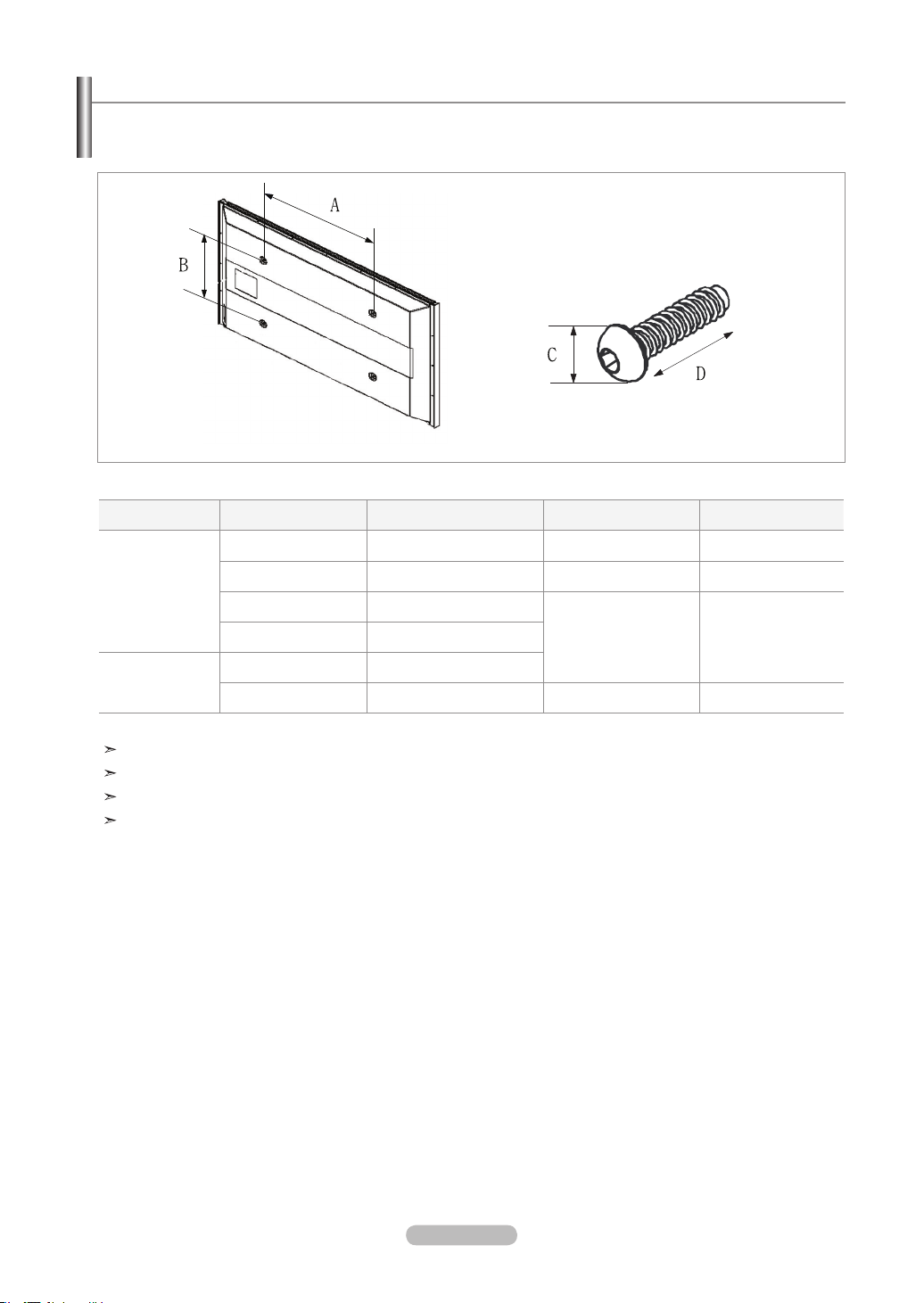
English - 85
Wall Mount Kit Specifications ( VESA )
When attaching to other building materials, please contact your nearest dealer.
Product Family
inch VESA Spec. (A
*
B) Standard Screw (C
*
D) Quantity
LCD-TV
23~ 26 200
*
100 M4
*
L10 4
32 ~ 40 200
*
200 M6
*
L10 4
46 ~ 52 600
*
400
M8
*
L15 457 700
*
400
PDP-TV
42 ~ 50 600
*
400
63 No VESA M8 6
We provided the standard dimensions for wall mount kits as shown in the table above.
When purchasing our wall mount kit, a detailed installation manual and all parts necessary for assembly are provided.
Do not use screws longer than the standard dimension, as they may cause damage to the inside of the TV set.
Our 63” model does not comply with VESA Specifications. Therefore, you should use our dedicated wall mount kit
for this model.
BN68-01178A-Eng.indd 85 2007-02-15 �� 8:59:13

English - 86
1. Insert the locking device into the Kensington slot on the LCD TV (Figure 1), and turn it in the locking direction (Figure 2).
2. Connect the Kensington lock cable.
3. Fix the Kensington lock to a desk or a heavy stationary object.
Using the Anti-Theft Kensington Lock
The Kensington lock is a device used to physically x the system when using it in a public place. The locking device has to be purchased
separately. The appearance and locking method may differ from the illustration depending on the manufacturer.
Please refer to the manual provided with the Kensington lock for proper use.
Figure 2
Figure 1
Cable
<Optional>
The place of the Kensington Lock may be different depending on its model.
BN68-01178A-Eng.indd 86 2007-02-15 �� 8:59:13
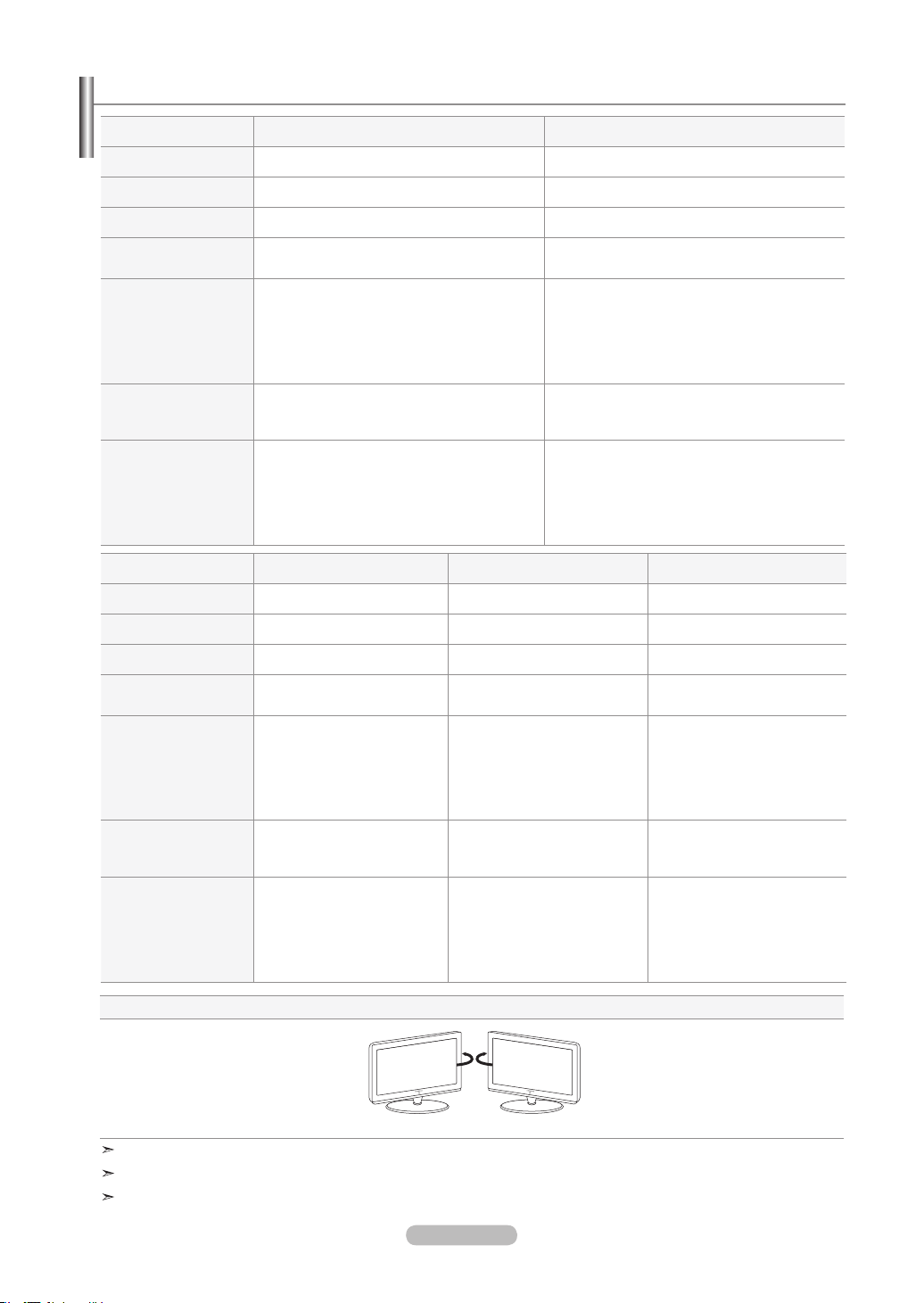
English - 87
Specications
Model Name LN-T4061F LN-T4661F
Screen Size (Diagonal)
40 inches 46 inches
Power Consumption
245 W 265 W
PC Resolution
1920 x 1080 @ 60 Hz 1920 x 1080 @ 60 Hz
Sound
Output
10W X 2
10W X 2
Dimensions (WxDxH)
Body
With stand
38.2 X 3.4 X 24.7 inches
(971 x 87.2 x 628 mm)
38.2 X 11.8 X 27 inches
(971 x 300 x 687 mm)
43.5 X 4.1 X 27.8 inches
(1106 x 104.2 x 706 mm)
43.5 X 12.8 X 30.2 inches
(1106 x 326 x 768 mm mm)
Weight
With Stand
Without stand
46.52 lbs (21.1kg)
39.24 lbs (17.8 kg)
65.26 lbs (29.6kg)
53.35 lbs (24.2kg)
Environmental
Considerations
Operating Temperature
Operating Humidity
Storage Temperature
Storage Humidity
50 °F to 104 °F (10 °C to 40 °C)
10% to 80%, non-condensing
-4 °F to 113 °F (-20 °C to 45 °C)
5% to 95%, non-condensing
50 °F to 104 °F (10 °C to 40 °C)
10% to 80%, non-condensing
-4 °F to 113 °F (-20 °C to 45 °C)
5% to 95%, non-condensing
Model Name LN-T4065F LN-T4665F LN-T5265F
Screen Size (Diagonal)
40 inches 46 inches 52 inches
Power Consumption
245 W 265 W 320 W
PC Resolution
1920 x 1080 @ 60 Hz 1920 x 1080 @ 60 Hz 1920 x 1080 @ 60 Hz
Sound
Output
10W X 2
10W X 2
10W X 2
Dimensions (WxDxH)
Body
With stand
40.9 X 3.8 X 24.2 inches
(1040.7 x 97 x 615.4 mm)
40.9 X 11.4 X 26.4 inches
(1040.7 x 290 x 671 mm)
46.3 X 4.5 X 27.3 inches
(1175.8 x 114 x 693.8 mm)
46.3 X 12.6 X 30 inches
(1175.8 x 320 x 761.4 mm)
52.2 X 4.8 X 31 inches
(1327 x 122 x 787.4 mm)
52.2 X 12.6 X 33.6 inches
(1327 x 320 x 854 mm)
Weight
With Stand
Without stand
47.62 lbs (21.6kg)
39.24 lbs (17.8kg)
67.90 lbs (30.8kg)
56.21 lbs (25.5kg)
81.79 lbs (37.1kg)
70.10 lbs (31.8kg)
Environmental
Considerations
Operating Temperature
Operating Humidity
Storage Temperature
Storage Humidity
50 °F to 104 °F (10 °C to 40 °C)
10% to 80%, non-condensing
-4 °F to 113 °F (-20 °C to 45 °C)
5% to 95%, non-condensing
50 °F to 104 °F (10 °C to 40 °C)
10% to 80%, non-condensing
-4 °F to 113 °F (-20 °C to 45 °C)
5% to 95%, non-condensing
50 °F to 104 °F (10 °C to 40 °C)
10% to 80%, non-condensing
-4 °F to 113 °F (-20 °C to 45 °C)
5% to 95%, non-condensing
Stand Swivel (Left / Right)
-20˚ ~ 20˚
Design and specifications are subject to change without prior notice.
This device is a Class B digital apparatus.
For the power supply, refer to the label attached to the product.
BN68-01178A-Eng.indd 87 2007-02-15 �� 8:59:14

This page is intentionally
left blank.
BN68-01178A-Eng.indd 88 2007-02-15 �� 8:59:14

Table des matières
Symboles Appuyer Important Remarque Bouton
d’accès rapide
INFORMATIONS GÉNÉRALES
Liste des fonctions ..........................................................................2
Accessoires ..................................................................................... 2
Présentation du panneau de commande ....................................... 3
Présentation du panneau de branchement ..................................... 4
Télécommande ...............................................................................5
Insertion des piles dans la télécommande ...................................... 6
CONNEXIONS
Connexion d’antennes VHF et UHF ................................................ 6
Connexion du câble TV ................................................................... 7
Branchement d’un magnétoscope .................................................. 8
Connexion d'un caméscope ........................................................... 9
Connexion d'un lecteurDVD/boîtierdécodeur .................................. 9
Connexion d'un lecteur de DVD/boîtier décodeur
à l’aide du mode HDMI..................................................................10
Connecter un boîtier décodeur/lecteur de DVD via DVI ...............10
Branchement d'un système audio numérique ............................... 11
Connexion d’un amplicateur/home cinéma DVD ........................ 11
Branchement d’un PC ................................................................... 11
FONCTIONNEMENT
Mise en marche et arrêt de la télévision ....................................... 12
Fonction Prêt à l’emploi.................................................................12
Changement des canal ................................................................. 13
Réglage du volume ....................................................................... 14
Visualisation de l’afchage ............................................................ 14
Visualisation des menus ............................................................... 15
Mémorisation des canal ................................................................ 15
Programmation de la télécommande ........................................... 17
Codes de la télécommande .......................................................... 19
Pour sélectionner la source ..........................................................22
Pour éditer le nom de la source .................................................... 22
CONTRÔLE DE L’IMAGE
Utilisation des paramètres automatiques d’image ........................ 23
Réglage des tons des couleurs ..................................................... 24
Paramétrage de la fonction Réglages des détails ........................25
Modication de la taille de l’écran ................................................. 28
Réglage de la fonction Couleur activée ........................................ 29
DNIe démo(Image naturelle numérique) ....................................... 29
Gel de l’image ............................................................................... 30
Sélection du mode cinéma ............................................................ 30
Nv nr HDMI ................................................................................... 30
Visionnement Image sur Image .................................................... 31
CONTRÔLE DU SON
Personnalisation du son ................................................................ 33
Utilisation des paramètres automatiques de son .......................... 33
Paramétrage de la technologie TruSurround XT........................... 34
Sélection d'une bande son à canaux multiples (MTS) –
Numérique.....................................................................................34
Sélection d'une bande son à canaux multiples (MTS) -
Analogique .................................................................................... 35
Contrôle automatique du volume .................................................. 35
Sélection du mode Internal Mute .................................................. 36
Conguration de la mélodie de marche/d'arrêt ............................. 36
Activation du son de l'image (ISI) secondaire ............................... 37
Rétablir les paramètres de son par défaut .................................... 37
Connexion du casque ...................................................................37
■
■
■
■
■
■
■
■
■
■
■
■
■
■
■
■
■
■
■
■
■
■
■
■
■
■
■
■
■
■
■
■
■
■
■
■
■
■
■
■
■
■
■
■
■
■
■
■
CONTRÔLE DES CHAÎNES
Sélection de l'antenne ...................................................................38
Suppression des canaux brouillés – canaux numériques ............. 38
Réglage des listes de canaux ....................................................... 39
Conguration de vos chaînes favorites ......................................... 40
Utilisation de la liste de chaînes .................................................... 41
Afchage de la liste des chaînes ..................................................41
Nom des chaînes .......................................................................... 42
Amplicateur à faible bruit (AFB) .................................................. 42
Syntonisation ne des chaînes analogiques ................................. 43
Contrôle de la puissance du signal numérique ............................. 43
AFFICHAGE PC
Utilisation de votre télévision comme un écran PC ....................... 44
Modes d’afchage ......................................................................... 44
Congurer votre téléviseur avec votre PC .................................... 45
Réglage de la fonction PC cinéma maison ................................... 46
PARAMÈTRE D’HEURE
Régler l’horloge ............................................................................. 47
DESCRIPTION DE LA FONCTION
Sélection d’une langue de menu ................................................... 50
Réglage du mode d’écran bleu ..................................................... 51
Utilisation de Mode Jeu ................................................................. 51
Afchage des sous-titres (messages texte à l'écran)
– Analogique ................................................................................. 52
Afchage des sous-titres (messages texte à l'écran)
– Numérique..................................................................................52
Niveau de transparence du menu ................................................. 54
Utilisation de la fonction d’économie d’énergie ............................. 54
Conguration de la fonction d'aide ................................................ 55
Réduction numérique des bruits ................................................... 55
Utilisation de la fonction puce V-Chip ........................................... 56
Réglage de la fonction Effet lumière
(LN-T4065F / LN-T4665F / LN-T5265F) .......................................
63
Mise à niveau du logiciel ............................................................... 63
WISELINK
Utilisation de la fonction WISELINK ............................................. 64
Utilisation du menu WISELINK ..................................................... 65
À l'aide de la liste PHOTO (JPEG) ................................................ 66
Utilisation de la liste MP3 .............................................................. 73
Menu de conguration ..................................................................75
À PROPOS D’ ANYNET+
Qu’est-ce qu’Anynet+? ................................................................. 77
Branchement d’appareils Anynet+ ................................................ 77
Conguration d’Anynet+ ................................................................ 78
Balayage et permutation entre les appareils Anynet+ ................... 78
Enregistrement ............................................................................. 79
Écoute par l’intermédiaire d’un récepteur ................................... 80
Liste de vérication avant de faire une demande de service ....... 80
ANNEXE
Identication des problèmes ......................................................... 81
Installation du support .................................................................. 83
Démonter la base .......................................................................... 83
Réglage de la xation murale (vendue séparément) .................... 84
Spécications du jeu d’installation murale ( VESA ) ..................... 85
Utilisation du verrouillage Kensington antivol ...............................86
Spécications ................................................................................ 87
■
■
■
■
■
■
■
■
■
■
■
■
■
■
■
■
■
■
■
■
■
■
■
■
■
■
■
■
■
■
■
■
■
■
■
■
■
■
■
■
■
■
■
■
■
■
Français - 1
Français
BN68-01178B-Fre.indd 1 2007-02-15 �� 10:00:22
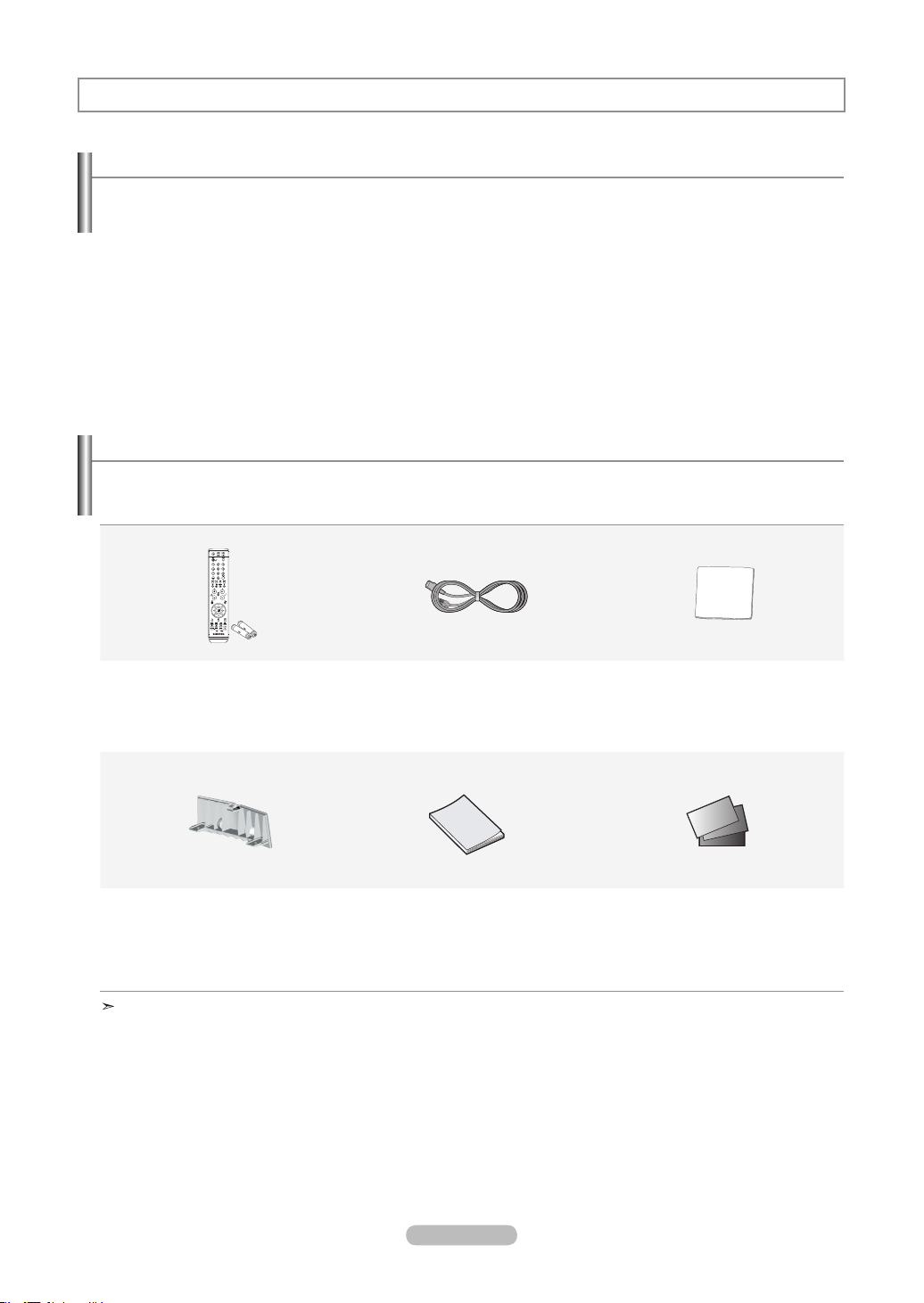
Français - 2
Accessoires
Informations générales
Liste des fonctions
Paramètres d'image modiables pouvant être stockés dans la mémoire du téléviseur.
Minuterie automatique pour allumer ou éteindre le téléviseur.
Minuterie de mise en veille spéciale.
Fonction V-Chip.
Interface numérique et de réseau exceptionnelle:
Avec un tuner numérique HD intégré, il est possible de voir les programmes HD sans abonnement sans qu'un
décodeur soit nécessaire.
Télécommande
La télécommande fournie peut être utilisée pour contrôler le téléviseur, ainsi que la plupart des lecteurs DVD,
décodeurs et magnétoscopes.
Excellente qualité d’image
- La technologie DNIe offre des images d’une netteté aussi vraie que nature
SRS TruSurround XT
- SRS TruSurround XT offre un système surround Dolby virtuel.
Vériez que les éléments suivants sont inclus avec votre télévision LCD.
S’il manque des éléments, contactez votre revendeur.
Télécommande et piles (AAA x 2)
(BN59-00599A)
Cordon D’alimentation
(3903-000144)
Tissu de nettoyage
(BN63-01798A)
Panneau arrière
LN-T4061F : BN63-03031A
LN-T4065F : BN63-03298A
LN-T4661F : BN63-03148A
LN-T4665F / LN-T5265F : BN63-03308A
Instructions
D’utilisation
Carte de garantie /
Cartes d’enregistrement /
Guide de sécurité (N’est pas disponible dans
toutes les agences)
La forme et la couleur des accessoires peuvent varier selon le modèle.
BN68-01178B-Fre.indd 2 2007-02-15 �� 10:00:24
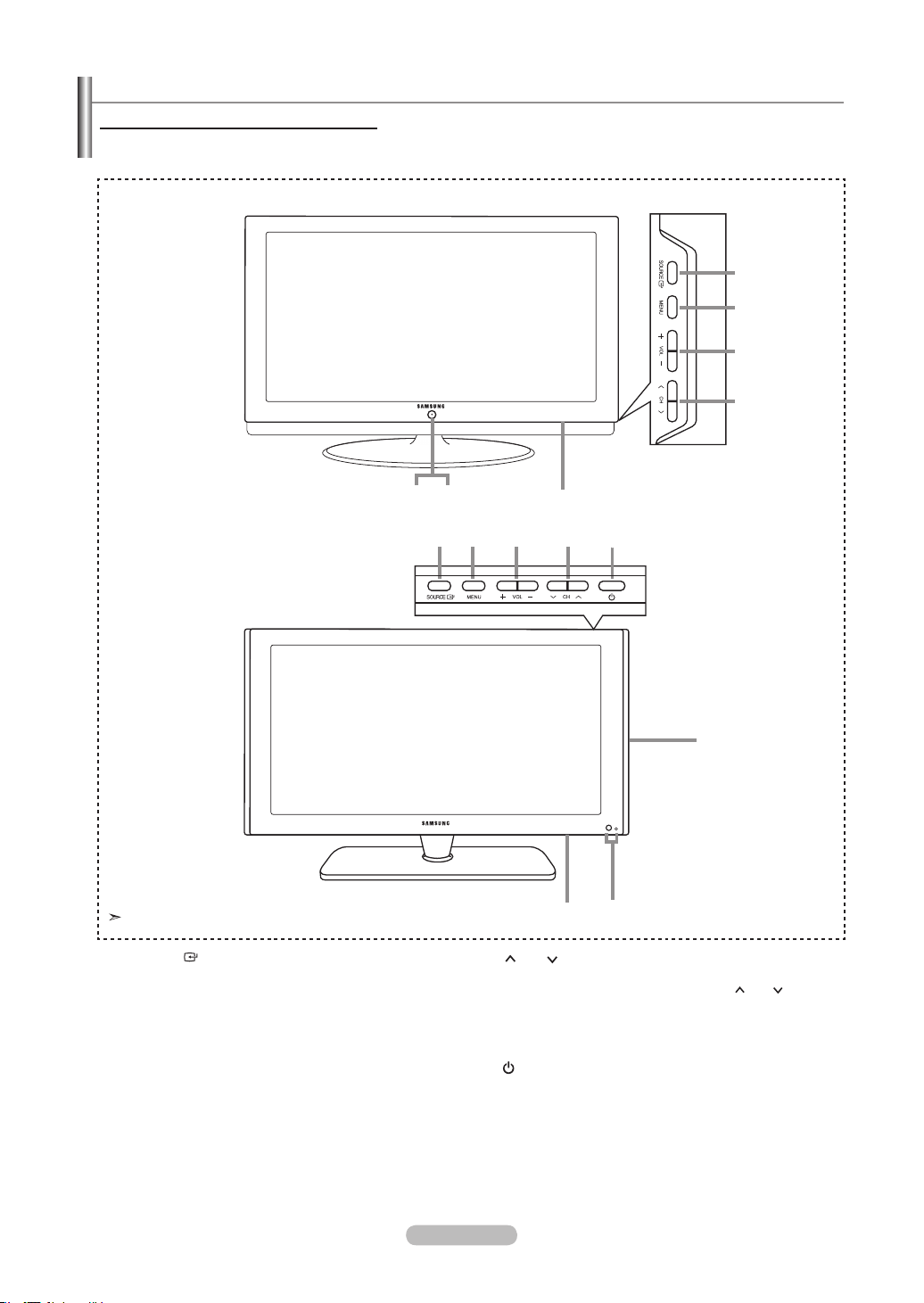
Français - 3
Présentation du panneau de commande
1
SOURCE
Bascule entre toutes les sources d’entrée disponibles
(TV, AV1, AV2, S-Video 1, S-Video 2, Component1,
Component2, PC, HDMI1, HDMI2, HDMI3).
Dans le menu à l’écran, utilisez ce bouton de la même
manière que le bouton ENTER de la télécommande.
2
MENU
Appuyez pour voir à l’écran le menu des fonctions de
votre télévision.
3
+ VOL -
Appuyez sur ce bouton pour augmenter ou baisser le
volume.
Dans le menu à l’écran, utilisez les boutons + VOL
- de la même manière que les boutons ◄ et ► de la
télécommande.
4
CH
Appuyez sur ce bouton pour changer de canal. Dans
le menu à l’écran, utilisez les boutons
CH
de
la même manière que les boutons ▲ et ▼ de la
télécommande.
5
HAUT-PARLEURS
6
(ALIMENTATION)
Appuyez sur ce bouton pour allumer et teindre la
télévision.
6
VOYANT D’ALIMENTATION
Clignote puis s’arrête lorsque le téléviseur est allumé.
S’allume en mode Veille.
CAPTEUR DE LA TÉLÉCOMMANDE
Dirigez la télécommande vers de point de la télévision.
Boutons situés en bas à droite du panneau
Les boutons situés en bas à droite du panneau commandent les fonctions de base de votre téléviseur, notamment le menu
à l'écran. Pour utiliser les fonctions plus avancées, vous devez utiliser la télécom-mande.
La couleur et la forme du produit peuvent varier en fonction du modèle.
<LN-T4061F / LN-T4661F>
<LN-T4065F / LN-T4665F / LN-T5265F>
1
1 2 3 4 6
5
2
3
4
567
5
7
BN68-01178B-Fre.indd 3 2007-02-15 �� 10:00:25
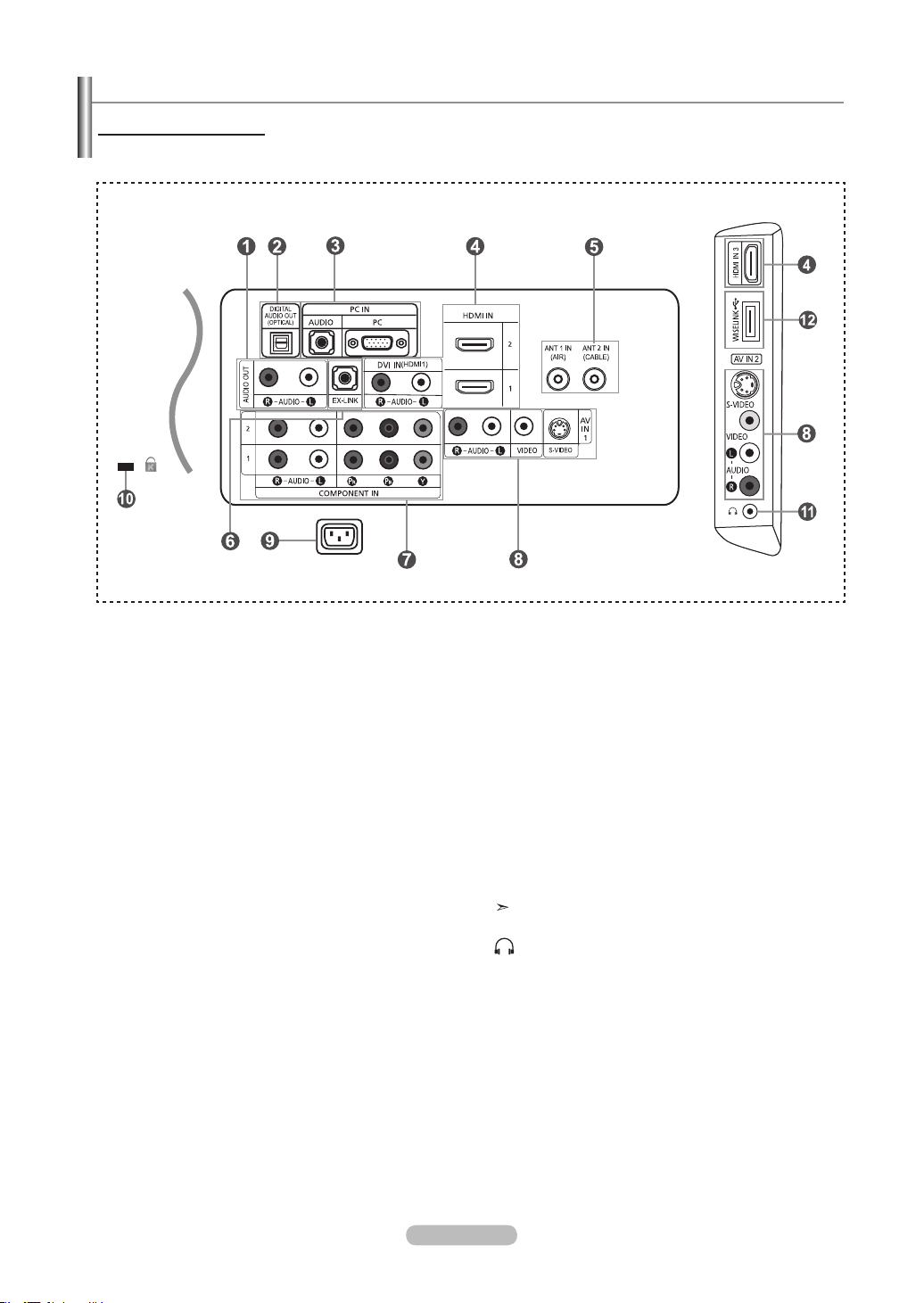
Français - 4
Présentation du panneau de branchement
Prises du panneau arrière
Les prises du panneau arrière sont utilisées pour brancher de façon permanente un appareil Audio/Vidéo comme par
exemple un lecteur DVD ou un magnétoscope. Pour plus d’informations sur le branchement des appareils, voir pages 6-11.
1
AUDIO OUT
A connecter aux prises d'entrée audio de votre
amplificateur/home cinéma.
2
DIGITAL AUDIO OUT (OPTICAL)
À brancher à un appareil audio numérique.
3
PC IN
A connecter aux prises de sortie audio et vidéo de votre
PC.
4
HDMI IN 1,2,3 /DVI IN(HDMI 1) (AUDIO R/L)
A connecter à la prise HDMI d'un périphérique doté d'une sortie
HDMI.
Utilisez la borne HDMI IN 1 pour la connexion DVI vers
un périphérique externe. Utilisez le câble DVI vers HDMI
ou l'adaptateur DVI-HDMI (DVI vers HDMI) pour la
connexion vidéo et la borne 'R-AUDIO-L' DVI-IN pour la
connexion audio.
- La borne HDMI IN 1 ne prend pas en charge la
connexion PC.
- La prise d’entrée HDMI IN 1 doit être utilisée pour un
branchement de câble HDMI/DVI.
- Le modèle 23, 26 pouces prend uniquement en charge
HDMI1et HDMI2.
5
ANT 1 IN/ANT 2 IN
A connecter à une antenne ou à un téléviseur par câble.
6
EX LINK
Connecteur pour ajustement fixation murale seulement.
(Voir page 83)
7
COMPONENT IN
A connecter à la composante vidéo/audio.
8
AV IN 1 / AV IN 2
Entrée audio et vidéo pour périphériques externes, tels
qu’un caméscope ou un magnétoscope.
S-VIDEO
Connectez un signal S-Vidéo provenant d'un caméscope
ou d'un magnétoscope.
9
POWER INPUT
Connectez le câble d'alimentation fourni.
0
KENSINGTON LOCK
Le verrou Kensington (en option) est un dispositif
utilisé pour fixer physiquement le système dans le cas
d’une utilisation dans un endroit public. Pour utiliser un
dispositif de verrouillage, contactez le revendeur de votre
téléviseur.
L’emplacement du “verrou Kensington” peut varier en
fonctiondu modèle.
!
HEADPHONE
A connecter à des écouteurs externes pour une écoute
privée.
@
WISELINK
Branchez un périphérique de stockage de masse USB
pour afficher des fichiers photo (JPEG) et écouter des
fichiers audio (MP3).
[Prises du panneau latéral]
BN68-01178B-Fre.indd 4 2007-02-15 �� 10:00:25
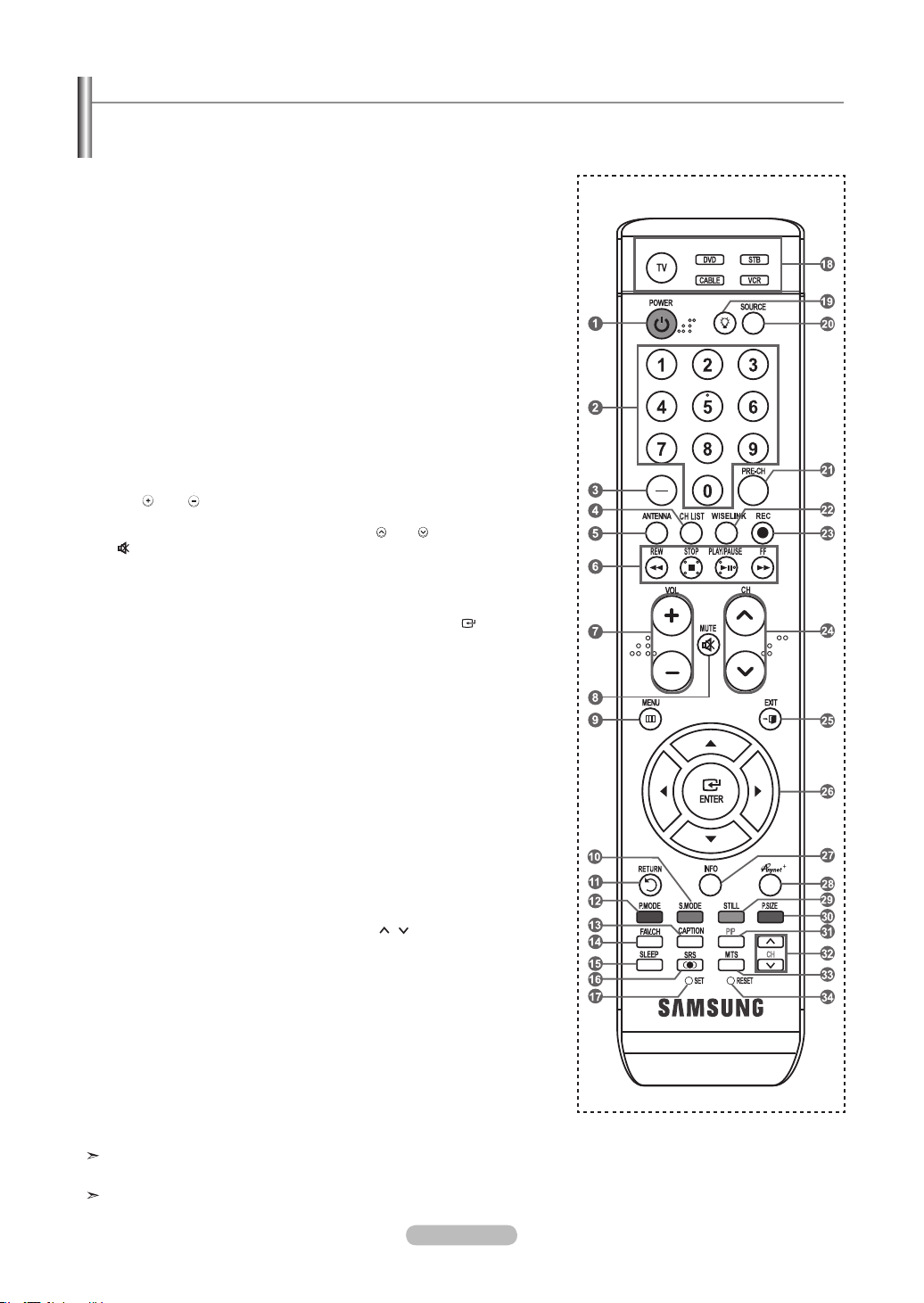
Français - 5
Télécommande
Vous pouvez utiliser la télécommande jusqu’à environ 7 mètres de votre télévision. Lorsque vous utilisez votre télécommande,
pensez à la pointer vers la télévision. Vous pouvez également utiliser votre télécommande pour commander votre magnétoscope,
votre décodeur, votre lecteur DVD ou votre récepteur.
1 POWER
Pour allumer et éteindre la télévision.
2 BOUTONS NUMÉRIQUES
Permet de changer de chaîne.
3 –
Appuyez sur ce bouton pour
sélectionner des canaux
supplémentaires (numériques et
analogiques) diffusées par la même
station. Par exemple, pour sélectionner
le canal “54-3”, appuyez sur “54”, puis
sur “ - ” et sur “3”.
4 CH LIST
Il affiche “Channel Manager” à l’écran.
5 ANTENNA
Appuyez sur ce bouton pour
sélectionner “Air” ou “Câble”.
6 Fonctions Magnétoscope/DVD
- Rembo binage
- Arrêt
- Lecture/Pause
- Avance/Rapide
7 VOL / VOL
Appuyez sur ce bouton pour
augmenter ou baisser le volume.
8 (MUTE)
Appuyez sur ce bouton pour couper
temporairement le son.
9 MENU
Pour afficher le menu principal à
l’écran.
0 S.MODE
Appuyez sur cette touche pour activer
le mode de son.
! RETURN
Revient au menu précédent.
@ P.MODE
Appuyez sur cette touche pour
sélectionner le mode d’image.
#
CAPTION
Contrôle le décodeur de sous-titres.
$ FAV.CH
Appuyez sur ce bouton pour naviguer
entre vos chaînes favorites.
% SLEEP
Appuyez sur ce bouton pour régler
d'avance une durée au terme de
laquelle le téléviseur s'éteindra
automatiquement.
^ SRS
Sélectionne le mode SRS TruSurround
XT.
& SET
Règle la télécommande pour qu'elle
contrôle votre téléviseur, votre
magnétoscope, votre lecteur DVD ou
votre décodeur.
* TV, DVD, STB, CABLE, VCR
Permet de contrôler votre téléviseur,
votre lecteur DVD, le STB, votre
décodeur ou votre magnétoscope
(Voir page 18-22)
(
Lorsque vous appuyez sur ce
bouton, certaines touches de la
télécommande (par ex. les boutons
de sélection d’un dispositif cible, les
boutons numériques et les boutons
TV, DVD, STB, CABLE, VCR, VOL
y CH) s'allument pendant quelques
secondes, puis s'éteignent pour
économiser de l'énergie. Cette fonction
permet d'utiliser confortablement la
télécommande dans l'obscurité.
) SOURCE
Appuyez sur ce bouton pour afficher
toutes les sources vidéo disponibles.
a PRE-CH
Syntonise sur la canal précédente.
b WISELINK
Cette fonction permet de lire ou
voir des fichiers de photographies
(JPEG) et des fichiers sonores (MP3)
mémorisés dans un appareil externe
.(Reportez-vous à la page 65)
c
REC
Pour enregistrer des émissions en
direct.
d
CH
/ CH
Permet de changer de chaîne.
e
EXIT
Appuyez sur ce bouton pour quitter le
menu.
f
UP▲ / DOWN▼ / LEFT◄
/
RIGHT►
/ ENTER
Autiliser pour sélectionner les
éléments du menu à l’écran et modifier
les valeurs du menu.
g
INFO
Appuyez sur cette touche pour afficher
de l’information à l’écran.
h
Antnet+
Pour exécuter les fonctions d'affichage
d'Anynet et configurer les appareils
Anynet.
i
STILL
Appuyez sur ce bouton pour arrêter
l’action au cours d’une scène
spécifique. Appuyez de nouveau
sur ce bouton pour reprendre
normalement la vidéo.
j
P.SIZE
Sélection de la taille de l'image.
k
PIP
Image Sur Image Activé/Désactivé.
l
CH /
Fait défiler les chaînes disponibles.
(Ces boutons concernent uniquement
les chaînes de la fenêtre ISI).
m
MTS
Appuyez sur ce bouton pour choisir
Stéréo, Mono ou Programme audio
séparé (Diffusion de programme audio
séparé).
n
RESET
Si votre télécommande ne fonctionne
plus, changez les piles et appuyez sur
le bouton Régler (RESET) pendant
2 à 3 secondes avant de l’utiliser de
nouveau.
Ceci est une télécommande spéciale destinée aux malvoyants. Elle dispose de
points Braille sur les boutons Power, Channel, Volume, Stop et Play/Pause.
Une lumière intense peut affecter le bon fonctionnement de la télécommande.
BN68-01178B-Fre.indd 5 2007-02-15 �� 10:00:26
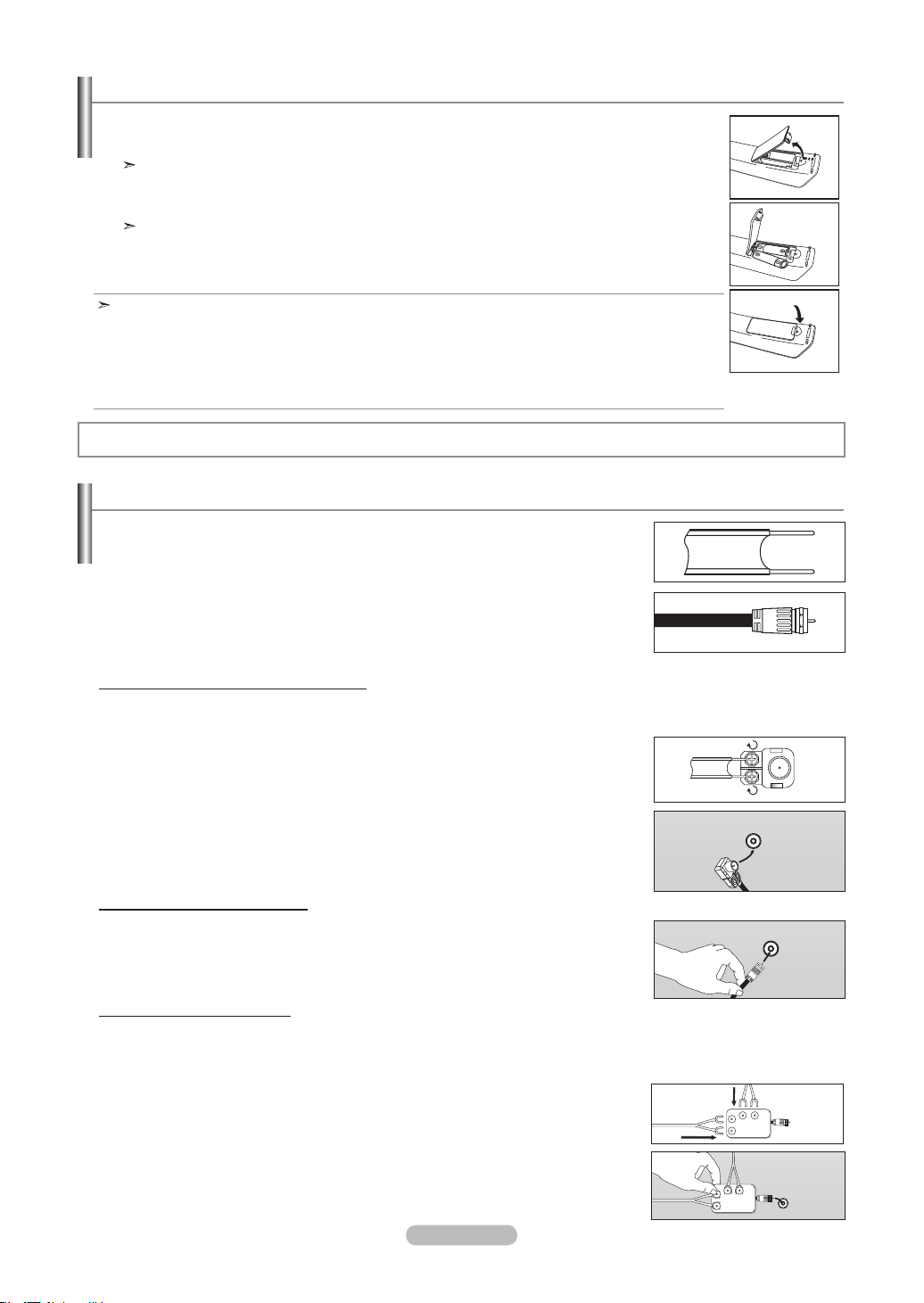
Français - 6
1. Soulevez le panneau à l’arrière de la télécommande, comme illustré.
2.
Placez deux piles AAA.
Assurez-vous de faire correspon dre les pôles “+” et “-” des iles avec le schéma situé à l’intérieur du
compartiment.
3.
Replacez le couvercle.
Retirez les piles et stockez-les dans un endroit frais et sec si vou n’utilisez pas la télécommande pendant
longtemps.
La télécommande peut être util isée jusqu’à environ 7 mètres de la télévision.
(Pour une utilisation type de la télévision, les piles durent environ un an.)
Si la télécommande ne fonctionne pas, vérifiez ce qui suit:
1. La télévision est-elle allumée ?
2. Les pôles (+ / -) des piles sont-ils inversés ?
3. Les piles sont-elles à plat ?
4. Y-a-t-il une rupture d’alimentation ou le cordon d’alimentation est-il débranché?
5. Y a-t-il une lampe fluorescente ou un néon à proximité ?
Insertion des piles dans la télécommande
Connexion d’antennes VHF et UHF
Si votre antenne se présente sous la forme d’un ensemble de câbles identique à la gure, voir
“Antennes avec câble bipolaire plat de 300 Ω”, ci-dessous.
Si votre antenne est dotée d'un câble semblable au schéma de droite, reportez-vous à la section
“Antenne équipée de câbles ronds 75 Ω”.
Si vous avez deux antennes, voir “ Antennes VHF et UHF séparées ”.
1. Placez les fils de votre câble bipolaire sous les vis de l’adaptateur 300-75 Ω (non fourni).
Utilisez un tournevis pour serrer les vis.
2. Branchez l’adaptateur dans la borne ANT 2 IN (CABLE) située à l’arrière du téléviseur.
ANT 2 IN
(CALBE)
Antennes avec câble bipolaire plat de 300 Ω
Si vous utilisez une antenne hertzienne (comme une antenne de toit ou une antenne en oreilles de lapin) munie d’un câble
bipolaire plat de 300 Ω procédez comme suit.
1. Branchez le câble de l'antenne dans la prise ANT 1 IN (AIR) située en bas du panneau
arrière.
Antennes avec câble rond de 75 Ω
ANT 1 IN
(AIR)
Antennes VHF et UHF séparées
Si vous disposez de deux antennes séparées pour votre télévision (une VHF et une UHF), vous devez combiner les deux signaux
des antennes avant de les brancher à la télévision. Cette procédure exige un multiplexeur-adaptateur (disponible dans la plupart
des magasins d’électronique).
1.
Branchez les deux câbles des antennes au multiplexeur.
2.
Branchez le multiplexeur dans la prise ANT 1 IN (AIR) située en bas du panneau arrière.
UHF
VHF
ANT 1 IN
(AIR)
UHF
VHF
Connexions
BN68-01178B-Fre.indd 6 2007-02-15 �� 10:00:28
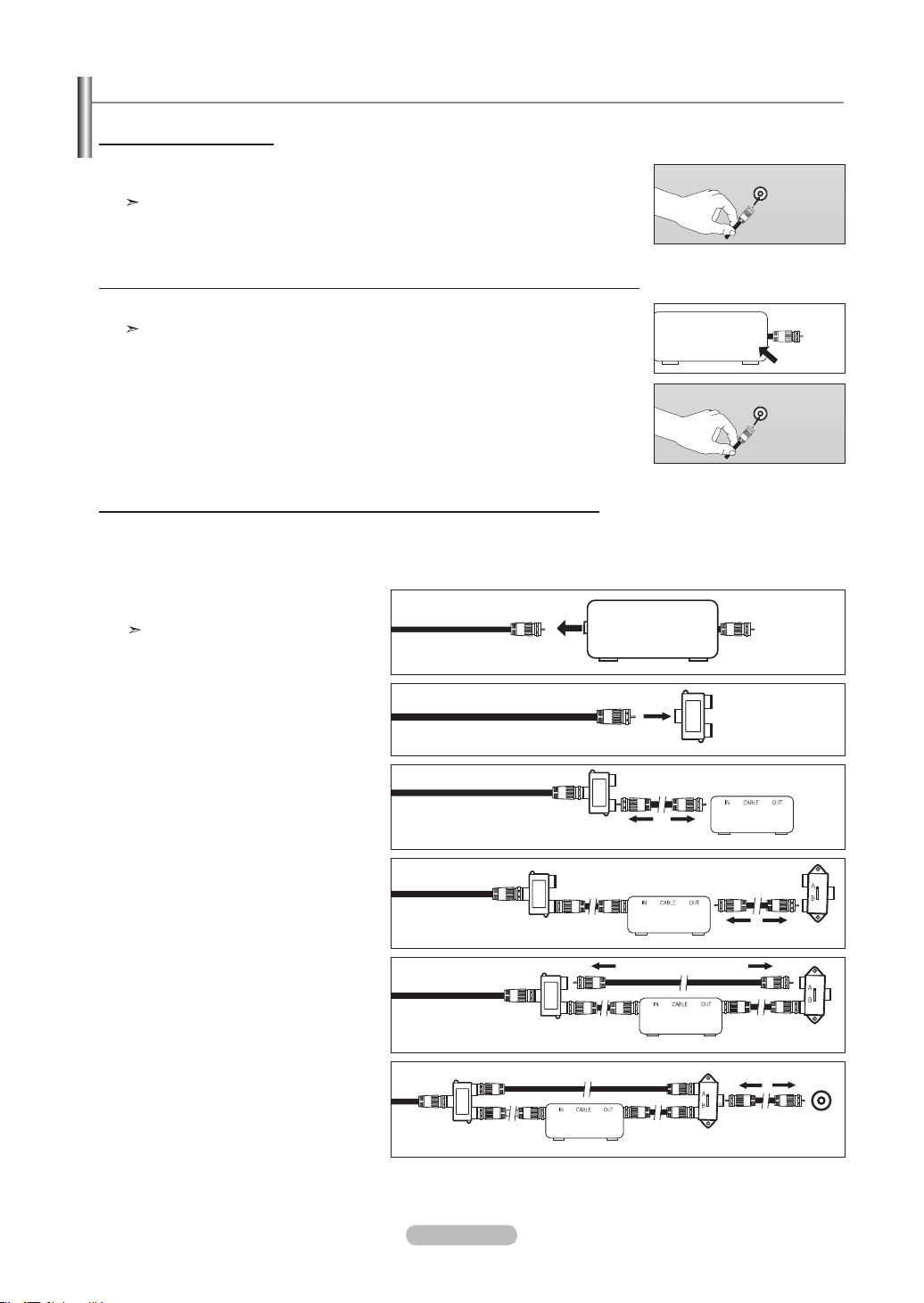
Français - 7
Après avoir établi cette connexion, réglez l’interrupteur A/B en position “A” pour regarder les canal normales. Placez l’interrupteur A/B en
position “B” pour une regarder les canal cryptées. (Lorsque vous placez l’interrupteur A/B sur “B”, vous devez syntoniser votre télévision
sur la canal de sortie de la boîte de jonction qui est habituellement la canal 3 ou 4.)
Branchement d’une boîte de jonction servant à décrypter certaines canal
Si votre boîte de jonction ne décrypte que certaines canal (comme les canal dites ‘premium’), suivez les instructions ci-dessous.
Pour ce faire, vous avez besoin d’un séparateur bidirectionnel, d’un interrupteur RF (A/B) et de quatre longueurs de câble coaxial.
(Ces articles sont disponibles dans la plupart des magasins d’électronique.)
2.
Branchez ce câble à un séparateur
bidirectionnel.
3.
Branchez un câble de RF entre une des
prises OUTPUT du séparateur et la prise IN
de la boîte de jonction.
4. Branchez un câble de RF entre la prise ANT
OUT de la boîte de jonction et la prise B.IN
de l’interrupteur A/B.
1. Localisez et débranchez le câble branché à
la prise ANT IN de votre boîte de jonction.
Cette prise peut s’appeler “ANT IN”, “VHF IN”
ou simplement “IN”.
5. Branchez un autre câble entre l’autre prise
OUT du séparateur et la prise A.IN de
l’interrupteur RF (A/B).
6. Connectez le dernier câble RF entre la
borne OUT du commutateur RF (A/B) et la
borne ANT 2 IN (CABLE) située à l’arrière
du téléviseur.
Séparateur
Câble
d’arrivée
Séparateur
Boîte de jonction
Câble
d’arrivée
Séparateur
Boîte de jonction
Interrupteur
RF(A/B)
Câble
d’arrivée
ANT IN
Séparateur
Boîte de jonction
Câble
d’arrivée
Interrupteur
RF(A/B)
Sépara-
teur
Boîte de jonction
Câble
d’arrivée
Arriére
de la
télévision
Interrupteur
RF(A/B)
ANT 2 IN
(CABLE)
Connexion du câble TV
Pour brancher un système de télévision par câble, suivez les instructions ci-dessous.
Câble sans boîte de jonction
1. Branchez le câble d’arrivée dans la prise ANT 2 IN (CABLE) située à l’arrière de la
télévision.
Cette télévision étant équipée d’un dispositif pour le câble, vous n’avez pas besoin de boîte de jonction
pour voir des canal câblées en clair.
Branchement d’une boîte de jonction servant à décrypter l’ensemble des canal
1. Identifiez le câble connecté à la prise ANT OUT de votre boîte de jonction.
Cette prise peut s’appeler “ANT OUT”, “VHF OUT” ou simplement “OUT”.
2. Branchez l’autre extrémité de ce câble à la prise ANT 2 IN (CABLE) située à l’arrière de la
télévision.
ANT OUT
ANT IN
ANT 2 IN
(CABLE)
ANT 2 IN
(CABLE)
BN68-01178B-Fre.indd 7 2007-02-15 �� 10:00:29
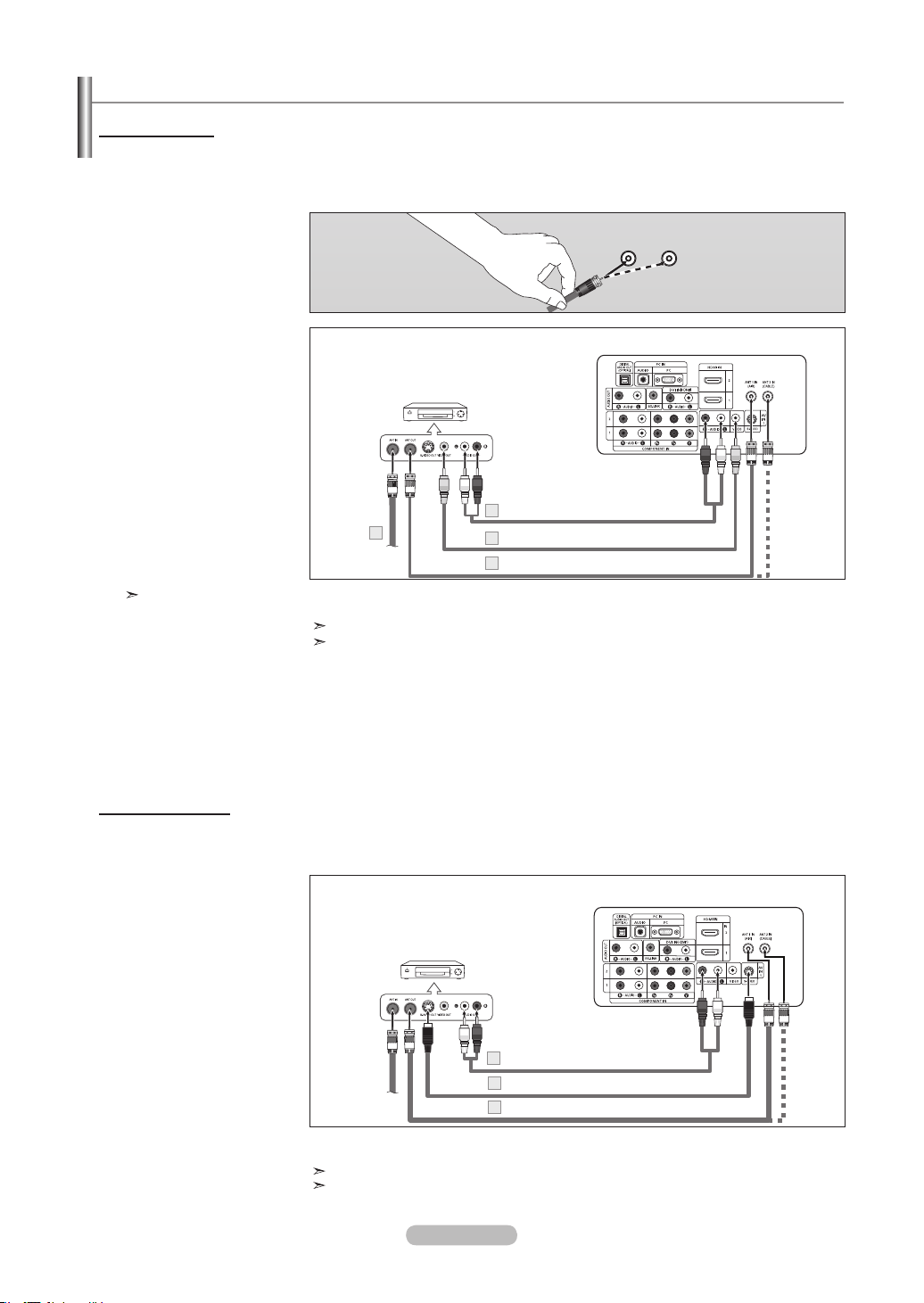
Français - 8
Branchement d’un magnétoscope
Ces instructions supposent que vous avez déjà branché votre télévision à une antenne ou un système de télévision par câble (en
suivant les instructions pages 6-7). Sautez l’étape 1 si vous n’avez pas encore branché d’antenne ou de système de télévision par
câble.
1. Débranchez l’antenne ou
le câble de l’arrière de la
télévision.
2. Branchez le câble ou l’antenne
à la prise ANT IN située à
l’arrière du magnétoscope.
3. Connectez un Câble RF
entre la borne ANT OUT du
magnétoscope et la borne
ANT 1 IN (AIR) ou ANT 2 IN
(CABLE) du téléviseur.
4. Branchez un Câble Vidéo
entre la prise VIDEO OUT du
magnétoscope et la prise AV IN
1 (ou AV IN 2) [VIDEO] de la
télévision.
5.
Branchez les Câbles Audio
entre les prises AUDIO OUT
du magnétoscope et les
prises AV IN 1 (ou AV IN 2)
[R-AUDIO-L] de la télévision.
Si vous avez un
magnétoscope “mono”
(c’est-à-dire qu’il n’est
pas stéréo), utilisez le
connecteur Y (non fourni)
pour le brancher aux
prises d’entrée audio droite
et gauche de la télévision.
Si votre magnétoscope
fonctionne en stéréo,
vous devez brancher deux
câbles distincts.
Suivez les instructions de “Visualisation d’une cassette à l’aide d’un magnétoscope ou d’un
caméscope” pour visualiser une cassette à l’aide de votre magnétoscope.
La configuration arrière de chaque magnétoscope est différente suivant les appareils.
Lorsque vous connectez un magnétoscope, faites correspondre les couleurs de la borne
et du câble.
Pannear arrière de la télévision
Câble RF (non fourni)
3
Panneau arriére du
magnétoscope
2
Câble Vidéo (non fourni)
4
Câble Audio (non fourni)
5
ANT 1 IN
(AIR)
Votre télévision Samsung peut recevoir un signal S-Vidéo provenant d’un magnétoscope VCR. (Ce branchement donne une
meilleure image par rapport à un magnétoscope VCR standard.)
1. Tout d’abord, suivez les
étapes 1 à 3 de la section
précédente pour brancher
l’antenne ou le câble à votre
magnétoscope et à votre
télévision.
2. Connectez un Câble
S-Vidéo entre la
prise S-VIDEO OUT
dumagnétoscope et la
prise AV IN [S-VIDEO] du
téléviseur.
3.
Branchez les Câbles Audio
entre les prises AUDIO OUT
du magnétoscope et les
prises AV IN [R-AUDIO-L]
de la télévision.
Un câble S-Vidéo est généralement fourni avec le magnétoscope S-VHS. (Sinon, renseignez-vous auprès de votre
magasin d’électronique local.)
La configuration arrière de chaque magnétoscope S-VHS est différente suivant les appareils.
Lorsque vous connectez un magnétoscope S-VHS, faites correspondre les couleurs de la borne etdu
câble.
Panneau arriére du
magnétoscope
Câble RF (non fourni)
1
Câble Audio (non fourni)
3
Pannear arrière de la télévision
Câble S-Vidéo (non fourni)
2
ANT 2 IN
(CABLE)
Connexion S-Vidéo
Connexion vidéo
BN68-01178B-Fre.indd 8 2007-02-15 �� 10:00:31
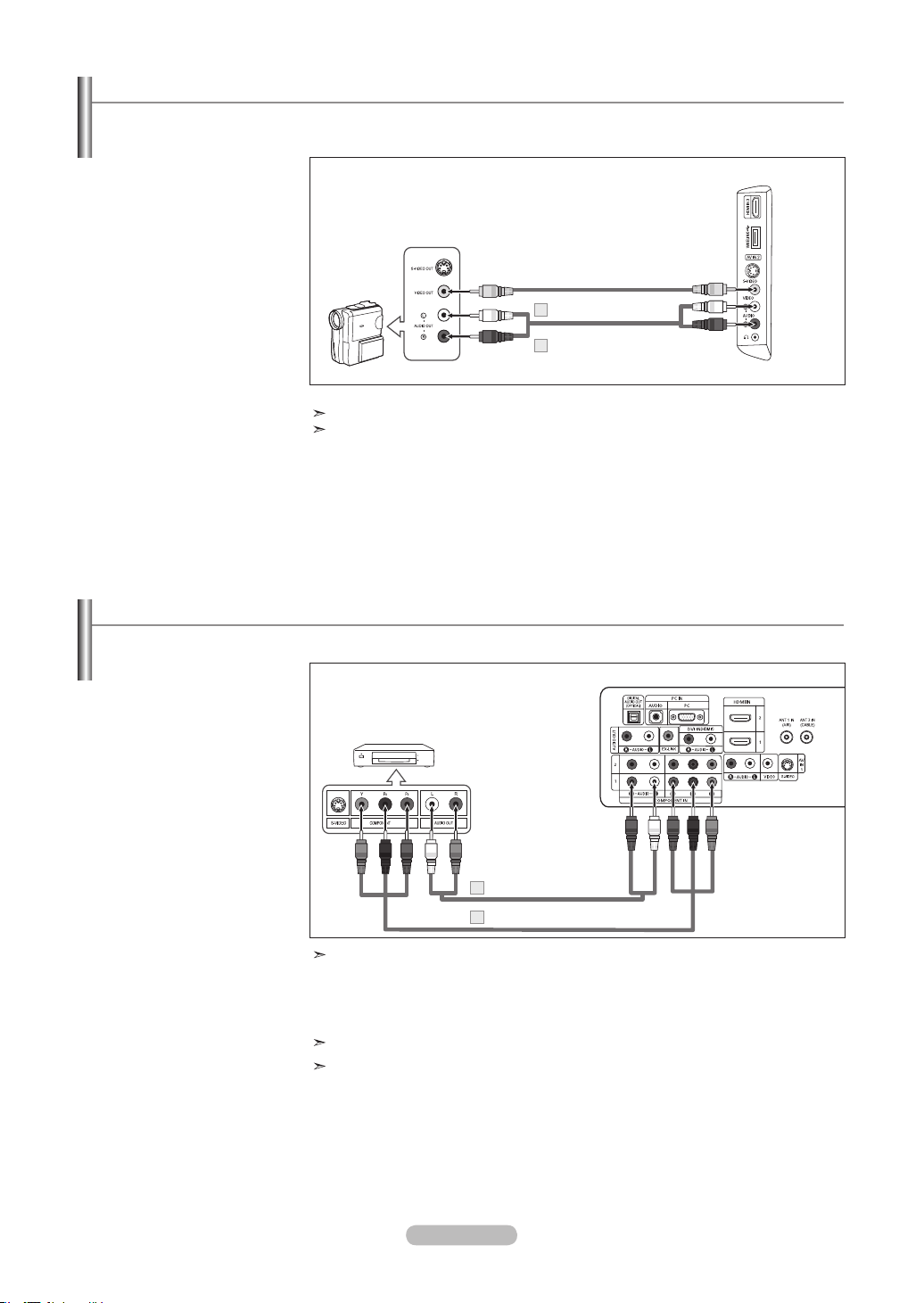
Français - 9
Connexion d'un lecteurDVD/boîtierdécodeur
Les prises du panneau arrière de votre télévision ont été spécialement conçues pour faciliter le branchement d’un lecteur DVD.
1.
Connectez un Câble
composante entre les prises
COMPONENT IN (1 ou 2)
[Y, PB, PR] du téléviseur et les
prises COMPONENT OUT[Y,
PB, PR] du lecteur DVD.
2. Connectez un Câble Audio
entre les prises COMPONENT
IN (1 ou 2) [R-AUDIO-L] du
téléviseur et les prises AUDIO
OUT du lecteur DVD.
La composante vidéo sépare la vidéo entre Y (Luminosité), Pb (Bleu) et Pr (Rouge) pour
une qualité vidéo accrue. Assurez-vous de faire correspondre la composante vidéo et les
connexions audio.
Par exemple, si vous connectez le câble vidéo à la borne COMPONENT IN, connectez le
câble audio également à la borne COMPONENT IN.
La configuration arrière de chaque lecteur DVD est différente suivant les appareils.
Lorsque vous connectez un lecteur DVD, faites correspondre les couleurs de la borne et
du câble.
Lecteur DVD/
boîtier décodeur
Pannear arrière de la télévision
Câble composante (non fourni)
1
Câble Audio (non fourni)
2
Connexion d'un caméscope
Les prises du panneau latéral assurent la connexion aisée d'un caméscope à votre téléviseur. Elles vous permettent de visionner
les cassettes de votre caméscope sans passer par un magnétoscope.
1. Connectez un Câble Vidéo
(ou Câble S-Vidé) entre les
prises AV IN2 [VIDEO] (ou
S-VIDEO) du téléviseur et
les prises AUDIO OUT du
caméscope.
2. Connectez un Câble Audio
entre les prises AV IN 2
[R-AUDIO-L] du téléviseur
et les prises AUDIO OUT du
caméscope.
Caméscope
Panneau latéral de la télévision
Câble Vidéo (non fourni) 1
1
Câble Audio (non fourni)
2
La configuration arrière de chaque caméscope est différente suivant les appareils.
Lorsque vous connectez un caméscope, faites correspondre les couleurs de la borne et
du câble.
BN68-01178B-Fre.indd 9 2007-02-15 �� 10:00:32
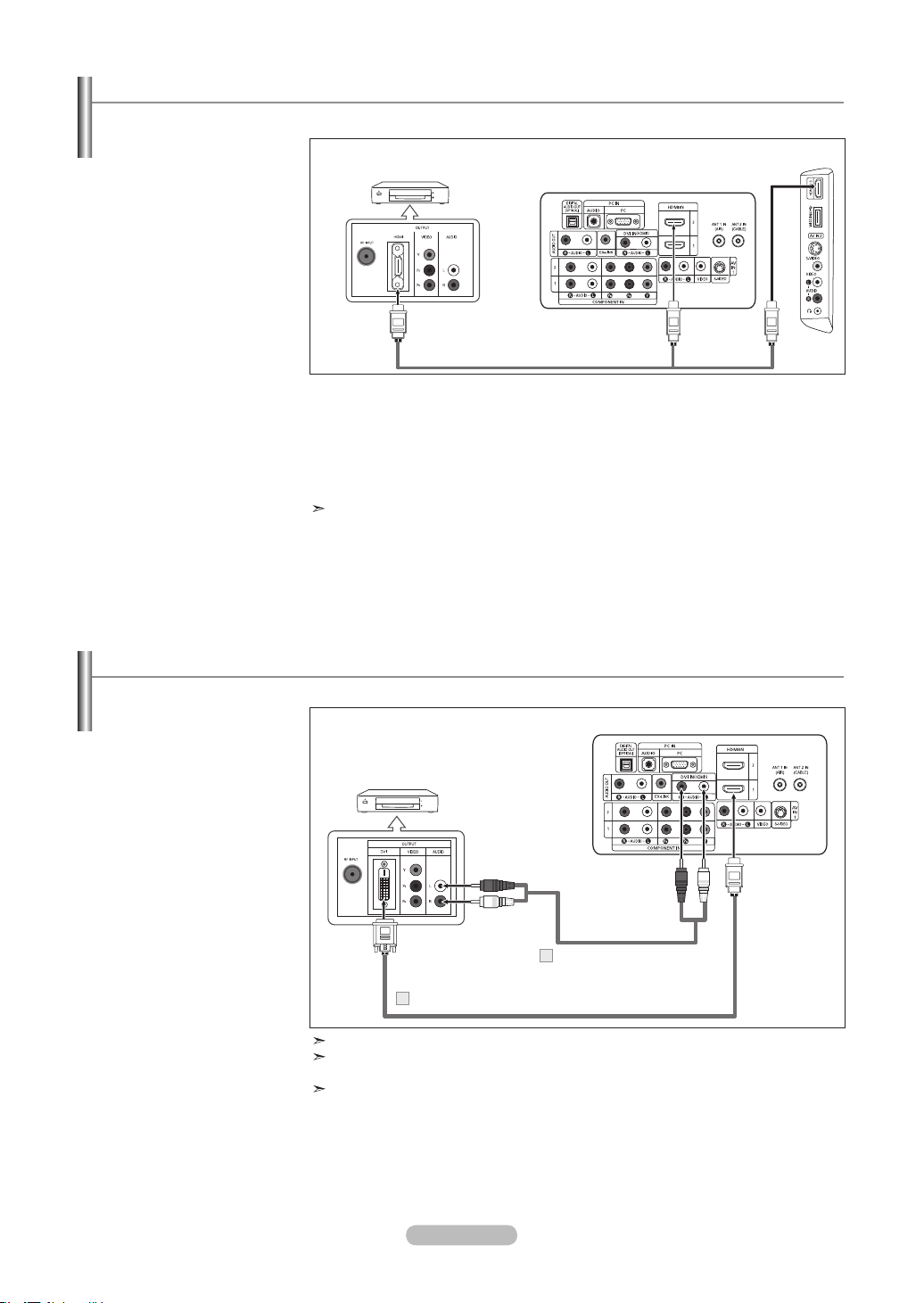
Français - 10
Connexion d'un lecteur de DVD/boîtier décodeur à l’aide du mode HDMI
Ceci n’est réalisable que si le périphérique externe dispose d’un connecteur de sortie HDMI.
1.
Connectez un Câble HDMI
entre le connecteur HDMI IN
(1,2 ou 3) du téléviseur et le
connecteur HDMI du lecteur
DVD/boîtier décodeur.
Panneau arriére
du lecteur de DVD/ Boîtier décodeur
Pannear arrière de la télévision
Câble HDMI (non fourni)
Qu’est-ce que le mode HDMI ?
• HDMI ou high-definition multimedia interface (interface multimédia haute définition)
est une interface de nouvelle génération qui permet la transmission de signaux
numériques audio et vidéo à l’aide d’un simple câble et sans compression.
• La différence entre les interfaces HDMI et DVI réside dans le fait que la HDMI est de
plus petites dimensions, qu’elle est dotée du composant de codage HDCP (protection
contre la copie numérique à large bande passante).
La configuration arrière de chaque lecteur de DVD/boîtier décodeur est différente
suivant les appareils.
Connecter un boîtier décodeur/lecteur de DVD via DVI
Ceci n’est réalisable que si le périphérique externe dispose d’un connecteur de sortie DVI.
1. Connectez un câble DVI vers
HDMI ou un adaptateur DVI-
HDMI entre le connecteur
HDMI 1 IN du téléviseur et
le connecteur DVI du lecteur
DVD/boîtier décodeur.
2.
Connect Audio Cables
between the DVI IN (HDMI 1)
[R-AUDIO-L] jack on the TV
and the AUDIO OUT jacks on
the DVD player/Set-Top Box.
Each DVD player/STB has a different back panel configuration.
When connecting a DVD player/STB, match the color of the connection terminal to
the cable.
La prise d’entrée HDMI IN 1 doit être utilisée pour un branchement de câble HDMI/DVI.
Pannear arrière de la télévision
Panneau arriére
du Boîtier décodeur
Câble Audio (non fourni)
2
Câble DVI vers HDMI (non fourni)
1
BN68-01178B-Fre.indd 10 2007-02-15 �� 10:00:33
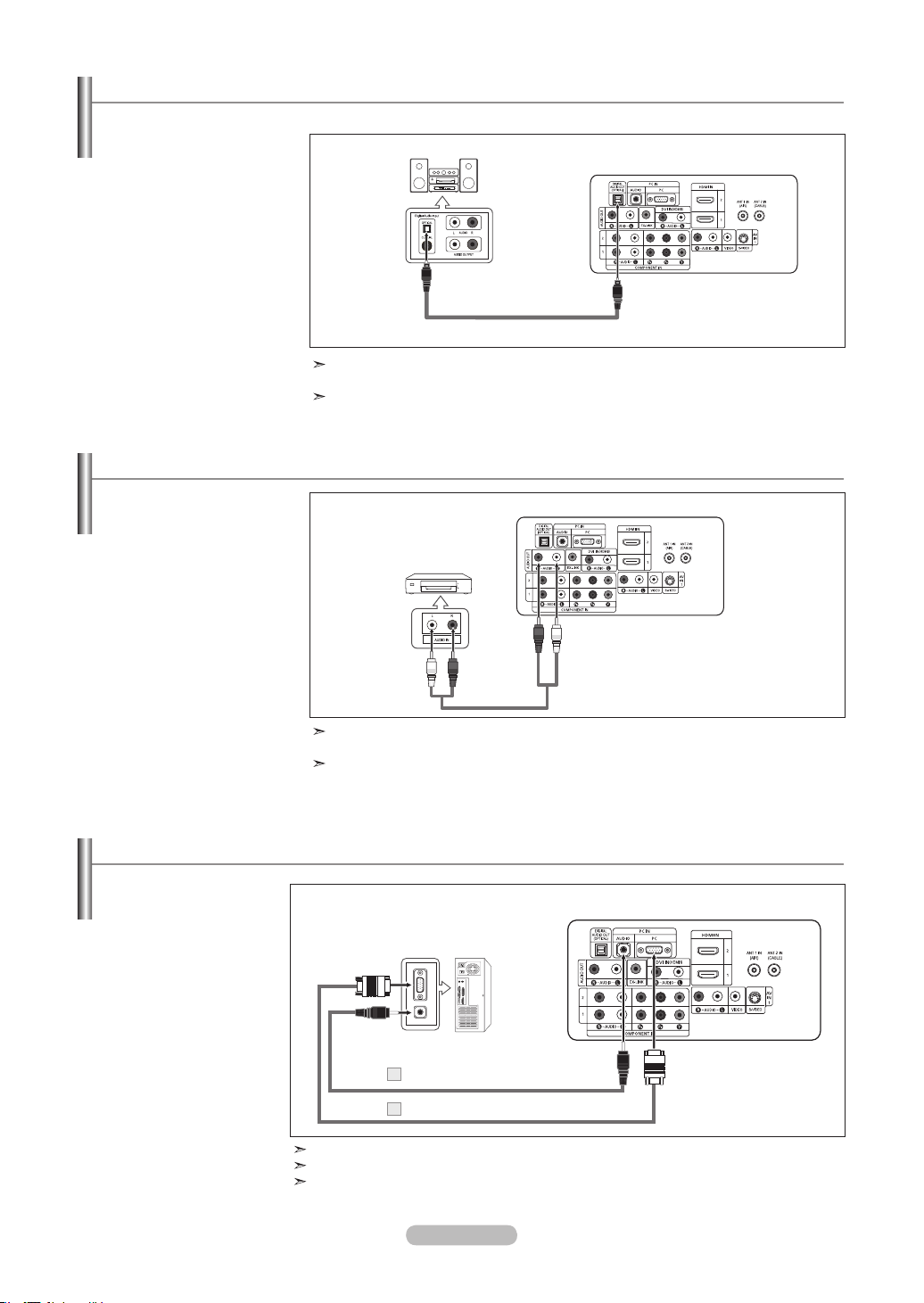
Français - 11
Connexion d’un amplicateur/home cinéma DVD
1. Connectez un câble audio
entre les prises AUDIO OUT
[R-AUDIO-L] du téléviseur
et les prises AUDIO IN [R-
AUDIO-L] de l’amplificateur/
home cinéma DVD.
Lorsqu'un amplificateur audio
est connecté aux bornes
“AUDIO OUT [L-AUDIO-R]”:
Baissez le gain (volume) du
téléviseur et réglez le volume
à l'aide de la commande de
volume de l'amplificateur.
Amplicateur/
Home cinéma DVD
Pannear arrière de la télévision
Câble Audio (non fourni)
La configuration arrière de chaque amplificateur/home cinéma DVD est différente suivant
les appareils.
Lorsque vous connectez un amplificateur/home cinéma DVD, faites correspondre les cou-
leurs de la borne et du câble.
Branchement d'un système audio numérique
1. Branchez un câble optique
entre les prises DIGITAL
AUDIO OUT (OPTICAL)
(Sortie audio numérique/
Optique) du téléviseur et les
prises d'entrée numérique du
système audio numérique.
Lorsqu'un système audio
numérique est connecté à la
borne “DIGITAL AUDIO OUT
(OPTICAL)”: Baissez le gain
(volume) du téléviseur et
réglez le volume à l'aide de
la commande de volume du
système.
Système Audio Numérique
Pannear arrière de la télévision
Câble Optique (non fourni)
L'audio 5.1CH n'est possible que si le téléviseur est connecté à un périphérique externe
prenant en charge le 5.1CH.
Chaque appareil source externe possède une configuration de panneau arrière différente.
Les prises du panneau arrière de votre téléviseur permettent de brancher facilement un système audio numérique.
Branchement d’un PC
1. Connectez le câble D-Sub
à la prise PC IN [PC] à
l'arrière de votre unité.
2. Connectez le câble
audio à PC IN [AUDIO]
à l'arrière de votre
écran TFTLCD et l'autre
extrémité à la sortie
“Audio Out” de la carte
son de votre ordinateur.
La configuration arrière de chaque PC est différente suivant les appareils.
Lorsque vous connectez un PC, faites correspondre les couleurs de la borne et du câble.
La prise d’entrée HDMI IN 1 doit être utilisée pour un branchement de câble HDMI/DVI.
PC
Pannear arrière de la télévision
Câble D-Sub (non fourni)
1
Câble Audio PC (non fourni)
2
BN68-01178B-Fre.indd 11 2007-02-15 �� 10:00:34
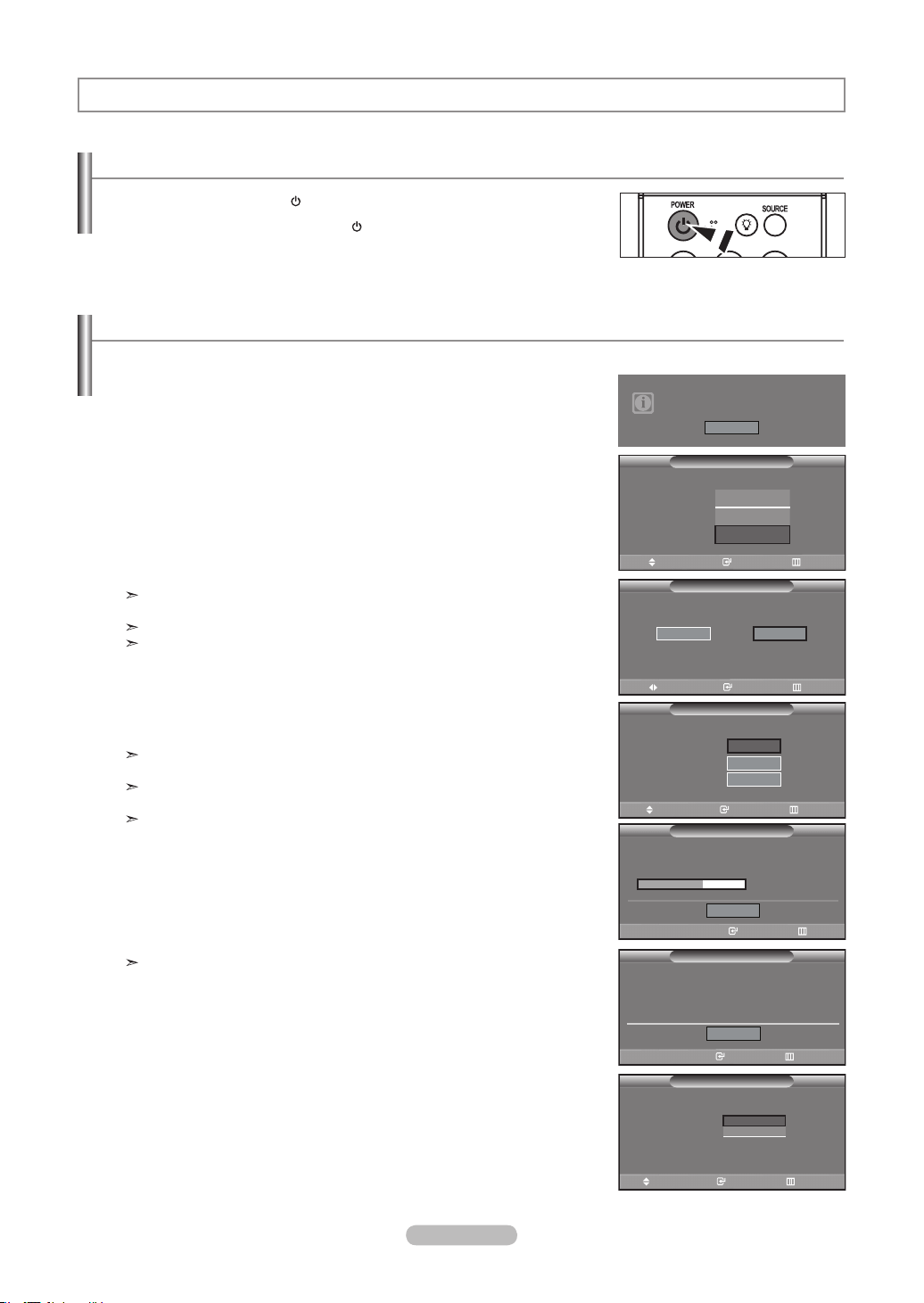
Français - 12
Fonction Prêt à l’emploi
Lors de la première mise en route du téléviseur, deux paramètres individuels de base sont proposés automatiquement à la
conguration:
1. Appuyez sur le bouton POWER de la télécommande. Le message “Menu
language, Channels and Time will be set.” s'affiche. Appuyez sur le bouton ENTER
le menu “Select the language of the OSD” s'affiche automatiquement.
2.
Utilisez les boutons ▲ ou ▼ pour sélectionner la langue appropriée, puis appuyez
sur le bouton ENTER.
Le message “Choisissez le mode Maison lorsque vous installez ce téléviseur à la
maison” s'affiche.
3.
Appuyez sur les boutons ▲ ou ▼ pour sélectionner “Shop” ou “Home”, puis
appuyez sur le bouton ENTER.
Le message “Select the antenna to memorize.” s'affiche.
Nous vous recommandons de régler la télévision sur le mode Home pour une
meilleure qualité d'image dans votre environnement personnel.
Le mode Shop n'est prévu que pour un usage en magasins.
Pour rebasculer l'unité en mode Dynamique (Maison) après l'avoir
accidentellement paramétrée en mode Magasin, appuyez sur le bouton Volume
puis maintenez le bouton MENU enfoncé pendant cinq secondes, sur le
panneau latéral du téléviseur.
4.
Utilisez les boutons ▲ ou ▼ pour mémoriser le branchement sélectionné. Appuyez
sur le bouton ENTER pour sélectionner “Démarrer”.
Si l'antenne est branchée dans la prise ANT 1 (AIR), sélectionnez “Air” et si elle
est branchée sur la prise ANT 2 (CABLE), sélectionnez “Câble”.
Si les prises ANT 1 (AIR) et ANT 2 (CABLE) sont toutes deux utilisées,
sélectionnez “Air + Câble”.
En mode Câble, vous pouvez sélectionner la source de signal qui vous convient
parmi STD, HRC et IRC en appuyant sur le bouton ▲ ou ▼ puis sur ENTER.
Contactez votre télédistributeur local pour identifier le type de système de câble
de votre région.
5. La mémorisation des canaux disponibles commence.
Lorsque la mémorisation est terminée, le menu Prog. auto s'affiche de nouveau.
Appuyez sur le bouton ENTER lorsque la mémorisation des canaux est terminée.
Le menu “Choisir les mode horloge.” s'affiche automatiquement.
Pour arrêter la recherche avant la fin, appuyez sur le bouton ENTER lorsque
Stop est sélectionné.
6.
Appuyez sur le bouton ENTER.
Appuyez sur les boutons ▲ ou ▼ pour sélectionner “Manuel” ou “Auto”, puis
appuyez sur le bouton ENTER.
Le message “Activer ou désactiver la fonction Heure d’été” s’affiche.
Mise en marche et arrêt de la télévision
Appuyez sur le bouton POWER de la télécommande.
Vous pouvez également utiliser le bouton à l'avant du téléviseur.
Fonctionnement
Menu language, Channels
and Time will be set.
Start
Menu Language
Plug & Play
English
Español
Français
Dépl. Intro. Passer
Select the language of the OSD.
Choisissez le mode Maison lorsque vous installez
ce téléviseur à la maison.
Prêt à l’emploi
Magasin Maison
Dépl. Intro. Passer
Choisir les antennes à mettre en mémoire.
Démarrer
Air
Prêt à l’emploi
Câble
Air+Câble
Démarrer
Démarrer
Dépl. Intro. Passer
Prêt à l’emploi
35%
Arrêt
Intro. Passer
Progr. Aut. en cours
Air Chaîne 50
Mode horloge :
Dépl. Intro. Passer
Choisir les mode horloge.
Prêt à l’emploi
Manual
Auto
Prêt à l’emploi
Intro. Passer
Progr. Aut. terminée
16 canaux déjà mémorisés.
Air : 16, Câble : 0.
OK
BN68-01178B-Fre.indd 12 2007-02-15 �� 10:00:38
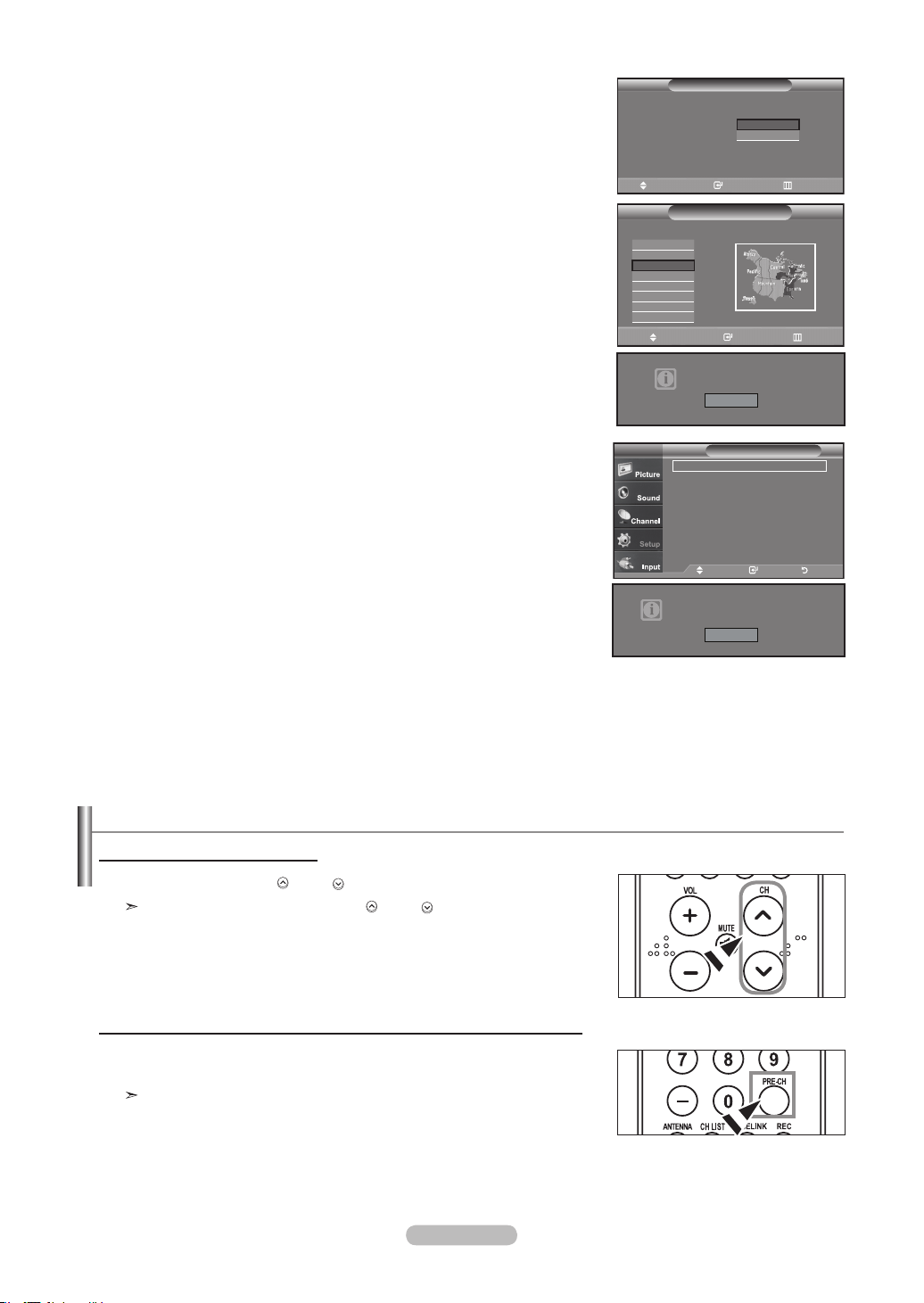
Français - 13
7. Appuyez sur les boutons ▲ ou ▼ pour sélectionner “On” ou “Off”, puis appuyez
sur le bouton ENTER.
Le message “Choisir le fuseau horaire de votre région” s’affiche.
8.
Appuyez sur les boutons ▲ ou ▼ pour sélectionner le fuseau horaire de votre
région.
Appuyez sur le bouton ENTER. Si vous recevez un signal numérique, l'horloge se
règle automatiquement.
Dans le cas contraire, rendez-vous à la page 48 pour savoir comment régler
l'horloge.
9.
Le message “Profitez de votre visionnage.” s'affiche.
Lorsque vous avez terminé, appuyez sur le bouton ENTER.
Changement des canal
1. Appuyez sur le bouton CH ou CH pour changer de canal.
Quand vous appuyez sur le bouton CH ou CH , la télévision change de
canal de façon séquentielle. Vous pourrez voir toutes les canal que la télévision
a mémorisées. (La télévision doit avoir mémorisé au moins trois canal). Vous
ne pourrez pas voir les canal qui ont été enlevées, ni celles qui n’ont pas été
mémorisées. Reportez-vous aux pages 16 pour mémoriser des chaînes.
Si vous souhaitez réinitialiser ce paramètre...
1. Appuyez sur la touche
MENU.
Appuyez sur les boutons▲ or ▼ pour sélectionner “Configuration”, puis appuyez
sur le bouton ENTER.
2. Appuyez sur ENTER
pour choisir “Prêt à l’emploi”.
3. Le message “La langue des menus, le mode Magasin, les canaux et l’heure sont
réglés.” s'affiche.
Utilisation des boutons de canal
1. Appuyez sur le bouton PRE-CH.
La télévision passe à la dernière canal regardée.
Pour passer rapidement d’une canal à une autre canal éloignée, accédez
à la canal ini tiale puis utilisez les boutons numériques pour sélectionner la
seconde canal. Puis, utilisez le bouton PRE-CH pour passer rapidement de
l’une à l’autre.
Appuyez sur la touche PRE-CH pour sélectionner la chaîne précédente.
Heure avancée :
Dépl. Intro. Passer
Régler l’horloge á l’heure avancée.
Prêt à l’emploi
On
Off
Dépl. Intro. Passer
Choisissez le fuseau horaire où vous vous trouvez.
.
Prêt à l’emploi
Newfoundland
Atlantique
Est
Centre
Rocheuses
Pacifique
Alaska
Hawaii
Profitez de votre visionnage.
OK
Configuration
Prêt à l’emploi ►
Langue : Français ►
Heure
►
Mode Jeu : Off ►
V-Chip ►
Sous-titres ►
Transparence menu : Haute
►
▼Plus
TV
Dépl. Intro. Passer
La langue des menus, le mode Magasin, les
canaux et l’heure sont réglés.
Démarrer
BN68-01178B-Fre.indd 13 2007-02-15 �� 10:00:39
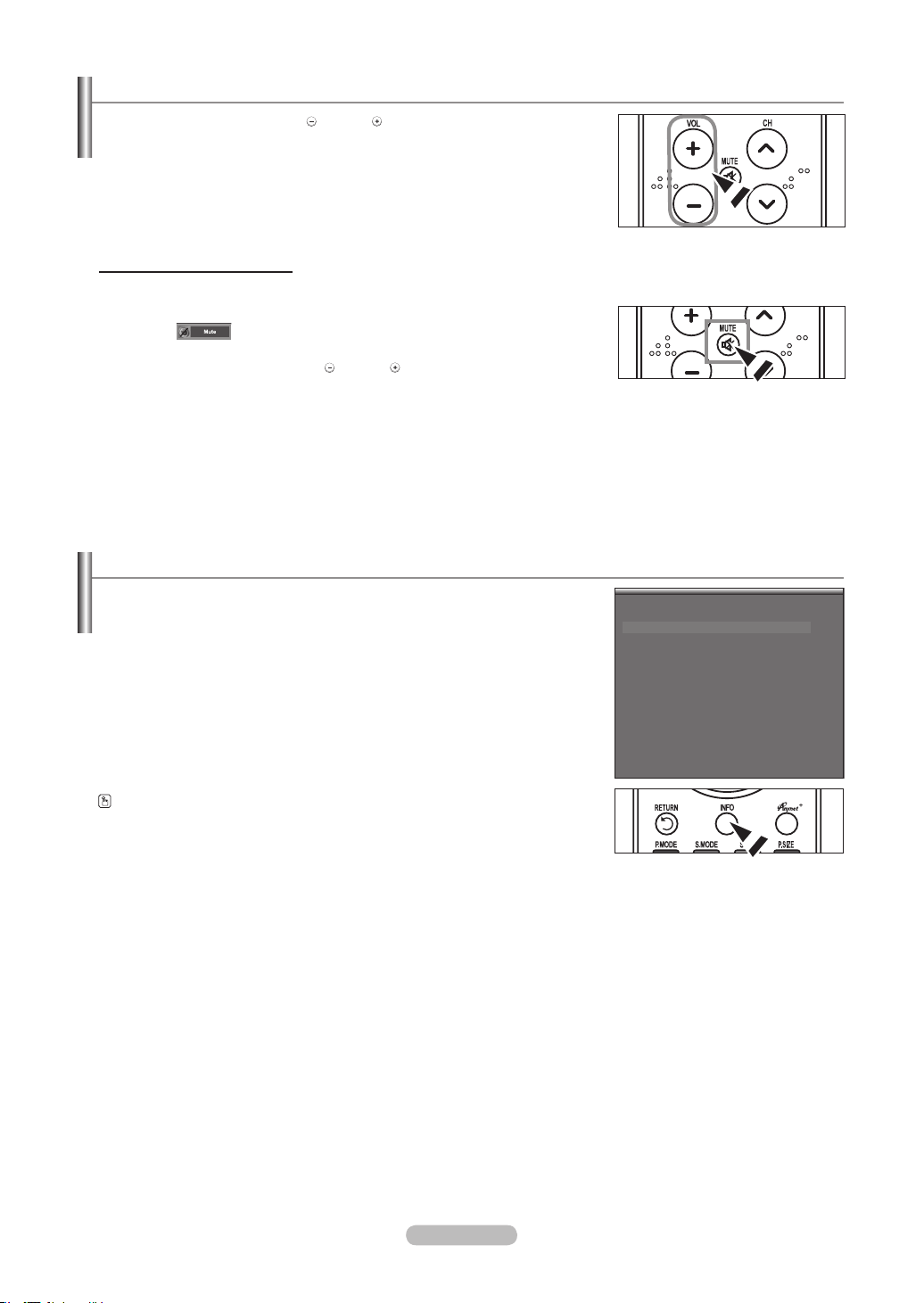
Français - 14
Réglage du volume
1. Appuyez sur les boutons
VOL
ou
VOL
pour augmenter ou diminuer le
volume.
Utilisation de la fonction Muet
Vous pouvez à tout moment couper le son en appuyant sur le bouton MUTE.
1.
Appuyez sur MUTE et le son est coupé.
Le mot “ ” apparaît dans le coin inférieur gauche de l’écran.
2. Pour désactiver le mode Mute, appuyez de nouveau sur le bouton MUTE
ou
simplement sur les boutons
VOL
ou
VOL
.
Visualisation de l’afchage
1. Appuyez sur le bouton INFO de la télécommande.
La télévision affiche la canal, le type de son et l’état de certains paramètres de
son et d’image.
Appuyez de nouveau sur la touche INFO ou attendez environ 10 secondes
avant qu’il disparaisse automatiquement.
L’afchage identie la canal en cours et l’état de certains paramètres audio et vidéo.
Air 7
Mode
Mode image : Dynamique
Mode sonore : Personnel
MTS : Stéréo
05 : 54 pm
BN68-01178B-Fre.indd 14 2007-02-15 �� 10:00:40
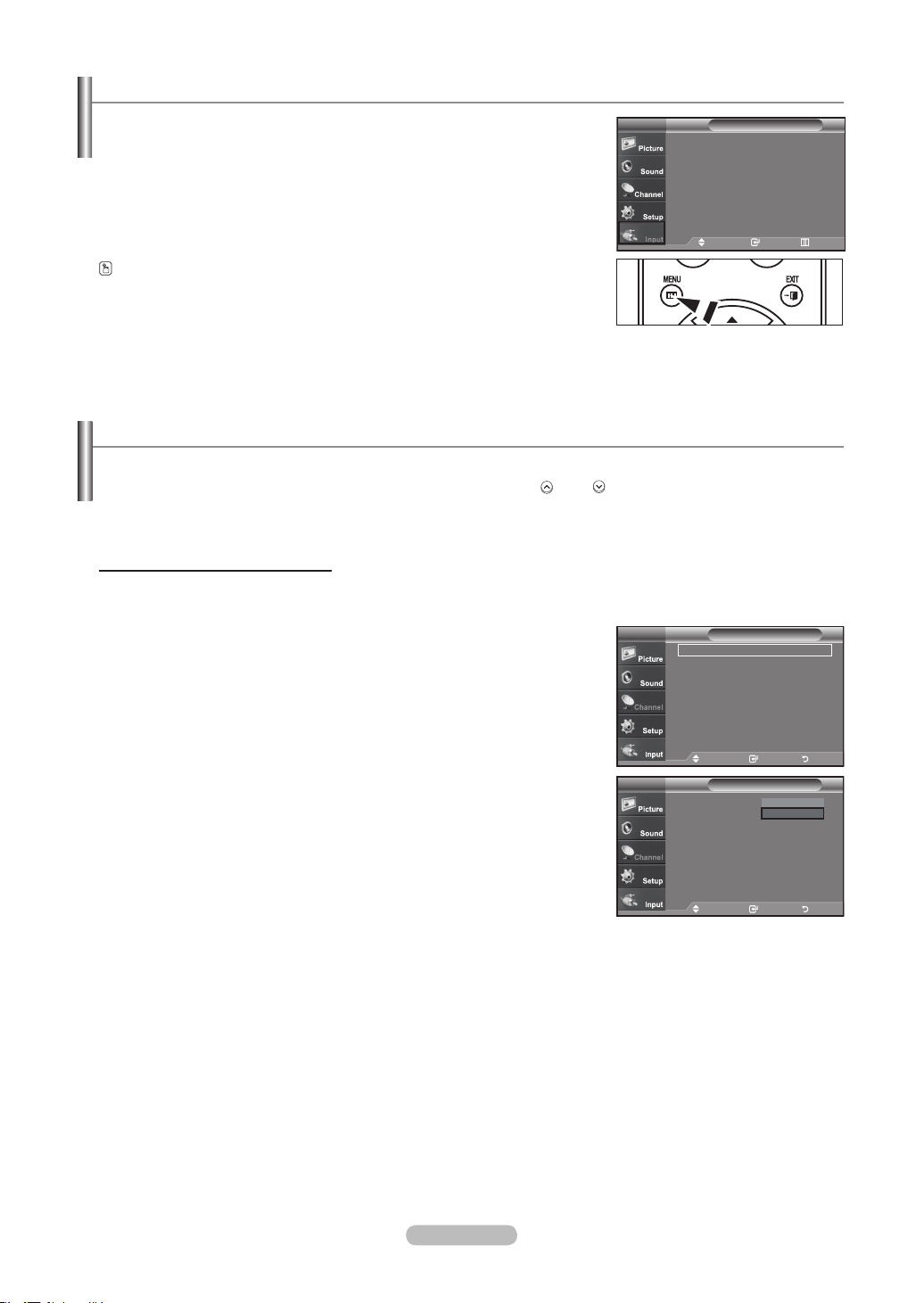
Français - 15
Visualisation des menus
1. Une fois l’appareil allumé, appuyez sur le bouton MENU.
Le menu principal apparaît à l’écran. La partie gauche du menu comprend cinq
icônes : Picture, Sound, Channel, Setup, Input.
2.
Les boutons ▲ ou ▼ permettent de sélectionner l'une des cinq icônes.
Puis appuyez sur ENTER pour accéder au sous-menu de l’icône.
3.
Appuyez sur le bouton EXIT pour quitter.
Les menus affichés à l'écran disparaissent après une minute environ.
Mémorisation des canal
Votre télévision peut mémoriser et stocker toutes les canal disponibles, que ce soit des canal hertziennes ou des canal câblées.
Une fois que les canaux disponibles sont mémorisés, utilisez les boutons CH
et
CH
pour balayer les canal. Ainsi, il n’est
pas nécessaire d’entrer leur numéro. La mémorisation des canal se fait en trois étapes: sélection d’une source de radiodiffusion,
mémorisation des canal (automatique).
Sélection de la source du signal vidéo
Avant que votre télévision ne puisse commencer à mémoriser les canal disponibles, vous devez spécier le type de la source de
signal reliée à la télévision (c’est-à-dire soit une antenne soit le câble).
1.
Appuyez sur le bouton MENU pour afficher le menu.
Appuyez sur les boutons ▲ ou ▼ pour sélectionner “Chaîne”, puis appuyez sur le
bouton ENTER.
2. Appuyez sur le bouton ENTER
pour sélectionner “Antenne”.
Appuyez plusieurs fois sur les boutons ▲ ou ▼ pour naviguer entre les options
“Air” ou “Câble”, puis appuyez sur le bouton ENTER.
Appuyez sur le bouton EXIT pour quitter.
Entrée
Liste source : TV ►
Entrer le nom
►
WISELINK
TV
Dépl. Intro. Sortie
Antenne : Air ►
Prog. auto ►
Effacer les canaux brouillés ►
Liste des canaux ►
Nom ►
Syn. Précise ►
Puissance signal ►
AFB : On ►
Chaîne
Dépl. Intro. Retour
TV
Chaîne
Dépl. Intro. Retour
TV
Antenne : Air
Prog. auto
Effacer les canaux brouillés
Liste des canaux
Nom
Syn. Précise
Puissance signal
AFB : On
Air
Câble
BN68-01178B-Fre.indd 15 2007-02-15 �� 10:00:42
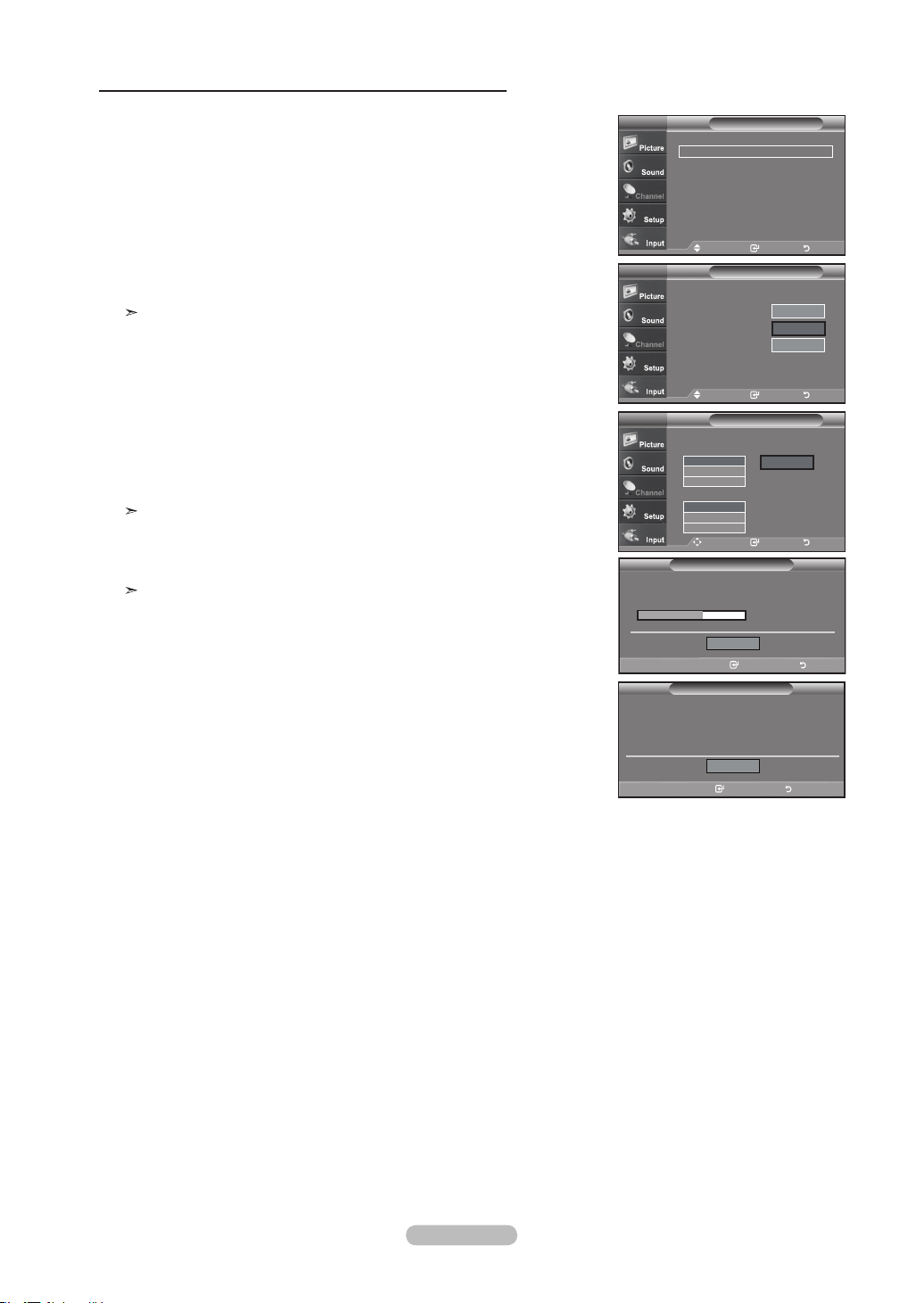
Français - 16
Enregistrement des canal dans la mémoire (méthode automatique)
1.
Appuyez sur le bouton MENU pour afficher le menu.
Appuyez sur les boutons ▲ ou ▼ pour sélectionner “Chaîne”, puis appuyez sur le
bouton ENTER.
2. Appuyez sur les boutons ▲ ou ▼ pour sélectionner “Prog. auto”, puis appuyez sur
le bouton ENTER.
3.
Utilisez les boutons ▲ ou ▼ pour sélectionner l'antenne souhaitée, puis appuyez
sur le bouton ENTER.
Air: signal d'antenne de type “Air”. / Câble: signal d'antenne de type “Câble”. /
Air+Câble: signaux d'antenne de type “Air” et “Câble”.
4. Au moment de la sélection du système de télévision par câble: Appuyez sur
ENTER
pour amorcer la mémorisation automatique. Par défaut, le système de
câblodistribution du téléviseur a la valeur “STD”. Si vous voulez sélectionner un
autre type de système de câblodistribution, appuyez sur la touche ou ▲ ou ▼ pour
sélectionner “STD”, “HRC” ou “IRC”.
STD, HRC et IRC désignent différents systèmes de câblodistribution.
Pour connaître le système utilisé dans votre région, communiquez avec votre
câblodistributeur. La sélection de la source de diffusion est maintenant terminée.
Appuyez sur ENTER
pour amorcer la mémorisation automatique.
Pour arrêter la recherche avant la fin, appuyez sur le bouton ENTER lorsque
Stop est sélectionné.
5. Une fois que toutes les canal disponibles sont enregistrées, le menu “Prog. auto”
réapparaît.
Appuyez sur le bouton EXIT pour quitter.
Dépl. Enter Return
ChaîneTV
Antenne : Air ►
Prog. auto
►
Effacer les canaux brouillés ►
Liste des canaux
►
Nom
►
Syn. Précise ►
Puissance signal
►
AFB : On ►
Dépl. Intro. Retour
Dépl. Enter Return
Choisir les antennes à mettre en mémoire.
ChaîneTV
Démarrer
Air
Câble
Air+Câble
Démarrer
Démarrer
Dépl. Intro. Retour
Der Enter Return
Choisit un type de signal de câble pour votre emplacement.
Prog. autoTV
Analogique
Démarrer
STD
HRC
IRC
numérique
STD
HRC
IRC
Dépl. Intro. Retour
Prog. auto
Câble Chaîne 50
50%
Arrêter
Intro. Passer
Progr. Aut. en cours
Prêt à l’emploi
Intro. Passer
Progr. Aut. terminée
16 canaux déjà mémorisés.
Air : 16, Câble : 0.
OK
BN68-01178B-Fre.indd 16 2007-02-15 �� 10:00:45
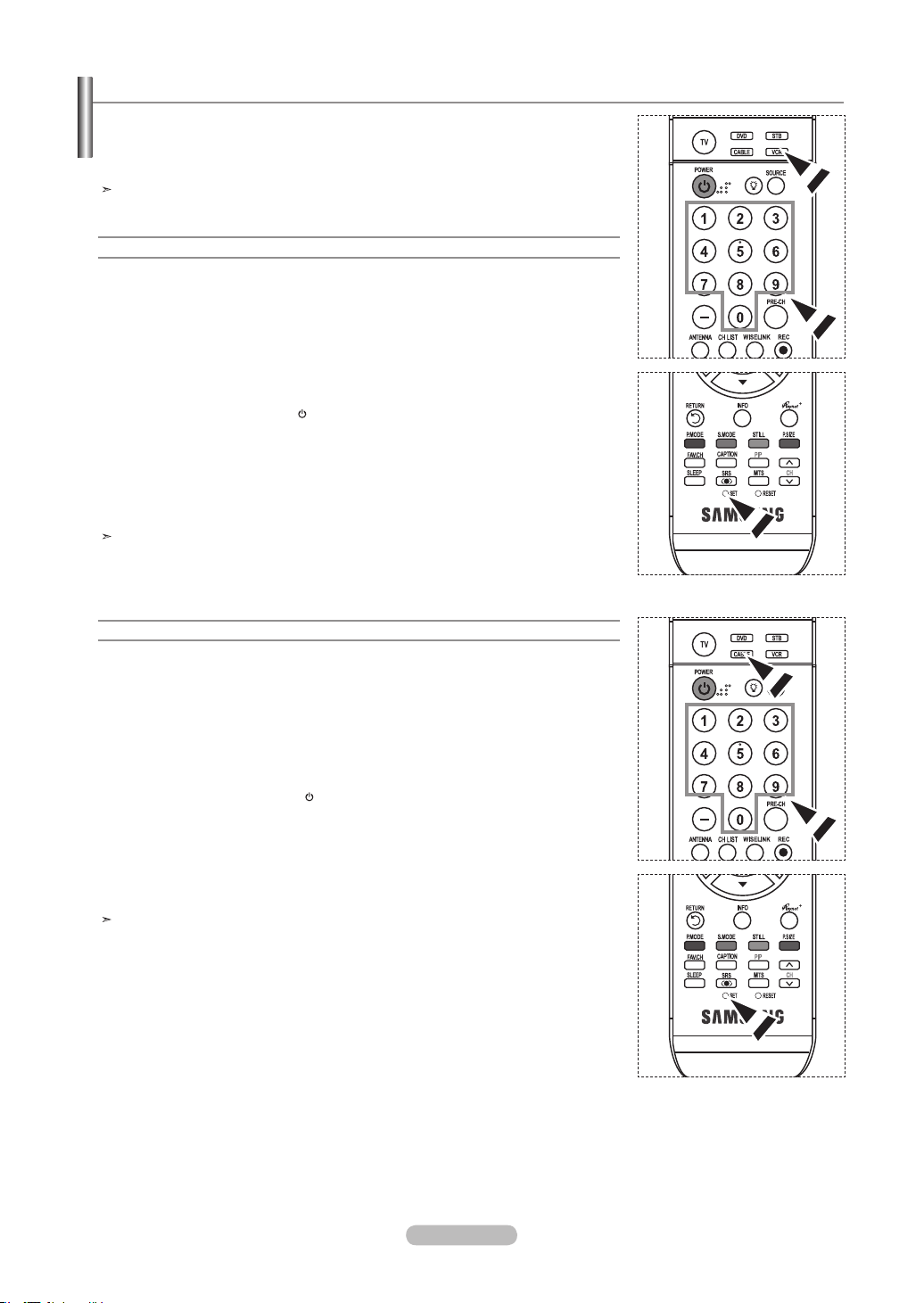
Français - 17
Une fois configurée, votre télécommande peut fonctionner dans cinq modes différents:
Téléviseur, Lecteur DVD, Câble, Décodeur, Magnétoscope. Une pression sur le bouton
correspondant de la télécommande vous permet de basculer entre ces différents modes et
de contrôler l'appareil de votre choix.
La télécommande peut ne pas être compatible avec tous les lecteurs DVD,
magnétoscopes, boîtes de jonction et décodeurs.
Configuration de la télécommande pour faire fonctionner votre magnétoscope
1. Éteignez le magnétoscope.
2. Appuyez sur le bouton VCR de la télécommande du téléviseur.
3. Appuyez sur le bouton SET de la télécommande du téléviseur.
4. Appuyez sur les touches numériques de votre télécommande qui correspondent aux
trois chiffres du code du magnéto-scope dont les marques sont répertoriées à la
‘page 19’ du présent guide. Veillez à entrer tous les chiffres du code, même si le pre
mier chiffre est “0”.
(Si plusieurs codes sont indiqués, essayez d’abord le premier.)
5. Appuyez sur la touch POWER de la télé-commande. Si vous avez bien configuré la
télécommande, le magnétoscope devrait s’allumer.
Si votre magnétoscope ne s’allume pas après que vous ayez effectué la configu-
ration, répétez les étapes 2, 3 et 4 en essayant un autre code parmi ceux corre-
spondant à la marque de votre magnéto-scope. Si aucun autre code n’est réper-torié,
essayez tous les codes de magnéto-scope, de 000 à 080.
Remarque sur l’utilisation des modes de la télécommande: Magnétoscope Quand la
télécommande est dans le mode VCR, les touches de volume commandent toujours le
volume du téléviseur.
Configuration de la télécommande pour faire fonctionner votre câblosélecteur
1. Éteignez le câblosélecteur.
2. Appuyez sur le bouton CABLE de la télécommande du téléviseur.
3. Appuyez sur le bouton SET
de la télécommande du téléviseur.
4. Appuyez sur les touches numériques de votre télécommande qui correspondent aux
trois chiffres du code du câblosélecteur dont les marques sont répertoriées à la ‘page
20’ du présent guide. Veillez à entrer tous les chiffres du code, même si le premier
chiffre est “0”.
(Si plusieurs codes sont indiqués, essayez d’abord le premier.)
5. Appuyez sur la touche POWER de la télé-commande. Votre câblosélecteur devrait
s’allumer si vous avez bien configuré votre télécommande.
Si votre câblosélecteur ne s’allume pas après que vous ayez effectué la configu-
ration, répétez les étapes 2, 3 et 4 en essayant un autre code parmi ceux corre-
spondant à la marque de votre câblosélecteur. Si aucun autre code n’est réper torié,
essayez tous les codes, de 000 à 046.
Remarque sur l’utilisation des modes de la télécommande: Câblosélecteur Quand la
télécommande est dans le mode CABLE, les touches de volume commandent tou-jours
le volume du téléviseur.
Programmation de la télécommande
BN68-01178B-Fre.indd 17 2007-02-15 �� 10:00:46
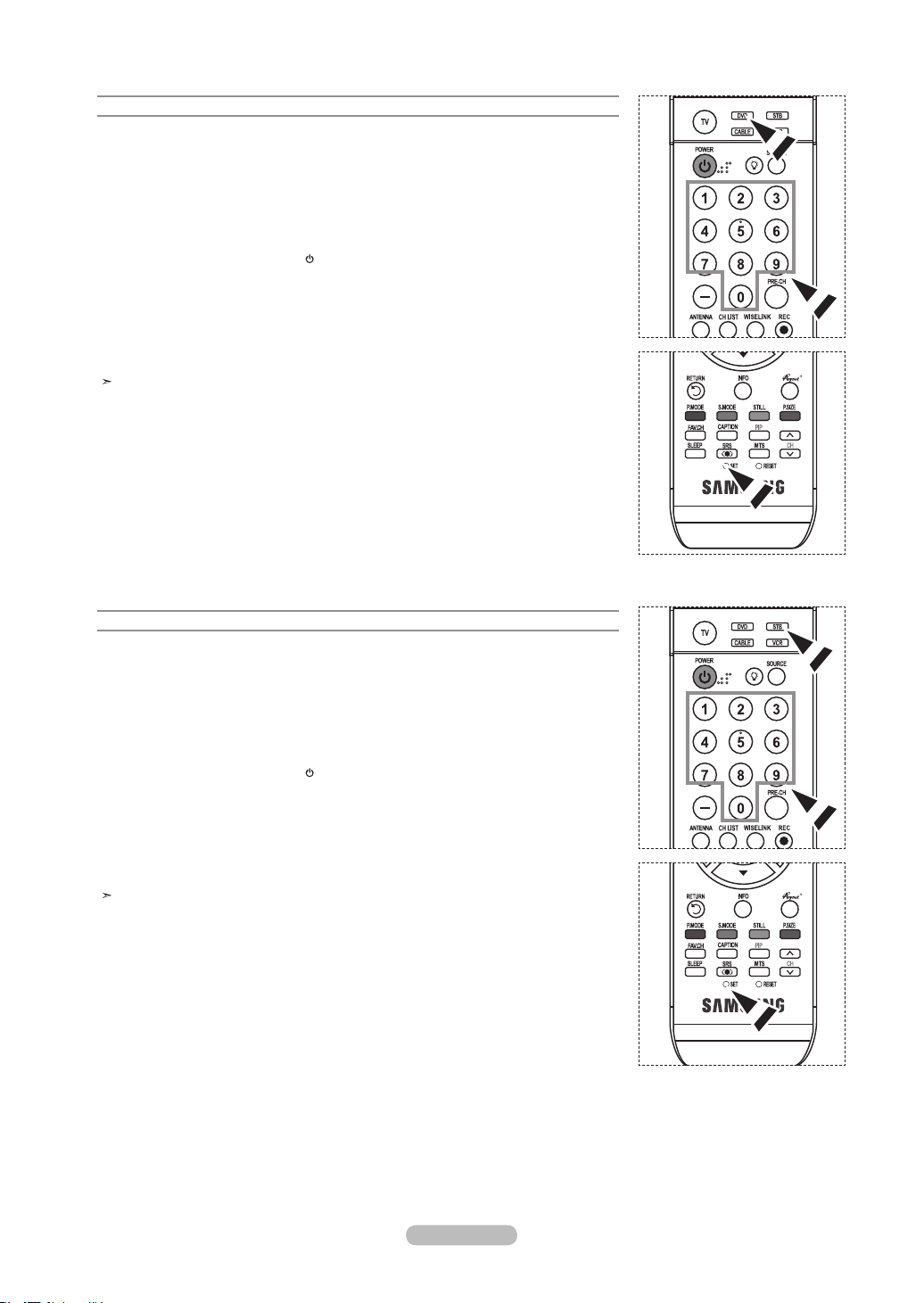
Français - 18
Configuration de la télécommande pour faire fonctionner votre lecteur DVD
1. Éteignez votre lecteur DVD.
2. Appuyez sur le bouton DVD
de la télécommande du téléviseur.
3. Appuyez sur le bouton SET
de la télécommande du téléviseur.
4. Appuyez sur les touches numériques de votre télécommande qui correspondent aux trois
chiffres du code du lecteur DVD dont les marques sont répertoriées à la ‘page 20~21’ du
présent guide. Veillez à entrer tous les chiffres du code, même si le premier chiffre est
“0”. (Si plusieurs codes sont indiqués, essayez d’abord le premier.)
5. Appuyez sur la touche POWER de la télé-commande. Si vous avez bien configuré la
télécommande, le lecteur DVD devrait s’allumer.
Si le lecteur DVD ne s’allume pas après que vous ayez effectué la configuration, répétez
les étapes 2, 3 et 4 en essayant un autre code parmi ceux correspon-dant à la marque
de votre lecteur DVD. Si aucun autre code n’est répertorié, essayez tous les codes, de
000 à 141.
Remarque sur l’utilisation des modes de la télécommande: Lecteur DVD Quand la
télécommande est dans le mode DVD, les touches de volume commandent toujours le
volume du téléviseur.
Paramétrage de la télécommande pour contrôler votre décodeur
1. Éteignez votre lecteur STB.
2. Appuyez sur le bouton
STB de la télécommande du téléviseur.
3. Appuyez sur le bouton SET
de la télécommande du téléviseur.
4. En utilisant les boutons numériques de votre télécommande, entrez les trois chiffres du
code STB indiqué à la page 21 de ce manuel pour votre marque de STB. Veillez à entrer
les trois chiffres du code, même si le premier chiffre est un “0”. (Si plusieurs codes sont
indiqués, essayez le premier.)
5. Appuyez sur la touche POWER de la télé-commande. Si vous avez bien configuré la
télécommande, le lecteur STB devrait s’allumer.
Si le lecteur
STB ne s’allume pas après que vous ayez effectué la configuration, répétez
les étapes 2, 3 et 4 en essayant un autre code parmi ceux correspon-dant à la marque
de votre lecteur STB. Si aucun autre code n’est répertorié, essayez tous les codes, de
000 à 074.
Remarque sur l’utilisation des modes de la télécommande: STB
Quand la télécommande est dans le mode STB, les touches de volume commandent
toujours le volume du téléviseur.
BN68-01178B-Fre.indd 18 2007-02-15 �� 10:00:46
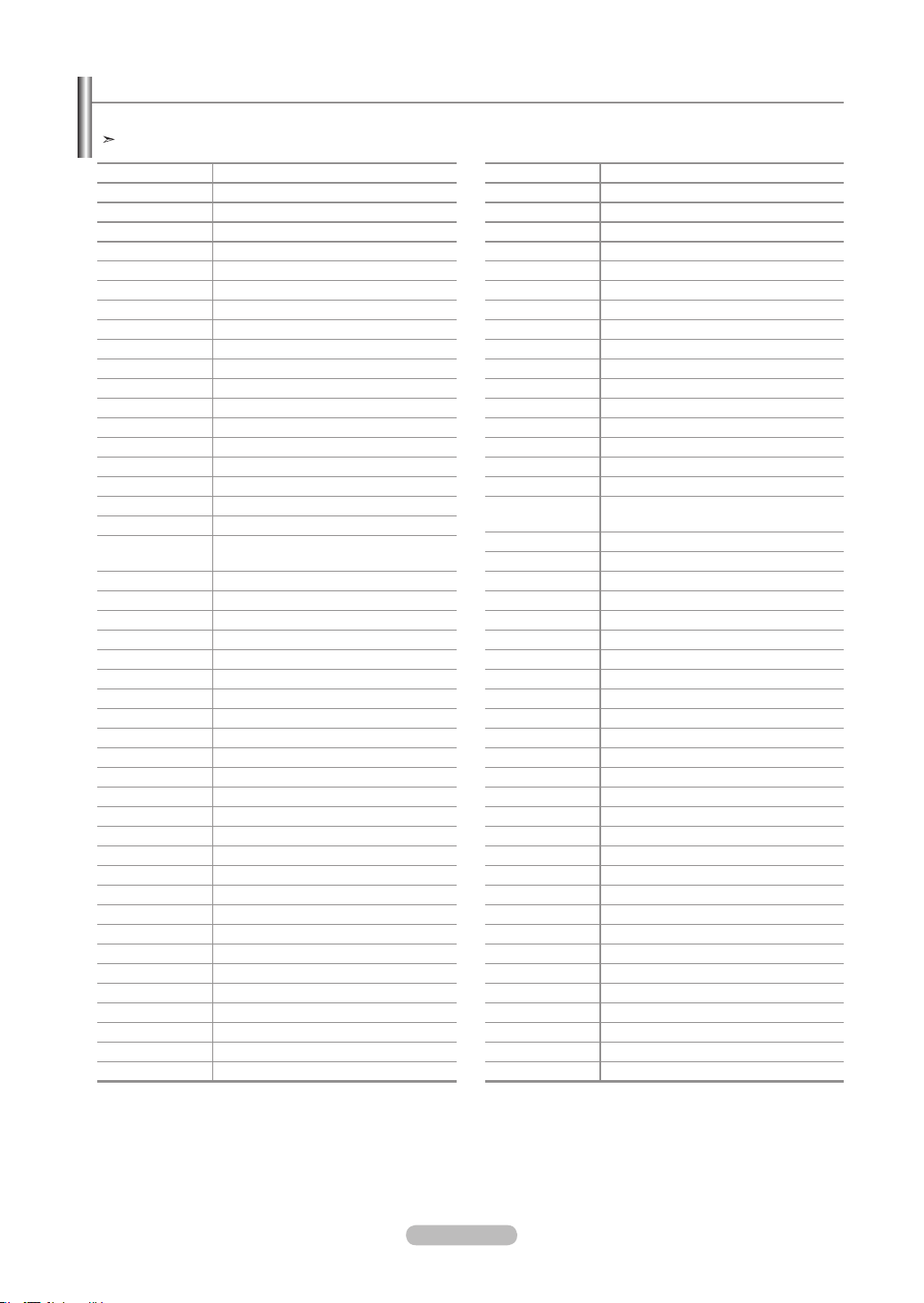
Français - 19
Codes de magnétoscope
Marque Code
SAMSUNG 000 001 002 003 004 005 077 078 079
ADMIRAL 020
AIWA 025
AKAI 004 027 032
AUDIO DYNAMICS 007 026
BELL&HOWELL 018
BROKSONIC 022
CANDLE 002 003 006 008 015 055
CANON 021 056
CITIZEN 002 003 006 008 015 055
COLORTYME 007
CRAIG 002 024
CURTIS MATHES 002 007 008 017 021 025 056 064 066
DAEWOO 003 010 011 012 013 014 015 016
DB 007 026
DIMENSIA 017
DYNATECH 025
ELECTROHOME 034
EMERSON
001 003 006 021 022 025 030 032 034 040
047 050 052 060 063 065 066 067 069 073
FISHER 018 024 028 029 048 051 061
FUNAI 025
GENERAL ELECTRIC
002 005 017 021 056
GO VIDEO 002
HARMAN KARDON 007
HITACHI 019 025 041 042 074
INSTANT REPLAY 021
JC PENNEY
002 007 018 019 021 026 037 041 054 056
JCL
007 008 018 021 026 037
JVC
081 082 083
KENWOOD
007 008 018 021 026 037
KLH
070
KONIA
036
LG(Goldstar)
006 007 008 009 010
LIOYD
025
LOGIK
038
LXI
025
MAGNAVOX
021 056 059
MARANTZ
007 008 018 021 026 037 062
MARTA
006
MEI
021
MEMOREX
006 021 024 025
MGA
034
MIDLAND
005
MINOLTA
019 041 075
MITSUBISHI
019 034 041 046
Marque Code
MONTGOMERY WARD
020
MTC 002 025
MULTITECH 002 005 025 038
NEC 007 008 018 026 037 062 064
OPTIMUS 020
ORION 073 074 075 076
PANASONIC 021 056 071 072
PENTAX 019 041 075
PENTEX RESEARCH+
008
PHILCO 021 056 059
PHILIPS 021 080
PIONEER 019 026 039 053
PORTLAND 015 049 055
PROSCAN 017
QUARTZ 018
QUASAR 021 056
RADIO SHACK/
REALISTIC
006 018 020 021 024 025 029 034 048 056
RCA
002 017 019 021 035 041 043 057 068 076
SANSUI 026
SANYO 018 024
SCOTT 003 047 052 067
SEARS 006 018 019 024 028 029 041 048 051
SHARP 020 034 045 015
SHIMTOM 027 033 038 058
SIGNATURE 025
SONY 027 033 044
SYLVANIA 021 025 056 059
SYMPHONIC 025
TANDY 018 025
TASHIKA 006
TATUNG 037
TEAC 025 037 068
TECHNICS 021
TEKNIKA 006 021 025 031
TMK 066
TOSHIBA 003 019 029 051 052
TOTEVISION 002 006
UNITECH 002
VECTOR RESEARCH
007 026
VICTOR 026
VIDEO CONCEPTS 007 026
VIDEOSONIC 002
WARDS
002 003 006 019 020 021 024 025 034 038 041
YAMAHA 007 008 018 026 037
ZENITH 023 027 033
Codes de la télécommande
BN68-01178B-Fre.indd 19 2007-02-15 �� 10:00:47
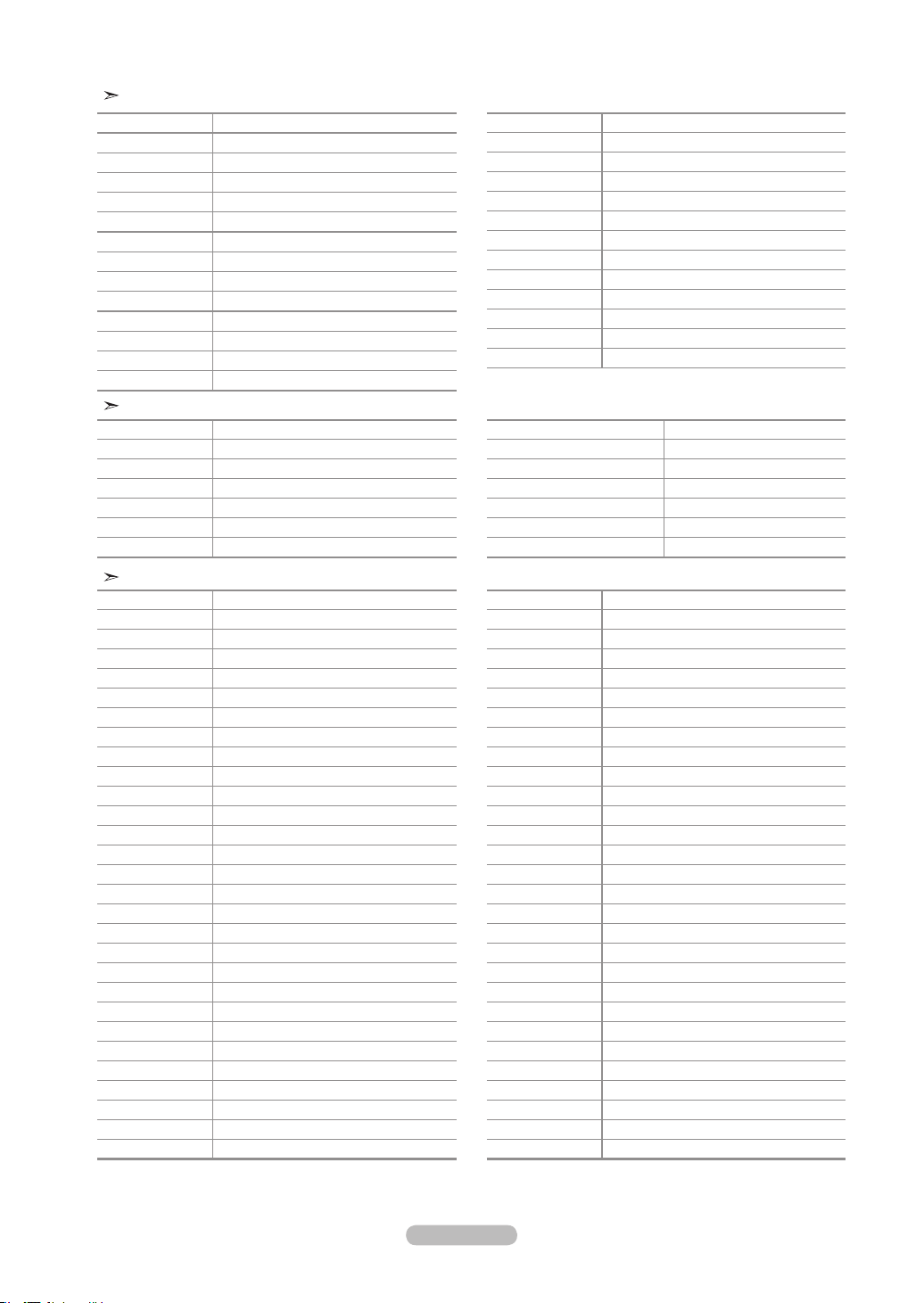
Français - 20
Codes de boîtier décodeur
Marque Code
SAMSUNG 000 001 002 003 004 005 006 007
GI 041
HAMLIN 003 024 031
HITACHI 025 030
JERROLD 038 039
MACOM 025 030
MAGNAVOX 019 023 028
OAK 026
PANASONIC 003 022 027 037 044
PHILIPS 019 021 023 028
PIONEER 004 018 020 044
RCA 014 022 040
REGAL 003
Marque Code
REGENCY 015 023
SA 042 043
SCIENTIFIC ATLAN 042 043
SPRUCER 022
STARGATE 2000 036
SYLVANIA 016
TEXSCAN 016
TOCOM 032
UNIVERSAL 033 034
VIEWSTAR 019 021 023 028
WARNER AMEX 046
ZENITH 017 029 035 037 045
SAMSUNG Codes de lecteur DVD
Produit Code
DVD 000 001 002
DVDR 003 004
BD Record 005 006
VCR COMBO 007 008 009 010 011
VCR Record 012
DHR COMBO 013
Produit Code
Home Theater VCR COMBO 014 015 016
HDD Recorder COMBO 017
TWIN TRAY COMBO 018
STB DVD COMBO 019
DVD Receiver 020
AV Receiver 021
Codes de lecteur DVD
Marque Code
ANAM 030
AUDIOVOX 075
AUDIOLOGIC 085
ANABA 072
APEX DIGITAL 070 071 074 086 083 084 088 111 112
AIWA 114
BROKSONIC 062
BLAUPUNKT 074
B&K 122 123
CURTIS MATHES 027
CYBER HOME 077 078 079 082
CLARION 080 125
CIRRUS 081
CYBER HOME 065
CINEVISION 095
DAEWOO 066
DENON 146
FARENHEIT 067 068
FISHER 090
GPX 060
GO VIDEO 061 089 133 135
GE 069 074
GREENHILL 074
HITACHI 064 113
HITEKER 071
HOYO 073
HARMAN / KARDON
091 110
IRT 089
Marque Code
INTEGRA 092
JBL 091
JVC 022 033 115 116
JATON 073
KENWOOD 051 108 109
KISS 073
KONKA 059 100 106 107
KLH 074 075
LG(Goldstar) 025 031
LOEWE 057
LASONIC 058
MOBILE AUTHORITY
054
MEMOREX 055
MALATA 056
MAGNAVOX 076 093
MINTEK 074 094
MONYKA 073
NORCENT 048 049 050
NEXT BASE 052
NEC 053
NANTAUS 144
NESA 074
OPTOMEDIA ELECTRONICS
105
OPTIVIEW 072
ONKYO 076 092 119
PHILCO 044 045
PRINCETON 046 047
PROSCAN 023
BN68-01178B-Fre.indd 20 2007-02-15 �� 10:00:47
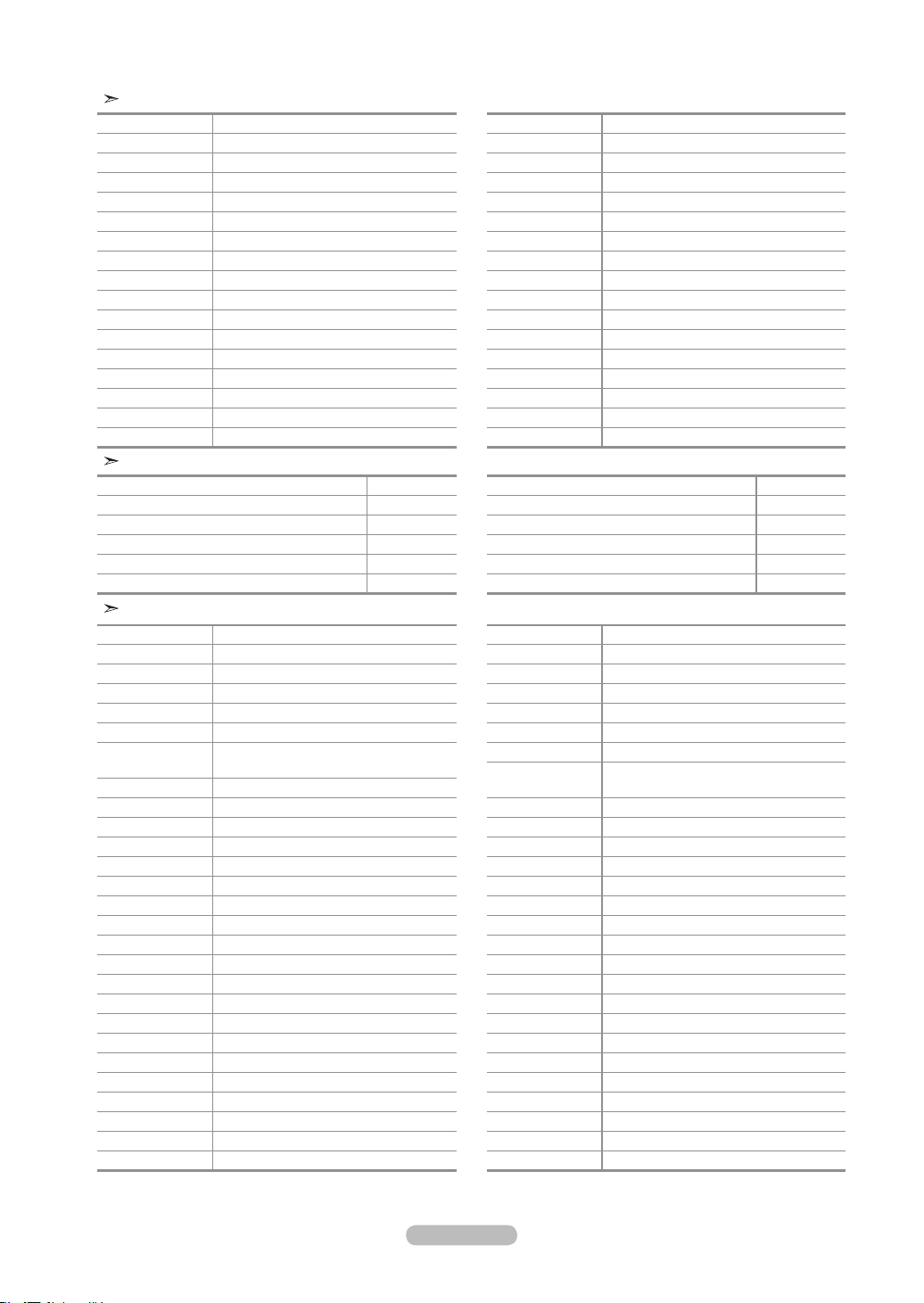
Français - 21
Codes de lecteur DVD
Marque Code
PANASONIC 024 034 124 134 136 137 138
PHILIPS 036 076
ROTEL 117 118
RIO 120
RCA 023 035 074 075 131 132
RAITE 073
ROWA 038
SAMPO 104
SONY 026 029 126 127 128 129 130 141
SHERWOOD 039 041
SVA 042
SYLVANIA 043 093
SHARP 140
SANSUI 062
SANYO 062 090
SHINSONIC 094
Marque Code
THOMSON 145
TOSHIBA 028 062 076
TECHNICS 139
TVIEW 072
TOKAI 073
TEAC 096
TECHWOOD 097
TREDEX 098 099 101
URBAN CONCEPTS
076
VENTURER 075
VOCOPRO 102
YAMAHA 032 063
YAMAKAWA 040 073
XWAVE 103
ZENITH 076 121
SAMSUNG STB
Produit Code
Satellite STB HDD COMBO Premium 010
CABLE STB HDD COMBO Standard 011
CABLE STB HDD COMBO Premium 012
Ground wave STB HDD COMBO Standard 013
Ground wave STB HDD COMBO Premium 014
Produit Code
Ground wave STB 001 002
Satellite STB 003
CABLE STB 004
STB DVD COMBO 008
Satellite STB HDD COMBO Standard 009
STB
Marque Code
ALPHASTAR 023
ANAM 043
CHANNEL MASTER 018 034
CROSSDIGITAL 019
CHAPARRAL 035
DIRECT TV 015 016 017 019 022 045 060 061 062
065 066 067 068
DAEWOO 074
DISH NETWORK SYSTEM
069 070
DISHPRO 069
DRAKE 018 024 032
DX ANTENNA 027
ECHOSTAR 025 069 070 071
EXPRESSVU 069
GOI 069
GE 065
GENERAL INSTRUMENT
046 047 048 063 064
HTS 069
HOME CABLE 056
HITACHI 022
HUGHES NETWORK
015 017
IQ 020
IQ PRISM 020
JANEIL 059
JERROID 063
JVC 069 070
LG(Goldstar) 044 073
Marque Code
MAGNAVOX 016 021 036 038 039 040 041 042
MEMOREX 016
MOTOROLA 064
MACOM 018
MITSUBISHI 015
NEXT LEVEL 047 048 064
PHILIPS 015 016 017 021 033 036 038 039 040
041 042 067
PRIMESTAR 046 049 050 063
PANASONIC 058 059 061 062
PAYSAT 016
PROSCAN 065 066
RCA 051 052 053 065 066
RADIOSHACK 064
REALISTIC 057
STAR TRAK 026
STS 020 027
SKY 031
SKY LIFE 005 006 007
SHACK 064
STAR CHOICE 064
SONY 054 060
TOSHIBA 015 017 028 029 030 072
ULTIMATE TV 060 066
UNIDEN 016 021 037 055 056 057
ZENITH 024 031 068
BN68-01178B-Fre.indd 21 2007-02-15 �� 10:00:47
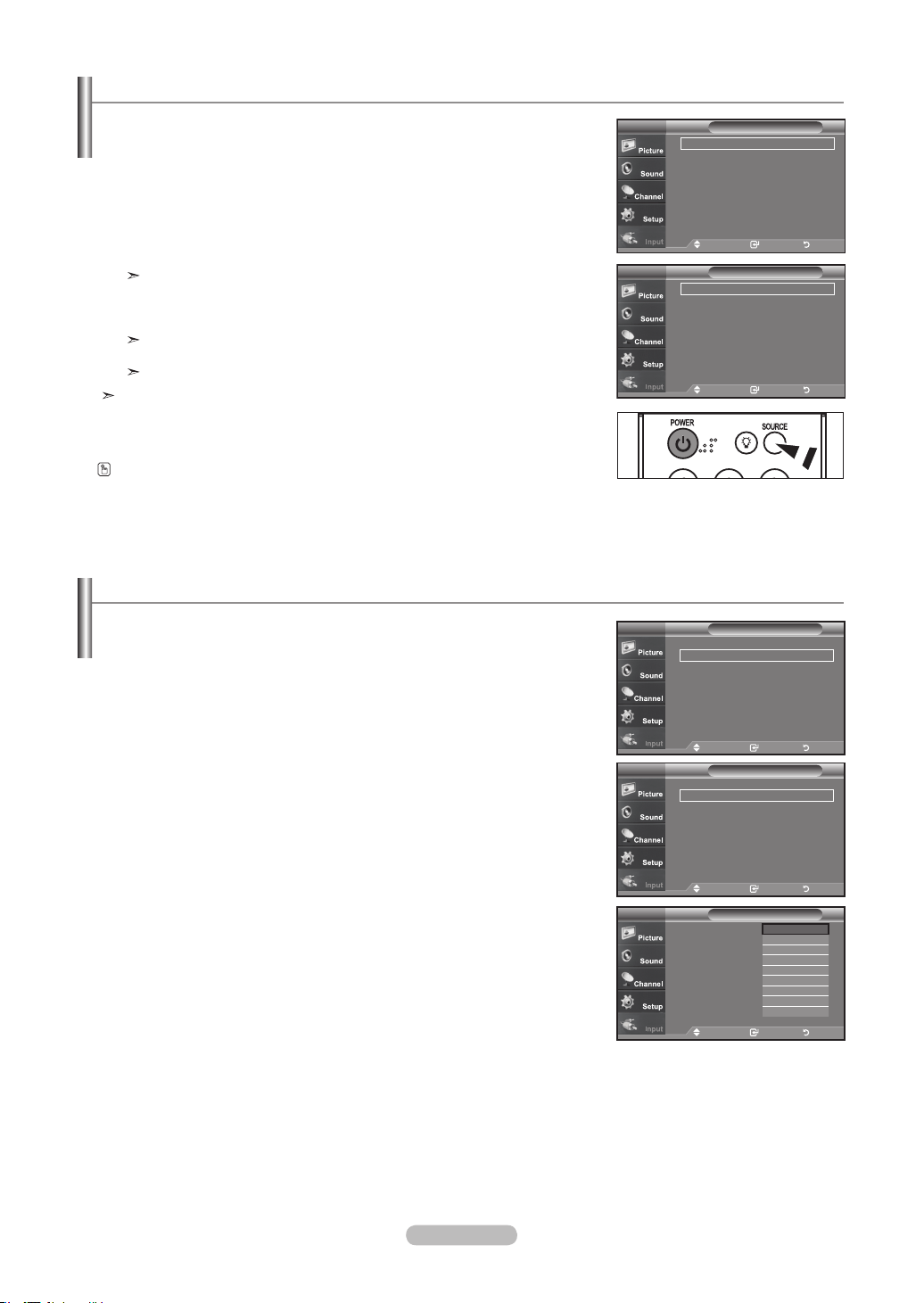
Français - 22
Pour sélectionner la source
A utiliser pour sélectionner le téléviseur ou une autre source d'entrée externe connectée
au téléviseur. Permet de sélectionner l’écran de votre choix.
1.
Appuyez sur le bouton MENU pour afficher le menu.
Appuyez sur les boutons ▲ ou ▼ pour sélectionner Entrée, puis appuyez sur le
bouton ENTER.
2. Appuyez sur le bouton ENTER
pour sélectionner “Liste source”.
Utilisez les boutons ▲ ou ▼ pour sélectionner la source du signal, puis appuyez
sur le bouton ENTER.
Lorsque vous raccordez un appareil à l'écran LCD, vous pouvez choisir entre
les jeux de prises suivants: TV, AV1, AV2, S-Vidéo1, S-Vidéo2, Composant1,
Composant2, PC, HDMI1, HDMI2, ou HDMI3, sur le panneau arrière du
téléviseur.
HDMI1, HDMI2, HDMI3 input can only be selected when the external device is
turned on and connected via HDMI.
AV2/S-Vidéo/HDMI3 se trouvent sur le panneau latéral du téléviseur.
Vous pouvez sélectionner uniquement les appareils externes déjà branchés sur le
téléviseur.
Pour éditer le nom de la source
Nommer le périphérique connecté aux entrées pour vous faciliter la sélection.
1. Appuyez sur le bouton MENU pour afficher le menu.
Appuyez sur les boutons ▲ ou ▼ pour sélectionner Entrée, puis appuyez sur le
bouton ENTER.
Appuyez sur les boutons ▲ ou ▼ pour sélectionner “Entrer le nom”, puis appuyez
sur le bouton ENTER.
2.
Appuyez sur les touches ▲ ou ▼ pour sélectionner la prise d’entrée “AV1”, “AV2”,
“S-Vidéo1”, “S-Vidéo2”, “Composante1”, “Composante2”, “PC”, “HDMI1”, “HDMI2”,
ou “HDMI3” input jack, then press the ENTER
button.
3.
Appuyez sur les touches ▲ ou ▼ pour sélectionner la source d’entrée
Magnétoscope”, “DVD”, “D-VHS”, “Câble STB”, “HD STB”, Satellite STB”, “PVR
STB”, “Récepteur AV”, “Récepteur DVD”, “Jeu”, Caméscope”, “Combo DVD”, “PC”,
“Décodeur VOD”, ou “TV”, puis appuyez sur la touche ENTER.
Appuyez sur le bouton EXIT pour quitter.
Appuyez sur le bouton SOURCE de la télécommande pour afficher une source
de signal externe.
EntréeTV
Liste source : TV ►
Entrer le nom
►
WISELINK
Anynet+ (HDMI-CEC)
Dépl. Intro. Retour
Liste sourceTV
TV
AV1 : ----
AV2 : ----
S-Vidéo1 : ----
S-Vidéo2 : ----
Composante1 : ----
Composante2 : ----
▼Plus
Dépl. Intro. Retour
EntréeTV
Liste source : TV ►
Entrer le nom
►
WISELINK
Anynet+ (HDMI-CEC)
Dépl. Intro. Retour
Entrer le nomTV
AV1 : ----
AV2 : ----
S-Vidéo1 : ----
S-Vidéo2 : ----
Composante1 : ----
Composante2 : ----
▼plus
Dépl. Intro. Retour
Edit NameTV
AV1 : ----
AV2 : ----
S-Vidéo1 : ----
S-Vidéo2 : ----
Composante1 : ----
Composante2 : ----
▼Plus
----
Magnétoscope
DVD
D-VHS
Câble STB
HD STB
Satellite STB
PVR STB
▼
Dépl. Intro. Retour
BN68-01178B-Fre.indd 22 2007-02-15 �� 10:00:49
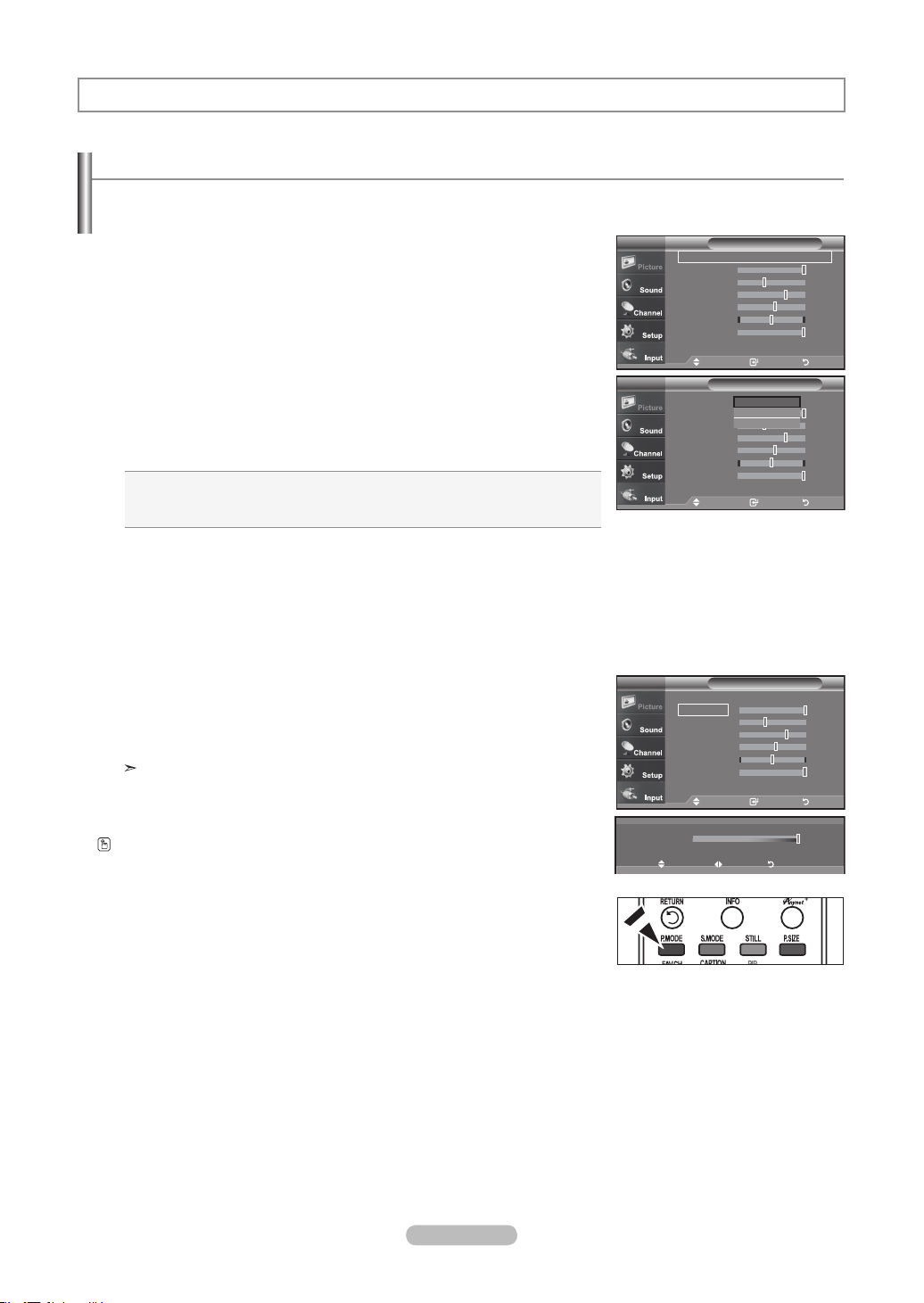
Français - 23
Utilisation des paramètres automatiques d’image
Votre télévision dispose de quatre paramètres automatiques d’image (“Dynamique”, “Standard”, et “Cinéma”) qui sont préréglés en
usine.
Vous pouvez activer l'un ou l'autre de ces modes en le sélectionnant dans le menu.
1. Appuyez sur le bouton MENU pour afficher le menu.
Appuyez sur le bouton ENTER pour sélectionner “Image”.
2. Appuyez sur le bouton ENTER
pour sélectionner “Mode”.
Appuyez à nouveau sur le bouton ENTER.
Appuyez sur les boutons ▲ ou ▼ pour sélectionner “Dynamique”, “Standard”, ou
“Cinéma”. Appuyez sur le bouton ENTER.
Choisissez Dynamique pour augmenter la clarté et la netteté de l’image.
Choisissez Standard pour utiliser les réglages d’usine.
Choisissez Cinéma pour obtenir une image naturelle, sans amélioration.
3. Appuyez sur les boutons ▲ ou ▼ pour sélectionner “Contraste”, “Luminosité”,
“Netteté”, “Couleur”, ou “Teinte”, puis appuyez sur le bouton ENTER.
4.
Appuyez sur les boutons ◄ ou ► pour augmenter ou baisser la valeur d’un
élément spécifique.
Par exemple, si vous choisissez “Contraste”, et si vous appuyez sur le bouton ► le
contraste augmente.
Appuyez sur le bouton EXIT
pour quitter.
• Lorsque vous modifiez les fonctions Contraste, Luminosité, Netteté, Couleur
ou Teinte, la couleur OSD est modifiée en conséquence.
• En mode PC, les options Teinte, Couleur et Netteté ne sont pas accessibles.
Contrôle de L’image
Appuyez plusieurs fois sur la touche P.MODE de latélécommande pour
sélectionner le mode d'image souhaité.
100
▲
Contraste
▼
Dépl. Réglage Retour
Mode : Dynamique ►
Contraste 100
Luminosité 45
Netteté 75
Couleur 55
Teinte V 50 R 50
Contre-jour
10
▼Plus
ImageTV
Dépl. Intro. Retour
ImageTV
Mode : Dynamique
Contraste 100
Luminosité 45
Netteté 75
Couleur 55
Teinte V 50 R 50
Contre-jour
10
▼Plus
Dynamique
Standard
Cinéma
Dépl. Intro. Retour
ImageTV
Mode : Dynamique ►
Contraste 100
Luminosité 45
Netteté 75
Couleur 55
Teinte V 50 R 50
Contre-jour
10
▼Plus
Dépl. Intro. Retour
BN68-01178B-Fre.indd 23 2007-02-15 �� 10:00:51

Français - 24
Réglage des tons des couleurs
Vous pouvez modier la couleur de la totalité de votre écran suivant votre préférence.
1.
Appuyez sur le bouton MENU pour afficher le menu.
Appuyez sur le bouton ENTER pour sélectionner “Image”.
2.
Press the ▲ ou ▼ buttons to select “Nuance coul.”, then press the ENTER
button.
3.
Press the ▲ ou ▼ buttons to select “Froide2”, “Froide1”, “Normal”, “Chaude1” ou
“Chaude2”, then press the ENTER
button.
Appuyez sur le bouton ENTER.
Lorsque le mode Image est paramétré sur Dynamique ou Standard, les options
Chaude1 et Chaude2 ne peuvent pas être sélectionnées.
Seul le mode Film est disponible.
Rétablir les paramètres de réglage de l’image d’usine.
1.
Appuyez sur les boutons ▲ ou ▼ pour sélectionner “Régler”, puis appuyez sur le
bouton ENTER.
Appuyez sur les boutons ▲ ou ▼ pour sélectionner “Effacer”, “OK”.
Appuyez sur le bouton ENTER.
Appuyez sur le bouton EXIT
pour quitter.
Tous les modes peuvent être réinitialisés.
Activation de la fonction Contre-jour
1. Appuyez sur le bouton MENU pour afficher le menu.
Appuyez sur le bouton ENTER pour sélectionner “Image”.
2.
Appuyez sur les boutons ▲ ou ▼ pour sélectionner “Contre-jour”, puis appuyez sur
le bouton ENTER.
3.
Appuyez sur les boutons ◄ ou ► pour augmenter ou réduire la valeur de l'élément
souhaité.
Appuyez sur le bouton ENTER.
Appuyez sur le bouton EXIT.
Vous pouvez régler la luminosité de l'écran en réglant le rétroéclairage de l'écran LCD. (0~10)
0
▲
Contre-jour
▼
Dépl. Réglage Retour
ImageTV
Mode : Dynamique ►
Contraste 100
Luminosité 45
Netteté 75
Couleur 55
Teinte V 50 R 50
Contre-jour
10
▼Plus
Dépl. Intro. Retour
Dépl. Intro. Retour
▲Plus
Nuance coul. : Froide2
►
Réglages des détails
►
Format : 16 : 9
►
Réduct. bruit num.
: Basse ►
Active Couleur
: On ►
DNle : On
►
Régler : OK
►
ImageTV
ImageTV
▲Plus
Nuance coul. : Froide2
Réglages des détails
Format : 16 : 9
Réduct. bruit num.
: Basse
Active Couleur
: On
DNle : On
Régler : OK
►
Froide2
Froide1
Normal
Chaude1
Chaude2
Dépl. Intro. Retour
ImageTV
▲Plus
Nuance coul. : Froide2
Réglages des détails
Format : 16 : 9
Réduct. bruit num.
: Basse
Active Couleur
: On
DNle : On
Régler
Dépl. Intro. Retour
Activation de la fonction Contre-jour
OK
Effacer
BN68-01178B-Fre.indd 24 2007-02-15 �� 10:00:53
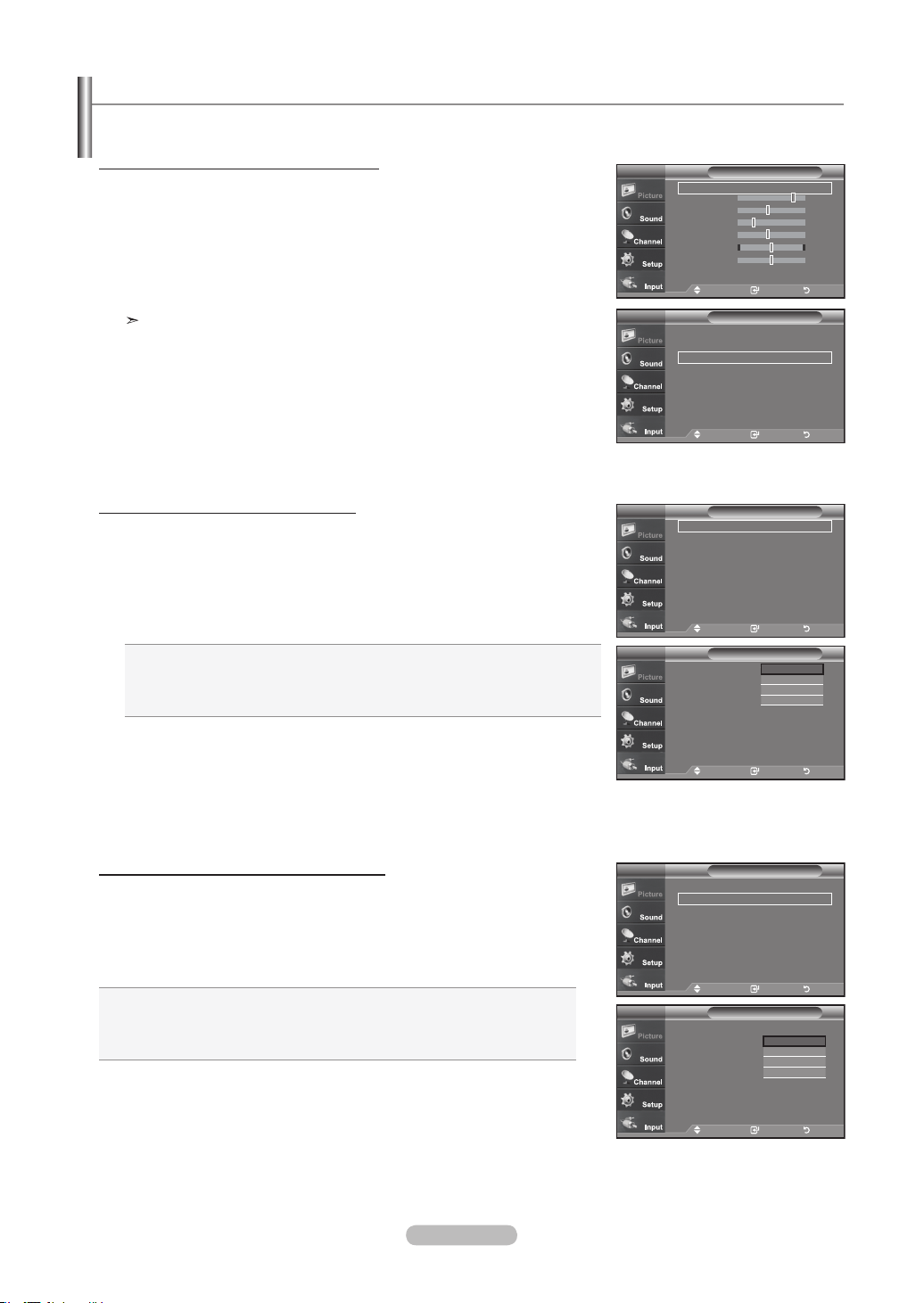
Français - 25
Vous pouvez définir des paramètres d'image détaillés.
Activation de la fonction Réglages des détails
1. Appuyez sur le bouton
MENU pour afficher le menu.
Appuyez sur le bouton ENTER pour sélectionner “Image”.
2. Appuyez sur le bouton ENTER
pour sélectionner “Mode”.
Appuyez sur les boutons ▲ ou ▼ pour sélectionner “Film”, puis appuyez sur le
bouton ENTER.
3. Appuyez sur les boutons ▲ ou ▼ pour sélectionner “Réglages des détails”, puis
appuyez sur le bouton ENTER.
Si le DNIe est désactivé, les réglages détaillés ne peuvent être sélectionnés
lorsque le mode Image est en mode Standard.
Activation de l'option Réglage du noir
Vous pouvez sélectionner directement le niveau de noir à l'écran pour régler la
profondeur.
4.
Appuyez sur les boutons ▲ ou ▼ pour sélectionner “Réglage du noir”, puis
appuyez sur le bouton ENTER.
5. Appuyez sur le bouton
▲ ou ▼ pour sélectionner “Off”, “Basse”, “Moyen”, “Haute”.
Appuyez sur le bouton ENTER.
Off: Désactive la fonction de réglage du noir.
Basse: Utilise une profondeur de noir faible.
Moyen: Utilise une profondeur de noir moyenne.
Haute: Utilise une profondeur de noir élevée.
Activation de la fonction Contraste dynam
Vous pouvez régler l'écran de façon à obtenir un contraste optimal.
6. Appuyez sur les boutons
▲ ou ▼ pour sélectionner “Contraste dynam.”, puis
appuyez sur le bouton ENTER.
7. Appuyez sur le bouton
▲ ou ▼ pour sélectionner “Off”, “Basse”, “Moyen”, “Haute”.
Appuyez sur le bouton ENTER.
Off: Désactive la fonction de réglage du contraste dynamique.
Basse: Utilise un faible contraste dynamique.
Moyen: Utilise un contraste dynamique moyen.
Haute: Utilise un fort contraste dynamique.
Paramétrage de la fonction Réglages des détails
ImageTV
Mode : Dynamique ►
Contraste 100
Luminosité 45
Netteté 75
Couleur 55
Teinte V 50 R 50
Contre-jour
10
▼Plus
Dépl. Intro. Retour
ImageTV
▲Plus
Nuance coul. : Froide2
►
Réglages des détails
►
Format : 16 : 9
►
Réduct. bruit num.
: Basse ►
Active Couleur
: On ►
DNle : On
►
Régler : OK
►
Dépl. Intro. Retour
Réglage du noir : Off ►
Contraste dynam. : Off
►
Gamma :
0
Espace couleur : Auto
►
Équilibrage du blanc
►
Commande couleur
►
Amélioration des bords
: Off ►
xvYCC : Off ►
Réglages des détails
TV
Dépl. Intro. Retour
Réglages des détails
TV
Réglage du noir : Off
Contraste dynam. : Off
Gamma :
0
Espace couleur : Auto
Équilibrage du blanc
Commande couleur
Amélioration des bords
: Off
xvYCC : Off ►
Off
Basse
Moyen
Haute
Dépl. Intro. Retour
Réglages des détails
TV
Réglage du noir : Off ►
Contraste dynam. : Off
►
Gamma :
0
Espace couleur : Auto
►
Équilibrage du blanc
►
Commande couleur
►
Amélioration des bords
: Off ►
xvYCC : Off ►
Dépl. Intro. Retour
Detailed SettingsTV
Réglage du noir : Off
Contraste dynam. : Off
Gamma :
0
Espace couleur : Auto
Équilibrage du blanc
Commande couleur
Amélioration des bords
: Off
xvYCC : Off ►
Off
Basse
Moyen
Haute
Dépl. Intro. Retour
BN68-01178B-Fre.indd 25 2007-02-15 �� 10:00:56
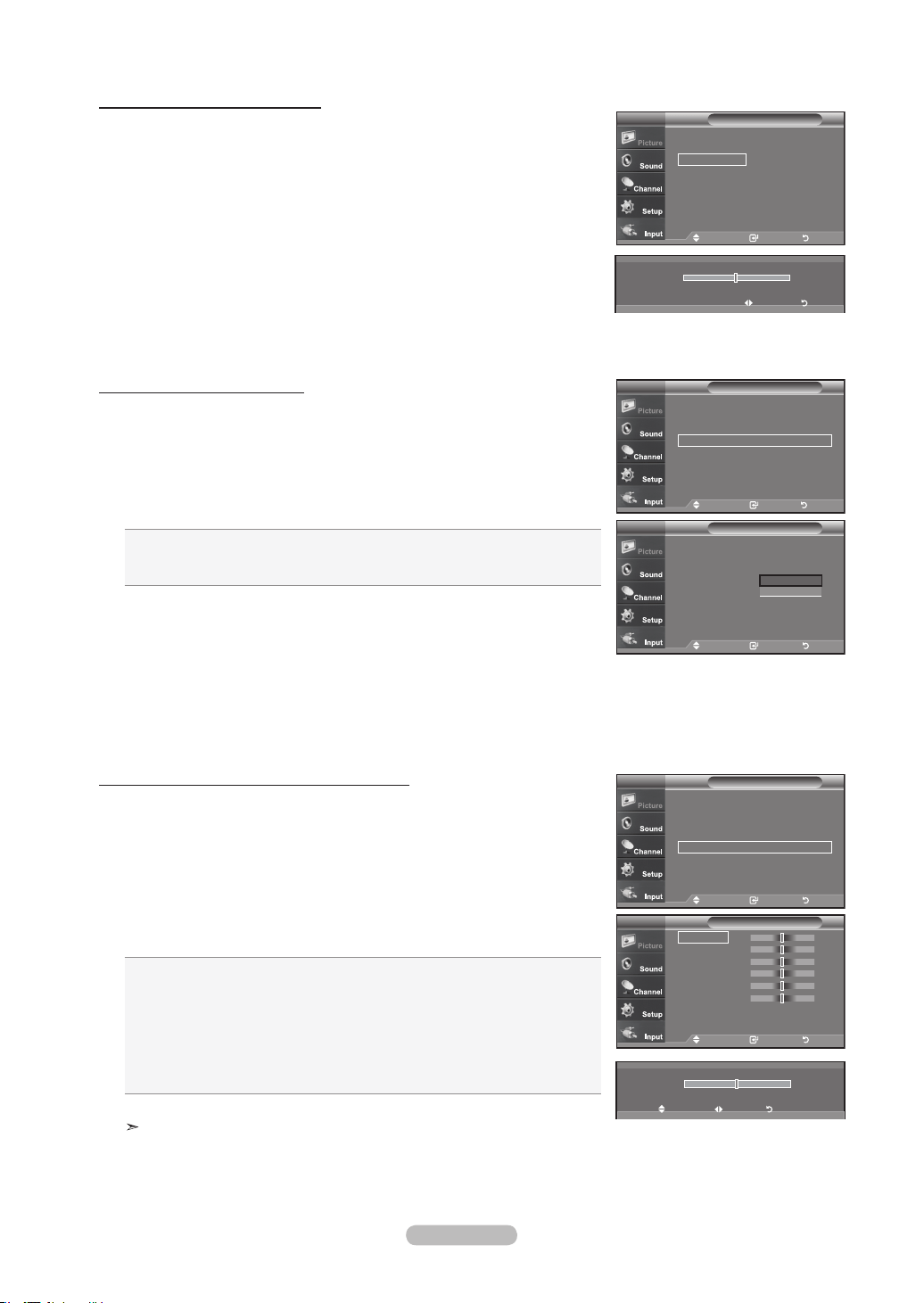
Français - 26
Activation de la fonction Gamma
Vous pouvez régler la luminosité moyenne des images. (-3 ~ 3)
8. Appuyez sur les boutons ▲ ou ▼ pour sélectionner “Gamma”, puis appuyez sur le
bouton ENTER.
9. Appuyez sur les boutons ◄ ou ► pour augmenter ou réduire la valeur de l'élément
souhaité.
Appuyez sur le bouton ENTER.
Modification de l'espace couleurs
L'espace couleurs est une matrice composée des couleurs rouge, vert et bleu.
Sélectionnez votre espace couleurs préféré et bénéficiez de couleurs des plus
naturelles.
10. Appuyez sur les boutons ▲ ou ▼ pour sélectionner “Espace couleurs”, puis
appuyez sur le bouton ENTER.
11. Appuyez sur les boutons ▲ ou ▼ pour sélectionner “Large” ou “Auto”.
Appuyez sur le bouton ENTER.
Large: Cet espace couleurs offre des nuances profondes et riches en couleurs.
Auto: Cet espace couleurs s'ajuste automatiquement aux nuances couleurs naturelles sur
la base des sources des programmes.
Activation de la fonction Equilibrage du blanc
Vous pouvez régler la température de la couleur pour obtenir des couleurs d'image plus
naturelles.
12. Appuyez sur les boutons ▲ ou ▼ pour sélectionner “Equilibrage du blanc”, puis
appuyez sur le bouton ENTER.
13. Sélectionnez l'option voulue en appuyant sur les boutons ▲ ou ▼, puis appuyez
sur le bouton ENTER.
14. Appuyez sur les boutons ◄ ou ► pour augmenter ou réduire la valeur de l'élément
souhaité.
Appuyez sur le bouton ENTER.
Décal.-R: Règle la profondeur du rouge.
Décal.-V: Règle la profondeur du vert.
Décal.-B: Règle la profondeur du bleu.
Gain-R: Règle la luminosité du rouge.
Gain-V: Règle la luminosité du vert.
Gain-B: Règle la luminosité du bleu.
Réglage: L'équilibrage du blanc mis au point précédemment sera ramené à ses valeurs
par défaut.
Toute modification de la valeur de réglage actualise l'écran modifié.
0
Gamma
Régler Retour
Dépl. Intro. Retour
Réglages des détailsTV
Réglage du noir : Off ►
Contraste dynam. : Off
►
Gamma :
0
Espace couleur : Auto
►
Équilibrage du blanc
►
Commande couleur
►
Amélioration des bords
: Off ►
xvYCC : Off ►
Dépl. Intro. Retour
Réglages des détailsTV
Réglage du noir : Off
Contraste dynam. : Off
Gamma :
0
Espace couleur : Auto
Équilibrage du blanc
Commande couleur
Amélioration des bords
: Off
xvYCC : Off ►
Auto
Large
Réglages des détailsTV
Réglage du noir : Off ►
Contraste dynam. : Off
►
Gamma :
0
Espace couleur : Auto
►
Équilibrage du blanc
►
Commande couleur
►
Amélioration des bords
: Off ►
xvYCC : Off ►
Dépl. Intro. Retour
Réglages des détailsTV
Réglage du noir : Off ►
Contraste dynam. : Off
►
Gamma :
0
Espace couleur : Auto
►
Équilibrage du blanc
►
Commande couleur
►
Amélioration des bords
: Off ►
xvYCC : Off ►
Dépl. Intro. Retour
Décal.-R 15
Décal. - V 15
Décal. -B 15
Gain-R 15
Gain-V 15
Gain-B 15
Régler
Équilibrage du blanc
TV
Dépl. Intro. Retour
▲
Décal.-R
▼
0
▲
Décal. - V
▼
Dépl. Réglage Retour
BN68-01178B-Fre.indd 26 2007-02-15 �� 10:00:58
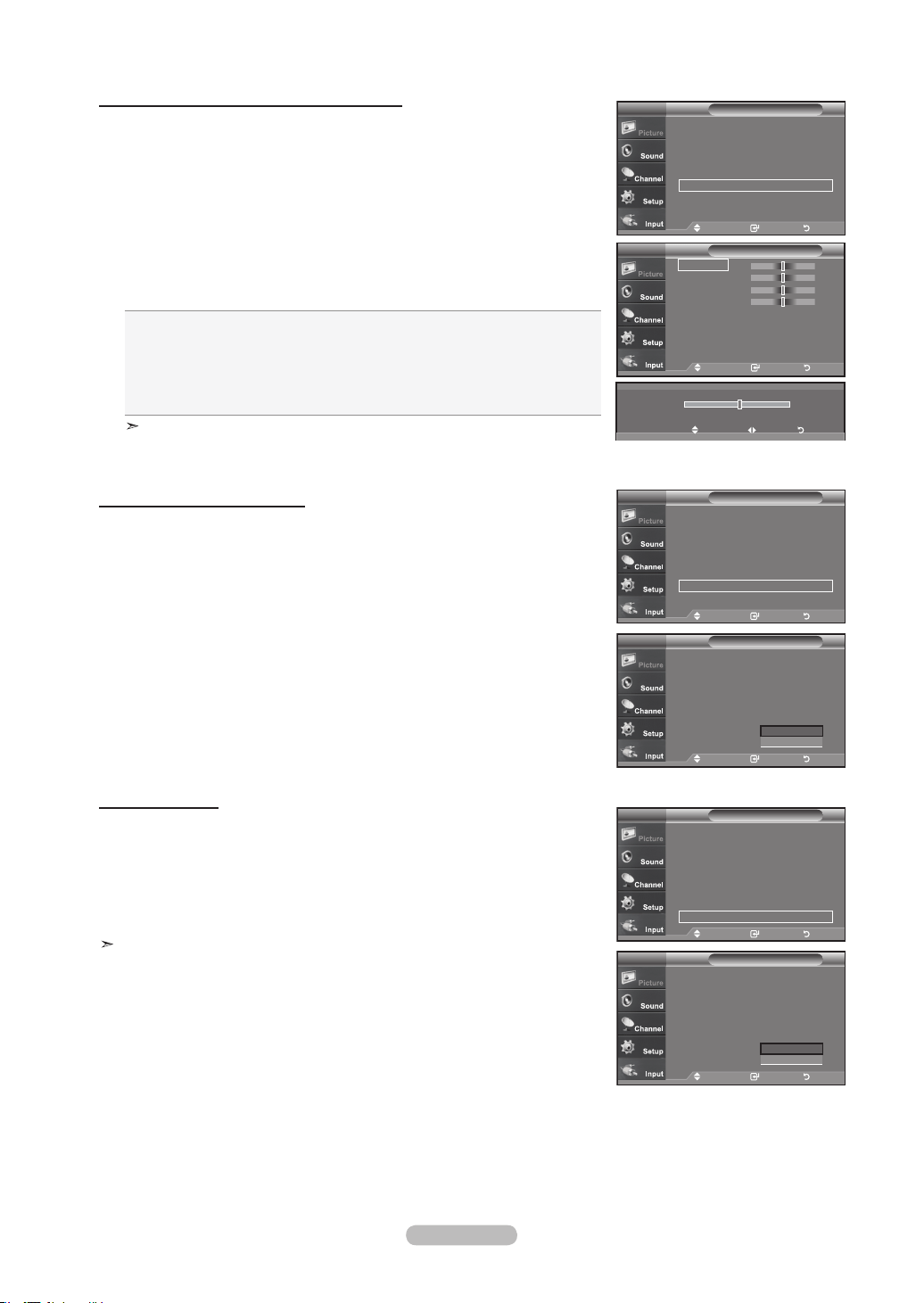
Français - 27
Activation de la fonction Commande couleur
Ce paramètre peut être ajusté en fonction de vos préférences personnelles.
Lorsque vous utilisez la fonction Commande couleur, l'image actuelle est capturée sous
la forme d'une image fixe avant d'être affichée à l'écran.
15. Appuyez sur le bouton ENTER
pour sélectionner “Commande couleur”.
16. Appuyez sur les boutons ▲ ou ▼ pour sélectionner “Rose”, “Vert”, “Bleu”, “Blanc”
ou “Régler”.
Appuyez sur le bouton ENTER.
17.
Appuyez sur les boutons ◄ ou ► pour augmenter ou réduire la valeur de l'élément
souhaité.
Appuyez sur le bouton ENTER.
Rose: Assombrit ou éclaircit le rose.
Vert: Assombrit ou éclaircit le vert.
Bleu: Assombrit ou éclaircit le bleu.
Blanc: Assombrit ou éclaircit le blanc.
Régler: Les couleurs mises au point précédemment seront ramenées à leurs valeurs par
défaut.
Toute modification de la valeur de réglage actualise l'écran modifié.
Activating Edge Enhancement
Vous pouvez accentuer le bord des objets sur l'image.
18. Appuyez sur les boutons ▲ ou ▼ pour sélectionner “Amélioration des bords”, puis
appuyez sur le bouton ENTER.
19. Appuyez sur les boutons ▲ ou ▼ pour sélectionner “Off” ou “On”.
Appuyez sur le bouton ENTER.
Appuy
ez sur le bouton EXIT pour quitter.
Activating xvYCC
Les anciens téléviseurs ne pouvaient mettre en oeuvre des images texturées nettes,
solides et claires. Ce téléviseur peut mettre en oeuvre ces effets grâce aux signaux
xvYCC, qui prend en charge l’espace couleur étendu. Les anciens téléviseurs ne
pouvaient pas non plus mettre en oeuvre des portions de couleur pour les films.
Ce téléviseur peut mettre en oeuvre les mêmes couleurs que celles des films grâce
aux signaux xvYCC. Cela étant, il est possible d’apprécier des présentations colorées
impressionnantes avec ce téléviseur.
La fonction xvYCC ne fonctionne qu’en mode Cinéma (Movie).
20. Appuyez sur les boutons ▲ ou ▼ pour sélectionner “xvYCC”, puis appuyez sur le
bouton ENTER.
21. Appuyez sur les boutons ▲ ou ▼ pour sélectionner “Off” ou “On”.
Appuyez sur le bouton ENTER.
Appuy
ez sur le bouton EXIT pour quitter.
15
▲
Rose
▼
Dépl. Régler Retour
Réglages des détailsTV
Réglage du noir : Off ►
Contraste dynam. : Off
►
Gamma :
0
Espace couleur : Auto
►
Équilibrage du blanc
►
Commande couleur
►
Amélioration des bords
: Off ►
xvYCC : Off ►
Dépl. Intro. Retour
Rose 15
Vert 15
Bleu 15
Blanc 15
Régler
Commande couleurTV
Dépl. Intro. Retour
Réglages des détailsTV
Réglage du noir : Off ►
Contraste dynam. : Off
►
Gamma :
0
Espace couleur : Auto
►
Équilibrage du blanc
►
Commande couleur
►
Amélioration des bords
: Off ►
xvYCC : Off ►
Dépl. Intro. Retour
Réglages des détailsTV
Réglage du noir : Off
Contraste dynam. : Off
Gamma :
0
Espace couleur : Auto
Équilibrage du blanc
Commande couleur
Amélioration des bords
: Off
xvYCC :
Off
On
Dépl. Intro. Retour
Réglages des détailsTV
Réglage du noir : Off ►
Contraste dynam. : Off
►
Gamma :
0
Espace couleur : Auto
►
Équilibrage du blanc
►
Commande couleur
►
Amélioration des bords
: Off ►
xvYCC : Off ►
Dépl. Intro. Retour
Réglages des détailsTV
Réglage du noir : Off
Contraste dynam. : Off
Gamma :
0
Espace couleur : Auto
Équilibrage du blanc
Commande couleur
Amélioration des bords
: Off
xvYCC :
Off
On
Dépl. Intro. Retour
BN68-01178B-Fre.indd 27 2007-02-15 �� 10:01:01
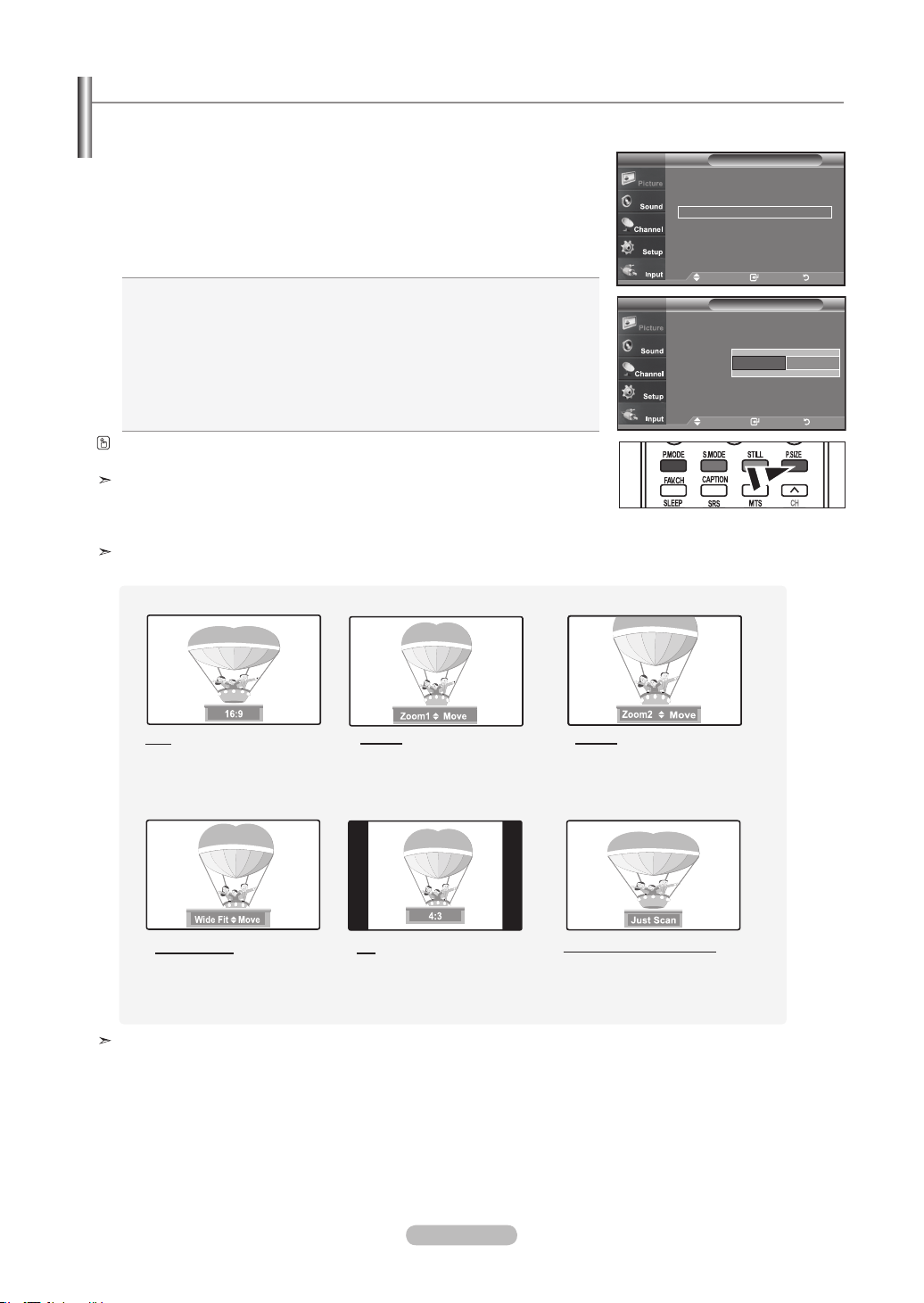
Français - 28
Les tailles d'écran disponibles varient en fonction du type d'entrée vidéo.
Modication de la taille de l’écran
1. Appuyez sur le bouton MENU pour afficher le menu.
Appuyez sur le bouton ENTER pour sélectionner “Image”.
2.
Appuyez sur les boutons ▲ ou ▼ pour sélectionner “Format”,
puis appuyez sur le bouton ENTER.
3.
Appuyez sur les boutons ▲ ou ▼ pour sélectionner le format d'écran souhaité.
Appuyez sur le bouton ENTER.
Appuyez sur le bouton EXIT pour quitter.
• 16:9: Pour régler l’image en mode 16:9.
• Zoom1: Permet d'agrandir la taille de l'image affichée à l'écran.
• Zoom2: Magnifies the size of the picture more than “Zoom1”.
• Format large: Enlarges the aspect ratio of the picture to fit the entire
screen.
• 4:3: Pour régler l’image en mode normal, c.-à-d. 4:3.
• Numérisation seulement :
Cette fonction permet d’afficher l’image
complète non tronquée pour une entrée de
signaux HDMI (720p/1080i/1080p) ou DTV (1080i)
Vous pouvez également appuyer plusieurs fois sur le bouton P.SIZE de la
télécommande pour modifier la taille de l'image.
Si vous affichez une image fixe ou le mode 4:3 pendant un long moment (plus
de deux heures),
l'image peut rester gravée en surimpression sur l'écran. Utilisez donc de
préférence les formats 16:9.
HD (Haute définition)
16:9 - 1080i/1080p (1920x1080), 720P (1280x720)
• Dans les modes TV, VIDÉO, S-VIDÉO et tous les modes COMPOSANT (480i, 480p), tous les modes
d'affichage sont disponibles (16:9, Zoom1, Zoom2, 4:3).
• Vous ne pouvez sélectionner que les formats 16:9, 4:3 et Large en mode DTV ou Component (720p, 1080i) ou
HDMI (720p, 1080i).
• Dans les modes PC, ne sont disponibles que les formats 16:9 et 4:3.
• Vous devez sélectionner la fonction Zoom à l'aide du bouton P. Size de la télécommande (pas dans le menu
OSD) pour déplacer l'image Zoom 1 ou 2 vers le haut ou le bas.
• Lorsque vous regardez une émission numérique, vous pouvez utiliser la fonction Format Large. Horizontal
Zoom(Format Large) règle l’image au format optimal en l’agrandissant horizon-talement et verticalement. Par
exemple, vous pouvez régler l’image du format 4:3 au format 16:9. Le Format large n'est pas compatible avec
tous les appareils externes.
16:9
Pour régler l’image en mode 16:9.
Zoom1
Format d'afchage dans
lequel l'écran large est agrandi
verticalement.
Zoom2
Format d'afchage dans
lequel l'écran Zoom1 est
agrandi verticalement.
4:3
Pour régler l’image en mode
normal, c.-à-d. 4:3.
Format large
Enlarges the aspect ratio
of the picture to fit the
entire screen.
Numérisation seulement
Cette fonction permet d’afficher l’image
complète non tronquée pour une entrée
de signaux HDMI (720p/1080i/1080p)
ou DTV (1080i)
ImageTV
▲Plus
Nuance coul. : Froide2
►
Réglages des détails
►
Format : 16 : 9
►
Réduct. bruit num.
: Basse ►
Active Couleur
: On ►
DNle : On
►
Régler : OK
►
Dépl. Intro. Retour
16 : 9
Zoom1
Zoom2
Format large
4 : 3
Numérisation seulement
FormatTV
Position Régler
▼
▲
Dépl. Intro. Retour
BN68-01178B-Fre.indd 28 2007-02-15 �� 10:01:03
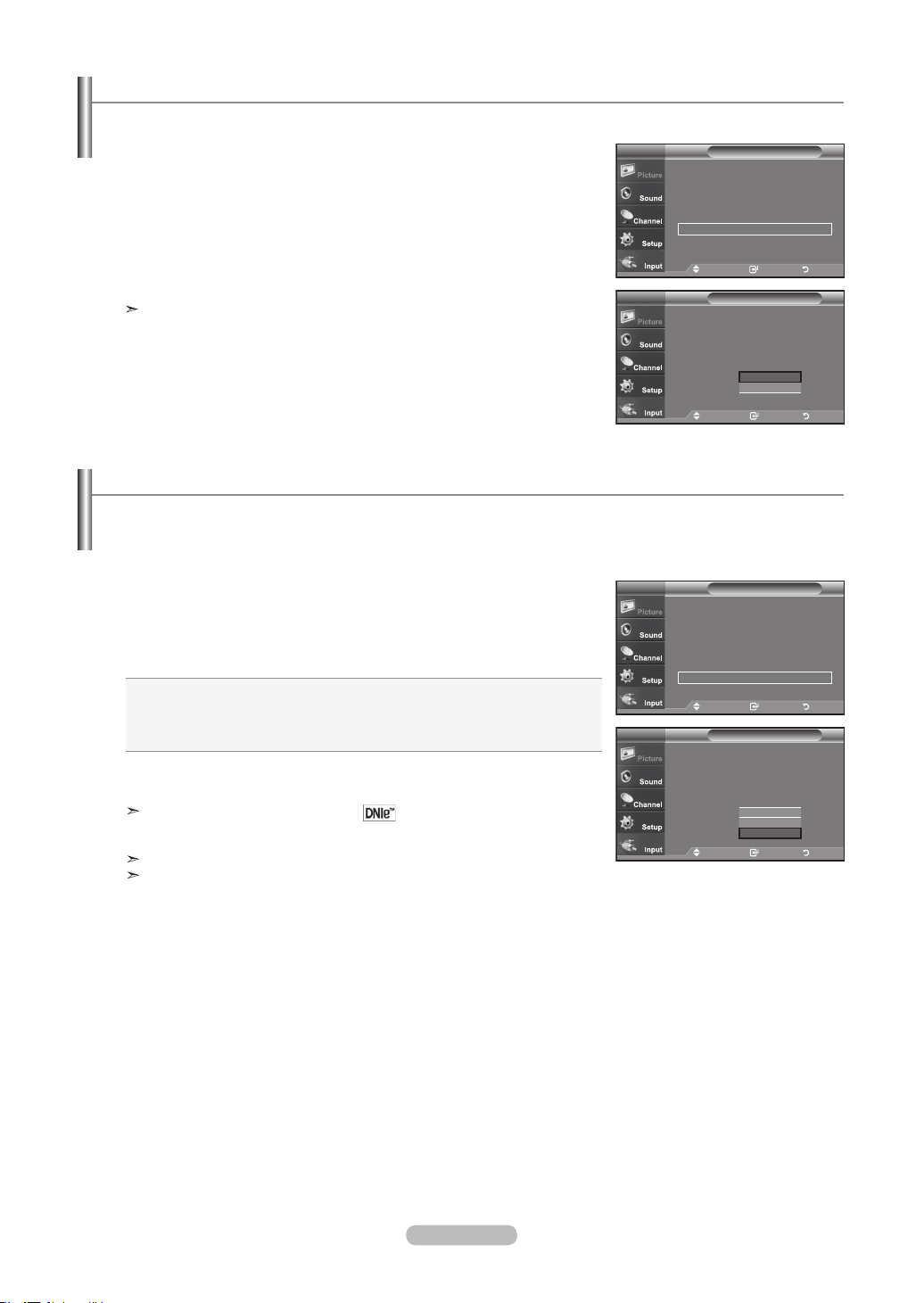
Français - 29
1. Appuyez sur le bouton MENU pour afficher le menu.
Appuyez sur le bouton ENTER pour sélectionner “Image”.
2. Appuyez sur les boutons
▲ ou ▼ pour sélectionner “Active Couleur”,
puis appuyez sur le bouton ENTER.
3. Appuyez sur les boutons
▲ ou ▼ pour sélectionner “Off” ou “On”.
Appuyez sur le bouton ENTER.
Appuyez sur le bouton EXIT
.
Cette fonction n'est pas disponible en mode Standard ou Film.
Réglage de la fonction Couleur activée
DNIe démo(Image naturelle numérique)
Ce téléviseur comprend une fonction DNIe qui permet d’obtenir une qualité d’image supérieure. Si vous réglez DNIe à “On”, vous
verrez à l’écran des images en mode DNIe. Si vous réglez DNIe à “Démo”, vous verrez à l’écran des images en mode DNIe et en
mode normal à des fins de démonstration. Cette fonction permet d'apprécier les différentes qualités d’image.
Si vous activez cette option, les couleurs du ciel et de l'herbe sont plus soutenues et plus nettes: le rendu de l'image à l'écran est
plus éclatant.
1.
Press the MENU button to display the menu.
Appuyez sur le bouton ENTER pour sélectionner “Image”.
2.
Appuyez sur la touche ▲ ou ▼ pour sélectionner “DNIe”, puis appuyez sur ENTER.
3.
Appuyez sur la touche ▲ ou ▼ pour sélectionner “On”, “DNle Demo” ou “Off”, puis
sur ENTER.
• Off: Désactive le mode DNIe.
• Démo: L'écran de gauche présente l'image sans mode DNIe tandis que celui
de droite présente l'image avec mode DNIe en fonction.
• On: Active le mode DNIe.
Appuyez sur la touche EXIT pour quitter le menu.
DNIe
TM
(Image naturelle numérique)
Cette fonction vous offre une image plus détaillée grâce à la réduction du bruit
3D et à l’amélioration des détails, du contraste et de l’amélioration des blancs.
Cette fonction est désactivée lorsque la source d’entrée est en mode PC.
La fonction DNIe n’est pas disponible en mode Cinéma.
ImageTV
▲Plus
Nuance coul. : Froide2
►
Réglages des détails
►
Format : 16 : 9
►
Réduct. bruit num.
: Basse ►
Active Couleur
: On ►
DNle : On
►
Régler : OK
►
Dépl. Intro. Retour
ImageTV
▲Plus
Nuance coul. : Froide2
Réglages des détails
Format : 16 : 9
Réduct. bruit num.
: Basse
Active Couleur
: On
DNle : On
Régler : OK
►
Off
On
Dépl. Intro. Retour
ImageTV
▲Plus
Nuance coul. : Froide2
►
Réglages des détails
►
Format : 16 : 9
►
Réduct. bruit num.
: Basse ►
Active Couleur
: On ►
DNle : On
►
Régler : OK
►
Dépl. Intro. Retour
ImageTV
▲Plus
Nuance coul. : Froide2
Réglages des détails
Format : 16 : 9
Réduct. bruit num.
: Basse
Active Couleur
: On
DNle : On
Régler
Off
Démo
On
Dépl. Intro. Retour
BN68-01178B-Fre.indd 29 2007-02-15 �� 10:01:05
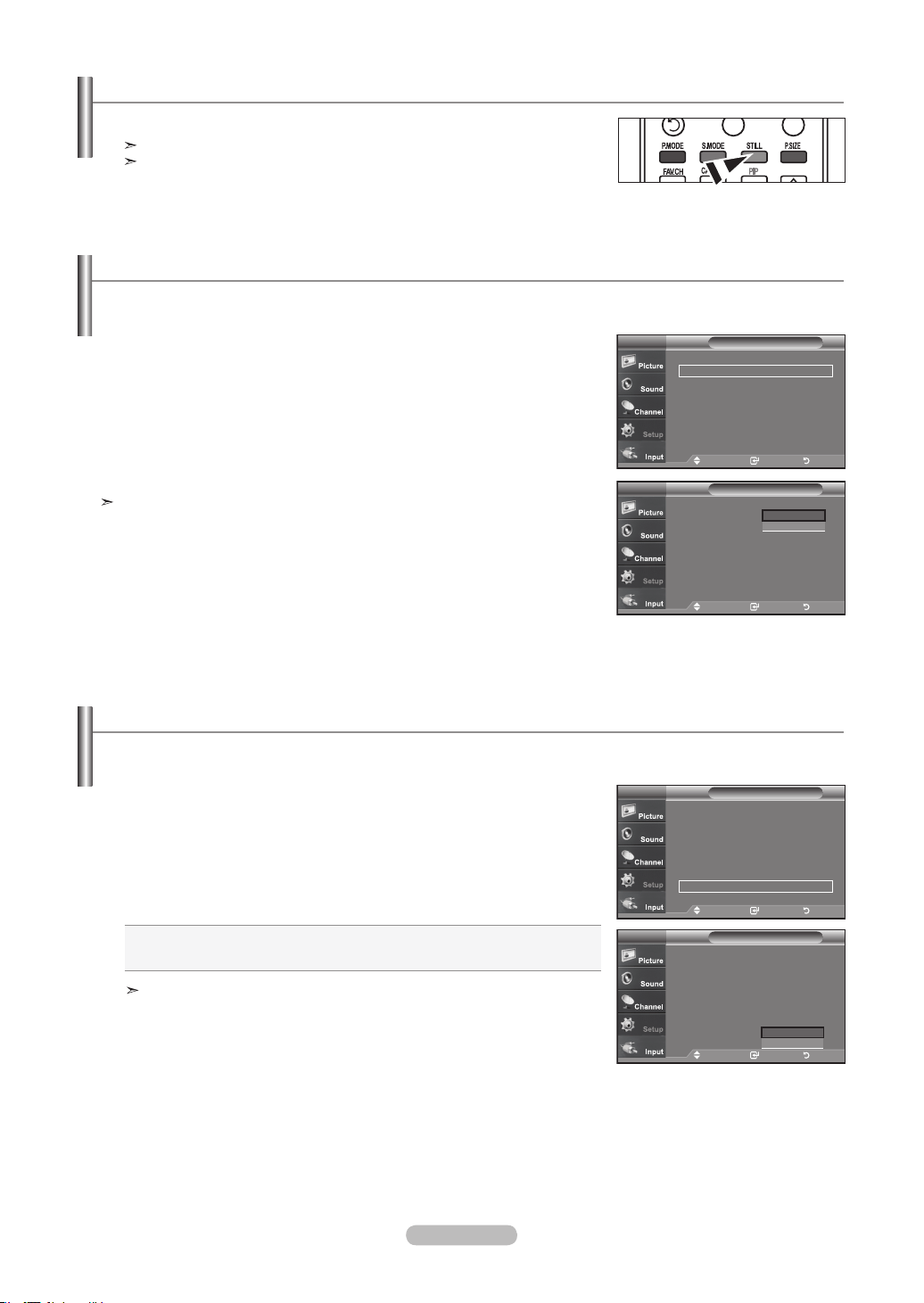
Français - 30
Gel de l’image
1. Appuyer le bouton Calme pour geler une image en mouvement de STILL.
Le son normal sera toujours est entendu. Appuyez une nouvelle fois pour annuler.
La fonction Fixe ne peut pas être utilisée lorsque le mode V-Chip est activé.
Sélection du mode cinéma
Il est possible de détecter et de traiter automatiquement des signaux de lm et de régler l’image an d’obtenir une qualité optimale.
1. Appuyez sur le bouton MENU pour afficher le menu.
Appuyez sur les boutons ▲ ou ▼ pour sélectionner “Configuration”, puis appuyez
sur le bouton ENTER.
2. Appuyez sur les boutons ▲ ou ▼ pour sélectionner “Mode film”, puis appuyez sur le
bouton ENTER.
3.
Appuyez sur la touche ▲ ou ▼ pour sélectionner “Off” ou “On”, puis appuyez sur la
touche ENTER.
Appuyez sur la touche EXIT
pour quitter le menu.
Le mode cinéma est disponible dans les modes TV, VIDÉO, S-VIDÉO, et
COMPOSANT 480i.
Nv nr HDMI
1. Appuyez sur le bouton MENU pour afficher le menu.
Appuyez sur les boutons ▲ ou ▼ pour sélectionner “Configuration”, puis appuyez
sur le bouton ENTER.
2. Appuyez sur les boutons ▲ ou ▼ pour sélectionner “Nv nr HDMI”, puis appuyez sur
le bouton ENTER.
3.
Appuyez sur la touche ▲ ou ▼ pour sélectionner “Normal” ou “Basse”, puis appuyez
sur la touche ENTER.
• Normal: L’image est plus claire.
• Basse: L’image est plus sombre.
Cette fonction n’est active que lorsqu’un périphérique externe (lecteur DVD,
décodeur STB, etc.) est connecté au téléviseur via HDMI (RGB signaux).
Appuyez sur la touche EXIT pour quitter le menu.
Il est possible de sélectionner le niveau de noir de l’écran an d’ajuster la profondeur de l’écran.
▲Plus
Mode film : Off
►
Ajustement fixation murale
►
ISI ►
Fonction d’aide : On
►
M. à jour logiciel
►
ConfigurationTV
Dépl. Intro. Retour
ConfigurationTV
▲Plus
Mode film : Off
Ajustement fixation murale
ISI
Fonction d’aide : On
M. à jour logiciel
Off
On
Dépl. Intro. Retour
ConfigurationTV
▲Plus
Écran Bleu : On
►
Mélodie : Off ►
PC ►
PC cinéma maison : Off ►
Économiseur énergie
: Off ►
Niveau noir HDMI : Normal ►
▼ Plus
Dépl. Intro. Retour
ConfigurationTV
▲Plus
Écran Bleu : On
►
Mélodie : Off
►
PC
►
PC cinéma maison : Off ►
Économiseur énergie
: Off ►
Niveau noir HDMI :Normal ►
▼ Plus
Normal
Basse
Dépl. Intro. Retour
BN68-01178B-Fre.indd 30 2007-02-15 �� 10:01:07
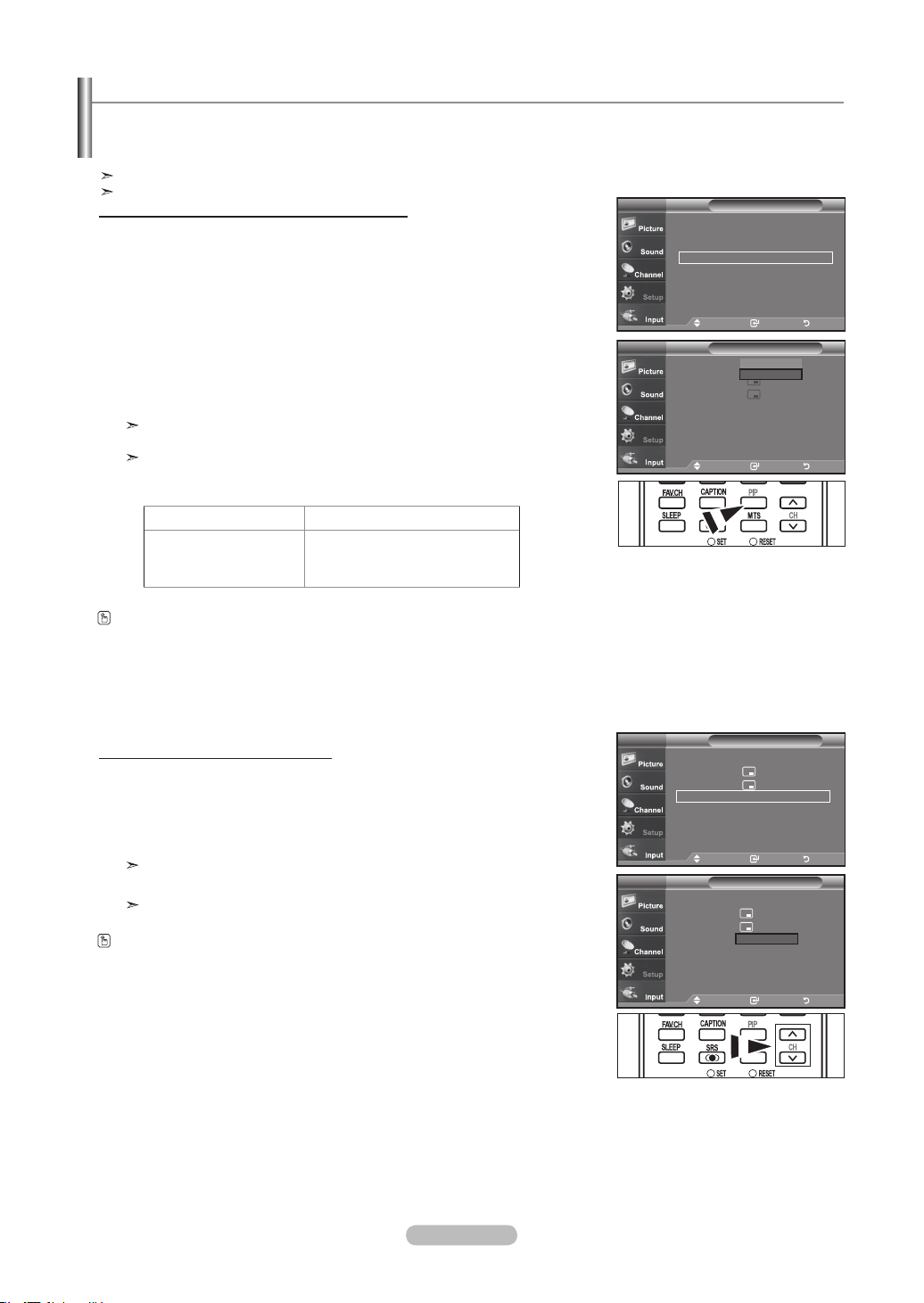
Français - 31
Visionnement Image sur Image
Ce produit dispose d’un tuner intégré qui ne permet pas de faire fonctionner le mode ISI dans le même mode. Par exemple, vous
ne pouvez pas regarder une chaîne de télévision sur l’écran principal et une autre dans l’écran ISI. Vous pouvez utiliser la fonction
ISI pour regarder simultanément deux sources vidéo. (Reportez-vous à la page 38 pour sélectionner le son de l'image ISI.)
lorsque V-Chip fonctionne, la fonction ISI ne peut pas être utilisée.
lorsque vxYCC fonctionne, la fonction ISI ne peut pas être utilisée.
Comment activer la fonction Image sur Image
1. Appuyez sur le bouton MENU pour afficher le menu.
Appuyez sur les boutons ou pour sélectionner “Configuration”, puis appuyez
sur le bouton ENTER.
Appuyez sur les boutons ou pour sélectionner “ISI”, puis appuyez sur le bou-
ton ENTER.
2.
Appuyez à nouveau sur le bouton ENTER.
Appuyez sur les boutons ou pour sélectionner “On”, puis appuyez sur le
bouton ENTER.
Si vous mettez le moniteur hors tension alors qu’il est en mode ISI, lorsque
vous le remettez sous tension, la fenêtre ISI disparaît.
Les émissions télévisuelles analogiques peuvent être visionnées dans la fenêtre
ISI (image secondaire) lorsque l’image principale provient d’un appareil externe
branché à HDMI 1, 2, 3, Composant 1, 2, en mode PC.
Changer la chaîne de la fenêtre ISI
3. Appuyez sur les boutons ou pour sélectionner “Chaîne”, puis appuyez sur le
bouton ENTER.
Utilisez les boutons ou pour sélectionner la chaîne à afficher dans la fenêtre
ISI.
Appuyez sur le bouton ENTER.
PRINCIPALE: PC / HDMI 1,2,3 / Composant 1,2
PIP: TV(analogique)
La chaîne peut être active lorsque l'image secondaire est définie sur TV.
Image principale PIP
Composant 1,2
HDMI 1,2,3
PC
Pour les émissions télévisuelles
analogiques seulement.
Si vous mettez le moniteur hors tension alors qu’il est en mode ISI, lorsque vous le
remettez sous tension, la fenêtre ISI disparaît.
Appuyez sur le bouton ISI Chaîne de la télécommande.
ConfigurationTV
▲Plus
Mode film : Off ►
Ajustement fixation murale
►
ISI ►
Fonction d’aide : On ►
M. à jour logiciel ►
Dépl. Intro. Retour
ISI :
Size :
Position :
Chaîne : Câble3
ISI
TV
Off
On
Dépl. Intro. Retour
ISI : On ►
Size : ►
Position : ►
Chaîne : Câble 3 ►
ISI
TV
Dépl. Intro. Retour
PIP : On
Size :
Position :
Channel : Cable 3
ISI
TV
▲
3
▼
Dépl. Intro. Retour
BN68-01178B-Fre.indd 31 2007-02-15 �� 10:01:09
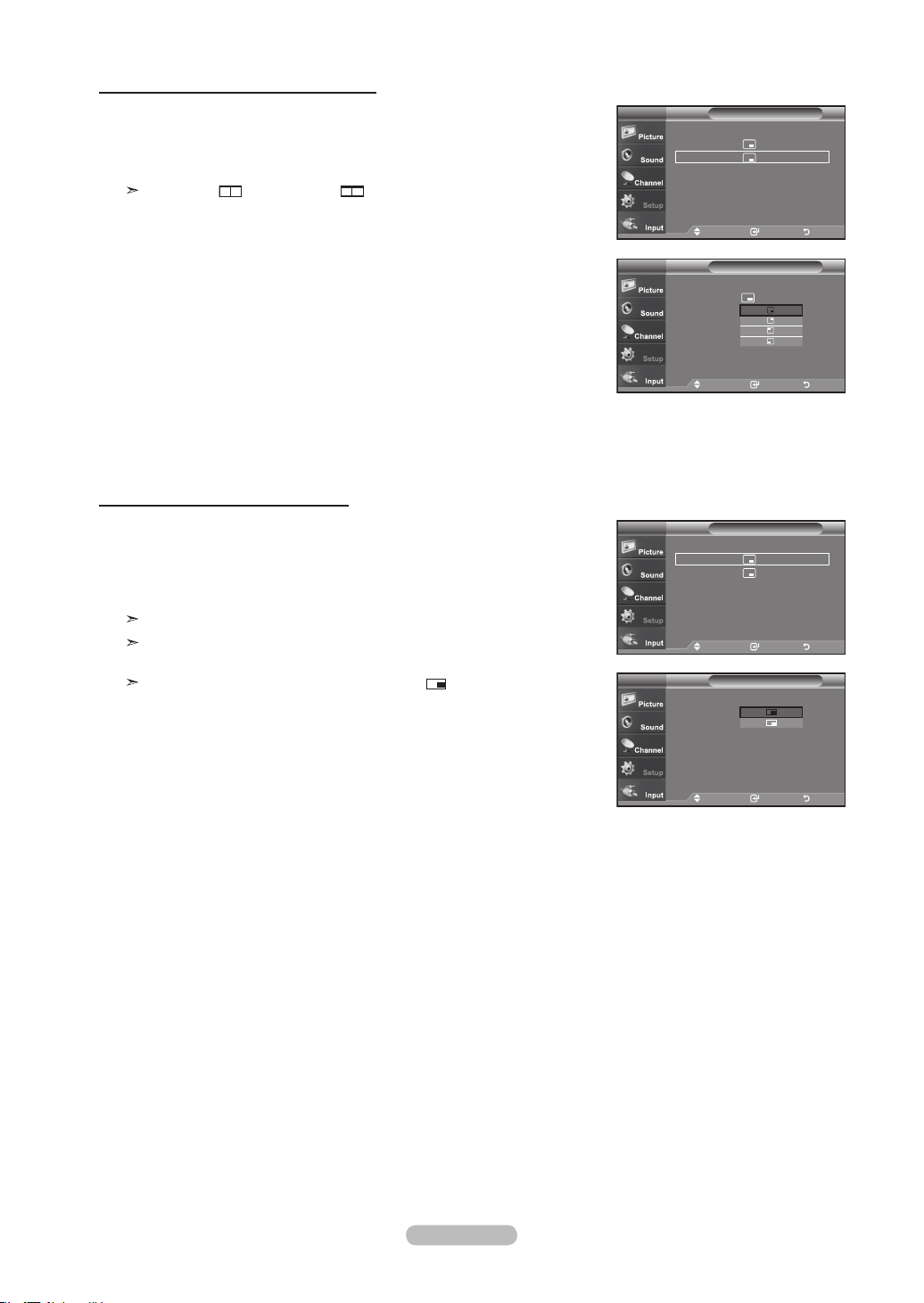
Français - 32
Pour changer la position de la fenêtre ISI
Pour changer la Size de la fenêtre ISI
4. Appuyez sur les boutons ▲ ou ▼ pour sélectionner “Position”, puis appuyez sur le
bouton ENTER.
Appuyez sur les boutons ▲ ou ▼ pour sélectionner la position de la fenêtre ISI.
Appuyez sur le bouton ENTER
.
The Double ( ), Double Wide ( ) mode cannot be selected in Position
mode.
5. Appuyez sur les boutons ▲ ou ▼ pour sélectionner “Format”, puis appuyez sur le
bouton ENTER.
Appuyez sur les boutons ▲ ou ▼ pour sélectionner la taille de la fenêtre ISI.
Appuyez sur le bouton ENTER.
Appuyez sur le bouton EXIT
pour quitter.
If main picture is in PC mode, Size is not available.
Il se peut que l’image dans la fenêtre ISI, HDMI 1 soit un peu moins naturelle
lorsque vous utilisez la fenêtre principale pour visualiser un jeu ou un karaoké.
You can adjust picture position only by using the size menu.
ISI
TV
ISI : On ►
Size : ►
Position : ►
Chaîne : Câble 3 ►
Dépl. Intro. Retour
ISI
TV
ISI : On
Size :
Position :
Chaîne : Câble 3
Dépl. Intro. Retour
PIPTV
ISI : On ►
Size : ►
Position : ►
Chaîne : Câble 3 ►
Dépl. Intro. Retour
PIPTV
ISI : On
Size :
Position :
Chaîne : Câble 3
Dépl. Intro. Retour
BN68-01178B-Fre.indd 32 2007-02-15 �� 10:01:11
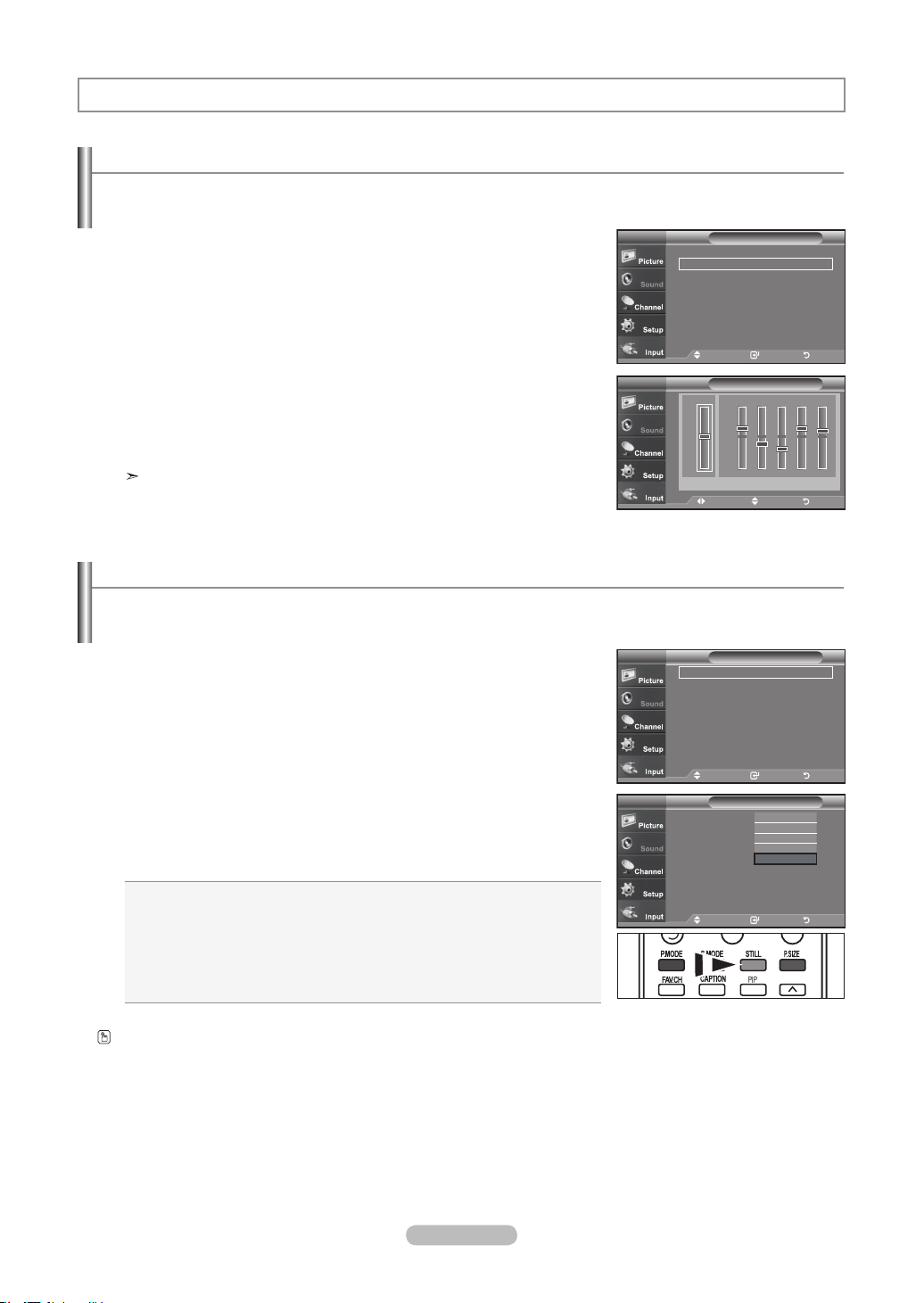
Français - 33
Personnalisation du son
Les paramètres du son peuvent être réglés selon vos préférences personnelles. (sinon, vous pouvez utiliser l’un des
paramètres “automatiques”.)
1. Appuyez sur le bouton MENU pour afficher le menu.
Appuyez sur les boutons ▲ ou ▼ pour sélectionner “Son”, puis appuyez sur le
bouton ENTER.
2.
Appuyez sur les boutons ▲ ou ▼ pour sélectionner “Égaliseur”, puis appuyez sur
le bouton ENTER.
3. Appuyez sur les boutons ◄ ou ► pour sélec tionner la fréquence à régler.
Utilisez les boutons ▲ ou ▼ pour aug menter ou diminuer le niveau de la
fréquence sélectionnée.
Appuyez sur le bouton ENTER
.
Appuyez sur le bouton EXIT
pour quitter.
• Réglage R/L de la balance:
Pour régler la balance des haut-parleurs G/D.
• Réglage de la bande passante (100Hz, 300Hz, 1KHz, 3KHz, 10KHz):
Pour régler les différentes fréquences de bande passante.
Utilisation des paramètres automatiques de son
Votre télévision dispose de cinq paramètres automatiques de son (“Standard”, “Musique”, “Cinéma”, “Parole”, et “Personnel”) qui
sont préréglés en usine. Mais vous pouvez aussi sélectionner “Personnel” pour revenir automatiquement à vos paramètres person-
nalisés de son.
1. Appuyez sur le bouton MENU pour afficher le menu.
Appuyez sur les boutons
▲ ou ▼
pour sélectionner “Son”, puis appuyez sur le
bouton ENTER.
2.
Appuyez sur les boutons ENTER pour sélectionner “Mode”.
Appuyez sur les boutons
▲ ou ▼
pour sélectionner le réglage du son
("Standard”, “Musique”, “Cinéma”, “Parole”, ou “Personnel"), puis appuyez sur
ENTER.
• Choisissez Standard pour les paramètres usine standard.
• Choisissez Musique quand vous regardez une vidéo musicale ou un concert.
• Choisissez Cinéma quand vous regardez des films.
• Choisissez Parole quand vous regardez une émission comprenant essentielle-
ment des dialogues (par exemple le journal télévisé).
• Choisissez Personnel pour revenir automatiquement à vos paramètres per-
sonnalisés (Voir “Personnalisation du son”)
Contrôle du Son
Appuyez sur la touche S.MODE de la télécommandeà plusieurs reprises pour sélection-
ner l’un des réglages audio standard.
Dépl. Régler Retour
Égaliseur
TV
R
L
100Hz
+
-
0
300Hz 1KHz 3KHz 10KHzBalance
+
-
0
Mode : Personnel ►
Égaliseur
►
SRS TruSurround XT
: Off ►
Options multi-pistes ►
Volume auto : Off
►
Sourdine int. : Off
►
Sélect. son : Principale ►
Régler
: OK ►
SonTV
Dépl. Intro. Retour
SonTV
Mode : Personnel ►
Égaliseur
►
SRS TruSurround XT
: Off ►
Options multi-pistes ►
Volume auto : Off
►
Sourdine int. : Off
►
Sélect. son : Principale ►
Régler
: OK ►
Dépl. Intro. Retour
SonTV
Mode : Personnel
Égaliseur
SRS TruSurround XT
: Off
Options multi-pistes
Volume auto : Off
Sourdine int. : Off
Sélect. son : Principale
Régler
: OK ►
Standard
Musique
Cinéma
Parole
Personnel
Dépl. Intro. Retour
BN68-01178B-Fre.indd 33 2007-02-15 �� 10:01:13
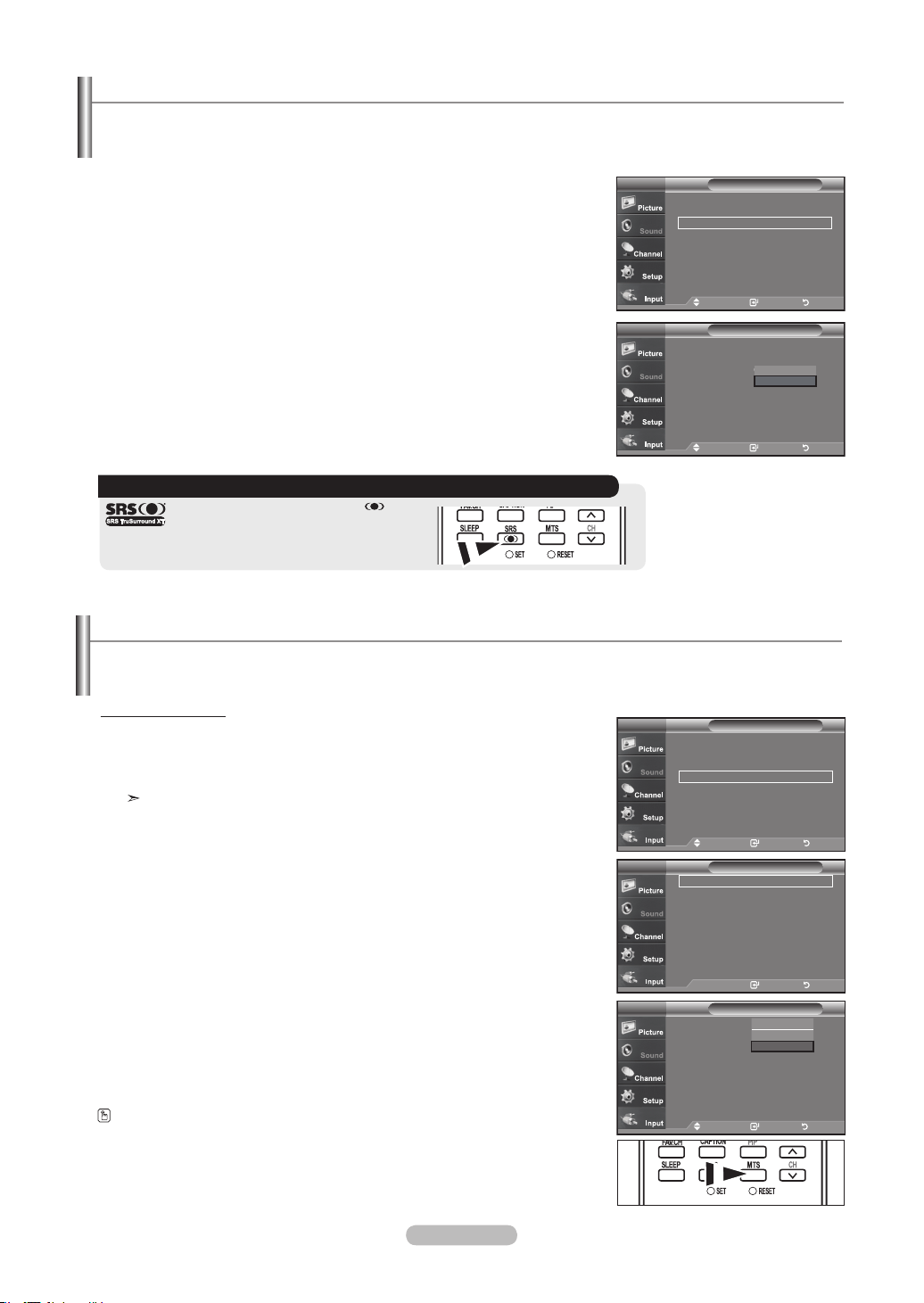
Français - 34
Paramétrage de la technologie TruSurround XT
TruSurround XT est une technologie SRS brevetée qui résout le problème de la lecture de contenu multicanaux en 5.1, lorsque
le système ne comprend que deux enceintes. La technologie Trusurround offre une qualité audio virtuelle exceptionnelle avec
n'importe quel système à deux enceintes, y compris les haut-parleurs internes d'un téléviseur. Elle est entièrement compatible
avec tous les formats multicanaux.
1.
Appuyez sur le bouton MENU pour afficher le menu.
Appuyez sur les boutons ▲ ou ▼ pour sélectionner “Son”, puis appuyez sur le
bouton ENTER.
2. Appuyez sur les boutons ▲ ou ▼ pour sélectionner “SRS TruSurround XT”, puis
appuyez sur le bouton ENTER.
3.
Appuyez sur les boutons ▲ ou ▼ pour sélectionner “On” ou “Off”, puis appuyez
sur le bouton ENTER.
Appuyez sur le bouton EXIT
pour quitter.
1. Appuyez sur le bouton MENU pour afficher le menu.
Appuyez sur les boutons ▲ ou ▼ pour sélectionner “Son”, puis appuyez sur le
bouton ENTER.
Raccourci vers le menu MTS: Appuyez simplement sur le bouton MTS de la
télécommande. Vous pouvez écouter le programme dans une langue autre que
la langue sélectionnée, en appuyant sur le bouton MTS.
2.
Appuyez sur les boutons ▲ ou ▼ pour sélectionner “Options multi-pistes”, puis
appuyez sur le bouton ENTER.
3.
Appuyez sur les boutons ENTER pour sélectionner “Langue privilégiée”.
Appuyez sur les boutons ▲ ou ▼ pour choisir la langue souhaitée (English, Espagnol
ou Français), puis appuyez sur ENTER.
Appuyez sur le bouton EXIT
pour quitter.
Langue privilégiée
Sélection d'une bande son à canaux multiples (MTS) – Numérique
Le système TV numérique est capable de réaliser la transmission simultanée de plusieurs pistes audio (par exemple, la traduction
simultanée du programme en plusieurs langues). La disponibilité de ces multipistes supplémentaires dépend du programme choisi.
AVERTISSEMENT CONCERNANT LES MARQUES ET LOGOS
TruSurround XT, SRS et le symbole
sont
des marques commerciales de SRS Labs, Inc. La
technologie TruSurround XT est intégrée sous
licence de SRS Labs, Inc.
SonTV
Mode : Personnel ►
Égaliseur
►
SRS TruSurround XT
: Off ►
Options multi-pistes ►
Volume auto : Off
►
Sourdine int. : Off
►
Sélect. son : Principale ►
Régler
: OK ►
Dépl. Intro. Retour
SonTV
Mode : Personnel
Égaliseur
SRS TruSurround XT
: Off
Options multi-pistes
Volume auto : Off
Sourdine int. : Off
Sélect. son : Principale
Régler
: OK ►
Off
On
Dépl. Intro. Retour
Intro. Retour
Langue privilégiée
: Français ►
Son multi-piste : Stéréo
►
Options multi-pistesTV
Dépl. Retour Retour
Options multi-pistesTV
Langue privilégiée
: Anglais
Son multi-piste : Stéréo
SonTV
Mode : Personnel ►
Égaliseur
►
SRS TruSurround XT
: Off ►
Options multi-pistes ►
Volume auto : Off
►
Sourdine int. : Off
►
Sélect. son : Principale ►
Régler
: OK ►
Dépl. Intro. Retour
Vous pouvez écouter l'émission dans une langue autre que la langue
privilégiée en appuyant sur le bouton MTS.
English
Espagnol
Français
BN68-01178B-Fre.indd 34 2007-02-15 �� 10:01:15
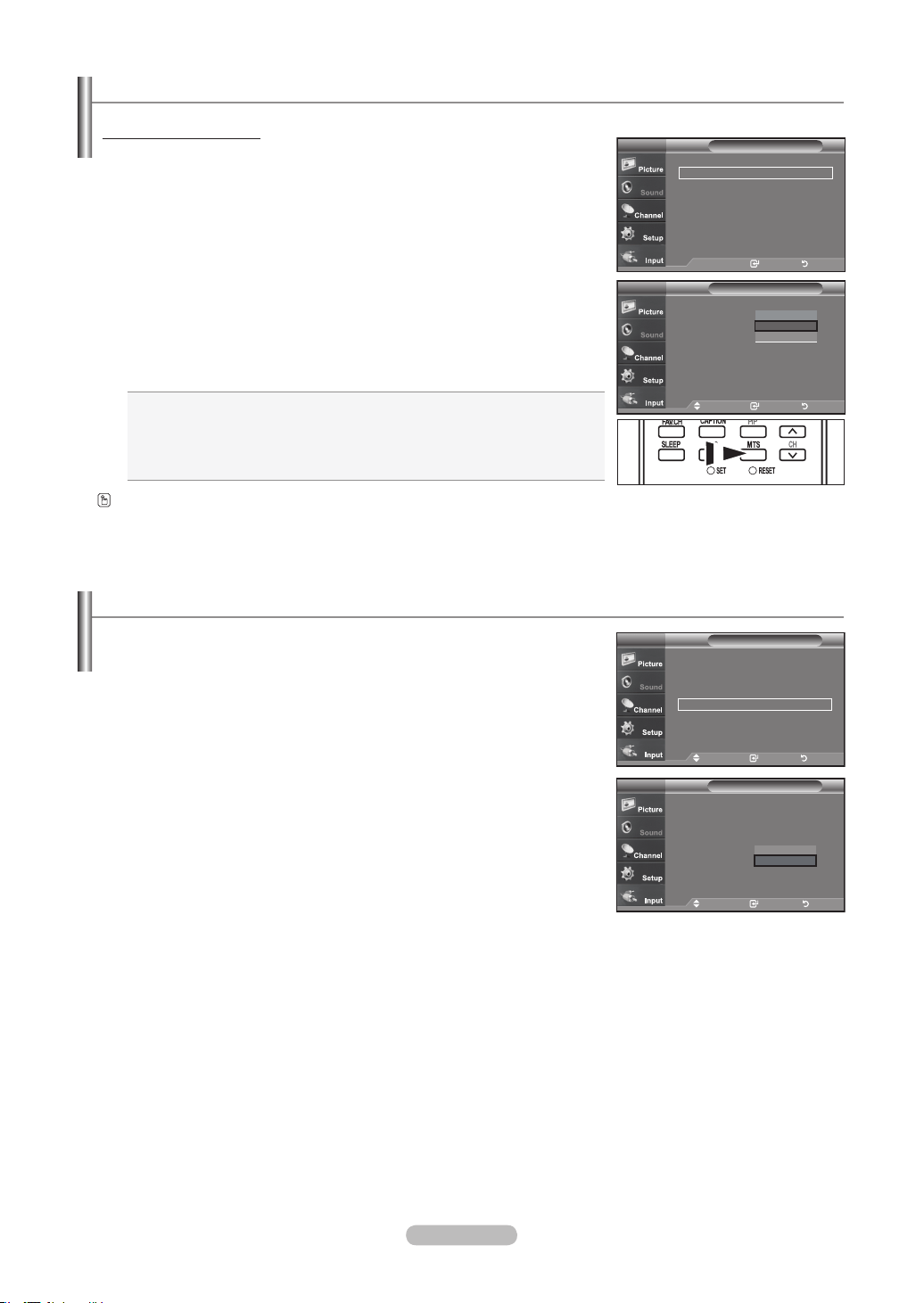
Français - 35
Contrôle automatique du volume
1. Appuyez sur le bouton MENU pour afficher le menu.
Appuyez sur les boutons▲ ou ▼ pour sélectionner “Son”, puis appuyez sur le
bouton ENTER.
2. Appuyez sur les boutons ▲ ou ▼ pour sélectionner “Volume auto”, puis appuyez sur le
bouton ENTER.
3.
Appuyez sur les boutons ▲ ou ▼ pour sélectionner “On” ou “Off”, puis appuyez sur
le bouton ENTER.
Appuyez sur le bouton EXIT
pour quitter.
Réduit les différences de niveau volume entre les chaînes.
1. Appuyez sur le bouton MENU pour afficher le menu.
Appuyez sur les boutons ▲ ou ▼ pour sélectionner “Son”, puis appuyez sur le
bouton ENTER.
2.
Appuyez sur les boutons ▲ ou ▼ pour sélectionner “Options multi-pistes”, puis
appuyez sur le bouton ENTER.
3. Appuyez sur les boutons ▲ ou ▼ pour sélectionner “Son multi-piste”, puis appuyez sur
le bouton ENTER.
Utilisez les boutons ▲ ou ▼ pour sélectionner le paramètre de votre choix, puis
appuyez sur le bouton ENTER.
Appuyez sur le bouton EXIT
pour quitter.
• Choisissez Mono pour les canal qui émettent en mono, ou si vous avez des
difficultés à recevoir un signal stéréo.
• Choisissez Stéréo pour les canal qui émettent en stéréo.
• Choisissez SAP pour écouter le programme audio séparé qui est générale-
ment une traduction en langue étrangère.
Mode audio multipistes
Sélection d'une bande son à canaux multiples (MTS) - Analogique
Appuyez plusieurs fois sur les boutons MTS de la télécommande pour
sélectionner “Mono”, “Stéréo” ou “SAP”.
Intro. Retour
Options multi-pistesTV
Langue privilégiée
: Français ►
Son multi-piste : Stéréo
►
Dépl. Intro. Retour
Options multi-pistesTV
Langue privilégiée
: Français
Son multi-piste : Stéréo
Mono
Stéréo
SAP
Dépl. Intro. Retour
SonTV
Mode : Personnel ►
Égaliseur
►
SRS TruSurround XT
: Off ►
Options multi-pistes ►
Volume auto : Off
►
Sourdine int. : Off
►
Sélect. son : Principale ►
Régler
: OK ►
Dépl. Intro. Retour
SonTV
Mode : Personnel
Égaliseur
SRS TruSurround XT
: Off
Options multi-pistes
Volume auto : Off
Sourdine int. : Off
Sélect. son : Principale
Régler
: OK ►
Off
On
BN68-01178B-Fre.indd 35 2007-02-15 �� 10:01:17
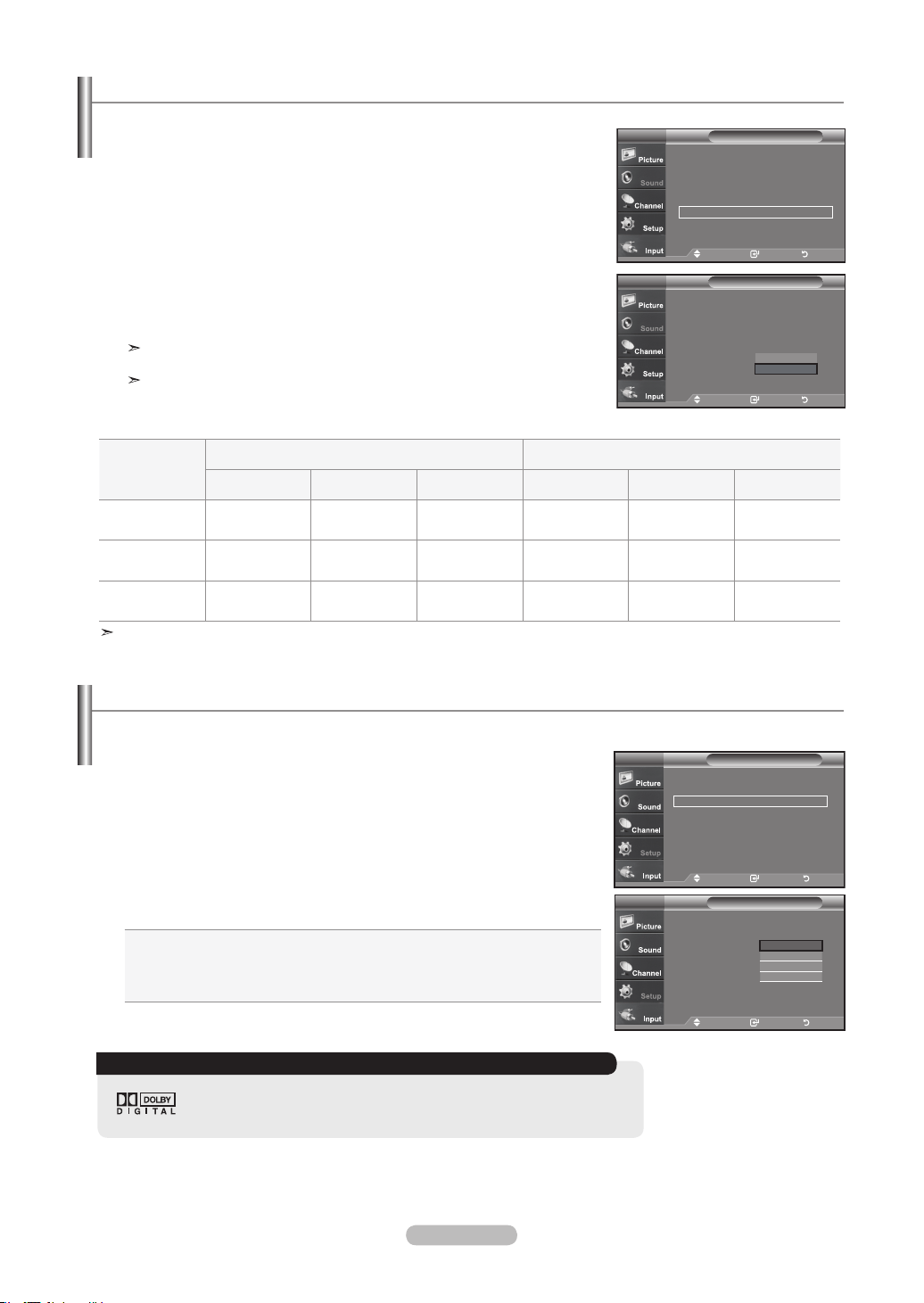
Français - 36
Sélection du mode Internal Mute
1. Appuyez sur le bouton MENU pour afficher le menu.
Appuyez sur les boutons ▲ ou ▼ pour sélectionner “Son”, puis appuyez sur le
bouton ENTER.
2.
Appuyez sur les boutons ▲ ou ▼ pour sélectionner “Sourdine int.”, puis appuyez sur le
bouton ENTER.
3.
Appuyez sur les boutons ▲ ou ▼ pour sélectionner “On”, puis appuyez sur le bou-
ton ENTER.
Appuyez sur le bouton EXIT
pour quitter.
Lorsque l'option Sourdine interne est activée (On), les paramètres du menu
Son ne peuvent être configurés, à l'exception des Options multi-pistes.
Les touches VOL+, VOL- et MUTE ne fonctionment pas lorsque Sourdine int.
est activée.
La sortie audio des haut-parleurs du téléviseur est désactivée.
Conguration de la mélodie de marche/d'arrêt
Vous pouvez choisir et configurer une mélodie qui se déclenchera à la mise en marche et à l'arrêt du téléviseur.
1. Appuyez sur le bouton
MENU pour afficher le menu.
Appuyez sur les boutons ▲ ou ▼ pour sélectionner “Configuration”, puis appuyez
sur le bouton ENTER.
2. Appuyez sur les boutons ▲ ou ▼ pour sélectionner “Mélodie”, puis appuyez sur le
bouton ENTER.
3.
Appuyez sur le bouton ▲ ou ▼ pour sélectionner “Off”, “Basse”, “Moyen”, “Haute”.
Appuyez sur le bouton ENTER.
Off: Désactive la function Mélodie.
Bas: Règle le volume Mélodie au niveau bas.
Moyen: Règle le volume Mélodie au niveau moyen.
Haute: Règle le volume Mélodie au niveau élevé.
Appuyez sur le bouton EXIT pour quitter.
DOLBY DIGITAL
Fabriqué sous licence par Dolby Laboratories. “Dolby” et le symbole en
forme de double “D” sont des marques déposées de Dolby Laboratories.
Internal Haut-parleur Sortie audio (Optical, L/R Out)
HF AV, S-Vidéo
Composant, PC, HDMI
HF AV, S-Vidéo
Composant, PC, HDMI
Mode Internal Mute
Desactive
Sortie de haut-
parleur
Sortie de haut-
parleur
Sortie de haut-
parleur
Sortie audio Sortie audio Sortie audio
Mode Internal Mute
Active
Mute Mute Mute Sortie audio Sortie audio Sortie audio
Aucun signal vidéo
Mute Mute Mute Mute Mute Mute
Lorsque l'option “Sourdine int.” est activée, les paramètres du menu Son ne peuvent être configurés, à l'exception de “Options
multi-pistes”.
Dépl. Intro. Retour
SonTV
Mode : Personnel ►
Égaliseur
►
SRS TruSurround XT
: Off ►
Options multi-pistes ►
Volume auto : Off
►
Sourdine int. : Off
►
Sélect. son : Principale ►
Régler
: OK ►
Dépl. Intro. Retour
SonTV
Mode : Personnel
Égaliseur
SRS TruSurround XT
: Off
Options multi-pistes
Volume auto : Off
Sourdine int. : Off
Sélect. son : Principale
Régler
: OK ►
Off
On
Configuration
▲Plus
Écran Bleu : On ►
Mélodie : Off ►
PC ►
PC cinéma maison : Off ►
Économiseur énergie
: Off ►
Niveau noir HDMI : Normal ►
▼ Plus
TV
Dépl. Intro. Retour
Configuration
TV
▲Plus
Écran Bleu : On
Mélodie : Off
PC
PC cinéma maison : Off
Économiseur énergie
: Off
Niveau noir HDMI : Normal ►
▼ Plus
Off
Bajo
Medio
Alto
Dépl. Intro. Retour
BN68-01178B-Fre.indd 36 2007-02-15 �� 10:01:19
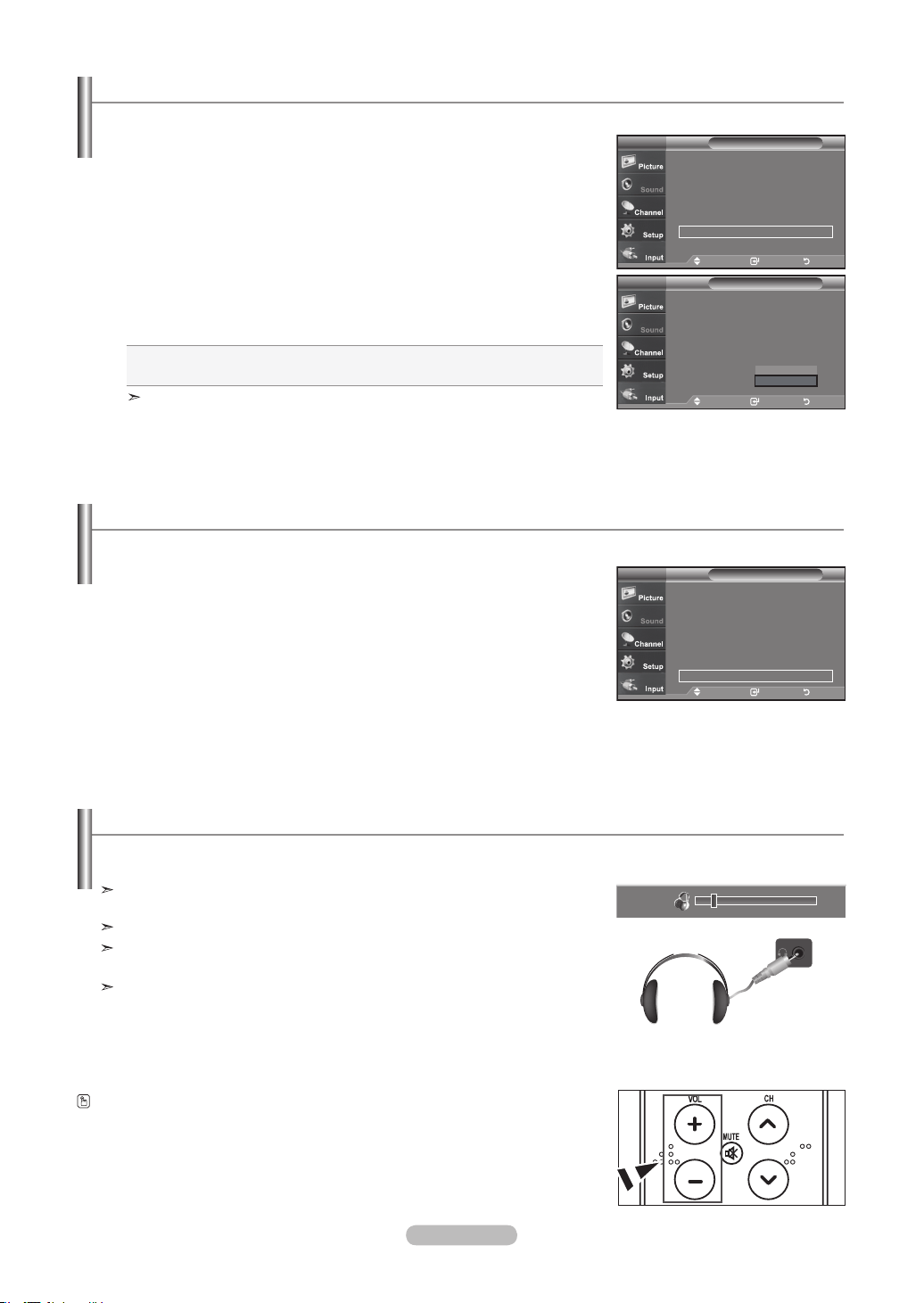
Français - 37
Rétablir les paramètres de son par défaut
1. Appuyez sur le bouton MENU pour afficher le menu.
Appuyez sur les boutons ▲ ou ▼ pour sélectionner “Son”, puis appuyez sur le
bouton ENTER.
2.
Appuyez sur les boutons ▲ ou ▼ pour sélectionner “Régler”, puis appuyez sur le
bouton ENTER.
Appuyez sur le bouton EXIT
pour quitter.
Si le mode Jeu est activé, la fonction Réinitialiser le son est disponible. Sélectionner la fonction.
Réinitialiser après avoir réglé l’égaliseur rétablit ses paramètres par défaut.
Vous pouvez connecter un casque à votre téléviseur, si vous souhaitez regarder un programme sur votre téléviseur sans déranger
les autres personnes présentes dans la pièce.
Connexion du casque
Lorsque vous insérez la prise du casque dans le port correspondent, vous pouvez
commander uniquement “Options multi-pistes” dans le menu Son.
L’utilisation prolongée du casque à fort volume peut altérer votre audition.
Aucun son n’est émis depuis les enceintes lorsque vous connectez le casque à
l’appareil.
Le volume des écouteurs et du téléviseur se règle différemment.
10
Activation du son de l'image (ISI) secondaire
1. Appuyez sur le bouton MENU pour afficher le menu.
Appuyez sur les boutons ▲ ou ▼ pour sélectionner “Son”, puis appuyez sur le
bouton ENTER.
2. Appuyez sur les boutons ▲ ou ▼ pour sélectionner “Sélect. son”, puis appuyez sur le
bouton ENTER.
3. Appuyez sur les boutons ▲ ou ▼ pour sélectionner “Principale” ou “Secondaire”,
puis appuyez sur le bouton ENTER.
Appuyez sur le bouton EXIT
pour quitter.
• Principale: Permet d'écouter le son accompagnant l'image principale.
• Secondaire: Permet d'écouter le son accompagnant l'image second.
Vous pouvez sélectionner cette option lorsque la fonction “PIP” est définie sur
“On”.
Lorsque la fonction ISI est activée, vous pouvez écouter le son de l'image (ISI) secondaire.
SonTV
Mode : Personnel ►
Égaliseur
►
SRS TruSurround XT
: Off ►
Options multi-pistes ►
Volume auto : Off
►
Sourdine int. : Off
►
Sélect. son : Principale ►
Régler
: OK ►
Dépl. Intro. Retour
SonTV
Mode : Personnel
Égaliseur
SRS TruSurround XT
: Off
Options multi-pistes
Volume auto : Off
Sourdine int. : Off
Sélect. son : Principale
Régler
Principale
Secondaire
Dépl. Intro. Retour
SonTV
Mode : Personnel ►
Égaliseur
►
SRS TruSurround XT
: Off ►
Options multi-pistes ►
Volume auto : Off
►
Sourdine int. : Off
►
Sélect. son : Principale ►
Régler
: OK ►
Dépl. Intro. Retour
Appuyez sur la touche VOL de la télécommandeà plusieurs reprises pour
sélectionner l’un des réglages audio standard.
BN68-01178B-Fre.indd 37 2007-02-15 �� 10:01:21
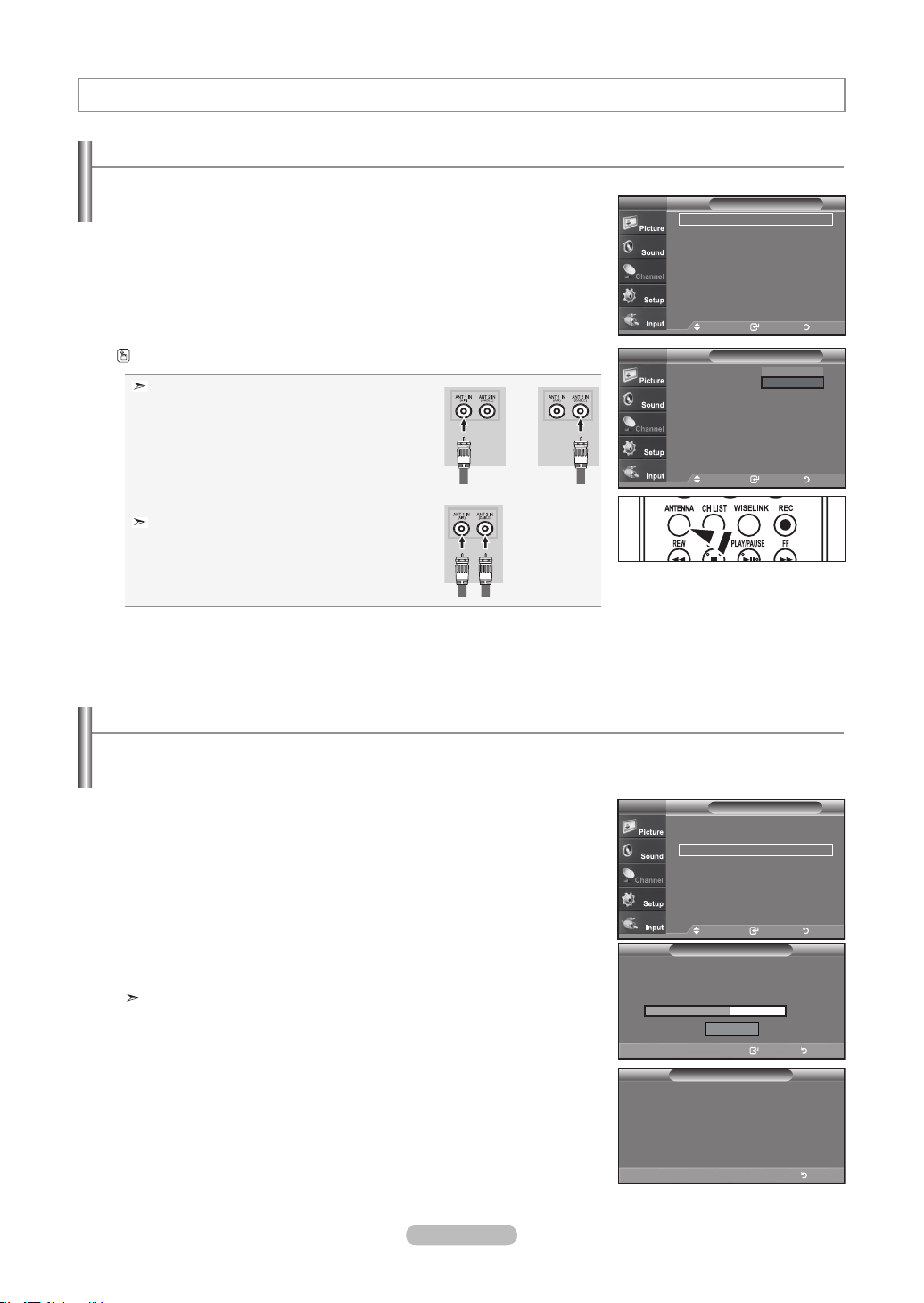
Français - 38
Contrôle des Chaînes
Sélection de l'antenne
1. Appuyez sur le bouton MENU pour afficher le menu.
Appuyez sur les boutons ▲ ou ▼ pour sélectionner “Chaîne”, puis appuyez sur
le bouton ENTER.
2. Appuyez sur les boutons ENTER
pour sélectionner “Antenne”.
Appuyez sur les boutons ▲ ou ▼ pour sélectionner “Air” ou “Câble”, puis
appuyez sur le bouton ENTER.
Appuyez sur le bouton EXIT
pour quitter.
Appuyez sur le bouton ANTENNA de la télécommande.
Si l'antenne est branchée sur la prise ANT 1 IN
(AIR), sélectionnez “Air” et si elle est branchée
sur la prise ANT 2 IN (CABLE), sélectionnez
“Câble”.
Si les prises ANT 1 IN (AIR) et ANT 2 IN (CABLE)
sont toutes deux utilisées, sélectionnez l'entrée
de votre choix. Si l'entrée d'antenne n'est pas
sélectionnée correctement, des parasites peuvent
apparaître à l'écran.
ou
60%
DTV Cable 3-1
ChaîneTV
Antenne : Air ►
Prog. auto ►
Effacer les canaux brouillés ►
Liste des canaux ►
Nom ►
Syn. Précise ►
Puissance signal ►
AFB : On ►
Dépl. Intro. Retour
ChaîneTV
Antenne : Air
Prog. auto
Effacer les canaux brouillés
Liste des canaux
Nom
Syn. Précise
Puissance signal
AFB : On
Air
Câble
Dépl. Intro. Retour
Suppression des canaux brouillés – canaux numériques
1. Appuyez sur le bouton MENU pour afficher le menu.
Appuyez sur les boutons ▲ ou ▼ pour sélectionner “Chaîne”, puis appuyez sur
le bouton ENTER.
2.
Appuyez sur les boutons ▲ ou ▼ pour sélectionner “Effacer les canaux
brouillés”, puis appuyez sur le bouton ENTER. Cette procédure permet de
détecter les canaux brouillés qui doivent être supprimés de la liste.
Pour arrêter la fonction de recherche des canaux brouillés
Appuyez sur les boutons ▼ pour sélectionner
Stop
, puis appuyez sur le bou-
ton ENTER.
Appuyez sur les boutons ◄ pour sélectionner
Yes
, puis appuyez sur le bou-
ton ENTER.
3.
Lorsque la recherche de canaux brouillés est terminée, appuyez sur ENTER.
Appuyez sur la touche EXIT pour quitter le menu.
La fonction Suppression des canaux brouillés sert à éliminer les canaux brouillés une fois que la programmation automatique est
terminée. Elle permet de supprimer les canaux brouillés de la liste en syntonisant les canaux numériques. Cette procédure peut
prendre de 20 à 30 minutes.
Effacer les canaux brouillés
Arrêter
Removing scrambled channel.
DTV Cable 3-1
50%
Intro. Retour
Effacer les canaux brouillés
Scrambled Channel Searching is completed.
0 Channels are deleted.
Retour
ChaîneTV
Antenne : Air ►
Prog. auto ►
Effacer les canaux brouillés ►
Liste des canaux ►
Nom ►
Syn. Précise ►
Puissance signal ►
AFB : On ►
Dépl. Intro. Retour
BN68-01178B-Fre.indd 38 2007-02-15 �� 10:01:23

Français - 39
Réglage des listes de canaux
Vous pouvez ajouter ou supprimer une chaîne an d'afcher uniquement les chaînes de votre choix.
1. Appuyez sur le bouton MENU pour afficher le menu.
Appuyez sur les boutons ▲ ou ▼ pour sélectionner “Chaîne”, puis appuyez sur
le bouton ENTER.
2. Appuyez sur les boutons ▲ ou ▼ pour sélectionner “Liste des canaux”, puis
appuyez sur le bouton ENTER.
3. Appuyez sur le bouton ENTER
pour sélectionner “Tout”.
4. Appuyez sur les boutons ▲ ou ▼ pour sélectionner une chaîne à supprimer,
puis appuyez sur le bouton ENTER.
Appuyez sur les boutons ▲ ou ▼ pour sélectionner “Supprimer”, puis appuyez
sur le bouton ENTER pour supprimer la chaîne.
Le symbole disparaît.
5. Appuyez sur les boutons ▲ ou ▼ pour sélectionner une chaîne à ajouter,
puis appuyez sur le bouton ENTER.
Appuyez sur les boutons ▲ ou ▼ pour sélectionner “Ajouter”, puis appuyez
sur le bouton ENTER pour supprimer la chaîne.
Le symbole s’affiche et le canal sera ajouté.
Appuyez sur le bouton EXIT
pour quitter.
Toutes les chaînes sélectionnées apparaissent comme “Ajouter”.
• Bouton (P.MODE) rouge: Appuyez plusieurs fois pour sélectionner
“Tout”, “Ajouté”, ou “Favorite”.
• Bouton (S.MODE) vert: Appuyez sur ce bouton pour ajouter toutes les
chaînes supprimées.
• Bouton (STILL) jaune: Appuyez sur ce bouton pour supprimer toutes
les chaînes mémorisées.
ChaîneTV
Antenne : Air ►
Prog. auto ►
Effacer les canaux brouillés ►
Liste des canaux ►
Nom ►
Syn. Précise ►
Puissance signal ►
AFB : On ►
Dépl. Intro. Retour
Tout ►
Ajoute ►
favorite ►
Mode Liste par Défaut : Tout ►
Liste des canaux
TV
Dépl. Intro. Retour
CH
Liste des canaux
/
Tout
Dépl. Intro. Page Retour
DTV Air 2-1
Air3
Air4
Air 5
Air 6
Air 7
DTV Air 7-1
Air 8
Air 9
Air 10
DTV Air 10-1
DTV Air 10-2
DTV Air 10-3
DTV Air 10-1
DTV Air 10-2
DTV Air 10-3
DTV Air 10-1
DTV Air 10-2
DTV Air 10-3
Air 12
DTV Air 13-1
DTV Air 13-2
DTV Air 13-3
DTV Air 13-4
Mode liste
Supp. tout
Air 5 1 / 2
Regarder
Ajouter
Supprimer
Favorite
CH
Liste des canaux
/
Tout
Dépl. Intro. Page Retour
DTV Air 2-1
Air3
Air4
Air 5
Air 6
Air 7
DTV Air 7-1
Air 8
Air 9
Air 10
DTV Air 10-1
DTV Air 10-2
DTV Air 10-3
DTV Air 10-1
DTV Air 10-2
DTV Air 10-3
DTV Air 10-1
DTV Air 10-2
DTV Air 10-3
Air 12
DTV Air 13-1
DTV Air 13-2
DTV Air 13-3
DTV Air 13-4
Air 5 1 / 2
Ajout. tout
CH
Liste des canaux
/
Tout
Dépl. Intro. Page Retour
DTV Air 2-1
Air3
Air4
Air 5
Air 6
Air 7
DTV Air 7-1
Air 8
Air 9
Air 10
DTV Air 10-1
DTV Air 10-2
DTV Air 10-3
DTV Air 10-1
DTV Air 10-2
DTV Air 10-3
DTV Air 10-1
DTV Air 10-2
DTV Air 10-3
Air 12
DTV Air 13-1
DTV Air 13-2
DTV Air 13-3
DTV Air 13-4
Mode liste
Supp. tout
Air 5 1 / 2
Liste des canaux
/
Tout
Dépl. Intro. Page Retour
DTV Air 2-1
Air3
Air4
Air 5
Air 6
Air 7
DTV Air 7-1
Air 8
Air 9
Air 10
DTV Air 10-1
DTV Air 10-2
DTV Air 10-3
DTV Air 10-1
DTV Air 10-2
DTV Air 10-3
DTV Air 10-1
DTV Air 10-2
DTV Air 10-3
Air 12
DTV Air 13-1
DTV Air 13-2
DTV Air 13-3
DTV Air 13-4
Air 5 1 / 2
Regarder
Ajouter
Supprimer
Favorite
Mode liste
Supp. tout
Ajout. tout
Mode liste
Supp. tout
Ajout. tout
BN68-01178B-Fre.indd 39 2007-02-15 �� 10:01:26
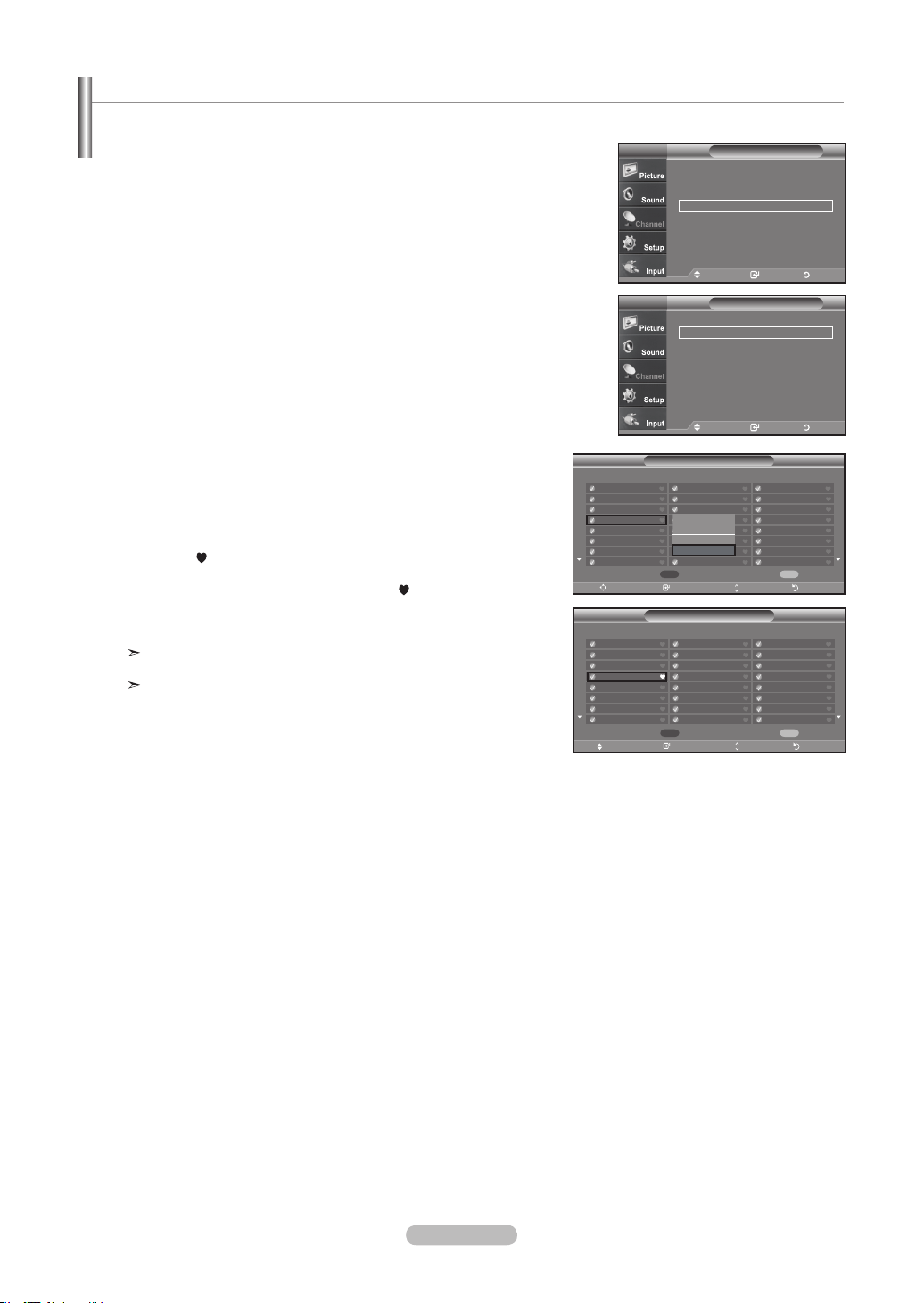
Français - 40
Conguration de vos chaînes favorites
1. Appuyez sur le bouton MENU pour afficher le menu.
Appuyez sur les boutons ▲ ou ▼ pour sélectionner “Chaîne”, puis appuyez
sur le bouton ENTER.
2. Appuyez sur les boutons ▲ ou ▼ pour sélectionner “Liste des canaux”,
puis appuyez sur le bouton ENTER.
3. Appuyez sur les boutons ▲ ou ▼ pour sélectionner “Ajoute”, puis appuyez
sur le bouton ENTER.
4. Appuyez sur les boutons ▲ ou ▼ pour sélectionner vos chaînes favorites
parmi les chaînes répertoriées. Puis appuyez sur le bouton ENTER.
Appuyez sur les boutons ▲ ou ▼ pour sélectionner “Favorite”, puis appuyez
sur le bouton ENTER.
Le symbole “
” sera alors mis en surbrillance et la chaîne sera enregistrée
dans les Favoris. Pour annuler votre sélection de chaînes préférées, appuyez
sur le bouton ENTER jusqu'à ce que le symbole “ ” ne soit plus en surbril
lance.
Appuyez sur le bouton EXIT
pour quitter.
Seules les chaînes déjà en mémoire peuvent faire partie de vos chaînes
favorites.
Toutes vos chaînes préférées apparaissent comme “Favorite”.
Vous pouvez dénir en favoris les chaînes que vous regardez fréquemment.
CH
Liste des canaux
/ Ajoute
Dépl. Intro. Page Retour
DTV Air 2-1
Air3
Air4
Air 5
Air 6
Air 7
DTV Air 7-1
Air 8
Air 9
Air 10
DTV Air 10-1
DTV Air 10-2
DTV Air 10-3
DTV Air 10-1
DTV Air 10-2
DTV Air 10-3
DTV Air 10-1
DTV Air 10-2
DTV Air 10-3
Air 12
DTV Air 13-1
DTV Air 13-2
DTV Air 13-3
DTV Air 13-4
Air 5 1 / 2
Regarder
Ajoute
Supprimer
favorite
Mode liste Supp. tout
CH
Liste des canaux
/
Tout
Dépl. Intro. Page Retour
DTV Air 2-1
Air3
Air4
Air 5
Air 6
Air 7
DTV Air 7-1
Air 8
Air 9
Air 10
DTV Air 10-1
DTV Air 10-2
DTV Air 10-3
DTV Air 10-1
DTV Air 10-2
DTV Air 10-3
DTV Air 10-1
DTV Air 10-2
DTV Air 10-3
Air 12
DTV Air 13-1
DTV Air 13-2
DTV Air 13-3
DTV Air 13-4
Air 5 1 / 2
Mode liste Supp. tout
ChaîneTV
Antenne : Air ►
Prog. auto ►
Effacer les canaux brouillés ►
Liste des canaux ►
Nom ►
Syn. Précise ►
Puissance signal ►
AFB : On ►
Dépl. Intro. Retour
Liste des canauxTV
Tout
Ajoute
favorite
Mode Liste par Défaut : Tout ►
Dépl. Intro. Retour
BN68-01178B-Fre.indd 40 2007-02-15 �� 10:01:28
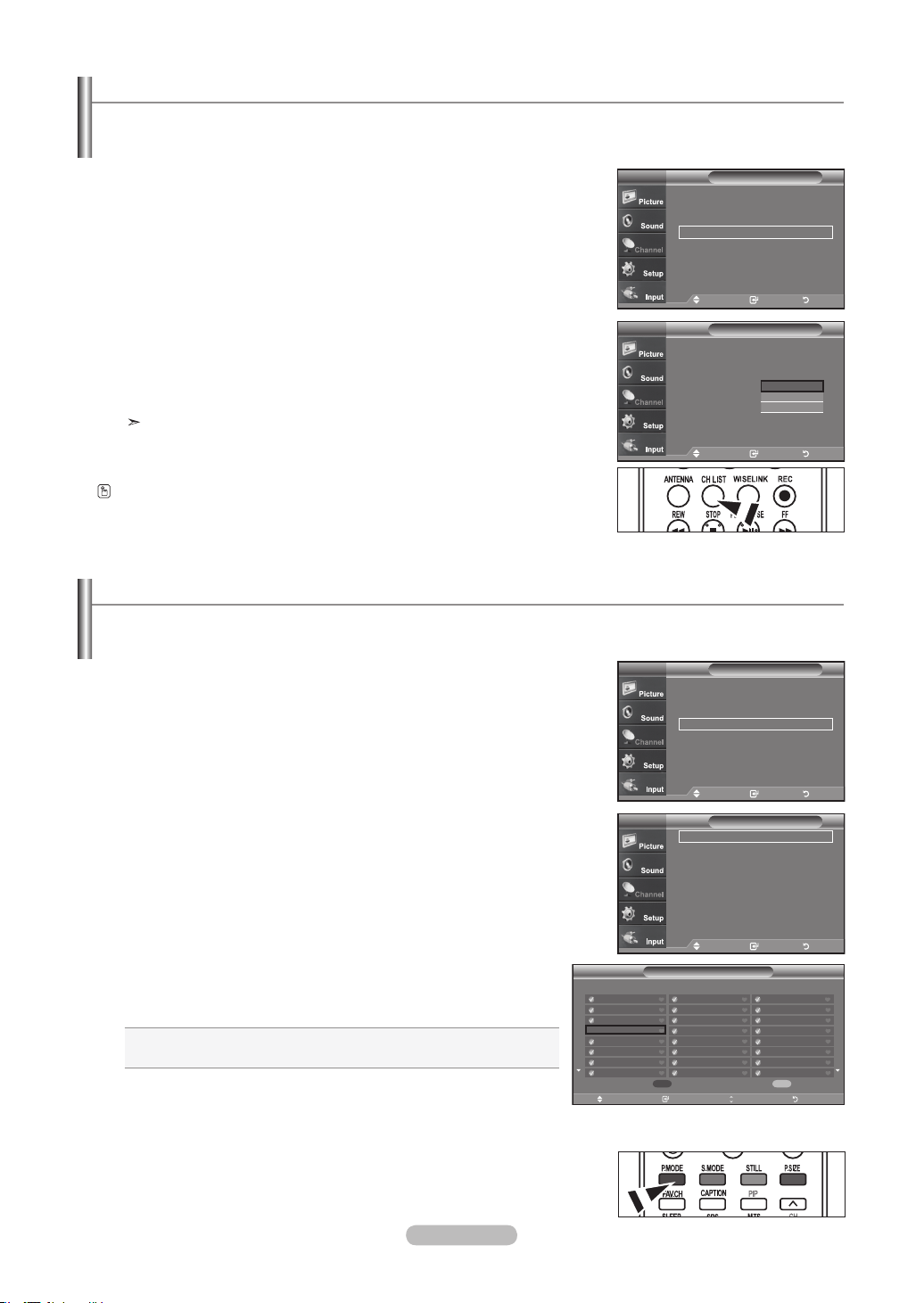
Français - 41
Utilisation de la liste de chaînes
1. Appuyez sur le bouton MENU pour afficher le menu.
Appuyez sur les boutons ▲ ou ▼ pour sélectionner “Chaîne”, puis appuyez sur
le bouton ENTER.
2. Appuyez sur les boutons ▲ ou ▼ pour sélectionner “Liste des canaux”, puis
appuyez sur le bouton ENTER.
3. Appuyez sur les boutons ▲ ou ▼ pour sélectionner “Default List Mode” Mode
liste par défaut) (la liste de chaînes que vous souhaitez afficher en appuyant sur
CH.LIST) puis appuyez sur le bouton ENTER.
Appuyez sur les boutons ▲ ou ▼ pour sélectionner “Tout”, “Ajoute”, ou “Favorite”
puis appuyez sur le bouton ENTER.
La liste des canaux que vous avez sélectionnée est maintenant réglée.
Appuyez sur le bouton EXIT pour quitter.
Afche la liste des chaînes automatiquement lorsque vous appuyez sur le bouton CH LIST de la télécommande. (Choisis-
sez Toutes, Ajoutées ou Favoris)
Afchage de la liste des chaînes
1. Appuyez sur le bouton MENU pour afficher le menu.
Appuyez sur les boutons ▲ ou ▼ pour sélectionner “Chaîne”, puis appuyez sur
le bouton ENTER.
2. Appuyez sur les boutons ▲ ou ▼ pour sélectionner “Liste des canaux”, puis
appuyez sur le bouton ENTER.
3. Appuyez sur les boutons ▲ ou ▼ pour sélectionner “Tout”, “Ajoute”, ou
“Favorite”puis appuyez sur le bouton ENTER.
4.
Appuyez sur les boutons ▲ ou ▼ pour sélectionner “Chaîne”, puis appuyez
sur le bouton ENTER.
Pour basculer entre toutes les chaînes, les chaînes ajoutées ou vos chaînes
favorites, utilisez le bouton (P.Mode) rouge de la télécommande.
• Bouton (P.Mode) rouge: Appuyez plusieurs fois pour sélectionner
“Tout”, “Ajouté”, ou “Favorite”.
Vous pouvez afcher la liste de toutes les chaînes, des chaînes ajoutées ou de vos chaînes favorites.
Appuyez sur la touche CH. LIST de la télécommande pour afficher une liste de
canaux.
ChaîneTV
Antenne : Air ►
Prog. auto
►
Effacer les canaux brouillés
►
Liste des canaux ►
Nom ►
Syn. Précise ►
Puissance signal
►
AFB : On
►
Dépl. Intro. Retour
Liste des canaux
TV
Tout
Ajoute
favorite
Mode Liste par Défaut : Tout
Tout
Ajoute
Favorite
Dépl. Intro. Retour
CH
Liste des canaux
/
Tout
Dépl. Intro. Page Retour
DTV Air 2-1
Air3
Air4
Air 5
Air 6
Air 7
DTV Air 7-1
Air 8
Air 9
Air 10
DTV Air 10-1
DTV Air 10-2
DTV Air 10-3
DTV Air 10-1
DTV Air 10-2
DTV Air 10-3
DTV Air 10-1
DTV Air 10-2
DTV Air 10-3
Air 12
DTV Air 13-1
DTV Air 13-2
DTV Air 13-3
DTV Air 13-4
Air 5 1 / 2
Mode liste Supp. tout
ChaîneTV
Antenne : Air ►
Prog. auto ►
Effacer les canaux brouillés ►
Liste des canaux ►
Nom ►
Syn. Précise ►
Puissance signal ►
AFB : On ►
Dépl. Intro. Retour
Liste des canaux
TV
Tout
Ajoute
favorite
Mode Liste par Défaut : Tout
Dépl. Intro. Retour
BN68-01178B-Fre.indd 41 2007-02-15 �� 10:01:30
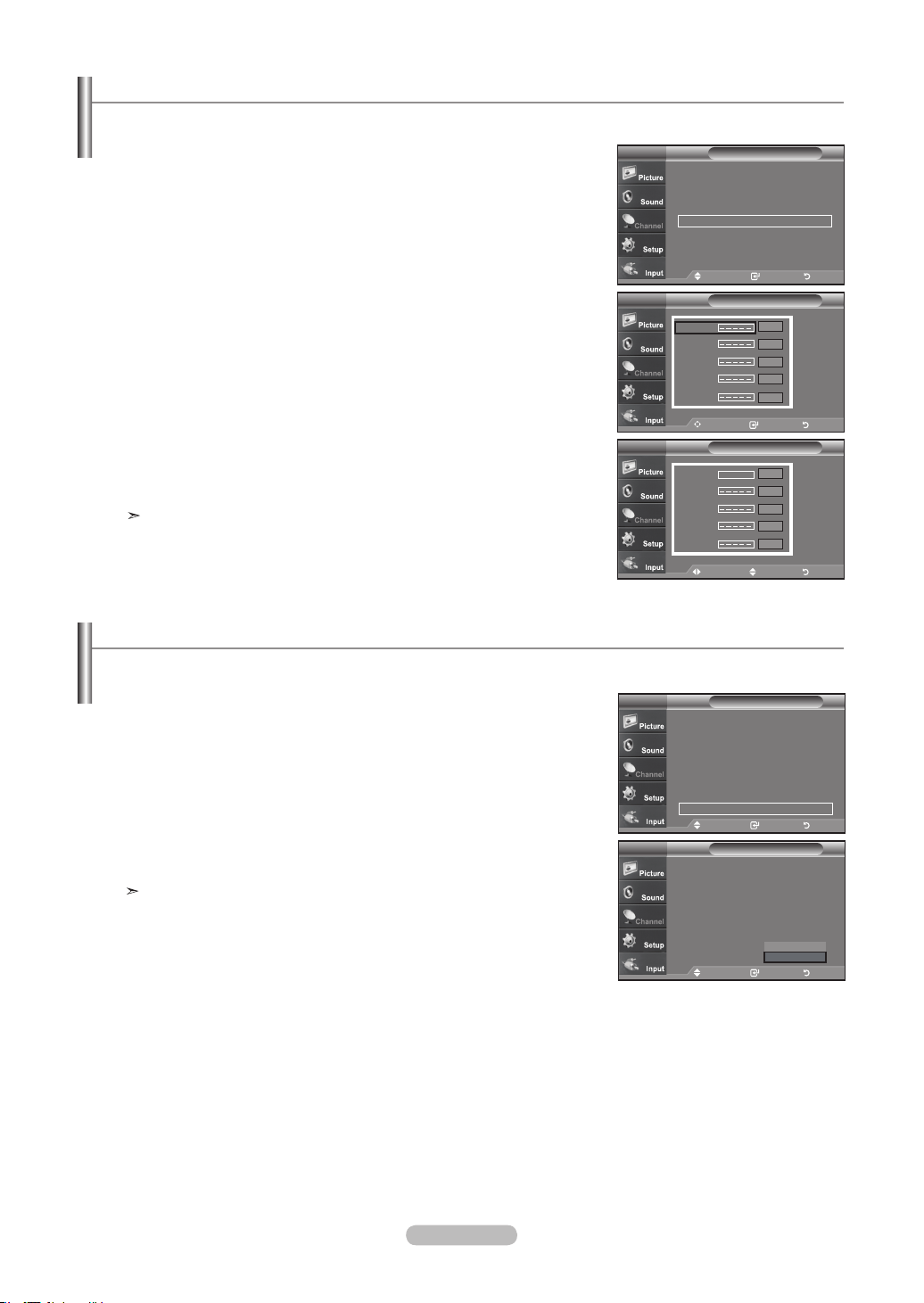
Français - 42
Nom des chaînes
1. Appuyez sur le bouton MENU pour afficher le menu.
Appuyez sur les boutons ▲ ou ▼ pour sélectionner “Chaîne”, puis appuyez sur
le bouton ENTER.
Appuyez sur les boutons ▲ ou ▼ pour sélectionner “Nom”, puis appuyez sur le
bouton ENTER.
2. Utilisez les boutons ▲ ou ▼ pour sélec tionner la chaîne à renom mer, puis
appuyez sur le bouton ENTER.
Utilisez les boutons ▲ ou ▼ pour sélec tionner une lettre, un chiffre ou un
espace (séquence de résultat: A...Z, 0...9, +, -, *, /, espace).
Appuyez sur le bouton ► pour passer au champ suivant, qui sera alors sélec-
tionné.
Choisissez un deuxième caractère, lettre ou chiffre, à l'aide des boutons ▲ ou ▼
, comme indiqué ci-dessus.
Recommencez cette opération pour sélectionner les trois derniers chiffres.
Lorsque vous avez terminé, appuyez sur le bouton ENTER pour valider le
nouveau nom. Pour effacer le nouveau nom assigné, sélectionnez “Effacer” en
appuyant sur le bouton ◄ ou ► puis appuyez sur le bouton ENTER.
Appuyez sur le bouton EXIT
pour quitter.
Le nom des chaînes numériques est automatiquement affecté par le système
et ne peut être modifié par l'utilisateur.
Amplicateur à faible bruit (AFB)
1. Appuyez sur le bouton MENU pour afficher le menu.
Appuyez sur les boutons ▲ ou ▼ pour sélectionner “Chaîne”, puis appuyez sur le
bouton ENTER.
2. Appuyez sur les boutons ▲ ou ▼ pour sélectionner “AFB”, puis appuyez sur le
bouton ENTER.
3. Appuyez sur les boutons ▲ ou ▼ pour sélectionner “On”, puis appuyez sur le
bouton ENTER.
Appuyez sur le bouton EXIT
pour quitter.
Fonctions AFB lorsque l'antenne est réglée sur Hertzien ou Câble. Les
paramètres seront sauvegardés séparément pour chaque chaîne. reportez-vous
à la section “Sélection de l'antenne”, page 38).
Si le signal d'entrée est faible dans la zone où est situé le téléviseur, l'amplicateur à faible bruit peut amplier le signal et ainsi
améliorer la réception.
Les canaux peuvent être identiés de sorte que leur indicatif d’appel respectif s’afche lorsque vous sélectionnez un canal.
Nom
Dépl. Intro. Retour
TV
Air 2
Air 3
Air 4
Air 5
Air 6
Effacer
Effacer
Effacer
Effacer
Effacer
Nom
Dépl. Régler Retour
TV
Air 2
Air 3
Air 4
Air 5
Air 6
Effacer
Effacer
Effacer
Effacer
Effacer
A
▲
▼
ChaîneTV
Antenne : Air ►
Prog. auto
►
Effacer les canaux brouillés
►
Liste des canaux ►
Nom
►
Syn. Précise ►
Puissance signal
►
AFB : On
►
Dépl. Intro. Retour
ChaîneTV
Antenne : Air ►
Prog. auto ►
Effacer les canaux brouillés ►
Liste des canaux ►
Nom
►
Syn. Précise ►
Puissance signal ►
AFB : On ►
Dépl. Intro. Retour
ChaîneTV
Antenne : Air
Prog. auto
Effacer les canaux brouillés
Liste des canaux
Nom
Syn. Précise
Puissance signal
AFB : On
Off
On
Dépl. Intro. Retour
BN68-01178B-Fre.indd 42 2007-02-15 �� 10:01:33
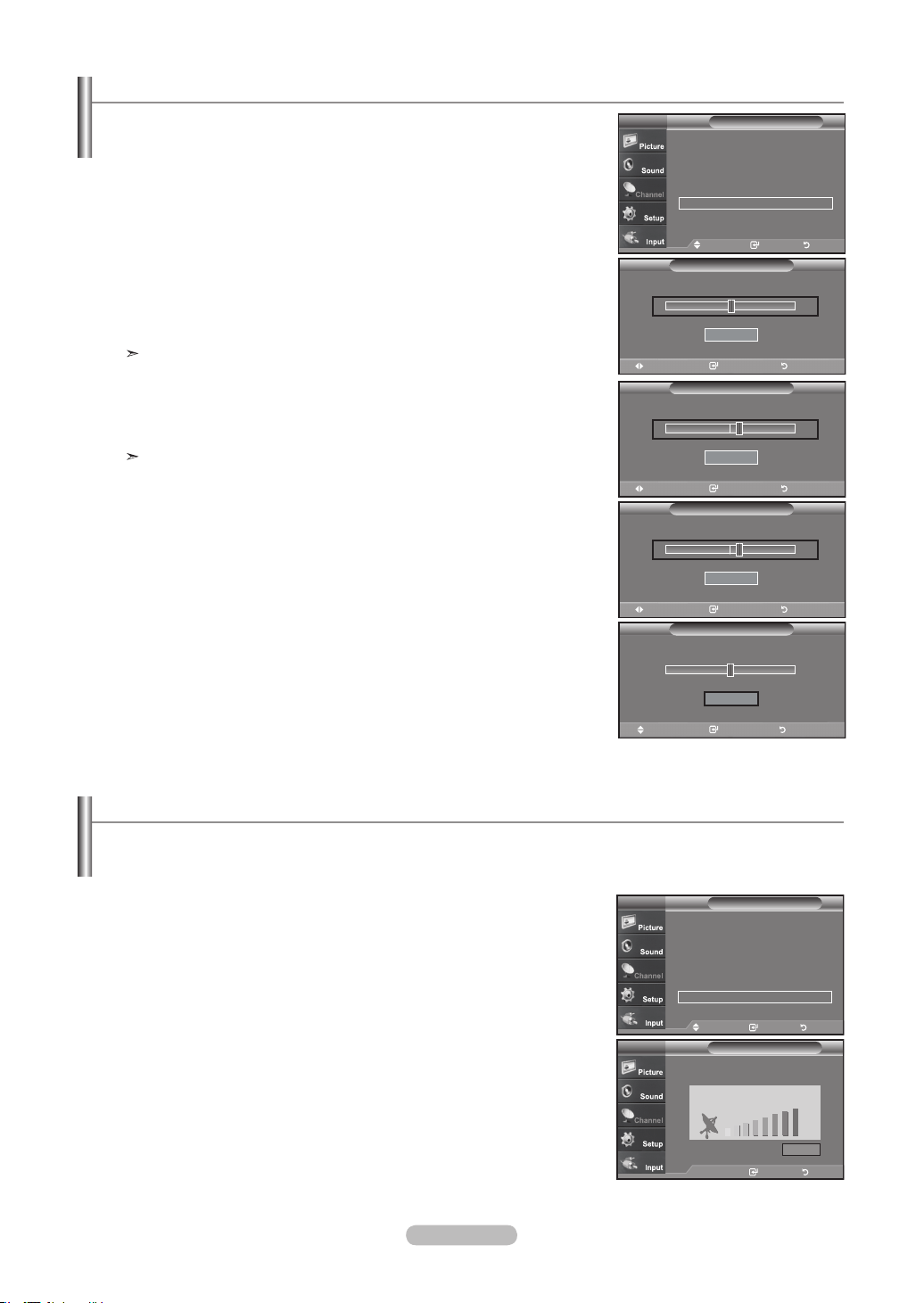
Français - 43
Syntonisation ne des chaînes analogiques
1. Appuyez sur le bouton MENU pour afficher le menu.
Appuyez sur les boutons ▲ ou ▼ pour sélectionner “Chaîne”, puis appuyez sur le
bouton ENTER.
2. Appuyez sur les boutons ▲ ou ▼ pour sélectionner “Syn. Précise”, puis appuyez
sur le bouton ENTER.
3. Utilisez les boutons ◄ ou ► pour régler la syntonisation fine.
Pour mémoriser les réglages de syntonisation fine, appuyez sur le bouton ENTER.
Si vous ne conservez pas de chaînes syntonisées dans la mémoire, les
réglages ne sont pas enregistrés.
4. Pour réinitialiser les réglages de syntonisation fine, appuyez sur le bouton ▼ et
sélectionnez “Régler”, puis appuyez sur ENTER.
Appuyez sur le bouton EXIT
pour quitter.
Le symbole “
*
” apparaît à côté du nom des chaînes syntonisées.
La fonction de syntonisation ne permet d'optimiser la réception d'une chaîne.
Contrôle de la puissance du signal numérique
1. Appuyez sur le bouton MENU pour afficher le menu.
Appuyez sur les boutons ▲ ou ▼ pour sélectionner “Chaîne”, puis appuyez sur le
bouton ENTER.
2. Appuyez sur les boutons ▲ ou ▼ pour sélectionner “Puissance signal”, puis
appuyez sur le bouton ENTER.
Si l'indicateur de puissance indique que le signal numérique est faible, déplacez
votre antenne de manière à augmenter la puissance du signal.
Continuez à régler l'antenne jusqu'à obtenir un signal maximum.
Appuyez sur le bouton EXIT
pour quitter.
Contrairement aux chaînes analogiques, dont la qualité de réception peut varier (de “neigeuse” à claire), les chaînes numériques
(HDTV) offrent soit une réception parfaite, soit aucune réception. Ainsi, contrairement aux chaînes analogiques, vous ne pouvez
pas syntoniser les chaînes numériques. Cependant, vous pouvez régler votre antenne an d'améliorer la réception des chaînes
numériques disponibles.
Régler Sauveg Retour
Syn. Précise
Air 24
0
Régler
Régler Sauveg Retour
Syn. Précise
Air 24
+3
Régler
Dépl. Intro. Retour
Syn. Précise
Air 24
0
Régler
Fine Tune
Régler Sauveg Retour
Air 24 *
+3
Régler
Syn. Précise
ChaîneTV
Antenne : Air ►
Prog. auto
►
Effacer les canaux brouillés ►
Liste des canaux
►
Nom
►
Syn. Précise ►
Puissance signal
►
AFB : On ►
Dépl. Intro. Retour
Puissance signal
Intro. Retour
TV
OK
Channel
Dépl. Intro. Retour
TV
Antenne : Air ►
Prog. auto ►
Effacer les canaux brouillés ►
Liste des canaux ►
Nom ►
Syn. Précise ►
Puissance signal ►
AFB : On ►
Synt. précision
BN68-01178B-Fre.indd 43 2007-02-15 �� 10:01:35
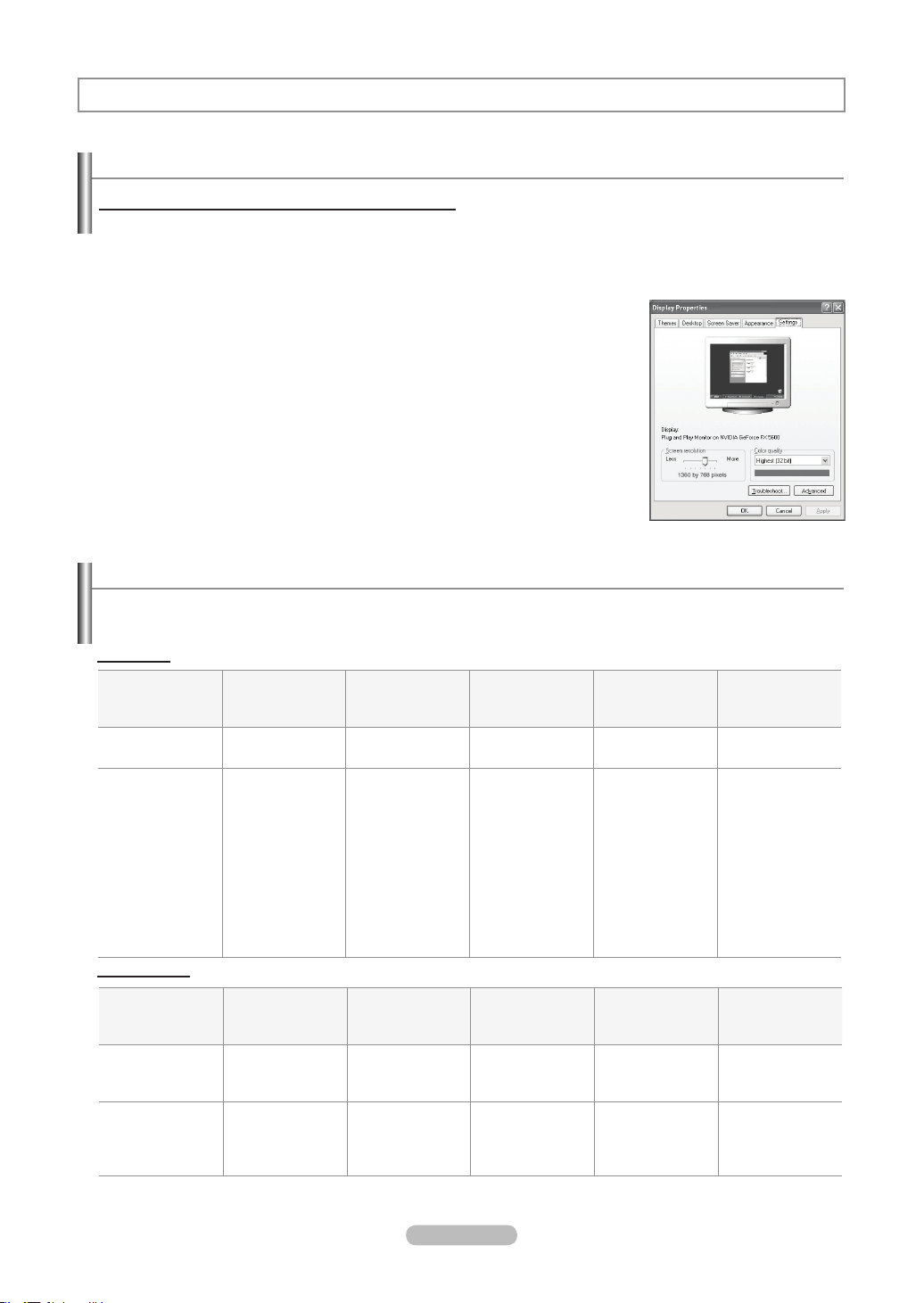
Français - 44
Utilisation de votre télévision comme un écran PC
Conguration de votre logiciel PC (basée surWindows XP)
Les paramètres d’afchage Windows pour un ordinateur type sont indiqués ci-dessous. Cependant, les écrans réels de votre
PC auront probablement un aspect différent, en fonction de votre propre version de Windows et de votre carte vidéo. Même si
vos écrans réels apparaissent différents, les informations de base s’appliquent dans la plupart des cas. (Si tel n’est pas le cas,
contactez le fabricant de votre ordinateur ou votre revendeur Samsung).
1. Cliquez sur “
Panneau de configuration (Control Panel)” dans le menu Démarrer de
Windows.
1. Lorsque vous êtes sur l’écran du panneau de configuration, cliquez sur “Apparence et
Thèmes (Appearance and Themes)
” et une boîte de dialogue Propriétés de l’affichage
apparaît.
1. Lorsque vous êtes sur l’écran du panneau de configuration, cliquez sur “Affichage
(Display)
” et une boîte de dialogue Propriétés de l’affichage apparaît.
1. Allez sur l’onglet
“Paramètres (Settings)” dans la boîte de dialogue Propriétés de
l’Affichage.
Réglage correct de la taille (résolution)
Optimum: 1920X1080 pixels
Si votre boîte de dialogue des paramètres d’affichage comporte une option de fréquence
verticale, la valeur correcte est “60” ou “60Hz”. Sinon cliquez sur “OK” et quittez la boîte
de dialogue.
Modes d’afchage
Si le signal du système équivaut au mode de signal standard, l’écran se règle automatiquement. Si le signal du système ne
correspond pas au mode de signal standard, réglez le mode en vous reportant le cas échéant au manuel d’utilisation de la carte
vidéo. Pour les modes d’affichage figurant ci-dessous, l’image de l’écran a été optimisée lors de la fabrication.
Afchage PC
Mode Résolution
Fréquence
horizontale (kHz)
Fréquence
verticale (Hz)
Fréquence
verticale (Hz)
Polarité
synchronisée
(H/V)
IBM
720 X 400
640 X 480
31.469
31.469
70.087
59.940
28.322
25.175
- / +
- / -
VESA
640 x 480
640 x 480
800 x 600
800 x 600
800 x 600
800 x 600
1024 x 768
1024 x 768
1024 x 768
1280 x 1024
1920 x 1080
37.861
37.500
35.156
37.879
48.077
46.875
48.363
56.476
60.023
79.976
66.500
72.809
75.000
56.250
60.317
72.188
75.000
60.004
70.069
75.029
75.025
60.000
31.500
31.500
36.000
40.000
50.000
49.500
65.000
75.000
78.750
123.000
138.500
- / -
- / -
+ /+
+ /+
+ /+
+ /+
- / -
- / -
+ /+
+ /+
- / +
D-Sub Input
Mode Résolution
Fréquence
horizontale (kHz)
Fréquence
verticale (Hz)
Fréquence
verticale (Hz)
Polarité
synchronisée
(H/V)
IBM
640 X 350
720 X 400
640 X 480
31.469
31.469
31.469
70.086
70.087
59.940
25.175
28.322
25.175
+ /-
- / +
- / -
VESA
800 x 600
1024 x 768
1280 x 1024
1920 x 1080
37.879
48.364
63.981
66.587
60.317
60.000
60.020
59.934
40.000
65.000
108.000
138.500
+ /+
- / -
+ /+
+ /-
HDMI/DVI Input
BN68-01178B-Fre.indd 44 2007-02-15 �� 10:01:36
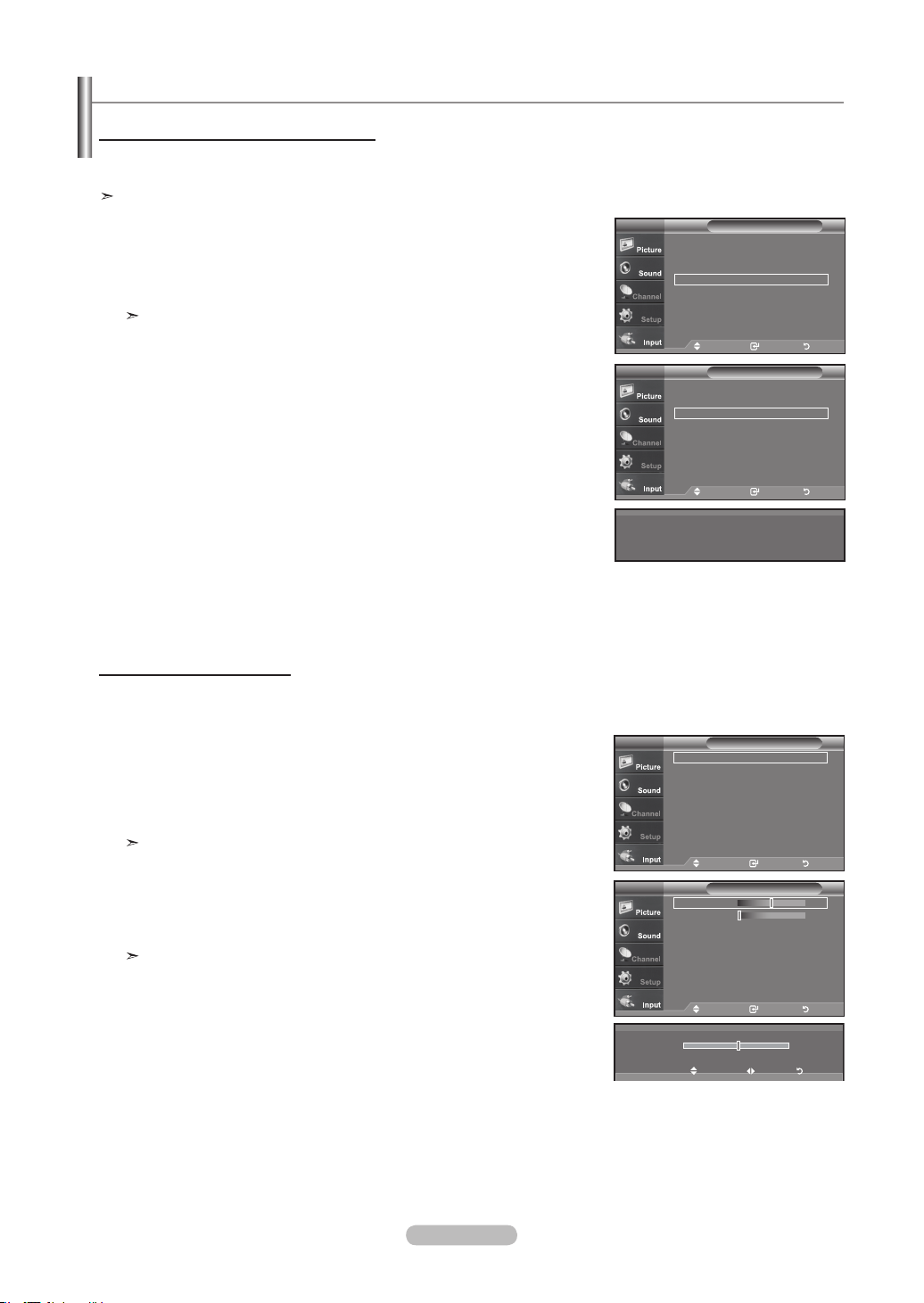
Français - 45
1. Appuyez sur le bouton MENU pour afficher le menu.
Appuyez sur les boutons ▲ ou ▼ pour sélectionner “Configuration”, puis appuyez
sur le bouton ENTER.
Appuyez sur les boutons ▲ ou ▼ pour sélectionner “PC”, puis appuyez sur le
bouton ENTER.
Passez d'abord en mode PC.
2. Appuyez sur les boutons ▲ ou ▼ pour sélectionner “Réglage Auto”, puis appuyez sur
le bouton ENTER.
Appuyez sur le bouton EXIT
pour quitter.
Comment utiliser le réglage automatique
Utilisez la fonction de réglage automatique pour que la télévision ajuste automatiquement les signaux vidéo que le
moniteur reçoit. Cette fonction ajuste également automatiquement les paramètres, les fréquences et les positions.
Cette fonction n'est pas disponible en mode numérique DVI.
Congurer votre téléviseur avec votre PC
1. Appuyez sur le bouton MENU pour afficher le menu.
Appuyez sur les boutons ▲ ou ▼ pour sélectionner “Configuration”, puis appuyez
sur le bouton ENTER.
Appuyez sur les boutons ▲ ou ▼ pour sélectionner “PC”, puis appuyez sur le
bouton ENTER.
Passez d'abord en mode PC.
2. Appuyez sur les boutons ENTER
pour sélectionner “Verrouiller l’image”.
3. Appuyez sur les boutonsou ▲ ou ▼ pour sélectionner “Grain” ou “Affiné”, puis
appuyez sur le bouton ENTER.
Appuyez sur les boutons ◄ ou ► pour régler la qualité de l’écran.
Des bandes verticales peuvent apparaître ou l’image peut devenir floue.
Appuyez sur le bouton ENTER
.
Appuyez sur le bouton EXIT
pour quitter.
Réglage de la qualité de l’écran
Le but du réglage de la qualité de l’image est d’éliminer ou de réduire le bruit de l’image (défauts). Si le bruit n’est pas éliminé en
effectuant uniquement une syntonisation fine, réglez à nouveau la fréquence pour une syntonisation plus fine. (
voir pages 45).
Une fois le bruit réduit, réajustez l’image pour la centrer sur l’écran.
Réglage auto. en cours. Attendez, s’il vous plait.
ConfigurationTV
▲Plus
Écran Bleu : On
►
Mélodie : Off
►
PC ►
PC cinéma maison : Off ►
Économiseur énergie
: Off ►
Niveau noir HDMI
: Normal ►
▼ Plus
Dépl. Intro. Retour
PC
Verrouiller l’image ►
Position
►
Réglage Auto ►
Rétablir l’image
►
TV
Dépl. Intro. Retour
PCTV
Verrouiller l’image ►
Position ►
Réglage Auto ►
Rétablir l’image ►
Dépl. Intro. Retour
Verrouiller l’image
Grain 50
Affiné 0
TV
Dépl. Intro. Retour
50
▲
Grain
▼
Dépl. Régler Retour
BN68-01178B-Fre.indd 45 2007-02-15 �� 10:01:39
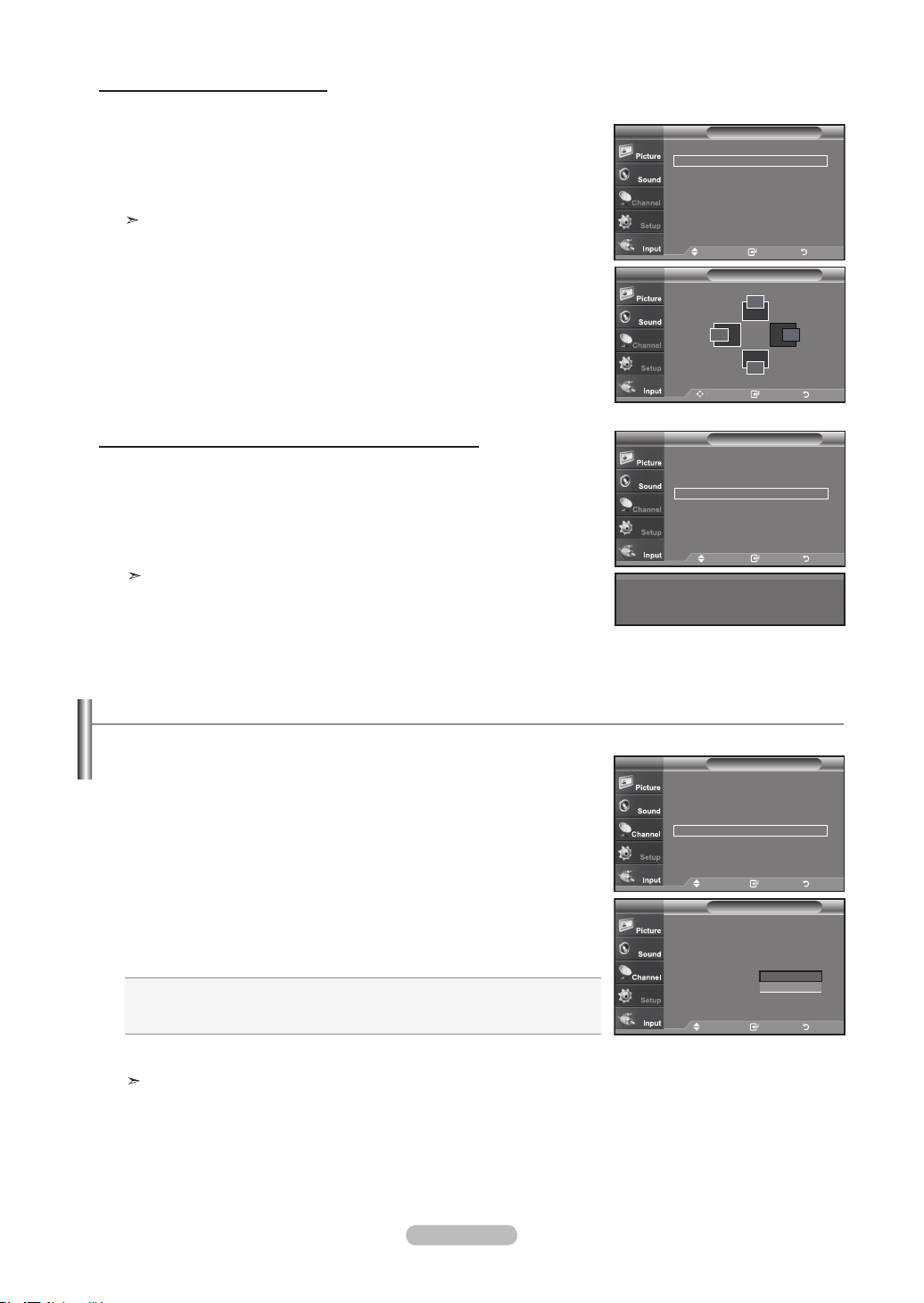
Français - 46
Changement de la position de l’écran
1. Appuyez sur le bouton
MENU pour afficher le menu.
Appuyez sur les boutons ▲ ou ▼ pour sélectionner “Configuration”, puis appuyez
sur le bouton ENTER.
Appuyez sur les boutons ▲ ou ▼ pour sélectionner “PC”, puis appuyez sur le
bouton ENTER.
Passez d'abord en mode PC.
2. Appuyez sur les boutons ▲ ou ▼ pour sélectionner “Position”, puis appuyez sur
le bouton ENTER.
3.
Appuyez sur les boutons ▲ ou ▼ pour régler “Position vert.”.
Appuyez sur les boutons ◄ ou ► pour régler “Position hor.”.
Appuyez sur le bouton ENTER.
Appuyez sur le bouton EXIT
pour quitter.
Initialiser la position de l’écran et les paramètres des couleurs
Vous pouvez remplacer tous les paramètres d’image par les valeurs par défaut.
1. Appuyez sur le bouton MENU pour afficher le menu.
Appuyez sur les boutons ▲ ou ▼ pour sélectionner “Configuration”, puis appuyez
sur le bouton ENTER.
Appuyez sur les boutons ▲ ou ▼ pour sélectionner “PC”, puis appuyez sur le
bouton ENTER.
Passez d'abord en mode PC.
2. Appuyez sur les boutons ▲ ou ▼ pour sélectionner “Rétablir l'image”, puis
appuyez sur le bouton ENTER.
Appuyez sur le bouton EXIT
pour quitter.
1. Appuyez sur le bouton MENU pour afficher le menu.
Appuyez sur les boutons
▲ ou ▼
pour sélectionner “Configuration”, puis
appuyez sur le bouton ENTER.
2. Appuyez sur les boutons
▲ ou ▼
pour sélectionner “PC cinéma maison”, puis
appuyez sur le bouton ENTER.
3. Appuyez sur les boutons ▲ ou ▼ pour sélectionner “On” ou “Off”, puis appuyez
sur le bouton ENTER.
Off: Désactive les paramètres des fonctions écran en mode d'entrée PC.
On: Active les paramètres des fonctions écran en mode d'entrée PC pour un rendu plus
dynamique des scènes.
Appuyez sur le bouton EXIT.
Cette fonction n'est disponible qu'en mode PC.
Réglage de la fonction PC cinéma maison
Vous pouvez obtenir des images de meilleure qualité en configurant les paramètres
écran en mode PC.
Si vous activez la fonction PC cinéma maison, vous pouvez configurer les paramètres
DNIe et Réglages des détails (si le mode Image est paramétré sur Film) comme en
mode PC. Settings (when Picture Mode is set to Standard or Movie) as in PC Mode.
TV
Adjust Intro. Retour
Position
▲
▲
▲
▲
Mise à jour de l’image complétée.
PCTV
Dépl. Intro. Retour
Verrouiller l’image ►
Position ►
Réglage Auto ►
Rétablir l’image ►
PCTV
Verrouiller l’image ►
Position ►
Réglage Auto ►
Rétablir l’image ►
Dépl. Intro. Retour
ConfigurationTV
▲Plus
Écran Bleu : On ►
Mélodie : Off ►
PC ►
PC cinéma maison : Off ►
Économiseur énergie
: Off ►
Niveau noir HDMI
: Normal ►
▼ Plus
Dépl. Intro. Retour
ConfigurationTV
▲Plus
Écran Bleu : On
Mélodie : Off
PC
PC cinéma maison : Off
Économiseur énergie
: Off
Niveau noir HDMI
: Normal ►
▼ Plus
Off
On
Dépl. Intro. Retour
BN68-01178B-Fre.indd 46 2007-02-15 �� 10:01:41
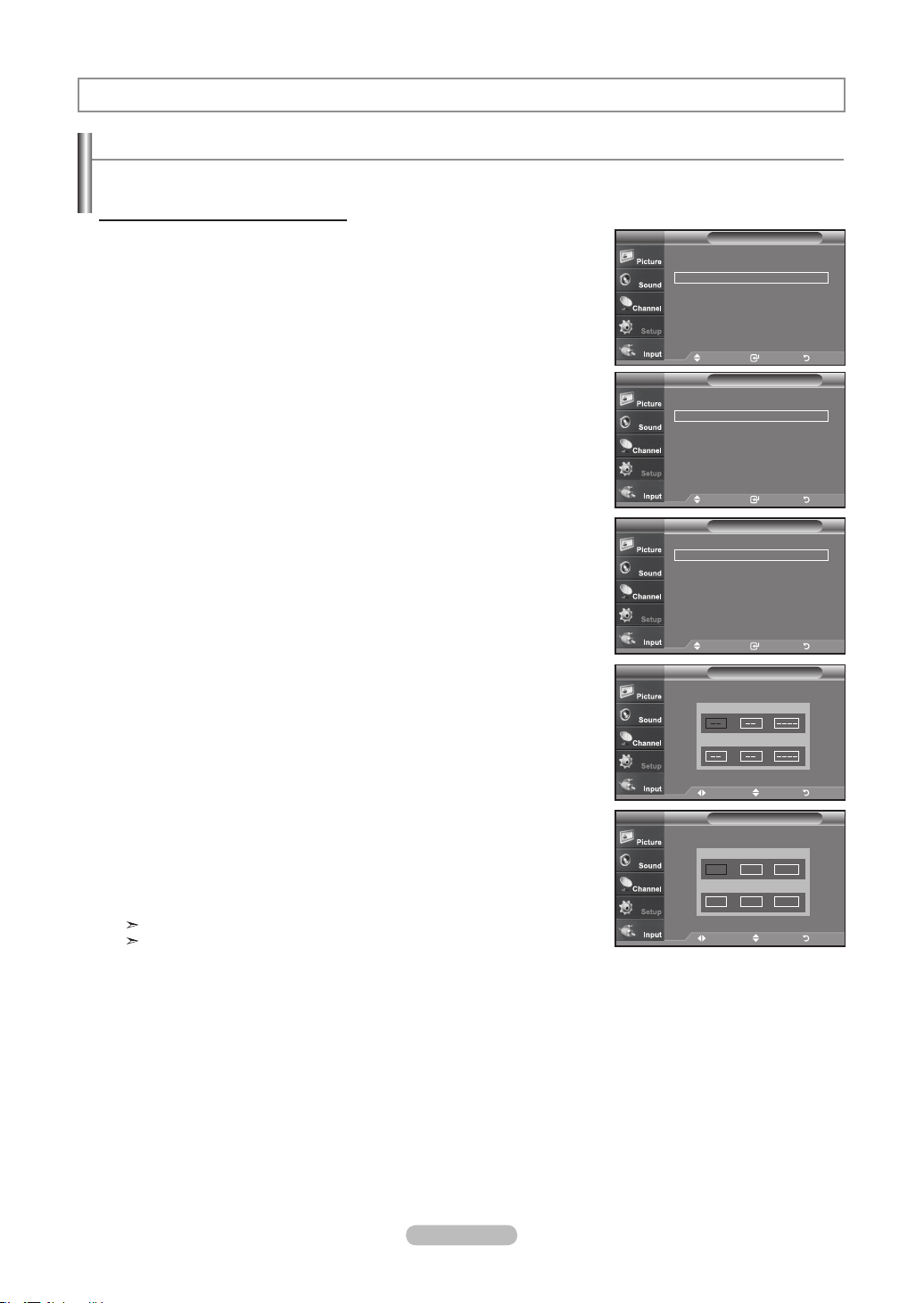
Français - 47
Régler l’horloge
Régler l’horloge est nécessaire pour pouvoir utiliser les diverses fonctions relatives à l’heure de la télévision. Vous pouvez
également contrôler l’heure pendant que vous regardez la télévision (appuyez juste sur le bouton INFO).
Option 1: Réglage manuel de l'horloge
1. Appuyez sur le bouton
MENU pour afficher le menu.
Appuyez sur les boutons
▲ ou ▼
pour sélectionner “Configuration”, puis
appuyez sur le bouton ENTER.
Appuyez sur les boutons
▲ ou ▼
pour sélectionner “Heure”, puis appuyez sur
le bouton ENTER.
2. Appuyez sur les boutons ENTER
pour sélectionner “Horloge”.
3. Appuyez sur les boutons ENTER
pour sélectionner “Mode horloge”.
Appuyez sur les boutons
▲ ou ▼
pour sélectionner “Manuel”, puis appuyez
sur le bouton ENTER.
4. Appuyez sur les boutons
▲ ou ▼
pour sélectionner “Rég. horloge”, puis
appuyezsur le bouton ENTER.
5. Appuyez sur les boutons
◄ ou ►
pour nav iguer entre les paramètres
Mois, Jour, Année, Heure, Minute, ou am/pm. Définissez la date et l'heure
souhaitées en utilisant les boutons
▲ ou ▼
puis appuyez sur ENTER.
Appuyez sur le bouton EXIT
pour quitter.
L'heure s'affiche chaque fois que vous appuyez sur le bouton INFO.
Vous pouvez régler directement le mois, le jour, les heures et les minutes
en appuyant sur les boutons numériques de la télécommande.
Paramètre D’heure
Rég. horloge
Entrez la date et l’heure en cours.
TV
Dépl. Régler Retour
Mois
▲
▼
Jour Année
Heure
Minute am/pm
Rég. horloge
Entrez la date et l’heure en cours.
TV
Mois
▲
▼
Jour Année
Heure
Minute am/pm
1 1 2007
12 00 am
Dépl. Régler Retour
ConfigurationTV
Prêt à l’emploi ►
Langue : Français
►
Heure
►
Mode Jeu : Off ►
V-Chip
►
Sous-titres ►
Transparence menu : Haute
►
▼Plus
Dépl. Intro. Retour
Heure
Horloge ►
Mise en veille : Off ►
Minuterie 1 : désactiver ►
Minuterie 2 : désactiver ►
Minuterie 3 : désactiver ►
TV
- - / - - / - - - - / - - : - - - -
Dépl. Intro. Retour
Horloge
Mode horloge : Manual ►
Rég. horloge ►
Fuseau hor. ►
H. d’ été ►
TV
Dépl. Intro. Retour
BN68-01178B-Fre.indd 47 2007-02-15 �� 10:01:43
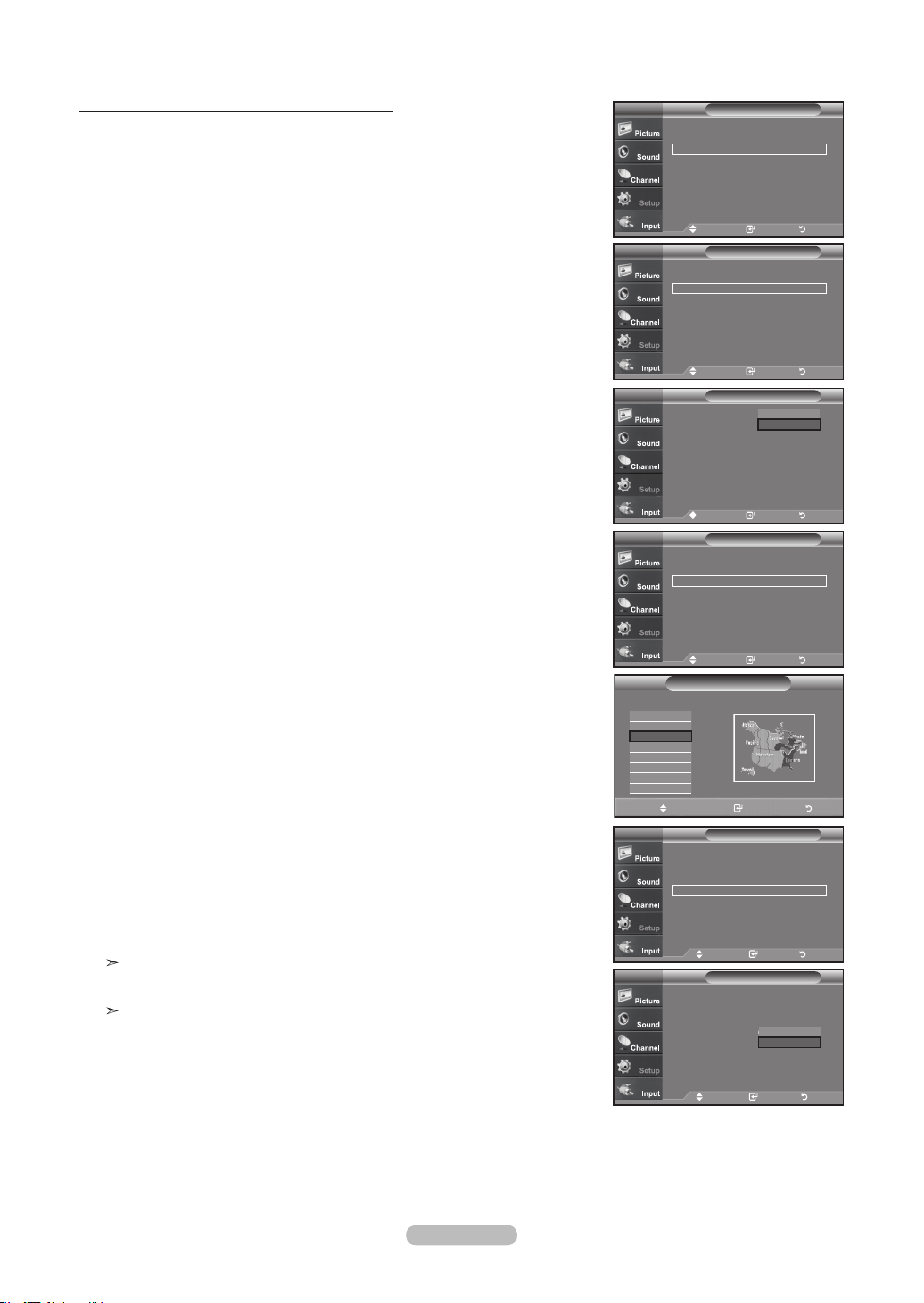
Français - 48
Option 2: Réglage Automatiquement de l'horloge
1. Appuyez sur le bouton
MENU pour afficher le menu.
Appuyez sur les boutons
▲ ou ▼
pour sélectionner “Configuration”, puis
appuyez sur le bouton ENTER.
Appuyez sur les boutons
▲ ou ▼
pour sélectionner “Heure”, puis appuyez sur
le bouton ENTER.
2. Appuyez sur les boutons ENTER
pour sélectionner “Horloge”.
3. Appuyez sur les boutons ENTER
pour sélectionner “Mode horloge”.
Appuyez sur les boutons
▲ ou ▼
pour sélectionner “Auto”, puis appuyez sur
le bouton ENTER.
4.
Appuyez sur les boutons
▲ ou ▼ pour sélectionner “Fuseau hor.”, puis appuyez
sur le bouton ENTER.
5. Appuyez sur les boutons
▲ ou ▼
pour sélectionner le fuseau horaire de votre
région, puis appuyez sur le bouton ENTER.
6. Appuyez sur les boutons
▲ ou ▼
pour sélectionner “H. d'été”, puis appuyez
sur le bouton ENTER.
Appuyez sur les boutons
▲ ou ▼
pour sélectionner “On” ou “Off”, puis
appuyez sur le bouton ENTER.
Appuyez sur le bouton EXIT
pour quitter.
En fonction de la station émettrice et du signal, il est possible que la fonc-
tion de réglage automatique de l'heure ne fonctionne pas correctement.
Dans un tel cas, réglez l'horloge manuelle ment.
L'antenne ou le câble doit être branché pour que le réglage automatique-
ment de l'horloge se fasse.
Dépl. Intro. Retour
Choisissez le fuseau horaire où vous vous trouvez.
Fuseau hor
Newfoundland
Atlantique
Est
Centre
Rocheuses
Pacifique
Alaska
Hawaii
HorlogeTV
Dépl. Intro. Retour
Mode horloge :
Manual
Rég. horloge
Fuseau hor
H. d’ été : Off ►
HorlogeTV
Dépl. Intro. Retour
Mode horloge :
Manual
Rég. horloge
Fuseau hor
H. d’ été : Off
On
Off
ConfigurationTV
Prêt à l’emploi ►
Langue : Français ►
Heure ►
Mode Jeu : Off ►
V-Chip ►
Sous-titres ►
Transparence menu : Haute
►
▼Plus
Dépl. Intro. Retour
HeureTV
- - / - - / - - - - / - - : - - - -
Horloge
►
Mise en veille : Off ►
Minuterie 1 : désactiver ►
Minuterie 2 : désactiver ►
Minuterie 3 : désactiver ►
Dépl. Intro. Retour
HorlogeTV
Mode horloge : Manual
Rég. horloge
Fuseau hor
H. d’ été : Off ►
Manual
Auto
Dépl. Intro. Retour
HorlogeTV
Mode horloge : Manual
Rég. horloge
Fuseau hor
H. d’ été : Off ►
Dépl. Intro. Retour
BN68-01178B-Fre.indd 48 2007-02-15 �� 10:01:46
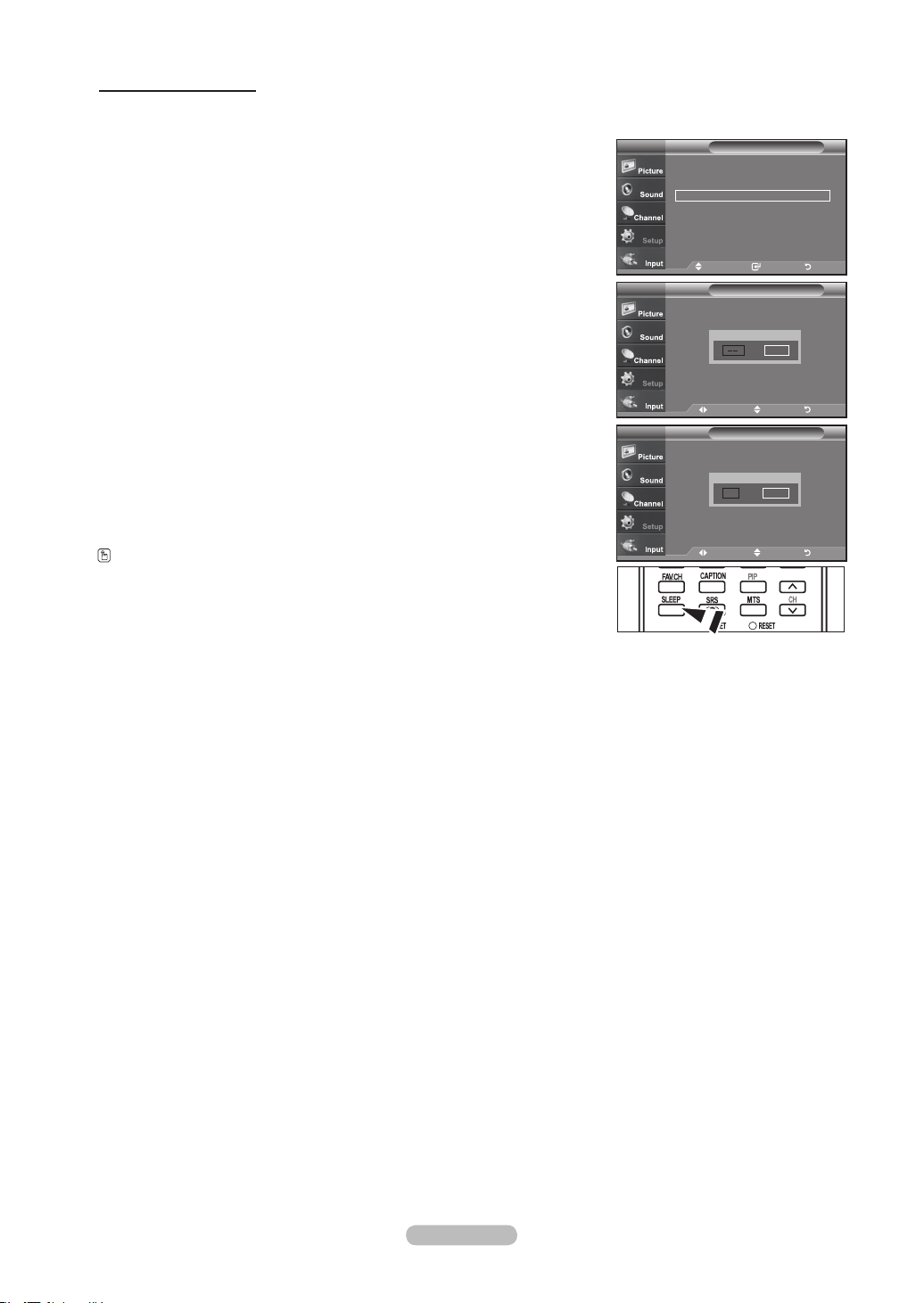
Français - 49
Paramétrer le minuteur
Cette minuterie éteint automatiquement le téléviseur après le délai choisi (de 30 à 180 minutes).
1. Appuyez sur le bouton MENU pour afficher le menu.
Appuyez sur les boutons ▲ ou ▼ pour sélectionner “Configuration”, puis appuyez
sur le bouton ENTER.
Appuyez sur les boutons ▲ ou ▼ pour sélectionner “Heure”, puis appuyez sur le
bouton ENTER.
2. Appuyez sur les boutons ▲ ou ▼ pour sélectionner “Mise en veile”, puis appuyez
sur le bouton ENTER.
3. Utilisez les boutons ▲ ou ▼ pour régler le paramètre “Minute”.
4. Appuyez sur le bouton ► pour sélectionner “Activation”.
Appuyez sur les boutons ▲ ou ▼ pour sélectionner “On”, puis appuyez sur le
bouton ENTER.
Appuyez sur le bouton EXIT
pour quitter.
Appuyez plusieurs fois sur la touche SLEEP de la télécommande pour
sélectionner le délai voulu.
Sleep Timer
Régle les options de la minuterie de mise en veille
.
TV
Dépl. Régler Return
Minute
▲
▼
Activation
30
On
Mise en veille
Régle les options de la minuterie de mise en veille
.
TV
Dépl. Régler Retour
minute
▲
▼
Activation
Off
HeureTV
1/ 1/ 2005/ 12 : 30 am
Horloge
►
Mise en veille : Off ►
Minuterie 1 : désactiver ►
Minuterie 2 : désactiver ►
Minuterie 3 : désactiver ►
Dépl. Intro. Retour
BN68-01178B-Fre.indd 49 2007-02-15 �� 10:01:47
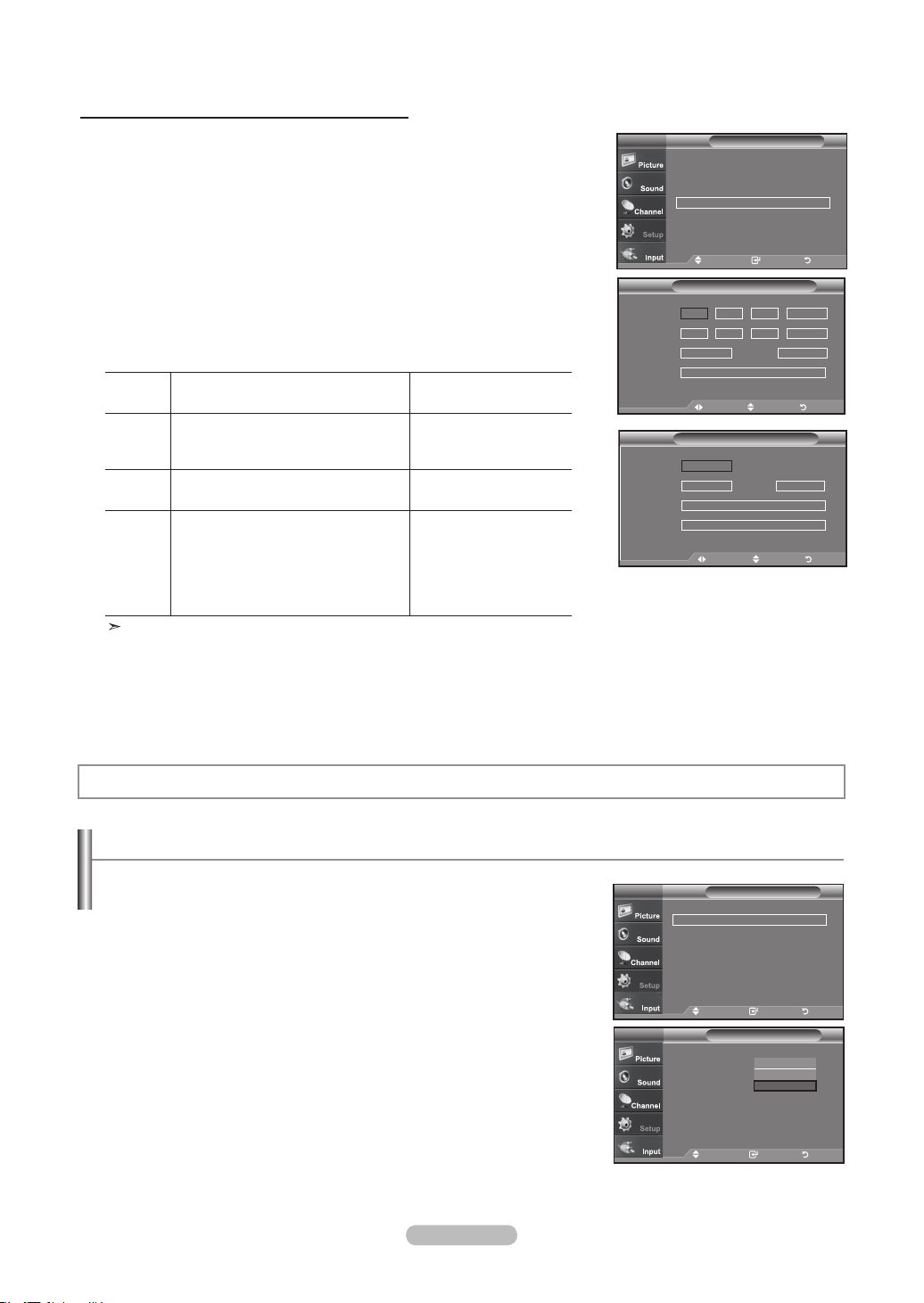
Français - 50
1. Appuyez sur le bouton MENU pour afficher le menu.
Appuyez sur les boutons ▲ ou ▼ pour sélectionner “Configuration”, puis appuyez
sur le bouton ENTER.
Appuyez sur les boutons ▲ ou ▼ pour sélectionner “Time”, puis appuyez sur le
bouton ENTER.
2.
Appuyez sur les boutons ▲ ou ▼ pour sélectionner “Timer 1,Timer 2,Timer 3”,
puis appuyez sur le bouton ENTER.
3.
Appuyez sur la touche ▲ ou ▼ pour régler l’option “Heure”, puis appuyez sur
►
pour passer à l’étape suivante.
Définissez les autres paramètres en observant la même méthode.
activé or désactivé Appuyez sur la touche
▲ ou ▼
Répéter Sélectionnez Une fois, Tous les
jours, Lundi-Vendredi, Lundi-Samedi,
Samedi-Dimanche
Appuyez sur la touche
▲ ou ▼
Volume Adjust from 0~100 Appuyez sur la touche
▲ ou ▼
Contenu Quand la minuterie ON est activée,
vous pouvez écouter un canal
particulier ou lire du contenu comme
des fichiers photos ou audio. (Assurez-
vous que l’appareil USB est branché
au téléviseur.)
Appuyez sur la touche
▲ ou ▼
Lorsque vous avez terminé, appuyez sur le bouton RETURN pour revenir au
menu.
• L'heure s'affiche chaque fois que vous appuyez sur le bouton INFO.
• Vous pouvez régler directement les heures, les minutes, la chaîne et le en
appuyant sur les boutons numériques de la télécommande.
Appuyez sur le bouton EXIT
pour quitter.
Réglage de la minuterie de mise en marche/arrêt
Minuterie 1
Marche
▲
▼
12 00 am
désactiver
Arrêt
12 00 am
désactiver
Répéter
Une fois
Contenu
Volume
10
TV Air 3
:
:
Dépl. Régler Retour
Contenu
Source
▲
▼
TV
Antenne
Musique
Photo
Air
Chaîne
3
Dépl. Régler Retour
HeureTV
1/ 1/ 2005/ 12 : 30 am
Horloge
►
Mise en veille : Off
►
Minuterie 1 : désactiver
►
Minuterie 2 : désactiver ►
Minuterie 3 : désactiver
►
Dépl. Intro. Retour
Sélection d’une langue de menu
1. Appuyez sur le bouton MENU pour afficher le menu.
Appuyez sur les boutons ▲ ou ▼ pour sélectionner “Configuration”, puis appuyez
sur le bouton ENTER.
Appuyez sur les boutons ▲ ou ▼ pour sélectionner “Langue”, puis appuyez sur le
bouton ENTER.
2. Utilisez les boutons ▲ ou ▼ pour sélectionner la langue de votre choix “English”,
“Espagnol”, ou “Français”. Appuyez sur le bouton ENTER.
Appuyez sur le bouton EXIT
pour quitter.
Description de la Fonction
ConfigurationTV
Prêt à l’emploi ►
Langue : Français ►
Heure ►
Mode Jeu : Off ►
V-Chip ►
Sous-titres ►
Transparence menu : Haute
►
▼Plus
Dépl. Intro. Retour
ConfigurationTV
Prêt à l’emploi
Langue : Anglais
Heure
Mode Jeu : Off
V-Chip
Sous-titres
Transparence menu : Haute
▼Plus
Dépl. Intro. Retour
English
Espagnol
Français
BN68-01178B-Fre.indd 50 2007-02-15 �� 10:01:49
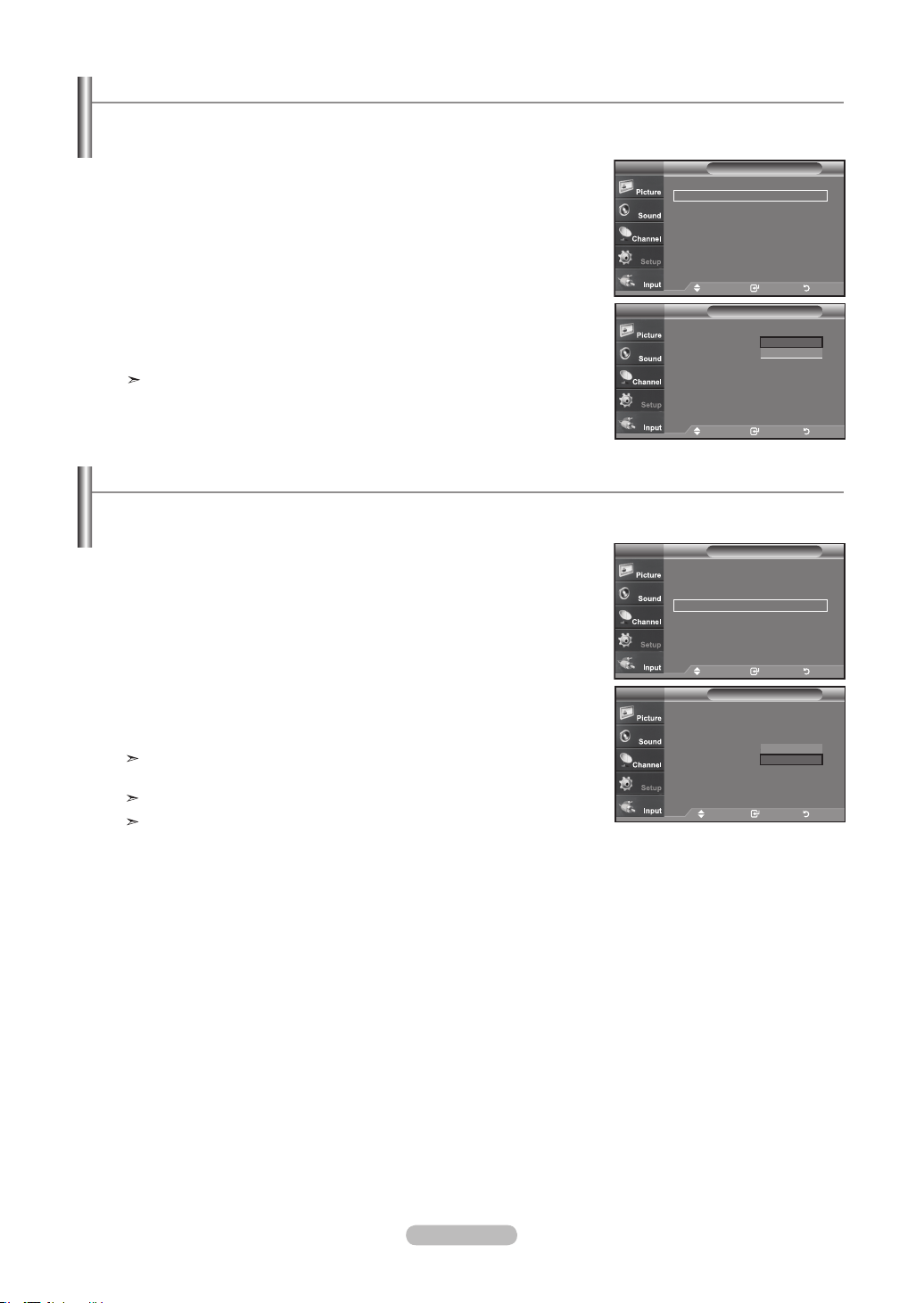
Français - 51
Réglage du mode d’écran bleu
Si aucun signal n'est reçu ou si le signal est très faible, un écran bleu remplace automatiquement l'arrière-plan de l'image para-
sité. Pour continuer malgré tout à afficher l'image de mauvaise qualité, vous devez définir l'option “Écran bleu” sur “Off”.
1. Appuyez sur le bouton
MENU pour afficher le menu.
Appuyez sur les boutons ▲ ou ▼ pour sélectionner “Configuration”, puis appuyez
sur le bouton ENTER.
2. Appuyez sur les boutons ▲ ou ▼ pour sélectionner “Écran Bleu”, puis appuyez
sur le bouton ENTER.
3. Appuyez sur les boutons ▲ ou ▼ pour sélectionner “On” ou “Off”, puis appuyez
sur le bouton ENTER.
Appuyez sur le bouton EXIT
pour quitter.
Appuyez sur les boutons ▲ ou ▼ pour sélectionner “On” ou “Off”.
ConfigurationTV
▲Plus
Écran Bleu : On ►
Mélodie : Off ►
PC ►
PC cinéma maison : Off ►
Économiseur énergie
: Off ►
Niveau noir HDMI
: Normal ►
▼ Plus
Dépl. Intro. Retour
ConfigurationTV
▲Plus
Écran Bleu : On
Mélodie : Off
PC
PC cinéma maison : Off
Économiseur énergie
: Off
Niveau noir HDMI
: Normal ►
▼ Plus
Off
On
Dépl. Intro. Retour
Utilisation de Mode Jeu
Lorsque cous connectez une console de jeu telle qu'une PlayStation
TM
ou une Xbox
TM
, l'effet est plus réaliste si vous sélectionnez
le menu Jeu.
1. Appuyez sur le bouton
MENU pour afficher le menu.
Appuyez sur les boutons ▲ ou ▼ pour sélectionner “Configuration”, puis appuyez
sur le bouton ENTER.
2. Appuyez sur les boutons ▲ ou ▼ pour sélectionner “Mode Jeu”, puis appuyez sur
le bouton ENTER.
3. Appuyez sur les boutons ▲ ou ▼ pour sélectionner “On” ou “Off”, puis appuyez sur le
bouton ENTER.
4. Appuyez sur le bouton EXIT
pour quitter.
Pour débrancher la console de jeu et brancher un autre appareil externe, annulez le mode
Jeu dans le menu Image.
Si vous affichez le menu TV en mode Jeu, l'écran bouge légèrement.
Le mode Jeu n'est pas disponible en mode TV.
Configuration
Plug & Play
Langue : Français
Heure
Mode Jeu : Off
V-Chip
Sous-titres
Transparence menu
:
Haute
▼Plus
TV
Dépl. Intro. Retour
Off
On
ConfigurationTV
Prêt à l’emploi ►
Langue : Français ►
Heure ►
Mode Jeu : Off
►
V-Chip ►
Sous-titres ►
Transparence menu : Haute
►
▼Plus
Dépl. Intro. Retour
BN68-01178B-Fre.indd 51 2007-02-15 �� 10:01:51
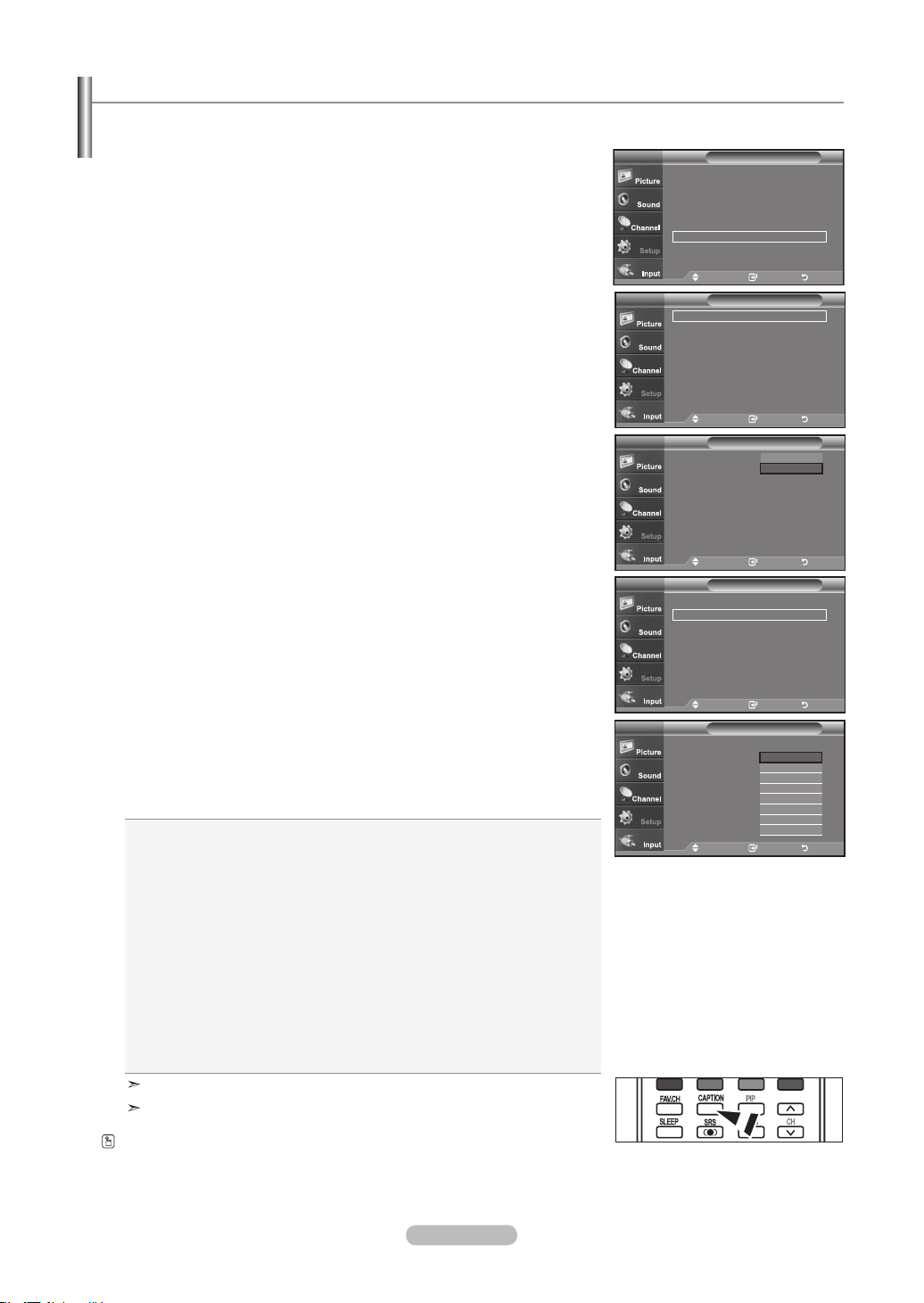
Français - 52
La fonction de sous-titres analogiques fonctionne lorsque vous regardez des chaînes analogiques normales ou lorsqu'un com-
posant externe analogique (p.ex. un magnétoscope) est connecté.
1. Appuyez sur le bouton
MENU pour afficher le menu.
Appuyez sur les boutons ▲ ou ▼ pour sélectionner “Configuration”, puis appuyez
sur le bouton ENTER.
2. Appuyez sur les boutons ▲ ou ▼ pour sélectionner “Sous-titres”, puis appuyez sur
le bouton ENTER.
3. Appuyez sur les boutons ENTER
pour sélectionner “Sous-titres”.
Appuyez sur les boutons ▲ ou ▼ pour sélectionner “On”, puis appuyez sur le
bouton ENTER.
4. Appuyez sur les boutons ▲ ou ▼ pour sélectionner “Mode ss-titres codés”, puis
appuyez sur le bouton ENTER.
Utilisez les boutons ▲ ou ▼ pour sélection ner le sous-menu de votre choix
(Par défaut, CC1 à CC4 ou Texte1 à Texte4), puis appuyez sur ENTER.
Appuyez sur le bouton EXIT pour quitter.
• La valeur par défaut est “CC1”.
• CC1: Sous-titres principaux synchronisés. Il s'agit des sous-titres fournis dans la langue
principale, qui doivent être synchronisés avec le son et de préférence avec une
image spécifique.
• CC2: Sous-titres spéciaux non synchronisés. Ce canal contient les données destinées à
augmenter les fournies par le programme.
• CC3: Sous-titres secondaires synchronisés. Données de sous-titres alternatives associ
-
ées au programme. Il s'agit généralement de la langue secondaire.
•
CC4: Sous-titres spéciaux non synchronisés. Similaire à CC2.
• Texte1:
Premier service de texte. Il peut s'agir de données varies non liées aux pro-
grammes.
• Texte2: Deuxième service de texte. Données supplémentaires, généralement non liées
aux programmes.
• Texte3/Texte4: Troisième et quatrième services de texte. Ces chaînes de données ne
doivent être utilisées que si Texte 1 et Texte 2 ne suffisent pas.
L'options Sous-titres ne fonctionne pas aux modes composant, PC, ou HDMI.
L'option de Sous-titrage dépend du programme diffusé.
Afchage des sous-titres (messages texte à l'écran) – Analogique
Appuyez sur le bouton CAPTION pour sélectionner “On” ou “Off”.
ConfigurationTV
Prêt à l’emploi ►
Langue : Français ►
Heure ►
Mode Jeu : Off
►
V-Chip
►
Sous-titres ►
Transparence menu : Haute
►
▼Plus
Dépl. Intro. Retour
Sous-titres
Sous-titres : Off ►
Mode ss-titres codés
: Par défaut ►
Options de sous-titres
►
TV
Dépl. Intro. Retour
Sous-titresTV
Sous-titres : Off
Mode ss-titres codés
: Par défaut
Options de sous-titres
Off
On
Dépl. Intro. Retour
Sous-titresTV
Sous-titres : Off ►
Mode ss-titres codés
: Par défaut ►
Options de sous-titres ►
Dépl. Intro. Retour
Sous-titresTV
Sous-titres : On
Mode ss-titres codés
: Par défaut
Options de sous-titres
Par défaut
CC1
CC2
CC3
CC4
Texte1
Texte2
▼
Dépl. Intro. Retour
BN68-01178B-Fre.indd 52 2007-02-15 �� 10:01:53
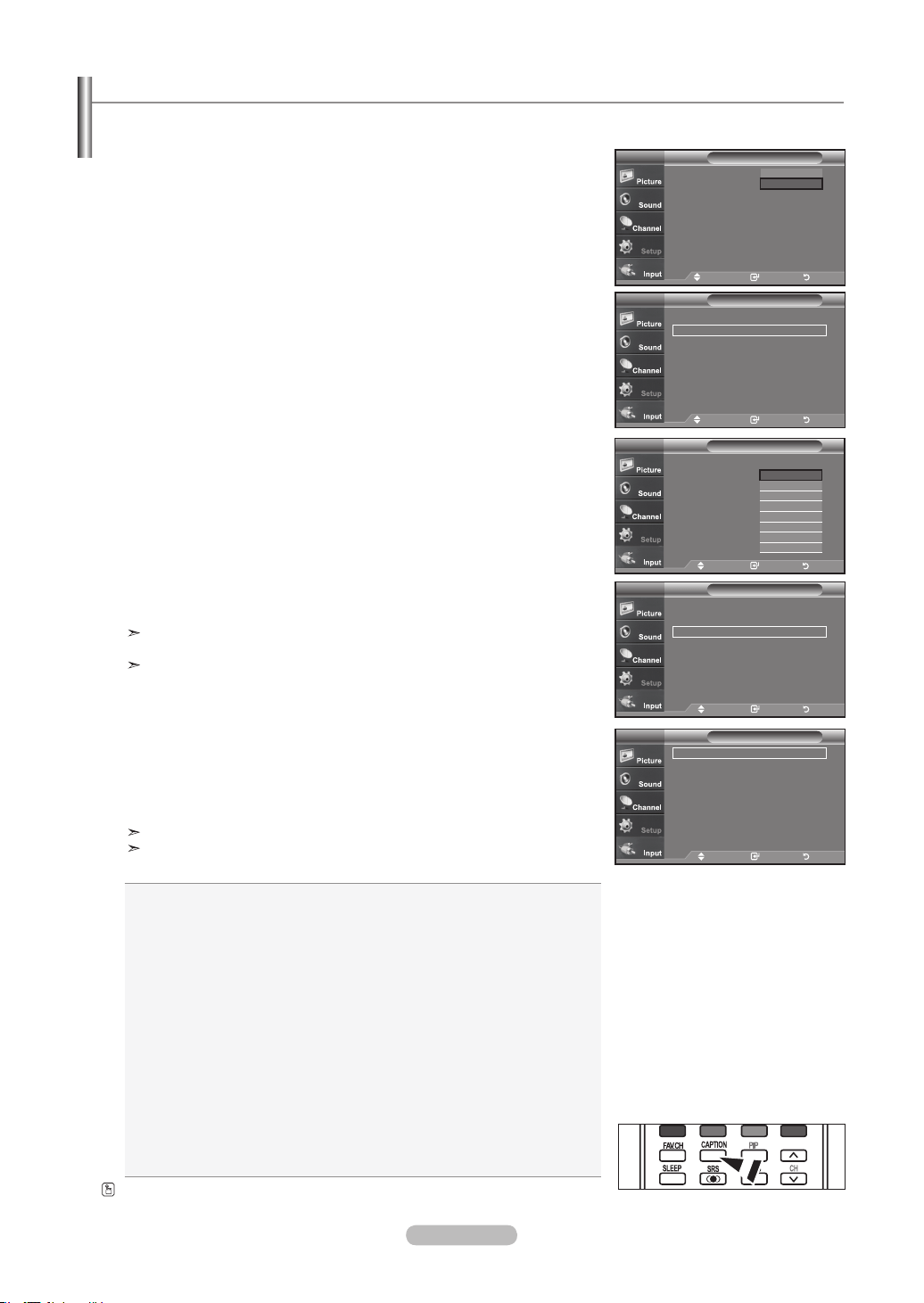
Français - 53
La fonction Sous-titres numériques concerne les chaînes numériques uniquement.
1. Appuyez sur le bouton
MENU pour afficher le menu.
Appuyez sur les boutons ▲ ou ▼ pour sélectionner “Configuration”, puis appuyez
sur le bouton ENTER.
2. Appuyez sur les boutons ▲ ou ▼ pour sélectionner “Sous-titres”, puis appuyez sur
le bouton ENTER.
3. Appuyez sur les boutons ENTER
pour sélectionner “Sous-titres”.
Appuyez sur les boutons ▲ ou ▼ pour sélectionner “On”, puis appuyez sur le bou-
ton ENTER.
4. Appuyez sur les boutons ▲ ou ▼ pour sélectionner “Mode ss-titres codés”, puis
appuyez sur le bouton ENTER.
Utilisez les boutons ▲ ou ▼ pour sélectionner le sous-menu de votre choix (Par
défaut, Service1 à Service6, CC1 à CC4, ou Texte1 à Texte4), puis appuyez sur
ENTER.
5. Appuyez sur les boutons ▲ ou ▼ pour sélectionner “Options de Sous-titres”, puis
appuyez sur le bouton ENTER.
Les “Options de Sous-titres” sont disponibles uniquement lorsque les paramètres
Service1 à Service6 peuvent être sélectionnés en “Mode ss-titres codés”.
Les paramètres service1 à 6 en mode Sous-titres numériques ne sont pas tou
jours disponibles, suivant le système de diffusion utilisé.
6. Appuyez sur les boutons ▲ ou ▼ pour sélectionner “Format”, puis appuyez sur le
bouton ENTER.
Appuyez sur les boutons ▲ ou ▼ pour sélection ner l'option de sous-titres sou-
haitée, puis appuyez sur le bouton de ENTER.
Appuyez sur les boutons ▲ ou ▼ pour sélectionnez les options de sous-menu sou-
haitées (voir options ci-dessous), puis appuyez sur ENTER .
Appuyez sur le bouton EXIT
pour quitter.
La disponibilité des sous-titres dépend du programme diffusé.
La valeur “Par défaut” correspond à la configuration standard choisie par le
fournisseur.
• Format: Cette option peut prendre les valeurs suivantes: Par défaut, Petit, Standard et Grand. La
valeur par défaut est “Standard”.
• Style des polices: Cette option peut prendre les valeurs suivantes: Par défaut, Style0 à Style7.
Vous pouvez modifier la police. La valeur par défaut est “Style0”.
• Couleur avant-plan: Cette option peut prendre les valeurs suivantes: Par défaut, Blanc, Noir,
Rouge, Vert, Bleu, Jaune, Magenta et Cyan. Vous pouvez modifier la
couleur des caractères. La valeur par défaut est “Blanc”.
• Couleur arrière-plan: Cette option peut prendre les valeurs suivantes: Par défaut, Blanc, Noir,
Rouge, Vert, Bleu, Jaune, Magenta et Cyan. Vous pouvez modifier la
couleur des sous-titres. La valeur par défaut est “Noir”.
• Opacité avant-plan: Cette option peut prendre les valeurs suivantes: Par défaut, Transparent,
Translucide, Opacifié et Luminescence. Vous pouvez modifier l'opacité des
caractères.
• Opacité arrière-plan: Cette option peut prendre les valeurs suivantes: Par défaut, Transparent,
Translucide, Opacifié et Luminescence. Vous pouvez modifier l'opacité
d'arrière-plan des sous-titres.
• Retour par défaut: Cette option permet de restaurer la valeur par défaut des paramètres
suivants: Format, Style des polices, Couleur avant-plan, Couleur arrière-plan,
Opacité avant-plan et Opacité arrière-plan.
Afchage des sous-titres (messages texte à l'écran) – Numérique
Appuyez sur le bouton CAPTION pour sélectionner “On” ou “Off”.
Sous-titres
Sous-titres : On
Mode ss-titres codés
: Default
Options de sous-titres ►
TV
Dépl. Intro. Retour
Par défaut
Service1
Service2
Service3
Service4
Service5
Service6
▼
Options de sous-titres
Format : Par défaut
►
Style des polices : Par défaut ►
Couleur avant-plan : Par défaut ►
Couleur arrière-plan : Par défaut ►
Opacité avant-plan : Par défaut ►
Opacité arrière-plan : Par défaut ►
Retour par défaut
TV
Dépl. Intro. Retour
Sous-titresTV
Dépl. Intro. Retour
Sous-titres : On ►
Mode ss-titres codés
: Par défaut ►
Options de sous-titres ►
Sous-titresTV
Sous-titres : On
Mode ss-titres codés
: Par défaut
Options de sous-titres
Off
On
Dépl. Intro. Retour
Sous-titresTV
Sous-titres : On ►
Mode ss-titres codés
: Par défaut ►
Options de sous-titres ►
Dépl. Intro. Retour
BN68-01178B-Fre.indd 53 2007-02-15 �� 10:01:56
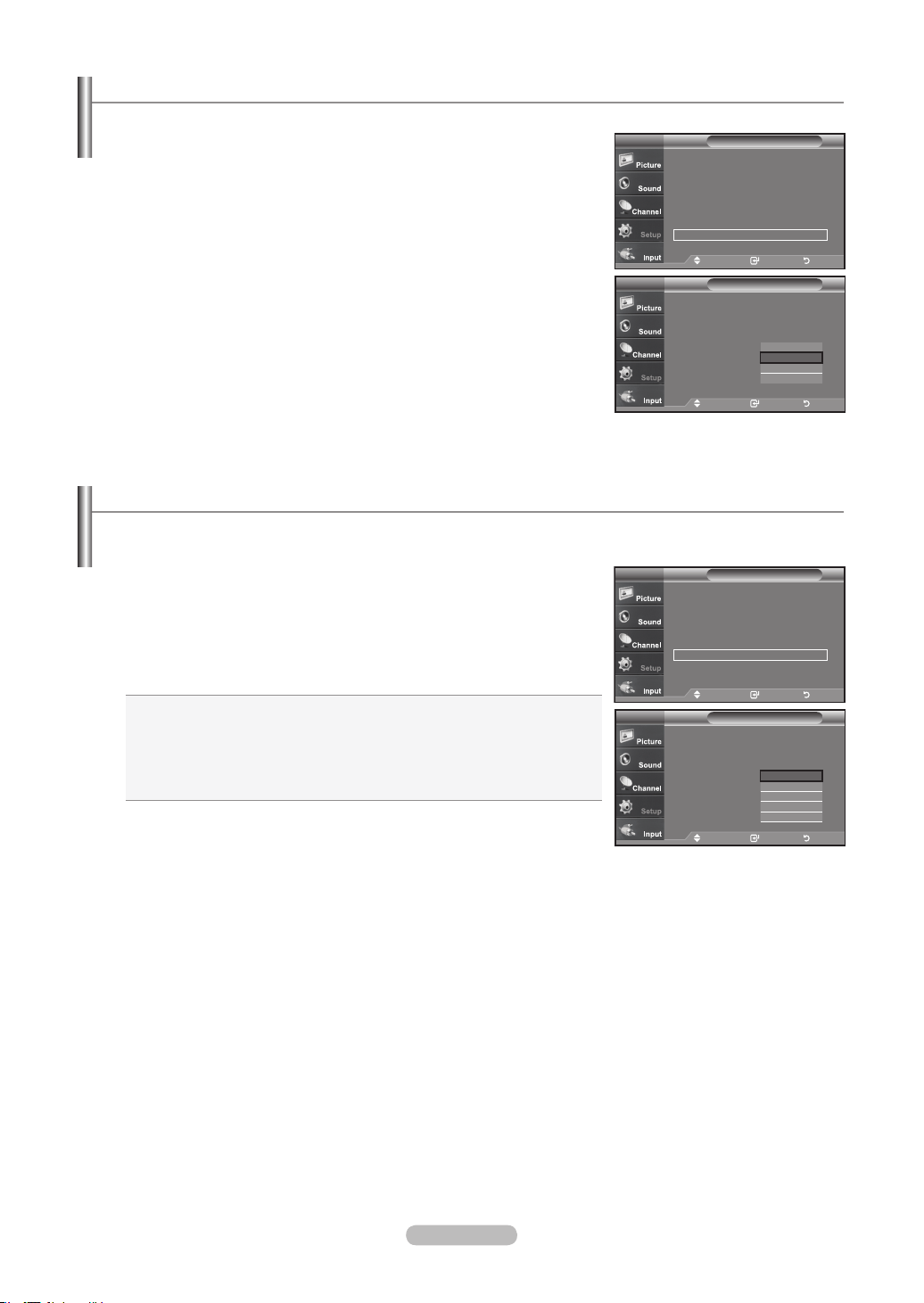
Français - 54
Utilisation de la fonction d’économie d’énergie
Niveau de transparence du menu
Cette fonction permet de régler la transparence de l'écran de menu.
1. Appuyez sur le bouton
MENU pour afficher le menu.
Appuyez sur les boutons ▲ ou ▼ pour sélectionner “Configuration”, puis appuyez
sur le bouton ENTER.
2. Appuyez sur les boutons ▲ ou ▼ pour sélectionner “Transparence menu”, puis
appuyez sur le bouton ENTER.
3. Utilisez les boutons ▲ ou ▼ pour sélectionner le niveau souhaité, puis appuyez sur le
bouton ENTER.
Appuyez sur le bouton EXIT
pour quitter.
Cette fonction règle la luminosité du téléviseur afin de réduire la consommation d'énergie. Lorsque vous regardez la télévision la
nuit, définissez l'option “Économiseur énergie” sur “Haute” pour réduire la fatigue des yeux et la consommation d'énergie.
1. Appuyez sur le bouton
MENU pour afficher le menu.
Appuyez sur les boutons ▲ ou ▼ pour sélectionner “Configuration”, puis appuyez
sur le bouton ENTER.
2. Appuyez sur les boutons ▲ ou ▼ pour sélectionner “Économiseur énergie”, puis
appuyez sur le bouton ENTER.
Sélectionnez l’option
souhaitée à l’aide du bouton ▲ ou ▼: Off, Bas, Moyen,
Haute, ou Auto. Appuyez sur le bouton ENTER.
• Off: Désactive la fonction Économiseur d’énergie.
• Bas: Règle le téléviseur au mode d’économie d’énergie bas.
• Moyen: Règle le téléviseur au mode d’économie d’énergie moyen.
• Haute: Règle le téléviseur au mode d’économie d’énergie élevé.
• Auto: Règle automatiquement le niveau de brillance de l’écran afin de
l’adapter aux scènes.
Appuyez sur le bouton EXIT pour quitter.
ConfigurationTV
Prêt à l’emploi ►
Langue : Français ►
Heure ►
Mode Jeu : Off ►
V-Chip ►
Sous-titres ►
Transparence menu : Haute
►
▼Plus
Dépl. Intro. Retour
ConfigurationTV
Prêt à l’emploi
Langue : Français
Heure
Mode Jeu : Off
V-Chip
Sous-titres
Transparence menu : Haute
▼Plus
Haute
Moyen
Basse
Opaque
Dépl. Intro. Retour
ConfigurationTV
▲Plus
Écran Bleu : On
►
Mélodie : Off ►
PC ►
PC cinéma maison : Off ►
Économiseur énergie
: Off ►
Niveau noir HDMI
: Normal ►
▼ Plus
Dépl. Intro. Retour
ConfigurationTV
▲Plus
Écran Bleu : On
Mélodie : Off
PC
PC cinéma maison : Off
Économiseur énergie
: Off
Niveau noir HDMI
: Arrêt ►
▼ Plus
Off
Basse
Moyen
Haute
Auto
Dépl. Intro. Retour
BN68-01178B-Fre.indd 54 2007-02-15 �� 10:01:57
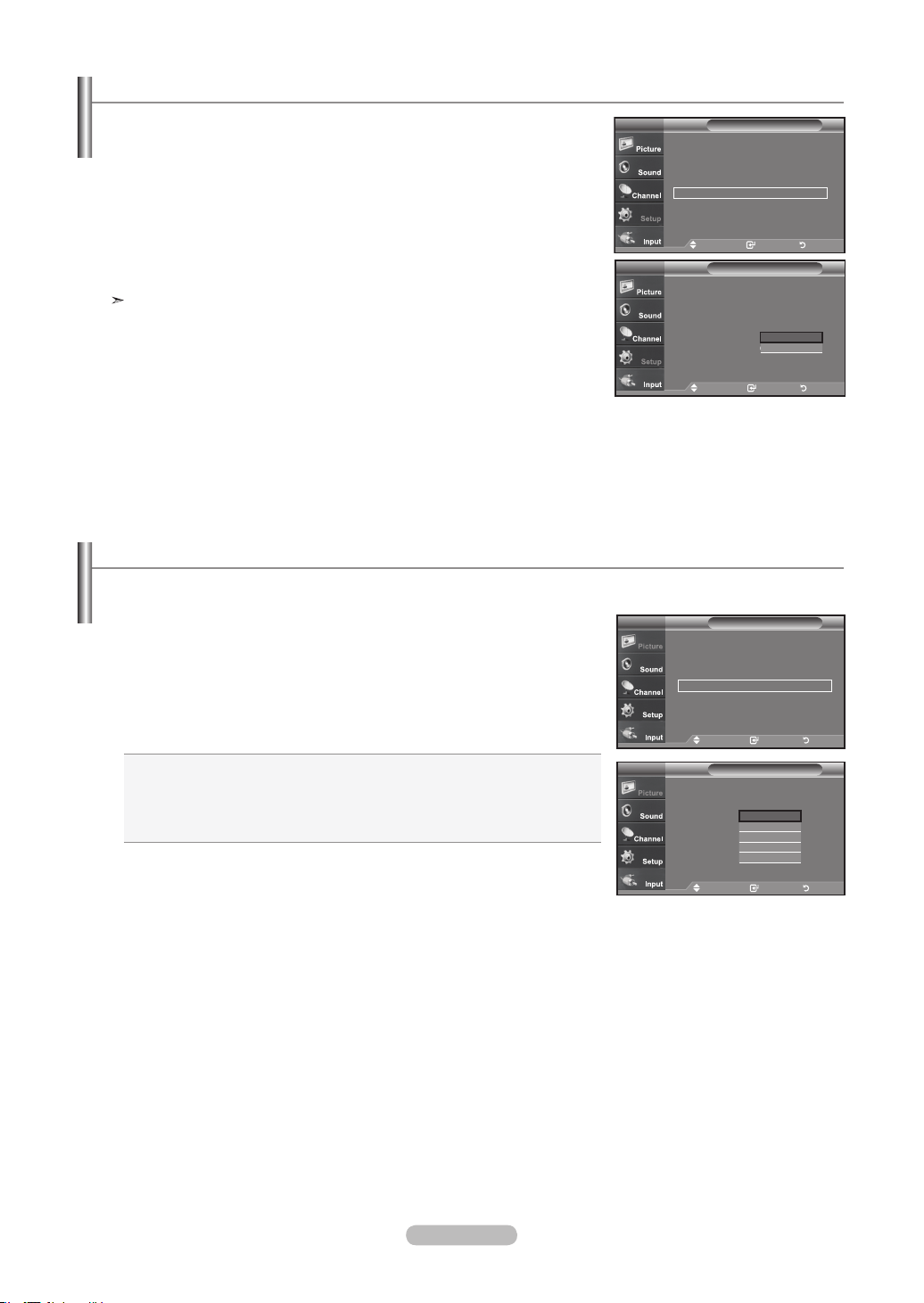
Français - 55
1. Appuyez sur le bouton MENU pour afficher le menu.
Appuyez sur les boutons
▲ ou ▼
pour sélectionner “Configuration”, puis
appuyez sur le bouton ENTER.
2. Appuyez sur les boutons
▲ ou ▼
pour sélectionner “Fonction d’aide”, puis
appuyez sur le bouton ENTER.
3. Appuyez sur les boutons ▲ ou ▼ pour sélectionner “On”, puis appuyez sur le
bouton ENTER.
Appuyez sur le bouton EXIT pour quitter.
Le réglage par défaut de la fonction d’aide est On.
Conguration de la fonction d'aide
Cette fonction permet d'afficher l'aide relative aux éléments de menu.
"
ConfigurationTV
▲Plus
Mode film : Off ►
Ajustement fixation murale
►
ISI ►
Fonction d’aide : On ►
M. à jour logiciel ►
Dépl. Intro. Retour
ConfigurationTV
▲Plus
Mode film : Off
Ajustement fixation murale
►
ISI
►
Fonction d’aide : On
M. à jour logiciel
Off
On
Dépl. Intro. Retour
Si le signal de diffusion capté par votre téléviseur est faible, vous pouvez activer la fonction de réduction numérique des bruits
pour aider à éliminer les parasites et les images fantômes qui apparaissent à l'écran.
1. Appuyez sur le bouton
MENU pour afficher le menu.
Appuyez sur le bouton ENTER pour sélectionner “Image”,.
2. Appuyez sur les boutons
ou
pour sélectionner “Réduct. bruit num.”,
puis appuyez sur le bouton ENTER.
3. Appuyez sur les boutons
ou
pour sélectionner “Off”, “Bas”, “Moyen”,
“Haute”, “Auto”.
Appuyez sur les boutons ENTER.
Off: Désactive la fonction de réduction du bruit à l’écran.
Bas: Règle le bruit à l’écran au niveau bas.
Moyen: Règle le bruit à l’écran au niveau moyen.
Haute: Règle le bruit à l’écran au niveau élevé.
Auto: Détecte et diminue automatiquement le bruit à l’écran.
Appuyez sur le bouton EXIT pour quitter.
Réduction numérique des bruits
ImageTV
▲Plus
Nuance coul. : Froide2
►
Réglages des détails
►
Format : 16 : 9
►
Réduct. bruit num.
: Basse ►
Active Couleur
: On ►
DNle : On
►
Régler : OK
►
Dépl. Intro. Retour
ImageTV
▲Plus
Nuance coul. : Froide2
Réglages des détails
Format : 16 : 9
Réduct. bruit num.
: Basse
Active Couleur
: On
DNle : On
Régler : OK
►
Off
Basse
Moyen
Haute
Auto
Dépl. Intro. Retour
BN68-01178B-Fre.indd 55 2007-02-15 �� 10:01:59
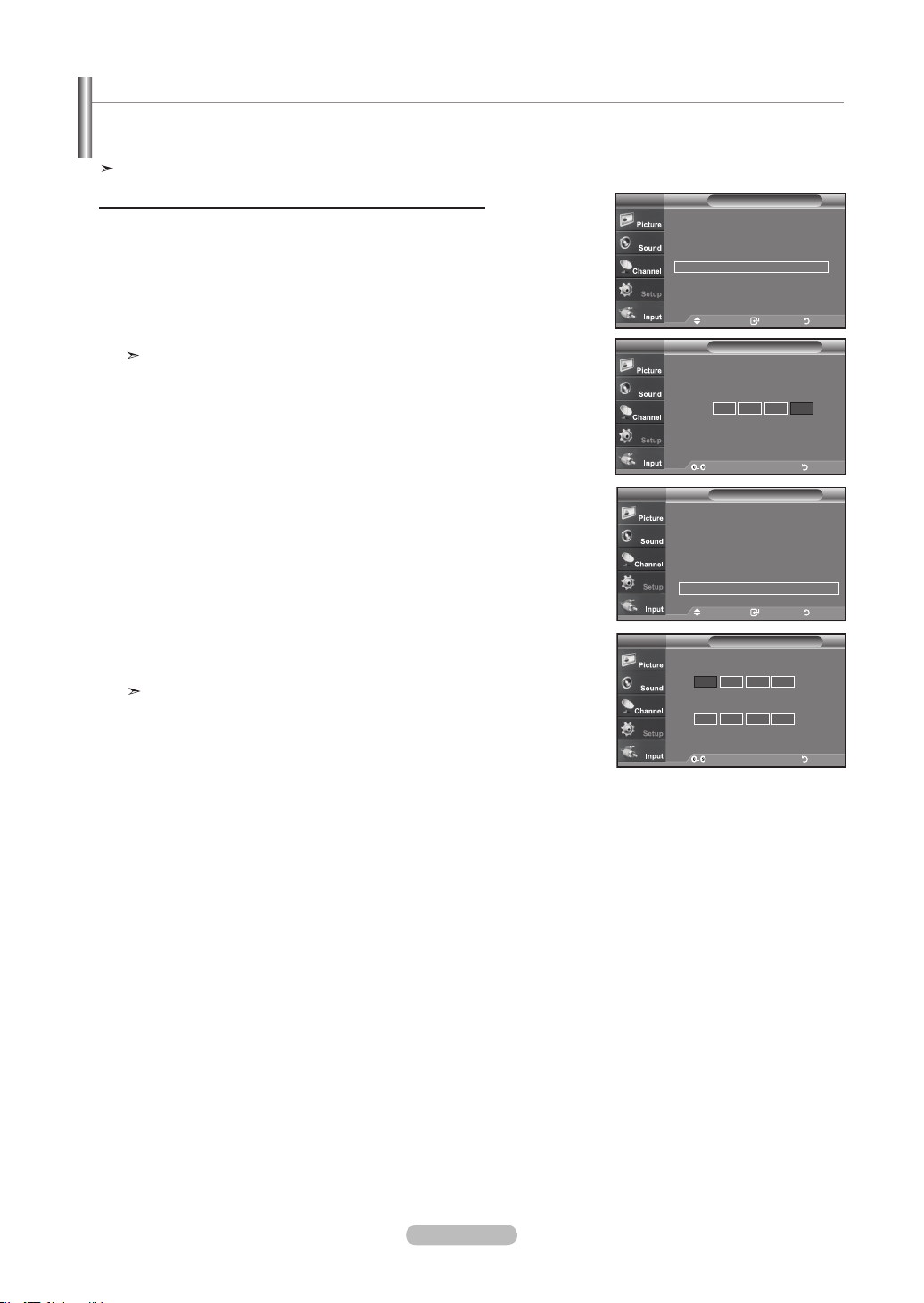
Français - 56
1. Appuyez sur le bouton MENU pour afficher le menu.
Appuyez sur les boutons
▲ ou ▼
pour sélectionner “Configuration”, puis
appuyez sur le bouton ENTER.
2. Appuyez sur les boutons
▲ ou ▼
pour sélectionner “V-Chip”, puis appuyez sur le
bouton ENTER.
Le message “Entrez NIP” s'affiche. Saisissez votre code NIP à 4 chiffres.
Le code NIP par défaut d'un nouveau téléviseur est “0-0-0-0”.
3. L'écran “V-Chip” s'affiche.
Appuyez sur les boutons ▲ ou ▼ pour sélectionner “Changer NIP”, puis appuyez
sur le bouton ENTER.
L'écran “Changer NIP” s'affiche. Choisissez un code NIP à 4 chiffres et saisissez-
le.
Lorsque vous avez entré le code NIP, l'écran “Confirmer NIP” apparaît.
Saisissez de nouveau le code. Lorsque l'écran de confirmation disparaît, votre
code NIP est mémorisé.
Appuyez sur le bouton EXIT
pour quitter.
Si vous oubliez votre code NIP, appuyez sur les touches de la télécommande
lorsque l’appareil est éteint) dans l’ordre suivant afin de remettre le code NIPà
0-0-0-0: Power Off. → Mute → 8 → 2 → 4 → Power On.
Utilisation de la fonction puce V-Chip
La fonction puce V exclut automatiquement les programmes qui sont considérés comme inappropriés pour les enfants.
L’utilisateur doit d’abord entrer un code NIP (numéro d’identification personnel) avant de pouvoir spécifier ou modifier les restric-
tions de la fonction puce V.
Lorsque la fonction “V-Chip” est activée, la fonction ISI (image en incrustation) ne fonctionne pas.
Réglage de votre numéro d’identication personnel (NIP)
Dépl. Intro. Retour
Blocage V-Chip : Off
►
Contrôle parental TV ►
Classif. MPAA ►
Anglais Canadien ►
Français Canadien ►
Catég. américain téléchargeable ►
Changer NIP ►
V-ChipTV
V-Chip
Entrez NIP
TV
* * * *
Enter PIN Retour
Nouveau NIP
Confirmer NIP
Changer NIPTV
Enter PIN Retour
ConfigurationTV
Prêt à l’emploi ►
Langue : Français
►
Heure
►
Mode Jeu : Off ►
V-Chip
►
Sous-titres ►
Transparence menu : Haute
►
▼Plus
Dépl. Intro. Retour
BN68-01178B-Fre.indd 56 2007-02-15 �� 10:02:01
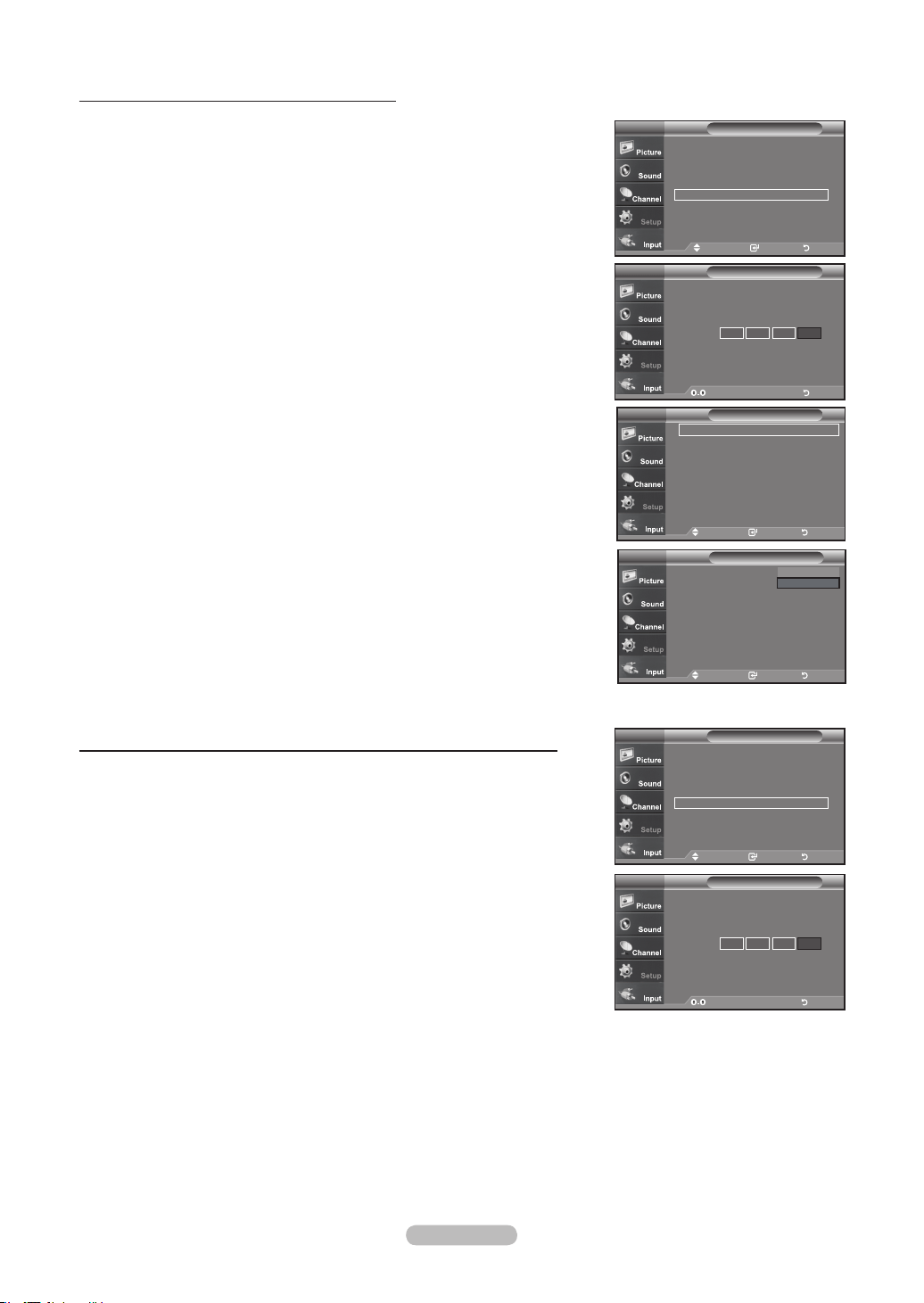
Français - 57
1. Appuyez sur le bouton MENU pour afficher le menu.
Appuyez sur les boutons
▲ ou ▼
pour sélectionner “Configuration”, puis
appuyez sur le bouton ENTER.
2. Appuyez sur les boutons
▲ ou ▼
pour sélectionner “V-Chip”, puis appuyez sur le
bouton ENTER.
Le message “Entrez NIP” s'affiche. Saisissez votre code NIP à 4 chiffres.
3. L’écran “V-Chip” apparaît.
Pour activer la fonction puce V, appuyez sur le bouton ENTER pour régler le
“Blocage V-Chip” sur “On”. (Appuyer plusieurs fois sur les boutons ▲ ou ▼ alterne
entre les modes On et Off.)
Appuyez sur le bouton ENTER.
Appuyez sur le bouton EXIT pour quitter.
Comment activer/désactiver la fonction puce V
1. Appuyez sur le bouton MENU pour afficher le menu.
Appuyez sur les boutons
▲ ou ▼
pour sélectionner “Configuration”, puis
appuyez sur le bouton ENTER.
2. Appuyez sur les boutons
▲ ou ▼
pour sélectionner “V-Chip”, puis appuyez sur le
bouton ENTER.
Le message “Entrez NIP” s'affiche. Saisissez votre code NIP à 4 chiffres.
Comment congurer les restrictions à l’aide des ‘Contrôle parental TV’
Réglez d’abord le numéro d’identification personnel (NIP) et activez la fonction puce V.
(Voir section précédente). Les restrictions parentales peuvent être réglées à l’aide de
l’une de ces deux méthodes: Les guides TV ou la Classification MPAA.
V-Chip
Entrez NIP
TV
* * * *
Enter PIN Retour
V-Chip
Entrez NIP
TV
* * * *
Enter PIN Retour
ConfigurationTV
Prêt à l’emploi ►
Langue : Français ►
Heure ►
Mode Jeu : Off ►
V-Chip ►
Sous-titres ►
Transparence menu : Haute
►
▼Plus
Dépl. Intro. Retour
V-ChipTV
Blocage V-Chip : Off ►
Contrôle parental TV ►
Classif. MPAA
►
Anglais Canadien ►
Français Canadien ►
Catég. américain téléchargeable
►
Changer NIP ►
Dépl. Intro. Retour
V-ChipTV
Blocage V-Chip : Off
Contrôle parental TV
Classif. MPAA
Anglais Canadien
Français Canadien
Catég. américain téléchargeable
Changer NIP
Off
On
Dépl. Intro. Retour
ConfigurationTV
Prêt à l’emploi ►
Langue : Français ►
Heure ►
Mode Jeu : Off ►
V-Chip ►
Sous-titres ►
Transparence menu : Haute
►
▼Plus
Dépl. Intro. Retour
BN68-01178B-Fre.indd 57 2007-02-15 �� 10:02:03
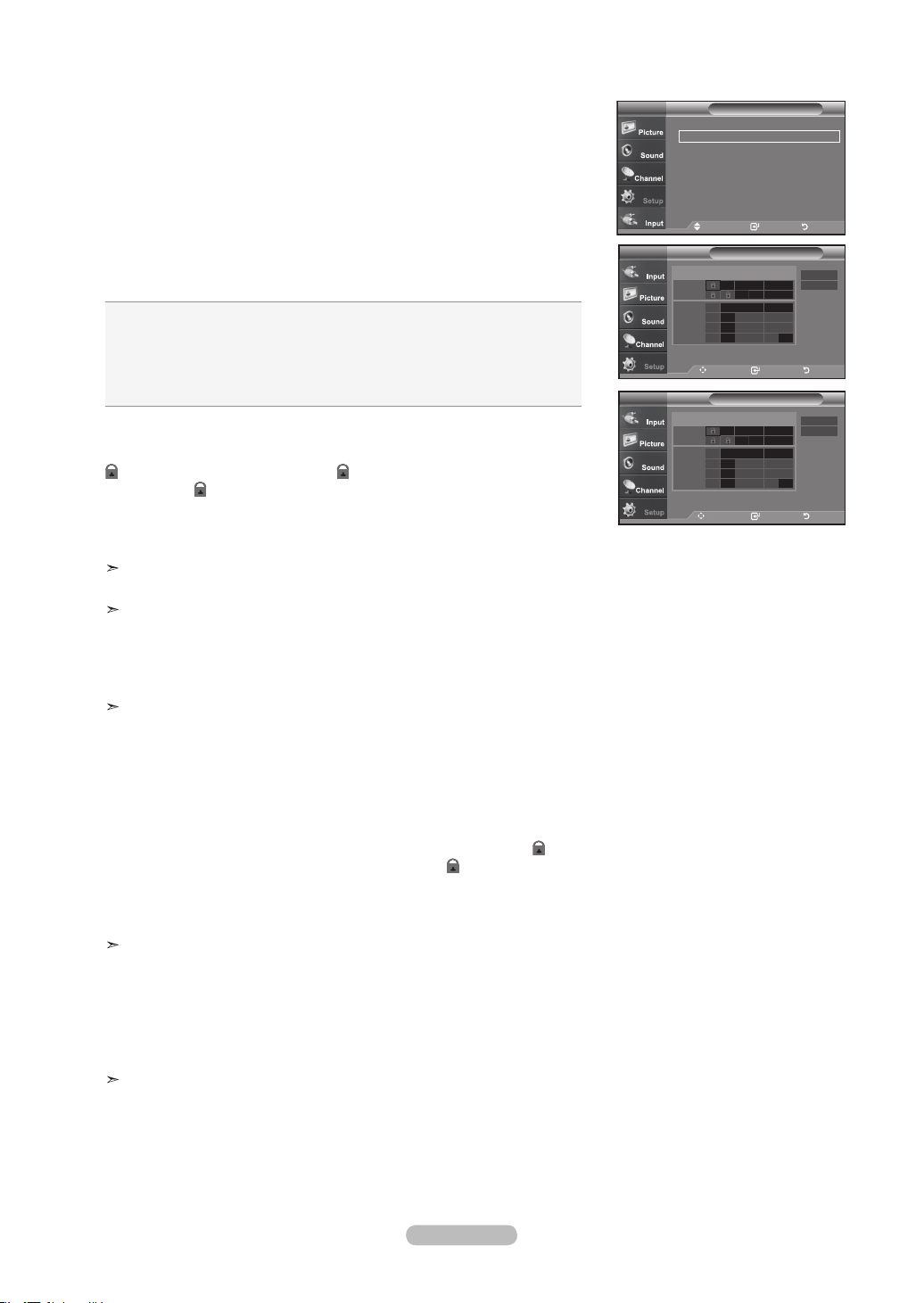
Français - 58
3. L'écran “V-Chip” s'affiche. Appuyez sur les boutons
▲ ou ▼
pour sélectionner
“Contrôle parental TV”, puis appuyez sur le bouton ENTER.
4. L'écran “Contrôle parental TV” apparaît.
Utilisez les boutons
▲ ou ▼
pour sélectionner l'une des six catégories établies en
fonction de l'âge:
• TV-Y: Jeunes enfants
• TV-Y7: Enfants de 7 ans et plus
• TV-G: Tout public
• TV-PG: Accord parental
• TV-14: Téléspectateurs de 14 ans et plus
• TV-MA: Public averti
5. A ce stade, une des évaluations TV est choisie.
Appuyez sur le bouton ENTER. En fonction de la configuration choisie, un symbole
est sélectionné. (Espace = débloqué, = bloqué)
Si le symbole “ ” est sélectionné, appuyez sur le bouton ENTER pour bloquer ou
débloquer la catégorie.
Pour sélectionner une autre évaluation TV, appuyez sur les boutons
▲ ou ▼
puis
répétez la procédure.
Perm. Tout: déverrouille tous les réglages du téléviseur.
Bloq. Tout: verrouille tous les réglages du téléviseur.
TV-Y, TV-Y7, TV-G, TV-PG, TV-14, et TV-MA disposent d’options supplémen-
taires.
Voir l’étape suivante pour changer une des évaluations secondaires suivantes:
FV: Fantastique Violence / D: Sexual suggestive Dialog / L: Langage adulte /
S: Scènes de sexe / V: Violence
La fonction V-Chip bloque automatiquement certaines catégories qui sont “plus
restric tives”. Par exemple, si vous bloquez la catégorie “ TV-Y”, la catégorie
“TV-Y7” sera alors bloquée automatiquement. De la même façon, si vous blo-
quez la catégorie TV-G, toutes les catégories dans le groupe “jeunes adultes”
seront alors bloquées ( TV-G, TV-PG, TV-14 et TV-MA). Les évaluations sec-
ondaires (D, L, S, V) fonctionnent de la même façon. (voir section suivante).
6. Comment régler les évaluations secondaires FV, D, L, S et V. Pour commencer,
sélectionnez l'une des catégories: TV-Y, TV-Y7, TV-G, TV-PG, TV-14, ou TV-MA
(voir Étape 4 page précédente) et appuyez sur le bouton
►
. Un symbole “ ”
apparaît pour chaque sous-catégorie. Lorsque le symbole “ ” est sélectionné,
appuyez sur le bouton ENTER pour accéder à une sous-catégorie.
Appuyez sur ENTER pour bloquer la sous-catégorie. Pour sé lectionner une autre
évaluation TV, appuyez sur les boutons
▲ ou ▼
puis répétez la procédure.
La fonction V-Chip bloque automatiquement certaines catégories qui sont “plus
restrictives”. Par exemple, si vous bloquez l’évaluation secondaire “L” dans
TV-PG, les évaluations secondaires “L” dans TV-14 et TV-MA sont bloquées
`automatiquement.
7. Appuyez sur le bouton EXIT pour effacer tous les écrans (ou bien passez à la sec-
tion suivante et définissez des restrictions supplémentaires basées sur les codes
MPAA).
Ces catégories se composent de deux grands groupes: TV-Y et TV-Y7 (jusqu'à
7 ans) et TV-G à TV-MA (tous les autres). Les restrictions applicables à ces
deux groupes sont indépendantes: si une famille compte de très jeunes enfants
ainsi que des jeunes adultes, les catégories doivent être définies séparément
(voir prochaine étape).
Dépl. Intro. Retour
TV-Y
TV-Y7
Contrôle parental TV
TV
TV-G
TV-PG
TV-14
TV-MA
ALL FV V S L D
Perm. Tout
Bloq. Tout
Dépl. Intro. Retour
TV-Y
TV-Y7
Contrôle parental TV
TV
TV-G
TV-PG
TV-14
TV-MA
ALL FV V S L D
Perm. Tout
Bloq. Tout
Dépl. Intro. Retour
V-ChipTV
Blocage V-Chip : On ►
Contrôle parental TV ►
Classif. MPAA ►
Anglais Canadien
►
Français Canadien
►
Catég. américain téléchargeable ►
Changer NIP ►
BN68-01178B-Fre.indd 58 2007-02-15 �� 10:02:05
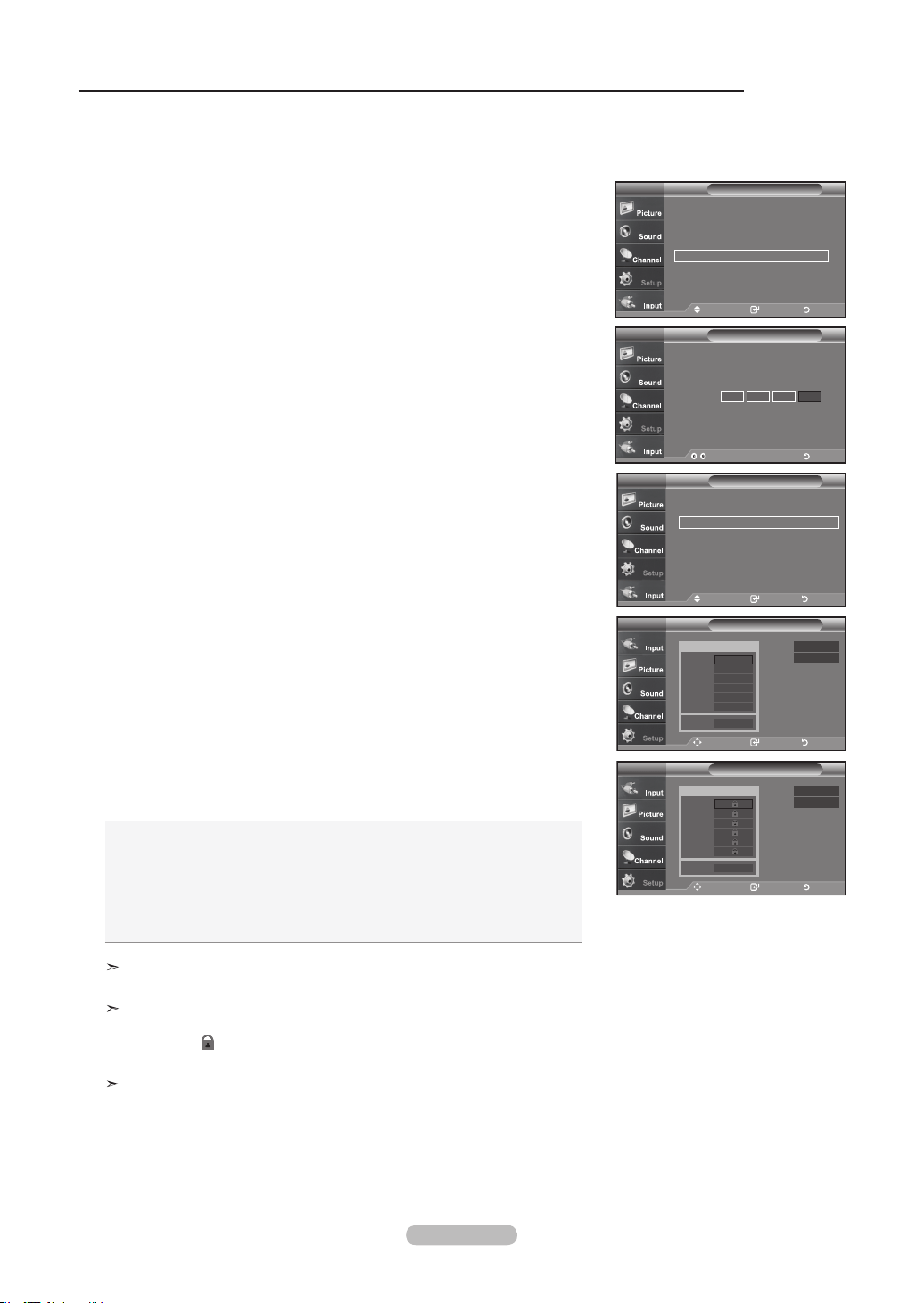
Français - 59
Comment congurer les restrictions à l’aide des évaluations MPAA: G, PG, PG-13, R, NC-17, X, NR
Le système d’évaluation MPAA utilise le système de la Motion Picture Association of America (Association cinématographique
américaine) (MPAA) dont la principale application concerne les films. (il arrive également que des vidéocassettes de films soient
cryptées à l’aide des évaluations MPAA). Quand le verrouillage V-Chip est activé, la télévision bloque automatiquement tout
programme codé avec des évaluations restrictives (évaluations MPAA ou TV).
1. Appuyez sur le bouton MENU pour afficher le menu.
Appuyez sur les boutons
▲ ou ▼
pour sélectionner “Configuration”, puis
appuyez sur le bouton ENTER.
2. Appuyez sur les boutons
▲ ou ▼
pour sélectionner “V-Chip”, puis appuyez sur le
bouton ENTER.
Le message “Entrez NIP” s'affiche. Saisissez votre code NIP à 4 chiffres.
3. L’écran “V-Chip” apparaît. Appuyez sur les boutons
▲ ou ▼
pour sélectionner
“Classif. MPAA”, puis appuyez sur le bouton ENTER.
4. L'écran “Classif. MPAA” s'affiche. Appuyez plusieurs fois sur les boutons
▲ ou ▼
pour sélectionner une catégorie MPAA spécifique. Utilisez de nouveau les boutons
▲ ou ▼
pour parcourir les catégories MPAA:
• G: Tout public (aucune restriction).
• PG: Accord parental souhaité.
• PG-13: Parents vivement mis en garde.
• R: Les enfants de moins de 17ans doivent être accompag nés d’un adulte.
• NC-17: Aucun enfant de moins de 17 ans.
• X: Adultes uniquement.
• NR: Non évalué.
Perm. Tout: déverrouille tous les réglages du téléviseur.
Bloq. Tout: verrouille tous les réglages du téléviseur.
Lorsqu'une catégorie spécifique est sélectionnée, appuyez sur le bouton ENTER
pour l'activer.
Un symbole “
” s'affiche. Appuyez sur le bouton ENTER pour bloquer ou
débloquer la catégorie.
La fonction V-Chip bloque automatiquement toutes catégories qui sont “plus
restrictives”.
Par exemple, si vous bloquez “PG-13”, alors “R”, “NC-17” et “X” sont également
bloqués automatiquement.
Appuyez sur le bouton EXIT pour quitter.
Dépl. Intro. Retour
Classif. MPAATV
G
PG
PG-13
R
NC-17
X
NR
Bloq
Perm. Tout
Bloq. Tout
V-Chip
Entrez NIP
TV
* * *
*
Enter PIN Retour
Dépl. Intro. Retour
V-ChipTV
Blocage V-Chip : On ►
Contrôle parental TV ►
Classif. MPAA ►
Anglais Canadien
►
Français Canadien ►
Catég. américain téléchargeable
►
Changer NIP ►
Dépl. Intro. Retour
Classif. MPAATV
G
PG
PG-13
R
NC-17
X
NR
Bloq
Perm. Tout
Bloq. Tout
ConfigurationTV
Prêt à l’emploi ►
Langue : Français
►
Heure ►
Mode Jeu : Off
►
V-Chip
►
Sous-titres ►
Transparence menu : Haute
►
▼Plus
Dépl. Intro. Retour
BN68-01178B-Fre.indd 59 2007-02-15 �� 10:02:07
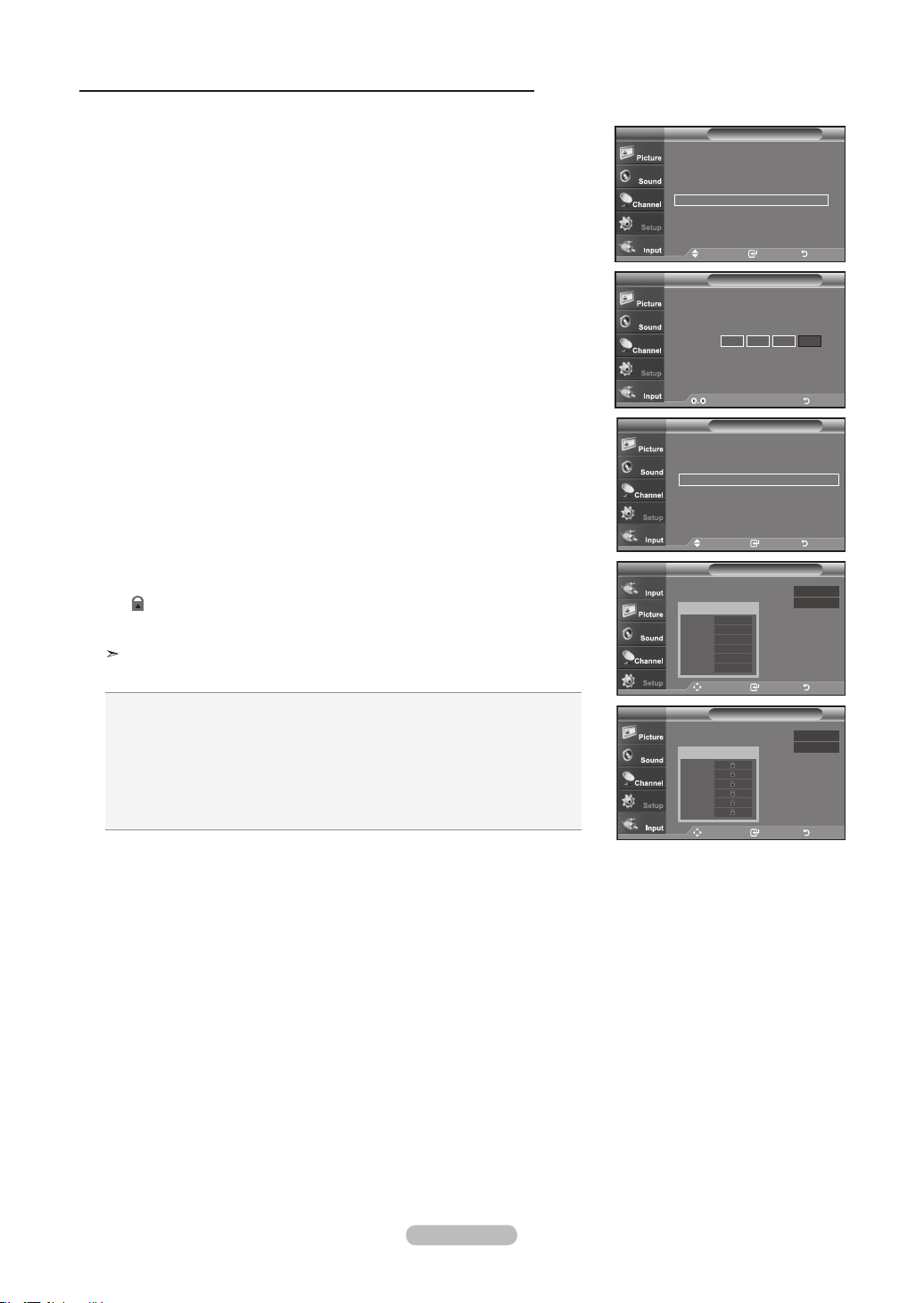
Français - 60
Comment congurer les restrictions à l’aide des ‘Anglais canadien’
1. Appuyez sur le bouton MENU pour afficher le menu.
Appuyez sur les boutons
▲ ou ▼
pour sélectionner “Configuration”, puis
appuyez sur le bouton ENTER.
2. Appuyez sur les boutons
▲ ou ▼
pour sélectionner “V-Chip”, puis appuyez sur le
bouton ENTER.
Le message “Entrez NIP” s'affiche. Saisissez votre code NIP à 4 chiffres.
3. L’écran “V-Chip” apparaît. Appuyez sur les boutons
▲ ou ▼
pour sélectionner
Anglais canadien”, puis appuyez sur le bouton ENTER.
4. Appuyez sur la touche
▲ ou ▼
pour entrer une restriction appropriée.
Appuyez sur la touche ENTER pour activer la restriction sélectionnée.
Le “ ” s’affiche.
Appuyez sur le bouton EXIT
pour quitter.
Perm. Tout: Dévéverrouille tous les réglages du téléviseur.
Bloq. Tout: Verrouille tous les réglages du téléviseur.
• C: Émissions destinées aux enfants de moins de 8 ans.
• C8+: Émissions convenant généralement aux enfants de 8 ans et plus, sans
surveillance.
• G: Émissions grand public convenant à tous les auditoires.
• PG: Émissions à surveillance parentale.
• 14+: Émissions dont la teneur peut ne pas convenir, en tout ou en partie, aux
personnes de moins de 14 ans.
• 18+: Émissions pour adultes.
Dépl. Intro. Retour
Anglais CanadienTV
C
C8+
G
PG
14+
18+
Bloq
Perm. Tout
Bloq. Tout
V-Chip
Entrez NIP
TV
* * * *
Enter PIN Retour
Dépl. Intro. Retour
V-ChipTV
Blocage V-Chip : On ►
Contrôle parental TV ►
Classif. MPAA ►
Anglais Canadien ►
Français Canadien ►
Catég. américain téléchargeable ►
Changer NIP ►
Dépl. Intro. Retour
Anglais CanadienTV
C
C8+
G
PG
14+
18+
Bloq
Perm. Tout
Bloq. Tout
ConfigurationTV
Prêt à l’emploi ►
Langue : Français
►
Heure
►
Mode Jeu : Off ►
V-Chip ►
Sous-titres ►
Transparence menu : Haute
►
▼Plus
Dépl. Intro. Retour
BN68-01178B-Fre.indd 60 2007-02-15 �� 10:02:10
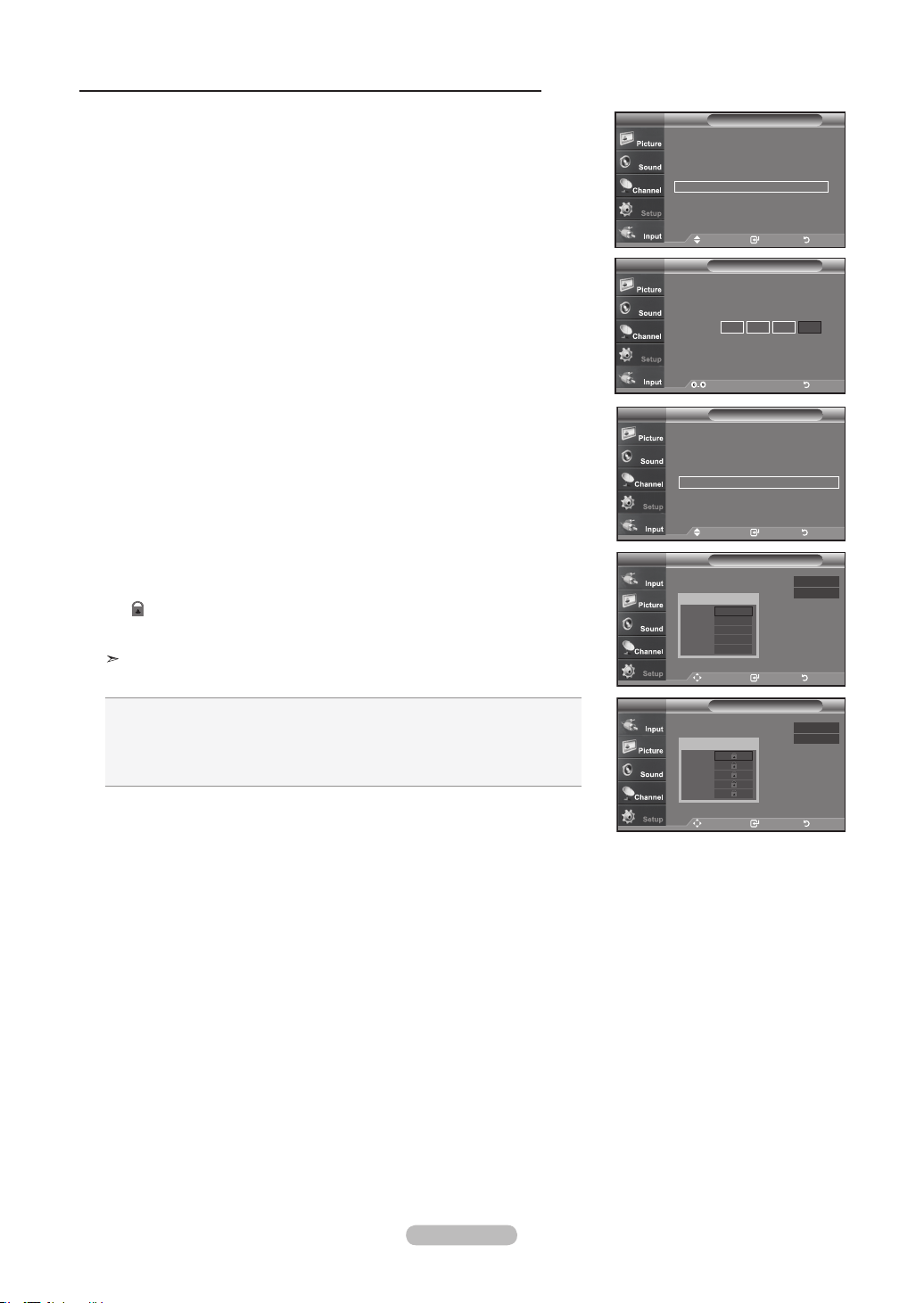
Français - 61
Comment congurer les restrictions à l’aide des ‘Français canadien’
1. Appuyez sur le bouton MENU pour afficher le menu.
Appuyez sur les boutons
▲ ou ▼
pour sélectionner “Configuration”, puis
appuyez sur le bouton ENTER.
2. Appuyez sur les boutons
▲ ou ▼
pour sélectionner “V-Chip”, puis appuyez sur le
bouton ENTER.
Le message “Entrez NIP” s'affiche. Saisissez votre code NIP à 4 chiffres.
3. L’écran “V-Chip” apparaît. Appuyez sur les boutons
▲ ou ▼
pour sélectionner
“Français canadien”, puis appuyez sur le bouton ENTER.
4. Appuyez sur la touche
▲ ou ▼
pour entrer une restriction appropriée.
Appuyez sur la touche ENTER pour activer la restriction sélectionnée.
Le “ ” s’affiche.
Appuyez sur le bouton EXIT
pour quitter.
Perm. Tout: Dévéverrouille tous les réglages du téléviseur.
Bloq. Tout: Verrouille tous les réglages du téléviseur.
• G: Général.
• 8 ans+: Émissions non recommandées pour les jeunes enfants.
• 13 ans+: Émissions pouvant ne pas convenir aux enfants de moins de 13 ans.
• 16 ans+: Émissions ne convenant pas aux enfants de moins de 16 ans.
• 18 ans+: Émissions réservées aux adultes.
V-Chip
Entrez NIP
TV
* * * *
Enter PIN Retour
Dépl. Intro. Retour
V-ChipTV
Blocage V-Chip : On ►
Contrôle parental TV ►
Classif. MPAA ►
Anglais Canadien ►
Français Canadien ►
Catég. américain téléchargeable ►
Changer NIP ►
Dépl. Intro. Retour
Français CanadienTV
Bloq
Perm. Tout
Bloq. Tout
Dépl. Intro. Retour
Français CanadienTV
Bloq
Perm. Tout
Bloq. Tout
ConfigurationTV
Prêt à l’emploi ►
Langue : Français
►
Heure
►
Mode Jeu : Off ►
V-Chip
►
Sous-titres ►
Transparence menu : Haute
►
▼Plus
Dépl. Intro. Retour
G
8 ans+
13 ans+
16 ans+
18 ans+
G
8 ans+
13 ans+
16 ans+
18 ans+
BN68-01178B-Fre.indd 61 2007-02-15 �� 10:02:12
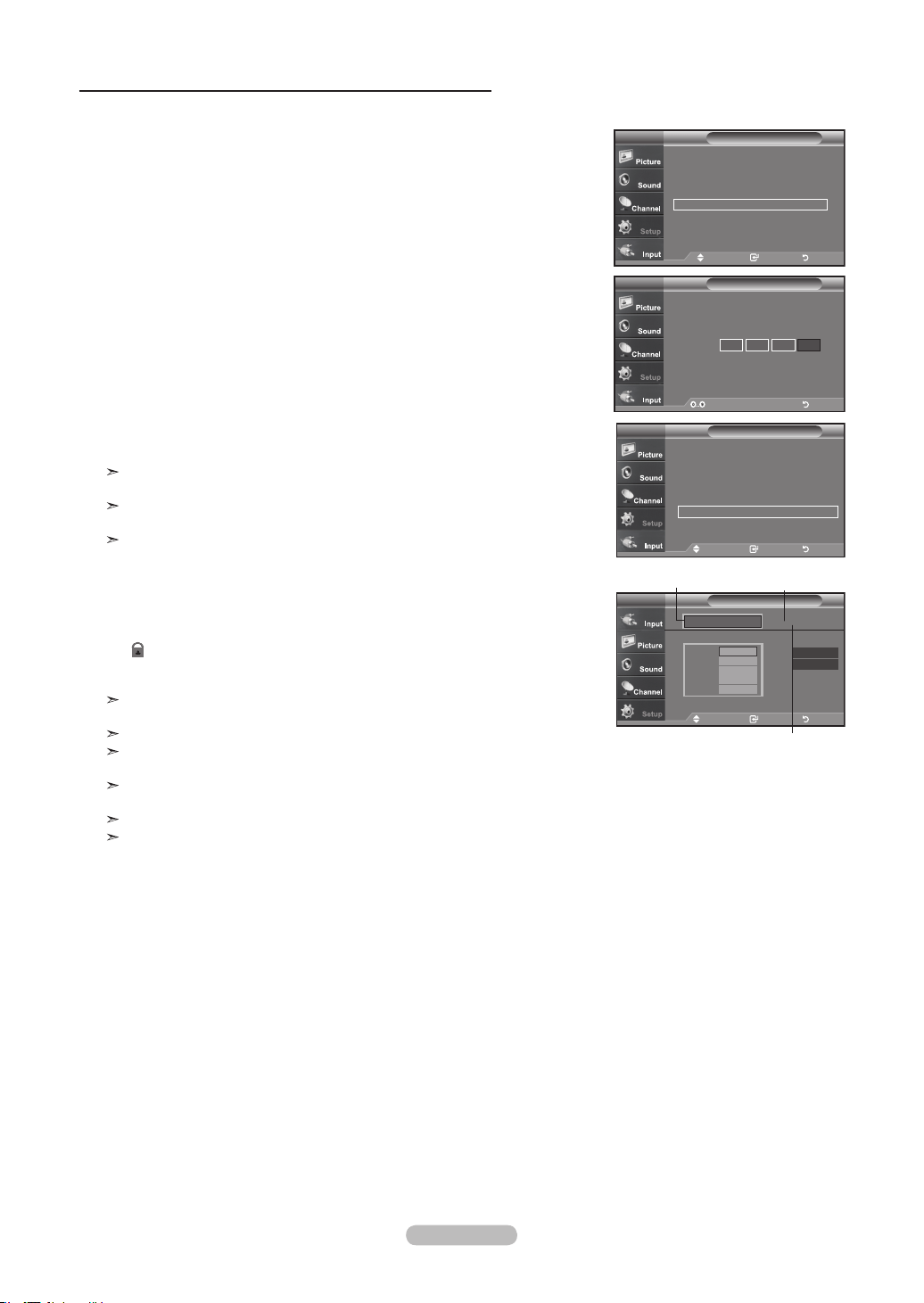
Français - 62
1. Appuyez sur le bouton MENU pour afficher le menu.
Appuyez sur les boutons
▲ ou ▼
pour sélectionner “Configuration”, puis
appuyez sur le bouton ENTER.
2. Appuyez sur les boutons
▲ ou ▼
pour sélectionner “V-Chip”, puis appuyez sur le
bouton ENTER.
Le message “Entrez NIP” s'affiche. Saisissez votre code NIP à 4 chiffres.
3. L’écran “V-Chip” apparaît. Appuyez sur les boutons
▲ ou ▼
pour sélectionner
“Catég. américaine téléchargeable”, puis appuyez sur le bouton ENTER.
Si l’information n’est pas téléchargée à partir de la station de radiodiffusion, le
menu Downloadable U.S. Rating est désactivé.
L’information sur le contrôle parental est téléchargée automatiquement lorsqu’on
regarde des canaux numériques.Cela peut nécessiter plusieurs secondes.
Le menu Downloadable U.S. Rating est disponible pour utilisation après télé-
chargement de l’information à partir de la station de radiodiffusion.
Toutefois, selon l’information provenant de la station, il est possible qu'on ne
puisse pas l'utiliser.
4. Appuyez sur la touche
▲ ou ▼
pour entrer une restriction appropriée.
Appuyez sur la touche ENTER pour activer la restriction sélectionnée.
Le “ ” s’affiche.
Appuyez sur le bouton EXIT
pour quitter.
Perm. tout: Appuyez sur cette touche pour déverrouiller toutes les catégories.
Bloq. tout: Appuyez sur cette touche pour verrouiller toutes les catégories.
Les niveaux de contrôle parental diffèrent selon la station de radiodiffusion.
Le nom du menu par défaut, Catég. américaine téléchargeable, change en don-
nées téléchargées.
Même si vous réglez l’affichage à l’écran dans la langue souhaitée, le menu
“Catég. américaine téléchargeable” s’affiche en anglais seulement.
La classification bloque automatiquement certaines catégories plus restrictives.
Les catégories (par exemple: violence, etc.) et les niveaux de classification (par
exemple: DH, MH, H, etc.) peuvent différer selon la station de radiodiffusion.
Utilisation de la fonction V-Chip pour les canaux numériques
Il est possible d’utiliser de l’information sur le contrôle parental tout en regardant des canaux numériques.
V-Chip
Entrez NIP
TV
* * * *
Enter PIN Retour
ConfigurationTV
Dépl. Intro. Retour
Prêt à l’emploi ►
Langue : Français
►
Heure
►
Mode Jeu : Off ►
V-Chip
►
Sous-titres ►
Transparence menu : Haute
►
▼Plus
Catég. américain téléchargeable
TV
DH
MH
H
VH
EH
Humor Level
41/2
Rating title
The number of
current rating
title
The nimber of
all rating title
Perm. Tout
Bloq. Tout
Dépl. Intro. Retour
V-ChipTV
Blocage V-Chip : On ►
Contrôle parental TV ►
Classif. MPAA ►
Anglais Canadien
►
Français Canadien ►
Catég. américain téléchargeable
►
Changer NIP ►
Dépl. Intro. Retour
BN68-01178B-Fre.indd 62 2007-02-15 �� 10:02:14

Français - 63
1. Branchez un lecteur USB contenant la mise à niveau du logiciel aux prises
WISELINK situées sur la partie arrière du téléviseur.
2. Appuyez sur la touche
MENU
Appuyez sur la touche ▲ ou ▼ pour choisir Configuration, puis sur ENTER.
3. Appuyez sur la touche ▲ ou ▼ pour sélectionner Mise à niveau du logiciel,
puis appuyez sur le bouton ENTER.
4. Appuyez sur la touche ▲ ou ▼ pour sélectionner Mise à niveau USB, puis
appuyez sur ENTER
L’affichage du message Détection USB… peut prendre jusqu’à 30 secondes.
Veillez à ne pas interrompre l’alimentation ou retirer le lecteur USB pendant
que la procédure de mise à niveau est en cours. Le téléviseur se désactivera
et réactivera automatiquement une fois la mise à niveau terminée. Veuillez
vérifier la version du logiciel une fois que la mise à niveau est terminée.
Mise à niveau du logiciel
Ultérieurement, Samsung mettra à disposition des mises à niveau pour le logiciel du téléviseur. Veuillez communiquer avec le
centre d’appels de Samsung en composant le 1-800-SAMSUNG(7267864) pour avoir de l’information au sujet de la procédure de
téléchargement des mises à niveau et de l’utilisation d’un lecteur USB. Les mises à niveau se font en branchant le lecteur USB
au port USB situé sur la partie arrière du téléviseur.
M. à jour logiciel
Recherche de la clé USB…
Délai : jusqu’à 30 secondes.
Configuration
▲Plus
Mode film : Off
►
Réglage du support mural
►
ISI
►
Fonction d’aide : Off ►
M. à jour logiciel
►
TV
Dépl. Intro. Retour
Panneau latéral de la télévision
USB Drive
1. Appuyez sur le bouton MENU pour afficher le menu.
Appuyez sur les boutons
▲ ou ▼
pour sélectionner “Régler”, puis appuyez sur
le bouton ENTER.
2.
Appuyez sur les boutons
▲ ou ▼
pour sélectionner “Effet lumière”, puis appuyez
sur le bouton ENTER.
3.
Appuyez sur les boutons
▲ ou ▼
pour sélectionner “Off”, “Mode veille”,
“Pen. écoute” ou “Toujours”, puis appuyez sur le bouton ENTER.
• Off: Le voyant LED ne s’allume pas.
• Mode veille: Allume la diode en mode Veille.
• Pen. écoute: Allume la diode lorsque vous regardez la télévision.
• Toujours: Témoins Le voyant LED s’allume lorsque vous éteignez le télévi-
seur.
Appuyez sur le bouton EXIT
pour quitter.
Réglage de la fonction Effet lumière (LN-T4065F / LN-T4665F / LN-T5265F)
Il est possible d’activer ou de désactiver la DEL bleue située sur le devant du téléviseur.
ConfigurationTV
▲Plus
Écran Bleu : On
Mélodie : Off
PC
PC cinéma maison : Off
Effet lumière :
Modo vis. act.
Économiseur énergie
: Off
▼ Plus
Off
Mode veille
Pen. écoute
Toujours
Dépl. Intro. Retour
ConfigurationTV
▲Plus
Écran Bleu : On
►
Mélodie : Off
►
PC ►
PC cinéma maison : Off ►
Effet lumière :
Pen. écoute
►
Économiseur énergie
: Off ►
▼ Plus
Dépl. Intro. Retour
BN68-01178B-Fre.indd 63 2007-02-15 �� 10:02:16
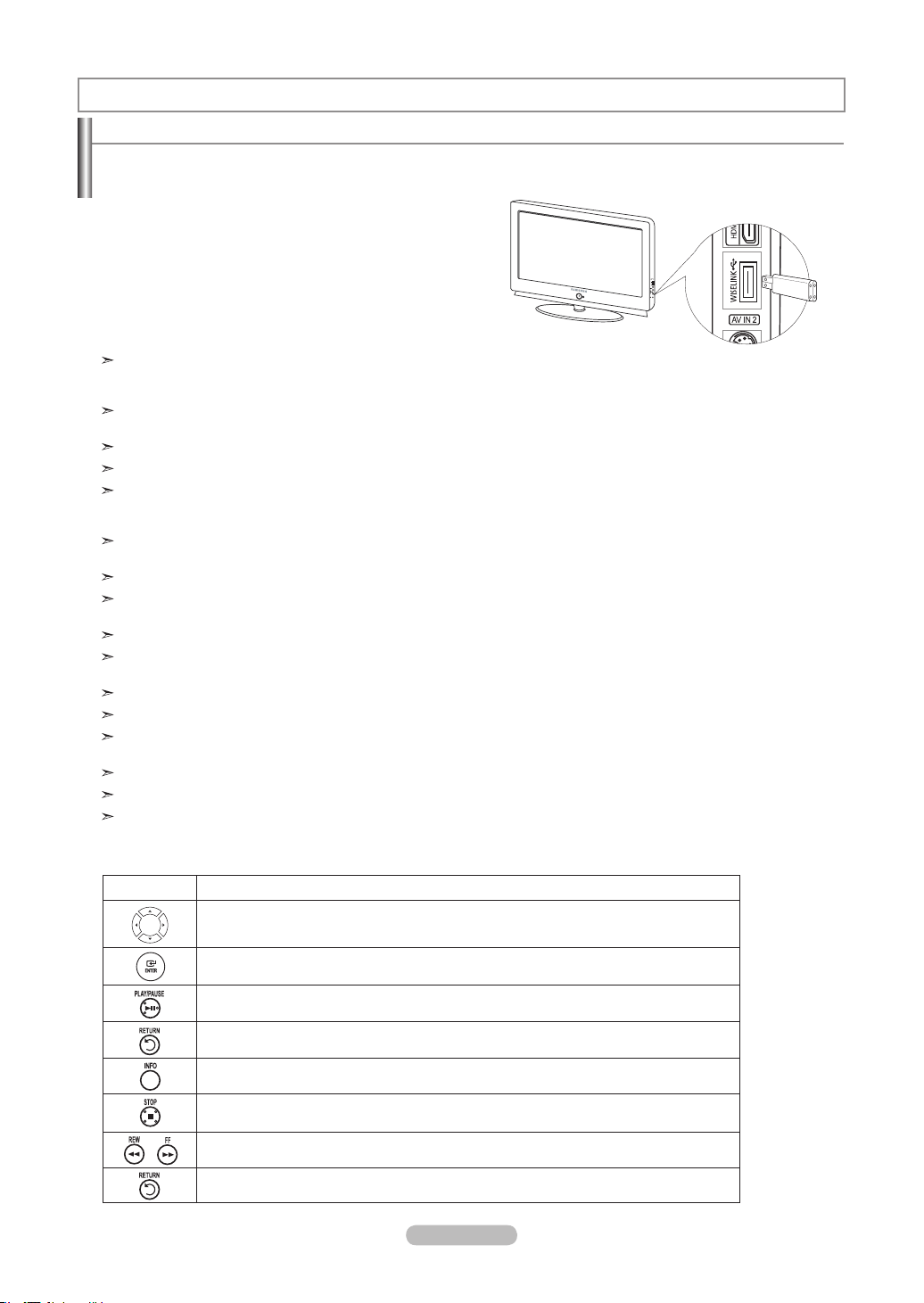
Français - 64
WISELINK
Si le mode WISELINK est activé et qu’aucun dispositif USB n’est branché, le message « Aucun appareil n’est branché »
(There is no device connected) s’affiche. Le cas échéant, insérer le dispositif USB, quitter l'écran en appuyant sur la touche
WISELINK de la télécommande du téléviseur et entrer dans l'écran WISELINK à nouveau.
Les fichiers de photos et de son doivent porter des noms en anglais, français ou espagnol. Dans le cas contraire, il est
impossible de les lire. Remplacez les noms des fichiers par des noms en anglais, français ou espagnol si nécessaire.
Le système de fichiers ne prend en charge que FAT16/32. (Le système de fichier NTFS n’est pas pris en charge.)
Certains types d'appareil-photo numériques USB et appareils audio peuvent ne pas être compatibles avec ce téléviseur.
WISELINK est compatible uniquement avec le dispositif à mémoire de grande capacité (MSC) USB. Le MCS est un dispositif
de transport de gros volumes de données à mémoire de grande capacité. Parmi les MSC, mentionnons les clés USB et les
lecteurs de carte Flash.
Avant de brancher le dispositif à votre téléviseur, veillez à sauvegarder vos fichiers pour éviter tout dommage ou perte de
données. SAMSUNG décline toute responsabilité pour toute perte de données ou tout fichier endommagé.
La résolution recommandée pour Wiselink est de 600 méga pixels.
Branchez directement au port USB de l’appareil. Il peut y avoir un problème de compatibilité USB si vous utilisez une
connexion par câble séparée.
Seuls les formats de fichiers mp3 et jpeg sont pris en charge.
Nous recommandons le format de fichier séquentiel jpeg. Les fichiers jpeg progressifs utilisent beaucoup de mémoire et le
décodage peut échouer.
Ne pas débrancher l’appareil USB pendant qu’il est en mode de chargement.
Ne sont pris en charge ni PTP (Picture transfer protocol) ni MTP (Media transfer protocol).
Le temps de lecture d’un fichier mp3 peut s’afficher sous la forme ‘00:00:00’ si l’information relative au temps de lecture n’est
pas détectée au début du fichier.
Plus la résolution de l’image est élevée, plus son affichage à l’écran prend de temps.
Si la résolution horizontale d’une image est supérieure à 5000, cette dernière ne peut pas être décodée.
Si la résolution verticale d’une image est supérieure à 4000, cette dernière ne peut pas être décodée.
Utilisation de la fonction WISELINK
Cette fonction permet de regarder des fichiers de photos (JPEG) et d'écouter des fichiers sonores (MP3) sauvegardés sur un
dispositif à mémoire de grande capacité (MSC) USB.
Appuyez sur la touche POWER de la télécommande ou sur le
panneau avant. Branchez un dispositif USB contenant des fichiers
JPEG et/ou MP3 à la prise WISELINK (prise USB) sur le côté du
téléviseur.
Panneau latéral du téléviseur
Exemple
Utilisation de la touche de la télécommande dans le menu WISELINK
Touche Operations
Dépl. le curseur et choisir un élément.
Choisir l’élément sélectionné.
Faire passer ou interrompre un diaporama ou un fichier MP3.
Revient au menu précédent.
Activer diverses fonctions à partir des menus Photo et Musique.
Arrêter le diaporama en cours ou le fichier MP3.
Page arrière ou suivante (élément de liste fichiers).
Arrêter la fonction en cours et revenir au menu de haut niveau précédent.
BN68-01178B-Fre.indd 64 2007-02-15 �� 10:02:17

Français - 65
1. Appuyez sur la touche MENU. Appuyez sur la touche
◄ ou ►
pour
sélectionner “Entrée”, puis appuyez sur ENTER.
2. Appuyez sur la touche
▲ ou ▼
pour sélectionner “WISELINK”, puis appuyez sur la
touche ENTER.
3. Appuyez sur la touche ▲ ou ▼ pour sélectionner le dispositif à mémoire MSC
correspondant, puis appuyez sur la touche ENTER.
Le menu WISELINK s’affiche différemment en fonction du dispositif à mémoire
USB branché au téléviseur.
4. Appuyez sur la touche ◄ ou ► pour passer à une icône, puis appuyer sur la
touche ENTER.
Pour quitter le mode WISELINK, appuyez sur la touche WISELINK de la
télécommande.
Appuyez sur la touche WISELINK de la télécommande pour afficher le menu
WISELINK.
Utilisation du menu WISELINK
Entrée
Liste source : TV ►
Entrer le nom
►
WISELINK
Anynet+ (HDMI-CEC)
TV
Dépl. Intro. Retour
Dépl. Intro. Sortie
Generio
STORAGE DEVICE
STORAGE DEVICE
STORAGE DEVICE
STORAGE DEVICE
XTICK
861MB/994MB Free
Dépl. Intro. Retour
BN68-01178B-Fre.indd 65 2007-02-15 �� 10:02:19
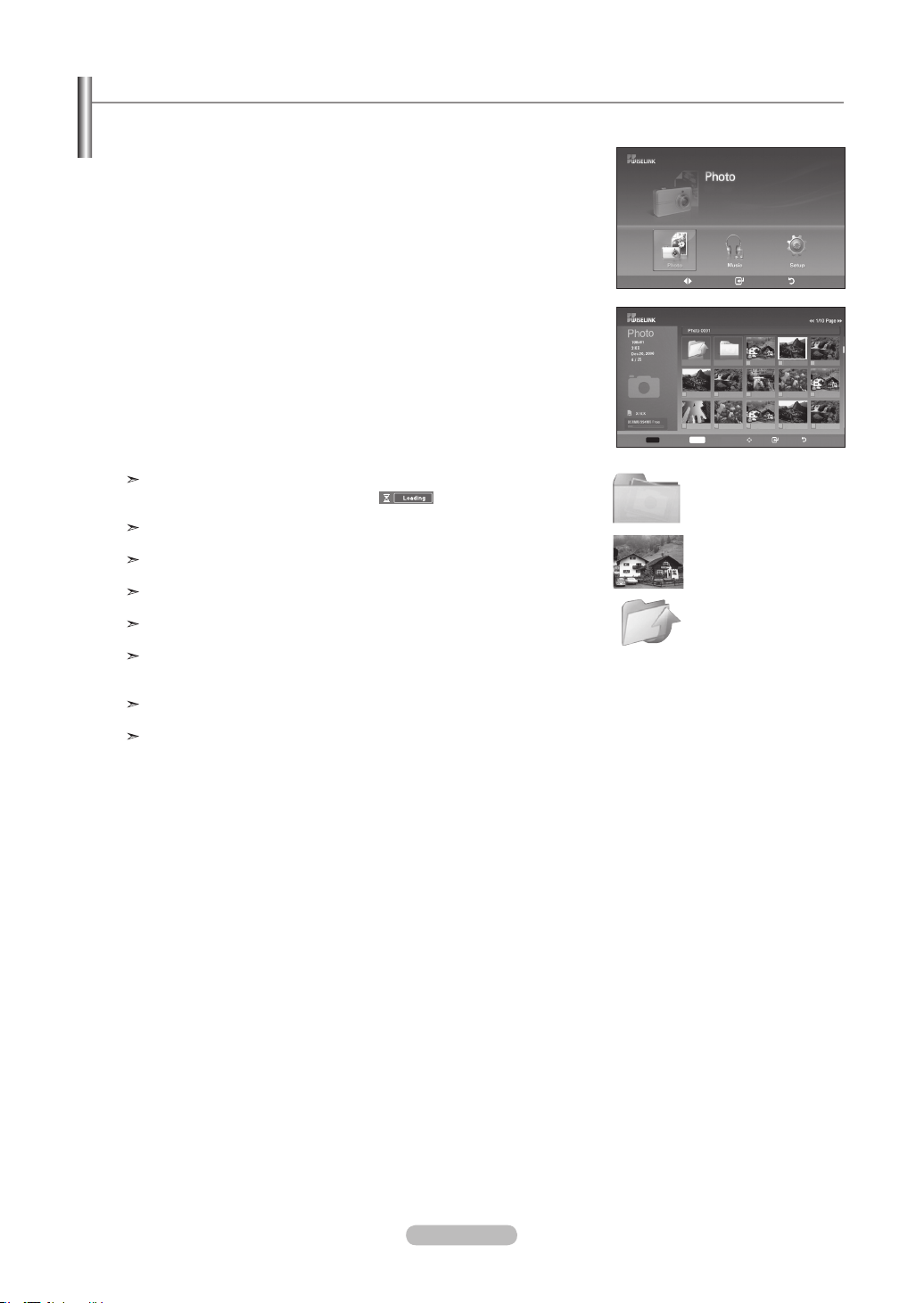
Français - 66
1. Effectuez les étapes 1 à 3 de “l’utilisation du menu WISELINK”.
(Reportez-vous à la page 65)
2. Appuyez sur la touche
◄
ou
►
pour passer à “Photo”, puis appuyez sur la touche
ENTER. L’information fichier sauvegardée s’affiche sous forme d’un dossier ou
d’un fichier.
3. Appuyez sur les touches ▲, ▼, ◄ et ► pour sélectionner un fichier, puis appuyez
sur la touche ENTER.
• Appuyez sur la touche ENTER au-dessus d’une icône de photo pour montrer la
photo présentement choisie en plein écran.
• Appuyez sur la touche ENTER au-dessus d’une icône de dossier pour montrer
les fichiers JPEG qu'il contient.
Pour quitter le mode WISELINK, appuyez sur la touche WISELINK de la
télécommande.
Le passage à une autre photo peut nécessiter quelques secondes (pour
charger le fichier). À cette étape, l'icône s’affiche dans l’angle
supérieur gauche de l’écran.
Ce menu ne présente que les fichiers dont l'extension est jpg.
Les fichiers d’autres formats, comme bmp ou tiff, ne seront pas affichés.
Les fichiers sont affichés sur une page. Quinze photos miniatures sont
affichées sur une page.
Les vignettes sont numérotées de gauche à droite et du haut vers le bas, de 1
à 15.
Certains types d’appareils photo numériques USB et de périphériques audio
peuvent ne pas être compatibles avec ce téléviseur.
Les dossiers sont affichés en premier et sont suivis de tous les fichiers JPEG
dans le dossier en cours. Les dossiers et les fichiers JPEG sont classés en
ordre alphabétique.
Si la photo est affichée en plein écran, il est possible d’effectuer un zoom avant
et arrière ou de faire tourner la photo à l’écran.
L’affichage des fichiers JPEG sous forme d’images miniatures nécessite du
temps.
À l'aide de la liste PHOTO (JPEG)
Ce menu montre des fichiers et des dossiers JPEG sauvegardés sur un dispositif à mémoire MSC.
: Icône de dossier
: Icône de photo
: Passer à l’icône de
dossier de l’étape
précédente
Dépl. Intro. Retour
tour
XTICK
861MB/994MB Free
Choisir
INFO
Photo Menu Dépl. Ouvrir Retour
Up Folder
Forder1
Photo 0001 Photo 0001 None
File 4 File 5 File 6 File 7 File 8
File 9 File 10 File 11 File 12 File 13
BN68-01178B-Fre.indd 66 2007-02-15 �� 10:02:20
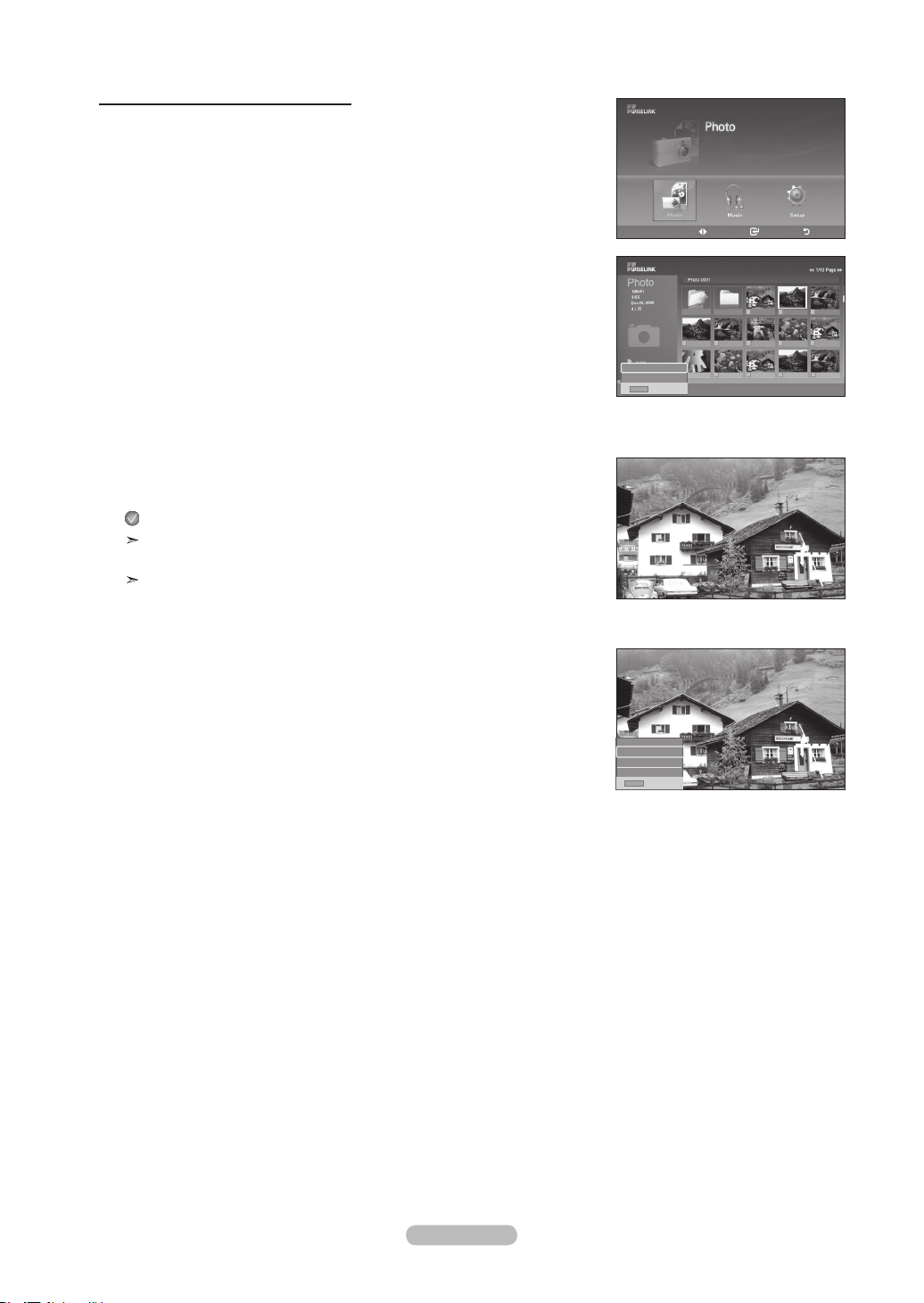
Français - 67
Choix d’une photo et d’un diaporama
1. Effectuez les étapes 1 à 3 de “l’utilisation du menu WISELINK”.
(Reportez-vous à la page 65)
2. Appuyez sur la touche
◄ ou ►
pour passer à “Photo”, puis appuyez sur la touche
ENTER.
L’information fichier sauvegardée s’affiche sous forme d’un dossier ou d’un fichier.
3. Appuyez sur la touche INFO pour afficher “Diaporama” ou “Annuler fichiers
sélectionnés”.
4. Appuyez sur la touche ▲ ou ▼ pour sélectionner “Diaporama”, puis appuyez sur
la touche ENTER.
le dossier sélectionné à un intervalle prédeterminé.
Durant le diaporama, les fichiers sont présentés en ordre à partir du fichier
affiché.
Il est possible de lire les fichiers MP3 automatiquement au cours du diaporama
si la fonction Musique de fond par défaut est réglée à On. Pour activer cette
fonction, les fichiers MP3 et autres fichiers de photos doivent se trouver dans
le même dossier du dispositif à mémoire MSC.
5. Appuyez sur la touche INFO
durant le “Diaporama” pour régler l’option (Vitesse
diaporama, Musique de fond, Sélection musique de fond, Liste).
Appuyez sur la touche▲ ou ▼pour sélectionner l’option, puis appuyez sur la
touche ENTER.
• Une fois l’option configurée, appuyer sur la touche ENTER
pour faire une
modification.
INFO
Sortie
Vitesse diaporama
Musique de fond
Sélection musique de fond
Liste
Dépl. Intro. Retour
XTICK
861MB/994MB Free
Up Folder
Forder1
Photo 0001 Photo 0001 None
File 4 File 5 File 6 File 7 File 8
File 9 File 10 File 11 File 12 File 13
INFO
Sortie
Diaporama
Annuler fichiers sélectionnés
BN68-01178B-Fre.indd 67 2007-02-15 �� 10:02:22
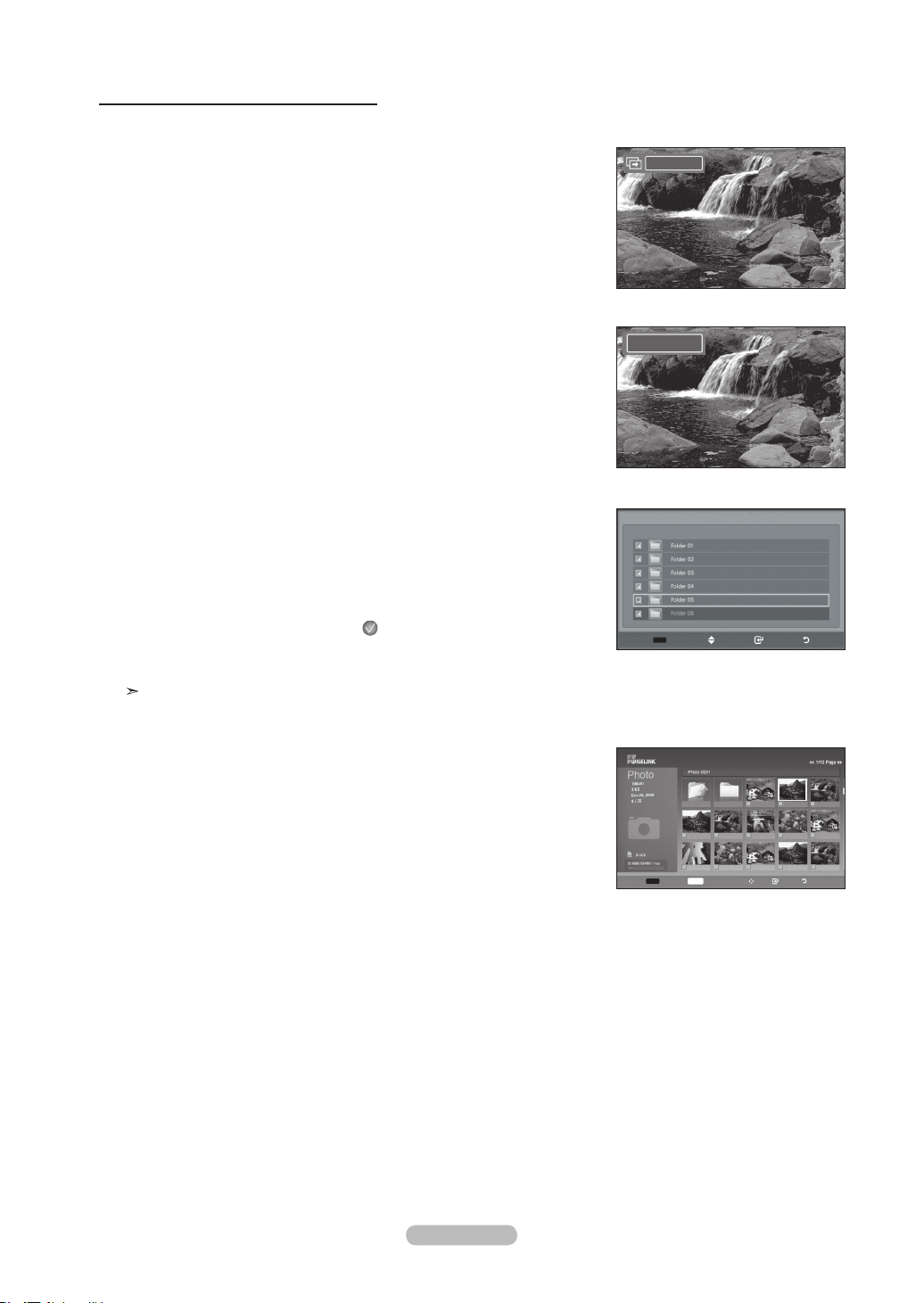
Français - 68
Utilisation du menu durant un diaporama
Vitesse du diaporama:
Permet de déterminer la vitesse du diaporama.
Vous pouvez choisir Lent, Normal ou Rapide.
Musique de fond:
Indiquez si vous voulez lire un fichier M'P3 durant un diaporama.
Il est possible de sélectionner Musique Activée “On” ou Musique Désactivée “Off”.
Réglage de la musique de fond:
L’information fichier sauvegardée s’affiche sous forme d’un dossier ou d’un fichier
MP3.
• Choisissez les réglages de musique de fond et appuyez sur la touche ENTER.
Choisissez un dossier pour la musique de fond en appuyant sur les touches
▲ ou ▼
et appuyez sur la touche ENTER.
Le dossier choisi sera mis en surbrillance
• Appuyez sur la touche MENU pour revenir à l'écran du diaporama.
La musique de fond choisie joue.
Si vous désactivez la musique de fond, même si les réglages de cette dernière
sont fixés, il n'y aura pas de musique.
Liste:
L’information fichier sauvegardée s’affiche sous forme d’un dossier ou d’un fichier
JPEG.
Pour quitter le mode WISELINK, appuyez sur la touche WISELINK de la télécom-
mande.
OFF
Rapide
Choisir
INFO
Photo menu Dépl. Ouvrir Retour
Up Folder
Forder1
Photo 0001 Photo 0001 None
File 4 File 5 File 6 File 7 File 8
File 9 File 10 File 11 File 12 File 13
Choisir Dépl. Intro. Retour
Sélection musique de fond
Choisir chiers p. musique de fond.
◄◄ 1/1/Page ►►
BN68-01178B-Fre.indd 68 2007-02-15 �� 10:02:24
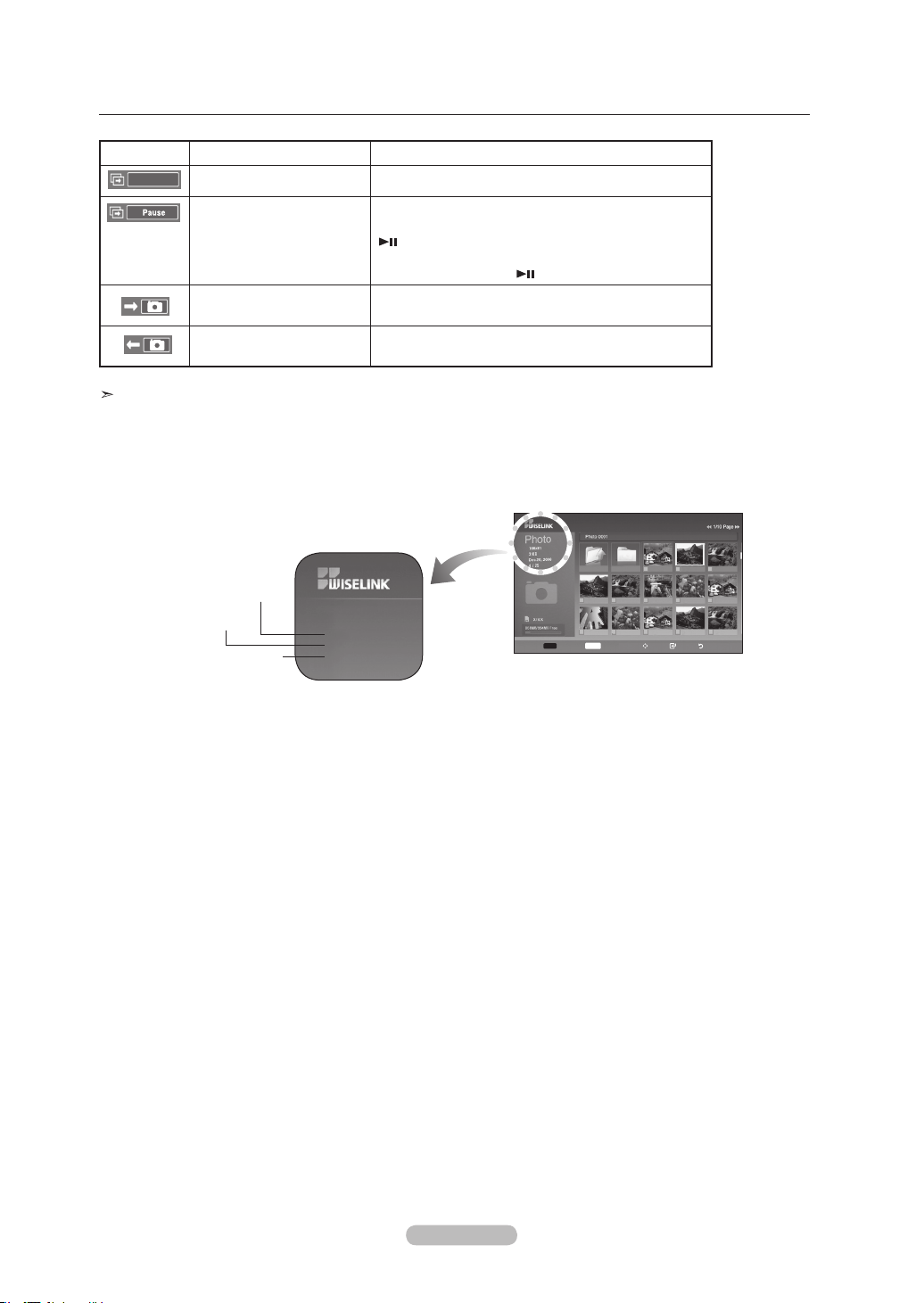
Français - 69
Choisir
INFO
Photo menu Dépl. Ouvrir Retour
Up Folder
Forder1
Photo 0001 Photo 0001 None
File 4 File 5 File 6 File 7 File 8
File 9 File 10 File 11 File 12 File 13
Icônes d’information sur les fonctions du diaporama (afchées dans l'angle supérieur gauche de l’écran)
Icône Afchage en cours Fonction
Diaporama Diaporama en cours.
Pause
Il est possible d’interrompre un diaporama et la
musique en appuyant sur la touche PLAY/PAUSE
de la télécommande pendant un diaporama.
Pour reprendre le diaporama, appuyer sur la
touche PLAY/PAUSE à nouveau.
Passer à la photo
suivante
Appuyer la touche droite de la télécommande
permet de passer à la photo suivante.
Revenir à la photo
précédente
Appuyer la touche gauche de la télécommande
permet de passer à la photo précédente.
Lorsqu’on choisit un fichier de photos, l'information connexe est affichée du côté gauche dans l'écran du téléviseur, comme la
résolution, la date de modification et l’ordre du fichier dans le répertoire en cours (p. ex., dixième sur 15).
Photo
108 x 81
Dec20. 2006
4/25
comme la résolution
l’ordre du fichier dans le
répertoire en cours
la date de modification
BN68-01178B-Fre.indd 69 2007-02-15 �� 10:02:26
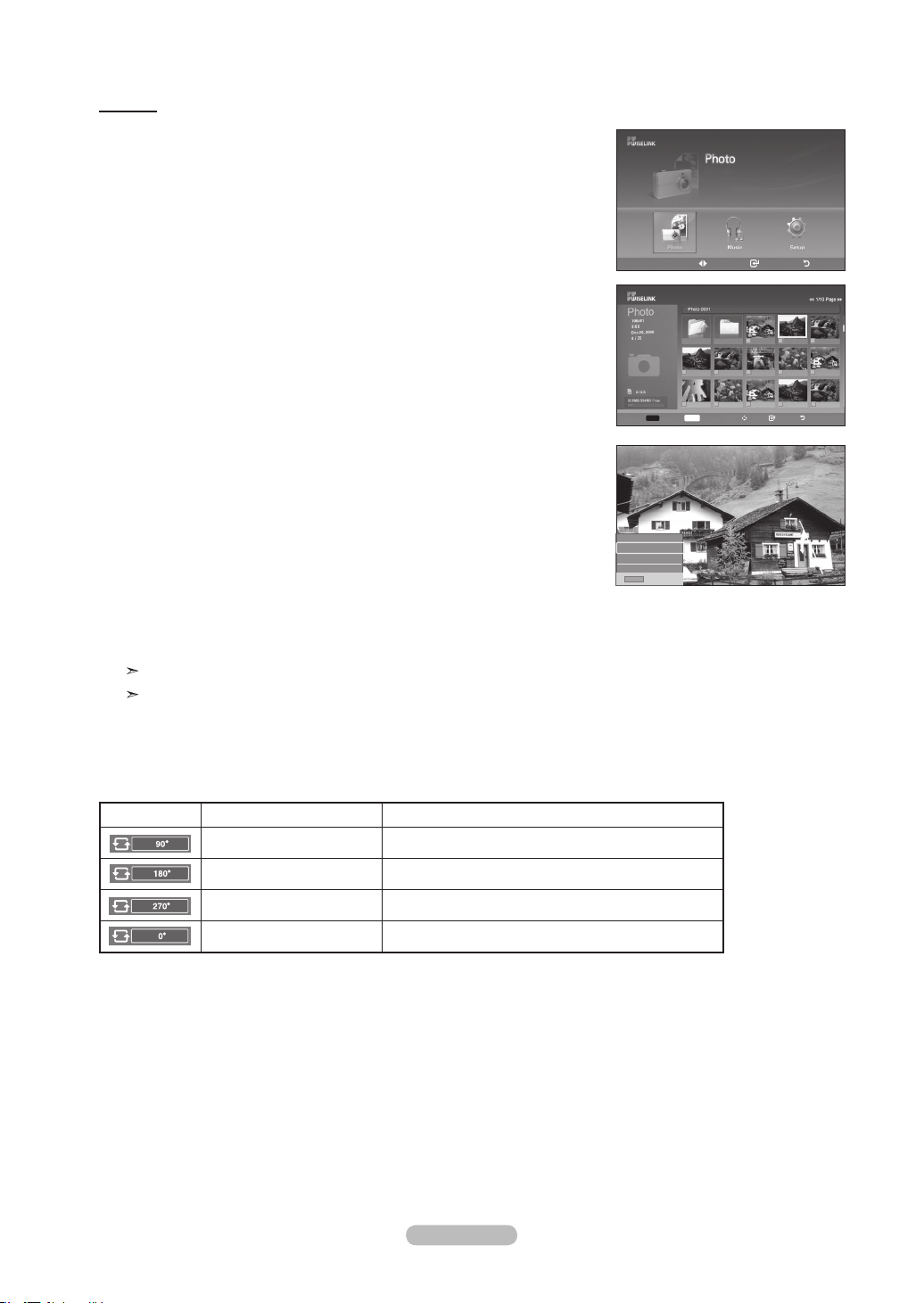
Français - 70
Rotation
1. Effectuez les étapes 1 à 3 de “l’utilisation du menu WISELINK”.
(Reportez-vous à la page 65)
2. Appuyez sur la touche
◄ ou ►
pour passer à “Photo”, puis appuyez sur la touche
ENTER.
L’information fichier sauvegardée s’affiche sous forme d’un dossier ou d’unfichier.
3. Appuyez sur les touches ▲, ▼, ◄ et ► pour sélectionner un fichier, puis appuyez
sur la touche ENTER. Appuyez sur la touche au-dessus d’une photo miniature
pour la montrer en plein écran.
4. Appuyez sur la touche INFO
pour afficher l’option (Diaporama, Rotation, Zoom).
Appuyez sur la touche ▲ ou ▼ pour sélectionner “Rotation”, puis appuyez sur la
touche ENTER.
• Il faut appuyer à chaque fois sur la touche INFO, l'option Rotation et la touche
Enter pour faire tourner une image. Par exemple, de 90 à 180 degrés.
Pour faire tourner une photo, appuyez sur la touche INFO pour ouvrir la fenêtre
des options, choisissez l’option “Rotation” etappuyez sur la touche ENTER.
Chaque fois que vous faites cela, la photo à l'écran tourne.
(90°, 180°, 270°, 0°)
Pour quitter le mode WISELINK, appuyez sur la touche WISELINK de la
télécommande.
Le fichier de rotation n’est pas sauvegardé.
L’option Zoom/diaporama est désactivée lorsque l’option Rotation est choisie.
Icônes d’information sur les fonctions du diaporama (affichées dans l'angle
supérieur gauche de l’écran)
Icône Afchage en cours Fonction
Rotating (90°) Faire pivoter une photo de 90 degrés
Rotating (180°) Faire pivoter une photo de 180 degrés
Rotating (270°) Faire pivoter une photo de 270 degrés
Rotating (0°) Pour rétablir la position initiale
Dépl. Intro. Retour
XTICK
861MB/994MB Free
INFO
Sortie
Diaporama
Rotation
Zoom
List
Choisir
INFO
Photo menu Dépl. Ouvrir Retour
Up Folder
Forder1
Photo 0001 Photo 0001 None
File 4 File 5 File 6 File 7 File 8
File 9 File 10 File 11 File 12 File 13
BN68-01178B-Fre.indd 70 2007-02-15 �� 10:02:27
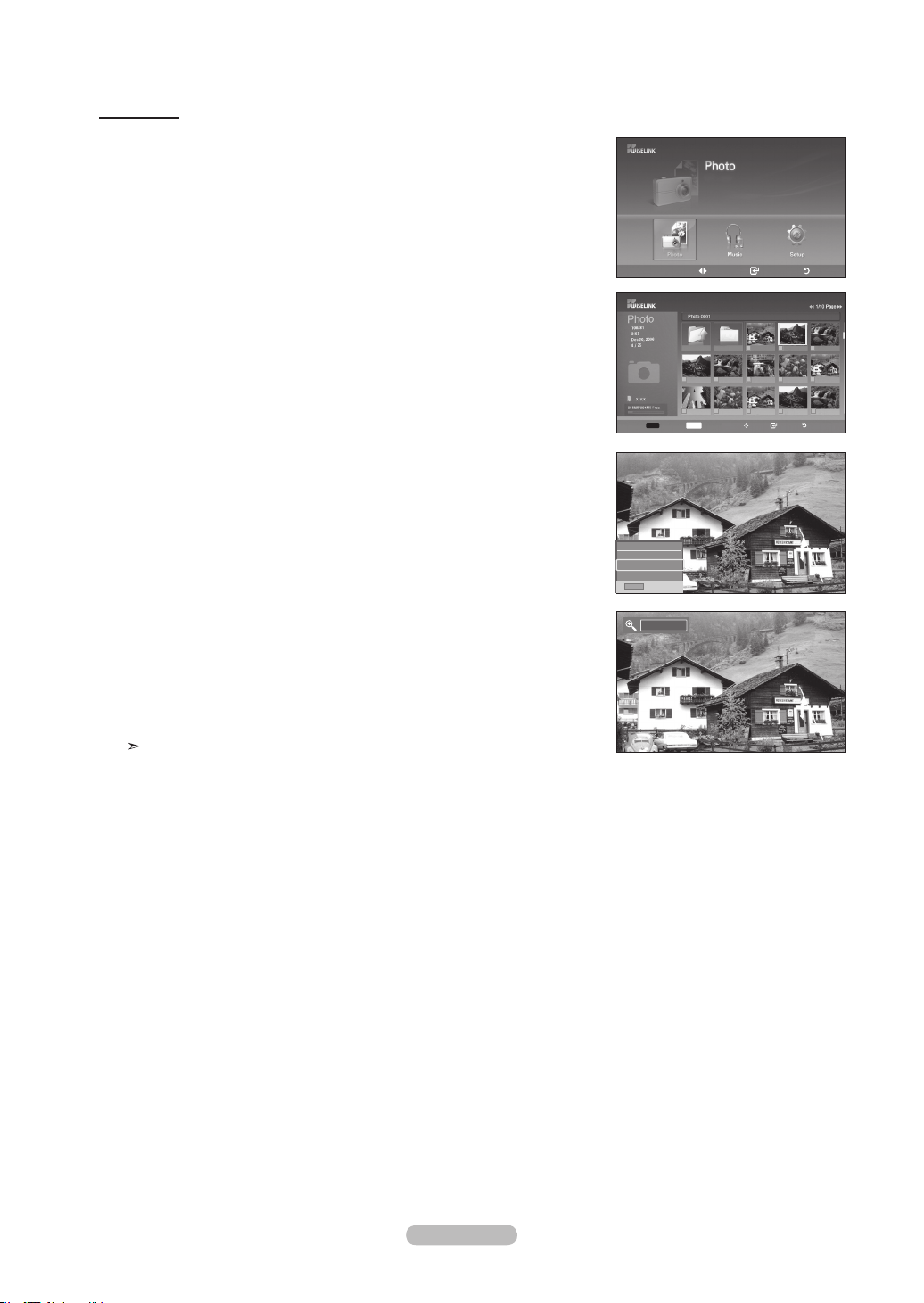
Français - 71
Zoom avant
1. Effectuez les étapes 1 à 3 de “l’utilisation du menu WISELINK”.
(Reportez-vous à la page 65)
2.
Appuyez sur la touche
◄ ou ►
pour passer à “Photo”, puis appuyez sur la
touche ENTER.
L’information fichier sauvegardée s’affiche sous forme d’un dossier ou
d’unfichier.
3. Appuyez sur les touches ▲, ▼, ◄ et ► pour sélectionner un fichier, puis appuyez
sur la touche ENTER.
Appuyez sur la touche au-dessus d’une photo miniature pour la montrer en plein
écran.
4. Appuyez sur la touche INFO
pour afficher l’option (Diaporama, Rotation, Zoom).
Appuyez sur la touche ou pour sélectionner “Zoom”, puis appuyez sur la touche
ENTER
.
La photo agrandie s’affiche.
Pour agrandir une photo affichée, appuyez sur la touche INFO
pour ouvrir la
fenêtre des options, choisissez l’option “Zoom” et appuyez sur la touche ENTER.
Chaque fois que vous faites cela, les options de zoom suivantes sont appliquées
en ordre.
• Il faut appuyer à chaque fois sur la touche INFO, l'option Rotation et la touche
Enter pour faire un zoom. Par exemple, de x 2 à x 4.
• Zoom(x2): Zoom avant de la photo x2
• Zoom(x4): Zoom avant de la photo x4
• Zoom(x1): Rétablit l’image à sa taille initiale
Pour panoramiquer vers le haut, le bas, la gauche ou la droite, appuyer sur les
touches ▲, ▼, ◄ et ►.
Les images de résolution supérieure à 1 280 X 720 ne sont pas prises en
charge.
Pour quitter le mode WISELINK
, appuyez sur la touche WISELINK de la
télécommande.
Dépl. Intro. Retour
XTICK
861MB/994MB Free
INFO
Exit
Diaporama
Rotate
Zoom
List
Choisir
INFO
Photo menu Dépl. Ouvrir Retour
Up Folder
Forder1
Photo 0001 Photo 0001 None
File 4 File 5 File 6 File 7 File 8
File 9 File 10 File 11 File 12 File 13
x 1
BN68-01178B-Fre.indd 71 2007-02-15 �� 10:02:29
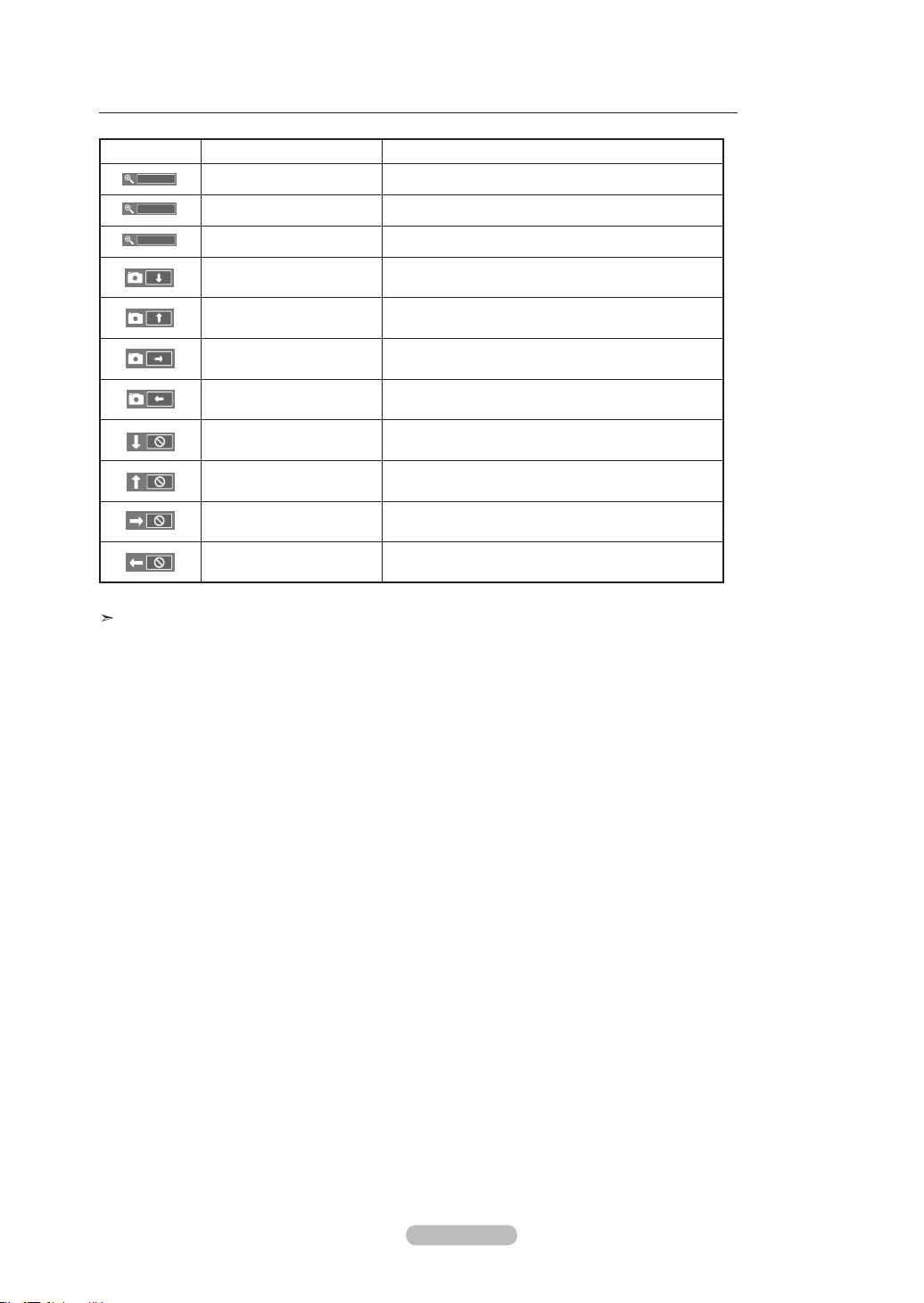
Français - 72
Icônes d’information sur la fonction zoom (afchées dans l'angle supérieur gauche de l’écran)
Icône Afchage en cours Fonction
Zoom (x 2) Zoom avant de la photo x2
Zoom (x 4) Zoom avant de la photo x4.
Zoom (x 1) Rétablit l’image à sa taille initiale
Pan Down
Panoramiser vers le bas pour voir la partie
inférieure d’une photo agrandie à l'aide du zoom
Pan Up
Panoramiser vers le haut pour voir la partie
supérieure d’une photo agrandie à l'aide du zoom
Pan Right
Panoramiser vers la droite pour voir la partie droite
d’une photo agrandie à l'aide du zoom
Pan Left
Panoramiser vers la gauche pour voir la partie
gauche d’une photo agrandie à l'aide du zoom
Pan Down (END)
Panoramiser au bas d’une photo agrandie à l'aide
du zoom
Pan Up (END)
Panoramiser au haut d’une photo agrandie à l'aide
du zoom
Pan Right (END)
Panoramiser à droite d’une photo agrandie à l'aide
du zoom
Pan Left (END)
Panoramiser à gauche d’une photo agrandie à
l'aide du zoom
L’option Rotation/diaporama est désactivée lorsque l’option Zoom est choisie.
x 1
x 4
x 2
BN68-01178B-Fre.indd 72 2007-02-15 �� 10:02:30
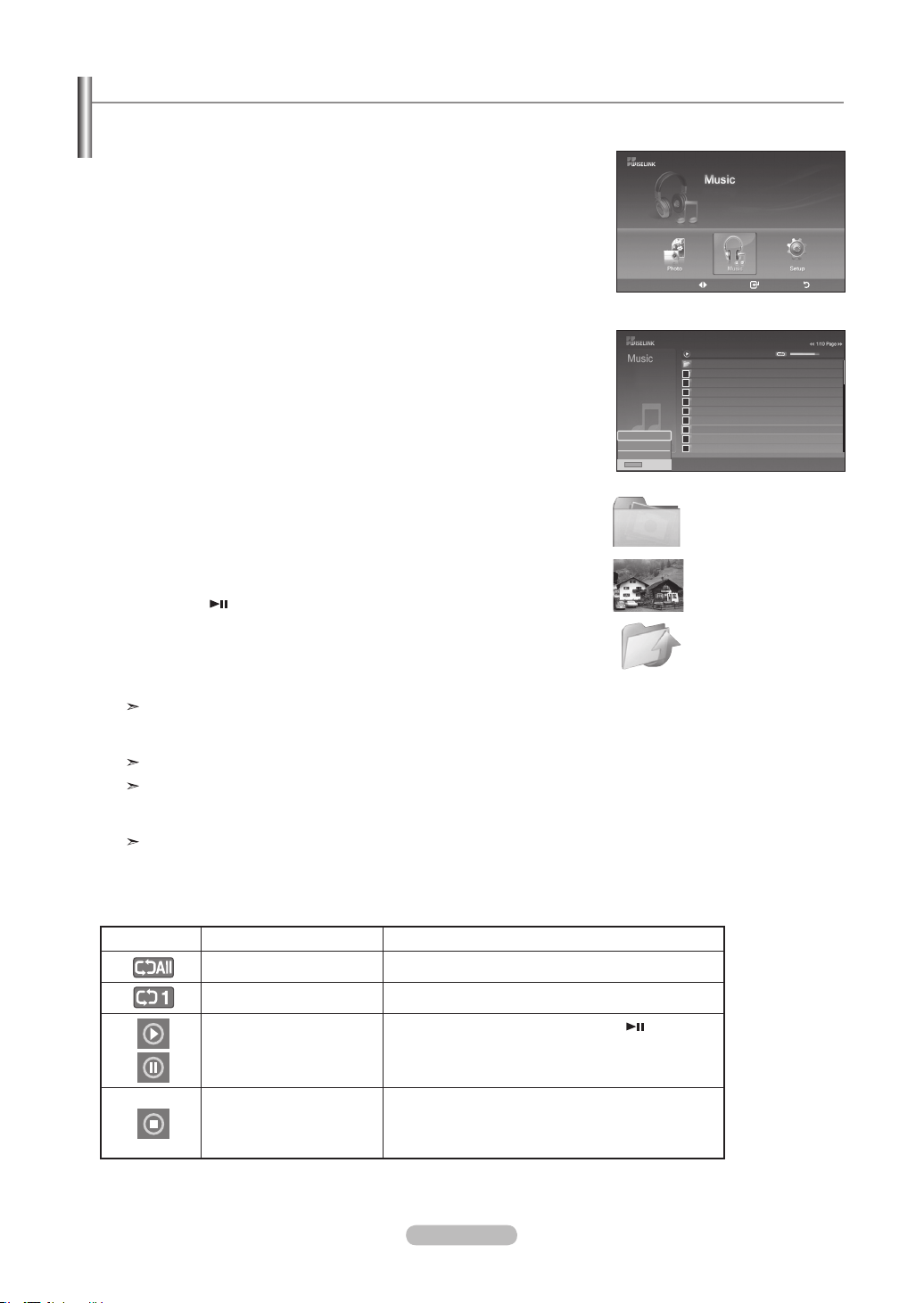
Français - 73
1. Effectuez les étapes 1 à 3 de “l’utilisation du menu WISELINK”.
(Reportez-vous à la page 65)
2. Appuyez sur la touche
◄ ou ►
pour passer à “Music”, puis appuyez sur la
touche ENTER.
L’information fichier sauvegardée s’affiche sous forme d’un dossier ou d’un
fichier.
3. Appuyez sur la touche ▲ ou ▼ pour sélectionner un fichier, puis appuyez sur la
touche ENTER.
Pour choisir tous les fichiers ou un fichier, appuyez sur la touche INFO
pour
afficher les menus Musique.
Appuyez sur la touche ENTER pour sélectionner “lecture”, “rep/musique”, ou
“Annuler fichiers sélectionnés”.
• Lorsque vous êtes sur une icône de note de musique et que vous appuyez sur le
bouton ENTER, le fichier est automatiquement lu.
• Lorsque vous êtes sur une icône de dossier et que vous appuyez sur le bouton
ENTER , les fichiers musicaux inclus dans le dossier s'affichent.
Pour choisir un fichier à la page suivante, appuyez sur la touche REW ◄◄ ou
FF ►► pour passer à la page suivante.
4. Lorsqu’un fichier MP3 est en mode lecture, appuyez sur la touche
PLAY/PAUSE pour arrêter momentanément la lecture. Appuyez sur la touche
STOP ■ pour quitter le mode Lecture.
Pour quitter le mode WISELINK
, appuyez sur la touche WISELINK de la
télécommande.
Ce menu n’affiche que les fichiers d'extension mp3. Les fichiers d'extensions
autres ne sont pas affichés, même s'ils ont été sauvegardés sur le dispositif
USB.
Le fichier sélectionné est affiché en tête de liste avec la durée de déroulement.
Pour régler le volume sonore, appuyez sur la touche VOL+ ou VOL- de la
télécommande.
Pour couper le son, appuyez sur la touche MUTE de la télécommande.
La touche FF ►►/REW ◄◄ ne fonctionne pas pendant la lecture du fichier.
Icônes d’information sur les fonctions de fichiers musicaux
(affichées dans l’angle supérieur gauche de l’écran)
Icône Afchage en cours Function
(Musique) Tout Tous les chiers musicaux sont en mode lecture.
(Musique) Un Un chier musical est en cours de lecture.
(Musique) Lecture/Pause
Appuyer sur la touche PLAY/PAUSE
de la
télécommande pendant que la musique est en
cours de lecture. La musique est interrompue et le
texte ‘Lecture’ s’afche en haut de l’écran.
(Musique) Arrêt
Appuyer sur la touche STOP
■
de la
télécommande lorsque la musique est interrompue.
La musique reprend et le texte ‘Arrêt’ s’afche en
haut de l’écran.
Utilisation de la liste MP3
Ce menu présente des fichiers MP3 à partir de fichiers sauvegardés sur un dispositif à mémoire MSC.
Icône de dossier
Icône de note musicale
Icône Revenir au
dossier précédent
Dépl. Intro. Retour
XTICK
861MB/994MB Free
Dossier supérieur
00:04:01
00:04:28
00:04:12
00:05:39
00:04:30
00:04:30
00:03:54
00:05:25
Dossier 1
001 Swan Song feat.TBNY
002 Beatles-Yesterday
003 Fall in Love
004 Tom Waits-Time
005 Chuk Mangione-Feel So good
007 Ryuichi Sakamoto-Rain
008 Bon jovi-This ain’t a love song
006 Nat King Cole-Fly me to the moon
Nat King Cole-Fly me to the moon
00:04:00
Exit
lecture
rep/musique
Annuler fichiers sélectionnés
Sortie
INFO
BN68-01178B-Fre.indd 73 2007-02-15 �� 10:02:32
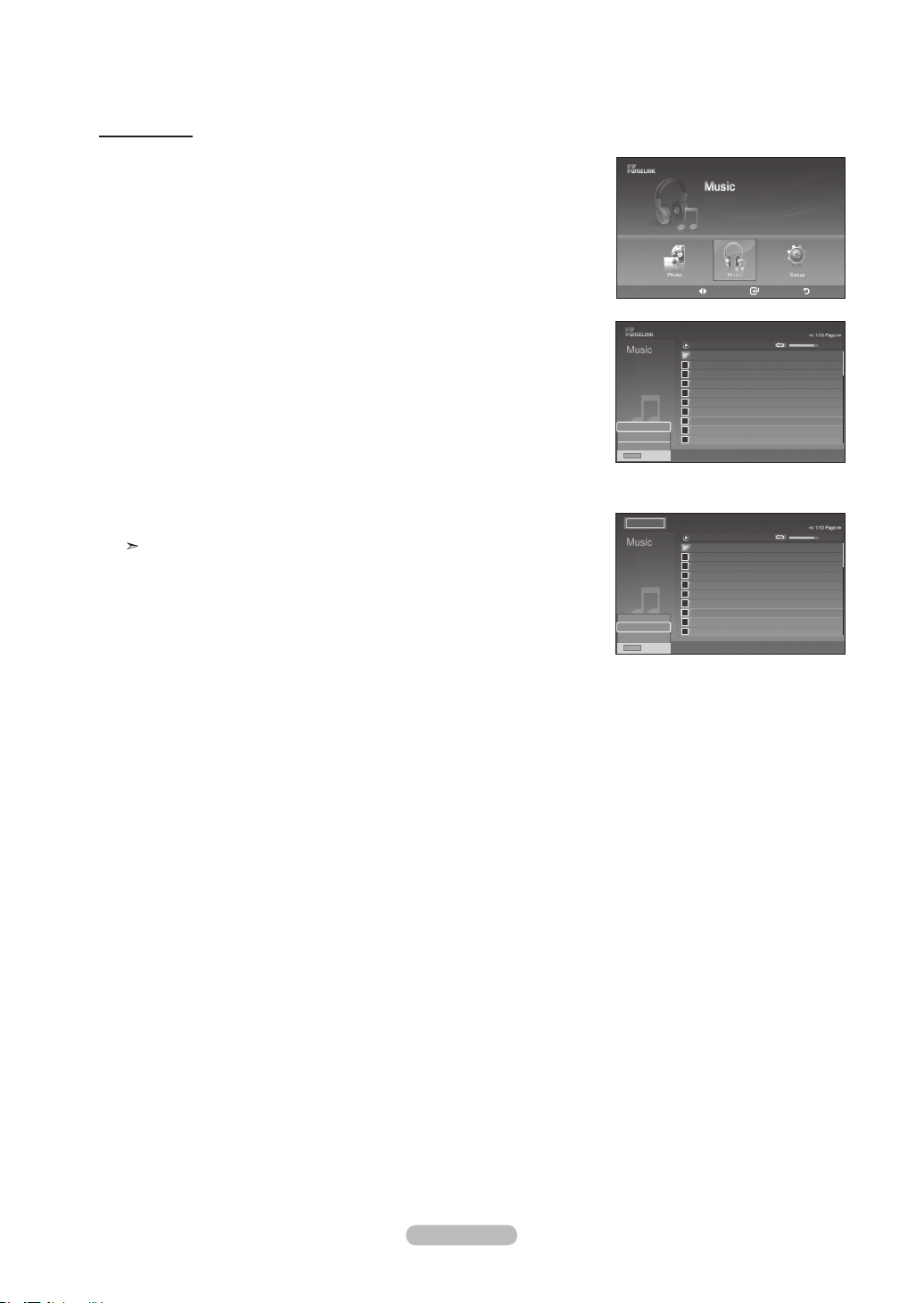
Français - 74
Rep/musique
1. Effectuez les étapes 1 à 3 de “l’utilisation du menu WISELINK”
(Reportez-vous à la page 65)
2. Appuyez sur la touche
◄ ou ►
pour passer à “Musique”, puis appuyez sur la
touche ENTER.
L’information fichier sauvegardée s’affiche sous forme d’un dossier ou d’un fichier.
3. Appuyez sur la touche ▲ ou ▼ pour sélectionner un fichier, puis appuyez sur la
touche ENTER.
Pour choisir tous les fichiers ou un fichier, appuyez sur la touche INFO
pour
afficher les menus Musique.
Appuyez sur la touche ENTER pour sélectionner “lecture”, “rep/musique ”, o
“Annuler fichiers sélectionnés”.
4.
Appuyez sur la touche ENTER pour sélectionner “Reprise de la musique”.
Sélectionner pour lire en boucle les fichiers MP3 du dossier en cours.
Vous pouvez sélectionner On ou Off.
• On: Lit à nouveau un fichier musical ou tous les fichiers musicaux.
• Off: Pas de reprise des de la lecture des fichiers musicaux.
Pour quitter le mode WISELINK, appuyez sur la touche WISELINK
de la
télécommande.
Dossier supérieur
00:04:01
00:04:28
00:04:12
00:05:39
00:04:30
00:04:30
00:03:54
00:05:25
Dossier 1
001 Swan Song feat.TBNY
002 Beatles-Yesterday
003 Fall in Love
004 Tom Waits-Time
005 Chuk Mangione-Feel So good
007 Ryuichi Sakamoto-Rain
008 Bon jovi-This ain’t a love song
006 Nat King Cole-Fly me to the moon
Nat King Cole-Fly me to the moon
00:04:00
Exit
lecture
rep/musique
Annuler fichiers sélectionnés
Sortie
INFO
Dépl. Intro. Retour
XTICK
861MB/994MB Free
Dossier supérieur
00:04:01
00:04:28
00:04:12
00:05:39
00:04:30
00:04:30
00:03:54
00:05:25
Dossier 1
001 Swan Song feat.TBNY
002 Beatles-Yesterday
003 Fall in Love
004 Tom Waits-Time
005 Chuk Mangione-Feel So good
007 Ryuichi Sakamoto-Rain
008 Bon jovi-This ain’t a love song
006 Nat King Cole-Fly me to the moon
Nat King Cole-Fly me to the moon
00:04:00
Exit
lecture
rep/musique
Annuler fichiers sélectionnés
Sortie
INFO
On
BN68-01178B-Fre.indd 74 2007-02-15 �� 10:02:33
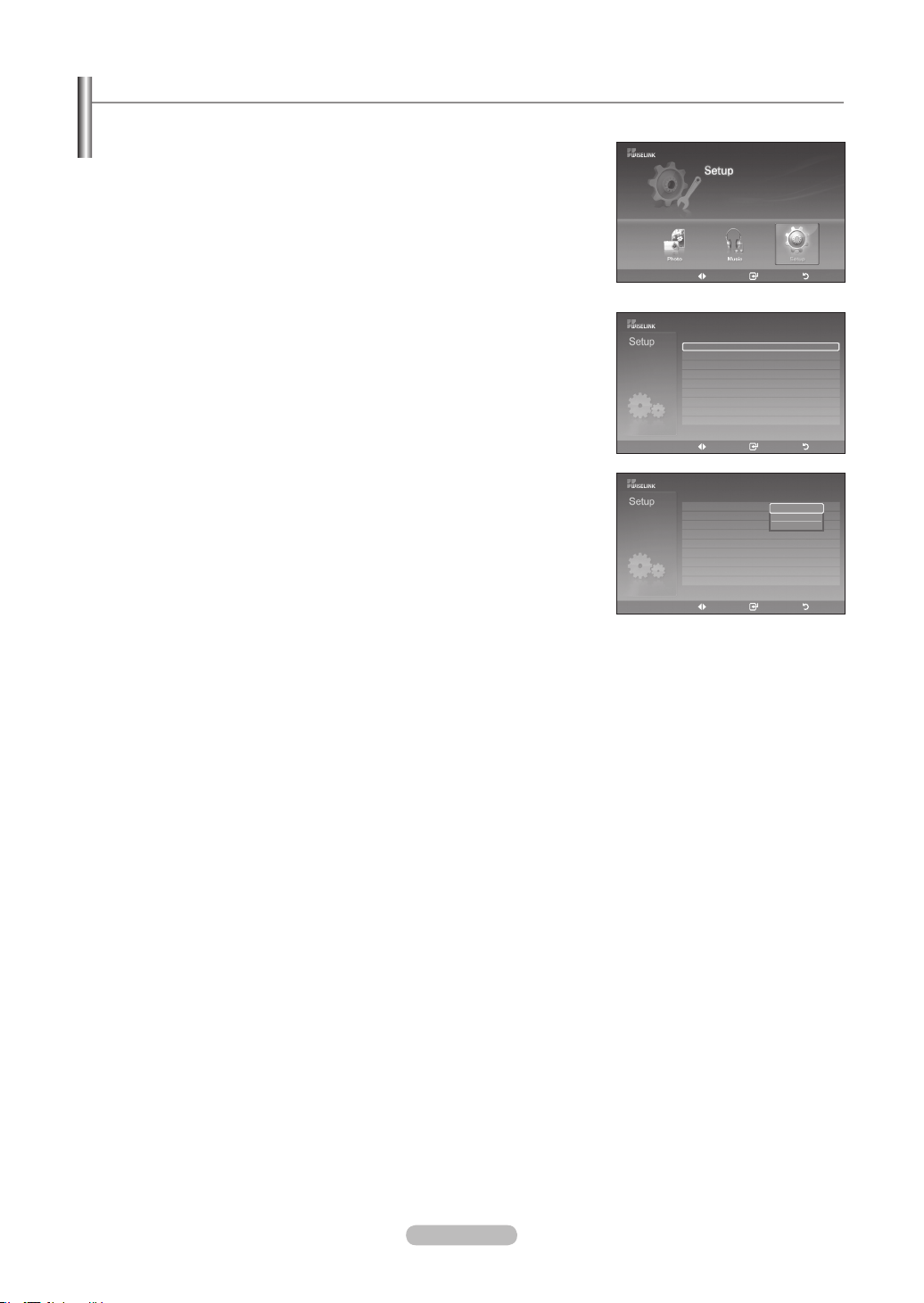
Français - 75
1. Effectuez les étapes 1 à 3 de “l’utilisation du menu WISELINK”.
(Reportez-vous à la page 65)
2.
Appuyez sur la touche
◄ ou ►
pour passer à “Setup”, puis appuyez sur la
touche ENTER.
3. Appuyez sur la touche ▲ ou ▼ pour sélectionner un fichier, puis appuyez sur la
touche ENTER.
4.
Appuyez sur la touche ▲ ou ▼ pour sélectionner l’option, puis appuyez sur la
touche ENTER.
Suite...
Menu de conguration
Le menu de configuration affiche les paramètres d’utilisateur du menu WISELINK.
Dépl. Intro. Retour
XTICK
861MB/994MB Free
Vitesse diaporama : Fast
Musique de fond : Off
Sélection musique de fond
rep/musique : On
Écran de veille : 5 min.
Dépl. Intro. Retour
Vitesse diaporama : Fast
Musique de fond : Off
Sélection musique de fond
rep/musique : On
Écran de veille : 5 min.
Dépl. Intro. Retour
Rapide
Normal
Lent
BN68-01178B-Fre.indd 75 2007-02-15 �� 10:02:35
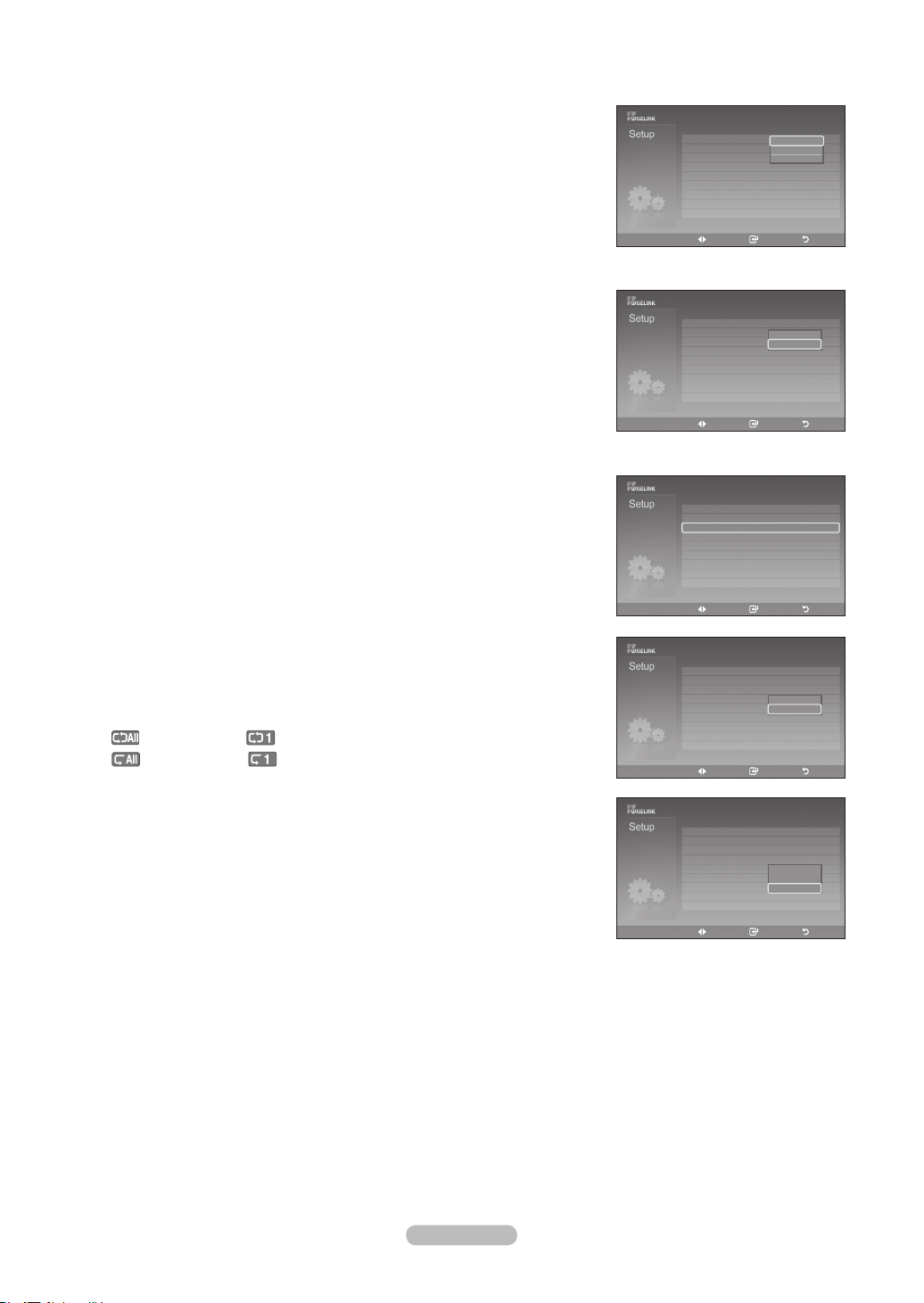
Français - 76
Vitesse du diaporama:
Permet de commander la vitesse du diaporama. Vous pouvez sélectionner Lent,
Normal ou Rapide.
Fond musical:
Pour lire un fichier MP3 pendant un diaporama.
Vous pouvez choisir Musique On ou Musique Off.
Sélection musique de fond:
Vous pouvez sélectionner la musique de fond pendant un diaporama. Vous pouvez
également sélectionner la musique de fond pendant qu’un diaporama est en cours
de lecture en appuyant sur la touche INFO et en sélectionnant le menu “Réglage
de la musique de fond”.
Reprise de la musique:
Sélectionner pour lire en boucle les fichiers MP3 du dossier en cours.
Vous pouvez sélectionner On ou Off.
On:
(Musique) Tout,
(Musique) Un
Off:
(Musique) Tout,
(Musique) Un
Économiseur d’écran:
Sélectionner pour configurer le délai d’activation de l’écran de veille. L’écran de
veille s’affiche si aucune touche n’est enfoncée pendant 1, 3 ou 5 minutes.
Pour quitter le mode WISELINK, appuyez sur la touche WISELINK de la
télécommande.
Vitesse diaporama : Fast
Musique de fond : Off
Sélection musique de fond
rep/musique : On
Écran de veille : 5 min.
Dépl. Intro. Retour
Rapide
Normal
Lent
Vitesse diaporama : Rapide
Musique de fond : Off
Sélection musique de fond
rep/musique : On
Écran de veille : 5 min.
Dépl. Intro. Retour
On
Off
Vitesse diaporama : Rapide
Musique de fond : Off
Sélection musique de fond
rep/musique : On
Écran de veille : 5 min.
Dépl. Intro. Retour
Vitesse diaporama : Rapide
Musique de fond : Off
Sélection musique de fond
rep/musique : On
Écran de veille : Off
Dépl. Intro. Retour
On
Off
Vitesse diaporama : Rapide
Musique de fond : Off
Sélection musique de fond
rep/musique : On
Écran de veille : Off
Dépl. Intro. Retour
1 min.
3 min.
5 min.
BN68-01178B-Fre.indd 76 2007-02-15 �� 10:02:36
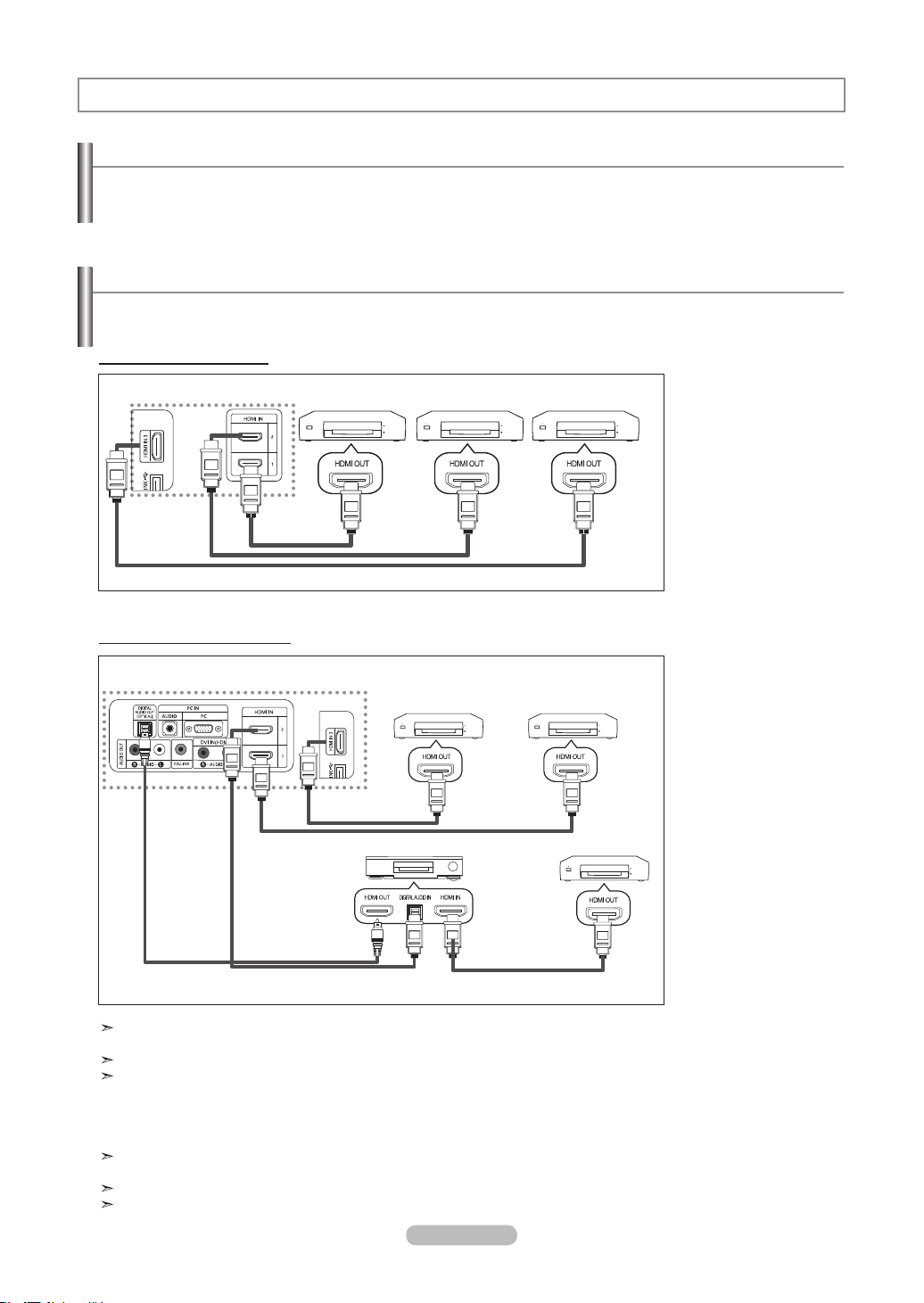
Français - 77
Qu’est-ce qu’Anynet
+
?
Anynet+ est un système de réseau audiovisuel qui offre une interface audiovisuelle conviviale aux utilisateurs en contrôlant tous
les appareils audiovisuels par le menu Anynet+, lorsque des appareils audiovisuels de Samsung Electronics sont raccordés.
Branchement d’appareils Anynet
+
Le système Anynet+ ne prend en charge que les appareils audiovisuels compatibles à Anynet+. Vérifier si une marque Anynet+
figure sur l’appareil audiovisuel à brancher au téléviseur.
To directly connect to TV
Raccorder la prise HDMI1,
HDMI2 ou HDMI3 du
téléviseur à la prise de sortie
HDMI OUT de l’appareil
Anynet+ correspondant à
l’aide du câble HDMI.
To connect to Home Theater
1. Raccorder la prise
HDMI1,HDMI2 ou HDMI3
du téléviseur à la prise
de sortie HDMI OUT
de l’appareil Anynet+
correspondant à l’aide du
câble HDMI.
2. Raccorder la prise
d’entrée HDMI IN du
cinéma maison et la prise
de sortie HDMI OUT
de l’appareil Anynet+
correspondant à l’aide du
câble HDMI.
Ne brancher que le câble optique entre la sortie audionumérique optique du téléviseur et l’entrée audionumérique du
récepteur.
Ne brancher qu’un seul récepteur.
Il est possible d’écouter le son en 5.1 canaux par les haut-parleurs du cinéma maison. Autrement, les autres cas ne
permettent que l’écoute du son stéréo de 2 canaux. Veiller à ce que l’entrée audionumérique optique du cinéma maison
et le téléviseur soient bien branchés afin de pouvoir écouter le son par le cinéma maison. Cela étant, il n’est pas possible
d’écouter le son provenant de l’enregistreur et envoyé au cinéma maison par le son à 5.1 canaux, étant donné que le
téléviseur n’émet qu’un son stéréo en 2 canaux. Consulter le manuel du cinéma maison.
Il est possible de brancher un appareil Anynet+ à l’aide du câble HDMI 1.3 Certains câbles HDMI ne prennent pas en charge
des fonctions Anynet+.
Anynet+ fonctionne lorsque l’appareil audiovisuel qui le prend en charge est à l’état de veille ou en marche.
Anynet+ prend en charge un maximum de 12 appareils audiovisuels.
À propos d’Anynet
+
Anynet+ Appareil 1 Anynet+ Appareil 2 Anynet+ Appareil 3
Câble HDMI 1.3
Câble HDMI 1.3
Câble HDMI 1.3
TV
TV
Anynet+ Appareil 1 Anynet+ Appareil 2
Anynet+ Appareil 3
Câble HDMI 1.3
Câble HDMI 1.3
Câble HDMI 1.3
Câble optique
Cinéma maison
Câble HDMI 1.3
BN68-01178B-Fre.indd 77 2007-02-15 �� 10:02:37
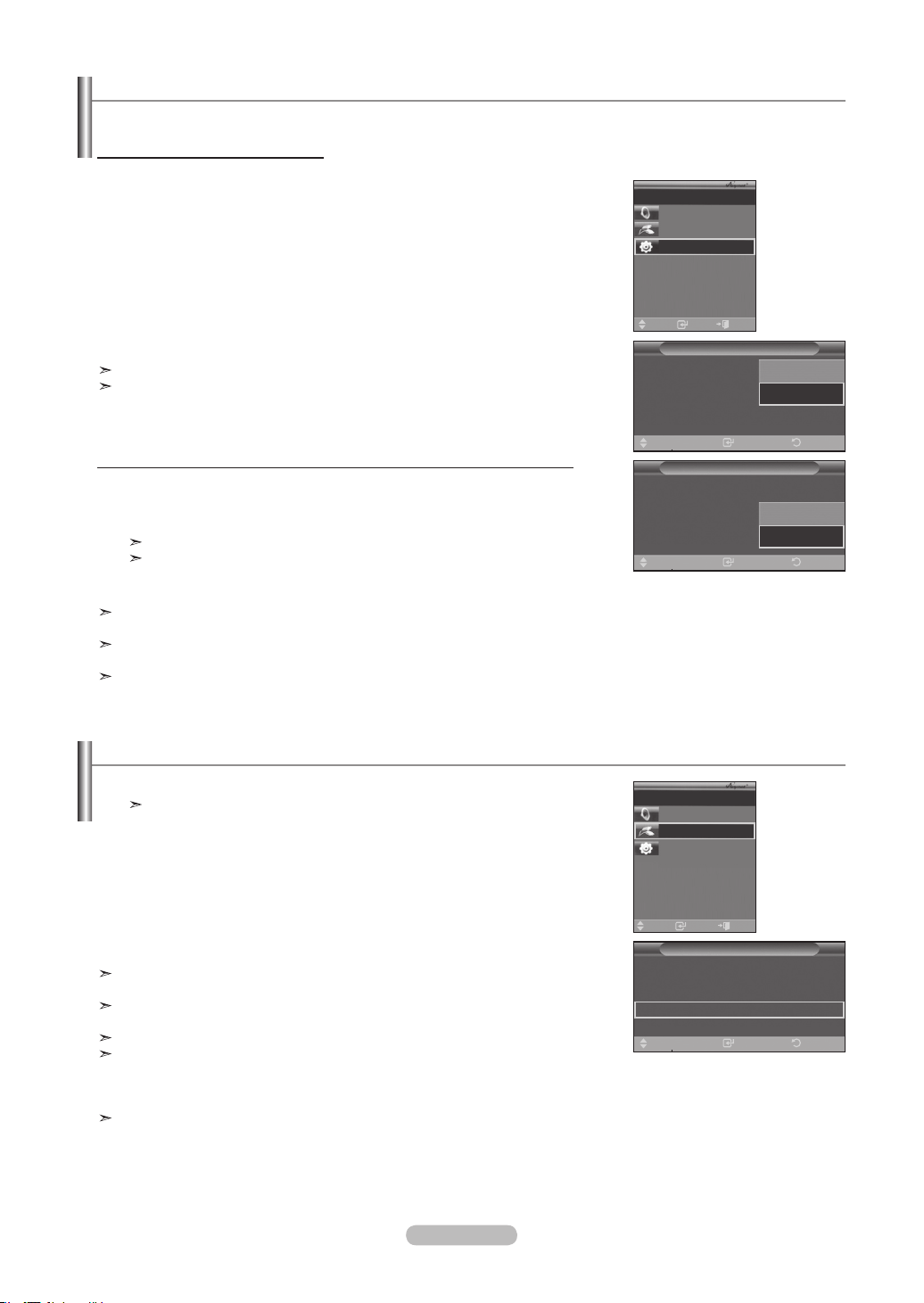
Français - 78
Conguration d’Anynet
+
Les paramètres suivants permettent d’utiliser les fonctions Anynet+.
Utilisation de la fonction Anynet+
1. Appuyer sur la touche Anynet+.
Appuyer sur la touche ▲ ou ▼ pour sélectionner Configuration, suivie de la touche
ENTER.
2.
Appuyer sur la touche ENTER pour sélectionner Commande HDMI, suivie à nouveau
de la touche ENTER.
3.
Appuyer sur la touche ▲ ou ▼ pour sélectionner On, suivie de la touche ENTER.
La fonction Commande HDMI est activée.
Si Off est sélectionné, la fonction Commande HDMI est désactivée.
Éteindre un appareil Anynet+ automatiquement lorsque le téléviseur est éteint
2. Appuyer sur la touche ▲ ou ▼ pour sélectionner Arrêt automatique, suivie de la
touche ENTER.
3. Appuyer sur la touche ▲ ou ▼ pour sélectionner Oui
, suivie de la touche ENTER.
La fonction Arrêt automatique est activée.
Si Non est sélectionné, la fonction Arrêt automatique est désactivée.
Appuyer sur la touche EXIT pour quitter le menu.
Le paramètre d’appareil sélectionné de la télécommande du téléviseur doit être réglé à TV pour pouvoir utiliser la fonction
Anynet+.
Si l’Arrêt automatique est activé, les appareils externes branchés sont également éteints en même temps que le téléviseur.
Cependant, si l’appareil est en mode d’enregistrement, il ne pourra être éteint.
Lorsque la fonction Commande HDMI est désactivée, toutes les opérations Anynet+ sont désactivées.
Balayage et permutation entre les appareils Anynet
+
1. Appuyer sur la touche Anynet+.
La liste des appareils Anynet+ branchés au téléviseur s’affiche.
2. Appuyer sur la touche ▲ ou ▼ pour sélectionner un appareil particulier, suivie de la
touche ENTER. Le système commande l’appareil sélectionné.
2. S’il est impossible de trouver l’appareil désiré, appuyer sur la touche ▲ ou ▼ pour
sélectionner Recherche de connexions, suivie de la touche ENTER.
Le message Configuration de la connexion Anynet+… s’affiche.
Lorsque la recherche d’appareil est terminée, les appareils branchés sont énumérés
dans le menu Anynet+.
Permuter vers les appareils sélectionnés peut prendre jusqu’à 2 minutes. Il n’est pas
possible d’annuler l’opération de permutation.
La durée nécessaire au balayage des appareils dépend du nombre d’appareils
branchés.
Lorsque le balayage est terminé, le nombre d’appareils trouvés n’est pas affiché.
Bien que le téléviseur balaie automatiquement à la recherche d’appareils lorsqu’il
est mis en marche à l’aide de la touche POWER, les appareils branchés lorsque le
téléviseur est en marche ou dans des circonstances particulières ne sont pas affichés.
Cela étant, sélectionner Recherche de connexions pour rechercher les appareils.
Si le mode d’entrée externe a été sélectionné en appuyant sur la touche SOURCE, il est impossible d’utiliser la fonction
Anynet+. Veiller à permuter vers un appareil Anynet+ à l’aide de la touche Anynet+.
Configuration
Commande HDMI
: Off
Arrêt automatique
: Off
Recherche de connexions
Intro. Retour
Dépl.
arrêt
marche
Intro.
Dépl.
Enregistrer: marche
Brancher Recorder
Configuration
Air 28
Sorite
Configuration
Commande HDMI
: marche
Arrêt automatique
: Off
Recherche de connexions
Intro. RetourDépl.
Non
Oui
Intro.
Sorite
Dépl.
Enregistrer: marche
Brancher Recorder
Configuration
Air 28
Configuration
Commande HDMI
: marche
Arrêt automatique
: Oui
Recherche de connexions
Intro. RetourDépl.
BN68-01178B-Fre.indd 78 2007-02-15 �� 10:02:38
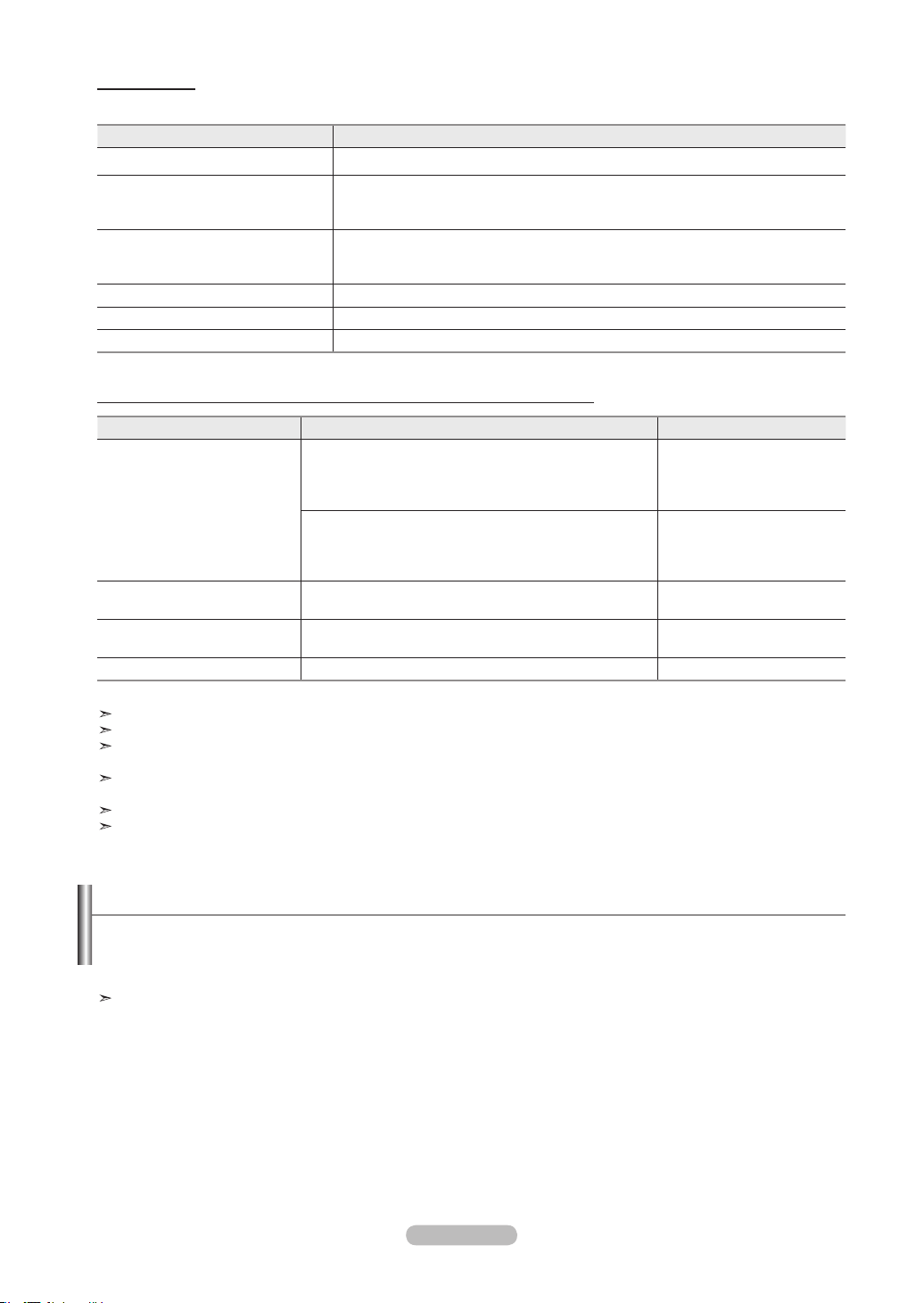
Français - 79
Menu Anynet+
Le menu Anynet+ varie selon le type et l’état des appareils Anynet+ branchés au téléviseur.
Menu Anynet+ Description
Regarder la télévision
Permuter d’Anynet+ vers le mode d’émission télévisuel.
Menu (Nom_Appareil)
Affiche le menu de l’appareil raccordé.
Exemple : Lorsqu’un enregistreur DVD est branché, le menu principal de l’enregistreur
DVD s’affiche.
Opération (Nom_Appareil)
Affiche le menu de contrôle de lecture de l’appareil raccordé.
Exemple : Lorsqu’un enregistreur DVD est branché, le menu de contrôle de lecture de l’
enregistreur DVD s’affiche.
Brancher (Nom_Appareil) Le téléviseur se branche à l’appareil correspondant.
Récepteur Le son sort par l’intermédiaire du récepteur.
Configuration Il est possible de configurer l’environnement d’utilisation d’Anynet+.
Touches de la télécommande du téléviseur accessibles en mode Anynet+
Type d’appareil État de fonctionnement Touches accessibles
Appareil Anynet+
Après une permutation vers l’appareil, lorsque le menu de l’
appareil correspondant s’affiche à l’écran.
Touches numériques
▲/▼/◄/►/Touches ENTER
Touches de couleur
Touche EXIT
Après la permutation vers l’appareil, pendant la lecture d’un
fichier
◄◄ (Recherche vers l’arrière)
►►(Recherche vers l’avant)
(Arrêt)
►
(Lecture/Pause)
Appareil avec syntoniseur
intégré
Après la permutation vers l’appareil, pendant l’écoute d’une
émission télévisée
CH Touche ▲/▼
Appareil audio
Lorsque le récepteur est activé
Touches VOL +/-
Touche MUTE
Anyview2
En mode d’écoute de la télévision ►
(Lecture/Pause)
La fonction Anynet+ n’est accessible que lorsque la télécommande est réglée à TV.
La touche REC ne fonctionne qu’à l’état d’écoute de la télévision.
Il est impossible de contrôler les appareils Anynet+ à l’aide des touches du panneau latéral du téléviseur Il est possible de
contrôler les appareils Anynet+ à l’aide du téléviseur.
Il est possible que la télécommande du téléviseur ne fonctionne pas dans certaines conditions. Le cas échéant, resélectionner
l’appareil Anynet+.
Les fonctions Anynet+ ne sont pas accessibles pour les produits d’autres fabricants.
En mode Anynet+, il se peut que les touches de couleur ne fonctionnent pas correctement.
Enregistrement
Il est possible d’enregistrer une émission télévisée à l’aide d’un enregistreur.
Appuyer sur la touche REC.
L’enregistrement commence. (Seulement lorsqu’un appareil d’enregistrement Anynet+ est branché.)
L’émission télévisée en cours est enregistrée pendant l’état d’écoute de la télévision.
Si un autre vidéo est écouté d’un autre appareil, le vidéo de l’appareil est enregistré.
BN68-01178B-Fre.indd 79 2007-02-15 �� 10:02:38
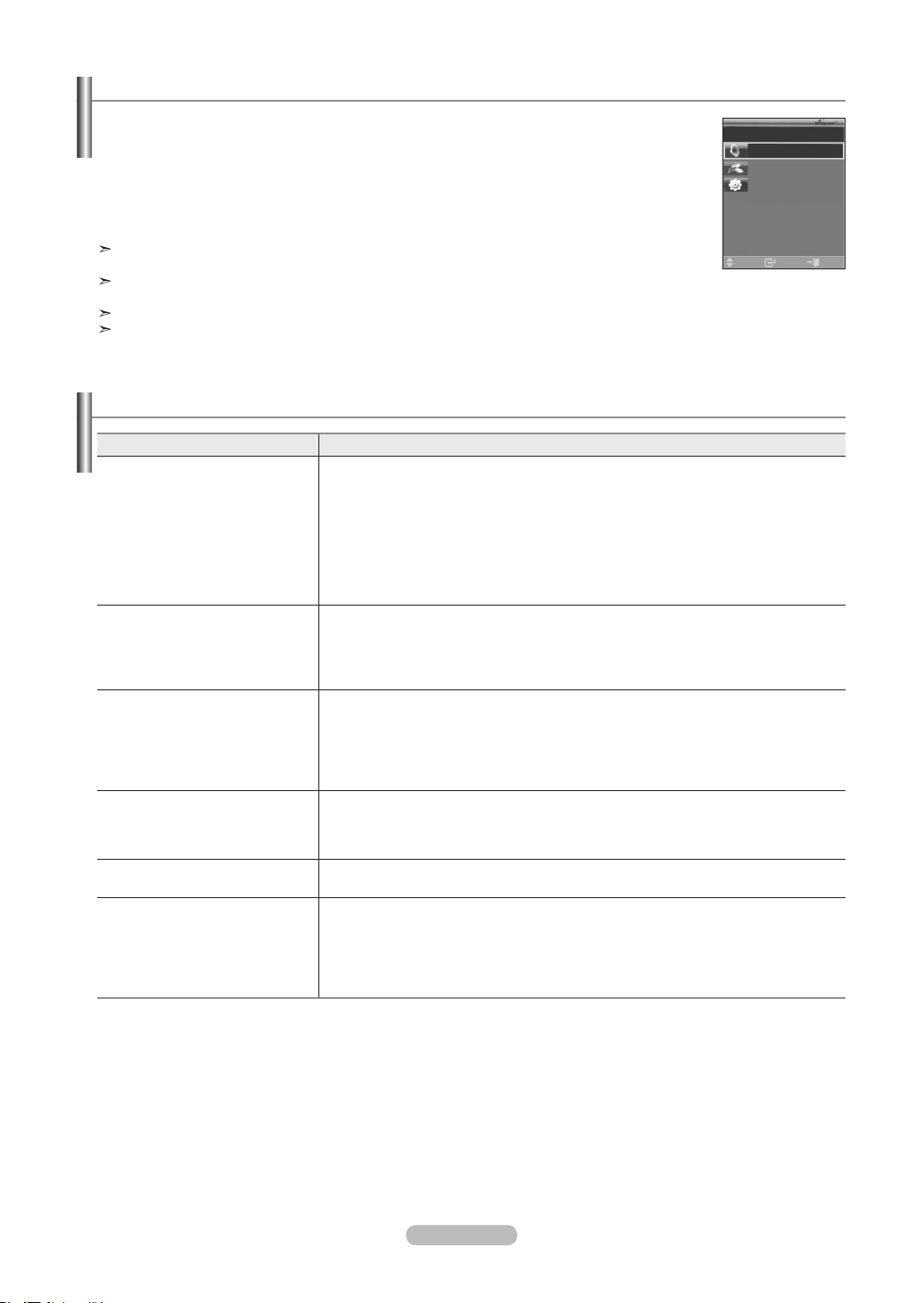
Français - 80
Écoute par l’intermédiaire d’un récepteur
Il est possible d’écouter le son par l’intermédiaire d’un récepteur, plutôt que par les haut-parleurs du
téléviseurs.
1. Appuyer sur la touche Anynet+.
Appuyer sur la touche ▲ ou ▼ pour sélectionner Récepteur, suivie de la touche ENTER.
2. Appuyer sur la touche ◄ ou ► pour sélectionner On, suivie de la touche ENTER
.
Il à présent possible d’écouter le son par l’intermédiaire du récepteur.
3. Appuyer sur la touche EXIT pour quitter le menu.
Lorsque le récepteur est activé, il est possible d’écouter le son du téléviseur par le récepteur à 2
canaux.
Si le récepteur sert exclusivement au cinéma maison (prise en charge audio seulement), il se peut qu’il
n’apparaisse pas dans la liste des appareils.
Le récepteur ne fonctionne que lorsque la prise optique du téléviseur et le récepteur sont bien raccordés.
En cas de problème de droits d’auteurs, l’écoute par l’intermédiaire du récepteur pourrait ne pas bien fonctionner.
Liste de vérication avant de faire une demande de service
Symptôme Solution
Anynet+ ne fonctionne pas. ■ Vérifier si l’appareil est bien un appareil Anynet+. Le système Anynet+ ne prend en
charge que les appareils Anynet+.
■ Ne brancher qu’un seul récepteur.
■ Vérifier si le cordon d’alimentation de l’appareil Anynet+ est bien branché.
■ Vérifier les branchements des câbles vidéo/audio/HDMI 1.3 de l’appareil Anynet+.
■ Vérifier si la télécommande est en mode TV.
■ Vérifier s’il s’agit de la télécommande exclusive Anynet+.
■ Anynet+ ne fonctionne pas dans certaines conditions. (recherche de canaux,
utilisation de WISELINK)
Je souhaite lancer Anynet+. ■ Vérifier si l’appareil Anynet+ est bien branché au téléviseur et vérifier si Anynet+
(HDMICEC) est activé dans le menu Configuration d’Anynet+.
■ Appuyer sur la touche TV de la télécommande du téléviseur pour permuter vers le
téléviseur. Appuyer ensuite sur la touche Anynet+ pour afficher le menu Anynet+ et
sélectionner le menu désiré.
Je souhaite quitter Anynet+. ■ Sélectionner Écouter la télévision
dans le menu Anynet+.
■ Appuyer sur la touche SOURCE de la télécommande du téléviseur pour sélectionner
un appareil autre que les appareils Anynet+.
■ Appuyer sur les touches CH, CH LIST, PRE-CH, FAV.CH, ou autre pour passer au
mode TV. (Remarque : le bouton des canaux ne fonctionne que si aucun appareil à
syntoniseur intégré Anynet+ n’est branché.)
Le message Connexion à l’
appareil
Anynet+... s’affiche à l’écran.
■ La télécommande ne peut être utilisée pendant la configuration d’Anynet+ ou pour la
permutation vers un mode de visionnement.
■ Utiliser la télécommande lorsque le réglage d’Anynet+ ou la permutation vers le mode
de visionnement sont terminés.
L’appareil Anynet+ ne lit pas.
La fonction de lecture ne peut être utilisé pendant un balayage automatique des canaux
ou en mode WISELINK. Arrêter la fonction en cours.
L’appareil branché n’est pas
affiché.
■ Vérifier si l’appareil prend en charge les fonctions Anynet+.
■ Vérifier si le câble HDMI 1.3 est bien branché.
■ Vérifier si Anynet+ (HDMI-CEC) est activé dans le menu Configuration d’Anynet+.
■ Rechercher les appareils Anynet+ à nouveau.
■ Seul le câble HDMI 1.3 permet de brancher un appareil Anynet+. Certains câbles
HDMI ne prennent pas en charge des fonctions Anynet+.
Intro.
Sorite
Dépl.
Enregistrer: marche
Brancher Recorder
Configuration
Air 28
BN68-01178B-Fre.indd 80 2007-02-15 �� 10:02:38
Français - 81
Identication des problèmes
En cas de problème, consultez d’abord la liste des problèmes potentiels et leurs solutions.
Si aucune des astuces de dépannage ne s’applique, appelez le centre de service le plus proche de chez vous.
Problème Solution possible
Image de qualité médiocre. Essayez une autre canal.
Réglez l’antenne.
Vérifiez tous les branchements.
Son de qualité médiocre. Essayez une autre canal.
Réglez l’antenne.
Aucune image ou aucun son. Essayez une autre canal.
Appuyez sur le bouton SOURCE.
Vérifiez que la télévision est branchée.
Vérifiez les branchements de l’antenne.
Il n’y a pas de son ou le son est
trop bas alors que le volume est
réglé au maximum.
Dans un premier temps, vérifiez le volume pour les éléments branchés sur votre
téléviseur (récepteur de diffusion numérique, DTV, DVD, récepteur de diffusion par câble,
magnétoscope, etc.).
Puis, réglez le volume du téléviseur en conséquence.
L’image roule verticalement. Vérifiez tous les branchements des câbles.
La télévision fonctionne
irrégulièrement.
Débranchez la télévision pendant 30 secondes puis essayez de nouveau.
Le téléviseur ne s'allume pas. Vérifiez que la prise électrique fonctionne correctement.
Dysfonctionnement de la
télécommande.
Remplacez les piles de la télécommande.
Nettoyez la partie supérieure de la télécommande (fenêtre de transmission).
Vérifiez les bornes de la batterie.
Message “Vérifier signal câble.”. Assurez- vous que le câble d’interface est solidement branché aux sources PC.
Message “Mode non disponible”. Vérifiez la résolution maximale et la fréquence de l’adaptateur vidéo.
Comparez ces valeurs aux données des modes.
Problème d'écran en diffusion
numérique.
Vérifiez la puissance du signal numérique et l'entrée de l'antenne.
L’image est trop claire ou trop
sombre.
Réglez la luminosité et le contraste.
Utilisez la fonction de réglage fin.
Barres noires à l’écran. Assurez-vous que votre réception est en haute définition (HD).
Les stations des canaux à haute définition émettent parfois en signaux à définition
standard (SD), ce qui peut causer la formation de barres noires.
Réglez votre câblosélecteur ou récepteur satellite sur le mode Étirer ou format large pour
éliminer les barres.
L’image a une teinte rouge/verte
ou rose.
Assurez-vous que les câbles pour composants sont branchés aux prises
correspondantes.
Le mode Sous-titres ne
fonctionne pas.
Si vous utilisez un câblosélecteur ou un récepteur satellite, vous devez réglez le mode
Sous-titres sur le récepteur et non sur le téléviseur.
Image embrouillée Le logiciel de votre câblosélecteur a besoin d’une mise à niveau. Communiquez avec
votre câblodistributeur.
Images fantômes La raison peut être une incompatibilité avec votre câblosélecteur.
Pour supprimer ce problème, branchez les câbles pour composants.
Annexe
BN68-01178B-Fre.indd 81 2007-02-15 �� 10:02:39
Français - 82
Problème Solution possible
Des barres horizontales et
clignotent, scintillent ou tremblent
sur l’image.
Ajustez la fonction de réglage de base, puis réglez la fonction de réglage fin.
Des barres verticales et
clignotent, scintillent ou tremblent
sur l’image.
Ajustez la fonction de réglage de base, puis réglez la fonction de réglage fin.
L’écran est noir et l’Indicateur
d’alimentation clignote.
A partir de votre ordinateur, vérifiez: l’alimentation, le câble signal.
La télévision est en mode gestion d’énergie.
Déplacez la souris de l’ordinateur ou appuyez sur n’importe quelle touche du clavier.
Il est possible que l’image ne
soit pas stable et qu’elle donne
l’impression de vibrer lorsqu’un
ordinateur est connecté à l’entrée
PC.
Si le réglage est incorrect, utilisez le programme utilitaire de votre ordinateur pour modifier
les paramètres d’affichage.
Votre télévision prend en charge les fonctions d’affichage multiscan dans le domaine de
fréquence suivant:
Fréquence horizontale (kHz)
30~60
Fréquence verticale (Hz) 60~75
Taux de rafraîchissement maxi
(60 Hz)
1920 X 1080
L’image n’est pas centrée sur
l’écran.
Réglez la position horizontale et verticale.
Ne réglez pas la position de l’écran en Signal Numérique.
Si une image fixe est affichée
pendant une longue période, des
images résiduelles ou un flou peuvent
apparaître.
Lorsque vous avez besoin de laisser votre moniteur inutilisé pendant une période assez
longue, ajustez vos paramètres pour qu’il passe automatiquement en mode économie
d’énergie ou qu’il active un écran de veille pour afficher une image qui bouge.
L’écran TFT LCD utilise un afchage constitué de pixels secondaires (3,147,264) nécessitant une technologie sophistiquée.
Cependant, il se peut qu’il y ait à l’écran quelques pixels lumineux ou noirs. Ces pixels n’ont aucun impact sur les performances
de ce produit.
BN68-01178B-Fre.indd 82 2007-02-15 �� 10:02:39
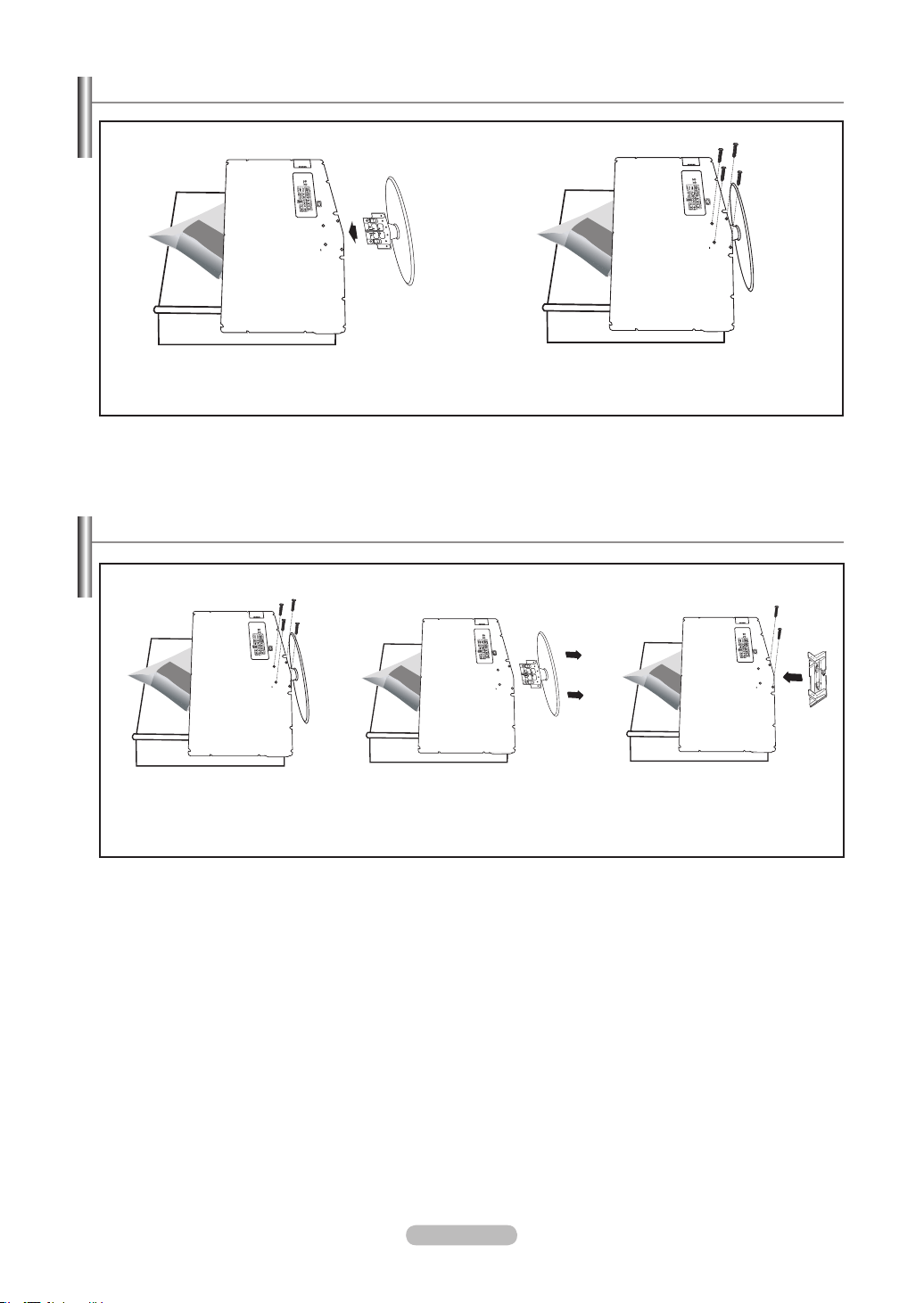
Français - 83
Installation du support
< 2 > < 3 >
1. Placez la télévision face posée sur un chiffon doux ou un coussin sur une table.
2. Insérez le socle dans le trou situé sous le téléviseur.
3. Insérez la vis dans le trou indiqué et serrez-la.
Démonter la base
< 2 > < 3 > < 4 >
1. Placez la télévision face posée sur un chiffon doux ou un coussin sur une table.
2. Retirez les 4 vis à l’arrière de la télévision.
3. Vous pouvez ensuite séparer la base du télévision.
4. Fermez l’ouverture en utilisant un cache.
BN68-01178B-Fre.indd 83 2007-02-15 �� 10:02:41
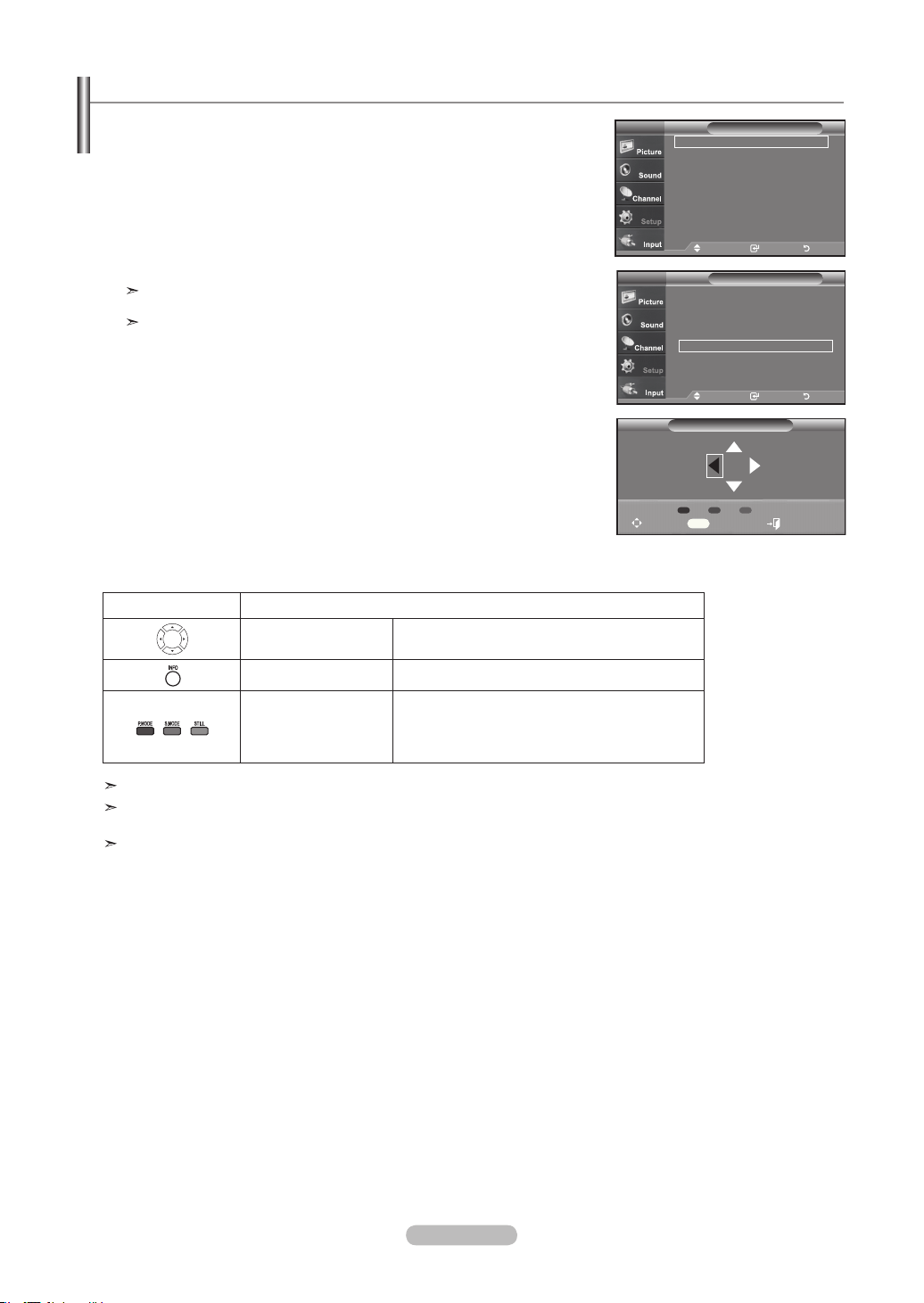
Français - 84
Grâce à l’installation d’une fixation murale, vous pouvez régler facilement la posi-
tion de votre téléviseur.
1.
Appuyez sur le bouton MENU pour afcher le menu.
Appuyez sur le bouton ▲ ou ▼ pour sélectionner “Conguration” puis appuyez sur le
bouton ENTER/OK.
2.
Appuyez sur le bouton ▲ or ▼ pour sélectionner “Réglage du support mural” puis
appuyez sur le bouton ENTER/OK.
3.
Réglez à la position souhaitée à l’aide des boutons ▲,▼, ◄ ou ►.
4.
Appuyez sur le bouton EXIT pour quitter le menu.
Si vous appuyez sur une touche fléchée lorsqu’aucun affichage n’est affiché sur
l’écran du téléviseur, l’écran Régler s’affiche.
Lorsque vous l’éteignez, votre téléviseur revient à sa position d’installation initiale.
Lorsque vous l’allumez, votre téléviseur se place à la dernière position que vous
avez réglée et qui a été mémorisée.
Utilisation des boutons de la télécommande
Pour l’installation, consultez le Manuel d’installation fourni.
Pour l’installation du produit ainsi que l’installation et le déplacement de la fixation murale, adressez
vous à une société d’installation spécialisée.
Utilisez ces instructions d’installation si vous souhaitez fixer le support mural sur un mur.
Si vous souhaitez le fixer sur d’autres matériaux de construction, veuillez prendre contact avec votre
revendeur le plus proche.
Bouton Description
Réglage de l’angle de
la fixation murale
Incline vers le haut, incline vers le bas, tourne vers
la droite, tourne vers la gauche
Réinitialiser Revient à la position d’installation initiale
Mémorisation de la
position et déplace-
ment jusqu’à la position
mémorisée
Mémorise 3 positions à l’aide des boutons rouge,
vert et jaune.
Se déplace jusqu’à la position mémorisée à l’aide
de ces 3 boutons colorés.
Réglage de la xation murale (vendue séparément)
Réglage du support mural
Position1
Régler Centre Sortie
INFO
Position 1 2 3
ConfigurationTV
Prêt à l’emploi ►
Langue : Français
►
Heure
►
Mode Jeu : Off ►
V-Chip
►
Sous-titres ►
Transparence menu : Haute
►
▼Plus
Dépl. Intro. Retour
ConfigurationTV
▲Plus
Mode film : Off ►
Réglage du support mural ►
ISI ►
Ajustement fixation murale ►
Fonction d’aide : On ►
M. à jour logiciel ►
Dépl. Intro. Retour
BN68-01178B-Fre.indd 84 2007-02-15 �� 10:02:43
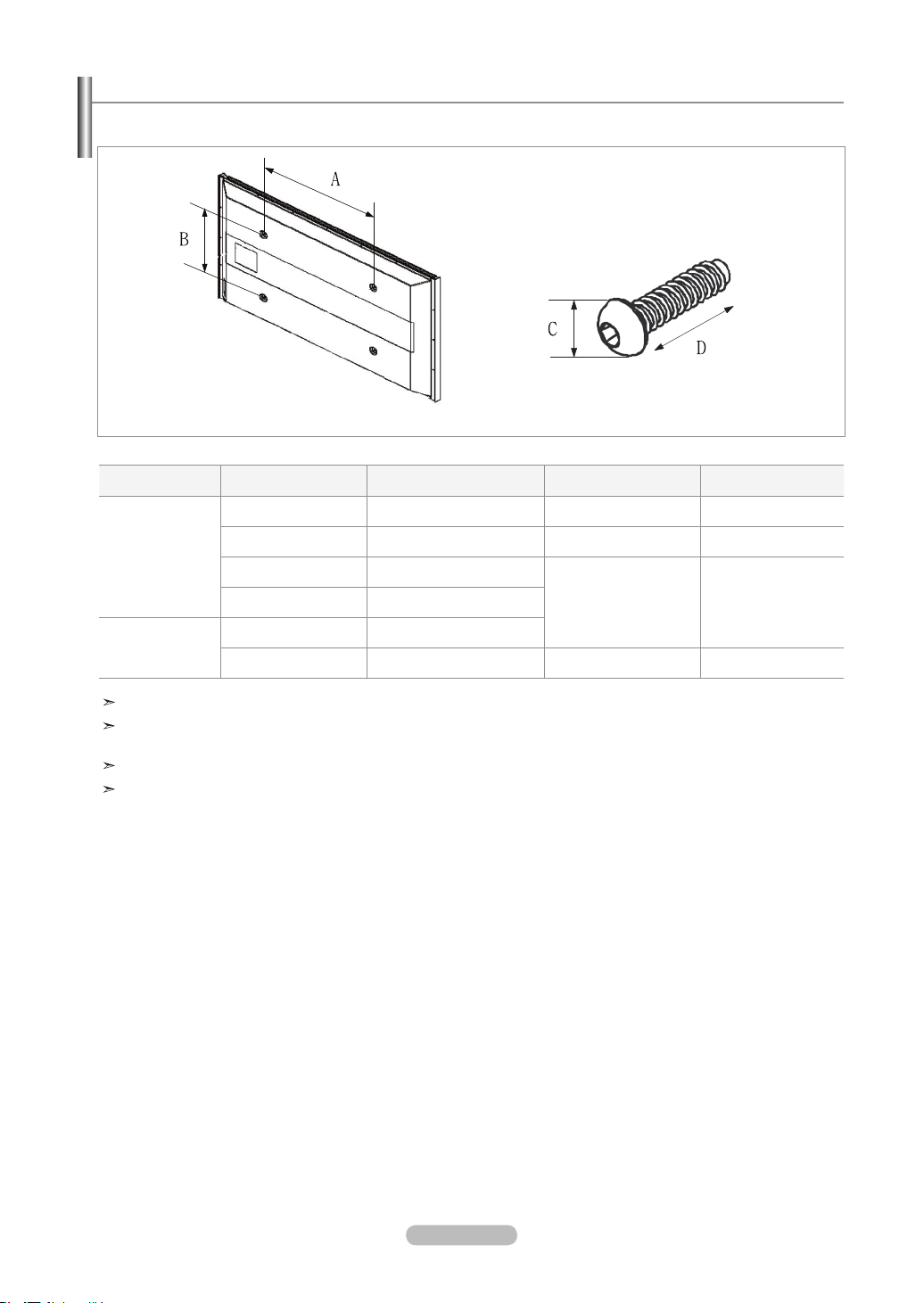
Français - 85
Spécications du jeu d’installation murale ( VESA )
Lorsque le jeu d’installation doit être posé sur un autre matériau de construction, contacter le détaillant le plus près.
Type de produit
pouces Spéc. VESA (A * B) Vis standard (C * D) Quantité
ACL-TV
23~ 26 200
*
100 M4
*
L10 4
32 ~ 40 200
*
200 M6
*
L10 4
46 ~ 52 600
*
400
M8
*
L15 457 700
*
400
Plasma-TV
42 ~ 50 600
*
400
63 No VESA M8 6
Nous offrons les dimensions standard pour les jeux d’installation murale, indiquées dans le tableau ci-dessus.
Un manuel d’installation détaillée et toutes les pièces nécessaires à l’assemblage sont comprises avec l’achat de notre
jeu d’installation murale.
Ne pas utiliser de vis plus longues que les dimensions standard : elles pourraient endommager l’intérieur du téléviseur.
Notre modèle de 63 po n’est pas conforme aux spécifications VESA Cela étant, utiliserle jeu d’installation murale
spécifique à ce modèle.
BN68-01178B-Fre.indd 85 2007-02-15 �� 10:02:44
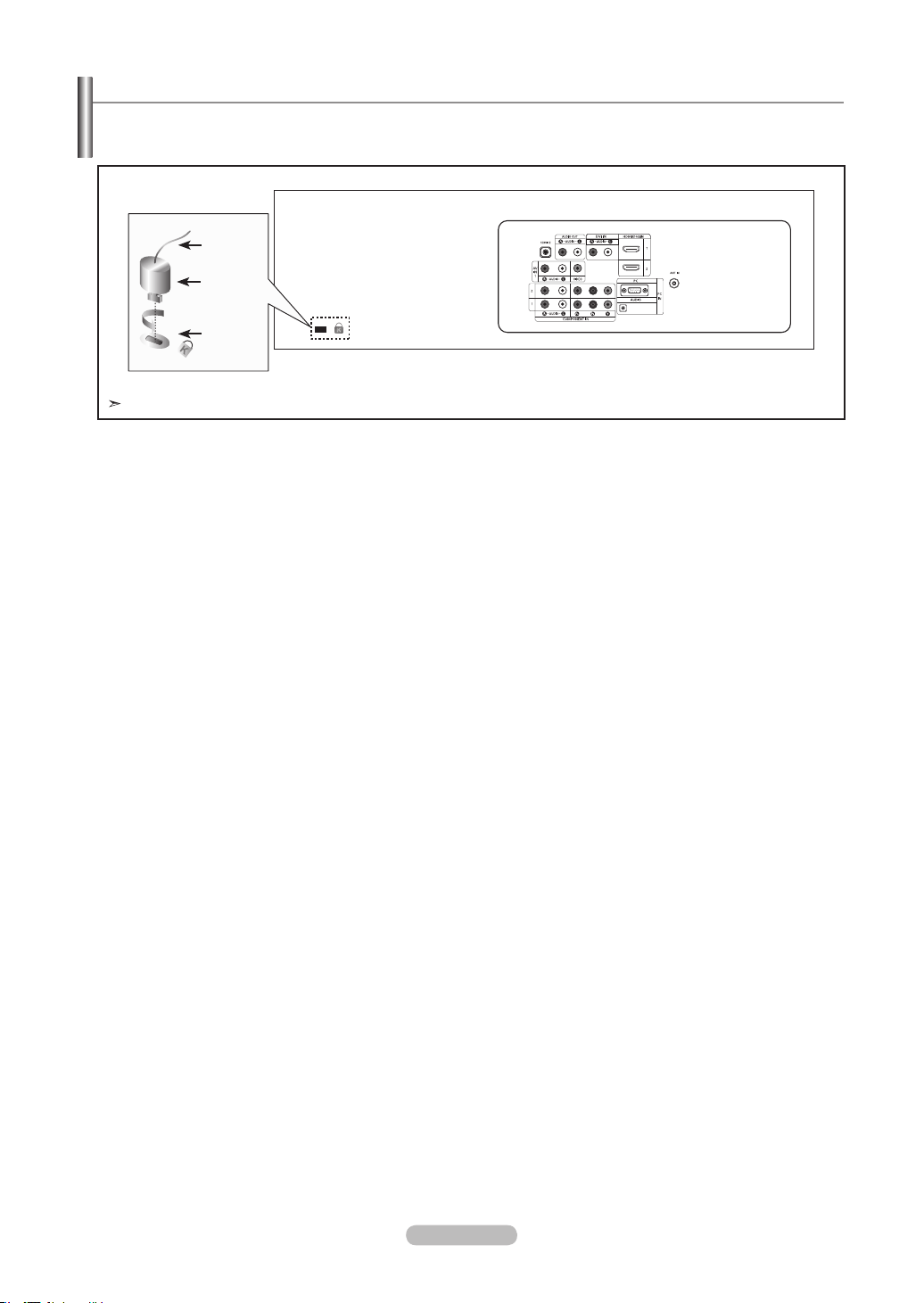
Français - 86
1. Insérez le dispositif de verrouillage dans la fente Kensington de la télévision LCD (Figure 1) et tournez-le dans le sens de verrouillage
(Figure 2).
2. Branchez le câble du verrouillage Kensington.
3. Fixez le verrouillage Kensington sur un bureau ou tout autre objet lourd inamovible.
Utilisation du verrouillage Kensington antivol
Le verrouillage Kensington est un dispositif utilisé pour xer physiquement le système dans le cas d’une utilisation dans un endroit public. Le
dispositif de verrouillage doit être acheté séparément. L’aspect et la méthode de verrouillage peuvent différer de l’illustration en fonction du
fabricant. Reportez-vous au manuel fourni avec le verrouillage Kensington pour une utilisation correcte.
Figure 2
Figure 1
Câble
<Optionnel>
L’emplacement du “verrou Kensington” peut varier en fonction du modèle.
BN68-01178B-Fre.indd 86 2007-02-15 �� 10:02:44
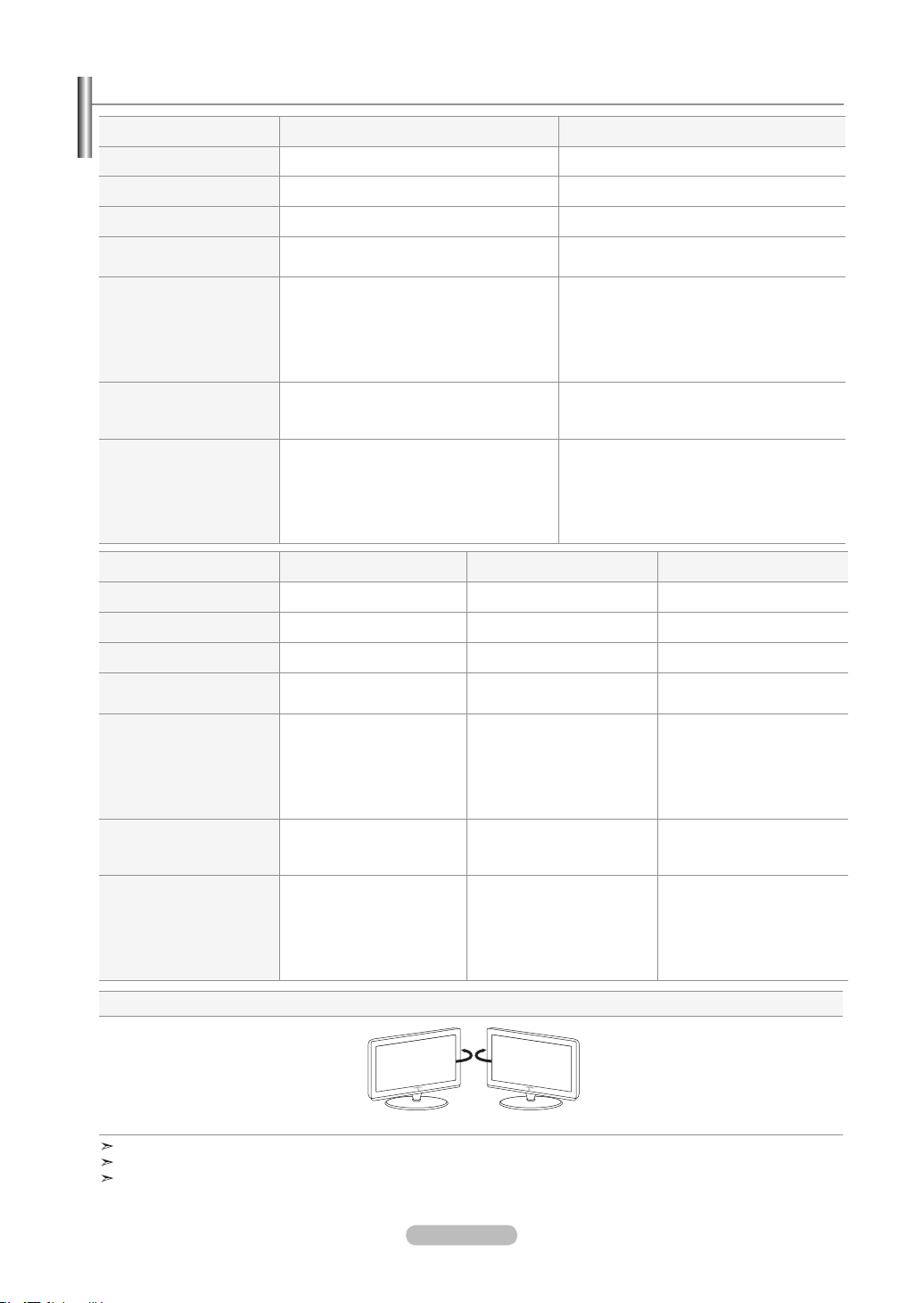
Français - 87
Spécications
Socle orientable (Gauche/Droite)
-20˚ ~ 20˚
Le design et les spécifications peuvent changer sans préavis.
Ce périphérique est un appareil numérique de classe B.
Pour les caractéristiques d'alimentation, voir l'étiquette fixée au produit.
Modéle
LN-T4061F LN-T4661F
Taille de l’écran(diagonale)
40 pouces 46 pouces
Consommation Maximum
245 W 265 W
Résolution PC
1920 x 1080 @ 60 Hz 1920 x 1080 @ 60 Hz
Son
Sortie
10W X 2
10W X 2
Dimensions( (WxDxH)
TV
Avec support
971 x 87.2 x 628 mm
38.2 X 3.4 X 24.7 pulgadas
971 x 300 x 687 mm
38.2 X 11.8 X 27 pulgadas
1106 x 104.2 x 706 mm
43.5 X 4.1 X 27.8 pulgadas
1106 x 326 x 768 mm mm
43.5 X 12.8 X 30.2 pulgadas
Poids
Avec support
Sans support
21.1kg (46.52 lbs)
17.8 kg (39.24 lbs)
29.6kg (65.26 lbs)
24.2kg (53.35 lbs)
Considérations environnementales
Température de fonctionnement
Humidité au cours du fonctionnement
Température de stockage
Humidité du stockage
50 °F à 104 °F (10 °C à 40 °C)
10% to 80%, sans condensation
-4 °F à 113 °F (-20 °C à 45 °C)
5% to 95%, sans condensation
50 °F à 104 °F (10 °C à 40 °C)
10% to 80%, sans condensation
-4 °F à 113 °F (-20 °C à 45 °C)
5% to 95%, sans condensation
Modéle
LN-T4065F LN-T4665F LN-T5265F
Taille de l’écran(diagonale)
40 pouces 46 pouces 52 pouces
Consommation Maximum
245 W 265 W 320 W
Résolution PC
1920 x 1080 @ 60 Hz 1920 x 1080 @ 60 Hz 1920 x 1080 @ 60 Hz
Son
Sortie
10W X 2
10W X 2
10W X 2
Dimensions( (WxDxH)
TV
Avec support
1040.7 x 97 x 615.4 mm
40.9 X 3.8 X 24.2 pouces
1040.7 x 290 x 671 mm
40.9 X 11.4 X 26.4 pouces
1175.8 x 114 x 693.8 mm
46.3 X 4.5 X 27.3 pouces
1175.8 x 320 x 761.4 mm
46.3 X 12.6 X 30 pouces
1327 x 122 x 787.4 mm
52.2 X 4.8 X 31 pouces
1327 x 320 x 854 mm
52.2 X 12.6 X 33.6 pouces
Poids
Avec support
Sans support
21.6kg (47.62 lbs)
17.8kg (39.24 lbs)
30.8kg (67.90 lbs)
25.5kg (56.21 lbs)
37.1kg (81.79 lbs)
31.8kg (70.10 lbs)
Considérations environnementales
Température de fonctionnement
Humidité au cours du fonctionnement
Température de stockage
Humidité du stockage
50 °F à 104 °F (10 °C à 40 °C)
10% to 80%, sans condensation
-4 °F à 113 °F (-20 °C à 45 °C)
5% to 95%, sans condensation
50 °F à 104 °F (10 °C à 40 °C)
10% to 80%, sans condensation
-4 °F à 113 °F (-20 °C à 45 °C)
5% to 95%, sans condensation
50 °F à 104 °F (10 °C à 40 °C)
10% to 80%, sans condensation
-4 °F à 113 °F (-20 °C à 45 °C)
5% to 95%, sans condensation
BN68-01178B-Fre.indd 87 2007-02-15 �� 10:02:45

Cette page est laissée
intentionnellement en blanc.
BN68-01178B-Fre.indd 88 2007-02-15 �� 10:02:45