BN68-01096A-00
LCD TV
LA26R7
LA32R7
LA37R7
LA40R7
Owner’s Instructions
Before operating the unit,
please read this manual thoroughly,
and retain it for future reference.
ON-SCREEN MENUS
PC DISPLAY
PICTURE IN PICTURE (PIP)
TELETEXT
Register your product at www.samsung.com/global/register
Contact SAMSUNG WORLD-WIDE
If you have any questions or comments relating to Samsung products,
please contact the SAMSUNG customer care centre.
Samsung Electronics Australia
7 Parkview Drive, Homebush Bay NSW 2127
1300 362 603
www.samsung.com/au

• Do not display a still image on the LCD panel for more than 2 hours as it can cause screen image retention.
This image retention is also known as "screen burn".
To avoid such image retention, reduce the degree of brightness and contrast of the screen when displaying a still image.
• Watching the LCD TV in 4:3 format for a long period of time may leave traces of borders displayed on the left,
right and center of the screen caused by the difference of light emission on the screen.
Playing a DVD or a game console may cause a similar effect to the screen.
Damages caused by the above effect are not covered by the Warranty.
• Displaying still images from Video games and PC for longer than a certain period of time may produce partial
after-images. To prevent this effect, reduce the ‘brightness’ and ‘contrast’ when displaying still images.
© 2006 Samsung Electronics Co., Ltd. All rights reserved.

English-1
Contents
Symbol Press Important Note One-Touch
Button
CONNECTING AND PREPARING YOUR TV
List of Parts ......................................................................................................2
Installing the Stand ......................................................................................2
Installing the Wall Mount Kit ..............................................................2
Viewing the Control Panel .........................................................................3
Viewing the Connection Panel.................................................................4
Viewing the Remote Control ....................................................................6
Installing Batteries in the Remote Control ..........................................6
Switching On and Off ..................................................................................7
Placing Your Television in Standby Mode ............................................7
Plug & Play .......................................................................................................7
SETTING THE CHANNELS
Storing Channels Automatically ..............................................................8
Storing Channels Manually .......................................................................8
Setting the Channel Manager ..................................................................9
Activating the Child Lock .................................................................... 10
Sorting the Stored Channels ................................................................... 10
Assigning Channels Names ...................................................................... 11
Fine Tuning Channel Reception ............................................................. 11
SETTING THE PICTURE
LNA (Low Noise Amplifier)........................................................................ 12
Changing the Picture Standard .............................................................. 12
Adjusting the Custom Picture ................................................................. 12
Changing the Colour Tone........................................................................ 13
Resetting the Picture Settings to the
Factory Defaults ............................................................................................ 13
Changing the Picture Size......................................................................... 13
Freezing the Current Picture .................................................................... 13
Digital Noise Reduction ............................................................................. 14
DNIe Demo (Digital Natural Image engine) ....................................... 14
Viewing the Picture In Picture (PIP) ....................................................... 14
SETTING THE SOUND
Changing the Sound Standard ......................................................... 15
Adjusting the Sound Settings ........................................................... 15
Connecting Headphones .................................................................... 16
Setting the TruSurround XT (SRS TSXT) ......................................... 16
Adjusting the Volume Automatically ............................................. 16
Selecting the Internal Mute ............................................................... 16
Listening to the Sound of the Sub Picture ................................... 17
Resetting the Sound Settings to the
Factory Defaults ..................................................................................... 17
Selecting the Sound Mode ................................................................ 17
SETTING THE TIME
Setting and Displaying the Current Time ..................................... 17
Setting the Sleep Timer ....................................................................... 18
Switching the Television
On and Off Automatically ................................................................... 18
SETTING THE OTHERS
Using Game Mode ................................................................................. 19
Setting the Blue Screen Mode /
Selecting the Melody .......................................................................... 19
Using the Energy Saving Feature ..................................................... 20
Selecting the Source ............................................................................. 20
Editing the Input Source Names ...................................................... 20
USING THE DTV FEATURE
Previewing the DTV Menu System .................................................. 21
Updating the Channel List Automatically .................................... 21
Updating the Channel List Manually .............................................. 22
Editing Your Favourite Channels ...................................................... 22
Selecting Channel Manager .............................................................. 23
Displaying Programme Information ............................................... 24
Viewing the EPG (Electronic Programme Guide)
Information .............................................................................................. 24
Using the Scheduled List .................................................................... 25
Setting the Default Guide ................................................................... 25
Viewing All Channels and Favourite Channels ........................... 26
Adjusting the Translucency Level .................................................... 26
Setting up the Parental Lock ............................................................. 27
Setting the Subtitle ............................................................................... 27
Selecting the Preferred Language (Subtitle or Audio) ............. 28
Setting the Audio Format ................................................................... 28
Viewing Product Information ............................................................ 28
Checking the Signal Information ..................................................... 29
Upgrading the Software (Option).................................................... 29
Selecting the Time Zone ..................................................................... 30
Resetting ................................................................................................... 30
USING THE TELETEXT FEATURE
Teletext Decoder .................................................................................... 31
Displaying the Teletext Information ............................................... 31
Selecting a Specific Teletext Page ................................................... 32
Using Fastext to Select a Teletext Page ......................................... 32
Setting Up Your Remote Control...................................................... 33
Remote Control Codes ......................................................................... 35
SETTING THE PC
Setting up Your PC Software
(Based on Windows XP) ....................................................................... 38
Display Modes ......................................................................................... 38
Setting the PC ......................................................................................... 39
RECOMMENDATIONS FOR USE
Using the Anti-Theft Kensington Lock ........................................... 40
Troubleshooting:
Before Contacting Service Personnel ............................................. 40
Technical and Environmental Specifications .............................. 41
English-2
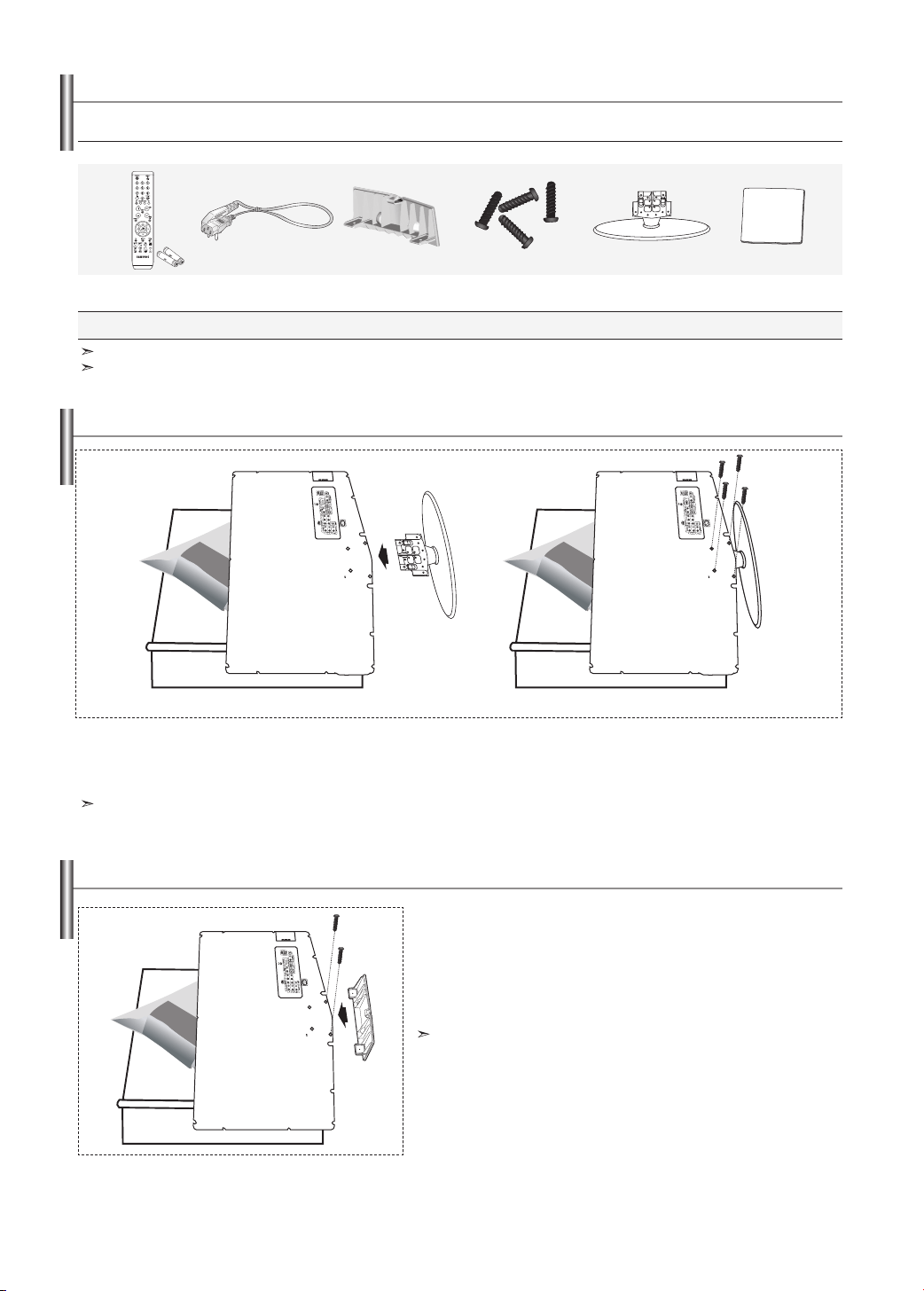
List of Parts
Please make sure the following items are included with your LCD TV.
If any items are missing, contact your dealer.
M4 X L16
Remote Control &
Batteries (AAA x 2)
Power Cord Cover-Bottom Stand Screw
X4
Stand Cleaning Cloth
Owner’s Instructions
Warranty card Safety Guide Registration Cards
Warranty card / Safety Guide / Registration Cards (Not available in all locations).
The stand and stand screw may not be included depending on the model.
< 2 > < 3 >
1. Place the TV faced down on a soft cloth or cushion on a table.
2. Put the stand into the hole at the bottom of the TV.
3. Insert screw into the hole indicated and tighten.
The stand is installed for models with the screen size of 40 inch and above.
Installing the Stand
Wall mount items (sold separately) allow you to mount the TV on the wall.
For detailed information on installing the wall mount, see the instructions
provided with the Wall Mount items. Contact a technician for assistance
when installing the wall mounted bracket.
Samsung Electronics is not responsible for any damage to the product or
injury to yourself or others if you elect to install the TV on your own.
Remove the stand and cover the bottom hole with a cap and fasten with two screws.
Installing the Wall Mount Kit
English-3
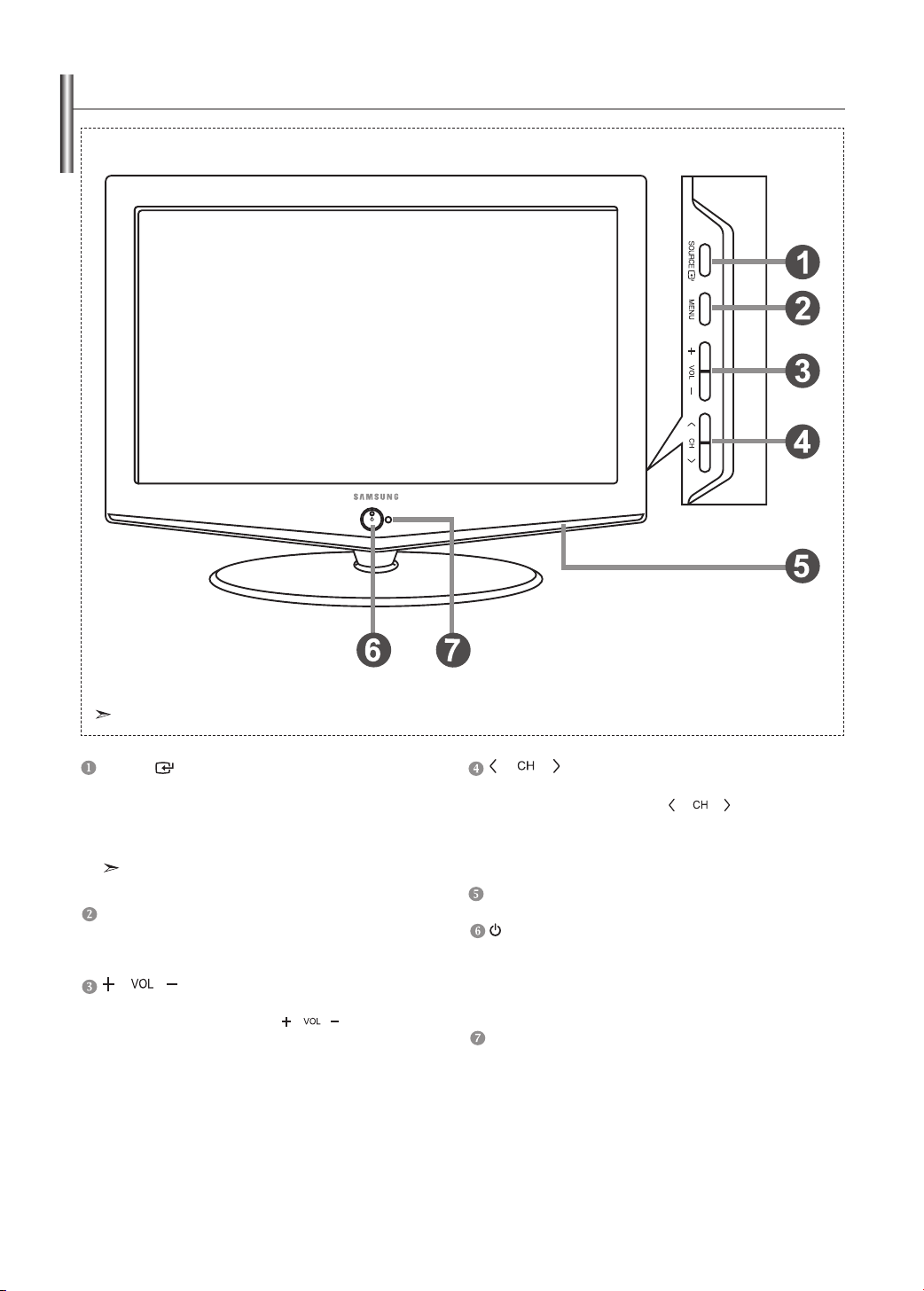
SOURCE
Toggles between all the available input sources (TV, AV1, AV2,
S-Video, Component1, Component2, PC, HDMI, DTV). In the
on-screen menu, use this button as you use the ENTER
button on the remote control.
MENU
Press to see an on-screen menu of your TV’s features.
In case of DTV mode, the DTV menu appears.
Press to decrease or increase the volume.
In the on-screen menu, use the buttons
as you use the and buttons on the remote control.
Press to change channels.
In the on-screen menu, use the
buttons
as you use the and buttons on the remote
control. (Without the Remote Control, You can turn
on the TV by using the Channel buttons.)
Speakers
(
Power)
Press to turn the TV on and off.
Power Indicator
Blinks and turns off when the power is on and lights
up in stand-by mode.
Remote Control Sensor
Aim the remote control towards this spot on the TV.
Viewing the Control Panel
The product colour and shape may vary depending on the model.
26 inch model supports TV, AV1, S-Video, Component1,
Component2, PC, HDMI and DTV only.
English-4
Viewing the Connection Panel
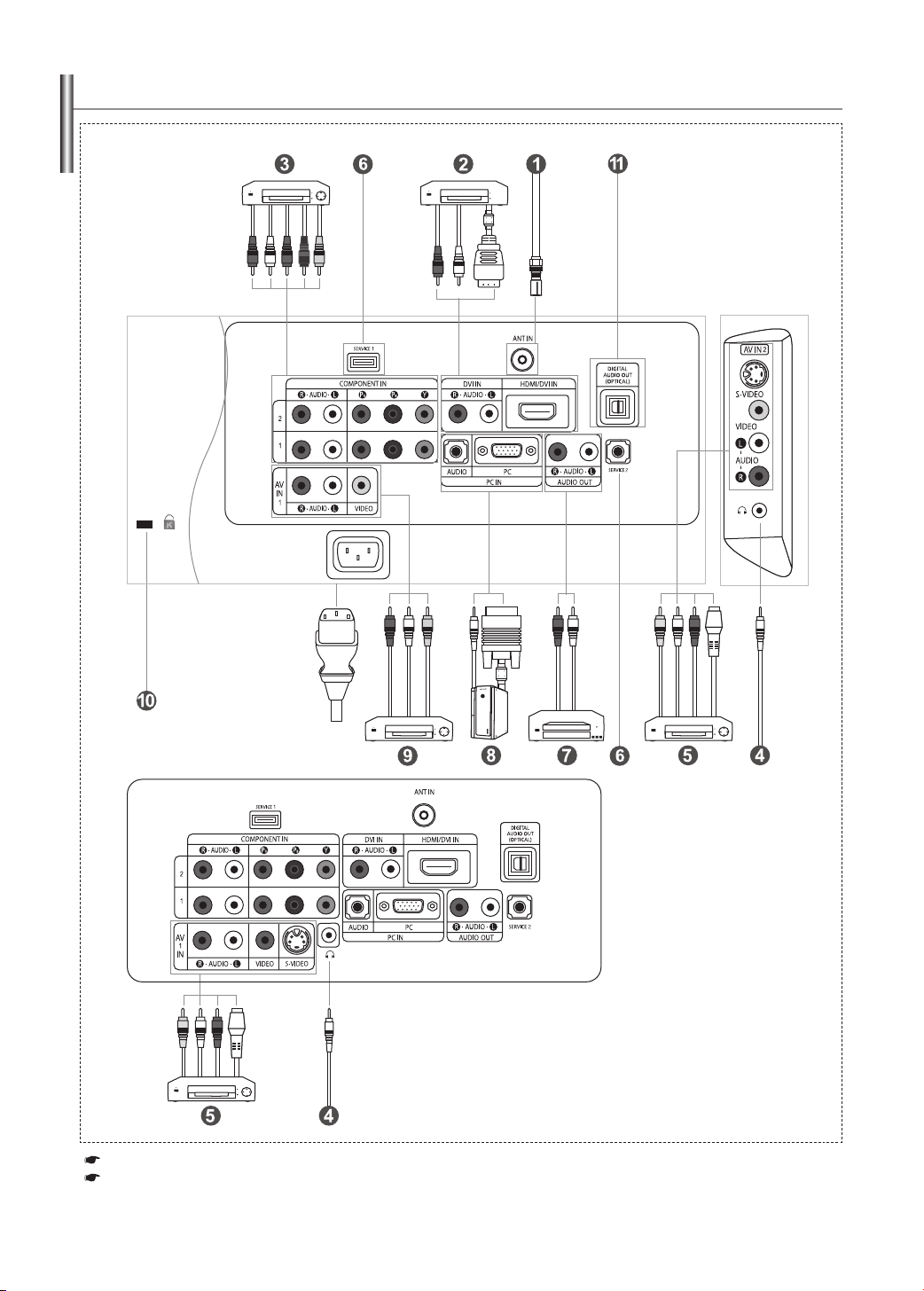
Power Input
Whenever you connect an external device to your TV, make sure that power on the unit is turned off.
When connecting an external device, match the colour of the connection terminal to the cable.
[Side Panel Jacks]
(26 inch model does not
have the side panel jacks.)
[Rear Panel Jacks]
(32 inch/37 inch/40 inch)
[Rear Panel Jacks]
(26 inch)
English-5
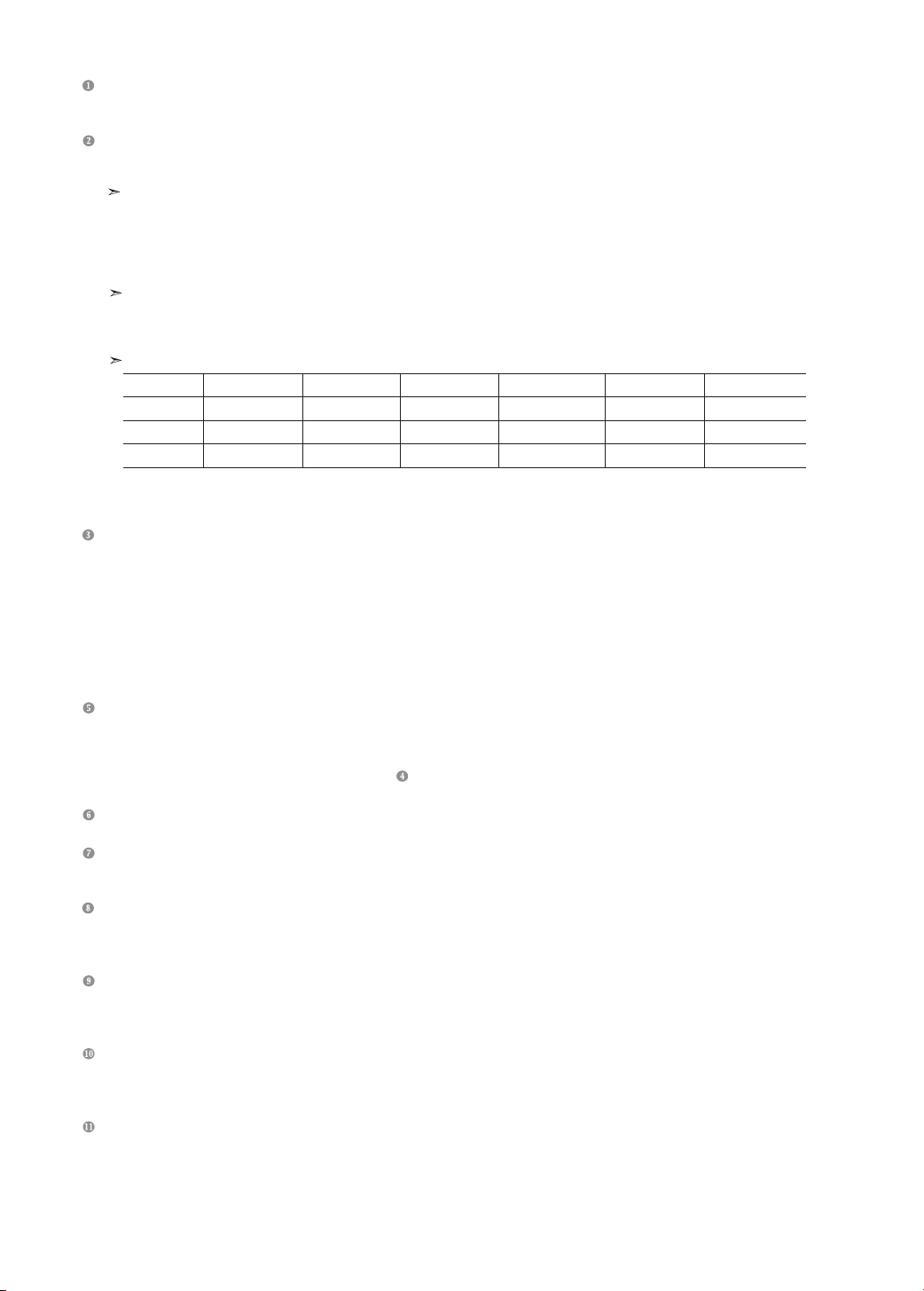
Connecting an Aerial or Cable Television Network
To view television channels correctly, a signal must be received by the set from one of the following sources:
- An outdoor aerial / A cable television network / A satellite network
Connecting HDMI/DVI
-
Supports connections between HDMI-connection-enabled AV devices (Set-Top Boxes, DVD players, AV receivers and digital TVs).
- No additional Audio connection is needed for an HDMI to HDMI connection.
What is HDMI?
- “High Definition Multimedia interface” allows the transmission of high definition digital video data and multiple
channels of digital audio (5.1 channels).
- The HDMI/DVI terminal supports DVI connection to an extended device with the appropriate cable (not supplied).
The difference between HDMI and DVI is that the HDMI device is smaller in size, has the HDCP
(High Bandwidth Digital Copy Protection) coding feature installed, and supports multi - channel digital audio.
You should use the DVI-to-HDMI cable or DVI-HDMI Adapter for the connection, and the “R - AUDIO - L” terminal on DVI for sound output.
- When connecting this product via HDMI or DVI to a Set Top Box, DVD Player or Games Console etc, make sure that
it has been set to a compatible video output mode as shown in the table below.
Failure to observe this may result in picture distortion, image breakup or no picture.
Supported modes for DVI or HDMI
- Do not attempt to connect the HDMI/DVI connector to a PC or Laptop Graphics Card.
(This will result in a blank screen being displayed)
Connecting Component Devices (DTV/DVD)
- Connect component video cables (optional) to component connector (“PR”, “ P B”, “Y”) on the rear of your set and the other
ends to corresponding component video out connectors on the DTV or DVD.
- If you wish to connect both the Set-Top Box and DTV (or DVD), you should connect the Set-Top Box to the DTV (or DVD)
and connect the DTV (or DVD) to component connector (“P
R”, “ P B”, “Y”) on your set.
-
The PR, PB and Y connectors on your component devices (DTV or DVD) are sometimes labeled Y, B-Y and R-Y or Y, Cb and Cr.
- Connect RCA audio cables (optional) to “R - AUDIO - L” on the rear of your set and the other ends to corresponding audio
out connectors on the DTV or DVD.
- This LCD TV displays its optimum picture resolution in 720p mode.
- This LCD TV displays its maximum picture resolution in 1080i mode.
Connecting External A/V Devices (AV IN 2)
- Connect RCA or S-VIDEO cable to an appropriate external A/V device such as VCR, DVD or Camcorder.
- Connect RCA audio cables to “R - AUDIO - L” on the rear of your set and the other ends to corresponding audio out
connectors on the A/V device.
- Headphone may be connected to the headphone output (
) on the rear of your set. While the headphone is connected,
the sound from the built-in speakers will be disabled.
SERVICE 1, SERVICE 2
- Service connection for qualified service engineer.
Connecting AUDIO
- Connect RCA audio cables to “R - AUDIO - L” on the rear of your set and the other ends to corresponding audio in
connectors on the Amplifier or DVD Home Theater.
Connecting Computer
-
Connect the D- Sub cable (optional) to “PC (PC IN)” on the rear of your set and the other end to the Video Card of your computer.
- Connect the stereo audio cable (optional) to “AUDIO (PC IN)” on the rear of your set and the other end to “Audio Out” of the
sound card on your computer.
Connecting External A/V Devices (AV IN 1)
- Connect RCA cable to an appropriate external A/V device such as VCR, DVD or Camcorder.
- Connect RCA audio cables to “R - AUDIO - L” on the rear of your set and the other ends to corresponding audio out
connectors on the A/V device.
Kensington Lock
- The Kensington lock (optional) is a device used to physically fix the system when used in a public place.
- If you want to use a locking device, contact the dealer where you purchased the TV.
-
The place of the Kensington Lock may be different depending on its model.
DIGITAL AUDIO OUT (OPTICAL)
- Connect to a Digital Audio Component.
480i 480p 576i 576p 720p 1080i
50Hz X O X O O O
60Hz X O X X O O
Component O O O O O O
English-6
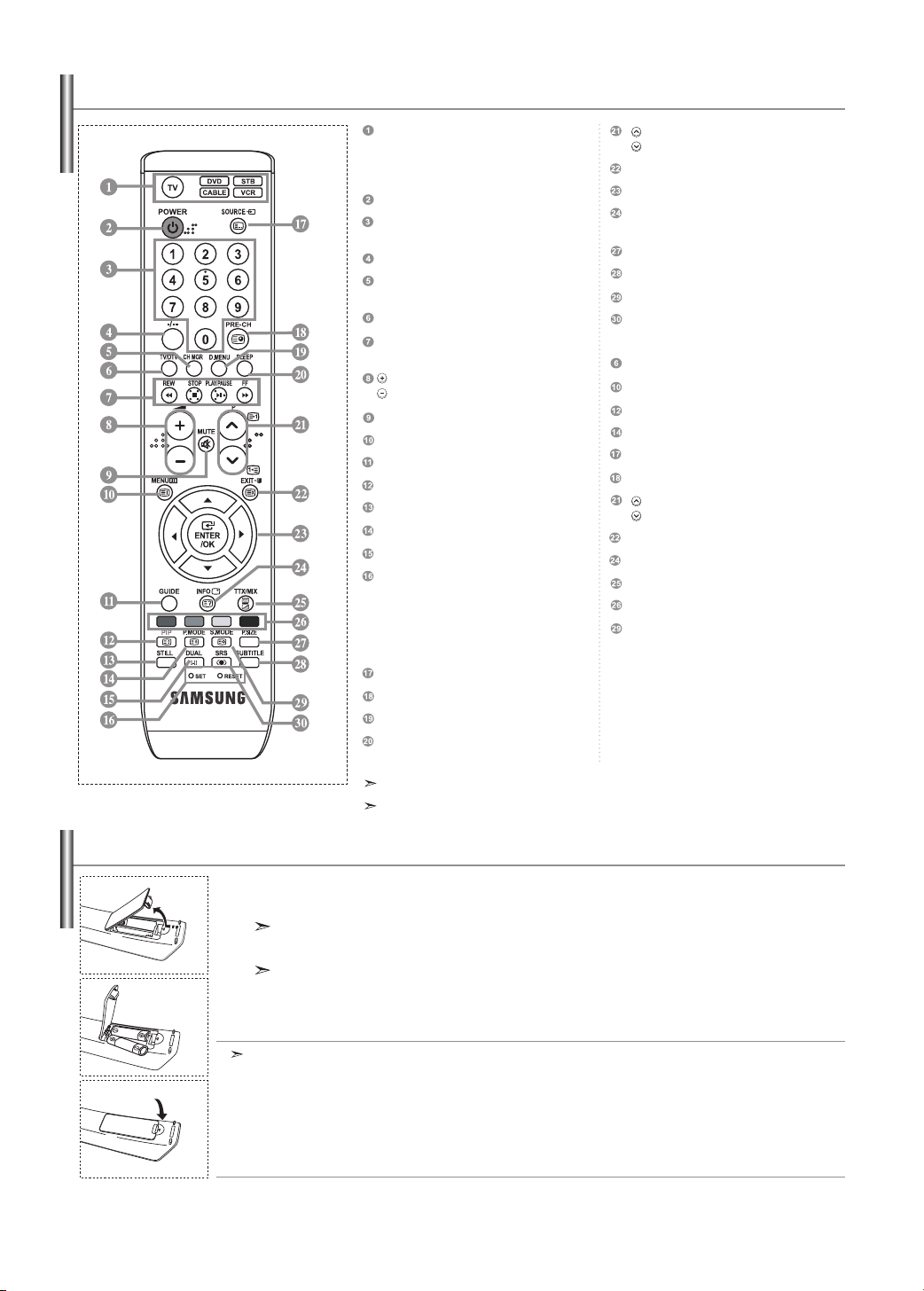
1. Lift the cover at the back of the remote control upward as shown in the figure.
2. Install two AAA size batterie
s.
Make sure to match the “+” and “–” ends of the batteries with the diagram inside the compartment.
3. Replace the cover.
Remove the batteries and store them in a cool, dry place if you won’t be using the remote control for a long time.
The remote control can be used up to about 23 feet from the TV.
(Assuming typical TV usage, the batteries last for about one year.)
If the remote control doesn’t work, check the following:
1. Is the TV power on?
2. Are the plus and minus ends of the batteries reversed?
3. Are the batteries drained?
4. Is there a power outage, or is the power cord unplugged?
5. Is there a special fluorescent light or neon sign nearby?
Installing Batteries in the Remote Control
Viewing the Remote Control
Selects a target device to be
controlled by the Samsung remote control
(TV, DVD, STB, CABLE, VCR)
(Refer to page 33~37)
Television Standby button
Number buttons for direct
channel access
One/Two-digital channel selection
It display "Channel Manager"
on the screen.
Selects the TV and DTV mode directly
VCR/DVD Functions
Rewind, Stop, Play/Pause, Fast/Forward
Volume increase
Volume decrease
Temporary sound switch-off
Menu display and change confirmation
Electronic Program Guide (EPG) display
Picture-In-Picture On / Off
Picture freeze
Picture effect selection
Sound effect selection
SET: Adjusts 5 separate devices - TV, DVD, STB,
CABLE, or VCR.
RESET: When your remote does not work,
change the batteries and press the
“RESET” button for 2-3 seconds
before use.
Available source selection
Previous channel
DTV menu display
Automatic Power-off
P : Next channel
P : Previous channel
Exit the OSD
Control the cursor in the menu
Use to see information on the
current broadcast
Picture size selection
Digital subtitle display
Sound mode selection
SRS TSXT selection
Teletext Functions
Exit from the teletext display
Teletext index
Teletext hold
Teletext size selection
Teletext mode selection (LIST/FLOF)
Teletext sub page
P : Teletext next page
P : Teletext previous page
Teletext cancel
Teletext reveal
Alternately select Teletext, Double, or Mix.
Fastext topic selection
Teletext store
The performance of the remote control may be affected by bright light.
This is a special remote control for the visually impaired, and has Braille points on the Power,
Channel and Volume buttons.

English-7
Switching On and Off
Your set can be placed in standby mode in order to reduce the power consumption. The standby mode can be useful when you wish
to interrupt viewing temporarily (during a meal, for example).
1. Press the POWER
button on the remote control.
The screen is turned off and a red standby indicator appears on the front of your set.
2. To switch your set back on, simply press the POWER
, numeric buttons (0~9), TV/DTV button or channel
up/down ( / ) button again.
Do not leave your set in standby mode for long periods of time (when you are away on holiday, for example).
It is best to unplug the set from the mains and aerial.
Placing Your Television in Standby Mode
The mains lead is attached to the rear of your set.
1. Plug the mains lead into an appropriate socket.
The standby indicator lights up on the front of the set.
2. Press the button on the front of the set.
You also can press the POWER button or the
TV/DTV
button on the remote control to turn the TV on.
The programme that you were watching last is reselected automatically.
3. Press the numeric button (0~9) or channel up/down (
/ ) button on the remote control or
button on the right side of the set.
4. To switch your set off, press the button again.
When the TV is initially powered on, several basic settings proceed
automatically and subsequently. The following settings are available.
1. Press the POWER button on the remote control.
The message “Start Plug & Play” is displayed with “OK” selected.
2. The message “Check antenna input.” is displayed with “OK” selected.
Press the ENTER button.
Please check that the antenna cable is connected correctly.
3. The “Auto Store” menu is displayed with the “Start” selected.
Press the ENTER button.
The channel search will start and end automatically.
After all the available channels are stored, the “Clock Set” menu appears.
Press the
ENTER
button at any time to interrupt the memorization process.
4. Press the ENTER button.
Select the “Hour” or “Minute” by pressing the
or
button.
Set the “Hour” or “Minute” by pressing the
or
button.
You can also set the hour and minute by pressing the number buttons on the remote control.
4.
Press the ENTER button to confirm your setting.
The DTV channel scan menu appears and the DTV channel is automatically updated.
If the DTV channel is updated, the Source in the source list of the Input menu is automatically changed to DTV.
For detailed descriptions about DTV channel update, refer to page 21 of this manual.
6. Select the
“
Time Zone
”
where you locate by pressing the
or
button. Press the
ENTER
button.
Plug & Play
Auto Store: Automatically scans for and stores channels available in the local area.
Clock Set: Sets the current time for the TV clock.

English-8
You can store up to 100 channels, including those received via cable networks.
When storing channels manually, you can choose:
Whether or not to store each of the channels found.
The programme number of each stored channel which you wish to identify.
1. Press the MENU button to display the menu.
Press the or button to select “Channel”, then press the ENTER button.
2. Press the or button to select “Manual Store”, then press the ENTER button.
3. Press the ENTER button to select “Programme”.
4. To assign a programme number to a channel, find the correct number by pressing the or button
and then press the ENTER button.
You can also set a programme number by pressing number buttons on the remote control.
continued...
Storing Channels Manually
- Storing Channels Automatically
- Storing Channels Manually
If you want to reset this feature...
1. Press the MENU button to display the menu.
Press the or
button
to select “Setup”, then press the
ENTER
button.
2. Press the ENTER button again, to select “Plug & Play”.
3. The message to “Start Plug & Play” is displayed.
You can scan for the frequency ranges available to you. Automatically allocated programme numbers may not
correspond to actual or desired programme numbers. However, you can sort numbers manually and clear any channels you do not
wish to watch.
1. Press the MENU button to display the menu.
Press the or button to select “Channel”, then press the ENTER button.
2. Press the ENTER
button again, to select “Auto Store”.
3. Press the ENTER button to select “Start”.
The TV will begin memorizing all of the available channels.
Press the
ENTER
button at any time to interrupt the memorization process and return to the “Channel” menu.
4. After all the available channels are stored, the “Sort” menu appears.
Storing Channels Automatically
English-9
Programme: Selects a program number for the channel.
Colour System: Sets the colour supporting system.
Sound System: Sets the sound supporting system.
Channel: Selects a channel.
Search: Scans for the frequency value for the channel.
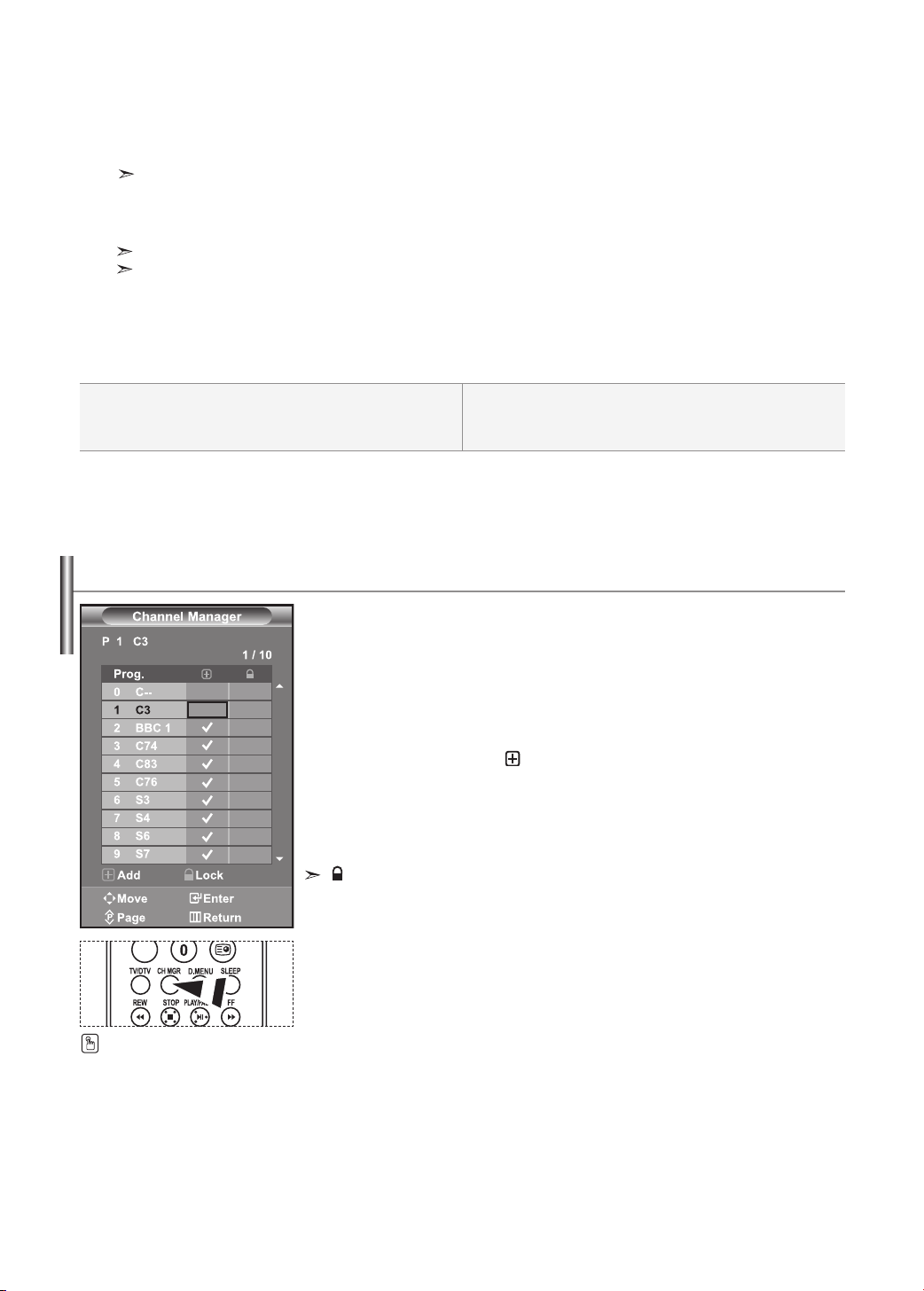
Store: Saves your settings.
Set the channels according to your preference.
You can easily delete, add, or lock the channel you want.
1. Press the MENU button to display the menu. Press the or button
to select “Channel”, then press the ENTER button.
2.
Press the or button to select “Channel Manager”,
then press the ENTER button.
3.
Press the ENTER button again, to select “Channel Manager”.
4
.
Press the button to select “ ” line.
5
.
Press the or button to select the undesired channel,
then press the ENTER button to cancel.
6. Repeat steps 5 for each channel to be selected or canceled
7. Press the EXIT button to exit.
“ ”
is active when “Child Lock” is selected to “On”.
Setting the Channel Manager
You can select these options by simply
pressing the CH MGR button on the
remote control.
5. Press the or button to select “Colour System”, then press the ENTER button.
6. Select the colour standard required by pressing the or button then, press the ENTER button.
7. Press the or button to select “Sound System”, then press the ENTER button.
8. Select the sound standard required by pressing the or button, then press the ENTER button.
If there is an abnormal sound or no sound, re-select the sound system required.
9.
If you know the number of the channel to be stored, press the or button to select “Channel”. Press the ENTER button. Select C (Air channel) or
S (Cable channel) by pressing the or button. Press the button to select channel. Select the required number by pressing the or button and
then press the ENTER button.
Channel mode: P (Programme mode), C (Air channel mode), S (Cable channel mode)
You can also set a channel number by pressing number buttons on the remote control.
10. If you do not know the channel numbers, press the or button to select “Search”.
Press the ENTER button. Search by pressing the or button and then press the ENTER button.
11. Press the or button to select “Store”. Press the ENTER button to select “OK”.
12. Repeat steps 3 to 11 for each channel to be stored.

English-10
You can exchange the numbers of two channels, in order to:
Modify the numeric order in which the channels have been
automatically stored.
Give easily remembered numbers to the channels that you watch most often.
1. Press the MENU button to display the menu. Press the or button
to select “Channel”, then press the ENTER button.
2.
Press the or button to select “Sort”, then press the
ENTER
button.
3.
Select channel number that you wish to change by pressing the
or button repeatedly. Press the ENTER button.
The selected channel number and name are moved to right side.
4.
Press the
or
button to move to the position in which you would like to change and then
press the
ENTER
button.
The selected channel is exchanged with the one previously stored to the chosen number.
5.
Repeat steps 3 to 4 for another channel to be sorted.
6.
Press the EXIT button to exit.
Sorting the Stored Channels
This feature allows you to prevent unauthorized users, such as children, from watching
unsuitable programmes by muting out video and audio. Child Lock cannot be released using
the buttons on the side.
Only the remote control can release the Child Lock setting, so keep the remote control away
from children.
1. Press the MENU button to display the menu. Press the or button
to select “Channel”, then press the ENTER button.
2.
Press the or button to select “Channel Manager”,
then press the ENTER button.
3.
Press the or button to select “Child Lock”,
then press the ENTER button.
4.
Press the or button to select “On” or “Off”. Press the
ENTER
button.
5.
Press the or button to select “Channel Manager”,
then press the ENTER button.
6
.
Press the button to select “ ” line.
7
.
Press the or button to select the channels you want to lock,
then press the ENTER button.
8. Repeat steps 7 for each channel to be locked or unlocked.
9. Press the EXIT button to exit.
Select “On” or “Off” in “Child Lock” to easily turn the channels which
selected on
“ ”
to be active or inactive.
Activating the Child Lock
English-11
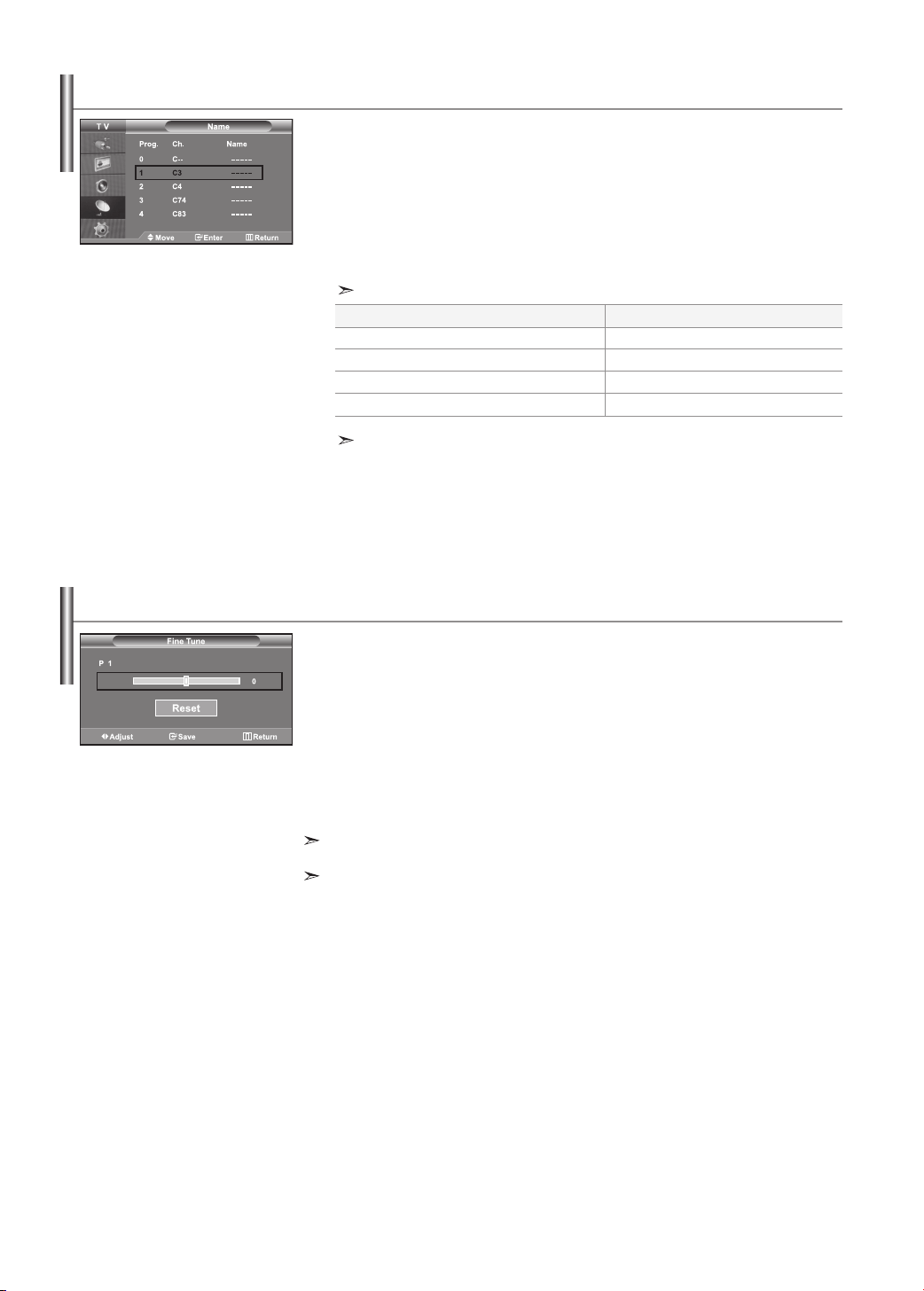
Use fine tuning to manually adjust a particular channel for optimal reception.
1. Use the number buttons to directly select the channel that
you want to fine tune.
2. Press the MENU button to display the menu.
Press the or button to select “Channel”, then press the ENTER button.
3. Press the or button to select “Fine Tune”, then press the ENTER button.
4. Press the or button to adjust the fine tuning.
Press the
ENTER
button.
5. Press the EXIT button to exit.
Fine tuned channels that have been saved are marked with an asterisk “*” on the right-hand side of the
channel number in the channel banner. And the channel number turns red.
To reset the fine-tuning, select “Reset” by pressing the or button and then press the ENTER button.
Fine Tuning Channel Reception
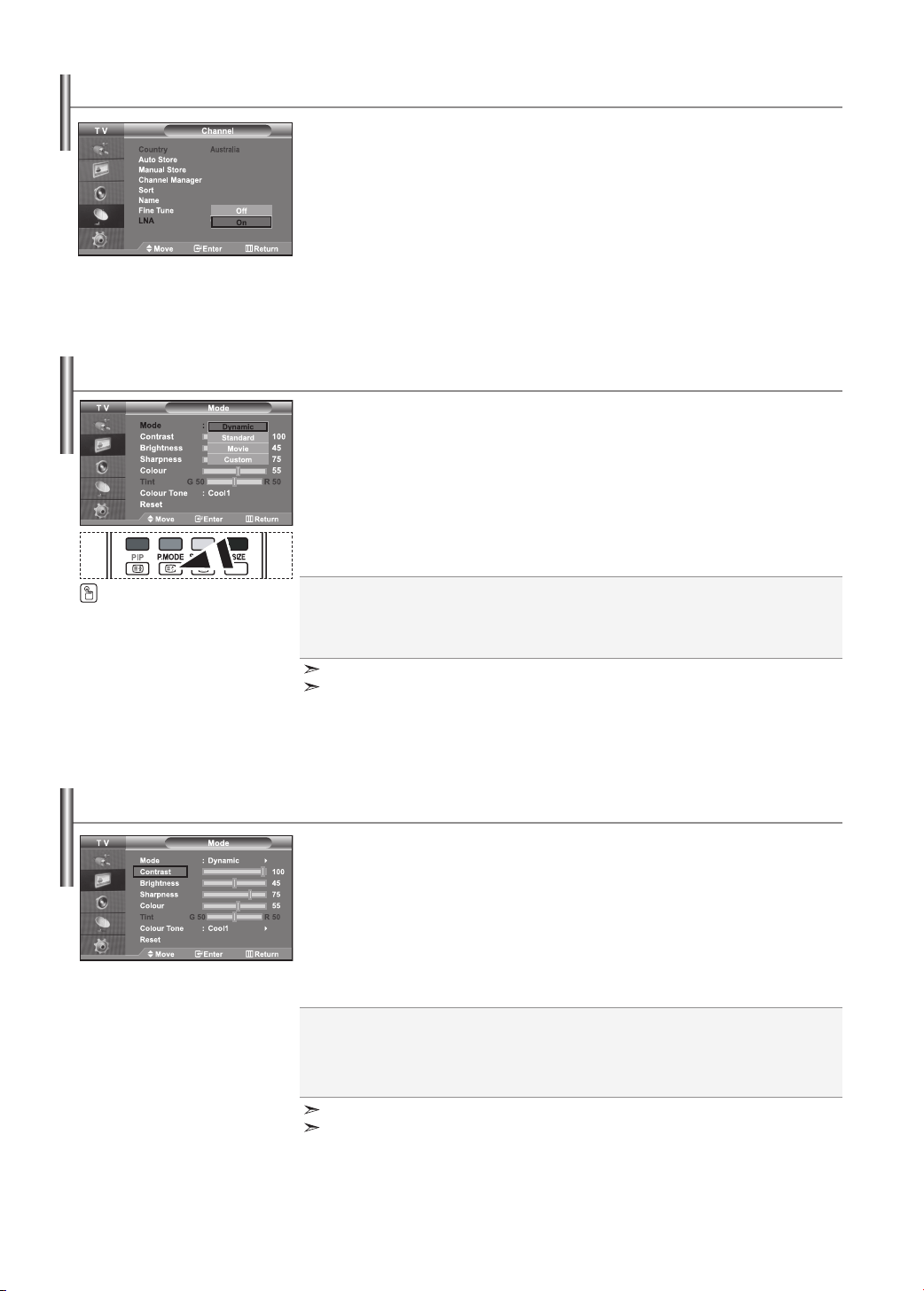
Channel names will be assigned automatically when channel
information is broadcast.
These names can be changed, allowing you to assign new names.
1. Press the MENU button to display the menu. Press the or button
to select “Channel”, then press the ENTER button.
2.
Press the or button to select “Name”, then press the
ENTER
button.
3.
If necessary, select the channel to be assigned to a new name by
pressing the
or
button. Press the ENTER button.
The selection bar is displayed around the name box.
4.
The characters available are :
Letters of the alphabet (A~Z) / Numbers (0~9) / Special characters (
-
, space)
5.
Repeat steps 3 to 4 for each channel to be assigned to a new name.
6.
Press the EXIT button to exit.
Assigning Channels Names
To...
Select a letter, number or symbol
Move on the next letter
Move back the previous letter
Confirm the name
Then...
Press the
or
button
Press the
button
Press the
button
Press the ENTER button
English-12
You can also press the
P.MODE button on the remote control
to select one of the picture settings.
Dynamic: Selects the picture for high-definition in a bright room.
Standard: Selects the picture for optimum display in a normal environment.
Movie: Selects the picture for comfortable display in a dark room.
Custom: Select to view your favorite display settings.
(Refer to “Adjusting the Custom Picture”)
You can select the type of picture which best corresponds to your viewing requirements.
1. Press the MENU button to display the menu. Press the or button to select “Picture”,
then press the ENTER button.
2.
Press the ENTER button again, to select “Mode”.
Press the ENTER button again.
3.
Press the
or
button to select the desired picture effect.
Press the
ENTER
button.
4.
Press the EXIT button to exit.
Contrast: Adjusts the lightness and darkness between objects and the background.
Brightness: Adjusts the brightness of the whole screen.
Sharpness: Adjusts the outline of objects to either sharpen them or make them more dull.
Colour: Adjusts the colours, making them lighter or darker.
Tint (NTSC only):
Adjusts the colour of objects, making them more red or green for a more natural look.
The Picture mode must be adjusted separately for each input source.
You can return to the factory defaults picture settings by selecting the “Reset”.
(Refer to “Resetting the Picture Settings to the Factory Defaults” on page 13)
Changing the Picture Standard
Your set has several settings which allow you to control picture quality.
1. To select the desired picture effect, follow the
“Changing the Picture Standard” instructions number 1 to 3.
2.
Press the
or button
to select a particular item.
Press the
ENTER
button.
3.
Press the
or button
to decrease or increase the value of a
particular item.
Press the ENTER button.
4.
Press the EXIT button to exit.
Adjusting the Custom Picture
The adjusted values are stored according to the selected Picture mode.
In PC Mode, Only “Contrast”, “Brightness” and “Colour” can be adjusted.
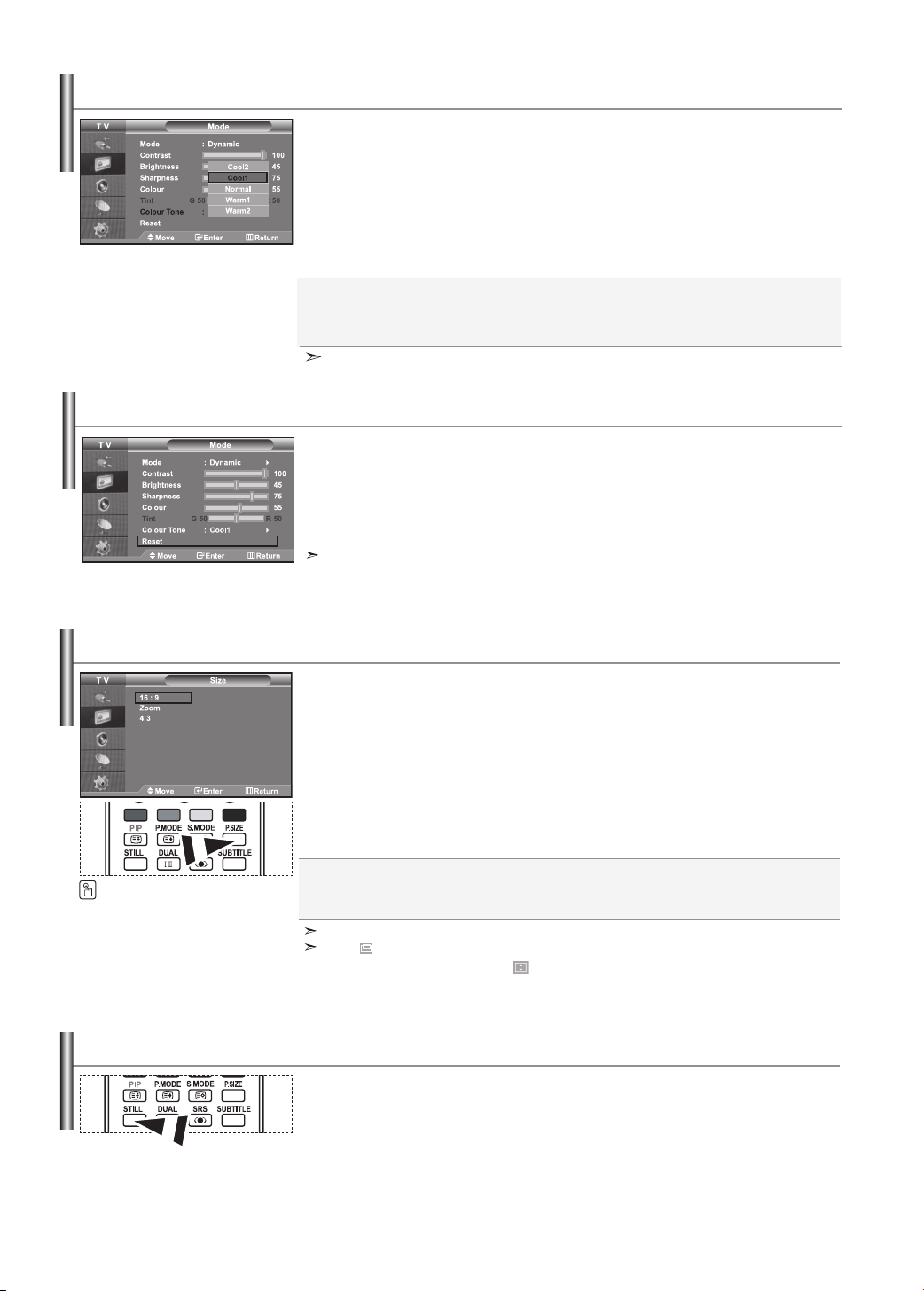
LNA (Low Noise Amplifier)
If the TV is operating in a weak-signal area, the LNA function can improve the reception
(a low-noise preamplifier boosts the incoming signal).
1. Press the MENU button to display the menu.
Press the or button to select "Channel", then press the ENTER button.
2. Press the or button to select "LNA", then press the ENTER button.
3. Press the or button to select "On" or "Off". Press the ENTER button.
4. Press the EXIT button to exit.
English-13
You can select the most comfortable colour tone to your eyes.
1. To select the desired picture effect, follow the
“Changing the Picture Standard” instructions number 1 to 3 on page 12.
2.
Press the or button to select “Colour Tone”, then press the ENTER button.
3.
Press the
or button
to select the desired colour tone setting.
Press the
ENTER
button.
4.
Press the EXIT button to exit.
Changing the Colour Tone
The adjusted values are stored according to the selected Picture mode.
Cool2: Makes the colour temperature bluer than
“Cool1” menu.
Cool1: Makes whites bluish.
Normal: Keeps whites white.
Warm1: Makes whites reddish.
Warm2: Makes the colour temperature redder
than “Warm1” menu.
16:9: Adjusts the picture size to 16:9 appropriate for DVDs or wide broadcasting.
Zoom: Magnifies the 16:9 wide picture (in the vertical direction) to fit the screen size.
4:3: This is the default setting for a video movie or normal broadcasting.
You can select the picture size which best corresponds to your
viewing requirements.
1. Press the MENU button to display the menu. Press the or button to select “Picture”,
then press the ENTER button.
2. Press the or button to select “Size”, then press the ENTER button.
3. Select the required option by pressing the or button.
Press the
ENTER
button.
4.
Press the EXIT button to exit.
You can select these options
by simply pressing the P.SIZE button on
the remote control.
In PC Mode, only “16:9” and “4:3” mode can be adjusted.
Select by pressing the or buttons. Use the or button to move the
picture up and down. After selecting , use the or button to magnify or reduce the picture size
in the vertical direction.
Changing the Picture Size
You can return to the factory defaults picture settings.
1. To select the desired picture effect, follow the
“Changing the Picture Standard” instructions number 1 to 3 on page 12.
2. Press the or button to select “Reset”, then press the ENTER button.
3.
Press the EXIT button to exit.
The “Reset” will be set for each picture mode.
Resetting the Picture Settings to the Factory Defaults
Press the STILL button to freeze a moving picture into a still one.
Press again to cancel.
Freezing the Current Picture
English-14
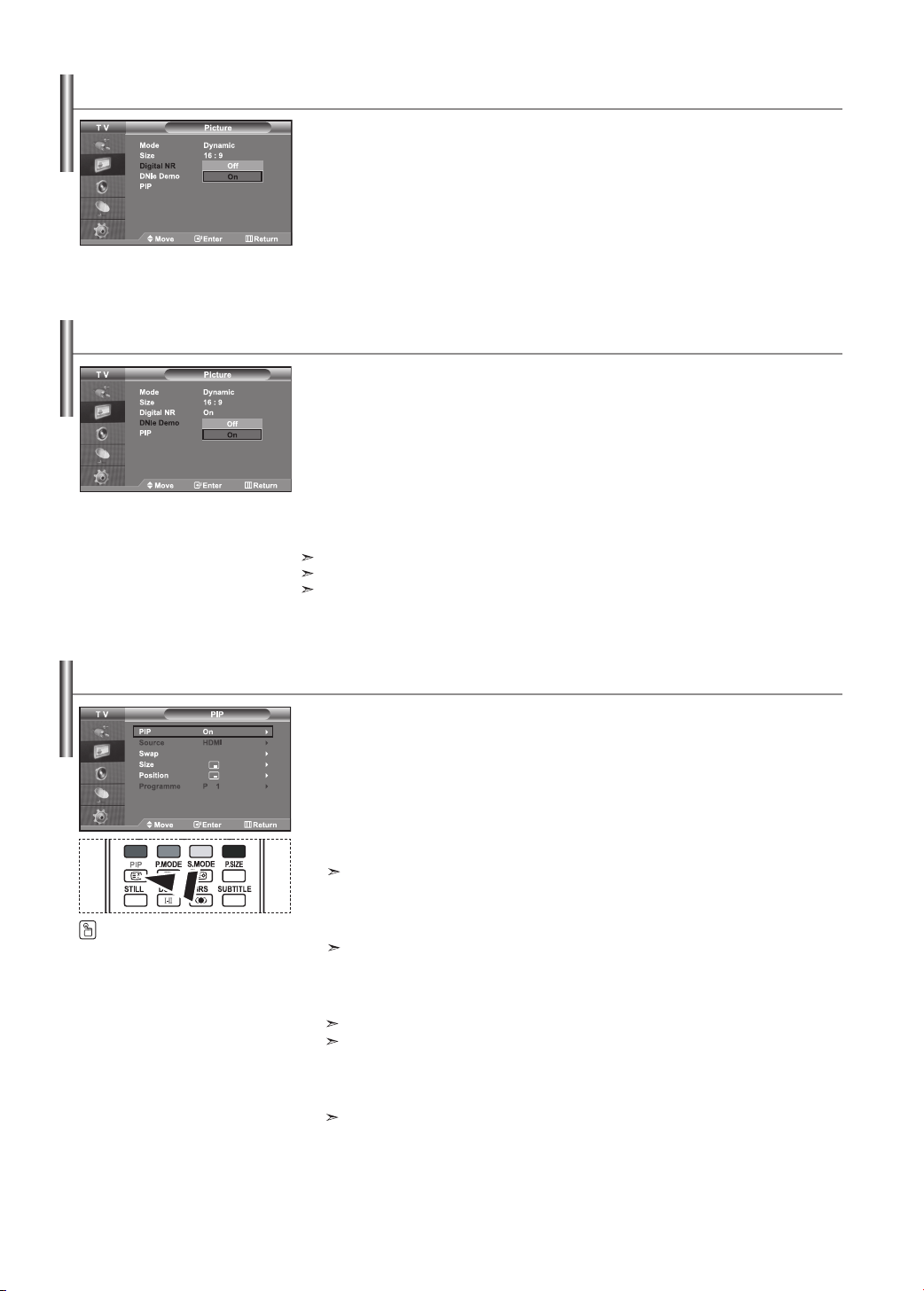
You can display a sub picture within the main picture of set
programme or video input. In this way, you can watch the picture of set programme or video
input from any connected equipment while watching the main picture.
1. Press the MENU button to display the menu. Press the or button to
select “Picture”, then press the ENTER button.
2.
Press the or button to select “PIP”, then press the
ENTER
button.
3. Press the ENTER button again.
Press the or button to select “On”, then press ENTER button.
If the PIP is activated, the size of the main picture turns to “16:9”.
4. Press the or button to select “Source”,then press ENTER button.
Select a source of the sub picture by pressing the or button and press the
ENTER button.
The sub picture can serve different source selections based on what the main picture is set to.
5. Press the or button to select “Swap”.
To interchange the main picture and the sub picture, select “Swap” option and press the
ENTER button.
The main picture and the sub picture are interchanged.
I
f main picture is in “PC” mode, “Swap” is not available.
6. Press the or button to select “Size” of the sub picture and then
press the ENTER button. Select a size of the sub picture by
pressing the or button and then press the ENTER button.
If main picture is in “PC” mode, “Size” is not available.
7. Press the or button to select “Position”, then press the ENTERbutton. Select
the position of the sub picture by pressing the or button and then press the
ENTER button.
Viewing the Picture In Picture (PIP)
Press the PIP button on the remote
control repeatedly to activate or
deactivate the “PIP”.
Samsung’s new technology brings you more detailed images with
contrast and white enhancement. A new image compensation algorithm gives viewers
brighter and clearer images. DNIe technology will match every signal to your eyes. You can
see how DNIe improves the picture by setting DNIe Demo mode to On.
1. Press the MENU button to display the menu. Press the or button to select “Picture”,
then press the ENTER button.
2. Press the or button to select “DNIe Demo”, then press the ENTER button.
3.
Press the or button to select “On” or “Off”. Press the
ENTER
button.
4. Press the EXIT button to exit.
These functions don’t work in PC mode.
The DNle Demo is designed to show the difference between the regular and DNIe pictures.
By default, the product displays the picture with DNle applied.
DNIe Demo (Digital Natural Image engine)
If the broadcast signal received by your TV is weak, you can activate the Digital Noise
Reduction feature to help reduce any static and ghosting that may appear on the screen.
1. Press the MENU button to display the menu. Press the or button to select “Picture”,
then press the ENTER button.
2. Press the or button to select “Digital NR”, then press the ENTER button.
3.
Press the or button to select “On” or “Off”. Press the
ENTER
button.
4. Press the EXIT button to exit.
Digital Noise Reduction
English-15
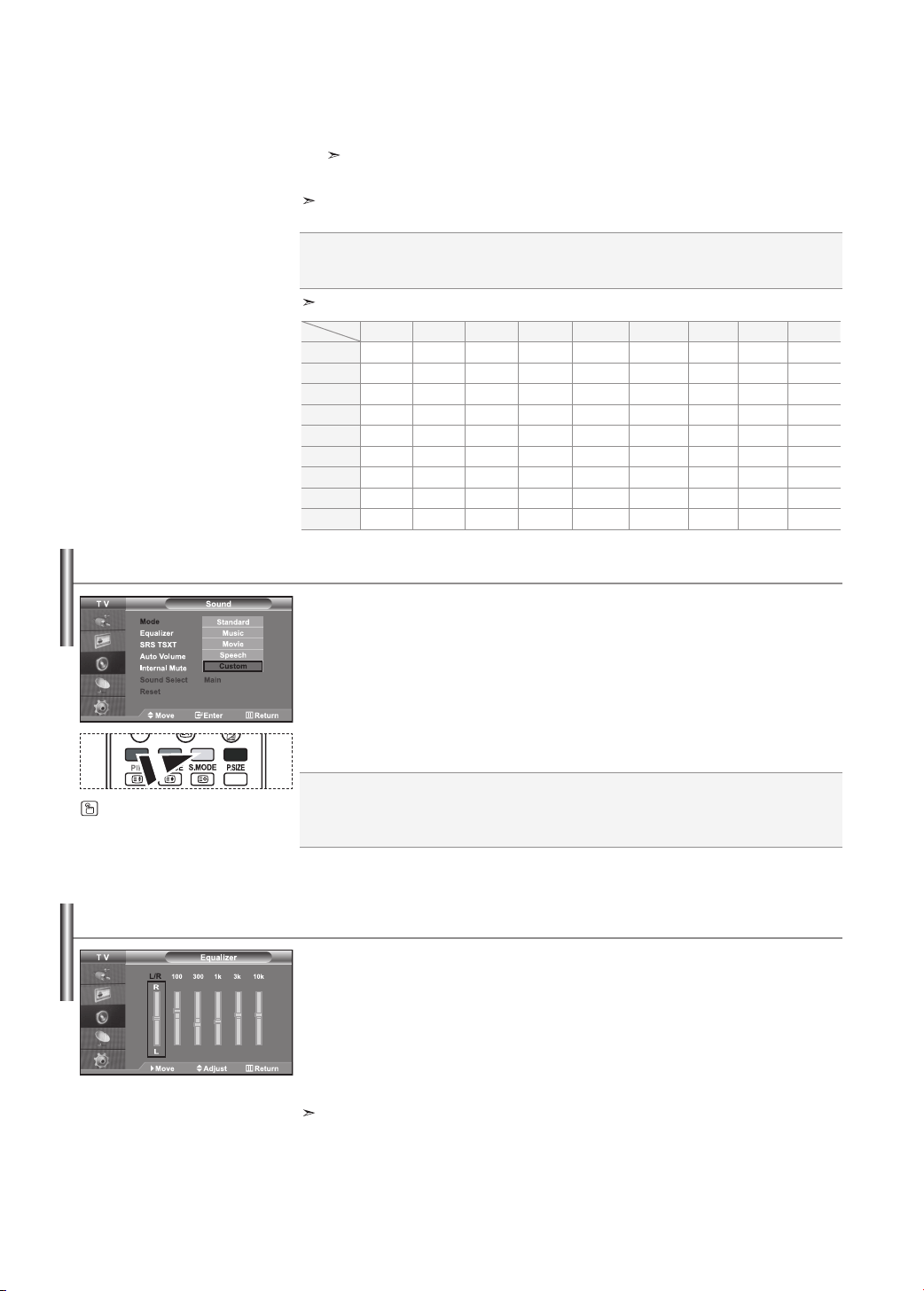
You can select the type of the special sound effect to be used when watching a given
broadcast.
1. Press the MENU button to display the menu. Press the or button to
select “Sound”, then press the ENTER button.
2. Press the ENTER button again, to select “Mode”.
3. Select the required sound effect by pressing the or button repeatedly and then
press the ENTER button.
4. Press the EXIT button to exit.
Standard: Selects the normal sound mode.
Music: Emphasizes music over voices.
Movie: Provides live and full sound for movies.
Speech: Emphasizes voices over other sounds.
Custom: Selects your custom sound settings.
(Refer to “Adjusting the Sound Settings”)
You can also select these options by
simply pressing the S.MODE button on
the remote control.
PIP Settings
(O: PIP operates, X: PIP doesn’t operate)
TV AV1
AV2 S-Video Component1 Component2 PC HDMI DTV
TV
XXX X X X XOX
AV1
XXX X X X XOX
AV2
XXX X X X XOX
S-Video
XXX X X X XOX
Component1
XXX X X X XOX
Component2
XXX X X X XOX
PC
OOO X X X XXX
HDMI
OOO O O O XXX
DTV
XXX X X X XXX
Sub
Main
Changing the Sound Standard
Source: Used to select a source of the sub picture.
Swap:
Used to interchange the main picture and the sub picture.
Size: Used to select a size of the sub picture.
Position: Used to move the sub picture.
Programme: Used to Change the sub picture.
8. Press the or button to select “Programme” and then press the ENTER button.
You can select the channel that you want to view through sub picture by pressing the
or button.
Press the ENTER button.
The “Programme” can be active when the sub picture is set to TV.
9. Press the EXIT button to exit.
You may notice that the picture in the PIP window becomes slightly unnatural when you use the main
screen to view a game or karaoke.
The sound settings can be adjusted to suit your personal preferences.
1. Press the MENU button to display the menu. Press the or button to
select “Sound”, then press the ENTER button.
2. Press the or button to select “Equalizer”, then press the ENTER button.
3.
Press the
or button
to select a particular item. Press the
ENTER
button.
4. Press the or button to reach the required setting. Press the ENTER button.
5. Press the EXIT button to exit.
If you make any changes to these settings, the Sound Mode is automatically switched to “Custom”.
Adjusting the Sound Settings

English-16
If you want to hear the sound through separate speakers, cancel the internal amplifier.
1. Press the MENU button to display the menu. Press the or button to
select “Sound”, then press the ENTER button.
2. Press the or button to select “Internal Mute”, then press the ENTER button.
3.
Press the or button to select “On” or “Off”. Press the
ENTER
button.
4. Press the EXIT button to exit.
When “Internal Mute” is set to “On’, the Sound menus except for
“Sound Select” (in PIP mode) cannot be adjusted.
Selecting the Internal Mute
TruSurround XT is a patented SRS technology that solves the problem of playing 5.1
multichannel content over two speakers.
TruSurround delivers a compelling,virtual surround sound experience through any two-
speaker playback system, including internal television speakers. It is fully compatible with all
multichannel formats.
1. Press the MENU button to display the menu. Press the or button to
select “Sound”, then press the ENTERbutton.
2. Press the or button to select “SRS TSXT”, then press the ENTER button.
3.
Press the or button to select “On” or “Off”. Press the
ENTER
button.
4. Press the EXIT button to exit.
Setting the TruSurround XT (SRS TSXT)
Each broadcasting station has its own signal conditions, and so it is not easy for you to adjust
the volume every time the channel is changed. This feature allows you to automatically
adjust the volume of the desired channel by lowering the sound output when the modulation
signal is high or by raising the sound output when the modulation signal is low.
1. Press the MENU button to display the menu. Press the or button to
select “Sound”, then press the ENTER button.
2. Press the or button to select “Auto Volume”, then press the ENTER button.
3.
Press the or button to select “On” or “Off”. Press the
ENTER
button.
4. Press the EXIT button to exit.
Adjusting the Volume Automatically
You can also set these options simply
by pressing the SRS button on remote
control.
TruSurround XT, SRS and
symbol are trademarks of
SRS Labs, Inc. TruSurround XT technology is incorporated under license from SRS
Labs, Inc.
You can connect a set of headphones to your set if you wish to watch a TV programme without
disturbing the other people in the room.
When you insert the head set jack into the corresponding port,
you can operate only "Internal Mute" and "Sound Select" (in PIP mode) in Sound menu.
Prolonged use of headphones at a high volume may damage your hearing.
You will not receive sound from the speakers when you connect headphones to the system.
Connecting Headphones
English-17
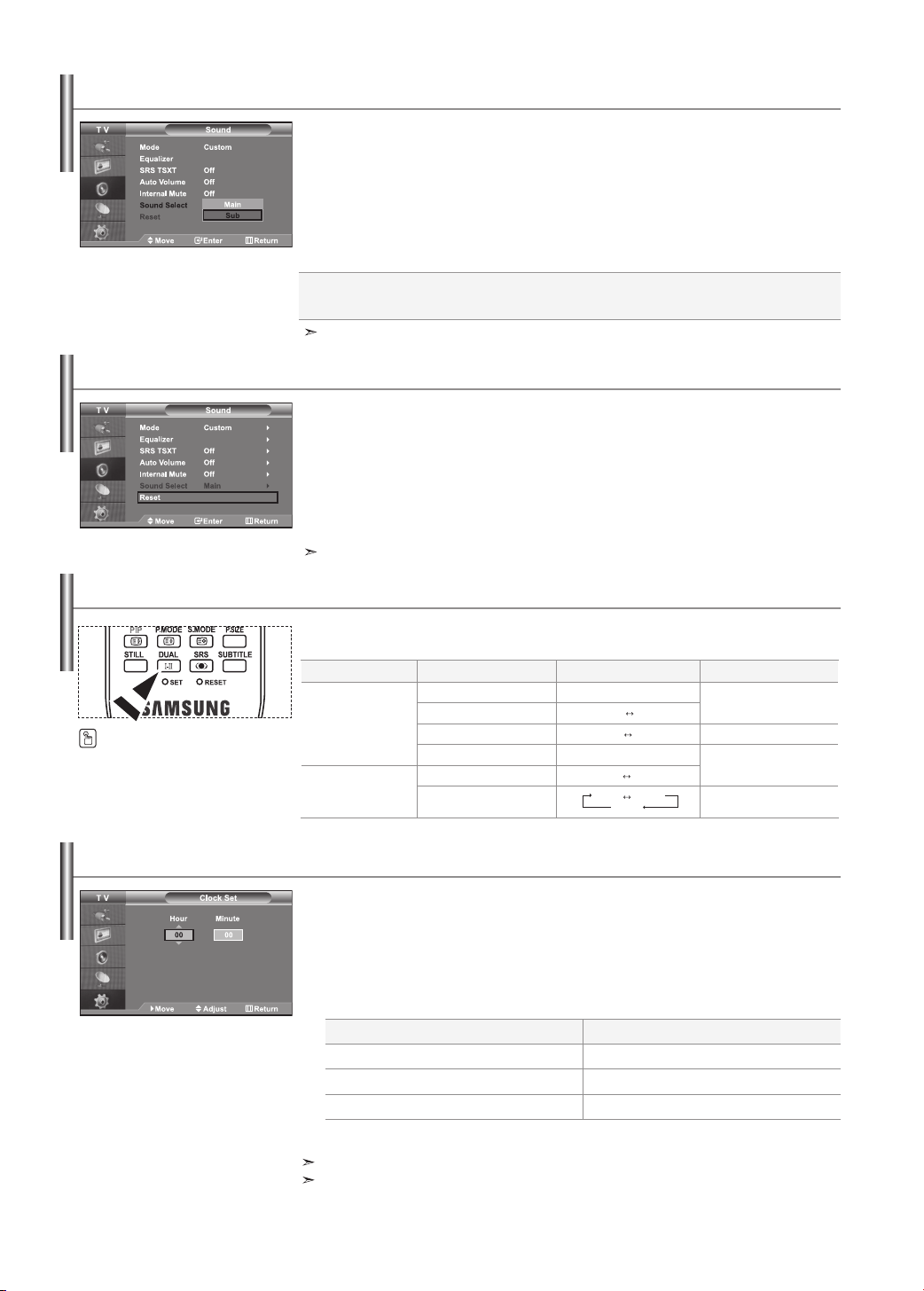
You can set the TV’s clock so that the current time is displayed when you press the INFO
button. You must also set the time if you wish to use the automatic On/Off timers.
1. Press the MENU button to display the menu. Press the or button to
select “Setup”, then press the ENTER button.
2.
Press the or button to select “Time”, then press the
ENTER
button.
3. Press the ENTER button to select “Clock Set”.
4.
5. Press the EXIT button to exit.
If you disconnect the power cord, you have to set the clock again.
You can also set hour and minute by pressing the number buttons on the remote control.
Setting and Displaying the Current Time
Resetting the Sound Settings to the Factory Defaults
If Game Mode is On, the Reset Sound function is activated. Selecting the Reset function
after setting the equalizer resets the equalizer setting to the factory defaults.
1. Press the MENU button to display the menu. Press the or button to
select “Sound”, then press the ENTER button.
2. Press the or button to select “Reset”, then press the ENTER button.
3. Press the EXIT button to exit.
You can select this option when the “Game Mode” is set to “On”.
Listening to the Sound of the Sub Picture
During the PIP features activation, you can listen to the sound of the sub picture.
1. Press the MENU button to display the menu. Press the or button to
select “Sound”, then press the ENTER button.
2. Press the or button to select “Sound Select”, then press the ENTER button.
3. Press the or button to select “Sub”. Press the ENTER button.
4. Press the EXIT button to exit.
You can select this option when the “PIP” is set to “On”.
Main: Used to listen to the sound of the main picture.
Sub: Used to listen to the sound of the sub picture.
To... Press the...
Move to “Hour” or “Minute”
or button.
Set the “Hour” or “Minute””
or button.
Press the ENTER button.
Selecting the Sound Mode
You can set the sound mode by pressing the “DUAL” button.
When you press it, the current sound mode is displayed on the screen.
Audio Type DUAL 1/2 Default
FM
Stereo
Mono MONO
Automatic
change
Stereo STEREO MONO
Dual DUAL 1 DUAL 2 DUAL 1
Mono MONO
Automatic
change
NICAM
Stereo
Stereo MONO STEREO
Dual
MONO DUAL 1
DUAL 2
DUAL 1
You can also set these options simply
by pressing the DUAL button on
remote control.
English-18
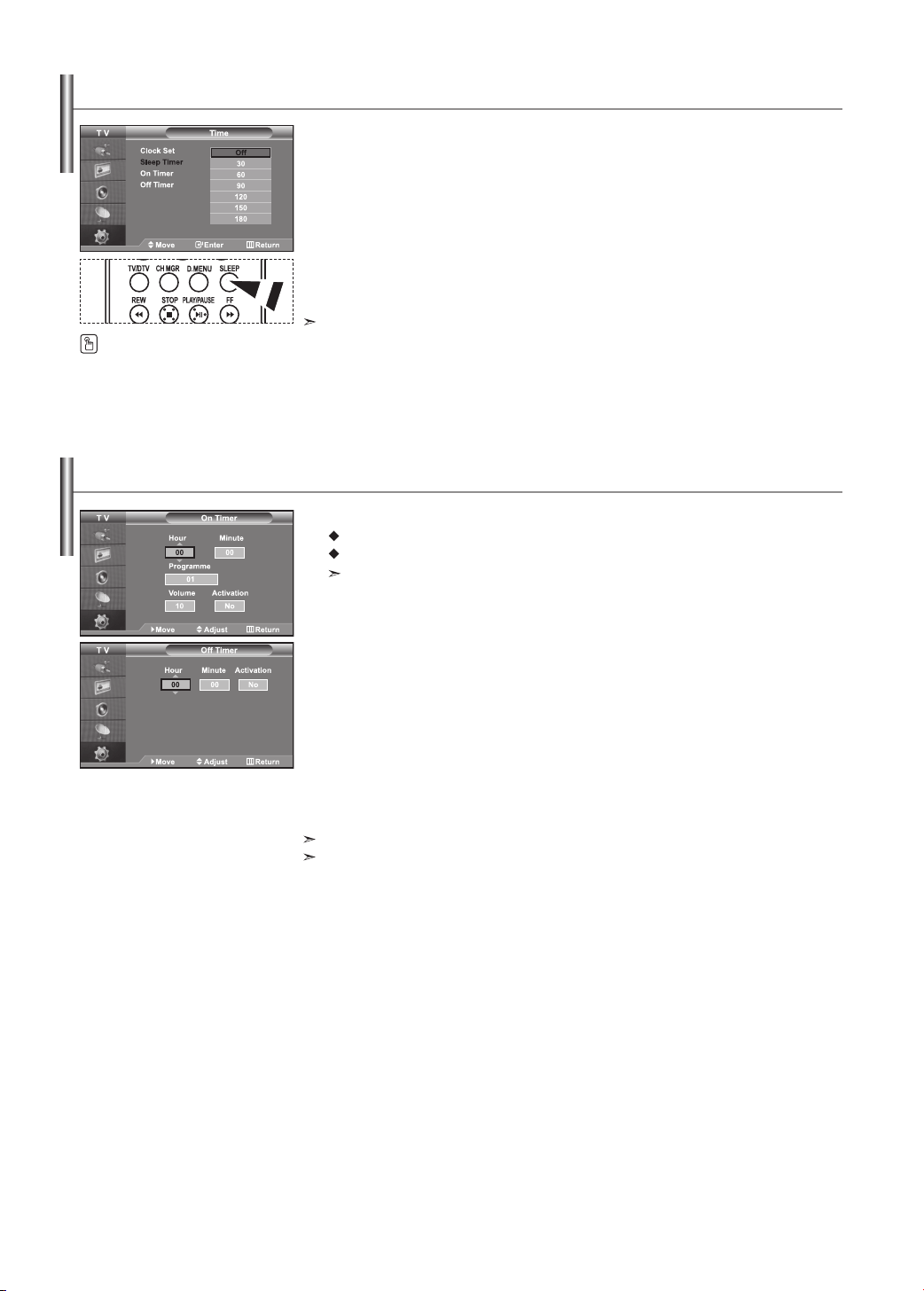
You can select a time period of between 30 and 180 minutes after which the television auto-
matically switches to standby mode.
1. Press the MENU button to display the menu.
Press the or button to select “Setup”, then press the ENTER button.
2.
Press the or button to select “Time”, then press the
ENTER
button.
3. Press the or button to select “Sleep Timer”, then press the ENTER button.
4. Press the or button repeatedly until the desired time appears
(Off, 30, 60, 90, 120, 150, 180). Press the ENTER button.
5. Press the EXIT button to exit.
The TV automatically switches to standby mode when the timer reaches 0.
Setting the Sleep Timer
Press the SLEEP button on the remote
control repeatedly until the
appropriate time interval appears.
You can set the On/Off timers so that the set will:
Switch on automatically and tune to the channel of your choice at the time you select.
Switch off automatically at the time you select.
The first step is to set the television’s clock.
1. Press the MENU button to display the menu. Press the or button to select “Setup”,
then press the ENTER button.
2. Press the or button to select “Time”, then press the ENTER button.
3. Press the or button to select “On Timer”, then press the ENTER button.
4. Press the or button to adjust “Hour”, then press the button to
move to the next step. Set other items using the same method as above.
When finished, press the ENTER button to return.
5. Press the or button to select “Off Timer”, then press the ENTER button.
6. Press the or button to adjust “Hour”, then press the button to
move to the next step. Set other items using the same method as above.
When finished, press the ENTER button to return.
7. Press the EXIT button to exit.
You can also set hour and minute by pressing the number buttons on the remote control.
The "Activation" setting must be set to "Yes" in order for the timers to work.
Switching the Television On and Off Automatically
English-19
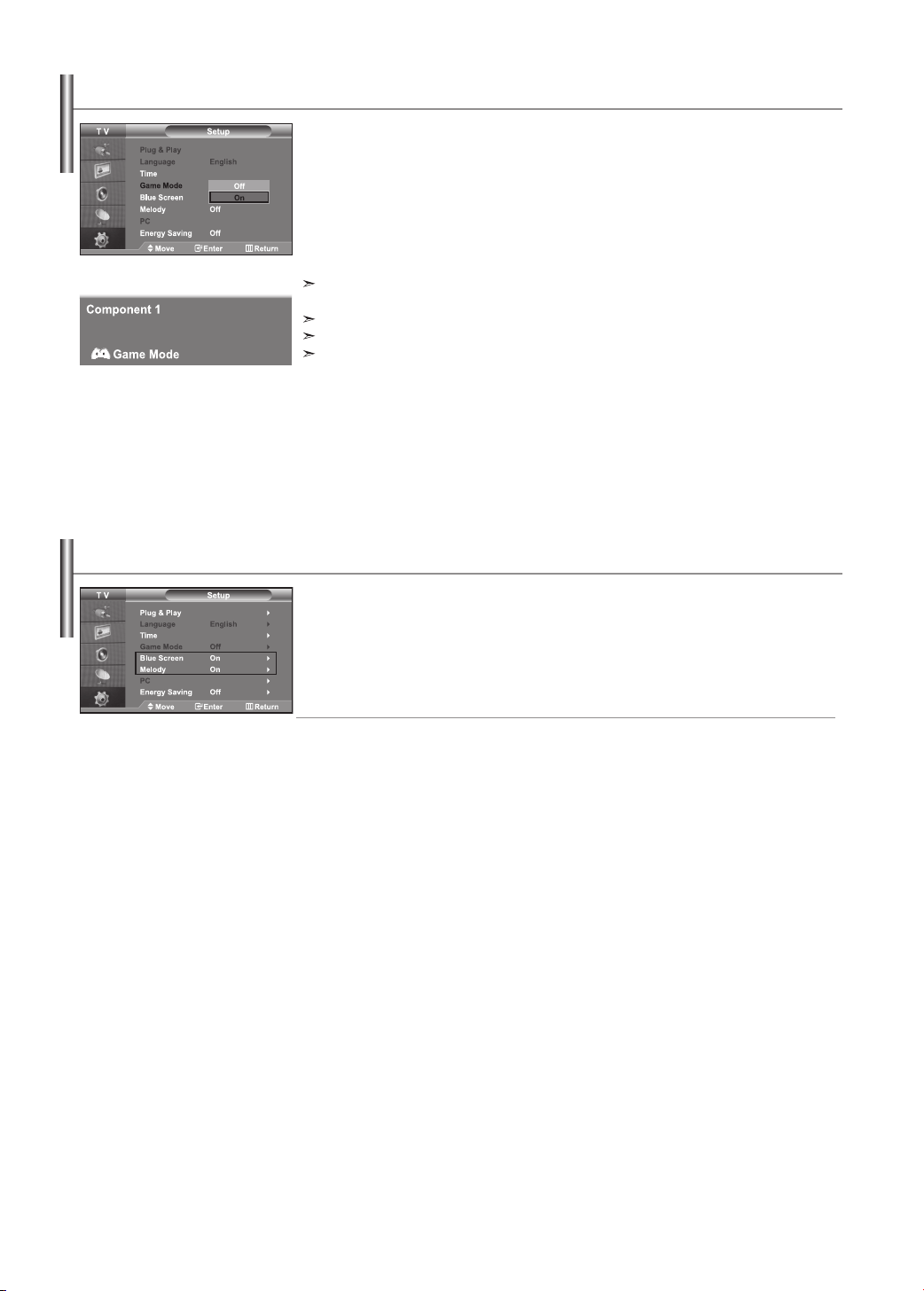
Blue Screen:
If no signal is being received or the signal is very weak, a blue screen automatically replaces
the noisy picture background. If you wish to
continue viewing the poor picture, you must set the "Blue Screen"
mode to "Off".
Melody:
You can hear melody sound when the television is powered on or off.
1. Press the MENU button to display the menu. Press the or button to select “Setup”,
then press the ENTER button.
2. Press the or button to select “Blue Screen” or “Melody”.
Press the ENTER button.
3.
Press the or button to select “On” or “Off”.
Press the
ENTER
button.
4. Press the EXIT button to exit.
Setting the Blue Screen Mode / Selecting the Melody
When connecting to a game console such as PlayStation
TM
or Xbox
TM
,
you can enjoy a more realistic gaming experience by selecting game menu.
1. Press the MENU button to display the menu. Press the or button to select “Setup”,
then press the ENTER button.
2. Press the or button to select “Game Mode”, then press the ENTER button.
3.
Press the or button to select “On” or “Off”. Press the
ENTER
button.
4. Press the EXIT button to exit.
To disconnect the game console and connect another external device, cancel game
mode in the picture menu.
If you display the TV menu in Game mode, the screen shakes slightly.
Game Mode is not available in TV mode.
If Game Mode is On:
•
Picture Mode and Sound Mode are automatically changed to Custom and users cannot change the mode.
• Sound Mode in the Sound menu is deactivated. Adjust the sound using the equalizer.
• The Reset Sound function is activated. Selecting the Reset function after setting the equalizer resets
the equalizer setting to the factory defaults.
Using Game Mode

English-20
This function adjusts the brightness of the TV so as to reduce power consumption. When you
watching TV at night, set the "Energy Saving " mode option to "High" so as to reduce the
dazzling of your eyes as well as the power consumption.
1. Press the MENU button to display the on-screen menu.
Press the or button to select “Setup”, then press the ENTER button.
2. Press the or button to select “Energy Saving”, then press the ENTER button.
3. Select the required option (Off, Low, Medium, High) by pressing the or button.
Press the ENTER button.
4. Press the EXIT button to exit.
Using the Energy Saving Feature
You can select among external sources connected to
your TV’s input jacks.
1. Press the MENU button to display the menu.
Press the ENTER button, to select “Input”.
2. Press the ENTER button again, to select “Source List”.
When no external device is connected to your set, only “TV” are activated in the “Source List”.
“AV1”, “AV2”, “S-Video”, “Component1”, “Component2”,
“PC”, “HDMI”, "DTV" are activated only when they are connected to your set.
26 inch model supports TV, AV1, S-Video, Component1, Component2, PC, HDMI and DTV only.
3. Select the required device by pressing the or button.
Press the ENTER button.
Selecting the Source
Press the SOURCE button on the remote control to toggel between all the available source.
TV mode can be
selected by pressing the
TV/DTV
button, number buttons(0~9), and the
P
/
button on the remote
control. But it cannot be selected using the SOURCE button.
Name the device connected to the input jacks to make your input source selection easier.
1. Press the MENU button to display the menu.
Press the ENTER button, to select “Input”.
2. Press the or button to select “Edit Name”, then press the ENTER button.
3. Press the or button to select the device that you wish to edit.
Press the ENTER button.
4. Press the or button to select the required device.
Press the ENTER button.
5. Press the EXIT button to exit.
26 inch model supports AV1, S-Video, Component1, Component2, PC, and HDMI only.
Editing the Input Source Names

English-21
You can select these options by simply
pressing the D.MENU button on the
remote control.
To help you navigate around the on-screen menu system and adjust the various
settings available, refer to the following illustration.
Available in the Digital TV mode.
Previewing the DTV Menu System
Press the D.MENU button.
Guide
Now & Next Guide
Full Guide
Scheduled List
Default Guide
Now/Next, Full Guide
Feature
Subtitle
Subtitle Language
Audio Language
Audio Format
On, Off
Channel
Auto Store
Manual Store
Edit Favourite Channels
Channel Manager
Preference
Translucency Level
Parental Lock
High, Medium, Low, Opaque
Parental Rating
Change PIN
System
Product Information
Signal Information
Time Zone
Software Upgrade
Reset
Updating the Channel List Automatically
You can update the channel list when the broadcaster adds new Services or if you move
the TV to a new location.
1. Press the D.MENU button to display the DTV menu.
2. Press the or button to select "Channel", then press the ENTER button.
3. Press the ENTER button again, to select "Auto Store".
4. When it has finished, the number of scanned services will be displayed.
The existing favourite channel list will not be deleted when the channel list is updated.
To stop the scan before it has finished, press the
ENTER
button with "STOP" selected.
5. Press the EXIT button to exit.
If the signal status is poor, the “No service found! Check the aerial connection.” message is displayed.
MPEG
Dolby Digital
New South Wales/ACT
Victoria
Queensland
South Australia
Western Australia
Tasmania
Northern Territory
English-22
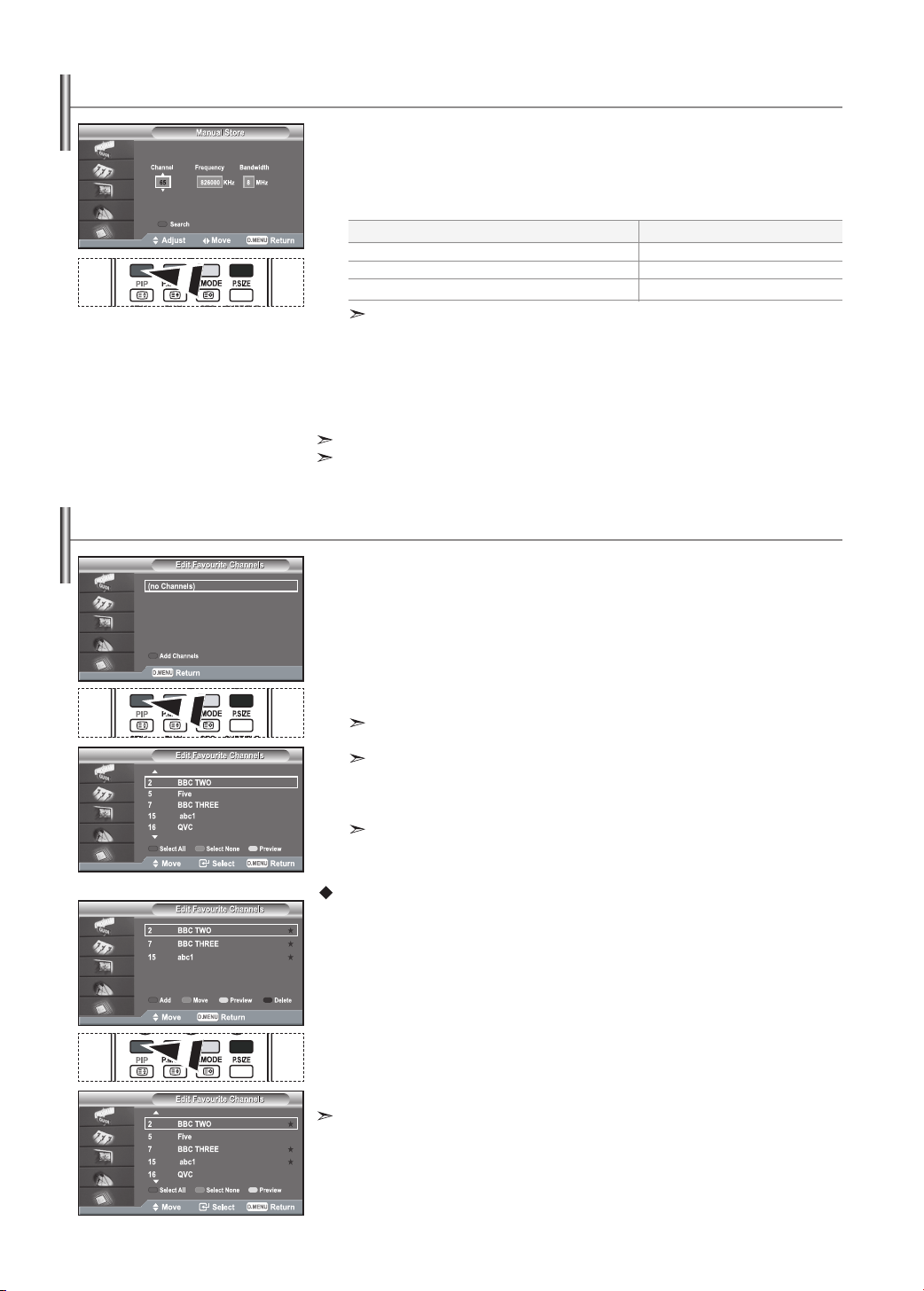
You can specify the channel or frequency for a fast channel search.
1. Press the D.MENU button to display the DTV menu.
2. Press the or button to select "Channel", then press the ENTER button.
3. Press the or button to select "Manual Store", then press the ENTER button.
4.
•
Channel: Channel “6” to “12” and "27" to "69" in sequence are displayed.
•
Frequency: The frequency available in the Channel group is displayed.
•
Bandwidth: The available bandwidths are 7 and 8 MHz.
5. Press the red button to start the scan for digital services.
When it has finished,channels are updated in the channel list.
6. Press the EXIT button to exit.
You can input by pressing the button on the remote control.
You can not change only Frequency and when changing a channel, the Frequency will be
automatically changed.
Updating the Channel List Manually
Editing Your Favourite Channels
You can edit your favourite channels using the four colour buttons.
1. Press the D.MENU button to display the DTV menu.
2. Press the or button to select "Channel", then press the ENTER button.
3. Press the or button to select "Edit Favourite Channels",
then press the ENTER button.
4. Press the red button to display all currently stored channels.
5. Press the or button to select a channel you want. Press the ENTER button.
A "
★
" icon is shown next to the selected channel and the channel will be added to the
favourite channel list.
•
To undo, press the ENTER button again.
•
Select All: Select all channels currently displayed.
•
Select None: Deselect all selected channels.
•
Preview: Displays (a) currently selected channel(s).
The Favorite Channels settings have been completed.
6. Press the EXIT button to exit.
Add
You can use this function when one or more favourite channels have been selected.
1. Press the D.MENU button to display the DTV menu.
2. Press the or button to select "Channel", then press the ENTER button.
3. Press the or button to select "Edit Favourite Channels",
then press the ENTER button.
4. Press the red button in the "Edit Favourite Channels" menu.
To add more channels, refer to the step 5 on the previous description.
5.
If you want to check the channel to be stored, press D.MENU button.
Press the EXIT button to exit.
• To add all channels to the favourite channel list, press the red button.
• To remove all channels, press the green button.
• Preview : Displays (a) currently selected channel(s).
• Press the CH MGR button to display the favourite channel manager.
To...
Move to "Channel", "Frequency", or "Bandwidth"
Set the "Channel", or "Bandwidth"
Set the "Frequency"
Then...
or button
or button
Numeric button (0~9)
English-23
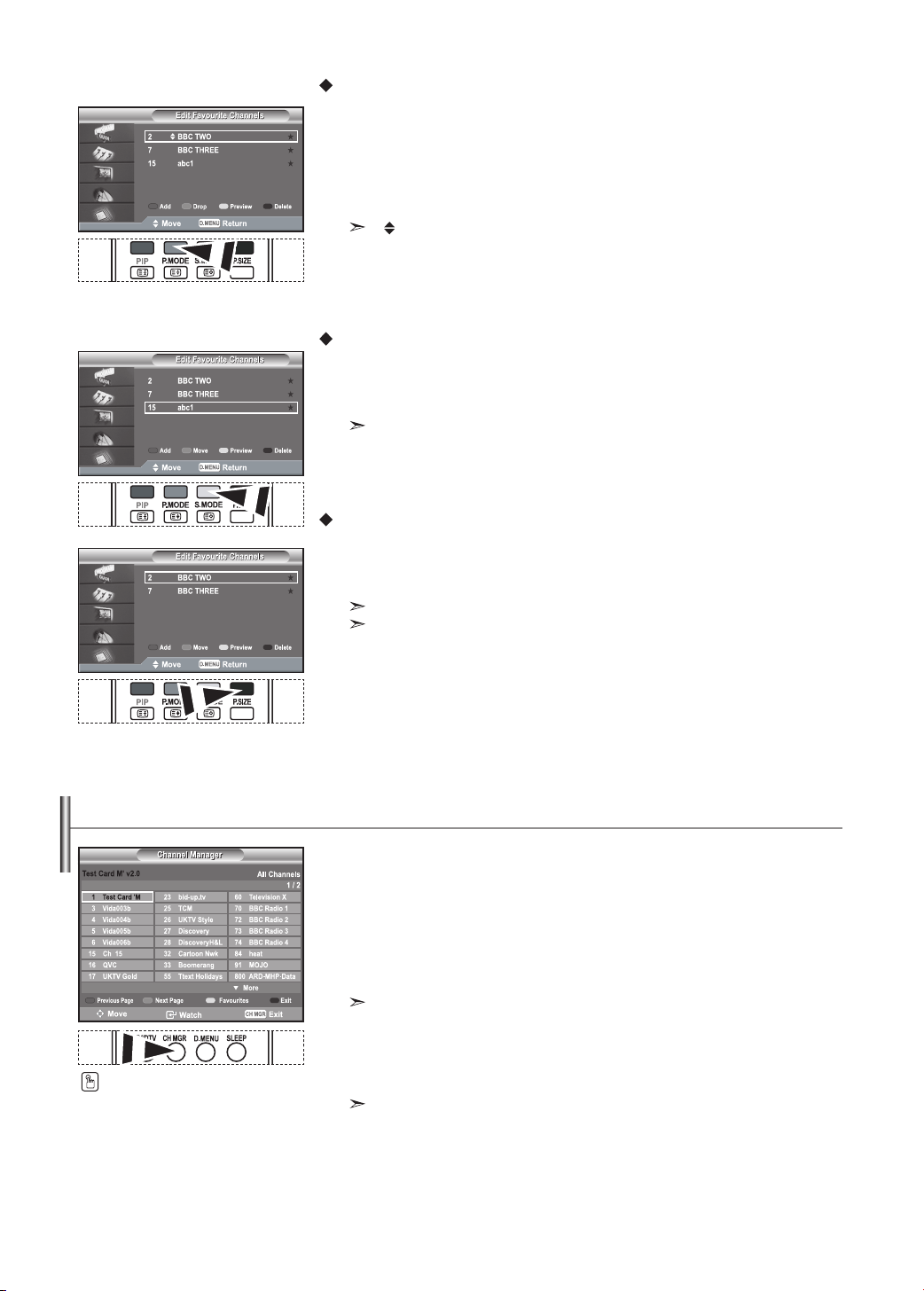
Move
1. Press the D.MENU button to display the DTV menu.
2. Press the or button to select "Channel", then press the ENTER button.
3. Press the or button to select "Edit Favourite Channels", then press the ENTER button.
4. Select the required channel using the or button.
5. Press the green button.
A "
" icon is displayed on the left side of the channel name.
6. Press the or button to select the channel that you want to move,
and press the green or ENTER button.
7. Press the EXIT button to exit.
Preview
1. In the "Edit Favourite Channels" menu,
select the channel to be previewed by pressing the or button.
2. Press the yellow button.
The selected channel is displayed on the screen.
Delete
1. In the "Edit Favourite Channels" menu, select the channel to be deleted
from the favourite channels list by pressing the or button.
2. Press the blue button.
The selected channel and number will be deleted.
To add a deleted channel back in to the favourite channel list, see "Add" on page 22.
You can exclude the channels you have chosen from the channels you have scanned.When you
scan through the stored channels, those you have chosen to skip are not displayed. All channels
that you do not specifically choose to skip are displayed during scanning.
1. Press the D.MENU button to display the DTV menu.
2. Press the or button to select "Channel", then press the ENTER button.
3. Press the or button to select "Channel Manager". Press the ENTER button.
4. Press the yellow button to toggle between your favourite channels and all channels.
Your favourite channels are only displayed if they were previously set in the
" Editing Your Favourite Channels" menu (refer to page 22~23).
5. Press the red or green button to display the previous or next channel manager page.
6. Press the or button to select a channel to be tuned.
Press the ENTER button.
The channel number, name and an icon are displayed in the top left corner while changing the
channel. The channel number and name are displayed if the channel is one of the all channels, and
a icon if the channel is one of the favourite channels.
7. Press the blue or CH MGR button to exit from the channel manager.
Selecting Channel Manager
You can select these options by simply
pressing the CH MGR button on the
remote control.

English-24
If the next program is selected, it is scheduled with the clock icon displayed.
If the ENTER
button is pressed again, the scheduling is canceled with the clock icon gone.
For details about scheduling programmes, refer to the next page.
To. ..
Watch a programme in the EPG list
View programme information
Toggle between the
"Now & Next Guide" or "Full Guide"
Display the "Favourites" and the "All
Channels" list
Scrolls backwards quickly (2 hours).
Scrolls forward quickly (2 hours).
Exit the guide
Then...
•
Select a programme by pressing
the , , , button.
•
Press the
ENTER
button.
• Select a programme of your choice by pressing
the
, , ,
button.
•
Press the INFO button when the programme
of your choice is highlighted.
• Press the red button repeatedly.
• Press the green button repeatedly.
• Press the yellow button repeatedly.
• Press the blue button repeatedly.
• Press the EXIT button.
The programme title is on the upper part of the screen center.
Please click on INFO
button for the detailed information. Channel Number,
Running Time, Status Bar, Parental Level, Video Quality Information(HD/SD),
Sound Modes, Subtitle or Teletext, Languages of Subtitle or Teletext, and brief
summary of the highlighted programme are included on the detailed
information. "..." will be appeared if the summary is long.
Six channels are displayed.
To scroll between channels, move to a channel using the or button.
To display page by page, use the P
or
button.
Viewing the EPG (Electronic Programme Guide) Information
The EPG (Electronic Programme Guide) information is provided by the
broadcasters. Programme entries may appear blank or out of date as a result of the
information broadcast on a given channel. The display will dynamically update as soon as new
information becomes available.
Now & Next Guide
For the six channels indicated in the left-hand column, displays the Current programme and the
Next programme information.
Full Guide
Displays the programme information as time ordered One hour segments.
Two hours of programme information is displayed which may be scrolled
forwards or backwards in time.
1. Press the D.MENU button to display the DTV menu.
2. Press the ENTER button, to select "Guide".
3. Press the or button to select "Now & Next Guide" or "Full Guide".
Press the ENTER button.
You can also display the guide menu simply by pressing the GUIDE button.
4.
Displaying Programme Information
While viewing a channel, additional information about the current programme may be
displayed.
1. While viewing a programme, press the INFO button.
The programme information is displayed.
2. To exit from banner information, press the INFO button.
English-25
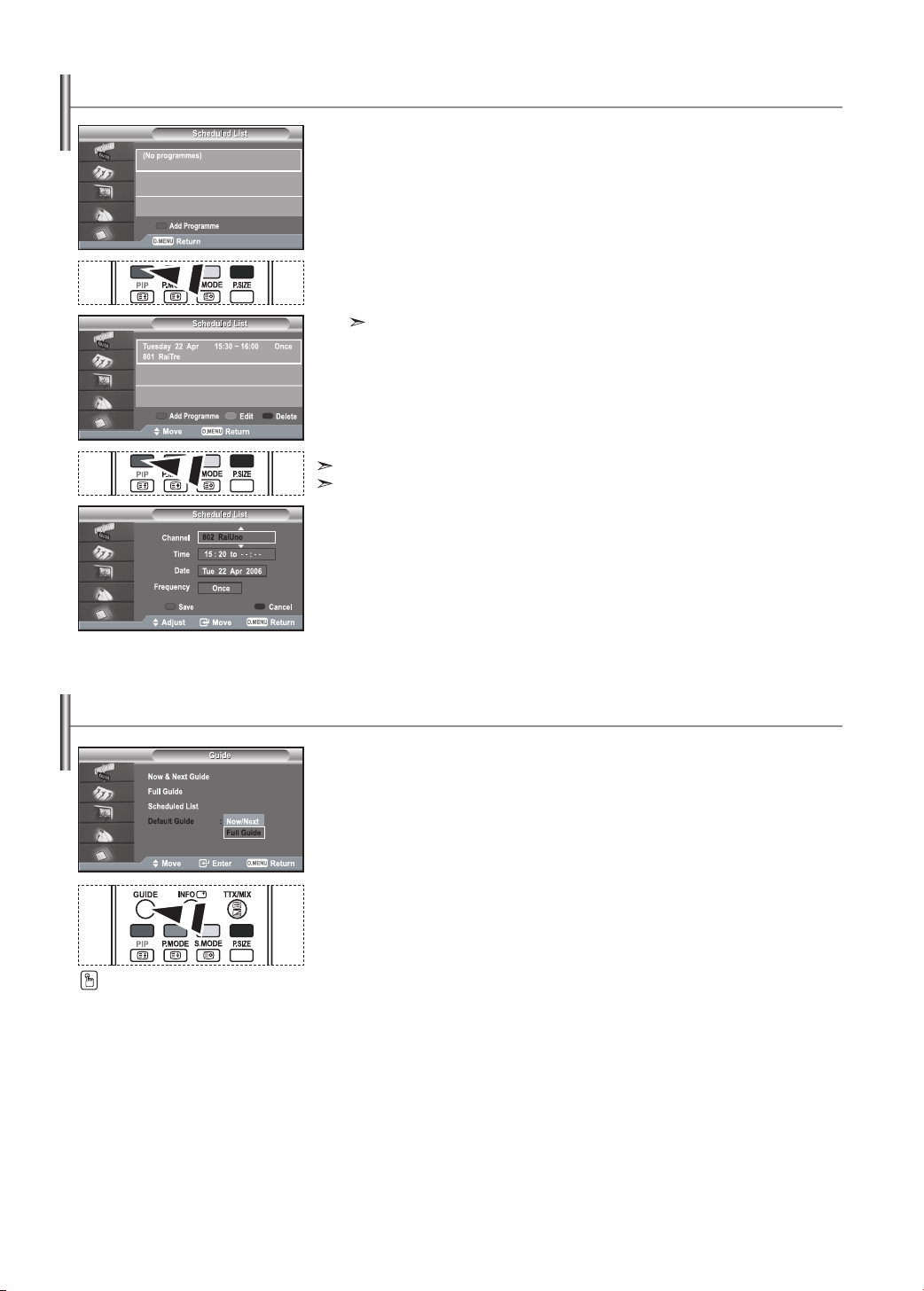
If you make a scheduled viewing list of programs you may like to see,
the channel will be automatically switched to the scheduled program at the scheduled time
even if you are watching another program.
1. Press the D.MENU button to display the DTV menu.
2. Press the ENTER button, to select "Guide".
3. Press the or button to select "Scheduled List", then press the ENTER button.
4. Press the red button.
The channel will be switched to the scheduled program.
5. Press the ENTER button to select an item and adjust with the or button .
You can also set hour and minute by pressing the number buttons on the remote control.
•
Channel: Set the channel.
•
Time: Set the time.
•
Date: Set Year, Month and Day.
•
Frequency: Set the frequency. ("Once", "Daily", or "Weekly")
6. After setting the schedule, Press the red button.
7. Press the EXIT button to exit.
The Scheduled list may be displayed in the EPG menu.
•
Save: Save the adjusted schedule.
•
Cancle: Cancel the adjusted schedule.
•
Add Programme: Add a new schedule.
•
Edit: Re-adjust the selected schedule.
•
Delete: Delete the selected schedule.
Using the Scheduled List
You can preset the default guide style.
1. Press the D.MENU button to display the DTV menu.
2. Press the ENTER button, to select "Guide".
3. Press the or button to select "Default Guide", then press the ENTER button.
4.
Select "Now/Next" or "Full Guide" using the
or
button, and press the ENTER button.
5. Press the EXIT button to exit.
Setting the Default Guide
You can select these options
by simply pressing the GUIDE
button on the remote control.
English-26
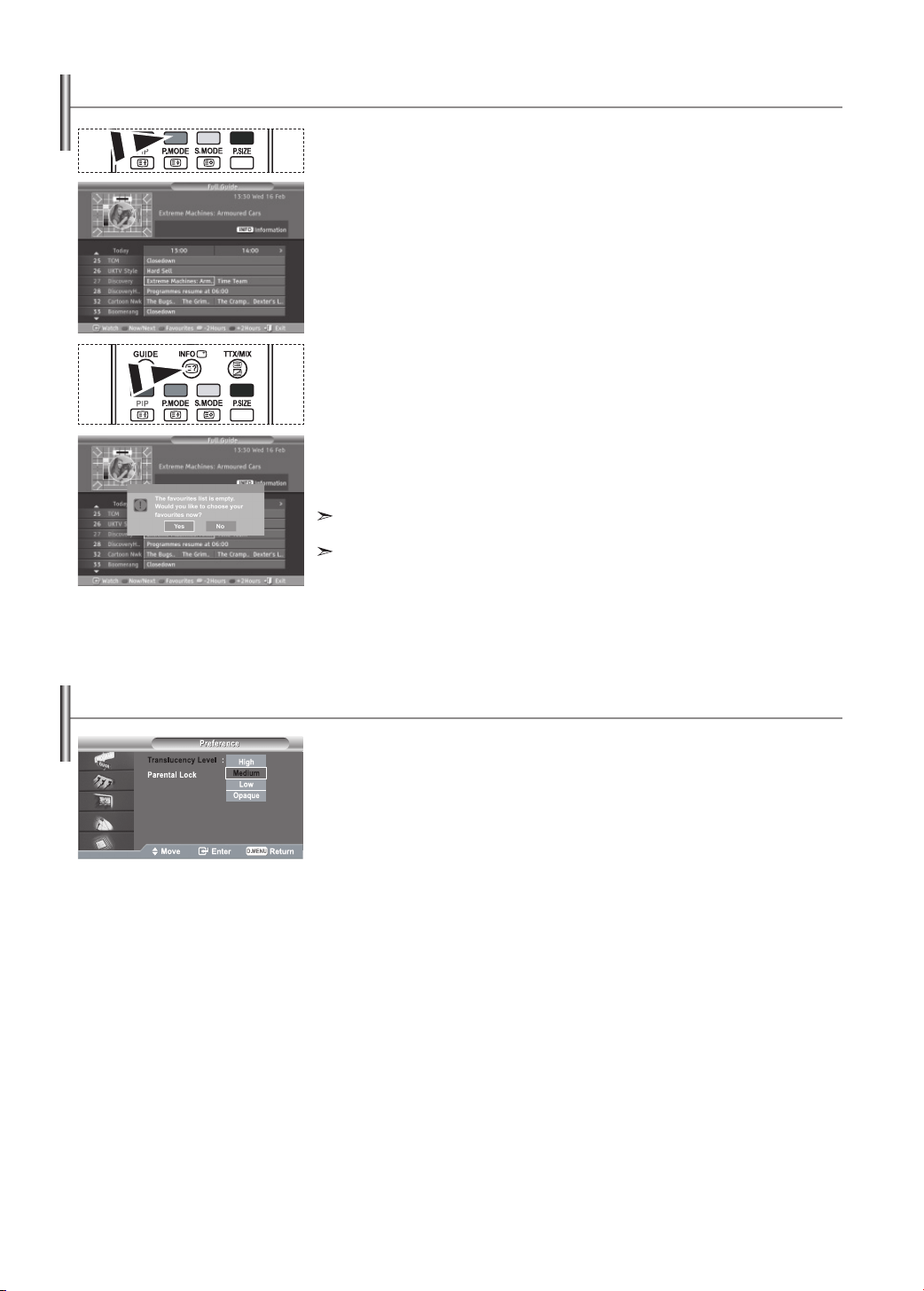
In the EPG menu, you can display all channels or favourite channels.
1. Press the D.MENU button to display the DTV menu.
2. Press the ENTER button again, to select "Guide".
3. Select the your required guide ("Now & Next Guide" or "Full Guide")
by pressing the or button.
4. Press the ENTER button.
5. Press the green button.
All the channel lists and the favorite channel lists will be toggled.
6. Select a programme of your choice by pressing the , , , or button.
7. Press the INFO button to display information about the highlighted programme.
8. When the Edit Favourite Channels list has not been set up:
•
"The favourites list is empty.
Would you like to choose your favourites now?" message is displayed.
•
Select “Yes”.
The "Edit Favourite Channels" menu is displayed.
If you select “No”, all channels will remain unchanged.
• To edit the favourite channels, refer to page 22 for more details.
9 . Press the EXIT button to exit.
"
All Channels" is the list of channels that have been scanned by the channel list update.
All channels are displayed in the all channel mode.
"
Favourites" (favourite channels) is the list of channels that has been set in the
"Edit Favourite Channels" menu (refer to page 22)
Viewing All Channels and Favourite Channels
Adjusting the Translucency Level
You can set the translucency of the menu.
1. Press the D.MENU button to display the DTV menu.
2. Press the or button to select "Preference", then press the ENTER button.
3. Press the or button to select "Translucency Level", then press the ENTER button.
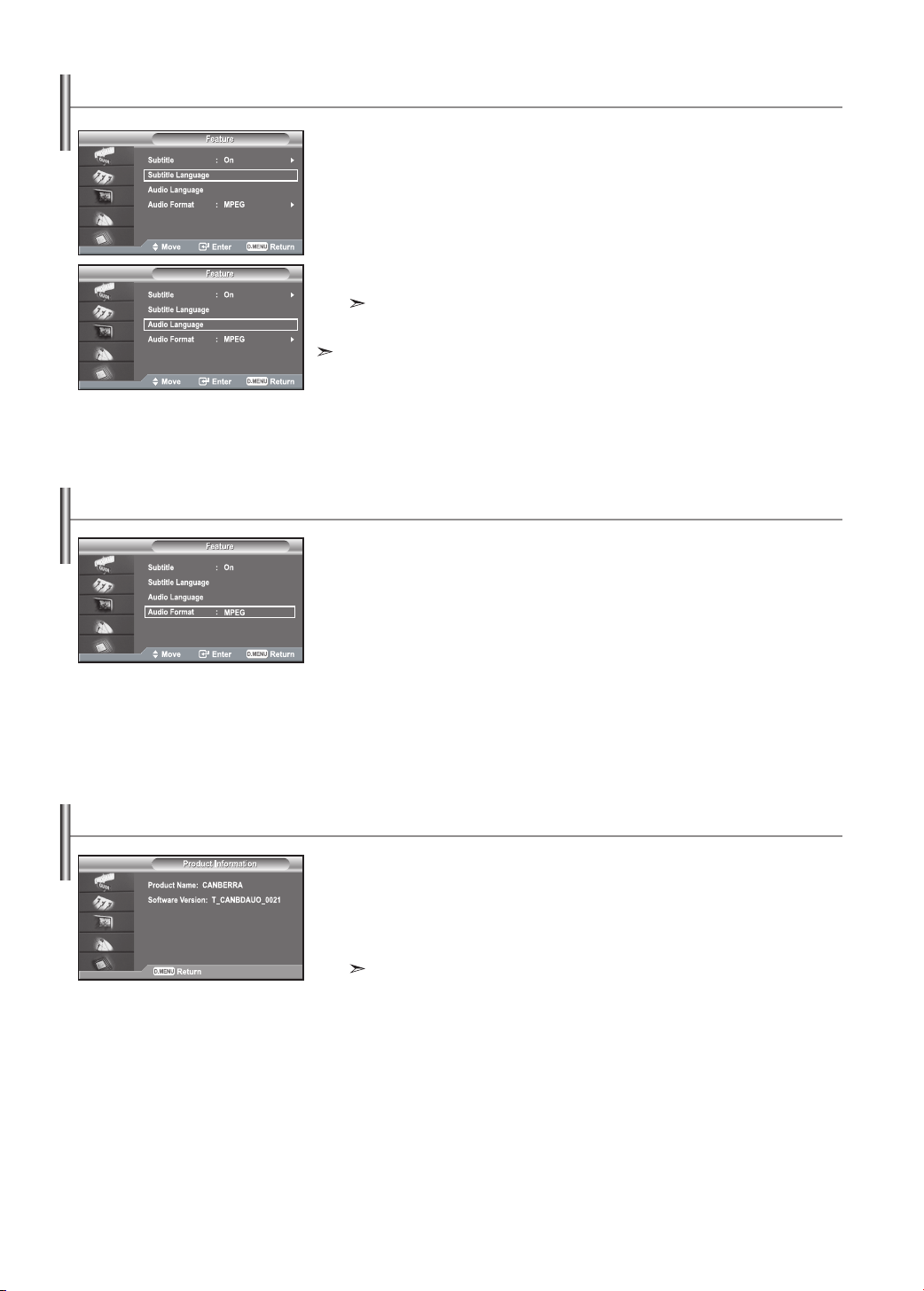
4. Select the required option ("High", "Medium", "Low", or "Opaque") by pressing
the or button, and press the ENTER button to change the setting.
5. Press the EXIT button to exit.

English-27
Setting up the Parental Lock
This feature allows you to prevent unauthorized users, such as children, from watching
unsuitable programmes by a 4-digit PIN (Personal Identification Number) code that is defined
by the user. The on-screen menu will instruct you to assign a PIN code (you can change it later,
if necessary).
1. Press the D.MENU button to display the DTV menu.
2. Press the or button to select "Preference", then press the ENTER button.
3. Press the or button to select "Parental Lock.", then press the ENTER button.
4.
The "Enter PIN" is displayed.
5. Enter your current 4-digit PIN code by using the numeric buttons (0~9).
The options available in the "Parental Lock" group are displayed with the
"Parental Rating" selected.
The default PIN code for a new TV set is 0000.
If you enter an invalid PIN code,the "Invalid PIN code. Please try again."
message is displayed.
6. Press the ENTER button.
7. Press the or button to select the age rating you want to lock out.
Press the ENTER button.
8. If you want to change the PIN code,select "Change PIN" by pressing
the or button. Press the ENTER button.
The "Enter New PIN" is displayed.
9. Enter your new PIN code by using the numeric buttons (0~9).
The "Confirm New PIN" is displayed.
10. Re-enter your new PIN code to confirm by using the numeric buttons (0~9).
The Your PIN code has been changed successfully message is displayed.
11. Press the ENTER button.
12. Press the EXIT button to exit.
If you forget the PIN code, press the remote control buttons in the following sequence, which resets the
PIN to 0-0-0-0: POWER (Off), MUTE, 8, 2, 4, POWER (On).
Setting the Subtitle
You can activate and deactivate the subtitles.
1. Press the D.MENU button to display the DTV menu.
2. Press the or button to select "Feature", then press the ENTER button.
3. Press the ENTER button again, to select "Subtitle".
4. Select "On" by pressing the or button. Press the ENTER button.
5. Press the EXIT button to exit.
You can also set these options simply by
pressing the SUBTITLE button on remote
control.
English-28
Selecting the Preferred Language (Subtitle or Audio)
Setting the Audio Format
Viewing Product Information
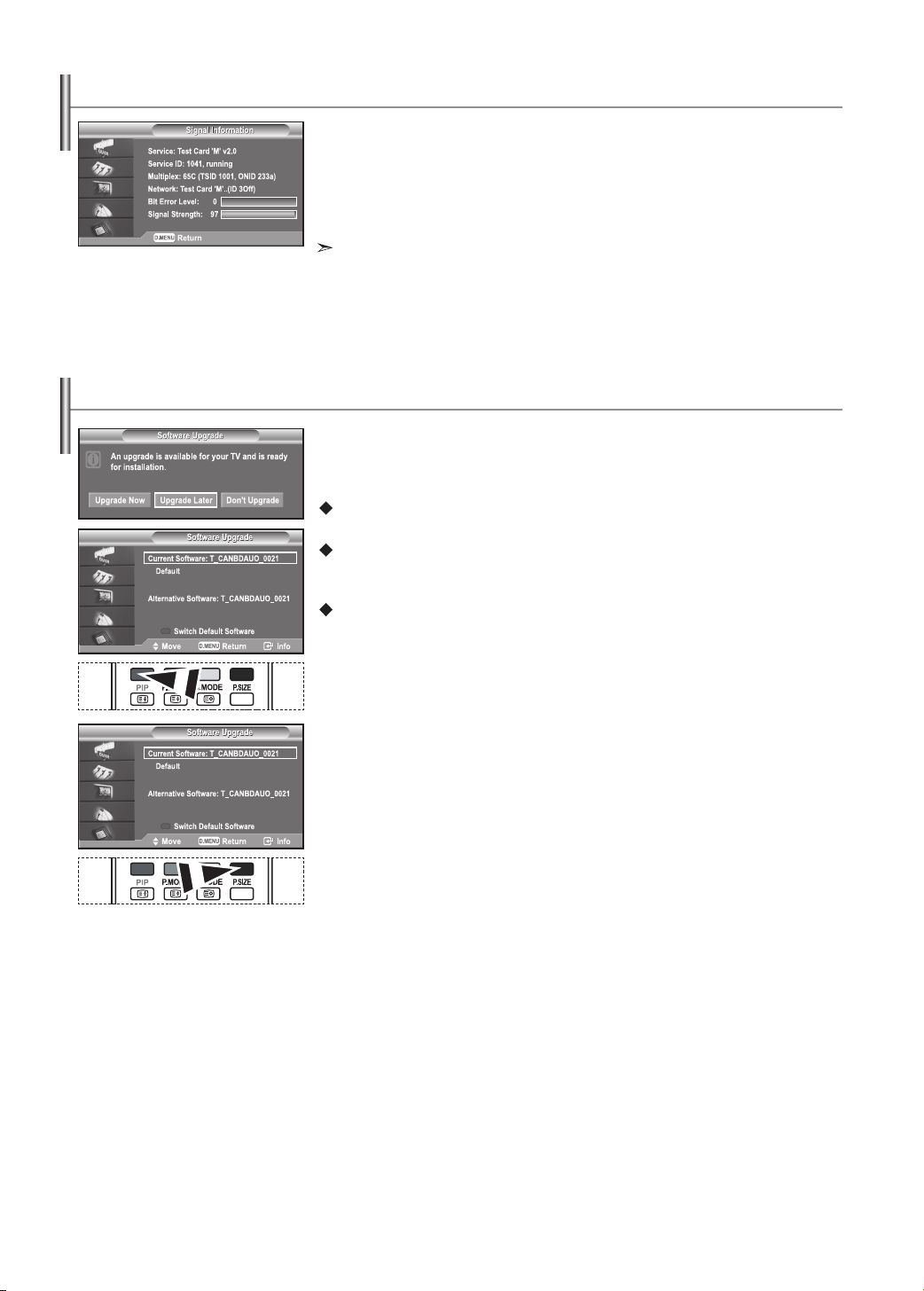
You can change the default value for subtitle and audio languages.
Displays the language information for the incoming stream.
1. Press the D.MENU button to display the DTV menu.
2. Press the or button to select "Feature", then press the ENTER button.
3. Press the or button to select "Subtitle Language" or
"Audio Language". Press the ENTER button.
4. Select the required option by pressing the or button, and press the
ENTER button to change the setting.
English is the default in cases where the selected language is unavailable in the broadcast.
5. Press the EXIT button to exit.
While viewing a programme, the subtitle can be selected.
While viewing a programme, audio languages can be selected.
You can preset the default guide style.
1. Press the D.MENU button to display the DTV menu.
2. Press the or button to select "Feature", then press the ENTER button.
3. Press the or button to select "Audio Format", then press the ENTER button.
4. Select the required option by pressing the or button, and press the
ENTER button to change the setting.
5. Press the EXIT button to exit.
You can view your product information. For service or repair, please contact a Samsung
approved dealer.
1. Press the D.MENU button to display the DTV menu.
2. Press the or button to select "System", then press the ENTER button.
3.
Press the ENTER button again, to select "Product Information".
The Product Information menu is selected.
- Software Version, Firmware Version
4. Press the EXIT button to exit.
English-29
Checking the Signal Information
Upgrading the Software (Option)
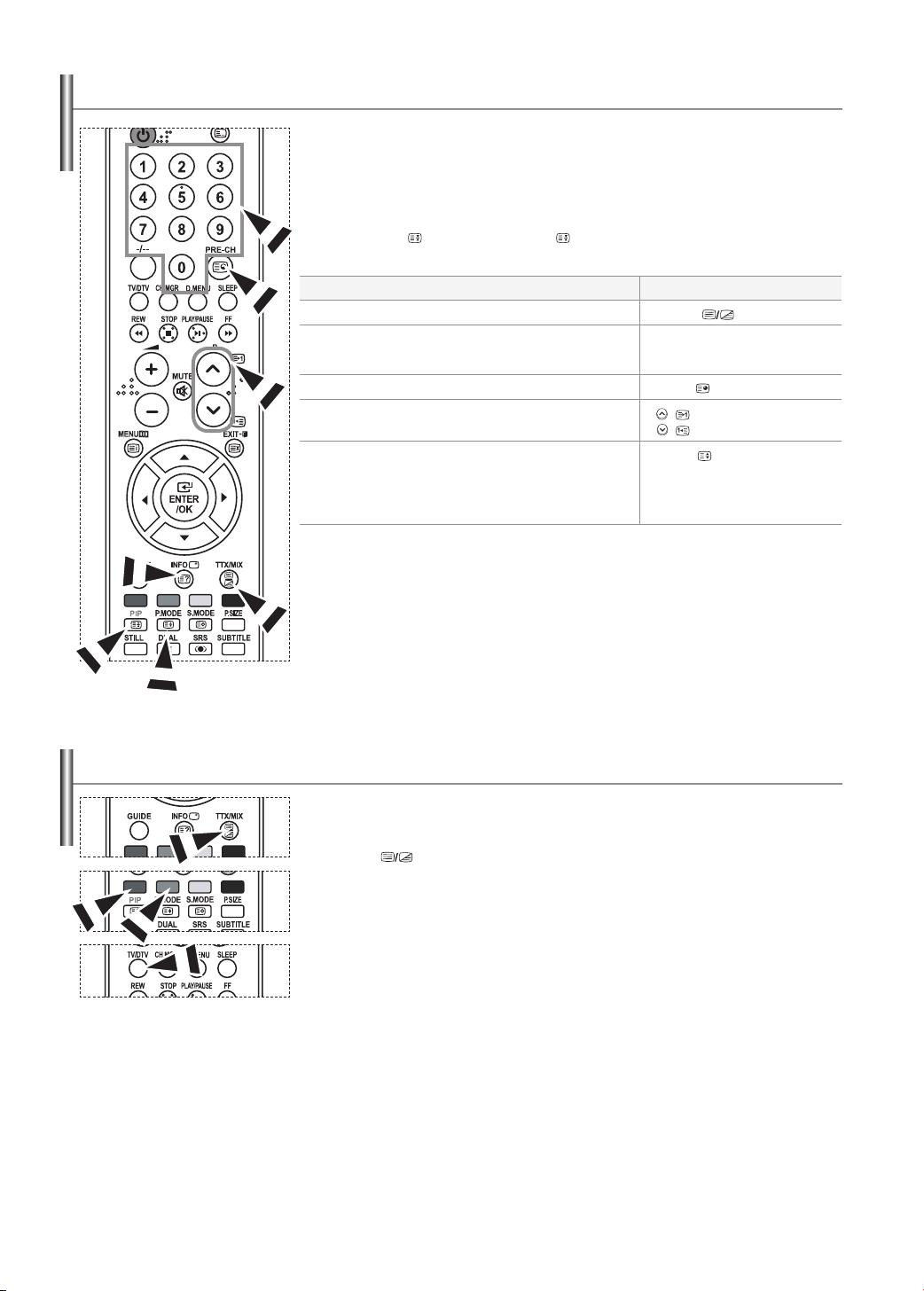
You can get information about the signal status.
1. Press the D.MENU button to display the DTV menu.
2. Press the or button to select "System", then press the ENTER button.
3. Press the or button to select "Signal Information", then press the ENTER button.
4. Press the EXIT button to exit.
If the signal status is poor, the "No signal." message is displayed.
To keep your product up-to-date with new Digital Television features then software upgrades
are periodically broadcast as part of the normal Television signal.
It will automatically detect these signals and display the software upgrade banner. You are
given the option to install the upgrade.
Upgrade Now
If you select "Upgrade Now", the "iDTV" immediately installs the new upgrade and then restarts.
Upgrade Later
If you select "Upgrade Later", the upgrade is postponed until the next restart or channel change
some 90 minutes later, when the upgrade dialog appears again.
Don’t Upgrade
If you select "Don’t Upgrade", the "iDTV" does not perform the upgrade and the software upgrade
banner is not displayed again.
The upgrade is still stored internally, to subsequently upgrade to the new version then the
following sequence of steps are performed.
1. Press the D.MENU button to display the DTV menu.
2. Press the or button to select "System", then press the ENTER button.
3. Press the or button to select "Software Upgrade", then press the ENTER button.
4. To switch to an alternative version, press the red button.
Press the blue button to reset, activate the upgrade and restart.
5. Press the EXIT button to exit.

English-30
You can reset the values stored to the factory default values.
The Reset operation deletes all channel information and user preferences returning
all values to their default factory state.
1. Press the D.MENU button to display the DTV menu.
2. Press the or button to select "System", then press the ENTER button.
3. Press the or button to select "Reset", then press the ENTER button.
4. The "Enter PIN" screen will appear.
5. Enter your current 4-digit PIN code by using the numeric buttons (0~9).
The warning message is displayed.All values will be reset by pressing the
coloured buttons (red, green, yellow, and blue)in turn.
6. Press the EXIT button to exit.
Resetting
Select the time zone where locate
1. Press the D.MENU button.
2. Press the or button to select System.
3. Press the or button to select Time Zone.
4. Select the time zone where you locate by pressing the or button.
Press the ENTER button.
The following options are available.
New South Wales/ACT - Victoria - Queensland - South Australia - Western Australia - Tasmania
- Northern Territory
6. Press the EXIT button to exit.
Selecting the Time Zone

English-31
Most set channels carry “ teletext ”, pages of written
information that provide information such as:
Television programme times.
News bulletins and Weather forecasts.
Sports results.
Subtitles for the hard of hearing.
The teletext pages are organized according to six categories:
Part Contents
A
Selected page number.
B
Broadcasting station identity.
C
Curre nt page number or search status.
D
Date and time.
E
Text.
F
Status information.
Teletext Decoder
You can display teletext information at any time, but signal reception must be good.
Otherwise:
Information may be missing.
Some pages may not be displayed.
To activate the teletext mode and display the contents page:
1. Using the P
( ) or P ( ) button, select the channel providing the teletext service.
2. Press the TTX/MIX (
) button to activate the teletext mode.
The contents page is displayed. It can be redisplayed at any time by pressing the
MENU ( ) button.
3. Press the TTX/MIX ( ) button again.
The actual broadcast will be displayed with “Teletext”, “Double”, and “Mix” in order
on the screen.
4. Press the TV/DTV button to exit from the Text display.
If any broken character appears while Text is being viewed, make sure that the
Text language is identical with the language in the “Setup” menu mode. If both languages are different,
select the same language with the Text language on the “Setup” menu.
Displaying the Teletext Information
English-32
Press the number buttons on the remote control to enter the page number directly:
1.
Enter the three-digit page number listed in the contents by pressing the corresponding
numeric buttons.
2.
If the selected page is linked with several secondary pages, the secondary pages are dis
played in sequence. To freeze the display on a given page,
press the
PIP
( ) button. Press the
PIP
( ) button again to resume.
3. Using the various display options:
To display... Press the...
Both teletext information and the normal broadcast
TTX/MIX (
)
Hidden text (answers to quiz games, for example)
The normal screen
INFO
INFO
A secondary page, by entering its 4-digit number
PRE-CH (
)
The next page
The previous page
P
( )
P
( )
Double-size letters in the:
Upper half of the screen
Lower half of the screen
Normal screen
P.MODE
( )
Once
Twice
Three times
Selecting a Specific Teletext Page
The various topics included in the teletext pages are colour-coded, and can be selected by pressing the col-
oured buttons on the remote control.
1.
Display the teletext contents page by pressing the
TTX/MIX ( )
button.
2. Press the coloured button corresponding to the topic that you wish to select (The available topics
are listed on the status information line).
3. Press the Red button to display the previous page.
Press the Green button to display the next page.
4. Press the TV/DTV button to exit from the Text display.
Using Fastext to Select a Teletext Page

English-33
After it has been set up properly, your remote control can operate in five different
modes: TV, DVD, Cable, Set-Top Box, VCR. Pressing the corresponding button on the
remote control allows you to switch between these modes, and control whichever piece
of equipment you choose.
The remote control might not be compatible with all DVD Players, VCRs, Cable boxes, and Set-Top Boxes.
Setting Up the Remote to Operate Your VCR
1.
Turn off your VCR.
2. Press the VCR button on your TV’s remote control.
3. Press the SET button on your TV’s remote control.
4.
Using the number buttons on your remote control, enter three digits of the VCR
code listed on page 35 of this manual for your brand of VCR. Make sure you
enter three digits of the code, even if the first digit is a “0”.
(If more than one code is listed, try the first one.)
5.
Press the POWER button on the remote control.
Your VCR should turn on if your remote is set up correctly.
If your VCR does not turn on after set up, repeat steps 2, 3, and 4, but try one of
the other codes listed for your brand of VCR.
If no other codes are listed, try each VCR code, 000 through 080.
Note on Using Remote Control Modes: VCR
When your remote control is in “VCR” mode, the volume buttons still control your TV’s volume.
Setting Up the Remote to Operate Your Cable Box
1.
Turn off your cable box.
2. Press the
CABLE
button on your TV’s remote control.
3. Press the SET button on your TV’s remote control.
4.
Using the number buttons on your remote control, enter three digits of the
cable box code listed on page 36 of this manual for your brand of cable box.
Make sure you enter three digits of the code, even if the first digit is a “0”. (If
there is more than one code listed, try the first one.)
5.
Press the POWER button on the remote control.
Your cable box should turn on if your remote is set up correctly.
If your cable box does not turn on after set up, repeat steps 2, 3, and 4, but try
one of the other codes listed for your brand of cable box. If no other codes are
listed, try each code, 000 through 046.
Note on Using Remote Control Modes: Cable Box
When your remote control is in “CABLE” mode, the volume buttons still control your TV’s volume.
Setting Up Your Remote Control

English-34
Setting Up the Remote to Operate Your DVD
1.
Turn off your DVD.
2. Press the
DVD
button on your TV’s remote control.
3. Press the SET button on your TV’s remote control.
4.
Using the number buttons on your remote control, enter three digits of the DVD
code listed on page 36~37 of this manual for your brand of DVD.
Make sure you enter three digits of the code, even if the first digit is a “0”.
(If there is more than one code listed, try the first one.)
5.
Press the POWER button on the remote control.
Your DVD should turn on if your remote is set up correctly.
If your DVD does not turn on after set up, repeat steps 2, 3, and 4, but try one of
the other codes listed for your brand of DVD.
If no other codes are list-ed, try each code, 000 through 141.
Note on Using Remote Control Modes: DVD
When your remote control is in “DVD” mode, the volume buttons still control your TV’s volume.
Setting Up the Remote to Operate Your STB
1.
Turn off your STB.
2. Press the
STB
button on your TV’s remote control.
3. Press the SET button on your TV’s remote control.
4.
Using the number buttons on your remote control, enter three digits of the STB
code listed on page 37 of this manual for your brand of STB.
Make sure you enter three digits of the code, even if the first digit is a “0”.
(If there is more than one code listed, try the first one.)
5.
Press the POWER
button on the remote control.
Your STB should turn on if your remote is set up correctly.
If your STB does not turn on after set-up, repeat steps 2, 3 and 4, but try one of
the other codes listed for your brand of STB.
(If no other codes are listed, try each code, 000 through 074.)
Note on Using Remote Control Modes: STB
When your remote control is in “STB” mode, the volume buttons still control your TV’s volume.

English-35
VCR
Brand Code
SAMSUNG 000 001 002 003 004 005 077 078 079
ADMIRAL 020
AIWA 025
AKAI 004 027 032
AUDIO DYNAMICS 007 026
BELL&HOWELL 018
BROKSONIC 022
CANDLE 002 003 006 008 015 055
CANON 021 056
CITIZEN 002 003 006 008 015 055
COLORTYME 007
CRAIG 002 024
CURTIS MATHES 002 007 008 017 021 025 056 064 066
DAEWOO 003 010 011 012 013 014 015 016
DB 007 026
DIMENSIA 017
DYNATECH 025
ELECTROHOME 034
EMERSON
001 003 006 021 022 025 030 032 034 040 047 050
052 060 063 065 066 067 069 073
FISHER 018 024 028 029 048 051 061
FUNAI 025
GENERAL ELECTRIC
002 005 017 021 056
GO VIDEO 002
HARMAN KARDON 007
HITACHI 019 025 041 042 074
INSTANT REPLAY 021
JC PENNEY
002 007 018 019 021 026 037 041 054 056
JCL
007 008 018 021 026 037
JVC
081 082 083
KENWOOD
007 008 018 021 026 037
KLH
070
KONIA
036
LG(Goldstar)
006 007 008 009 010
LIOYD
025
LOGIK
038
LXI
025
MAGNAVOX
021 056 059
MARANTZ
007 008 018 021 026 037 062
MARTA
006
MEI
021
MEMOREX
006 021 024 025
MGA
034
MIDLAND
005
MINOLTA
019 041 075
MITSUBISHI
019 034 041 046
Brand Code
MONTGOMERY WARD
020
MTC 002 025
MULTITECH 002 005 025 038
NEC 007 008 018 026 037 062 064
OPTIMUS 020
ORION 073 074 075 076
PANASONIC 021 056 071 072
PENTAX 019 041 075
PENTEX RESEARCH+
008
PHILCO 021 056 059
PHILIPS 021 080
PIONEER 019 026 039 053
PORTLAND 015 049 055
PROSCAN 017
QUARTZ 018
QUASAR 021 056
RADIO SHACK/
REALISTIC
006 018 020 021 024 025 029 034 048 056
RCA
002 017 019 021 035 041 043 057 068 076
SANSUI 026
SANYO 018 024
SCOTT 003 047 052 067
SEARS 006 018 019 024 028 029 041 048 051
SHARP 020 034 045 015
SHIMTOM 027 033 038 058
SIGNATURE 025
SONY 027 033 044
SYLVANIA 021 025 056 059
SYMPHONIC 025
TANDY 018 025
TASHIKA 006
TATUNG 037
TEAC 025 037 068
TECHNICS 021
TEKNIKA 006 021 025 031
TMK 066
TOSHIBA 003 019 029 051 052
TOTEVISION 002 006
UNITECH 002
VECTOR RESEARCH
007 026
VICTOR 026
VIDEO CONCEPTS 007 026
VIDEOSONIC 002
WARDS
002 003 006 019 020 021 024 025 034 038 041
YAMAHA 007 008 018 026 037
ZENITH 023 027 033
Remote Control Codes

English-36
CABLE BOX
Brand Code
SAMSUNG 000 001 002 003 004 005 006 007
GI 041
HAMLIN 003 024 031
HITACHI 025 030
JERROLD 038 039
MACOM 025 030
MAGNAVOX 019 023 028
OAK 026
PANASONIC 003 022 027 037 044
PHILIPS 019 021 023 028
PIONEER 004 018 020 044
RCA 014 022 040
REGAL 003
Brand Code
REGENCY 015 023
SA 042 043
SCIENTIFIC ATLAN 042 043
SPRUCER 022
STARGATE 2000 036
SYLVANIA 016
TEXSCAN 016
TOCOM 032
UNIVERSAL 033 034
VIEWSTAR 019 021 023 028
WARNER AMEX 046
ZENITH 017 029 035 037 045
SAMSUNG DVD
Product Code
DVD 000 001 002
DVDR 003 004
BD Record 005 006
VCR COMBO 007 008 009 010 011
VCR Record 012
DHR COMBO 013
Product Code
Home Theater VCR COMBO 014 015 016
HDD Recorder COMBO 017
TWIN TRAY COMBO 018
STB DVD COMBO 019
DVD Receiver 020
AV Receiver 021
DVD
Brand Code
ANAM 030
AUDIOVOX 075
AUDIOLOGIC 085
ANABA 072
APEX DIGITAL 070 071 074 086 083 084 088 111 112
AIWA 114
BROKSONIC 062
BLAUPUNKT 074
B&K 122 123
CURTIS MATHES 027
CYBER HOME 077 078 079 082
CLARION 080 125
CIRRUS 081
CYBER HOME 065
CINEVISION 095
DAEWOO 066
DENON 146
FARENHEIT 067 068
FISHER 090
GPX 060
GO VIDEO 061 089 133 135
GE 069 074
GREENHILL 074
HITACHI 064 113
HITEKER 071
HOYO 073
HARMAN / KARDON
091 110
IRT 089
Brand Code
INTEGRA 092
JBL 091
JVC 022 033 115 116
JATON 073
KENWOOD 051 108 109
KISS 073
KONKA 059 100 106 107
KLH 074 075
LG(Goldstar) 025 031
LOEWE 057
LASONIC 058
MOBILE AUTHORITY
054
MEMOREX 055
MALATA 056
MAGNAVOX 076 093
MINTEK 074 094
MONYKA 073
NORCENT 048 049 050
NEXT BASE 052
NEC 053
NANTAUS 144
NESA 074
OPTOMEDIA ELECTRONICS
105
OPTIVIEW 072
ONKYO 076 092 119
PHILCO 044 045
PRINCETON 046 047
PROSCAN 023
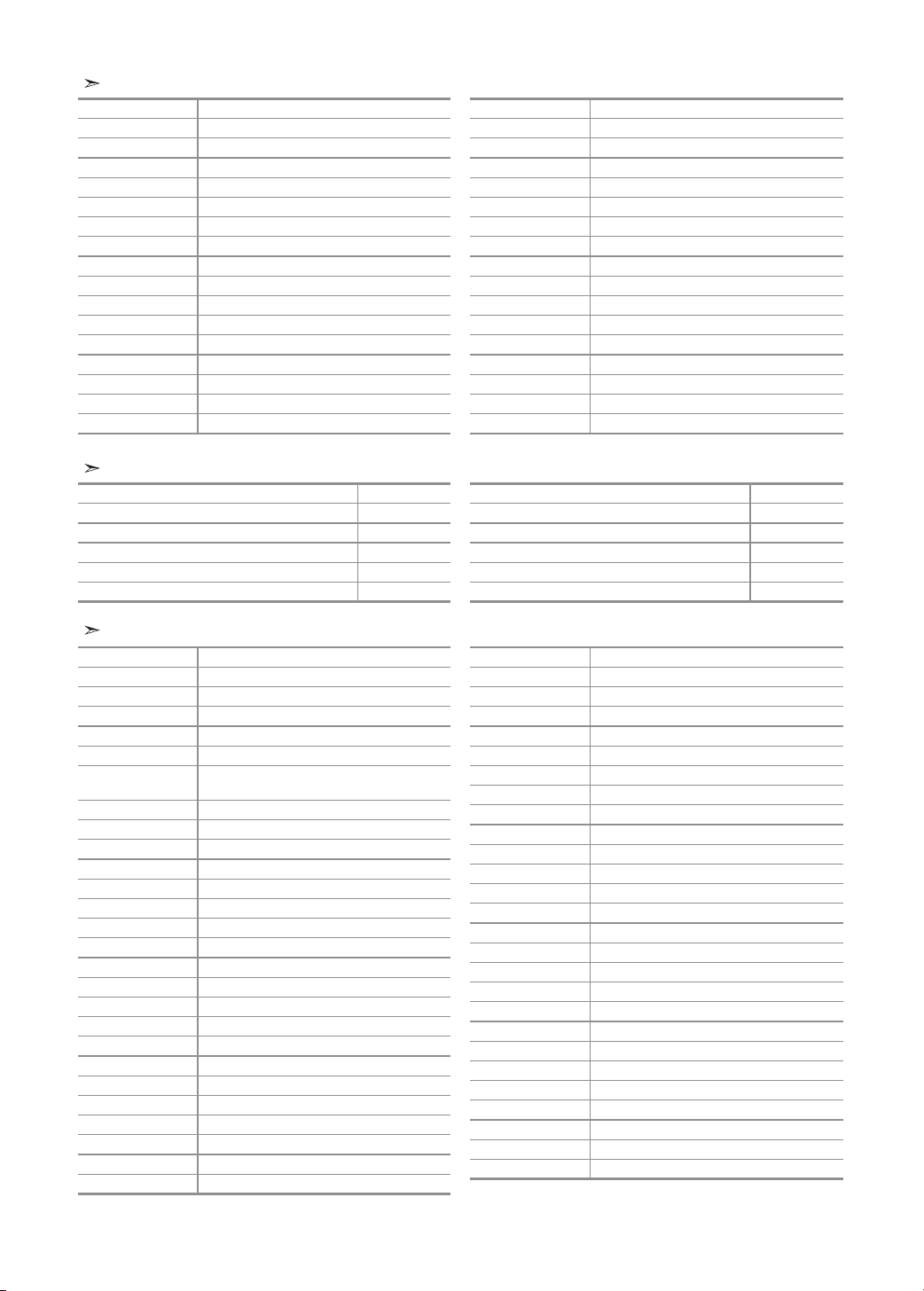
English-37
DVD
Brand Code
PANASONIC 024 034 124 134 136 137 138
PHILIPS 036 076
ROTEL 117 118
RIO 120
RCA 023 035 074 075 131 132
RAITE 073
ROWA 038
SAMPO 104
SONY 026 029 126 127 128 129 130 141
SHERWOOD 039 041
SVA 042
SYLVANIA 043 093
SHARP 140
SANSUI 062
SANYO 062 090
SHINSONIC 094
Brand Code
THOMSON 145
TOSHIBA 028 062 076
TECHNICS 139
TVIEW 072
TOKAI 073
TEAC 096
TECHWOOD 097
TREDEX 098 099 101
URBAN CONCEPTS
076
VENTURER 075
VOCOPRO 102
YAMAHA 032 063
YAMAKAWA 040 073
XWAVE 103
ZENITH 076 121
SAMSUNG SET-TOP BOX
Product Code
Satellite STB HDD COMBO Premium 010
CABLE STB HDD COMBO Standard 011
CABLE STB HDD COMBO Premium 012
Ground wave STB HDD COMBO Standard 013
Ground wave STB HDD COMBO Premium 014
Product Code
Ground wave STB 001 002
Satellite STB 003
CABLE STB 004
STB DVD COMBO 008
Satellite STB HDD COMBO Standard 009
SET-TOP BOX
Brand Code
ALPHASTAR 023
ANAM 043
CHANNEL MASTER 018 034
CROSSDIGITAL 019
CHAPARRAL 035
DIRECT TV 015 016 017 019 022 045 060 061 062 065 066
067 068
DAEWOO 074
DISH NETWORK SYSTEM
069 070
DISHPRO 069
DRAKE 018 024 032
DX ANTENNA 027
ECHOSTAR 025 069 070 071
EXPRESSVU 069
GOI 069
GE 065
GENERAL INSTRUMENT
046 047 048 063 064
HTS 069
HOME CABLE 056
HITACHI 022
HUGHES NETWORK
015 017
IQ 020
IQ PRISM 020
JANEIL 059
JERROID 063
JVC 069 070
LG(Goldstar) 044 073
Brand Code
MAGNAVOX 016 021 036 038 039 040 041 042
MEMOREX 016
MOTOROLA 064
MACOM 018
MITSUBISHI 015
NEXT LEVEL 047 048 064
PHILIPS 015 016 017 021 033 036 038 039 040 041 042 067
PRIMESTAR 046 049 050 063
PANASONIC 058 059 061 062
PAYSAT 016
PROSCAN 065 066
RCA 051 052 053 065 066
RADIOSHACK 064
REALISTIC 057
STAR TRAK 026
STS 020 027
SKY 031
SKY LIFE 005 006 007
SHACK 064
STAR CHOICE 064
SONY 054 060
TOSHIBA 015 017 028 029 030 072
ULTIMATE TV 060 066
UNIDEN 016 021 037 055 056 057
ZENITH 024 031 068

English-38
The Windows display-settings for a typical computer are shown below. The actual screens on your PC may be different depending
upon your particular version of Windows and your particular video card. Even if your actual screens look different, the same, basic
set-up information will apply in almost all cases. (If not, contact your computer manufacturer or Samsung Dealer.)
1. First, click on “Control Panel” on the Windows start menu.
2. When the control panel window appears, click on “Appearance and Themes” and a display dialog-box
will appear.
3. When the control panel window appears, click on “Display” and a display dialog-box will appear.
4. Navigate to the “Settings” tab on the display dialog-box.
The correct size setting (resolution): Optimum- 1360 X 768
If a vertical-frequency option exists on your display settings dialog box, the correct value is
“60” or “60 Hz”. Otherwise, just click “OK” and exit the dialog box.
Setting up Your PC Software (Based on Windows XP)
Display Modes
Both screen position and size will vary depending on the type of PC monitor and its resolution.
The resolutions in the table are recommended. (All resolutions between the supported limits are supported)
Mode Resolution
Horizontal
Frequency (kHz)
Vertical
Frequency (Hz)
Pixel Clock
Frequency (MHz)
Sync Polarity
(H/V)
IBM
640 x 480
720 x 400
31.469
31.469
59.940
70.087
25.175
28.322
- / -
- / +
VESA
640 x 480
640 x 480
800 x 600
800 x 600
800 x 600
1024 x 768
1024 x 768
1024 x 768
1360 x 768
37.861
37.500
37.879
48.077
46.875
48.364
56.476
60.023
47.712
72.809
75.000
60.317
72.188
75.000
60.000
70.069
75.029
60.015
31.500
31.500
40.000
50.000
49.500
65.000
75.000
78.750
85.800
- / -
- / -
+ /+
+ /+
+ /+
- / -
- / -
+ /+
+ /+
The interface mode is not supported.
The set might operate abnormally if a non-standard video format is selected.
DVI does not support PC function.
Separate and Composite modes are supported. SOG is not supported.
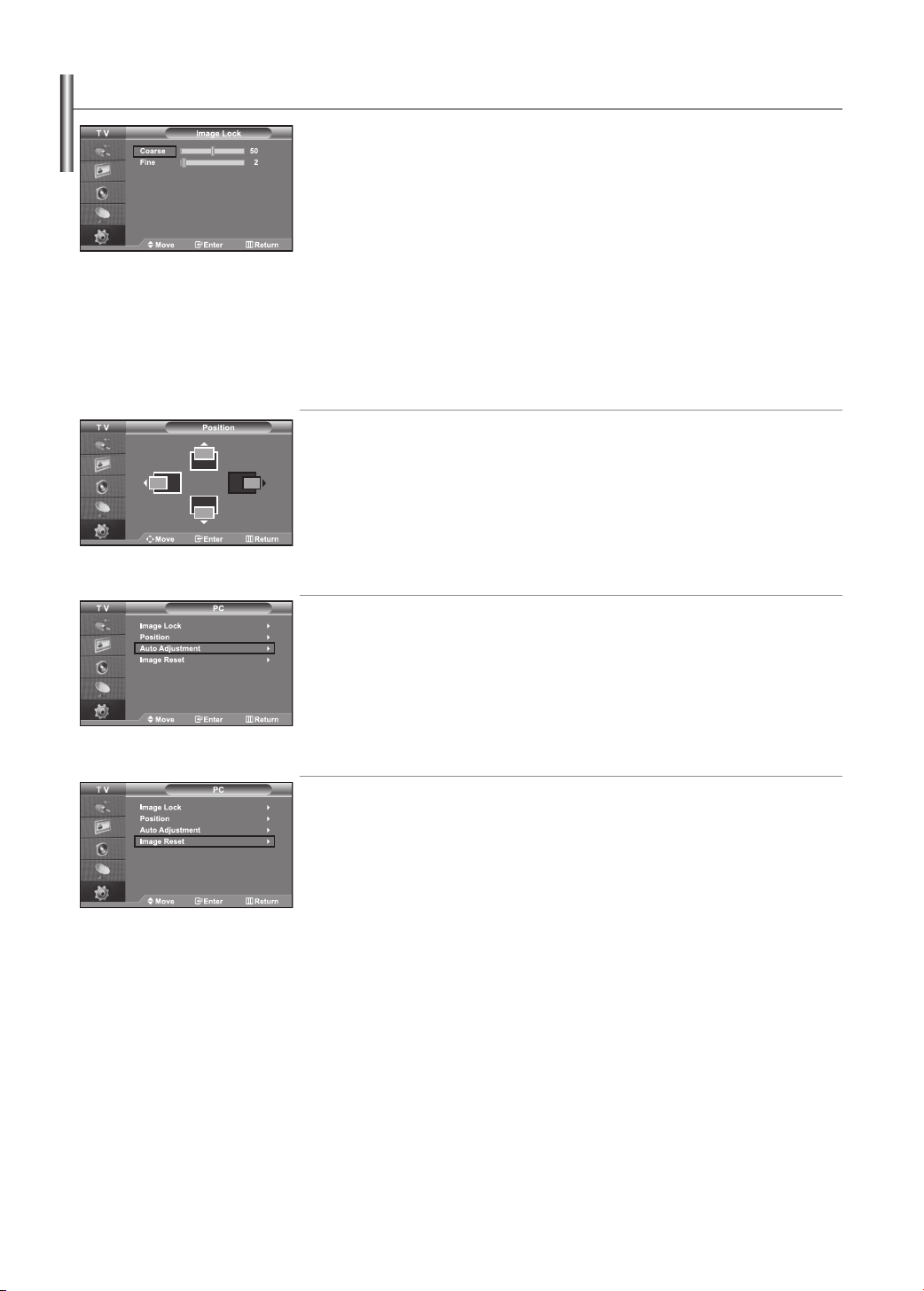
English-39
Setting the PC
Coarse and Fine Tuning of the Image (Image Lock):
The purpose of picture quality adjustment is to remove or reduce picture noise. If the noise is not removed
by Fine-tuning alone, then adjust the
frequency as best as possible (coarse) and Fine-tune again. After the noise has been reduced, re-adjust the
picture so that it is aligned on the center of screen.
1. Preset: Press the SOURCE button to select PC mode.
2. Press the MENU button to display the menu.
Press the or button to select “Setup”, then press the ENTER button.
3. Press the or button to select “PC”, then press the ENTER button.
4. Press the ENTER button to select “Image Lock”.
5. Press the or button to select “Coarse” or “Fine”, then press the ENTER button.
6. Press the or button to adjust the screen quality. Press the ENTER button.
7. Press the EXIT button to exit.
Changing the Image Position (Position):
Adjust the PC’s screen positioning if it does not fit the TV screen.
1. Follow the “Coarse and Fine Tuning of the Image (Image Lock)”
instructions number 1 to 3.
2. Press the or button to select “Position”, then press the ENTER button.
3. Press the or button to adjusting the Vertical-Position.
Press the or button to adjust the Horizontal-Position.
Press the ENTER button.
4. Press the EXIT button to exit.
Adjusting the PC Screen Automatically (Auto Adjustment):
Auto adjustment allows the PC screen of set to self-adjust to the incoming PC video signal.
The values of fine, coarse and position are adjusted automatically.
1. Follow the “Coarse and Fine Tuning of the Image (Image Lock)”
instructions number 1 to 3.
2. Press the or button to select “Auto Adjustment”, then press the ENTER button.
3. Press the EXIT button to exit.
Initializing the Image Settings (Image Reset):
You can replace all image settings with the factory default values.
1. Follow the “Coarse and Fine Tuning of the Image (Image Lock)”
instructions number 1 to 3.
2. Press the or button to select “Image Reset”, then press the ENTER button.
3. Press the EXIT button to exit.
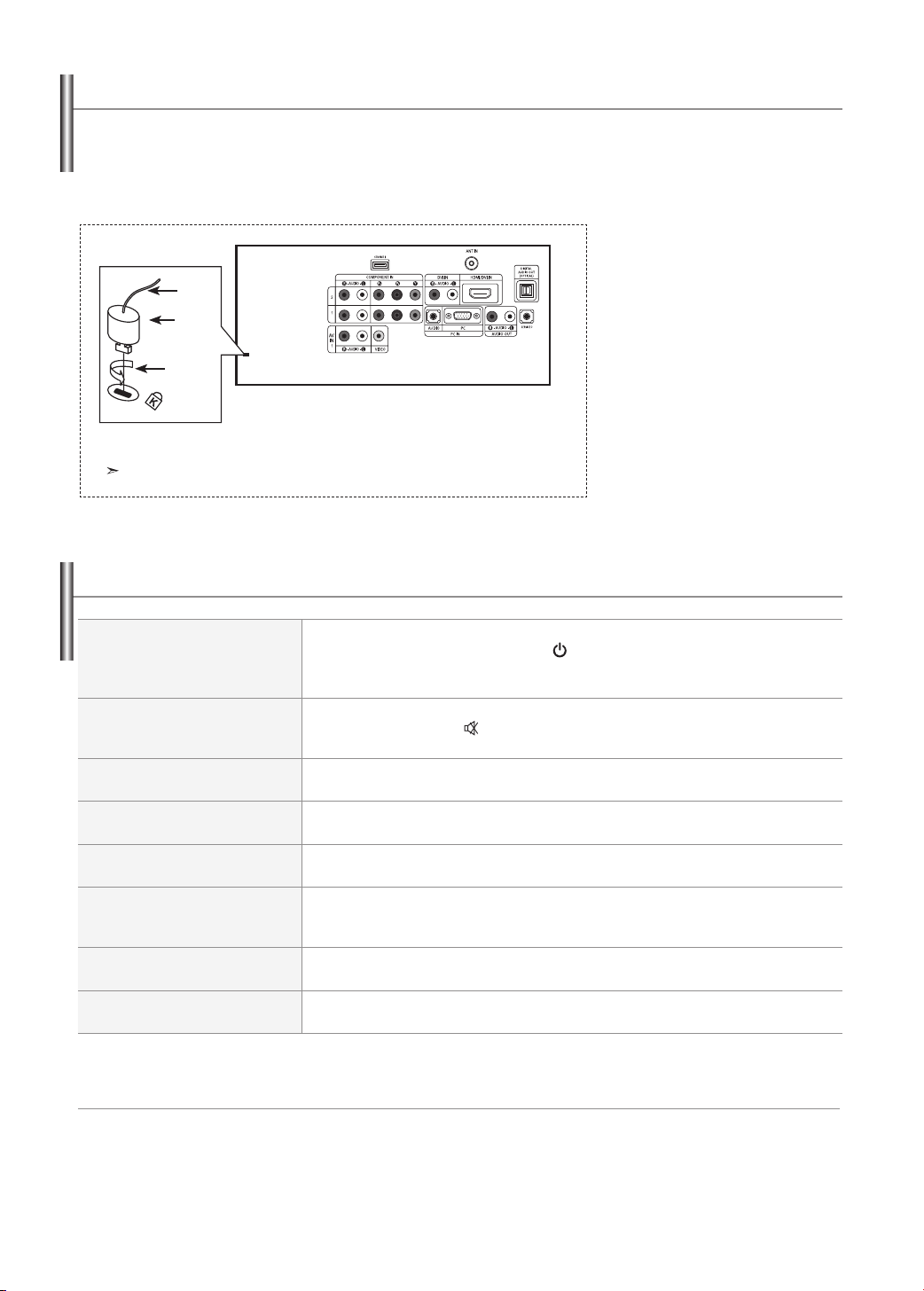
English-40
Troubleshooting: Before Contacting Service Personnel
1. Insert the locking device into
the Kensington slot on the LCD TV
(Figure 1), and turn it in the locking
direction(Figure 2).
2. Connect the Kensington lock cable.
3. Fix the Kensington lock to a desk or a
heavy stationary object.
Using the Anti-Theft Kensington Lock
The Kensington lock is a device used to physically fix the system when using it in a public place.
The locking device has to be purchased separately. The appearance and locking method may differ from the illustration depending on the
manufacturer. Please refer to the manual provided with the Kensington lock for proper use.
<Optional>
The place of the Kensington Lock may be different depending on its model.
No sound or picture
Check that the mains lead has been connected to a wall socket.
Check that you have pressed the POWER buttons on the front of the set.
Check the picture contrast and brightness settings.
Check the volume.
Normal picture but no sound
Check the volume.
Check whether the MUTE
button has been pressed on the remote control.
Check if "Internal Mute" is off.
No picture or black and white picture
Adjust the colour settings.
Check that the broadcast system selected is correct.
Sound and picture interference
Try to identify the electrical appliance that is affecting the set and move it further away.
Plug your set into a different mains socket.
Blurred or snowy picture,
distorted sound
Check the direction, location and connections of your aerial.
This interference is often due to the use of an indoor aerial.
Remote control malfunctions
Replace the remote control batteries.
Clean the upper edge of the remote control (transmission window).
Check the battery terminals.
"Check signal cable."
message is displayed
Check that the signal cable is firmly connected to the PC or video sources.
Check that the PC or video sources are turned on.
On PC mode, "Not Supported Mode."
message is displayed.
Check the maximum resolution and the frequency of the video adaptor.
Compare these values with the data in the Display Modes.
The TFT LCD panel uses a panel consisting of sub pixels (3,133,440) which require sophisticated technology to produce.
However, there may be few bright or dark pixels on the screen. These pixels will have no impact on the performance of the product.
Cable
Figure 1
Figure 2

English-41
Technical and Environmental Specifications
Model Name
LA26R7 LA32R7
Screen Size (Diagonal)
26 inch 32 inch
Power Supply
AC 220-240 V 50 Hz AC 220-240 V 50 Hz
Power Consumption
120 W 152 W
PC Resolution
1360 x 768 @ 60 Hz 1360 x 768 @ 60 Hz
Sound
Output
5 W X 2 10 W X 2
Dimension (WxDxH)
Body
With stand
675 X 75 X 476 mm
675 X 216 X 530 mm
800 X 80 X 549 mm
800 X 252 X 603 mm
Weight
With stand
10.6 kg 15.5 kg
Environmental Considerations
Operating Temperature
Operating Humidity
Storage Temperature
Storage Humidity
10 °C to 40 °C (50 °F to 104 °F)
10 % to 80 %, non-condensing
-20 °C to 45 °C (-4 °F to 113 °F)
5 % to 95 %, non-condensing
10 °C to 40 °C (50 °F to 104 °F)
10 % to 80 %, non-condensing
-20 °C to 45 °C (-4 °F to 113 °F)
5 % to 95 %, non-condensing
Model Name
LA37R7 LA40R7
Screen Size (Diagonal)
37 inch 40 inch
Power Supply
AC 220-240 V 50 Hz AC 220-240 V 50 Hz
Power Consumption
170 W 190 W
PC Resolution
1360 x 768 @ 60 Hz 1360 x 768 @ 60 Hz
Sound
Output
10 W X 2 10 W X 2
Dimension (WxDxH)
Body
With stand
923 x 87 x 619 mm
923 x 326 x 676 mm
992 X 87 X 659 mm
992 X 326 X 713 mm
Weight
With stand
22.8 kg 24.0 kg
Environmental Considerations
Operating Temperature
Operating Humidity
Storage Temperature
Storage Humidity
10 °C to 40 °C (50 °F to 104 °F)
10 % to 80 %, non-condensing
-20 °C to 45 °C (-4 °F to 113 °F)
5 % to 95 %, non-condensing
10 °C to 40 °C (50 °F to 104 °F)
10 % to 80 %, non-condensing
-20 °C to 45 °C (-4 °F to 113 °F)
5 % to 95 %, non-condensing
This device is a Class B digital apparatus.
Stand Swivel (Left / Right)
LA26R7 LA32R7/ LA37R7 LA40R7
-20˚ ~ 20˚
Yes Yes Yes
Design and specifications are subject to change without prior notice.

This page is intentionally
left blank.