User Manual
2022.06v1.0
2
©
2022 DJI All Rights Reserved.
Searching for Keywords
Search for keywords such as “battery” and “install” to nd a topic. If you are using Adobe Acrobat
Reader to read this document, press Ctrl+F on Windows or Command+F on Mac to begin a
search.
Navigating to a Topic
View a complete list of topics in the table of contents. Click on a topic to navigate to that section.
Printing this Document
This document supports high resolution printing.
©
2022 DJI All Rights Reserved.
3
Using this Manual
Legend
Important Hints and Tips Reference
Before You Begin
The following documents have been produced to help you safely operate and make full use of your
DJI
TM
RS 3.
DJI RS 3 Quick Start Guide
DJI RS 3 User Manual
DJI RS 3 Safety Guidelines
Read the entire quick start guide and user manual and watch the informational and tutorial videos on
the product page of the DJI ocial website (https://www.dji.com/rs-3). Read the safety guidelines to
understand your legal rights and responsibilities. If you have any questions or problems during the
installation, maintenance, or use of this product, contact DJI or a DJI authorized dealer.
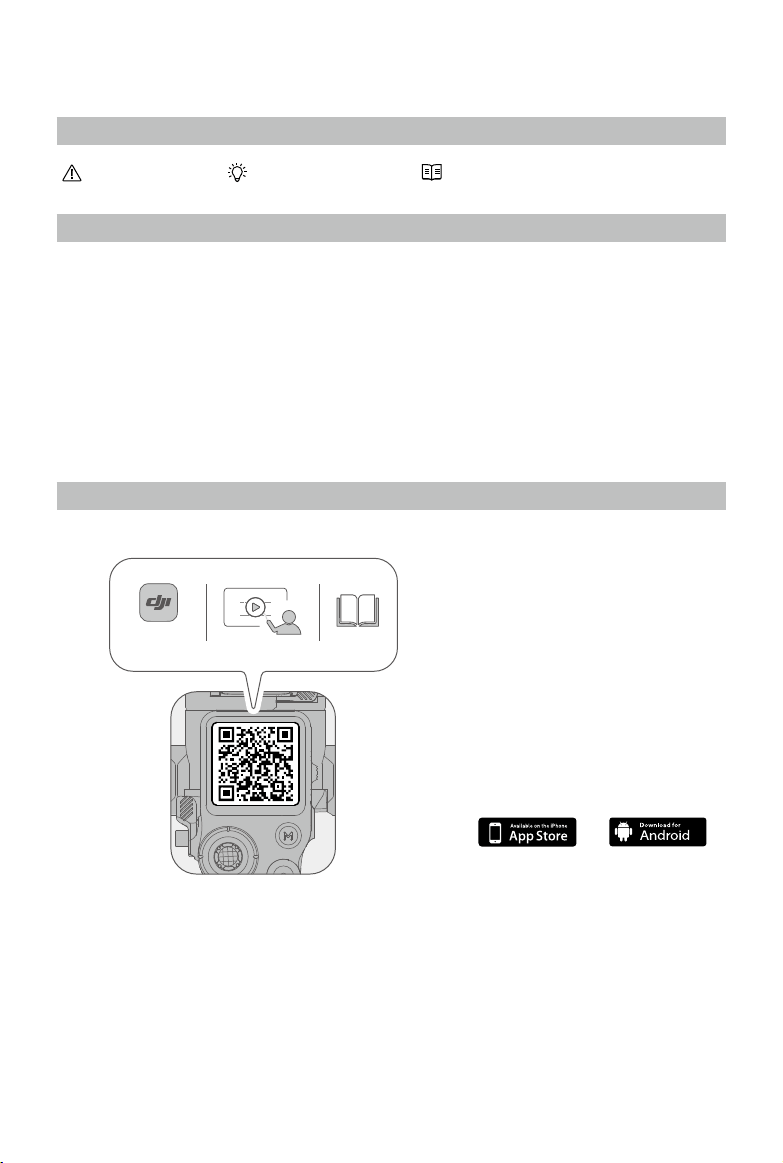
Download the Ronin App and Watch the Tutorial Videos
Android 7.0 or aboveiOS 11.0 or above
https://s.dji.com/guide20
2s
Ronin App

4
©
2022 DJI All Rights Reserved.
Contents
Using this Manual
3
Legend
3
Before You Begin
3
Download the Ronin App and Watch the Tutorial Videos
3
Introduction
5
DJI RS 3 Diagram
6
Using For The First Time
7
Charging the Battery
7
Attaching the Extended Grip/Tripod
7
Activation
8
Firmware Update
8
Mounting the Camera
9
Balancing
12
Briefcase Mode
15
Auto Tune
15
Operations
16
Button and Port Functions
16
Touchscreen
18
Ronin App Settings
22
BG21 Grip and Built-In Battery
33
Operation Modes
36
Maintenance
36
Specications
37

©
2022 DJI All Rights Reserved.
5
Introduction
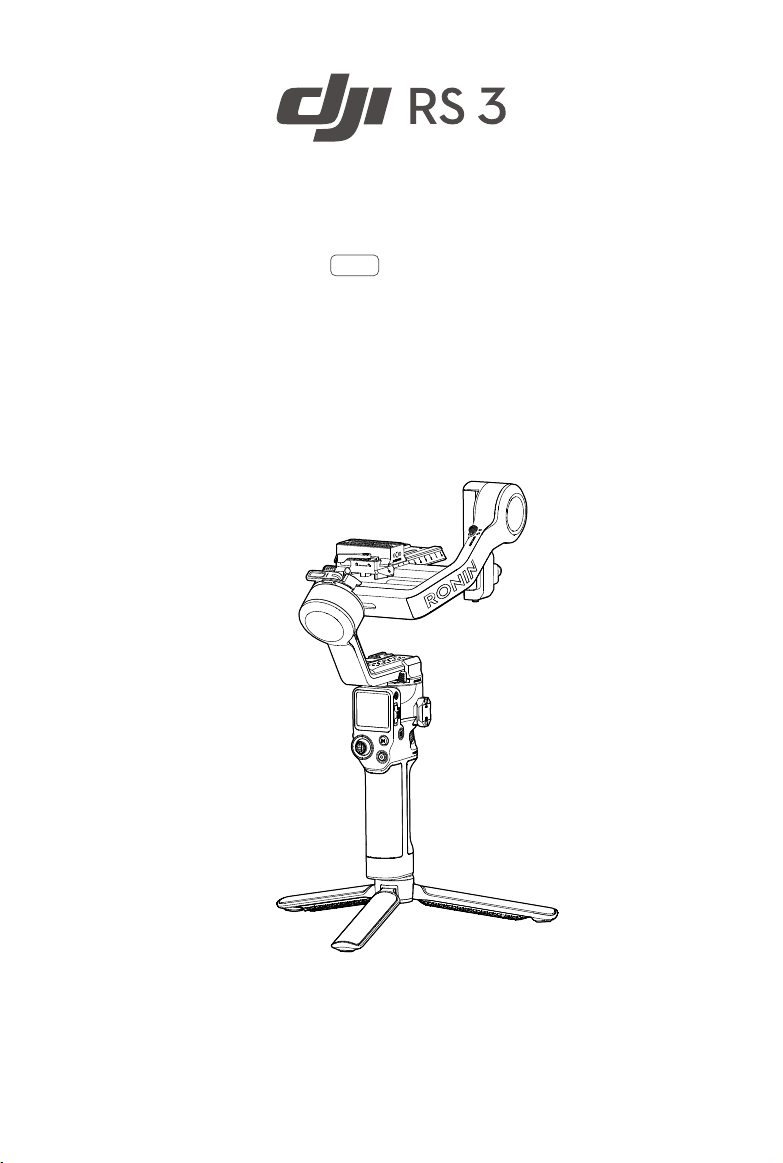
DJI RS 3 is a professional single-handed 3-axis gimbal specically designed for mirrorless cameras. It
is compatible with a wide range of mainstream cameras using a 24-70 mm F2.8 lens and supports a
tested payload of up to 3 kg. DJI RS 3 boasts enhanced gimbal performance thanks to the 3rd-Gen RS
Stabilization Algorithm.
With the brand-new automated axis locks, DJI RS 3 enables faster and more convenient installation,
balancing, and storage. With a 1.8-inch OLED full-color touchscreen, users can calibrate the gimbal
and set parameters. The onboard buttons allow users to control the gimbal movement, photo capture,
recording, and camera focus. By implementing Dual-Mode Bluetooth, RS 3 supports wireless shutter
control. The onboard NATO port supports the new Briefcase Handle and DJI R Twist Grip Dual Handle.
The detachable grip has a built-in battery with a capacity of 3000 mAh, providing a maximum standby
time of up to 12 hours.*
After connecting to the Ronin app, easily control gimbal movement and parameter settings. With the
DJI Ronin Image Transmitter mounted, users can shoot smooth footage while automatically tracking a
subject with ActiveTrack Pro.
Works with the new DJI RS Focus Motor (2022) to control focus with manual lenses.
* Measured with the equipment in a level and stationary state, the gimbal balanced, three axes in an active
state, and the battery only powering the gimbal.
6
©
2022 DJI All Rights Reserved.
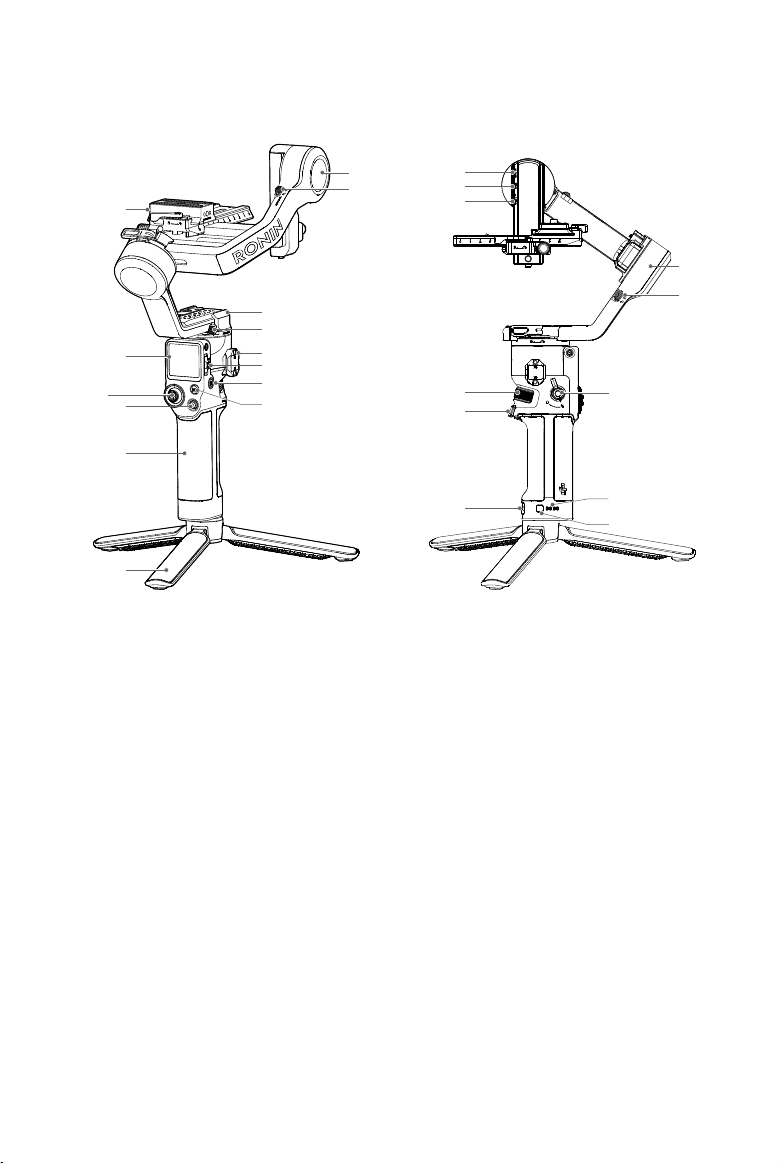
15. RSS Camera Control Port (USB-C)
16. Focus Motor Port (USB-C)
17. Ronin Image Transmission Port (USB-C)
18. Front Dial
19. Trigger
20. Power Port (USB-C)
21. Battery Level Button
22. Battery Level Indicators
23. Grip Lever/Safety Button
24. Roll Lock
25. Roll Motor
DJI RS 3 Diagram
1. Upper/Lower Quick-Release Plate
2. 1.8-inch OLED Full-Color
Touchscreen
3. Joystick
4. Camera Control Button
5. BG21 Grip (Built-in battery with 1/4"-
20 screw hole)
6. Extended Grip/Tripod
7. M Button
8. Power Button
9. Gimbal Mode Switch
10. NATO Ports
11. Pan Lock
12. Pan Motor
13. Tilt Lock
14. Tilt Motor
1
2
3
4
5
6
7
8
9
10
11
12
13
14
15
16
17
18
19
20
21
22
23
24
25
©
2022 DJI All Rights Reserved.
7
Using For The First Time
Charging the Battery
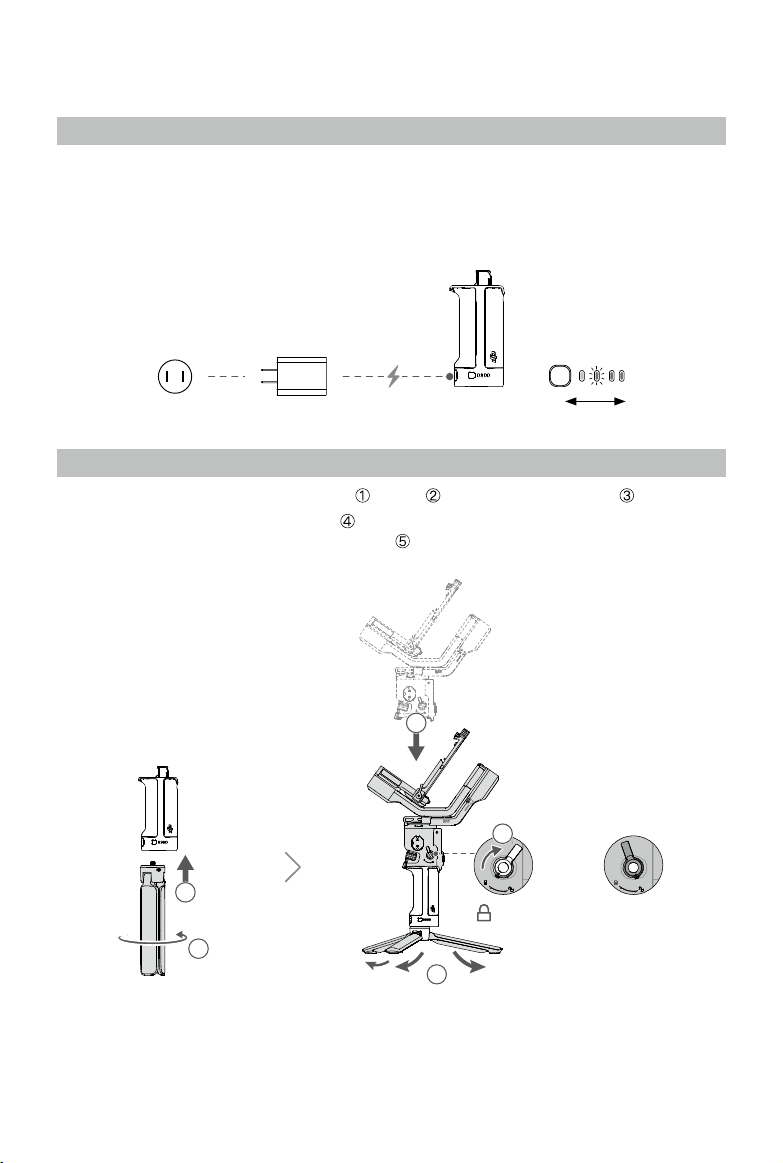
Before using for the rst time, charge the battery grip through the power port using a charging cable
(included) and a USB adapter (not included). It is recommended to use a USB adapter with PD protocol
(max. 18 W).
During charging, the battery level indicators indicate the battery level. The battery level indicators turn o
when fully charged. Press the battery level button to check the battery level.
LowHigh
Attaching the Extended Grip/Tripod
1. Attach the extended grip/tripod to the grip , tighten , and then unfold the tripod .
2. Insert the grip into the gimbal as shown . Make sure the grip lever is in the unlocked position, and
then toggle to the locked position after attaching .
2
1
3
5
4
To remove the grip, toggle the lever to the unlocked position, hold down the safety button, and pull the
grip away from the gimbal.
Safety Button

DJI RS 3 User Manual
8
©
2022 DJI All Rights Reserved.
Activation
Activation is required for DJI RS 3 through the Ronin app. Follow the steps below to activate RS 3:
1. Press and hold the power button to power on RS 3, and select the language on the touchscreen.
2. Scan the QR code on the screen to download the Ronin app. If the activation step is skipped, the
gimbal will unlock automatically and prompt on-screen instructions.
3. Enable Bluetooth on the mobile phone. Launch the Ronin app and log in with a DJI account.
Select DJI RS 3, type in the default password 12345678, and activate the gimbal according to the
instructions. An internet connection is required for activation. The gimbal will unlock automatically
after activation is successful.
DJI RS 3 supports up to ve uses without activation. After that, activation is required for further use.
https://s.dji.com/guide20
2s
Ronin App
Firmware Update
If new rmware is available, you will be notied by the Ronin app. Update the rmware according to the
on-screen instructions. Do not power o the gimbal or exit the app during the rmware update.
The Ronin app will prompt if the update is successful. If the update fails, restart the gimbal and Ronin
app, and try again.
Make sure the gimbal has sucient power before updating.
Ensure the mobile phone is connected to the internet when updating.
Do not power o the gimbal when updating.
The axis locks will lock automatically when the update starts. It is normal for the axis locks to
lock or unlock during the process.
DJI RS 3 User Manual
©
2022 DJI All Rights Reserved.
9
Mounting the Camera
Supported Cameras and Lenses
DJI RS 3 has been rigorously tested to support a payload of 3 kg. Make sure the combined weight of
the camera, lens, and other accessories are within 3 kg. Refer to the ocial DJI website (https://www.
dji.com/support/compatibility) for the most updated Ronin Series Compatibility List.
Mounting a Camera
Make sure to prepare the camera before mounting it to DJI RS 3. Remove the lens cap and check that
the battery and memory card are inserted in the camera.
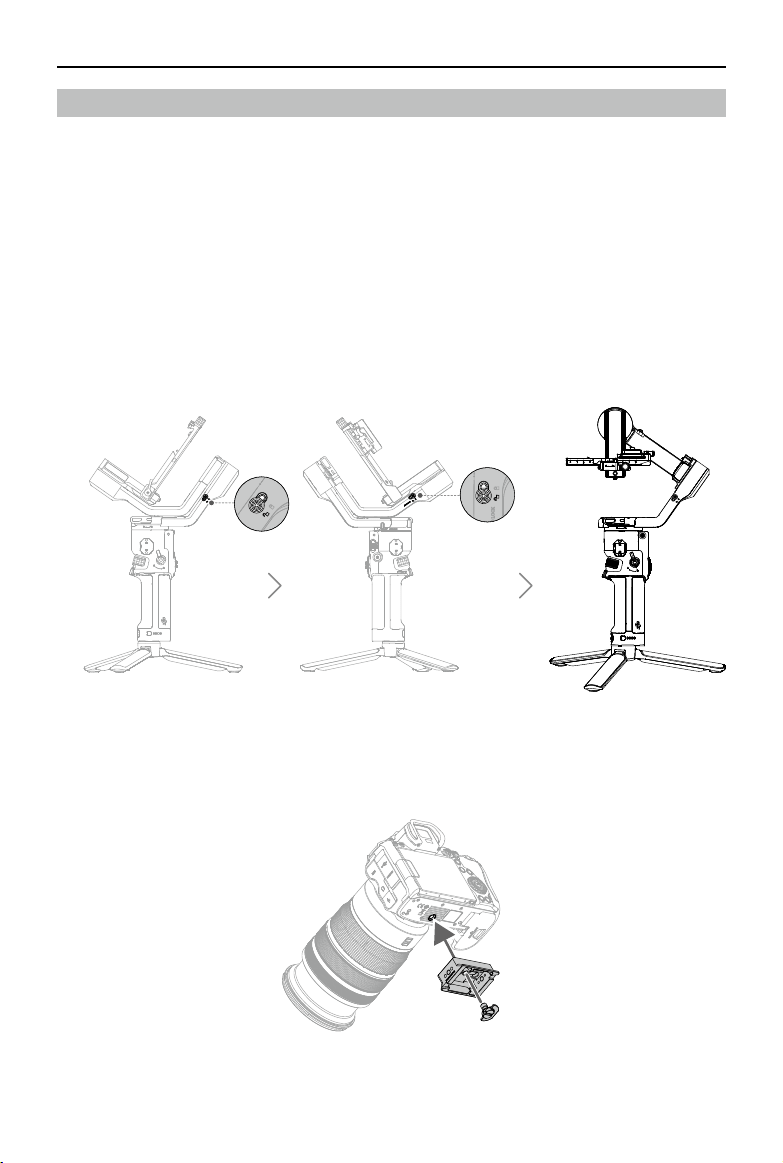
Make sure DJI RS 3 is powered o or in sleep mode before mounting the camera. Toggle the tilt lock
and roll lock to the unlocked position and adjust the gimbal position as shown, and then toggle the two
locks to the locked position.
1. Attach the Upper Quick-Release Plate
Attach the upper quick-release plate to the camera by tightening the screw.
Roll Lock
Tilt Lock
DJI RS 3 User Manual
10
©
2022 DJI All Rights Reserved.
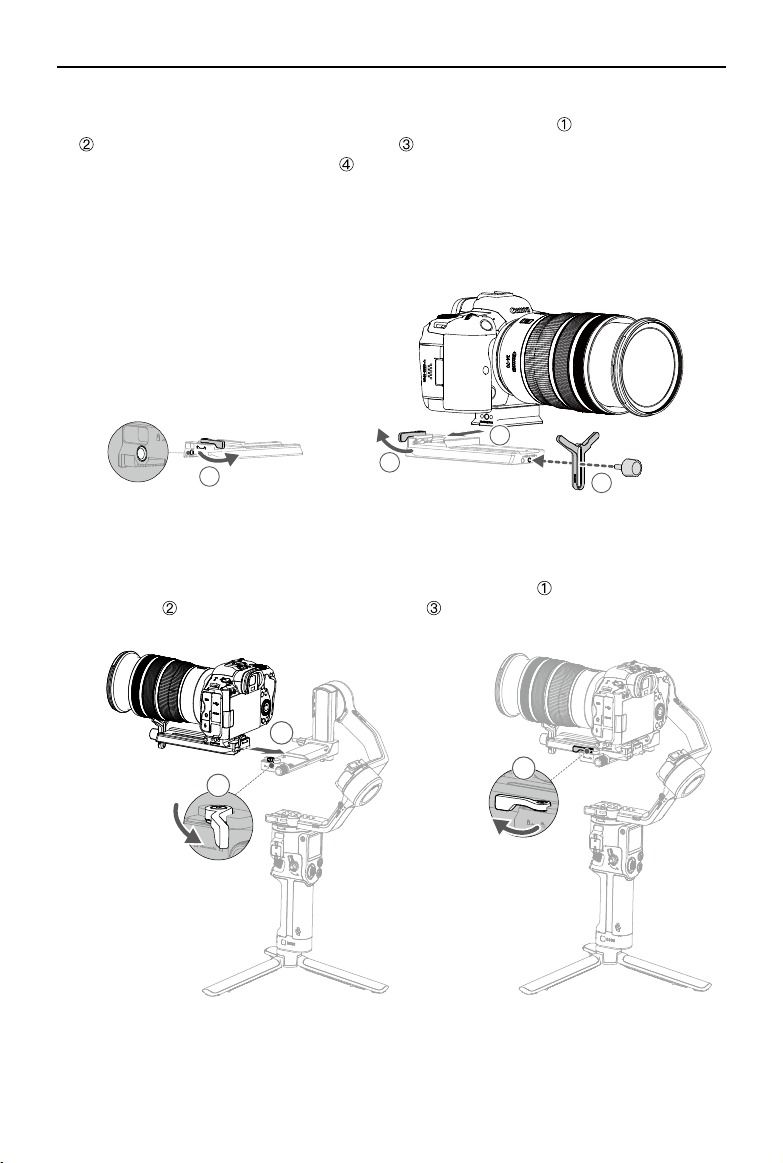
3. Attach the Camera to the Gimbal
Toggle the lever on the camera mounting plate to the unlocked position and insert the lower quick-
release plate . Toggle the lever to the locked position once the camera is roughly balanced.
1
2
3
2. Attach the Lower Quick-Release Plate and Lens-Fastening Support
Toggle the lever on the lower quick-release plate to the unlocked position , then insert the camera
and toggle the lever to the locked position after it is engaged. Attach the lens-fastening
support to the lower quick-release plate .
It is recommended to use the lens-fastening support when using a long or heavy lens, and always
use the lens-fastening support before enabling SuperSmooth mode.
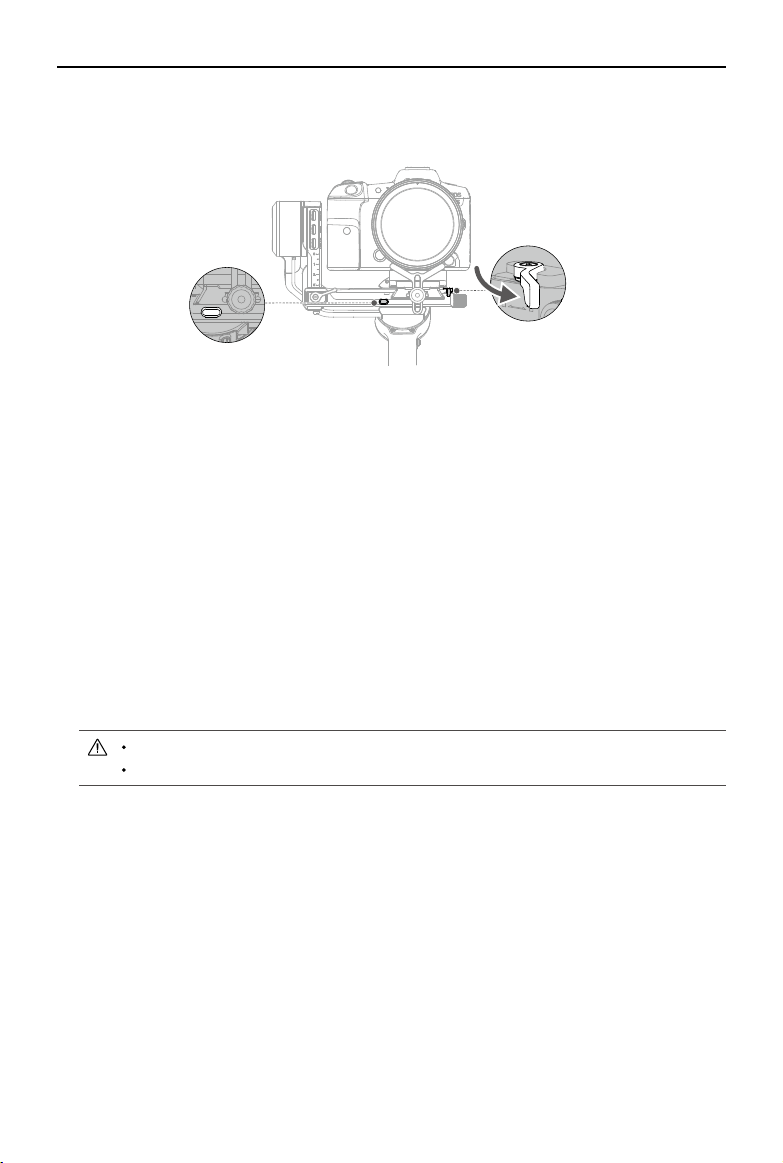
To remove the camera from the lower quick-release plate, toggle the lever to the unlocked position
and remove the camera while pressing the safety lock beside the lever.
Safety Lock
1
4
2
3
DJI RS 3 User Manual
©
2022 DJI All Rights Reserved.
11
To remove the lower quick-release plate, toggle the lever on the camera mounting plate to the
unlocked position and remove the lower quick-release plate while pressing the safety lock on the
mounting plate.
4. Connecting a Camera
DJI RS 3 supports wireless camera connection using Bluetooth, camera control is available without
a cable connection. Swipe down from the top of the touchscreen on the Home screen to enter the
Control Center. Tap the Bluetooth icon and tap connect, the gimbal and camera will start to pair. The
Bluetooth icon turns blue indicating connection is successful.
For Sony-series cameras, remote bluetooth control needs to be enabled before connecting to the
gimbal.
For Canon-series cameras, remote control mode for photo or record mode needs to be enabled
before connecting to the gimbal.
Refer to the Ronin Series Compatibility list for more camera settings when using a Bluetooth
connection.
Choose the proper camera control cable for cameras that do not support Bluetooth according to the
camera type. Plug one end of the cable into the camera and plug the other end into the RSS camera
control port of the gimbal.
Refer to the Ronin Series Compatibility list for supported camera models.
Some camera control cables need to be purchased separately.
Safety Lock
DJI RS 3 User Manual
12
©
2022 DJI All Rights Reserved.
Balancing
To obtain the best performance from DJI RS 3, proper balancing is essential. Proper balance is critical
for shots with DJI RS 3 where fast motion or acceleration is required and also offers longer battery
runtimes. There are three axes that need to be properly balanced before powering on DJI RS 3 and
setting up the software.
Before Balancing
1. The camera needs to be fully congured, with all accessories and cables connected, before installing
and balancing the camera on the gimbal. If the camera has a lens cap, make sure to remove it
before balancing. Before balancing, make sure to power on the camera if using an optical zoom lens
and to select the focal length if using a varifocal lens.
2. Make sure to balance the gimbal with all accessories mounted. Refer to the corresponding
accessory user guide for installation steps.
3. Make sure DJI RS 3 is powered o or in sleep mode before balancing.
Balancing Steps
The balancing steps are the same with or without accessories mounted.
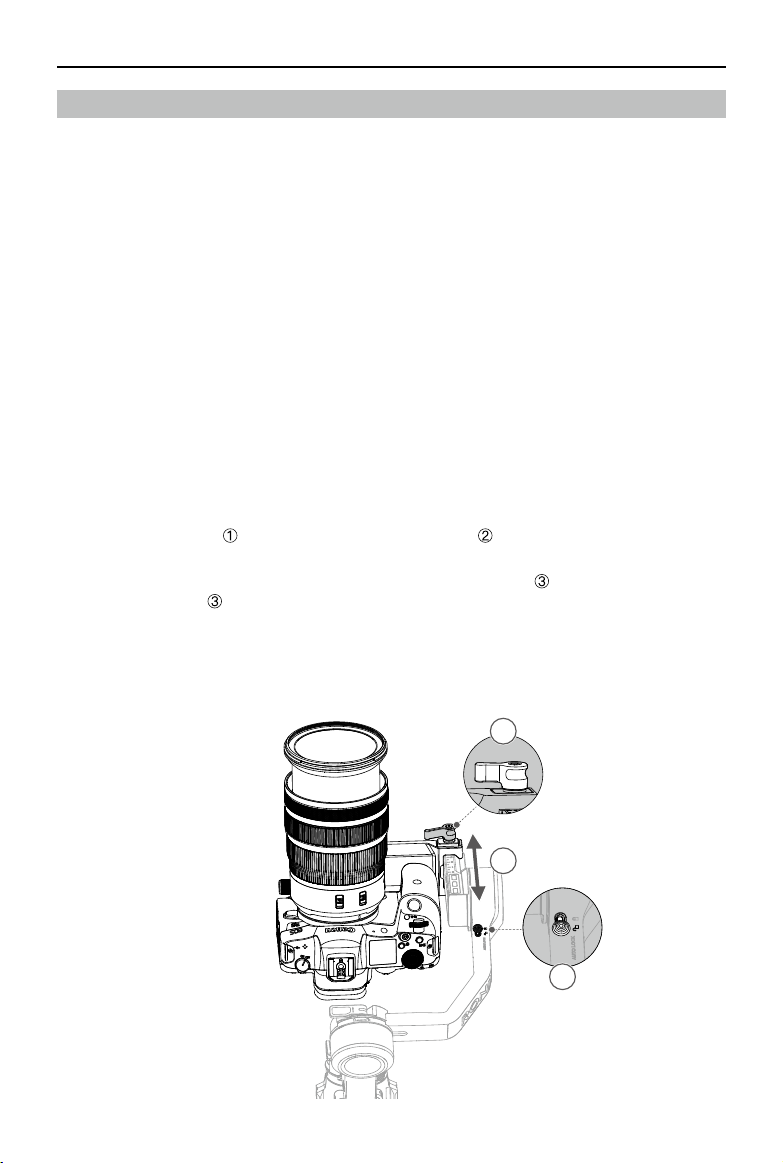
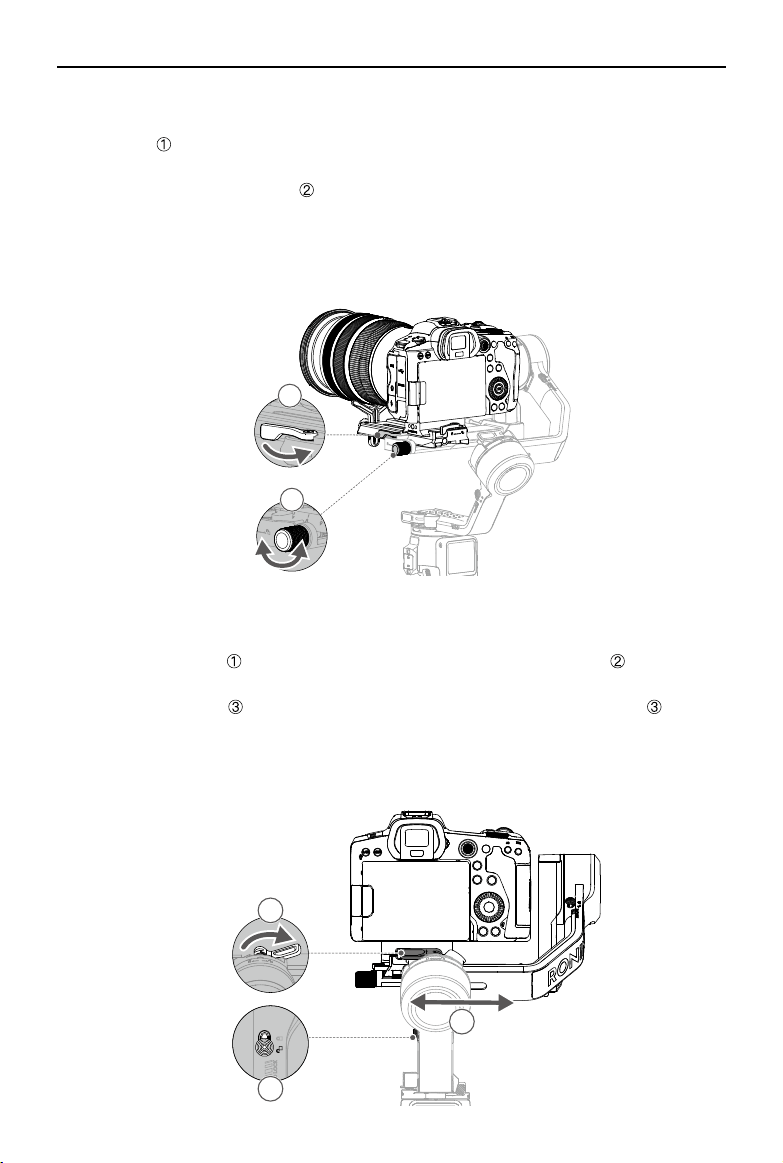
1. Balancing the Vertical Tilt
a. Unlock the tilt axis and loosen the mounting plate knob .
b. Rotate the tilt axis so that the camera lens is pointing upward. Check to make sure the camera is
not top or bottom-heavy. If top-heavy, move the camera backward . If bottom-heavy, move the
camera forward .
c. Tighten the mounting plate knob while holding the camera upward. The vertical tilt is balanced
when the camera is steady while pointing upward.
2
3
1
DJI RS 3 User Manual
©
2022 DJI All Rights Reserved.
13
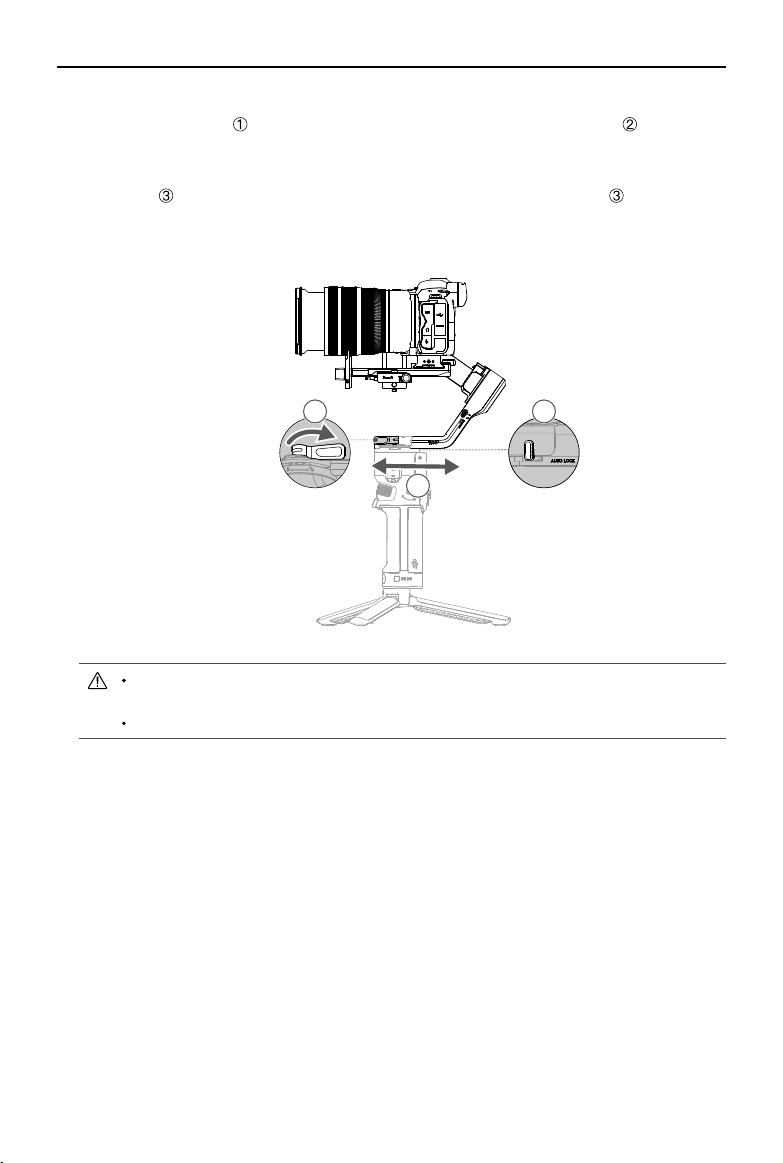
2. Balancing Depth for the Tilt Axis
a. Rotate the tilt axis so that the camera lens is pointing forward. Toggle the lever to the unlocked
position .
b. Check to make sure the camera is not front or back-heavy. If front-heavy, move the camera
backward by turning the knob . If back-heavy, move the camera forward.
c. Toggle the lever to the locked position. The tilt axis is balanced when the camera is steady while
tilted up or down by 45°.
d. Lock the tilt axis.
1
2
3. Balancing the Roll Axis
a. Unlock the roll axis . Toggle the lever on the roll arm to the unlocked position .
b. Check the direction in which the roll motor swings. If the camera rotates to the left, move the
camera to the right . If the camera rotates to the right, move the camera to the left .
c. Toggle the lever on the roll arm to the locked position. The roll axis is balanced when the camera
is steady.
d. Lock the roll axis.
3
2
1
DJI RS 3 User Manual
14
©
2022 DJI All Rights Reserved.
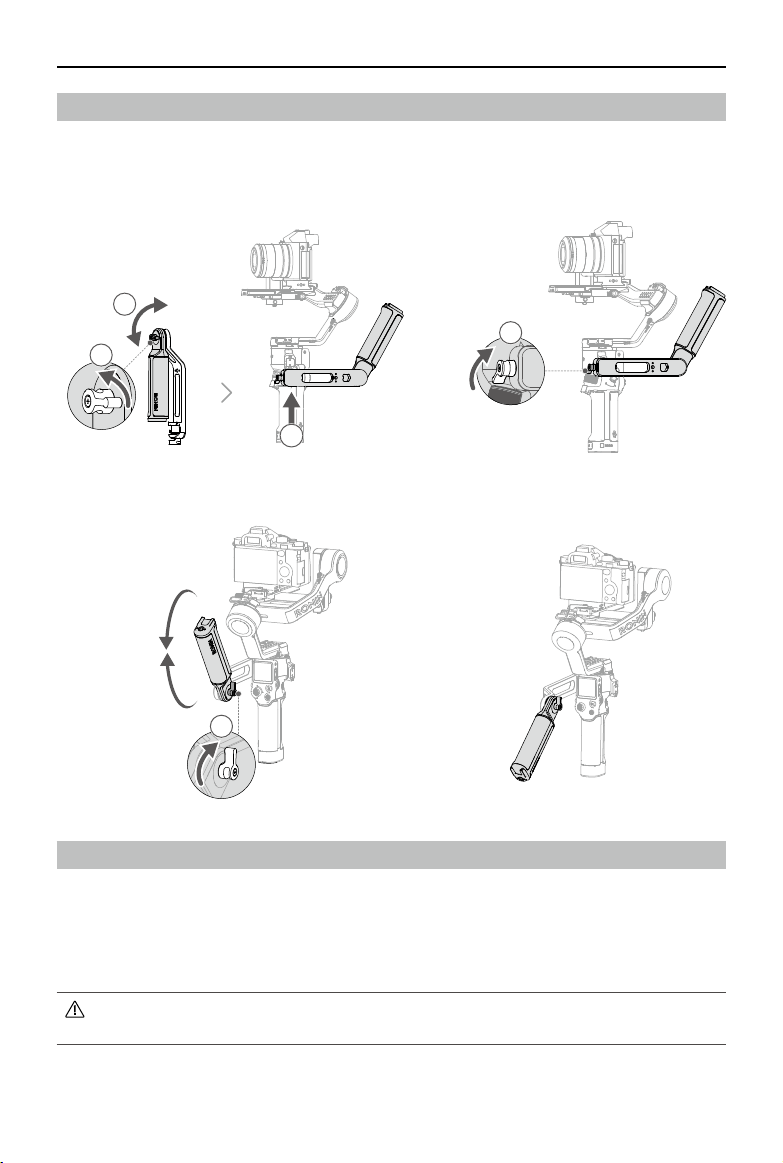
4. Balancing the Pan Axis
a. Unlock the pan axis . Toggle the lever on the pan arm to the unlocked position .
b. While holding the grip, tilt DJI RS 3 forward, and rotate the pan arm until parallel with you.
c. Check the movement of the pan axis. If the camera lens rotates to the left, push the pan axis to
the right . If the camera lens rotates to the right, push the pan axis to the left .
d. Toggle the lever on the pan arm to the locked position. The pan axis is balanced when the
camera is steady when rotating the pan while tilting the grip.
2
3
1
If mounting a longer camera system, it is necessary to use DJI R Roll Axis Counterweight
Set. Visit the ocial DJI store to purchase the counterweight set.
The levers on the pan and roll motor can be pulled out to adjust the tightness.
DJI RS 3 User Manual
©
2022 DJI All Rights Reserved.
15
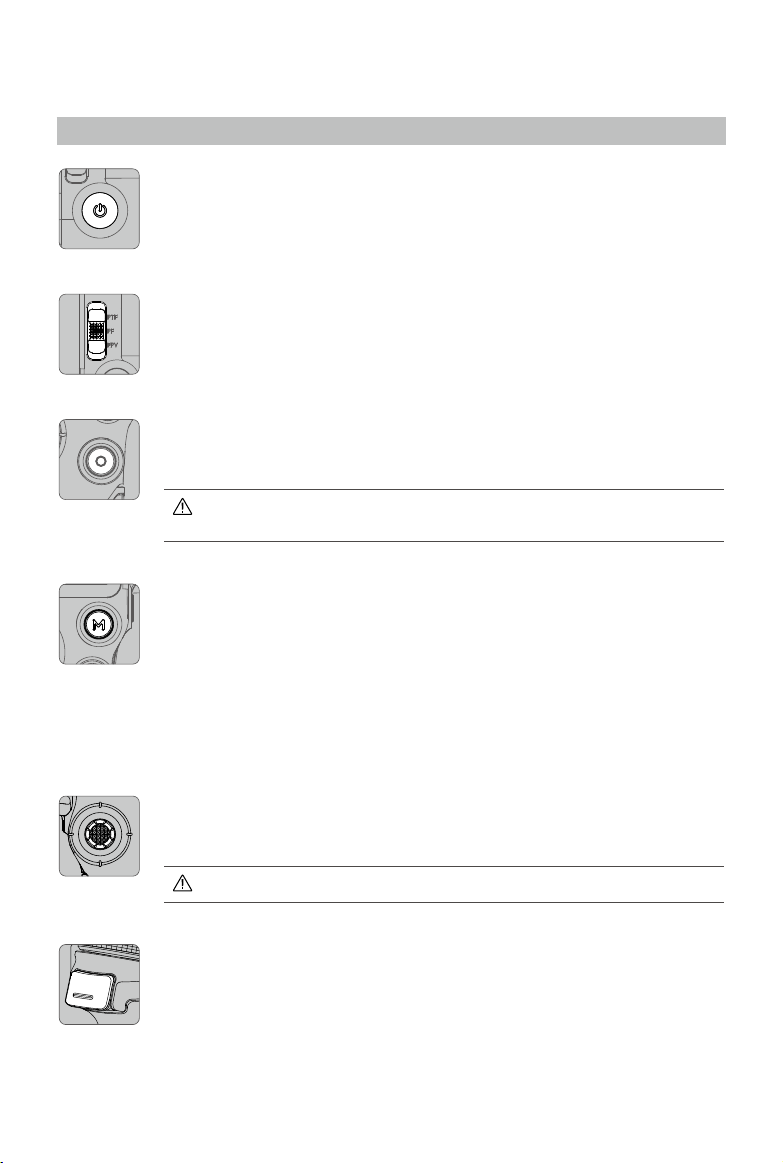
Briefcase Mode
The briefcase handle helps to switch to briefcase mode after balancing. The angle of the briefcase
handle can be adjusted using the knob. The built-in cold shoe mount and 1/4"-20 mounting hole can
connect to external monitors for shooting assistance, making low-angle camera movements more
intuitive.
4
2
3
1
5
Auto Tune
Auto tune provides the proper stiness for the motor according to the payload to obtain the optimum
gimbal performance. The gimbal is ready to be used after auto tune.
Press and hold the power button to power on the gimbal, or press once or twice to exit sleep mode,
then press and hold the M button and trigger simultaneously to start auto tune. Auto Tune also can be
enabled by tapping the auto tune icon on the touchscreen.
Place the gimbal on a steady at surface. Do not move the gimbal during auto tune. It is normal
for the gimbal to shake or make sounds during auto tune.
16
©
2022 DJI All Rights Reserved.
Operations
Button and Port Functions
Power Button
Press and hold to power on or o. Press once or twice to enter or exit sleep mode.
Gimbal Mode Switch
Toggle to switch gimbal mode from PF, PTF, and FPV.
Camera Control Button
After connecting the camera, press halfway for autofocus. Press once to start or stop
recording. Press and hold to take a photo.
Check the Ronin Series Compatibility list for detailed information on supported
camera features.
M Button
Press once to lock or unlock the screen by default. The settings can be changed via
the touchscreen.
Press and hold to enter Sport mode. Press and hold and press the trigger twice to
remain in Sport mode. Repeat to exit Sport mode. In Sport Mode, the follow speed
of the gimbal increases greatly. It is suitable for shooting in scenarios where subjects
move suddenly and at fast speeds.
Press and hold the M button together with the trigger to begin auto tune.
Joystick
Push up or down to control the movement of the tilt axis (default setting). Push left or
right to control the movement of the pan axis (default setting).
Joystick control mode and direction can be set in Ronin app.
Trigger
Press and hold to enter Lock mode. Tap the touchscreen to stay in lock mode, then
the trigger can be released.
Tap twice to re-center the gimbal.
Tap three times to turn the gimbal 180° so that the camera faces you (sele mode).
Tap once to start ActiveTrack (requires DJI Image Transmission System to be enabled).
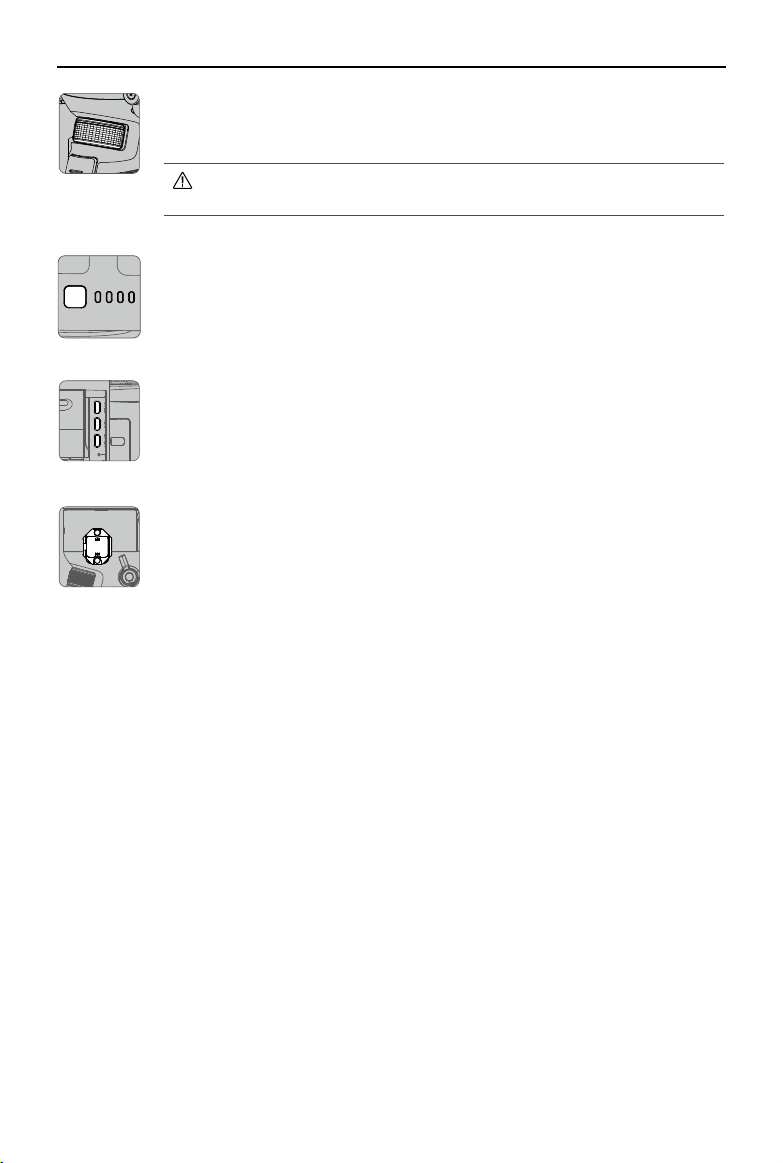
DJI RS 3 User Manual
©
2022 DJI All Rights Reserved.
17
Front Dial
Turn to control cable-driven focus/zoom by default, the settings can be changed via
the touchscreen.
Check the Ronin Series Compatibility list for detailed information on supported
features.
Battery Level Button
Press once to check battery level.
RSS Camera Control Port: For connecting the camera.
Focus Motor Port: For connecting the focus motor.
Ronin Image Transmission Port: For connecting the DJI Ronin Image Transmission
System.
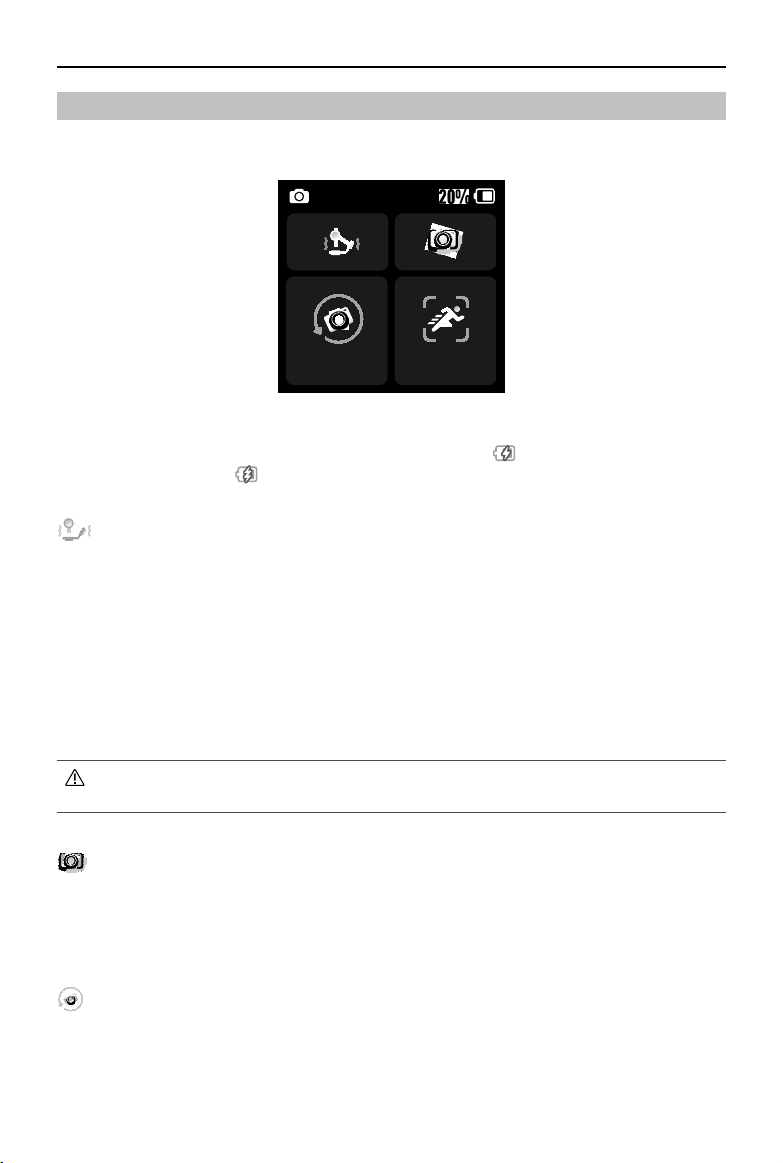
Automated Axis Locks
The Automated Axis Locks are set to fold and lock when powering on/o and recenter and lock when
RS 3 enters/exits sleep mode. Axis locks will unlock automatically after powering on and will lock by
pressing once or twice on the power button. Set the axis locks movement on the touchscreen menu.
NATO Port
For connecting the DJI R Twist Grip Dual Handle or the Briefcase Handle.
DJI RS 3 User Manual
18
©
2022 DJI All Rights Reserved.
Touchscreen
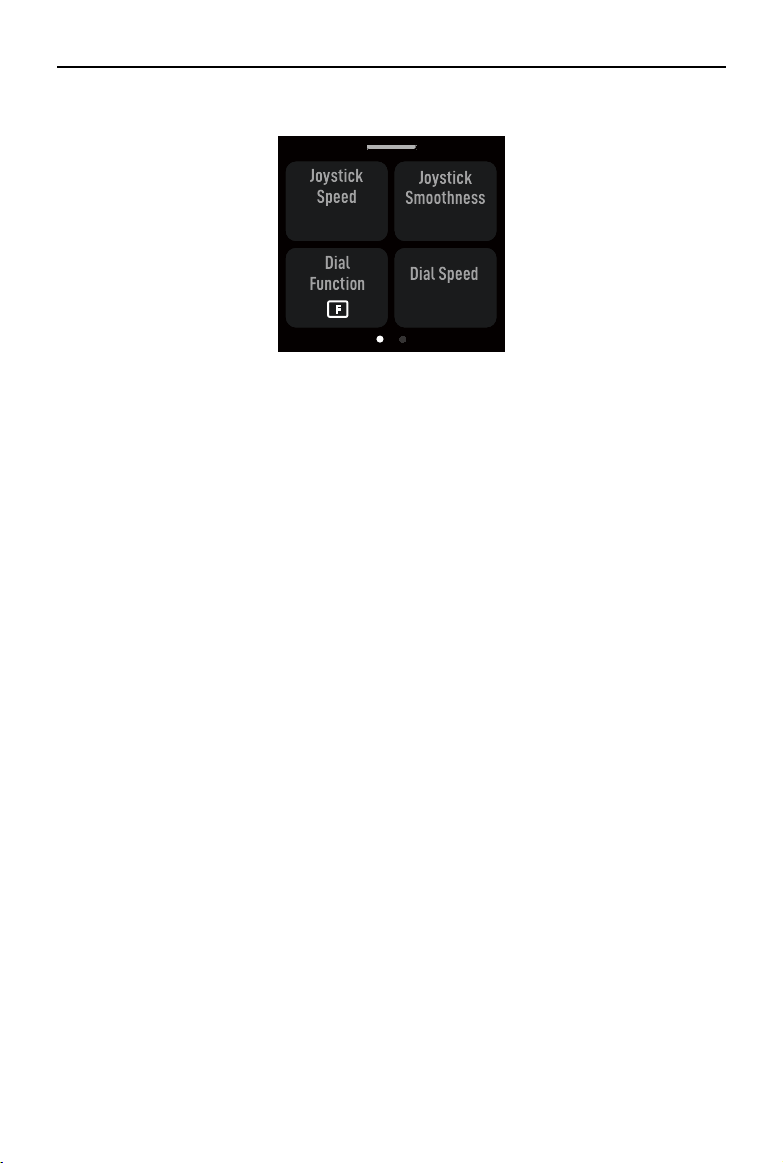
Home
Camera Status: indicates a camera control cable or Bluetooth is connected.
Battery Level: displays the current battery level of the gimbal. Icon indicates the battery is charged
with a normal charger. Icon indicates the battery is charged with a quick charger.
Auto Tune
Use auto tune after balancing. The stiness value is determined by the payload of the gimbal. Use Auto
Tune to obtain the stiness value automatically after balancing.
The three values indicate the stiness of the three axes on the auto tune page. Select from Normal and
SuperSmooth mode. Normal mode is suitable for most scenarios, and SuperSmooth mode is for fast-
moving scenarios. It is recommended to use lens-fastening support when using SuperSmooth before
auto tune. The auto tune process takes approximately 15 to 30 seconds.
The motor stiness adjustment allows you to ne-tune the power that is applied by the motors as they
react and balance the weight on each axis. Make sure you leave an extra margin to ensure stability at
all times. If the stiness value is too high the gimbal may shake and if the value is too low the gimbal
performance will be aected.
Use auto tune after balancing the camera, changing the lens focal length, or if the gimbal shakes
after changes lenses.
Balance Status
When the status bar shows green, this indicates the gimbal is balanced. If the status bar shows yellow,
the gimbal is slightly unbalanced. The status bar shows red when the gimbal is critically unbalanced. In
this case, re-balance the corresponding axis. To check the balance status of the pan axis, tilt the gimbal
15° left or right and check the status bar.
Follow Mode
The default follow modes can be switched from PF, PTF, and FPV. The tilt motor controls the tilt axis to
follow, pan motor controls the pan axis to follow, and roll motor controls the roll axis to follow.
PF: pan follow, where only the pan axis follows the movement of the grip. Suitable for scenarios such as
shooting emerging walk-through and arc shots or moving from left to right.
Fast
3D Roll
20%
20%

DJI RS 3 User Manual
©
2022 DJI All Rights Reserved.
19
PTF: pan and tilt follow, where both the pan and tilt axes follow the movement of the grip. Suitable for
scenarios when moving up and down or on a slant.
FPV: pan, tilt, and roll follow, where all three axes follow the movement of the grip. Suitable for scenarios
when rotating the camera or shooting from a low angle. In FPV mode, select from 3D Roll 360, Portrait,
and Custom mode.
3D Roll 360: enables footage to be shot while rotating the camera 360°. The tilt axis will rotate 90° so
that the camera lens will point up. Push the joystick to the left or right to begin 3D Roll 360. Push the
joystick to the left or right twice in quick succession to trigger auto rotation. During auto rotation, press
the trigger twice or three times and the camera will stop.
Portrait: enable to shoot footage in portrait mode. The tilt axis will rotate 90° so that the camera lens will
point up, and the pan axis will also rotate 90° while capturing footage in portrait.
Custom: enables or disables any axis follow as required. Lock mode is enabled when the three axes are
disabled. All the three axes will not follow the movement of the grip in lock mode.
Hold the gimbal vertical to shoot in Portrait mode. The joystick cannot control the gimbal
movement in Portrait mode.
Follow Speed
Tap to select follow speed. Users can choose fast, medium, slow, and custom. Tap the icon on the top-
right of the touchscreen to customize the speed.
DJI RS 3 User Manual
20
©
2022 DJI All Rights Reserved.
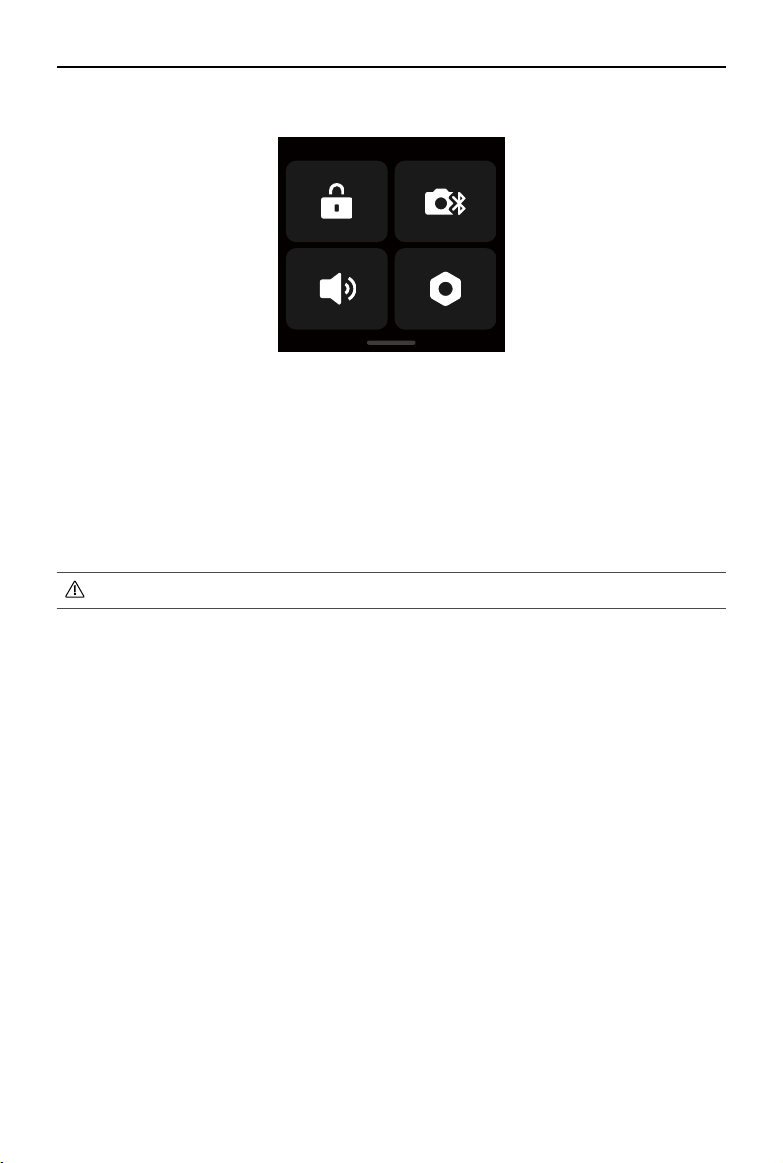
Slide Up: Gimbal Settings Screen
Slide up from the bottom of the screen to enter the gimbal settings screen.
Joystick Speed: allows users to control the speed of the joystick for the gimbal. Users can select from
fast, medium, slow, and custom. Tap the icon on the top-right of the touchscreen to customize the
speed. The larger the value, the faster the joystick speed.
Joystick Smoothness: allows users to control the sensitivity of the gimbal. The lower the smoothness
value, the more sensitive the movement of the gimbal.
Dial Functions: allows users to set the function of the front dial. Users can choose to control the focus
motor, cable-driven focus/zoom, ISO, aperture, shutter speed, roll axis, pan axis, and tilt axis.
Dial Speed: allows users to set the response speed of the function set for the front dial.
Dial Smoothness: the larger the smoothness value, the smoother the movement changing.
Reverse Dial: the direction of the dial can be set to reverse.
M Button: features can be set to screen lock or photo capture.
Slow
Joystick
Speed
Dial Speed
50
Dial
Function
Joystick
Smoothness
Slow
DJI RS 3 User Manual
©
2022 DJI All Rights Reserved.
21
Slide Down-Control Center Screen
Slide down from the top of the screen to enter the control center screen.
Screen Lock
Tap the screen lock to lock the touchscreen to avoid unexpected operation. Slide up to unlock the
touchscreen after enabling screen lock.
Bluetooth
Tap the icon to connect the camera via Bluetooth. Tap Connect to pair the Bluetooth of the gimbal and
camera. The icon turns blue after connecting successfully.
The gimbal can only connect to one camera at a time.
Silent Mode
Enable to turn o sounds including the alert tone. The sounds of the motor and axis locks cannot be
muted.
System Settings
Disable Sele: prevents accidentally entering sele mode and interrupting recording. If disabled, Sele
mode will not be entered if the trigger is pressed three times.
Orbit Follow: obtain smoother movements after enabling when shooting arc shots.
Auto Lock: can be set to recenter and lock, fold and lock, or have no movement when powering on/o.
Can be set to recenter and lock or have no movement when entering or exiting sleep mode.
Push Mode: enable to manually control the tilt and pan axis.
Horiz Calibration: use if the gimbal is unlevel when the gimbal is steady. If the issue persists, use Tune
Manually.
Focus Motor Endpoints: focus motor calibration can be selected, and the endpoints of the focus motor
can be set manually or be disabled.
Gimbal Auto Check: tap to analyze and output the status information of the gimbal.
Restore Parameters: tap to restore the gimbal parameters and Bluetooth password to default settings.
Language: choose the onscreen language from Chinese (Simplified), English, Chinese (Traditional),
Japanese, Korean, French, German, Brazilian Portuguese, Spanish, Thai, and Russian.
Device Info: displays the SN, Name and Bluetooth information.
Firmware Version: displays the rmware version of the gimbal and the attached accessories.

DJI RS 3 User Manual
22
©
2022 DJI All Rights Reserved.
Ronin App Settings
The Ronin App contains the features of the touchscreen as well as more features of the gimbal and the
DJI Ronin Image Transmission System. The screenshots below are based on the iOS version of the app.
Top Bar
Sleep/Wake: tap to enter or exit sleep mode.
Follow Mode: display the current follow mode.
Battery Level: displays the battery level of the gimbal.
About
Settings: view your account, language, and the quick start guide.
Device List: displays the device SN, device name and password.
Firmware: displays the rmware version.
Academy
Watch the tutorials and read the manual documents.

DJI RS 3 User Manual
©
2022 DJI All Rights Reserved.
23
Create
Virtual Joystick
Use the virtual joystick in the app to control the movement of the gimbal and to shoot.
1. Control Bar: control the speed and smoothness of the gimbal by adjusting the control bar. Speed
allows users to adjust the remote-controlled rotational speed. Smoothness allows users to adjust
the sensitivity of the gimbal. The lower the smoothing value, the more sensitive the movement of the
gimbal.
2. Roll Stick: control the roll axis movement of the gimbal using the virtual joystick.
3. Pan/Tilt Stick: control the pan and tilt axis movement of the gimbal using the virtual joystick.
4. Recenter: tap to recenter the gimbal.
5. Shoot/Record Button: tap to take photos or record videos.
6. Photo/Video Toggle: tap to switch between photo and video modes. Make sure the mode is the
same as the settings on the camera.
6
3
2
4
5
1

DJI RS 3 User Manual
24
©
2022 DJI All Rights Reserved.
Force Mobile
Force Mobile requires the phone holder and a mobile phone mounted on a tripod or handlebar vertically.
After enabling this feature in the Ronin app, the gimbal movement can be controlled by tilting and
rotating your mobile phone.
Speed determines the relationship between the rotational speed and angle. When the speed is set to
50, the angle of rotation for the gimbal and mobile phone is 1-to-1. The gimbal will move at an identical
angle to the mobile phone. When the speed is set to less than 50, the gimbal will rotate slower than the
movement of the phone. When the max speed is set higher to a higher value than 50, the rotation of the
gimbal is faster than the mobile phone.
Smoothness allows users to control the sensitivity of the gimbal. The lower the smoothness value, the
more sensitive the movement of the gimbal.
Recenter: tap to recenter the gimbal.
Shutter/Record Button: tap to take photos or record videos.

DJI RS 3 User Manual
©
2022 DJI All Rights Reserved.
25
Panorama
Panorama allows users to capture a series of interconnecting still images with precise control based on
the sensor type, lens focal length, overlap, and interval.
Make sure you have connected the camera and gimbal using the corresponding camera control cable
before using Panorama (Bluetooth connection is not supported).
Overlap: determines the overlap ratio of every photo when generating a panorama.
The interval time between shooting photos should be set to one second more than the shutter time to
avoid blurred footage when using a long exposure.
After conrming the camera settings, the panorama range can be set by dragging the white dots on the
grid map, pushing the gimbal manually, or using the virtual joystick.
The total range covered by the endpoints and the shots required to compose the panorama is displayed
above the grid map. The tilt axis range in Panorama is -45° to +90° in order to avoid capturing the
gimbal in the shot, while the pan axis allows you to capture a full 360° rotation.
Tap the shutter/record button to begin.

DJI RS 3 User Manual
26
©
2022 DJI All Rights Reserved.
Timelapse
In Timelapse, DJI RS 3 triggers the camera to capture still images with the set interval time and will
automatically stop when completed. The duration for the Timelapse and the frame rate can be set so
that DJI RS 3 can calculate the exact number of images required.
By enabling Push mode, users can manually adjust the pan and tilt axes before starting the Timelapse.
Users can push DJI RS 3 to alter the camera orientation and adjust the framing. Tap the virtual joystick
icon to use the virtual joystick to adjust the camera orientation.
Motionlapse allows users to set up to ve waypoints so that the camera moves during the Timelapse.
To adjust the position of a waypoint, adjust the camera to the desired position, and tap the + icon to
conrm the waypoint. You can also use the virtual joystick to control the pan, tilt, and roll axis as well.
To add another waypoint, move the gimbal to the next waypoint, and tap the + icon above the grid
map. Afterwards, to delete a waypoint, select the waypoint and tap the trash icon. After setting up the
waypoints, you can either tap Preview to make sure the Motionlapse includes everything or tap the
shutter/record button to start shooting. Make sure the camera and gimbal have been connected using
the corresponding camera control cable.
Zoom control is not supported while using the DJI Focus Motor (2022) during Timelapse.

DJI RS 3 User Manual
©
2022 DJI All Rights Reserved.
27
Track
Track is designed to capture video with up to 10 waypoints. Users need to select the waypoint manually
by moving the gimbal or using the virtual joystick. The duration parameter below the grid map indicates
how much time it will take for the gimbal to travel from one waypoint to the next. The stay time indicates
how long the gimbal will remain steady at the waypoint before moving to the next waypoint.
DO NOT press the shutter button of the camera while using Track.

DJI RS 3 User Manual
28
©
2022 DJI All Rights Reserved.
Gaming Controller
PS4 DualShock and Xbox controllers can be used to control the gimbal and camera. After connecting
the controller to the mobile device and gimbal, users can control gimbal movements, focus, and zoom,
and can record videos, recenter gimbal, and capture photos.
The speed and smoothness of the control sticks can be adjusted. Set the focus value within 10 on the
camera settings for optimal performance. iOS 13 or higher, Android 9.0 or higher, and Ronin app v1.4.0
or higher are required.
Tap How to Use to learn more about the gaming controller.

DJI RS 3 User Manual
©
2022 DJI All Rights Reserved.
29
Focus Control
Drag the white dot to control the focus after mounting the DJI RS focus motor. 0-100 indicates the
A and B endpoints of the focus motor. Tap the record button to start/stop recording. Tap the Virtual
Joystick icon to control the gimbal movements.
Balance Adjustment
Watch the tutorial videos on this page.

DJI RS 3 User Manual
30
©
2022 DJI All Rights Reserved.
Motor Parameters
There are Basic and Advanced menus. Stiness can be displayed and adjusted in the Basic menu. In
addition, Strength can be adjusted in the Advanced menu (do not adjust if not necessary).
Tap Auto Tune and DJI RS 3 automatically calculates the result based on the weight of the gimbal setup.
After auto tune, you can see detailed motor diagnostics at the bottom of the screen. If the gimbal is
properly balanced, the power value of the motors should be in the range of ±5. If power consumption
on a particular axis constantly goes beyond that range, check the mechanical balance of the gimbal.

DJI RS 3 User Manual
©
2022 DJI All Rights Reserved.
31
User Prole
Gimbal mode, follow speed, deadband, push mode and joystick control can be set in this page.
Deadband determines how much movement the gimbal tolerates prior to translating the pan, tilt, and
roll movement of the camera.
Control Settings
Channels
The channel indicator provides feedback when conguring remote operation. Pan, tilt, and roll channels
can be reassigned and each axis can also be inverted. Normal means the direction of movement is the
same as the joystick. Inverted means the direction of movement is the opposite of the joystick.
When using the joystick, you can only control CH1 and CH3, which is mapped to tilt and pan axes by
default. You can customize channel mapping by tapping on the name of the axis on the right of the screen.
Motion
You can set the joystick control by adjusting deadband, max speed, smoothing, and endpoints for each
axis. There are three default proles for each settings.
Deadband: when the deadband value increases, more stick movement will be required to translate into
the actual movement of the gimbal.
Max Speed: allows the remote-controlled rotational speed to be adjusted.
Smoothness: allows you to control the sensitivity of the gimbal.
Endpoint: limits the rotational range of the gimbal by setting the endpoints. The pan axis has a slip-ring,
enabling DJI RS 3 to rotate continuously when the endpoints are set to 180°. On the tilt axis, you can
set up the endpoints according to your requirements. Some longer lenses may hit the gimbal frame. Set
the endpoint angle to prevent such cases.

DJI RS 3 User Manual
32
©
2022 DJI All Rights Reserved.
Status
Settings
Use more features such as Motor Pause, Silent Mode, System Calibration, Horizontal Calibration, and
Restore Gimbal Setup.
Checklist
Displays the connection status of the Bluetooth and camera. When the gimbal status is abnormal, the
status information is displayed here.
Image Transmission
With the DJI Ronin Image Transmission System mounted, tap Connect to RavenEye on the home
screen of the Ronin app to use the image transmission feature. Refer to the DJI Ronin Image
Transmission System User Guide for details.
©
2022 DJI All Rights Reserved.
33
BG21 Grip and Built-In Battery
The BG21 grip is for handheld use. The built-in battery within the grip has a capacity of 3000 mAh and
the maximum runtime is 12 hours.
Safety Guidelines
The following terms are used throughout the product literature to indicate various levels of potential
harm when operating this product:
Procedures, which if not properly followed, create the probability of property damage, collateral
damage, and serious injury OR create a high probability of supercial injury.
Procedures, which if not properly followed, create a possibility of physical property damage AND
a little or no possibility of injury.
Grip Use
1. DO NOT allow the grip to come into contact with any kind of liquid. DO NOT leave the grip out in the
rain or near a source of moisture. DO NOT drop the grip into water. If the inside of the battery comes
into contact with water, chemical decomposition may occur, potentially resulting in the battery
catching on re, and may even lead to an explosion.
2. If the grip falls into water by accident, put it in a safe and open area immediately. Maintain a safe
distance from the grip until it is completely dry. DO NOT use the grip again, and dispose of the grip
properly as described in the Grip Disposal section.
3. Put out any re using water, sand, re blanket, or a dry powder re extinguisher.
4. DO NOT use non-DJI batteries. Go to www.dji.com to purchase new batteries. DJI takes no
responsibility for any damage caused by non-DJI batteries.
5. DO NOT use or charge a swollen, leaky, or damaged grip. If the grip is abnormal, contact DJI or a
DJI authorized dealer for further assistance.
6. The grip should be used in temperatures from -20° to 45° C (-4° to 113° F). Use of the grip in
Read the user manual to become familiar with the features of this product
before operating. Failure to operate the product correctly can result in
damage to the product, personal property, and cause serious injury. This is a sophisticated
product. It must be operated with caution and common sense and requires some basic
mechanical ability. Failure to operate this product in a safe and responsible manner could
result in injury or damage to the product or other property.
This product is not intended for use by children without direct adult supervision. Do not use
with incompatible components or alter this product in any way outside of the documents
provided by SZ DJI TECHNOLOGY CO.,LTD. These Safety Guidelines contain instructions for
safety, operation and maintenance. It is essential to read and follow all of the instructions and
warnings in the user manual, prior to assembly, setup or use, in order to operate the product
correctly and avoid damage or serious injury.
To avoid re, serious injury, and property damage, observe the following safety guidelines
when using, charging, or storing the grip.

DJI RS 3 User Manual
34
©
2022 DJI All Rights Reserved.
environments above 50° C (122° F) can lead to a re or explosion. Use of grip below -10° C (14° F)
can lead to permanent damage.
7. DO NOT use the grip in strong electrostatic or electromagnetic environments. Otherwise, the battery
control board may malfunction.
8. DO NOT disassemble or pierce the grip in any way or the battery may leak, ignite, or explode.
9. DO NOT drop or strike batteries. DO NOT place heavy objects on the grip.
10. Electrolytes in the battery are highly corrosive. If any electrolytes make contact with your skin or
eyes, immediately wash the aected area with fresh running water for at least 15 minutes, and then
see a doctor immediately.
11. DO NOT use the grip if dropped.
12. DO NOT heat batteries. DO NOT put the grip in a microwave oven or in a pressurized container.
13. DO NOT manually short-circuit the grip.
14. Clean grip terminals with a clean, dry cloth.
Grip Charging
1. DO NOT leave the grip unattended during charging. DO NOT charge the grip near flammable
materials or on ammable surfaces such as carpet or wood.
2. Charging the grip outside of the temperature range of 5° to 40° C (41° to 104° F) may lead to leakage,
overheating, or battery damage. The ideal charging temperature is 22° to 28° C (72° to 82° F).
Grip Storage
1. Keep the grip out of the reach of children and animals.
2. If the grip will be stored for an extended period, charge the grip until the battery level reaches
between 30% and 50%.
3. DO NOT leave the grip near heat sources such as a furnace or heater. DO NOT leave the grip inside
of a vehicle on hot days. The ideal storage temperature is 22° to 28° C (72° to 82° F).
4. Keep the grip dry.
Grip Maintenance
1. DO NOT use the grip when the temperature is too high or too low.
2. DO NOT store the battery in environments with a temperature higher than 45° C (113° F) or lower
than 0° C (32° F).
Travel Notice
1. Before carrying the grip on an airline ight, it must rst be discharged until the battery level is lower
than 30%. Only discharge the grip in a reproof location and store the grip in a ventilated location.
2. Keep the grip away from metal objects such as glasses, watches, jewelry, and hairpins.
3. DO NOT transport a damaged grip or a grip with battery level higher than 30%.
Grip Disposal
Dispose of the grip in specic recycling boxes only after a complete discharge. DO NOT place the grip
in regular trash containers. Strictly follow your local regulations regarding the disposal and recycling of
batteries.

DJI RS 3 User Manual
©
2022 DJI All Rights Reserved.
35
Grip Use
1. Make sure the grip is fully charged before use.
2. If a low-battery warning appears, charge the grip as soon as possible.
Grip Charging
1. The grip is designed to stop charging when it is full. It is good practice, however, to monitor the
charging progress and disconnect the grip when fully charged.
Grip Storage
1. Discharge the grip to 40%-65% if it will not be used for 10 days or more. This can greatly extend the
battery life.
2. If the grip is stored for an extended period and the battery is depleted, the grip will enter sleep
mode. Recharge the grip to exit sleep mode.
3. Remove the grip from the gimbal when stored for an extended period.
Grip Maintenance
1. Battery life may be reduced if not used for an extended period.
2. Discharge and charge the grip completely once every three months to keep it in good condition.
Grip Disposal
1. If the grip is disabled and the battery cannot be fully discharged, contact a professional battery
disposal or recycling agent for further assistance.
2. Dispose of the grip immediately if it cannot be powered on after over-discharging.
36
©
2022 DJI All Rights Reserved.
Operation Modes
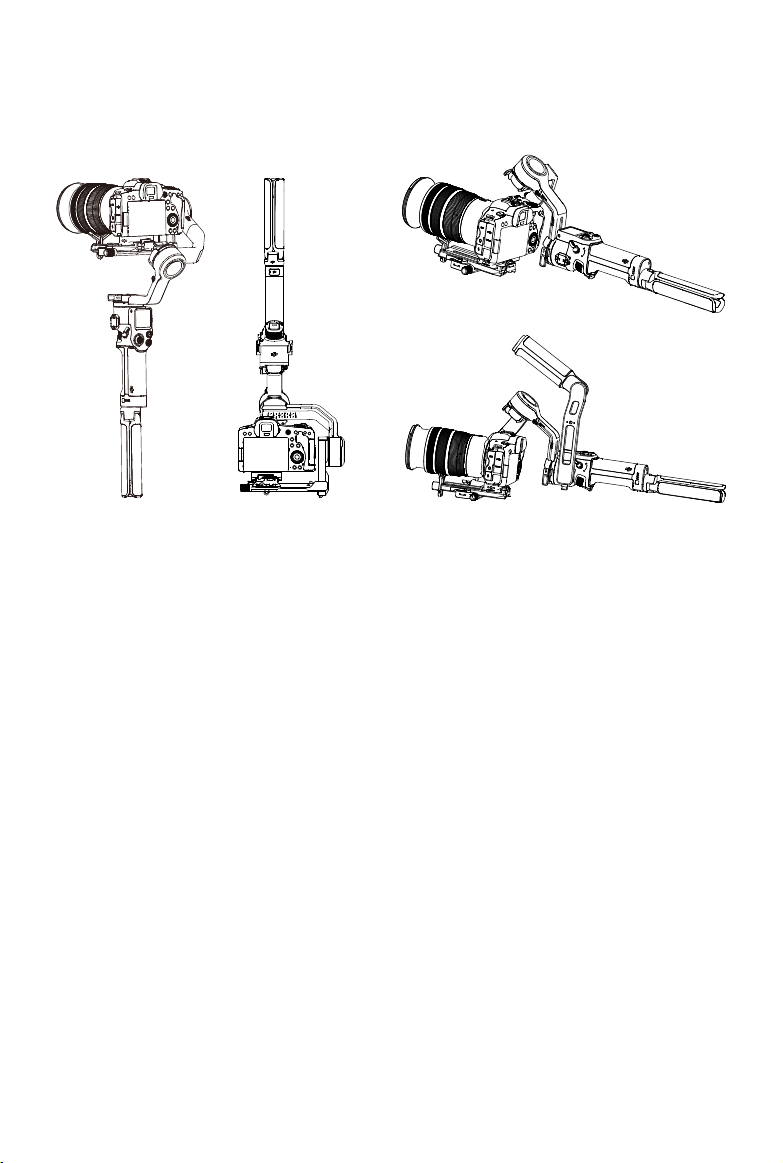
There are four operation modes for the DJI RS 3: Upright, Underslung, Flashlight, and Briefcase.
Maintenance
DJI RS 3 is not waterproof. Make sure to protect it from dust and water during use. After use, it is
recommended to wipe DJI RS 3 with a soft dry cloth. DO NOT spray any cleaning liquids onto DJI RS 3.
Upright Mode Underslung Mode
Flashlight Mode
Briefcase Mode

©
2022 DJI All Rights Reserved.
37
Specications
Peripheral Accessory Port NATO Ports
1/4"-20 Mounting Hole
Cold Shoe
Ronin Image Transmission Port (USB-C)
RSS Camera Control Port (USB-C)
Focus Motor Port (USB-C)
Battery Model: BHX711-3000-7.2V
Type: 2S
Capacity: 3000 mAh
Energy: 21 Wh
Max. Runtime: 12 hours (measured with the equipment in a
level and stationary state, the gimbal balanced, three axes in
an active state, and the battery only powering the gimbal)
Charging Time: Approx. 2.5 hours when using 18W quick
charging (supports PD protocol)
Suggested Charging Temperature: 5° to 40° C (41° to 104° F)
Connections Bluetooth 5.0
Charging Port (USB-C)
Ronin App Requirements iOS 11.0 or above
Android 7.0 or above
Languages Supported by the
Touchscreen
English, Simplied Chinese, Traditional Chinese, German,
French, Korean, Japanese, Spanish, Portuguese (Brazil),
Russian, Thai
Working
Performance
Tested Payload 3 kg (6.6 lbs)
Maximum Controlled Rotation
Speed
Pan: 360°/s
Tilt: 360°/s
Roll: 360°/s
Mechanical Range Pan axis: 360° continuous rotation
Roll axis: -95° to +240°
Tilt axis: -112° to +214°
Mechanical &
Electrical Properties
Operating Frequency 2.4000-2.4835 GHz
Bluetooth Transmitter Power <8 dBm
Operating Temperature -20° to 45° C (-4° to 113° F)
Weight Gimbal: Approx. 990 g (2.18 lbs)
Grip: Approx. 200 g (0.44 lbs)
Extended Grip/Tripod (Plastic): Approx. 183 g (0.4 lbs)
Upper and Lower Quick-Release Plates: Approx. 107 g (0.23
lbs)
Dimensions Folded: 254×230×68 mm (L×W×H, excluding camera, grip,
and the Extended Grip/Tripod)
Unfolded: 364×187×170 mm (L×W×H, height includes the grip
and excludes the Extended Grip/Tripod)
If you have any questions about this document, please contact
DJI by sending a message to [email protected].
DJI is a trademark of DJI.
Copyright © 2022 DJI All Rights Reserved.
This content is subject to change.
Download the latest version from
www.dji.com/rs-3/downloads
Contact
DJI SUPPORT
WE ARE HERE FOR YOU