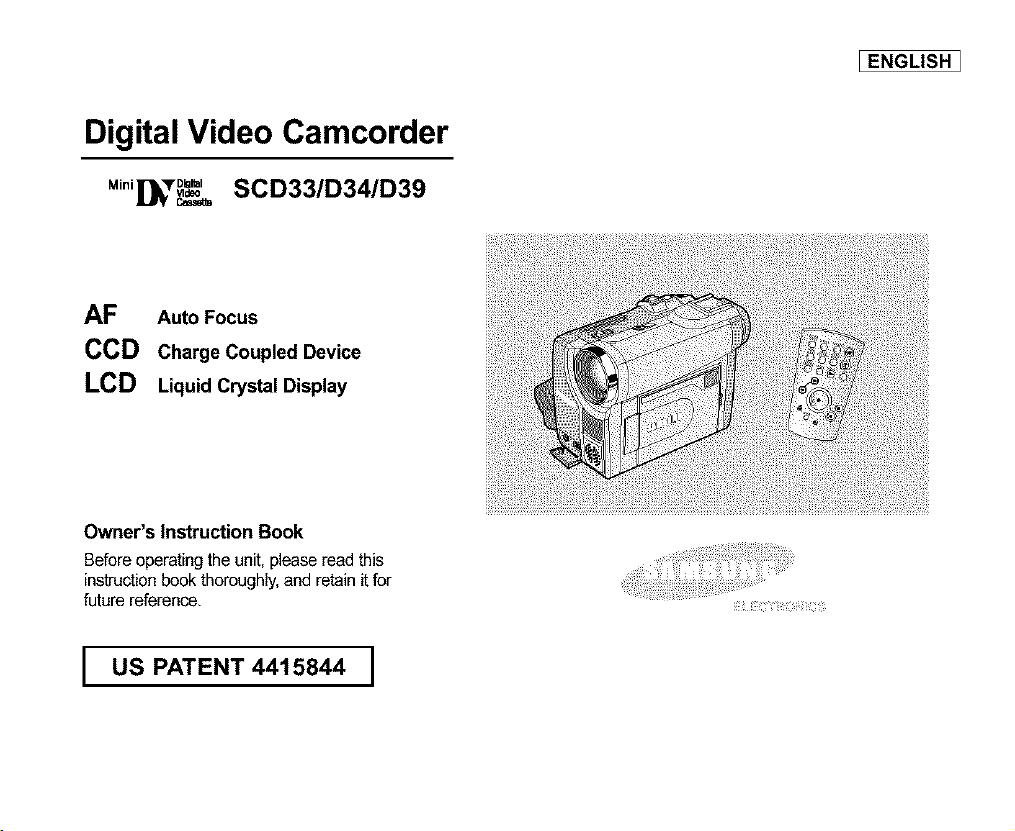
Digital Video Camcorder
M,o,[_,r_=_=,SCD33/D34/D39
AF Auto Focus
CCD Charge Coupled Device
LCD Liquid Crystal Display
Owner's Instruction Book
Before operating the unit, please read this
instruction book thoroughly, and retain it for
future reference,
US PATENT 4415844 ]
i
EENGLISH 1
[ ENGLISH I
Notices and Safety Instructions
[_T:llil[o] _1
RISK OF ELECTRIC /|\
SHOCK
DO NOT OPEN
CAUTION:
TO REDUCE THE RISK OF ELECTRIC SHOCK, DO NOT
REMOVE COVER(OR BACK} NO USER SERVICEABLE
PARTS iNSIDE, REFER SERVICING TO QUALIFIED
SERVICE PERSONNEL
To prevent electric shock, match wide blade of plug
to wide slot and fully insert.
z_ This symbol is intended to alert the user to the presence of uninsulated
dangerous voltage within the product's enclosure that may be of
sufficient magnitude to constitute a risk of fire or electhc shock.
,_ This symbol is intended to alert the user to the presence of important
operating and maintenance instructions in the literature accompanying
this product,
I. READ INSTRUCTIONS:
All the safety and operating instructions should be read
before the CAMCORDER is operated.
2. RETAIN INSTRUCTIONS:
The safety and operating instructionsshould be retained for
future reference.
3. HEED WARNINGS:
AI_warnings on the CAMCORDER and in the operetinginstructions
sbocld be adhered to.
4. FOLLOW INSTRUCTIONS:
All operating and maintenance instructionsshould be followed.
5. CLEANING:
Unplug this CAMCORDER from the wal_outlet before cleaning,
Do not use liquidor aerosol cleaners.
Use a dry cloth used for dusting cabinets.
7. WATER AND MOISTURE:
Do not use thisCAMCORDER near water;
for example, near a bathtub, wash bowl, kitchen sink, laundry
tub, in a wet basement, near a swimming pool or lake.
8. ACCESSORIES:
Do not place this CAMCORDER on an unstable cart, stand, tripod,
bracket or table. The CAMCORDER may fall, causing serious injury
to a child or adult, and serious damage to the unit.
Use only with a cart, stand, tripod, bracket, or table recommended
by the manufacturer or sold with the CAMCORDER, Any mounting
of the unit should follow the manufacturer's instructions and should
use a mounting accessory recommended by the manufacturer.
A, An appliance and cart combination should be moved with care.
Quick stops, excessive force and uneven surfaces may cause
the appliance and cart combination to overturn,
PORTABLE CART WARNING
(Symbol provided by RETAC)
6. ATTACHMENTS:
Do not use attachments not recommended by the CAMCORDER
product manufacturer as they may be hazardous,
_ENGLISH ]
Notices and Safety Instructions
9. VENTILATION:
Slots and openings in the cabinet are provided for ventilation to
ensure reliable operation of the CAMCORDER and to protect it
from overheating. These openings must not be blocked or
covered. Never place your CAMCORDER on a bed, sofa, rug,
or other similar surface: on or near a radiator or heat register,
This CAMCORDER should not be pieced in a built-in installation
such as a bookcase or rack unless proper ventilation is provided
or the manufacturer's instructions have been adhered to.
10. POWER SOURCES:
The CAMCORDER should be operated only from the type of
power source indicated on the label.
If you are not sure of the type of power supply at your home,
consult your appliance deaIer or local power company.
A CAMCORDER is intended to be operated from battery power,
or other sources, refer to the operating instructions.
I1. GROUNDING OR POLARIZATION:
This CAMCORDER may be equipped witheither a polarized
2-wire AC line plug (a plughaving one blade wider than the other)
or a 3-wire grounding type plug,a plug having a third (grounding)
pin.
If you are unableto insert the plugfully into the o_:let, try reversing
the plug. ifthe plug still fails to fit, contact your electrician to
replace your outlet. Do not defeat the safety purposeof the
poiarizedplug.
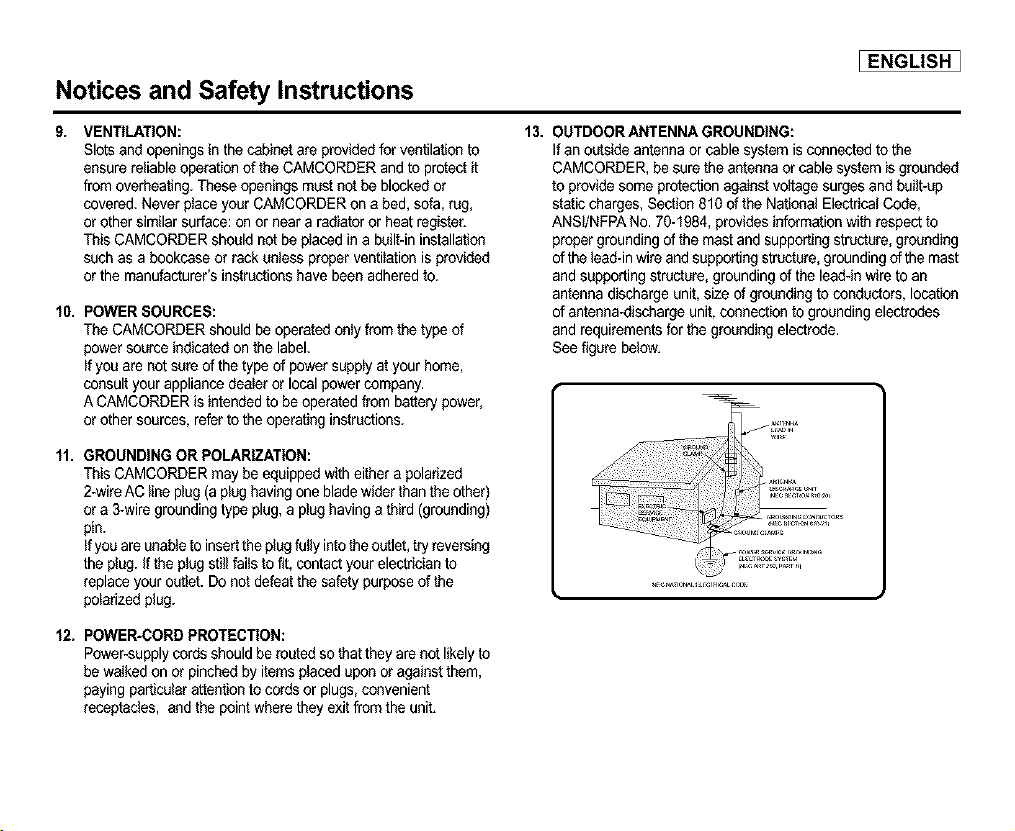
13. OUTDOOR ANTENNA GROUNDING:
Ifan outside antenna or cable system is connected to the
CAMCORDER, be sure the antenna or cable system is grounded
to providesome protectionagainst vogage surges and built-up
static charges, Section 810 of the National Electrical Code,
ANSI/NFPA No. 70-1984, provides information with respect to
propergrounding of the mast and supporting structure, grounding
of the lead-inwire and supporting structure, grounding of the mast
and supporting structure, grounding of the lead-in wire to an
antenna discharge unit, size of grounding to conductors, location
of antenna-discharge unit, connection to grounding electrodes
and requirements for the grounding electrode,
See figure below,
Wll_
_ii'_iiiiiiii_ii_i_ , .......
12. POWER=CORDPROTECTION:
Power-supply cords should be routed so that they are not likely to
be waIked on or pinched by items placedupon or against them,
payingparficular attention to cords or plugs, convenient
receptacles, and the point where they exit from the unit,
[ ENGLISH I
Notices and Safety Instructions
14. LIGHTNING:
For added protection of this CAMCORDER du_ing a lightning
storm o when it is left unattended and unused for long periods of
time, unplug it from the wall outlet and disconnect the antenna or
cable system,
This wil! prevent damage to the CAMCORDER due to lightning
and pewer-line surges,
15. POWER LINES:
An outside antenna system should not be located in the vicinity of
overhead power lines or other electric light or power circuits where
it can fail into such power lines or circuits, When installing an
outside antenna system, extreme care should be taken to keep
from touching such power lines or circuits as contact with them
might be fatal.
16. OVERLOADING:
Donot overload wall outlets and extension cords as this can result
in a risk of fire or electric shock.
17. OBJECTS AND LIQUIDS:
Never push objects of any kind into this CAMCORDER through
openings as they may touch dangerous voltage pointsor short out
a part that could result in a fire or electric shock.
Never spill liquids of any kind onto the CAMCORDER, Should
spillage occur, unplug unit and have it checked by a technician
before use,
18. SERVICING:
Do not attempt to service this CAMCORDER yourself. Opening or
removing covers may expose you to dangerous voltage or other
hazards,
Refer all servicing to qualified service personnel,
19. DAMAGE REQUIRING SERVICE:
Unplug this CAMCORDER from the wall outlet and refer servicing
to qualified service personnel under the following conditions:
a, When the power-supply cord or ptug is damaged,
b, If any liquid has been spilled onto, or objects have fallen into
the CAMCORDER,
c, If the CAMCORDER has been exposed to rain or water.
rk If the CAMCORDER does not operate normally by following the
operating instructions, adjust only those contreis that are
covered by the operating instructions. Improper adjustment of
other controls may result in damage and will
often require extensive workby a qualified technician to restore
the CAMCORDER to its normal operation.
e, If the CAMCORDER has been dropped or the cabinet has been
damaged.
f, When the CAMCORDER exhibits a distinct change in
performance, this indicates a need for service,
20. REPLACEMENT PARTS:
When replacement parts are required, be sure the service
technician has used replacement parts speckled by the
manufacturer and having the same characteristics as the original
pad.
Unauthorized substitutions may result in fire, electric shock or
other hazards,
21. SAFETY CHECK:
Upon completion of any service or repairs to this CAMCORDER,
ask the service technician to perform safety checks to determine
that the CAMCORDER is in safe operating order.
_ENGLISH ]
Notices and Safety Instructions
22. To prevent damage which may resug in fire or shock hazard,
do not expose this appliance to rain or moisture,
23. If this powersupply is used at 240V ac, a suitable plug adapter
should be use.
NOTE TO CATV SYSTEM INSTALLER:
This reminder is provided to call the CATV system installer's attention
to Article 82040 of the NEC that provides guidelines for proper
grounding and, in particular, specifies that the cable ground shall be
connected to the grounding system of the building as close to the point
of cable entry as practical.
USER INSTALLER CAUTION:
Your authority to operate this FCC certified equipment could be voided
if you make changes or modifications not expressly approved by this
party responsible for compliance to part 15 FCC rules.
NOTE: This equipment has been tested and found to comply with
the limits for a Class B digital device, pursuant to part 15 of the
FCC Rules. These limits are designed to provide reasonable
protection against harmful interference in a residential installation.
This equipment generates, uses and can radiate radio frequency
energy and, if not installed and used in accordance with the
instructions, may cause harmful interference to radio
communications. However, there is no guarantee that interference
will not occur in a particularinstallation. If this equipment does
cause harmfu_interferenceto radio or television reception, which
can be determined by turning the equipment off and on, the user is
encouraged to try to correct the interferenceby one or more of the
following measures:
Reodent or relocate the receiving antenna,
Increase the separation between the equipment and receiver,
Connect the equipment into an outlet on a circuit different from
that to which the receiver is connected,
Consult the dealer or an experienced radio/TV technician for help.
[ ENGLISH I
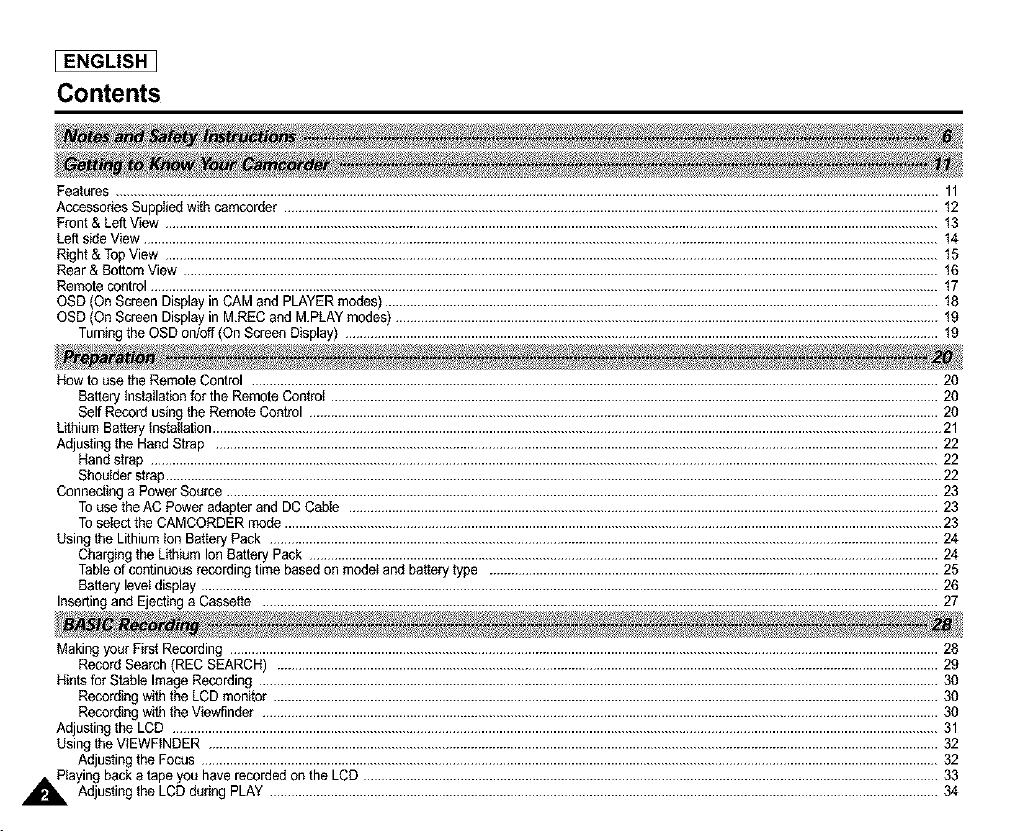
Contents
Features .....................................................................................................................................................................................................................................11
AccessoriesSupplied with camcorder ......................................................................................................................................................................................t2
Front& LeftView .......................................................................................................................................................................................................................t3
Left side View .............................................................................................................................................................................................................................t4
Right& Top View .......................................................................................................................................................................................................................15
Rear& BottomView ..................................................................................................................................................................................................................16
Remotecontrol ...........................................................................................................................................................................................................................17
OSD(On Screen Displayin CAM and PLAYERmodes)..........................................................................................................................................................t8
OSD(On Screen Displayin M.RECand MPLAY modes) .......................................................................................................................................................19
Turningthe OSD on/off (On Screen Display) .....................................................................................................................................................................19
How to use the Remote Control ...............................................................................................................................................................................................20
BatteryInstallationfor the RemoteControl .........................................................................................................................................................................20
Self Recordusing the RemoteControl ...............................................................................................................................................................................20
LithiumBattery thstaUation...........................................................................................................................................................................................................21
Adjustingthe Hand Strap .........................................................................................................................................................................................................22
Handstrap ...........................................................................................................................................................................................................................22
Shoulderstrap........................................................................................................................................................................................................................22
Connectinga Power Source ......................................................................................................................................................................................................23
Tousethe AC Power adapterand DC Cabte ....................................................................................................................................................................23
Toselectthe CAMCORDERmode.......................................................................................................................................................................................23
Using the LithiumIon Battery Pack ..........................................................................................................................................................................................24
Chargingthe LithiumIon Battery Pack ...............................................................................................................................................................................24
Tableof continuousrecordingtime based on model and batterytype .............................................................................................................................25
Batteryleveldisplay .............................................................................................................................................................................................................26
Insertingand Ejectinga Cassette ............................................................................................................................................................................................27
Makingyour First Recording .....................................................................................................................................................................................................28
RecordSearch (REC SEARCH) ........................................................................................................................................................................................29
Hints for StableImage Recording .............................................................................................................................................................................................30
Recordingwiththe LCD monitor .........................................................................................................................................................................................30
Recordingwiththe Viewfinder ............................................................................................................................................................................................30
AdjustingtheLCD .....................................................................................................................................................................................................................31
Using the VIEWFINDER ...........................................................................................................................................................................................................32
Adjusting the Focus .............................................................................................................................................................................................................32
Playingback a tape you haverecordedon the LCD ................................................................................................................................................................33
,,_,_ll ' Adjusting the LCD PLAY 34
during
Contents
_ENGLISH ]
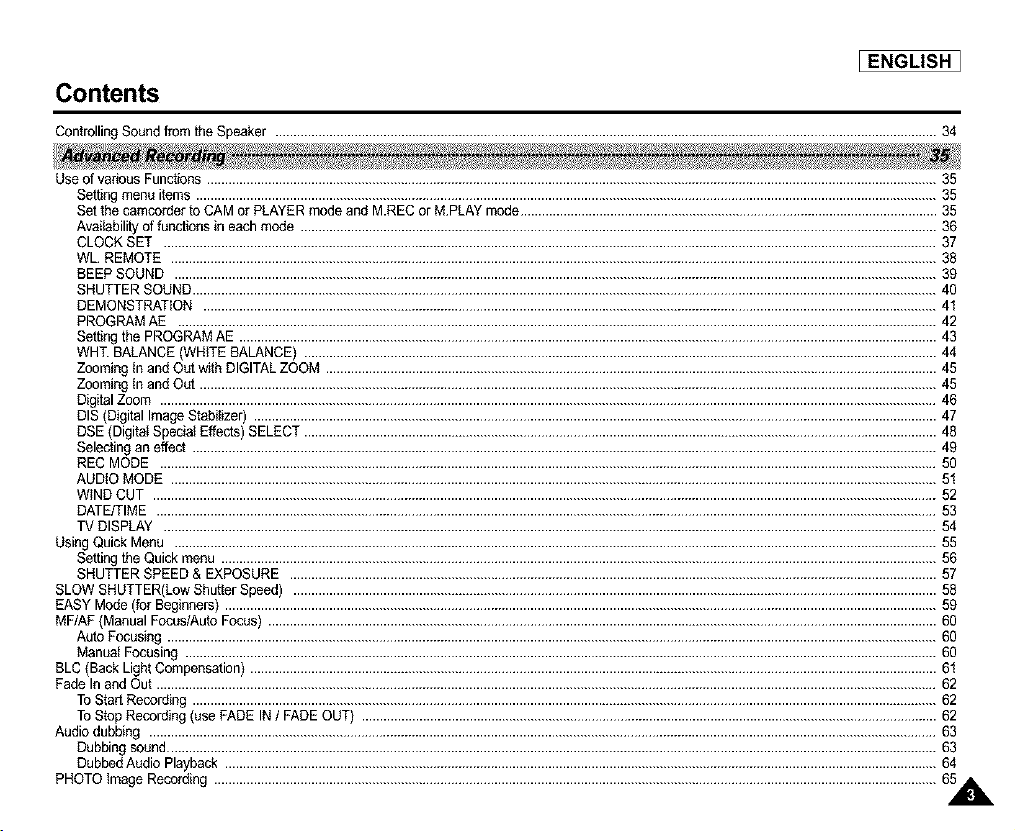
ControllingSound from the Speaker ........................................................................................................................................................................................34
Use of various Functions ...........................................................................................................................................................................................................35
Settingmenu items ..............................................................................................................................................................................................................35
Set the camcordertoCAM or PLAYERmodeand M.RECor MPLAY mode....................................................................................................................35
Availabilityof functionsin eachmode .................................................................................................................................................................................36
CLOCK SET .......................................................................................................................................................................................................................37
WL REMOTE .....................................................................................................................................................................................................................38
BEEPSOUND ....................................................................................................................................................................................................................39
SHUTTERSOUND...............................................................................................................................................................................................................40
DEMONSTRATION ............................................................................................................................................................................................................41
PROGRAMAE ...................................................................................................................................................................................................................42
Settingthe PROGRAMAE ..................................................................................................................................................................................................43
WHT BALANCE(WHITE BALANCE) ................................................................................................................................................................................44
Zoomingtn and Out with DIGITALZOOM ..........................................................................................................................................................................45
ZoomingIn and Out .............................................................................................................................................................................................................45
DigitalZoom ........................................................................................................................................................................................................................46
DIS (DigitalImageStabilizer) ..............................................................................................................................................................................................47
DSE (DigitalSpecial Effects)SELECT ................................................................................................................................................................................48
Selectingan effect ...............................................................................................................................................................................................................49
REC MODE ........................................................................................................................................................................................................................50
AUDIOMODE .....................................................................................................................................................................................................................51
WiNDCUT ..........................................................................................................................................................................................................................52
DATE/TIME .........................................................................................................................................................................................................................53
TV DISPLAY .......................................................................................................................................................................................................................54
Using Quick Menu ....................................................................................................................................................................................................................55
Settingthe Quick menu .......................................................................................................................................................................................................56
SHUTTERSPEED & EXPOSURE ....................................................................................................................................................................................57
SLOW SHUTTER(LowShutterSpeed) ...................................................................................................................................................................................58
EASY Mode(for Beginners) ......................................................................................................................................................................................................59
MF/AF (ManualFocus/AutoFocus) ..........................................................................................................................................................................................60
Auto Focusing......................................................................................................................................................................................................................60
Manual Focusing .................................................................................................................................................................................................................60
BLC (Back Light Compensation)...............................................................................................................................................................................................61
Fade In and Out .........................................................................................................................................................................................................................62
ToStar[ Recording ...............................................................................................................................................................................................................62
ToStop Recording(useFADE IN i FADEOUT) ................................................................................................................................................................62
Audio dubbing ...........................................................................................................................................................................................................................63
Dubbing sound......................................................................................................................................................................................................................63
DubbedAudio Playback ......................................................................................................................................................................................................64
PHOTO image Recording .........................................................................................................................................................................................................65AL
[ ENGLISH I
Contents
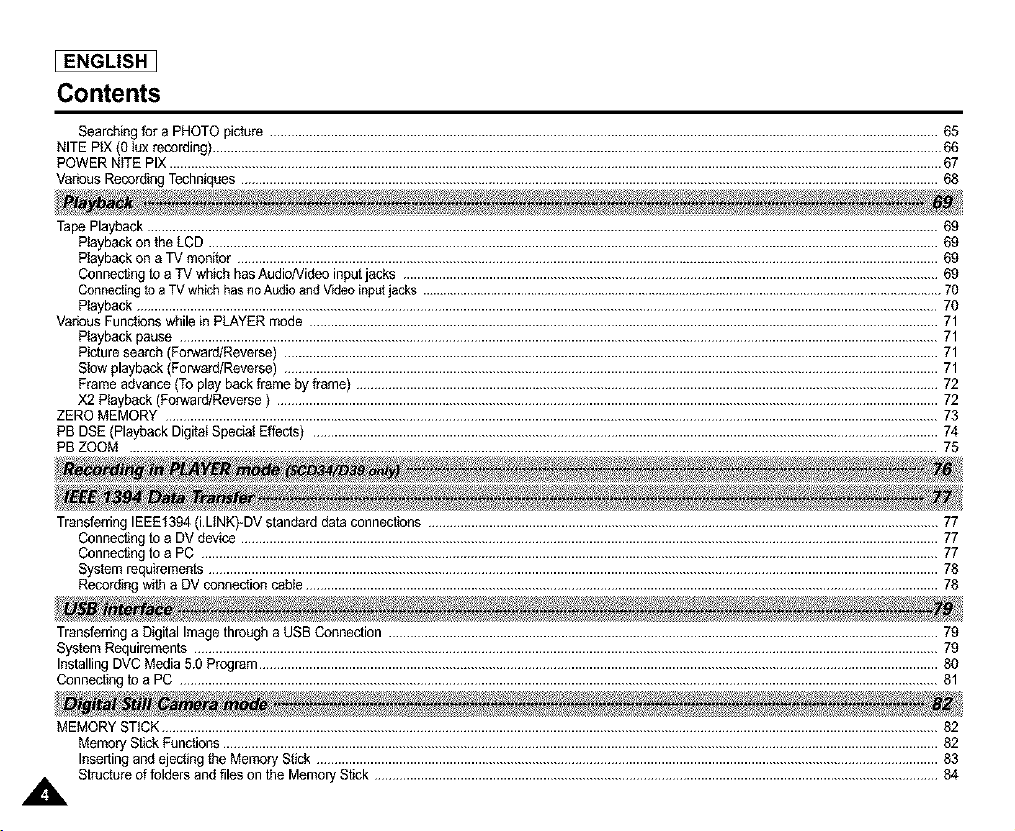
Searchiugfor a PHOTOpicture ..........................................................................................................................................................................................65
NITE PIX(0 tux recording)...........................................................................................................................................................................................................66
POWERN_TEPIX .......................................................................................................................................................................................................................67
VariousRecordingTechniques..................................................................................................................................................................................................68
Tape Playback............................................................................................................................................................................................................................69
Ptsybackon the LCD ...........................................................................................................................................................................................................69
Ptsybackon a TV monitor ...................................................................................................................................................................................................69
Connectingto a TV which hasAudio/Videoinput jacks .....................................................................................................................................................69
Connectingto a TVwhichhasnoAudioandVideoinputjacks ..........................................................................................................................................................70
Ptsyback...............................................................................................................................................................................................................................70
VariousFunctionswhile in PLAYERmode ...............................................................................................................................................................................71
Ptaybackpause ...................................................................................................................................................................................................................71
Picturesearch (Forward/Reverse)......................................................................................................................................................................................71
Stowplayback(Forward/Reverse)......................................................................................................................................................................................71
Frameadvance(Toplay back frame byframe) ..................................................................................................................................................................72
X2 Playback(Forward/Reverse) ........................................................................................................................................................................................72
ZEROMEMORY .......................................................................................................................................................................................................................73
PB DSE(Playback DigitatSpeciatEffects) ..............................................................................................................................................................................74
PB ZOOM .................................................................................................................................................................................................................................75
TransferringIEEEf394 (i.LtNK)_DVstandarddata connections ..............................................................................................................................................77
Connectingto a DV device ..................................................................................................................................................................................................77
Connectingto a PC .............................................................................................................................................................................................................77
Systemrequirements...........................................................................................................................................................................................................78
Recordingwitha DV connectioncable ................................................................................................................................................................................78
Transferringa DigitalImagethrough a USB Connection .........................................................................................................................................................79
SystemRequirements ...............................................................................................................................................................................................................79
InstallingDVC Media 5.0 Program.............................................................................................................................................................................................80
Connectingto a PC ...................................................................................................................................................................................................................81
MEMORYSTICK........................................................................................................................................................................................................................82
MemoryStickFunctions.......................................................................................................................................................................................................82
Insertingand ejectingthe MemoryStick .............................................................................................................................................................................83
A Structureof folders and files on the MemoryStick .............................................................................................................................................................84
Contents
[ENGLISH ]
Image Format .......................................................................................................................................................................................................................84
SelectingtheCAMCORDERmode ...........................................................................................................................................................................................84
Selectingthe imagequality .......................................................................................................................................................................................................85
Selectthe image quality .....................................................................................................................................................................................................85
Numberof imageson the MemoryStick .............................................................................................................................................................................85
RecordingStill imagesto a Memory Stick in MREC Mode .....................................................................................................................................................86
Recordingimagesto a MemoryStick ..................................................................................................................................................................................86
Recordingan image from a cassetteas a still image ........................................................................................................................................................87
ViewingStilt images ...................................................................................................................................................................................................................88
Toview a Singleimage.........................................................................................................................................................................................................88
Toview a slideshow.............................................................................................................................................................................................................88
Toview the Multi Display......................................................................................................................................................................................................89
Copying still imagesfrom a cassetteto MemoryStick..............................................................................................................................................................90
Marking imagesfor pdnting .......................................................................................................................................................................................................91
Protectionfrom accidentalerasure.............................................................................................................................................................................................92
DeletingStill images ..................................................................................................................................................................................................................93
Formattingthe MemoryStick ....................................................................................................................................................................................................94
Attention ...............................................................................................................................................................................................................................94
MPEG RECORDING.................................................................................................................................................................................................................95
Selectingthe movingpicturesizes ............................................................................................................................................................................................97
MPEG Playback.........................................................................................................................................................................................................................98
After finishinga recording..........................................................................................................................................................................................................99
Cleaningand Maintainingthe Camcorder................................................................................................................................................................................100
CleaningtheVideo Heads .................................................................................................................................................................................................100
Using YourCamcorderAbroad ................................................................................................................................................................................................101
Powersources ...................................................................................................................................................................................................................10"t
Color system ......................................................................................................................................................................................................................t01
Troubteshcofiag.......................................................................................................................................................................................................................102
Self DiagnosisDisplay .......................................................................................................................................................................................................102
MoistureCondensation ......................................................................................................................................................................................................102
Self DiagnosisDisplay in M.REC,M.PLAYmode.............................................................................................................................................................103
A
[ ENGLISH I
Notes and Safety Instructions
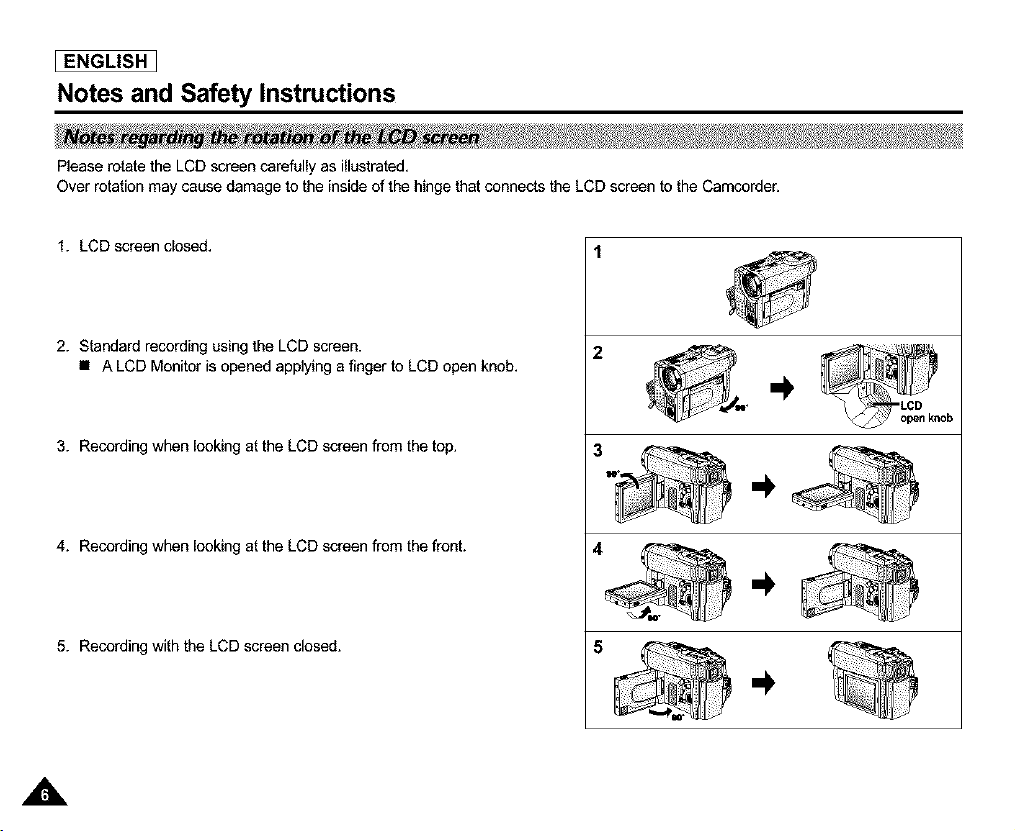
Please rotate the LCD screen carefully as illustrated,
Over rotation may cause damage to the inside of the hinge that connects the LCD screen to the Camcorder.
1. LCD screen closed,
2. Standard recording using the LCD screen.
• A LCD Monitor is opened applying a finger to LCD open knob,
3. Recording when looking at the LCD screen from the top.
4. Recording when looking at the LCD screen from the front.
5. Recording with the LCD screen closed.
A
Notes and Safety Instructions
[ENGLISH ]
Television programs, video tapes, DVD titles, films, and other program materials may be copydghted.
Unauthorized copying of copyrighted matedal may be against the law.
1. Asudden rise in atmosphedc temperature may cause condensation to form inside the camcorder.
for example:
- When you move the camcorder from a cold location to a warm location (e.g.from outside to inside during winter.)
- When you move the camcorder from a cool location to a hot location (e.g. from inside to outside during the summer.)
2. If the F6q(DEW) protectionfeature is activated, leave the camcorder for at least two hours in a dry,warm room with the
cassette compartment opened and the battery pack removed.
1. Do not leave the camcorder exposed to high temperature (above 60°C or 140°F).
For example, in a parked car in the sun or exposed to direct sunlight.
2. Do not let the camcorder get wet.
Keep the camcorder away from rain, sea water, and any other form of moisture. If the camcorder gets wet, it may get
damaged.
Sometimes a malfunction due to exposure to liquids cannot be repaired.
A
[ ENGLISH I
Notes and Safety Instructions
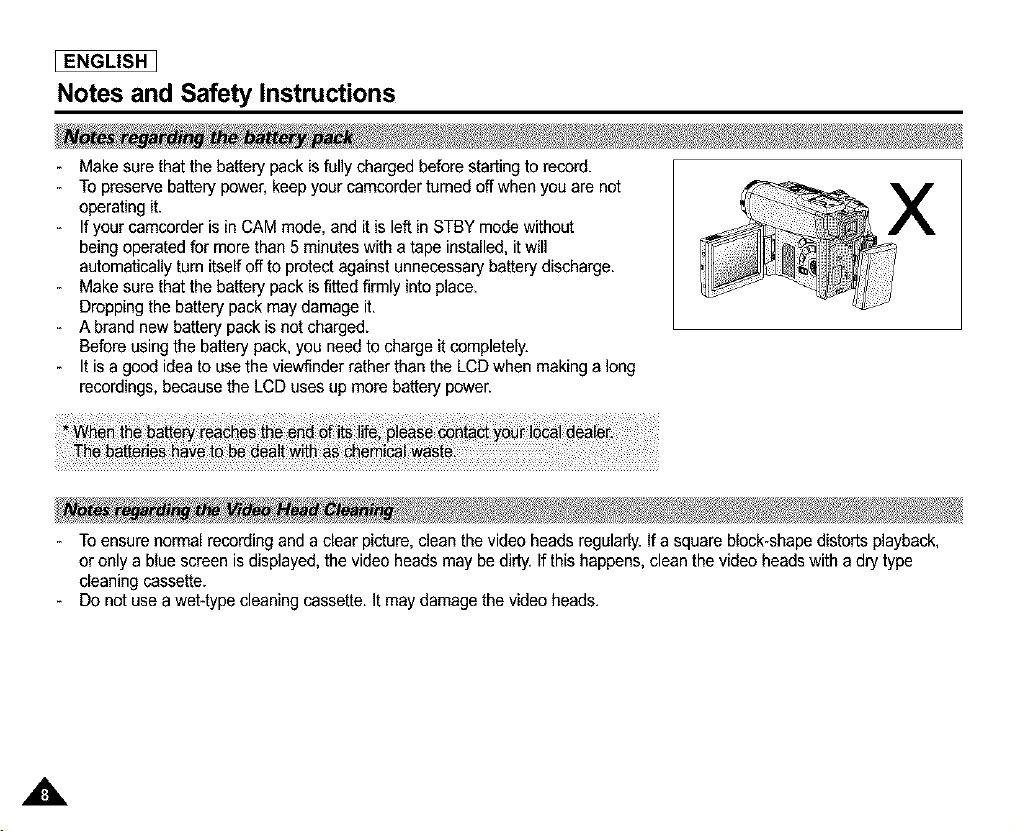
- Make sure that the battery pack is fully charged before starting to record.
- To preserve battery power, keep your camcorder turned off when you are not
operating it.
If your camcorder is in CAM mode, and it is left in STBY mode without
being operated for more than 5 minutes with a tape installed, it will
automatically turn itself off to protect against unnecessary battery discharge.
- Make sure that the battery pack is fitted firmly into place.
Dropping the battery pack may damage it.
- A brand new battery pack is not charged.
Before using the battery pack, you need to charge it completely.
It is a good idea to use the viewfinder rather than the LCD when making a long
recordings, because the LCD uses up more battery power.
- To ensure normal recording and a clear picture, clean the video heads regularly. If a square block-shape distorts playback,
or only a blue screen is displayed, the video heads may be dirty. If this happens, clean the video heads with a dry type
cleaning cassette.
- Do not use a wet-type cleaning cassette. It may damage the video heads.
A
Notes and Safety Instructions
_ENGLISH ]
- Do not film with the camera lens pointing directly at the sun.
Direct sunlight can damage the CCD(Charge Coupled Device).
1. Do not position the camcorder such that the viewfinder is pointing towards the sun.
Direct sunlight can damage the inside of the viewfinder. Be careful when placing the camcorder under sunlight or near a
window exposed to sunlight.
2. Do not pick up the camcorder from the viewfinder.
3. Over pulling of the viewfinder may damage it.
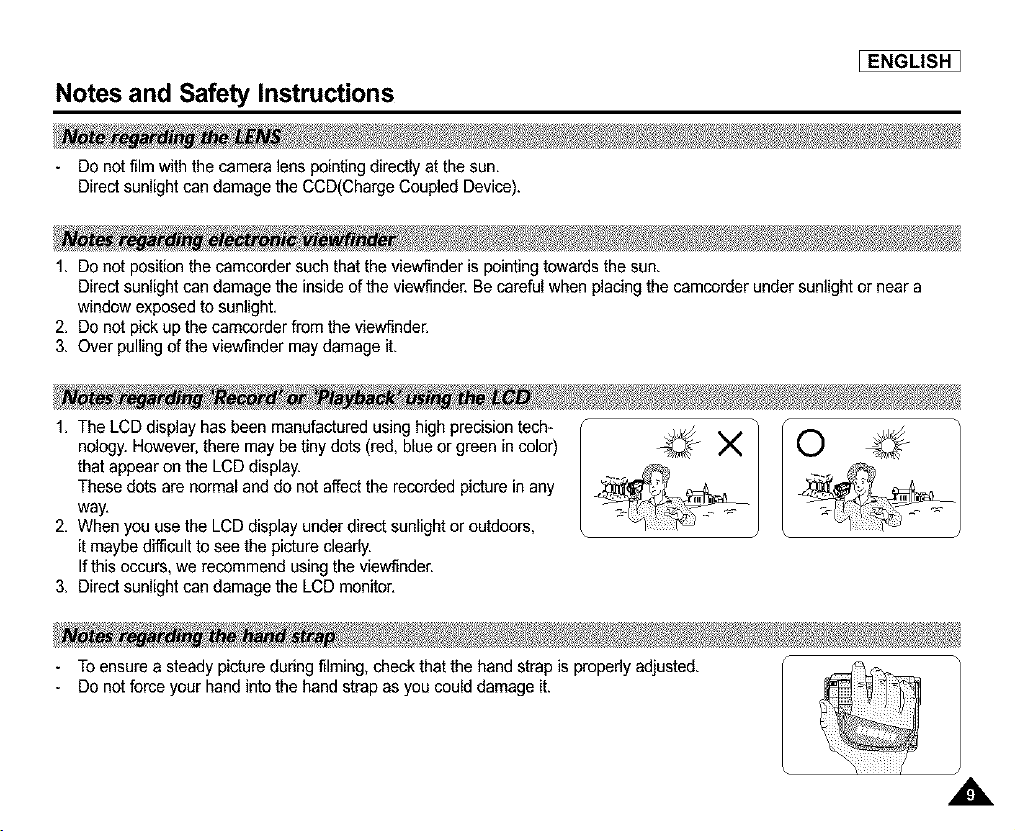
1. The LCD display has been manufactured using high precision tech-
nology. However, there may be tiny dots (red, blue or green in color)
that appear on the LCD display.
These dots are normal and do not affect the recorded picture in any
way.
2. When you use the LCD display under direct sunlight or outdoors,
it maybe difficult to see the picture clearly.
If this occurs, we recommend using the viewfinder.
3. Direct sunlight can damage the LCD monitor.
- To ensure a steady picture during filming, check that the hand strap is propedy adjusted.
- Do not fome your hand into the hand strap as you could damage it.
,A,
[ ENGLISH I
Notes and Safety Instructions
1. The lithium battery maintains the clock function and user settings; even if the battery pack orAC adapter is removed.
2. The lithium battery for the camcerder lasts about 6 months under normal operation from time of installation.
3. When the lithium battery becomes weak or dead, the date/time indicator will display "---" when
you set the DATE/TIME to ON.
In this case, replace the lithium battery with a new one(type CR2025).
4. Danger of explosion if battery is incorrectly replaced.
Replace only with the same or equivalent type.
Warning: Keep the LITHIUM BATTERY out of reach of children. Should a battery be swallowed,
consult a doctor immediately,
Getting to Know Your Camcorder
[ENGLISH ]
• Digital data transfer function with IEEE1394
By incorporating the IEEE 1394 (i.LINKTM : LLINKis a serial data transfer protocol and interconnectivity system, used to
transmit DV data) high speed data transport port, both moving and still images can be transferred to a PC, making
it possibleto produceor edit various images.
• USB interface for digital image data transfer
You can transfer still images to a PC using the USB interface without an add-on card.
PHOTO
The PHOTO function lets you capture an object as a still along with sound, while in Camera mode.
800x Digital zoom
Allows you to magnify an image up to 800 times its original size.
Color TFT LCD
A high-resolution color TFT LCD gives you clean, sharp images as well as the ability to reviewyour recordings immediately.
Digital Image Stabilizer (DIS)
The DIS compensates for any handshake, reducing unstable images particularlyat high magnification.
Various digital effects
The DSE (Digital Special Effects) allows you to give your films a special look by adding vadous special effects.
Back Light Compensation (BLC)
The BLC function compensatesfor the bright backgroundbehinda subject you're recording.
Program AE
The Program AE enables you to alter the shutter speed and aperture to suit the type of scene/action to be filmed.
NITE PIX
The NITE PIX function enables you to record a subject in a dark place.
Digital Still Camera function
• Using Memory Stick, you can easily record and playback standard still images.
• You can transfer standard still imageson the Memory Stick to your PC using the USB interface.
• MPEG Recording
MPEG recording makes it possible to record video onto a Memory Stick.
ENGLISH I
Getting to Know Your Camcorder
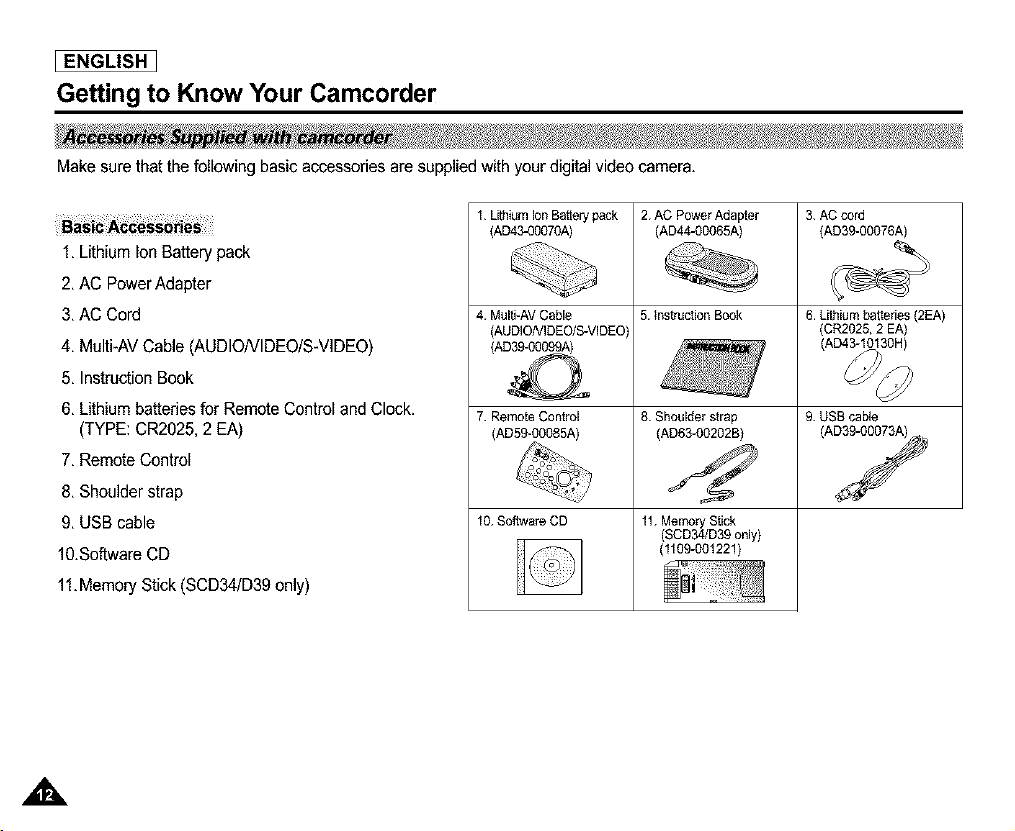
Make sure that the following basic accessories are supplied with your digital video camera,
1, Lithium Ion Battery pack
2, AC Power Adapter
3, AC Cord
4, Multi-AV Cable (AUDIONIDEO/S-VIDEO)
5, Instruction Book
6, Lithium battedes for Remote Control and Clock,
(TYPE: CR2025, 2 EA)
7, Remote Control
8, Shoulder strap
9, USB cable
10.Software CD
11,Memory Stick (SCD34/D39 only)
1. Uthium IonBattery pack
(AD43-00070A)
2. AC Power Adapter
(AD44-00065A)
4. MultJ-AV Cable 5. instruction Book
(AUDIONIDEO/S-VIDEC
/AO
7. Remote Control 8. Shoulder strap 9. USB cable
(AD59-00085A) (AD63-00202B) (A_
10. Software CD 11. Memory Stick
(SCD34/D39 only)
(1109-00"i221)
3. AC cord
(AD39-00076A)
6. Lithium battedes (2EA)
(CR2025, 2 EA)
Getting to Know Your Camcorder
_ENGLISH ]
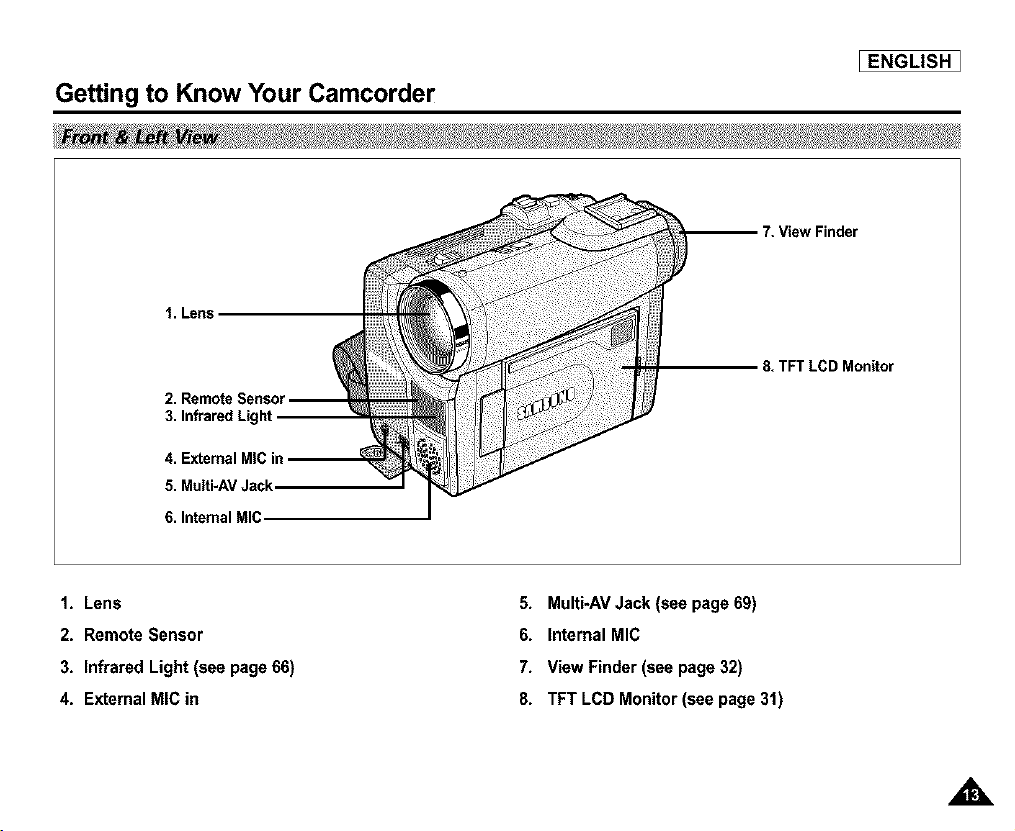
1. Lens
3. Infrared Light
4. External MIC in
5. Multi-AV Jack.
6. Internal MIC.
_vFinder
8. TFT LCD Monitor
1. Lens
2. Remote Sensor
3. Infrared Light (see page 66)
4. External MIC in
5. Multi-AV Jack (see page 69)
6. Internal MIC
7. View Finder (see page 32)
8. TFT LCD Monitor (see page 31)
[ ENGLISH I
Getting to Know Your Camcorder
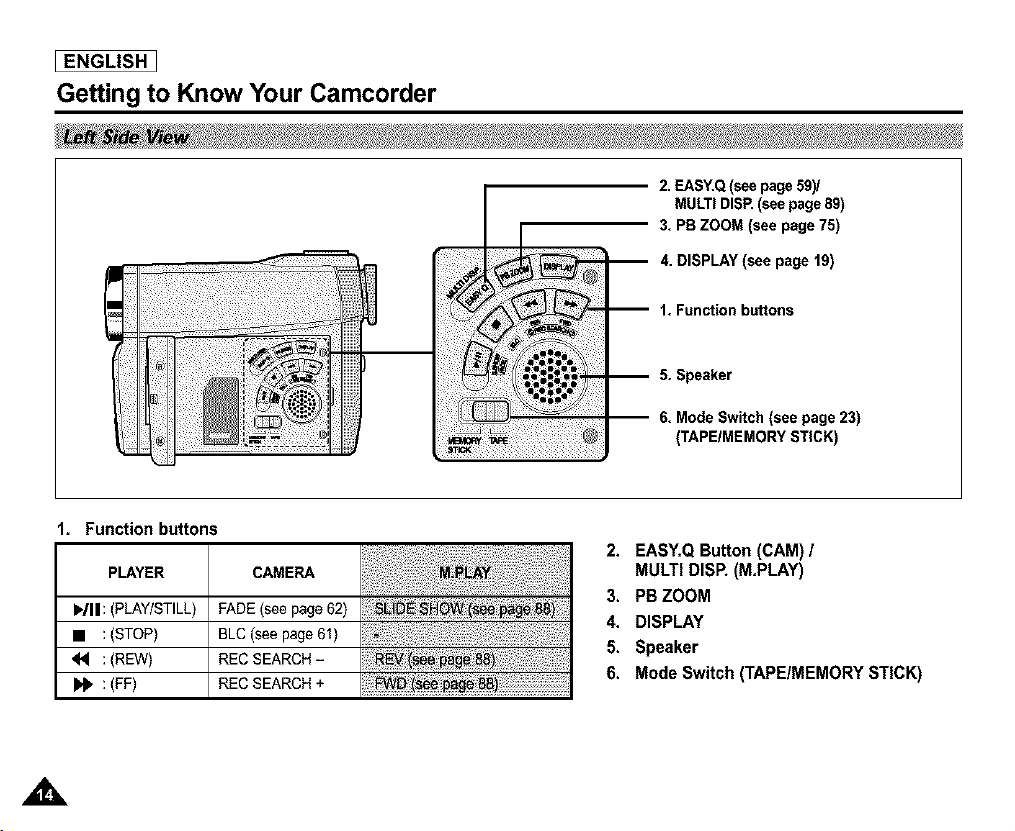
2. EASY.Q(see page 59)/
MULTI DISR (see page 89)
3. PB ZOOM (see page 75)
4. DISPLAY (see page 19)
1. Fun_ionbuffons
5. Speaker
6. Mode Switch (see page 23)
(TAPE/MEMORY STICK)
Function buttons
PLAYER CAMERA
WII:(PLAY/STILL) FADE(see page 62)
• :(STOP) BLC (see page 61)
d<l :(REW) REC SEARCH-
_lb :(FF) REC SEARCH +
2. EASY,Q Button (CAM) /
MULTI DISE (M,PLAY)
3. PB ZOOM
4. DISPLAY
5. Speaker
6. Mode Switch (TAPE/MEMORY STICK)
Getting to Know Your Camcorder
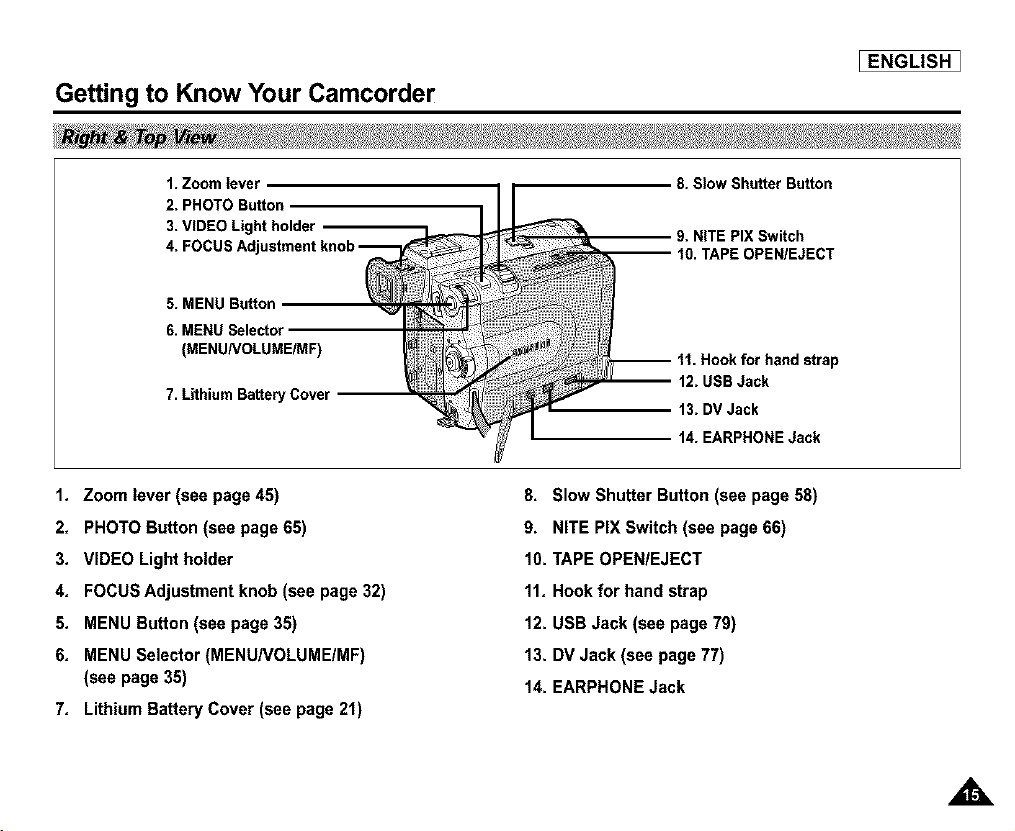
1. Zoom lever
2. PHOTO Button
3. VIDEO Light holder
5. MENU Button
6. MENU Selector
(MENUNOLUME/MF)
7. Lithium Battery Cover
8. Slow Shutter Button
9. NITE PIX Switch
OPEN/EJECT
1, Zoom lever (see page 45)
2, PHOTO Button (see page 65)
and strap
12. USB Jack
3, VIDEO Light holder
4, FOCUS Adjustment knob (see page 32)
5, MENU Button (see page 35)
6, MENU Selector (MENU/VOLUME/MF)
(see page 35)
7, Lithium Battery Cover (see page 21)
13. DV Jack
14. EARPHONE Jack
8. Slow Shutter Button (see page 58)
9. NITE PIX Switch (see page 66)
10. TAPE OPEN/EJECT
11, Hook for hand strap
12. USB Jack (see page 79)
13. DV Jack (see page 77)
14. EARPHONE Jack
EENGLISH 1
[ ENGLISH I
Getting to Know Your Camcorder
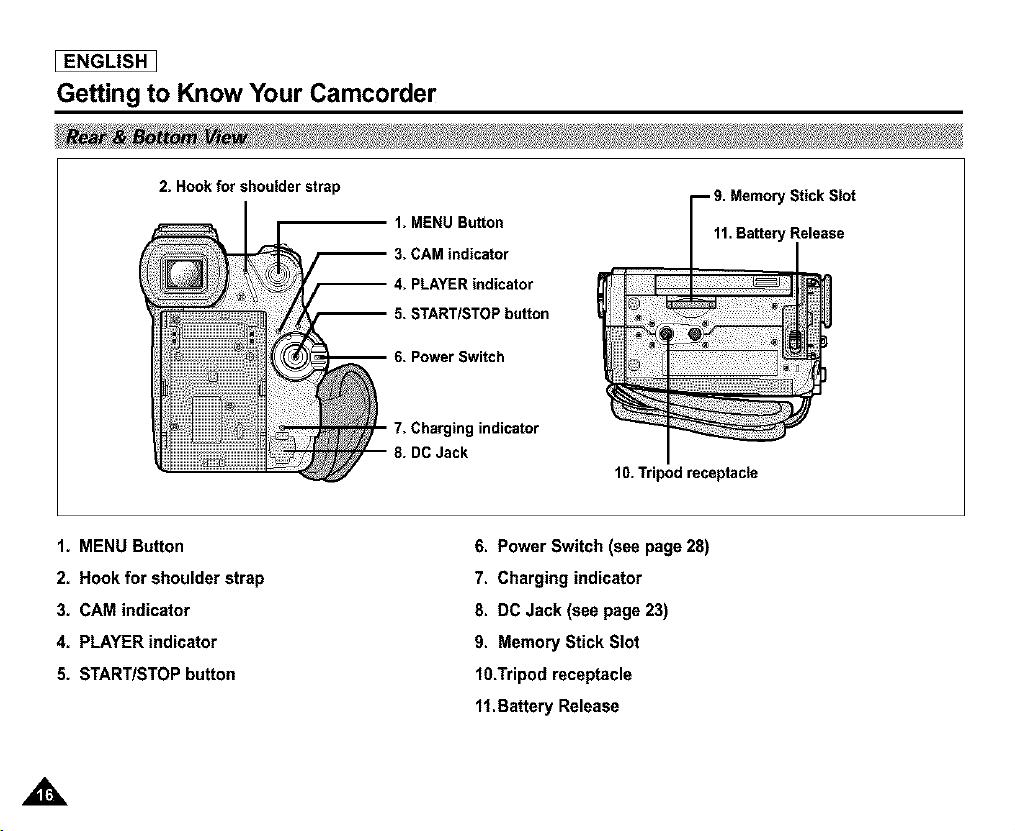
2. Hook for shoulder strap
1. MENU Button
3. CAM indicator
-- 4. PLAYER indicator
5. START/STOP button
--6. PowerSwitch
7. Charging indicator
8. DC Jack
'Stick Slot
11.Bat_ryRelease
10. Tripod Rceptacle
1, MENU Button
2, Hook for shoulder strap
3, CAM indicator
4, PLAYER indicator
5, START/STOP button
6. Power Switch (see page 28)
7. Charging indicator
8. DC Jack (see page 23)
9. Memory Stick Slot
10.Tripod receptacle
11.Battery Release
Getting to Know Your Camcorder
18.D(SPLAY
_ENGLISH ]
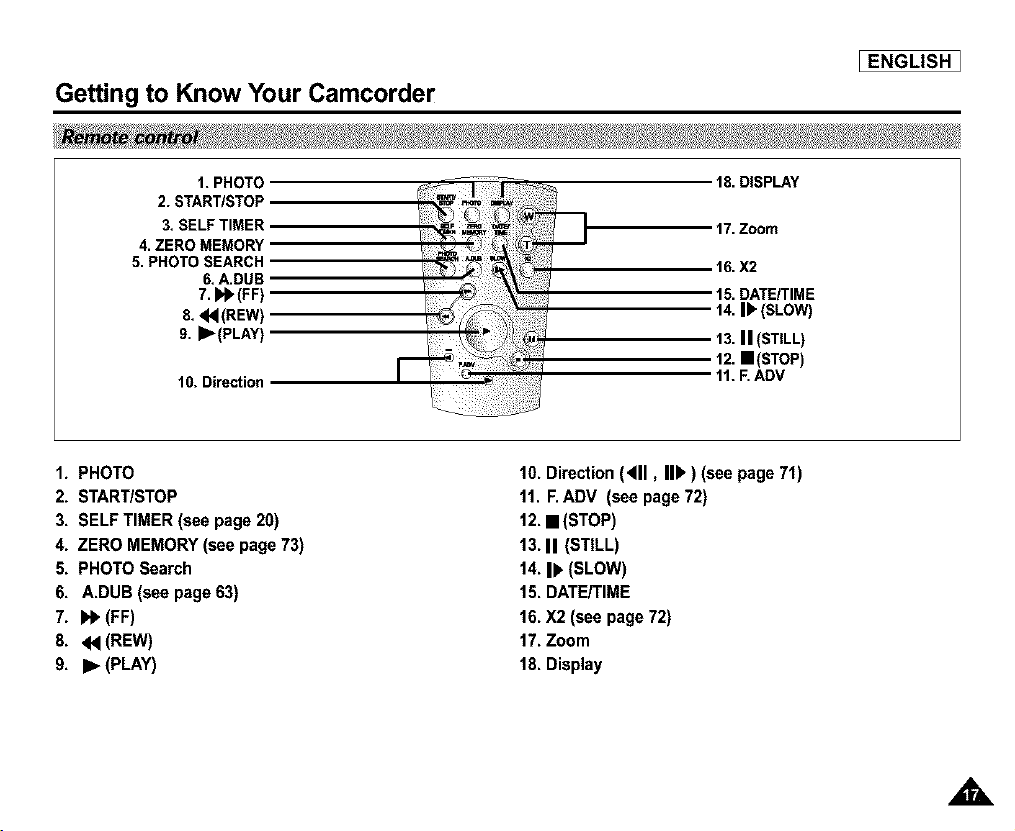
1. PHOTO
2. START/STOF
3. SELF TIMER
4. ZERO MEMORY
5. PHOTO SEARCH
6. A.DUB
7. _ (FF)
8. _ (REW)
9, •(PLAY)
10. Direction
17. Zoom
16. X2
15. DATE/TIME
14. I_ (SLOW)
13.II (STILL)
12. m (STOP)
11. F.ADV
1. PHOTO
2. START/STOP
3. SELF TIMER (see page 20)
4. ZERO MEMORY (see page 73)
5. PHOTO Search
6. A.DUB (see page 63)
7. bb (FF)
8. << (REW)
9. • (PLAY)
10. Direction (<11, I1_') (see page 71)
11. F. ADV (see page 72)
12. • (STOP)
13. II (STILL)
14. I_ (SLOW)
15. DATE/rIME
16. X2 (see page 72)
17. Zoom
18. Display
[ ENGLISH I
Getting to Know Your Camcorder
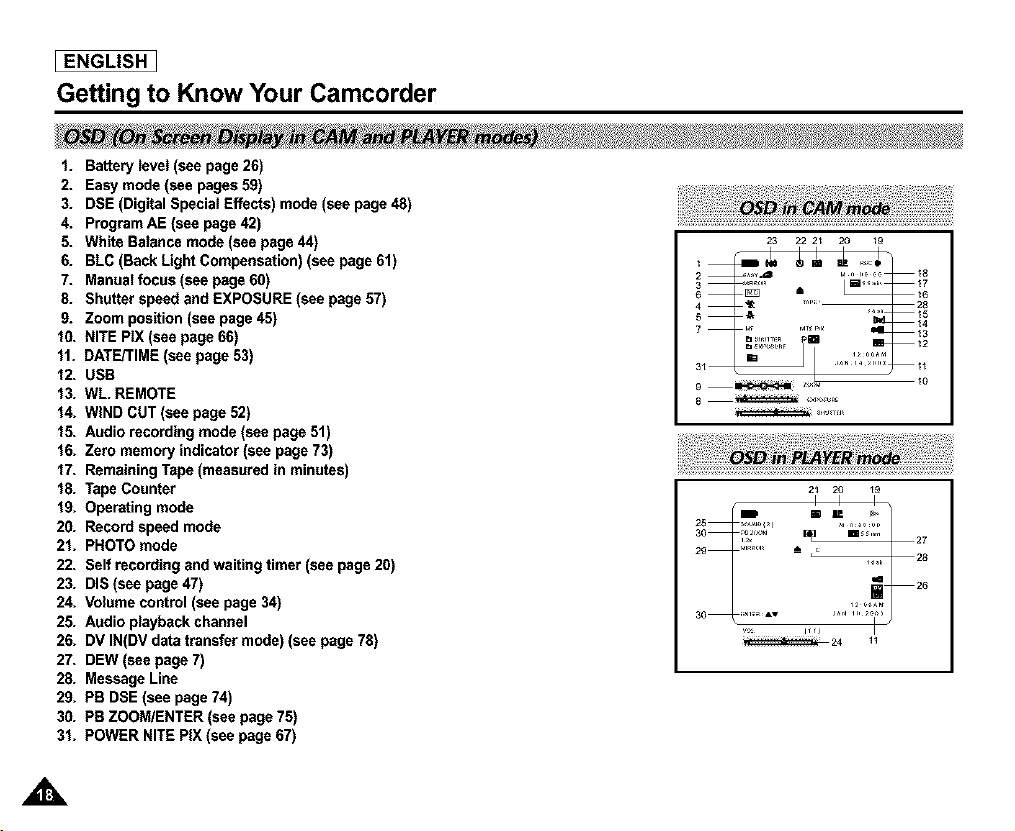
I. Battery level (see page 26)
2. Easy mode (see pages 59)
3. DSE (Digital Special Effects) mode (see page 48)
4. Program AE (see page 42)
5. White Balanca mode (see page 44)
6. BLC (Back Light Compensation) (see page 61)
7. Manual focus (see page 60)
8. Shutter speed and EXPOSURE (see page 57)
9. Zoom position (see page 45)
f0. NITE PIX (see page 66)
11. DATE/TIME (see page 53)
12. USB
13. WL REMOTE
14. WIND CUT (see page 52)
15. Audio recording mode (see page 51)
16. Zero memory indicator (see page 73)
17. Remaining Tape (measured in minutes)
18. Tape Counter
19. Operating mode
20. Record speed mode
21. PHOTO mode
22. Self recording and waiting timer (see page 20)
23. DIS (see page 47)
24. Volume control (see page 34)
25. Audio playback channel
26. DV IN(DV data transfer mode) (see page 78)
27. DEW (see page 7)
28. Message Line
29. PB DSE (see page 74)
30. PB ZOOM/ENTER (see page 75)
31. POWER NITE PIX (see page 67)
23 22 2_ 20 19
11
,A
Getting to Know Your Camcorder
[ENGLISH ]
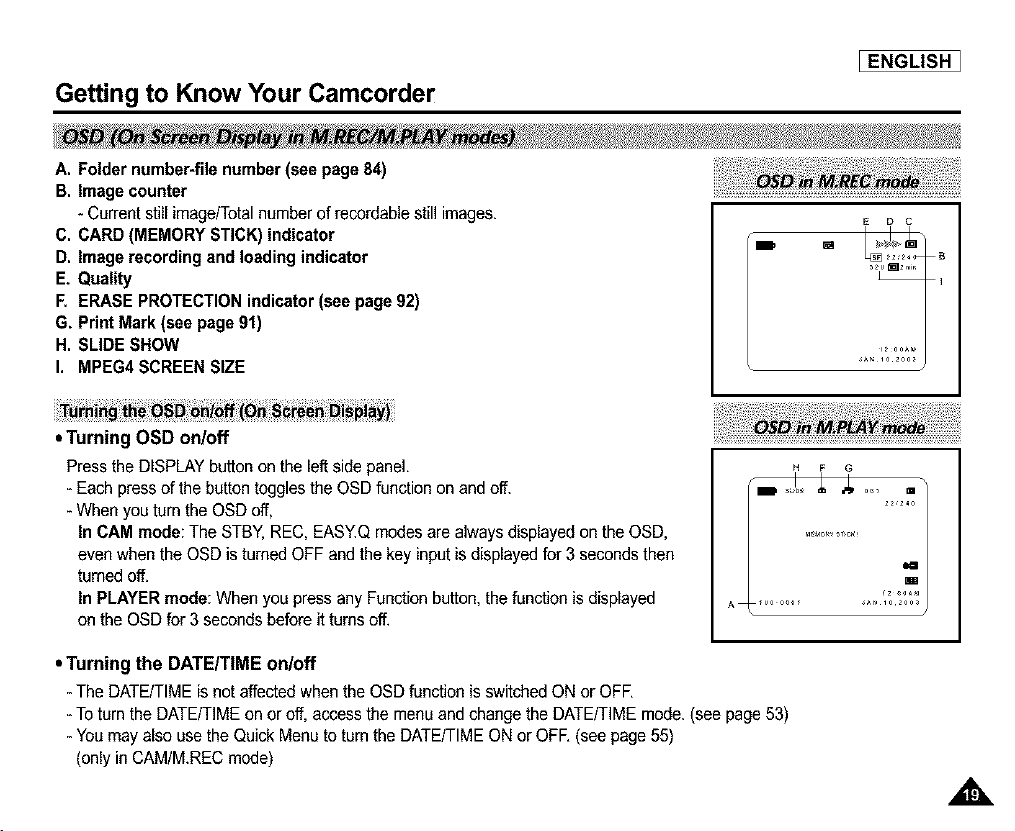
A. Folder number-file number (see page 84)
B. Image counter
- Current still image/Totalnumber of recordable still images.
C. CARD (MEMORY STICK) indicator
D. Image recording and loading indicator
E, Quality
F. ERASE PROTECTION indicator (see page 92)
G, Print Mark (see page 91)
H. SLIDE SHOW
I. MPEG4 SCREEN SIZE
E D C
• Turning OSD on/off
Press the DISPLAY button on the left side panel.
- Each press of the button toggles the OSD function on and off.
- When you turn the OSD off,
In CAM mode: The STBY, REC, EASY.Q modes are always displayed on the OSD,
even when the OSD is turned OFF and the key inputis displayed for 3 seconds then
turned off.
In PLAYER mode: When you press any Function button, the function is displayed
on the OSD for 3 seconds before it turns off.
• Turning the DATE/TIME on/off
- The DATE/TIME is not affected whenthe OSD function is switched ON or OFE
- To turn the DATE/TIME on or off, access the menu and change the DATE/TIME mode. (see page 53)
- You may also use the Quick Menu to turn the DATE/TIME ON or OFE (see page 55)
(only in CAM/M.REC mode)
[ ENGLISH I
Preparation
÷ Youneed to insert or replace the lithium batterywhen :
- You purchase the camcorder.
- The remote control doesn't work.
÷ Ensure that you insert the lithium cell correctly, following the + and - markings.
÷ Be careful not to reverse the polarity of the battery.
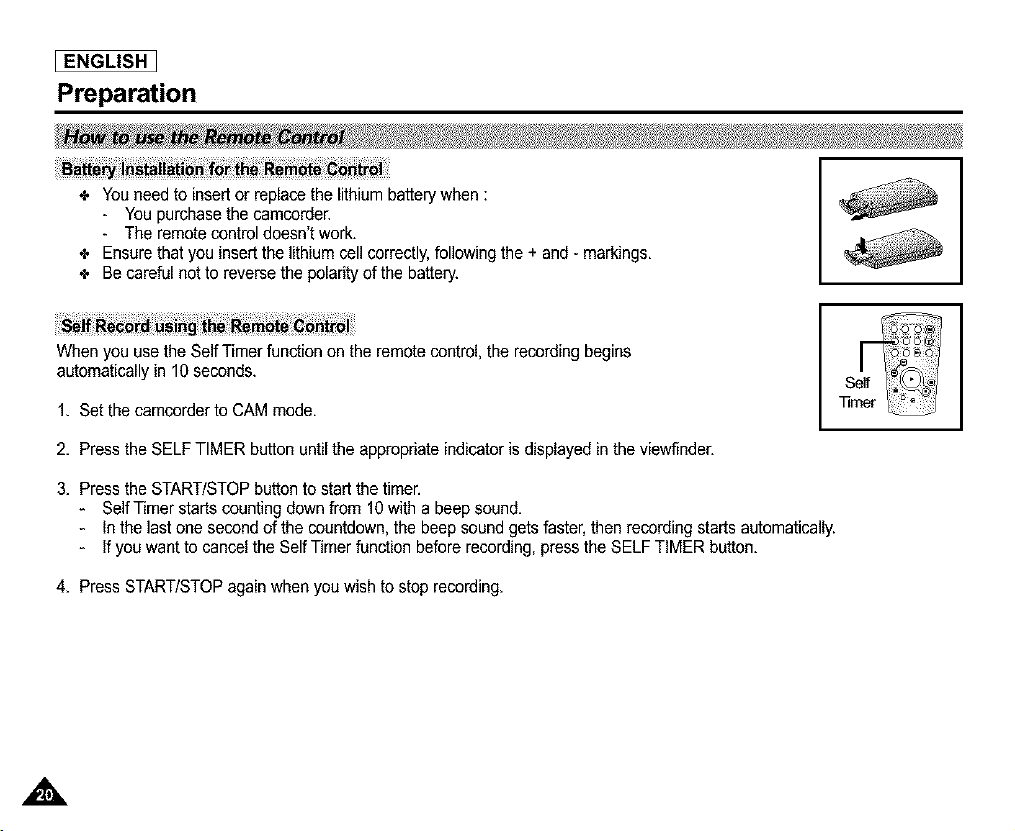
When you use the Self Timer function on the remote control, the recording begins
automatically in 10 seconds.
1, Set the camcorder to CAM mode.
2, Press the SELF TIMER button until the appropriate indicator is displayed in the viewfinder.
3, Press the START/STOP button to start the timer.
- Self Timer starts counting down from 10 with a beep sound,
- In the last one second of the countdown, the beep sound gets faster, then recording starts automatically.
- If you want to cancel the Self Timer function before recording, press the SELF TIMER button.
4, Press START/STOPagain when you wish to stop recording,
,A
Preparation
[ENGLISH ]
4. The lithium battery maintains the clock function and preset contents of the memory; even if the battery pack or AC power
adapter is removed.
4. The lithium battery for the camcorder lasts about 6 months under normal operation from the time of installation.
4. When the lithium battery becomes weak or dead, the date/time indicatorwill display "---" when you set the DATE/TIME to
ON.
When this occurs, replace the lithium battery with CR2025 type.
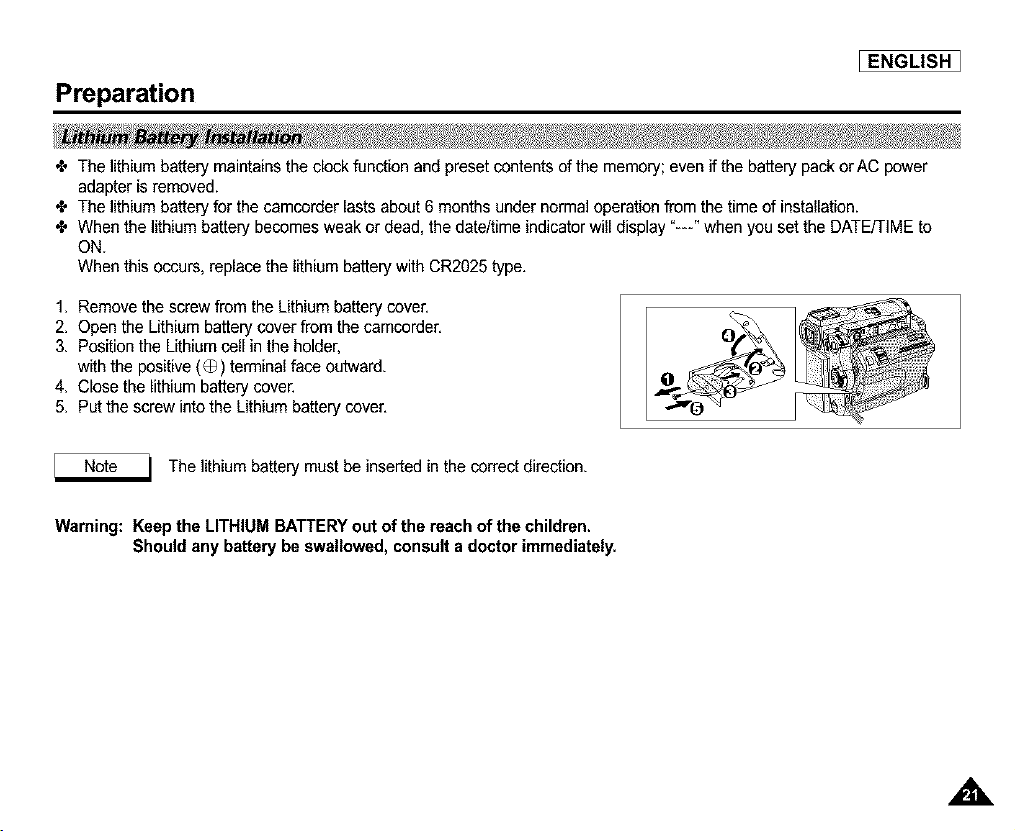
1. Remove the screw from the Lithium battery cover.
2. Open the Lithium battery cover from the camcorder.
3. Position the Lithium cell in the holder,
with the positive (O) terminal face outward.
4. Close the lithium battery cover.
5. Put the screw into the Lithium battery cover.
_ Note _ The lithium battery must be inserted in the correct direction.
Warning: Keep the LITHIUM BATTERY out of the reach of the children.
Should any battery be swallowed, consult a doctor immediately.
[ ENGLISH I
Preparation
It is very importantto ensure that the Hand strap has been correctly adjusted before you begin your recording.
The hand strap enables you to :
- Hold the camcorder in a stable, comfortable position.
- Press the Zoom and START/STOPbutton without having to change the position of your hand.
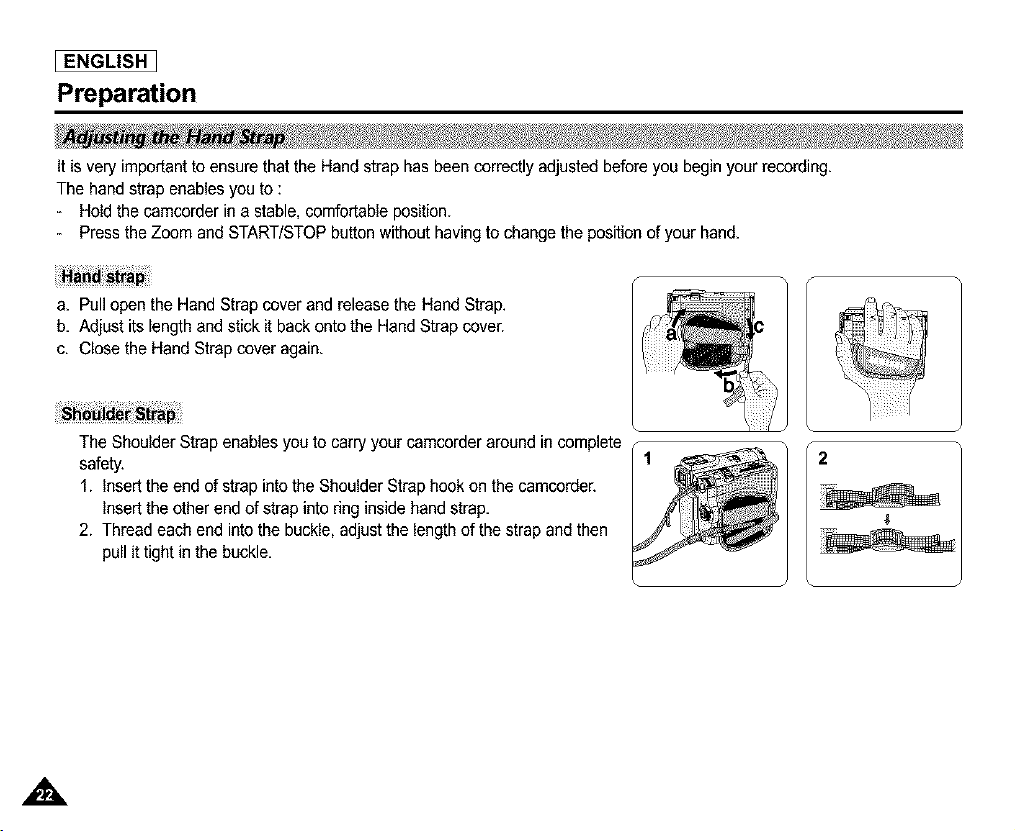
a, Pull open the Hand Strap cover and release the Hand Strap.
b, Adjust its length and stick it back onto the Hand Strap cover.
c. Close the Hand Strap cover again,
The Shoulder Strap enables you to carry your camcorder around in complete
safety.
1. Insert the end of strap into the Shoulder Strap hook on the camcorder.
Insert the other end of strap into ring inside hand strap.
2. Thread each end into the buckle, adjust the length of the strap and then
pull it tight in the buckle.
2
Preparation
_ENGLISH ]
There are two types of power source that can be connected to your camcorder.
- The AC Power Adapter and AC cord : used for indoor recording.
- The Battery Pack : used for outdoor recording.
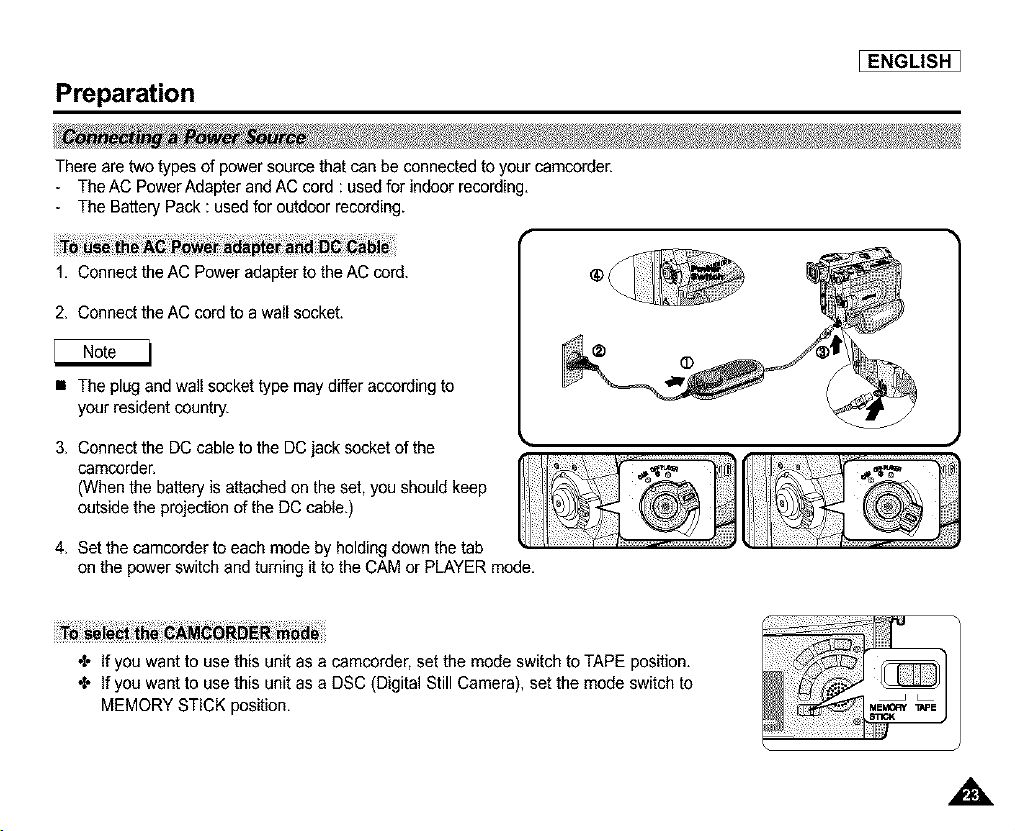
1. Connect the AC Power adapter to the AC cord.
2. Connect the AC cord to a wail socket.
• The plugand wall socket type may differ according to
your resident country.
3. Connect the DC cable to the DC jack socket of the
camcorder.
(When the battery is attached on the set, you should keep
outside the projection of the DC cable.)
I
4. Set the camcorder to each mode by holding down the tab
on the power switch and turning it to the CAM or PLAYER mode.
4. If you want to use this unit as a camcorder, set the mode switch to TAPE position.
4. If you want to use this unit as a DSC (Digital Still Camera), set the mode switch to
MEMORY STICK position.
,,&
[ ENGLISH I
Preparation
÷ The amount of continuous recording time available depends on :
- The type and capacity of the battery pack you are using,
- How often the Zoom function is used,
It is recommended that you have several batteries available.
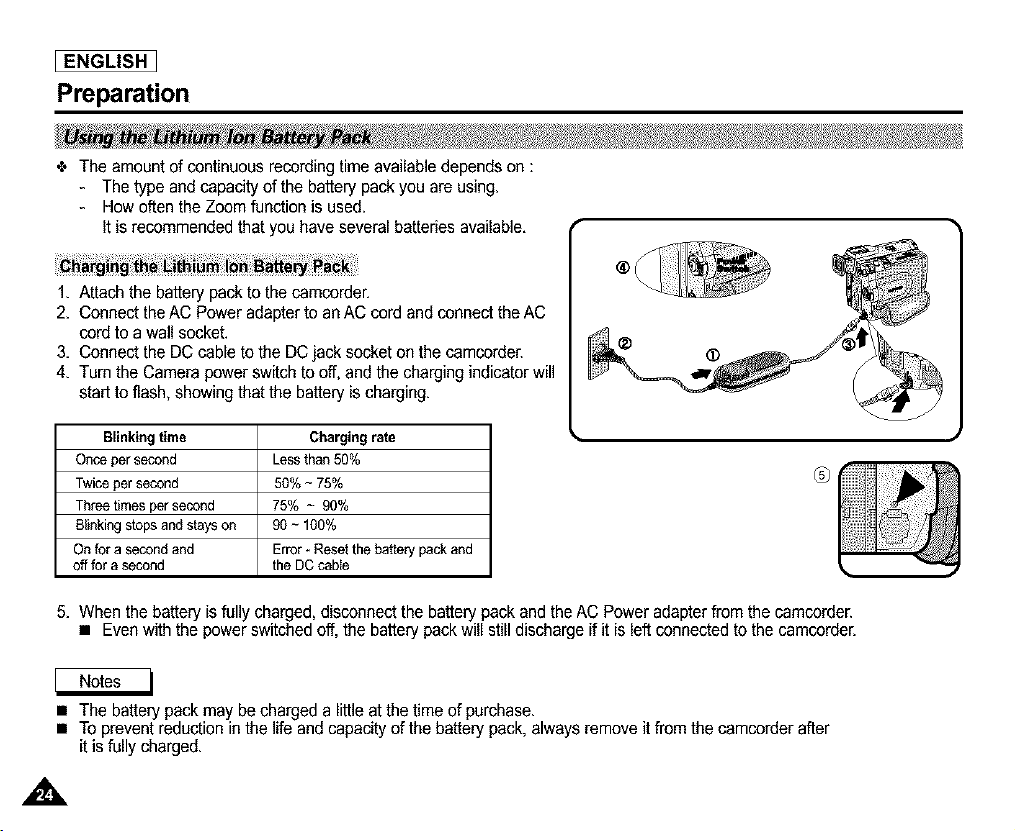
1, Attach the battery pack to the camcorder.
2, Connect the AC Power adapter to an AC cord and connect the AC
cord to a wall socket.
3, Connect the DC cable to the DC jack socket on the camcorder.
4, Turn the Camera power switch to off, and the charging indicator will
start to flash, showing that the battery is charging.
Blinkingtime Charging rate
Once per second Lessthan 50%
Twiceper second 50% - 75%
Threetimes per second 75% - 90%
Blinkingstops and stayson 90 - 100%
On for a second and Error- Reset the batterypack and
off for a second the DC cable
®
5, When the battery is fully charged, disconnect the battery pack and the AC Poweradapter from the camcorder.
• Even with the power switched off. the battery pack will still discharge if it is left connected to the camcorder.
• The battery pack may be charged a little at the time of purchase,
• To prevent reduction in the life and capacity of the battery pack. always remove it from the camcorder after
it is fully charged,
Preparation
[ENGLISH ]
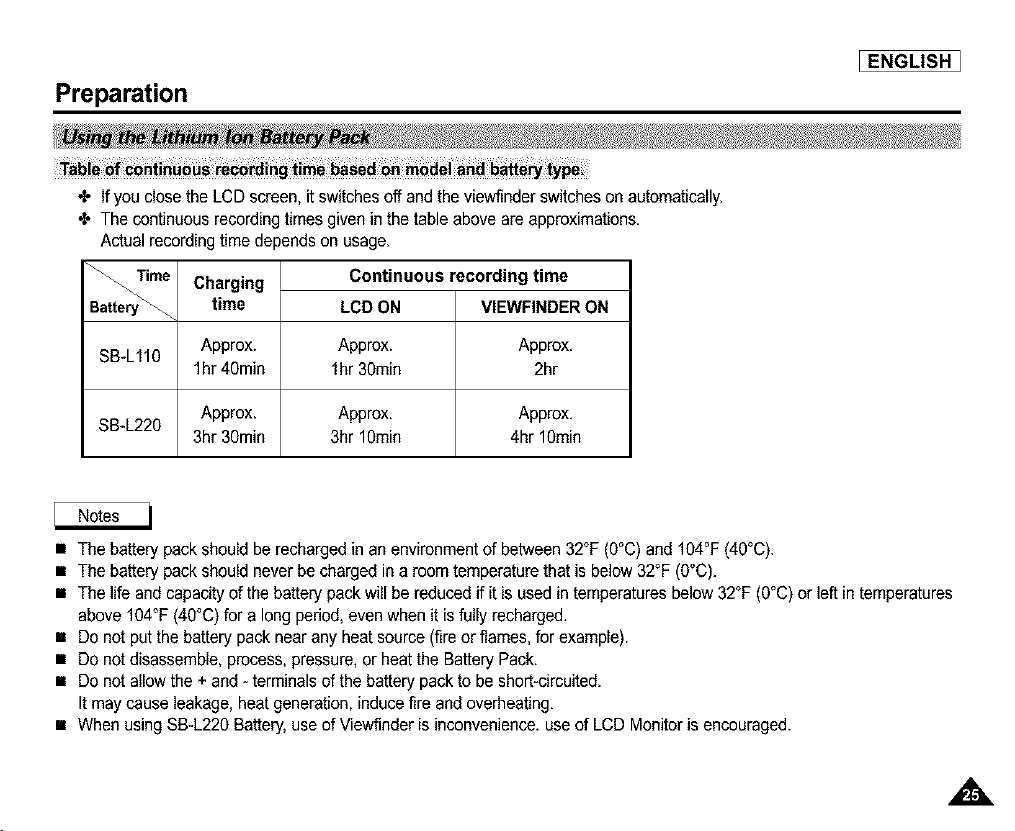
Table of co rding time ba el and pe
4- If you close the LCD screen, it switches off and the viewfinder switches on automatically.
4- The continuous recording times given in the table above are approximations.
Actual recording time depends on usage.
Time Charging
time
SB-L110 Approx.
lhr 40min
Approx.
SB-L220
3hr 30min
Continuous recording time
LCD ON VIEWFINDER ON
Approx. Approx.
lhr 30min 2hr
Approx. Approx.
3hr 10min 4hr 10min
• The battery packshould be recharged in an environment of between 32°F (0°C) and 104°F (40°C).
• The battery pack should never be charged in a room temperature that is below 32°F (O°C).
• The life and capacity of the battery packwill be reduced if it is used in temperatures below 32°F (O°C)or left in temperatures
above 104°F (4O°C)for a long pedod, even when it is fully recharged.
• Do not put the battery pack near any heat source (fire or names, for example).
• Do not disassemble, process, pressure,orheat the Battery Pack.
• Do not allowthe + and - terminals of the battery pack to be short-circuited.
It may cause leakage, heat generation, induce fire and overheating.
• When using SB-L220 Battery,use of Viewfinder is inconvenience, use of LCD Monitor is encouraged.
[ ENGLISH I
Preparation
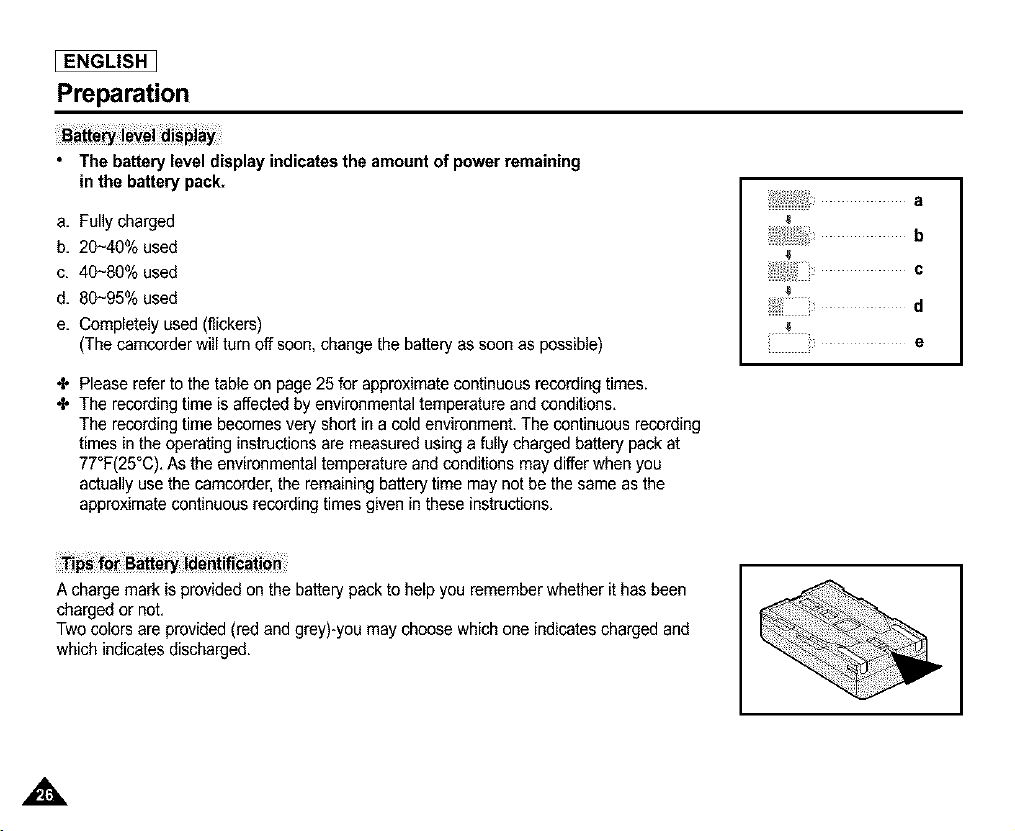
• The battery level display indicates the amount of power remaining
in the battery pack,
a. Fullycharged
b. 20~40% used
c. 40~80% used
d. 80~95% used
e. Completely used (flickers)
(The camcorder will turn off soon, change the battery as soon as possible)
÷ Please refer to the table on page 25 for approximatecontinuous recording times.
÷ The recording time is affected by environmental temperature and conditions.
The recording time becomes very short in a cold environment. The continuous recording
times in the operating instructions are measured using a fully charged battery pack at
77°F(25°C). As the environmental temperature and conditions may differ when you
actually use the camcorder, the remaining battery time may not be the same as the
approximate continuous recording times given in these instructions.
a
b
c
d
i e
A charge mark is providedon the battery packto help you remember whether it has been
charged or not.
Two colors are provided (red and grey)-you may choose which one indicates charged and
which indicates discharged.
A
Preparation
[ENGLISH ]
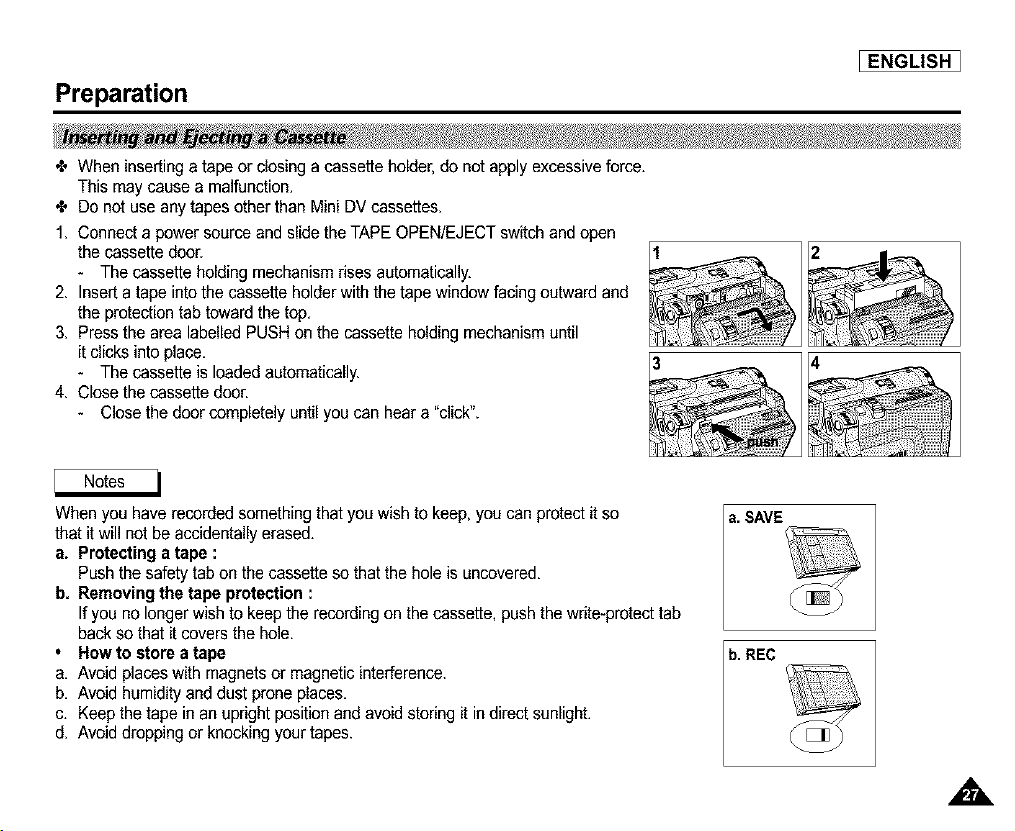
4, When insertinga tape or dosing a cassette holder,do not apply excessiveforce.
This may cause a malfunction.
4, Do not use any tapes other than Mini DV cassettes.
1. Connect a power source and slide the TAPE OPEN/EJECT switch and open
the cassette doo£
- The cassette holding mechanism rises automatically.
2. Insert a tape into the cassette holder with the tape window facing outward and
the protection tab toward the top.
3. Press the area labelled PUSH on the cassette holding mechanism until
it dicks into place.
- The cassette is loaded automatically.
4. Close the cassette doo£
- Close the door completely until you can hear a "click".
When you have recorded something that you wish to keep, you can protectit so a. SAVE
that it will not be accidentally erased.
a, Protecting a tape :
Push the safety tab on the cassette so that the hole is uncovered.
b, Removing the tape protection :
If you no longer wish to keep the recording on the cassette, push the write-protect tab
back so that it covers the hole.
• How to store a tape
a. Avoid places with magnets or magnetic interference.
b. Avoid humidity and dust prone places,
c, Keep the tape in an upright position and avoid storing it in direct sunlight.
d. Avoid dropping or knocking your tapes.
,,&
[ ENGLISH I
Basic Recordin l
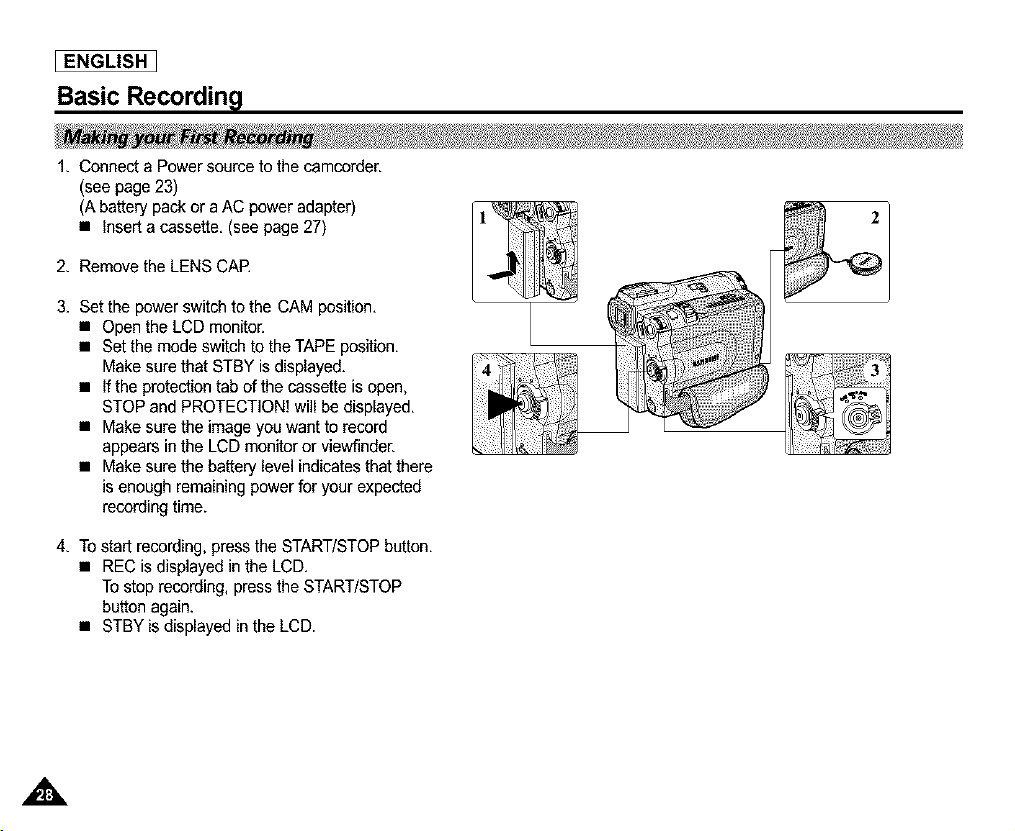
1. Connect a Power soume to the camcorder.
(see page 23)
(A battery pack or a AC power adapter)
• Insert a cassette. (see page 27)
2. Remove the LENS CAP.
3. Set the power switch to the CAM position.
• Open the LCD monitor.
• Set the mode switch to the TAPE position.
Make sure that STBY is displayed.
• If the protection tab of the cassette is open,
STOP and PROTECTION! will be displayed.
• Make sure the image you want to record
appears in the LCD monitor or viewfinder.
• Make sure the battery level indicates that there
is enough remaining power for your expected
recording time.
4. To start recording, press the START/STOP button.
• REC is displayed in the LCD.
To stop recording, press the START/STOP
button again.
• STBY is displayed in the LCD.
Basic Recordin l
_ENGLISH ]
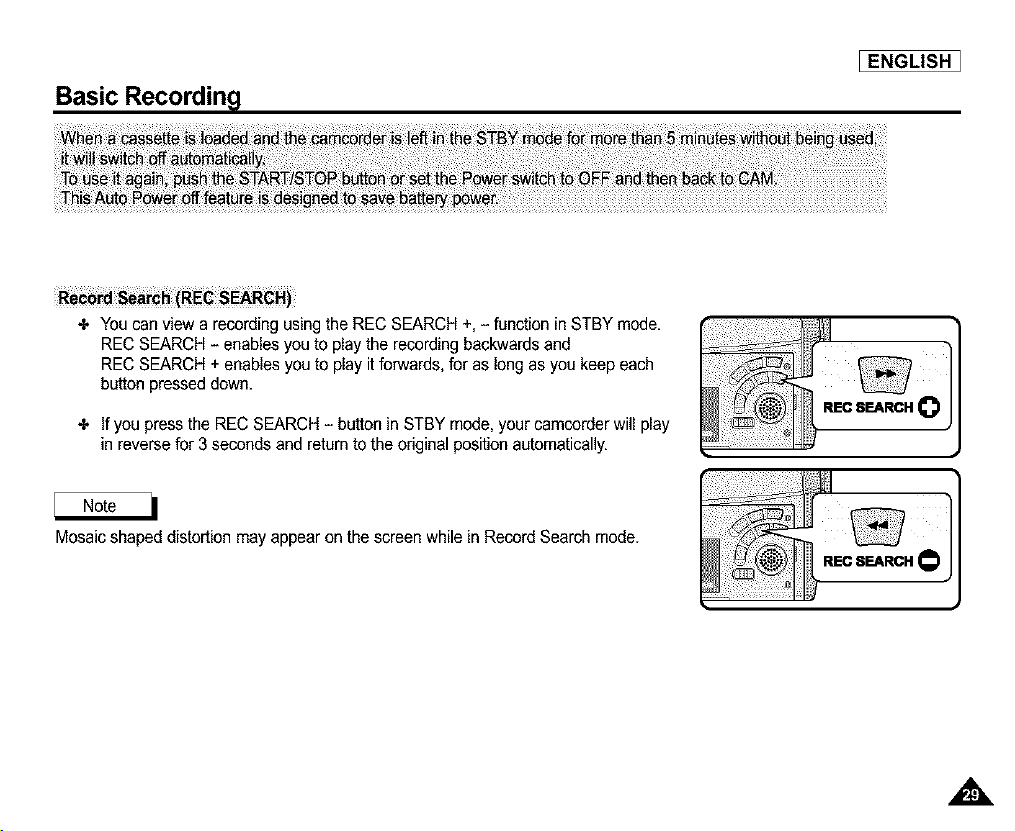
•I. YOUcan view a recording using the REC SEARCH +, - function in STBY mode.
REC SEARCH - enables you to play the recording backwards and
REC SEARCH + enables you to play it forwards, for as long as you keep each
button pressed down.
•I. If you press the REC SEARCH - button in STBY mode, your camcorder will play
in reverse for 3 seconds and return to the original position automatically.
Mosaic shaped distortion may appear on the screen while in Record Search mode.
,,&
[ ENGLISH I
Basic Recordin l
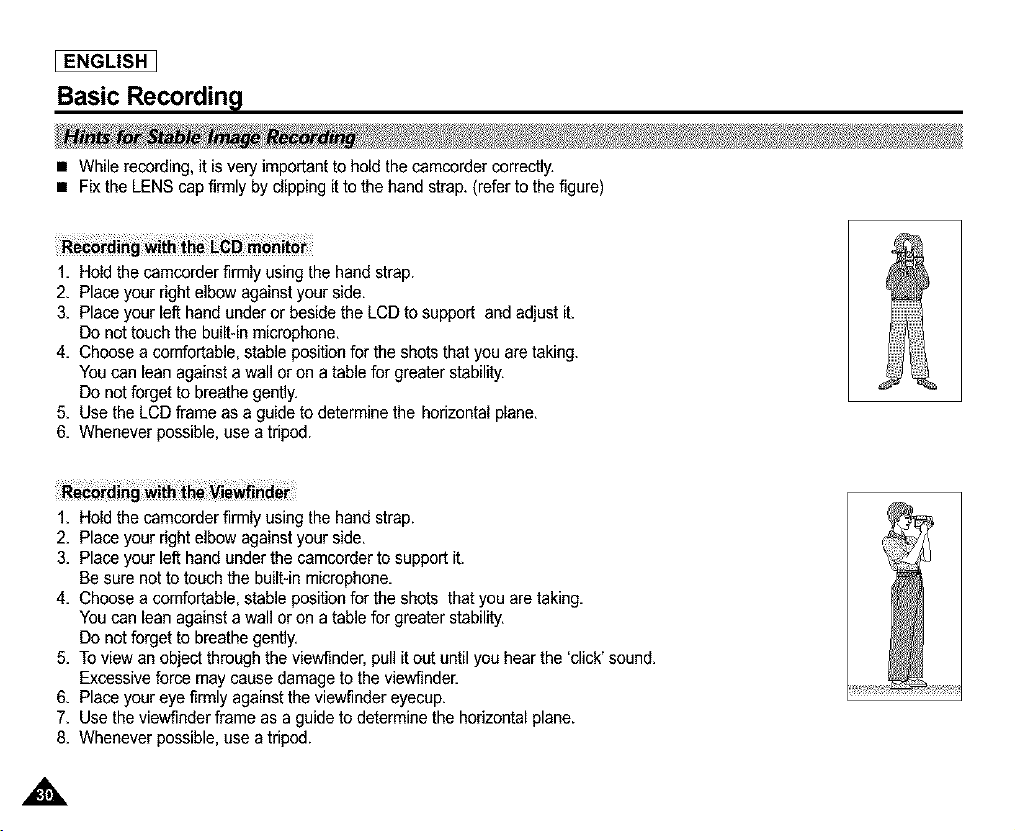
• While recording, it is very important to hold the camcorder correctly,
• Fix the LENS cap firmly by clipping it to the hand strap. (refer to the figure)
1. Hold the camcorder firmly using the hand strap.
2. Place your right elbow against your side.
3. Place your left hand under or beside the LCD to support and adjust it.
Do not touch the built-in microphone.
4. Choose a comfortable, stable position for the shots that you are taking.
You can lean against a wall or on a table for greater stability.
Do not forget to breathe gently.
5. Use the LCD frame as a guide to determine the horizontal plane.
6. Whenever possible, use a tripod.
l F
I [
1. Hold the camcorder firmly using the hand strap.
2. Place your right elbow against your side.
3. Place your left hand under the camcerder to support it.
Be sure not to touch the built-in microphone.
4. Choose a comfortable, stable position for the shots that you are taking.
You can lean against a wall or on a table for greater stability.
Do not forget to breathe gently.
5. To view an object through the viewfinder, pull it out until you hear the 'click' sound.
Excessive force may cause damage to the viewfinder.
6. Place your eye firmly against the viewfinder eyecup.
7. Use the viewfinder frame as a guide to determine the horizontal plane.
8. Whenever possible, use a tripod.
Basic Recordin l
_ENGLISH ]
÷ Your camcorder is equipped with a 2.5 inch color Liquid Crystal Display(LCD) screen, which enables you
to view what you are recording or playing back directly.
÷ Depending on the conditions under which you are using the camcorder (indoors or outdoors for example),
you can adjust ;
• BRIGHT SELECT
• BRIGHT ADJUST
• COLOR ADJUST
1. Set the POWER switch to CAM position.
• In the PLAYER mode, you may only setup the LCD while the tape is playing.
2. Open the LCD screen, and the LCD switches on.
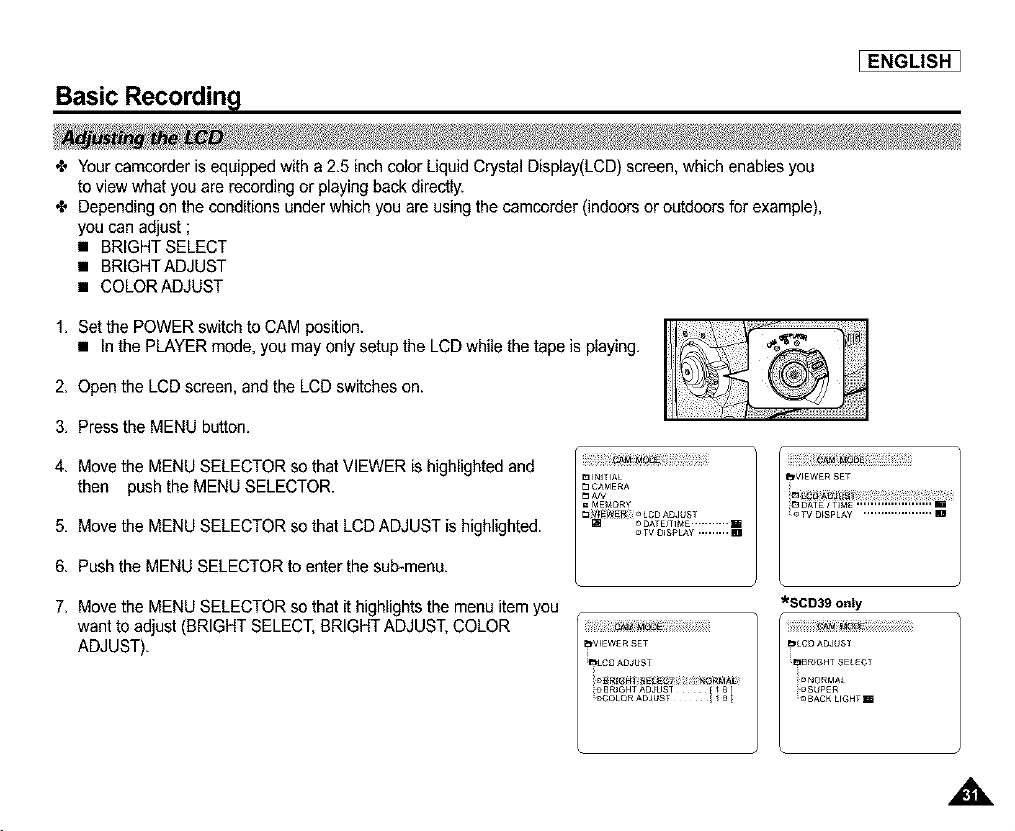
3. Press the MENU button.
4. Move the MENU SELECTOR so that VIEWER is highlighted and
then push the MENU SELECTOR.
5. Move the MENU SELECTOR so that LCD ADJUST is highlighted.
6. Push the MENU SELECTOR to enter the sub-menu.
7. Move the MENU SELECTOR so that it highlights the menu item you
want to adjust (BRIGHT SELECT, BRIGHTADJUST, COLOR
ADJUST).
= MEt_ORY
o TVD_S#LAY......... HI
_SCD39 only
,A
[ ENGLISH i
Basic Recordin l
8. Push the MENU SELECTOR button again.
• Youmay select NORMAL, SUPER or BACK LIGHTmi (SCD39 only) in the BRIGHT SELECT feature and push
the MENU SELECTOR to save the setting.
- When you use the LCD BACK LIGHT _l mode in a dark location or indoors, viewing the image may be difficult.
(SCD39 only)
• Use the MENU SELECTOR to adjust the value of BRIGHT ADJUST and COLOR ADJUST.
• Youcan set values for BRIGHTADJUST between 0O~ 35 and COLOR ADJUST between O0~ 35.
9. Press the MENU button to finish the setting.
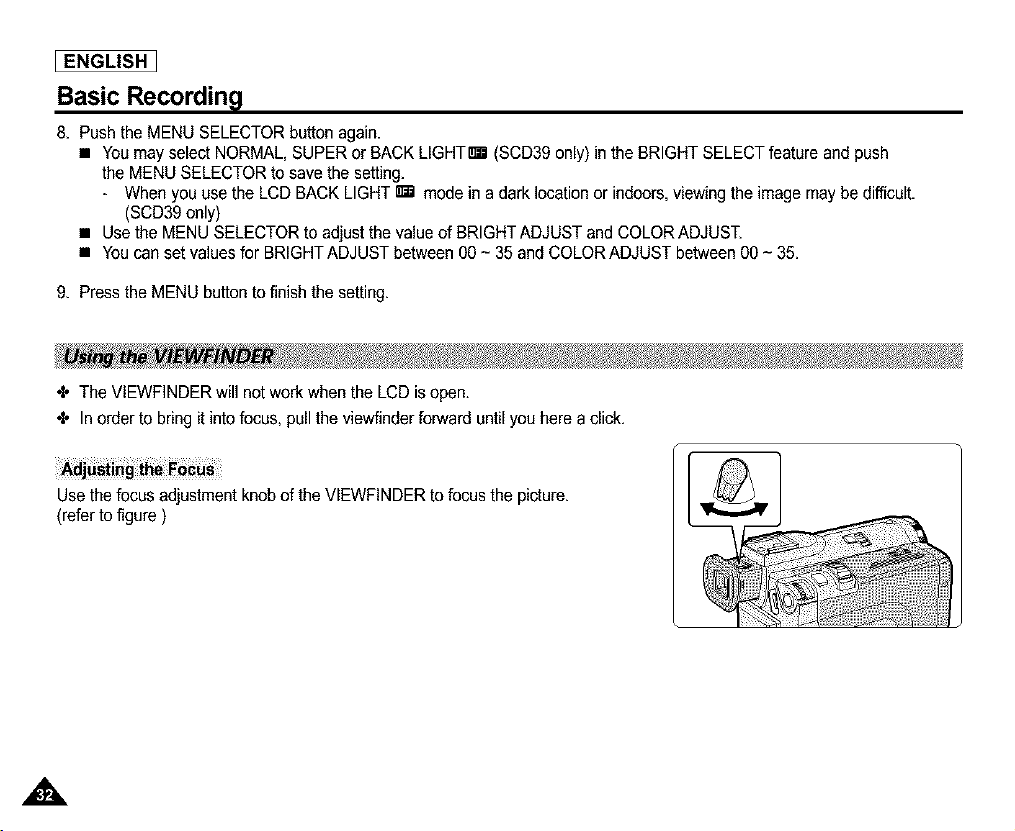
÷ The VIEWFINDER will not work when the LCD is open.
÷ In order to bring it into focus, pullthe viewfinder forward until you here a click.
Use the focus adjustment knob of the VIEWFINDER to focus the picture.
(refer to figure )
A
Basic Recordin l
_ENGLISH ]
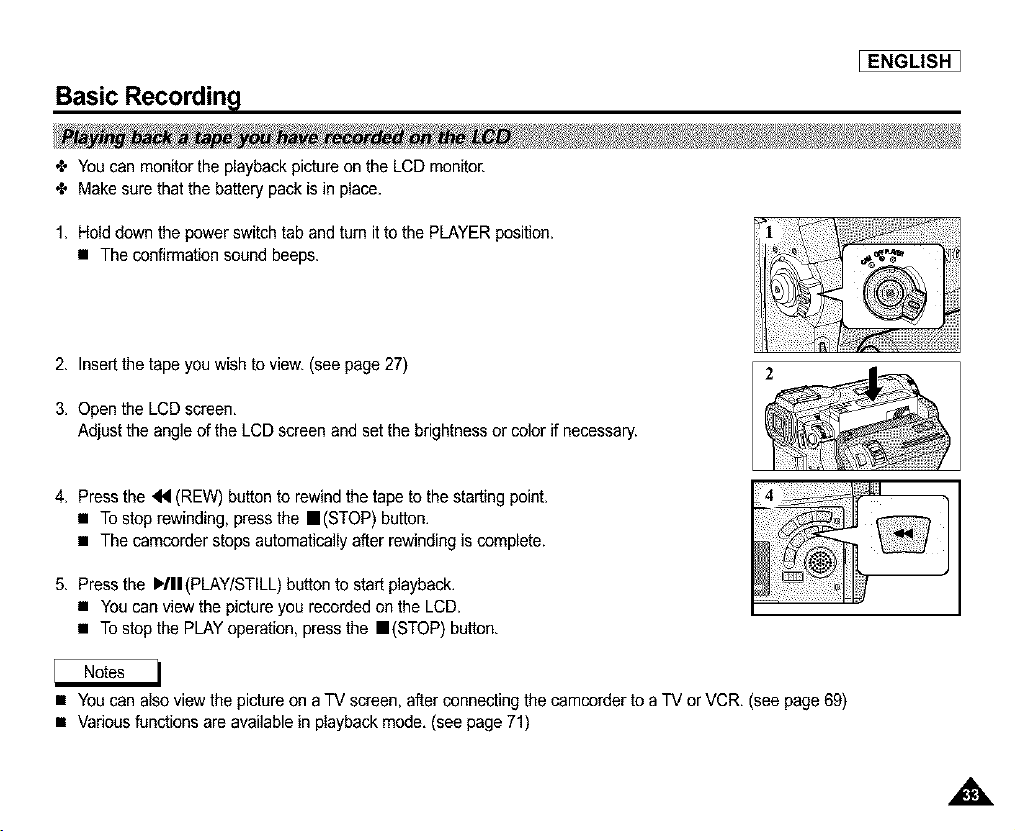
÷ You can monitor the playback pictureon the LCD monitor.
÷ Make sure that the battery pack is in place.
1. Hold down the power switch tab and turn it to the PLAYER position.
• The confirmation sound beeps.
2. Insert the tape you wish to view. (see page 27)
3. Open the LCD screen,
Adjust the angle of the LCD screen and set the brightness or color if necessary.
4. Press the _ (REW) button to rewind the tape to the starting point.
• To stop rewinding, press the re(STOP) button.
• The camcorder stops automatically after rewinding is complete.
5. Press the I,/II(PLAY/STILL) button to start playback.
• You can view the pictureyou recorded on the LCD.
• To stop the PLAYoperation, press the re(STOP) button.
• You can also view the pictureon a TV screen, after connecting the camcorder to a TV or VCR. (see page 69)
• Various functions are available in playback mode. (see page 71)
[ ENGLISH I
Basic Recordin l
+ Youcan adjust the LCD during playback.
•I. The adjustment method is the same procedure as used in CAM mode. (see page 31)
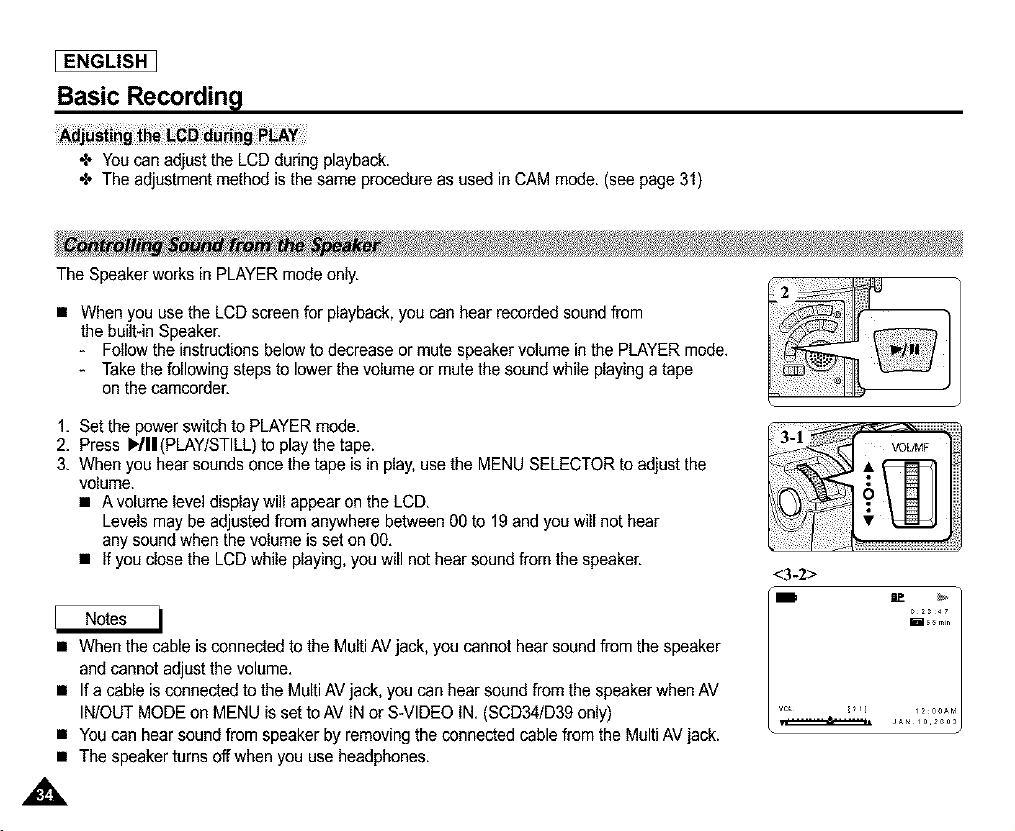
The Speaker works in PLAYER mode only.
• When you use the LCD screen for playback, you can hear recorded sound from
the built-in Speaker.
- Follow the instructions below to decrease or mute speaker volume in the PLAYER mode.
- Take the following steps to lower the volume or mute the sound while playing a tape
on the camcorder.
1. Set the power switch to PLAYER mode.
2. Press IfflI(PLAY/STILL) to play the tape.
3. When you hear sounds once the tape is in play, use the MENU SELECTOR to adjust the
volume.
• A volume level display will appear on the LCD.
Levels may be adjusted from anywhere between 00 to 19 and you will not hear
any sound when the volume is set on 00.
• If you close the LCD while playing, you will not hear sound from the speaker.
• When the cable is connected to the Multi AV jack, you cannot hear sound from the speaker
and cannot adjust the volume.
• If a cable is connected to the Multi AV jack, you can hear sound from the speaker when AV
IN/OUT MODE on MENU is set to AV IN or S-VIDEO IN. (SCD34/D39 only)
• You can hear sound from speaker by removing the connected cable from the Multi AV jack.
• The speaker turns offwhen you use headphones.
<3-2>
J_ io2oo3

Advanced Recordin l
_ENGLISH ]
MENU
INITIAL
Available mode
SUB MENU
CAMERA PLAYER Memory REC. Memory PLAY
CLOCK SET t/ _ I/ J
WL REMOTE v* _ _'_ J
SEEP SOUND vS _ I/ J
SHUTTERSOUND _ I/
DEMONSTRATION IZ
CAMERA PROGRAMAE vS
WHE BALANCE t/ I/
D ZOOM v*
DIS
DSE SELECT t/
AJV REC MODE v*
PHOTOSEARCH
PHOTOCOPY
AUDIO MODE vS
AUDIO SELECT
WiND CUT I/ I/
PB DSE
AV _N/OUT(SCD34/D39on_y)
MEMORY MPLAY SELECT J
PHOTOQUAUTY _ _'_
MPEG4 SiZE I/
PRINT MARK J
PROTECT J
FiLE NO _ I/ J
DELETE J
FORMAT J
VIEWER LCDADJUST v* _ _'_ J
DATEfFIME v* _ _'_ J
TV DISPLAY _ I/ I/ J
1. Press the MENU button.
The MENU OSD is displayed. The cursor (B_'dT_]_'_Jlm) indicates the feature you are currently adjusting,
2. Use the MENU SELECTOR and push the MENU SELECTOR ORthe left side panel to select and activate the item.
3. You can exit the menu mode by pressingthe MENU button.
[ ENGLISH I
Advanced Recordin l
Requested
Mode
Mode _
DiS
D.ZOOM
PHOTO
SLOWSHUTTER
DigitalSpecialEffects
NtTEPIX
Digital functions Digital NITE
PHOTO SLOW special PIX
DIS D.ZOOM (TAPE) SHUTTER effects
o o A o O
0 0 * A 0 0
X X X X O
A x O O O
o o o o A
O O O O x
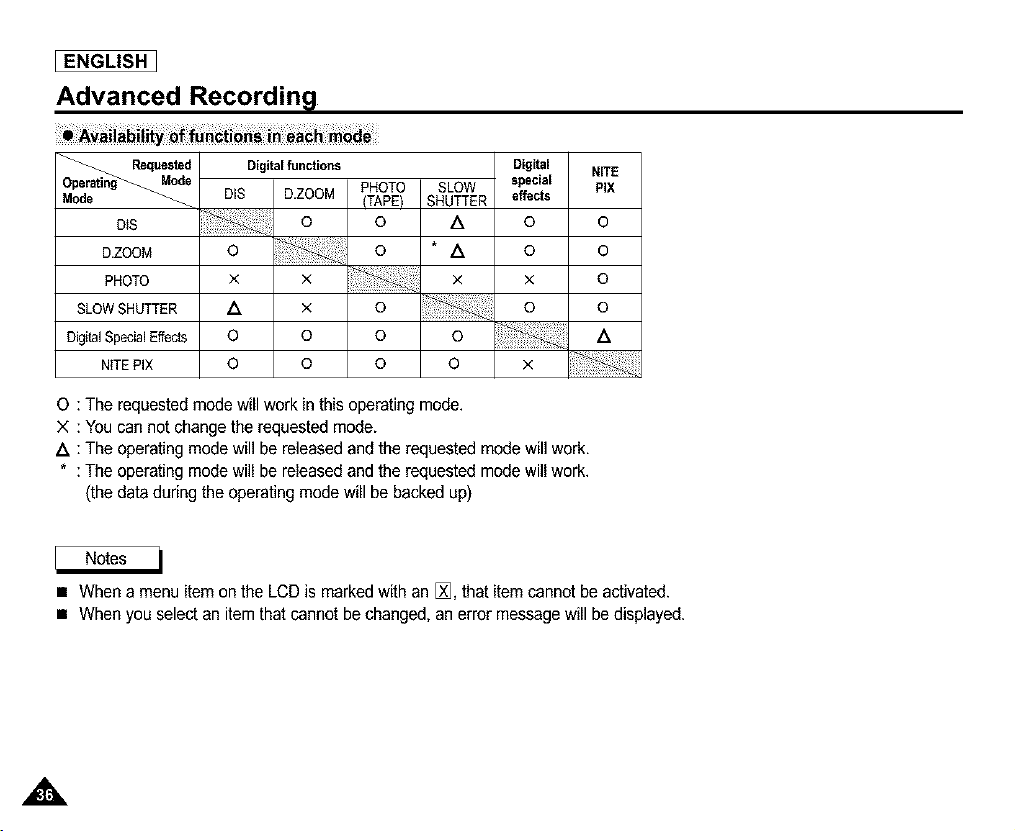
0 : The requested mode will work in this operating mode.
X : You can not change the requested mode.
Z_ : The operating mode will be released and the requested mode will work.
* : The operating mode will be released and the requested mode will work.
(the data during the operating mode will be backed up)
• When a menu item on the LCD is marked with an [_, that item cannot be activated.
• When you select an item that cannot be changed, an error message will be displayed.
Advanced Recordin l
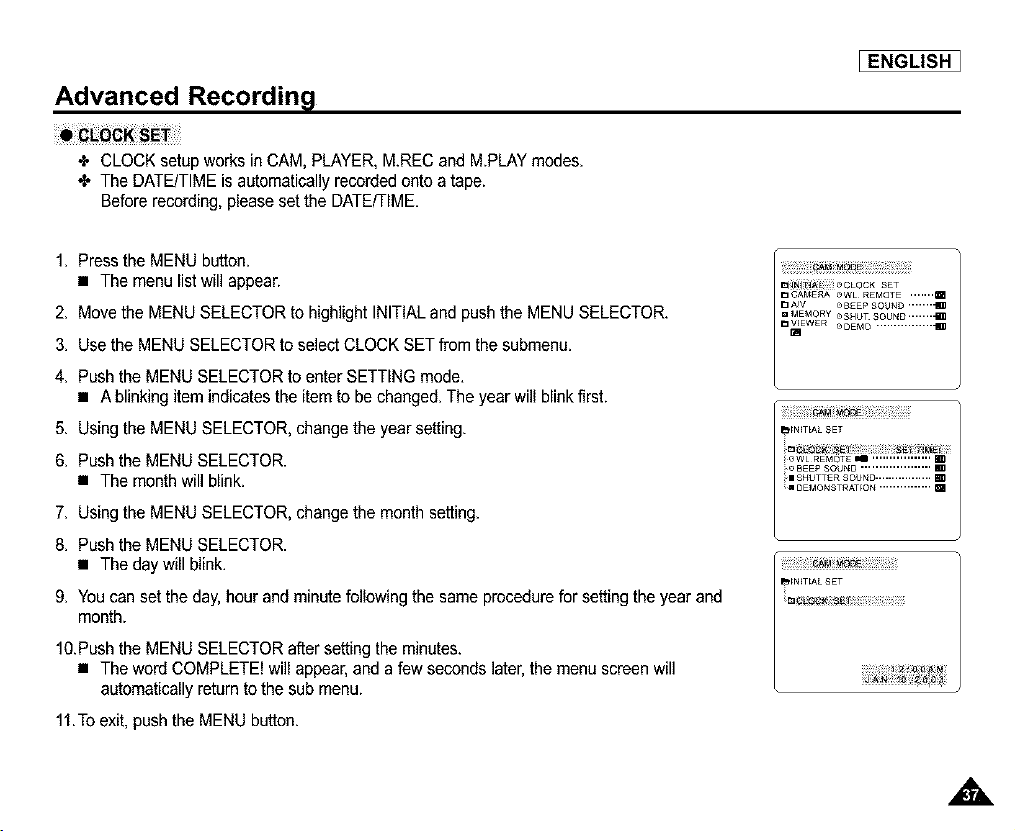
+ CLOCK setup works in CAM, PLAYER, M.REC and MPLAY modes.
•E. The DATE/TIME is automatically recorded onto a tape.
Before recording, please set the DATE/TIME.
_ENGLISH ]
1. Press the MENU button.
• The menu list will appear.
2. Move the MENU SELECTOR to highlight INITIAL and push the MENU SELECTOR.
3. Use the MENU SELECTOR to select CLOCK SET from the submenu.
4. Push the MENU SELECTOR to enter SETTING mode.
• A blinking item indicates the item to be changed. The year will blink first.
5. Using the MENU SELECTOR, change the year setting.
6. Push the MENU SELECTOR.
• The month will blink.
7. Using the MENU SELECTOR, change the month setting.
8. Push the MENU SELECTOR.
• The day will blink.
9. You can set the day, hour and minute following the same procedure for setting the year and
month.
10.Push the MENU SELECTOR after setting the minutes.
• The word COMPLETE! will appear, and a few seconds later, the menu screen will
automatically return to the sub menu.
11.To exit, pushthe MENU button.
,A
[ ENGLISH I
Advanced Recordin l
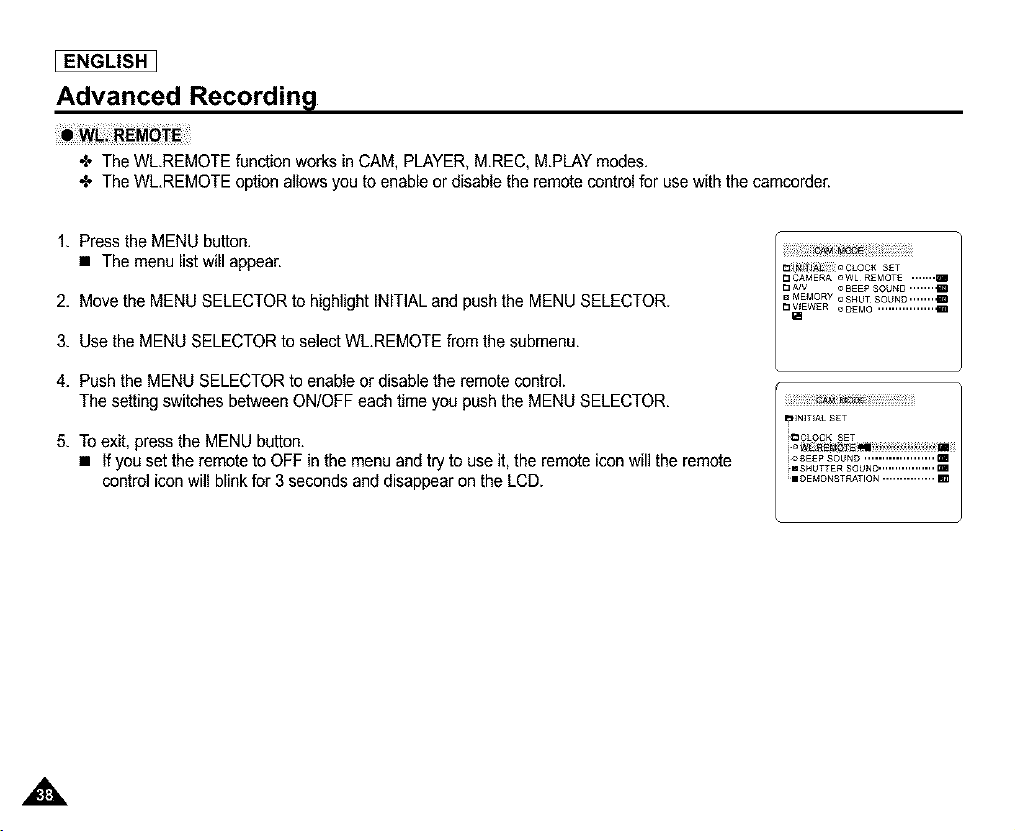
4* The WL.REMOTE function works in CAM, PLAYER, M.REC, M.PLAY modes.
4. The WLREMOTE option allows you to enable or disable the remote control for use with the camcorder.
1. Press the MENU button.
• The menu list will appear.
2. Move the MENU SELECTOR to highlight INITIAL and push the MENU SELECTOR.
3. Use the MENU SELECTOR to select WLREMOTE from the submenu.
4. Push the MENU SELECTOR to enable or disable the remote control.
The setting switches between ON/OFF each time you push the MENU SELECTOR.
5. To exit, press the MENU button.
• If you set the remote to OFF in the menu and try to use it, the remote icon will the remote
control icon will blink for 3 seconds and disappear on the LCD.
_N_T_AL £ET
i_£EEP SOUND .................... m
imSHUTTER SOUND ................. m
_mDEMONSTRATIQN ............... m
,&
Advanced Recordin l
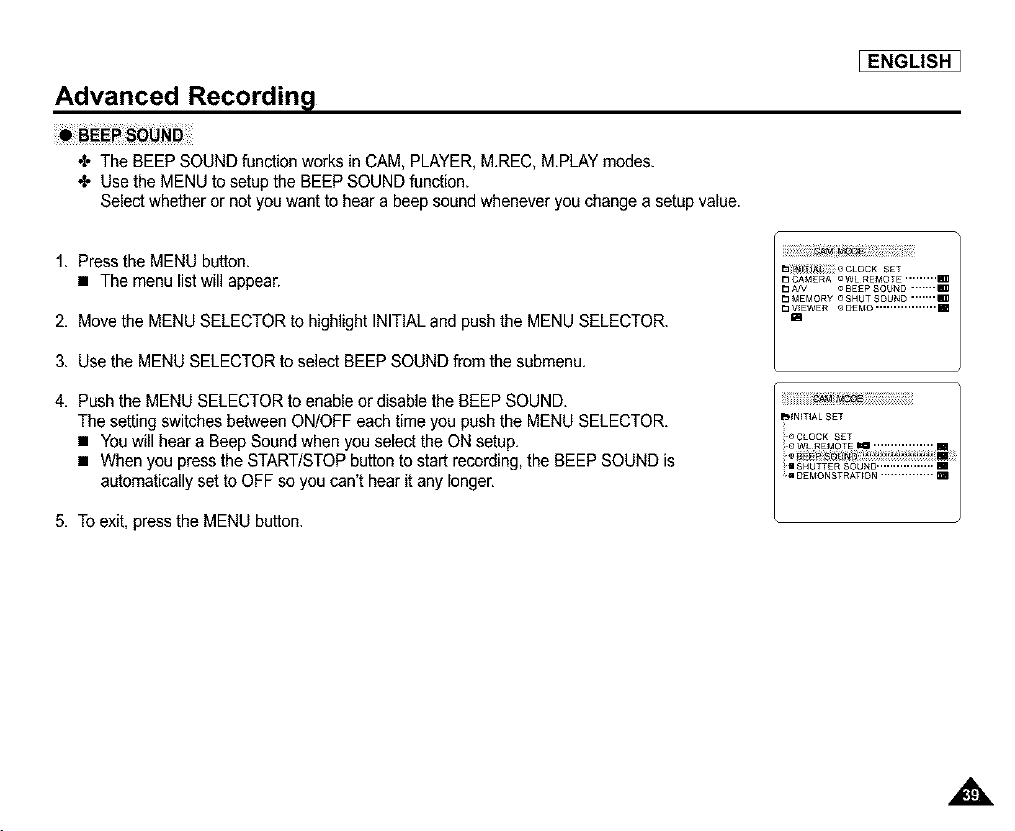
4' The BEEP SOUND function works in CAM, PLAYER, M.REC, M.PLAY modes.
4. Use the MENU to setup the BEEP SOUND function.
Select whether or not you want to hear a beep sound whenever you change a setup value.
[ENGLISH ]
1. Press the MENU button.
• The menu list will appear.
2. Move the MENU SELECTOR to highlight INITIAL and push the MENU SELECTOR.
3. Use the MENU SELECTOR to select BEEP SOUND from the submenu.
4. Push the MENU SELECTOR to enable or disable the BEEP SOUND.
The setting switches between ON/OFF each time you pushthe MENU SELECTOR.
• Youwill hear a Beep Sound when you select the ON setup.
• When you press the START/STOP button to start recording, the BEEP SOUND is
automatically set to OFF so you can't hear it any longer.
5. To exit, pressthe MENU button.
A
[ ENGLISH I
Advanced Recording!
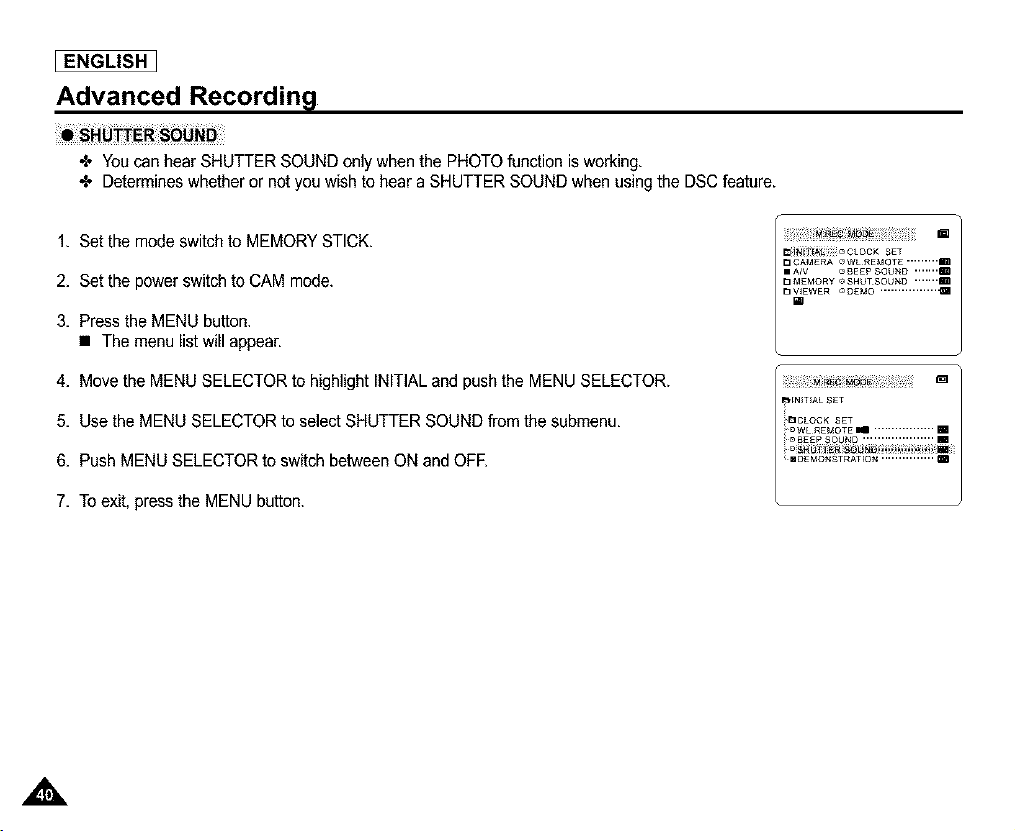
•_ Youcan hear SHUTTER SOUND only when the PHOTO function is working,
•X. Determines whether or not you wish to hear a SHUTTER SOUND when using the DSC feature.
1, Set the mode switch to MEMORY STICK,
2, Set the power switch to CAM mode.
3, Press the MENU button.
• The menu list will appear.
4, Move the MENU SELECTOR to highlight INITIAL and push the MENU SELECTOR.
_ii_i_J_i_ !_ CLOCK SET
D CAMERA _ WLREMOTE --.......m
IIA/V C_BE£? SOUND ,,,,,,,m
DMEMORY _SHUTSOUND .......m
D_WER _D£MO ................ I
5, Use the MENU SELECTOR to select SHUTTER SOUND from the submenu.
6, Push MENU SELECTOR to switch between ON and OFF,
7, To exit. press the MENU button.
,,&
_ENGLISH ]
Advanced Recordin l
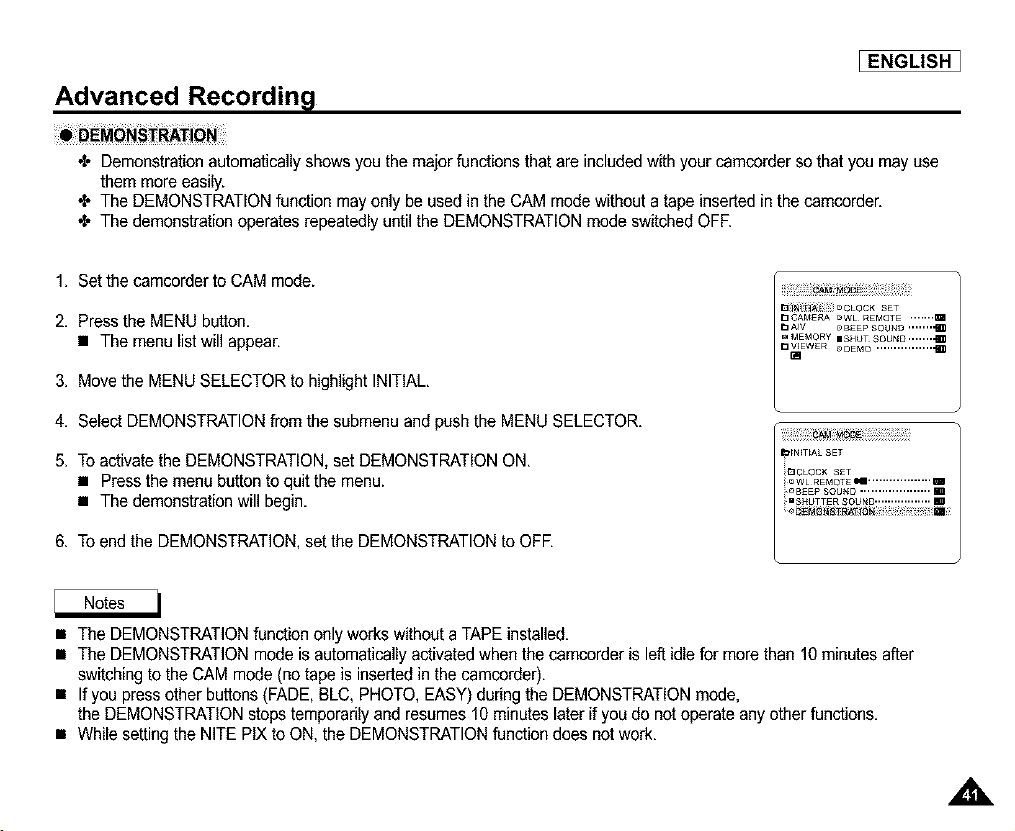
4, Demonstration automatically shows you the major functions that are included with your camcorder so that you may use
them more easily.
4, The DEMONSTRATIONfunction may only be used in the CAM mode without a tape inserted in the camcorder.
4, The demonstration operates repeatedly until the DEMONSTRATION mode switched OFE
1. Set the camcorder to CAM mode.
2. Press the MENU button.
• The menu list will appear.
3. Move the MENU SELECTOR to highlight INITIAL.
4. Select DEMONSTRATION from the submenu and push the MENU SELECTOR.
5. To activate the DEMONSTRATION, set DEMONSTRATION ON.
• Press the menu button to quit the menu.
• The demonstration will begin.
6. To end the DEMONSTRATION,set the DEMONSTRATION to OFE
• The DEMONSTRATIONfunction only works without a TAPE installed.
• The DEMONSTRATION mode is automatically activated when the camcorder is left idle for more than 10 minutes after
switching to the CAM mode (no tape is inserted in the camcorder).
• If you press other buttons (FADE, BLC, PHOTO, EASY) during the DEMONSTRATIONmode,
the DEMONSTRATION stops temporarily and resumes 10 minutes later if you do not operate any other functions.
• While setting the NITE PIX to ON, the DEMONSTRATION function does not work.
[ ENGLISH I
Advanced Recording!
4* The PROGRAM AE function works in CAM mode only,
4* The PROGRAM AE mode allows you to adjust shutter speeds and apertures to suit different recordingconditions.
4* They give you creative control over the depth of field.
• AUTO mode
- Auto balance between the subject and the background.
- To be used in normal conditions.
- The shutter speed automatically varies from f/6O to 1/250 per second, depending on the scene.
• SPORTS mode (_)
- For recording people or objects moving quickly.
• PORTRAIT mode (_)
- For focusing on the background of the subject, when the background is out of focus.
- The PORTRAIT mode is most effective when used outdoors.
- The shutter speed automatically varies from f/6O to 1/1000 per second.
• SPOTLIGHT mode (_)
- For recording correctly when there is only Eighton the subject and not the rest of the picture.
• SAND/SNOW mode (t)
- For recording when people or objects are darker than the background because of reflected light from sand or snow.
• High S. SPEED(High Shutter Speed) mode (tj)
- For recording fast-moving subjects such as players in golf or tennis games.
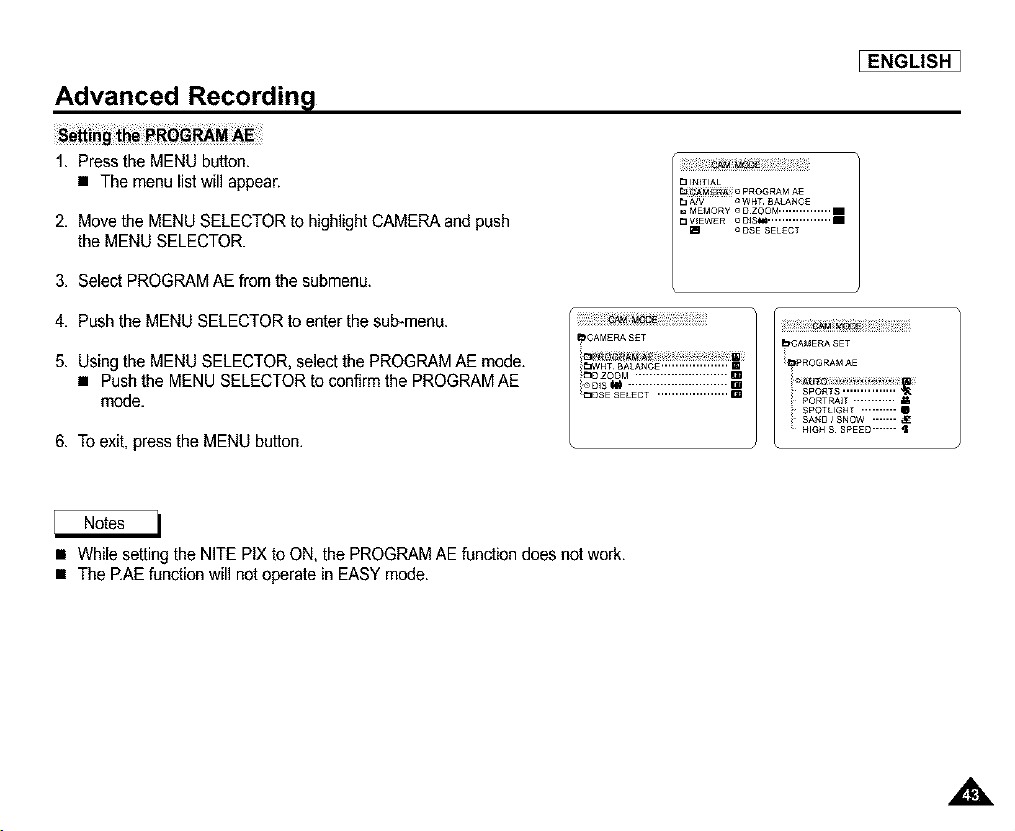
Advanced Recordin l
_ENGLISH ]
1. Press the MENU button.
• The menu list will appear.
2. Move the MENU SELECTOR to highlight CAMERA and push
the MENU SELECTOR.
3. Select PROGRAM AE from the submenu.
4. Push the MENU SELECTOR to enter the sub-menu.
5. Using the MENU SELECTOR, select the PROGRAM AE mode.
• Push the MENU SELECTOR to confirm the PROGRAMAE
mode.
6. To exit, press the MENU button.
13 INITIAL
[JI_AM@RA _ PROGRAM AE
_CAMERA S£T
_W_T BALANCE................... m
_3D ZOOM .......................... m
_DSE SELECT ....................
_CAMERASET
i_ROGRAM AE
@g
i SPORTS ............... ,_
i PORTRAIT ............
i SPOTLIGHT .......... g
i SAND/SNOW ....... _l_
t HIGH S SPEED---.---
• While setting the NITE PIX to ON, the PROGRAM AE function does not work.
• The P.AEfunction will not operate in EASY mode.
,,&
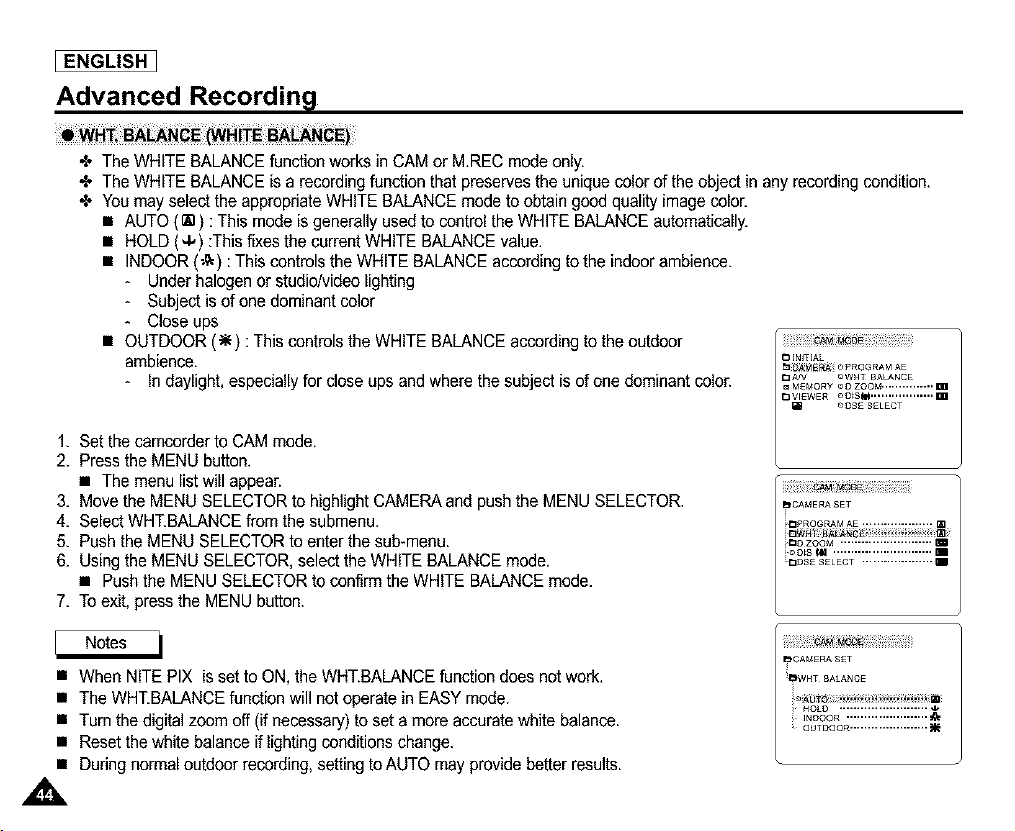
[ ENGLISH I
Advanced Recordin l
•_ The WHITE BALANCE function works in CAM or M.REC mode only.
•_ The WHITE BALANCE is a recording function that preserves the unique color of the object in any recording condition.
•X, Youmay select the appropriate WHITE BALANCE mode to obtain good quality image color.
• AUTO (ra) : This mode is generally used to control the WHITE BALANCE automatically.
• HOLD (4,) :This fixes the current WHITE BALANCE value.
• INDOOR (_) : This controlsthe WHITE BALANCE according to the indoor ambience.
- Under halogen or studio/video lighting
- Subject is of one dominant color
- Close ups
• OUTDOOR (_) : This controls the WHITE BALANCE according to the outdoor
ambience.
- in daylight, especia(ly for close ups and where the subject is of one dominant color.
1. Set the camcorder to CAM mode.
2. Press the MENU button.
• The menu list will appear.
3. Move the MENU SELECTOR to highlight CAMERA and push the MENU SELECTOR.
4. Select WHT.BALANCEfrom the submenu.
5. Push the MENU SELECTOR to enter the sub-menu.
6. Using the MENU SELECTOR, select the WHITE BALANCE mode.
• Push the MENU SELECTOR to confirm the WHITE BALANCE mode.
7. To exit, press the MENU button.
• When NITE PIX is set to ON, theWHT.BALANCE function does not work.
• The WHT.BALANCE function will not operate in EASY mode.
• Turn the digital zoom off (if necessary) to set a more accurate white balance.
• Reset the white balance if lighting conditions change.
• During normal outdoor recording, setting toAUTO may provide better results.
,,&
_CAMERASET
i_*WHTBALANCE
_ HOLD ......................... .4V
i ¸ _NDOOR ....................... =_
OUTDOOR ......................
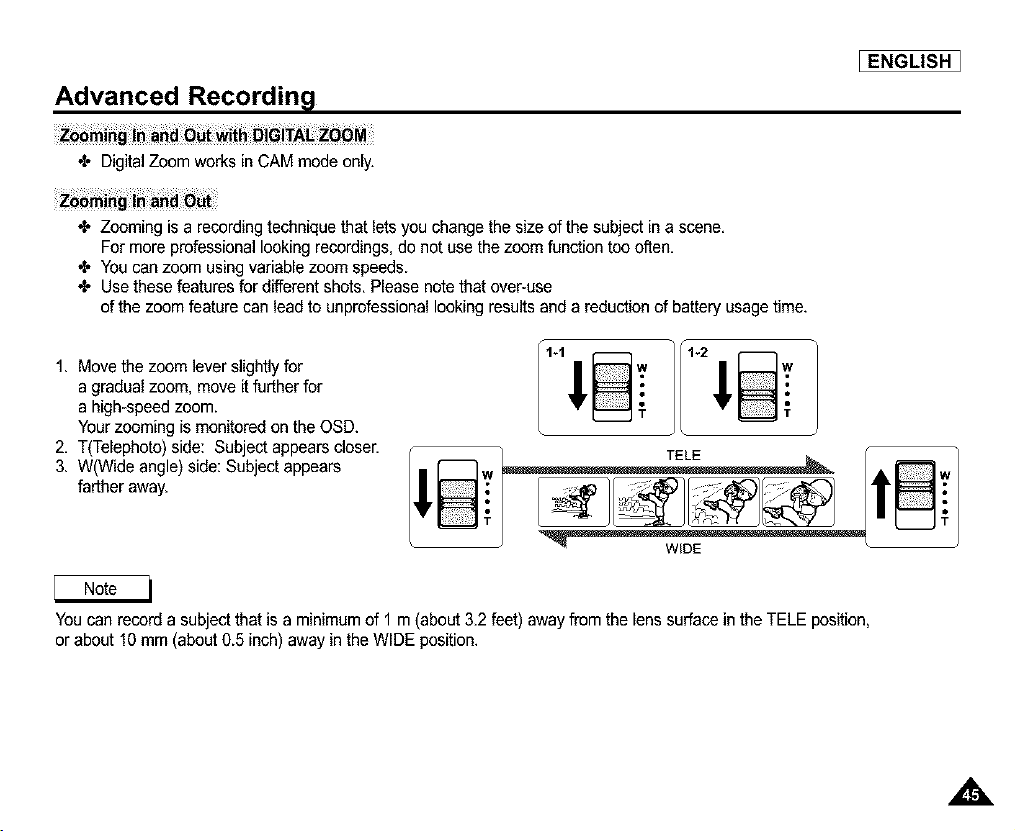
Advanced Recordin l
_i_g i_ _d _ _h _i_iTA_ _M
•_ Digital Zoom works in CAM mode only.
_ENGLISH ]
•I, Zooming is a recording technique that lets you change the size of the subject in a scene,
For more professional looking recordings, do not use the zoom function too often.
•_ You can zoom using variable zoom speeds.
Use these features for different shots, Please note that over-use
of the zoom feature can lead to unprofessional looking results and a reduction of battery usage time.
1. Movethe zoom lever slightly for
a gradual zoom, move it further for
a high-speed zoom.
Your zooming is monitored on the OSD.
2. T(Telephoto) side: Subject appears closer.
3. W(Wide angle) side: Subject appears
farther away.
t T1
You can record a subject that is a minimum of I m (about 3.2 feet) away from the lens surface in the TELE position,
or about 10 mm (about 0.5 inch) away in the WIDE position.
,,&
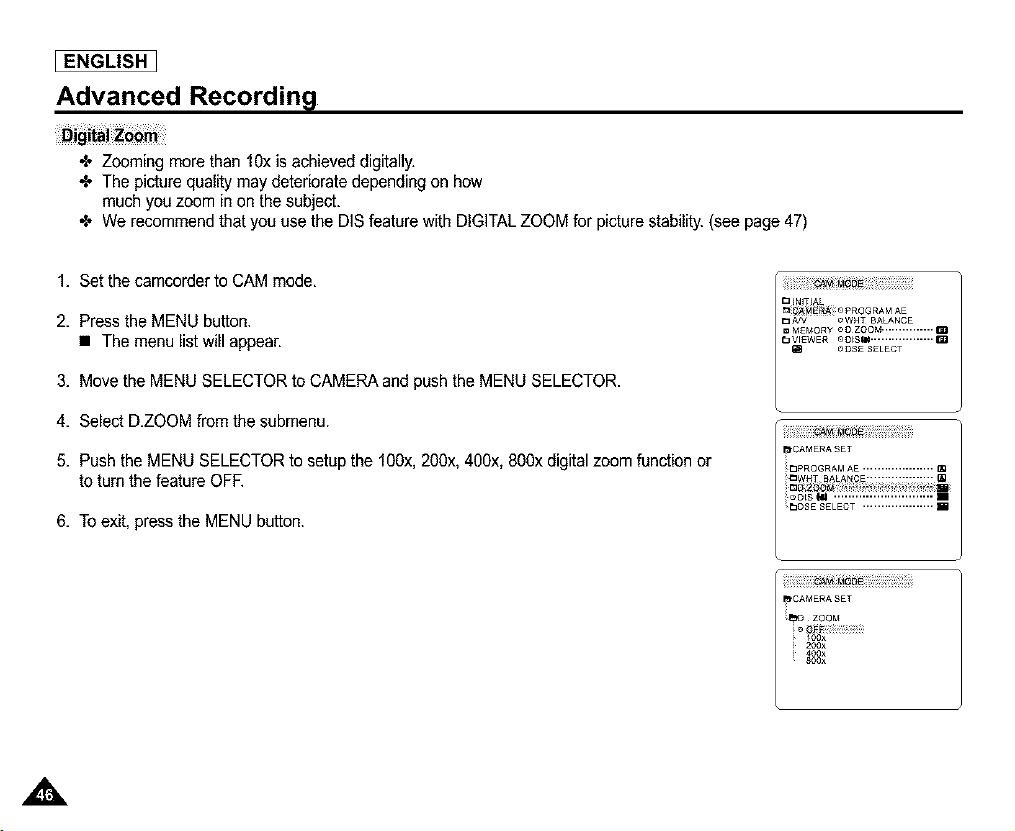
[ ENGLISH I
Advanced Recordin l
•t, Zooming more than 1Oxis achieved digitally.
•l, The picture quality may deteriorate depending on how
much you zoom in on the subject.
•l, We recommend that you use the DIS feature with DIGITALZOOM for picture stability.(see page 47)
1. Set the camcorder to CAM mode.
2. Press the MENU button.
• The menu list will appear.
3. Move the MENU SELECTOR to CAMERA and push the MENU SELECTOR.
4. Select D.ZOOM from the submenu.
5. Push the MENU SELECTOR to setup the f0Ox, 2O0x,400x, 8O0xdigital zoom function or
to turn the feature OFE
6. To exit, press the MENU button.
,,&
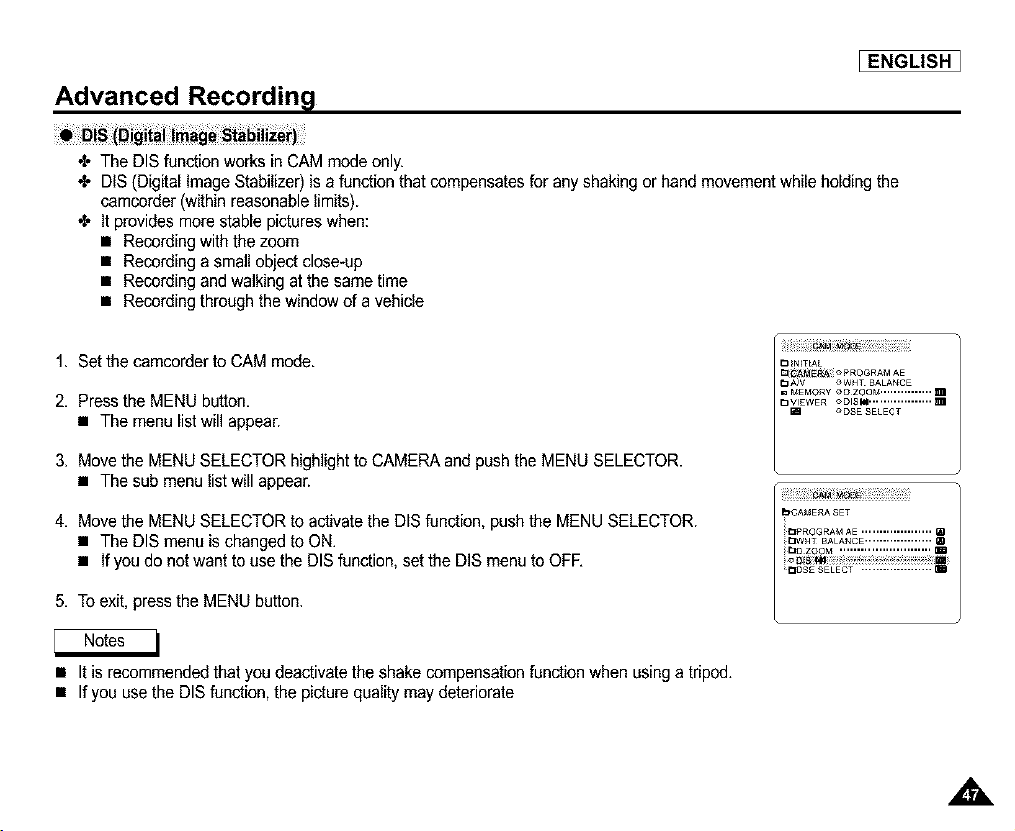
Advanced Recordin l
_ENGLISH ]
•I* The DIS function worksin CAM mode only.
•I. DIS (Digital Image Stabilizer) is a function that compensates for any shaking or hand movement while holding the
camcorder (within reasonable limits).
•I. It provides more stable pictures when:
• Recording with the zoom
• Recording a small object close-up
• Recording and walking at the same time
• Recording through the window of a vehicle
1. Set the camcorder to CAM mode.
2. Press the MENU button.
• The menu list will appear.
3. Move the MENU SELECTOR highlight to CAMERA and push the MENU SELECTOR.
• The sub menu list will appear.
4. Move the MENU SELECTOR to activate the DIS function, push the MENU SELECTOR.
• The DIS menu is changed to ON.
• If you do not want to use the DIS function, set the DIS menu to OFE
5. To exit, press the MENU button.
• It is recommended that you deactivate the shake compensation function when using a tripod.
• If you use the DIS function, the picture quality may deteriorate
,,&
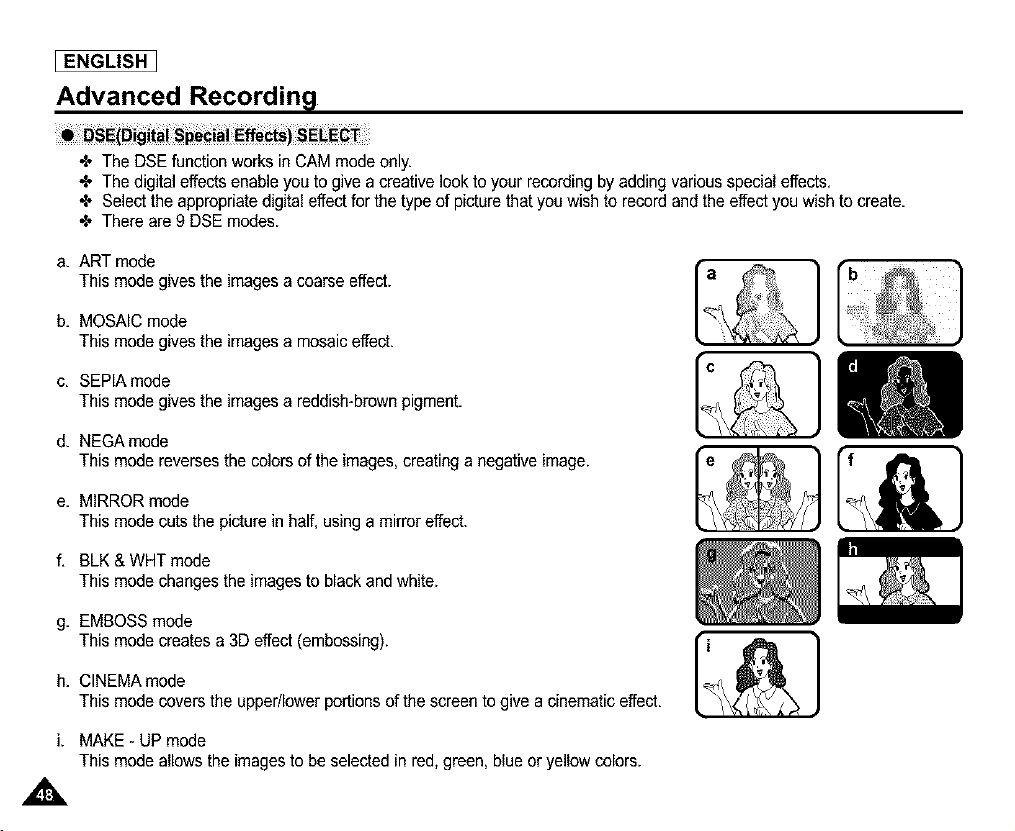
[ ENGLISH I
Advanced Recordin@
-_ The DSE function worksin CAM mode only.
-_ The digital effects enable you to give a creative look to your recording by adding various special effects.
-_ Select the appropriate digital effect for the type of picture that you wish to record and the effect you wish to create.
-_ There are 9 DSE modes.
a. ART mode
This mode gives the imagesa coarse effect.
b. MOSAIC mode
This mode gives the imagesa mosaic effect.
c. SEPIA mode
This mode gives the imagesa reddish-brown pigment.
d, NEGA mode
This mode reverses the colors of the images,creating a negative image.
e. MIRROR mode
This mode cuts the picture in half, using a mirror effect.
f. BLK & WHT mode
This mode changes the imagesto black and white.
g. EMBOSS mode
This mode creates a 3D effect (embossing).
h. CINEMAmode
Thismodecoversthe upper/lowerportionsof thescreento give acinematiceffect,
i. MAKE - UP mode
This mode allows the images to be selected in red, green, blue or yellow colors.
,,&
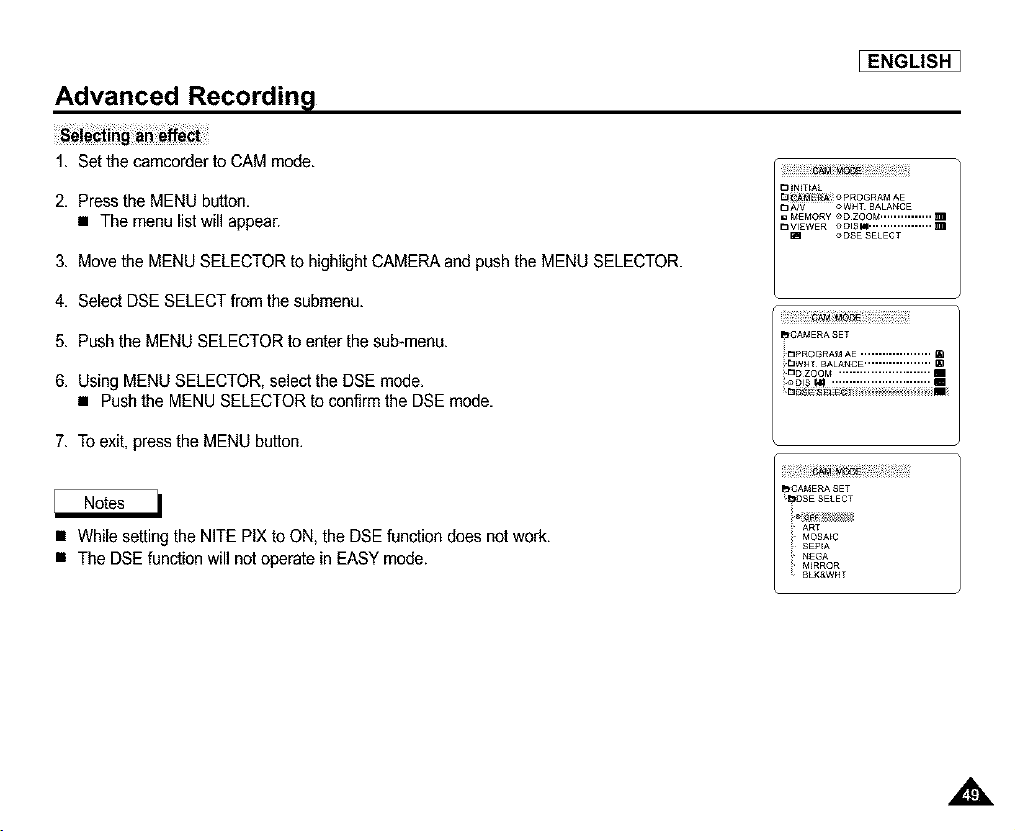
[ENGLISH ]
Advanced Recordin l
1. Set the camcorder to CAM mode.
2. Press the MENU button.
• The menu list will appear.
3. Move the MENU SELECTOR to highlight CAMERA and push the MENU SELECTOR.
4. Select DSE SELECT from the submenu.
5. Push the MENU SELECTOR to enter the sub-menu.
6. Using MENU SELECTOR, select the DSE mode.
• Push the MENU SELECTOR to confirm the DSE mode.
7. To exit, pressthe MENU button.
• While setting the NITE PIX to ON, the DSE function does not work.
• The DSE function will not operate in EASY mode.
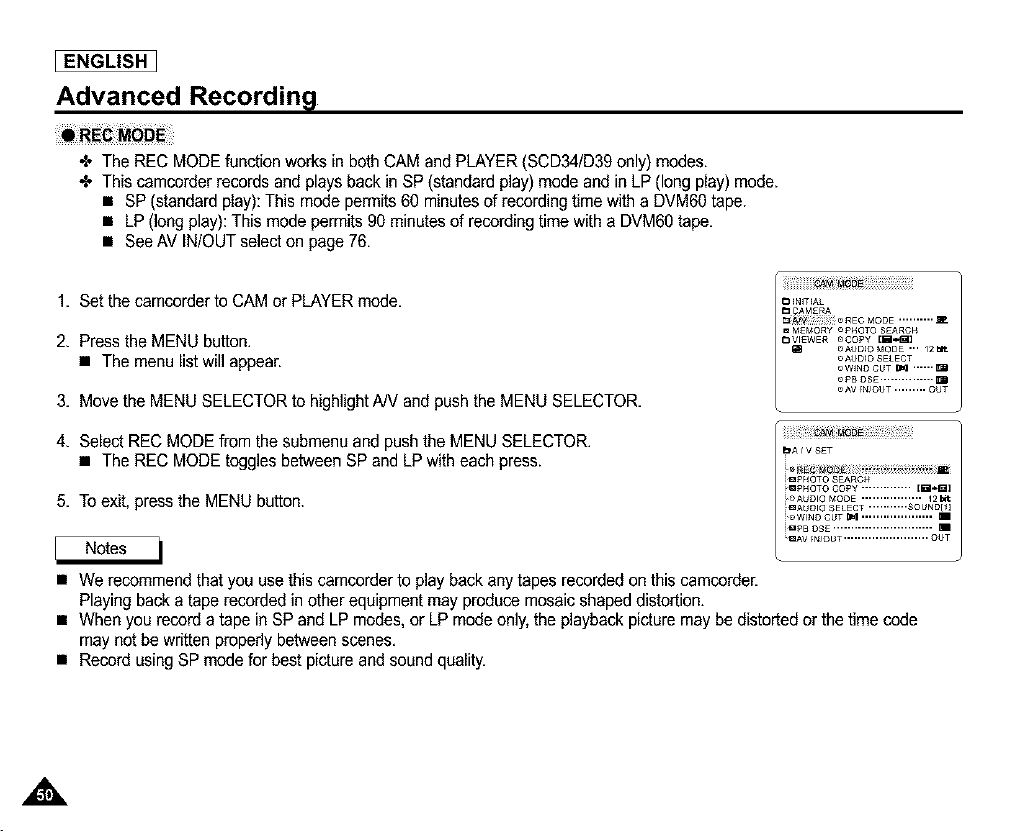
[ ENGLISH I
Advanced Recordin l
+ The REC MODE function works in both CAM and PLAYER (SCD34/D39 only) modes.
This camcerder records and plays back in SP (standard play) mode and in LP (long play) mode.
• SP (standard play): This mode permits 60 minutes of recording time with a DVM6Otape.
• LP (Longplay): This mode permits 90 minutes of recording time with a DVM60 tape.
• See AV IN/OUT selecton page 76.
1. Set the camcorder to CAM or PLAYER mode.
2. Press the MENU button.
• The menu list will appear.
I_N_T_AL
_I_IVIIiilIOREC MODE ..........
hA/V S£T
3. Move the MENU SELECTOR to highlight AN and push the MENU SELECTOR.
4. Select REC MODE from the submenu and push the MENU SELECTOR.
• The REC MODE toggles between SP and LP with each press.
5. To exit, press the MENU button.
• We recommend that you use this camcorder to play back any tapes recorded on this camcorder.
Playing back a tape recorded in other equipment may produce mosaic shaped distortion.
• When you record a tape in SP and LP modes, or LP mode only,the playback picture may be distorted or the time code
may not be written properly between scenes.
• Record usingSP mode for best picture and sound quality.
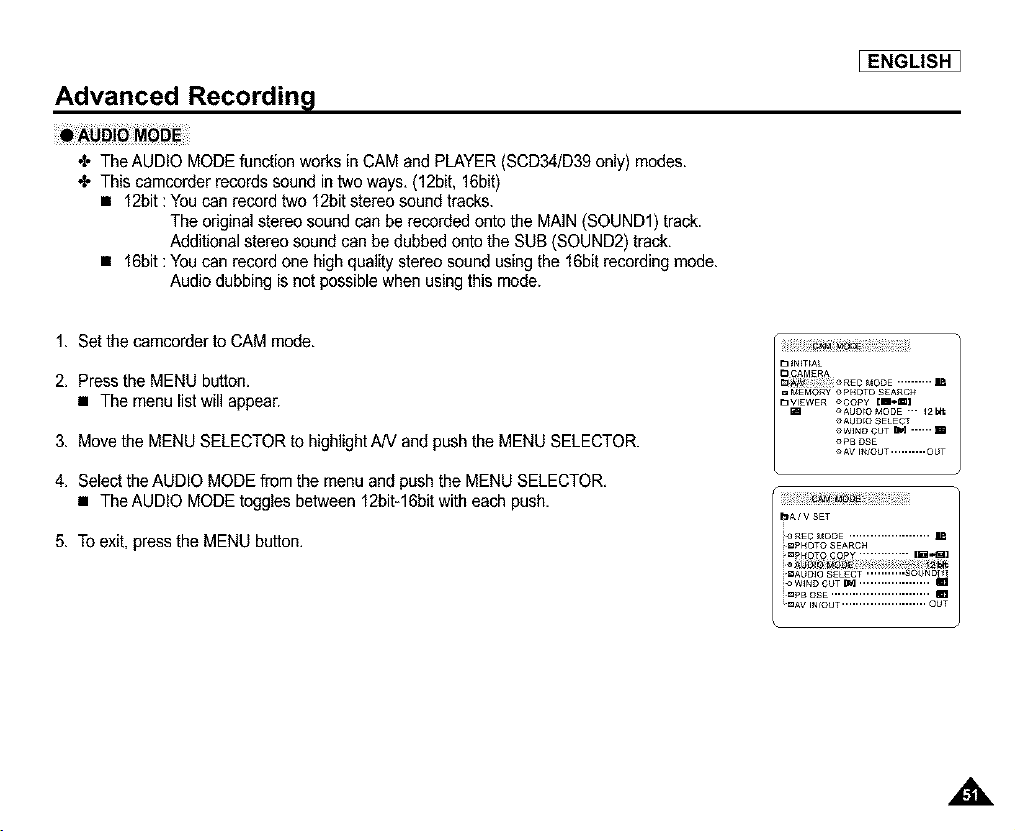
_ENGLISH ]
Advanced Recordin l
•_ The AUDIO MODE function works in CAM and PLAYER (SCD34/D39 only) modes.
•I, This camcorder records sound in two ways, (12bit, 16bit)
• 12bit :You can record two 12bitstereo sound tracks.
The original stereo sound can be recorded onto the MAIN (SOUND1) track.
Additional stereo sound can be dubbed onto the SUB (SOUND2) track,
• 16bit :You can record one high quality stereo sound using the 16bit recording mode,
Audio dubbing is not possiblewhen using this mode.
1, Set the camcorder to CAM mode.
2, Press the MENU button,
• The menu list will appear.
3, Move the MENU SELECTOR to highlight AN and push the MENU SELECTOR.
4, Select theAUDIO MODE from the menu and push the MENU SELECTOR,
• The AUDIO MODE toggles between 12bit-16bit with each push,
5, To exit, press the MENU button.
_3 _TrAL
t3 _AMERA
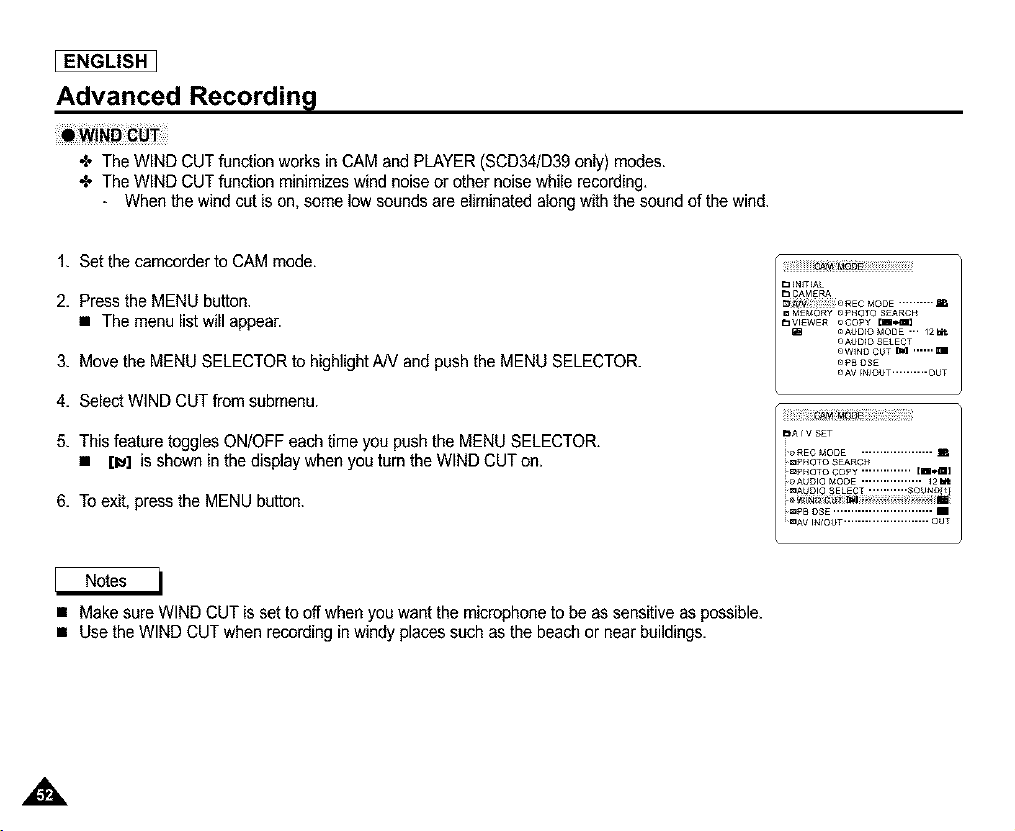
[ ENGLISH I
Advanced Recordin l
•_ The WIND CUT function works in CAM and PLAYER (SCD34/D39 only) modes.
•X, The WIND CUT function minimizes wind noise or other noise while recording.
- When the wind cut is on, some low sounds are eliminated along with the sound of the wind.
1, Set the camcorder to CAM mode,
2, Press the MENU button.
• The menu list will appear.
3, Move the MENU SELECTOR to highlight AN and push the MENU SELECTOR.
4, Select WIND CUT from submenu.
5, This feature toggles ON/OFF each time you push the MENU SELECTOR,
• [1_] is shown in the display when you turn the WIND CUT on,
_ _N_T_AL
_3 CAM£RA
_i_i!!i;_ i ii _ REC MODE ..........
6. To exit, press the MENU button.
• Make sure WIND CUT is set to off when you want the microphone to be as sensitive as possible.
• Use the WIND CUT when recording in windy places such as the beach or near buildings.
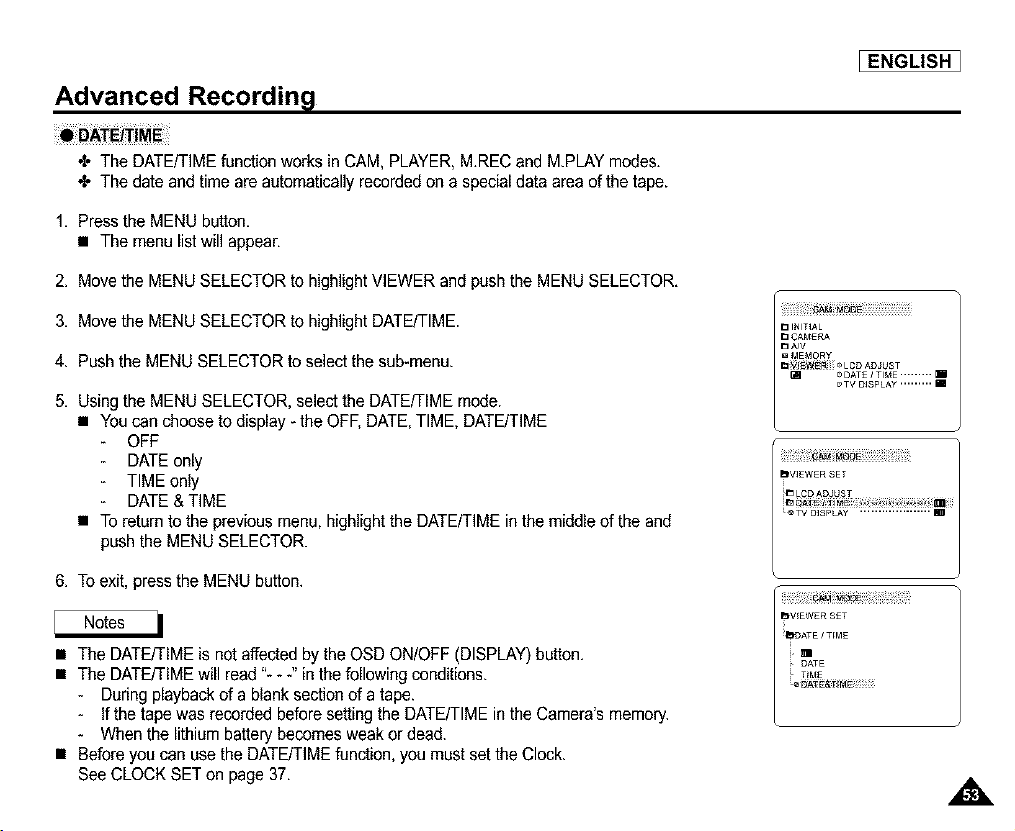
Advanced Recordin l
•_ The DATE/TIME function works in CAM, PLAYER, MREC and MPLAY modes.
•I, The date and time are automatically recorded on a special data area of the tape.
_ENGLISH ]
1. Press the MENU button.
• The menu list will appear.
2. Move the MENU SELECTOR to highlight VIEWER and push the MENU SELECTOR.
3. Move the MENU SELECTOR to highlight DATE/TIME.
4. Push the MENU SELECTOR to select the sub-menu.
5. Using the MENU SELECTOR, select the DATE/TIME mode.
• Youcan choose to display - the OFF, DATE,TIME, DATE/TIME
OFF
DATEonly
TIME only
DATE& TIME
• To returnto the previous menu, highlight the DATE/TIME in the middle of the and
push the MENU SELECTOR.
_TV D_SPLAY .................... m
6. To exit, press the MENU button.
• The DATE/TIME is not affected by the OSD ON/OFF (DISPLAY) button.
• The DATE/TIME will read "- - -" in the following conditions.
- During playback of a blank section of a tape.
- If the tape was recorded before setting the DATE/TIME in the Camera's memory.
- When the lithium battery becomes weak or dead.
• Before you can use the DATE/TIME function, you must set the Clock.
See CLOCK SET on page 37.
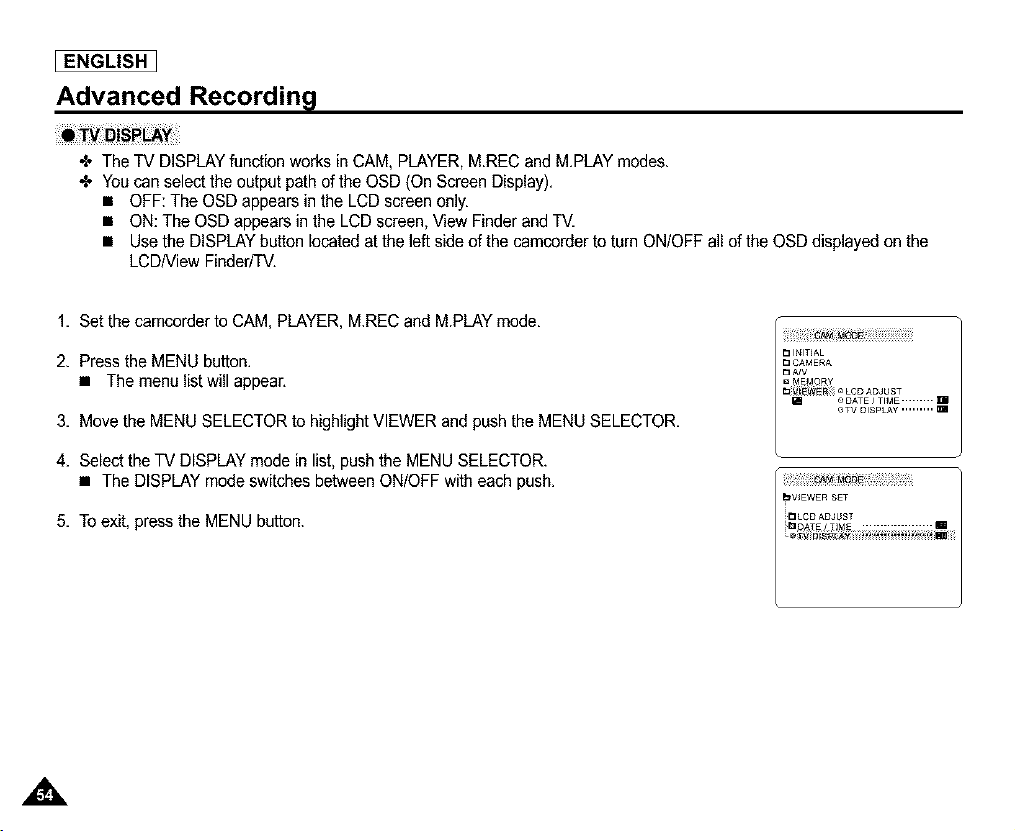
[ ENGLISH I
Advanced Recordin l
•_ The TV DISPLAY function works in CAM, PLAYER, MREC and M.PLAY modes.
•X. Youcan select the output path of the OSD (On Screen Display).
• OFF: The OSD appears in the LCD screen only.
• ON: The OSD appears in the LCD screen, View Finder and TV.
• Use the DISPLAYbutton located at the left side of the camcorder to turn ON/OFF all of the OSD displayed on the
LCD/View Finder/TV.
1, Set the camcorder to CAM, PLAYER, M.REC and MPLAY mode.
2. Press the MENU button.
• The menu list will appear.
3. Move the MENU SELECTOR to highlight VIEWER and push the MENU SELECTOR.
4. SeLectthe TV DISPLAY mode in list, push the MENU SELECTOR.
• The DISPLAY mode switches between ON/OFF with each push.
5. To exit, press the MENU button.
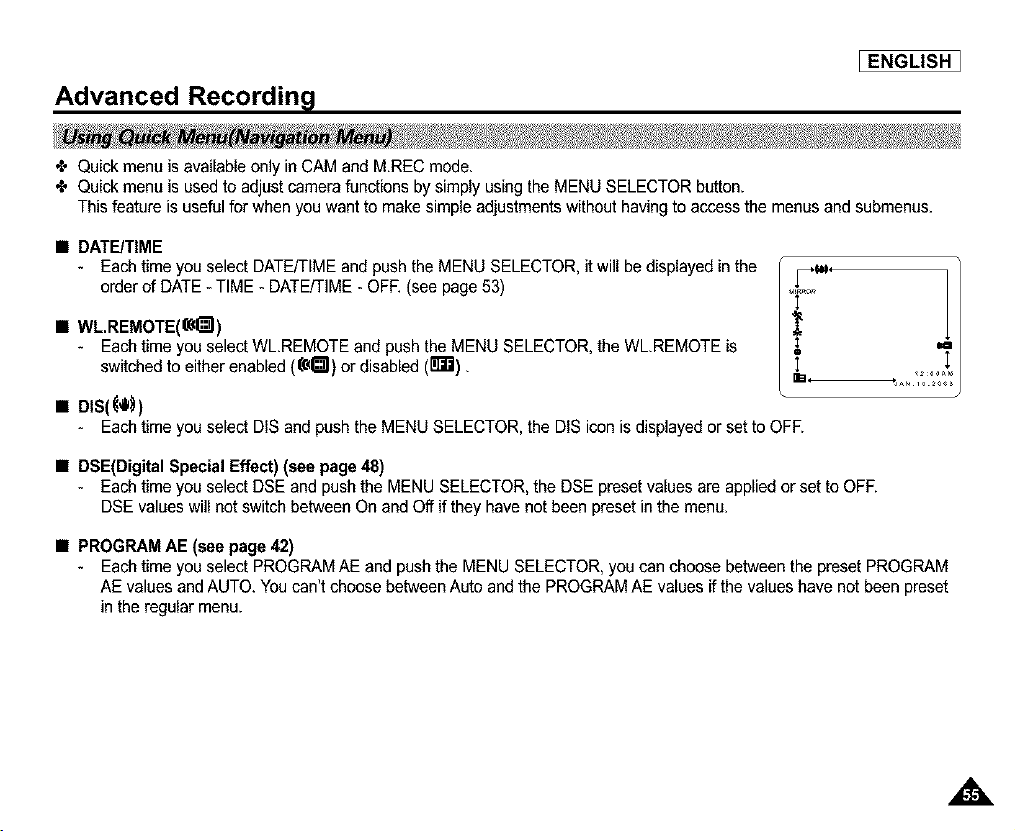
Advanced Recordin l
_ENGLISH ]
÷ Quick menu is available only in CAM and M.REC mode.
÷ Quick menu is used to adjust camera functions by simply using the MENU SELECTOR button.
This feature is useful for when you want to make simple adjustments without having to access the menus and submenus.
• DATE/TIME
- Each timeyou select DATE/TIME and pushthe MENU SELECTOR, it will be displayed in the
order of DATE- TIME - DATE/TIME - OFE (see page 53)
• WL.REMOTE(((dT_I)
- Each time you select WL.REMOTE and pushthe MENU SELECTOR, the WL.REMOTE is
switched to either enabled (((d_l) or disabled (riF._).
• DIS(_'J_)
- Each time you select DIS and push the MENU SELECTOR, the DIS icon is displayed or set to OFF.
• DSE(Digital Special Effect) (see page 48)
- Each timeyou select DSE and push the MENU SELECTOR, the DSE preset values are applied or set to OFF.
DSE values will not switch between On and Off if they have not been preset in the menu.
• PROGRAM AE (see page 42)
- Each time you select PROGRAM AE and push the MENU SELECTOR, you can choose between the preset PROGRAM
AE values and AUTO. You can't choose between Auto and the PROGRAM AE values if the values have not been preset
in the regular menu.
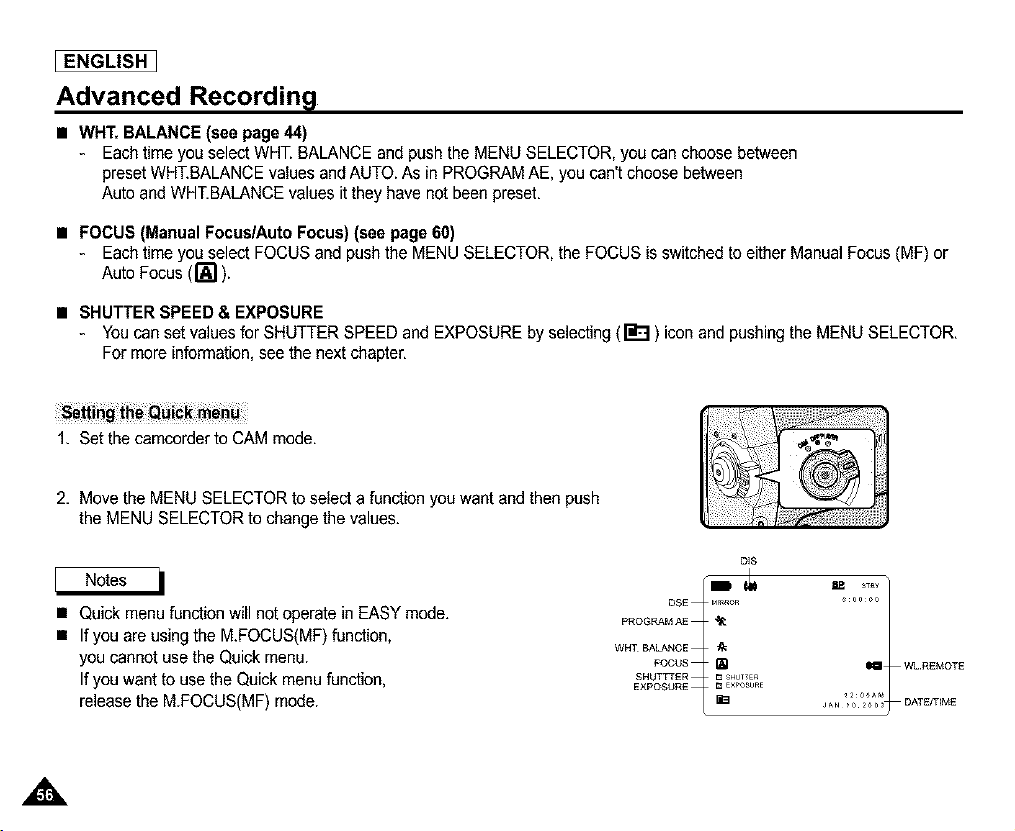
[ ENGLISH I
Advanced Recordin l
• WHT, BALANCE (see page 44)
- Each time you select WHT. BALANCE and pushthe MENU SELECTOR, you can choose between
preset WHT.BALANCE values and AUTO. As in PROGRAMAE, you can't choose between
Auto and WHT.BALANCE values it they have not been preset.
• FOCUS (Manual Focus/Auto Focus) (see page 60)
- Each timeyou select FOCUS and pushthe MENU SELECTOR, the FOCUS is switchedto either ManualFocus(MF) or
Auto Focus (1_1).
• SHUTTER SPEED & EXPOSURE
- Youcan set values for SHUTTER SPEED and EXPOSURE by selecting (_) icon and pushing the MENU SELECTOR.
For more information, see the next chapter.
1. Set the camcorder to CAM mode.
2. Move the MENU SELECTOR to select a function you want and then push
the MENU SELECTOR to change the values.
• Quick menu function will not operate in EASY mode.
• If you are using the M.FOCUS(MF) function,
you cannot use the Quick menu.
If you want to use the Quick menu function,
release the MFOCUS(MF) mode.
D_S
DSE _R 0000
PROGRAM AE
WHT BALANCE
FOCUS _ WL REMOTE
SHUTTTER _%
EXpO_SURE _2 ooA_
JAN 02003 DATEIT_ME
Advanced Recordin l
•_ Youcan set SHUTTER SPEED and EXPOSURE only in CAM mode.
•_ SHUTTER SPEED and EXPOSURE values can only be set in the Quick Menu.
•I. SHUTTER SPEED and EXPOSURE are automatically switched and/or deactivated.
[ENGLISH ]
1. Set the power switch to CAM mode.
2. Move the MENU SELECTOR until you see icon(li_l) on, and then push the MENU SELECTOR.
• You see a screen on which you can select SHUTTER SPEED and EXPOSURE.
• Move the MENU SELECTOR to select the item you want and then push the MENU SELECTOR.
• SHUTTER SPEED can be set to 1/60, 1/100, 1/250, 1/500, 1/1000, 1/2000, 1/4000 or 1/10000.
• EXPOSURE can be set between 0O and 29.
3. To exit from the setting screen, select the icon(r_'_l) and push the MENU SELECTOR.
•_ Outdoor sports such as golf or tennis : 1/2000 or 1/4000.
•_ Moving cars or trains or other rapidly moving vehicles such as roller coasters : 1/1000, 1/500 or 1/250
•I. Indoor sports such as basketball : 1/100
• If you wantto use the selected shutter speed and exposure value, you should begin the recording with
the shutter speed and the exposure adjustment screensdisplayed on the LCD.
• If you manually change the shutter speed and the exposure value when Auto-exposure option is selected,
manual changes are applied first.
• The image may not seem as smooth when a high shutter speed is set.
• The camcorder returns to the auto shutter setting and auto exposure setting when you set the NITE PIX to ON,
or change to the EASY,SLOW SHUTTER modes.
• When recording with a SHUTTER SPEED of 1/1000 or higher, make sure the sun is not shining into the lens.
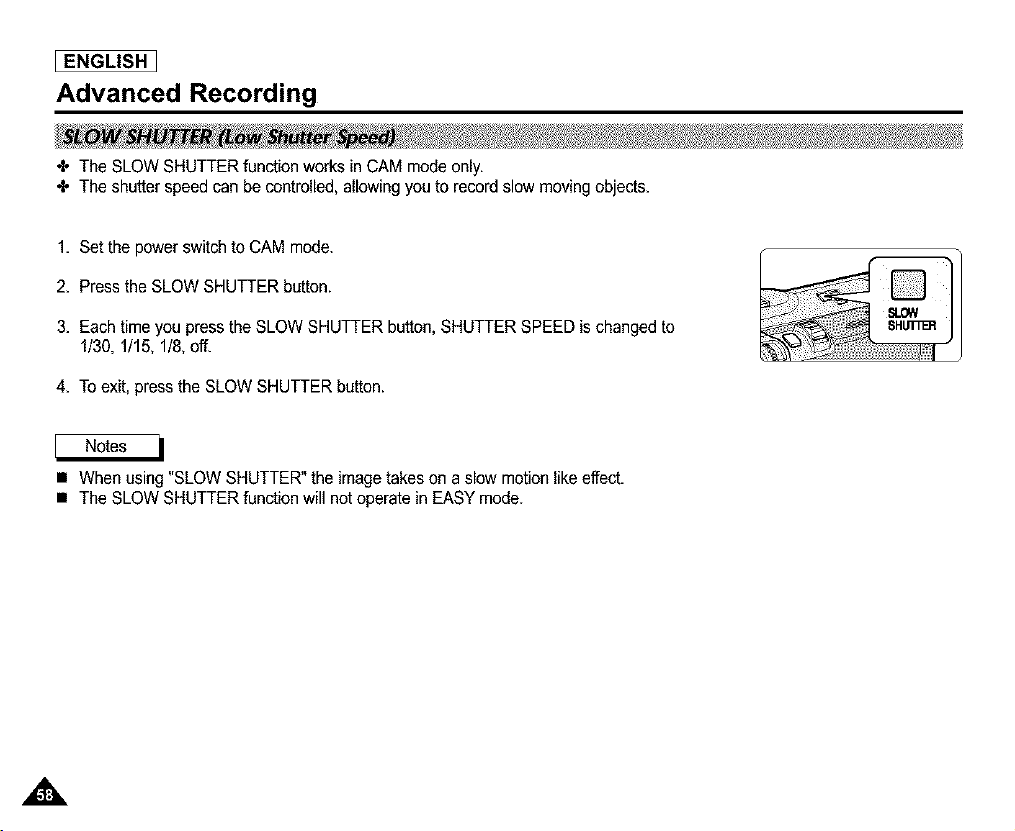
[ ENGLISH I
Advanced Recording
÷ The SLOW SHUTTER function works in CAM mode only.
÷ The shutter speed can be controlled, allowing you to record slow moving objects,
1. Set the power switch to CAM mode.
2. Press the SLOW SHUTTER button.
3. Each time you press the SLOW SHUTTER button, SHUTTER SPEED is changed to
1/30, 1/15, 1/8, off.
4. To exit, press the SLOW SHUTTER button.
• When using "SLOW SHUTTER" the image takes on a slow motion like effect,
• The SLOW SHUTTER function will not operate in EASY mode.
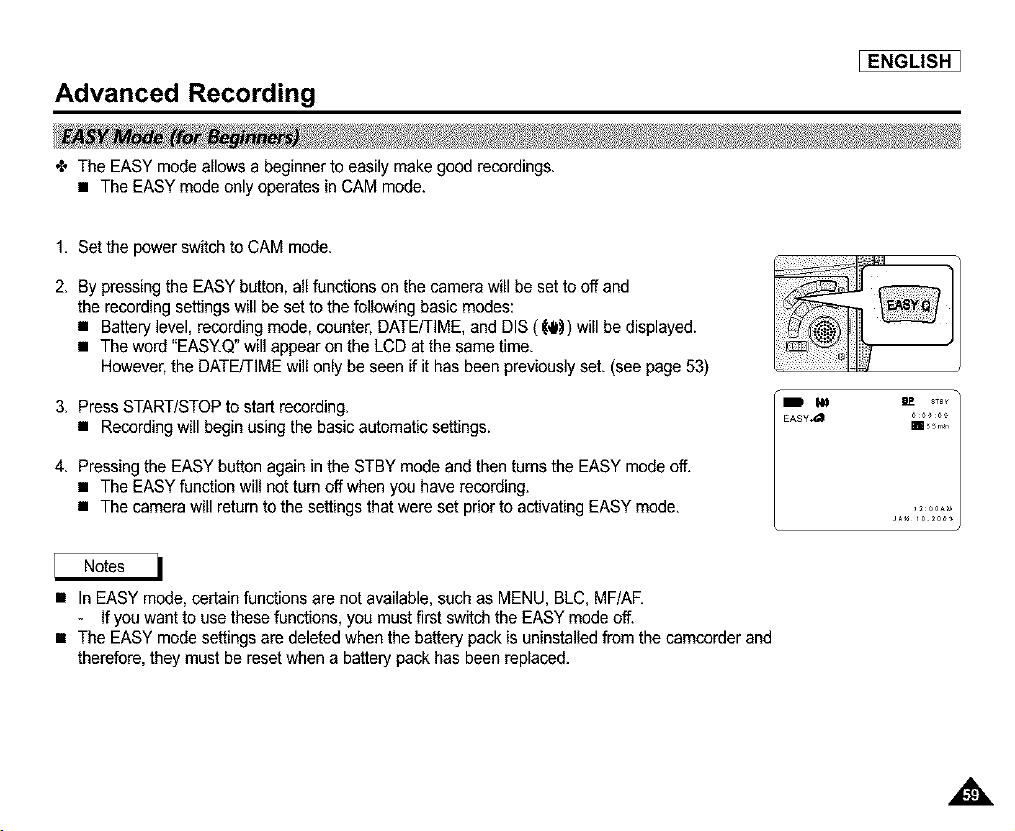
Advanced Recording
_ENGLISH ]
÷ The EASY mode allows a beginnerto easily make good recordings,
• The EASY mode only operates in CAM mode.
1. Set the power switch to CAM mode.
2. By pressing the EASY button, all functions on the camera will be set to off and
the recording settings will be set to the following basic modes:
• Battery level, recording mode, counter, DATE/TIME, and DIS (_,ll_) will be displayed.
• The word "EASY.Q"will appear on the LCD at the same time.
However, the DATE/TIME will only be seen if it has been previouslyset. (see page 53)
3. Press START/STOPto start recording.
• Recording will begin using the basic automatic settings.
4. Pressing the EASY button again in the STBY mode and then turns the EASY mode off.
• The EASY function will not turn off when you have recording.
• The camera will return to the settings that were set prior to activating EASY mode.
JA_ 10 20_
• In EASY mode, certain functions are not available, such as MENU, BLC, MF/AE
- If you want to use these functions, you must first switch the EASY mode off.
• The EASY mode settings are deleted when the battery pack is uninstalledfrom the camcorder and
therefore, they must be reset when a battery pack has been replaced.
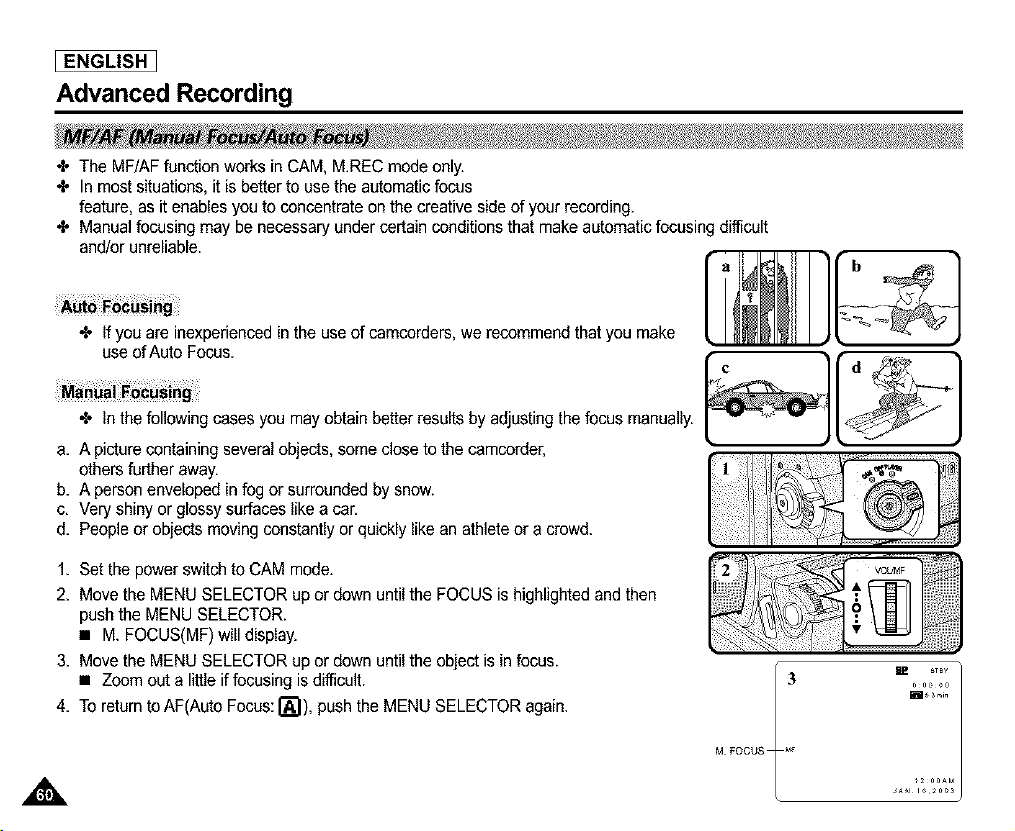
ENGLISH I
Advanced Recording
÷ The MF/AF function works in CAM, MREC mode only.
•I, In most situations, it is better to use the automatic focus
feature, as it enables you to concentrate on the creative side of your recording.
÷ Manual focusing may be necessary under certain conditions that make automatic focusing difficult
and/or unreliable.
•l, If you are inexperienced in the use of camcorders, we recommend that you make
use of Auto Focus.
•l, In the following cases you may obtain better results by adjusting the focus manually.
a. A picture containing several objects, some close to the camcorder,
others further away.
b. A person enveloped in fog or surrounded by snow.
c. Very shiny or glossy surfaces like a car.
d. People or objects moving constantly or quickly like an athlete or a crowd.
b
d_ _ , "
.
1. Set the power switch to CAM mode.
2. Move the MENU SELECTOR up or down until the FOCUS is highlighted and then
push the MENU SELECTOR.
• M. FOCUS(MF) will display.
3. Move the MENU SELECTOR up or down until the object is in focus.
• Zoom out a little if focusing is difficult.
4. To return to AF(Auto Focus:IA1). push the MENU SELECTOR again.
E _TBV
H_in
M FOCUS _
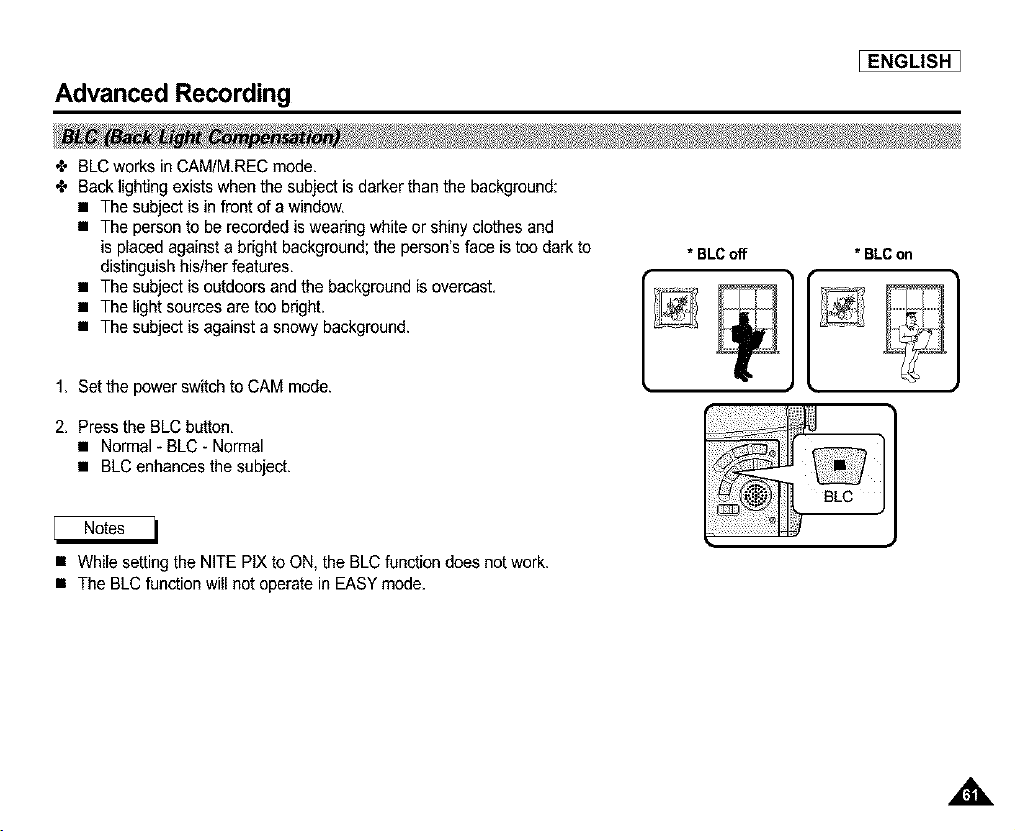
Advanced Recording
_ENGLISH ]
÷ BLC works in CAM/M.REC mode.
÷ Back lighting exists when the subject is darker than the background:
• The subject is in front of a window.
• The person to be recorded is wearing white or shiny clothes and
is placed against a bright background; the person's face is too dark to
distinguish his/herfeatures.
• The subject is outdoors and the background is overcast.
• The light sources are too bdght.
• The subject is against a snowy background.
1. Set the power switch to CAM mode.
2. Press the BLC button.
• Normal * BLC - Normal
• BLC enhances the subject.
• While setting the NITE PIX to ON, the BLC function does not work.
• The BLC function will not operate in EASY mode.
* BLCoff * BLCon
k
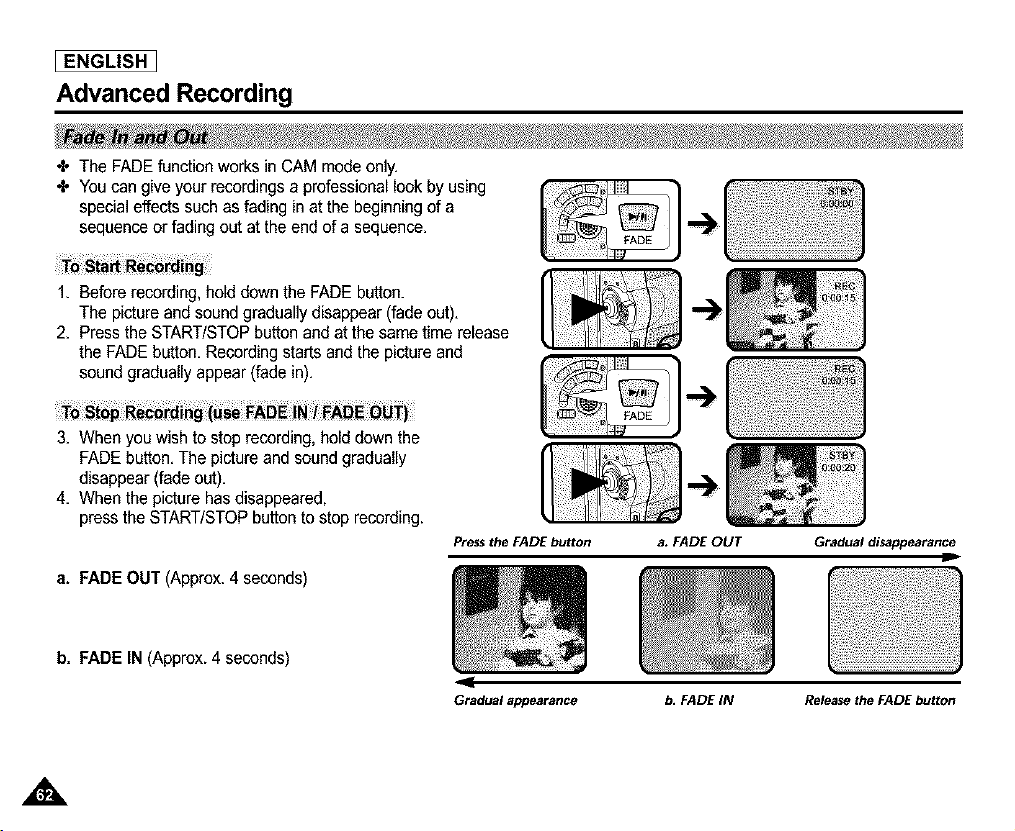
ENGLISH I
Advanced Recording
÷ The FADEfunction works in CAM mode only.
•I, You can give your recordings a professional look by using
special effects such as fading in at the beginning of a
sequence or fading out at the end of a sequence.
Before recording, hold down the FADE button.
The picture and sound gradually disappear (fade out).
2. Press the STARTISTOP button and at the same time release
the FADE button. Recording starts and the picture and
sound gradually appear (fade in).
3. When you wish to stop recording, hold down the
FADE button. The picture and sound gradually
disappear (fade out).
4. When the picture has disappeared,
press the START/STOP button to stop recording.
a. FADE OUT (Approx. 4 seconds)
Press the FADE button
<
Gradualappearance
a. FADE OUT Gradual disappearance
J
b. FADE IN (Approx. 4 seconds)
b. FADE IN Release the FADE button
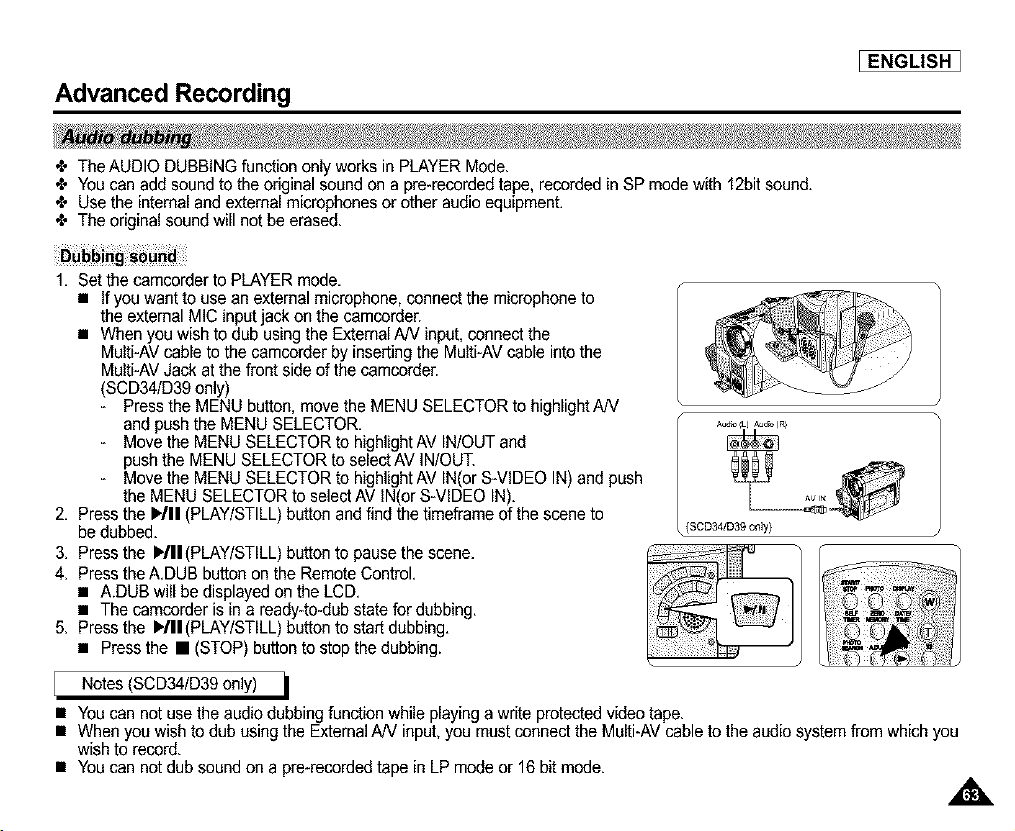
Advanced Recording
_ENGLISH ]
÷ The AUDIO DUBBING function only worksin PLAYER Mode,
÷ You can add sound to the original sound on a pre-recorded tape, recorded in SP mode with 12bit sound.
÷ Use the internal and external microphones or other audio equipment.
÷ The original sound will not be erased,
1, Set the camcorder to PLAYER mode.
• If you want to use an external microphone, connectthe microphone to
the external MIC inputjack on the camcorder.
• When you wish to dub using the ExternalAN input, connectthe
Multi-AV cable to the camcorder by inserting the Multi-AVcable into the
Multi-AVJack at the front side of the camcorder.
(SCD34/D39 only)
- Press the MENU button, move the MENU SELECTORto highlight AN
and push the MENU SELECTOR.
- Move the MENU SELECTOR to highlight AV IN/OUT and
push the MENU SELECTOR to select AV IN/OUT.
- Move the MENU SELECTOR to highlight AV IN(or S-VIDEO IN) and push
the MENU SELECTOR to select AV IN(or S-VIDEO IN).
2. Press the 1/11 (PLAY/STILL) button and find the timeframe of the scene to
be dubbed.
3. Press the P'/II (PLAY/STILL) button to pause the scene.
4. Press the A.DUB button on the Remote Control.
• A.DUB will be displayed on the LCD.
• The camcorder is in a ready4o-dub state for dubbing.
5. Press the 1/11(PLAY/STILL) button to start dubbing.
• Press the • (STOP) button to stop the dubbing.
A,_,o _) A_d,_ [RI
(SCD34/D39 only)
Notes (SCD34/D39 only)
• You can not use the audio dubbing function while playing a write protected video tape.
• When you wish to dub using the ExternalAN input, you must connect the Multi-AV cable to the audio system from which you
wish to record.
• You can not dub sound on a pre-recorded tape in LP mode or 16 bit mode.
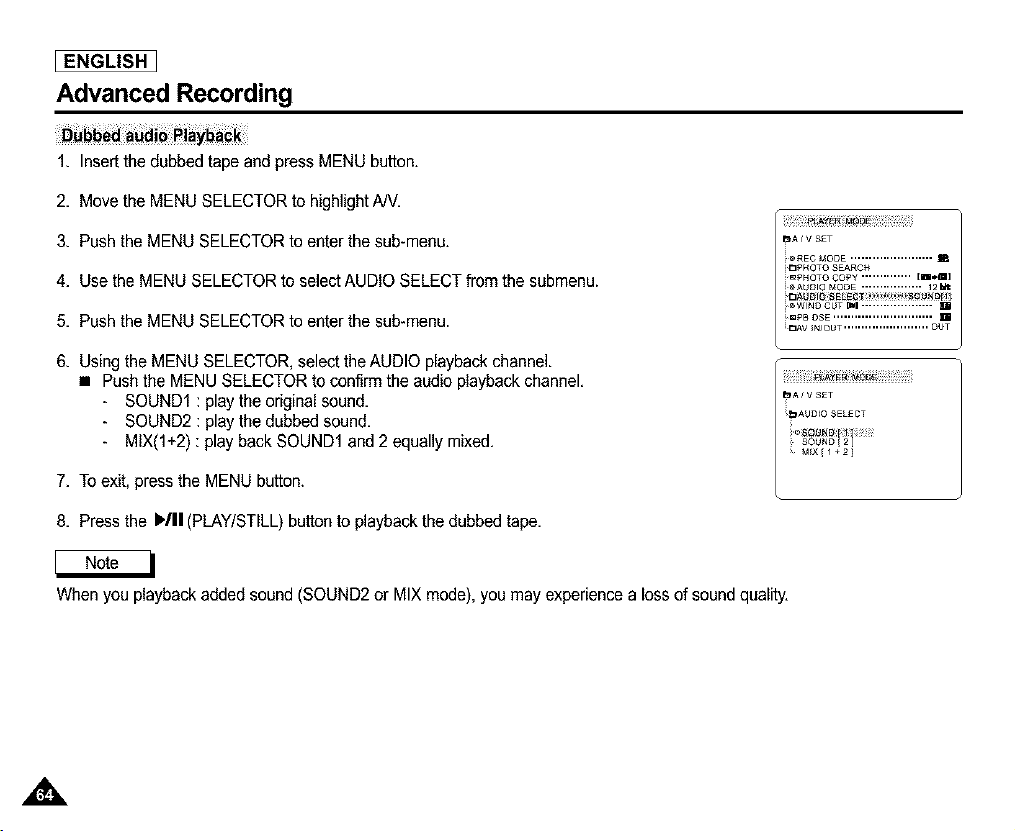
[ ENGLISH I
Advanced Recording
1. Insert the dubbed tape and press MENU button.
2. Move the MENU SELECTOR to highlight AN.
3. Push the MENU SELECTOR to enter the sub-menu.
4. Use the MENU SELECTOR to select AUDIO SELECT from the submenu.
5. Push the MENU SELECTOR to enter the sub-menu.
6. Using the MENU SELECTOR, select the AUDIO playback channel.
• Push the MENU SELECTOR to confirm the audio playback channel.
- SOUND1 : play the original sound.
- SOUND2 : play the dubbed sound.
- MIX(l+2) : play back SOUND1 and 2 equally mixed.
7. To exit, press the MENU button.
8. Press the WII (PLAY/STILL) button to playback the dubbed tape.
When you playback added sound (SOUND2 or MIX mode), you may experience a loss of sound quality.
,,&
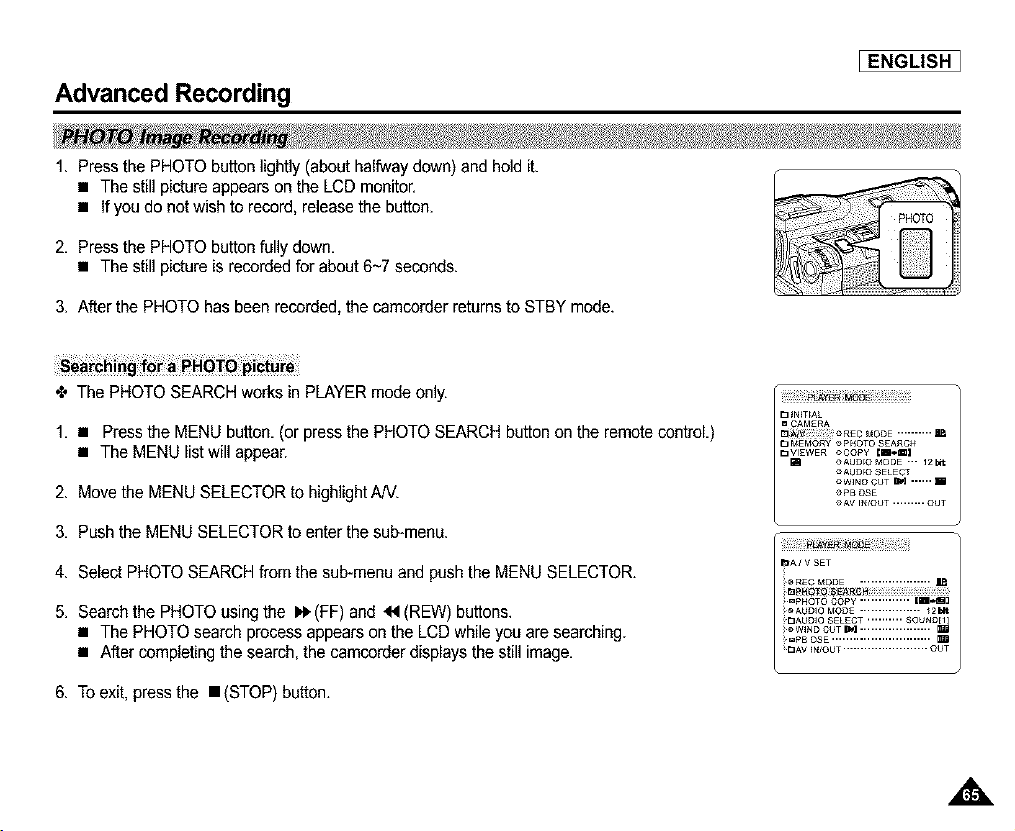
Advanced Recording
_ENGLISH ]
1. Press the PHOTO button lightly (about halfway down) and hold it.
• The still picture appears on the LCD monitor.
• If you do not wish to record, releasethe button.
2. Press the PHOTO button fully down.
• The still picture is recorded for about 6~7 seconds.
3. A'_erthe PHOTO has been recorded, the camcorder returns to STBY mode.
÷ The PHOTO SEARCH works in PLAYER mode only.
1. • Press the MENU button. (or press the PHOTO SEARCH button on the remote control.)
• The MENU list will appear.
2. Move the MENU SELECTOR to highlight AN.
3. Push the MENU SELECTOR to enter the sub-menu.
4. Select PHOTO SEARCH from the sub-menu and push the MENU SELECTOR.
5. Search the PHOTO using the I_ (FF) and _1 (REW) buttons.
• The PHOTO search process appears on the LCD while you are searching.
• After completing the search, the camcorder displays the still image.
6. To exit, press the • (STOP) button.
_3 _TrAL
= CAMERA
_3!_i i _ii _REC MODE .......... i_
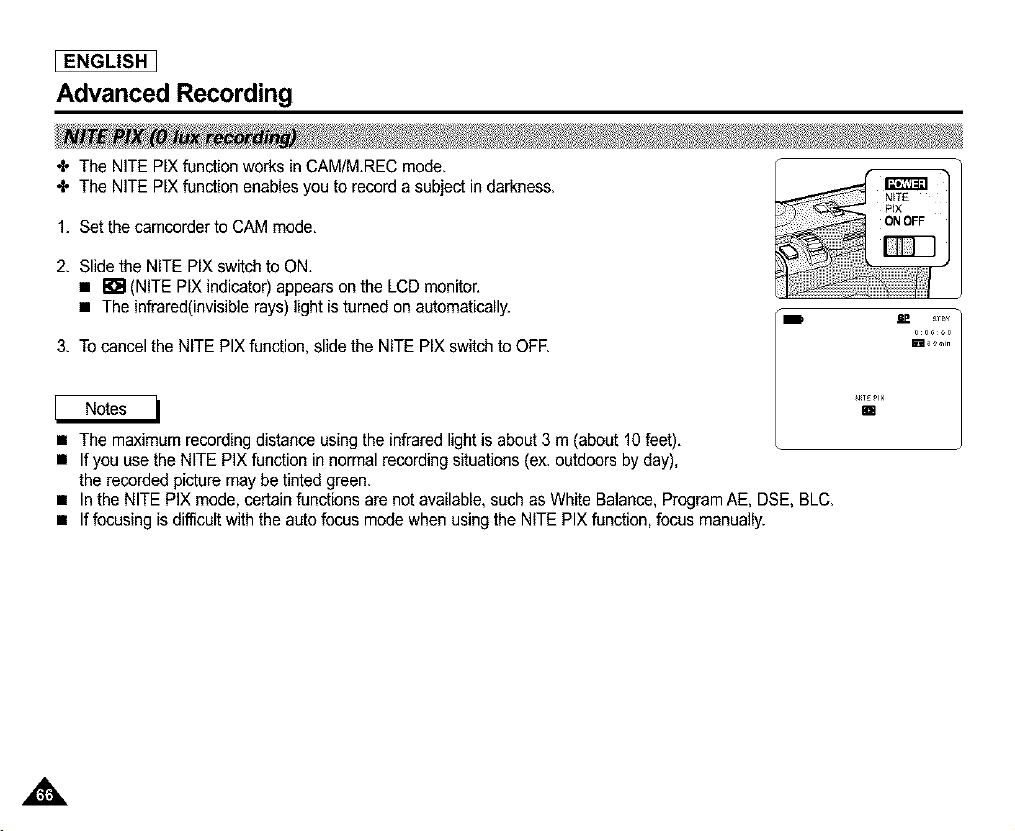
[ ENGLISH I
Advanced Recording
÷ The NITE PIX function works in CAM/MREC mode.
÷ The NITE PIX function enables you to record a subject in darkness.
1. Set the camcorder to CAM mode.
2. Slide the NITE PIX switch to ON.
• _ (NITE PIX indicator) appears on the LCD monitor.
• The infrared(invisible rays) light is turned on automatically.
3. To cancel the NITE PlX function, slide the NITE PIX switch to OFF.
• The maximum recording distance using the infrared light is about 3 m (about 10 feet).
• If you use the NITE PIX function in normal recording situations (ex. outdoors by day),
the recorded picture may be tinted green.
m
• In the NITE PIX mode, certain functions are not available, such as White Balance, ProgramAE, DSE, BLC.
• If focusing is difficult with the auto focus mode when using the NITE PIX function, focus manually.
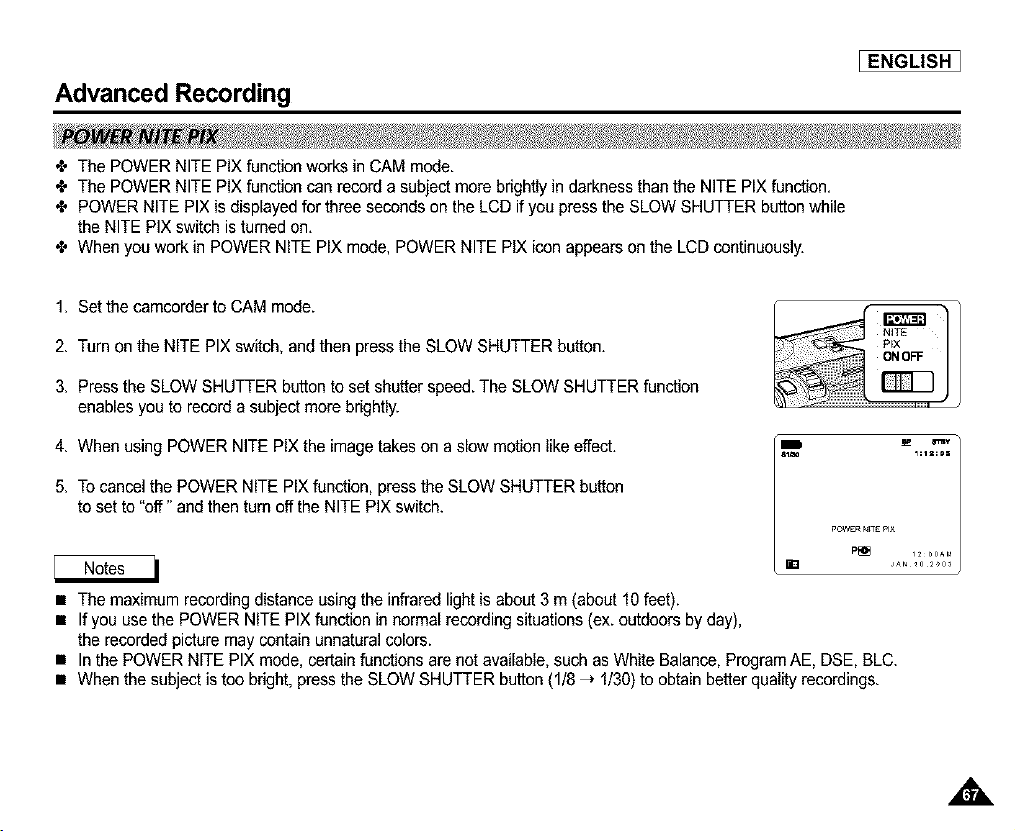
Advanced Recording
[ENGLISH ]
÷ The POWER NITE PIX function works in CAM mode.
÷ The POWER NITE PIX function can record a subject more brightly in darkness than the NITE PIX function.
÷ POWER NITE PIX is displayed for three seconds on the LCD if you pressthe SLOW SHUTTER button while
the NITE PIX switch is turned on.
÷ When you work in POWER NITE PIX mode, POWER NITE PIX icon appears on the LCD continuously.
1. Set the camcorder to CAM mode.
2. Turn on the NITE PIX switch, and then press the SLOW SHUTTER button.
3. Press the SLOW SHUTTER button to set shutter speed. The SLOW SHUTTER function
enables you to record a subject more brightly.
4. When using POWER NITE PIX the image takes on a slow motion like effect.
5. To cancel the POWER NITE PIX function, press the SLOW SHUTTER button
to set to "off" and then turn off the NITE PIX switch.
1=12=0S
_OWEFt NFTE_IX
P[] 1200_r,i
• The maximum recording distance using the infrared light is about 3 m (about 10 feet).
• If you use the POWER NITE PIX function in normal recording situations (ex. outdoors by day),
the recorded picturemay contain unnatural colors.
• In the POWER NITE PIX mode, certain functions are not available, such as White Balance, Program AE, DSE, BLC.
• When the subject is too bright, pressthe SLOW SHUTTER button (1/8 _ 1/30)to obtain better quality recordings.
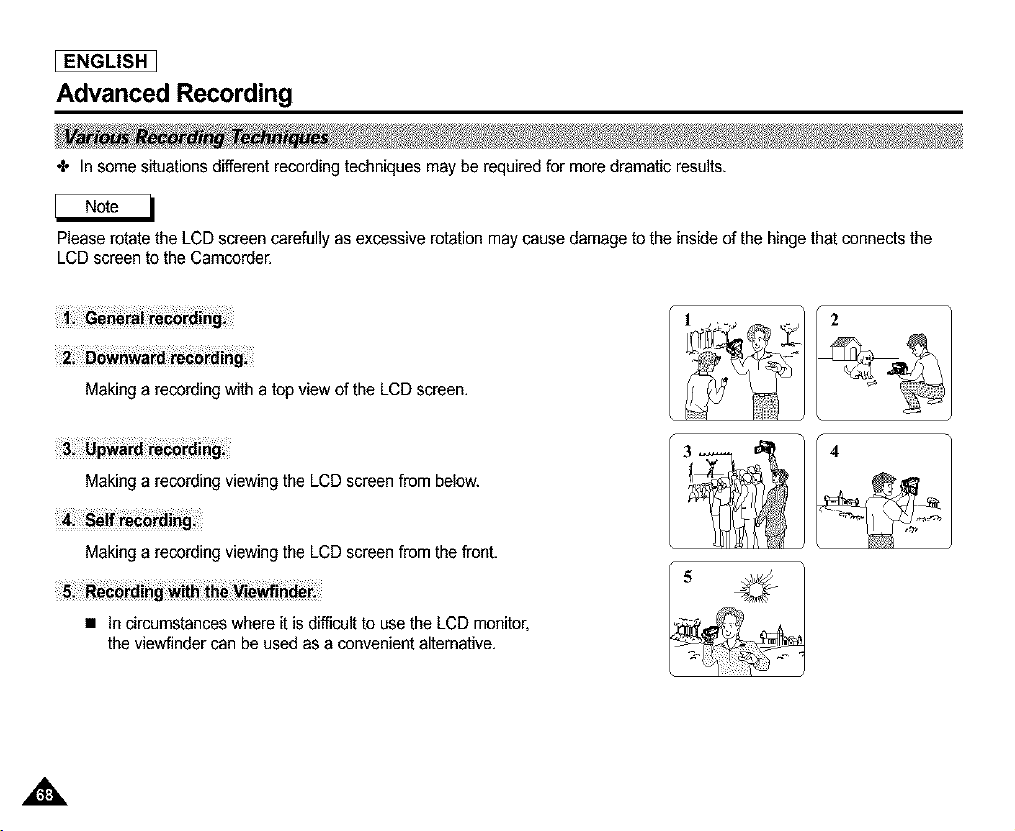
ENGLISH I
Advanced Recording
÷ In some situations different recording techniques may be required for more dramatic results.
Please rotate the LCD screen carefully as excessive rotation may cause damage to the inside of the hinge that connects the
LCD screen to the Camcorder.
Making a recording with a top view of the LCD screen.
Making a recording viewing the LCD screen from below.
Making a recording viewing the LCD screen from the front.
• In circumstances where it is difficult to use the LCD monitor,
the viewfinder can be used as a convenient alternative.
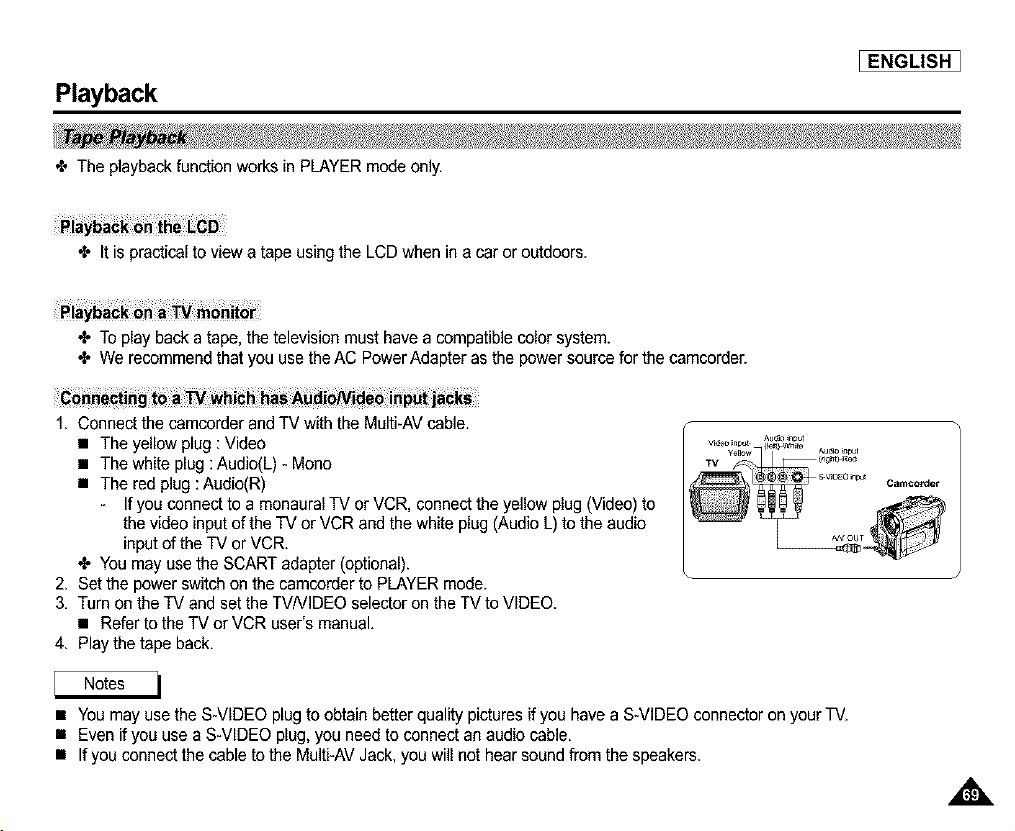
Playback
_ENGLISH ]
4, The playback function works in PLAYER mode only,
4" It is practical to view a tape using the LCD when in a car or outdoors.
4" To play back a tape, the television must have a compatible color system.
4" We recommend that you use the AC PowerAdapter as the power source for the camcorder.
1. Connect the camcorder and TV with the Multi-AV cable.
• The yellow plug : Video
• The white plug : Audio(L) - Mono
• The red plug : Audio(R)
- If you connect to a monaural TV or VCR, connect the yellow plug (Video) to
the video input of the TV or VCR and the white plug (Audio L) to the audio
input of the TV or VCR.
4" You may use the SCART adapter (optional).
2. Set the power switch on the camcorder to PLAYER mode.
3. Turn on the TV and set the TVNIDEO selector on the TV to VIDEO.
• Refer to the TV or VCR user's manual.
4. Play the tape back.
• You may use theS-VIDEO plug to obtain better quality pictures if you have a S-VIDEO connector on your TV.
• Even if you use a S-VIDEO plug, you need to connect an audio cable.
• If you connect the cable to the Multi-AVJack, you will not hear sound from the speakers.
A
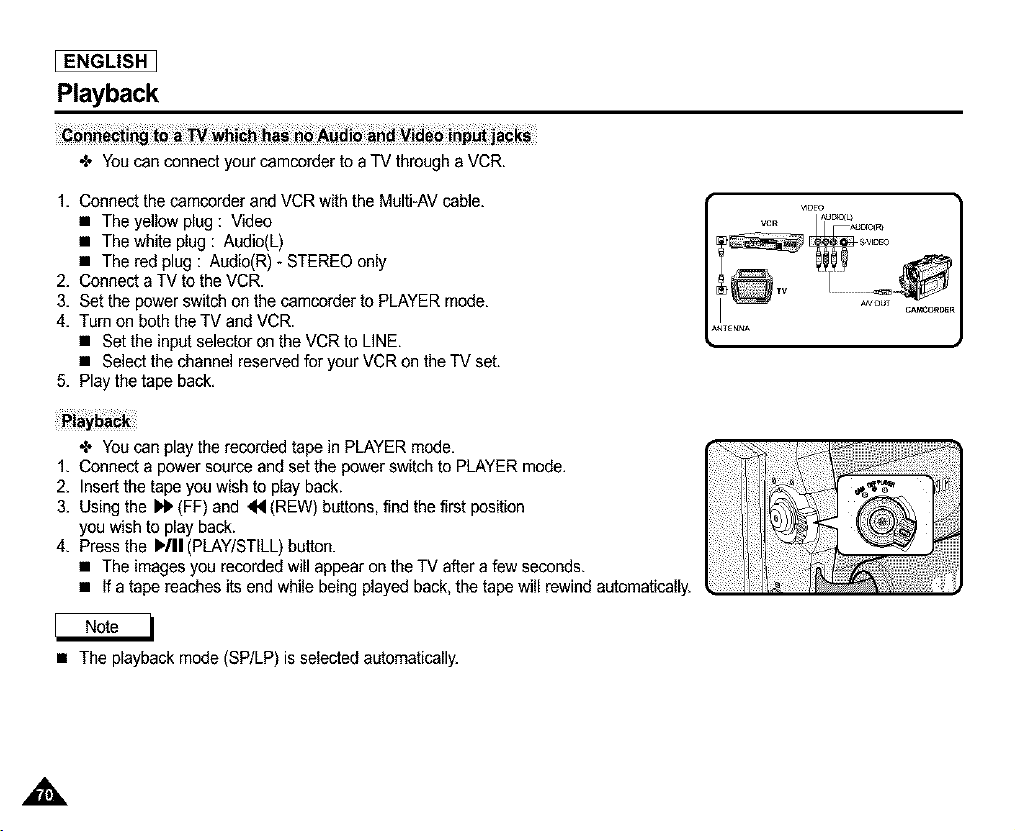
[ ENGLISH I
Playback
to a TV which has no Audio and Vid_input jacks
•X, Youcan connect your camcorder to a TV througha VCR.
1. Connect the camcorder and VCR with the Multi-AV cable,
• The yellow plug : Video
• The white plug : Audio(L)
• The red plug : Audio(R) - STEREO only
2. Connect a TV to the VCR.
3. Set the power switch on the camcorder to PLAYER mode,
4. Turn on both theTV and VCR.
• Set the input selector on the VCR to LINE,
• Select the channel reservedfor your VCR on the TV set.
5. Play the tape back,
VlDEOuBa3{L_
v,oEoc
TV AW_
JTENN_
•_ Youcan play the recorded tape in PLAYER mode.
1. Connect a power source and set the power switch to PLAYER mode.
2. Insert the tape you wish to play back.
3. Using the _ (FF) and _ (REW) buttons, find the first position
you wish to play back.
4. Press the WII (PLAY/STILL) button.
• The images you recorded will appear on the TV after a few seconds.
• If a tape reaches its end while being played back,the tape will rewind automatically.
• The playback mode (SP/LP) is selected automatically.
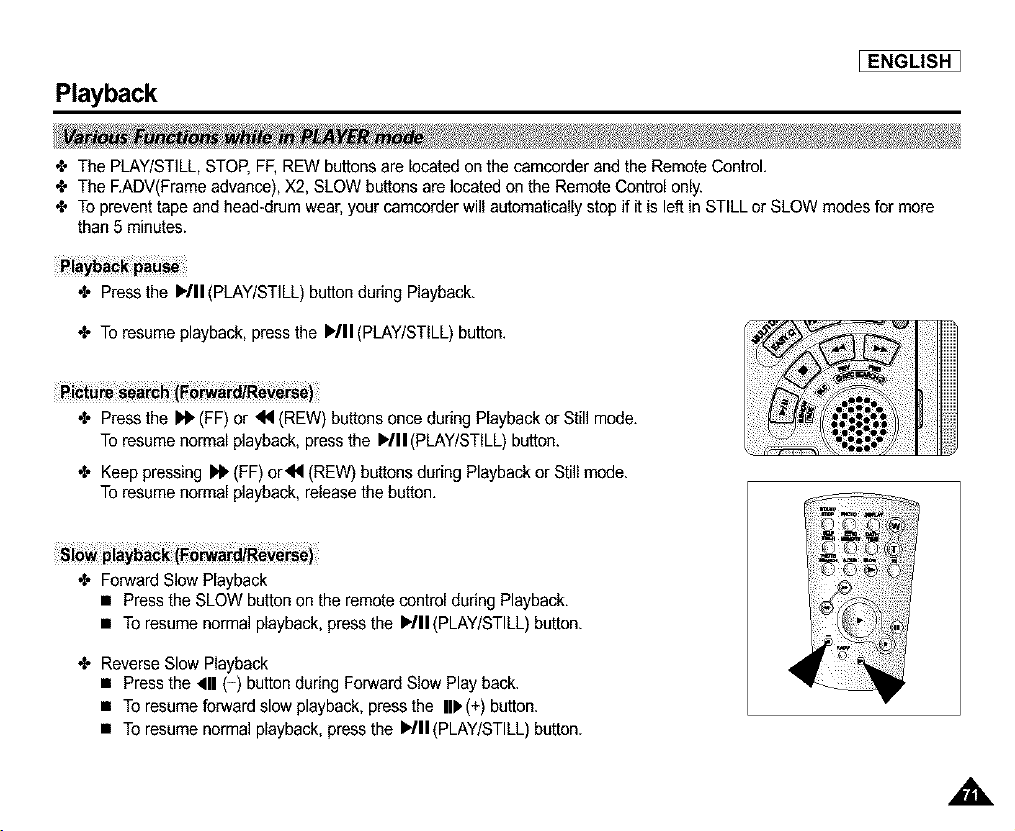
Playback
[ENGLISH ]
÷ The PLAY/STILL,STOP, FF,REW buttons are located on the camcorder and the Remote Control.
÷ The EADV(Frame advance), X2, SLOW buttons are located on the Remote Control only.
÷ To prevent tape and head-drum wear, your camcorder will automatically stop if it is left in STILL or SLOW modes for more
than 5 minutes.
•I, Press the I_/11(PLAY/STILL)button during Playback.
•I, To resume playback,press the il,-/ll (PLAY/STILL) button.
•I, Press the _l_ (FF) or _ (REW) buttons once during Playback or Still mode.
To resume normal playback,press the )/11 (PLAY/STILL)button.
•I, Keep pressing_ (FF) or_N (REW) buttons during Playback or Still mode.
To resume normal playback, release the button.
•I, Forward Slow Playback
• Press the SLOW button on the remote control during Playback.
• To resume normal playback, pressthe _'/II(PLAY/STILL) button.
•I, Reverse Slow Playback
• Press the _11(=) button during ForwardSlow Play back.
• To resume forward slow playback,press the II) (+) button.
• To resume normal playback, pressthe I_/II(PLAY/STILL) button.
,,&
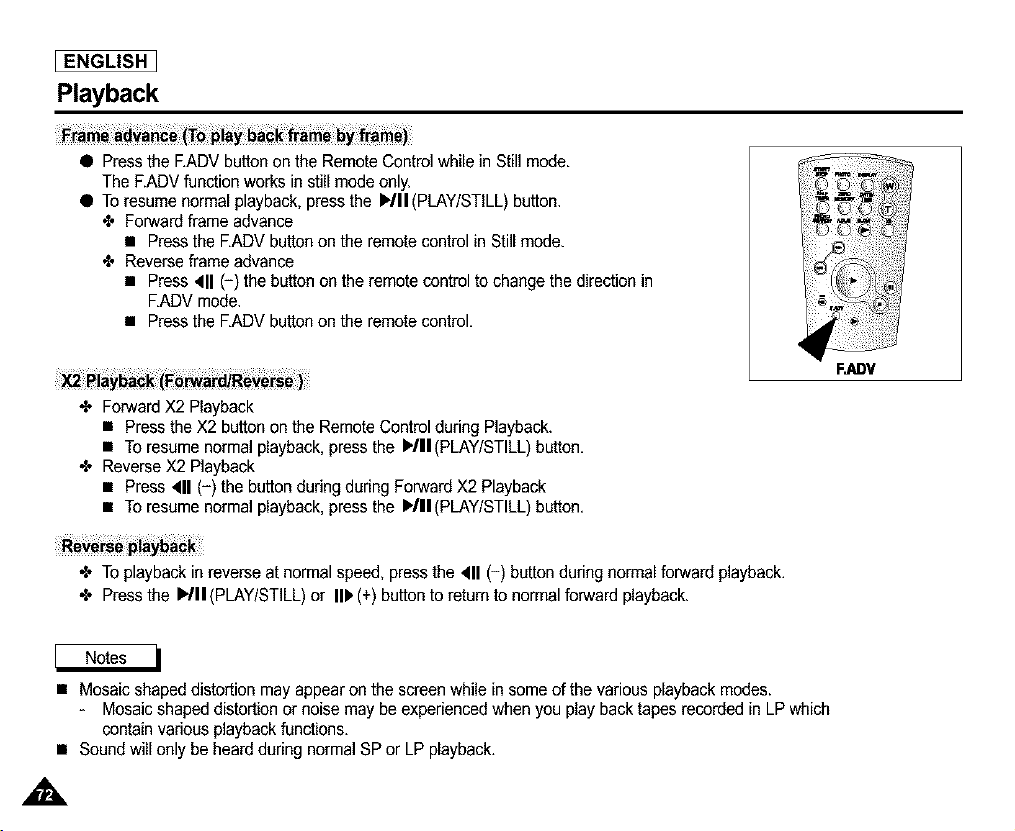
I ENGLISH I
Playback
• Press the EADV button on the Remote Control while in Still mode.
The F.ADVfunction works in still mode only.
• To resume normal playback,press the )/11 (PLAY/STILL) button.
÷ Forward frame advance
• Press the EADV buttonon the remote control in Still mode.
÷ Reverse frame advance
• Press 4111(-) the button on the remote control to change the direction in
EADV mode.
• Press the EADV buttonon the remote control.
•I, Forward X2 Playback
• Press the X2 button on the Remote Control during Playback.
• To resume normal playback, pressthe _'/II(PLAY/STILL) button.
•I, Reverse X2 Playback
• Press _11(-) the button dudng during Forward X2 Playback
• To resume normal playback, pressthe I_/II(PLAY/STILL) button.
F._V
•I, To playbackin reverse at normal speed, press the 'qll (-) button during normal forward playback.
•I, Press the )/11 (PLAY/STILL) or II1_(+) button to return to normal forward playback.
• Mosaic shaped distortion may appear on the screen while in some of the various playback modes.
- Mosaic shaped distortion or noise may be experienced when you play back tapes recorded in LP which
contain various playbackfunctions.
• Sound will only be heard during normal SP or LP playback.
,i&
Playback
[ENGLISH ]
÷ The MEMORY function works in both CAM and PLAYER modes.
÷ You can mark a pointon a tape that you want to return to following playback.
1. Press the ZERO MEMORY button on the remote control during playback or recording at the pointyou wish to return to.
• The time code is changed to a tape counter that is set to zero memory with the [] 0:00:00(Zero memory indicator)
• If you want to cancel the zero memory function, press the ZERO MEMORY button again.
2. Findingthe zero position.
• When you have finishedplayback,fast forward or rewind the tape.
- The tape stops automatically when it reaches the zero position.
• When you have finished recording, press the powerswitch on the PLAYER and pressthe 44 (REW) button.
- The tape stops automatically when it reaches the zero position.
3. The tape counter with the [] (Zero memory indicator) disappears from the display and the tape counter is
changed to the time code.
• In the following situations, ZERO MEMORY mode may be canceled automatically:
- At the end of the section marked with the ZERO MEMORY function.
- When the tape is ejected.
- When you remove the battery pack or powersupply.
• The zero memory may not function correctly where there is a break between recordingson the tape.
,,&
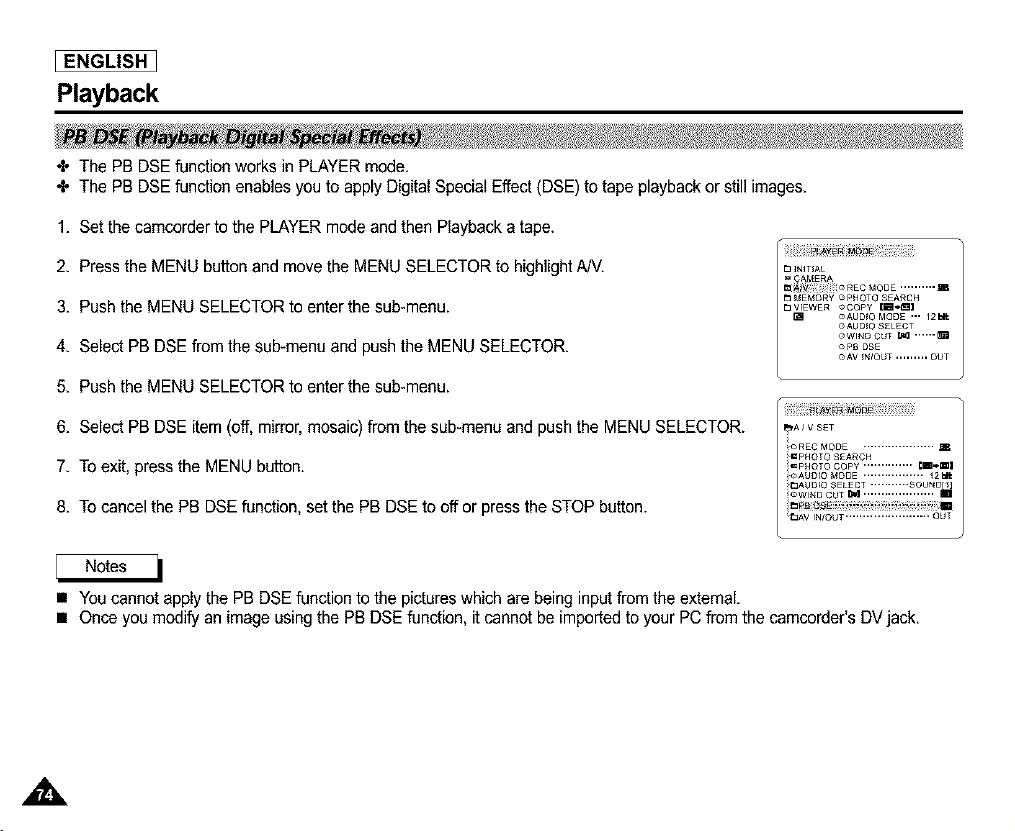
[ ENGLISH I
Playback
÷ The PB DSE function works in PLAYER mode.
4, The PB DSE function enables you to apply Digital Special Effect (DSE) to tape playback or still images.
1. Set the camcorder to the PLAYER mode and then Playback a tape.
2. Press the MENU button and move the MENU SELECTOR to highlight AN.
3. Push the MENU SELECTOR to enter the sub-menu.
4. Select PB DSE from the sub-menu and push the MENU SELECTOR.
5. Push the MENU SELECTOR to enter the sub-menu.
6. Select PB DSE item (off, mirror,mosaic) from the sub-menu and push the MENU SELECTOR.
7. To exit, press the MENU button.
8. To cancel the PB DSE function, set the PB DSE to off or press the STOP button.
_3_NIT_AL
_3MEMORY C_PHOTO SEARCH
_3V_EWER _COPY Im,,,!]
_AUD_O MODE ,,, 12b!t
OAUD_O S£LECT
oWIt_O CUT [_R ......_
o pB DSE
OAV _r_OUT ......... OUT
• You cannot apply the PB DSE function to the pictures which are being input from theexternal.
• Once you modify an image using the PB DSE function, it cannot be imported to your PC from the camcorder's DVjack.
,,&
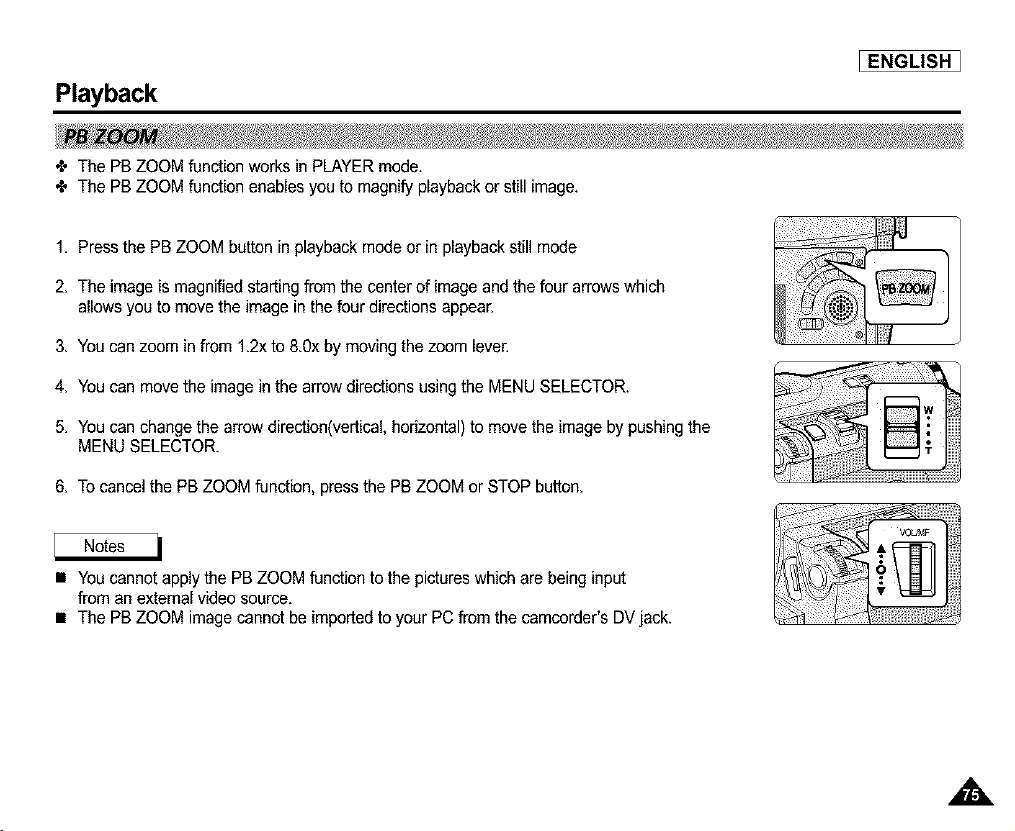
Playback
_ENGLISH ]
4, The PB ZOOM function works in PLAYER mode,
4, The PB ZOOM function enables you to magnify playback or still image.
1. Press the PB ZOOM button in playback mode or in playback still mode
2. The image is magnified starting from the center of image and the four arrows which
allows you to move the image in the four directions appear.
3. You can zoom in from 1.2x to &0x by moving the zoom lever.
4. You can move the image in the arrow directions using the MENU SELECTOR.
5. You can change the arrow direction(vertical, horizontal) to move the image by pushing the
MENU SELECTOR.
6. To cancel the PB ZOOM function, press the PB ZOOM or STOP button.
• You cannot apply the PB ZOOM function to the pictures which are being input
from an external video source.
• The PB ZOOM image cannot be imported to your PC from the camcorder's DV jack.
,,&
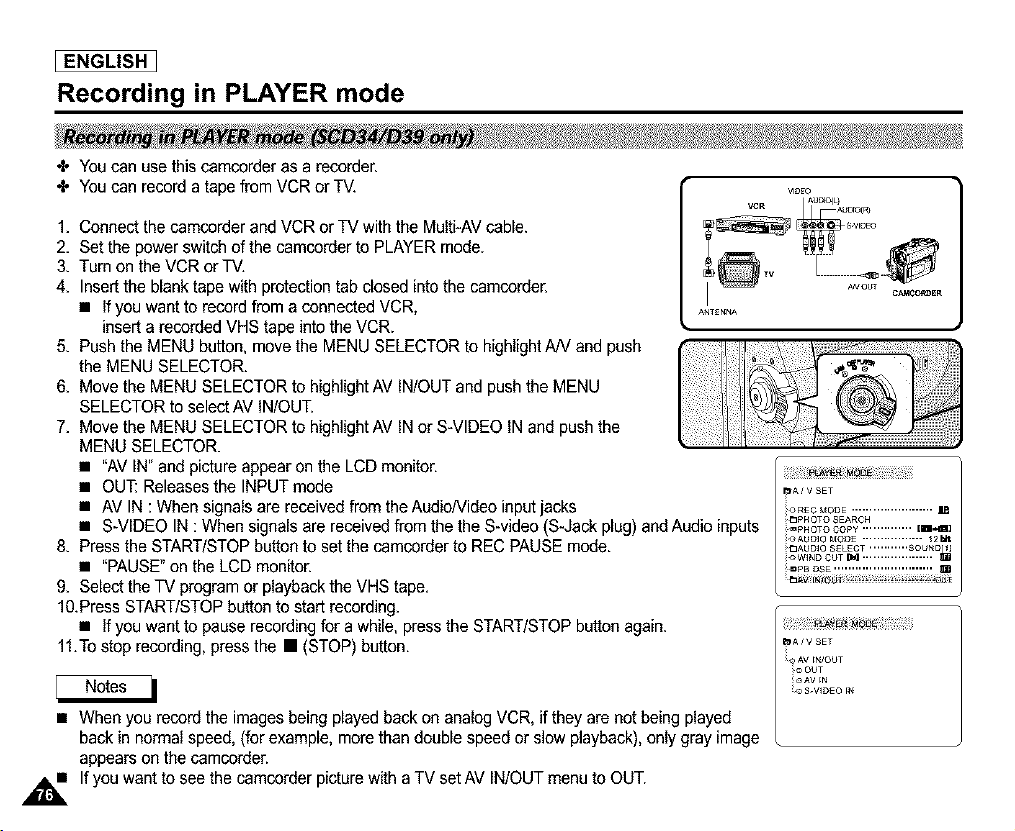
[ ENGLISH I
Recording in PLAYER mode
4. You can use this camcorder as a recorder,
4. You can record a tape from VCR or TV.
1. Connect the Camcorderand VCR or TV with the Multi-AV cable.
2. Set the power switch of the camcorder to PLAYER mode.
3. Turn on the VCR orTV.
4. Insert the blank tape with protection tab closed into the camcorder.
• If you want to record from a connected VCR,
insert a recorded VHS tape into the VCR.
5. Push the MENU button, move the MENU SELECTOR to highlight NV and push
the MENU SELECTOR.
6. Move the MENU SELECTOR to highlight AV IN/OUT and push the MENU
SELECTOR to select AV IN/OUT.
7. Move the MENU SELECTOR to highlight AV IN or S-VIDEO IN and push the
MENU SELECTOR.
• "AV IN" and picture appear on the LCD monitor.
• OUT: Releasesthe INPUT mode
• AV IN : When signals are received from the AudioNideo input jacks
• S-VIDEO IN : When signals are receivedfrom the the S-video (S-Jack plug) and Audio inputs
8. Press the START/STOP button to set the camcorder to REC PAUSE mode.
• "PAUSE"on the LCD monitor.
9. Select the TV program or playback the VHS tape.
10.Press START/STOPbutton to start recording.
• If you want to pause recording for a while, press the START/STOP button again.
11.To stop recording, press the • (STOP) button.
VIDEO
VCR AUBa3(L_B{O(R_
ANTEr_N_
• When you record the images being played back on analog VCR, if they are not being played
back in normal speed, (for example, more than doable speed or slow playback), only gray image
appears on the camcorder.
,_ If you want to see the camcorder picture with a TV set AV IN/OUT menu to OUT.
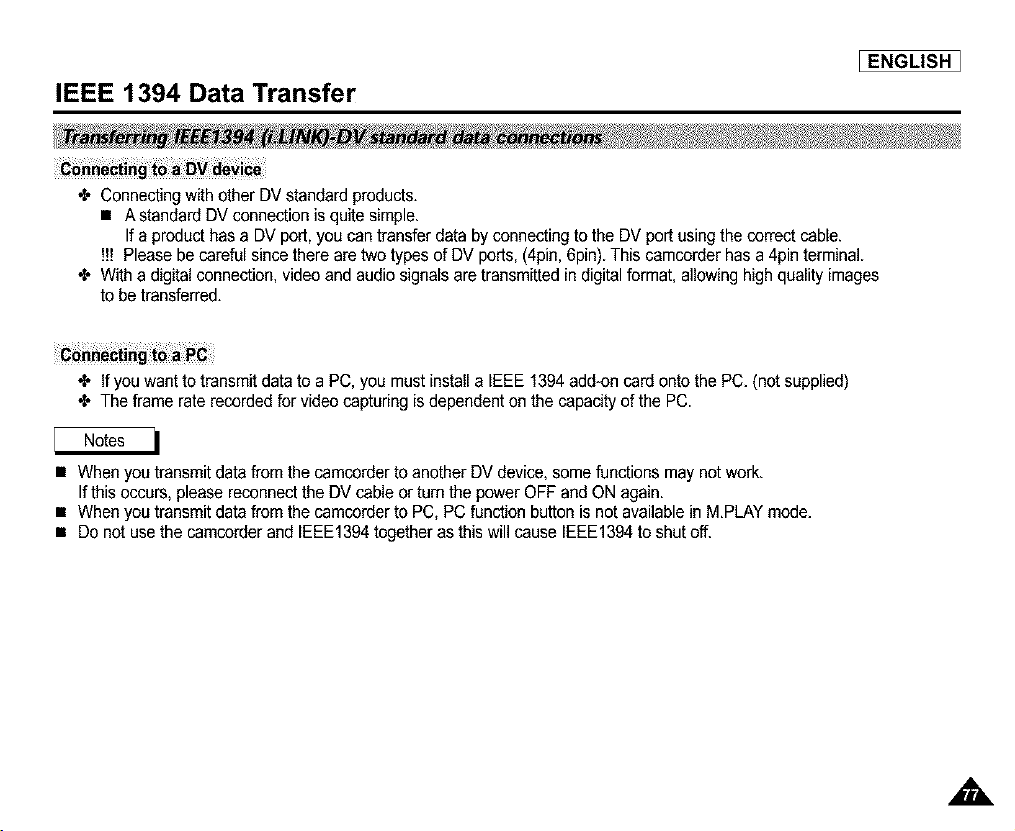
IEEE 1394 Data Transfer
[ENGLISH ]
4. Connecting with other DV standard products.
• A standard DV connection is quite simple.
If a product has a DV port, you can transfer data by connecting to the DV port using the correct cable.
!!! Please be careful since there are two types of DV ports, (4pin, 6pin).This camcorder has a 4pin terminal.
4. With a digital connection, video and audio signals are transmitted in digital format, allowing high quality images
to be transferred.
4. If you want to transmitdata to a PC, you must install a IEEE 1394 add-on card onto the PC. (not supplied)
4. The frame rate recorded for video capturing is dependent on the capacity of the PC.
• When you transmit data from the camcorderto another DV device, some functions may not work.
If this occurs, please reconnect the DV cable or turn the power OFF and ON again.
• When you transmit data from the camcorder to PC, PC function button is not available in M.PLAYmode.
• Do not use the camcorder and IEEE1394together as this will cause IEEE1394 to shut off.
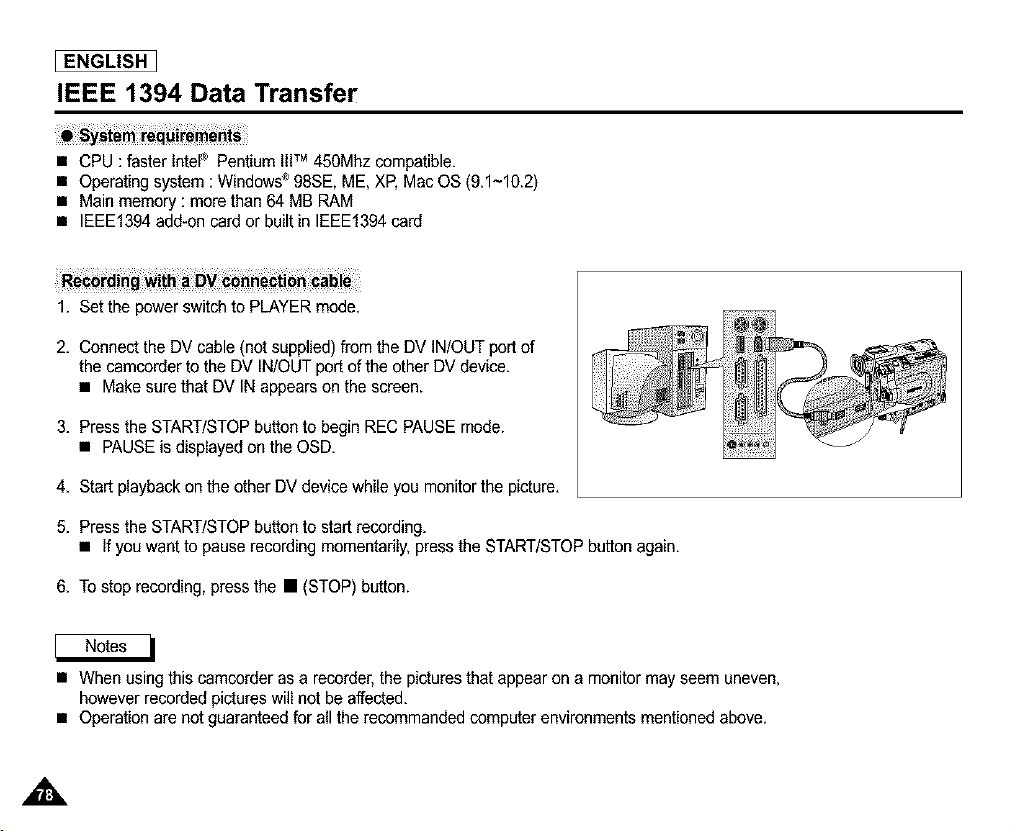
[ ENGLISH I
IEEE 1394 Data Transfer
• CPU : faster Intel® Pentium IIITM 450Mhz compatible.
• Operating system : Windows®98SE, ME, XP, Mac OS (9.1~10.2)
• Main memory : more than 64 MB RAM
• IEEE1394 add-on card or built in IEEE1394card
1. Set the power switch to PLAYER mode.
2. Connect the DV cable (not supplied) from the DV IN/OUT port of
the camcorder to the DV IN/OUT port of the other DV device.
• Make sure that DV IN appears on the screen.
3. Press the START/STOP button to begin REC PAUSE mode.
• PAUSE is displayed on the OSD.
4. Start playback on the other DV device while you monitor the picture.
5. Press the START/STOP button to start recording.
• If you want to pause recording momentarily, press the START/STOP button again.
6. To stop recording, press the • (STOP) button.
• When using this camcorder as a recorder, the pictures that appear on a monitor may seem uneven,
however recorded pictures will not be affected.
• Operation are not guaranteed for all the recommanded computer environments mentioned above.
USB interface
[ENGLISH ]
•I, You can easily transfer a still image from a MEMORY STICK to a PC without additional add-on cards via a USB
connection.
•_ You can transfer an image to a PC via a USB connection.
•I, If you transfer data to a PC, you need to install the software (Driver, Editing software) supplied with the camcorder.
• CPU : Intel®Pentium IITM 400 processor compatible or better
• Operating system : Windows®98SE/ME/2000/XP
• RAM : 64 MB or more
• CD-ROM: 4x CD-ROM drive
• VIDEO : 65,000-color or better video display card
• Available USB port
• Hard Disc : 4GB (SGB recommended)
• Intel®Pentium IITM is a trademark of the Intel Corporation.
• Windows® is a registered trademark of the Microso_ Corporation.
• All other brands and names are propertyof their respective owners.
• Operations are not guaranteed for all of the recommendedcomputer environments mentioned above.
]
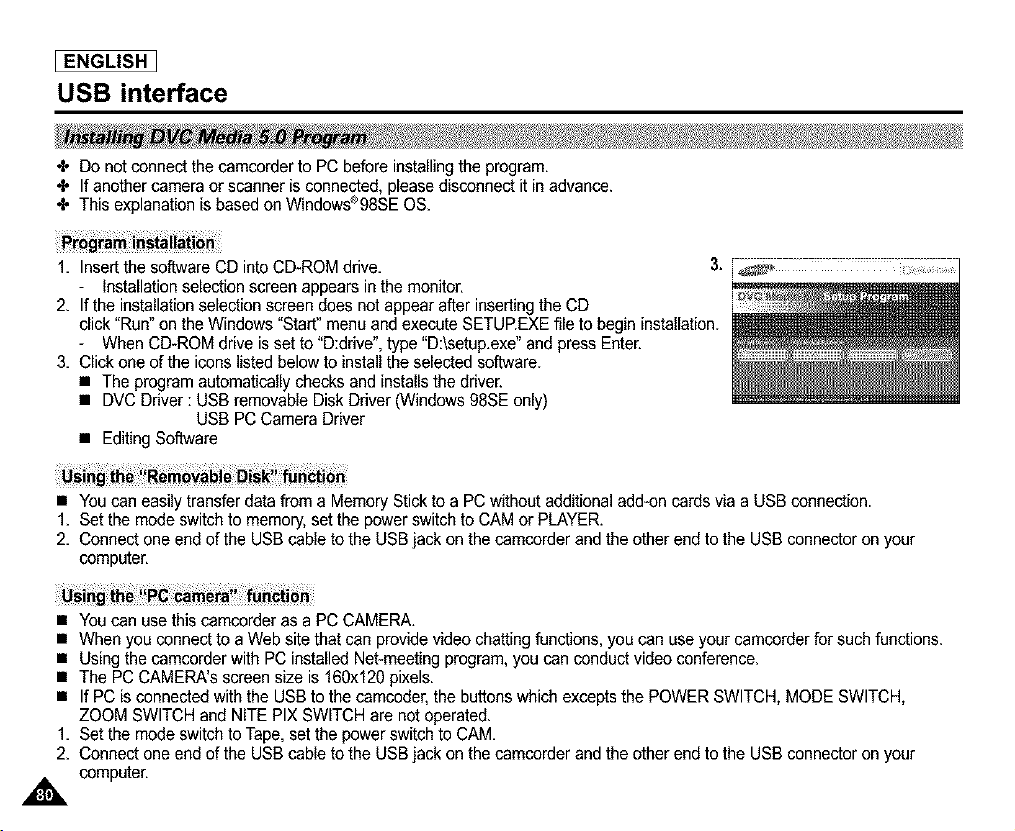
[ ENGLISH I
USB interface
÷ Do not connect the camcorder to PC before installingthe program.
÷ If another camera or scanner is connected, please disconnect it in advance.
÷ This explanation is based on Windows®98SE OS.
1. Insert the software CD into CD-ROM drive. 3.
- Installation selection screen appears in the monitor.
2. If the installation selection screen does not appear after inserting the CD
click "Run" on the Windows "Start" menu and execute SETUP.EXEfile to begin installation.
- When CD-ROM drive is set to "D:ddve'. type "D:\setup.exe" and press Enter.
3. Click one of the icons listed below to install the selected software.
• The program automatically checks and installs the driver.
• DVC Driver : USB removable Disk Driver (Windows 98SE only)
USB PC Camera Driver
• Editing Software
• You can easily transfer data from a Memory Stick to a PC without additional add-on cards via a USB connection.
1. Set the mode switch to memory, set the power switch to CAM or PLAYER.
2. Connect one end of the USB cable to the USB jack on the camcorder and the other end to the USB connector on your
computer.
• You can use thiscamcorder as a PC CAMERA.
• When you connect to a Web site that can provide video chatting functions, you can use your camcorder for such functions.
• Using the camcorder with PC installed Net-meeting program, you can conduct video conference.
• The PC CAMERA's screen size is 160xf20 pixels.
• If PC is connected with the USB to the camcoder, the buttons which excepts the POWER SWITCH, MODE SWITCH,
ZOOM SWITCH and NITE PIX SWITCH are not operated.
1. Set the mode switch to Tape. set the power switch to CAM.
2. Connect one end of the USB cable to the USB jack on the camcorder and the other end to the USB connector on your
computer.
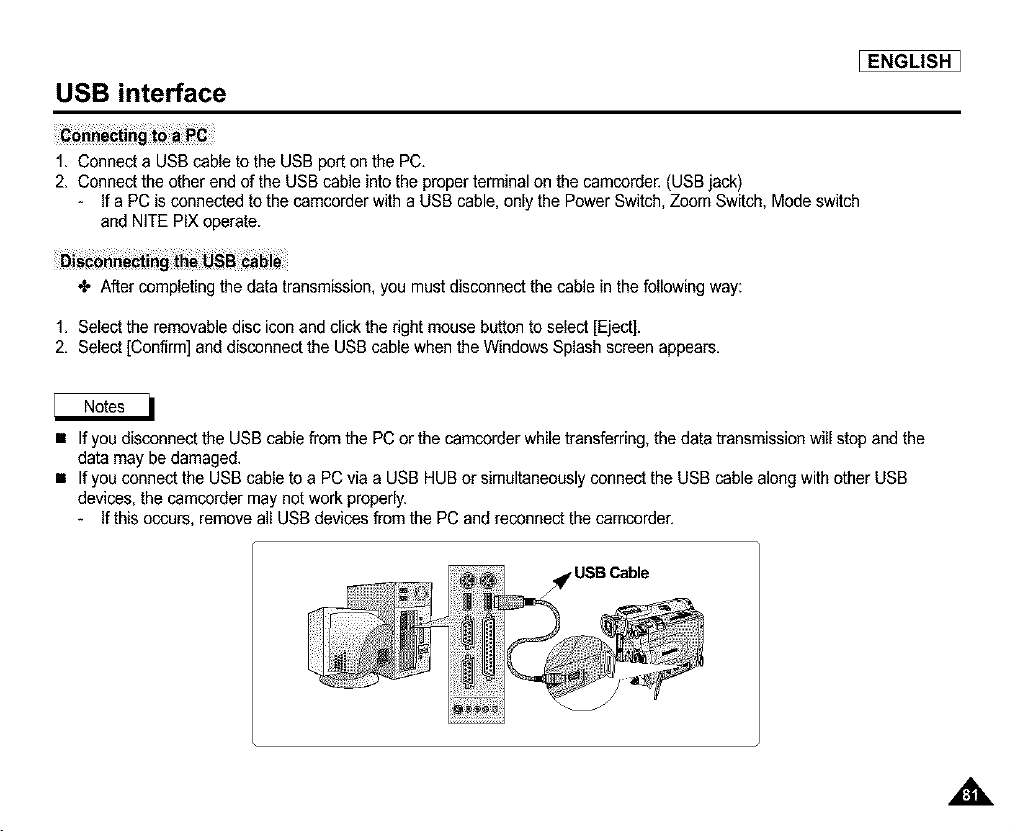
USB interface
[ENGLISH ]
1. Connect a USB cable to the USB port on the PC.
2. Connect the other end of the USB cable intothe proper terminal on the camcorder. (USBjack)
- If a PC is connected to the camcorder with a USB cable, only the Power Switch, Zoom Switch
and NITE PIX operate.
Mode switch
4. After completing the data transmission, you must disconnect the cable in the following way:
1. Select the removabledisc icon and click the right mouse button to select [Eject].
2. Select [Confirm] and disconnect the USB cable when the Windows Splash screen appears.
• If you disconnect the USB cable from the PC or the camcorder while transferring, the data transmission will stop and the
data may be damaged.
• If you connect the USB cable to a PC via a USB HUB or simultaneously connect the USB cable along with other USB
devices, the camcorder may not work properly.
- If this occurs, remove all USB devices from the PC and reconnect the camcorder.
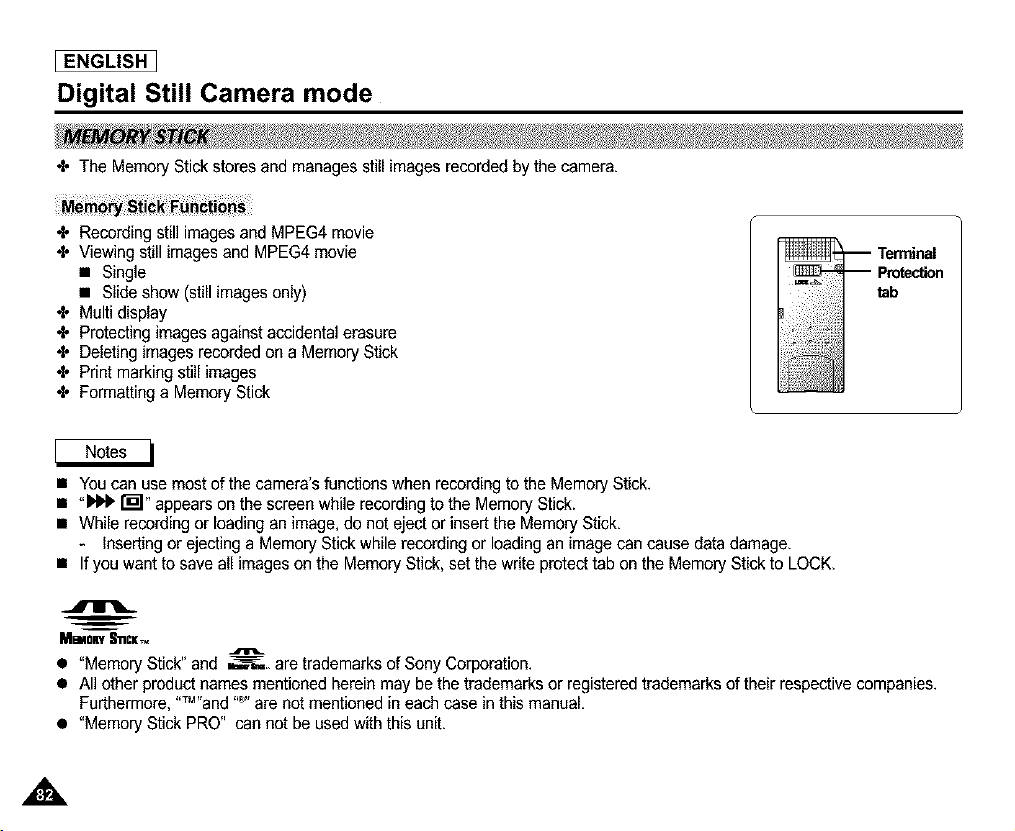
[ ENGLISH I
Digital Still Camera mode
÷ The Memory Stick stores and manages still images recorded by the camera.
÷ Recording still images and MPEG4 movie
÷ Viewing still images and MPEG4 movie
• Single
• Slide show (still images only)
÷ Multi display
÷ Protecting images against accidental erasure
÷ Deleting images recorded on a Memory Stick
÷ Print marking still images
÷ Formatting a Memory Stick
m Terminal
m ProtOn
tab
• You can use most of the camera's functionswhen recording to the Memory Stick.
• "k_+ r_l" appears on the screen while recordingto the Memory Stick.
• While recording or loading an image, do not eject or insert the Memory Stick.
- Inserting or ejecting a Memory Stick while recording or loading an image can cause data damage.
• If you want to save all images on the Memory Stick, set the write protecttab on the Memory Stick to LOCK.
9
MeeonySlICK_
• "Memory Stick" and _ are trademarks of Sony Corporation.
• All other product names mentioned herein may be the trademarks or registered trademarks of their respective companies.
Furthermore, "_"and "®"are not mentioned in each case in this manual.
• "Memory Stick PRO" can not be used with this unit.
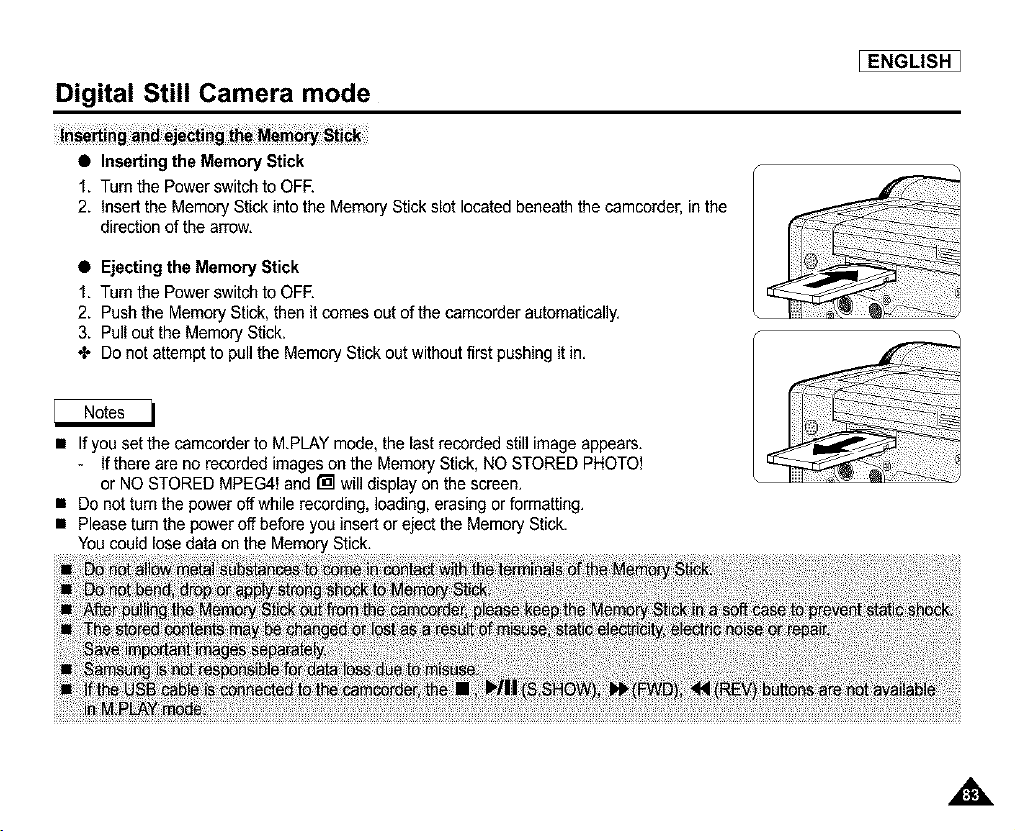
Digital Still Camera mode
Inserting ck
• Inserting the Memory Stick
f. Turn the Power switch to OFF.
2. insert the Memory Stick into the Memory Stick slot located beneath the camcorder, in the
direction of the arrow.
• Ejecting the Memory Stick
f. Turn the Power switch to OFE
2. Push the Memory Stick, then it comes out of the camcorder automatically.
3. Pull out the Memory Stick.
•I. Do not attempt to pull the Memory Stick out without first pushing it in.
_ENGLISH ]
• If you set the camcorder to MPLAY mode, the last recorded still image appears.
- If there are no recorded images on the Memory Stick, NO STORED PHOTO!
or NO STORED MPEG4! and [] will display on the screen.
• Do not turn the power off while recording, loading, erasing or formatting.
• Please turn the power off before you insert or eject the Memory Stick.
You could lose data on the Memory Stick.
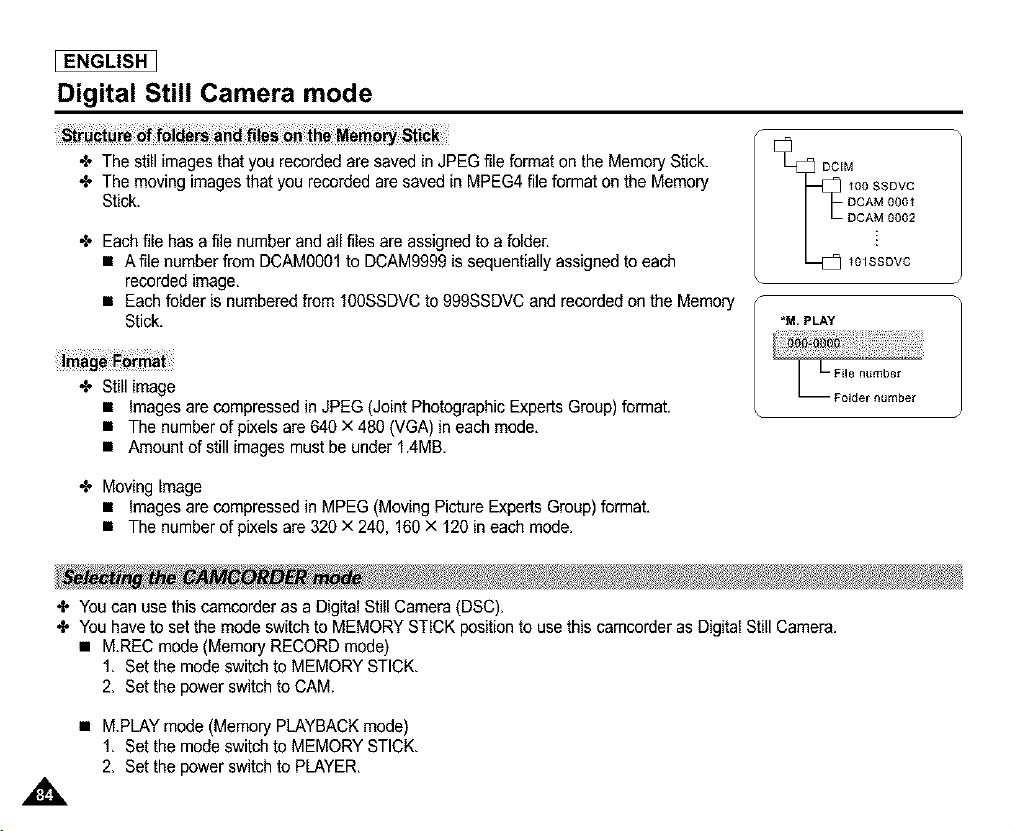
[ ENGLISH I
Digital Still Camera mode
•t, The still images that you recorded are saved in JPEG file format on the Memory Stick.
•l, The moving images that you recorded are saved in MPEG4 file format on the Memory
Stick.
Each file has a file number and all files are assigned to a folder.
• A file number from DCAM0001 to DCAM9999 is sequentially assigned to each
recorded image.
• Each folder is numbered from 100SSDVC to 999SSDVC and recorded on the Memory
Stick.
Still image
• Images are compressed in JPEG (Joint Photographic Experts Group) format.
• The number of pixels are 640 x 480 (VGA) in each mode.
• Amount of still images must be under 1.4MB.
DCIM
DCAM 0001
DCAM 0002
I *M, PL
File number
•l, Moving Image
• Images are compressed in MPEG (Moving Picture Experts Group) format.
• The number of pixels are 320 x 240. 160 x 120 in each mode.
÷ You can use this camcorder as a Digital Still Camera (DSC).
÷ You have to set the mode switch to MEMORY STICK position to use this camcorder as Digital Still Camera.
• M.REC mode (Memory RECORD mode)
1. Set the mode switch to MEMORY STICK.
2. Set the power switch to CAM.
• M.PLAY mode (Memory PLAYBACKmode)
1. Set the mode switch to MEMORY STICK.
2. Set the power switch to PLAYER.
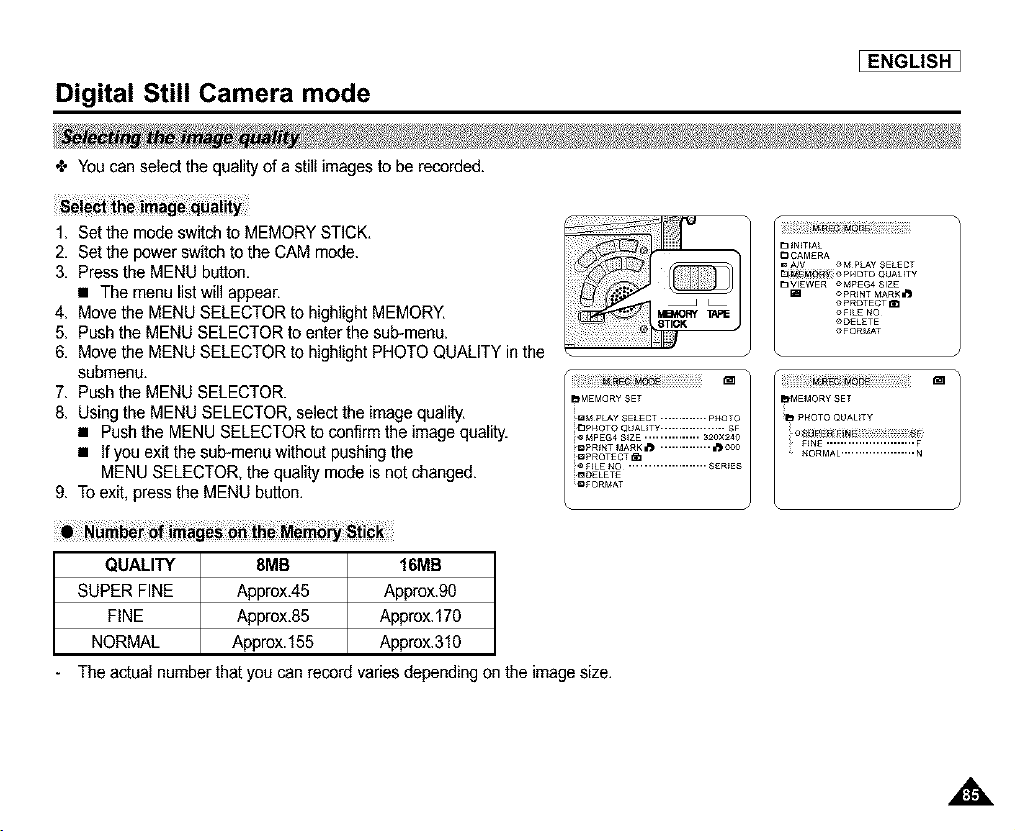
Digital Still Camera mode
_ENGLISH ]
÷ You can select the quality of a still images to be recorded.
1. Set the mode switch to MEMORY STICK.
2. Set the power switch to the CAM mode.
3. Press the MENU button.
• The menu list will appear.
4. Move the MENU SELECTOR to highlight MEMORY.
5. Push the MENU SELECTOR to enterthe sub-menu.
6. Move the MENU SELECTOR to highlight PHOTO QUALITY in the
submenu.
7. Push the MENU SELECTOR.
8. Using the MENU SELECTOR, select the imagequality.
• Push the MENU SELECTOR to confirm the image quality.
• If you exit the sub-menu without pushing the
MENU SELECTOR, the quality mode is not changed.
9. To exit, pressthe MENU button.
_,MEMQRY SET _,MEMORY SET
i_=M PLAY SELECT ............. PHOT O il_ PHOTO QUALITY
DPHOTO QUALITY .................. $F
_ _PEG4 S_ZE ............... _20X240
DpR NT MARKII_ .............. i1_ 0oo FINE ......................... F
_PROTECT _ _I)RMAL ..................... N
@ F_LE _O ..................... SER_ES
_DELETE
{_FORMAT
QUALITY 8MB 16MB
SUPER FINE Approx.45 Approx.90
FINE Approx.85 Approx.17O
NORMAL Approx.155 Approx.310
The actual number that you can record varies depending on the image size.
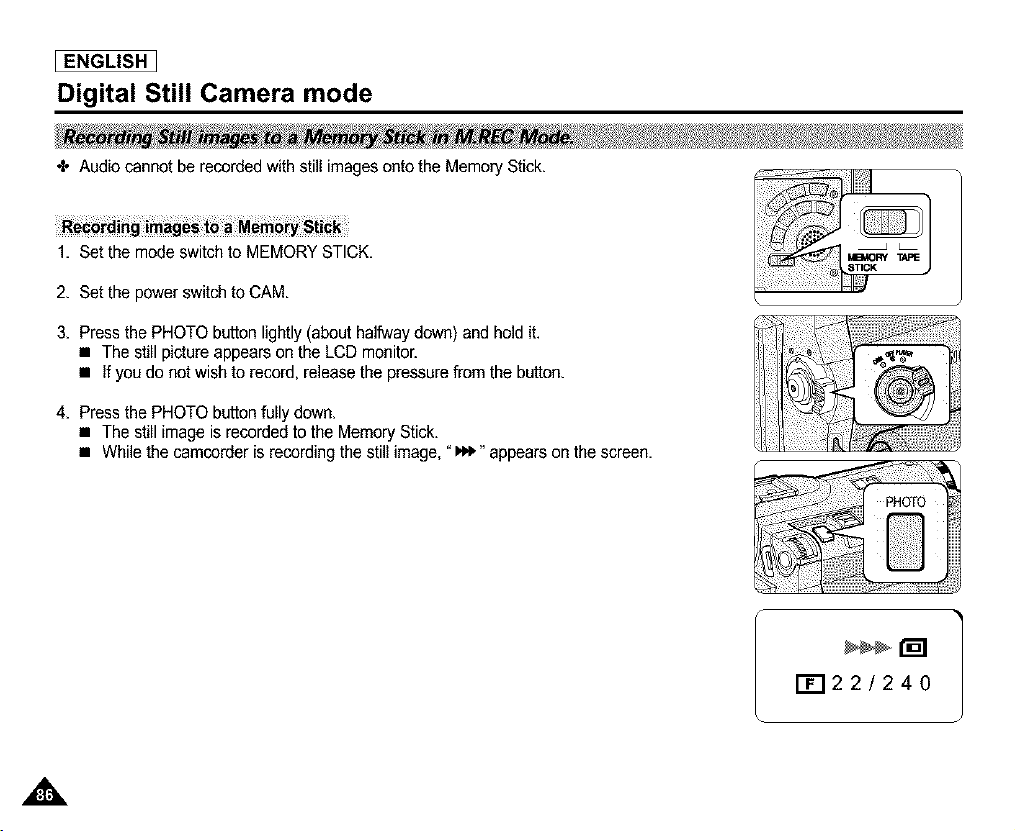
[ ENGLISH I
Digital Still Camera mode
÷ Audio cannot be recorded with still images onto the Memory Stick,
1, Set the mode switch to MEMORY STICK,
2, Set the power switch to CAM.
3, Press the PHOTO button lightly (about halfway down) and hold it.
• The still picture appears on the LCD monitor.
• If you do not wish to record, release the pressure from the button,
4, Press the PHOTO button fully down,
• The still image is recorded to the Memory Stick,
• While the camcorder is recording the still image, "I,_" appears on the screen,
F_I22/240
Digital Still Camera mode
II image.
•_ You can record a still image from a cassette onto a Memory Stick.
•I. If you want to recorded multiple still images from a cassette to a Memory Stick, use the COPY function.
1. Set the mode switch to TAPE.
2. Set the power switch to PLAYER mode.
3. Play back the cassette.
4. Press the PHOTO button lightly (about halfway down), when the imageyou want to record appears.
• The camcorder is set to playback pause(STILL)mode.
• If you do not wish to record, releasethe PHOTO button, select the image again.
5. Press the PHOTO button fully down.
• The still image is recorded to the Memory Stick.
• While the camcorder is recording the still image, "_" appears on the screen.
_ENGLISH ]
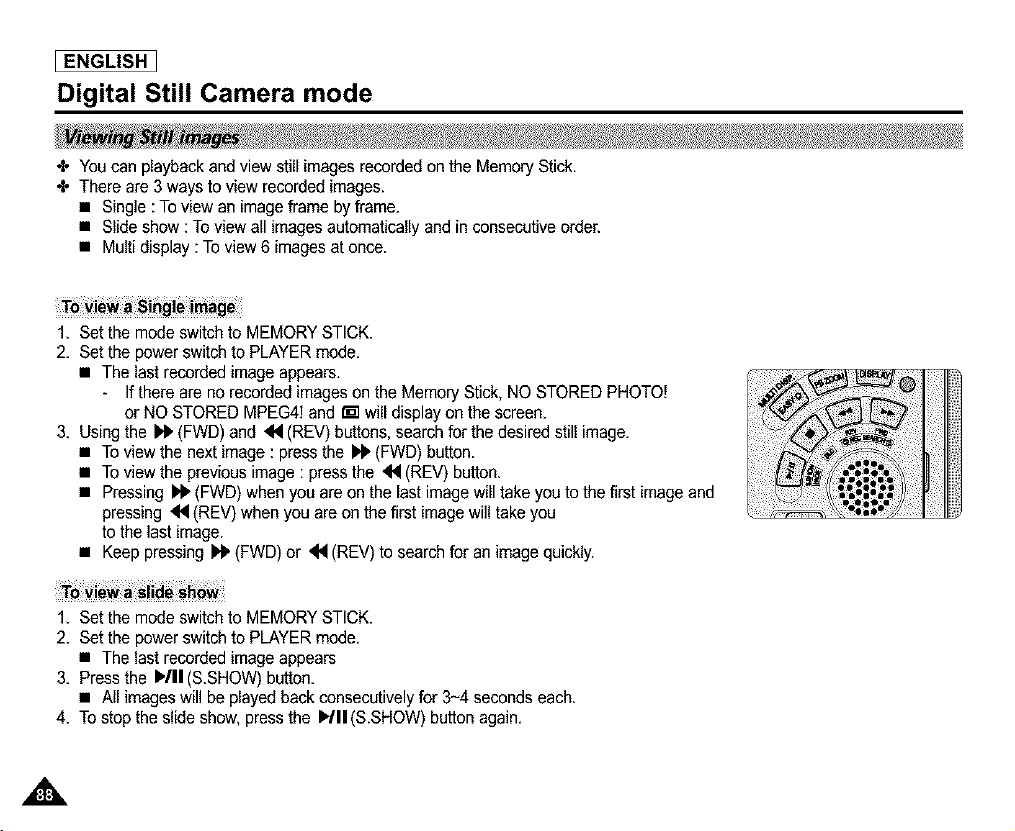
[ ENGLISH I
Digital Still Camera mode
÷ You can playback and view still images recorded on the Memory Stick.
÷ There are 3 ways to view recorded images.
• Single : To view an image frame by frame.
• Slide show : Toview all images automatically and in consecutive order.
• Multi display : To view 6 images at once.
1. Set the mode switch to MEMORY STICK.
2. Set the power switch to PLAYER mode.
• The last recorded image appears.
- If there are no recorded images on the Memory Stick, NO STORED PHOTO!
or NO STORED MPEG4! and r'_ will display on the screen.
3. Using the _,_(FWD) and <14(REV) buttons, searchfor the desired still image.
• To view the next image : press the _ (FWD) button.
• To view the previous image : press the _'q (REV) button.
• Pressing I'_ (FWD) when you are on the last image will take you to the first image and
pressing _ (REV) when you are on the first image will take you
to the last image.
• Keep pressing _ (FWD) or <4 (REV) to search for an image quickly.
1. Set the mode switch to MEMORY STICK.
2. Set the power switch to PLAYER mode.
• The last recorded image appears
3. Press the HII(&SHOW) button.
• All images will be played back consecutively for 3~4 seconds each.
4. To stop the slide show, press the Idll (&SHOW) button again.
A
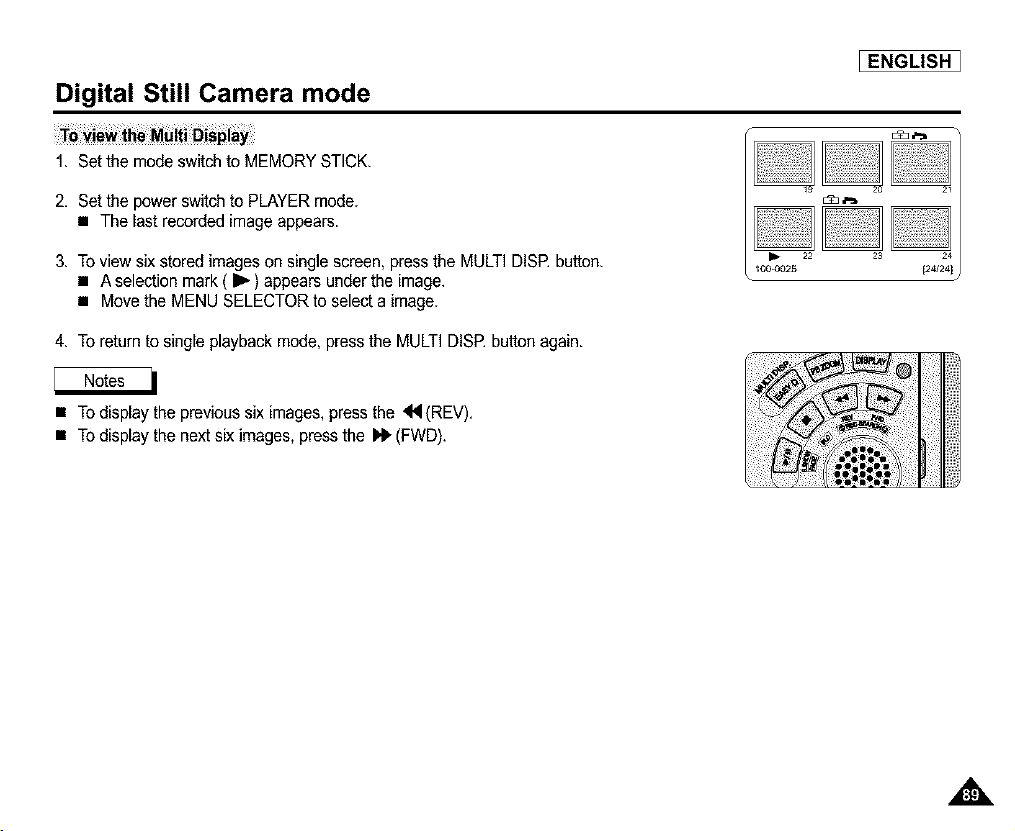
Digital Still Camera mode
1. Set the mode switch to MEMORY STICK.
2. Set the power switch to PLAYER mode.
• The last recorded image appears.
3. To view six stored images on single screen, press the MULTI DISE button.
• A selection mark ( I_- ) appears under the image.
• Move the MENU SELECTOR to select a image.
4. To return to single playback mode, press the MULTI DISE button again.
I_ 22
100.3025
• To display the previous six images, pressthe 44 (REV).
• To display the next six images, press the Id_(FWD).
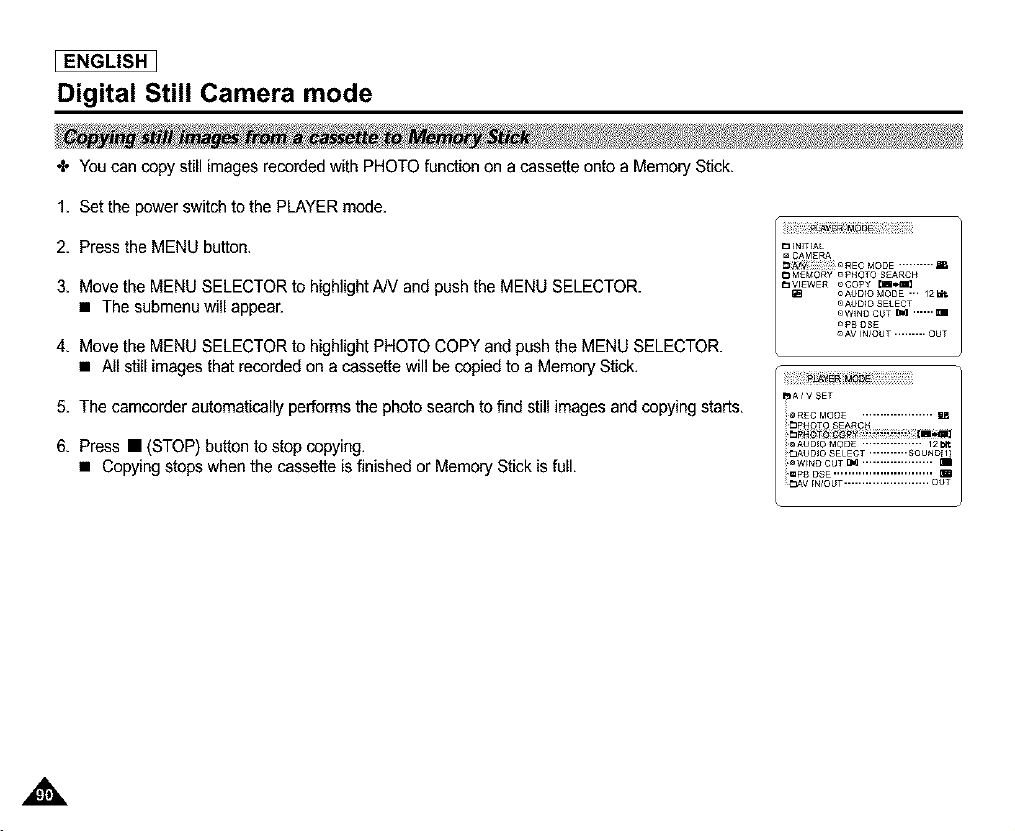
[ ENGLISH I
Digital Still Camera mode
÷ You can copy still images recorded with PHOTO function on a cassette onto a Memory Stick,
1, Set the power switch to the PLAYER mode,
2, Press the MENU button,
3, Move the MENU SELECTOR to highlight AN and push the MENU SELECTOR.
• The submenu will appear.
4, Move the MENU SELECTOR to highlight PHOTO COPY and push the MENU SELECTOR.
• All still images that recorded on a cassette will be copied to a Memory Stick.
5, The camcorder automatically performs the photo search to find still images and copying starts,
6, Press • (STOP) button to stop copying.
• Copying stops when the cassette is finished or Memory Stick is full,
_ _N_T_AL
CAMERA
_lyi_! i!! _ REC MODE ..........
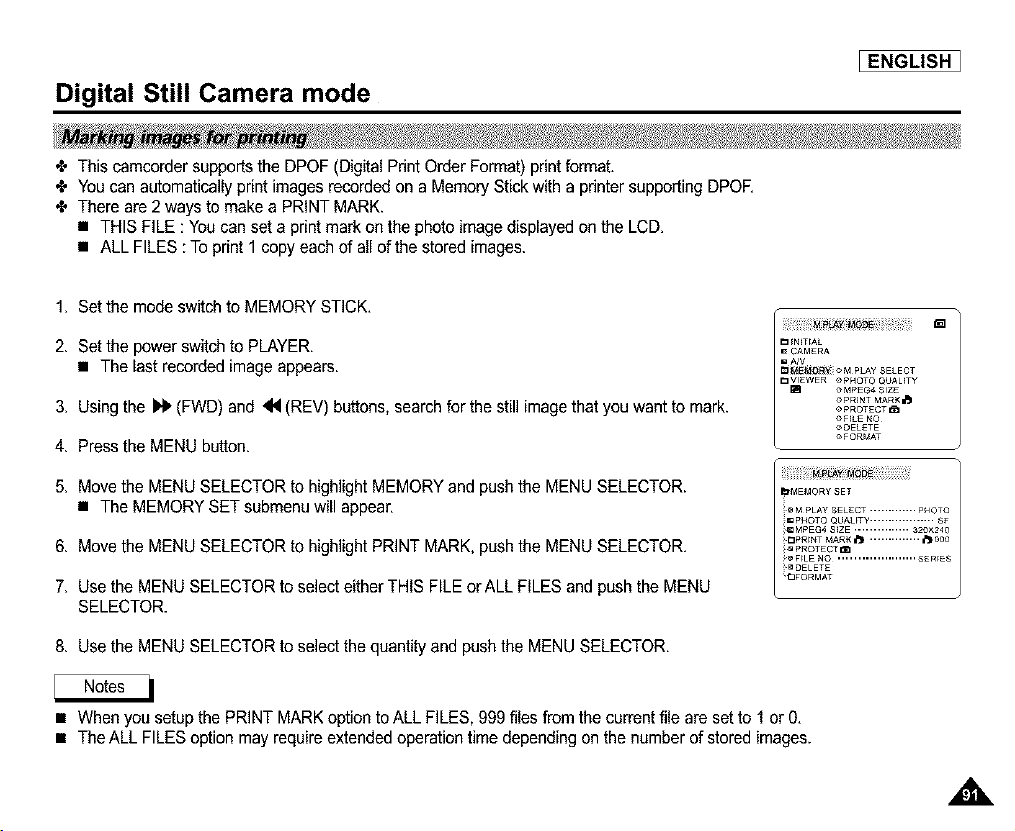
Digital Still Camera mode
_ENGLISH ]
÷ This camcorder supports the DPOF (Digital Print Order Format) print format.
÷ You can automatically print images recorded on a Memory Stick with a printer supporting DPOE
÷ There are 2 ways to make a PRINT MARK.
• THIS FILE : You can set a print mark on the photo image displayed on the LCD.
• ALL FILES : To print 1 copy each of all of the stored images.
1. Set the mode switch to MEMORY STICK.
2. Set the power switch to PLAYER.
• The last recorded image appears.
3. Using the _ (FWD) and 44 (REV) buttons, search for the still image that you want to mark.
4. Press the MENU button.
5. Move the MENU SELECTOR to highlight MEMORY and push the MENU SELECTOR.
• The MEMORY SET submenu will appear.
6. Move the MENU SELECTOR to highlight PRINT MARK, push the MENU SELECTOR.
7. Use the MENU SELECTOR to select either THIS FILE or ALL FILES and push the MENU
SELECTOR.
8. Use the MENU SELECTOR to select the quantity and push the MENU SELECTOR.
• When you setup the PRINT MARK option to ALL FILES, 999 files from the current file are set to 1 or 0.
• The ALL FILES option may require extended operation time depending on the number of stored images.
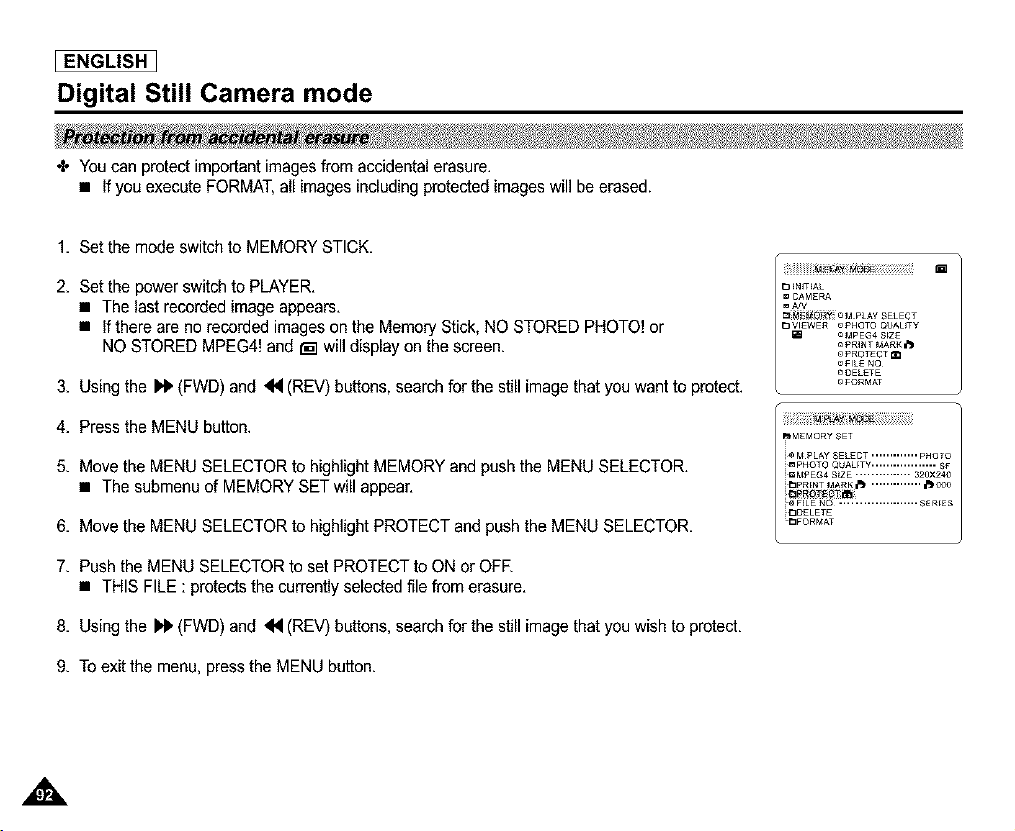
I ENGLISH I
Digital Still Camera mode
÷ You can protect important images from accidental erasure.
• If you execute FORMAT,all images including protected images will be erased.
1, Set the mode switch to MEMORY STICK,
2, Set the power switch to PLAYER.
• The last recorded image appears.
• If there are no recorded images on the Memory Stick, NO STORED PHOTO! or
NO STORED MPEG4! and [] will display on the screen.
3, Using the l'_ (FWD) and <4 (REV) buttons, search for the still image that you want to protect.
4, Press the MENU button.
5, Move the MENU SELECTOR to highlight MEMORY and push the MENU SELECTOR.
• The submenu of MEMORY SET will appear.
6, Move the MENU SELECTOR to highlight PROTECT and push the MENU SELECTOR.
7, Push the MENU SELECTOR to set PROTECT to ON or OFE
• THIS FILE : protects the currently selected file from erasure.
8, Using the D' (FWD) and _ (REV) buttons, searchfor the still image that you wish to protect.
9. To exit the menu, press the MENU button.
m
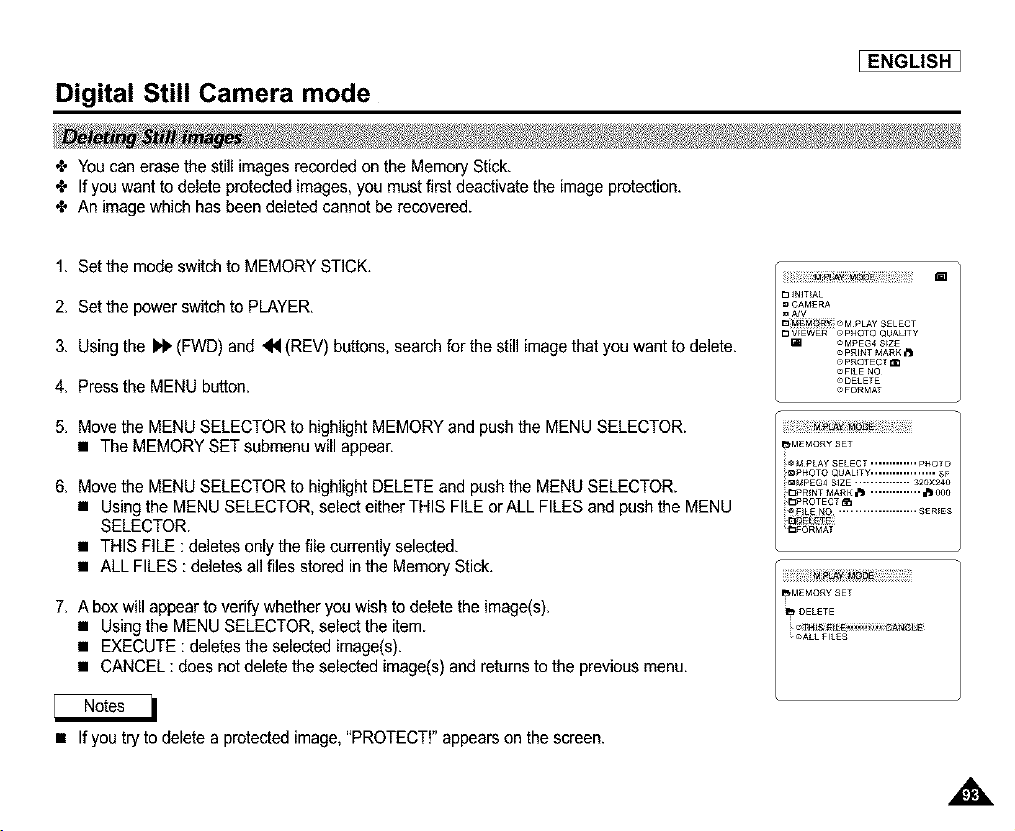
Digital Still Camera mode
_ENGLISH ]
÷ You can erase the still images recorded on the Memory Stick.
÷ If you want to delete protectedimages,you must first deactivate the image protection.
÷ An image which has been deleted cannot be recovered.
1. Set the mode switch to MEMORY STICK.
2. Set the power switch to PLAYER.
3. Using the _ (FWD) and _N(REV) buttons, search for the still image that you want to delete.
4. Press the MENU button.
5. Move the MENU SELECTOR to highlight MEMORY and push the MENU SELECTOR.
• The MEMORY SET submenu will appear.
6. Move the MENU SELECTOR to highlight DELETE and push the MENU SELECTOR.
• Using the MENU SELECTOR, select either THIS FILE orALL FILES and push the MENU
SELECTOR.
• THIS FILE : deletes only the file currently selected.
• ALL FILES : deletes all files stored in the Memory Stick.
7. A box will appear to verify whether you wish to delete the image(s).
• Using the MENU SELECTOR, select the item.
• EXECUTE : deletes the selected image(s).
• CANCEL : does not delete the selected image(s) and returns to the previous menu.
• If you try to delete a protected image, "PROTECT!" appears on the screen.
,,&
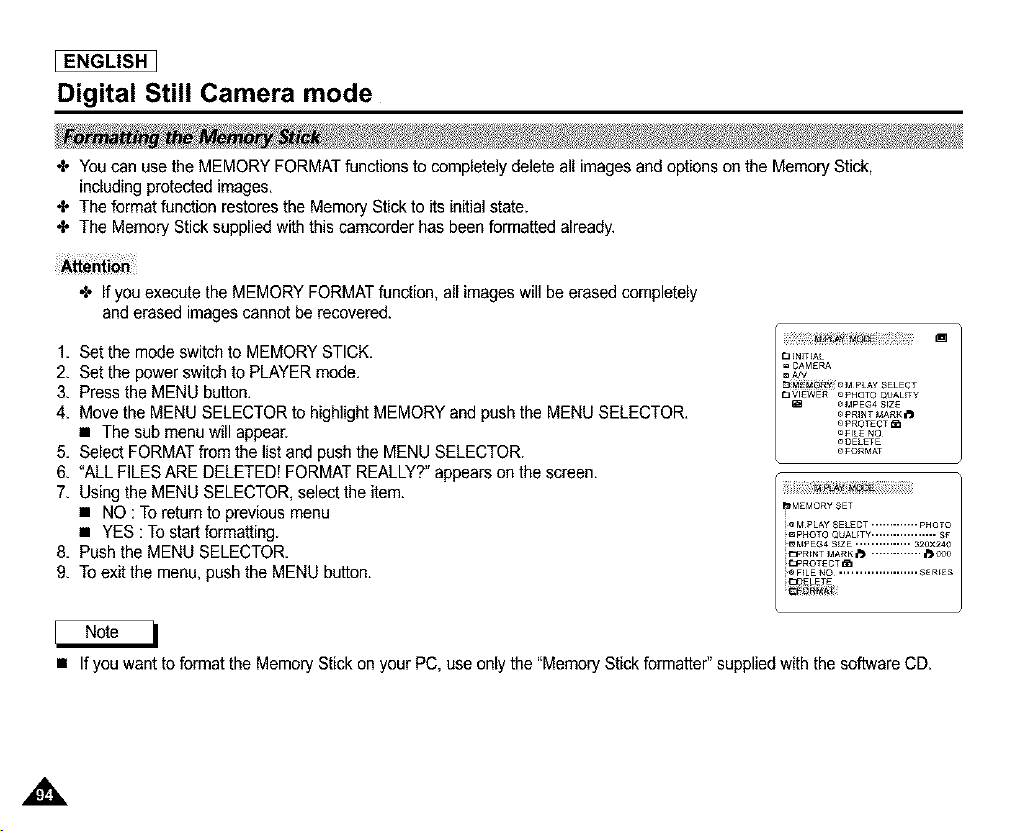
ENGLISH I
Digital Still Camera mode
÷ You can use the MEMORY FORMAT functions to completely delete all images and options on the Memory Stick,
including protected images.
÷ The format function restores the Memory Stick to its initialstate.
÷ The Memory Stick supplied with this camcorder has been formatted already.
+ If you execute the MEMORY FORMAT function, all images will be erased completely
and erased images cannot be recovered.
1. Set the mode switch to MEMORY STICK.
2. Set the power switch to PLAYER mode.
3. Press the MENU button.
4. Move the MENU SELECTOR to highlight MEMORY and push the MENU SELECTOR.
• The sub menu will appear.
5. Select FORMAT from the list and push the MENU SELECTOR.
6. "ALL FILES ARE DELETED! FORMAT REALLY?" appears on the screen.
7. Using the MENU SELECTOR, select the item.
• NO : To return to previous menu
• YES : To start formatting.
8. Push the MENU SELECTOR.
9. To exit the menu, push the MENU button.
• If you want to format the Memory Stick on your PC, use only the "Memory Stick formatter" supplied with the software CD.
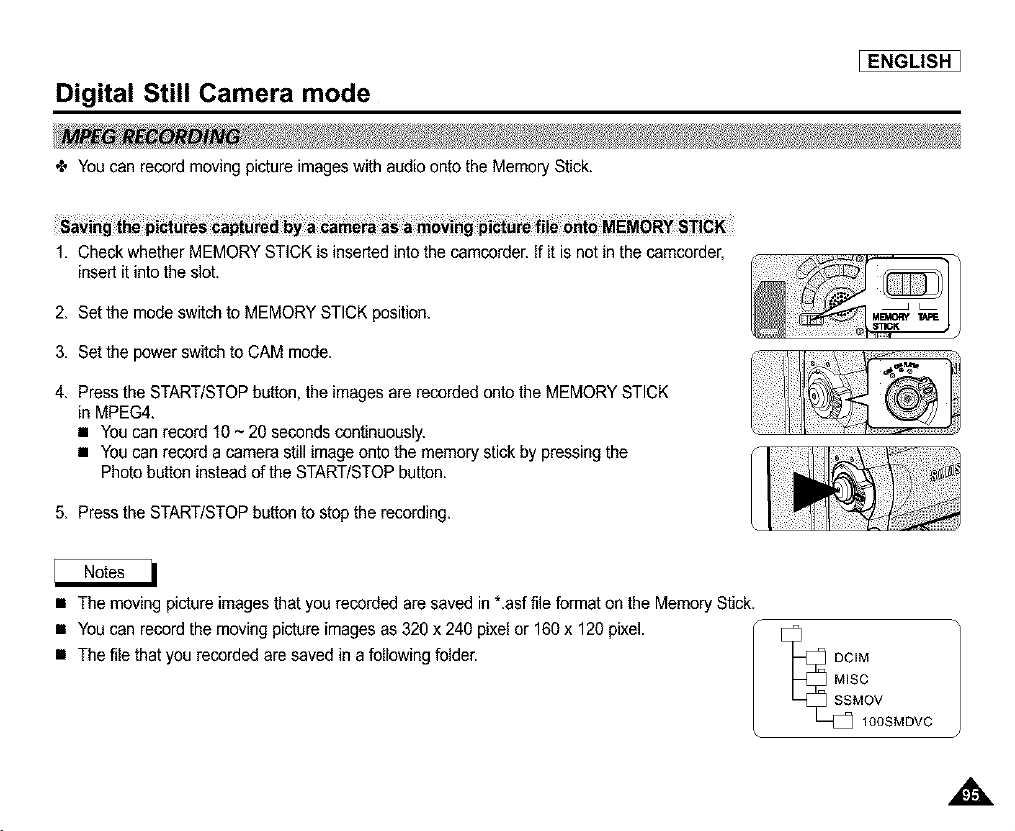
Digital Still Camera mode
[ENGLISH ]
÷ You can record moving picture images with audio onto the Memory Stick.
1. Check whether MEMORY STICK is inserted into the camcorder. If it is not in the camcorder,
insert it into the slot.
2. Set the mode switch to MEMORY STICK position.
3. Set the power switch to CAM mode.
4. Press the START/STOPbutton, the imagesare recorded onto the MEMORY STICK
in MPEG4.
• You can record 10 ~ 20 seconds continuously.
• You can record a camera still image onto the memory stick by pressing the
Photo button instead of the START/STOP button.
5. Press the START/STOPbutton to stop the recording.
• The moving picture imagesthat you recorded are saved in *.asf file format on the Memory Stick.
• You can record the moving picture images as 320 x 240 pixel or 160x 120 pixel.
• The file that you recorded are saved in a following folder.
MISC
SSMOV
IOOSMDVC
,,&
[ ENGLISH I
Digital Still Camera mode
• The moving picture images on a Memory Stick are smaller and have less definition than those recorded on Tape.
• There may occasionally be broken or mosaic pictures while playing the MPEG4 moving picture images,
but it is not a malfunction.
• You need Microsoft Windows Media Player Version 9 or higher version and Sharp G.726 Audio Codec in order to play
MPEG4 file on the Memory Stick on your PC.
(Microsoft Windows Media Player Version 9(Eng) is included in the CD that is supplied.
• You can download the Microsoft Windows Media Player applied each languages on Microsoft Website,
"http:llwww, microsoft.comlwindowslwindowsmedialdownloadldefault,asp".
• Sharp G.726 Audio Codec is automatically installed through Internetwhen you play the MPEG4 file.
• If Sharp G.726 Audio Codec is not properly installed on your PC, it could not playAudio in the MPEG4 file.
• The sound is recorded in Mono.
• The following functions will not operate in M.REC Mode.
- DIS (Digital Image Stabilizer), Digital Zoom, Fade, Program AE, Digital Effect, Slow Shutter
• Dudng Memory Stick recording, don't insert or eject the tape, as noise may be recorded.
• Do not eject the Memory Stick dudng recording.
The Memory Stick or its data may be damaged.
• Moving images recorded on the Memory Stick may not play on other manufacturer's camcorders.
• MPEG4 files recorded by another camcorder might not be playable in this camcorder.
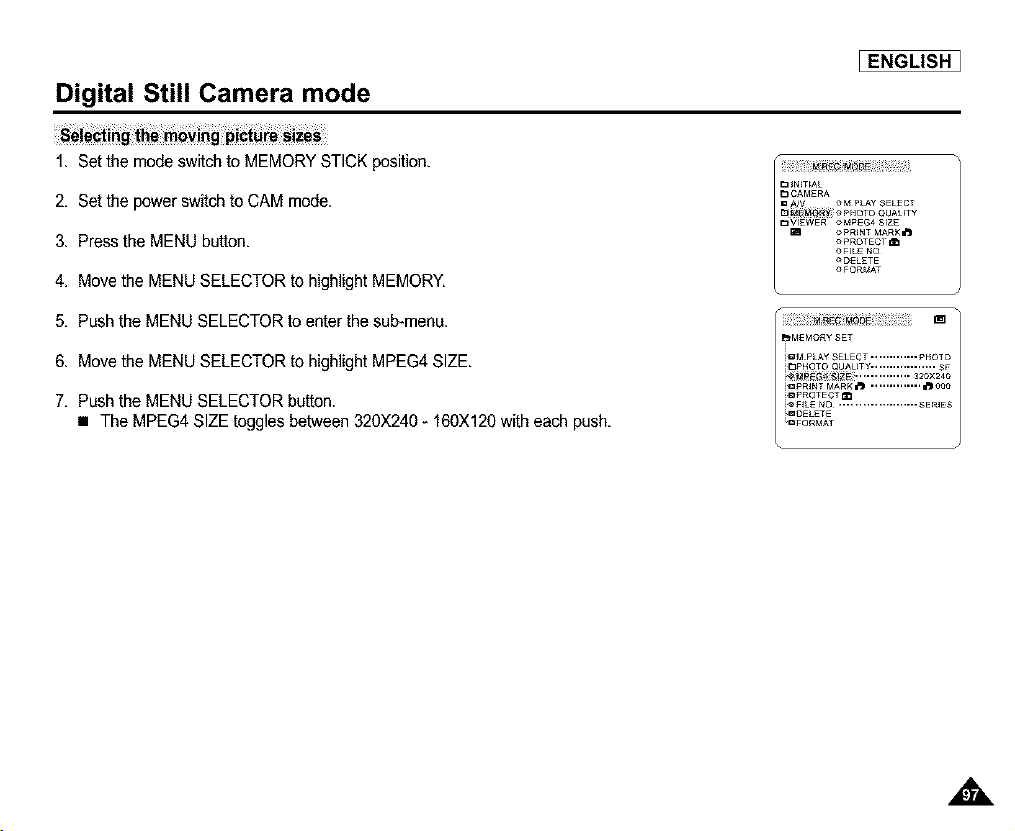
Digital Still Camera mode
_ENGLISH ]
1, Set the mode switch to MEMORY STICK position,
2, Set the power switch to CAM mode.
3, Press the MENU button,
4, Move the MENU SELECTOR to highlight MEMORY,
5, Push the MENU SELECTOR to enter the sub-menu.
6, Move the MENU SELECTOR to highlight MPEG4 SIZE.
7, Push the MENU SELECTOR button.
• The MPEG4 SIZE toggles between 320X240- 160X120 with each push.
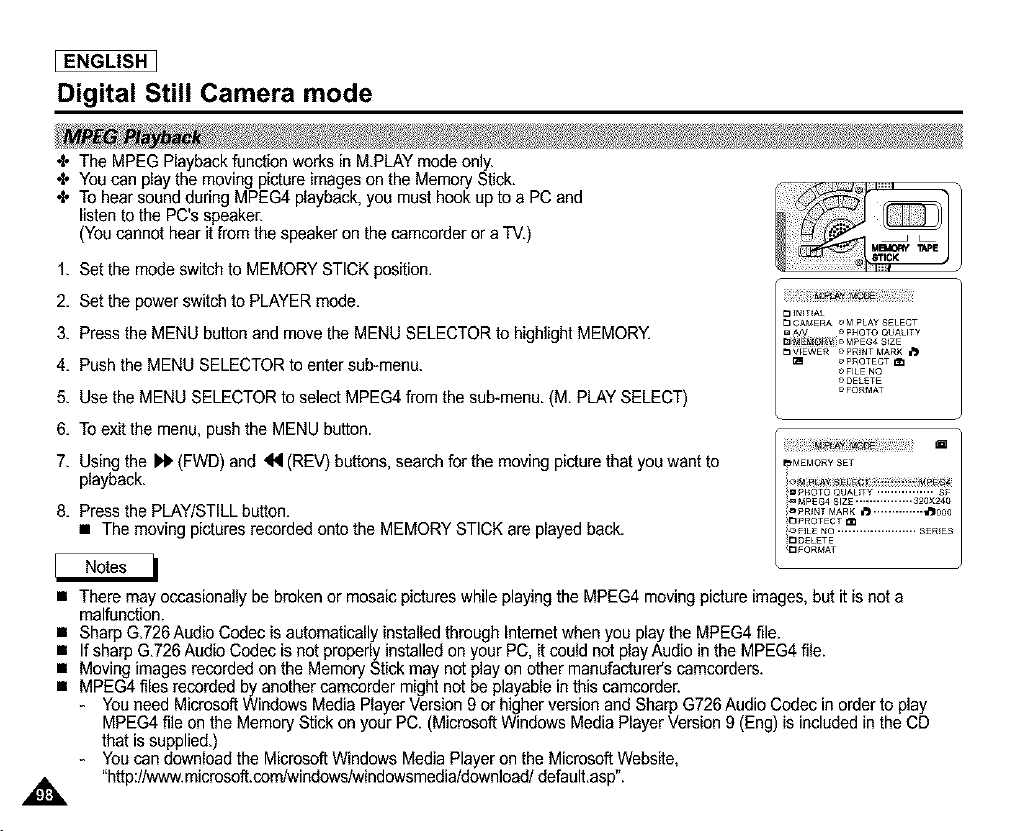
[ ENGLISH I
Digital Still Camera mode
÷ The MPEG Playbackfunction works in MPLAY mode only.
÷ You can play the moving picture images on the Memory Stick.
÷ To hear sound during MPEG4 playback, you must hook up to a PC and
listen to the PC's speaker.
(You cannot hear it from the speaker on the camcorder or a TV.)
1, Set the mode switch to MEMORY STICK position.
2, Set the power switch to PLAYER mode,
3, Press the MENU button and move the MENU SELECTOR to highlight MEMORY,
4, Push the MENU SELECTOR to enter sub-menu.
5, Use the MENU SELECTOR to select MPEG4 from the sub-menu. (M PLAY SELECT)
6, To exit the menu, push the MENU button.
7, Using the I_ (FWD) and _ (REV) buttons, search for the moving picture that you want to
playback,
8, Press the PLAY/STILLbutton,
• The moving pictures recorded onto the MEMORY STICK are played back,
• There may occasionally be broken or mosaic pictures while playing the MPEG4 moving picture images, but it is not a
malfunction.
• Sharp G.726 Audio Codec is automatically installed through Internetwhen you play the MPEG4 file.
• If sharp G.726 Audio Codec is not properly installed on your PC, it could not play Audio in the MPEG4 file.
• Moving images recorded on the Memory Stick may not play on other manufacturer's camcorders.
• MPEG4 files recorded by another camcorder might not be playable in this camcorder.
- Youneed Microsoft Windows Media Player Version 9 or higher version and Sharp G726 Audio Codec in order to play
MPEG4 file on the Memory Stick on your PC. (Microsoft Windows Media Player Version 9 (Eng) is included in the CD
that is supplied.)
- Youcan download the MicrosoftWindows Media Player on the Microsoft Website,
_ "http://www.microso&com_vindows/windowsmedia/download/default,asp".
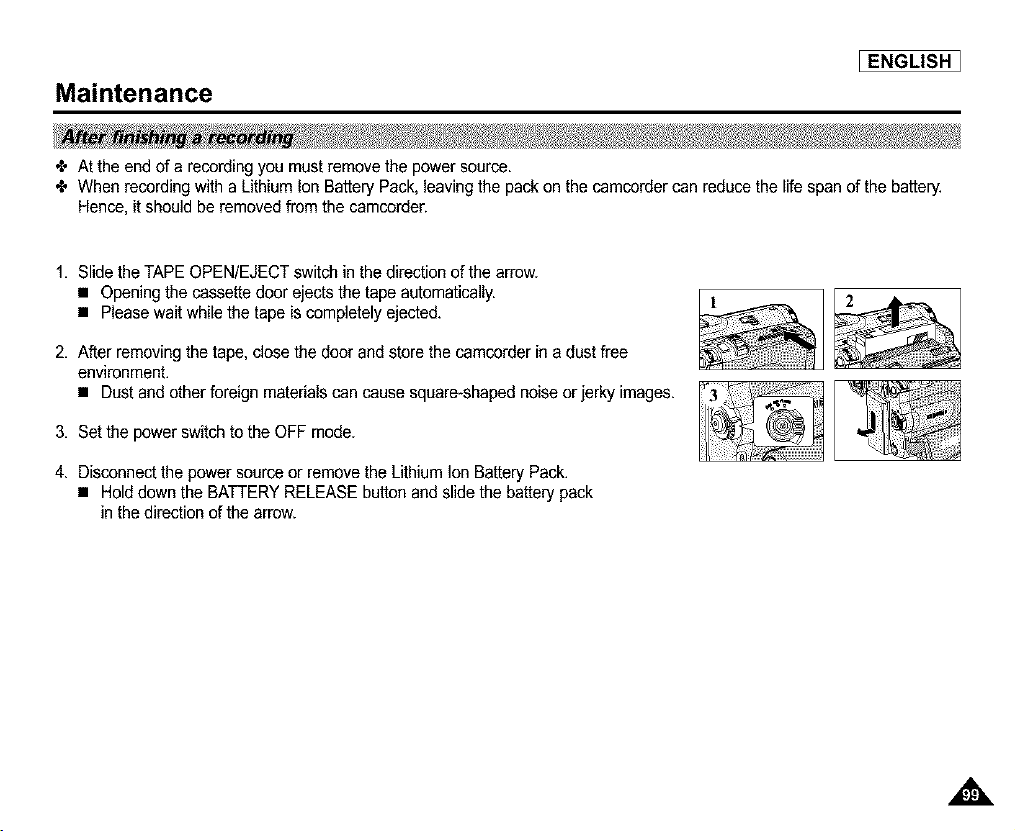
Maintenance
_ENGLISH ]
÷ At the end of a recording you must remove the power source.
÷ When recording with a Lithium Ion Battery Pack, leaving the pack on the camcorder can reduce the life span of the battery.
Hence, it should be removed from the camcorder.
1. Slide the TAPE OPEN/EJECT switch in the direction of the arrow.
• Opening the cassette door ejects the tape automatically.
• Please wait while the tape is completely ejected.
2. A'_er removing the tape, close the door and store the camcorder in a dust free
environment.
• Dust and other foreign materials can cause square-shaped noise or jerkyimages.
3. Set the power switch to the OFF mode.
4. Disconnect the power source orremove the Lithium Ion Battery Pack.
• Hold down the BATTERY RELEASE button and slide the battery pack
in the direction of the arrow.
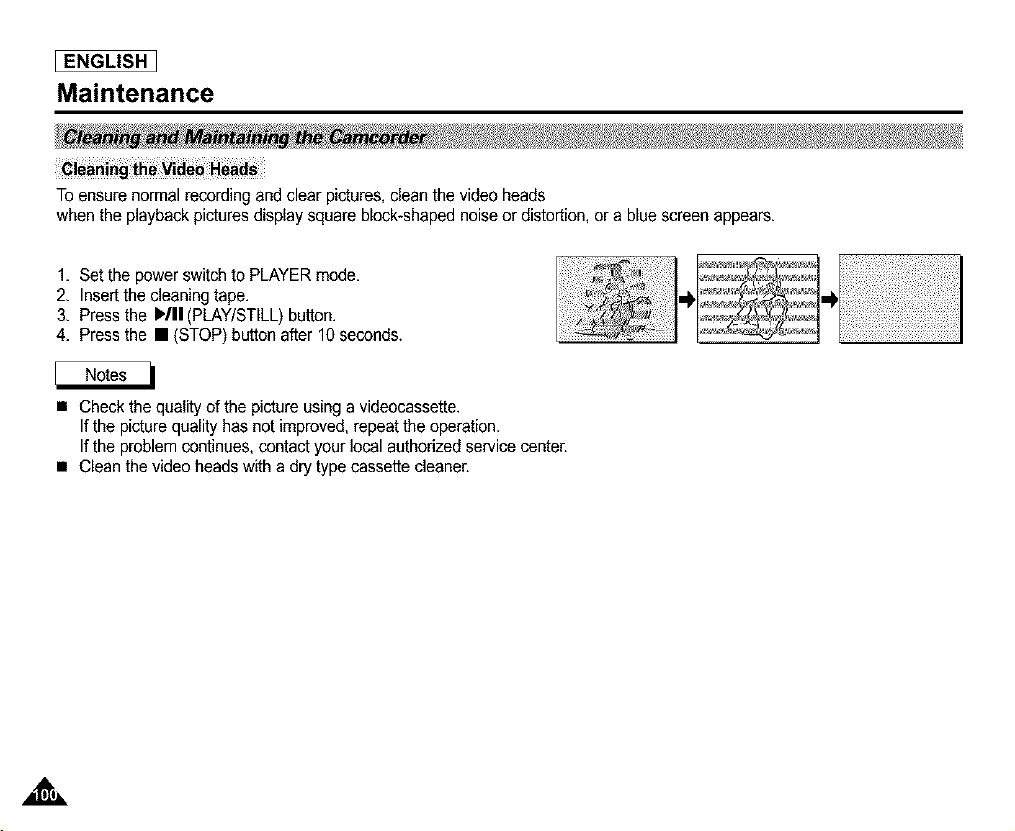
[ ENGLISH I
Maintenance
To ensure normal recording and clear pictures, clean the video heads
when the playback pictures display square block-shaped noise or distortion, or a blue screen appears.
1. Set the power switch to PLAYER mode.
2. Insert the cleaning tape.
3. Press the )Ill(PLAY/STILL) button.
4. Press the • (STOP) button after 10 seconds.
• Check the quality of the picture using a videocassette.
If the picture quality has not improved, repeat the operation.
If the problem continues, contact your local authorized service center.
• Clean the video heads with a dry type cassette cleaner.
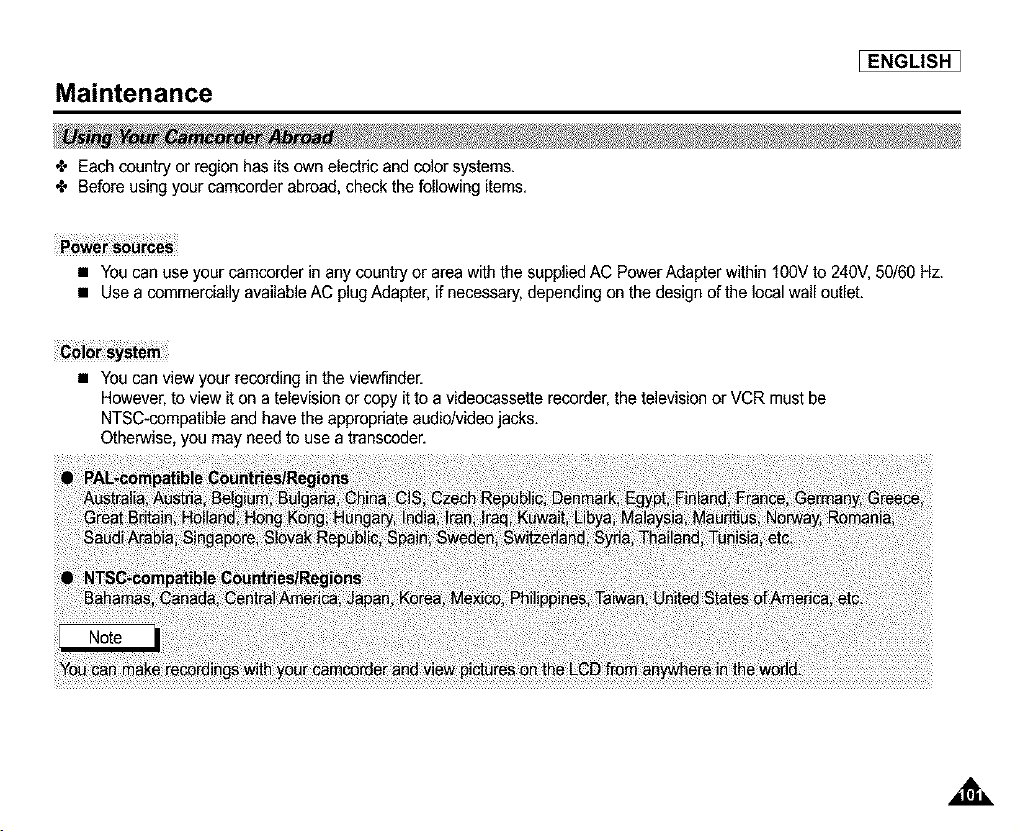
Maintenance
_ENGLISH ]
÷ Each country or region has its own electric and color systems.
÷ Before using your camcorder abroad, check the following items.
• You can use your camcorder in any country or area with the supplied AC Power Adapter within 100V to 240V, 50/60 Hz.
• Use a commercially available AC plugAdapter. if necessary, depending on the design of the local wall outlet.
• You can view your recording in the viewfinder.
However, to view it on a television or copy it to a videocassetterecorder, the televisionor VCR must be
NTSC-compatible and have the appropriate audio/video jacks.
Otherwise, you may need to use a transcoder.
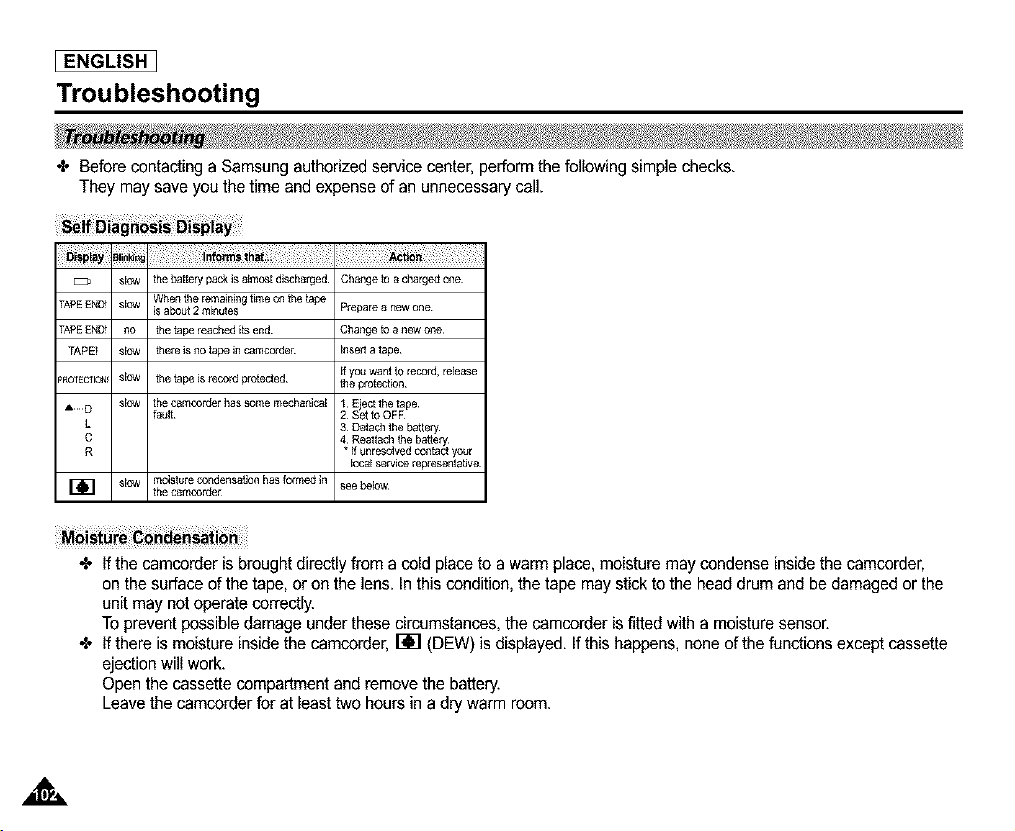
[ ENGLISH I
Troubleshooting
÷ Before contacting a Samsung authorized service center, perform the following simple checks,
They may save you the time and expense of an unnecessary call.
slow the battery pack is almost discharged Change to a charged one
TApEEND! slow Wher_the remaining time on the tape
[$ abou_ 2 minutes Prel3are a rtewone
TAPEEND! no the tape reached its er_d Change to a new one
TAPE! slow there is no tape Jn camcorder Insert a taJ3e
If you want to record, retease
pROTECTION!Slow thetape]srecord_otected theprotec_on
A D slow the camcorder has some mechanJc_[ 1 E ect the tape¸
fault¸ 2 Set o OFF
L 3 Detach the battery
C 4 Reattach the battery¸
R * _f unresolved contact your
local service rej3resentetJve
r_] slow moisture condensetJon has formed Jn see betow
the camcorder
•l. If the camcorder is brought directly from a cold place to a warm place, moisture may condense inside the camcorder,
on the surface of the tape, or on the lens. In this condition, the tape may stick to the head drum and be damaged or the
unit may not operate correctly.
To prevent possible damage under these circumstances, the camcorder is fitted with a moisture sensor.
•l. If there is moisture inside the camcorder, _ (DEW) is displayed. If this happens, none of the functions except cassette
ejection will work.
Open the cassette compartment and remove the battery.
Leave the camcorder for at least two hours in a dry warm room.
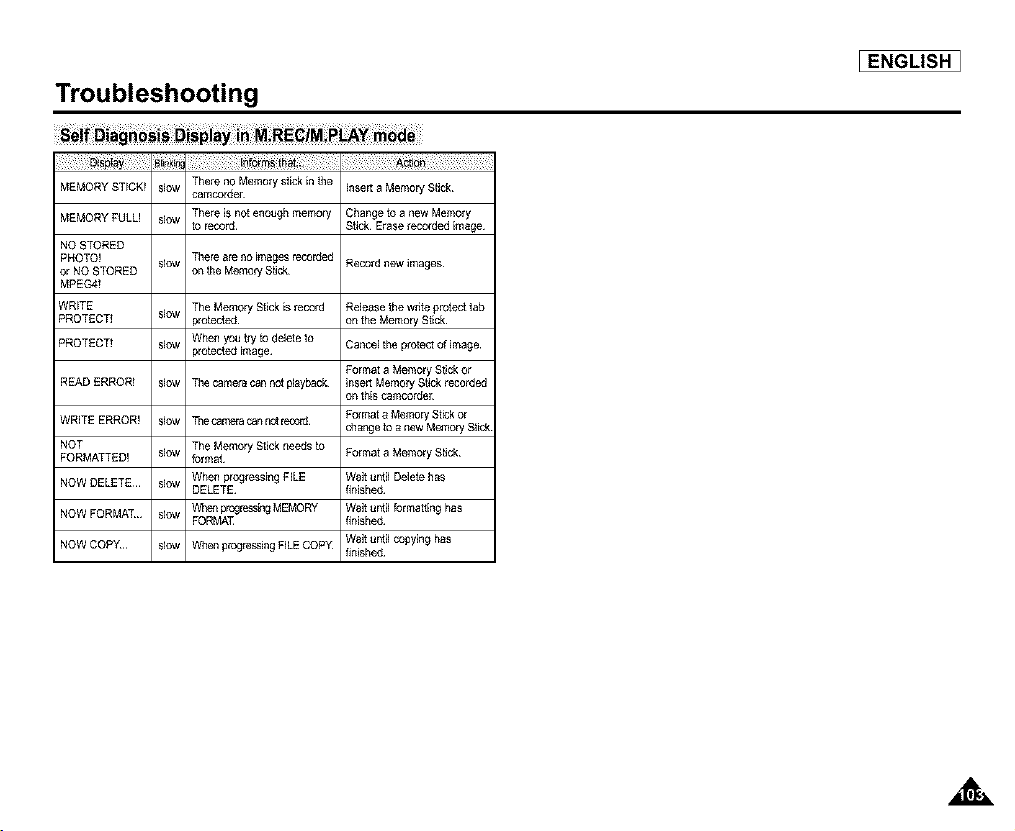
Troubleshooting
Di_i_ ¸_i_ii_ I_iil ! il !!! ! !_ !!!! ! ! !¸
MEMORY STICKT Slow There no Memory stick in the Insert a Memory Stick
camcorder
MEMORY FULL! slow Thereis r_otenough memory Char_ge to a new Memory
to record¸ StJck Erase recorded image¸
NO STORED
PHOTO! slow There are no images recorded Record new images¸
or NO STORED on the Memory Stick
MPEG4!
WRITE Release the wdte protect tab
PROTECT! on the Memory Stick¸
PROTECT! Cancel the protect of image¸
The Memory Stick is record
slow _rotected
When you try to delete to
slow protected image¸
Format a Memory Stick or
READ ERROR! slow The camera can not playback insert Memory St_ck recorded
on this eamcorder
WRITE ERROR! slow The camera can not record FolmataMemoryStickor
change to a mew Memory Stick
FORMATTED!NOT slow folmatTheMemory Stick r_eedsto Format a Memory S_iek
NOW DELETE¸¸¸ slow When prog_essirlg FILE Wait until Delete has
DELETE¸ finished¸
NOW FORMAT slow When prcgress_g MEMORY Wait until formatting has
FORMAT finished¸
NOWCOPY slow WhenprogressingFILECOPY_ Waitun_ilcopyinghas
finished¸
EENGLISH ]
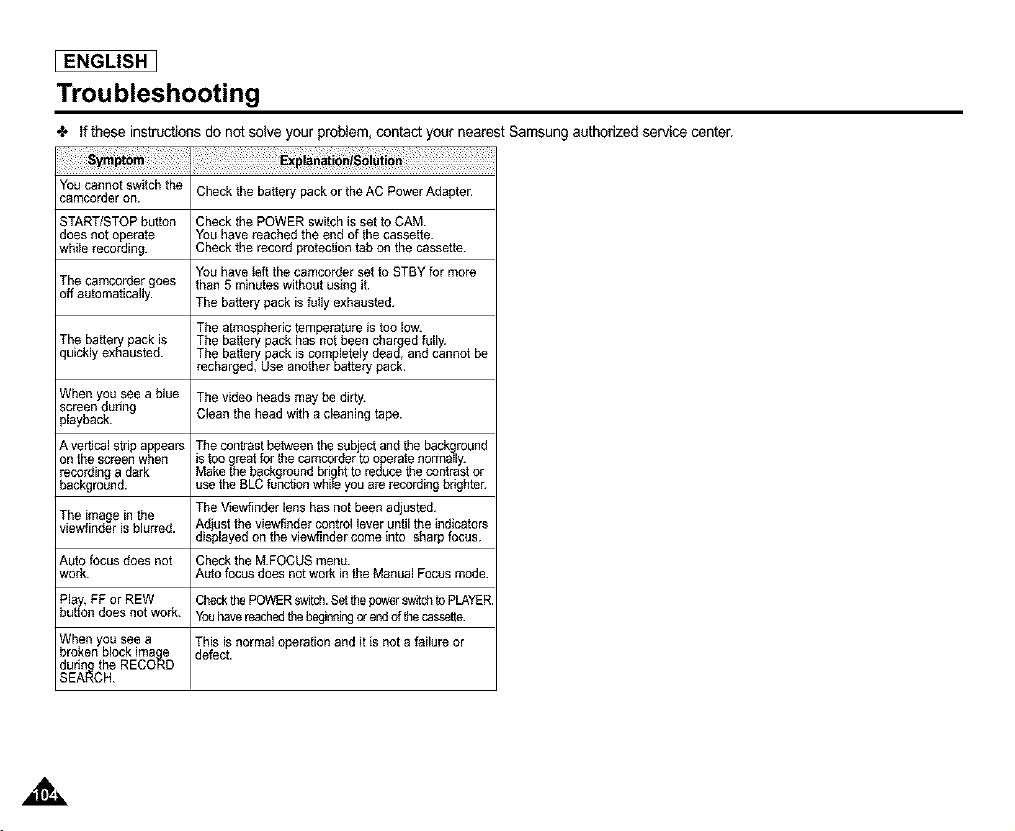
[ ENGLISH I
Troubleshooting
•t, ff these instructions do not soNe your proNem, contact your nearest Samsung authorized service center.
You cannot switch the Check the battery pack or the AC Power Adapter.
camcorder on.
START/STOP button Check the POWER switch is set to CAM.
does not operate You have reached the end of the cassette.
whiIe recording. Check the record protection tab on the cassette.
You have teft the camcorder set to STBY for more
The camcorder goes than 5 mthutes without using it.
off automatically. The battery pack is fuIly exhausted.
The atmospheric temperature is too low.
The battery pack is The battery pack has not been charrgedfully.
quickly exhausted. The battery pack is completely dead, and cannot be
recharged, Use another battery pack.
When you see a blue The video heads may be dirty.
screen during
playback. Clean the head with a cleaning tape.
A vertical strip appears The coofrast between the sub ect and the back round
on the screen when is too great for the camcorder to _rate normally.
recording a dark Make the background bdgrhtto reduce the contrast or
background, use the BLC func_on whiIe you are recording brkJhter.
The Viewfinder lens has not been adjusted.
The image in the
viewfthder is blurred. Ad ust the viewfinder control lever until the indicators
d spayed on the v ewflnder come nto sharp focus.
Auto focus does not Check the M.FOCUS menu.
work. Auto focus does not work in the Manual Focus mode.
Play, FF or nEW Ct_.,k the POWERsw_tch.Setthe powersw_dl to PLAYER.
button does not work. Youhave reachedthe beginningorend of thecassege.
When you see a This is normal operation and it is not a failure or
broken block imaq_e
defect.
during the RECORD
SEARCH.
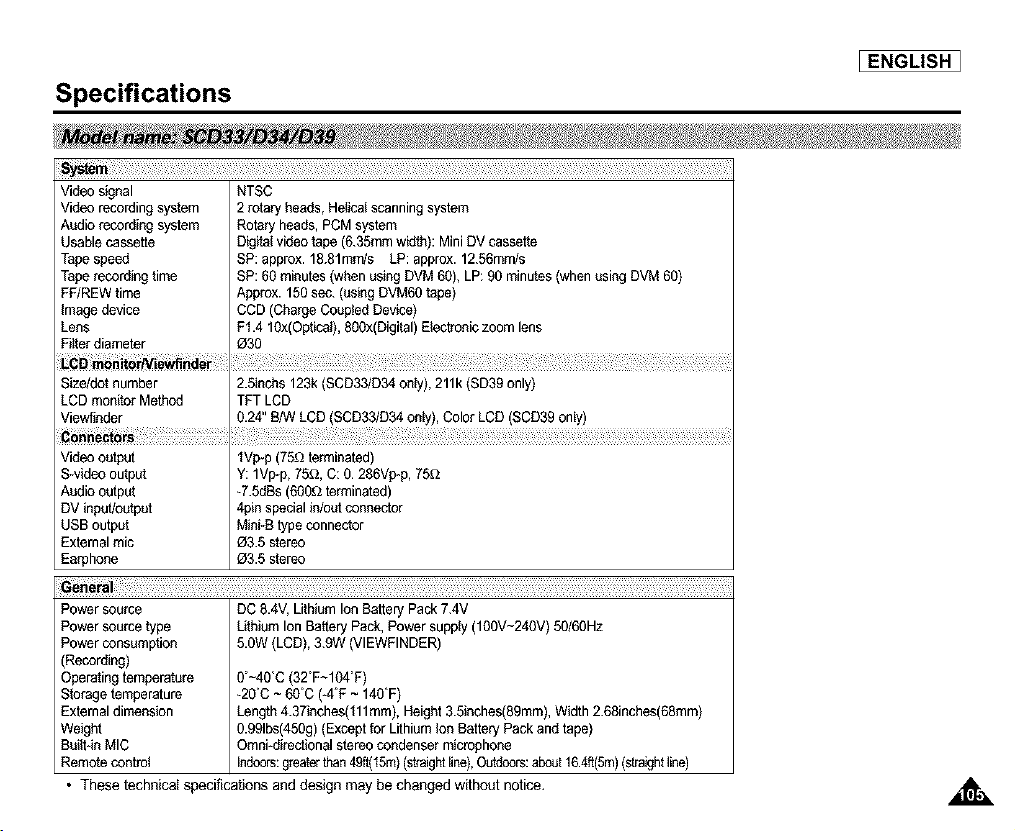
Specifications
System
_ENGLISH ]
Video signal
Video recordingsystem
Audio recordingsystem
Usablecassette
Tapespeed
Taperecordingtime
FF/REWtime
Imagedevice
Lens
Filterdiameter
Size/dotnumber
LCD monitorMethod
Viewfioder
Videooutput
S-videooutp_
Audio outp_
DV input/output
USB output
Externalmic
Earphone
NTSC
2 rotary heads, Helicalscanningsystem
Rotaryheads, PCMsystem
Digitalvideotape (6.35mmwidth):Mini DV cassette
SP:approx.18.81mm/s LP: approx.12.56mm/s
SP:60 minutes(when using DVM60), LP:90 minutes(when using DVM60)
Approx. 150sec. (using DVM6Otape)
CCD(ChargeCoupledDevice)
F1.4 10x(Optical),800x(Digital)Electroniczoom lens
03O
2.5inchs 123k(SCD33/D34only), 211k(SD39 only)
TFT LCD
0.24" B/W LCD (SCD33/D34only), Color LCD (SCD39only)
IVp-p (75_ terminated)
Y: 1Vp*p,75f_,C: O.286Vp*p,75_
-7.5dBs(600_ terminated)
4pinspecialin/outconnector
Mini-Btype connector
03.5 stereo
03.5 stereo
Power source
Power sourcetype
Power consumption
(Recording)
Operatingtemperature
Storagetemperature
Externaldimension
Weight
Buiit*thMIC
Remotecontrol
3enerai
DC 8.4V,Lithium IonBatteryPack7.4V
LithiumIon BatteryPack,Powersupply(100V-240V) 50/60Hz
5.0W(LCD),3.9W (VIEWFINDER)
0'~4O_C(32"F~104rg)
-2O_C~ 60_C(4"F ~ 140"F)
Length4.37thches('i11mm), Height3.5thches(89mm),Width 2.68inches(68mm)
0.991bs(45Og)(Exceptfor LithiumIon Battery Pack and tape)
Omni*directionalstereocondensermicrophone
Indoors:greaterthan49ft(15m)(s_'aightline),Outdoors:about16.4ff(5m)(straightline)
• These technical specifications and design may be changed without notice,
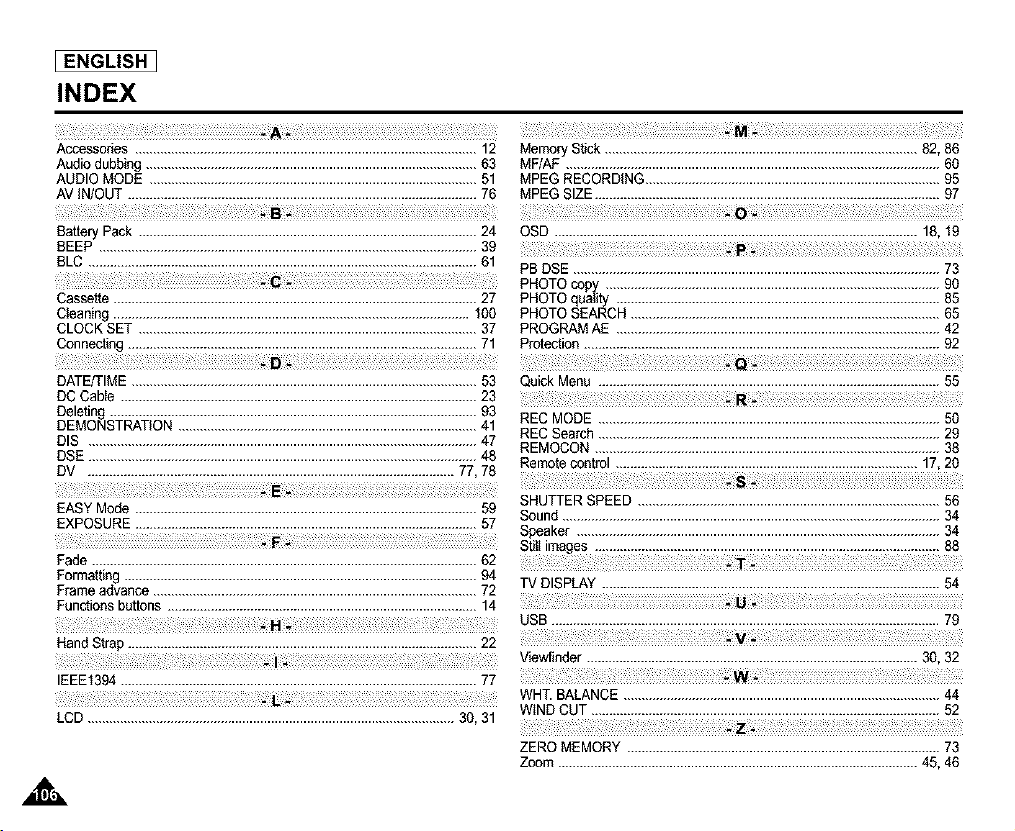
ENGLISH I
INDEX
Accessories ...............................................................................................12
Audio dubbing ............................................................................................63
AUDIOMODE ...........................................................................................51
AVIN/OUT .................................................................................................76
B
BatteryPack ..............................................................................................24
BEEP .........................................................................................................39
BLC ............................................................................................................61
Cassette.....................................................................................................27
CJeaning...................................................................................................100
CLOCK SET ..............................................................................................37
Connecting.................................................................................................71
DATE/TIME................................................................................................53
DC Cable ...................................................................................................23
Deleting ......................................................................................................93
DEMONSTRATION...................................................................................41
DIS ............................................................................................................47
DSE ............................................................................................................48
DV ......................................................................................................77, 78
E
EASY Mode ...............................................................................................59
EXPOSURE...............................................................................................57
Fade ...........................................................................................................62
Formatting..................................................................................................94
Frameadvance..........................................................................................72
Functionsbuttons ......................................................................................14
i i! Hii_ i !
Hand Strap .................................................................................................22
i
IEEE1394...................................................................................................77
iil i i!!_£ i i i i i i i i i i i i i
LCD ......................................................................................................30, 31
MemoryStick .......................................................................................82, 86
MF/AF ........................................................................................................60
MPEG RECORDING..................................................................................95
MPEG SIZE................................................................................................97
o -
OSD .....................................................................................................18, 19
PB DSE ......................................................................................................73
PHOTO copy .............................................................................................90
PHOTO quality ..........................................................................................85
PHOTO SEARCH ......................................................................................65
PROGRAMAE ..........................................................................................42
Protection...................................................................................................92
Quick Menu ...............................................................................................55
REC MODE ...............................................................................................50
REC Search ...............................................................................................29
REMOCON ................................................................................................38
Remotecontrol ....................................................................................17,20
SHUTTER SPEED ....................................................................................56
Sound .........................................................................................................34
Speaker .....................................................................................................34
TV DISPLAY..............................................................................................54
USB ............................................................................................................79
V_ewfinder............................................................................................3B,32
WHT. BALANCE........................................................................................44
W_NDCUT .................................................................................................52
i
ZERO MEMORY .......................................................................................73
Zoom ....................................................................................................45, 46
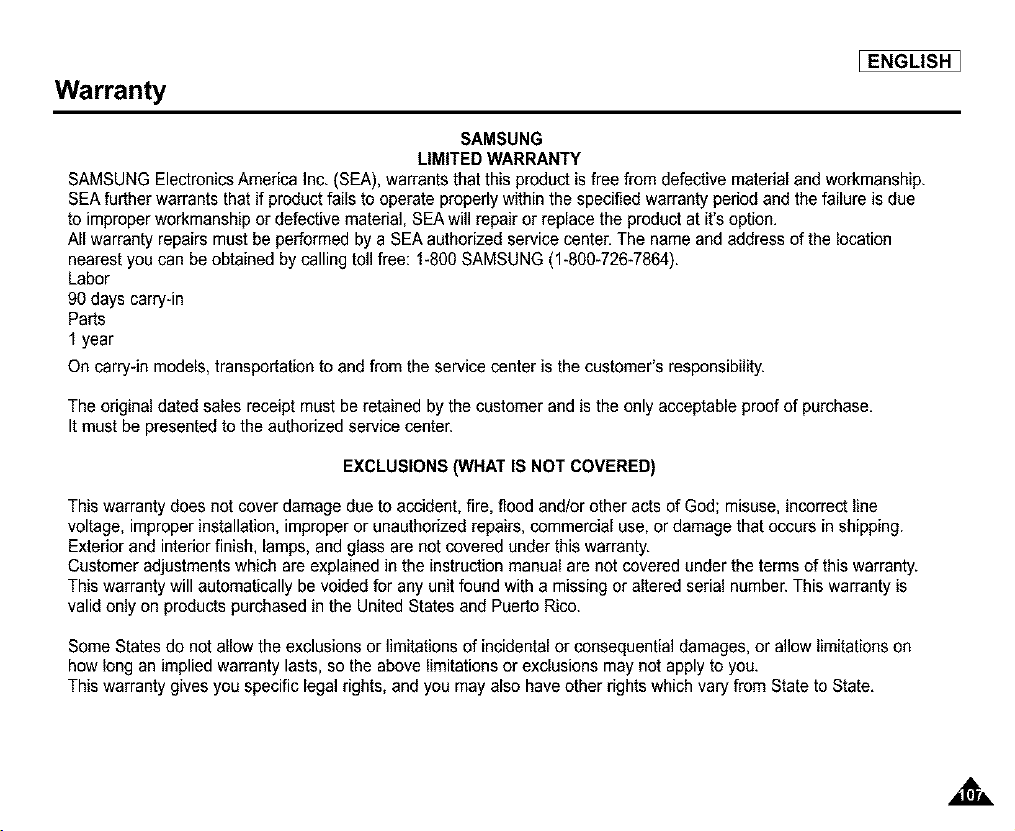
Warranty
_ENGLISH ]
SAMSUNG
LIMITED WARRANTY
SAMSUNG Electronics America Inc. (SEA), warrants that this product is free from defective material and workmanship.
SEA further warrants that if product fails to operate properly within the specified warranty period and the failure is due
to improper workmanship or defective material, SEA will repair or replace the product at it's option.
All warranty repairs must be performed by a SEA authorized service center. The name and address of the location
nearest you can be obtained by calling toll free: 1-800 SAMSUNG (1-800-726-7864).
Labor
90 days carry-in
Parts
f year
On carry-in models, transportation to and from the service center is the customer's responsibility.
The original dated sales receipt must be retained by the customer and is the only acceptable proof of purchase.
It must be presented to the authorized service center.
EXCLUSIONS (WHAT IS NOT COVERED)
This warranty does not cover damage due to accident, fire, flood and/or other acts of God; misuse, incorrect line
voltage, improper installation, improper or unauthorized repairs, commercial use, or damage that occurs in shipping.
Exterior and interior finish, lamps, and glass are not covered under this warranty.
Customer adjustments which are explained in the instruction manual are not covered under the terms of this warranty.
This warranty will automatically be voided for any unit found with a missing or altered serial number. This warranty is
valid only on products purchased in the United States and Puerto Rico.
Some States do not allow the exclusions or limitationsof incidental or consequential damages, or allow limitations on
how long an implied warranty lasts, so the above limitations or exclusions may not apply to you.
This warranty gives you specific legal rights, and you may also have other rights which vary from State to State.
[ ENGLISH I
THIS CAMCORDER IS MANUFACTURED BY:
_!iLi_ ¸_i_i_
SERVICE DIVISION
400 Valley Road, Suite 201, Mt. Arlington N.J. 07856
Tel: 1-800-SAMSUNG
(1-800-726-7864)
*Samsung Electronics' Internet Home Page
http://www.samsungusa.com AD68-OO654B

