[ENGLISH]
Digital Video Camcorder
Minl[_rD_c_sset_vi_eoSCD5000
AF
CCD
LCD
Auto Focus
Charge Coupled Device
Liquid Crystal Display
iiiiiiSiiiiiiiiiiiiiii....
Owner's Instruction Manual
Before operating the unit, please read this
instruction manual thoroughly, and retain itfor
future reference.
iiiiii;iiiiiiiiii!iii:;_: ; i;:_;!:_::_:::_::¸:¸:::::::::::::::::: ¸¸¸¸¸¸¸:: :::::::::::: :¸:¸:::::::¸::::::::::::::::: :¸:::::::::::::::::::: ¸¸¸ii ¸¸ i:_:_¸i¸¸¸:_i_¸_¸¸¸¸¸:¸¸¸=_: :ii i_;:::
I US PATENT 4415844 I
[ ENGLISH
Notices and Safety Instructions
[_lJi[*]_
RISK OFELECTRIC
SHOCK
DO NOT OPEN
CAUTION:
TO REDUCE THE RISK OF ELECTRIC SHOCK, DO NOT
REMOVE COVER(OR BACK). NO USER SERVICEABLE
PARTS INSEDE, REFER SERVICING TO QUALIFIED
SERVICE PERSONNEL
To prevent electric shock, match wide blade of plug
to wide slot and fully insert,
f_,_,, This symbol is intended to alert the user to the presence of uninsulated
/_"_ dangerous voltage within the product's enclosure that may be of
_' sufficient magnitude to constitute a risk of fire or electdc shock,
This symbol is intended to alert the user to the presence of important
operating and maintenance instructions in the literature accompanying
this product.
1. READ INSTRUCTIONS: 7.
All the safety and operatinginstructions should be read
before the CAMCORDER is operated,
2. RETAIN INSTRUCTIONS:
The safety and operating instructions should be retained for
fd:ure reference.
3. HEED WARNINGS:
All warnings on the CAMCORDER and in the operating instructions
should be adhered to.
4. FOLLOW INSTRUCTIONS:
All operating and maintenance instructions should be followed,
5. CLEANING:
Unplug this CAMCORDER from the wall od:let before cleaning.
Do not use liquid or aerosol cleaners,
Use a dry cloth used for dusting cabinets.
WATER AND MOISTURE:
Do not usethis CAMCORDER near water;
for example, near a bathtub, wash bowl, kitchen sink, laundry
tub, in a wet basement, near a swimming poolor lake.
ACCESSORIES:
Do not place this CAMCORDER on an unstable cart, stand, tripod,
bracket or table. The CAMCORDER may fal!, causing serious injury
to a child or adult, and serious damage to the unit.
Use only with a cart, stand, tripod, bracket, or table recommended
by the manufacturer or sold with the CAMCORDER. Any mounting
of the unit should follow the manufacturer's instructions and should
use a mounting accessory recommended by the manufacturer.
AsAn appliance and cart combination should be moved with care.
Quick stops, excessive force and uneven surfaces may cause
the appliance and cart combination to overturn,
PORTABLE CART WARNING
(Symbol provided by RETAC)
6. ATTACHMENTS:
Do not use attachments not recommended by the CAMCORDER
product manufacturer as they may be hazardous.
I ENGLISH 1
Notices and Safety Instructions
9. VENTILATION:
Slots and openings in the cabinet are provided for ventilation to
ensure reliable operation of the CAMCORDER and to protect it
from overheating, These openings must not be blocked or
covered, Never place your CAMCORDER on a bed, sofa, rug,
or other similar surface: on or near a radiator or heat register.
This CAMCORDER should not be placed in a built-in installation
such as a bookcase or rack unless proper ventilation is provided
or the manufacturer's instructionshave been adhered to.
10. POWER SOURCES:
The CAMCORDER should be operated only from the type of
power source indicated on the label.
If you are not sure of the type of power supply at your home,
consult your appliance dealer or local power company,
A CAMCORDER is intended to be operated from battery power,
or other sources, refer to the operating instructions,
11. GROUNDING OR POLARIZATION:
This CAMCORDER may be equipped with either a polarized
2-wire AC line plug (a plughaving one blade wider than the other)
or a 3-wire grounding type plug,a plug having a third (grounding)
pin,
If you are unable to insert the plugfully intothe outlet, try reversing
the plug. If the plug still fails to fit, contact your electrician to
replace your o_:let. Do not defeat the safety purpose of the
polarized plug,
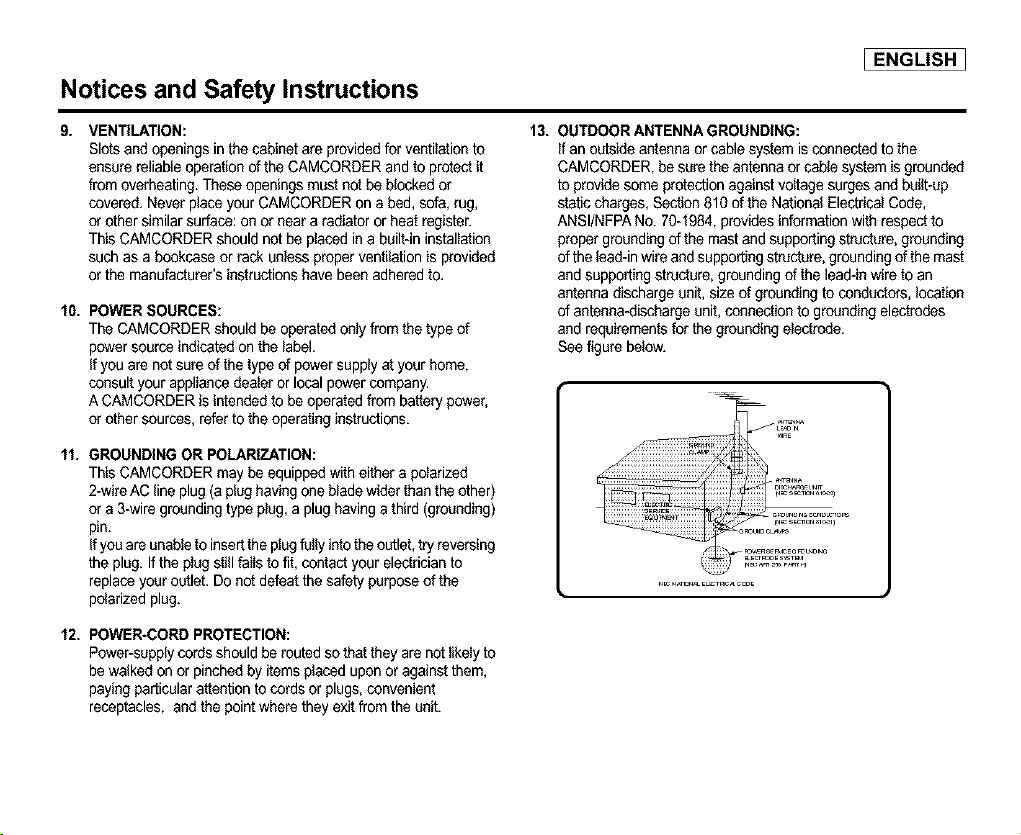
13. OUTDOOR ANTENNA GROUNDING:
If an outside antenna or cable system is connected to the
CAMCORDER, be sure the antenna or cable system is grounded
to provide some protection against voltage surges and built-up
static charges, Section 810 of the Nafional Electrical Code,
ANSI/NFPA No. 70-1984, provides information with respect to
proper grounding of the mast and supporting structure, grounding
of the lead-in wire and supporting structure, grounding of the mast
and supporting structure, grounding of the lead-in wire to an
antenna discharge unit, size of grounding to conductors, location
of antenna-discharge unit, connection to grounding electrodes
and requirements for the grounding electrode.
See figure below,
_TmN_
L_ N
2_ rARE
::i:iiiiiii:iiiiiiiiiiiiiiiiiiii/ !i!!ii;
N_ N_ ELETR_ C_E
12. POWER-CORD PROTECTION:
Power-supply cords should be routed so that they are not likely to
be walked on or pinched by items placed upon or against them,
paying particularattention to cords or plugs,convenient
receptacles, and the pointwhere they exit from the unit.
I ENGLISH
Notices and Safety Instructions
14. LIGHTNING:
For added protection of this CAMCORDER during a lightning
storm o when it is left unattended and unused for long periodsof
time, unplug it from the wall outiet and disconnect the antenna or
cable system,
This will prevent damage to the CAMCORDER due to lightning
and power-line surges.
15. POWER LINES:
An outside antenna system should not be located in the vicinity of
overhead power _inesor ether electric light or power circuits where
it can faUinto such powerlines or circuits. When installingan
outside antenna system, extreme care should be taken to keep
from touching such power lines or circuits as contact with them
might be fatal,
16. OVERLOADING:
Do not overload wal_o_:lets and extension cords as this can result
in a risk of fire or electric shock,
17. OBJECTS AND LIQUIDS:
Never pushobjects of any kind into this CAMCORDER through
openings as they may touch dangerous voltage points or short out
a part that could result in a fire or electdc shock,
Never spil! liquidsof any kind onto the CAMCORDER, Should
spiIIage occur, unplug unit and have it checked by a technician
before use.
18. SERVICING:
Do not attempt to service this CAMCORDER yourself. Opening or
removing covers may expose you to dangerous voltage or other
hazards,
Refer all servicing to qualified service personnel,
19. DAMAGE REQUIRING SERVICE:
Unplug this CAMCORDER from the wall outlet and refer servicing
to qualified service personnel under the following conditions:
a. When the power-supplycord or plug is damaged,
b. If any liquid has been spilled onto, or objects havefallen into
the CAMCORDER.
c, If the CAMCORDER has been exposed to rain or water.
d. If the CAMCORDER does not operate normally by following the
operating instructions,adjust only these controls that are
covered by the operating instructions.Improper adjustment of
other controls may result in damage and wil_
often require extensive work by a qualgied technician to restore
the CAMCORDER to its normaI operation,
e. If the CAMCORDER has been dropped or the cabinet has been
damaged,
f, When the CAMCORDER exhibits a distinct change in
performance, this indicates a need for service,
20. REPLACEMENT PARTS:
When replacersent parts are required, be sure the service
technician has used replacement parts specified by the
manufacturer and having the same charactedstics as the odgina_
part.
Unauthorized substitutions may result in fire, electric shock or
other hazards.
21. SAFETY CHECK:
Upon completion of any service or repairs to this CAMCORDER,
ask the service technician to perform safety checks to determine
that the CAMCORDER is in safe operating order,
Notices and Safety Instructions
22. To prevent damage which may resaIt in fire or shock hazard,
do not expose this applianca to rain or moisture.
23, If this power supply is used at 240V ac, a suitable plug adapter
should be use.
NOTE TO CATV SYSTEM INSTALLER:
This reminder is provided to call the CATV system installer's attention
to Article 820-40 of the NEC that provides guidelines for proper
grounding and, in perticular, specifies that the cable ground shaII be
connected to the grounding system of the building as close to the point
of cable entry as practical,
USER INSTALLER CAUTION:
Your authority to operate this FCC certified equipment could be voided
if you make changes or modifications not expressly approved by this
partyrespensible for compliance to part 15 FCC rules.
I ENGLISH 1
NOTE: This equipment has been tested and found to comply with
the limits for a Class B digital device, pursuant to part 15 of the
FCC Rules. These limits are designed to provide reasonable
protectionagainst harmful interferenceina residential installation.
This equipment generates, uses and can radiate radio frequency
energy and, if not installedand used in accordance with the
instructions, may cause harmful interferenceto radio
communications. However, there is no guarantee that interference
will not occur in a particularinstallation,If this equipment does
cause harmful interferenceto radio or television reception, which
can be determined by turning the equipment off and on, the user is
encouraged to try to correct the interference by one or more of the
following measures:
Reorient or relocate the receiving antenna.
Increase the separation between the equipment and receiver.
Connect the equipment into an outIet on a circuit different from
that to which the receiver is connected.
Consult the dealer or an experienced radie/TV technician for help
and for additional suggestions.
The user may find the following booklet preparedby the Federal
Communications Commission helpful : "How to Identify and
Resolve Radio-TV Interference Problems."
This Bcoktet is available from the U.S, Government Printing
Office, Washington, D.C. 20402, Stock No. 004-000-00345-4.
:CC Warning
The user is cautioned that changes or modifications not expressly
approved by the manufacturer could void the user's authority to
operate the equipment.
[ ENGLISH
Contents
Precautions on Camcorder Care .................................................................................................................................................................................8
Quick Start ....................................................................................................................................................................................................................9
Features .....................................................................................................................................................................................................................14
Accessories Supplied with the Camcorder ................................................................................................................................................................15
Basic Accessories .................................................................................................................................................................................................15
Front & Left View ........................................................................................................................................................................................................16
Left side View .............................................................................................................................................................................................................17
Right & Top View ........................................................................................................................................................................................................18
Rear & Bottom View ...................................................................................................................................................................................................19
Remote Control ..........................................................................................................................................................................................................20
OSD (On Screen Display in CAMERA and PLAYER Modes) ..................................................................................................................................21
OSD (On Screen Display in CAMERA/M.PLAY Modes) ..........................................................................................................................................
Turning the OSD on/off (On Screen Display) ......................................................................................................................................................23
How to use the Remote Control ................................................................................................................................................................................24
Battery Installation for the Remote Control ..........................................................................................................................................................24
Self Record using the Remote Control ................................................................................................................................................................24
Adjusting the Hand Strap ..........................................................................................................................................................................................25
Hand strap ............................................................................................................................................................................................................25
Shoulder strap.........................................................................................................................................................................................................25
Connecting a Power Source ......................................................................................................................................................................................26
To use the AC Power adapter and DC Cable .....................................................................................................................................................26
Using the Lithium Ion Battery Pack ..........................................................................................................................................................................27
Charging the Lithium ton Battery Pack ................................................................................................................................................................27
Table of Continuous Recording Time Based on Model and Battery Type .........................................................................................................28
Battery Level Display ............................................................................................................................................................................................29
A
Contents
I ENGLISH 1
Setting to CAMCORDER / CAMERA modes ............................................................................................................................................................30
Setting the Power Switch ..........................................................................................................................................................................................31
Adjusting the LCD .....................................................................................................................................................................................................32
Using the VIEWFINDER ...........................................................................................................................................................................................33
Adjusting the Focus ..............................................................................................................................................................................................33
Adjusting the LCD during PLAY ...........................................................................................................................................................................34
Controlling Sound from the Speaker ........................................................................................................................................................................34
Using MENU .............................................................................................................................................................................................................35
Setting menu items ...................................................................................................................................................................................................37
Setting the Camcorder to REC, TAPE PLAY, MEMORY PLAY modes ..............................................................................................................39
Availability of Functions in CAMCORDER Mode................................................................................................................................................ 40
CLOCK SET .........................................................................................................................................................................................................41
WL.REMOTE ........................................................................................................................................................................................................42
DEMONSTRATION ..............................................................................................................................................................................................43
DATE/TIME ...........................................................................................................................................................................................................44
TV DISPLAY .........................................................................................................................................................................................................45
EASY Mode (for Beginners) .....................................................................................................................................................................................46
MF/AF (Manual Focus/Auto Focus) .........................................................................................................................................................................47
Auto Focusing .......................................................................................................................................................................................................47
Manual Focusing ..................................................................................................................................................................................................47
Zooming in and Out with DIGITAL ZOOM ...........................................................................................................................................................48
Zooming in and Out ..............................................................................................................................................................................................48
Inserting and Ejecting a Cassette .............................................................................................................................................................................49
Toselect the CAMCORDER mode .........................................................................................................................................................................49
Making Your First Recording ....................................................................................................................................................................................51
Record Search (REC SEARCH) ..........................................................................................................................................................................52
Hints for Stable Image Recording ............................................................................................................................................................................53
Recording with the LCD Monitor ..........................................................................................................................................................................53
Recording with the Viewfinder ..............................................................................................................................................................................53
Playing Back a Tape You Have Recorded on the LCD ............................................................................................................................................54
A
I ENGLISH
Contents
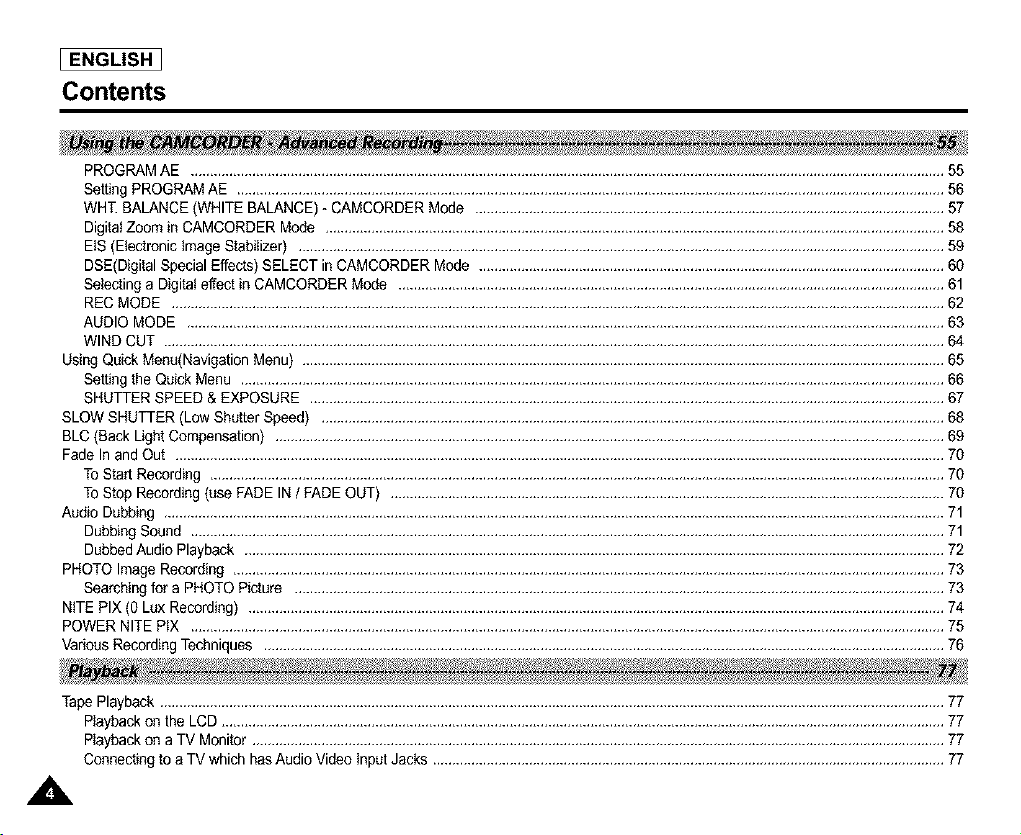
PROGRAMAE ....................................................................................................................................................................................................55
Setting PROGRAM AE ........................................................................................................................................................................................56
WHT. BALANCE (WHITE BALANCE) - CAMCORDER Mode ..........................................................................................................................57
Digital Zoom in CAMCORDER Mode .................................................................................................................................................................58
EIS (Electronic image Stabilizer) ........................................................................................................................................................................59
DSE(Digital Special Effects) SELECT in CAMCORDER Mode .........................................................................................................................60
Selecting a DigitaI effect in CAMCORDER Mode ..............................................................................................................................................61
REC MODE .........................................................................................................................................................................................................62
AUDIO MODE .....................................................................................................................................................................................................63
WIND CUT ...........................................................................................................................................................................................................64
Using Quick Menu(Navigation Menu) .......................................................................................................................................................................65
Setting the Quick Menu .......................................................................................................................................................................................66
SHUTTER SPEED & EXPOSURE .....................................................................................................................................................................67
SLOW SHUTTER (Low Shutter Speed) ..................................................................................................................................................................68
BLC (Back Light Compensation) ..............................................................................................................................................................................69
Fade In and Out ........................................................................................................................................................................................................70
To Start Recording ...............................................................................................................................................................................................70
To Stop Recording (use FADE IN / FADE OUT) ................................................................................................................................................70
Audio Dubbing ...........................................................................................................................................................................................................71
Dubbing Sound ....................................................................................................................................................................................................71
Dubbed Audio Playback ........................................................................................................................................................................................
PHOTO Image Recording .........................................................................................................................................................................................73
Searching for a PHOTO Picture .........................................................................................................................................................................73
NITE PIX (0 Lux Recording) .....................................................................................................................................................................................74
POWER NITE PtX ....................................................................................................................................................................................................75
Various Recording Techniques .................................................................................................................................................................................76
Tape Playback ............................................................................................................................................................................................................77
PIayback on the LCD ............................................................................................................................................................................................77
Ptayback on a TV Monitor ....................................................................................................................................................................................77
Connecting to a TV which has Audio Video input Jacks .....................................................................................................................................77
A
Contents
I ENGLISH ]
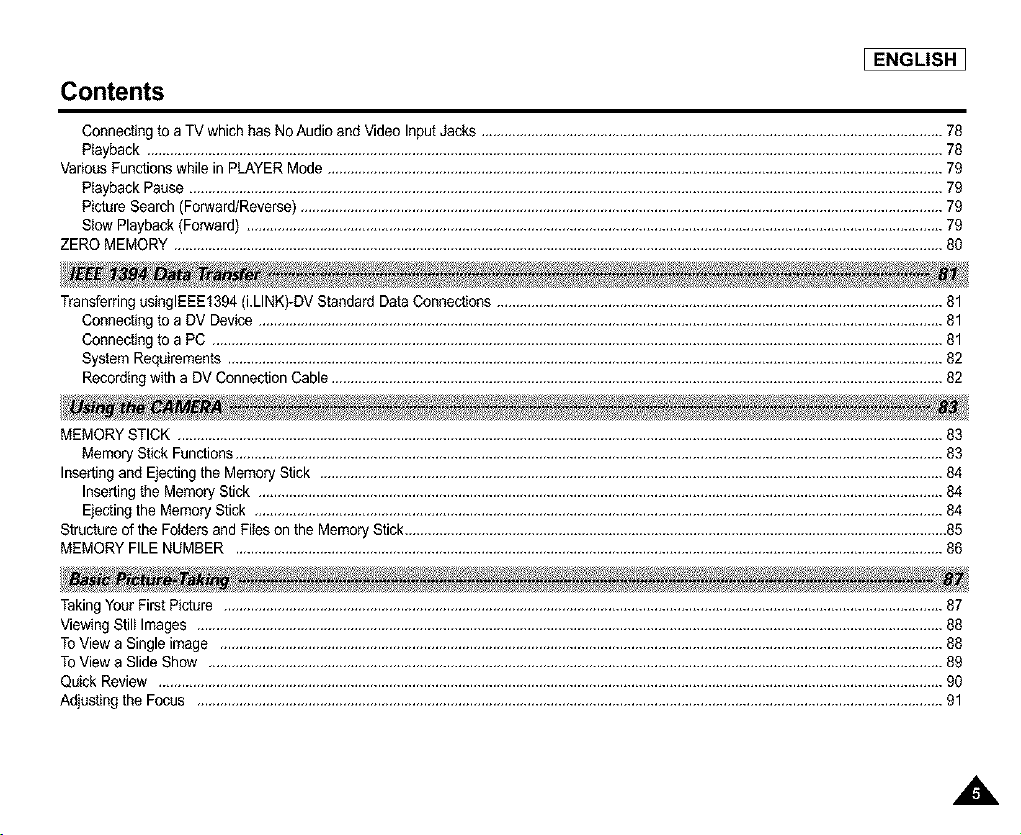
Connecting to a TV which has No Audio and Video Input Jacks ........................................................................................................................78
Playback ...............................................................................................................................................................................................................78
Various Functions while in PLAYER Mode ................................................................................................................................................................79
Playback Pause ....................................................................................................................................................................................................79
Picture Search (Forward/Reverse) .......................................................................................................................................................................79
Slow Playback (Forward) .....................................................................................................................................................................................79
ZERO MEMORY ........................................................................................................................................................................................................80
Transferring usinglEEE1394 (i.LINK)-DV Standard Data Connections ....................................................................................................................81
Connecting to a DV Device ..................................................................................................................................................................................81
Connecting to a PC ..............................................................................................................................................................................................81
System Requirements ..........................................................................................................................................................................................82
Recording with a DV Connection Cable ...............................................................................................................................................................82
MEMORY STICK .......................................................................................................................................................................................................83
Memory Stick Functions........................................................................................................................................................................................83
Inserting and Ejecting the Memory Stick ..................................................................................................................................................................84
Inserting the Memory Stick ..................................................................................................................................................................................84
Ejecting the Memory Stick ...................................................................................................................................................................................84
Structure of the Fotders and Fites on the Memory Stick.............................................................................................................................................85
MEMORY FILE NUMBER ........................................................................................................................................................................................86
Taking Your First Picture ...........................................................................................................................................................................................87
Viewing Still Images ..................................................................................................................................................................................................88
ToView a Single image ............................................................................................................................................................................................88
ToView a Slide Show ...............................................................................................................................................................................................89
Quick Review ............................................................................................................................................................................................................90
Adjusting the Focus ..................................................................................................................................................................................................91
A
[ ENGLISH
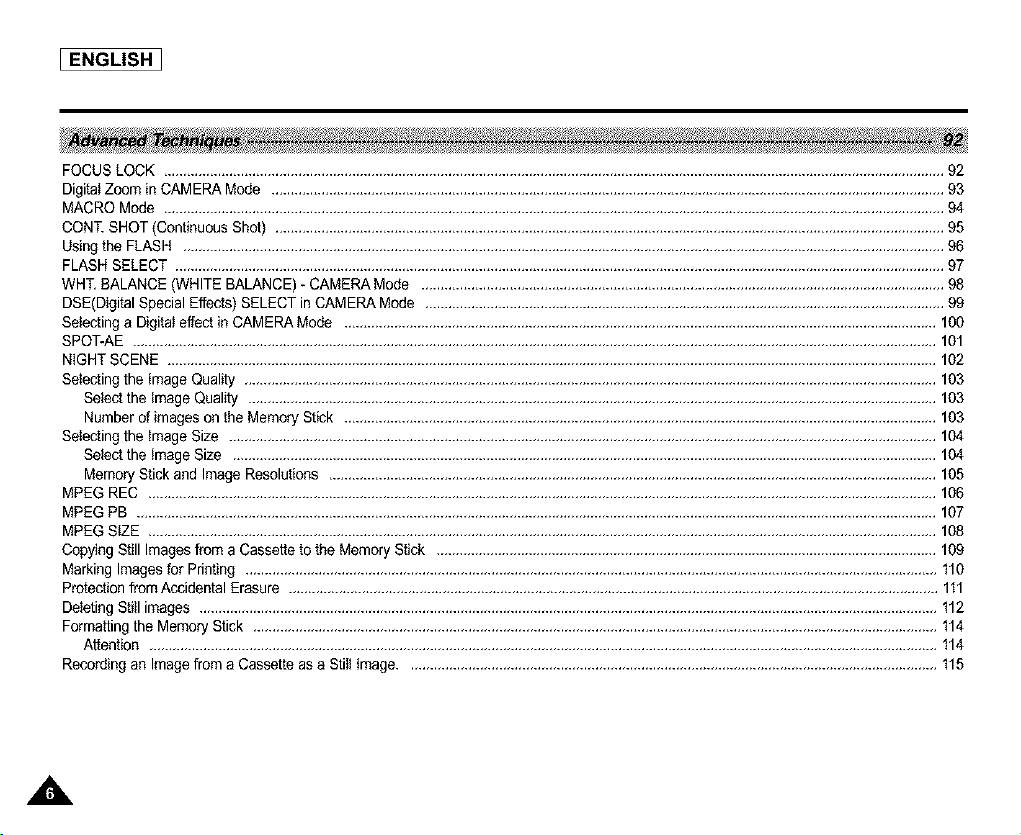
FOCUS LOCK .............................................................................................................................................................................................................
DigitaI Zoom in CAMERA Mode ...............................................................................................................................................................................93
MACRO Mode ...........................................................................................................................................................................................................94
CONT. SHOT (Continuous Shot) ..............................................................................................................................................................................95
Using the FLASH ......................................................................................................................................................................................................96
FLASH SELECT ........................................................................................................................................................................................................97
WriT. BALANCE (WHITE BALANCE) - CAMERA Mode ........................................................................................................................................98
DSE(Digital Special Effects) SELECT in CAMERA Mode .......................................................................................................................................99
Selecting a Digital effect in CAMERA Mode ..........................................................................................................................................................1O0
SPOT-AE .................................................................................................................................................................................................................101
NIGHT SCENE ...........................................................................................................................................................................................................
Selecting the Image Quality ....................................................................................................................................................................................103
Select the Image Quality ...................................................................................................................................................................................103
Number of images on the Memory Stick ..........................................................................................................................................................103
Selecting the image Size ........................................................................................................................................................................................104
Select the tmage Size .......................................................................................................................................................................................104
Memory Stick and Image Resolutions ..............................................................................................................................................................105
MPEG REC .............................................................................................................................................................................................................106
MPEG PB ................................................................................................................................................................................................................107
MPEG StZE .............................................................................................................................................................................................................108
Copying Still Images from a Cassette to the Memory Stick ..................................................................................................................................109
Marking Images for Printing ....................................................................................................................................................................................110
Protection from Accidental Erasure .........................................................................................................................................................................111
Deleting Still images ...................................................................................................................................................................................................
Formatting the Memory Stick ..................................................................................................................................................................................114
Attention .............................................................................................................................................................................................................114
Recording an Image from a Cassette as a StitI Image.......................................................................................................................................... 115
A
I ENGLISH 1
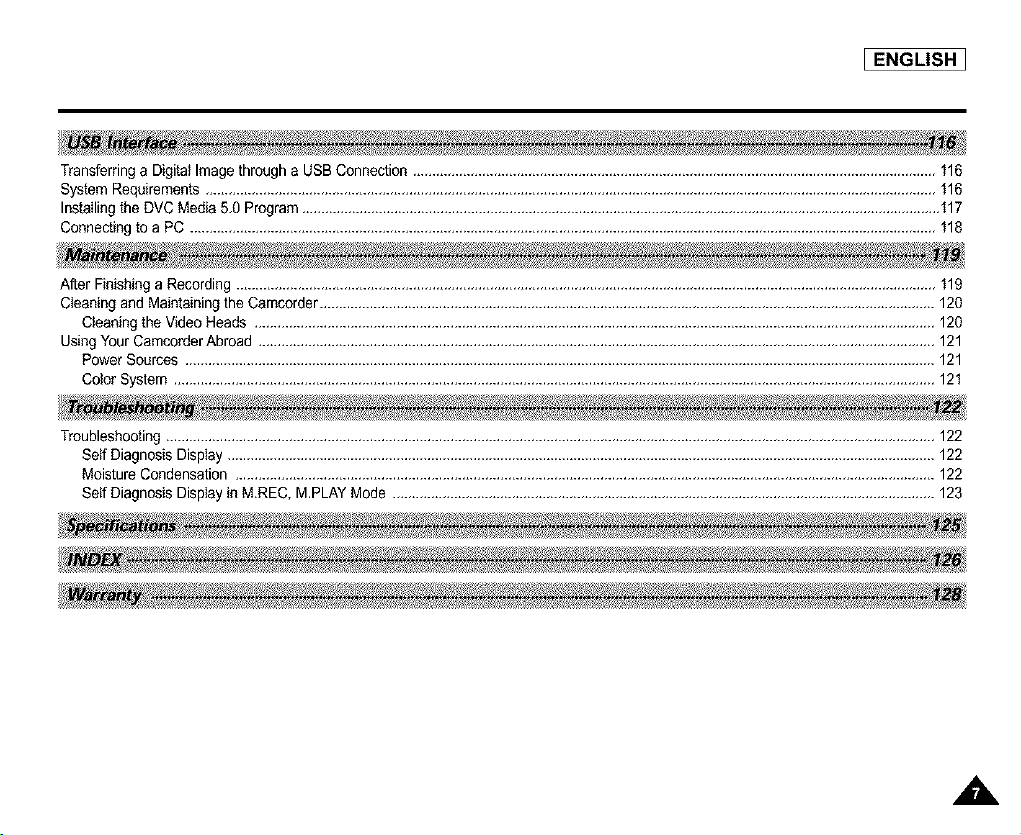
Transferring a Digital Image through a USB Connection ........................................................................................................................................116
System Requirements ..............................................................................................................................................................................................116
Installing the DVC Media 5,0 Program ......................................................................................................................................................................117
Connecting to a PC ..................................................................................................................................................................................................118
After Finishing a Recording ......................................................................................................................................................................................119
Cleaning and Maintaining the Camcorder ................................................................................................................................................................120
Cleaning the Video Heads .................................................................................................................................................................................120
Using Your Camcorder Abroad ................................................................................................................................................................................121
Power Sources ...................................................................................................................................................................................................121
Color System ......................................................................................................................................................................................................121
Troubleshooting ........................................................................................................................................................................................................122
Self Diagnosis Display ........................................................................................................................................................................................122
Moisture Condensation ......................................................................................................................................................................................122
Self Diagnosis Display in M,REC, M.PLAY Mode .............................................................................................................................................123
A
I ENGLISH
Start
•l. Please note the following precautions for use:
•l. Please keep your device in a safe place. This device contains a lens that can be damaged by shock. Keep away from the reach
of the children.
• Do not place your device in a wet place. Moisture and water may cause the device to malfunction.
• Do net aim the device at the sun while looking through the viewfinder; this may cause permanent damage to your eyes.
• To avoid electric shock, de not touch your device or power cable with wet hands.
• Do not use the flash close to another's eyes. The flash emits a strong light that may cause damage similar to direct sunlight on
one's eyesight.
• If the devica is not working properly, pleeee consult your nearest deater or authodzed Samsung service facility. Disassembling
the device yourself may cause irrecoverable damage which will be difficult to repair.
• Clean the body with a dry, soft cloth. Use a soft cloth moistened with a mild detergent solution for removing stains. Do not use
any type of solvent, especially benzenes, as they may sedously damage the finish.
• Keep your device away from rain and saltwater. After using, clean the device. Saltwater may cause the parts to corrode.
• For better quality, please use CAMERA mode when taking still images. (CAMERA mode image quality is better than
CAMCORDER mode.)
,A,
Start
I ENGLISH 1
,_ This device provides a variety of functions because it is a Camcorder and Digital Still Camera in one system.
Please read this manual thoroughly.
,_ Before using the device, install the accessories in the following order:
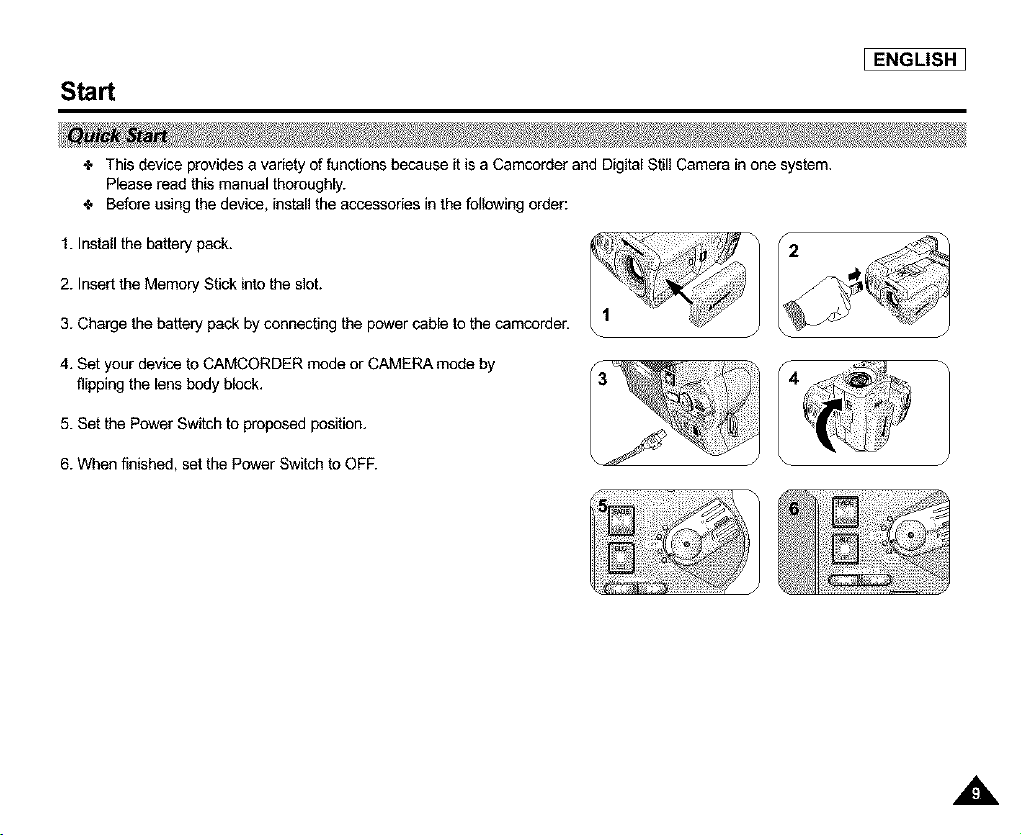
1. Install the battery pack.
2. Insert the Memory Stick into the slot.
3. Charge the battery pack by connecting the power cable to the camcorder.
2
4. Set your device to CAMCORDER mode or CAMERA mode by
flipping the lens body block.
5. Set the Power Switch to proposed position.
6. When finished, set the Power Switch to OFE
A
[ ENGLISH ]
Notes and Safety Instructions
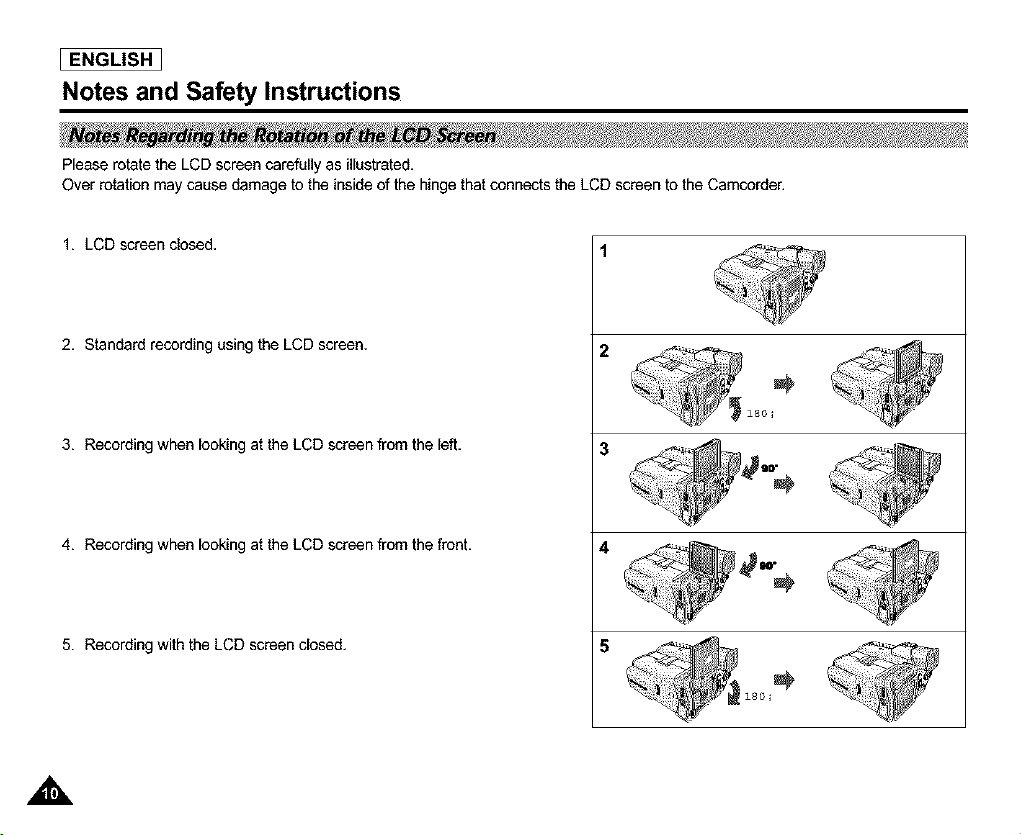
Please rotate the LCD screen carefully as illustrated,
Over rotation may cause damage to the inside of the hinge that connects the LCD screen to the Camcorder,
1. LCD screen closed.
2, Standard recording using the LCD screen.
3. Recording when looking at the LCD screen from the left,
4. Recording when looking at the LCD screen from the front,
5. Recording with the LCD screen closed.
180, 1
A
Notes and Safety Instructions
I ENGLISH ]
Television programs,video tapes, DVD titles, films, and other program materials may be copyrighted.
Unauthorized copying of copyrighted material may be against the law.
1. A sudden rise in atmospheric temperature may cause moisture condensation to form inside the camcorder.
For Examole:
- When you take the camcorder from a cold place to a warm place(e.g. from outside to insideduring winter.)
- When you take the camcorder from a cool place to a hot place (e.g. from inside to outside during the summer.)
2. When the F_](DEW) protectionfeature is activated, leave the camcorder in a dry, warm room with the cassette
compartment opened and the battery removed, for at least two hours.
1. Do not leave the camcerder exposed to high temperatures (above 60°C or 140°F).
For example, in a parkedcar in the sun or exposed to direct sunlight.
2. Do not let the camcorder get wet.
Keep the camcorder away from rain, saltwater, and any other form of moisture. If the camcorder gets wet, it may be
damaged.
A malfunction due to exposure to liquids cannot always be repaired.
,,&
I ENGLISH
Notes and Safety Instructions
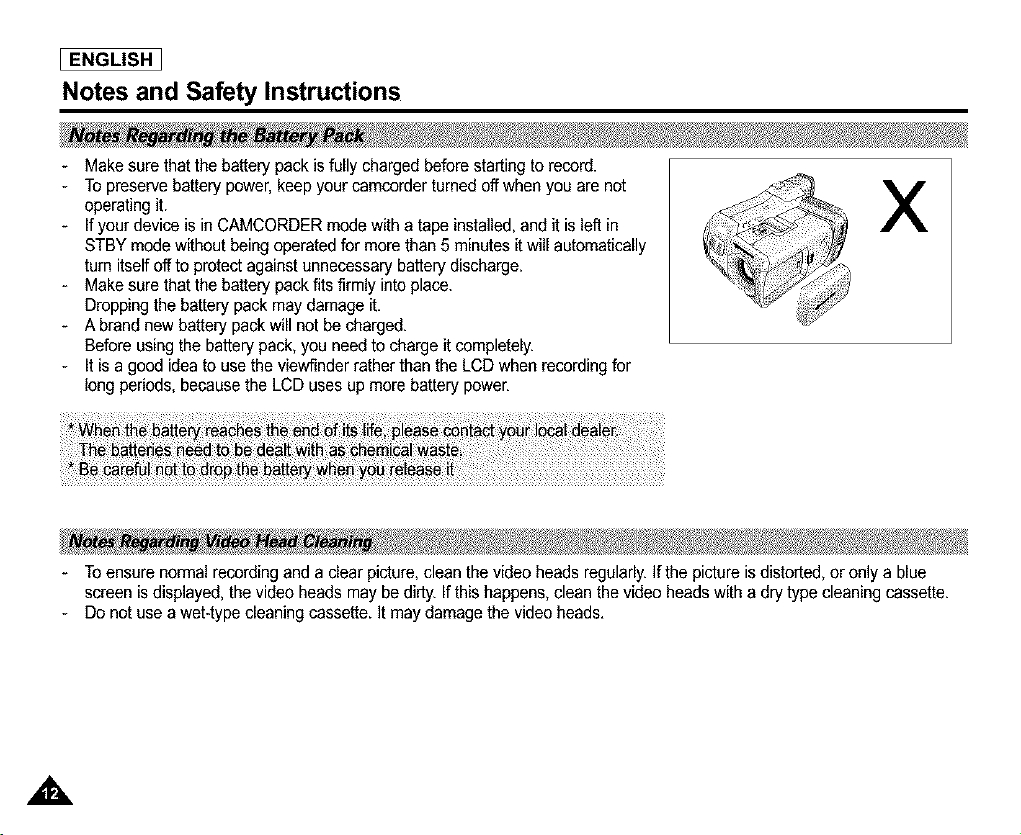
- Make sure that the battery pack is fully charged before starting to record.
- To preserve battery power, keep your camcorder turned off when you are not
operating it.
- If your device is in CAMCORDER mode with a tape installed, and it is left in
STBY mode without being operated for more than 5 minutes it will automatically
turn itself off to protect against unnecessary battery discharge.
- Make sure that the battery pack fits firmly into place.
Dropping the battery pack may damage it.
- A brand new battery pack will not be charged.
Before using the battery pack, you need to charge it completely.
- It is a good idea to use the viewfinder rather than the LCD when recording for
long periods, because the LCD uses up more battery power.
X
- Toensure normal recording and a clear picture, clean the video heads regularly. If the picture is distorted, or only a blue
screen is displayed, the video heads may be dirty. If this happens, clean the video heads with a dry type cleaning cassette.
- Do not use a wet-type cleaning cassette. It may damage the video heads.
Notes and Safety Instructions
J ENGLISH ]
- Do not film with the camera lens pointing directly at the sun,
Direct sunlight can damage the CCD(Charge Coupled Device).
- Over-rotating of the LENS body block may damage it.
1. Do not position the camcorder such that the viewfinder is pointing towards the sun.
Direct sunlight can damage the inside of the viewfinder. Be careful when placing the camcorder under sunlight or near a
window exposed to sunlight.
2. Do not pick up the camcorder by the viewfinder.
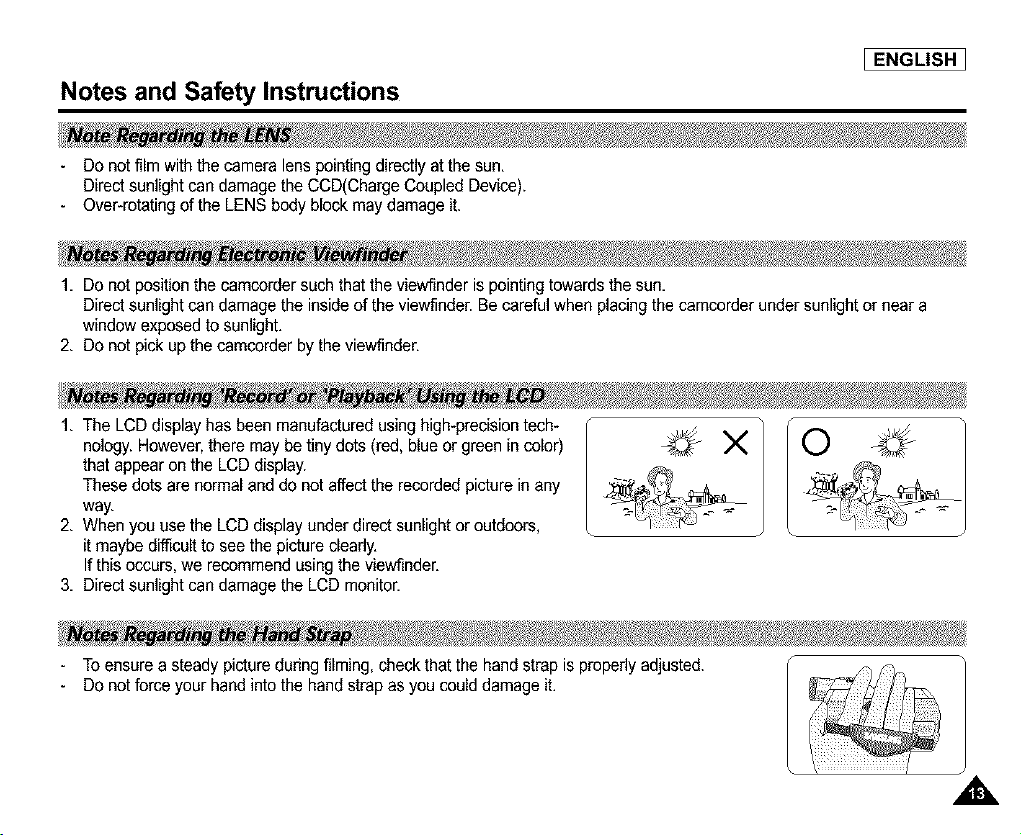
1. The LCD display has been manufactured using high-precision tech-
nology. However, there may be tiny dots (red, blue or green in color)
that appear on the LCD display.
These dots are normal and do not affect the recorded picture in any
way.
2, When you use the LCD display under direct sunlight or outdoors,
it maybe difficult to see the picture cleady,
If this occurs, we recommend using the viewfinder,
3, Direct sunlight can damage the LCD monitor.
x O
- To ensure a steady picture dunng filming, check that the hand strap is propedy adjusted.
- Do not force your hand into the hand strap as you could damage it.
,,&
[ ENGLISH ]
Getting to Know Your Device
• Digital data transfer function with IEEE1394
By incorporatingthe IEEE 1394 (i.LINKTM : LLINK is a serial data transferprotocol and interconnectivifysystem, used to
transmit DV data) high speed data transport port,both moving and still images can be transferred to a PC, making it possible
to produceor edit various images.
• Unique Style & Free Style Shooting
An integrated digital imaging device that easily converts between a CAMCORDER and a CAMERA by using a revolving
Lens Body Block.
• High Resolution Image Quality (Digital Still Camera)
Employing a 4.13 Mega Pixels CCD, a maximum resolution of 2272 X 1704 is possible.
• Digital Zoom
Allows you to magnify an image up to 800X (CAMCORDER mode) or 6X (CAMERA mode) its originalsize.
• Color TFT LCD
A high-resolution color TFT LCD gives you clean, sharp images as well as the ability to review your recordings immediately.
• Electronic Image Stabilizer (EIS)
The EIS compensates for any shaking that occurs when the camera is handheld, reducing unstable images particularlyat
high magnification.
• Various Digital Effects
The DSE (Digital Special Effects) function allows you to give your films a special look by adding various special effects.
• Back Light Compensation (BLC)
The BLC function compensates for a bright background behind the subject you're recording.
• Program AE
The Program AE enables you to alter the shutter speed and aperture to suit the type of scene/action to be filmed.
• NITE PIX / NIGHT SCENE
The NITE PIX or NIGHT SCENE function enables you to record a subject in a dark place.
• USB Interface for Digital Image Data Transfer
,_You can transferstill images to a PC using the USB interfacewithout an add-on card.
Getting to Know Your Device
I ENGLISH ]
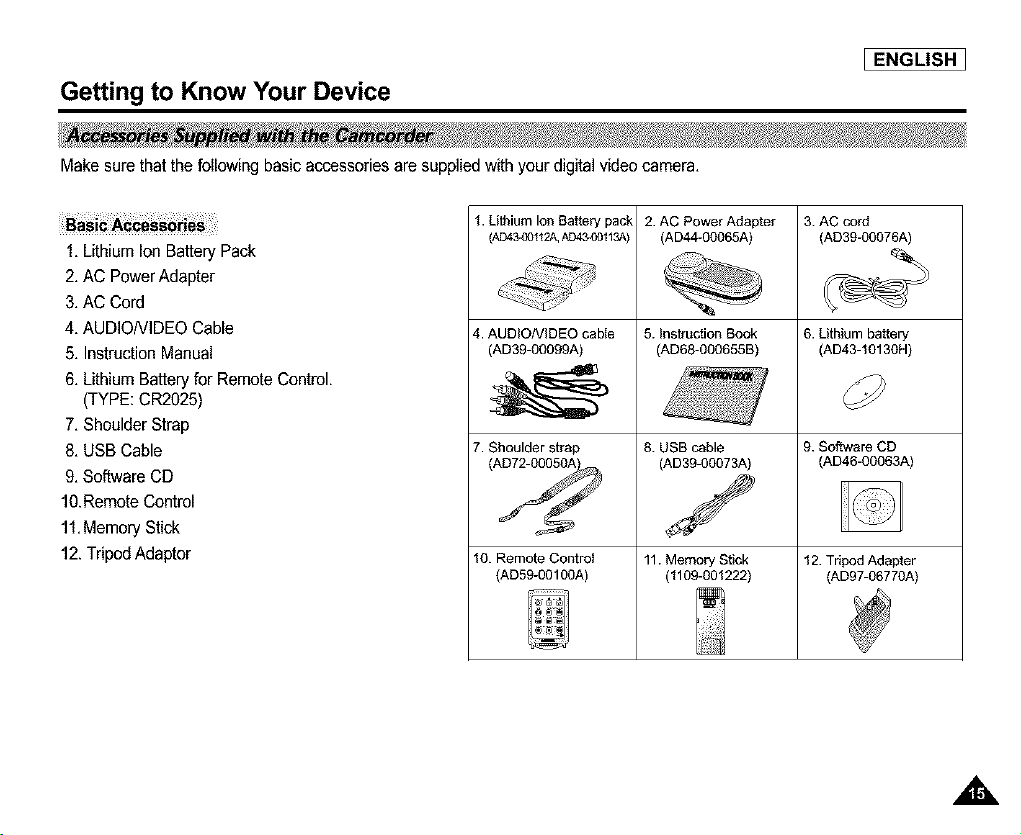
Make sure that the following basic accessories are supplied with your digital video camera,
1, Lithium Ion Battery Pack
2, AC Power Adapter
3, AC Cord
4, AUDIONIDEO Cable
5, InstructionManual
6, Lithium Battery for Remote Control,
(TYPE: CR2025)
7, Shoulder Strap
8, USB Cable
9, Software CD
10.Remote Control
11,Memory Stick
12. Tripod Adaptor
I. Lithium Ion Battery pack
(AD4340112A_AD434)0113A)
4. AUDIONIDEO cable
(AD39-O0099A)
7. Shoulder strap
10. Remote Control
(AD59-00100A)
2. AC Power Adapter
(AD44-00065A)
5. Instruction Book
(ADaS-0a0655B)
8. USB cable
(AD39-00073A)
11. Memory Stick
(1109-001222)
3. AC cord
(AD39-00076A)
6. Lithium battery
(AD43-10130H)
9. Software CD
(AD46-00063A)
12. Tdpod Adapter
(AD97-06770A)

I ENGLISH
Getting to Know Your Device
1. Internal MIC
2. Memory Stick Slot
3. Remote Sensol
4. Lens
-- 8. Nite Pix
-- 7. Slow Shutter
6. Battery release button
-- 5. Battery
1,1nternalMIC
2, MemoryStick Slot
3, Remote Control Sensor
4, Lens
5, Bakery
6, Ba_eryrelease button
7, Slow Shuffer
8, NitePix
A
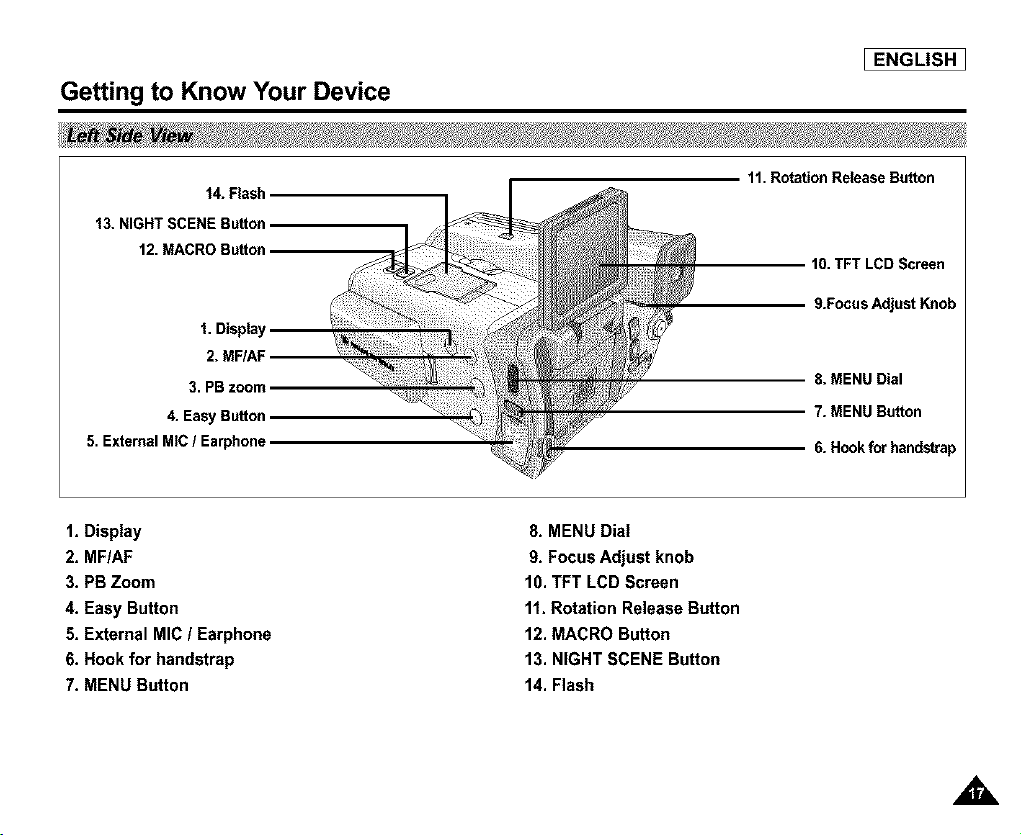
Getting to Know Your Device
I ENGLISH 1
14. Flash
13.NIGHTSCENEButton
12.MACROButton_
'1. Display
2. MF/AF
3. PBzoom _
4. EasyButton
5. ExternalMIC/ Earphone
11. Rotation Release Button
10.TFT LCD Screen
9.Focus Adjust Knob
8. MENU Dial
7. MENU Button
6. Hookfor handstrep
1, Display
2, MF/AF
3, PB Zoom
4, Easy Button
5, External MIC / Earphone
6, Hook for handstrap
7, MENU Button
8. MENU Dial
9. Focus Adjust knob
10. TFT LCD Screen
11. Rotation Release Button
12. MACRO Button
13. NIGHT SCENE Button
14. Flash
I ENGLISH
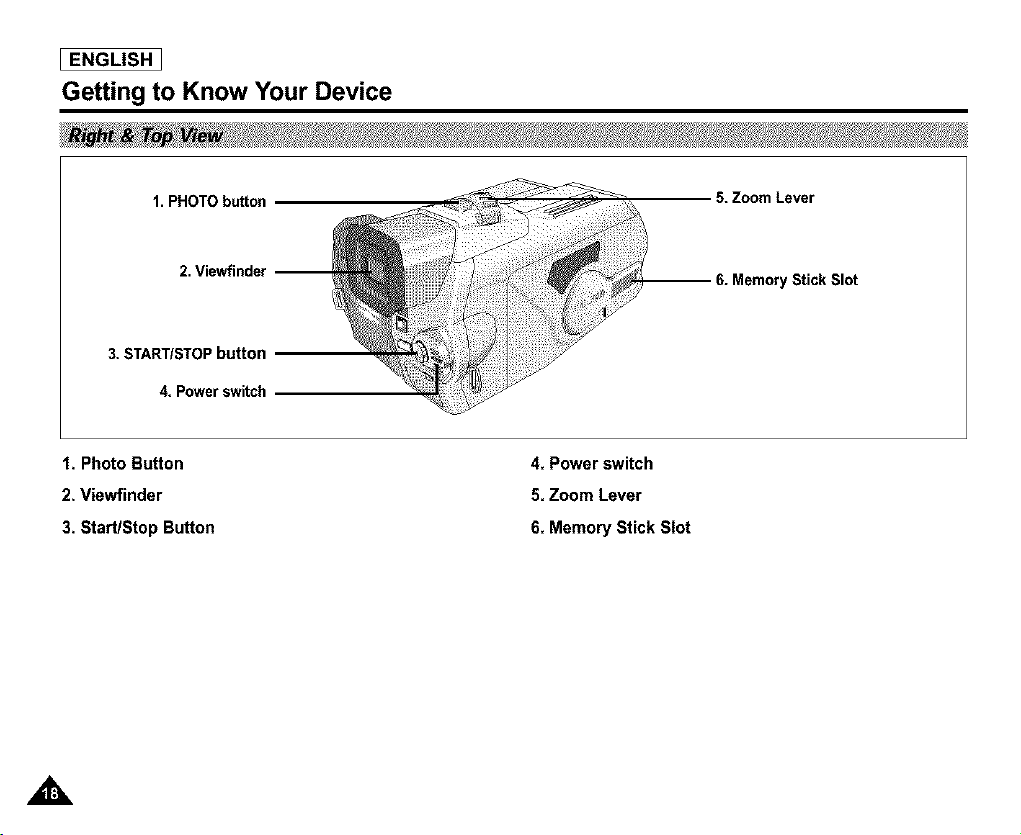
Getting to Know Your Device
1. PHOTO button
2. Viewfinder --
3. START/STOP button
4. Power switch
5. Zoom Lever
Stick Slot
1. Photo Button
2. Viewfinder
3. Start/Stop Button
4, Power switch
5, Zoom Lever
6, Memory Stick Slot
A

Getting to Know Your Device
I ENGLISH 1
13. TAPE EJECT
2. Speaker --
3.Hod_r_
4. DV Jack --
5. USB Jack.
6. Charging Indicator
Jack 10. Night Scene
9. FLASH
1, Function Button
TAPE PLAY REC
EASY
44 : (REW) REC SEARCH-
MI_ : (FF) REC SEARCH +
I_111:(PLAY/STILL) FADE
• : (STOP) 8LC
2, Speaker
3, Hook for the shoulder strap
4. DV Jack
5. USB Jack
6. Charging Indicator
7. DC Jack
8. AV/S-Video
9. FLASH
10. Night Scene Button
11. MACRO Button
12. Tripod Receptacle
13. TAPE EJECT
14. RESET button
,A
I ENGLISH
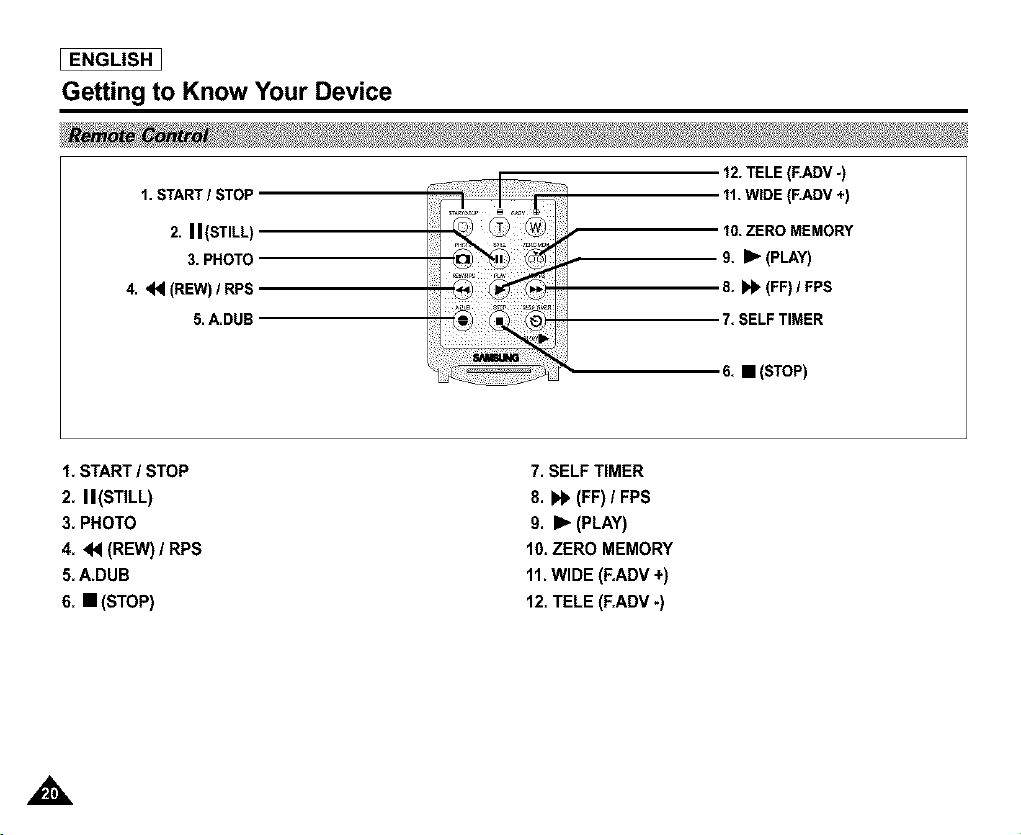
Getting to Know Your Device
1. START / STOP
2. I I(STILL)
3, PHOTO
4, <4 (REW) / RPS
5, A.DUB
12. TELE (F.ADV-)
11. WIDE (RADV +)
10. ZERO MEMORY
9. _ (PLAY)
8. _ (FF) / FPS
7. SELF TIMER
6.•(STOP)
1, START / STOP
2, II(STILL)
3, PHOTO
4, 44 (REW) / RPS
5, A.DUB
6. • (STOP)
7. SELF TIMER
8. bb (FF)/ FPS
9. II_ (PLAY)
10,ZERO MEMORY
11.WIDE (F,ADV +)
12, TELE (F,ADV -)
,A
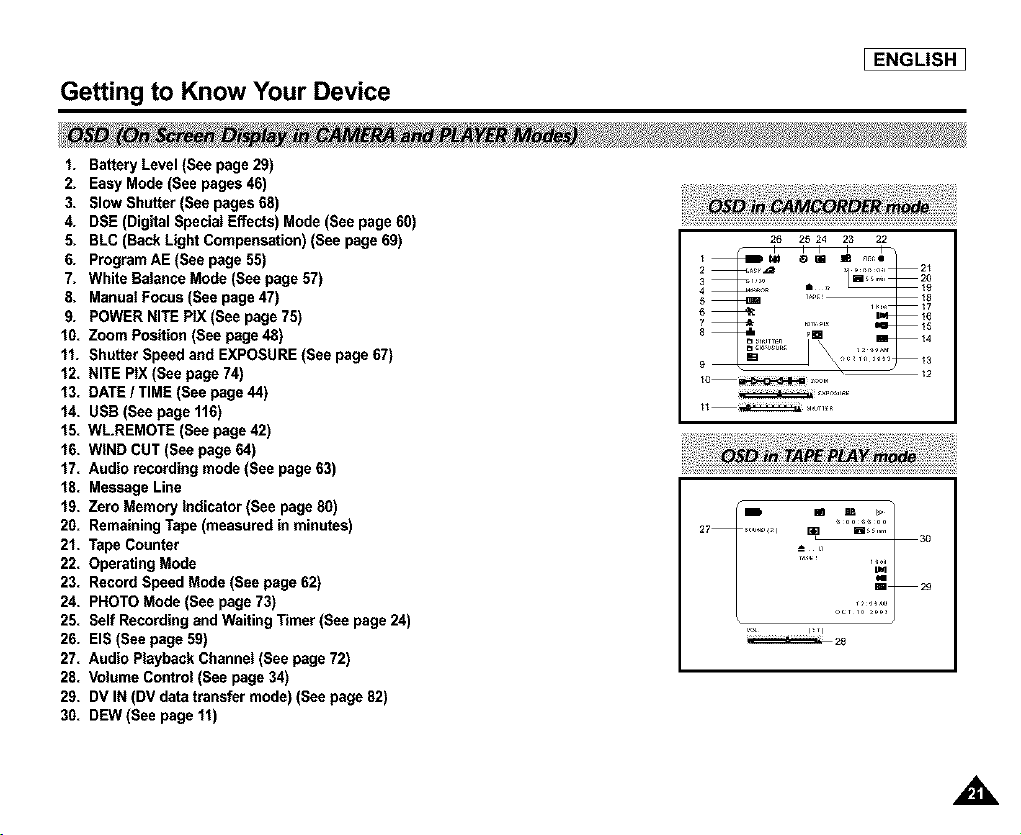
Getting to Know Your Device
1. B_tery Level (See page 29)
2. Easy Mode (See pages 46)
3. Slow Shutter (See pages 68)
4. DSE (Digital Special Effects) Mode (See page 60)
5. BLC (Back Light Compensation) (See page 69)
6. Program AE (See page 55)
7. White Balance Mode (See page 57)
8. Manual Focus (See page 47)
9. POWER NITE PIX (See page 75)
f0. Zoom Position (See page 48)
ff. Shutter Speed and EXPOSURE (See page 67)
f2. NITE PIX (See page 74)
f3. DATE / TIME (See page 44)
_4. USB (See page 116}
f5. WL.REMOTE (See page 42)
f6. WiND CUT (See page 64)
f7. Audio recording mode (See page 63)
18. Message Line
f9. Zero Memory indicator (See page 80)
20. Remaining Tape (measured in minutes)
2f. Tape Counter
22. Operating Mode
23. Record Speed Mode (See page 62)
24. PHOTO Mode (See page 73)
25. Self Recording and Waiting Timer (See page 24)
26. EIS (See page 59)
27. Audio Ptayback Channel (See page 72)
28. Volume Control (See page 34)
29. DV IN (DV data transfer mode) (See page 82)
30. DEW (See page 11)
I ENGLISH 1
27 _42_ _s_,_, 3O
m 2g
,A
I ENGLISH
Getting to Know Your Device
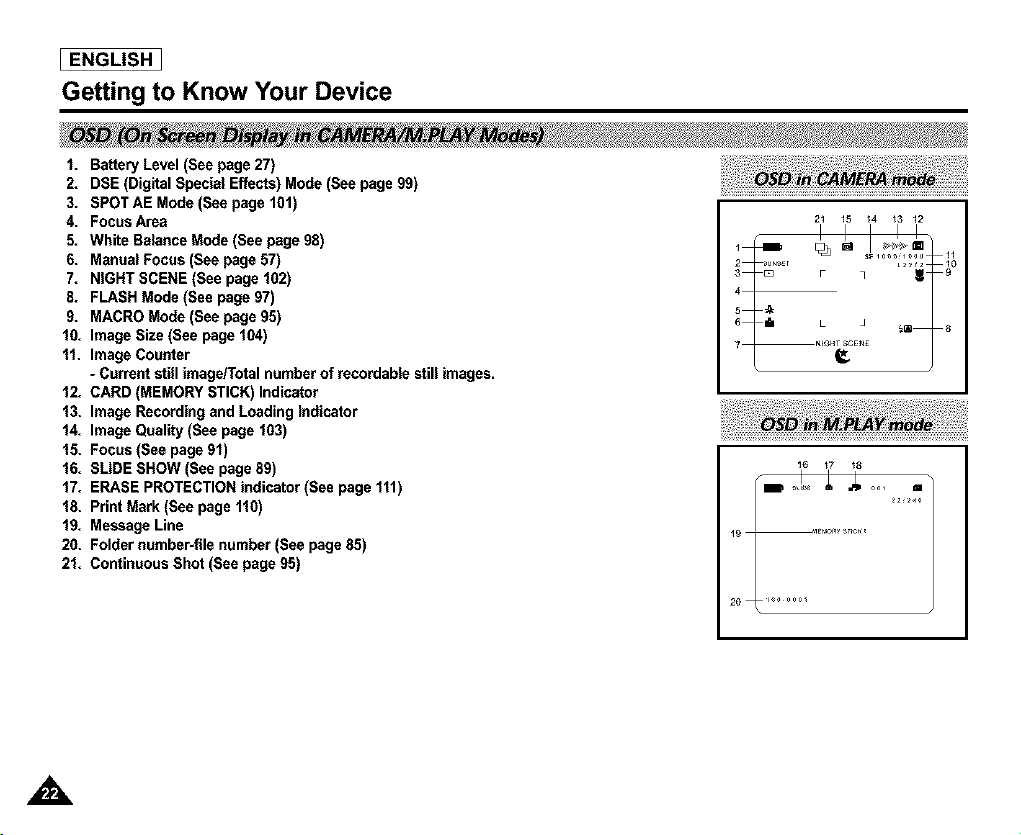
I. Battery Level (See page 27)
2. DSE (Digital Special Effects) Mode (See page 99)
3. SPOT AE Mode (See page 101)
4. Focus Area
5. White Balance Mode (See page 98)
6. Manual Focus (See page 57)
7. NIGHT SCENE (See page 102)
8. FLASH Mode (See page 97)
9. MACRO Mode (See page 95)
10. Image Size (See page 104)
11. Image Counter
- Current still image/Total number of recordable still images,
12. CARD (MEMORY STICK) Indicator
13. Image Recording and Loading indicator
14. Image Quality (See page 103)
15. Focus (See page 91)
16. SLIDE SHOW (See page 89)
17. ERASE PROTECTION indicator (See page 111)
18. Print Mark (See page 110)
19. Message Line
20. Folder number-file number (See page 85)
21. Continuous Shot (See page 95)
21 15 14 _3 12
16 _7 _8
,A
Getting to Know Your Device
I ENGLISH 1
• Turning OSD ON/OFF
Press the DISPLAY button.
- Each press of the button toggles the OSD function ON and OFE
- When you turn the OSD OFF,
In CAMCORDER / CAMERA mode: The STBY,REC, EASY.Q modes are always
displayed on the OSD, even when the OSD is turned OFE The key input is displayed
for 3 seconds then turned off.
In PLAYER mode: When you press any Function button, the function is displayed
on the OSD for 3 seconds before it disappears.
• Turning the DATE/TIME ON/OFF
- The DATE/TIME is not affected whenthe OSD function is switched ON or OFE
- To turn the DATE/TIMEON or OFF, access the menu and change the DATE/TIME
mode. (See page 50)
- You may also use the Quick Menu to turn the DATE/TIMEON or OFF. (See page 65)
(only in CAMCORDER / CAMERA mode)
[ ENGLISH ]
Preparation
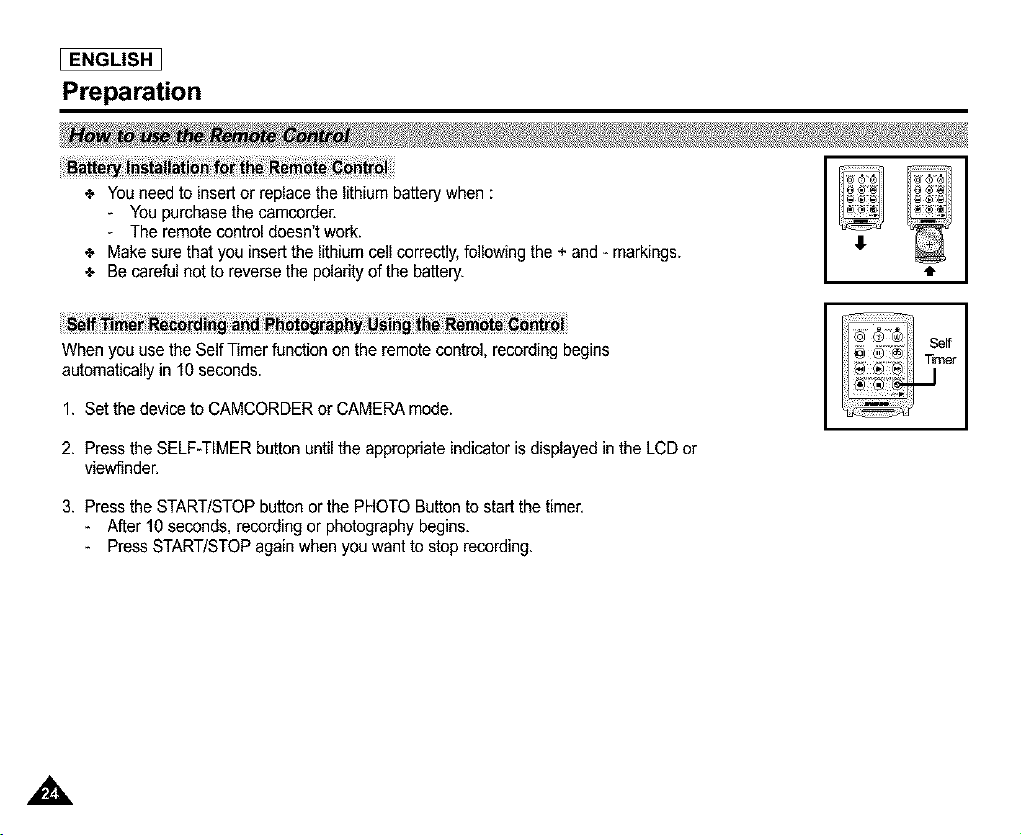
-_ You need to insert or replace the lithium battery when :
- You purchase the camcorder.
- The remote control doesn't work.
-_ Make sure that you insert the lithium cell correctly,following the + and - markings.
-_ Be careful not to reverse the poladty of the battery.
,I.
When you use the Self Timer function on the remote control, recording begins
automatically in 10 seconds.
1. Set the device to CAMCORDER or CAMERA mode.
2. Press the SELF-TIMER button until the appropriate indicator is displayed in the LCD or
viewfinder.
3. Press the START/STOPbutton or the PHOTO Button to start the timer.
- After 10 seconds, recording or photography begins.
- Press START/STOPagain when you want to stop recording.
A
Preparation
I ENGLISH 1
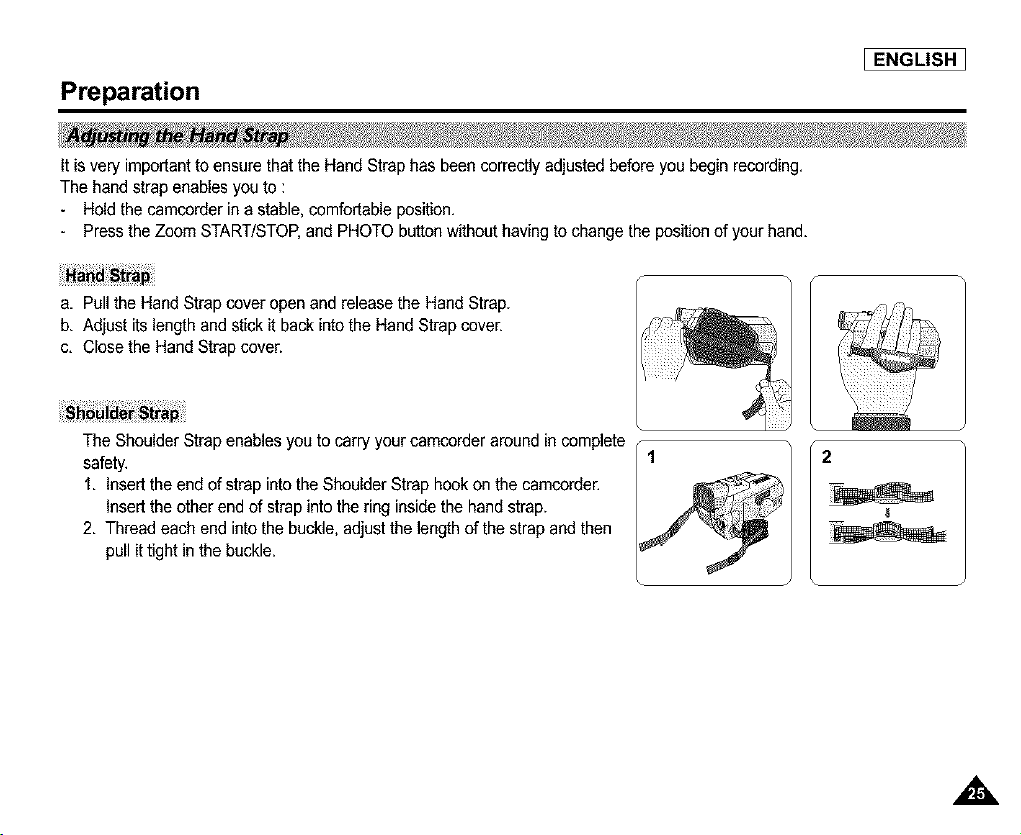
It is very important to ensure that the Hand Strap has been correctly adjusted before you begin recording.
The hand strap enables you to :
- Hold the camcorder in a stable, comfortable position.
- Press the Zoom START/STOP,and PHOTO button without having to change the position of your hand.
a. Pull the Hand Strap cover open and release the Hand Strap.
b. Adjust its length and stick it back into the Hand Strap cover.
c. Close the Hand Strap cover.
The Shoulder Strap enables you to carry your camcorder around in complete
safety.
1. Insert the end of strap into the Shoulder Strap hook on the camcorder.
Insert the other end of strap into the ring inside the hand strap.
2. Thread each end into the buckle, adjust the length of the strap and then
pullit tightin the buckle.
,,&
I ENGLISH
Preparation
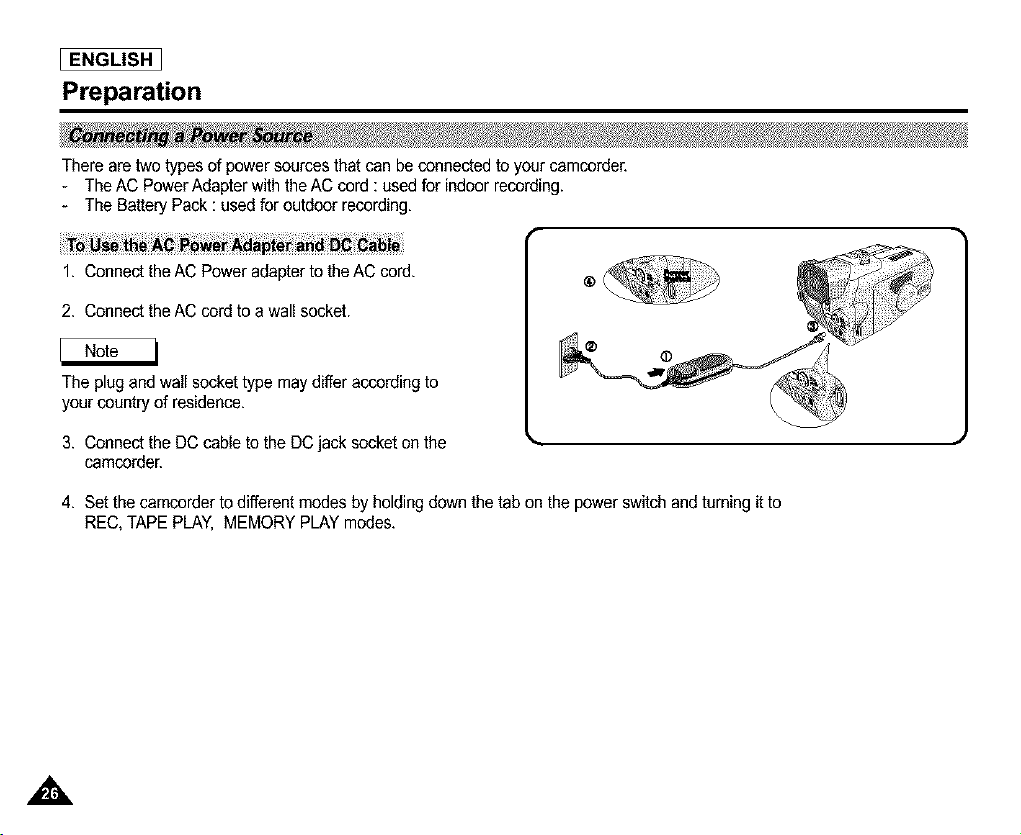
There are two typesof power sources that can beconnected to your camcorder.
- The AC Power Adapter with the AC cord : used for indoor recording.
- The Battery Pack : used for outdoor recording,
1. Connect the AC Power adapter to the AC cord.
2. Connect the AC cord to a wall socket.
The plug and waif sockettype may differ according to
your country of residence.
3. Connect the DC cable to the DC jack socket on the
camcorder.
4. Set the camcorder to different modes by holding down the tab on the power switch and turning it to
REC, TAPE PLAY, MEMORY PLAY modes.
Preparation
I ENGLISH ]
•:, The amount of continuous recording time available depends on :
- The type and capacity of the battery pack you are using.
- How often the Zoom function is used.
It is recommended that you have several batteries available.
_rg _ i_ _
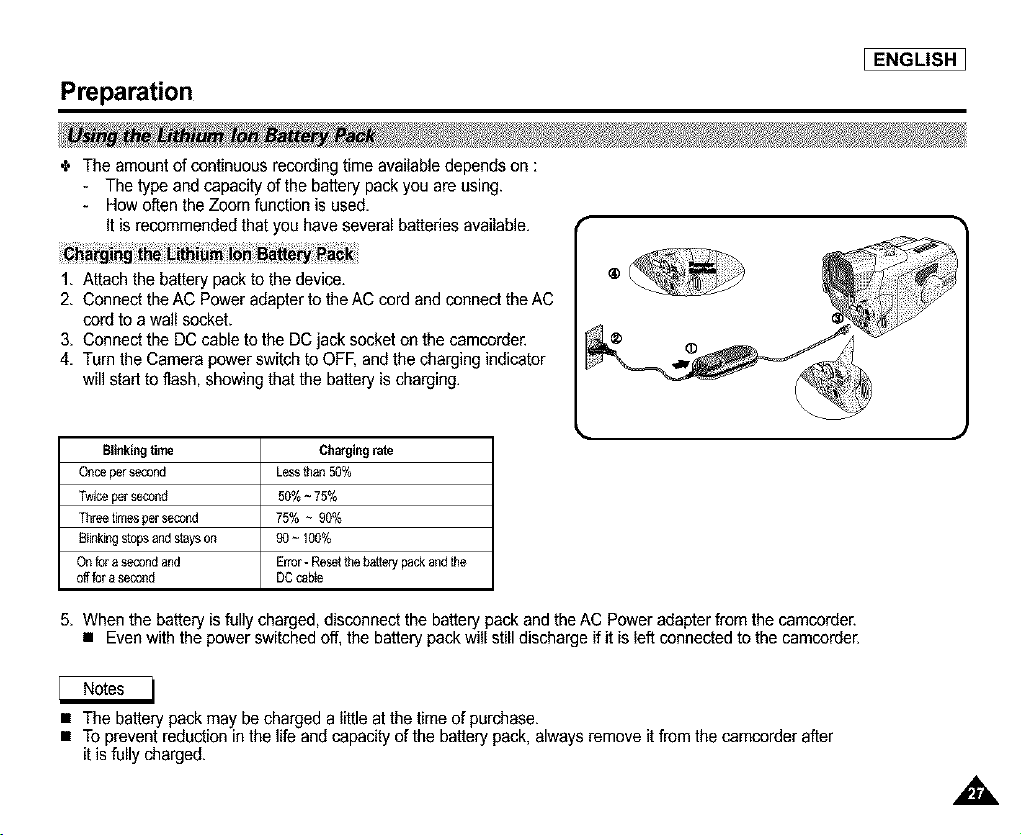
1. Attach the battery pack to the device.
2. Connect the AC Power adapter to the AC cord and connect the AC
cord to a wall socket.
3. Connect the DC cable to the DC jack socket on the camcorder.
4. Turn the Camera power switch to OFF, and the charging indicator
will start to flash, showing that the battery is charging.
©
Blinking lime Charging rate
Onceper second Lessthan 50%
Twi_ per second 50% ~ 75%
Threetimesper second 75% ~ 90%
Blinkingstopsand stayson 90 ~ 100%
On for a secondand Error- Resetthe batterypack and the
offthr a second DCcable
5. When the battery is fully charged, disconnect the battery pack and the AC Power adapter from the camcorder.
• Even with the powerswitched off, the battery packwill still discharge if it is left connected to the camcorder.
• The battery pack may be charged a little at the timeof purchase.
• To prevent reduction in the life and capacity of the battery pack. always remove it from the camcorder after
it is fully charged.
ENGLISH ]
Preparation
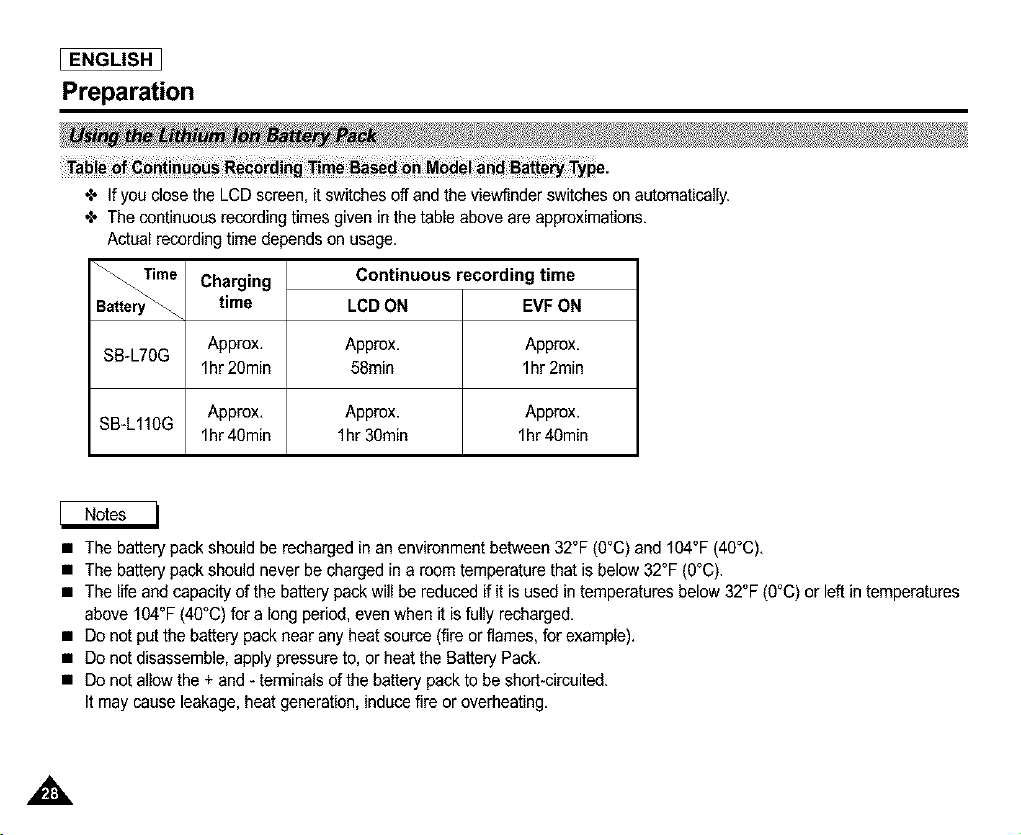
If you close the LCD screen, it switches off and the viewfinder switches on automatically.
The continuous recording times given in the table above are approximations.
Actual recording time depends on usage.
Time
SB-L70G
Charging
time
Approx.
lhr 20min
SB-L110G Approx.
lhr 40min
Continuous recording time
LCD ON EVF ON
Approx. Approx.
58min lhr 2min
Approx. Approx.
lhr 3Omin lhr 4Omin
• The battery pack should be recharged in an environment between 32°F (O°C)and 104°F (40°C).
• The battery pack should never be charged in a room temperature that is below 32°F (O°C).
• The life and capacity of the battery pack will be reduced if it is used in temperatures below 32°F (O°C)or left in temperatures
above 104°F (40°C) for a Longperiod, even when it is fully recharged.
• Do not pot the battery packnear any heat source (fire or flames, for example).
• Do not disassemble, apply pressure to, or heat the Battery Pack.
• Do not allow the + and - termicals of the battery packto be short-circuited.
It may cause leakage, heat generation, induce fire or overheating.
A
Preparation
I ENGLISH 1
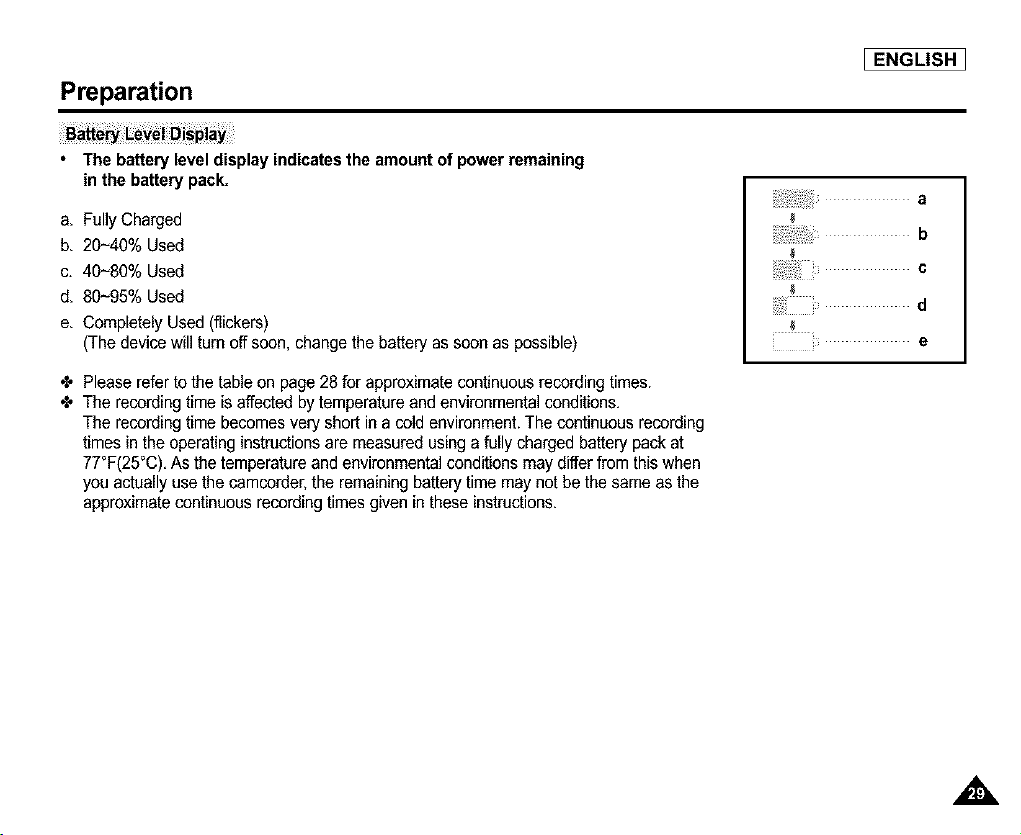
• The battery level display indicates the amount of power remaining
in the battery pack,
a. FullyCharged
b. 20~40% Used
c, 40~80% Used
d. 80~95% Used
e. Completely Used (flickers)
(The device will turn off soon, change the battery as soon as possible)
÷ Please refer to the table on page 28 for approximate continuous recording times.
÷ The recording time is affected by temperature and environmental conditions,
The recording time becomes very short in a cold environment. The continuous recording
times in the operating instructions are measured using a fully charged battery pack at
77°F(25°C), As the temperature and environmental conditions may differ from this when
you actually use the camcorder,the remaining battery time may not be the same as the
approximate continuous recording times given in these instructions.
a
,,&
[ ENGLISH ]
Preparation
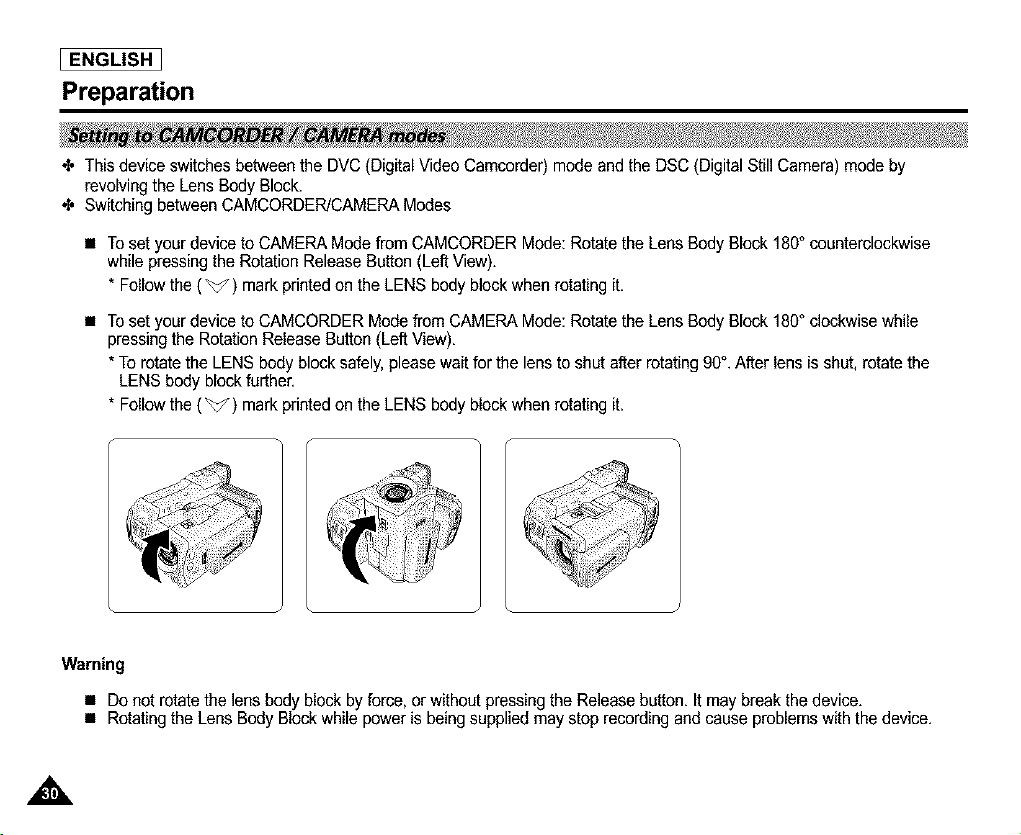
_, This device switches between the DVC (Digital Video Camcorder) mode and the DSC (Digital Still Camera) mode by
revolving the Lens Body Block.
_, Switching between CAMCORDER!CAMERA Modes
• To set your device to CAMERA Mode from CAMCORDER Mode: Rotate the Lens Body Block 180° counterclockwise
while pressing the Rotation Release Button (Left View).
* Followthe (_) mark printed on the LENS body block when rotating it.
• To set your device to CAMCORDER Mode from CAMERA Mode: Rotate the Lens Body Block 180° clockwise while
pressingthe Rotation Release Button (Left View).
* To rotate the LENS body block safely, please wait for the lens to shut after rotating 90°. After lens is shut, rotate the
LENS body block further.
* Followthe (_) mark printed on the LENS body block when rotating it.
Warning
• Do not rotate the lens body block by force, or without pressing the Release button. It may break the device.
• Rotating the Lens Body Block while power is being supplied may stop recording and cause problemswith the device.
,A
Preparation
I ENGLISH ]
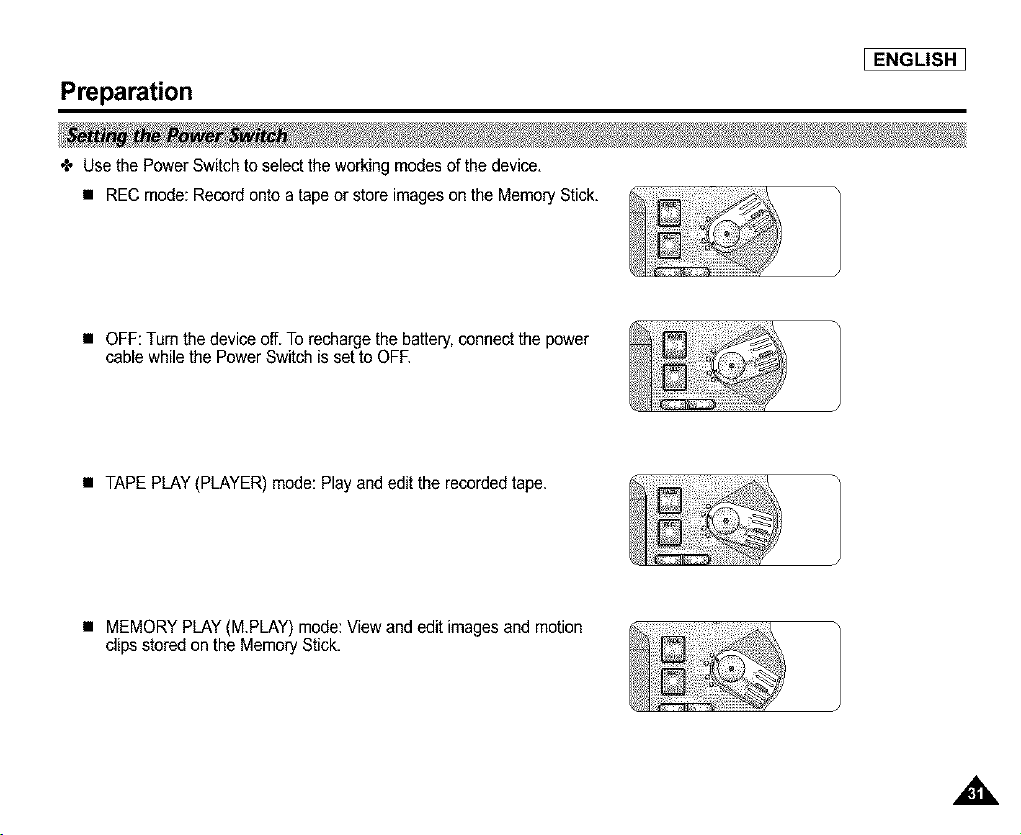
÷ Use the Power Switch to select the working modes of the device.
• REC mode: Record onto a tape or store images on the Memory Stick.
• OFF: Turn the device off.To recharge the battery,connect the power
cable while the Power Switch is set to OFF.
• TAPE PLAY (PLAYER) mode: Play and edit the recorded tape.
• MEMORY PLAY (M.PLAY) mode: View and edit images and motion
clips stored on the Memory Stick.
I ENGLISH
Preparation
_, Your camcorder is equipped with a 2 inch color Liquid Crystal Display(LCD) screen, which enables you to
view what you are recording and play back directly,
_, Depending on the conditions under which you are using the camcorder (indoors or outdoors), you can
adjust ;
• BRIGHTADJUST
• COLOR ADJUST
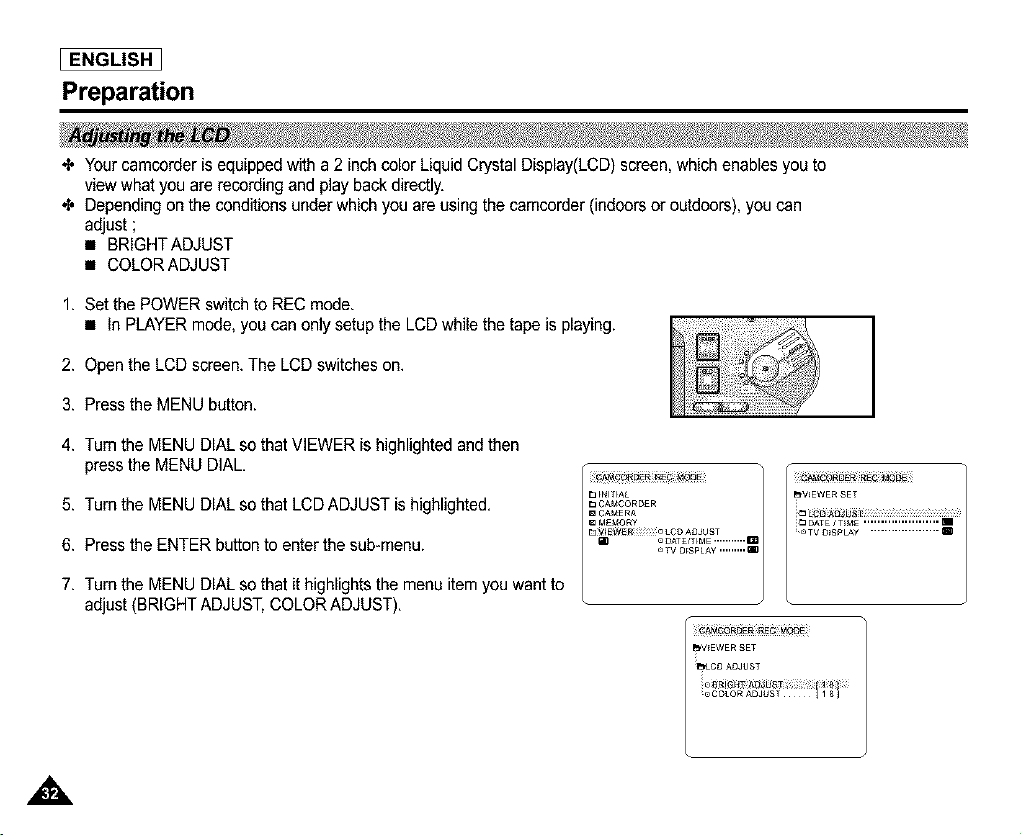
1. Set the POWER switch to REC mode.
• In PLAYER mode, you can only setup the LCD while the tape is playing.
2. Open the LCD screen. The LCD switches on.
3. Press the MENU button.
4. Tum the MENU DIAL so that VIEWER is highlighted and then
press the MENU DIAL.
5. Turn the MENU DIAL so that LCD ADJUST is highlighted.
6. Press the ENTER buttonto enter the sub-menu.
7. Turn the MENU DIAL so that it highlights the menu item you want to
adjust (BRIGHT ADJUST, COLORADJUST).
CA_tCORD_R
m CAME RA
M£t_ORy
m o DAT£/,r_ME ........... m
TV OFSPLAY ,,,,,,,,, m
_V_EWER SET
_LC [3 ADJUST
eCOLOR ADJUST I I 8 J
Preparation
8. Press the MENU DIAL.
• Use the MENU DIAL to adjust the value of BRIGHT ADJUST and COLOR ADJUST.
• You can set the values for BRIGHTADJUST between 0 ~ 35 and COLOR ADJUST between 0 ~ 35,
9. Press the MENU button to complete the setting.
I ENGLISH ]
÷ The VIEWFINDER will not work when the LCD is open.
Use the focus adjustment knob on the VIEWFINDER to focus the picture.
(refer to diagram)
I ENGLISH
Preparation
4, You can adjust the LCD during playback.
4, The adjustment method is the same as is used while in CAMERA mode. (See page 32)
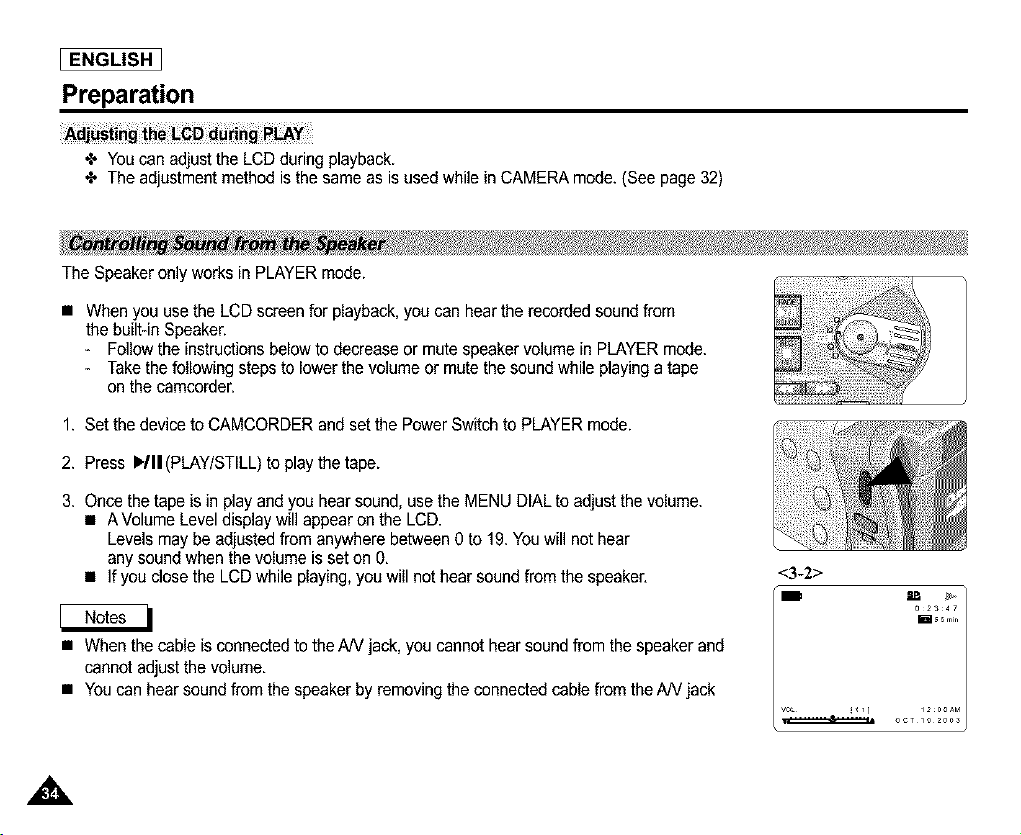
The Speaker only works in PLAYER mode.
• When you use the LCD screen for playback, you can hear the recorded sound from
the built-in Speaker.
- Followthe instructions below to decrease or mute speaker volume in PLAYER mode.
- Take the following steps to lower the volume or mute the sound while playing a tape
on the camcorder.
1. Set the device to CAMCORDER and set the Power Switch to PLAYER mode.
2. Press I,/11(PLAY/STILL) to playthe tape.
3. Once the tape isin play and you hear sound, use the MENU DIAL to adjust the volume.
• A Volume Leveldisplay will appear on the LCD.
Levels may be adjusted from anywhere between 0 to 19. You will not hear
any sound when the volume is set on 0.
• If you close the LCDwhile playing, you will not hear sound from the speaker.
• When the cable is connected to the AN jack, you cannot hear sound from the speaker and
cannot adjust the volume.
• Youcan hear sound from the speaker by removing the connected cable from theAN jack
<3-2>
IB g_
02347
OCT 1020_S
Functions
I ENGLISH ]
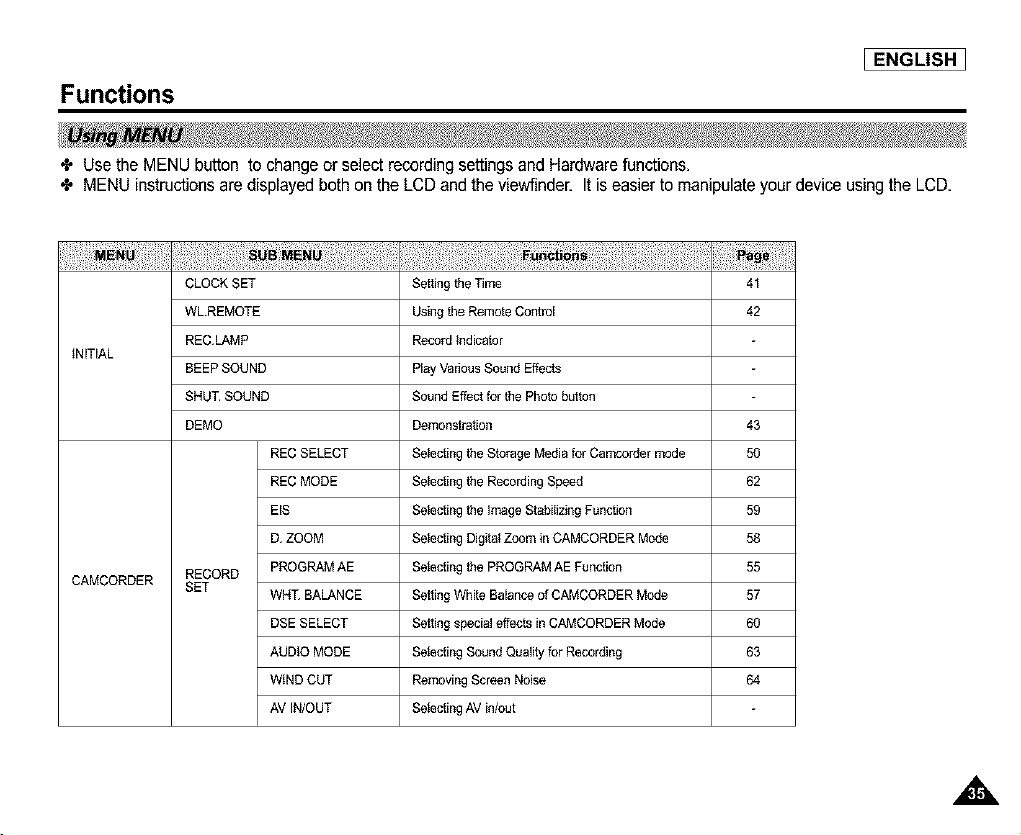
÷ Use the MENU button to change or select recording settings and Hardware functions.
÷ MENU instructions are displayed both on the LCD and the viewfinder. It is easier to manipulate your device usingthe LCD.
41
42
INiTiAL
CAMCORDER
CLOCK SET
WL.REMOTE
REC.LAMp
BEEP SOUND
SHUT. SOUND
DEMO
REC SELECT
REC MODE
EIS
D. ZOOM
RECORD PROGRAM AE
SET
WHT. BALANCE
DSE SELECT
AUDIO MODE
WIND CUT
AV IN/OUT
Setting the Time
Using the Remote Control
Record indicator
Play Vadous Sound Effects
Sound Effect for the Photo button
Demonstration 43
Selecting the Storage Media for Camcorder mode 50
Selecting the Recording Speed 62
Selecting the image Stabilizing Function 59
Selecting Digitei Zoom in CAMCORDER Mode 58
Selecting the PROGRAM AE Function 55
Setting White Balance of CAMCORDER Mode 57
Setting special effects in CAMCORDER Mode 60
Selecting Sound Quality for Recording 63
Removing Screen Noise 64
Selecting AV in/out
,A
I ENGLISH
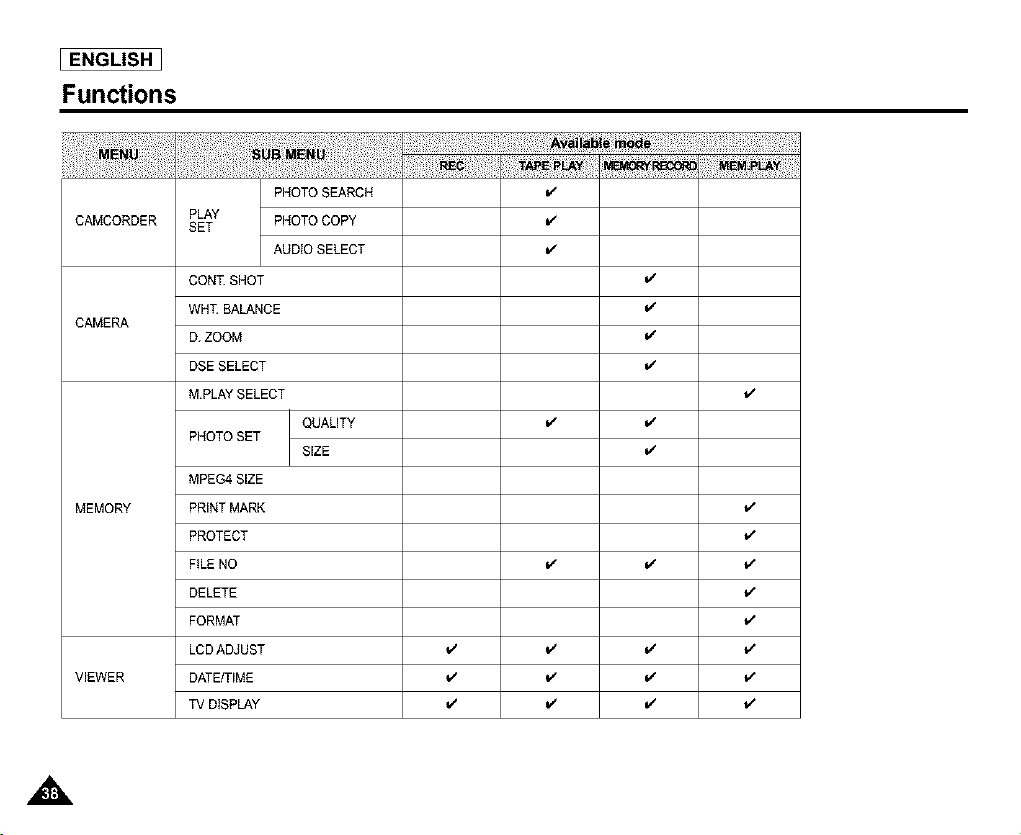
Functions
CAMCORDER
CAMERA
MEMORY
VIEWER
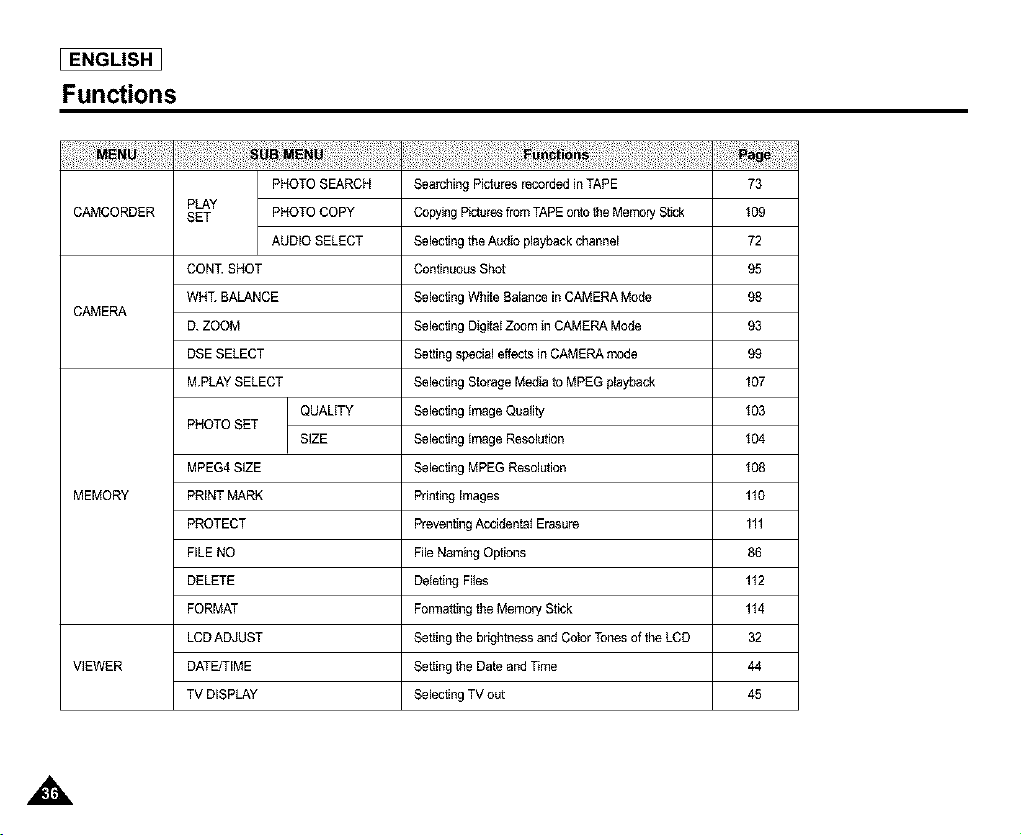
PHOTO SEARCH
PLAY
SET PHOTO COPY
AUDIO SELECT
CONT SHOT
WH£ BALANCE
D. ZOOM
DSE SELECT
M.PLAY SELECT
QUALITY
PHOTO SET
SiZE
MPEG4SIZE
PRINT MARK
PROTECT
FILE NO
DELETE
FORMAT
LCDADJUST
DATEJTIME
TV DISPLAY
Searching Pictures recorded inTAPE
Copying Picturesfrom TAPEonto the Memory Stick
Seiecffeg the Audio playback channel
Continuous Shot
Seiecffeg White Balance in CAMERA Mode
Seiecffeg Digitsi Zoom in CAMERA Mode
Setting special effectsin CAMERA mode
Seiecffeg Storage Media to MPEG playback
Seiecffeg image Quaigy
Seiecffeg image Resolution
Seiecffeg MPEG Resolution
Printing Images
Preventing Acciffentsi Erasure
File Naming Options
Deleting Flies
Formatting the Memory Stick
Setting the brightness and Cothr Tones of the LCD
Setting the Date and Time
Seiecffeg TV out
73
I09
72
95
98
93
99
107
I03
I04
I08
110
111
86
112
114
32
44
45
,A
Functions
I ENGLISH 1
CLOCK SET
WL.REMOTE v*
REC.LAMP
INITIAL
BEEPSOUND
SHUT SOUND
DEMO
CAMCORDER
RECORD
SET
REC SELECT
REC MODE
EIS
D. ZOOM
PROGRAM AE
WHT. BALANCE
DSE SELECT
AUDIO MODE
WIND CUT
AV iN/OUT
J
J
J
J
[ ENGLISH
Functions
CAMCORDER
v'
v'
v'
v'
v'
CAMERA
J
J
v"
J
MEMORY
PHOTO SEARCH
PLAY PHOTO COPY
SET
AUDIO SELECT
CONT SHOT
WH£ BALANCE
D. ZOOM
DSE SELECT
M.PLAYSELECT
QUALITY
PHOTO SET
SIZE
MPEG4 SIZE
PRINT MARK
PROTECT
FILE NO
DELETE
FORMAT
LCDADJUST
DATE/TIME
TVDISPLAY
J
J
J J
v' v' L,"
VIEWER _ _ J
v' v' L,"
,A

Functions
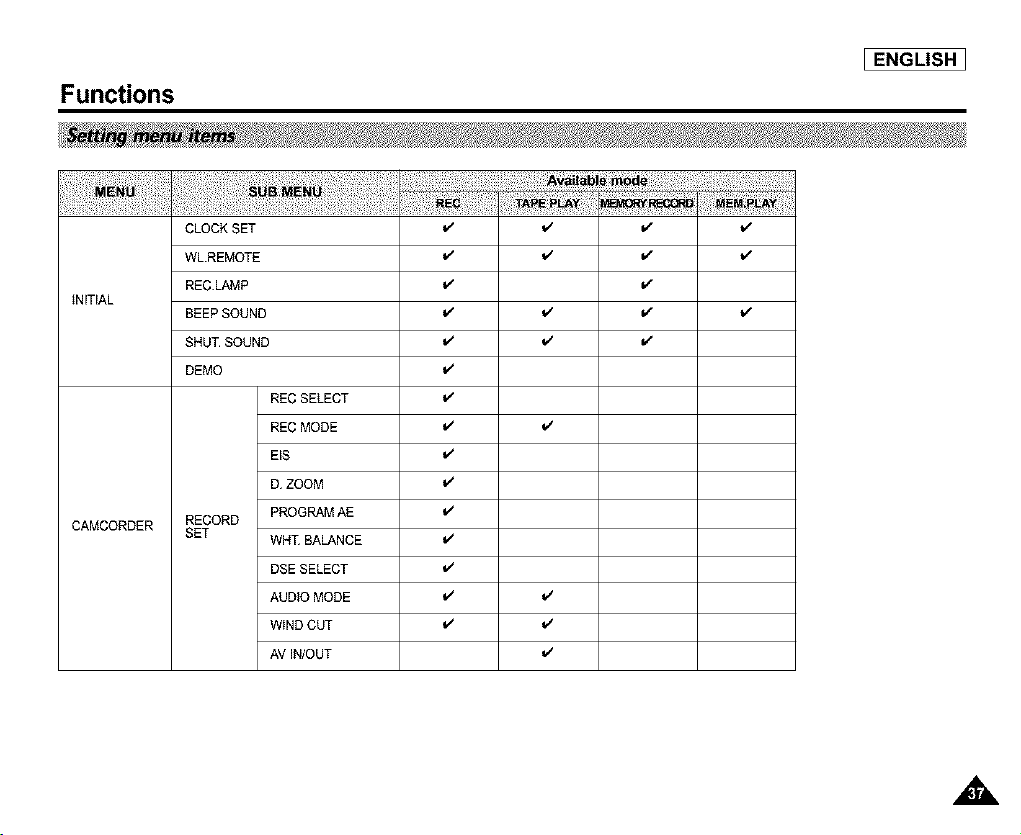
• Seffing_ REC, TAPE PLAY, MEMQ
1. Press the MENU button.
2. The MENU OSD is displayed. The cursor ( _ ) indicates the feature you are
currently adjusting,
3. Use the MENU DIAL to move between itemsand pressthe MENU DIAL to select and activate
an item.
4. You can exit Menu mode by pressingthe MENU button.
I ENGLISH ]
,A
I ENGLISH
Functions
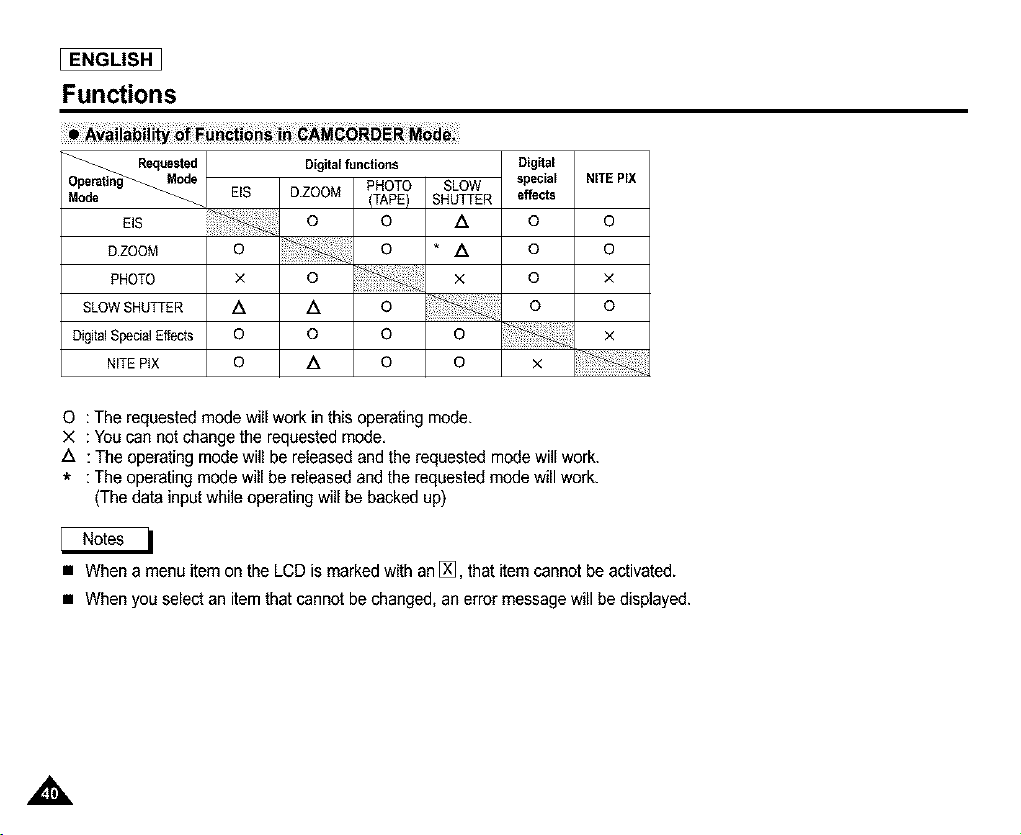
Requested
Operating Mode
EIS
D.ZOOM
PHOTO
SLOWSHUTTER
DigitalSpecialEffects
NITEPtX
Digital functions
EIS D.ZOOM PHOTO
(TAPE)
o o
o o
x o
A A o
o o o
SLOW
SHUTTER
A
NITE PIX
Digital
special
effects
O
O
O
O
o
* A o
x x
o
o x
o A o o ×
0 :The requested mode will work in this operating mode.
X : You can not change the requested mode.
A : The operating mode will be released and the requested mode will work.
* : The operating mode will be released and the requested mode will work.
(The data input while operating will be backed up)
• When a menu item on the LCD is marked with an [_, that item cannot be activated.
• When you select an item that cannot be changed, an error message will be displayed.
A
I ENGLISH 1
Functions
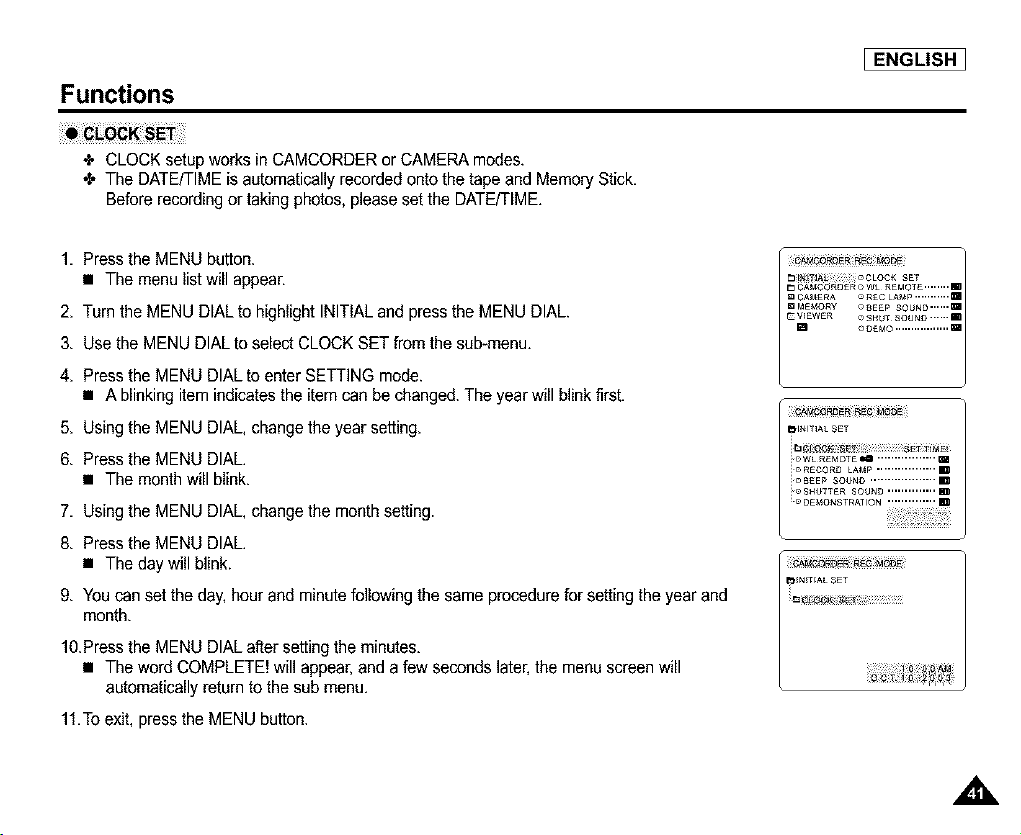
4, CLOCK setup works in CAMCORDER or CAMERA modes.
4, The DATE/TIME is automatically recorded onto the tape and Memory Stick.
Before recording or taking photos, please set the DATE/TIME.
1. Press the MENU button.
• The menu list will appear.
2. Turn the MENU DIAL to highlight INITIALand press the MENU DIAL.
3. Use the MENU DIAL to select CLOCK SET from the sub-menu.
4. Press the MENU DIAL to enter SETTING mode.
• A blinking item indicates the item can be changed.The year will blink first.
5. Using the MENU DIAL, change the year setting.
6. Press the MENU DIAL.
• The month will blink.
7. Using the MENU DIAL, change the month setting.
8. Press the MENU DIAL.
• The day will blink.
9. You can set the day, hour and minute following the same procedure for setting the year and
month.
1O.Pressthe MENU DIAL after setting the minutes.
• The word COMPLETE! will appear,and a few seconds later, the menu screen will
automatically return to the sub menu.
11.To exit, press the MENU button.
CAtCCORDERP,EC MODE
,,&

ENGLISH_
Functions
4. The WLREMOTE function works in CAMCORDER or CAMERA modes.
4. The WLREMOTE option allows you to enable or disable the remote control for use in CAMCORDER and CAMERA
modes.
1. Press the MENU button.
• The menu list will appear.
2. Turn the MENU DIAL to highlight INITIAL and press the MENU DIAL.
3. Use the MENU DIAL to select WL.REMOTE from the sub-menu.
4. Press the MENU DIAL to enable or disable the remote control.
The setting switches between ON/OFF each time you press the MENU DIAL.
5. To exit, press the MENU button.
• tt you set the remote to OFF in the menu and try to use it, the remote control icon will blink
for 3 seconds and disappear on the LCD.
I ENGLISH ]
Functions
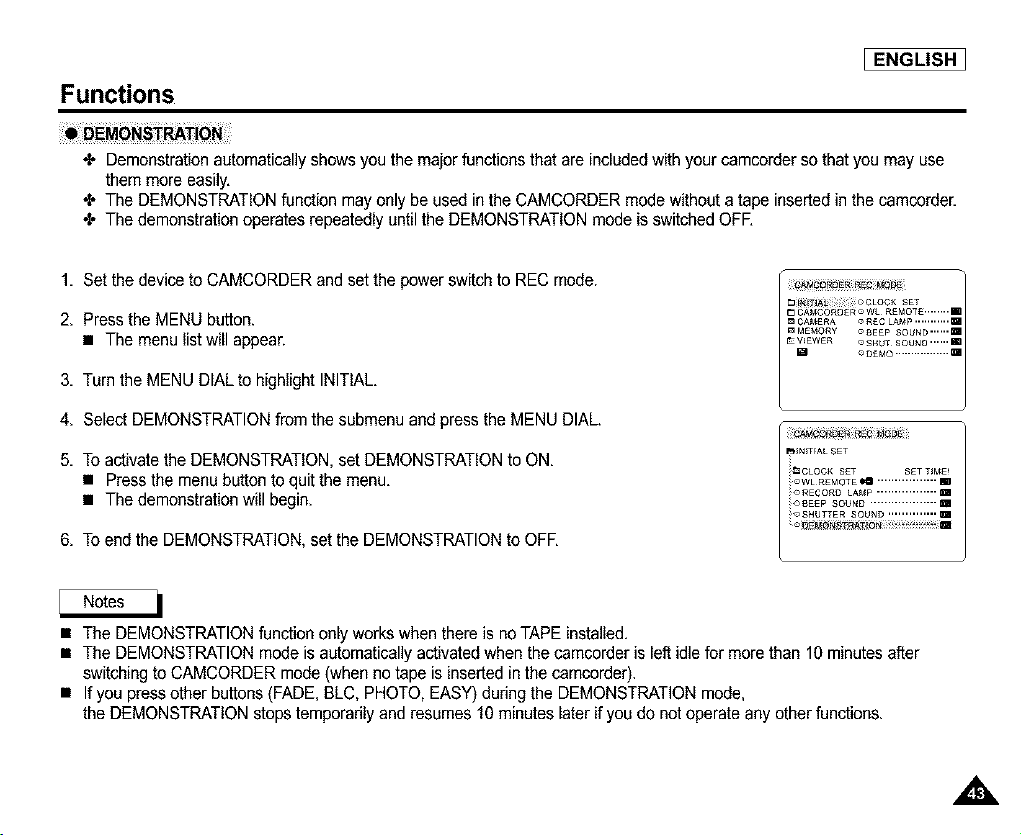
•I, Demonstration automatically shows you the major functions that are included with your camcorder so that you may use
them more easily.
•_ The DEMONSTRATION function mayonly be used in the CAMCORDER mode without a tape inserted in the camcorder.
•I, The demonstration operates repeatedly until the DEMONSTRATIONmode is switched OFF.
1. Set the device to CAMCORDER and set the powerswitch to REC mode.
2. Press the MENU button.
• The menu list will appear.
3. Turn the MENU DIAL to highlight INITIAL.
4. Select DEMONSTRATIONfrom the submenu and press the MENU DIAL.
5. To activate the DEMONSTRATION. set DEMONSTRATION to ON.
• Press the menu button to quit the menu.
• The demonstration will begin.
6. To end the DEMONSTRATION, set the DEMONSTRATION to OFE
• The DEMONSTRATION function only works when there is no TAPE installed.
• The DEMONSTRATION mode is automatically activated when the camcorder is left idle for more than 10 minutes after
switching to CAMCORDER mode (when no tape is inserted in the camcorder).
• If you press other buttons (FADE, BLC, PHOTO, EASY) dudng the DEMONSTRATIONmode,
the DEMONSTRATIONstops temporadly and resumes 10 minutes later if you do not operate any other functions.
ENGLISH_
Functions
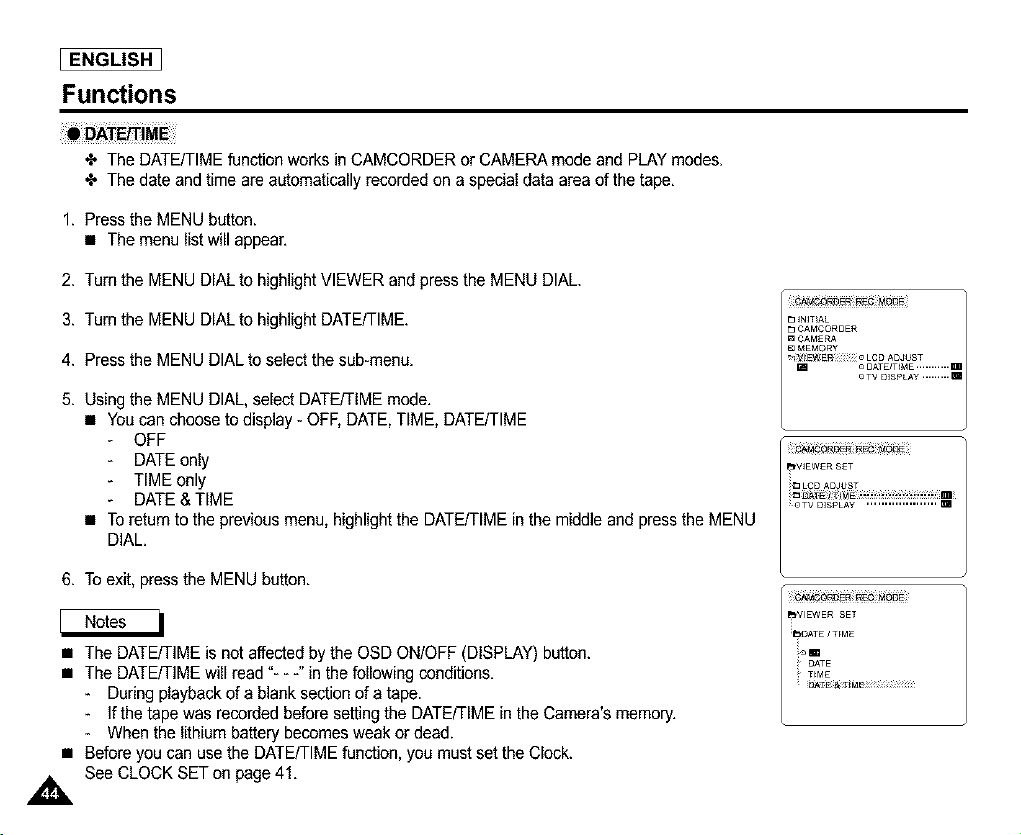
J DAT_iME
•Z, The DATE/TIME function works in CAMCORDER or CAMERA mode and PLAY modes.
•Z, The date and time are automatically recorded on a special data area of the tape.
1. Press the MENU button.
• The menu list will appear.
2. Turn the MENU DIAL to highlight VIEWER and pressthe MENU DIAL.
3. Tum the MENU DIAL to highlight DATE/TIME.
4. Press the MENU DIAL to select the sub-menu.
5. Using the MENU DIAL, select DATE/TIME mode.
• You can choose to display - OFF, DATE, TIME, DATE/TIME
OFF
DATE only
TIME only
DATE & TIME
• To return to the previous menu, highlight the DATE/TIMEin the middle and press the MENU
DIAL.
6. To exit, press the MENU button.
• The DATE/TIME is not affected by the OSD ON/OFF (DISPLAY) button.
• The DATE/TIME will read "- - -" in the following conditions.
- During playback of a blank section of a tape.
- If the tape was recorded before setting the DATE/TIME in the Camera's memory.
- When the lithium battery becomes weak or dead.
• Before you can use the DATE/TIME function, you must set the Clock.
_ See CLOCK SET on page 41,
I ENGLISH 1
Functions
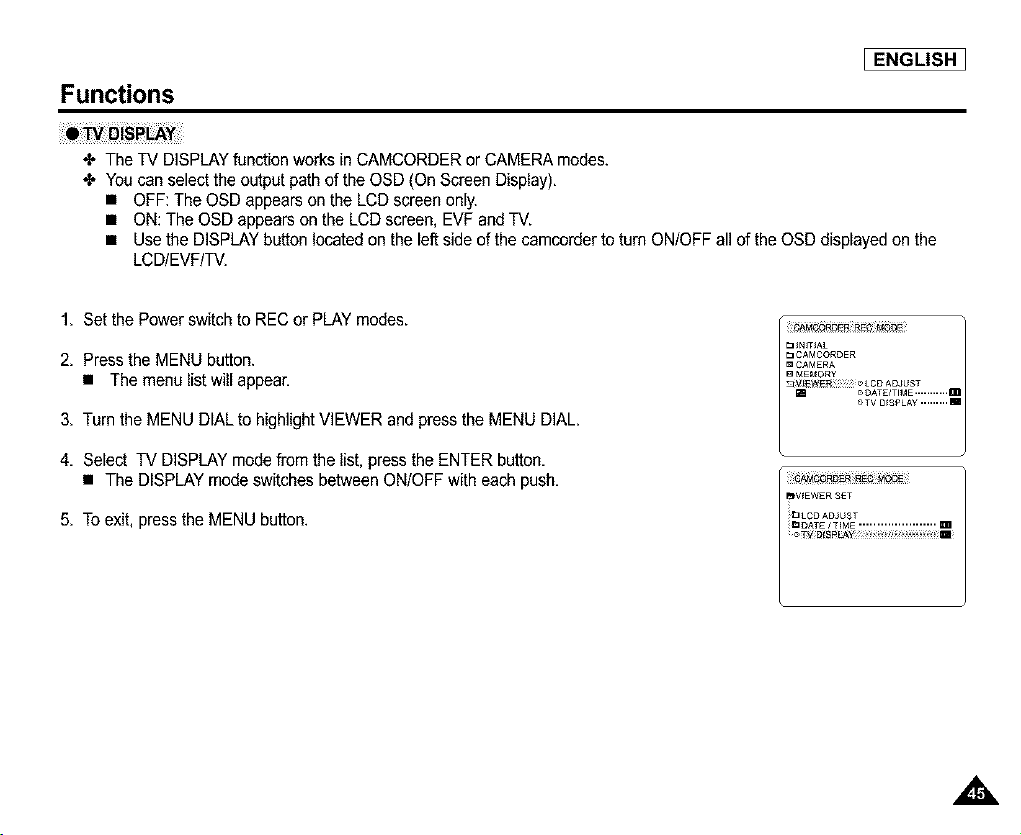
•_ The TV DISPLAY function works in CAMCORDER or CAMERA modes.
•I. You can select the output path of the OSD (On Screen Display).
• OFF: The OSD appears on the LCD screen only.
• ON: The OSD appears on the LCD screen. EVF and TV.
• Use the DISPLAY button located on the left side of the camcorder to turn ON/OFF all of the OSD displayed on the
LCD/EVF/TV,
1, Set the Power switch to REC or PLAY modes.
2, Press the MENU button.
• The menu list will appear.
3, Turn the MENU DIAL to highlight VIEWER and press the MENU DIAL,
4, Select TV DISPLAY mode from the list. press the ENTER button,
• The DISPLAY mode switches between ON/OFF with each push,
5, To exit. press the MENU button.
I ENGLISH
Functions
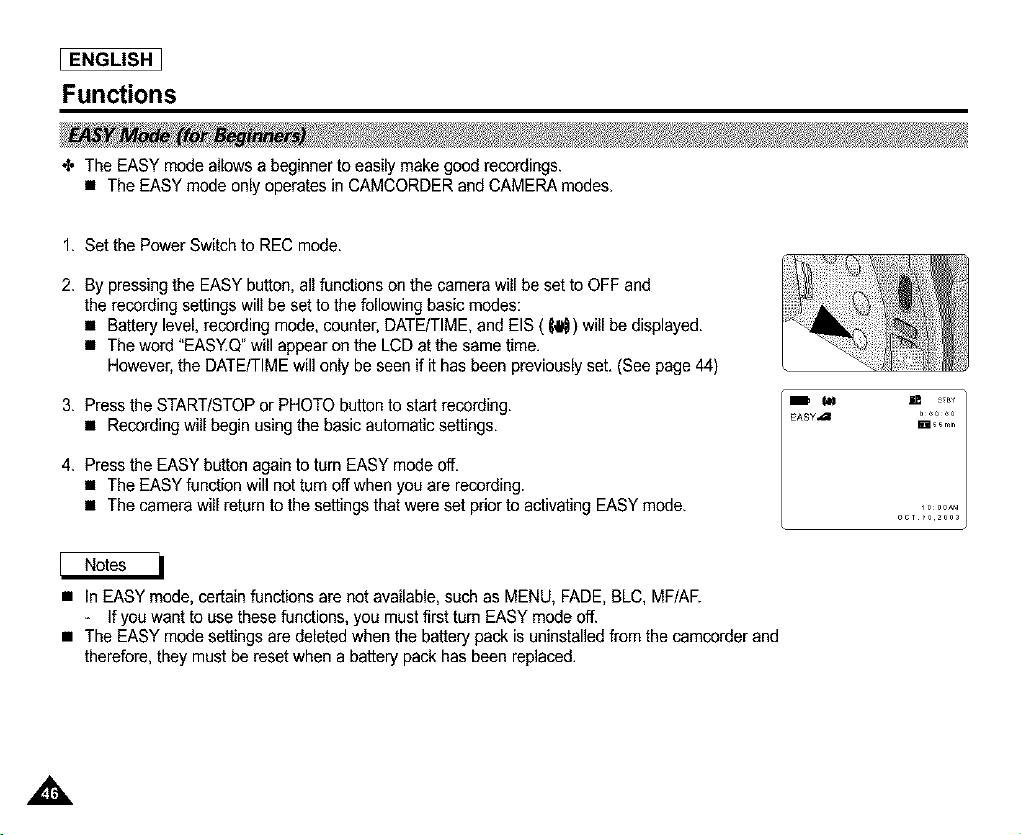
_, The EASY mode a(Iowsa beginner to easily make good recordings.
• The EASY mode only operates in CAMCORDER and CAMERA modes.
1. Set the Power Switch to REC mode.
2. By pressing the EASY button, all functions on the camera will be set to OFF and
the recording settings will be set to the following basic modes:
• Battery level, recording mode, counter, DATE/TIME, and EIS (61_) will be displayed.
• The word "EASY.Q"will appear on the LCD at the same time.
However,the DATE/TIME will only be seen if it has been previously set. (See page 44)
3. Press the START/STOPor PHOTO button to start recording.
• Recordingwill begin using the basic automatic settings,
4. Press the EASY button again to turn EASY mode off.
• The EASY function will not turn off when you are recording.
• The camera will return to the settings that were set priorto activating EASY mode.
n_min
• In EASY mode, certain functions are not available, such as MENU, FADE, BLC, MF/AE
- If you want to use these functions, you must first turn EASY mode off.
• The EASY mode settings are deleted when the battery pack is uninstalled from the camcorder and
therefore, they must be reset when a battery pack has been replaced.
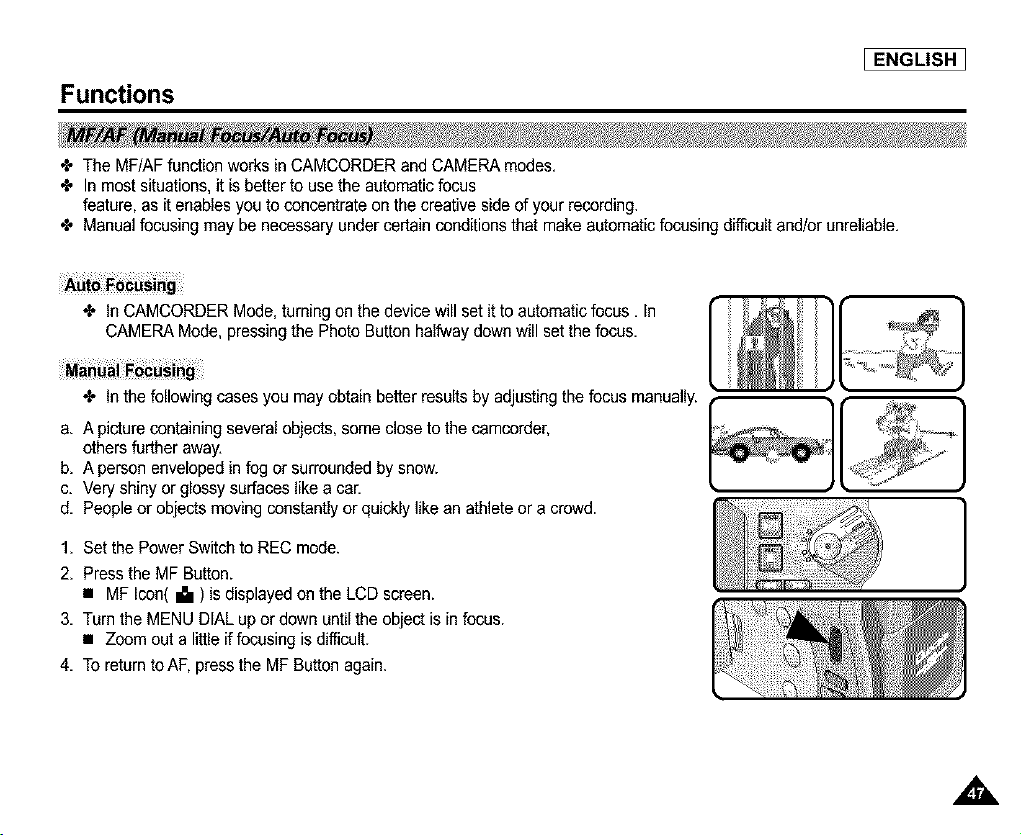
Functions
I ENGLISH 1
÷ The MF/AF function works in CAMCORDER and CAMERA modes.
÷ In most situations, it is better to usethe automatic focus
feature, as it enables you to concentrate on the creative side of your recording.
÷ Manual focusing may be necessary under certain conditions that make automatic focusing difficult and/or unreliable.
•I, In CAMCORDER Mode, turning on the device will set it to automatic focus. In
CAMERA Mode, pressing the Photo Button halfway down will set the focus.
•I, In the following cases you may obtain better results by adjusting the focus manually.
a, A picture containing several objects, some close to the camcorder,
others further away.
b. A person enveloped in fog or surrounded by snow.
c. Very shiny or glossy surfaces like a car.
d. People or objects moving constantly or quickly like an athlete or a crowd.
1, Set the Power Switch to REC mode.
2, Press the MF Button.
• MF Icon( Ib ) is displayed on the LCD screen.
3. Turn the MENU DIAL up or down until the object is in focus.
• Zoom out a little if focusing is difficult.
4. To return toAF, press the MF Button again.
]
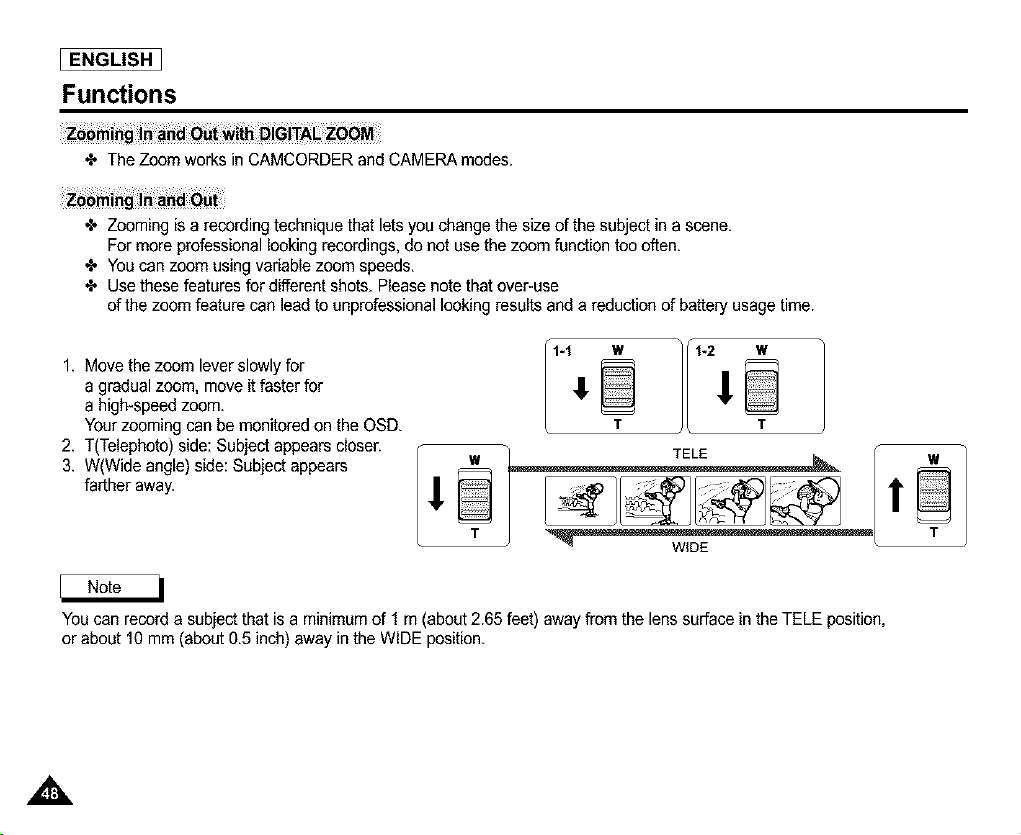
[ ENGLISH
Functions
The Zoom works in CAMCORDER and CAMERA modes,
Zooming is a recording technique that lets you change the size of the subject in a scene.
For more professional looking recordings, do not usethe zoom function tee often.
You can zoom using variable zoom speeds.
Usethese features for different shots. Please note that over-use
of the zoom feature can lead to unprofessional looking results and a reduction of battery usage time.
1. Move the zoom lever slowly for
a gradual zoom, move it faster for
a high-speed zoom.
Your zooming can be monitored on the OSD.
2. T(Telephoto) side: Subject appears closer.
3. W(Wide angle) side: Subject appears
farther away.
T
W TELE
T
WIDE
W
T
You can record a subject that is a minimum of 1 m (about 2.65 feet) away from the lens surface in the TELE position,
or about 10 mm (about 0.5 inch) away in the WIDE position.

Usin l the CAMCORDER - Basic Recordin l
I ENGLISH ]
•I, When inserting a tape or closing the cassette holder, do not apply excessive force.
This may cause a malfunction.
•I, Do not use any tapes other than Mini DV cassettes.
1. Connect a power source. Slide the TAPE OPEN/EJECT switch and open
the cassette door.
- The cassette holding mechanism rises automatically.
2. Insert a tape into the cassette holder with the tape window facing outward and
the protection tab toward the top.
3. Press the area labelled PUSH on the cassette holding mechanism until
it clicks into place.
- The cassette is loaded automatically.
4. Close the cassette door.
- Close the door completely until you can hear a "click".
When you have recorded something that you wish to keep, you can protect it so Ia. SAVE
that it will not be accidentally erased.
l
a. Protecting a Tape :
Push the safety tab on the cassette so that the hole is uncovered,
b, Removing the protection from a tape :
If you no longer wish to keep the recording on the cassette, push the wdte-protect tab
back so that it covers the hole.
• How to Store a Tape
a. Avoid places with magnets or magnetic interference.
b. Avoid humidity and dust prone places.
c, Keep the tape in an updght position and avoid stodng it in direct sunlight.
d. Avoid dropping or knocking your tapes.
,&
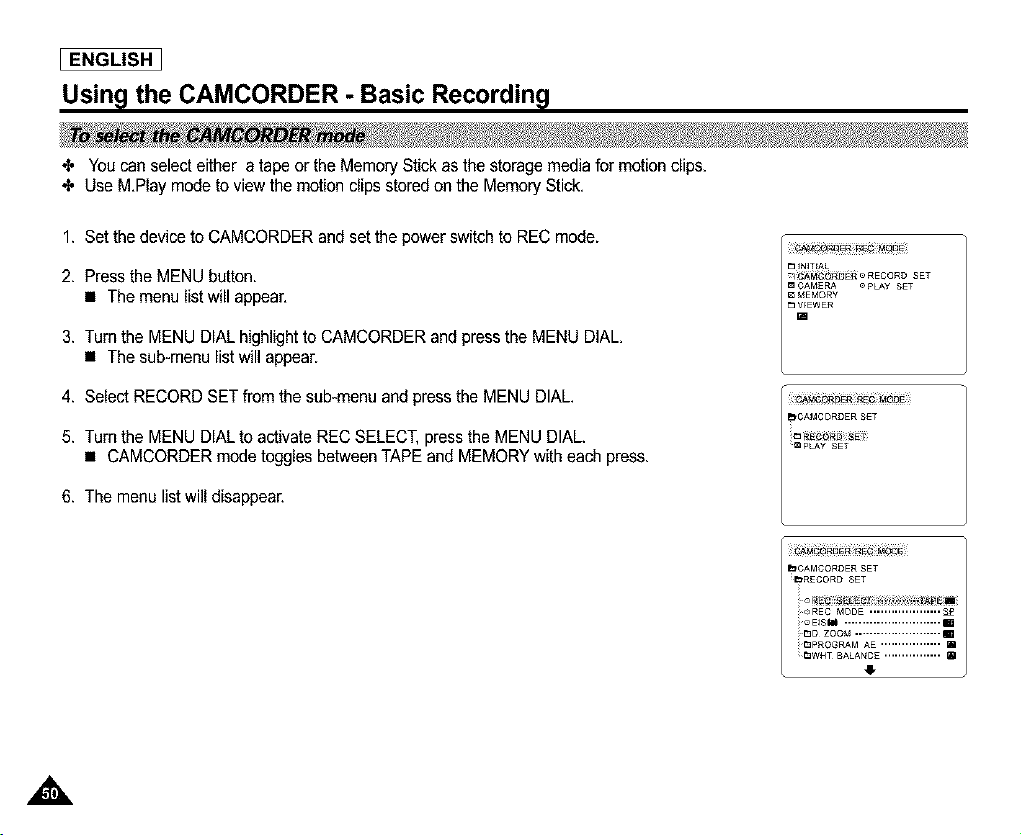
[ ENGLISH ]
Usin l the CAMCORDER - Basic Recordin l
_' You can select either a tape or the Memory Stick as the storage media for motion clips.
_, Use MPlay mode to view the motion clips stored on the Memory Stick.
1. Set the device to CAMCORDER and set the power switch to REC mode.
2. Press the MENU button.
• The menu list will appea£
3. Turn the MENU DIAL highlight to CAMCORDER and pressthe MENU DIAL.
• The sub-menu list will appear.
4. Select RECORD SET from the sub-menu and press the MENU DIAL.
5. Turn the MENU DIAL to activate REC SELECT, press the MENU DIAL.
• CAMCORDER mode toggles between TAPE and MEMORY with each press.
6. The menu list will disappear.
DIN]T_AL
_ _6_ _RECORDSET
m CAMERA O£LA¥ SET
_,CAMCORDER SET
,&
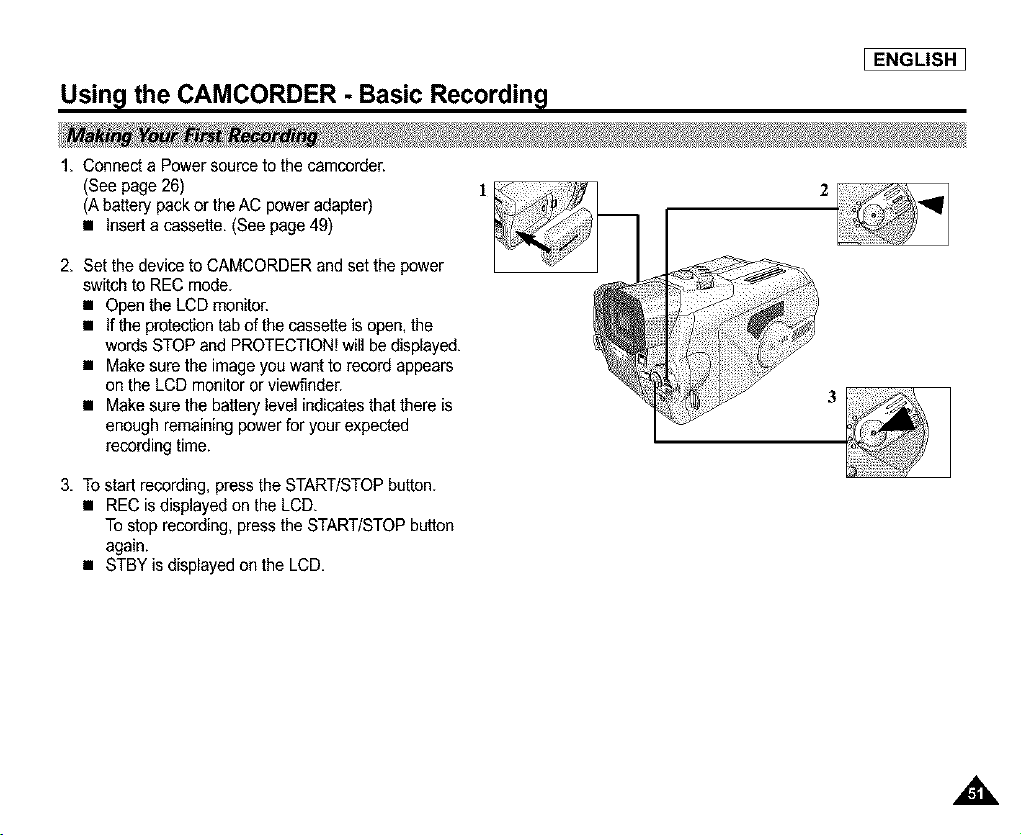
Usin l the CAMCORDER - Basic Recordin l
I ENGLISH ]
1. Connect a Power source to the camcorder.
(See page 26)
(A battery pack or the AC power adapter)
• Inserta cassette. (See page 49)
2. Set the device to CAMCORDER and set the power
switch to REC mode.
• Open the LCD monitor.
• If the protectiontab of the cassette is open, the
words STOP and PROTECTION! will be displayed.
• Make sure the image you want to record appears
on the LCD monitor or viewfinder.
• Make sure the battery level indicates that there is
enough remaining power for your expected
recording time.
3. To start recording, pressthe START/STOP button.
• REC isdisplayed on the LCD.
To stop recording, press the START/STOP button
again.
• STBY is displayed on the LCD.
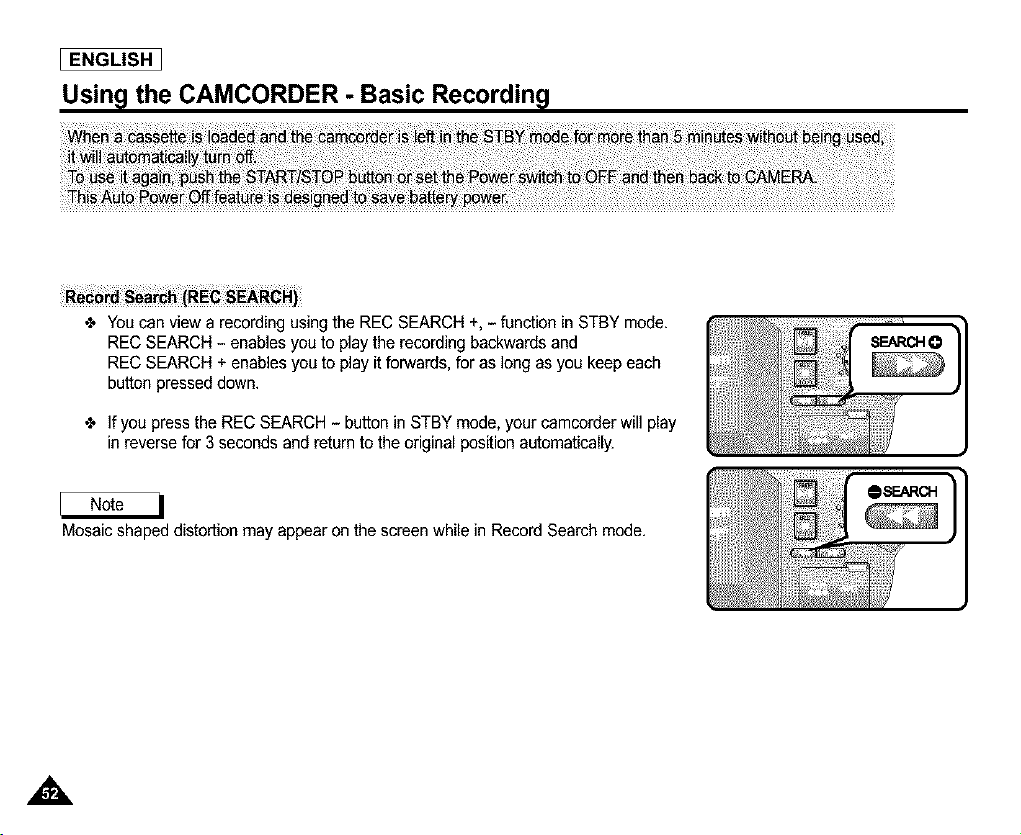
[ ENGLISH ]
Usin l the CAMCORDER - Basic Recordin l
÷ You can view a recording using the REC SEARCH +, - function in STBY mode.
REC SEARCH - enables you to play the recording backwards and
REC SEARCH + enables you to play it forwards, for as long as you keep each
button presseddown.
÷ If you pressthe REC SEARCH - button in STBY mode, your camcorder will play
in reverse for 3 seconds and return to the original positionautomatically.
Mosaic shaped distortion may appear on the screen while in Record Search mode.
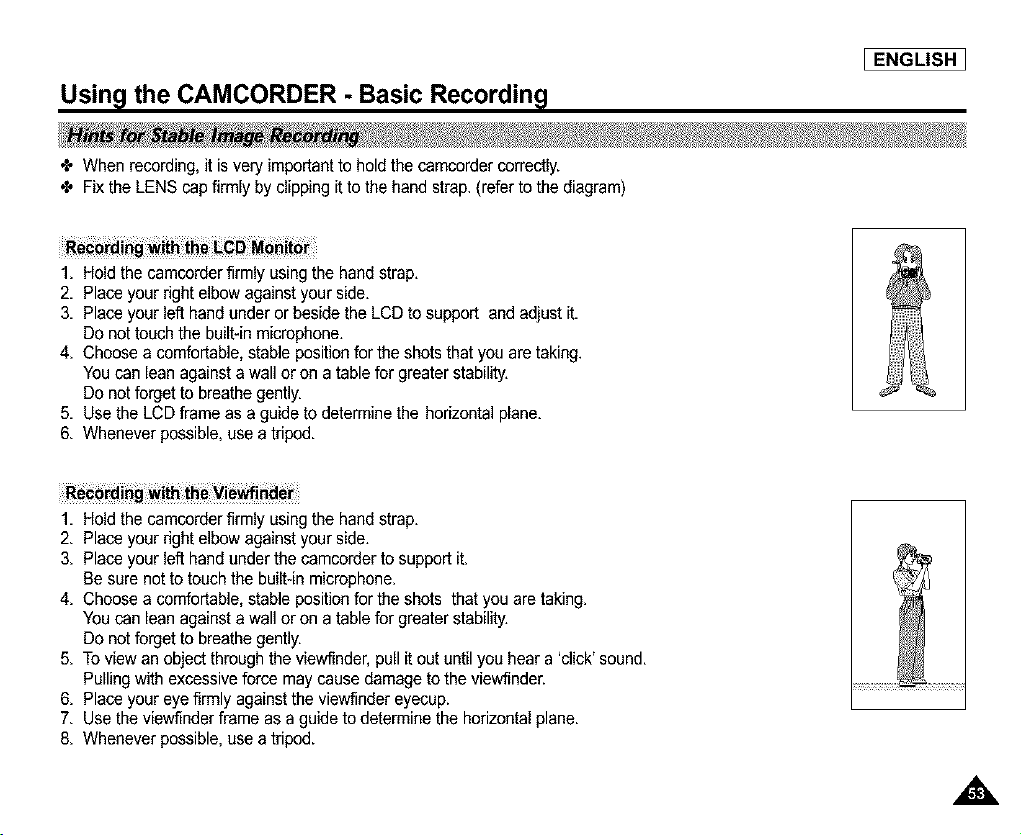
Usin l the CAMCORDER - Basic Recordin l
I ENGLISH ]
÷ When recording, it is very importantto hold the camcorder correctly.
÷ Fix the LENS capfirmly by clipping it to the hand strap.(refer to the diagram)
1. Hold the camcorder firmly usingthe hand strap.
2. Place your right elbow against your side.
3. Place your left hand under or beside the LCD to support and adjust it.
Do not touch the built-in microphone.
4. Choose a comfortable, stable positionfor the shots that you are taking.
You can lean against a wall or on a table for greater stability.
Do not forget to breathe gently.
5. Use the LCD frame as a guide to determine the horizontal plane.
6. Whenever possible,use a tripod.
1. Hold the camcorder firmly usingthe hand strap.
2. Place your right elbow against your side.
3. Place your left hand under the camcerder to support it.
Be sure not to touch the built-in microphone.
4. Choose a comfortable, stable positionfor the shots that you are taking.
You can lean against a wall or on a table for greater stability.
Do not forget to breathe gently.
5. To view an object through the viewfinder, pullit out until you hear a 'click' sound.
Pulling with excessive force may cause damage to the viewfinder.
6. Place your eye firmly against the viewfinder eyecup.
7. Use the viewfinder frame as a guide to determine the horizontal plane.
8. Whenever possible,use a tripod.
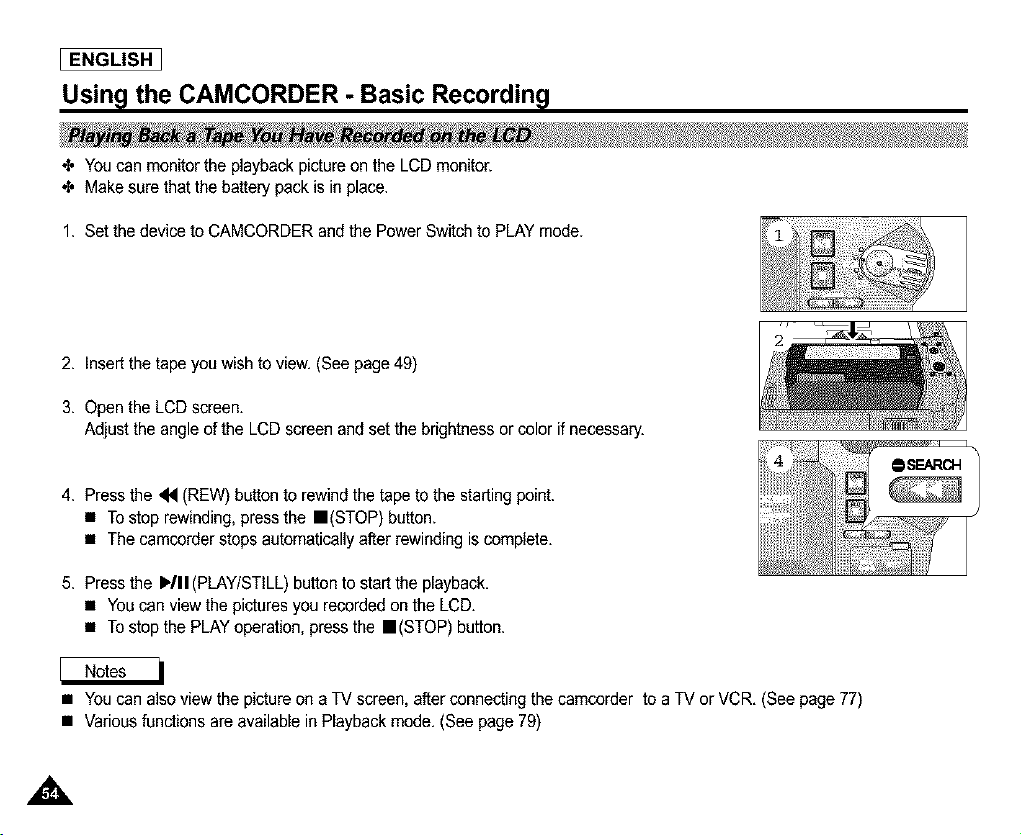
I ENGLISH
Usin l the CAMCORDER - Basic Recordin l
_, Youcan monitor the playback picture on the LCD monitor.
_, Make sure that the battery pack is in place.
1. Set the device to CAMCORDER and the Power Switch to PLAY mode.
2. Insert the tape you wish to view. (See page 49)
3. Open the LCD screen.
Adjust the angle of the LCD screen and set the brightness or color if necessary.
4. Press the _ (REW) button to rewind the tape to the starting point.
• To stop rewinding, press the ==(STOP) button.
• The camcorder stops automatically after rewinding is complete.
5. Press the I_/11(PLAY/STILL)button to start the playback.
• You can view the pictures you recorded on the LCD.
• To stop the PLAY operation, press the ==(STOP)button.
• Youcan also view the pictureon a TV screen, after connecting the camcorder to a TV or VCR. (See page 77)
• Variousfunctions are available in Playback mode. (See page 79)
I ENGLISH 1
Using the CAMCORDER - Advanced Recording
•_ The PROGRAMAE function works in CAMCORDER mode only.
•_ PROGRAMAE mode allows you to adjust shutter speeds and apertures to suit different recording conditions.
•X, It gives you creative control over the depth of field.
• AUTO Mode
- Auto balance between the subject and the background.
- To be used in normal conditions.
- The shutter speed automatically varies from f/60 to f/250 per second, depending on the scene.
• SPORTS Mode (_)
For recording peopleor objects whichare moving quickly,
• PORTRAIT Mode (lt_)
- For focusing on the background of a subject, when the background is out of focus.
- PORTRAIT mode is most effective when used outdoors.
- The shutter speed automatically varies from f/60 to 1/1000 per second.
• SPOTLIGHT Mode (15)
- For properrecording when there is only light on the subject and notthe rest of the picture.
• SAND/SNOW Mode (_)
- For recording when people or objects are darker than the background because of reflected light from sand or snow.
• High S. SPEED(High Shutter Speed) Mode (4j)
- For recording fast-moving subjects such as players in golf or tennis games.
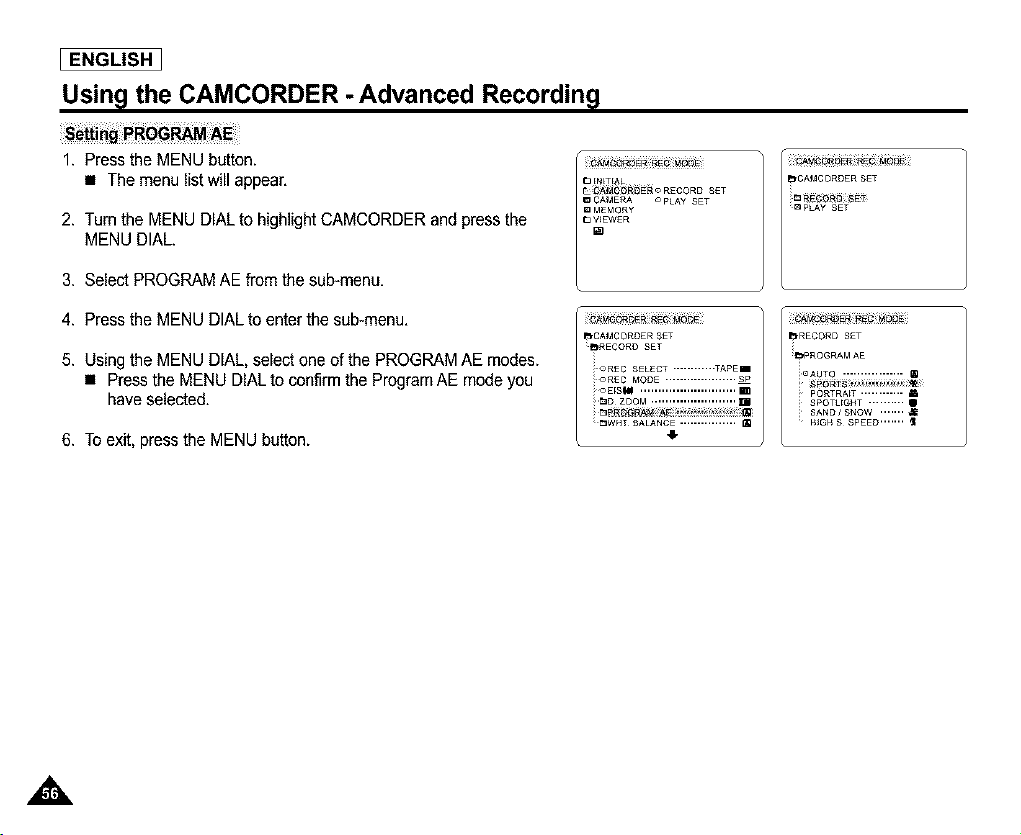
I ENGLISH
Usin l the CAMCORDER - Advanced Recordin l
1. Press the MENU button.
• The menu list will appear.
2. Tum the MENU DIAL to highlight CAMCORDER and press the
MENU DIAL.
3. Select PROGRAM AE from the sub-menu.
4. Press the MENU DIAL to enter the sub-menu.
5. Using the MENU DIAL, select one of the PROGRAM AE modes.
• Pressthe MENU DIAL to confirm the Program AE mode you
have selected.
6. To exit, press the MENU button.
mPLAY SET
pI,CAMCORDER SET bRECORD SET
[_RECORD £ET
iic"AUTO .................
OREC MODE .................... Sp
o EIS_II_ ........................... _ pQRTRALT ............
_D ZOOM ........................ m SPOTUG}4T .......... •
C_ N_GN S SPEED,,,,,,,
_WHT BALAN ................
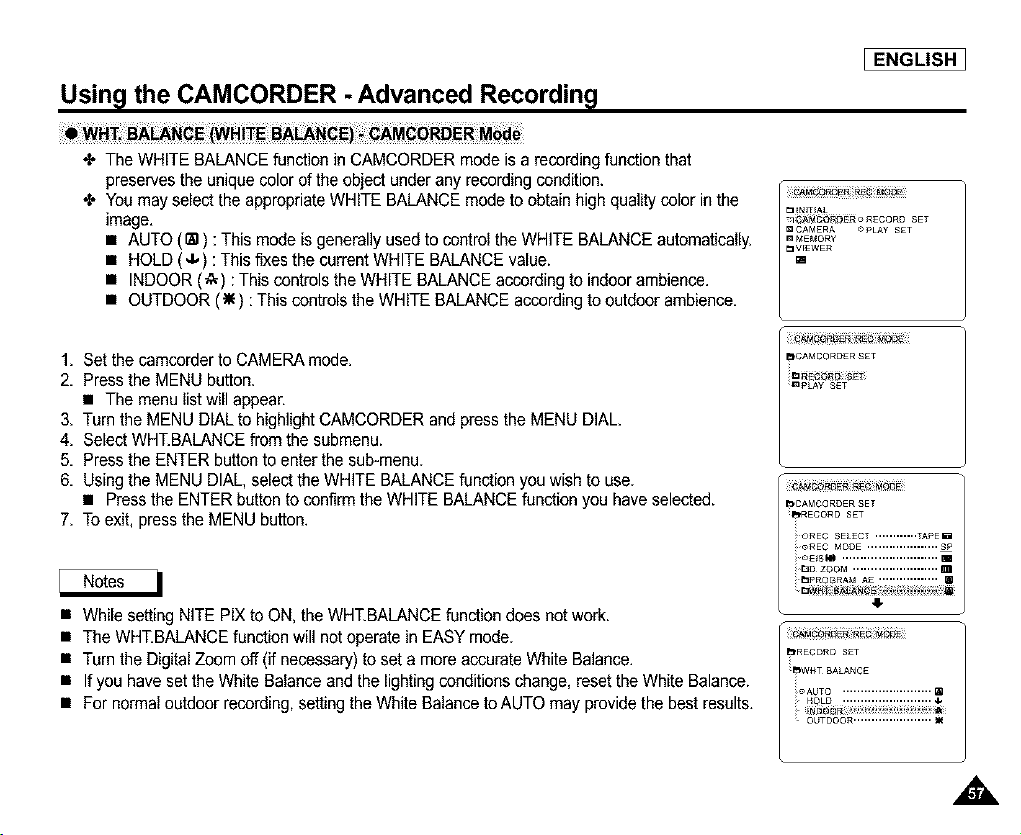
Usin l the CAMCORDER - Advanced Recordin l
I ENGLISH 1
•X, The WHITE BALANCE function in CAMCORDER mode is a recerding function that
preserves the unique color of the object under any recording condition.
•X, You may select the appropriate WHITE BALANCE mode to obtain high quality color in the
image.
• AUTO (Sg) : This mode is generally used to control the WHITE BALANCE automatically.
• HOLD (4,) : This fixes the current WHITE BALANCE value.
• INDOOR (4,) : This controls the WHITE BALANCE accerding to indoor ambience.
• OUTDOOR (_) : This controls the WHITE BALANCE according to outdoor ambience.
1. Set the camcorder to CAMERA mode.
2. Press the MENU button.
• The menu list will appear.
3. Turn the MENU DIAL to highlight CAMCORDER and press the MENU DIAL.
4. Select WHT.BALANCE from the submenu.
5. Press the ENTER button to enter the sub-menu.
6. Using the MENU DIAL, select the WHITE BALANCE function you wish to use.
• Press the ENTER button to confirm the WHITE BALANCE function you have selected.
7. To exit, press the MENU button.
• While setting NITE PIX to ON, the WHT.BALANCE function does not work.
• The WHT.BALANCEfunction will net operate in EASY mode.
• Turn the Digital Zoom off (if necessary) to set a more accurate White Balance.
• If you have set the White Balance and the lighting conditions change, reset the White Balance.
• For normal outdoor recording, setting the White Balance to AUTO may provide the best results.
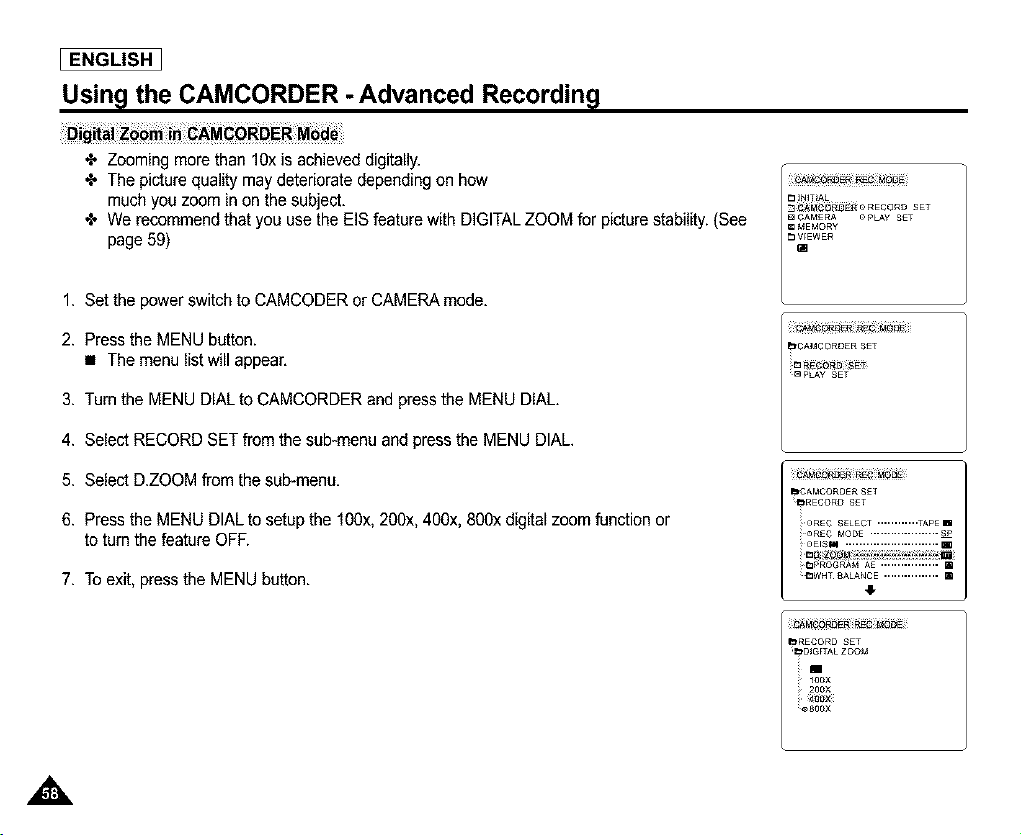
I ENGLISH
Usin l the CAMCORDER - Advanced Recordin l
Zooming more than 10xis achieved digitally.
The picture quality may deteriorate depending on how
much you zoom in on the subject,
We recommendthat you use the EIS feature with DIGITAL ZOOM for picture stability. (See
page 59)
1. Set the power switch to CAMCODER or CAMERA mode.
2. Press the MENU button.
• The menu list will appear.
3. Turn the MENU DIAL to CAMCORDER and press the MENU DIAL.
4. Select RECORD SET from the sub-menu and press the MENU DIAL.
5. Select D.ZOOM from the sub-menu.
6. Press the MENU DIAL to setup the 100x, 200x, 400x, 800x digital zoom function or
to turn the feature OFF.
7. To exit, press the MENU button.
_CAMCORD£R SET
_ _ECOR_SET
_PLAY SET
O,_¢QRDERF_C t_,OB
I_CAMCQRQER SET
[_RECORD SET
oREC SEL£CT ............ TAPE m
<'£EO MOD£ ....................
eEiSNI ........................... m
_WHT {_ALANCE ................ []
41-
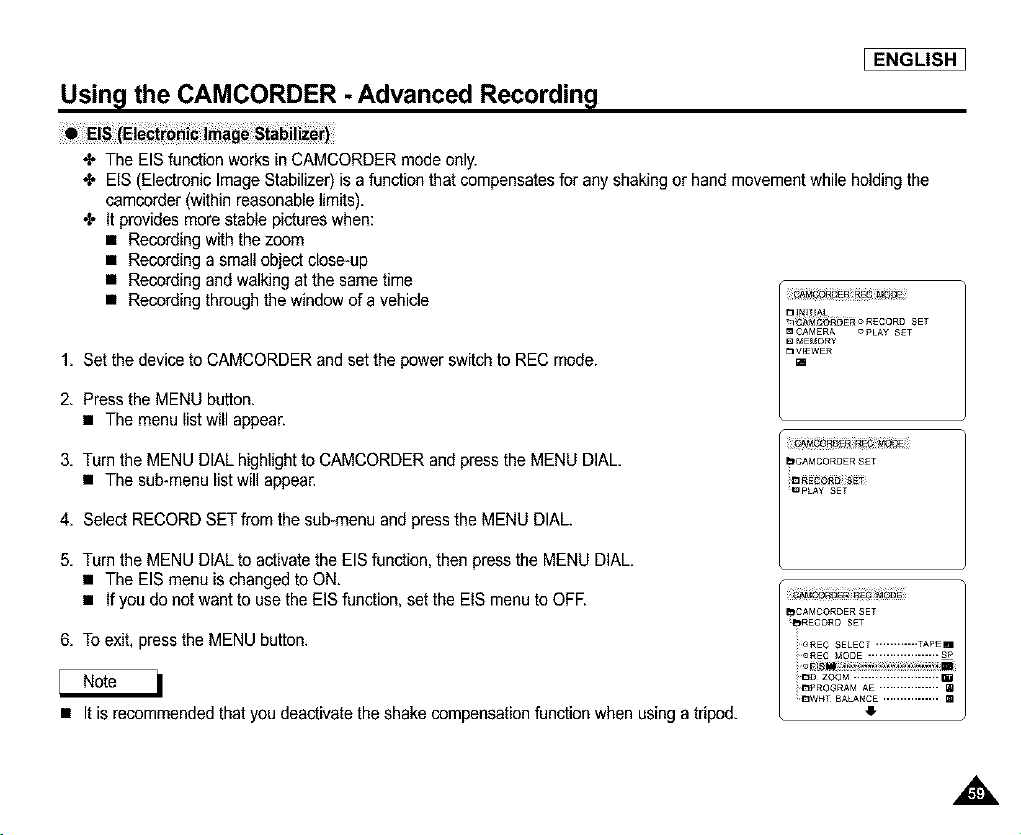
Usin l the CAMCORDER - Advanced Recordin l
I ENGLISH 1
•I- The EIS function worksin CAMCORDER mode only.
•I, EIS (Electronic Image Stabilizer) is a function that compensates for any shaking or hand movement while holding the
camcorder (within reasonable limits).
•I, It provides more stable pictureswhen:
• Recording with the zoom
• Recording a small objectclose-up
• Recording and walking at the same time
• Recording through the window of a vehicle
1. Set the device to CAMCORDER and set the power switch to REC mode.
2. Press the MENU button.
• The menu list will appear.
3. Turn the MENU DIAL highlight to CAMCORDER and press the MENU DIAL.
• The sub-menu list will appear.
4. Select RECORD SET from the sub-menu and press the MENU DIAL.
5. Turn the MENU DIAL to activate the EISfunction, then press the MENU DIAL.
• The EIS menu is changed to ON.
• If you do not want to use the EIS function, set the EIS menu to OFE
6. To exit, press the MENU button.
CAMOORDER REG MOBE
• It is recommended that you deactivate the shake compensation function when using a tripod.
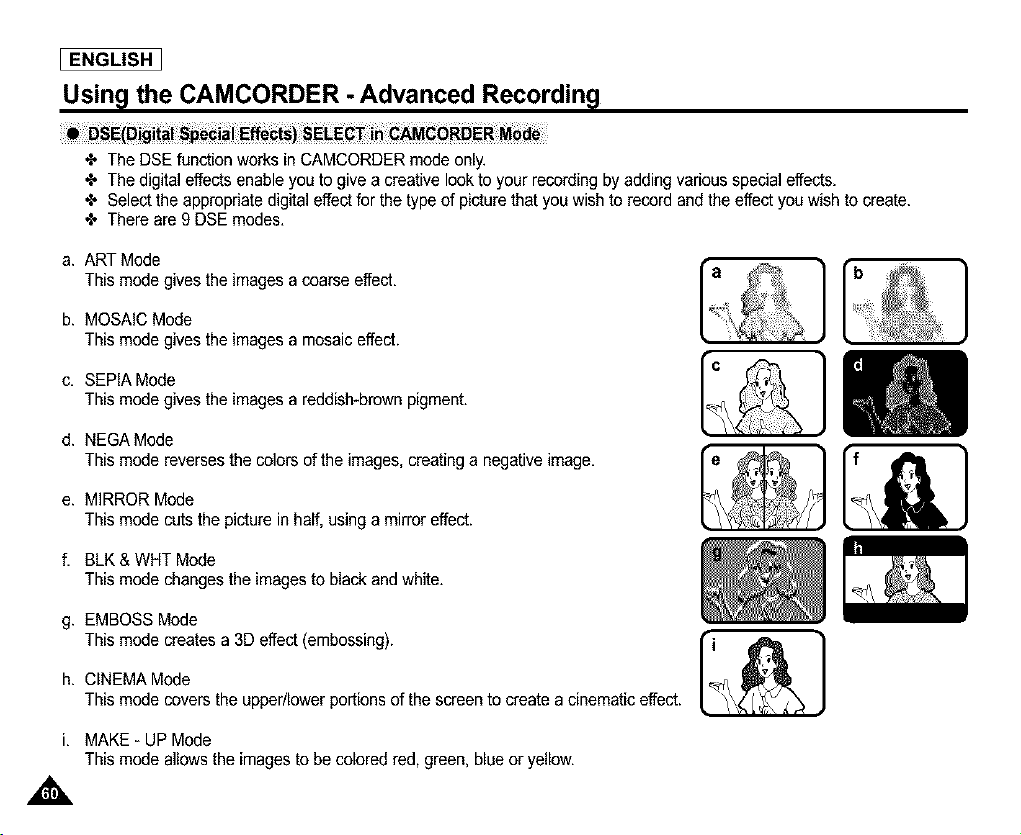
[ ENGLISH ]
Usin l the CAMCORDER - Advanced Recordin l
The DSE function works in CAMCORDER mode only.
The digital effects enable you to give a creative look to your recording by adding various special effects.
Select the appropriate digital effect for the type of picture that you wish to record and the effect you wish to create.
There are 9 DSE modes.
a. ART Mode
This mode gives the imagesa coarse effect.
b. MOSAIC Mode
This mode gives the imagesa mosaic effect.
c. SEPIA Mode
This mode gives the imagesa reddish-brown pigment.
d. NEGA Mode
This mode reverses the colors of the images, creating a negative image.
e. MIRRORMode
Thismodecutsthe pictureinhalf,usinga mirroreffect.
f. BLK & WHT Mode
This mode changes the imagesto black and white.
g. EMBOSS Mode
This mode creates a 3D effect (embossing).
h. CINEMA Mode
This mode covers the upper/Lowerportions of the screen to create a cinematic effect.
i. MAKE- UP Mode
This mode allows the images to be colored red, green, blue or yellow.
,&
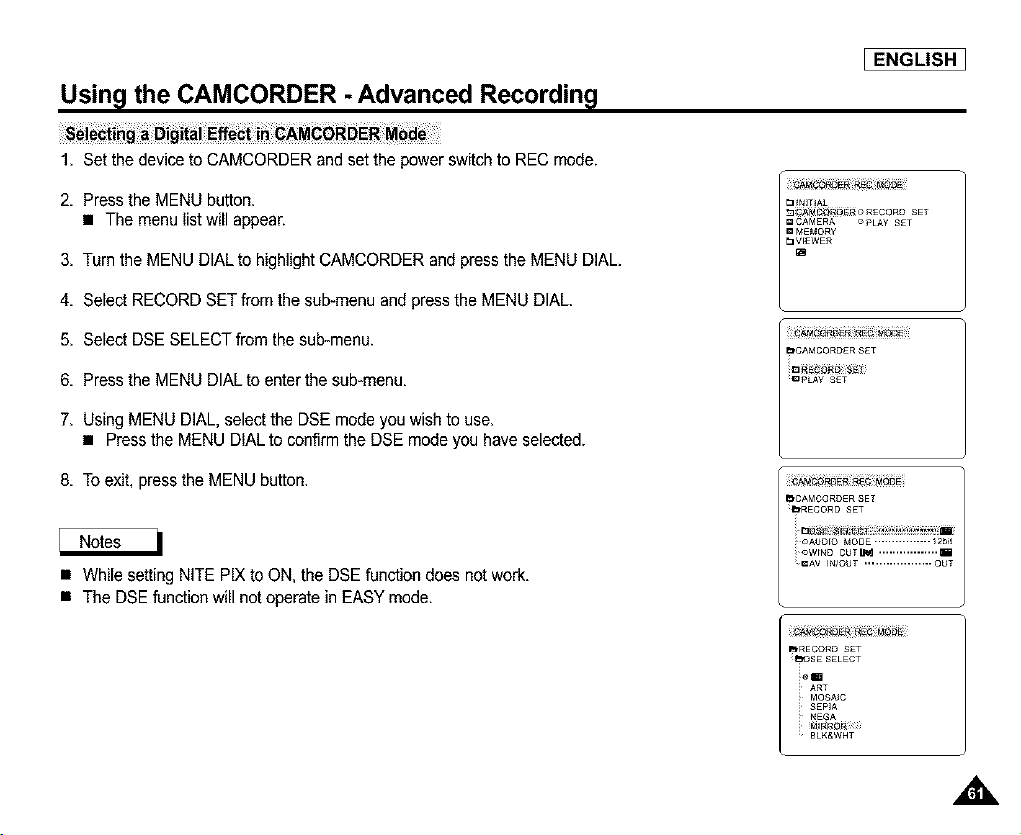
I ENGLISH ]
Usin l the CAMCORDER - Advanced Recordin l
1, Set the device to CAMCORDER and set the power switch to RED mode.
2, Press the MENU button.
• The menu list will appear.
3, Turn the MENU DiAL to highlight CAMCORDER and press the MENU DIAL,
4, Select RECORD SET from the sub-menu and press the MENU DIAL.
5, Select DSE SELECT from the sub-menu.
6, Press the MENU DIAL to enter the sub-menu.
7, Using MENU DIAL. select the DSE mode you wish to use,
• Press the MENU DIAL to confirm the DSE mode you have selected.
8, To exit. press the MENU button.
• While setting NiTE PIX to ON, the DSE function does not work.
• The DSE function will not operate in EASY mode.
PJRECOFtD £ET
_,DSE SELECT
_em
ART
MQ$A_C
_ SEpiA
NEGA
BLK&WHT
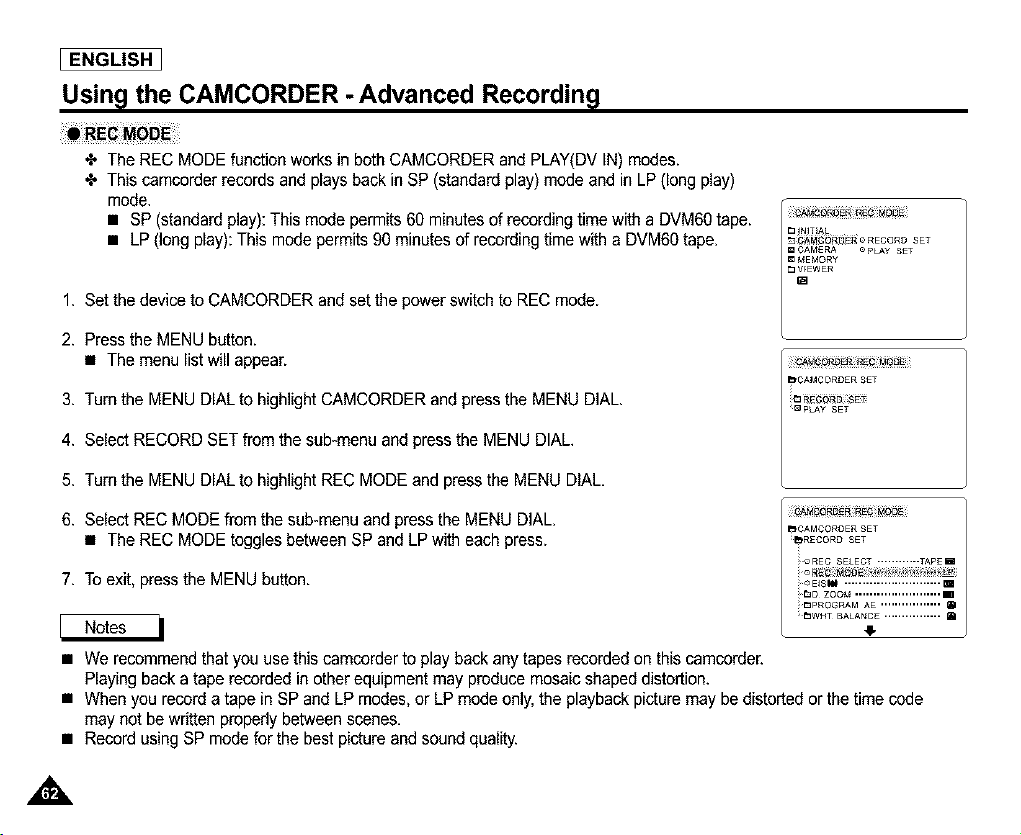
I ENGLISH
Usin l the CAMCORDER - Advanced Recordin l
4" The REC MODE function works in both CAMCORDER and PLAY(DV IN) modes.
4" This camcorder records and plays back in SP (standard play) mode and in LP (long play)
mode.
• SP (standard play): This mode permits 60 minutes of recording time with a DVM6Otape.
• LP (long play): This mode permits 90 minutes of recording time with a DVM6Otape.
1. Set the device to CAMCORDER and set the powerswitch to REC mode.
2. Press the MENU button.
• The menu list will appear.
3. Turn the MENU DIAL to highlight CAMCORDER and press the MENU DIAL.
4. Select RECORD SET from the sub-menu and press the MENU DIAL.
5. Turn the MENU DIAL to highlight REC MODE and press the MENU DIAL.
6. Select REC MODE from the sub-menu and press the MENU DIAL.
• The REC MODE toggles between SP and LP with each press.
7. To exit, press the MENU button.
CA_CQR_R_C eO_
• We recommend that you use thiscamcorder to play back any tapes recorded on this camcorder.
Playing back a tape recorded in other equipment may produce mosaic shaped distortion.
• When you record a tape in SP and LP modes, or LP mode only, the playback picture may be distorted or the time code
may not be written propedy between scenes.
• Record using SP mode for the best picture and sound quality.
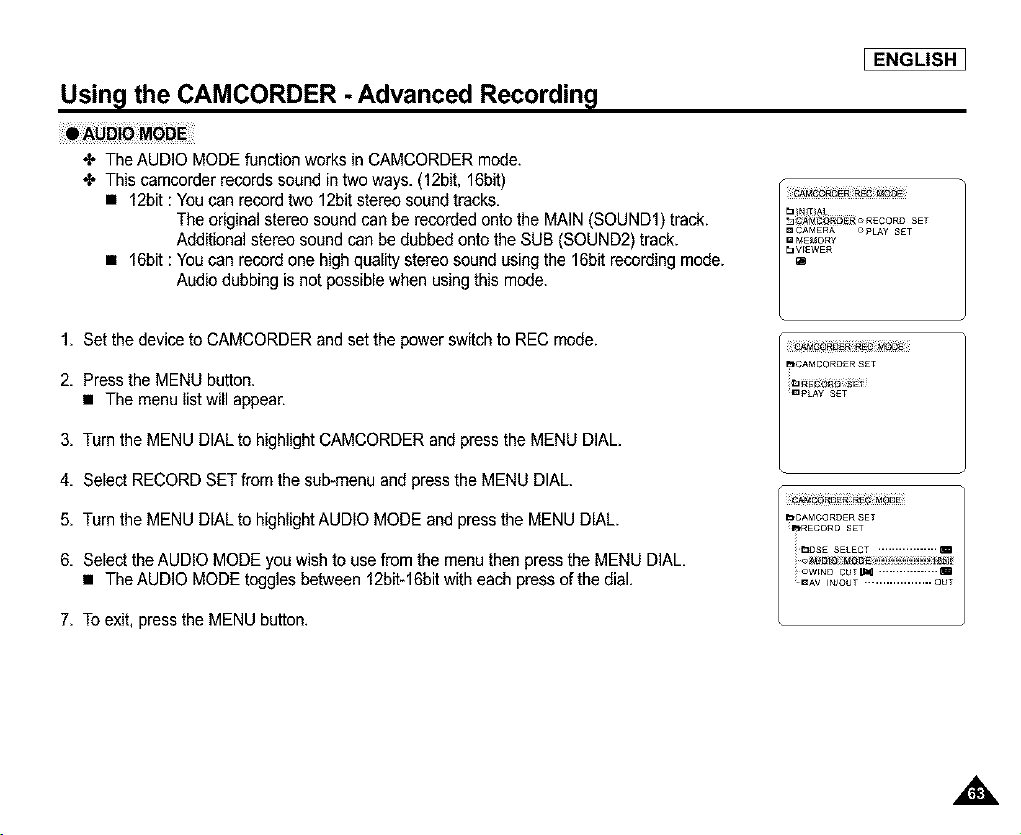
Usin l the CAMCORDER - Advanced Recordin l
4* The AUDIO MODE function works in CAMCORDER mode.
4* This camcorder records sound in two ways. (12bit, 16bit)
• 12bit : You can record two 12bit stereo sound tracks.
The original stereo sound can be recorded onto the MAIN (SOUND1) track.
Additional stereo sound can be dubbed onto the SUB (SOUND2) track.
• 16bit : You can record one high quality stereo sound using the 16bit recording mode.
Audio dubbing is not possible when usingthis mode.
I ENGLISH ]
1, Set the device to CAMCORDER and set the power switch to REC mode.
2. Press the MENU button.
• The menu list will appear.
3. Turn the MENU DIAL to highlight CAMCORDER and press the MENU DIAL.
4. Select RECORD SET from the sub-menu and press the MENU DIAL.
5. Turn the MENU DIAL to highlight AUDIO MODE and press the MENU DIAL.
6. Select the AUDIO MODE you wish to use from the menu then press the MENU DIAL.
• The AUDIO MODE toggles between 12bit-16bitwith each press of the dial.
7. To exit, press the MENU button.
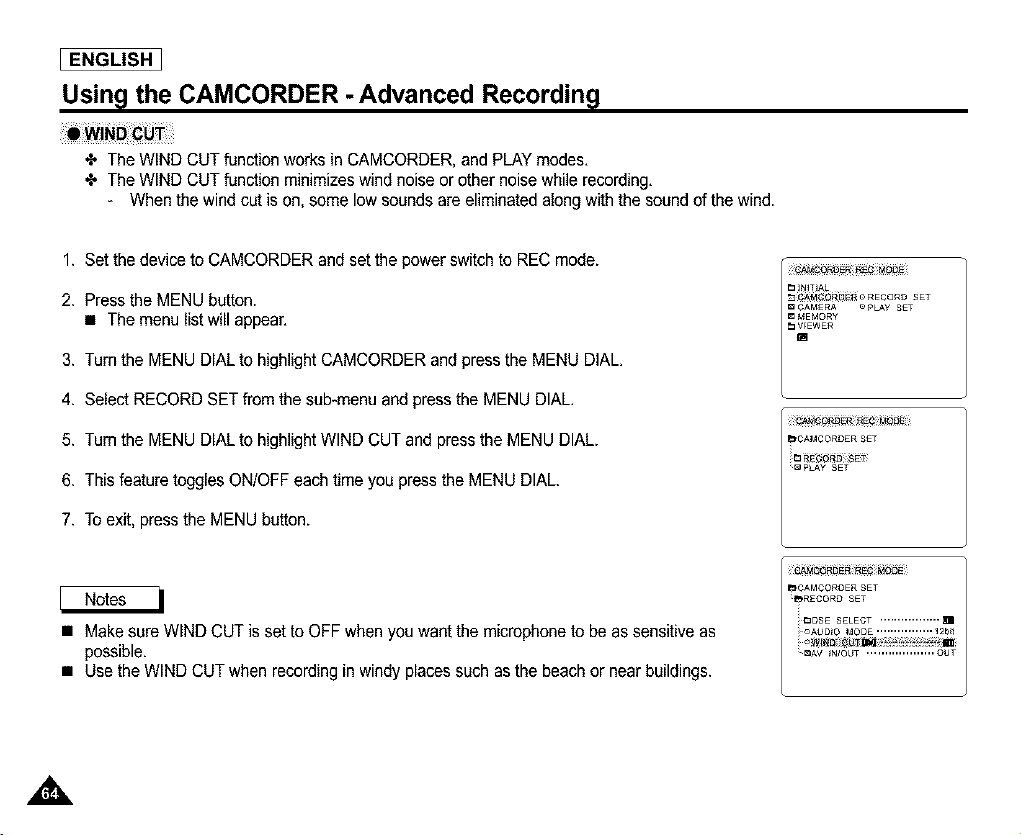
[ ENGLISH ]
Usin l the CAMCORDER - Advanced Recordin l
The WIND CUT function works inCAMCORDER, and PLAY modes.
The WIND CUT function minimizes wind noise or other noise while recording.
- When the wind cut is on, some low sounds are eliminated along with the sound of the wind.
1. Set the device to CAMCORDER and set the power switch to REC mode.
2. Press the MENU button.
• The menu list will appear.
3. Turn the MENU DIAL to highlight CAMCORDER and press the MENU DIAL.
4. Select RECORD SET from the sub-menu and press the MENU DIAL.
5. Turn the MENU DIAL to highlight WIND CUT and press the MENU DIAL.
6. This feature toggles ON/OFF each time you press the MENU DIAL.
7. To exit, press the MENU button.
Ct_CORQE_R_OD_
_CAMCORDERSET
i_RE¢_R_ SE_
QpLAy SET
q,AMCORDERRE€ MODE
• Make sure WIND CUT is set to OFF when you want the microphone to be as sensitive as
possible.
• Use the WIND CUT when recording in windy places such as the beach or near buildings.
Usin l the CAMCORDER - Advanced Recordin l
I ENGLISH 1
÷ Quick Menu is available only in CAMCORDER mode.
÷ Quick Menu is used to adjust camera functions by simply using the MENU SELECTOR dial.
This feature is useful for when you want to make simple adjustments without having to access the menus and sub-menus.
• DATE/TIME
- Each timeyou select DATE/TIME and press the MENU DIAL, it will be displayed in the order of DATE- TIME -
DATE/TIME - OFF(See page 50).
• WL.REMOTE(((d_l)
- Each timeyou select WL.REMOTE and press the MENU DIAL,the WL.REMOTE is switched to
either enabled((Cd'_l)or disabled (_'_).
• EIS(_#_)
- Each time you select EIS and press the MENU DIAL, the EIS icon is displayed or set to OFE
• DSE(Digital Special Effect) (See page 60)
- Each time you select DSE and press the MENU DIAL, the DSE preset values are applied or set to OFE
DSE values will not switch between ON and OFF if they have not been preset in the menu.
• PROGRAM AE (See page 55)
- Each time you select PROGRAMAE and press the MENU DIAL, you can choose between the preset PROGRAM AE
value and AUTO. You can't choose between AUTO and the PROGRAMAE value if the value has not been preset in the
regular menu.
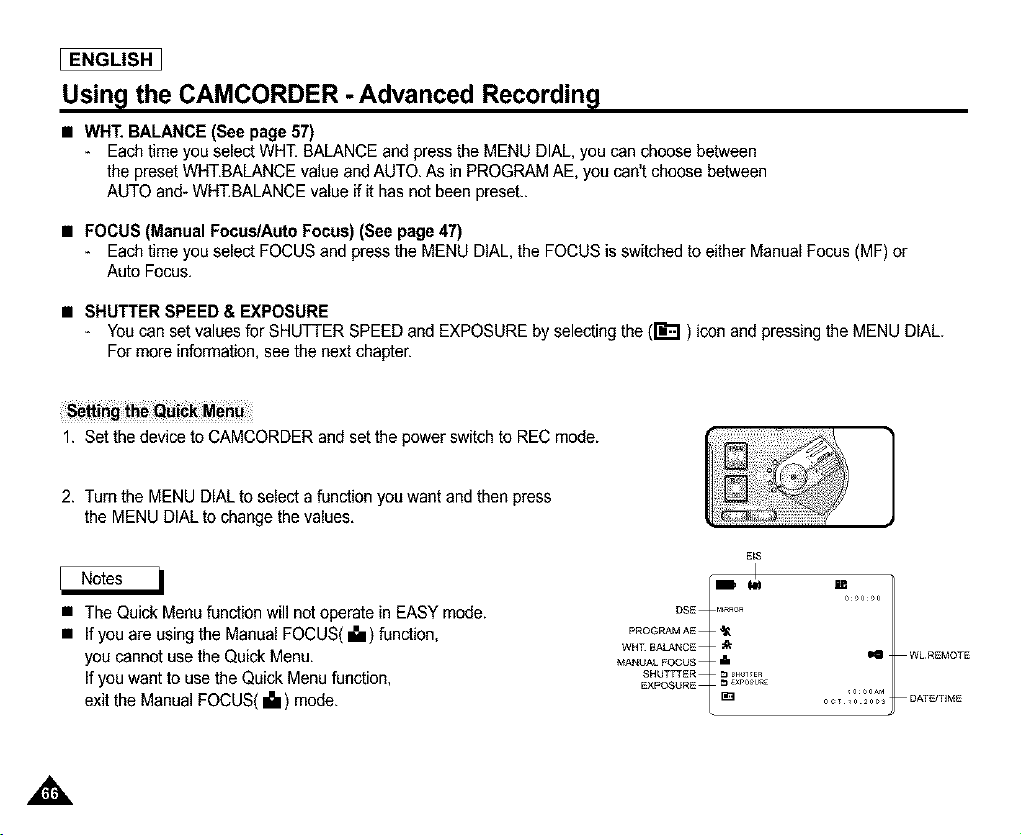
I ENGLISH
Usin l the CAMCORDER - Advanced Recordin l
• WriT. BALANCE (See page 57)
- Eachtime you select WH£ BALANCE and press the MENU DIAL, you can choose between
the preset WHT.BALANCE value and AUTO. As in PROGRAM AE, you can't choose between
AUTO and- WHT.BALANCE value if it has not been preset..
• FOCUS (Manual Focus/Auto Focus) (See page 47)
- Eachtime you select FOCUS and pressthe MENU DIAL, the FOCUS is switched to either Manual Focus (MF) or
Auto Focus.
• SHUTTER SPEED & EXPOSURE
- You can set values for SHUTTER SPEED and EXPOSURE by selecting the (r_'=l) icon and pressingthe MENU DIAL.
For more information, seethe next chapter.
1. Set the device to CAMCORDER and set the powerswitch to REC mode.
2. Turn the MENU DiAL to select a function you want and then press
the MENU DiAL to change the values.
• The Quick Menu function will not operate in EASY mode.
• If you are using the Manual FOCUS(.B.) function,
you cannot use the Quick Menu.
If you want to use the Quick Menu function,
exit the Manual FOCUS( ._ ) mode.
E[S
• I
°s°t'R"
PROGRAM AE a4_
WHT BALANCE :_
MANUAL FOCUS
SHUTTTER _ SH IIER
EXPOSURE r_ xP°su_
i
Usin l the CAMCORDER - Advanced Recordin l
I ENGLISH 1
4* You can set SHUTTER SPEED and EXPOSURE only in CAMCORDER mode.
4* SHUTTER SPEED and EXPOSURE values can only be set in the Quick Menu.
4* SHUTTER SPEED and EXPOSURE are automatically switched and/or deactivated.
1. Set the device to CAMCORDER and set the power switch to REC mode.
2. Turn the MENU DIAL until you see icon(rJ::l) on, and then press the MENU DIAL.
• You see a screen on which you can select SHUTTER SPEED and EXPOSURE.
• Turn the MENU DIAL to select the item you want and then press the MENU DIAL.
• SHUTTER SPEED can be set to 1/60, 1/100, 1/250, 1/500, 1/1000, 1/2000, 1/4000 or 1/10000.
• EXPOSURE can be set between 00 and 29.
3. To exit from the setting screen, select the icon(ri-.'.'4)and press the MENU DIAL.
• If you want to use the selected shutter speed and exposure value, you should begin the recording with
the shutter speed and the exposure adjustment screens displayed on the LCD.
• If you manually change the shutter speed and the exposure value when Auto-exposure option is selected,
manual changes are applied first.
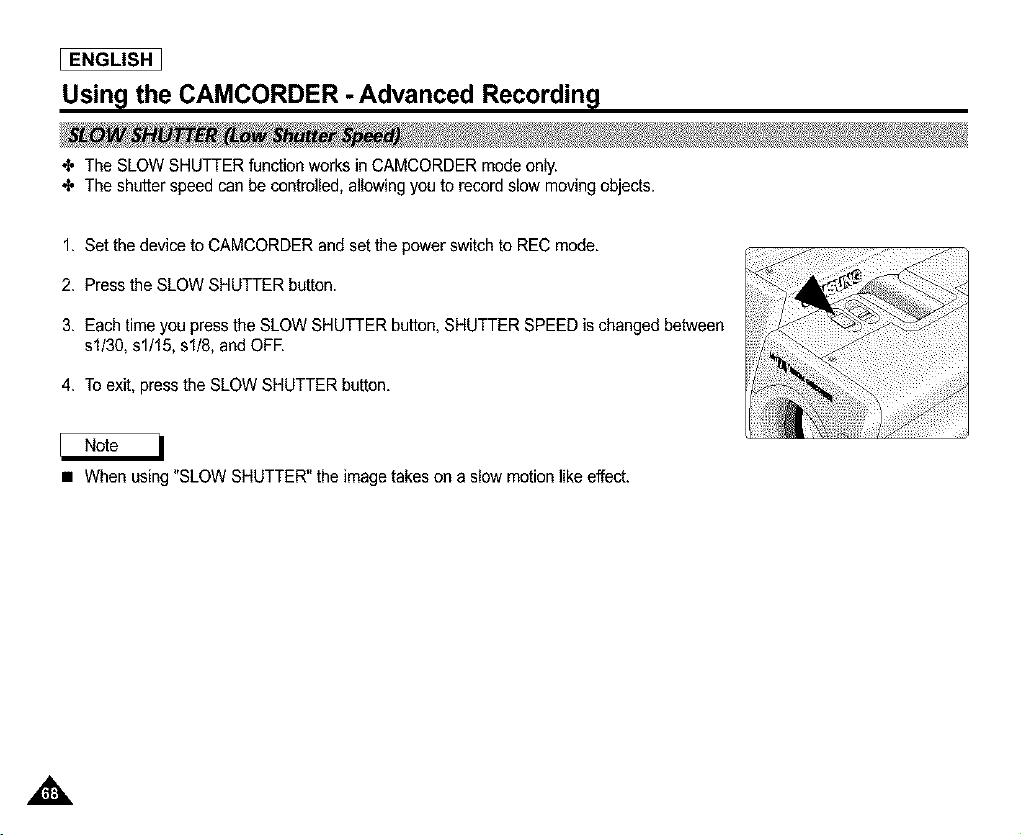
[ ENGLISH ]
Usin_l the CAMCORDER - Advanced Recordin_l
_, The SLOW SHUTTER function works in CAMCORDER mode only.
_, The shutter speed can be controlled, allowing you to record slow moving objects.
1. Set the device to CAMCORDER and set the power switch to REC mode.
2. Press the SLOW SHUTTER button.
3. Each time you press the SLOW SHUTTER button, SHUTTER SPEED is changed between
sl/30, sl/15, sl/8, and OFE
4. To exit, press the SLOW SHUTTER button.
• When using "SLOW SHUTTER" the image takes on a slow motion like effect.
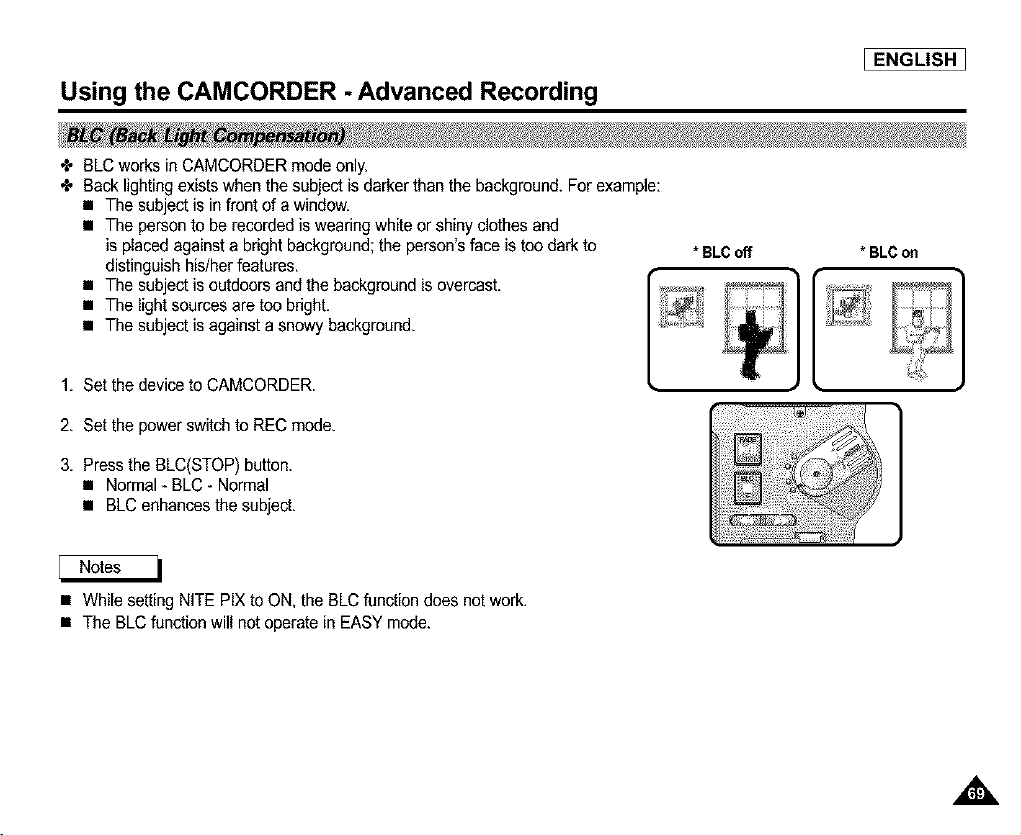
Using the CAMCORDER - Advanced Recording
I ENGLISH 1
÷ BLC works in CAMCORDER mode only.
÷ Back lighting exists when the subject is darker than the background. For example:
• The subject is in front of a window.
• The person to be recorded is wearing whiteor shiny clothes and
is placed against a bright background; the person's face is too dark to
distinguish his/her features.
• The subject is outdoors and the background is overcast.
• The light sources are too bdght.
• The subject is against a snowy background.
1. Set the device to CAMCORDER.
* BLCoff * BLCon
2. Set the power switch to REC mode.
3. Press the BLC(STOP) button.
• Normal - BLC - Normal
• BLC enhances the subject.
• While setting NITE PIX to ON, the BLC function does not work.
• The BLC function will not operate in EASY mode.
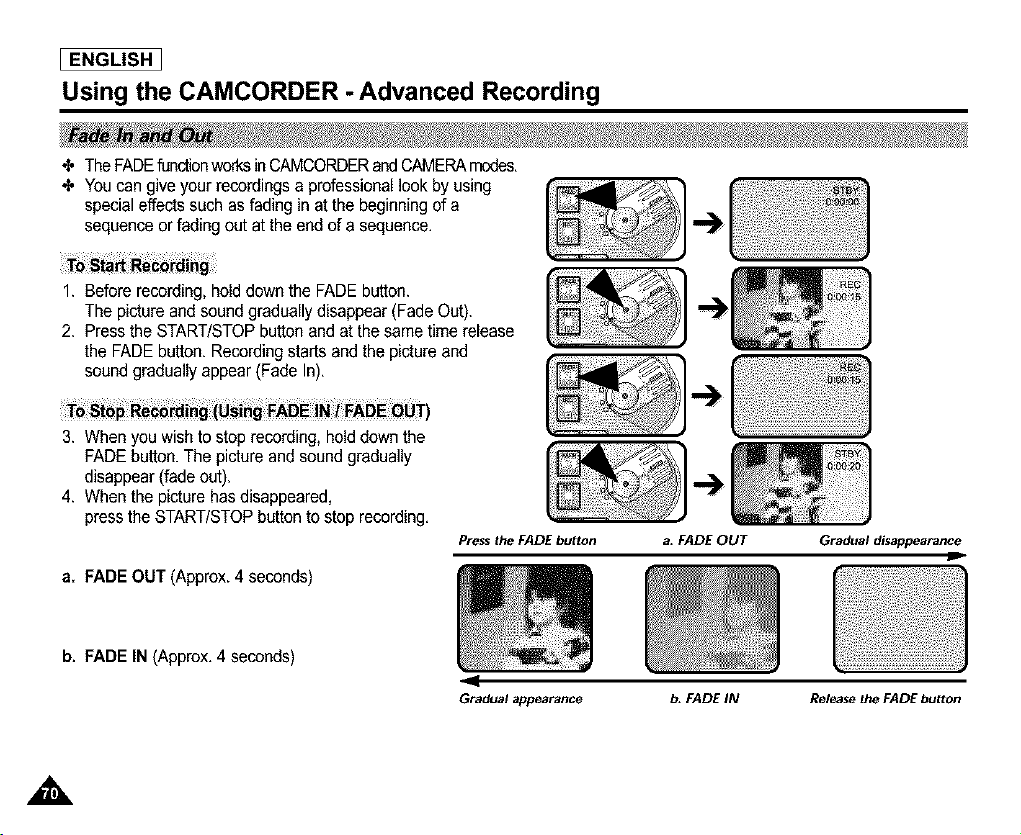
[ ENGLISH ]
Using the CAMCORDER - Advanced Recording
4, The FADEfunction_s inCAMCORDERandCAMERAmodes.
4, Youcan give your recordings a professional look by using
special effects such as fading in at the beginning of a
sequence or fading out at the end of a sequence.
1. Before recording, hold down the FADE button.
The picture and sound gradually disappear (Fade Out).
2. Press the START/STOPbutton and at the same time release
the FADE button. Recording starts and the picture and
sound gradually appear (Fade In).
3. When you wishto stop recording, hold down the
FADE button. The pictureand sound gradually
disappear (fade out).
4. When the picture has disappeared.
pressthe START/STOPbutton to stop recording.
a. FADE OUT (Approx. 4 seconds)
Press the FADE button
4
Gradualappearance
a, FADE OUT Gradual disappearance
J
b. FADE IN (Approx. 4 seconds)
b, FADE IN Release the FADE button
A
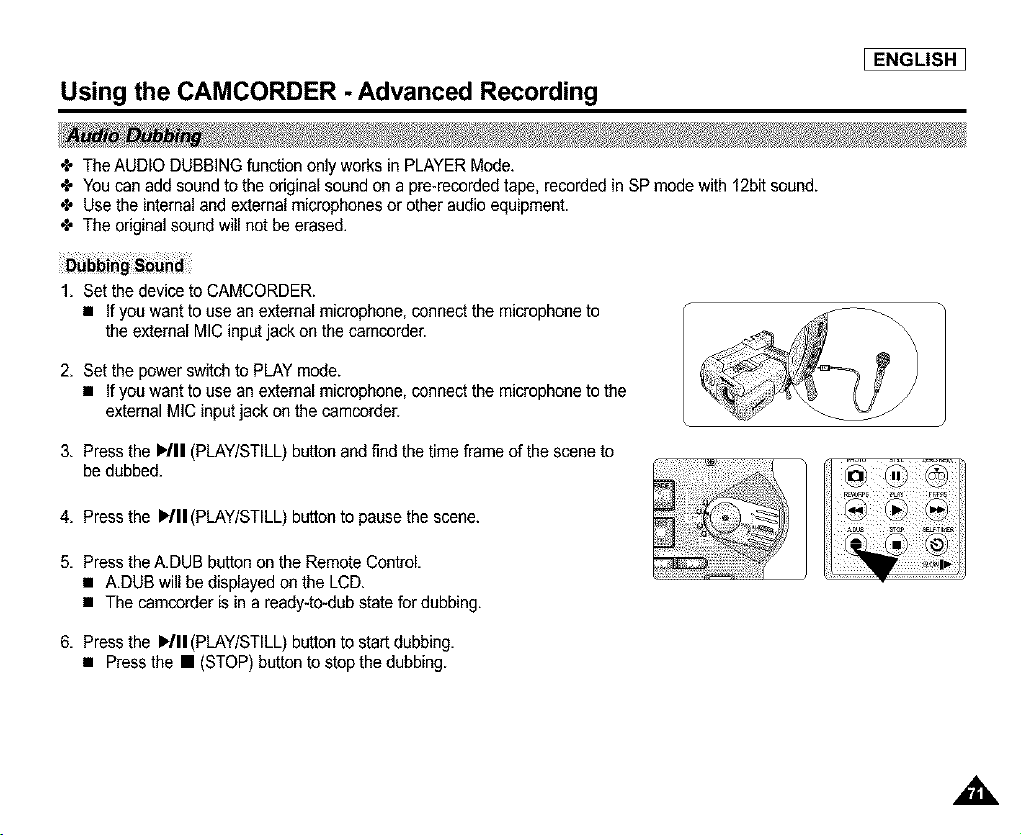
Using the CAMCORDER - Advanced Recording
I ENGLISH ]
÷ The AUDIO DUBBING function only works in PLAYER Mode.
÷ You can add sound to the original sound on a pre-recorded tape, recorded in SP mode with 12bit sound.
÷ Use the internal and external microphones or other audio equipment.
÷ The original sound will not be erased.
1. Set the device to CAMCORDER.
• If you want to use an external microphone, connect the microphone to
the external MIC input jack on the camcorder.
2. Set the power switch to PLAY mode.
• If you want to use an external microphone, connect the microphone to the
external MIC input jack on the camcorder.
3. Press the )/11 (PLAY/STILL) button and find the time frame of the scene to
be dubbed.
4. Press the 1,411(PLAY/STILL) buttonto pausethe scene.
5. Press the A.DUB button on the RemoteControl.
• A.DUB willbe displayed on the LCD.
• The camcorder is in a ready-to-dub state for dubbing.
6. Press the I,/11(PLAY/STILL) button to start dubbing.
• Press the • (STOP) button to stop the dubbing.
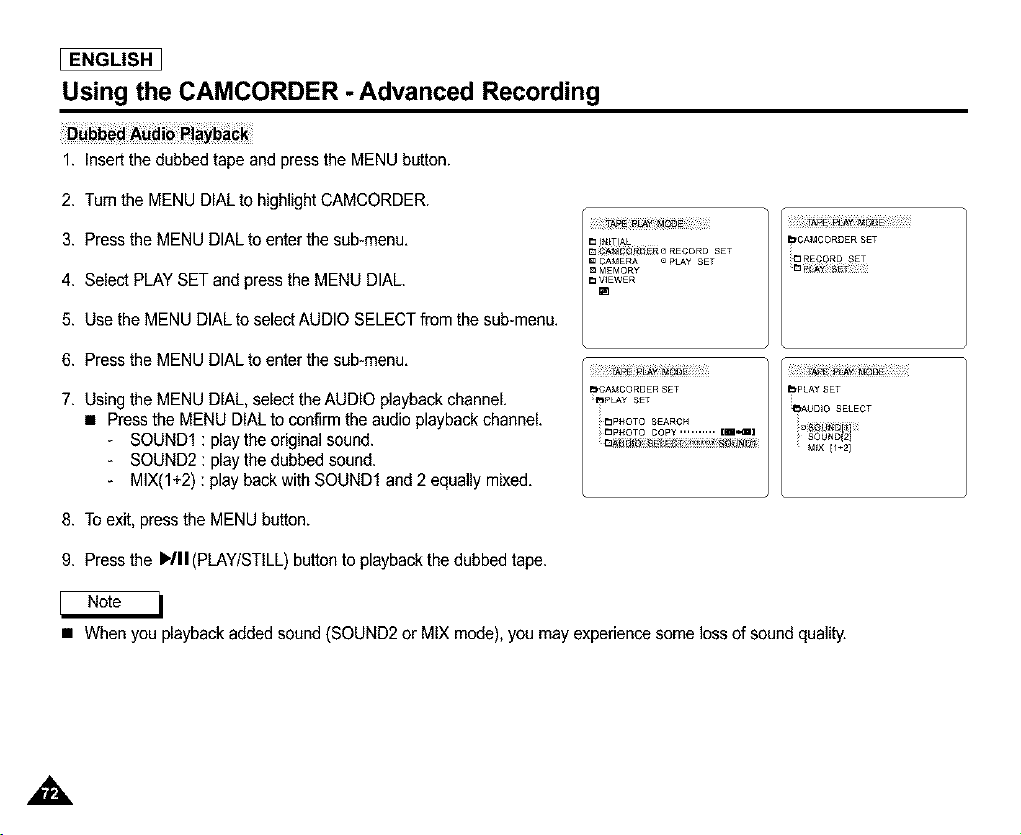
ENGLISH
Using the CAMCORDER - Advanced Recording
1. Insert the dubbed tape and press the MENU button.
2. Turn the MENU DIAL to highlight CAMCORDER.
3. Press the MENU DIAL to enter the sub-menu.
4. Select PLAY SET and press the MENU DIAL.
5. Use the MENU DIAL to select AUDIO SELECT from the sub-menu.
6. Press the MENU DIAL to enter the sub-menu.
7. Using the MENU DIAL, select the AUDIO playbackchannel.
• Pressthe MENU DIAL to confirm the audio playback channel.
- SOUND1 : play the original sound.
- SOUND2 : play the dubbed sound.
- MIX(l+2) : play back with SOUND1 and 2 equally mixed.
8. To exit, press the MENU button.
9. Press the ll,./ll (PLAY/STILL)button to playback the dubbed tape.
_NFIAL
D_;#_F_o RECORDSET
CAMERA _ PLAY SET
MEMORY
D WEW£R
[]
bCAMCORDER SET
/
_,CA_4CORDER SET bPLAY SET
pip LAY SET _
_AV D_O SELECT
I!I3PHOTO SEARCH i_l_i _i_!i_i_
_p_o_o CoPY .......... _,,._ _, SOUN_I21
• When you playback added sound (SOUND2 or MIX mode), you may experience some loss of sound quality.
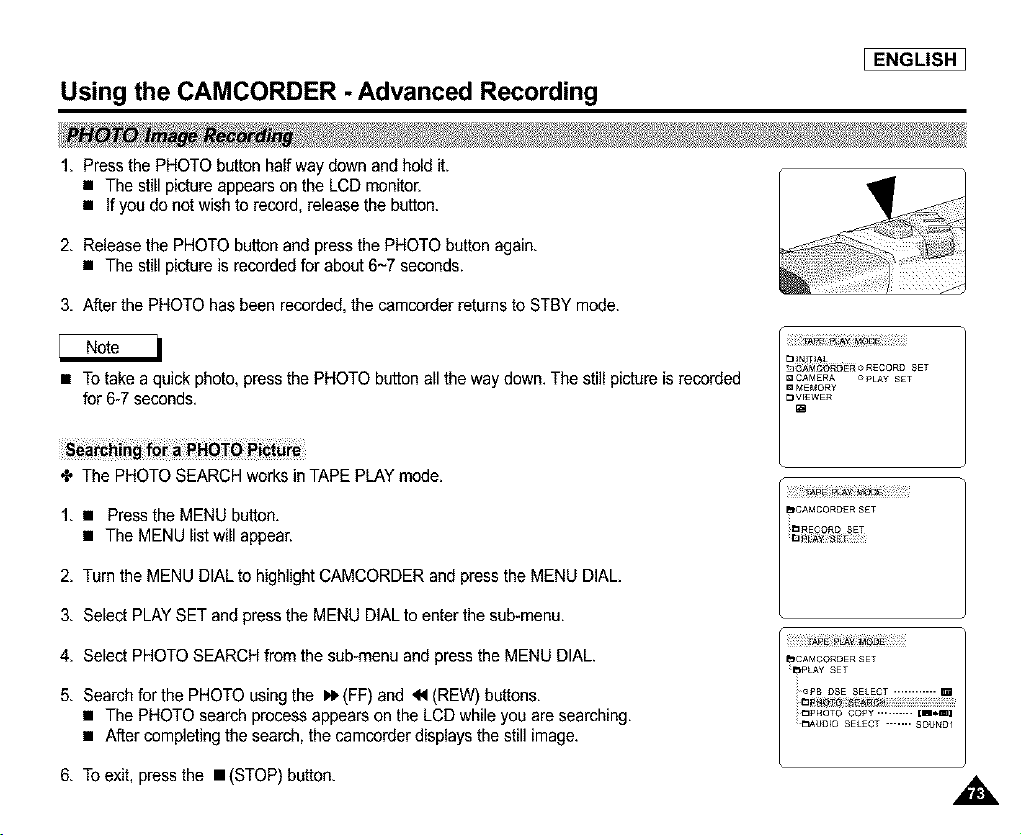
Using the CAMCORDER - Advanced Recording
I ENGLISH 1
I. Press the PHOTO button half way down and hold it.
• The still picture appears on the LCD monitor.
• If you do not wish to record, release the button.
2. Release the PHOTO button and press the PHOTO button again.
• The still picture is recorded for about6~7 seconds.
3. After the PHOTO has been recorded, the camcorder returns to STBY mode.
• TOtake a quick photo, press the PHOTO button all the way down. The still picture is recorded
for 6-7 seconds.
÷ The PHOTO SEARCH works in TAPE PLAY mode.
1. • Pressthe MENU button.
• The MENU list will appear.
2. Turn the MENU DIAL to highlight CAMCORDER and press the MENU DIAL.
3. Select PLAYSET and press the MENU DIAL to enter the sub-menu.
4. Select PHOTO SEARCH from the sob-menu and press the MENU DIAL.
5. Search for the PHOTO using the I_ (FF) and _1 (REW) buttons.
• The PHOTO search process appears on the LCD while you are searching.
• After completing the search the camcorder displays the still image.
6. To exit, press the • (STOP) button.
,,&
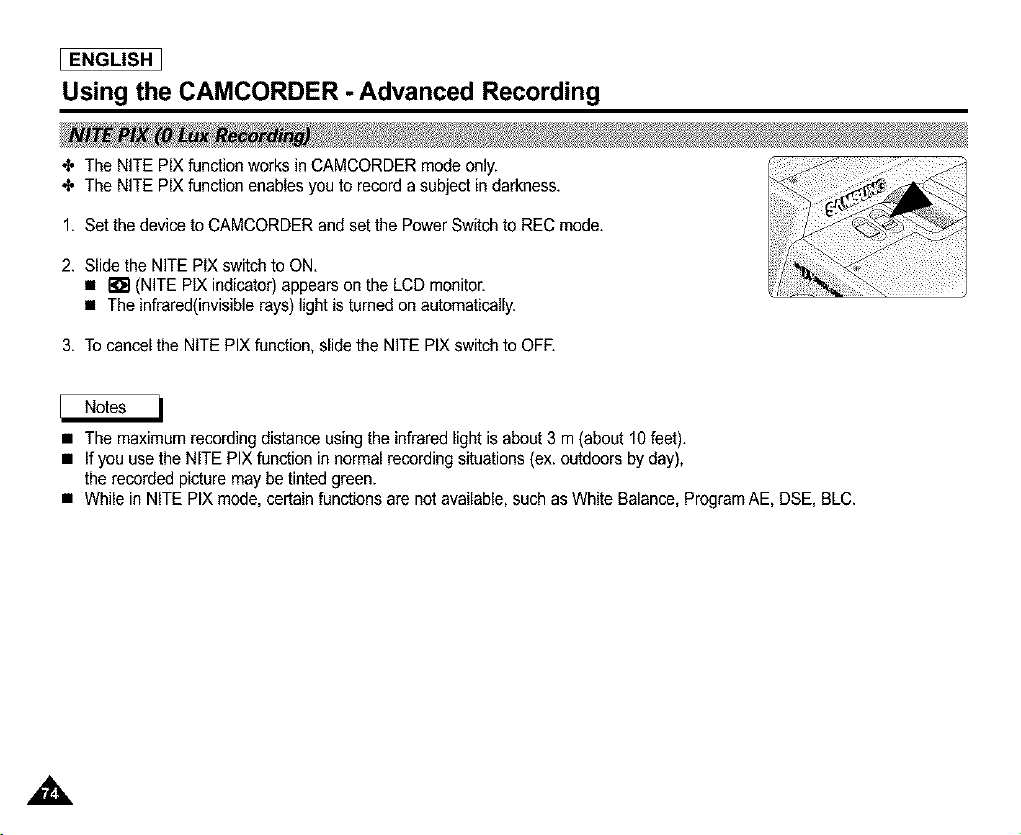
I ENGLISH
Using the CAMCORDER - Advanced Recording
€. The NITE PIX function works in CAMCORDER mode only.
€. The NITE PIX function enables you to record a subject in darkness.
1. Set the device to CAMCORDER and set the Power Switch to REC mode.
2. Slide the NITE PIX switch to ON.
• I;i$1(NITE PIX indicator) appears on the LCD monitor.
• The infrared(invisiblerays) lightis turned on automatically.
3. To cancel the NITE PIX function, slide the NITE PIX switch to OFF.
• The maximum recording distance using the infrared light is about 3 m (about 10 feet).
• If you use the NITE PIX function in normal recording situations (ex. outdoors by day),
the recorded picture may be tinted green.
• While in NITE PIX mode, certain functions are not available, such as White Balance, Program AE, DSE, BLC.
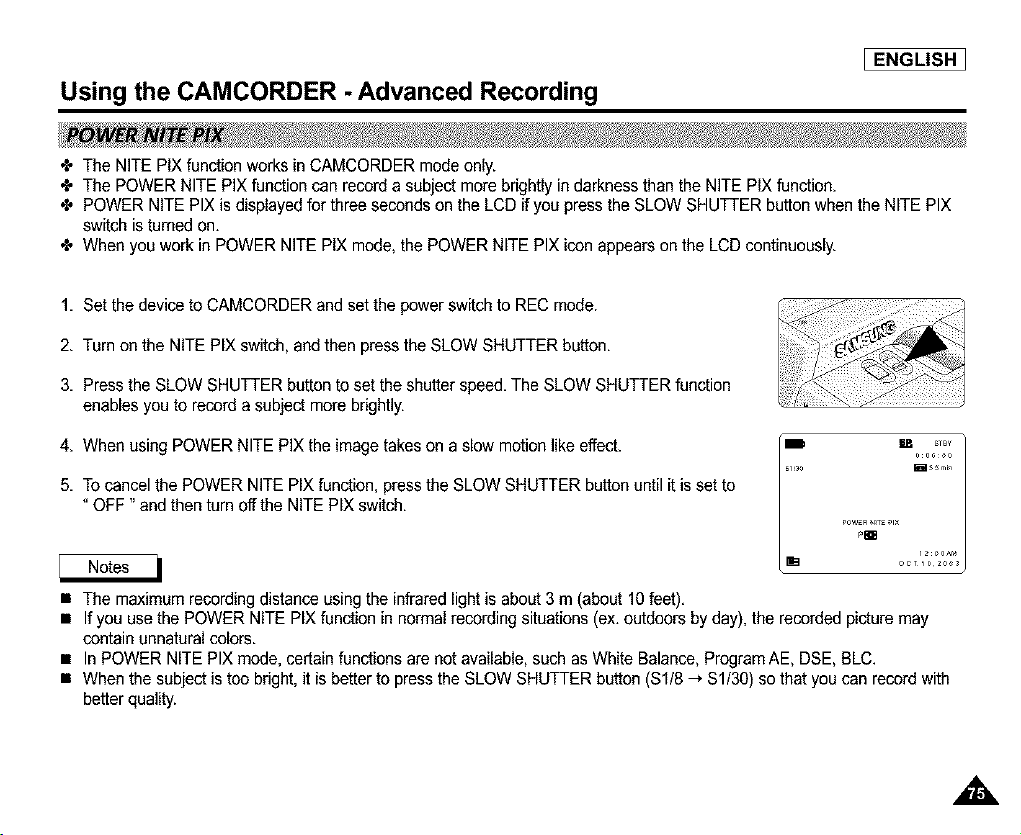
Using the CAMCORDER - Advanced Recording
I ENGLISH 1
÷ The NITE PIX functionworks in CAMCORDER mode only.
÷ The POWER NITE PIX function can record a subject more brightly in darkness than the NITE PIX function.
÷ POWER NITE PIX is displayed for three seconds on the LCD if you press the SLOW SHUTTER button when the NITE PIX
switch is turned on.
÷ When you work in POWER NITE PIX mode, the POWER NITE PIX icon appears on the LCD continuously.
1. Set the device to CAMCORDER and set the power switch to REC mode.
2. Turn on the NITE PIX switch, and then press the SLOW SHUTTER button.
3. Press the SLOW SHUTTER button to set the shutter speed. The SLOW SHUTTER function
enables you to record a subject more brightly.
4. When using POWER NITE PIX the image takes on a slow motion like effect.
5. To cancel the POWER NITE PIX function, press the SLOW SHUTTER button until it is set to
"OFF" and then turn offthe NITE PIX switch.
POWER_4_T2_IX
Pm
i_0Are
• The maximum recording distance usingthe infrared light is about 3 m (about 10 feet).
• If you use the POWER NITE PIX function in normal recording situations (ex. outdoors by day), the recorded picture may
contain unnatural colors.
• In POWER NITE PIX mede, certain functions are not available, such as White Balance, Program AE, DSE, BLC.
• When the subject is too bright, it is better to press the SLOW SHUTTER button ($1/8 _ $1/30) so that you can record with
better quality.
,,&
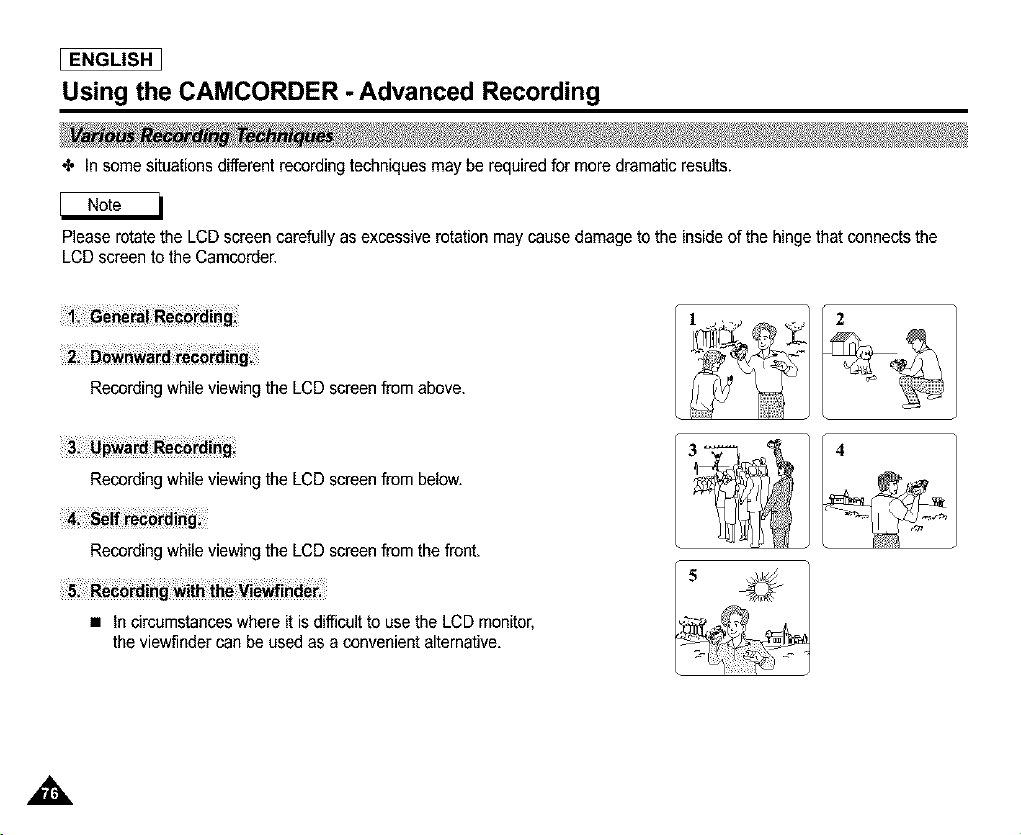
ENGLISH ]
Using the CAMCORDER - Advanced Recording
_, In some situations different recording techniques may be required for more dramatic results.
Please rotate the LCD screen carefully as excessive rotation may cause damage to the inside of the hinge that connects the
LCD screen to the Camcorder.
Recording while viewing the LCD screen from above.
Recording while viewing the LCD screen from below.
Recording while viewing the LCD screen from the front.
• In circumstances where it is difficult to use the LCD monitor,
the viewfinder can be used as a convenient alternative.
5
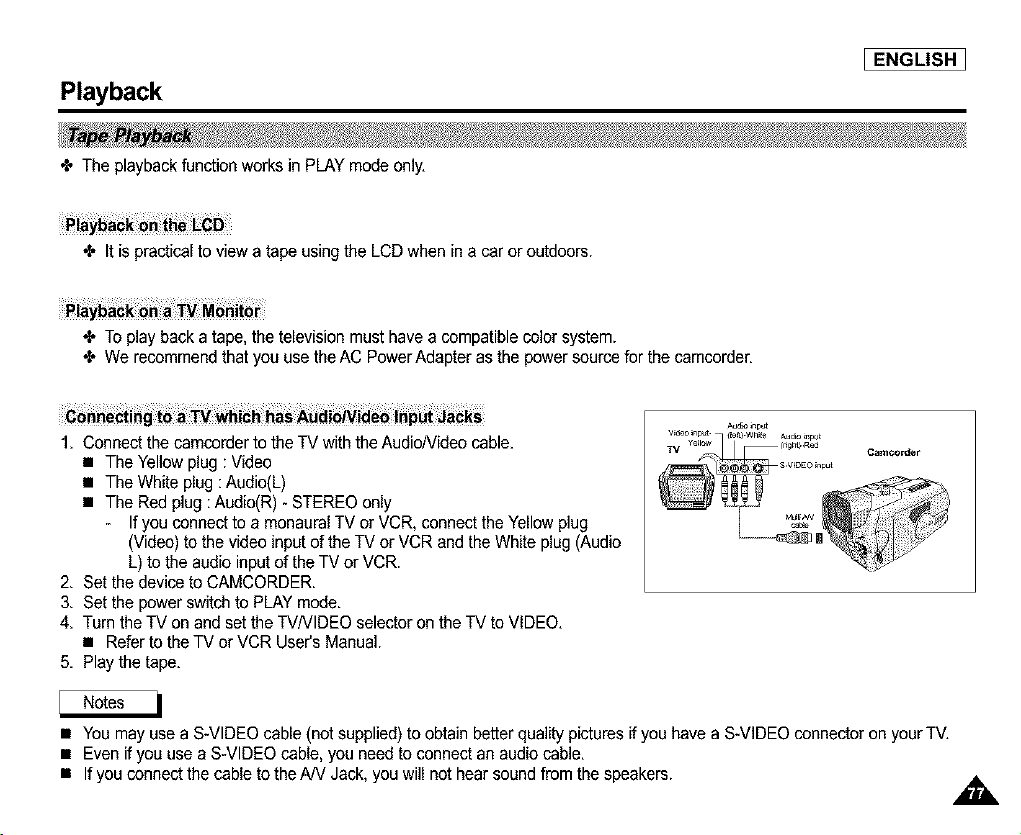
Playback
I ENGLISH ]
÷ The playback function works in PLAY mode only.
•_ It is practicalto view a tape using the LCD when in a car or outdoors.
•_ To play back a tape, the television must have a compatible color system.
•I. We recommend that you use the AC Power Adapter as the powersource for the camcorder.
1. Connect the camcorder to the TV with the AudioNideo cable.
• The Yellow plug : Video
• The White plug :Audio(L)
• The Red plug: Audio(R) - STEREO only
- If you connectto a monaural TV or VCR, connect the Yellow plug
(Video) to the video input of the TV or VCR and the White plug (Audio
L) to the audio input of the TV or VCR.
2. Set the device to CAMCORDER.
3. Set the power switch to PLAY mode.
4. Turn the TV on and set the TVNIDEO selector on the TV to VIDEO.
• Refer to the TV or VCR User's Manual.
5. Play the tape.
Auto _np_t
Cam_or_er
• You may use a S-VIDEO cable (not supplied) to obtainbetter quality picturesif you have a S-VIDEO connector on your TV.
• Even if you use a S-VIDEO cable, you need to connect an audio cable.
• If you connect the cable to the NV Jack, you will not hear sound from the speakers.
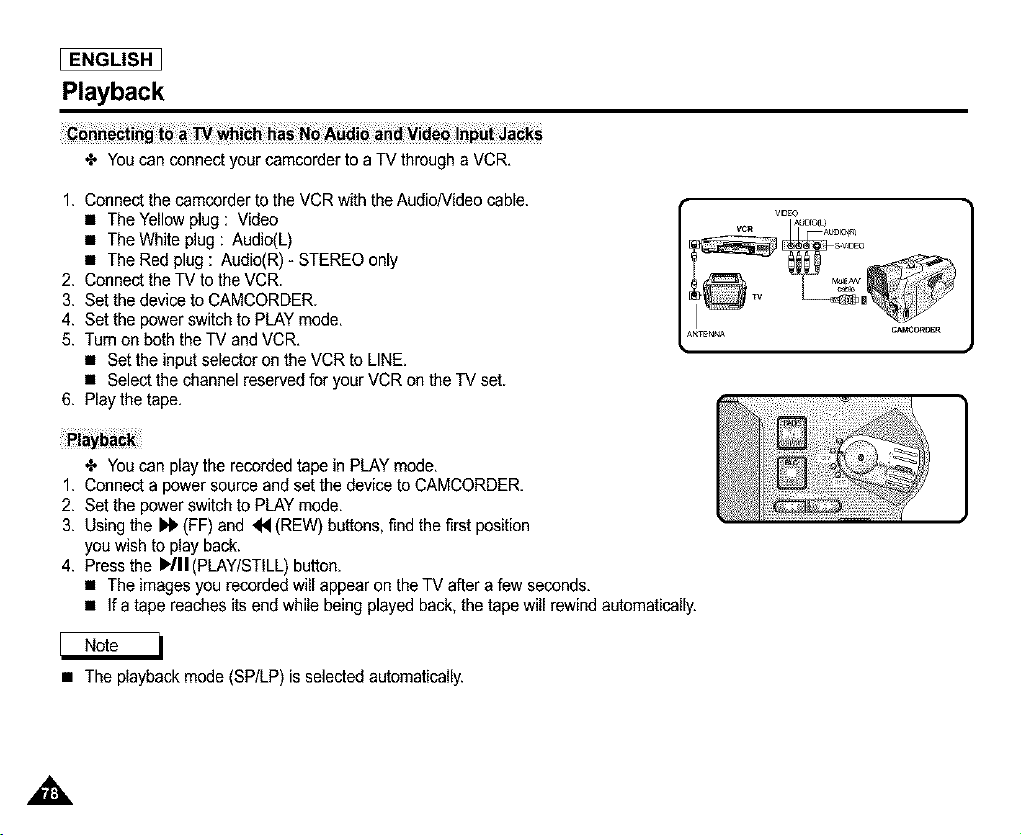
ENGLISH
Playback
•Z, You can connect your camcorder to a TV through a VCR,
1. Connect the camcorder to the VCR with the AudioNideo cable.
• The Yellow plug : Video
• The White plug : Audio(L)
• The Red plug : Audio(R) - STEREO only
2. Connect the TV to the VCR.
3. Set the device to CAMCORDER.
4. Set the power switch to PLAY mode,
5. Turn on both theTV and VCR,
• Set the input selector on the VCR to LINE,
• Select the channel reserved for your VCR on the TV set.
6. Play the tape,
VlDEOc{o_ }
VCR AUDIOO_
) _v m
TENNA C_O_OER
•Z, You can play the recorded tape in PLAY mode,
1. Connect a power source and set the device to CAMCORDER.
2. Set the power switch to PLAY mode,
3. Using the _ (FF) and _ (REW) buttons, find the first position
you wish to play back.
4. Press the )Ill(PLAY/STILL) button,
• The images you recorded will appear on theTV after a few seconds,
• If a tape reaches its end while being played back, the tape will rewind automatica(ly.
• The playback mode (SP/LP) is selected automatically.
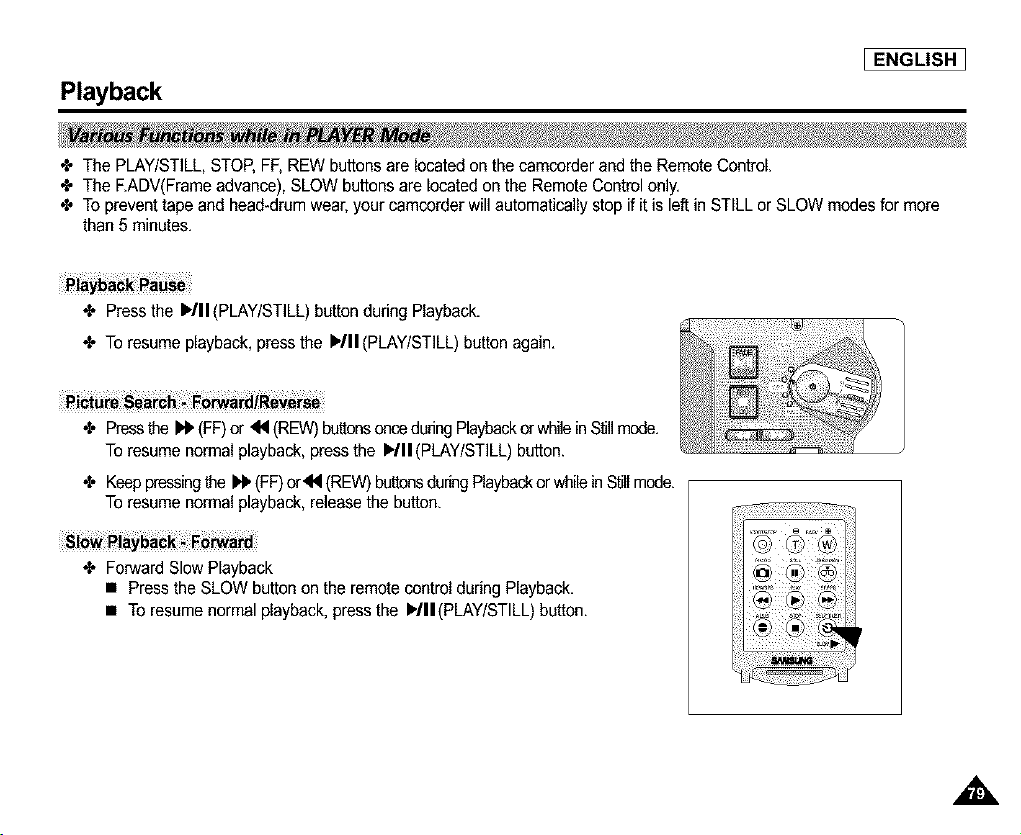
Playback
I ENGLISH 1
4. The PLAY/STILL, STOP,FF, REW buttons are located on the camcorder and the Remote Control,
4. The EADV(Frame advance), SLOW buttons are located on the RemoteControl only,
4. To prevent tape and head-drum wear, your camcorder will automatically stop if it is left in STILL or SLOW modes for more
than 5 minutes,
4. Press the )'/11(PLAY/STILL) button during Playback,
4. To resume playback, press the )/11 (PLAY/STILL)button again,
4. Pressthe _ (FF)or _N (REW) buttonsoncedunngPlaybackor whilein Stillmode,
To resume normal playback, press the )/11 (PLAY/STILL) button,
4- Keeppressingthe l,_(FF)or44(REW)buttonsduHngPlaybackorwhileinStillmode.
To resume normal playback, releasethe button,
4. Forward Slow Playback
• Press the SLOW button on the remote control during Playback,
• To resume normal playback, press the I='/11(PLAY/STILL) button,
,,&
I ENGLISH
Playback
_, The MEMORYfunction works in both REC and TAPE PLAY modes.
_, You can mark a point on a tape that you want to return to following playback.
1. Press the ZERO MEMORY button on the remote control during playback or while recording at the point you wish to return to.
• The time code is changed to a tape counter that is set to Zero Memory with the [] g:o0:00(Zero Memory Indicator)
• If you want to cancel the Zero Memory function, press the ZERO MEMORY button again.
2. Findingthe Zero Position.
• When you have finished playback, fast forward or rewind the tape.
- The tape stops automatically when it reaches the Zero Position.
• When you have finished recording, press the power switch on the PLAYER and press the _ (REW) button.
- The tape stops automatically when it reaches the zero position.
3. The tape counter with the [] (Zero Memory Indicator) disappears from the display and the tape counter is
changed back to time code.
• In the following situations, ZERO MEMORY mode may be canceled automatically:
- At the end of the section marked with the ZERO MEMORY function.
- When the tape is ejected.
- When you remove the battery pack or power supply.
• The Zero Memory may not function correctly when there is a break between recordings on the tape.
,&
IEEE 1394 Data Transfer
I ENGLISH 1
4. Connecting with Other DV Standard Products.
• A standard DV connection is quite simple.
If a product has a DV port(firewire), you can transfer data by connecting to the DV port using the correct cable.
!!! Please be careful since there are two types of DV ports, (4pin & 6pin). This camcorder has a 4pin terminal.
4. With a digital connection, video and audio signals are transmitted in digital format, allowing highquality images
to be transferred.
4. If you want to transmit data to a PC, you must install an IEEE 1394 add-on card onto the PC. (not supplied)
4. The frame rate recorded for video capturing is dependent on the capacity of the PC.
• When you transmit data from the camcerder to another DV device, some functions may not work.
If this occurs, please reconnect the DV cable or turn the power OFF and ON again.
• When you transmit data from the camcorder to the PC, the PC function button is not available in M.PLAY mode.
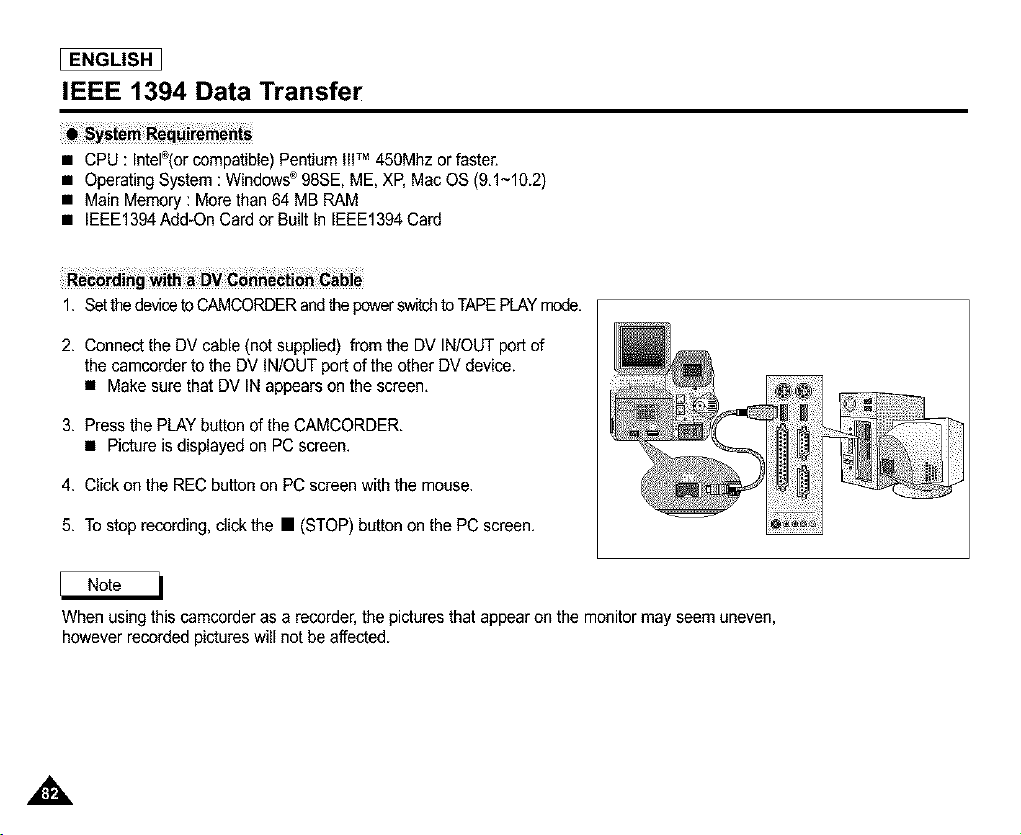
[ ENGLISH ]
IEEE 1394 Data Transfer
• CPU : Intel®(orcompatible) Pentium IllTM 450Mhz or faster.
• Operating System : Windows®98SE, ME, XP, Mac OS (9.1~10.2)
• Main Memory : More than 64 MB RAM
• IEEE1394Add-On Card or Built In IEEE1394 Card
1. Set the deviceto CAMCORDERandMe powerswitchto TAPEPLAYmode.
2. Connect the DV cable (not supplied) from the DV IN/OUT port of
the camcorder to the DV IN/OUT port of the other DV device.
• Make sure that DV IN appears on the screen.
3. Press the PLAY button of the CAMCORDER.
• Pictureis displayed on PC screen.
4. Click on the REC button on PC screen with the mouse.
5. To stop recording, click the • (STOP) button on the PC screen.
When using thiscamcorder as a recorder, the picturesthat appear on the monitor may seem uneven,
however recorded pictures will not be affected.
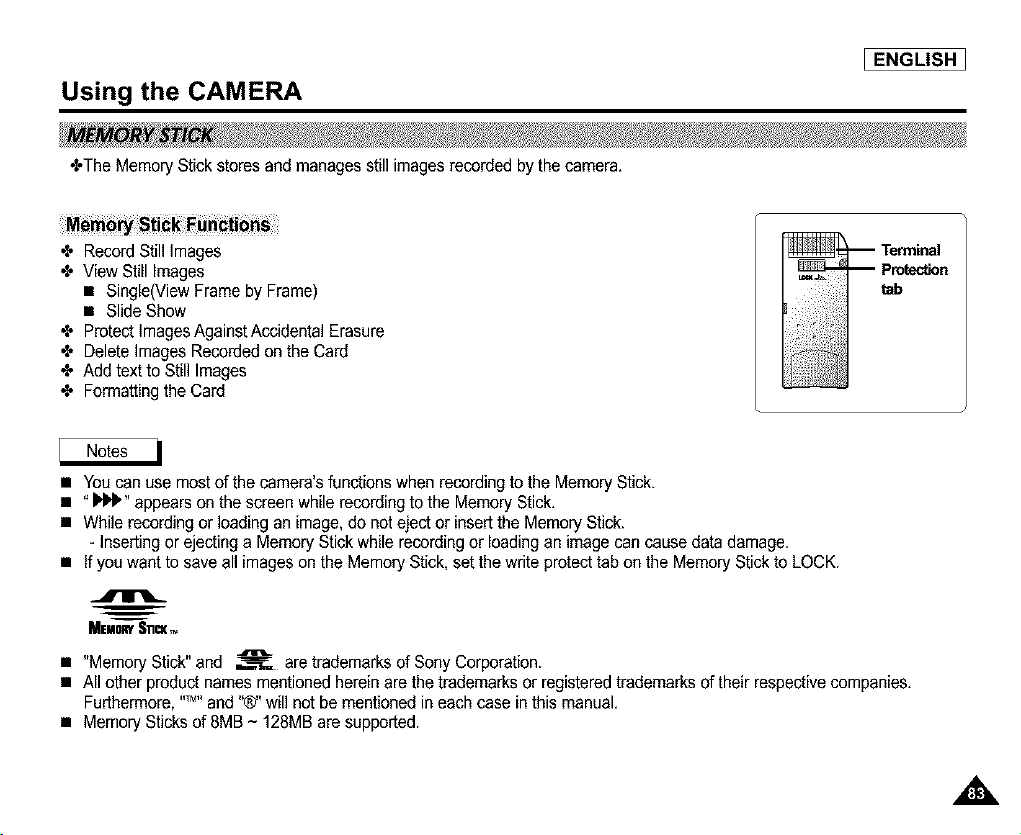
Using the CAMERA
I ENGLISH ]
-:-TheMemory Stick stores and manages still images recorded by the camera.
•F Record Still Images
View Still Images
• Single(View Frameby Frame)
• Slide Show
•F Protect ImagesAgainstAccidental Erasure
•F Delete Images Recorded on the Card
•F Add text to Still Images
•_ Formattingthe Card
-- Terminal
-- Protection
tab
• You can use most of the camera's functions when recording to the Memory Stick.
• "_" appears on the screen while recording to the Memory Stick.
• While recording or loading an image, do not eject or insert the Memory Stick.
- Inserting or ejecting a Memory Stick while recording or loading an image can cause data damage.
• If you want to save all images on the Memory Stick, set the write protect tab on the Memory Stick to LOCK.
MEMORYS_,_
• "Memory Stick" and _ are trademarks of Sony Corporation.
• All other product names mentioned herein are the trademarks or registered trademarks of their respective companies.
Furthermore, ,,T_,,and "®" will not be mentioned in each case in this manual.
• Memory Sticks of 8MB ~ 128MB are supported.
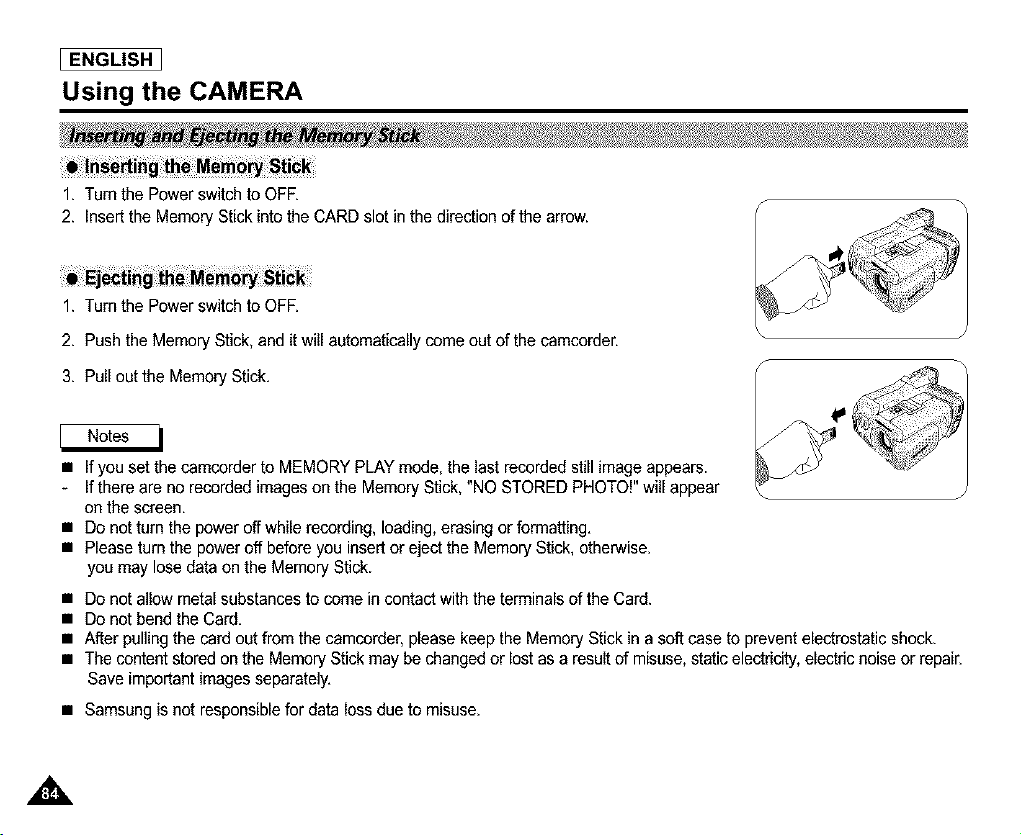
ENGLISH
Using the CAMERA
Turn the Power switch to OFE
2. Insert the Memory Stick into the CARD slot in the direction of the arrow.
1. Turn the Power switch to OFE
2. Push the Memory Stick, and it will automatically come outof the camcorder.
3. Pull out the Memory Stick.
• If you set the camcorder to MEMORY PLAY mode, the last recorded still image appears.
- If there are no recorded images on the Memory Stick, "NO STORED PHOTO!" will appear
on the screen.
• Do nottum the power offwhile recording, loading, erasing or formatting.
• Please turn the power off before you insert or eject the Memory Stick, otherwise.
you may lose data on the Memory Stick.
• Do not allow metal substances to come in contact with the terminals of the Card.
• Do not bend the Card.
• After pulling the card out from the camcorder, please keep the Memory Stick in a soft case to prevent electrostatic shock.
• The content stored on the Memory Stick may be changed or lost as a result of misuse, static electricity, electric noise or repair.
Save important images separately.
• Samsung is not responsible for data loss due to misuse.
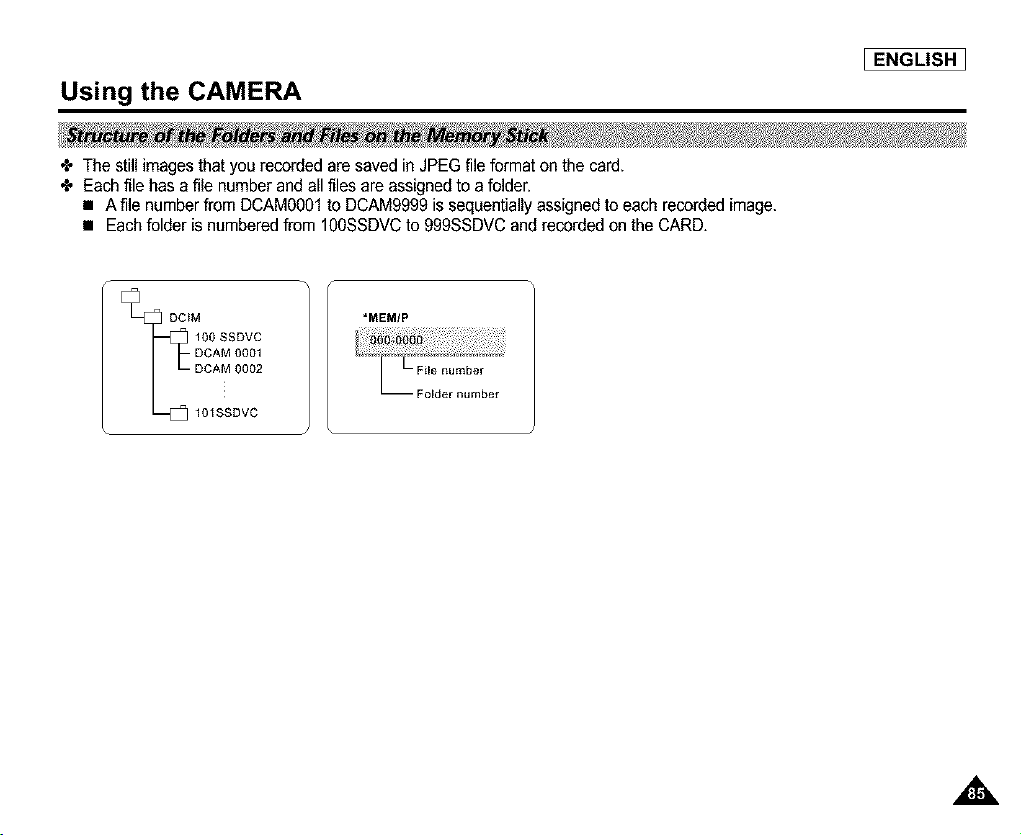
Using the CAMERA
I ENGLISH ]
÷ The still images that you recorded are saved in JPEG file format on the card.
÷ Each file has a file number and all files are assigned to a folder.
• A file number from DCAMOO01to DCAM9999 is sequentially assigned to each recorded image.
• Each folder is numbered from 100SSDVC to 999SSDVC and recorded on the CARD.
DCIM
DCAM 0001
DCAM 0002
*MEMIP
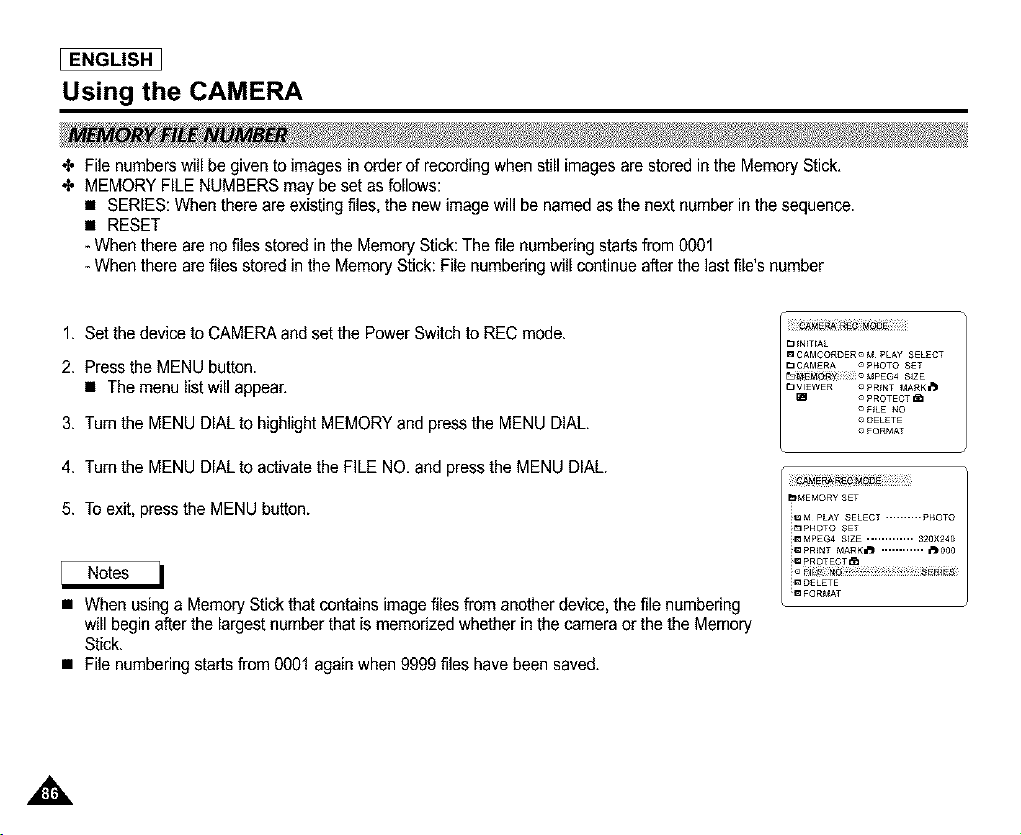
[ ENGLISH ]
Using the CAMERA
_, File numbers will be given to images in order of recordingwhen still images are stored in the Memory Stick.
_, MEMORY FILE NUMBERS may be set as follows:
• SERIES: When there are existing files, the new image will be named as the next number inthe sequence.
• RESET
- When there are no files stored in the Memory Stick: The file numbering starts from 0001
- When there are files stored in the Memory Stick: File numbering will continue after the last file's number
1. Set the device to CAMERA and set the Power Switch to REC mode.
2. Press the MENU button.
• The menu list will appear.
3. Turn the MENU DIAL to highlight MEMORY and press the MENU DIAL.
4. Turn the MENU DIAL to activate the FILE NO. and press the MENU DIAL.
5. To exit, press the MENU button.
• When using a Memory Stick thatcontains image files from another device, the file numbering
will begin after the largest number that is memorized whether in the camera or the the Memory
Stick.
• File numberingstarts from 0001 againwhen 9999 files have been saved.
[3 _N_T_AL
bMEMORY SET
_M PLAY SELECT .......... p_OTO
_ P_OTO SET
m MPEG4 S_ZE ............. 320X2,_r_
_m PROTECT_
m DELETE
_ FORMAT
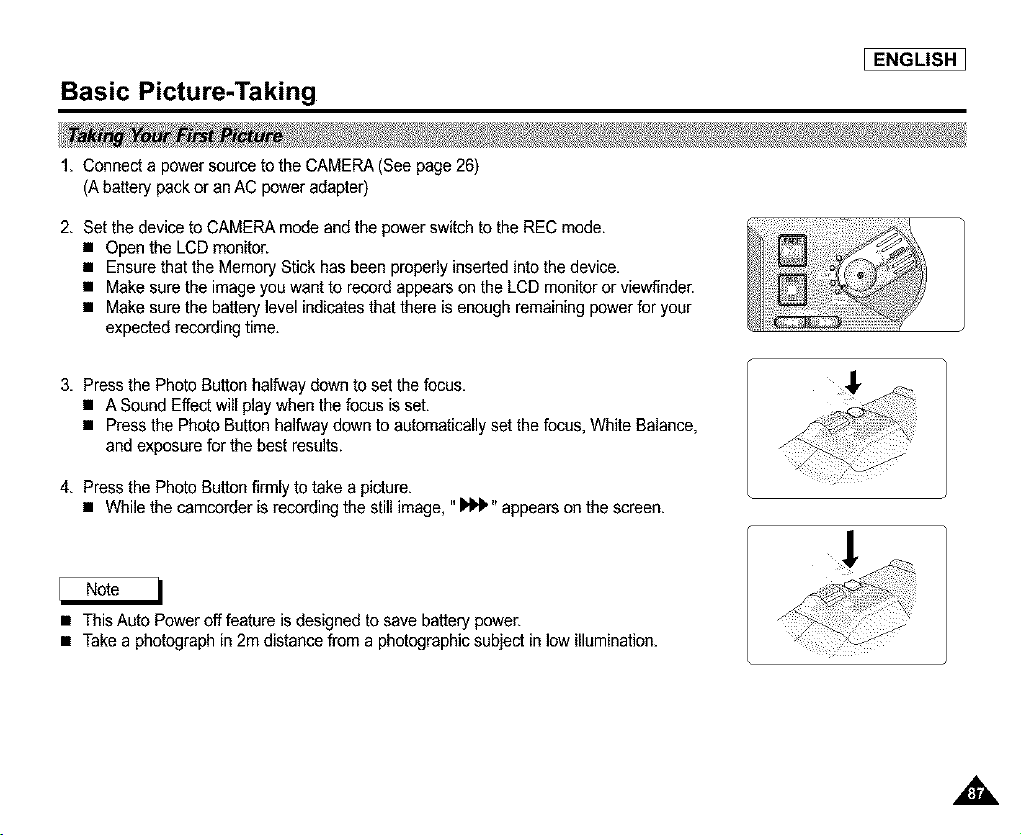
Basic Picture-Taking
I ENGLISH 1
1. Connect a power source to the CAMERA (See page 26)
(A battery pack or an AC power adapter)
2. Set the device to CAMERA mode and the powerswitch to the REC mode.
• Open the LCD monitor.
• Ensure that the Memory Stick has been properly inserted into the device.
• Make sure the image you want to record appears on the LCD monitor or viewfinder.
• Make sure the battery level indicates that there is enough remaining power for your
expected recording time.
3. Press the PhotoButton halfway down to set the focus.
• A Sound Effect will play when the focus is set.
• Press the Photo Button halfway down to automatically set the focus, White Balance,
and exposure for the best results.
4. Press the PhotoButton firmly to take a picture.
• While the camcorder is recording the still image, "_" appears on the screen.
• ThisAuto Power off feature is designed to save battery power.
• Takea photograph in 2m distance from a photographicsubject in low illumination.
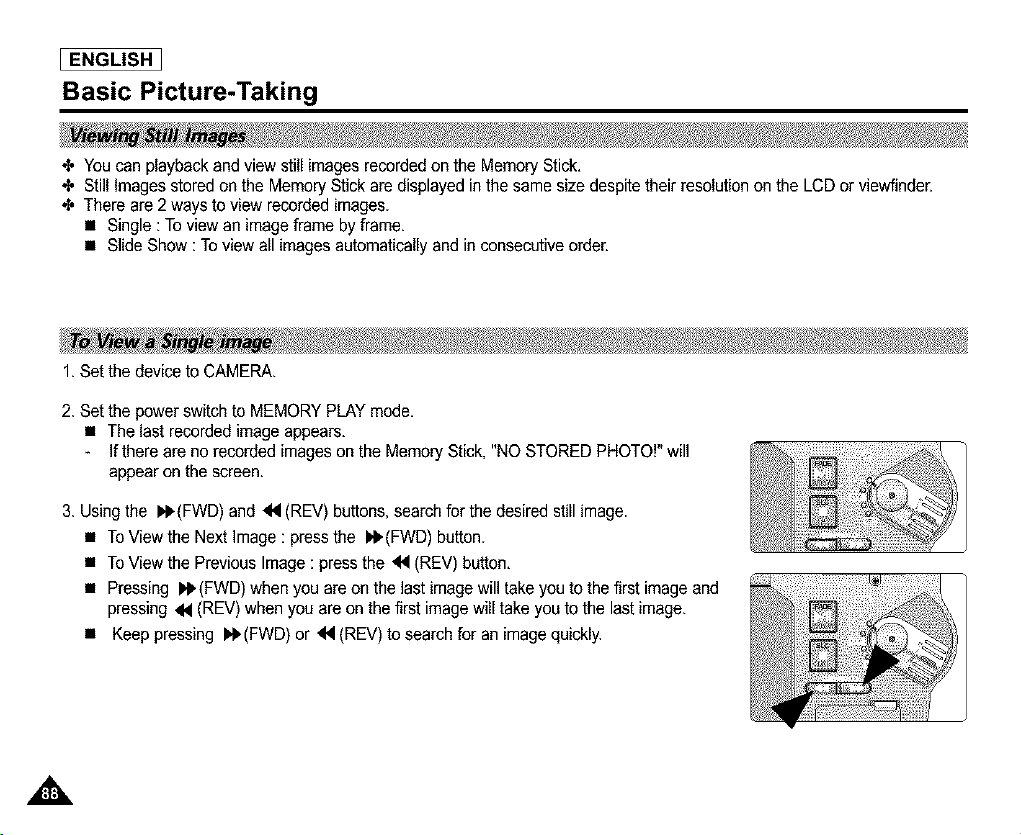
[ ENGLISH ]
Basic Picture-Taking
_, You can playback and view still images recorded on the Memory Stick.
_, Still Images stored on the Memory Stick are displayed in the same size despite their resolution on the LCD or viewfinder.
_, There are 2 ways to view recorded images.
• Single : To view an image frame by frame.
• Slide Show : Toview all images automatically and in consecutive order.
1. Set the device to CAMERA.
2. Set the powerswitch to MEMORY PLAY mode.
• The last recorded image appears.
If there are no recorded images on the Memory Stick, "NO STORED PHOTO!" will
appear on the screen.
3. Using the I,I_(FWD) and _ (REV) buttons, search for the desired still image.
• To View the Next Image : pressthe I_(FWD) button.
• To View the Previous Image : pressthe _1 (REV) button.
• Pressing I_(FWD) when you are on the last image will take you to the first image and
pressing _1 (REV) when you are on the first image will take youto the last image.
• Keep pressing iI_,(FWD) or _1 (REV) to search for an image quickly.
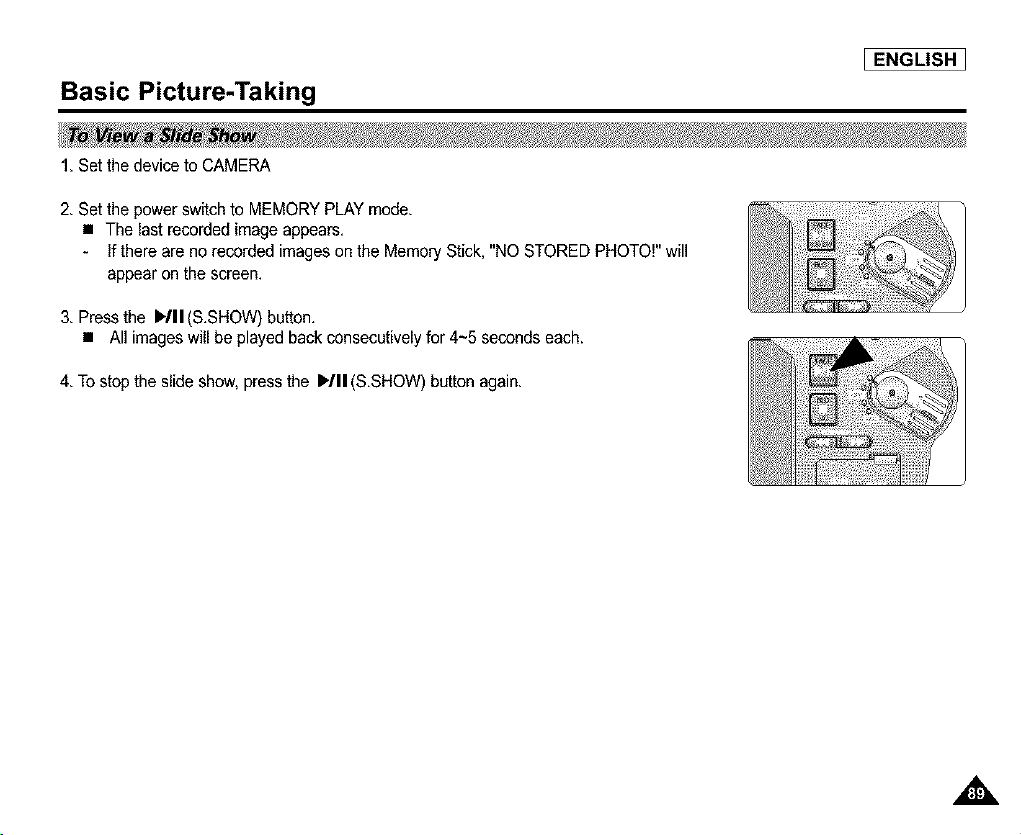
Basic Picture-Taking
I ENGLISH 1
1. Set the device to CAMERA
2. Set the powerswitch to MEMORY PLAY mode.
• The last recorded imageappears.
- If there are no recorded images on the Memory Stick, "NO STORED PHOTO!" will
appear on the screen.
3. Press the WII (S.SHOW) button.
• All images will be playedback consecutively for 4-5 seconds each.
4. To stop the slide show, press the I_/11(S.SHOW) button again.
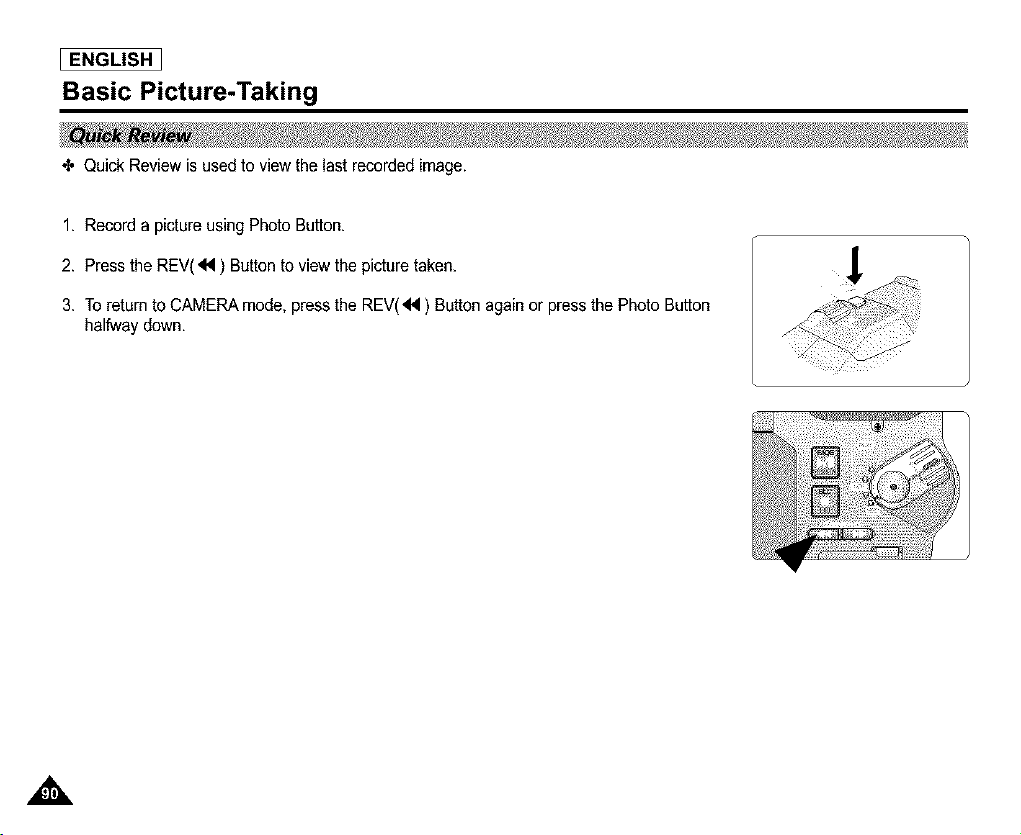
[ ENGLISH ]
Basic Picture-Taking
_, Quick Review is used to view the last recorded image.
1. Record a picture using Photo Button.
2. Press the REV(_I ) Button to view the picture taken.
3. To return to CAMERA mode, press the REV('_I ) Button again or press the Photo Button
halfway down.
,&
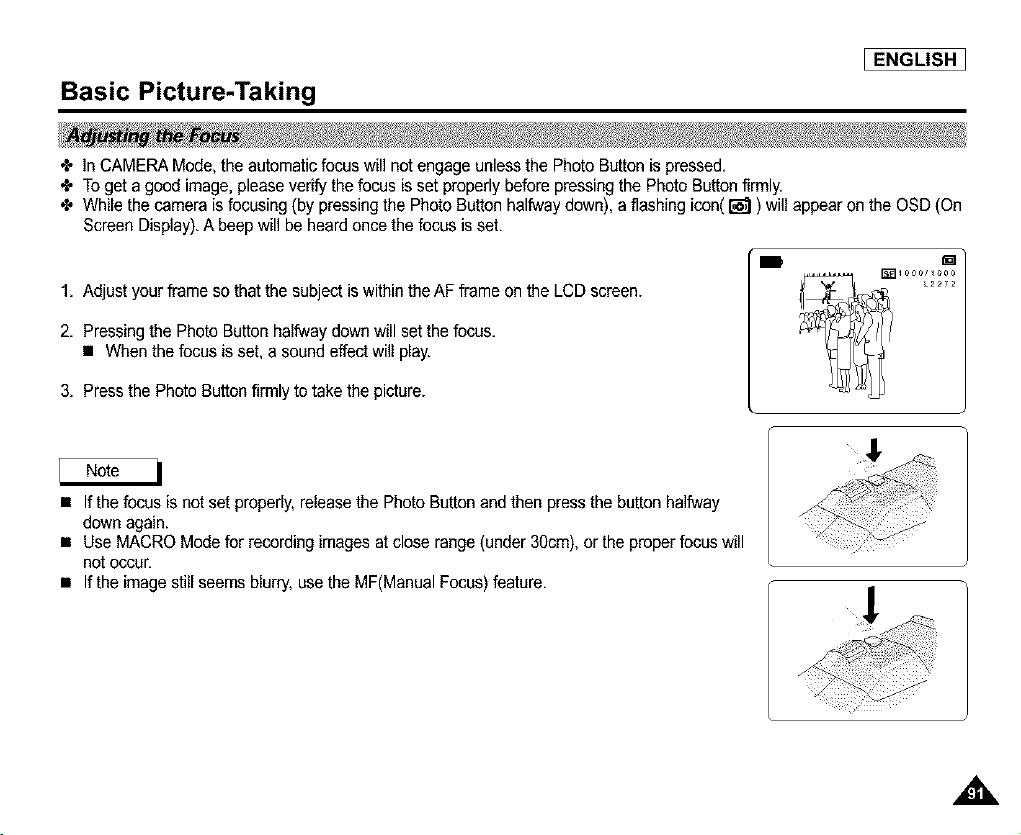
Basic Picture-Taking
I ENGLISH 1
÷ In CAMERA Mode, the automatic focus will not engage unless the Photo Button is pressed.
÷ To get a good image, please verify the focus is set properly before pressing the Photo Button firmly.
÷ While the camera is focusing (by pressing the Photo Button halfway down), a flashing icon(_ ) will appear on the OSD (On
Screen Display).A beep will be heard once the focus is set.
'mD m
1. Adjust your frame so that the subject is within the AF frame on the LCD screen.
2. Pressing the Photo Button halfway down will set the focus.
• When the focus is set, a sound effect will play.
3. Press the Photo Button firmly to take the picture.
• If the focus is not set properly,releasethe Photo Button and then press the button halfway
down again.
• Use MACRO Mode for recording images at close range (under 30cm), or the proper focus will
net occur.
• If the image still seems blurry, use the MF(Manual Focus) feature.
A,
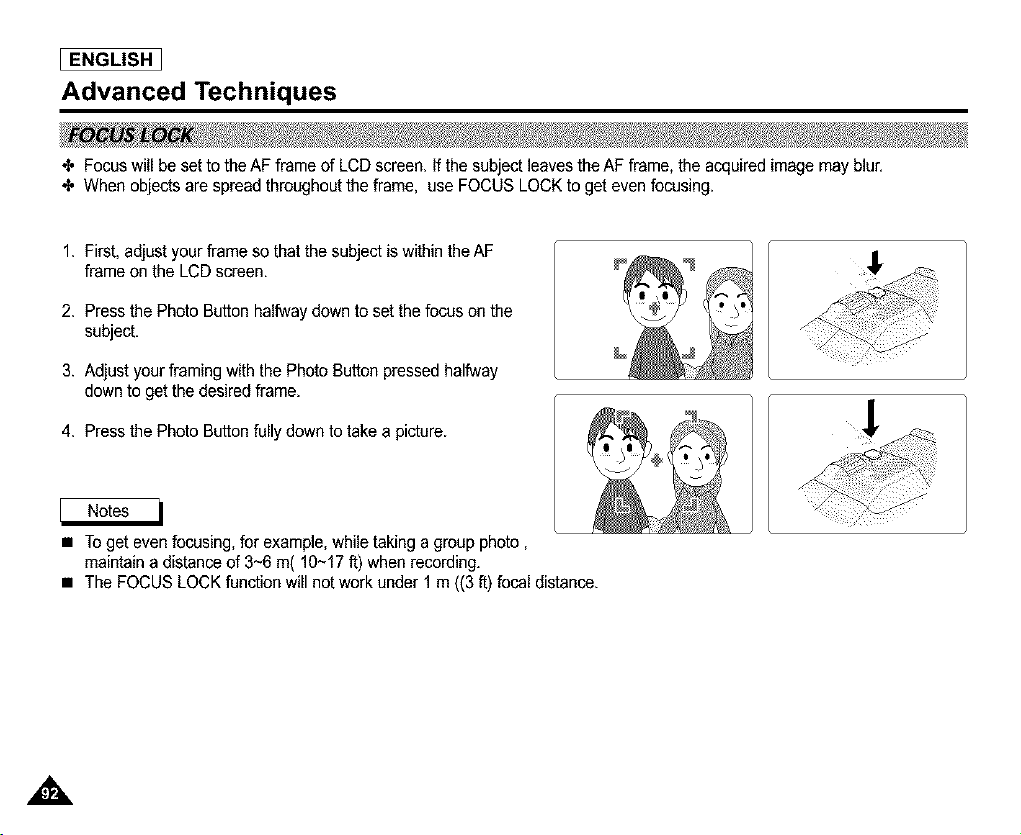
I ENGLISH
Advanced Techniques
€. Focuswill be set to the AF frame of LCD screen. Ifthe subject leaves the AF frame, the acquired image may blur.
€. When objects are spread throughout the frame, use FOCUS LOCK to get even focusing.
1. First, adjust your frame so that the subject is within the AF
frame on the LCD screen.
2. Press the Photo Button halfwaydown to set the focus on the
subject.
3. Adjust your framing with the Photo Button pressed halfway
down to get the desired frame.
4. Press the Photo Button fully down to take a picture.
• Toget even focusing, for example, while taking a group photo,
maintain a distance of 3~6 m( 10~17 ft) when recording.
• The FOCUS LOCK function will not work under 1 m ((3 ft) focal distance.
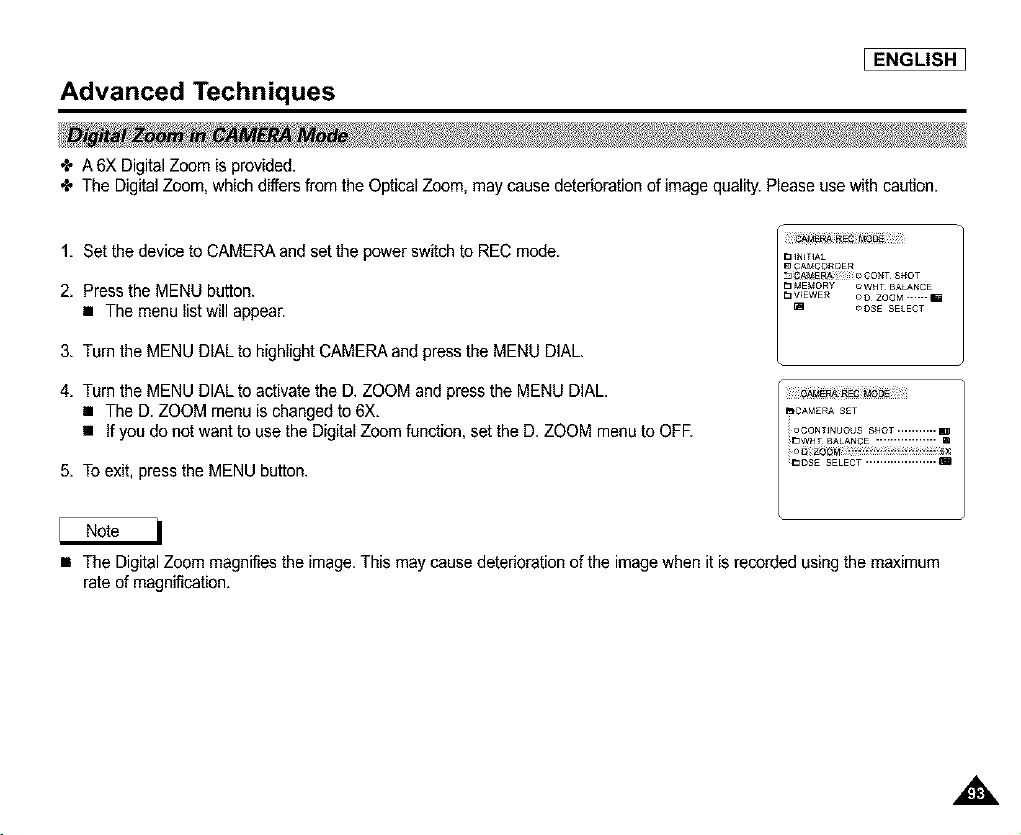
Advanced Techniques
I ENGLISH 1
÷ A 6X Digital Zoom is provided.
÷ The Digital Zoom, which differs from the Optical Zoom, may cause deterioration of image quality, Please use with caution,
1, Set the device to CAMERA and set the power switch to REC mode.
2. Press the MENU button.
• The menu list will appear.
3. Turn the MENU DIAL to highlight CAMERA and press the MENU DIAL.
4. Turn the MENU DIAL to activate the D. ZOOM and press the MENU DIAL.
• The D. ZOOM menu is changed to 6X.
• If you do not want to use the Digital Zoom function, set the D. ZOOM menu to OFE
5. To exit, press the MENU button.
[3 _NIT_AL
• The Digital Zoom magnifies the image. This may cause deterioration of the image when it is recorded using the maximum
rate of magnification.
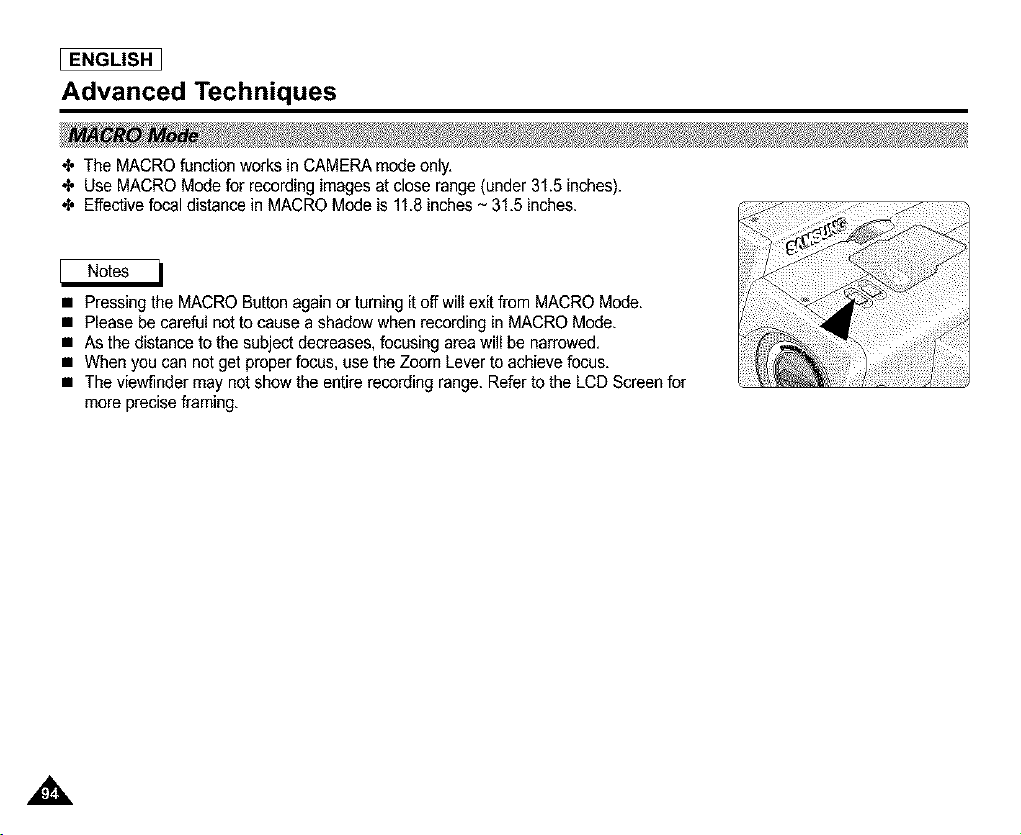
I ENGLISH
Advanced Techniques
4" The MACRO functionworks inCAMERA mode only.
4, Use MACRO Mode for recording imagesat close range (under 31.5 inches).
4, Effective focal distance in MACRO Mode is 11.8 inches~ 31.5 inches.
• Pressing the MACRO Button again or turning it off willexit from MACRO Mode.
• Please be careful not to cause a shadow when recording in MACRO Mode.
• As the distance to the subject decreases,focusing area will be narrowed.
• When you can not get proper focus, use the Zoom Lever to achieve focus.
• The viewfinder may not show the entire recording range. Refer to the LCD Screen for
more precise framing.
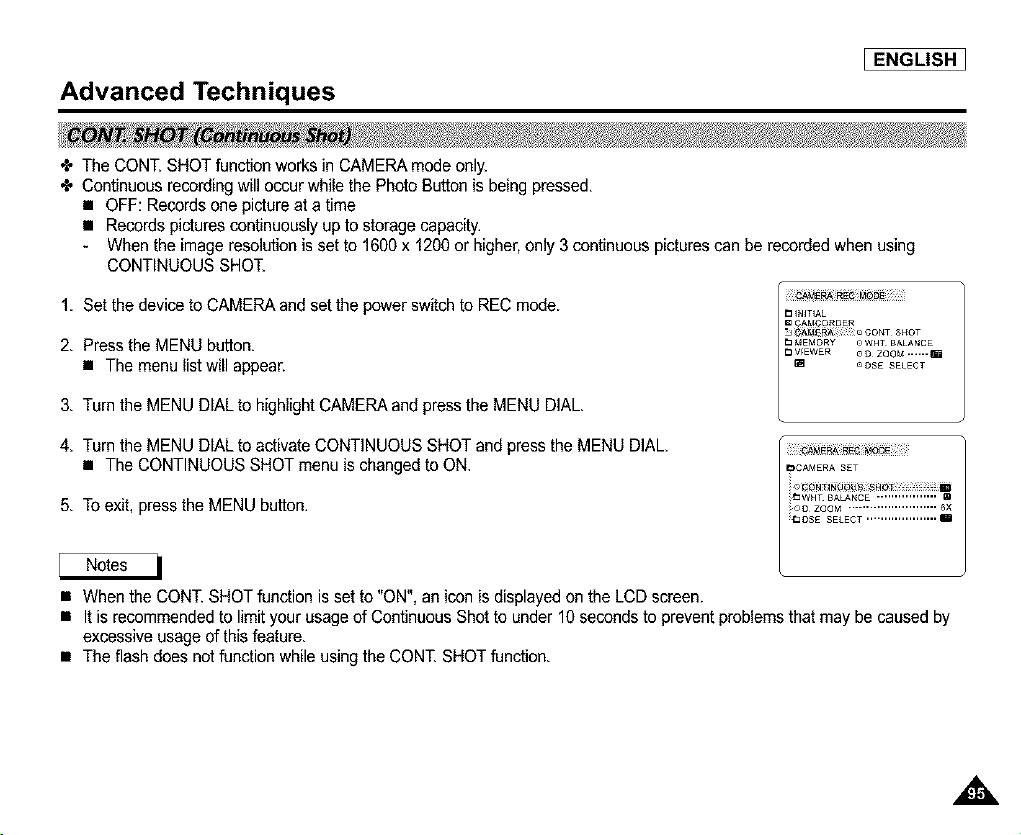
Advanced Techniques
I ENGLISH 1
÷ The CONT. SHOT function works in CAMERA mode only.
÷ Continuous recording will occur while the Photo Button is being pressed.
• OFF: Records one picture at a time
• Records pictures continuously up to storage capacity.
- When the image resolution is set to 1600 x f 200 or higher, only 3 continuous pictures can be recorded when using
CONTINUOUS SHOT.
1, Set the device to CAMERA and set the powerswitch to REC mode.
2, Press the MENU button.
• The menu list will appear.
3, Turn the MENU DIAL to highlight CAMERA and press the MENU DIAL,
E__NIT_AL
_AM_DRDER
S_OT
_ MEMORY [_WHT BALANCE
_VrEWER _D ZOOM ......_
_DS£ SELECT
4, Turn the MENU DIAL to activate CONTINUOUS SHOT and press the MENU DIAL,
• The CONTINUOUS SHOT menu is changed to ON.
5, To exit. press the MENU button.
• When the CONT. SHOT function is set to "ON", an icon is displayed on the LCD screen.
• It is recommended to limit your usage of Continuous Shot to under 10 seconds to prevent problems that may be caused by
excessive usage of this feature,
• The flash does not function while using the CONT. SHOT function,
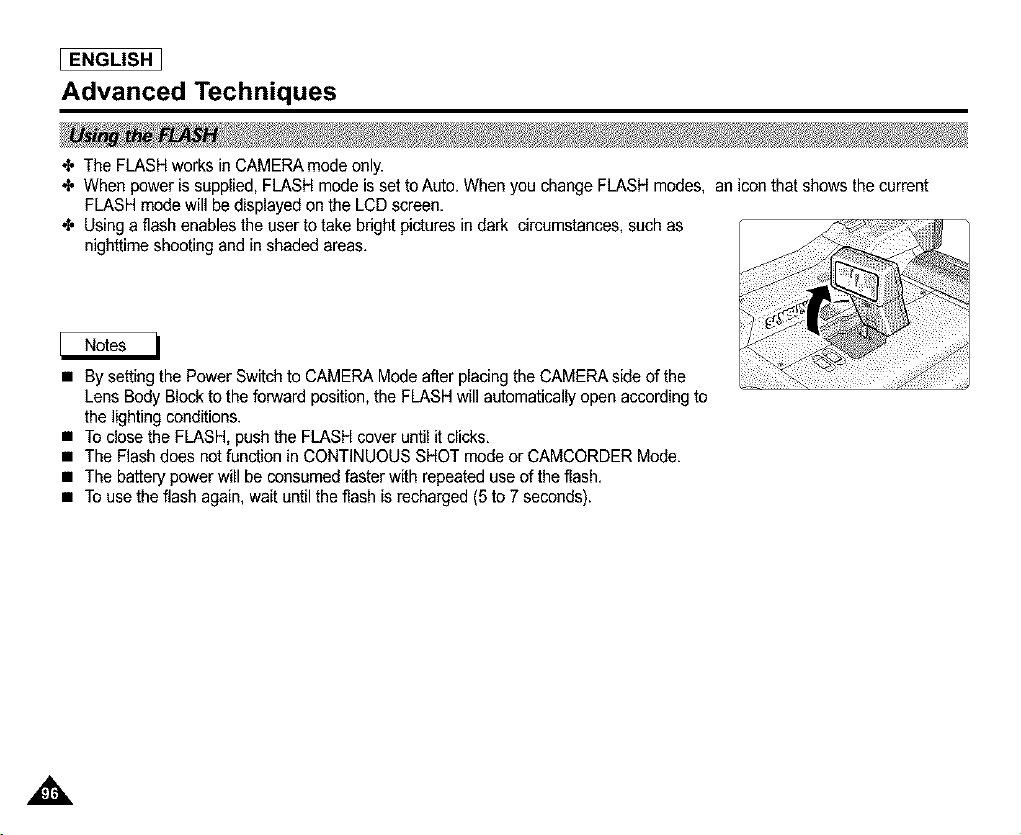
I ENGLISH
Advanced Techniques
4' The FLASH works in CAMERA mode only.
4' When power is supplied, FLASH mode is set toAuto. When you change FLASH modes, an
FLASH mode will be displayed on the LCD screen.
4' Using a flash enables the user to take bright pictures in dark circumstances, such as
nighttime shooting and in shaded areas.
icon that shows the current
• By setting the Power Switch to CAMERA Medeafter placing the CAMERA side of the
Lens Body Block to the forward position, the FLASH will automatically open according to
the lighting conditions.
• To close the FLASH, push the FLASH cover until it clicks.
• The Flash does not function in CONTINUOUS SHOT mode or CAMCORDER Mode.
• The battery power will be consumed faster with repeated use of the flash.
• To use the flash again, wait until the flash is recharged (5 to 7 seconds).
,&
Advanced Techniques
I ENGLISH 1
÷ The FLASH SELECT function works in CAMERA mode only,
• Auto : The Flash automatically strobes when the surroundings are dark enough.
• RED-EYE REDUCTION : Using the flash to take pictures in dark surroundings may cause red-eye to occur. Using the RED-
EYE REDUCTION setting, the flash pre-strobes before recording the picture to reduce the occurrence of red-eye.
• SLOW SYNC : When the Shutter Speed is set to SLOW, the flash strobes at the adjusted shutter speed. It is recommended
to use a tripod when the shutter speed is set to SLOW.
• FILL-IN FLASH : Forces the flash to strobe despite the light condition.To get finer results, it is recommended to use the
flash to take pictures,for example taking a picture of a dark object in the shade of a tree during daylight.
• OFF : Sets the flash not to strobe. It is recommended to set your flash not to strobe in public places like art galledes,
museums, and theaters.
1. Set thedevice to CAMERA and the power switch to REC mode.
2. Press the PB ZOOM/_ button to select flash function.
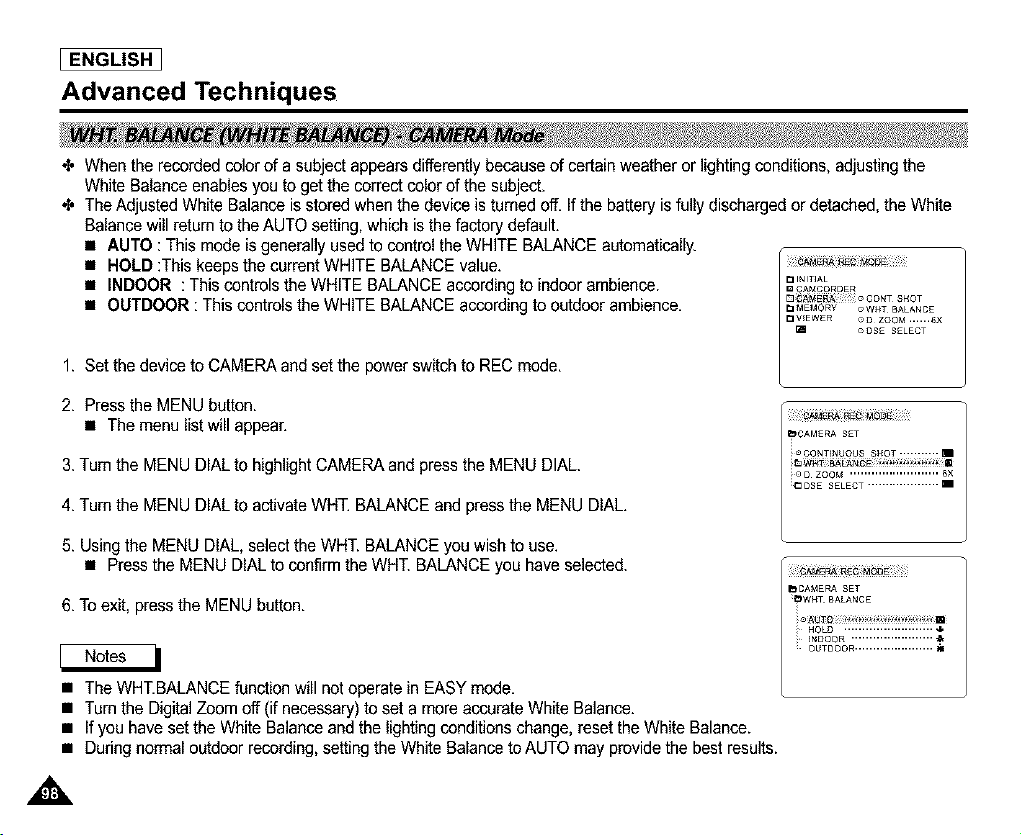
I ENGLISH
Advanced Techniques
*_ When the recorded co]or of a subject appears differently because of certain weather or lighting conditions, adjusting the
White Balance enables you to get the correct color of the subject.
*_ The Adjusted White Balance is stored when the device is turned off. If the battery is fully discharged or detached, the White
Balance will return to the AUTO setting, which is the factory default.
• AUTO : This mode is generally used to control the WHITE BALANCE automatically.
• HOLD :This keeps the current WHITE BALANCE value.
• INDOOR : This controls the WHITE BALANCE according to indoor ambience.
• OUTDOOR : This controls the WHITE BALANCE according to outdoor ambience.
1. Set the device to CAMERA and set the power switch to REC mode.
2. Press the MENU button.
• The menu list will appear.
3. Turn the MENU DIAL to highlight CAMERA and press the MENU DIAL.
4. Turn the MENU DIAL to activate WHT. BALANCE and press the MENU DIAL.
5. Using the MENU DIAL, select the WHT. BALANCE you wish to use.
• Pressthe MENU DIAL to confirm the WHT. BALANCE you have selected.
6. To exit, press the MENU button.
• The WHT.BALANCE function will not operate in EASY mode.
• Turn the Digital Zoom off (if necessary)to set a more accurate White Balance.
• If you have set the White Balance and the lighting conditions change, reset the White Balance.
• During normal outdoor recording, setting the White Balance to AUTO may provide the best results.
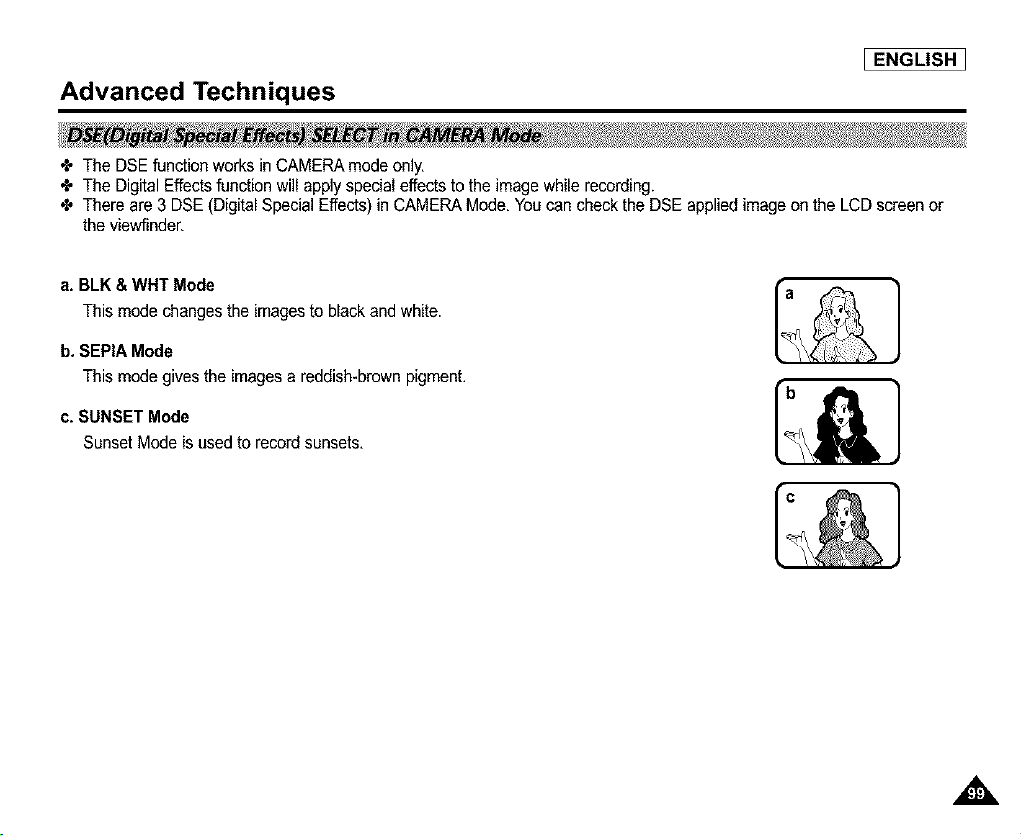
Advanced Techniques
I ENGLISH ]
÷ The DSE function works in CAMERA mode only,
÷ The Digital Effects function will apply special effects to the image while recording.
÷ There are 3 DSE (Digital Special Effects) in CAMERA Mode, Youcan check the DSE applied image on the LCD screen or
the viewfinder.
a, BLK & WHT Mode
This mode changes the imagesto black and white.
b, SEPIA Mode
This mode gives the imagesa reddish-brown pigment.
c, SUNSET Mode
Sunset Mode is used to record sunsets,
,&
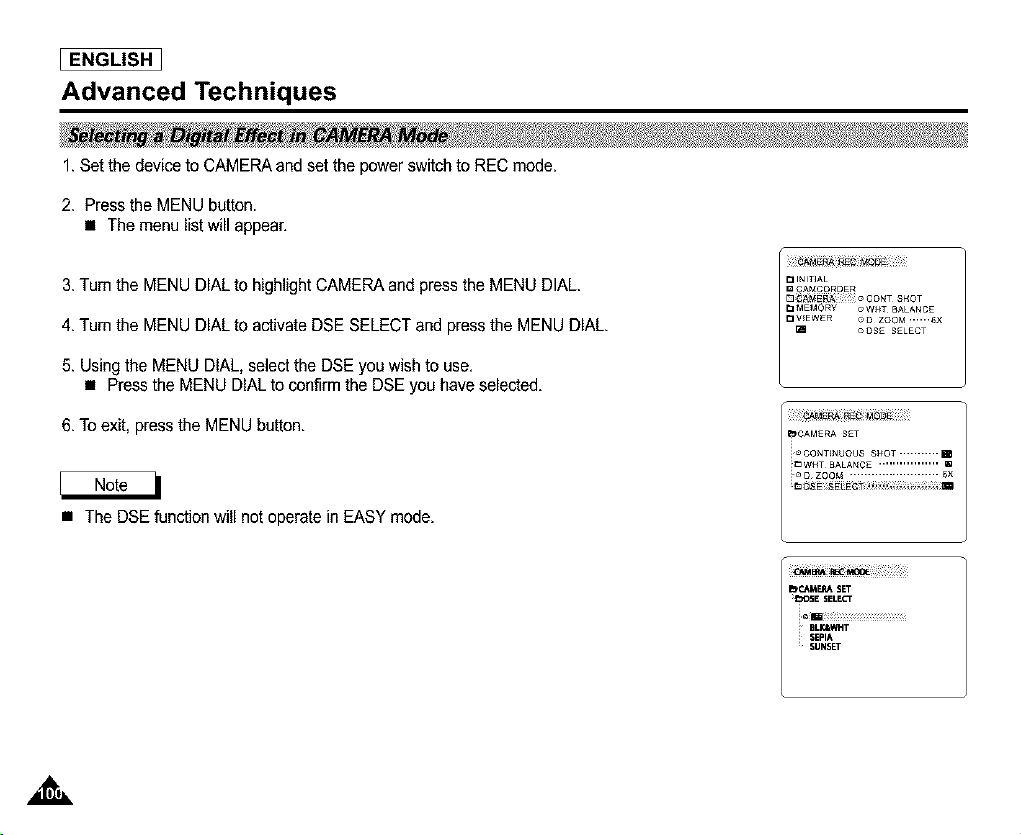
I ENGLISH
Advanced Techniques
1. Set the device to CAMERA and set the power switch to REC mode.
2. Press the MENU button.
• The menu list will appear.
3. Turn the MENU DIAL to highlight CAMERA and press the MENU DIAL.
4. Turn the MENU DIAL to activate DSE SELECT and press the MENU DIAL.
5. Using the MENU DIAL, select the DSE you wish to use.
• Pressthe MENU DIAL to confirm the DSE you have selected.
6. To exit, press the MENU button.
• The DSE function will not operate in EASY mode.
_¢J_MERA SET
_30_E SELEGr
! BL_WHT
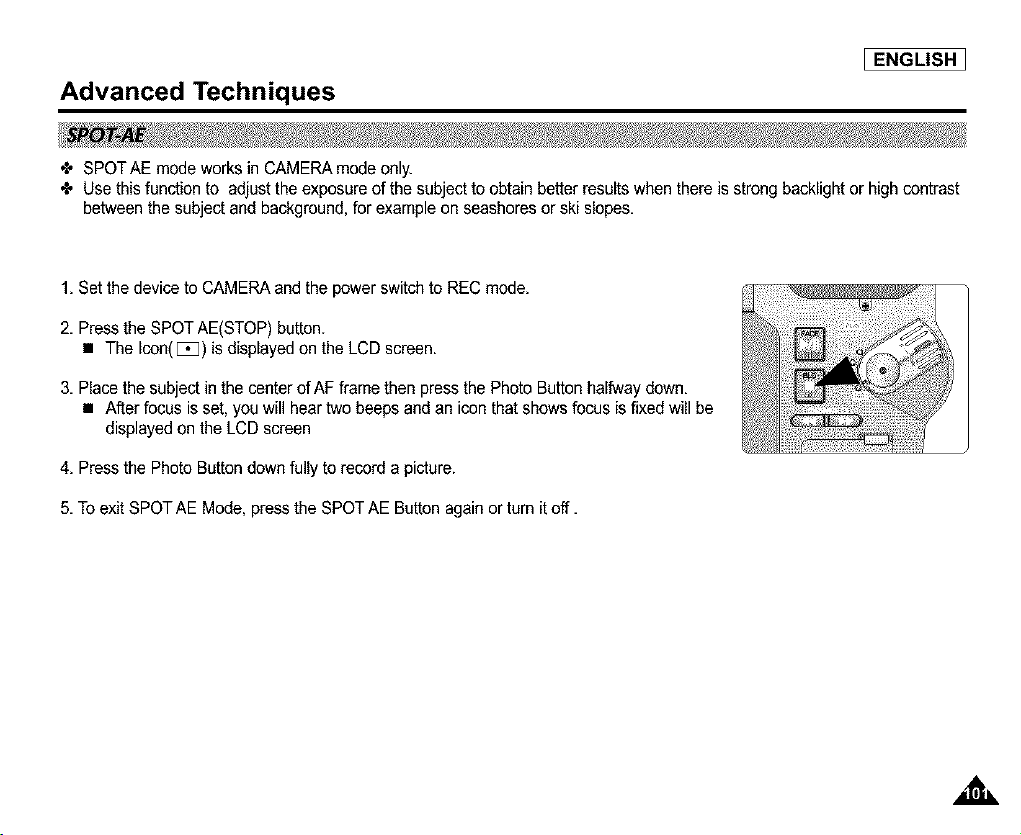
Advanced Techniques
I ENGLISH 1
÷ SPOT AE mode works in CAMERA mode only.
÷ Use this function to adjust the exposure of the subject to obtain better results when there is strong backlight or high contrast
between the subject and background, for example on seashores or ski slopes.
1. Set thedevice to CAMERA and the power switch to REC mode.
2. Press the SPOT AE(STOP) button.
• The Icon([_3) is displayed on the LCD screen.
3. Place the subject in the center of AF frame then press the Photo Button halfway down.
• After focus is set, you will hear two beeps and an icon that shows focus is fixed will be
displayed on the LCD screen
4. Press the Photo Button down fully to record a picture.
5. To exit SPOT AE Mode, press the SPOT AE Button again or turn it off.
,a=
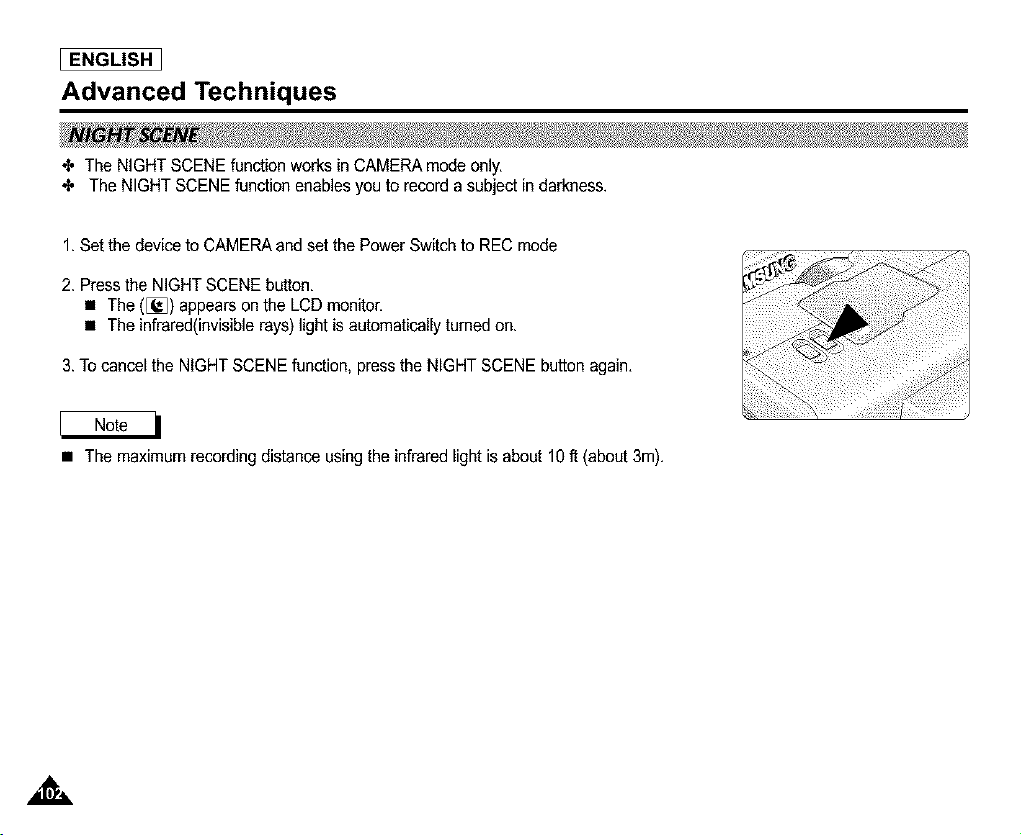
[ ENGLISH ]
Advanced Techniques
_, The NIGHT SCENE function works in CAMERA mode only.
_, The NIGHT SCENE function enables you to record a subject in darkness.
1. Set the device to CAMERA and set the Power Switch to REC mode
2. Press the NIGHT SCENE button.
• The ([_) appears on the LCD monitor.
• The infrared(invisible rays) light is automatically turned on.
3. To cancel the NIGHT SCENE function press the NIGHT SCENE button again.
• The maximum recording distance using the infrared light is about 10 tt (about 3m).
,&
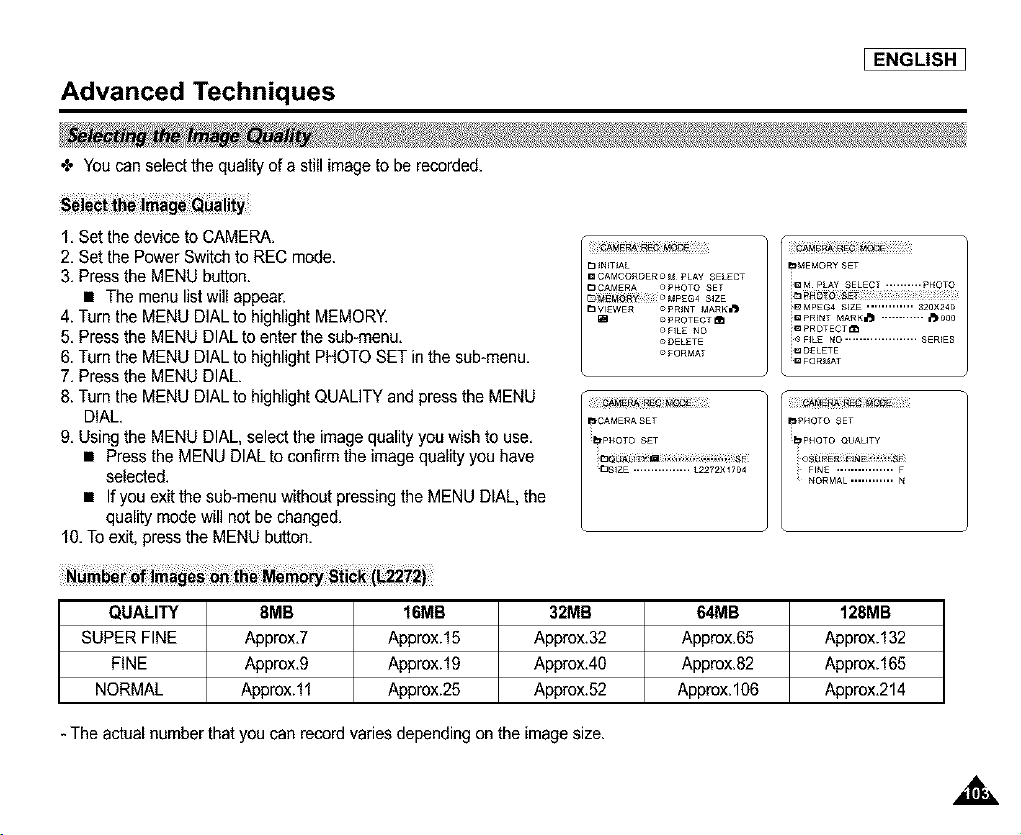
Advanced Techniques
IENGLISH]
You can select the quality of a still image to be recorded.
1. Set the device to CAMERA.
2. Set the Power Switch to REC mode.
3. Press the MENU button.
• The menu list will appear.
4. Turn the MENU DIAL to highlight MEMORY.
5. Press the MENU DIAL to enter the sub-menu.
6. Turn the MENU DIAL to highlight PHOTO SET in the sub-menu.
7. Press the MENU DIAL.
8. Turn the MENU DIAL to highlight QUALITY and press the MENU
DIAL.
9. Using the MENU DIAL, select the image quality you wish to use.
• Press the MENU DIAL to confirm the image quality you have
selected.
• If you exit the sub-menu without pressing the MENU DIAL, the
quality mode will not be changed.
10. To exit, press the MENU button.
W_3_N_T_ALCAMCORDER__FQRMATMPLAY SELECT / _MEMORY SET
C3CAM£RA _p_4OTO SET ii_4 PLAY SELECT .......... PHOT O
Eq_! _MPEG4 S_ZE ii_P_ i i ¸¸¸¸¸¸¸¸¸¸¸¸I¸¸I¸¸¸¸¸¸¸¸¸¸¸¸¸
_3VIEWER OPR_NT MARK,,_ i_MPEG4 S_ZE ............. 32O×24O
® PROTECT _1 ii_ PRINT MARKm_ ............ _000
OF_LE NO i_ PROTECT_
o DELETE i_ F_LE NO .................... SER_ES
i_ DELETE
m FQRMAT
_,CAMERA£ET
!_pHOTO S£T
_3S_ZE................ L2272X1704
_PHOTO SET
_PHOTO QUAUTY
NORMAL............
QUALITY 8MB 16MB 32MB 64MB 128MB
SUPER FINE Approx,7 Approx.15 Approx.32 Approx,65 Approx.132
FINE Approx,9 Approx.19 Approx.40 Approx,82 Approx.165
NORMAL Approx.11 Approx.25 Approx.52 Approx.106 Approx,214
- The actual number that you can record varies depending on the image size.
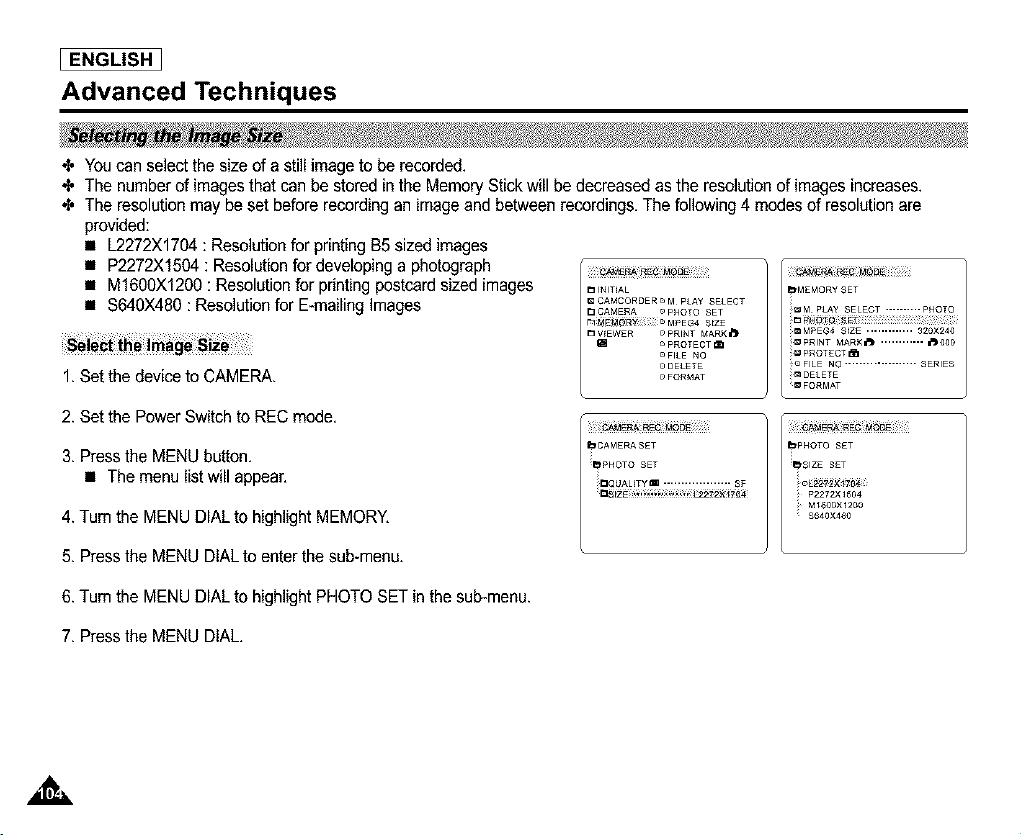
ENGLISH]
Advanced Techniques
_, Youcan select the size of a still image to be recorded.
_, The number of imagesthat can be stored in the Memory Stick will be decreased as the resolution of images increases.
_, The resolution may be set before recording an image and between recordings. The following 4 modes of resolution are
provided:
• L2272X1704 : Resolution for printing B5 sized images
• P2272X1504 : Resolution for developing a photograph
• M1600X1200 : Resolution for printing postcard sized images
• S640X480 : Resolution for E-mailing Images
1. Set the device to CAMERA.
D INITIAL o FORMAT
CAMCORDERO M PLAY SELECT
E3CAMERA r' PHOTO £ET
r'q_E_ !i _ MPEG4 StZE
D WEWER o PRINT MARK i'_
_ PROTECT _1
o FILE NO
o DELETE
bMEMQRY SET
_QM PLAY SELECT .......... PHOT O
im F'_Q_Q _ i(i j j ;;? i ¸
io MPEG4 $LZE ............. 320×240
;D PRINT MARK laJ ............ laJ 000
IQ PROTECT_
_ FILE NO .................... SERIES
_DELETE
_ FORMAT
2. Set the Power Switch to REC mode.
3. Press the MENU button.
• The menu list will appea£
4. Tum the MENU DIAL to highlight MEMORY.
5. Press the MENU DIAL to enter the sub-menu.
bCAMERA S£T
_p_4OTO SET
i_QUA Tyro ................... $F
_PHOTO S£T
_$1ZE SET
ii P2272×1504
i MI_00X1200
$640×480
6. Tum the MENU DIAL to highlight PHOTO SET in the sub-menu.
7. Press the MENU DIAL,
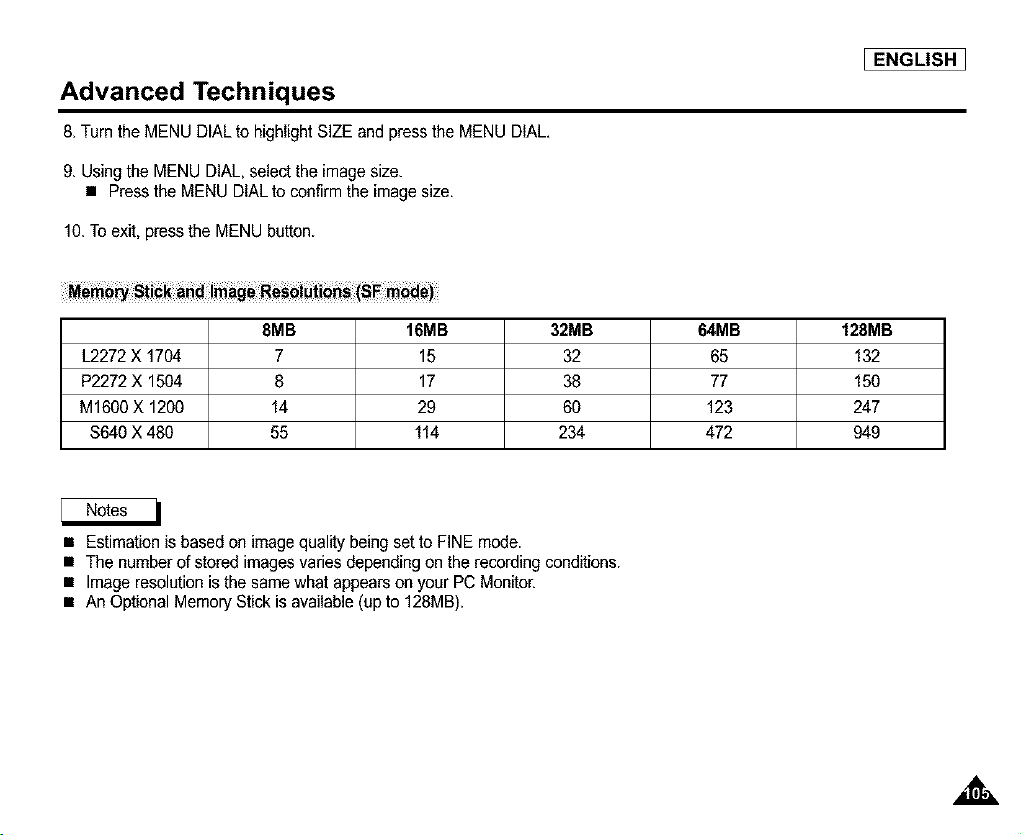
Advanced Techniques
8. Turn the MENU DIAL to highlight SIZE and press the MENU DIAL.
9. Using the MENU DIAL, select the image size.
• Press the MENU DIAL to confirm the image size.
10.To exit, press the MENU button.
8MB 16MB
L2272 X 1704 7 15
P2272 X 1504 8 17
M1600 X 1200 14 29
$640 X 480 55 114
32MB 64MB 128MB
32 65 132
38 77 150
60 123 247
234 472 949
I ENGLISH ]
• Estimation is based on image quality being set to FINE mode.
• The number of stored images varies depending on the recording conditions.
• Image resolution is the same what appears on your PC Monitor.
• An Optional Memory Stick is available (up to 128MB).
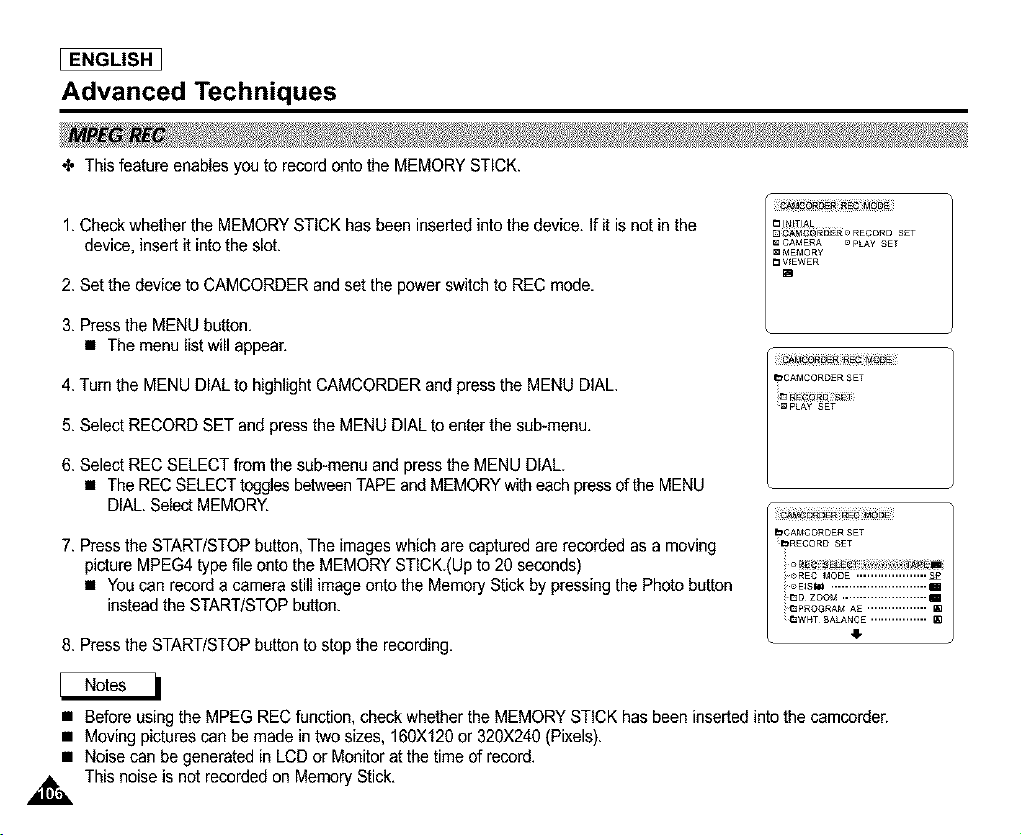
I ENGLISH
Advanced Techniques
_, This feature enables you to record onto the MEMORY STICK.
1. Check whether the MEMORYSTICK has been inserted into the device. If it is not in the
device, insert it into the slot.
2. Set the device to CAMCORDER and set the power switch to REC mode.
3. Press the MENU button,
• The menu list will appear,
4. Turn the MENU DIAL to highlight CAMCORDER and press the MENU DIAL.
5. Select RECORD SET and press the MENU DIAL to enter the sub-menu,
6. Select REC SELECT from the sub-menu and press the MENU DIAL.
• The RECSELECT toggles betweenTAPE and MEMORY witheach press of the MENU
DIAL. SelectMEMORY.
7. Press the START/STOP button, The images which are captured are recorded as a moving
picture MPEG4 type file onto the MEMORY STICK.(Up to 20 seconds)
• You can record a camera still image onto the Memory Stick by pressing the Photo button
instead the START/STOPbutton.
8. Press the START/STOP button to stop the recording,
C3J_ITU'kL
D_A_OF_EtERO RECORD S£T
CAMERA c PLAY SET
m MEMORY
[3 V_EWER
B
• Before using the MPEG REC function, check whether the MEMORY STICK has been inserted into the camcorder.
• Moving pictures can be made in two sizes, 160X120 or 320X240 (Pixels).
• Noise can be generated in LCD or Monitor at the time of record.
,_ This noise is not recorded on Memory Stick.
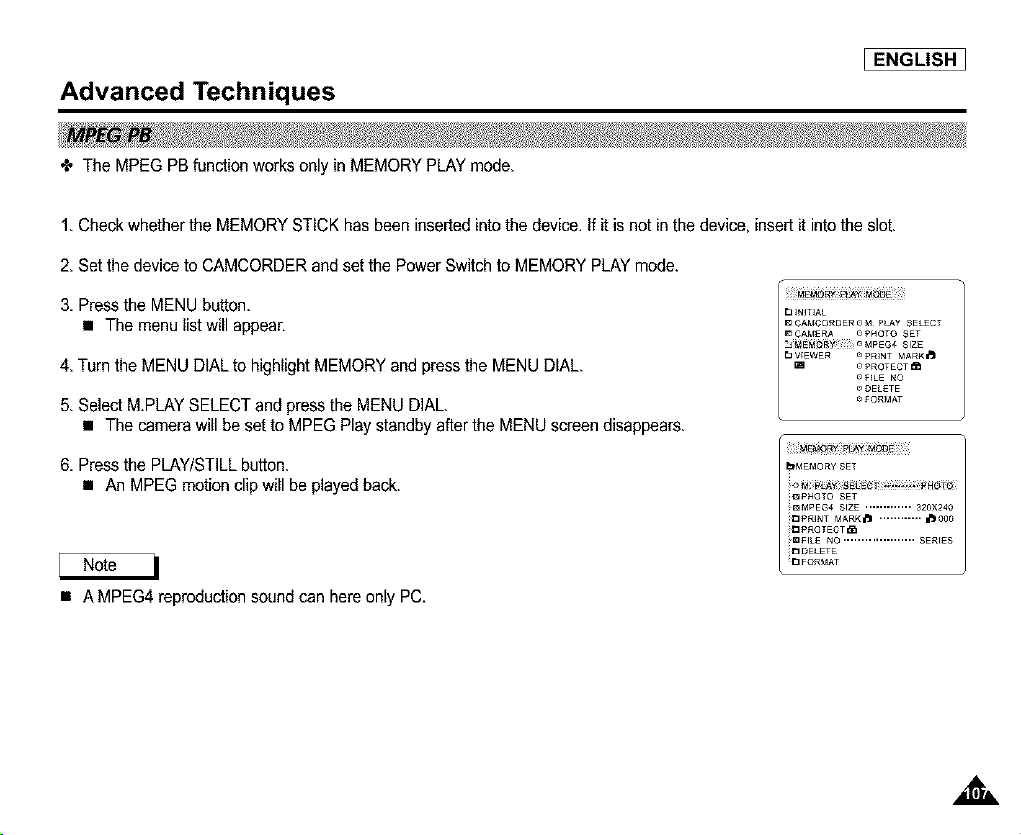
Advanced Techniques
I ENGLISH ]
4, The MPEG PB function works only in MEMORY PLAY mode.
1. Check whether the MEMORY STICK has been inserted intothe device. If it is not in the device, insert it into the slot.
2. Set the device to CAMCORDER and set the Power Switch to MEMORY PLAY mode.
3. Press the MENU button.
• The menu list will appear.
E__NIT_AL
4. Turn the MENU DiAL to highlight MEMORY and press the MENU DIAL.
5. Select MPLAY SELECT and pressthe MENU DIAL.
• The camera will be set to MPEG Play standby after the MENU screen disappears.
6. Press the PLAY/STILLbutton.
• An MPEG motion clip will be playedback.
• AMPEG4 reproduction sound can here only PC.
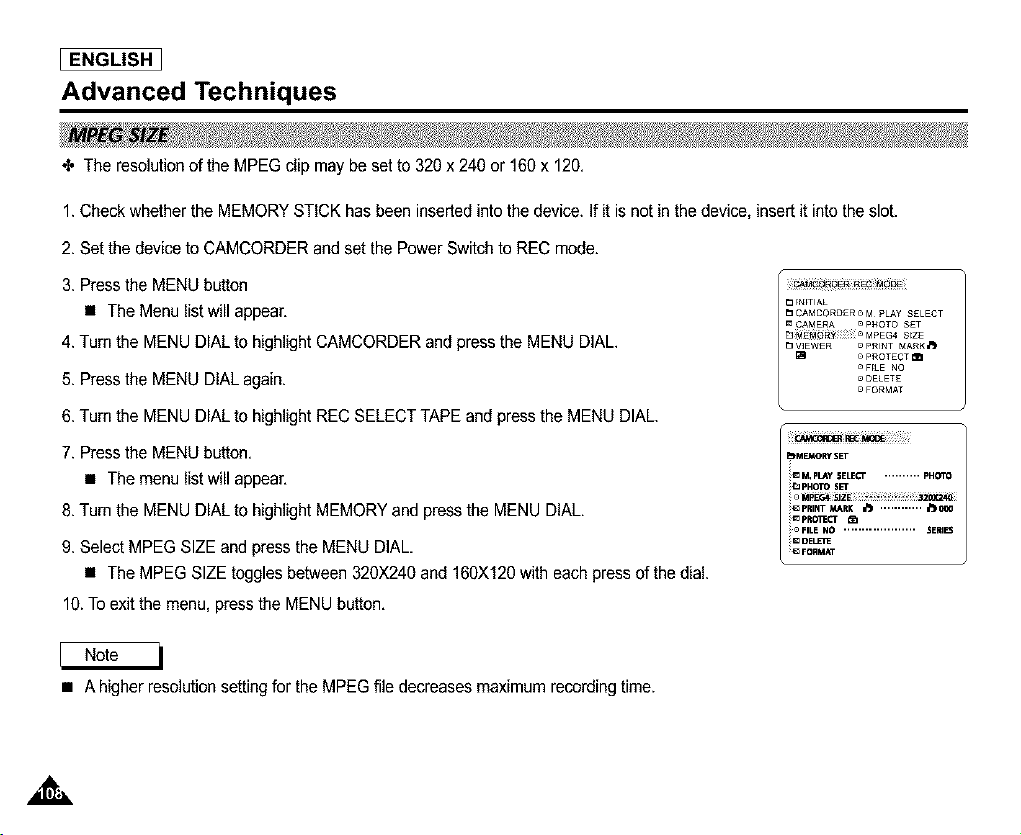
I ENGLISH
Advanced Techniques
4, The resolution of the MPEG clip may be set to 320 x 240 or 160 x 120.
1. Check whether the MEMORYSTICK has been inserted into the device. If it is not in the device, insert it into the slot.
2. Set the device to CAMCORDER and set the Power Switch to REC mode.
3. Press the MENU button
• The Menu list will appear.
4. Turn the MENU DIAL to highlight CAMCORDER and pressthe MENU DIAL.
5. Press the MENU DIAL again.
6. Turn the MENU DIAL to highlight REC SELECTTAPE and press the MENU DIAL.
7. Press the MENU button.
• The menu list will appear.
8. Turn the MENU DIAL to highlight MEMORYand press the MENU DIAL.
9. Select MPEG SIZE and press the MENU DIAL.
• The MPEG SIZE toggles between 320X240 and 160)(120 with each press of the dial.
10.To exit the menu, press the MENU button.
_MEt,_O_f SET
ii_ M, play SELEC¢ .......... PHOTO
ii_ pHOTO SEt
i_ pRo/_3 " _[i
iic FILE NO .................... SERIES
i=a I)ELE/I_
• A higher resolution setting for the MPEG file decreases maximum recording time.
,&,
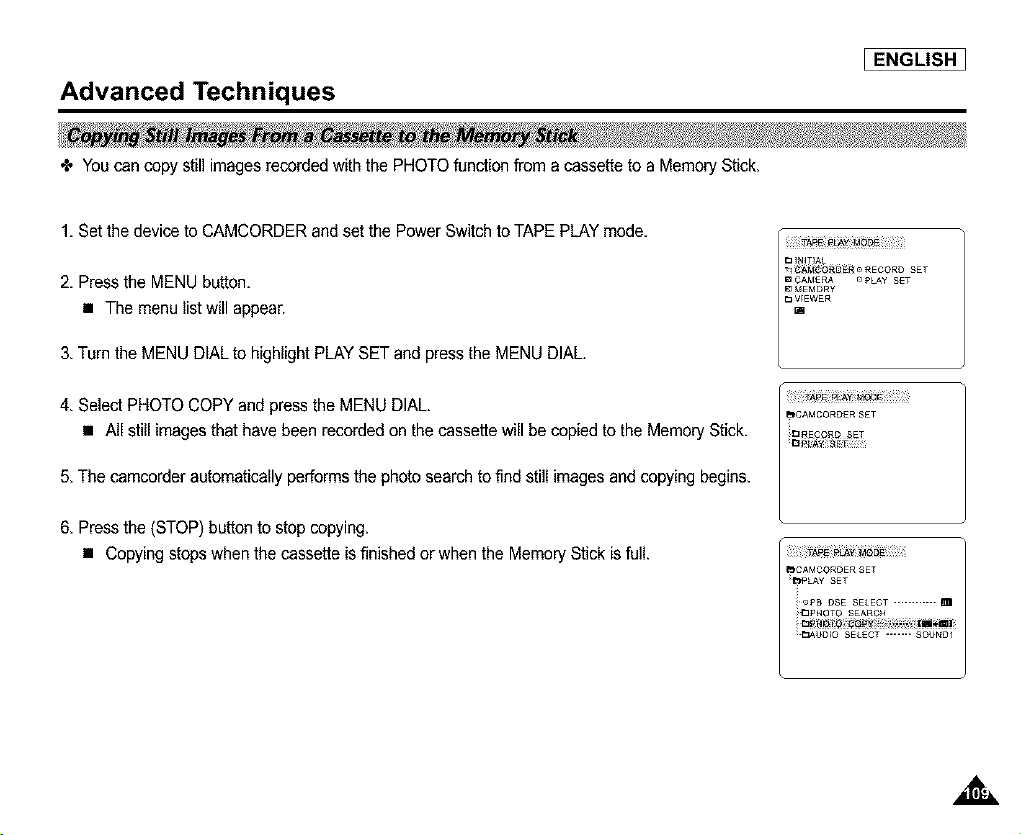
Advanced Techniques
I ENGLISH 1
4, Youcan copy still images recorded with the PHOTO function from a cassette to a Memory Stick,
1, Set the device to CAMCORDER and set the Power Switch to TAPE PLAY mode,
2, Press the MENU button,
• The menu list will appear.
3, Turn the MENU DIAL to highlight PLAY SET and press the MENU DIAL.
_q ¢_O_O_ o RECORD SET
m CAM£RA r_PLAY S£T
_EMORY
_ VIEWER
4, Select PHOTO COPY and pressthe MENU DIAL,
• All still imagesthat have been recorded on the cassette will be copied to the MemoryStick,
5, The camcorder automatically performs the photosearch to find still images and copying begins.
6, Press the (STOP) button to stop copying.
• Copying stops when the cassette is finished or when the Memory Stick is full,
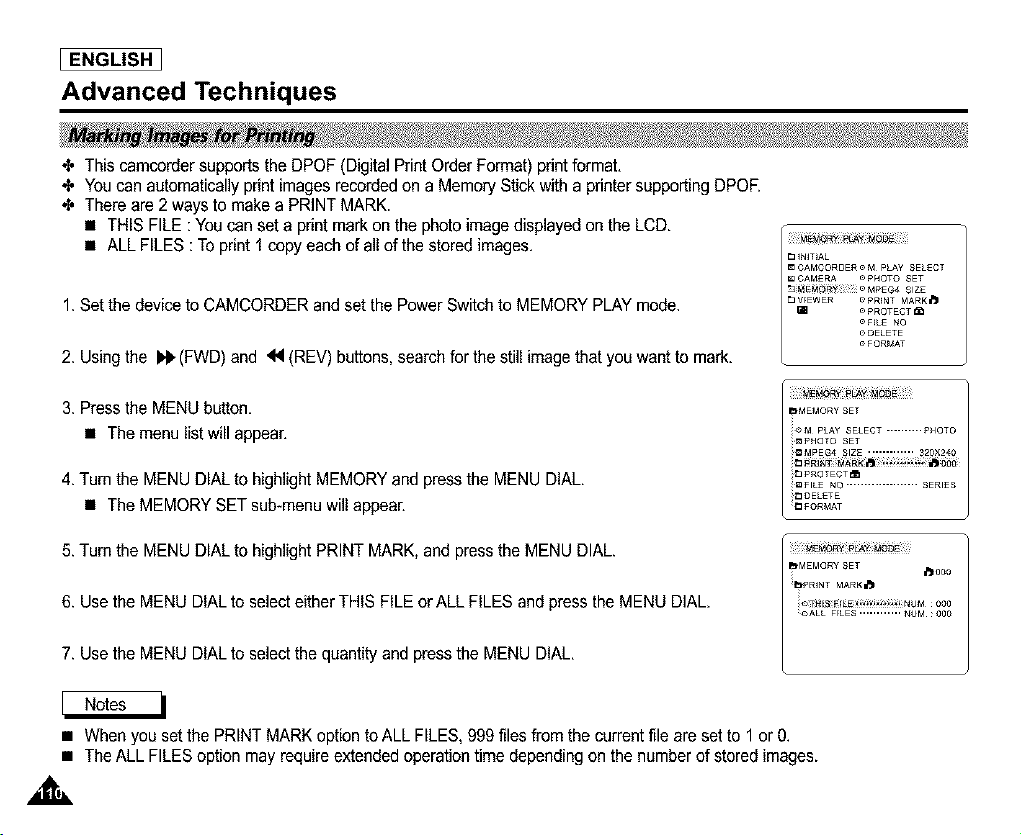
I ENGLISH
Advanced Techniques
_, This camcorder supports the DPOF (Digital Print Order Format)print format.
_' Youcan automatically print images recorded on a Memory Stick with a printer supporting DPOE
_, There are 2 ways to make a PRINT MARK.
• THIS FILE : You can set a print mark on the photo image displayed on the LCD.
• ALL FILES : To print 1 copy each of all of the stored images.
1. Set the device to CAMCORDER and set the Power Switch to MEMORY PLAY mode.
2. Using the I_"(FWD) and _1 (REV) buttons, search for the still image that you want to mark.
3. Press the MENU button.
• The menu list will appear.
4. Turn the MENU DIAL to highlight MEMORYand press the MENU DIAL.
• The MEMORY SET sub-menu will appear.
5. Turn the MENU DIAL to highlight PRINT MARK. and press the MENU DIAL.
6. Use the MENU DIAL to select either THIS FILEor ALL FILES and press the MENU DIAL.
7. Use the MENU DIAL to select the quantity and press the MENU DIAL.
• When you set the PRINT MARK option to ALL FILES, 999 files from the current file are set to 1 or 0.
• The ALL FILES option may require extended operation time depending on the number of stored images.
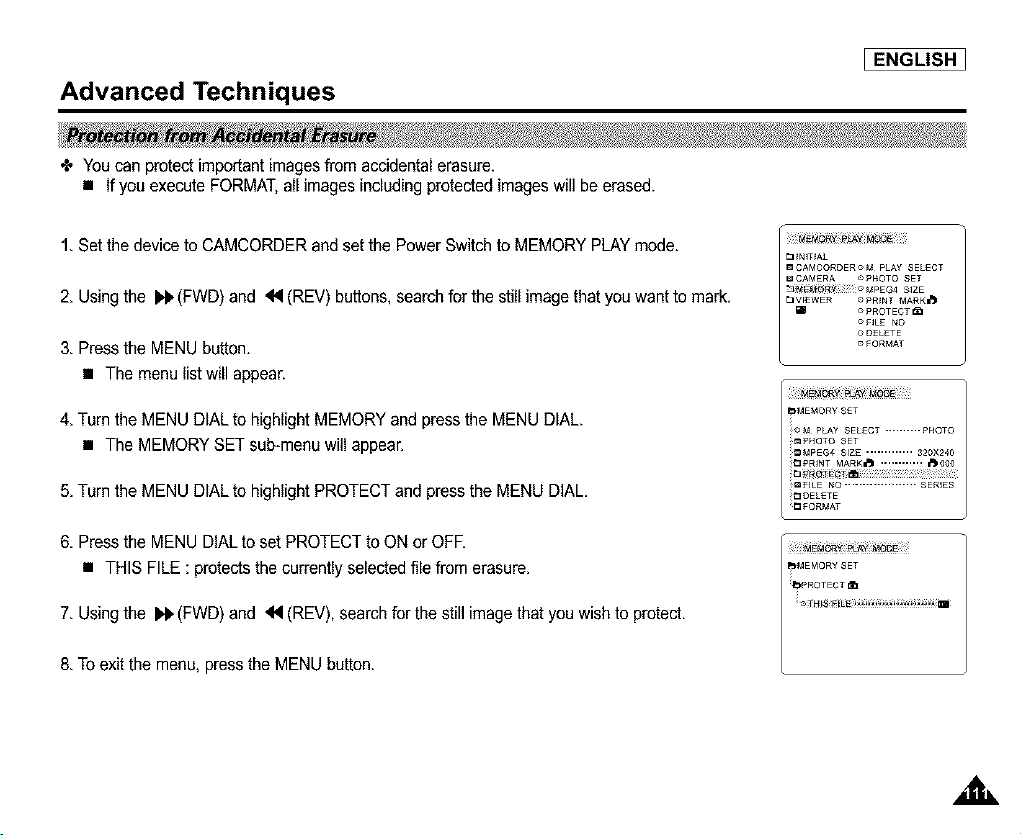
I ENGLISH 1
Advanced Techniques
÷ You can protect importantimages from accidental erasure.
• If you execute FORMAT,all images including protected images will beerased.
1. Set the device to CAMCORDER and set the Power Switch to MEMORY PLAY mode.
2. Using the _€'(FWD) and 44 (REV) buttons, search for the still image that you want to mark.
3. Press the MENU button.
• The menu list will appear.
4. Turn the MENU DIAL to highlight MEMORY and press the MENU DIAL.
• The MEMORYSET sub-menu will appear.
5. Turn the MENU DIAL to highlight PROTECT and press the MENU DIAL.
6. Press the MENU DIAL to set PROTECT to ON or OFR
• THIS FILE : protects the currently selected file from erasure.
7. Using the I¢, (FWD) and 44 (REV), search for the still image that you wish to protect.
8. To exit the menu, press the MENU button.
PJMEMOR¥SET
,aL
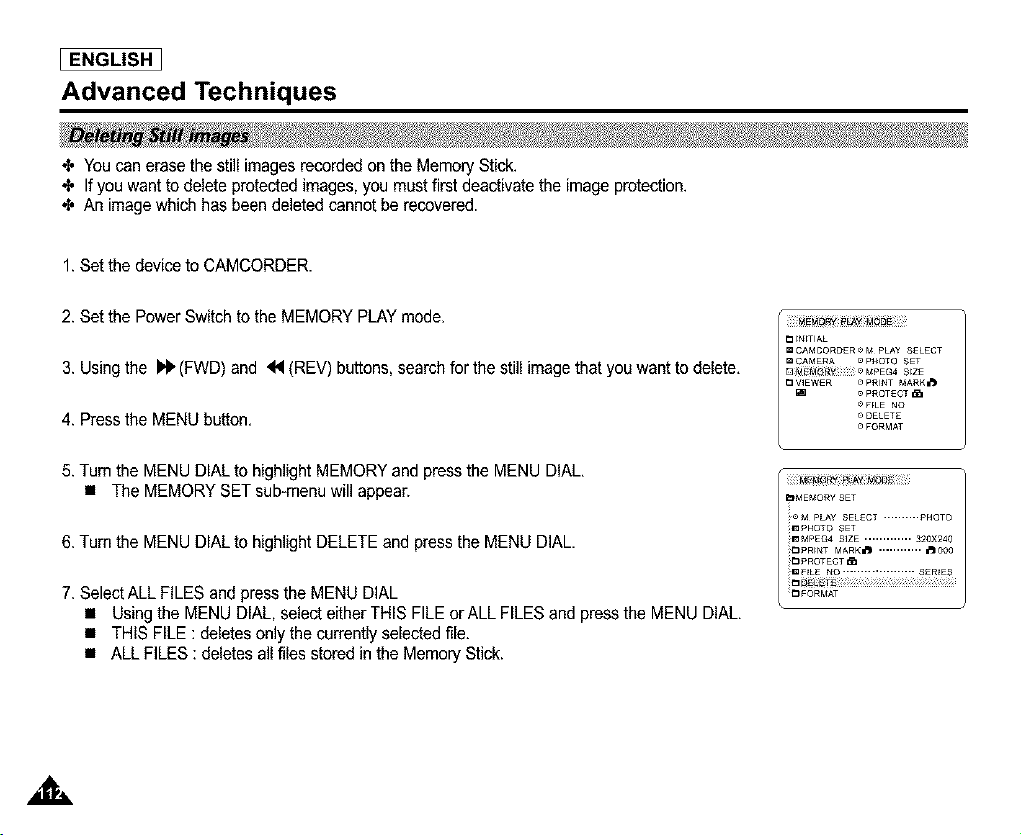
[ ENGLISH ]
Advanced Techniques
_' You can erase the still images recorded on the Memory Stick.
_, If you want to delete protected images, you must first deactivate the image protection.
_, An image which has been deleted cannot be recovered.
1. Set the device to CAMCORDER.
2. Set the Power Switch to the MEMORY PLAY mode.
3. Using the I_' (FWD) and _1 (REV) buttons, search for the still image that youwant to delete.
4. Press the MENU button.
5. Turn the MENU DIAL to highlight MEMORYand press the MENU DIAL.
• The MEMORY SET sub-menu will appear.
6. Turn the MENU DIAL to highlight DELETE and pressthe MENU DIAL.
7. Select ALL FILES and pressthe MENU DIAL
• Using the MENU DIAL, select either THIS FILE or ALL FILES and press the MENU DIAL
• THIS FILE : deletes only the currently selected file.
• ALL FILES : deletes all files stored in the Memory Stick.
,&
Advanced Techniques
8. A box will appear to verify whether you wish to delete theimage(s).
• Using the MENU DIAL, select the item.
• EXECUTE : Deletesthe selected image(s).
• CANCEL : Does not delete the selected image(s) and returns to the previous menu.
I ENGLISH ]
9. Select EXECUTE or CANCEL and pressthe MENU DIAL.
• If you try to delete a protected image, "PROTECT!" appears on the screen.
,aL
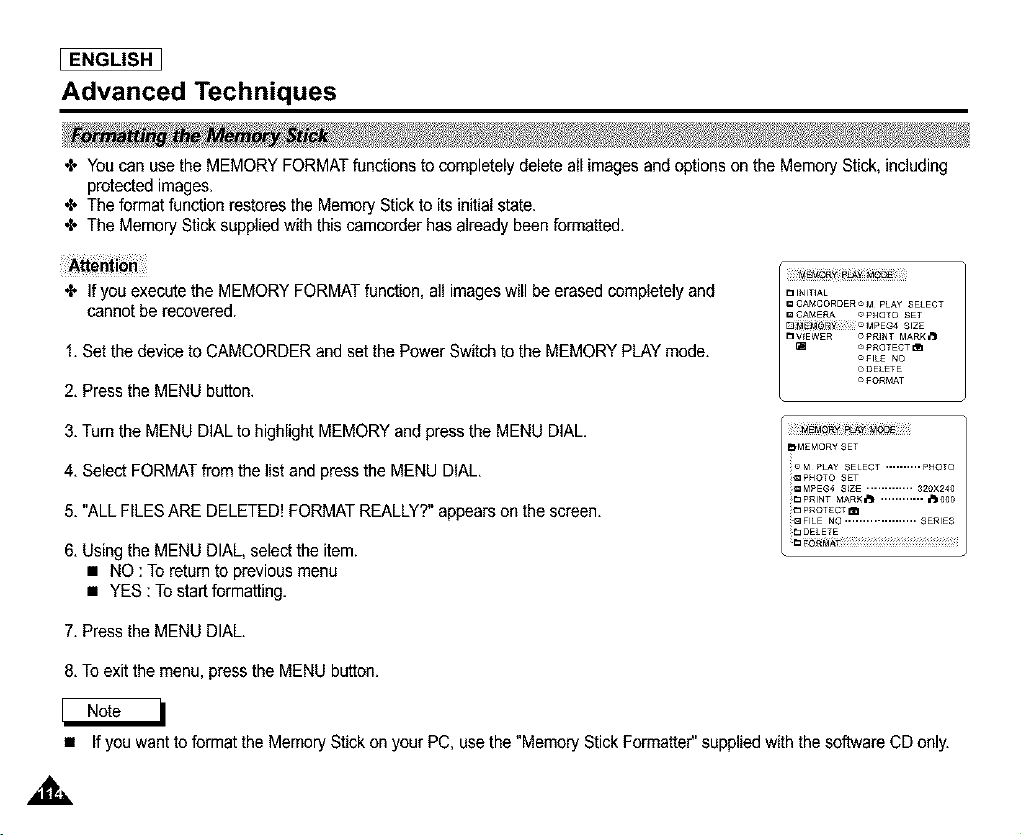
ENGLISH_
Advanced Techniques
4. You can use the MEMORY FORMAT functions to completely delete all images and options on the Memory Stick, including
protected images.
4. The format function restores the Memory Stick to its initial state.
4. The Memory Stick supplied with this camcorder has already been formatted,
4. If you execute the MEMORY FORMAT function, all images will be erased completely and
cannot be recovered.
1, Set the device to CAMCORDER and set the Power Switch to the MEMORY PLAY mode,
2, Press the MENU button.
3, Turn the MENU DIAL to highlight MEMORY and press the MENU DIAL.
4, Select FORMAT from the list and press the MENU DIAL,
5, "ALL FILESARE DELETED! FORMATREALLY?" appears on the screen,
6, Using the MENU DIAL, selectthe item.
• NO : To return to previous menu
• YES : To start formatting.
7, Press the MENU DIAL.
8, Toexit the menu, press the MENU button.
• If you want to format the Memory Stick on your PC, use the "Memory Stick Formatter"supplied with the software CD only,
Advanced Techniques
I ENGLISH 1
÷ You can record a still imagefrom a cassette onto a Memory Stick.
÷ If you want to recorded multiple still imagesfrom a cassette to a Memory Stick, use the COPY function.
1. Set thedevice to CAMCORDER and the Power Switch to REC mode.
2. Press the MENU DIAL.
3. Turn the MENU DIAL to highlight CAMCORDER and press the MENU DIAL.
4. Select RECORD SET and press the MENU DIAL.
5. Turn the MENU DIAL to highlight REC SELECT and press the MENU DIAL.
• Set REC SELECT to MEMORY. By pressing the MENU DIAL you can toggle between TAPE and MEMORY modes.
6. To exit the menu, press the MENU button.
7. Press the Photo button.
• The still image is recorded onto the Memory Stick.
• While the camcorder is recording the still image, "_" appears on the screen.
,ak
ENGLISH
USB Interface
4, You can easily transfer a still image from a MEMORY STICK to a PC without additional add-on cards via a USB
connection.
4, You can transfer an image to a PC via a USB connection.
4, If you transfer data to a PC, you need to install the software (Driver, Editing software) supplied with the camcorder.
• CPU : Intel®Pentium(or compatible) IITM 400 processor faster
• Operating system : Windows®98SE/ME/2000/XP
• RAM : 64 MB or more
• CD-ROM: 4x CD-ROM drive
• VIDEO : 65,000-Color or better video display card
• Available USB Port
• Hard Disc : 4GB (SGB recommended)
• Intel®Pentium IITMis a trademark of the IntelCorporation,
• Windows®is a registered trademark of the Microso_ Corporation.
• All other brands and names are the property of their respective owners,
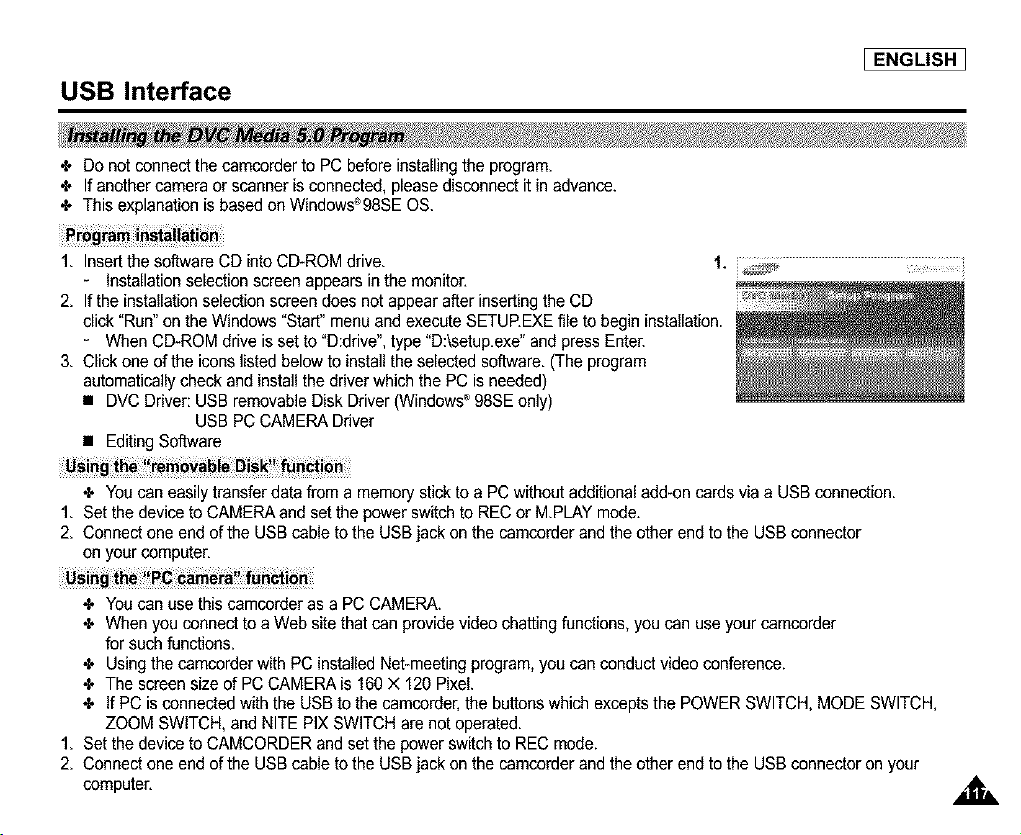
USB Interface
I ENGLISH 1
•',, Do not connect the camcorder to PC before installingthe program.
•',, If another camera or scanner is connected, please disconnect it in advance.
•',, This explanation is based on Windows_98SE OS.
1. Insert the software CD into CD-ROM drive. 1.
- installation selection screen appears in the monitor.
2. If the installation selection screen does not appear after inserting the CD
click "Run" on the Windows "Start" menu and execute SETUP.EXE file to begin installation.
- When CD-ROM drive is set to "D:drive", type "D:\setup.exe" and press Enter.
3. Click one of the icons listed below to install the selected software. (The program
automatically check and install the driver which the PC is needed)
• DVC Driver: USB removable Disk Driver (Windows* 98SE only)
USB PC CAMERA Driver
• Editing Software
........ ............. f i .....
÷ You can easily transfer data from a memory stick to a PC without additional add-on cards via a USB connection.
1. Set the device to CAMERA and set the power switch to REC or MPLAY mode.
2. Connect one end of the USB cable to the USB jack on the camcorder and the other end to the USB connector
on your computer.
You can use this camcerder as a PC CAMERA.
When you connect to a Web site that can provide video chatting functions, you can use your camcorder
for such functions.
Using the camcorder with PC installed Net-meeting program, you can conduct video conference.
The screen size of PC CAMERA is 160 X 120 Pixel.
If PC is connected with the USB to the camcorder,the buttonswhich excepts the POWER SWITCH, MODE SWITCH,
ZOOM SWITCH, and NITE PIX SWITCH are not operated.
1. Set the device to CAMCORDER and set the power switch to REC mode.
2. Connect one end of the USB cable to the USB jack on the camcorder and the other end to the USB connector on your
computer.
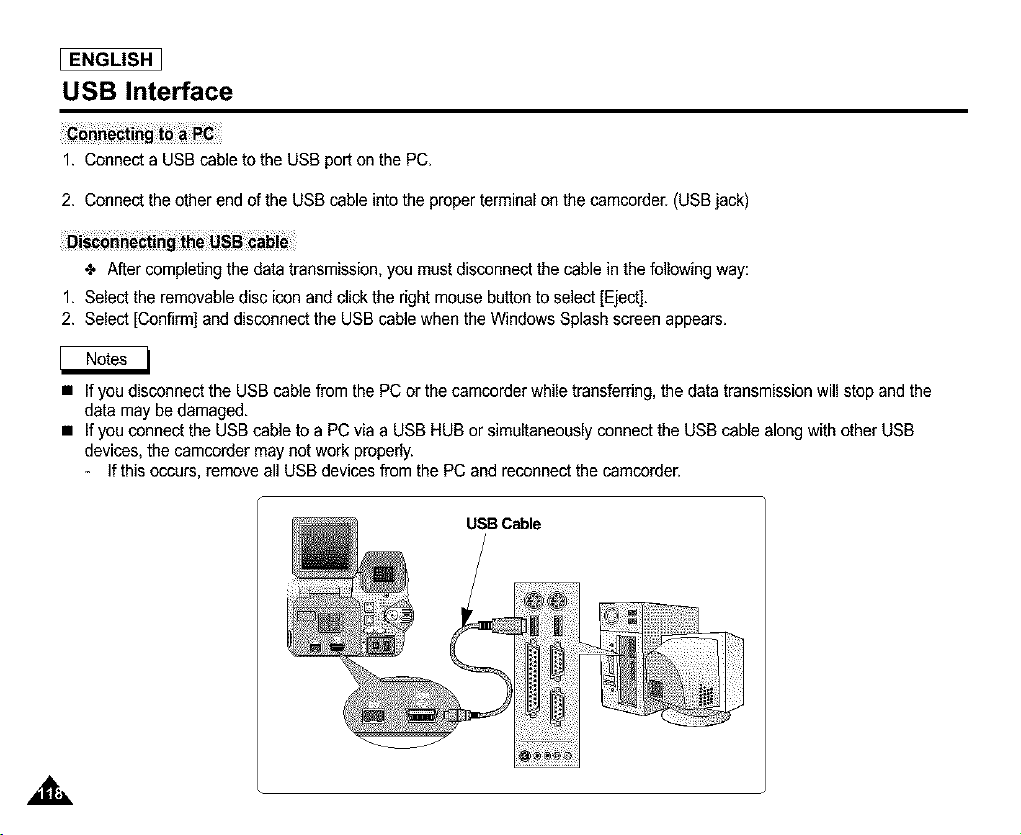
ENGLISH ]
USB Interface
1. Connect a USB cable to the USB port on the PC,
2. Connect the other end of the USB cable into the properterminal on the camcorder. (USB jack)
÷ After completing the data transmission, you must disconnect the cable in the following way:
1. Select the removable disc icon and click the right mouse button to select [Eject].
2. Select [Confirm] and disconnect the USB cable when the Windows Splash screen appears.
• If you disconnect the USB cable from the PC or the camcorder while transferring, the data transmission will stop and the
data may be damaged.
• If you connect the USB cable to a PC via a USB HUB or simultaneously connect the USB cable along with other USB
devices, the camcorder may not work properly.
- If this occurs, remove all USB devices from the PC and reconnect the camcorder.
,&,
USBCable
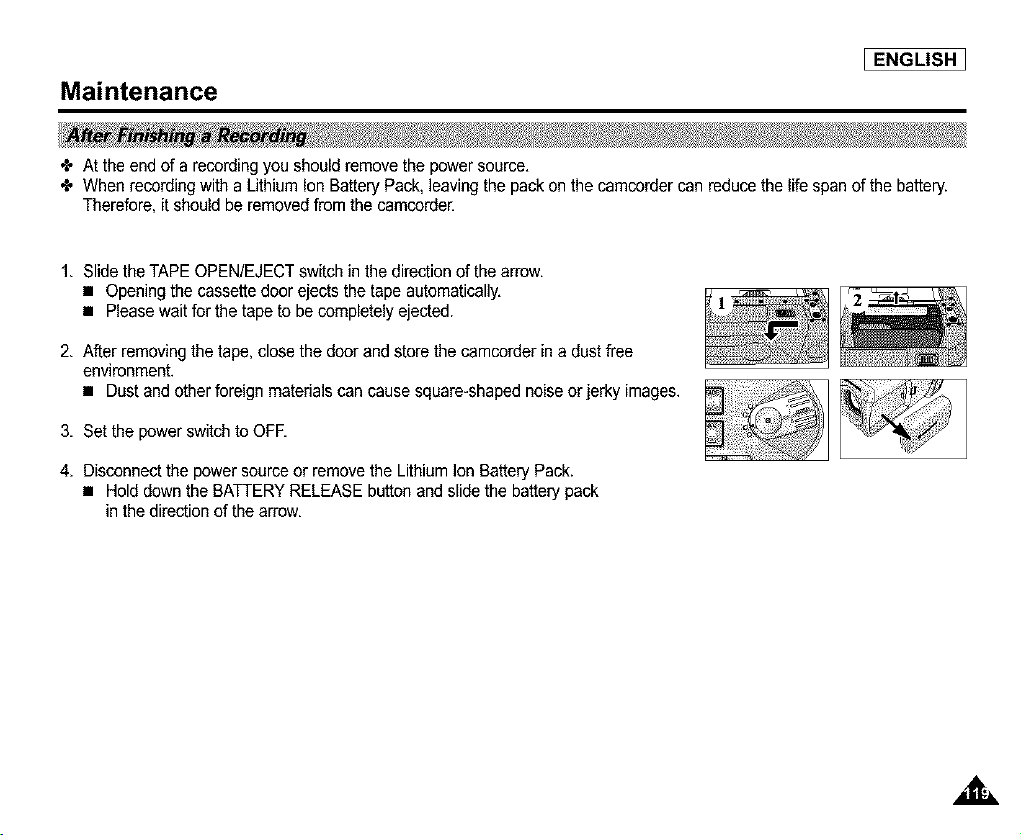
Maintenance
I ENGLISH ]
÷ At the end of a recording you should remove the power source.
÷ When recording with a Lithium Ion Battery Pack, leaving the pack on the camcorder can reduce the life span of the battery.
Therefore, it should be removed from the camcorder.
1. Slide the TAPE OPEN/EJECT switch in thedirection of the arrow.
• Opening the cassette door ejects the tape automatically.
• Please wait for the tape to be completely ejected.
2. A'_erremoving thetape, close the door and store the camcorder in a dust free
environment.
• Dust and other foreign materials can cause square-shaped noise or jerky images.
3. Set the power switch to OFE
4. Disconnect the power source or remove the Lithium Ion Battery Pack.
• Hold down the BATTERY RELEASE button and slide the battery pack
in the direction of the arrow.
,aL
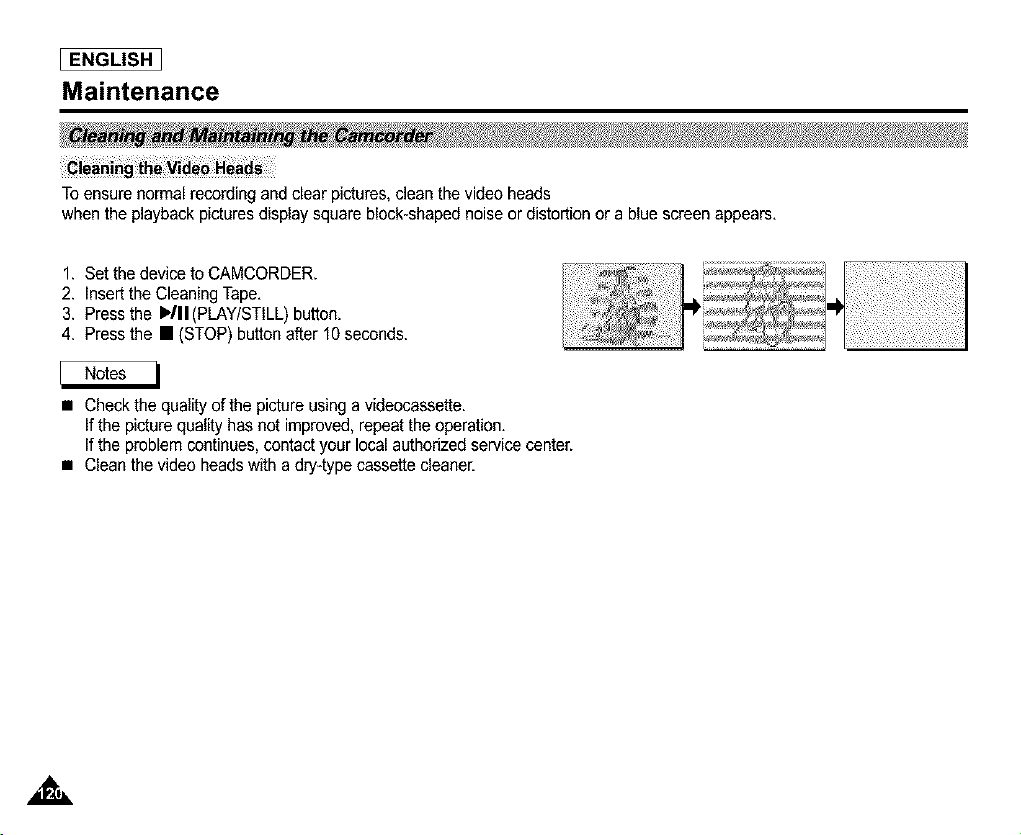
I ENGLISH
Maintenance
To ensure normal recording and clear pictures, clean the video heads
when the playback pictures display square block-shaped noise or distortion or a blue screen appears.
1. Set the device to CAMCORDER.
2. Insert the Cleaning Tape.
3. Press the I_/II(PLAY/STILL) button.
4. Press the • (STOP) button after 10 seconds.
• Check the quality ofthe pictureusing a videocassette.
If the picture quality has not improved, repeat the operation.
If the problem continues, contact your local authorized service center.
• Clean the video heads with a dry-type cassette cleaner.
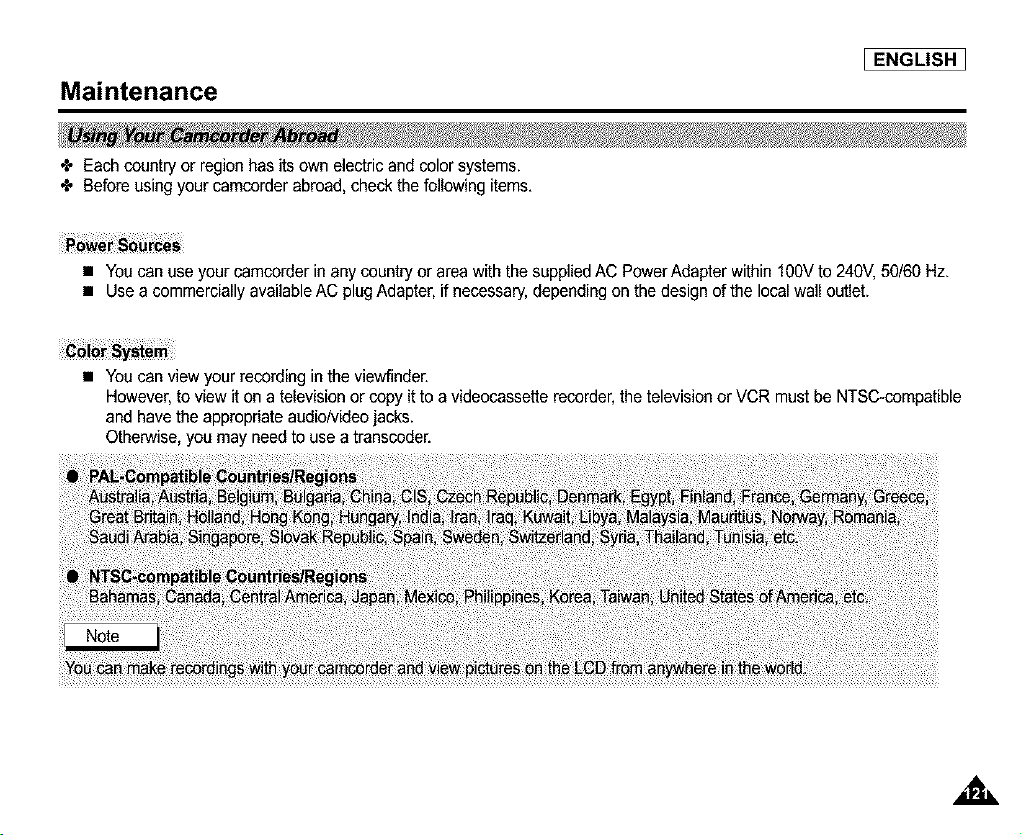
Maintenance
I ENGLISH ]
÷ Each country or region has its own electric and color systems.
÷ Before using your camcorder abroad, check the following items.
• You can use your camcorder in any country or area with the supplied AC Power Adapter within 100V to 240V, 50/60 Hz.
• Use a commercially available AC plugAdapter, if necessary, depending on the design of the local wall outlet.
• You can view your recording in the viewfinder.
However, to view it on a television or copy itto a videocassette recorder, the television or VCR must be NTSC-compatible
and have the appropriate audio/video jacks.
Otherwise, you may need to use a transceder.
.o

I ENGLISH
Troubleshooting
_, Before contacting a Samsung authodzed service center, perform the following simple checks.
They may save youthe time and expense of an unnecessary call.
slow the b_ttery pack is almost discharged Change to a charged one
TAPEEND! slow When the remaining time on the tape
_sabout 2 m_nutes Prepare a new one
TAPEEND! no the tape reached its end Change to a new one
TAPE! slow there LSno tape in camcorder thsert a tape
If you want to record, release
P£O_CTrON!Slow the tape LSrecord protected the protection
D slow the camcorder has some mechanical 1 Eiect the tape
fault 2 Set to OFE
L 3 Detach the battery
C 4 Reattach the battery
R * If unresolved contact your
Ioca_service representa_ve
r_ slow mcisture condensafJon has formed in see below
the camcorder
•I, If the camcorder is brought directly from a cold place to a warm place, moisture may condense inside the camcorder,
on the surface of the tape, or on the lens. In this condition, the tape may stick to the head drum and be damaged or the
unit may net operate correctly.
To prevent possible damage under these circumstances,the camcerder is fitted with a moisture sensor.
•I, If there is moisture inside the camcorder, I_1 (DEW) is displayed. If this happens, none of the functionsexcept cassette
ejection will work.
Open the cassette compartment and remove the battery.
Leave the camcorder for at least two hours in a dry warm room.
,&

Troubleshooting
MEMORY STICK! stow There no Memory stick in the
camcorder
MEMORY FULL! s_ow There is riot enough memory
to record¸
NO STORED There are no images receded
PHOTO! stow on the Memory Stick
WRITE
PROTECT! s_ow The Memory Stick is record
,rotected
PROTECT! stow When you try to delete to
protected image¸
READ ERRORT stow The came'a can not playback
WRITE ERROR! stow Thecame_acannotrecord
NOT
FORMATTED! s_ow The card or memory need_
to format¸
NOW DELETE¸¸¸ stow When progressing FiLE
DELETE¸
NOW FORMAT stow When progress_g MEMORY
FORMAE
NOW COPY¸¸¸ stow When pn3gressing F_LECOPY
Insert a Memory Stick
Change to a new Memory
Stick¸ Erase recorded image¸
Record new images¸
Release the write protect tab
on the Memory Stick¸
Cancel the protect of image¸
Format a Memory Stick or
insert Memory Stick recorded
on this camcorder
Format a Memory Stick or
change to a new Memory Stick
Format a Memory Stick
Wait _ntJl DeEetehas
finished¸
Wait formatting has finished¸
Wait until copying has
finished¸
I ENGLISH ]
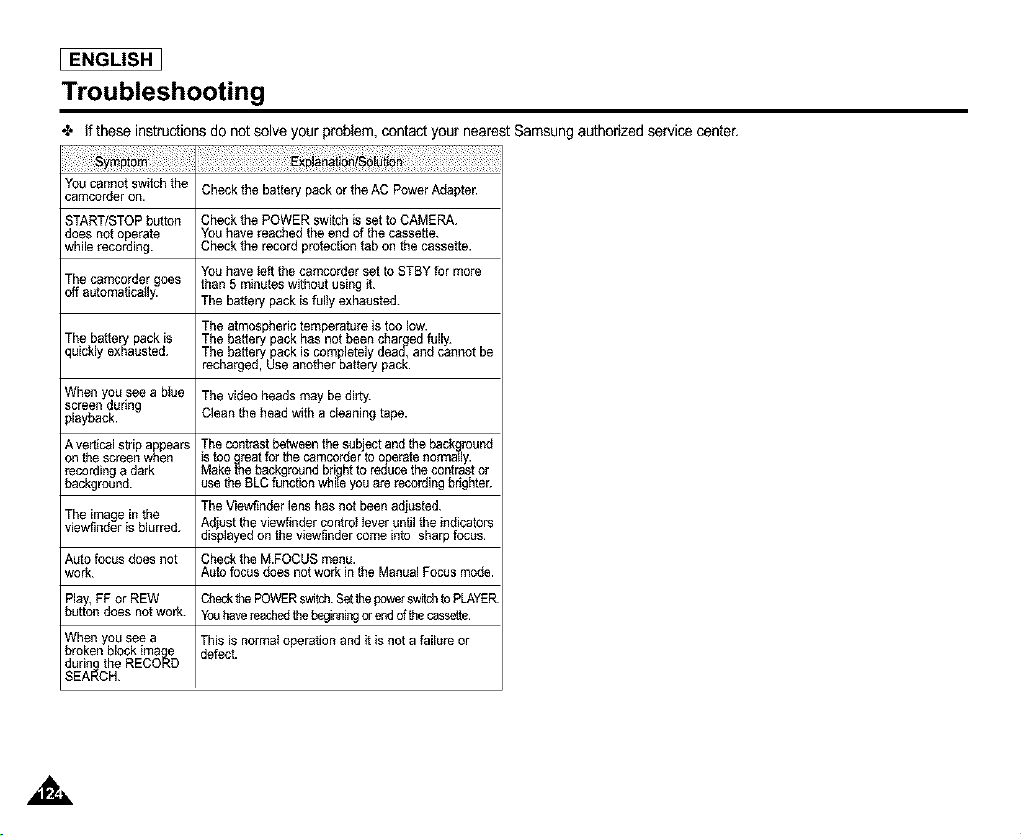
[ ENGLISH ]
Troubleshooting
•l- if these instructions do not solve your problem, contact your nearest Samsung authorized service center,
You cannot swgch the Check the battery pack or the AC Power Adapter.
camcorder on.
START/STOP button Check the POWER switch is set to CAMERA.
does not operate You have reached the end of the cassette.
while recording. Check the record protection tab on the cassette.
You have Seftthe camc_rber set to STBY for more
The camcorder goes than 5 mthutes without using it.
off automatically. The battery pack is fully exhausted.
The atmospheric temperature is too low.
The battery pack is The battery pack has not been charrged fully.
quickly exhausted. The battery pack is completely dead,, and cannot be
recharged, Use another battery pack.
Wben you see a bSue The video heads may be dirty.
screen during
playback. Clean the head with a cleaning tape.
A vertical strip appears The contrast between the subject and the back{ground
on the screen when is too _reat for the camcorder to operate normally.
recording a dark Make me background brigrhtto reouce the contrast or
background, use the BLC function white you are recording brighter.
The Viewfinder lens has not been adjusted.
The image in the
viewfinder Ssblurred. Ad ust the viewfioder controt tever until the indicators
d spayed on the v ewfinder come nto sharp ocus.
Auto focus does not Check the M.FOCUS menu.
work. Auto focus does not work in the Manual Focus mode.
Play, FF or REW Checkthe POWERswitch. Setthe powe switchto PLAYER
button does not work. Youhavereachedthe beginnthgor endof the casse_e.
Wben you see a This is norma$operation and Stis not a failure or
broken block imaq_e
defect.
during the RECORD
SEARCH.
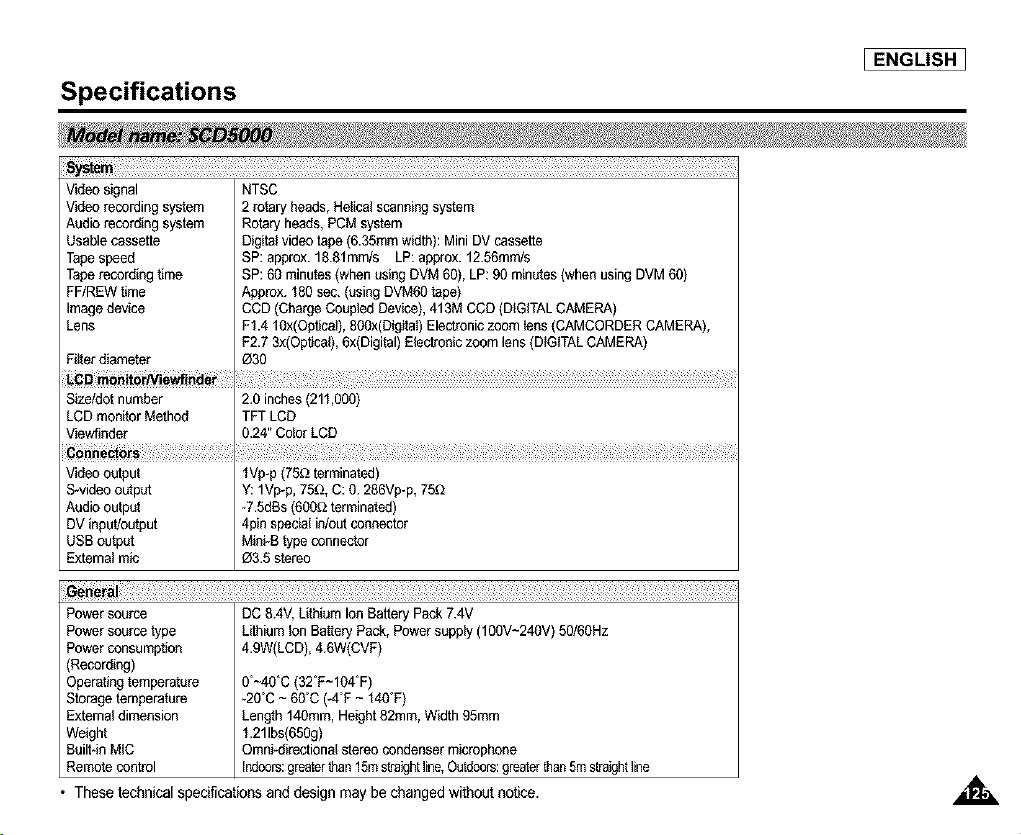
Specifications
I ENGLISH 1
Video signal NTSC
Video recording system 2 rotary heads,Helical scanningsystem
Audio recording system Rotary heads,PCM system
Usablecassette Digitalvideo tape (6.35mmwidth): Mini DVcassette
Tapespeed SP: approx.1g.glmm/s LP: approx.12.56mm/s
Taperecordingtime SP: 60 minutes(when usingDVM 60), LP: 90 minutes(when usingDVM 60)
FF/REWtime Approx.180 sec. (usingDVM60tape)
Imagedevice CCD (ChargeCoupledDevice),413M CCD(DIGITALCAMERA)
Lens F1.4 1Ox(Opfical),800x(DigitaI)Electroniczoom tens(CAMCORDERCAMERA),
F2.7 3x(Opfical),6x(Digital)Electroniczoom lens (DIGITALCAMERA)
Fifierdiameter _30
Size/dotnumber 2.0 inches(211,000)
LCD monitorMethod TFT LCD
Viewtinder 024" Color LCD
co.
Video output IVp-p (75£,tterminated)
S-videooutput Y: 1Vp*p,75f_,C: 0. 286Vp-p,75_J
Audio output -7.5dBs(6OO£Jterminated)
DV thput!outpet 4pin specialin/out connector
USBoutput Mthi-Btype connector
Externalmic _3.5 stereo
Powersource
Powersource type
Powerconsumption
(Recording)
Operatingtemperature
Storagetemperature
Externaldimension
Weight
8uilt4n MIC
Remotecontrol
DC 8.4V,LithiumIon Battery Pack 7.4V
Lithium Ion Battery Pack,Power supply (100V-24OV)50/60Hz
4.9W(LCD),4.6W(CVF)
0_-40"C(320F~104_F)
-20"C - 60% (WF ~ i4OOF)
Length 140ram,Height82ram, Width 95ram
1.21Ibs(65Og)
Omni-directionalstereo condensermicrophone
Indoors:greaterthan15mstraightline,Outdoors:greaterthan5mstraightline
• These technical specifications and design may be changed without notice.
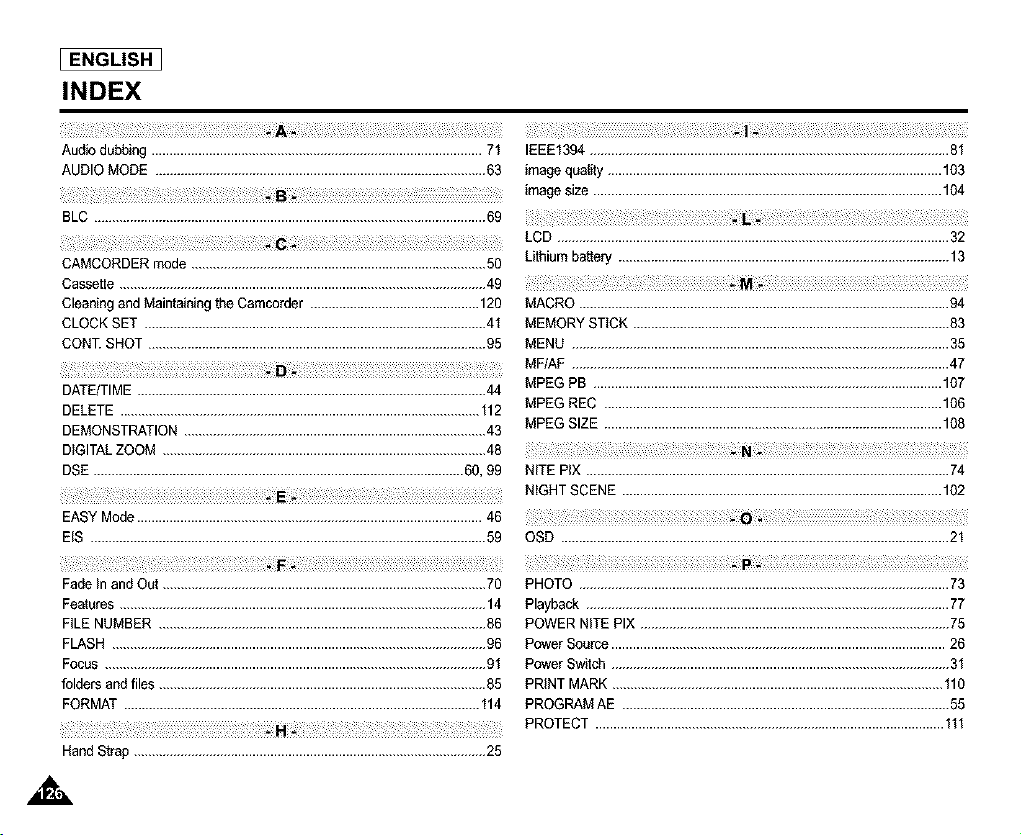
ENGLISH
INDEX
A - -
Audiodubbing............................................................................................71 IEEE1394....................................................................................................81
AUDIOMODE............................................................................................63 imagequality.............................................................................................103
imagesize.................................................................................................104
BLC .............................................................................................................69
CAMCORDERmode ..................................................................................50
Cassette ......................................................................................................49
Cleaning and Maintainingthe Camcordel ...............................................120
CLOCK SET ...............................................................................................41
CONZ SHOT ..............................................................................................95
LCD .............................................................................................................32
Lithiumbattery ............................................................................................13
MACRO .......................................................................................................94
MEMORYSTICK ........................................................................................83
MENU .........................................................................................................35
D - MF/AF .........................................................................................................47
DATE/TIME.................................................................................................44 MPEG PB .................................................................................................107
DELETE ....................................................................................................112
DEMONSTRATION....................................................................................43
DIGITALZOOM ..........................................................................................48
DSE.......................................................................................................60, 99
EASYMode................................................................................................46
EIS ..............................................................................................................59
Fade In and OL_..........................................................................................70
Features......................................................................................................14
FILE NUMBER ...........................................................................................86
FLASH ........................................................................................................96
Focus ..........................................................................................................91
folders and files ...........................................................................................85
FORMAT ...................................................................................................114
HandStrap ..................................................................................................25
MPEG REC ..............................................................................................106
MPEG SIZE ..............................................................................................108
N
NITE PIX .....................................................................................................74
NIGHTSCENE .........................................................................................102
- O -
OSD ............................................................................................................21
. p
PHOTO .......................................................................................................73
Playback .....................................................................................................77
POWERNITE PIX ......................................................................................75
Power Source.............................................................................................26
Power Switch ..............................................................................................34
PRINT MARK ............................................................................................110
PROGRAMAE ...........................................................................................55
PROTECT .................................................................................................111
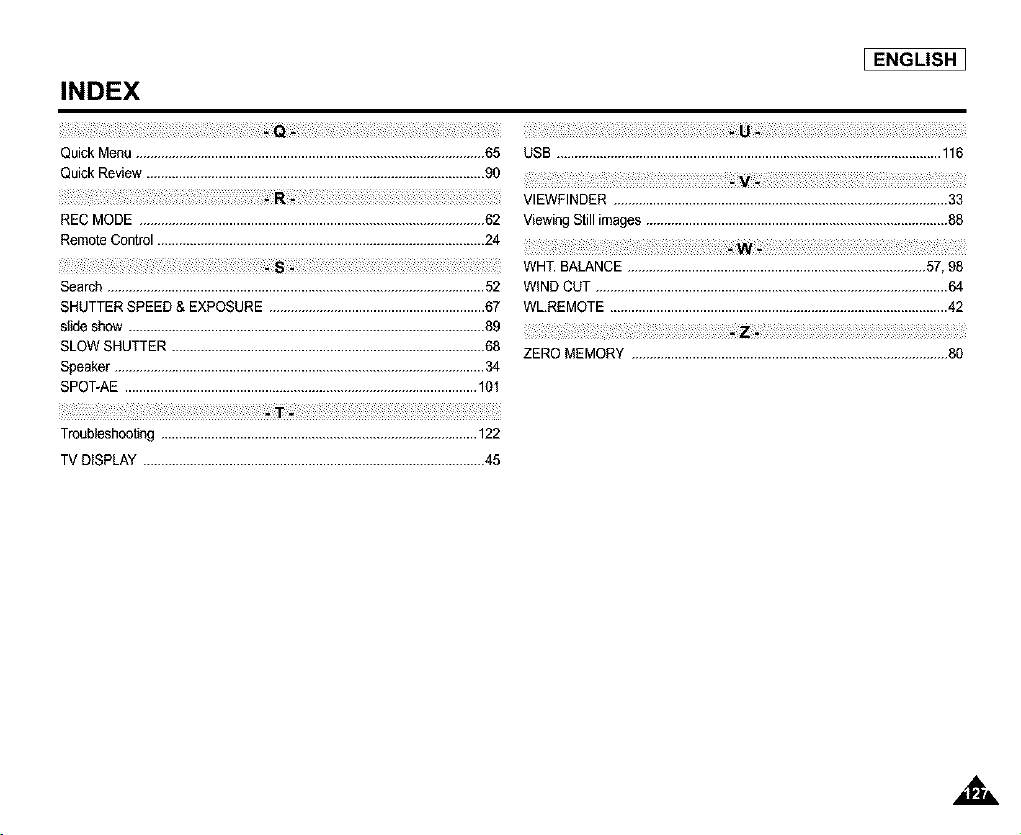
I ENGLISH
INDEX
Quick Menu .................................................................................................65
Quick Review ..............................................................................................90
REC MODE ................................................................................................62
RemoteControl...........................................................................................24
Search.........................................................................................................52
SHUTTERSPEED& EXPOSURE ............................................................67
slideshow ...................................................................................................89
SLOWSHUTTER .......................................................................................68
Speaker .......................................................................................................34
SPOT-AE ..................................................................................................10"_
- T -
Troubleshooting........................................................................................122
TV DISPLAY ...............................................................................................45
,,t=,
[ ENGLISH ]
Warranty
SAMSUNG
LIMITED WARRANTY
SAMSUNG Electronics America Inc. (SEA), warrants that this product is free from defective material and workmanship.
SEA further warrants that if productfails to operate properly within the specified warranty period and the failure is due
to improper workmanship or defective material, SEA will repair or replace the product at it's option.
All warranty repairs must be performedby a SEA authorized service center. The name and address of the location
nearest you can be obtained by calling toll free: 1-800 SAMSUNG (1-800-726-7864).
Labor
90 days carry-in
Parts
1 year
On carry-in models, transportation to and from the service center is the customer's responsibility.
The original dated sales receipt must be retained by the customer and is the only acceptable proof of purchase.
It must be presentedto the authorized service center.
EXCLUSIONS (WHAT IS NOT COVERED)
This warranty does not cover damage due to accident, fire, flood and/or other acts of God; misuse, incorrect line
voltage, improper installation, improper or unauthorized repairs, commercial use, or damage that occurs in shipping.
Exterior and interior finish, lamps, and glass are not covered under this warranty.
Customer adjustments which are explained in the instruction manual are not covered under the terms of this warranty.
This warranty will automatically be voided for any unit found with a missing or altered serial number. This warranty is
valid only on products purchased in the United States and Puerto Rico.
Some States do not allow the exclusions or limitations of incidental or consequential damages, or allow limitations on
how long an implied warranty lasts, so the above limitations or exclusions may not apply to you.
This warranty gives you specific legal rights, and you may also have other rights which vary from State to State.
,&,

IENGLISH J
THIS CAMCORDER IS MANUFACTURED BY:
....._ _iiiiiiiiiiiiiiiiiiii!iiiiiiiiiiii_iii_iiiilili_iiiiiiiiiiiiiiiiiiiiiiilililli_iiiiiiiiiiiiiiiiiiiiiiiiiiiiiiiii!iiiiii_
SERVICE DIVISION
400 Valley Road, Suite 201, Mt. Arlington N.J. 07856
Tel: 1-800-SAMSUNG
(1-800-726-7864)
*Samsung Electronics' Internet Home Page
http://www.samsungusa.com AD68-00655B(01)