I ENGLISH I
Digital Video Camcorder
Mini "_FD_tal
VEdeo
_ _a_o SC'D263/D362/D363/D364/D365/D366
AF Auto Focus
CCD Charge Coupled Device
LCD Liquid Crystal Display
RollS compliant
Our product complies with "Tile
Restriction Of the use of certain
Hazardous Substances in electrical and
electronic equipment", and we do not
use the 6 hazardous materials- Cadmium(Cd). Lead
(Pb). Mercury (Hg). Hexavalent Chromium (CRY).Poly
Brominated Biphenyls (PBBs). Poty Brominated
Diphenyl Ethers(PBDEs)- in our products.
Owner's Instruction Book
Before operating the unit, please read this Instruction
Book thoroughly and retain it for future reference,
US PATENT 4415844 I
Use only approved battery packs.
Otherwise, there is a danger of overheating, fire or explosion.
Samsung is not responsible for problems occurring due to using unapproved batteries.
I ENGLISH I
Notices and Safety Instructions
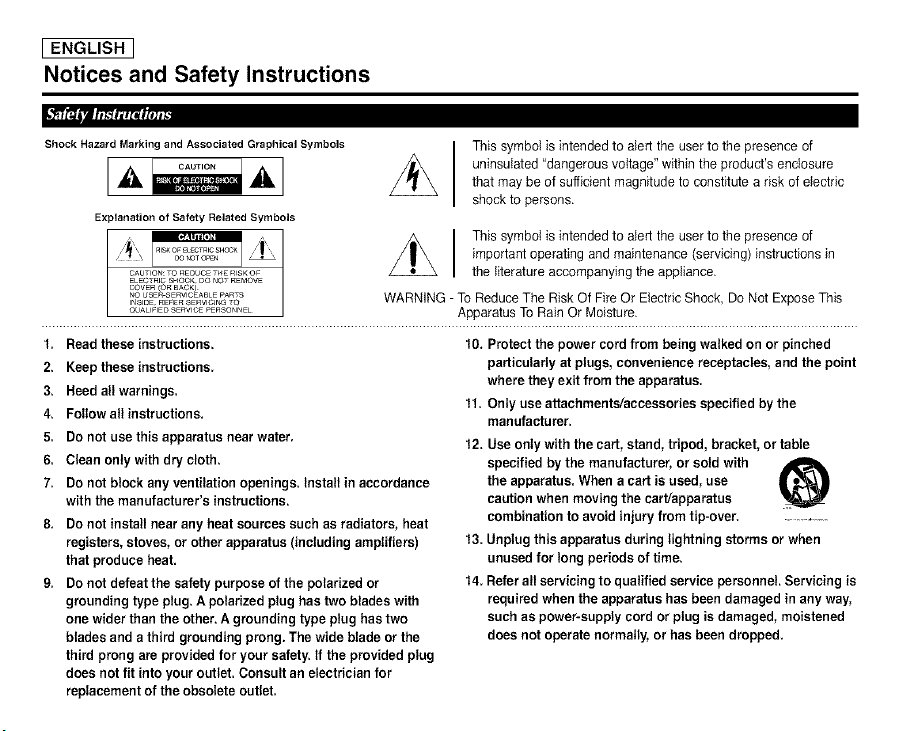
Shock Hazard Marking and Associated Graphical Symbols
Explanation of Safety Related Symbols
CAUTION:TOREDUCETHE RISKOF
ELECTRIO SHOCK DO NOT REMOVE
COVER (ORBACK)
NO USER SERVICEABLE PARTS
INSIDE REFER SERVICING TO
QUALIFIED SERVICE PERSONNEL
This symbol is intended to alert the user to the presence of
uninsulated "dangerous voltage" within the product's enclosure
that may be of sufficient magnitude to constitute a risk of electric
shock to persons.
This symbol is intended to alert the user to the presence of
important operating and maintenance (servicing) instructions in
the literature accompanying the appliance.
WARNING - To Reduce The Risk Of Fire Or Electric Shock, Do Not Expose This
Apparatus To Rain Or Moisture.
1. Read these instructions.
2. Keep these instructions.
3. Heed all warnings.
4. Follow all instructions.
5. DO not use this apparatus near water.
6. Clean only with dry cloth.
7. DO not block any ventilation openings. Install in accordance
with the manufacturer's instructions.
8. Do not install near any heat sources such as radiators, heat
registers, stoves, or other apparatus (including amplifiers)
that produce heat.
9. Do not defeat the safety purpose of the polarized or
grounding type plug. A polarized plug has two blades with
one wider than the other. A grounding type plug has two
blades and a third grounding prong. The wide blade or the
third prong are provided for your safety, tf the provided plug
does not fit into your outlet. Consult an electrician for
replacement of the obsolete outlet.
10. Protect the power cord from being walked on or pinched
particularly at plugs, convenience receptacles, and the point
where they exit from the apparatus.
tl. Only use attachments/accessories specified by the
manufacturer.
12. Use only with the cart, stand, tripod, bracket, or table
specified by the manufacturer, or sold with
the apparatus. When a cart is used, use
caution when moving the cart/apparatus
combination to avoid injury from tip-over. ....................
t3. Unplug this apparatus during lightning storms or when
unused for long periods of time.
t4. Refer all servicing to qualified service personnel. Servicing is
required when the apparatus has been damaged in any way,
such as power-supply cord or plug is damaged, moistened
does not operate normally, or has been dropped.
I ENGLISH I
Notices and Safety Instructions
15. The apparatus should not be exposed to dripping or
splashing, No objects filled with liquids, such as vases,
should be placed on the apparatus,
16, VENTILATION:
Slots and openings in the cabinet are provided for ventilation to
ensure reliable operation of the CAMCORDER and to protect it
from overheating. These openings must not be blocked or
covered. Never place your CAMCORDER on a bed, sofa, rug,
or other similar surface: on or near a radiator or heat register.
This CAMCORDER should not be placed in a built-in installation
such as a bookcase or rack unIess proper ventilation is provided
or the manufacturer's instructions have been adhered to.
17. POWER SOURCES:
The CAMCORDER shouId be operated only from the type of
power source indicated on the label
if you are not sure of the type of power supply at your home,
consult your appliance dealer or local power company.
A CAMCORDER is intended to be operated from battery power,
or other sources refer to the operating instructions.
t8, GROUNDING OR POLARIZATION:
This CAMCORDER may be equipped with either a polarized
2-wire AC line plug (a plug having one blade wider than the other)
or a 3-wire grounding type plug, a plug having a third (grounding)
pin. if you are unable to insert the plug fully into the outIet, try
reversing the plug. If the plug still fails to fit, contact your
electrician to replace your outlet. Do not defeat the safety purpose
of the polarized plug.
19.
20.
POWER-CORD PROTECTION:
Power-supply cords should be routed so that they are not likely to
be walked on or pinched by items placed upon or against them,
paying parficuIar attention to cords or plugs, convenient
receptacles, and the point where they exit from the unit.
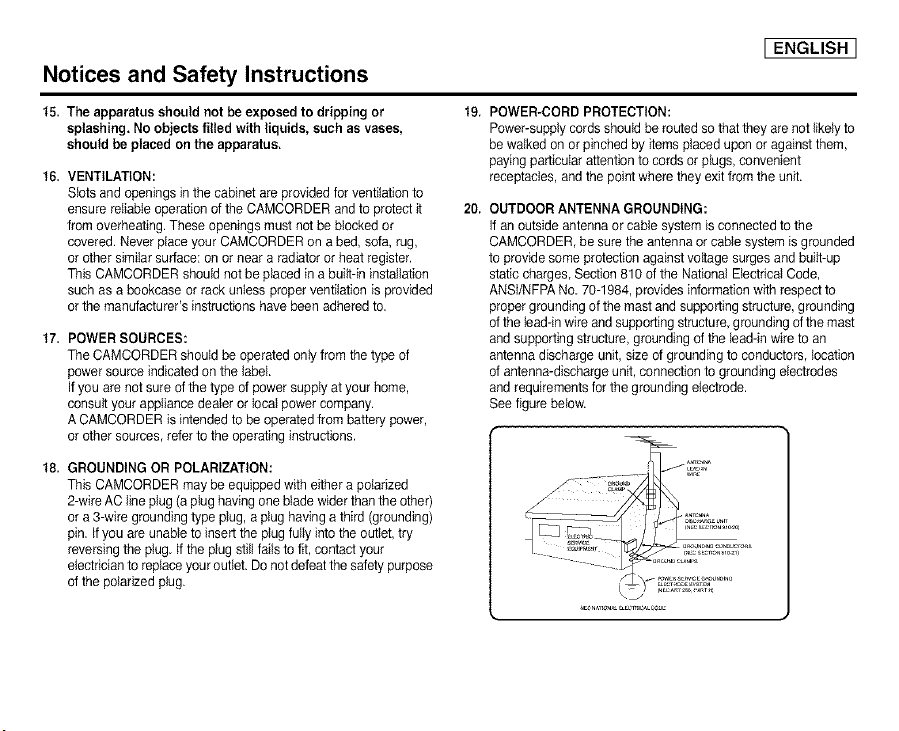
OUTDOOR ANTENNA GROUNDING:
if an outside antenna or cable system is connected to the
CAMCORDER, be sure the antenna or cable system is grounded
to provide some protection against voltage surges and built-up
static charges, Section 810 of the National Electrical Code,
ANSI/NFPA No. 70-1984, provides information with respect to
proper grounding of the mast and supporting structure, grounding
of the lead-in wire and supporting structure, grounding of the mast
and supporting structure, grounding of the lead-in wire to an
antenna discharge unit, size of grounding to conductors, location
of antenna-discharge unit, connection to grounding electrodes
and requirements for the grounding electrode.
See figure below.
LENGLISH J
Notices and Safety Instructions
21. LIGHTNING:
For added protection of this CAMCORDER during a lightning
storm or when it is Ieft unattended and unused for long periods of
time, unplug it from the wall outlet and disconnect the antenna or
cable system.
This will prevent damage to the CAMCORDER due to lightning
and power-line surges.
22. POWER LINES:
An outside antenna system should not be located in the vicinity of
overhead power lines or other electric light or power circuits where
it can fall into such power lines or circuits. When installing an
outside antenna system, extreme care should be taken to keep
from touching such power lines or circuits as contact with them
might be fatal.
23, OVERLOADING:
Do not overload wail outlets and extension cords as this can result
in a risk of fire or electric shock.
24. OBJECTS AND LIQUIDS:
Never push objects of any kind into this CAMCORDER through
openings as they may touch dangerous voltage points or short out
a part that could result in a fire or eIectdc shock.
Never spill Iiquids of any kind onto the CAMCORDER. ShouId
spillage occur, unplug unit and have it checked by a technician
before use.
25, SERVICING:
Do not attempt to service this CAMCORDER yourself. Opening or
removing covers may expose you to dangerous voltage or other
hazards.
Refer all servicing to qualified service personnel.
26. DAMAGE REQUIRING SERVICE:
Unplug this CAMCORDER from the wall outIet and refer servicing
to qualified service personnel under the following conditions:
a. When the power-supply cord or plug is damaged.
b. If any liquid has been spiIled onto, or objects have fallen into
the CAMCORDER.
c. If the CAMCORDER has been exposed to rain or water.
d. If the CAMCORDER does not operate normally byfollowing the
operating instructions, adjust only those controls that are
covered by the operating instructions. Improper adjustment of
other controls may resuif in damage and will often require
extensive work by a qualified technician to restore the
CAMCORDER to its normal operation.
e. If the CAMCORDER has been dropped or the cabinet has been
damaged.
f. When the CAMCORDER exhibits a distinct change in
performance, this indicates a need for service.
27. REPLACEMENT PARTS:
When replacement parts are required, be sure the service
technician has used replacement parts specified by the
manufacturer and having the same characteristics as the original
part.
Unauthorized substitutions may result in fire, electric shock or
other hazards.
28. SAFETY CHECK:
Upon completion of any service or repairs to this CAMCORDER,
ask the service technician to perform safety checks to determine
that the CAMCORDER is in safe operating order.
I ENGLISH I
Notices and Safety Instructions
29. To prevent damage which may resuit in fire or shock hazard, do not
expose this appliance to rain or moisture.
30. if this power supply is used at 240V ac, a suitable plug adapter
should be used.
USER INSTALLER CAUTION:
Your authority to operate this FCC certified equipment could be voided
if you make changes or modifications net expressly approved by this
party responsible for compliance to part 15 FCC rules.
NOTE:
_-_ LAMP(S) INSIDE THIS PRODUCT CONTAIN
MERCURY AND MUST BE RECYCLED OR
DISPOSED OF ACCORDING TO LOCAL, STATE OR
FEDERAL LAWS. For details see lamprecycle.org,
eiae,org, or call 1-800-Samsung (7267864)
NOTE: This equipment has been tested and found to comply with
the Iimifs for a Ctass B digital device, pursuant to part 15 of the
FCC Rules. These Iimits are designed to provide reasonable
protection against harmfuI interference in a residential installation.
This equipment generates, uses and can radiate radio frequency
energy and, if not installed and used in accordance with the
instructions, may cause harmfut interference to radio
communications. However, there is no guarantee that interference
will not occur in a parficutar installation. If this equipment does
cause harmfuI interference to radio or television reception, which
can be determined by turning the equipment off and on, the user is
encouraged to try to correct the interference by one or more of the
following measures:
Reorient or relocate the receiving antenna.
increase the separation between the equipment and receiver.
Connect the equipment into an outlet on a circuit different from
that to which the receiver is connected.
ConsuIt the dealer or an experienced radio/TV technician for help
and for additional suggestions.
The user may find the following booklet prepared by the Federal
Communications Commission helpful : "How to Identify and
Resolve Radio-TV Interference Problems."
This Booklet is available from the U.S. Government Printing
Office, Washington, D.C. 20402, Stock No. 004-000-00345-4.
FCC Warning
The user is cautioned that changes or modifications not expressly
approved by the manufacturer could void the user's authority to
operate the equipment.
FCC t0 : A3L05DRAGON2
This device complies with Part 15 of FCC Rules.
Operation is subject to the following two conditions;
(1) This device may not cause harmful interference, and
(2) This device must accept any interference received,
including interference that may cause undesired operation.
[ ENGLISH ]
Contents
Features ....................................................................................7
Accessories Supplied with Camcorder ....................................8
Front & Left View ......................................................................9
Left Side View ..........................................................................10
Right & Top View ....................................................................11
Rear & Bottom View................................................................t2
Remote Control (SC-D364/D366 only) ..................................13
Setting the Shutter Sound (Shutter Sound)
(SC-D363/D364/D365/D366 only) ..........................................26
Selecting the OSD Language (Language) ............................27
Viewing the Demonstration (Demonstration) ........................28
Adjusting the LCD Screen (LCD Bright/LCD Color) ..........29
Displaying the Date/Time (Date/Time) ..................................30
Setting the TV Display (TV Display) ......................................3t
Using the Hand Strap & Lens Cover ......................................t4
Lithium Battery Installation......................................................t5
Using the Lithium Ion Battery Pack ........................................t6
Connecting a Power Source ..................................................19
About the Operating Modes ....................................................19
Using the QUICK MENU ........................................................20
OSD (On Screen Display) in Camera/Player Modes ............2t
OSD (On Screen Display) in M.Cam/M.Player Modes
(SC-D363/D364/D365/D366 only) ..........................................22
Turning the OSD (On Screen Display) On/Off ......................22
Setting the Clock (Clock Set) ................................................23
Setting the Wireless Remote Control Acceptance
(Remote) (SC-D364/D366 only) ............................................24
Setting the Beep Sound (Beep Sound) ................................25
,A
Using the Viewfinder................................................................32
Inserting / Ejecting a Cassette ................................................32
Various Recording Techniques................................................33
Making your First Recording ..................................................34
Recording with Ease for Beginners (EASY.Q Mode) ............35
Reviewingand Searching a Recording (REC SEARCH) ........36
Searching a quickly for a desired scene
(Setting the Zero Memory) (SC-D364/D366 only) ..............37
Self Record using the Remote Control
(Setting the Self Timer) (SC-D364/D366 only) ....................38
Zooming In and Out ................................................................39
Using the Teie Macro ..............................................................39
Using the Fade In and Out ......................................................40
Using Back Light Compensation Mode (BLC) ......................41
Using the COLOR NITE (COLOR NITE)................................42
Using the LIGHT (SC-D362/D364/D365/D366 onty)..............43
Contents
[ ENGLISH J
Selecting the Record Mode & Audio Mode ............................44
Cutting Off Wind Noise (WindCut Plus) ..............................,45
Selecting the Real Stereo Function .......................................46
Setting the Shutter Speed & Exposure ..................................47
Auto Focus / Manual Focus ...................................................48
Programed Automatic Exposure Modes (Program AE) ..... .49
Setting the White Balance .................................... .51
Applying Visual Effects......................................................... .52
Setting the 16:9 Wide mode .................................. .54
Setting the Digital Image Stabilizer (DIS) ........................... .55
Zooming In and Out with Digital Zoom (Digital Zoom) ........56
Still Image Recording .............................................................57
Searching for a s/ill image .................................................57
Playing Back a Tape You have recorded on the LCD Screen..58
Various Functions while in Player Mode ................................59
Zooming during Playback (PB ZOOM) .................................61
Audio Dubbing (SC-D364/D366 only) ...................................62
Dubbed Audio Playback .........................................................63
Tape Playback ..................................................................... .64
Audio Effect ...........................................................................66
Setting the AV In/Out (SC-D365/D366 onty) ........................ .67
MemoU Card Func/ions.................................... ,68
lnser/ing a Memory Card .................................. ,68
Ejecting a Memory Card .................................................. .68
Structure of Folders and Files on the Memory Card......... .69
Selecting the Memory Type (SC-D366 only)..........................70
Selecting the Photo Quality .................................................. .71
Setting the File Number ...................................... .72
Taking a Photo Image (JPEG) on the Memory Card .......... .73
Viewing Photo Images (JPEG) ............................................ .74
To view a Single image .................................... ,74
To view a Slide Show ...................................................... ,74
To view/he Muhi Display ................................................ ,74
Protection from accidental Erasure ...................................... .75
Deleting Photo Images and Moving Images ....................... .76
Formatting a Memory Card ...................................................78
Recording Moving Images (MPEG) on a Memory Card ..........79
Playing Moving Images (MPEG) on a Memory Card
(M.Play Select) .................................................................... .80
Recording Still Images from a Cassette ............................. .81
Copying Still Images from a Cassette to a Memory Card
(Photo Copy) ........................................................................ .82
Copying Files from a Memory Card to the Built-in
Memory (Copy to) (SC-D366 only) ...................................... .83
Marking Images for Printing (Print Mark) ..............................84
Removing/he Prim Mark ....................................................84
Usinga MemoryCard(Usable MemoryCard) (not supplied)....68
Printing Your Pictures - Using the PictBridgeT'_......................85
A
[ ENGLISH ]
Contents
Connec/ing To a Prin/er ..................................................... ,85
Seleding images ............................................ ,86
Selling/he Number of Prin/s ............................... ,86
Selling/he Dale/Time imprint Option ....................... £6
Printing images ................................................................. ,86
Canceling/he Prin/ing ...................................... £6
I I___lli_/,/__!IP_I_I'1'_Tm__.................................................... ,.%1
Transferring IEEE1394 (i.LINK)-DV Standard Data
Connections .................................................... .87
Connecting!o aDV Device(DVD Recorder,Camcorder,etc.) _87
Connec/ing/o a PC ........................................................... £7
Sys/em RequimmenN ...................................... £7
Recording v_i/ha DV Connec/inn Cable ............................. £8
Using/he Removable Disk Fundion
(SC-D363/D3(_4/D365/D366only) ..................................... .94
1_7_rm{_t_,str_-....................................................................... '].J
After Finishing a Recording ................................................... .95
Usable Cassette Tapes ..........................................................95
Cleaning and Maintaining the Camcorder ............................. .96
Using Your Camcorder Abroad ............................................. .97
Troubleshooting .....................................................................98
Self Diagnosis Display..................................... ,98
Self Diagnosis Display in M.Cam/M.Player lVlndes
(SGD363/D3(:>!-/D365/D366only) ..................................,99
Setting menu items........................................... 10t
Using USBInterface(SC-D362/D363/D364/D365/D366on_)....89
Transferring a Digi/at image/hrough a USB Connec/ion ........89
USB Connedinn Speed depending on/he Sys/em ._____.__89
Sys/em RequimmenN ....................................... £9
Selecting the USB Device (USB Connect)
(SC-D363/D364/D365/D366 only) ..........................................90
Installing DV Media PRO Program ...................................... .91
Connecting to a PC ........................................... .92
Disconnec/ing/he USB Cable ........................................... .92
Using/he K _Camera Func/ion ........................................... .93
Using/he USB S/reaming Func/inn ................................... .94
Notes and Safety Instructions
I ENGLISH I
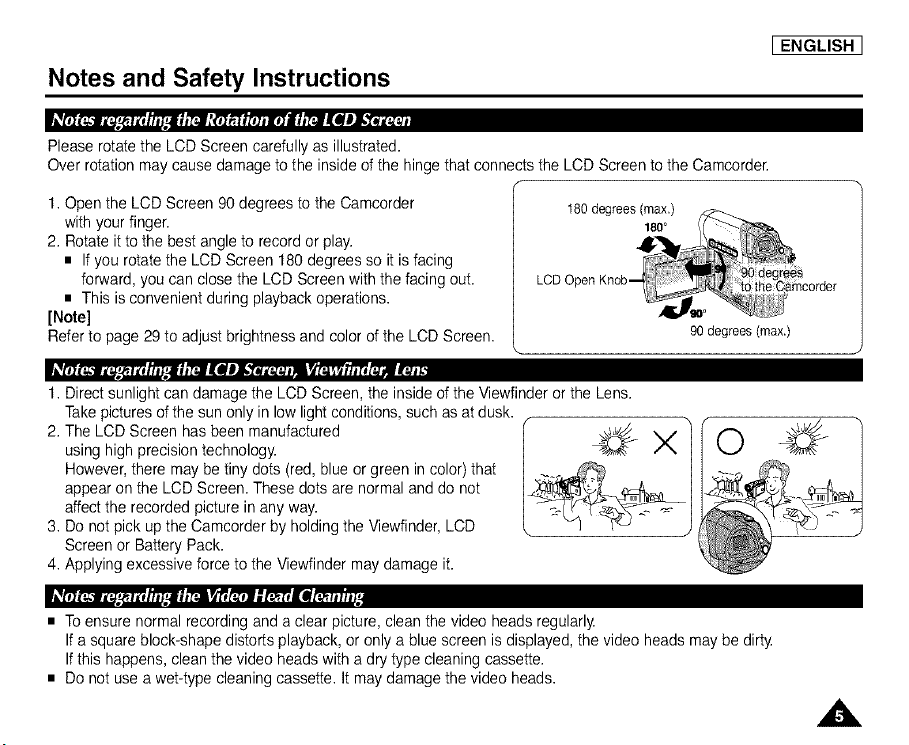
Please rotate the LCD Screen carefully as illustrated.
Over rotation may cause damage to the inside of the hinge that connects the LCD Screen to the Camcorder.
1. Open the LCD Screen 90 degrees to the Camcorder
with your finger.
2. Rotate it to the best angle to record or play.
• If you rotate the LCD Screen 180 degrees so it is facing
forward, you can close the LCD Screen with the facing out.
• This is convenient during playback operations.
[Note]
Refer to page 29 to adjust brightness and color of the LCD Screen.
180 degrees (max.)
180o
LCD Open
1. Direct sunlight can damage the LCD Screen, the inside of the Viewfinder or the Lens.
Take pictures of the sun only in low light conditions, such as at dusk.
2. The LCD Screen has been manufactured
using high precision technology.
However, there may be tiny dots (red, blue or green in color) that
appear on the LCD Screen. These dots are normal and do not
affect the recorded picture in any way.
3. Do not pick up the Camcorder by holding the Viewfinder, LCD
Screen or Battery Pack.
4. Applying excessive force to the Viewfinder may damage it.
90 degrees (max.)
O
• To ensure normal recording and a clear picture, clean the video heads regularly.
If a square block-shape distorts playback, or only a blue screen is displayed, the video heads may be dirty.
If this happens, clean the video heads with a dry type cleaning cassette.
• Do not use a wet-type cleaning cassette. It may damage the video heads.
A
[ ENGLISH ]
Notes and Safety Instructions
• Do not leave the Camcorder exposed to high temperatures (above 60 °C or 140 °F).
For example, in a parked car in the sun or exposed to direct sunlight.
• Do not let the Camcorder get wet. Keep the Camcorder away from rain, sea water, and any other form of moisture.
If the Camcorder gets wet, it may get damaged. Sometimes a malfunction due to exposure to liquids cannot be
repaired.
• A sudden rise in atmospheric temperature may cause condensation to form inside the Camcorder.
- When you move the Camcorder from a cold location to a warm location (e.g. from outside to inside during the winter.)
- When you move the Camcorder from a cool location to a hot location (e.g. from inside to outside during the summer.)
• If the I]EI(DEW) protection feature is activated, leave the Camcorder for at least two hours in a dry, warm room with
the cassette compartment opened and the Battery Pack removed.
Television programs, video tapes, DVD titles, films, and other program materials may be copyrighted.
Unauthorized copying of copyrighted material may be against the law.
All the trade names and registered trademarks mentioned in this manual or other documentation provided with your
Samsung product are trademarks or registered trademarks of their respective holders.
• Do not attempt to service this Camcorder yourself.
• Opening or removing covers may expose you to dangerous voltage or other hazards.
• Refer all servicing to qualified service personnel.
• When replacement parts are required, be sure the service technician has used replacement parts specified by the
manufacturer and having the same characteristics as the original part.
• Unauthorized substitutions may result in fire, electric shock or other hazards.
A
Getting to Know Your Camcorder
[ ENGLISH J
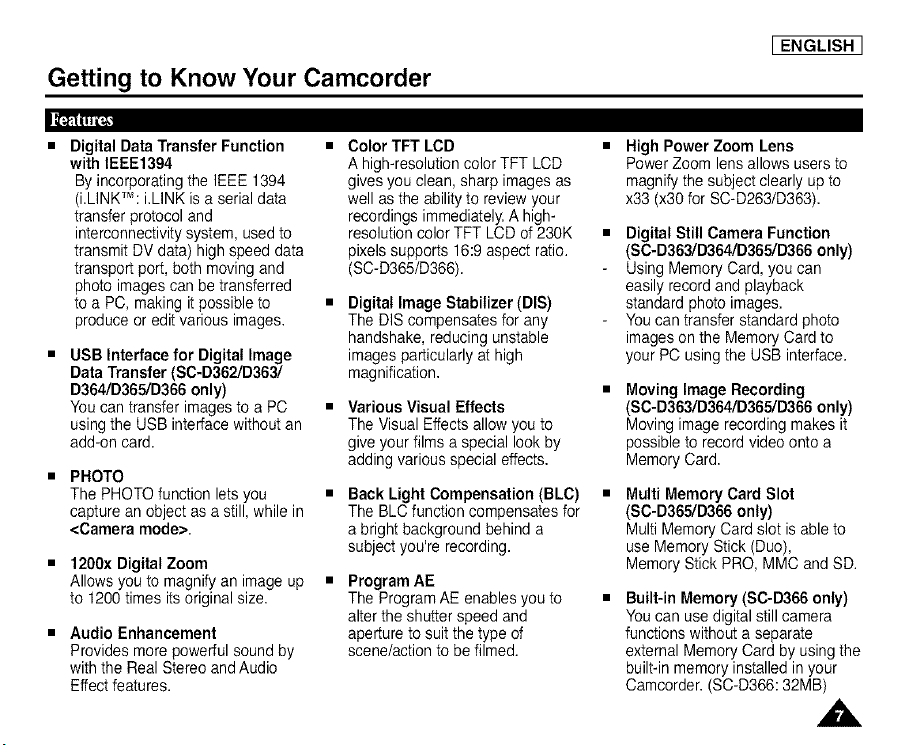
Digital Data Transfer Function •
with IEEE1394
By incorporating the IEEE 1394
(i.LINKT_k i.LINK is a serial data
transfer protocol and
interconnectivity system, used to
transmit DV data) high speed data
transport port, both moving and
photo images can be transferred
to a PC, making it possible to •
produce or edit various images.
USB Interface for Digital Image
Data Transfer (SC-D362/D363/
D364/D365/D366 only)
You can transfer images to a PC
using the USB interface without an
add-on card.
PHOTO
The PHOTO function lets you
capture an object as a still, while in
<Camera mode>,
1200x Digital Zoom
Allows you to magnify an image up
to 1200 times its original size.
Audio Enhancement
Provides more powerful sound by
with the Real Stereo and Audio
Effect features.
Color TFT LCD •
A high-resolution color TFT LCD
gives you clean, sharp images as
well as the ability to review your
recordings immediately. A high-
resolution color TFT LCD of 230K •
pixels supports 16:9 aspect ratio.
(SC-D365/D366).
Digital Image Stabilizer (DIS)
The DIS compensates for any
handshake, reducing unstable
images particularly at high
magnification.
Various Visual Effects
The Visual Effects allow you to
give your films a special look by
adding various special effects.
Back Light Compensation (BLC)
The BLC function compensates for
a bright background behind a
subject you're recording.
Program AE
The Program AE enables you to
alter the shutter speed and
aperture to suit the type of
scene/action to be filmed.
High Power Zoom Lens
Power Zoom lens allows users to
magnify the subject clearly up to
x33 (x30 for SC-D263/D363).
Digital Still Camera Function
(SC-D363/D364/D365/D366 only)
Using Memory Card, you can
easily record and playback
standard photo images.
You can transfer standard photo
images on the Memory Card to
your PC using the USB interface.
Moving Image Recording
(SC-D363/D364/D365/D366 only)
Moving image recording makes it
possible to record video onto a
Memory Card.
Multi Memory Card Slot
(SC-D365/D366 only)
Multi Memory Card slot is able to
use Memory Stick (Duo),
Memory Stick PRO, MMC and SD.
Built-in Memory (SC-D366 only)
You can use digital still camera
functions without a separate
external Memory Card by using the
built-in memory installed in your
Camcorder. (SC-D366: 32MB)
[ ENGLISH ]
Getting to Know Your Camcorder
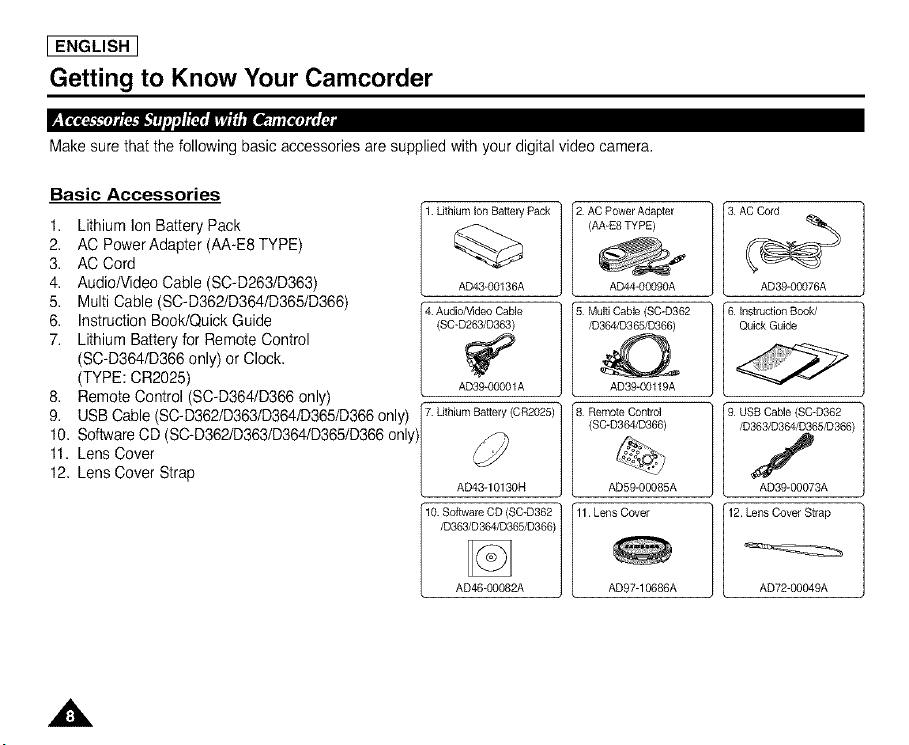
Make sure that the following basic accessories are supplied with your digital video camera.
Basic Accessories
1. Lithium Ion Battery Pack
2. AC Power Adapter (AA-E8 TYPE)
3. AC Cord
4. AudioNideo Cable (SC-D263/D363)
5. Multi Cable (SC-D362/D364/D365/D366)
6. Instruction Book/Quick Guide
7. Lithium Battery for Remote Control
(SC-D364/D366 only) or Clock,
(TYPE: CR2025)
1. Lithium Ion Battery Pack
8. Remote Control (SC-D364/D366 only)
AD43-00136A
4. AudioA4deo Cable
(SC-D263/D363)
AD39-00001A
2 AC Power Adapter
(AA-E8 TYPE)
AD44_0090A
5 Multi Cable (SC-D362
/D364/D365/D366)
AD39-00119A
AD39-00076A
9. USB Cable (SC-D362/D363/D364/D365/D366 only) {7.LithiumBattery(CR2025)
10. Software CD (SC-D362/D363/D364/D365/D366 only) f_
11. Lens Cover / U
12. Lens Cover Strap
_ AD43- 0 30H
10. Software CD (SC-D362 1
/D363_65/D366) ]
AD46-00082A J
11.Lens Cover
AD97-10686A
' 9 UDSBCable (SC-D53/D6266)
7
AD39-00073A
12. Lens Cover Strap
AD72-00049A
,A,
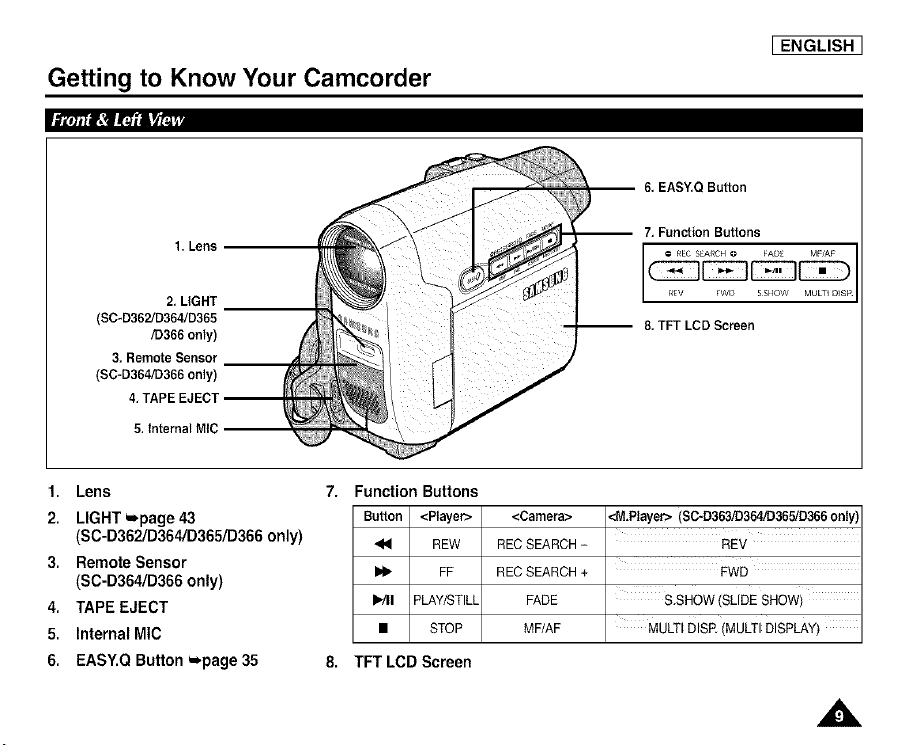
Getting to Know Your Camcorder
I ENGLISH I
1. Lens
2, LIGHT
(SC_D362/D364/D365
/D366 only)
3, Remote Sensor
(SC_D364/D366 on]y)
4, TAPE EJECT
5, Internaf MIC
6, EASY,Q Button
7. Function Buttons
@ REC SEN_CH @ _ADE MF/AF
_[V IWl) S SItOW MUETI DISP
8, TFT LCD Screen
1. Lens 7. FunctionButtons
2. LIGHTmpage 43 Button <Player>
(SC-D362/D364/D365/D366only) _,1 REW
3. RemoteSensor
(SC-D364/D366only) I_ FF
4. TAPEEJECT I_/ll PLAY/STILL
5. Internal MIC • STOP
6. EASY.QButton mpage 35 8. TFT LCD Screen
<Camera> <t&Raye> (SC*D363/D36443365!D366only)
RED SEARCH - REV
REC SEARCH + FWD
FADE S.SHOW (SLIDE SHOW)
MULTI DISR _MULTI r'ISPLAY _t L, 1MF/AF
,&
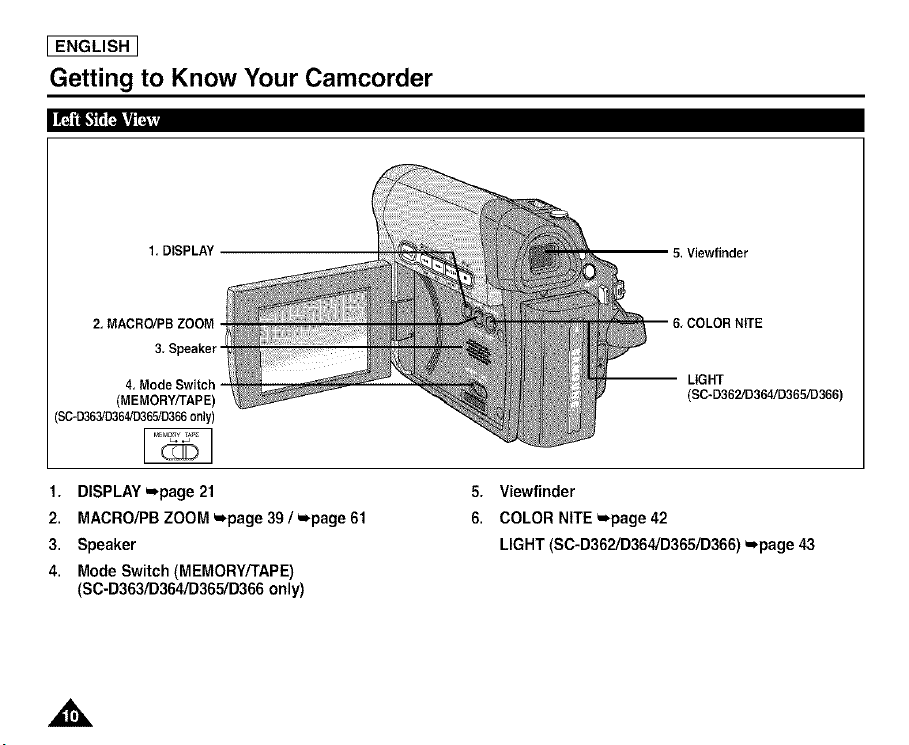
[ ENGLISH ]
Getting to Know Your Camcorder
1, DISPLAY
5. Viewfinder
2, MACRO/PB ZOOM
3, Speaker (
1,
2.
3.
4.
4, Mode Switch
(MEMORY/TAPE)
_C-D363/D364/D365!D366only)
DISPLAY--,page 21
MACRO/PBZOOM--page 39 / --,page61
Speaker
ModeSwitch(MEMORY/TAPE)
(SC-D363/D364/D365/D366only)
6, COLOR NITE
-- LIGHT
(SC-D362/D364/D365/D366)
5. Viewfinder
6. COLOR NITE -*page 42
LIGHT (SC-D362/D364/D365/D366) --,page 43
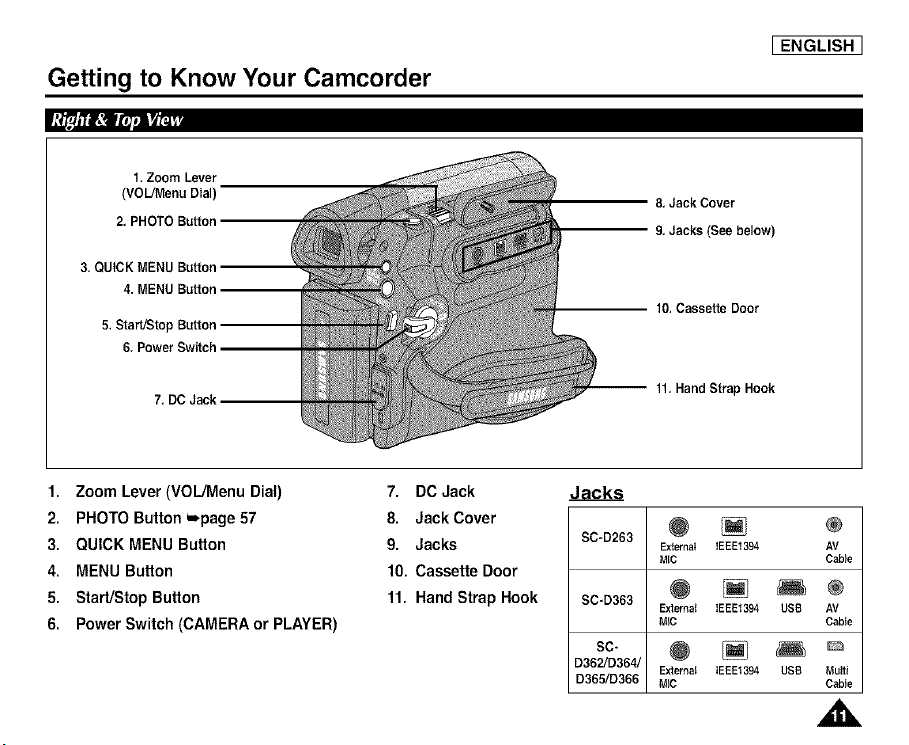
Getting to Know Your Camcorder
J ENGLISH J
1, Zoom Lever
(VOL/Menu Dial)
2, PHOTO Button
3, QUICK MENU Button
4, MENU Button
5, Start/Stop Button
6, Power Switch
7, DC Jack
8, Jack Cover
9, Jacks (See below)
10,Cassette Door
-- 11,Hand Strap Hook
1. Zoom Lever(VOL/MenuDial)
2. PHOTOButton--,page57
3. QUICKMENU Button
4. MENUButton
5. Start/StopButton
6. PowerSwitch (CAMERAor PLAYER)
7. DC Jack
8. Jack Cover
9. Jacks
10. CassetteDoor
11. Hand Strap Hook
Jacks
SC'D263 @ _ @
Externa{ {EEE1394 AV
MIC Cable
Extemat {EEE1394 USB AV
MIC Cable
sc. @ _ _
D362/D364/
Extemat {EEE1394 USB Mu{t{
D365/D366 MIC Cable
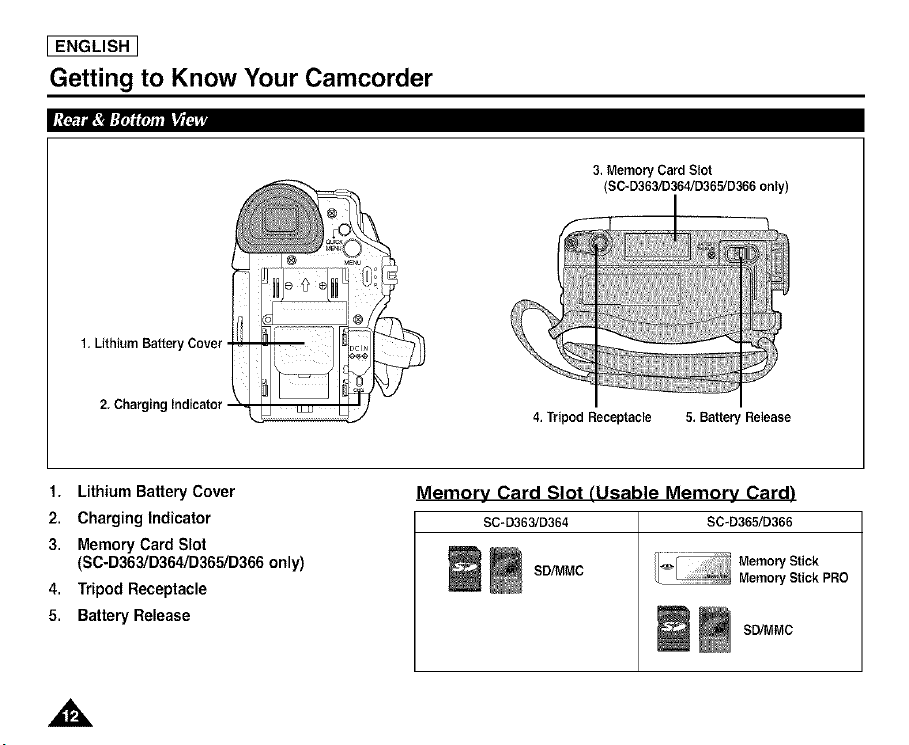
[ ENGLISH ]
Getting to Know Your Camcorder
1, Lithium Battery Cover
2 Chargrng Indtcator
3, Memory Card Slot
(SC-D363/D364/D365/D366 only)
4. Tripod Receptacle 5. Battery Release
1. LithiumBatteryCover
2. Charging Indicator
3. MemoryCard Slot
(SC-D363/D364/D365/D366only)
4. Tripod Receptacle
5. BatteryRelease
Memory Card Slot (Usable Memory Card_
SC-D363/D364 SC_D365/D366
Memory Stick
Memory Stick PRO
Getting to Know Your Camcorder
I ENGLISH I
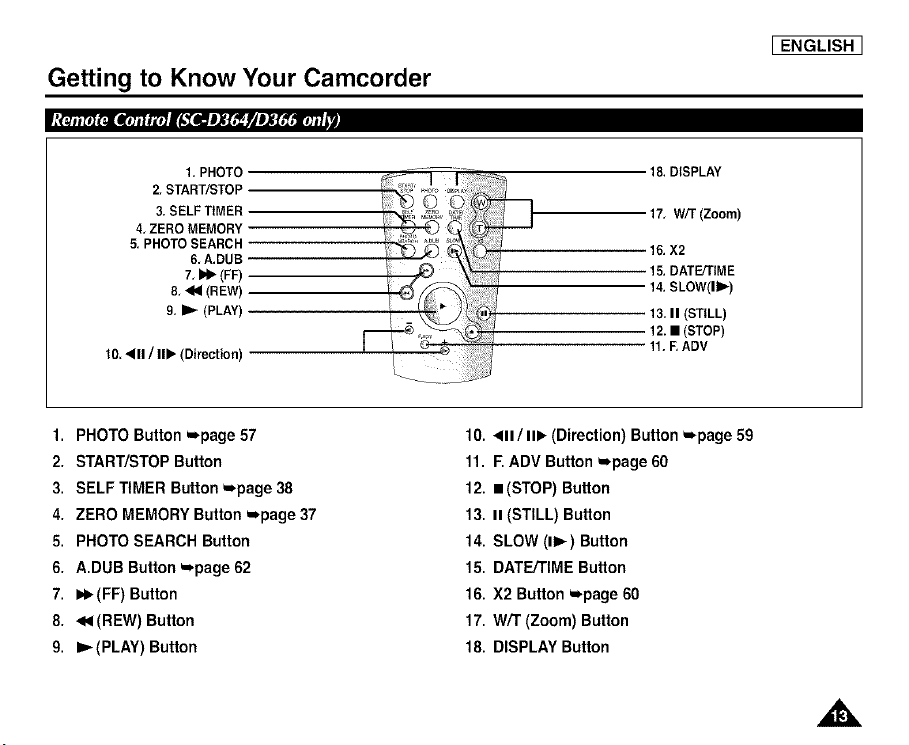
1. PHOTO
2, START/STOP
3. SELF TIMER
4, ZERO MEMOR'r
5. PHOTO SEARCH
6, A, DUB
7, bl_ (FF)
8, <HI (REW)
9, _ (PLAY)
10, 4111/ II1_ (Direction)
18, DISPLAY
17, W/T (Zoom)
16, X2
15, DATEKtME
14, SLOW(II_)
13, II (STILL)
12. • (STOP)
11. E ADV
1. PHOTOButtonwpage 57
2. START/STOPButton
3. SELFTIMER Buttonmpage 38
4. ZERO MEMORYButton=_page37
5. PHOTOSEARCH Button
6. A.DUBButtonmpage 62
7. IDI_(FF)Button
8. <qI(REW)Button
9. I_(PLAY) Button
10. <Ill/lib- (Direction) Button=_page59
11. F. ADVButtonmpage 60
12. •(STOP) Button
13. II (STILL)Button
14. SLOW (11_)Button
15. DATE/rIME Button
16. X2 Buttonmpage 60
17. w/r (Zoom) Button
18. DISPLAYButton
[ ENGLISH ]
Preparation
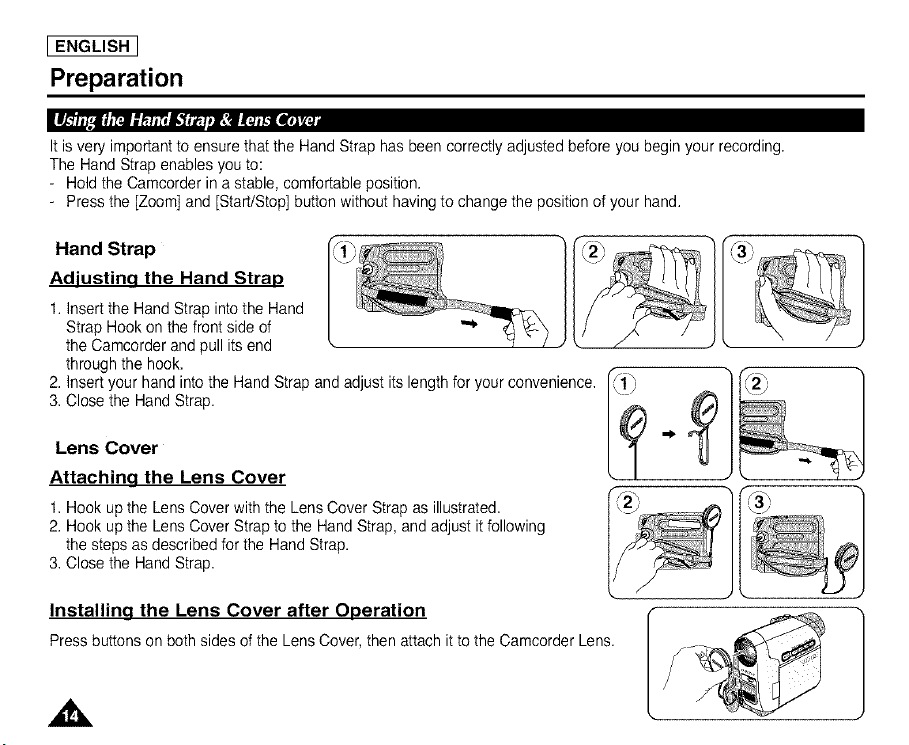
It is very important to ensure that the Hand Strap has been correctly adjusted before you begin your recording.
The Hand Strap enables you to:
- Hold the Camcorder in a stable, comfortable position.
- Press the [Zoom] and [Start/Stop] button without having to change the position of your hand.
Hand Strap
Adjustinq the Hand Strap
1. Insert the Hand Strap into the Hand
Strap Hook on the front side of
the Camcorder and pull its end
through the hook.
2. Insert your hand into the Hand Strap and adjust its length for your convenience.
3. Close the Hand Strap.
Lens Cover
Attachinq the Lens Cover
1. Hook up the Lens Cover with the Lens Cover Strap as illustrated.
2. Hook up the Lens Cover Strap to the Hand Strap, and adjust it following
the steps as described for the Hand Strap.
3. Close the Hand Strap.
Installinq the Lens Cover after Operation
Press buttons on both sides of the Lens Cover, then attach it to the Camcorder Lens.
,,&
Preparation
I ENGLISH I
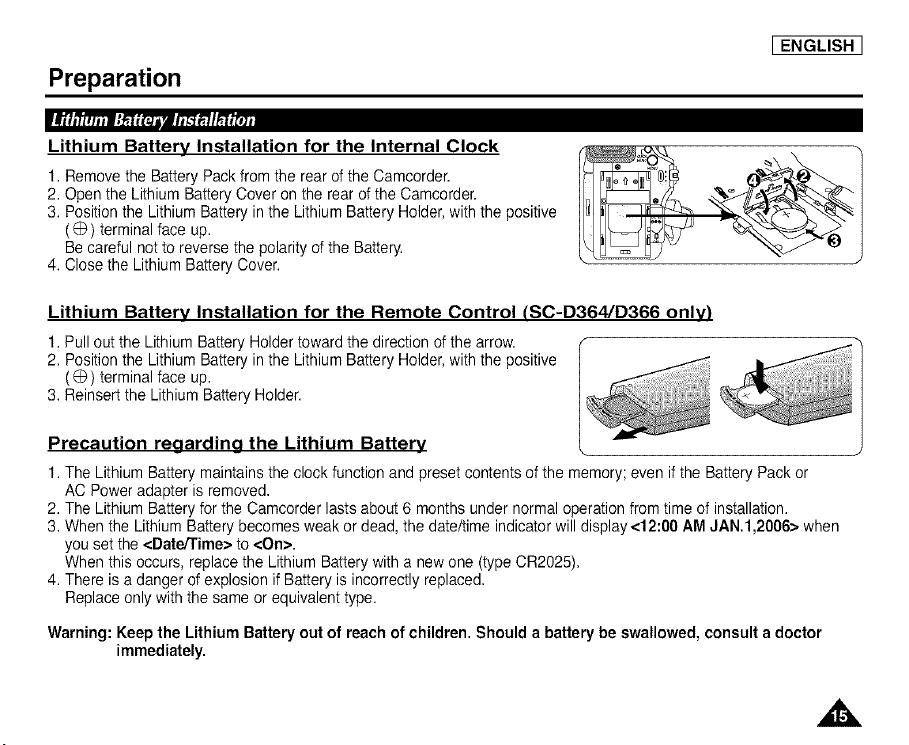
Lithium Battery Installation for the Internal Clock
1. Remove the Battery Pack from the rear of the Camcorder.
2. Open the Lithium Battery Cover on the rear of the Camcorder.
3. Position the Lithium Battery in the Lithium Battery Holder, with the positive
(0) terminal face up.
Be careful not to reverse the polarity of the Battery.
4. Close the Lithium Battery Cover.
Lithium Battery Installation for the Remote Control (SC-D364/D366 only)
1. Pull out the Lithium Battery Holder toward the direction of the arrow.
2. Position the Lithium Battery in the Lithium Battery Holder, with the positive
(G) terminal face up.
3. Reinsert the Lithium Battery Holder.
Precaution regarding the Lithium Battery
1. The Lithium Battery maintains the clock function and preset contents of the memory; even if the Battery Pack or
AC Power adapter is removed.
2. The Lithium Battery for the Camcorder lasts about 6 months under normal operation from time of installation.
3. When the Lithium Battery becomes weak or dead, the date/time indicator will display <12:00 AM JAN.I,2006> when
you set the <Date/Time> to <On>.
When this occurs, replace the Lithium Battery with a new one (type CR2025).
4. There is a danger of explosion if Battery is incorrectly replaced.
Replace only with the same or equivalent type.
Warning: Keep the Lithium Battery out of reach of children. Should a battery be swallowed, consult a doctor
immediately,
[ ENGLISH ]
Preparation
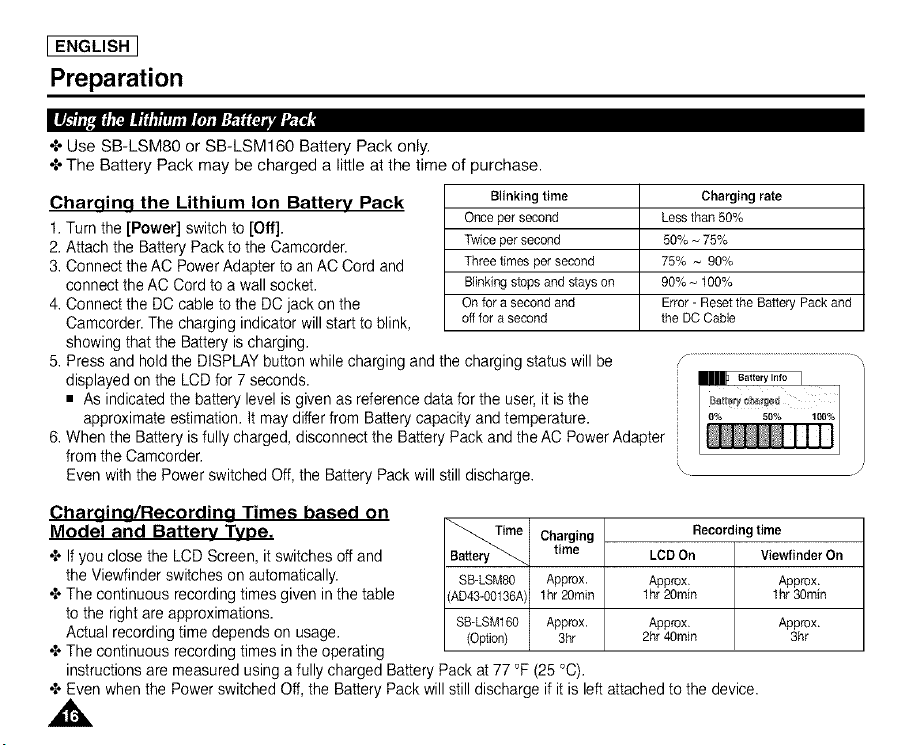
+ Use SB-LSM80 or SB-LSM160 Battery Pack only.
+ The Battery Pack may be charged a little at the time of purchase.
Charqinq the Lithium Ion Battery Pack
1. Turn the [Power] switch to [Off].
2. Attach the Battery Pack to the Camcorder.
3. Connect the AC Power Adapter to an AC Cord and
connect the AC Cord to a wall socket.
4. Connect the DC cable to the DC jack on the
Camcorder. The charging indicator will start to blink,
showing that the Battery is charging.
Blinking time Charging rate
Once per second Less than 50%
Twice per second 50% _ 75%
Three times per second 75% _ 90%
Blinking stops and stays on 90% _ 100%
On for a second and Error - Reset the Battery Pack and
off for a second the DC Cable
5. Press and hold the DISPLAY button while charging and the charging status will be
displayed on the LCD for 7 seconds.
• As indicated the battery level is given as reference data for the user, it is the
approximate estimation. It may differ from Battery capacity and temperature.
6. When the Battery is fully charged, disconnect the Battery Pack and the AC Power Adapter
from the Camcorder.
Even with the Power switched Off, the Battery Pack will still discharge.
f ............................................................................................
Chargina/Recording Times based on
Model and Battery Ty_}e.
÷ If you close the LCD Screen, it switches off and
the Viewfinder switches on automatically.
÷ The continuous recording times given in the table
to the right are approximations.
Actual recording time depends on usage.
÷ The continuous recording times in the operating
Charging
time
SB-LSMS0 Approx.
(AD43-00136A) lhr 20min
SB-LSM160 Approx.
(Option) 3hr
Recording time
LCD On Viewfinder On
Approx. Approx.
lhr 20min lhr 30min
Approx. Approx.
2hr 40rain 3hr
instructions are measured using a fully charged Battery Pack at 77 °F (25 °C).
÷ Even when the Power switched Off, the Battery Pack will still discharge if it is left attached to the device.
,,&
Preparation
The amount of continuous recording time available depends on;
- The type and capacity of the Battery Pack you are using.
- Ambient temperature.
- How often the Zoom function is used.
- Type d use (Camcorder/Camera/With LCD Screen etc.).
It is recommended that you have several batteries available.
I ENGLISH I
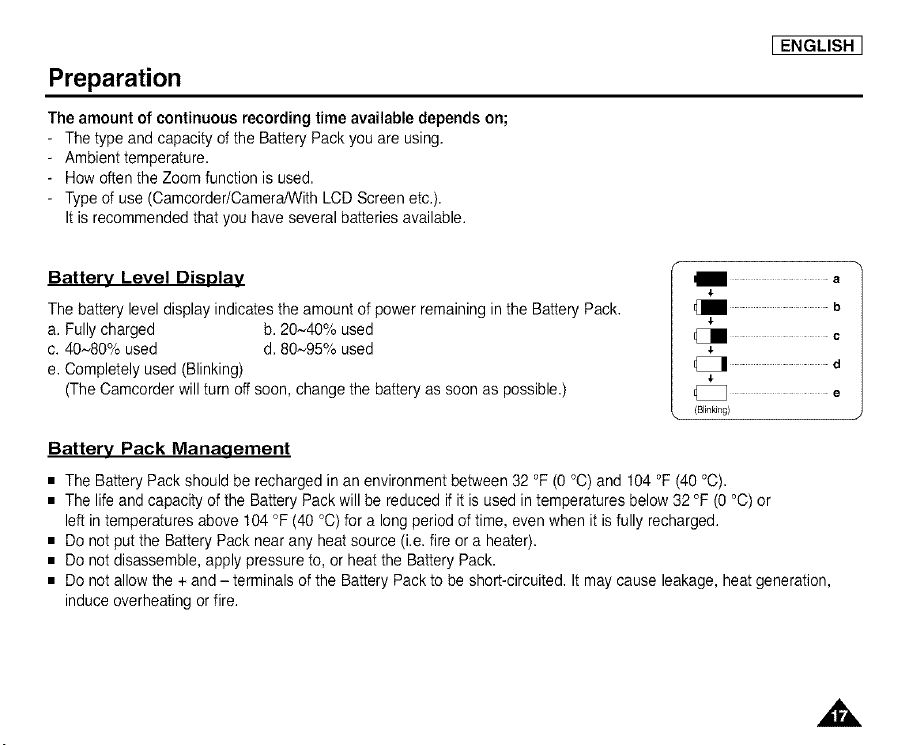
Battery Level DisDlay
The battery level display indicates the amount of power remaining in the Battery Pack.
a. Fully charged b. 20~40% used
c. 40~80% used d. 80~95% used
e. Completely used (Blinking)
(The Camcorder will turn off soon, change the battery as soon as possible.)
m a
J,
! b
c
_1 d
J,
(Blin_ng)
Battery Pack Manaqement
• The Battery Pack should be recharged in an environment between 32 °F (0 °C) and 104 °F (40 °C).
• The life and capacity of the Battery Pack will be reduced if it is used in temperatures below 32 °F (0 °C) or
left in temperatures above 104 °F (40 °C) for a long period of time, even when it is fully recharged.
• Do not put the Battery Pack near any heat source (i.e. fire or a heater).
• Do not disassemble, apply pressure to, or heat the Battery Pack.
• Do not allow the + and - terminals of the Battery Pack to be short-circuited. It may cause leakage, heat generation,
induce overheating or fire.
,,&
[ ENGLISH ]
Preparation
Notes reqardinq the Battery Pack
• Please refer to the Table on page 16 for approximate continuous recording time.
• The recording time is affected by temperature and environmental conditions.
• The recording time shortens dramatically in a cold environment. As the environmental temperature and conditions vary.
• The continuous recording times in the operating instructions are measured using a fully charged Battery Pack at 77 °F
(25 °C). The remaining battery time may differ from the approximate continuous recording times given in the
instructions.
• It is recommended you use the original Battery Pack that is available at SAMSUNG retailer.
When the Battery reaches the end of its life, please contact your local dealer.
The batteries have to be dealt with as chemical waste.
• Make sure that the Battery Pack is fully charged before starting to record.
• A brand new Battery Pack is not charged. Before using the Battery Pack, you need to charge it completely.
• Fully discharging a Lithium Ion Battery damages the internal cells.
The Battery Pack may be prone to leakage when fully discharged.
• To preserve battery power, keep your Camcorder turned off when you are not operating it.
• If your Camcorder is in <Camera> mode, and it is left in <STBY> mode without being operated for more than 5
minutes with a tape inserted, it will automatically turn itself off to protect against unnecessary battery discharge.
• Make sure that the Battery Pack is fitted firmly into place.
Do not drop the Battery Pack. Dropping the Battery Pack may damage it.
Preparation
I ENGLISH I
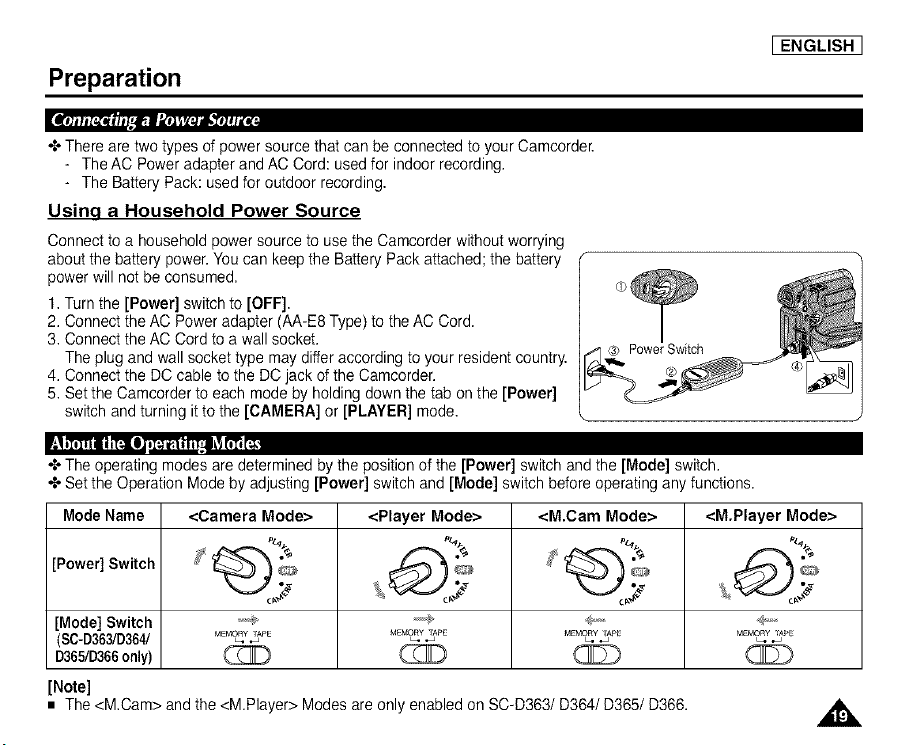
+ There are two types of power source that can be connected to your Camcorder.
- The AC Power adapter and AC Cord: used for indoor recording.
- The Battery Pack: used for outdoor recording.
Usinq a Household Power Source
Connect to a household power source to use the Camcorder without worrying
about the battery power. You can keep the Battery Pack attached; the battery
power will not be consumed.
1. Turn the [Power] switch to [OFF].
2. Connect the AC Power adapter (AA-E8 Type) to the AC Cord.
3. Connect the AC Cord to a wall socket.
The plug and wall socket type may differ according to your resident country.
4. Connect the DC cable to the DC jack of the Camcorder.
5. Set the Camcorder to each mode by holding down the tab on the [Power]
switch and turning it to the [CAMERA] or [PLAYER] mode.
Power Switch
_,"_'_ml_ [o__
+ The operating modes are determined by the position of the [Power] switch and the [Mode] switch,
+ Set the Operation Mode by adjusting [Power] switch and [Mode] switch before operating any functions,
Mode Name <Camera Mode> <Player Mode> <M.Cam Mode> <M.Player Mode>
. .
[Power] Switch _ _t___,,_c_,_ _2_ ! :_
[Mode] Switch "_"#' ....._ _...... '_-'_
(SC-D363/D364/ MEMORYL_ 1APE ME MORYL,_ TAPE MEMORYL_ 1_ MEM_Y _jAP
EX365/D366only) (_
[Note]
• The <M.Cam>and the <M.Player>Modesare only enabledon SC-D363/D364/D365/D366.
[ ENGLISH ]
Preparation
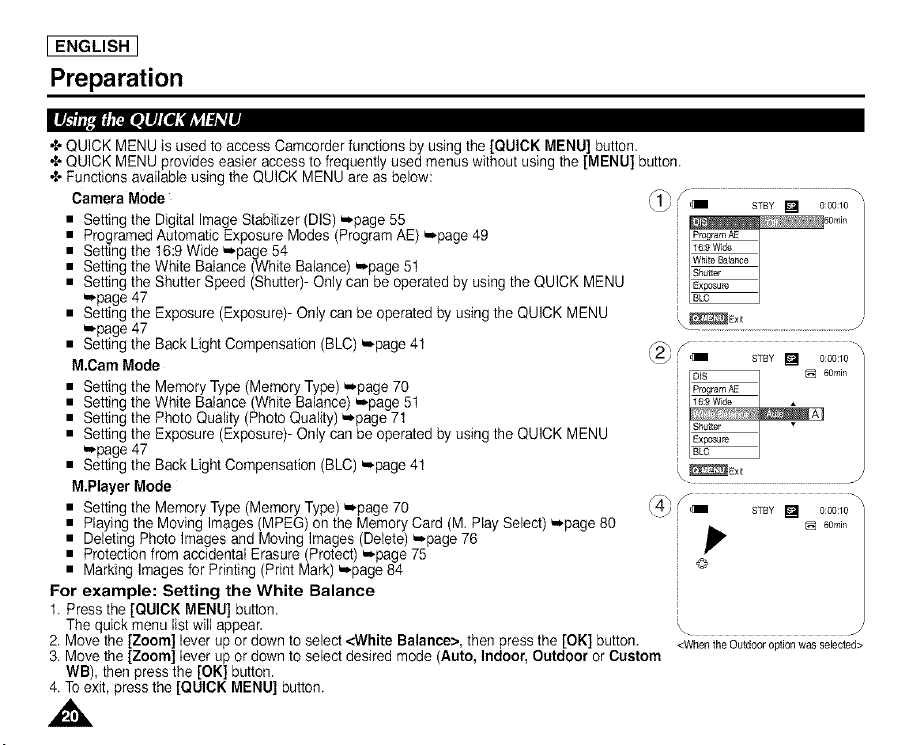
•_. QUICK MENU is used to access Camcorder functions by using the [QUICK MENU] button.
•_. QUICK MENU provides easier access to frequently used menus without using the [MENU] button.
•_. Functions avai)able using the QUICK MENU are as below:
Camera Mode
• Setting the Digital Image Stabilizer (DIS) =_page55
• Pregramed Automatic Exposure Modes (Program AE) =page 49
• Setting the 16:9 Wide =page 54
• Setting the White Balance (White Balance) =page 51
• Setting the Shutter Speed (Shutter)- On(y can be operated by using the QUICK MENU
=page 47
• Setting the Exposure (Exposure)- Only can be operated by using the QUICK MENU
=page 47
• Setting the Back Light Compensation (BLC) =,.page 41
M.Cam Mode
• Setting the Memory Type (Memory Type) =page 70
• Setting the White Balance (White Balance) W.page51
• Setting the Photo Qua)ity (Photo Qua)ity) =_page71
• Setting the Exposure (Exposure)- Only can be operated by using the QUICK MENU
_page 47
• Setting the Back Light Compensation (BLC) =,.page 41
M.Player Mode
• Setting the Memory Type (Memory Type) =page 70
• P)ayingthe Moving Images (MPEG) on the Memory Card (M Play Select) =page 80
• Deleting Photo Images and Moving Images (De)ete) =,.page76
Protection from accidental Erasure (Protect) =page 75
• Marking Images for Printing (Print Mark) =,.page84
For example: Setting the White Balance
1. Press the [QUICK MENU] button.
The quick menu list wi)l appear.
2. Move the [Zoom] )ever up or down to se)ect <White Balance>, then press the [OK] button.
3. Move the [Zoom] )ever up or down to se)ect desired mode (Auto, Indoor, Outdoor or Custom
WB), then press the [OK] button.
4. To exit, press the [QUICK MENU] button.
_E×it
_Exit
_ 60rain
©
<When the Outdoor option was selected>
Preparation
[ ENGLISH ]
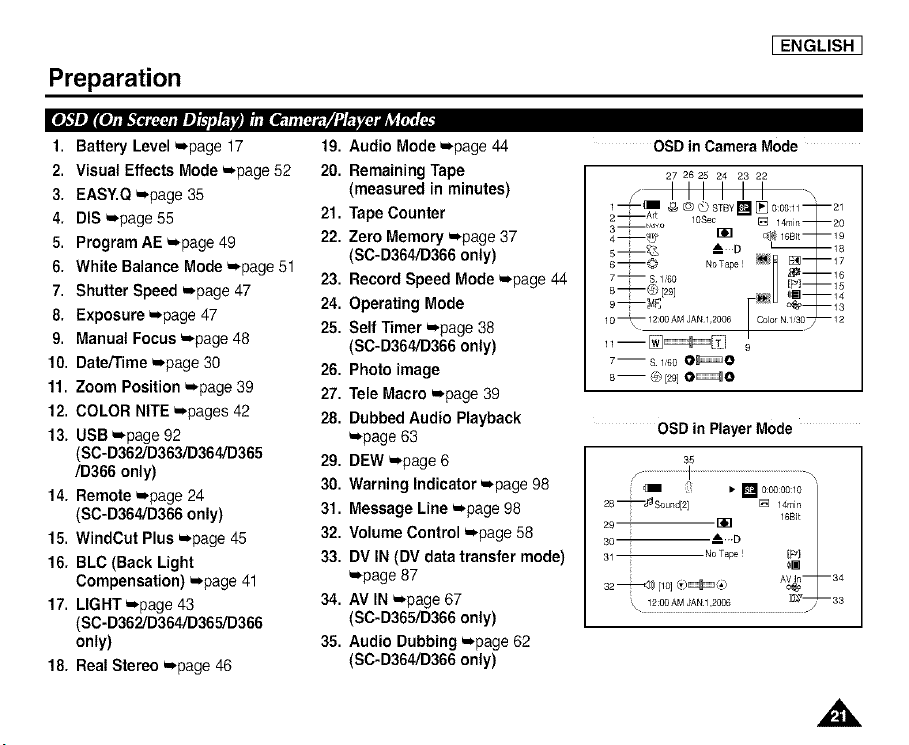
1. Battery Level _,page 17
2. Visual Effects Mode ='page 52
3. EASY.Q _,page 35
4. DIS _,page 55
5. Program AE ='page 49
6. White Balance Mode ='page 51
7, Shutter Speed _,page 47
8. Exposure _,page 47
9. Manual Focus ='page 48
10. Datefrime wpage 30
11. Zoom Position ='page 39
12. COLOR NITE _,pages 42
13. USB =,page 92
(SC- D362/D363/D364/D365
/D366 only)
14. Remote _,page 24
(SC-D364/D366 only)
15. WindCut Plus wpage 45
16. BLC (Back Light
Compensation) wpage 41
17. LIGHT ='page 43
(SC-D362/D364/D365/D366
only)
18. Real Stereo _,page 46
19. Audio Mode _,page 44
20. Remaining Tape
(measured in minutes)
21. Tape Counter
22. Zero Memory =*page 37
{SC-D364/D366 only)
23. Record Speed Mode =page 44
24. Operating Mode
25. Self Timer _,page 38
(SC-D364/D366 only)
26. Photo image
27. Tele Macro _,page 39
28. Dubbed Audio Playback
='page 63
29. DEW ='page 6
30. Warning Indicator ='page 98
31. Message Line _page 98
32. Volume Control ='page 58
33. DV IN (DV data transfer mode)
='page 87
34. AV IN ='page 67
(SC-D365/D366 only)
35. Audio Dubbing =,page 62
(SG-D364/D366 only)
OSD in Camera Mode
27 26 2_ 24 23 22
7-- S 1'60 0_0
8-- ® [29]0_0
OSD in Player Mode
35
\ 12:00 AM JAN 1,2006
[ ENGLISH ]
Preparation
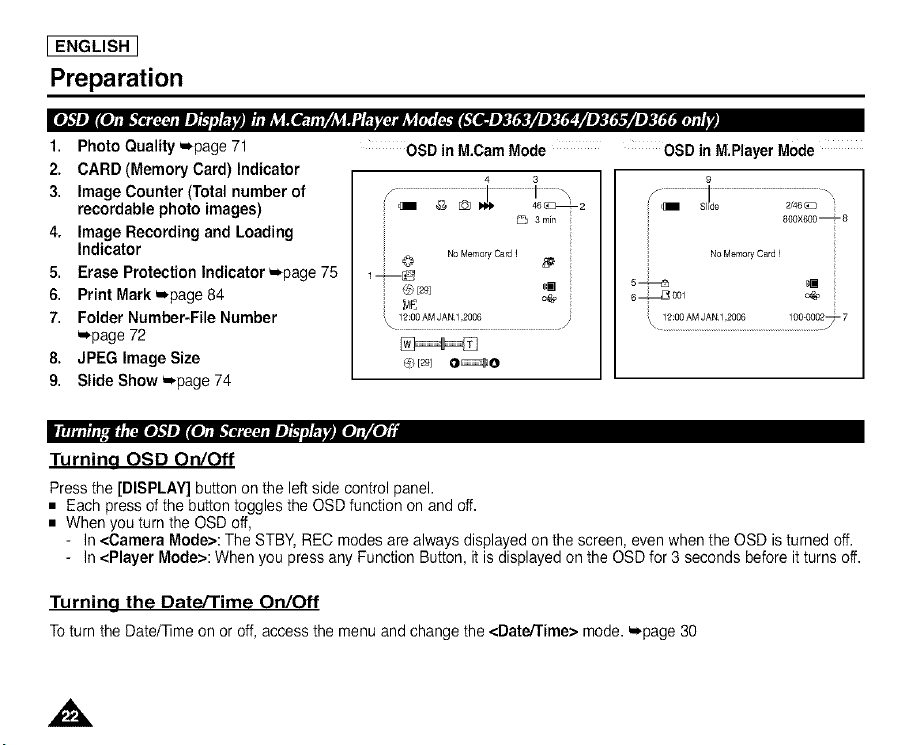
•__L_eL__t_ __,_rrt_, _]_h___,_,_!_l_ _
1. Photo Quality _page 71
2. CARD (Memory Card) Indicator
3. Image Counter (Total number of
recordable photo images)
4. Image Recording and Loading
Indicator
5. Erase Protection Indicator =_page 75
6. Print Mark =_page 84
7. Folder Number-File Number
=_page 72
8. JPEG Image Size
9. Slide Show =_page 74
OSD in M.Cam Mode OSD in M.Player Mode
3 rain
No Memory Card !
@ E29] _m
12:00 AM JAN1,2006
® E29] O_O
5_ 4
Turnina OSD On/Off
Press the [DISPLAY] button on the left side control panel.
• Each press of the button toggles the OSD function on and off.
• When you turn the OSD off,
- in <Camera Mode>: The STBY, REC modes are always displayed on the screen, even when the OSD is turned off.
- in <Player Mode>: When you press any Function Button, it is displayed on the OSD for 3 seconds before it turns off.
Turning the Date/Time On/Off
Toturn the Date/lime on or off, accessthe menu and changethe <Date/Time>mode._,page 30
Initial Setting : System Menu Setting
[ ENGLISH
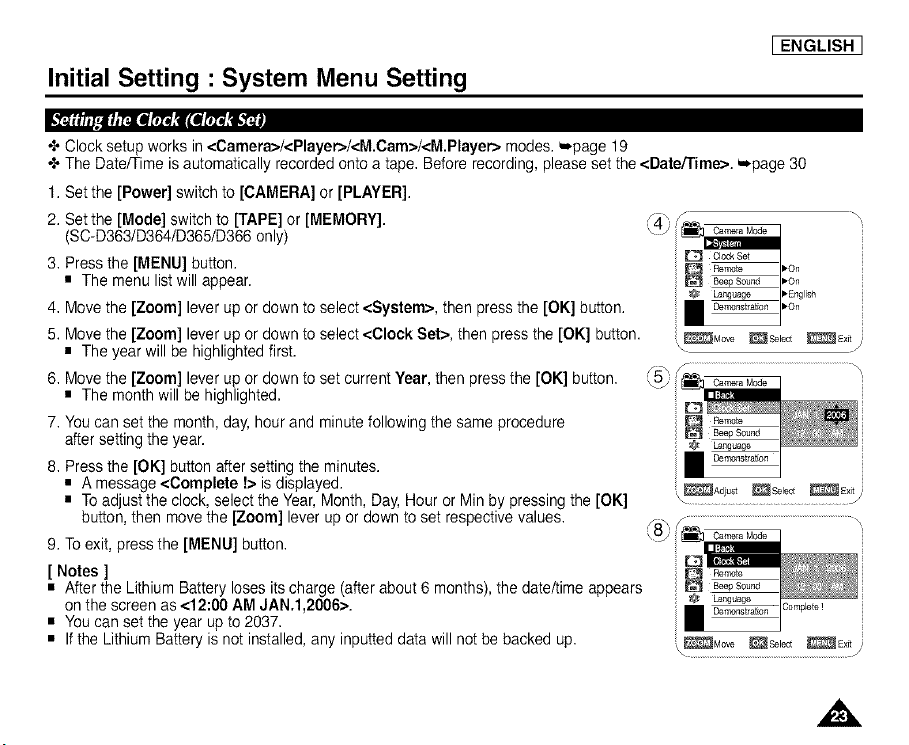
÷ Clock setup works in <Camera>/<Player>/<M.Cam>/<M.Player> modes. _,page 19
÷ The Date/Time is automatically recorded onto a tape. Before recording, please set the <Date/Time>. _,page 30
1. Set the [Power] switch to [CAMERA] or [PLAYER].
2. Set the [Mode] switch to [TAPE] or [MEMORY], ,\4/ [__ '
(SC-D363/D364/D365/D366 only)
I,I
3. Press the [MENU] button. _ _,,_t_ ,,o,,
• The menu list will appear. _ B_pSoun_ ,.On
Language ;*English
4. Move the [Zoom] lever up or down to select <System>, then press the [OK] button. • _,_o,t_,_n ,,on
5. Move the [Zoom] lever up or down to select <Clock Set>, then press the [OK] button. . _Move _Select _Exits;
• The year will be highlighted first. \
6. Move the [Zoom] lever up or down to set current Year, then press the [OK] button.
• The month will be highlighted.
7. You can set the month, day, hour and minute following the same procedure ;;
after setting the year.
Language
8. Press the [OK] button after setting the minutes.
• A message <Complete !> is displayed.
• To adjust the clock, select the Year, Month, Day, Hour or Min by pressing the [OK]
button, then move the [Zoom] lever up or down to set respective values.
9. To exit, press the [MENU] button.
[ Notes ]
• After the Lithium Battery loses its charge (after about 6 months), the date/time appears
on the screen as <12:00 AM JAN.I,2006>.
• You can set the year up to 2037.
• If the Lithium Battery is not installed, any inputted data will not be backed up.
Language 3omplete I
,,&
[ ENGLISH ]
Initial Setting : System Menu Setting
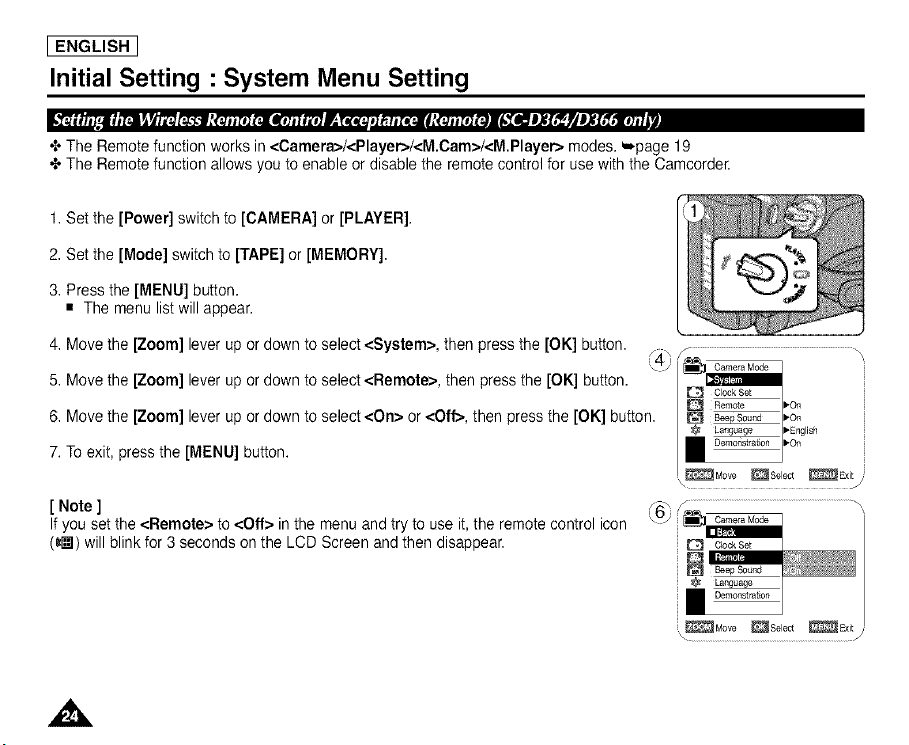
+ The Remote function works in <Camera>/<Player>/<M.Cam>/<M.Player> modes. _,page 19
+ The Remote function allows you to enable or disable the remote control for use with the Camcorder.
1. Set the [Power] switch to [CAMERA] or [PLAYER].
2. Set the [Mode] switch to [TAPE] or [MEMORY].
3. Press the [MENU] button.
• The menu list will appear.
4. Move the [Zoom] lever up or down to select <System>, then press the [OK] button. /,_ f. ..........................................................................................
'_ / Came a Mode
5. Move the [Zoom] lever up or down to select <Remote>, then press the [OK] button. _ R_mot_R_mot_,.On
to select <On> or <Off>, then press the [OK] button. __,.On
6. Move the [Zoom] lever up or down _ La,guage ,.Eng,sh
7. TOexit, press the [MENU] button. I_ "°n
\ _Move _Select _Exit
[ Note ]
If you set the <Remote> to <Off> in the menu and try to use it, the remote control icon
(_) will blink for 3 seconds on the LCD Screen and then disappear.
Initial Setting : System Menu Setting
I ENGLISH I
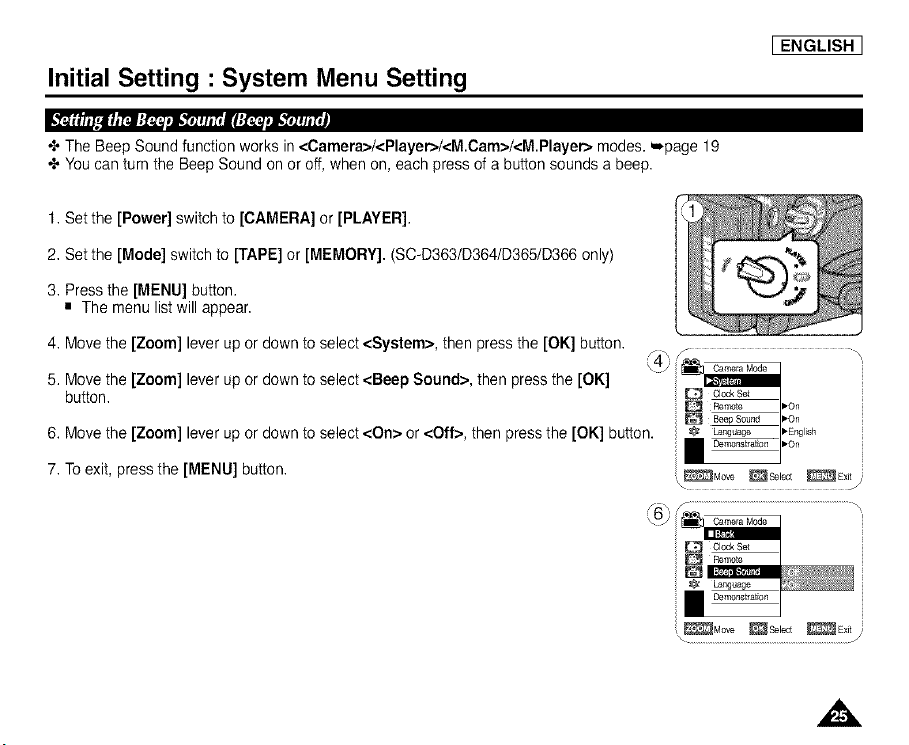
+ The Beep Sound function works in <Camera>/<Player>/<M.Cam>/<M.Player> modes. _,page 19
+ You can turn the Beep Sound on or off, when on, each press of a button sounds a beep.
1. Set the [Power] switch to [CAMERA] or [PLAYER].
2. Set the [Mode] switch to [TAPE] or [MEMORY]. (SC-D363/D364/D365/D366 only)
3. Press the [MENU] button.
• The menu list will appear.
4. Move the [Zoom] lever up or down to select <System>, then press the [OK] button.
5. Move the [Zoom] lever up or down to select <Beep Sound>, then press the [OK] ;;
button. ; [Z_ c_set
D Remote I*On
BeepSou_d _'On i
6. Move the [Zoom] lever up or down to select <On> or <Off> then press the [OK] button. ;; _ Language I,English
7. TOexit, press the [MENU] button. , _Move _S_l_t _Ex_t j
CockSet
Language
A
[ ENGLISH ]
Initial Setting : System Menu Setting
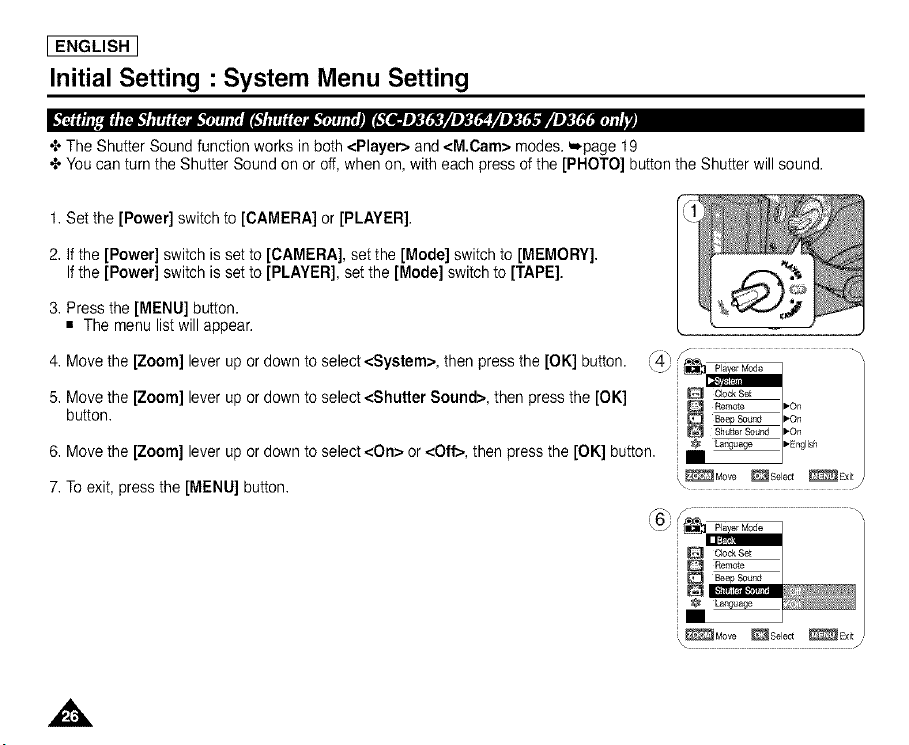
+ The Shutter Sound function works in both <Player> and <M,Cam> modes. W,page 19
+ You can turn the Shutter Sound on or off, when on, with each press of the [PHOTO] button the Shutter will sound.
1. Set the [Power] switch to [CAMERA] or [PLAYER].
2. If the [Power] switch is set to [CAMERA], set the [Mode] switch to [MEMORY].
If the [Power] switch is set to [PLAYER], set the [Mode] switch to [TAPE].
3. Press the [MENU] button.
• The menu list will appear.
4. Move the [Zoom] lever up or down to select <Systern> then press the [OK]button, • _4_''S__oo.,---o.oiii_i "_'
5. Move the [Zoom] lever up or down to select <Shutter Sound> then press the [OK] D
' D Remot_ _-on I
Beep Sound I*On
button. _ _:_P_rso"s_':,,,,on I
6. Move the [Zoom] lever up or down to select <On> or <Off>, then press the [OK] button. _ Language I*Engl,sh I
7. To exit, press the [MENU] button. \_Mov_ _solect _Exit/I
Initial Setting : System Menu Setting
I ENGLISH I
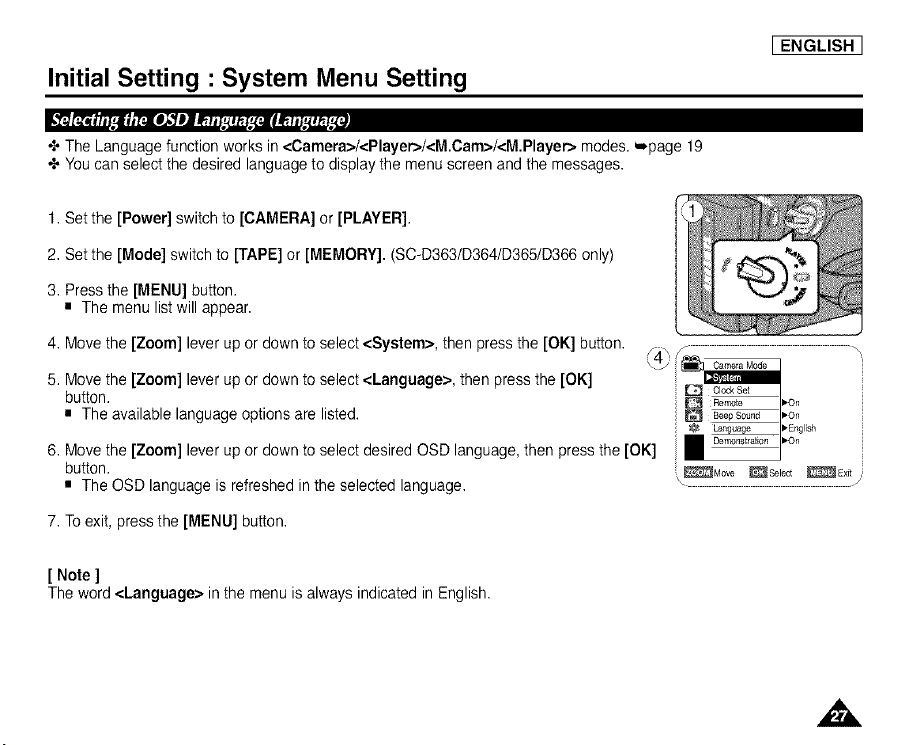
+ The Language function works in <Camera>/<Player>/<M.Cam>/<M.Player> modes. =,page 19
+ You can select the desired language to display the menu screen and the messages.
1. Set the [Power] switch to [CAMERA] or [PLAYER].
2. Set the [Mode] switch to [TAPE] or [MEMORY]. (SC-D363/D364/D365/D366 only)
3. Press the [MENU] button.
• The menu list will appear.
4. Move the [Zoom] lever up or down to select <System>, then press the [OK] button. /. _ _
5. Move the [Zoom] ever up or down to se ect <Language> then press the [OK] _ i
' _ Cocks
button. D C_ktS_t t,On i
• The available language options are listed. _ B_pSou,_ t,On i
Language _'English i
, Det_onstrat_o n IpOn
6. Move the [Zoom] lever up or down to select desired OSD language, then press the [OK] I_
button.
• The OSD language is refreshed in the selected language.
7. To exit, press the [MENU] button.
[ Note ]
The word<Language> inthe menu is alwaysindicatedin English.
[ ENGLISH ]
Initial Setting : System Menu Setting
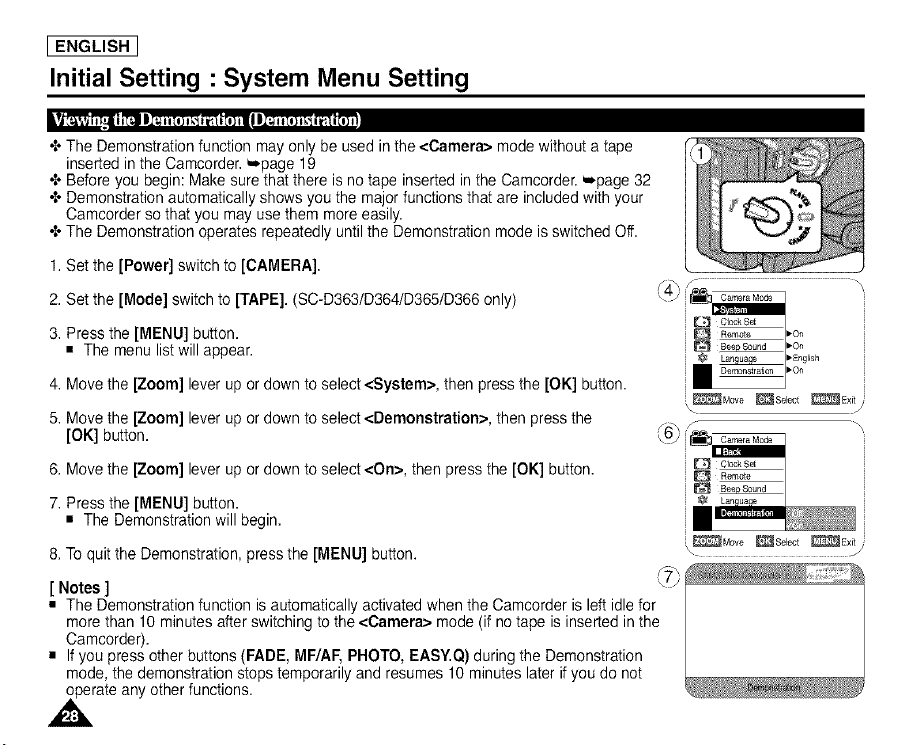
+ The Demonstration function may only be used in the <Camera> mode without a tape
inserted in the Camcorder. _,page 19
+ Before you begin: Make sure that there is no tape inserted in the Camcorder. _,page 32
+ Demonstration automatically shows you the major functions that are included with your
Camcorder so that you may use them more easily.
+ The Demonstration operates repeatedly until the Demonstration mode is switched Off.
1. Set the [Power] switch to [CAMERA].
2. Set the [Mode] switch to [TAPE]. (SC-D363/D364/D365/D366 only)
3. Press the [MENU] button.
• The menu list will appear.
4. Move the [Zoom] lever up or down to select <System>, then press the [OK] button.
5. Move the [Zoom] lever up or down to select <Demonstration>, then press the
[OK] button.
6. Move the [Zoom] lever up or down to select <On>, then press the [OK] button.
7. Press the [MENU] button.
• The Demonstration will begin.
8. To quit the Demonstration, press the [MENU] button.
,English
i
i\_Move _Select _Ex[t
r_2_ ctock Set
D Remote
[ Notes ] _'/_ I
• The Demonstration function is automatically activated when the Camcorder is left idle for I
more than 10 minutes after switching to the <Camera> mode (if no tape is inserted in the I
Camcorder).
• If you press other buttons (FADE, MF/AF, PHOTO, EASY.Q) during the Demonstration I
mode, the demonstration stops temporarily and resumes 10 minutes later if you do not
rate any other functions.
Initial Setting : Display Menu Setting
I ENGLISH I
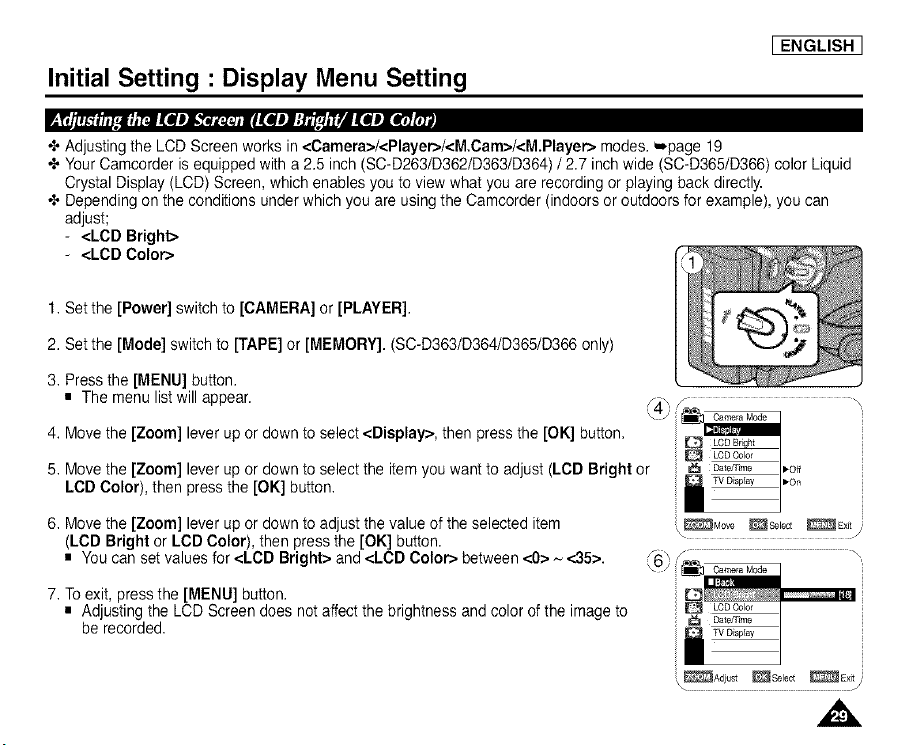
+ Adjusting the LCD Screen works in <Camera>/<Player>/<M.Cam>/<M.Player> modes. _,page 19
+ Your Camcorder is equipped with a 2.5 inch (SC-D263/D362/D363/D364) / 2.7 inch wide (SC-D365/D366) color Liquid
Crystal Display (LCD) Screen, which enables you to view what you are recording or playing back directly.
+ Depending on the conditions under which you are using the Camcorder (indoors or outdoors for example), you can
adjust;
- <LCB Bright>
- <LCD Color>
1. Set the [Power] switch to [CAMERA] or [PLAYER].
2. Set the [Mode] switch to [TAPE] or [MEMORY]. (SC-D363/D364/D365/D366 only)
3. Press the [MENU] button.
• The menu list will appear.
4. Move the [Zoom] lever up or down to select <Display>, then press the [OK] button.
5. Move the [Zoom] lever up or down to select the item you want to adjust (LCD Bright or
LCD Color), then press the [OK] button.
6. Move the [Zoom] lever up or down to adjust the value of the selected item
(LCD Bright or LCD Color), then press the [OK] button.
• You can set values for <LCD Bright> and <LCD Color> between <0> ~ <35>.
7. To exit, press the [MENU] button.
• Adjusting the LCD Screen does not affect the brightness and color of the image to
be recorded.
A
[ ENGLISH ]
Initial Setting : Display Menu Setting
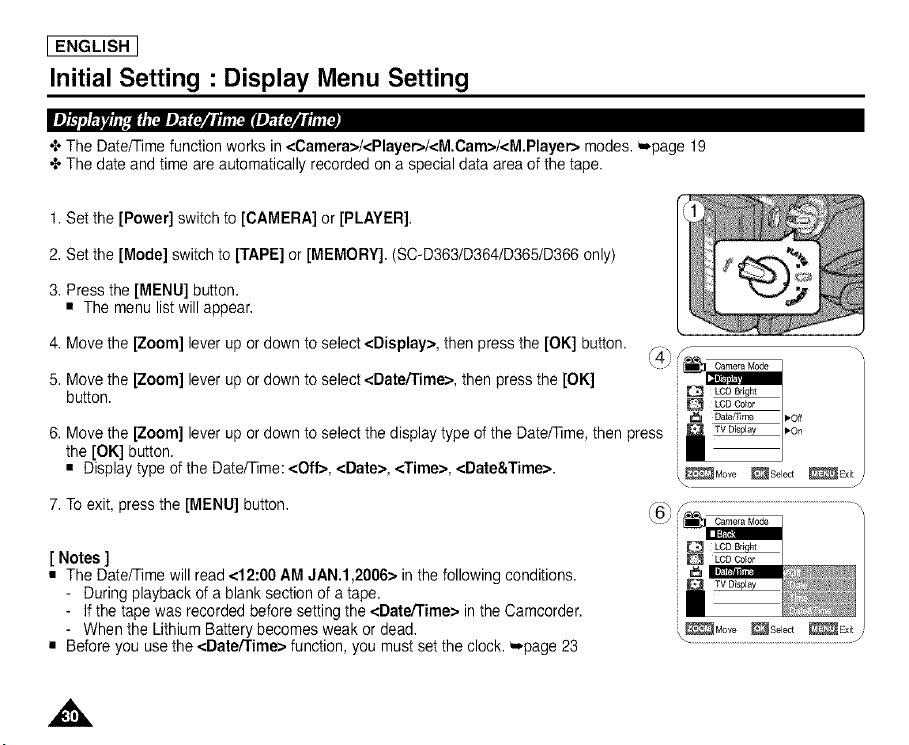
+ The Date/Time function works in <Camera>/<Player>/<M.Cam>/<M.Player> modes. _,page 19
+ The date and time are automatically recorded on a special data area of the tape.
1. Set the [Power] switch to [CAMERA] or [PLAYER].
2. Set the [Mode] switch to [TAPE] or [MEMORY]. (SC-D363/D364/D365/D366 only)
3. Press the [MENU] button.
• The menu list will appear.
4. Move the [Zoom] lever up or down to select <Display>, then press the [OK] button. ,/.,_/.
5. button.M°vethe [Zoom] lever up or down to select <Date/Time>, then press the [OK] \'!Y i DD•,__Dat_,_LCDCo_o, t.o_ _t/
6. Move the [Zoom] lever up or down to select the display type of the Dare, me, then press [1_ TVD, _ t.On
the [OK] button.
• Display type of the Date/Time: <Off>, <Date>, <Time>, <Date&Time>. _Mow _s_:t
7. To exit, press the [MENU] button.
[ Notes ]
• The Date/Time will read <12:00 AM JAN.I,2006> in the following conditions.
- During playback of a blank section of a tape.
- If the tape was recorded before setting the <Date/Time> in the Camcorder.
- When the Lithium Battery becomes weak or dead.
• Before you use the <Date/Time> function, you must set the clock. _,page 23
Initial Setting : Display Menu Setting
[ ENGLISH
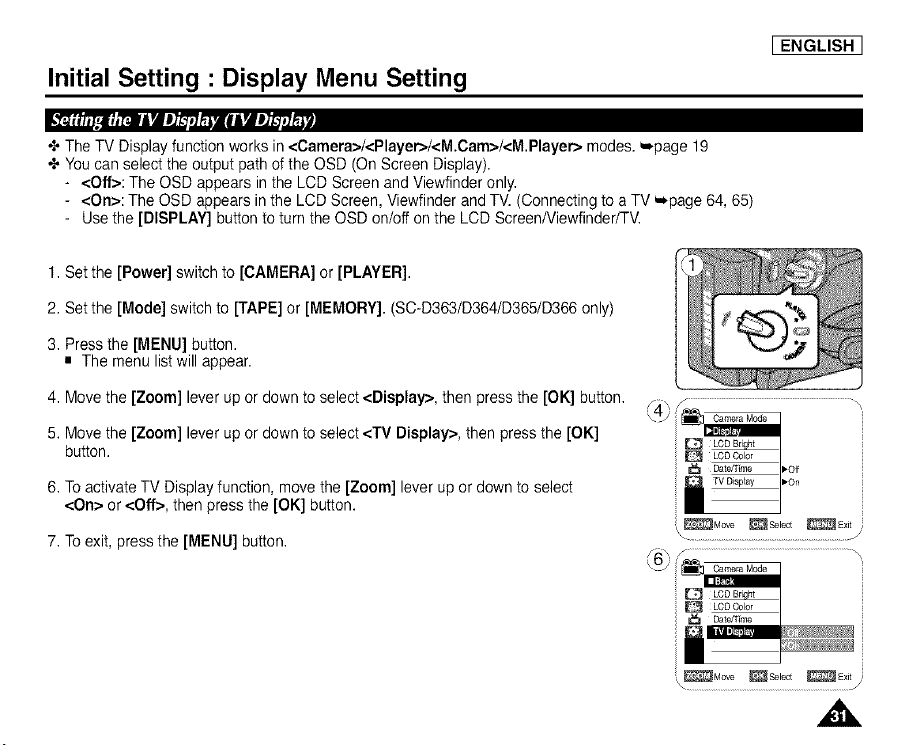
÷ The TV Display function works in <Camera>/<Player>/<M.Cam>/<M.Player> modes. _,page 19
÷ You can select the output path of the OSD (On Screen Display).
- <Off>: The OSD appears in the LCD Screen and Viewfinder only.
- <On>: The OSD appears in the LCD Screen, Viewfinder and TV. (Connecting to a TV _,page 64, 65)
- Use the [DISPLAY] button to turn the OSD on/off on the LCD Screen/Viewfinder/TV.
1. Set the [Power] switch to [CAMERA] or [PLAYER].
2. Set the [Mode] switch to [TAPE] or [MEMORY]. (SC-D363/D364/D365/D366 only)
3. Press the [MENU] button.
• The menu list will appear.
4. Move the [Zoom] lever up or down to select <Display>, then press the [OK] button.
5. Move the [Zoom] lever up or down to select <TV Display>, then press the [OK]
button.
6. To activate TV Display function, move the [Zoom] lever up or down to select
<On> or <Off>, then press the [OK] button.
7. To exit, press the [MENU] button.
Date/Tinge
[ ENGLISH ]
Basic Recording
r/_ FAt_XffXttffft_
+ In the [PLAYER] mode, the Viewfinder will work when the LCD Screen is closed.
+ In the [CAMERA] mode, the Viewfinder will work when the LCD Screen is closed or rotated counterclockwise 180°.
Adiustinq the Focus
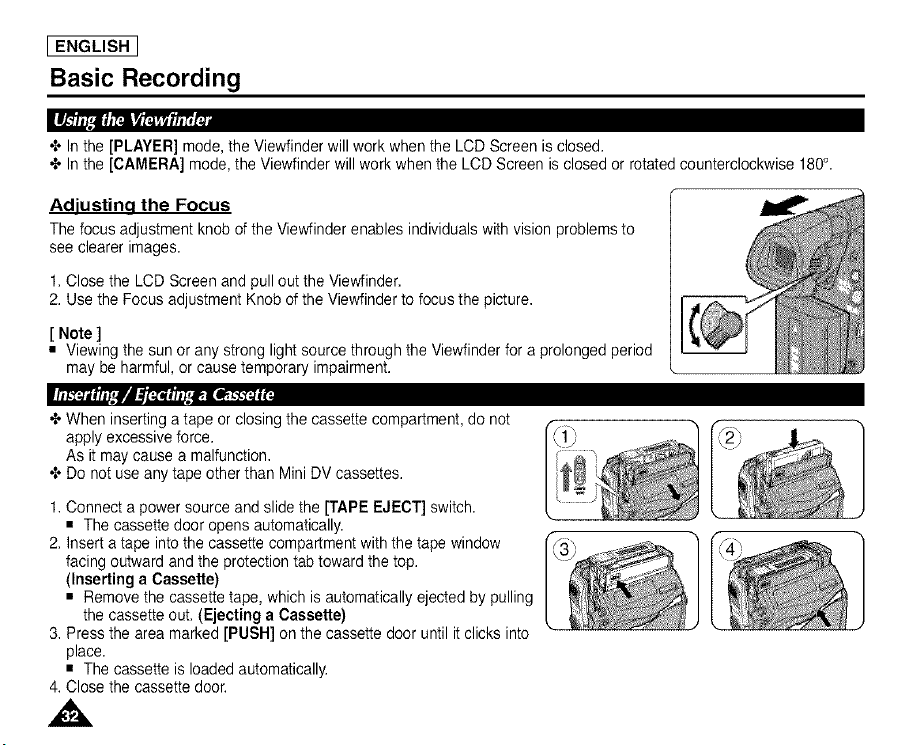
The focus adjustment knob of the Viewfinder enables individuals with vision problems to
see clearer images.
1. Close the LCD Screen and pull out the Viewfinder.
2. Use the Focus adjustment Knob of the Viewfinder to focus the picture.
[ Note ]
• Viewing the sun or any strong light source through the Viewfinder for a prolonged period
may be harmful, or cause temporary impairment.
+ When inserting a tape or closing the cassette compartment, do not
apply excessive force.
As it may cause a malfunction.
+ Do not use any tape other than Mini DV cassettes.
1. Connect a power source and slide the [TAPE EJECT] switch.
• The cassette door opens automatically.
2. Insert a tape into the cassette compartment with the tape window
facing outward and the protection tab toward the top.
(Inserting a Cassette)
• Remove the cassette tape, which is automatically ejected by pulling
the cassette out. (Ejecting a Cassette)
3. Press the area marked [PUSH] on the cassette door until it clicks into
place.
• The cassette is loaded automatically.
4. Close the cassette door.
Basic Recording
I ENGLISH I
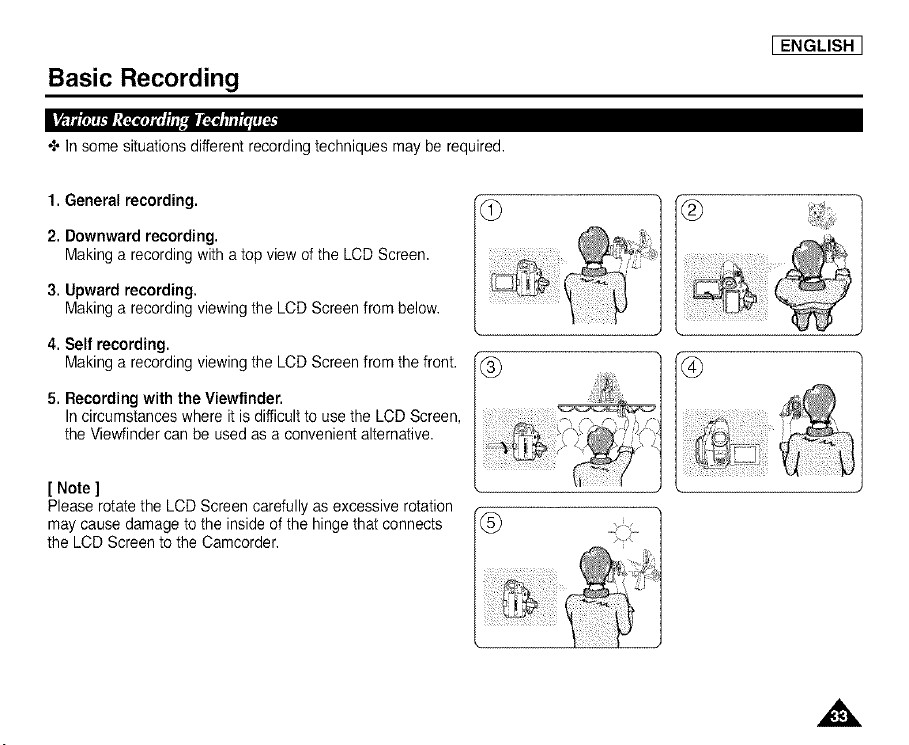
÷ In some situations different recording techniques may be required.
1. Generalrecording.
2. Downward recording,
Making a recording with a top view of the LCD Screen.
3. Upward recording,
Making a recording viewing the LCD Screen from below.
4. Self recording.
Making a recording viewing the LCD Screen from the front.
5. Recording with the Viewfinder.
In circumstances where it is difficult to use the LCD Screen,
the Viewfinder can be used as a convenient alternative.
[ Note ]
Please rotate the LCD Screen carefully as excessive rotation
may cause damage to the inside of the hinge that connects
the LCD Screen to the Camcorder.
.............
[ ENGLISH ]
Basic Recording
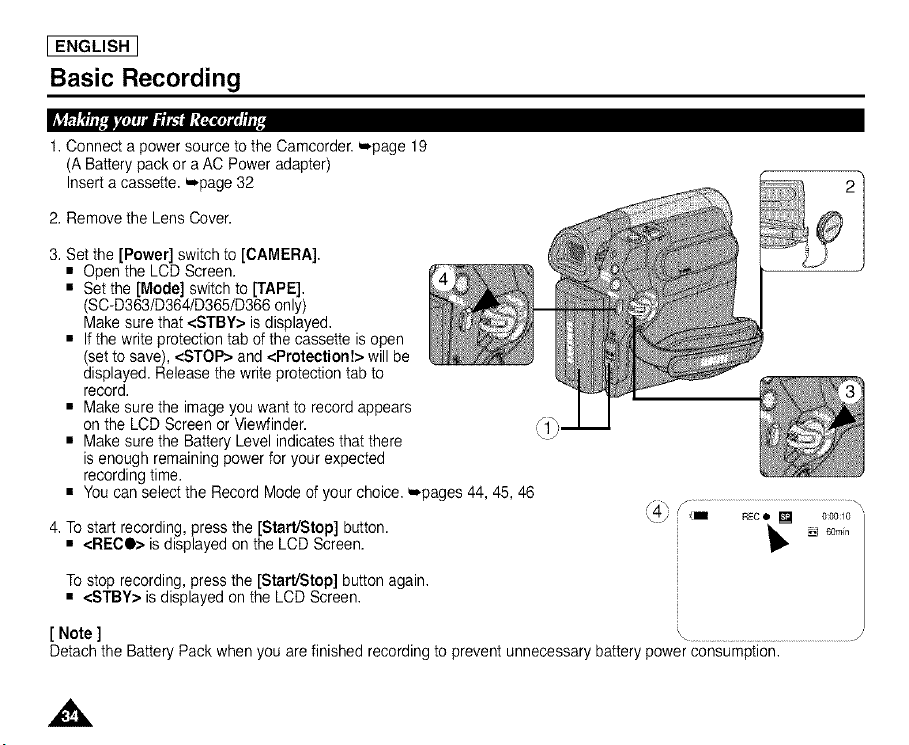
1. Connect a power source to the Camcorder. _page 19
(A Battery pack or a AC Power adapter)
Insert a cassette. _page 32
2. Remove the Lens Cover.
3. Set the [Power] switch to [CAMERA].
• Open the LCD Screen.
• Set the [Mode] switch to [TAPE].
(SC-D363/D364/D365/D366 only)
Make sure that <STBY> is displayed.
• If the write protection tab of the cassette is open
(set to save), <STOP> and <Protection!> will be
displayed. Release the write protection tab to
record.
• Make sure the image you want to record appears
on the LCD Screen or Viewfinder.
• Make sure the Battery Level indicates that there
is enough remaining power for your expected
recording time.
• You can select the Record Mode of your choice. _.pages 44, 45, 46
4. To start recording, press the [Start/Stop] button.
• <RECO> is displayed on the LCD Screen.
To stop recording, press the [Start/Stop] button again.
• <STBY> is displayed on the LCD Screen.
_ 60mfn
2
[ Note ]
\ ...........................................................................
Detach the Battery Pack when you are finished recording to prevent unnecessary battery power consumption.
Basic Recording
[ ENGLISH
+ The EASY.Q function works only in <Camera> mode. -.page 19
+ The EASY.Q function allows a beginner to easily make good recordings.
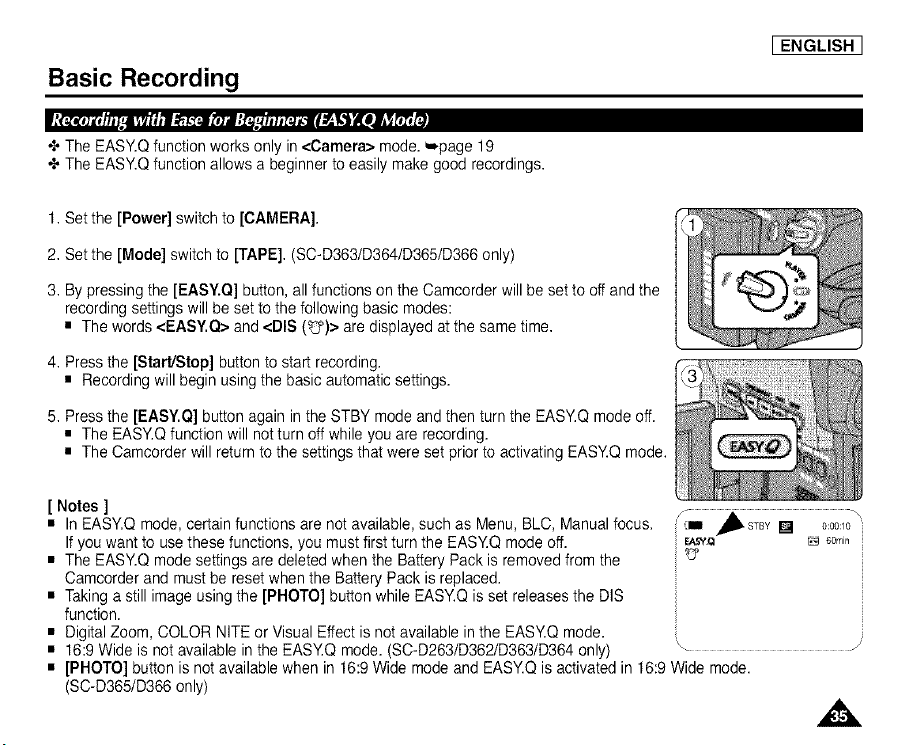
1. Set the [Power] switch to [CAMERA].
2. Set the [Mode] switch to [TAPE]. (SC-D363/D364/D365/D366 only)
3. By pressing the [EASY.Q] button, all functions on the Camcorder will be set to off and the
recording settings will be set to the following basic modes:
• The words <EASY.Q> and <DiS (_)> are displayed at the same time.
4. Press the [Start/Stop] button to start recording.
• Recording will begin using the basic automatic settings.
5. Press the [EASY.Q] button again in the STBY mode and then turn the EASY.Q mode off.
• The EASY.Q function will not turn off while you are recording.
• The Camcorder will return to the settings that were set prior to activating EASY.Q mode.
[ Notes ]
• In EASY.Q mode, certain functions are not available, such as Menu, BLC, Manual focus.
If you want to use these functions, you must first turn the EASY.Q mode off.
• The EASY.Q mode settings are deleted when the Battery Pack is removed from the
Camcorder and must be reset when the Battery Pack is replaced.
• Taking a still image using the [PHOTO] button while EASY.Q is set releases the DIS
function.
• Digital Zoom, COLOR NITE or Visual Effect is not available in the EASY.Q mode.
• 16:9 Wide is not available in the EASY.Q mode. (SC-D263/D362/D363/D364 only)
• [PHOTO] button is not available when in 16:9 Wide mode and EASY.Q is activated in 16:9 Wide mode.
(SC-D365/D366 only)
i _m 0:00:10
i EA_r'.Q _ 60rain
\ /]
[ ENGLISH ]
Basic Recording
+ The REC SEARCH function works only in <Camera> mode. _.page 19
+ Used to review previously recorded images or to find a point to record a new image in the STBY mode.
Record Search (REC SEARCH)
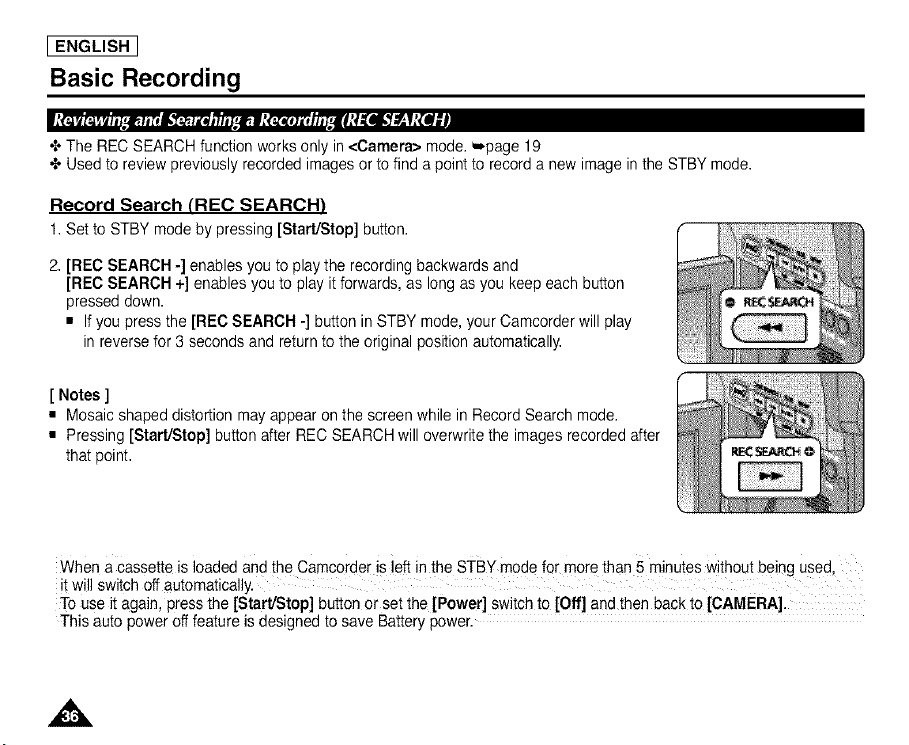
1. Set to STBY modeby pressing[Start/Stop] button.
2. [REC SEARCH -] enables you to play the recording backwards and
[REC SEARCH +] enables you to play it forwards, as long as you keep each button
pressed down.
• If you press the [REC SEARCH -] button in STBY mode, your Camcorder will play
in reverse for 3 seconds and return to the original position automatically.
[ Notes ]
• Mosaicshapeddistortionmay appearonthe screenwhile in RecordSearchmode,
• Pressing[Start/Stop] buttonafter RECSEARCHwill overwritethe imagesrecordedafter
that point,
When a Cassette is loaded and the Camcorder is left in the sTBY mode for more than 5 minutes without being used
it will Switch 0ff automatically.
To use it again, press the [Start/Stop] button or set the [Power] switch to [Off] and then back to [CAMERA].
This auto power off feature is designed to save Battery power.
Basic Recording
I ENGLISH I
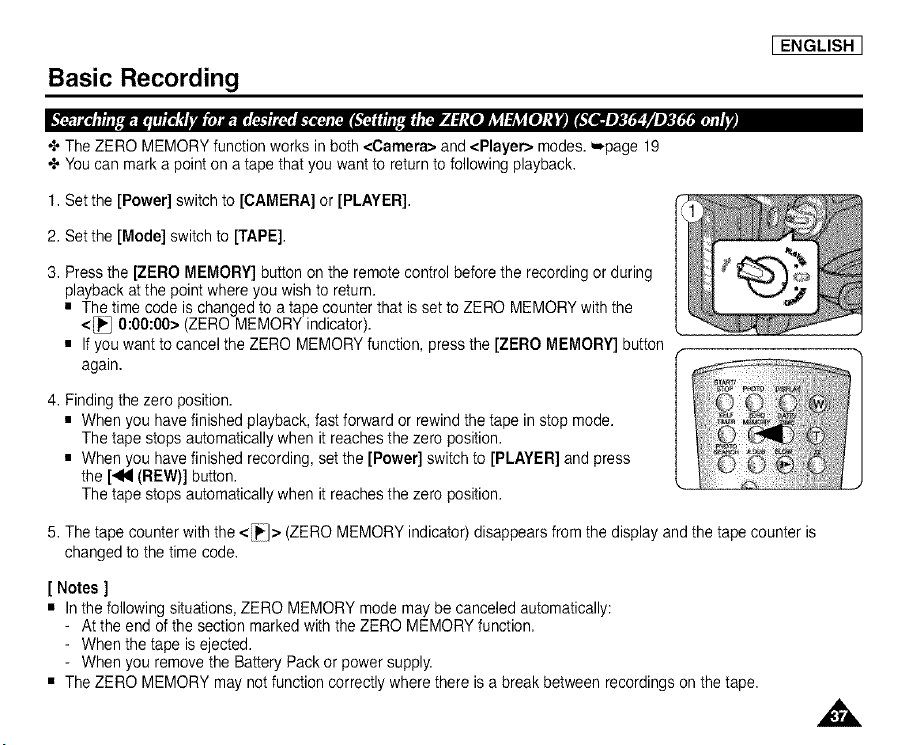
+ The ZERO MEMORY function works in both <Camera> and <Player> modes. _,page 19
+ You can mark a point on a tape that you want to return to following playback.
1. Set the [Power] switch to [CAMERA] or [PLAYER].
2. Set the [Mode] switch to [TAPE].
3. Press the [ZERO MEMORY] button on the remote control before the recording or during
playback at the point where you wish to return.
• The time code is changed to a tape counter that is set to ZERO MEMORY with the
<)_ 0:00:00> (ZERO MEMORY indicator).
• If you want to cancel the ZERO MEMORY function, press the [ZERO MEMORY] button
again.
4. Finding the zero position.
• When you have finished playback, fast forward or rewind the tape in stop mode.
The tape stops automatically when it reaches the zero position.
• When you have finished recording, set the [Power] switch to [PLAYER] and press
the [_1 (REW)] button.
The tape stops automatically when it reaches the zero position.
5. The tape counter with the <_-_> (ZERO MEMORY indicator) disappears from the display and the tape counter is
changed to the time code.
[ Notes ]
• In the following situations, ZERO MEMORY mode may be canceled automatically:
- At the end of the section marked with the ZERO MEMORY function.
- When the tape is ejected.
- When you remove the Battery Pack or power supply.
• The ZERO MEMORY may not function correctly where there is a break between recordings on the tape.
,A
[ ENGLISH ]
Basic Recording
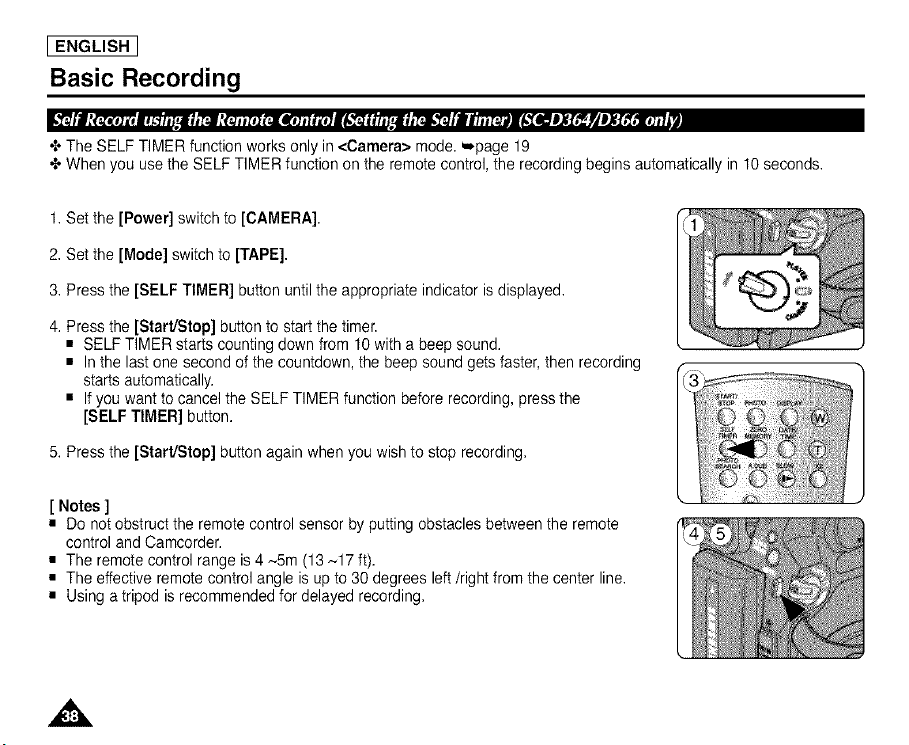
+ The SELF TIMER function works only in <Camera> mode. W,page 19
+ When you use the SELF TIMER function on the remote control, the recording begins automatically in 10 seconds.
1. Set the [Power] switch to [CAMERA].
2. Set the [Mode] switch to [TAPE].
3. Press the [SELF TIMER] button until the appropriate indicator is displayed.
4. Press the [Start/Stop] button to start the timer.
• SELF TIMER starts counting down from 10 with a beep sound.
• In the last one second of the countdown, the beep sound gets faster, then recording
starts automatically.
• If you want to cancel the SELF TIMER function before recording, press the
[SELF TIMER] button.
5. Press the [Start/Stop] button again when you wish to stop recording.
[ Notes ]
• Do not obstruct the remote control sensor by putting obstacles between the remote
control and Camcorder.
• The remote control range is 4 ~5m (13 ~17 ft).
• The effective remote control angle is up to 30 degrees left/right from the center line.
• Using a tripod is recommended for delayed recording.
,&
Basic Recording
I ENGLISH I
+ The Zoom function works in both <Camera> and <M,Cam> modes. =,page 19
+ Zooming is a recording technique that lets you change the size of the subject in a scene.
+ You can zoom using variable zoom speeds.
+ Use these features for different shots. Please note that over-use of the Zoom feature can lead to unprofessional looking
results and a reduction of battery usage time.
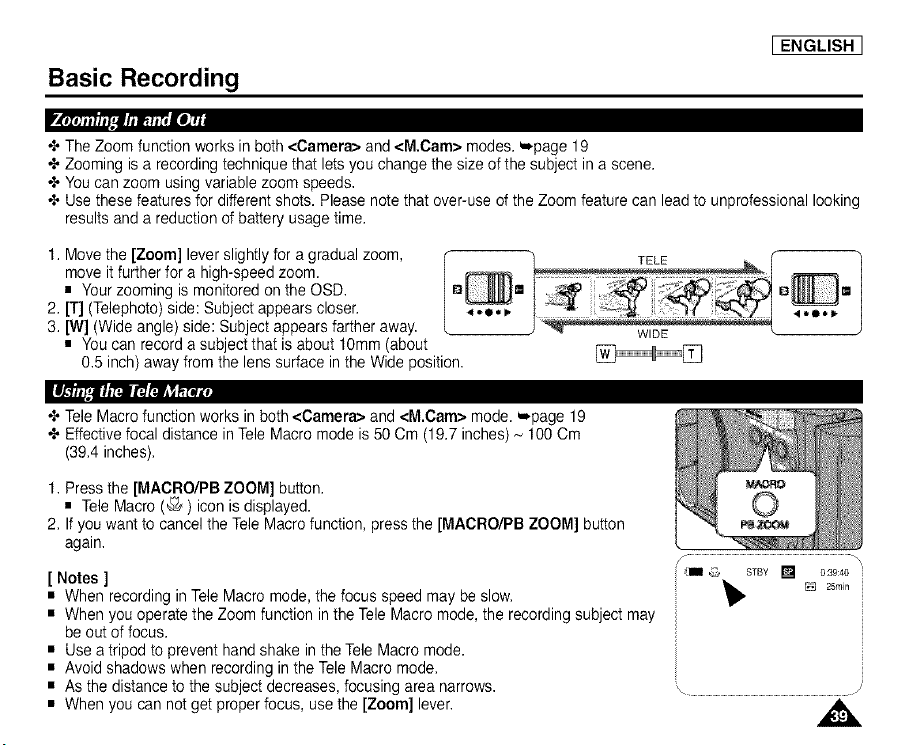
1. Move the [Zoom] lever slightly for a gradual zoom, TELE
move it further for a high-speed zoom. _
....... jC_- .......
Your zooming is monitored on the OSD. 8 []
2. [T] (Telephoto) side: Subject appears closer. _,e,_. -_ _ ,o,J.
3. [W] (Wide angle) side: Subject appears farther away. WIDE
• YOUcan record a subject that is about 1Omm (about
0.5 inch) away from the lens surface in the Wide position.
+ Tele Macro function works in both <Camera> and <M.Cam> mode. =,page 19
+ Effective focal distance in Tele Macro mode is 50 Cm (19.7 inches) ~ 100 Cm
(39.4 inches).
1. Press the [MACRO/PB ZOOM] button.
• Tele Macro (_) icon is displayed.
2. If you want to cancel the Tele Macro function, press the [MACRO/PB ZOOM] button
again.
/ x
[ Notes ] , _iUlllllll _ STBY [] _ 0:39:4025rain[
• When recording in Tele Macro mode, the focus speed may be slow. •
• When you operate the Zoom function in the Tele Macro mode, the recording subject may
be out of focus.
• Use a tripod to prevent hand shake in the Tele Macro mode.
• Avoid shadows when recording in the Tele Macro mode.
• As the distance to the subject decreases, focusing area narrows. \ .... J'
• When you can not get proper focus, use the [Zoom] lever.
A
[ ENGLISH ]
Basic Recording
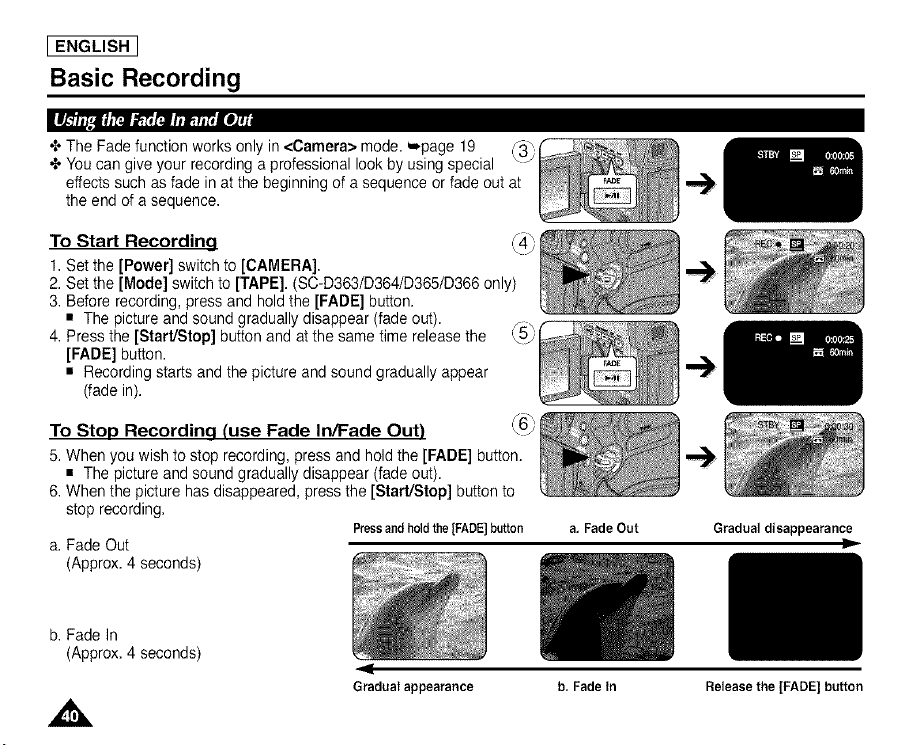
+ The Fade function works only in <Camera> mode. =,page 19
+ You can give your recording a professional look by using special
effects such as fade in at the beginning of a sequence or fade out at
the end of a sequence.
To Start Recording _/4_
1. Set the [Power] switch to [CAMERA].
2. Set the [Mode] switch to [TAPE]. (SC-D363/D364/D365/D366 only)
3. Before recording, press and hold the [FADE] button.
• The picture and sound gradually disappear (fade out).
4. Press the [Start/Stop] button and at the same time release the
[FADE] button.
• Recording starts and the picture and sound gradually appear
(fade in).
To Stop Recordinq (use Fade In/Fade Out)
5. When you wish to stop recording, press and hold the [FADE] button.
• The picture and sound gradually disappear (fade out).
6. When the picture has disappeared, press the [Start/Stop] button to
stop recording.
Press and hold the [FADE] button
a. Fade Out
(Approx. 4 seconds)
Graduafappearance
a, Fade Out
Gradual disappearance
b. FadeIn
(Approx.4 seconds)
,&
b, Fade tn
Release the [FADE] button
Basic Recording
I ENGLISH I
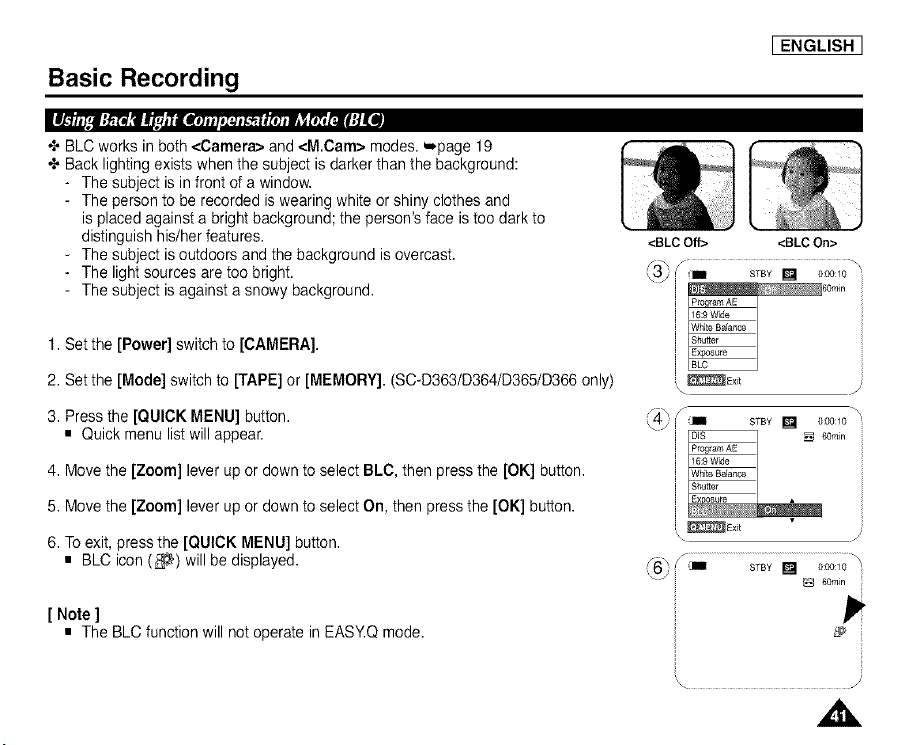
+ BLC works in both <Camera> and <M.Cam> modes. _,page 19
+ Back lighting exists when the subject is darker than the background:
- The subject is in front of a window.
- The person to be recorded is wearing white or shiny clothes and
is placed against a bright background; the person's face is too dark to
distinguish his/her features.
- The subject is outdoors and the background is overcast.
- The light sources are too bright.
- The subject is against a snowy background.
1. Set the [Power] switch to [CAMERA].
2. Set the [Mode] switch to [TAPE] or [MEMORY]. (SC-D363/D364/D365/D366 only)
3. Press the [QUICK MENU] button.
• Quick menu list will appear.
4. Move the [Zoom] lever up or down to select BLC, then press the [OK] button.
5. Move the [Zoom] lever up or down to select On, then press the [OK] button.
6. To exit, press the [QUICK MENU] button.
• BLC icon (_) will be displayed.
[ Note ]
• The BLCfunction will notoperatein EASY.Qmode.
<BLC Off>
<BLC On>
60rain
STBY [] 0:00:10
_Exit • /
_ @rain [
[ ENGLISH ]
Basic Recording
7_ [_e] lEe]',i r_,,ll l,l_r_e]lEe]',i_,,lt l _/J
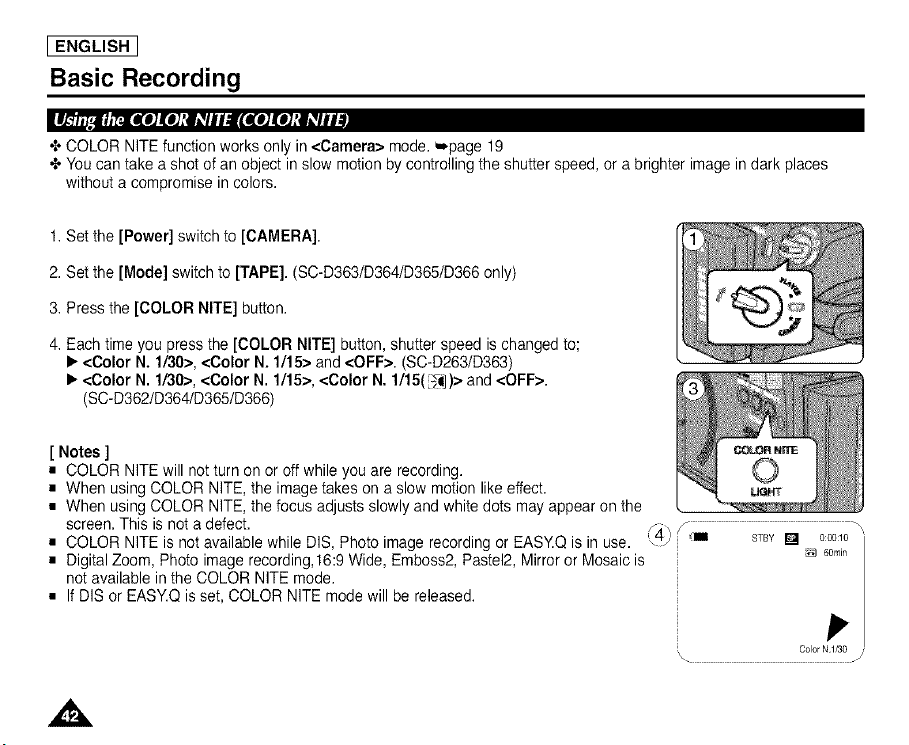
+ COLOR NITE function works only in <Camera> mode. W.page 19
+ You can take a shot of an object in slow motion by controlling the shutter speed, or a brighter image in dark places
without a compromise in colors.
1. Set the [Power] switch to [CAMERA].
2. Set the [Mode] switch to [TAPE]. (SC-D363/D364/D365/D366 only)
3. Press the [COLOR NITE] button.
4. Each time you press the [COLOR NITE] button, shutter speed is changed to;
• <Color N. 1/30>, <Color N. 1/15> and <OFF>. (SC-D263/D363)
• <Color N. 1/30>, <Color N. 1/15>, <Color N. 1/15( [-_4j)>and <OFF>.
(SC-D362!D364/D365/D366)
[ Notes ]
• COLOR NITE will not turn on or off while you are recording.
• When using COLOR NITE, the image takes on a slow motion like effect.
• When using COLOR NITE, the focus adjusts slowly and white dots may appear on the
screen. This is not a defect. _-._ f _,
zJ¢ _ STBY 0OO10
i COLOR NITE is not available while DIS Photo image recording or EASY.Q is in use. '\./ [] : : i
.... _ .... _ 60rqin
D@tal Zoom, Photo =mage record=ng,16:9 W=de,Emboss2, Pastel2, M_rroror Mosa=c =s
not available in the COLOR NITE mode. I
If DIS or EASY.Q is set, COLOR NITE mode will be released.
p,
Colo N1/30
J
Basic Recording
I ENGLISH I
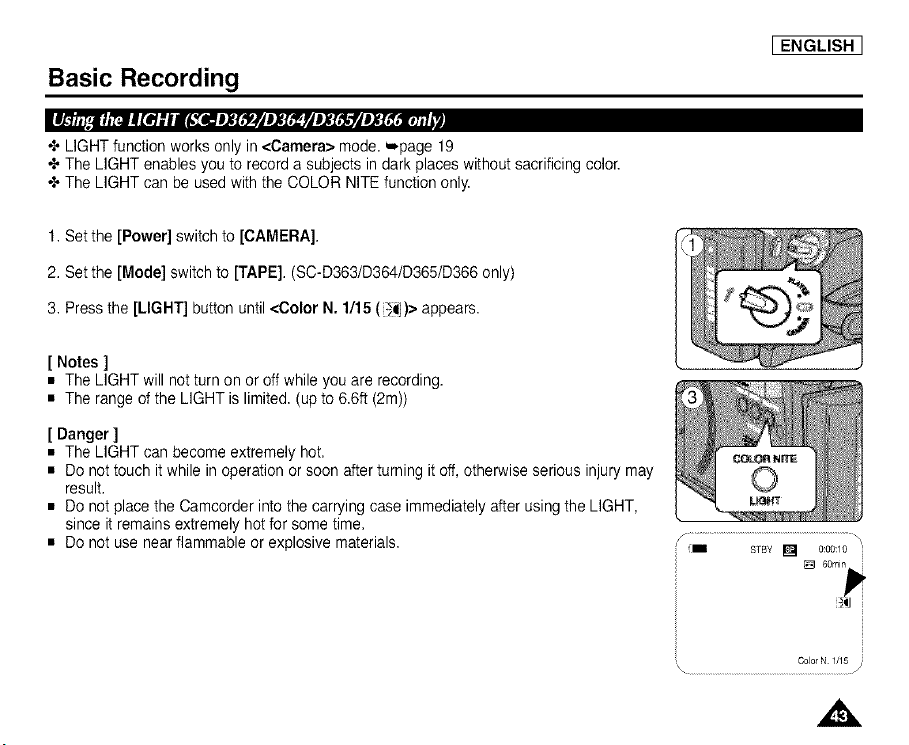
+ LIGHT function works only in <Camera> mode. _.page 19
+ The LIGHT enables you to record a subjects in dark places without sacrificing color.
+ The LIGHT can be used with the COLOR NITE function only.
1. Set the [Power] switch to [CAMERA].
2. Set the [Mode] switch to [TAPE]. (SC-D363/D364/D365/D366 only)
3. Press the [LIGHT] button until <Color N. 1/15 ([¢lJ)> appears.
[ Notes ]
• The LIGHT will not turn on or off while you are recording.
• The range of the LIGHT is limited. (up to 6.6ft (2m))
[ Danger ]
• The LIGHT can become extremely hot.
• Do not touch it while in operation or soon after turning it off, otherwise serious injury may
result.
• Do not place the Camcorder into the carrying case immediately after using the LIGHT,
since it remains extremely hot for some time.
• Do not use near flammable or explosive materials.
[ ENGLISH ]
Advanced Recording
,{, The Record Mode function works in both <Camera> and <Player> (DV IN or AV IN
(SC-D365/D366)) modes, =,page 19
+ This Camcorder records and plays back in SP (standard play) mode and in LP (long play)
mode,
- <SP> (standardplay):This mode permits 60 minutesof recording time witha DVM60 tape. 6' ,*ud,oMo_
- <LP> (long play): This mode permits 90 minutes of recording time with a DVM60 tape. _ _,_n_cutP_
+ The Audio Mode function works in both <Camera> and <Player> modes. _page 19
4" This Camcorder records sound in two ways. (12Bit, 16Bit)
- <12Bit>: You can record two 12Bit stereo sound tracks.
The original stereo sound can be recorded onto the Main (Sound1) track.
Additional stereo sound can be dubbed onto the Sub (Sound2) track.
- <16Bit>: You can record one high quality stereo sound using 16Bit recording mode.
Audio dubbing is not possible when using this mode.
1. Set the [Power] switch to [CAMERA] or [PLAYER]. 8, ,_ua_oMod_
2. Set the [Mode] switch to [TAPE]. (SC-D363/D364/D365/D366 only)
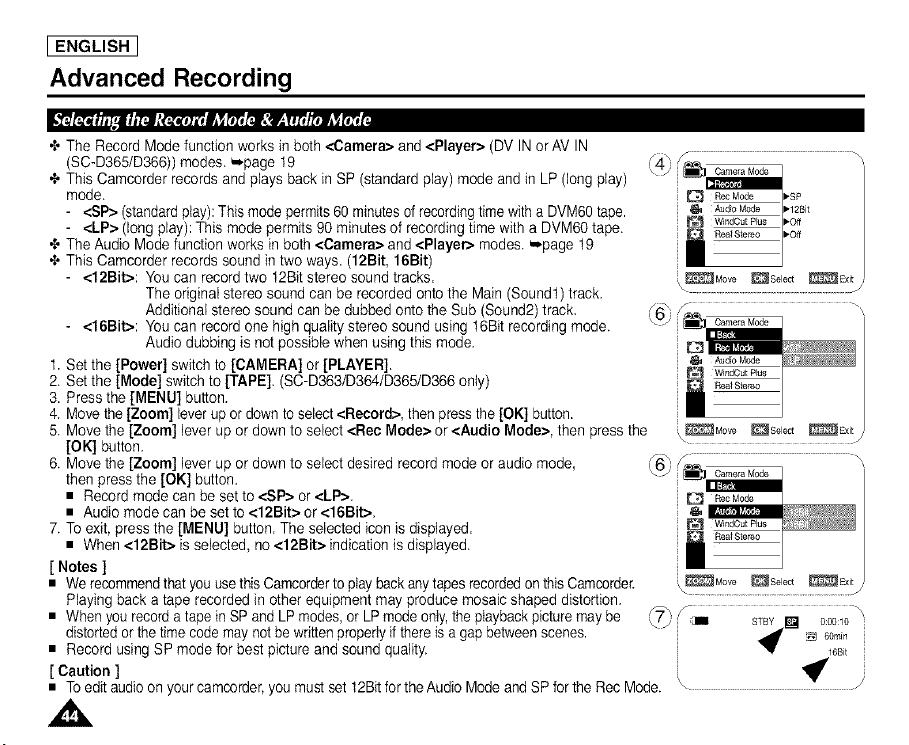
3. Press the [MENU] button.
4. Move the [Zoom] lever up or down to select <Record>, then press the [OK] button.
5. Move the [Zoom] lever up or down to select <Rec Mode> or <Audio Mode>, then press the
[OK] button.
6. Move the [Zoom] lever up or down to select desired record mode or audio mode,
then press the [OK] button.
• Record mode can be set to <SP> or <LP>.
• Audio mode can be set to <12Bit> or <16Bit>.
7. To exit, press the [MENU] button. The selected icon is displayed.
• When <12Bit> is selected, no <12Bit> indication is displayed.
[ Notes ]
• Werecommendthat you usethis Camcorderto play backanytapes recordedon this Camcorder.
Playing back a tape recorded in other equipment may produce mosaic shaped distortion.
• Whenyou record a tape in SP and LP modes, or LP mode only,the playbackpicture may be
distortedor the time code may not be written properly if there is a gap betweenscenes.
• Record using SP mode for best picture and sound quality.
[ Caution ] •
• To edit audioon your camcorder, you must set 12Bitforthe Audio Mode and SP forthe Rec Mode. - ..............................................................................................
Advanced Recording
[ ENGLISH
_rliv'ztml_r,t_ [iv]/_t-=tffl_tt_j
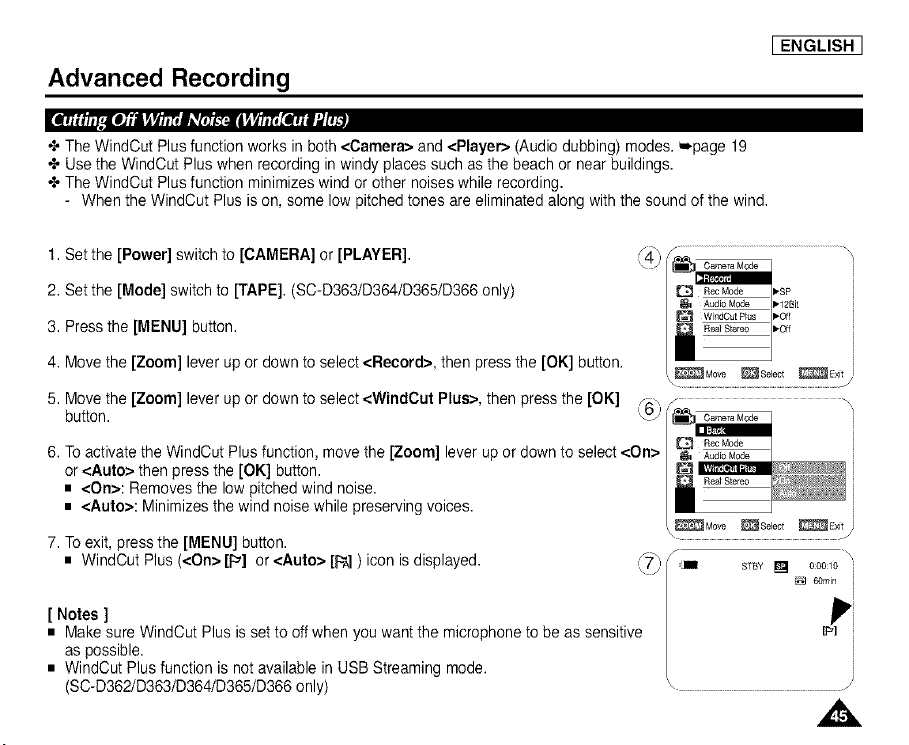
+ The WindCut Plus function works in both <Camera> and <Player> (Audio dubbing) modes. _.page 19
+ Use the WindCut Plus when recording in windy places such as the beach or near buildings.
+ The WindCut Plus function minimizes wind or other noises while recording.
- When the WindCut Plus is on, some low pitched tones are eliminated along with the sound of the wind.
1. Set the [Power] switch to [CAMERA] or [PLAYER],
2. Set the [Mode] switch to [TAPE]. (SC-D363/D364/D365/D366 only)
3. Press the [MENU] button.
'12Bit
4. Move the [Zoom] lever up or down to select <Record>, then press the [OK] button. , _Move _Select _Exit
\ ............................................................................................J
5. Move the [Zoom] lever up or down to select <WindCut Plus>, then press the [OK] y6_ _- _,
button. _:• '
6. To activate the WindCut Plus function, move the [Zoom] lever up or down to select <On>
or <Auto> then press the [OK] button.
• <On>: Removes the low pitched wind noise.
• <Auto>: Minimizes the wind noise while preserving voices.
7. To exit, press the [MENU] button.
• WindCut Plus (<On> [P'] or <Auto> [P'4 ) icon is displayed. _7/_ F-
[ Notes ]
• asMakepossible.SUreWindCut Plus is set to off when you want the microphone to be as sensitive
• WindCut Plus function is not available in USB Streaming mode.
(SC-D362/D363/D364/D365/D366 only)
\
STBY [] 0:00:10 ]
60rain l
I
\. /
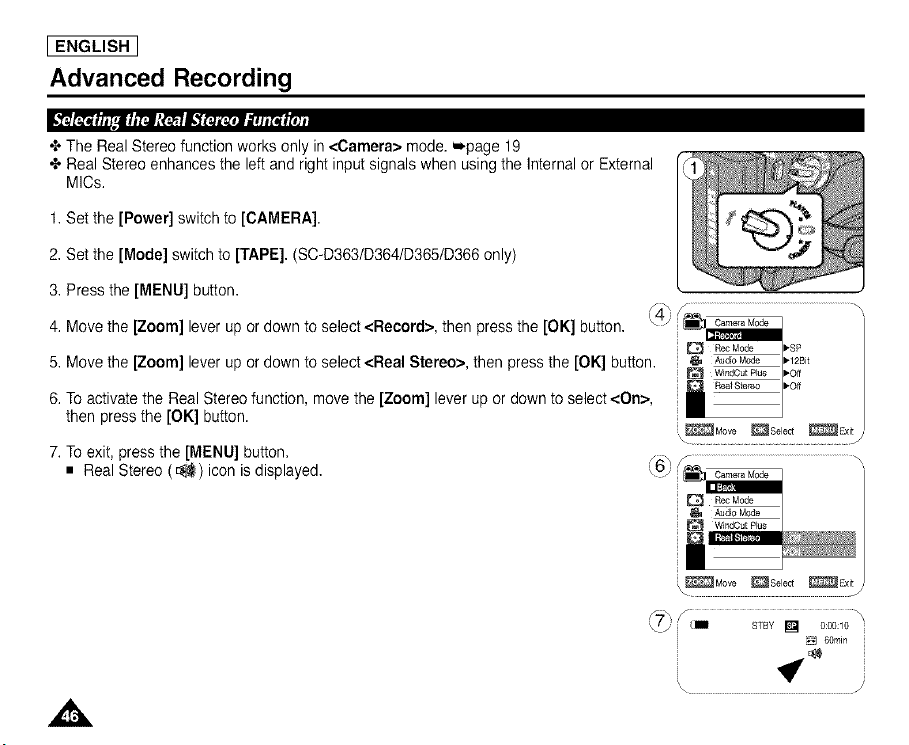
[ ENGLISH ]
Advanced Recording
+ The Real Stereo function works only in <Camera> mode. _.page 19
+ Real Stereo enhances the left and right input signals when using the Internal or External
MICs.
1. Set the [Power] switch to [CAMERA].
2. Set the [Mode] switch to [TAPE]. (SC-D363/D364/D365/D366 only)
3. Press the [MENU] button.
4. Move the [Zoom] lever up or down to select <Record>, then press the [OK] button.
5. Move the [Zoom] lever up or down to select <Real Stereo>, then press the [OK] button.
6. To activate the Real Stereo function, move the [Zoom] lever up or down to select <On>,
then press the [OK] button.
7. To exit, press the [MENU] button.
• Real Stereo (_)icon is displayed.
_i Rec Mode
Audio Mode
,_ _ndOut Plus
Audio Mode
60rain
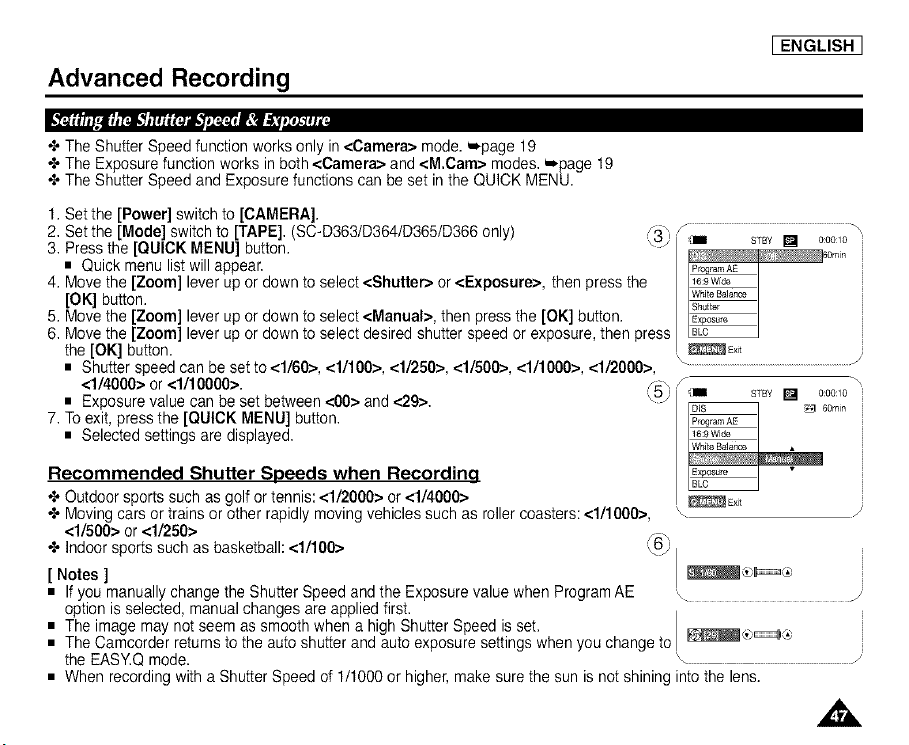
Advanced Recording
I ENGLISH I
+ The Shutter Speed function works only in <Camera> mode. _*page 19
+ The Exposure function works in both <Camera> and <M.Cam> modes. _,page 19
+ The Shutter Speed and Exposure functions can be set in the QUICK MENU.
1. Set the [Power] switch to [CAMERA].
2. Set the [Mode] switch to [TAPE]. (SC-D363/D364/D365/D366 only) J3_ ,,_;_ ........................ _,
3. Press the [QUICK MENU] button. \ J 6Oi_in i
• Quick menu list will appear. I I_1 i
4. Move the [Zoom] lever up or down to select <Shutter> or <Exposure>, then press the I b6:Pwd_ I i
White Balance j
[OK] button wh_ttt.__ i
5. Move the [Zoom] lever up or down to select <Manual>, then press the [OK] button. I I_1 i
6. Move the [Zoom] lever up or down to select desired shutter speed or exposure then press I _ i
the [OK] button. , _Exit
• Shutter speed can be set to <1/60>, <1/100>, <1/250>, <1/500>, <1/1000>, <1/2000>, \ .............................................................................................
<1/4000> or <1/10000>.
• Exposure value can be set between <00> and <29>.
7. To exit, press the [QUICK MENU] button.
• Selected settings are displayed.
Recommended Shutter Speeds when Recordinq
+ Outdoor sports such as golf or tennis: <1/2000> or <1/4000>
+ Moving cars or trains or other rapidly moving vehicles such as roller coasters: <1/1000>, /
<1/500> or <1/250>
[+Noteslnd°°r]sports such as basketball: <1/100> ,_6) _®
• If you manually change the Shutter Speed and the Exposure value when Program AE \ _.
option is selected, manual changes are applied first.
• The image may not seem as smooth when a high Shutter Speed is set.
The Camcorder returns to the auto shutter and auto exposure settings when you change to
the EASY.Q mode. \ --
• When recording with a Shutter Speed of 1/1000 or higher, make sure the sun is not shining into the lens.
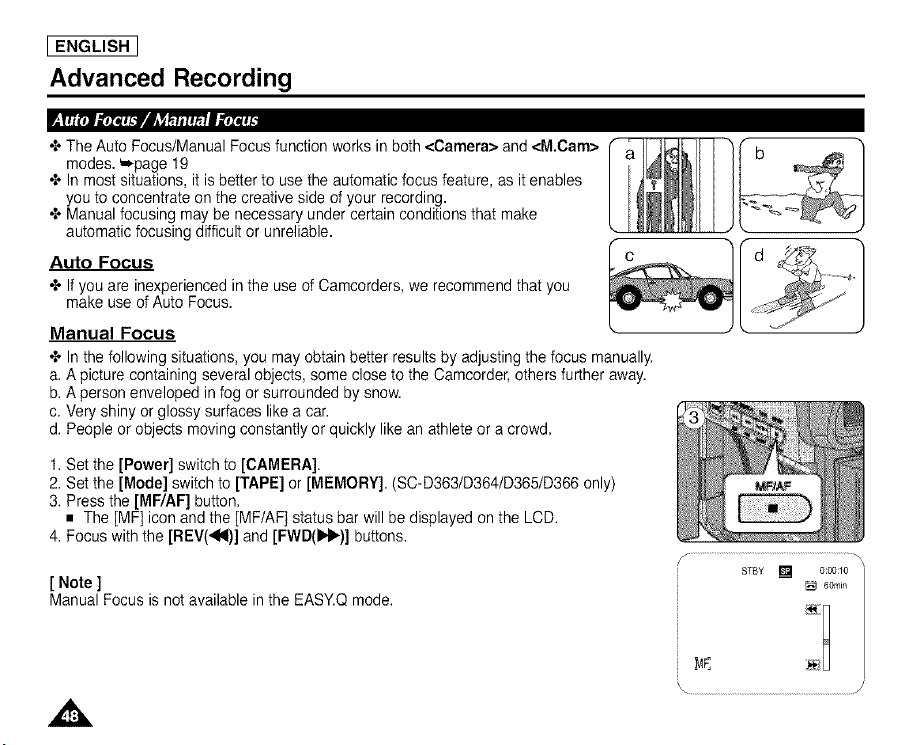
[ ENGLISH ]
Advanced Recording
+ The Auto Focus/Manual Focus function works in both <Camera> and <M.Cam>
modes. =_page 19
+ In most situations, it is better to use the automatic focus feature, as it enables
you to concentrate on the creative side of your recording.
+ Manual focusing may be necessary under certain conditions that make
automatic focusing difficult or unreliable.
Auto Focus
+ If you are inexperienced in the use of Camcorders, we recommend that you
make use of Auto Focus.
Manual Focus
+ In the following situations, you may obtain better results by adjusting the focus manually.
a. A picture containing several objects, some close to the Camcorder, others further away.
b. A person enveloped in fog or surrounded by snow.
c. Very shiny or glossy surfaces like a car.
d. People or objects moving constantly or quickly like an athlete or a crowd.
1. Set the [Power] switch to [CAMERA].
2. Set the [Mode] switch to [TAPE] or [MEMORY]. (SC-D363/D364/D365/D366 only)
3. Press the [MF/AF] button.
• The [MF] icon and the [MF/AF] status bar will be displayed on the LCD.
4. Focus with the [REV(4N)] and [FWD(IN_)] buttons.
[ Note ]
ManualFocusis not availableinthe EASY.Qmode.
)
STBY [] 0:00:10
60rain
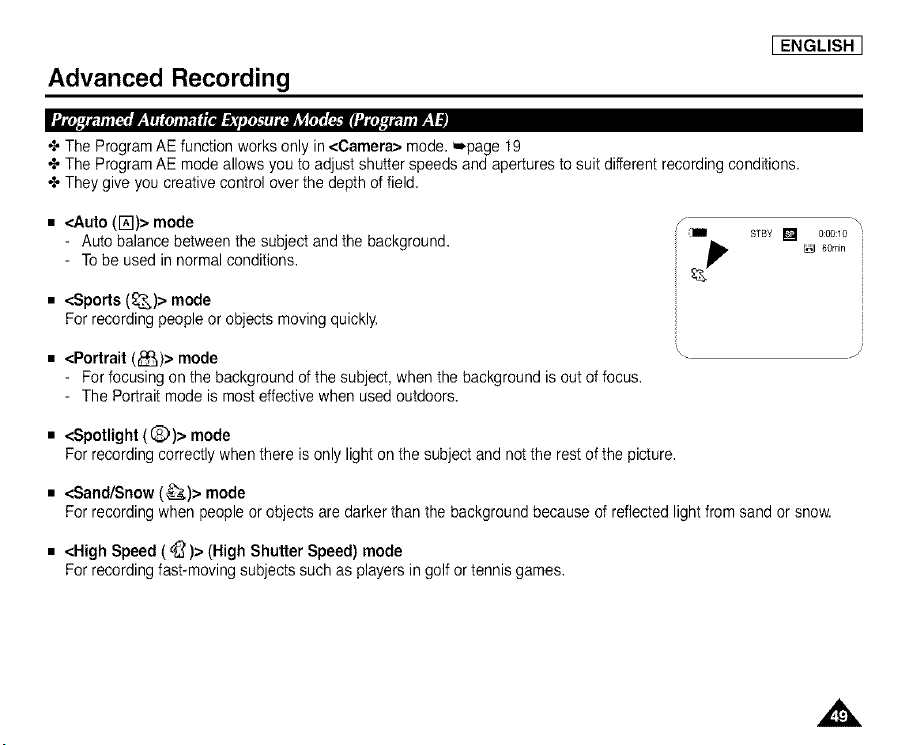
Advanced Recording
[ ENGLISH I
+ The Program AE function works only in <Camera> mode. wpage 19
+ The Program AE mode allows you to adjust shutter speeds and apertures to suit different recording conditions.
+ They give you creative control over the depth of field.
• <Auto ([])> mode
- Auto balance between the subject and the background.
- To be used in normal conditions.
• <Sports (_)> mode
For recordingpeopleor objects movingquickly.
• <Portrait (_)> mode
- For focusing on the background of the subject, when the background is out of focus.
- The Portrait mode is most effective when used outdoors.
( IIIIIIII STBY [] 0:00:10
• <Spotlight(Q)> mode
For recordingcorrectlywhenthere is only lighton thesubjectand notthe restof the picture.
• <Sand/Snow(_)> mode
For recordingwhenpeople or objectsare darkerthan the backgroundbecauseof reflectedlight from sand or snow.
• <High Speed ( _ )> (High Shutter Speed) mode
For recording fast-moving subjects such as players in golf or tennis games.
A
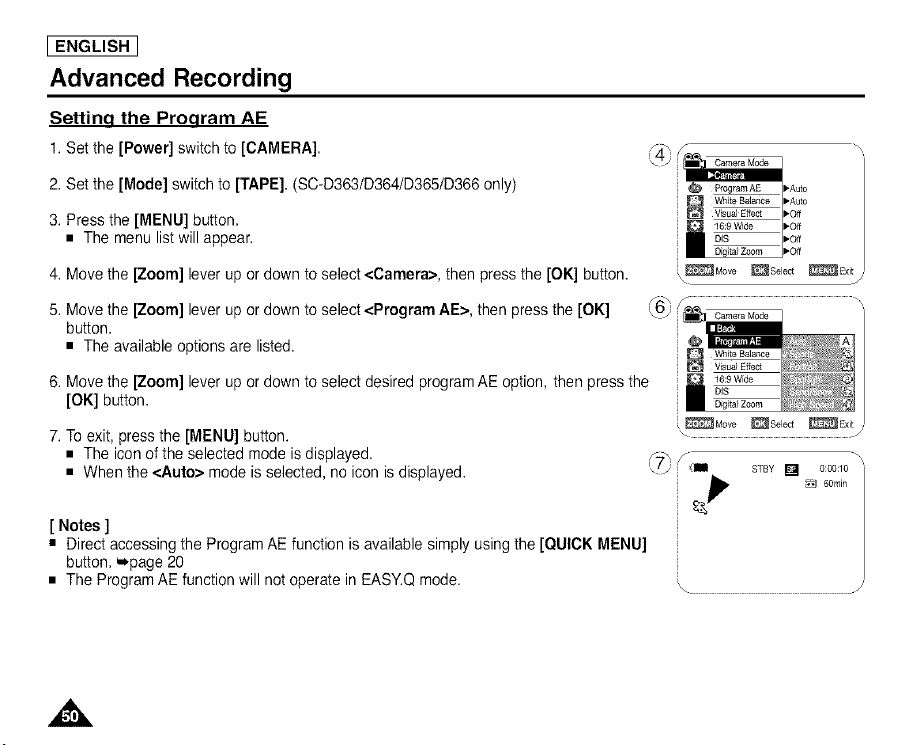
[ ENGLISH ]
Advanced Recording
Settinq the Proqram AE
1. Set the [Power] switch to [CAMERA],
2. Set the [Mode] switch to [TAPE], (SC-D363/D364/D365/D366 only)
3. Press the [MENU] button.
• The menu list will appear.
4. Move the [Zoom] lever up or down to select <Camera>, then press the [OK] button.
i _ ProgramAE
White Balance
Vrsual Effect
:t_ Move _Select _ Exitj
5. Move the [Zoom] lever up or down to select <Program AE>, then press the [OK]
button.
• The available options are listed.
6. Move the [Zoom] lever up or down to select desired program AE option, then press the
[OK] button.
7. To exit, press the [MENU] button.
• The icon of the selected mode is displayed.
• When the <Auto> mode is selected, no icon is displayed.
[ Notes ]
• Direct accessing the Program AE function is available simply using the [QUICK MENU]
button. _.page 20
• The Program AE function will not operate in EASY.Q mode.
STBY [] 0:00:10
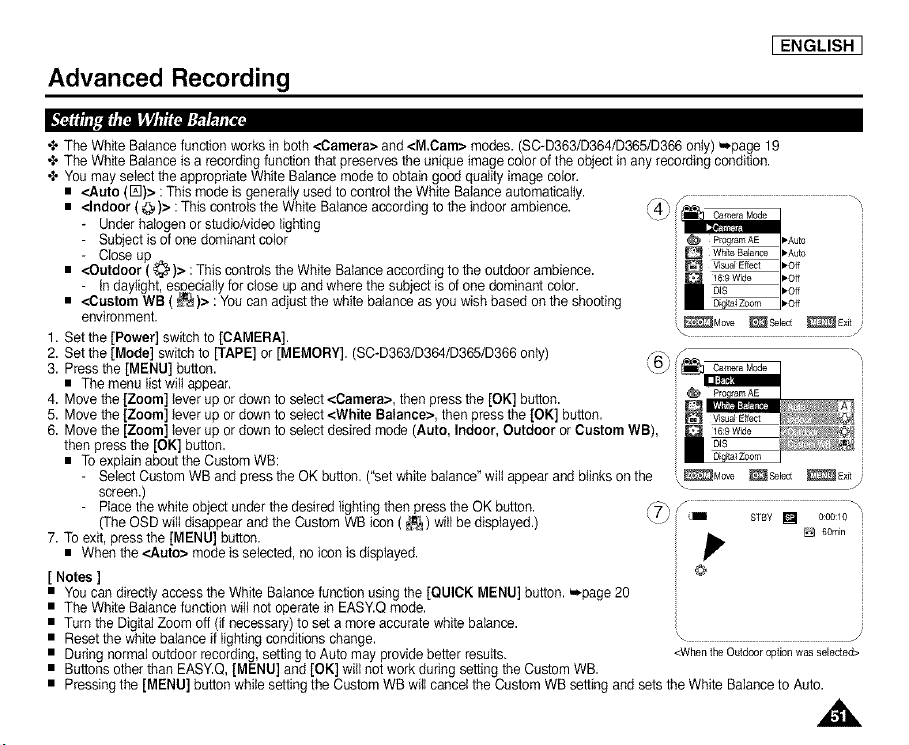
Advanced Recording
[ ENGLISH
+ The White Balance function works in both <Camera> and <M.Cam> modes. (SC-D363/D364/D365/D366 only) _page 19
+ The White BaIance is e recording function that preserves the unique image color of the object in any recording condition.
•_oYou may select the appropriate White BaIance mode to obtain good quality image color.
• <Auto (1_1)> :This mode is generally used to control the White Balance automatically.
• <Indoor ( _ )> : This controls the White Balance according to the indoor ambience. _4_'_f -\'
- Under halogen or studio/video Iighting
- Subject is of one dominant color _ Prog,an_AE
- Close up D
• <Outdoor ( _'_ )> :This controts the White Balance according to the outdoor ambience.
- in daylight, eseecially for close up and where the subject is of one dominant color.
• <Custom WB ( _)> : You can adjust the white balance as you wish based on the shooting
environment. _Move _ Select _Ex_
1. Set the [Power] switch to [CAMERA]. \ >'
2. Set the [Mode] switch to [TAPE] or [MEMORY]. (SC-D363/D364/D365/D366 only) $6, f-
3. Press the [MENU] button. \ / ca_ra Mod_
• The menu list will appear.
4. Move the [Zoom] lever up or down to select <Camera>, then press the [OK] button.
5. Move the [Zoom] lever up or down to select <White Balance>, then press the [OK] button.
6. Move the [Zoom] lever up or down to select desired mode (Auto, Indoor, Outdoor or Custom WB),
then press the [OK] button.
• To explain about the Custom WB:
- Select Custom WB and press the OK button. ("set white balance" wilt appear and blinks on the ,\_Move _Select _Ex_
screen.)
- Place the white object under the desired lighting then press the OK button.
(The OSD wilI disappear and the Custom WB icon ( _ ) will be displayed.)
7. To exit, press the [MENU] button.
• When the <Auto> mode is selected, no icon is displayed.
[ Notes ]
• You can directly access the White Balance function using the [QUICK MENU] button. _page 20
• The White BaIance function witl not operate in EASY.Q mode.
• Turn the Digital Zoom off (if necessary) to set a more accurate white balance.
• Reset the white balance if lighting conditions change.
• During normal outdoor recording, setting to Auto may provide better results.
• Buttons other than EASY.Q, [MENU] and [OK] will not work during setting the Custom WB.
• Pressing the [MENU] button while setting the Custom WB will cancel the Custom WB setting and sets the White Balance to Auto.
_ 60rain ;
©
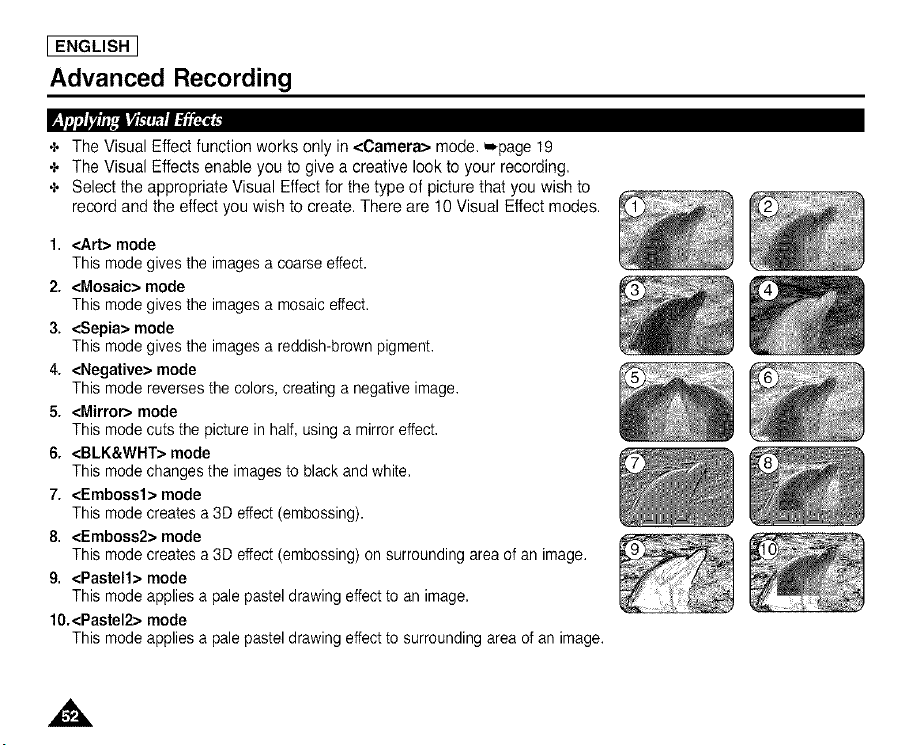
[ ENGLISH ]
Advanced Recording
Rt,t_lr_r,,_rLt
+ The Visual Effect functionworks only in <Camera> mode,_page 19
÷ The Visual Effects enable you to give a creative look to your recording,
÷ Select the appropriate Visual Effect for the type of picture that you wish to
record and the effect you wish to create. There are 10 Visual Effect modes.
1. <Art> mode
This mode gives the images a coarse effect.
2. <Mosaic> mode
This mode gives the images a mosaic effect.
3. <Sepia> mode
This mode gives the images a reddish-brown pigment.
4. <Negative> mode
This mode reverses the colors, creating a negative image.
5. <Mirror> mode
This mode cuts the picture in half, using a mirror effect.
6. <BLK&WHT> mode
This mode changes the images to black and white.
7. <Emboss1> mode
This mode creates a 3D effect (embossing).
8. <Emboss2> mode
This mode creates a 3D effect (embossing) on surrounding area of an image.
9. <Pastel1> mode
This mode applies a pale pastel drawing effect to an image.
10.<Pastel2> mode
This mode applies a pale pastel drawing effect to surrounding area of an image.
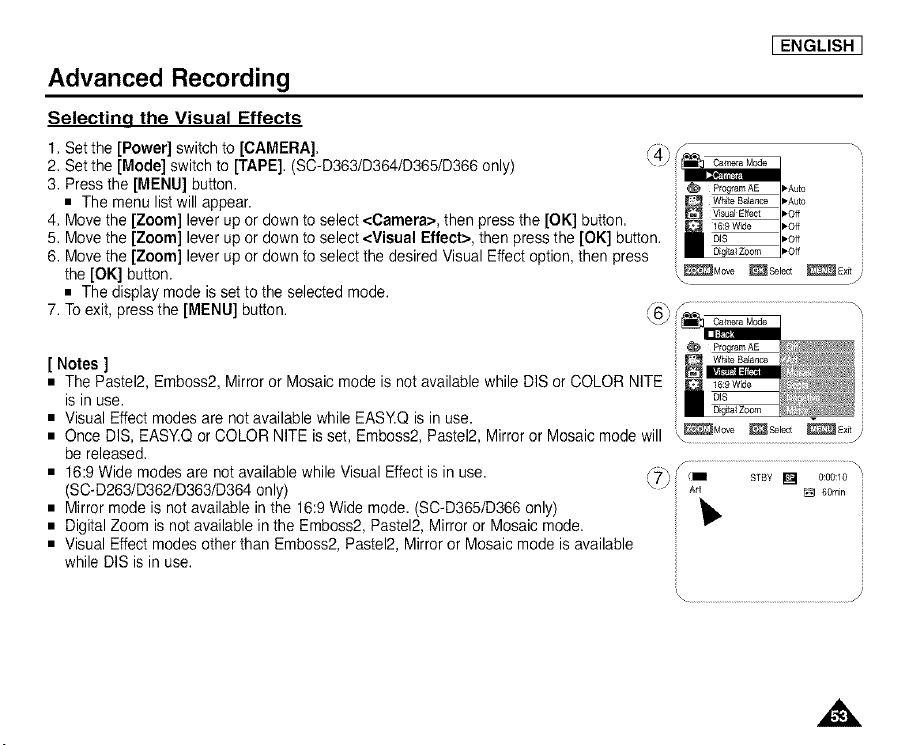
Advanced Recording
[ ENGLISH
Selectinq the Visual Effects
1. Set the [Power] switch to [CAMERA].
2. Set the [Mode] switch to [TAPE]. (SC-D363/D364/D365/D366 only)
3. Press the [MENU] button.
• The menu list will appear.
4. Move the [Zoom] lever up or down to select <Camera>, then press the [OK] button.
5. Move the [Zoom] lever up or down to select <Visual Effect>, then press the [OK] button, iI
6. Move the [Zoom] lever up or down to select the desired Visual Effect option, then press
the [OK] button.
• The display mode is set to the selected mode.
7. To exit, press the [MENU] button.
Program AE
[ Notes ]
• The Pastel2, Emboss2, Mirror or Mosaic mode is not available while DIS or COLOR NITE
is in use.
• Visual Effect modes are not available while EASY.Q is in use.
• Once DIS, EASY.Q or COLOR NITE is set, Emboss2, Pastel2, Mirror or Mosaic mode will
be released.
• 16:9 Wide modes are not available while Visual Effect is in use.
(SC-D263/D362/D363/D364 only)
• Mirror mode is not available in the 16:9 Wide mode. (SC-D365/D366 only)
• Digital Zoom is not available in the Emboss2, Pastel2, Mirror or Mosaic mode.
• Visual Effect modes other than Emboss2, Pastel2, Mirror or Mosaic mode is available
while DIS is in use.
",. ............................................................................................J
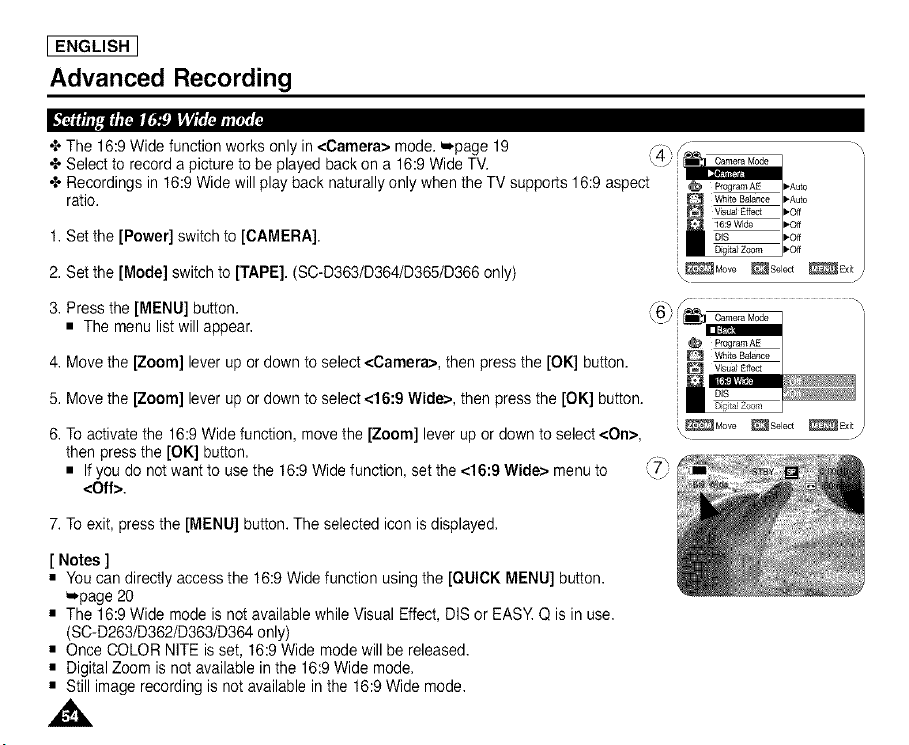
[ ENGLISH ]
Advanced Recording
+ The 16:9 Wide function works only in <Camera> mode. _.page 19 r--_.l,/ \
+ Select to record a picture to be played back on a 16:9 Wide TV. _"_ _t/
+ Recordings in 16:9 Wide will play back naturally only when the TV supports 16:9 aspect ¢_ P_og_ao,AE
ratio, i D
VBual Effect
1. Set the [Power] switch to [CAMERA],
2. Set the [Mode] switch to [TAPE]. (SC-D363/D364/D365/D366 only) ::_Mow _s_:t
3. Press the [MENU] button.
• The menu list will appear.
4. Move the [Zoom] lever up or down to select <Camera>, then press the [OK] button.
5. Move the [Zoom] lever up or down to select <16:9 Wide>, then press the [OK] button.
6. To activate the 16:9 Wide function, move the [Zoom] lever up or down to select <On>,
then press the [OK] button.
• If you do not want to use the 16:9 Wide function, set the <16:9 Wide> menu to
<Off>.
7. To exit, press the [MENU] button. The selected icon is displayed.
[ Notes ]
• You can directly access the 16:9 Wide function using the [QUICK MENU] button.
mpage 20
• The 16:9 Wide mode is not available while Visual Effect, DIS or EASY. Q is in use.
(SC-D263/D362/D363/D364 only)
• Once COLOR NITE is set, 16:9 Wide mode will be released.
• Digital Zoom is not available in the 16:9 Wide mode.
• Still image recording is not available in the 16:9 Wide mode.
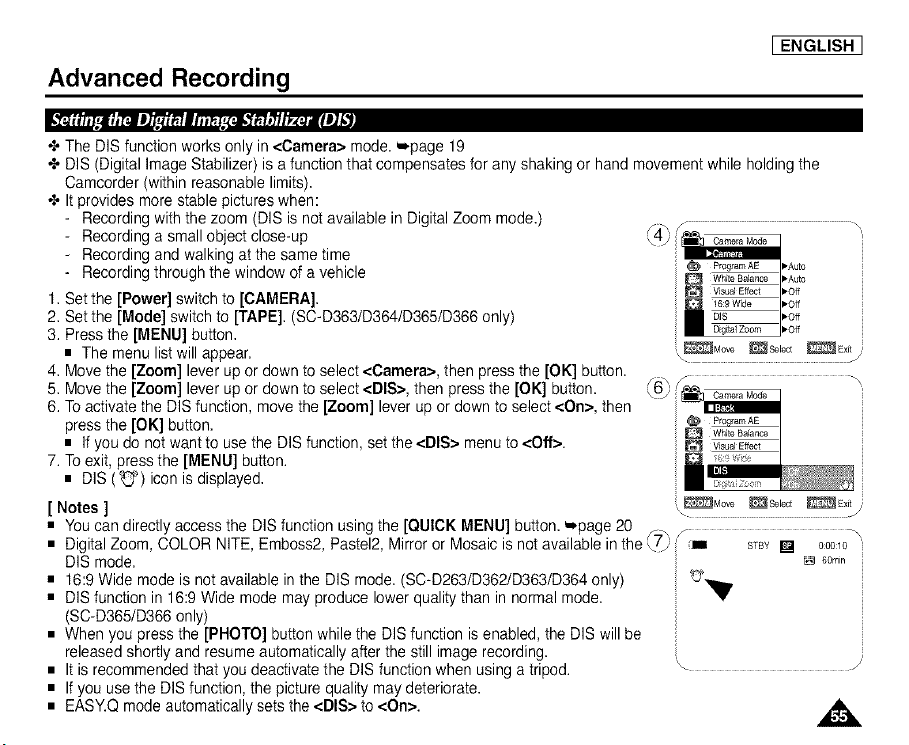
Advanced Recording
[ ENGLISH
+ The DIS function works only in <Camera> mode. _.page 19
+ DIS (Digital Image Stabilizer) is a function that compensates for any shaking or hand movement while holding the
Camcorder (within reasonable limits).
+ It provides more stable pictures when:
- Recording with the zoom (DIS is not available in Digital Zoom mode.)
- Recording a small object close-up
- Recording and walking at the same time
- Recording through the window of a vehicle
1. Set the [Power] switch to [CAMERA].
2. Set the [Mode] switch to [TAPE]. (SC-D363/D364/D365/D366 only)
3. Press the [MENU] button.
• The menu list will appear.
4. Move the [Zoom] lever up or down to select <Camera>, then press the [OK] button.
5. Move the [Zoom] lever up or down to select <DIS>, then press the [OK] button.
6. To activate the DIS function, move the [Zoom] lever up or down to select <On>, then
press the [OK] button.
• If you do not want to use the DIS function, set the <DIS> menu to <Off>.
7. To exit, press the [MENU] button.
• DIS (_) icon is displayed.
[ Notes]
Can_era Mode
You can directly access the DIS function using the [QUICK MENU] button. _*page 20 _:. _.
f
Digital Zoom, COLOR NITE, Emboss2, Pastel2, Mirror or Mosaic is not available in the \j ,,,, STB¥[] o:oo:10
DIS mode. _ 6omin
• 16:9 Wide mode is not available in the DIS mode. (SC-D263/D362/D363/D364 only) _>
• DIS function in 16:9 Wide mode may produce lower quality than in normal mode. _'
(SC-D365/D366 only)
• When you press the [PHOTO] button while the DIS function is enabled, the DIS will be
released shortly and resume automatically after the still image recording.
• It is recommended that you deactivate the DIS function when using a tripod. - /'
• If you use the DIS function, the picture quality may deteriorate.
• EASY.Q mode automatically sets the <DIS> to <On>.
A
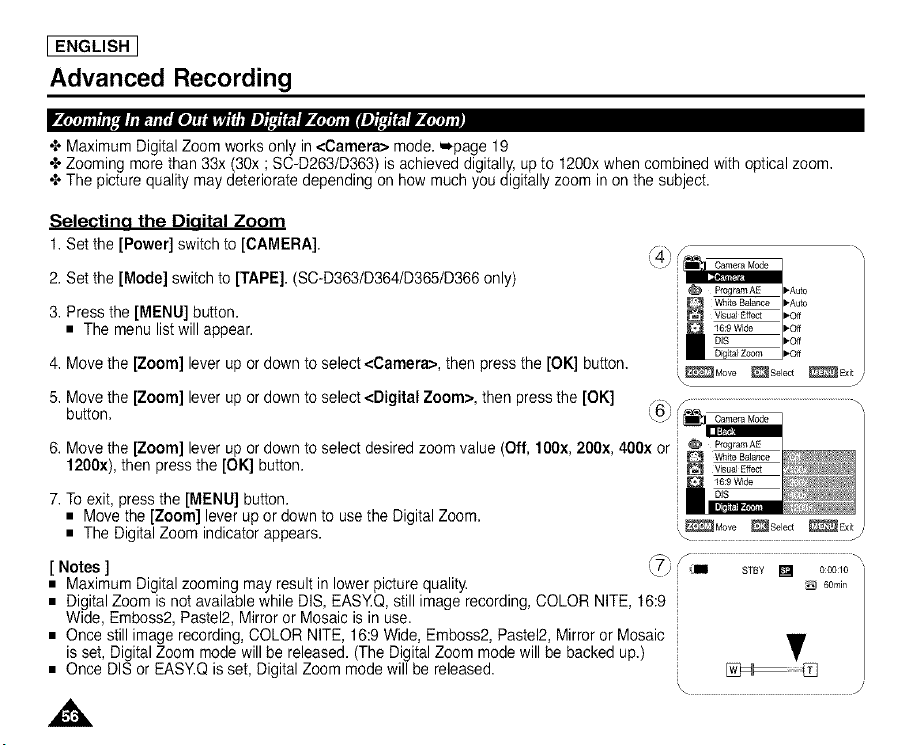
[ ENGLISH ]
Advanced Recording
Jrcm rr,tn
+ Maximum Digital Zoom works only in <Camera> mode. _*page 19
+ Zooming more than 33x (3Ox ; SC-D263/D363) is achieved digitally, up to 1200x when combined with optical zoom.
+ The picture quality may deteriorate depending on how much you digitally zoom in on the subject.
Selectina the Diaital Zoom
1. Set the [Power] switch to [CAMERA].
2. Set the [Mode] switch to [TAPE]. (SC-D363/D364/D365/D366 only)
3. Press the [MENU] button.
• The menu list will appear.
4. Move the [Zoom] lever up or down to select <Camera>, then press the [OK] button.
5. Move the [Zoom] lever up or down to select <Digital Zoom>, then press the [OK]
button.
@
6. Move the [Zoom] lever up or down to select desired zoom value (Off, 10Ox, 200x, 400x or @ P_®_amAE
1200X), then press the [OK] button.
7. To exit, press the [MENU] button.
• Move the [Zoom] lever up or down to use the Digital Zoom.
• The Digital Zoom indicator appears.
[ Notes ]
• Maximum Digital zooming may result in lower picture quality.
• Digital Zoom is not available while DIS, EASY.Q, still image recording, COLOR NITE, 16:9
Wide, Emboss2, Pastel2, Mirror or Mosaic is in use.
• Once still image recording, COLOR NITE, 16:9 Wide, Emboss2, Pastel2, Mirror or Mosaic
is set, Digital Zoom mode will be released. (The Digital Zoom mode will be backed up.)
• Once DIS or EASY.Q is set, Digital Zoom mode will be released.
60rqin
T
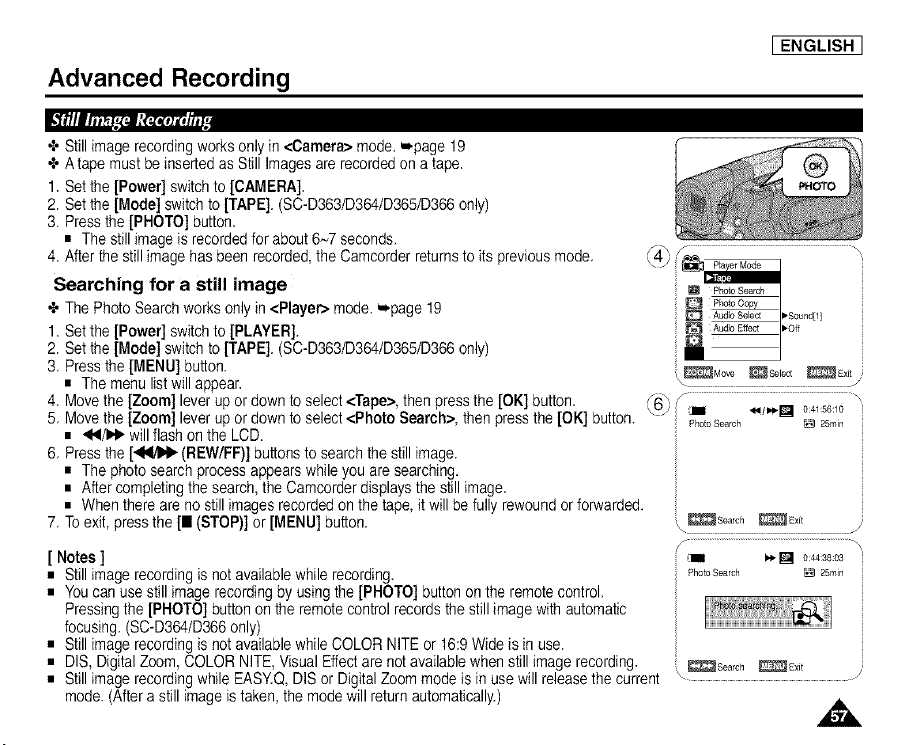
Advanced Recording
[ ENGLISH
÷ Still image recording works only in <Camera> mode. W,page 19
÷ Atape must be inserted as Still Images are recorded on a tape.
1. Set the [Power] switch to [CAMERA].
2. Set the [Mode] switch to [TAPE]. (SC-D3631D3641D3651D366only)
3. Press the [PHOTO] button.
• The still image is recorded for about 6~7 seconds.
4. After the still image has been recorded, the Camcorder returns to its previous mode.
Searching for a still image
÷ The Photo Search works only in <Player> mode. W,page 19
1. Set the [Power] switch to [PLAYER].
2. Set the [Mode] switch to [TAPE]. (SC-D3631D3641D3651D366only)
3, Press the [MENU] button. _,_Move _Select _Ex_
• The menu list will appear. \ .....................................................................
4. Move the [Zoom] lever up or down to select <Tape>, then press the [OK] button. F6_' ,/
5, Move the [Zoom] lever up or down to select <Photo Search>, then press the [OK] button. '\ J i _j_[] o:4_:s6:_o
Photo Search _ 25min
• _4/i,,_ will flash on the LCD.
6. Press the [.44/114_(REW/FF)] buttons to search the still image.
• The photo search process appears while you are searching.
• After completing the search, the Camcorder displays the still image.
• When there are no still images recorded on the tape, it will be fully rewound or forwarded.
7, To exit, press the [| (STOP)] or [MENU] button.
_Search _Exit J
.................................................................... J
Photo Search _ 2stain
[ Notes ]
• Still image recording is not available while recording.
• You can use still image recording by using the [PHOTO] button on the remote control.
Pressing the [PHOTO] button on the remote control records the still image with automatic
focusing. (SC-D364/D366 only)
• Still image recording is not available while COLOR NITE or 16:9 Wide is in use.
• DiS, Digital Zoom, COLOR NITE, Visual Effect are not available when still image recording. _Search _Exit /
• Still image recording while EASY.Q, DIS or Digital Zoom mode is in use will release the current .....
mode. (After a still image is taken, the mode will return automatically.) A
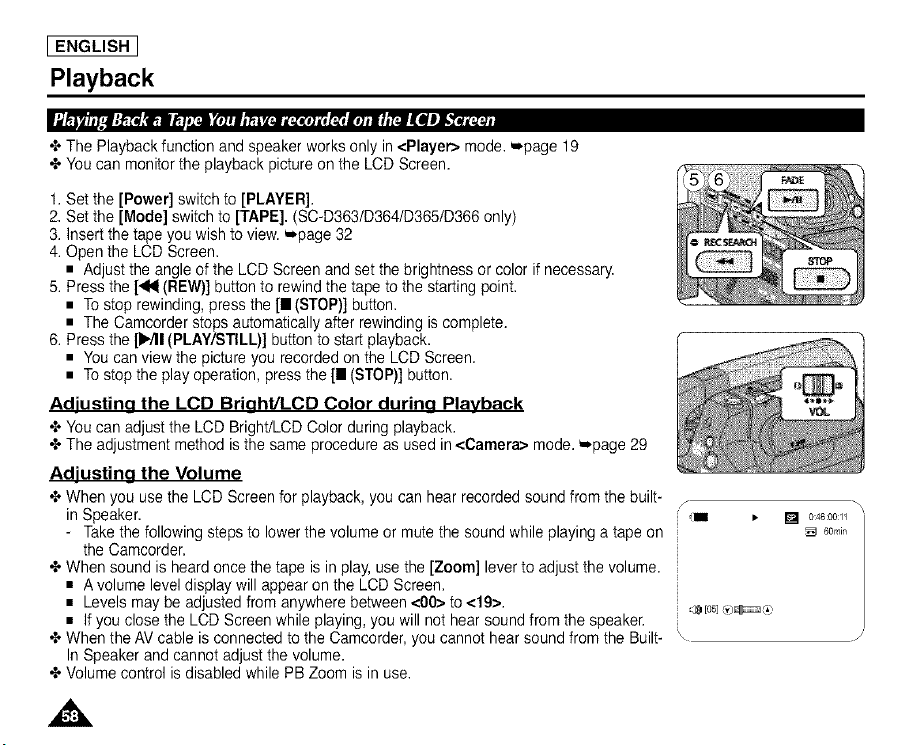
[ ENGLISH ]
Playback
+ The Playback function and speaker works only in <Player> mode. _,page 19
+ You can monitor the playback picture on the LCD Screen.
1. Set the [Power] switch to [PLAYER].
2. Set the [Mode] switch to [TAPE]. (SC-D363/D364/D365/D366 only)
3. Insert the tape you wish to view. _,page 32
4. Open the LCD Screen.
• Adjust the angle of the LCD Screen and set the brightness or color if necessary.
5. Press the [._ (REW)] button to rewind the tape to the starting point.
• To stop rewinding, press the [m (STOP)] button.
• The Camcorder stops automatically after rewinding is complete.
6. Press the [1_/11(PLAY/STILL)] button to start playback.
• You can view the picture you recorded on the LCD Screen.
• To stop the play operation, press the [m (STOP)] button.
Adiustina the LOB Briaht/LOB Color during Playback
+ You can adjust the LCD Bright/LCD Color during playback.
+ The adjustment method is the same procedure as used in <Camera> mode. _,page 29
Ad)usting the Volume
+ When you use the LCD Screen for playback, you can hear recorded sound from the built-
in Speaker.
- Take the following steps to lower the volume or mute the sound while playing a tape on
the Camcorder.
+ When sound is heard once the tape is in play, use the [Zoom] lever to adjust the volume.
• A volume level display will appear on the LCD Screen.
• Levels may be adjusted from anywhere between <00> to <19>.
• If you close the LCD Screen while playing, you will not hear sound from the speaker.
+ When the AV cable is connected to the Camcorder, you cannot hear sound from the Built-
In Speaker and cannot adjust the volume.
+ Volume control is disabled while PB Zoom is in use.
,,&
m • [] 0:46:00:11
60rqin
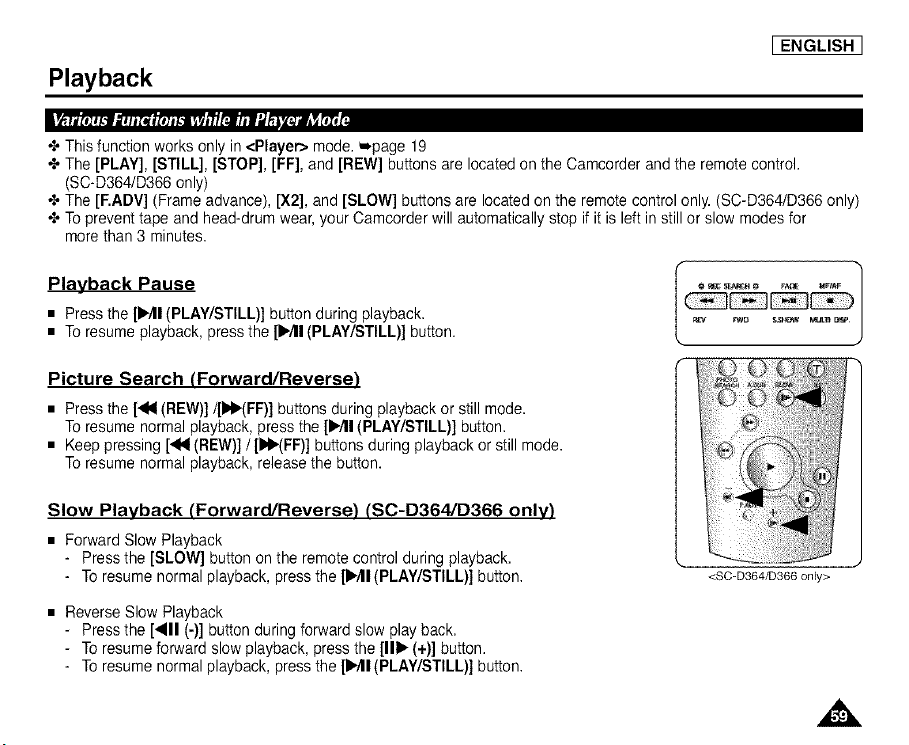
Playback
I ENGLISH I
•{. This function works only in <Player> mode. _.page 19
+ The [PLAY], [STILL], [STOP], [FF], and [REW] buttons are located on the Camcorder and the remote control.
(SC-D364/D366 only)
•{. The [EADV] (Frame advance), [X2], and [SLOW] buttons are located on the remote control only. (SC-D364/D366 only)
+ To prevent tape and head-drum wear, your Camcorder will automatically stop if it is left in still or slow modes for
more than 3 minutes.
Playback Pause
• Press the [1_/11(PLAY/STILL)] button during playback.
• To resume playback, press the [1_/11(PLAY/STILL)] button.
Picture Search (Forward/Reverse)
• Press the [_N (REW)]/[IPI_(FF)] buttons during playback or still mode.
To resume normal playback, press the [1_/11(PLAY/STILL)] button.
• Keep pressing [._N (REW)] / [N_(FF)] buttons during playback or still mode.
To resume normal playback, release the button.
Slow Playback (Forward/Reverse) (SC-D364/D366 only)
• Forward Slow Playback
- Press the [SLOW] button on the remote control during playback.
- To resume normal playback, press the [1_/11(PLAY/STILL)] button.
• Reverse Slow Playback
- Press the [411 (-)] button during forward slow play back.
- To resume forward slow playback, press the [111_(+)] button.
- To resume normal playback, press the [1_/11(PLAY/STILL)] button.
<SC-D364/D366 only>
A
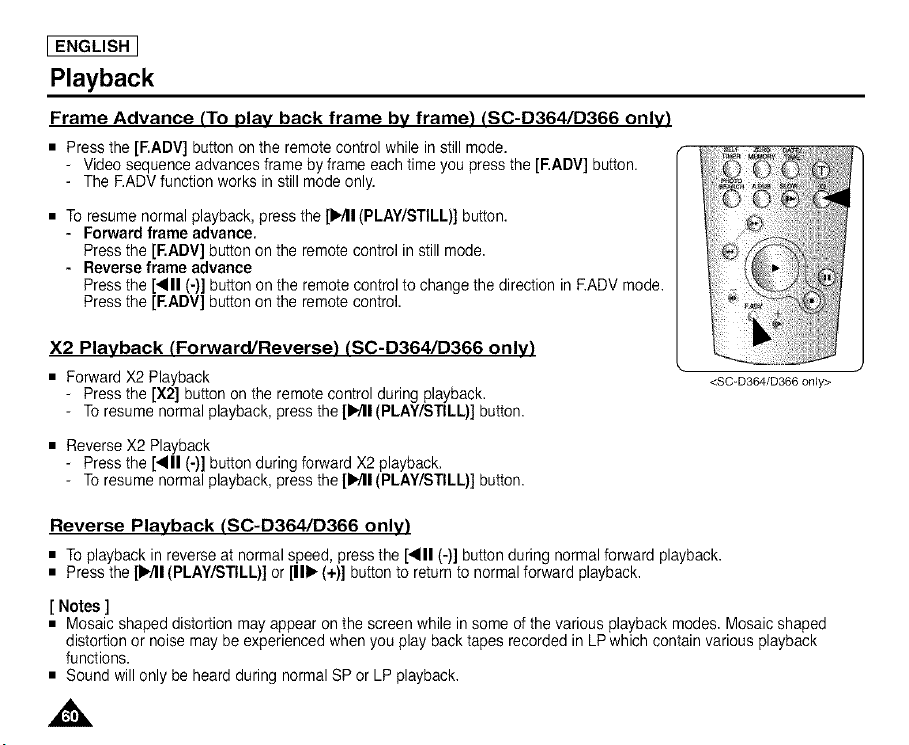
[ ENGLISH ]
Playback
Frame Advance (To play back frame by frame) (SC-D364/D366 only)
• Press the [F.ADV] button on the remote control while in still mode.
- Video sequence advances frame by frame each time you press the [EADV] button.
- The F.ADV function works in still mode only.
• To resume normal playback, press the [1_/11(PLAY/STILL)] button.
- Forward frame advance.
Press the [EADV] button on the remote control in still mode.
- Reverse frame advance
Press the [4111(-)] button on the remote control to change the direction in RADV mode.
Press the [EADV] button on the remote control.
X2 Playback (Forward/Reverse) (SC-D364/D366 only)
• Forward X2 Playback
- Press the [X2] button on the remote control during playback.
- To resume normal playback, press the [1_'11(PLAY/STILL)] button.
• Reverse X2 Playback
- Press the [(111(-)] button during forward X2 playback.
- To resume normal playback, press the [1_'11(PLAY/STILL)] button.
<SC-D364/D366 only>
Reverse Playback (SC-D364/D366 only)
• To playback in reverse at normal speed, press the [411 (-)] button during normal forward playback.
• Press the [1_/11(PLAY/STILL)] or [11) (+)] button to return to normal forward playback.
[ Notes ]
• Mosaic shaped distortion may appear on the screen while in some of the various playback modes. Mosaic shaped
distortion or noise may be experienced when you play back tapes recorded in LP which contain various playback
functions.
• Sound will only be heard during normal SP or LP playback.
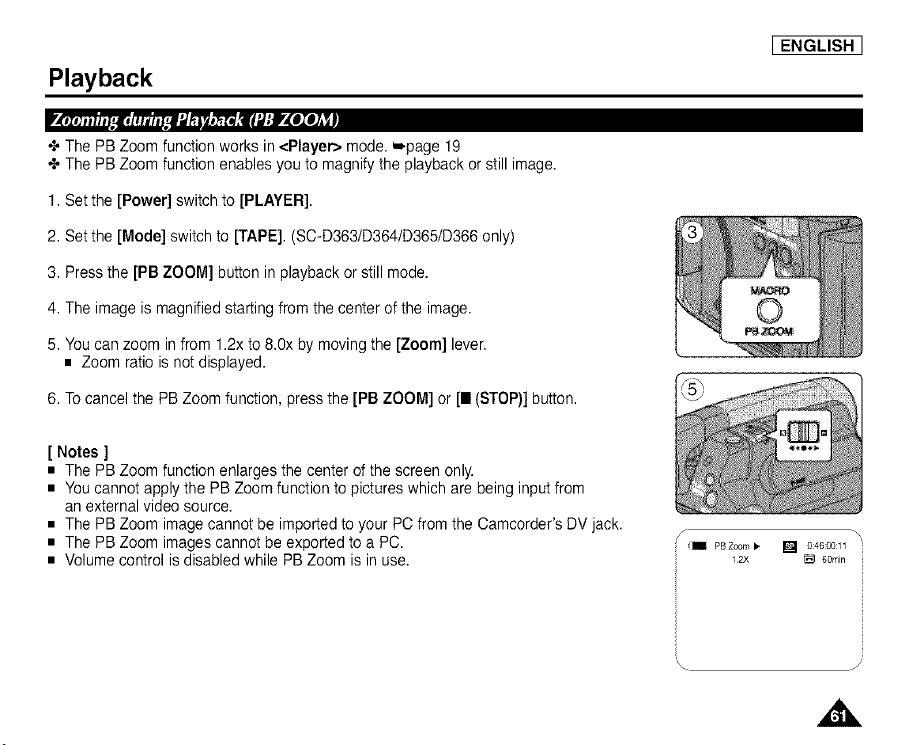
Playback
[ ENGLISH
+ The PB Zoom function works in <Player> mode. _,page 19
+ The PB Zoom function enables you to magnify the playback or still image.
1. Set the [Power] switch to [PLAYER].
2. Set the [Mode] switch to [TAPE]. (SC-D363/D364/D365/D366 only)
3. Press the [PB ZOOM] button in playback or still mode.
4. The image is magnified starting from the center of the image.
5. You can zoom in from 1.2x to 8.0x by moving the [Zoom] lever.
• Zoom ratio is not displayed.
6. To cancel the PB Zoom function, press the [PB ZOOM] or [| (STOP)] button.
[ Notes ]
• The PB Zoom function enlarges the center of the screen only.
• You cannot apply the PB Zoom function to pictures which are being input from
an external video source.
• The PB Zoom image cannot be imported to your PC from the Camcorder's DV jack.
• The PB Zoom images cannot be exported to a PC.
• Volume control is disabled while PB Zoom is in use.
f-
PB Zoom _- [] 0:46:00:11
12X _ 60rqin
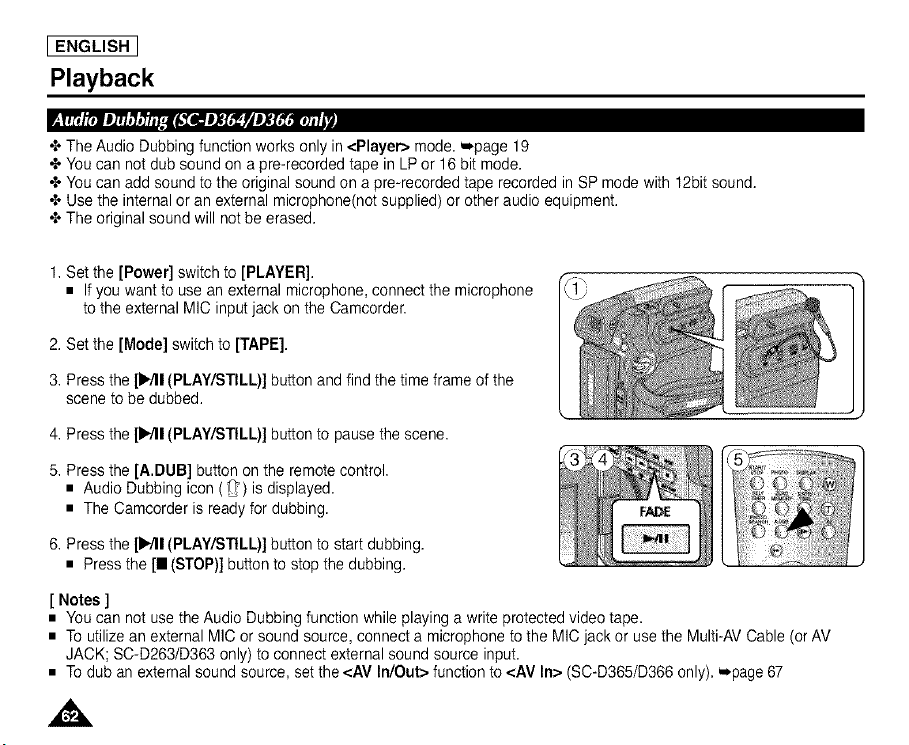
[ ENGLISH ]
Playback
+ The Audio Dubbing function works only in <Player> mode. _page 19
+ You can not dub sound on a pre-recorded tape in LP or 16 bit mode.
+ You can add sound to the original sound on a pre-recorded tape recorded in SP mode with 12bit sound.
+ Use the internal or an external microphone(not supplied) or other audio equipment.
+ The original sound will not be erased.
1. Set the [Power] switch to [PLAYER].
• If you want to use an external microphone, connect the microphone
to the external MIC input jack on the Camcorder.
2. Set the [Mode] switch to [TAPE].
3. Press the [1_/11(PLAY/STILL)] button and find the time frame of the
scene to be dubbed.
4. Press the [1_/11(PLAY/STILL)] button to pause the scene.
5. Press the [A.DUB] button on the remote control.
• Audio Dubbing icon (_')is displayed.
• The Camcorder is ready for dubbing.
6. Press the [1_/11(PLAY/STILL)] button to start dubbing.
• Press the [11(STOP)] button to stop the dubbing.
[ Notes ]
• You can not use the Audio Dubbing function while playing a write protected video tape.
• To utilize an external MIC or sound source, connect a microphone to the MIC jack or use the Multi-AV Cable (or AV
JACK; SC-D263/D363 only) to connect external sound source input.
• To dub an external sound source, set the <AV In/Out> function to <AV In> (SC-D365/D366 only). W,page 67
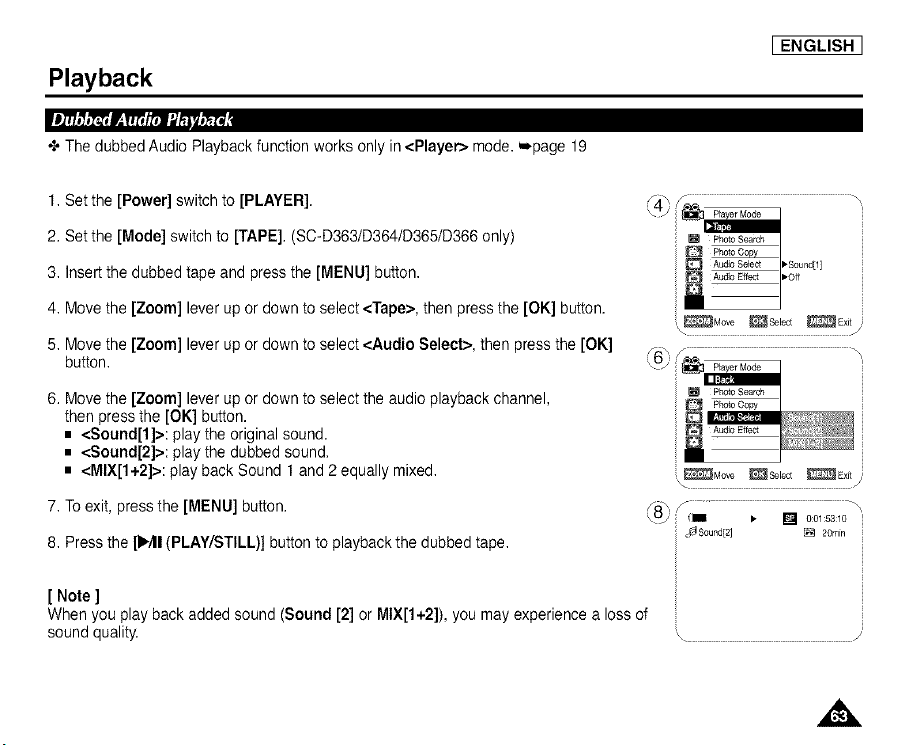
Playback
[ ENGLISH
+ The dubbed Audio Playback function works only in <Player> mode. mpage 19
1. Set the [Power] switch to [PLAYER].
2. Set the [Mode] switch to [TAPE]. (SC-D363/D364/D365/D366 only)
3. Insert the dubbed tape and press the [MENU] button.
4. Move the [Zoom] lever up or down to select <Tape>, then press the [OK] button.
5. Move the [Zoom] lever up or down to select <Audio Select>, then press the [OK]
button.
6. Move the [Zoom] lever up or down to select the audio playback channel,
then press the [OK] button.
• <Sound[I]>: play the original sound.
• <Sound[2]>: play the dubbed sound.
• <MIX[l+2]>: play back Sound 1 and 2 equally mixed.
7. To exit, press the [MENU] button.
8. Press the [1_/11(PLAY/STILL)] button to playback the dubbed tape.
[ Note ]
When you play back added sound (Sound [2] or MIX[l+2]), you may experience a loss of
sound quality.
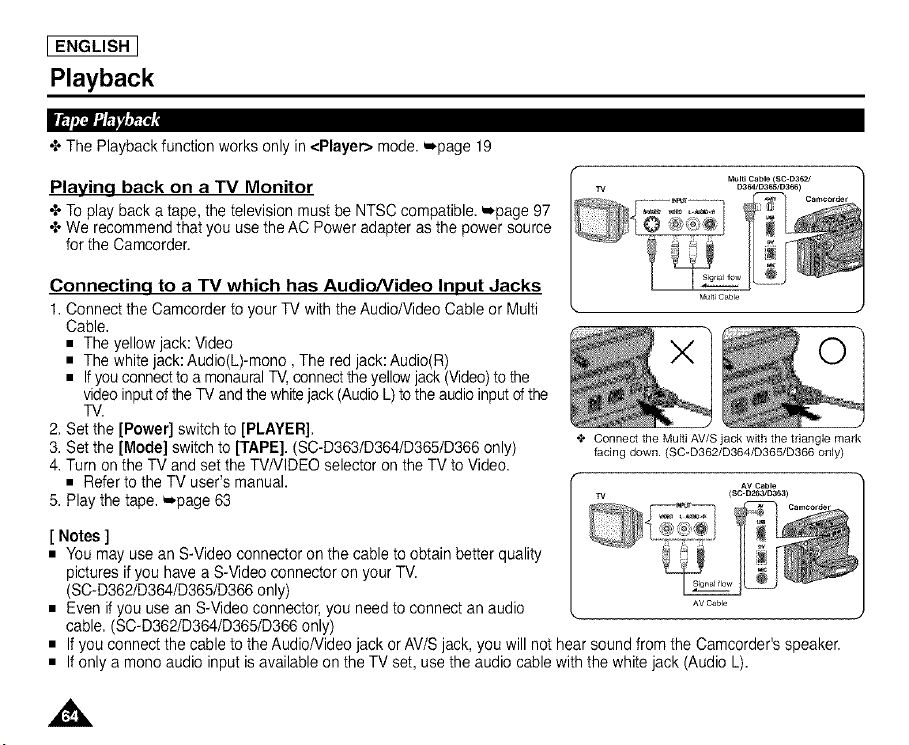
[ ENGLISH ]
Playback
+ The Playback function works only in <Player> mode. =_page 19
Playing back on a TV Monitor
+ To play back a tape, the television must be NTSC compatible. =*page 97
+ We recommend that you use the AC Power adapter as the power source
for the Camcorder.
Connectinq to a TV which has Audio/Video Input Jacks
1. Connect the Camcorder to your TV with the Audio/Video Cable or Multi
Cable.
• The yellow jack: Video
• The white jack: Audio(L)-mono, The red jack: Audio(R)
• If you connect to a monaural TV, connect the yellow jack (Video) to the
video input of the TV and the white jack (Audio L) to the audio input of the
TV.
2. Set the [Power] switch to [PLAYER].
3. Set the [Mode] switch to [TAPE]. (SC-D363/D364/D365/D366 only)
4. Turn on the TV and set the TV/VlDEO selector on the TV to Video.
• Refer to the TV user's manual.
5. Play the tape. _.page 63
•_' Connect the Multi AV/S jack with the triang(e mark
facing down. (SC-D362/D364/D365/D366 only)
[ Notes ]
• You may use an S-Video connector on the cable to obtain better quality
pictures if you have a S-Video connector on your TV.
(SC-D362/D364/D365/D366 only)
• Even if you use an S-Video connector, you need to connect an audio
cable. (SC-D362/D364/D365/D366 only)
• If you connect the cable to the Audio/Video jack or AV/S jack, you will not hear sound from the Camcorder's speaker.
• If only a mono audio input is available on the TV set, use the audio cable with the white jack (Audio L).
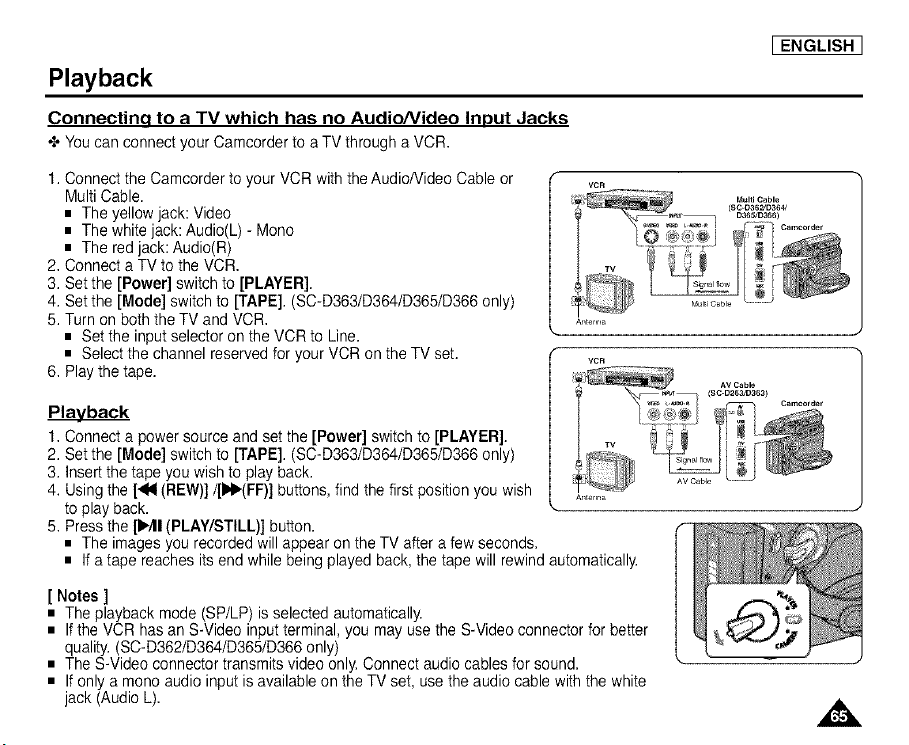
I ENGLISH I
Playback
Connectinq to a TV which has no Audio/Video Input Jacks
+ Youcanconnect yourCamcorderto a TV througha VCR.
1. Connect the Camcorder to your VCR with the Audio/Video Cable or
Multi Cable.
• The yellow jack: Video
• The white jack: Audio(L) - Mono
• The red jack: Audio(R)
2. Connect a TV to the VCR.
3. Set the [Power] switch to [PLAYER].
4. Set the [Mode] switch to [TAPE]. (SC-D363/D364/D365/D366 only)
5. Turn on both the TV and VCR.
• Set the input selector on the VCR to Line.
• Select the channel reserved for your VCR on the TV set.
6. Play the tape.
1. Connect a power source and set the [Power] switch to [PLAYER].
2. Set the [Mode] switch to [TAPE]. (SC-D363/D364/D365/D366 only)
3. Insert the tape you wish to play back.
4. Using the [_N (REW)]/[IPI_(FF)] buttons, find the first position you wish
to play back.
5. Press the [1_/11(PLAY/STILL)] button.
• The images you recorded will appear on the TV after a few seconds.
• If a tape reaches its end while being played back, the tape will rewind automatically.
[ Notes ]
• The playback mode (SP/LP) is selected automatically.
• If the VCR has an S-Video input terminal, you may use the S-Video connector for better
quality. (SC-D362/D364/D365/D366 only)
• The S-Video connector transmits video only. Connect audio cables for sound.
• If only a mono audio input is available on the TV set, use the audio cable with the white
jack (Audio L).
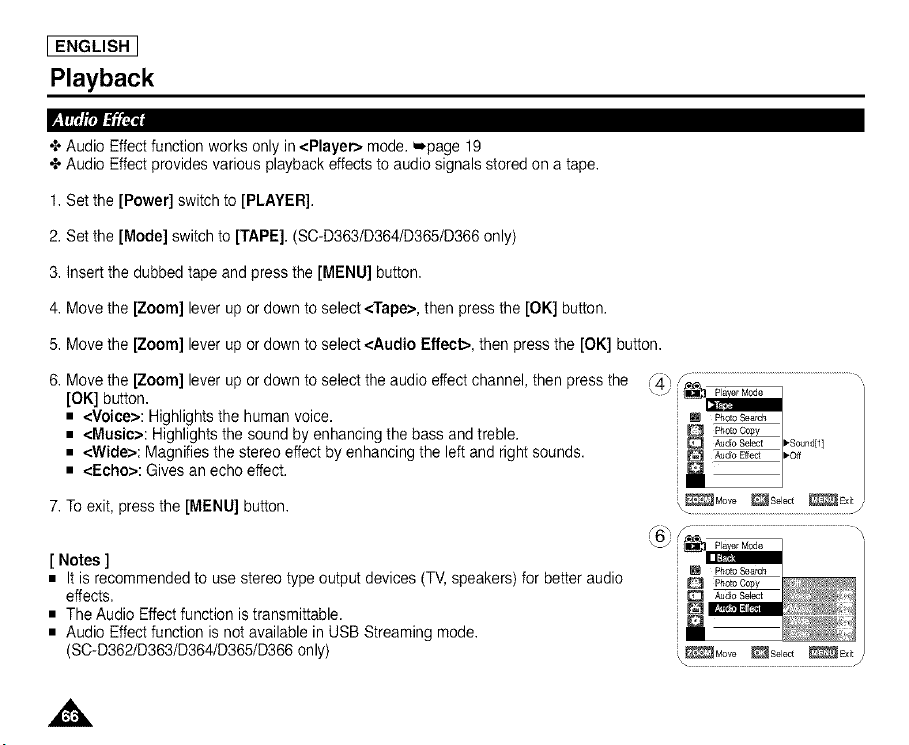
[ ENGLISH ]
Playback
+ Audio Effect function works only in <Player> mode. _.page 19
+ Audio Effect provides various playback effects to audio signals stored on a tape.
1. Set the [Power] switch to [PLAYER].
2. Set the [Mode] switch to [TAPE]. (SC-D363/D364/D365/D366 only)
3. Insert the dubbed tape and press the [MENU] button.
4. Move the [Zoom] lever up or down to select <Tape>, then press the [OK] button.
5. Move the [Zoom] lever up or down to select <Audio Effect>, then press the [OK] button.
6. Move the [Zoom] lever up or down to select the audio effect channel, then press the _4_
[OK] button.
• <Voice>: Highlights the human voice.
• <Music>: Highlights the sound by enhancing the bass and treble.
• <Wide>: Magnifies the stereo effect by enhancing the left and right sounds.
• <Echo>: Gives an echo effect.
7. To exit, press the [MENU] button.
[ Notes ]
• It is recommended to use stereo type output devices (TV, speakers) for better audio
effects.
• The Audio Effect function is transmittable.
• Audio Effect function is not available in USB Streaming mode.
(SC-D362/D363/D364/D365/D366 only)
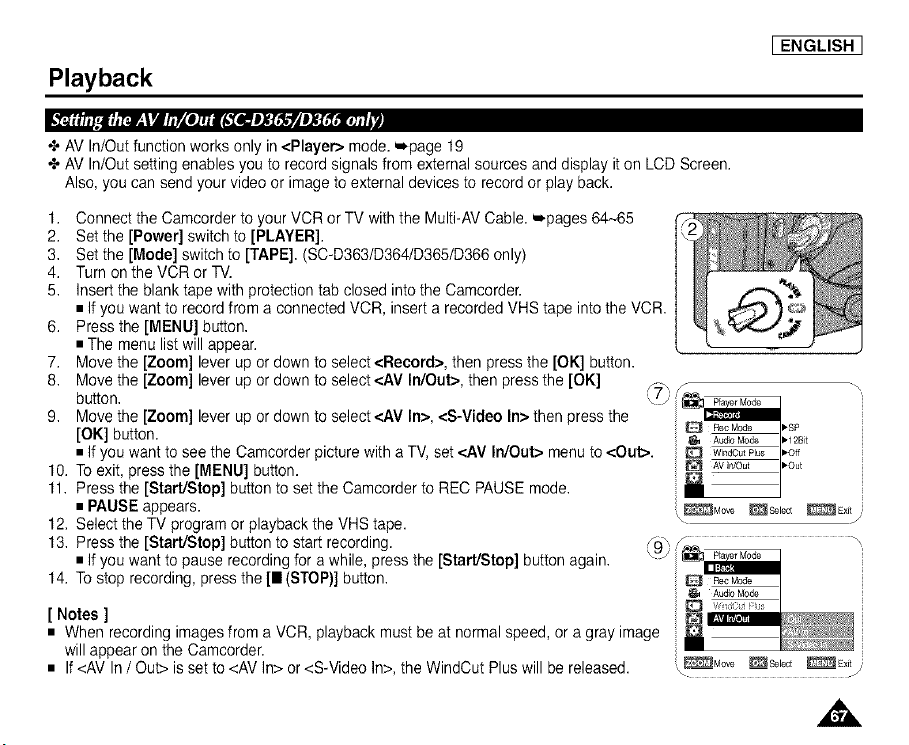
Playback
[ ENGLISH
+ AV In/Out function works only in <Player> mode. _*page 19
+ AV In/Out setting enables you to record signals from external sources and display it on LCD Screen.
Also, you can send your video or image to external devices to record or play back.
1. Connect the Camcorder to your VCR or TV with the Multi-AV Cable. _.pages 64--,65
2. Set the [Power] switch to [PLAYER].
3. Set the [Mode] switch to [TAPE]. (SC-D363/D364/D365/D366 only)
4. Turn on the VCR or TV.
5. Insert the blank tape with protection tab closed into the Camcorder.
• If you want to record from a connected VCR, insert a recorded VHS tape into the VCR.
6. Press the [MENU] button.
• The menu list will appear.
7. Move the [Zoom] lever up or down to select <Record>, then press the [OK] button.
8. Move the [Zoom] lever up or down to select <AV In/Out>, then press the [OK] _-_/_
button. '\ _ [_i_ "
9. Move the [Zoom] lever up or down to select <AV In> <S-Video In> then press the __
rOK1 butt n ' _ _cM_ ,.SP
[ ,I 0 , _ Audio Mode 1.12Bit
• If you want to see the Camcorder picture with a TV, set <AV In/Out> menu to <Out>. _ w_cutP_ ,.o_
10. To exit, press the [MENU] button. __,.Out
11. Press the [Start/Stop] button to set the Camcorder to REC PAUSE mode. i
• PAUSE appears. ,_Mo_ _s_lo_t _E×_
12. Select the TV program or playback the VHS tape.
13. Press the [Start/Stop] button to start recording.
• If you want to pause recording for a while, press the [Start/Stop] button again.
14. To stop recording, press the [|(STOP)] button.
[ Notes ]
• When recording images from a VCR, playback must be at normal speed, or a gray image
will appear on the Camcorder.
• If <AV In / Out> is set to <AV In> or <S-Video In>, the WindCut Plus will be released.
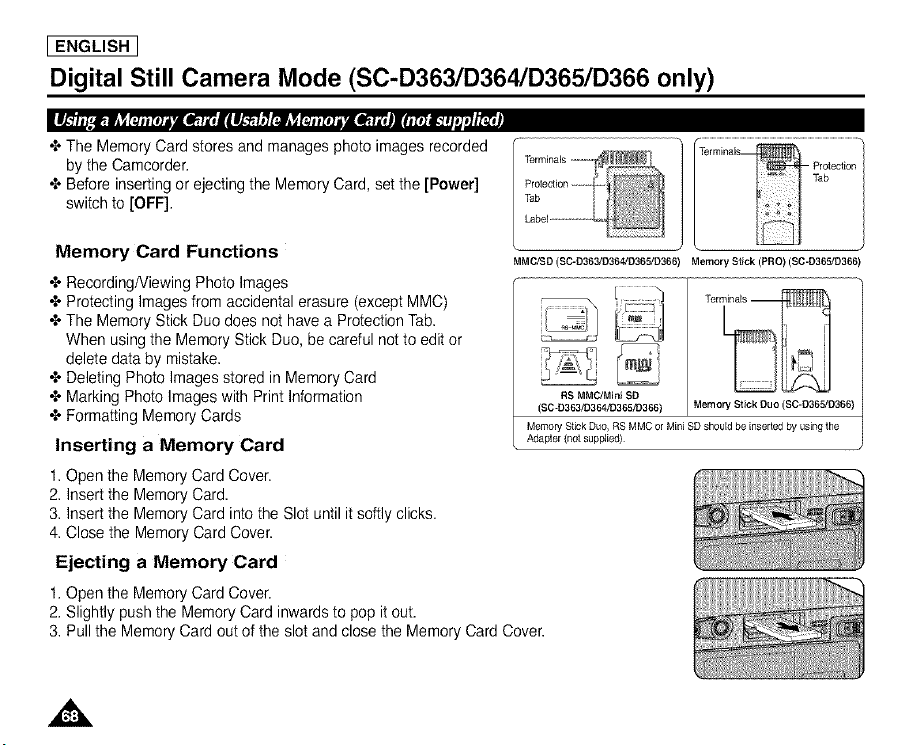
[ ENGLISH ]
Digital Still Camera Mode (SC-D363/D364/D365/D366 only)
+ The Memory Card stores and manages photo images recorded
by the Camcorder.
+ Before inserting or ejecting the Memory Card, set the [Power]
switch to [OFF].
Memory Card Functions
+ RecordingNiewing Photo Images
+ Protecting Images from accidental erasure (except MMC)
+ The Memory Stick Duo does not have a Protection Tab.
When using the Memory Stick Duo, be careful not to edit or
delete data by mistake.
+ Deleting Photo Images stored in Memory Card
+ Marking Photo Images with Print Information
+ Formatting Memory Cards
Inserting a Memory Card
1. Open the Memory Card Cover.
2. Insert the Memory Card.
3. Insert the Memory Card into the Slot until it softly clicks.
4. Close the Memory Card Cover.
Ejecting a Memory Card
1. Open the Memory Card Cover.
2. Slightly push the Memory Card inwards to pop it out.
3. Pull the Memory Card out of the slot and close the Memory Card Cover.
MMC/SD (SC-D363/D364/D365/D366 Memory Stick (PRO) (SC-D365/D366)
RS MMC/Min} SD
(SC -D363/0364/0365/0366 ) Memory St(ok Duo (SC-D365/D366)
)
Memory Stick Duo, RS MMC or Mini SD shou)d be inserted by using the
Adapter(not supplied) j
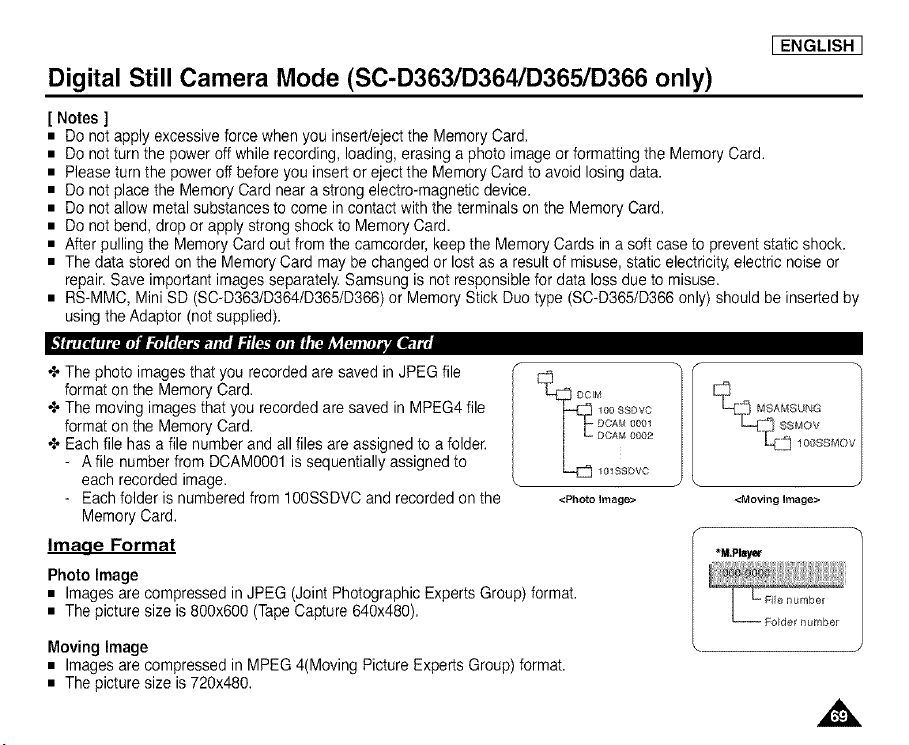
I ENGLISH I
Digital Still Camera Mode (SC-D363/D364/D365/D366 only)
[ Notes ]
• Do not apply excessive force when you insert/eject the Memory Card.
• Do not turn the power off while recording, loading, erasing a photo image or formatting the Memory Card.
• Please turn the power off before you insert or eject the Memory Card to avoid losing data.
• Do not place the Memory Card near a strong electro-magnetic device.
• Do not allow metal substances to come in contact with the terminals on the Memory Card.
• Do not bend, drop or apply strong shock to Memory Card.
• After pulling the Memory Card out from the camcorder, keep the Memory Cards in a soft case to prevent static shock.
• The data stored on the Memory Card may be changed or lost as a result of misuse, static electricity, electric noise or
repair. Save important images separately. Samsung is not responsible for data loss due to misuse.
• RS-MMC, Mini SD (SC-D363/D364/D365/D366) or Memory Stick Duo type (SC-D365/D366 only) should be inserted by
using the Adaptor (not supplied).
+ The photo images that you recorded are saved in JPEG file
format on the Memory Card.
+ The moving images that you recorded are saved in MPEG4 file
format on the Memory Card.
+ Each file has a file number and all files are assigned to a folder.
- Afile number from DCAM0001 is sequentially assigned to
each recorded image.
- Each folder is numbered from 100SSDVC and recorded on the
Memory Card.
Imaee Format
Photo Image
• Images are compressed in JPEG (Joint Photographic Experts Group) format.
• The picture size is 800x600 (Tape Capture 640x480).
<Photolmage>
Moving Image
• Images are compressed in MPEG 4(Moving Picture Experts Group) format.
• The picture size is 720x480.
\
<Moving Image>
*M_Playe_
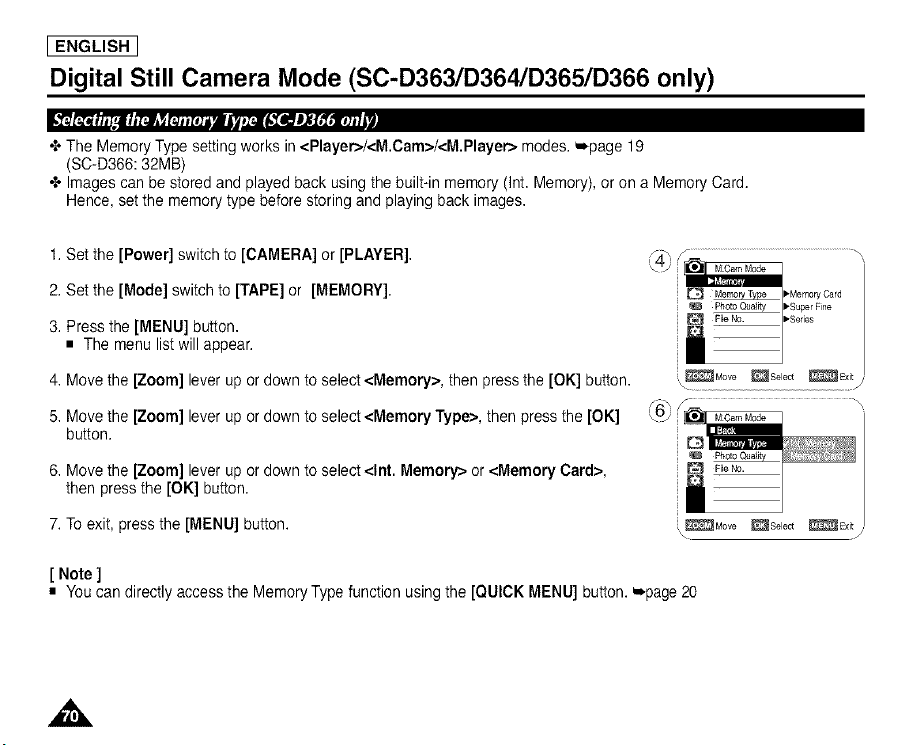
[ ENGLISH ]
Digital Still Camera Mode (SC-D363/D364/D365/D366 only)
+ The Memory Type setting works in <Player>/<M.Cam>/<M.Player> modes. _*page 19
(SC-D366: 32MB)
+ Images can be stored and played back using the built-in memory (Int. Memory), or on a Memory Card.
Hence, set the memory type before storing and playing back images.
1. Set the [Power] switch to [CAMERA] or [PLAYER].
2. Set the [Mode] switch to [TAPE] or [MEMORY].
3. Press the [MENU] button.
• The menu list will appear.
4. Move the [Zoom] lever up or down to select <Memory>, then press the [OK] button.
5. Move the [Zoom] lever up or down to select <Memory Type>, then press the [OK]
button.
6. Move the [Zoom] lever up or down to select<Int. Memory> or <Memory Card>,
then press the [OK] button.
7. To exit, press the [MENU] button.
[ Note ]
• Youcan directlyaccessthe MemoryTypefunction usingthe [QUICK MENU] button.W,page20
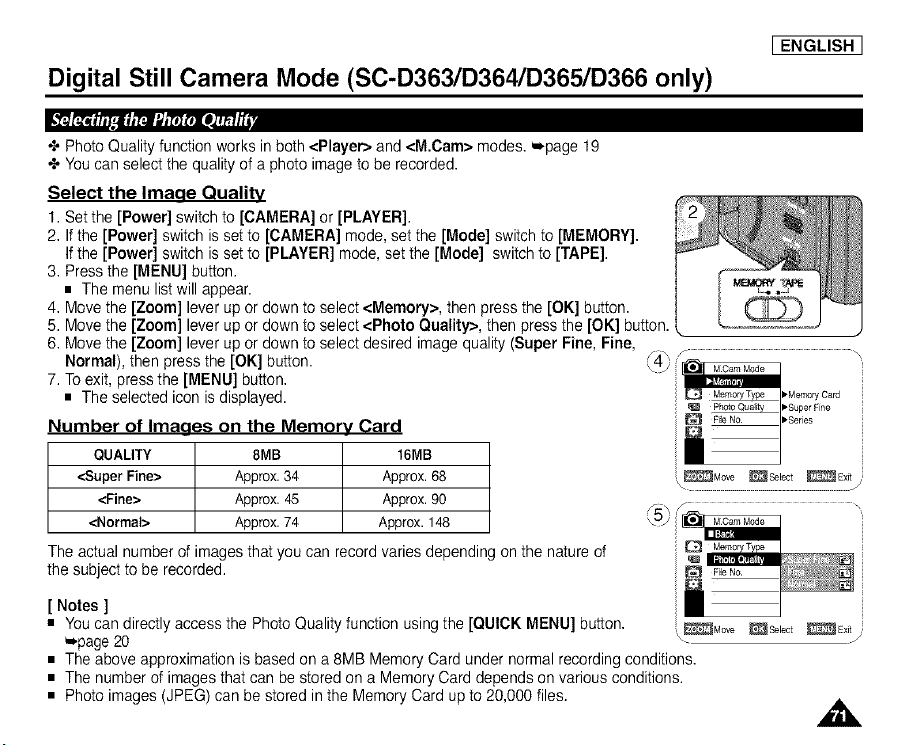
Digital Still Camera Mode (SC-D363/D364/D365/D366 only)
I ENGLISH I
+ Photo Quality function works in both <Player> and <M.Cam> modes. _.page 19
+ You can select the quality of a photo image to be recorded.
Select the Imaqe Quality
1. Set the [Power] switch to [CAMERA] or [PLAYER].
2. If the [Power] switch is set to [CAMERA] mode, set the [Mode] switch to [MEMORY].
If the [Power] switch is set to [PLAYER] mode, set the [Mode] switch to [TAPE].
3. Press the [MENU] button.
• The menu list will appear.
4. Move the [Zoom] lever up or down to select <Memory>, then press the [OK] button.
5. Move the [Zoom] lever up or down to select <Photo Quality>, then press the [OK] button.
6. Move the [Zoom] lever up or down to select desired image quality (Super Fine, Fine,
Normal), then press the [OK] button.
7. To exit, press the [MENU] button.
• The selected icon is displayed.
Number of Images on the Memory Card
QUALITY 8MB 16MB
<Super Fine> Approx.34 Approx.68
<Fine> Approx.45 Approx.90
<Normal> Approx.74 Approx.148
The actual number of images that you can record varies depending on the nature of
the subject to be recorded.
[ Notes ]
• You can directly access the Photo Quality function using the [QUICK MENU] button. , _Mov_ _s_oot _E×_t
=.page 20
• The above approximation is based on a 8MB Memory Card under normal recording conditions.
• The number of images that can be stored on a Memory Card depends on various conditions.
• Photo images (JPEG) can be stored in the Memory Card up to 20,000 files.
,,&
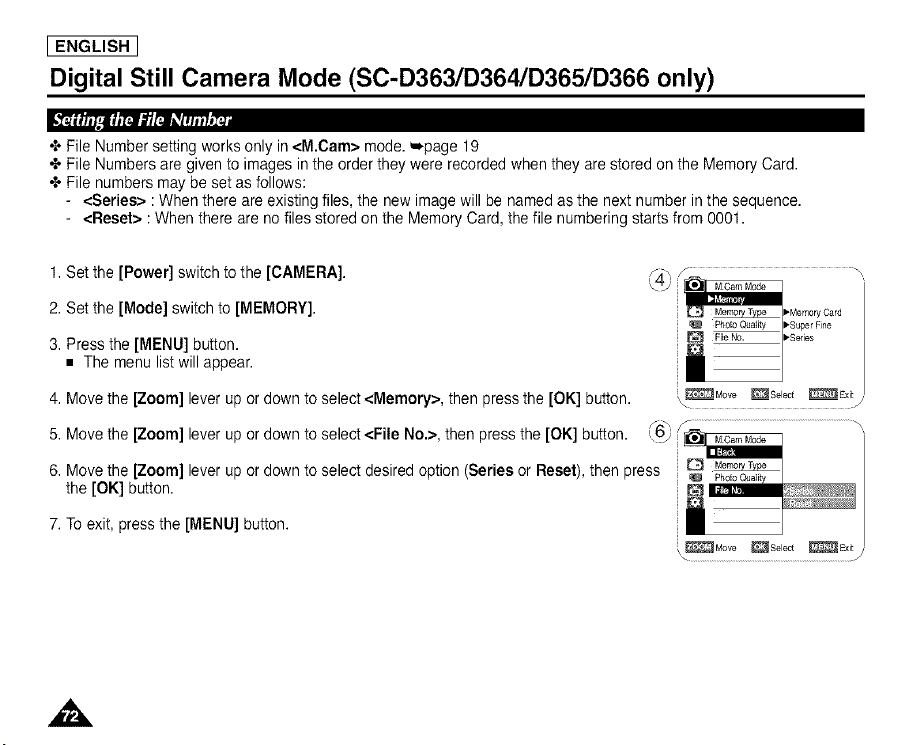
[ ENGLISH ]
Digital Still Camera Mode (SC-D363/D364/D365/D366 only)
÷ File Number setting works only in <M.Cam> mode. =,page 19
÷ File Numbers are given to images in the order they were recorded when they are stored on the Memory Card.
÷ File numbers may be set as follows:
- <Series> : When there are existing files, the new image will be named as the next number in the sequence.
- <Reset> : When there are no files stored on the Memory Card, the file numbering starts from 0001.
1. Set the [Power] switch to the [CAMERA].
2. Set the [Mode] switch to [MEMORY].
Photo Ouat_y
3. Press the [MENU] button. _ F_o.
• The menu list will appear.
4. Move the [Zoom] lever up or down to select <Memory>, then press the [OK] button.
5. Move the [Zoom] lever up or down to select <File No.>, then press the [OK] button. ,,.6_ _ ]
6. Move the [Zoom] lever up or down to select desired option (Series or Reset), thee press ;; __ _ I
the [OK] button. _'_'"l , I
',i E
7. To exit, press the [MENU] button.
_Move _Select _Exit
\ .............................................................................................J
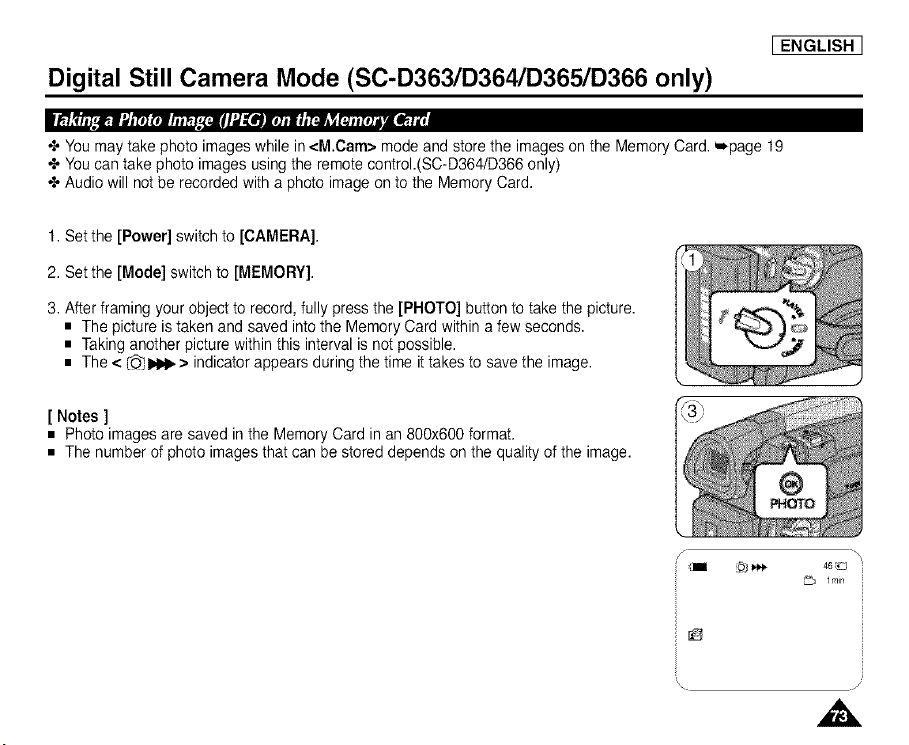
Digital Still Camera Mode (SC-D363/D364/D365/D366 only)
I ENGLISH I
+ You may take photo images while in <M.Cam> mode and store the images on the Memory Card. _*page 19
+ You can take photo images using the remote control.(SC-D364/D366 only)
+ Audio will not be recorded with a photo image on to the Memory Card.
1. Set the [Power] switch to [CAMERA].
2. Set the [Mode] switch to [MEMORY].
3. After framing your object to record, fully press the [PHOTO] button to take the picture.
• The picture is taken and saved into the Memory Card within a few seconds.
• Taking another picture within this interval is not possible.
• The < [_1_ > indicator appears during the time it takes to save the image.
[ Notes ]
• Photo images are saved in the Memory Card in an 800x600 format.
• The number of photo images that can be stored depends on the quality of the image.
in @ _ 46 *_
1 rain
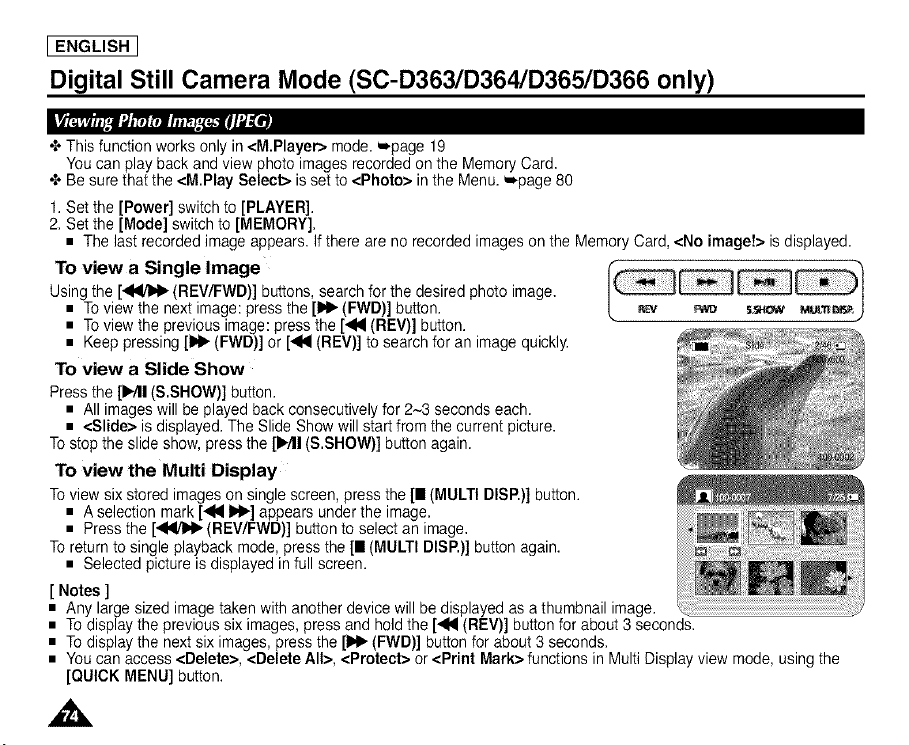
[ ENGLISH ]
Digital Still Camera Mode (SC-D363/D364/D365/D366 only)
+ This function works only in <M.Player> mode. _,page 19
You can play back and view photo images recorded on the Memory Card.
+ Be sure that the <M.Play Select> is set to <Photo> in the Menu. _*page 80
1. Set the [Power] switch to [PLAYER].
2. Set the [Mode] switch to [MEMORY].
• The last recorded image appears. If there are no recorded images on the Memory Card, <No image!> is displayed.
To view a Single Image
Using the [_11=11_(REV/FWD)] buttons, search for the desired photo image.
• To view the next image: press the [I,1_ (FWD)] button.
==To view the previous image: press the [_II (REV)] button.
Keep pressing [1_ (FWD)] or [411 (REV)] to search for an image quickly.
To view a Slide Show
Press the [1_/11(S.SHOW)] button.
• All images will be played back consecutively for 2~3 seconds each.
• <Slide> is displayed. The Slide Show will start from the current picture.
To stop the slide show, press the [1_/11(&SHOW)] button again.
To view the Multi Display
To view six stored images on single screen, press the [m (MULTI DISP.)] button.
• A selection mark [,OI 1,1_]appears under the image.
• Press the [_11=11_(REV/FWD)] button to select an image.
To return to single playback mode, press the [l (MULTI DISR)] button again.
• Selected picture is displayed in full screen.
[ Notes ]
==Any large sized image taken with another device will be displayed as a thumbnail image.
To display the previous six images, press and hold the [,OI (REV)] button for about 3 seconds.
• To display the next six images, press the [i,1_ (FWD)] button for about 3 seconds.
• You can access <Delete>, <Delete All>, <Protect> or <Print Mark>functions in Multi Display view mode, using the
[QUICK MENU] button.
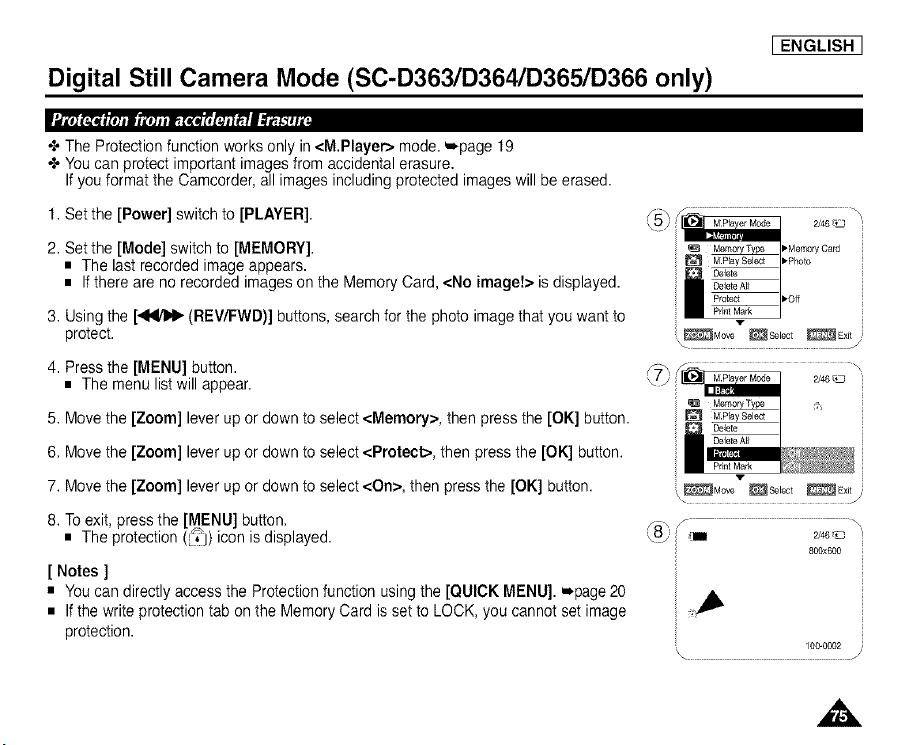
Digital Still Camera Mode (SC-D363/D364/D365/D366 only)
I ENGLISH I
P2_ rftt_R'tr_/_r_
+ The Protection function works only in <M.Player> mode. =_page 19
+ You can protect important images from accidental erasure.
If you format the Camcorder, all images including protected images will be erased.
1. Set the [Power] switch to [PLAYER].
2. Set the [Mode] switch to [MEMORY].
• The last recorded image appears.
• If there are no recorded images on the Memory Card, <No image!> is displayed.
3. Using the [0 (REV/FWD)] buttons, search for the photo image that you want to
protect.
4. Press the [MENU] button.
• The menu list will appear.
5. Move the [Zoom] lever up or down to select <Memory>, then press the [OK] button.
6. Move the [Zoom] lever up or down to select <Protect>, then press the [OK] button.
7. Move the [Zoom] lever up or down to select <On>, then press the [OK] button.
8. To exit, press the [MENU] button.
• The protection ([_2j) icon is displayed.
[ Notes ]
• You can directly access the Protection function using the [QUICK MENU]. W.page20
• If the write protection tab on the Memory Card is set to LOCK, you cannot set image
protection.
2/46
i°
, _Move _ Select _Exit
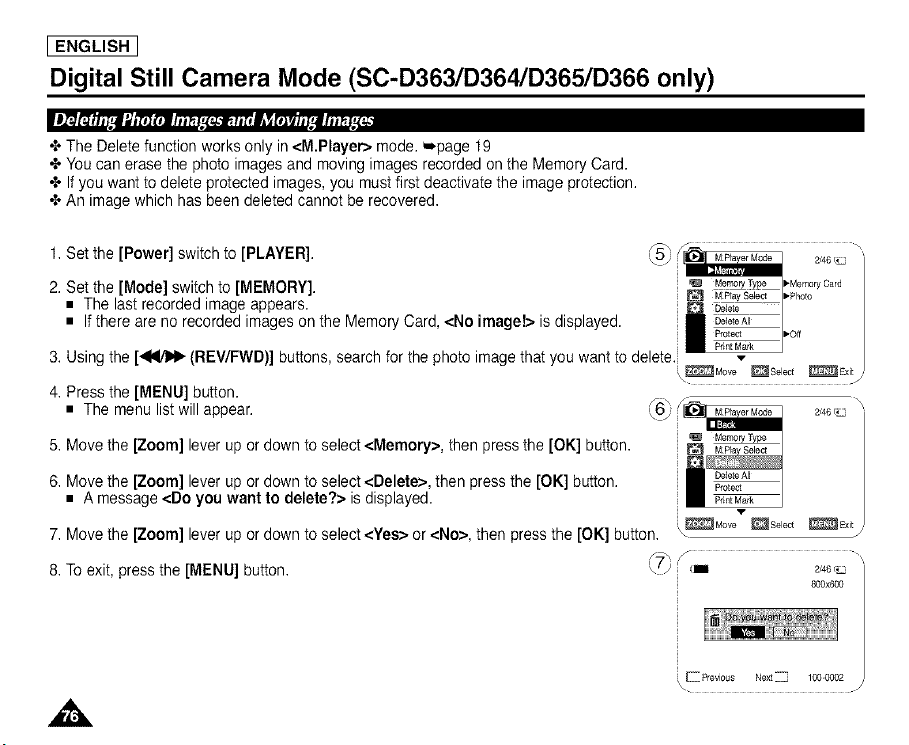
[ ENGLISH ]
Digital Still Camera Mode (SC-D363/D364/D365/D366 only)
+ The Delete function works only in <M,Player> mode. _,page 19
+ You can erase the photo images and moving images recorded on the Memory Card.
+ If you want to delete protected images, you must first deactivate the image protection.
+ An image which has been deleted cannot be recovered.
1. Set the [Power] switch to [PLAYER].
2. Set the [Mode] switch to [MEMORY].
• The last recorded image appears.
• If there are no recorded images on the Memory Card, <No image!> is displayed.
M:Pfay Select
3. Using the [4_f"pII, (REV/FWD)] buttons, search for the photo image that you want to de ete [ ,,
4. Press the [MENU] button.
• The menu list will appear.
5. Move the [Zoom] lever up or down to select <Memory>, then press the [OK] button.
6. Move the [Zoom] lever up or down to select <Delete>, then press the [OK] button.
• A message <Do you want to delete?> is displayed.
7. Move the [Zoom] lever up or down to select <Yes> or <No>, then press the [OK] button.
2/46
Memo
_ _.4ovev _ Select _it/
8. To exit, press the [MENU] button.
\ E_ Previous Next_ 100-0002
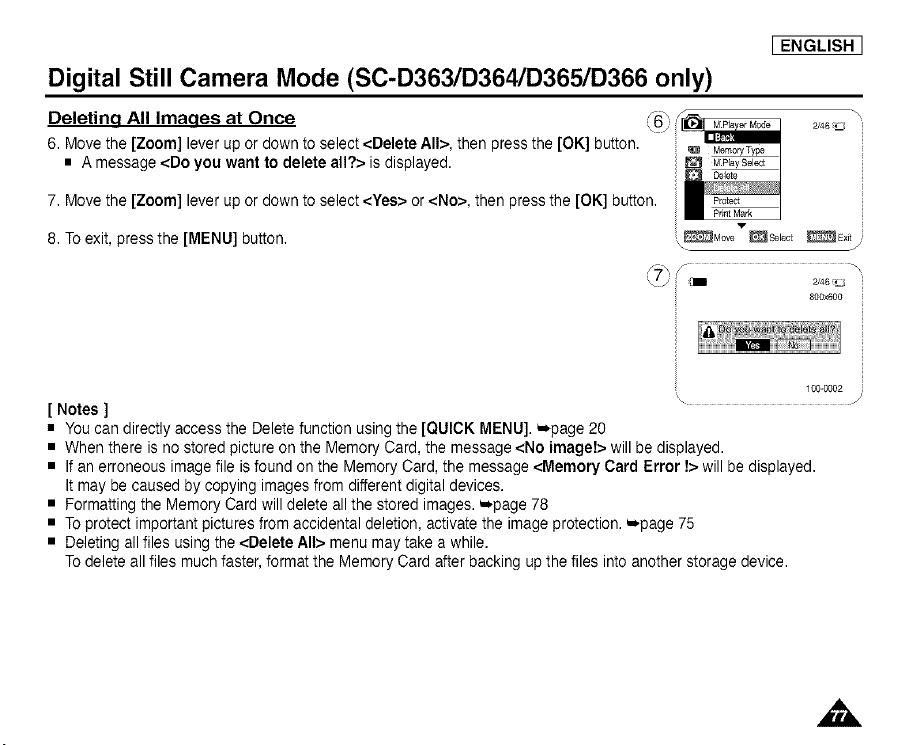
I ENGLISH I
Digital Still Camera Mode (SC-D363/D364/D365/D366 only)
Deletinq All Imaqes at Once 2_46_
6. Move the [Zoom] lever up or down to select <Delete All>, then press the [OK] button. _ MemoryType
• A message <Do you want to delete all?> is displayed.
7. Move the [Zoom] lever up or down to select <Yes> or <No>, then press the [OK] button.
)
8. To exit, press the [MENU] button. ,_Mov_"_s_loot _E×_t/
800x600
100-0002
[ Notes ] _
• You can directly access the Delete function using the [QUICK MENU]. =_page 20
• When there is no stored picture on the Memory Card, the message <No image!> will be displayed.
• If an erroneous image file is found on the Memory Card, the message <Memory Card Error !> will be displayed.
It may be caused by copying images from different digital devices.
• Formatting the Memory Card will delete all the stored images. =_page 78
• To protect important pictures from accidental deletion, activate the image protection. _.page 75
• Deleting all files using the <Delete All> menu may take a while.
To delete all files much faster, format the Memory Card after backing up the files into another storage device.
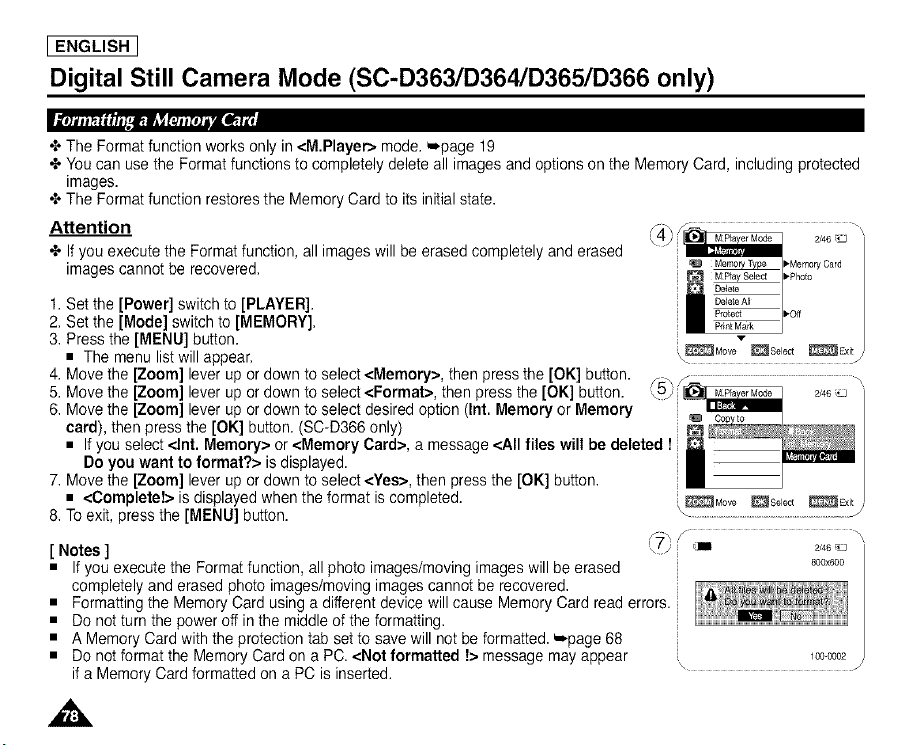
[ ENGLISH ]
Digital Still Camera Mode (SC-D363/D364/D365/D366 only)
+ The Format function works only in <M.Player> mode. _,page 19
+ You can use the Format functions to completely delete all images and options on the Memory Card, including protected
images.
+ The Format function restores the Memory Card to its initial state.
Attention
2/46
+ If you execute the Format function, all images will be erased completely and erased
images cannot be recovered,
1. Set the [Power] switch to [PLAYER].
2. Set the [Mode] switch to [MEMORY].
3. Press the [MENU] button.
• The menu list will appear.
4. Move the [Zoom] lever up or down to select <Memory>, then press the [OK] button.
5. Move the [Zoom] lever up or down to select <Format>, then press the [OK] button.
6. Move the [Zoom] lever up or down to select desired option (Int. Memory or Memory
card), then press the [OK] button. (SC-D366 only)
• If you select <Int. Memory> or <Memory Card>, a message <All files will be deleted v
Do you want to format?> is displayed.
7. Move the [Zoom] lever up or down to select <Yes>, then press the [OK] button.
• <Complete!> is displayed when the format is completed.
8. To exit, press the [MENU] button.
2/46
[ Notes ]
• If you execute the Format function, all photo images/moving images will be erased 8oo×eoo
completely and erased photo images/moving images cannot be recovered.
Formatting the Memory Card using a different device will cause Memory Card read errors, i
Do not turn the power off in the middle of the formatting. _
A Memory Card with the protection tab set to save will not be formatted. _*page 68 ;_
Do not format the Memory Card on a PC. <Not formatted !> message may appear _. _o0._2
if a Memory Card formatted on a PC is inserted.
,,&
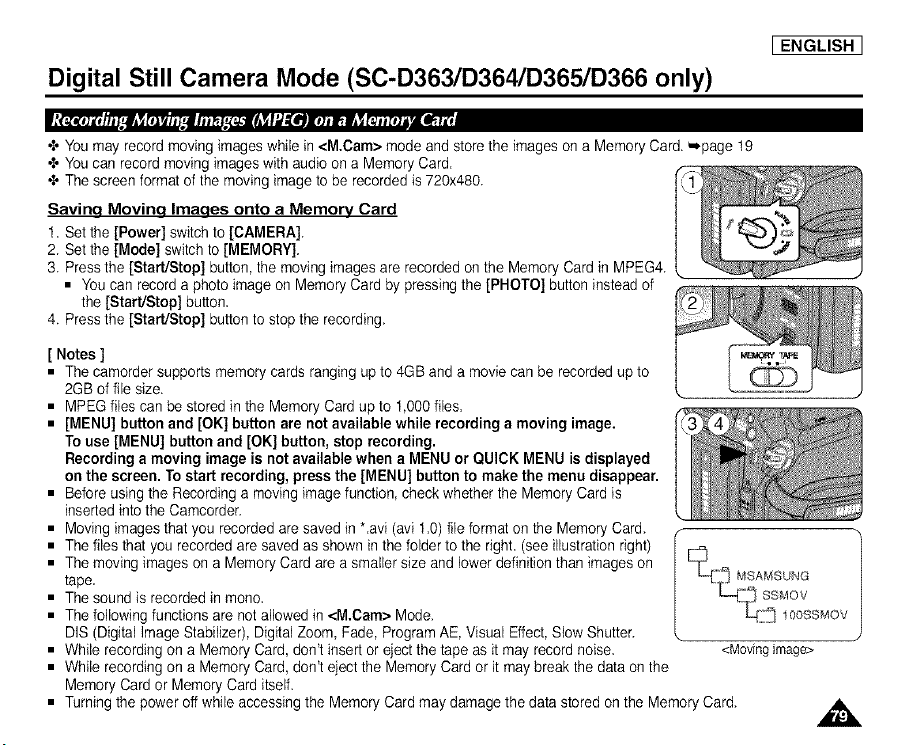
Digital Still Camera Mode (SC-D363/D364/D365/D366 only)
I ENGLISH I
+ You may record moving images while in <M,Cam> mode and store the images on a Memory Card. =page t9
+ You can record moving images with audio on a Memory Card.
+ The screen format of the moving image to be recorded is 720x480.
Saving Moving Images onto a Memory Card
1. Set the [Power] switch to [CAMERA],
2. Set the [Mode] switch to [MEMORY].
3. Press the [Start/Stop] button, the moving images are recorded on the Memory Card in MPEG4.
• You can record a photo image on Memory Card by pressing the [PHOTO] button instead of
the [Start/Stop] button.
4. Press the [Start/Stop] button to stop the recording.
[ Notes ]
• The camorder supports memory cards ranging up to 4GB and a movie can be recorded up to
2GB of file size.
• MPEG flies can be stored in the Memory Card up to 1,000flies.
• [MENU] button and [OK] button are not available while recording a moving image.
To use [MENU] button and [OK] button, stop recording.
Recording a moving image is not available when a MENU or QUICK MENU is displayed
on the screen. To start recording, press the [MENU] button to make the menu disappear.
• Before using the Recording a moving image function, check whether the Memory Card is
inserted into the Camcorder.
• Moving images that you recorded are saved in *.avi (avi 1.0) file format on the Memory Card.
• The files that you recorded are saved as shown in the folder to the right. (see illustration right)
• The moving images on a Memory Card are a smaller size and lower definition than images on
tape.
• The sound is recorded in mono.
• The following functions are not allowed in <M.Cam> Mode.
DIS (Digital Image Stabilizer), Digital Zoom, Fade, Program AE, Visual Effect, Stow Shutter.
• While recording on a Memory Card, don't insert or eject the tape as it may record noise.
• While recording on a Memory Card, don't eject the Memory Card or it may break the data on the
Memory Card or Memory Card itself.
• Turning the power off while accessing the Memory Card may damage the data stored on the Memory Card.
<Moving image>
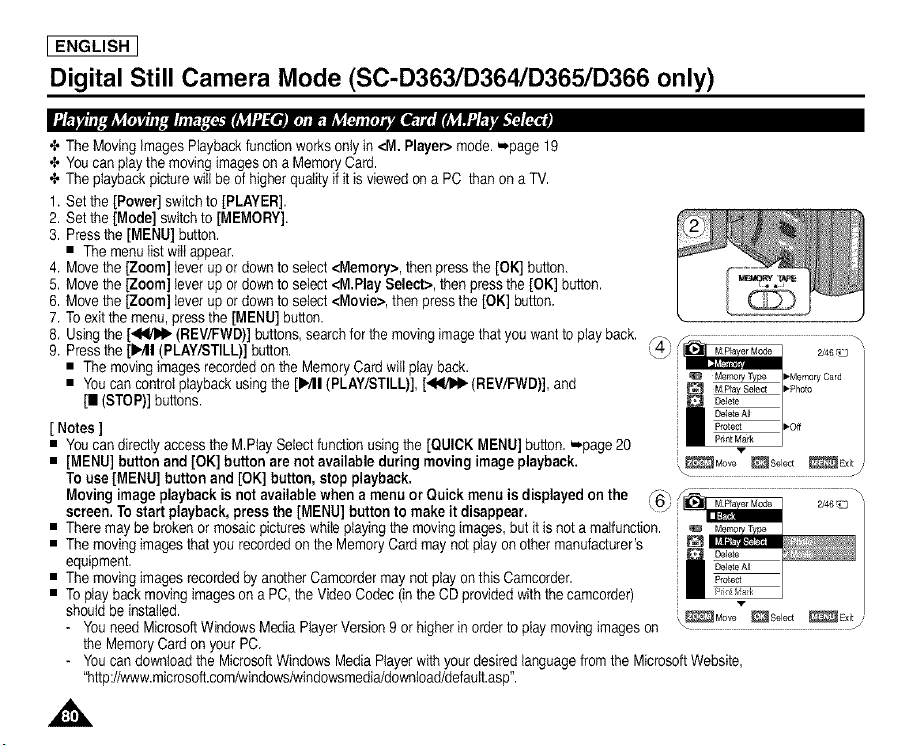
[ ENGLISH ]
Digital Still Camera Mode (SC-D363/D364/D365/D366 only)
÷ The Moving images Playbackfunction worksonly in <M. Player>mode.='page 19
•_ Youcan playthe movingimages on a MemoryCard.
•_,The playbackpicture will be of higher qualityif it is viewed on a PC than on a TV.
1. Setthe [Power] switchto [PLAYER].
2. Setthe [Mode] switchto [MEMORY].
3. Pressthe [MENU] button.
• The menulist will appear.
4. Move the [Zoom] leverup or down to select <Memory>, then press the [OK] button.
5. Move the [Zoom] leverup or down to select <M.Play Select>, then pressthe [OK] button.
6. Move the [Zoom] leverup or down to select <Movie>, then pressthe [OK] button.
7. To exit the menu, pressthe [MENU] button.
8. Usingthe [_/11,1_(REV/FWD)]buttons,search for the moving image that youwant to play back. ,_4_'
9. Pressthe [1_/11(PLAY/STILL)] button. \
• The movingimages recordedon the MemoryCard will play back.
• You can control playbackusing the [1_/11(PLAY/STILL)], [4_/]_1_(REV/FWD)],and
[= [STOP)] buttons.
[ Notes]
• Youcandirectly accessthe M.Ptay Selectfunctionusing the [QUICK MENU]button. =,page20
• [MENU] button and [OK] button are not available during moving image playback.
Touse [MENU] button and [OK] button, stop playback.
Movingimage playback is not available when a menu or Quickmenu is displayedon the ,F,-,'_\t_j__M 2_46_"
screen. To start playback, press the [MENU] button to make it disappear.
• There may be brokenor mosaicpictureswhile playing the movingimages,but it is not a malfunction.
• The movingimages that you recordedon the MemoryCardmay not play on other manufacturer's
equipment.
• The movingimages recordedby another Camcordermay not play on this Camcorder.
• To play back movingimages on a PC, the Video Codec (inthe CD provided with the camcorder) ,,
shouldbe insta(ied.
- You need MicrosoftWindowsMedia PlayerVersion9 or higherin order to play movingimageson \_Mow _s_ect _t
the Memory Card on your PC.
- You candownloadthe MicrosoftWindowsMedia Player with yourdesired languagefrom the MicrosoftWebsite,
"http:llwww.microsoft.comlwindowslwindowsmedialdownloadldefautt.asp".
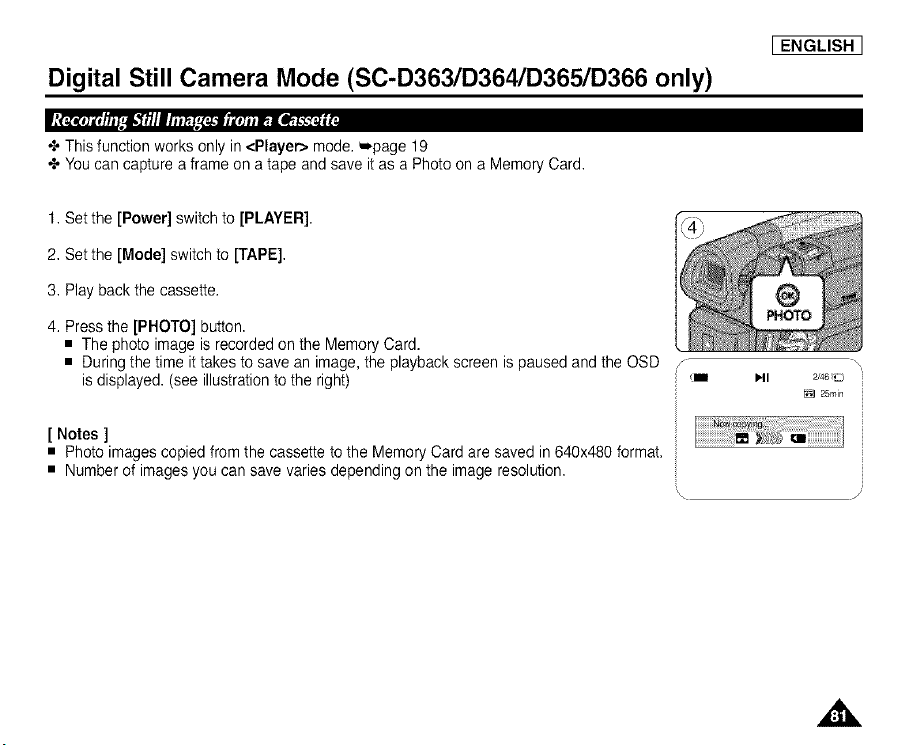
Digital Still Camera Mode (SC-D363/D364/D365/D366 only)
[ ENGLISH
+ This function works only in <Player> mode, =_page 19
+ You can capture a frame on a tape and save it as a Photo on a Memory Card.
1. Set the [Power] switch to [PLAYER].
2. Set the [Mode] switch to [TAPE].
3. Play back the cassette.
4. Press the [PHOTO] button.
• The photo image is recorded on the Memory Card.
• During the time it takes to save an image, the playback screen is paused and the OSD
is displayed. (see illustration to the right)
[ Notes ]
• Photo images copied from the cassette to the Memory Card are saved in 640x480 format.
• Number of images you can save varies depending on the image resolution.
f-
Nil H I 2/46/_
25rain
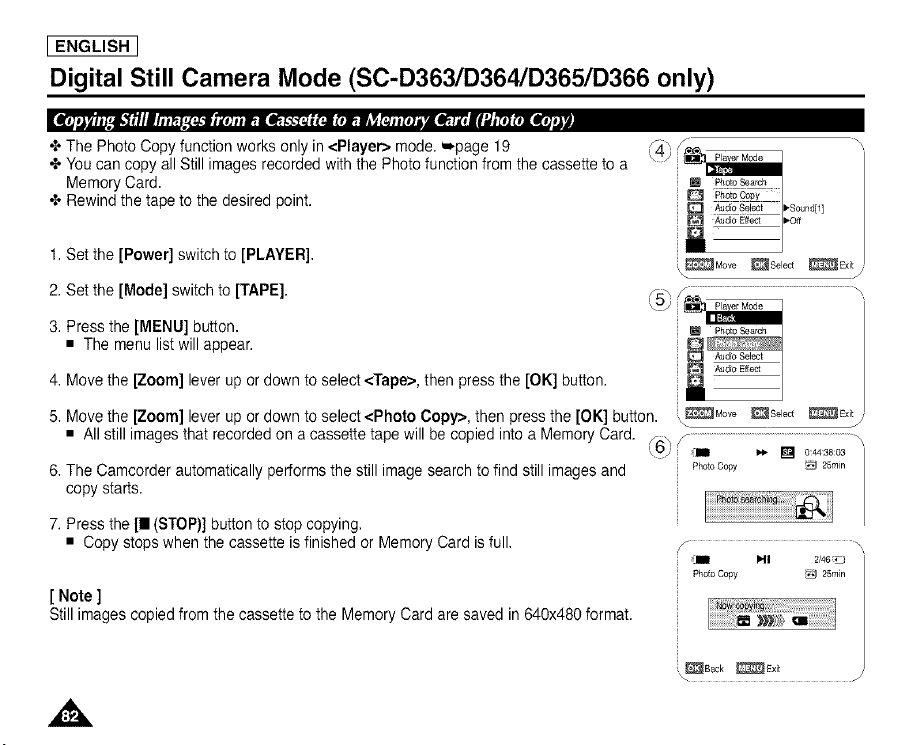
[ ENGLISH ]
Digital Still Camera Mode (SC-D363/D364/D365/D366 only)
+ The Photo Copy function works only in <Player> mode. _,page 19
+ You can copy all Still images recorded with the Photo function from the cassette to a
Memory Card.
+ Rewind the tape to the desired point.
1. Set the [Power] switch to [PLAYER].
2. Set the [Mode] switch to [TAPE].
3. Press the [MENU] button.
• The menu list will appear.
4. Move the [Zoom] lever up or down to select <Tape>, then press the [OK] button.
_ Move _Select _ Exitj
Photo Search
5. Move the [Zoom] lever up or down to select <Photo Copy>, then press the [OK] button. _Mow _s_oct _
• All still images that recorded on a cassette tape will be copied into a Memory Card.
6. The Camcorder automatically performs the still image search to find still images and
copy starts.
Photo Copy _ 25min
7. Press the [| (STOP)] button to stop copying.
• Copy stops when the cassette is finished or Memory Card is full.
[ Note ]
Still imagescopiedfrom the cassetteto the MemoryCardare saved in 640x480format,
(1 MI 2/463
Photo Copy _ 25min
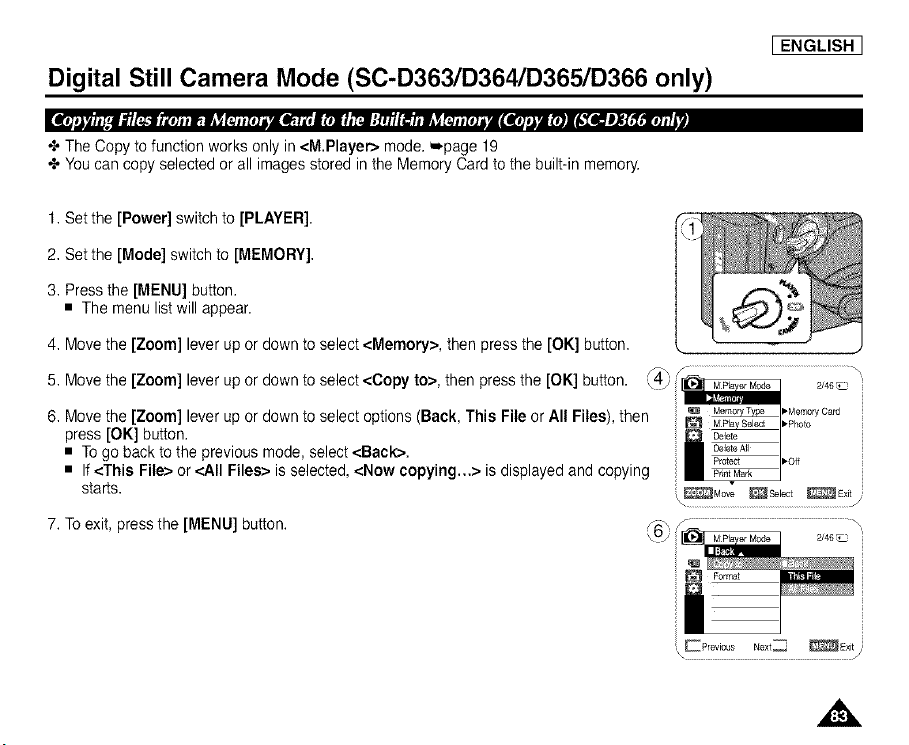
Digital Still Camera Mode (SC-D363/D364/D365/D366 only)
[ ENGLISH
+ The Copy to function works only in <M.Player> mode. _.page 19
+ You can copy selected or all images stored in the Memory Card to the built-in memory.
1. Set the [Power] switch to [PLAYER].
2. Set the [Mode] switch to [MEMORY].
3. Press the [MENU] button.
• The menu list will appear.
4. Move the [Zoom] lever up or down to select <Memory>, then press the [OK] button.
5. Move the [Zoom] lever up or down to select <Copy to>, then press the [OK] button.
6. Move the [Zoom] lever up or down to select options (Back, This File or All Files), then
press [OK] button.
• To go back to the previous mode, select <Back>.
• If <This File> or <All Files> is selected, <Now copying...> is displayed and copying
starts.
7. To exit, press the [MENU] button.
2/46
Memol
;, E Previous Next_
\ j
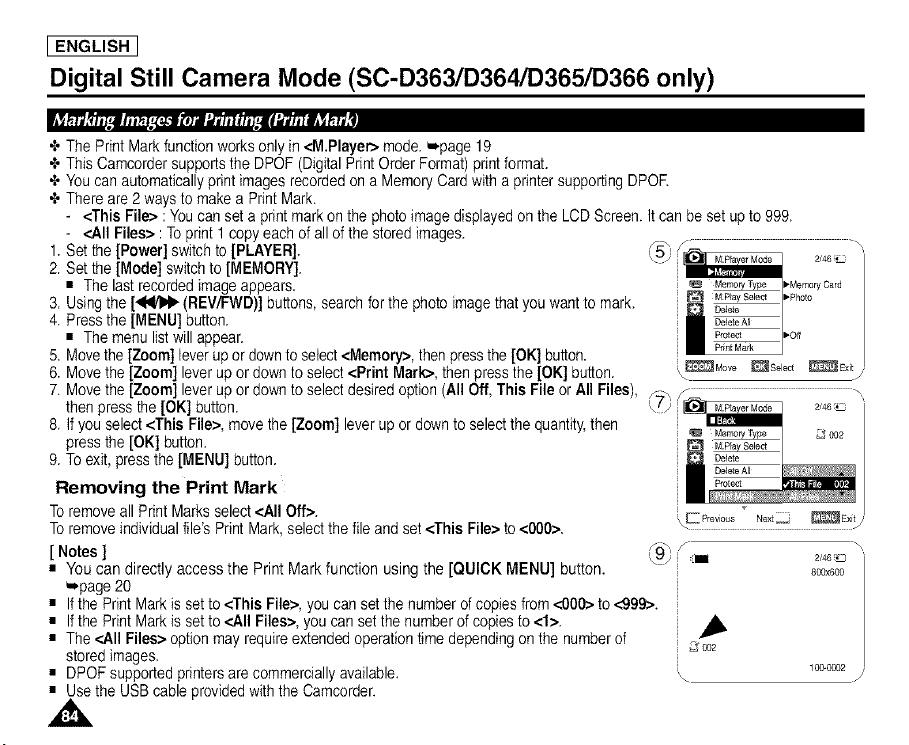
[ ENGLISH ]
Digital Still Camera Mode (SC-D363/D364/D365/D366 only)
÷ The Print Mark function works only in <M.Player_ mode. W,page lg
÷ This Camcorder supports the DPOF (Digital Print Order Format) print format.
÷ You can automatically print images recorded on a Memory Card with a printer supporting DPOR
÷ There are 2 ways to make a Print Mark.
- <This File> : You can set a print mark on the photo image displayed on the LCD Screen. It can be set up to 999.
- <All Files> : To print 1 copy each of all of the stored images.
1. Set the [Power] switch to [PLAYER].
2. Set the [Mode] switch to [MEMORY].
• The last recorded image appears.
3. Using the [.441/11J1_(REV/FWD)] buttons, search for the photo image that you want to mark.
4. Press the [MENU] button.
• The menu list will appear.
5. Move the [Zoom] lever up or down to select <Memory>, then press the [OK] button.
6. Move the [Zoom] lever up or down to select <Print Mark>, then press the [OK] button.
7. Move the [Zoom] lever up or down to select desired option (All Off, This File or All Files), ,_7_
then press the [OK] button. \/
8. If you select <This File>, move the [Zoom] lever up or down to select the quantity,then
press the [OK] button.
9. To exit, press the [MENU] button.
Removing the Print Mark
To remove all Print Marks select <All Off>.
To remove individual file's Print Mark, select the file and set <This File> to <000>.
[ Notes ]
• You can directly access the Print Mark function using the [QUICK MENU] button.
mpage 20
• If the Print Mark is set to <This File>, you can set the number of copies from <009> to <999>.
• If the Print Mark is set to <All Files>, you can set the number of copies to <1>.
• The <All Files> option may require extended operation time depending on the number of
stored images.
• DPOF supported printers are commercially available.
• Use the USB cable provided with the Camcorder.
Memory Type
M Pray Seect
2/46
_ Move _ Select _ Exit/
2/46
Memon 002
\
2/46
800x600
_ oo2
100-0002 _
/
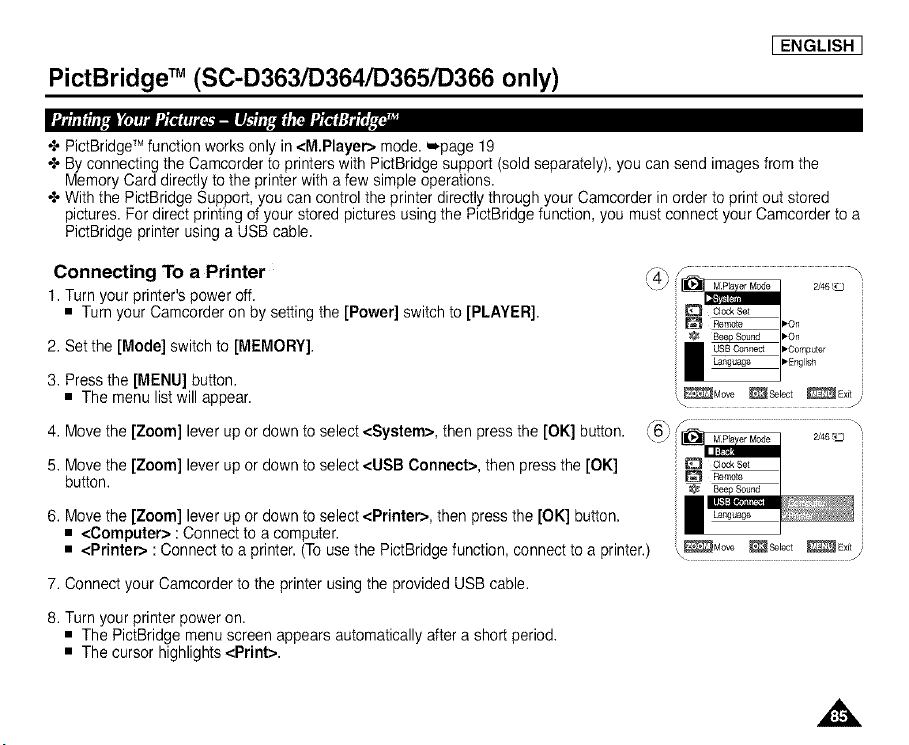
PictBridge TM (SC-D363/D364/D365/D366 only)
I ENGLISH I
+ PictBridge 'Mfunction works only in <M.Player> mode. =_page 19
+ By connecting the Camcorder to printers with PictBridge support (sold separately), you can send images from the
Memory Card directly to the printer with a few simple operations.
+ With the PictBridge Support, you can control the printer directly through your Camcorder in order to print out stored
pictures. For direct printing of your stored pictures using the PictBridge function, you must connect your Camcorder to a
PictBridge printer using a USB cable.
Connecting To a Printer
1. Turn your printer's power off.
• Turn your Camcorder on by setting the [Power] switch to [PLAYER].
2. Set the [Mode] switch to [MEMORY].
3. Press the [MENU] button.
• The menu list will appear.
4. Move the [Zoom] lever up or down to select <System>, then press the [OK] button.
5. Move the [Zoom] lever up or down to select <USB Connect>, then press the [OK]
button.
6. Move the [Zoom] lever up or down to select <Printer>, then press the [OK] button.
• <Computer> : Connect to a computer.
• <Printer> : Connect to a printer. (To use the PictBridge function, connect to a printer.)
7. Connect your Camcorder to the printer using the provided USB cable.
Qock Set
i _ BeepSou_
8. Turn your printer power on.
• The PictBridge menu screen appears automatically after a short period.
• The cursor highlights <Print>.
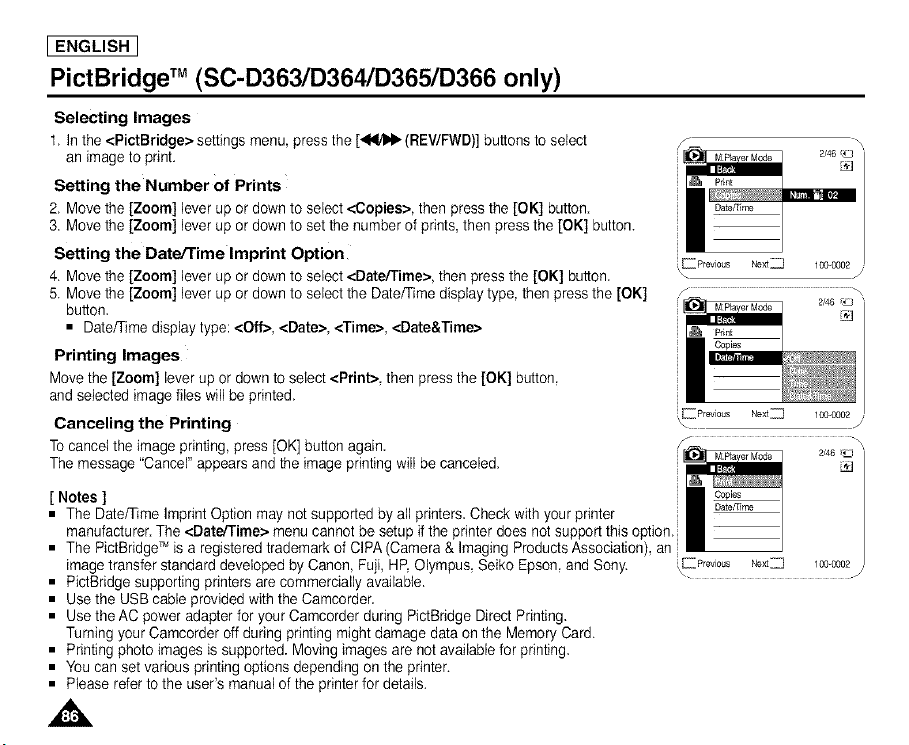
[ ENGLISH ]
PictBridge TM (SC-D363/D364/D365/D366 only)
Selecting Images
1. In the <PictBridge> settings menu, press the [_/]_1_ (REV/FWD)]buttons to select
an image to print.
Setting the Number of Prints
2. Move the [Zoom] lever up or down to select <Copies>, then press the [OK] button.
3. Move the [Zoom] lever up or down to set the number of prints, then press the [OK] button.
Setting the Date, rrime Imprint Option
4. Move the [Zoom] lever up or down to select <Date/Time>, then press the [OK] button.
5. Move the [Zoom] lever up or down to select the Date/Time display type, then press the [OK]
button.
• Date/Time display type: <Off>, <Date>, <Time>, <Date&Time>
Printing Images
Move the [Zoom] lever up or down to select <Print>, then press the [OK] button,
and selected image files will be printed.
Canceling the Printing
To cancel the image printing, press [OK] button again.
The message "Cancel" appears and the image printing will be canceled.
[ Notes ]
• The Date/Time Imprint Option may not supported by all printers. Check with your printer
manufacturer.The <Date/Time> menu cannot be setup if the printer does not support this option.::
• The PictBridgeTM is a registered trademark of CIPA (Camera & Imaging Products Association), an
image transfer standard developed by Canon, Fuji, HP, Olympus, Seiko Epson, and Sony.
• PictBridge supporting printers are commercially available.
• Use the USB cable provided with the Camcorder.
• Use the AC power adapter for your Camcorder during PictBridge Direct Printing.
Turning your Camcorder off during printing might damage data on the Memory Card.
• Printing photo images is supported. Moving images are not available for printing.
• You can set various printing options depending on the printer.
• Please refer to the user's manual of the printer for details.
MP}a er Mode 2/46
Next_ 100-0002
J
f .........................................................................................
2/46
Print
_44
Next_ 100-0002 /s
2/46 _
IEEE 1394 Data Transfer
[ ENGLISH J
I_'I_I_,I'.I?;_,_I_R_I_._ITI _,, ,,,. ,,
Connecting to a DV Device (DVD Recorder, Camcorder, etc.)
• Connecting to other standard DV products.
- A standard DV connection is quite simple.
If a product has a DV jack, you can transfer data by connecting to the DV jack using the correct cable. (not supplied)
!!! Pleasebe carefulsince therearetwo types of DV jacks (4pin, 6pin).This Camcorderhas a 4pin jack.
• With a digital connection, video and audio signals are transmitted in digital format, allowing high quality images
to be transferred.
Connecting to a PC
• If you want to transmit data to a PC, you must install an IEEE 1394 add-on card into the PC. (not supplied)
• The frame rate for moving images is dependent on the capacity of the PC.
System Requirements
• CPU : faster Intel Pentium lIP 450MHz compatible.
• Operating system : Windows ®98SE, ME, XP, Mac OS (9.1~10.4)
• Main memory : more than 64 MB RAM
• IEEE1394 add-on card or built in IEEE1394 card
[ Note ]
• Operationis notguaranteedfor all the recommendedcomputerenvironmentsmentionedabove.
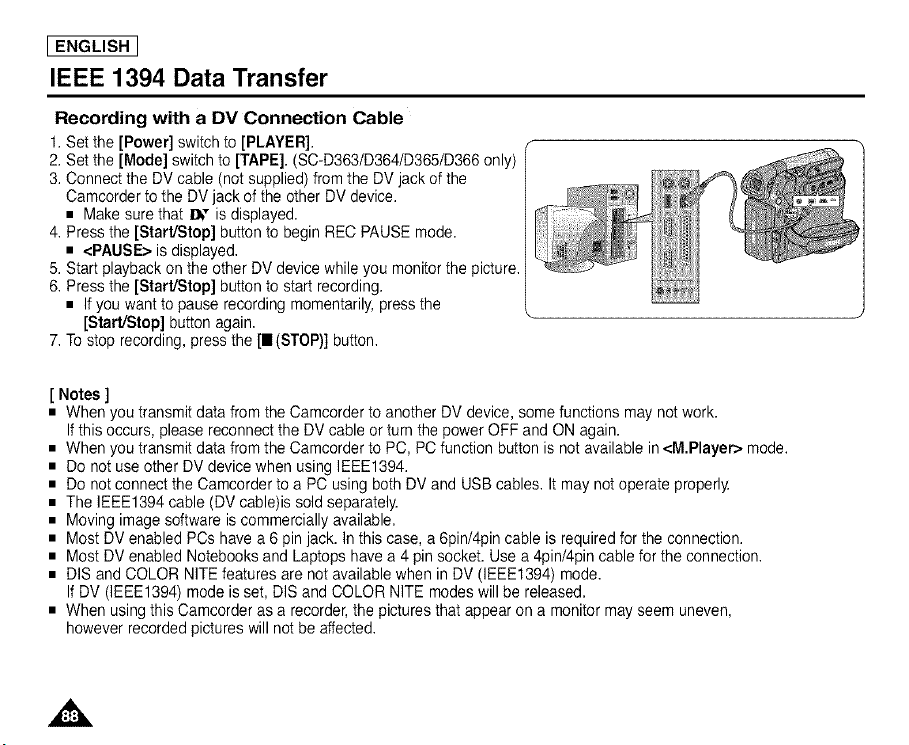
[ ENGLISH ]
IEEE 1394 Data Transfer
Recording with a DV Connection Cable
1. Set the [Power] switch to [PLAYER].
2. Set the [Mode] switch to [TAPE]. (SC-D363/D364/D365/D366 only)
3. Connect the DV cable (not supplied) from the DV jack of the
Camcorder to the DV jack of the other DV device.
• Make sure that 1_" is displayed.
4. Press the [Start/Stop] button to begin REC PAUSE mode.
• <PAUSE> is displayed.
5. Start playback on the other DV device while you monitor the picture.
6. Press the [Start/Stop] button to start recording.
• If you want to pause recording momentarily, press the
[Start/Stop] button again.
7. To stop recording, press the [11(STOP)] button.
[ Notes ]
• When you transmit data from the Camcorder to another DV device, some functions may not work.
If this occurs, please reconnect the DV cable or turn the power OFF and ON again.
• When you transmit data from the Camcorder to PC, PC function button is not available in <M.Player> mode.
• Do not use other DV device when using IEEE1394.
• Do not connect the Camcorder to a PC using both DV and USB cables. It may not operate properly.
• The IEEE1394 cable (DV cable)is sold separately.
• Moving image software is commercially available.
• Most DV enabled PCs have a 6 pin jack. In this case, a 6pin/4pin cable is required for the connection.
• Most DV enabled Notebooks and Laptops have a 4 pin socket. Use a 4pin/4pin cable for the connection.
• DIS and COLOR NITE features are not available when in DV (IEEE1394) mode.
If DV (IEEE1394) mode is set, DIS and COLOR NITE modes will be released.
• When using this Camcorder as a recorder, the pictures that appear on a monitor may seem uneven,
however recorded pictures will not be affected.
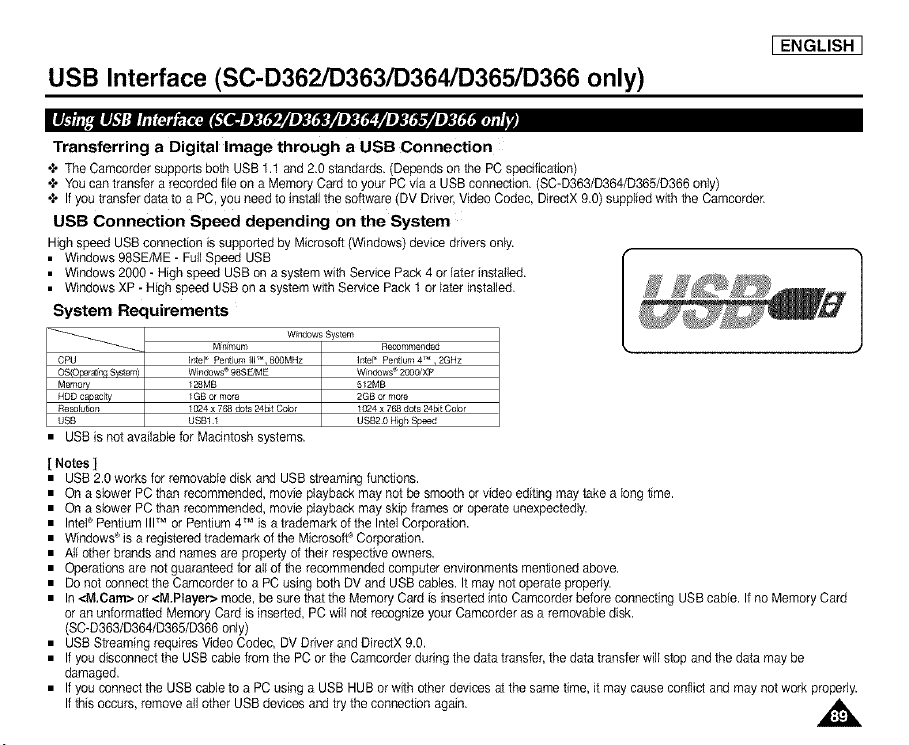
USB Interface (SC-D362/D363/D364/D365/D366 only)
I ENGLISH I
Transferring a Digital Image through a USB Connection
4. The Camcorder supports both USB 1.1 and 2.0 standards. (Depends on the PC specification)
+ You can transfer a recorded file on a Memory Card to your PC via a USB connection. (SC-D363/D364/D365/D366 only)
+ If you transfer data to a PC, you need to instal]the software (DV Driver, Video Codec, DirectX 9.0) supplied with file Camcorder.
USB Connection Speed depending on the System
High speed USB connection is supported by Microsoft (Windows) device drivers only.
• Windows 98SE/ME - Full Speed USB
• Windows 2000 - High speed USB on a system with Service Pack 4 or later instafled.
• Windows XP - High speed USB on a system with Service Pack 1 or later installed.
System Requirements
Minimum Recommended
Windows
System
CPU InteP Pentium IIU_, 600MHz Ir_teP Pentium 4 _ , 2GHz
QS(Oper_ir_ S_stem) Windows ®98SE/M£ Windows'_2000/XP
Memory 128MB 512MB
HDD c ap acib/ 1GB or more 2GB or more
Resolution 1024 x 768 dots 24bit Color 1024 x 768 dots 24bit Odor
USB USB1 1 USB20 High Speed
• USB is not available for Macintosh systems.
[ Notes ]
• USB 2.0 works for removable disk and USB streaming functions.
• On a slower PC than recommended, movie playback may not be smooth or video editing may take a long time.
• On a slower PC than recommended, movie playback may skip frames or operate unexpectedly.
• Intel Pentium IIVMor Pentium 4 TM is atrademark ofthe Intel Corporation.
• Windows_qs a registered trademark of the Microsoft' Corporation.
• All other brands and names are property of their respective owners.
• Operations are not guaranteed for all of the recommended computer environments mentioned above.
• Do not connect the Camcorder to a PC using both DV and USB cables. It may not operate properly.
• In <M.Cam> or <M.Ptayer> mode, be sure that the Memory Card is inserted into Camcorder before connecting USB cable. If no Memory Card
or an unformatted Memory Card is inserted, PC wilt not recognize your Camcorder as a removable disk.
(SC-D3631D3641D365/D366 only)
• USB Streaming requires Video Codec, DV Driver and DirectX 9.0.
• If you disconnect the USB cable from the PC or the Camcorder during the data transfer, the data transfer wifl stop and the data may be
damaged.
• If you connect the USB cable to a PC using a USB HUB or with other devices at the same time, it may cause conflict and may not work properly.
If this occurs, remove all other USB devices and try the connection again.
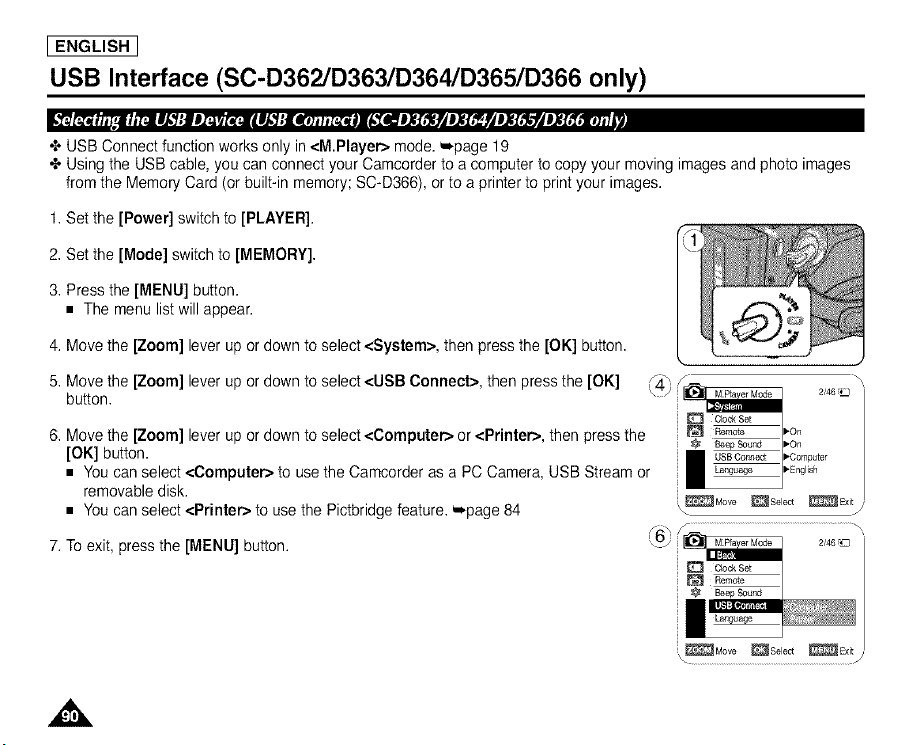
[ ENGLISH ]
USB Interface (SC-D362/D363/D364/D365/D366 only)
+ USB Connect function works only in <M.Player> mode. _*page 19
+ Using the USB cable, you can connect your Camcorder to a computer to copy your moving images and photo images
from the Memory Card (or built-in memory; SC-D366), or to a printer to print your images.
1. Set the [Power] switch to [PLAYER].
2. Set the [Mode] switch to [MEMORY].
3. Press the [MENU] button.
• The menu list will appear.
4. Move the [Zoom] lever up or down to select <System>, then press the [OK] button.
5. Move the [Zoom] lever up or down to select <USB Connect>, then press the [OK]
button.
6. Move the [Zoom] lever up or down to select <Computer> or <Printer>, then press the
[OK] button.
• You can select <Computer> to use the Camcorder as a PC Camera, USB Stream or
removable disk.
• You can select <Printer> to use the Pictbridge feature. _page 84
7. To exit, press the [MENU] button.
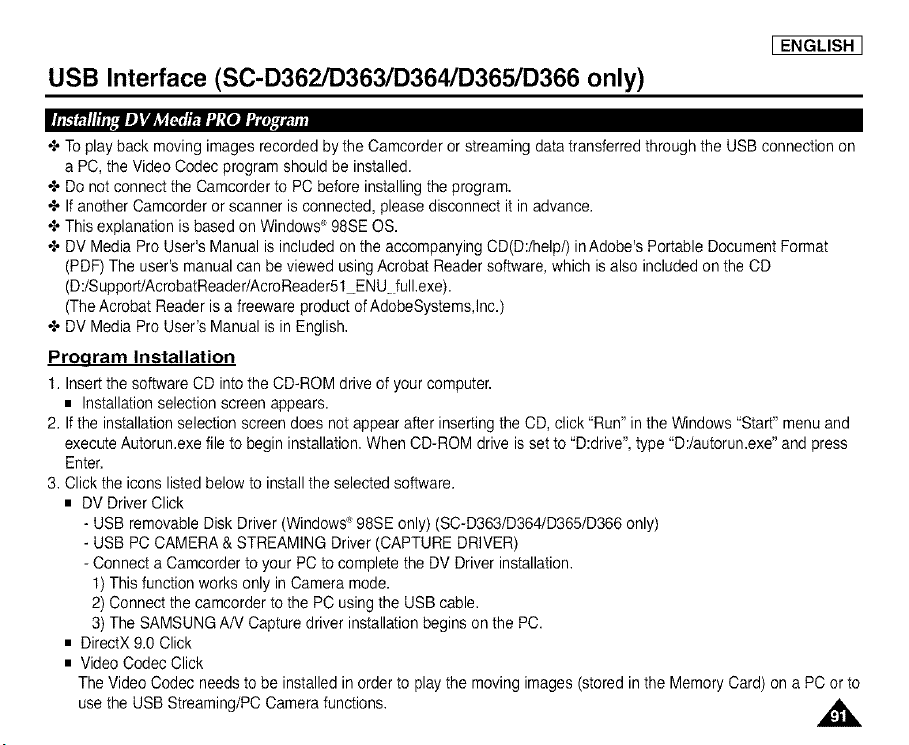
USB Interface (SC-D362/D363/D364/D365/D366 only)
[ ENGLISH J
+ To play back moving images recorded by the Camcorder or streaming data transferred through the USB connection on
a PC, the Video Codec program should be installed.
+ Do not connect the Camcorder to PC before installing the program.
+ If another Camcorder or scanner is connected, please disconnect it in advance.
+ This explanation is based on Windows ®98SE OS.
+ DV Media Pro User's Manual is included on the accompanying CD(D:/help/) in Adobe's Portable Document Format
(PDF) The user's manual can be viewed using Acrobat Reader software, which is also included on the CD
(D:/Support/AcrobatReader/AcroReader51 ENU full.exe).
(The Acrobat Reader is a freeware product of AdobeSystems,lnc.)
+ DV Media Pro User's Manual is in English.
Proqram Installation
1. Insert the software CD into the CD-ROM drive of your computer.
• Installation selection screen appears.
2. If the installation selection screen does not appear after inserting the CD, click "Run" in the Windows "Start" menu and
execute Autorun.exe file to begin installation. When CD-ROM drive is set to "D:drive", type "D:/autorun.exe" and press
Enter.
3. Click the icons listed below to install the selected software.
• DV Driver Click
- USB removable Disk Driver (Windows _ 98SE only) (SC-D363/D364/D365/D366 only)
- USB PC CAMERA & STREAMING Driver (CAPTURE DRIVER)
- Connect a Camcorder to your PC to complete the DV Driver installation.
1) This function works only in Camera mode.
2) Connect the camcorder to the PC using the USB cable.
3) The SAMSUNG AN Capture driver installation begins on the PC.
• DirectX 9.0 Click
• Video Codec Click
The Video Codec needs to be installed in order to play the moving images (stored in the Memory Card) on a PC or to
use the USB Streaming/PC Camera functions.
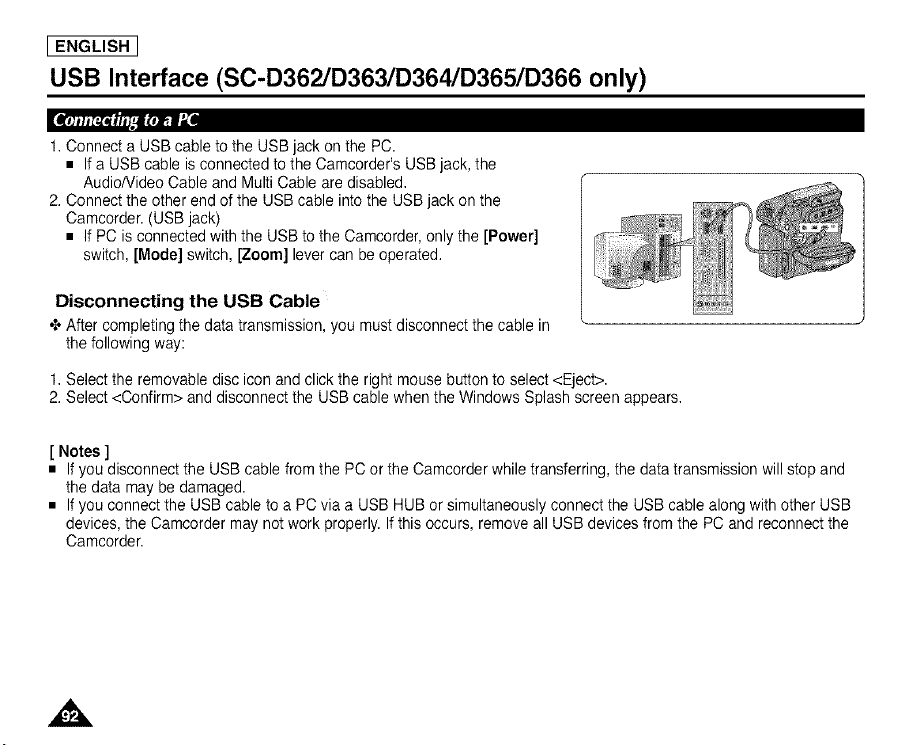
[ ENGLISH ]
USB Interface (SC-D362/D363/D364/D365/D366 only)
1. Connect a USB cable to the USB jack on the PC.
• If a USB cable is connected to the Camcorder's USB jack, the
Audio/Video Cable and Multi Cable are disabled.
2. Connect the other end of the USB cable into the USB jack on the
Camcorder. (USB jack)
• If PC is connected with the USB to the Camcorder, only the [Power]
switch, [Mode] switch, [Zoom] lever can be operated.
Disconnecting the USB Cable
÷ After completing the data transmission, you must disconnect the cable in
the following way:
1. Select the removable disc icon and click the right mouse button to select <Eject>.
2. Select <Confirm> and disconnect the USB cable when the Windows Splash screen appears.
[ Notes ]
• If you disconnect the USB cable from the PC or the Camcorder while transferring, the data transmission will stop and
the data may be damaged.
• If you connect the USB cable to a PC via a USB HUB or simultaneously connect the USB cable along with other USB
devices, the Camcorder may not work properly. If this occurs, remove all USB devices from the PC and reconnect the
Camcorder.
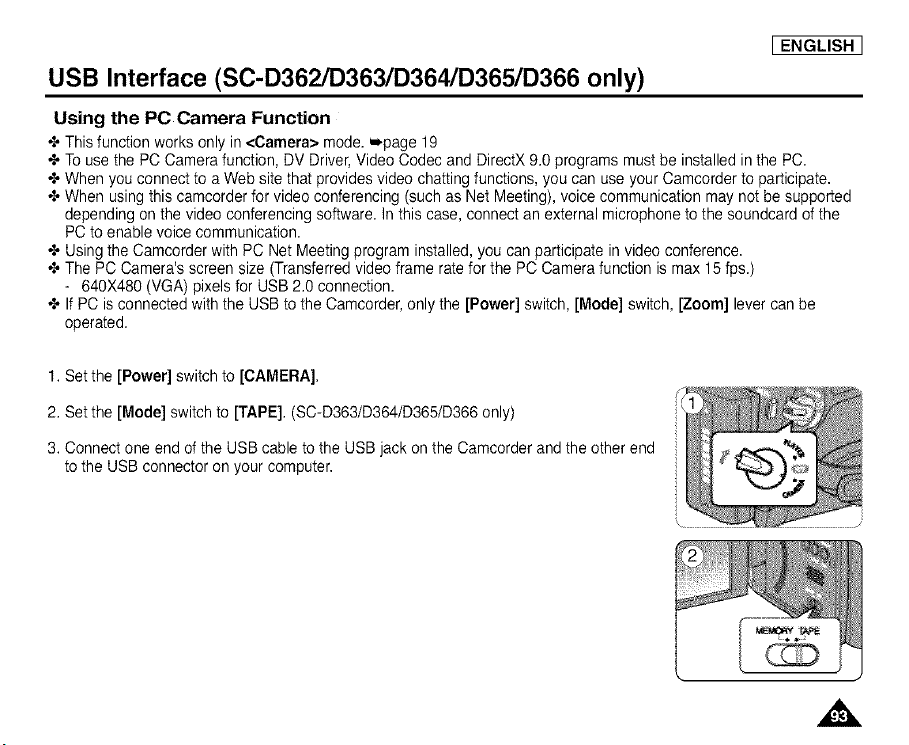
I ENGLISH I
USB Interface (SC-D362/D363/D364/D365/D366 only)
Using the PC Camera Function
+ This function works only in <Camera> mode. _.page 19
+ To use the PC Camera function, DV Driver, Video Codec and DirectX 9.0 programs must be installed in the PC.
+ When you connect to a Web site that provides video chatting functions, you can use your Camcorder to participate.
+ When using this camcorder for video conferencing (such as Net Meeting), voice communication may not be supported
depending on the video conferencing software. In this case, connect an external microphone to the soundcard of the
PC to enable voice communication.
+ Using the Camcorder with PC Net Meeting program installed, you can participate in video conference.
+ The PC Camera's screen size (Transferred video frame rate for the PC Camera function is max 15 fps.)
- 640X480 (VGA) pixels for USB 2.0 connection.
+ If PC is connected with the USB to the Camcorder, only the [Power] switch, [Mode] switch, [Zoom] lever can be
operated.
1. Set the [Power] switch to [CAMERA].
2. Set the [Mode] switch to [TAPE]. (SC-D363/D364/D365/D366 only)
3. Connect one end of the USB cable to the USB jack on the Camcorder and the other end
to the USB connector on your computer.
[ ENGLISH ]
USB Interface (SC-D362/D363/D364/D365/D366 only)
Using the USB Streaming Function
+ This function works in both <Camera> and <Player> modes. _,page 19
+ To use USB streaming, the DV Driver, Video Codec and DirectX 9.0. programs must be installed in the PC.
+ You can view Camcorder video on your PC using USB streaming.
+ You can also store it as a moving image in the "avi" file format, or as a photo image in the "jpg" file format on a PC.
1. Set the [Power] switch to [CAMERA] or [PLAYER], set the [MODE] switch to [TAPE] (SC-D363/D364/D365/D366
only).
2. Connect one end of the USB cable to the USB jack on the Camcorder and the other end to the USB jack on your
computer.
3. Setup and execute Windows Movie Maker or the Ulead VIDEO Studio Software application provided on the CD.
• For detailed instructions for Ulead VIDEO Studio use, refer to the program's Help function.
• Windows Movie Maker is used for WINDOWS ME and XP users. (C:/program files/Movie maker/moviemk.exe)
Using the removable Disk Function (SC-D363/D364/D365/D366 only)
+ Youcan easilytransferdatafrom a MemoryCardto a PC withoutadditionalcardsvia a USBconnection.
1. Set the [Power] switch to [CAMERA] or [PLAYER], set the [Mode] switch to [MEMORY].
2. Connect one end of the USB cable to the USB jack on the Camcorder and the other end to the USB jack on your
computer.
3. To verify whether the removable disk has been properly recognized, open Windows Explorer and locate the removable
disk.

Maintenance
I ENGLISH I
+ At the end of a recording you must remove the power source.
+ When recording with a Battery Pack, leaving the pack on the Camcorder can reduce the life
span of the battery.
The Battery Pack should be release after recording is completed.
1. Open the Casstte door while sliding the [TAPE EJECT] switch in the direction or the arrow.
• Pull the cassette compartment out automatically.
• Please wait while the tape is completely ejected.
2. After removing the tape, close the door and store the Camcorder in a dust free environment.
Dust and other foreign materials can cause square-shaped noise or jerky images.
3. Set the [Power] switch to the [Off].
4. Disconnect the power source or remove the Battery Pack.
Press the [BATTERY RELEASE] button located on the bottom of the Camcorder and slide the
Battery Pack in the direction of the arrow.
When you have recorded something that you wish to keep, you can protect it so that it will not be
accidentally erased.
a. Protecting a tape: Push the safety tab on the cassette so that the hole is uncovered.
b. Removing the tape protection:
If you no longer wish to keep the recording on the cassette, push the safety tab back so that
it covers the hole.
How to store a tape
a. Avoid places with magnets or magnetic interference.
b. Avoid humidity and dust prone places.
c. Keep the tape in an upright position and avoid storing it in direct sunlight.
d. Avoid dropping or knocking your tapes.
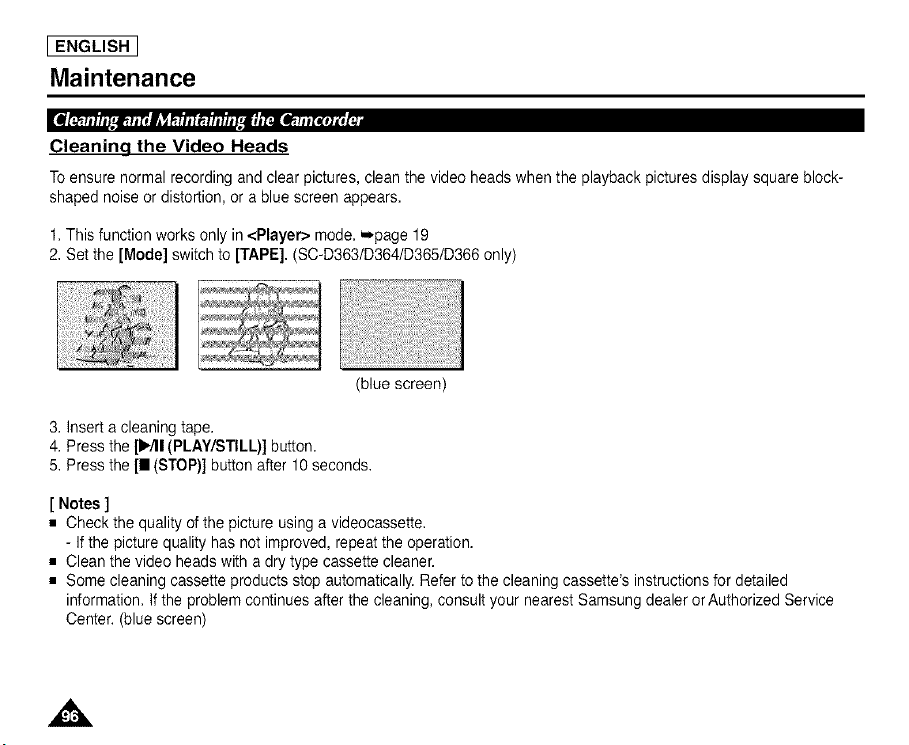
[ ENGLISH ]
Maintenance
Cleaninq the Video Heads
To ensure normal recording and clear pictures, clean the video heads when the playback pictures display square block-
shaped noise or distortion, or a blue screen appears,
1. This function works only in <Player> mode. wpage 19
2. Set the [Mode] switch to [TAPE]. (SC-D363/D364/D365/D366 only)
(blue screen)
3. Insert a cleaning tape.
4. Press the [IWll (PLAY/STILL)] button.
5. Press the [11(STOP)] button after 10 seconds.
[ Notes ]
• Check the quality of the picture using a videocassette.
- If the picture quality has not improved, repeat the operation.
• Clean the video heads with a dry type cassette cleaner.
• Some cleaning cassette products stop automatically. Refer to the cleaning cassette's instructions for detailed
information. If the problem continues after the cleaning, consult your nearest Samsung dealer or Authorized Service
Center. (blue screen)
Maintenance
[ ENGLISH J
+ Each country or region has its own electric and color systems.
+ Before using your Camcorder abroad, check the following items.
Power sources
• You can use your Camcorder in any country or area with the supplied AC Power adapter within 100V to 240V,
50/60 Hz.
• Use a commercially available AC jack adapter, if necessary, depending on the design of the local wall outlet.
Color system
You can view your recording in the Viewfinder.
However, to view it on a television or copy it to a videocassette recorder, the television or VCR must be NTSC-compatible
and have the appropriate audio/video jacks.
Otherwise, you may need to use a transcoder.
PAL-compatible Countries/Regions
Australia. Austria, Belgium, Bulgaria. China. ClS, Czech Republic, Denmark. Egypt. Finland, France, Germany,
Greece. Great Britain. Holland, Hong Kong. Hungary, India, tran, lraq, Kuwait, Libya, Malaysia. Mauritius. Norway,
Romania, Saudi Arabia. Singauore, Slovak Republic. Spain. Sweden Switzerland. Syria. Thailand. Tunisia. etc,
NTSC-compatible Countries/Regions
Bahamas, Canada. Central America. Japan. Korea. Mexico. Philippines, Taiwan, United States of America, etc.
[ Note ]
You can make recordings with your Camcorder and view eictures on the LCD Screen from anywhere in the wodd.
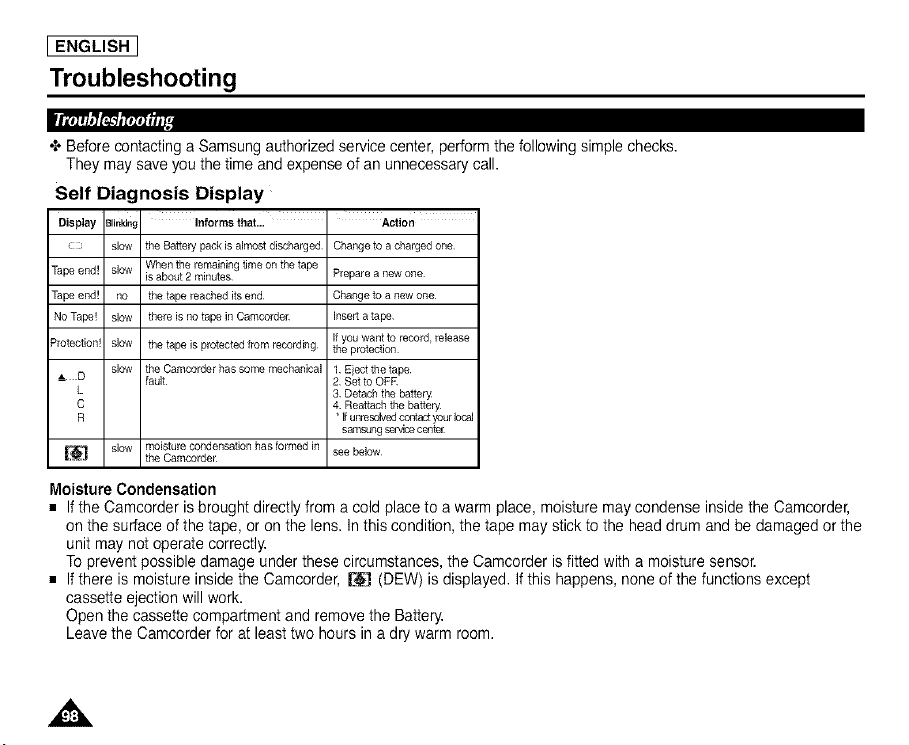
[ ENGLISH ]
Troubleshooting
+ Before contacting a Samsung authorized service center, perform the following simple checks.
They may save you the time and expense of an unnecessary call.
Self Diagnosis Display
Display Blinking Informs that,,, ' Action
slow the Battery pack is almost discharged Change to a charged one
Tape end! slow When the remaining time on the tape
is about 2 minutes Prepare a new one
Tape end! no the tape reached its end Change to a new one
No Tape! slow there is no tape in Camcorder Insert a tape
If you want to record, release
Protection! slow the tape is protected from recording the protection
A_D slow the Camcorder has some mechanical 1 E}ect the tape
fault 2 Set to OFR
L 3. Detach the battenz
C 4. Reattach the battery
R * _unresolvedcontactyour IocaJ
samsung servicecenter
slow moisture condensation has formed in see below
the Camcorder
Moisture Condensation
• If the Camcorder is brought directly from a cold place to a warm place, moisture may condense inside the Camcorder,
on the surface of the tape, or on the lens. in this condition, the tape may stick to the head drum and be damaged or the
unit may not operate correctly.
To prevent possible damage under these circumstances, the Camcorder is fitted with a moisture sensor.
• If there is moisture inside the Camcorder, _ (DEW) is displayed, if this happens, none of the functions except
cassette ejection will work.
Open the cassette compartment and remove the Battery.
Leave the Camcorder for at least two hours in a dry warm room.
A
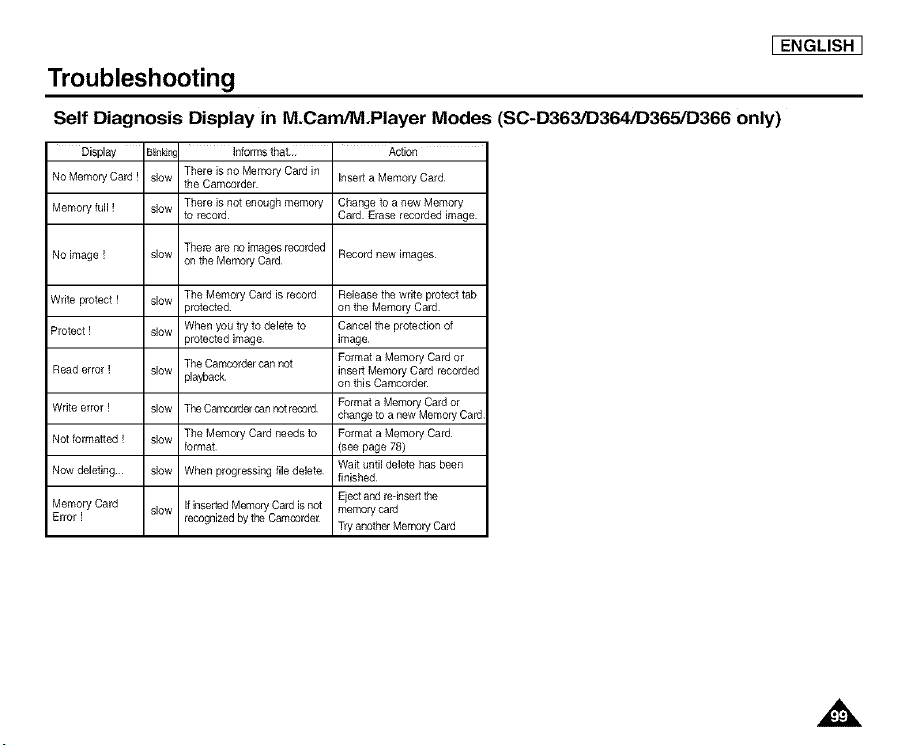
Troubleshooting
I ENGLISH I
Self Diagnosis Display in M.Cam/M.Player Modes (SC-D363/D364/D365/D366 only)
Display Blinkir_ informs that... Action
There is no Memory Card in
NoMemoryCard ! slow the Camcorder
There is not enough memory
Memory full ! slow to record
There are no images recorded
No image ! slow on the Memory Card
Write protect ! slow The Memory Card is record
protected
Protect ! slow When you try to delete to
protected image
The Camcorder can not
Read error ! slow
playback
Write error ! slow The Camcorder can not record
Not formatted ! slow The Memory Card needs to
format
Now deleting slow When progressing file delete
Memory Card slow If inserted Memory Card is not
Error ! recognized by the Camcorde_
Insert a Memory Card
Change to a new Memory
Card Erase recorded image
Record new images
Release the write protect tab
on the Memory Card
Cancel the protection of
image
Format a Memory Card or
insert Memory Card recorded
on this Camcorder
Format a Memory Card or
change to a new Memory Card
Format a Memory Card
(see page 78)
Wait until delete has been
finished
E}ectand re-insert the
memory card
Try another Memory Card
,A
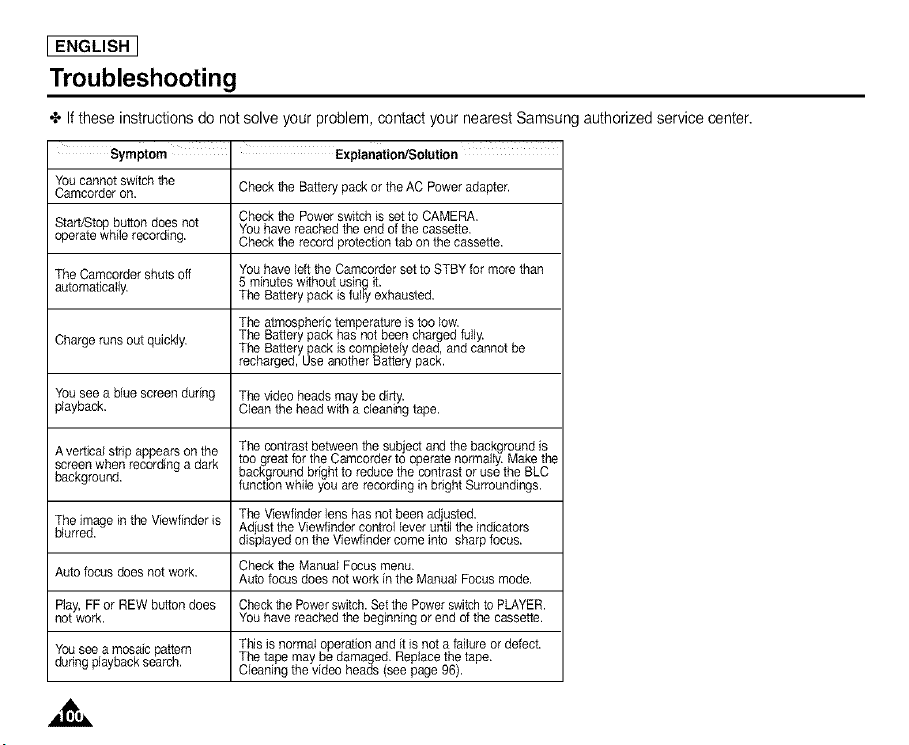
[ ENGLISH ]
Troubleshooting
÷ If these instructions do not solve your problem, contact your nearest Samsung authorized service center.
symptom I Explanation/Solution
You cannot switch the
Camcorder on.
Start/Stop button does not
operate while recording.
The Camcorder shuts off
automaticafly.
Charge runs out quickly.
You see a blue screen during
playback.
A vertical strip appears on the
screen when recording a dark
background.
The image in the Viewfinder is
blurred.
Auto focus does not work.
Play, FF or REW bL_tondoes
not work.
You see a mosaic pattern
during playback search.
Check the Battery pack or the AC Power adapter.
Check the Power switch is set to CAMERA.
You have reached the end of the cassette.
Check the record protection tab on the cassette.
You have left the Camcorder set to STBY for more than
5 minutes without using it.
The Battery pack is fully exhausted.
The atmospheric temperature is too low.
The Battery pack has not been charged fully.
The Batterypack is completely dead, and cannot be
recharged, Use another Battery pack.
The video heads may be dirty.
Clean the head with a cleaning tape.
The contrast between the subject and the background is
too great for the Camcorder to operate normally. Make the
background bright to reduce the contrast or use the BLC
function while you are recording in bright Surroundings.
The Viewfinder lens has not been adjusted.
Ad ust the Viewfinder control lever until the indicators
d spayed on the Viewfinder come nto sharp focus.
Check the Manual Focus menu.
Auto focus does not work in the Manual Focus mode.
Check the Power switch. Set the Power switchto PLAYER.
You have reached the beginning or end of the cassette.
This is normal operation and it is not a failure or defect.
The tape may be damaged. Replace the tape.
Cleaning the video heads (see page 96).
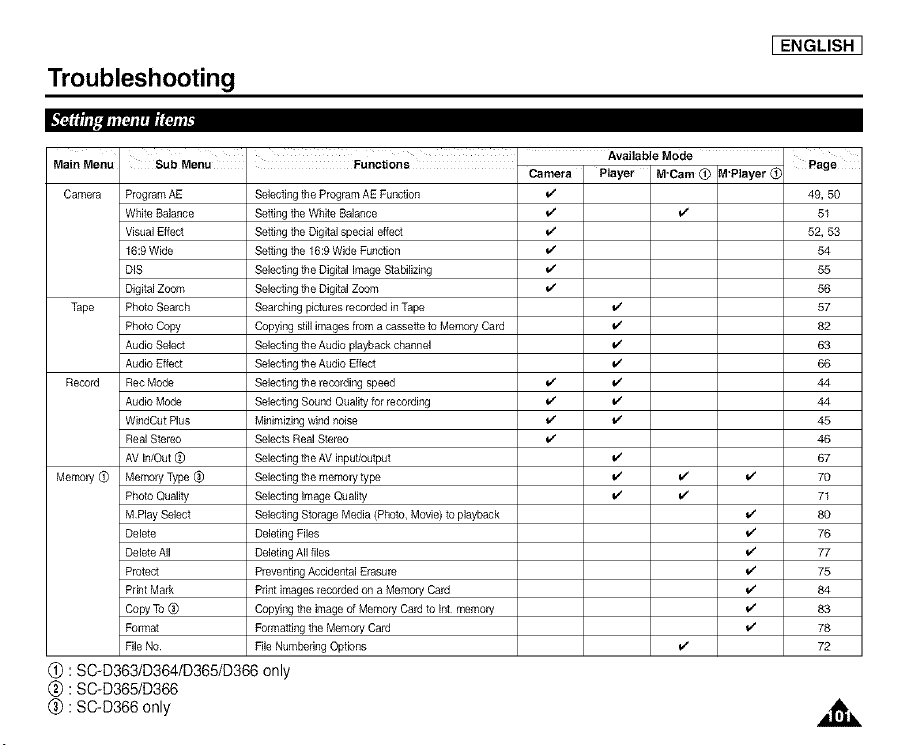
Troubleshooting
I ENGLISH I
Main Menu
Camera
I
Sub Menu I Eunctions
Camera
Program AE Selecting the Program AE Function
White Balance Setting the White Balance _
Visual Effect Setting the Digital special effect
16:9 Wide Setting the 16:9 Wide Function
D!S Selecting the Digital Image Stabilizing
Digital Zoom Selecting the Digital Zoom
Tape Photo Search Searching pictures recorded in Tape I,z
Photo Copy Copying still images from a cassette to Memory Card I,z
Audio Select Selecting the Audio playback channel
Audio Effect Selecting the Audio Effect
Record Rec Mode Selecting the recording speed _
Audio Mode Selecting Sound Quality for recording _
WindCut Plus Minimizing wind noise _
Real Stereo Selects Real Stereo
AV In/Out 0 Selecting the AV inpuVoutput
Memory 0 Memory Type 0 Selecting the memory type _ _
Photo Quality Selecting image Quality _
MPlay Select Selecting Storage Media (Photo, Movie) to playback
Delete Deleting Files
Delete All Deleting All files
Protect Preventing Accidental Erasure
Print Mark Print images recorded on a Memory Card
Copy To 0 Copying the image of Memory Card to Int memory
Format Formatting the Memory Card I,z
File No File Numbering Options
(L) : SC-D363/D364/D365/D366 only
: SC-D365/D366
(_ : SC-D366 only
' Available Mode
Player M'Cam 0 M'Player
Page
49, 50
51
52, 53
54
55
56
57
82
63
66
44
44
45
46
67
7O
71
8O
76
77
75
84
83
78
72
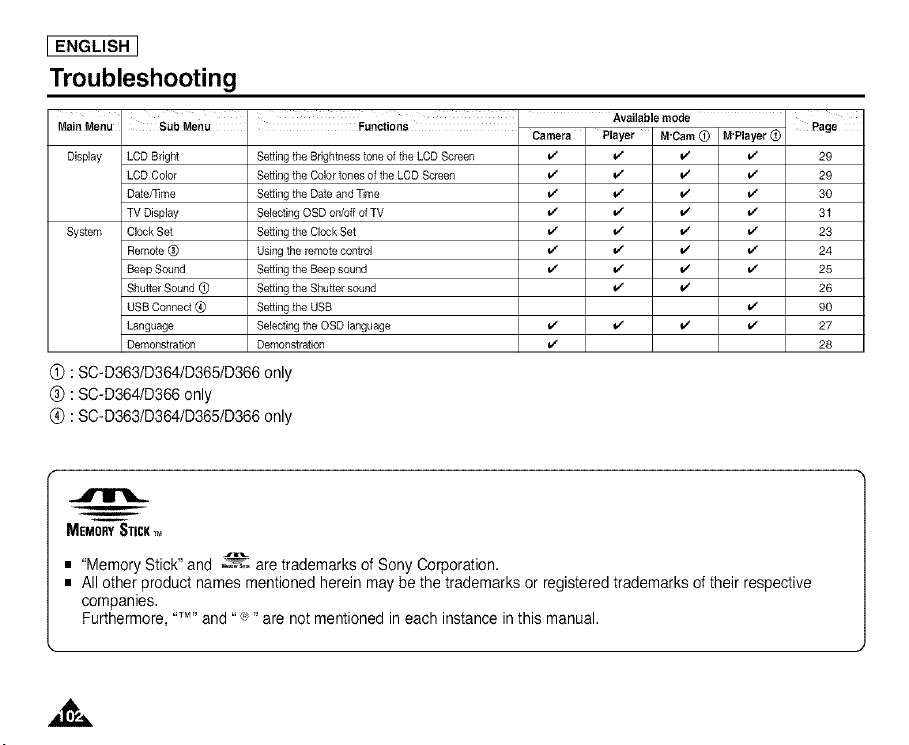
[ ENGLISH ]
Troubleshooting
Main Menu
Display LCD Bright
LCD Color _ _ _ _ 29
DateG]me Setting the Date and Time _ _ _ _ 30
TV Display Selecting OSD on/off of TV _ _ _ _ 31
System Clock Set Setting the Clock Set v_ v_ v _ v_ 23
Remote (_) Using the remote control _ _ _ _ 24
Beep Sound Setting the Beep sound v_ v_ v _ v_ 25
Shutter Sound O Setting the Shutter sound v_ v _ 26
USB Connect _ Setting the USB _ 90
Language Selecting the OSD language _ _ _ _ 27
Demonstration Demonstration _ 28
(!) : SC-D363/D364/D365/D366 only
0 : SC-D364/D366 only
(_) : SC-D363/D364/D365/D366 only
Ava abe mode Page
Sub Menu I Functions Camera Payer M'Cam _ M'Player
Setting the Brightness tone of the LCD Screen _ _ _ _ 29
Setting the Color tones of the LCD Screen
...,_r_r_lk,.._
MEMORY STICK ,.
• "Memory Stick" and _,--_ are trademarks of Sony Corporation,
• All other product names mentioned herein may be the trademarks or registered trademarks of their respective
companies,
Furthermore, ,,T_,,and ",_"" are not mentioned in each instance in this manual,
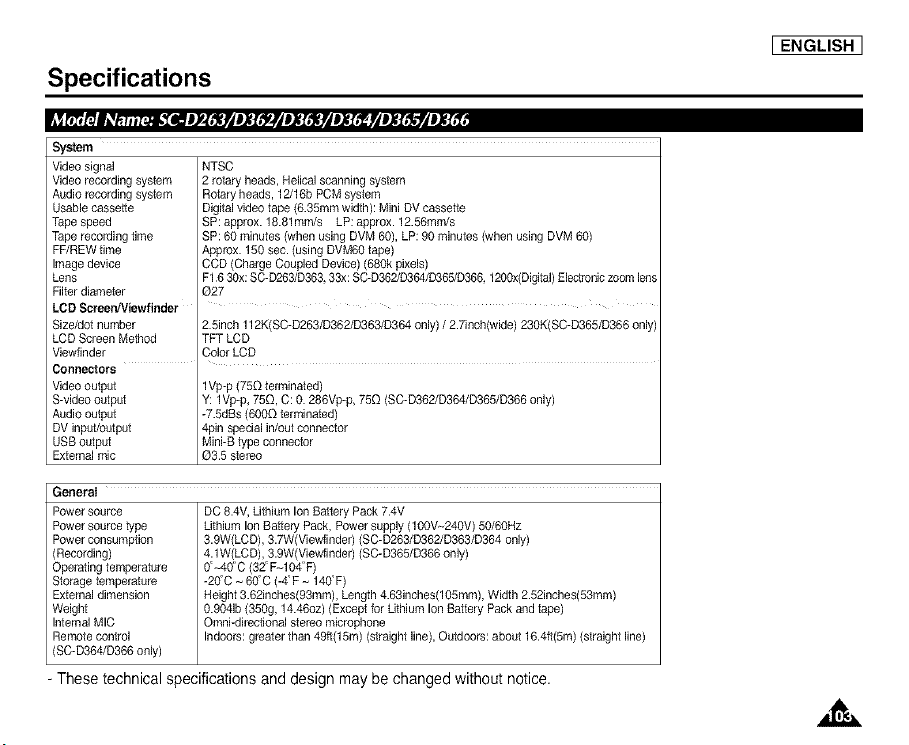
Specifications
System
I ENGLISH I
Video signal
Video recording system
Audio recording system
Usable cassette
Tape speed
Tape recording time
FF/REW time
Image device
Lens
Filter diameter
LCD ScreerdViewfinder
Size/dot number
LCD Screen Method
Viewfinder
Connectors
Video output
S-video output
Audio output
DV input/output
USB output
External mic
NTSC
2 rotary heads, Helical scanning system
Rotary heads, 12/16b PCM system
Digital video tape (6.35mm width): Mini DV cassette
SP: approx. 18.81mm/s LP: approx. 12.56mm/s
SP: 60 minutes (when using DVM 60), LP: 90 minutes (when using DVM 60)
Approx. 150 sec. (using DVM60 tape)
CCD (Charge Coupled Device) (680k pixels)
F16 3Ox:SC-D263/D363 33x: SC-D362/D364/D365/D366 1200x(Digital) Electronic zoom lens
027
2.Sinch 112K(SC-D263/D362/D363/D364 only) / 2.7inch(wide) 230K(SC-D365/D366 only)
TFT LCD
Color LCD
lVp-p (75£) terminated)
Y: lVp-p_ 75[Q, C: 0. 286Vp-p, 750 (SC-D362/D364/D365/D366 only)
-7.5dBs (6000 terminated)
4pin special in/out connector
Mini-B type connector
03.5 stereo
General
Power source
Power source type
Power consumption
(Recording)
Operating temperature
Storage temperature
External dimension
Weight
Internal MIC
Remote control
(SC-D364/D366 only)
DC 8.4V, Lithium Ion Battery Pack 7.4V
Lithium Ion Battery Pack, Power supply (100V~240V) 50/60Hz
3.9W(LCD), 3.TW(Viev, finder) (SC-D263/D362/D363/D364 only)
4.1W(LCD), 3.9W(Viewfinder) (SC-D365/D366 only)
0'--40'C (32' F-104' F)
-20'C ~ 60'C (-4'F ~ 140'F)
Height 3.62inches(93mm), Length 4.63inches(105mm), Width 2.52inches(53mm)
0.9041b (350g, 14.46oz) (Except for Lithium Ion Battery Pack and tape)
Omni=directional stereo microphone
Indoors: greater than 49ft(15m) (straight line), Outdoors: about 16.4ft(5m) (straight line)
- These technical specifications and design may be changed without notice.
,,&.
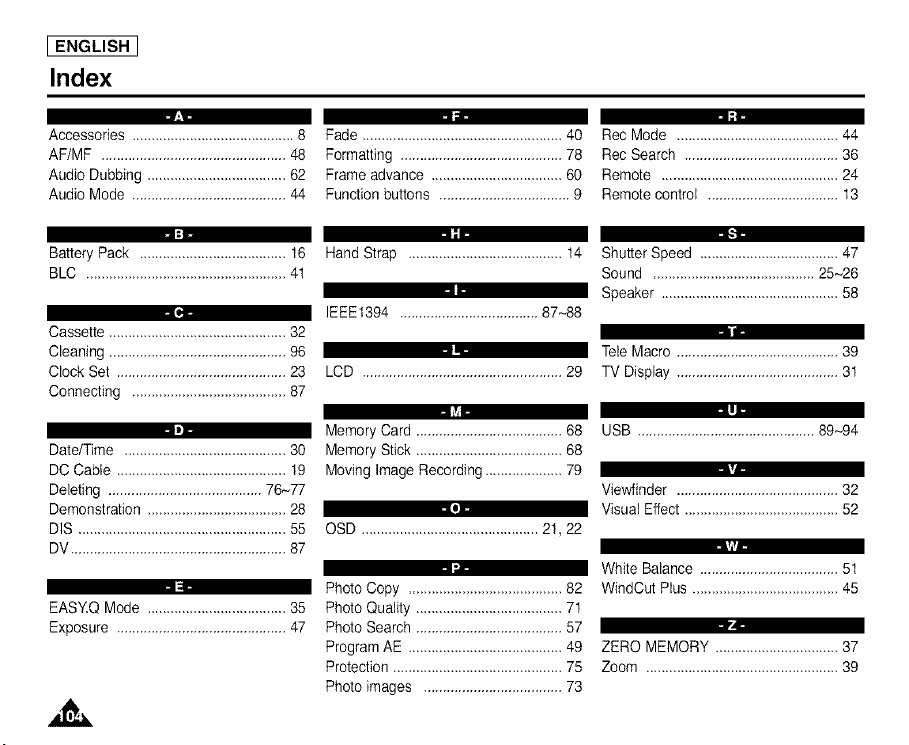
[ ENGLISH ]
Index
rl i =m=
Accessories ..........................................8
AF/MF ................................................ 48
Audio Dubbing ....................................62
Audio Mode ........................................ 44
Fade .................................................... 40
Formatting ......................................... 78
Frame advance .................................. 60
Function buttons ................................ 9
====.=
Hand Strap ........................................ 14
||
IEEEt394 ........................ 87~88
|-II
LCD .................................................... 29
ram=
Memory Card ..................................... 68
Memory Stick ..................................... 68
Moving Image Recording .................... 79
|-=
OSD ............................................. 21,22
Rec Mode ......................................... 44
Rec Search ........................................ 36
Remote .............................................. 24
Remote control .................................. 13
r=
Battery Pack ...................................... 16
BLC ....................................................41
|7
Cassette ................................ 32
Cleaning ............................................. 96
Clock Set ............................................ 23
Connecting ........................................ 87
!
=-=
=.=
Date/Time .......................................... 30
DC Cable ............................................ 19
Deleting ........................................ 76~77
Demonstration .................................... 28
DIS ......................................................55
DV ........................................................ 87
i,i
i
EASY.Q Mode .................................... 35
Exposure ............................................ 47
w_
Photo Copy ........................................ 82
Photo Quality ..................................... 71
Photo Search ..................................... 57
Program AE ........................................ 49
Protection ........................................... 75
Photo images ................................... 73
Shutter Speed .................................... 47
Sound .......................................... 25~26
Speaker .............................................. 58
Teie Macro ............................. 39
TV Display ......................................... 31
USB ................................ 89_:34
Viewfinder ......................................... 32
Visual Effect ........................................ 52
='l=
White Balance .................................... 5t
WindCut Plus ..................................... 45
ZERO MEMORY ............................... 37
Zoom ................................................. 39
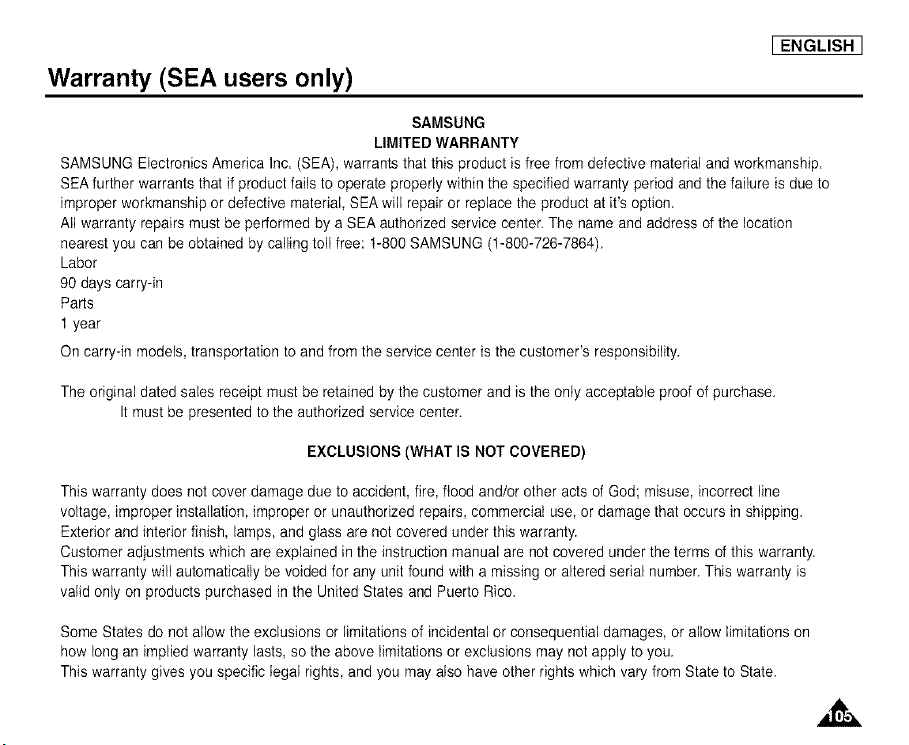
[ ENGLISH J
Warranty (SEA users only)
SAMSUNG
LIMITED WARRANTY
SAMSUNG Electronics America inc. (SEA), warrants that this product is free from defective material and workmanship.
SEA further warrants that if product fails to operate properly within the specified warranty period and the failure is due to
improper workmanship or defective material, SEA will repair or replace the product at it's option.
All warranty repairs must be performed by a SEA authorized service center. The name and address of the location
nearest you can be obtained by calling toll free: 1-800 SAMSUNG (1-800-726-7864).
Labor
90 days carry-in
Parts
1 year
On carry-in models, transportation to and from the service center is the customer's responsibility.
The original dated sales receipt must be retained by the customer and is the onty acceptable proof of purchase.
It must be presented to the authorized service center.
EXCLUSIONS (WHAT IS NOT COVERED)
This warranty does not cover damage due to accident, fire, flood and/or other acts of God; misuse, incorrect line
voltage, improper installation, improper or unauthorized repairs, commercial use, or damage that occurs in shipping.
Exterior and interior finish, lamps, and glass are not covered under this warranty.
Customer adjustments which are explained in the instruction manual are not covered under the terms of this warranty.
This warranty will automatically be voided for any unit found with a missing or altered serial number. This warranty is
valid only on products purchased in the United States and Puerto Rico.
Some States do not allow the exclusions or limitations of incidental or consequential damages, or allow limitations on
how long an implied warranty lasts, so the above limitations or exclusions may not apply to you.
This warranty gives you specific legal rights, and you may also have other rights which vary from State to State.
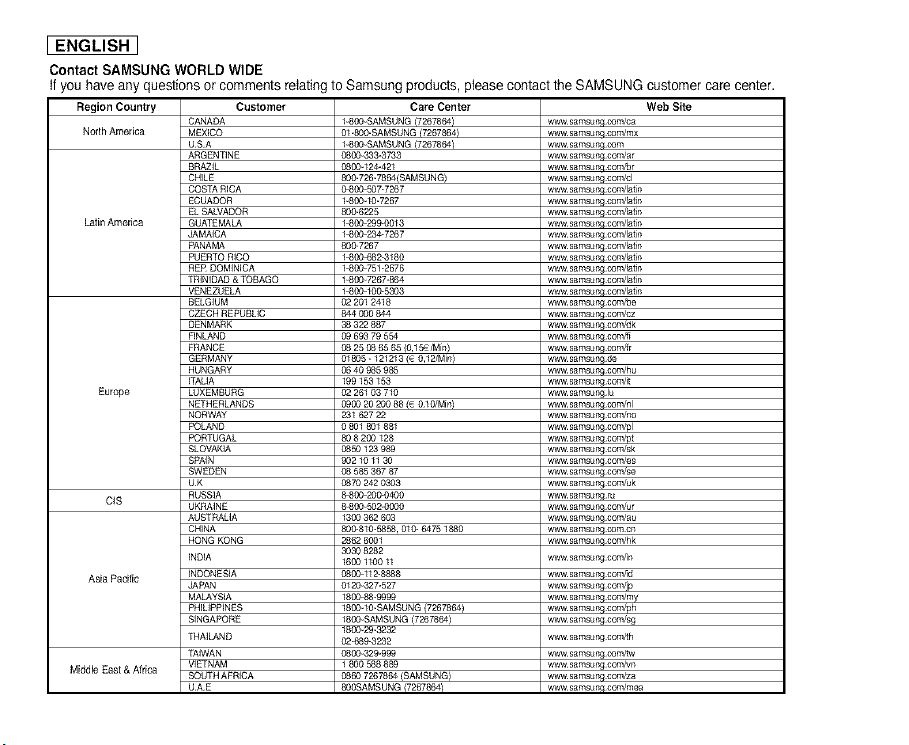
[ ENGLISH ]
Contact SAMSUNG WORLD WIDE
If you have any questions or comments relating to Samsung products, please contact the SAMSUNG customer care center.
Region Country Customer
CANADA
North America MEXICO
USA
ARGENTINE
BRAZIL
CHILE
COSTA RICA
ECUADOR
EL SALVADOR
Latin America GUATEMALA
JAMAICA
PANAMA
PUERTO RICO
RER DOMWICA
TRINIDAD & TOBAGO
VENEZUELA
BELGIUM
CZECH REPUBLIC
DENMARK
FINLAND
FRANCE
GERMANY
HUNGARY
ITALIA
Europe LUXEMBURG
NETHERLANDS
NORWAY
POLAND
PORTUGAL
SLOVAKIA
SPAIN
SWEDEN
UK
RUSSIA
C_S UKRAINE
AUSTRAUA
CHINA
HONG KONG
INDIA
Asia Pacific INDONESIA
JAPAN
MALAYSIA
PHILIPPINES
SINGAPORE
THAILAND
TAIWAN
Middle East & Africa VIETNAM
SOUTH AFRICA
UAE
Care Center
1-800-SAMSUNG (7267864)
01-800-SAMSUNG (7267864)
1-800-SAMSUNG (7267864)
0800-333-3733
0800-124-421
800-726-7864(SAM SUNG)
0-800-507-7267
1-800-10-7267
800-6225
1-800-299-0013
1-800-234-7267
800-7267
1-800-682-3180
1-800-751-2676
1-800-7267-864
1-800-100-5303
02 201 2418
844 000 844
38322887
09 693 79 554
08 25 08 65 65 (0,1 _/Min)
01805 - 121213 (_ 0,12/Min)
06 40 985 985
199 153 153
02 261 03 710
0900 20 200 88 (_ 010/Mle)
23162722
0 801 801 881
80 8 200 128
0850123989
902101130
08 585 367 87
0870 242 0303
8-800-200-0400
8-800-502-0000
1300 362 603
800-810-5858, 010- 6475 1880
2862 6001
3030 8282
1600 1100 11
0800-112-8888
0120-327-527
1800-88-9999
1800-10-SAMSUNG (7267864)
1800-SAMSUNG (7267864)
1800-29-3232
02-689-3232
0800-329-999
1800 588 889
0860 7267864 (SAMSUNG)
800SAMSUNG (7267864)
Web Site
*_ samsur_q com/ca
_w samsur_q com/mx
_w sarnsw_q corn
?_ samsur_q com/ar
?_ samsur_q cornfor
w_z samsur_q com/cl
ww_ samsur_ com/latir_
_ sarnsur_ co m/latin
_ sarnsur_ corn/_atin
?_ sa msur_q corn/latin
*_ sa msur_ com/latir_
_w samsw_ corn/latin
_w samsw_ corn/latin
_ sarnsul_ co m/latin
?_ samsur_ corn/latin
?_ sa msur_q corn/latin
?_ sarnsur_ cornfoe
wv_z samsur_ com/cz
_ sarnsu_ corn/ok
_ samsw_ comfii
_ samsw_ comfir
*_ samsur_ de
?_w samsw_ com/hu
?_ samsu_ corn/r[
?_ samsu_ corn/hi
?_ samsur_ cornh_o
_ sarnsul_ corntpl
_ sarnsu_ corntpt
?_ samsur_ com/sk
?_ samsur_ com/es
*_ samsur_ com/se
_w samsw_ com/uk
_ sarnsw_q ru
?_ samsw_q com/ur
*_ samsur_ com/au
*_ samsur_q corn cn
?_w samsw_q com/hk
?_ samsur_ com4n
_ sarnsu_ cornFc
w_z samsur_ comfJp
?_ sarnsur_ corn/my
_ samsw_ comtph
?_ samsur_ com/s#
?_ samsur_ com/th
_ samsu_ com/vn
?_ samsur_ com/za
?_ samsu_q corn/inca

[ ENGLISH J
THIS CAMCORDER IS MANUFACTURED BY:
....,,, ii!i_!i!iiii,'i_'_! i_iiiii!_''_
AD68-00970A

