Page 1
08172016-v4

Index
OPERATION INSTRUCTIONS
Exterior Assembly Overview.......................................................................Page 9
Locking and Unlocking / Changing Programming Code /
Adding User Codes......................................................................................Page 10
Deleting User Codes / Automatic Lock Function /
Temporarily Disable Auto Lock...................................................................Page 11
Vacation Mode / Sound On and Off / Secure Lock-out Period................Page 12
Restore Factory Settings / Low Battery Warning /
Consumer Friendly Message Guide...........................................................Page 13
Installation Trouble Shooting...............................................................Page 14
Template.......................................................................................................Page 15-16
Consumer Assistance.................................................................................Page 17
Programming Record..................................................................................Page 18-19
Limited Warranty.................................................................................Page 20
INSTALLATION INSTRUCTIONS
Package Contents / Tools Required......................................................... Page 1
Prepare Door and Jamb..............................................................................Page 2
Adjusting Deadbolt Latch Set.....................................................................Page 3
Installing Deadbolt Latch Set.....................................................................Page 4
Preparing Interior Assembly.......................................................................Page 5
Installing Exterior Assembly.......................................................................Page 6
Installing Interior Assembly........................................................................Page 7-8
For troubleshooting tips and “how to videos” visit www.truboltlocks.info
Page 1
INSTALLATION INSTRUCTIONS
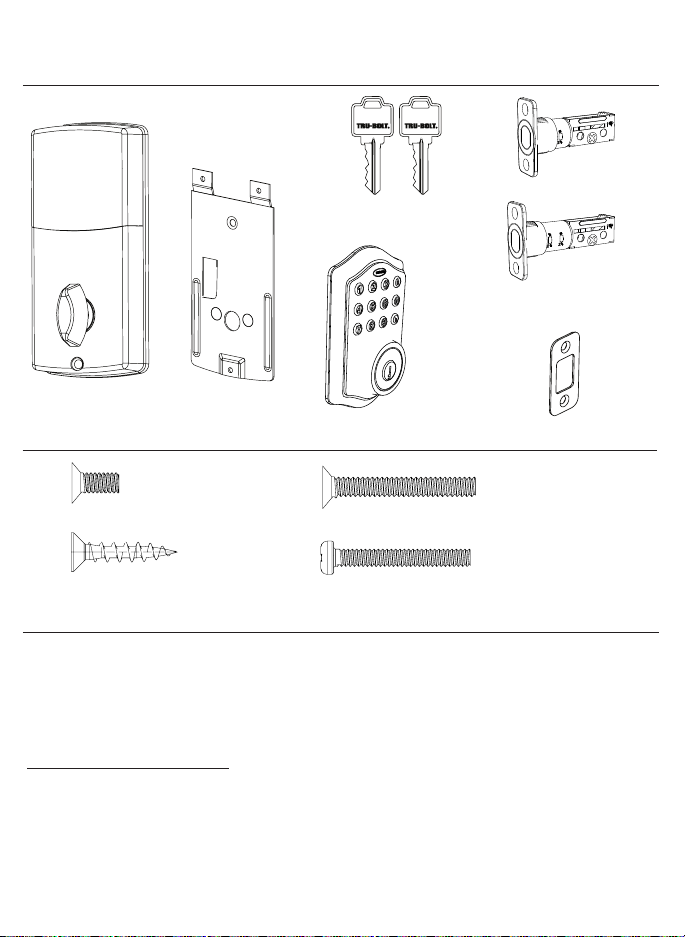
Package Contents
Tools Required
Tools Required for Installation
on Pre-drilled Doors:
• Phillips Head Screwdriver
Tools Required for Installation
on Doors That Require Drilling:
• Drill
• Tape Measure
• Pencil
• 2-1/8” (54mm) Drill Hole Saw
• 1” (25mm) Drill Bit
• 1/16” (2mm) Drill Bit
• Chisel
• Hammer
• Phillips Head Screwdriver
Deadbolt Strike Plate
Deadbolt Latch Set (Adjustable)
2-3/8” (60mm) to 2-3/4” (70mm)
Interior Assembly
Mounting Plate
Exterior Assembly
Entry keys (2 ea.)
5/16” (8mm) Screws - 2 ea. 7/8” (22mm) Screws - 2 ea.
3/4” (19mm) Screws - 5 ea. 1” (25mm) Screw - 1 ea.
Electronic lock requires (4) High Quality
AA Alkaline batteries. When all 4 batteries
are installed in the correct position, hear 2
beeps and the keypad will illuminate blue.
DO NOT TOUCH the keypad until the keypad
stops illuminating.
Batteries (not included)
Page 2
NOTE: For installation on doors with pre-drilled holes skip to page 4.
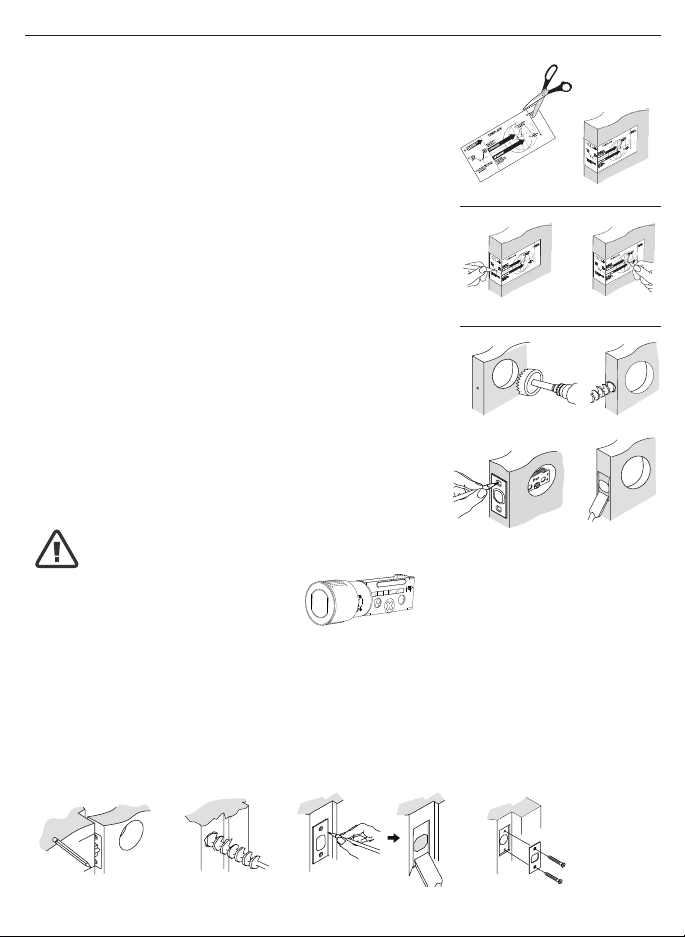
1. TEMPLATE
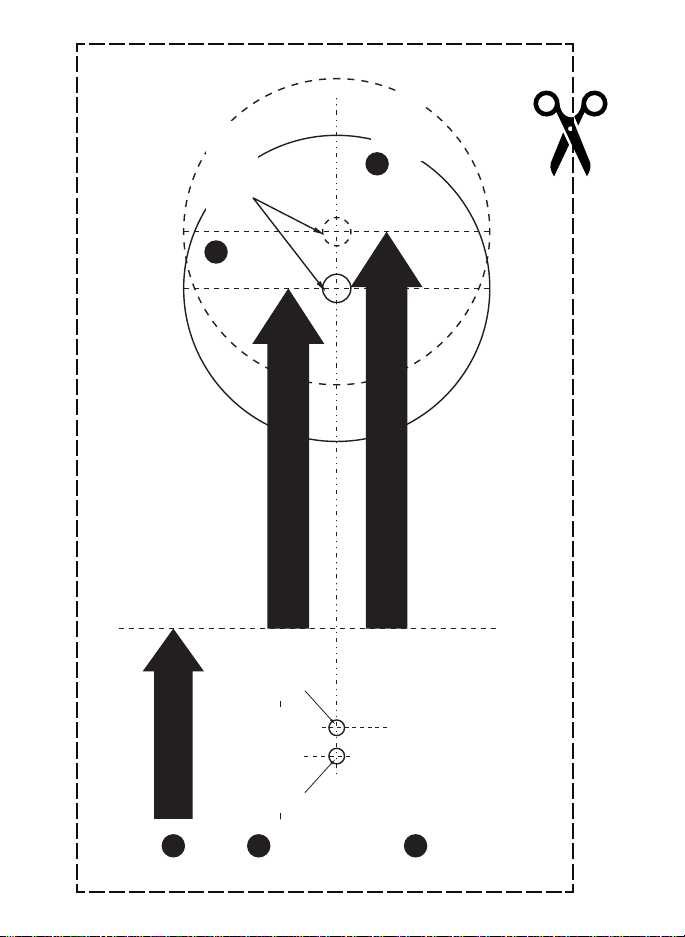
a. Cut out template printed on page 15 & 16 of this Manual
(Figure 1a).
b. Fold template and place on door 36” (915mm) from
the ground as marked (Figure 1b).
2. MARK THE DOOR FOR DRILLING
b. Mark center hole on door edge through guide on
template for 1” (25mm) latch bolt (Figure 2a).
a. Mark center hole on door face through guide on
template for 2-3/8” (60mm) or 2-3/4” (70mm)
backset (Figure 2b).
3. DRILL AND CHISEL DOOR
a. Drill 2-1/8” (54mm) hole through door face as marked
for lock set (Figure 3a).
b. Drill 1” (25mm) hole in center of door edge for
Deadbolt Latch Assembly (Figure 3b).
c. Insert Deadbolt Latch Assembly in hole keeping it
parallel to face of door. Mark outline and remove latch
(Figure 3c).
d. Chisel 1/8” (3mm) deep or until latch face is ush
with door edge (Figure 3d).
4. MARK AND DRILL DOOR JAMB
a. Mark center hole on edge of jamb even with the center of the Latch Bolt on door
edge. (Figure 4a).
b. Drill 1” (25mm) hole 1-3/16” (30mm) deep in door jamb on center mark
(Figure 4b).
c. Outline outside edges of Strike Plate (Figure 4c).
d. Chisel 1/8” (3mm) deep for Strike Plate or until ush (Figure 4d).
e. Install Strike Plate using two 3/4” (19mm) screws provided (Figure 4e).
PREPARE DOOR AND JAMB
Figure 4a Figure 4b
Figure 4c Figure 4e
Figure 4d
NOTE: For Drive in Latch, drill hole size indicated on template and press
until it is ush with door edge.
U
P
Figure 1a
Figure 2a Figure 2b
Figure 3a
Figure 3c
Figure 1b
Figure 3b
Figure 3d
Page 3
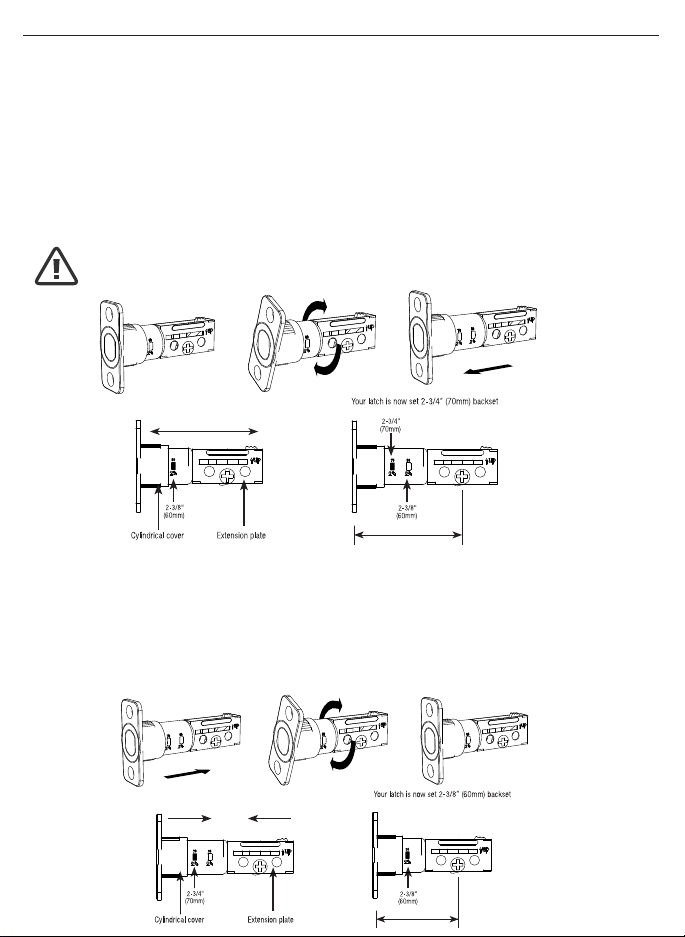
ADJUSTING DEADBOLT LATCH SET
NOTE: Deadbolt Latch Set is shipped with the backset set at 2-3/8” (60mm)
Measure the backset (backset is distance between edge of the door and the
center of Lock).
1. TO CONVERT FROM 2-3/8” (60mm) BACKSET TO 2-3/4” (70mm) BACKSET
a. Hold latch with numbers facing forward and thumb pressing on the bolt (Figure 1a).
b. Rotate the cylinder cover clockwise (Figure 1b).
c. Pull and twist the extension plate all the way out (Figure 1c).
d. Rotate the cylinder cover counter clockwise so that the marking aligns with
the 2-3/4” (70mm) position indicator (Figure 1d).
2. TO CONVERT FROM 2-3/4” (70mm) BACKSET TO 2-3/8” (60mm) BACKSET
a. Hold latch with numbers facing forward and thumb pressing on the bolt (Figure 2a).
b. Rotate the cylinder cover clockwise (Figure 2b).
c. Push and twist the extension plate all the way in (Figure 2c).
d. Rotate the cylinder cover counter clockwise so that the marking aligns with
the 2-3/8” (60mm) position indicator (Figure 2d).
Figure 1a
Figure 2a
Figure 1b
Figure 2b
Figure 1c
Figure 2c
Figure 1d
Figure 2d
NOTE: Do not extend Cylindrical Cover past 2-3/4” (70mm)
Page 4
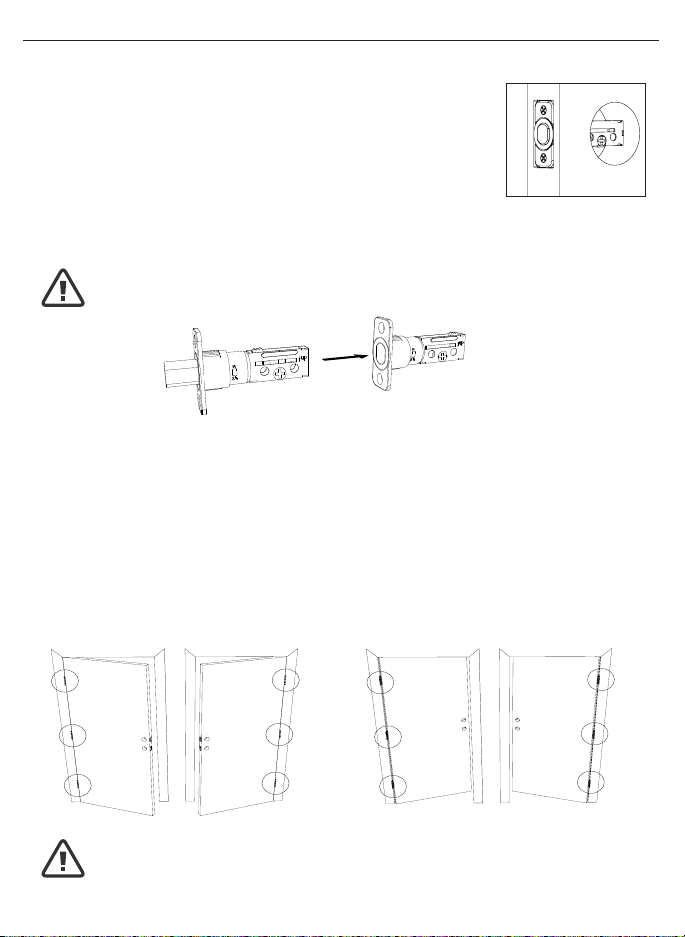
3. INSTALLING THE DEADBOLT LATCH SET (need phillips head screwdriver)
a. Insert Deadbolt Latch Set into door edge hole with the word
“UP” and the arrow on the extension plate facing UP. Cross
shaped spindle connector will be at the bottom of the Deadbolt
Latch Set (Figure 3a).
b. Make sure the face plate sits ush with the door. Do not force
the latch into the mortise ush. Chisel out excess material if
necessary for a ush t.
c. Using two 3/4” (19mm). screws provided, screw the latch into the
door with a hand held screwdriver. DO NOT OVER TIGHTEN.
4. IDENTIFYING YOUR DOOR HANDING
Stand outside the door.
a. If the hinges are on the left your door is Left Handed (Figure 4a and 4b).
b. If the hinges are on the right your door is Right Handed (Figure 4a and 4b).
NOTE: Deadbolt Latch must be retracted when installing
NOTE: You are standing outside the door
INSTALLING DEADBOLT LATCH SET
OUT SWING DOOR IN SWING DOOR
Figure 4a
Left Handed Door
Hinges are on the left side
Left Handed Door
Hinges are on the left side
Right Handed Door
Hinges are on the right side
Right Handed Door
Hinges are on the right side
Figure 4b
Figure 3a
Deadbolt Latch Extended
Deadbolt Latch Retracted
Page 5
PREPARING THE INTERIOR ASSEMBLY
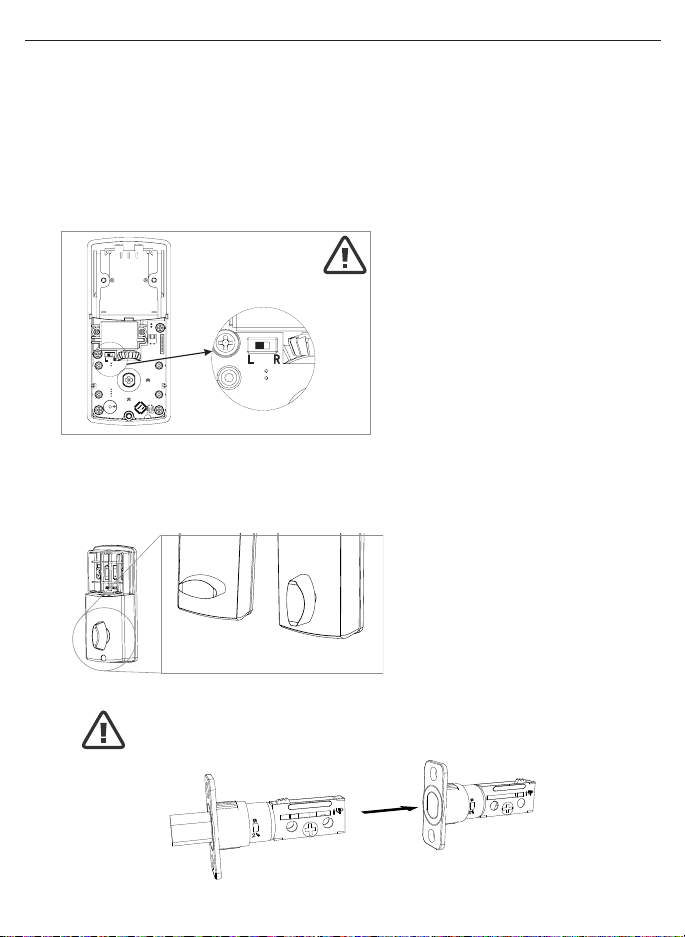
6. SET THE ENTRY SWITCH FOR LEFT OR RIGHT HANDED DOOR
a. Gently move the switch to “L” for Left Handed Door (Figure 6a).
b. Gently move the Switch to “R” for Right Handed Door (Figure 6b).
7. SET THE INTERIOR KNOB POSITION FOR LEFT OR RIGHT HAND HINGED DOORS
a. The Interior Knob goes in the Horizontal position for Left Handed Doors (Figure 7a).
b. The Interior Knob goes in the Vertical position for Right Handed Doors (Figure 7b).
NOTE: Make sure deadbolt Latch is retracted
Right Handed Door
(Vertical)
Entry Switch
(Left or Right)
Left Handed Door
(Horizontal)
5. UNPACK THE INTERIOR ASSEMBLY
a. Remove the battery cover by sliding the cover upward.
b. Locate the screws holding the Mounting Plate to the Interior Assembly. Remove the
screws to release the Mounting Plate from the Interior Assembly.
Figure 6a-b
Figure 7a-b
Page 6
Rubber Gasket
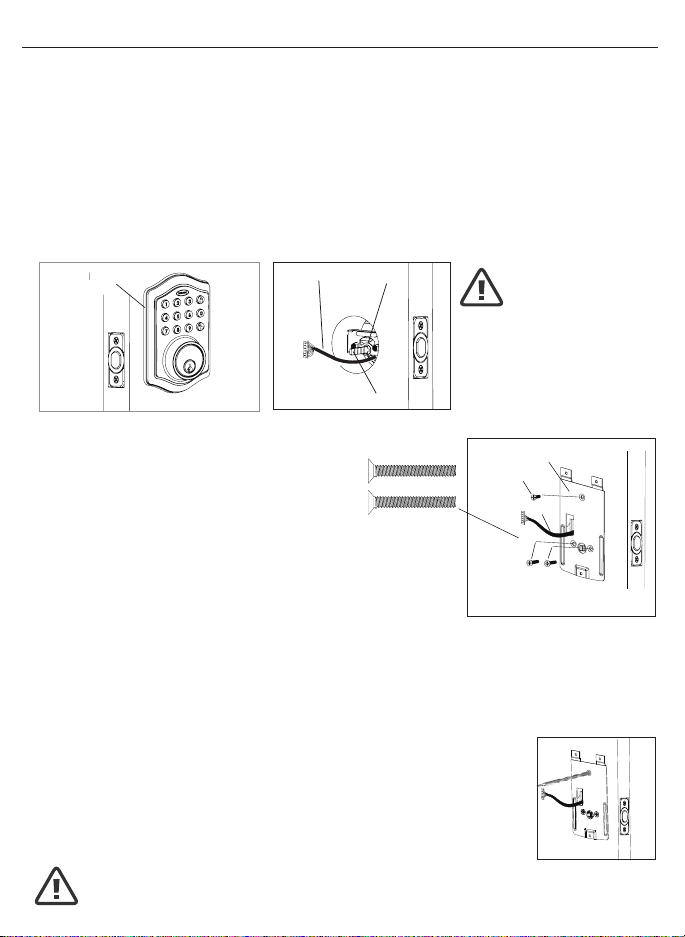
8. INSTALLING THE EXTERIOR ASSEMBLY
Work with the Door Open for easy access.
a. Unpack the Exterior Assembly. Use care to not scratch the green circuit board
during handling and installation.
b. Check that the Rubber Gasket is properly seated on the Exterior Assembly
(Figure 8a-b).
c. Insert the Exterior Assembly onto the door with the tailpiece going through the
Deadbolt Latch Set cross shaped spindle connector in the VERTICAL POSITION.
Route the Control Wire through the door over the Deadbolt Latch Set (Figure 8c).
9. SECURING THE EXTERIOR ASSEMBLY TO THE DOOR
a. From the side marked “This side against
door”, route the Control Wire through the
rectangular slot in the Mounting Plate
(Figure 9a).
b. Place Mounting Plate against door with tailpiece passing
through the center hole in the three hole set (Figure 9b).
c. Secure the Mounting Plate to the Exterior Assembly using
two 1-1/8” (28mm) Screws (Figure 9c).
d. Hand tighten with a Phillips Head Screwdriver leaving loosely connected
(Figure 9d).
e. Check that the Rubber Gasket is properly aligned and correct as necessary
(Figure 9e).
f. Check vertical alignment of the lock (Figure 9f).
g. Tighten securely with a hand held Phillips Head Screwdriver.
DO NOT OVER TIGHTEN
10. OPTIONAL INSTALLATION
a. Using a 1/16” (2mm) drill bit, drill a pilot hole in your door using the
Mounting Plate upper hole as a guide (Figure 10a).
b. Insert one 3/4” (19mm) screw and tighten.
NOTE: Tailpiece must be
positioned vertically
INSTALLING EXTERIOR ASSEMBLY
Right handed door view
Control
Wire
Tailpiece
(Vertical)
Latch
Hole
Mounting Plate
3/4” (19mm) screw
(Optional Installation)
7/8” (22mm) screws
Control Wire
Figure 8a-b
Figure 8c
Figure 10a
Figure 9a-f
NOTE: Lock and unlock using the key to see if
the Deadbolt Latch is opening and closing easily.
Rubber Gasket
Page 7
INSTALLING INTERIOR ASSEMBLY
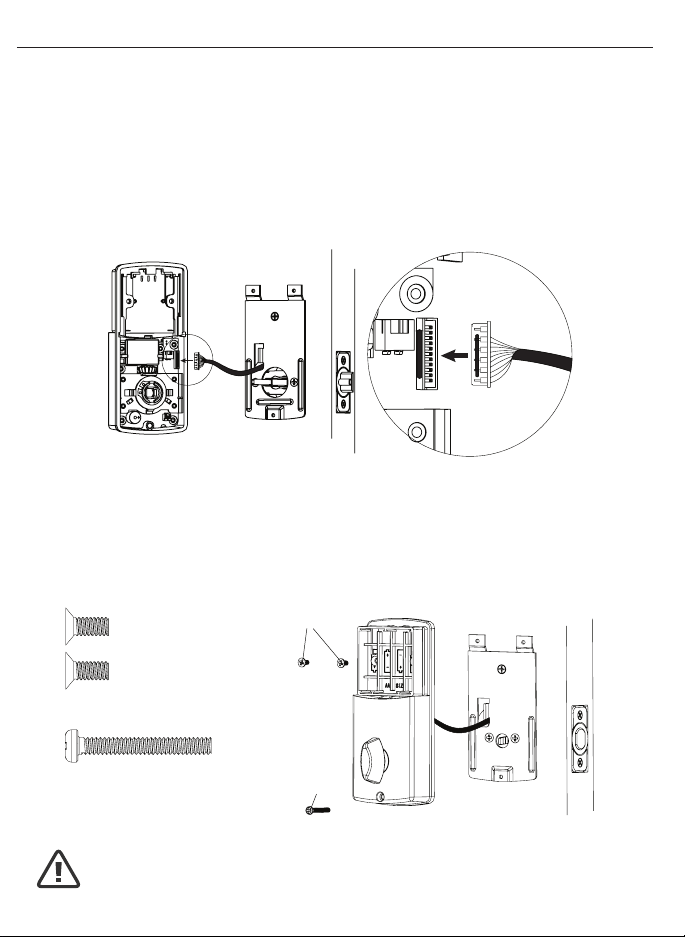
11. ATTACH THE CONTROL WIRE TO THE INTERIOR ASSEMBLY
a. Use care to attach the Control Wire male plug to the Interior Assembly female
socket connector (Figure 11a).
b. Do not force the Control Wire male plug into the Interior Assembly female
socket connector (Figure 11b).
c. The Control Wire male plug has two alignment tabs on the smooth side of the
plug which is the top of the plug (Figure 11c).
d. The Control Wire male plug is inserted with the smooth side up into the Interior
Assembly female socket connector (Figure 11d).
12. ATTACH THE INTERIOR ASSEMBLY TO DOOR
a. Position the Interior Assembly over the tailpiece and push the Interior Assembly
against the door (Figure 12a).
b. Using two 5/16” (8mm) screws and one 1” (25mm) screw, attach
the Interior Assembly to the Mounting Plate. DO NOT OVER TIGHTEN SCREWS
(Figure 12b).
5/16” (8mm) screws
1” (25mm) screw
NOTE: Lock and unlock using Interior Knob to see if the
latch is opening and closing easily.
Figure 12a-b
Figure 11a-d
Page 8
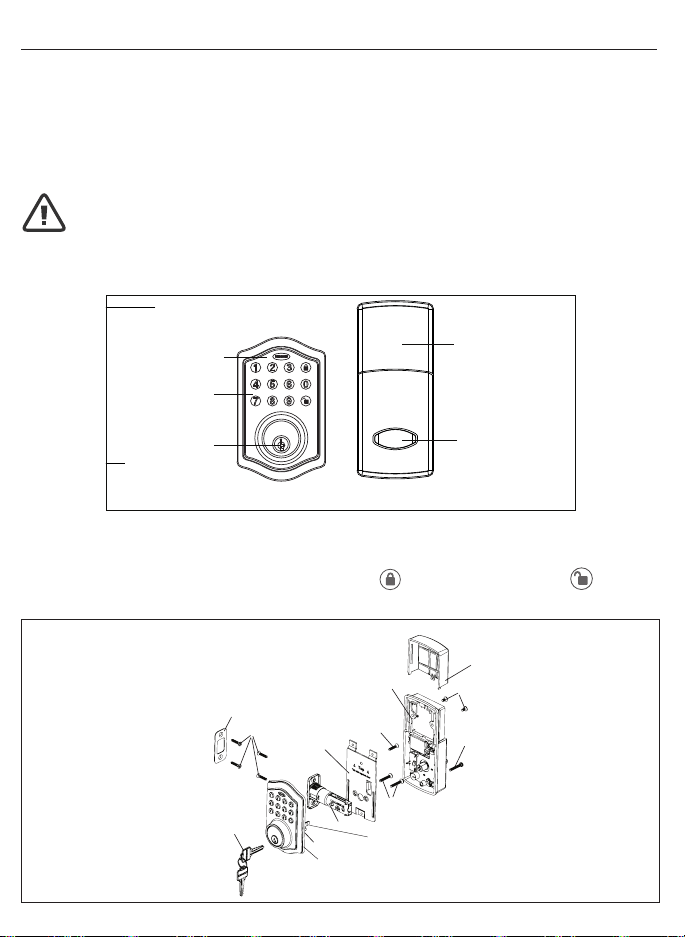
13. Installing Batteries
a. Insert 4 AA high quality Alkaline batteries into the Battery Compartment in the
direction noted +/- on the Compartment. The Lock will beep 2 times, the keypad
will illuminate blue, and the Light Indicator will ash green twice to signify that
it has received power (Figure 13a).
b. Slide the Battery Cover down into the track on the Interior Assembly to cover
the batteries (Figure 13b).
14. Testing Lock
With the Door Open
a. Test the Lock using the Interior Knob. The bolt should move smoothly.
b. Test the lock using the Keypad. To lock press and then press “ 1234”
to unlock.
INSTALLING INTERIOR ASSEMBLY (CONT.)
Override
Access Key
Exterior Assembly
Interior Assembly
Interior
Knob
Battery
Cover
Light Indicator
Keypad
NOTE: Do not touch the Keypad until the blue light turns off.
Do not use rechargeable batteries or non-alkaline batteries.
Figure 13a-b
INSTALLATION OVERVIEW
Strike Plate
Battery Cover
Interior Assembly
Key
Exterior Assembly
Rubber Gasket
Mounting Plate
Latch
5/16” (8mm) screws
Optional
3/4” (19mm)
screw
3/4” (19mm)
screws
7/8” (22mm) screws
1” (25mm) Screw
Page 9
OPERATION INSTRUCTIONS
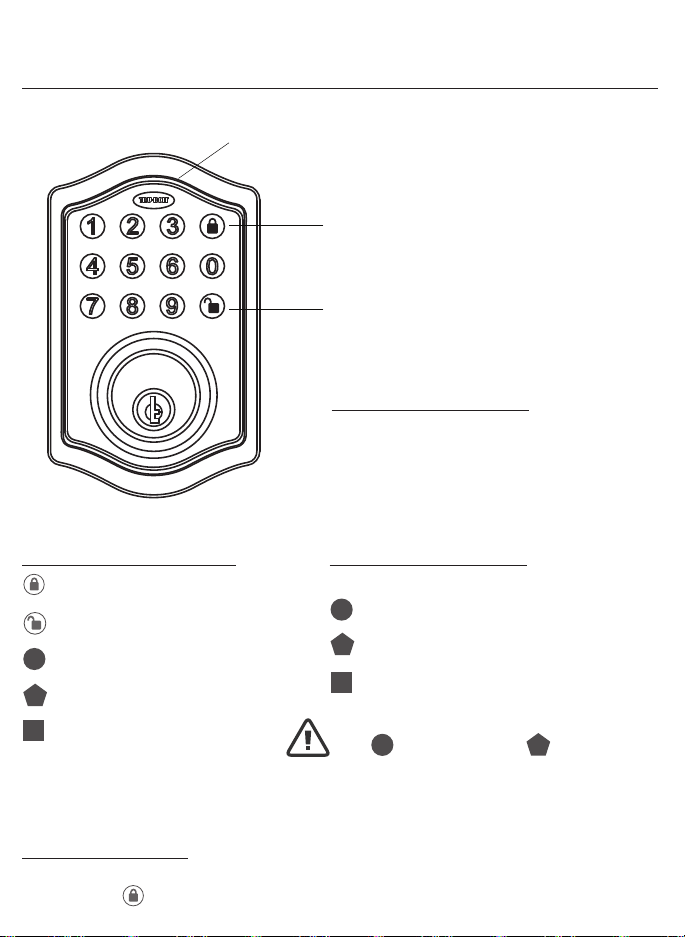
Exterior Assembly Overview
Light indicator
Green
• Indicates Successful Programming Step
• Indicates Unlocking is Successful
Red
• Indicates Failed Programming Step
• Indicates Locking is Successful
Electronic lock requires (4) High Quality
AA Alkaline batteries. When all 4 batteries
are installed in the correct position, hear 2
beeps and the keypad will illuminate blue.
DO NOT TOUCH the keypad until the keypad
stops illuminating.
Lock - Used to lock door
Clear - Used to clear wrong
keypad entries
Unlock - Used to unlock door
Programming - Used in programming steps
5 Seconds - Complete all the programming steps in the programming mode within 5 seconds.
Clear - Use the key to clear entries in case a wrong button is pushed.
Lock button
Unlock button
Factory Settings
The lock comes factory preset with a:
Please change the Programming
Code and the User Code
as soon as possible after installation
to insure security.
Programming code - 123456
User code - 1234
User ID - 01
ID
PC
PC
UC
UC
Batteries (not included)
Programming Symbols
Lock / Clear
Unlock / Programming
Programming Code
User Code (4-8 digits)
User ID (01-50, 2 digits)
ID
PC
UC
Programming Tips
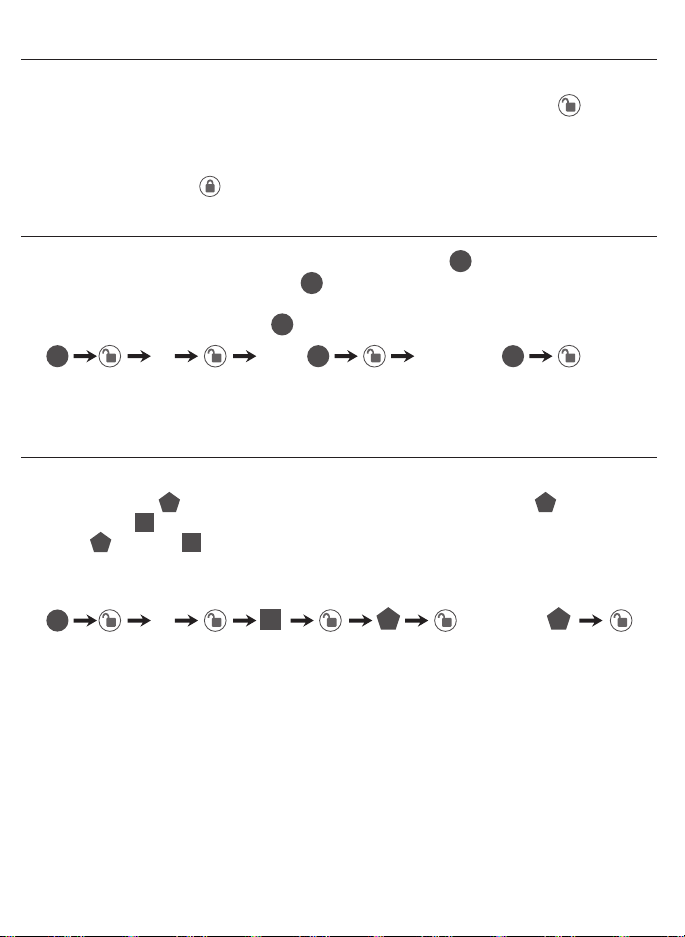
Page 10
TO UNLOCK THE LOCK
Using Keypad: Enter a valid User Code (default code is 1234) and press and hear
1 beep and lights green.
TO LOCK THE LOCK
Using Keypad: Press and then hear 2 beeps and lights red.
CHANGE CURRENT OR PRESET PROGRAMING CODE
Factory default Programming Code = 123456, this is the master password for
your lock. All programming functions require this code. Follow the below sequence to
change the Programming Code to your custom 6 digit combination.
TO ADD A NEW USER CODE (you can add up to 50 new user codes)
The User Code must be a 4-8 digit combination. Each User Code is then linked
to a User ID (which is any number between 01-50) to identify an individual User
Code . (User ID 1-9 should be entered as 01-09 so they are 2 digits).
Hear 1 beep and Light Indicator illuminates green.
Record New and Changed Codes on Programming Record located on Page 18 & 19.
Hear 1 beep and Light Indicator illuminates green.
NOTE: When a NEW USER CODE is set, the default factory code (1234) is deleted
for safety.
Record New and Changed Codes on Programming Record located on Page 18 & 19.
123456 08 5678 5678
For example: to add the User ID - 08 to User Code - 5678, enter the following:
4 new Re-enter
1 Re-enter
Locking and Unlocking
Changing Programming Code
Adding User Codes
ID
ID
ID
UC UC
UC UC
UC
PC
PC
PC PC
PC
PC
PC
Page 11
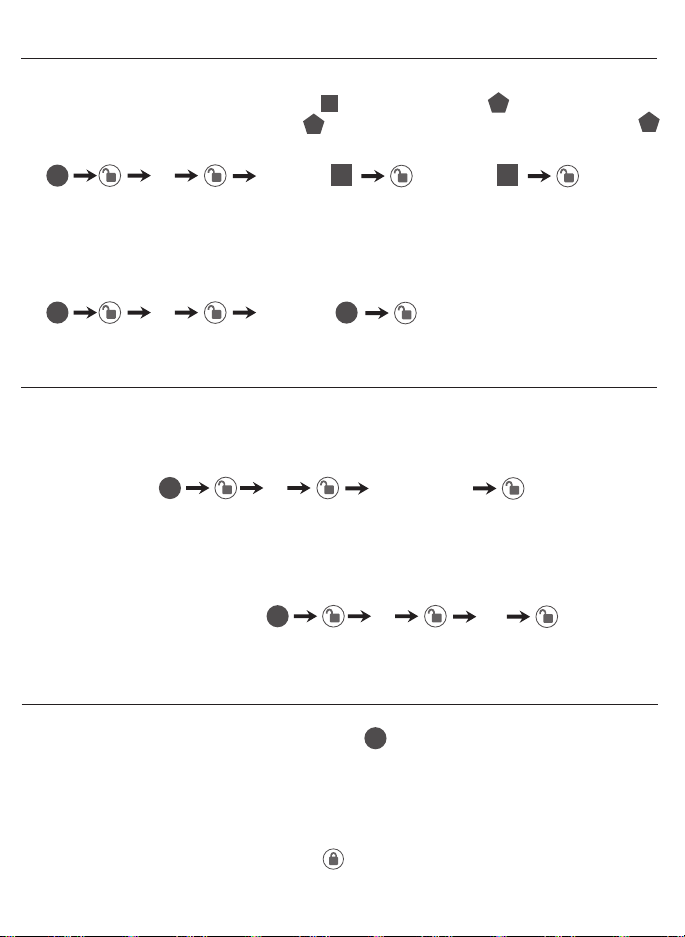
DELETE ONE EXISTING OR PRESET USER CODE
The unit comes with a factory User ID = 01 for User Code = 1234.
IMPORTANT: To delete 1 User Code , the lock must have more than 1 User Code
in its database.
SET OR CANCEL AUTO LOCK
You can set the lock to automatically close after each time the lock is opened. Time
value range = 20 - 900 seconds, enter the following:
DELETE ALL USER CODES
IMPORTANT: this will delete the user codes but not the programming code, enter
the following.
Hear 1 beep and Light Indicator illuminates green.
Set Auto Lock:
Hear 1 beep and Light Indicator illuminates green.
To cancel Auto Lock set the time to 00, enter the following:
Cancel Time Value Auto Lock:
Hear 1 beep and Light Indicator illuminates green.
Hear 1 beep and Light Indicator illuminates green.
2 Existing re-enter
5 Time Value
5 00
3 re-enter
Deleting User Codes
Automatic Lock Function
PC
PC
PC
PC PC
ID
UC
UC
UC
ID ID
DISABLE:
While in Auto-Lock mode, unlock door using , within 10 seconds you must turn the
locking knob by hand to the locked position, wait more than 2 seconds then turn the
locking knob back to the unlock position. The Auto-Lock mode is now disabled.
RESTORE:
To restore the Auto-Lock funtion, turn the locking knob by hand to the locked position,
wait more than 2 seconds or press the
Lock button on the keypad.
Temporarily Disable Auto-Lock
PC
Page 12
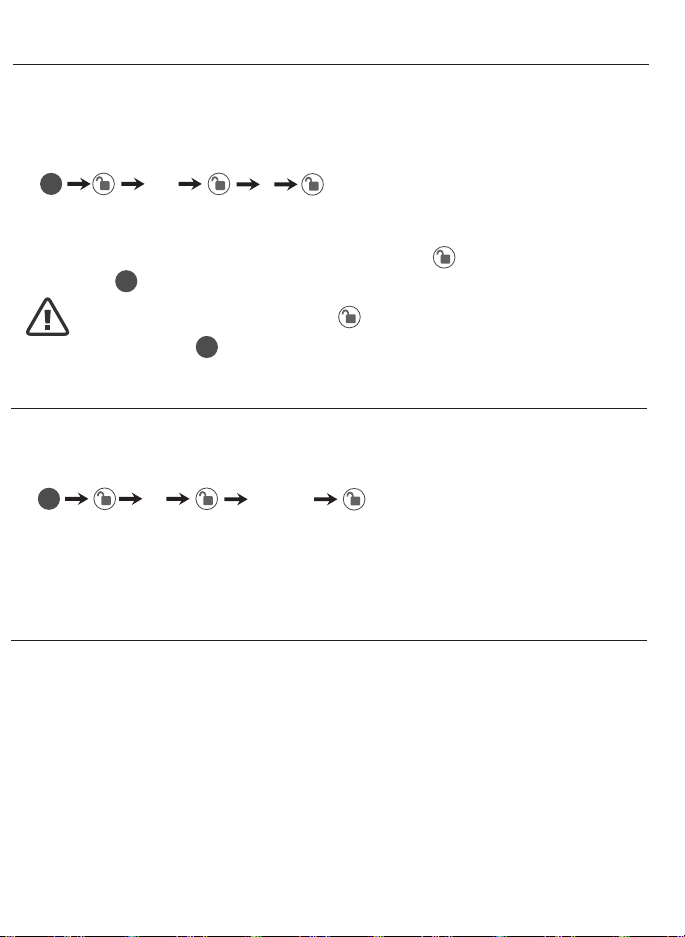
NOTE: If you only press the for more than 3 seconds but
do not input
PC
, the system will remain in Vacation Mode.
With Vacation Mode enabled, the system enters into low-power comsumption mode.
During this mode, all buttons and functions will be invalid until they are re-enabled (see
steps below).
ENABLE:
DISABLE:
To disable the Vacation Mode, you must press and hold for more than 3 seconds,
then input to unlock the door. Vacation Mode is now disabled.
Vacation Mode
Hear 1 beep and Light Indicator illuminates green then lock door
10 1
PC
PC
You can “mute” or turn the “sound on” on your lock by entering the following.
(Factory setting is sound on).
Sound Off (1) - Light Indicator illuminates green.
Sound On (2) - Hear 1 beep and Light Indicator illuminates green.
6 1 or 2
Sound On and Off
PC
1 = Sound Off
2 = Sound On
Warning sounds and LED ashes red after 4 incorrect code attempts: Keypad shuts
down for 30 seconds.
Secure Lock-out Period
Page 13
NOTE: When battery is under low voltage, the lock will give the (Low Battery Warning: Beeps and
LED ashes red for 5 seconds). During this time your lock can still work. However once the voltage
is lower than 4.3V (called Super-Low Voltage), the operation of the locking and unlocking will not
work, user must replace batteries immediately.
Consumer Friendly Message Guide
Unlock / Valid programming 1 long beep and LED illuminates green
Lock 2 short beeps and LED illuminates red
Invalid Programming 2 short beeps and LED ashes red twice
Low Voltage Beeps for 5 seconds
(7/9 times depends on operation is unlock/lock)
Super Low Voltage 4 short beeps and LED ashes red four times
4 Incorrect code entry attempts 2 short beeps and LED illuminates red each attempt
Power on 1 long beep and 1 short beep and LED illuminates green
Chip Reset 1 long beep and 1 short beep and LED illuminates green
(may occur several times or once in a while)
Lock Error 3 long beeps LED ashes red three times
Repeat operation after Lock Error 2 short beeps three times LED ashes red six times
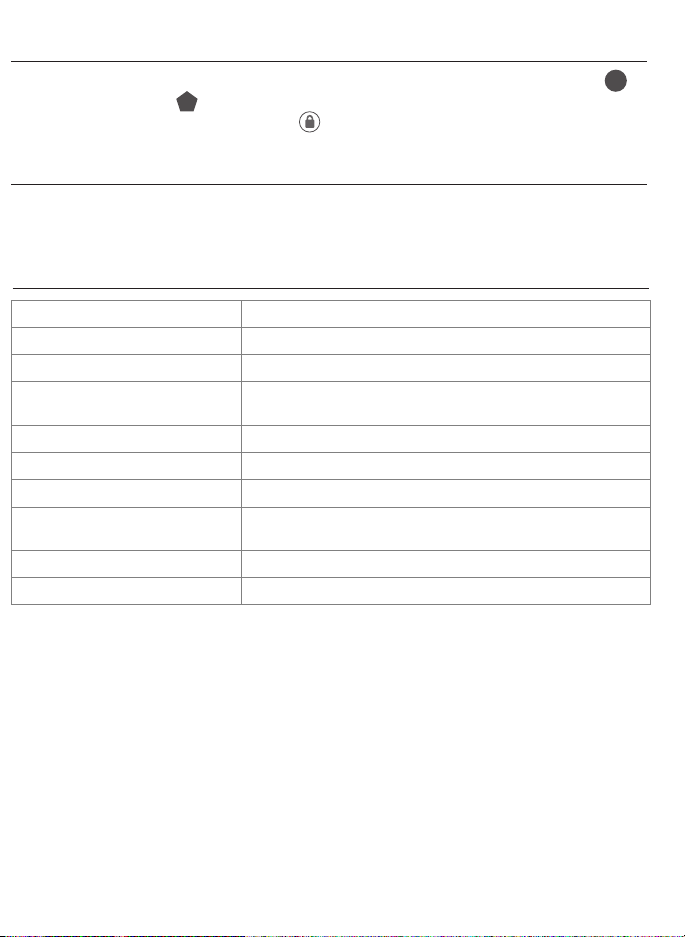
To reset the lock to the original factory settings including the Programming Code
and all User Codes remove one battery for 10 seconds. Reinsert the battery and
wait for a long and short beep. Press 3 times within 3 seconds. The lock will beep
and the light indicator will turn green.
Beeps and LED ashes red for 5 seconds. Replace with good quality alkaline batteries.
Note: Removing batteries does not erase active Programming or User Codes.
Restore Factory Settings
Low Battery Warning
UC
PC

Page 14
INSTALLATION TROUBLE SHOOTING
Issue Solution
Latch Working Backwards-
Lock unlocks when lock
button is pushed or locks
when unlock button or code is
pushed.
Direction switch is set to incorrect setting.
Remove the Interior Assembly and move the
switch to the opposite direction.
• Check that your switch is set in the correct
position Left or Right Handed door.
If Correct
• Rotate Interior Knob and reinstall Interior
Assembly. Retest again while holding Interior
Assembly in place.
Interior Knob will not turn. Knob or vertical tailpiece is installed in
incorrect position. Remove Interior Assem-
bly and reposition the Interior Knob. With the
Deadbolt Latch retracted verify that the tailpiece
is vertical.
Lock will not function
electronically.
• Check that all batteries are fresh high quality
Alkaline Batteries.
• Check for proper polarity (+ -) of all batteries.
• Check that the Control Wire is attached to the
Interior Assembly.
Lock gives error signal when
opening or locking and Dead-
bolt Latch will not extend or
retract completely when door
is closed.
Unlock door using Key or Interior Knob. While
door is open, check that the Deadbolt Latch
operates smoothly. Check for proper alignment
of the strike plate, adjust as needed to assure
there is no binding against the Deadbolt Latch.
Deadbolt Latch is sticking. Installation screws of the lock may be too tight
and have to be loosened.
• Remove Interior Assembly.
• Slightly loosen the Mounting Plate screws.
• Lock and unlock using the Key.
• Reattach Control Wire and Interior Assembly.
Page 15
FOR INSTALLING
ENTRY LOCK AND DEADBOLTS
IMPORTANT!
PLACE TEMPLATE
ON HIGH EDGE OF
DOOR BEVEL
THEN DRILL 1"(25mm) HOLE
IN CENTER OF DOOR EDGE
(2" IN DEPTH)
FOLD HERE ON
DOOR EDGE
2 /
8
"BACKSET
3
MARK
FOR
1 "(45mm)
DOOR
3
4
DRILL
2-1/8"(54mm)
HOLE
MARK CENTER
OF HOLE ON
DOOR FACE
TEMPLATE
2 /
4
"BACKSET
3
3
8
MARK
FOR
1 "(35mm)
DOOR

Page 16
Back of Template

Page 17
EMAIL: [email protected]
WEBSITE: www.truboltlocks.info
ADDRESS: Consumer Assistance Dept.
Lewis Hyman, Inc., 860 East Sandhill Avenue Carson, CA 90746 USA
TELEPHONE: US/Canada 800-860-1677 (Toll Free)
CALL CENTER HOURS: US/Canada 7am – 5pm (Pacic**) Mon – Fri
(Subject to change)
CALL BACK HOURS: Other Countries 7am – 8pm (Pacic**) Mon – Fri
(Subject to change)
Pacic**- Local time in Los Angeles, CA, USA
** Local Time based on Los Angeles California USA
CONSUMER ASSISTANCE

Page 18
My Codes: Date Created
Programming Code (6 digits) / /
User Code 01 (4-8 digits) / /
User Code 02 (4-8 digits) / /
User Code 03 (4-8 digits) / /
User Code 04 (4-8 digits) / /
User Code 05 (4-8 digits) / /
User Code 06 (4-8 digits) / /
User Code 07 (4-8 digits) / /
User Code 08 (4-8 digits) / /
User Code 09 (4-8 digits) / /
User Code 10 (4-8 digits) / /
User Code 11 (4-8 digits) / /
User Code 12 (4-8 digits) / /
User Code 13 (4-8 digits) / /
User Code 14 (4-8 digits) / /
User Code 15 (4-8 digits) / /
User Code 16 (4-8 digits) / /
User Code 17 (4-8 digits) / /
User Code 18 (4-8 digits) / /
User Code 19 (4-8 digits) / /
User Code 20 (4-8 digits) / /
User Code 21 (4-8 digits) / /
User Code 22 (4-8 digits) / /
User Code 23 (4-8 digits) / /
User Code 24 (4-8 digits) / /
User Code 25 (4-8 digits) / /
Programming Record

Page 19
My Codes: Date Created
User Code 26 (4-8 digits) / /
User Code 27 (4-8 digits) / /
User Code 28 (4-8 digits) / /
User Code 29 (4-8 digits) / /
User Code 30 (4-8 digits) / /
User Code 31 (4-8 digits) / /
User Code 32 (4-8 digits) / /
User Code 33 (4-8 digits) / /
User Code 34 (4-8 digits) / /
User Code 35 (4-8 digits) / /
User Code 36 (4-8 digits) / /
User Code 37 (4-8 digits) / /
User Code 38 (4-8 digits) / /
User Code 39 (4-8 digits) / /
User Code 40 (4-8 digits) / /
User Code 41 (4-8 digits) / /
User Code 42 (4-8 digits) / /
User Code 43 (4-8 digits) / /
User Code 44 (4-8 digits) / /
User Code 45 (4-8 digits) / /
User Code 46 (4-8 digits) / /
User Code 47 (4-8 digits) / /
User Code 48 (4-8 digits) / /
User Code 49 (4-8 digits) / /
User Code 50 (4-8 digits) / /
Programming Record (Cont.)

Page 20
For questions / comments, technical assistance or repair parts –
Please call toll free at : 1-800-860-1677 (M-F 7am – 5pm PST)
Limited 1-Year Electronic Warranty
Limited Lifetime Mechanical and Finish Warranty
This Tru-Bolt® product comes with a 1-Year Limited Warranty on Electronic Parts and a Limited
Lifetime Mechanical and Finish Warranty against defects in materials and workmanship under
normal use to the original residential user. Simply bring this product with the original sales receipt
back to your nearest Menards® retail store. At its discretion, Tru-Bolt® agrees to have the product
or any defective part[s] repaired or replaced with the same or similar Tru-Bolt® product or part[s]
free of charge. This warranty is non transferable, and applies to the original purchaser only, as long
as the original purchaser occupies the residential premises upon which the product[s] was
originally installed. Proof of purchase and ownership is required for the warranty to be in effect.
Requests for credit for defective item[s] must be made to any Menards® retail store. This warranty
DOES NOT COVER removal and reinstallation of product[s], scratches, abrasions, deterioration due
to the use of paints, solvents or other chemicals, abuse, misuse, or product[s] used in commercial
applications, does not cover any losses, injuries to persons/property or costs, and shipping and
freight expenses required to return product[s] to nearest Menards® retail store. In no event shall
Tru-Bolt® be liable for any special, incidental or consequential damages. Customers will receive
instructions as to the disposition of the defective item[s]. Menards® reserves the rights, which
may vary from state to state. If this product[s] is considered a consumer product, please be
advised that some local and state laws do not allow limitations on incidental or consequential
damages or how long an implied warranty lasts, so that the above limitations may not fully apply.
Refer to your local laws for your specic rights under this warranty.
Package Warranty:
Limited Lifetime Mechanical & Finish Warranty:
This Tru-Bolt® product[s] comes with a 1-Year Limited Warranty on Electronic Parts and a Limited
Lifetime Mechanical and Finish Warranty against defects in materials and workmanship under
normal use to the original residential user. Simply bring this product[s] with the original sales
receipt back to your nearest MENARDS® retail store and we’ll replace it with the same or similar
Tru-Bolt® product or part. See installation instructions for full terms and conditions.

Page 21
Manufactured by:
Lewis Hyman Inc.
860 East Sandhill Avenue
Carson, CA 90746