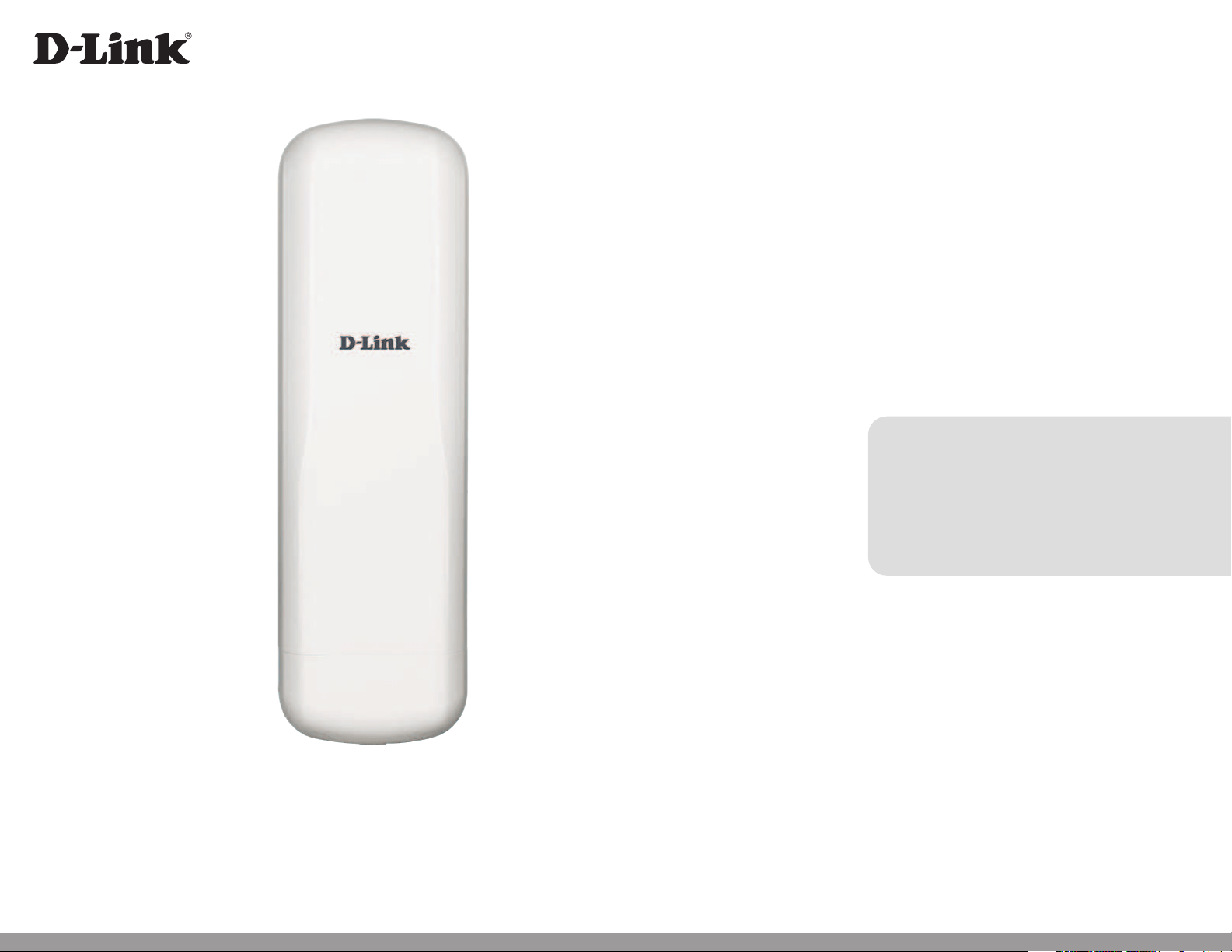
User Manual
Version 1.00 | 25/12/2020
DAP-3711
5 km Long Range 802.11ac Wireless Bridge

2D-Link DAP-3711 User Manual
Table of Contents
Product Overview .............................................................. 3
Package Contents .........................................................................3
System Requirements ................................................................. 4
Introduction ................................................................................... 5
Features ............................................................................................ 6
Hardware Overview ..................................................................... 7
Connection ............................................................................. 7
LED Indicators ........................................................................ 8
Installation ......................................................................... 9
Preparation before Installation ........................................ 9
Powering the Access Point ..............................................10
Cable Requirements ..........................................................10
Conguring the First DAP-3711 in Access Point
Mode .......................................................................................10
Conguring the Second DAP-3711 in Client Mode 11
Wireless Installation Considerations ............................13
Mounting the Device ........................................................15
Checking the Signal Strength ........................................15
Mounting on a Pole ...........................................................15
Conguration ...................................................................16
Factory Default Setting ............................................................16
Web-based Conguration .......................................................17
Wizard .............................................................................................20
Basic Settings ...............................................................................25
Wireless ..................................................................................25
Network .................................................................................. 32
In the Network tab, you can set up the DAP-3711’s
network mode and IP address. ......................................32
QoS...........................................................................................34
Service ....................................................................................37
System ....................................................................................40
Status ..............................................................................................42
Info ...........................................................................................42
Statistics .................................................................................44
Network .................................................................................. 45
Syslog Info .............................................................................46
Tools ................................................................................................47
Ping IP .....................................................................................47
Traceroute .............................................................................48
Link Test .................................................................................. 49
Antenna Alignment ...........................................................50
Spectrum Analyzer .............................................................51
Technical Specications ..................................................52
Table of Contents

3D-Link DAP-3711 User Manual
Section 1 - Product Overview
Package Contents
DAP-3711 5 km Long Range 802.11ac Wireless Bridge
Quick Start Guide
24V PoE Injector
Power cord
Mounting ties
Note: Using a PoE Injector with a dierent voltage rating or PoE injector than the one included with the DAP-3711 will cause damage and void the warranty for this product.

4D-Link DAP-3711 User Manual
Section 1 - Product Overview
System Requirements
Web-based Conguration
Requirements
Computer with the following:
• Microsoft Windows®, Apple Mac OS, or a Linux-based operating
system
Browser Requirements:
• Microsoft Edge, Firefox 60.0, Safari ,or Chrome 68.0.3440.106

5D-Link DAP-3711 User Manual
Section 1 - Product Overview
Introduction
DAP-3711 is a powerful WIFI Bridge/AP device, which allows WIFI access and video/audio/data transmission device, enables
long-range, fast speed and robust wireless connections. DAP-3711 has the advantages of long-distance, high-throughput, and
between point-to-multi-point performances.
DAP-3711 also support TDMA. TDMA technology solves the problems of hidden-node problem in the 802.11 network. ACK
Time-Out Auto Adjust can automatically detect the distances of the DAP-3711 devices, and thus adjust the wireless parameters
to achieve the best wireless link quality.
The best transmission range and max speed of DAP-3711 is up to 867Mbps
1
, making it suitable for many applications of WIFI
Bridge, especially point-to-multi-point communication.
1
Actual data throughput will vary. Network conditions and environmental factors, including volume of network trac, building materials and construction, and network
overhead, lower actual data throughput rate.

6D-Link DAP-3711 User Manual
Section 1 - Product Overview
• High-performance 802.11ac 2×2 chip
• Max. transmission range: 5 km
• Max. transmission throughput: up to 867 Mbps
• Integrated TDMA, intelligent rate control, and Auto ACK timeout
• TDMA solves the problems of hidden-node problem in the 802.11 network, thus having better long-distance and
PTMP performance
• Supports 4 operation modes: Access Point, Client, WDS Access Point, WDS Client
• Supports point-to-point and point-to-multipoint connections
• Unique RF and antenna design enable long-range transmission
• Wireless multimedia optimization technology guarantees video/audio transmission QoS
• User-friendly web-based UI makes the installation and setup processes much easier
• Reliable PoE power supply
• Waterproof housing and protection from weather
• Web-based conguration, easy to use
• Support dual backup rmware, maintenance operation will be safer and more reliable
• Web based working scenario selection makes the installation and setting much easier
Features
7D-Link DAP-3711 User Manual
Section 1 - Product Overview
Hardware Overview
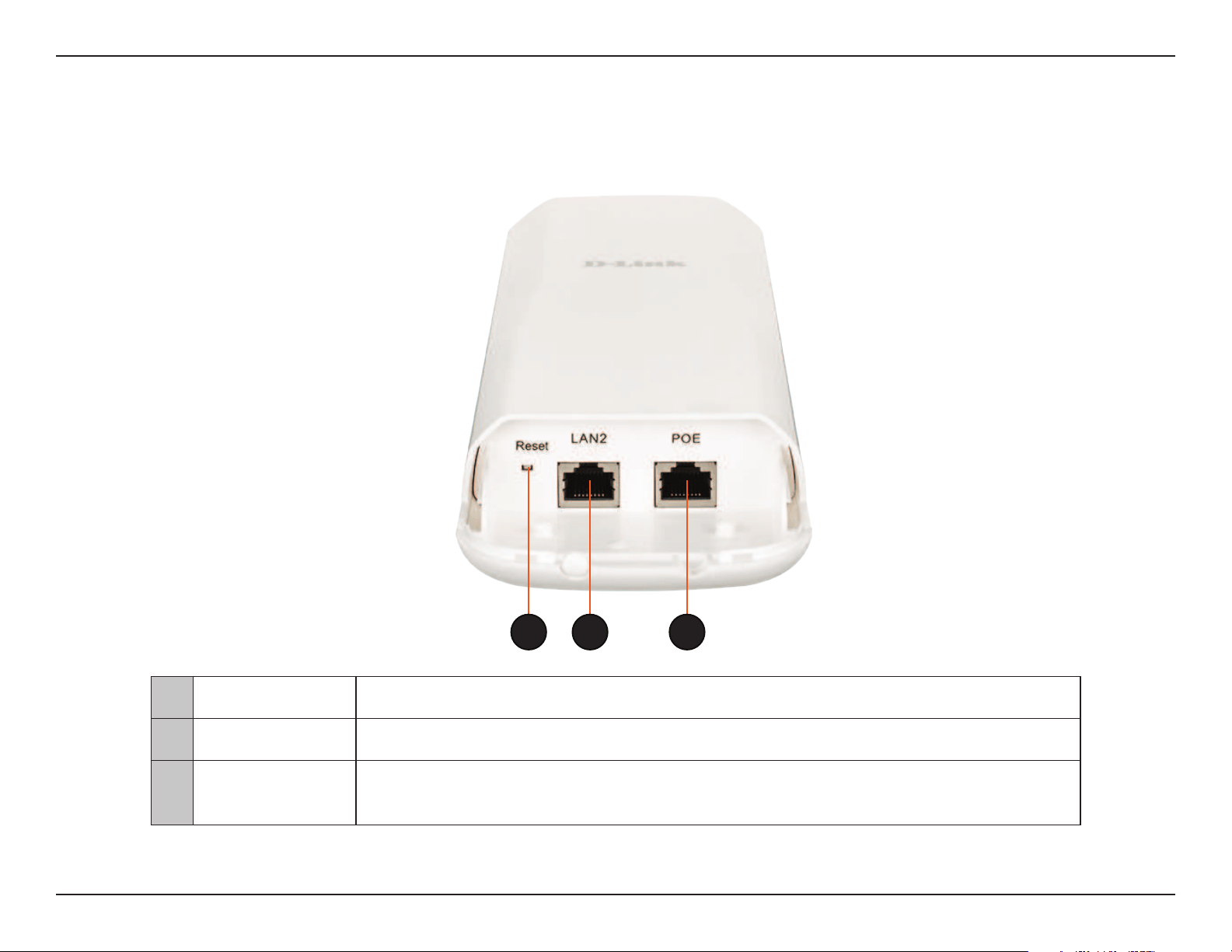
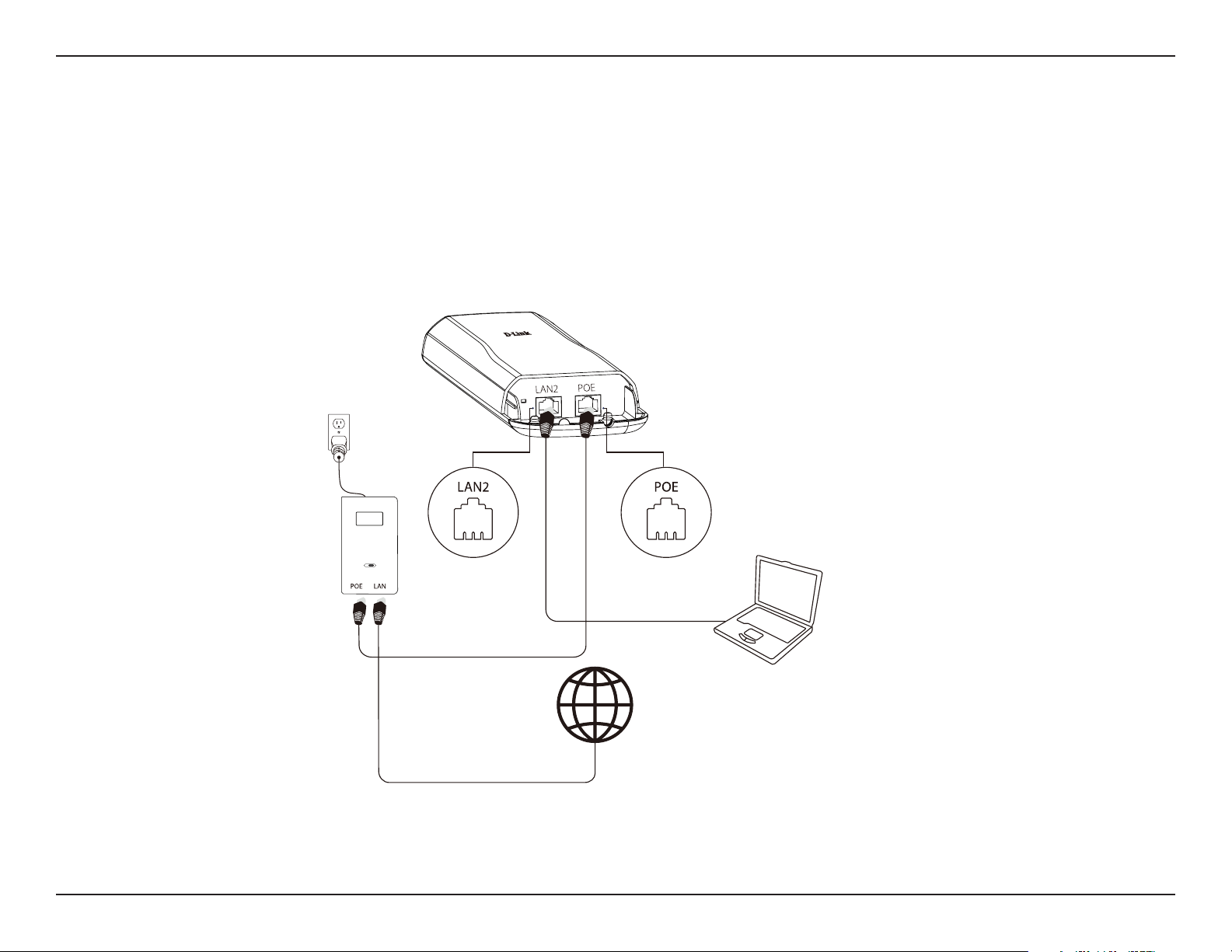
Connection
1 Reset Button Resets the device to its factory settings.
2 LAN 2 Port Uses a standard Ethernet cable to connect to devices such as computers and switches.
3 PoE LAN Port
Uses a standard Ethernet cable to connect the device to a PoE power source such as a PoE
switch or PoE injector.
21 3
Note: The DAP-3711 uses a proprietary PoE injector which is needed to function correctly. Only use the included PoE injector as other power sources
such as 3rd party PoE injector es or hubs may damage the DAP-3711 or cause it to operate unreliably and will also void the warranty.
8D-Link DAP-3711 User Manual
Section 1 - Product Overview
Hardware Overview
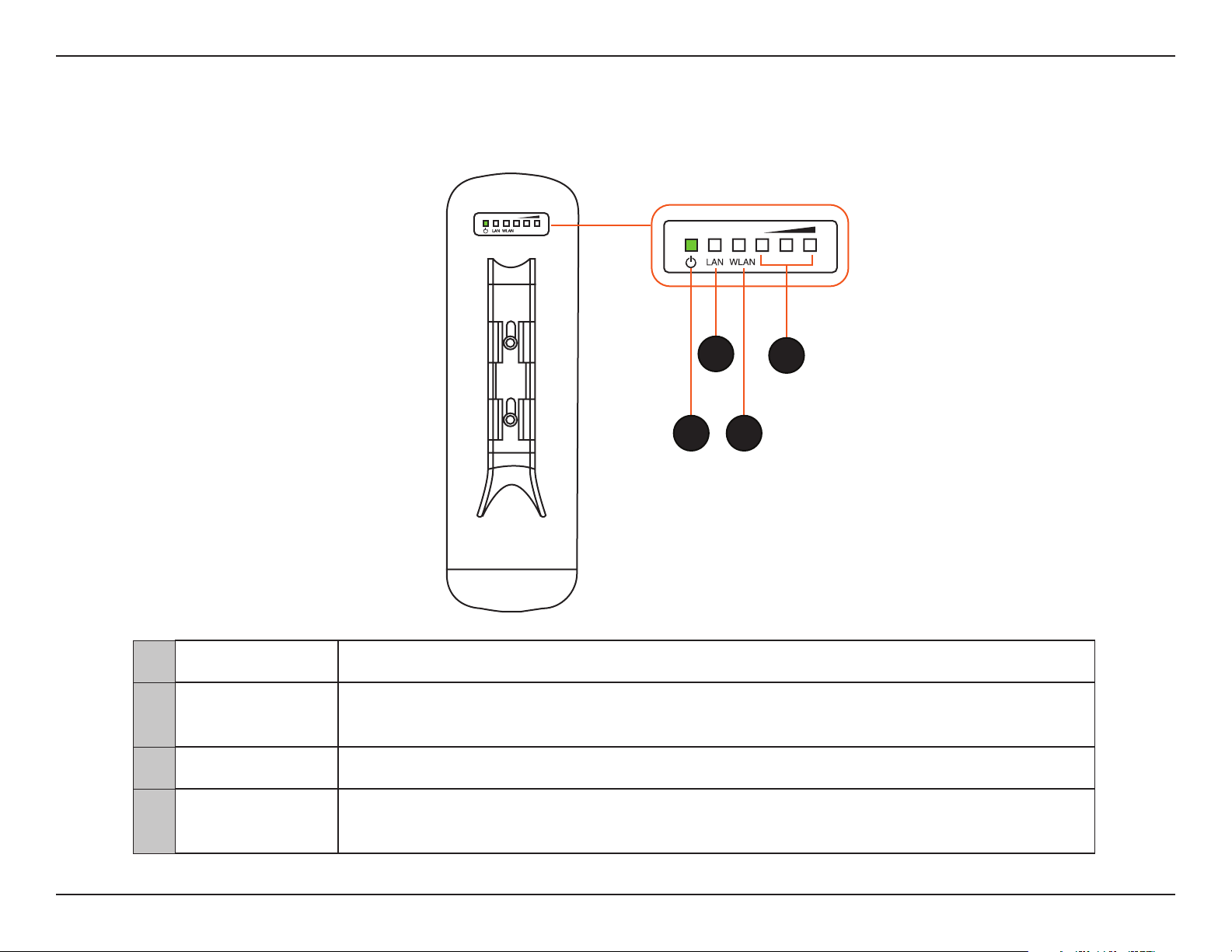
LED Indicators
1 Power Power indicator. Green light indicates the power is on.
2 LAN
Network connection light. A steady green light indicates the LAN port of the PoE power supply
is connected to a network device. A ashing green light indicates data is being transmitted.
3 WLAN Wireless indicator. Lights up to indicate wireless activation. Flashes when data is being transmitted.
4 Signal Strength
Signal strength indicator. A red light indicates a weak signal. Red and yellow together indicates
a medium signal. Yellow, red and green together indicates a strong signal.
1 3
2
4
9D-Link DAP-3711 User Manual
Section 2 - Installation
Preparation before Installation
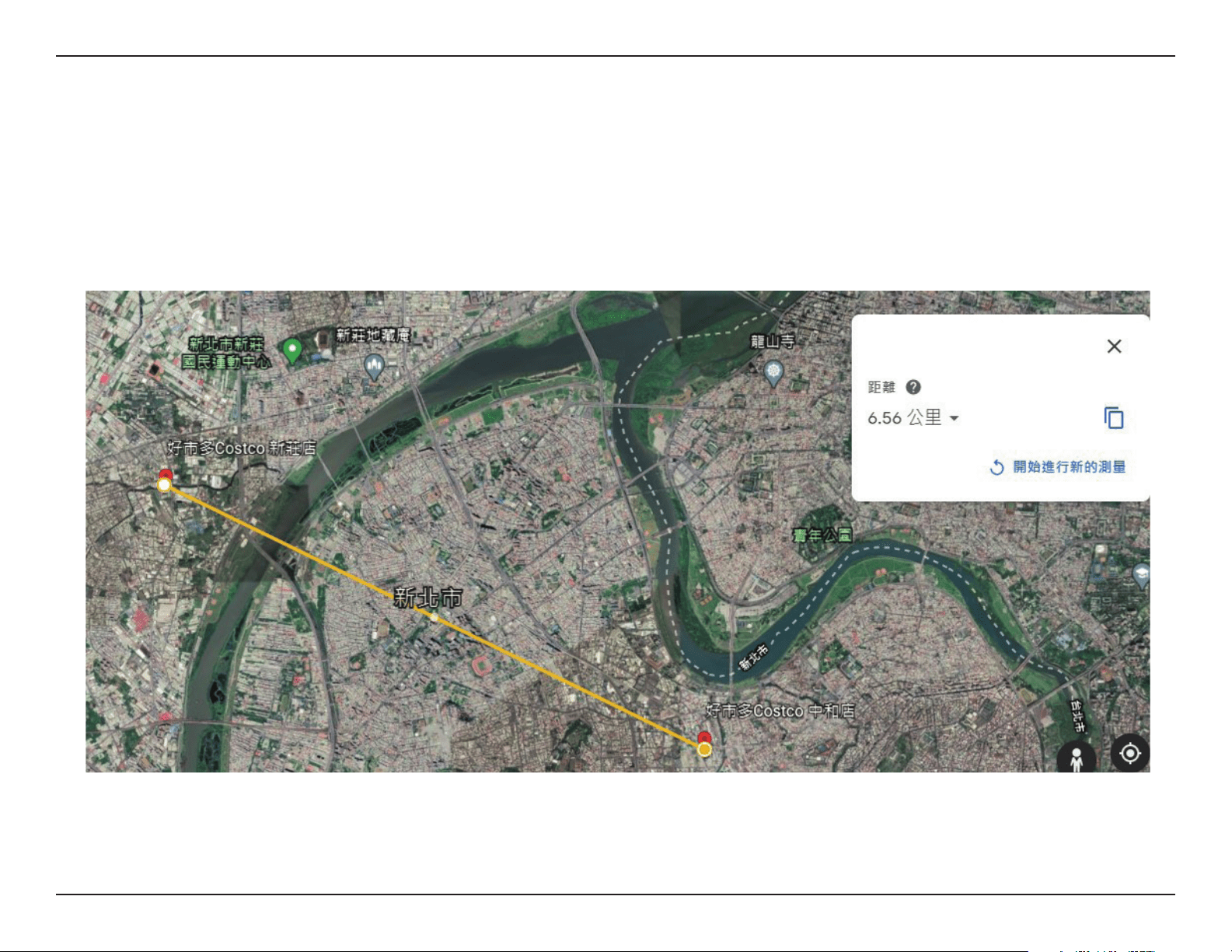
Before installing the DAP-3711, check the distance between the two sides and ensure
that they are within wireless signal range of each other. It may be helpful to use a Graphic Information System (GIS) program
such as Google Earth to check for obstructions between the two sites. If there is an obstruction, it may help to install the DAP-
3711 as high as possible to prevent the signal from being blocked.
Note: Ensure that both devices have the same model number and are running the same rmware version. The radiation pattern and wireless protocol of the DAP-3711 is designed
for high-performance bridge connectivity. Using dierent models or models with mismatched rmware versions may cause problems, such as performance degradation or a
reduction in coverage area.
Installation
10D-Link DAP-3711 User Manual
Section 2 - Installation
Powering the Access Point
To power the DAP-3711, use a standard Ethernet cable to connect the PoE port on the DAP-3711 to a 24V PoE injector.
Cable Requirements
Use a CAT 5 cable with an even sheath. The Ethernet ports on the DAP-3711 access point cannot accept a CAT 5 cable that has
an uneven sheath; the RJ-45 connector on the cable will not t properly into the receptacle on the access point.
Conguring the First DAP-3711 in Access Point Mode
1. Use an Ethernet cable to connect the LAN 2 port on the DAP-3711 to the management computer.
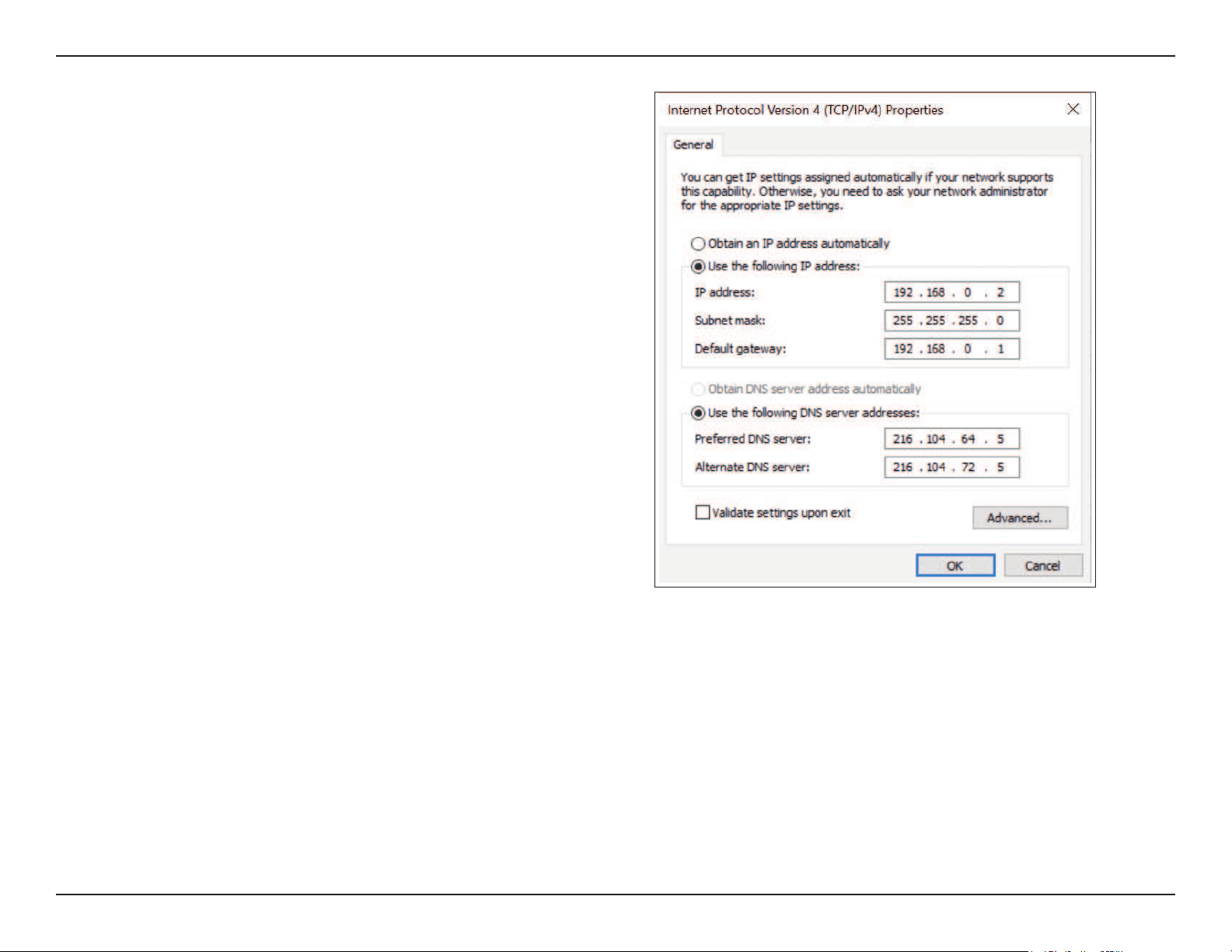
2. Ensure the computer is congured with the static IP address 192.168.0.2 and a subnet mask of 255.255.255.0.
3. Launch a web browser. Enter 192.168.0.50 in the address eld of your browser.
11D-Link DAP-3711 User Manual
Section 2 - Installation
4. Log in to the administration user interface.
The default login information is:
Username: admin
Password: admin
5. Follow the Setup Wizard’s instructions to congure the device in Access Point Mode.
Conguring the Second DAP-3711 in Client Mode
1. Follow steps 1-4 of the instructions above to power on the device. Launch the Setup Wizard to congure the device in Client
Mode.
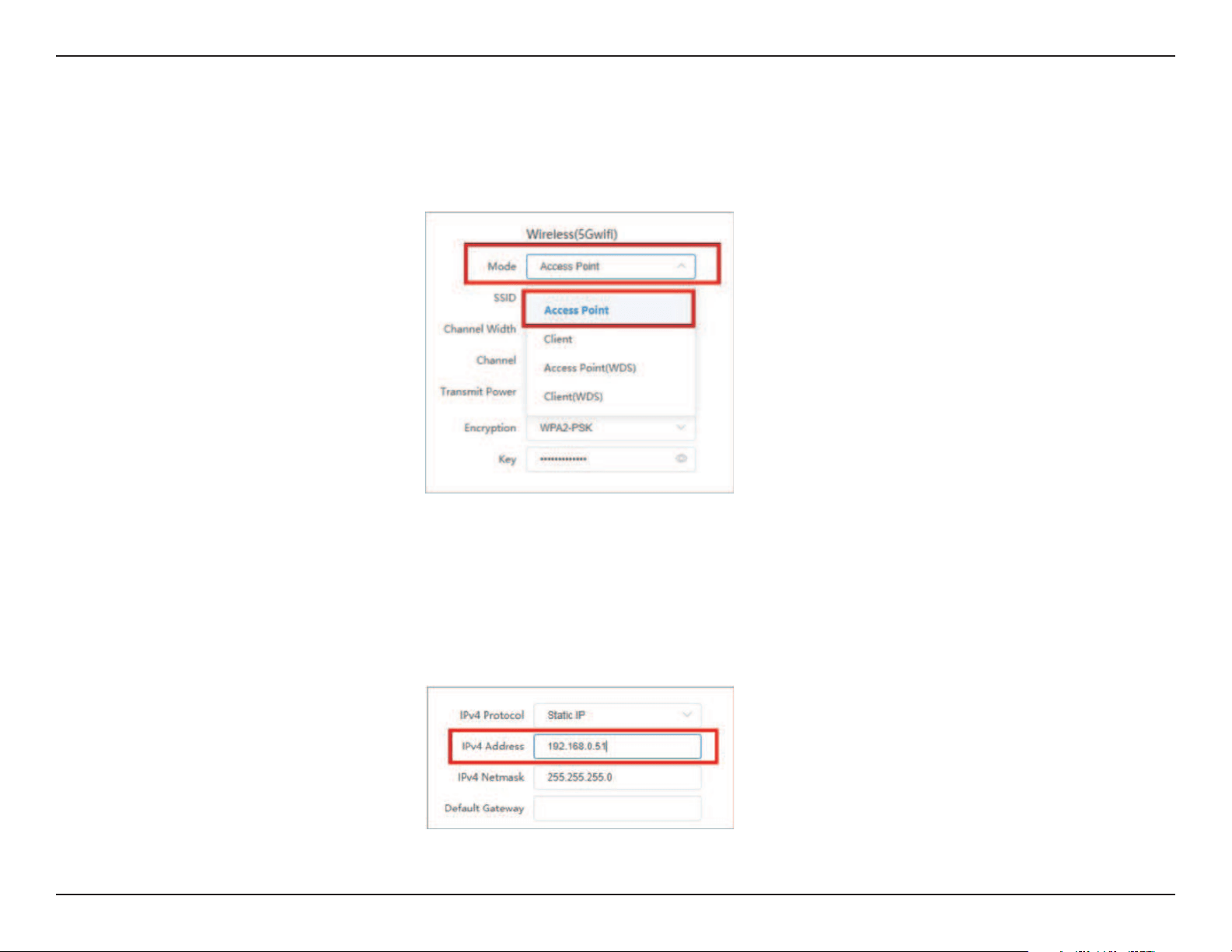
2. To a void an IP address conict, change the IPv4 address so that it is dierent from the rst DAP-3711’s IP address (for instance,
by changing it to 192.168.0.51, as in the following screenshot).
12D-Link DAP-3711 User Manual
Section 2 - Installation
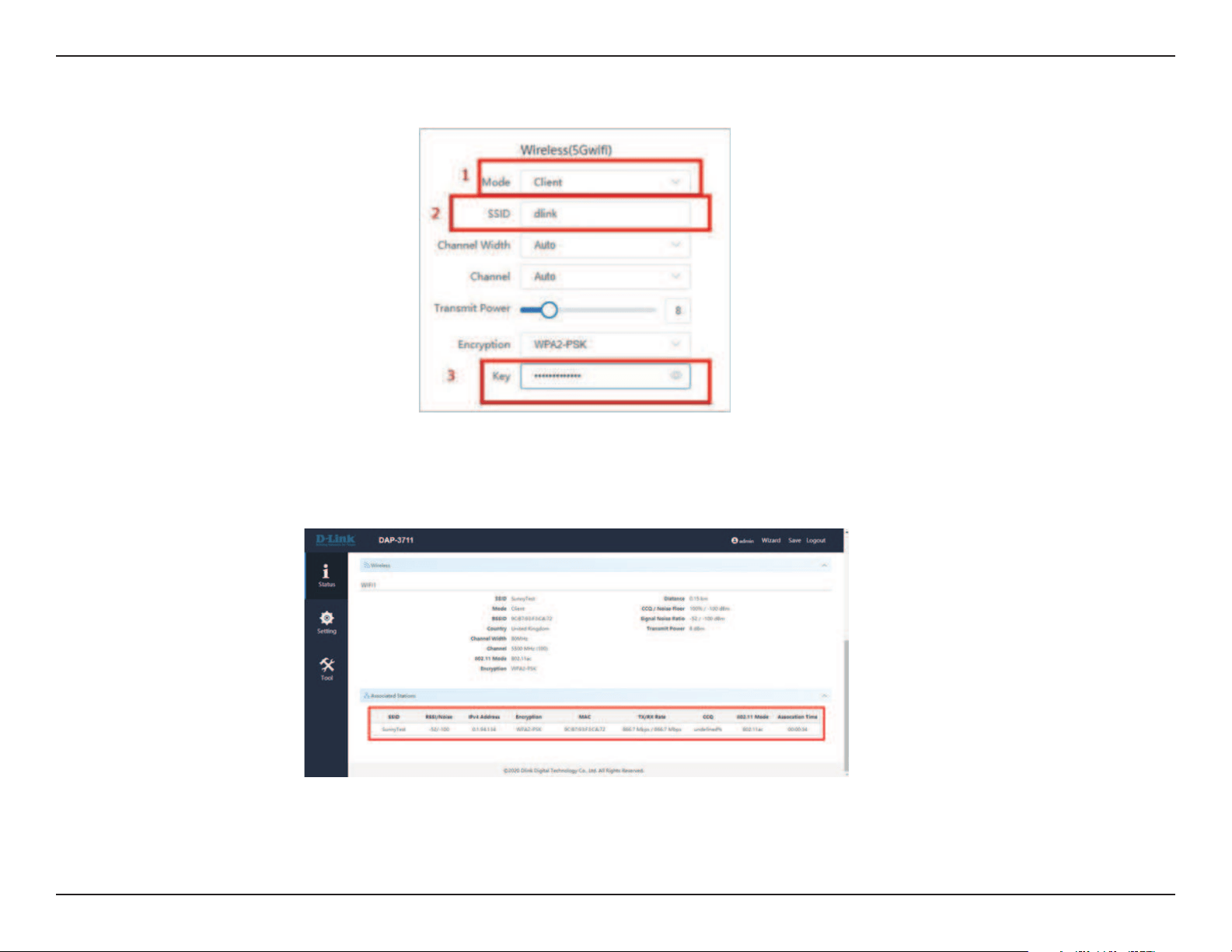
3. On step four of the Setup Wizard (Wireless), select Client from the dropdown list. Enter the same SSID and key that you
entered when conguring the rst device.
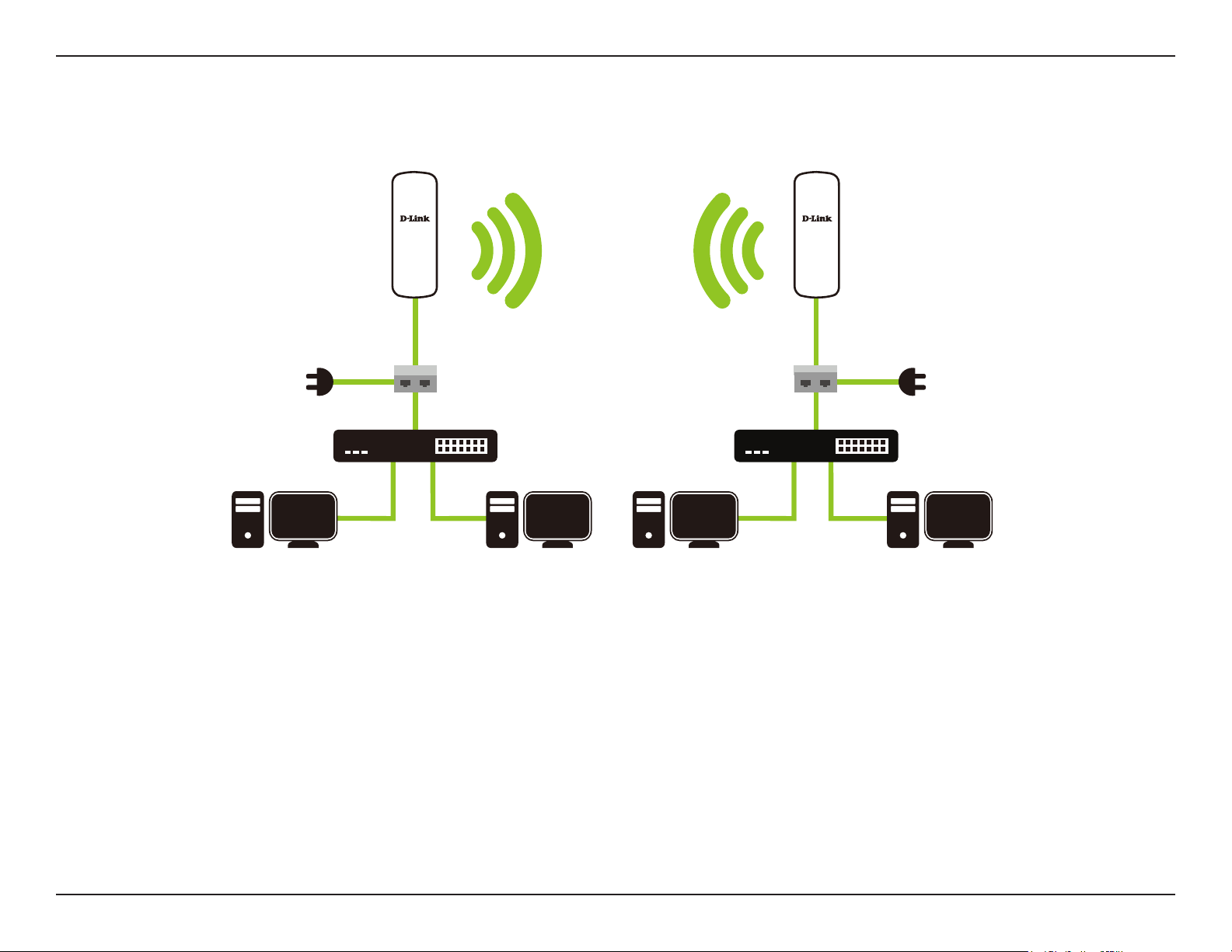
4. To conrm that wireless connectivity between the two devices is congured correctly, navigate to the Status page and check
the information under Associated Stations (shown below).
13D-Link DAP-3711 User Manual
Section 2 - Installation
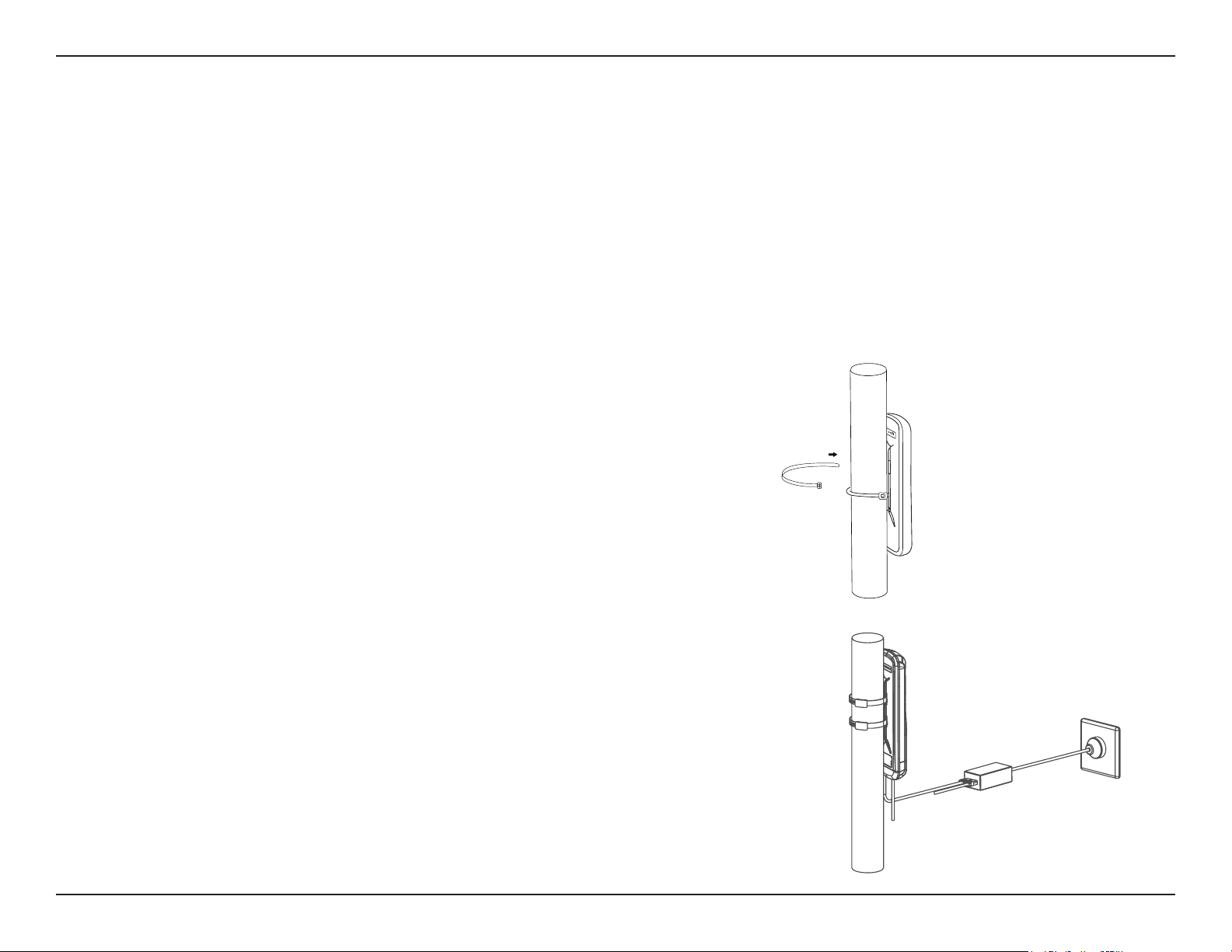
Once completed, your network will resemble the following diagram.
Wireless Installation Considerations
The D-Link Long Range 802.11ac Wireless Bridge lets you access your network using a wireless connection from virtually
anywhere within the operating range of your wireless network. Keep in mind, however, that the number, thickness and location
of walls, ceilings, or other objects that the wireless signals must pass through, may limit the range. Typical ranges vary depending
on the types of materials and background RF (radio frequency) noise in your home or business. The key to maximizing wireless
range is to follow these basic guidelines:
1. Keep the number of walls and ceilings between the D-Link access point and other network devices to a minimum. Each wall
or ceiling can reduce your adapter’s range from 3-90 feet (1-30 meters). Position your devices so that the number of walls
or ceilings is minimized.
PoE injectorPoE injector
DAP-3711DAP-3711
Switch
PC1
PC2
Switch
PC3
PC4
AP modeClient mode

14D-Link DAP-3711 User Manual
Section 2 - Installation
2. Be aware of the direct line between network devices. A wall that is 1.5 feet thick (.5 meters), at a 45-degree angle appears
to be almost 3 feet (1 meter) thick. At a 2-degree angle it looks over 42 feet (14 meters) thick! Position devices so that the
signal will travel straight through a wall or ceiling (instead of at an angle) for better reception.
3. Building materials make a dierence. A solid metal door or aluminum studs may have a negative eect on range. Try to
position access points, wireless access points, and computers so that the signal passes through drywall or open doorways.
Materials and objects such as glass, steel, metal, walls with insulation, water (sh tanks), mirrors, le cabinets, brick, and
concrete will degrade your wireless signal.
4. Keep your product away (at least 3-6 feet or 1-2 meters) from electrical devices or appliances that generate RF noise.
5. If you are using 2.4GHz cordless phones or X-10 (wireless products such as ceiling fans, lights, and home security systems),
your wireless connection may degrade dra-matically or drop completely. Make sure your 2.4 Hz phone base is as far away
from your wireless devices as possible. The base transmits a signal even if the phone is not in use.
15D-Link DAP-3711 User Manual
Section 2 - Installation
Mounting the Device
If you plan to install the DAP-3711 on a pole, orient the front of the access point (the side without the LEDs) toward the intended
coverage area. The radio antennas transmit through the front of the access point but not through the reverse side (where the
bracket is).
Be sure to install the device at a height that ensures that the alignment between the devices is visible and there is no obstruction
in the middle.
Checking the Signal Strength
Before xing the device in place, slowly pan the DAP-3711 from side to side and check the LED indicator to nd the position
where the signal is strongest.
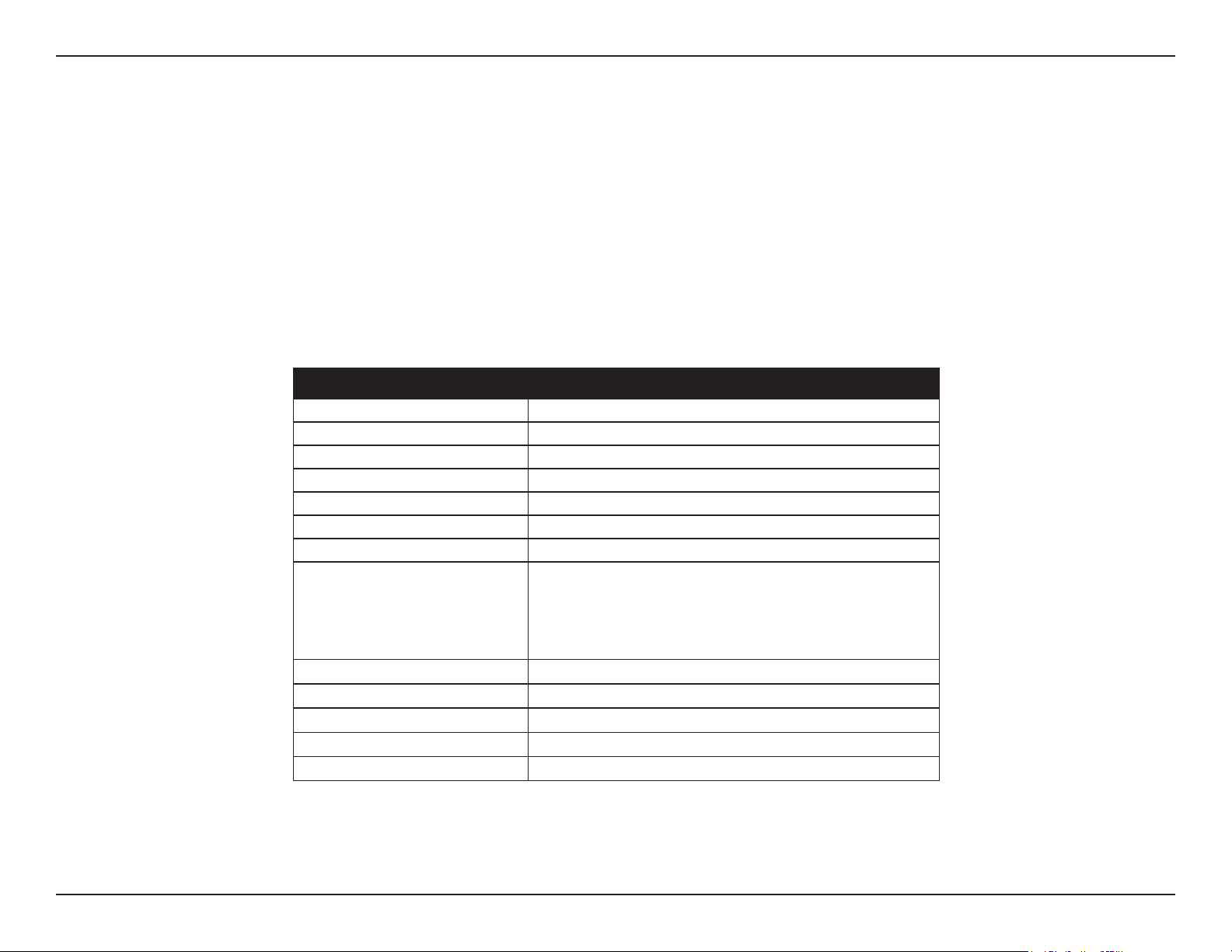
Mounting on a Pole
1.Connect an Ethernet cable to the LAN port on the DAP-3711.
2.Place the DAP-3711 against the pole where you want it to be positioned.
3. Wrap the metal mounting ties around the pole and thread them through
the holes on the DAP-37
16D-Link DAP-3711 User Manual
Section 3 - Conguration
Conguration
Factory Default Setting
The following table shows the DAP-3711’s default settings.
Features Factory Default Setting
Username admin
Password admin
Operation Mode Bridge
Wi-Fi Mode Access Point
SSID dlink
Encryption WPA2-PSK
Key 1234567890abc
LAN
IP: 192.168.0.50
Subnet: 255.255.255.0
Gateway: 192.168.0.1
DHCP Server disable
802.11 mode 802.11 ac
Channel auto
Bandwidth 80 MHz
TDMA disable
This section will show you how to congure your new D-Link Long Range 802.11ac Wireless Bridge using the web-based
conguration utility.
17D-Link DAP-3711 User Manual
Section 3 - Conguration
Web-based Conguration
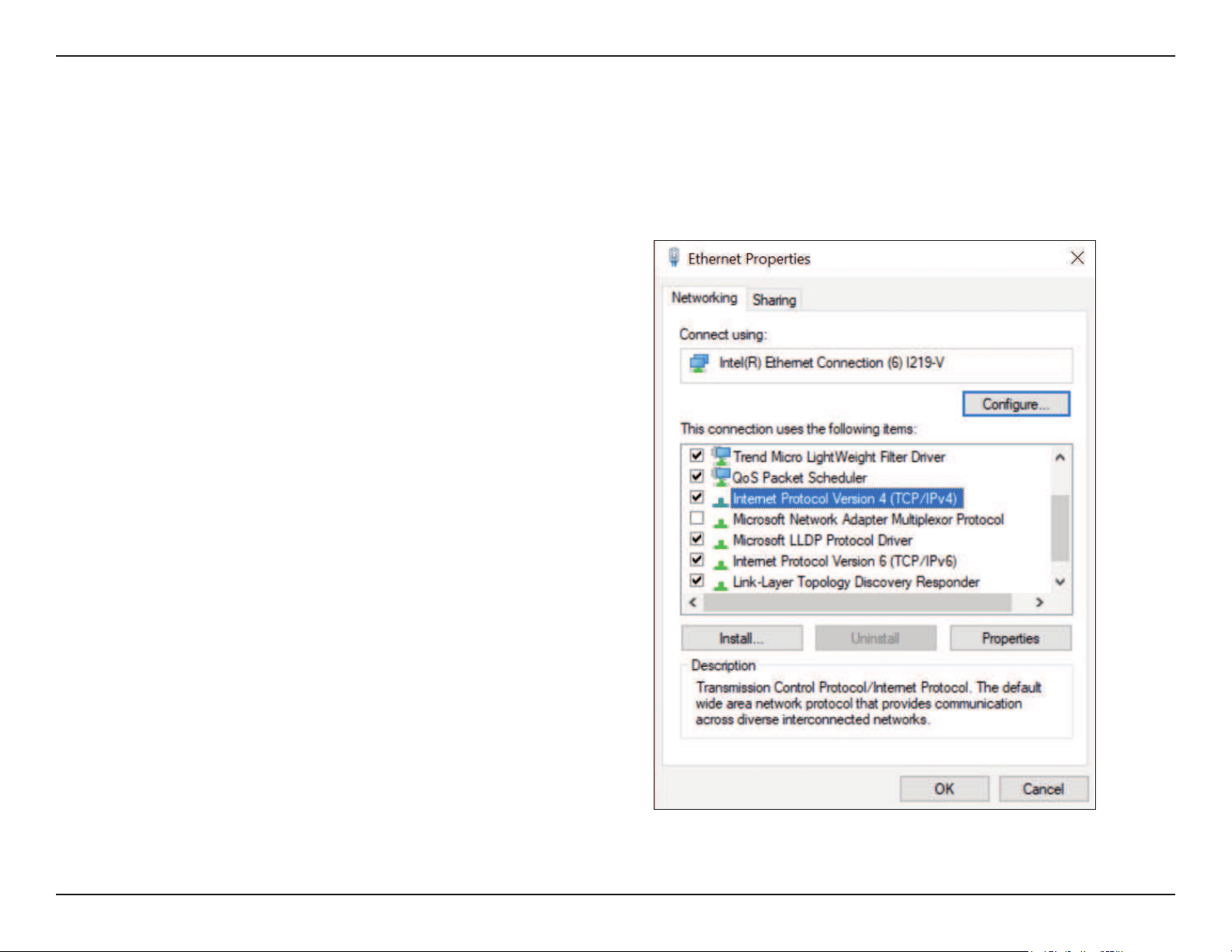
To log in the DAP-3711 web interface, you will need to congure your computer’s TCP/IP settings:
1. Right-click the Local Area Connection icon on your
computer and click Properties, then click Continue. The
Local Area Connection Properties dialog box will appear,
as seen below.
18D-Link DAP-3711 User Manual
Section 3 - Conguration
2. Select Internet Protocol (TCP/IP) and click the Properties
button, and the following dialog box will appear:
3. In the above gure, the IP address should be set to
192.168.0.*. Here, * can be any number between 1-255
(but not 50, since the DAP-3711’s default IP address is
192.168.0.50).
19D-Link DAP-3711 User Manual
Section 3 - Conguration
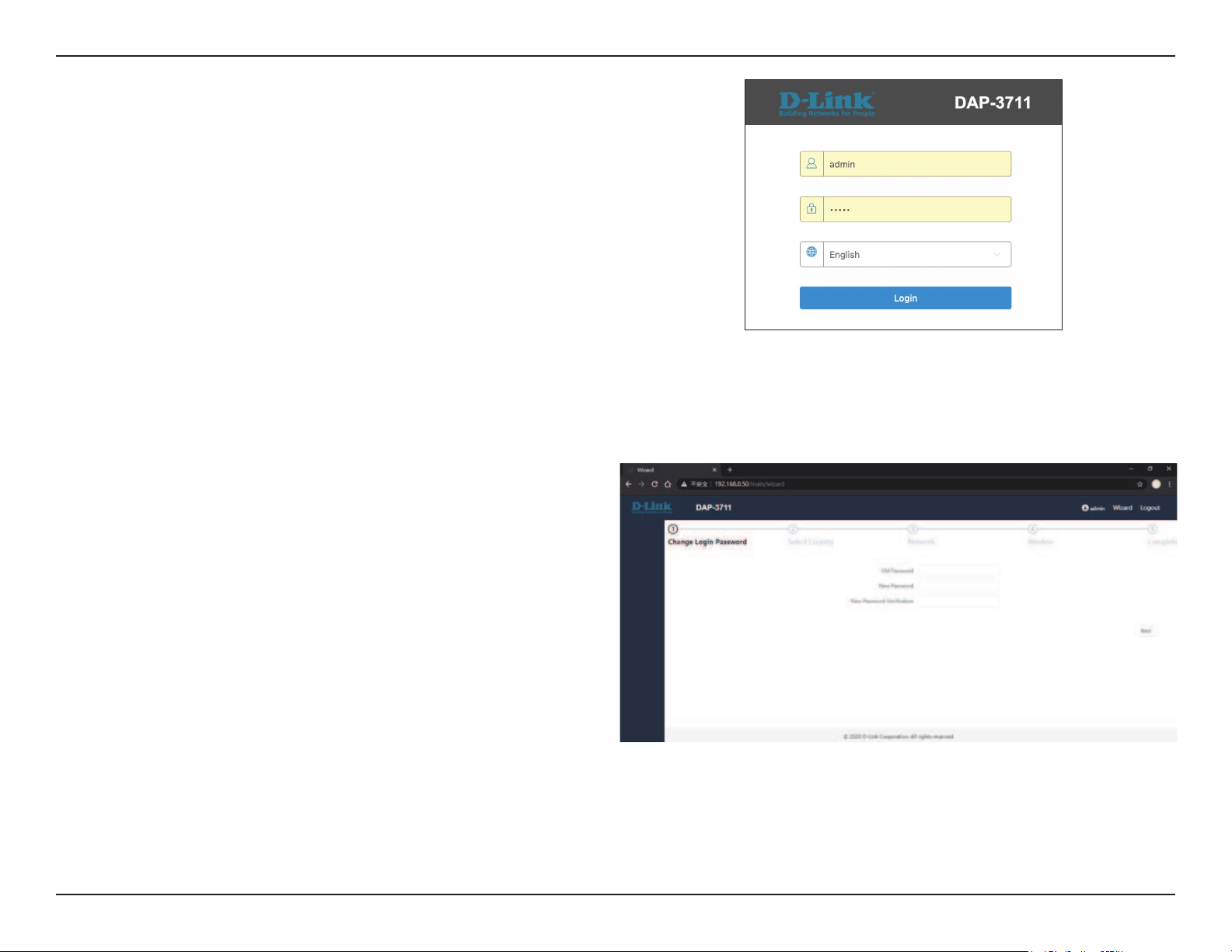
4. When you are done conguring the IP settings above,
enter the default IP address (192.168.0.50) into the
address bar of your web browser, and the following login
interface will appear.
5. Enter the username (Default: admin) and password
(Default: admin) respectively and click “Login” to login the
main page of DAP-3711. As you can see, this management
interface will enter the wizard mode to take you through
the initial settings.
Note: The password supports 4~31 digits of upper
and lower case letters, numbers, and special symbols
`~!@#$%^&*()-_=+
20D-Link DAP-3711 User Manual
Section 3 - Conguration
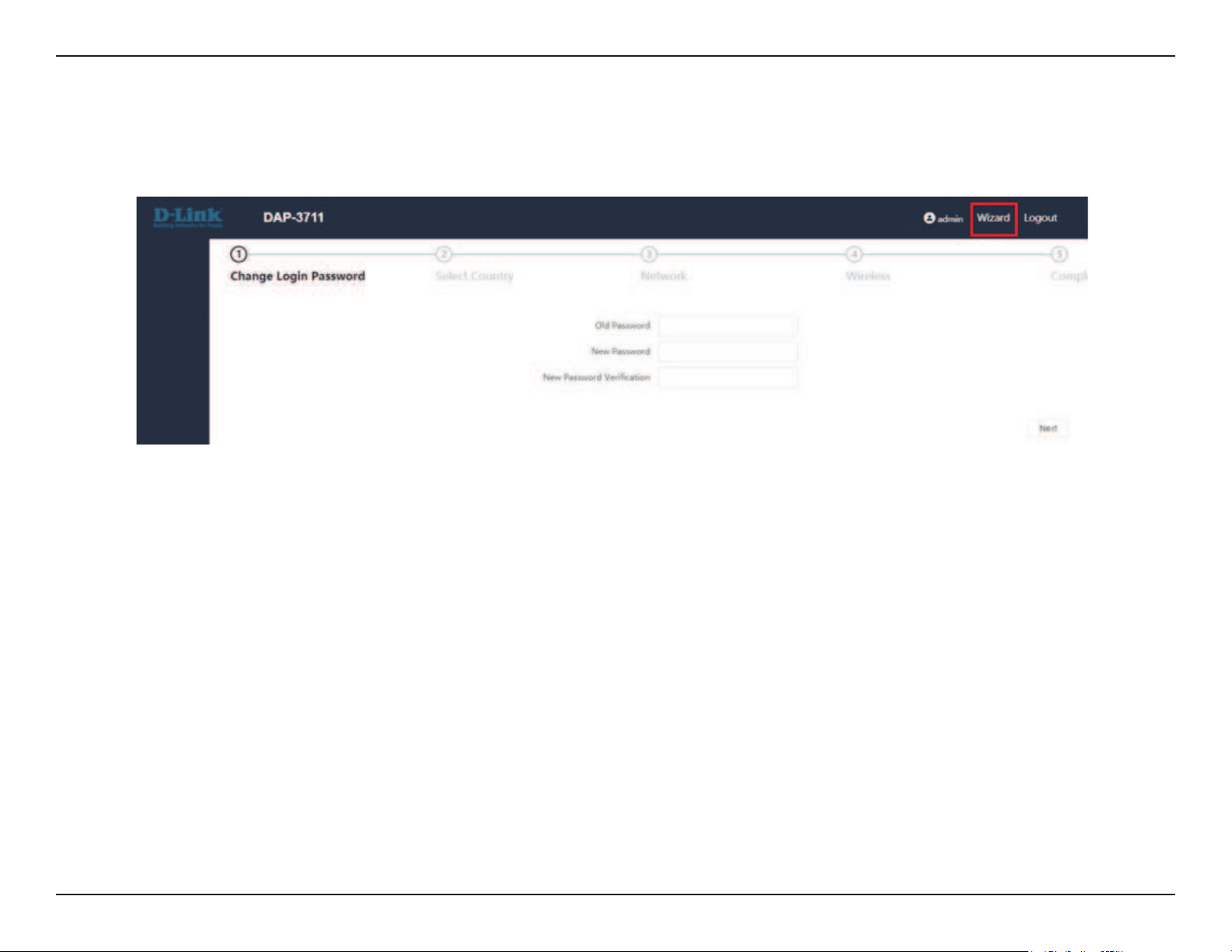
Wizard
When you log into the DAP-3711 for the rst time, the Wizard page will automatic pop-up. You can also click Wizard in the top
right corner.
21D-Link DAP-3711 User Manual
Section 3 - Conguration
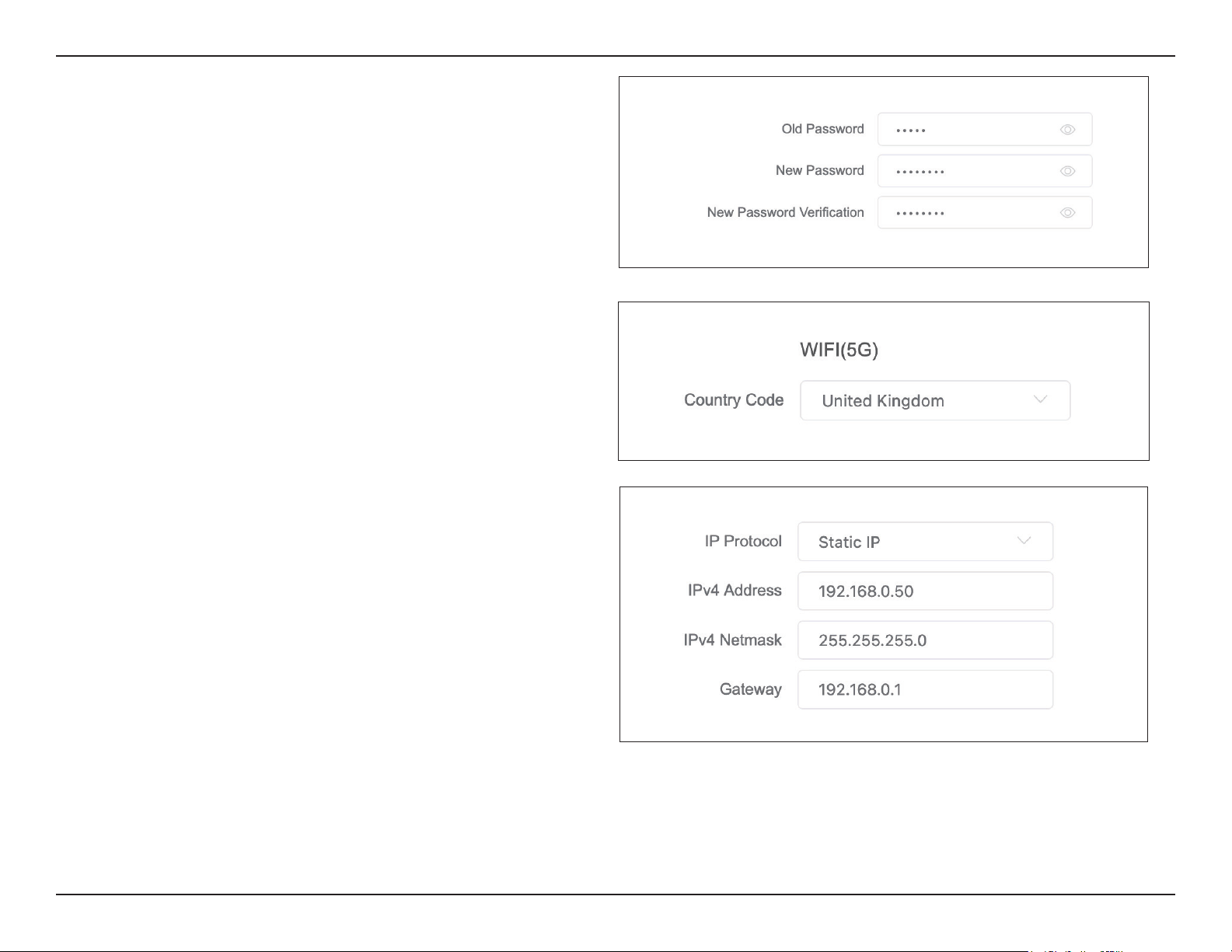
Change Login Password
If you log in to DAP-3711 for the rst time, you need to change the
password. The default password is admin. The device login password
supports 4~31 digits of upper and lower case letters, numbers, and
special symbols `~!@#$%^&*()-_=+
Select Country
Select the country where the device is located. Only allow the device
to work on channels allowed in a specic country.
Network
This helps to set the network parameters. The default mode is Bridge
mode and the default LAN IP address is 192.168.0.50. Please change
192.168.0.50 to other IP.
If you select “Static IP”, you have to specify a static
IP address, subnet mask, default gateway and DNS
server for your local area network which connects
to the LAN port of DAP-3711. Make sure the
specied IP address is unique on your network in
order to prevent IP conict.
Select “DHCPv4 Client” to allow the DHCP server
within your local area network to assign an IP
address automatically.
Select “DHCPv6 Client” to allow the DHCP server
within your local area network to assign an IP
address automatically.
IP Protocol:
DHCPv4
Client:
DHCPv6
Client:
22D-Link DAP-3711 User Manual
Section 3 - Conguration
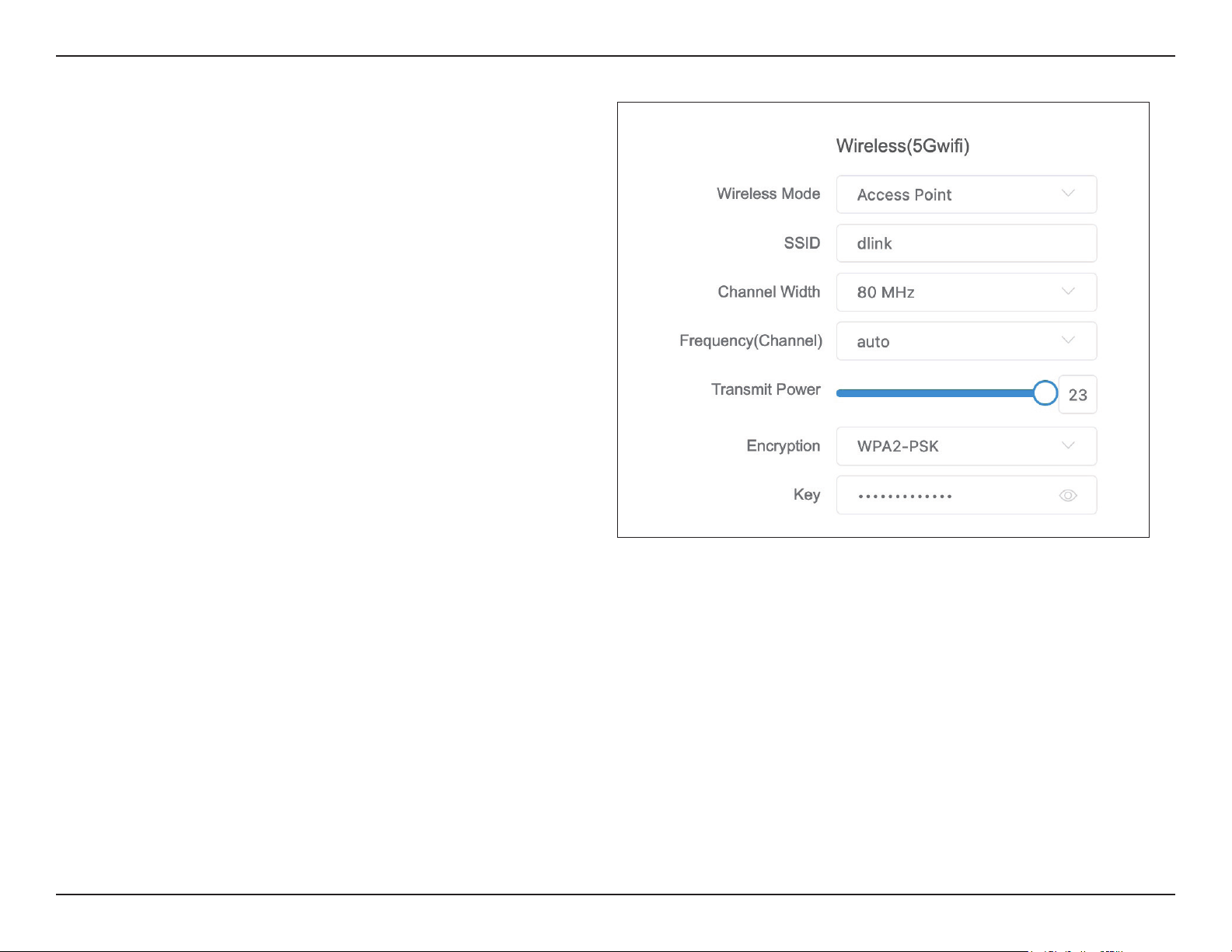
Wireless
This is for Access Point wireless related settings. Select the
operating mode corresponding to the desired mode, and
then click “Next” to complete the wizard. After conrming
that the operating mode will be changed, the AP will reboot
and be ready for use when it is completed.
Wireless
Mode:
Access
Point:
Client:
Access Point
(WDS):
DAP-3711 has four different operating modes,
making it adaptable to any situation. Before
setting, please determine which Wireless Model
(Access Point, Client, Access Point (WDS), Client
(WDS)) you want to set the DAP-3711 to, and then
follow the wizard’s instructions to set it up step by
step.
The DAP-3711 connects directly to the main
Ethernet LAN and receives connectivity from
other wireless devices. In access point (AP) mode,
802.11a/n/ac compliant devise can connect to the
wireless network.
DAP-3711 is connected to the remote AP in it.
When there are more than two APs with identical
SSID and encryption in the environment, it will
automatically connect to them. You can also check
the connected AP information in the “Station List”
on the “Status” page.
Use WDS feature to link multiple APs in a network, all
associated stations from any AP can communicate
with each other like in ad-hoc mode. Access Point
(WDS) mode expands current wireless coverage
and allows device to connect to the network. It
means this device is a AP in WDS mode.

23D-Link DAP-3711 User Manual
Section 3 - Conguration
Client (WDS):
SSID:
Channel
Width:
Frequency
(Channel):
Transmit
Power:
Encryption:
Use WDS feature to link multiple APs in a network, all
associated stations from any AP can communicate
with each other like in ad-hoc mode. Client (WDS)
means this device is a client in WDS mode.
User Enter a name for your wireless network. For
security purposes, it is highly recommended to
change from the default network name.
Channel width basically controls how broad the
signal is for transferring data. Select what you
need according to your environment. Default 80
MHz in Access Point mode. DAP-3711 supports
10MHz/20MHz/40MHz/80MHz bandwidth.
Indicates the channel setting for the DAP-3711.
In Access Point or Access Point (WDS) mode, the
channel can be changed to t the channel settings
of the existing wireless network or to customize
the wireless network.
This setting determines the power level of the
wireless transmission. Transmitting power can
be adjusted to eliminate overlapping of wireless
area coverage between two access points where
interference is a major concern.
The key is required and only sharing the same key
with other wireless devices can the communication
be established.
OPEN: It allows any device to join the
network without performing any
security check.

24D-Link DAP-3711 User Manual
Section 3 - Conguration
Complete
After the data input is completed, press Next to complete the above setting procedure, and the device will automatically reboot.
WPA-PSK: It is a simplied WPA mode with
no need for specic authentication
server. In this so-called WPA Pre-
Shared Key, all you have to do is
just pre-enter a key in each WLAN
node and this is the common way
to be adopted in large and middle
enterprise as well as residential
network.
WPA2-PSK: As a new version of WPA, only all
the clients support WPA2, can it be
available. If it is selected, the data
encryption can only be AES and the
passphrase is required.
WPA/WPA2
Hybrid-PSK:
It provides options of WPA (TKIP)
or WPA2 (AES) encryption for the
client. If it is selected, the data
encryption can only be TKIP + AES
and the passphrase is required.
Only 8 to 63 bits of upper and lower case English
letters, numbers and special symbols are supported
`~!@#$%^&*()-_=+
Key:
25D-Link DAP-3711 User Manual
Section 3 - Conguration
Basic Settings
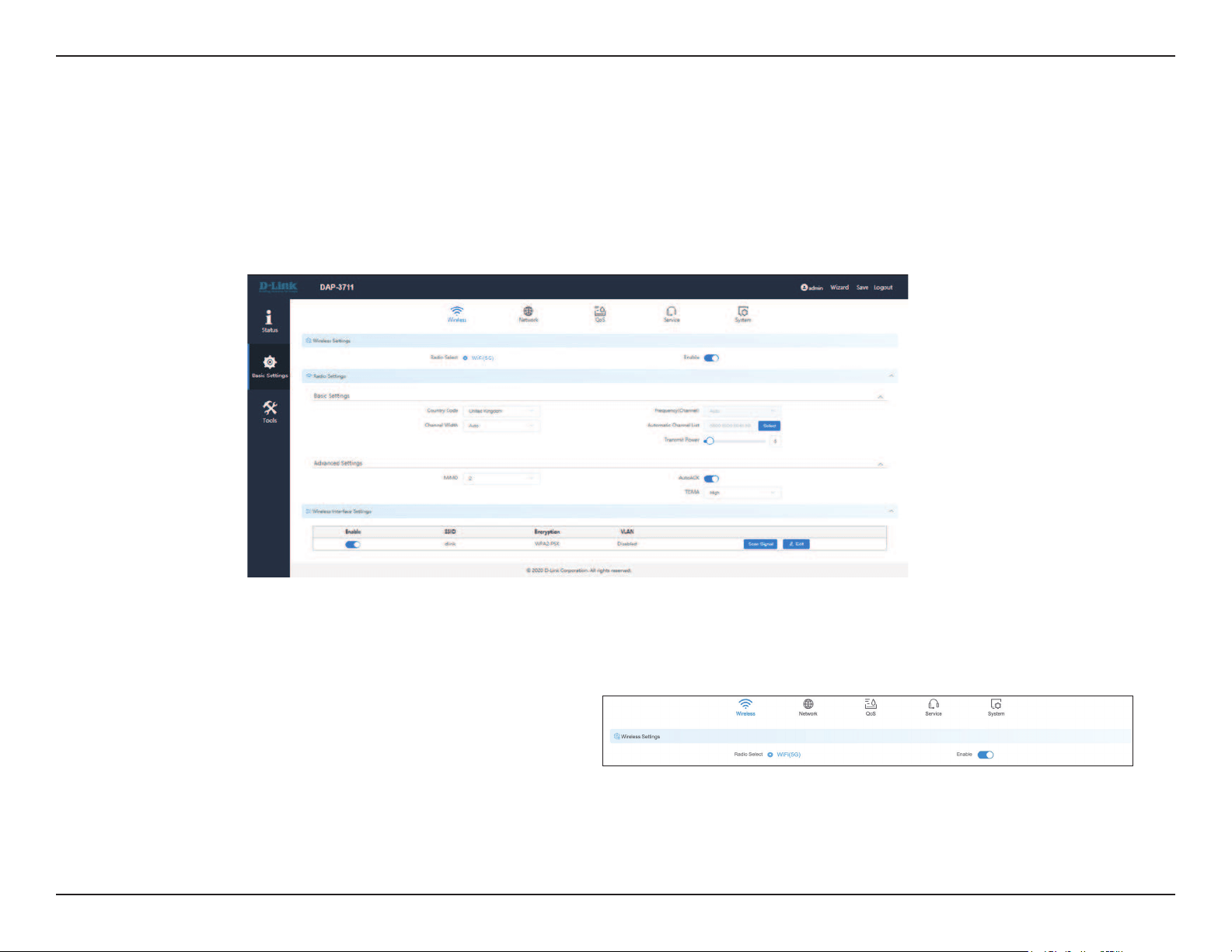
The DAP-3711 provides three main options in the black bar on the left, which are Status, Basic Settings and Tools. This section
will introduce how to navigate the Basic Settings page. In Basic settings page, there are ve tabs: Wireless, Network, QoS,
Service, and System.
After making changes, click Save to apply them.
Wireless
In the Wireless tab, you can congure the DAP-3711’s Wi-Fi and radio settings.
Toggle the button to enable or disable Wi-Fi.Wireless
Settings:
In this section, users can set up basic and advanced
Wi-Fi and radio settings.
Radio Setting:
26D-Link DAP-3711 User Manual
Section 3 - Conguration
Basic Settings
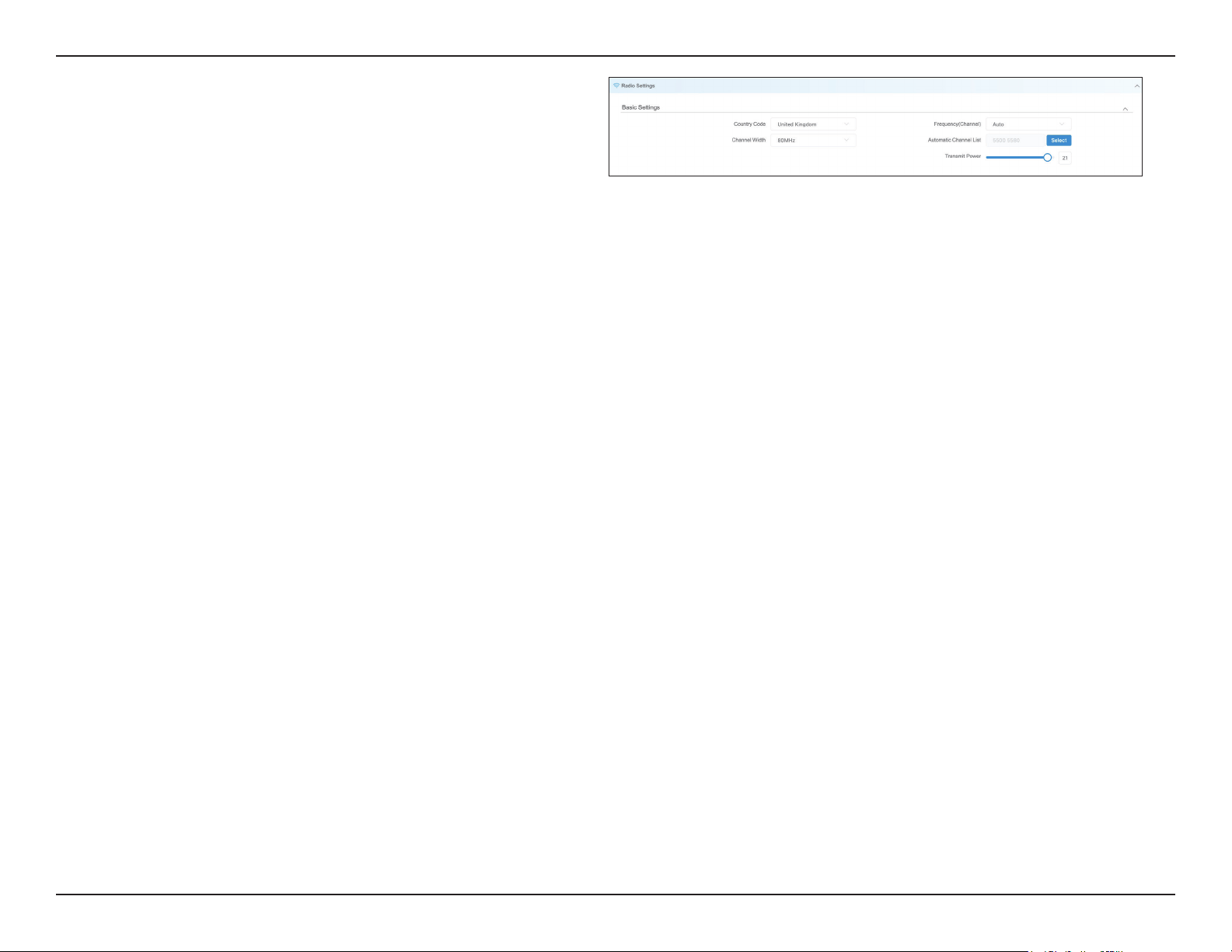
Use this to select the country where the DAP-3711
is installed.
Use this to change the AP’s channel width. The
default is 80 MHz. (in Access Point model or Access
Point (WDS) mode)
Use this to specify the Wi-Fi channel to use, or
select Auto to determine this automatically.
Default is Auto.
If the auto channel is selected in Frequency,
user can decide channels which DAP-3711 can
run. After clicking the Select, user can select the
channels which DAP-3711 can run in their country.
The device’s output power. When the output
power is increased, the signal distance and signal
strength will be improved.
Country Code:
Channel Width:
Frequency:
Automatic
Channel List:
Transmit
Power:
27D-Link DAP-3711 User Manual
Section 3 - Conguration
Advanced Settings
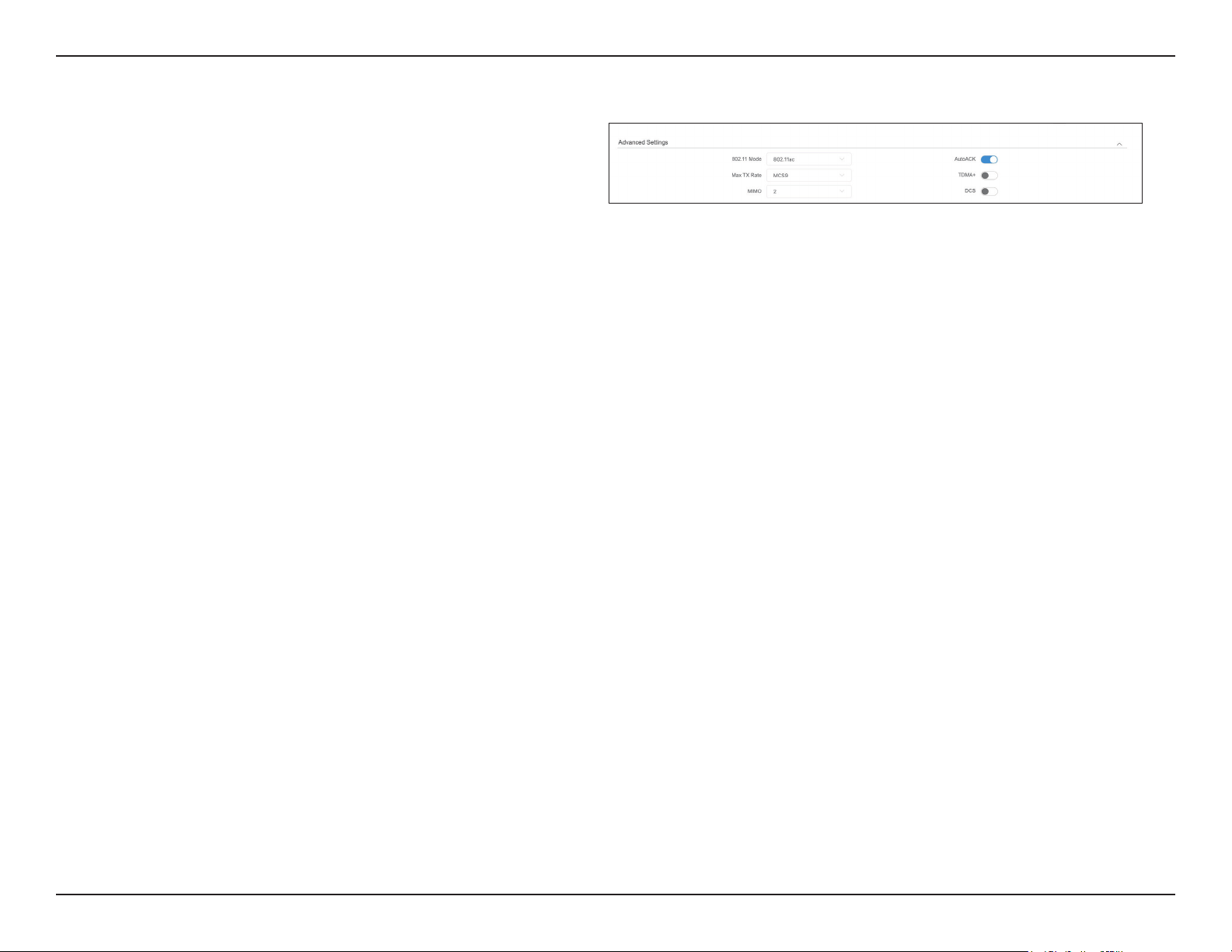
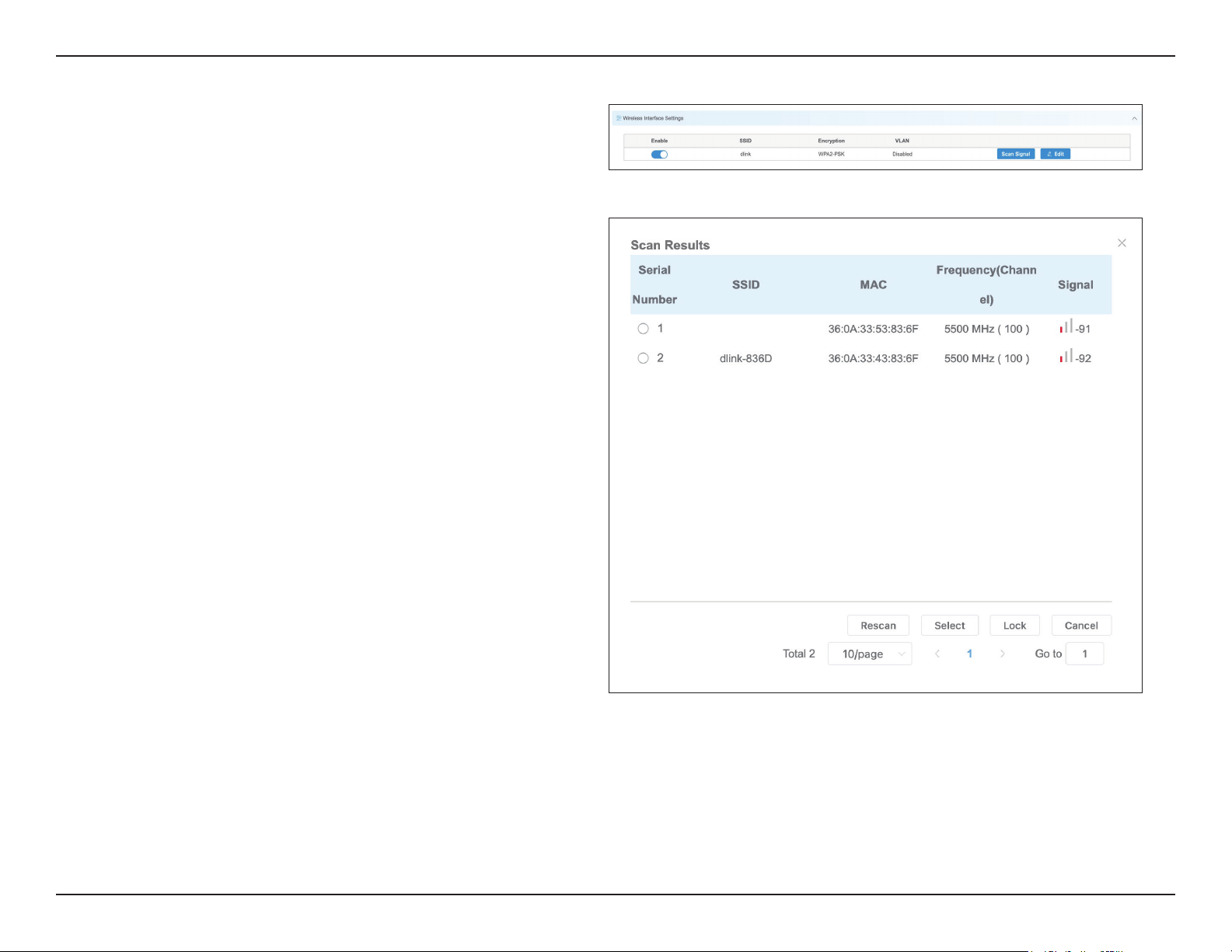
You can select the 802.11 mode which the DAP-
3711 should use. It is suggested to keep this setting
at 802.11ac to provide an optimal transmission
rate.
The DAP-3711 supports 2T2R Multi-Input-Multi-
Output. In high-interference environments, you
can set this to 1T1R to reduce the noise.
Enabling this function will automatically detect
the distance between the two DAP-3711 units
and optimize the link quality. Enabling this is
recommended. If you disable this function, you
will need to manually enter the distance between
the two units.
To use TDMA, you will need to enable TDMA
mode in both DAP-3711 units. TDMA can prevent
802.11 hidden node issues. When setting up PTMP,
enabling TDMA is recommended. The TDMA
function can only work between two DAP-3711
units.
When TDMA is enabled, you can also decide
whether you want to enable JTrans. JTrans can help
prevent an internal wireless attack. The client and
access point must be turned on at the same time
when JTrans is enabled.
802.11 Mode:
MIMO:
Auto ACK:
TDMA:
28D-Link DAP-3711 User Manual
Section 3 - Conguration
Wireless Interface Settings
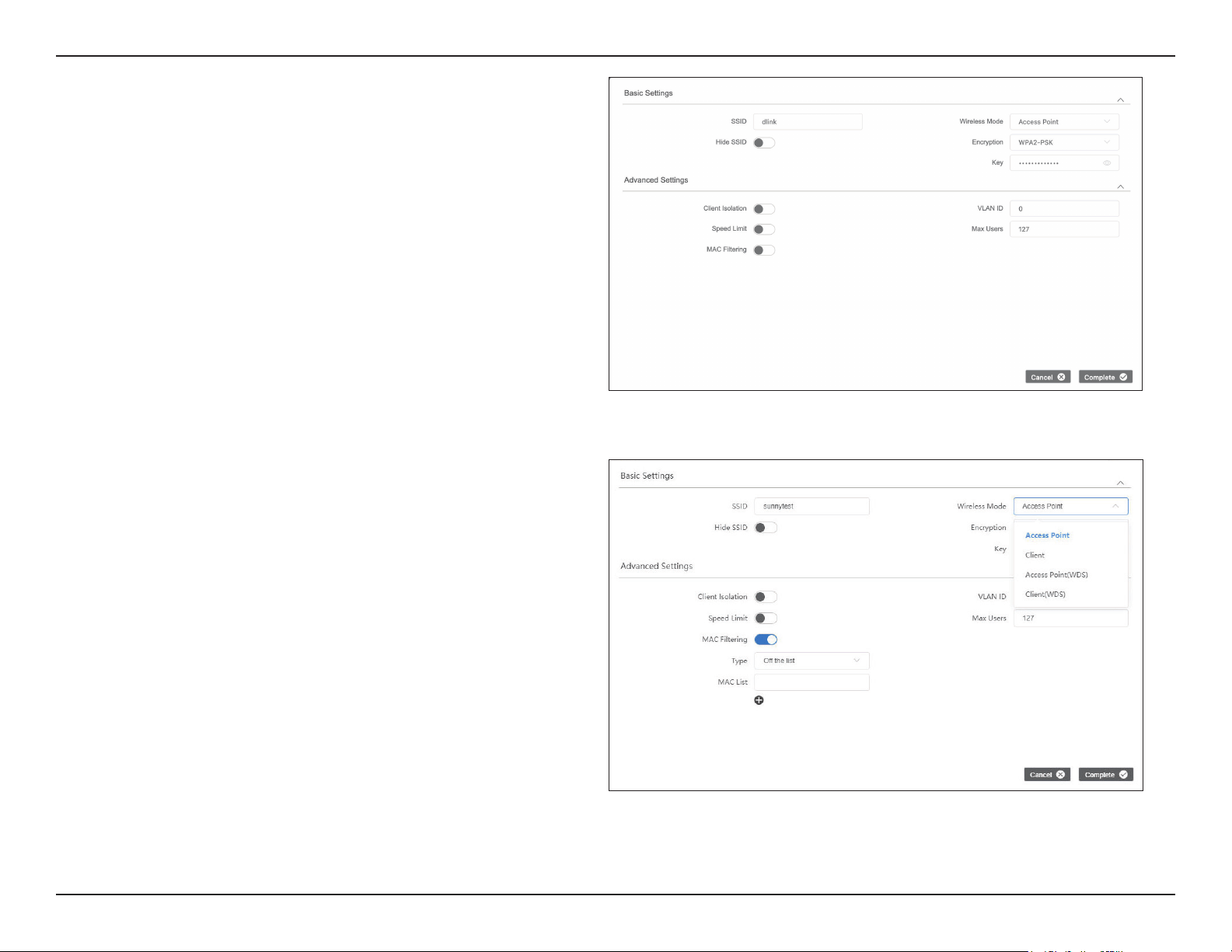
When you click Scan Signal, the device will
conduct a site survey to nd the SSIDs that the
DAP-3711 can detect. If you select an SSID, the
DAP-3711 will switch to client mode and connect
to the SSID you selected. Click the Edit button to
set up encryption (if required).
Scan Signal:
In this section, you can change the settings for the DAP-3711’s Wi-Fi
operation mode, SSID, encryption, and site survey.
Click this to perform a site survey again.
Click this to select which SSID the DAP-3711 should
connect to.
Use this to select which SSID and MAC address the
DAP-3711 should connect to. If you enable this, the
DAP-3711 will only connect to the AP you specify.
Click this to cancel the scan.
Rescan:
Select:
Lock:
Cancel:
29D-Link DAP-3711 User Manual
Section 3 - Conguration
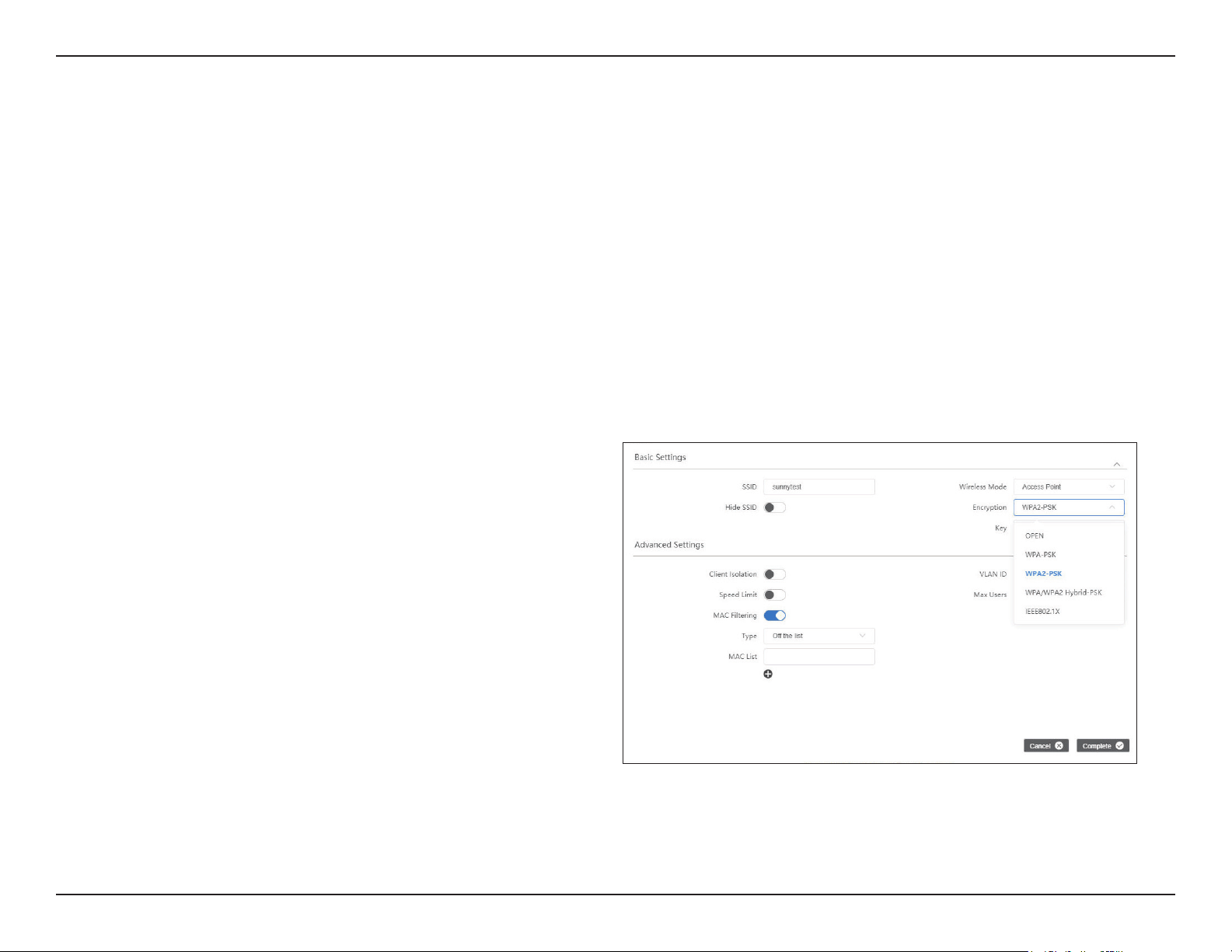
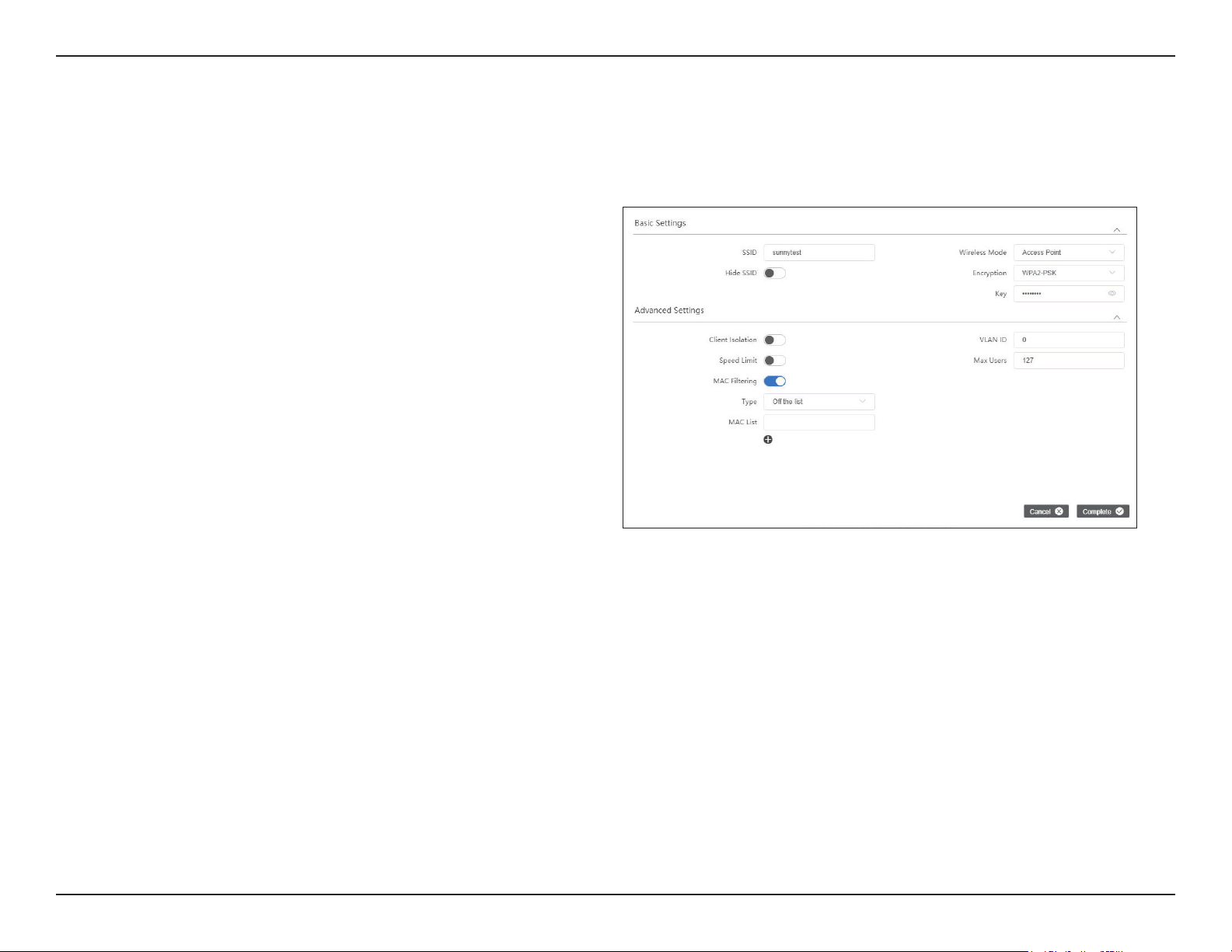
Click this to change the DAP-3711’s operation
mode, encryption and key. The following page
will pop up:
To set the SSID which the DAP-3711 will broadcast
when it operates in Access Point or Access Point
(WDS) or SSID mode, or the SSID that the DAP-
3711 will attempt to connect to when it operates
in Client or Client (WDS) mode.
When the DAP-3711 is in Access Point or Access
Point (WDS) mode, this function will be displayed.
Use this to hide the broadcast name of the wireless
network to avoid being connected to others. Check
this function; others will not be able to search the
SSID
Edit:
SSID:
Hidden SSID:
Wireless Mode:
DAP-3711 has four different operating modes,
making it adaptable to any situation. Before
setting, please determine which Wireless Model
(Access Point, Client, Access Point (WDS), Client
(WDS)) you want to set the DAP-3711 to
Access
Point:
The DAP-3711 connects directly to
the main Ethernet LAN and receives
connectivity from other wireless
devices. In access point (AP) mode,
802.11a/n/ac compliant devise can
connect to the wireless network.
Client: DAP-3711 is connected to the remote
AP in it. When there are more than
two APs with identical SSID and
encryption in the environment, it
will automatically connect to them.
You can also check the connected
AP information in the “Station List”
on the “Status” page.
30D-Link DAP-3711 User Manual
Section 3 - Conguration
The key is required and only sharing the same key
with other wireless devices can the communication
be established.
Encryption:
OPEN: It allows any device to join the
network without performing any
security check.
WPA-PSK: It is a simplified WPA mode with
no need for specic authentication
server. In this so-called WPA Pre-
Shared Key, all you have to do is
just pre-enter a key in each WLAN
node and this is the common way
to be adopted in large and middle
enterprise as well as residential
network.
WPA2-PSK: As a new version of WPA, only all
the clients support WPA2, can it be
available. If it is selected, the data
encryption can only be AES and the
passphrase is required.
Access
Point
(WDS):
Use WDS feature to link multiple APs
in a network, all associated stations
from any AP can communicate with
each other like in ad-hoc mode.
Access Point (WDS) mode expands
current wireless coverage and allows
device to connect to the network. It
means this device is an AP in WDS
mode.
Client
(WDS):
Use WDS feature to link multiple APs
in a network, all associated stations
from any AP can communicate with
each other like in ad-hoc mode. Client
(WDS)means this device is a client in
WDS mode.
31D-Link DAP-3711 User Manual
Section 3 - Conguration
Only 8 to 63 bits of upper and lower case English
letters, numbers and special symbols are supported
`~!@#$%^&*()-_=+
When you enable this function, the clients which
are connected to the DAP-3711 will not be able to
communicate with each other.
When you enable this function, you will be able
to set up a maximum upload/download speed for
each client.
Use this to set up the VLAN ID for the SSID.
Use this to set up the maximum number of clients
that can connect to the DAP-3711.
Use this to set up a list of MAC addresses that you
want to allow or disallow to connect to DAP-3711.
Key:
Client
Isolation:
Speed Limit:
VLAN ID:
Max. Users:
MAC Filtering:
WPA/WPA2
Hybrid-PSK:
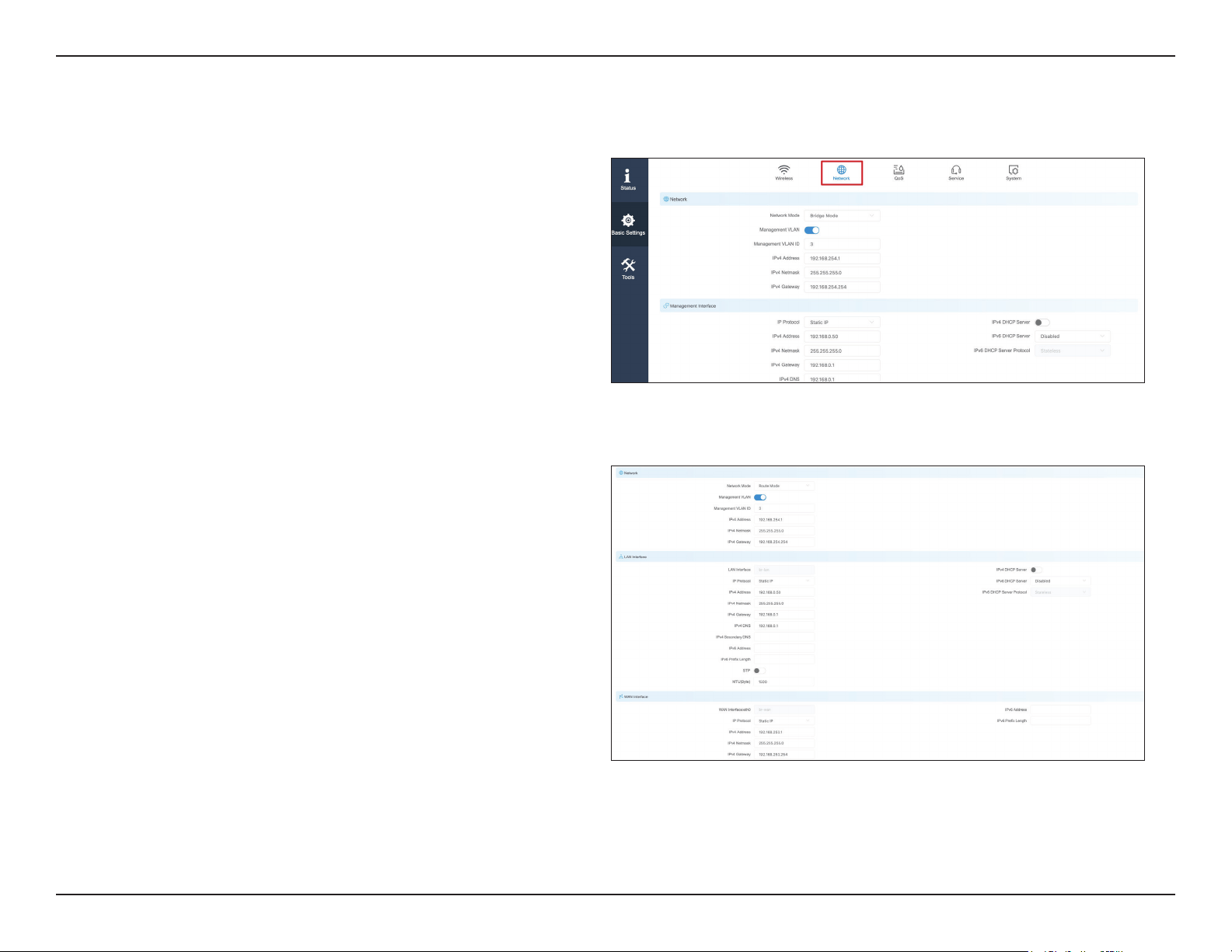
You can select the 802.11 mode
which the DAP-3711 should use.
It is suggested to keep this setting
at 802.11ac to provide an optimal
transmission rate.
32D-Link DAP-3711 User Manual
Section 3 - Conguration
Network
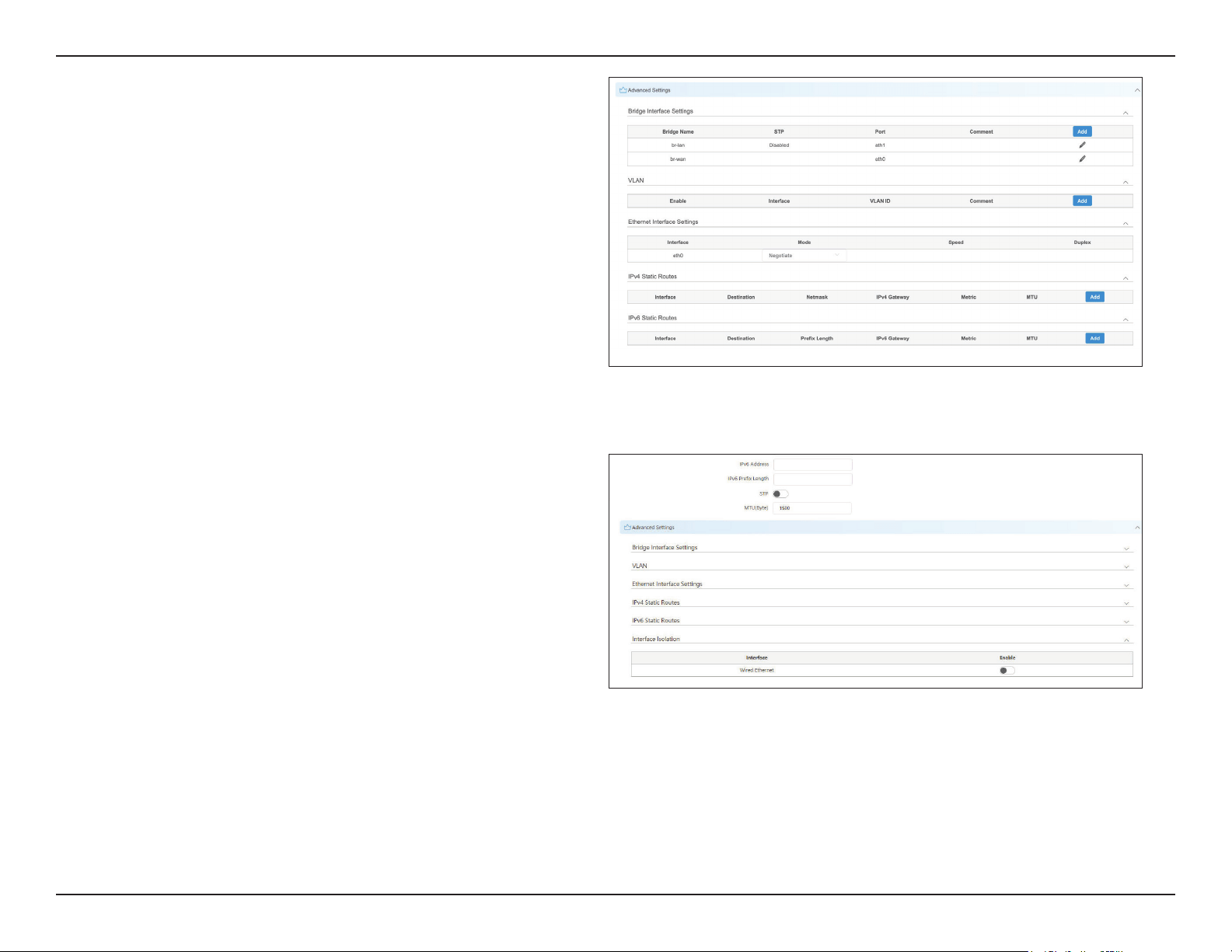
In the Network tab, you can set up the DAP-3711’s network mode and IP address.
Select either Bridge Mode or Router Mode.
In this mode, the DAP-3711’s LAN Port and Wi-Fi
will bridge together.
In this mode, the DAP-3711 will act as a router.
Use this to set up a management VLAN ID tag and
IP address. When the VLAN is enabled, the DAP-
3711 can only be accessed with this VLAN tag and
IP address.
Network Mode:
Bridge Mode:
Router Mode:
Management
VLAN:
In Bridge Mode, users can congure the DAP-3711’s LAN interface.
Use this setting to select either Static IP or DHCP IP.
Enabling this function in bridge mode is not
recommended. When you enable this function,
you need to make sure there are no DHCP servers
in the DAP-3711’s network.
IP Protocol:
IPv4/IPv6
DHCP Server:
In Router Mode, you need to congure the LAN and WAN interface
of the DAP-3711.
You can set the IP addresses of the devices which
can be accessed via Wi-Fi using this setting. DAP-
3711 supports two LAN ports, in Route Mode, the
LAN Interface here represents the LAN2 port.
In router mode, the physical LAN port becomes
the WAN port. You need to enter the IP address
or congure DHCP clients to get the IP address as
well as PPPoE.
LAN interface:
WAN Interface:
33D-Link DAP-3711 User Manual
Section 3 - Conguration
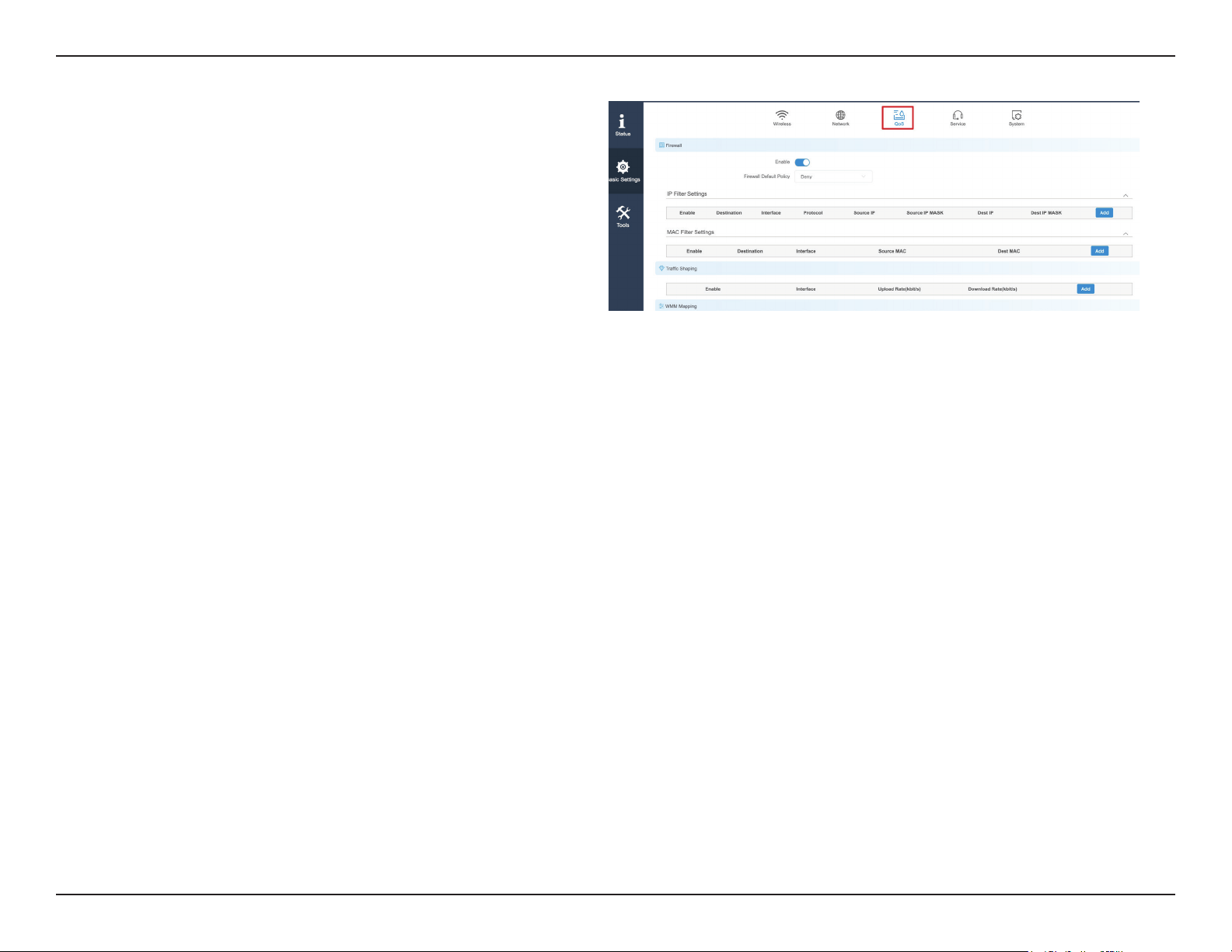
In this section, you can congure settings such
as static routes. In general, users will not need to
congure anything in this section.
This displays and controls the DAP-3711’s bridge
policy.
This displays the DAP-3711 VLAN ID tag.
Use this to select the LAN port’s speed negotiation
mode.
Use this to add the Static Route rule for the DAP-
3711.
After enabling this function, the two wired
interfaces of the device cannot ping each other
Advanced
Settings:
Bridge
Interface
Setting:
VLAN:
Ethernet
Interface
Setting:
IPv4/IPv6
Static Route:
Interface
Isolation:
34D-Link DAP-3711 User Manual
Section 3 - Conguration
QoS
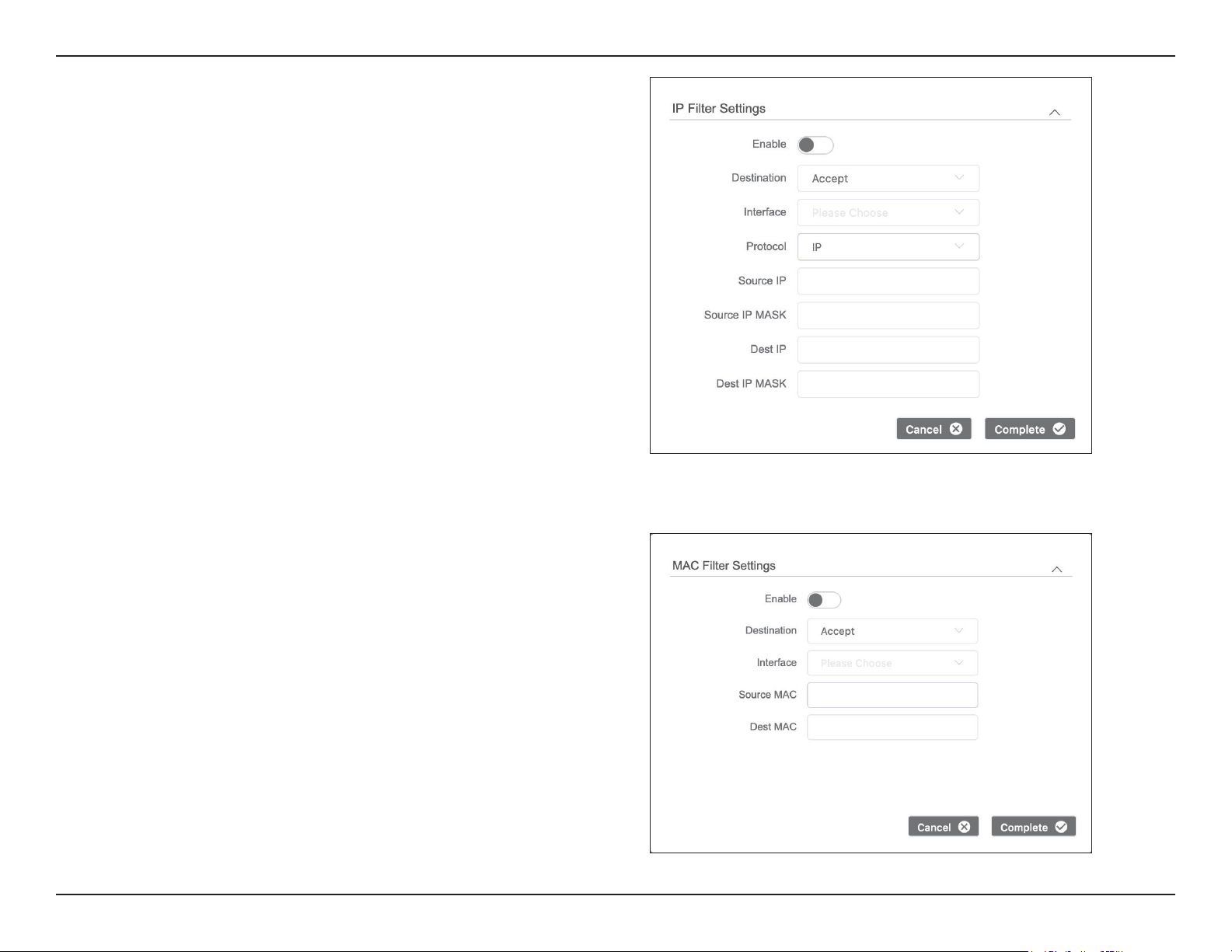
In the QoS tab, there are four sections on this page: Firewall, Trac
Shaping, WMM, and QoS Priority.
When the rewall is enabled, the device will only
allow certain devices to connect to it.
Firewall:
Firewall
Default
Policy:
Accept: Only accept the devices listed in IP Filter
Settings and MAC Filter Settings.
Deny: Deny the devices listed in IP Filter Settings
and MAC Filter Settings.
35D-Link DAP-3711 User Manual
Section 3 - Conguration
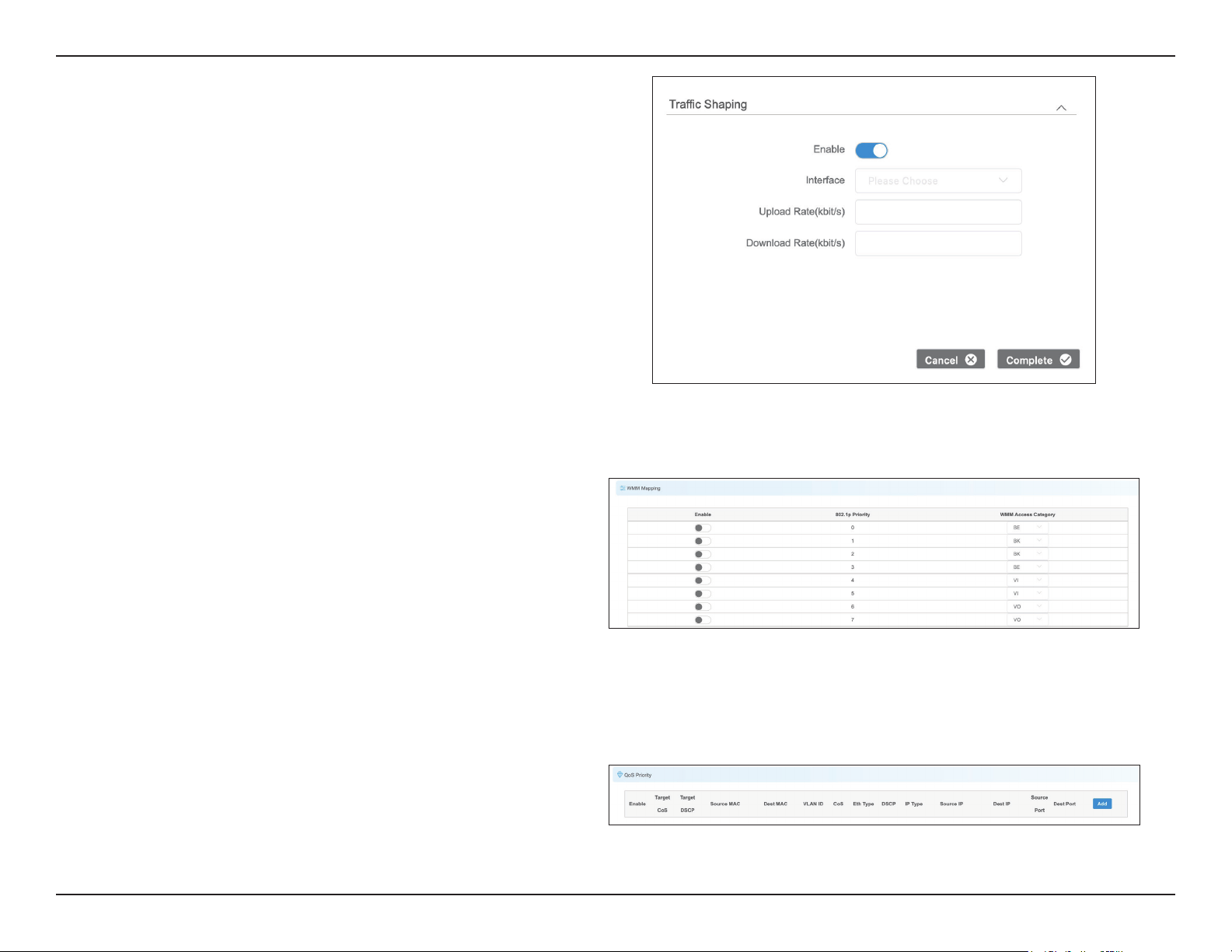
Click Add to add a new IP address to allow or deny. IP Filter
Settings:
Click Add to add a new MAC address to accept or
deny.
MAC Filter
Settings:
36D-Link DAP-3711 User Manual
Section 3 - Conguration
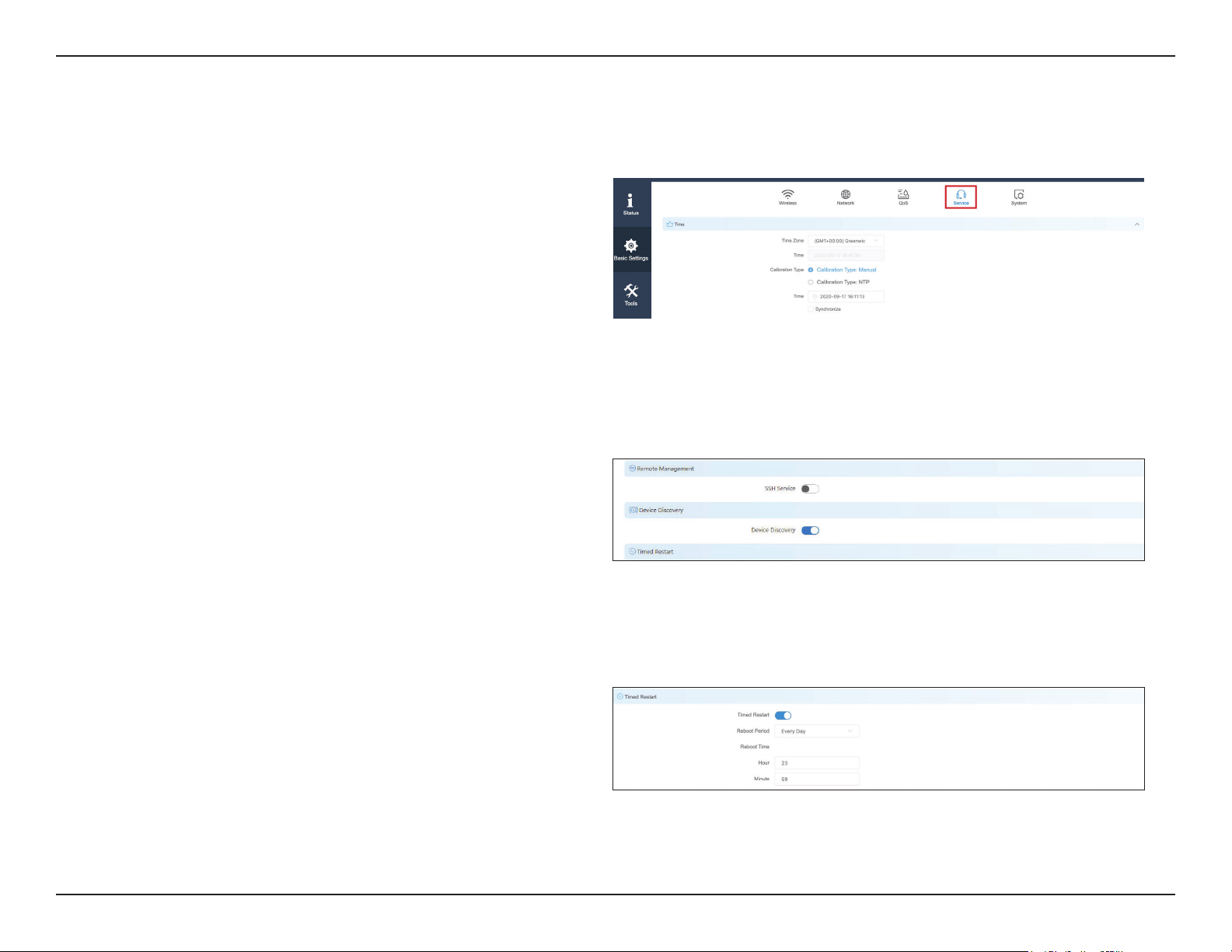
Traffic shaping is used to control the upload/
download trac on each network port.
Trac
Shaping:
WMM (Wi-Fi Multimedia) allows wireless
communication to dene a priority limit on the
basis of data type. Time-sensitive data (like video/
audio data) can be assigned a higher priority than
other data. For WMM to be enabled, the wireless
client must support it as well.
WMM
Mapping:
Use this setting to set the QoS settings on the LAN
port.
QoS Priority:
Interface:
Select the Interface: eth0 (LAN),
eth1(LAN2), ath1(wireless)
Upload
Rate:
Enter the maximum upload speed.
Download
Rate:
Enter the maximum download speed.
37D-Link DAP-3711 User Manual
Section 3 - Conguration
Service
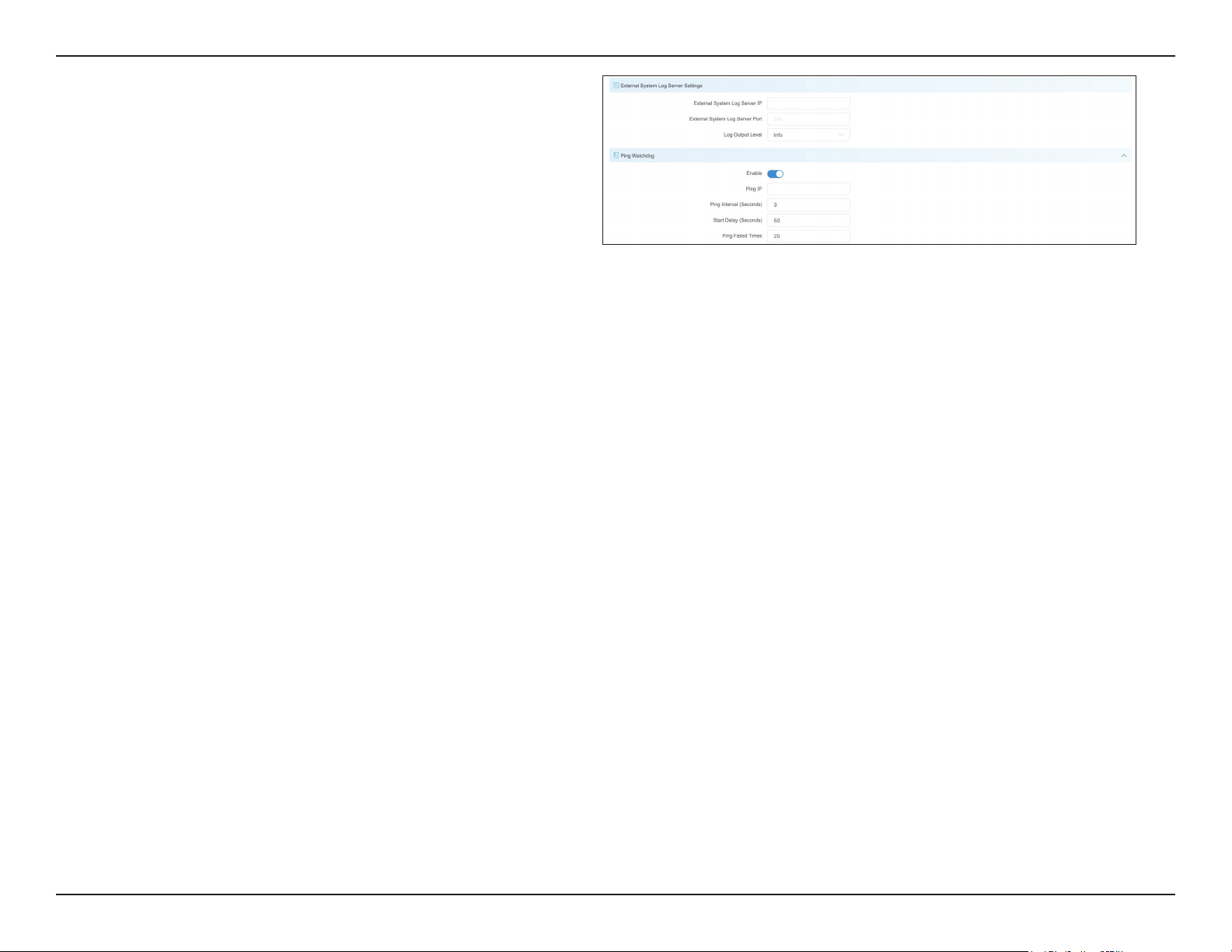
In the service tab, you can congure the following settings: Time, Automatic Restart, External System Log Server, Ping Watchdog and LED Settings.
Here you can configure the DAP-3711’s time
settings.
Use this to select the Time Zone in your location.
If Manual is selected, you can change the time,
or click Synchronize to sync the DAP-3711’s time
with user’s PC.
If NTP is selected, the DAP-3711 will sync with a
dedicated NTP server. Internet access is required
if this setting is enabled.
To enable the SSH service. Default is disable.
If user enable this service, the device is accepted
to remote access by SSH.
The process in which the device will search within
its range to nd other active devices that have
registered themselves as visible to other devices.
Time:
Time Zone:
Calibration
Type:
Remote
Management:
SSH Service:
Device
Discovery:
When this function is enabled, the DAP-3711 will
automatically restart according to a schedule that
you set.
There are three items can be selected: Every Day,
Every Week, and Once.
Time Restart:
Reboot Period:
38D-Link DAP-3711 User Manual
Section 3 - Conguration
When this is enabled and a server IP is also set here,
the log information will be saved to the Syslog
server automatically.
External
System
Log Server
Settings:
The Ping Watchdog sets the DAP-3711 to
continuously ping a user-dened IP address (for
example, the IP address of the AP that the client
is connecting to). If it is unable to ping using
the settings that you entered, the DAP-3711 will
automatically reboot. It is highly recommended
that you enable this feature when using Access
Point / Access Point (WDS) Mode.
Specify the IP address of the target which will be
monitored using ping. If this feature is enabled in
Client/Client (WDS) mode, the IP address should
be the IP address of the AP that the client is
connecting to.
Specify the time interval (in seconds) that the Ping
Watchdog should wait between ping requests.
Specify the initial time delay (in seconds) before
the rst ping request should be sent by the Ping
Watchdog.
Specify the number of ping replies to wait for. If the
designated number of ping replies is not received,
the Ping Watchdog will reboot the device.
Ping
Watchdog:
Ping IP:
Ping Interval:
Startup Delay:
Ping Failure:
Note: If you want to modify the parameters of the Ping Watchdog, please disable
it rst and then apply the desired settings. When the web page shows that Ping
Watchdog is disabled, users will be able to re-enable it with modied parameters.
39D-Link DAP-3711 User Manual
Section 3 - Conguration
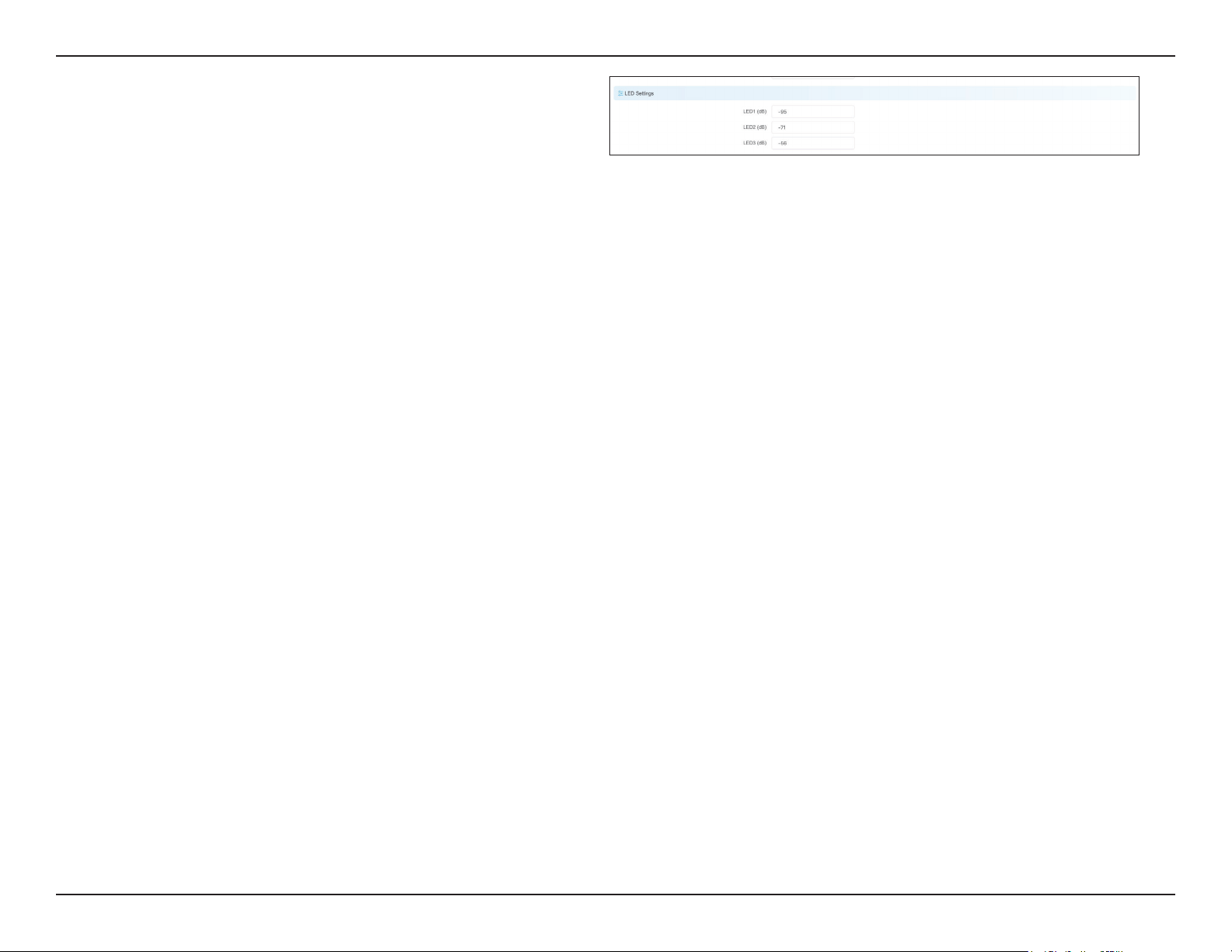
LED1, LED2, and LED3 light up to indicate the
DAP-3711’s signal strength. The default ranges are:
LED1: -95 dBm to -1 dBm
LED2: -71 dBm to -1 dBm
LED3: -56 dBm to -1 dBm
When the signal strength is higher than -95dB
and below -71dBm, LED1 light; when the signal
strength is higher than -71dB and below -56dBm,
both LED1 and LED2 light; when the signal
strength is higher than -56dBm, all the 3 LEDs light.
LED
Conguration:
40D-Link DAP-3711 User Manual
Section 3 - Conguration
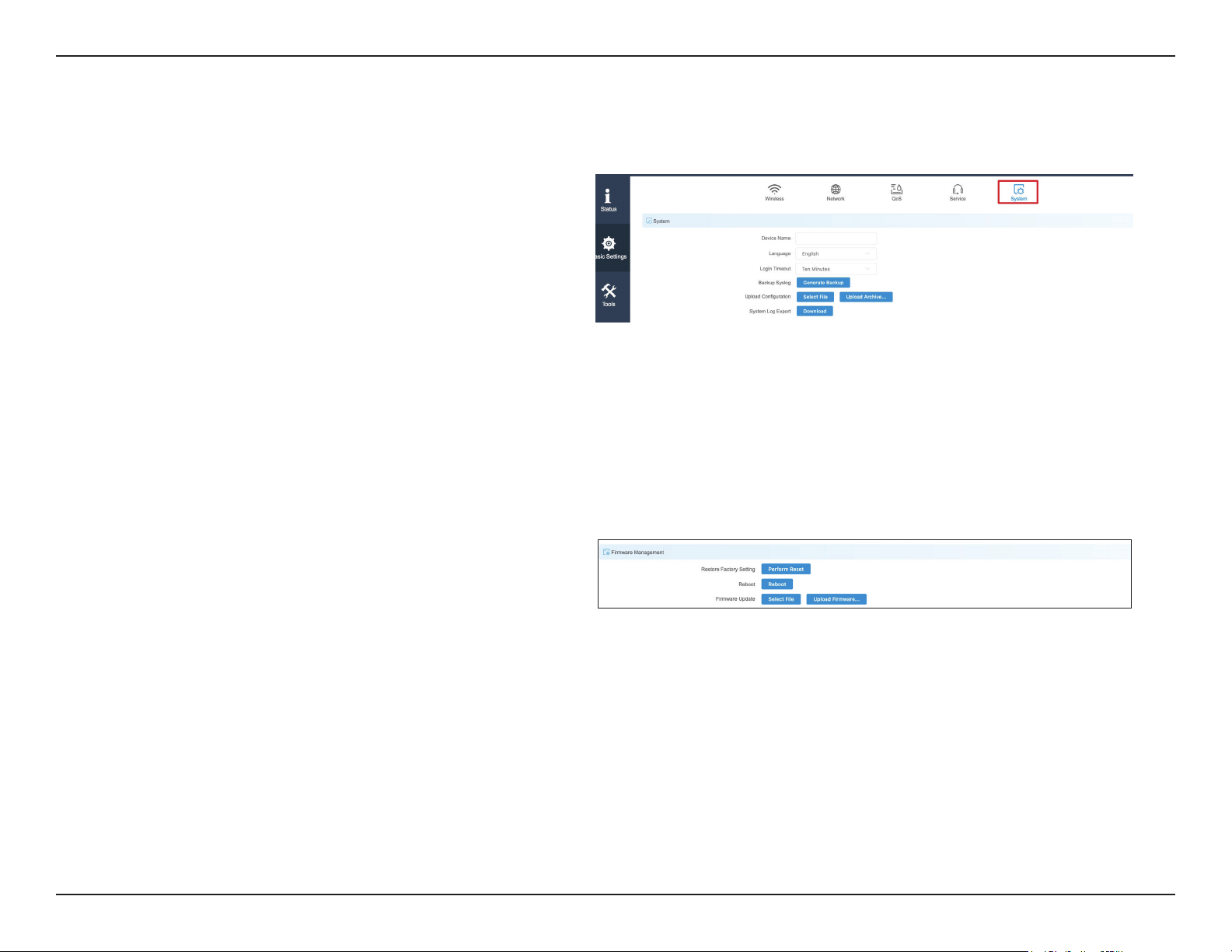
System
There are three subsections in the System section: System, Firmware Management, and Account Management.
Enter the device name here.
Enter the time (in minutes) before users should be
automatically logged out of the web UI.
Click to back up the current system conguration
settings and download them as a le.
Click Browse to choose the backup conguration
le and then click Upload to apply the settings.
Click to download a backup of the current system
log.
Device Name:
Login Timeout:
Backup Syslog:
Upload
Conguration:
System Log
Export:
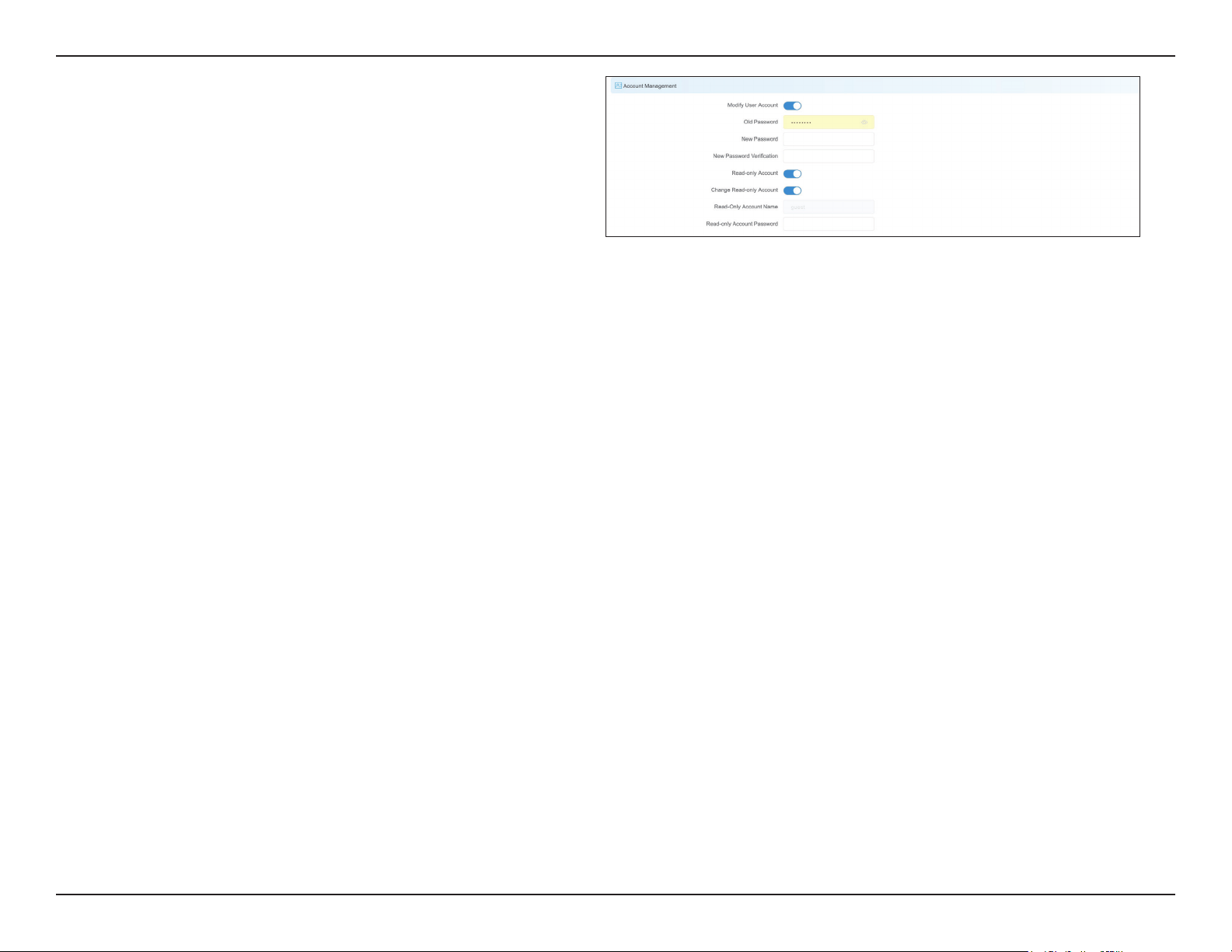
Click the Reset button to restore the device to the
factory default settings.
Click the button to reboot the DAP-3711.
Click the Browse button and choose a rmware
le, then click the Update button to upgrade the
rmware to the latest version.
Restore
Factory
Settings:
Reboot:
Firmware
Update:
41D-Link DAP-3711 User Manual
Section 3 - Conguration
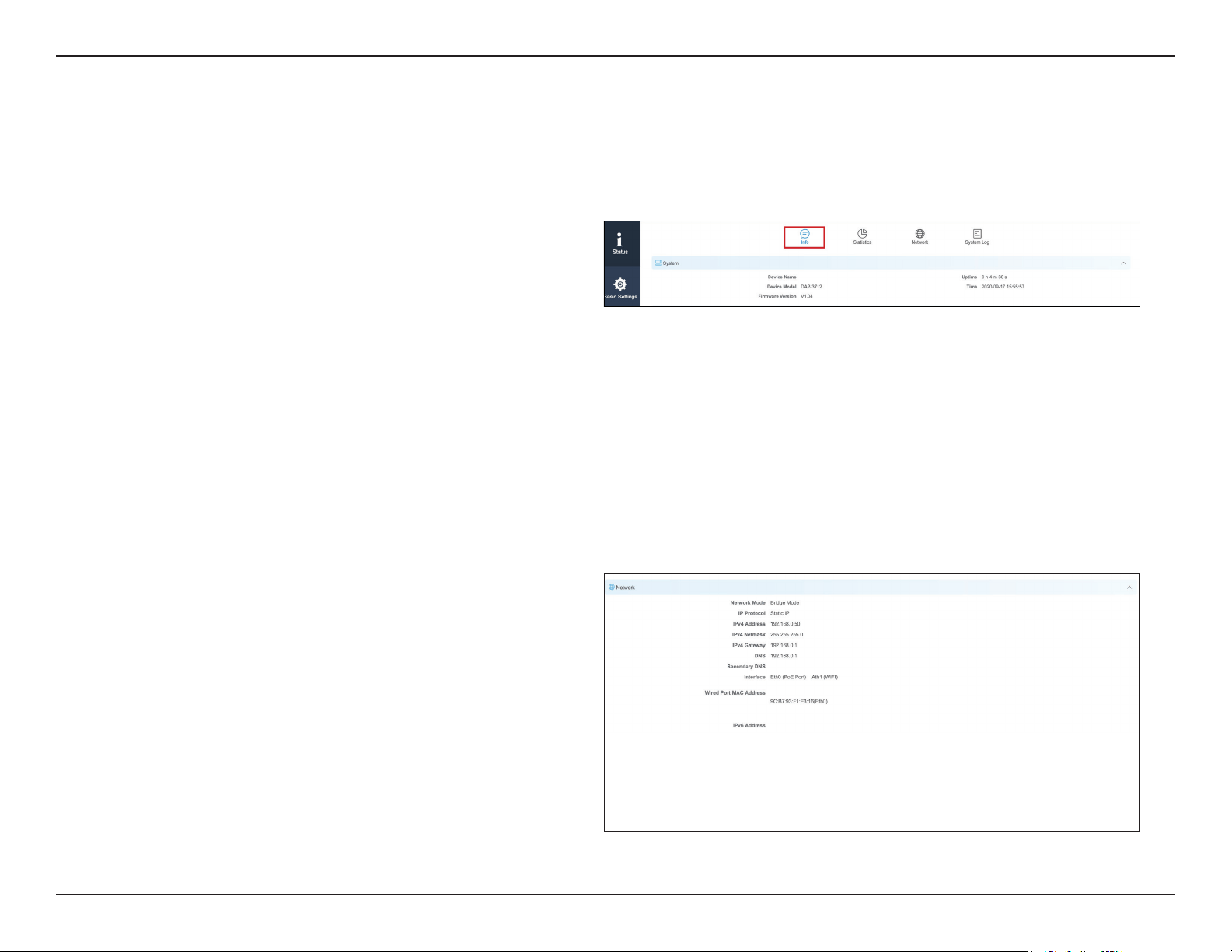
In this section you can change the admin password
or set up a Read Only account.
Use this to change the admin account’s password
Use this to enable a Read Only guest account
Use this to change the guest account’s password
Account
Management:
Modify User
Account:
Read-Only
Account:
Change Read-
Only Account:
42D-Link DAP-3711 User Manual
Section 3 - Conguration
Status
There are four tabs in the Status section. This page displays the System, Network, Wireless and Station List for the DAP-3711.
Info
In the Info tab, information about the device is displayed.
Device Name: The name of the device
Device Model: The model (DAP-3711)
The software version number
The length of time that the device has been
powered on
The current time
Device Name:
Device Model:
Firmware
Version:
Uptime:
Time:
This displays the DAP-3711’s network status
This indicates whether the device is in Router Mode
or Bridge Mode
This indicates whether the device is congured
with a Static IP or DHCP
This displays the device’s LAN MAC Address
Network:
Network Mode:
IP Protocol:
Wired Port
MAC Address:
43D-Link DAP-3711 User Manual
Section 3 - Conguration
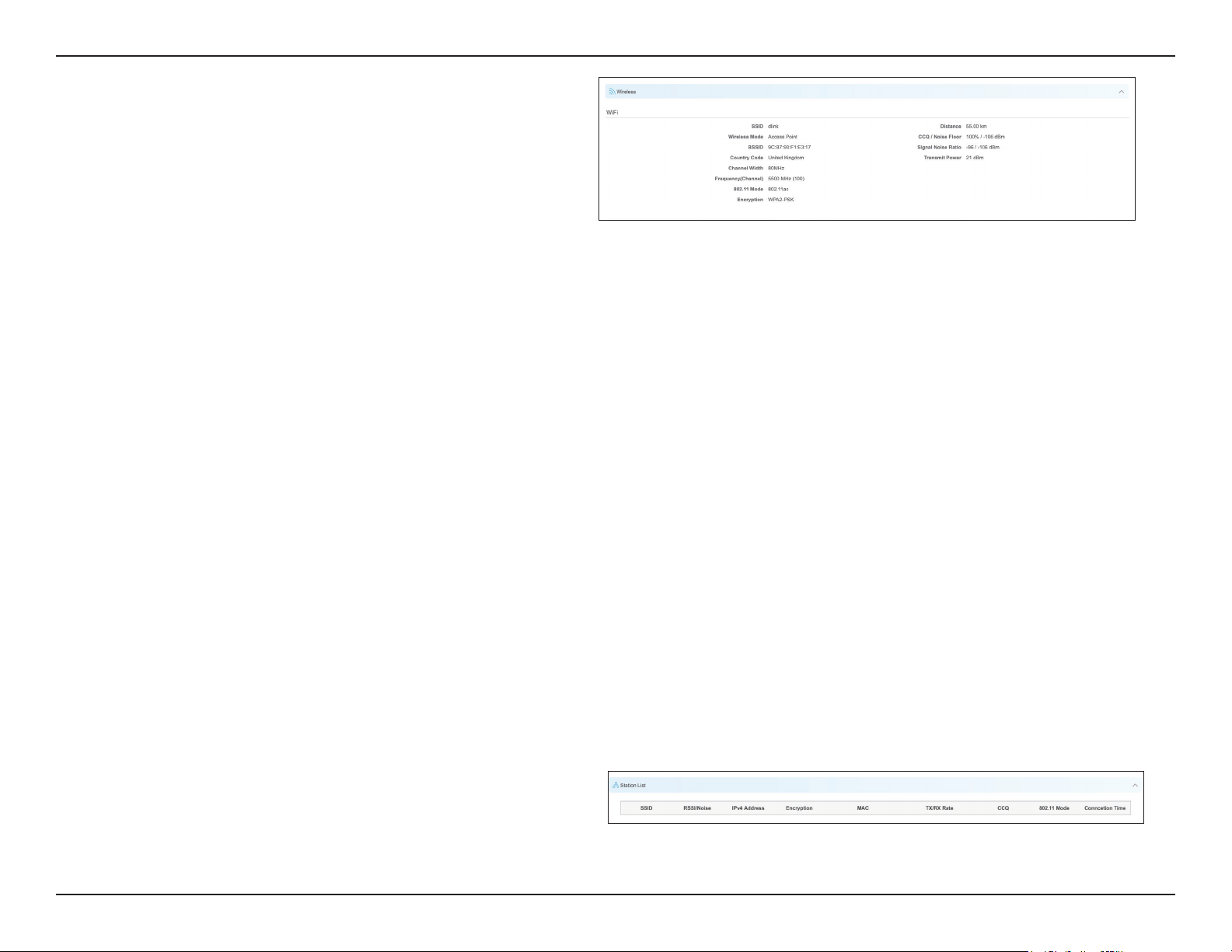
SSID: Displays the device’s SSID
This displays the device’s mode: Access Point,
Client, Access Point (WDS), or Client (WDS)
This displays the device’s Wi-Fi MAC address
This displays the device’s country code
This displays the device’s current operating
channel width (10/20/40/80 MHz)
Displays the device’s current operating channel
This displays the device’s current 802.11 mode:
802.11ac or 802.11 a/n
Displays the current Wi-Fi encryption
Shows distance between the two associated
devices
Displays the current noise oor value. In order
to achieve the best results, a value of less than
-95dBm is recommended
Displays the DAP-3711’s current Wi-Fi power
output
SSID:
Wireless Mode:
BSSID:
Country Code:
Channel Width:
Frequency
(Channel):
802.11 Mode:
Encryption:
Distance:
Noise Floor:
Transmit
Power:
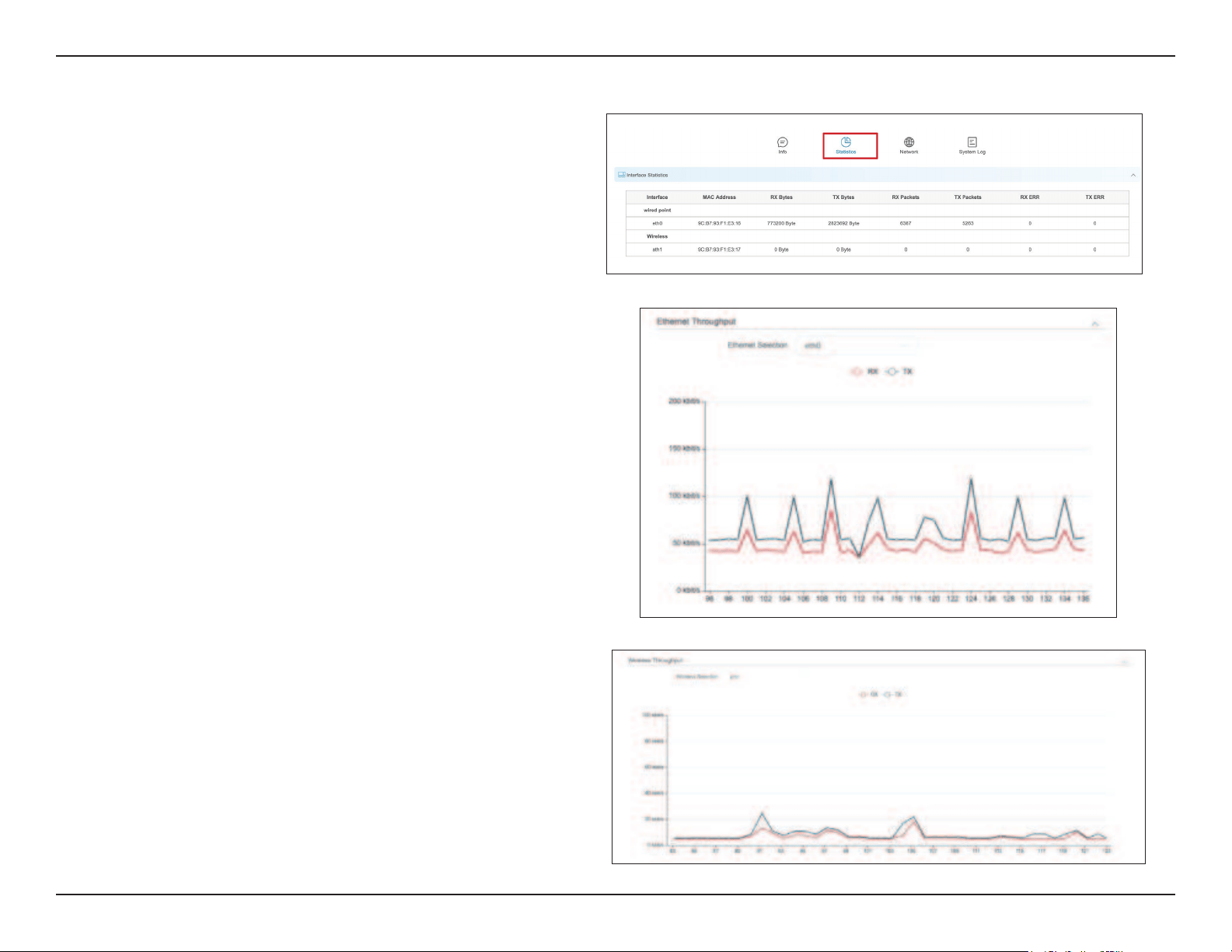
This will list all of the client devices which are
connected to the DAP-3711.
Station
List Info:
44D-Link DAP-3711 User Manual
Section 3 - Conguration
Statistics
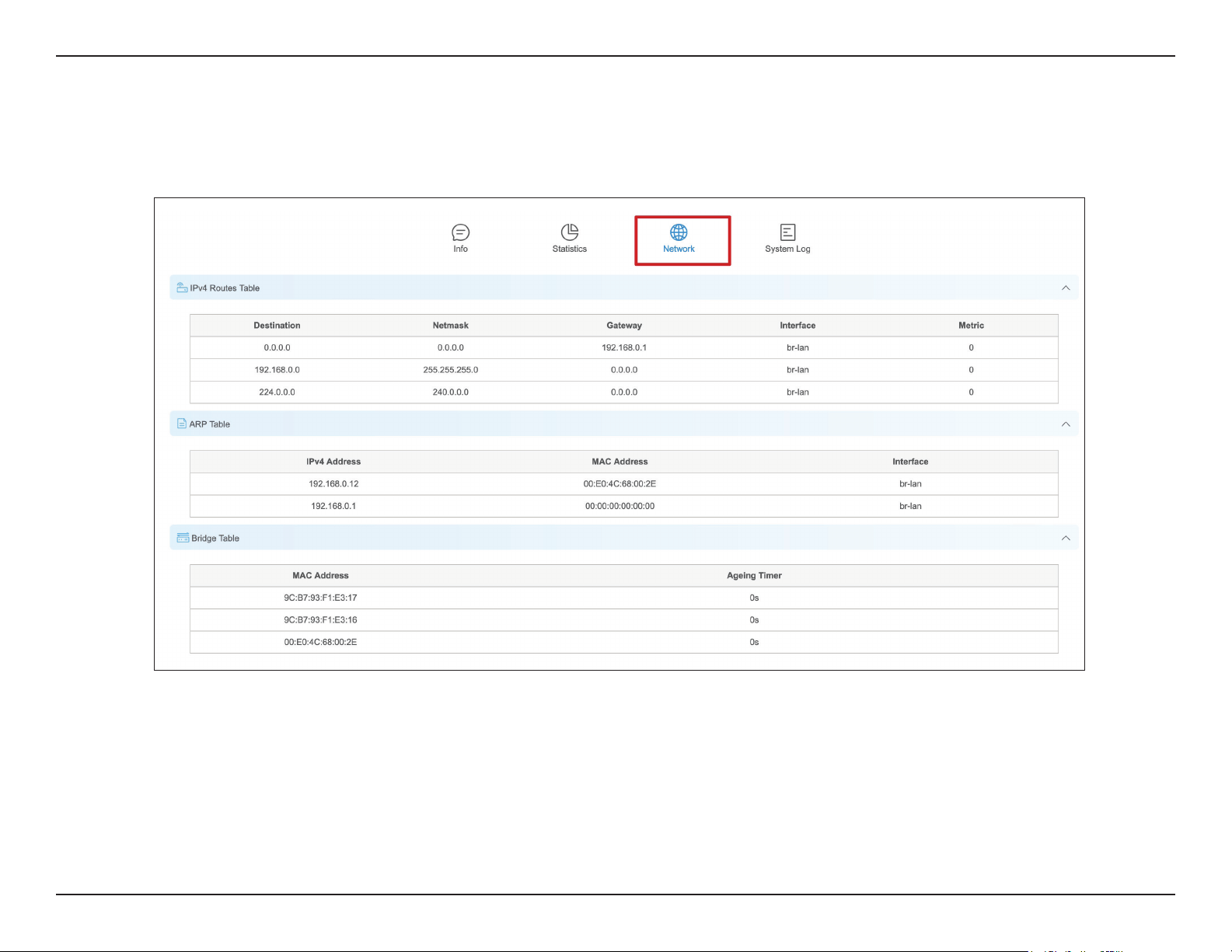
There are two subsections: Interface Statics and Throughput.
Displays the DAP-3711’s trac Interface
Statics:
Displays the current Ethernet and wireless trac Throughput:
45D-Link DAP-3711 User Manual
Section 3 - Conguration
Network
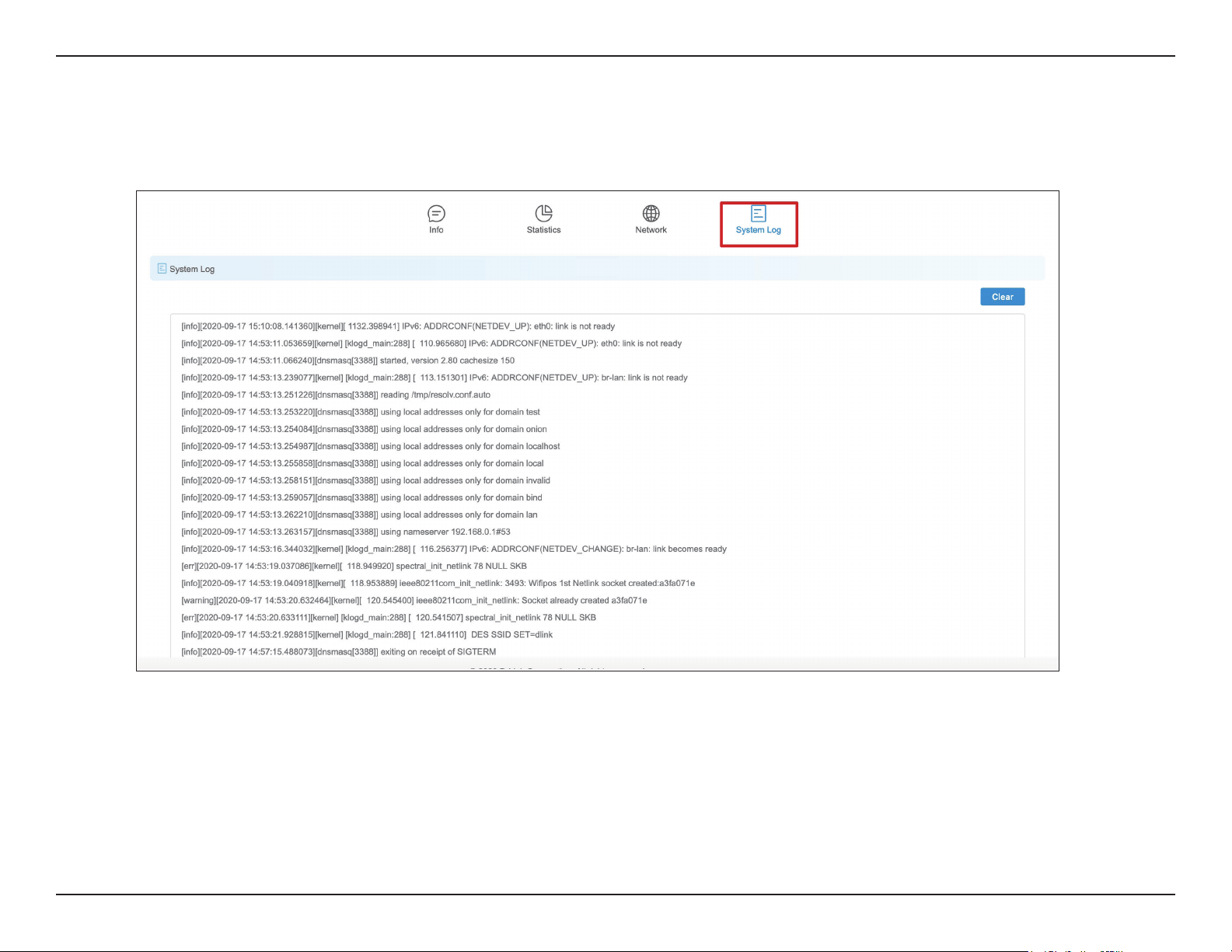
In this tab, you can see the current IPv4 route table, APR table and bridge table.
46D-Link DAP-3711 User Manual
Section 3 - Conguration
Syslog Info
This tab shows the current syslog. Click the Clear button to Clear the log.
47D-Link DAP-3711 User Manual
Section 3 - Conguration
Tools
The DAP-3711 has many useful tools built in to help you manage the device and your network. These tools include Ping IP,
Traceroute, Link Test, Antenna Alignment and Spectrum Analyzer.
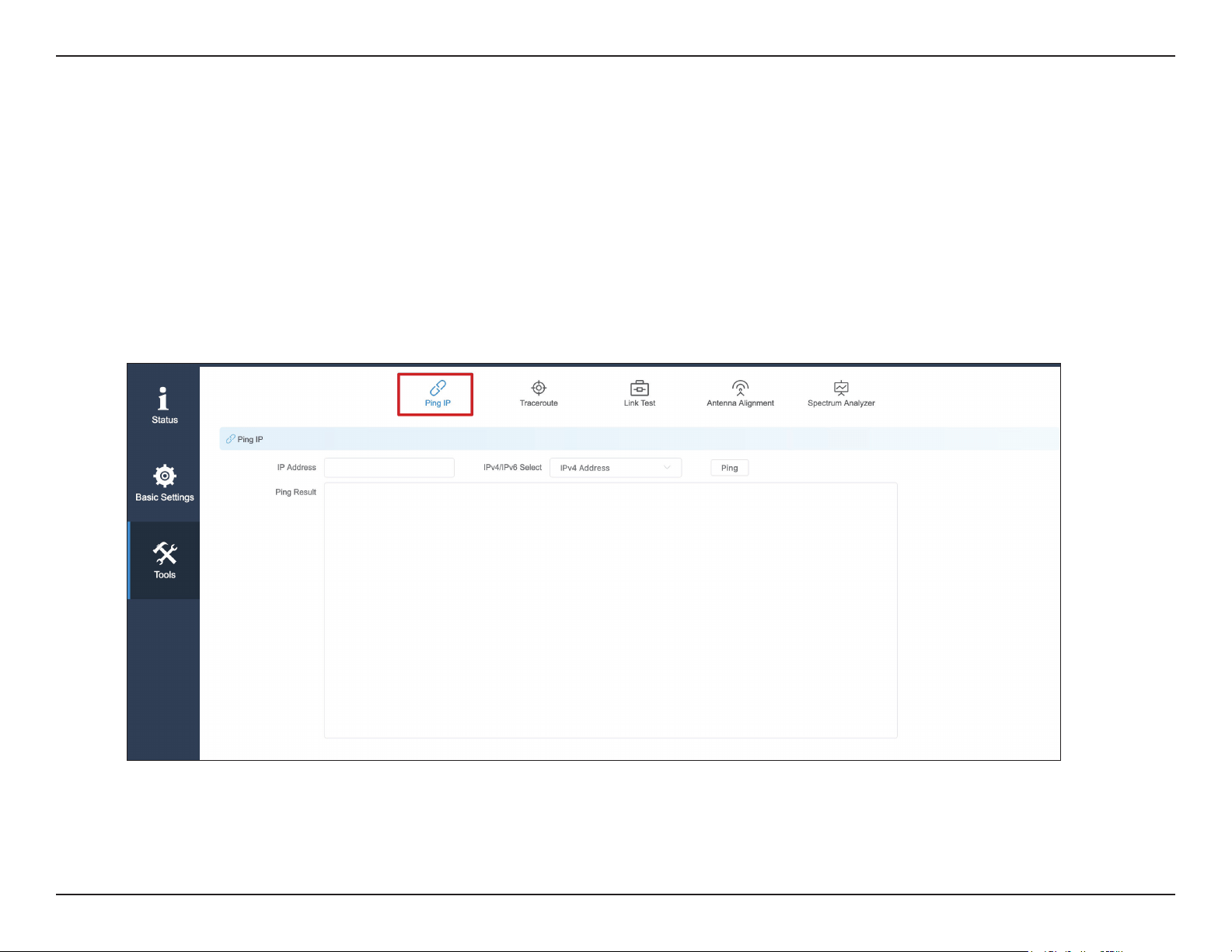
Ping IP
You can type in an IP address and check the ping result.
Enter the IP address that you would like to ping.IP Address:
48D-Link DAP-3711 User Manual
Section 3 - Conguration
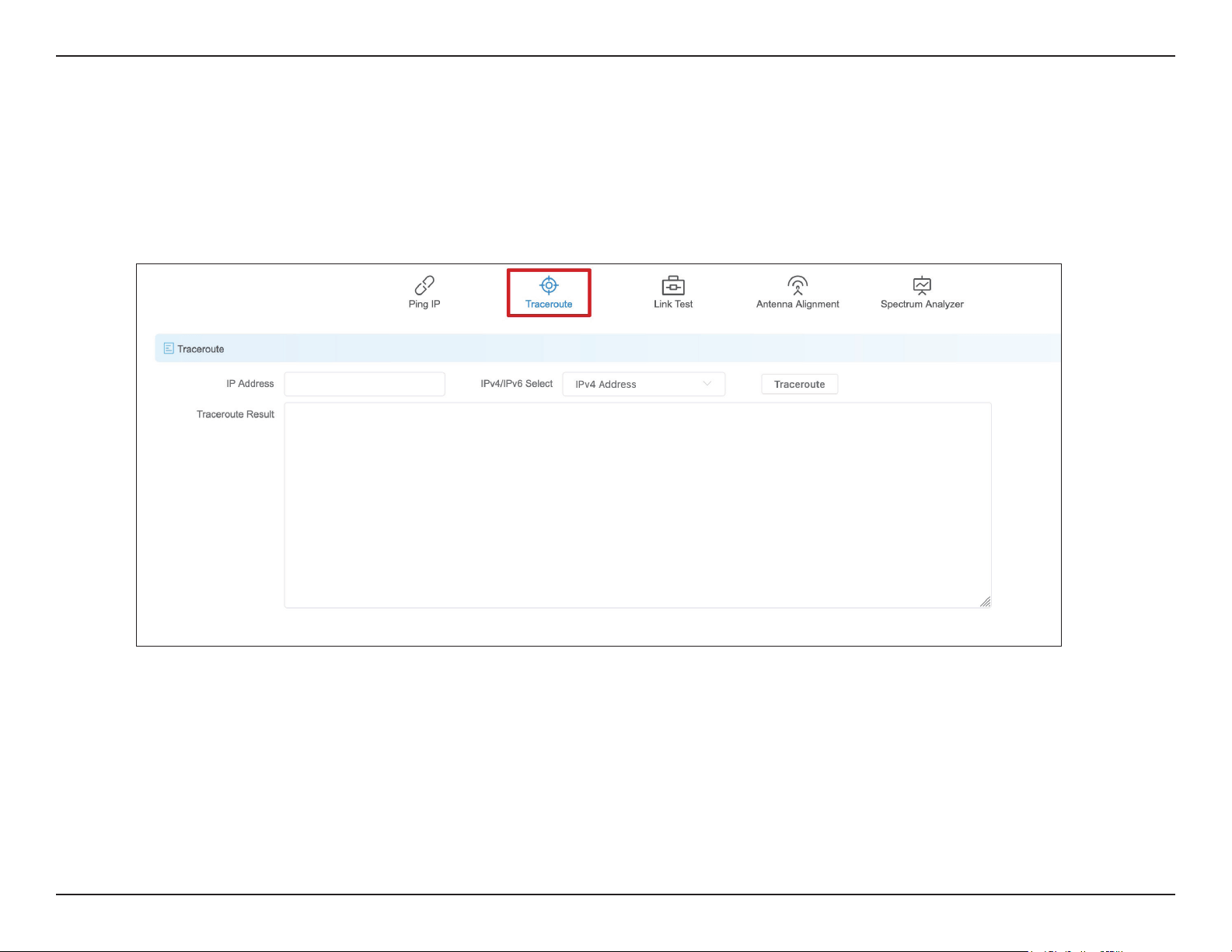
Traceroute
This allows the user to traceroute an IP address.
Enter the IP address to tracerouteIP Address:
49D-Link DAP-3711 User Manual
Section 3 - Conguration
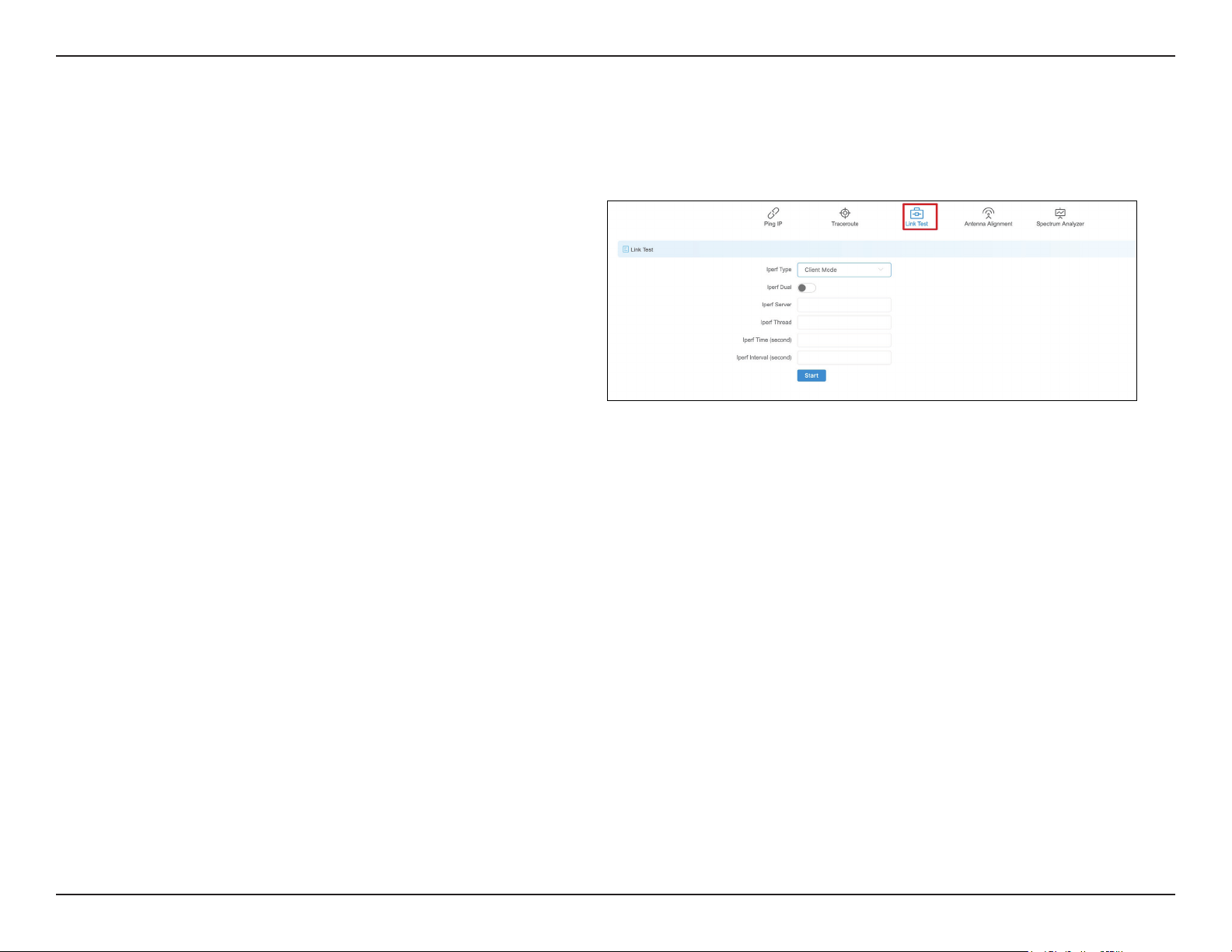
Link Test
The DAP-3711 has a built-in Iperf function. Users can congure the DAP-3711 in Iperf Server Mode. Then the Iperf client can connect to the Iperf
server to verify the speed between the two links. In client mode, you can assign an Iperf server IP address to check the speed between the two links.
Select Client or Server
If you select Iperf Dual, the DAP-3711 will conduct
a bi-directional speed test. Otherwise, it only test
the speed of transmission from the Iperf client to
the Iperf server.
Enter the Iperf server’s IP address.
Enter the number of threads during the test.
Enter how long the speed test should last.
Enter the interval to wait between the tests.
Iperf Type:
Iperf Dual:
Iperf Server:
Iperf Thread:
Iperf Time:
Iperf Interval:
50D-Link DAP-3711 User Manual
Section 3 - Conguration
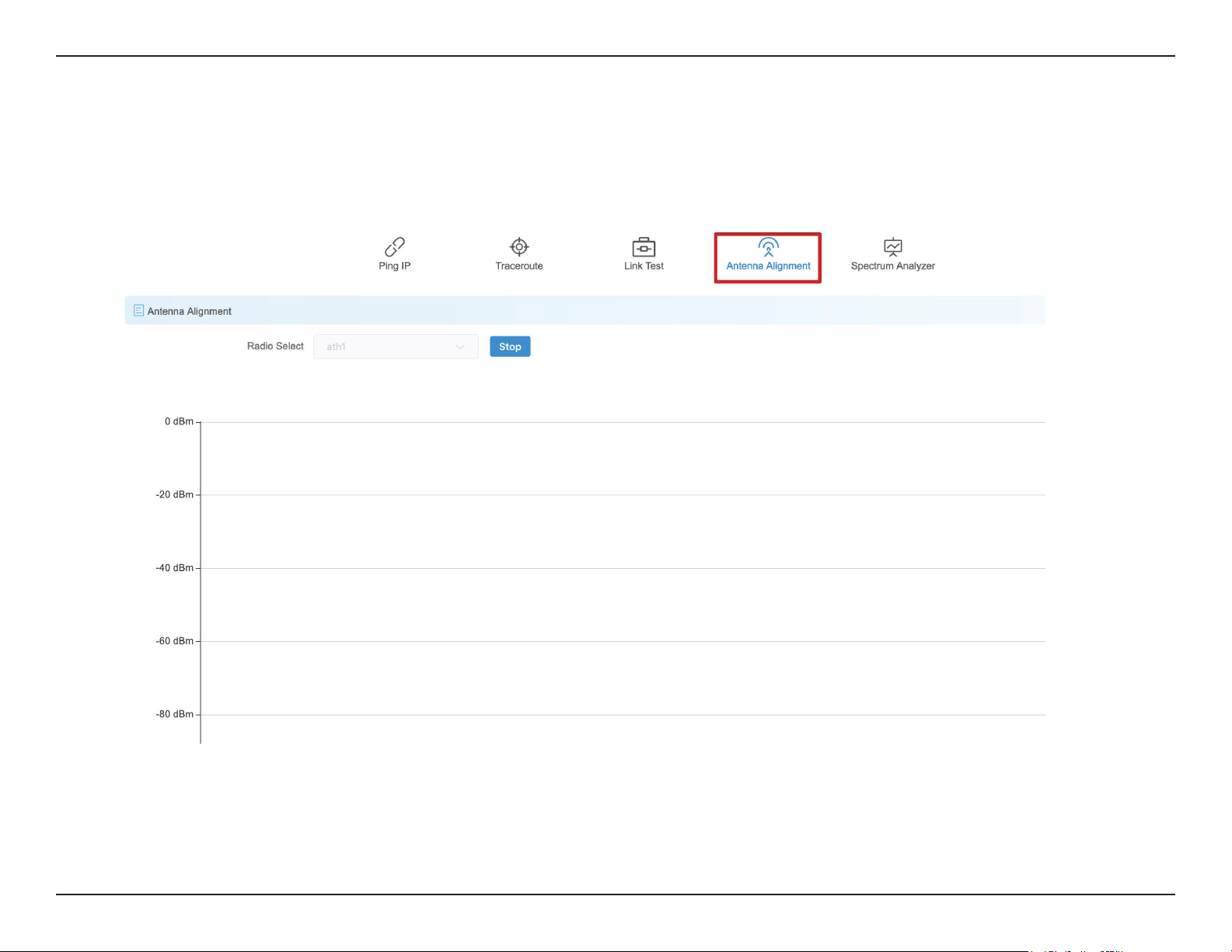
Antenna Alignment
When you select this, the DAP-3711 will recalibrate its signal strength. You can check which angle has the best antenna alignment when you install
the DAP-3711.
51D-Link DAP-3711 User Manual
Section 3 - Conguration
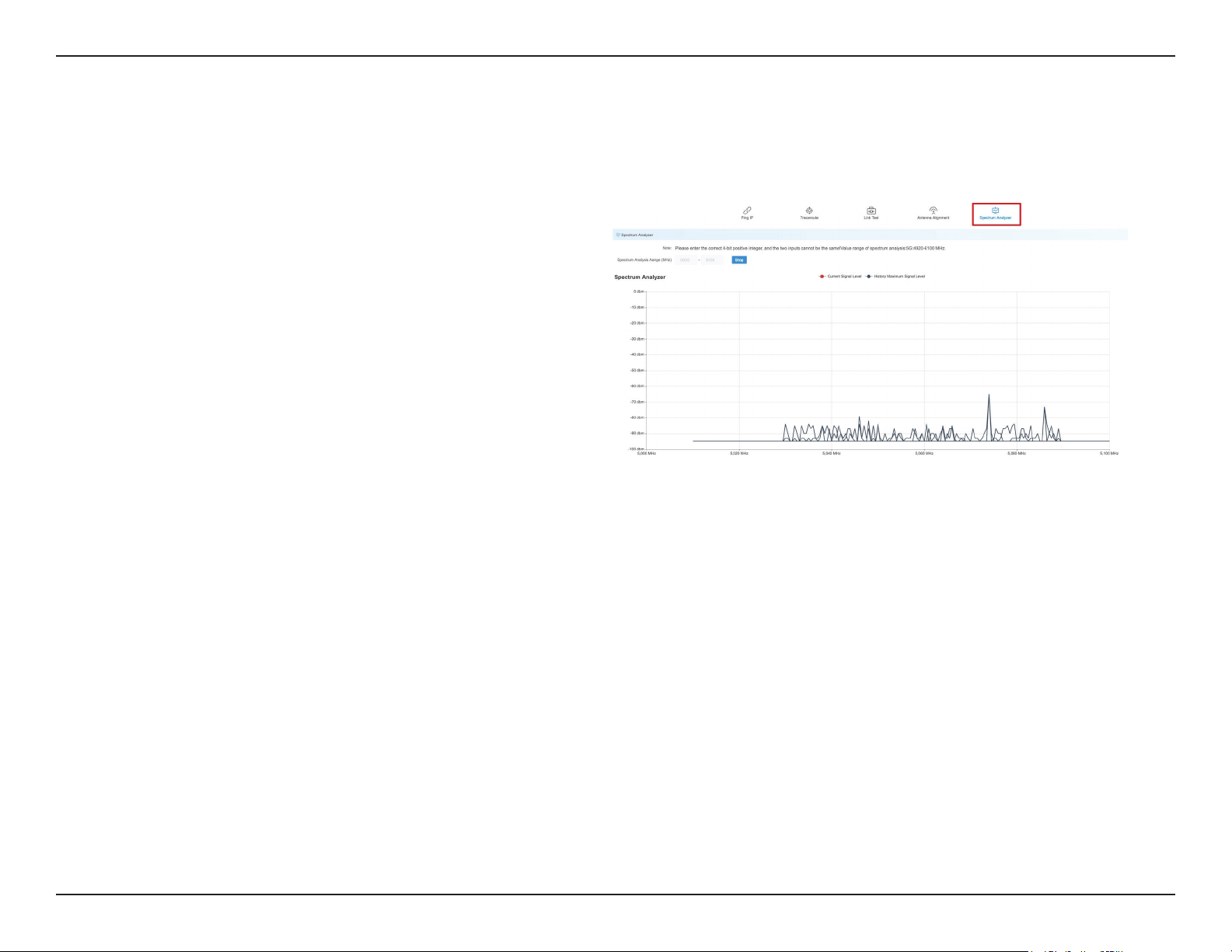
Spectrum Analyzer
You can use the Spectrum Analyzer to scan for the best channels. When performing the scan, the DAP-3711 Wi-Fi may disconnect.
Enter the frequency range to conduct spectrum
analysis on. It will take a few seconds to nish the
scan.
Spectrum
Analysis
Range:

52D-Link DAP-3711 User Manual
Appendix A - Technical Specications
Technical Specications
Standards
802.11a/n/ac
Device Interfaces
2 x 100/1000 Mbps Ethernet port, reset button
LEDs
Power, WLAN, LAN, Signal strength
Antenna Type
Directional
Antenna Gain
15 dBi
Beamwidth
H: 40°, V: 15°
Standards
802.11a/n/ac
Protection
8 kV ESD Protection
Enclosure
ABS, IP66 compliant
Operation Modes
AP, Station, WDS AP, WDS Station
Operating Frequency
5180~5320 MHz, 5745~5825 MHz
Max. Transmit Power¹
27 dBm
Wireless Speed
Up to 867 Mbps
Bandwidth Support
20/40/80 MHz
Wireless Conguration
Auto channel support, transmit power selection,
SSID broadcast enabling/disabling
Security
802.11i 128-bit AES Personal / Enterprise
System Tools
Ping, traceroute, NTP, ping watchdog, syslog,
spectrum analyzer, throughput testing (lperf )
Smart Wireless Technology
TDMA, Auto ACK, intelligent rate control,
co-channel interference avoidance
Advanced Features
Max. station limit
1
Range will vary depending on country’s maximum transmit power output regulation. Maximum wireless signal rate derived from IEEE Standard 802.11g and 802.11n specications.
Actual data throughput will vary. Network conditions and environmental factors, including volume of network trac, building materials and construction, and network overhead,
lower actual data throughput rate. Environmental conditions will adversely aect wireless signal range.

53D-Link DAP-3711 User Manual
Appendix A - Technical Specications
LAN Type
Static, DHCP
VLAN Support
Yes
Firewall
IP / MAC lter
Monitors
Throughput, interfaces, routes table, bridge
table, ARP table, AP information, syslog
Firmware Upgrade
Web-based upgrade
Power Input
24V Passive PoE
Power Consumption
≤ 15 W
Operating Temperature
-40ºC to 65ºC
Storage Temperature
-40ºC to 85ºC
Operating Humidity
0% to 90%
Storage Humidity
0% to 90%
Weight
600g (1.3 lbs)
Dimensions
288 x 88 x 45 mm (11.3 x 3.4 x 1.8 in)
Certications
CE
FCC

54D-Link DAP-3711 User Manual
Trademarks:
D-Link is a registered trademark of D-Link Corporation/D-Link Systems, Inc. Other trademarks or registered trademarks are the property of their
respective owners.
Copyright Statement:
No part of this publication or documentation accompanying this product may be reproduced in any form or by any means or used to make any
derivative such as translation, transformation, or adaptation without permission from D-Link Corporation/D-Link Systems, Inc., as stipulated by the
United States Copyright Act of 1976 and any amendments thereto. Contents are subject to change without prior notice.
Copyright ©2020 by D-Link Corporation/D-Link Systems, Inc. All rights reserved.
FCC Statement
This equipment has been tested and found to comply with the limits for a Class A digital device, pursuant to Part 15 of the FCC Rules. These limits
are designed to provide reasonable protection against harmful interference when the equipment is operated in a commercial environment. This
equipment generates, uses, and can radiate radio frequency energy and, if not installed and used in accordance with the instruction manual, may
cause harmful interference to radio communications. Operation of this equipment in a residential area is likely to cause harmful interference in
which case the user will be required to correct the interference at his own expense.
FCC Radiation Exposure Statement
This device complies with FCC radiation exposure limits set forth for an uncontrolled environment and it also complies with Part 15 of the FCC RF
Rules. This equipment must be installed and operated in accordance with provided instructions and the antenna(s) used for this transmitter must be
installed to provide a separation distance of at least 20 cm from all persons and must not be co-located or operating in conjunction with any other
antenna or transmitter. End-users and installers must be provided with antenna installation instructions and consider removing the no-collocation
statement.
This device complies with Part 15 of the FCC Rules. Operation is subject to the following two conditions: (1) this device may not cause harmful
interference, and (2) this device must accept any interference received, including interference that may cause undesired operation.
Caution!
Any changes or modications not expressly approved by the party responsible for compliance could void the user’s authority to operate the
equipment.