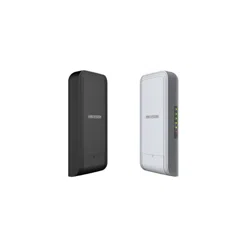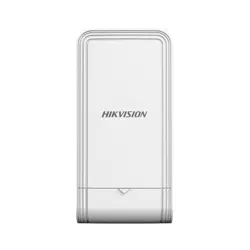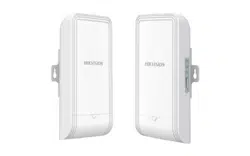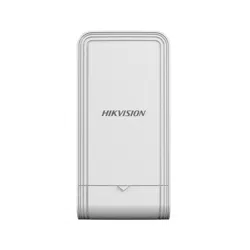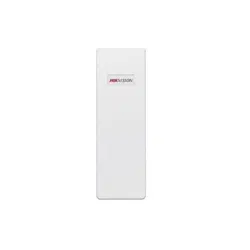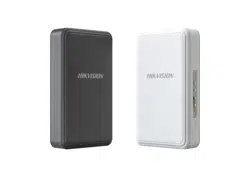

Wireless Bridge (Web)
User Manual

Wireless Bridge (Web) • User Manual
i
Legal Information
About this Document
● This Document includes instructions for using and managing the Product. Pictures, charts, images
and all other information hereinafter are for description and explanation only.
● The information contained in the Document is subject to change, without notice, due to firmware
updates or other reasons. Please find the latest version of the Document at the Hikvision website
(https://www.hikvision.com). Unless otherwise agreed, Hangzhou Hikvision Digital Technology
Co., Ltd. or its affiliates (hereinafter referred to as "Hikvision") makes no warranties, express or
implied.
● Please use the Document with the guidance and assistance of professionals trained in supporting
the Product.
About this Product
This product can only enjoy the after-sales service support in the country or region where the
purchase is made.
Acknowledgment of Intellectual Property Rights
● Hikvision owns the copyrights and/or patents related to the technology embodied in the Products
described in this Document, which may include licenses obtained from third parties.
● Any part of the Document, including text, pictures, graphics, etc., belongs to Hikvision. No part of
this Document may be excerpted, copied, translated, or modified in whole or in part by any means
without written permission.
● and other Hikvision's trademarks and logos are the properties of Hikvision in
various jurisdictions.
● Other trademarks and logos mentioned are the properties of their respective owners.
LEGAL DISCLAIMER
● TO THE MAXIMUM EXTENT PERMITTED BY APPLICABLE LAW, THIS DOCUMENT AND THE
PRODUCT DESCRIBED, WITH ITS HARDWARE, SOFTWARE AND FIRMWARE, ARE PROVIDED "AS IS"
AND "WITH ALL FAULTS AND ERRORS". HIKVISION MAKES NO WARRANTIES, EXPRESS OR IMPLIED,
INCLUDING WITHOUT LIMITATION, MERCHANTABILITY, SATISFACTORY QUALITY, OR FITNESS FOR
A PARTICULAR PURPOSE. THE USE OF THE PRODUCT BY YOU IS AT YOUR OWN RISK. IN NO EVENT
WILL HIKVISION BE LIABLE TO YOU FOR ANY SPECIAL, CONSEQUENTIAL, INCIDENTAL, OR
INDIRECT DAMAGES, INCLUDING, AMONG OTHERS, DAMAGES FOR LOSS OF BUSINESS PROFITS,
BUSINESS INTERRUPTION, OR LOSS OF DATA, CORRUPTION OF SYSTEMS, OR LOSS OF
DOCUMENTATION, WHETHER BASED ON BREACH OF CONTRACT, TORT (INCLUDING
NEGLIGENCE), PRODUCT LIABILITY, OR OTHERWISE, IN CONNECTION WITH THE USE OF THE
PRODUCT, EVEN IF HIKVISION HAS BEEN ADVISED OF THE POSSIBILITY OF SUCH DAMAGES OR
LOSS.
● YOU ACKNOWLEDGE THAT THE NATURE OF THE INTERNET PROVIDES FOR INHERENT SECURITY

Wireless Bridge (Web) • User Manual
ii
RISKS, AND HIKVISION SHALL NOT TAKE ANY RESPONSIBILITIES FOR ABNORMAL OPERATION,
PRIVACY LEAKAGE OR OTHER DAMAGES RESULTING FROM CYBER-ATTACK, HACKER ATTACK,
VIRUS INFECTION, OR OTHER INTERNET SECURITY RISKS; HOWEVER, HIKVISION WILL PROVIDE
TIMELY TECHNICAL SUPPORT IF REQUIRED.
● YOU AGREE TO USE THIS PRODUCT IN COMPLIANCE WITH ALL APPLICABLE LAWS, AND YOU ARE
SOLELY RESPONSIBLE FOR ENSURING THAT YOUR USE CONFORMS TO THE APPLICABLE LAW.
ESPECIALLY, YOU ARE RESPONSIBLE, FOR USING THIS PRODUCT IN A MANNER THAT DOES NOT
INFRINGE ON THE RIGHTS OF THIRD PARTIES, INCLUDING WITHOUT LIMITATION, RIGHTS OF
PUBLICITY, INTELLECTUAL PROPERTY RIGHTS, OR DATA PROTECTION AND OTHER PRIVACY
RIGHTS. YOU SHALL NOT USE THIS PRODUCT FOR ANY PROHIBITED END-USES, INCLUDING THE
DEVELOPMENT OR PRODUCTION OF WEAPONS OF MASS DESTRUCTION, THE DEVELOPMENT OR
PRODUCTION OF CHEMICAL OR BIOLOGICAL WEAPONS, ANY ACTIVITIES IN THE CONTEXT
RELATED TO ANY NUCLEAR EXPLOSIVE OR UNSAFE NUCLEAR FUEL-CYCLE, OR IN SUPPORT OF
HUMAN RIGHTS ABUSES.
● IN THE EVENT OF ANY CONFLICTS BETWEEN THIS DOCUMENT AND THE APPLICABLE LAW, THE
LATTER PREVAILS.
© Hangzhou Hikvision Digital Technology Co., Ltd. All rights reserved.
Wireless Bridge (Web) • User Manual
iii
Preface
Applicable Models
This manual is applicable to the wireless bridge for web operation.
Symbol Conventions
The symbols that may be found in this document are defined as follows.
Symbol
Description
Danger
Indicates a hazardous situation which, if not avoided, will or could
result in death or serious injury.
Caution
Indicates a potentially hazardous situation which, if not avoided, could
result in equipment damage, data loss, performance degradation, or
unexpected results.
Note
Provides additional information to emphasize or supplement
important points of the main text.
Safety Instructions
Danger
● This is a class A product and may cause radio interference in which case the user may be required
to take adequate measures.
●
No naked flame sources, such as lighted candles, should be placed on the equipment.
●
The serial port of the equipment is used for debugging only.
●
Install the equipment according to the instructions in Quick Start Guide.
● To prevent injury, this equipment must be securely attached to the installation surface in
accordance with the installation instructions.
●
Keep vertical downward when moving or using the equipment.
Caution
● In the use of the product, you must be in strict compliance with the electrical safety regulations
of the nation and region.
● The socket-outlet shall be installed near the equipment and shall be easily accessible.
● Do not connect several devices to one power adapter as adapter overload may cause
overheating or a fire hazard.
● Please make sure that the plug is firmly connected to the power socket.

Wireless Bridge (Web) • User Manual
iv
Contents
Chapter 1 Introduction ................................................................................................................... 1
Chapter 2 Activation and Login ...................................................................................................... 2
Activate the Device ........................................................................................................................................ 2
Log in to the Device........................................................................................................................................ 2
Chapter 3 Overview ........................................................................................................................ 4
Device Information ........................................................................................................................................ 4
Connection Status .......................................................................................................................................... 5
Network Status .............................................................................................................................................. 5
Chapter 4 Network Settings ........................................................................................................... 7
LAN Settings................................................................................................................................................... 7
Wireless Settings ............................................................................................................................................ 7
4.2.1 Basic Settings ...................................................................................................................................... 8
4.2.2 Advanced Settings ............................................................................................................................... 9
Chapter 5 System Maintenance ................................................................................................... 11
System Diagnosis ..........................................................................................................................................11
5.1.1 Manage Log ........................................................................................................................................11
5.1.2 Ping Tool ............................................................................................................................................11
5.1.3 Ping Watchdog ...................................................................................................................................11
Edit Device Name ..........................................................................................................................................12
Set Time........................................................................................................................................................12
5.3.1 Manual Setting ...................................................................................................................................12
5.3.2 NTP Setting ........................................................................................................................................12
Reboot the Device.........................................................................................................................................13
Backup and Restore ......................................................................................................................................13
Device Debugging .........................................................................................................................................14
Upgrade the Device.......................................................................................................................................14
SADP Service .................................................................................................................................................14
Change Password ..........................................................................................................................................15
Chapter 6 FAQs ............................................................................................................................. 16
Why the device cannot start up? ...................................................................................................................16
Why devices pairing failed? ...........................................................................................................................16
Why the wireless connection rate is relatively low? .......................................................................................16
Why the signal intensity is too low? ..............................................................................................................17
Why the throughput is inadequate even with high signal quality?..................................................................17
Why there are excessive packet loss and time delay when PC pings the device IP address? ............................17

Wireless Bridge (Web) • User Manual
1
Introduction
You can manage and configure the wireless bridge (hereinafter referred to as the device) through
the web browser, including network settings, wireless network settings, and system management.
Note
Functions vary with device models. Pictures used for illustration here are for example purposes. The
actual interface prevails.

Wireless Bridge (Web) • User Manual
2
Activation and Login
Activate the Device
For the security of your privacy and system data, you are required to set a password for your first
use. After the password is set, you can log in to the web for further configuration.
Before You Start
Ensure that your PC and the device are on the same network segment.
Steps
1.
Run the web browser.
2. Enter the IP address of the device in the address bar, and press Enter.
3. Set your password and confirm.
Caution
The password strength of the device can be automatically checked. We highly recommend you
change the password of your own choosing (using a minimum of 8 characters, including at least
three kinds of following categories: uppercase letters, lowercase letters, numbers, and special
characters) in order to increase the security of your product. And we recommend you change
your password regularly, especially in the high security system. Changing the password monthly
or weekly can better protect your product.
Proper configuration of all passwords and other security settings is the responsibility of the
installer and/or end-user.
4.
Select the desired Country/Region Code and confirm.
Note
Only when Country/Region Code is set, can the device work normally.
Log in to the Device
Log in to the device to check device information and configure related parameters.
Steps
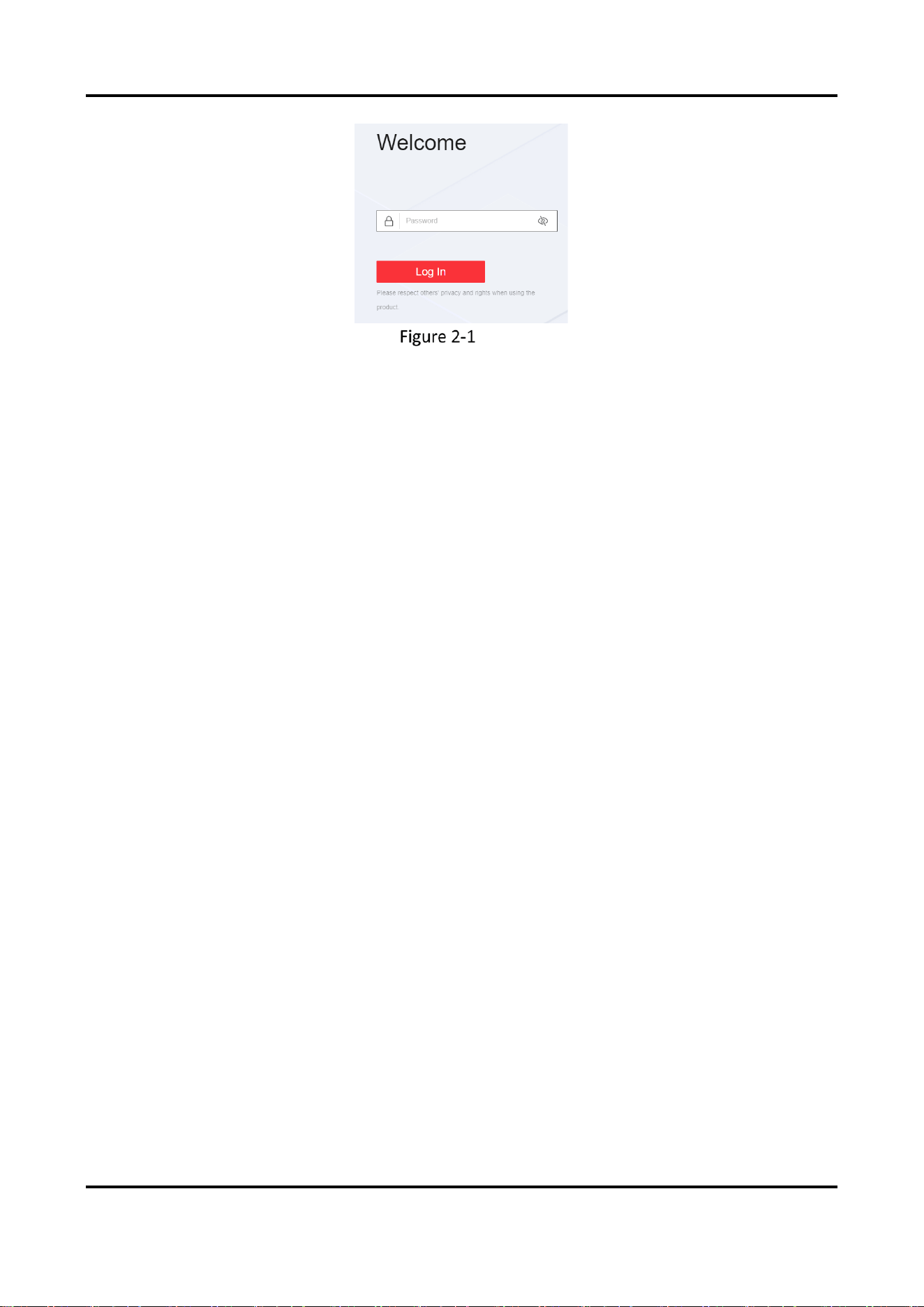
1. Enter the IP address in the address bar of the web browser, and press Enter.
Wireless Bridge (Web) • User Manual
3
Log In
2. Enter the user name and password.
3. Click Login.
Wireless Bridge (Web) • User Manual
4
Overview
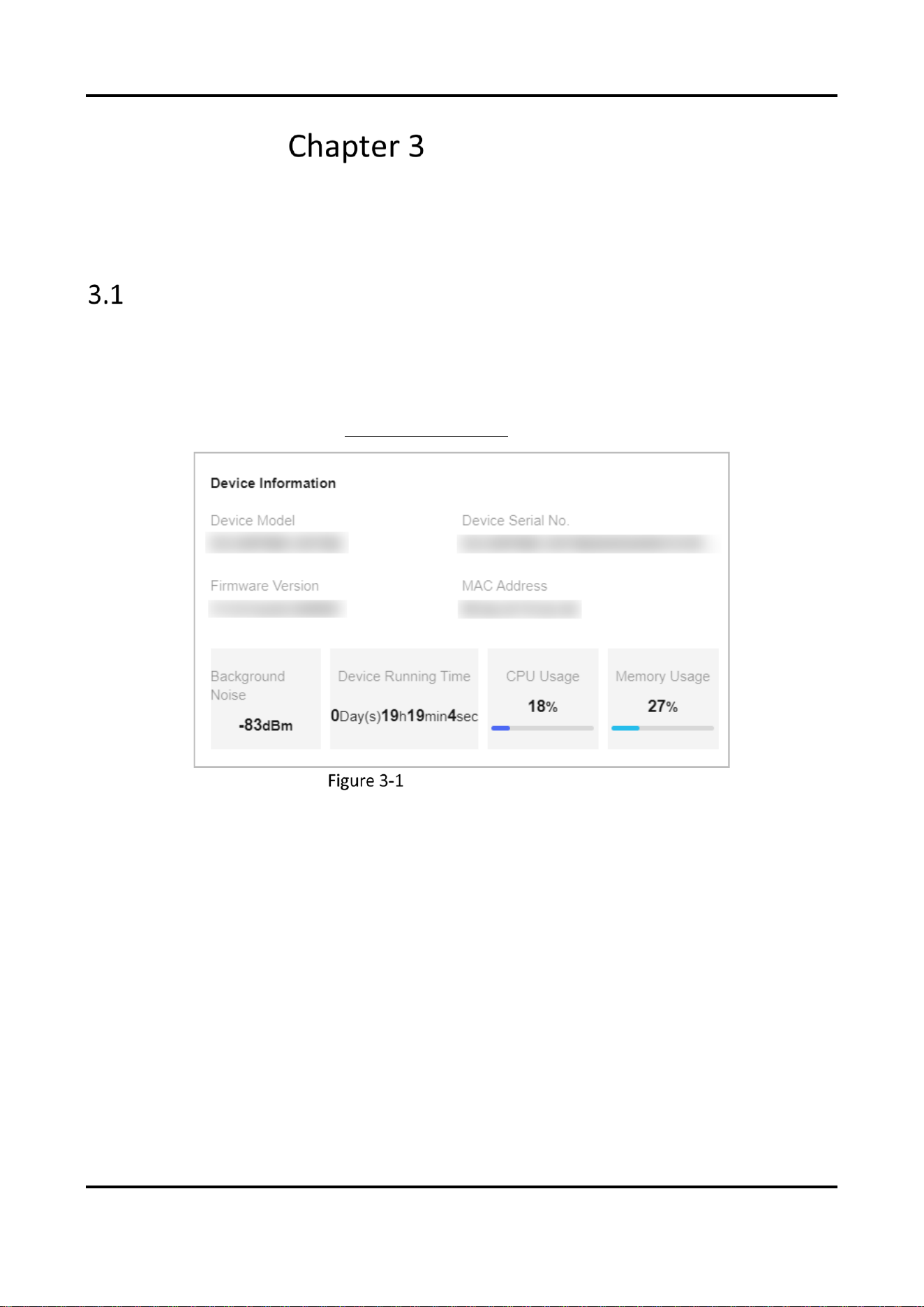
You can view the basic information, connection status, network status, and wireless status for
routine check or device maintenance.
Device Information
Go to Overview → Device Information to check device name, device model, serial No., program
version, MAC address, CPU usage, memory usage, running time, and background noise condition
of the device, etc.
Device Name is configurable. See 5.2 Edit Device Name
.
Check Device Information
Wireless Bridge (Web) • User Manual
5
Connection Status
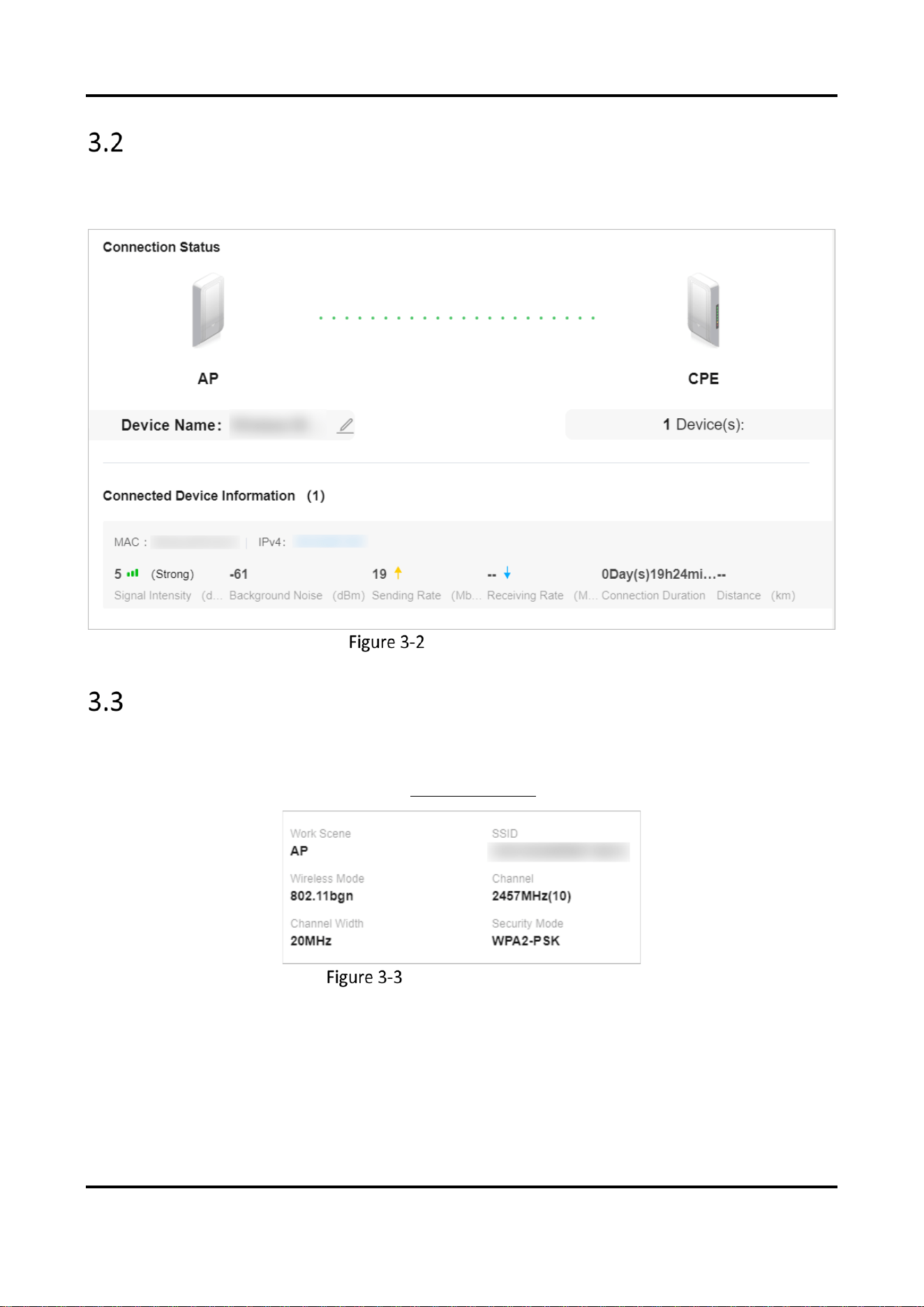
Go to Overview → Connection Status/Connected Device Information to view the number and
specific status information of the connected device (i.e. the opposite wireless bridge).
Check Device Status
Network Status
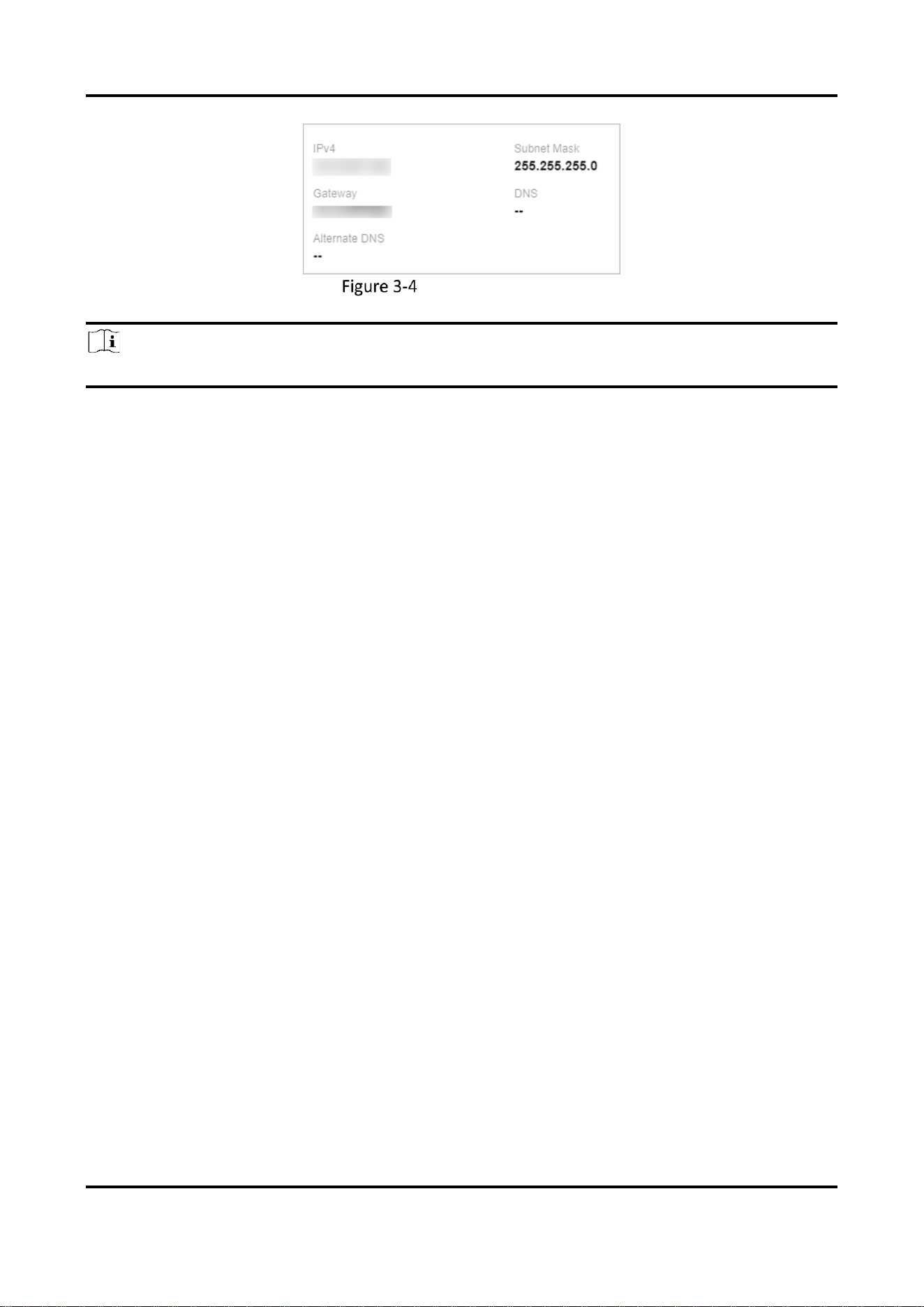
Go to Overview → Wireless Parameter/Network Information to check the working scene, SSID,
channel, IPv4, subnet mask, gateway, DNS address, and alternate DNS address of the device.
The LAN parameters are configurable. See 4.1 LAN Settings.
Check Wireless Parameter
Wireless Bridge (Web) • User Manual
6
Check Network Status
Note
Parameters of this function vary with models. The actual interface prevails.
Wireless Bridge (Web) • User Manual
7
Network Settings
LAN Settings
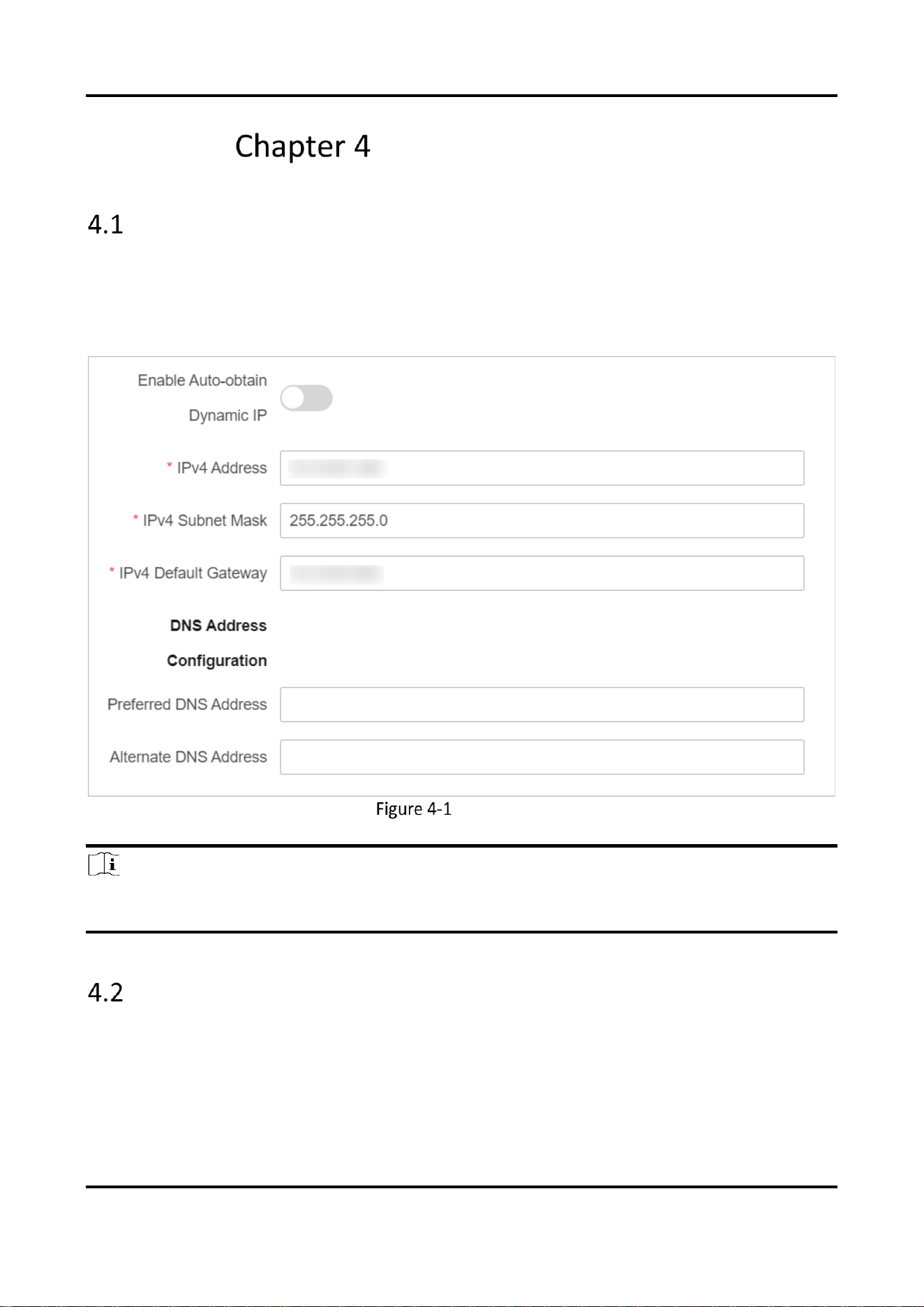
Go to Network Settings → LAN Settings to configure detailed network parameters.
If you disable Auto-obtain Dynamic IP, you can set IPv4, IPv4 Subnet Mask, Gateway, and DNS
Address manually.
If you enable Auto-obtain Dynamic IP, other parameters will be set automatically.
LAN Settings
Note
After the IP address is reset, the web page redirects to the new login interface of the newly set IP
address.
Wireless Settings
Click Wireless Settings to set basic and advanced parameters of wireless network.
Wireless Bridge (Web) • User Manual
8
Note
Parameters of this function vary with models. The actual interface prevails.
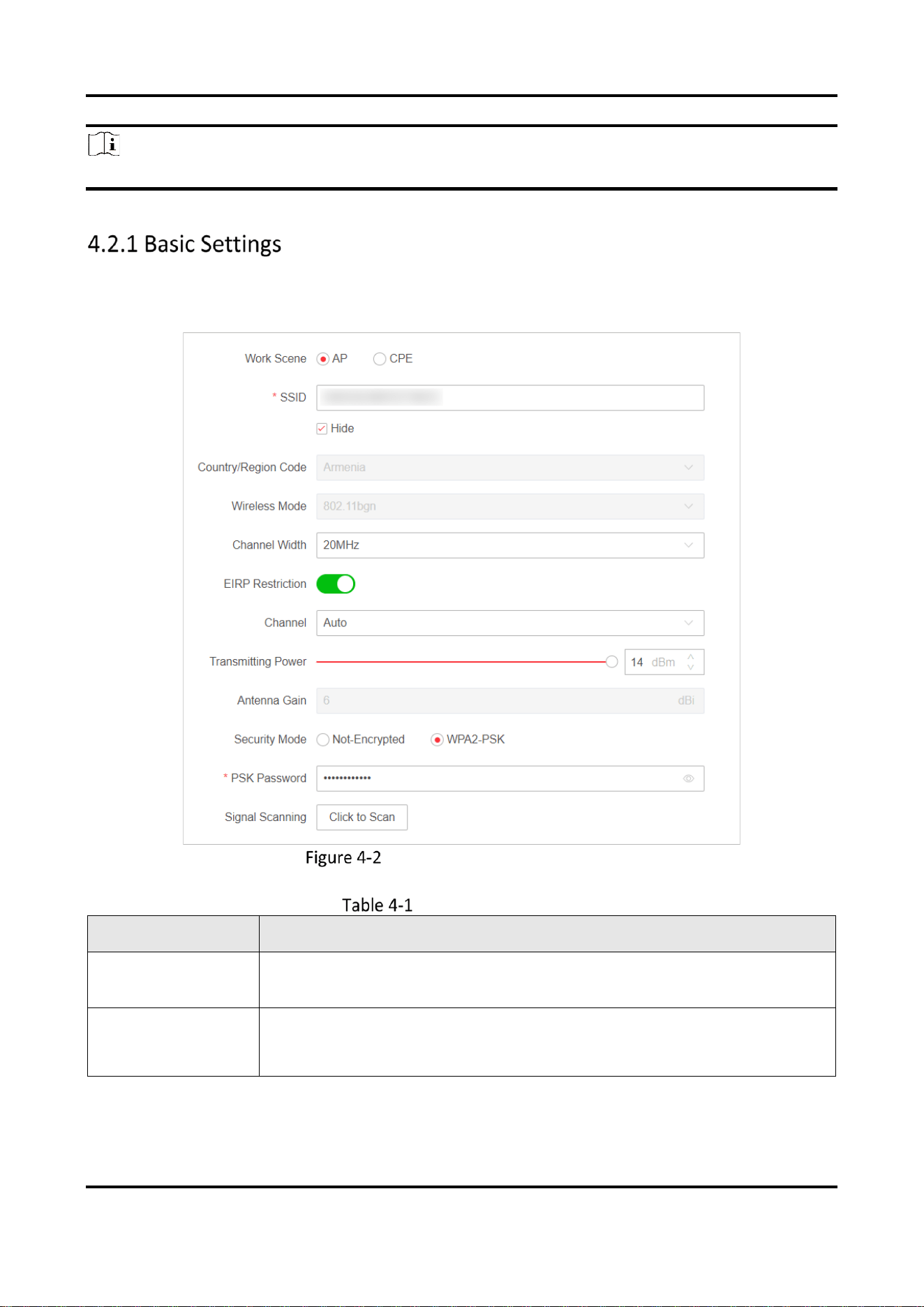
Go to Wireless Setting → Basic Settings to set wireless network basic parameters.
Wireless Network Basic Settings
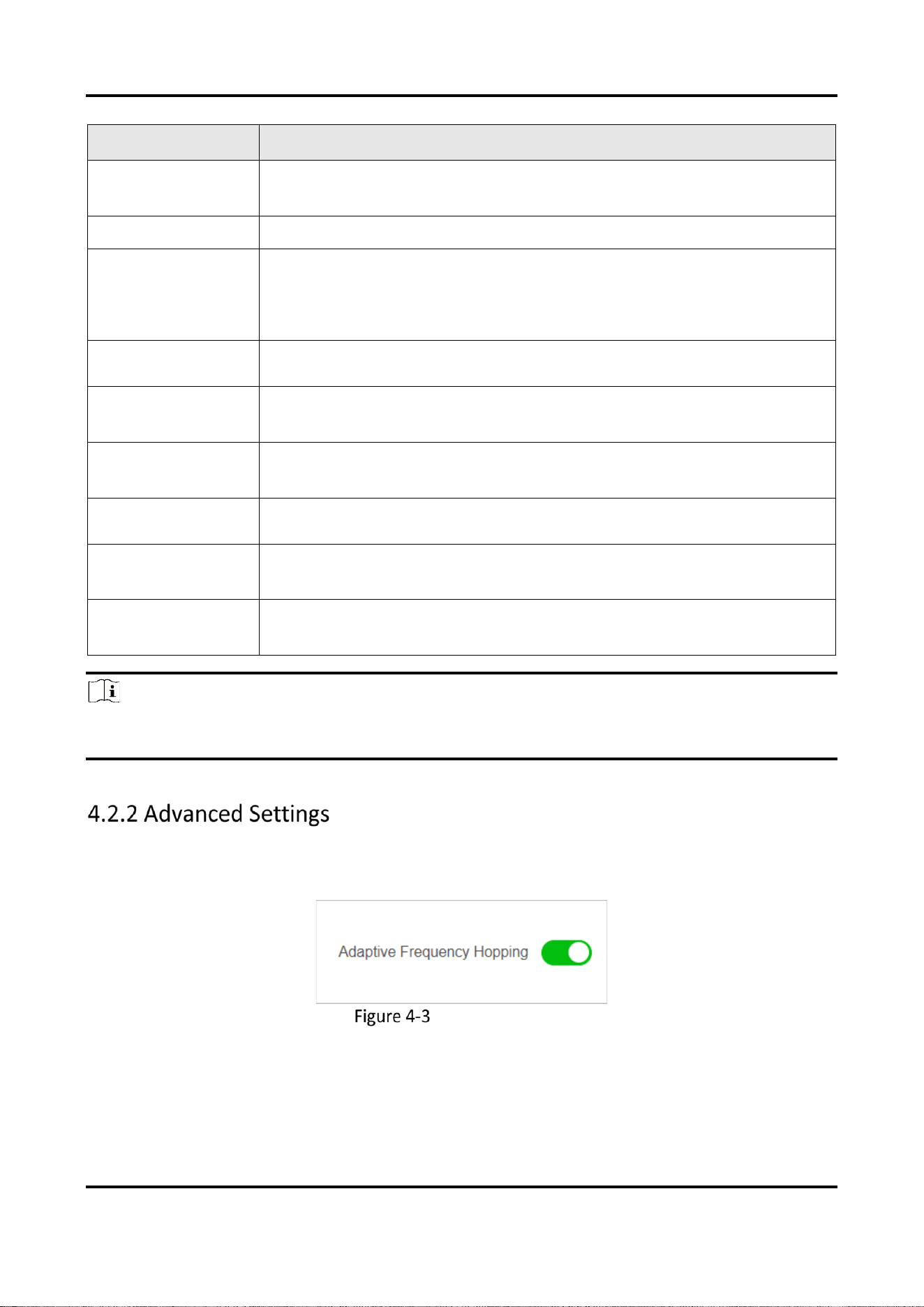
Parameter Description
Parameter
Description
Work Scene
You can set Work Scene as desired through the web. Select AP to set AP
as Work Scene. Select CPE to set CPE as Work Scene.
SSID
● The SSID is set by default, and it supports customization.
● The CPE pairs with the AP according to SSID.
● It is recommended to hide the SSID of APs for security.
Wireless Bridge (Web) • User Manual
9
Parameter
Description
Country/Region
Code
Set when activating the device. It is unchangeable after selected, unless
you restore all the settings to default settings.
Wireless Mode
It is not configurable.
Channel Width
● For APs: Channel widths are available for selection. The specific value
depends on the country/region code.
● For CPEs: The channel width is automatically changed according to the
AP. It is not configurable.
Channel
● For APs: Auto is set by default. You can select a desired one.
● For CPEs: Auto is set by default. It is not configurable.
Antenna Gain
The power transmitted in the direction of peak radiation to that of an
isotropic source.
Transmit Power
A key factor affecting the wireless coverage area and the maximum
achievable signal-to-noise ratio.
Security Mode
● WPA2-PSK is set by default, and the encryption method is AES.
● If Not-Encrypted is selected, there is no need to set PSK Secret Key.
PSK Secret Key
The pairing password for CPEs and APs. If WPA2-PSK is set as Security
Mode, you should configure PSK Secret Key.
EIRP Restriction
Check to restrict the EIRP (Effective Isotropic Radiated Power) of the
device.
Note
You can select an optimum channel by clicking Scan Signal to check the signal intensity of available
channels nearby.
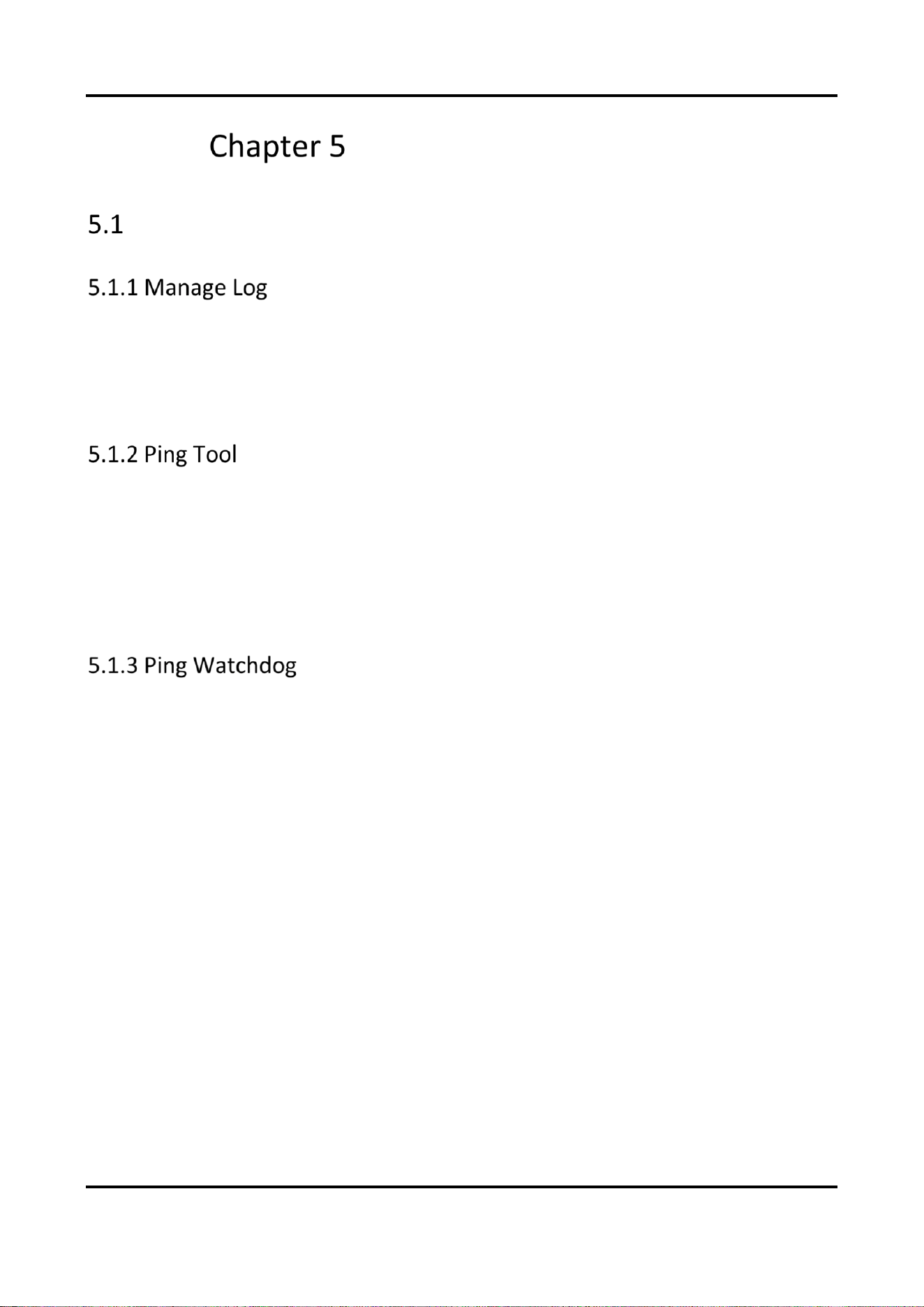
Go to Wireless Settings → Advanced Settings, enable Adaptive Frequency Hopping to ensure stable
video transmission when interference is detected.
Advanced Settings

Wireless Bridge (Web) • User Manual
10
Note
This function is available for some models only when AP is set as the work scene.
With this function, the working channel will be automatically switched to the optimal channel
of all the choices except the DFS (Dynamic Frequency Selection) channels and indoor channels.
The function varies with countries. For certain countries, this function is not available.
With this function enabled, you are not able to set the channel and channel width manually. It
is recommended that you disable this function if roaming is needed.
Wireless Bridge (Web) • User Manual
11
System Maintenance
System Diagnosis
Export desired logs to your local storage.
Steps
1. Go to Fault Diagnosis → Log Management.
2. Click Export to save the log files.
Through Ping Tool, you can get network status information, which would be useful for the technical
support.
Steps
1. Go to Fault Diagnosis → Network Tool → Ping Tool.
2. Enter the IP address.
3. Click Start Diagnose. Diagnosis results will display.
By pinging a specific IP address and check the packet loss, technical support professionals can
examine the device working status. If the device is in abnormal status, they may reboot the device.
Steps
1. Go to Fault Diagnosis → Network Tool → Ping Watchdog.
2. Enable Ping Watchdog.
3.
Enter related information.
Interval
The interval of Ping packet.
Start Delay
The delay time for reboot when the device is in abnormal status.
Number of Consecutive Failures
The limit for packet loss times. The device is reckoned as abnormal when the packet loss
times reach this limit.
4. Click Save.
Wireless Bridge (Web) • User Manual
12
Edit Device Name
Edit the device name for identification.
Steps
1. Go to System → System Configuration → Basic Information.
2. Edit your desired name in Device Name.
3. Click Save.
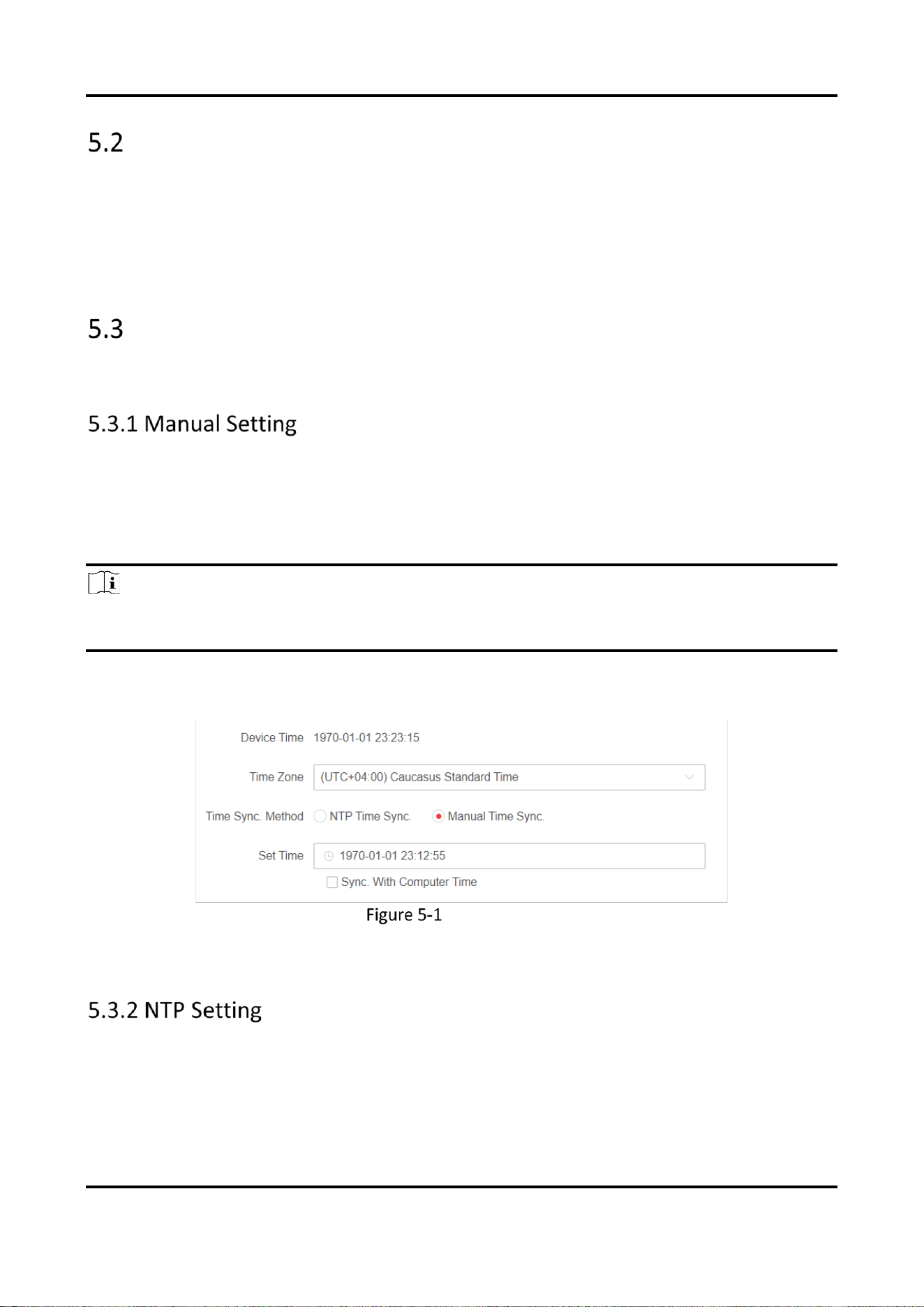
Set Time
Both manual time synchronization and NTP time synchronization are supported.
You can set a desired specific time, or synchronize the time with that of the computer.
Steps
1. Go to System → System Configuration → Time Configuration.
2. Select a Time Zone.
Note
The time zone is automatically selected after you set the country/region code. You can also select
the desired time zone as needed.
3. Select Manual Time Sync. as Time Sync. Method.
4. Set the desired time or check Sync. With Computer Time.
Manual Setting
5. Click Save.
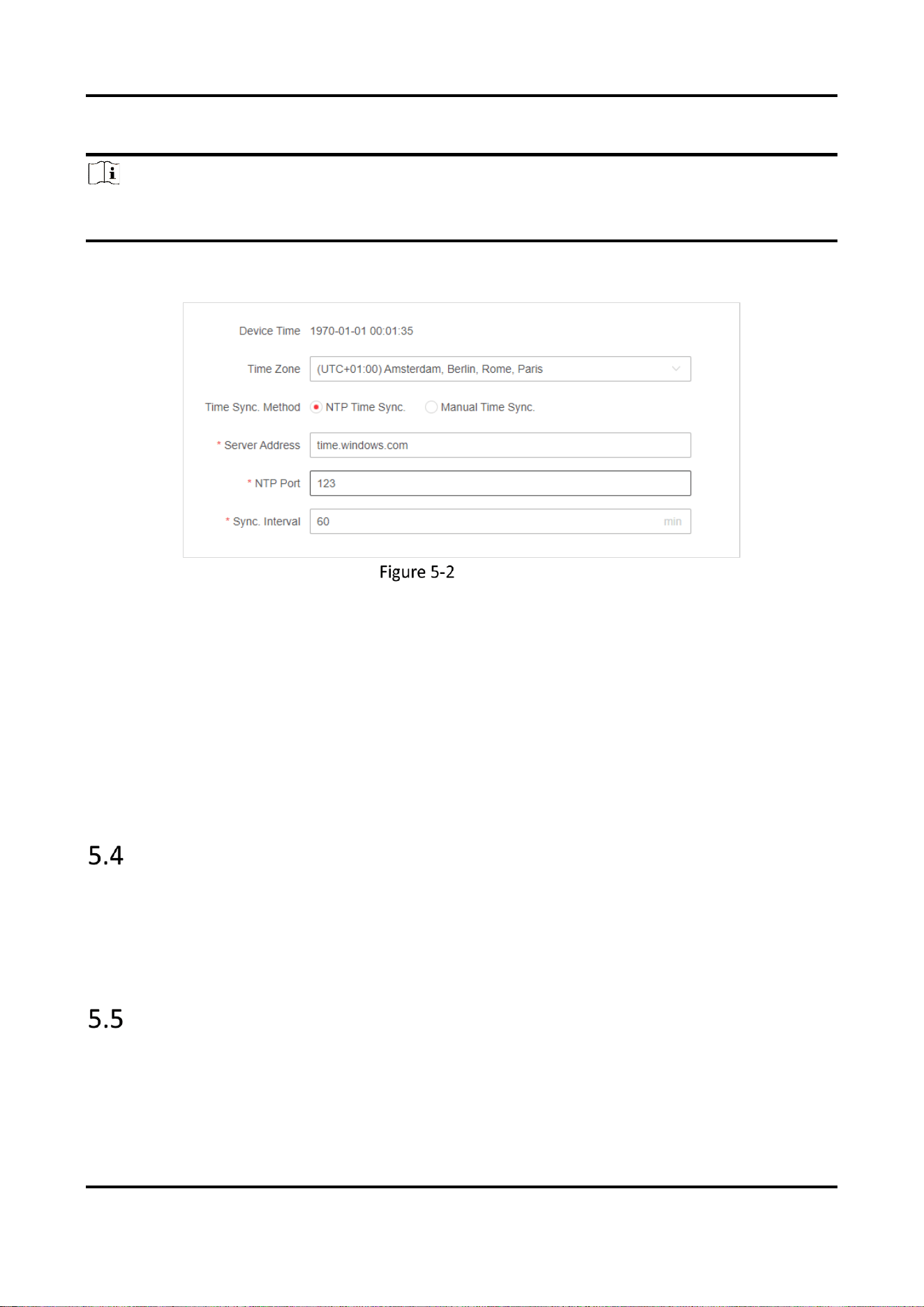
NTP time synchronization is used to synchronize the time with that of a specific NTP server.
Steps
1. Go to System → System Configuration → Time Configuration.
Wireless Bridge (Web) • User Manual
13
2. Select a Time Zone.
Note
The time zone is automatically selected after you set the country/region code. You can also select
the desired time zone as needed.
3. Select NTP Time Sync. as Time Sync. Method.
NTP Setting
4.
Enter NTP server information.
Server Address
The IP address of the NTP server.
NTP Port
Monitoring port of the NTP server. Default value: 123. Value range: 1 to 65535.
Sync. Interval
The frequency for the device to synchronize with the NTP server. Value range: 1 to 10080
minutes.
Reboot the Device
You can reboot the device remotely through the web page.
Steps
1. Go to System → System Maintenance → Reboot.
2. Click Reboot.
Backup and Restore
Go to System → System Maintenance → Backup and Restore for backup or default settings
restoration.
● Backup: Click Export and set Password for device parameter file.

Wireless Bridge (Web) • User Manual
14
● Import Device Parameter: Click and select the device parameter file that exported before.
● Simple Restore: Restore the parameters to the default settings, except network settings and
user settings.
● Restore All: Restore all the parameters to the default settings.
Caution
● Restoring all the parameters will clear all the settings, please operate with caution.
● It is recommended to export all the configuration files before restoration.
● Password is required for importing device parameter file, and the device will restart
automatically after device parameter file has been imported.
Device Debugging
To improve network security, it is recommended to disable SSH services. This configuration is only
for professional personnel to debug equipment.
Steps
1. Go to System → System Maintenance → Device Debugging.
2. Enable SSH.
Upgrade the Device
Use the newest firmware for available upgrades, and upgrade the device through web page
remotely.
Before You Start
Copy the upgrade package to the local directory of the PC used for remote access.
Steps
1. Go to System → System Maintenance → Upgrade.
2. Click to go to the local directory, and select the desired upgrade package.
3. Click Upgrade.
Note
● The device will reboot automatically after upgrade, and you need to log in again.
● If upgrade fails and the device cannot work normally, please contact the supplier for restoration.
SADP Service
If SADP service is enabled, you can activate the device, change password, and modify IP address
through the software. SADP service is enabled by default.
Steps
1. Go to System → Safety Management.
Wireless Bridge (Web) • User Manual
15
2. Enable SADP Service.
Note
If SADP service is disabled, some of the functions may become unavailable. It is recommended to
enable this service.
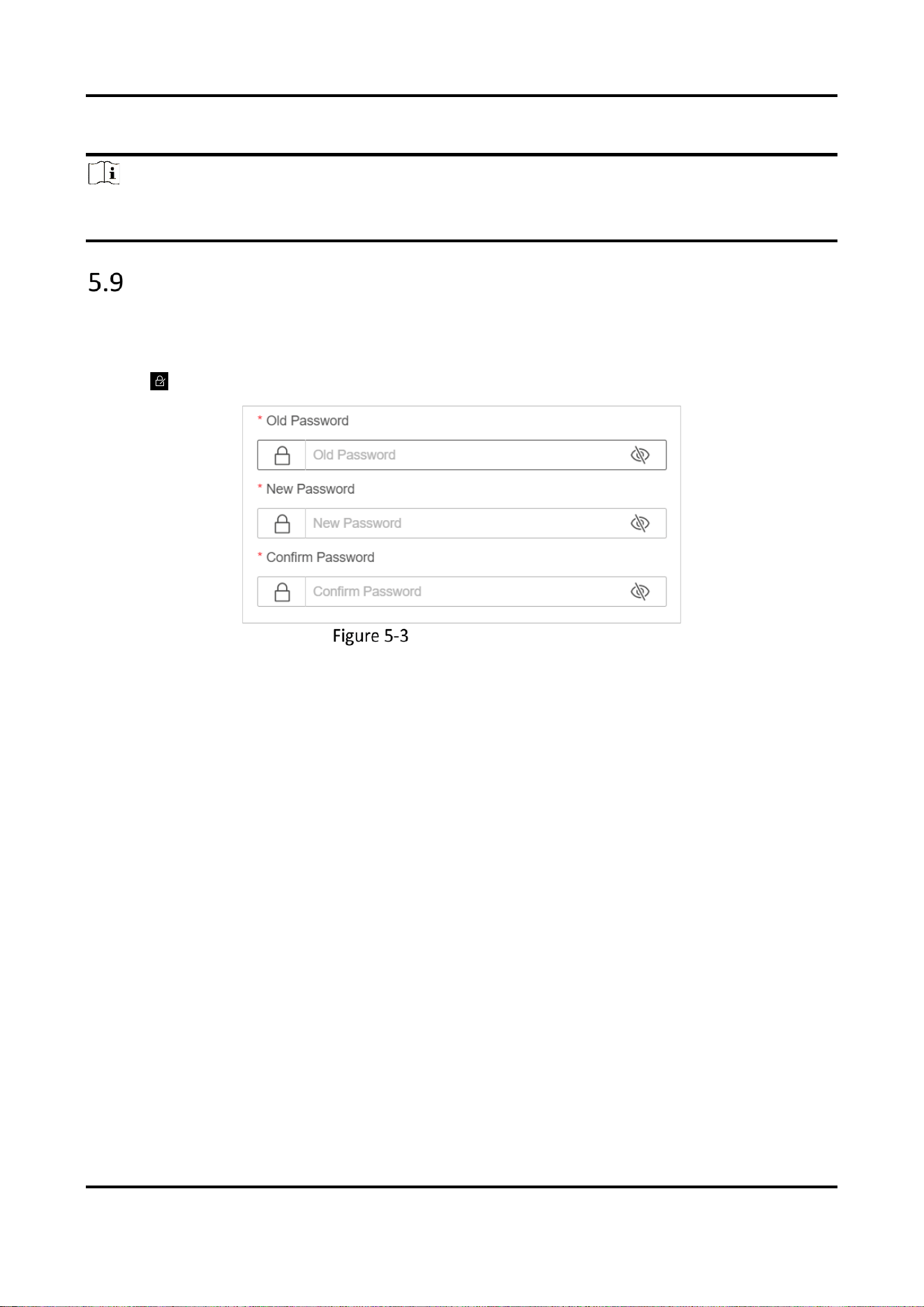
Change Password
For data security, we highly recommend you to change your password regularly.
Steps
1. Click
at the upper-right corner.
Change admin Password
2. Enter the original password, new password and confirm.
3. Click Save.
The web page redirects to the login interface.

Wireless Bridge (Web) • User Manual
16
FAQs
Why the device cannot start up?
Reason
1. The network cable length connecting the wireless bridge to the PoE module exceeds 60 m.
2. The network cable cannot meet the standard of Category 5e.
3. The registered jack of the network cable is not firmly connected, or the connection order is
improper.
Solution
1. Use a network cable shorter than 60 m.
2. Use a network cable with Category 5e or higher standard.
3. Remake the registered jack.
Why devices pairing failed?
Reason
The devices pairing status depends on the distance, direction, SSID name, and PSK password.
Solution
You can check as follows:
1. Check distance and direction: Ensure the AP and CPE are directly faced to each other, and the
distance between them is within the limit.
2. Check SSID name and PSK password: Ensure the SSID name and PSK password are correct.
Why the wireless connection rate is relatively low?
Reason
The wireless system makes connection with its maximum working rate, and the actual rate depends
on the distance and environment.
Solution
You can check as follows to ensure the highest connection rate:
1. Device position: Adjust the device position and direction.
2. Wireless channel or frequency: Change to another signal channel or frequency to reduce
interference.
3. Wireless interference: Adjust, shield, or disable the device causing interference.

Wireless Bridge (Web) • User Manual
17
Why the signal intensity is too low?
Reason
1. There is a large-sized obstruction between the CPE and the AP.
2. The CPE is not directly faced to the AP.
Solution
1. Remove the obstruction or bypass it.
2.
Adjust the angle of the CPE and the AP.
Why the throughput is inadequate even with high signal
quality?
Reason
1. Excessive interference or multipath interference.
2. Wired device error.
Solution
1. Remove the interference or change the device frequency.
Method of changing frequency: Reboot the AP of wireless bridge to allow auto search of
available signal channels.
2. Change a network cable or use another PC.
Why there are excessive packet loss and time delay when PC
pings the device IP address?
Reason
1. The registered jack of the network cable is not firmly connected.
2. The IP addresses of multiple devices conflict.
Solution
Port isolation should be conducted for APs connected to the same switch.
1. Remake the registered jack.
2. Modify the IP addresses of different devices.

UD38095B